
AXE027 PICAXE USB CABLE
|
|
|
- Kerrie Tucker
- 9 years ago
- Views:
Transcription
1 AXE027 PICAXE USB CABLE Index: 1.0) Introduction 2.0) General tips for using the AXE027 USB cable 3.0) Windows 2000/2003/XP/Vista Installation 3.1) Windows 7/8 (32/64 bit) Installation 4.0) Linux Installation 5.0) Mac OS X Installation 6.0) Windows CE/PocketPC/Mobile Installation 7.0) PICAXE Download Circuit 8.0) AXE027 Circuit Diagram 1.0) Introduction The PICAXE USB download cable is used to download PICAXE programs into PICAXE chips. It can be used with any PICAXE chip or project board. The cable is compatible with any software application that supports programming of PICAXE chips. The PICAXE USB download cable connects via the computer s USB port. However the cable contains a tiny circuit board, moulded into the compact USB connector. This circuit contains a USB to serial convertor chip, and so the actual data transfer to the PICAXE chip is via a 5V logic level serial connection. 2.0) General tips for using the AXE027 USB cable Always plug in the USB cable before starting the software application. Always use the USB cable in the same USB port on your computer. Most operating system regards each individual USB port as a unique location. Therefore if you plug your cable into a different USB port on the computer you may be prompted to reinstall the driver files for this new location. The USB cable s internal circuit board is powered by the computer s USB port. Therefore remove the cable from the PICAXE project when the USB end of the cable is not inserted into a computer, as the cable will not then be powered. Revolution Education Ltd Web: v2.6 08/13

2 2 3.0) Windows 2000/XP/Vista Installation (see section 3.1 for Windows 7) When the AXE027 software driver is installed, the Windows operating system automatically allocates the USB cable a virtual COM port number to be used (e.g. COM5) within the PICAXE software. This virtual COM port number will vary between computers, but can also be changed to a different number if desired. After you have installed the drivers, if you are not sure which COM port number has been allocated, you can use Windows Device Manager to study the configuration. To use Device Manager click: Start > Control Panel > Performance & Maintenance > System > Hardware > Device Manager or in classic view Start > Settings > Control Panel > System > Hardware > Device Manager The Device Manager will then start - click the + symbol beside Ports (COM & LPT) so that all the entries are visible. Beside the AXE027 PICAXE USB entry will be the currently allocated COM port number. The instructions given later in this manual explains how to change this COM port number if necessary. 3.01) Installing the AXE027 PICAXE USB Cable Driver The first time you connect the AXE027 PICAXE USB cable you will be automatically prompted to install the software driver files. These driver files can be found on the Programming Editor CDROM (in the USB_drivers_AXE027 folder) or downloaded free of charge from the software downloads section at There are two download options: 1) Self extracting pre-installer - this is the easiest option - just download and run the file before connecting the cable. It pre-installs the drivers onto your Windows system. 2) Manual zip file - download and unzip the downloaded files into a temporary folder (e.g. c:\temp) before proceeding. On computers setup with user accounts (e.g. school networks) please ensure you are logged in as an administrator before proceeding. Step 1 Plug the AXE027 USB cable into an available USB port on your computer. Remember which port you have used as it is important to always use the same port in the future. After a few seconds Windows will recognise that the cable has been inserted and will automatically prompt you with the Found New Hardware wizard. Do NOT connect to Windows Update - as you have already downloaded the correct driver files. Therefore select No then click Next.


3 3 Step 2 If you have used the pre-installer then simply select: Install the software automatically click Next, then move to Step 4 below. If you have not used the preinstaller then select: Install from a list or specified location (Advanced) click Next Step 3 Select Search for the best driver in these locations. Remove the tick from the Search box and add a tick beside the Include box. Click the Browse button and then browse to the driver folder. This is either the appropriate folder within the USB_drivers_AXE027 folder on the Programming Editor CDROM or the temporary folder on your hard-drive where the website downloaded driver files have been saved (e.g. c:\temp). Click Next Step 4 If a Windows logo testing warning is displayed click Continue Anyway Note that the generic FTDI software drivers to be installed during this process have already passed Windows logo testing. However due to legal reasons when distributed by a third party (e.g. Revolution) they cannot currently be marked as passed. Step 5 Click Finish when the installation completes. Step 6 Please note the entire process (steps 2 to 5) will now repeat. This is completely normal as the Windows operating system requires two separate driver files for the AXE027 cable to operate. The Windows operating system will now automatically allocate the AXE027 USB cable a default COM port number to use within the Programming Editor software. However this automatically allocated COM port number may not be suitable (e.g. COM20) and may need to be re-assigning to another port (e.g. COM4).

4 4 3.02) Changing the default COM Port Number After initial driver installation, the Windows operating system will automatically allocate the AXE027 USB cable a default COM port number to use within the Programming Editor software. However this automatically allocated port number may not be suitable (e.g. COM20) and may need reassigning to another COM port number (e.g. COM4). Step 1 Start the Programming Editor software. Select the View>Options menu and click on the Serial Port tab. Note which ports are greyed out (not used). Select one of these greyed out port numbers (e.g. in this example COM4) Click the Setup button to launch Device Manager. Step 2 Click on the + beside Ports (COM and LPT) to browse the current ports. Select the AXE027 PICAXE USB entry and right click the mouse. Select Properties. Step 3 Select the Port Settings tab and then click the Advanced button Step 4 The COM Port number currently allocated is shown on screen (COM20 in this example). From the COM port number list select the desired new COM port number and then click OK twice to save the new port number (none of the other settings need to be changed). Note that sometimes the Windows operating system marks ports as in use, even though they are not actually in use at that time. This is because Windows is reserving the COM port number for a particular device. This can occur, for instance, if you plug your AXE027 cable into a different USB port on the computer - Windows is expecting the cable to be inserted into the original USB port and so is reserving the COM number for that USB port. You may change to COM ports marked as in use but will have to OK the extra Windows warning message. Step 5 In the Programming Editor now click the Refresh button. The desired COM port should now become available. Select this port and then click OK. The system is now ready for use. This process is only required once as Windows automatically saves the COM port settings for this cable for future use (when used in this USB port location).

5 5 3.1) Windows 7/8 (32 & 64 bit) Installation When the AXE027 software driver is installed, the Windows operating system automatically allocates the USB cable a virtual COM port number to be used (e.g. COM3) within the PICAXE software. This virtual COM port number will vary between computers, but can also be changed to a different number if desired. After you have correctly installed the drivers, if you are not sure which COM port number has been allocated, you can use Windows Device Manager to study the configuration. To view Device Manager click: Start > Control Panel > Hardware and Sound then click Device Manager which is under Devices and Printers section The Device Manager will then start - click the + symbol beside Ports (COM & LPT) so that all the entries are visible. Beside the AXE027 PICAXE USB entry will be the currently allocated COM port number. 3.11) Installing the AXE027 PICAXE USB Cable Driver Due to the new way Windows 7 handles driver installation the installation process is slightly different to XP / Vista. The screenshots below were taken from Windows 7 Home Premium (64-bit) - other versions may vary slightly. Step 1 - Download the driver files There are two download options: 1) Self extracting pre-installer - this is the easiest option - just download and run the file before connecting the cable. It preinstalls the drivers onto your Windows system. 2) Manual zip file - download and unzip the downloaded files into a temporary folder (e.g. shown as axe027_win7 in these screenshots) Step 2 - Let Windows 7 attempt to background detect and install a signed driver Connect the AXE027 cable to the desired USB port. Remember you must always use the same USB port. Leave for 5 minutes - have a coffee! During this time Windows 7 will attempt to background load a driver automatically and task bar messages such as those shown will appear. This automated process will eventually fail, do not worry - this is normal and expected as we wish to manually install the driver instead.

6 6 Step 3 - Manually Install AXE027 Driver Click Start > Control Panel Click 'View Devices and Printers' in the 'Hardware and Sound' section Right Click over 'AXE027 PICAXE USB' and select Properties Click Hardware Tab Highlight (click on) 'AXE027 PICAXE USB' in the list Click Properties button Click 'Change Settings' button

7 7 Click 'Update Driver' If you have used the pre-installer then simply select: Search automatically If you have not used the preinstaller then select: 'Browse my Computer for driver software' Click Browse button and select the downloaded drivers folder. Click Next. Select 'Install this driver software anyway' on the Security warning (if it appears). When installation completes close all open windows This process MUST now be repeated to setup the Virtual USB serial port driver, which is a separate driver. Step 4 - Manually Install Virtual USB Port Driver Click Start > Control Panel Click 'View Devices and Printers' in the 'Hardware and Sound' section
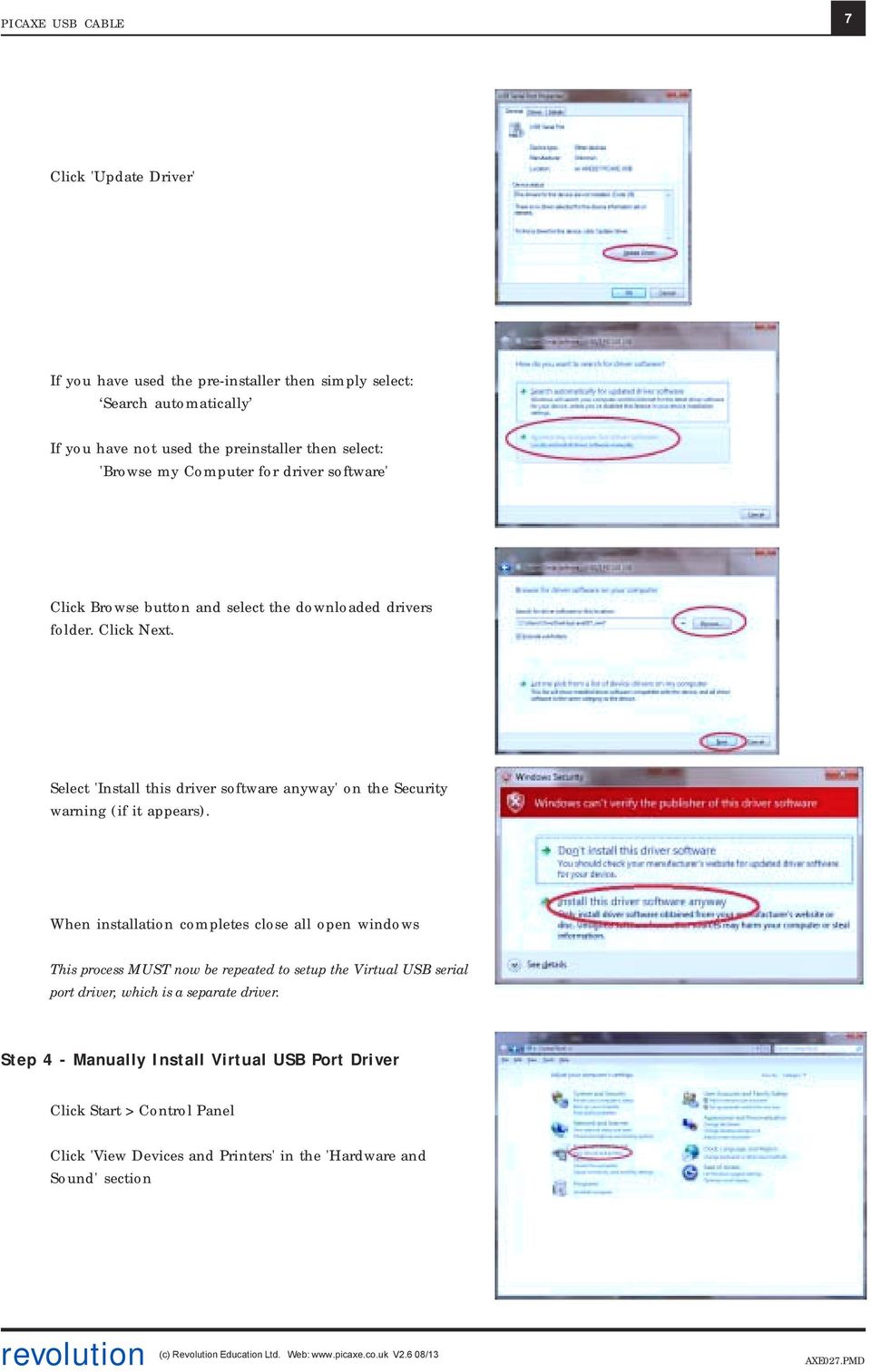
8 8 Right Click over 'AXE027 PICAXE USB' and select Properties Click Hardware Tab Highlight (click on) 'USB Serial Port' in the list (instead of 'AXE027 PICAXE USB' which was used last time) Click Properties button Click 'Change Settings' button Click 'Update Driver'

9 9 If you have used the pre-installer then simply select: Search automatically If you have not used the preinstaller then select: 'Browse my Computer for driver software' Click Browse button and select the downloaded drivers folder. Click Next. Select 'Install this driver anyway' on any s ecurity warning. When installation completes note the new COM port number in the title bar of the 'succesful update' message. This is the COM port number to be used in the PICAXE software (e.g. COM3 shown in this screenshot). When installation completes close all open windows

10 10 4.0) Linux Installation The AXE027 cable contains an internal electronic circuit, based upon an FTDI USB<>serial converter chip. This chip is already supported by the default Linux installation, via the kernel driver named ftdi_sio (kernel and later). Therefore no driver download is required. However, as many different products from many different companies all use the same FTDI chip, each product is given a unique product id number for identification purposes. This unique product id is programmed into the chip inside the cable, so that when the cable is connected to the computer it can be uniquely identified. The unique product id for the AXE027 USB cable is 0xbd90. The vendor id is 0x0403. However the default driver ftdi_sio, as installed by most Linux distributions, only recognises a couple of (default) product ids for the FTDI chip (e.g. 0x6001). Therefore it is required to patch the driver so that it correctly supports the AXE027 s 0xbd90 product id. There are 3 different ways to do this, depending on user expertise with using the Linux operating system. Option 1 is to simply patch ( modprobe ) the driver details every time the cable is used. This is very simple, but needs to be carried out every time the computer is restarted (before the AXE027 cable is inserted). This method also works when running Linux from a Live CD (without installation). Option 2 (recommended) is also fairly straight forward, and permanent as it involves adding a new udev rule file to the operating system. The rule runs automatically each time the computer boots. Option 3 is advanced and only for those familiar with kernel module recompiling. It involves modifying the original driver source code and recompiling. All 3 options are checked for correct operation in the same simple way after inserting the AXE027 cable into the USB port the symbolic link file called /dev/ttyusb0 should automatically appear within the operating system. Note that any application using the AXE027 cable needs to address this USB symbolic link /dev/ttyusb0 which is not the same as the traditional serial (e.g. COM1 ) port link /dev/ttys0 Remember the Linux operating system is case sensitive - ttyusb0 is not the same as ttyusb0. If you have more than one similar USB device attached the name of the second device will be ttyusb1 etc. The following instructions were tested on an Asus eeepc 900, running the default Xandros (Debian derived) distribution and on a PC booted with a Ubunto live CD (not installed). Note that although the principles are the same for most Linux distributions, different distributions will use different methods for becoming root (aka superuser ) (e.g. use su -l rather than sudo) or for opening a Console Terminal. See the online documenation for your distribution for more specific details.

11 11 4.1) Linux Patch Option 1 Temporarily update the kernel drivers product id every time the computer is restarted (this must be carried out before the cable is inserted into the USB port). This method can also be used when running Linux from a live CD. To do this open a Terminal console and then type sudo modprobe ftdi_sio vendor=0x0403 product=0xbd90 If you then see a permission denied error message when using the cable type sudo chmod 777 /dev/ttyusb0 4.2) Linux Patch Option 2 (recommended) Create a new udev rule, so that the modprobe rule is automatically applied every time the computer boots. Create a new file (e.g. using KWrite, gedit or similar text editor) named /etc/udev/rules.d/99-axe027.rules To do this press open a Terminal console and then type sudo kwrite /etc/udev/rules.d/99-axe027.rules Then enter the following text (note the last 2 lines below should be entered as one long line) and then save the file. # /etc/udev/rules.d/99-axe027.rules # contains axe027 udev rule to patch default # FTDI product id to AXE027 product id (0xbd90) ATTR{idProduct}=="bd90", ATTR{idVendor}=="0403", RUN+="/sbin/modprobe -q ftdi_sio product=0xbd90 vendor=0x0403" (For Ubunto versions prior to use SYSFS instead of ATTR in the two locations in the line above) The new rule will then always be applied when the system boots. To immediately try out the new rule without rebooting open a Terminal console and then type sudo udevcontrol reload_rules 4.3) Patch Option 3 The technically correct method, but for experienced users only! Patch the original kernel source files orig/drivers/usb/serial/ftdi_sio.c (3 extra lines required as overleaf) and orig/ drivers/usb/serial/ftdi_sio.h (1 extra line required) and recompile. After patching these two files also make sure in addition to normal USB support you have CONFIG_USB_SERIAL_GENERIC and CONFIG_USB_SERIAL_FTDI_SIO enabled in kernel.config. Then recompile and install the kernel (or at least this module).

12 12 *** orig/drivers/usb/serial/ftdi_sio.c *** linux/drivers/usb/serial/ftdi_sio.c *************** *** 350,355 *** *** 350,356 *** { USB_DEVICE_VER(FTDI_VID, PROTEGO_SPECIAL_3, 0, 0x3ff) }, { USB_DEVICE_VER(FTDI_VID, PROTEGO_SPECIAL_4, 0, 0x3ff) }, { USB_DEVICE_VER(FTDI_VID, FTDI_ELV_UO100_PID, 0, 0x3ff) }, + { USB_DEVICE_VER(FTDI_VID, FTDI_AXE027_PID, 0, 0x3ff) }, { } /* Terminating entry */ }; *************** *** 431,436 *** *** 433,438 *** { USB_DEVICE_VER(FTDI_VID, PROTEGO_SPECIAL_3, 0x400, 0xffff) }, { USB_DEVICE_VER(FTDI_VID, PROTEGO_SPECIAL_4, 0x400, 0xffff) }, { USB_DEVICE_VER(FTDI_VID, FTDI_ELV_UO100_PID, 0x400, 0xffff) }, + { USB_DEVICE_VER(FTDI_VID, FTDI_AXE027_PID, 0x400, 0xffff) }, { USB_DEVICE(FTDI_VID, FTDI_CCSICDU20_0_PID) }, { USB_DEVICE(FTDI_VID, FTDI_CCSICDU40_1_PID) }, { } /* Terminating entry */ *************** *** 537,542 *** *** 541,545 *** { USB_DEVICE(FTDI_VID, PROTEGO_SPECIAL_3) }, { USB_DEVICE(FTDI_VID, PROTEGO_SPECIAL_4) }, { USB_DEVICE(FTDI_VID, FTDI_ELV_UO100_PID) }, + { USB_DEVICE(FTDI_VID, FTDI_AXE027_PID) }, { USB_DEVICE(FTDI_VID, FTDI_CCSICDU20_0_PID) }, { USB_DEVICE(FTDI_VID, FTDI_CCSICDU40_1_PID) }, { } /* Terminating entry */ *** orig/drivers/usb/serial/ftdi_sio.h *** linux/drivers/usb/serial/ftdi_sio.h *************** *** 143,148 *** *** 143,149 *** /* ELV USB Module UO100 (PID sent by Stefan Frings) */ #define FTDI_ELV_UO100_PID 0xFB58 /* Product Id */ + #define FTDI_AXE027_PID 0xBD90 /* Product Id */

13 13 5.0) Mac (OS X) Installation Install the Mac OS X software driver BEFORE inserting the AXE027 cable into the USB port. Note that the screenshots shown may vary with different version of Mac OS. First download the AXE027 Mac driver from the software section of the website and save it to the hard disk. Double click on the file to unzip it. The driver is now available in disk image (.dmg) format. Run the installer by double clicking on the 'FTDIUSBSerialDriver.dmg' icon. Click Continue to proceed with the installation and follow the instructions on screen. When the installation is complete, reboot the computer. When the computer has rebooted, plug in the AXE027 cable. If the device is installed properly, you will now see the cable as a symbolic link file entry in the /dev directory: /dev/tty.usbserial-xxxxxxxx where xxxx is a unique serial number. Remember this number as you will require it to use the AXE027 cable. To study the contents of /dev use the Terminal application. The Terminal application can be launched by selecting Go > Applications > Utilities > Terminal. Type the following lines in the Terminal window to produce the file list: cd /dev ls -l

14 14 5.1) Trouble shooting: If the AXE027 cable cannot be accessed an ownership or permissions problem may be preventing the system from making the cable accessible. Check that the driver is owned by root and wheel. The most common symptom is the group for FTDIUSBSerialDriver is not wheel. To change the group, login as root and perform the following script in a Terminal window (Go > Applications > Utilities > Terminal): cd /system/library/extensions chgrp -R wheel FTDIUSBSerialDriver.kext Reboot for the change to take effect.

15 15 6.0) Windows CE (v4.2 up, including PocketPC 2003, Mobile 5, Mobile 6) Installation Please note that not all PDAs/Smartphones can act as a USB host. Acting as a USB host is NOT the same technology as using a USB cable for synching - whilst synching the computer is the USB host, and the PDA is a USB client. If you can connect a USB memory stick directly to your PDA to transfer files then the PDA can act as a host, if you cannot do this your PDA does not support USB host mode and the AXE027 cable will not operate with your PDA. Most PDAs that support the USB host function will require some kind of host adapter (e.g. USB host cable, presentation pack or Compact Flash card) before they will operate as the USB host. In this case the adapter must be correctly installed before the AXE027 cable is inserted. Windows CE 4.2 (and later) is supported. Please note different versions of Windows CE (e.g. 4.2 to 5.2 or 6.0) and each different type of PDA processor (e.g. x86 or ARM/XScale) require a different driver. Therefore please ensure you are downloading/installing the correct driver for your system (details at Start > Settings > System > System Info) 6.1) Installation Step 1 Download the latest available drivers for the required PDA processor model from the software pages at and unzip them. The two files in the driver package are: ftdi_ser.dll FTDIPORT.inf Step 2 If the PDA requires a host adaptor (e.g. USB host cable, presentation pack or Compact Flash host card), make sure that it is connected and installed before proceeding. Step 3 Copy the two files to a USB memory stick and then copy them to the \\Windows directory on the PDA (use File Manager > Edit > Copy/Paste to copy the files). Alternately use ActiveSync from a PC to carry out this copying. Step 4 Connect the AXE027 cable to the host USB port on the PDA. An Unidentified USB Device window will appear. Type the full name of the driver file ftdi_ser.dll into the dialog box and click OK. If the file name is incorrectly spelt, the driver will not be found and the AXE027 cable will not function. If the driver is correctly installed the AXE027 cable ID (04 03 BD 90) should now be visible when clicking Start > Settings > System > System Info > USB Host Connections (ignore all fields except Manufacture, which will state BD 90 if cable is correctly recognised). The AXE027 will be given the next available free COM port number (e.g. COM0 or COM2). Valid COM port numbers on Windows CE are COM0 to COM9 only. Note that other devices (e.g. GPS / bluetooth etc.) may also make use of COM ports. Unfortunately it is not possible to view which COM port is allocated to the AXE027 via System Info, so some experimentation trying COM0 through to COM9 in turn may be required!

16 16 7.0) PICAXE Download Circuit Above view x x x x x 10k 22k serial out serial in 0V PICAXE The standard PICAXE download socket (part CON039) and 10k/22k download circuit is unchanged for use with the AXE027 USB cable (ie the same circuit is used for both the AXE026 serial cable and the AXE027 USB cable). As the AXE027 interfacing voltage is at true logic levels (5V, rather than RS232 voltage levels) it is theoretically permissible to reduce the value of the 22k resistor (e.g. to 1k), but only if a AXE026 serial cable is never to be used. However for maximum versatility it is recommended to leave the circuit unchanged. There is no advantage to using the enhanced download circuit (see main PICAXE manual) with the AXE027 USB cable, as the enhancements in this circuit are to compensate for negative variations in RS232 voltages (which do not apply when using the 5V logic level AXE027 USB cable). However, if already built into a project board, it is acceptable to continue to use the enhanced circuit. The AXE027 USB cable may also be used to transmit/receive serial data from the PICAXE input/output pins (via serin and serout commands). 6) AXE027 Circuit Diagram The miniature USB to serial circuit is built into the plastic moulding of the USB plug on the AXE027 cable. The circuit diagram is shown below. AXE027 PICAXE USB Cable (c) 2006 USB A FB + 4.7u 100n FT232RQ n mm TXD RXD 10n 47p 47p x 10k OV

Adafruit's Raspberry Pi Lesson 5. Using a Console Cable
 Adafruit's Raspberry Pi Lesson 5. Using a Console Cable Created by Simon Monk Last updated on 2014-09-15 12:00:13 PM EDT Guide Contents Guide Contents Overview You Will Need Part Software Installation
USB TO SERIAL CONVERTER
 USB TO SERIAL CONVERTER User Manual (DA-70155-1) Index: A. Windows Driver B. MAC Driver C. Linux Driver A. Windows Driver 1. Product Features 2. System Requirements 3. Driver Installation (Win2000) 4.
Guide to Installing BBL Crystal MIND on Windows 7
 Guide to Installing BBL Crystal MIND on Windows 7 Introduction The BBL Crystal MIND software can not be directly installed on the Microsoft Windows 7 platform, however it can be installed and run via XP
XConsole GUI setup communication manual September 2010.
 XConsole GUI setup communication manual September 2010. XConsole is compatible with Microsoft XP, Vista and Windows 7. The software will also work if using Boot camp on a Mac. IMPORTANT NOTES: - Do NOT
Iridium Extreme TM Satellite Phone. Data Services Manual
 Iridium Extreme TM Satellite Phone Data Services Manual Table of Contents 1 OVERVIEW... 1 2 HOW IT WORKS... 1 3 BEFORE INSTALLING... 2 4 USB DRIVER INSTALLATION... 3 5 MODEM INSTALLATION AND CONFIGURATION...
USB Driver. Installation Manual
 USB Driver Installation Manual Issue 1.00 Detailed guide for the installation of Actisense USB Drivers under the following operating systems: Windows XP / 2000 Windows Vista USB Driver Installation Manual
User Manual (DA-70155)
 USB TO SERIAL CONVERTER User Manual (DA-70155) Index: A. USB-Serial Cable B. USB-Serial Converter C. How driver works with Modem on Linux RedHat 7.3 A. USB-Serial Cable 1. Product Features 2. System Requirements
Future Technology Devices International Ltd. Mac OS-X Installation Guide
 Future Technology Devices International Ltd. Mac OS-X Installation Guide I Mac OS-X Installation Guide Table of Contents Part I Welcome to the Mac OS-X Installation Guide 2 Part II Installing FTDIUSBSerialDriver
Future Technology Devices International Ltd. Mac OS X Installation Guide
 Future Technology Devices International Ltd. Mac OS X Installation Guide I Mac OS X Installation Guide Table of Contents Part I Welcome to the Mac OS X Installation Guide 2 Part II VCP Drivers 3 1 Installing
USB DRIVER INSTALLATION GUIDE
 USB DRIVER INSTALLATION GUIDE Use these instructions to install the USB drivers and Microsoft synchronization software for your Pathfinder 6057 printer. You need these utilities for your printer and computer
SAPIP GUI INSTALLATION. Table of Contents
 QUICK START GUIDE SAPIP GUI INSTALLATION Table of Contents 1. Install CSU cable driver for SapIP..2-3 2. Check for pre-requisite for SAPIP GUI install......2 3. Check for pre-requisite for SAPIP GUI install...2-6
Select Correct USB Driver
 Select Correct USB Driver Windows often installs updated drivers automatically, and defaults to this latest version. Not all of these drivers are compatible with our software. If you are experiencing communications
Chapter 1 Downloading Images to Your Computer (Windows)
 Software User Guide For the safe use of your camera, be sure to read the Safety Precautions thoroughly before use. Types of software installed on your computer varies depending on the method of installation
Printer Support Guide. FedEx Ship Manager Software
 Printer Support Guide FedEx Ship Manager Software Printer FAQs Installing Printer Drivers How do I download and install the Zebra printer drivers? To download and install the current Zebra printer drivers
Supplemental USB Driver Installation Guide
 Windows 2000/XP/Vista/7 Installation Supplemental USB Driver Installation Guide 1) Do not plug in your Auterra USB OBD Adapter until after the driver is installed. 2) The USB driver is located on the your
 UX3600/NT/NTL/NTS Quick Start Guide This Quick Start Guide will explain how to connect and communicate with the EAW UX3600, NTL720, NTS250, KFNT, and JFNT powered speakers. Table of Contents 1. Downloading
Installing S500 Power Monitor Software and LabVIEW Run-time Engine
 EigenLight S500 Power Monitor Software Manual Software Installation... 1 Installing S500 Power Monitor Software and LabVIEW Run-time Engine... 1 Install Drivers for Windows XP... 4 Install VISA run-time...
Installation Instructions for 9555 USB Driver
 Prior to using the data modem features of your 9555 handset; you must first install the VCOMPORT 9555 USB Driver. This driver is compatible with: Windows XP Service Pack 2, Windows 2000 Service Pack 4,
Connecting your Omega/BetaPAT PLUS to a PC via a USB
 Connecting your Omega/BetaPAT PLUS to a PC via a USB Install software Windows XP and below Insert the disc into your computers disc drive and run through the setup wizard. Windows Vista & 7 1. Insert the
Instructions for Installing and Using the FOCUS DL-15 Data Transfer Software
 27 March 2015 Instructions for Installing and Using the FOCUS DL-15 Data Transfer Software Introduction This guide will walk you through the process of transferring data from the FOCUS DL-15 to the computer
PP8X Printer Driver Installation Instruction
 PP8X Printer Driver Installation Instruction Pinnacle Technology Corp. CONTENTS 1 BT Device Installation... 1 2 Printer Driver Installation... 6 3 How to Know the Connecting Port... 10 4 How to Configure
IVS-Basic 4.4 IVS-Professional 4.4 IVS-PowerPoint 1.1
 Manual IVS-Basic 4.4 IVS-Professional 4.4 IVS-PowerPoint 1.1 Supplement connecting USB RF-II Base Station 1213 2 Contents Contents... 3 Connecting the RF-II Base Station to the USB port... 4 Using the
Installing PowerLink on Windows 7 64-bit
 Instruction Manual Version 1.0, Code No. 20 751 806 1 Introduction... 3 2 Installing Virtual PC... 3 3 Configuring Windows XP Mode... 5 4 Installing Powerlink to Virtual XP... 8 5 Run PowerLink software
Adafruit's Raspberry Pi Lesson 5. Using a Console Cable
 Adafruit's Raspberry Pi Lesson 5. Using a Console Cable Created by Simon Monk Last updated on 2016-04-12 08:03:49 PM EDT Guide Contents Guide Contents Overview You Will Need Part Software Installation
BioWin Network Installation
 BioWin Network Installation Introduction This document outlines the procedures for installing the network version of BioWin. There are three parts to the network version installation: 1. The installation
Waspmote IDE. User Guide
 Waspmote IDE User Guide Index Document Version: v4.1-01/2014 Libelium Comunicaciones Distribuidas S.L. INDEX 1. Introduction... 3 1.1. New features...3 1.2. Other notes...3 2. Installation... 4 2.1. Windows...4
Running the R4 Software on a USB Port
 Tech Note Running the R4 Software on a USB Port Like a lot of other engine management software programs that have been around for a while, the R4 program is designed to communicate through a 9-pin serial
SOFTWARE INSTALLATION INSTRUCTIONS
 AUDITGARD LGA Electronic Combination Lock SOFTWARE INSTALLATION INSTRUCTIONS Implementation Package The AuditGard Software implementation package includes: 707013 AuditGard Software Install CD 42145 Programming/Audit
COMBOGARDPRO. 39E Electronic Combination Lock SOFTWARE INSTALLATION INSTRUCTIONS
 COMBOGARDPRO 39E Electronic Combination Lock SOFTWARE INSTALLATION INSTRUCTIONS IMPLEMENTATION PACKAGE The ComboGard Pro Software implementation package includes: 707012 ComboGard Pro Software Install
Config software for D2 systems USER S MANUAL
 DT-CONFIG SOFTWARE Config software for D2 systems USER S MANUAL CONTENTS 1. Introductions ------------------------------------------------------------------- 3 2. System Requirement and Connection ----------------------------------------
Shearwater Research Dive Computer Software Manual
 Shearwater Research Dive Computer Software Manual Revision 1.3 Table of Contents 1. Basic overview of components 2. O/S IrDA driver installation 2.1 USB IrDA installation for Windows XP Home/Pro editions
Installing the Gerber P2C Plotter USB Driver
 Installing the Gerber P2C Plotter USB Driver 1 You can install a Gerber P2C plotter using a USB connection and communicate with it using compatible design software. The following procedures describe installing
Online Backup Client User Manual
 Online Backup Client User Manual Software version 3.21 For Linux distributions January 2011 Version 2.0 Disclaimer This document is compiled with the greatest possible care. However, errors might have
ScanWin Installation and Windows 7-64 bit operating system
 ScanWin Installation and Windows 7-64 bit operating system In order to run the ScanWin Pro install and program on Windows 7 64 bit operating system you need to install a Virtual PC and then install a valid,
NOTE: PLEASE DO NOT ATTEMPT TO INSTALL THE SOFTWARE BEFORE READING THIS DOCUMENT.
 INLINE 5 Software INSTALL BULLETIN Page 2: Installing INLINE 5 Page 6: Removing INLINE 5 NOTE: PLEASE DO NOT ATTEMPT TO INSTALL THE SOFTWARE BEFORE READING THIS DOCUMENT. IMPROPER INSTALLATION OR USE CAN
USB Driver INSTALLATION GUIDE 6 NOVEMBER 2013 RIGHT SOLUTIONS RIGHT PARTNER D0002065-B
 USB Driver INSTALLATION GUIDE D0002065-B 6 NOVEMBER 2013 RIGHT SOLUTIONS RIGHT PARTNER Omega Well Monitoring ALS Oil & Gas 105 1437 47 Avenue NE Calgary, AB Canada T2E 6N7 T: +1 403 232 1400 F: +1 403
USB DRIVER INSTALLATION GUIDE
 USB DRIVER INSTALLATION GUIDE Use these instructions to install the USB and Microsoft ActiveSync synchronization software for your Monarch Pathfinder Ultra Platinum 6039 printer and computer to communicate.
Installing the drivers for the Current Cost Data Cable
 Installing the drivers for the Current Cost Data Cable Contents Introduction... 3 About Current Cost Monitors... 3 About the XML... 3 The Historical XML Feed... 3 Forcing the History to Download... 3 About
USER GUIDE. Ethernet Configuration Guide (Lantronix) P/N: 2900-300321 Rev 6
 KRAMER ELECTRONICS LTD. USER GUIDE Ethernet Configuration Guide (Lantronix) P/N: 2900-300321 Rev 6 Contents 1 Connecting to the Kramer Device via the Ethernet Port 1 1.1 Connecting the Ethernet Port Directly
Application Note CTAN #374
 Application Note CTAN #374 The Application Note is specific to the CT software packages MentorSoft, UniSoft and SeSoft Windows 7 64-bit and the Older CT Software Scope Windows 7 64-bit Professional 64-bit
USA MOBILITY CABLE CONNECTION AND SOFTWARE DRIVER INSTALLATION INSTRUCTIONS. For. Unication M90 Device USB To RS232 Adapter TABLE OF CONTENTS
 USA MOBILITY CABLE CONNECTION AND SOFTWARE DRIVER INSTALLATION INSTRUCTIONS For Unication M90 Device USB To RS232 Adapter TABLE OF CONTENTS SECTION 1: ADAPTER CABLE CONNECTION INSTRUCTIONS... 2 SECTION
Online Backup Client User Manual Linux
 Online Backup Client User Manual Linux 1. Product Information Product: Online Backup Client for Linux Version: 4.1.7 1.1 System Requirements Operating System Linux (RedHat, SuSE, Debian and Debian based
Guide for Remote Control PDA
 030.0051.01.0 Guide for Remote Control PDA For Use with Bluetooth and a PC Running Windows 7 Table of Contents A. Required Parts... 3 B. PC Software Installation... 3 C. Configure PC Software... 4 D. Testing
CashFlow Programming Module CPM
 CashFlow Programming Module CPM Installation & User Guide GB REV G4 08/08/2006 Table of Content Table of Content... 2 CashFlow Programming Module (CPM)... 4 What is a CPM?... 4 CPM Identification... 4
User Manual. Thermo Scientific Orion
 User Manual Thermo Scientific Orion Orion Star Com Software Program 68X637901 Revision A April 2013 Contents Chapter 1... 4 Introduction... 4 Star Com Functions... 5 Chapter 2... 6 Software Installation
Option nv, Gaston Geenslaan 14, B-3001 Leuven Tel +32 16 317 411 Fax +32 16 207 164 http://www.option.com Page 1 of 14
 Page 1 of 14 ! " #!"#$ % &&' Page 2 of 14 1 INTRODUCTION One of the highly desirable features of the GlobeSurfer III device is the ability to network together Printers and External Hard Disk drives (aka
PCLinq2 Hi-Speed USB Bridge-Network Cable. Quick Network Setup Guide
 PCLinq2 Hi-Speed USB Bridge-Network Cable Congratulations! Quick Network Setup Guide For Windows 98/ME/2000/XP Congratulations for installing the PCLinq2 Hi-Speed USB Bridge-Network Cable. This Quick Network
How to Install Applications (APK Files) on Your Android Phone
 How to Install Applications (APK Files) on Your Android Phone Overview An Android application is stored in an APK file (i.e., a file named by {Application Name}.apk). You must install the APK on your Android
File Management Utility. T u t o r i a l
 File Management Utility T u t o r i a l Contents System Requirements... 2 Preparing Files for Transfer to GlobalMark... 2 Application Launch... 2 Printer Setup... 2 Communication Status... 4 Communication
GE Healthcare Life Sciences UNICORN 5.31. Administration and Technical Manual
 GE Healthcare Life Sciences UNICORN 5.31 Administration and Technical Manual Table of Contents Table of Contents 1 Network setup... 1.1 Network terms and concepts... 1.2 Network environment... 1.3 UNICORN
Ash Capture Control User Guide
 Ash Capture Control User Guide Revision 1.4 Table of Contents Software Installation... 3 Hardware Installation... 6 System Block Diagram... 7 Using Ash Capture Control... 8 Launching the Application...
Korosi Monitoring System (KMS) Software Manual
 PT. KOROSI SPECINDO Corrosion Monitoring System Eng. Doc. No.: KS-MNL-KMS Korosi Monitoring System (KMS) Software Manual Revision Date Prepared Approved Description 0 23/05/2008 ES JH Issued for approval
CLEARONE DOCUMENT 801-000-002 (REVISION 1.0) October, 2008. with Converge Pro Units
 APPLICATION NOTES Converge Pro Products CLEARONE DOCUMENT 801-000-002 (REVISION 1.0) October, 2008. Troubleshooting USB Connections with Converge Pro Units Description This document explains how to connect
Current Cost Data Cable User Guide. Installing and configuring the data cable
 Current Cost Data Cable User Guide Installing and configuring the data cable Contents About the Data Cable... 3 Data Cable Installation Steps... 3 Post Installation Checks... 3 So the driver is installed,
CODESOFT Installation Scenarios
 CODESOFT Installation Scenarios NOTES: CODESOFT is a separate install from existing versions of CODESOFT. You will need to make note of your current settings (default directories, etc.) so you can duplicate
Parallels Desktop for Mac
 Parallels Software International, Inc. Parallels Desktop for Mac Quick Start Guide 3.0 (c) 2005-2007 Copyright 2006-2007 by Parallels Software International, Inc. All rights reserved. Parallels and Parallels
Networking. General networking. Networking overview. Common home network configurations. Wired network example. Wireless network examples
 Networking General networking Networking overview A network is a collection of devices such as computers, printers, Ethernet hubs, wireless access points, and routers connected together for communication
USER MANUAL for USB to serial converter (PL2303)
 The USB to RS-232 Serial Adapter provides an external plug & play RS-232 serial connection with your computer, letting you free up your existing serial port. Users have the capability to utilize the adapter
1. Product Information
 ORIXCLOUD BACKUP CLIENT USER MANUAL LINUX 1. Product Information Product: Orixcloud Backup Client for Linux Version: 4.1.7 1.1 System Requirements Linux (RedHat, SuSE, Debian and Debian based systems such
Midland BT Updater BTUpdater Program Program file (x86) ), Midland
 Midland BT Updater After you downloaded the BT Updater setup application from the web site, double click on it and follow the installation procedure. The BTUpdater application is automatically installed
InventoryControl for use with QuoteWerks Quick Start Guide
 InventoryControl for use with QuoteWerks Quick Start Guide Copyright 2013 Wasp Barcode Technologies 1400 10 th St. Plano, TX 75074 All Rights Reserved STATEMENTS IN THIS DOCUMENT REGARDING THIRD PARTY
2-Port RS232/422/485 Combo Serial to USB2.0 Adapter (w/ Metal Case and Screw Lock Mechanism) Installation Guide
 2-Port RS232/422/485 Combo Serial to USB2.0 Adapter (w/ Metal Case and Screw Lock Mechanism) Installation Guide 1. Introduction Thank you for purchasing this 2-Port RS232/422/485 Combo Serial to USB Adapter.
TN-0040. DTUSB Information for Existing DT80 Series Users 1 Overview
 DTUSB Information for Existing DT80 Series Users 1 Overview This document is intended for existing DT8x Series 2 users wishing to use the new "plug and play" facilities for establishing a PPP connection
PIGCHAMP MOBILE. PigCHAMP Knowledge Software. Installation Guide for Mobile Units
 PIGCHAMP MOBILE PigCHAMP Knowledge Software Installation Guide for Mobile Units Table of Contents: Important Note:... 4 Chapter 1: PC Setup... 5 A. Install PigCHAMP Mobile Manager on Windows XP...5 B.
AIM SOFTWARE AND USB DRIVER INSTALLATION PROCEDURE
 AIM SOFTWARE AND USB DRIVER INSTALLATION PROCEDURE CONTENTS AIM software and USB Driver installation Chapter 1 Installing AIM software and AIM USB driver... 2 Chapter 2 Installation under Microsoft Windows
Manual. Sealer Monitor Software. Version 0.10.7
 Manual Sealer Monitor Software Version 0.10.7 Contents 1 Introduction & symbols 1 2 Installation 2 2.1 Requirements 2 2.2 Installation process 2 3 Menu & Tooblar 5 3.1 File menu 5 3.2 Print menu 6 3.3
Read Me UNISTREAM AUTOMATION IDE
 Read Me UNILOGIC SOFTWARE UNISTREAM AUTOMATION IDE Unitronics UniLogic software is the programming Integrated Development Environment (IDE) you use to configure hardware, communications, and develop both
STATISTICA VERSION 9 STATISTICA ENTERPRISE INSTALLATION INSTRUCTIONS FOR USE WITH TERMINAL SERVER
 Notes: STATISTICA VERSION 9 STATISTICA ENTERPRISE INSTALLATION INSTRUCTIONS FOR USE WITH TERMINAL SERVER 1. These instructions focus on installation on Windows Terminal Server (WTS), but are applicable
USB Flash Drive User s Manual
 USB Flash Drive User s Manual V4.01 Introduction Thank you for your purchasing the USB Drive. This manual will guide you through the usages of the USB Drive and of all management tools coming with it.
Guest PC. for Mac OS X. User Guide. Version 1.6. Copyright 1996-2005 Lismore Software Systems, Ltd. All rights reserved.
 Guest PC for Mac OS X Version 1.6 User Guide Copyright 1996-2005 Lismore Software Systems, Ltd. All rights reserved. Table of Contents About Guest PC... 1 About your Virtual Computer... 1 Creating a Virtual
USB TO UART DRIVER INSTALLATION INSTRUCTIONS FOR EAGLE FIRMWARE VERSION 2.XXX
 USB TO UART DRIVER INSTALLATION INSTRUCTIONS FOR EAGLE FIRMWARE VERSION 2.XXX All files mentioned in this document are located at the Model 599 section of the Transceiver Downloads web page on the TEN-TEC
Adafruit's Raspberry Pi Lesson 5. Using a Console Cable. Created by Simon Monk
 Adafruit's Raspberry Pi Lesson 5. Using a Console Cable Created by Simon Monk Guide Contents Guide Contents Overview You Will Need Part Software Installation (Mac) Software Installation (Windows) Connect
Acer LCD Monitor Driver Installation Guide
 1 Contents 1 Contents... 1 2 Introduction... 2 3 Installation Guide... 2 3.1 PC requirements... 2 3.2 Installing the Acer LCD Monitor Driver on Windows Vista... 3 3.2.1 Hardware first install... 3 3.2.2
Print Server Application Guide. This guide applies to the following models.
 Print Server Application Guide This guide applies to the following models. TL-WR842ND TL-WR1042ND TL-WR1043ND TL-WR2543ND TL-WDR4300 CONTENTS Chapter 1. Overview... 1 Chapter 2. Before Installation...
Important. Please read this User s Manual carefully to familiarize yourself with safe and effective usage.
 Important Please read this User s Manual carefully to familiarize yourself with safe and effective usage. About This Manual This manual describes how to install and configure RadiNET Pro Gateway and RadiCS
ScanShell.Net Install Guide
 ScanShell.Net Install Guide Please install the software first - DO NOT PLUG IN THE SCANNER The scanner has been carefully packaged to avoid damage during transportation. Before operating the scanner, please
ilaw Installation Procedure
 ilaw Installation Procedure This guide will provide a reference for a full installation of ilaw Case Management Software. Contents ilaw Overview How ilaw works Installing ilaw Server on a PC Installing
User's Guide DylosLogger Software Version 1.6
 User's Guide DylosLogger Software Version 1.6 The DylosLogger software allows users of Dylos Air Quality Monitors equipped with PC interface to easily record, download, and graph data. The COM port is
Centran Version 4 Getting Started Guide KABA MAS. Table Of Contents
 Page 1 Centran Version 4 Getting Started Guide KABA MAS Kaba Mas Welcome Kaba Mas, part of the world-wide Kaba group, is the world's leading manufacturer and supplier of high security, electronic safe
How do I configure the wireless printer using a USB or Ethernet cable and install the printer driver in Windows?
 How do I configure the wireless printer using a USB or Ethernet cable and install the printer driver in Windows? STEP I: Gather the wireless network settings of your wireless access point or wireless router
User Manual. 2 ) PNY Flash drive 2.0 Series Specification Page 3
 User Manual Table of Contents 1 ) Introduction Page 2 2 ) PNY Flash drive 2.0 Series Specification Page 3 3 ) Driver Installation (Win 98 / 98 SE) Page 4 4 ) Driver Installation (Win ME / 2000 / XP) Page
USB Driver Installation for Windows XP
 USB Driver Installation for Windows XP USB Serial Converter Driver Installation for Windows XP CAUTION: You must use the drivers on the CD-ROM supplied with your USB Device. DO NOT download drivers from
TPG MOBILE BROADBAND QUICK SETUP GUIDE
 TPG MOBILE BROADBAND QUICK SETUP GUIDE TPG USB E1762 Modem Thank you for choosing TPG Mobile Broadband and USB E1762 modem. This User Guide provides step by step instructions that will take you through
Windows XP.. ELITE Firmware Update procedures.. v1.41
 Windows XP.. ELITE Firmware Update procedures.. v1.41 Download and Extract the ELITE update. Note.. Please ensure you are logged in to Windows as an Administrator before carrying out the instructions in
Operating Instructions
 Operating Instructions (For Setting up the Printer Driver and the Panasonic Document Management System) Digital Imaging Systems Model No. DP-800P / 800E / 806P Installation Table of Contents Installation
Important Note Regarding Your Blu ray Drives
 Important Note Regarding Your Blu ray Drives Use these supplemental instructions to complete the setup of your unit Your Disc Publisher unit uses esata to connect the Blu-ray drive(s) to the computer.
Universal Management Service 2015
 Universal Management Service 2015 UMS 2015 Help All rights reserved. No parts of this work may be reproduced in any form or by any means - graphic, electronic, or mechanical, including photocopying, recording,
Metasys System Direct Connection and Dial-Up Connection Application Note
 Metasys System Direct Connection and Dial-Up Connection Application Note Code No. LIT-1201639 Software Release 5.1 Issued August 27, 2013 Supersedes October 4 2010 Refer to the QuickLIT website for the
CANON FAX L360 SOFTWARE MANUAL
 CANON FAX L360 SOFTWARE MANUAL Before You Begin the Installation: a Checklist 2 To ensure a smooth and successful installation, take some time before you begin to plan and prepare for the installation
Centurion PLUS CPC4 Download Guide
 Centurion PLUS CPC4 Download Guide using C4 File Transfer Utility. 1010537 03 01 10 Section 50 1.0 Background: 1.1 The Centurion PLUS Control system consists of a Centurion PLUS Core (CPC4 1) and Color
Thuraya XT-DUAL. Software Upgrade Manual
 Thuraya XT-DUAL Software Upgrade Manual Version 1 / February 2012 1. INTRODUCTION... 3 2. SOFTWARE UPGRADE WITH WINDOWS 7... 4 2.1 Installation of the Upgrader Package... 4 2.2 Manual detection (optional
FX-BTCVT Bluetooth Commissioning Converter Commissioning Guide
 FX-BTCVT Bluetooth Commissioning Converter Commissioning Guide FX-BTCVT-1 (Bluetooth Commissioning Converter) Code No. LIT-12011665 Issued December 5, 2014 Refer to the QuickLIT website for the most up-to-date
Installing a printer in Windows 95.
 Installing a printer in Windows 95. Click on Start - Settings - Printers In the Printers Folder double click on the Add Printer Icon Click on the Next Button to start the installation process of your printer
Transferring Scans from your Dolphin into Destiny
 Transferring Scans from your Dolphin into Destiny Summary: This article is intended to provide Destiny users with an overview of the following tasks 1. Downloading the Dolphin Transfer Utility to their
Using the IPMI interface
 Using the IPMI interface The T800, T1600 and T3200 server models are equipped with an IPMI interface with KVM / IP functionality. This enables you to access the server console if it becomes inaccessible
Using These Manuals. How to Use the. Software User Guide. Display examples: 1. Understanding How to Use Your Camera.
 Software User Guide For the safe use of your camera, be sure to read the Safety Precautions thoroughly before use. Types of software installed on your computer varies depending on the method of installation
Short Manual Intellect v.4.7.6 SP2 module Unipos Contents:
 Short Manual Intellect v.4.7.6 SP2 module Unipos Contents: 1. Software Installation... 2 2. Hardware Configuration... 12 3. System Dispatching... 14 3.1. Create dispatching objects... 14 3.2. Graphical
Setup and Configuration Guide for Pathways Mobile Estimating
 Setup and Configuration Guide for Pathways Mobile Estimating Setup and Configuration Guide for Pathways Mobile Estimating Copyright 2008 by CCC Information Services Inc. All rights reserved. No part of
In order to enable BitLocker, your hard drive must be partitioned in a particular manner.
 ENABLE BITLOCKER ON WINDOWS VISTA - WITHOUT A TPM Requirements: You must be running Vista Enterprise or Vista Ultimate to enable BitLocker. Any other version of Vista is not compatible. It is recommended
Title: ZOLL USB Direct Connect Cable Installation Instructions
 ZOLL USB Direct Connect Cable Installation Instructions Document Status: Released Document #: 48x126-ZOLL-003 Page 1 of 7 Revision History DATE REV REASON January 9, 2008 A Initial Release August 12, 2008