
Korosi Monitoring System (KMS) Software Manual
|
|
|
- Tyler Burns
- 10 years ago
- Views:
Transcription
1 PT. KOROSI SPECINDO Corrosion Monitoring System Eng. Doc. No.: KS-MNL-KMS Korosi Monitoring System (KMS) Software Manual Revision Date Prepared Approved Description 0 23/05/2008 ES JH Issued for approval (KS-CMS) 1 08/08/2008 AN SD Appendix for Sand Probe 1 15/04/2011 ES SD Issued for approval (KMS)
2 TABLE OF CONTENTS No Contents Page 1 Software Description 1 2 PC Requirement 1 3 Installing KMS 1 4 Uninstalling KMS 4 5 Starting Korosi Monitoring Software (KMS) 5 6 Download Data 7 7 Read Probe File 8 8 Browse Probe 9 9 Corrosion Coupon Worksheet Appendix1. Outline Portable Logger 14
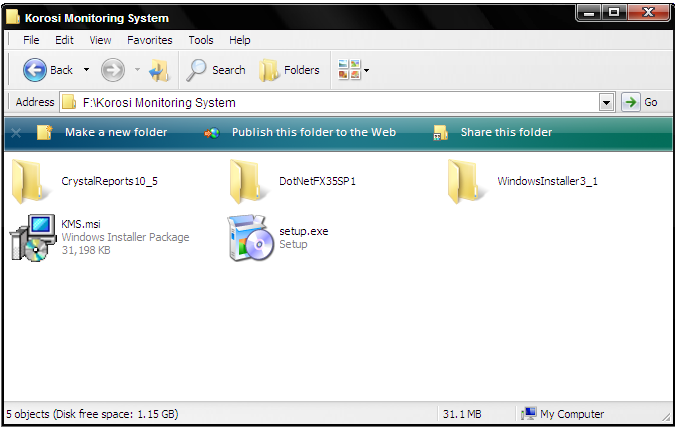
3 1. Software Description Each KSHHU includes the Korosi Monitoring System (KMS) Software. This program is a collection of utilities designed to assist the corrosion analyst in gathering and analyzing corrosion data. When data has been uploaded to the software, the data can be displayed in graph. The output of the printer, either in list or graph form, is suitable for any kind of printer. After data is uploaded to PC, user can delete all data stored in the memory bank of KSHHU. 2. PC Requirements To run the Korosi Monitoring System (KMS) Software, you need a PC that meets the following requirements: Pentium class processor Windows XP / Vista operating system 64 MB of RAM 40 MB of minimum available hard-disk space VGA monitor Available 9-pin / RS-232 (for instrument download) CD-ROM drive for software installation Microsoft Excel (Needed if you need to open an exported data) Standard mouse and keyboard 3. Installing KMS To install Korosi Monitoring System (KMS) Software: 3.1. Insert Korosi Monitoring System (KMS) software CD into your CD- ROM. Double click setup.exe, which will run the program the setup disk From the Start menu, select Run. The Run dialog box should appear. Page 1 of 14
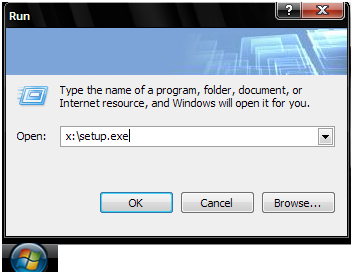
4 3.3. In the Open field, type "x:\setup.exe" where.x. is the letter of the CD-ROM drive containing the setup disk Click OK. The setup program should now start The system setup wizard will run and click next button. Page 2 of 14
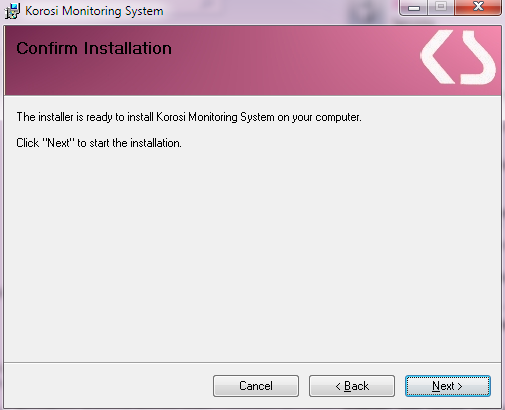
5 3.6. You may change the directory that contains the software by clicking the Browse button. To install the software in the default directory, click next button After clicking the next button and simply follow on the screen prompts, the software will be installed on your PC If any error occurs during software installation, you should uninstall, and then reinstall the software When the software installation is complete you should remove the setup disk, and then reboot your computer. Page 3 of 14

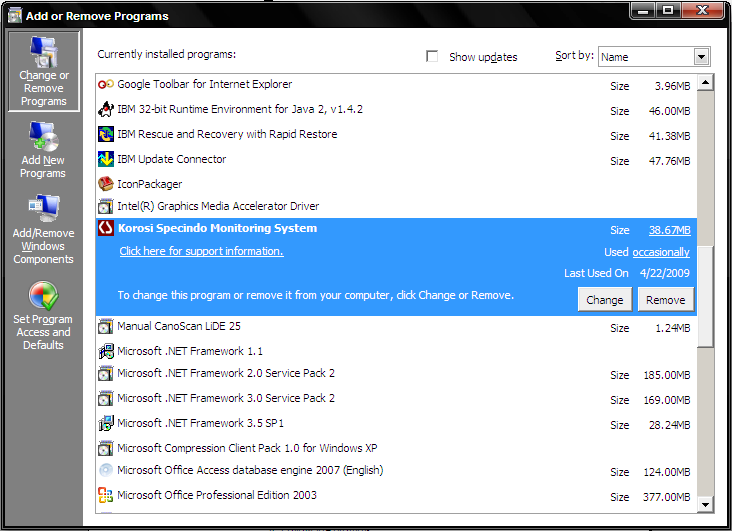
6 4. Uninstalling KMS To uninstall the Korosi Monitoring System (KMS) Software: 4.1. Open the Windows Control Panel and Add/Remove Programs 4.2. Select Korosi Monitoring System (KMS) Software from the list Click the Change/Remove button Follow the prompts Reboot your PC Page 4 of 14
7 5. Starting Korosi Monitoring System For starting this program, you can double click Digital Transmitter Monitoring shortcut icon on desktop or click on your window start menu. Initial program will show the login form. To start using Korosi Monitoring System (KMS) software you must enter username and password. If you are a new user please enter admin username & password before registration. Username : admin Password : admin Korosi Monitoring System (KMS) software Main Menu Page 5 of 14
8 Menu Toolbar To add user, click Add User on Menu and fill the registration form. Page 6 of 14
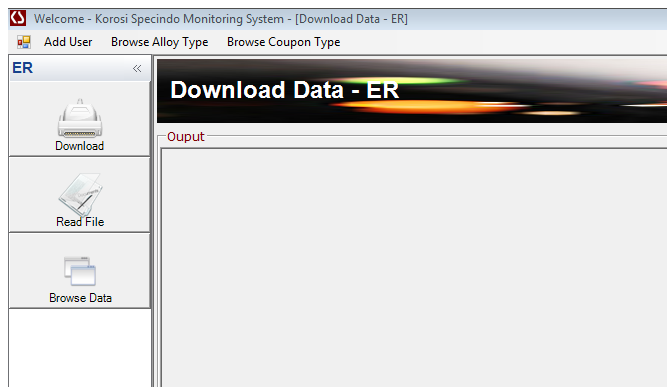
9 6. Download Data To download data from an instrument: Run the Korosi Monitoring System (KMS) software. Click Download Probe on Toolbar Using the supplied cable, connect the KSHHU to the appropriate COM Port on your PC Select the appropriate serial port from the Com Port Properties on KMS Click Open Port button to turn the port on and enable the computer to receive data Press the Download on KSHHU Data will begin to transfer from the instrument to the PC, and will appear in the data window of the Download Data. If data does not appear in the data window at all, verify that: The instrument is connected to a valid serial port All cables are securely connected No interrupt during downloading data process. Page 7 of 14
10 Selecting a Serial Port Use the Com. Port Properties or the COM. Port Properties option in the Options menu to select the port to which the instrument is connected. (For all KS instrument the Parameter of Serial is 9600 bps, 8 Bit, None Parity, and 1 Stop Bit). 7. Read Probe File To show data has been saved, click the Read Probe button on Toolbar and choose Browse File command and then click Read Each Line / Read All for showing the data. Page 8 of 14

11 Click the Browse file button and Read All button to show data to be analyzed on installation directory. Read file form support drag and drop. You can directly drop probe file into this form without manually browse to a file. 8. Browse Probe To show data accordance with tag, click the Browse Probe button and choose Load command. No interrupt on displaying data process. Page 9 of 14

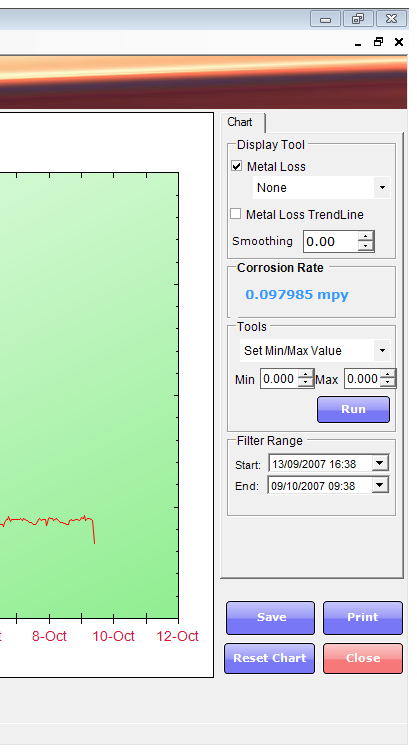
12 Charting Data To chart the contents of the data window, choose the Browse Probe on toolbar and choose which tag will be analyzed then click Charting button. On this form you will find some tool to help you working with the chart. (See screenshot below). 1. With this option you can hide metal loss line chart. Default value is checked. You can also choose to add symbol to each point of metal losses. 2. You can also show metal loss trend line. Default value is unchecked. 3. This is the corrosion rate value. When first load it shows corrosion rate for whole points. It will change dynamically when selection range is made to the chart. 4. To help you analyze the chart, we provide two tools : a. Set Min/Max value. With this tool you can change metal loss min scale and max scale (Y axis) of the chart. b. Add Offset value. If you want to add certain number to metal loss scale. 5. Filter range. When you make selection range it will show the start date and end date of the selection. 6. You can save the chart into image file. (PNG format only) 7. You can also print directly the chart. 8. Reset the chart to original state. Page 10 of 14
13 Page 11 of 14
14 9. Corrosion Coupon Worksheet Some customer for any reason combines on single or multiple points using Coupons in the field, so this feature is integrated in this Software. The Corrosion Coupon Worksheet is a simple, step-by-step method for calculating metal loss and corrosion rate from corrosion coupons. Calculating Corrosion Rate To calculate the corrosion rate of a coupon, enter the requested information in the Worksheet Configuration and Exposure Data boxes, and then click the Calculate button. The calculated Surface Area, Total Exposure, Metal Loss, and Corrosion Rate will be displayed in the Results box. Any comments or special information can be entered in the Comments field. Many standard Korosi Specindo coupons are listed in the Coupon Type menu. When using one of these coupons, its dimensions can be entered automatically by selecting it from the list. If the coupon being calculated is not found in the list, select Other, then enter the coupon dimensions manually. To reset the worksheet, click the Clear button. Saving a Worksheet The File menu offers two options for saving a worksheet. Page 12 of 14
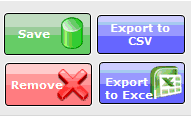
15 Export To CSV File / Excel Export to CSV File can be used to save data from multiple worksheets as entries in a data file, which can be opened by spreadsheet programs such as Excel or Quattro Pro. The Save As dialog box will be displayed to allow selection of a file name. If an existing file name is selected, the data from the worksheet will be saved as a new entry in that data file. If the file name specified does not exist, a new file will be created with that name, and the worksheet data will be saved as the first entry in the new file. Save To Text File Save to Text File can be used to save an individual worksheet as a text file. The Save As dialog box will be displayed to allow selection of a file name and file location. The worksheet will be saved using the file name and location specified, and can be opened using any standard text editor or word processor. Unit Selection The measurement units for Density, Dimensions, Metal Loss/Corrosion Rate, and Weight can all be configured independently using Density, Dimensions, Corrosion Rate and Weight in the Change Dimension Button. Page 13 of 14
16 Page 14 of 14
Corrosion Data Management Software Version 3.1.3
 Corrosion Data Management Software Version 3.1.3 Metal Samples Corrosion Monitoring Systems A Division of Alabama Specialty Products, Inc. 152 Metal Samples Road, Munford, AL 36268 Phone: 256-358-4202
Motorola Phone Tools. Quick Start
 Motorola Phone Tools Quick Start Contents Minimum Requirements...2 Before Installing Motorola Phone Tools...3 Installing Motorola Phone Tools...4 Mobile Device Installation and Configuration...5 Online
STATISTICA VERSION 9 STATISTICA ENTERPRISE INSTALLATION INSTRUCTIONS FOR USE WITH TERMINAL SERVER
 Notes: STATISTICA VERSION 9 STATISTICA ENTERPRISE INSTALLATION INSTRUCTIONS FOR USE WITH TERMINAL SERVER 1. These instructions focus on installation on Windows Terminal Server (WTS), but are applicable
SOFTWARE INSTALLATION INSTRUCTIONS
 AUDITGARD LGA Electronic Combination Lock SOFTWARE INSTALLATION INSTRUCTIONS Implementation Package The AuditGard Software implementation package includes: 707013 AuditGard Software Install CD 42145 Programming/Audit
COMBOGARDPRO. 39E Electronic Combination Lock SOFTWARE INSTALLATION INSTRUCTIONS
 COMBOGARDPRO 39E Electronic Combination Lock SOFTWARE INSTALLATION INSTRUCTIONS IMPLEMENTATION PACKAGE The ComboGard Pro Software implementation package includes: 707012 ComboGard Pro Software Install
Installation Instruction STATISTICA Enterprise Small Business
 Installation Instruction STATISTICA Enterprise Small Business Notes: ❶ The installation of STATISTICA Enterprise Small Business entails two parts: a) a server installation, and b) workstation installations
Table of Contents. 1. Overview... 3. 1.1 Materials Required. 3 1.2 System Requirements. 3 1.3 User Mode 3. 2. Installation Instructions..
 Table of Contents 1. Overview..... 3 1.1 Materials Required. 3 1.2 System Requirements. 3 1.3 User Mode 3 2. Installation Instructions.. 4 2.1 Installing the On Call Diabetes Management Software. 4 2.2
CANON FAX L360 SOFTWARE MANUAL
 CANON FAX L360 SOFTWARE MANUAL Before You Begin the Installation: a Checklist 2 To ensure a smooth and successful installation, take some time before you begin to plan and prepare for the installation
STATISTICA VERSION 12 STATISTICA ENTERPRISE SMALL BUSINESS INSTALLATION INSTRUCTIONS
 STATISTICA VERSION 12 STATISTICA ENTERPRISE SMALL BUSINESS INSTALLATION INSTRUCTIONS Notes 1. The installation of STATISTICA Enterprise Small Business entails two parts: a) a server installation, and b)
NOTE: PLEASE DO NOT ATTEMPT TO INSTALL THE SOFTWARE BEFORE READING THIS DOCUMENT.
 INLINE 5 Software INSTALL BULLETIN Page 2: Installing INLINE 5 Page 6: Removing INLINE 5 NOTE: PLEASE DO NOT ATTEMPT TO INSTALL THE SOFTWARE BEFORE READING THIS DOCUMENT. IMPROPER INSTALLATION OR USE CAN
Tufts VPN Client User Guide for Windows
 Tufts VPN Client User Guide for Windows Introduction The Tufts Virtual Private Network (VPN) implementation is a service that is provided to the faculty and staff of Tufts University to enable secure access
Handheld LPC Utility Software for Windows. Operation Manual
 Handheld LPC Utility Software for Windows MODEL S388-70 Operation Manual Read this manual carefully and understand the warnings described in this manual before operating the product. Keep this manual handy
Installation Instruction STATISTICA Enterprise Server
 Installation Instruction STATISTICA Enterprise Server Notes: ❶ The installation of STATISTICA Enterprise Server entails two parts: a) a server installation, and b) workstation installations on each of
STATISTICA VERSION 10 STATISTICA ENTERPRISE SERVER INSTALLATION INSTRUCTIONS
 Notes: STATISTICA VERSION 10 STATISTICA ENTERPRISE SERVER INSTALLATION INSTRUCTIONS 1. The installation of the STATISTICA Enterprise Server entails two parts: a) a server installation, and b) workstation
User Manual. Thermo Scientific Orion
 User Manual Thermo Scientific Orion Orion Star Com Software Program 68X637901 Revision A April 2013 Contents Chapter 1... 4 Introduction... 4 Star Com Functions... 5 Chapter 2... 6 Software Installation
User Manual V1.3. NCB File Converter. @alahlincb. /alahlincb. 9 2000 1000 www.alahli.com
 User Manual V1.3 NCB File Converter @alahlincb /alahlincb 9 2000 1000 www.alahli.com The National Commercial Bank File Converter User Manual Copyright 2013 The National Commercial Bank Page 2 of 44 Table
CashFlow Programming Module CPM
 CashFlow Programming Module CPM Installation & User Guide GB REV G4 08/08/2006 Table of Content Table of Content... 2 CashFlow Programming Module (CPM)... 4 What is a CPM?... 4 CPM Identification... 4
Chapter 1 Downloading Images to Your Computer (Windows)
 Software User Guide For the safe use of your camera, be sure to read the Safety Precautions thoroughly before use. Types of software installed on your computer varies depending on the method of installation
Outlook to Windows Live Mail
 Overview... 20-01 Learning Objectives... 20-01 Transfer Software... 20-01 System Requirements... 20-02 Application Loading... 20-02 Software Installation... 20-03 Migration Process on the Old PC... 20-05
SA-9600 Surface Area Software Manual
 SA-9600 Surface Area Software Manual Version 4.0 Introduction The operation and data Presentation of the SA-9600 Surface Area analyzer is performed using a Microsoft Windows based software package. The
OPTAC Fleet Viewer. Instruction Manual
 OPTAC Fleet Viewer Instruction Manual Stoneridge Limited Claverhouse Industrial Park Dundee DD4 9UB Help-line Telephone Number: 0870 887 9256 E-Mail: [email protected] Document version 4.0 Part Number:
Pcounter Web Report 3.x Installation Guide - v2014-11-30. Pcounter Web Report Installation Guide Version 3.4
 Pcounter Web Report 3.x Installation Guide - v2014-11-30 Pcounter Web Report Installation Guide Version 3.4 Table of Contents Table of Contents... 2 Installation Overview... 3 Installation Prerequisites
Introduction and Overview
 Inmagic Content Server Workgroup 10.00 Microsoft SQL Server 2005 Express Edition Installation Notes Introduction and Overview These installation notes are intended for the following scenarios: 1) New installations
Virtual CD v10. Network Management Server Manual. H+H Software GmbH
 Virtual CD v10 Network Management Server Manual H+H Software GmbH Table of Contents Table of Contents Introduction 1 Legal Notices... 2 What Virtual CD NMS can do for you... 3 New Features in Virtual
Installing FileMaker Pro 11 in Windows
 Installing FileMaker Pro 11 in Windows Before you begin the installation process, please exit other open programs and save your work. Installation notes Before you install FileMaker Pro, review the following
Analyzer 2.0. Installation Guide. Contents
 Analyzer 2.0 Analyzer 2.0 is a comprehensive suite of tools designed to help you analyze complex aqueous and multisolvent electrolyte solution chemistry, thermophysical properties, phase behavior and corrosion
DataLINE Data Retrieval
 Container Refrigeration INSTALLATION GUIDE for DataLINE Data Retrieval 62 10628 Rev B INSTALLATION GUIDE CONTAINER REFRIGERATION UNIT DataLINE Data Retrieval CONTENTS Paragraph Number Page 1. Introduction...
Installation & Upgrade Guide. Hand-Held Configuration Devices Mobility DHH820-DMS. Mobility DHH820-DMS Device Management System Software
 Installation & Upgrade Guide Hand-Held Configuration Devices Mobility DHH820-DMS Mobility DHH820-DMS Device Management System Software WARNING notices as used in this manual apply to hazards or unsafe
Magaya Software Installation Guide
 Magaya Software Installation Guide MAGAYA SOFTWARE INSTALLATION GUIDE INTRODUCTION Introduction This installation guide explains the system requirements for installing any Magaya software, the steps to
Model 288B Charge Plate Graphing Software Operators Guide
 Monroe Electronics, Inc. Model 288B Charge Plate Graphing Software Operators Guide P/N 0340175 288BGraph (80207) Software V2.01 100 Housel Ave PO Box 535 Lyndonville NY 14098 1-800-821-6001 585-765-2254
STATISTICA VERSION 11 CONCURRENT NETWORK LICENSE WITH BORROWING INSTALLATION INSTRUCTIONS
 data analysis data mining quality improvement web-based analytics Notes STATISTICA VERSION 11 CONCURRENT NETWORK LICENSE WITH BORROWING INSTALLATION INSTRUCTIONS 1. The installation of the Concurrent network
WebSpy Vantage Ultimate 2.2 Web Module Administrators Guide
 WebSpy Vantage Ultimate 2.2 Web Module Administrators Guide This document is intended to help you get started using WebSpy Vantage Ultimate and the Web Module. For more detailed information, please see
e-dpp 4.0.2 May 2013 Quick Installation Guide Microsoft Windows 2003 Server, XP, Vista, 7 Access Database
 e-dpp 4.0.2 May 2013 Microsoft Windows 2003 Server, XP, Vista, 7 Access Database ELTECHS Engineering and Consulting Co., Ltd., Japan www.eltechs.co.jp Tel No. +81 (47) 490-1010 Fax No. +81 (47) 490-1011
OPTAC Fleet Viewer. Instruction Manual
 OPTAC Fleet Viewer Instruction Manual Stoneridge Limited Claverhouse Industrial Park Dundee DD4 9UB Help-line Telephone Number: 0870 887 9256 E-Mail: [email protected] Document version 3.0 Part Number:
File Management Utility. T u t o r i a l
 File Management Utility T u t o r i a l Contents System Requirements... 2 Preparing Files for Transfer to GlobalMark... 2 Application Launch... 2 Printer Setup... 2 Communication Status... 4 Communication
DSG SoftPhone & USB Phone Series User Guide
 DSG SoftPhone & USB Phone Series User Guide Table of Contents Overview Before You Start Installation Step 1. Installing DSG SoftPhone Step 2. Installing USB Phone Step 3. System Check First Time Use Step
Printer Support Guide. FedEx Ship Manager Software
 Printer Support Guide FedEx Ship Manager Software Printer FAQs Installing Printer Drivers How do I download and install the Zebra printer drivers? To download and install the current Zebra printer drivers
Point of Sale 2015 Enterprise. Installation Guide
 Point of Sale 2015 Enterprise Installation Guide Contents About this guide 3 System Requirements - Microsoft SQL Server 2008 R2 Express 3 System Requirements - POS Enterprise 2015 (Administrator) 3 System
Centran Version 4 Getting Started Guide KABA MAS. Table Of Contents
 Page 1 Centran Version 4 Getting Started Guide KABA MAS Kaba Mas Welcome Kaba Mas, part of the world-wide Kaba group, is the world's leading manufacturer and supplier of high security, electronic safe
GUARD1 PLUS SE Administrator's Manual
 GUARD1 PLUS SE Administrator's Manual Version 4.4 30700 Bainbridge Road Solon, Ohio 44139 Phone 216-595-0890 Fax 216-595-0991 [email protected] www.guard1.com i 2010 TimeKeeping Systems, Inc. GUARD1 PLUS
AccXES Client Tools 10.0 User Guide 701P41529 May 2004
 AccXES Client Tools 10.0 User Guide 701P41529 May 2004 Trademark Acknowledgments XEROX, AccXES, The Document Company, and the identifying product names and numbers herein are trademarks of XEROX CORPORATION.
SAPIP GUI INSTALLATION. Table of Contents
 QUICK START GUIDE SAPIP GUI INSTALLATION Table of Contents 1. Install CSU cable driver for SapIP..2-3 2. Check for pre-requisite for SAPIP GUI install......2 3. Check for pre-requisite for SAPIP GUI install...2-6
Keychain Barcode Scanner
 Keychain Barcode Scanner User Guide June 2010 2010 TABLE OF CONTENTS Quick Start... 4 Congratulations... 4 Scanner Features... 4 What s Included with Your Scanner... 5 What You Need to Get Started... 6
Dell Statistica 13.0. Statistica Enterprise Installation Instructions
 Dell Statistica 13.0 2015 Dell Inc. ALL RIGHTS RESERVED. This guide contains proprietary information protected by copyright. The software described in this guide is furnished under a software license or
Pearl Echo Installation Checklist
 Pearl Echo Installation Checklist Use this checklist to enter critical installation and setup information that will be required to install Pearl Echo in your network. For detailed deployment instructions
Getting Started with Vision 6
 Getting Started with Vision 6 Version 6.9 Notice Copyright 1981-2009 Netop Business Solutions A/S. All Rights Reserved. Portions used under license from third parties. Please send any comments to: Netop
Topaz Installation Sheet
 Topaz Installation Sheet P/N 460924001E ISS 08FEB12 Content Introduction... 3 Recommended minimum requirements... 3 Setup for Internet Explorer:... 4 Topaz installation... 10 Technical support... 14 Copyright
StrikeRisk v6.0 IEC/EN 62305-2 Risk Management Software Getting Started
 StrikeRisk v6.0 IEC/EN 62305-2 Risk Management Software Getting Started Contents StrikeRisk v6.0 Introduction 1/1 1 Installing StrikeRisk System requirements Installing StrikeRisk Installation troubleshooting
Ultra Thin Client TC-401 TC-402. Users s Guide
 Ultra Thin Client TC-401 TC-402 Users s Guide CONTENT 1. OVERVIEW... 3 1.1 HARDWARE SPECIFICATION... 3 1.2 SOFTWARE OVERVIEW... 4 1.3 HARDWARE OVERVIEW...5 1.4 NETWORK CONNECTION... 7 2. INSTALLING THE
INSTALLING MICROSOFT SQL SERVER AND CONFIGURING REPORTING SERVICES
 INSTALLING MICROSOFT SQL SERVER AND CONFIGURING REPORTING SERVICES TECHNICAL ARTICLE November 2012. Legal Notice The information in this publication is furnished for information use only, and does not
Scan to PC Desktop Professional 10 Install Instructions
 Scan to PC Desktop Professional 10 Install Instructions Personalize your Xerox network scanning and your PDF workflow Xerox Corporation Scan to PC Desktop Professional 10 Install Instructions 1 General
Setup for PCCharge. Important Pre-Installation Notes for PCCharge. Installation Overview. Step 1 Install And Set Up PCCharge on the Fileserver
 Setup for PCCharge Before setting up PCCharge, first perform a Store Closing in The General Store. Make sure all credit card transactions have batched out under your previous authorization/batch out method.
Meridian 1 Meridian 1 Attendant PC LAN Interface Installation Guide
 Meridian 1 Meridian 1 Attendant PC LAN Interface Installation Guide Document Number: P0874391 Document Release: Standard 1.00 Date: November 1997 Year Publish FCC TM 1997 All rights reserved Printed in
Volume AIG. AGKSOFT ActiveSync Inventory Guide. ActiveSync Inventory Guide
 Volume AIG AGKSOFT ActiveSync Inventory Guide ActiveSync Inventory Guide Introduction T he Microsoft ActiveSync or Windows Mobile Device Center can be used to synchronize your Windows PC with your Portable
Introducing Windows CE
 3 Introducing Windows CE Windows CE Operating System Windows CE Services Software Applications Online Help Introducing Windows CE 3-1 WINDOWS CE OPERATING SYSTEM Windows CE is the smallest member of the
USER GUIDE. Ethernet Configuration Guide (Lantronix) P/N: 2900-300321 Rev 6
 KRAMER ELECTRONICS LTD. USER GUIDE Ethernet Configuration Guide (Lantronix) P/N: 2900-300321 Rev 6 Contents 1 Connecting to the Kramer Device via the Ethernet Port 1 1.1 Connecting the Ethernet Port Directly
for Windows 7 Laplink Software, Inc. Quick Start Guide h t t p : / / w w w. l a p l i n k. c o m / h e l p MN-LLG-EN-15 (REV.
 1 for Windows 7 Laplink Software, Inc. Customer Service/Technical Support: Web: http://www.laplink.com/help E-mail: [email protected] Laplink Software, Inc. 14335 NE 24th Street, Suite 201 Bellevue,
Compact Business Center Installation and User Manual
 Compact Business Center Installation and User Manual 40DHB0002USCK Issue 4 (02/17/03) Contents Introduction...3 Program Overview... 3 Licence... 3 Installing CBC...4 Hardware and Software Requirements...
Hypercom Key Loading and Management (HKLM) RS232 PPP Key Injection PC Setup Guide
 Hypercom Key Loading and Management (HKLM) RS232 PPP Key Injection PC Setup Guide Hypercom Corporation 8888 East Raintree Drive Scottsdale, Arizona 85260 USA Corporate Telephone: 480.642.5000 Corporate
SW43W. Users Manual. FlukeView Power Quality Analyzer Software Version 3.20 onwards
 SW43W FlukeView Power Quality Analyzer Software Version 3.20 onwards Users Manual 4822 872 30778 December 2005, Rev.1, 04/06 2005 Fluke Corporation, All rights reserved. All product names are trademarks
Installation / Migration Guide for Windows 2000/2003 Servers
 PSQL v9 SP1 (9.1) & Installation / Migration Guide for Windows 2000/2003 Servers Ebix, Inc. Corporate Headquarters Concourse Parkway, Suite 3200 Atlanta, GA 30328 USA Phone: 678-281-2020 Fax: 678-281-2019
User s Guide for version 5 Page
 Network Management Interface Catalog VPi 32.15E For use with these ATS products: 7000 & 4000 Series (Group 5 Controller) Series 300 (Group 1 Controller), and 940, 962, 436, 434, 447, 448 (Group 6A/7A Control
SOLAAR Series Software Manual
 SOLAAR Series Software Manual 9499 400 30011 010508 2008 Thermo Fisher Corporation Registration No. 441506 SOLAAR House, 19 Mercers Row, Cambridge CB5 8BZ.United Kingdom. Telephone +44 (0) 1223 347400,
LockView 4.3.1 CompX Database & Network Configuration & Installation Manual
 LockView 4.3.1 CompX Database & Network Configuration & Installation Manual Table of Contents CompX Database & Network Configuration & Installation Manual Introduction... 4 Installation Requirements...
Remote Management System
 RMS Copyright and Distribution Notice November 2009 Copyright 2009 ARTROMICK International, Inc. ALL RIGHTS RESERVED. Published 2009. Printed in the United States of America WARNING: ANY UNAUTHORIZED
ScanWin Installation and Windows 7-64 bit operating system
 ScanWin Installation and Windows 7-64 bit operating system In order to run the ScanWin Pro install and program on Windows 7 64 bit operating system you need to install a Virtual PC and then install a valid,
How to configure the DBxtra Report Web Service on IIS (Internet Information Server)
 How to configure the DBxtra Report Web Service on IIS (Internet Information Server) Table of Contents Install the DBxtra Report Web Service automatically... 2 Access the Report Web Service... 4 Verify
Guide to Installing BBL Crystal MIND on Windows 7
 Guide to Installing BBL Crystal MIND on Windows 7 Introduction The BBL Crystal MIND software can not be directly installed on the Microsoft Windows 7 platform, however it can be installed and run via XP
Iridium Extreme TM Satellite Phone. Data Services Manual
 Iridium Extreme TM Satellite Phone Data Services Manual Table of Contents 1 OVERVIEW... 1 2 HOW IT WORKS... 1 3 BEFORE INSTALLING... 2 4 USB DRIVER INSTALLATION... 3 5 MODEM INSTALLATION AND CONFIGURATION...
DataSuite Installation and Activation Guide
 DataSuite Installation and Activation Guide This document provides a detailed overview of the installation and activation procedure for the DataSuite v2.4.0.0 software. DataSuite allows you to configure
SECURITY SYSTEM MANAGEMENT SOFTWARE FOR WINDOWS. Quick Start Instructions
 TM SECURITY SYSTEM MANAGEMENT SOFTWARE FOR WINDOWS Quick Start Instructions Introduction WinLoad for Windows was developed to simplify and speed up the task of programming Paradox control panels. Remote
CONFIGURING MICROSOFT SQL SERVER REPORTING SERVICES
 CONFIGURING MICROSOFT SQL SERVER REPORTING SERVICES TECHNICAL ARTICLE November/2011. Legal Notice The information in this publication is furnished for information use only, and does not constitute a commitment
Installing the Gerber P2C Plotter USB Driver
 Installing the Gerber P2C Plotter USB Driver 1 You can install a Gerber P2C plotter using a USB connection and communicate with it using compatible design software. The following procedures describe installing
VRC 7900/8900 Avalanche Enabler User s Manual
 VRC 7900/8900 Avalanche Enabler User s Manual WLE-VRC-20030702-02 Revised 7/2/03 ii Copyright 2003 by Wavelink Corporation All rights reserved. Wavelink Corporation 6985 South Union Park Avenue, Suite
Instruction manual. testo easyheat Configuration and Analysis software
 Instruction manual testo easyheat Configuration and Analysis software en 2 General Information General Information This documentation includes important information about the features and application of
S&G Audit Lock. Audit Trail Software Manual
 S&G Audit Lock Audit Trail Software Manual The Sargent & Greenleaf Audit Lock is designed to provide a high level of security. One of the ways they accomplish this is by offering detailed audit trails.
Guest PC. for Mac OS X. User Guide. Version 1.6. Copyright 1996-2005 Lismore Software Systems, Ltd. All rights reserved.
 Guest PC for Mac OS X Version 1.6 User Guide Copyright 1996-2005 Lismore Software Systems, Ltd. All rights reserved. Table of Contents About Guest PC... 1 About your Virtual Computer... 1 Creating a Virtual
Avira Secure Backup INSTALLATION GUIDE. HowTo
 Avira Secure Backup INSTALLATION GUIDE HowTo Table of contents 1. Introduction... 3 2. System Requirements... 3 2.1 Windows...3 2.2 Mac...4 2.3 ios (iphone, ipad and ipod touch)...4 3. Avira Secure Backup
Acer LCD Monitor Driver Installation Guide
 1 Contents 1 Contents... 1 2 Introduction... 2 3 Installation Guide... 2 3.1 PC requirements... 2 3.2 Installing the Acer LCD Monitor Driver on Windows Vista... 3 3.2.1 Hardware first install... 3 3.2.2
@ptitude Observer. Installation Manual. Part No. 32170700 Revision G
 Part No. 32170700 Revision G Installation Manual Copyright 2012 by SKF Reliability Systems All rights reserved. Aurorum 30, 977 75 Lulea Sweden Telephone: +46 (0) 31 337 10 00, Fax: +46 (0) 920 134 40
Comodo LoginPro Software Version 1.5
 Comodo LoginPro Software Version 1.5 User Guide Guide Version 1.5.030513 Comodo Security Solutions 1255 Broad Street STE 100 Clifton, NJ 07013 Table of Contents 1.Introduction to Comodo LoginPro... 3 1.1.System
Contents. Hardware Configuration... 27 Uninstalling Shortcuts Black...29
 Contents Getting Started...1 Check your Computer meets the Minimum Requirements... 1 Ensure your Computer is Running in Normal Sized Fonts... 7 Ensure your Regional Settings are Correct... 9 Reboot your
Datacolor TOOLS. Datacolor TOOLS QCX. Datacolor TOOLS WORKSTATION
 Datacolor TOOLS Datacolor TOOLS QCX Datacolor TOOLS WORKSTATION Installation Instructions Datacolor TOOLS Installation Guide (June, 2009) All efforts have been made to ensure the accuracy of the information
Quick Start Guide for the SupportDesk Web Interface
 Quick Start Guide for the SupportDesk Web Interface Introduction Welcome to the Richmond SupportDesk Web Interface upgrade guide. This document should be used by the person(s) who will be performing the
Vodafone Text Centre User Guide for Microsoft Outlook
 Vodafone Text Centre User Guide for Microsoft Outlook 1 Contents Introduction 1 System requirements 2 Installation 3 The installation guide 3 First use 5 Send a message 8 Select recipient 8 Enter the message
FileMaker Pro and Microsoft Office Integration
 FileMaker Pro and Microsoft Office Integration page Table of Contents Executive Summary...3 Introduction...3 Top Reasons to Read This Guide...3 Before You Get Started...4 Downloading the FileMaker Trial
OralChroma OralChroma DataManager
 OralChroma OralChroma DataManager User s Guide for Windows Version 3.5 Introduction This is a user s manual for the OralChroma DataManager. Copyright Copyright (C) 2008- ABIMEDICAL CORPORATION. All Rights
Remote Backup Software User Manual V 2.0
 Remote Backup Software User Manual V 2.0 Table of Contents Chapter 1 Welcome to Remote Backup Software... 2 1.1 Overview... 2 1.2 Computer Disposition Request... 2 1.3 Convention... 2 Chapter 2 Installing
VERITAS Backup Exec TM 10.0 for Windows Servers
 VERITAS Backup Exec TM 10.0 for Windows Servers Quick Installation Guide N134418 July 2004 Disclaimer The information contained in this publication is subject to change without notice. VERITAS Software
Scan2CRM - SalesForce
 CSSN Scan2CRM - SalesForce USER GUIDE Version 2.0.0.2 1 This publication contains proprietary information of the Card Scanning Solutions Company, provided for customer use only. No other uses are authorized
PN-T321 LCD MONITOR. USB Flash Drive Media Tool OPERATION MANUAL
 PN-T321 LCD MONITOR USB Flash Drive Media Tool OPERATION MANUAL Contents Introduction...2 Installing/Uninstalling the Software...3 System Requirements...3 Installing the Software...3 Uninstalling...3 Using
HL2170W Windows Network Connection Repair Instructions
 Difficulty printing from your PC can occur for various reasons. The most common reason a networked Brother machine may stop printing, is because the connection between the computer and the Brother machine
WS_FTP Professional 12 and WS_FTP Home 12. Getting Started Guide
 WS_FTP Professional 12 and WS_FTP Home 12 Getting Started Guide Welcome Ipswitch WS_FTP Professional 12 and Home 12 is the leading file transfer client with millions of users worldwide. You can easily
BMV-602 Data Link Manual
 BMV-602 Data Link Manual 1 Contents of the kit 1 x BMV-602 data link cable. 1 x Installation CD 2 System Requirements 2.1 Hardware requirements A BMV-602 with software version 2.03 or higher. A spare RS-232
4cast Client Specification and Installation
 4cast Client Specification and Installation Version 2015.00 10 November 2014 Innovative Solutions for Education Management www.drakelane.co.uk System requirements The client requires Administrative rights
JAVS Scheduled Publishing. Installation/Configuration... 4 Manual Operation... 6 Automating Scheduled Publishing... 7 Windows XP... 7 Windows 7...
 1 2 Copyright JAVS 1981-2010 Contents Scheduled Publishing... 4 Installation/Configuration... 4 Manual Operation... 6 Automating Scheduled Publishing... 7 Windows XP... 7 Windows 7... 12 Copyright JAVS
Operating Instructions
 Operating Instructions (For Setting Up) Digital Imaging Systems Installation Overview Model No. DP-8060 / 8045 / 8035 Table of Contents Setting Your Machine Installation Overview General Installation Overview...
Installing OneStop Reporting Products
 Installing OneStop Reporting Products Contents 1 Introduction 2 Product Overview 3 System Requirements 4 Deployment 5 Installation 6 Appendix 2010 OneStop Reporting http://www.onestopreporting.com [email protected]
WinPFT File Transfer Utility (Catalog No. 2711-ND7)
 Technical Data WinPFT File Transfer Utility (Catalog No. 2711-ND7) Overview WINPFT is a stand-alone Windows utility which lets you transfer applications developed for standard PanelView terminals or Dataliner