
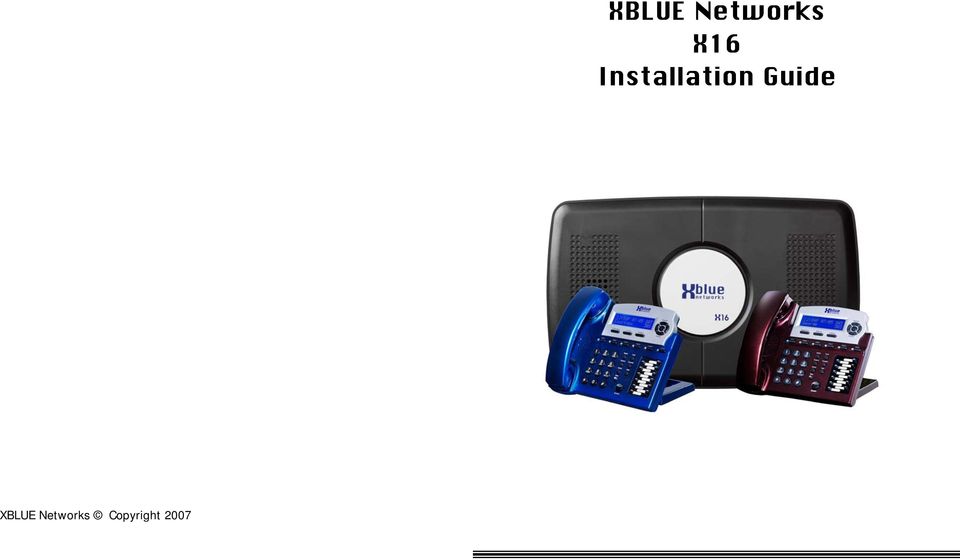
XBLUE Networks X16 Installation Guide
|
|
|
- Marilynn Madeleine Lawrence
- 9 years ago
- Views:
Transcription
1 XBLUE Networks X16 Installation Guide Notes: XBLUE Networks Copyright Issue 2
2 Revision Table Revision Description of Changes Date Released Issue 2 PAL This manual supersedes all previously released manuals 06/09 Page 6 added a page brake to change the page tab labels. 1/14/08 Page 12 Fixed typo in Installation Page 14 Fixed typo line up to lineup Page 16 Fixed typo in Cable Pair Page 20 Fixed typo on endpoint device Page 35 Fixed typo, added a, to sentence Page 22 Entered new LIU functionality Page 29 Fixed typo in Muted Ring Page 29 Fixed typo in New Message Playback Page 32 Fixed typo in Transfer Page 56 Fixed typo in One Touch Record Page 57 Fixed typos in Using AME Preliminary Release PAL 11/2007 Notes: Part Numbers Part Numbers Part Numbers Description X16 Voice Server CO Line Expansion Module Backlit digital telephone endpoint Charcoal Backlit digital telephone endpoint XBLUE Backlit digital telephone endpoint Titanium Metallic Backlit digital telephone endpoint Red Mahogany Endpoint device Notes: Reproduction, publication, or duplication of this manual, or any part thereof, in any manner, mechanically, electronically, or photographically, is strictly prohibited. Copyright 2006 by XBLUE Network, LLC. All rights reserved. The information contained in this document is subject to change without notice and should not be construed as a commitment by XBLUE Networks, LLC,; XBLUE Networks, reserves the right, without notice, to make changes to equipment design as advances in engineering and manufacturing methods warrant. Any and all toll charges are the sole responsibility of the user of the installed equipment; XBLUE offers no warranty or will assume any responsibility for any toll charges. Trademarks: XBLUE, XBLUE Networks, X16 are trademarks of XBLUE Networks, LLC. All trademarks are the property of their respective owners Issue 2 Issue

3 Notes: Notes: Table of Contents PART NUMBERS... 2 TABLE OF CONTENTS... 3 NOTICES... 7 HEARING AID COMPATIBILITY:... 7 UL/CSA SAFETY COMPLIANCE:... 7 FCC INFORMATION... 8 NOTES:... 8 INTRODUCTION... 9 FEATURES... 9 GETTING TO KNOW THE X16 TELEPHONE THE X16 TELEPHONE DISPLAY DEFAULT BUTTON LAYOUT NAVIGATION KEYS SYSTEM CONFIGURATION INSTALLATION Step 1 - Location Step 2 CO Line Connections Step 3 Telephone Endpoint Connection X16 Cable Pair ENDPOINT DEVICE PUNCH DOWN Step 4 Power up and Initialization Step 5 Extension Numbering CO LINE EXPANSION MODULE Step 1 Installing the Expansion Module Step 2 Insert the Expansion Module Table of Contents Issue 2 Issue 2-3 -

4 Table of Contents TELEPHONE WALL MOUNT FEATURE DESCRIPTION ALL PAGE ANSWERING MACHINE EMULATION AUTO ATTENDANT - VOICE MAIL (STANDARD) BACKLIT BLUE LCD DISPLAY WITH POWER SAVER MODE CALL PICK UP CALL TIMER CALLER ID AND CALL WAITING CALLER ID (TYPE 1 & TYPE 2) CALLER ID ENABLE/DISABLE CO LINE BUSY/IDLE STATUS (LED) CO LINE RINGING PER EXTENSION CONFERENCE (3-WAY) CONFERENCE EXPRESS CONFERENCE CONVERSATION RECORDING VOICE MAIL (STANDARD) DAYLIGHT SAVINGS AUTOMATIC (USING CID) DIRECT CO LINE ACCESS DIRECT MAILBOX TRANSFER - VOICE MAIL (STANDARD) DIRECT STATION SELECT (DSS) BUSY LAMP FIELD (BLF) DISTINCTIVE RINGING RINGER TYPE DO NOT DISTURB (DND) FLASH FLASH TIMER FORWARD HANDS-FREE CALLING HANDSET/HEADSET VOLUME CONTROL HEADSET ACTIVATION HOLD HOT DIAL PAD INTERCOM CALLING INTERCOM PAGING LINE STATUS DETECTION (LINE IN USE) MEMO RECORDING - VOICE MAIL (STANDARD) MESSAGE WAITING (TELEPHONE COMPANY-FSK) Notes: Notes: Issue 2 Issue

5 Index Privacy Release, 33 Programmable Buttons, 33 Programmable Pause Speed Dial Bins, 33 Programming, 37 Feature Buttons, 33, 44 Phone, 37 Phone Setup, 39 System, 37 System Setup, 47 Pulse Dialing, 35 Punch down, 19 R Record, 44, 57 Redial, 44, 57 Redial Button, 33 Remote Access, 65 Remote Commands, 65 Reserved, 44 Ringer Equivalence, 8 Ringing, 56 Audible Indication, 34 Visual Indication, 34 Ringing Scenarios, 56 RJ11 connector, 14 RJ11 extension, 15 Room Monitor, 34 S Set Relocation, 34 Speakerphone, 35 Speed Dial Bins, 35 Programmable Pause, 33 Speed Key, 44 Star Topology, 16 System Configuration and Layout, 12 System Programming, 54 T Telephone Callouts, 10 Termination Box, 34 Time in Display, 35 Transfer, 35 Direct to Voice Mail, 35 TRK2TRK Forward, 28 U Underwriters Laboratories, 7 V Voice Mail Deleting Messages, 63 Getting Started, 63 Operation, 61 Personal Mailbox, 33 Playing New Messages, 62 Quick Start Guide, 63 Voice Mail, 36 Volume Intercom Handset, 36 Intercom Speakerphone, 35 Network Handset, 36 Network Speakerphone, 36 Ringing, 35 Volume Control, 34 Handset, 29 Headset, 29 W Wall Mount, 22 MULTILINGUAL DISPLAY PER EXTENSION MUSIC ON HOLD INPUT MUTE WITH LED INDICATION MUTED RING (RING ALERT) NAVIGATION KEYS NEW MESSAGE PLAYBACK - VOICE MAIL (STANDARD) PAGING MEET ME ANSWER (PAGING) PAUSE PERSONAL MAILBOX - VOICE MAIL (STANDARD) PHONE BOOK DIALING PRIVACY (PRIVACY RELEASE) PROGRAMMABLE BUTTONS (12) PROGRAMMABLE PAUSE (SPEED DIAL BINS) REDIAL (LAST 6 NUMBER REDIAL) RING ALERT (MUTED RINGING) RINGING (AUDIBLE AND VISUAL) RINGER VOLUME CONTROL ROOM MONITOR SETTING TIME AND DATE (AUTOMATIC) SET RELOCATION SPEAKERPHONE (DIGITAL TELEPHONE ENDPOINT) WITH LED SPEED DIAL BINS TIME IN DISPLAY TONE/PULSE TRANSFER TRANSFER DIRECT TO VOICE MAIL VOLUME ADJUSTMENTS VOICE MAIL (STANDARD) WAITING TIME PROGRAMMING NAVIGATION KEYS PHONE SETUP PARAMETERS Table of Contents Issue 2 Issue 2-5 -

6 Table of Contents PHONE SETUP PROGRAMMING FEATURE BUTTONS FEATURE BUTTON PROGRAMMING SYSTEM SETUP PROGRAMMING GUIDE RINGING SCENARIOS AUTO ATTENDANT All Extensions Ringing Off All Extensions Ringing On AA Only Ringing Common Ringing FUNCTIONS Features and LED function Lamp (LED) Cadence Lamp (LED)s on Phone Intercom Tone cadences CO Line Cadence and Status Table Ringing Cadence Cable Specifications TROUBLESHOOTING IDLE LCD DISPLAY VOICE MAIL OPERATION AUTO ATTENDANT PERSONAL MAILBOX MEMO RECORDING ONE TOUCH RECORD Answering Machine Emulation (AME) Playing New Messages Deleting Messages Voice Mailbox Quick Start Guide Flash Key, 44 Flash Timer, 28 Key, 57 Flexible Button Programming Steps, 45 Forward, 28 Functions Cadence, 57 CO Line Cadence, 58 Functions, 57 Intercom Tone Cadences, 57, 58 Phone Book, 57 Ringing Cadence, 58 H Hands-free Calling, 30 Hands-Free Calling, 29 Headset, 44, 57 Headset Activation, 30 Hearing Aid Compatible, 7 Hold, 30 Hot Dial Pad, 30 I Idle Display, 60 Installation CO Line, 14 Expansion Module, 21 Extension Numbering, 20 Location, 13 Telephone Endpoint, 17 Installing the system, 15 Intercom Intercom Calling, 30 Intercom Paging, 30 Introduction, 9 L Line Access Dial 9, 26 Line In Use, 30 Line Status Detection, 30 M Meet Me Paging, 32 Memo Recording, 31, 61 Message Waiting Telephone Company, 31 Multilingual Extension, 31 Music on Hold, 31 Mute, 32, 44, 57 Muted Ringing, 32, 34 N Navigation Keys, 32 New Message Play, 32 O One Touch Record, 26, 61 One-Way Paging, 32 P Page All Call, 32 Paging Meet Me, 32 Part Numbers, 2 Password Default, 47 Pause, 33, 44, 57 Personal Mailbox, 61 Phone Book Dialing, 33 Phone Setup, 53 Power up and Initialization, 20 Index Issue 2 Issue

7 Index Index A All Call Paging, 32 All Page, 23, 44, 57 Answering Machine Emulation, 23, 62 Auto Attendant, 23, 61 Off, 56 On, 56 Auto Mute, 29 B Backlit Blue LCD Display, 24 Backlit LCD Display, 10, 24 Bridge Tap, 18 C Cable Pair Colors, 17 Cable Run, 15 Call Forward, 28 External, 28 TRK2TRK, 28 Voice Mail, 28 Call Time, 24 Call Transfer Extension, 35 Caller ID Call Waiting Caller ID, 24 Calling Hands-free, 30 Character Input Keyboard, 43 CO Line Busy, 25 Idle, 25 Ringing, 25 Common Ringing, 56 Conference, 25, 44, 57 Express Conference, 33 Operation, 26 Conversation Record, 26 D Daylight Savings, 26 Default Button Layout, 11 Direct Mailbox Transfer, 27 Direct Station Select, 27 Distinctive Ring Tone, 27 Distinctive Ringing, 27 DND, 27, 44, 57 Do Not Disturb, 27 DSS DSS, 27 DSS/BLF Key, 44 DTMF Dialing, 35 E Expansion Module Installation, 21, 22 Installing, 21 Express Conference, 26 Conference, 33 Extension Numbers, 17 External Call Forward, 28 F FCC Registration, 8 Feature Button Programming, 33, 44 Feature Key, 44 Features, 9 Flash CO Line, 28 Getting Started: REMOTE COMMANDS REMOTE ACCESS INDEX NOTES: NOTES: NOTES: Notices Hearing Aid Compatibility: The digital telephone endpoints are hearing aid compatible, as defined in section of Part 68 FCC Rules and Regulations. UL/CSA Safety Compliance: The X16 system has met all safety requires, and found to be in compliance with the Underwriters Laboratories (UL) Warning: This service information is designed for experienced repair technicians only and is not designed for use by the general public. It does not contain warnings or cautions to advise non-technical individuals of potential dangers in attempting to service a product. Products powered by electricity should be serviced or repaired only by experienced professional technicians. Any attempt to service or repair the product or products dealt with in this service information by anyone else could result in serious injury or death. This equipment generates, uses, and can radiate radio frequency energy, and if not installed and used properly, that is, in strict accordance with the instruction manual, may cause interference to radio and television reception. This equipment has been tested and found to comply with the limits for a Class B computing device in Subject J of Part 15 of FCC Rules, which are designed to provide reasonable protection against such interference. However, there is no guarantee, or warranty, that interference will not occur in a particular installation. If this equipment causes interference or fails to operate correctly, due Notices Issue 2 Issue 2-7 -

8 to radio frequency interference (RFI) or electromagnetic interference (EMI), it will be fixed at the owners expense. Remote Commands Mailboxes may be accessed from outside of the system using a telephone with standard DTMF (Touchtone ) dialing. FCC Information Provide the following information to the Telephone Company prior to connection the X16 system to the network. Item Specification FCC Registration D6XKH05BX16 Ringer Equivalence 0.5B Networks Address Signaling E Service Order Code 9.0Y Facility Interface Code 02LS2 Required Network Interface RJ11 & RJ14 Remote Access Call into the system and let the Auto Attendant answer the call and then dial the desired extension number. If the extension is forwarded to voic , and the mailbox answers, enter the Remote Access code (default remote access code is 123) which is programmed in the Phone Programming Area. Once connected remotely, the system will prompt the user through the remote control menu. Notes: 1 Replay Previous Message 2 Play All New Messages 2# Play All Messages 3 Skip to Next Message Notes: 4 Record Memo 5 Stop 6 Play Personal OGM Voice Mail Operation Repeat this Menu ** ** - Erase Playing Message 0 Transfer to Auto Attendant # Issue 2 Issue

9 Use the up or down navigation buttons to scroll through the programming choices, Press the center navigation button to select the Voic Setup parameter. Use the up or down navigation buttons to scroll through the programming choices, Press the center navigation button to select the Personal OGM parameter. Introduction The X16 system is a full featured, next generation, multi-line business telephone system ideal for both a home and small office environments. It comes equipped to interface with 4 Central Office (CO) Lines, with caller ID and Call Waiting Caller ID, and sixteen (16) X16 digital telephone endpoints. AUTO Personal MUTE OGM Clear My VMSG The system can be expanded to accommodate two (2) additional CO Lines, allowing for a maximum configuration of six CO Lines. In addition, the system comes standard with Auto Attendant and all X16 digital telephone endpoints have a personal digitally integrated voice mailbox. Voice Mail Operation Press the center navigation button to select Play to listen to the current message. To change the message use the down navigation button to scroll to Re-Record and press the center navigation button, and lift the handset to begin recording. Press the center navigation button again to Stop the recording, and preview the newly recorded message. Hang up the handset to accept the new message or select Re-Record to rerecord the Outgoing Message. Features Auto Attendant (Standard) Intercom Calling Answering Machine Emulation Intercom Paging Audible and Visual Ringing Meet me Answer (Paging) Backlit LCD Display with Power saver Memo Recording mode Call Timer Message Waiting (Telco-FSK) Call Transfer Multilingual Display per Extension Caller ID and Call Waiting Caller ID Music on Hold Internal/External Caller ID Enable/Disable per extension Mute with LED indication CO Line Busy/Idle Status (LED) Navigation Keys CO Line Ringing (programmable) New/All Message Play Conference (3-way) Phone Book Dialing Conversation Recording Programmable Buttons (12) Daylight Savings (Automatic with Programmable Pause (Speed Bins) Caller ID) Direct Mailbox Transfer Redial Direct Station Select (DSS) - Remote Message Pickup Busy Lamp Field (BLF) Display Number Dial Ringer Volume Control Distinctive Ringing Set Time and Date Do Not Disturb Speakerphone with LED Flash Timer Speed Dial Buttons Handset/Headset Volume Control Time in Display Headset Activation Tone/Pulse Holiday Operating Mode Voic (standard) Hold Weekend Operating Mode Introduction Issue 2 Issue 2-9 -

10 Getting to Know the X16 Telephone Integrated Headset Backlit Display Navigation Keys Programmable Keys Notes: 1) Messages will play in order that they are received. 2) While a message is playing, use the up or down navigation key to scroll through Pause, Volume, and Exit. Press the select navigation button to select, the desired action. 3) While a message is playing and the left navigation key is pressed, the previous message will be played, or if it is the first message, the message will be repeated. 4) While a message is playing and the right navigation key is pressed, the next message will be played. However, if it is the last message in the list, a prompt will be played, End all Messages. Deleting Messages After listening to a message, it will automatically be saved in the voice mailbox. To delete the message, press the Delete button twice or the Delete button and the center Navigation Key while the message is playing. The voice mail message will be deleted and the next message will automatically begin to play. Note: The message is permanently deleted and cannot be recovered. If an extension is unplugged for more than 120 seconds, all of voice mail messages for that extension will be deleted. Getting to Know the X16 Telephone The X16 Telephone Display Time, Date and Day Speakerphone Button Voice Mailbox Quick Start Guide Although each voice mailbox comes with a prerecorded outgoing message, recording a new outgoing message is a nice way to personalize the way the mailbox answers incoming calls. Voice Mail Operation Getting Started: Personal Outgoing Messages are accessed in the voice mailbox area under the Phone Programming Parameter. New Voic Extension Number With your handset on hook...press the Programming button to enter the programming mode, and then Press the center navigation button to access the Phone Setup area. Phone Book Line Keys Phone Setup System Setup Caller ID Log Program Key Issue 2 Issue

11 Answering Machine Emulation (AME) This feature Mimics the call screening feature of an answering machine. Five seconds after a call is answered by an extension users voice mailbox, that user can monitor/screen the caller as they leave a message. Default Button Layout Voice Mail Operation The extension user will receive a warning tone, which indicates that a caller has been answered by their voice mailbox. The user has the option to monitor the call, or ignore the alert, and allow the caller to leave a message. Once the user has selected to monitor the caller, they have the option to leave the caller undisturbed (leaving a message) or to retrieve the caller from the voice mailbox and be connected to the caller for a live conversation. Using AME The extension must be forwarded to Voice Mail. The Telephone Company Central Office Line may be transferred directly into the user s voic box, or transferred and ring at the extension until it is forwarded to voice mail. If a call is transferred to an extension or directly into the users voice mailbox, AME is available once the Line button turns green. The extension user may press the center navigation button to monitor the message being left. Lift the handset to speak live to the calling party. Press the left or right navigation button to exit the AME without intercepting the call. Playing New Messages The center navigation button will flash when you have a new voice mail message. In addition, the display will indicate how many new voice mail messages you have. 12 Key Dial Pad Delete, Conference, Feature, Transfer, Redial, Hold, Mute and Speaker Navigation keys Scroll left or right, up and down to update the LCD Display. Scroll Up Voice Mail Access Fwd to VM (lit) CO Lines with Integrated CID Programmable Feature Buttons Getting to Know the X16 Telephone To access your voice mailbox: From an idle telephone o Press the center navigation key. (No password required) o The voice mail count will be announced o The time and weekday will be announced o The messages will play in the order that they are received. Each message is automatically saved after it has been played. To scroll through saved messages, use the left and/or right navigation keys. Backup a level Scroll Left Last VM Message Scroll Down Scroll Right Next VM Message OK/Select/Confirm Issue 2 Issue

12 System Configuration The X16 system is equipped to accommodate up to four central office lines and 16 X16 digital telephone endpoints and uses an advanced digital interface technology allowing one cable pair to support up to four digital telephone endpoints. Each digital telephone endpoint has its own extension number, and can be called from any other extension in the system. Voice Mail Operation The System comes equipped with a 4 channel auto attendant and voice mail system, which can answer up to 4 different calls simultaneously. Programming for the auto attendant is found System Setup Auto Attendant The system can be programmed to answer in Auto Attendant mode. When Auto Attend Ring, found in System Setup Mail System is set to AA only only the Auto Attendant will ring. No other telephone extensions will ring. Once the Auto Attendant answers the call, the caller may dial the desired extension number. System Configuration CO Lines Extensions 2 CO Line Expansion The digital telephone endpoints can be connected to the system in loop or series fashion, or they can be connected in home run, also known as start topology. Personal Mailbox Each extension is automatically assigned a personal mailbox, which is used to play a personal greeting or outgoing message (OGM) and record a personal message for that user. At default the center navigation key is lit solid, which confirms that the extension is forwarded to the users personal voice mailbox. Memo Recording Each extension can press their record button to record a memo or a conversation that is taking place in the office. Voice Mail Operation 1) Press the record button Record Memo Yes? 2) Press the center navigation button to begin, and end recording. Record Memo Stop 3) The memo will be stored as a new message. One Touch Record While speaking to an outside party, the user may press their record button and record the current conversation. The message will be saved as a new voice mail message in the user s personal mailbox Issue 2 Issue

13 Idle LCD Display Installation 07:19P 10/12 FRI Accounting 312 Time, Date, Day, Name and Number 07:19P 10/12 FRI Accounting DND In DND Mode Step 1 - Location The X16 system should be located close to the telephone company interface (RJ21X), and have a dedicated outlet with an isolated ground. The system can be mounted on the wall or placed on a table. Once the location of the system is determined use the supplied System Wall Mount Template to level and the provided screws to secure the system to the wall or place it on a table. 07:19P 10/12 FRI NEW VMSG: :19P 10/12 FRI New CID: Idle LCD Display 4 New Voice Mail Messages 24 New Caller ID Calls Do not tighten the screws all the way, leave about ¼ of an inch which will be used to lineup the snowmen on the back of the system. Place the X16 system over the screws and slide it into place. System Configuration 07:19P 10/12 FRI TRK2TRK FWD :19P 10/12 FRI External FWD 312 Trunk to Trunk Forwarding External Forwarding Issue 2 Issue

14 Step 2 CO Line Connections The X16 system supports a single CO Line per port, or two CO lines in ports labeled 1/2 and 3/4. Note: The port labeled Line 1 is a direct access auxiliary port for line 1 allowing an analog device direct access. Troubleshooting Trouble Possible Causes Action The Blue LED Heartbeat is not functioning. Sluggish Performance at Key Telephone Press Speakerphone several time with no reaction Lift/Replace Handset with no reaction AC Cord or Power adaptor is not working correctly or not plugged in correctly. Cable Pairs connect to one or more KSU digital ports without a telephone connected Remove all of the plugs and re-plug them back in. Remote Connection of un-terminated cable pair at KSU port Install telephones at all locations wired System Configuration 4 3/4 2 1/2 AUX CO Lines Telephone lines are usually found on the center pair (White/Blue) of the telephone jack (RJ11). Sometimes a second line will be connected to the outer pair (White/Orange). The system is design to accommodate both types of installations. When using only the center pair, connect 1 telephone line to each of the 4 ports in the system. When using both the center and outer pairs, use only ports labeled 1/2 and 3/4 to connect all 4 lines. The existing cabling will determine how the telephone lines will be connected to the system. Note: The port labeled Line 1 gives you access to the telephone company line (white/blue) plugged into the Central Office Port labeled 1/2. This is useful during a Power Failure or anytime you want to access to line 1 from an Analog telephone. 6 5 Telephone LCD Shows: No Link to KSU Telephone reports: Register Fail or cycles between Register Fail and Initializing, Please Wait! One or more extensions are experiencing static or distortion. Cable Pairs Connected to one or more KSU digital ports without telephone installed Cable pairs connected to one or more KSU digital ports without a telephone connected. Not all extensions are punched down. Remove connection of un-terminated cable pairs at the KSU. Install telephone at all locations which are wired. Remove connection of un-terminated cable pairs at the KSU. Install telephone at all locations which are wired. Remove connection of un-terminated cable pairs at the KSU. Install telephone at all locations which are wired. Troubleshooting Line Port Number AUX CO Line1 CO Line 1 1 / 2 CO Line 2 2 CO Line 3 3 / 4 CO Line 4 4 CO Line 5 5 CO Line Issue 2 Issue

15 Functions CO Line Cadence and Status Table Speaker Unlit: Speaker or Intercom Link Idle Fast: Receiving incoming call Lit: Talking with the Digital Telephone Endpoint Slow: In headset mode Enter/VM Unlit: No New messages Fast: New Message in VM Lit: No answer forward active unanswered calls will be forwarded to VM Slow: New Telephone Company Line Message Waiting Mute Unlit: Inactive phone is not muted Lit: Active phone is muted All Page Unlit: Inactive Not currently paging On Flexible Button Lit (rapid flash): Making or receiving a page DND Unlit: Inactive DND function is off On Flexible Button Lit (solid): Active DND function is active Record Unlit: Inactive Not recording call On Flexible Button Lit (rapid flash): Active Recording call Headset Unlit: Headset function is off On Flexible Button Lit: Headset function is on DSS/BLF Unlit: The extension programmed on the button is idle On Flexible Button Lit: The extension programmed on the button is busy Slow: The extension programmed on the button is in DND Step 3 Telephone Endpoint Connection The X16 comes standard with four RJ11 extension ports. Each port supports up to 4 proprietary digital telephone endpoints, for a total of sixteen (16) endpoints. Each port on the system will support up to 600 feet of cable. In a Loop wiring or serial cable topology 600 feet is calculated by adding the distance of the initial run plus the distance between each telephone. System Configuration Ringing Cadence CO Ring Intercom Ringing Transfer/Recall Hold Reminder Privacy Release Privacy Recover Call Waiting Beep Single/All Page Confirmation Beep Warning Beep Synchronized with CO Ringing 0.25 sec on, 0.25 sec off, 0.25 sec on, 1.25 sec off repeating. 1 sec on, 1 sec off, repeating 1100Hz, 0.05 sec on/off, 4 beeps 1100Hz, 0.2 sec on/off, 1 beep 1100Hz, 0.2 sec on/off, 2 beep 500Hz, 0.2 sec on/off, 2 beeps 600Hz, 1.0 sec on, 1 beep 1100Hz, 0.5 sec on, 1 beep 1100Hz, 0.05 sec on/off, 3 beeps Cable Specifications Category AWG Length Impedance CAT5e feet 20 Ohms Cable A to telephone 1 + (distance between telephone1 & telephone 2) + (distance between telephone 2 & telephone 3) + (distance between telephone 3 & telephone 4) <= 600 feet Issue 2 Issue

16 Home Run wiring, also known as star topology can be found in office buildings and newer homes. In this wiring scheme each of the four X16 telephones are plugged into a 4 Telephone Connector, which is then connected into one of the ports on the X16 system. Functions Features and LED function Feature Code Descriptive LED lit LED Not Lit Feature + 1 Record Active Not Recording Feature + 2 Open N/A N/A Feature + 3 Flash Key N/A N/A Feature + 4 DND Active Not in DND Feature + 5 Mute Active Not in Mute Mode Feature + 6 Conference N/A N/A Feature + 7 Pause N/A N/A Feature + 8 Redial N/A N/A Feature + 9 Headset Active Not Active Feature + 0 All Page Active Not Active Feature + * Open N/A N/A Feature + # Open N/A N/A System Configuration Lamp (LED) Cadence Unlit Off Lit Lit Solid Fast sec off, sec on, repeating Slow 0.5 sec off, 0.5 sec on, repeating Wink sec off, sec on repeating. Wink sec off, sec on, sec off, 1.25 sec on repeating Wink sec off, sec on, sec off, sec on, sec off, sec on, repeating. Functions Lamp (LED)s on Phone CO Line Status My Station Other Stations Idle Unlit Unlit In-Use Lit Green (I-Use) Lit Blue (In-Use) On Hold Slow Green (I-Hold) Lit Blue (In-Hold) Ringing Fast Blue Fast Blue Being Transferred Slow Green (I-Hold) Lit blue (I-Hold and Transfer) In a star topology 600 feet is calculated by adding each Digital Telephone endpoints cable run. Cable A + Cable B + Cable C + Cable D <= 600 feet. Intercom Tone cadences Dial Tone Busy Tone Ring Tone DND Tone Continuous Tone 0.5 sec on, 0.5 sec off, repeating 1 sec on, 1 sec off, repeating 0.25 sec on, 0.25 sec off, repeating Issue 2 Issue

17 Ringing Scenarios Auto Attendant The Auto Attendant can be set to All EXT Off, All EXT On, or AA Only The extensions are labeled 1 ~ 16, and each port accepts up to four telephones. All Extensions Ringing Off When set to All EXT Off, none of the telephones will ring, even if they are programmed to ring, and when the AA Answer Delay timer expires, the call will be forwarded to the Auto Attendant. All Extensions Ringing On When set to All EXT on, all of the telephones that are programmed to ring will ring. If the call goes unanswered, the call will be forwarded to the Auto Attendant when the AA Answer Delay timer expires. 13~16 9~12 5~8 1~4 Ringing Scenarios AA Only AA Only, only the extension defined as the attendant (301 at default) will ring until the AA Answer Delay Timer expires. If the timer is set to 10 seconds, for example, the attendant extension will ring up to two times before the auto attendant answers. Ringing Each extension may be programmed to ring or not ring, depending on the telephones programming. However, the Auto Attendant must be set to All EXT On to allow extensions to ring before the auto attendant answers the call. The telephones will ring unit the AA Answer Delay Timer expires. The AA Answer Delay Timer can be set from 06 seconds to 240 seconds. Connect the X16 telephone endpoints to the system using one RJ11 port, for up to four different endpoints, with a maximum cable length of 600 feet per port. Once connected each telephone endpoint will register with the voice server once it is powered up. At default, the extensions begin with number 301. The remaining extension numbers must be entered. See step 5. X16 Cable Pair Extensions System Configuration Common Ringing Auto Attendant Ring Set to All EXT Ring On to allow all programmed telephones to ring before the call is forwarded to Auto Attendant. White Blue White Orange Ports 1~4 Ports 5~ Auto Attendant Ring Set to All EXT Ring Off to stop any telephone from ringing, thus allowing the Auto Attendant to answer when the AA Answer Delay timer expires. AA Only Only the Attendant will ring, and then the call will be forwarded to the Auto Attendant. White Green White Brown Ports 9~12 Ports 13~ Issue 2 Issue

18 Leaving any ports punched down but not connected to a telephone, may result in erratic operation. Endpoint Device Correct Installation process It is important to connect a telephone to every jack that is connected to the system. Extensions connected to a cable with Bridge Taps, may experience distortion. If locating a bridge tap is not practical, a quick resolution is to use a different cable pair such as the Yellow/Black or White/Orange. Note: There should not be any unconnected telephones at the end of a cable run that is over 200 feet. Mail System Clear All VMSG Yes?/No? Auto Attend Ring All Ext Off All Ext On AA Only Attendant Extension 301 Ext AA Answer Delay 06~240 seconds Message Length Unlimited Greeting 1 Minutes Day Time 09:00 A Night Time 06:00 P Day Time OGM Play/Re-record (Outgoing Msg) Night Time OGM Play/Re-record (Outgoing Msg ) AUX OGM Play/Re-record (Outgoing Msg) Weekend Mode On/Off Weekend Start Weekend End Fri, 06:00 PM Mon, 09:00 AM Programming Guide Endpoint Device Every live telephone jack connected to the system will receive a data signal. If the system finds an open jack (bridge tap) the data signal may be lost, causing the remaining digital telephone endpoints to receive erroneous data, which may lead to improper operation. Therefore, for proper operation each live telephone jack at the end of a cable run, connected to the system, must have either a digital telephone endpoint or an endpoint device. Symptoms of an open jack include but not limited to - voice distortion, static and slow speakerphone reaction when the button is pressed, problems accessing CO Lines, etc. Weekend OGM Holiday Mode Holiday Start Holiday End Holiday OGM Reset KSU Yes?/No? Play/Re-record On/Off 2009, 4/30, 06:00 PM 2009, 05/02, 09:00 AM Play/Re-record Issue 2 Issue

19 Punch Down Programming Guide System Programming Default Password #### Feature Parameter Sub Parameter Change #### Password Date & Time Year Month/Date Time 00:00 format Recall Time Off, 120, 150, 180, and 240 seconds Tone/Pulse Tone, pulse Flash Time milliseconds Music Source Internal/External CO MSGW On/Off Clear CO Yes?/No? MSGW Area Codes Home Area code Local Area C1 Local Area C2 Local Area C3 Local Area C4 Local Area C5 In this example, system ports 10 through 16 do not have telephones connected to them but they are still punched down on the system. Generally, this will not be a problem unless the cable is over 200 feet in length. Punch Down Issue 2 Issue

20 Punch Down Step 4 Power up and Initialization To power up the system, and bring it on line, connect the external power supply to the system. To initialize the system, once the blue LED begins flashing at 1 impulse per second (IPS), switch the init switch back and forth three times and the LED will begin flashing at rapid rate, for 5 seconds and then return to 1 IPS. Note: For proper operation, be sure to reboot the system, by unplugging the power cable, and then plugging it back in. This will ensure that all of the extensions are connected to the server correctly. MOH Port Power Input Initialization Switch Step 5 Extension Numbering One extension in the system will automatically be numbers 301. All other telephones will have to have their extension numbers entered when they are connected to the system. Valid numbers are 302 to 399. To program the extension number please refer to Phone Setup (see Page 13), in the programming section. The system becomes fully functional after all extensions are registered. Extensions may be moved from one port to another simply by unplugging the unit and plugging it into another active port. If the extension is unplugged for longer than 120 seconds (2 minutes) the port may initialize, and revert back to factory default This includes all personal voice mail settings (greetings and saved messages). Any port that is active must have either a telephone or an Endpoint Device connected to it, or distortion may be heard. Note: An Endpoint Device may be needed when relocating an extension. Programming Guide Phone Setup Feature Programming Parameter Sub Parameter Language English, Spanish, French Feature Key Press feature button Extension Number 3xx (301 ~ 399) Auto Mute On/Off (Private/ Hands Free) Preference Call Intercom CO Call Line Selection Line # 1-4 Line # 5-6 Record All Call On/Off Hold Reminder ff Ringer On/Off Line1 Ringer On/Off Line2 Ringer On/Off Line3 Ringer On/Off Line4 Ringer On/Off Line5 Ringer On/Off Line6 Ringer On/Off Ringer Type Line1 Ring Type 1-6 Line2 Ring Type 1-6 Line3 Ring Type 1-6 Line4 Ring Type 1-6 Line5 Ring Type 1-6 Line6 Ring Type nd Call Beep On/Off LCD Backlight On/Off Caller ID On/Off Call Forward Waiting Time FWD Destination FWD Phone Number Empty Voice Mail Setup Remote Code (internal 123 Password) Personal Outgoing MSG Clear VM messages Call Screening =On User Name Empty Reset Phone Yes?/No? Seconds Off Voic External TRK2TRK Programming Guide Issue 2 Issue

21 2 CO Line Expansion Module The X16 system comes with four CO Lines, and can be expanded to six CO Lines, when the 2 CO Line expansion module is installed. Weekend Mode On/Off Holiday Mode When set to On, the system will play a special holiday OGM. If set to Off, the system will follow the standard day/night or weekend schedule. Weekend Start Fri, 06:00 PM Holiday Start This is the time that the system will begin playing the recorded Holiday outgoing greeting. 2 CO Line Expansion Module System Setup Weekend End Mon, 09:00 AM Weekend OGM Play/Record Holiday End This is the time that the system will stop playing the recorded Holiday outgoing greeting. Holiday OGM This is the greeting that will play during the Holiday mode. If this greeting is not recorded and Holiday Mode is set to On, the system will play the default system night greeting. The expansion module is located inside the communication server and connects to the main board, via ribbon cable. After it is installed, and the system is powered on, the expansion module will be recognized in software and become fully operational. Use the following steps to install the expansion module. Step 1 Installing the Expansion Module Place the voice server face down on a stable surface such as a table, showing the four rubber feet. 2 CO Line Expansion Module Rubber Feet Remove the four rubber feet, placing them in a safe place, such as the back of the voice server, exposing 4 screws. Unscrew the four screws and remove the cover. Philips Head Screws Issue 2 Issue
22 Step 2 Insert the Expansion Module Remove the plastic tab found on the front of the Voice server. Insert the RJ14 connections through the front of the voice server and secure the card with the provided screws. Connect the ribbon cable from the expansion module to the main board and replace the cover. Place the provided black plastic encasement window around the newly installed card. AUX OGM Play Weekend Mode On/Off AUX OGM The Auxiliary Outgoing Message, is accessed when the caller dials 7 while in the Auto Attendant. At default this is intended to be used to record the company directory. However, it can be used as an announcement only mailbox for commonly asked questions such as hours of operation or directions to the office. Weekend Mode When set to On, the system will play a special weekend OGM. If set to Off, the system will follow the standard day and night schedule. Telephone Wall Mount Telephone Wall Mount When wall mounting an X16 Digital Telephone Endpoint be sure to use the inner posts (3.26 inches) on an adjustable wall mount plate. If this plate is not available, use the Telephone Wall mount template, which can be found on the System Wall Mount Template used in step 1 ( Page 13) of the installation section. Weekend Start Fri, 06:00 PM Weekend End Mon, 09:00 AM Weekend OGM Play/Record Weekend Start This is the time that the system will begin playing the recorded weekend outgoing greeting. Weekend End This is the time that the system will stop playing the recorded weekend outgoing greeting. Weekend OGM The greeting that will play during the weekend mode. If this greeting is not recorded and Weekend Mode is set to On, the system will play the default system night greeting. System Setup Issue 2 Issue
23 Feature Description All Page At default, one of the flexible buttons is preprogrammed as an All Page button. From an Idle telephone, the user may press this button or dial the feature code Feature +0 to page someone through all of the telephone speakers. The paged party can answer the page, while active, by pressing the All Page button from another phone. System Setup Message Length =Unlimited =Greeting =1 Minute Day Time =09:00A Night Time =06:00P Day Time OGM Play Message Length This setting determines the maximum amount of recording time available to callers when leaving a message. Unlimited giving no limit to the amount of time each message can take. Greeting When set to Greeting the mailbox will not record a message. The default greeting cannot be rerecorded. 1 Minute A message recording can only be 1 minute long. Callers that try to record a message longer than 1 minute will be disconnected. Day Time This timer determines when the system will start to function in day mode. Night Time This timer determines when the system will start to function in the night mode. Day Time OGM This is the message that will play when the system is in Day mode. Answering Machine Emulation This feature Mimics the call screening feature of an answering machine. Within a specific time after a call is answered by an extension users voice mailbox, that user can monitor/screen callers as they leave a message. The center navigation (Voice mail) button will light which indicates that a caller has been answered by their voice mailbox. The user has the option to monitor the caller or ignore the alert and allow the caller to leave a message. Once the user has selected to monitor the caller, they have the option to leave the caller undisturbed (leaving a message) or to retrieve the caller from the voice mailbox and be connected to the caller for a live conversation. Operation 1) Call Rings an extension, either directly or from the auto attendant. 2) The call is forwarded, if programmed, to the user s voice mailbox. 3) The Voic button (center navigation) will flash rapidly, which is the user s indication that someone is in their mailbox leaving a message. 4) After the center button is pressed, the calling party will be heard. 5) Lift the handset to retrieve the caller from the voice mailbox. 6) To exit and not retrieve the caller, press the left navigation key Feature Description Night Time OGM Play Night Time OGM This is the message that will play when the system is in Night mode. Auto Attendant - Voice Mail (Standard) The automated attendant can be programmed, in system programming, to answer incoming calls. Callers are then directed to enter, and be transferred to, their desired extension. The system can be programmed to ring only the auto attendant, only the attendant, or ring all telephones, that are programmed to ring, and then go to the auto attendant for processing Issue 2 Issue
24 Backlit Blue LCD Display with Power Saver Mode Each digital telephone endpoint (speakerphone) comes equipped with a backlit display, which can be programmed to go into power saver after it has being idle for 60 seconds. The backlit display is immediately activated whenever an action such as ringing, going off hook or pressing any of the fixed or preprogrammed buttons, is taken. Mail System Mail System Voice mail comes standard with the system and only takes a few minutes to setup. Feature Description Call Pick up There are two types of call pick up, intercom and CO Line. In both cases, the telephone that has the call picked up from must be ringing. Intercom When one extension calls another extension, but the called party is not there, the calling party presses the * key to activate ringing. If the extension user of the called party hears their extension ringing, they may press the * key on any other telephone endpoint and pick up the actively ringing call. CO Line Transferred Telephone Company Lines can be picked up by another extension by press the # key on their telephone endpoint. - When the * key is pressed the first ringing extension will be picked up. - When the # key is pressed the first transferred CO Line will be picked up. Call Timer When making or receiving a call the backlit display shows the time that the call has been connected in four digit format (00:00). Clear All VMSG No? Auto Attend Ring =On-AA Ring Only Attendant EXT# =301 Clear All VMGS - Select Yes? to clear all voice mail messages in the system. Select No? or press the left navigation key to retain the messages. All Ext Off The auto Attendant will answer when the forward timer expires no extensions will ring regardless of their ringing status. All Ext On All Extension programmed to ring will ring. At the expiration of the forward timer, the call will forward to the auto attendant. AA Only only the attendant telephone will ring and then the call will be answered by the auto attendant. Attendant EXT# This is the extension that will ring when a caller dials 0 in the auto attendant. System Setup Caller ID and Call Waiting Caller ID (Type 1 & Type 2) The telephone company offers two types of caller ID; type 1 and type 2. Type 1 caller ID presents the caller s name, number (when available) and the date and time of each call. Type 2 incorporates all of the features of type 1 plus it adds call waiting, caller ID. The system will automatically begin working with caller ID when the user subscribes for the telephone companies Caller ID service, and it will set the system s time and date. AA Answer Delay =10 AA Answer Delay The Auto Attendant Answer Delay is the time between a call ringing into the system and the Auto Attendant answering. The timer is variable between 06~240 seconds. Caller ID Enable/Disable Caller ID can be enabled or disabled at each telephone endpoint (speakerphone). When disabled, the extension will not receive or have access to Caller ID. When Caller ID is disabled, and the button is pressed, a tone will be heard indicating that Caller ID is not accessible Issue 2 Issue
25 CO Line Busy/Idle Status (LED) Each Preprogrammed CO Line button has an associated dual color Light Emitting Diode (LED), which lights when the line is in use and remains unlit when the line is idle. When the user presses a Line button the LED will illuminate green (I-use) on their telephone and blue (busy) on all telephones. The Line button will light blue (busy) when a device which is connected to a telephone company line, in front of the system, is off hook. Once off hook, only one digital telephone endpoint may access the line by presses the busy line button, all others will receive busy tone. Music Source =External CO MSGW =Off Music Source The system comes with an internal music on hold source, or can be connected to an external music on hold source such as a CD or MP3 player. CO MSGW If this parameter is set to On and a Network (Telephone Company) voice mail system with Message Waiting Indication (MWI) is being used, then the display will show what lines have a new voice mail message. On the second line of the display it will show: CO MSGW: for lines 1, 2, 4 and 6. CO Line Ringing Per Extension Each extension may be programmed to ring when a call is received on a specific CO Line. By default, all CO Lines ring on all extensions. This may not be ideal for all installations, so each extension can be programmed, in phone setup, each line to ring or not ring. System Setup Clear CO MSGW =No? Area Codes Home Area Code Local Area C1 Local Area C2 Local Area C3 Local Area C4 Local Area C5 Clear CO MSGW This will erase (clear) all of the Message Waiting Indication (MWI) left by the Network (Telephone Company) voic system. Area Codes There are a total of 6 area codes that can be entered into the area code parameter. The first is the Home Area Code. This is the area code of the physical location of the system. When Caller ID is received, the 3 digits entered into the Home Area Code will not be displayed or redialed. The next five Local Area codes are used if the calling area requires ten (10) digit dialing. When Caller ID matches an entry, the number will be displayed and redialed with only 10 digits. Conference (3-way) An extension may conference two external parties, or one internal and one external party, together so that they may all converse. (Privacy Release may affect this operation). A conference call cannot be recorded. The system can have two, 3-way calls simultaneously. To create a conference: 1) Put the first call, must be a CO Line, on Hold 2) Make the second intercom call or CO Line call. After the third party answers the call, press the Conf button. 3) The three parties will be joined together in a conference. Conf#1+3 00: Feature Description When Caller ID does not match an entry in either the Home Area code or the local area codes, the system will display and redial the number with 11 digits Issue 2 Issue
26 Conference Express Conference Express Conference is a quick and easy way to allow another extension to join in on an existing CO Line call. While speaking with an outside party, the extension user presses the Line button, which is lit green, allowing another party to press the busy (lit blue) line button on their telephone and join in on the existing conversation. System Setup When System Setup is selected, the password will need to be entered. At default, the password is ####. If the first extension hangs up, the second extension may continue to speak with the outside party. The second extension s line button will turn green allowing the second extension to press the button and have someone else join in on the call. Change Password The default system password is ####, and can be changed to any 4 digit number. Feature Description Operation: 1) An extension (301) makes an outbound or answers an incoming call. 2) The extension user presses the same Line button again. 3) Another extension (302) may now press the busy line button on their telephone and join in on the existing call. If extension 301 hangs up, the call is passed to extension may press the Line button and have another or the same extension, join the call. Conversation Recording Voice Mail (Standard) Extensions come with a preprogrammed button which gives them the ability to record the current conversation. Often referred to as One Touch Record this feature is extremely helpful for remembering telephone numbers or addresses when a pen and paper are not readily available. The recording is placed in the user s personal mailbox so that they may listen at a more convenient time. Note: Call Waiting will not work if an extension is recording a conversation. Daylight Savings Automatic (Using CID) The system uses caller ID to set and resynchronize, the date and time (requires a subscription to the telephone networks caller ID feature). In addition to setting the time and date it is also used to adjusts the time for daylight savings. Direct CO Line Access Dial 9 from an idle telephone to access an available CO Line. If all CO Lines are busy, a beep tone is heard and the telephone will not get access to the line. Date & Time Recall Time =30 Seconds Tone/Pulse =Tone Flash Time =600 ms To set the system date and time: Enter the Year in two digit year and then press the center navigation button. Enter the month and the day in four digit format and then press the center navigation button. Enter the hour and the minutes in 12 hour format, and then press the center navigation button. Press the up navigation button for P (PM) and the down navigation button for A (AM). Note: Caller ID will maintain the time and date after it is set the first time. Recall time When a call is placed on hold, this timer begins. When this timer expires, the call placed on hold, will begin ringing all extensions in the system. Using the up or down navigation key, the timer can be adjustable from 00, 30, 45, 60, 90, and 120 seconds. Tone/Pulse This allows the system to be used on older network (Telephone Company) Lines. DTMF (Touch Tone) Tones are used on most network (Telephone Company) lines. Flash The Flash, which is a momentary closure, is a rudimentary indication to the telephone company line that a feature is being enabled, such as call waiting. This timer is adjustable from 80 to 800 milliseconds. System Setup Issue 2 Issue
27 Notes: Direct Mailbox Transfer - Voice Mail (Standard) Callers may be transferred directly into another extension s mailbox, so that the caller does not have to wait for the telephone to ring before forwarding. Outside Calls 1) While speaking with the outside caller 2) Press the voice mail button select button Transfer Line#1 To _ Voice Mail 3) Press the preprogrammed DSS/BLF button or dial the extension number of the intended party. 4) Hang up Phone Setup Inside Calls 1) When calling another extension, if the party does not answer the call, you may press the * key to activate ringing. 2) Then press your voice Mail button Center navigation key 3) Then press the center navigation key again to confirm that you want to leave a voice mail message while recording your record button will flash. 4) Record message and hang up. Feature Description Direct Station Select (DSS) Busy Lamp Field (BLF) Each preprogrammed extension (station) button has an associated LED which lights when the Extension is in use and remains unlit when the extension is idle. At default the digital telephone endpoints are preprogrammed with DSS/BLF buttons for extensions 301 through 309. Distinctive Ringing Ringer Type Extension users may select between 6 unique ring tones to differentiate their telephone s ring from others in the group. Do Not Disturb (DND) When do not disturb is activated all internal and external calls are blocked from ringing that extension. Feature + 4 is used to toggle DND off and on Issue 2 Issue
28 Flash Feature Button Programming The flash command (Feature + 3) is used to invoke features on telephone lines such as call waiting and three-way calling. The Flash command may be programmed on one of the programmable buttons. Flash Timer This adjustable timer is used to compensate for telephone network variations. Forward Calls can be forwarded to one of three destinations; voice mail, external number (EXT) or trunk to trunk (TRK2TRK). Calls transferred to an extension that is forwarded, will only forward after the Waiting Time has expired. At default the Waiting Time is set to 10 seconds. Use the Phone Programming area to program this parameter. Step 1 Press the program button Step 2 Select phone setup Step 3 Press the select (center) navigation key Step 4 Press the down navigation key and select Feature Key Step 5 Press the center navigation button to begin Step 6 Press the up or down navigation key to select the feature button to be programmed or press the feature key to be programmed. Select FTR Key Feature Description Voice mail At default all extensions are forwarded to voice mail, and the center navigation button will be illuminated (lit solid); no other visual indication will be given. After the expiration of the Waiting Time, the call will be diverted (redirected) to the extension s Outgoing Message (OGM). TRK2TRK When an extension is forwarded to an external number the system will send a command to the telephone network line, known as a Flash, which begins the transfer. The telephone system will then dial the preprogrammed digits, pause until the call is established, and then hang up, releasing the call from the system. TRK2TRK FWD will appear in the display, use the right navigation button to clear this from the display. Note: This feature may require a special service from the telephone company central office called, Three-way calling with call disconnect. Please consult with your telephone company for information regarding this feature. This type of forwarding may result in a usage and toll charge for each forwarded call. Any and all toll charges are the sole responsibility of the user of the installed equipment; XBLUE offers no warranty or will assume any responsibility for any toll charges. External External Call forwarding uses two telephone system lines. 1) This feature occupies two CO Lines. Therefore, if a second CO Line is not available, the call will not forward. Also, a slight volume decrease is normal. The display will show the selected FTR button. The display below shows FTR#01, FTR button 1, was pressed. FTR#01:DSS/BLF =301 Step 7 Press the Program button to exit programming and not modify the current button programming or press the center button to change the current setting. FTR#01 =DSS/BLF Key Step 8 Using the up or down navigation key, select between DSS/BLF, Speed Key, or Feature. Step 9 Press the select button to display the current programmed function. Step 10 Enter the appropriate extension, speed dial number or use the up or down navigation keys and select the desired feature. Step 11 Press the select button to confirm the selection. Phone Setup Issue 2 Issue
29 Phone Setup Programming Feature Buttons Each digital telephone endpoints has twelve (12) programmable feature buttons, which can be customized by each extension user. There are three programmable feature button categories. Selections DSS/BLF Key SPD Key Feature Key Description Direct Station Select (DSS) allows extension users to press one button to dial another extension. In addition, the DSS button doubles as Busy Lamp (LED) Field (BLF). The BLF shows the status, idle or busy, of other extensions. Each of the twelve (12) buttons can be programmed as a speed dial key. Input the number to be dialed once the key is identified as a speed key. Simply press the speed key to dial the number once it is programmed. Feature + 7 will enter a pause, shown as a P. Feature + 1 = Record Feature + 2 = Open Feature + 3 = Flash Key Feature + 4 = DND Feature + 5 = Mute Feature + 6 = Conference Feature + 7 = Pause Feature + 8 = Redial Feature + 9 = Headset Feature + 0 = All Page Feature + * = Open Feature + # = Open 2) If an ancillary device (single line before the system) is on a CO Line, and the system does not detect that line as being busy, the system will forward the call, and dial over the call. 3) This feature is considered disabled if no number is entered in the FWD Phone Number field. 4) At default the External transfer will release after 3 minutes. Use the following codes to extend the length of the call a. *1 Extends the call by 1 Minute b. *2 Extends the call by 2 Minutes c. *3 Extends the call by 3 Minutes d. *4 Extends the call by 4 Minutes e. *5 Extends the call by 5 Minutes f. *6 Extends the call by 6 Minutes g. *7 Extends the call by 7 Minutes h. *8 Extends the call by 8 Minutes i. *9 Extends the call by 9 Minutes j. ** Extends the call by 20 Minutes k. *# Extends the call by 30 Minutes l. *0 Disconnects both lines immediately Note: This type of forwarding may result in a per call usage and toll charge for each forwarded call. Any and all toll charges are the sole responsibility of the user of the installed equipment; XBLUE offers no warranty or will assume any responsibility for any toll charges. Hands-Free Calling Calls between extensions are answered hands-free. This allows extension users to answer and converse without pressing the speaker button or lifting the handset. If Auto Mute is enabled the called party will be able to hear the calling party, but they will not be able to converse without pressing the mute button or going off hook on the handset. There will be one, 1 second tone when an extension calls another extension. At default, Auto Mute is disabled (off). Handset/Headset Volume Control The volume of the handset and headset can be adjusted to compensate for hearing levels. Press the volume + to increase or the volume- to decrease the volume of the active status of the endpoint. For example, while speaking on the handset, the volume keys will adjust the handset volume. Feature Description Issue 2 Issue
30 Headset Activation Each digital telephone endpoint comes with a 1/8 inch (2.55 mm) standard cellular style telephone headset jack, which can be activated by dialing the feature code Feature + 9. This feature code can be programmed on a button, so that headset can be enabled and disabled as needed. In addition, a headset must be plugged in to enable or disable headset mode. Note: The voice quality and performance of headsets may vary. Hold Extension users may place Telephone Company central office line calls on hold allowing them to be picked up at other extensions. Hot Dial Pad Hot dial pad allows extension users to dial numbers without lifting the handset or pressing the speaker button. Personal OGM Play User Name Personal OGM This greeting is heard by a caller once they are forwarded to someone s voice mailbox. Press the Select button to Play and Stop the existing message, press the up button to rerecord the Outgoing Message. User Name Each extension can be programmed to display up to 12 characters of the extension user s name. Once in the name entry field, the dial pad becomes the character input keyboard. Each depression of the number will change the character in the following way. Feature Description Intercom Calling Each extension is assigned a unique three digit code (number) ranging from 301 to 399. The number used at the time of registration and becomes that extension s intercom number. Dial the three digit code to intercom another extension. DSS/BLF buttons allows for one touch intercom calling. Intercom Paging Intercom paging is similar to intercom calling, but when the call is connected, the called party s mute button is active. This allows the called party to have private conversations without being overheard. Line Status Detection (Line in Use) From Idle to Busy The system will detect if another device is using one of the CO Lines and will automatically identify the line as busy. Character Input Keyboard 1 st 2 nd 3 rd 4 th 5 th 6 th 7 th 8 th 9 th 10 th 1, - &. ( 1 2 a b c A B C 2 3 d e f D E F 3 4 g h i G H I 4 5 j k l J K L 5 6 m n o M N O 6 7 p q r s P Q R S 7 8 t u v T U V 8 9 w x y z W X Y Z 9 0 Space or 0 * * # # Phone Setup From Busy to Idle The system will detect when the line is no longer busy, and automatically identify the line as idle. Not Connected If a CO line is not connected to the system, it will be automatically disabled, and no one will be able to connect to the line. A beep tone is heard if a disabled CO Line is pressed. Reset Phone Reset Phone The reset function will bring the digital endpoint back to default. Press the up navigation key to select Yes? to default and No? to not default the telephone Issue 2 Issue
31 Waiting Time =10 Seconds Waiting Time The call waiting time is the amount of time a call will ring before it is sent to the programmed destination. Waiting Time uses the up or down navigation key to select from 00 (Immediate Forward) to 25 seconds. Non-system phone picking up the call When the call is picked up by a nonsystem phone, the system will, after 2 seconds, light the line button and show that the line as busy. However, one digital telephone may join in on the call by pressing the lit CO Line. If a second digital telephone tries to join the conversation both digital telephones will be disconnected but the non-system telephone will retain the call. When the call is disconnected, the line will return to idle. Phone Setup FWD Destination FWD Destination =Off FWD PhoneNumber =(Empty) Forward Destination Extension users may select from three destinations; Off, Voice Mail, External Call and Trunk2Trunk. Off Calls will not forward Voice Mail Calls will be forwarded to the users personal mailbox. The center navigation button will be lit solid. External The system will transfer an incoming caller, using a second CO Line, to an external destination. Note: External Call forward uses two CO Lines, and you may experience a volume loss when analog lines are connected using this feature. Also, toll charges may apply. If all CO Lines are busy, the call will not forward. TRK2TRK Allows calls to be transferred to an external destination using the telephone networks facilities. This may require special features from the network provider. Phone Number- Enter the telephone number to be dialed when the External or TRK2TRK forward timer expires. This can be any external telephone number such as a cellular or home telephone number. Memo Recording - Voice Mail (Standard) The voice mail is equipped to record a memo, or a meeting in an office, by pressing the preprogrammed Record button. When finished, press the speaker button or replace the handset to hang up. The memo is then placed into the user s mailbox. In addition, a remote user may also record a memo after they are in their mailbox. A memo should not exceed 35 minutes in length. Message Waiting (Telephone Company-FSK) The Telephone Company s voice mail system alerts the user via a visual (light) and/or an audible stutter dial tone when there is a new voice mail message. If the system receives this indication, it will update the LCD display and flash indicating which CO Lines have messages. For example, If CO Lines 1, 3 and 5 have messages, the LCD will blink showing CO MSGW: :05 A 02/24 MON CO MSGW: Multilingual Display per Extension Each extension may select between three different languages English, French and Spanish to be used in their display. The display will update to the proper language in a real-time fashion. Therefore if the extension user select French, all of their interactions with the display will be in French. Feature Description Voic Setup Remote Code Each extension can set up their own voice mail parameters. Remote Code The remote code is the code that an extension user will dial to access voice mail from a remote location. Music on Hold Input The system comes standard with one music on hold input which can be connected to an external message on hold or music on hold source. All Calls placed on hold or being transferred will hear this message/music rather than silence Issue 2 Issue
32 Mute with LED indication When the Mute button is pressed, the LED illuminates, and mute becomes active. This means that the transmit function for that extension is suspended; allowing the user to converse privately. Muted Ring (Ring Alert) Extensions that are programmed to ring, but are currently on a telephone line or extension call, will receive a 1-second beep every 5 seconds until the line is forwarded or answered by another extension. This feature can be disabled, so no beep is heard by setting the 2 nd Call Beep, found in Phone Setup to No. Navigation Keys Each digital telephone endpoint has a set of five navigation keys which are used to scroll through and activate features. New Message Playback - Voice Mail (Standard) Voice mail messages are played one after the other until all messages are heard. Each message is automatically saved. To delete a voice mail message press the delete key while the message is playing. Remote Access allows extension users to select between playing all new messages (dial 2) or all messages (dial 2#). All messages are automatically saved after playing. Ringing Type Line1 Ring Type =Type-1 Line2 Ring Type =Type-1 Line3 Ring Type =Type-1 Line4 Ring Type =Type-1 Line5 Ring Type =Type-1 Line6 Ring Type =Type-1 Ringer Type Each extension user may select from 6 different ring tones for each of the 6 CO Lines. Press the navigation key up or down to scroll through the different tones. Press the center navigation key to save the current tone. Feature Description Paging An extension user may dial Feature + 0 or press the preprogrammed feature button to active one-way paging to make an announcement to all extension users. If the extension answers an inbound call, and dials the code or presses the All Page button, the CO Line will automatically be placed on hold and activate the paging procedure. Meet Me Answer (Paging) After a one-way page is activated, the Meet Me answer code Feature + 0 can be dialed or the preprogrammed All Page button can pressed to have a private conversation with the extension doing the Paging. 2 nd Call Beep = Yes LCD Backlight =On Caller ID =On Call Forward If a second call rings into the system while you are on a call you will hear a beep tone. Change this parameter to No to eliminate the tone. When set to Off the backlit display will go into power saver mode and go dark after 60 seconds. The X16 telephone will illuminate if it rings or a button is pressed. When Caller ID is set to Off, the extension will not receive, nor will it be able to access Caller ID information. When set to On the extension will receive caller ID as normal. Call Forward Each extension can select where calls will be forwarded to when they are busy or when a call goes unanswered. Phone Setup Issue 2 Issue
33 Pause The system has a programmable pause, which can be used in speed bins, redial numbers, etc. to insert a short delay before more numbers are dialed. This can be very helpful when using special features such as Call Waiting Cancel. Press Feature to enter a pause into a dial string. A Pause will be displayed as a P. Preference Call Preference Call The user may select between accessing a CO Line or Intercom when going off hook. Phone Setup Line Selection Record All Call =Off Hold Reminder =30 Seconds Ringer On/Off Line1 Ringer =On Line2 Ringer =On Line3 Ringer =On Line4 Ringer =On Line5 Ringer =On Line6 Ringer Line Selection The user may set their telephone to directly access a CO Lines in groups 1~4 or 5~6. Record all Calls This parameter, when enabled, will record all network calls answered by this extension. When a call is placed on hold this timer starts. Each time this timer expires, a beep is heard to remind the extension user that a call is on hold. This parameter can be disabled. Extension users may program CO Lines to ring (on), or not ring (off), by pressing the up or down navigation key. Each CO Line is programmed individually. Personal Mailbox - Voice Mail (Standard) Extension users have a voice mailbox that can be programmed to play a personal outgoing message (OGM) which will be heard by callers when they are redirected to the called party s mailbox. Phone Book Dialing Each extension has a personal phone book, which stores up to 50 entries with name and number and when accessed the list is presented in alphabetical order. The maximum number of digits that any one entry will store is 24 digits. Privacy (Privacy Release) All calls in the system are considered private, and no one can Barge in unless the express conference (see Express Conference Page 25) feature is used. Programmable Buttons (12) All digital telephone endpoints have 12 programmable buttons which can be customized by each user to accommodate the way they use their telephone. (See Programming Feature Buttons) Programmable Pause (Speed Dial Bins) The system has a programmable pause, which can be used in a speed bin, to insert a short delay before more numbers are dialed. (See Pause) Redial (Last 6 Number Redial) The Redial button allows the user to press one button and select from the last six telephone numbers dialed. Using the up or down navigation keys, select which of the six numbers to redial, and then press the select button. In addition, any one of the six numbers can be copied into the phone book. Feature Description Issue 2 Issue
34 Operation: 1) Press the redial button to display the list 2) Press the up or down navigation key to scroll through the list. 3) When the desired number is in the display, press the select button. 4) Press the select button again to dial the displayed number or press the up or down navigation key to select between coping the displayed telephone number to the phone book to cancel the redial function. Ring Alert (Muted Ringing) Extensions that are programmed to ring, but are currently on a telephone line or extension call, will receive a 1-second beep every 5 seconds until the line is forwarded or answered by another extension. This feature can be disabled, so no beep is heard by setting the 2 nd Call Beep, found in Phone Setup to No. (See Muted Ring) Phone Setup Phone Setup Language =English Feature Key Phone Setup These parameters are used by the end user to customize their telephones. Language Each telephone user can select between three different languages; English, Spanish, and French. Feature Key Each extension has 12 programmable buttons which can be customized by each user. Feature Description Ringing (Audible and Visual) When an extension is ringing, there will be an audible sound, which can be adjusted from very low to very loud and a visual indication, flashing LED, to indicate that the extension is ringing. Ringer Volume Control Using the digital telephone endpoint s volume up and down keys, an extension user may adjust the ringing volume of their telephone, while the call is ringing. Room Monitor Each telephone endpoint can be used as a Room Monitor device. The called extension must have the Auto Mute feature disabled before monitoring can begin. Extension No. Auto Mute Extension Number Valid numbers are 301 through 399. Changing this number may result in a loss of extension configuration settings. Changing this parameter will result in the loss of some extension settings, such as voic notification. Auto Mute This feature is used to allow extensions to call you, and make an announcement; your microphone is automatically muted so callers cannot hear the conversation. This is also called Page Mode. Phone Setup Setting Time and Date (Automatic) The system s time and date is programmed in System Setup. In addition, if Caller ID is received by the system it will resynchronize the time each day and automatically update the clock for daylight savings. Set Relocation Extension parameters such as voic will remain for up to 120 seconds when an extension is unplugged or being relocated. To relocate an extension simply unplug it and plug it into the new extension port. Note: An Endpoint Device may be needed when relocating an extension Issue 2 Issue
35 Navigation Keys Scroll Up OK/Select/Confirm Speakerphone (Digital Telephone Endpoint) with LED Each digital telephone endpoint is equipped as a speakerphone. When the speakerphone is active, the LED will be illuminated. Navigation Keys Backup a level Scroll Left Scroll Down Phone Setup Parameters Feature Default (shown in bold) Language English, French, Spanish Feature Key Extension No Auto Mute Off Preference Call Intercom or CO Call Line Selection 1 4 Record All Call Off Hold Reminder 30 Ringer On/Off On (CO Line 1 6) Ringer Type 1 (CO Line 1 6) 2 nd Call Beep Off LCD Backlight On Caller ID On Call Forward Voic / External /TRK2TRK Voice Mail Setup Remote code 123 Personal Outgoing MSG (OGM) Clear My MSG Call Screening On User Name Reset Phone Speed Dial Bins The station has 12 speed dial bins; each can take up to 24 digits to be dialed. Time in Display All digital telephone endpoints have a backlit Liquid Crystal Display (LCD) display which when idle, displays the current date and time, extension name and number, even when it is in power saver mode. Tone/Pulse The system can accommodate either DTMF Tone or Dial Pulse dialing. Transfer Telephone Company (CO) Line Calls answered at one extension can be transferred to another extension in the system. To transfer a call: 1) While on a telephone line 2) Press Transfer button 3) Press the preprogrammed button or dial the extension number where you would like to transfer the call. 4) The call will automatically be transferred, so simply hang up. Transfer Direct to Voice Mail 1) While on a telephone line 2) Press the Voice mail button 3) Press the preprogrammed DSS/BLF button or dial the extension number where the caller would like to leave or retrieve a message. Volume Adjustments Ringing Volume While your telephone is idle or ringing, use the volume up key to increase or the volume down key to decrease the ringing volume. Speakerphone Intercom Volume While using your speakerphone, use the volume up key to increase or the volume down key to decrease the speakerphone volume. Feature Description Issue 2 Issue
36 Speakerphone Network Volume While using your speakerphone, use the volume up key to increase or the volume down key to decrease the speakerphone volume. Handset Intercom Volume While speaking to another extension using your handset, use the volume up key to increase or the volume down key to decrease the handset volume. Programming The system has two areas of programming; Phone and System Setup. The system setup parameters affect the whole system, whereas the Phone Setup parameters will only affect the extension that is doing the programming. From an Idle telephone press the program button Handset Network Volume While speaking on a telephone company line, using your handset, use the volume up key to increase or the volume down key to decrease the handset volume. Forced Ringing Intercom Volume Calls between extensions are answered hands free and will not forward to voic . To forward intercom calls to voic , press the * key, which will force the extension to start ringing. 01:16A 12/10 SUN 301 Feature Description Voice Mail (Standard) Each extension has a personal voice mailbox. The extension user s Outgoing Message will be heard when callers are redirected to their personal mailbox. Waiting Time When a call is transferred from the auto attendant the call waiting timer begins, at the expiration of the timer the call will be forwarded to the programmed forward destination. When the timer is set to 00, the call will immediately be transferred to the mailbox without ringing the extension first. Program Button The navigation keys are used to select the area of programming to be modified, Phone or System Setup. Phone Setup System Setup Select Programming Extension parameters such as voic will remain, for up to 120 seconds when an extension is unplugged or being relocated. To relocate an extension simply unplug it and plug it into another extension port. Note: Extension will appear busy to all other extensions when they are in Programming or reviewing caller ID Issue 2 Issue
Telephone User guide. XBLUE Networks X16. X16 User Guide - 52 - Index. XBLUE Networks Copyright 2007
 Index XBLUE Networks Copyright 2007 XBLUE Networks X16 Telephone User guide - 52 - Index Revision Table Revision Description of Changes Date Released Preliminary Release PAL 11/2007 Page 13 There was a
XBLUE Networks X16 Telephone User guide
 XBLUE Networks X16 Telephone User guide X16 User Guide Revision Table Revision Description of Changes Date Released Issue 2 PAL This manual supersedes all other manuals 06-09 Page 13 There was a hidden
AT&T Small Business System Speakerphone with Digital Answering System and Caller ID Call Waiting 984
 USER S MANUAL Part 2 AT&T Small Business System Speakerphone with Digital Answering System and Caller ID Call Waiting 984 Please also read Part 1 Important Product Information 2004 Advanced American Telephones.
2.4 GHz Dual Handset Cordless Telephone Answering System 2255 with Caller ID/Call Waiting
 USER S MANUAL Part 2 2.4 GHz Dual Handset Cordless Telephone Answering System 2255 with Caller ID/Call Waiting Please also read Part 1 Important Product Information AT&T and the globe symbol are registered
Four-Line Intercom Speakerphone 964
 1 USER S MANUAL Part 2 Four-Line Intercom Speakerphone 964 2000 Advanced American Telephones. All rights reserved. Printed in Indonesia. 850002940 Issue 1AT&T 6/00 Please also read Part 1 Important Product
Telephone System Feature Comparison Matrix and Description
 This document outlines the features in XBLUE Networks X16, X-25, X-44 and X-50 telephone systems. Although some of the descriptions are general, they will give a good indication of each system s strengths.
AT&T Small Business System Speakerphone with Intercom and Caller ID/Call Waiting 974
 974CIB_(Rev11-12)ml24.05.06 5/24/06 9:29 PM Page II USER S MANUAL Part 2 AT&T Small Business System Speakerphone with Intercom and Caller ID/Call Waiting 974 For Customer Service Or Product Information,
User s manual. speakerphone/ answering system and answering system with caller ID/call waiting caller ID/ call waiting
 User s manual 1080 Corded 4-Line small telephone/ business small system business with digital system/ speakerphone/ answering system and answering system with caller ID/call waiting caller ID/ call waiting
Four-Line Intercom Speakerphone 955
 1 USER S Revised: August 3, 2000 MANUAL Part 2 Four-Line Intercom Speakerphone 955 2000 Advanced American Telephones. All rights reserved. Printed in Indonesia. 850004037 Issue 1AT&T 8/00 Please also read
Table of Contents. Mitel 3000 Getting Started Guide
 Get Started Guide Table of Contents GUIDE TO SYSTEM DOCUMENTATION...1...1 Phone Quick Reference Guide...1 Administrator s Manual...1 Broadband Module Manual...1 IP Phone Quick Reference Guide...1 Documentation
Four-Line Intercom Speakerphone 944
 1 USER S MANUAL Part 2 Four-Line Intercom Speakerphone 944 Please also read Part 1 Important Product Information AT&T and the globe symbol are registered trademarks of AT&T Corp. licensed to Advanced American
Four-Line Small Business System Speakerphone 945
 945 CIB 2ATT 3/14/05 9:58 AM Page III USER S MANUAL Part 2 Four-Line Small Business System Speakerphone 945 Please also read Part 1 Important Product Information 2005 Advanced American Telephones. All
NEC SL1100 Telephone System. Quick Reference Guide. For: Certified Customers Only! Notes: IP4WW-12/24 Series Desktop Digital Terminals with Voicemail
 Notes: For Questions or Service Contact: Certified Alarm Co. of Alabama Inc. 2904 Jackson Hwy Sheffield Al. 35660 (256) 383-1225 www.certified-alarm.com www.necsl1100.com NEC SL1100 Telephone System IP4WW-12/24
Release Date Version Supersedes Description. June 2006 Initial Release Initial Release
 45p SLT User Guide Record of Revision Release Date Version Supersedes Description June 2006 Initial Release Initial Release Copyright XBLUE Networks, LLC 2006 XBLUE Networks reserves the right to make
User s Guide EKT-824
 User s Guide EKT-824 The Communiqué Telephone Station Table of Contents Introduction 3 About This Guide 3 The Basics Answering and Making Calls 4 Answering an External Call 4 Answering an Internal Call
Single Line Telephone User Guide
 Record of Revision Release Date Version Supersedes Description March 2008 Initial Release Initial Release Copyright 2006 We reserves the right to make changes in specifications at any time without notice.
NITSUKO DS01 TELEPHONE USER S GUIDE
 NITSUKO DS01 TELEPHONE USER S GUIDE 2003-2004 Version 1.1 TABLE OF CONTENTS PAGES INTRODUCTION TELEPHONE FEATURES. TELEPHONE SERVICES.. VOICE MAIL. TELEPHONE FREQUENTLY ASKED QUESTIONS (FAQs) ADVANCED
BCT Communication Systems Inc.
 BCT Communication Systems Inc. Basic Operating Instructions For the Panasonic PBX Telephone System Making Calls To an Extension: 1. Lift the handset of your telephone 2. Press the INTERCOM key 3. Dial
Venture Multiline Communications
 THREE LINE TELEPHONE WITH ANSWERING User Guide Venture Multiline Communications Welcome to Venture the 3 Line phone/system with a built-in Telephone Answering Device (TAD). The Venture is a fully customizable
Multiline Telephone User Guide
 Notice Note that when converting this document from its original format to a.pdf file, some minor font and format changes may occur causing slight variations from the original printed document. When viewing
The following is a set of definitions used in FAQs for the Partner product line:
 Frequently Asked Questions Office Switching Systems Partner/Partner II/Partner Plus The following is a set of definitions used in FAQs for the Partner product line: PR1 = Partner Release 1 PR2,3,4 = Partner
Ipiphony Phone System. User Manual. 1 P a g e
 Ipiphony Phone System User Manual 1 P a g e About this Guide This guide explains how to use the basic features of your new Aastra phones. Not all features listed are available by default. Contact your
USER GUIDE. Cisco Small Business Pro. SPA 500 Series IP Phones Models 504G, 508G, and 509G. Provided by
 USER GUIDE Cisco Small Business Pro SPA 500 Series IP Phones Models 504G, 508G, and 509G Provided by Understanding Your Phoneʼs Lines and Buttons Use the following graphic and table to identify the parts
Digital 8-Line Multihandset System User s Guide
 Digital 8-Line Multihandset System User s Guide 25825 Equipment Approval Information Your telephone equipment is approved for connection to the Public Switched Telephone Network and is in compliance with
Cisco Unified IP Phone 6945 User Guide for Cisco Unified Communications Manager Express Version 8.8 (SCCP)
 Cisco Unified IP Phone 6945 User Guide for Cisco Unified Communications Manager Express Version 8.8 (SCCP) First Published: July 22, 2011 Last Modified: July 22, 2011 Americas Headquarters Cisco Systems,
Excel 2000 Charts Level 2. NEC Telephone and Voice Mail Training
 Excel 2000 Charts Level 2 NEC Telephone and Voice Mail Training Table of Contents NEC PHONE SYSTEM... 1 Make Calls... 1 Types of Phones... 1 Display Box... 2 Phone Panel... 2 Soft Key Buttons... 2 Exit
Cisco IP Phone 7960 / 7940 Quick Reference Guide
 Cisco IP Phone 7960 / 7940 Quick Reference Guide CONTENTS CALLS... 5 Placing a Call... 5 Dialing... 5 Answering a Call... 5 Ending a Call... 5 Muting a Call... 5 Placing a Call on Hold... 5 TRANSFERS...
How To Use A Sim Sim Sims 3.2 On A Cell Phone On A Pc Or Mac Or Ipa (For A Sims) On A Simmer (For An Ipa) Or Ipb (For Mac) On An Ip
 Telephone and Voice Mail Quick Reference Guide ADTRAN IP 712 and IP 706 Phones ADTRAN Polycom IP 650, IP 601, IP 501, and IP 430 Phones Table of Contents 4 5 6 10 15 16 17 19 20 21 22 Voice Mail Quick
User s manual. speakerphone/ answering system and answering system with caller ID/call waiting caller ID/ call waiting
 User s manual 1080 Corded 4-Line small telephone/ business small system business with digital system/ speakerphone/ answering system and answering system with caller ID/call waiting caller ID/ call waiting
Cisco 7941 / 7961 IP Phone User Guide
 Cisco 7941 / 7961 IP Phone User Guide Emergency To dial 911 for emergency service, you must dial the Outside Access Digit first (usually 9) + 911. Customer Service / Technical Support (919) 459-2300, option
User Guide - Allworx Phones
 User Guide - Allworx Phones Model 9112 Model 9102 Warranties and Specifications This equipment has been tested and found to comply with the limits for a Class B digital device, pursuant to Part 15 of the
NEC SV-8100 Multiline Telephone User Guide All Digital and IP Phones w/inmail Voice Mail
 Version 2.50G NEC SV-8100 Multiline Telephone User Guide All Digital and IP Phones w/inmail Voice Mail NEC SV-8100 - User Introduction for Display Phone TO TRANSFER A CALL DIRECTLY TO A MAILBOX: Press
Xplus100 Digital Extension User Guide
 Xplus100 Digital Extension User Guide Record of Revision Release Date Version Supersedes January 2007 Initial Release Initial Release Copyright XBLUE Networks, LLC 2006 XBLUE Networks reserves the right
TABLE OF CONTENTS TABLE OF CONTENTS. 1. Introduction:
 TABLE OF CONTENTS TABLE OF CONTENTS 1. Introduction: General... 4 Telephone Layout... 4 Key Definitions... 5 IP Telephone Log In/Out Hot Desking... 16 Speed Dial Programming Personal or Station... 17 Speed
How To Use A Ppanasonic Cell Phone With A Cell Phone From A Cellphone From Alexa (Panasonic) For A Long Distance Phone From An Older Model (Panoramos) For An Extra Money (Panamontani
 INTERCOM PLEASE READ BEFORE USE AND SAVE. Integrated Telephone System Operating Instructions Model No. KX-TS8B KX-TS8W Pulse-or-tone dialing capability KX-TS8W LINE Caller ID Compatible Panasonic World
NEC SV-8100. Multiline Telephone User Guide All Digital and IP Phones w/um-8000 Voice Mail
 NEC SV-8100 Multiline Telephone User Guide All Digital and IP Phones w/um-8000 Voice Mail NEC SV-8100 - User Introduction for Display Phone TO TRANSFER A CALL DIRECTLY TO A MAILBOX: Press Transfer Dial
User s manual. 1080 4-Line small business system with digital answering system and caller ID/call waiting
 User s manual 1080 4-Line small business system with digital answering system and caller ID/call waiting Congratulations on purchasing your new AT&T product. Before using this AT&T product, please read
OfficeSuite Mitel IP Phone User Reference Guide Release 4.1
 OfficeSuite Mitel IP Phone User Reference Guide Release 4.1 2004-2009 Broadview Networks & Natural Convergence Inc. All rights reserved. Table of Contents TABLE OF CONTENTS...I INTRODUCTION...4 WHAT'S
User s manual. 1070 4-Line small business system with caller ID/call waiting and speakerphone
 User s manual 100 4-Line small business system with caller ID/call waiting and speakerphone 1 Congratulations on purchasing your new AT&T product. Before using this AT&T product, please read the Important
User s manual. 1070 4-Line small business system with caller ID/call waiting and speakerphone
 User s manual 1070 4-Line small business system with caller ID/call waiting and speakerphone 7 1 Congratulations on purchasing your new AT&T product. Before using this AT&T product, please read the Important
TABLE OF CONTENTS 816 AND 800 KEYSET USER GUIDE. GENERAL INFORMATION About This Book... 1 Keyset Diagrams... 2 3 Things You Should Know...
 TABLE OF CONTENTS 816 AND 800 KEYSET USER GUIDE PROSTAR 816 PLUS September 1996 GENERAL INFORMATION About This Book... 1 Keyset Diagrams... 2 3 Things You Should Know... 4 5 OUTSIDE CALLS Making a Call...
NEC SV8100 Telephone System User Guide (for SV8100 12-button and 24-button phones)
 NEC SV8100 Telephone System User Guide (for SV8100 12-button and 24-button phones) KEYS AND BUTTONS ON YOUR PHONE Incoming Call/Message Waiting indicator light Flashes red quickly when a call is ringing
Telephone User Guide (3-digit Extensions) (337) 234-2828. Business phones that build business
 Telephone User Guide (3-digit Extensions) (337) 234-2828 Business phones that build business Volume Control To adjust Handset Volume During a call, press down Vol or Vol. When you hang up, volume returns
OfficeSuite Cloud-Based Phone System Mitel IP Phone User Reference Guide Release 5.0 Final
 OfficeSuite Cloud-Based Phone System Mitel IP Phone User Reference Guide Release 5.0 Final Note: The information contained in this document is the property of Broadview Networks Inc. and is disclosed to
Model PBX 308 Plus System Administration Guide
 Model PBX 308 Plus System Administration Guide Introduction 4 Installation Hints 4 System Programming 5 - System Password 5 - Changing Password 5 Exchange Line Set up 6 - Caller Display 6 - Setting Date
EP4300 4 Line Intercom Speakerphone with Caller ID and Jumbo Pivoting Display
 EP4300 4 Line Intercom Speakerphone with Caller ID and Jumbo Pivoting Display User s Guide Please read before using telephone Getting Started Congratulations! You ve purchased a HGC EP4300 System Intercom
System Administration Guide. Model KS 832. Expandable up to 1664
 System Administration Guide Model KS 832 Expandable up to 1664 Introduction 4 Installation Hints 4 System Programming 5 - System Password 5 - Changing Password 5 Exchange Line Set up 6 - Caller Display
Quick reference guide. 1080 4-Line small business system with digital answering system and caller ID/call waiting
 Quick reference guide 1080 4-Line small business system with digital answering system and caller ID/call waiting This quick reference guide provides basic instructions. For additional installation options
Desktop Reference Guide
 Desktop Reference Guide 1 Copyright 2005 2009 IPitomy Communications, LLC www.ipitomy.com IP550 Telephone Using Your Telephone Your new telephone is a state of the art IP Telephone instrument. It is manufactured
Model PBX 416 Plus System Administration Guide
 Model PBX 416 Plus System Administration Guide Introduction 4 Installation Hints 4 System Programming 5 - System Password 5 - Changing Password 5 - Entering password in Direct 5 Dial Mode Exchange Line
ISDN 970 Telephone USER MANUAL. Copyright 1999 Lucent Technologies Inc. All rights reserved. Printed in Mexico. Issue L3 847937794
 ISDN 970 Telephone USER MANUAL Copyright 1999 Lucent Technologies Inc. All rights reserved. Printed in Mexico. Issue L3 847937794 Table of Contents ABOUT ISDN... 3 ISDN TERMS... 3 A GUIDE TO THIS MANUAL...
Get Started User Guide
 GUIDE TO SYSTEM DOCUMENTATION 2 Get Started Guide 2 Phone Quick Reference Guide 2 Detailed User Manual 2 Detailed Broadband Module Manual 2 BT VERSATILITY WIZARD User Manual 2 SYSTEM DESCRIPTION 3 System
NEC SV8100 Telephone System User Guide (for SV8100 12-button and 24-button phones with CAP/PARK keys)
 NEC SV8100 Telephone System User Guide (for SV8100 12-button and 24-button phones with CAP/PARK keys) KEYS AND BUTTONS ON YOUR PHONE Incoming Call/Message Waiting indicator light Flashes red quickly when
Venture Multiline Communications System
 THREE LINE TELEPHONE User Guide Venture Multiline Communications System Introduction...1 Your Venture phone... 2 Key descriptions... 3 Unpacking the phone... 4 Getting started...5 Preparing for the installation...
User s manual. w w w. v t e c h p h o n e s. c o m. Models: mi6885/mi6889/mi6890
 User s manual w w w. v t e c h p h o n e s. c o m Models: mi6885/mi6889/mi6890 Table of contents Getting started...................... 5 Parts checklist for mi6885............... 5 Parts checklist for
USER GUIDE. Cisco Small Business Pro. SPA 504G IP Phone for 8x8 Virtual Office
 USER GUIDE Cisco Small Business Pro SPA 504G IP Phone for 8x8 Virtual Office Cisco and the Cisco Logo are trademarks of Cisco Systems, Inc. and/or its affiliates in the U.S. and other countries. A listing
CONVERSip EP100 Digital Endpoint. User Guide
 CONVERSip EP100 Digital Endpoint User Guide TABLE OF CONTENTS OVERVIEW...15 1.2 Positioning Your EP100...22 1.3 Setting Display Contrast...23 1.4 Setting a Personal Ringing Tone...24 1.5 Setting Volume
Shaw Business Hosted PBX user guide
 Shaw Business Hosted PBX user guide Contents 4 Welcome 5 AASTRA Hosted IP Phone 7 Handling Calls 9 Voicemail / Greetings 11 Voicemail / Playback Features 12 Additional Voicemail Features 13 Call Forward
Mitel IP Phone User Reference Guide Release 5.0
 830 Parkview Drive North, El Segundo, CA 90245 Tel: 310 747 3232 Fax: 310 747 3233 WWW.UNIVOIP.COM OfficeConnect Mitel IP Phone User Reference Guide Release 5.0 Note: The information contained in this
1. Primary Phone Line 2. Programmable Button Indicators 3. Soft Key Labels 4. Status Line 5. Call Activity Area 6. Phone Tab 7.
 CISCO IP 7975 Series QUICK REFRENCE 1. Programmable Buttons 2. Foot stand Button 3. Display Button 4. Messages Button 5. Directies Button 6. Help Button 7. Settings Button 8. Services Button 9. Volume
User s manual. 1040 4-Line small business system with speakerphone
 User s manual 1040 4-Line small business system with speakerphone 1 Congratulations on purchasing your new AT&T product. Before using this AT&T product, please read the Important product information on
TABLE: The 2420 Telephone Components
 2420 Telephone TABLE: The 2420 Telephone Components 1. Display, Call Appearance and Feature buttons: Call Appearance Keys allow the user to handle multiple calls and the display shows call information.
Part 2. Copyright 1998 Philips Consumer Communications L.P. All rights reserved. Printed in Mexico. Issue 1AT&T 848229506
 2 User's Manual for Two-Line Digital Answering System Telephone with Speakerphone 1872 Fold open this paper for information about this telephone's installation and operation. Please read Part 1 Important
DIVERTING CALLS: EXTENSION DIVERT... 36 Diverting all calls from your extension... 36 Diverting your calls while you are at another extension (Follow
 Contents WELCOME...1 USING THIS DOCUMENT...1 BT CONTACT DETAILS...1 ABOUT YOUR BT QUANTUM TELEPHONES...2 BT QUANTUM SYSTEMPHONES...2 BT 8568 Digital Systemphone...2 BT 8528 Digital Systemphone...5 BT 5360
Quick reference guide. 1070 4-Line small business system with caller ID/ call waiting and speakerphone
 Quick reference guide 1070 4-Line small business system with caller ID/ call waiting and speakerphone 7 This quick reference guide provides basic instructions For additional installation options and complete
2 Session buttons. 1 Phone Screen
 1 Phone Screen 2 Session buttons Shows information about your phone, including directory number (extension), call information (for example caller ID, icons for an active call or call on hold) and available
Panasonic Telephone System
 Electro-Mechanical Technology 6677 W. State Rd. 38, Mulberry, IN 46058 Voice (765) 296-3661 E-Mail [email protected] Panasonic Telephone System Simplified User Guide Here are some of the basic features that
Polycom SoundPoint IP 650
 Polycom SoundPoint IP 650 User Guide For training/documentation, please visit us @ http://customertraining.verizonbusiness.com or call 1 800 662 1049 2009 Verizon. All Rights Reserved. The Verizon and
silhouette Cloud-Based Phone System Mitel IP Phone User Reference Guide Release 5.0 Final
 silhouette Cloud-Based Phone System Mitel IP Phone User Reference Guide Release 5.0 Final Contents Introduction...1 Setting your language...1 Setting your language for the web interface...1 Setting your
Multiline Telephone User Guide
 NOTICE Note that when converting this document from its original format to a.pdf file, some minor font and format changes may occur. When viewing and printing this document, we cannot guarantee that your
3COM 35 SERIES IP PHONES QUICK REFERENCE-6W100
 3COM 35 SERIES IP PHONES QUICK REFERENCE-6W100 Your 3Com IP Phone must be configured to work in an IP network. Typically, your administrator assigns IP parameters, including an IP address, phone extension
Avaya 9608 IP Phone Quick Reference User Guide
 Avaya 9608 IP Phone Quick Reference User Guide The phone supports 24 programmable call appearance/feature buttons. The labels for these are displayed in the main display and can be controlled by the adjacent
eircom advantage IP Professional phone user guide
 eircom advantage IP Professional phone user guide DM Specifications subject to change without notice. Facilities described may or may not be supported by your network. eircom advantage is the registered
Polycom SoundPoint 650 Quick Guide
 Polycom SoundPoint 650 Quick Guide ISC Networking & Telecommunications University of Pennsylvania October 2009, v.2 Contents Icons and Indicator Lights Telephone Icons 4 Envelope/Message Waiting Icon.4
Inter-Tel Eclipse 2. Associate Display and Basic Digital Phone. User s Guide
 Associate Display Phone 560.4200 Basic Digital Phone 560.4100 Inter-Tel Eclipse 2 Associate Display and Basic Digital Phone User s Guide Page 1 of 23 Feature Key Functions Press IC or CALL OUTGOING Unlit
Model PBX 416+ Programming & User Guide
 Model PBX 416+ Programming & User Guide 1 Introduction... 5 Installation hints... 5 Wall mounting... 5 System programming... 6 System password... 6 Changing the password... 6 Exchange line set up... 6
How To Use A 9608 Phone On A Cell Phone On Sim Sims 2 (Satellite) On A Sims 3 (Cell Phone) On An Iphone Or Ipad Or Ipa 2 (Cellphone) On Sims 4
 AVAYA 9608 SIP DESKPHONE INSTRUCTIONS MESSAGE WAITING INDICATOR YOUR PHONE 9608 PHONE INSTRUCTIONS If there are messages in your Avaya Voice Mailbox, the light on the top right corner of your telephone
Multiline Telephone User Guide
 NOTICE Note that when converting this document from its original format to a.pdf file, some minor font and format changes may occur causing slight variations from the original printed document. When viewing
How To Use A Cisco Phone With A Cell Phone On A Small Business Ip Phone (Pa300) Or A Small Cell Phone (Ppa500) With A Microsoft Ip Phone (Spa500) On A Business Plan (Small Business)
 USER GUIDE Cisco Small Business Cisco SPA300 Series and SPA500 Series IP Phones with Cisco Unified Communications UC320W Phone Models: SPA301, SPA303, SPA501G, SPA502G, SPA504G, SPA508G, SPA509G, SPA525G,
User s manual. 1070 4-Line small business system with caller ID/call waiting and speakerphone
 User s manual 1070 4-Line small business system with caller ID/call waiting and speakerphone 7 Congratulations on purchasing your new AT&T product. Before using this AT&T product, please read the Important
NEC SV8100 Telephone System. Quick Reference Guide. For: Certified Customers Only! Notes: DT330 Series Desktop Digital Terminals with Voicemail
 Notes: For Questions or Service Contact: Certified Alarm Co. of Alabama Inc. 2904 Jackson Hwy Sheffield Al. 35660 (256) 383-1225 www.certified-alarm.com www.necunifiedsolutions.com NEC SV8100 Telephone
Ericsson-LG LIP-8000 Series IP Telephone User Guide
 Ericsson-LG LIP-8000 Series IP Telephone User Guide 2041 N. Hwy 83, E Franktown, CO 80116 303.688.6191 www.systemcommunications.com Copyright 2013 System Communications All Rights Reserved This material
Quick reference guide. 1040 4-Line small business system with speakerphone
 Quick reference guide 1040 4-Line small business system with speakerphone This quick reference guide provides basic instructions For additional installation options and complete instructions that enable
Polycom SoundPoint IP 550
 Polycom SoundPoint IP 550 User Guide For training/documentation, please visit us @ http://customertraining.verizonbusiness.com or call 1 800 662 1049 2009 Verizon. All Rights Reserved. The Verizon and
Model 25425. 4-Line Intercom Speakerphone with Answering System and Caller ID User s Guide. Quick Guide on Pgs. 7-13
 4-Line Intercom Speakerphone with Answering System and Caller ID User s Guide Quick Guide on Pgs. 7-13 Please read this manual before operating product for the first time. Model 25425 Important Information
How To Use A Cell Phone On A Sim Sims 2.2 (Sprinting) And Sims 1 (Cell Phone) With A Sims 3.2.2 On A Iphone Or Ipod) With An Ipod
 LINKSYS SPA941 / SPA942 User Guide Emergency To dial 911 for emergency service, you must dial the Outside Access Digit first (usually 9) + 911. Customer Service / Technical Support (919) 459-2300, option
Optus VoIP IP Handset Quick Start Guide.
 Optus VoIP IP Handset Quick Start Guide. Congratulations on your new IP Handset The Linksys SPA-942 is a functionally powerful and easy to use business phone featuring a high resolution graphical display,
Optus VoIP IP Handset Quick Start Guide.
 Optus VoIP IP Handset Quick Start Guide. Congratulations on your new IP Handset The Linksys SPA-942 is a functionally powerful and easy to use business phone featuring a high resolution graphical display,
Phone System Guide Handout
 Phone System Guide Handout Union Institute & University September 2012 Rev 1 9/6/2012 1 Contents Union Institute & University... 1 Introduction... 4 Section 1 Phone System Voicemail:... 5 Section 2 Phone
Printed in China. Issue 4 AT&T 12/11. Message Guard is a registered trademark of Advanced American Telephones.
 www.telephones.att.com 2011 Advanced American Telephones. All Rights Reserved. AT&T and the AT&T logo are trademarks of AT&T Intellectual Property licensed to Advanced American Telephones, San Antonio,
Model PBX816ex. Programming & User Guide
 Model PBX816ex Programming & User Guide 1 Introduction... 5 Installation hints... 5 Expanding Your System 5 System programming... 6 System password... 6 Changing the password... 6 Exchange line set up...
OmniPCX Enterprise. Easy Reflexes TM. Quick Guide
 OmniPCX Enterprise Easy Reflexes TM Quick Guide User Guide Easy REFLEXESÔ Alcatel OmniPCXÔ 4400 Your Easy REFLEXESÔ terminal provides simple and quick access to all the services and features offered by
CISCO IP 7962 Series QUICK REFRENCE
 CISCO IP 7962 Series QUICK REFRENCE 1. Programmable Buttons 2. Phone Screen 3. Foot stand Button 4. Messages Button 5. Directies Button 6. Help Button 7. Settings Button 8. Services Button 9. Volume Button
User s manual. ML17939/ML17959 Two-line corded telephone/ answering system with caller ID/call waiting
 User s manual ML17939/ML17959 Two-line corded telephone/ answering system with caller ID/call waiting Congratulations on purchasing your new AT&T product. Before using this AT&T product, please read Important
Cisco IP Phone Models 7941 and 7945 Quick Reference Guide December 23, 2011
 Emergency Calls Dial 911 or 3 911 Cisco IP Phone Models 7941 and 7945 Quick Reference Guide December 23, 2011 Place a Call Lift handset (or press the Speaker button, the line button, or New Call soft key)
Vista. Vista 150 User Guide
 Vista Vista 150 User Guide TABLE of CONTENTS Call Waiting Display 1 Installing your Vista telephone 2 Checking your telephone 2 Key reference 3 Personalizing your telephone 3 Options 4 Visual Call Waiting
User s manual. ML17929 Two-line corded telephone with caller ID/call waiting
 User s manual ML17929 Two-line corded telephone with caller ID/call waiting Congratulations on purchasing your new AT&T product. Before using this AT&T product, please read Important safety information
Instruction Manual. CORTELCO 2700 Single-Line / Multi-Feature Set
 1 Instruction Manual CORTELCO 2700 Single-Line / Multi-Feature Set Table of Contents Why VoiceManager SM with Cortelco Phones?... 2 Cortelco 2700 Set Features... 3 Telephone Set Part Identification...