
Serial Attached SCSI Host Bus Adapters Installation. CDP A Rev. A Issue: March 21, 2013
|
|
|
- Sabina Cameron
- 10 years ago
- Views:
Transcription
1 . Serial Attached SCSI Host Bus Adapters Installation and User's Guide CDP A Rev. A Issue: March 21, 2013

2 Copyright PMC-Sierra, Inc. All rights reserved. The information in this document is proprietary and confidential to PMC-Sierra, Inc. In any event, no part of this document may be reproduced or redistributed in any form without the express written consent of PMC-Sierra, Inc. CDP A Rev. A, IssueNumber None of the information contained in this document constitutes an express or implied warranty by PMC-Sierra, Inc. as to the sufficiency, fitness or suitability for a particular purpose of any such information or the fitness, or suitability for a particular purpose, merchantability, performance, compatibility with other parts or systems, of any of the products of PMC-Sierra, Inc., or any portion thereof, referred to in this document. PMC-Sierra, Inc. expressly disclaims all representations and warranties of any kind regarding the contents or use of the information, including, but not limited to, express and implied warranties of accuracy, completeness, merchantability, fitness for a particular use, or non-infringement. In no event will PMC-Sierra, Inc. be liable for any direct, indirect, special, incidental or consequential damages, including, but not limited to, lost profits, lost business or lost data resulting from any use of or reliance upon the information, whether or not PMC-Sierra, Inc. has been advised of the possibility of such damage. For a complete list of PMC-Sierra s trademarks and registered trademarks, visit: Other product and company names mentioned herein may be the trademarks of their respective owners. 2

3 Revision History Issue 1.00 Issue Date March 21, 2013 Details of Change Adaptec SAS Host Bus Adapter Series 7H/7He, Adaptec SAS Host Bus Adapter Series 6H 3

4 Contents Adaptec by PMC Product Support...6 Limited 3-Year Hardware Warranty...8 Regulatory Compliance Statements About This Guide...12 What You Need to Know Before You Begin...12 Terminology Used in this Guide...12 How to Find More Information Kit Contents and System Requirements...13 Kit Contents...13 System Requirements About Your Host Bus Adapter...14 Standard Host Bus Adapter Features...14 About the Adaptec SAS Adapter 70165H/70165He...15 About the Adaptec SAS Adapter 71605H/71605He...16 About the Adaptec SAS Adapter 7085H...17 About the Adaptec SAS Adapter 7805H...18 About the Adaptec SAS Adapter 6405H...19 About the Adaptec SAS Adapter 6805H Installing the Adapter and Disk Drives...21 Before You Begin...21 Replacing the Full-Height Bracket with a Low-Profile Bracket...21 Checking the Encryption Key...23 Selecting Disk Drives and Cables...23 Disk Drives...23 Cables...23 Installing the Host Bus Adapter Installing the Driver and an Operating System...27 Before You Begin...27 Creating a Driver Disk...27 Installing with Windows...27 Installing with Red Hat Linux...28 Installing with VMware ESXi Installing the Driver on an Existing Operating System...31 Before You Begin...31 Creating a Driver Disk...31 Installing on Windows...31 Installing on Red Hat Linux...31 Installing on VMware Solving Problems...33 Troubleshooting Checklist...33 Resetting the Adapter...33 Appendix A Using the Adaptec HBA Configuration Utility...34 Running the HBA Configuration Utility: Ctrl-A or uefi/hii?...34 Viewing HBA Properties...35 Modifying HBA Settings...35 Formatting and Verifying Disk Drives...35 Identifying Disk Drives

5 Appendix B Adapter LED Connector Quick Reference...37 Adaptec SAS Adapter 70165H/70165He/71605H/71605He LED Connector Specification...37 Adaptec SAS Adapter 7085H/7805H LED Connector Specification...38 Appendix C Safety Information...39 Electrostatic Discharge (ESD)...39 Appendix D Technical Specifications...40 Environmental Specifications...40 DC Power Requirements...40 Current Requirements

6 Adaptec by PMC Product Support If you have questions about installing or using your Adaptec by PMC product, check this document first you will find answers to most of your questions. If you need further assistance, use the support options listed below. To expedite your service, have your computer in front of you. Note: The phone numbers below are subject to change. Please visit the Support section of for the most up to date contact information. Technical Support Identification (TSID) Number Before contacting Technical Support, you need your product unique TSID number. The TSID number identifies your product and support status. The TSID number is included on a white, bar-coded label, like this example: It's recommended that you register your product so that you have easy access to your TSID when contacting product support. Self Help and Support in English Visit our Web site at Search the Adaptec Support Knowledgebase (ASK) at ask.adaptec.com for articles, troubleshooting tips, and frequently asked questions for your product. For support via , submit your question at ask.adaptec.com. To speak with a Technical Support Specialist, call or or Technische Informationen und Support in Deutsch Besuchen Sie unsere Webseite Suchen Sie in der Adaptec Support Knowledgebase (ASK) unter ask-de.adaptec.com nach Artikeln, Tipps zur Fehlerbehebung und häufig gestellten Fragen zu Ihrem Produkt. Support per erhalten Sie unter ask-de.adaptec.com. Für telefonischen Support wählen Sie Техническая поддержка и информация на русском языке Посещаете наш сайт База знаний Adaptec (ASK) на сайте ask-ru.adaptec.com ask-ru.adaptec.com статьи, советы по устранению неисправностей и часто задаваемые вопросы о Вашем продукте. Для поддержки по электронной почте отправьте Ваш запрос на сайте ask-ru.adaptec.com Чтобы обратиться к специалисту технической поддержки по телефону, звоните на или 日 本 語 での 技 術 情 報 とサポート 弊 社 のウェブサイト をご 覧 ください ask.adaptec.co.jp のAdaptec Support Knowledgebase (ASK)で お 使 いの 製 品 の 情 報 トラブル シューティングのヒント よくある 質 問 を 検 索 してください Eメールでのサポートには ask.adaptec.co.jp から 質 問 を 送 ってください 6

7 Information Technique et d'assistance en Français Visitez notre site Web à l'adresse Rechercher dans le base de connaissances Adaptec (ASK) ask-fr.adaptec.com pour des articles, conseils de dépannage et les questions fréquemment posées pour votre produit. 7

8 Limited 3-Year Hardware Warranty 1. PMC-Sierra, Inc. ( PMC-Sierra ) warrants to the purchaser of this product that it will be free from defects in material and workmanship for a period of three (3) years from the date of purchase. If the product should become defective within the warranty period, PMC-Sierra, at its option, will repair or replace the product, or refund the purchaser's purchase price for the product, provided it is delivered at the purchaser's expense to an authorized PMC-Sierra service facility or to PMC-Sierra. 2. Repair or replacement parts or products will be furnished on an exchange basis and will either be new or reconditioned and will be subject to original warranty term. All replaced parts or products shall become the property of PMC-Sierra. This warranty shall not apply if the product has been damaged by accident, misuse, abuse or as a result of unauthorized service or parts. 3. Warranty service is available to the purchaser by delivering the product during the warranty period to an authorized PMC-Sierra service facility or to PMC-Sierra and providing proof of purchase price and date. The purchaser shall bear all shipping, packing, and insurance costs and all other costs, excluding labor and parts, necessary to effectuate repair, replacement or refund under this warranty. 4. For more information on how to obtain warranty service, write or telephone: Americas PMC-Sierra, Inc. at 1380 Bordeaux Drive Sunnyvale, CA USA, EMEA PMC-Sierra, at Lise-Meitner-Strasse 7, Ismaning, Germany, Asia Pacific PMC-Sierra, at PO Box 110, Peakhurst NSW 2210, Australia, Japan PMC-Sierra, at Tokumasu-Building 4F, 5-5-5, Higashinakano, Nakano-ku, Tokyo , Japan, (fax). 5. THIS LIMITED WARRANTY DOES NOT EXTEND TO ANY PRODUCT WHICH HAS BEEN DAMAGED AS A RESULT OF ACCIDENT, MISUSE, ABUSE, OR AS A RESULT OF UNAUTHORIZED SERVICE OR PARTS. 6. THIS WARRANTY IS IN LIEU OF ALL OTHER EXPRESS WARRANTIES WHICH NOW OR HEREAFTER MIGHT OTHERWISE ARISE RESPECT TO THIS PRODUCT. IMPLIED WARRANTIES, INCLUDING THOSE OF MERCHANTABILITY, FITNESS FOR A PARTICULAR PURPOSE AND NON-INFRINGEMENT SHALL (A) HAVE NO GREATER DURATION THAN 3 YEARS FROM THE DATE OF PURCHASE, (B) TERMINATE AUTOMATICALLY AT THE EXPIRATION OF SUCH PERIOD AND (C) TO THE EXTENT PERMITTED BY LAW BE EXCLUDED. IN THE EVENT THIS PRODUCT BECOMES DEFECTIVE DURING THE WARRANTY PERIOD, THE PURCHASER'S EXCLUSIVE REMEDY SHALL BE REPAIR, REPLACEMENT OR REFUND AS PROVIDED ABOVE. INCIDENTAL OR CONSEQUENTIAL DAMAGES, INCLUDING WITHOUT LIMITATION LOSS OF DATA, ARISING FROM BREACH OF ANY EXPRESS OR IMPLIED WARRANTY ARE NOT THE RESPONSIBILITY OF PMC-SIERRA AND, TO THE EXTENT PERMITTED BY LAW, ARE HEREBY EXCLUDED BOTH FOR PROPERTY DAMAGE, AND TO THE EXTENT NOT UNCONSCIONABLE, FOR PERSONAL INJURY DAMAGE. 7. WITHIN THE US, SOME STATES DO NOT ALLOW THE EXCLUSION OR LIMITATION OF INCIDENTAL OR CONSEQUENTIAL DAMAGES FOR CONSUMER PRODUCTS, AND SOME STATES DO NOT ALLOW LIMITATIONS ON HOW LONG AN IMPLIED WARRANTY LASTS, SO THE ABOVE LIMITATION OR EXCLUSIONS MAY NOT APPLY TO YOU. 8. THIS WARRANTY GIVES YOU SPECIFIC LEGAL RIGHTS, AND YOU MAY ALSO HAVE OTHER RIGHTS WHICH VARY DEPENDING ON WHERE YOU RESIDE. 9. FOR AUSTRALIA RESIDENTS, IF THE PRODUCT SHOULD BECOME DEFECTIVE WITHIN THE WARRANTY PERIOD, PMC-SIERRA, AT ITS OPTION, WILL REPAIR OR REPLACE THE PRODUCT, OR REFUND THE PURCHASER'S PURCHASE FOR THE PRODUCT, PROVIDED IT IS DELIVERED AT THE PURCHASER'S EXPENSE BACK TO THE PLACE OF PURCHASE AFTER PMC-SIERRA TECHNICAL SUPPORT HAS ISSUED AN INCIDENT NUMBER. IN ADDITION TO THE WARRANTIES SET FORTH HEREIN, OUR GOODS COME WITH GUARANTEES THAT CANNOT BE EXCLUDED UNDER THE AUSTRALIAN CONSUMER LAW. YOU ARE ENTITLED TO A REPLACEMENT OR REFUND FOR A MAJOR FAILURE AND FOR COMPENSATION FOR ANY OTHER REASONABLY FORESEEABLE LOSS OR DAMAGE. YOU ARE ALSO ENTITLED TO HAVE THE GOODS REPAIRED OR REPLACED IF THE GOODS FAIL TO BE OF ACCEPTABLE QUALITY AND THE FAILURE DOES NOT AMOUNT TO A MAJOR FAILURE. 8


9 Regulatory Compliance Statements Federal Communications Commission Radio Frequency Interference Statement Attention: Changes or modifications to this unit not expressly approved by the party responsible for compliance could void the user s authority to operate the equipment. This equipment has been tested and found to comply with the limits for a Class B digital device, pursuant to Part 15 of the FCC rules. These limits are designed to provide reasonable protection against harmful interference in a residential installation. This equipment generates, uses, and can radiate radio frequency energy, and if not installed and used in accordance with the instruction manual, may cause harmful interference to radio communications. However, there is no guarantee that interference will not occur in a particular installation. However, if this equipment does cause interference to radio or television equipment reception, which can be determined by turning the equipment off and on, the user is encouraged to try to correct the interference by one or more of the following measures: Reorient or relocate the receiving antenna. Increase the separation between equipment and receiver. Connect the equipment to an outlet on a circuit different from that to which the receiver is connected. Consult the dealer or an experienced radio/television technician for help. Use a shielded and properly grounded I/O cable and power cable to ensure compliance of this unit to the specified limits of the rules. This device complies with part 15 of the FCC rules. Operation is subject to the following two conditions: (1) this device may not cause harmful interference and (2) this device must accept any interference received, including interference that may cause undesired operation. UL Compliance Statement Adaptec by PMC products are tested and listed by Underwriters Laboratories, Inc. to UL Second Edition and IEC Second Edition standards, file numbers E Adaptec by PMC products are for use only with UL listed ITE. PMC-Sierra, Inc. Use only with the listed ITE: ASA-70165H/ASA-70165He/ASA-71605H/ ASA-71605He/ASA-7085H/ ASA-7805H/ ASA-6805H/ASA-6405H 9


10 European Union Compliance Statement This Information Technology Equipment has been tested and found to comply with EMC Directive 89/336/EEC, as amended by 92/31/EEC and 93/68/EEC, in accordance with: EN55022 (1998+A1:2000+A2:2007) Emissions: Class B ITE radiated and conducted emissions EN55024 (1998+A1:2001+A2:2010) Immunity: EN (2009) Electrostatic discharge: ±4 kv contact, ±8 kv air EN (2010) Radiated immunity: 3V/m EN (2004) Electrical fast transients/burst: ±1 kv AC, ±0.5 kv I/O EN (2006) Surges: ±1 kv differential mode, ±2 kv common mode EN (2009) Conducted immunity: 3 V EN (2004) Supply dips and variations: 30% and 100% EN50581 (2012) Technical Documentation: For the assessment of electrical and electronic products with respect to the restriction of hazardous substances In addition, all equipment requiring U.L. listing has been found to comply with EMC Directive 73/23/EEC as amended by 93/68/EEC in accordance with EN60950 with amendments A1, A2, A3, A4, A11. Australian/New Zealand Compliance Statement This device has been tested and found to comply with the limits for a Class B digital device, pursuant to the Australian/New Zealand standard AS/NZS 3548 set out by the Spectrum Management Agency. Canadian Compliance Statement This Class B digital apparatus meets all requirements of the Canadian Interference-Causing Equipment Regulations. Cet appareil numérique de la classe B respecte toutes les exigences du Règlement sur le matériel brouilleur du Canada. Japanese Compliance (Voluntary Control Council Initiative) This equipment complies to class B Information Technology equipment based on VCCI (Voluntary Control Council for Interface). This equipment is designed for home use but it may causes radio frequency interference problem if used too near to a television or radio. Please handle it correctly per this documentation. Korean Compliance (KCC) Statement Adaptec by PMC products are tested and certified by KCC: KCC-REM-KHK-ASA-6xx5 KCC-REM-KHK-ASA-7xxx5 The above certification covers the following series: ASA-70165H, ASA-70165He, ASA-71605H ASA-71605He, ASA-7085H ASA-7805H, ASA-6805H ASA-6405H 10

11 This equipment is home use (Class B) electromagnetic wave suitability equipment and to be used mainly at home and it can be used in all areas. 11

12 1 About This Guide This Installation and User's Guide explains how to install and configure your Adaptec by PMC Host Bus Adapter (HBA). These Adaptec SAS Adapter (ASA) models are described in this guide: ASA-70165H, ASA-70165He ASA-71605H, ASA-71605He ASA-7085H ASA-7805H ASA-6405H ASA-6805H What You Need to Know Before You Begin You should be familiar with computer hardware, data storage, and Serial Attached SCSI (SAS) and Serial ATA (SATA) technology. You should also be familiar with direct-attached storage (DAS) concepts and technology. Note: Because this guide covers multiple Adaptec HBA products, some of the features and functions described may not be available for your HBA model. For more information, see About Your Host Bus Adapter on page 14. Terminology Used in this Guide Many of the terms and concepts referred to in this guide are known to computer users by multiple names. This guide uses these terms: Host Bus Adapter or HBA (also known as adapter, board, or I/O card) Disk drive (also known as hard disk, hard drive, or hard disk drive) Solid State Drive (also known as SSD or non-rotating storage media) Enclosure (also known as storage enclosure, JBOD enclosure, or expander) How to Find More Information You can find more information about your Adaptec Host Bus Adapter and the software and utilities included with it by referring to these documents: Adaptec Serial Attached SCSI Host Bus Adapters Installation and User's Guide (this guide) Describes how to set up and install your Adaptec Host Bus Adapter and use the included management tools and software; located on the Adaptec Installation DVD. Readme.txt Includes updated product information and known issues; located on the Adaptec Installation DVD. 12

13 2 Kit Contents and System Requirements This section lists the contents of your Adaptec Host Bus Adapter kit and the system requirements for successfully installing and using your HBA. Kit Contents Adaptec Host Bus Adapter (Adaptec Series 7He only) Encryption key (pre-installed) Low-profile bracket Adaptec Serial Attached SCSI Host Bus Adapters Installation and User's Guide (on the installation DVD) System Requirements PC-compatible computer with Intel Pentium, or equivalent, processor Motherboard with these features: Support for multi-function devices where one of the devices is a PCI bridge Large memory-mapped address ranges Refer to the Readme file on the Adaptec Installation DVD for additional motherboard compatibility information. One of these operating systems: Note: For up-to-date operating system version support check the readme on the installation DVD or visit the Adaptec Web Site at To download Linux driver sources, visit the Support area of the Adaptec Web site at Microsoft Windows Server 2012 (64-bit), Windows Server 2008 R2 (64-bit), Windows SBS 2011, Windows 7 (32-bit and 64-bit), Windows 8 (32-bit and 64-bit) Red Hat Enterprise Linux 6.3 (32-bit and 64-bit) VMware ESXi GB (or more) of RAM Available compatible PCIe slot (depending on your adapter model see the descriptions in About Your Host Bus Adapter on page 14) 120 MB of free disk drive space 16-bit SVGA color monitor with a resolution of at least 800 x 600 DVD-ROM drive USB flash drive or CD burner for creating driver disks and bootable media 13

14 3 About Your Host Bus Adapter This section provides an overview of the features of your Adaptec Host Bus Adapter. Standard Host Bus Adapter Features Support for SAS and SATA HDDs, Solid State Drives (SSDs), removable media, and SAS tape drives uefi pre-boot BIOS, Ctrl-A configuration utility Flash ROM for updates to firmware and BIOS up to 16 ports, 6 Gb/s I/O SAS 2.1, PCIe Gen 3.0 (Series 7H/7He), PCIe Gen 2.0 (Series 6H) Low-profile MD2 SFF card size Support for disk drive enclosures with SES2 enclosure management hardware Hot plug support for both direct-attached drives and expanders Universal asynchronous receiver/transmitter (UART) debug/diagnostic port 14

15 About the Adaptec SAS Adapter 70165H/70165He The Adaptec SAS Adapter 70165H/70165He is a SAS Host Bus Adapter with these features: PCIe x8 connector Form Factor Bus compatibility PCIe bus width Data transfer rate Phys (Unified Serial Ports) Connectors, external Maximum number of disk drives Enclosure Support Thermal Sensor Encryption Low-profile MD2 SFF card size PCIe Gen3 x8 6 Gb/s per port 16 4 mini-sas HD x4 (SFF-8644) 16 direct-attached (or up to 128 with expanders) SES2 Processor temperature 70165H: No 70165He: Yes, with Encryption Key 15

16 About the Adaptec SAS Adapter 71605H/71605He The Adaptec SAS Adapter 71605H/71605He is a SAS Host Bus Adapter with these features: 4 internal mini-sas HD connectors HDA Mode (flash) connector CN0 CN1 CN2 CN3 Drive Activity LED connector PCIe x8 connector Encryption key connector (He model only) Form Factor Bus compatibility PCIe bus width Data transfer rate Phys (Unified Serial Ports) Connectors, internal Maximum number of disk drives Enclosure Support Thermal Sensor Encryption Low-profile MD2 SFF card size PCIe Gen3 x8 6 Gb/s per port 16 4 mini-sas HD x4 (SFF-8643) 16 direct-attached (or up to 128 with expanders) SES2 and SGPIO (Serial General Purpose Input/Output) Processor temperature 71605H: No 71605He: Yes, with Encryption Key 16

17 About the Adaptec SAS Adapter 7085H The Adaptec SAS Adapter 7085H is a SAS Host Bus Adapter with these features: 2 external mini-sas HD connectors Drive Activity LED connector HDA Mode (flash) connector CN0 CN1 PCIe x8 connector Form Factor Bus compatibility PCIe bus width Data transfer rate Phys (Unified Serial Ports) Connectors, external Maximum number of disk drives Enclosure Support Thermal Sensor Encryption Low-profile MD2 SFF card size PCIe Gen3 x8 6 Gb/s per port 8 2 mini-sas HD x4 (SFF-8644) 8 direct-attached (or up to 128 with expanders) SES2 Processor temperature No 17

18 About the Adaptec SAS Adapter 7805H The Adaptec SAS Adapter 7805H is a SAS Host Bus Adapter with these features: 2 internal mini-sas HD connectors Drive Activity LED connector HDA Mode (flash) connector CN0 CN1 PCIe x8 connector Form Factor Bus compatibility PCIe bus width Data transfer rate Phys (Unified Serial Ports) Connectors, internal Maximum number of disk drives Enclosure Support Thermal Sensor Encryption Low-profile MD2 SFF card size PCIe Gen3 x8 6 Gb/s per port 16 4 mini-sas HD x4 (SFF-8643) 16 direct-attached (or up to 128 with expanders) SES2 and SGPIO (Serial General Purpose Input/Output) Processor temperature No 18

19 About the Adaptec SAS Adapter 6405H The Adaptec SAS Adapter 6405H is a SAS Host Bus Adapter with these features: 1 internal mini-sas connectors CN0 PCIe x4 connector Form Factor Bus compatibility PCIe bus width Data transfer rate Phys (Unified Serial Ports) Connectors, internal Maximum number of disk drives Enclosure Support Thermal Sensor Encryption Low-profile MD2 SFF card size PCIe Gen2 x4 6 Gb/s per port 4 1 mini-sas x4 (SFF-8087) 4 direct-attached (or up to 128 with expanders) SES2 and SGPIO (Serial General Purpose Input/Output) No No 19

20 About the Adaptec SAS Adapter 6805H The Adaptec SAS Adapter 6805H is a SAS Host Bus Adapter with these features: 2 internal mini-sas connectors CN1 CN0 PCIe x4 connector Form Factor Bus compatibility PCIe bus width Data transfer rate Phys (Unified Serial Ports) Connectors, internal Maximum number of disk drives Enclosure Support Thermal Sensor Encryption Low-profile MD2 SFF card size PCIe Gen2 x4 6 Gb/s per port 8 2 mini-sas x4 (SFF-8087) 8 direct-attached (or up to 128 with expanders) SES2 and SGPIO (Serial General Purpose Input/Output) No No 20

21 4 Installing the Adapter and Disk Drives This section explains how to install your Adaptec Host Bus Adapter and connect it to internal and external disk drives. Before You Begin Read Safety Information on page 39. Familiarize yourself with your HBA's physical features (see Standard Host Bus Adapter Features on page 14). If you are installing the HBA into a low-profile computer cabinet, replace the original full-height bracket with the low-profile bracket included in the kit (see Replacing the Full-Height Bracket with a Low-Profile Bracket on page 21). If your HBA supports encryption, verify that the encryption key is installed on the adapter card and seated securely (see Checking the Encryption Key on page 23). Ensure that you have the right number of drives and cables for your application (see Selecting Disk Drives and Cables on page 23). Replacing the Full-Height Bracket with a Low-Profile Bracket If you are installing your Adaptec HBA into a low-profile computer cabinet, replace the original full-height bracket with the low-profile bracket included in your distribution kit. The full-height bracket is mounted on the front of the adapter board, the low-profile bracket is mounted on the back, as shown in the figures below. Low-profle bracket Full-height bracket Back of board Front of board To replace the full-height bracket with the low-profile bracket: 1. Remove the full-height bracket from the adapter board. The full-height bracket is installed on the front side of the adapter, with the mounting screws inserted from the back (see Figure 1). Using a Phillips head screw driver, remove the mounting screws, as shown in Figure 2, then set the screws aside for use in the next step. 21
22 Remove mounting screws with Phillips screw driver Back of board Figure 1 Front of board Figure 2 2. Attach the low-profile bracket to the adapter board. The low-profile bracket is installed on the back side of the adapter, with the mounting screws inserted from the front, as shown the Figure 3. Insert the screws through the holes on the front of the adapter, then fasten the screws to the bracket with a Phillips screw driver. Caution: The mount points on the low-profile bracket have a smooth or flat side and a raised side that looks like a spacer (see Figure 3). Be sure to install the bracket with the flat side against the adapter board and the raised side facing away from the adapter board. Flat side of bracket Front of board Back of board Raised side of bracket Figure 3 Caution: The torque on the mounting screws should be a maximum of lbf-in to avoid deformation. Be sure that the adapter is not bent after attaching the low-profile bracket to the adapter board. 22
23 Checking the Encryption Key If your host bus adapter supports encryption (Adaptec Series 7He only), the encryption key is pre-installed on the adapter board. The location of the encryption key depends on the adapter model. Refer to the figures below for the location of the encryption key on your adapter board, then verify that the key is installed and seated securely. Encryption key location on Adaptec 70165He Encryption key location on Adaptec 71605He Selecting Disk Drives and Cables Disk Drives Your Adaptec HBA supports SAS and SATA disk drives, Solid State Drives (SSDs), Removable Media, and SAS tape drives. For more information about compatible drives, refer to the Adaptec Web site at Cables Depending on your HBA model and application requirements, you can use any of the cables listed below. Adaptec Series 7H/7He adapters use mini-sas HD cables. Adaptec Series 6H adapters use mini-sas cables. For more information about cabling options for your HBA, visit the Adaptec Web site at Note: We recommend using Adaptec SAS cables only. Adaptec Series 7H/7He Cables Internal mini-sas HD to mini-sas (SFF-8643 to SFF- 8087) Connects to a backplane or enclosure. External mini-sas HD to mini-sas (SFF-8644 to SFF- 8088) Connects to a backplane or enclosure. 23
24 Adaptec Series 6H Cables Internal mini-sas with power (SFF-8087 to SFF- 8482) Connects to four SAS or SATA disk drives. Internal mini-sas to SATA fan-out (SFF-8087 to 4x SATA) Connects to four SATA disk drives. Internal mini-sas to mini-sas (SFF-8087 to SFF-80 87) Connects to a backplane or enclosure. 24
25 Installing the Host Bus Adapter This section describes how to install the Adaptec Host Bus Adapter into your computer cabinet or server. Adaptec Host Bus Adapters come in two configurations: Adapters with internal connectivity Adapters with external connectivity Follow the steps below to install your HBA and connect your internal or external storage devices. Caution: Be sure to handle the adapter by its bracket or edges only. 1. Turn off your computer and disconnect the power cord and any network cables. Open the cabinet, following the manufacturer's instructions. 2. Select an available PCIe expansion slot that's compatible with your HBA and remove the slot cover, as shown in the figure below. (To check PCIe bus compatibility of your HBA, see About Your Host Bus Adapter on page 14.) Caution: Touch a grounded metal object before handling the adapter. 3. Insert the HBA into the expansion slot and press down gently but firmly until it clicks into place. When installed properly, the adapter should appear level with the expansion slot. 4. Secure the bracket in the expansion slot, using the retention device (for instance, a screw or lever) supplied with your computer. 25
26 5. (Optional) Connect your computer's disk activity LED cable to the LED connector on the HBA (marked on the figures in About Your Host Bus Adapter on page 14). Ensure that the positive lead of the LED cable (usually a red wire or a wire marked with a red stripe) is attached to pin Connect serial cables between the HBA and internal or external disk drives, as required: For an HBA with external ports, connect serial cables between the HBA and external disk drives or enclosures: External Ports, Front view For an HBA with with internal ports, connect serial cables between the HBA and internal disk drives: 7. Close your computer cabinet, reconnect the power cord and network cables, then power up the system. 26
27 5 Installing the Driver and an Operating System This chapter explains how to install your Adaptec HBA driver while installing the operating system. Note: After you install the driver and OS, use the system BIOS to set the HBA as the boot device. For more information, see the readme on the installation DVD. Note: To install the driver on an existing operating system, see Installing the Driver on an Existing Operating System on page 31. Before You Begin Install your Adaptec Host Bus Adapter and connect internal or external disk drives (see Installing the Adapter and Disk Drives on page 21). Create a driver disk (see the following section). Note: For up-to-date operating system version support or to download the latest drivers, visit the Adaptec Web Site at From the main menu select Support>Knowledgebase>Advanced Search>Limit by Category>OS type or Limit by Category>Downloads, enter your adapter model, then click Search. Creating a Driver Disk This section describes how to create a driver disk for the supported operating systems. You will need a USB flash drive or writable CD to complete this task. For Windows and Red Hat Linux, create the driver disk using the Create Diskette menu on the Adaptec Installation DVD. For VMware, create a custom boot image using the VMware Image Builder tool. See Installing with VMware ESXi 5.0 on page 28. To create a driver disk using the Create Diskette menu: 1. Set your system BIOS so that your computer boots from the DVD drive. 2. Turn on your computer, then insert the Adaptec Installation DVD. 3. Click Create Diskette, then select your operating system and version. 4. When prompted, insert a USB flash drive, then click OK. The system creates the driver disk on the USB drive. 5. Remove and label the driver disk. Installing with Windows Note: Use the following procedure for all supported Windows versions (for a complete list, see System Requirements on page 13). You will need your Windows Installation CD to complete this task. To install the Adaptec HBA driver while installing Windows: 1. Insert your Windows CD, then restart the computer. 2. Follow the on-screen instructions to begin the Windows installation. 3. When prompted to specify a location for Windows, select Load Driver. 4. Insert the USB driver disk, browse to the driver location, then click OK. 5. When the Adaptec driver is found, press Next. If you see the message No drives were found, repeat Step 3, Step 4 (browse to driver location), and Step 5. On the second attempt, the driver will load successfully. 6. Click Next again to accept the default partition configuration, or refer to your Windows documentation to configure partitions manually. 7. Follow the on-screen instructions to complete the installation. 27
28 Installing with Red Hat Linux Note: You will need your Red Hat installation CD to complete this task. You must have root privileges to install the driver image. To install the Adaptec HBA driver while installing Red Hat Linux: 1. Insert the Red Hat installation CD, then restart your computer. 2. When the installation menu appears, press Tab, then insert the USB driver disk. 3. Press e to edit the "vmlinuz" line, add a Space, then type the following command and press Enter: linux dd 4. Press b to boot. 5. Select Yes to indicate that you have a driver disk, then select the driver image from the USB drive (typically, /dev/sda1). 6. Complete the installation, following the on-screen instructions, then reboot. Installing with VMware ESXi 5.0 Note: You will need a writable CD to complete this task. You must have administrator privileges to create the driver disk and install the driver image. To install the Adaptec HBA driver with VMware ESXi 5.0, you must create a custom boot image using the VMware Image Builder tool. The VMware Image Builder is distributed as a snap-in component for vsphere PowerCLI, a command-line and scripting tool from VMware based on Microsoft PowerShell. You can download PowerCLI from the VMware Download Center at To perform the installation, you will also need to download the VMware ESXi5.x Standard Software Depot from the VMware Download Center. Note: In the following instructions, perform Steps 1-7 on the Windows machine used to build the custom boot image, and Steps 8-11 on the machine where you want to install the custom image. Be sure to install the prerequisite software first, including Powershell and Microsoft.NET 2.0, before you install PowerCLI or create the custom boot image. To install the Adaptec HBA driver while installing VMware ESXi 5.0: 1. Download Microsoft PowerShell and Microsoft.NET 2.0 (if not installed on your machine already) and install on your Windows build machine. You can download PowerShell and Microsoft.NET from the Microsoft Download Center at Note: PowerShell is preinstalled on many Windows systems, including Windows Server 2012, Windows 7, and Windows Download and install vsphere PowerCLI on your Windows build machine. You can download PowerCLI from the VMware Download Center at (for example, VMware-PowerCLI exe). 3. Run PowerShell as Administrator, then set the execution policy to Remote Signed: # Set-ExecutionPolicy RemoteSigned 4. Download the VMware ESXi5.0 Standard Software Depot (for example, vmware-esxi depot.zip) and store in a temporary location on your Windows build machine. You can download the software depot from the VMware Download Center at When you start the download, be sure to choose "ESXi Offline Bundle". Note: You may need to provide account credentials to download the software depot from the VMware Web site. 5. Insert the Adaptec Installation DVD, navigate to the esx5.0/bundle folder, then copy the driver binary to a temporary location on your Windows machine: 28
29 Options ESXi 5.0 Description adp80xx.zip After you copy the file, remove the Adaptec Installation DVD. 6. Launch vsphere PowerCLI, then follow the steps below to create the custom boot image: a) At the PowerCLI prompt, add the VMware Image Builder snap-in by running the following cmdlet: # Add-PSSnapIn VMware.ImageBuilder Note: You will see a message if the Image Builder snap-in is already installed. You can ignore this message. Note: Continue using PowerCLI in Steps 6.b through 6.j. b) Add the VMware ESXi 5.0 Software Depots: # Add-EsxSoftwareDepot C:\ESXi5.0-PMC-CustomISO\vmware-ESXi depot.zip where C:\ESXi5.0-PMC-CustomISO is the temporary folder on your Windows machine where the software depot is stored. c) Add the driver binary as a software depot: # Add-EsxSoftwareDepot C:\ESXi5.0-PMC-CustomISO\adp80xx.zip where C:\ESXi5.0-PMC-CustomISO is the temporary folder on your Windows machine where the software depot is stored. d) Verify that the software depots are added: # $DefaultSoftwareDepots e) List ESX Image Profiles: # Get-EsxImageProfile You should see a display similar to this: ESXi no-tools ESXi standard f) Create a copy of the standard image profile, using the -CloneProfile option: # New-EsxImageProfile -CloneProfile ESXi standard -Name "ESXi 5.0 Adaptec Series 7H" g) At the Vendor prompt, type PMC-SIERRA and press Enter: Vendor: PMC-SIERRA h) Check if the new driver package is available: # Get-EsxSoftwarePackage i) Add the software package to the new image profile: # Add-EsxSoftwarePackage -ImageProfile "ESXi 5.0 Adaptec Series 7H" -SoftwarePackage scsi-adp80xx j) Export the custom ISO image: 29
30 # Export-EsxImageProfile -ImageProfile "ESXi 5.0 Adaptec Series 7H" -FilePath C:\ESXi5.0-PMC-CustomISO\ESXi5.0-PMC-Sierra-Series-7H.iso -NoSignatureCheck -ExportToISO where -FilePath specifies the path to the custom iso image. 7. Burn the custom ISO image to a writable CD. Note: Use whatever tool you prefer to burn the CD, such as an interactive (GUI-based) tool or a command line tool. Remove the CD after you finish burning the image. 8. On the VMware ESXi machine, insert the custom boot CD, then restart your computer. 9. Follow the on-screen instructions to begin the VMware installation. 10. Complete the VMware installation, following the on-screen instructions. 11. Remove the custom boot CD, then reboot your computer. 30
31 6 Installing the Driver on an Existing Operating System This chapter explains how to install your Adaptec HBA driver on an existing operating system. It assumes that the HBA and OS are installed and that you want to update the driver software. Note: To install the driver while you're installing the operating system, see Installing the Driver and an Operating System on page 27. Before You Begin Create a driver disk (see following section) Note: For up-to-date operating system version support or to download the latest drivers, visit the Adaptec Web Site at From the main menu select Support>Knowledgebase>Advanced Search>Limit by Category>OS type or Limit by Category>Downloads, enter your adapter model, then click Search. Creating a Driver Disk For Windows, the driver is loaded directly from the Adaptec Installation DVD. For Red Hat Linux, copy the driver from the Adaptec Installation DVD to the local machine. For VMware, copy the driver from the Adaptec Installation DVD to a local directory on the ESXi server. Continue with the instructions for your operating system, below. Installing on Windows Note: Use the following procedure for all supported Windows versions (for a complete list, see System Requirements on page 13.) To install the driver on Windows: 1. Start or restart Windows. 2. In the Windows Control Panel, start the Device Manager. 3. Insert the Adaptec Installation DVD. 4. In the Storage Controllers section of Device Manager, right-click the Adaptec HBA, select Update Driver Software, then select Browse my computer for driver software and navigate to the Windows driver folder on the Adaptec Installation DVD. 5. Follow the on-screen instructions to load the driver. 6. When the installation is complete, remove the driver disk and restart your computer. Installing on Red Hat Linux To install the driver on Red Hat Linux: 1. Insert and mount the Adaptec Installation DVD: Options Description Red Hat mount /dev/cdrom /mnt/cdrom 2. Copy the driver from the installation DVD to the local machine (/tmp in this example): Options Description Red Hat cp /mnt/cdrom/linux/driver/rhel_6.3/yyy.rpm /tmp where yyy.rpm is the rpm file. The distribution includes a 32-bit and 64-bit driver. 3. Install the module RPM: 31
32 rpm -ivh /tmp/yyy.rpm where yyy.rpm is the rpm file for your OS. 4. Reboot your computer. Installing on VMware To copy the driver VIB file to the VMware ESXi server (in Step 2 below), you must use a remote copy utility, such as WinSCP, putty, or Linux scp. Note: You must remove the old driver before you can install the new one. You must have root privilege to install the new driver. To install the driver on VMware: 1. At the VMware console screen, type these commands to remove the old driver: esxcli software vib list grep -i scsi-adp80xx (list driver packages) esxcli software vib remove --vibname=scsi-adp80xx --maintenance-mode (remove package) 2. Using a remote copy utility, copy the driver VIB file from the esx5.0 folder on the Adaptec Installation DVD to a local directory on the ESXi server. This example uses Linux scp to copy the driver to /tmp: scp /mnt/cdrom/esx5.0/scsi-adp80xx <drv-version>-1oem x86_64.vib root@<esx-server-ip>:/tmp 3. Install the VIB module: esxcli software vib install -f -v file:/tmp/scsi-adp80xx <drv-version>-1oem x86_64.vib 4. Reboot your computer. 32
33 7 Solving Problems This section provides basic troubleshooting information and solutions for solving problems with your Adaptec Host Bus Adapter. Troubleshooting Checklist If you encounter difficulties installing or using your Adaptec Host Bus Adapter, check these items first: With your computer powered off, check the connections to each disk drive, power supply, LED connector, and so on. Try disconnecting and reconnecting disk drives from the adapter. Check that your adapter is installed in a compatible PCIe expansion slot. To double-check the bus compatibility of your HBA, see About Your Host Bus Adapter on page 14. Ensure that your adapter is firmly seated and secured in the PCIe expansion slot. If your adapter is not detected during system boot, try installing it in a different compatible expansion slot. (See Installing the Host Bus Adapter on page 25 for instructions.) Did the driver install correctly? If you have external disk drives (or other devices), are they powered on? Check the Readme on the installation DVD for compatibility issues and known problems. If you are still unable to resolve a problem, you can find additional troubleshooting information and direction on the Adaptec Web site at or the Support Knowledgebase at ask.adaptec.com. Resetting the Adapter You may need to reset, or flash, your Adaptec Host Bus Adapter if it becomes inoperable or if a firmware upgrade is unsuccessful. Adaptec HBAs support a reset protocol called HDA mode flash. To locate the flash jumper on your HBA, see the illustrations in About Your Host Bus Adapter on page 14. For more information about HDA mode reset, contact your support representative. 33

34 A Using the Adaptec HBA Configuration Utility The Adaptec HBA Configuration utility is a BIOS-based utility that you can use to manage your HBA and the devices attached to it. It comprises a set of tools for viewing and modifying HBA properties and for formatting, verifying, and identifying disk drives. Running the HBA Configuration Utility: Ctrl-A or uefi/hii? Your Adaptec Host Bus Adapter supports two interfaces to the BIOS-level adapter configuration options described in this chapter: Ctrl-A and uefi/hii. On servers that support the Unified Extensible Firmware Interface, or uefi (version 2.10 or higher), the BIOS-level configuration options are presented with a uefi/hii interface (Human Interaction Infrastructure), rather than Adaptec's legacy Ctrl-A interface. uefi/hii provides an architecture-independent mechanism for initializing add-in cards, like the Adaptec Host Bus Adapter, and rendering contents to the screen in a uniform way. To access the HBA configuration options with the Ctrl-A interface, start or restart your computer. When prompted, press Ctrl+A, then scan for and select your adapter (if you have more than one). The main menu is displayed. Note: The SerialSelect option is available only with the Ctrl-A interface. In the uef/hii interface, access to the HBA configuration options is provided through the server's standard BIOS. How you access the BIOS varies, depending on the server manufacturer, but typically it's started by simply pressing DEL. Once you enter setup, navigate to the "Advanced" menu, select your adapter from the list (Adaptec SAS 7805H in the example below), then select "Device List" to see a list of drives on the adapter. From that point on, the uefi/hii menus and the Ctrl-A menus for configuring your HBA are similar. For example, the Disk Utilities menu contains the same three options for formatting, verifying, and identifying disk drives. In both interfaces, all the tools are menu-based and instructions for completing tasks appear on-screen. Menus can be navigated using the arrows, Enter, Esc, and other keys on your keyboard. This chapter provides instructions for navigating and completing tasks with the Ctrl-A interface. To complete tasks with the uefi/hii interface: 34
35 Refer to the on-screen instructions for keyboard navigation and selection options. Refer to the option descriptions in this chapter for details about individual HBA configuration settings. Viewing HBA Properties Note: This option is available only in the Ctrl-A interface. To view general information about your HBA, start the HBA Configuration Utility, then select Controller Properties from the SerialSelect menu. Modifying HBA Settings Note: This option is available only in the Ctrl-A interface. To modify your HBA's general settings, start the HBA Configuration Utility, then select Controller Configuration from the SerialSelect menu. You can set the options in the table below. Option BBS Support POST Banner Display Ctrl-A Message Display Physical Drive Display During POST Description When enabled in systems that support BBS, the HBA presents attached bootable devices up to the BIOS for boot device selection. Default is Device. When enabled, a banner is displayed during system Power On Self Test (POST). Default is enabled. When enabled, the Ctrl-A prompt is displayed during POST. Default is enabled. When enabled, connected disk drives are displayed during POST. Displaying the disk drives adds a few seconds to the overall POST time. Default is enabled. Formatting and Verifying Disk Drives You can use the disk utilities to low-level format or verify your disk drives. (New disk drives are low-level formatted at the factory and do not need to be low-level formatted again.) Caution: Before you format a disk drive, back up all data. Formatting destroys all data on a disk drive. To format or verify a disk drive: 1. Start the HBA Configuration Utility (see Running the HBA Configuration Utility: Ctrl-A or uefi/hii? on page 34). 2. Select Disk Utilities from the main menu. 3. Select a drive from the device list and press Enter. 4. Select Format Disk or Verify Disk. 5. Select Yes. Identifying Disk Drives You can use the disk utilities to identify a disk drive by blinking its LED. Note: This feature is only available with disk drives that have an activity LED. To identify a disk drive: 1. Start the HBA Configuration Utility (see Running the HBA Configuration Utility: Ctrl-A or uefi/hii? on page 34). 2. Select Disk Utilities from the main menu. 3. Select a drive from the device list and press Enter. 4. Select Indicate LED. 5. Select 'Blink LED on Single Drive' or 'Blink LEDs on All Drives', then press Enter. 35
36 6. When you have finished checking the drive, press any key to stop blinking the LED. 36
37 B Adapter LED Connector Quick Reference This section provides a quick reference for Adaptec HBA drive activity LED connectors. Adaptec SAS Adapter 70165H/70165He/71605H/71605He LED Connector Specification R R R R ASA-70165H SGL ASA-70165He SGL ASA-71605H SGL ASA-71605He SGL Adaptec SAS Adapter 70165/71605 Activity LED Header Connector: Molex or equivalent Activity LED Header Mating Cable Connector: 6 pin 2.54mm pitch connector, Molex/Amp equivalent J4: J4 Pin Number Signal Description Mating Cable Pin Number 1 PHY_ACT0_LED LED Cathode V LED Anode 1 3 PHY_ACT1_LED LED Cathode V LED Anode 3 5 PHY_ACT2_LED LED Cathode V LED Anode 5 7 PHY_ACT3_LED LED Cathode V LED Anode 7 37
38 Adaptec SAS Adapter 7085H/7805H LED Connector Specification R R ASA-7085H SGL ASA-7805H SGL Adaptec SAS Adapter 7085/7805 Activity LED Header Connector: Molex or equivalent Activity LED Header Mating Cable Connector: 6 pin 2.54mm pitch connector, Molex/Amp equivalent J4: J4 Pin Number Signal Description Mating Cable Pin Number 1 PHY_ACT0_LED LED Cathode V LED Anode 1 3 PHY_ACT1_LED LED Cathode V LED Anode 3 38
39 C Safety Information To ensure your personal safety and the safety of your equipment: Keep your work area and the computer clean and clear of debris. Before opening the system cabinet, unplug the power cord. Electrostatic Discharge (ESD) Caution: ESD can damage electronic components when they are improperly handled, and can result in total or intermittent failures. Always follow ESD-prevention procedures when removing and replacing components. To prevent ESD damage: Use an ESD wrist or ankle strap and ensure that it makes skin contact. Connect the equipment end of the strap to an unpainted metal surface on the chassis. Avoid touching the adapter against your clothing. The wrist strap protects components from ESD on the body only. Handle the adapter by its bracket or edges only. Avoid touching the printed circuit board or the connectors. Put the adapter down only on an anti-static surface such as the bag supplied in your kit. If you are returning the adapter to Adaptec by PMC Product Support, put it back in its anti-static bag immediately. If a wrist strap is not available, ground yourself by touching the metal chassis before handling the adapter or any other part of the computer. 39
40 D Technical Specifications Environmental Specifications Note: Your Adaptec Host Bus Adapter requires adequate airflow to operate reliably. The recommended airflow is 200 LFM (linear feet per minute), minimum. Forced airflow is required. Ambient temperature with forced airflow Relative humidity Altitude 0 C to 55 C 10% to 90%, non-condensing Up to 3,000 meters Note: Ambient temperature is measured 1 from the HBA processor. DC Power Requirements Bus Type PCIe PCIe Current Requirements Adaptec Model Description Ripple and noise DC Voltage Typical Current Requirements Adaptec SAS Adapter 7xxx5: 3.3V: 50 mv peak-to-peak (max) 12V: 120 mv peak-to-peak (max) Adaptec SAS Adapter 6xx5: 3.3V : 5.5 mv peak-to-peak (max) 12V : 80mV peak-to-peak (max) 3.3V ± 9%, 12V ± 8% Adaptec SAS HBA 70165H/70165He Adaptec SAS HBA 7085H Adaptec SAS HBA 71605H/71605He Adaptec SAS HBA 7805H Adaptec SAS HBA 6405H Adaptec SAS HBA 6805H 3.3 VDC; 12.0 VDC 3.3 VDC; 12.0 VDC 3.3 VDC; 12.0 VDC 3.3 VDC; 12.0 VDC 3.3 VDC; 12.0 VDC 3.3 VDC; 12.0 VDC 40
41 Index A activity LED connector specifications 37 Adaptec HBA Configuration utility 34 adapters 37 activity LED connector specifications 37 B BBS Support setting 35 boards, See HBA C cards, See HBA contents of HBA kit 13 D descriptions 12, 13, 14, 25, 26, 33 disk drives 14, 21, 23, 35 formatting 35 solid state 14, 23 verifying 35 drive requirements 23 driver and operating system installation 27, 31 driver disk 27 driver installation 27, 31 drivers 27, 28, 31 installing on Windows 31 installing with VMware 27, 28 installing with Windows 27 E electrostatic discharge 39 F formatting disk drives 35 H hard disk 12 hard disk drive 12 hard drive, See disk drive HBA 12, 13, 14, 21, 23, 25, 26, 33, 35, 40 disk drives 21, 23 figures 12, 13, 14, 25, 26, 33 flashing 33 modifying general settings 35 resetting 33 HBA (continued) SAS cables 23 specifications 40 standard features 14, 21 troubleshooting 33 HDA mode 33 HDA mode jumper 33 HII interface 34, 35 Human Interaction Infrastructure Interface (HII) 34, 35 I installation 27, 28, 31 creating a driver disk 27 driver 27, 31 driver and operating system 27, 31 driver and VMware 27, 28 driver and Windows 27 K kit contents 13 L LED connector specifications 37 low-profile bracket 13, 22 installing 22 O operating system installation 27, 31 operating systems 13 R requirements 13, 23, 27, 31 drive 23 resetting the HBA 33 S safety information 21, 39 SAS 12, 23 cables 23 Serial Attached SCSI, See SAS Solid State Drive (SSD) 14, 23 specifications 40 system requirements 13, 27, 31 41
42 T technical specifications 40 terminology 12 troubleshooting tips 33 U uefi 14, 21, 34, 35 Unified Extensible Firmware Interface (uefi) 34, 35 V verifying disk drives 35 viewing HBA properties 35 VMware 27, 28 OS installation 27, 28 W Windows 27, 31 driver installation 31 OS installation 27 42
43 PMC-Sierra, Inc Bordeaux Drive Sunnyvale, CA USA Copyright PMC-Sierra, Inc All rights reserved. Adaptec and the Adaptec by PMC logo are trademarks of PMC-Sierra, Inc. Part Number: CDP A Rev. A JPB 03/11
Serial Attached SCSI RAID Controllers Installation. CDP-00283-01-A Rev. A Issue: July 15, 2013
 . Serial Attached SCSI RAID Controllers Installation and User's Guide CDP-00283-01-A Rev. A Issue: July 15, 2013 Copyright PMC-Sierra, Inc. All rights reserved. The information in this document is proprietary
Serial Attached SCSI RAID Controllers Installation and User s Guide
 Serial Attached SCSI RAID Controllers Installation and User s Guide 2 Copyright 2008 Adaptec, Inc. All rights reserved. No part of this publication may be reproduced, stored in a retrieval system, or transmitted
Intel RAID Expander Card RES3TV360 Hardware User's Guide. Intel Order Number: H40805-002
 Intel RAID Expander Card RES3TV360 Hardware User's Guide Intel Order Number: H40805-002 DISCLAIMER IINFORMATION IN THIS DOCUMENT IS PROVIDED IN CONNECTION WITH INTEL PRODUCTS. NO LICENSE, EXPRESS OR IMPLIED,
SAS, SATA, and SCSI RAID Controllers Installation and User s Guide
 SAS, SATA, and SCSI RAID Controllers Installation and User s Guide 2 Copyright 2005-2006 Adaptec, Inc. All rights reserved. No part of this publication may be reproduced, stored in a retrieval system,
maxview Storage Manager User's Guide CDP-00285-05-A Rev. A Issue : December 12, 2014
 . maxview Storage Manager User's Guide CDP-00285-05-A Rev. A Issue : December 12, 2014 Copyright 2014 PMC-Sierra, Inc. All rights reserved. The information in this document is proprietary and confidential
4 Port PCIe 2.0 SATA III 6Gbps RAID Controller
 4 Port PCIe 2.0 SATA III 6Gbps RAID Controller PEXSAT34SFF *actual product may vary from photos DE: Bedienungsanleitung - de.startech.com FR: Guide de l'utilisateur - fr.startech.com ES: Guía del usuario
maxview Storage Manager User's Guide for PMC Adaptec Smart-Family Controllers PMC-2153109 Released Issue 1: December 2015
 . maxview Storage Manager User's Guide for PMC Adaptec Smart-Family Controllers PMC-2153109 Released Issue 1: December 2015 Copyright 2015 PMC-Sierra, Inc. All rights reserved. The information in this
Rocket 750. 40-Channel SATA 6Gb/s PCI-Express 2.0 x8 HBA
 Rocket 750 40-Channel SATA 6Gb/s PCI-Express 2.0 x8 HBA Quick Installation Guide v1.0 Dec. 17, 2012 1 Table of Contents HighPoint Rocket 750 HBA... 3 Kit Contents... 3 Board Layout... 4 Hardware Installation...
4 Port PCI Express Gigabit Ethernet PoE PSE Network Card
 4 Port PCI Express Gigabit Ethernet PoE PSE Network Card ST4000PEXPSE *actual product may vary from photos DE: Bedienungsanleitung - de.startech.com FR: Guide de l'utilisateur - fr.startech.com ES: Guía
SAS, SATA, and SCSI RAID Controllers Installation and User s Guide
 SAS, SATA, and SCSI RAID Controllers Installation and User s Guide 2 Copyright 2006 Adaptec, Inc. All rights reserved. No part of this publication may be reproduced, stored in a retrieval system, or transmitted
DataCenter 7280 3Gb/s SATA Host Adapter User Manual
 DataCenter 7280 3Gb/s SATA Host Adapter User Manual Revision: 1.1 Date: May 2011 HighPoint Technologies, Inc. Copyright... 3 Trademarks... 3 HighPoint Technologies, Inc.... 4 Highpoint DataCenter 7280
Installation Guide. APA-1460 SlimSCSI. PCMCIA-to-SCSI Host Adapter
 R Installation Guide APA-1460 SlimSCSI PCMCIA-to-SCSI Host Adapter Introduction This document explains how to install and use Adaptec s APA -1460 SlimSCSI PCMCIA-to-SCSI adapters. The SlimSCSI adapters
SATA PCI Express Adapter PEXSATA22I
 SATA PCI Express Adapter PEXSATA22I FCC Compliance Statement This equipment has been tested and found to comply with the limits for a Class B digital device, pursuant to part 15 of the FCC Rules. These
4 Port PCI Express Low Profile High Speed USB Card
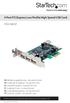 4 Port PCI Express Low Profile High Speed USB Card PEXUSB4DP DE: Bedienungsanleitung - de.startech.com FR: Guide de l'utilisateur - fr.startech.com ES: Guía del usuario - es.startech.com IT: Guida per
SSDNow For Desktops. Installation Guide
 Installation Guide Your purchase of the SSDNow with Accessory Kit will allow you to enjoy the benefits of increased system performance and reliability. All hardware and software necessary to replace your
HP SuperSpeed USB 3.0 PCIe x1 Card. User Guide
 HP SuperSpeed USB 3.0 PCIe x1 Card User Guide Copyright 2010 Hewlett-Packard Development Company, L.P. The information contained herein is subject to change without notice. Microsoft, Windows, and Windows
-------------------------------------------------------------------- README.TXT
 README.TXT Adaptec ASR-7805/ASR-7805Q/ASR-71605/ASR-71605Q/ASR-71605E/ASR-71685/ASR-72405 SAS/SATA RAID Controllers Adaptec ASR-6405/ASR-6445/ASR-6805/ASR-6805Q/ASR-6405E/ASR-6805E/ASR-6805E R5 SAS/SATA
USB 3.0 to M.2 NGFF SSD Enclosure with UASP
 USB 3.0 to M.2 NGFF SSD Enclosure with UASP SM2NGFFMBU33 *actual product may vary from photos DE: Bedienungsanleitung - de.startech.com FR: Guide de l'utilisateur - fr.startech.com ES: Guía del usuario
PCI Express 10GBase-LR/SR/LRM Fiber Network Card with Open SFP Slot
 PCI Express 10GBase-LR/SR/LRM Fiber Network Card with Open SFP Slot PEX10000SFP *actual product may vary from photos DE: Bedienungsanleitung - de.startech.com FR: Guide de l'utilisateur - fr.startech.com
Removable 2.5 SATA HDD Backup System
 Removable 2.5 SATA HDD Backup System SAT2510U3REM SAT2510U3S *actual product may vary from photos DE: Bedienungsanleitung - de.startech.com FR: Guide de l'utilisateur - fr.startech.com ES: Guía del usuario
INSTALLATION AND USER S GUIDE ADAPTEC SERIAL ATA RAID 2810SA
 INSTALLATION AND USER S GUIDE ADAPTEC SERIAL ATA RAID 2810SA R Adaptec Serial ATA RAID 2810SA Installation and User s Guide Copyright 2003 Adaptec, Inc. All rights reserved. No part of this publication
Serial ATA Hard Drive Enclosure
 SAT2510U2E SAT2510BU2E Instruction Manual Serial ATA Hard Drive Enclosure 2.5 esata/usb External Hard Drive Enclosure for Serial ATA Hard Drives FCC Compliance Statement This equipment has been tested
IDE ATA/133 Controller
 IDE ATA/133 Controller 2 Port PCI ATA-133 IDE Adapter Card PCIIDE2 Actual product may vary from photo FCC Compliance Statement This equipment has been tested and found to comply with the limits for a Class
PCI Express USB 2.0 Adapter Card
 PEXUSB400 Instruction Manual PCI Express USB 2.0 Adapter Card 4-Port (Independent) PCI Express to High Speed USB 2.0 Adapter Card FCC Compliance Statement This equipment has been tested and found to comply
RocketStor SMART RAID
 RocketStor SMART RAID User Guide v1.0 1 Copyright HighPoint Technologies Inc., 1995-2012. All rights reserved. OS X and Macintosh are registered trademarks of Apple Corporation. All other trademarks and
PCI Express USB Card. PCI Express 4 Port USB 2.0 card PEX400USB2. Instruction Manual. Actual product may vary from photo
 PCI Express USB Card PCI Express 4 Port USB 2.0 card PEX400USB2 Actual product may vary from photo FCC Compliance Statement This equipment has been tested and found to comply with the limits for a Class
2-Port SATA 6Gbps PCI Express Controller 2-Port esata 6Gbps PCI Express Controller
 2-Port SATA 6Gbps PCI Express Controller 2-Port esata 6Gbps PCI Express Controller PEXSAT32 PEXESAT32 DE: Bedienungsanleitung - de.startech.com FR: Guide de l'utilisateur - fr.startech.com ES: Guía del
Adaptec Event Monitor Utility. User s Guide
 Adaptec Event Monitor Utility User s Guide 2 Copyright Copyright 2013 PMC-Sierra, Inc. All rights reserved. The information in this document is proprietary and confidential to PMC-Sierra, Inc., and for
3.5in Black USB 2.0 IDE SATA External Hard Drive Enclosure
 3.5in Black USB 2.0 IDE SATA External Hard Drive Enclosure UNI3510U2 UNI3510U2EB UNI3510U2EB UNI3510UEBGB *actual product may vary from photos DE: Bedienungsanleitung - de.startech.com FR: Guide de l'utilisateur
2 Port PCI Express SATA 6Gbps Controller - 1x esata + 1x SATA
 2 Port PCI Express SATA 6Gbps Controller - 1x esata + 1x SATA PEXSAT31E1 *actual product may vary from photos DE: Bedienungsanleitung - de.startech.com FR: Guide de l'utilisateur - fr.startech.com ES:
3.5 esata USB 2.0 to IDE SATA External Hard Drive Enclosure
 3.5 esata USB 2.0 to IDE SATA External Hard Drive Enclosure UNI3510U2EB UNI3510UEBEU UNI3510UEBGB *actual product may vary from photos DE: Bedienungsanleitung - de.startech.com FR: Guide de l'utilisateur
LabelWriter. Print Server. User Guide
 LabelWriter Print Server User Guide Copyright 2010 Sanford, L.P. All rights reserved. 08/10 No part of this document or the software may be reproduced or transmitted in any form or by any means or translated
Dual msata SSD to 2.5in SATA SSD Converter with RAID
 Dual msata SSD to 2.5in SATA SSD Converter with RAID 25SAT22MSAT *actual product may vary from photos DE: Bedienungsanleitung - de.startech.com FR: Guide de l'utilisateur - fr.startech.com ES: Guía del
PCI Express esata/sata 6Gbps Controller
 PCI Express esata/sata 6Gbps Controller PEXESAT322I *actual product may vary from photos DE: Bedienungsanleitung - de.startech.com FR: Guide de l'utilisateur - fr.startech.com ES: Guía del usuario - es.startech.com
PCI USB 2.0 Card PCI225USB PCI225USB_LP PCI425USB PCI625USB2I. Instruction Manual. Actual product may vary from photo
 PCI USB 2.0 Card 2 Port High-Speed USB 2.0 PCI Card 2 Port High-Speed USB 2.0 Low-Profile PCI Card 4 Port High-Speed USB 2.0 PCI Card 6 Port High-Speed USB 2.0 PCI Card PCI225USB PCI225USB_LP PCI425USB
Professional USB to Serial Adapter Hub with COM Retention
 Professional USB to Serial Adapter Hub with COM Retention ICUSB2321X ICUSB2322X ICUSB2324X *actual product may vary from photos *actual product may vary from photos DE: Bedienungsanleitung - de.startech.com
Adaptec ASR-7805/ASR-7805Q/ASR-71605/ASR-71605Q/ASR-71605E/ASR-71685/ASR-72405 SAS/SATA RAID Controllers AFM-700 Flash Backup Unit
 README.TXT Adaptec ASR-7805/ASR-7805Q/ASR-71605/ASR-71605Q/ASR-71605E/ASR-71685/ASR-72405 SAS/SATA RAID Controllers AFM-700 Flash Backup Unit NOTE: All Adaptec by PMC products are UL listed and for use
2 Bay USB 3.0 RAID 3.5in HDD Enclosure
 2 Bay USB 3.0 RAID 3.5in HDD Enclosure SAT3520U3SR *actual product may vary from photos DE: Bedienungsanleitung - de.startech.com FR: Guide de l'utilisateur - fr.startech.com ES: Guía del usuario - es.startech.com
Mercury Helios 2 ASSEMBLY MANUAL & USER GUIDE
 Mercury Helios 2 ASSEMBLY MANUAL & USER GUIDE TABLE OF CONTENTS INTRODUCTION...1 1.1 MINIMUM SYSTEM REQUIREMENTS 1.1.1 Apple Mac Requirements 1.1.2 PC Requirements 1.1.3 Supported PCIe Cards 1.2 PACKAGE
AXIS 291 1U Video Server Rack Installation Guide
 AXIS 291 1U Video Server Rack Installation Guide About This Document This document describes how to install Axis blade video servers in the AXIS 291 1U Video Server Rack. Updated versions of this document
NVMe SSD User Installation Guide
 NVMe SSD User Installation Guide XS1715/SM1715/SM953 White Paper 2014 Samsung Electronics Co. SAMSUNG ELECTRONICS RESERVES THE RIGHT TO CHANGE PRODUCTS, INFORMATION AND SPECIFICATIONS WITHOUT NOTICE. Products
Getting Started. rp5800, rp5700 and rp3000 Models
 Getting Started rp5800, rp5700 and rp3000 Models Copyright 2011 Hewlett-Packard Development Company, L.P. The information contained herein is subject to change without notice. Microsoft, Windows, and Windows
USB 3.0 to HDMI Adapter with 3-Port USB 3.0 Hub USB 3.0 to VGA Adapter with 3-Port USB 3.0 Hub
 USB 3.0 to HDMI Adapter with 3-Port USB 3.0 Hub USB 3.0 to VGA Adapter with 3-Port USB 3.0 Hub USB32HDEH3 / USB32VGAEH3 *actual product may vary from photos DE: Bedienungsanleitung - de.startech.com FR:
Mini PCI Express FireWire Adapter Card
 MPEX1394B3 Instruction Manual Mini PCI Express FireWire Adapter Card 3-Port Mini PCI Express to 1394b FireWire Adapter Card Manual Revision:01/10/2011 For the most up-to-date information, please visit
Verbatim PowerBay Single USB and esata External Hard Drive Version 1.00
 Verbatim PowerBay Single USB and esata External Hard Drive Version 1.00 User Manual Table of Contents Introduction... 2 Controls, Connectors and Indicators... 2 About the Hard Drive... 2 Locating the Drive
1-Port PCI Gigabit Ethernet Network Card
 1-Port PCI Gigabit Ethernet Network Card ST1000BT32 *actual product may vary from photos DE: Bedienungsanleitung - de.startech.com FR: Guide de l'utilisateur - fr.startech.com ES: Guía del usuario - es.startech.com
Gateway Port Replicator User Guide
 Gateway Port Replicator User Guide Using the Port Replicator Identifying features Connecting and disconnecting the port replicator 1 Using the Port Replicator Top Power button Component Icon Description
P73474-F5U006-UNV-AM-man.qxd 9/18/00 10:10 AM Page 1
 P73474-F5U006-UNV-AM-man.qxd 9/18/00 10:10 AM Page 1 En 4-Port USB PCI Card User Manual Guide d utilisation de la carte PCI USB à quatre ports Manual de usuario para la tarjeta PCI USB de 4 puertos Placa
iosafe Solo External Hard Drive
 Users Manual & Limited Warranty iosafe Solo External Hard Drive USB 2.0 Fireproof Waterproof FloSafe Cooling Technology Data Recovery Service 910-10841-00 REV 7.1 2 COPYRIGHTS Copyright iosafe, Inc. 2009.
PCI Express USB 3.0 Controller Adapter Card
 PEXUSB3S2 Instruction Manual PCI Express USB 3.0 Controller Adapter Card 2-Port PCI Express SuperSpeed USB 3.0 Controller Adapter Card FCC Compliance Statement This equipment has been tested and found
3.5 USB 3.0 to SATA III HDD Enclosure with UASP Support
 3.5 USB 3.0 to SATA III HDD Enclosure with UASP Support S3510BMU33 S3510SMU33 *actual product may vary from photos DE: Bedienungsanleitung - de.startech.com FR: Guide de l'utilisateur - fr.startech.com
HDMI or Component Standalone Capture Device 1080p
 HDMI or Component Standalone Capture Device 1080p USB2HDCAPS *actual product may vary from photos DE: Bedienungsanleitung - de.startech.com FR: Guide de l'utilisateur - fr.startech.com ES: Guía del usuario
USB 3.0 to 3.5 SATA III Upright HDD Enclosure with UASP
 USB 3.0 to 3.5 SATA III Upright HDD Enclosure with UASP S3510BMU33B *actual product may vary from photos DE: Bedienungsanleitung - de.startech.com FR: Guide de l'utilisateur - fr.startech.com ES: Guía
PCI to 2 SATA/1 IDE Combo Controller Card
 PCI to 2 SATA/1 IDE Combo Controller Card PCISAT2IDE1 *actual product may vary from photos DE: Bedienungsanleitung - de.startech.com FR: Guide de l'utilisateur - fr.startech.com ES: Guía del usuario -
PCI Express FireWire & USB 2.0 card
 PCI Express FireWire & USB 2.0 card PCI Express Firewire 800 and USB 2.0 card PEX3U3F800 Actual product may vary from photo FCC Compliance Statement This equipment has been tested and found to comply with
Wireless Keyboard and Optical Mouse Bundle
 Wireless Keyboard and Optical Mouse Bundle Enjoy the freedom of wireless optical precision User Manual F8E832-BNDL TABLE OF CONTENTS Introduction....................................1 Compatible Equipment............................2
2 Port PCI Express SuperSpeed USB 3.0 Card
 2 Port PCI Express SuperSpeed USB 3.0 Card PEXUSB3S2 *actual product may vary from photos DE: Bedienungsanleitung - de.startech.com FR: Guide de l'utilisateur - fr.startech.com ES: Guía del usuario - es.startech.com
DMX USB PRO. User Manual. www.enttec.com
 DMX USB PRO User Manual www.enttec.com Firmware V1.43 February 2007 Package Contents Your DMX USB PRO package should contain these items: DMX USB PRO (Part No. 70304) Driver for Windows software on the
110244-003. PrintPAD CN3/4/3e/4e. User Guide
 110244-003 PrintPAD CN3/4/3e/4e User Guide TABLE OF CONTENTS PrintPAD CN3/4 & PrintPAD CN3e/4e Printer Views...1 Open View...1 Closed View...1 Using Batteries: General Guidelines...1 Installing and/or
StorTrends 3400 Hardware Guide for Onsite Support
 StorTrends 3400 Hardware Guide for Onsite Support MAN-3400-SS 11/21/2012 Copyright 1985-2012 American Megatrends, Inc. All rights reserved. American Megatrends, Inc. 5555 Oakbrook Parkway, Building 200
PCI Superspeed USB 3.0 Cards
 PCI Superspeed USB 3.0 Cards PCIUSB3S22 PCIUSB3S4 *PCIUSB3S22 Shown DE: Bedienungsanleitung - de.startech.com FR: Guide de l'utilisateur - fr.startech.com ES: Guía del usuario - es.startech.com IT: Guida
PCI Express Serial Card
 PCI Express Serial Card 1 Port 16650 PCI Express Serial Card 2 Port 16650 PCI Express Serial Card PEX1S550 PEX2S550 Actual product may vary from photo FCC Compliance Statement This equipment has been tested
Serial ATA Hard Drive Docking Station
 Serial ATA Hard Drive Docking Station UNIDOCK2U Instruction Manual USB to SATA, IDE External Hard Drive Docking Station for 2.5 or 3.5 Hard Drives FCC Compliance Statement This equipment has been tested
USB 3.0 SATA/IDE 2.5 Hard Drive Enclosure
 USB 3.0 SATA/IDE 2.5 Hard Drive Enclosure UNI251BMU33 *actual product may vary from photos DE: Bedienungsanleitung - de.startech.com FR: Guide de l'utilisateur - fr.startech.com ES: Guía del usuario -
EPSON USB/Parallel Adapter User s Guide
 EPSON USB/Parallel Adapter User s Guide EPSON Stylus COLOR 440 EPSON Stylus COLOR 800 EPSON Stylus COLOR 600 EPSON Stylus COLOR 850 EPSON Stylus COLOR 640 EPSON Stylus COLOR 1520 EPSON Stylus Photo EX
How To Use An Esata External Hard Drive Enclosure (I386) With A Usb 2.0 And Usb 2/1.1 Hard Drive (I219) On A 2.5\" Hard Drive On A Mini Hard Drive Or An Ip
 HDD external enclosure for data-storage mobility with USB 2.0 and esata interface USER Manual English AKASA Company notices The information contained in this document is subject to change without notice.
2 Port PCI to IDE Controller Card
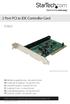 2 Port PCI to IDE Controller Card PCIIDE2 *actual product may vary from photos DE: Bedienungsanleitung - de.startech.com FR: Guide de l'utilisateur - fr.startech.com ES: Guía del usuario - es.startech.com
2x M.2 NGFF SSD RAID Controller Card plus 2x SATA Ports
 2x M.2 NGFF SSD RAID Controller Card plus 2x SATA Ports PEXM2SAT3422 *actual product may vary from photos FR: Guide de l utilisateur - fr.startech.com DE: Bedienungsanleitung - de.startech.com ES: Guía
ATTO ExpressSAS Host and RAID Adapter Installation and Operation Manual
 ATTO ExpressSAS Host and RAID Adapter Installation and Operation Manual ExpressSAS H1208 HBA ExpressSAS H1280 HBA ExpressSAS H120F HBA ExpressSAS H12F0 HBA ExpressSAS H1244 HBA ExpressSAS H1248 HBA ExpressSAS
4 Independent Port PCI Express SuperSpeed USB 3.0 Card
 4 Independent Port PCI Express SuperSpeed USB 3.0 Card PEXUSB3S400 *actual product may vary from photos DE: Bedienungsanleitung - de.startech.com FR: Guide de l'utilisateur - fr.startech.com ES: Guía del
HP StorageWorks 8Gb Simple SAN Connection Kit quick start instructions
 HP StorageWorks 8Gb Simple SAN Connection Kit quick start instructions Congratulations on your purchase of the 8Gb Simple SAN Connection Kit. This guide provides procedures for installing the kit components,
Rocket 640L/644L 6Gb/s SATA Host Adapter Quick Installation Guide
 Rocket 640L/644L 6Gb/s SATA Host Adapter Quick Installation Guide v1.1 1 Contents HighPoint Rocket640L/644L...3 Hardware Installation...3 Using the Rocket64xL Adapter...4 Rocket 64xL BIOS...4 Driver and
reflecta Super 8 Scanner
 reflecta Super 8 Scanner User Manual 1 FEDERAL COMMUNICATIONS COMMISSION (FCC) STATEMENT This Equipment has been tested and found to comply with the limits for a class B digital device, pursuant to Part
Intel RAID Module RMS3CC080/ RMS3CC040 and Intel RAID Maintenance Free Backup Unit 5 Quick Installation User's Guide
 Intel RAID Module RMS3CC080/ RMS3CC040 and Intel RAID Maintenance Free Backup Unit 5 Quick Installation User's Guide Thank you for buying an Intel RAID Module. Your Intel RAID Module provides reliability,
INSTALL GUIDE Making Your Mobile Life Easier.
 Targus USB Bluetooth Adapter Making Your Mobile Life Easier. Visit our Web site at: www.targus.com Features and specifications are subject to change without notice 2005 Targus Group International, Inc.
High Density RocketRAID 2711 + Rocket EJ220 Device Board Data RAID Installation Guide
 High Density RocketRAID 2711 + Rocket EJ220 Device Board Data RAID Installation Guide Introduction The HighPoint High Density Storage Solutions hammer down high density storage cost over a single mini-
Regulatory Compliance. IC Certification. FCC Certification. Declaration of Conformity
 VP6495 Regulatory Compliance This device complies with Part 15 of the FCC Rules. Operation is subject to the following two conditions: (1) This device may not cause harmful interference, and (2) This device
HP POS Keyboard with MSR for Point of Sale System. User Guide
 HP POS Keyboard with MSR for Point of Sale System User Guide Copyright 2008 2010 Hewlett-Packard Development Company, L.P. The information contained herein is subject to change without notice. Microsoft,
USB2VGA. Instruction Manual. USB to VGA Adapter. USB 2.0 to VGA External Multi Monitor Video Adapter
 USB to VGA Adapter USB2VGA Instruction Manual USB 2.0 to VGA External Multi Monitor Video Adapter FCC Compliance Statement This equipment has been tested and found to comply with the limits for a Class
1 Port PCI Express IDE Controller Adapter Card
 1 Port PCI Express IDE Controller Adapter Card PEX2IDE *actual product may vary from photos DE: Bedienungsanleitung - de.startech.com FR: Guide de l'utilisateur - fr.startech.com ES: Guía del usuario -
Installation Guide. Wyse VX0L and VX0LE Thin Clients 1-GB RAM Upgrade Option Kit. Issue: 022808 PN: 883884-07L Rev. A
 Installation Guide Wyse VX0L and VX0LE Thin Clients 1-GB RAM Upgrade Option Kit Issue: 022808 PN: 883884-07L Rev. A ii Copyright Notice 2008, Wyse Technology Inc. All rights reserved. This manual and the
Instruction Guide. 2/4/6-port PCI USB 2.0 card PCI225USB PCI425USB PCI625USB2I. The Professionals Source For Hard-to-Find Computer Parts
 USB 2.0 CARD 2/4/6-port PCI USB 2.0 card PCI225USB PCI425USB PCI625USB2I Instruction Guide *PCI225USB shown * Actual product may vary from photo The Professionals Source For Hard-to-Find Computer Parts
XTEND 900 MHZ WIRELESS MODEM For use with VEEDER-ROOT EMR³ DATALINK INSTALLATION INSTRUCTIONS Manual 577013-859, Rev. B
 INTRODUCTION This Installation Guide Contains the necessary information to Connect the Wireless Modems to the EMR³ Interconnect Box and the Office Computer for running the EMR³ Datalink Program. For Specific
1789 Norwood Avenue Itasca, Illinois 60143-1095 630-893-1600 Customer Service: 1-800-945-4545 http://www.fellowes.com
 1789 Norwood Avenue Itasca, Illinois 60143-1095 630-893-1600 Customer Service: 1-800-945-4545 http://www.fellowes.com Australia Tullamarine, Vic. Benelux Vianen, NL Canada Markham, Ont. France Rennes,
2 Port PCI SuperSpeed USB 3.0 Card
 2 Port PCI SuperSpeed USB 3.0 Card PCIUSB3S2 *actual product may vary from photos DE: Bedienungsanleitung - de.startech.com FR: Guide de l'utilisateur - fr.startech.com ES: Guía del usuario - es.startech.com
Installation Guide Wireless 4-Port USB Sharing Station. GUWIP204 Part No. M1172-a
 Installation Guide Wireless 4-Port USB Sharing Station 1 GUWIP204 Part No. M1172-a 2011 IOGEAR. All Rights Reserved. PKG-M1172-a IOGEAR, the IOGEAR logo, MiniView, VSE are trademarks or registered trademarks
If anything is damaged or missing, contact your dealer.
 User Manual UN-201 Read this guide thoroughly and follow the installation and operation procedures carefully in order to prevent any damage to the units and/or any devices that connect to them. This package
2.5 esata USB External Hard Drive Enclosure for SATA HDD
 2.5 esata USB External Hard Drive Enclosure for SATA HDD SAT2510U2E / SAT2510BU2E *actual product may vary from photos DE: Bedienungsanleitung - de.startech.com FR: Guide de l'utilisateur - fr.startech.com
EPSON USB/Parallel Adapter User s Guide
 EPSON USB/Parallel Adapter User s Guide EPSON Stylus COLOR 440 EPSON Stylus COLOR 1520 EPSON Stylus COLOR 600 EPSON Stylus COLOR 3000 EPSON Stylus COLOR 640 EPSON Stylus Photo 700 EPSON Stylus COLOR 660
Docking station for two laptops
 Docking station for two laptops USB3DDOCKFT DE: Bedienungsanleitung - de.startech.com FR: Guide de l'utilisateur - fr.startech.com ES: Guía del usuario - es.startech.com IT: Guida per l'uso - it.startech.com
SBI-7125B-T1 Blade Module RAID Setup Procedure
 SBI-7125B-T1 Blade Module RAID Setup Procedure Revison 1.0 SBI-7125B-T1 Blade Module RAID Setup Procedure The information in this User s Manual has been carefully reviewed and is believed to be accurate.
Installation Guide. RAID 5 esata 3Gbps 2 external port Low profi le PCI Express card. GICe702S3R5W6 PART NO. M0557
 Installation Guide RAID 5 esata 3Gbps 2 external port Low profi le PCI Express card 1 GICe702S3R5W6 PART NO. M0557 Table of Contents Caution 4 Introduction 6 Features 7 Package Contents 8 What Is RAID?
Industrial 1 Port RS232/422/485 to Dual Ethernet Serial Device Server
 Industrial 1 Port RS232/422/485 to Dual Ethernet Serial Device Server NETRS232485 *actual product may vary from photos DE: Bedienungsanleitung - de.startech.com FR: Guide de l'utilisateur - fr.startech.com
USB 2.0 Peripheral Switch USER MANUAL US221A / US421A
 USB 2.0 Peripheral Switch USER MANUAL US221A / US421A FCC Information This equipment has been tested and found to comply with the limits for a Class B digital device, pursuant to Part 15 of the FCC Rules.
2 Port Industrial PCIe RS232 Serial Card with Power Output and ESD Protection
 2 Port Industrial PCIe RS232 Serial Card with Power Output and ESD Protection PEX2S553S *actual product may vary from photos DE: Bedienungsanleitung - de.startech.com FR: Guide de l'utilisateur - fr.startech.com
Deploying and updating VMware vsphere 5.0 on HP ProLiant Servers
 Deploying and updating VMware vsphere 5.0 on HP ProLiant Servers Integration Note Introduction... 2 Deployment... 2 ESXi 5.0 deployment location options... 2 ESXi 5.0 image options... 2 VMware ESXi Image
MADRIX NEO Quick Start Guide & User Manual
 MADRIX NEO Quick Start Guide & User Manual 4 th Edition, Last Update: March 2011 Thank You for Purchasing MADRIX NEO Please read this manual carefully and thoroughly before using the MADRIX NEO. Make sure
3.5 External Hard Drive Enclosure
 UNI3510U2E / UNI3510U2EGB UNI3510U2EB / UNI3510UEBGB Instruction Manual 3.5 External Hard Drive Enclosure 3.5 esata/usb 2.0 to IDE/SATA External Hard Drive Enclosure with One-Touch Backup FCC Compliance