
User Guide Vibe 4.0 November 2015
|
|
|
- Godfrey Parsons
- 10 years ago
- Views:
Transcription
1 User Guide Vibe 4.0 November 2015

2 Legal Notices Novell, Inc., makes no representations or warranties with respect to the contents or use of this documentation, and specifically disclaims any express or implied warranties of merchantability or fitness for any particular purpose. Further, Novell, Inc., reserves the right to revise this publication and to make changes to its content, at any time, without obligation to notify any person or entity of such revisions or changes. Further, Novell, Inc., makes no representations or warranties with respect to any software, and specifically disclaims any express or implied warranties of merchantability or fitness for any particular purpose. Further, Novell, Inc., reserves the right to make changes to any and all parts of Novell software, at any time, without any obligation to notify any person or entity of such changes. Any products or technical information provided under this Agreement may be subject to U.S. export controls and the trade laws of other countries. You agree to comply with all export control regulations and to obtain any required licenses or classification to export, re-export or import deliverables. You agree not to export or re-export to entities on the current U.S. export exclusion lists or to any embargoed or terrorist countries as specified in the U.S. export laws. You agree to not use deliverables for prohibited nuclear, missile, or chemical biological weaponry end uses. See the Novell International Trade Services web page ( for more information on exporting Novell software. Novell assumes no responsibility for your failure to obtain any necessary export approvals. Copyright Novell, Inc. All rights reserved. No part of this publication may be reproduced, photocopied, stored on a retrieval system, or transmitted without the express written consent of the publisher. Novell, Inc South Novell Place Provo, UT U.S.A. Online Documentation: To access the latest online documentation for this and other Novell products, see the Novell Documentation web page ( Novell Trademarks: For Novell trademarks, see the Novell Trademark and Service Mark list ( company/legal/trademarks/tmlist.html). Third-Party Materials: All third-party trademarks are the property of their respective owners.

3 Contents About This Guide 11 1 Getting Started About Novell Vibe Novell Vibe Is Collaboration Software Novell Vibe Is Social Networking Software Accessing Novell Vibe Accessing Novell Vibe from a Web Browser Accessing Novell Vibe from Your File System Accessing Novell Vibe from a Mobile Device Starting Novell Vibe Getting to Know the Novell Vibe Interface and Its Features Understanding the Masthead Understanding the Navigation Panel Understanding the Action Toolbar Understanding the Relevance Tabs in the Home Page of Your Personal Workspace Understanding the Content Area Setting Up Your Personal Workspace Modifying Your Profile Branding Your Workspace Changing Your Password Creating a Team Workspace Using Novell Vibe Folders Discussion Blog Calendar Guestbook Files Milestones Micro-Blog Mirrored Files Photo Album Surveys Tasks Wiki Displaying Help Documentation Getting Informed Accessing Novell Vibe from Your Mobile Device Finding What s New Viewing New Entries Marking an Entry as Unread Commenting on a New Entry Sharing a New Entry Subscribing to a New Entry Tagging a New Entry Editing and Deleting a New Entry Displaying Only Unread Entries Pausing Updates on the What s New Page Configuring How Many Entries Are Displayed on a Page Contents 3

4 2.3 Finding What s Unread Searching for Information Using Basic Search Searching for Specific People, Places, or Tagged Items Using Advanced Search Searching for Items That Have Been Moved to the Trash Saving and Reusing Searches Locating a Subject-Matter Expert Locating a Relevant Workspace or Folder Accessing Shared Files and Folders Accessing Your Personal Files and Folders (My Files) Finding What s Unread Accessing Public Files and Folders Following and Unfollowing Places and People of Interest Following Workspaces and Folders Following People Viewing the Workspaces, Folders, and People You Are Following Viewing Activity from the Workspaces, Folders, and People You Are Following Unfollowing Workspaces, Folders, or People Viewing Recent Contributions Viewing Assigned Tasks Viewing Calendar Events Sharing Workspaces, Folders, and Entries Using Micro-Blogs Posting a Micro-Blog Viewing the Micro-Blog Entries of People You Are Following Viewing the Micro-Blog Entries of Vibe Users You Are Not Following Subscribing to a Folder or Entry Subscribing to a Folder Subscribing to an Entry Selecting Notification Types and Delivery Destinations Adding and Modifying Delivery Destinations Overriding Higher-Level Notification Settings Using Remote Applications Viewing Live Feeds Setting Up a Live Feed Viewing New Entries in Your Live Feed Using the Notification Area to View the Number of New Entries Displaying a News Feed in the GroupWise Client Viewing Folders as RSS or Atom Feeds Synchronizing Tasks and Calendars to a Desktop Application Synchronizing Tasks Folders and Calendar Folders Synchronizing Task and Calendar Items When Entries Are Created Navigating the Novell Vibe Interface Navigating the Workspace Tree Viewing and Revisiting Recent Places Viewing and Revisiting Recent Entries Managing Your Favorite Places Adding a Favorite Place Accessing Your Favorite Places Editing Your Favorite Places Accessing Your Teams Using Tags Tagging Workspaces or Folders Tagging Entries Novell Vibe 4.0 User Guide

5 3.6.3 Locating Tagged Items Choosing Between Personal Tags and Global Tags Sharing Entries, Folders, and Workspaces Understanding Shared-Access Rights Understanding Sharing Options Sharing Entries, Folders, and Workspaces Distributing a Link to a File Copying a File Link ing a File Link Editing or Removing a File Link Sharing with People Outside Your Organization Logging in As an External User to See a Shared Item Making Files Accessible to the Public Viewing Items You Have Shared Viewing Items Others Have Shared with You Hiding Items in the Shared with Me and Shared by Me Views Hiding Shared Items Displaying Hidden Items Displaying Only Hidden Items Modifying or Removing a Share Obtaining URLs (Permalinks) of Shared Entries, Folders, and Workspaces Managing and Using Workspaces General Workspace Management Creating a New Workspace Sharing a Workspace Modifying a Workspace Deleting a Workspace Recovering a Workspace from the Trash Copying a Workspace Moving a Workspace Adding a Sub-Workspace Adding Additional Folders to a Workspace Generating Activity Reports for a Workspace Configuring Sharing Rights for a Workspace Defining a User-Friendly URL for a Workspace or Folder Setting a Data Quota for a Workspace Customizing the Workspace View Branding a Workspace Displaying YouTube Videos in a Workspace Managing Your Personal Workspace Using the What s New Tab Viewing Recently Posted and Recently Visited Entries Using the Tasks and Calendars Tab Using the Micro-Blogs and Shared Items Tab Using the Accessories Tab Viewing Your Profile Information Managing a Team Workspace Creating a Team Workspace Adding Additional Team Members to Your Workspace Sending to Team Members and Announcing the Workspace after Its Creation Viewing Team Members Allowing Visitors to Your Team Workspace Managing a Discussions Workspace Managing a Project Management Workspace Contents 5

6 5.6 Managing a Landing Page Understanding Global Workspaces Managing and Using Folders Creating a New Folder Sharing a Folder Modifying a Folder Deleting a Folder Recovering a Folder from the Trash Copying a Folder Moving a Folder Importing Files into a Folder Dragging and Dropping Files Dragging and Dropping Folders Importing Files into the Files Folder by Creating a Folder Entry Importing Files as Entry Attachments Downloading the Contents of a Folder as a CSV File Generating an Activity Report on a Folder Generating a User Activity Report Generating an Entry Access Activity Report Subscribing to Notifications from a Folder Setting Up a Folder to Receive Entries Via Adding Entries to a Folder Via Configuring Folder Columns Showing and Hiding Columns Renaming Columns Reordering Columns Adjusting the Column Width Restoring Column Defaults Changing the Folder View Configuring the Number of Entries to Display on a Folder Page Branding a Folder Setting a Data Quota for a Folder Displaying YouTube Videos in a Folder Using Filters on Folders Creating a Filter Applying an Existing Filter Modifying a Filter Copying a Filter Deleting a Filter Listing Folder Entries and Pages Working with Specific Folder Types Working with Discussion Folders Sorting Discussion Entries by Column Title Pinning Discussion Entries Viewing Discussion Entries Customizing Columns in Discussions Folders Working with Blog Folders Using the Blog Toolbar Organizing Your Blog Folder Working with Calendar Folders Changing the View of Your Calendar Folder Viewing All Calendar Events for Which You Are Scheduled Novell Vibe 4.0 User Guide

7 7.3.3 Synchronizing Vibe Calendars of Your Choice Viewing Today s Calendar Items from All of the Calendars You Are Following Synchronizing Your Calendar with a Desktop Application Configuring a Landing Page to Display All Calendar Events Assigned to the User Who Views the Page Importing Calendars Working with Guestbook Folders Working with Files Folders Adding Files to a Files Folder and Other WebDAV-Enabled Folders Customizing Columns in Files Folders Working with Milestones Folders Working with Micro-Blog Folders Working with Mirrored Files Folders Working with Photo Album Folders Organizing Your Photo Album Synchronizing Photo Albums Viewing and Managing Photo Entries Working with Surveys Folders Participating in a Survey Creating a Survey Modifying a Survey Checking the Results of a Survey Working with Tasks Folders Sorting Tasks in Your Tasks Folder by Task Characteristics Filtering the Task List Modifying Tasks in the Task List Creating Tasks in a Specific Location in the Task List Creating Linked Tasks Changing the Order of Tasks Managing Sub-Tasks Synchronizing the Vibe Tasks Folders of Your Choice Changing the View of Your Tasks Folder Viewing All Tasks That Are Assigned to You Viewing All Tasks That Are Assigned to a Specific Team, Group, or Individual User Configuring a Landing Page to Display All Tasks Assigned to the User Who Views the Page Importing Tasks Working with Wiki Folders Organizing Your Wiki Folder Creating a New Wiki Topic Creating a New Wiki Page Using the Wiki Home Page Sorting Wiki Pages Finding a Wiki Page Formatting Your Wiki Page Creating Folder Content Working with Folder Entries Creating a Folder Entry Filling In the Entry Form Composing an Entry Description Linking to a Folder or Folder Entry Linking to an Entry in the Current Folder Linking to Another Folder or an Entry in Another Folder Linking to an External Page on the Web Commenting on a Folder Entry Sharing a Folder Entry Contents 7

8 8.5 Modifying a Folder Entry Modifying All Sections of an Entry Modifying the Description Section of an Entry Reserving a Folder Entry Moving a Folder Entry Moving a Single Entry Moving Multiple Entries Copying a Folder Entry Copying a Single Entry Copying Multiple Entries Deleting a Folder Entry Deleting a Single Entry Deleting Multiple Entries Recovering a Folder Entry from the Trash Marking a Folder Entry as Read Marking an Individual Entry as Read Marking All Entries in a Folder as Read Marking a Folder Entry as Unread Marking an Individual Entry as Unread Marking All Entries in a Folder as Unread Notifying Others about a Folder Entry Sharing an Entry Sending an about an Entry Subscribing to a Folder Entry Tagging a Folder Entry Working with Files in a Folder Entry Creating a File Entry Attaching Files to a Folder Entry Viewing Files in Read-Only Mode Editing Files Downloading Files Obtaining the WebDAV URL for a File Adding a Note about a File or File Version Setting the File Status Using Version Control with Files Viewing the History of an Entry Viewing Previous Versions of an Entry Comparing Versions of an Entry Reverting an Entry to a Previous Version Generating Reports about a Folder Entry Generating Activity Reports Generating Workflow History Reports Displaying YouTube Videos in a Folder Entry Displaying Images in a Folder Entry Rating a Folder Entry Configuring the Display Style of Entries Printing a Folder Entry Enabling Alternate Folder Entry Types Creating Custom Folder Entry Forms Displaying Folder Entries on a Landing Page Managing Accessories Creating an Accessory Locating the Accessory Panel Adding the Accessory Setting Up the Accessory Novell Vibe 4.0 User Guide

9 9.2 Modifying an Accessory Modifying an Accessory That Has a Border Modifying an Accessory That Doesn t Have a Border Deleting an Accessory Deleting an Accessory That Has a Border Deleting an Accessory That Doesn t Have a Border Minimizing an Accessory Minimizing an Accessory That Has a Border Minimizing an Accessory That Doesn t Have a Border Minimizing the Accessory Panel Hiding or Displaying the Accessory Panel in a Folder Repositioning Accessories Establishing a Default Layout Providing a Title for the Accessory Panel Connecting With Your Co-Workers Sending from within Vibe Informing Others about a Folder or Workspace Informing Others about an Entry Configuring Folders to Send Notifications to Other Users Sending an Instant Message from within Vibe Using Skype from within Vibe Setting Up Your Skype Address in Vibe Contacting Other Vibe Users with Skype Filling Out the Send Page Using the Vibe Clipboard Adding Names to the Clipboard Removing Names from the Clipboard Using the Names on Your Clipboard Using Workflows Manually Starting and Stopping a Workflow Manually Starting a Workflow Manually Stopping a Workflow Manually Transitioning a Workflow after It Starts Using Vibe on Your Mobile Device Managing Vibe Files from Your Desktop Working with Vibe Files in Microsoft Office 171 A What s New in Novell Vibe A.1 Sharing Improvements A.2 Folder Look and Feel Improvements A.3 Browser History Support A.4 Download Folder Contents as a CSV File A.5 Mark All Entries in a Folder as Read or Unread A.6 Enhanced Drag-and-Drop Functionality A.7 Enhancements to Filters A.7.1 Apply Multiple Filters to a Folder Contents 9

10 A.7.2 Copy Filters from One Folder to Add to Another Folder A.8 Ability to Hide Accessories in a Folder A.9 Enhanced Pinning for Discussion Entries A.10 Unfollow People and Places From the What s New Area A.11 Vibe Desktop Application Improvements A.12 New Change Password Dialog A.13 Mobile App Look and Feel Improvements B Troubleshooting 177 B.1 Unable to Edit Files on Windows 7 with Microsoft Office 2007 or Later B.2 You Have Exceeded Your Data Quota and Cannot Add Any Files or Attachments to the Vibe Site B.3 You Are Unable to Change Your Vibe Password B.4 Vibe Interface Is Not Displayed Correctly B.5 Understanding Mirrored Folders B.6 Too Many Sign-Ins for WebDAV B.7 WebDAV Phantom Folders B.8 Unable to Open Pictures from WebDAV in Microsoft Office Picture Manager B.9 Unable to Move Files and Folders within the WebDAV Interface B.10 Unable to Edit Files That Are Attached to Entries B.10.1 Changing the Default Editor Settings for a Single File Type B.10.2 Changing the Default Editor Settings for All File Types B.10.3 Changing the Default Editor Settings When the Editor is Not Installed in the Default Location B.11 Cannot Upload a File Because it Is Too Large B.11.1 Increasing the Default Memory Amount on Windows B.11.2 Increasing the Default Memory Amount on Linux B.12 Files that Contain Extended or Double-Byte Characters in the File Name Are Corrupt after ZIP File Is Extracted B.13 Upload Applet Problems on SLED 10 SP B.14 Vibe Applets Are Not Working B.14.1 Applets Are Not Working on a 64-Bit Operating System B.14.2 Applets Are Not Working on Windows with Firefox 3.6 and Later B.14.3 Applets Are Not Working on Mac OS with Safari B.15 Edit-In-Place Applet Is Not Working on Mac B.15.1 Edit-in-Place Applet Is Not Working with OpenOffice B.15.2 Edit-in-Place Applet Is Not Working with Microsoft Office B.16 Troubleshooting Your Mobile Device B.16.1 Your Browser Does Not Automatically Direct You to the Mobile Interface B.16.2 You Are Unable to View YouTube Videos from Your Mobile Device B.16.3 Your BlackBerry Curve Does Not Work with the Mobile Interface C Accessibility for People with Disabilities 187 C.1 New Windows Opened without Notification C.2 Text Added to a Page Is Not Conveniently Available C.3 Drop-Down List Access D Documentation Updates Novell Vibe 4.0 User Guide

11 About This Guide The Novell Vibe 4 User Guide explains how to use the Novell Vibe product. This guide includes the following topics: Chapter 1, Getting Started, on page 13 Chapter 2, Getting Informed, on page 27 Chapter 3, Navigating the Novell Vibe Interface, on page 51 Chapter 4, Sharing Entries, Folders, and Workspaces, on page 55 Chapter 5, Managing and Using Workspaces, on page 67 Chapter 6, Managing and Using Folders, on page 81 Chapter 7, Working with Specific Folder Types, on page 95 Chapter 8, Working with Folder Entries, on page 123 Chapter 9, Managing Accessories, on page 149 Chapter 10, Connecting With Your Co-Workers, on page 159 Chapter 11, Using Workflows, on page 165 Chapter 12, Using Vibe on Your Mobile Device, on page 167 Chapter 13, Managing Vibe Files from Your Desktop, on page 169 Chapter 14, Working with Vibe Files in Microsoft Office, on page 171 Appendix A, What s New in Novell Vibe 4.0, on page 173 Appendix B, Troubleshooting, on page 177 Appendix C, Accessibility for People with Disabilities, on page 187 Appendix D, Documentation Updates, on page 189 Audience This guide is intended for new Novell Vibe users. Feedback We want to hear your comments and suggestions about this manual and the other documentation included with this product. Please use the comment on this topic feature at the bottom of each page of the online documentation. Documentation Updates For the most recent version of this manual, visit the Novell Vibe 4 Documentation website ( About This Guide 11

12 Additional Documentation and Resources You can find more information in the Novell Vibe documentation, which is accessible from the Novell Vibe 4 Documentation website ( To access the Novell Vibe User Guide from within Novell Vibe, click your linked name in the upper right corner of each Vibe page, then click Help. See the Novell Vibe Resource Library ( ) for additional information and resources, including downloadable custom forms and workflows, relevant articles, and more. 12 Novell Vibe 4.0 User Guide

13 1 1Getting Started When you begin to use Novell Vibe, the first thing you might want to do is set up your personal workspace and create a team workspace. This section explains how to get started with Vibe by accomplishing these important tasks. Section 1.1, About Novell Vibe, on page 13 Section 1.2, Accessing Novell Vibe, on page 14 Section 1.3, Starting Novell Vibe, on page 16 Section 1.4, Getting to Know the Novell Vibe Interface and Its Features, on page 17 Section 1.5, Setting Up Your Personal Workspace, on page 19 Section 1.6, Changing Your Password, on page 21 Section 1.7, Creating a Team Workspace, on page 21 Section 1.8, Using Novell Vibe Folders, on page 22 Section 1.9, Displaying Help Documentation, on page 25 As you use this guide to help you accomplish tasks in Vibe, you might discover that you are unable to complete the tasks as the sections describe. If you encounter a problem, it is probably because you have not been granted appropriate rights. You should consult with your Vibe administrator. For more information on rights and access control in Vibe, see Controlling Access in the Novell Vibe 4.0 Advanced User Guide. 1.1 About Novell Vibe Section 1.1.1, Novell Vibe Is Collaboration Software, on page 13 Section 1.1.2, Novell Vibe Is Social Networking Software, on page Novell Vibe Is Collaboration Software Collaboration through Vibe facilitates online work, creating a virtual meeting space. You experience an increase in team synergy when using Vibe: You and your teammates can work together without being in the same room or working at your computers at the same time. Someone can post a note or document to a folder, and, at their convenience, teammates can comment on the work, review and edit files, and further develop the idea. With Vibe, teamwork is ongoing and seamless. When you are working online, the presence feature of Vibe allows you to see which teammates are currently online, and allows you to start a chat session by using Novell Messenger, make a Skype phone call, and so on. Ideas are formed together, interactively, with your teammates. By the time you hold a meeting in the conference room, the team has already been part of the formation of the idea, and teammates are more likely to understand it, buy into it, and assist with its implementation. Vibe becomes a pre-meeting meeting. Getting Started 13

14 Documents are reviewed earlier in the process, which allows for easier modifications and adjustments. Vibe also makes it easier to co-author documents, because of workflow processes that automate drafting and review, and because of Vibe access control that easily designates writers and reviewers. Your collaborative process is preserved and publicly accessible in Vibe. No more searching through folders in a frantic effort to catch someone up on a lengthy discussion. To review past discussions and decisions, or to review a previous version of a document, you can use the powerful search capability of Vibe to locate historical information quickly and easily. You can use various Vibe tools in combination a milestones folder, tasks, workflow, discussions, chat, online meetings to track progress against goals for multiple teams working on a large project Novell Vibe Is Social Networking Software The out-of-the-box Novell Vibe tools provide powerful enhancements to online collaboration. In addition, when you use the tools in combination and apply structure to content design, Vibe becomes a powerful knowledge-management and enterprise social networking tool. Knowledge management involves the efficient development, management, access, and distribution of organizational knowledge. Enterprise social networking involves the efficient connection of knowledgeable people needed to form teams, make decisions, and complete work. Consider these examples: When people use their personal workspaces to provide detailed information about themselves, the purpose of the workspace moves beyond merely contact data (phone numbers, addresses, and so on). It enables searches for various subject-matter experts. Also, Vibe analyzes its search results, telling you which people discuss your search topic the most and in which places these conversations are happening. It is easy to see pockets of expertise associated with your area of interest. Experts can rate entries in Vibe by using a five-star rating system (one star indicating the least impressive, and five stars the most impressive), providing an additional tool for determining the quality of information. Vibe provides tools, such as wikis (information coauthored by all participants), blogs (chronological journal entries allowing for comments from readers), workflow (an online representation of a business process), and tags (categorical labels applied to items). People can use these tools to create and organize information organically, over time, in ways that map best to the team s natural work style. Through these tools, teams literally move their business processes online and automate their work. Vibe provides work-area summaries, called accessories, that provide a snapshot of a potentially large amount of information, highlighting the most relevant data. For example, the accessory can present entries submitted by an expert on a given subject, or it can summarize task-completion information by providing a milestone overview. 1.2 Accessing Novell Vibe Novell Vibe provides three convenient access methods: Section 1.2.1, Accessing Novell Vibe from a Web Browser, on page 15 Section 1.2.2, Accessing Novell Vibe from Your File System, on page 15 Section 1.2.3, Accessing Novell Vibe from a Mobile Device, on page Novell Vibe 4.0 User Guide

15 1.2.1 Accessing Novell Vibe from a Web Browser You can access Novell Vibe from a web browser. This guide focuses on this access method Accessing Novell Vibe from Your File System You can access Novell Vibe directly from the file system on your computer (Windows or Mac). For more information, see the Novell Vibe Desktop for Windows Quick Start ( documentation/vibe4/vibe4_qs_desktop/data/vibe4_qs_desktop.html) and the Novell Vibe Desktop for Mac Quick Start ( vibe4_qs_desktop.html) Accessing Novell Vibe from a Mobile Device There are native ios, Android, and Windows Phone mobile apps for accessing the Vibe site. Accessing Vibe through a web browser on a mobile device is not supported. Instead, download the Vibe mobile app that is compatible with your mobile device. For more information, see the Novell Vibe Mobile Quick Start ( vibe4/vibe4_qs_mobile/data/vibe4_qs_mobile.html). The following image shows Vibe on an ios device. The look and feel differs on Android and Windows devices. Getting Started 15

16 1.3 Starting Novell Vibe 1 Launch a web browser (such as Mozilla Firefox or Internet Explorer). 2 Go to the URL of your corporation s Novell Vibe site. 3 In the User ID field, specify your Vibe user name. 4 In the Password field, specify your Vibe password. If you do not know your Vibe user name and password, contact your Vibe administrator. 5 Click OK. 16 Novell Vibe 4.0 User Guide

17 1.4 Getting to Know the Novell Vibe Interface and Its Features When you first launch Novell Vibe, you see the What s New page. This page shows you what s new in your teams, favorite places, and more. For more information about the What s New page, see Section 2.2, Finding What s New, on page 28. You can easily navigate to your personal workspace by clicking My Workspace, which includes the following toolbars and features: Section 1.4.1, Understanding the Masthead, on page 17 Section 1.4.2, Understanding the Navigation Panel, on page 18 Section 1.4.3, Understanding the Action Toolbar, on page 18 Section 1.4.4, Understanding the Relevance Tabs in the Home Page of Your Personal Workspace, on page 19 Section 1.4.5, Understanding the Content Area, on page Understanding the Masthead The Masthead contains the following features: Name Link: Click your linked name in the upper right corner of any Vibe page to view the following options: Data Quota information: (Conditional) Your current data quota and the amount of your quota that you have used are displayed. If this option is not displayed, the Vibe administrator has not restricted you to a data quota. For more information about data quota in Vibe, see Managing Your Data Quota in the Novell Vibe 4.0 Advanced User Guide. View Profile: Displays your Vibe profile. Getting Started 17

18 Personal Preferences: Displays your personal preferences. You can configure the following personal preferences: Entry Display: Specify the default behavior when clicking a file name. For more information, see Section 8.22, Configuring the Display Style of Entries, on page 146. Items per Folder Page: Specify how many entries you want to appear on a given page. For more information, see Section 6.16, Configuring the Number of Entries to Display on a Folder Page, on page 90. Hide Public Collection: Select this option to hide the Public icon in the masthead so that it is no longer displayed in the web client. For more information about viewing files that have been shared with the public, see Section 2.8, Accessing Public Files and Folders, on page 39. Define Editor Overrides: This feature allows you to change the default editor settings for editing files. For more information, see Section B.10, Unable to Edit Files That Are Attached to Entries, on page 180. Live Feed: Displays live feeds of the latest entries in your teams, places you are following, or across the entire site. For more information, see Section 2.17, Viewing Live Feeds, on page 48. Vibe Resource Library: Displays the Vibe Resource Library, which includes additional information and resources, including downloadable custom forms and workflows, relevant articles, and more. Change Password: Specify your current and new password. For more information, see Section 1.6, Changing Your Password, on page 21. Help: Displays the Vibe Web Application User Guide. Download Vibe Desktop App: (Conditional) Displays the Vibe desktop app download page. If this option is not available, the Vibe administrator has not enabled it. Sign out: Signs you out of the Vibe site Understanding the Navigation Panel The Navigation panel contains a navigation tree that displays the current workspace and all subworkspaces and sub-folders Understanding the Action Toolbar The Action toolbar contains the following features: Expand/Contract Navigation Panel Icon: Hides and displays the Navigation panel. Expand/Contract Masthead Icon: Hides and displays the Masthead. Workspace Toolbar Icon: Displays the Workspace toolbar, which enables you to quickly navigate to any location where you have appropriate rights. My Workspace: Displays your personal workspace. What s New: Displays the What s New page, where you can quickly see what s new in your teams, favorite places, and more. For more information, see Section 2.2, Finding What s New, on page 28. My Favorites: Enables you to add a place as a favorite, or to quickly visit your favorite places on the Vibe site. 18 Novell Vibe 4.0 User Guide

19 For more information, see Section 3.4, Managing Your Favorite Places, on page 52. My Teams: Displays links to all of the team workspaces where you are a member. Recent Places: Displays the places that you have most recently visited. For more information, see Section 3.2, Viewing and Revisiting Recent Places, on page 51. View: Enables you to accomplish various tasks, such as seeing what s new or unread in the workspace or folder, viewing who has access, viewing the Vibe clipboard, and accessing the Vibe Trash. Search: Enables you to search the entire site for entries, places, and people. You can locate subjectmatter experts, or see what information is available concerning a particular topic. Click the Search Options icon if you want to specifically search for a person, place, or a tag. You can also use a saved search or perform an Advanced Search. For more information about searching in Vibe, see Section 2.4, Searching for Information, on page Understanding the Relevance Tabs in the Home Page of Your Personal Workspace The home page of your personal workspace contains various tabs that are designed to help facilitate your work. Use these tabs as a central location where you can quickly be informed of new entries, upcoming tasks, your daily meetings, and more. What s New: Enables you to quickly see new entries in your teams, places you are following, or across the entire site. Recent: Enables you to view entries that you have recently posted, and entries that you have recently visited. You can view who has recently visited your workspace, as well as see your personal tags. Tasks and Calendars: Enables you to view tasks that are assigned to you, as well as today s events from the calendars you are following. Accessories: Contains an Accessory panel that lists entries from your Guestbook, Blog, and Photo Album folders. You can manage these accessories as described in Chapter 9, Managing Accessories, on page Understanding the Content Area The Content Area in Vibe is where the majority of information is displayed, such as workspaces, folders, and entries. 1.5 Setting Up Your Personal Workspace Before you take advantage of all of the features and functionality of Novell Vibe, you might want to customize your personal workspace. Section 1.5.1, Modifying Your Profile, on page 20 Section 1.5.2, Branding Your Workspace, on page 20 Getting Started 19

20 1.5.1 Modifying Your Profile You might need to manually update your profile in order for important contact information to be seen, such as your address, phone number, time zone, and picture. Another reason to modify your profile is to publicize your skills and past experience to other Vibe users. One advantage of Vibe is the ability to find experts on any subject within your organization. You, as a Vibe user, have the ability to be a subject-matter expert. NOTE: If you are unable to modify your personal information (such as your Vibe password) as described in this section, it is probably because your personal information is being synchronized from an external directory server. You must consult your Vibe administrator to make changes. 1 Click your linked name in the upper right corner of any Vibe page. 2 Click View Profile. 3 Click Edit, make any necessary changes, then click OK Branding Your Workspace Adding a personal brand to your workspace can enhance the appearance of your workspace and make you feel more at home. 1 Navigate to your personal workspace. 2 Next to the workspace name, click the Configure icon, then click Brand Workspace. The Workspace/Folder Branding dialog box is displayed. 3 Specify the following information to create your desired brand: Use Branding Image: Select this option if you want to use the drop-down list to select an existing image, or click the Browse icon to browse to an image on your computer s file system. Use Advanced Branding: Select this option, then click Advanced if you want to create a brand that includes advanced features, such as a YouTube video. 20 Novell Vibe 4.0 User Guide

21 You can add a YouTube video in your branding section by clicking the Video icon. For more information about displaying YouTube videos in Vibe, see Section 8.19, Displaying YouTube Videos in a Folder Entry, on page 145. Background Image: Click the Browse icon to browse to an image on your computer s file system. The provided drop-down list contains images only if you are branding a team workspace and if you have attached images to the workspace, as described in Section 5.1.3, Modifying a Workspace, on page 68. The background image is displayed behind your regular branding. Stretch Image: Stretches the background image so that it occupies the entire branding area. If you stretch your background image, the image overrides any background color that you have set. Background Color: Adds a background color that occupies the entire branding area. To change the background color, click the color name to the right of this field, select the new color, then click OK. If you added a background image and stretched the image, the background color is not displayed. Text Color: Changes the text color of the workspace name in the upper right corner of the branding area. To change the text color, click the color name to the right of this field, select the new color, then click OK. Clear branding: Click this option to clear all of your current branding selections. 4 Click OK. Your workspace now displays the brand that you created. For more information about creating a brand for workspaces and folders, see Branding a Folder or Workspace in the Novell Vibe 4.0 Advanced User Guide. 1.6 Changing Your Password Only local and external users can change their passwords as described in this section. If you cannot change your Vibe password as described in this section, contact your Vibe administrator. 1 Click your linked name in the upper right corner of any Vibe page. 2 Click Change Password. The Change Password dialog box is displayed. 3 Specify your current password, then specify and confirm the new password. 4 Click OK. 1.7 Creating a Team Workspace By default, everyone in Novell Vibe has rights to create a team workspace. Team workspaces are the most common type of workspaces. They facilitate team objectives by enabling team members to quickly share files, share ideas, and work together more efficiently and effectively. Getting Started 21
22 To create a team workspace: 1 Click the Browse icon in the Action toolbar, then expand Home Workspace in the Workspace tree. The Home Workspace directory is the highest-level folder in the workspace tree, and might be named something specific to your organization. 2 Click Team Workspaces. The Teams page is displayed. 3 Click New Workspace. The New Workspace page is displayed. If you do not see the New Workspace option, your site administrator has not permitted you to create a new workspace at this level. Continue to expand the workspace tree, following the path of your organizational unit, click the name of the directory where you want to create the new team workspace, then, next to the workspace name, click the Configure icon. Click New Workspace. Ensure that you select Team Workspace in the Workspace section. Or, follow the steps in Creating a Team Workspace inside of an Existing Team Workspace on page Specify the following information: Workspace Title: Provide a title for the workspace. Workspace: Select Team Workspace. Team Members: Specify the team members. You can specify individual users, entire groups, or add names that are on your clipboard. For more information about using the Vibe clipboard, see Section 10.5, Using the Vibe Clipboard, on page 162. Workspace Folders: Select the folders that you want the workspace to contain. If you later decide that you want to add additional folders, you can add them at any time. For information on how to add folders to a workspace, see Section 6.1, Creating a New Folder, on page Click OK to create the new workspace. For information on how to create a team workspace inside of an existing workspace, see Creating a Team Workspace inside of an Existing Team Workspace on page Using Novell Vibe Folders Novell Vibe includes multiple types of folders that enable you to organize the various kinds of information in your workspaces. Section 1.8.1, Discussion, on page 23 Section 1.8.2, Blog, on page 23 Section 1.8.3, Calendar, on page 23 Section 1.8.4, Guestbook, on page 23 Section 1.8.5, Files, on page 23 Section 1.8.6, Milestones, on page 24 Section 1.8.7, Micro-Blog, on page 24 Section 1.8.8, Mirrored Files, on page 24 Section 1.8.9, Photo Album, on page Novell Vibe 4.0 User Guide
23 Section , Surveys, on page 24 Section , Tasks, on page 24 Section , Wiki, on page 25 For more detailed information about each type of Vibe folder, see Chapter 7, Working with Specific Folder Types, on page Discussion Blog Use discussions as a way of obtaining comments and feedback to questions and thoughts that you might have. You can start general discussion threads in the Discussion folder in your personal workspace. For discussion threads that are more specific to a project and team, start the discussion thread in the Discussion folder of an appropriate team workspace. For more information on Discussion folders, see Section 7.1, Working with Discussion Folders, on page 95. Blogs are a good way to express your thoughts about topics that are important to you. For example, if you are working on a project and are responsible for a certain aspect of that project, you can update your team on your individual progress by posting a blog in the Blog folder in the team workspace. For more information on Blog folders, see Section 7.2, Working with Blog Folders, on page Calendar Vibe enables you to create a Calendar folder in any workspace that you desire. You can maintain a personal calendar in your personal workspace, and then add separate calendars in your team workspaces to keep track of events that are specific to that team. For more information on Calendar folders, see Section 7.3, Working with Calendar Folders, on page Guestbook Files The Guestbook folder in Vibe is a place to store all of your guestbook entries. By default, users can sign your Guestbook by clicking the Overview tab on the home page of your personal workspace. This is a quick way for your friends and co-workers to communicate with you. For more information on Guestbook folders, see Section 7.4, Working with Guestbook Folders, on page 101. Files folders in Vibe make it easy to store and keep track of your files. You can store personal files in the Files folder in your personal workspace, and team-related files in your individual team folders. This makes it easy to share files with your teammates and others who might be interested in viewing them. For more information on Files folders, see Section 7.5, Working with Files Folders, on page 101. Getting Started 23
24 1.8.6 Milestones Milestones folders track the progress of several Tasks folders. Milestones folders are most often used in those workspaces, although they can also be used in other workspaces. For more information, see Section 5.5, Managing a Project Management Workspace, on page Micro-Blog The Micro-Blog folder in Vibe is a place to store all of your micro-blog entries. Use the Micro-Blog feature to capture quick personal notes, or to inform others of what you are currently working on. This provides a greater transparency, so those you work with know what you are doing, and how they might offer assistance to help you accomplish your tasks. You can navigate to someone else s Micro-Blog folder to see what they have been working on, and possibly provide help by sharing your knowledge and experience. For more information on the Micro-Blog feature, see Section 2.14, Using Micro-Blogs, on page Mirrored Files Mirrored Files folders use a reference to a file system on an external server, instead of the Vibe file system where other Vibe information is stored. Mirrored Files folders can reference any WebDAV or local file path. For more information about Mirrored Files folders, see Working with Mirrored Folders in the Novell Vibe 4.0 Advanced User Guide Photo Album Photo albums store and display pictures. You can store your personal photos in the Photo Album in your personal workspace, and team-related photos in the Photo Album of the team workspace. For more information on Photo Album folders, see Section 7.9, Working with Photo Album Folders, on page Surveys Tasks Surveys folders store surveys that you or other Vibe users have created. Surveys enable you to poll team members, or any other Vibe users, about issues that are important to you, your team, or your company. For more information on Surveys folders, see Section 7.10, Working with Surveys Folders, on page 105. Tasks folders keep track of the progress made in completing work assignments. Vibe enables you to create a Tasks folder in any workspace that you desire. You can maintain a personal Tasks folder in your personal workspace, and then add separate Tasks folders in your team workspaces to keep track of tasks that are specific to that team. For more information on Tasks folders, see Section 7.11, Working with Tasks Folders, on page Novell Vibe 4.0 User Guide
25 Wiki Wiki folders contain wiki entries. A wiki is a set of related entries coauthored by folder participants. For example, the best-known wiki on the Internet is Wikipedia. Other examples of possible wiki content are glossaries, or policies and procedures. For more information on Wiki folders, see Section 7.12, Working with Wiki Folders, on page Displaying Help Documentation 1 Click your linked name in the upper right corner of each Vibe page, then click the Help icon. When you click this icon, Vibe displays the Vibe User Guide in a new browser window. Getting Started 25
26 26 Novell Vibe 4.0 User Guide
27 2 2Getting Informed Novell Vibe provides numerous methods to help keep you informed of what s going on in your teams and in your organization. Section 2.1, Accessing Novell Vibe from Your Mobile Device, on page 27 Section 2.2, Finding What s New, on page 28 Section 2.3, Finding What s Unread, on page 31 Section 2.4, Searching for Information, on page 32 Section 2.5, Accessing Shared Files and Folders, on page 38 Section 2.6, Accessing Your Personal Files and Folders (My Files), on page 38 Section 2.7, Finding What s Unread, on page 39 Section 2.8, Accessing Public Files and Folders, on page 39 Section 2.9, Following and Unfollowing Places and People of Interest, on page 40 Section 2.10, Viewing Recent Contributions, on page 43 Section 2.11, Viewing Assigned Tasks, on page 43 Section 2.12, Viewing Calendar Events, on page 43 Section 2.13, Sharing Workspaces, Folders, and Entries, on page 44 Section 2.14, Using Micro-Blogs, on page 44 Section 2.15, Subscribing to a Folder or Entry, on page 46 Section 2.16, Using Remote Applications, on page 48 Section 2.17, Viewing Live Feeds, on page 48 Section 2.18, Viewing Folders as RSS or Atom Feeds, on page 49 Section 2.19, Synchronizing Tasks and Calendars to a Desktop Application, on page Accessing Novell Vibe from Your Mobile Device Novell Vibe includes a mobile interface that is supported on the following mobile devices: ios (native application is available for both the iphone and ipad for a free download in the Apple App Store--for ios 7 or later) Android (native application is available for a free download in the Google Play Store for Android 2.3 or later) Windows phones version 8.0 and 8.1 Windows tablets are not currently supported. Kindle Fire (native application is available for a free download in the Amazon Appstore for Android) BlackBerry Z10 and PlayBook (native application is available for a free download in the BlackBerry World store) In other words, most mobile devices that have a data service plan can access the Vibe mobile interface. Getting Informed 27
28 For more information about using Vibe on your mobile phone, see the Novell Vibe Mobile Quick Start ( 2.2 Finding What s New One key to effective and efficient teamwork is knowing what people are working on and what they are saying. Vibe enables you to view and act on new entries by using the What s New page. You can view new entries for various categories, comment on entries, and more. To perform actions on entries, you must have appropriate rights. For more information about rights, see Controlling Access in the Novell Vibe 4.0 Advanced User Guide. Section 2.2.1, Viewing New Entries, on page 28 Section 2.2.2, Marking an Entry as Unread, on page 29 Section 2.2.3, Commenting on a New Entry, on page 29 Section 2.2.4, Sharing a New Entry, on page 30 Section 2.2.5, Subscribing to a New Entry, on page 30 Section 2.2.6, Tagging a New Entry, on page 30 Section 2.2.7, Editing and Deleting a New Entry, on page 31 Section 2.2.8, Displaying Only Unread Entries, on page 31 Section 2.2.9, Pausing Updates on the What s New Page, on page 31 Section , Configuring How Many Entries Are Displayed on a Page, on page Viewing New Entries By default, the What s New page is displayed when you first access the Vibe site. If the What s New page is not displayed, or if you navigate away from it, you can easily access it to view new entries. 1 Click What s New in the Action toolbar from any folder or workspace in Vibe. By clicking the appropriate category in the What s New navigation panel on the left side of the page, you can view new entries for any of the following categories: Current Folder or Workspace: Displays new entries in the folder or workspace that you are in when you click What s New in the Action toolbar. My Files: Displays new entries in your My Files area. For information about My Files, see Section 2.6, Accessing Your Personal Files and Folders (My Files), on page 38. Shared with Me: Displays new entries in your Shared with Me area. For information about Shared with Me, see Section 2.5, Accessing Shared Files and Folders, on page 38. Shared by Me: Displays new entries in your Shared by Me area. For information about Shared by Me, see Section 2.5, Accessing Shared Files and Folders, on page 38. Public: Displays new entries that have been shared with the public. For information about viewing files that have been shared with the public, see Section 2.8, Accessing Public Files and Folders, on page 39. My Favorites: Displays new entries in your favorite places. 28 Novell Vibe 4.0 User Guide
29 For information on how to add places as favorites, see Section 3.4.1, Adding a Favorite Place, on page 52. My Teams: Displays new entries in your teams. For more information on how to create a team workspace, see Section 5.3.1, Creating a Team Workspace, on page 77. Followed People: Displays new entries that have been added by the people you are following. To quickly unfollow a person, expand Followed People, hover over the person s name who you want to stop following, then click the x. For information on how to follow people, see Section 2.9.2, Following People, on page 40. Followed Places: Displays new entries that have been added to the places you are following. To quickly unfollow a place, expand Followed Places, hover over the place that you want to stop following, then click the x. For information on how to follow places, see Section 2.9.1, Following Workspaces and Folders, on page 40. Site Wide: Displays new entries that have been added anywhere in the Vibe site. 2 (Optional) If a category contains sub-categories, you can expand the category in the What s New navigation panel to view new entries in a more specific location. For example, if you are a member of multiple teams, you can expand My Teams and click a specific team to see what s new in that team workspace Marking an Entry as Unread After you view an entry from the What s New page, the entry is marked as Read. You can mark an entry as Unread, directly from the What s New page. 1 Click the Actions drop-down arrow next to the entry that you want to mark as Unread. 2 Click Mark as unread. You can mark the entry as Read by clicking the Actions drop-down arrow then clicking Mark as read. next to the entry, and For information about how to display only unread entries on the What s New page, see Section 2.2.8, Displaying Only Unread Entries, on page Commenting on a New Entry You can comment on entries directly from the What s New page. 1 Click the Actions drop-down arrow next to the entry that you want to comment on. 2 Click Comment. A comment field is opened inline on the What s New page. 3 Specify your comment in the provided field, then click Send. Getting Informed 29
30 2.2.4 Sharing a New Entry You can share entries directly from the What s New page. 1 Click the Actions drop-down arrow next to the entry that you want to share. 2 Click Share. The Share this Entry dialog box is displayed. 3 Continue with Step 3 in Section 4.3, Sharing Entries, Folders, and Workspaces, on page Subscribing to a New Entry You can subscribe to entries directly from the What s New page. 1 Click the Actions drop-down arrow next to the entry that you want to subscribe to. 2 Click Subscribe. The Subscribe to Entry dialog box is displayed. 3 Select the addresses or phone numbers where you want the notifications to be sent. You can subscribe to full s, s without attachments, or text messages. You can update the addresses and phone numbers that Vibe uses to send you notifications by modifying your personal profile, as described in Section 1.5.1, Modifying Your Profile, on page Tagging a New Entry You can tag an entry directly from the What s New page. 1 Click the Actions drop-down arrow next to the entry that you want to tag. 2 Click Tag. The Tag this Entry dialog box is displayed. 3 Select either Personal Tag or Global Tag, depending on whether you want this tag to be visible to only yourself or to the entire community. For more information about the difference between personal and community tags, see Section 3.6.4, Choosing Between Personal Tags and Global Tags, on page Begin typing the name of the tag that you want to apply to the entry. This field uses type-to-find functionality, so if a tag already exists with the desired name, it appears in the drop-down list. If the name does not appear in the drop-down list, you are creating a new tag. To see a list of existing tags, click inside the provided field, then press the Spacebar. 5 Finish typing the name of the tag, or select it from the drop-down list, then click the Add icon. The entry is now marked with the tag that you specified. 6 Click OK. For more information about tags, see Section 3.6, Using Tags, on page Novell Vibe 4.0 User Guide
31 2.2.7 Editing and Deleting a New Entry You can edit and delete entries directly from the What s New page. 1 Click the title of the entry or comment that you want to edit or delete. The entry is displayed. 2 Click Modify or Delete in the Entry toolbar. 3 (Optional) Close the entry by clicking the X icon in the upper right corner of the entry to return to the What s New page Displaying Only Unread Entries You can display only unread entries on the What s New page. By default, all entries are displayed. 1 On the What s New page, click Showing all entries in the upper right corner. 2 Click Show unread. For information about how to mark entries as Unread after you have read them, see Section 2.2.2, Marking an Entry as Unread, on page Pausing Updates on the What s New Page By default, the What s New page is automatically updated with the latest comments and entries every 60 seconds. You can temporarily stop the What s New page from updating. This can be helpful if you need more time to look at current entries. 1 Click the Pause icon in the upper right corner of the What s New page. To resume updates on the What s New page, click the Play icon Configuring How Many Entries Are Displayed on a Page You can configure how many entries you want to show on a single page in the Vibe interface by modifying your personal preferences, as described in Section 6.16, Configuring the Number of Entries to Display on a Folder Page, on page Finding What s Unread Novell Vibe enables you to view unread entries in any workspace or folder. 1 Navigate to the workspace or folder where you want to view all unread entries. 2 Click View > What s Unread in Workspace in the Action toolbar to see what s unread in a workspace. or Click View > What s Unread in Folder in the Action toolbar to see what s unread in a folder. Vibe displays all of the entries that you have not yet read. Getting Informed 31
32 2.4 Searching for Information Search functionality in Novell Vibe enables you to accomplish the following tasks: Discover what information is available about a particular topic. Quickly navigate to a workspace (personal, team, etc.), folder, or tagged item that you know exists on the Vibe site. Locate a subject-matter expert. Locate a relevant workspace or folder. The following topics describe Search functionality: Section 2.4.1, Using Basic Search, on page 32 Section 2.4.2, Searching for Specific People, Places, or Tagged Items, on page 35 Section 2.4.3, Using Advanced Search, on page 35 Section 2.4.4, Searching for Items That Have Been Moved to the Trash, on page 37 Section 2.4.5, Saving and Reusing Searches, on page 37 Section 2.4.6, Locating a Subject-Matter Expert, on page 38 Section 2.4.7, Locating a Relevant Workspace or Folder, on page Using Basic Search To perform a basic search: 1 Type the words or quoted phrases into the Search field, then press Enter. Vibe enables you to refine your basic search in the following ways: Search Capability Function Example AND, OR, and NOT between two terms Double quotation marks surrounding a phrase Searches for Vibe entries where two terms or phrases: Both exist (AND) Either exist (OR) One exists but not the other (NOT) By default, Vibe uses AND when you do not specify an operator between two terms. Groups words together to make a phrase. sales NOT figure searches for Vibe entries that contain the term sales but not the term figure. "marketing meeting notes" 32 Novell Vibe 4.0 User Guide
33 Search Capability Function Example Field name followed by a colon, followed by brackets that contain a date range Asterisk (*) after word fragments (You cannot put an asterisk before word fragments) Question mark (?) as a replacement for any single character Tilde (~) after a term Tilde (~) after a group of words, followed by a number Searches a specific field that contains values within a specific date range. Searches for words that begin with the word fragment that you specify. Replaces any single character in your search. You can use multiple question marks to replace multiple characters. Searches for approximate matches for a single word. Searches for instances of the words that you specify that are within a certain distance. birthdate:{ * TO *} searches all entries whose birthdate field contains values greater than 5/3/2007 and less than 6/8/2010. Use curly brackets if you want to exclude the beginning and ending dates from the search, as in the above example. Or, use square brackets if you want to include the beginning and ending dates that you specify. For example, birthdate:[ * TO *] searches all entries whose birthdate field contains values of 5/3/2007 or greater and 6/ 8/2010 or less. The search field name (birthdate) is the same as the internal data element name that you can obtain from the Form and View Designer for entry definitions. (For more information, see Creating a Custom Folder Entry Form in the Novell Vibe 4.0 Advanced User Guide.) work* searches for words such as workspace and workshop. *space does not search for words ending in space, such as workspace. t??e returns all results containing the words true, tree, and so forth. You cannot use a question mark as the first character in a search. roam~ finds matches such as foam and roams. "marketing notes"~5 searches for instances where the words marketing and notes appear within 5 words of each other. Getting Informed 33
34 Search Capability Function Example Caret (^) after a term When you search for more than one word, using the caret (^) symbol after a word gives higher relevance to the word (entries with more occurrences of the term are displayed first in the search results). Adding a number after the caret symbol gives even higher relevance to the word. By default, the relevance factor is 1. For example sales is the same as sales^1. sales^ figure finds matches for sales and figure, giving higher relevance to the term sales (entries with more occurrences of the term sales are displayed first in the search results). To give even higher relevance, sales^2 is higher than sales^, and sales^3 is higher than sales^2, and so forth. You can also give relevance to phrases. For example, "sales figure"^2 "marketing figure" Minus (-) before a word Excludes the word from the search. -tree excludes all items containing tree, Tree, TREE, and so on. Field name followed by a colon, followed by what you want to search for Searches a specific field. When searching a specific field, you must search on the data name of the field. Data names resemble the true names found in the interface. Fields you can search on: _creationdate _creatorname _modificationdate _modificationname _ownername _ownertitle _workflowstate _filename _filestatus _fileext _rating _loginname _groupname firstname middlename lastname address txt address mobile address title description When searching in a specific field, the field name is always casesensitive, even for a caseinsensitive search. title:meeting finds instances of the word meeting in the entry Title field. description:meeting finds instances of the word meeting in the entry Description field. address:jchavez* finds instances of jchavez in the Address field. 34 Novell Vibe 4.0 User Guide
35 Click the Search Options icon to refine your search to include only people, places, or tags, as described in Section 2.4.2, Searching for Specific People, Places, or Tagged Items, on page 35. You can also select one of your saved searches Searching for Specific People, Places, or Tagged Items To refine your search to include only people, places, or tags: 1 Click the Search Options icon. 2 Select one of the following options: People: Enables you to quickly navigate to a user s personal workspace. Places: Enables you to quickly navigate to any folder or workspace within Vibe. For example, if you want to locate a colleague s Blog folder, simply type blog, and then specify the name of your colleague. The appropriate place is listed in the drop-down list. Tags: Enables you to locate any workspaces, folders, or entries that have been tagged. Specify the name of the tag that you are searching for, and click the name in the drop-down list. Vibe displays all of the workspaces, folders, and entries that have been tagged with that particular tag. Vibe displays all personal tags, and all community tags for which you have appropriate rights. 3 In the provided field, begin typing the name of the person, place, or tag that you are searching for. Vibe applies type-to-find functionality. As you type, Vibe lists items matching what you have typed so far (all items matching d, then all items matching di, for example). If there is more than one panel of choices, you can click the left-arrow and right-arrow icons to review your choices. 4 Click the name of the person, place, or tag when it appears in the drop-down list. The person, place, or tagged items are displayed Using Advanced Search Advanced Search enables you to narrow your search based on various criteria. 1 Click the Search Options icon. 2 Click Advanced Search. You can also perform an advanced search from the Search Results page. 1 Click Advanced Search. If your search requires more than one criterion, click Add to add another field for your use. Click the X icon next to a criterion to remove it from the search. Text: Enter the specific text that you are searching for. For more information about the various ways that you can refine a text-based search, see Section 2.4.1, Using Basic Search, on page 32. Search Entire Site: Searches the entire site. This option is already selected if you just performed a site-wide search. Getting Informed 35
36 Search My Files: Searches only files and folders that are located in your My Files area. Search Shared with Me: Searches only files and folders that are located in your Shared with Me area. Search Shared by Me: Searches only files and folders that are located in your Shared by Me area. Places: This section enables you to restrict your search to a particular place. Expand the tree by clicking the plus sign (+) next to the Home Workspace, then navigate to and select the workspace or folder that you want to search. Search All Sub Places: Searches everything below what you selected in the Workspace tree. Search deleted items: Search for items that have been moved to the trash. The search returns only items that are in the Trash. Items that have been deleted (purged) from the Vibe system cannot be searched. Items Per Page: Select how many results you want to display on each Search Results page. Words Per Item: Select the number of words to display for each search result. Sort by: Select how you want to sort your search results. You can sort search results by the following categories: Relevance: When you select Relevance, the most relevant results are displayed at the top of the list. Date: When you select Date, the results that were most recently added or modified that match the search criteria are displayed at the top of the list. Rating: When you select Rating, entries that have the highest rating are displayed at the top of the list. For more information on rating entries, see Section 8.21, Rating a Folder Entry, on page 146. Reply Count: When you select Reply Count, entries that have the most replies are displayed at the top of the list. Sort by (secondary): Enables you to sort your search results by a secondary category. If you want to sort by only one category, select the same category that you selected in the Sort by drop-down list. Authors: Search for items based on the author. Tags: Search for items that are tagged, whether they are community or personal tags. For more information on tags, see Section 3.6, Using Tags, on page 52. Workflow: Search for items that have a particular workflow applied to them. Entry Attributes: Search for entries based on an element that the user selected in the entry, such as a select box or a radio button. For example, select Task Entry, then in the next field that appears, select Due Date. In the third field that appears, select a day to perform a search for all tasks due on that particular day. Last Activity in Days: Select to search for items that have been active in the last 1, 3, 7, 30, or 90 days. Creation Dates: Search for items based on when the items were created. In the fields provided, specify the start and end dates of the desired interval. Modification Dates: Search for items based on when the items were last modified. In the fields provided, specify the start and end dates of the desired interval. 36 Novell Vibe 4.0 User Guide
37 Item Type: Select the type of item you are searching for Searching for Items That Have Been Moved to the Trash Vibe enables you to search for items that have been moved to the Trash on the Vibe site. After you find the item that you re searching for, you can view the item by clicking it. For information on how to recover the item, see Section 5.1.5, Recovering a Workspace from the Trash, on page 69, Section 6.5, Recovering a Folder from the Trash, on page 83, or Section 8.10, Recovering a Folder Entry from the Trash, on page 132. You can recover the item only if you have appropriate rights. If you want to recover the item but you do not have appropriate rights, contact the user who created the item and ask them to recover it. For more information on recovering items in Vibe, see Restoring Items from the Trash in the Novell Vibe 4.0 Advanced User Guide. To search for an item that has been moved to the Trash: 1 Click the Search Options icon. The Search Options dialog box is displayed. 2 Click Advanced Search. 3 Select Search deleted items. 4 (Optional) Narrow your search in any of the ways described in Section 2.4.3, Using Advanced Search, on page 35. If you decide not to narrow your search, all items that have been deleted from Vibe are displayed. Deleted (purged) items cannot be displayed. 5 Click Search Saving and Reusing Searches Vibe enables you to save searches, so that you can reuse them in the future. Saving Your Search on page 37 Accessing Saved Searches on page 37 Saving Your Search 1 After you have performed a search that you want to save, click View > Saved Searches in the Action toolbar. The Saved Searches dialog box is displayed. 2 In the Manage Saved Searches section, specify the name of the search that you want to save, then click Save > Close. Accessing Saved Searches 1 Click the Search Options icon. The Search Options dialog box is displayed. 2 In the Saved Searches drop-down list, click the saved search that you want to access. Getting Informed 37
38 2.4.6 Locating a Subject-Matter Expert Vibe enables you to locate subject-matter experts by providing a list of users who have written the most concerning a particular topic. For example, you might want to locate a user in your organization who knows a lot about Java code. 1 Perform a basic or advanced search, as described in Section 2.4.1, Using Basic Search, on page 32 and Section 2.4.3, Using Advanced Search, on page 35. The Search Results page is displayed with a list of entries that match your search criteria. 2 Click View > Top Ranked in the Action toolbar. A list of top-ranked places and top-ranked people is displayed. The users at the top of the Top Ranked People section have made the most posts to the Vibe site concerning the particular topic that you searched. Click a user s name to navigate to the user s personal workspace Locating a Relevant Workspace or Folder Vibe enables you to locate workspaces and folders that contain information about a particular topic. For example, you might want to locate a discussion forum on the Vibe site that is centered on Java code. 1 Perform a basic or advanced search, as described in Section 2.4.1, Using Basic Search, on page 32 and Section 2.4.3, Using Advanced Search, on page 35. The Search Results page is displayed with a list of entries that match your search criteria. 2 Click View > Top Ranked in the Action toolbar. A list of top-ranked places and top-ranked people is displayed. The places at the top of the Top Ranked Places section contain the most information about the particular topic that you searched. Click the name of the workspace or folder to quickly navigate there. 2.5 Accessing Shared Files and Folders Files and folders that you have shared with others are stored in one convenient location. Files and Folders that others have shared with you are stored in another location. You can view files and folders that others have shared with you or that you have shared with others. 1 Click My Workspace in the Action toolbar. 2 In the Navigation Panel, click Shared with Me to see files and folders that have been shared with you. Click Shared by Me to see files and folders that you have shared with others. For more information about sharing, as well as how to view shared files and folders, see Chapter 4, Sharing Entries, Folders, and Workspaces, on page Accessing Your Personal Files and Folders (My Files) Any Files folders or Photo Album folders that are located in your personal workspace are displayed in your My Files area. This is a convenient way to access these types of folders in a single location. You can also add File entries and Photo entries directly to your My Files area. 38 Novell Vibe 4.0 User Guide
39 To access your My Files: 1 Click My Workspace in the Action toolbar. 2 In the Navigation Panel, click My Files. NOTE: The My Files Storage folder (located in your personal workspace) is the actual location where files that you add directly to your My Files area are stored. You can add files directly to this folder or to the My Files area. The My Files Storage folder is created at the time that you first access your My Files area. 2.7 Finding What s Unread Novell Vibe enables you to view unread entries in any workspace or folder. 1 Navigate to the workspace or folder where you want to view all unread entries. 2 Click View > What s Unread in Workspace in the Action toolbar to see what s unread in a workspace. or Click View > What s Unread in Folder in the Action toolbar to see what s unread in a folder. Vibe displays all of the entries that you have not yet read. Click Mark These Read to mark all unread entries as read. These entries no longer appear when you click What s Unread in this workspace or folder. 2.8 Accessing Public Files and Folders Public files are files that have been shared with the public. The ability to make files and folders available to the public must be enabled by your Vibe administrator. To access public files and folders: 1 In the masthead, click Public. You can hide this option so that it is no longer displayed in the web client: 1 Click your linked name in the upper right corner of any Vibe page. 2 Click Personal Preferences, then select Hide Public Collection. 3 Click OK. For information about how to make a file or folder publicly available, see Chapter 4, Sharing Entries, Folders, and Workspaces, on page 55. Users who do not have a Vibe user account can enter the Vibe site as a guest user (as described in Section 1.2.1, Accessing Novell Vibe from a Web Browser, on page 15) and view all items that have been shared with the public. Getting Informed 39
40 2.9 Following and Unfollowing Places and People of Interest Novell Vibe enables you to follow workspaces, folders, or people. When you follow something or someone in Vibe, you can easily see activity generated in the specific place that you are following, or by the specific person that you are following. Section 2.9.1, Following Workspaces and Folders, on page 40 Section 2.9.2, Following People, on page 40 Section 2.9.3, Viewing the Workspaces, Folders, and People You Are Following, on page 41 Section 2.9.4, Viewing Activity from the Workspaces, Folders, and People You Are Following, on page 41 Section 2.9.5, Unfollowing Workspaces, Folders, or People, on page Following Workspaces and Folders Following Workspaces on page 40 Following Folders on page 40 Following Workspaces 1 Navigate to the workspace that you want to follow. 2 Click lick the Configure icon next to the workspace title, then click Follow this Workspace. Following Folders 1 Navigate to the folder that you want to follow. 2 Click the Configure icon next to the folder title, then click Follow this Folder Following People Using the Workspace to Follow Someone on page 40 Using the Presence Icon to Follow Someone on page 41 Using the Workspace to Follow Someone 1 Navigate to the personal workspace of the user who you want to follow. 2 Click the Configure icon next to the workspace title, then click Follow this Person. or On the user s profile page, click Follow. 40 Novell Vibe 4.0 User Guide
41 Using the Presence Icon to Follow Someone 1 Click the Presence icon or linked name of the user you want to follow. The Presence icon is displayed next to a user s name wherever the user has posted or commented on a Vibe entry. When you click a user s presence icon, the Profile Quick View is displayed. 2 Click Follow Viewing the Workspaces, Folders, and People You Are Following You can quickly see which workspaces, folders, and people you are currently following: 1 Navigate to the home page of your personal workspace. 2 Click the What s New tab. 3 Select People and Places being Followed. 4 On the right side of the page, the workspaces, folders, and people you are following are displayed Viewing Activity from the Workspaces, Folders, and People You Are Following If you are currently following a workspace, folder, or person, Vibe enables you to easily see activity generated in the specific place that you are following, or by the specific person that you are following. 1 Click What s New in the Action toolbar. 2 Click Followed Places to view new entries that have been posted to the places you are following. or Click Followed People to view new entries that have been contributed by the people you are following. Staying up-to-date on another Vibe user s micro-blog entries is another reason that you might want to follow a person in Vibe. For information on the various and convenient ways that you can view the micro-blog entries of people you are following, see Section , Viewing the Micro-Blog Entries of People You Are Following, on page 44. Getting Informed 41
42 2.9.5 Unfollowing Workspaces, Folders, or People If you are currently following someone or some place in Vibe, it is easy to stop following that person or place. Unfollowing a Person on page 42 Unfollowing a Workspace or Folder on page 42 Unfollowing a Person Using the Workspace to Unfollow Someone on page 42 Using the Presence Icon to Unfollow Someone on page 42 Using the Workspace to Unfollow Someone 1 Navigate to the personal workspace of the user who you want to stop following. 2 Click the Configure icon next to the workspace title, then click Stop Following this Person. or On the user s profile page, click Following. Using the Presence Icon to Unfollow Someone 1 Click the Presence icon or linked name of the user you want to stop following. The Presence icon is displayed next to a user s name wherever the user has posted or commented on a Vibe entry. When you click a user s presence icon, the Profile Quick View is displayed. 2 Click Following. Unfollowing a Workspace or Folder Unfollowing Workspaces on page 43 Unfollowing Folders on page Novell Vibe 4.0 User Guide
43 Unfollowing Workspaces 1 Navigate to the workspace that you want to stop following. 2 Click the Configure icon next to the workspace title, then click Stop Following this Workspace. Unfollowing Folders 1 Navigate to the folder that you want to stop following. 2 Click the Configure icon next to the folder title, then click Stop Following this Folder Viewing Recent Contributions Novell Vibe enables you to quickly revisit entries that you recently posted or recently visited. 1 Navigate to the home page of your personal workspace. 2 Click the Recent tab. The left column lists all of the entries that you have most recently posted. The right column lists all of the entries that you have most recently visited Viewing Assigned Tasks To help you keep track of tasks that have been assigned to you, Novell Vibe provides a quick, easy way to view tasks. 1 Navigate to the home page of your personal workspace. 2 Click the Tasks and Calendars tab. In the left column, Vibe displays the tasks that are assigned to you. You can sort them by tasks due within two weeks, or any tasks that are currently assigned to you. For information on how to view all tasks that are assigned to you in a full interactive task view, see Viewing Your Tasks in a Full Interactive View on page Viewing Calendar Events To help you keep track of your calendar events, Novell Vibe enables you to view all of the calendar events for which you are scheduled on the current day. 1 Navigate to the home page of your personal workspace. 2 Click the Tasks and Calendars tab. The right section of the page displays today s schedule with all of the calendar events from all of the calendars you are following. Getting Informed 43
44 2.13 Sharing Workspaces, Folders, and Entries Novell Vibe enables you to share workspaces, folders, and entries with other Vibe users. This is a quick and easy way to refer a co-worker to a place on the Vibe site. For more information, see Chapter 4, Sharing Entries, Folders, and Workspaces, on page Using Micro-Blogs Use the Micro-Blog feature to capture quick personal notes, or to inform others of what you are currently working on. This provides a greater transparency, so those you work with know what you are doing, and how they might offer assistance to help you accomplish your tasks. Micro-blogs differ from regular blogs because their purpose is not to present an entire topic or argument, but rather to give a quick snippet of information from the author of the micro-blog. Microblogs should be only one or two short sentences. For more information on traditional blogs within Novell Vibe, see Section 7.2, Working with Blog Folders, on page 96. Section , Posting a Micro-Blog, on page 44 Section , Viewing the Micro-Blog Entries of People You Are Following, on page 44 Section , Viewing the Micro-Blog Entries of Vibe Users You Are Not Following, on page Posting a Micro-Blog 1 Navigate to the home page of your personal workspace. 2 In the What are you working on? field, specify your micro-blog entry, then click Share Viewing the Micro-Blog Entries of People You Are Following You can view the micro-blog entries of people you are following in three convenient ways: Setting Up a Live Feed to View the Micro-Blog Entries of People You Are Following on page 44 Using the Relevance Tabs in Your Personal Workspace to View the Micro-Blog Entries of People You Are Following on page 45 Using Your Mobile Device to View the Micro-Blog Entries of People You Are Following on page 45 For information on how to follow people in Vibe, see Section 2.9.1, Following Workspaces and Folders, on page 40. Setting Up a Live Feed to View the Micro-Blog Entries of People You Are Following Like Twitter, Vibe enables you to see live feeds for the micro-blog entries of the people you are following. For information on how to set up a live micro-blog feed, see Section , Setting Up a Live Feed, on page Novell Vibe 4.0 User Guide
45 Using the Relevance Tabs in Your Personal Workspace to View the Micro-Blog Entries of People You Are Following 1 Navigate to your personal workspace. 2 Click the Micro-Blogs and Shared Items tab. The Micro-Blogs being Followed column lists the micro-blog entries of the people you are currently following. Using Your Mobile Device to View the Micro-Blog Entries of People You Are Following Vibe enables you to use your mobile device to view the micro-blog entries of the people you are following, as described in Viewing the Newest Micro-Blog Entries of People You re Following in the Novell Vibe Mobile Quick Start ( vibe4_qs_mobile.html) Viewing the Micro-Blog Entries of Vibe Users You Are Not Following Viewing a User s Micro-Blog Entries by Using the Presence Icon on page 45 Viewing a User s Micro-Blog Entries by Navigating to His or Her Personal Workspace on page 46 Viewing a User s Micro-Blog Entries by Using the Presence Icon Vibe enables you to view a user s micro-blog entries by clicking the user s Presence icon next to his or her name in an entry., located 1 Click the Presence icon of the user whose micro-blog entries you want to view. The Profile Quick View is displayed. 2 Click Micro-Blog. Getting Informed 45
46 Viewing a User s Micro-Blog Entries by Navigating to His or Her Personal Workspace You can navigate to a user s personal workspace to view the micro-blog entries. 1 Navigate to the personal workspace of the user whose micro-blog entries you want to view. 2 In the Navigation panel, click the Micro-Blog folder. The user s micro-blog entries are listed in the folder Subscribing to a Folder or Entry You can configure Novell Vibe to send you notifications for folders and their sub-folders, or for individual entries. This is called subscribing to a folder or entry. Also, folder owners can configure Vibe to send notifications to you (as described in Configuring Folders to Send Notifications to Other Users in the Novell Vibe 4.0 Advanced User Guide). However, because a user s individual subscription settings override those of the folder owner, you can override any higherlevel configurations. If you are particularly interested in a specific folder or entry, you might want to subscribe to that folder or entry. When you subscribe to a folder or entry, Vibe notifies you of the activity that takes place in the folder or entry. Section , Subscribing to a Folder, on page 46 Section , Subscribing to an Entry, on page 46 Section , Selecting Notification Types and Delivery Destinations, on page 47 Section , Adding and Modifying Delivery Destinations, on page 47 Section , Overriding Higher-Level Notification Settings, on page Subscribing to a Folder 1 Navigate to the folder that you want to subscribe to. 2 Click the Configure icon next to the folder title, then click Subscribe to Folder. The Subscribe dialog box is displayed. 3 Continue with Section , Selecting Notification Types and Delivery Destinations, on page Subscribing to an Entry 1 Click the drop-down arrow next to the entry that you want to subscribe to, then click Subscribe. The Subscribe dialog box is displayed. 2 Continue with Section , Selecting Notification Types and Delivery Destinations, on page Novell Vibe 4.0 User Guide
47 Selecting Notification Types and Delivery Destinations This form enables you to choose which type of notification that you want to receive, as well as the address or phone number that you want the notifications to be sent to. 1 Select an address or phone number where you want the notifications to be sent. You can select multiple or phone number delivery destinations for each notification type by simply pressing Ctrl and selecting the addresses or phone numbers. You can select these delivery destinations in any of the provided sections, which represent the notification types: Digest (Available for folders only) Vibe sends one message that summarizes all of the activity in the folder and its sub-folders. Vibe sends digest notifications at a schedule established by your site administrator. only: Vibe sends one message for every new or changed entry. The messages do not include files that might be attached to the new or changed entries. Vibe sends all types of individual notifications every five minutes. with Attachments: (Includes Attachments) Vibe sends one message for every new or changed entry, and messages include attached files. Text Message: Vibe sends a message suitable for viewing as a text message. The content of the message includes only the linked title of the new or changed entry. Vibe sends text-message notifications up to every five minutes. 2 (Optional) Select Override preset notifications with these selections if you want your selections to override those made by the administrator or folder owner. For more information, see Section , Overriding Higher-Level Notification Settings, on page Click OK Adding and Modifying Delivery Destinations You can add and modify your and phone number contact information in your Personal Profile. 1 Navigate to the home page of your personal workspace, then click the Profile link next to your avatar (picture). 2 Click Edit. 3 Specify the appropriate delivery destination information in the , Mobile , and Text Messaging fields. 4 Click OK. Now, when you select your notification types and delivery destinations as described in Section , Selecting Notification Types and Delivery Destinations, on page 47, the new or modified contact information is displayed Overriding Higher-Level Notification Settings If a folder owner or administrator has configured a folder to send you notifications, you can override the higher-level settings. 1 Navigate to the folder where you want to override the higher-level notification settings. 2 Click the Configure icon next to the folder title, then click Subscribe to Folder. Getting Informed 47
48 3 Select the kinds of notification that you want to receive. 4 Select Override preset notifications with these selections. 5 Click OK. If you want to receive no notifications: 1 Navigate to the folder where you want to override the higher-level notification settings. 2 Click the Configure icon next to the folder title, then click Subscribe to Folder. 3 Ensure that no address is selected in any of the sections. 4 Select Override preset notifications with these selections. 5 Click OK Using Remote Applications Remote applications communicate with a third-party online application, and send information from that third-party application back to Novell Vibe. For example, your Vibe administrator could create a remote application for Twitter that displays all of your Twitter entries in Vibe. Remote applications are very customizable, and are set up by your Vibe administrator. Consult your Vibe administrator if you have a request for a new remote application. For information on displaying remote applications that have been enabled by your Vibe administrator, see Managing Remote Applications in the Novell Vibe 4.0 Advanced User Guide. You can also display remote applications as folder and workspace accessories, as described in Section 9.1, Creating an Accessory, on page Viewing Live Feeds Novell Vibe enables you to view live feeds of the latest entries in your teams, followed places, or across the entire site, so you can be up-to-date in real time without entering the Vibe site. And, like Twitter, you can see live feeds for the micro-blog entries of the people you are following. Section , Setting Up a Live Feed, on page 48 Section , Viewing New Entries in Your Live Feed, on page 49 Section , Using the Notification Area to View the Number of New Entries, on page 49 Section , Displaying a News Feed in the GroupWise Client, on page Setting Up a Live Feed To set up a live feed from your Vibe site: 1 Click your linked name in the upper right corner of the Vibe site, then click the Live Feed icon. The live feed is displayed. 2 In the Show drop-down list, select from the following options: My Teams: Displays the most recent entries of members of your various teams. 48 Novell Vibe 4.0 User Guide
49 All Followed: Displays the most recent entries that have been posted to the places that you are currently following, as well as the entries for the people you are currently following. Site Wide: Displays the most recent entries that have been posted to the Vibe site. Micro-Blogs: Displays the most recent micro-blog entries of the people that you are currently following. 3 (Optional) Minimize the live feed window. The live feed window is displayed in your desktop notification area Viewing New Entries in Your Live Feed 1 Open the live feed window that you minimized (located in your desktop notification area). The live feed is automatically updated every five minutes. To instantly update the feed and see the most recent entries, click the Refresh icon Using the Notification Area to View the Number of New Entries In the Firefox web browser, you can view how many new entries have been posted since the last time the live feed was refreshed. 1 Look at the notification area of the feed window that you minimized. The number of new entries is displayed on the left. If there are no new entries, no number is displayed Displaying a News Feed in the GroupWise Client You can display your Vibe news feed in the GroupWise client. This enables you to keep up with the latest Vibe additions without leaving GroupWise. For information on how to do this, see Creating a New Panel in Getting Organized in the GroupWise 2012 Windows Client User Guide Viewing Folders as RSS or Atom Feeds RSS and Atom enable you to set up feeds to Novell Vibe folders and view those feeds in one convenient location. You can set up a Vibe folder to be accessed by an RSS or Atom reader, so the Vibe folder sends new or modified folder entries to your RSS or Atom reader. This is an easy way to stay informed on activity in a certain folder. For more information, see Viewing Vibe Folders as RSS or Atom Feeds in the Novell Vibe 4.0 Advanced User Guide. Getting Informed 49
50 2.19 Synchronizing Tasks and Calendars to a Desktop Application ical functionality in Novell Vibe enables you to synchronize Vibe tasks and calendars with any desktop application that supports the ical format (for example, Google and Outlook). You can synchronize tasks and calendars in the following ways: Section , Synchronizing Tasks Folders and Calendar Folders, on page 50 Section , Synchronizing Task and Calendar Items When Entries Are Created, on page Synchronizing Tasks Folders and Calendar Folders You can synchronize Vibe Tasks folders and Calendar folders to other task lists and calendars that support the ical format. 1 Navigate to the Tasks folder or Calendar folder that you want to synchronize to your desktop calendar application. 2 Click the Footer toolbar, located at the bottom of the folder page. 3 In the ical URL section in the provided table, select and copy the ical URL. You use this link to export Vibe calendar data for inclusion in another calendar that supports the ical format. 4 Paste the ical URL into the required section of the desktop calendar application. Consult the documentation for the desktop application for instructions on where to paste the ical URL and complete the synchronization Synchronizing Task and Calendar Items When Entries Are Created When you create a task or calendar entry in Vibe, you can configure Vibe to send an notification and ical task/appointment to all of the users, groups, or teams that you associated with the task or calendar entry. 1 When creating the entry, select Send an Notification to Assignees, or Send an Notification to Attendees, depending on whether you are creating a task or a calendar entry. ical tasks and appointments appear in the recipients main task list or calendar if the application supports ical. When users mark a task Accepted or Completed, an message is sent to the original entry creator, notifying the entry creator of the change. However, the change in status is not reflected in Vibe. For more information on how to create an entry in Vibe, see Section 8.1, Creating a Folder Entry, on page Novell Vibe 4.0 User Guide
51 3 3Navigating the Novell Vibe Interface Novell Vibe provides various methods of navigating the interface. Section 3.1, Navigating the Workspace Tree, on page 51 Section 3.2, Viewing and Revisiting Recent Places, on page 51 Section 3.3, Viewing and Revisiting Recent Entries, on page 51 Section 3.4, Managing Your Favorite Places, on page 52 Section 3.5, Accessing Your Teams, on page 52 Section 3.6, Using Tags, on page Navigating the Workspace Tree You can access the Workspace tree from any page within Novell Vibe. Located in the upper left corner of the Vibe interface, the Workspace tree icon displays the path of all of the workspaces and folders that contain the place you are currently viewing, without leaving the current page. To navigate to another workspace or folder: 1 Click the Workspace tree icon. 2 Expand Home Workspace. 3 Navigate to and click the linked name of the desired location in the Workspace tree. Vibe displays the desired location. 3.2 Viewing and Revisiting Recent Places Novell Vibe provides a list of folders and workspaces that you have recently visited in the Vibe site. You can quickly revisit the places you have most recently accessed. 1 Click Recent Places in the Action toolbar, then click the place that you want to revisit. By default, Vibe stores your 20 most-recently visited places. 3.3 Viewing and Revisiting Recent Entries Novell Vibe enables you to view and quickly revisit the entries that you have recently posted and recently visited. 1 Click My Workspace in the Action toolbar. 2 Click the Recent tab. In the left column, Vibe displays the entries that you have recently posted. In the right column, Vibe displays the entries that you have recently visited. Navigating the Novell Vibe Interface 51
52 3.4 Managing Your Favorite Places Novell Vibe enables you to easily add, access, and edit your favorite places in the Vibe site. Section 3.4.1, Adding a Favorite Place, on page 52 Section 3.4.2, Accessing Your Favorite Places, on page 52 Section 3.4.3, Editing Your Favorite Places, on page Adding a Favorite Place 1 Navigate to a workspace or folder that you want to add as a favorite. 2 Click My Favorites in the Action toolbar. 3 Click Add This Place Accessing Your Favorite Places 1 Click My Favorites in the Action toolbar. 2 Click the linked title of the place that you want to visit Editing Your Favorite Places You can edit your favorite places by reordering their position in the list, or by deleting them. 1 Click My Favorites in the Action toolbar. 2 Click Edit Favorites. The Edit Favorites dialog box is displayed. 3 Select the item you want to edit. 4 Click Move Up, Move Down, or Delete. 5 Click OK. 3.5 Accessing Your Teams Novell Vibe makes it easy to quickly access team workspaces where you are a member. 1 Click My Teams in the Action toolbar. All of the teams of which you are a member are displayed. 2 Click the linked title of the team workspace that you want to visit. 3.6 Using Tags Tags are keywords that categorize a workspace, folder, or entry. Tagging functionality in Novell Vibe enables you to create virtual containers for places and entries. Like folders in your , you can categorize information, and then come back to it at a later time. Section 3.6.1, Tagging Workspaces or Folders, on page 53 Section 3.6.2, Tagging Entries, on page Novell Vibe 4.0 User Guide
53 Section 3.6.3, Locating Tagged Items, on page 54 Section 3.6.4, Choosing Between Personal Tags and Global Tags, on page Tagging Workspaces or Folders 1 Navigate to the workspace or folder that you want to tag. 2 Click the Configure icon next to the workspace or folder title, then click Tag this Workspace or Tag this Folder, depending on whether you want to tag a workspace or folder. The Tag this Workspace or Tag this Folder dialog box is displayed. 3 Select either Personal Tag or Global Tag, depending on whether you want this tag to be visible to only yourself or to the entire community. For more information about the difference between personal and community tags, see Section 3.6.4, Choosing Between Personal Tags and Global Tags, on page Begin typing the name of the tag that you want to apply to the workspace or folder. This field uses type-to-find functionality, so if a tag already exists with the desired name, it appears in the drop-down list. If the name does not appear in the drop-down list, you are creating a new tag. TIP: To see a list of existing tags, click inside the provided field, then press the Spacebar. 5 (Conditional) To apply an existing tag, select the tag when it appears in the drop-down list. 6 (Conditional) To create a new tag, specify the name of the tag, then click the Add icon. The workspace or folder is now marked with the tag that you specified, and the tag is displayed in the Tag this Workspace dialog box. 7 Click OK Tagging Entries 1 In the entry that you want to tag, click the Tags tab. 2 Click Add Tags. 3 Select either Personal Tag or Global Tag, depending on whether you want this tag to be visible to only yourself or to the entire community. For more information about the difference between personal and community tags, see Section 3.6.4, Choosing Between Personal Tags and Global Tags, on page Begin typing the name of the tag that you want to apply to the workspace or folder. This field uses type-to-find functionality, so if a tag already exists with the desired name, it appears in the drop-down list. If the name does not appear in the drop-down list, you are creating a new tag. TIP: To see a list of existing tags, click inside the provided field, then press the Spacebar. 5 (Conditional) To apply an existing tag, select the tag when it appears in the drop-down list. 6 (Conditional) To create a new tag, specify the name of the tag, then click the Add icon. The entry is now marked with the tag that you specified, and the tag is displayed in the Tag this Entry dialog box. 7 Click OK. Navigating the Novell Vibe Interface 53
54 3.6.3 Locating Tagged Items Vibe enables you to locate all places and entries that have a particular tag. 1 Click the Search Options icon. The Search Options dialog box is displayed. 2 Select Tags. 3 In the provided field, specify the name of the tag that you are searching for. To see a list of existing tags, click inside the provided field, then press the Spacebar. 4 Select the tag from the drop-down list. Vibe displays all of the places and entries that have been tagged with the tag that you specified Choosing Between Personal Tags and Global Tags Personal Tags: Personal tags are for your use only. When you create a personal tag, it can be used and viewed only by you. Global Tags: Global tags can be used and viewed by anyone who has rights to view the workspace, folder, or entry where a global tag is implemented. For example, if you create a global tag on the Files folder in your team workspace, then anyone with View rights to the Files folder can use the tag you created to tag other places with the same tag name. They can also use Vibe Search and Find features to locate entries that have been tagged with that tag name. You can tag places and entries with a global tag only if you have appropriate rights. For more information on using Search to locate tagged items, see Section 2.4.3, Using Advanced Search, on page Novell Vibe 4.0 User Guide
55 4 4Sharing Entries, Folders, and Workspaces Novell Vibe enables you to share workspaces, folders, and entries with other Vibe users as well as users external to your organization. This functionality must first be enabled by your Vibe administrator and by the workspace owner. After the Vibe administrator has enabled the ability to share, folder and workspace owners can enable or disable this ability on their individual folders and workspaces (as described in Section , Configuring Sharing Rights for a Workspace, on page 72). If you cannot share files and folders as described in this section, the ability has not been enabled. Section 4.1, Understanding Shared-Access Rights, on page 55 Section 4.2, Understanding Sharing Options, on page 56 Section 4.3, Sharing Entries, Folders, and Workspaces, on page 56 Section 4.4, Distributing a Link to a File, on page 58 Section 4.5, Sharing with People Outside Your Organization, on page 60 Section 4.6, Viewing Items You Have Shared, on page 61 Section 4.7, Viewing Items Others Have Shared with You, on page 62 Section 4.8, Hiding Items in the Shared with Me and Shared by Me Views, on page 62 Section 4.9, Modifying or Removing a Share, on page 63 Section 4.10, Obtaining URLs (Permalinks) of Shared Entries, Folders, and Workspaces, on page Understanding Shared-Access Rights Shared-access rights are how you define which users are allowed to do what with the entries, folders, and workspaces that you share with them. You can grant users the following rights when you share entries, folders, and workspaces with them: Viewer: Users can view individual entries, folders, and workspaces that are shared with them; users can view the contents of the folders and workspaces that are shared with them. Editor: Users can view and modify individual entries, folders, and workspaces that are shared with them; users can modify the contents of the folders and workspaces that are shared with them. Contributor (Folders and Workspaces, not Entries): Users can rename or delete the shared folder or workspace. Users can create entries in the folder or workspace, rename existing entries, modify entries, move entries, and delete entries inside the folder or workspace. Allow re-share with: If you want to allow the share recipient to share the item with other users, you can select from the following re-share rights: Internal users: Can re-share items with internal Vibe users. External users: Can re-share items with external Vibe users. Public: Can re-share items with the public. Sharing Entries, Folders, and Workspaces 55
56 File Link: Can re-share items by distributing a File Link, as described in Section 4.4, Distributing a Link to a File, on page Understanding Sharing Options Vibe provides various methods of making files and folders available to others. How you decide to make files available might depend on various factors, such as the sensitivity of the information you are distributing or the relevance of information to certain individuals. Sharing with individual users and groups: Sharing lets you share files and folders with specific users and groups internal to your organization or with specific users external to your organization. When you share an entry, folder, or workspace, you define the shared-access rights that users have to the item. For example, you might give a user Viewer access only. Or, you might give a user Editor access to an entry and allow them to re-share the entry with others. Sharing with specific users and groups provides the greatest level of security for your entries, folders, and workspaces. Users receive a notification about the shared item and the item is displayed in their Shared with Me area. For more information, see Section 4.3, Sharing Entries, Folders, and Workspaces, on page 56. Sharing with the Public: When you share an item with the Public, any person with the URL to the Vibe site can view the file in the Public area. For information about how to share files and folders with the Public, see Section 4.3, Sharing Entries, Folders, and Workspaces, on page 56. Distributing a File Link: (File entries only) You can distribute a link (URL) to a file entry. When you distribute a link to a file, any user with the link can access the file. However, the file is not displayed in the Public area, so users must have direct access to the link in order to view the file. For information about how to distribute a File Link, see Section 4.4, Distributing a Link to a File, on page Sharing Entries, Folders, and Workspaces You can share workspaces, folders, and entries with internal and external users: 1 Navigate to the workspace or folder that you want to share, or navigate to the folder that contains the entries that you want to share. 2 Sharing a workspace or folder: Click the Configure icon next to the workspace or folder title, then click Share this Workspace or Share this Folder. Sharing multiple entries (Files, Discussions, and Tasks folders only): Select one or more items that you want to share, then click Share. (In Files folders, click Share again.) Sharing single entries: Click the drop-down arrow next to the entry, folder, or workspace that you want to share, then click Share Entry. or If the drop-down arrow is not available, open the entry, then click Actions > Share this Entry. The Share dialog box is displayed. 3 You can share with internal Vibe users, external users, and the public: To share with internal Vibe users, begin typing the name of the user, group, or team with whom you want to share the item, then click the name when it appears in the drop-down list. 56 Novell Vibe 4.0 User Guide
57 To share with users external to your organization, specify a user s address, then press Enter. Or Click the External User icon, then specify the user s address and click OK. Your Vibe administrator must enable this functionality. To see if you have rights to share with external users, hover over the Information icon next to the input field. For more information about sharing with external users, see Section 4.5, Sharing with People Outside Your Organization, on page 60. To share with the public, click Make Public in the upper right corner of the Share dialog box. Users who do not have a Vibe user account can enter the Vibe site as a guest user (as described in Section 1.2.1, Accessing Novell Vibe from a Web Browser, on page 15) and view all items that have been shared with the public. External users do not have access to view items that have been shared with the public. In order for external users to view items that have been shared with the public, they must log in to the Vibe site as the Guest user. Your Vibe administrator must enable this functionality. To see if you have rights to share with the public, hover over the Information icon next to the input field. To quickly share with many users, you can copy user addresses from one location and paste them into the Add a user, group or address field on the Share dialog box. addresses can be for internal or external users and must be separated by a comma (,) or a space. 4 In the Shared With column, click the name of the users or groups whose share settings you want to modify. You can select multiple users and modify the share settings simultaneously. The share settings for the user you most recently added to the Shared With column are already displayed. 5 Select the access rights that you want to grant to the user or group. You cannot modify access rights when sharing with the public or when distributing a File Link. Viewer: Users can view individual entries, folders, and workspaces that are shared with them; users can view the contents of the folders and workspaces that are shared with them. This is the only option available when sharing with the public or when distributing a File Link. Editor: Users can view and modify individual entries, folders, and workspaces that are shared with them; users can modify the contents of the folders and workspaces that are shared with them. Contributor (Folders and Workspaces, not Entries): Users can rename or delete the shared folder or workspace. Users can create entries in the folder or workspace, rename existing entries, modify entries, move entries, and delete entries inside the folder or workspace. 6 In the Allow re-share with section, select whether you want them to be able to share with internal users, external users, the public, or via a File Link. 7 In the Expires field, select from the following options: Never: The share never expires. On: Select a given day for the rights to expire. Rights expire at the beginning of the day that you select. Sharing Entries, Folders, and Workspaces 57
58 After: Specify a certain number of days for the rights to remain active. Each day is counted as a 24-hour period from the time that you set the expiration. 8 If you want to include a personal note in the share, specify a note in the Note field. Only the users and groups that you share with can read the note. The share note cannot exceed 255 characters in length. 9 Select from the following notification options: All recipients: All recipients in the share list are notified. Only newly added recipients: Only recipients that you add to the share list are notified. New and modified recipients: Only new recipients and recipients whose share rights you are modifying are notified. None: No notifications are sent. Notifications contain the following information: A link to the shared item The note that was entered specifically for the user that the item is being shared with (see Step 8) When the share expires (See Step 8) 10 Click OK. A notification is displayed, stating that an was successfully sent to the users, groups, or teams that you specified. 4.4 Distributing a Link to a File You can distribute a link (URL) to a file. When you distribute a link to a file, any user with the link can access the file. However, the file is not displayed in the Public area, so users must have direct access to the link in order to access the file. Section 4.4.1, Copying a File Link, on page 58 Section 4.4.2, ing a File Link, on page 59 Section 4.4.3, Editing or Removing a File Link, on page Copying a File Link You can copy the File Link and distribute it in whatever manner you prefer. For example, you might copy the link and send it as part of an instant message or text message. 1 Navigate to the file for which you want to copy the File Link. 2 Click the drop-down arrow next to the entry, then click Copy Link. or Select multiple files, then click Share > Copy Link. The Copy File Link dialog box is displayed. 3 (Conditional) If a link has not been previously generated for the file, click Get File Link. 4 Copy either of the following links. Separate links are available for each file that you selected. View File Link: This link displays the file in a web browser in an HTML view. If the file type cannot be displayed in a web browser, this link is not available. 58 Novell Vibe 4.0 User Guide
59 Download File Link: Depending on browser settings, users are either prompted to download or open the file, or the file is automatically displayed in the browser. This link allows users to access the file directly. 5 Click Close ing a File Link You can a File Link either by using Vibe s built-in system or by using your default client (such as Novell GroupWise). Using Vibe s Built-In System to a File Link on page 59 Using Your Default Client to a File Link on page 59 Using Vibe s Built-In System to a File Link 1 Navigate to the file for which you want to the File Link. 2 Click the drop-down arrow next to the entry, then click Link using Vibe. or Select multiple files, then click Share > Link using Vibe. The File Link dialog box is displayed. 3 Specify the address where you want to send the File Link, a personal message to include, and when the link will expire. 4 Click Send. The following links are included in the View: This link displays the file in a web browser in an HTML view. If the file type cannot be displayed in a web browser, this link is not available. Download: Depending on browser settings, users are either prompted to download or open the file, or the file is automatically displayed in the browser. This link allows users to access the file directly. Using Your Default Client to a File Link 1 Navigate to the file for which you want to the File Link. 2 Click the drop-down arrow next to the entry, then click Link. A new is displayed, with the following URLs included in the message body: View: This link displays the file in a web browser in an HTML view. If the file type cannot be displayed in a web browser, this link is not available. Download: Depending on browser settings, users are either prompted to download or open the file, or the file is automatically displayed in the browser. This link allows users to access the file directly. 3 Specify the users who you want to , then send it. Sharing Entries, Folders, and Workspaces 59
60 4.4.3 Editing or Removing a File Link After a File Link has been distributed either by copying the link or by ing it, you can modify it if you have appropriate rights. You can modify the expiration date or note associated with the link, or you can remove the link so that the file is no longer accessible to users who have access to the file via the link. Editing the Expiration Date or Deleting the File Link on page 60 Editing the Note Associated with a File Link on page 60 Editing the Expiration Date or Deleting the File Link 1 Navigate to the file for which you want to edit the File Link. 2 Click the drop-down arrow next to the entry, then click Edit Link. The Edit File Link dialog box is displayed. 3 (Conditional) To edit the expiration date for the File Link, click the drop-down arrow next to the Expires field, then select the day that the link will expire or the number of days before the link expires. 4 (Conditional) To delete the File Link, click Delete > Yes. Editing the Note Associated with a File Link To edit a note associated with a File Link, you must also have Share rights on the file. To edit the note, you modify the File Link via the Share dialog, as described in Section 4.9, Modifying or Removing a Share, on page 63. You can also modify the expiration date or delete the File Link via the Share dialog. 4.5 Sharing with People Outside Your Organization NOTE: This functionality must first be enabled by your Vibe administrator before you can share with users outside your organization. Vibe enables you to designate specific users who are not part of your organization and grant them access to view and collaborate on your corporate entries, folders, and workspaces. When you share an item with a user external to your organization, a Vibe account is automatically created for that user by using the user s address. The user must then register on the Vibe site. Section 4.5.1, Logging in As an External User to See a Shared Item, on page 60 Section 4.5.2, Making Files Accessible to the Public, on page Logging in As an External User to See a Shared Item When a user external to the Vibe site receives a shared item, a Vibe account is automatically created for that user by using the user s address. The user must then register on the Vibe site in order to log in. 60 Novell Vibe 4.0 User Guide
61 At least one unexpired item must be shared with you for you to be able to log in to the Vibe site. 1 In the notification that you received notifying you about the shared item, click the link to the shared item. 2 On the Vibe login page, specify your first and last name, then create a password. Your User ID is your address where the shared item was sent and cannot be changed. 3 Click Register. You are authenticated to the Vibe system, and the shared item is displayed. 4 (Optional) In addition to items that have been shared with them, external users can view all items that have been made publicly available by clicking Public in the sidebar. The ability to make files and folders available to the public must be enabled by your Vibe administrator Making Files Accessible to the Public You can make files and folders available for public access outside your organization. For information about how to share files or folders with the public, see Section 4.3, Sharing Entries, Folders, and Workspaces, on page 56. The following types of users can see items that have been shared with the public: All internal users Users who log in to the Vibe system as the Guest user Users who do not have a Vibe user account can enter the Vibe site as a guest user (as described in Section 1.2.1, Accessing Novell Vibe from a Web Browser, on page 15) and view all items that have been shared with the public. NOTE: External users do not have access to view items that have been shared with the public. In order for external users to view items that have been shared with the public, they must log in to the Vibe site as the Guest user. 4.6 Viewing Items You Have Shared Vibe makes it easy to see items that you have shared. You can quickly adjust users access rights to shared items, send notes to those you are sharing with, and so forth. 1 Click My Workspace from any Vibe page, then click Shared by Me. All files and folders that you have shared are displayed, along with the following information: Comments: Comments associated with the shared item. Shared with: The users who you shared the item with. If you shared the item with more than one user, each user is listed. Shared on: The date and time the item was first shared. Expire: The date the share expires. After this date, users no longer have access to the shared item. Access: The level of access that users have to the shared item. Depending on the access rights that users have been granted to the item, they can view, edit, or share the item. If the item that you shared is a folder, users might also be able to manage files within the folder. Sharing Entries, Folders, and Workspaces 61
62 For more information about the various levels of access, see Section 4.1, Understanding Shared-Access Rights, on page 55. Note: A note specifically for any user who receives the share. Only the users and groups who receive the share can read the note. 4.7 Viewing Items Others Have Shared with You Vibe makes it easy to find items that others have shared with you. You might also receive an notification with a link to the shared item. 1 Navigate to your personal workspace. 2 Click My Workspace from any Vibe page, then click Shared with Me. All files and folders that have been shared with you are displayed, along with the following information: Comments: Comments associated with the shared item. Shared by: The users who shared the item with you. If more than one user has shared a particular item with you, each user is listed. Shared on: The date and time the item was first shared with you. Expire: The date the share expires. After this date, you no longer have access to the shared item. Access: The level of access that you have to the shared item. Depending on the access rights that you ve been granted to the item, you can view, edit, or share the item. If the item that was shared with you is a folder, you might also be able to manage files within the folder. For more information about the various levels of access, see Section 4.1, Understanding Shared-Access Rights, on page 55. Note: A note specifically for you and any other user who receives the share. Only the users and groups who receive the share can read the note. 4.8 Hiding Items in the Shared with Me and Shared by Me Views You can hide files and folders that have been shared with you or that you have shared with others. Hidden files and folders are no longer displayed by default in your Shared with Me and Shared by Me views in the web client, the Vibe desktop application, and the Vibe mobile app. After you have marked shared items as hidden, you can manage them by displaying hidden items in addition to items that have not been hidden, or you can display only hidden items. Section 4.8.1, Hiding Shared Items, on page 63 Section 4.8.2, Displaying Hidden Items, on page 63 Section 4.8.3, Displaying Only Hidden Items, on page Novell Vibe 4.0 User Guide
63 4.8.1 Hiding Shared Items To hide items in your Shared with Me and Shared by Me views: 1 Navigate to the Shared with Me or Shared by Me view. 2 Select the check box next to the files and folders that you want to hide, then click More > Hide Selected Shares Displaying Hidden Items You can display hidden items in your Shared with Me and Shared by Me views. This means that hidden items are displayed in addition to items that have not been hidden. 1 Navigate to the Shared with Me or Shared by Me view where the hidden items are located. 2 Click the drop-down arrow in the upper right corner of the view, next to the filter, then click Show Hidden Shares. 3 (Optional) To make hidden files and folders visible again, select the check box next to the files and folders that you want to make visible, then click More > Unhide Selected Shares Displaying Only Hidden Items You can display only hidden items in your Shared with Me and Shared by Me views. This means that items that have not been marked as Hidden are not displayed. 1 Navigate to the Shared with Me or Shared by Me view where the hidden items are located. 2 Click the drop-down arrow in the upper right corner of the view, next to the filter, then select Show Hidden Shares. 3 Click the drop-down arrow in the upper right corner of the view, next to the filter, then deselect Show Unhidden Shares. 4.9 Modifying or Removing a Share If you have granted a user access to a file through sharing, you can modify or revoke the user s access. 1 Click Shared by Me from any Vibe page. 2 Sharing a workspace or folder: Click the Configure icon next to the workspace or folder title being shared with one or more users whose access you want to modify or remove, then click Share this Workspace or Share this Folder. Sharing multiple entries (Files, Discussions, and Tasks folders only): Select one or more items being shared with one or more users whose access you want to modify or remove, then click Share. (In Files folders, click Share again.) Sharing single entries: Click the drop-down arrow next to the entry, folder, or workspace being shared with one or more users whose access you want to modify or remove, then click Share Entry. or If the drop-down arrow is not available, open the entry, then click Actions > Share this Entry. Sharing Entries, Folders, and Workspaces 63
64 The Share dialog box is displayed. 3 (Conditional) To modify user access: 3a Select the users whose access rights you want to change, then select the new level of access in the Access Rights section. You can choose from the following rights: Viewer: Users can view individual entries, folders, and workspaces that are shared with them; users can view the contents of the folders and workspaces that are shared with them. Editor: Users can view and modify individual entries, folders, and workspaces that are shared with them; users can modify the contents of the folders and workspaces that are shared with them. Contributor (Folders and Workspaces, not Entries): Users can rename or delete the shared folder or workspace. Users can create entries in the folder or workspace, rename existing entries, modify entries, move entries, and delete entries inside the folder or workspace. 3b In the Allow re-share with section, select whether you want them to be able to share with internal users, external users, the public, or via a File Link. 3c In the Expires field, select from the following options: Never: The share never expires. On: Select a given day for the rights to expire. Rights expire at the beginning of the day that you select. After: Specify a certain number of days for the rights to remain active. Each day is counted as a 24-hour period from the time that you set the expiration. 3d If you want to include a personal note in the share, specify a note in the Note field. Only the users and groups that you share with can read the note. The share note cannot exceed 255 characters in length. 4 (Conditional) To remove user access, select the share that you want to remove, then click Delete. 5 Click OK Obtaining URLs (Permalinks) of Shared Entries, Folders, and Workspaces Vibe assigns URLs to each entry, folder, and workspace in the Vibe system. You can use these URLs (called Permalinks) as a quick way to either point users to a file or folder or to download a file that is located in the Vibe system. IMPORTANT: Users must already have access to the entry, folder, or workspace via an individual share or a public share in order to access the item from a permalink. Just because a user has a permalink to an entry, folder, and workspace does not necessarily mean that user has access to view the item or to download it. To grant access to an entry, folder, and workspace, you should either share it (as described in Section 4.3, Sharing Entries, Folders, and Workspaces, on page 56) or distribute a File Link (as described in Section 4.4, Distributing a Link to a File, on page 58). 64 Novell Vibe 4.0 User Guide
65 To obtain a permalink for an entry, folder, and workspace: 1 Navigate to and open the entry, folder, and workspace for which you want to obtain the permalink. 2 (Conditional) If you want the permalink for a file that is an attachment, click the Attachments tab. Only Files folders can contain files that are not attachments. 3 (Conditional) To obtain a permalink for a file, click the drop-down arrow next to the file, then click View Details. 4 (Conditional) To obtain a permalink for a folder or workspace, click the folder or workspace name. 5 Click the Permalinks link at the bottom of the page. 6 Copy one of the available permalinks. After a user clicks the permalink, the function of the permalink differs depending on which link is used: Permalink: Links to the file or folder in Vibe. Users who are not already logged in are prompted to log in, unless the file or folder is shared with the public. File Download Permalink: (Does not apply to folders or workspaces) Depending on browser settings, users are either prompted to download or open the file, or the file is automatically opened. This link allows users to access the file directly. Sharing Entries, Folders, and Workspaces 65
66 66 Novell Vibe 4.0 User Guide
67 5 5Managing and Using Workspaces Your Novell Vibe site is made up of various workspaces. Workspaces are designated areas where people can work together to accomplish tasks. Vibe supports multiple types of workspaces, including personal workspaces, where you can store items such as your personal files, calendars, and tasks; and team workspaces, where you can collaborate with team members by sharing ideas, files, and more. Other useful types of workspaces are also available for you to use. You can see the structure of the workspaces in your Vibe site by clicking the Workspace tree icon, expanding Home Workspace, and browsing the Workspace tree. Section 5.1, General Workspace Management, on page 67 Section 5.2, Managing Your Personal Workspace, on page 74 Section 5.3, Managing a Team Workspace, on page 76 Section 5.4, Managing a Discussions Workspace, on page 79 Section 5.5, Managing a Project Management Workspace, on page 79 Section 5.6, Managing a Landing Page, on page 80 Section 5.7, Understanding Global Workspaces, on page General Workspace Management This section contains task information that applies to all types of workspaces. Section 5.1.1, Creating a New Workspace, on page 68 Section 5.1.2, Sharing a Workspace, on page 68 Section 5.1.3, Modifying a Workspace, on page 68 Section 5.1.4, Deleting a Workspace, on page 68 Section 5.1.5, Recovering a Workspace from the Trash, on page 69 Section 5.1.6, Copying a Workspace, on page 70 Section 5.1.7, Moving a Workspace, on page 70 Section 5.1.8, Adding a Sub-Workspace, on page 70 Section 5.1.9, Adding Additional Folders to a Workspace, on page 71 Section , Generating Activity Reports for a Workspace, on page 71 Section , Configuring Sharing Rights for a Workspace, on page 72 Section , Defining a User-Friendly URL for a Workspace or Folder, on page 73 Section , Setting a Data Quota for a Workspace, on page 73 Section , Customizing the Workspace View, on page 73 Section , Branding a Workspace, on page 73 Section , Displaying YouTube Videos in a Workspace, on page 74 Managing and Using Workspaces 67
68 5.1.1 Creating a New Workspace Novell Vibe enables you to create new workspaces in any workspace where you have appropriate rights. 1 Navigate to the workspace where you want to create the new workspace. 2 Click the Configure icon next to the workspace title, then click New Workspace. The New Workspace page is displayed. 3 Specify the appropriate information for the page. Workspace Title: Specify a title for the workspace. If you leave this field blank, the workspace is titled Workspace. Workspace: Select the type of workspace that you want to create. Fill in any additional information fields that display when you select the workspace type. Team Members: (Conditional) This section is displayed only if you are creating a team workspace. Use this section to specify users and groups that you want to include as members of your team workspace. Workspace Folders: Use this section to select the folders that you want the workspace to contain. Announcement: (Optional) Create an announcement message to be sent to all members of the team. If you are not creating a team workspace, this message is sent to all team members of the parent workspace. 4 Click OK Sharing a Workspace For information about sharing workspaces in Vibe, see Chapter 4, Sharing Entries, Folders, and Workspaces, on page Modifying a Workspace After the workspace has been created, you can modify the workspace title and description, change the icon that represents the workspace, and upload attachments to the workspace. 1 Navigate to the workspace that you want to modify. 2 Click the Configure icon next to the workspace title, then click Edit Workspace. 3 Modify the workspace as desired, then click OK Deleting a Workspace IMPORTANT: Deleting a workspace renders the workspace and all folders and entries within the workspace unrecoverable; they are permanently deleted from the Vibe site. 1 Navigate to the workspace that you want to delete. 2 Click the Configure icon next to the workspace title, then click Delete Workspace. 68 Novell Vibe 4.0 User Guide
69 The Delete dialog box is displayed. 3 (Conditional) To move the workspace to the trash, select Move to trash, then click OK. Selecting this option removes the workspace from its current location without permanently deleting it from the Vibe system. You can undelete the workspace as described in Section 5.1.5, Recovering a Workspace from the Trash, on page (Conditional) To permanently delete the workspace, select Delete. IMPORTANT: Deleted items cannot be recovered. 5 (Conditional) If the workspace contains mirrored folders, you can select to delete the source files of the folders, and also all of the mirrored folders sub-folders. For more information on working with mirrored folders, see Working with Mirrored Folders in the Novell Vibe 4.0 Advanced User Guide. 6 Click OK Recovering a Workspace from the Trash Vibe enables you to recover a workspace that you previously moved to the Trash, restoring it to its previous location. 1 Navigate to the workspace where the workspace previously resided before it was moved to the Trash. For example, if you want to restore a team workspace that was in the Team Workspaces directory, navigate to the Team Workspaces directory. TIP: If you want to see everything that has been moved to the Trash in the Vibe site, navigate to the highest level workspace. (By default this is the Home Workspace directory.) 2 Click the Trash folder in the Navigation panel. or Click View > View Trash in the Action toolbar. The Trash page displays all workspaces, folders, and entries that have been deleted in or below the current workspace. Items that have been purged are not displayed because they are unrecoverable. 3 Select the workspace that you want to restore. Also, select any folders that the workspace contained that you also want to restore. 4 Click Restore. The workspace and any folders that you selected are restored to their previous location. For more information about undeleting, see Restoring Items from the Trash in the Novell Vibe 4.0 Advanced User Guide. Managing and Using Workspaces 69
70 5.1.6 Copying a Workspace NOTE: When copying a workspace, only items within the workspace (workspaces, folders, and entries) that you have rights to view are copied. After the workspace is copied to the new location, it assumes the access rights of the workspace where it was copied. 1 Navigate to the workspace that you want to copy. 2 Click the Configure icon next to the workspace title, then click Copy Workspace. The Copy Workspace page is displayed. 3 In the Destination Folder field, begin typing the name of the workspace where you want to copy the workspace, then click it when it appears in the drop-down list. or Click the Browse icon next to the Destination Folder field, then browse to and select the workspace where you want to copy the workspace. 4 Click OK Moving a Workspace Vibe enables you to move a workspace into any folder or workspace where you have appropriate rights. 1 Navigate to the workspace that you want to move. 2 Click the Configure icon next to the workspace title, then click Move Workspace. The Move Workspace page is displayed. 3 In the Destination Folder field, begin typing the name of the workspace where you want to move the workspace, then click it when it appears in the drop-down list. or Click the Browse icon next to the Destination Folder field, then browse to and select the workspace where you want to move the workspace. 4 Click OK Adding a Sub-Workspace Vibe enables you to create sub-workspaces inside of existing workspaces. 1 Navigate to the workspace where you want to add the sub-workspace. 2 Click the Configure icon next to the workspace title, then click New Workspace. The New Workspace page is displayed. 3 Specify the information. Workspace title: Specify a title for the workspace. If you leave this field blank, the workspace is titled Workspace. 70 Novell Vibe 4.0 User Guide
71 Team Members: (Conditional) This section is displayed only if you are creating a team workspace. Use this section to specify users and groups that you want to include as members of your team workspace. Workspace: Select the type of workspace that you want to create. Fill in any additional information fields that display when you select the workspace type. Workspace Folders: Use this section to select the folders that you want the workspace to contain. Announcement: (Optional) Create an announcement message to be sent to all members of the team. If you are not creating a team workspace, this message is sent to all team members of the parent workspace. 4 Click OK Adding Additional Folders to a Workspace Vibe enables you to add additional folders to your workspace at any time. 1 Navigate to the workspace where you want to add the new folders. 2 Click the Configure icon next to the workspace title, then click New Folder. The New Folder page is displayed. 3 Specify the following information: Folder Title: Specify a title for the folder. If you do not provide a title, the folder is given the default folder name. For example, a Discussion folder is named Discussion. Folder: Select the type of folder that you want to create. For information about each type of folder, see Chapter 7, Working with Specific Folder Types, on page Click OK Generating Activity Reports for a Workspace Vibe enables you to generate reports about the activity that has occurred in a particular workspace. 1 Navigate to the workspace that you want to generate the activity report for. 2 Click View > Activity Report. The Folder Activity page is displayed. 3 Specify the following information: Report on Activity Between: Select the date range for which you want to generate the activity report. Report Workspace or Folder Activity: Select this option to see how many views, adds, modifies, and deletes have been made in the folder. You can generate a report for the following categories of users: Team Members: View the workspace activity of individual team members only. All Users: View the workspace activity of all Vibe users. This option shows the name of each user who has had some type of activity in the workspace. Managing and Using Workspaces 71
72 Summary: View a summary of all the activity that has occurred in the workspace. This option does not list individual users. Report on Workflow State: Select this option to view the activity of a workflow. You can select to show the average amount of time the workflow spent in each state, or show the number of entries that are currently in each state. Select the Folders for Reporting: Select the folders about which you want to generate the activity report. If you select the workspace, then Vibe generates an activity report that includes all folders in the workspace. 4 Click OK. Vibe launches the report in a spreadsheet. For information regarding the columns in this spreadsheet, see Section , Generating Activity Reports, on page Configuring Sharing Rights for a Workspace By default, workspaces outside of users personal workspaces are not configured to allow content to be shared. If you want users to be able to share content from a workspace, you must configure it accordingly. To configure the sharing rights for a workspace: 1 Navigate to the workspace where you want to configure the sharing rights. 2 Click the Configure icon next to the workspace title, then click Workspace Share Rights. The Set Workspace Sharing Rights dialog box is displayed. Select Allow next to any share rights that you want to grant to all the selected workspaces, and select Clear next to any share rights that you do not want to grant. The following share rights are available: Internal Users: Allows users to share items with internal users. External Users: Allows users to share items with users external to the organization. Users external to the organization receive an notification with a link to the shared item, and they can then log in to the Vibe site. For more information, see Section 4.5, Sharing with People Outside Your Organization, on page 60. Public: Allows users to make items publicly available. This means that anyone with the correct URL to the shared item can access the shared item without logging in to the Vibe site. This functionality must be enabled by your Vibe administrator. File Link: Allows users to share a link to a file in Vibe. Any user with the link can then access the file. However, the file is not displayed in the Public area, so users must have direct access to the link in order to access the file. For more information about File Links, see Section 4.4, Distributing a Link to a File, on page 58. Allow Re-Sharing of granted rights: When users share a file or folder, they can give the users they are sharing with the ability to re-share the file or folder. The user receiving the share can share the file only if that user has been given administrative rights to share the file or folder. IMPORTANT: When selecting this option, be aware that if one user's access rights to an item are removed, it does not remove the access rights of the user with whom the item was re-shared. For example, suppose User A shares an item with User B and grants re-share rights. User B then shares the item with User C. If User A revokes User B's access rights to the item, User C continues to have access to the shared item. 72 Novell Vibe 4.0 User Guide
73 Defining a User-Friendly URL for a Workspace or Folder A user-friendly URL for your workspace or folder can make it easier for others to navigate to the workspace or folder. 1 Navigate to the workspace where you want to define the URL. 2 Click the Configure icon next to the workspace title, then click Configure Views, URLs and Controls. 3 Click the Simple URLs and Addresses tab. 4 In the Define simple URLs for this folder or workspace section, select one of the predefined global keywords from the Define URL drop-down list. Unless you are a site administrator, your URL must begin with one of these predefined global keywords. 5 In the provided field, specify the desired URL for the folder or workspace. 6 Click Add > Close. To delete a defined URL, select the URL in the Currently defined URLs section, then click Delete selected URLs. Defining a user-friendly URL for a folder can also enable users to folder entries into the folder, as described in Section 6.12, Setting Up a Folder to Receive Entries Via , on page Setting a Data Quota for a Workspace The Vibe administrator can allow you to set your own data quotas for your workspaces and folders. For more information, see Setting a Data Quota for Workspaces and Folders in the Novell Vibe 4.0 Advanced User Guide Customizing the Workspace View Vibe enables you to customize the layout of your workspace. For more information, see Creating Custom Workspace Views in the Novell Vibe 4.0 Advanced User Guide Branding a Workspace Branding a workspace is a good way to make the workspace more unique and identifiable. When you brand a workspace, the brand is also applied to all sub-workspaces and sub-folders. For more information on branding, see Branding a Folder or Workspace in the Novell Vibe 4.0 Advanced User Guide. Managing and Using Workspaces 73
74 Displaying YouTube Videos in a Workspace This section describes how to display YouTube videos in the Description section of the workspace. For information on how to display YouTube videos in the Branding section of a workspace, see Branding a Folder or Workspace in the Novell Vibe 4.0 Advanced User Guide. To display a YouTube video in the Description section of a workspace: 1 Navigate to the workspace where you want to display the YouTube video. 2 Click the Configure icon next to the folder title, then click Edit Workspace. 3 In the Description section, click the Expand icon to expand the options in the HTML editor, then click the Video icon. 4 In the URL of a Video on YouTube field, paste the URL of the YouTube video that you want to post. 5 In the Dimensions fields, do not make any changes if you want to keep the default YouTube dimensions. 6 Click Insert, then click OK to display the video in the workspace. For more information about other places where you can display YouTube videos in Vibe, see Section 8.19, Displaying YouTube Videos in a Folder Entry, on page Managing Your Personal Workspace Your personal workspace in Novell Vibe is a place where you can store your personal files, blogs, photos, and all other types of Vibe folder entries. Your personal workspace also includes relevance tabs that help you easily keep track of tasks and calendar events, get informed on new entries, view shared items, and more. The relevance tabs are located in the home page of your personal workspace. These tabs enable you to get quick access to important information that pertains directly to you. Section 5.2.1, Using the What s New Tab, on page 74 Section 5.2.2, Viewing Recently Posted and Recently Visited Entries, on page 75 Section 5.2.3, Using the Tasks and Calendars Tab, on page 75 Section 5.2.4, Using the Micro-Blogs and Shared Items Tab, on page 75 Section 5.2.5, Using the Accessories Tab, on page 76 Section 5.2.6, Viewing Your Profile Information, on page Using the What s New Tab The What s New tab enables you to find new content in your teams, in the places you are following, or across the entire site. 1 In the home page of your personal workspace, click the What s New tab. 2 Select My Teams, Places being followed, or Site Wide, depending on where you want Vibe to search for new items. All of the new items recently added are displayed in the left side of the page, in the What s New section. 74 Novell Vibe 4.0 User Guide
75 5.2.2 Viewing Recently Posted and Recently Visited Entries Vibe enables you to view which entries you have recently posted, and which entries you have recently visited. This can help you prioritize what you are working on, or quickly locate an entry that you have recently created or viewed. 1 In the home page of your personal workspace, click the Recent tab. The left section of the page displays the entries that you have recently posted, and the right section of the page displays the entries that you have recently visited Using the Tasks and Calendars Tab Use the Tasks and Calendars tab to accomplish the following tasks: Viewing Your Tasks on page 75 Viewing Today s Calendar Events on page 75 Viewing Your Tasks To help you keep track of tasks that have been assigned to you, Vibe provides a quick, easy way to view tasks. 1 In the home page of your personal workspace, click the Tasks and Calendars tab. In the left column, Vibe displays the tasks that are assigned to you. You can sort these tasks by tasks due within two weeks, or any tasks that are currently assigned to you. Viewing Today s Calendar Events To help you keep track of your calendar events, Vibe enables you to view all of the calendar events for which you are scheduled on the current day. 1 In the home page of your personal workspace, click the Tasks and Calendars tab. The right section of the page displays today s schedule with all of the calendar events from all of the calendars you are following. For information on how to follow a calendar, see Section 2.9.1, Following Workspaces and Folders, on page Using the Micro-Blogs and Shared Items Tab Use the Micro-Blogs and Shared Items tab to accomplish the following tasks: Viewing the Micro-Blog Entries of People You Are Following on page 75 Viewing What Others Have Shared With You on page 76 Viewing the Micro-Blog Entries of People You Are Following 1 In the home page of your personal workspace, click the Micro-Blogs and Shared Items tab. The Micro-Blogs column lists the micro-blog entries of the people you are currently following. For information on how to select someone to follow, see Section 2.9.2, Following People, on page 40. Managing and Using Workspaces 75
76 Viewing What Others Have Shared With You When others share an item with you, Vibe sends you an notification with a link to the item. Also, Vibe makes it easy to find items that others have shared with you. 1 In the home page of your personal workspace, click the Micro-Blogs and Shared Items tab. In the right column, Vibe lists all of the items that people have shared with you Using the Accessories Tab The Accessories tab contains an accessory panel. You can use this accessory panel to make items in your personal workspace more visible. For example, by default, the Accessory tab contains a Guestbook accessory that references the Guestbook folder in your personal workspace. By displaying this accessory in the Accessories tab, you don t need to view the Guestbook folder in order to see who has signed your Guestbook. By default, a Task, Guestbook, Blog, and Photo Album accessory exist in this accessory panel, but you can add more as you desire. For information on how to add additional accessories, see Section 9.1, Creating an Accessory, on page Viewing Your Profile Information 1 In the home page of your personal workspace, click the Profile link next to your name and avatar. or Click your Presence icon, located next to any entry that you have created. Your personal profile information is displayed. For information on modifying your profile information, see Section 1.5.1, Modifying Your Profile, on page Managing a Team Workspace Team workspaces are the key to helping you and your team work together to accomplish tasks and meet objectives. As the owner of a workspace, you are primarily responsible for workspace administration. You can create other containers for information (sub-workspaces and folders), adjust access controls to determine who can do what in the workspace, and provide some initial content to assist team members to get started. Section 5.3.1, Creating a Team Workspace, on page 77 Section 5.3.2, Adding Additional Team Members to Your Workspace, on page 78 Section 5.3.3, Sending to Team Members and Announcing the Workspace after Its Creation, on page 78 Section 5.3.4, Viewing Team Members, on page 79 Section 5.3.5, Allowing Visitors to Your Team Workspace, on page Novell Vibe 4.0 User Guide
77 5.3.1 Creating a Team Workspace By default, everyone in Novell Vibe has rights to create a team workspace. Team workspaces are the most common type of workspaces. They facilitate team objectives by enabling team members to quickly share files, share ideas, and work together more efficiently and effectively. Vibe enables you to create a highly visible team workspace in the Team Workspaces directory, or you can create a nested team workspace, which is a team workspace inside of an existing team workspace. Creating a Highly Visible Team Workspace on page 77 Creating a Team Workspace inside of an Existing Team Workspace on page 77 Creating a Highly Visible Team Workspace If you want your team workspace to be highly visible and easy to find in the workspace tree, create the team workspace in the Team Workspaces directory, as described in Section 1.7, Creating a Team Workspace, on page 21. Creating a Team Workspace inside of an Existing Team Workspace Vibe enables you to create nested workspaces, which are workspaces inside of other workspaces. You can create a team workspace inside of any existing workspace where you have appropriate rights. You might want to do this if you are not concerned about having high visibility in the workspace tree, and if the team workspace that you want to create consists mostly of members who already belong to a certain workspace. 1 Navigate to the workspace where you want to create the new team workspace. 2 Click the Configure icon next to the workspace title, then click New Workspace. The New Workspace page is launched. 3 In the Workspace section, select Team Workspace. You can also create a basic workspace, a project management workspace, and a discussions workspace. 4 Specify the following information: Workspace Title: Specify a title for the workspace. Workspace: Select Team Workspace. Team Members: Specify the team members. You can specify individual users or entire groups, or add names that are on your clipboard. For more information about using the Vibe clipboard, see Section 10.5, Using the Vibe Clipboard, on page 162. You can also click Team Members. This displays a list of all of the members of the team workspace where you are creating your new team workspace. Select the names of the users that you want to include in your new team workspace. Workspace Folders: Select the folders that you want the workspace to contain. If you later decide that you want to add additional folders, you can add them at any time. Managing and Using Workspaces 77
78 For information on how to add folders to an existing workspace, see Section 5.1.9, Adding Additional Folders to a Workspace, on page 71. Announcement: (Optional) Select the check box, then type a message in the Announcement Text field. This message informs team members about the existence of the workspace, and can also explain the value of the workspace. 5 Click OK to create the new workspace Adding Additional Team Members to Your Workspace After you create your workspace, you can add other Vibe users who need to join your team. 1 Navigate to the team workspace where you want to add the additional team members. 2 Click the Configure icon next to the folder title, then click Edit Team. The Add or Delete Team Members page is launched. 3 (Conditional) If this workspace is currently inheriting its team membership from a parent folder, click Yes. 4 In the Users field, specify the names of the individual users that you want to add to the team. You can also specify entire groups in the Groups field, or you can add names that are on your clipboard by clicking Clipboard User Names. For more information about using the Vibe clipboard, see Section 10.5, Using the Vibe Clipboard, on page Click OK. You can announce the workspace to the new team members. For information on how to do this, see Section 5.3.3, Sending to Team Members and Announcing the Workspace after Its Creation, on page Sending to Team Members and Announcing the Workspace after Its Creation Vibe enables you to send messages to your entire team. Also, if new team members join the team after the team workspace has already been created, you can use this functionality to announce the workspace to the new team members. To send mail to team members: 1 Navigate to the team workspace. 2 Click the Configure icon next to the workspace title, then click Team. The Send page is displayed. 3 Fill in the appropriate fields. For information on filling in the rest of the Send form, see Section 10.4, Filling Out the Send Page, on page Click OK. 78 Novell Vibe 4.0 User Guide
79 5.3.4 Viewing Team Members Viewing Team Members from Any Page within The Workspace on page 79 Viewing Team Members in an Accessory from the Workspace Home Page on page 79 Viewing Team Members from Any Page within The Workspace You can view the members of the team from any folder within the workspace: 1 On any page within the workspace, click the Configure icon next to the folder title, then click View Team. Viewing Team Members in an Accessory from the Workspace Home Page Accessories are sections at the top of workspaces and folders that provide summary information for you. For more information on working with accessories, see Chapter 9, Managing Accessories, on page 149. By default, Vibe includes a team-membership accessory on the home page of your workspace. This accessory displays all team members Allowing Visitors to Your Team Workspace By default, only team members can view and participate in the workspaces and folders contained in the team workspace. There might be times when you want to allow other people to visit your team workspace (which, by default, means that they can read entries and comment on them, but they cannot create entries). For information on how to allow visitors to your team workspace, see Allowing Visitors to Your Team Workspace in the Novell Vibe 4.0 Advanced User Guide. 5.4 Managing a Discussions Workspace Create a Discussions workspace if you want a place to store multiple discussion forums. This can help organize your Novell Vibe site, so users know where they should go if they are looking for a particular discussion forum. For more information on Discussions workspaces, see Creating and Managing a Discussions Workspace in the Novell Vibe 4.0 Advanced User Guide. 5.5 Managing a Project Management Workspace Project Management workspaces are optimized for managing a project. Project Management workspaces include special accessories that help a leader to track the progress of task completion for a potentially large project. Although Project Management workspaces can contain any type of folder, they are specifically designed to work in conjunction with Tasks and Milestones folders. Managing and Using Workspaces 79
80 For more information on Project Management workspaces, see Creating and Managing a Project Management Workspace in the Novell Vibe 4.0 Advanced User Guide. 5.6 Managing a Landing Page Novell Vibe enables you to configure a workspace to have a landing page. When you create a workspace landing page, you can populate it with entries that exist within the workspace. For information on how to create a landing page on a workspace, see Creating and Managing Landing Pages in the Novell Vibe 4.0 Advanced User Guide. 5.7 Understanding Global Workspaces Global workspaces contain information that might be of interest throughout your organization. For more information on global workspaces, see Creating Global Workspaces in the Novell Vibe 4.0 Administration Guide. 80 Novell Vibe 4.0 User Guide
81 6 6Managing and Using Folders The topics in this section describe how to perform management functions for all types of folders in Novell Vibe. Most functions are the same, regardless of the type of folder that you are managing. However, some management functions are unique to individual folder types. These functions are described in Chapter 7, Working with Specific Folder Types, on page 95. Section 6.1, Creating a New Folder, on page 81 Section 6.2, Sharing a Folder, on page 82 Section 6.3, Modifying a Folder, on page 82 Section 6.4, Deleting a Folder, on page 82 Section 6.5, Recovering a Folder from the Trash, on page 83 Section 6.6, Copying a Folder, on page 83 Section 6.7, Moving a Folder, on page 84 Section 6.8, Importing Files into a Folder, on page 84 Section 6.9, Downloading the Contents of a Folder as a CSV File, on page 85 Section 6.10, Generating an Activity Report on a Folder, on page 85 Section 6.11, Subscribing to Notifications from a Folder, on page 87 Section 6.12, Setting Up a Folder to Receive Entries Via , on page 87 Section 6.13, Adding Entries to a Folder Via , on page 87 Section 6.14, Configuring Folder Columns, on page 88 Section 6.15, Changing the Folder View, on page 90 Section 6.16, Configuring the Number of Entries to Display on a Folder Page, on page 90 Section 6.17, Branding a Folder, on page 90 Section 6.18, Setting a Data Quota for a Folder, on page 91 Section 6.19, Displaying YouTube Videos in a Folder, on page 91 Section 6.20, Using Filters on Folders, on page 91 Section 6.21, Listing Folder Entries and Pages, on page Creating a New Folder Novell Vibe enables you to create folders and sub-folders in any workspace or folder where you have appropriate rights. 1 Navigate to the workspace or folder where you want to create the new folder. 2 Click the Configure icon next to the workspace title, then click New Folder. or To create a sub-folder, click the Configure icon next to the folder title, then click New Folder. Managing and Using Folders 81
82 The New Folder page is displayed. 3 Specify the following information: Folder Title: Specify a title for the folder. If you do not provide a title, the folder is given the default folder name. For example, a Discussion folder is named Discussion. Folder: Select the type of folder that you want to create. For information about each type of folder, see Chapter 7, Working with Specific Folder Types, on page Click OK. 6.2 Sharing a Folder For information about sharing folders in Vibe, see Chapter 4, Sharing Entries, Folders, and Workspaces, on page Modifying a Folder You can modify the folder title and description, and change the icon that represents the folder, after the folder has been created. 1 Navigate to the folder that you want to modify. 2 Click the Configure icon next to the folder title, then click Edit Folder. 3 Modify the folder as desired, then click OK. 6.4 Deleting a Folder 1 Navigate to the folder that you want to delete. 2 Click the Configure icon next to the folder title, then click Delete Folder. The Delete Folder page is displayed. 3 (Conditional) To move the folder to the trash, select Move to trash, then click OK. Selecting this option removes the folder from its current location without permanently deleting it from the Vibe system. You can undelete the folder as described in Section 6.5, Recovering a Folder from the Trash, on page (Conditional) To permanently delete the folder, select Delete. IMPORTANT: Deleted items cannot be recovered. 5 (Conditional) If the folder is a mirrored folder, you can select to delete the source files of the folder, and also all of the mirrored folders sub-folders. For more information on working with mirrored folders, see Working with Mirrored Folders in the Novell Vibe 4.0 Advanced User Guide. 6 Click OK. 82 Novell Vibe 4.0 User Guide
83 6.5 Recovering a Folder from the Trash Novell Vibe enables you to recover a folder that you previously moved to the Trash, restoring it to its previous location. 1 Navigate to the folder or workspace where the folder previously resided before it was moved to the Trash. For example, if you want to restore a Blog folder that was in your personal workspace, navigate to your personal workspace. TIP: If you want to see everything that has been deleted in the Vibe site, navigate to the highest level workspace. (By default this is the Home Workspace directory.) 2 Click the Trash icon, located in the Navigation panel. The Trash page displays all workspaces, folders, and entries that have been deleted in or below the current workspace or folder. Items that have been purged are not displayed because they are unrecoverable. 3 Select the folder that you want to restore. 4 Click Restore. The folder is restored to its previous location. Contents of the folder are not automatically restored. For more information about undeleting, see Restoring Items from the Trash in the Novell Vibe 4.0 Advanced User Guide. 6.6 Copying a Folder NOTE: When copying a folder, only items within the folder (folders and entries) that you have rights to view are copied. After the folder is copied to the new location, it assumes the access rights of the location where it was copied. 1 Navigate to the folder that you want to copy. 2 Click the Configure icon next to the folder title, then click Copy Folder. The Copy Folder page is displayed. 3 In the Destination Folder field, begin typing the name of the workspace or folder where you want to copy the folder, then click it when it appears in the drop-down list. or Click the Browse icon next to the Destination Folder field, then browse to and select the workspace or folder where you want to copy the workspace. 4 Click OK. NOTE: You cannot copy a Mirrored Files sub-folder into a Files folder. This operation is not supported. Managing and Using Folders 83
84 6.7 Moving a Folder Novell Vibe enables you to move a folder into any folder or workspace where you have appropriate rights. 1 Navigate to the folder that you want to move. 2 Click the Configure icon next to the folder title, then click Move Folder. The Move Folder page is displayed. 3 In the Destination Folder field, begin typing the name of the workspace or folder where you want to move the folder, then click it when it appears in the drop-down list. or Click the Browse icon next to the Destination Folder field, then browse to and select the workspace or folder where you want to move the folder. 4 Click OK. 6.8 Importing Files into a Folder Novell Vibe enables you to import files from any location and add them to a folder in your workspace. Section 6.8.1, Dragging and Dropping Files, on page 84 Section 6.8.2, Dragging and Dropping Folders, on page 84 Section 6.8.3, Importing Files into the Files Folder by Creating a Folder Entry, on page 85 Section 6.8.4, Importing Files as Entry Attachments, on page Dragging and Dropping Files Vibe enables you to drag files from any location, and drop them into any Vibe folder. If you are adding files to a Vibe Files folder, the behavior can be different. For more information about adding files to a Files folder, see Section 7.5.1, Adding Files to a Files Folder and Other WebDAV- Enabled Folders, on page Navigate to the folder where you want to add the files. 2 Drag a file from one location, such as your desktop, and drop it into the Vibe folder. (When viewing a workspace or a parent folder, you can also drop the file onto the folder icon.) or Click Add Files in the Folder Entry toolbar, then click Browse and browse to the file to add it. A new entry is created with the file as an entry attachment. The name of the document is automatically the name of the entry Dragging and Dropping Folders 1 Navigate to the folder where you want to add the folder. 2 Hold the Ctrl key while clicking Add Files in the Folder toolbar to launch the Add Files applet. 3 Drag the folder from the location on your workstation to the folder icon in the Add Files window. 84 Novell Vibe 4.0 User Guide
85 6.8.3 Importing Files into the Files Folder by Creating a Folder Entry Because Files folders require each file to have a unique name, Files folders behave differently from other types of Vibe folders. For specific information about importing files into a Vibe Files folder, see Section 7.5.1, Adding Files to a Files Folder and Other WebDAV-Enabled Folders, on page 102. You can import single files into a Files folder by browsing your computer s file system and creating a new file entry, if the file that you want to import has a unique name from all other files in the Files folder. For information about how to create a new folder entry, see Section 8.1, Creating a Folder Entry, on page Importing Files as Entry Attachments If you want to attach files to a folder entry, you can attach the file when you are creating the entry, as described in Section 8.1, Creating a Folder Entry, on page 124, or you can modify an existing entry to attach the file, as described in Section , Attaching Files to a Folder Entry, on page Downloading the Contents of a Folder as a CSV File You can download the contents of a folder. The content for any subfolders that are contained in the folder are not downloaded. 1 Navigate to the folder from which you want to download the content. 2 Click the Configure icon next to the folder title, then click Download Folder Contents as CSV File. A CSV file is downloaded. You can open the CSV file in a spreadsheet editor such as Microsoft Excel to view the contents. The CSV file includes various information about each entry in the folder, such as the ID, tile, author, creation date, description, and more Generating an Activity Report on a Folder You can generate a report that tells you the user activity in the folder, or you can generate a report that tells you how many entries in the folder have individual access control settings. You must have appropriate rights to generate these reports. If you do not have appropriate rights, these options are not available to you. Section , Generating a User Activity Report, on page 85 Section , Generating an Entry Access Activity Report, on page Generating a User Activity Report 1 Navigate to the folder about which you want to generate the activity report. 2 Click View > Activity Reports in the Action toolbar. The Activity Reports page is displayed. Managing and Using Folders 85
86 3 Click User Activity Report. The Folder Activity page is displayed. 4 Select the date range for which you want to generate the activity report. 5 Choose between the following options: Report Workspace or Folder Activity: Select this option to see how many views, adds, modifies, and deletes have been made in the folder. You can generate a report for the following categories of users: Team Members: View the folder activity of individual team members only. All Users: View the folder activity of all Novell Vibe users. This option shows the name of each user who has had some type of activity in the folder. Summary: View a summary of all the activity that has occurred in the folder. This option does not list individual users. Report on Workflow State: Select this option if you want to view a report on workflows in the folder. You can select to show the average time entries spent in each workflow state, or the number of entries that are currently in each state. 6 In the Select the Folders for Reporting section, navigate to and select the folders for which you want to generate the report. You can select multiple folders. 7 Click OK. Vibe launches the report in a spreadsheet. For information regarding the columns in this spreadsheet, see Section , Generating Activity Reports, on page 144. You can run activity reports on individual entries. For information on how to do this, see Section 8.18, Generating Reports about a Folder Entry, on page Generating an Entry Access Activity Report Because users can set access controls on individual entries, as discussed in Controlling Access to Entries in the Novell Vibe 4.0 Advanced User Guide, folder owners can generate reports that specify how many entries in the folder have individual access control settings that differ from the folder access controls. Also, folder owners can see how many entries are hidden from them. 1 Navigate to the folder about which you want to generate the activity report. 2 Click View > Activity Reports in the Action toolbar. The Activity Reports page is displayed. 3 Click Entry Access Report. The Entry Access Report page is displayed. It contains the following information: Entries in the folder: Displays how many entries exist in the folder. Entries with an entry-level access control setting: Displays how many entries contain unique entry-level access controls that differ from the access controls that exist on the folder. Hidden entries: Displays how many hidden entries exist in the folder. Hidden entries are entries that the folder owner does not have rights to view, because the entry creator has restricted rights by setting an entry-level access control, as described in Controlling Access to Entries in the Novell Vibe 4.0 Advanced User Guide. As a folder owner, if you discover that there are hidden entries within a folder, you can request the Vibe administrator to inspect the entries to ensure that there is no inappropriate or invalid content. Creation Date: Displays the date that the hidden entry was created. 86 Novell Vibe 4.0 User Guide
87 Author: Displays the name of the user who authored the hidden entry. 4 Click Close to exit the activity report Subscribing to Notifications from a Folder You can configure a folder to send you notifications to inform you about activity that takes place in the folder. For information on how to subscribe to receive notifications from a folder, see Section 2.15, Subscribing to a Folder or Entry, on page Setting Up a Folder to Receive Entries Via Before you can add and text message entries to a folder, as described in Section 6.13, Adding Entries to a Folder Via , on page 87, you first need to set up the folder to allow such entries. For information on how to do this, see Enabling Folders to Receive Entries through in the Novell Vibe 4.0 Advanced User Guide Adding Entries to a Folder Via Novell Vibe enables you to entries into folders. This is useful if you don t have access to the Vibe site and you still want to create an entry. You can also text-message entries into folders, so when you don t have access to a computer or the Internet, you can still capture thoughts and contribute to conversations. NOTE: When you an appointment that contains HTML to a Vibe calendar, the HTML is stripped out of the appointment, and Vibe displays the appointment in plain text. To entries into folders, you must have sufficient rights to create entries in the folder, as described in Section 8.1, Creating a Folder Entry, on page 124. You must also know the previously defined address for the folder. To see the address of a folder: 1 Navigate to the folder where you want to add entries via . 2 Click the Footer toolbar, located at the bottom of the folder page. In the Addresses section of the provided table, the address of the folder is displayed. This is the address that you use to make entries to the folder via . If you are the folder owner and want to define an address for the folder, see Enabling Folders to Receive Entries through in the Novell Vibe 4.0 Advanced User Guide for instructions. Managing and Using Folders 87
88 6.14 Configuring Folder Columns Vibe enables you to configure table columns in folders where these columns appear. Folders that display columns by default are Files folders, Mirrored Files folders, and Discussions folders. You can configure any type of folder to display folder columns by changing the folder view to be a Files, Mirrored Files, or Discussions folder view, as described in Section 6.15, Changing the Folder View, on page 90. Section , Showing and Hiding Columns, on page 88 Section , Renaming Columns, on page 89 Section , Reordering Columns, on page 89 Section , Adjusting the Column Width, on page 89 Section , Restoring Column Defaults, on page Showing and Hiding Columns By default, the following columns are available: Title: Displays the title of the entry. Comments: Displays how many comments have been made on the entry. Size: Displays the file size of the entry. Download: Enables you to download the file to your local workstation. VIEW: Enables you to view the file in the HTML format. State: Shows the workflow state of the file. Author: Displays the author of the entry. Date: Displays when the entry was last modified or commented on. You can add the following columns: Number (No.): Displays the number of the entry ( 1 indicates that the entry was created first). Rating: Displays the rating that users have given the entry. To show or hide table columns in the Files folder: 1 Navigate to the folder where you want to show or hide the table columns. 2 Click the Configure icon next to the folder title, then click Folder Options. The Folder Options dialog box is displayed. 3 In the Configure Options section, select Configure Columns, then click OK. 4 Select the columns that you want to show, and deselect the columns that you want to hide. 5 (Optional) Select Set the default folder columns for everyone if you want all users to see only the columns that you have selected. 6 Click OK. 88 Novell Vibe 4.0 User Guide
89 Renaming Columns 1 Navigate to the folder where you want to rename the table columns. 2 Click the Configure icon next to the folder title, then click Folder Options. The Folder Options dialog box is displayed. 3 In the Configure Options section, select Configure Columns, then click OK. 4 In the Custom Label field next to the column that you want to rename, specify the new column name in the available field. 5 (Optional) Select Set the default folder columns for everyone if you want all users to see only the columns that you have selected. 6 Click OK Reordering Columns 1 Navigate to the folder where you want to reorder the table columns. 2 Click the Configure icon next to the folder title, then click Folder Options. The Folder Options dialog box is displayed. 3 In the Configure Options section, select Configure Columns, then click OK. 4 Click the Up Arrow and Down Arrow icons in the Order column to move the column up or down. 5 (Optional) Select Set the default folder columns for everyone if you want all users to see only the columns that you have selected. 6 Click OK Adjusting the Column Width Vibe enables you to adjust the column width of the table. 1 Click and drag the arrow icons, located at the top of each column. 2 When the column is the desired width, release the mouse Restoring Column Defaults You can restore the column defaults if you have made changes to the columns that you no longer want to retain. 1 Navigate to the folder where you want to restore the defaults for columns. 2 Click the Configure icon next to the folder title, then click Folder Options. The Folder Options dialog box is displayed. 3 In the Configure Options section, select Configure Columns, then click OK. 4 Click Restore Defaults. Managing and Using Folders 89
90 6.15 Changing the Folder View Novell Vibe enables you to change the view of a folder. For example, if you are viewing your Calendar folder in the default Calendar view, you can change the view to the Tasks folder view. You can also change the default view of the folder, so that no other options are available to those who want to view the folder. Anyone who has access to a folder can change the view of the folder, if the folder owner or someone with appropriate rights has configured the folder to allow alternate folder views. If you are the owner of a folder and you want to allow alternate views on a folder, or if you want to change the default view of a folder, see Managing Folder Views in the Novell Vibe 4.0 Advanced User Guide. To change the view of a folder after the folder owner has configured it to support alternate folder views: 1 Navigate to the folder where you want to change the view. 2 Click the Configure icon next to the folder title, then click Folder Options. The Folder Options dialog box is displayed. 3 In the View Options section, select the view that you want the folder to be displayed as, then click OK. The folder view is changed to the view that you specified Configuring the Number of Entries to Display on a Folder Page You can select how many entries per page you want to be displayed in each folder on the Novell Vibe site. 1 Click your linked name in the upper right corner of the Vibe interface, then click the Personal Preferences icon. The Personal Preferences dialog box is displayed. 2 In the Entries per Folder Page field, specify the maximum number of entries that you want to be displayed on each page in the Vibe site. The default is Click OK Branding a Folder Branding a folder is a good way to make the folder more unique and identifiable. When you brand a folder, the brand is applied to all sub-workspaces and sub-folders. For more information on branding, see Branding a Folder or Workspace in the Novell Vibe 4.0 Advanced User Guide. 90 Novell Vibe 4.0 User Guide
91 6.18 Setting a Data Quota for a Folder The Vibe administrator can allow you to set your own data quotas for your workspaces and folders. For more information, see Setting a Data Quota for Workspaces and Folders in the Novell Vibe 4.0 Advanced User Guide Displaying YouTube Videos in a Folder This section describes how to display YouTube videos in the Description section of the folder. For information on how to display YouTube videos in the Branding section of a folder, see Branding a Folder or Workspace in the Novell Vibe 4.0 Advanced User Guide. To display a YouTube video in the Description section of a folder: 1 Navigate to the folder where you want to display the YouTube video. 2 Click the Configure icon next to the folder title, then click Edit Folder. 3 In the Description section, click the Expand icon in the HTML editor, then click the Video icon. 4 In the URL of a Video on YouTube field, paste the URL of the YouTube video that you want to post. 5 In the Dimensions fields, do not make any changes if you want to keep the default YouTube dimensions. 6 Click Insert, then click OK to display the video in the folder. For more information about other places where you can display YouTube videos in Novell Vibe, see Section 8.19, Displaying YouTube Videos in a Folder Entry, on page Using Filters on Folders Many types of folders in Novell Vibe provide a filter that helps you quickly sift through information in your folder. Section , Creating a Filter, on page 91 Section , Applying an Existing Filter, on page 92 Section , Modifying a Filter, on page 92 Section , Copying a Filter, on page 92 Section , Deleting a Filter, on page Creating a Filter In the Filter section, Vibe enables you to create multiple filters in your folder. You can easily apply those filters to help you quickly sift through your entries. 1 Navigate to the folder where you want to create the filter. 2 Click the drop-down arrow next to the Filter List field, then click Manage Filters. 3 Click Add a New Filter. This form is nearly identical to the one used for advanced searches. See Section 2.4.3, Using Advanced Search, on page 35 for information regarding the various fields in this form. Managing and Using Folders 91
92 In addition to the elements explained in Section 2.4.3, Using Advanced Search, on page 35, you must consider the following elements when creating a filter: Filter Name: Specify a name for the filter. Make This Filter Available to Everyone: Select this option if you want the filter to be available to all users who visit the folder. If this option is not selected, the filter is available only to the user who created it. 4 Click OK Applying an Existing Filter 1 Navigate to the folder where you have already created the filter that you want to apply. 2 Click the drop-down arrow next to the Filter List field, then click the name of the filter to apply. The filter is applied to the folder. 3 Repeat Step 2 to apply multiple filters to the folder. After you apply a filter, items that do not match the filter criteria in that folder are not displayed in the folder listing. To remove a filter, click the x next to the filter name Modifying a Filter 1 Navigate to the folder where you want to modify a filter that has already been created. 2 Click the drop-down arrow next to the Filter List field, then click Manage Filters. 3 In the Personal Filters section, click the drop-down list and select the filter that you want to modify. 4 Click Modify. 5 Make the modifications that you desire, then click OK Copying a Filter You can re-use a filter by copying it from one folder to another. 1 Navigate to the folder where you want to copy the filter. 2 Click the drop-down arrow next to the Filter List field, then click Copy Filters. The Copy Filters dialog box is displayed. 3 In the Copy Filters From field, begin typing the name of the folder from which you want to copy a filter, then click the name when it appears in the drop-down list. or Click the Browse icon next to the Copy Filters From field, then browse to and select the folder from which you want to copy a filter. 4 Select one or more filters to copy, then click OK Deleting a Filter 1 Navigate to the folder where you want to delete a filter that has already been created. 2 Click the drop-down arrow next to the Filter List field, then click Manage Filters. 92 Novell Vibe 4.0 User Guide
93 3 In the Personal Filters section, click the drop-down list and select the filter that you want to delete. 4 Click Delete, then click OK to confirm that you want to delete the filter Listing Folder Entries and Pages Many types of folders in Novell Vibe provide an Entry Listing toolbar that enables you to search for entries individually, or navigate among pages of listings. Some of these tools are useful only if there is more than one page of entries. The available tools include: Entry: Specify the number (displayed in the # column) of the entry that you want to view, then click Go. Previous/Next Arrows: Enables you to scroll through the pages of the folder. Page: Type a page number in this text box, then click Go to display the entries on that page of listings. Managing and Using Folders 93
94 94 Novell Vibe 4.0 User Guide
95 7 7Working with Specific Folder Types Novell Vibe provides various kinds of folders that enable you and your teams to accomplish specific tasks. Many folder management functions are the same for all types of folders. For information on how to perform general folder management functions, see Chapter 6, Managing and Using Folders, on page 81. This section describes how to perform tasks that are unique to each folder type. Section 7.1, Working with Discussion Folders, on page 95 Section 7.2, Working with Blog Folders, on page 96 Section 7.3, Working with Calendar Folders, on page 98 Section 7.4, Working with Guestbook Folders, on page 101 Section 7.5, Working with Files Folders, on page 101 Section 7.6, Working with Milestones Folders, on page 103 Section 7.7, Working with Micro-Blog Folders, on page 103 Section 7.8, Working with Mirrored Files Folders, on page 103 Section 7.9, Working with Photo Album Folders, on page 103 Section 7.10, Working with Surveys Folders, on page 105 Section 7.11, Working with Tasks Folders, on page 107 Section 7.12, Working with Wiki Folders, on page 116 Section 7.13, Creating Folder Content, on page Working with Discussion Folders Use discussions as a way of obtaining comments and feedback to questions and thoughts that you might have. You can start general discussion threads in the Discussion folder in your personal workspace. For discussion threads that are more specific to a project or team, start the discussion thread in the Discussion folder of the appropriate workspace. Starting a discussion thread is often more effective than sending individual users an , because other interested parties and knowledge holders can easily join the discussion, without waiting for the to be forwarded partway through the discussion. By default, the Discussion folder is sorted with the most recent discussions appearing first in the list of discussion entries. Section 7.1.1, Sorting Discussion Entries by Column Title, on page 96 Section 7.1.2, Pinning Discussion Entries, on page 96 Section 7.1.3, Viewing Discussion Entries, on page 96 Section 7.1.4, Customizing Columns in Discussions Folders, on page 96 Working with Specific Folder Types 95
96 7.1.1 Sorting Discussion Entries by Column Title You can organize your discussion entries by any of the column titles, which are Entry Number (No.), Title, State, Author, Date, or Rating. To sort discussion entries by column titles: 1 Click the title of the column that represents how you want to sort your discussions. The Sort icon is displayed next to the column title that represents how the discussions are being sorted. 2 Click the column title again to reverse the sort order for the discussions Pinning Discussion Entries Novell Vibe enables you to pin discussion entries, which makes them easy to view in the future by bringing them to the top of the list of discussion entries. This is like placing a bookmark on a discussion entry that you want to keep track of. 1 In a Discussion folder, click the gray Pin icon next to a discussion entry that you are interested in. You can pin multiple discussion entries. 2 Click the gray Pin icon in the Action toolbar to display only items that have been pinned. Pinned discussion entries are sorted alphabetically by title Viewing Discussion Entries 1 Click the title of the discussion entry. The discussion entry is opened either in the Content Area or in a dialog box, as described in Section 8.22, Configuring the Display Style of Entries, on page Customizing Columns in Discussions Folders For information on how to customize the columns that appear in Discussions folders, see Section 6.14, Configuring Folder Columns, on page Working with Blog Folders Blogs are a good way to express your thoughts about topics that are important to you. For example, if you are working on a project and are responsible for a certain aspect of that project, you can update your team on your individual progress by posting a blog in the Blog folder in the team workspace. Section 7.2.1, Using the Blog Toolbar, on page 97 Section 7.2.2, Organizing Your Blog Folder, on page Novell Vibe 4.0 User Guide
97 7.2.1 Using the Blog Toolbar Unlike other folder views, the Blog folder provides the Blog toolbar on each entry. The toolbar is displayed at the bottom of any blog entry, and enables you to do several actions without opening the entry: Add Comment: Enables you to quickly add a comment to an entry. View Comments: Opens a list containing all of the comments that have been made on the entry. Send to Friend: Enables you to the blog entry to anybody who might be interested in viewing it. Subscribe: Enables you to send notifications to yourself when activity takes place in this entry. For more information, see Section 2.15, Subscribing to a Folder or Entry, on page Organizing Your Blog Folder There are various ways that you can organize your Blog folder. Creating a New Blog Page on page 97 Sorting Blog Entries on page 97 Using the Archives Section on page 97 Creating a New Blog Page You can organize your Blog folder into separate Blog pages. Blog pages are displayed in the Blog sidebar, located in the right section of the Blog folder, above the Archives section. Also, in the Navigation panel, you can expand your Blog folder to view your Blog pages. To create a new Blog page: 1 In a Blog folder, click New Blog Page in the Folder Entry toolbar. 2 In the Title field, specify the name of the new Blog page that you want to create. 3 Click OK. Sorting Blog Entries You can sort your blog entries by Entry Number (No.), Title, State, Author, Created/Modified. 1 Click the Sort by drop-down list in the Folder Entry toolbar. 2 Select how you want to sort the entries in your Blog folder. Using the Archives Section The Blog sidebar in the Blog folder includes an Archives section that displays each month of the year that blogs were created. When you first enter a Blog folder, all of the blog entries are displayed in the main viewing area. Selecting an archived month simply filters the entries in the folder to display only entries that were created in that month. You can use the Archives section to quickly navigate to a specific blog entry if you know the month when it was created. Or, you can view all of the blog entries that were created in any given month. 1 In the Archives section, click the month the blog was created. Working with Specific Folder Types 97
98 The most recent month is displayed at the top of the Archives section. In the main viewing area of the Blog folder, Novell Vibe displays all of the blog entries that were created in that month. 2 (Optional) You can further navigate to the blog you are looking for by clicking the name of the Blog page where the blog is stored. The blog is displayed in the Content Area. 7.3 Working with Calendar Folders Novell Vibe enables you to create a Calendar folder in any workspace that you desire. You can maintain a personal calendar in your personal workspace, and then add separate calendars in your team workspaces to keep track of events that are specific to that team. Section 7.3.1, Changing the View of Your Calendar Folder, on page 98 Section 7.3.2, Viewing All Calendar Events for Which You Are Scheduled, on page 99 Section 7.3.3, Synchronizing Vibe Calendars of Your Choice, on page 99 Section 7.3.4, Viewing Today s Calendar Items from All of the Calendars You Are Following, on page 100 Section 7.3.5, Synchronizing Your Calendar with a Desktop Application, on page 100 Section 7.3.6, Configuring a Landing Page to Display All Calendar Events Assigned to the User Who Views the Page, on page 100 Section 7.3.7, Importing Calendars, on page Changing the View of Your Calendar Folder You can customize the Calendar folder view in various ways: Click Work day or Full day to specify whether Vibe should display all hours in the day, or only regular working hours. Use the left-arrow icon and right-arrow icon to specify the next or previous folder page. For example, if you are currently viewing three days of information, clicking the arrows shows you the previous or next three days of information. Click the calendar applet to jump to a specific month and day. Click the Today icon to jump to the current day. Click the appropriate icon to specify the amount of time displayed on a single folder page (1 day, 3 days, 5 days, 7 days, 14 days, or one month ). Click the Calendar Settings icon to specify the following options: The day of the week that the calendar starts (Saturday, Sunday, or Monday). The time your work day starts. Click the Show drop-down list to display one of the following views: Assigned Events: Displays all calendar events that are currently assigned to you. For more information, see Section 7.3.2, Viewing All Calendar Events for Which You Are Scheduled, on page Novell Vibe 4.0 User Guide
99 Calendar Events by Date: (Default) Displays all entries in the calendar on the day that the event is scheduled for. Calendar Events by Creation Date: Displays entries on the day that the entry was created. This includes file entries that were added to the Calendar folder using the Add Files option. Calendar Events by Activity Date: Displays entries on the day that the entry was last modified. This includes file entries that were added to the Calendar folder using the Add Files option Viewing All Calendar Events for Which You Are Scheduled Vibe enables you to display all past and future calendar events for which you are scheduled in one convenient location. These are any events for which you are assigned, either individually, or through team or group membership. 1 Navigate to the calendar folder in your personal workspace. 2 In the Show drop-down list, select All Assigned Events. All calendar events that are assigned to you in the Vibe system are displayed in the calendar Synchronizing Vibe Calendars of Your Choice Vibe enables you to synchronize the Vibe calendars of your choice, and display them in a single, summarized calendar in the Accessory Panel. This eliminates the need to check multiple calendars. 1 Navigate to the workspace or folder where you want to display the calendar. 2 Click the Accessory Panel drop-down list. 3 Click Add an Accessory. 4 In the Accessory Scope section, select where you want the accessory to be displayed. Personal accessory for this page only: This accessory appears only to you and only on the currently displayed workspace or folder page. Personal accessory for all workspaces and folders: This accessory appears only to you, but it appears on all workspace and folder pages that you view. Community accessory for this page: This accessory appears only on this page, and it appears to everyone who views the current page. Only workspace and folder owners are allowed to establish community accessories. 5 In the Accessory Type section, select Calendar Summary. 6 Click OK. The Accessory Setup page is displayed. 7 In the Title field, provide a title for the calendar. 8 In the Display Style section, select whether you want the calendar to have a border. 9 In the Select the Calendar Folder(s) to be Shown section, navigate the workspace tree and select all of the calendars that you want to be included in the Calendar Summary accessory. Vibe takes the calendar events from all of the Calendar folders that you select here, and displays them in a single, convenient calendar in the Accessory Panel. 10 Click Apply > Close. The Calendar Summary accessory is displayed in the Accessory Panel on the pages where you configured it to be shown, as explained in Step 4. Working with Specific Folder Types 99
100 7.3.4 Viewing Today s Calendar Items from All of the Calendars You Are Following Vibe enables you to view all of your calendar events for the current day, in one synchronized view. This view displays events from the calendars that you are following, and displays only those events for which you are scheduled. 1 Navigate to the home page of your personal workspace. 2 Click the Tasks and Calendars tab. The right section of the page displays today s schedule with all of the calendar events from all of the calendars you are following. For information on how to follow a calendar in Vibe, see Section 2.9.1, Following Workspaces and Folders, on page Synchronizing Your Calendar with a Desktop Application Vibe provides ical URLs for Calendar folders, so you can synchronize your Vibe Calendar folder to your desktop application. For information on using ical to synchronize your calendar with a desktop application, see Section 2.19, Synchronizing Tasks and Calendars to a Desktop Application, on page Configuring a Landing Page to Display All Calendar Events Assigned to the User Who Views the Page If you are responsible for a maintaining a landing page for a workspace, you can configure the landing page to display the calendar events that are assigned to that particular user. For more information, see Adding Content to Your Landing Page in the Novell Vibe 4.0 Advanced User Guide Importing Calendars Vibe enables you to import calendars from other software applications. You can import calendars from Outlook or from other applications that export to files of.ical,.ics,.ifb, and.icalendar formats. You can import calendars as a single file, or you can import a list of calendars from a URL. Importing Calendars as a Single File on page 100 Importing Calendars from a URL on page 101 Importing Calendars as a Single File 1 Navigate to the Calendar folder where you want to import the calendar. 2 Click the Configure icon next to the folder title, then click Folder Options. The Folder Options dialog box is displayed. 3 In the Calendar Import Options section, select From icalendar File. 4 Click OK. The Import Calendar from File dialog box is displayed. 100 Novell Vibe 4.0 User Guide
101 5 Click Choose File, then browse to and select the task that you want to import. 6 Click Upload. Importing Calendars from a URL 1 Navigate to the Calendar folder where you want to import the calendar. 2 Click the Configure icon next to the folder title, then click Folder Options. The Folder Options dialog box is displayed. 3 In the Calendar Import Options section, select By URL. 4 Click OK. The Import Calendar by URL dialog box is displayed. 5 In the provided field, specify the URL where there is a list of calendars that you want to import. 6 Click OK. 7.4 Working with Guestbook Folders The Guestbook folder in Novell Vibe is a place to store all of your guestbook entries. By default, guestbook signatures are displayed in the Accessories tab of a user s personal workspace. Signing the Guestbook is a quick way for your friends and co-workers to communicate with you. To sign another user s Guestbook: 1 Navigate to the user s Guestbook folder. 2 In the upper right corner of the folder, click Sign the guestbook. 3 In the Title section, provide a title for the signature. 4 In the Description section, compose your message. 5 (Optional) In the Attachments section, add any attachments. 6 Click OK. 7.5 Working with Files Folders Files folders in Novell Vibe make it easy to store and keep track of your files. You can store personal files in the Files folder in your personal workspace, and team-related files in your team folders. This makes it easy to share files with your teammates and others who might be interested in viewing them. Section 7.5.1, Adding Files to a Files Folder and Other WebDAV-Enabled Folders, on page 102 Section 7.5.2, Customizing Columns in Files Folders, on page 102 Working with Specific Folder Types 101
102 7.5.1 Adding Files to a Files Folder and Other WebDAV-Enabled Folders Files folders behave differently from other types of Vibe folders. With most types of Vibe folders, Vibe allows you to add multiple files with the same name to a single folder, if each file is added as a separate entry. Files folders, however, require each file to have a unique name. Folders that have been configured to support WebDAV also require each file to have a unique name. For information about how to configure a folder to support WebDAV, see Configuring a Folder to Support WebDAV in the Novell Vibe 4.0 Advanced User Guide. When you add a file to a Files folder or a WebDAV-enabled folder, and the file has the same name as a file that has already been added to the folder, you see the following behavior, depending on the method you use to add the file: Adding a File as a New File Entry on page 102 Adding a File by Dragging and Dropping on page 102 Adding a File through WebDAV on page 102 Adding a File as a New File Entry When you add a file as a new file entry in your Files folder, and a file with the same name already exists in the folder, a status message informs you that a file with the same name already exists, and you are not allowed to upload the file. For information about how to add a new file entry to your Files folder when the file entry has a unique name, see Section 8.1, Creating a Folder Entry, on page 124. Adding a File by Dragging and Dropping When you add a file by dragging and dropping a file into a Files folder, and a file with the same name already exists in the folder, the newly uploaded file replaces the existing file, and the existing file is stored as a previous version. For information about how to drag and drop a file into a Vibe folder, see Section 6.8.1, Dragging and Dropping Files, on page 84. For more information about file versioning, see Section , Using Version Control with Files, on page 140. Adding a File through WebDAV When you add a file to a WebDAV-enabled folder, and a file with the same name already exists in the folder, the newly uploaded file replaces the existing file, and the existing file is stored as a previous version. For more information about file versioning, see Section , Using Version Control with Files, on page Customizing Columns in Files Folders For information on how to customize the columns that appear in Files folders, see Section 6.14, Configuring Folder Columns, on page Novell Vibe 4.0 User Guide
103 7.6 Working with Milestones Folders Milestones folders track the progress of several Tasks folders. Milestones folders are most often used in those workspaces, although they can also be used in other workspaces. For more information, see Section 5.5, Managing a Project Management Workspace, on page Working with Micro-Blog Folders The Micro-Blog folder in Novell Vibe is a place to store all of your micro-blog entries. Use micro-blog entries to display your status to your co-workers. You can navigate to someone else s Micro-Blog folder to see what they have been working on, and possibly provide help by sharing your knowledge and experience. For more information on the Micro-Blog feature, see Section 2.14, Using Micro-Blogs, on page Working with Mirrored Files Folders Mirrored Files folders use a file system on an external server, instead of the Novell Vibe file system where other Vibe information is stored. Mirrored Files folders can use any WebDAV or local file path. For more information about Mirrored Files folders, see Working with Mirrored Folders in the Novell Vibe 4.0 Administration Guide. For information on how to customize the columns that appear in Files folders, see Section 6.14, Configuring Folder Columns, on page Working with Photo Album Folders Photo albums store and display pictures. You can store your personal photos in the Photo Album folder in your personal workspace, and team-related photos in the Photo Album folder of the team workspace. Section 7.9.1, Organizing Your Photo Album, on page 103 Section 7.9.2, Synchronizing Photo Albums, on page 104 Section 7.9.3, Viewing and Managing Photo Entries, on page Organizing Your Photo Album Creating New Photo Albums within the Folder on page 104 Sorting Photo Entries on page 104 Using the Archives Section on page 104 Working with Specific Folder Types 103
104 Creating New Photo Albums within the Folder You can organize your Photo Album folder into separate photo albums. Photo albums are displayed in the Photo Album sidebar, located in the right section of the Photo Album folder. Also, in the Navigation panel, you can expand your Photo Album folder to view all of your photo albums in the folder. To create a new photo album in your Photo Album folder: 1 Click New Photo Album in the Folder Entry toolbar. The New Photo Album page is displayed. 2 In the Folder Title field, specify the name of the new photo album that you want to create. 3 Click OK. Sorting Photo Entries You can organize your photo album entries by Creation Date, Title, or Created/Modified. 1 Click the Sort by drop-down list in the Folder Entry toolbar. 2 Select how you want to sort the entries in your Photo Album folder. Using the Archives Section The Photo Album sidebar in the Photo Album folder includes an Archives section that displays each month of the year that photos were created. When you first enter a Photo Album folder, all of the photo album entries are displayed in the main viewing area. Selecting an archived month simply filters the entries in the folder to display only entries that were created in that month. You can use the Archives section to quickly navigate to a specific photo entry if you know the month when it was created. Or, you can view all of the photo entries that were created in any given month. 1 In the Archives section, click the month when the photo was created. The most recent month is displayed at the top of the Archives section. In the Content Area of the Photo Album folder, Novell Vibe displays all of the photo entries that were created in that month. 2 (Optional) You can further navigate to the photo entry you are looking for by clicking the name of the Photo Album where the photo entry is stored. The photo entry is displayed in the main viewing area Synchronizing Photo Albums Vibe enables you to synchronize the Vibe photo albums of your choice, and display them in a single, summarized photo album (called a Photo Gallery) in the Accessory Panel. 1 Navigate to the workspace or folder where you want to display the Photo Gallery. 2 Click the Accessory Panel drop-down list. 3 Click Add an Accessory. 4 In the Accessory Scope section, select where you want the accessory to be displayed. Personal accessory for this page only: This accessory appears only to you and only on the currently displayed workspace or folder page. 104 Novell Vibe 4.0 User Guide
105 Personal accessory for all workspaces and folders: This accessory appears only to you, but it appears on all workspace and folder pages that you view. Community accessory for this page: This accessory appears only on this page, and it appears to everyone who views the current page. Only workspace and folder owners are allowed to establish community accessories. 5 In the Accessory Type section, select Photo Gallery. 6 Click OK. The Accessory Setup page is displayed. 7 In the Title field, provide a title for the photo gallery. 8 In the Display Style section, select whether you want the photo gallery to have a border. 9 In the Number of Photos to Show field, specify how many results you want to display at any one time in the photo list. 10 Select whether you want photos to be shown big or small. 11 In the Select the Photo Album(s) to be Shown section, navigate the workspace tree and select all of the photo albums that you want to be included in the Photo Gallery accessory. Vibe takes the photos from all of the Photo Album folders that you select here, and displays them in a single, convenient Photo Gallery in the Accessory Panel. 12 Click Apply > Close. The Photo Gallery accessory is displayed in the Accessory Panel on the pages where you configured it to be displayed, as explained in Step Viewing and Managing Photo Entries Viewing Photos on page 105 Managing Photo Entries on page 105 Viewing Photos To view a photo in a full-sized view in a separate window, click the thumbnail picture. To scroll through an album that contains multiple photos, simply click the navigation arrows. Managing Photo Entries To manage a photo entry, including deleting, modifying, and commenting, click the linked title of the photo entry Working with Surveys Folders Surveys folders store surveys that you or other Novell Vibe users have created. Surveys enable you to poll team members, or any other Vibe users, about issues that are important to you, your team, or your entire organization. Section , Participating in a Survey, on page 106 Section , Creating a Survey, on page 106 Section , Modifying a Survey, on page 107 Section , Checking the Results of a Survey, on page 107 Working with Specific Folder Types 105
106 Participating in a Survey 1 Navigate to the Surveys folder that contains the survey that you want to participate in. 2 Click the entry title of the survey. 3 Provide answers to the survey questions, then click Vote Creating a Survey When you create a survey, you become its moderator. Depending on the access control settings that you set for the survey, the moderator can have more rights than regular users. 1 Navigate to the Surveys folder where you want to create the survey. 2 Click New Survey in the Folder Entry toolbar. The Survey page is launched. 3 Fill in the Title, Description, and Attachments sections as described in Section 8.1.1, Filling In the Entry Form, on page In the Due Date section, specify the date when you want to stop all voting on the survey. After the date that you specify, users cannot cast a vote. 5 Select one of the following options for the first question of your survey: Multiple Choice: Multiple Answers: Adds a multiple-choice question, and enables users to select more than one answer. Multiple Choice: Single Answer: Adds a multiple-choice question, and restricts users to only one answer. Written Reply: Adds a written reply question, and provides users with a field where they can specify their written response. 6 (Optional) Select Answer to this question is required, if you want to require users to answer the question. 7 (Optional) Click Add More Answers, if you want to add more answer possibilities for a multiplechoice question. (This option does not exist for Written Reply questions.) 8 (Optional) Click the Move Up icon or Move Down icon to change the order of questions in the survey. The question numbers are modified to reflect the new order. When you click OK to create the survey (or to update the survey if you are modifying a survey), the questions appear in the order that you chose. 9 Repeat Step 5 through Step 7 to add additional questions to your survey. 10 Specify the following access control settings: Who Can See Vote Results Before Due Time: When users have access to view the vote results before the survey is due, they can see how other participants have voted so far. You can enable all users to have this ability, the moderator and those users who have already voted, or only the moderator. Who Can See Vote Results After Due Time: When users have access to view the vote results after the survey is due, they can see how other participants have voted, but only after they have cast a vote and the voting is closed. You can enable all users to have this ability, the moderator and those users who have voted, or only the moderator. 106 Novell Vibe 4.0 User Guide
107 Who Can See Who Has Voted and How: When users have access to see who has voted and how, they can see how other individual users have voted. Using this option is not recommended if your users want their votes to remain confidential. You can enable all users to have this ability, the moderator and those users who have voted, or only the moderator. Allow Votes to be changed or removed before due date: Select this option if you want to grant users the ability to change or remove their votes before the survey is due. Users who are logged in as Guest cannot have this ability. 11 Click OK Modifying a Survey You can modify a survey just as you can any other type of entry in Vibe. You can reword questions, add answers, change the order of questions, and so forth. 1 Open the survey that you want to modify, then click Modify. 2 You can modify the options that are described in Section , Creating a Survey, on page Checking the Results of a Survey After you have voted, you can check the results by viewing the entry again. 1 Navigate to and open the survey where you want to check the voting results. 2 Click View Voting Details, located near the bottom of the survey entry. Vibe displays the percentage of votes cast for each survey question Working with Tasks Folders Tasks folders keep track of the progress made in completing work assignments. Novell Vibe enables you to create Tasks folders in any workspace that you desire. You can maintain a personal Tasks folder in your personal workspace, and then add separate Tasks folders in your team workspaces to keep track of tasks that are specific to that team. Section , Sorting Tasks in Your Tasks Folder by Task Characteristics, on page 108 Section , Filtering the Task List, on page 108 Section , Modifying Tasks in the Task List, on page 108 Section , Creating Tasks in a Specific Location in the Task List, on page 109 Section , Creating Linked Tasks, on page 109 Section , Changing the Order of Tasks, on page 110 Section , Managing Sub-Tasks, on page 111 Section , Synchronizing the Vibe Tasks Folders of Your Choice, on page 112 Section , Changing the View of Your Tasks Folder, on page 113 Section , Viewing All Tasks That Are Assigned to You, on page 113 Section , Viewing All Tasks That Are Assigned to a Specific Team, Group, or Individual User, on page 114 Working with Specific Folder Types 107
108 Section , Configuring a Landing Page to Display All Tasks Assigned to the User Who Views the Page, on page 115 Section , Importing Tasks, on page Sorting Tasks in Your Tasks Folder by Task Characteristics Vibe enables you to sort the tasks in your task list by number, task name, priority, due date, status, assignee, and percent done. By default, the task list is sorted by the No. column. When you sort the task list by a different column, the No. column automatically becomes a secondary sort. For example, when you sort the task list by priority, tasks are sorted by priority first and by number second. Within each task group that is sorted by priority, tasks are sorted by number. When you sort the task list as described in this section, tasks are displayed in a flat view (sub-tasks are no longer displayed as indented beneath the main task). To display sub-tasks as indented again, sort on the No. column in ascending order. To sort tasks: 1 Navigate to the Tasks folder where you want to sort your tasks. 2 At the top of the task list, click the title of the column heading by which you want to sort the tasks. Tasks in the Tasks folder are sorted according to the column title that you click. The No. column automatically becomes a secondary sort Filtering the Task List You can quickly locate a task by using the filter. This is helpful if the task list contains many task entries. 1 In the upper right corner of the task list, click inside the Search Name field, specify the title of a task entry that you are searching for, then press Enter Modifying Tasks in the Task List You can modify individual tasks and sub-tasks directly from the task list. You can modify the priority, status, due date, and the percent done. 1 Click the down-arrow icon in the Priority, Status, Due Date, or Closed-% Done columns for the task that you want to modify. 2 Click the new priority, status, or percent done in the drop-down list. or If you are modifying the due date, make the modifications in the Due Date dialog box, then click OK. In Vibe 3.1 and later, when you mark a task as Completed (in the Status column) or 100% (in the Closed-% Done column), the date and time when the task was marked Completed is displayed in the Closed-% Done column. Nothing is displayed in this column if the task was marked Completed or 100% in a version prior to 3.1. You can modify other aspects of a task entry as described in Section 8.5.1, Modifying All Sections of an Entry, on page Novell Vibe 4.0 User Guide
109 Creating Tasks in a Specific Location in the Task List When you create new task entries as described in Section 8.1, Creating a Folder Entry, on page 124, the new task entry appears at the bottom of the task list. You can create a task entry at a specific location in the task list. 1 Click the No. column in the task list to ensure that tasks are sorted by number in ascending order. You might need to click the No. column a second time if the column is sorted in descending order the first time you click it. Sorting the task list by the No. column in ascending order displays a drop-down arrow to the right of each task in the task list. 2 Click the drop-down arrow next to the task where you want to create a sub-task, then click New Task Above or New Task Below, depending on where you want the task to be located in the task list. 3 Fill out the entry form, then click OK to finish creating the sub-task. For more information about filling in the entry form, see Section 8.1.1, Filling In the Entry Form, on page 124. The task is created at the appropriate location in the task list Creating Linked Tasks Before you link tasks with other tasks, ensure that you understand how task linking works in Vibe. Understanding Linked Tasks on page 109 Linking Sub-Tasks with Other Tasks on page 109 Understanding Linked Tasks A linked task is a task that is due a designated number of days after either the start date or the due date of the task that precedes it. Only sub-tasks can be linked. The first sub-task beneath a main task can be linked with the start date of the main task. Subsequent sub-tasks can be linked with the due date of the sub-task that precedes them in the task list. For example, sub-task A begins when the main task begins, and the due date of sub-task A is the start date of the main task plus whatever the duration is for sub-task A. The due date of sub-task B is the due date of sub-task A plus the duration of sub-task B, and so forth. To link a sub-task with either the main task or another sub-task, you must set the duration of the subtask when you are creating or modifying the sub-task. You do this in the Duration field on the entry form. (For more information about setting the task duration, see Linking Sub-Tasks with Other Tasks on page 109.) Linking Sub-Tasks with Other Tasks To link a sub-task with another task: 1 Create a sub-task. Ensure that the position of the sub-task in the task list is directly beneath the main task or subtask that you want it to be linked with. Working with Specific Folder Types 109
110 For more information about how to create a sub-task and change its position in the task list, see Creating Sub-Tasks on page Modify the sub-task that you want to link with either the main task or sub-task by clicking the title of the sub-task, then clicking Modify. The entry form is displayed. 3 In the Time Period section of the entry form, ensure that the Start fields and End fields are blank. 4 In the Duration field, specify the number of days before the sub-task is due. For sub-tasks that are linked to the main task, this number begins after the start date of the main task. For sub-tasks that are linked with other sub-tasks, this number begins after the due date of the sub-task that precedes it in the task list Changing the Order of Tasks Tasks appear in the order that they are created when tasks are sorted by number in ascending order in the task list. (For more information on the various ways that you can sort tasks, see Section , Sorting Tasks in Your Tasks Folder by Task Characteristics, on page 108.) You can change the order that tasks appear in the task list. When you change the order of a task, all sub-tasks that are associated with the main task are also moved. Sub-tasks cannot be moved outside of the main task in the task list unless you first make the sub-task a main task, as described in Making a Sub-Task a Main Task on page 112. Reordering Tasks One Number at a Time on page 110 Reordering a Single Task Anywhere in the Task List with a Single Click on page 110 Reordering Tasks One Number at a Time You can change the order of a single task, or multiple tasks simultaneously. 1 Click the No. column in the task list to ensure that tasks are sorted by number in ascending order. You might need to click the No. column a second time if the column is sorted in descending order the first time you click it. Sorting the task list by the No. column in ascending order activates the arrow icons that are located above the task list. 2 Select the task that you want to move up or down in the task list. You can select multiple tasks for convenience. 3 Click the up-arrow and down-arrow icons to move the task up and down in the task list. Reordering a Single Task Anywhere in the Task List with a Single Click You can quickly move a task to any location within the task list. 1 Click the number of the task in the No. column. 2 Specify the number where you want the task to be moved to in the task list. 3 Press Enter. 110 Novell Vibe 4.0 User Guide
111 Managing Sub-Tasks Sub-tasks allow you to break down a larger task into smaller components. Multiple users can be assigned to multiple sub-tasks in order to accomplish a main task. When all sub-tasks are marked Complete, the main task is also marked Complete. Creating Sub-Tasks on page 111 Making a Main Task a Sub-Task on page 111 Making a Sub-Task a Main Task on page 112 Viewing Sub-Tasks on page 112 Deleting Sub-Tasks and Tasks That Contain Sub-Tasks on page 112 Creating Sub-Tasks When you create a sub-task, ensure that you provide a meaningful name. This is necessary because sub-tasks are not always displayed in a hierarchical view in the task list. For more information, see Viewing Sub-Tasks on page 112. To create a sub-task: 1 Click the No. column in the task list to ensure that tasks are sorted by number in ascending order. You might need to click the No. column a second time if the column is sorted in descending order the first time you click it. Sorting the task list by the No. column in ascending order displays a drop-down arrow to the right of each task in the task list. 2 Click the drop-down arrow next to the task where you want to create a sub-task, then click New Subtask. 3 Fill out the entry form, then click OK to finish creating the sub-task. For more information about filling in the entry form, see Section 8.1.1, Filling In the Entry Form, on page 124. The sub-task is created beneath the task where you create it. Making a Main Task a Sub-Task You can make any main task a sub-task to another task. Furthermore, you can make a task a subtask to a sub-task (that is, sub-tasks can be nested). 1 Click the No. column in the task list to ensure that tasks are sorted by number in ascending order. You might need to click the No. column a second time if the column is sorted in descending order the first time you click it. Sorting the task list by the No. column in ascending order activates the arrow icons that are located above the task list. 2 Select the task that you want to make a sub-task. 3 Click the up-arrow or down-arrow icons to move the task directly beneath the task that you want to become the main task. 4 Click the right-arrow icon to make the task a sub-task to the task directly above it in the task list. Working with Specific Folder Types 111
112 Making a Sub-Task a Main Task To make a sub-task a main task: 1 Click the No. column to ensure that the task list is sorted by number in ascending order. You might need to click the No. column a second time if the column is sorted in descending order the first time you click it. Sorting the task list by the No. column in ascending order activates the arrows that are located above the task list. 2 Select the sub-task that you want to make a main task, then click the left-arrow icon. Viewing Sub-Tasks Sub-tasks display indented beneath the main task only when the task list is sorted by the No. column. If you click any other column heading, sub-tasks are displayed in line with main tasks. To ensure that the task list is sorted by the No. column: 1 Click the No. column. Deleting Sub-Tasks and Tasks That Contain Sub-Tasks When you delete sub-tasks and tasks that contain sub-tasks, be aware of the following behaviors: Undeleting a sub-task after it has been deleted causes the sub-task to be restored to the task list as a main task (it is no longer a sub-task). For more information about undeleting entries, see Section 8.10, Recovering a Folder Entry from the Trash, on page 132. Deleting a main task that contains sub-tasks deletes only the main task. Any sub-tasks associated with the main task are retained in the task list and become main tasks (they are no longer sub-tasks) Synchronizing the Vibe Tasks Folders of Your Choice Vibe enables you to synchronize the Vibe Tasks folders of your choice and display them in a single, summarized task list in the Accessory Panel. You can display tasks that are assigned to specific users, groups, or teams. 1 Navigate to the page where you want to display the task list. 2 Click the Accessory Panel drop-down list. 3 Click Add an Accessory. 4 In the Accessory Scope section, select where you want the accessory to be displayed. Personal accessory for this page only: This accessory appears only to you and only on the currently displayed workspace or folder page. Personal accessory for all workspaces and folders: This accessory appears only to you, but it appears on all workspace and folder pages that you view. Community accessory for this page: This accessory appears only on this page, and it appears to everyone who views the current page. Only workspace and folder owners are allowed to establish community accessories. 5 In the Accessory Type section, select Task Summary. 112 Novell Vibe 4.0 User Guide
113 6 Click OK. The Accessory Setup page is displayed. 7 In the Title field, provide a title for the task list. 8 In the Display Style section, select whether you want the task list to have a border. 9 In the Number of Results to be Shown field, specify how many results you want to display at any one time in the task list. 10 In the Show Only the Tasks Assigned To section, specify the specific users, groups, or teams whose tasks you want to display. 11 In the Select the Task Folder(s) to be Shown section, navigate the workspace tree and select all of the Tasks folders that you want to be included in the task list. Vibe takes the tasks from all of the Tasks folders that you select here, and displays them in a single, convenient task list in the Accessory Panel. 12 Click Apply > Close. The Task Summary accessory is displayed in the Accessory Panel on the pages where you configured it to be shown in Step Changing the View of Your Tasks Folder The View setting in the Tasks folder enables you to choose the kinds of tasks that you want to display in the task list. 1 Click the View drop-down in the upper right corner of the task list. 2 Click one of the following options for the tasks that you want to display in the task list: All Entries: Displays all tasks. Completed: Displays tasks that have the status of Closed. Today: Displays tasks that have a due date of today. Week: Displays tasks that have a due date sometime in the next seven days. Month: Displays tasks that have a due date sometime in the next 30 days. All Active: Displays tasks that are currently active. The following options are available only in user workspaces: Assigned Tasks: Displays all tasks assigned to the owner of the workspace, regardless of where the tasks are located in Vibe. From Folder: Displays all tasks that are in the current folder. For more information, see Viewing Your Tasks in a Full Interactive View on page Viewing All Tasks That Are Assigned to You Vibe enables you to display all of the tasks that are assigned to you, whether they are assigned personally to you, or assigned to a group or team of which you are a member. Viewing Your Tasks in a Full Interactive View on page 114 Viewing Summaries of All Your Assigned Tasks on page 114 Viewing Summaries of Your Assigned Tasks That Are Due within the Next Two Weeks on page 114 Working with Specific Folder Types 113
114 Viewing Your Tasks in a Full Interactive View Vibe enables you to view a full interactive view of all of your assigned tasks. 1 Navigate to a Tasks folder in your personal workspace. 2 Click the View drop-down list in the upper right corner of the task list, then click Assigned Tasks. Vibe displays all tasks that are currently assigned to you. For information about how to modify tasks from the task list by using the interactive view, see Section , Modifying Tasks in the Task List, on page 108. Viewing Summaries of All Your Assigned Tasks 1 Navigate to the home page of your personal workspace. 2 Click the Tasks and Calendars tab. The left section of the page displays all of the tasks that are assigned to you, whether they are assigned personally to you, or assigned to a group or team of which you are a member. 3 Select Due Anytime. Vibe displays a summarized view of all tasks that are assigned to you. Viewing Summaries of Your Assigned Tasks That Are Due within the Next Two Weeks 1 Navigate to the home page of your personal workspace. 2 Click the Tasks and Calendars tab. The left section of the page displays all of the tasks that are assigned to you, whether they are assigned personally to you or assigned to a group or team of which you are a member. 3 Select Due Within 2 Weeks. Vibe displays a summarized view of all tasks that are due within the next two weeks and are assigned to you Viewing All Tasks That Are Assigned to a Specific Team, Group, or Individual User Vibe enables you to view all tasks located in the Vibe site that are assigned to a specific team, group, or individual user, and display them in a single, summarized task list in the Accessory Panel. 1 Navigate to the page where you want to display the task list. 2 Click the Accessory Panel drop-down list. 3 Click Add an Accessory. 4 In the Accessory Scope section, select where you want the accessory to be displayed. Personal accessory for this page only: This accessory appears only to you and only on the currently displayed workspace or folder page. Personal accessory for all workspaces and folders: This accessory appears only to you, but it appears on all workspace and folder pages that you view. 114 Novell Vibe 4.0 User Guide
115 Community accessory for this page: This accessory appears only on this page, and it appears to everyone who views the current page. Only workspace and folder owners are allowed to establish community accessories. 5 In the Accessory Type section, select Task Summary. 6 Click OK. The Accessory Setup page is displayed. 7 In the Title field, provide a title for the task list. 8 In the Display Style section, select whether you want the task list to have a border. 9 In the # of Results to be Shown section, specify how many results you want to display at any one time in the task list. 10 In the Show Only the Tasks Assigned To section, specify the specific users, groups, or teams whose tasks you want to display. 11 In the Select the Task Folder(s) to be Shown section, do not select anything. Vibe takes the tasks from the entire Vibe site that are associated to the user, group, or team that you specified in Step 10, and displays them in a single, convenient task list in the Accessory Panel. 12 Click Apply > Close. The Task Summary accessory is displayed in the Accessory Panel on the pages where you configured it to be shown, as explained in Step Configuring a Landing Page to Display All Tasks Assigned to the User Who Views the Page If you are responsible for a maintaining a landing page for a workspace, you can configure the landing page to display the tasks that are assigned to that particular user. For more information, see Adding Content to Your Landing Page in the Novell Vibe 4.0 Advanced User Guide Importing Tasks Vibe enables you to import tasks from other software applications. You can import tasks from Outlook or from other applications that export to files of.ical,.ics,.ifb, and.icalendar formats. You can import tasks as a single file, or you can import a list of tasks from a URL. Importing Tasks as a Single File on page 115 Importing Tasks from a URL on page 116 Importing Tasks as a Single File 1 Navigate to the Tasks folder where you want to import the task. 2 Click the Configure icon next to the folder title, then click Folder Options. The Folder Options dialog box is displayed. 3 In the Task Import Options section, select From icalendar File. 4 Click OK. The Import Tasks from File dialog box is displayed. Working with Specific Folder Types 115
116 5 Click Choose File, then browse to and select the task that you want to import. 6 Click Upload. Importing Tasks from a URL 1 Navigate to the Tasks folder where you want to import the task. 2 Click the Configure icon next to the folder title, then click Folder Options. The Folder Options dialog box is displayed. 3 In the Task Import Options section, select By URL. 4 Click OK. The Import Tasks by URL dialog box is displayed. 5 In the provided field, specify the URL where there is a list of tasks that you want to import. 6 Click OK Working with Wiki Folders A wiki is a set of related entries coauthored by folder participants. For example, the best-known wiki on the Internet is Wikipedia. Other examples of possible wiki content are glossaries, and policies or procedures. Section , Organizing Your Wiki Folder, on page 116 Section , Creating a New Wiki Topic, on page 118 Section , Creating a New Wiki Page, on page 118 Section , Using the Wiki Home Page, on page 119 Section , Sorting Wiki Pages, on page 119 Section , Finding a Wiki Page, on page 120 Section , Formatting Your Wiki Page, on page Organizing Your Wiki Folder Wikis in Novell Vibe are organized into Wiki Topics (folders), with each Wiki Topic containing individual Wiki pages. Depending on the content that you are planning to have in your Wiki, you can organize your Vibe Wiki in either of the following ways: Adding Wiki folders to a Vibe workspace You can organize your Wikis with multiple high-level folders in a single workspace. You might want to do this if the information in each Wiki folder is not related. For information on how to add additional Wiki folders in a workspace, see Section 5.1.9, Adding Additional Folders to a Workspace, on page 71. Adding Wiki Topics (folders) to an existing Wiki folder (Recommended) You can organize your Wikis with multiple Topics (folders) within a single Wiki folder. Organizing your Wikis in this way makes it easy for those who access the Wiki to go from topic to topic in a single, convenient interface. 116 Novell Vibe 4.0 User Guide
117 This section describes how to organize Wikis with multiple Wiki Topics within a Wiki folder. Understanding Wiki Folder Organization on page 117 Understanding Wiki Page Organization on page 117 Understanding Wiki Folder Organization Like other types of Vibe folders, you can create sub-folders within a main Wiki folder, as described in Section , Creating a New Wiki Topic, on page 118. However, unlike other types of Vibe folders, when you create Wiki Topics inside a Wiki folder, the main Wiki folder and the Wiki Topics inside that folder are considered equal, with none considered as higher in the folder hierarchy. The Wiki folder and the Wiki Topics within that folder are displayed side-by-side in the Wiki Topics section. Understanding Wiki Page Organization Pages are where information is contained within Wiki Topics. You can add a page to any Wiki Topic, as described in Section , Creating a New Wiki Page, on page 118. Wiki pages are contained within Wiki Topics. You can view pages by selecting the Wiki Topic where the page is contained, in the Wiki Topics section, then clicking the page. Working with Specific Folder Types 117
118 Creating a New Wiki Topic You can organize your Wiki pages (Wiki entries) into separate Wiki Topics (Wiki folder and Wiki subfolders). Wiki Topics are displayed in the Topics and Pages tab, in the Wiki Topics section. Also, in the Navigation panel, you can expand your Wiki folder to view your Wiki Topics. You can use the Topics and Pages tab to create a new Wiki Topic: 1 In the Wiki folder where you want to create the new Wiki Topic, click the Topics and Pages tab. 2 Click New Wiki Topic. The New Wiki Topic page is displayed. 3 In the Title field, specify the name of the new Wiki Topic that you want to create. 4 Click OK. You can also use the Action toolbar to create a new Wiki Topic: 1 In the Wiki folder where you want to create the new Wiki Topic, click the Configure icon next to the folder title, then click New Folder. The New Folder page is displayed. 2 In the Folder Title field, specify the name of the new Wiki Topic that you want to create. 3 In the Folder section, select Wiki. 4 Click OK. You delete a Wiki Topic in the same way that you delete any folder in Vibe. For information on how to delete a Vibe folder, see Section 6.4, Deleting a Folder, on page Creating a New Wiki Page Wiki pages (Wiki entries) make up the content that is available in a Wiki Topic. You can make any page within a Wiki Topic the home page for the Wiki Topic where the page resides, as described in Section , Using the Wiki Home Page, on page 119. To create a new Wiki page: 1 In the Wiki folder where you want to create the new Wiki page, click the Topics and Pages tab. 2 In the Wiki Topics section, select the Wiki Topic where you want to create the new Wiki page. 3 Click New Wiki Page. The Wiki page is displayed. 4 In the Title field, specify the name of the new Wiki page that you want to create. 5 In the Description section, specify the content for your Wiki page. 6 Click OK. You delete a Wiki page in the same way that you delete any folder entry in Vibe. For information on how to delete a folder entry, see Section 8.9, Deleting a Folder Entry, on page Novell Vibe 4.0 User Guide
119 Using the Wiki Home Page The home page is the first page users see when they access the Wiki Topic. You should define a home page for each Wiki Topic. Setting a Wiki Home Page on page 119 Navigating to Your Wiki Home Page on page 119 Setting a Wiki Home Page Vibe enables you to set any Wiki page to be the home page for the Wiki Topic where the page resides. 1 Navigate to and open the Wiki page that you want to set as the home page for your Wiki Topic. 2 Click Actions > Set Wiki Home Page, then click OK. The Wiki page is now set as the home page for the Wiki Topic. When users access the Wiki Topic, this is the page they see first. Navigating to Your Wiki Home Page When a home page is defined, it is automatically displayed when you first access the Wiki Topic. If you are viewing a Wiki Topic in the Topics and Pages tab, only the title of the home page is displayed (in bold), along with all of the other Wiki pages that belong to the Wiki Topic. 1 Navigate to the Wiki Topic where you want to display the home page. The home page for the Wiki Topic is displayed. 2 (Conditional) If the home page is not already displayed, click the Page tab Sorting Wiki Pages You can organize your Wiki Topics to display pages by Title, Author, Created/Modified, or Rating. To sort Wiki pages: 1 Click the Topics and Pages tab. 2 Click the Wiki Topic that contains the pages that you want to sort. 3 In the table, click the column heading that represents how you want to sort the pages in your Wiki Topic. Click the column heading a second time to reverse the order. Title: Lists pages in alphabetical order according to the title. Author: Lists pages in alphabetical order according to the author. Created/Modified: Lists pages in order according to when the page was created or last modified. Rating: Lists pages according to each page s rating. For more information on rating, see Section 8.21, Rating a Folder Entry, on page 146. Working with Specific Folder Types 119
120 Finding a Wiki Page Wiki pages are contained within Wiki Topics. You can view entries by selecting the Wiki Topic where the page is contained, in the Wiki Topics section. For Wiki Topics that contain many pages, you can use the Find Page field. 1 Select the Wiki Topic that contains the Wiki page that you are searching for. 2 In the Find Page field in the upper right corner, begin typing the name of the Wiki page that you are looking for. Click the name of the Wiki page when it appears in the drop-down list Formatting Your Wiki Page After you create a new Wiki page in your Wiki Topic, you can add section headings and links. (For information on creating a page, see Section , Creating a New Wiki Page, on page 118.) Creating Sections and Subsections on page 120 Linking to Another Wiki Page on page 121 Creating Sections and Subsections You can create section and subsection headings in a Wiki page by enclosing text in the equals sign. Example ==Section name== ===Subsection name=== Description Creates a section heading in the Wiki page. Creates a subsection heading in the Wiki page. Sections and subsections are displayed as bold and are more prominent than regular text. Also, a table of contents with links to each section is displayed above the first section heading in the Wiki page. 120 Novell Vibe 4.0 User Guide
121 Linking to Another Wiki Page If you know the exact title of the Wiki page that you want to link to, you can enter [[title]] in the Description section of the page that you are linking from to create a link to another page. For more information about linking within Vibe, see Section 8.2, Linking to a Folder or Folder Entry, on page Creating Folder Content For information about creating and managing content within folders, see Chapter 8, Working with Folder Entries, on page 123. Working with Specific Folder Types 121
122 122 Novell Vibe 4.0 User Guide
123 8 8Working with Folder Entries Folder entries in Novell Vibe are individual sections or parts that are used to populate folders with information. Section 8.1, Creating a Folder Entry, on page 124 Section 8.2, Linking to a Folder or Folder Entry, on page 127 Section 8.3, Commenting on a Folder Entry, on page 128 Section 8.4, Sharing a Folder Entry, on page 128 Section 8.5, Modifying a Folder Entry, on page 128 Section 8.6, Reserving a Folder Entry, on page 129 Section 8.7, Moving a Folder Entry, on page 129 Section 8.8, Copying a Folder Entry, on page 130 Section 8.9, Deleting a Folder Entry, on page 131 Section 8.10, Recovering a Folder Entry from the Trash, on page 132 Section 8.11, Marking a Folder Entry as Read, on page 132 Section 8.12, Marking a Folder Entry as Unread, on page 133 Section 8.13, Notifying Others about a Folder Entry, on page 133 Section 8.14, Subscribing to a Folder Entry, on page 135 Section 8.15, Tagging a Folder Entry, on page 135 Section 8.16, Working with Files in a Folder Entry, on page 136 Section 8.17, Viewing the History of an Entry, on page 143 Section 8.18, Generating Reports about a Folder Entry, on page 144 Section 8.19, Displaying YouTube Videos in a Folder Entry, on page 145 Section 8.20, Displaying Images in a Folder Entry, on page 146 Section 8.21, Rating a Folder Entry, on page 146 Section 8.22, Configuring the Display Style of Entries, on page 146 Section 8.23, Printing a Folder Entry, on page 147 Section 8.24, Enabling Alternate Folder Entry Types, on page 147 Section 8.25, Creating Custom Folder Entry Forms, on page 147 Section 8.26, Displaying Folder Entries on a Landing Page, on page 147 Working with Folder Entries 123
124 8.1 Creating a Folder Entry Novell Vibe enables you to create folder entries in any folder where you have appropriate rights. If you do not have appropriate rights in a folder, you are not able to create an entry as described in this section. 1 Navigate to the folder where you want to create the entry. 2 In the Folder Entry toolbar, click New, then click the type of entry that you are adding. For example, to add a blog entry in the Blog folder, click Blog Entry. The Blog Entry page is launched. 3 Specify the appropriate information in the Entry page. For more detailed information on the fields, see Section 8.1.1, Filling In the Entry Form, on page Click OK. The entry is added to the folder Filling In the Entry Form Although the process for creating a folder entry is similar for each type of entry (file entry, calendar entry, discussion entry, and so forth), the Entry form can vary considerably. Because Vibe is highly customizable, field names in the Entry form can be defined and changed by Vibe administrators and other Vibe users who create forms. This section contains a list of named fields for the various default entry types. For more information on creating custom forms, see Designing Custom Folder Entry Forms in the Novell Vibe 4.0 Advanced User Guide. Title: Provide a title for the entry. Location: Specify the location for the event. Description: Provide a description of the entry. This is the body of the entry where you add the main content. Descriptions can be simple text, or they can be more complex, with tables, videos, and more. For more information on creating an entry description, see Section 8.1.2, Composing an Entry Description, on page 125. Event: Specify the start and end time, whether you want the entry to adjust for the time zone of attendees, how you want your status to be displayed during this event (Free, Busy, Tentative, or Out of Office), and if you want the entry to repeat (Does not repeat, Daily, Weekly, Monthly, or Yearly). Time Period: Specify the start time, end time, and duration of the task. You can specify only a start time, a start time and an end time, a start time and a duration, or only a duration. For more information, see Section , Creating Linked Tasks, on page 109. Priority: Specify the priority of the entry. Attendee: Specify individual attendees whom you want to invite to the calendar event. Clipboard User Names: Use names that are on your clipboard to invite users to the event. For more information about the Vibe clipboard, see Section 10.5, Using the Vibe Clipboard, on page 162. Groups: Specify groups that you want to be associated with the entry. When you specify a group, each member of the group is associated with the entry. For example, if you are scheduling a meeting and you specify a group to attend the meeting, each member of the group is considered to be an attendee. 124 Novell Vibe 4.0 User Guide
125 Teams: Specify teams that you want to be associated with the entry. When you specify a team, each member of the team is associated with the entry. For example, if you are assigning a task to a team, each member of the team is responsible for completing the task. Send an Notification to Assignees/Attendees: Select this option if you want Vibe to send an notification and ical task/appointment to all of the users, groups, or teams that you associated with the entry. For more information on ical functionality in Vibe, see Section 2.19, Synchronizing Tasks and Calendars to a Desktop Application, on page 50. Status: Select the current state for the task, such as In Process, Completed, and so forth. Completed: Select the percentage of the task that is complete. Attachments: Enables you to browse your file system and attach a file to the entry. Click Add more files to add additional attachments. Photo: Enables you to browse to and upload a photo. Due Date: The last day the entry is active. Survey: Enables you to set parameters for your survey, such as whether to allow multiple answers, single answers, or written replies, who can see the vote results before the survey is due, who can see vote results after the survey is due, and who can see participant names. It also provides an option to allow voters to change or remove their votes. For more detailed instructions on creating a survey, see Creating a Survey on page 106. Subscribe to This Entry: You can configure Vibe to send you notifications when activity takes place in this entry. For more information, see Section 2.15, Subscribing to a Folder or Entry, on page 46. Send When Entry is Submitted: To ensure that certain co-workers are aware of your entry, you can send them an directly from Vibe, notifying them that an entry has been created. For more information, see Section 10.4, Filling Out the Send Page, on page Composing an Entry Description You can add section headings and other types of elements that provide enhanced functionality to the description section of entries. (For information on creating an entry, see Section 8.1, Creating a Folder Entry, on page 124.) Creating Sections and Subsections in Entries on page 125 Adding Various Elements to Your Entry Description on page 126 Creating Sections and Subsections in Entries You can create section and subsection headings in an entry description by enclosing text in the equals sign. Example ==Section name== ===Subsection name=== Description Creates a section heading in the Wiki page. Creates a subsection heading in the Wiki page. Working with Folder Entries 125
126 Sections and subsections are displayed as bold and are more prominent than regular text. Also, a table of contents with links to each section is displayed above the first section heading in the entry description. Adding Various Elements to Your Entry Description Entry descriptions can be simple text, or they can be more complex, with sections, tables, videos, and more. The following table describes some of the non-obvious options that are available when creating an entry description: Icon Function Enables you to view and edit the HTML source code for the entry description. Expands the editor to display more options for editing the entry description. Inserts a horizontal line into the entry descrition. Links to an external web page. For more information, see Section 8.2.3, Linking to an External Page on the Web, on page 128. Breaks a link that has been created to an external web page. Highlights selected text. Inserts a table. Other icons are available to insert new rows, delete rows, merge cells, and so forth. To insert a table within a table, create the second table, then select it and drag it into the desired cell of the first table. Pastes text that is currently on the system clipboard into the editor as plain text. Pastes text that you copied from Microsoft Word into the editor. Reverts your most recent change. Adds back any change that you have reverted. When selected, words you type are displayed as subscript. When selected, words you type are displayed as superscript. Displays a pallette of custom characters that you can select and insert into the editor. Removes formatting for selected text. Inserts an anchor into the selected location of the editor. An anchor is a bookmark inside the editor that you can use to link directly to. Cleans up HTML code that you copied in from another source. Inserts an image into the editor. For more information, see Section 8.20, Displaying Images in a Folder Entry, on page Novell Vibe 4.0 User Guide
127 Icon Function Inserts a link to another Vibe entry or folder. For more information, see Section 8.2, Linking to a Folder or Folder Entry, on page 127. Inserts a YouTube video into the editor. 8.2 Linking to a Folder or Folder Entry Many locations in Vibe (such as when you create an entry or an advanced brand) allow you to include a link to another folder or entry in your Vibe site, or to anywhere else on the Internet. Section 8.2.1, Linking to an Entry in the Current Folder, on page 127 Section 8.2.2, Linking to Another Folder or an Entry in Another Folder, on page 127 Section 8.2.3, Linking to an External Page on the Web, on page Linking to an Entry in the Current Folder 1 In the Description section of the Entry form, click the Expand icon in the HTML editor, then click the Link icon, located near the end of the row of buttons. Vibe displays a window that allows you to specify the entry to which you want to link. 2 In the Page name to link to field, do either of the following: Type the exact entry title. Click Find next to the field, start typing the name of the entry, then select the appropriate title from the drop-down list. 3 Click Insert. If you know the exact name of the entry that you want to link to, you can specify [[entry title]] in the Description section of the entry to create a link to that entry. For more information about additional types of markup that you can add to the Description section of entries, folders, and workspaces, see Using HTML Markup in Vibe in the Novell Vibe 4.0 Advanced User Guide Linking to Another Folder or an Entry in Another Folder 1 In the Description section of the Entry form, click the Expand icon in the HTML editor, then click the Apply link icon, located near the end of the row of buttons in the HTML editor. Vibe displays a window that allows you to specify the folder or entry to which you want to link. 2 Click the Change link. 3 In the provided field, start typing the name of the folder that you want to link to, or the name of the folder that contains the entry that you want to link to. 4 When the desired folder appears in the drop-down list, click it. 5 (Optional) If you want to link to an entry, go to the Page name to link to field and specify the complete name of the entry that you want to link to, or click Find to use type-to-find functionality. 6 After you have finished typing the name, or after you have clicked the name in the drop-down list, click Insert. The linked title of your chosen entry is inserted into the Description box. Working with Folder Entries 127
128 8.2.3 Linking to an External Page on the Web 1 In the Description section of the Add Entry form, select the text that you want to convert into a link. 2 Click the Expand icon in the HTML editor, then click the Insert/edit link icon. Vibe displays a window that allows you to specify the entry to which you want to link. 3 Fill in the following fields: Link URL: Specify the URL of the page that you want to link to. Target: Specify whether you want to open the link in the same window, or open the link in a new window. Title: Specify a title for the link. Class: Specify how big you want the link to appear. If you leave this field blank, 12px is automatically selected. This is the standard setting. 4 Click Insert. 8.3 Commenting on a Folder Entry People often post a folder entry to generate ideas and obtain feedback. Novell Vibe enables you to comment on any type of entry, so you can share your ideas and provide input. 1 Navigate to and open the entry that you want to comment on. 2 Click Comment in the Entry toolbar. For entries in Discussion folders, click Reply. 3 In the Description field, specify your comment. 4 (Optional) Click Browse to attach a file to your comment. 5 Click OK. Your comment is displayed in the Comments tab as the last comment in the list of comments. For Blog entries, you can use the Blog toolbar to make comments. For information on using the Blog toolbar, see Using the Blog Toolbar on page 97. For information on how to comment on an entry from the What s New page, see Section 2.2.3, Commenting on a New Entry, on page Sharing a Folder Entry For information about sharing entries in Vibe, see Chapter 4, Sharing Entries, Folders, and Workspaces, on page Modifying a Folder Entry If you have appropriate rights, Novell Vibe enables you to modify a folder entry after it has been created. You can modify all sections of an entry, or the Description section only. Section 8.5.1, Modifying All Sections of an Entry, on page 129 Section 8.5.2, Modifying the Description Section of an Entry, on page Novell Vibe 4.0 User Guide
129 8.5.1 Modifying All Sections of an Entry 1 Navigate to and open the entry that you want to modify. 2 Click Modify in the Entry toolbar. 3 Modify the entry as necessary. You can modify the title or description of the entry. You can also subscribe to the entry, or send an when the entry is submitted. 4 When you have finished modifying the entry, click OK Modifying the Description Section of an Entry 1 Navigate to and open the entry that you want to modify. 2 In the lower right corner of the Description section, click Edit. 3 Use the provided HTML editor to modify the Description section. 4 Click OK. 8.6 Reserving a Folder Entry When you reserve a folder entry in Novell Vibe, other users who might want to modify, move, copy, or delete the entry are unable to do so for as long as you have the entry reserved. This does not apply to users accessing the entry through WebDAV. 1 Navigate to and open the entry that you want to lock. 2 Click Actions > Reserve Entry in the Entry toolbar. The entry is now reserved for your use. Nobody else can modify, move, copy, or delete the entry. When you finish modifying the entry, click Actions > Unreserve Entry in the Entry toolbar to make it available to be modified by other users. 8.7 Moving a Folder Entry Novell Vibe enables you to move a folder entry into any folder where you have appropriate rights. If you do not have sufficient rights, this option is not available to you. You can move a single entry, or move multiple entries at the same time. Section 8.7.1, Moving a Single Entry, on page 129 Section 8.7.2, Moving Multiple Entries, on page Moving a Single Entry 1 Navigate to and open the entry that you want to move. 2 Click Actions > Move in the Entry toolbar. 3 In the Find the Destination Folder field, begin typing the name of the folder where you want to move the entry, then click the folder name when it appears. or Working with Folder Entries 129
130 In the Select the Destination Folder or Workspace section, use the Workspace tree to navigate to and select the folder where you want to move the entry. The Current Save Location section shows you the path where the entry is currently located. 4 To move the entry to the location specified, click OK Moving Multiple Entries You can move multiple entries simultaneously only from Files folders, Discussion folders, and Tasks folders. 1 Navigate to the Files, Discussion, or Tasks folder that contains the entries that you want to move. 2 Select the entries that you want to move. 3 Click More > Move. 4 In the Destination Folder section, use the Workspace tree to navigate to and select the folder where you want to move the entries. or In the Destination Folder field, begin typing the name of the folder where you want to move the entries, then click the folder name when it appears. 5 Click OK. 8.8 Copying a Folder Entry Novell Vibe enables you to copy a folder entry from one folder and paste it into any folder where you have appropriate rights. If you do not have sufficient rights, this option is not available to you. You can copy a single entry, or copy multiple entries simultaneously. Section 8.8.1, Copying a Single Entry, on page 130 Section 8.8.2, Copying Multiple Entries, on page Copying a Single Entry 1 Navigate to and open the entry that you want to copy. 2 Click Actions > Copy in the Entry toolbar. 3 In the Find the Destination Folder field, begin typing the name of the folder where you want to copy the entry, then click the folder name when it appears. or In the Select the Destination Folder or Workspace section, use the Workspace tree to navigate to and select the folder where you want to copy the entry. The Current Save Location section shows you the path where the entry is currently located. 4 To copy the entry into the location specified, click OK. 130 Novell Vibe 4.0 User Guide
131 8.8.2 Copying Multiple Entries You can copy multiple entries simultaneously only from Files folders, Discussion folders, and Tasks folders. 1 Navigate to the Files, Discussion, or Tasks folder that contains the entries that you want to copy. 2 Select the entries that you want to copy. 3 Click More > Move. 4 In the Destination Folder section, use the Workspace tree to navigate to and select the folder where you want to copy the entries. or In the Destination Folder field, begin typing the name of the folder where you want to copy the entries, then click the folder name when it appears. 5 Click OK. 8.9 Deleting a Folder Entry Section 8.9.1, Deleting a Single Entry, on page 131 Section 8.9.2, Deleting Multiple Entries, on page Deleting a Single Entry You can delete a folder entry if you have appropriate rights to do so. If you do not have sufficient rights, this option is not available to you. 1 Navigate to and open the entry that you want to delete. 2 Click Delete in the Entry toolbar. 3 (Conditional) To move the entry to the trash, select Move to trash, then click OK. Selecting this option removes the entry from its current location without permanently deleting it from the Vibe system. You can undelete the entry as described in Section 8.10, Recovering a Folder Entry from the Trash, on page (Conditional) To permanently delete the entry, select Delete. IMPORTANT: Deleted items cannot be recovered. 5 Click OK Deleting Multiple Entries You can delete multiple entries within a folder if you have appropriate rights to do so. If you do not have sufficient rights, this option is not available to you. Deleting multiple entries is supported only in Discussion, Files, and Tasks folders. Working with Folder Entries 131
132 TIP: If you want to delete multiple entries in a folder that does not support multiple deletion of entries (such as a Blog folder), you can view the folder as a Discussion, Files, or Tasks folder if the folder owner makes these views available. For information on how to change the view of a folder after the folder owner has made alternate views available, see Section 6.15, Changing the Folder View, on page Navigate to the Files folder or Discussion folderthat contains the entries that you want to delete. 2 Select one or more entries that you want to delete. 3 Click Delete. 4 (Conditional) To move the entries to the trash, select Move to trash, then click OK. Selecting this option removes the entries from their current location without permanently deleting them from the Vibe system. You can undelete the entry as described in Section 8.10, Recovering a Folder Entry from the Trash, on page (Conditional) To permanently delete the entries, select Delete. IMPORTANT: Deleted items cannot be recovered. 6 Click OK Recovering a Folder Entry from the Trash Novell Vibe enables you to retrieve an entry from the trash and restore it to its previous location. 1 Navigate to the folder where the deleted entry previously resided. For example, if you want to restore an entry that was in your Blog folder in your personal workspace, navigate to the Blog folder in your personal workspace. TIP: If you want to see everything that has been deleted in the Vibe site, navigate to the highest level workspace. (By default this is the Home Workspace directory.) 2 Click the Trash icon in the Navigation panel. The Trash page displays all workspaces, folders, and entries that have been deleted in or below the current folder. Items that have been deleted are not displayed because they are unrecoverable. 3 Select the entry that you want to undelete. 4 Click Restore. The entry is restored to its previous location. If the folder or workspace containing this entry has also been deleted, it is restored when you restore the entry. For more information about undeleting, see Restoring Items from the Trash in the Novell Vibe 4.0 Advanced User Guide Marking a Folder Entry as Read Section , Marking an Individual Entry as Read, on page 133 Section , Marking All Entries in a Folder as Read, on page Novell Vibe 4.0 User Guide
133 Marking an Individual Entry as Read 1 Navigate to the folder that contains the entrythat you want to mark as Read. 2 Do one of the following: Open the entry by clicking on the title. Click the drop-down arrow next to the entry that you want to mark as Read, then click Mark as read. Click the blue circle to the left of the unread entry Marking All Entries in a Folder as Read 1 Navigate to the folder that contains the entries that you want to mark as Read. 2 Click the Configure icon next to the folder name, then click Mark Folder Contents as Read Marking a Folder Entry as Unread Section , Marking an Individual Entry as Unread, on page 133 Section , Marking All Entries in a Folder as Unread, on page Marking an Individual Entry as Unread 1 Navigate to the location of the entries that you want to mark as Unread. 2 Select one or more entries, then click More > Mark as Unread Marking All Entries in a Folder as Unread 1 Navigate to the folder that contains the entries that you want to mark as Unread. 2 Click the Configure icon next to the folder name, then click Mark Folder Contents as Unread Notifying Others about a Folder Entry When viewing a folder entry, you might think of a co-worker who also needs the information. Novell Vibe provides various ways to inform your friends and co-workers about entries that you think they might be interested in. These options are functional only if you have an account assigned to you in Vibe. To assign an account to your Vibe profile, see Section , Adding and Modifying Delivery Destinations, on page 47. Section , Sharing an Entry, on page 134 Section , Sending an about an Entry, on page 134 Working with Folder Entries 133
134 NOTE: Notifying another Vibe user about an entry does not automatically grant the user access rights to view the entry. If the user does not already have access rights to view the entry, you can modify the access control settings of the entry, as described in Controlling Access to Entries in the Novell Vibe 4.0 Advanced User Guide Sharing an Entry For information about sharing an entry, see Chapter 4, Sharing Entries, Folders, and Workspaces, on page Sending an about an Entry You can send a notification about a folder entry when you create the entry, or after the entry has already been created. Sending an When You Create the Entry on page 134 Sending an After the Entry Is Created on page 134 Sending an When You Create the Entry 1 In the entry creation form when you are creating an entry, click Send When Entry is Submitted. 2 Fill in the appropriate fields. For information on filling in the rest of the Send form, see Section 10.4, Filling Out the Send Page, on page Click OK to create the entry and send the . Sending an After the Entry Is Created You do not need to be the author of the entry to send this type of . 1 Navigate to and open the entry that you want to inform others about via . 2 Click Send to contributors in the entry s Footer toolbar. The Send page is displayed. A link to this entry is automatically created and is visible in the body of the received message. 3 Fill in the appropriate fields. For information on filling in the rest of the Send form, see Section 10.4, Filling Out the Send Page, on page Click OK to send the notification. For Blog entries, you can use the Blog toolbar to send an about the entry. For information on using the Blog toolbar, see Using the Blog Toolbar on page Novell Vibe 4.0 User Guide
135 8.14 Subscribing to a Folder Entry If you are particularly interested in a specific folder entry, you can subscribe to that entry. When you subscribe to an entry, Novell Vibe notifies you of any activity that takes place in the entry. 1 Click the drop-down arrow next to the entry that you want to subscribe to, then click Subscribe. or Navigate to and open the entry that you want to subscribe to, then in the Footer toolbar of the entry, click Subscribe to This Entry. The Subscribe dialog box is displayed. 2 Continue with Section , Selecting Notification Types and Delivery Destinations, on page Select the type of notification that you want to receive, then click OK. For more information on subscribing to entries, see Section 2.15, Subscribing to a Folder or Entry, on page 46. For Blog entries, you can use the Blog toolbar to subscribe to the entry. For information on using the Blog toolbar, see Using the Blog Toolbar on page Tagging a Folder Entry Tags are keywords that categorize a workspace, folder, or folder entry. The tagging functionality in Novell Vibe enables you to create virtual containers for places and entries. Like folders in your , you can categorize information, and then come back to it at a later time. 1 In the entry that you want to tag, click the Tags tab. 2 Click Add Tags. 3 Select either Personal Tag or Global Tag, depending on whether you want this tag to be visible to only yourself or to the entire community. For more information about the difference between personal and community tags, see Section 3.6.4, Choosing Between Personal Tags and Global Tags, on page Begin typing the name of the tag that you want to apply to the workspace or folder. This field uses type-to-find functionality, so if a tag already exists with the desired name, it appears in the drop-down list. If the name does not appear in the drop-down list, you are creating a new tag. TIP: To see a list of existing tags, click inside the provided field, then press the Spacebar. 5 (Conditional) To apply an existing tag, select the tag when it appears in the drop-down list. 6 (Conditional) To create a new tag, specify the name of the tag, then click the Add icon. The entry is now marked with the tag that you specified, and the tag is displayed in the Tag this Entry dialog box. 7 Click OK. For more information on tagging, see Section 3.6, Using Tags, on page 52. Working with Folder Entries 135
136 8.16 Working with Files in a Folder Entry In addition to working with files within Vibe as described in the following sections, you can also use the Novell Vibe Add-in and Novell Vibe Desktop to work with Vibe files directly from Microsoft Office or to synchronize Vibe files with your desktop. You can create files, edit files, and much more. For more information, see the Novell Vibe Add-In Quick Start ( vibe34/vibe34_qs_office/data/vibe34_qs_office.html) and the Novell Vibe Desktop Quick Start ( Section , Creating a File Entry, on page 136 Section , Attaching Files to a Folder Entry, on page 136 Section , Viewing Files in Read-Only Mode, on page 137 Section , Editing Files, on page 138 Section , Downloading Files, on page 139 Section , Obtaining the WebDAV URL for a File, on page 139 Section , Adding a Note about a File or File Version, on page 140 Section , Setting the File Status, on page 140 Section , Using Version Control with Files, on page Creating a File Entry Novell Vibe enables you to create file entries in designated Files folders. Creating a file entry is different from attaching a file to another type of folder entry. File entries in Vibe Files folders contain a primary file. Other files can be associated to the file entry as attachments, but there is only one primary file. You can create file entries in multiple ways: In the same way that you create any other type of folder entry in Vibe, as described in Section 8.1, Creating a Folder Entry, on page 124. By importing files into the folder, as described in Section 6.8, Importing Files into a Folder, on page 84. By creating the file on your workstation and synchronizing the file through Vibe Desktop, as described in the Novell Vibe Desktop Quick Start ( vibe4_qs_desktop/data/vibe4_qs_desktop.html). By creating the file in Microsoft Office and saving the file to Vibe directly from Microsoft Office, as described in the Novell Vibe Add-In Quick Start ( vibe4_qs_office/data/vibe4_qs_office.html). For more information about the difference between Files folders and other types of Vibe folders when you add files, see Section 7.5.1, Adding Files to a Files Folder and Other WebDAV-Enabled Folders, on page Attaching Files to a Folder Entry Vibe provides various alternatives to add attachments to an entry. Dragging and Dropping Files on page 137 Uploading a Single File on page Novell Vibe 4.0 User Guide
137 Dragging and Dropping Files You can attach a file to an entry by dragging it from another location and dropping it into the entry. 1 Navigate to and open the entry where you want to attach the file. 2 Click the Attachments tab. 3 Click Drag and Drop Files. The Drag and Drop Files dialog box is displayed. 4 Drag the file that you want to upload and drop it onto the folder icon in the Drag and Drop Files dialog box. Vibe displays an opening and closing folder to signify that your dropped files are being uploaded as attachments. You can also copy and paste files into the folder icon. Uploading a Single File 1 Navigate to and open the entry where you want to attach the file. 2 Click the Attachments tab. 3 Click Upload a Single File. The Upload a Single File dialog box is displayed. 4 Click Choose File, then browse to and select the file that you want to attach. 5 Click OK Viewing Files in Read-Only Mode Vibe enables you to easily view files that are associated with entries. Files can be associated with entries in one of two ways: Files can be attached to an entry. Files can be a primary file for the entry. Primary files can exist only in entries in Files folders. The following sections describe how to view files in a text editor or in HTML format: Viewing a File in a Text Editor on page 137 Viewing the File in HTML Format on page 138 Viewing a File in a Text Editor When you view a file in a text editor, the file is opened in Read-Only mode. 1 Navigate to and open the entry that contains the file that you want to view. 2 (Conditional) If the file that you want to view is an attachment, click the Attachments tab. Only Files folders can contain files that are not attachments. 3 Next to the file that you want to view, click File Actions > View This File. or Click the name of the file. Working with Folder Entries 137
138 Viewing the File in HTML Format If you want to quickly view a file, you can view it in HTML format. Some file types cannot be viewed in HTML format, such as PNG, JPG, GIF, and PDF. 1 Navigate to and open the entry that contains the file that you want to view. 2 (Conditional) If the file that you want to view is an attachment, click the Attachments tab. Only Files folders can contain files that are not attachments. 3 Next to the file that you want to view, click File Actions > View This File as HTML Editing Files Vibe enables you to use the Edit-in-Place feature to edit documents. This feature allows you to seamlessly edit documents that are stored on the Vibe server. If you are working in a Windows environment with Microsoft Office, you can download and install the Novell Vibe Add-in for an even better user experience. After you download and install the Vibe Add-in, the Vibe Add-in is used to edit files rather than WebDAV. For more information about editing files when the Vibe Add-in is installed, see the Novell Vibe Add-In Quick Start ( documentation/vibe4/vibe4_qs_office/data/vibe4_qs_office.html). The following information assumes that you are using WebDAV to edit files, and that the Vibe Add-in is not installed. You can edit files only if you have the editing application for that specific type of file installed on your personal workstation. For example, to edit a.doc file, you must have Microsoft Word installed on your personal workstation. 1 Navigate to and open the entry that contains the file that you want to edit. 2 (Conditional) If the file that you want to edit is an attachment, click the Attachments tab. Only Files folders can contain files that are not attachments. 3 Next to the file that you want to edit, click File Actions > Edit This File. The file is launched in the file editor that you specified. For information on how to change the editor that Vibe uses to edit files, see Section B.10, Unable to Edit Files That Are Attached to Entries, on page 180. If you use Microsoft Office to edit documents and you have installed the Vibe Add-in, the Vibe Add-in is launched by default when you edit documents in Vibe. For more information about the Vibe Add-in, see the Novell Vibe Add-In Quick Start ( vibe4/vibe4_qs_office/data/vibe4_qs_office.html). 4 (Conditional) If Vibe prompts you to provide your Vibe credentials, specify the user name and password that you use to log in to Vibe, then click OK. You can now edit the file. 5 After you have edited the file, save your changes, then exit the editing application. Vibe creates a new version of the file. It also saves a version of the file as it was before you modified it. When you exit and reopen the entry, you can view the older version of the file, as described in Accessing a Previously Saved Version of a File on page 142. IMPORTANT: When you edit an attached document by using OpenOffice, Vibe creates a new version of the document each time you click Save. Because each version of a document counts against your data quota (for more information on data quotas, see Managing Your Data Quota in the 138 Novell Vibe 4.0 User Guide
139 Novell Vibe 4.0 Advanced User Guide), you should save the document only when you close it if you are using OpenOffice. For information on how to delete versions of a file, see Deleting Existing Versions of a File on page 142. When you use Microsoft Office, Vibe creates only one new version each time you edit the document. Clicking Save multiple times does not create multiple versions Downloading Files You can download files that are associated with an entry. You can download a single file, or all files that are associated with the entry. Files are downloaded in a.zip file. Downloading Single Files on page 139 Downloading All Files on page 139 Downloading Files from a File Folder on page 139 Downloading Single Files 1 Navigate to and open the entry that contains the file that you want to download. 2 Next to the file, click File Actions > Download This File in a Zip File. Downloading All Files 1 Navigate to and open the entry that contains the files that you want to download. 2 Next to any file within the entry, click File Actions > Download All Files. or Click the Attachments tab, then click Download All Files. Downloading Files from a File Folder 1 Navigate to the File folder where you want to download the files. 2 Select the files that you want to download, then click More > Download as Zip. or Click the Configure icon next to the folder title, then click Download All Files as Zip Obtaining the WebDAV URL for a File When you know a file s WebDAV URL, you can open the file directly from an editing application such as Microsoft Office, or directly from the command line. To obtain the WebDAV URL for a file: 1 Navigate to and open the entry that contains the file for which you want to obtain the WebDAV URL. 2 (Conditional) If the file for which you want to obtain the WebDAV URL is an attachment, click the Attachments tab. Only Files folders can contain files that are not attachments. Working with Folder Entries 139
140 3 Next to the file, click File Actions > WebDAV URL. The WebDAV URL is displayed for you to copy. After you have obtained the WebDAV URL for the file, you can specify the URL in a document editor such as Microsoft Office to open the file. Refer to the documentation for your specific document editor for instructions on how to accomplish this Adding a Note about a File or File Version You might want to add a note about a particular file or version of a file. File notes are displayed directly below the file name in the Attachments and File Versions tabs. File notes can make it easier for users to know exactly what the file contains without opening it. They can also be an easy way to differentiate one version of a file from another. 1 Navigate to and open the entry that contains the attached file or file version for which you want to add a note. 2 (Conditional) If the file for which you want to add a note is an attachment, click the Attachments tab. Only Files folders can contain files that are not attachments. 3 Next to the file for which you want to add a note, click File Actions > Edit File Note. The Add a File Note page is displayed. 4 Specify the note that you want to add, then click OK Setting the File Status If you have multiple versions of a file, you might want to set a status for each version to help keep track of which is the official version, which versions are just drafts, and so forth. Files can have the status of Official, Draft, or Obsolete. 1 Navigate to and open the entry that contains the attached file or file version for which you want to set the file status. 2 Click the File Versions tab. 3 In the Status column next to the file for which you want to set the status, click the current status, then click the status that you want to set for the file Using Version Control with Files When you modify a file in Vibe, Vibe saves the previous version of the file, and makes it available for easy reference. This includes files that are stored in Vibe Files folders, or any files that are saved as attachments to a folder entry. Creating a New Version of a File on page 141 Incrementing the Major Version Number of a File on page 141 Accessing a Previously Saved Version of a File on page 142 Promoting a Previous File Version to Be the Current Version on page 142 Deleting Existing Versions of a File on page 142 Setting a Maximum Number of Allowed Versions on page Novell Vibe 4.0 User Guide
141 Creating a New Version of a File When you edit and save a file, Vibe creates a new version of the file and saves the old version. For information about how to edit a file, see Editing Files on page 138. You can also use the drag-and-drop functionality to create a new version of an attached file or a new version of a file entry in a Files folder, as described in the following sections: Dragging and Dropping a File to Update a File Entry Attachment on page 141 Dragging and Dropping a File to Update the Primary File of a File Entry on page 141 Dragging and Dropping a File to Update a File Entry Attachment In order to create a new version of an existing entry attachment, the file that you drag and drop must have the same name as the existing entry attachment for which you want to create a new version. 1 Navigate to and open the entry that contains the file attachment for which you want to create a new version. 2 Click the Attachments tab, then click Drag and Drop Files. 3 Drag a file from one location, such as your desktop, and drop it onto the folder icon in the dragand-drop window. The document is added as a new version of the existing entry attachment. Older versions are displayed in the File Versions tab in the entry. Dragging and Dropping a File to Update the Primary File of a File Entry Only Files folders allow you to create updated versions of folder entries as described in this section. For more information about the difference between Files folders and other types of Vibe folders in regards to adding files, see Section 7.5.1, Adding Files to a Files Folder and Other WebDAV- Enabled Folders, on page 102. In order to create a new version of an existing file in the Files folder, the file that you drag and drop must have the same name as the existing file for which you want to create a new version. 1 Navigate to the folder where you want to import the new version of the file. A file with the same name must already exist in the folder as a file entry. 2 Drag a file from one location, such as your desktop, and drop it into the folder area. 3 When the File Conflicts dialog box appears, click Version Files. The document is added as a new version of the existing file entry. Older versions are displayed in the File Versions tab in the entry. Incrementing the Major Version Number of a File By default, when you create new versions of a file, Vibe tracks the versions with minor version numbers. For example, 1.0, 1.1, 1.2, and so forth. You can increment the major version number of the most recent version of a file. For example, version 1.2 becomes version 2.0. If the folder has been configured to automatically delete old file versions, as described in Automatically Deleting Minor File Versions That Exceed the Allowed Maximum in Managing Folders in the Novell Vibe 4.0 Advanced User Guide, incrementing a minor version of a file to be a major version preserves the version from being deleted. Working with Folder Entries 141
142 To increment the major version number of a file: 1 Navigate to and open the entry that contains the file for which you want to increment the major version number. 2 (Conditional) If the file for which you want to increment the major version number is an attachment, click the Attachments tab. Only Files folders can contain files that are not attachments. 3 Next to the file for which you want to increment the major version, click File Actions > Increment Major Version Number. The Increment Major Version Number page is displayed. 4 Click OK. Accessing a Previously Saved Version of a File 1 Navigate to and open the entry that contains the file for which you want to access a previous version. 2 Click the File Versions tab. All of the previously saved versions of each file that are associated with the entry are listed in reverse chronological order. Vibe displays information such as the date, file size, and the person who modified the file. Promoting a Previous File Version to Be the Current Version You can promote a previous version of a file to be the current version. The current version is the main file in the file entry. Additional versions are located below the main version in the File Versions tab. 1 Navigate to and open the entry where the file version resides that you want to promote to be the current version. 2 Click the Entry History tab. 3 Next to the file version that you want to promote to be the current version, click Promote To Current, then click OK. You can revert the entire entry to a previous version (such as the title and description of the entry), as described in Section , Reverting an Entry to a Previous Version, on page 144. Deleting Existing Versions of a File IMPORTANT: Files and file versions that are deleted from the Vibe site cannot be recovered. 1 Navigate to and open the entry that contains the file for which you want to access a previous version. 2 Click the File Versions tab. All of the previously saved versions of each file that are associated with the entry are listed in reverse chronological order. Vibe displays information such as the date, file size, and the person who modified the file. 3 To delete multiple versions simultaneously, select the file versions that you want to delete, then click Delete Selected Versions. or 142 Novell Vibe 4.0 User Guide
143 To delete a single version, click File Actions next to the version that you want to delete, then click Delete This Version. 4 Click OK to confirm the deletion. Setting a Maximum Number of Allowed Versions If you are a folder or workspace owner, you can set a maximum number of versions that are allowed for each file. For more information, see Limiting File Versions for Folders and Workspaces by Configuring Automatic Deletion in the Novell Vibe 4.0 Advanced User Guide Viewing the History of an Entry Novell Vibe enables you to view the history of an entry. You can view the various versions of an entry, compare two versions to see what changes were made, and revert the entry to a previous version. Section , Viewing Previous Versions of an Entry, on page 143 Section , Comparing Versions of an Entry, on page 143 Section , Reverting an Entry to a Previous Version, on page Viewing Previous Versions of an Entry You can view version information about the entry, such as when it was created, when it was edited, and who edited it. 1 Navigate to and open the entry where you want to view the previous versions. 2 Click the Entry History tab. For each version of the entry, you see the version number, the date the entry was modified, the user who modified the entry, and the way in which the entry changed. You can click the date of the entry to view what the entry looked like on that date Comparing Versions of an Entry When you compare two versions of an entry you see additions and deletions that have been made to the Title and Description sections of an entry. You cannot compare the contents of files that are attached to the entry. 1 Navigate to and open the entry where you want to compare two versions. 2 Click the Entry History tab. 3 Select the two versions that you want to compare, then click Compare. Vibe displays the additions highlighted in green, and the deletions marked with strikeout. Working with Folder Entries 143
144 Reverting an Entry to a Previous Version When you or another user modifies an entry, as described in Section 8.5, Modifying a Folder Entry, on page 128, the latest version of the entry is displayed in Vibe. If you are no longer satisfied with the latest version of an entry, you can revert to a previous version. 1 Navigate to and open the entry that you want to revert to a previous version. 2 Click the Entry History tab. 3 Locate the version that you want to revert to, then click Promote To Current. The Promote To Current page is displayed. You can view how the entry looks in this version. 4 Click OK to make this version of the entry the current version. To keep an accurate history, the version that you revert to also retains its position in the Entry History list Generating Reports about a Folder Entry Novell Vibe enables you to generate reports about a folder entry. If you do not have sufficient rights, the option is not available to you. Section , Generating Activity Reports, on page 144 Section , Generating Workflow History Reports, on page Generating Activity Reports 1 Navigate to and open the entry that you want to generate an activity report about. 2 Click Reports > Activity Report in the Entry toolbar. Vibe launches a spreadsheet that displays the entry activity. For information on how to change the default application that Vibe uses to view activity reports, see Section B.10.1, Changing the Default Editor Settings for a Single File Type, on page 180. Activity reports contain the following kinds of information: User: Shows the users who have had some kind of activity in the entry. Views: Displays how many times the user has viewed the entry. Adds: Displays who created the entry. Edits: Displays who has edited the entry. Deletes: Displays who deleted the entry. This column lists only entries that have been both deleted and purged. To acquire this information, you must run the report at the folder level, as described in Section 6.10, Generating an Activity Report on a Folder, on page 85. Pre-deletes: Displays who deleted the entry. This column lists entries that have been deleted but not yet purged. To acquire this information, you must either run the report at the folder level, as described in Section 6.10, Generating an Activity Report on a Folder, on page 85, or navigate to the Trash folder to view the entry, as described in Section 8.10, Recovering a Folder Entry from the Trash, on page 132. Restores: Displays who restored the entry. 144 Novell Vibe 4.0 User Guide
145 Generating Workflow History Reports 1 Navigate to and open the entry that you want to generate a report about. 2 Click Reports > Workflow History in the Entry toolbar. Vibe opens a new page that displays the workflow history of the entry. Workflow history reports contain the following kinds of information: Event: Displays the order of the actions that have been performed concerning the workflow. Date: Displays the date the entry was modified for the workflow. Modified by: Displays the user who modified the entry for the workflow. Operation: Displays the operation that was performed. Process: Name of the original workflow. Parallel Workflow Thread: Name of the workflow thread that is parallel to this workflow. State: State of the workflow process Displaying YouTube Videos in a Folder Entry Novell Vibe enables you to post YouTube videos in a folder entry, as well as in the following locations throughout the Vibe site: In a workspace or folder brand, as described in Branding a Folder or Workspace in the Novell Vibe 4.0 Advanced User Guide. In a workspace description, as described in Section , Displaying YouTube Videos in a Workspace, on page 74. In a folder description, as described in Section 6.19, Displaying YouTube Videos in a Folder, on page 91. On a landing page, as described in Displaying YouTube Videos on a Landing Page in the Novell Vibe 4.0 Advanced User Guide. To post a YouTube video in a folder entry: 1 Navigate to the folder where you want to post the YouTube video. 2 Create a new folder entry by clicking the appropriate item in the Folder Entry toolbar. For example, to add a blog entry in the Blog folder, click New Blog Entry. or Open an existing folder entry that you want to modify, then click Modify in the Entry toolbar. The Entry page is launched. 3 In the Description section, click the Expand icon in the HTML editor, then click the Video icon. 4 In the provided window, in the URL of a Video on YouTube field, paste the URL of the YouTube video that you want to post. 5 In the Dimensions fields, do not make any changes if you want to keep the default YouTube dimensions. 6 Click Insert, then click OK to post the entry. Working with Folder Entries 145
146 8.20 Displaying Images in a Folder Entry This section describes how to add images to the Description section of an entry. For information on how to attach images to an entry, see Section , Attaching Files to a Folder Entry, on page Navigate to the folder where you want to post the image. 2 Create a new folder entry by clicking the appropriate item in the Folder Entry toolbar. For example, to add a blog entry in the Blog folder, click New Blog Entry. or Open an existing folder entry that you want to modify, then click Modify in the Entry toolbar. The Entry page is launched. 3 In the Description section, click the Expand icon in the HTML editor, then click the Image icon. 4 Select Upload an Image File, then click Choose File to select a file on your computer s file system. or Select Select an Attached Image File to select an image that is already attached to the folder or workspace. This image must already be added to the entry as an attachment. For information on how to create an entry attachment, see Section , Attaching Files to a Folder Entry, on page Click Insert Rating a Folder Entry Novell Vibe enables you to rate folder entries by using a five-star rating system (one star indicating the least impressive, and five stars the most impressive), which gives you an additional tool for determining the quality of information. 1 Navigate to and open the entry that you want to rate. 2 Click the star that represents your evaluation. For example, to give an entry a rating of three stars, click the third star from the left. To the right of the stars, Vibe displays the average rating for the entry, and how many users have rated the entry. You can rate an entry as many times as you want, but Vibe records only your most recent rating Configuring the Display Style of Entries You can select how you want your Novell Vibe entries to be displayed. 1 Click your linked name in the upper right corner of the Vibe interface, then click the Personal Preferences icon. The Personal Preferences dialog box is displayed. 2 In the Entry Display drop-down list, select one of the following options: Display Entries in Content Area: (Default) When you click an entry, Vibe displays the entry in the Content Area. 146 Novell Vibe 4.0 User Guide
147 This is the default style. Display Entries in a Dialog: When you click an entry, the entry is displayed in a dialog box on the current Vibe page. 3 Click OK Printing a Folder Entry Novell Vibe enables you to print the content of a folder entry. 1 Navigate to the entry that you want to print. 2 In the Entry toolbar, click the Print icon. 3 Configure your printer settings, then click Print Enabling Alternate Folder Entry Types Novell Vibe enables you to configure a folder to allow you to create folder entry types that you cannot create by default in a specific type of folder. For example, if you want your tasks to appear in your Calendar folder, you can configure your Calendar folder to allow you to create task entries. For information about how to enable alternate folder entry types, see Enabling Alternate Folder Entry Types in the Novell Vibe 4.0 Advanced User Guide Creating Custom Folder Entry Forms Novell Vibe enables you to create custom folder entry forms, so you can display fields that are specific to your organization and business requirements. For instructions on how to create custom entry forms, see Designing Custom Folder Entry Forms in the Novell Vibe 4.0 Advanced User Guide Displaying Folder Entries on a Landing Page When you configure a workspace to have a landing page, you populate that landing page with entries that exist within that workspace. For information on how to display entries on a landing page, see Adding Content to Your Landing Page in the Novell Vibe 4.0 Advanced User Guide. Working with Folder Entries 147
148 148 Novell Vibe 4.0 User Guide
149 9 9Managing Accessories Accessories are subsections of a workspace or folder page in Novell Vibe that enhance the use of pages in various ways. Accessories do not contain new information; instead, they point to existing information, organizing and presenting it in a summarized way that makes your work easier by making the most useful information more accessible and easy to consume. For a list of different accessories that you can create, see Step 6 in Section 9.1.2, Adding the Accessory, on page 150. Section 9.1, Creating an Accessory, on page 149 Section 9.2, Modifying an Accessory, on page 156 Section 9.3, Deleting an Accessory, on page 156 Section 9.4, Minimizing an Accessory, on page 157 Section 9.5, Minimizing the Accessory Panel, on page 157 Section 9.6, Hiding or Displaying the Accessory Panel in a Folder, on page 157 Section 9.7, Repositioning Accessories, on page 158 Section 9.8, Establishing a Default Layout, on page 158 Section 9.9, Providing a Title for the Accessory Panel, on page Creating an Accessory To create an accessory, you locate the panel where you want it to display, add the accessory, and then set it up. Section 9.1.1, Locating the Accessory Panel, on page 149 Section 9.1.2, Adding the Accessory, on page 150 Section 9.1.3, Setting Up the Accessory, on page Locating the Accessory Panel Accessories display in an area called the Accessory Panel, which is located in different sections of the page, depending on whether you are in a workspace or a folder. Locating the Accessory Panel in Workspaces on page 149 Locating the Accessory Panel in Folders on page 150 Locating the Accessory Panel in Workspaces The location of the Accessory Panel differs, depending on the type of workspace that you are viewing. Project Management Workspace: Upper right corner of the workspace. Personal Workspace: In the Accessories tab, in the upper right corner of the page. Managing Accessories 149
150 Team Workspace: Upper right corner of the workspace. Discussions Workspace: Upper right corner of the workspace. Basic Workspace: Upper right corner of the workspace. Landing Page: By default, the Accessory Panel is not displayed on a landing page. You can add an Accessory Panel element to any location in your landing page by modifying the default landing page view (if you are the Vibe administrator or if you have administrative rights), or by creating a new landing page view. For more information on how to add an Accessory Panel to a landing page, see Adding Accessories to Your Landing Page in the Novell Vibe 4.0 Advanced User Guide. Locating the Accessory Panel in Folders For folders, the Accessory Panel is located in the upper right corner of the folder page, above the content of the folder. If the Accessory Panel is not visible, you need to unhide it as described in Section 9.6, Hiding or Displaying the Accessory Panel in a Folder, on page 157. By default, the accessory panel is not displayed in folders when no accessories exist. To display the Accessory Panel, click the Configure icon next to the Filter List, then click Show Accessories. You can create a custom folder view on your folder that contains an accessory panel, as described in Creating Custom Folder Views in the Novell Vibe 4.0 Advanced User Guide Adding the Accessory 1 Navigate to the workspace or folder where you want to add the accessory. 2 (Conditional) If the accessory panel is not displayed in a folder, click the Configure icon next to the Filter List, then click Show Accessories. 3 Click the Accessory Panel drop-down list. If you are unable to find the Accessory Panel, see Section 9.1.1, Locating the Accessory Panel, on page 149. If you currently have no accessories, only the Add an Accessory item appears in the list. 4 Click Add an Accessory. 5 In the Accessory Scope section, select where you want the accessory to be displayed. Personal Accessory for This Page Only: This accessory appears only to you and only on the currently displayed workspace or folder page. Personal Accessory for all Workspaces and Folders: This accessory appears only to you, but it appears on all workspace and folder pages that you view. Community Accessory for This Page: This accessory appears only on this page, and it appears to everyone who views the current page. Only workspace and folder owners are allowed to establish community accessories. 6 In the Accessory Type section, select the type of accessory that you want to display. 150 Novell Vibe 4.0 User Guide
151 Accessory Name Description Setup Information Search Results Workspace Tree Formatted Text (HTML Editor) Embedded Web Page (iframe) Buddy List Team Members Photo Gallery Blog Summary Guestbook Task Summary Wiki Home Page Enables you to configure a search, and then apply that search to any Novell Vibe page that you desire, across the entire site or only on the page where the accessory is displayed. Enables you to display a customized Workspace tree. Unlike the main Workspace tree, you can configure the Workspace Tree accessory to start on any workspace that you desire. Enables you to use the HTML editor to compose a message and display it in the Accessory Panel. Enables you to display any web page as an accessory in a workspace or folder. For example, if a team you are working on often refers to a specific website, you could create an Embedded Web Page accessory in the team workspace, so team members don t need to navigate separately to the website. Enables you to specify certain Vibe users with whom you communicate often, so you can quickly contact them by using their Presence icon, or access their workspaces by clicking a linked name. Enables you to display all members of the team in the folder or workspace where you currently are. Enables you to display photos from any Photo Album that you desire. Enables you to synchronize the Vibe Blog folders of your choice, and display them in a single, summarized Blog folder in the Accessory Panel. Enables you to use the Accessory Panel to display the contents of a Guestbook folder. Unlike other accessories, such as the Calendar Summary and Task Summary, you can display the contents of only one Guestbook folder in each Guestbook accessory. Enables you to synchronize the Vibe Tasks folders of your choice, and display them in a single, summarized task list in the Accessory Panel. This eliminates the need to check multiple Tasks folders. You can display tasks that are assigned to specific users, groups, or teams. For more information, see Synchronizing the Vibe Tasks Folders of Your Choice on page 112 and Section , Viewing All Tasks That Are Assigned to a Specific Team, Group, or Individual User, on page 114. Enables you to display the wiki home page of any Wiki folder (Wiki Topic) as an accessory. For information on how to set a wiki home page for a Wiki Topic, see Setting a Wiki Home Page on page 119. See Search Results on page 152. See Workspace Tree on page 153. See Formatted Text (HTML Editor) on page 153. See Embedded Web Page (iframe) on page 153. See Buddy List on page 153. See Team Members on page 154. See Photo Gallery on page 154. See Blog Summary on page 154. See Guestbook on page 154. See Task Summary on page 155. See Wiki Home Page on page 155. Managing Accessories 151
152 Accessory Name Description Setup Information Calendar Summary Remote Application Enables you to synchronize the Vibe calendars of your choice, and display them in a single, summarized calendar in the Accessory Panel. This eliminates the need to check multiple calendars. For more information, see Section 7.3.3, Synchronizing Vibe Calendars of Your Choice, on page 99. Enables you to add a remote application as an accessory, if the application has been enabled by your administrator. For more information on remote applications, see Section 2.16, Using Remote Applications, on page 48. See Calendar Summary on page 155. See Remote Application on page Click OK. The Accessory Setup page is displayed. 8 To finish creating the accessory, continue with Section 9.1.3, Setting Up the Accessory, on page 152 for specific information on filling in the Accessory Setup page for each type of accessory Setting Up the Accessory Use the steps in this section to set up an accessory after you have completed the steps in Section 9.1.2, Adding the Accessory, on page 150. This section contains specific information on filling in the Accessory Setup page for each type of accessory. Search Results on page 152 Workspace Tree on page 153 Formatted Text (HTML Editor) on page 153 Embedded Web Page (iframe) on page 153 Buddy List on page 153 Team Members on page 154 Photo Gallery on page 154 Blog Summary on page 154 Guestbook on page 154 Task Summary on page 155 Wiki Home Page on page 155 Calendar Summary on page 155 Remote Application on page 155 Search Results 1 In the Accessory Setup page, specify the following information: 152 Novell Vibe 4.0 User Guide
153 Title: Specify a title for the Search Results accessory. Display Style: Specify whether you want a border around the accessory. Advanced Search: For information on all of the Advanced Search options, see Section 2.4.3, Using Advanced Search, on page Click Apply > Close. Workspace Tree 1 In the Accessory Setup page, specify the following information: Title: Specify a title for the Workspace Tree accessory. Display Style: Specify whether you want a border around the accessory. Starting Point for the Tree: Select whether you want to start at the current workspace, or select a starting workspace in the workspace tree. If you want to select a starting workspace, select Select a Starting Workspace and then navigate to and select the workspace in the workspace tree. Expand the First Level of the Tree: Select Yes if you want the first level of the tree to always be expanded. Select No if you want to manually expand the tree. 2 Click Apply > Close. Formatted Text (HTML Editor) 1 In the Accessory Setup page, specify the following information: Title: Specify a title for the Formatted Text (HTML Editor) accessory. Display Style: Specify whether you want a border around the accessory. Enter the HTML to be Shown: Create your HTML message in the HTML editor provided. This message is displayed in your Formatted Text accessory. 2 Click Apply > Close. Embedded Web Page (iframe) 1 In the Accessory Setup page, specify the following information: Title: Specify a title for the Embedded Web Page (iframe) accessory. Display Style: Specify whether you want a border around the accessory. Iframe URL: Specify the URL of the web page that you want to display in this accessory. Iframe height in pixels: Specify the height for your embedded web page. If you don t specify anything in this field, Vibe uses the default height (about 200 pixels). 2 Click Apply > Close. Buddy List 1 In the Accessory Setup page, specify the following information: Title: Specify a title for the Buddy List accessory. Display Style: Specify whether you want a border around the accessory. Managing Accessories 153
154 Configure Buddy List: Specify the users, groups, and team members that you want to add to your buddy list. 2 Click Apply > Close. Team Members 1 In the Accessory Setup page, specify the following information: Title: Specify a title for the Team Members accessory. Display Style: Specify whether you want a border around the accessory. Number of Results to be Shown: Specify the number of team members that you want to be shown at one time. 2 Click Apply > Close. Photo Gallery 1 In the Accessory Setup page, specify the following information: Title: Specify a title for the Photo Gallery accessory. Display Style: Specify whether you want a border around the accessory. Number of Photos to be Shown: Specify the number of photos that you want to display at any one time in your photo gallery. Image Size: Select whether you want to display big images or small images. Select the Photo Album(s) to be Shown: Use the workspace tree to browse to and select the photo albums that you want to be displayed in the accessory. 2 Click Apply > Close. Blog Summary 1 In the Accessory Setup page, specify the following information: Title: Specify a title for the Blog Summary accessory. Display Style: Specify whether you want a border around the accessory. Number of Results to be Shown: Specify the number of Blog results that you want to show in the Blog Summary. Number of Words of Summary to be Shown: Specify the number of words that you want to display for each Blog Summary. Select the blog(s) to be shown: Use the Workspace tree to navigate to and select the Blog folders that you want to display in the Blog Summary. 2 Click Apply > Close. Guestbook 1 In the Accessory Setup page, specify the following information: Title: Specify a title for the Guestbook accessory. Display Style: Specify whether you want a border around the accessory. Number of Results to be Shown: Specify the number of Guestbook results that you want to show in the Guestbook accessory. 154 Novell Vibe 4.0 User Guide
155 Number of Words of Summary to be Shown: Specify the number of words that you want to display for each Guestbook entry. Select the guestbook to be shown: Use the Workspace tree to navigate to and select the Guestbook folder that you want to display in the Guestbook accessory. 2 Click Apply > Close. Task Summary 1 In the Accessory Setup page, specify the following information: Title: Specify a title for the Task Summary accessory. Display Style: Specify whether you want a border around the accessory. Number of Results to be Shown: Specify the number of task results that you want to show in the Task Summary accessory. Show Only the Tasks Assigned To: Specify the users, groups, or teams who are the assignees of the tasks that you want to display. Select the Task Folder(s) to be Shown: Use the Workspace tree to navigate to and select the Task Summary folder that you want to display in the Task Summary accessory. 2 Click Apply > Close. Wiki Home Page 1 In the Accessory Setup page, specify the following information: Title: Specify a title for the Wiki Home Page accessory. Display Style: Specify whether you want a border around the accessory. Select the Wiki to be Shown: Use the Workspace tree to navigate to and select the Wiki folder that you want to display in the Wiki Home Page accessory. In the Wiki Home Page accessory, Vibe displays the wiki entry that you have configured to be the wiki home page for the Wiki folder (Wiki Topic) that you select here. 2 Click Apply > Close. Calendar Summary 1 In the Accessory Setup page, specify the following information: Title: Specify a title for the Calendar Summary accessory. Display Style: Specify whether you want a border around the accessory. Select the Calendar Folder(s) to be Shown: Use the Workspace tree to navigate to and select the Calendar folders that you want to display in the Calendar Summary accessory. 2 Click Apply > Close. Remote Application You can set up a remote application as an accessory if your administrator has enabled the application. 1 In the Accessory Setup page, specify the following information: Title: Specify a title for the Remote Application accessory. Managing Accessories 155
156 Display Style: Specify whether you want a border around the accessory. Remote Application: From the provided drop-down list, select the remote application that you want to display in the accessory. 2 Click Apply > Close. 9.2 Modifying an Accessory You can modify an accessory after you have created it. Section 9.2.1, Modifying an Accessory That Has a Border, on page 156 Section 9.2.2, Modifying an Accessory That Doesn t Have a Border, on page Modifying an Accessory That Has a Border 1 Click the Modify icon in the accessory s title bar. 2 Make the modifications that you desire, then click Apply > Close Modifying an Accessory That Doesn t Have a Border 1 Click the Accessory Panel drop-down list > Show Hidden Borders and Controls. The accessory s title bar is displayed. 2 Click the Modify icon in the accessory s title bar. 3 Make the modifications that you desire, then click Apply > Close. 9.3 Deleting an Accessory When you delete an accessory, remember that accessories do not contain information; they merely point to and summarize information that exists elsewhere. When you delete an accessory, you delete the pointer, not the source information. It is very easy to add the accessory again, if you mistakenly delete it. Section 9.3.1, Deleting an Accessory That Has a Border, on page 156 Section 9.3.2, Deleting an Accessory That Doesn t Have a Border, on page Deleting an Accessory That Has a Border 1 Click the Delete icon (X) in the accessory s title bar. 2 Click OK Deleting an Accessory That Doesn t Have a Border 1 Click the Accessory Panel drop-down list > Show Hidden Borders and Controls. The accessory s title bar is displayed. 2 Click the Delete icon (X) in the accessory s title bar. 3 Click OK. 156 Novell Vibe 4.0 User Guide
157 9.4 Minimizing an Accessory After you minimize an accessory, only the accessory s title bar is displayed. Section 9.4.1, Minimizing an Accessory That Has a Border, on page 157 Section 9.4.2, Minimizing an Accessory That Doesn t Have a Border, on page Minimizing an Accessory That Has a Border 1 Click the Minimize icon in the accessory s title bar. The accessory is minimized and only the accessory s title bar is displayed Minimizing an Accessory That Doesn t Have a Border 1 Click the Accessory Panel drop-down list > Show Hidden Borders and Controls. The accessory s title bar is displayed. 2 Click the Minimize icon in the accessory s title bar. 9.5 Minimizing the Accessory Panel You can minimize the entire Accessory Panel. This hides all of the accessories that are in the Accessory Panel on the current page. 1 Click the Minimize icon, located to the right of the Accessory Panel drop-down list. 9.6 Hiding or Displaying the Accessory Panel in a Folder You can hide or show the Accessory Panel in a folder: 1 Navigate to the folder where you want to show or hide the Accessory Panel. 2 To hide the Accessory Panel, click the Configure icon next to the Filter List, then click Hide Accessories. or To display the Accessory Panel, click the Configure icon Show Accessories. next to the Filter List, then click Managing Accessories 157
158 9.7 Repositioning Accessories On pages where you have more than one accessory, you can reposition accessories within the Accessory Panel. 1 In the title bar of the accessory that you want to move, click the arrow icons, depending on whether you want to move the accessory up or down in the Accessory Panel. 9.8 Establishing a Default Layout When you create accessories for every page that you view or for a community accessories panel, the accessories are displayed in the reverse order in which they were created. Novell Vibe enables you to rearrange the order of the accessories within the panel, allowing you to determine an optimal default order in which the defined accessories appear. (If you are not the owner of the community accessory, you can override higher-level settings by personalizing the order of the accessories within the community panel, as described in Section 9.7, Repositioning Accessories, on page 158.) To change the layout of a global personal accessory panel or a community accessory panel: 1 Click the Accessory Panel drop-down list. 2 Click Set Default Layout for Community Accessories, or Set Default Layout for Personal Global Accessories, depending on which type of layout you want to set. The Configure the Accessory Panel page is displayed. 3 In the title bar of the accessory that you want to move, click the arrow icons, depending on whether you want to move the accessory up or down in the Accessory Panel. 4 Click Close. 9.9 Providing a Title for the Accessory Panel 1 Click the Accessory Panel drop-down list. 2 Click Set the accessory panel s title. 3 Specify the following information: New Title: Provide a title for your Accessory Panel. Accessory Panel Title Scope: Select whether you want the new name to apply to your personal Accessory Panel for this page only, your personal Accessory Panel for all pages, or the community Accessory Panel for this place only. 4 Click OK. 158 Novell Vibe 4.0 User Guide
159 10 10Connecting With Your Co-Workers Novell Vibe enables you to directly connect with your co-workers. Section 10.1, Sending from within Vibe, on page 159 Section 10.2, Sending an Instant Message from within Vibe, on page 160 Section 10.3, Using Skype from within Vibe, on page 161 Section 10.4, Filling Out the Send Page, on page 161 Section 10.5, Using the Vibe Clipboard, on page Sending from within Vibe Novell Vibe enables you to send messages to your co-workers from a variety of places within Vibe, and for a variety of reasons. Section , Informing Others about a Folder or Workspace, on page 159 Section , Informing Others about an Entry, on page 160 Section , Configuring Folders to Send Notifications to Other Users, on page Informing Others about a Folder or Workspace Vibe enables you to send an message to inform others about a specific folder or workspace. This option is functional only if you have an account assigned to you in Vibe. To assign an account to your Vibe profile, see Section , Adding and Modifying Delivery Destinations, on page Navigate to the folder or workspace that you want to inform others about via . 2 Click the Configure icon next to the workspace or folder title, then click one of the following options: Team: s team members who are associated with this folder or workspace. Send to contributors: s all users who have added entries or comments to the current page. The Send page is displayed. A link to this folder or workspace is automatically created in the Message field. 3 Fill in the appropriate fields. For information on filling in the rest of the Send form, see Section 10.4, Filling Out the Send Page, on page Click OK. Connecting With Your Co-Workers 159
160 Informing Others about an Entry You can send an notification to inform other Vibe users about a new or existing folder entry. For information on how to do this, see Section 8.13, Notifying Others about a Folder Entry, on page 133. These options are functional only if you have an account assigned to you in Vibe. To assign an account to your Vibe profile, see Section , Adding and Modifying Delivery Destinations, on page Configuring Folders to Send Notifications to Other Users If you are the owner of a folder, you can configure that folder to send notifications to specific Vibe users. For information on how to do this, see Configuring Folders to Send Notifications to Other Users in the Novell Vibe 4.0 Advanced User Guide Sending an Instant Message from within Vibe Novell Vibe 3 and later supports the use of Novell Messenger to display presence information in Vibe. Before you can see Messenger presence in Vibe as described in this section, your Vibe administrator must enable these integrations, as described in Configuring Presence in the Novell Vibe 4.0 Installation Guide. To send an instant message to another Vibe user: 1 Click a user s presence icon. Presence is displayed in the following locations in Vibe: In a folder entry next to a user s name In a user s profile In the home page of a user s personal workspace The Profile Quick View is displayed. 2 Click IM. 160 Novell Vibe 4.0 User Guide
161 10.3 Using Skype from within Vibe Novell Vibe enables you to communicate with other Vibe users through Skype, without leaving the Vibe interface. Section , Setting Up Your Skype Address in Vibe, on page 161 Section , Contacting Other Vibe Users with Skype, on page Setting Up Your Skype Address in Vibe After Skype has been configured by your Vibe administrator, you must specify your Skype name in your personal profile. 1 In the home page of your personal workspace, click the Profile link next to your name and avatar. or Click your Presence icon click Profile. 2 In the Profile page, click Edit. The User page is displayed. 3 In the Skype Name field, specify your Skype user name. 4 Click OK., located next to any entry that you have created or modified, then Contacting Other Vibe Users with Skype You can use Skype to contact only those users who have specified a Skype name in their personal profiles. For information on how to modify your personal profile, see Section , Setting Up Your Skype Address in Vibe, on page 161. To contact a Vibe user by using Skype: 1 Click the Presence icon of the user you want to call by using Skype. or Navigate to the profile page of the user you want to call by using Skype. 2 In the Skype section, click Call me. The Skype application is launched. For information on how to use Skype, see the Skype documentation Filling Out the Send Page When you send from within Vibe, Vibe displays the Send page. This page contains the following fields and options: Add Addresses: Specify users individual addresses. You must separate multiple addresses with commas; do not include spaces between addresses. Your address: Select your name if you want to include yourself in the . Users: Use type-to-find functionality to specify individual users to whom you want to send the . Connecting With Your Co-Workers 161
162 Groups: Use type-to-find functionality to specify individual groups to whom you want to send the . Clipboard User Names: Click this option to include all users whose names are currently on your clipboard. For more information on using the Vibe clipboard, see Section 10.5, Using the Vibe Clipboard, on page 162. Team Members: Click this option to include all team members. CC: Click this option to specify users to whom you want to send a carbon copy of the message. BCC: Click this option to specify users to whom you want to send a blind copy of the message. Subject: Specify the subject of your message. Message/Additional Text Sent with the Entry: Specify the main content of your message. Include Attachments: (This option is not available when you send an from a folder or workspace.) Select this option if you want to include any attachments that are attached to the entry from where you are sending the Using the Vibe Clipboard The clipboard in Novell Vibe is a tool that you can use to gather people s names as you visit places within Vibe. Later, when using a tool that requires you to specify user names, you can easily reference the names on your clipboard. For example, you can put a name on the clipboard, and then when you want to send an message from Vibe, you refer to the clipboard to specify the name of the user to whom you want to send the . Names remain on the clipboard until you remove them or until you log out. Section , Adding Names to the Clipboard, on page 162 Section , Removing Names from the Clipboard, on page 163 Section , Using the Names on Your Clipboard, on page Adding Names to the Clipboard Adding Users from the Current Page on page 162 Adding Team Members on page 163 Adding Users from the Current Page Vibe enables you to add all users to the clipboard who have created content on the current page, or who have modified an entry on the current page. 1 Navigate to the page where you want to add users to the clipboard. 2 Click View > Clipboard. The Clipboard dialog box is displayed. 3 Click Add People From Page. Those users who have added or modified entries on this page are displayed and added to the clipboard. 162 Novell Vibe 4.0 User Guide
163 If you are in the home page of a user s personal workspace, clicking this option adds the owner of the personal workspace. 4 Click Close. Adding Team Members Vibe enables you to add all team members to the clipboard from the team workspace where you currently are. You must be in a team workspace to add team members to the clipboard. 1 Navigate to the team workspace where you want to add team members to the clipboard. 2 Click View > Clipboard. The Clipboard dialog box is displayed. 3 Click Add Team Members. All members of the team are added to the clipboard. 4 Click Close Removing Names from the Clipboard You can easily remove names from the Vibe clipboard after you have added them. 1 In the Clipboard dialog box, select the names that you want to delete. You can simultaneously select all names by clicking Select All. Click Clear All to deselect all names. 2 Click Remove Selected Names. 3 Click Close Using the Names on Your Clipboard There are various places in Vibe where you can use the names that are stored on your clipboard: When you send When you create a new team workspace When you add additional team members to a workspace Connecting With Your Co-Workers 163
164 164 Novell Vibe 4.0 User Guide
165 11 11Using Workflows Workflows in Novell Vibe can improve efficiency in your organization by automating common business processes. Before you can use a workflow, it must first be created and enabled. Workflows can be created and enabled by folder owners for use in a folder, or they can be created and enabled by Vibe administrators for use across the entire Vibe site. For information on how to create and enable a workflow, see Creating and Managing Workflows in the Novell Vibe 4.0 Advanced User Guide. Because workflow creators can control who has rights to perform certain functions concerning the workflow, you might not have appropriate rights to work with workflows as described in this section. For more information on setting access controls on workflows, see Adding Access Controls to a Workflow in the Novell Vibe 4.0 Advanced User Guide. Section 11.1, Manually Starting and Stopping a Workflow, on page 165 Section 11.2, Manually Transitioning a Workflow after It Starts, on page Manually Starting and Stopping a Workflow If a workflow has been enabled for use in a folder where you are creating an entry, the workflow either automatically starts when you create the entry, or you can manually start it after the entry is created, depending on how the folder owner or site administrator enabled the workflow. Section , Manually Starting a Workflow, on page 165 Section , Manually Stopping a Workflow, on page Manually Starting a Workflow 1 Navigate to and open the entry where you want to start the workflow. 2 In the Entry toolbar, click Actions > Start Workflow for the workflow that you want to start. Multiple workflows can be enabled in the same folder, so multiple workflows might appear in the drop-down list. 3 Click OK when you are prompted about whether you really want to start the workflow Manually Stopping a Workflow 1 Navigate to and open the entry where you want to stop the workflow. 2 In the Entry toolbar, click Actions > Stop Workflow for the workflow that you want to stop. Multiple workflows can be active on the same entry, so multiple workflows might appear in the drop-down list. 3 Click OK when you are prompted about whether you really want to stop the workflow. Using Workflows 165
166 11.2 Manually Transitioning a Workflow after It Starts Workflows can be configured to automatically transition to another workflow state after the entry is modified, after someone has commented or replied to the entry, after a specified amount of time, or various other options. Workflows can also be configured to be manually transitioned. If a workflow has been configured to be manually transitioned, and if you have appropriate rights, then you can manually transition the workflow from one workflow state to another. 1 Navigate to and open the entry that you want to transition to another workflow state. The workflow must already be started on the entry. 2 In the Workflow section, click the drop-down arrow and select the workflow state that you want to transition the entry to, then click OK. 166 Novell Vibe 4.0 User Guide
167 12 12Using Vibe on Your Mobile Device Novell Vibe supports using Vibe from your mobile device. Native applications are available to download for ios, Android, Windows Phone, Kindle Fire, and BlackBerry devices. For more information, see the Novell Vibe Mobile Quick Start ( vibe4_qs_mobile/data/vibe4_qs_mobile.html). Using Vibe on Your Mobile Device 167
168 168 Novell Vibe 4.0 User Guide
169 13 13Managing Vibe Files from Your Desktop You can synchronize your Novell Vibe files with the file system on your computer, and then modify the files without accessing the Vibe site directly. Additions and modifications are synchronized between Vibe and your computer. For more information, see the Novell Vibe Desktop for Windows Quick Start ( documentation/vibe4/vibe4_qs_desktop/data/vibe4_qs_desktop.html) or the Novell Vibe Desktop for Mac Quick Start ( vibe4_qs_desktop.html). Managing Vibe Files from Your Desktop 169
170 170 Novell Vibe 4.0 User Guide
171 14 14Working with Vibe Files in Microsoft Office Novell Vibe enables you to work with documents on the Vibe site without leaving Microsoft Office. You can easily browse to a document that is located on the Vibe site, open the document, edit it, then save it back to the Vibe site, directly from Microsoft Office. You can work directly from Microsoft Word, Excel, or PowerPoint documents. For more information about this functionality, see the Vibe Add-In Quick Start ( documentation/vibe4/vibe4_qs_office/data/vibe4_qs_office.html). Working with Vibe Files in Microsoft Office 171
172 172 Novell Vibe 4.0 User Guide
173 A AWhat s New in Novell Vibe 4.0 Welcome to Novell Vibe 4.0. You ll find new features, a fresh user interface, and significant updates. This section provides a list of new features. For a list of advanced features that are new in Novell Vibe, see What s New in Vibe 4.0 in the Novell Vibe 4.0 Advanced User Guide. Section A.1, Sharing Improvements, on page 173 Section A.2, Folder Look and Feel Improvements, on page 173 Section A.3, Browser History Support, on page 173 Section A.4, Download Folder Contents as a CSV File, on page 174 Section A.5, Mark All Entries in a Folder as Read or Unread, on page 174 Section A.6, Enhanced Drag-and-Drop Functionality, on page 174 Section A.7, Enhancements to Filters, on page 174 Section A.8, Ability to Hide Accessories in a Folder, on page 174 Section A.9, Enhanced Pinning for Discussion Entries, on page 175 Section A.10, Unfollow People and Places From the What s New Area, on page 175 Section A.11, Vibe Desktop Application Improvements, on page 175 Section A.12, New Change Password Dialog, on page 175 Section A.13, Mobile App Look and Feel Improvements, on page 175 A.1 Sharing Improvements Novell Vibe 4.0 provides a more complete and intuitive way to share workspaces, folders, and entries. For more information, see Chapter 4, Sharing Entries, Folders, and Workspaces, on page 55. A.2 Folder Look and Feel Improvements Novell Vibe 4.0 includes an improved look and feel for most types of folders. Photo Album and Wiki folders remain unchanged. A.3 Browser History Support Novell Vibe 4.0 provides support for leveraging browser history. For example, back, forward, and refresh buttons work as expected when using Vibe 4.0. What s New in Novell Vibe
174 A.4 Download Folder Contents as a CSV File Novell Vibe 4.0 allows you to download all folder entries of a folder as a CSV file. The CSV file does not include any attached files. For more information, see Section 6.9, Downloading the Contents of a Folder as a CSV File, on page 85. A.5 Mark All Entries in a Folder as Read or Unread Novell Vibe 4.0 allows you to simultaneously mark all entries in a folder as Read or Unread. For more information, see Section , Marking All Entries in a Folder as Read, on page 133 and Section , Marking All Entries in a Folder as Unread, on page 133. A.6 Enhanced Drag-and-Drop Functionality Novell Vibe 4.0 provides easier, more intuitive drag-and-drop functionality. Simply drag a file from your workstation and drop it into any folder or area in Vibe. For more information, see Dragging and Dropping Files on page 84. A.7 Enhancements to Filters Section A.7.1, Apply Multiple Filters to a Folder, on page 174 Section A.7.2, Copy Filters from One Folder to Add to Another Folder, on page 174 A.7.1 Apply Multiple Filters to a Folder Novell Vibe 4.0 allows you to apply multiple filters to a folder. For more information, see Section , Applying an Existing Filter, on page 92. A.7.2 Copy Filters from One Folder to Add to Another Folder Novell Vibe 4.0 allows you to copy filters that have already been created on one folder to be used in another folder. For more information, see Section , Copying a Filter, on page 92. A.8 Ability to Hide Accessories in a Folder Novell Vibe 4.0 allows you to hide the Accessory Panel in a folder. After upgrading to Vibe 4.0, the Accessory Panel is displayed by default for folders that have preconfigured accessories. For folders that do not have preconfigured accessories, the Accessory Panel is hidden by default. 174 Novell Vibe 4.0 User Guide
175 For more information, see Section 9.6, Hiding or Displaying the Accessory Panel in a Folder, on page 157. A.9 Enhanced Pinning for Discussion Entries Novell Vibe 4.0 provides an enhanced way of pinning discussion entries. For more information, see Section 7.1.2, Pinning Discussion Entries, on page 96. A.10 Unfollow People and Places From the What s New Area Novell Vibe 4.0 allows you to easily unfollow a person or place from the What s New area. For more information, see Section 2.2.1, Viewing New Entries, on page 28. A.11 Vibe Desktop Application Improvements Novell Vibe Desktop includes the following enhancements: Ability to create, delete, move, and rename folders Ability to delete, move, and rename files Performance and stability improvements For more information about using Vibe Desktop, see Novell Vibe Desktop Quick Start for Windows ( and the Novell Vibe Desktop Quick Start for Mac ( vibe4_qs_desktopmac/data/vibe4_qs_desktop.html). A.12 New Change Password Dialog Novell Vibe 4.0 makes it easier for local and external users to change their password. For more information, see Section 1.6, Changing Your Password, on page 21. A.13 Mobile App Look and Feel Improvements The Novell Vibe mobile app includes an improved look and feel. For more information about using the mobile app, see the Novell Vibe Mobile Quick Start ( What s New in Novell Vibe
176 176 Novell Vibe 4.0 User Guide
177 B BTroubleshooting The following sections provide guidance for difficulties you might encounter when using Novell Vibe: Section B.1, Unable to Edit Files on Windows 7 with Microsoft Office 2007 or Later, on page 177 Section B.2, You Have Exceeded Your Data Quota and Cannot Add Any Files or Attachments to the Vibe Site, on page 177 Section B.3, You Are Unable to Change Your Vibe Password, on page 178 Section B.4, Vibe Interface Is Not Displayed Correctly, on page 178 Section B.5, Understanding Mirrored Folders, on page 178 Section B.6, Too Many Sign-Ins for WebDAV, on page 179 Section B.7, WebDAV Phantom Folders, on page 179 Section B.8, Unable to Open Pictures from WebDAV in Microsoft Office Picture Manager, on page 180 Section B.9, Unable to Move Files and Folders within the WebDAV Interface, on page 180 Section B.10, Unable to Edit Files That Are Attached to Entries, on page 180 Section B.11, Cannot Upload a File Because it Is Too Large, on page 181 Section B.12, Files that Contain Extended or Double-Byte Characters in the File Name Are Corrupt after ZIP File Is Extracted, on page 183 Section B.13, Upload Applet Problems on SLED 10 SP1, on page 183 Section B.14, Vibe Applets Are Not Working, on page 183 Section B.15, Edit-In-Place Applet Is Not Working on Mac, on page 185 Section B.16, Troubleshooting Your Mobile Device, on page 185 B.1 Unable to Edit Files on Windows 7 with Microsoft Office 2007 or Later When you are using Microsoft Office 2007 or later as your document editor on a Windows 7 workstation, you are unable to edit files using the Edit-in-Place feature as described in Editing Files on page 138. You might need to perform some additional configuration procedures before the editing functionality works. For more information, see Configuring Vibe to Support WebDAV on Windows 7 in the Novell Vibe 4.0 Administration Guide. B.2 You Have Exceeded Your Data Quota and Cannot Add Any Files or Attachments to the Vibe Site Problem: When you try to add files and attachments to the Novell Vibe site, you are unable to do so because you have exceeded your data quota. Troubleshooting 177
178 You can remove superfluous files and attachments that are counting toward your data quota by deleting items that you have previously moved to the Trash. Workspaces, folders, and entries that do not contain attached documents do not count toward your data quota. IMPORTANT: Items deleted from the Trash cannot be recovered. Before you delete an item from the Trash, verify that you no longer want this item to exist on the Vibe site. 1 Navigate to the folder or workspace where you moved the items to the Trash that you now want to delete from the Vibe site. 2 Click the Trash icon, located in the Navigation panel. 3 Select the item that you want to delete. 4 Click Delete > OK. For more information about deleted items from the Trash, see Making Disk Space Available by Deleting Items from the Trash in the Novell Vibe 4.0 Advanced User Guide. For information on how to view your current disk space usage as it relates to your data quota, see Viewing Your Data Quota in the Novell Vibe 4.0 Advanced User Guide. B.3 You Are Unable to Change Your Vibe Password Problem: You are unable to change your Novell Vibe password as described in section Section 1.5.1, Modifying Your Profile, on page 20. If you are unable to modify your Vibe password, it is probably because your personal information is being synchronized from an external directory server. You must consult your Vibe administrator to make any changes. B.4 Vibe Interface Is Not Displayed Correctly Problem: When you access Novell Vibe 3 after upgrading from a previous version, the Vibe interface is not displayed correctly. You must clear your browser cache after upgrading to Vibe 3 from a previous version. For example, if you are using Mozilla Firefox, click Tools > Clear Cache in the browser toolbar. For information about how to clear the browser cache for other browsers, consult the documentation for your specific browser. B.5 Understanding Mirrored Folders Problem: You are not sure if you want to use mirrored folders, because you do not understand how they work. A mirrored folder is a library folder within Novell Vibe that is synchronized with a folder located on a system drive outside of Vibe. When you perform basic actions (adding sub-folders and files, modifying files, deleting folders and files) by using the Vibe interface or by accessing the file on the drive, the change is reflected in the other interface. The advantage to using mirrored files is that you can apply Vibe tools to files on a drive, including tools such as text search, workflow, and discussion (in the form of comments applied to the entry in the library folder). 178 Novell Vibe 4.0 User Guide
179 Vibe supports two types of external folders: A directory on a file system A folder accessible through WebDAV Consider the following tips for using mirrored files: When you specify the path to the system folder, specify the full (absolute) path to the folder. After creating the mirrored folder, you cannot alter the path name, and you cannot reconfigure the Vibe library folder to be a non-mirrored folder. To initialize the new mirrored folder, click Manage > Modify this folder, and use the Synchronize tool. For more information on how to synchronize a mirrored folder, see Synchronizing a Mirrored Folder in the Novell Vibe 4.0 Advanced User Guide. Do not attach additional files to entries in a mirrored folder. Behavior regarding additional attachments is unpredictable. Synchronization occurs only through manually using the Vibe menu items; you cannot schedule synchronization. When you delete a file on the server, Vibe deletes the entire entry in the library folder (not just the attached file). Adding and deleting sub-folders adds and deletes sub-folders in the other system. When you delete a sub-folder, you delete all of its contents in both places. For more information about Mirrored Files folders, see Working with Mirrored Folders in the Novell Vibe 4.0 Advanced User Guide. B.6 Too Many Sign-Ins for WebDAV Problem: When you use WebDAV, you must specify your Novell Vibe user name and password more than once. This is expected behavior for WebDAV. WebDAV requires that you sign in each time you access a separate program (for example, your web browser and Vibe). It might ask you to sign in again to access a file. If you are using Windows Authentication, you might not experience this problem. B.7 WebDAV Phantom Folders Problem: When you use Novell Vibe to access a WebDAV folder, you might see a link to a sub-folder that does not exist (a phantom folder). Clicking the link to the phantom folder returns you to your current folder (therefore, it has no effect). This error is caused by an interaction between WebDAV and Windows Explorer. It does not occur consistently, and there is no Vibe solution for this problem. Simply ignore phantom folders if you encounter them. Troubleshooting 179
180 B.8 Unable to Open Pictures from WebDAV in Microsoft Office Picture Manager Problem: When you are attempting to open pictures from WebDAV in Microsoft Office Picture Manager, you see the following error message: Picture Manager is unable to open pictures over the Internet that are not from a Windows SharePoint Services picture library. Please specify a valid picture library and try again. This message occurs because Microsoft Office Picture Manager does not support the standard WebDAV protocol. To work around this problem: 1 Copy the picture file to your local machine, then open the file using whatever photo viewer you want. B.9 Unable to Move Files and Folders within the WebDAV Interface Problem: You cannot drag and drop or otherwise move files from one folder to another within the WebDAV interface. Moving files and folders within the WebDAV interface is not supported in Novell Vibe. If you want to move files and folders within Vibe, you must use the regular Vibe interface, as described in Section 6.7, Moving a Folder, on page 84 and Section 8.7, Moving a Folder Entry, on page 129. B.10 Unable to Edit Files That Are Attached to Entries Problem: You are unable to edit files that are attached to entries. If you are unable to edit a file, Novell Vibe might not be configured to support the editing application that is installed on your computer. For example, if Vibe is configured to use Microsoft Word as the default editor for all text files, but you have OpenOffice instead of Microsoft Word installed on your computer, Vibe displays an error, and won t edit the document. To fix this problem, Vibe enables you to override the default editor setting. Section B.10.1, Changing the Default Editor Settings for a Single File Type, on page 180 Section B.10.2, Changing the Default Editor Settings for All File Types, on page 181 Section B.10.3, Changing the Default Editor Settings When the Editor is Not Installed in the Default Location, on page 181 B.10.1 Changing the Default Editor Settings for a Single File Type You can change the default editor that Vibe uses to edit specific types of files. Vibe administrators can change the default editor settings for specific file types for the entire Vibe site, as described in Changing Global File Associations for Edit in Place Applications in the Novell Vibe 4.0 Administration Guide. 180 Novell Vibe 4.0 User Guide
181 To change the default editor settings for a single file type: 1 Click your linked name in the upper right corner of each Vibe page, then click the Personal Preferences icon to display the Personal Preferences dialog box. 2 Click Define Editor Overrides. 3 Click Add. 4 From the drop-down list, select the file extension for which you want to change the default editing application. The application must support editing using WebDAV URLs. For example, Notepad does not support editing using WebDAV URLs, and therefore cannot be used. 5 In the Application field, specify the name of the application that you want to use to edit the type of files that you selected in Step 4. If the application you specify is in the system path environment variable, you specify only the application name; if the application is not in the system path environment variable, you must specify the full execution path. 6 Select the check box, then click OK. B.10.2 Changing the Default Editor Settings for All File Types You can configure Vibe to use the same editing application for all file types. 1 Click your linked name in the upper right corner of each Vibe page, then click the Personal Preferences icon to display the Personal Preferences dialog box. 2 Click Define Editor Overrides. 3 Click the Use drop-down list, then select the application that you want Vibe to use to edit all file types. 4 Select the check box to the left of Extension, then click OK. B.10.3 Changing the Default Editor Settings When the Editor is Not Installed in the Default Location 1 Click your linked name in the upper right corner of each Vibe page, then click the Personal Preferences icon to display the Personal Preferences dialog box. 2 Click Define Editor Overrides. 3 In the Extension column, ensure that the correct file extension is selected in the drop-down list. 4 In the field in the Application column, specify the path to the application that you selected in Step 3. For example, if your OpenOffice application is installed in a location other than the default location, and you want Vibe to recognize the unique location, specify the path name to the OpenOffice application. 5 Click OK. B.11 Cannot Upload a File Because it Is Too Large Problem: You are having trouble uploading a file because the file is too large. Troubleshooting 181
182 You might be able to fix this problem by increasing the default amount of memory used by Java applets. Section B.11.1, Increasing the Default Memory Amount on Windows, on page 182 Section B.11.2, Increasing the Default Memory Amount on Linux, on page 182 B.11.1 Increasing the Default Memory Amount on Windows 1 Navigate to the Control Panel (Click Start > Settings > Control Panel). 2 Double-click Java. The Java Control Panel is launched. 3 Select the Java tab. 4 In the Java Applet Runtime Settings section, click View. 5 For each of your Java Runtime Versions, add -Xmx256m as a Java Runtime Parameter. 6 Click OK. After increasing the default memory size for Java applets, you must exit all browsers and restart them before the change can take effect. This setting causes the applet used for uploading files into a Novell Vibe folder to start up with 256 MB of memory. If the applet still indicates that there is not enough memory to run the applet, you might need to reduce this number. B.11.2 Increasing the Default Memory Amount on Linux 1 Locate the JRE or JDK being used for the browser plug-in. The location of the JRE or JDK varies, depending on your system. 2 In the bin directory of the JRE or JDK, run the ControlPanel file. The Control Panel is launched. 3 Select the Java tab. 4 In the Java Applet Runtime Settings section, click View. 5 For each of your Java Runtime Versions, add -Xmx256m as a Java Runtime Parameter. 6 Click OK. After increasing the default memory size for Java applets, you must exit all browsers and restart them before the change can take effect. This setting causes the applet used for uploading files into a Vibe folder to start up with 256 MB of memory. If the applet still indicates that there is not enough memory to run the applet, you might need to reduce this number. 182 Novell Vibe 4.0 User Guide
183 B.12 Files that Contain Extended or Double-Byte Characters in the File Name Are Corrupt after ZIP File Is Extracted Problem: When Vibe is used to create a ZIP file with files that contain extended or double-byte characters in the file name, the downloaded file names are corrupted when either of the following methods is used to unzip the downloaded ZIP file: Native Windows Explorer on Windows XP and Windows 7 File Roller from the graphical interface on SLES 11 To successfully unzip the downloaded ZIP file on Windows XP and Windows 7, use a different program such as Winzip, 7-Zip, or ZipGenius. To successfully unzip the downloaded ZIP file on SLES 11, use File Roller from the command line with switch -S. B.13 Upload Applet Problems on SLED 10 SP1 Problem: When you use Novell Vibe in a browser running on SUSE Linux Enterprise Desktop (SLED) 10 SP1, dragging and dropping picture files onto the upload applet results in the pictures being displayed in the browser instead of being added to the Vibe entry as attachments. In future releases of SLED, this problem might not occur if the Java JRE software is updated. Until then, you can either use the HTML form method of uploading files (the icon is next to the icon for the upload applet). You can also use the following procedure as a workaround for the problem: 1 Use your windowing software to select and copy the photo files to your windowing system clipboard. 2 Click Add Files. 3 Right-click the Upload applet icon (a blue folder) within the upload applet box. 4 Select Paste. Vibe attaches the pictures to the entry. B.14 Vibe Applets Are Not Working The following Novell Vibe applets do not currently work: The Add Files applet. This applet enables you to drag files from one location and drop them into a Vibe folder. It also enables to you copy and paste files into a Vibe folder. The Edit in Place applet. This applet enables you to easily edit files that are attached to entries. The Workflow Graphical Display applet. This applet enables you to graphically view the setup of your workflows. You might be having difficulty using applets in Vibe in the following environments: Section B.14.1, Applets Are Not Working on a 64-Bit Operating System, on page 184 Section B.14.2, Applets Are Not Working on Windows with Firefox 3.6 and Later, on page 184 Section B.14.3, Applets Are Not Working on Mac OS with Safari, on page 185 Troubleshooting 183
184 B.14.1 Applets Are Not Working on a 64-Bit Operating System Problem: If you are using a 64-bit operating system with a 64-bit version of Firefox (this is the default browser for some Linux 64-bit operating systems), Vibe applets do not work. You can solve this problem in one of the following ways: Updating to JRE or Later on page 184 Changing Your Browser to a 32-Bit Version of Firefox on page 184 Installing a 64-Bit Java Browser Plug-In and Firefox 3.0 or Higher on page 184 Updating to JRE or Later On a 64-bit operating system, updating to JRE or later enables the applets to work. Changing Your Browser to a 32-Bit Version of Firefox A simple solution to this problem is to run a 32-bit version of Firefox on your 64-bit operating system. 1 Install a 32-bit version of Firefox. 2 Install the 32-bit Java browser plug-in into the 32-bit version of Firefox that you installed in Step 1. The Vibe applets now work as expected. Installing a 64-Bit Java Browser Plug-In and Firefox 3.0 or Higher If you want to keep your 64-bit browser, you can solve the applet problem by installing a 64-bit Java browser plug-in, and a version of Firefox greater than Download and install a 64-bit Java browser plug-in. This Java browser plug-in supports only Firefox 3 or higher. 2 Download and install Firefox 3 or higher. B.14.2 Applets Are Not Working on Windows with Firefox 3.6 and Later Problem: After upgrading to Firefox 3.6 or later on a Windows client, Vibe applets no longer work. 184 Novell Vibe 4.0 User Guide
185 To fix this problem: 1 Update your Java client software to Java version 1.6.0_18 or later. B.14.3 Applets Are Not Working on Mac OS with Safari Applets do not work with older versions of Mac OS and Safari. To fix this problem: 1 Upgrade to the latest version of Mac OS and the latest version of Safari. B.15 Edit-In-Place Applet Is Not Working on Mac Section B.15.1, Edit-in-Place Applet Is Not Working with OpenOffice, on page 185 Section B.15.2, Edit-in-Place Applet Is Not Working with Microsoft Office, on page 185 B.15.1 Edit-in-Place Applet Is Not Working with OpenOffice The Edit-in-Place applet might not work if you have installed OpenOffice anywhere other than the default location. To fix this problem: 1 Ensure that OpenOffice is installed at /Applications/OpenOffice.org.app. If OpenOffice is not installed, you must install it. If you have installed OpenOffice somewhere other than the default location, you must specify this location in the Define Editor Overrides section in Vibe, as described in Section B.10.3, Changing the Default Editor Settings When the Editor is Not Installed in the Default Location, on page 181. If the problem persists, consult your Vibe administrator. The Vibe administrator can change this setting for the entire Vibe site, as described in Edit in Place Support for Mac Users in the Novell Vibe 4.0 Readme. B.15.2 Edit-in-Place Applet Is Not Working with Microsoft Office Edit-in-Place functionality is not supported on Mac when you use Microsoft Office as your document editor. To use Edit-in-Place functionality on Mac, you must use OpenOffice as your document editor. B.16 Troubleshooting Your Mobile Device The following sections provide guidance for difficulties you might encounter when accessing Novell Vibe from a mobile device: Section B.16.1, Your Browser Does Not Automatically Direct You to the Mobile Interface, on page 186 Section B.16.2, You Are Unable to View YouTube Videos from Your Mobile Device, on page 186 Section B.16.3, Your BlackBerry Curve Does Not Work with the Mobile Interface, on page 186 Troubleshooting 185
186 B.16.1 Your Browser Does Not Automatically Direct You to the Mobile Interface Problem: When you access Vibe from your mobile device, the regular Vibe interface is displayed rather than the Vibe mobile interface. Because the regular Vibe interface is not optimized for mobile devices, this can make accomplishing tasks in Vibe difficult. Some mobile device browsers do not automatically direct you to the Vibe mobile interface. You can resolve this problem by manually accessing the Vibe mobile interface from your mobile device: 1 Launch a browser on your mobile device. 2 Specify the URL for your Vibe site, followed by /mobile. For example: The Vibe mobile interface is displayed. B.16.2 You Are Unable to View YouTube Videos from Your Mobile Device Problem: You are unable to view YouTube videos when you access Vibe from a mobile device, such as a BlackBerry. If you are unable to view YouTube videos when you access Vibe from your mobile device, your device is probably not properly configured. To fix this problem: 1 Launch a web browser, then navigate to the YouTube mobile interface ( 2 Click the Help link, located near the bottom of the page. 3 Follow the instructions for optimizing YouTube Mobile for your device. B.16.3 Your BlackBerry Curve Does Not Work with the Mobile Interface Problem: You cannot get the Vibe mobile interface to function on your BlackBerry Curve. The BlackBerry Curve has issues with JavaScript, and does not work with the Vibe mobile interface. To fix this problem, update the browser on your BlackBerry Curve by updating the device software. For information on how to do this, see the BlackBerry website ( for documentation about updating your BlackBerry device software. 186 Novell Vibe 4.0 User Guide
187 C CAccessibility for People with Disabilities Users with disabilities can use assistive technology such as a screen reader to access pages in Novell Vibe. Assistive technology users must adapt to the following Vibe functionality: Section C.1, New Windows Opened without Notification, on page 187 Section C.2, Text Added to a Page Is Not Conveniently Available, on page 187 Section C.3, Drop-Down List Access, on page 187 C.1 New Windows Opened without Notification When you click certain areas in Novell Vibe, the Vibe interface opens new windows. However, Vibe does not notify the assistive technology user that it is opening a new window. As assistive technology users become familiar with Vibe, they identify and remember where new windows are opened. C.2 Text Added to a Page Is Not Conveniently Available For some actions, Novell Vibe adds text to a page that is already displayed. However, assistive technology software is not able to recognize that new text has been added unless the page is refreshed. After the page refreshes, the newly added text is available at the bottom of the page. The assistive technology user must move to the bottom of the page and then move backwards up through the new content. C.3 Drop-Down List Access In fields where you type text and a drop-down list appears, press Enter to move the focus into the list. Press Tab to move down through the list, then press Enter to select an item in the list. Accessibility for People with Disabilities 187
188 188 Novell Vibe 4.0 User Guide
189 D DDocumentation Updates Changes made to this guide since the initial release of Vibe 4.0 are listed below. Section Changed Section 4.1, Understanding Shared-Access Rights, on page 55 Summary of Changes Changed to reflect the fact that the Contributor sharedaccess right lets recipients rename and delete the shared folder or workspace. Documentation Updates 189
190 190 Novell Vibe 4.0 User Guide
Web Application User Guide
 www.novell.com/documentation Web Application User Guide Filr 1.2 November 2015 Legal Notices Novell, Inc., makes no representations or warranties with respect to the contents or use of this documentation,
www.novell.com/documentation Advanced User Guide Vibe 4.0 March 2015
 www.novell.com/documentation Advanced User Guide Vibe 4.0 March 2015 Legal Notices Novell, Inc., makes no representations or warranties with respect to the contents or use of this documentation, and specifically
Mobile App Quick Start
 www.novell.com/documentation Mobile App Quick Start Service Desk Mobile App 1.0 November 2013 Legal Notices Novell, Inc., makes no representations or warranties with respect to the contents or use of this
www.novell.com/documentation User Guide Novell iprint 1.1 March 2015
 www.novell.com/documentation User Guide Novell iprint 1.1 March 2015 Legal Notices Novell, Inc., makes no representations or warranties with respect to the contents or use of this documentation, and specifically
www.novell.com/documentation Administration Guide Novell Filr 1.0.1 May 2014
 www.novell.com/documentation Administration Guide Novell Filr 1.0.1 May 2014 Legal Notices Novell, Inc., makes no representations or warranties with respect to the contents or use of this documentation,
Windows Client User Guide
 www.novell.com/documentation Windows Client User Guide GroupWise 2012 September 20, 2012 Legal Notices Novell, Inc., makes no representations or warranties with respect to the contents or use of this documentation,
Audit Management Reference
 www.novell.com/documentation Audit Management Reference ZENworks 11 Support Pack 3 February 2014 Legal Notices Novell, Inc., makes no representations or warranties with respect to the contents or use of
System Planning, Deployment, and Best Practices Guide
 www.novell.com/documentation System Planning, Deployment, and Best Practices Guide ZENworks Application Virtualization 9.0 February 22, 2012 Legal Notices Novell, Inc., makes no representations or warranties
www.novell.com/documentation WebAccess User Guide GroupWise 2014 August 2014
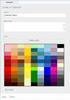 www.novell.com/documentation WebAccess User Guide GroupWise 2014 August 2014 Legal Notices Novell, Inc. makes no representations or warranties with respect to the contents or use of this documentation,
SSL Management Reference
 www.novell.com/documentation SSL Management Reference ZENworks 11 Support Pack 4 July 2015 Legal Notices Novell, Inc., makes no representations or warranties with respect to the contents or use of this
Novell ZENworks 10 Configuration Management SP3
 AUTHORIZED DOCUMENTATION Software Distribution Reference Novell ZENworks 10 Configuration Management SP3 10.3 November 17, 2011 www.novell.com Legal Notices Novell, Inc., makes no representations or warranties
Asset Inventory Reference
 www.novell.com/documentation Asset Inventory Reference ZENworks 11 Support Pack 3 July 2014 Legal Notices Novell, Inc., makes no representations or warranties with respect to the contents or use of this
Android App User Guide
 www.novell.com/documentation Android App User Guide ZENworks Mobile Management 2.7.x August 2013 Legal Notices Novell, Inc., makes no representations or warranties with respect to the contents or use of
Software Distribution Reference
 www.novell.com/documentation Software Distribution Reference ZENworks 11 Support Pack 3 July 2014 Legal Notices Novell, Inc., makes no representations or warranties with respect to the contents or use
www.novell.com/documentation Client User Guide GroupWise 2014 April 2014
 www.novell.com/documentation Client User Guide GroupWise 2014 April 2014 Legal Notices Novell, Inc., makes no representations or warranties with respect to the contents or use of this documentation, and
Administration Guide. Novell Storage Manager 3.1.1 for Active Directory. Novell Storage Manager 3.1.1 for Active Directory Administration Guide
 Novell Storage Manager 3.1.1 for Active Directory Administration Guide www.novell.com/documentation Administration Guide Novell Storage Manager 3.1.1 for Active Directory October 17, 2013 Legal Notices
www.novell.com/documentation Client User Guide GroupWise 2014 R2 November 2015
 www.novell.com/documentation Client User Guide GroupWise 2014 R2 November 2015 Legal Notices Novell, Inc., makes no representations or warranties with respect to the contents or use of this documentation,
Installation and Configuration Guide
 www.novell.com/documentation Installation and Configuration Guide GroupWise Coexistence Solution for Exchange November 2015 Legal Notices Novell, Inc., makes no representations or warranties with respect
NetIQ Operations Center 5: The Best IT Management Tool in the World Lab
 NetIQ Operations Center 5: The Best IT Management Tool in the World Lab NIQ08 Novell Training Services ATT LIVE 2012 LAS VEGAS www.novell.com Legal Notices Novell, Inc., makes no representations or warranties
User Self-Administration
 www.novell.com/documentation User Self-Administration ZENworks Mobile Management 2.6.x January 2013 Legal Notices Novell, Inc., makes no representations or warranties with respect to the contents or use
ATT8367-Novell GroupWise 2014 and the Directory Labs
 ATT8367-Novell GroupWise 2014 and the Directory Labs ATT8367 Novell Training Services AUTHORIZED COURSEWARE www.novell.com Legal Notices Novell, Inc., makes no representations or warranties with respect
Generating an Apple Push Notification Service Certificate
 www.novell.com/documentation Generating an Apple Push Notification Service Certificate ZENworks Mobile Management 2.6.x January 2013 Legal Notices Novell, Inc., makes no representations or warranties with
This Readme includes information pertaining to Novell Service Desk 7.0.
 Novell Service Desk 7.0 November 14, 2012 Novell Novell Service Desk is a complete service management solution that allows you to easily monitor and solve services issues so that there is minimal disruption
Password Management Guide
 www.novell.com/documentation Management Guide Identity Manager 4.0.2 June 2012 Legal Notices Novell, Inc. makes no representations or warranties with respect to the contents or use of this documentation,
Novell Filr 1.0.x Mobile App Quick Start
 Novell Filr 1.0.x Mobile App Quick Start February 2014 Novell Quick Start Novell Filr allows you to easily access all your files and folders from your desktop, browser, or a mobile device. In addition,
Novell Identity Manager
 Password Management Guide AUTHORIZED DOCUMENTATION Novell Identity Manager 3.6.1 June 05, 2009 www.novell.com Identity Manager 3.6.1 Password Management Guide Legal Notices Novell, Inc. makes no representations
www.novell.com/documentation Server Installation ZENworks Mobile Management 2.7.x August 2013
 www.novell.com/documentation Server Installation ZENworks Mobile Management 2.7.x August 2013 Legal Notices Novell, Inc., makes no representations or warranties with respect to the contents or use of this
For Active Directory Installation Guide
 For Active Directory Installation Guide Version 2.5.2 April 2010 Copyright 2010 Legal Notices makes no representations or warranties with respect to the contents or use of this documentation, and specifically
Certificate Management
 www.novell.com/documentation Certificate Management ZENworks Mobile Management 3.1.x August 2015 Legal Notices Novell, Inc., makes no representations or warranties with respect to the contents or use of
Server Installation Guide ZENworks Patch Management 6.4 SP2
 Server Installation Guide ZENworks Patch Management 6.4 SP2 02_016N 6.4SP2 Server Installation Guide - 2 - Notices Version Information ZENworks Patch Management Server Installation Guide - ZENworks Patch
Administration Quick Start
 www.novell.com/documentation Administration Quick Start ZENworks 11 Support Pack 3 February 2014 Legal Notices Novell, Inc., makes no representations or warranties with respect to the contents or use of
www.novell.com/documentation Administration Guide Messenger 3.0 February 2015
 www.novell.com/documentation Administration Guide Messenger 3.0 February 2015 Legal Notices Novell, Inc. makes no representations or warranties with respect to the contents or use of this documentation,
Novell Remote Manager Administration Guide
 www.novell.com/documentation Novell Remote Manager Administration Guide Open Enterprise Server 11 SP2 January 2014 Legal Notices Novell, Inc., makes no representations or warranties with respect to the
High Availability Configuration
 www.novell.com/documentation High Availability Configuration ZENworks Mobile Management 3.2.x September 2015 Legal Notices Novell, Inc., makes no representations or warranties with respect to the contents
SAP BusinessObjects Business Intelligence Platform Document Version: 4.1 Support Package 5-2014-11-06. Business Intelligence Launch Pad User Guide
 SAP BusinessObjects Business Intelligence Platform Document Version: 4.1 Support Package 5-2014-11-06 Business Intelligence Launch Pad User Guide Table of Contents 1 Document history....7 2 Getting started
WatchDox for Mac User Guide
 WatchDox for Mac User Guide Version 2.3.0 Confidentiality This document contains confidential material that is proprietary to WatchDox. The information and ideas herein may not be disclosed to any unauthorized
Patch Management Reference
 Patch Management Reference ZENworks 11 www.novell.com/documentation Legal Notices Novell, Inc. makes no representations or warranties with respect to the contents or use of this documentation, and specifically
Patch Management Reference
 www.novell.com/documentation Patch Management Reference ZENworks 11 SP3 February 2014 Legal Notices Novell, Inc. makes no representations or warranties with respect to the contents or use of this documentation,
Remote Management Reference
 www.novell.com/documentation Remote Management Reference ZENworks 11 Support Pack 3 2014 Legal Notices Novell, Inc., makes no representations or warranties with respect to the contents or use of this documentation,
2 Configuring GroupWise Mobility Service to Support Microsoft Outlook Clients
 GroupWise Mobility Service 2.1 for Microsoft Outlook 2013 First Look - February 2015 GroupWise Mobility Service 2.1 allows the Microsoft Outlook 2013 client for Windows and the Microsoft Outlook app to
Installation and Configuration Guide
 www.novell.com/documentation Installation and Configuration Guide GroupWise Coexistence Solution for Exchange August 2014 Legal Notices Novell, Inc., makes no representations or warranties with respect
Full Disk Encryption Pre-Boot Authentication Reference
 www.novell.com/documentation Full Disk Encryption Pre-Boot Authentication Reference ZENworks 11 Support Pack 4 Beta April 2015 Legal Notices Novell, Inc., makes no representations or warranties with respect
ZENworks Adaptive Agent Reference
 www.novell.com/documentation ZENworks Adaptive Agent Reference ZENworks 11 Support Pack 2 March 2013 Legal Notices Novell, Inc., makes no representations or warranties with respect to the contents or use
Database Management Reference
 www.novell.com/documentation Database Management Reference ZENworks 11 October 2013 Legal Notices Novell, Inc., makes no representations or warranties with respect to the contents or use of this documentation,
System Administration Guide
 www.novell.com/documentation System Administration Guide Data Synchronizer 1.2 August 22, 2012 Legal Notices Novell, Inc. makes no representations or warranties with respect to the contents or use of this
Alfresco Online Collaboration Tool
 Alfresco Online Collaboration Tool USER MANUAL BECOMING FAMILIAR WITH THE USER INTERFACE... 4 MY DASHBOARD... 4 MY PROFILE... 6 VIEWING YOUR FULL PROFILE... 6 EDITING YOUR PROFILE... 7 CHANGING YOUR PASSWORD...
Remote Management Reference
 www.novell.com/documentation Remote Management Reference ZENworks 11 Support Pack 2 October 2013 Legal Notices Novell, Inc., makes no representations or warranties with respect to the contents or use of
Installation Guide. Novell Storage Manager 3.1.1 for Active Directory. Novell Storage Manager 3.1.1 for Active Directory Installation Guide
 Novell Storage Manager 3.1.1 for Active Directory Installation Guide www.novell.com/documentation Installation Guide Novell Storage Manager 3.1.1 for Active Directory October 17, 2013 Legal Notices Condrey
Novell Collaboration Vibe OnPrem
 Novell Collaboration Vibe OnPrem Evergreen Preview Corne Groesbeek Open Horizons Tracy Smith Product Manager [email protected] Collaboration Solutions Collaboration solutions from Novell help enterprise
www.novell.com/documentation Administration Guide Messenger 2.2 July 30, 2013
 www.novell.com/documentation Administration Guide Messenger 2.2 July 30, 2013 Legal Notices Novell, Inc. makes no representations or warranties with respect to the contents or use of this documentation,
Full Disk Encryption Agent Reference
 www.novell.com/documentation Full Disk Encryption Agent Reference ZENworks 11 Support Pack 3 May 2014 Legal Notices Novell, Inc., makes no representations or warranties with respect to the contents or
Novell SUSE Linux Enterprise Virtual Machine Driver Pack
 SLES 10 Virtual Machine Drivers for Windows on Xen Novell SUSE Linux Enterprise Virtual Machine Driver Pack 10 September 10, 2007 SUSE DRIVERS FOR WINDOWS* ON XEN* www.novell.com Legal Notices Novell,
ZENworks Mobile Management 3.0.x Deployment Quick Start
 ZENworks Mobile Management 3.0.x Deployment Quick Start September 2014 This Quick Start helps you deploy ZENworks Mobile Management in your environment. It includes the following sections: Install Your
www.novell.com/documentation Administration Guide Certificate Server 3.3.8 May 2013
 www.novell.com/documentation Administration Guide Certificate Server 3.3.8 May 2013 Legal Notices Novell, Inc., makes no representations or warranties with respect to the contents or use of this documentation,
Personal Cloud. Support Guide for Mac Computers. Storing and sharing your content 2
 Personal Cloud Support Guide for Mac Computers Storing and sharing your content 2 Getting started 2 How to use the application 2 Managing your content 2 Adding content manually 3 Renaming files 3 Moving
Asset Management Reference
 www.novell.com/documentation Asset Management Reference ZENworks 11 Support Pack 2 October 2013 Legal Notices Novell, Inc., makes no representations or warranties with respect to the contents or use of
NOVELL ZENWORKS ENDPOINT SECURITY MANAGEMENT
 You can read the recommendations in the user, the technical or the installation for NOVELL ZENWORKS ENDPOINT SECURITY MANAGEMENT 4.0. You'll find the answers to all your questions on the NOVELL ZENWORKS
Novell Open Workgroup Suite Small Business Edition Helpdesk
 Administration Guide AUTHORIZED DOCUMENTATION Novell Open Workgroup Suite Small Business Edition Helpdesk 2.5 June 1, 2009 www.novell.com Helpdesk Administration Guide Legal Notices Novell, Inc. makes
www.novell.com/documentation Policy Guide Access Manager 3.1 SP5 January 2013
 www.novell.com/documentation Policy Guide Access Manager 3.1 SP5 January 2013 Legal Notices Novell, Inc., makes no representations or warranties with respect to the contents or use of this documentation,
Novell Sentinel Log Manager 1.2 Release Notes. 1 What s New. 1.1 Enhancements to Licenses. Novell. February 2011
 Novell Sentinel Log Manager 1.2 Release Notes February 2011 Novell Novell Sentinel Log Manager collects data from a wide variety of devices and applications, including intrusion detection systems, firewalls,
Migration Tool Administration Guide
 www.novell.com/documentation Migration Tool Administration Guide Open Enterprise Server 11 SP2 January 2014 Legal Notices Novell, Inc., makes no representations or warranties with respect to the contents
www.novell.com/documentation Database Maintenance ZENworks Mobile Management 2.7.x August 2013
 www.novell.com/documentation Database Maintenance ZENworks Mobile Management 2.7.x August 2013 Legal Notices Novell, Inc., makes no representations or warranties with respect to the contents or use of
NetIQ Sentinel 7.0.1 Quick Start Guide
 NetIQ Sentinel 7.0.1 Quick Start Guide April 2012 Getting Started Use the following information to get Sentinel installed and running quickly. Meeting System Requirements on page 1 Installing Sentinel
Novell Identity Manager Driver for Remedy Action Request System (ARS)
 Novell Identity Manager Driver for Remedy Action Request System (ARS) 1.1 www.novell.com June 05, 2009 DRIVER GUIDE 1/18 Legal Notices Novell, Inc. makes no representations or warranties with respect to
Novell Filr. Mobile Client
 Novell Filr Mobile Client 0 Table of Contents Quick Start 3 Supported Mobile Devices 3 Supported Languages 4 File Viewing Support 4 FILES THAT CANNOT BE VIEWED IN THE FILR APP 4 FILES THAT GIVE A WARNING
SAS Business Data Network 3.1
 SAS Business Data Network 3.1 User s Guide SAS Documentation The correct bibliographic citation for this manual is as follows: SAS Institute Inc. 2014. SAS Business Data Network 3.1: User's Guide. Cary,
www.novell.com/documentation Jobs Guide Identity Manager 4.0.1 February 10, 2012
 www.novell.com/documentation Jobs Guide Identity Manager 4.0.1 February 10, 2012 Legal Notices Novell, Inc. makes no representations or warranties with respect to the contents or use of this documentation,
Novell Distributed File Services Administration Guide
 www.novell.com/documentation Novell Distributed File Services Administration Guide Open Enterprise Server 11 SP2 January 2014 Legal Notices Novell, Inc., makes no representations or warranties with respect
Getting Started with Microsoft Office Live Meeting. Published October 2007
 Getting Started with Microsoft Office Live Meeting Published October 2007 Information in this document, including URL and other Internet Web site references, is subject to change without notice. Unless
www.novell.com/documentation Administration Guide GroupWise Mobility Service 2.1 February 2015
 www.novell.com/documentation Administration Guide GroupWise Mobility Service 2.1 February 2015 Legal Notices Novell, Inc. makes no representations or warranties with respect to the contents or use of this
Getting started with OneDrive
 Getting started with OneDrive What is OneDrive? OneDrive is an online storage area intended for business purposes. Your OneDrive library is managed by the University. You can use it to share documents
www.novell.com/documentation Installation Guide GroupWise 2014 R2 November 2015
 www.novell.com/documentation Installation Guide GroupWise 2014 R2 November 2015 Legal Notices Novell, Inc. makes no representations or warranties with respect to the contents or use of this documentation,
Migration Tool Administration Guide
 www.novell.com/documentation Migration Tool Administration Guide Open Enterprise Server 2015 August 2015 Legal Notices Novell, Inc., makes no representations or warranties with respect to the contents
WatchDox Administrator's Guide. Application Version 3.7.5
 Application Version 3.7.5 Confidentiality This document contains confidential material that is proprietary WatchDox. The information and ideas herein may not be disclosed to any unauthorized individuals
www.novell.com/documentation Installation Guide GroupWise 2014 January 2015
 www.novell.com/documentation Installation Guide GroupWise 2014 January 2015 Legal Notices Novell, Inc. makes no representations or warranties with respect to the contents or use of this documentation,
Getting Started with Microsoft Office Live Meeting. Published October 2007 Last Update: August 2009
 Getting Started with Microsoft Office Live Meeting Published October 2007 Last Update: August 2009 Information in this document, including URL and other Internet Web site references, is subject to change
WatchDox for Windows User Guide. Version 3.9.0
 Version 3.9.0 Notice Confidentiality This document contains confidential material that is proprietary WatchDox. The information and ideas herein may not be disclosed to any unauthorized individuals or
Amazon WorkMail. User Guide Version 1.0
 Amazon WorkMail User Guide Amazon WorkMail: User Guide Copyright 2016 Amazon Web Services, Inc. and/or its affiliates. All rights reserved. Amazon's trademarks and trade dress may not be used in connection
WINDOWS 7 & HOMEGROUP
 WINDOWS 7 & HOMEGROUP SHARING WITH WINDOWS XP, WINDOWS VISTA & OTHER OPERATING SYSTEMS Abstract The purpose of this white paper is to explain how your computers that are running previous versions of Windows
Introductory Tutorial on ScalIT File and Document Management
 Introductory Tutorial on ScalIT File and Document Management Logging in to My Dashboard Log in to the ScalIT File and Document Management web application by entering in your user name (the part of your
Out-of-Band Management Reference
 www.novell.com/documentation Out-of-Band Management Reference ZENworks 11 Support Pack 3 Beta February 2014 Legal Notices Novell, Inc., makes no representations or warranties with respect to the contents
Web Mail Guide... Error! Bookmark not defined. 1 Introduction to Web Mail... 4. 2 Your Web Mail Home Page... 5. 3 Using the Inbox...
 Powered by Table of Contents Web Mail Guide... Error! Bookmark not defined. 1 Introduction to Web Mail... 4 1.1 Requirements... 4 1.2 Recommendations for using Web Mail... 4 1.3 Accessing your Web Mail...
Frequently Asked Questions for the USA TODAY e-newspaper
 Frequently Asked Questions for the USA TODAY e-newspaper Navigating the USA TODAY e-newspaper A look at the toolbar Toolbar Functions, Buttons, and Descriptions The tab marked Contents will take the e-reader
Sample- for evaluation purposes only! Outlook Web App. TeachUcomp, Inc. A Presentation of TeachUcomp Incorporated. Copyright TeachUcomp, Inc.
 A Presentation of TeachUcomp Incorporated. Copyright TeachUcomp, Inc. 2015 Outlook Web App TeachUcomp, Inc. it s all about you Copyright: Copyright 2015 by TeachUcomp, Inc. All rights reserved. This publication,
Frequently Asked Questions
 Frequently Asked Questions Share Drive Frequently Asked Questions Table of Contents How do I change my password?... How do I reset my password if I forgot it?... How do I share files/folders with Groups
De La Salle University Information Technology Center. Microsoft Windows SharePoint Services and SharePoint Portal Server 2003 READER / CONTRIBUTOR
 De La Salle University Information Technology Center Microsoft Windows SharePoint Services and SharePoint Portal Server 2003 READER / CONTRIBUTOR User s Guide Microsoft Windows SharePoint Services and
CTERA Agent for Linux
 User Guide CTERA Agent for Linux September 2013 Version 4.0 Copyright 2009-2013 CTERA Networks Ltd. All rights reserved. No part of this document may be reproduced in any form or by any means without written
www.novell.com/documentation Administration Guide Modular Authentication Services (NMAS) 3.3.4 April 2013
 www.novell.com/documentation Administration Guide Modular Authentication Services (NMAS) 3.3.4 April 2013 Legal Notices Novell, Inc., makes no representations or warranties with respect to the contents
www.novell.com/documentation SSL VPN User Guide Access Manager 3.1 SP5 January 2013
 www.novell.com/documentation SSL VPN User Guide Access Manager 3.1 SP5 January 2013 Legal Notices Novell, Inc., makes no representations or warranties with respect to the contents or use of this documentation,