
Administration Guide Messenger 3.0 February 2015
|
|
|
- Gavin Henderson
- 10 years ago
- Views:
Transcription
1 Administration Guide Messenger 3.0 February 2015
2 Legal Notices Novell, Inc. makes no representations or warranties with respect to the contents or use of this documentation, and specifically disclaims any express or implied warranties of merchantability or fitness for any particular purpose. Further, Novell, Inc. reserves the right to revise this publication and to make changes to its content, at any time, without obligation to notify any person or entity of such revisions or changes. Further, Novell, Inc. makes no representations or warranties with respect to any software, and specifically disclaims any express or implied warranties of merchantability or fitness for any particular purpose. Further, Novell, Inc. reserves the right to make changes to any and all parts of Novell software, at any time, without any obligation to notify any person or entity of such changes. Any products or technical information provided under this Agreement may be subject to U.S. export controls and the trade laws of other countries. You agree to comply with all export control regulations and to obtain any required licenses or classification to export, re-export, or import deliverables. You agree not to export or re-export to entities on the current U.S. export exclusion lists or to any embargoed or terrorist countries as specified in the U.S. export laws. You agree to not use deliverables for prohibited nuclear, missile, or chemical biological weaponry end uses. Please refer to exports/ for more information on exporting Novell software. Novell assumes no responsibility for your failure to obtain any necessary export approvals. Copyright Novell, Inc. All rights reserved. No part of this publication may be reproduced, photocopied, stored on a retrieval system, or transmitted without the express written consent of the publisher. Novell, Inc South Novell Place Provo, UT U.S.A. Online Documentation: To access the online documentation for this and other Novell products, and to get updates, see Novell Trademarks For Novell trademarks, see the Novell Trademark and Service Mark list ( tmlist.html). Third-Party Materials All third-party trademarks are the property of their respective owners.

3 Contents About This Guide 9 1 Understanding Your Novell Messenger System Software Components Messaging Agent Archive Agent Administration Files edirectory Objects Messenger Service Servers and Agents Scope Profiles LDAP Profiles Chat Hosts Policies User Properties Language Availability Managing the Messaging Agent Starting the Messaging Agent Starting the Linux Messaging Agent Starting the Windows Messaging Agent Changing the edirectory Access Method for Starting the Messaging Agent Configuring the Messaging Agent in ConsoleOne Configuring Messaging Security with SSL Encryption Generating a Certificate Signing Request and Private Key Submitting the Certificate Signing Request to a Certificate Authority Installing the Certificate on the Server Modifying the Server Object SSL Certificate Modifying the SSL Cipher Suite Changing the Agent User Password Changing the Agent User Password on Windows Changing the Agent User Password on Linux Monitoring the Messaging Agent Using the Messaging Agent Console on Windows Using the Messaging Agent Web Console Using Messaging Agent Log Files Using GroupWise Monitor Using SNMP Monitoring Programs Optimizing Messaging Agent Performance Managing the Messaging Server Binding the Messaging Agent to a Specific IP Address Changing the Messaging Server's Network Address Moving the Messaging Agent Working Directory Using Messaging Agent Startup Switches /certfile /certpath /dirdefaultconnections /diridletimeout /dirmaxconnections Contents 3
4 2.8.6 /dirpoolresettime /dirquerymaxresults /dirreplicaipaddr (Linux and Windows only) /diruseralias /diruserauthbind /diruserforcedirect /home /httppassword /httpport /httpssl /httpuser /ip /keepalive /keyfile /keypassword /language (Windows only) /ldapipaddr /ldapport /ldappwd /ldapssl /ldapsslkey /ldapuser /log /logdays /logdiskoff /loglevel /logmax /maxconns /mtpconnecttimeout /mtpdatatimeout /mtpipaddr /mtpport /mtpssl /nomtp /nosnmp /password /port /queue /sslciphersuite /threads /user Managing Messenger Client Users Adding Users to Your Messenger System Adding New edirectory Users Editing the Default Scope Profile to Include Additional edirectory Users Customizing edirectory Access for Users Providing LDAP Access to edirectory for Messenger Users Providing Full Name Indexing Selecting Bind or Compare edirectory Access for Users Forcing Direct edirectory Access for Users Customizing Authentication and Searches by edirectory Attribute Providing User Searches Based on Addresses Establishing a Hostname for Your Messenger System Setting Up Multiple Hostnames Setting User Policies Editing the Default User Policy Creating a User Policy Novell Messenger 3.0 Administration Guide

5 3.4.3 Customizing Messenger Client Features Customizing Personal History Features Controlling Users' Contact Lists Setting Up a Default Privacy List Selecting Default Display Attributes Creating A Custom Status Applying a Policy to Specific Users Distributing the Messenger Client Software Using the Novell Messenger Download Page Setting Up Auto-Update Configuring Your Web Server to Download the Messenger Client Using ZENworks Configuration Management to Distribute the Messenger Windows Client Using Red Carpet on Linux to Distribute the Cross-Platform Messenger Client Software Configuring the Messenger Client Software Using the Configuration File (setup.cfg) When Installing the Windows Messenger Client Using Startup Switches When Starting the Messenger Client Using URL Commands in Your Web Browser on Windows Changing the Messenger Server IP Address and Port Number Excluding Users from Your Messenger System Managing Messenger Mobile Applications Submitting a Certificate Signing Request Installing the Signed Certificate into Your Messenger System Configuring Novell Push Notification Service Understanding Novell Push Notification Service Configuring Novell Push Notification Service Allowing or Blocking Mobile Access for Users Managing Mobile Devices Adding and Configuring the Android App in MobileIron Adding and Configure the ios App in MobileIron Distributing the Messenger App to Devices Enabling and Managing Archiving Establishing the Master Archive Agent Starting the Archive Agent Starting the Linux Archive Agent Starting the Windows Archive Agent Changing the edirectory Access Method for Starting the Archive Agent Enabling Archiving in Your Messenger System Granting Authorized User Access to the Archive Configuring the Archive Agent in ConsoleOne Enhancing Archive Security with SSL Encryption Changing the Agent User Password Changing the Agent User Password on Windows Changing the Agent User Password on Linux Configuring and Indexing the Messenger Archive Establishing Archive Maintenance Expiring Old Conversations Repairing the Archive Monitoring the Archive Agent Using the Archive Agent Console on Windows Using the Archive Agent Web Console and GroupWise Monitor Contents 5

6 Using Archive Agent Log Files Using SNMP Monitoring Programs Optimizing Archive Agent Performance Optimizing Connections between the Archive Agent and Messenger Users Optimizing the Connection between the Archive Agent and the Messaging Agent Managing the Archive Server Binding the Archive Agent to a Specific IP Address Changing the Archive Server's IP Address or DNS Host Name Moving the Archive Agent Working Directory Moving the Archive Maintaining the Archive Store Moving the Archive Queue Directories Using Archive Agent Startup Switches /certfile /certpath /dirdefaultconnections /diridletimeout /dirmaxconnections /dirpoolresettime /dirquerymaxresults /dirreplicaipaddr (Linux and Windows only) /diruseralias /diruserauthbind /diruserforcedirect /home /httppassword /httpport /httpssl /httpuser /ip /keyfile /keypassword /language (Windows only) /ldapipaddr /ldapport /ldappwd /ldapssl /ldapsslkey /ldapuser /log /logdays /logdiskoff /loglevel /logmax /maxconns /mtpipaddr /mtpport /mtpssl /nomtp /nosnmp /password /port /queue /sslciphersuite /threads /user Managing Chat Rooms Creating Chat Rooms Novell Messenger 3.0 Administration Guide

7 6.1.1 Creating a Chat Room in ConsoleOne Creating a Chat Room in the Client Editing Chat Room Settings Editing Chat Room Settings In ConsoleOne Editing Chat Room Settings in the Client Allowing or Blocking Chat Room Access Allowing Users to Create Chat Rooms Integrating Novell Vibe with Novell Messenger Creating a Limited-Rights User Defining an Allowed Service User Specifying the Allowed Service User in the Vibe Installation Program Securing Novell Messenger Limiting Physical Access to Messenger Servers Limiting Physical Access to Client Workstations Securing File System Access Securing the Messenger Agents Enabling SSL for Client/Server Connections Enabling SSL for the Message Transfer Protocol Enabling SSL for the Web Console Enabling Password Protection for the Web Console Securing the Data Files Securing Directory Access Enabling SSL for LDAP Creating a Proxy User for LDAP Access Using DirUserAuthBind Securing the Messenger System Configuring Remember Passwords Understanding History and Save Conversation Security Using Scope Profiles as Security Contents 7

8 8 Novell Messenger 3.0 Administration Guide

9 About This Guide This Novell Messenger 3.0 Beta Administration Guide helps you configure and manage your Novell Messenger system. Chapter 1, Understanding Your Novell Messenger System, on page 11 Chapter 2, Managing the Messaging Agent, on page 27 Chapter 3, Managing Messenger Client Users, on page 77 Chapter 4, Managing Messenger Mobile Applications, on page 135 Chapter 5, Enabling and Managing Archiving, on page 143 Chapter 6, Managing Chat Rooms, on page 185 Chapter 7, Integrating Novell Vibe with Novell Messenger, on page 197 Chapter 8, Securing Novell Messenger, on page 199 Audience This guide is intended for network administrators who administer Messenger. Feedback We want to hear your comments and suggestions about this manual and the other documentation included with this product. Please use the comment on this topic feature at the bottom of each page of the online documentation. Documentation Updates For the most recent version of the Messenger 3.0 Beta Administration Guide, visit the Novell Messenger 3.0 documentation website ( Additional Documentation For additional Messenger documentation, see the Messenger 3.0 Beta Installation Guide at the Novell Messenger 3.0 documentation website ( novell_messenger30/). About This Guide 9

10 10 Novell Messenger 3.0 Administration Guide

11 1 1Understanding Your Novell Messenger System By following the instructions in the Novell Messenger 3.0 Installation Guide, you set up a basic Messenger system. With the help of the Messenger Installation program, you installed software and created NetIQ edirectory objects. The following topics help you understand your initial Messenger system: Section 1.1, Software Components, on page 11 Section 1.2, edirectory Objects, on page 13 Section 1.3, Language Availability, on page Software Components During the installation of your Messenger system, you selected components to install, as described in Installing a Novell Messenger System in the Novell Messenger 3.0 Installation Guide. Figure 1-1 Installation Options Page of the Messenger Installation Program Understanding Your Novell Messenger System 11
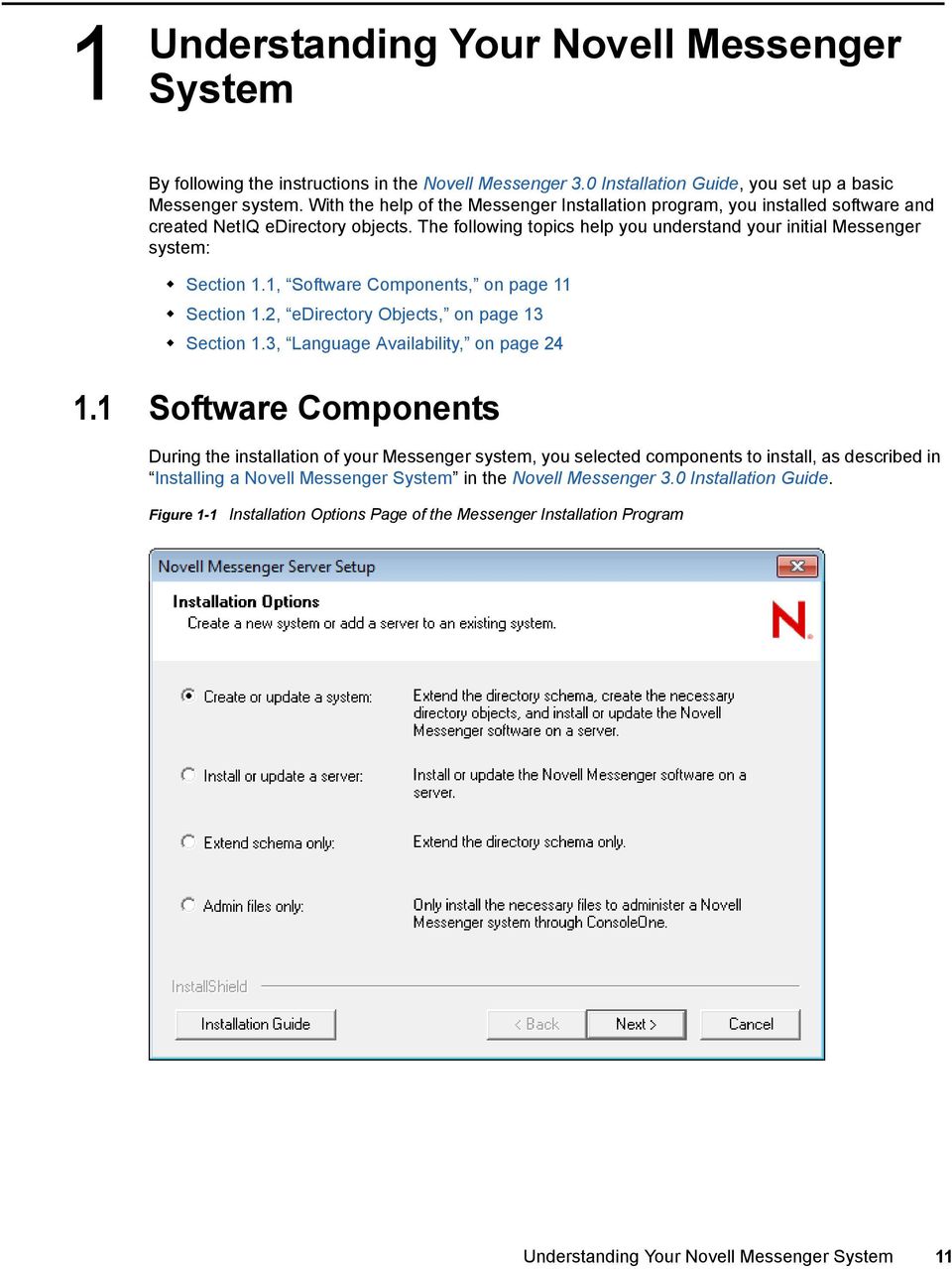
12 NOTE: The Installation program interface illustrated throughout this section is available when installing from a Windows workstation, but not when installing on Linux, where a text-based interface is used. Section 1.1.1, Messaging Agent, on page 12 Section 1.1.2, Archive Agent, on page 12 Section 1.1.3, Administration Files, on page Messaging Agent One Messaging Agent runs in your Messenger system. The Messaging Agent performs the following activities: Accesses NetIQ edirectory on behalf of users to authenticate users to the Messenger system when they start the Messenger client, to search for contacts as users build their contact lists, to save users' option settings for the Messenger client, and so on Transfers instant messages back and forth between Messenger users Maintains presence information about Messenger users so that the Messenger client can show user availability status (such as online, busy, away, and idle) Passes conversations to the Archive Agent if archiving is enabled The Messaging Agent is highly scalable. If you are setting up a large Messenger system, you should run the Messaging Agent on a dedicated server with a processor speed of 1-2 GHz and with 1 GB of RAM. The Messaging Agent has been tested to easily support 1000 active conversations on such hardware. If you assume that 2% of Messenger users might be conversing simultaneously, you could plan on your Messenger system including as many as 50,000 users. Although Messenger has not been tested with this many actual users, you can be confident that it can scale to meet the needs of a very large number of users. For more information on the Messaging Agent, see Chapter 2, Managing the Messaging Agent, on page Archive Agent If you need to retain a long-term record of all conversations, you can enable archiving. For example, you might need to retain conversations for legal reasons, as an aspect of a corporate retention policy. In order to enable archiving, you need to run one Archive Agent in your Messenger system. The Archive Agent performs the following activities: Accesses edirectory on behalf of authorized Messenger users in order to grant them access to the Messenger archive Receives completed conversations from the Messaging Agent and stores them in the Messenger archive Indexes the archived conversations so that they can be searched by authorized Messenger users Performs searches in the Messenger archive for authorized Messenger users Manages expiration of old conversations Repairs the Messenger archive in case of damage to its database For more information on the Archive Agent, see Chapter 5, Enabling and Managing Archiving, on page Novell Messenger 3.0 Administration Guide

13 1.1.3 Administration Files Messenger system administration is performed by using ConsoleOne. The Messenger snap-in to ConsoleOne can be installed with the version of ConsoleOne that runs on Windows workstations and servers or Linux workstations and servers. After the initial installation of your Messenger system, you can install the Messenger snap-in to ConsoleOne to additional workstations and servers by using the Admin Files Only option of the Messenger Installation program. 1.2 edirectory Objects When you create your Messenger system, the following edirectory objects are created: Section 1.2.1, Messenger Service, on page 13 Section 1.2.2, Servers and Agents, on page 15 Section 1.2.3, Scope Profiles, on page 17 Section 1.2.4, LDAP Profiles, on page 19 Section 1.2.5, Chat, on page 21 Section 1.2.6, Hosts, on page 22 Section 1.2.7, Policies, on page 23 Section 1.2.8, User Properties, on page Messenger Service During the creation of your Messenger system, you specified where you wanted to create your Messenger system in edirectory, as described in Installing a Novell Messenger System in the Novell Messenger 3.0 Installation Guide. Understanding Your Novell Messenger System 13
14 Figure 1-2 System Configuration Page of the Messenger Installation Program The MessengerService object created at that location represents your Messenger system in edirectory. 14 Novell Messenger 3.0 Administration Guide

15 Figure 1-3 MessengerService Object The MessengerService container object provides container objects for a variety of types of Messenger objects. It might be convenient for you to store all Messenger objects under the MessengerService container, but this is not required. You can create Messenger objects elsewhere in the edirectory tree, if necessary Servers and Agents During the creation of your Messenger system, you selected a location where the Messenger agents were installed, as described in Installing a Novell Messenger System in the Novell Messenger 3.0 Installation Guide. Understanding Your Novell Messenger System 15

16 Figure 1-4 Server Information Page in the Messenger Installation Program As a result, you have one Messenger Server object (named after the server where you installed the Messenger agents) that contains objects for the Messaging Agent and Archive Agent. These agent objects store the configuration information for the agents. 16 Novell Messenger 3.0 Administration Guide

17 Figure 1-5 Server and Agent Objects If you do not want to enable archiving, or if you want to run the Archive Agent on the same server with the Messaging Agent, one Messenger Server object is sufficient. If you want to enable archiving and run the Archive Agent on a different server, you should remove the initial Archive Agent object and then rerun the Messenger Installation program to create a second Messenger Server object that contains just an Archive Agent object. For instructions, see Chapter 5, Enabling and Managing Archiving, on page Scope Profiles During the creation of your Messenger system, you provided a list of edirectory contexts that contain User objects that you want to include in your Messenger system, as described in Installing a Novell Messenger System in the Novell Messenger 3.0 Installation Guide. Understanding Your Novell Messenger System 17
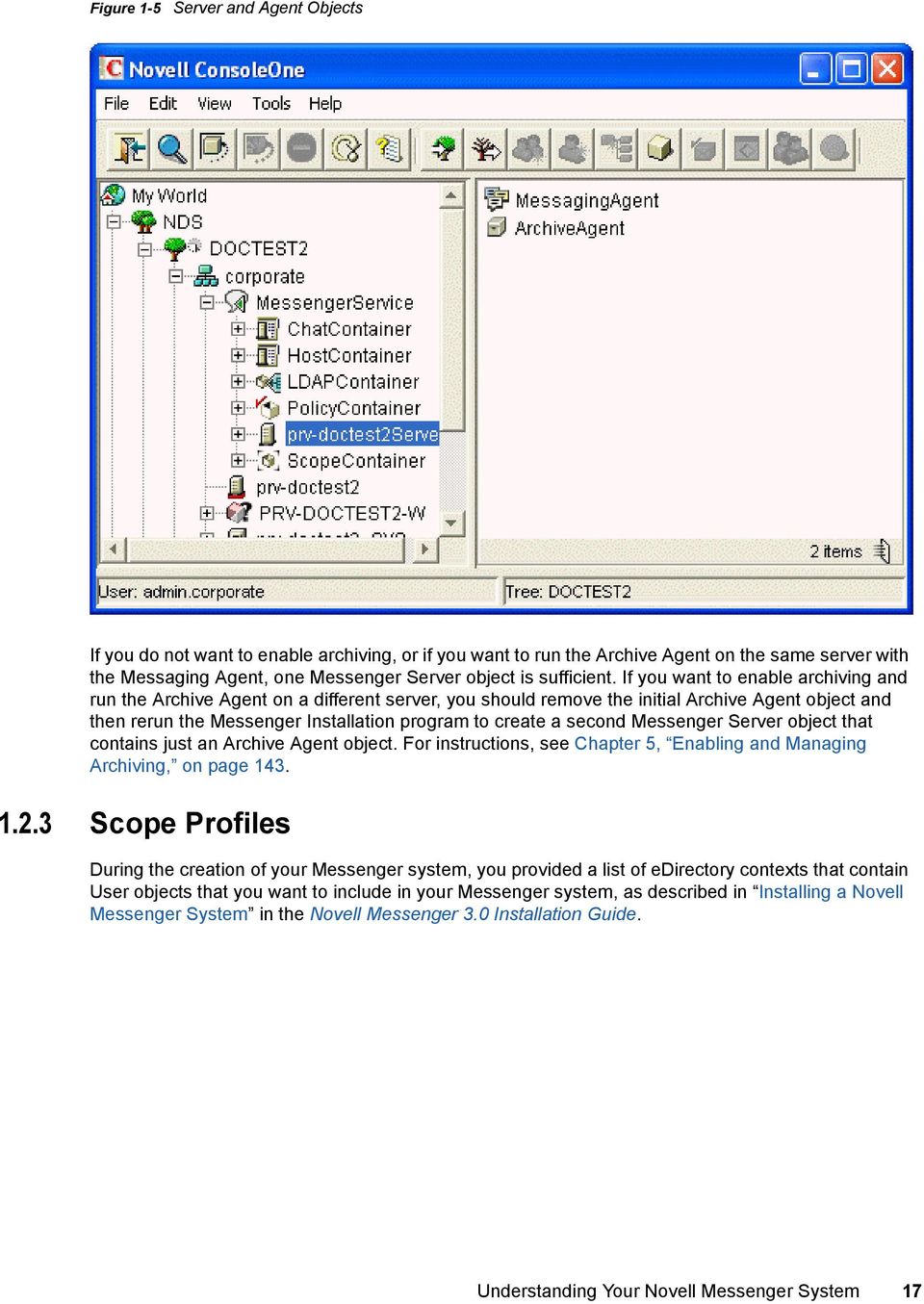
18 Figure 1-6 User Configuration Page in the Messenger Installation Program This list of contexts was stored in the Default Scope Profile object in edirectory. 18 Novell Messenger 3.0 Administration Guide

19 Figure 1-7 Scope Container Object and Contents You can add users to your Messenger system at any time by adding their edirectory contexts to the Default Scope Profile object, as described in Editing the Default Scope Profile to Include Additional edirectory Users on page 80. If you want to subdivide your Messenger users into groups based on their addresses, you can create multiple scope profiles, as described in Section 3.3, Providing User Searches Based on Addresses, on page LDAP Profiles During the creation of your Messenger system, you chose between direct access and LDAP access to edirectory, as described in Installing a Novell Messenger System in the Novell Messenger 3.0 Installation Guide. Understanding Your Novell Messenger System 19
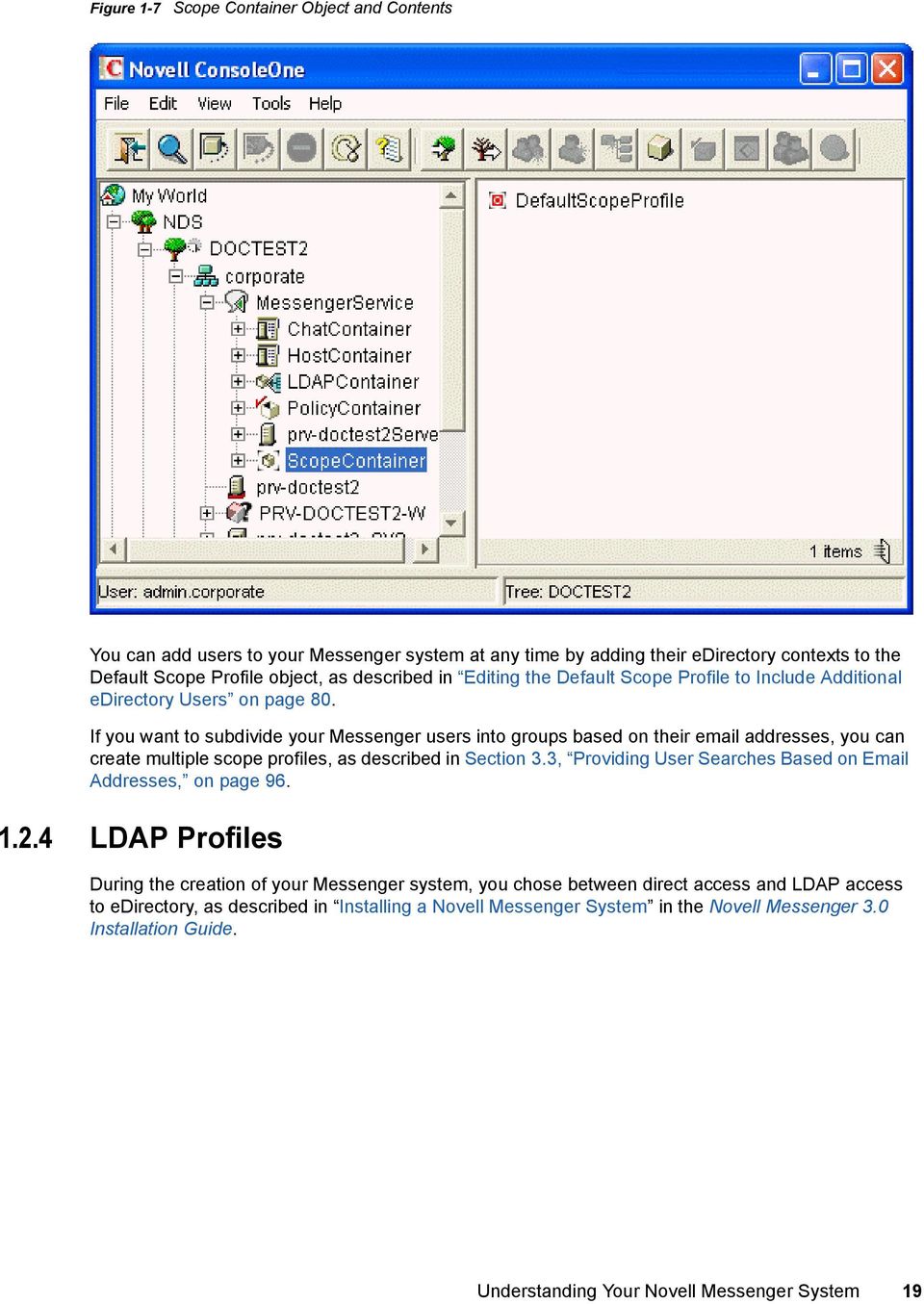
20 Figure 1-8 Directory Access Page in the Messenger Installation Program This choice applies initially to how the Messenger agents access edirectory to obtain their configuration settings from their edirectory objects. This access method information is stored in the agent startup files. Without additional configuration, the edirectory access method chosen during installation also applies to how the Messaging Agent accesses edirectory on behalf of Messenger users when they log in to Messenger, search for contacts, establish conversations, and so on. You might want the Messaging Agent to access edirectory differently on behalf of Messenger users than how the agents access edirectory to obtain their configuration information. If so, you will create an LDAP Profile object in the LDAP Container object. 20 Novell Messenger 3.0 Administration Guide

21 Figure 1-9 LDAP Container Object and Contents Chat An LDAP profile is used instead of a scope profile to provide a list of LDAP servers that the Messenger agents can contact when they need edirectory access. By creating an LDAP profile, you have more LDAP-specific options available when you configure edirectory access, as described in Providing LDAP Access to edirectory for Messenger Users on page 83. The Messenger Chat container is used to store chat room objects. When a chat room is created, a chat room object is created in the Chat Container. The chat room objects contain the information about the chat room, including who owns the chat room, the name of the chat room, access, and other such information. Understanding Your Novell Messenger System 21
22 Figure 1-10 Chat Container and Contents Hosts You can use the chat room objects to edit the chat rooms on the system. You can assign new owners, rename the chat rooms, change access, and other such settings. For more information on chat room administration, see Chapter 6, Managing Chat Rooms, on page 185. Messenger Host objects (referred to as host profiles) are used to divide Messenger users into groups based on the Internet domain portion of their Messenger addresses (which you configure to be equivalent to their addresses). No host profiles are created by default in your Messenger system. 22 Novell Messenger 3.0 Administration Guide
23 Figure 1-11 Host Container and Contents You can organize your Messenger system at any time by using hostnames and Messenger addresses, as described in Section 3.3, Providing User Searches Based on Addresses, on page Policies During the creation of your Messenger system, a Default Policy object is created that establishes some basic Messenger user policies. Figure 1-12 Policy Container and Contents Understanding Your Novell Messenger System 23
24 User policies for controlling specific functionality of the Messenger client, creating a default contact list, setting default privacy, establishing default contact list information, and creating default custom statuses can be established at any time, as described in Section 3.4, Setting User Policies, on page User Properties During the creation of your Messenger system, all User objects that are located within the scope of your Messenger system have a Novell Messenger tab added to their object properties. Figure 1-13 User Object Properties for a Messenger User The properties on each User object enable you to override user policies for each user as needed, as described in Section 3.4, Setting User Policies, on page Language Availability You can run the Messenger Installation program, administer your Messenger system in ConsoleOne, and run the Messenger agents in the following languages: English French German 24 Novell Messenger 3.0 Administration Guide
25 Spanish Portuguese All available administration languages are automatically installed. By default, the Messenger Installation program, ConsoleOne, and the Messenger agents start in the language of the operating system, if it is available. If the operating system language is not available for Messenger, the next default language is English. In the Installation program, you can select from among the available languages to override the English default. When starting the Messenger agents, you can use the /language startup switch to override the English default on Windows servers. You can run the Messenger client in the following languages: Czech Chinese - Simplified Chinese - Traditional Danish Dutch English Finnish French German Hungarian Italian Japanese Korean Norwegian Polish Portuguese Russian Spanish Swedish Users can select the languages they want when they install the Messenger client. By default, the Messenger client starts in the language of the operating system, if it is available. If the operating system language is not available, the next default language is English. In the Messenger client, you can click Tools > Options, then select an interface language from those that have been installed. When starting the Messenger client, you can use the /l startup switch to override the English default and select an interface language from those that have been installed. Understanding Your Novell Messenger System 25
26 26 Novell Messenger 3.0 Administration Guide
27 2 2Managing the Messaging Agent The Messaging Agent is the heart of your Messenger system. To review its various roles, see Messaging Agent on page 12. The following sections help you manage and monitor the Messaging Agent in your Messenger system: Section 2.1, Starting the Messaging Agent, on page 27 Section 2.2, Configuring the Messaging Agent in ConsoleOne, on page 33 Section 2.3, Configuring Messaging Security with SSL Encryption, on page 35 Section 2.4, Changing the Agent User Password, on page 37 Section 2.5, Monitoring the Messaging Agent, on page 38 Section 2.6, Optimizing Messaging Agent Performance, on page 56 Section 2.7, Managing the Messaging Server, on page 57 Section 2.8, Using Messaging Agent Startup Switches, on page Starting the Messaging Agent When you finish creating your Messenger system, the Installation program can start the Messenger agents for you. If you installed the Messenger agents on a Windows server, the Messaging Agent console appears on the Windows server console, as follows: Managing the Messaging Agent 27
28 Figure 2-1 Messaging Agent Console If you installed the Messenger agents on a Linux server, the Messaging Agent, by default, runs as a daemon and has no comparable user interface. However, you can, if desired, start it in a terminal window so that status messages are displayed, as described in Starting the Linux Messaging Agent in a Terminal Window on page 29. In addition, you can monitor the Messaging Agent from your browser, as described in Using the Messaging Agent Web Console on page 40. The following sections help you start the Messaging Agent manually, as well as automatically whenever the server restarts: Section 2.1.1, Starting the Linux Messaging Agent, on page 28 Section 2.1.2, Starting the Windows Messaging Agent, on page 30 Section 2.1.3, Changing the edirectory Access Method for Starting the Messaging Agent, on page Starting the Linux Messaging Agent You have several alternatives for starting the Messaging Agent on Linux: Starting the Linux Messaging Agent as a Daemon on page 29 Starting the Linux Messaging Agent in a Terminal Window on page 29 Configuring the Linux Messaging Agent to Start Automatically as a Startup Service on page Novell Messenger 3.0 Administration Guide
29 Starting the Linux Messaging Agent as a Daemon To start the Messaging Agent as a daemon, use the startup script provided in the /etc/init.d directory. 1 At the Linux server, become root by entering su and the root password. 2 Change to the /etc/init.d directory. 3 To start the Messaging Agent, enter the following command:./novell-nmma start You can also use the stop, restart, and status options for the Messaging Agent from the same directory. Messaging Agent log files are created in the /var/opt/novell/log/messenger directory. The Messaging Agent can be monitored using the agent Web Consoles from your browser, as described in Using the Messaging Agent Web Console on page 40. Starting the Linux Messaging Agent in a Terminal Window To start the Messaging Agent in a terminal window, run the Messaging Agent executable. 1 At the Linux server, become root by entering su and the root password. 2 Change to the /opt/novell/messenger/bin directory. 3 To start the Messaging Agent, enter the following Agent status information and messages are displayed in the terminal window. To stop the Messaging Agent when it is running in a terminal window, press Ctrl+C and the Messaging Agent performs a normal shutdown. Configuring the Linux Messaging Agent to Start Automatically as a Startup Service A startup service starts automatically each time the server reboots. Configuring the Messaging Agent as a Startup Service on SUSE Linux on page 29 Configuring the Messaging Agent as a Startup Service on Red Hat Linux on page 30 Configuring the Messaging Agent as a Startup Service on SUSE Linux 1 At the Linux server, become root by entering su and the root password. 2 If edirectory for Linux is installed, enter the following command: insserv novell-nmma or If edirectory for Linux is not installed, use the following command to override the dependency on the ndsd service: insserv -f novell-nmma If you later want to remove the Messaging Agent as a startup service, enter the following command in a terminal window: insserv -r novell-nmma Managing the Messaging Agent 29
30 Configuring the Messaging Agent as a Startup Service on Red Hat Linux 1 At the Linux server, become root by entering su and the root password. 2 Enter the following command: chkconfig --add novell-nmma If you later want to remove the Messaging Agent as a startup service, enter the following command in a terminal window: chkconfig --del novell-nmma Starting the Windows Messaging Agent Follow the instructions for the Windows installation option you chose: Starting the Messaging Agent as a Windows Application on page 30 Starting the Messaging Agent as a Windows Service on page 30 Starting the Messaging Agent as a Windows Application To start the Messaging Agent manually: 1 Click Start > Programs > Novell Messenger Agents > Messaging Agent. You might want to create a desktop shortcut for this action. To start the Messaging Agent automatically whenever the server restarts: 1 Click Start > Settings > Taskbar & Start Menu > Advanced > Add. 2 Browse to the directory where you installed the Messaging Agent (\novell\nm\ma). 3 Double-click nmma.exe, then add the startup file (strtup.ma) to the command line. Example: 4 Click Next. 5 Select the Startup folder, provide a name for the shortcut, then click Finish. Starting the Messaging Agent as a Windows Service To start the Messaging Agent manually: 1 Click Start > Settings > Control Panel. 2 Double-click Administrative Tools > Services. 3 Right-click the Novell Messenger Messaging Agent service, then click Start. To start the Messaging Agent automatically whenever the server restarts: 1 Click Start > Settings > Control Panel. 2 Double-click Administrative Tools > Services. 3 Right-click the Novell Messenger Messaging Agent service, then click Properties. 4 Set Startup Type to Automatic. 30 Novell Messenger 3.0 Administration Guide
31 5 Click OK to save the Windows service startup setting. If you do not want to run the Archive Agent along with the Messaging Agent, ensure that the Novell Messenger Archive Agent service is disabled. To start the Messaging Agent without a user interface on the Windows server desktop: 1 Click Start > Settings > Control Panel. 2 Double-click Administrative Tools > Services. 3 Right-click the Novell Messenger Messaging Agent service, then click Properties. 4 Click Log On, then deselect Allow Service to Interact with Desktop. If you suppress the Messaging Agent console in this manner, the Messaging Agent can still be monitored from the Messaging Agent Web Console, as described in Using the Messaging Agent Web Console on page Click OK to save the Windows service logon setting Changing the edirectory Access Method for Starting the Messaging Agent The Messaging Agent cannot start if it cannot read its configuration settings from the Messaging Agent object in edirectory. During installation, an edirectory access method was selected, as described in Installing a Novell Messenger System in the Novell Messenger 3.0 Installation Guide. Figure 2-2 Directory Access Page in the Messenger Installation Program The information for the edirectory access method was stored in the Messaging Agent startup file as settings for the following startup switches: Managing the Messaging Agent 31
32 Table 2-1 Startup Switches Access Method Startup Switch Description Use Direct Access /dirreplicaipaddr Specifies the IP address of the server where the edirectory replica resides (for direct access on a Linux or Windows server). Use LDAP to Access the Directory /ldapipaddr /ldapport /ldapssl /ldapsslkey Specifies the IP address of the LDAP server. Specifies the port number on which the LDAP server listens for service requests. Port 636 indicates an SSL connection; port 389 indicates a non-ssl connection. Indicates whether the LDAP server uses an SSL connection, depending on whether you filled in the Root Certificate field. Specifies the full path to the root certificate for the server if SSL is in use. To change the directory access method selected during installation, follow the appropriate set of instructions: Using LDAP Access for the Messaging Agent on page 32 Using Direct Access for the Messaging Agent on page 32 Using LDAP Access for the Messaging Agent 1 Edit the Messaging Agent startup file (strtup.ma). On Linux, the startup file is located in /etc/opt/novell/messenger. On Windows, the startup file is located in the Messenger Agent installation directory. You can edit the startup file from the Messaging Agent console. See Controlling the Messaging Agent from the Messaging Agent Console on page Comment out the /dirreplicaaddr switch. 3 Scroll down to the bottom of the startup file. 4 Remove the comment character (;) from the /ldap* switches and provide the required LDAP information, as listed in Table Save the startup file. 6 Stop and then start the Messaging Agent so that it reads its updated startup file and uses LDAP access to edirectory. If you have already created an LDAP profile to configure edirectory access for Messenger users, as described in Providing LDAP Access to edirectory for Messenger Users on page 83, the LDAP profile continues to be used for users, while the startup switches now control how the Messaging Agent accesses edirectory to obtain its configuration information. Using Direct Access for the Messaging Agent 1 Edit the Messaging Agent startup file (strtup.ma). On Linux, the startup file is located in /etc/opt/novell/messenger. 32 Novell Messenger 3.0 Administration Guide
33 On Windows, the startup file is located in the Messenger Agent installation directory. You can edit the startup file from the Messaging Agent console. See Controlling the Messaging Agent from the Messaging Agent Console on page Remove the comment character (;) from the /dirreplicaaddr switch and provide the IP address of the edirectory replica that you want the Messaging Agent to access. 3 Scroll down to the bottom of the startup file. 4 Comment out the /ldap* switches. Removing the LDAP information causes the Messaging Agent to access the edirectory replica directly. 5 If you want users to continue to use LDAP access, create an LDAP profile for them, as described in Providing LDAP Access to edirectory for Messenger Users on page Save the startup file. 7 Stop and then start the Messaging Agent so that it reads its updated startup file and uses direct access to edirectory. 2.2 Configuring the Messaging Agent in ConsoleOne The advantage to configuring the Messaging Agent in ConsoleOne, as opposed to using startup switches in the Messaging Agent startup file, is that the Messaging Agent configuration settings are stored in edirectory. 1 In ConsoleOne, browse to and expand the Messenger Service object. 2 Select the Messenger Server object where the Messaging Agent runs. 3 Right-click the Messaging Agent object, then click Properties. Managing the Messaging Agent 33
34 Table 2-2 summarizes the Messaging Agent configuration settings in the Messaging Agent object property pages and how they correspond to Messaging Agent startup switches (as described in Section 2.8, Using Messaging Agent Startup Switches, on page 61): Table 2-2 Messaging Agent Configuration Settings in the Messaging Agent Object Property Pages ConsoleOne Properties Pages and Settings Corresponding Tasks and Startup Switches Identification Page IP Address DNS Host Name Bind to This Address Client/Server Port Description Displays the Messaging Agent server information established during installation. General Page Enable Messenger Services Turns on and turns off the availability of instant messaging for all Messenger users. Enable SNMP See Using SNMP Monitoring Programs on page 52. See also / nosnmp. Work Path See Moving the Messaging Agent Working Directory on page 60. Security Page Certificate Path SSL Certificate SSL Key File Set Password Enable SSL for Client/Server Enable SSL for Message Transfer Protocol See Section 2.3, Configuring Messaging Security with SSL Encryption, on page 35. See also /certpath, /certfile, /keyfile, and /keypassword. Log Settings Page Log Level Enable Disk Logging Log Files Path Log Maximum Age Log Maximum Size See Using Messaging Agent Log Files on page 49. See also / loglevel, /log, /logdays, /logmax, and /logdiskoff. Web Console Page HTTP Port HTTP Username HTTP Password Enable SSL for Web Console See Setting Up the Messaging Agent Web Console on page 40. See also /httpport, /httpuser, /httppassword, and /httpssl. Performance Page Maximum Number of Users Client/ Server Threads Default Number of Connections Idle TImeout Maximum Number of Connections Maximum Query Results See Section 2.6, Optimizing Messaging Agent Performance, on page 56. Messaging page Messaging Queue Path Enable Client Download through a Browser See Moving the Messaging Agent Conversation Holding Queue on page 167. See Using the Novell Messenger Download Page on page Novell Messenger 3.0 Administration Guide
35 After you install the Messaging Agent software, you can further configure the Messaging Agent by using a startup file. See Section 2.8, Using Messaging Agent Startup Switches, on page 61 to survey additional ways the Messaging Agent can be configured. 2.3 Configuring Messaging Security with SSL Encryption Secure Sockets Layer (SSL) ensures secure communication between programs by encrypting the complete communication flow between the programs. The Installation program required configuring the messaging agent for SSL encryption, as described in Installing a Novell Messenger System in the Novell Messenger 3.0 Installation Guide. When you set up SSL encryption during installation, the Installation program copied the certificate file and key file you specified to the \novell\nm\certs directory to ensure availability for the Messenger agents. If you want to import a new certificate or switch from internal to external certificates, you must complete the following tasks: Section 2.3.1, Generating a Certificate Signing Request and Private Key, on page 35 Section 2.3.2, Submitting the Certificate Signing Request to a Certificate Authority, on page 36 Section 2.3.3, Installing the Certificate on the Server, on page 36 Section 2.3.4, Modifying the Server Object SSL Certificate, on page 36 Section 2.3.5, Modifying the SSL Cipher Suite, on page Generating a Certificate Signing Request and Private Key Before the Messaging Agent can use external SSL encryption, you must create a certificate by generating a certificate signing request (CSR) and having it issued by a certificate authority (CA). This can be issued either by a public CA or a local CA, such as Novell Certificate Server. (Novell Certificate Server, which runs on a server with NetIQ edirectory, enables you to establish your own Certificate Authority and issue server certificates for yourself. For more information, see the Novell Certificate Server documentation ( site.). The CSR includes the hostname of the server where the Messaging Agent runs. The Messaging Agent and the Archive Agent can use the same certificate if they run on the same server. The CSR also includes your choice of name and password for the private key file that must be used with each certificate. This information is needed when configuring the Messaging Agent to use SSL encryption. One way to create a CSR is to use the GroupWise GWCSRGEN utility. See Generating a Certificate Signing Request ( data/adm_secadm_cert_server.html#akf47cc) in the GroupWise 2014 Administration Guide ( for instructions. This utility takes the information you provide and creates a.csr file to submit to a certificate authority. You might want to name the.csr file after the server it goes with. For example, server_name.csr. Managing the Messaging Agent 35
36 2.3.2 Submitting the Certificate Signing Request to a Certificate Authority To receive a server certificate, you need to submit the certificate signing request (server_name.csr file) to a certificate authority. If you have not previously used a certificate authority, you can use the keywords Certificate Authority to search the web for certificate authority companies. You can also issue your own certificates with a local CA, such as Novell Certificate Server. (Novell Certificate Server, which runs on a server with NetIQ edirectory, enables you to establish your own Certificate Authority and issue server certificates for yourself. For more information, see the Novell Certificate Server documentation ( site.) The certificate authority must be able to provide the certificate in Base64/PEM or PFX format. IMPORTANT: You cannot use an edirectory root certificate (rootcert.der file) as a public certificate. The process of submitting the CSR varies from company to company. Most provide online submission of the request. Follow their instructions for submitting the request Installing the Certificate on the Server After processing your CSR, the certificate authority returns to you a certificate (server_name.crt) file and a private key (server_name.key) file. Copy the files to the certs subdirectory of the Messenger agent installation directory Modifying the Server Object SSL Certificate After you have a certificate and a private key file available on the server where the Messaging Agent runs, you are ready to configure the Messaging Agent to use SSL encryption. 1 In ConsoleOne, browse to and expand the Messenger Service object. 2 Right-click the Messenger Server object, then click Properties. 3 Click Server > Security. 4 Fill in the following fields: Certificate Path: Certificates are placed by default in \novell\nm\certs for Windows, and / opt/novell/messenger/certs for Linux. IMPORTANT: The certificate path must be located on the same server where the Messenger agents are installed. If your SSL certificate and key file are located on a different server, you must copy them into the directory specified in the Certificate Path field so that they are always accessible to the Messenger agents. SSL Certificate: Browse to and select the certificate file. Or, if it is located in the directory specified in the Certificate Path field, you can simply type the file name. SSL Key File: Browse to and select your private key file. Or, if it is located in the directory specified in the Certificate Path field, you can simply type the file name. Set Password: Provide the key file password you established when you submitted the certificate signing request. 36 Novell Messenger 3.0 Administration Guide
37 Because you provided the SSL information on the Messenger Server object, it applies to both the Messaging Agent and the Archive Agent if both agents are running on the same server. The same information can be provided on the Security page of each Messenger agent if necessary. 5 Click OK to save the SSL settings. 6 Stop and then start the Messaging Agent to start using SSL encryption. Corresponding Startup Switches: You can also use the /certpath, /certfile, /keyfile, and / keypassword startup switches in the Messaging Agent startup file to modify the Messaging Agent SSL certificates Modifying the SSL Cipher Suite You can modify the SSL cipher suite if you need to disable certain ciphers that do not work in your environment. The ciphers suite can be modified both on the Archive Agent and the Messaging agent. IMPORTANT: Unless you are required to modify the cipher suite for your environment, consider carefully before you make any changes as this decreases the security of your Messenger system. The cipher list must be in OpenSSL format. For more information on OpenSSL format, see Cipher List Format ( To modify the SSL cipher suite use the /sslciphersuite startup switch. 2.4 Changing the Agent User Password When the Messaging Agent and Archive Agent are installed, the user s edirectory password that is used to read the configuration that starts the agents is stored in the startup file for each agent. The password is obfuscated to prevent it from being read. The NMPassword utility is used to change the password in the startup file for both the Messaging Agent and the Archive Agent. Section 2.4.1, Changing the Agent User Password on Windows, on page 37 Section 2.4.2, Changing the Agent User Password on Linux, on page Changing the Agent User Password on Windows Before using the utility, you must verify that a drive has been mapped to the location of the startup file. To change the password: 1 In Windows, click Start > Run, then enter cmd to open a command window. 2 Use the following command to change the password: c:\gwm202\server\utility\nmpwd\nmpwd.exe --startup=<path to startup file> -- password=<new password> Managing the Messaging Agent 37
38 2.4.2 Changing the Agent User Password on Linux Before using the utility, you must verify that a drive is mapped to the location of the startup file. 1 Change to the /opt/novell/messenger/bin/ directory. 2 Become root by entering sux and the root password. 3 Use the following command to change the password:./nmpwd --startup=<path to startup file> --password=<new password> 2.5 Monitoring the Messaging Agent By monitoring the Messaging Agent, you can determine whether its current configuration is meeting the needs of your Messenger users. You have a variety of tools to help you monitor the operation of the Messaging Agent: Section 2.5.1, Using the Messaging Agent Console on Windows, on page 38 Section 2.5.2, Using the Messaging Agent Web Console, on page 40 Section 2.5.3, Using Messaging Agent Log Files, on page 49 Section 2.5.4, Using GroupWise Monitor, on page 51 Section 2.5.5, Using SNMP Monitoring Programs, on page Using the Messaging Agent Console on Windows The following topics help you use the Messaging Agent console on Windows: Monitoring the Messaging Agent from the Messaging Agent Console on page 38 Controlling the Messaging Agent from the Messaging Agent Console on page 40 NOTE: The Messaging Agent console is not available on Linux. Use the Web Console instead, as described in Using the Messaging Agent Web Console on page 40. Monitoring the Messaging Agent from the Messaging Agent Console The Messaging Agent console provides information, status, and message statistics about the Messaging Agent to help you assess its current functioning. 38 Novell Messenger 3.0 Administration Guide
39 Figure 2-3 Messaging Agent Console The Messaging Agent console includes several areas of information: Table 2-3 Messaging Agent Console Information Information Information Box Status Box Statistics Box Log Message Box Description Identifies the Messaging Agent, displays description information provided in ConsoleOne, and shows how long the Messaging Agent has been running. Displays the number of current Messenger client users and the number of conversations that are queued for archiving. The rotating processing bar shows that the Messaging Agent is running. Displays the number of requests that the Messaging Agent has received from Messenger clients or from the Archive Agent, along with the number of requests that it has been unable to respond to. Pending requests might indicate a need to optimize Messaging Agent performance to better serve Messenger users. Displays the same information that is being written to the Messaging Agent log file. The amount of information displayed depends on the current log settings for the Messaging Agent. See Using Messaging Agent Log Files on page 49. The information scrolls up automatically. Managing the Messaging Agent 39
40 Controlling the Messaging Agent from the Messaging Agent Console You can perform the following tasks to monitor and control the Messaging Agent from the Messaging Agent console at the server where the Messaging Agent is running: Table 2-4 Performing Messaging Agent Tasks Task Stop the Messaging Agent Edit the startup file Display current agent settings Display the current log file Display a selected log file Change log settings for the current agent session Start a new log file Display online help Windows File > Exit Configuration > Edit Startup File Configuration > Agent Settings Log > Auto Scroll Off > scroll as needed Log > View Log Log > Log Settings Log > Cycle Log Help > Help Using the Messaging Agent Web Console The Messaging Agent Web Console enables you to monitor and control the Messaging Agent from any location where you have access to a browser and the Internet. This provides substantially more flexible access than the Messaging Agent console, which can only be accessed from the server where the Messaging Agent is running. Setting Up the Messaging Agent Web Console on page 40 Accessing the Messaging Agent Web Console from Your Web Browser on page 41 Monitoring the Messaging Agent at the Web Console on page 44 Accessing the Messaging Agent Web Console from GroupWise Monitor on page 49 Setting Up the Messaging Agent Web Console 1 In ConsoleOne, browse to and expand the MessengerService object. 2 Select the Messenger Server object to display its contents. 3 Right-click the Messaging Agent object, then click Properties. 4 Click Agent > Web Console. 40 Novell Messenger 3.0 Administration Guide
41 5 Fill in the following fields: HTTP Port: Specify the port number for the Messaging Agent to listen on for service requests from your browser; for example, Username: If you want to restrict access to the Messaging Agent Web Console, specify a user name for the Messaging Agent to prompt for before allowing access to the Web Console. Password: Specify the password for the Messaging Agent to prompt for before allowing access to the Web Console. Enable SSL for Web Console: Select this option if you want the Messaging Agent to use SSL encryption when communicating with your browser. In order to use SSL encryption for the Web Console, you must properly configure the Messaging Agent, as described in Section 2.3, Configuring Messaging Security with SSL Encryption, on page Click OK to save the Web Console settings. 7 Stop and then start the Messaging Agent to put the HTTP settings into effect. Corresponding Startup Switches: You can also use the /httpport, /httpuser, /httppassword, and / httpssl startup switches in the Messaging Agent startup file to enable and secure the Messaging Agent Web Console. Accessing the Messaging Agent Web Console from Your Web Browser To monitor the Messaging Agent from your browser, view the following URL: Managing the Messaging Agent 41
42 where Messenger_server represents the IP address or hostname of the server where the Messaging Agent is running and agent_port represents the port number you specified in Step 5 in Setting Up the Messaging Agent Web Console on page 40. For example: 42 Novell Messenger 3.0 Administration Guide
43 Figure 2-4 Messaging Agent Web Console Status Page Managing the Messaging Agent 43
44 Monitoring the Messaging Agent at the Web Console The Messaging Agent Web Console provides several pages of information to help you monitor the performance of the Messaging Agent. The bar at the top of the Messaging Agent Web Console displays the name of the agent. Below this bar appears the Web Console menu that lists the pages of information available in the Messaging Agent Web Console. Monitoring Messaging Agent Status on page 44 Checking Monitor Agent Configuration on page 46 Checking the Messaging Agent Operating System Environment on page 46 Viewing and Searching Messaging Agent Log Files on page 47 Monitoring Messaging Agent Status When you first access the Messaging Agent Web Console, the Status page is displayed. 44 Novell Messenger 3.0 Administration Guide
45 Figure 2-5 Messaging Agent Web Console Status Page The Web Console provides more detailed status information than the Messaging Agent console. Click Current Users to display a list of current Messenger users and their IP addresses. Click the User ID, then click Disconnect User to disconnect the user. Managing the Messaging Agent 45
46 Click C/S Handler Threads to display the Messaging Agent client/server threads, the number of requests each thread has handled, and each thread's current activity. Click Chat Rooms to display a list of current chat rooms and their CN names, owners, and number of active participants. Click Re-initialize Chat List to re-initialize the chat room process. By re-initializing the chat room process, chat rooms that are added in ConsoleOne are added to the list of chat rooms. Users can also use ConsoleOne to access the chat rooms after they have been added. Checking Monitor Agent Configuration On the Messaging Agent Web Console menu, click Configuration to display Messaging Agent configuration information. Figure 2-6 Messaging Agent Web Console Configuration Page Checking the Messaging Agent Operating System Environment On the Messaging Agent Web Console menu, click Environment to display information about the operating system where the Messaging Agent is running. On a Linux server, the following information is displayed: 46 Novell Messenger 3.0 Administration Guide
47 Figure 2-7 Messaging Agent Web Console Environment Page for Linux On a Windows server, the following information is displayed: Figure 2-8 Messaging Agent Web Console Environment Page for Windows Viewing and Searching Messaging Agent Log Files On the Messaging Agent Web console menu, click Log Files to display and search Messaging Agent log files. Managing the Messaging Agent 47
48 Figure 2-9 Messaging Agent Web Console Log Files Page To view a particular log file, select the log file, then click View Events. To search all log files for a particular string, type the string in the Events Containing field, select Select All, then click View Events. You can also manually select multiple log files to search. The results of the search are displayed on a separate page, which can be printed. To start a new log file, click Cycle Log. To view your log settings for the current Messaging Agent session, click Event Log Settings to display the Configuration page. To change your log settings for the current Message Agent session, click Event Log on the Configuration page. 48 Novell Messenger 3.0 Administration Guide
49 Figure 2-10 Message Agent Web Console Event Log Settings Page Accessing the Messaging Agent Web Console from GroupWise Monitor If you use GroupWise Monitor to monitor your GroupWise agents, you can add the Messaging Agent to the list of monitored agents. Continue with Using GroupWise Monitor on page Using Messaging Agent Log Files Error messages and other information about Messaging Agent functioning are written to log files as well as displaying on the Messaging Agent console. Log files can provide a wealth of information for resolving problems with Messaging Agent functioning. 1 In ConsoleOne, browse to and expand the MessengerService object. 2 Select the Messenger Server object. 3 Right-click the Messaging Agent, then click Properties. 4 Click Agent > Log Settings. Managing the Messaging Agent 49
50 5 Fill in the following fields: Log Level: Controls the amount of information logged by the Messaging Agent. Logged information is displayed in the log message box and written to the Messaging Agent log file during the current agent session. The default is Normal, which displays only the essential information suitable for a smoothly running Messaging Agent. Use Verbose to display the essential information, plus additional information helpful for troubleshooting. Use Diagnostic where very detailed, code-specific information is required. Enable disk logging: Select this option so that the information displayed in the message log box at the Messaging Agent console is also saved to disk in log files. Log Files Path: Specify the directory where the Messaging Agent stores its log files. On Windows, the default location is the logs subdirectory of the Messaging Agent installation directory. On Linux, the default location is /var/opt/novell/log/messenger/ma. Typically, you find multiple log files in the specified directory. The first four characters represent the date. The next three identify the agent. A three-digit extension allows for multiple log files created on the same day. For example, a log file named 0518nma.001 indicates that it is a Messaging Agent log file, created on May 18. If you restarted the Messaging Agent on the same day, a new log file started, named 0518nma.002. Log Maximum Age: Specify how many days to keep Messaging Agent log files on disk. The default is 14 days. Log Maximum Size: Specify the maximum amount of disk space for all Messaging Agent log files. When the specified disk space is consumed, the Messaging Agent deletes existing log files, starting with the oldest. The default is 128 MB. 6 Click OK to save the log file settings. 7 Stop and then start the Messaging Agent to put the new log settings into effect. 50 Novell Messenger 3.0 Administration Guide
51 Corresponding Startup Switches: You can also use the /log, /loglevel, /logdays, and /logmax startup switches in the Messaging Agent startup file to configure Messaging Agent log files Using GroupWise Monitor GroupWise Monitor can be configured to monitor the Messaging Agent as well as the GroupWise Agents (Post Office Agent, Message Transfer Agent, Internet Agent, and WebAccess Agent). For background information about GroupWise Monitor, see Monitor in the GroupWise 2014 Administration Guide. 1 Enable the Messaging Agent Web Console, as described in Setting Up the Messaging Agent Web Console on page At the Windows Monitor Agent console, click Configuration > Add Novell Messenger System. 3 Fill in the following fields: Novell Messenger System Object: Browse to and select the MessengerService object. User Name: Browse to and select a User object that has sufficient rights to enable the Monitor Agent to access Messenger agent object properties in edirectory. Password: Specify the edirectory password associated with the selected User object. 4 Provide the same edirectory access information as you provided during installation: Use Direct Access: Select this option if the Messaging Agent uses direct access to edirectory. Replica Address: If the Messaging Agent is installed on a Windows server, provide the IP address of a server where the Messaging Agent can access a replica of edirectory. 5 Click OK to save the information about your Messenger system. The Messaging Agent appears in the root agent group, along with the Archive Agent if it is running on the same server. You might want to create an agent group specifically for the Messenger agents. See Creating and Managing Agent Groups in Monitor in the GroupWise 2014 Administration Guide. Managing the Messaging Agent 51
52 2.5.5 Using SNMP Monitoring Programs You can monitor the Messaging Agent from the Management and Monitoring component of any SNMP management and monitoring program. When properly configured, the Messaging Agent sends SNMP traps to network management consoles for display along with other SNMP monitored programs. It also responds to requests for configuration and status information from SNMP management and monitoring programs. Although the Messaging Agent is SNMP-enabled by default, the server where the Messaging Agent is installed must be properly configured to support SNMP, and the Messaging Agent object in edirectory must be properly configured as well. To set up SNMP services for your Messenger server, complete the following tasks: Setting Up SNMP Services for the Messaging Agent on page 52 Copying and Compiling the Messaging Agent MIB File on page 54 Configuring the Messaging Agent for SNMP Monitoring on page 55 Setting Up SNMP Services for the Messaging Agent Select the instructions for the platform where the Messaging Agent runs: Setting Up SNMP Services on a Linux Server on page 52 Setting Up SNMP Services on a Windows Server on page 53 Setting Up SNMP Services on a Linux Server The Linux Messaging Agent is compatible with NET-SNMP. An older version of SNMP called UCD- SNMP cannot be used with the Linux Messaging Agent. NET-SNMP comes with the versions of Red Hat Linux supported for Messenger 1.0 for Linux, but it does not come with the supported versions of SUSE Linux. If you are using SUSE Linux, you must update to NET-SNMP in order to use SNMP to monitor the Linux Messaging Agent. 1 Ensure you are logged in as root. 2 If NET-SNMP is not already set up on your Linux server, use the following command to configure SNMP: snmpconf -g basic_setup The snmpconf command creates the snmpd.conf file in one of the following directories, depending on your version of Linux: /usr/share/snmp ~ /usr/local/share/snmp /.snmp 3 Locate the snmpd.conf file on your Linux server. 4 In a text editor, modify the snmpd.conf file: 4a Add the following line: dlmod Nmweb /opt/novell/messenger/lib/libnmsnmp.so.1 4b Save and exit the snmpd.conf file. 5 Restart the SNMP daemon (snmpd) to put the changes into effect. 52 Novell Messenger 3.0 Administration Guide
53 6 In a text editor, modify the nmsnmp.conf file in the /etc/opt/novell/messenger directory: 6a Set /daemonport to a unique port number for the Messaging Agent to listen on; for example, b If you have not already configured the Messaging Agent Web Console, as described in Setting Up the Messaging Agent Web Console on page 40, assign an HTTP port for the Messaging Agent. You can set the HTTP port in ConsoleOne, using the same steps as for setting up the Web Console, or you can set /maport to a unique port number, such as If you want to use SNMP with the Archive Agent, you can also provide an HTTP port for it by using /aaport if you update the nmsnmp.conf file, rather than providing the settings in ConsoleOne. 6c Save and exit the nmsnmp.conf file. 7 In ConsoleOne, enable SNMP: 7a Browse to and right-click the Messenger Server object, then click Properties. 7b Click Server > General. 7c Select Enable SNMP. 7d Click OK to save the setting. 8 Restart the Messaging Agent. 9 Skip to Copying and Compiling the Messaging Agent MIB File on page 54. Setting Up SNMP Services on a Windows Server The SNMP service is usually not included during the initial Windows operating system installation. The SNMP service can be easily added at any time. To add or configure the SNMP service, you must be logged in as a member of the Administrator group. For information about how to add the SNMP service to a Windows server, see the Windows documentation. The Messenger Installation program includes an option for installing SNMP support. However, if the Windows server where you installed the Messaging Agent did not yet have SNMP set up, that installation option was not available. Now that you have set up SNMP, you can install Messaging Agent SNMP support. Rerun the Messenger Installation program, using the Install Server option as described in the Novell Messenger 3.0 Installation Guide, noticing that the Install and Configure SNMP for the Messenger Agents option is now available and selected. Managing the Messaging Agent 53
54 Figure 2-11 Server Information Dialog Box with the SNMP Option Selected When you have finished installing the Messenger Agent, continue with Copying and Compiling the Messaging Agent MIB File on page 54. Copying and Compiling the Messaging Agent MIB File An SNMP-enabled Messaging Agent returns information contained in a Management Information Base (MIB). The MIB is an ASCII data structure that defines the information gathered. It also defines the properties that can be monitored and managed on the SNMP-enabled Messaging Agent. Before you can monitor an SNMP-enabled Messaging Agent, you must compile the nmma.mib file by using your SNMP management program. On Windows, the Messenger agent MIBs are located in the downloaded Novell Messenger 3.0 image in the \server\snmp directory. On Linux, the Messenger MIBs are located in the /etc/opt/novell/messenger/mibs directory after installation. 1 Copy the nmma.mib file to the location required by your SNMP management program. 2 Compile or import the nmma.mib file as required by your SNMP management program. For example: 2a In ConsoleOne, right-click the Site Server object, then click Properties > MIB Pool. 2b Click Modify Pool > Add. 2c Browse to and select the nmma.mib file, then click OK. 2d Click Compile. 54 Novell Messenger 3.0 Administration Guide
55 2e Make sure that the server where the Messaging Agent is running is configured to send SNMP traps to the ZfS Site Server by adding the IP address or hostname of the ZfS Site Server to the list of trap destinations. From the Windows 2000 Control Panel, double-click Administrative Tools, then click Services > SNMP Service > Properties > Traps. Refer to your SNMP management program documentation for specific instructions. Configuring the Messaging Agent for SNMP Monitoring In order for SNMP monitoring programs to monitor the Messaging Agent, the Messaging Agent must be configured with an SNMP community string. 1 In ConsoleOne, browse to and expand the MessengerService object. 2 Right-click the Messenger Server object, then click Properties. 3 Click Server > General. 4 Make sure that Enable SNMP is selected. 5 In the SNMP Community field, provide your system SNMP community GET string. 6 Click OK to save the SNMP settings. 7 Stop and then start the Messaging Agent to put the SNMP settings into effect. Managing the Messaging Agent 55
56 2.6 Optimizing Messaging Agent Performance You can adjust how the Messaging Agent functions to optimize its performance. Before attempting optimization, you should run the Messaging Agent long enough to observe its efficiency and its impact on other network applications running on the same server. See Section 2.5, Monitoring the Messaging Agent, on page 38. Also, remember that optimizing your network hardware and operating system can make a difference in Messaging Agent performance. 1 In ConsoleOne, browse to and expand the MessengerService object. 2 Select the Messenger Server object. 3 Right-click the Messaging Agent object, then click Properties. 4 Click Agent > Performance. 5 Fill in the following fields to configure how the Messaging Agent communicates with Messenger users: Maximum number of users: Specify the maximum number of Messenger users that you want the Messaging Agent to be able to service at once. The default is 5120, which should be adequate for a very large Messenger system. Client/Server threads: Specify the number of client/server threads that you want the Messaging Agent to start. The Messaging Agent uses its client/server threads to service Messenger clients, to download Messenger client software to users, and to communicate with the Archive Agent if archiving is enabled. Up to half of the client/server threads can be used for downloading the Messenger client software if demand requires it. 56 Novell Messenger 3.0 Administration Guide
57 The default number of client/server threads is 15. For a large Messenger system, you could increase the number to 50 or more, depending on the system resources of the server where the Messaging Agent is running. 6 Fill in the following fields to configure how the Messaging Agent communicates with edirectory when using direct access: Default number of connections: Specify the minimum number of direct access connections you want open between the Messaging Agent and edirectory. The direct access connections between the Messaging Agent and edirectory are used to authenticate Messenger users when they start the Messenger client, to perform searches for Messenger users when users build their contact lists, to save user option settings for the Messenger client, and for other directory-based operations. By default, the number of connections is 10. Do not set the default number of connections to be greater than the number of client/server threads. This results in open connections that could never be serviced by the Messaging Agent. Idle direct access connections occupy memory, but using an existing connection is faster than creating a new connection. The default number of connections is always kept open, even if some are idle. Idle timeout: If more than the default number of direct access connections are open between the Messaging Agent and edirectory, and if any connection is idle for the specified amount of time, the idle connection is closed. By default, this time is 30 seconds. Maximum number of connections: Specify the maximum number of edirectory connections that the Messaging Agent can create. The default is 50 connections. Do not set the maximum number of connections to be greater than the number of client/server threads. This results in open connections that could never be serviced by the Messaging Agent. Maximum query results: Specify the maximum number of contacts you want the Messaging Agent to return when Messenger users search for other Messenger users when adding contacts to their contact lists. 7 Click OK to save the Messaging Agent performance settings. 8 Stop and then start the Messaging Agent to put the new performance settings into effect. Corresponding Startup Switches: You can also use the /maxconns, /threads, / dirdefaultconnections, /diridletimeout, /dirmaxconnections, and /dirquerymaxresults startup switches in the Messaging Agent startup file to configure Messaging Agent performance. 2.7 Managing the Messaging Server As your Messenger system grows and evolves, you might need to reconfigure the server where the Messaging Agent runs or move Messaging Agent directories to different locations. Section 2.7.1, Binding the Messaging Agent to a Specific IP Address, on page 58 Section 2.7.2, Changing the Messaging Server's Network Address, on page 59 Section 2.7.3, Moving the Messaging Agent Working Directory, on page 60 Managing the Messaging Agent 57
58 2.7.1 Binding the Messaging Agent to a Specific IP Address On a server with multiple IP addresses, the Messaging Agent binds to all available IP addresses, and Messenger clients can communicate with the Messaging Agent on all available IP addresses unless you bind them to a specific address. 1 Stop the Messaging Agent on the server. 2 In ConsoleOne, browse to and expand the MessengerService object. 3 Right-click the Messaging Agent object, then click Properties. 4 Click Agent > Identification. 5 Select IP Address, then specify the IP address (in dotted decimal format) that you want to bind the Messaging Agent to. or Select DNS Host Name, then provide the DNS host name you want to bind the Messaging Agent to. 6 (Optional) Select Bind to this address. 7 Click OK to save the new address information. 8 Start the Messaging Agent. 58 Novell Messenger 3.0 Administration Guide
59 2.7.2 Changing the Messaging Server's Network Address If you change the IP address or DNS hostname of the server where the Messaging Agent is running, you must also update the server information for your Messenger system. 1 Stop the Messaging Agent on the server. 2 Reconfigure the server, following the appropriate procedure for the operating system (Linux, or Windows). 3 In ConsoleOne, browse to and expand the MessengerService object. 4 Right-click the Messaging Agent object, then click Properties. 5 Click Agent > Identification. 6 Select IP Address, then specify the server's new IP address. or Select DNS Host Name, then provide the server's new DNS hostname. 7 Click OK to save the new network address information. 8 Start the Messaging Agent. Managing the Messaging Agent 59
60 2.7.3 Moving the Messaging Agent Working Directory The Messaging Agent uses its working directory for saving various temporary files during message processing. 1 Stop the Messaging Agent on the server. 2 Copy the Messaging Agent working directory to the desired location. On Windows, the Messenger working directory is \novell\nm\temp by default. On Linux, the default is /opt/novell/messenger/temp. 3 In ConsoleOne, browse to and expand the MessengerService object. 4 Right-click a Messaging Agent object, then click Properties. 5 Click Server > General. 6 In the Work Path field, change the path to the working directory to the current location. 7 Click OK to save the new working directory location. 8 Start the Messaging Agent. 9 Delete the previous working directory to conserve disk space. By default, the Messaging Agent and the Archive Agent use the same working directory if they are running on the same server, as specified on the General tab of the Messenger Server object. If you want the Messaging Agent to use a separate working directory, you can specify the working directory on each agent object (Agent tab > General page > Work Path field). The location specified for the Messaging Agent object overrides the location specified for the Messenger Server object. 60 Novell Messenger 3.0 Administration Guide
61 2.8 Using Messaging Agent Startup Switches You can override settings provided in ConsoleOne by using startup switches in the Messaging Agent startup file (strtup.ma). On Windows, the startup file is located in the Messenger Agent installation directory. On Linux, the startup file is located in /etc/opt/novell/messenger. You can override startup switches provided in the startup file by using startup switches on the command line. For more information about starting the Messaging Agent, see Section 2.1, Starting the Messaging Agent, on page 27. This section contains information on the following startup switches: Section 2.8.1, /certfile, on page 64 Section 2.8.2, /certpath, on page 64 Section 2.8.3, /dirdefaultconnections, on page 64 Section 2.8.4, /diridletimeout, on page 64 Section 2.8.5, /dirmaxconnections, on page 65 Section 2.8.6, /dirpoolresettime, on page 65 Section 2.8.7, /dirquerymaxresults, on page 65 Section 2.8.8, /dirreplicaipaddr (Linux and Windows only), on page 65 Section 2.8.9, /diruseralias, on page 66 Section , /diruserauthbind, on page 66 Section , /diruserforcedirect, on page 66 Section , /home, on page 66 Section , /httppassword, on page 67 Section , /httpport, on page 67 Section , /httpssl, on page 67 Section , /httpuser, on page 68 Section , /ip, on page 68 Section , /keepalive, on page 68 Section , /keyfile, on page 68 Section , /keypassword, on page 69 Section , /language (Windows only), on page 69 Section , /ldapipaddr, on page 70 Section , /ldapport, on page 70 Section , /ldappwd, on page 70 Section , /ldapssl, on page 70 Section , /ldapsslkey, on page 71 Section , /ldapuser, on page 71 Section , /log, on page 71 Section , /logdays, on page 71 Section , /logdiskoff, on page 72 Section , /loglevel, on page 72 Section , /logmax, on page 72 Managing the Messaging Agent 61
62 Section , /maxconns, on page 73 Section , /mtpconnecttimeout, on page 73 Section , /mtpdatatimeout, on page 73 Section , /mtpipaddr, on page 73 Section , /mtpport, on page 74 Section , /mtpssl, on page 74 Section , /nomtp, on page 74 Section , /nosnmp, on page 74 Section , /password, on page 75 Section , /port, on page 75 Section , /queue, on page 75 Section , /sslciphersuite, on page 75 Section , /threads, on page 76 Section , /user, on page 76 The following table summarizes the Messaging Agent startup switches and how they correspond to configuration settings in ConsoleOne. Table 2-5 Messaging Agent Startup Switches Linux Messaging Agent Windows Messaging Agent ConsoleOne Setting --certfile /certfile SSL Certificate --certpath /certpath Certificate Path N/A N/A N/A --dirdefaultconnections /dirdefaultconnections Default Number of Connections (LDAP profile) --diridletimeout /diridletimeout Idle Timeout (LDAP profile) --dirmaxconnections /dirmaxconnections Maximum Number of Connections (LDAP profile) --dirpoolresettime /dirpoolresettime N/A --dirquerymaxresults /dirquerymaxresults Maximum Query Results --dirreplicaipaddr /dirreplicaipaddr N/A --diruseralias /diruseralias N/A --diruserauthbind /diruserauthbind N/A --diruserforcedirect /diruserforcedirect N/A --home /home N/A --httppassword /httppassword HTTP Password --httpport /httpport HTTP Port --httpuser /httpuser HTTP Username --httpssl /httpssl Enable SSL for Web Console 62 Novell Messenger 3.0 Administration Guide
63 Linux Messaging Agent Windows Messaging Agent ConsoleOne Setting --ip /ip Host IP Address with Bind to this Address selected --keepalive /keepalive N/A --keyfile /keyfile SSL Key File --keypassword /keypassword SSL Set Password N/A /language N/A --ldapipaddr /ldapipaddr LDAP Connection IP Address --ldapport /ldapport LDAP Connection Port --ldappwd /ldappwd LDAP Profile Set Password --ldapssl /ldapssl LDAP Connection SSL Enabled --ldapsslkey /ldapsslkey LDAP Connection Root Certificate --ldapuser /ldapuser LDAP Profile Username --log /log Log Files Path --logdays /logdays Log Maximum Age --logdiskoff /logdiskoff Enable Disk Logging --loglevel /loglevel Log Level --logmax /logmax Log Maximum Size --maxconns /maxconns Maximum Number of Users --mtpconnecttimeout /mtpconnecttimeout N/A --mtpdatatimeout /mtpdatatimeout N/A --mtpipaddr /mtpipaddr Host Address (Archive Agent) --mtpport /mtpport Message Transfer Port (Archive Agent) --mtpssl /mtpssl Enable SSL for Message Transfer Protocol (Archive Agent) --nomtp /nomtp N/A --nosnmp /nosnmp Enable SNMP --password /password Set Password --port /port Client/Server Port --queue /queue Messaging Queue Path --sslciphersuite /sslciphersuite Modify the SSL Cipher Suite --threads /threads Client/Server Threads --user /user Username Managing the Messaging Agent 63
64 2.8.1 /certfile Specifies the full path to the certificate files used to provide secure SSL communication between the Messaging Agent and other programs. See Section 2.3, Configuring Messaging Security with SSL Encryption, on page 35. Linux Messaging Agent Windows Messaging Agent Syntax: --certfile=/dir/file /certfile-[drive:]\dir\file /certfile-\\svr\sharename\dir\file Example: --certfile=/certs/gw.crt /certfile-\novell\nm\ma\certs\nm.crt /certfilem:\novell\nm\ma\certs\nm.crt /certfile- \\s2\c\novell\nm\ma\certs\nm.crt See also /certpath, /keyfile, and /keypassword /certpath Specifies the full path to the directory where certificate files are stored on your system. See Section 2.3, Configuring Messaging Security with SSL Encryption, on page 35. Linux Messaging Agent Windows Messaging Agent Syntax: --certpath=/dir /certpath-[drive:]\dir /certpath-\\svr\sharename\dir Example: --certpath=/certs /certpath-\novell\nm\ma\certs /certpathm:\novell\nm\ma\certs /certpath- \\svr2\c\novell\nm\ma\certs See also /certfile, /keyfile, and /keypassword /dirdefaultconnections Specifies the minimum number of direct access connections you want open at all times between the Messaging Agent and edirectory. The default is 10 connections. See Section 2.6, Optimizing Messaging Agent Performance, on page 56. Linux Messaging Agent Windows Messaging Agent Syntax: --dirdefaultconnections= number /dirdefaultconnections-number Example: --dirdefaultconnections=30 /dirdefaultconnections-50 See also /diridletimeout and /dirmaxconnections /diridletimeout Specifies the number of seconds after which idle direct access connections in excess of the default number of connections are closed. The default is 30 seconds. See Section 2.6, Optimizing Messaging Agent Performance, on page Novell Messenger 3.0 Administration Guide
65 Linux Messaging Agent Windows Messaging Agent Syntax: --diridletimeout=seconds /diridletimeout-seconds Example: --diridletimeout=60 /diridletimeout-90 See also /dirdefaultconnections /dirmaxconnections Specifies the maximum number of direct access connections you want open between the Messaging Agent and edirectory. The default is 50 connections. See Section 2.6, Optimizing Messaging Agent Performance, on page 56. Linux Messaging Agent Windows Messaging Agent Syntax: --dirmaxconnections=number /dirmaxconnections-number Example: --dirmaxconnections=100 /dirmaxconnections-100 See also /dirdefaultconnections /dirpoolresettime Specifies the number of minutes between the time when the Messaging Agent receives an error response from a pooled LDAP server and the time when that LDAP server is reinstated into the pool of available LDAP servers. The default is 5 minutes. See Providing LDAP Access to edirectory for Messenger Users on page 83. Linux Messaging Agent Windows Messaging Agent Syntax: --dirpoolresettime=minutes /dirpoolresettime-minutes Example: --dirpoolresettime=10 /dirpoolresettime /dirquerymaxresults Specifies the maximum number of query results you want the Messaging Agent to return when users search for other users to add to their contact lists in the Messenger client. The default maximum is 100 contacts. See Section 2.6, Optimizing Messaging Agent Performance, on page 56. Linux Messaging Agent Windows Messaging Agent Syntax: --dirquerymaxresults= contacts /dirquerymaxresults-contacts Example: --dirquerymaxresults=200 /dirquerymaxresults /dirreplicaipaddr (Linux and Windows only) Specifies the IP address of an edirectory replica for a Messaging Agent that is running on a Windows server. See Changing the edirectory Access Method for Starting the Messaging Agent on page 31. Managing the Messaging Agent 65
66 Linux Messaging Agent Windows Messaging Agent Syntax: --dirreplicaipaddr=ip_address /dirreplicaipaddr-ip_address Example: --dirreplicaipaddr= /dirreplicaipaddr /diruseralias Specifies the edirectory attribute that the Messaging Agent searches on when users use the User ID field to search for other Messenger users. By default, the Messaging Agent searches on the CN attribute. See Customizing Authentication and Searches by edirectory Attribute on page 95. Linux Messaging Agent Windows Messaging Agent Syntax: --diruseralias= "edirectory_attribute" /diruseralias-"edirectory_attribute" Example: --diruseralias="internet Address" /diruseralias-"internet Address" /diruserauthbind Indicates that you want users to authenticate to edirectory by using a bind rather than a compare operation. See Selecting Bind or Compare edirectory Access for Users on page 94. Linux Messaging Agent Windows Messaging Agent Syntax: --diruserauthbind /diruserauthbind /diruserforcedirect Indicates that you want users to use direct access to edirectory even though you have configured the Messaging Agent to use LDAP access. See Using LDAP Access for the Messaging Agent on page 32. Linux Messaging Agent Windows Messaging Agent Syntax: --diruserforcedirect /diruserforcedirect /home Specifies the distinguished name (DN) of the Messaging Agent object where the Messaging Agent configuration information is stored. There is no default location. You must use this switch in order to start the Messaging Agent. See Section 2.1, Starting the Messaging Agent, on page 27. Syntax: Linux Messaging Agent --home=cn=agent_object, OU=server_object, OU=Messenger_system, O=organization Windows Messaging Agent /home-cn=agent_object, OU=server_object, OU=Messenger_system, O=organization 66 Novell Messenger 3.0 Administration Guide
67 Example: Linux Messaging Agent --home=cn=messagingagent, OU=PRV- GWSERVER, OU=MessengerService, O=Novell Windows Messaging Agent /home-cn=messagingagent, OU=PRV- GWSERVER, OU=MessengerService, O=Novell IMPORTANT: Use commas, rather than periods, between object names. If any object name includes a space, surround the switch value with double quotation marks /httppassword Specifies the password for the Messaging Agent to prompt for before allowing Messaging Agent status information to be displayed in your browser. Unless you are using SSL encryption, do not use an existing edirectory password because the information passes over the connection between your browser and the Messaging Agent. See Using the Messaging Agent Web Console on page 40. Linux Messaging Agent Windows Messaging Agent Syntax: --httppassword= unique_password /httppassword-unique_password Example: --httppassword=agentwatch /httppassword-agentwatch See also /httpuser /httpport Sets the HTTP port number used for the Messaging Agent to communicate with your browser. The setting must be unique on the server where the Messaging Agent runs. See Using the Messaging Agent Web Console on page 40. Linux Messaging Agent Windows Messaging Agent Syntax: --httpport=port_number /httpport-port_number Example: --httpport=8315 /httpport /httpssl Sets the availability of SSL encryption between the Messaging Agent and the Web Console displayed in your browser. Valid values are enable and disable. See Using the Messaging Agent Web Console on page 40. Linux Messaging Agent Windows Messaging Agent Syntax: --httpssl=setting /httpssl-setting Example: --httpssl=enable /httpssl-enable Managing the Messaging Agent 67
68 /httpuser Specifies the user name for the Messaging Agent to prompt for before allowing Messaging Agent status information to be displayed in a browser. Providing a user name is optional. Unless you are using SSL encryption, do not use an existing edirectory user name because the information passes over the connection between your browser and the Messaging Agent. See Using the Messaging Agent Web Console on page 40. Linux Messaging Agent Windows Messaging Agent Syntax: --httpuser=unique_username /httpuser-unique_username Example: --httpuser=nmwebconsole /httpuser-nmwebconsole /ip See also /httppassword. Binds the Messaging Agent to a specific IP address when the server where it runs uses multiple IP addresses, such as in a clustering environment. Without the /ip switch, the Messaging Agent binds to all available IP addresses and Messenger clients can communicate with the Messaging Agent on all available IP addresses. Linux Messaging Agent Windows Messaging Agent Syntax: --ip=ip_address /ip-ip_address Example: --ip= /ip /keepalive Adjusts the default ping interval at which the Messenger clients notify the Messaging Agent that they are still active. The default interval is every 10 minutes. This regular communication between the Messaging Agent and the client prevents firewalls and routers from disconnecting connections that seem to be inactive. You can decrease the interval if client users are being unexpectedly disconnected. You can increase the interval to decrease network traffic. Use a setting of 0 (zero) to turn off the ping activity. Linux Messaging Agent Windows Messaging Agent Syntax: --keepalive=minutes /keepalive-minutes Example: --keepalive=5 /keepalive-15 The ping interval can be adjusted for individual clients by using the /keepalive startup switch with the Messenger client /keyfile Specifies the full path to the private file used to provide SSL encryption between the Messaging Agent and other programs. See Section 2.3, Configuring Messaging Security with SSL Encryption, on page Novell Messenger 3.0 Administration Guide
69 Linux Messaging Agent Windows Messaging Agent Syntax: --keyfile=/dir/file /keyfile-[drive:]\dir\file /keyfile-\\svr\sharename\dir\file Example: ---keyfile=/certs/gw.key /keyfile-\novell\nm\ma\certs\nm.key /keyfilem:\novell\nm\ma\certs\nm.key /keyfile- \\svr2\c\novell\nm\ma\certs\nm.key See also /keypassword /keypassword Specifies the password used to encrypt the private SSL key file when it was created. See Section 2.3, Configuring Messaging Security with SSL Encryption, on page 35. Linux Messaging Agent Windows Messaging Agent Syntax: --keypassword=password /keypassword-password Example: --keypassword=gwssl /keypassword-gwssl See also /keyfile /language (Windows only) Specifies the language to run the Messaging Agent in, using a two-letter language code as listed below. When you install the Messenger agents, all language versions are automatically installed. The initial default is the language used by the operating system. If that language is not available, the Messaging Agent runs in English. Use this switch only if you need to override these defaults. Linux Messaging Agent Windows Messaging Agent Syntax: N/A /language-code Example: N/A /language-fr The table below lists the valid language codes: Language English French German Portuguese Spanish Language Code EN FR DE PT ES Managing the Messaging Agent 69
70 /ldapipaddr Specifies the LDAP server's network address as either an IP address or a DNS hostname. See Section 3.2, Customizing edirectory Access for Users, on page 82. Linux Messaging Agent Windows Messaging Agent Syntax: --ldapipaddr=network_address /ldapipaddr-network_address Example: --ldapipaddr= ldapipaddr server1 server2 /ldapipaddr /ldapipaddr-server1 server2 See also /ldapport /ldapport Specifies the port number that the LDAP server listens on for service requests. The default is 389. See Providing LDAP Access to edirectory for Messenger Users on page 83. Linux Messaging Agent Windows Messaging Agent Syntax: --ldapport=port_number /ldapport-port_number Example: --ldapport=391 /ldapport-392 See also /ldapipaddr /ldappwd Provides the password for the LDAP user that the Messaging Agent uses to log in to the LDAP server. See Providing LDAP Access to edirectory for Messenger Users on page 83. Linux Messaging Agent Windows Messaging Agent Syntax: --ldappwd=ldap_password /ldappwd-ldap_password Example: --ldappwd=nmldap /ldappwd-nmldap See also /ldapuser /ldapssl Indicates to the Messaging Agent that the LDAP server it is logging in to uses SSL encryption. See Section 2.3, Configuring Messaging Security with SSL Encryption, on page 35. Linux Messaging Agent Windows Messaging Agent Syntax: --ldapssl /ldapssl See also /ldapsslkey. 70 Novell Messenger 3.0 Administration Guide
71 /ldapsslkey Specifies the full path to the private SSL key file used with LDAP authentication. See Providing LDAP Access to edirectory for Messenger Users on page 83. Linux Messaging Agent Windows Messaging Agent Syntax: --ldapsslkey=/dir/file /ldapsslkey-[drive:]\dir\file /ldapsslkey-\\svr\sharename\dir\file Example: --ldapsslkey=/certs/gwkey.der /ldapsslkey- novell\nm\ma\certs\\nmkey.der /ldapsslkeym:\novell\nm\ma\certs\nmkey.der /ldapsslkey- \\server2\c\novell\nm\ ma\certs\nmkey.der See also /ldapssl /ldapuser Specifies the user name that the Messaging Agent can use to log in to the LDAP server to obtain information from edirectory. See Providing LDAP Access to edirectory for Messenger Users on page 83. Linux Messaging Agent Windows Messaging Agent Syntax: --ldapuser=ldap_userid /ldapuser-ldap_userid Example: --ldapuser=nmauth /ldapuser-nmauth /log See also /ldappwd. Specifies the directory where the Messaging Agent will store its log files. The default location is the \novell\nm\ma\log directory. See Using Messaging Agent Log Files on page 49. Linux Messaging Agent Windows Messaging Agent Syntax: --log=/dir /log-[drive:]\dir /log-\\svr\sharename\dir Example: --log=/nm/log/ma /log-\nmlog\ma /log-m:\nmlog\ma /log- \\server2\c\mail\nmlog\ma See also /loglevel, /logdays, /logmax, and /logdiskoff /logdays Specifies how many days to keep Messaging Agent log files on disk. The default is 14 days. See Using Messaging Agent Log Files on page 49. Linux Messaging Agent Windows Messaging Agent Syntax: --logdays=days /logdays-days Managing the Messaging Agent 71
72 Linux Messaging Agent Windows Messaging Agent Example: --logdays=30 /logdays-90 See also /log, /loglevel, /logmax, and /logdiskoff /logdiskoff Turns off disk logging for the Messaging Agent so no information about the functioning of the Messaging Agent is stored on disk. The default is for logging to be turned on. See Using Messaging Agent Log Files on page 49. Linux Messaging Agent Windows Messaging Agent Syntax: --logdiskoff /logdiskoff See also /log, /loglevel, /logdays, and /logmax /loglevel Controls the amount of information logged by the Messaging Agent. Logged information is displayed in the log message box and written to the Messaging Agent log file during the current agent session. The default is Normal, which displays only the essential information suitable for a smoothly running Messaging Agent. Use Verbose to display the essential information, plus additional information helpful for troubleshooting. Use Diagnostic to include very detailed, code-specific information. See Using Messaging Agent Log Files on page 49. Linux Messaging Agent Windows Messaging Agent Syntax: --loglevel=level /loglevel-level Example: --loglevel=diagnostic /loglevel-diagnostic See also /log, /logdays, /logmax, and /logdiskoff /logmax Sets the maximum amount of disk space for all Messaging Agent log files. When the specified disk space is consumed, the Messaging Agent deletes existing log files, starting with the oldest. The default is 128 MB. See Using Messaging Agent Log Files on page 49. Linux Messaging Agent Windows Messaging Agent Syntax: --logmax=megabytes /logmax-megabytes Example: --logmax=256 /logmax-256 See also /log, /loglevel, /logdays, and /logdiskoff. 72 Novell Messenger 3.0 Administration Guide
73 /maxconns Specifies the maximum number of connections between the Messaging Agent and Messenger clients. The default is See Section 2.6, Optimizing Messaging Agent Performance, on page 56. Linux Messaging Agent Windows Messaging Agent Syntax: --maxconns=connections /maxconns-connections Example: --maxconns=10000 /maxconns See also /threads /mtpconnecttimeout Specifies the number of seconds that the Messaging Agent waits for a response from the Archive Agent before returning an error. The default is 5 seconds. See Optimizing the Connection between the Archive Agent and the Messaging Agent on page 164. Linux Messaging Agent Windows Messaging Agent Syntax: --mtpconnecttimeout= seconds /mtpconnecttimeout-seconds Example: --mtpconnecttimeout=60 /mtpconnecttimeout-60 See also /mtpdatatimeout /mtpdatatimeout Specify in seconds the amount of time the Messaging Agent tries to send conversations to the Archive agent before reporting an error. The default is 20 seconds. See Optimizing the Connection between the Archive Agent and the Messaging Agent on page 164. Linux Messaging Agent Windows Messaging Agent Syntax: --mtpdatatimeout=seconds /mtpdatatimeout-seconds Example: --mtpconnecttimeout=40 /mtpconnecttimeout-60 See also /mtpdatatimeout /mtpipaddr Specifies the network address of the Server where the Archive Agent runs, as either an IP address or a DNS hostname. By default, the Messaging Agent uses the network address specified on the Identification page of the Archive Agent object. Linux Messaging Agent Windows Messaging Agent Syntax: --mtpipaddr= network_address /mtpipaddr-network_address Managing the Messaging Agent 73
74 Linux Messaging Agent Example: --mtpipaddr= mtpipaddr=server3 Windows Messaging Agent /mtpipaddr /mtpipaddr-server4 See also /mtpport /mtpport Specifies the message transfer port number the Archive Agent listens on for conversations to archive. By default, the Messaging Agent uses the message transfer port specified on the Identification page of the Archive Agent object, which is Linux Messaging Agent Windows Messaging Agent Syntax: --mtpport=port_number /mtpport-port_number Example: --mtpport=8413 /mtpport-8414 See also /mtpipaddr /mtpssl Sets the availability of SSL encryption between the Archive Agent and the Messaging Agent. Valid values are enable and disable. See Section 5.6, Enhancing Archive Security with SSL Encryption, on page 154. Linux Messaging Agent Windows Messaging Agent Syntax: --mtpssl=setting /mtpssl-setting Example: --mtpssl=enable /mtpssl-enable /nomtp Disables the Messaging Agent's attempts to contact the Archive Agent. You might want to do this if you do not plan to enable archiving. Linux Messaging Agent Windows Messaging Agent Syntax: --nomtp /nomtp /nosnmp Disables SNMP for the Messaging Agent. The default is to have SNMP enabled. See Using SNMP Monitoring Programs on page 52. Linux Messaging Agent Windows Messaging Agent Syntax: --nosnmp /nosnmp 74 Novell Messenger 3.0 Administration Guide
75 /password Provides the password for the Messaging Agent to use when accessing edirectory in order to obtain its configuration information from the Messaging Agent object. This switch is required in order to start the Messaging Agent. See Section 2.1, Starting the Messaging Agent, on page 27. By default, the password is obfuscated for security purposes. If the password has been obfuscated, the password is prepended with $$: in the startup file. In order to change the obfuscated password, you need to use the NMPassword utility. For additional information on how to use the NMPassword utility, see Section 2.4, Changing the Agent User Password, on page 37. Linux Messaging Agent Windows Messaging Agent Syntax: --password=edir_password /password-edir_password Example: --password=nmagent /password-nmagent See also /user /port Sets the port number on which the Messaging Agent listens for service requests from Messenger clients. The default is See Section 2.2, Configuring the Messaging Agent in ConsoleOne, on page 33. Linux Messaging Agent Windows Messaging Agent Syntax: --port=port_number /port-port_number Example: --port=8302 /port /queue Specifies the directory where the Messaging Agent stores conversations to archive if it is unable to communicate with the Archive Agent. The default is \novell\nm\ma\queue. See Moving the Messaging Agent Conversation Holding Queue on page 167. Linux Messaging Agent Windows Messaging Agent Syntax: --queue=/dir /queue-[drive:]\dir /queue-\\svr\sharename\dir\ Example: --queue=/nmqueues/ma /queue-\nmqueues\ma /queue-m:\nmqueues\ma / queue-\\server2\c\mail\nmqueues\ma /sslciphersuite Sets the SSL cipher suites used by the Archive Agent, the Messaging Agent, and Messenger clients. The cipher list must be in OpenSSL format. For more information on OpenSSL format, see Cipher List Format ( Linux Archive Agent Windows Archive Agent Syntax: --sslciphersuite setting /sslciphersuite- setting Managing the Messaging Agent 75
76 Example: Linux Archive Agent --sslciphersuite Windows Archive Agent /sslciphersuite- See also /certpath, /certfile, /keyfile, and /keypassword /threads Specifies the maximum number of client/server threads the Messaging Agent can create. The default is 15. See Section 2.6, Optimizing Messaging Agent Performance, on page 56. Linux Messaging Agent WIndows Messaging Agent Syntax: --threads=number /threads-number Example: --threads=20 /threads /user See also /maxconns. Provides the edirectory user name for the Messaging Agent to use when accessing edirectory to obtain its configuration information from the Messaging Agent object. This switch is required in order to start the Messaging Agent. See Section 2.1, Starting the Messaging Agent, on page 27. Syntax: Example: Linux Messaging Agent --user=cn=user_object, OU=org_unit,O=organization --user=cn=messenger, OU=Users,O=Novell Windows Messaging Agent /user-cn=user_object, OU=org_unit,O=organization /user-cn=messenger, OU=Users,O=Novell IMPORTANT: Use commas, rather than periods, between object names. If any object name includes a space, surround the switch value with double quotation marks. See also /password. 76 Novell Messenger 3.0 Administration Guide
77 3 3Managing Messenger Client Users Although users can begin to use the Novell Messenger client immediately after you have set up your Messenger system, as described in the Novell Messenger 3.0 Installation Guide, you might want to do some additional system setup, as described in the following sections: Section 3.1, Adding Users to Your Messenger System, on page 77 Section 3.2, Customizing edirectory Access for Users, on page 82 Section 3.3, Providing User Searches Based on Addresses, on page 96 Section 3.4, Setting User Policies, on page 103 Section 3.5, Distributing the Messenger Client Software, on page 119 Section 3.6, Configuring the Messenger Client Software, on page 125 Section 3.7, Excluding Users from Your Messenger System, on page 134 These sections focus on the Messaging Agent, although some of the tasks apply to the Archive Agent as well. 3.1 Adding Users to Your Messenger System Users are considered to be part of your Messenger system if their User objects reside in a NetIQ edirectory context listed in a scope profile. A default scope profile was established during installation, as described in Installing a Novell Messenger System in the Novell Messenger 3.0 Installation Guide. Managing Messenger Client Users 77
78 Figure 3-1 User Configuration Page In the Messenger Installation Program NOTE: GroupWise External Entity objects in the listed contexts are not considered part of your Messenger system. You can add more users after installation. Section 3.1.1, Adding New edirectory Users, on page 78 Section 3.1.2, Editing the Default Scope Profile to Include Additional edirectory Users, on page 80 IMPORTANT: If users are addressed through various hostnames, you must create a different scope profile for each hostname, as described in Section 3.3, Providing User Searches Based on Addresses, on page Adding New edirectory Users Any time you add a new User object in edirectory in a context listed in a Messenger scope profile, that user is automatically part of your Messenger system. To see what scope profiles have been defined for your Messenger system and to view the contents of a scope profile: 1 In ConsoleOne, browse to and expand the Messenger Service object. 78 Novell Messenger 3.0 Administration Guide
79 2 Select the Scope Container object. Existing scope profiles are displayed in the right pane. 3 Right-click a scope profile, then click Properties. Managing Messenger Client Users 79
80 The context list includes the contexts contained in the scope profile. If you create new edirectory users in any of the contexts listed in any of the scope profiles, no additional configuration is necessary for them to be part of your Messenger system Editing the Default Scope Profile to Include Additional edirectory Users There is no limit to the number of edirectory contexts you can list in a scope profile. However, all contexts in a scope profile must be in the same edirectory tree where your Messenger system is located. To add users in the same edirectory tree where your Messenger system is located: 1 In ConsoleOne, browse to and expand the Messenger Service object. 2 Select the ScopeContainer object. 3 Right-click the Default Scope Profile object, then click Properties. 80 Novell Messenger 3.0 Administration Guide
81 Initially, the context list includes those contexts selected during installation. 4 Click Add. 5 Browse to and select an edirectory context, then click OK. 6 If necessary, select Include sub-contexts in the Context List Entry dialog box. 7 Click OK to update the context list with the new context. 8 Repeat Step 4 through Step 7 for each edirectory context you want to add to the default scope profile. 9 Click OK to save the updated default scope profile. Managing Messenger Client Users 81
82 IMPORTANT: Be sure to avoid duplicating contexts in the context list, especially if you selected the Include Sub-contexts option. If the same context appears multiple times in the context list, Messenger users receive duplicate results when searching for contacts. 3.2 Customizing edirectory Access for Users During installation of your Messenger system and agents, you chose between direct access and LDAP access to edirectory, as described in Installing a Novell Messenger System in the Novell Messenger 3.0 Installation Guide. Figure 3-2 Directory Access Page in the Messenger Installation Program The access method chosen during installation applies initially to how the Messenger agents access edirectory to obtain their configuration information. If you want to change this method, see Changing the edirectory Access Method for Starting the Messaging Agent on page 31. With no further configuration, the Messaging Agent also accesses edirectory on behalf of users by using the access method chosen during installation. The Messaging Agent accesses edirectory for users whenever they do the following: Start the Messenger client and authenticate to the Messenger system Search for users to add to their contact lists 82 Novell Messenger 3.0 Administration Guide
83 Display user information about contacts in their contact lists Save Messenger client settings The following tasks help you customize edirectory access for Messenger users: Section 3.2.1, Providing LDAP Access to edirectory for Messenger Users, on page 83 Section 3.2.2, Providing Full Name Indexing, on page 93 Section 3.2.3, Selecting Bind or Compare edirectory Access for Users, on page 94 Section 3.2.4, Forcing Direct edirectory Access for Users, on page 95 Section 3.2.5, Customizing Authentication and Searches by edirectory Attribute, on page Providing LDAP Access to edirectory for Messenger Users To customize LDAP access for Messenger users, you create an LDAP profile where you provide information about the LDAP servers that are available in your system. You need only one LDAP profile for your Messenger system, no matter how many LDAP servers you have. If you have already configured your default scope profile, as explained in Editing the Default Scope Profile to Include Additional edirectory Users on page 80, you can continue to use the default scope information, while providing additional LDAP configuration information in the LDAP profile. However, the LDAP profile allows you to provide scope information in a more detailed, LDAP-specific manner. As you set up the LDAP profile, you can decide which source of scope information you want to use for your Messenger system. To set up an LDAP profile, complete the following tasks: Creating an LDAP Profile on page 83 Configuring the LDAP Profile on page 84 Assigning the LDAP Profile to Your Messenger System on page 89 Assigning Required Rights for edirectory Access on page 90 Creating an LDAP Profile 1 In ConsoleOne, browse to and expand the Messenger Service object. 2 Right-click the LDAP Container object, then click New > Object. Managing Messenger Client Users 83
84 3 Select nnmldapprofile, then click OK. 4 Specify a descriptive name for the LDAP Profile object, select Define additional properties, then click OK. 5 Continue with Configuring the LDAP Profile on page 84. Configuring the LDAP Profile The LDAP profile has a General tab, where you identify the scope, query settings, and LDAP user information. 84 Novell Messenger 3.0 Administration Guide
85 Figure 3-3 LDAP Profile General Page 1 On the General tab, fill in the following fields if you want to use the LDAP profile, rather than a scope profile, to define the scope of your Messenger system: Base DN: Browse to and select the container object in edirectory where the majority of User objects are located. Your selection is displayed in the Base DN field as the distinguished name (DN) of the container object. For example, OU=users,O=corporate. Base scope: Select the scope you want searched for User objects: Search whole subtreee Search base DN and one level below Only search base DN Searching only the base DN provides the fastest results. Searching the whole subtree provides the most thorough search. The base scope you select depends on where User objects are located in your edirectory tree. Additional DNs: If your edirectory tree includes User objects that are located outside of the base DN, list other DNs as needed. The additional DNs are searched in the order listed. Follow LDAP referrals: Select this option if you want to take advantage of the LDAP referral feature. The edirectory replica that an LDAP server accesses might or might not contain all the contexts that exist in the edirectory tree. If the LDAP server does not find any results in the contexts available in its edirectory replica, it can refer the query to another LDAP server that accesses a different edirectory replica, where additional contexts might be available for searching and where results might be obtained. Managing Messenger Client Users 85
86 Selecting this option might add to the search time, but might produce better results. Do not select this feature if you do not want the Messaging agent to be referred to possibly unknown LDAP servers. IMPORTANT: If you previously associated a scope profile with your Messenger system, you must remove it in order for the scope information provided in these fields to take effect. Rightclick the Messenger Service object, then click Properties. On the General tab, clear the contents of the Scope Profile field, then click OK to save the change. Also check for and remove any scope profiles associated with policies or individual users that you want to use the LDAP profile. 2 On the General tab, fill in the following fields to control how you want information returned when users search for other Messenger users to add to their contact lists in the Messenger client: Query Maximum Results: Specify the maximum number of users you want returned to the Messenger client when users search for other users to add to their contact lists. The default is 100. Query Timeout: Specify in seconds the maximum amount of time you want a search for Messenger users to take. If no users are found within the allotted time, the Messenger user receives no results from the search. The default is 30 seconds. 3 On the General tab, fill in the following fields to provide LDAP server login information if you want the Messaging Agent to log in differently on behalf of Messenger users than it does when logging in to obtain its configuration information: Username: Specify the LDAP user name that the Messaging Agent can use to access the LDAP server (for example, CN=Admin,OU=Users,O=Corporate). The Messaging Agent needs to log in with Read, Write, and Browse rights to all User objects. This user must be added as a trustee to the edirectory Tree object (or to the top organizational container that holds your Messenger system and users). Instructions for this are provided later in this procedure. Set Password: Click Set Password, type the password for the LDAP user name twice for verification, then click Set Password. 4 Click Apply to save the general LDAP settings. 5 Click LDAP Profile > Connections to display the Connections page. 86 Novell Messenger 3.0 Administration Guide
87 6 Fill in the following fields to configure how the Messaging Agent connects to LDAP servers: Default Connections: Specify the minimum number of connections that the Messaging Agent can establish with each LDAP server on startup and maintain even when the connections are idle. The default is 10. Do not set the default number of connections greater than the number of client/server threads defined for the Messaging Agent on the Performance page of the Messaging Agent object. This results in open connections that could never be serviced by the Messaging Agent. Idle connections occupy memory, but using an existing connection is faster than creating a new connection. The default number of connections is always kept open, even if the connections are idle. Idle Timeout: Specify in seconds how long a connection between the Messaging Agent and an LDAP server should remain open if it is idle and there are more than the minimum number of connections open. The default is 30 seconds. Increase the idle timeout to maintain more open connections. Decrease the idle timeout to conserve memory. Maximum Connections: Specify the maximum number of connections that can exist between the Messaging Agent and each LDAP server. The default is 30. Below the Connection Settings fields, the Connections List defines which LDAP servers you want the Messaging Agent to be able to connect to. Connections List: The LDAP servers that you add to the connections list form a pool of LDAP servers. When the Messenger client tries to connect to the Messenger system, if the first LDAP server it contacts isn t responding, the Messenger client automatically tries another LDAP server in the pool until it is able to connect. 7 Click Add to provide information about an LDAP server. Managing Messenger Client Users 87
88 8 Fill in the following fields: IP Address or DNS Hostname: Specify the IP address or DNS hostname of the LDAP server. Port: Specify the port number on which the LDAP server listens for service requests. The typical port number for non-ssl connections is 389. The typical port number for SSL connections is 636. Preference: Assign the LDAP server a preference (or priority) of 0, 1, or 2. The Messaging Agent attempts to contact all priority 0 LDAP servers before contacting priority 1 LDAP servers, and to contact all priority 1 LDAP servers before any priority 2 LDAP servers. IMPORTANT: For best performance, do not define more than one priority 0 LDAP server. SSL Enabled: Select SSL Enabled if the LDAP server uses SSL encryption. Root Certificate: Specify the full path to the root certificate on the LDAP server. Typically, the root certificate is named rootcert.der. On a Windows server, it is exported to a user-specified location after installation of edirectory for Windows. If you do not specify a root certificate, your LDAP server must be configured to accept clear text passwords in order for you to enable SSL encryption without a root certificate. 9 Click OK to save the information for the LDAP server. 10 Repeat Step 7 through Step 9 for each LDAP server that you want to use to provide edirectory access. When you specify multiple LDAP servers, they form a pool of available LDAP servers that the Messaging Agent contacts in a round-robin fashion. This provides very reliable edirectory access for Messenger users. 88 Novell Messenger 3.0 Administration Guide
89 11 Click OK to save the LDAP profile. 12 Continue with Assigning the LDAP Profile to Your Messenger System on page 89. Corresponding Startup Switches: You can also use the /dirquerymaxresults, / dirdefaultconnections, /diridletimeout, and /dirmaxconnections startup switches in the Messaging Agent startup file to configure how the Messaging Agent interacts with LDAP servers. In addition, if you have multiple LDAP servers, you can use the /dirpoolresettime startup switch to specify the number of minutes between the time when the Messaging Agent receives an error response from a pooled LDAP server and the time when that LDAP server is reinstated into the pool of available LDAP servers. You can use the /ldapuser and /ldappwd startup switches to override the information provided for the /user and /password startup switches during installation. Assigning the LDAP Profile to Your Messenger System The LDAP profile is not in effect until you have selected it on the General page of the Messenger system object. 1 Right-click the Messenger Service object, then click Properties. 2 In the LDAP Profile field, browse to and select the LDAP profile you just created. 3 If you provided scope information for the LDAP profile in Step 1 in Configuring the LDAP Profile on page 84, ensure that the Scope Profile field is empty. Also check for and remove any scope profiles associated with policies or individual users that you want to use the LDAP profile. Managing Messenger Client Users 89
90 4 Click OK to save the LDAP profile information for your Messenger system. 5 Continue with Assigning Required Rights for edirectory Access on page 90. Assigning Required Rights for edirectory Access If the user you specified in Step 3 in Configuring the LDAP Profile on page 84 does not have adequate rights, the Messaging Agent cannot access edirectory successfully. Without sufficient rights to the Messenger Service object, the Messaging Agent cannot access its configuration information on the Messaging Agent object in edirectory. Without sufficient rights to User objects, the Messaging Agent cannot access users' contact lists, Messenger client settings, and other user-specific information. Assigning Trustee Rights to Access Agent Objects on page 90 Assigning Trustee Rights to Access User Objects on page 91 Assigning Trustee Rights to Access Agent Objects 1 Right-click the Messenger Service object, then click Properties. 2 Click NDS Rights > Trustees of This Object. 3 Click Add Trustee. 4 Browse to and select the user you specified in Step 3 in Configuring the LDAP Profile on page Novell Messenger 3.0 Administration Guide
91 5 Set the following trustee rights: 5a Select [Entry Rights], select Browse, then select Inheritable. 5b Select [All Attributes Rights], select Compare, Read, and Write, then select Inheritable. 5c Click OK to add the user, with the assigned trustee rights, to the list of trustees. 6 Click OK to save the updated list of trustees for the Messenger Service object. 7 Continue with Assigning Trustee Rights to Access User Objects on page 91. Assigning Trustee Rights to Access User Objects 1 Right-click the edirectory Tree object (or the top organizational container that holds User objects), then click Properties. 2 On the Trustees of This Object page, click Add Trustee. 3 Browse to and select the user you specified in Step 3 in Configuring the LDAP Profile on page 84. Managing Messenger Client Users 91
92 4 Set the following trustee rights: 4a Select Entry Rights, select Browse, then select Inheritable. 4b Select All Attributes Rights, select Compare and Read, then select Inheritable. 4c Click Add Property, select Show All Properties, then select one of the following properties: nnmblocking nnmblockingallowlist nnmblockingdenylist nnmclientsettings nnmcontactlist nnmcustomstatuslist nnmlastlogin Properties that start with lowercase letters sort after all properties that start with uppercase letters. 4d Click OK to add the selected property to the property list. 4e For the selected property, assign Compare, Read, and Write rights, then select Inheritable. 92 Novell Messenger 3.0 Administration Guide
93 4f Repeat Step 4c through Step 4e for each Messenger property. 4g Click OK to add the user, with the assigned trustee rights, to the list of trustees. 5 Click OK to save the updated list of trustees for User objects. 6 Stop and then start the Messenger agents to put the LDAP profile into effect Providing Full Name Indexing When users search for a contact, the Messenger client uses the edirectory indexes of User object attributes in order to find users. By default, the edirectory Full Name attribute is not indexed. As a result, when users perform a name search, results are returned more slowly because all User objects in the scope must be checked. Therefore, you should configure edirectory on the Messenger server so that it indexes the Full Name attribute. This procedure requires the edirectory snap-in to ConsoleOne, which can be obtained from the Novell Product Downloads site ( 1 In ConsoleOne, browse to and right-click the Server object that represents your Linux or Windows server, then click Properties. 2 Click Indexes to list the edirectory attributes that are currently indexed. 3 Click Add to add a new attribute to the list. Managing Messenger Client Users 93
94 4 Fill in the following fields: Index Name: Specify a descriptive name for the attribute, such as Full Name. Attribute: Select Full Name. Rule: Select Value. This matches the entire value or the just first part of the value of an attribute. For example, value matching could be used to find entries with a Full Name that is equal to Jensen as well as entries that begin with Jen. 5 Click OK to add the Full Name attribute to the list. 6 Click OK again to activate the index for the Full Name attribute Selecting Bind or Compare edirectory Access for Users When the Messenger agents authenticate to edirectory on behalf of Messenger users (using either direct access or LDAP access), they use either a bind or compare operation. By default, a compare operation is used. With a compare, the Messaging Agent provides the user's password to edirectory or the LDAP server. When responding to a compare request, edirectory or the LDAP server compares the password provided by the Messaging Agent with the user's password in edirectory, and returns the results of the comparison. You can configure the Messaging Agent to use a bind operation instead of a compare. With a bind, the Messaging Agent essentially logs in to edirectory or the LDAP server. When responding to a bind request, edirectory and most LDAP servers enforce password policies such as grace logins and intruder lockout, if such policies have been implemented. Using a compare can provide faster access than a bind; there is typically less overhead involved because password policies are not being enforced. If you want Messenger users to authenticate by using a bind rather than a compare: 1 Edit the Messaging Agent startup file (strtup.ma). On Windows, the startup file is located in the Messenger Agent installation directory. You can edit the startup file from the Messaging Agent console. See Controlling the Messaging Agent from the Messaging Agent Console on page 40. On Linux, the startup file is located in /etc/opt/novell/messenger. 94 Novell Messenger 3.0 Administration Guide
95 2 Remove the comment character (;) from the /diruserauthbind switch. 3 Save the startup file. 4 Stop and then start the Messaging Agent so that it reads its updated startup file and uses a bind operation when authenticating to edirectory on behalf of Messenger users Forcing Direct edirectory Access for Users You can configure the Messaging Agent to use direct access to edirectory on behalf of Messenger users even if you have configured the Messaging Agent to use LDAP access when retrieving its configuration information, as described in Using LDAP Access for the Messaging Agent on page 32. If you want Messenger users to use direct access to edirectory: 1 Edit the Messaging Agent startup file (strtup.ma). On Windows, the startup file is located in the Messenger Agent installation directory. You can edit the startup file from the Messaging Agent console. See Controlling the Messaging Agent from the Messaging Agent Console on page 40. On Linux, the startup file is located in /etc/opt/novell/messenger. 2 Remove the comment character (;) from the /diruserforcedirect switch. 3 Save the startup file. 4 Stop and then start the Messaging Agent so that it reads its updated startup file and uses direct access when authenticating to edirectory on behalf of Messenger users Customizing Authentication and Searches by edirectory Attribute By default, when Messenger users search by user ID, the Messaging Agent searches on the CN (common name) edirectory attribute. The CN attribute corresponds to the name of User objects in the edirectory tree. Typically, User objects are named based on users' names, such as SJones or SophieJones. If your edirectory tree uses the CN attribute for something less helpful in the Messenger client (for example, employee numbers), you can use the /diruseralias startup switch in the Messaging Agent startup file to configure the Messaging Agent to search on a different attribute besides CN. For example, you might want the Messaging Agent to search based on the Internet Address. You can use any edirectory attribute of type STRING. To change the edirectory attribute that the Messaging Agent searches on: 1 Edit the Messaging Agent startup file (strtup.ma). On Windows, the startup file is located in the Messenger Agent installation directory. You can edit the startup file from the Messaging Agent console. See Controlling the Messaging Agent from the Messaging Agent Console on page 40. On Linux, the startup file is located in /etc/opt/novell/messenger. 2 Remove the comment character (;) from the /diruseralias switch. 3 Provide the edirectory attribute in quotation marks: Example: /diruseralias-"internet Address" 4 Save the startup file. 5 Stop and then start the Messaging Agent so that it reads its updated startup file and searches on the specified edirectory attribute instead of CN. Managing Messenger Client Users 95
96 When you restart the Messaging Agent, Messenger users need to log in again in order to see the results of this change. 3.3 Providing User Searches Based on Addresses By default, Messenger users can search for other users to add to their contact lists in the Messenger client by first name, by last name, by first and last name, and by edirectory user ID. You can add the capability of searching on addresses by setting up Messenger addresses that are equivalent to users' existing addresses. To set up Messenger addresses, you must add one or more hostnames to your Messenger system. Section 3.3.1, Establishing a Hostname for Your Messenger System, on page 96 Section 3.3.2, Setting Up Multiple Hostnames, on page 98 For another approach to this task, see Customizing Authentication and Searches by edirectory Attribute on page Establishing a Hostname for Your Messenger System If all of your Messenger users have addresses that are part of the same Internet domain (for example, Corporate.com), you can set up your Messenger system to recognize that Internet domain name as a Messenger address. This enables users to locate contacts by searching for their addresses (for example, [email protected]). 1 In ConsoleOne, browse to and expand the Messenger Service object. 2 Right-click the Host Container object, then click New > Object. 3 Select nnmhost, then click OK. 96 Novell Messenger 3.0 Administration Guide
97 4 Specify a descriptive name for the new Host object (or host profile). For simplicity, you might want to name the new host profile after the Internet domain name it represents. For example, if users receive at [email protected], then you could use Corporate as the name of the host profile. 5 Select Define Additional Properties, then click OK. 6 In the Host Name field, specify the Internet domain name that appears in users' addresses (for example, Corporate.com). 7 In the Scope Profile field, browse to and select the Default Scope Profile object, then click OK to create the new host profile. 8 Right-click the Messenger Service object, then click Properties. Managing Messenger Client Users 97
98 9 Beside the Host List, click Add. 10 Browse to and select the new host profile you created in Step 7 above. 11 Click OK to save the updated host list. 12 Stop and then start the Messaging Agent to put the new hostname into effect. Messenger users can now specify addresses as well as edirectory user IDs in the Messenger client Use This User ID field. If archiving is enabled, authorized Messenger users can search the Messenger archive for users' conversations by specifying their addresses. Conversations archived before the hostname was established are not searchable by address Setting Up Multiple Hostnames If your organization is large, it might be divided into units. For example, Corporate.com might include Development.Corporate.com, Sales.Corporate.com, and so forth. By setting up multiple hostnames, you enable Messenger users to search for contacts within subsets of your organization. In order to set up multiple hostnames, you must first set up a scope profile for each hostname. 1 In ConsoleOne, browse to and expand the Messenger Service object. 2 Right-click the Scope Container object, then click New > Object. 98 Novell Messenger 3.0 Administration Guide
99 3 Select nnmscopeprofile, then click OK. 4 Type a descriptive name for the new scope profile, select Define Additional Properties, then click OK. Managing Messenger Client Users 99
100 5 Click Add. 6 Browse to and select one or more contexts that use the hostname you want to create. 7 If necessary, select Include sub-contexts for the selected contexts. 8 Click OK to add the contexts to the context list. 9 Repeat Step 5 through Step 8 for additional contexts that use the hostname you want to create. 10 Click OK to save the scope profile for the hostname. 11 Right-click the Host Container object, then click New > Object. 100 Novell Messenger 3.0 Administration Guide
101 12 Select nnmhost, then click OK. 13 Type a descriptive name for the new Host object. It could be the same as the hostname you are setting up or it could be different, as needed. 14 Select Define additional properties, then click OK. Managing Messenger Client Users 101
102 15 Fill in the following fields: Host Name: Specify the hostname that corresponds to the scope profile you created in Step 10 above. Continuing with the example above, to subdivide Corporate.com, you would specify Development.Corporate.com. Scope Profile: Browse to and select the new scope profile you just created in Step 10 above. 16 Click OK to create the new Host object. 17 Repeat Step 2 through Step 16 for each hostname you want to establish in your Messenger system. 18 Right-click the Messenger Service object, then click Properties. 102 Novell Messenger 3.0 Administration Guide
103 19 Beside the Host List, click Add. 20 Browse to and select the new Host objects to add them to the host list. 21 Click OK to save the updated host list. 22 Stop and then start the Messaging Agent to put the new hostnames into effect. 3.4 Setting User Policies As an administrator, you can set user policies to control how some Messenger client features work and to establish defaults for some Messenger client functionality. You can configure user policies to apply to all Messenger users or to selected Messenger users. Section 3.4.1, Editing the Default User Policy, on page 104 Section 3.4.2, Creating a User Policy, on page 105 Section 3.4.3, Customizing Messenger Client Features, on page 108 Section 3.4.4, Customizing Personal History Features, on page 110 Section 3.4.5, Controlling Users' Contact Lists, on page 111 Section 3.4.6, Setting Up a Default Privacy List, on page 112 Section 3.4.7, Selecting Default Display Attributes, on page 114 Section 3.4.8, Creating A Custom Status, on page 116 Section 3.4.9, Applying a Policy to Specific Users, on page 118 Managing Messenger Client Users 103
104 3.4.1 Editing the Default User Policy If you use the same policy for all Messenger users, editing the default user policy affects all users. If you have multiple user policies, editing the default user policy affects those users who are not governed by another policy. 1 In ConsoleOne, browse to and expand the Messenger Service object. 2 Select the Policy Container object, right-click the Default Policy object, then click Properties. 3 Continue with the type of customization you want to perform: 104 Novell Messenger 3.0 Administration Guide
105 Policy Property Page Policy Options General Personal History Contact List Privacy Information List Custom Status Used By Enable Novell Messenger services, Archive message sessions, Allow users to search edirectory for other users, Allow users to send broadcast messages to other users, Allow users to send system broadcast messages, Allow users to use chat rooms, Allow users to create chat rooms, Allow users to change their password, Allow users to use Remember Password, Enable users to connect multiple clients simultaneously, Allow users to use Messenger mobile apps, Default host, Scope profile Allow users to print and save conversations, Allow users to use Personal History Maximum number of contacts, Maximum number of folders, Contact List Allowed/Blocked Selected Attributes Custom Status List Reference List 4 Click OK. 5 After you modify the Default Policy object, stop and then start the Messenger agents to put the new default policy into effect throughout your Messenger system Creating a User Policy If you want to provide different policies for different users, you need to create multiple Policy objects. 1 In ConsoleOne, browse to and expand the Messenger Service object. 2 Right-click the Policy Container object, then click New > Object. Managing Messenger Client Users 105
106 3 Select nnmpolicy, then click OK. 4 Specify a descriptive name for the new policy, browse to and select the Novell Messenger system that this policy belongs to, then click OK. 5 In the Policy Container, right-click the new policy object, then click Properties. 106 Novell Messenger 3.0 Administration Guide
107 6 Continue with the type of policy customization you want to perform: Policy Property Page General Personal History Contact List Privacy Information List Custom Status Used By Policy Options Enable Novell Messenger services, Archive message sessions, Allow users to search edirectory for other users, Allow users to send broadcast messages to other users, Allow users to send system broadcast messages, Allow users to use chat rooms, Allow users to create chat rooms, Allow users to change their password, Allow users to use Remember Password, Enable users to connect multiple clients simultaneously, Allow users to use Messenger mobile apps, Default host, Scope profile Allow users to print and save conversations, Allow users to use Personal History Maximum number of contacts, Maximum number of folders, Contact List Allowed/Blocked Selected Attributes Custom Status List Reference List Managing Messenger Client Users 107
108 7 Click OK. After you create a new policy, you do not need to restart the Messenger agents in order for the updated policy to be in effect. The new policy is in effect the next time users governed by the policy log in to Messenger, as described in Applying a Policy to Specific Users on page Customizing Messenger Client Features The options on the General page of the Policy object customize how the Messenger client works for users governed by the policy you are creating or editing. You can set these options to enable or disable certain functionality and to provide some settings that override comparable settings on the Messenger Service object. 1 Edit or create a user policy. 2 Click Policy > General. 3 Fill in the following fields: Enable Novell Messenger services: Use this option to enable or disable the Messenger client for the users governed by this policy. It is enabled by default. Archive message sessions: Use this option to enable or disable conversation archiving for users governed by this policy. It is disabled by default. If you want to enable archiving, see Chapter 5, Enabling and Managing Archiving, on page 143. Allow users to search edirectory for other users: Use this option to allow or prevent Messenger users from building their contact lists by searching for users in edirectory. It is enabled by default. If you disable this option, users governed by this policy can only add known edirectory user IDs to their contact lists. 108 Novell Messenger 3.0 Administration Guide
109 Allow users to send broadcast messages to other users: Use this option to enable or disable users to send broadcast messages to other users. It is enabled by default. If you disable this option, users governed by this policy cannot send broadcast messages to other users. Allow users to send system broadcast messages: Use this option to enable or disable users to send system broadcast messages to all users who are online. It is disabled by default. If you enable this feature, users governed by this policy can send broadcast messages to all online users. Allow users to use chat rooms: Use this option to enable or disable users to use Messenger chat rooms. It is enabled by default. If you disable this feature, users governed by this policy cannot join Messenger chat rooms. Allow users to create chat rooms: Use this option to enable or disable users to create Messenger chat rooms. It is disabled by default. If you enable this option, users governed by this policy can create Messenger chat rooms. Allow users to change their password: Use this option to enable or disable users to change their edirectory passwords from the Messenger client. It is disabled by default because Messenger authenticates users by using their edirectory passwords and you might not want users changing their edirectory passwords in the Messenger client. If you enable this option, users governed by this policy have a Change Password item on the Tools menu in the Messenger client where they can change their edirectory passwords. Allow users to use remember password: Use this option to enable or disable users to use Remember Password. It is enabled by default. If you disable this option, users governed by this policy cannot use Remember Password in the client. Enable users to connect multiple clients simultaneously: Use this option to allow users in this policy to connect to multiple Messenger clients simultaneously. If this option is not selected, users are logged out of the first client when they log in to a second client. Allow users to use Messenger mobile apps: Use this option to allow users in this policy to use the Messenger mobile apps. If this option is not selected, users cannot log in to Messenger from the mobile app. Default host: If you have set up multiple hosts in your Messenger system, as described in Section 3.3, Providing User Searches Based on Addresses, on page 96, browse to and select the host that applies to the users governed by this policy. Scope profile: To override the scope profile defined on the General page of the Messenger Service object for users governed by this policy, browse to and select the scope profile that lists the contexts where users governed by the policy can search for User objects. 4 If you do not want an option to be changeable for individual Messenger users, click the Lock button next to it. Each option is accompanied by a Lock button. When an option is unlocked, it can be overridden by changing the option setting on the Novell Messenger General page of individual User objects. 5 Click Apply to save the general policy settings. 6 Continue with Section 3.4.4, Customizing Personal History Features, on page 110. or If you are finished configuring the policy and you are not modifying the Default Policy, skip to Applying a Policy to Specific Users on page 118. Managing Messenger Client Users 109
110 3.4.4 Customizing Personal History Features The options on the History page of the Policy object customize how the Messenger client works for users governed by the policy you are creating or editing. You can set these options to enable or disable certain functionality and to provide some settings that override comparable settings on the Messenger Service object. 1 Edit or create a user policy. 2 Click Policy > Personal History. 3 Fill in the following fields: Allow Users to Print and Save Conversations: Use this option to enable or disable users to print or save their conversations. It is enabled by default. If you disable this feature, users governed by this policy cannot print or save their conversations. Allow Users to Use Personal History: Use this option to enable or disable users to use Personal History. It is enabled by default. If you disable this feature, users governed by this policy cannot use Personal History. 4 If you do not want an option to be changeable for individual Messenger users, click the Lock button next to it. 5 Click Apply to save the general policy settings. 6 Continue with Controlling Users' Contact Lists on page 111. or If you are finished configuring the policy and you are not modifying the Default Policy, skip to Applying a Policy to Specific Users on page Novell Messenger 3.0 Administration Guide
111 3.4.5 Controlling Users' Contact Lists By default, users build their own contact lists in the Messenger client and they can add as many as 100 contacts. As an administrator, you can control the size of the contact list and you can create a default contact list for Messenger users, so that users governed by this policy have something to start with when they first use the Messenger client. 1 Edit or create a user policy. 2 Click Policy > Contact List. 3 Fill in the following fields to control the size of users' contact lists: Maximum Number of Contacts: Specify the maximum number of users that users governed by this policy can add to their contact lists. The default is 100. Users' contact lists are stored on their User objects in your Messenger system. Therefore, you might want to limit the amount of space occupied by contact lists in edirectory. Maximum Number of Folders: Specify the maximum number of folders that users governed by this policy can create in their contact lists. The default is If you want to create a default contact list for the users governed by this policy: 4a To add users to the default contact list, click Add User, browse to and select one or more User objects, then click OK. 4b To add a folder in the default contact list, click Add Folder, select the new folder, click Edit, specify the name of the folder, then click OK. 4c To add users to a folder, select the folder, click Add User, browse to and select one or more User objects, then click OK. Managing Messenger Client Users 111
112 You cannot drag and drop users into a folder. 4d To expand or collapse the list of users in a folder, double-click the folder. 4e To change the way a user name displays in the default contact list, select the user, click Edit, specify the user name that you want to appear in the contact list, then click OK. This does not rename the edirectory User object. 4f To delete a user or folder from the default contact list, select the user or folder, then click Remove. Folders do not need to be empty to be deleted. You are not prompted for confirmation. There is no undo. 4g If you are creating an extensive default contact list, click Apply occasionally to save your work. New Messenger users see the default contact list when they first start the Messenger client. Existing Messenger users who already have their own contact lists are not affected by your default contact list. Each contact list option is accompanied by a Lock button. When an option is unlocked, it can be overridden by changing the option setting on the Novell Messenger General page of individual User objects, or in the case of the contact list, by Messenger users themselves. 5 If you do not want an option to be changeable for individual Messenger users, click the Lock button next to it. IMPORTANT: If you lock the contact list, users cannot change their contact lists in the Messenger client. 6 Click Apply to save the contact list settings. 7 Continue with Setting Up a Default Privacy List on page 112. or If you are finished configuring the policy and you are not modifying the Default Policy, skip to Applying a Policy to Specific Users on page Setting Up a Default Privacy List By default, all users whose User objects are located in a context listed in a scope profile have access to Messenger. Users control who can see their online status and who can send them messages. As an administrator, you can establish a default privacy list for users governed by the policy you are creating or editing. 1 Edit or create a user policy. 2 Click Policy > Privacy. 112 Novell Messenger 3.0 Administration Guide
113 3 To add users to the Allowed list, click in the Allowed list, then click the + button. or To add users to the Blocked list, click in the Blocked list, then click the + button. 4 Browse to and select one or more users. 5 To move users from one list to the other, select one or more users, then click the right-arrow or left-arrow button. 6 To delete users from either list, select one or more users, then click the Remove button. New Messenger users see the default privacy list when they first start the Messenger client. Existing Messenger users who already have their own privacy lists are not affected by your default privacy list. The privacy list option is accompanied by a Lock button. When an option is unlocked, it can be overridden by changing the option setting on the Novell Messenger General page of individual User objects, or in the case of the privacy list, by Messenger users themselves. 7 If you do not want the default privacy list to be changeable for individual Messenger users, click the Lock button. IMPORTANT: If you lock the privacy list, users cannot change their privacy lists in the Messenger client. 8 Click Apply to save the default privacy list. 9 Continue with Selecting Default Display Attributes on page 114. Managing Messenger Client Users 113
114 or If you are finished configuring the policy and you are not modifying the Default Policy, skip to Applying a Policy to Specific Users on page Selecting Default Display Attributes When Messenger users display contact property information in their Messenger contact lists, the following information is displayed if it is available in edirectory: First Name Last Name Department Title Address Description You can make more or less edirectory information available for display in the Messenger client to meet the needs of your users. 1 Edit or create a user policy. 2 Click Policy > Information List. The information is listed according to its edirectory attribute name. For example, L stands for Location. The Messenger client automatically translates OU into Department and Internet Address into Address, but any other attribute name changes must be made manually. 114 Novell Messenger 3.0 Administration Guide
115 3 If the list includes information that you do not want users to be able to see, select an attribute, then click Remove. 4 If you want to add more attributes to the list: 4a Click Add. 4b If you want to add edirectory attributes, click Available Attributes. All edirectory attributes of type STRING or DN are listed. 4c Select one or more attributes, then click OK twice to return to the Information List page. or If you want to add LDAP attributes, specify one or more LDAP attributes, separating the attributes with semicolons (;), then click OK to return to the Information List page. Managing Messenger Client Users 115
116 4d If you are using LDAP access to edirectory and if you want to add telephone numbers and fax numbers (which are not attributes of type STRING or DN in edirectory), specify telephonenumber and/or faxnumber as attributes, then click OK to return to the Information List page. The information list option is accompanied by a Lock button. When an option is unlocked, it can be overridden by changing the option setting on the Novell Messenger General page of individual User objects. 5 If you do not want the default information list to be changeable for individual Messenger users, click the Lock button. 6 Click Apply to save the information list. 7 Continue with Creating A Custom Status on page 116. or If you are finished configuring the policy and you are not modifying the Default Policy, skip to Applying a Policy to Specific Users on page Creating A Custom Status By default, the Messenger client provides the following selectable user statuses that indicate user presence in the Messenger system: Icon Status Online Busy Away Appear Offline In the Messenger client, users can create their own custom statuses to indicate their presence. As an administrator, you can create custom statuses to be available to all users governed by this policy. 1 Edit or create a user policy. 2 Click Policy > Custom Status. 116 Novell Messenger 3.0 Administration Guide
117 Any existing custom status is listed. 3 Click Add to create a new custom status. 4 Fill in the following fields: Show As: Select Online, Away, or Busy to determine the icon to accompany the custom status. Title: Specify a descriptive name for the new status. Auto-Reply Message: (Optional) Specify a message for the Messenger Agent to return automatically whenever the new status is selected in the Messenger client. Managing Messenger Client Users 117
118 5 Click OK to add the new custom status to the list. 6 Repeat Step 3 through Step 5 to create additional custom statuses. New Messenger users see your custom statuses when they first start the Messenger client. Existing Messenger users who might have created their own custom statuses are not affected by your custom statuses. The custom status list option is accompanied by a Lock button. When an option is unlocked, it can be overridden by changing the option setting on the Novell Messenger General page of individual User objects, or in the case of the custom status list, by Messenger users themselves. 7 If you do not want the custom statuses to be changeable for individual Messenger users, click the Lock button. IMPORTANT: If you lock the custom status list, users cannot create their own custom statuses in the Messenger client. 8 Click Apply to save the custom statuses, then continue with Applying a Policy to Specific Users on page 118. or If you are modifying the Default Policy, click OK to save it Applying a Policy to Specific Users After you have set the needed policy options, you select the Messenger users to be governed by the policy. 1 Edit or create a user policy. 2 Click Policy > Used By. 118 Novell Messenger 3.0 Administration Guide
119 Any users currently governed by the policy are listed. 3 Click Add, then browse to and select those users that you want to be governed by this policy. You can select only User objects. You cannot select container objects, Group objects, Organizational Role objects, GroupWise Distribution List objects, and so on. The reference list option is accompanied by a Lock button. When an option is unlocked, it can be overridden by changing the option setting on the Novell Messenger General page of individual User objects. 4 Repeat Step 3 for each context where User objects are located. 5 If you do not want the reference list to be changeable for individual Messenger users, click the Lock button. 6 Click OK to save the user policy. You do not need to restart the Messaging Agent in order for the new policy to be in effect. The new policy takes effect for users governed by the policy the next time they log in to Messenger. 3.5 Distributing the Messenger Client Software You have many alternatives for helping users install the Messenger client: Section 3.5.1, Using the Novell Messenger Download Page, on page 120 Section 3.5.2, Setting Up Auto-Update, on page 121 Section 3.5.3, Configuring Your Web Server to Download the Messenger Client, on page 122 Managing Messenger Client Users 119
120 Section 3.5.4, Using ZENworks Configuration Management to Distribute the Messenger Windows Client, on page 124 Section 3.5.5, Using Red Carpet on Linux to Distribute the Cross-Platform Messenger Client Software, on page Using the Novell Messenger Download Page The Novell Messenger download page is available to users as soon as you finish running the Messenger Installation program (as described in the Novell Messenger 3.0 Installation Guide) and start the Messaging Agent (as described in Section 2.1, Starting the Messaging Agent, on page 27). In order for users to access the Novell Messenger download page in their browsers, you need to tell them the IP address or DNS hostname of the server where the Messaging Agent is running and the port number (8300 by default). For example, if you installed the Messaging Agent on a server with an IP address of , the Novell Messenger download page is: When users view this URL, they see the following page: Figure 3-4 Novell Messenger Download Page 120 Novell Messenger 3.0 Administration Guide
121 When users click the Novell Messenger link, they download the nvlmsgr.exe file from the \novell\nm\ma\software\client\win32 directory. By following the instructions on the download page, users can install and start the Messenger client quickly and easily Setting Up Auto-Update You can require Messenger users to update their Messenger client software whenever a new version of the client is available. 1 In ConsoleOne, browse to and right-click the Messenger Service object, then click Properties. 2 Click Novell Messenger > Client Update. 3 Fill in the following fields to configure the update process: Client Download URLs: Click Add to specify each URL where the user's browser or the Messenger client are redirected when attempting to download the updated client software. The URLs in the list you create are tried in the order you list them. Ensure that the Messenger nvlmsgr.exe file is available for download from each URL in the list. For more information, see Configuring Your Web Server to Download the Messenger Client on page 122. Enable Client Download Through a Browser: Select this option so that users can download the updated Messenger client software from the Novell Messenger download page, as described in Using the Novell Messenger Download Page on page 120. Update Message: If desired, type the message that you want Messenger users to see when they are notified about the Messenger client update. 4 If you want to require Messenger users to update, fill in the following fields: Managing Messenger Client Users 121
122 Version: Specify the minimum acceptable version number for the Messenger client software. Date: Click the Calendar button to specify the earliest acceptable date for the Messenger client software. If you fill in the Version and/or Date fields, users cannot run the Messenger client until they update their software, unless you allow grace logins. Grace Logins: Specify the number of times users can log in to the Messenger system without updating their Messenger client software. If you leave the Date and Version fields blank, users can choose whether to update their Messenger client software when they are notified that a new version is available. Client version information is stored on each user's workstation in the nmcl32.ver file. 5 Click OK to establish the update process. When Messenger users start the Messenger client, they are notified whenever updated client software is available Configuring Your Web Server to Download the Messenger Client By default, the Messaging Agent handles downloading Messenger client software to Messenger users. If this activity seems to interfere with its ability to handle its instant messaging functions in a timely manner, you can configure your web server to download the client software instead. Before performing the following steps, you should already have created your Messenger system and have the Messenger agents running. You can download either Messenger client (Windows or Cross- Platform) from a Messenger system on any platform (Linux or Windows). 1 In ConsoleOne, browse to and right-click the Messenger Service object, then click Properties. 2 Click Novell Messenger > Client Update. 3 Click Novell Messenger > Client Update. 122 Novell Messenger 3.0 Administration Guide
123 4 Next to the Client Download URLs list, click Add. 5 Specify the URL of your web server. For example: Be sure to include both the and the port number where your web server listens for service requests. 6 Click OK to close the Download URL dialog box, then click OK again to save the updated information on the Client Update page. 7 From the Messenger software subdirectory, copy the index.htm file and the msgricon.gif file to the primary document directory of your web server. On Windows, the Messenger software directory is \novell\nm\ma\software. Managing Messenger Client Users 123
124 On Linux, it is /opt/novell/messenger/software. If you want to provide the Novell Messenger download page in a language other than English, copy the index.htm file from the appropriate language subdirectory beneath the Messenger software directory. 8 Edit the index.htm file to remove all instances of ~down. For example: Before: /~down/client/win32/nvlmsgr.exe /~down/client/linux/nvlmsgr.bin /~down/ client/mac/nvlmsgr.sit After: /client/win32/nvlmsgr.exe /client/xplat/linux/nvlmsgr.bin /client/xplat/ mac/nvlmsgr.sit 9 Depending on the requirements of your web server, save the file as either index.htm or index.html. 10 Under the primary document directory of your web server, create a client subdirectory, then create a platform-specific subdirectory in it, to create the following directory structure: primary_doc_dir/client/win32 primary_doc_dir/client/xplat/linux primary_doc_dir/client/xplat/mac 11 From the platform-specific subdirectory (win32, linux, or mac) of the Messenger software directory, copy the appropriate Messenger file (nvlmsgr.exe, nvlmsgr.bin, or nvlmsgr.sit) into the corresponding primary_doc_dir platform-specific subdirectory. 12 In the platform-specific primary_doc_dir subdirectory, create an ASCII text file named files.txt with one of the following lines depending on your client platform: client/win32/nvlmsgr.exe client/xplat/linux/nvlmsgr.bin client/xplat/mac/ nvlmsgr.sit 13 After typing the appropriate platform-specific line shown in Step 12, press Enter so that there is an empty line at the end of the file. 14 Save the updated files.txt file. 15 Repeat Step 12 through Step 14 for each platform-specific subdirectory you created in Step 10, so that you have three files.txt files, one for each platform. 16 Restart the Messenger agents to put the list of client download URLs into effect. You do not need to restart the web server in order for Messenger users to be able to download the Messenger client software Using ZENworks Configuration Management to Distribute the Messenger Windows Client You can use the Configuration Management functionality in Novell ZENworks 11 to distribute the Novell Messenger Windows client to workstations. IMPORTANT: This information assumes that you are familiar with ZENworks 11 Configuration Management. It also assumes that you already have all the workstations where you want to install the Messenger client software defined as devices in ZENworks Configuration Management. For 124 Novell Messenger 3.0 Administration Guide
125 background information, or for help completing the ZENworks tasks outlined in the steps below, see the ZENworks Configuration Management documentation at the Novell ZENworks documentation site ( 1 Create a bundle for the Messenger software, as described in Creating Bundles in the ZENworks 11 Software Distribution Reference. 2 Associate the Messenger bundle with devices on your network, as described in Assigning Existing Bundles to Devices in Managing Bundle Assignments in the ZENworks 11 Software Distribution Reference Using Red Carpet on Linux to Distribute the Cross-Platform Messenger Client Software You can distribute the Messenger by using Red Carpet on Linux. For additional information, see the Red Carpet website ( 3.6 Configuring the Messenger Client Software The following sections describe some specialized ways to configure the Messenger client software: Section 3.6.1, Using the Configuration File (setup.cfg) When Installing the Windows Messenger Client, on page 125 Section 3.6.2, Using Startup Switches When Starting the Messenger Client, on page 128 Section 3.6.3, Using URL Commands in Your Web Browser on Windows, on page 132 Section 3.6.4, Changing the Messenger Server IP Address and Port Number, on page Using the Configuration File (setup.cfg) When Installing the Windows Messenger Client The Messenger configuration file (setup.cfg) controls how the Windows Messenger client software is installed by client users. It includes the following sections and parameters: [NMSetup] Path= ProgramFolder= LaunchNow= ViewReadme= IconOnDesktop= LaunchOnStartup= ServerAddress= ServerPort= ForceAddressAndPort= UseWindowsColors= ShowRememberPassword= [Languages] [Show Dialogs] HideAllDialogs= SelectDestination= SelectProgramFolder= LanguageSelect= SetupComplete= After you change information in the setup.cfg file, you must delete the nvlmsgr.exe file, then stop and restart the Messaging Agent so that it re-creates the nvlmsgr.exe file with the new configuration information. The new configuration information then applies the next time users install or update their client software. [NMSetup] on page 126 [Languages] on page 127 [Show Dialogs] on page 127 Managing Messenger Client Users 125
126 [NMSetup] The [NMSetup] section of the setup.cfg file enables you to control the options the Messenger client Installation program presents to the user during installation. Path= Specify the path where you want the Installation program to install the client software. ProgramFolder= Specify the item on the Start > Programs menu where you want the Messenger client to appear. For example, you can specify Novell Messenger. LaunchNow= By default, the Start Novell Messenger Now check box on the Setup Complete page is selected. Specify No if you want it deselected by default when the user installs the client software. LaunchOnStartup= By default, the Messenger client starts when Windows starts. Specify No if you don t want it to start when Windows starts. Users then need to use the desktop icon to start the Messenger client. ViewReadme= By default, the View the Novell Messenger Readme check box on the Setup Complete page is selected. Specify No if you want it deselected by default when the user installs the client software. IconOnDesktop= By default, the Put an Icon on the Desktop check box on the Setup Complete page is selected. Specify No if you want it deselected by default when the user installs the client software. RegKeyForDefaultPath= Use this Windows registry key to specify a default installation path. RegKeyForDefaultFolder=Software\Novell\GroupWise\Setup\PROGRAMFOLDE R Use this Windows registry key to specify the item on the Start > Programs menu where you want the Messenger client to appear. ServerAddress= Defaults to the IP address of the server where the Messaging Agent is installed. If you move the Messaging Agent to a different server, update this information to match. See Changing the Messenger Server IP Address and Port Number on page 134. ServerPort= Defaults to Specify a different port number if the default port number is already in use on the server. See Changing the Messenger Server IP Address and Port Number on page Novell Messenger 3.0 Administration Guide
127 ForceAddressAndPort= If you change the server address or port information, specify No if you want existing Messenger client installations to continue using the original server address and/or port while new Messenger client installations use the updated server and/or port information. Specify Yes for both existing and new installations to use the updated information. If you do not set ForceAddressAndPort=Yes after changing the server address and port information, users need to use the /ipa and /ipp client startup switches to manually provide this information when they start the Messenger client, or they need to update the Address and Port values of the \HKEY_CURRENT_USER\Software\Novell\Messenger\Login key in the Windows registry. Using the ForceAddressAndPort=Yes parameter makes life much easier for users. They are prompted to update their client software and the address and port information is automatically changed for them. UseWindowsColors= By default, the Messenger client uses its own custom color scheme. Specify Yes to use standard Windows colors instead. ShowRememberPassword= This setting controls whether the user sees the Remember Password option during the initial login to the client. The default setting displays the Remember Password option on the Messenger Login window. Setting ShowRememberPassword to No causes the Remember Password option to not display during the initial login. After the initial login, this option is controlled by its setting in ConsoleOne. [Languages] The [Languages] section of the setup.cfg file enables you to control what languages are selected by default on the Language Selection page. Specify Yes for a language that you want selected by default. Specify No for each language that you want deselected by default. For example: ChineseSimplified=No Chinese=No Czech=No BrazilianPortuguese=No Danish=No Dutch=No English=Yes Finnish=No French=Yes German=Yes... If you suppress the Language Selection page, all selected languages are automatically installed on users' workstations. [Show Dialogs] The [Show Dialogs] section of the setup.cfg file enables you to control what interactions take place when users install the Messenger client for the first time. If you choose to suppress a page, use the corresponding parameter in the [NMSetup] section to provide the information that the Installation program needs from the suppressed page. Managing Messenger Client Users 127
128 HideAllDialogs= Specify Yes for a completely non-interactive installation of the Messenger client. Provide all required information in the [NMSetup] section. SelectDestination= Specify No to suppress the Choose Destination Location page during installation. Ensure you have set the Path= parameter to the location where you want the client software to be installed on users' workstations. SelectProgramFolder= Specify No to suppress the Select Program Folder page during installation. Ensure you have set the ProgramFolder= parameter to the item on the Start > Programs menu where you want the Messenger client to appear. LanguageSelect= Specify No to suppress the Language Selection page during installation. Ensure you have specified Yes for each language in the [Languages] section that you want to be installed on users' workstations. SetupComplete= Specify No to suppress the Setup Complete page at the end of the installation. If you suppress this page, users cannot review the Messenger client Readme. Ensure you have set the LaunchNow= and IconOnDesktop= parameters to control whether the client starts automatically and whether users have desktop icons to start the client Using Startup Switches When Starting the Messenger Client In general, Messenger client users do not need to be concerned with startup switches. However, they can learn about client startup switches by looking up startup options in Messenger online help. The client startup switches are summarized below as a reference for administrators: Windows Messenger Client /background /import /initstatus /ipa /ipp /keepalive Linux/Mac Messenger Client -background -import /initstatus -ipa -ipp -keepalive /l -l /u or /@u -u or -@u 128 Novell Messenger 3.0 Administration Guide
129 /background Starts the Messenger client without displaying the main window. By default, the client displays its main window on the desktop. Windows Messenger Client Linux/Mac Messenger Client Syntax: /background -background /import Specifies the name of a file containing Messenger contacts to import. The file is created in the Messenger client by using File > Export Contact List. The.nmx extension identifies the file as a Messenger contacts file. If the contacts file is not in the same directory where the client software is located, you must provide a full path name. Windows Messenger Client Linux/Mac Messenger Client Syntax: /import-[\directory\]filename.nmx -import [/directory/]filename.nmx Example: /import-contacts.nmx /importd:\shared\contacts.nmx -import contacts.nmx -import /nm/contacts.nmx /initstatus Specifies your presence at the time of login. The possible values are Away, Busy, and Offline. Online is the default status if no initstatus argument is specified. Windows Messenger Client Linux/Mac Messenger Client Syntax: /initstatus-presence -initstatus-presence Example: /initstatus-away -initstatus-away /ipa Specifies the IP address or DNS hostname of the server where the Messaging Agent is running. Windows Messenger Client Linux/Mac Messenger Client Syntax: /ipa-network_address -ipa network_address Example: /ipa /ipanmserver -ipa ipa nmserver2 On Windows, the Messenger user does not need to be aware of this information because the Messenger server Installation program adds the network address and port information to the setup.cfg file that it installs into the \novell\nm\ma\software\client\win32 directory. When the user downloads the client software and installs it, the Messenger client Installation program reads the Managing Messenger Client Users 129
130 server information in the setup.cfg file and updates the Windows registry of the user's workstation with the information necessary for the Messenger client to start. This startup switch, as well as the / ipp switch, are only needed to override the server information automatically stored in the registry. /ipp Specifies the port number on which the Messaging Agent listens for service requests. By default, the port number is Windows Messenger Client Linux/Mac Messenger Client Syntax: /ipp-port_number -ipp port_number Example: /ipp-8400 /ipp 8301 /keepalive Overrides the current ping interval at which the Messenger client notifies the Messaging Agent that it is still active. The default interval is every 10 minutes or as specified by the Messaging Agent / keepalive startup switch. This regular communication between the Messaging Agent and the client prevents firewalls and routers from disconnecting connections that seem to be inactive. You can decrease the interval if a specific client user keeps getting unexpectedly disconnected. Use a setting of 0 (zero) to turn off the ping activity. Windows Messenger Client Linux/Mac Messenger Client Syntax: /keepalive-minutes -keepalive-minutes Example: /keepalive-5 -keepalive 0 /l Specifies the language to start the Messenger client in. By default, Messenger starts in the language of the operating system, if it is available. If the operating system language is not available, Messenger starts in English; however after it has started, you can choose a different language using Tools > Options > User Interface Language. For the Windows client, this language is saved in the Windows registry and is used as the default thereafter. For the Cross-Platform client, it is saved in the Java preferences file for Messenger (~/.java/.userprefs/novell/messenger/prefs.xml on Linux and ~/Library/Preferences/ com.apple.java.util.prefs.plist on Macintosh). Windows Messenger Client Linux/Mac Messenger Client Syntax: /l language_code -l language_code Example: /l-ru -l de Use one of the following language codes with the /l switch to select the language for Messenger: 130 Novell Messenger 3.0 Administration Guide
131 Table 3-1 Messenger Language Codes Language Czech Chinese-Simplified Chinese-Traditional Danish Dutch English Finnish French German Hungarian Italian Japanese Korean Norwegian Polish Portuguese Russian Spanish Swedish Language Code CS zhcn zhtw DA NL EN FI FR DE HU IT JA KO NO PL PT RU ES SV /u or Specifies the user name to log in to your Messenger system with. Syntax: Windows Messenger Client /u-username Linux/Mac Messenger Client -username Example: /u-ltanaka -u MPalu GSmith For the Windows client, the user's initial successful login is stored in the Windows registry and is used as the default thereafter. If multiple users regularly need to run Messenger from the same workstation, you could set up a shortcut on the desktop using the /u startup switch for each user. Within Messenger, one user can log out and another log in using File > Log Out > Log In as a Different User. Managing Messenger Client Users 131
132 For the Cross-Platform client, the user information is saved in the Java preferences file for Messenger (~/.java/.userprefs/novell/messenger/prefs.xml on Linux and ~/Library/ Preferences/com.apple.java.util.prefs.plist on Macintosh) Using URL Commands in Your Web Browser on Windows You can use URL commands in web pages and applications to make specific Windows Messenger client dialog boxes appear from those locations. Some URL commands take parameters. Use a question mark (?) between the command and the parameter. Use an ampersand (&) between multiple parameters. The following URL commands are available: nim:launchnm on page 132 nim:startim on page 132 nim:addcontact on page 133 nim:import on page 133 nim:invite on page 133 nim:preferences on page 133 nim:close on page 133 nim:open on page 133 nim:exit on page 133 nim:launchnm Starts Messenger. nim:startim Opens the Send Instant Message dialog box so you can select a contact, or opens the Conversation dialog box, if you use parameters to specify a contact and, optionally, a message. Syntax: nim:startim nim:startim?username=username nim:startim?username=username&message=message Example: nim:startim nim:startim?username=ltanaka nim:startim?username=ltanaka&message=good+morning Use a plus (+) between words in the message. The message must not include spaces. See also nim:invite on page Novell Messenger 3.0 Administration Guide
133 nim:addcontact Opens the Find dialog box so you can search for a new contact, or adds the specified contact to the specified folder in the Messenger main window, if you use parameters to specify a contact and, optionally, a folder. Syntax: nim:addcontact nim:addcontact?username=username nim:addcontact?username=username&folder=folder_name Example: nim:addcontact nim:addcontact?username=ltanaka nim:addcontact?username=ltanaka&foldername=team+members If the folder name consists of more than one word, use a plus (+) between words instead of a space. nim:import Opens the Import Contact List dialog box so you can browse to and select a.nmx file, or immediately imports the contacts from the file into the Messenger main window, if you use a parameter to specify the.nmx file. Syntax: nim:import nim:import?filename=filename Example: nim:import nim:import?filename=c:\temp\contacts.nmx nim:invite Equivalent to nim:startim. nim:preferences Opens the Options dialog box. nim:close Closes the Messenger main window but does not exit the Messenger client. nim:open Opens the Messenger main window after it has been closed. nim:exit Exits Messenger. Managing Messenger Client Users 133
134 3.6.4 Changing the Messenger Server IP Address and Port Number When you install and start the Messaging Agent, it creates the nvlmsgr.exe file that users download in order to install the Messenger client. The information in this file includes the IP address of the server where the Messaging Agent is installed and the port number on which it listens for requests from Messenger clients so that users do not need to concern themselves with this information. If you need to move the Messaging Agent to a different server, so that it is using a different IP address and possibly port, each client installation needs to be updated with the new information. 1 Install, configure, and start the Messaging Agent on the new Messaging Agent server. 2 Edit the setup.cfg file in the following directory on the original Messaging Agent server: \novell\nm\ma\software\client\win32 2a Scroll down to the ServerAddress= line and provide the new IP address. 2b On the ServerPort= line, provide a new port number if necessary. 2c On the ForceAddressAndPort= line, specify Yes so that all client installations and updates receive the new information. 2d Save and exit from the setup.cfg file. 3 Stop the Messaging Agent on the original server. 4 Delete the nvlmsgr.exe file from the following directory on the original server: \novell\nm\ma\software\client\win32 5 Start the Messaging Agent again on the original server. This creates a new nvlmsgr.exe file and, if you are using the auto-update feature as described in Setting Up Auto-Update on page 121, the clients automatically install the updated version of the client software, which includes the new address and port information. When the updated clients start, they connect to the Messaging Agent on the new server. 3.7 Excluding Users from Your Messenger System The users that are included in your Messenger system are those users whose User objects are located in an edirectory context listed in a scope profile or an LDAP profile. If you need to exclude specific users from your Messenger system even though their User objects fall within the scope of your Messenger system, you can do so. If you want to maintain a list of excluded users, you can create a policy to govern the excluded users, as described in Creating a User Policy on page 105. On the General page of the Policy object, deselect Enable Novell Messenger Services. On the Used by page of the Policy object, list those users that you want to exclude from your Messenger system. You can also edit the Novell Messenger General page of individual User objects and deselect Enable Novell Messenger Services for individual users. 134 Novell Messenger 3.0 Administration Guide
135 4 4Managing Messenger Mobile Applications Novell Messenger 3.0 and later allows users to connect to the Messenger system from their ios, Android, and BlackBerry mobile devices by downloading and using native mobile applications. (For more information about how to use the Messenger mobile applications, see Using Novell Messenger on Your Mobile Device in the Novell Messenger 3.0 Client User Guide.) This service is enabled by default with your Messenger system. However, you must submit a Certificate Signing Request (CSR) in order for Push notifications to be sent to ios devices on your Messenger system. No special configuration is required for Push notifications to work with Android or BlackBerry devices. Section 4.1, Submitting a Certificate Signing Request, on page 135 Section 4.2, Installing the Signed Certificate into Your Messenger System, on page 136 Section 4.3, Configuring Novell Push Notification Service, on page 136 Section 4.4, Allowing or Blocking Mobile Access for Users, on page 139 Section 4.5, Managing Mobile Devices, on page Submitting a Certificate Signing Request You need to provide a client CSR that your Messenger system can use to communicate with the NPNS service. You can obtain this client CSR either by creating it yourself (by using tools such as OpenSSL) and importing it, or Novell can create one for you. 1 Sign in to the Novell Portal ( by using your Novell customer account user name and password. 2 (Recommended) Import a CSR. 2a From an OS X or Linux command prompt, run the following command: openssl req -nodes -newkey rsa:2048 -keyout novell.key -out novell.csr 2b Click Import a CSR. 2c Copy the contents of the novell.csr file into the CSR field. 2d Click Validate. 2e Continue with Section 4.2, Installing the Signed Certificate into Your Messenger System, on page If you don t have a CSR, Novell can create one for you. IMPORTANT: Using this method requires that Novell generates the private key and sends it to you across the wire. This is a potential security vulnerability. Because of this, Step 2 is the recommended method for providing the CSR. However, the following points are important to understand: Novell does not store the private key. Managing Messenger Mobile Applications 135
136 The private key that Novell sends is SSL-encrypted. The private key can only be used to access the NPNS server; it cannot be used to access your Messenger system. 3a Click Create a key and certificate. 3b Specify your user information, then click Generate. The private key, signed certificate, and root certificate are available to be downloaded from the Novell Portal. 3c Download the private key, signed certificate, and root certificate by clicking Download private key and certificates. You will need these files when you install the signed certificate into the Messenger system. The key length encryption is d Continue with Section 4.2, Installing the Signed Certificate into Your Messenger System, on page Installing the Signed Certificate into Your Messenger System This section assumes that you have completed the steps in Section 4.1, Submitting a Certificate Signing Request, on page Install the signed certificate into the Messenger system by copying the following items to the server where the Messaging Agent is installed: The private key that was created when your CSR was generated (npnskey.pem) The signed certificate (npnscertificate.crt) that you received from the Novell Portal The CA Certificate (CertificateAuthority.crt) that you received from the Novell Portal 2 Continue with Section 4.3, Configuring Novell Push Notification Service, on page Configuring Novell Push Notification Service Section 4.3.1, Understanding Novell Push Notification Service, on page 136 Section 4.3.2, Configuring Novell Push Notification Service, on page Understanding Novell Push Notification Service Novell Push Notification Service (NPNS) uses push technology through an open IP connection to push notifications from the server application to mobile devices when the app is no longer running. The end result is that notifications are immediately available on a user s mobile device, even when the device is asleep or when the app is in the background. Android devices currently do not require NPNS to be enabled in order to receive push notifications. For example, the Novell Messenger mobile application uses NPNS to push instant messages from the Messenger server to ios mobile devices. 136 Novell Messenger 3.0 Administration Guide
137 Flow Process for Novell Push Notification Service on page 137 Supported Third-Party Push Notification Services on page 137 Flow Process for Novell Push Notification Service Web Management Portal REST / JSON Post APNS 4 Novell Push Notification Client Post c2dm Data Normal Operation Client on Device 3 APNS: c2dm: JSON: Apple Push Notification Client Google Push Notification Client JavaScript Object Notation 1. The application registers with the third-party push notification service (such as Apple Push Notification Service) via the client on the device. 2. The application receives a token key or URI from the third-party push notification service. 3. The application sends the token (along with other information) to the application server. 4. The application server relays the notification along with information about the device to NPNS. 5. NPNS sends the notification to the third-party push notification service. 6. The third-party push notification service sends the notification to the device. Supported Third-Party Push Notification Services NPNS can communicate with the following third-party push notification services: Apple Push Notification Services (APNS) Managing Messenger Mobile Applications 137
138 When using Push notifications for ios devices, consider the following: Apple does not guarantee delivery of any Push notification. (However, Apple s Push notification service is quite reliable.) When a device is turned off, Apple delivers only the last message that was sent. After the device is turned on and the user accesses Messenger, all messages are displayed. Google Push Notification Services (c2dm) Novell Messenger does not leverage Google Push Notification Services (c2dm) to accomplish Push to Android devices. Therefore, this is not required for Push notifications to work with Android Configuring Novell Push Notification Service You need to configure Novell Push Notification Service (NPNS) if you have ios devices in your environment. Android devices do not require NPNS to be enabled in order to receive push notifications. Before you can enable NPNS, ensure the following: The certificates have been created as described in Section 4.1, Submitting a Certificate Signing Request, on page 135. The certificates have been copied to the Messenger server as described in Section 4.2, Installing the Signed Certificate into Your Messenger System, on page 136. The Messenger server can communicate to This it the server which sends the notification to the third-party push notification service as described in Section 4.3.1, Understanding Novell Push Notification Service, on page 136. Follow the steps below to enable the NPNS service: 1 In ConsoleOne, browse to and select the MessagingAgent object. 2 Right-click the MessagingAgent object, then click Properties. 3 On the Messaging tab, in the NPNS Settings section, select, Enable Novell Push Notification Service (NPNS) for mobile devices, then specify the following information: Certificate: Specify the path to the signed certificate for the Messaging Agent (npnscertificate.crt). Key: Specify the path to the private key that matches the signed certificate (npnskey.pem). Set Key Password: Click this option to specify the password for the key if it has one. CA Certificate: Specify the path to the CA certificate for the NPNS service (CertificateAuthority.crt). Show sender s name in notification: Select this option to display the name of the user who sends the message in the notification. Show message text in notification: Select this option to display the message text in the notification. 4 Click OK. 5 Restart the Messaging Agent. 138 Novell Messenger 3.0 Administration Guide
139 4.4 Allowing or Blocking Mobile Access for Users You can enable or disable mobile access for all users, for a user policy, or for a certain user. 1 In ConsoleOne, right-click the default policy (all users), a user policy (users governed by the policy), or a user; then click Properties. 2 Select or deselect Allow users to use Messenger mobile apps. 3 Click OK to save the settings. 4.5 Managing Mobile Devices You can manage the Messenger application on users mobile device with MobileIron. Section 4.5.1, Adding and Configuring the Android App in MobileIron, on page 139 Section 4.5.2, Adding and Configure the ios App in MobileIron, on page 140 Section 4.5.3, Distributing the Messenger App to Devices, on page Adding and Configuring the Android App in MobileIron To add the Android Messenger app to MobileIron, you need to upload the.apk file and then apply the Android label to the application. Once that is done, you need to add an AppConnect Container Policy and An AppConnect Configuration. 1 Download the.apk file for the Messenger mobile app from the Novell downloads site. 2 Upload the file to MobileIron: 2a In the MobileIron Admin Portal, click the Apps tab. 2b On the App Distribution Library tab, in the Select Platform drop-down list, select Android. 2c Click Add App. 2d Follow the steps in the wizard to upload the app. Note the following: Distribution Type is In-house App Silent Install is not supported App Name, Display Version, and Code Version cannot be changed. 3 Apply the Android label to your app: 3a From the App Distribution Library tab on the Apps tab, select the Messenger App that you just created, then click Actions > Apply To Label. 3b Select Android. 4 Create the AppConnect Container Policy: 4a In the MobileIron Admin Portal, click the Policies & Configs tab. 4b On the Configurations tab, select Add New > AppConnect > Container Policy. 4c Specify a Name and enter the Package Name for the Application. Fill in the rest of the information as desired. 5 Create the AppConnect Configuration: 5a In the MobileIron Admin Portal, click the Policies & Configs tab. 5b On the Configuration tab, select Add New > AppConnect > Configuration. Managing Messenger Mobile Applications 139
140 5c Specify a Name and enter the Package Name for the Application. Fill in the rest of the information as desired. In the App-specific Configurations table, you can specify the following as Key-Value Pairs: server: Specify the URL of your Messenger site. For example, messenger.acme.com. port: Specify the port for your Messenger site. username: Specify $USERID$ to cause MobileIron to automatically populate the app with the user s MobileIron user ID. password: Specify $PASSWORD$ to cause MobileIron to automatically populate the app with the user s MobileIron password Adding and Configure the ios App in MobileIron To add the ios Messenger app to MobileIron, you need to import the app from the Apple Appstore and then apply the ios label to the application. Once that is done, you need to add an AppConnect Container Policy and An AppConnect Configuration. 1 Import the app from the Apple Appstore. 1a In the MobileIron Admin Portal, click the Apps tab. 1b On the App Distribution Library tab, in the Select Platform drop-down list, select ios. 1c Click App Store Import. 1d In the App Store Search dialog box, enter Novell Messenger, select the correct country for the App Store, and click Search. 1e Click Import next to the Novell Messenger app, then click OK. 2 Apply the ios label to your application: 2a From the App Distribution Library tab on the Apps tab, select the Novell Messenger app that you just created, then click Actions > Apply To Label. 2b Select ios. Once this is done, click the Edit icon next to Novell Messenger and note the itunes Store Id or the Bundle Identifier. 3 Create the AppConnect Container Policy: 3a In the MobileIron Admin Portal, click the Policies & Configs tab. 3b On the Configurations tab, select Add New > AppConnect > Container Policy. 3c Specify a Name and enter the itunes Store ID or the Bundle Identifier for the Application. Fill in the rest of the information as desired. 4 Create the AppConnect Configuration: 4a In the MobileIron Admin Portal, click the Policies & Configs tab. 4b On the Configuration tab, select Add New > AppConnect > Configuration. 4c Specify a Name and enter the itunes Store ID or the Bundle Identifier for the Application. Fill in the rest of the information as desired. In the App-specific Configurations table, you can specify the following as Key-Value Pairs: server: Specify the URL of your Messenger site. For example, messenger.acme.com. port: Specify the port for your Messenger site. username: Specify $USERID$ to cause MobileIron to automatically populate the app with the user s MobileIron user ID. 140 Novell Messenger 3.0 Administration Guide
141 4.5.3 Distributing the Messenger App to Devices You need to distribute the Messenger app to devices in your organization via MobileIron if this is the first time your organization is using MobileIron with Messenger, or any time a new device enters the organization. It is possible that some users independently download the Messenger app from the app store before their device is managed by MobileIron. In this case, you still need to push the app to their device via MobileIron. These devices will loose any history within the Messenger app after their device becomes managed and the Messenger app is pushed to their device. Managing Messenger Mobile Applications 141
142 142 Novell Messenger 3.0 Administration Guide
143 5 5Enabling and Managing Archiving When you enable archiving, the Messaging Agent passes completed conversations to the Archive Agent for storage on disk. The Archive Agent saves the conversations, indexes them, and searches them when requested by authorized Messenger client users. If you do not need to archive everyone's conversations, you can set up a policy to determine whose conversations are archived and whose are not. Archiving is optional. Because all users' conversations are stored together in the Messenger archive, archiving is only necessary if you need to retain conversations for legal reasons, such as to comply with a corporate retention policy that has been extended to instant messages. The following sections help you enable and manage archiving in your Messenger system: Section 5.1, Establishing the Master Archive Agent, on page 143 Section 5.2, Starting the Archive Agent, on page 145 Section 5.3, Enabling Archiving in Your Messenger System, on page 151 Section 5.4, Granting Authorized User Access to the Archive, on page 151 Section 5.5, Configuring the Archive Agent in ConsoleOne, on page 152 Section 5.6, Enhancing Archive Security with SSL Encryption, on page 154 Section 5.7, Changing the Agent User Password, on page 155 Section 5.8, Configuring and Indexing the Messenger Archive, on page 155 Section 5.9, Establishing Archive Maintenance, on page 157 Section 5.10, Monitoring the Archive Agent, on page 159 Section 5.11, Optimizing Archive Agent Performance, on page 162 Section 5.12, Managing the Archive Server, on page 164 Section 5.13, Using Archive Agent Startup Switches, on page Establishing the Master Archive Agent If you installed the Archive Agent along with the Messaging Agent when you created your Messenger system, both Messenger agents were installed on the same server. This initial Archive Agent was automatically established as the master Archive Agent on the Archive page of the Messenger Service object. To verify this: 1 In ConsoleOne, browse to and right-click the Messenger Service object, then click Properties. 2 Click Novell Messenger > Archive. Enabling and Managing Archiving 143
144 Observe that a randomly generated passphrase has been provided. The passphrase is used for encrypting conversations as they are saved into the archive. You can change the passphrase if you want. 3 To change the passphrase, type a string of characters in the Passphrase field. A passphrase must be longer than 7 characters and can be up to 100 characters. 4 Click OK. You might want to continue to run both Messenger agents on the same server. However, the Messaging Agent is CPU intensive because it handles users' conversations and edirectory searches in memory; the Archive Agent is file intensive because it archives conversations and indexes the archive on disk. Therefore, you might want to run them on different servers. If you want to continue running the initial Archive Agent on the same server with the Messaging Agent, skip to Section 5.2, Starting the Archive Agent, on page 145. If you want to install the Archive Agent on a different server from where the Messaging Agent is running: 1 In ConsoleOne, delete the initial Archive Agent object. 2 Run the Messenger Installation program as described in the Novell Messenger 3.0 Installation Guide. 3 On the Install Components page, deselect Messaging Agent and Administration Files. 144 Novell Messenger 3.0 Administration Guide
145 4 Continue through the installation, providing the information necessary for installing the Archive Agent. 5 Continue with Section 5.2, Starting the Archive Agent, on page Starting the Archive Agent When you finish creating your Messenger system, the Installation program can start the Messenger agents for you. If you installed the Messenger agents on a Windows server, the Archive Agent console appears on the Windows server console. Enabling and Managing Archiving 145
146 If you installed the Messenger agents on a Linux server, the Archive Agent, by default, runs as a daemon and has no comparable user interface. However, you can start it in a terminal window so that status messages are displayed, as described in Starting the Linux Archive Agent in a Terminal Window on page 147; you can monitor the Archive Agent from your browser, as described in Using the Archive Agent Web Console and GroupWise Monitor on page 161. The following sections help you start the Archive Agent manually, or automatically whenever the server restarts: Section 5.2.1, Starting the Linux Archive Agent, on page 146 Section 5.2.2, Starting the Windows Archive Agent, on page 148 Section 5.2.3, Changing the edirectory Access Method for Starting the Archive Agent, on page Starting the Linux Archive Agent You have several alternatives for starting the Archive Agent on Linux: Starting the Linux Archive Agent as a Daemon on page 147 Starting the Linux Archive Agent in a Terminal Window on page 147 Configuring the Linux Archive Agent to Start Automatically as a Startup Service on page Novell Messenger 3.0 Administration Guide
147 Starting the Linux Archive Agent as a Daemon To start the Archive Agent as a daemon, use the startup script provided in the /etc/init.d directory. 1 At the Linux server, become root by entering su and the root password. 2 Change to the /etc/init.d directory. 3 To start the Archive Agent, enter the following command:./novell-nmaa start You can also use the stop, restart, and status options for these agents from the same directory. Messenger agent log files are created in the /var/opt/novell/log/messenger directory. The Messenger agents can be monitored by using the agent Web Consoles from your browser, as described in Section 2.5.2, Using the Messaging Agent Web Console, on page 40. Starting the Linux Archive Agent in a Terminal Window To start the Archive Agent in a terminal window, run the Archive Agent executable. 1 At the Linux server, become root by entering su and the root password. 2 Change to the /opt/novell/messenger/bin directory. 3 To start the Archive Agent, enter the following Agent status information and messages are displayed in the terminal window. To stop the Archive Agent when it is running in a terminal window, press Ctrl+C; the Archive Agent performs a normal shutdown. Configuring the Linux Archive Agent to Start Automatically as a Startup Service A startup service starts automatically each time the server reboots. Configuring the Archive Agent as a Startup Service on SUSE Linux on page 147 Configuring the Archive Agent as a Startup Service on Red Hat Linux on page 148 Configuring the Archive Agent as a Startup Service on SUSE Linux 1 At the Linux server, become root by entering su and the root password. 2 If edirectory for Linux is installed, enter the following command: insserv novell-nmaa or If edirectory for Linux is not installed, use the following command to override the dependency on the ndsd service: insserv -f novell-nmaa If you later want to remove the Archive Agent as a startup service, enter the following command in a terminal window: insserv -r novell-nmaa Enabling and Managing Archiving 147
148 Configuring the Archive Agent as a Startup Service on Red Hat Linux 1 At the Linux server, become root by entering su and the root password. 2 Enter the following command: chkconfig --add novell-nmaa If you later want to remove the agents as startup services, enter the following command in a terminal window: chkconfig --del novell-nmaa Starting the Windows Archive Agent Follow the instructions for the Windows installation option you chose: Starting the Archive Agent as a Windows Application on page 148 Starting the Archive Agent as a Windows Service on page 148 Starting the Archive Agent as a Windows Application To start the Archive Agent manually: 1 Click Start > Programs > Novell Messenger Agents > Archive Agent. You might want to create a desktop shortcut for this action. To start the Archive Agent automatically whenever the server restarts: 1 Click Start > Settings > Taskbar & Start Menu > Advanced > Add. 2 Browse to the directory where you installed the Archive Agent (\novell\nm\aa). 3 Double-click nmaa.exe, then add the startup file (strtup.aa) to the command line. Example: 4 Click Next. 5 Select the Startup folder, provide a name for the shortcut, then click Finish. Starting the Archive Agent as a Windows Service To start the Archive Agent manually: 1 Click Start > Settings > Control Panel. 2 Double-click Administrative Tools > Services. 3 Right-click the Novell Messenger Archive Agent service, then click Start. To start the Archive Agent automatically whenever the server restarts: 1 Click Start > Settings > Control Panel. 2 Double-click Administrative Tools > Services. 3 Right-click the Novell Messenger Archive Agent service, then click Properties. 4 Set Startup Type to Automatic. 148 Novell Messenger 3.0 Administration Guide
149 5 Click OK to save the Windows service startup setting. If you do not want to run the Messaging Agent along with the Archive Agent, ensure that the Novell Messenger Messaging Agent service is disabled. To start the Archive Agent without a user interface on the Windows server desktop: 1 Click Start > Settings > Control Panel. 2 Double-click Administrative Tools > Services. 3 Right-click the Novell Messenger Archive Agent service, then click Properties. 4 Click Log On, then deselect Allow Service to Interact with Desktop. If you suppress the Archive Agent console in this manner, the Archive Agent can still be monitored from the Archive Agent Web Console, as described in Using the Archive Agent Web Console and GroupWise Monitor on page Click OK to save the Windows service logon setting Changing the edirectory Access Method for Starting the Archive Agent The Archive Agent cannot start if it cannot read its configuration settings from the Archive Agent object in NetIQ edirectory. During installation, an edirectory access method was selected, as described in Installing a Novell Messenger System in the Novell Messenger 3.0 Installation Guide. Figure 5-1 Directory Access Page in the Messenger Installation Program Enabling and Managing Archiving 149
150 The information for the edirectory access method was stored in the Archive Agent startup file as settings for the following startup switches: Table 5-1 Startup Switches Settings Access Method Use Direct Access Use LDAP to Access the Directory Startup Switch /dirreplicaipaddr /ldapipaddr /ldapport /ldapssl /ldapsslkey Description Specifies the IP address of the server where the edirectory replica resides (for direct access on a Linux or Windows server). Specifies the IP address of the LDAP server. Specifies the port number on which the LDAP server listens for service requests. Port 636 indicates an SSL connection; port 389 indicates a non-ssl connection. Indicates whether the LDAP server uses an SSL connection, depending on whether you filled in the Root Certificate field. Specifies the full path to the root certificate for the server if SSL is in use. To change the edirectory access method selected during installation, follow the appropriate set of instructions: Using LDAP Access for the Archive Agent on page 150 Using Direct Access for the Archive Agent on page 150 Using LDAP Access for the Archive Agent 1 Edit the Archive Agent startup file (strtup.aa). On Linux, the startup file is located in /etc/opt/novell/messenger. On Windows, the startup file is located in the Messenger Agent installation directory. You can edit the startup file from the Messaging Agent console. See Controlling the Archive Agent from the Archive Agent Console on page On Linux and Windows, comment out the /dirreplicaaddr switch. 3 Scroll down to the bottom of the startup file. 4 Remove the comment character (;) from the /ldap* switches and provide the required LDAP information. 5 Save the startup file. 6 Stop and then start the Archive Agent so that it reads its updated startup file and uses LDAP access to edirectory. Using Direct Access for the Archive Agent 1 Edit the Archive Agent startup file (strtup.aa). On Linux, the startup file is located in /etc/opt/novell/messenger. 150 Novell Messenger 3.0 Administration Guide
151 On Windows, the startup file is located in the Messenger Agent installation directory. You can edit the startup file from the Messaging Agent console. See Controlling the Archive Agent from the Archive Agent Console on page On Linux and Windows, remove the comment character (;) from the /dirreplicaaddr switch and provide the IP address of the edirectory replica that you want the Archive Agent to access. 3 Scroll down to the bottom of the startup file. 4 Comment out the /ldap* switches. Removing the LDAP information causes the Archive Agent to access the edirectory replica directly. 5 Save the startup file. 6 Stop and then start the Archive Agent so that it reads its updated startup file and uses direct access to edirectory. 5.3 Enabling Archiving in Your Messenger System If you want to archive the conversations of all Messenger users, select Archive Sessions on the General page of the Default Policy object, as described in Editing the Default User Policy on page 104. After you edit the default policy, you must stop and then start the Messenger agents in order to put the modified policy into effect throughout your Messenger system. Thereafter, the next time users log in to the Messenger system, their conversations are archived. If you want to archive the conversations of some users but not others, you must create a policy that lists the users whose conversations you want to archive, as described in Creating a User Policy on page 105. You do not need to stop and then start the Messenger agents after creating the new policy. The next time the users governed by the policy log in to the Messenger system, their conversations are archived. When users' conversations are being archived, the Novell Messenger client displays a page icon notifying users that their conversations are being logged into the archive. 5.4 Granting Authorized User Access to the Archive The Messenger archive is a single archive containing the conversations of all Messenger users for whom archiving is enabled. Therefore, access to the archive should be granted only to users who can appropriately view everyone's conversations. Users who can search the Messenger archive must be added to the Messenger access control list (ACL). 1 In ConsoleOne, browse to and right-click the Messenger Service object, then click Properties. 2 Click Novell Messenger > Archive ACL. Enabling and Managing Archiving 151
152 3 Click Add, then browse to and select those users that you want to grant access to the Messenger archive. You can select only User objects. You cannot select container objects, Group objects, Organizational Role objects, GroupWise Distribution List objects, and so on. 4 Repeat Step 3 for each context where User objects are located. 5 Click OK to save the Messenger archive access control list. 6 Stop and then start the Archive Agent to put the access control list into effect. 7 Have authorized users log out and back in to the Messenger system in order to add the Search Archive item on the File menu. 5.5 Configuring the Archive Agent in ConsoleOne The advantage to configuring the Archive Agent in ConsoleOne, as opposed to using startup switches in the Archive Agent startup file, is that the Archive Agent configuration settings are stored in edirectory. 1 In ConsoleOne, browse to and expand the Messenger Service object. 2 Select the Messenger Server object where the Archive Agent runs. 152 Novell Messenger 3.0 Administration Guide
153 3 Right-click the Archive Agent object, then click Properties. The table below summarizes the Archive Agent configuration settings in the Archive Agent object property pages and how they correspond to Archive Agent startup switches (as described in Section 5.13, Using Archive Agent Startup Switches, on page 169): Table 5-2 Archive Agent Configuration Settings ConsoleOne Properties Pages and Settings Corresponding Tasks and Startup Switches Identification Page IP Address DNS Host Name Bind to This Address Client/ Server Port Message Transfer Port Description Displays the Archive Agent server information established during installation. General Page Enable Messenger Services Turns on and turns off the availability of archiving and archive searching for Messenger users. Enable SNMP See Using SNMP Monitoring Programs on page 162. See also / nosnmp. Work Path See Moving the Archive Agent Working Directory on page 165. Security Page Enabling and Managing Archiving 153
154 ConsoleOne Properties Pages and Settings Certificate Path SSL Certificate SSL Key File Set Password Enable SSL for Client/Server Enable SSL for Message Transfer Protocol Corresponding Tasks and Startup Switches See Section 5.6, Enhancing Archive Security with SSL Encryption, on page 154. See also /certpath, /certfile, /keyfile, /keypassword, and /ssl. Log Settings Page Log Level Enable Disk Logging Log Files Path Log Maximum Age Log Maximum Size See Using Archive Agent Log Files on page 161. See also /loglevel, / log, /logdays, /logmax, and /logdiskoff. Web Console Page HTTP Port HTTP Username HTTP Password Enable SSL for Web Console Performance Page See Using the Archive Agent Console on Windows on page 159. See also /httpport, /httpuser, /httppassword, and /httpssl. Maximum Number of Users Client/Server Threads See Section 5.11, Optimizing Archive Agent Performance, on page 162. See also /maxconns and /threads. Archive Page Queue Path Passphrase Delay Interval Expire See Moving the Archive Queue Directories on page 167. See also / queue. See Section 5.1, Establishing the Master Archive Agent, on page 143 See Section , Maintaining the Archive Store, on page Enhancing Archive Security with SSL Encryption Messenger archive security is initially established with the archive passphrase, as described in Section 5.1, Establishing the Master Archive Agent, on page 143. The passphrase enables the Archive Agent to encrypt conversations as they are saved on disk. Secure Sockets Layer (SSL) ensures secure communication between programs by encrypting the complete communication flow between the programs. The Installation program required configuring the messaging agent for SSL encryption, as described in Installing a Novell Messenger System in the Novell Messenger 3.0 Installation Guide. You can also modify the SSL cipher suite if you need to disable certain ciphers that do not work in your environment. The ciphers suite can be modified both on the Archive Agent and the Messaging agent. IMPORTANT: Unless you are required to modify the cipher suite for your environment, consider carefully before you make any changes as this decreases the security of your Messenger system. The cipher list must be in OpenSSL format. For more information on OpenSSL format, see Cipher List Format ( To modify the SSL cipher suite use the /sslciphersuite startup switch. 154 Novell Messenger 3.0 Administration Guide
155 5.7 Changing the Agent User Password When the Messaging Agent and Archive Agent are installed, the user s edirectory password that is used to read the configuration that starts the agents is stored in the startup file for each agent. The password is obfuscated to prevent the password from being read. The NMPassword utility is used to change the password in the startup file for both the Messaging Agent and the Archive Agent. For additional information on how to use NMPassword, see Section 2.4, Changing the Agent User Password, on page Changing the Agent User Password on Windows Before starting to use the utility, you must verify that a drive is mapped to the location of the startup file. To change the password: 1 In Windows, click Start > Run, then enter cmd to open a command window. 2 Use the following command to change the password: c:\gwm30\server\utility\nmpwd\nmpwd.exe --startup=<path to startup file> -- password=<new password> Changing the Agent User Password on Linux 1 Change to the /opt/novell/messenger/bin/ directory. 2 Become root by entering sux and the root password. 3 Use the following command to change the password:./nmpwd --startup=<path to startup file> --password=<new password> 5.8 Configuring and Indexing the Messenger Archive Information about the Messenger archive is stored in the File Module object in the Archive Agent container. 1 In ConsoleOne, browse to and expand the Messenger Service object. 2 Expand the Messenger Server object where the Archive Agent runs, then double-click the Archive Agent object. Enabling and Managing Archiving 155
156 3 Right-click the File Module object, then click Properties. 156 Novell Messenger 3.0 Administration Guide
157 4 Fill in the following fields to configure the Messenger Archive: Store Path: Specify the full path to the directory where you want the archive created. By default, the archive is created in the store subdirectory of the Archive Agent installation directory. You should choose a location that has adequate disk space to store the expected volume of conversations for the amount of time for which they must be retained. If you need to move an existing archive to a location where additional disk space is available, see Moving the Archive on page 165. Maximum File Size: Specify the maximum size of the archive file. The default is 10 MB compressed. When an archive file reaches this size, a new archive file is started. 5 Fill in the following fields to configure QuickFinder indexing for the archive: Delay: Specify the number of hours after midnight when you want the Archive Agent to begin its first indexing cycle for the day. The default is 2 hours after midnight (2:00 a.m.). Update Interval: Specify the number of hours between indexing cycles. The default is 4 hours. So, by default, the Archive Agent indexes conversations at 2:00 a.m., 6:00 a.m., 10:00 a.m., 2:00 p.m., 6:00 p.m., and 10:00 p.m. Increase the interval to index less frequently; decrease the interval to index more frequently. One hour is the smallest indexing interval you can specify. Compress Interval: Specify the number of hours between index compression cycles. The default is 24 hours (once a day at the time specified in the Delay field). 6 Click OK to save the archive settings. 7 Stop and then start the Archive Agent to put the settings into effect. From the Archive Agent console and Web Console, you can perform indexing and compression for the archive at any time. See Controlling the Archive Agent from the Archive Agent Console on page 161 and Using the Archive Agent Web Console and GroupWise Monitor on page Establishing Archive Maintenance The Messenger archive is stored in a database format that requires occasional maintenance: Section 5.9.1, Expiring Old Conversations, on page 157 Section 5.9.2, Repairing the Archive, on page Expiring Old Conversations It might not be practical to store all conversations indefinitely. Establishing archive maintenance procedures keeps your archive current and eliminates obsolete conversations. 1 In ConsoleOne, browse to and right-click the Messenger Service object. 2 Click Properties > Novell Messenger > Archive. Enabling and Managing Archiving 157
158 3 Fill in the following fields to control when the Archive Agent performs maintenance on the archive, including when old conversations are expired and deleted from the Messenger archive and when the expiration process takes place. Delay: Specify the number of hours after midnight when you want the Archive Agent to perform maintenance. The default is 2 hours after midnight (2:00 a.m.). Interval: Specify how often to perform maintenance. The default is 4 hours. Expire: Specify the number of days you want to keep conversations in the archive. The default is 90 days. Specify 0 (zero) to disable expiration and retain all conversations indefinitely. 4 Click OK to save the archive maintenance settings. 5 Stop and then start the Archive Agent to put the maintenance settings into effect. When the Archive Agent expires conversations, it does not reduce the physical size of the Messenger archive. However, the archive does not grow again until the space reclaimed by expiring conversations has been filled Repairing the Archive If the Messenger archive is damaged for any reason, you can repair it at the Archive Agent console and Web Console. For instructions, see Controlling the Archive Agent from the Archive Agent Console on page 161 and Using the Archive Agent Web Console and GroupWise Monitor on page Novell Messenger 3.0 Administration Guide
159 5.10 Monitoring the Archive Agent By monitoring the Archive Agent, you can determine whether its current configuration is meeting the archiving and indexing needs being placed upon it. You have a variety of tools to help you monitor the operation of the Archive Agent: Section , Using the Archive Agent Console on Windows, on page 159 Section , Using the Archive Agent Web Console and GroupWise Monitor, on page 161 Section , Using Archive Agent Log Files, on page 161 Section , Using SNMP Monitoring Programs, on page Using the Archive Agent Console on Windows The following topics help you use the Archive Agent console on Windows: Monitoring the Archive Agent from the Archive Agent Console on page 159 Controlling the Archive Agent from the Archive Agent Console on page 161 NOTE: The Archive Agent console is not available on Linux. Use the Web Console instead, as described in Using the Archive Agent Web Console and GroupWise Monitor on page 161. Monitoring the Archive Agent from the Archive Agent Console The Archive Agent console provides information, status, and statistics about the Archive Agent to help you assess its current functioning. Enabling and Managing Archiving 159
160 Figure 5-2 Archive Agent Console The Archive Agent console includes several areas of information: Table 5-3 Archive Agent Console Information Information Box Status Box Statistics Box Log Message Box Description Identifies the Archive Agent, displays description information provided in ConsoleOne, and shows how long the Archive Agent has been running. Displays the number of current users who are searching the archive and the number of conversations that are queued for archiving. The rotating processing bar shows that the Archive Agent is running. Displays the number of requests that the Archive Agent has received from client users who are searching the archive or from the Messaging Agent, along with the number of requests that it has been unable to respond to. Pending requests might indicate a need to optimize Archive Agent performance so that it can keep up with the demands being placed upon it. Displays the same information that is being written to the Archive Agent log file. The amount of information displayed depends on the current log settings for the Archive Agent. See Using Archive Agent Log Files on page 161. The information scrolls up automatically. 160 Novell Messenger 3.0 Administration Guide
161 Controlling the Archive Agent from the Archive Agent Console You can perform the following tasks to monitor and control the Archive Agent from the Archive Agent console at the Messenger server: Table 5-4 Archive Agent Keyboard Shortcuts Task Stop the Archive Agent Edit the startup file Display current agent settings Display the current log file Display a selected log file Windows File > Exit Configuration > Edit Startup File Configuration > Agent Settings Log > Auto Scroll Off > scroll as needed Log > View Log Change log settings for the current agent session Log > Log Settings Start a new log file Index the archive Compress the archive indexes Perform maintenance on the archive Display online help Log > Cycle Log Actions > Update Indexes Actions > Compress Indexes Actions > Verify and Repair Archive Help > Help Using the Archive Agent Web Console and GroupWise Monitor The Archive Agent Web Console enables you to monitor and control the Archive Agent from any location where you have access to a browser and the Internet. This provides substantially more flexible access than the Archive Agent Web Console, which can only be accessed from the server where the Archive Agent is running. You can use the same procedure to set up the Archive Agent Web Console as the Messaging Agent Web Console. For instructions, see Using the Messaging Agent Web Console on page 40. In addition, you can compress the archive indexes and perform maintenance on the archive from the Web Console. As with the Messaging Agent, you can access the Archive Agent Web Console console from GroupWise Monitor. For setup and usage instructions, Using GroupWise Monitor on page Using Archive Agent Log Files Error messages and other information about the Archive Agent are written to log files as well as displaying on the Archive Agent console. Log files can provide a wealth of information for resolving problems with Archive Agent functioning. On Windows, the default location for log files is the logs subdirectory of the Archive Agent installation directory. On Linux, the default location is /var/opt/ novell/log/messenger/aa. You can use the same procedure for Archive Agent log files as for Messaging Agent log files. For instructions, see Using Messaging Agent Log Files on page 49. Enabling and Managing Archiving 161
162 Using SNMP Monitoring Programs You can monitor the Archive Agent from the Management and Monitoring component of any SNMP management and monitoring program. When properly configured, the Archive Agent sends SNMP traps to network management consoles for display along with other SNMP monitored programs. It also responds to requests for configuration and status information from SNMP management and monitoring programs. You can use the same procedure for setting up the Archive Agent as for the Messaging Agent. For instructions, see Using SNMP Monitoring Programs on page Optimizing Archive Agent Performance Before attempting optimization, you should run the Archive Agent long enough to observe its efficiency and its impact on other network applications running on the same server. See Section 5.10, Monitoring the Archive Agent, on page 159. Also, remember that optimizing your network hardware and operating system can make a difference in Archive Agent performance. Section , Optimizing Connections between the Archive Agent and Messenger Users, on page 162 Section , Optimizing the Connection between the Archive Agent and the Messaging Agent, on page Optimizing Connections between the Archive Agent and Messenger Users 1 In ConsoleOne, browse to and expand the MessengerService object. 2 Select the Messenger Server object. 3 Right-click the Archive Agent object, then click Properties. 4 Click Agent > Performance. 162 Novell Messenger 3.0 Administration Guide
163 5 Fill in the following fields to configure how the Archive Agent communicates with Messenger users: Maximum Number of Users: Specify the maximum number of Messenger users that you want the Archive Agent to be able to search the archive for at once. The default is 5120, which should be adequate for a very large Messenger system. Client/Server Threads: Specify the number of client/server threads that you want the Archive Agent to start. The Archive Agent uses its client/server threads to search the archive for Messenger users, to communicate with the Messaging Agent in order to receive conversations to archive, and to maintain and index the archive. The default number of client/server threads is 15. For a large Messenger system with archiving enabled for all users, you could increase the number to 50 or more, depending on the system resources of the server where the Archive Agent is running. 6 Click OK to save the Archive Agent performance settings. 7 Stop and then start the Messaging Agent to put the new performance settings into effect. Corresponding Startup Switches: You can also use the /maxconns and /threads startup switches in the Archive Agent startup file to configure Archive Agent performance. Enabling and Managing Archiving 163
164 Optimizing the Connection between the Archive Agent and the Messaging Agent By default, the Messaging Agent waits 5 seconds for a response when trying to contact the Archive Agent. If no response is received from the Archive Agent, the Messaging Agent tries again three more times. If all four attempts fail, the Messaging Agent reports an error, then waits 10 minutes before it tries again. When the Messaging Agent attempts to send conversations to the Archive Agent, the Messaging Agent tries for 20 seconds before reporting an error. On some networks, these wait intervals might not be sufficient when the Messaging Agent and the Archive Agent are running on different servers. As a result, the Messaging Agent might report an error when, by waiting longer, the needed connection or data transfer can take place. Use the /mtpconnecttimeout switch in the Messaging Agent startup file to increase the number of seconds the Messaging Agent waits for a response from the Archive Agent before reporting an error. Use the /mtpdatatimeout switch in the Messaging Agent startup file to increase the number of seconds the Messaging Agent attempts to send conversations to the Archive Agent before reporting an error Managing the Archive Server As your Messenger system grows and evolves, you might need to reconfigure the server where the Archive Agent runs or move Archive Agent directories to different locations. Section , Binding the Archive Agent to a Specific IP Address, on page 164 Section , Changing the Archive Server's IP Address or DNS Host Name, on page 164 Section , Moving the Archive Agent Working Directory, on page 165 Section , Moving the Archive, on page 165 Section , Maintaining the Archive Store, on page 166 Section , Moving the Archive Queue Directories, on page Binding the Archive Agent to a Specific IP Address On a server with multiple IP addresses, the Archive Agent binds to all available IP addresses, and Messenger clients can communicate with the Archive Agent on all available IP addresses unless you bind it to a specific address. You can use the same procedure to bind the Archive Agent as you use to bind the Messaging Agent. See Binding the Messaging Agent to a Specific IP Address on page Changing the Archive Server's IP Address or DNS Host Name If you change the IP address or DNS hostname of the server where the Archive Agent is running, you must update the server information for your Messenger system as well. You can use the same procedure for the Archive Agent as for the Messaging Agent. See Changing the Messaging Server's Network Address on page Novell Messenger 3.0 Administration Guide
165 Moving the Archive Agent Working Directory The Archive Agent uses its working directory for saving various temporary files during archiving and indexing. By default, the Archive Agent and the Messaging Agent share the same working directory if they are running on the same server. You can use the same procedure to move the Archive Agent working directory as you use to move the Messaging Agent working directory. See Moving the Messaging Agent Working Directory on page Moving the Archive Depending on the volume of conversations to archive and the length of time conversations must be retained, the Messenger archive can grow to be quite large. On Windows, the default location for the archive is \novell\nm\aa\store. On Linux, the default is /var/opt/novell/messenger/aa/store. If necessary, you can move it to a different location where more disk space is available. However, the archive must reside on the same server where the Archive Agent runs. 1 Stop the Archive Agent. 2 Copy the Messenger archive (store directory) to the desired location. 3 In ConsoleOne, browse to and expand the Messenger Service object. 4 Expand the Messenger Server object where the Archive Agent runs, then double-click the Archive Agent object. 5 Right-click the File Module object, then click Properties. Enabling and Managing Archiving 165
166 6 In the Store Path field, browse to and select the new location of the Messenger archive. 7 Click OK to save the new archive location. 8 Start the Archive Agent. 9 Delete and regenerate the archive indexes from the Archive Agent console. See Controlling the Archive Agent from the Archive Agent Console on page Maintaining the Archive Store When messages are added to the archive store, they are not immediately indexed. Before a user can search for a message in the archive, it must be indexed. You can set when the store starts indexing, the interval time between indexing, and how long a message should be kept in the archive. 1 Stop the Archive Agent. 2 In ConsoleOne, browse to and expand the Messenger Service object. 3 Expand the Messenger Server object where the Archive Agent runs, then double-click the Archive Agent object. 4 Right-click the File Module object, then click Properties. 5 In the Delay field, select the number of hours to wait until the first index is created, based upon how many hours after 12 a.m. 6 In the Update interval field, select the number of hours to wait between indexings. 7 In the Compress interval field, select the number of hours between QuickFinder compression. 166 Novell Messenger 3.0 Administration Guide
167 8 Click OK to save the new archive location. 9 Start the Archive Agent Moving the Archive Queue Directories When archiving is enabled, the Messaging Agent passes conversations to the Archive Agent when the conversations are completed. If the Messaging Agent cannot communicate with the Archive Agent when it has a conversation to archive, it saves the conversation in its holding directory (queue) until it can communicate with the Archive Agent again. When the Archive Agent receives a conversation to archive, if it is already busy processing other conversations, it temporarily stores the conversation in its holding directory (queue). Either of these holding queues can be moved if necessary. Moving the Messaging Agent Conversation Holding Queue on page 167 Moving the Archive Agent Conversation Holding Queue on page 168 Moving the Messaging Agent Conversation Holding Queue On Windows, the default location for the Messaging Agent holding queue is \novell\nm\ma\queue. On Linux, the default location is /var/opt/novell/messenger/ma/queue. To move the Messaging Agent queue: 1 Stop the Messaging Agent. 2 If there are conversations waiting to be passed to the Archive Agent, copy the Messaging Agent queue directory and its contents to the desired location. 3 In ConsoleOne, browse to and expand the Messenger Service object. 4 Select the Messenger Server object. 5 Right-click the Messaging Agent object, then click Properties. 6 Click Agent > Messaging. Enabling and Managing Archiving 167
168 7 In the Messaging Queue Path field, browse to and select the new location of the Messaging Agent queue. 8 Click OK to save the new location. 9 Start the Messaging Agent. Moving the Archive Agent Conversation Holding Queue On Windows, the default location for the Archive Agent holding queue is \novell\nm\aa\queue. On Linux, the default location is /var/opt/novell/messenger/aa/queue. 1 Stop the Archive Agent. While the Archive Agent is stopped, the Messaging Agent is storing conversations to archive in its holding queue. 2 If there are conversations waiting to be archived in the Archive Agent holding queue, copy the Archive Agent queue directory and its contents to the new location. 3 In ConsoleOne, browse to and expand the Messenger Service object. 4 Select the Messenger Server object. 5 Right-click the Archive Agent object, then click Properties. 6 Click Agent > Archive. 168 Novell Messenger 3.0 Administration Guide
169 7 In the Queue Path field, browse to and select the new location of the Archive Agent holding queue. 8 Click OK to save the new location. 9 Start the Archive Agent Using Archive Agent Startup Switches You can override settings provided in ConsoleOne by using startup switches in the Archive Agent startup file (strtup.aa). On Windows, the startup file is located in the Messenger Agent installation directory. On Linux, the startup file is located in /etc/opt/novell/messenger. You can override startup switches provided in the startup file by using startup switches on the command line. For more information about starting the Archive Agent, see Section 5.2, Starting the Archive Agent, on page 145. This section contains information on the following Archive Agent startup switches: Section , /certfile, on page 172 Section , /certpath, on page 172 Section , /dirdefaultconnections, on page 173 Section , /diridletimeout, on page 173 Section , /dirmaxconnections, on page 173 Section , /dirpoolresettime, on page 173 Section , /dirquerymaxresults, on page 174 Enabling and Managing Archiving 169
170 Section , /dirreplicaipaddr (Linux and Windows only), on page 174 Section , /diruseralias, on page 174 Section , /diruserauthbind, on page 174 Section , /diruserforcedirect, on page 174 Section , /home, on page 175 Section , /httppassword, on page 175 Section , /httpport, on page 175 Section , /httpssl, on page 176 Section , /httpuser, on page 176 Section , /ip, on page 176 Section , /keyfile, on page 176 Section , /keypassword, on page 177 Section , /language (Windows only), on page 177 Section , /ldapipaddr, on page 177 Section , /ldapport, on page 178 Section , /ldappwd, on page 178 Section , /ldapssl, on page 178 Section , /ldapsslkey, on page 178 Section , /ldapuser, on page 179 Section , /log, on page 179 Section , /logdays, on page 179 Section , /logdiskoff, on page 180 Section , /loglevel, on page 180 Section , /logmax, on page 180 Section , /maxconns, on page 180 Section , /mtpipaddr, on page 181 Section , /mtpport, on page 181 Section , /mtpssl, on page 181 Section , /nomtp, on page 181 Section , /nosnmp, on page 182 Section , /password, on page 182 Section , /port, on page 182 Section , /queue, on page 182 Section , /sslciphersuite, on page 183 Section , /threads, on page 183 Section , /user, on page 183 The table below summarizes the Archive Agent startup switches and how they correspond to configuration settings in ConsoleOne. These startup switches must begin with a dash (-) when used in the Cross-Platform client. 170 Novell Messenger 3.0 Administration Guide
171 Table 5-5 Archive Agent Startup Switches Linux Archive Agent Windows Archive Agent ConsoleOne Setting --certfile /certfile SSL Certificate --certpath /certpath Certificate Path N/A N/A N/A --dirdefaultconnections /dirdefaultconnections Default Number of Connections (LDAP profile) --diridletimeout /diridletimeout Idle Timeout (LDAP profile) --dirmaxconnections /dirmaxconnections Maximum Number of Connections (LDAP profile) --dirpoolresettime /dirpoolresettime N/A --dirquerymaxresults /dirquerymaxresults Maximum Query Results --dirreplicaipaddr /dirreplicaipaddr N/A --diruseralias /diruseralias N/A --diruserauthbind /diruserauthbind N/A --diruserforcedirect /diruserforcedirect N/A --home /home N/A --httppassword /httppassword HTTP Password --httpport /httpport HTTP Port --httpuser /httpuser HTTP Username --httpssl /httpssl Enable SSL for Web Console --ip /ip Host IP Address with Bind to this Address selected --keyfile /keyfile SSL Key File --keypassword /keypassword SSL Set Password --language /language N/A --ldapipaddr /ldapipaddr LDAP Connection IP Address --ldapport /ldapport LDAP Connection Port --ldappwd /ldappwd LDAP Profile Set Password --ldapssl /ldapssl LDAP Connection SSL Enabled --ldapsslkey /ldapsslkey LDAP Connection Root Certificate --ldapuser /ldapuser LDAP Profile Username --log /log Log Files Path --logdays /logdays Log Maximum Age --logdiskoff /logdiskoff Enable Disk Logging --loglevel /loglevel Log Level --logmax /logmax Log Maximum Size Enabling and Managing Archiving 171
172 Linux Archive Agent Windows Archive Agent ConsoleOne Setting --maxconns /maxconns Maximum Number of Users --mtpipaddr /mtpipaddr Host Address --mtpport /mtpport Message Transfer Port --mtpssl /mtpssl Enable SSL for Message Transfer Protocol --nomtp /nomtp N/A --nosnmp /nosnmp Enable SNMP --password /password Set Password --port /port Client/Server Port --queue /queue Messaging Queue Path --ssl /ssl Enable SSL for Client/Server --threads /threads Client/Server Threads --user /user Username /certfile Specifies the full path to the certificate file used to provide secure SSL communication between the Archive Agent and other programs. See Section 5.6, Enhancing Archive Security with SSL Encryption, on page 154. Linux Archive Agent Windows Archive Agent Syntax: --certfile /dir/file /certfile-[drive:]\dir\file /certfile-\\svr\sharename\dir\file Example: --certfile /certs/gw.crt /certfile-\novell\nm\ma\certs\nm.crt /certfilem:\novell\nm\ma\certs\nm.crt /certfile- \\s2\c\novell\nm\ma\certs\nm.crt See also /certpath, /keyfile, and /keypassword /certpath Specifies the full path to the directory where certificate files are stored on your system. See Section 5.6, Enhancing Archive Security with SSL Encryption, on page 154. Linux Archive Agent Windows Archive Agent Syntax: --certpath /dir /certpath-[drive:]\dir /certpath-\\svr\sharename\dir Example: --certpath /certs /certpath-\novell\nm\aa\certs /certpath-m:\novell\nm\aa\certs /certpath- \\svr2\c\novell\nm\aa\certs See also /certfile, /keyfile, and /keypassword. 172 Novell Messenger 3.0 Administration Guide
173 /dirdefaultconnections Specifies the minimum number of direct access connections you want open at all times between the Archive Agent and edirectory. The default is 10 connections. Linux Archive Agent Windows Archive Agent Syntax: --dirdefaultconnections number /dirdefaultconnections-number Example: --dirdefaultconnections 30 /dirdefaultconnections-50 See also /diridletimeout and /dirmaxconnections /diridletimeout Specifies the number of seconds after which idle direct access connections in excess of the default number of connections are closed. The default is 30 seconds. Linux Archive Agent Windows Archive Agent Syntax: --diridletimeout seconds /diridletimeout-seconds Example: --diridletimeout 60 /diridletimeout-90 See also /dirdefaultconnections /dirmaxconnections Specifies the maximum number of direct access connections you want open between the Archive Agent and edirectory. The default is 50 connections. Linux Archive Agent Windows Archive Agent Syntax: --dirmaxconnections number /dirmaxconnections-number Example: --dirmaxconnections 150 /dirmaxconnections-100 See also /dirdefaultconnections /dirpoolresettime Specifies the number of minutes between the time when the Archive Agent receives an error response from a pooled LDAP server and the time when that LDAP server is reinstated into the pool of available LDAP servers. The default is 5 minutes. See Providing LDAP Access to edirectory for Messenger Users on page 83. Linux Archive Agent Windows Archive Agent Syntax: --dirpoolresettime-minutes /dirpoolresettime-minutes Example: --dirpoolresettime-15 /dirpoolresettime-20 Enabling and Managing Archiving 173
174 /dirquerymaxresults Specifies the maximum number of query results you want the Archive Agent to return to users in the Messenger client. The default maximum is 100 contacts. Linux Archive Agent Windows Archive Agent Syntax: --dirquerymaxresults results /dirquerymaxresults-results Example: --dirquerymaxresults 150 /dirquerymaxresults /dirreplicaipaddr (Linux and Windows only) Specifies the IP address of an edirectory replica for an Archive Agent that is running on a Windows server. See Changing the edirectory Access Method for Starting the Archive Agent on page 149. Linux Archive Agent Windows Archive Agent Syntax: --dirreplicaipaddr IP_address /dirreplicaipaddr-ip_address Example: --dirreplicaipaddr /dirreplicaipaddr /diruseralias Specifies the edirectory attribute that the Archive Agent searches on for users in the Messenger client. By default, the Archive Agent searches on the CN attribute. If you use this startup switch for the Messaging Agent, as described in Customizing Authentication and Searches by edirectory Attribute on page 95, you should use it for the Archive Agent as well, to keep searching functionality consistent. Linux Archive Agent Windows Archive Agent Syntax: --diruseralias "edirectory_attribute" /diruseralias-"edirectory_attribute" Example: --diruseralias "Internet Address" /diruseralias-"internet Address" /diruserauthbind Indicates that you want users to authenticate to edirectory by using a bind rather than a compare operation. Linux Archive Agent Windows Archive Agent Syntax: --diruserauthbind /diruserauthbind /diruserforcedirect Indicates that you want users to use direct access to edirectory even though you have configured the Archive Agent to use LDAP access. See Using LDAP Access for the Archive Agent on page Novell Messenger 3.0 Administration Guide
175 Linux Archive Agent Windows Archive Agent Syntax: --diruserforcedirect /diruserforcedirect /home Specifies the distinguished name (DN) of the Archive Agent object where the Archive Agent configuration information is stored. There is no default location. You must use this switch in order to start the Messaging Agent. See Section 5.2, Starting the Archive Agent, on page 145. Linux Archive Agent Windows Archive Agent Syntax: --home CN=agent_object, OU=server_object, OU=Messenger_system, O=organization /home-cn=agent_object, OU=server_object, OU=Messenger_system, O=organization Example: --home CN=ArchiveAgent, OU=PRV- GWSERVER, OU=MessengerService, O=Novell /home-cn=archiveagent, OU=PRV- GWSERVER, OU=MessengerService, O=Novell IMPORTANT: Use commas, rather than periods, between object names. If any object name includes a space, surround the switch value with double quotation marks /httppassword Specifies the password for the Archive Agent to prompt for before allowing Archive Agent status information to be displayed in your browser. Unless you are using SSL encryption, do not use an existing edirectory password because the information passes over the connection between your browser and the Archive Agent. See Using the Archive Agent Web Console and GroupWise Monitor on page 161. Linux Archive Agent Windows Archive Agent Syntax: --httppassword unique_password /httppassword-unique_password Example: --httppassword AgentWatch /httppassword-agentwatch See also /httpuser /httpport Sets the HTTP port number used for the Archive Agent to communicate with your browser. The setting must be unique on the server where the Archive Agent runs. See Using the Archive Agent Web Console and GroupWise Monitor on page 161. Linux Archive Agent Windows Archive Agent Syntax: --httpport port_number /httpport-port_number Example: --httpport 8314 /httpport-8315 Enabling and Managing Archiving 175
176 /httpssl Sets the availability of SSL encryption between the Archive Agent and the Web Console displayed in your browser. Valid values are enable and disable. See Using the Archive Agent Web Console and GroupWise Monitor on page 161. Linux Archive Agent Windows Archive Agent Syntax: --httpssl setting /httpssl-setting Example: --httpssl enable /httpssl-enable /httpuser Specifies the user name for the Archive Agent to prompt for before allowing Archive Agent status information to be displayed in a browser. Providing a user name is optional. Unless you are using SSL encryption, do not use an existing edirectory user name because the information passes over the connection between your browser and the Archive Agent. See Using the Archive Agent Web Console and GroupWise Monitor on page 161. Linux Archive Agent Windows Archive Agent Syntax: --httpuser unique_username /httpuser-unique_username Exampl e: --httpuser NMWebConsole /httpuser-nmwebconsole /ip See also /httppassword. Binds the Archive Agent to a specific IP address when the server where it runs uses multiple IP addresses, such as in a clustering environment. Without the /ip switch, the Archive Agent binds to all available IP addresses and Messenger clients can communicate with the Messaging Agent on all available IP addresses. Linux Archive Agent Windows Archive Agent Syntax: --ip IP_address /ip-ip_address Example: --ip /ip /keyfile Specifies the full path to the private file used to provide SSL encryption between the Archive Agent and other programs. See Section 5.6, Enhancing Archive Security with SSL Encryption, on page 154. Linux Archive Agent Windows Archive Agent Syntax: --keyfile /dir/file /keyfile-[drive:]\dir\file /keyfile-\\svr\sharename\dir\file 176 Novell Messenger 3.0 Administration Guide
177 Linux Archive Agent Example: --keyfile /certs/gw.key Windows Archive Agent /keyfile-\novell\nm\ma\certs\nm.key /keyfilem:\novell\nm\ma\certs\nm.key /keyfile- \\svr2\c\novell\nm\ma\certs\nm.key See also /keypassword /keypassword Specifies the password used to encrypt the private SSL key file when it was created. See Section 5.6, Enhancing Archive Security with SSL Encryption, on page 154. Linux Archive Agent Windows Archive Agent Syntax: --keypassword password /keypassword-password Example: --keypassword gwssl /keypassword-gwssl See also /keyfile /language (Windows only) Specifies the language to run the Archive Agent in, using a two-letter language code as listed below. When you install the Messenger agents, all language versions are automatically installed. The initial default is the language used by the operating system. If that language is not available, the Archive Agent runs in English. You only need to use this switch if you need to override these defaults. Linux Archive Agent Windows Archive Agent Syntax: N/A /language-code Example: N/A /language-fr The table below lists the valid language codes: Language English French German Portuguese Spanish Language Code EN FR DE PT ES /ldapipaddr Specifies the LDAP server's network address as either an IP address or a DNS hostname. See Section 3.2, Customizing edirectory Access for Users, on page 82. Enabling and Managing Archiving 177
178 Linux Archive Agent Windows Archive Agent Syntax: --ldapipaddr network_address /ldapipaddr-network_address Example: --ldapipaddr ldapipaddr server1 server2 /ldapipaddr /ldapipaddr-server1 server2 See also /ldapport /ldapport Specifies the port number that the LDAP server listens on for service requests. The default is 389. See Providing LDAP Access to edirectory for Messenger Users on page 83. Linux Archive Agent Windows Archive Agent Syntax: --ldapport port_number /ldapport-port_number Example: --ldapport 391 /ldapport-392 See also /ldapipaddr /ldappwd Provides the password for the LDAP user that the Archive Agent uses to log in to the LDAP server. See Providing LDAP Access to edirectory for Messenger Users on page 83. Linux Archive Agent Windows Archive Agent Syntax: --ldappwd LDAP_password /ldappwd-ldap_password Example: --ldappwd nmldap /ldappwd-nmldap See also /ldapuser /ldapssl Indicates to the Archive Agent that the LDAP server it is logging in to uses SSL encryption. See Section 5.6, Enhancing Archive Security with SSL Encryption, on page 154. Linux Archive Agent Windows Archive Agent Syntax: --ldapssl /ldapssl See also /ldapsslkey /ldapsslkey Specifies the full path to the LDAP server s root certificate. See Providing LDAP Access to edirectory for Messenger Users on page Novell Messenger 3.0 Administration Guide
179 Linux Archive Agent Windows Archive Agent Syntax: --ldapsslkey /dir/file /ldapsslkey-[drive:]\dir\file /ldapsslkey-\\svr\sharename\dir\file Example: --ldapsslkey /certs/ gwkey.der /ldapsslkey- novell\nm\aa\certs\\nmkey.der /ldapsslkeym:\novell\nm\aa\certs\nmkey.der /ldapsslkey- \\server2\c\novell\nm\ aa\certs\nmkey.der See also /ldapssl /ldapuser Specifies the user name that the Archive Agent can use to log in to the LDAP server to obtain information from edirectory. See Providing LDAP Access to edirectory for Messenger Users on page 83. Linux Archive Agent Windows Archive Agent Syntax: --ldapuser LDAP_user_ID /ldapuser-ldap_user_id Example: --ldapuser NMAuth /ldapuser-nmauth /log See also /ldappwd. Specifies the directory where the Archive Agent stores its log files. The default location is the \novell\nm\aa\log directory. See Using Archive Agent Log Files on page 161. Linux Archive Agent Windows Archive Agent Syntax: --log /dir /log-[drive:]\dir /log-\\svr\sharename\dir Example: --log /nm/log/aa /log-\nmlog\aa /log-m:\nmlog\aa /log-\\server2\c\mail\nmlog\aa /logdays See also /loglevel, /logdays, /logmax, and /logdiskoff. Specifies how many days to keep Archive Agent log files on disk. The default is 14 days. See Using Archive Agent Log Files on page 161. Linux Archive Agent Windows Archive Agent Syntax: --logdays days /logdays-days Example: --logdays 30 /logdays-30 See also /log, /loglevel, /logmax, and /logdiskoff. Enabling and Managing Archiving 179
180 /logdiskoff Turns off disk logging for the Archive Agent so that no information about the functioning of the Archive Agent is stored on disk. The default is for logging to be turned on. See Using Archive Agent Log Files on page 161. Linux Archive Agent Windows Archive Agent Syntax: --logdiskoff /logdiskoff /loglevel See also /log, /loglevel, /logdays, and /logmax. Controls the amount of information logged by the Archive Agent. Logged information is displayed in the log message box and written to the Archive Agent log file during the current agent session. The default is Normal, which displays only the essential information suitable for a smoothly running Archive Agent. Use Verbose to display the essential information, plus additional information helpful for troubleshooting. Use Diagnostic to include code-specific information. See Using Archive Agent Log Files on page 161. Linux Archive Agent Windows Archive Agent Syntax: --loglevel level /loglevel-level Example: --loglevel diagnostic /loglevel-diagnostic /logmax See also /log, /logdays, /logmax, and /logdiskoff. Sets the maximum amount of disk space for all Archive Agent log files. When the specified disk space is consumed, the Archive Agent deletes existing log files, starting with the oldest. The default is 128 MB. See Using Archive Agent Log Files on page 161. Linux Archive Agent Windows Archive Agent Syntax: --logmax megabytes /logmax-megabytes Example: --logmax 256 /logmax-256 See also /log, /loglevel, /logdays, and /logdiskoff /maxconns Specifies the maximum number of connections between the Archive Agent and Messenger clients. The default is See Optimizing Connections between the Archive Agent and Messenger Users on page 162. Linux Archive Agent Windows Archive Agent Syntax: --maxconns connections /maxconns-connections 180 Novell Messenger 3.0 Administration Guide
181 Linux Archive Agent Windows Archive Agent Example: --maxconns /maxconns See also /threads /mtpipaddr Specifies the network address of the Server where the Messaging Agent runs, as either an IP address or a DNS hostname. By default, the Archive Agent uses the network address specified on the Identification page of the Messaging Agent object. Linux Archive Agent Windows Archive Agent Syntax: --mtpipaddr network_address /mtpipaddr-network_address Example: --mtpipaddr mtpipaddr server3 /mtpipaddr /mtpipaddr-server4 See also /mtpport /mtpport Specifies the message transfer port number on which the Archive Agent listens for conversations to archive. By default, the Archive Agent uses the message transfer port specified on the Identification page of the Archive Agent object, which is Linux Archive Agent Windows Archive Agent Syntax: --mtpport port_number /mtpport-port_number Example: --mtpport 8413 /mtpport-8413 See also /mtpipaddr /mtpssl Sets the availability of SSL encryption between the Archive Agent and the Messaging Agent. Valid values are enable and disable. See Section 5.6, Enhancing Archive Security with SSL Encryption, on page 154. Linux Archive Agent Windows Archive Agent Syntax: --mtpssl setting /mtpssl-setting Example: --mtpssl enable /mtpssl-enable /nomtp Disables the Archive Agent's attempts to contact the Messaging Agent. Enabling and Managing Archiving 181
182 Linux Archive Agent Windows Archive Agent Syntax: --nomtp /nomtp /nosnmp Disables SNMP for the Archive Agent. The default is to have SNMP enabled. See Using SNMP Monitoring Programs on page 162. Linux Archive Agent Windows Archive Agent Syntax: --nosnmp /nosnmp /password Provides the password for the Archive Agent to use when accessing edirectory in order to obtain its configuration information from the Archive Agent object. This switch is required in order to start the Archive Agent. See Section 5.2, Starting the Archive Agent, on page 145. Linux Archive Agent Windows Archive Agent Syntax: --password edirectory_password /password-edirectory_password Example: --password NMAgent /password-nmagent See also /user /port Sets the port number on which the Archive Agent listens for service requests from Messenger clients. The default is See Section 5.5, Configuring the Archive Agent in ConsoleOne, on page 152. Linux Archive Agent Windows Archive Agent Syntax: --port port_number /port-port_number Example: --port 8411 /port /queue Specifies the directory where the Archive Agent stores conversations it receives from the Messaging Agent while it is archiving other conversations. The default is \novell\nm\aa\queue. See Moving the Archive Agent Conversation Holding Queue on page 168. Linux Archive Agent Windows Archive Agent Syntax: --queue /dir /queue-[drive:]\dir /queue-\\svr\sharename\dir\ Example: --queue /nmqueues/aa /queue-\nmqueues\aa /queue-m:\nmqueues\aa /queue- \\server2\c\mail\nmqueues\aa 182 Novell Messenger 3.0 Administration Guide
183 /sslciphersuite Sets the SSL cipher suites used by the Archive Agent, the Messaging Agent, and Messenger clients. The cipher list must be in OpenSSL format. For more information on OpenSSL format, see Cipher List Format ( Linux Archive Agent Windows Archive Agent Syntax: --sslciphersuite setting /sslciphersuite- setting Example: --sslciphersuite /sslciphersuite /threads See also /certpath, /certfile, /keyfile, and /keypassword. Specifies the maximum number of client/server threads the Archive Agent can create. The default is 15. See Optimizing Connections between the Archive Agent and Messenger Users on page 162. Linux Archive Agent WIndows Archive Agent Syntax: --threads number /threads-number Example: --threads 20 /threads /user See also /maxconns. Provides the edirectory user name for the Archive Agent to use when accessing edirectory to obtain its configuration information from the Archive Agent object. This switch is required in order to start the Messaging Agent. See Section 5.2, Starting the Archive Agent, on page 145. Syntax: Linux Archive Agent --user CN=User_object, OU=org_unit,O=organization Windows Archive Agent /user-cn=user_object, OU=org_unit,O=organization Example: --user CN=Messenger, OU=Users,O=Novell /user-cn=messenger, OU=Users,O=Novell IMPORTANT: Use commas, rather than periods, between object names. If any object name includes a space, surround the switch value with double quotation marks. See also /password. Enabling and Managing Archiving 183
184 184 Novell Messenger 3.0 Administration Guide
185 6 6Managing Chat Rooms You can create chat rooms for users to participate in, or you can allow them to create their own chat rooms. When you initially create your Messenger system, there are no chat rooms. In order for users to start using chat rooms, you must to do some additional system setup, as described in the following sections: Section 6.1, Creating Chat Rooms, on page 185 Section 6.2, Editing Chat Room Settings, on page 189 Section 6.3, Allowing or Blocking Chat Room Access, on page 195 Section 6.4, Allowing Users to Create Chat Rooms, on page Creating Chat Rooms There are two ways to create a chat room: in the client interface and in ConsoleOne. Section 6.1.1, Creating a Chat Room in ConsoleOne, on page 185 Section 6.1.2, Creating a Chat Room in the Client, on page Creating a Chat Room in ConsoleOne You can use ConsoleOne to create chat rooms for users to participate in. 1 In ConsoleOne, browse to and expand the Messenger Service object. 2 Select the Chat container. Managing Chat Rooms 185
186 Existing scope profiles are displayed in the right pane. 3 Right-click the Chat container, then click New > Object. 4 Select nnmchat, then click OK. 186 Novell Messenger 3.0 Administration Guide
187 5 Type a directory ID name (this is the name that displays in edirectory) and a chat room name (this is the name that users see), then click OK. The chat room is created; however, you might want to change some additional settings after creation. For more information about editing chat room settings, see Section 6.2.1, Editing Chat Room Settings In ConsoleOne, on page To make the chat room visible, you must either re-initialize the chat service or restart the Messaging Agent Creating a Chat Room in the Client Both administrators and users can create chat rooms in the client. However, users must be granted access in ConsoleOne before they can create a chat room. For information on how to allow users to create chat rooms in the client, see Section 6.4, Allowing Users to Create Chat Rooms, on page Click Tools > Chat Rooms, then click Create. Managing Chat Rooms 187
188 2 (Optional) Select the owner of the chat room. By default, the owner is the user who is creating the chat room. 3 Type the chat room name. 4 (Optional) Type a description and a welcome message for the chat room. 5 (Optional) Select the maximum number of participants. 6 (Optional) Select if you want to archive the chat room. 7 (Optional) Select if you want the chat room to be searchable. 8 (Optional) Click the Access tab, then select the access rights for all users and a particular user. 9 Click OK to create the chat room. 188 Novell Messenger 3.0 Administration Guide
189 6.2 Editing Chat Room Settings You can edit the chat room settings either in ConsoleOne or in the client interface. Users can modify chat room settings in the client interface if they have been granted access to do so. For information on how to allow users to create and edit chat rooms in the client, see Section 6.4, Allowing Users to Create Chat Rooms, on page 195. Section 6.2.1, Editing Chat Room Settings In ConsoleOne, on page 189 Section 6.2.2, Editing Chat Room Settings in the Client, on page Editing Chat Room Settings In ConsoleOne In ConsoleOne, you can change the general settings and the access settings for a chat room. General Settings on page 189 Access Settings on page 190 General Settings 1 In ConsoleOne, browse to and expand the Messenger Service object. 2 Select the Chat object to edit. Existing scope profiles are displayed in the right pane. 3 Right-click the chat object, then click Properties. Managing Chat Rooms 189
190 4 Select an owner of the chat room. You can click to browse for the owner in the edirectory tree. 5 Type a chat room name. This is the name that users see. 6 (Optional) Type a description for the chat room. 7 (Optional) Type a welcome message for the chat room. 8 (Optional) Select the maximum number of participants, then specify the number of participants. 9 (Optional) Select if you want to always archive the chat room messages. 10 (Optional) Select if you want to make the chat room searchable. By default, the chat room is searchable. 11 Click OK to save the settings. Access Settings 1 In ConsoleOne, browse to and expand the Messenger Service object. 2 Select the Chat object to edit. 190 Novell Messenger 3.0 Administration Guide
191 Existing scope profiles are displayed in the right pane. 3 Right-click the chat object, then click Properties. 4 Click Chat > Access. Managing Chat Rooms 191
192 5 By default, general user access is displayed in the access list. To add another user to the access list, click Add User. 6 Browse to and select the user in the edirectory tree, then click OK. 7 Select the access rights for the user. View: Allows the user to view the chat room. Send: Allows the user to send a message to the chat room. Modify Rights: Allows the user to modify the rights to the chat room. Moderator: Allows the moderator to delete a user and change the topic of the chat room. 8 (Optional) Click Set Password to set a password for the chat room. This requires users to enter a password to join the chat room. There is only one password for all participants in the chat room. 9 Click OK to save the settings Editing Chat Room Settings in the Client In the client, you can change the general settings and the access settings for the chat room. General Settings on page 193 Access Settings on page Novell Messenger 3.0 Administration Guide
193 General Settings Users can edit the settings for a chat room only if the administrator has granted access to create chat rooms. The default access does not allow users to create or edit a chat room. For information on allowing users to create and edit chat rooms, see Section 6.4, Allowing Users to Create Chat Rooms, on page Click Tools > Chat Rooms, select the chat room to edit, then click Properties. 2 (Optional) Select the owner of the chat room. By default, the owner is the user who is creating the chat room. 3 Type the chat room name. 4 (Optional) Type a description and a welcome message for the chat room. Managing Chat Rooms 193
194 5 (Optional) Select the maximum number of participants. 6 (Optional) Select if you want to archive the chat room. 7 (Optional) Select if you want the chat room to be searchable. 8 (Optional) Click the Access tab, then select the access rights for all users and a particular user. 9 Click OK to save the settings. Access Settings You can modify the access rights for a chat room if you have been granted rights to do so. 1 Click Tools > Chat Rooms, select the chat room to modify, then click Properties. 194 Novell Messenger 3.0 Administration Guide
195 2 By default, general user access is displayed in the access list. To add another user to the access list, click Find User. 3 Type the user's name in the Name field, then click Next. 4 Select the user in the list, then click Finish. 5 Select the access rights for the user: View: Allows the user to view the chat room. Send: Allows the user to send a message to the chat room. Modify Rights: Allows the user to modify the rights to the chat room. Moderator: Allows the moderator to delete a user and change the topic of the chat room. 6 Click Set Password to set a password for the chat room. This requires users to enter a password to join the chat room. There is only one password for all participants in the chat room. 7 Click OK or Apply to save the settings. 6.3 Allowing or Blocking Chat Room Access By default, users are allowed to use chat rooms. However, you can disable this functionality for all users, for a user policy, or for a certain user. 1 Right-click either the default policy (all users), a user policy (users governed by the policy), or a user, then click Properties. 2 Select or deselect Allow Users to Use Chat Rooms. 3 Click OK to save the settings. 6.4 Allowing Users to Create Chat Rooms By default, users are not allowed to create chat rooms. However, you can enable this functionality for all users, for a user policy, or for a certain user. 1 Right-click either the default policy (all users), a user policy (users governed by the policy), or a user, then click Properties. 2 Select Allow users to create chat rooms. 3 Click OK to save the settings. 4 Re-initialize the chat service or restart the Messaging Agent to make the option visible to users. Managing Chat Rooms 195
196 196 Novell Messenger 3.0 Administration Guide
197 7 7Integrating Novell Vibe with Novell Messenger When you integrate Novell Messenger with your Novell Vibe system, Vibe users can see Novell Messenger presence information directly from the Vibe interface. To set up this integration, create a new user with limited rights. Then, make this user the new Allowed Service User who is responsible for displaying Messenger presence information in Vibe, as described in the following sections: Section 7.1, Creating a Limited-Rights User, on page 197 Section 7.2, Defining an Allowed Service User, on page 197 Section 7.3, Specifying the Allowed Service User in the Vibe Installation Program, on page Creating a Limited-Rights User Before you define an Allowed Service User, you should create a new user with limited rights. This user s only function is to log in to the Messenger system and retrieve presence information, which is then displayed in Novell Vibe. 1 Create a new Messenger user and give this user a user name and password. For information about how to create a new Messenger user, see Section 3.1, Adding Users to Your Messenger System, on page Continue with Section 7.2, Defining an Allowed Service User, on page Defining an Allowed Service User 1 In ConsoleOne, expand your Messenger tree, right-click MessengerService, then click Properties. 2 Click the Novell Messenger tab, then click Service ACL. 3 Click Add next to the Allowed Service User field. 4 Browse to the user that you created in Section 7.1, Creating a Limited-Rights User, on page 197, then click OK. 5 Continue with Section 7.3, Specifying the Allowed Service User in the Vibe Installation Program, on page 198. Integrating Novell Vibe with Novell Messenger 197
198 7.3 Specifying the Allowed Service User in the Vibe Installation Program After you have created a limited rights user as described in Section 7.1, Creating a Limited-Rights User, on page 197, and then defined the new user as the Allowed Service User as described in Section 7.2, Defining an Allowed Service User, on page 197, you need to specify this user in the Novell Vibe installation program. For more information, see Configuring Presence ( vibe34_inst/data/bjvijnd.html)in the Novell Vibe 3.4 Installation Guide ( documentation/vibe34/vibe34_inst/data/bookinfo.html). 198 Novell Messenger 3.0 Administration Guide
199 8 8Securing Novell Messenger This section provides specific instructions on how to install, configure, and maintain Novell Messenger 3.0 in the most secure way possible. Section 8.1, Limiting Physical Access to Messenger Servers, on page 199 Section 8.2, Limiting Physical Access to Client Workstations, on page 199 Section 8.3, Securing File System Access, on page 200 Section 8.4, Securing the Messenger Agents, on page 200 Section 8.5, Securing Directory Access, on page 204 Section 8.6, Securing the Messenger System, on page Limiting Physical Access to Messenger Servers Servers where Messenger data resides should be kept physically secure so that unauthorized persons cannot gain access to the server consoles. 8.2 Limiting Physical Access to Client Workstations Beginning with Messenger 3.0, Messenger supports multiple client connections. This means that a user can be connected to the Messenger system on the workstation in their office, while at the same time being connected from their laptop and mobile phone. This might be viewed as a potential security concern because another user could access sensitive information on an unattended device or even masquerade as the real user by sending messages from the device. In previous versions of Messenger this wasn t as much of a concern because only one connection was allowed at a time, so connecting to Messenger on one device would disconnect Messenger on the device where it was already running. If you feel that allowing multiple simultaneous client connections to your Messenger system is a security concern, you can disable this ability: 1 In ConsoleOne, right-click either the default policy (all users), a user policy (users governed by the policy), or a user, then click Properties. 2 Deselect Enable users to connect to multiple clients simultaneously. 3 Click OK to save the settings. For more information about editing the user policy settings, see Section 3.4.1, Editing the Default User Policy, on page 104. Securing Novell Messenger 199
200 8.3 Securing File System Access In ConsoleOne, Server objects for servers where Messenger agents reside should be assigned appropriate trustees and rights to prevent access from unauthorized persons. For additional data security, encrypted file systems should be used on servers where Messenger agents and archives reside. 8.4 Securing the Messenger Agents Section 8.4.1, Enabling SSL for Client/Server Connections, on page 200 Section 8.4.2, Enabling SSL for the Message Transfer Protocol, on page 200 Section 8.4.3, Enabling SSL for the Web Console, on page 202 Section 8.4.4, Enabling Password Protection for the Web Console, on page 202 Section 8.4.5, Securing the Data Files, on page Enabling SSL for Client/Server Connections All the connections between the client and the server should be configured to use SSL. To do this, SSL must be configured for the agents. For information on configuring SSL for the agents and for the client, see Creating Your Messenger System for Windows and Configuring the Linux Messenger Agents for SSL for Linux in the Novell Messenger 3.0 Installation Guide. To secure the client, simply use the port number specified for secure connections when connecting to the server Enabling SSL for the Message Transfer Protocol When you install the agents, you have the option to configure SSL for the agents. If you chose to use SSL for the connection between the agents and the clients, the Message Transfer Protocol is automatically configured to use SSL as well. For more information, see Creating Your Messenger System for Windows and Configuring the Linux Messenger Agents for SSL for Linux in the Novell Messenger 3.0 Installation Guide. Configuring SSL for the Message Transfer Protocol after Installation In order for the Message Transfer Protocol to use SSL, you must enable SSL for the agents. If you chose not to use SSL during the installation, you can configure SSL for the agents in ConsoleOne. Before the Messaging Agent can use SSL encryption, you must create a certificate by generating a certificate signing request (CSR) and having it issued by a certificate authority (CA). This can be issued either by a public CA or a local CA, such as Novell Certificate Server. (Novell Certificate Server, which runs on a server with NetIQ edirectory, enables you to establish your own Certificate Authority and issue server certificates for yourself. For more information, see the Novell Certificate Server ( site.) The CSR includes the hostname of the server where the Messaging Agent runs. The Messaging Agent and the Archive Agent can use the same certificate if they run on the same server. The CSR also includes your choice of name and password for the private key file that must be used with each certificate. This information is needed when configuring the Messaging Agent to use SSL encryption. For more information, see Section 2.3.1, Generating a Certificate Signing Request and Private Key, on page Novell Messenger 3.0 Administration Guide
201 After you have a certificate and a private key file available on the server where the Messaging Agent runs, you are ready to configure the Messaging Agent to use SSL encryption. 1 In ConsoleOne, browse to and expand the Messenger Service object. 2 Right-click the Messenger ArchiveAgent object, then click Properties. 3 Click Agent > Security. 4 Fill in the following fields: Certificate Path: This field defaults to \novell\nm\certs for Windows, and /opt/novell/ messenger/certs for Linux. IMPORTANT: The certificate path must be located on the same server where the Messenger agents are installed. If your SSL certificate and key file are located on a different server, you must copy them into the directory specified in the Certificate Path field so they are always accessible to the Messenger agents. SSL Certificate: Browse to and select the certificate file. Or, if the certificate is located in the directory specified in the Certificate Path field, you can simply type the file name. SSL Key File: Browse to and select your private key file. Or, if the file is located in the directory specified in the Certificate Path field, you can simply type the file name. Set Password: Provide the key file password you established when you submitted the certificate signing request. Enable SSL for Client/Server: Select this option to enable SSL encryption for your client and server. Securing Novell Messenger 201
202 Enable SSL for Message Transfer Protocol: Select this option to enable SSL encryption for your Message Transfer Protocol. 5 Click OK to save the SSL settings. 6 Restart the Messaging Agent to begin using SSL encryption Enabling SSL for the Web Console The Web Console should already be configured to use SSL when SSL is configured during the installation. However, additional configuration is needed to enable SSL for the Web Console. For information on how to secure and configure the Web Console, see Setting Up the Messaging Agent Web Console on page 40 and Section , Using the Archive Agent Web Console and GroupWise Monitor, on page Enabling Password Protection for the Web Console The Web Console should be configured to use SSL and password protection, but password protection needs to be enabled. For information on how to enable password protection for the Web Console, see Setting Up the Messaging Agent Web Console on page 40 and Section , Using the Archive Agent Web Console and GroupWise Monitor, on page Securing the Data Files Securing the Data Store on page 202 Securing the Queue Files on page 202 Securing the Log Files on page 203 Securing the Startup Files on page 203 Securing the Root Certificate on page 203 Securing the Data Store The data store files should be protected from access by unauthorized persons. The data store files are identified by an eight-digit hexadecimal number followed by either.maf or.mai. They are found in the following default locations: Table 8-1 Messenger Data Store File Locations Platform Directory Store Files Linux /var/opt/novell/messenger/aa/store xxxxxxxx.maf xxxxxxxx.mai Windows C:\Novell\NM\aa\store xxxxxxxx.maf xxxxxxxx.mai Securing the Queue Files The queue files should be protected from access by unauthorized persons. The queue files are identified by an eight-digit hexadecimal number followed by three numbers. They are found in the following default locations: 202 Novell Messenger 3.0 Administration Guide
203 Table 8-2 Messenger Queue File Locations Platform Directory Queue Files Linux Windows /var/opt/novell/messenger/ma/queue /var/opt/novell/messenger/aa/queue C:\Novell\NM\ma\queue C:\Novell\NM\aa\queue xxxxxxxx.nnn xxxxxxxx.nnn Securing the Log Files The log files for all Messenger agents should be protected from access by unauthorized persons. Some contain very detailed information about your Messenger system and Messenger users. They are found in the following default locations: Table 8-3 Messenger Agent Log File Locations Platform Directory Log Files Linux Windows /var/opt/novell/log/messenger/ma/ /var/opt/novell/log/messenger/aa C:\Novell\MA\logs C:\Novell\AA\logs mmddnma.nnn mmddnaa.nnn mmddnma.nnn mmddnaa.nnn Securing the Startup Files The startup files for all Messenger agents should be protected from access by unauthorized persons. They are found in the following default locations: Table 8-4 Messenger Agent Startup File Locations Platform Directory Startup Files Linux /etc/init.d novell-nmma novell-nmaa Windows C:\Novell\NM\ma C:\Novell\NM\aa strtup.ma strtup.aa Securing the Root Certificate The root certificate files should be protected from access by unauthorized persons. The root certificate files are copied to the following default locations: Table 8-5 Root Certificate File Locations Platform Directory Startup Files Linux /opt/novell/messenger/certs certname.der Windows C:\Novell\NM\certs certname.der Securing Novell Messenger 203
204 8.5 Securing Directory Access Section 8.5.1, Enabling SSL for LDAP, on page 204 Section 8.5.2, Creating a Proxy User for LDAP Access, on page 204 Section 8.5.3, Using DirUserAuthBind, on page Enabling SSL for LDAP You should use LDAP instead of direct access mode if the edirectory tree is on a different machine than the agents. When connecting with LDAP, SSL should be used to secure the connection. For additional information on how to secure the LDAP connection, see edirectory Access and Authentication in the Novell Messenger 3.0 Installation Guide Creating a Proxy User for LDAP Access The admin user should not be used when connecting with LDAP access. Instead, a proxy user should be created with limited rights. For information on what rights the LDAP proxy user must have, see edirectory Access and Authentication in the Novell Messenger 3.0 Installation Guide Using DirUserAuthBind When a user authenticates, DirUserAuthBind binds the user to the directory tree so that password policies can be enforced. DirUserAuthBind is a startup switch in the startup files for both agents. For additional information on configuring DirUserAuthBind, see Section 3.2.3, Selecting Bind or Compare edirectory Access for Users, on page Securing the Messenger System Section 8.6.1, Configuring Remember Passwords, on page 204 Section 8.6.2, Understanding History and Save Conversation Security, on page 204 Section 8.6.3, Using Scope Profiles as Security, on page Configuring Remember Passwords Messenger can be configured to remember passwords for the client login. However, this can cause security concerns. If a workstation is left unlocked, anyone can log in as that user if the Remember Password setting is selected. In addition, some third-party software packages might store the passwords in plain text. For security reasons, the ability to remember passwords should be disabled. For information on how to disable the Remember Password option, see Section 3.4.3, Customizing Messenger Client Features, on page Understanding History and Save Conversation Security History Security on page 205 Saved Conversation Security on page Novell Messenger 3.0 Administration Guide
205 History Security When the history option is enabled, the history files are stored on the client workstation in the following locations by default: Table 8-6 Default History File Locations Operating System Windows Linux Macintosh Location C:\Documents and Settings\username\Local Settings\Application Data\Novell\Messenger\history /home/username/.novell//messenger/history /User/username/.novell/messenger/history The history files are stored as XML files, so anyone with access to the machine can view the files. For maximum security, the History option should be disabled. For information on how to disable the History option, see Section 3.4.3, Customizing Messenger Client Features, on page 108. Saved Conversation Security A saved conversation is stored as a text file, so anyone with access to the machine can view the file. For maximum security, the ability to save conversations should be disabled. For information on how to do this, see Section 3.4.3, Customizing Messenger Client Features, on page Using Scope Profiles as Security When the Messenger system is created, a default scope profile is created, and you are prompted for the location of users to add to the default scope profile. You can also create custom scope profiles. Users can only see users in contexts defined by their scope profiles. Multiple scope profiles can be created with different ranges of contexts. These scope profiles can be assigned to users to limit the other users they can see. For example, many companies create a separate scope profile for executives, to allow them to use Messenger but not be seen or accessed by other users. This could also be used for different departments or business units. To create a new Messenger scope profile: 1 In ConsoleOne, browse to and expand the Messenger Service object. 2 Right-click the Scope Container object, then click New > Object. 3 Select nnmscopeprofile, then click OK. 4 Specify the name of the scope profile, then select Define additional properties. 5 Click OK. 6 Click Add. 7 Specify the context for the users to be added to the new scope, then select Include sub-contexts to include sub-contexts if desired. 8 Click OK twice. 9 Right-click a User object to add a user, or click a Policy object to add a group of users assigned to a policy, then click Properties. 10 Click the Novell Messenger > General. Securing Novell Messenger 205
206 11 In the Scope profile box, specify the new scope profile, then click OK. 12 Restart the Messenger agents. 206 Novell Messenger 3.0 Administration Guide
www.novell.com/documentation Administration Guide Messenger 2.2 July 30, 2013
 www.novell.com/documentation Administration Guide Messenger 2.2 July 30, 2013 Legal Notices Novell, Inc. makes no representations or warranties with respect to the contents or use of this documentation,
Server Installation Guide ZENworks Patch Management 6.4 SP2
 Server Installation Guide ZENworks Patch Management 6.4 SP2 02_016N 6.4SP2 Server Installation Guide - 2 - Notices Version Information ZENworks Patch Management Server Installation Guide - ZENworks Patch
System Administration Guide
 www.novell.com/documentation System Administration Guide Data Synchronizer 1.2 August 22, 2012 Legal Notices Novell, Inc. makes no representations or warranties with respect to the contents or use of this
ATT8367-Novell GroupWise 2014 and the Directory Labs
 ATT8367-Novell GroupWise 2014 and the Directory Labs ATT8367 Novell Training Services AUTHORIZED COURSEWARE www.novell.com Legal Notices Novell, Inc., makes no representations or warranties with respect
Administration Quick Start
 www.novell.com/documentation Administration Quick Start ZENworks 11 Support Pack 3 February 2014 Legal Notices Novell, Inc., makes no representations or warranties with respect to the contents or use of
Mobile App Quick Start
 www.novell.com/documentation Mobile App Quick Start Service Desk Mobile App 1.0 November 2013 Legal Notices Novell, Inc., makes no representations or warranties with respect to the contents or use of this
Installation and Configuration Guide
 www.novell.com/documentation Installation and Configuration Guide GroupWise Coexistence Solution for Exchange November 2015 Legal Notices Novell, Inc., makes no representations or warranties with respect
www.novell.com/documentation Administration Guide GroupWise Mobility Service 2.1 February 2015
 www.novell.com/documentation Administration Guide GroupWise Mobility Service 2.1 February 2015 Legal Notices Novell, Inc. makes no representations or warranties with respect to the contents or use of this
Generating an Apple Push Notification Service Certificate
 www.novell.com/documentation Generating an Apple Push Notification Service Certificate ZENworks Mobile Management 2.6.x January 2013 Legal Notices Novell, Inc., makes no representations or warranties with
Installation Guide. Novell Storage Manager 3.1.1 for Active Directory. Novell Storage Manager 3.1.1 for Active Directory Installation Guide
 Novell Storage Manager 3.1.1 for Active Directory Installation Guide www.novell.com/documentation Installation Guide Novell Storage Manager 3.1.1 for Active Directory October 17, 2013 Legal Notices Condrey
How To Manage Storage With Novell Storage Manager 3.X For Active Directory
 www.novell.com/documentation Installation Guide Novell Storage Manager 4.1 for Active Directory September 10, 2015 Legal Notices Condrey Corporation makes no representations or warranties with respect
Audit Management Reference
 www.novell.com/documentation Audit Management Reference ZENworks 11 Support Pack 3 February 2014 Legal Notices Novell, Inc., makes no representations or warranties with respect to the contents or use of
Certificate Management
 www.novell.com/documentation Certificate Management ZENworks Mobile Management 3.1.x August 2015 Legal Notices Novell, Inc., makes no representations or warranties with respect to the contents or use of
High Availability Configuration
 www.novell.com/documentation High Availability Configuration ZENworks Mobile Management 3.2.x September 2015 Legal Notices Novell, Inc., makes no representations or warranties with respect to the contents
www.novell.com/documentation Server Installation ZENworks Mobile Management 2.7.x August 2013
 www.novell.com/documentation Server Installation ZENworks Mobile Management 2.7.x August 2013 Legal Notices Novell, Inc., makes no representations or warranties with respect to the contents or use of this
Novell Identity Manager Resource Kit
 AUTHORIZED DOCUMENTATION Installation Guide for SUSE Linux Enterprise Server 10 SP2 Novell Identity Manager Resource Kit 1.2 August 17, 2009 www.novell.com Identity Manager Resource Kit 1.2 Installation
Novell Open Workgroup Suite Small Business Edition Helpdesk
 Administration Guide AUTHORIZED DOCUMENTATION Novell Open Workgroup Suite Small Business Edition Helpdesk 2.5 June 1, 2009 www.novell.com Helpdesk Administration Guide Legal Notices Novell, Inc. makes
www.novell.com/documentation Administration Guide Novell Filr 1.0.1 May 2014
 www.novell.com/documentation Administration Guide Novell Filr 1.0.1 May 2014 Legal Notices Novell, Inc., makes no representations or warranties with respect to the contents or use of this documentation,
NetIQ Sentinel 7.0.1 Quick Start Guide
 NetIQ Sentinel 7.0.1 Quick Start Guide April 2012 Getting Started Use the following information to get Sentinel installed and running quickly. Meeting System Requirements on page 1 Installing Sentinel
Novell ZENworks 10 Configuration Management SP3
 AUTHORIZED DOCUMENTATION Software Distribution Reference Novell ZENworks 10 Configuration Management SP3 10.3 November 17, 2011 www.novell.com Legal Notices Novell, Inc., makes no representations or warranties
Configuring File Servers and Active Directory with Domain Services for Windows-Lab
 Configuring File Servers and Active Directory with Domain Services for Windows-Lab OES11 Novell Training Services ATT LIVE 2012 LAS VEGAS www.novell.com Legal Notices Novell, Inc., makes no representations
www.novell.com/documentation Administration Guide Modular Authentication Services (NMAS) 3.3.4 April 2013
 www.novell.com/documentation Administration Guide Modular Authentication Services (NMAS) 3.3.4 April 2013 Legal Notices Novell, Inc., makes no representations or warranties with respect to the contents
Installation and Configuration Guide
 www.novell.com/documentation Installation and Configuration Guide GroupWise Coexistence Solution for Exchange August 2014 Legal Notices Novell, Inc., makes no representations or warranties with respect
For Active Directory Installation Guide
 For Active Directory Installation Guide Version 2.5.2 April 2010 Copyright 2010 Legal Notices makes no representations or warranties with respect to the contents or use of this documentation, and specifically
SSL Management Reference
 www.novell.com/documentation SSL Management Reference ZENworks 11 Support Pack 4 July 2015 Legal Notices Novell, Inc., makes no representations or warranties with respect to the contents or use of this
Troubleshooting: 2 Solutions to Common Problems
 www.novell.com/documentation Troubleshooting: 2 Solutions to Common Problems GroupWise 8 August 31, 2009 Legal Notices Novell, Inc. makes no representations or warranties with respect to the contents or
Migration Tool Administration Guide
 www.novell.com/documentation Migration Tool Administration Guide Open Enterprise Server 11 SP2 January 2014 Legal Notices Novell, Inc., makes no representations or warranties with respect to the contents
www.novell.com/documentation Jobs Guide Identity Manager 4.0.1 February 10, 2012
 www.novell.com/documentation Jobs Guide Identity Manager 4.0.1 February 10, 2012 Legal Notices Novell, Inc. makes no representations or warranties with respect to the contents or use of this documentation,
ZENworks Mobile Management 3.0.x Deployment Quick Start
 ZENworks Mobile Management 3.0.x Deployment Quick Start September 2014 This Quick Start helps you deploy ZENworks Mobile Management in your environment. It includes the following sections: Install Your
Password Management Guide
 www.novell.com/documentation Management Guide Identity Manager 4.0.2 June 2012 Legal Notices Novell, Inc. makes no representations or warranties with respect to the contents or use of this documentation,
www.novell.com/documentation User Guide Novell iprint 1.1 March 2015
 www.novell.com/documentation User Guide Novell iprint 1.1 March 2015 Legal Notices Novell, Inc., makes no representations or warranties with respect to the contents or use of this documentation, and specifically
Asset Inventory Reference
 www.novell.com/documentation Asset Inventory Reference ZENworks 11 Support Pack 3 July 2014 Legal Notices Novell, Inc., makes no representations or warranties with respect to the contents or use of this
Novell Identity Manager
 Password Management Guide AUTHORIZED DOCUMENTATION Novell Identity Manager 3.6.1 June 05, 2009 www.novell.com Identity Manager 3.6.1 Password Management Guide Legal Notices Novell, Inc. makes no representations
Remote Management Reference
 www.novell.com/documentation Remote Management Reference ZENworks 11 Support Pack 2 October 2013 Legal Notices Novell, Inc., makes no representations or warranties with respect to the contents or use of
Software Distribution Reference
 www.novell.com/documentation Software Distribution Reference ZENworks 11 Support Pack 3 July 2014 Legal Notices Novell, Inc., makes no representations or warranties with respect to the contents or use
ZENworks Adaptive Agent Reference
 www.novell.com/documentation ZENworks Adaptive Agent Reference ZENworks 11 Support Pack 2 March 2013 Legal Notices Novell, Inc., makes no representations or warranties with respect to the contents or use
Administration Guide. Novell Storage Manager 3.1.1 for Active Directory. Novell Storage Manager 3.1.1 for Active Directory Administration Guide
 Novell Storage Manager 3.1.1 for Active Directory Administration Guide www.novell.com/documentation Administration Guide Novell Storage Manager 3.1.1 for Active Directory October 17, 2013 Legal Notices
Novell SUSE Linux Enterprise Virtual Machine Driver Pack
 SLES 10 Virtual Machine Drivers for Windows on Xen Novell SUSE Linux Enterprise Virtual Machine Driver Pack 10 September 10, 2007 SUSE DRIVERS FOR WINDOWS* ON XEN* www.novell.com Legal Notices Novell,
2 Configuring GroupWise Mobility Service to Support Microsoft Outlook Clients
 GroupWise Mobility Service 2.1 for Microsoft Outlook 2013 First Look - February 2015 GroupWise Mobility Service 2.1 allows the Microsoft Outlook 2013 client for Windows and the Microsoft Outlook app to
User Source and Authentication Reference
 User Source and Authentication Reference ZENworks 11 www.novell.com/documentation Legal Notices Novell, Inc., makes no representations or warranties with respect to the contents or use of this documentation,
Database Management Reference
 www.novell.com/documentation Database Management Reference ZENworks 11 October 2013 Legal Notices Novell, Inc., makes no representations or warranties with respect to the contents or use of this documentation,
Full Disk Encryption Pre-Boot Authentication Reference
 www.novell.com/documentation Full Disk Encryption Pre-Boot Authentication Reference ZENworks 11 Support Pack 4 Beta April 2015 Legal Notices Novell, Inc., makes no representations or warranties with respect
2 Downloading Access Manager 3.1 SP4 IR1
 Novell Access Manager 3.1 SP4 IR1 Readme May 2012 Novell This Readme describes the Novell Access Manager 3.1 SP4 IR1 release. Section 1, Documentation, on page 1 Section 2, Downloading Access Manager 3.1
Out-of-Band Management Reference
 www.novell.com/documentation Out-of-Band Management Reference ZENworks 11 Support Pack 3 Beta February 2014 Legal Notices Novell, Inc., makes no representations or warranties with respect to the contents
Novell Remote Manager Administration Guide
 www.novell.com/documentation Novell Remote Manager Administration Guide Open Enterprise Server 11 SP2 January 2014 Legal Notices Novell, Inc., makes no representations or warranties with respect to the
www.novell.com/documentation Policy Guide Access Manager 3.1 SP5 January 2013
 www.novell.com/documentation Policy Guide Access Manager 3.1 SP5 January 2013 Legal Notices Novell, Inc., makes no representations or warranties with respect to the contents or use of this documentation,
Migration Tool Administration Guide
 www.novell.com/documentation Migration Tool Administration Guide Open Enterprise Server 2015 August 2015 Legal Notices Novell, Inc., makes no representations or warranties with respect to the contents
Remote Management Reference
 www.novell.com/documentation Remote Management Reference ZENworks 11 Support Pack 3 2014 Legal Notices Novell, Inc., makes no representations or warranties with respect to the contents or use of this documentation,
www.novell.com/documentation Client User Guide GroupWise 2014 April 2014
 www.novell.com/documentation Client User Guide GroupWise 2014 April 2014 Legal Notices Novell, Inc., makes no representations or warranties with respect to the contents or use of this documentation, and
Windows Client User Guide
 www.novell.com/documentation Windows Client User Guide GroupWise 2012 September 20, 2012 Legal Notices Novell, Inc., makes no representations or warranties with respect to the contents or use of this documentation,
Novell LDAP Proxy Server
 AUTHORIZED DOCUMENTATION Best Features Guide Novell LDAP Proxy Server 1.0 October 2011 www.novell.com Legal Notices Novell, Inc. makes no representations or warranties with respect to the contents or use
Full Disk Encryption Agent Reference
 www.novell.com/documentation Full Disk Encryption Agent Reference ZENworks 11 Support Pack 3 May 2014 Legal Notices Novell, Inc., makes no representations or warranties with respect to the contents or
Novell Access Manager
 J2EE Agent Guide AUTHORIZED DOCUMENTATION Novell Access Manager 3.1 SP3 February 02, 2011 www.novell.com Novell Access Manager 3.1 SP3 J2EE Agent Guide Legal Notices Novell, Inc., makes no representations
www.novell.com/documentation Client User Guide GroupWise 2014 R2 November 2015
 www.novell.com/documentation Client User Guide GroupWise 2014 R2 November 2015 Legal Notices Novell, Inc., makes no representations or warranties with respect to the contents or use of this documentation,
www.novell.com/documentation Administration Guide Certificate Server 3.3.8 May 2013
 www.novell.com/documentation Administration Guide Certificate Server 3.3.8 May 2013 Legal Notices Novell, Inc., makes no representations or warranties with respect to the contents or use of this documentation,
www.novell.com/documentation Database Maintenance ZENworks Mobile Management 2.7.x August 2013
 www.novell.com/documentation Database Maintenance ZENworks Mobile Management 2.7.x August 2013 Legal Notices Novell, Inc., makes no representations or warranties with respect to the contents or use of
Android App User Guide
 www.novell.com/documentation Android App User Guide ZENworks Mobile Management 2.7.x August 2013 Legal Notices Novell, Inc., makes no representations or warranties with respect to the contents or use of
Patch Management Reference
 Patch Management Reference ZENworks 11 www.novell.com/documentation Legal Notices Novell, Inc. makes no representations or warranties with respect to the contents or use of this documentation, and specifically
Novell Distributed File Services Administration Guide
 www.novell.com/documentation Novell Distributed File Services Administration Guide Open Enterprise Server 11 SP2 January 2014 Legal Notices Novell, Inc., makes no representations or warranties with respect
2 Installing Privileged User Manager 2.3
 NetIQ Privileged User Manager 2.3.2 Release Notes January, 2013 1 Documentation The following sources provide information about Privileged User Manager: Privileged User Manager 2.3 Documentation Site (http://www.novell.com/documentation/
Patch Management Reference
 www.novell.com/documentation Patch Management Reference ZENworks 11 SP3 February 2014 Legal Notices Novell, Inc. makes no representations or warranties with respect to the contents or use of this documentation,
Patch Management Reference
 www.novell.com/documentation Patch Management Reference ZENworks 11 SP4 November 2015 Legal Notices Novell, Inc. makes no representations or warranties with respect to the contents or use of this documentation,
Web Application User Guide
 www.novell.com/documentation Web Application User Guide Filr 1.2 November 2015 Legal Notices Novell, Inc., makes no representations or warranties with respect to the contents or use of this documentation,
NOVELL ZENWORKS ENDPOINT SECURITY MANAGEMENT
 You can read the recommendations in the user, the technical or the installation for NOVELL ZENWORKS ENDPOINT SECURITY MANAGEMENT 4.0. You'll find the answers to all your questions on the NOVELL ZENWORKS
Novell Identity Manager
 AUTHORIZED DOCUMENTATION Manual Task Service Driver Implementation Guide Novell Identity Manager 4.0.1 April 15, 2011 www.novell.com Legal Notices Novell, Inc. makes no representations or warranties with
www.novell.com/documentation Installation Guide GroupWise 2014 January 2015
 www.novell.com/documentation Installation Guide GroupWise 2014 January 2015 Legal Notices Novell, Inc. makes no representations or warranties with respect to the contents or use of this documentation,
www.novell.com/documentation WebAccess User Guide GroupWise 2014 August 2014
 www.novell.com/documentation WebAccess User Guide GroupWise 2014 August 2014 Legal Notices Novell, Inc. makes no representations or warranties with respect to the contents or use of this documentation,
Novell Filr. Windows Client
 Novell Filr Windows Client 0 Table of Contents Supported Environments 2 Supported Languages 2 Getting Started 3 Which Folders Are Synchronized 3 What Actions Are Supported 4 Configuring Folders to Synchronize
User Self-Administration
 www.novell.com/documentation User Self-Administration ZENworks Mobile Management 2.6.x January 2013 Legal Notices Novell, Inc., makes no representations or warranties with respect to the contents or use
System Planning, Deployment, and Best Practices Guide
 www.novell.com/documentation System Planning, Deployment, and Best Practices Guide ZENworks Application Virtualization 9.0 February 22, 2012 Legal Notices Novell, Inc., makes no representations or warranties
www.novell.com/documentation Installation Guide GroupWise 2014 R2 November 2015
 www.novell.com/documentation Installation Guide GroupWise 2014 R2 November 2015 Legal Notices Novell, Inc. makes no representations or warranties with respect to the contents or use of this documentation,
NetIQ Operations Center 5: The Best IT Management Tool in the World Lab
 NetIQ Operations Center 5: The Best IT Management Tool in the World Lab NIQ08 Novell Training Services ATT LIVE 2012 LAS VEGAS www.novell.com Legal Notices Novell, Inc., makes no representations or warranties
www.novell.com/documentation Advanced User Guide Vibe 4.0 March 2015
 www.novell.com/documentation Advanced User Guide Vibe 4.0 March 2015 Legal Notices Novell, Inc., makes no representations or warranties with respect to the contents or use of this documentation, and specifically
www.novell.com/documentation SSL VPN User Guide Access Manager 3.1 SP5 January 2013
 www.novell.com/documentation SSL VPN User Guide Access Manager 3.1 SP5 January 2013 Legal Notices Novell, Inc., makes no representations or warranties with respect to the contents or use of this documentation,
Novell Filr. Mobile Client
 Novell Filr Mobile Client 0 Table of Contents Quick Start 3 Supported Mobile Devices 3 Supported Languages 4 File Viewing Support 4 FILES THAT CANNOT BE VIEWED IN THE FILR APP 4 FILES THAT GIVE A WARNING
Service Desk: You Own it Why Aren't You Using it? Lab
 Service Desk: You Own it Why Aren't You Using it? Lab ZEN20 Novell Training Services ATT LIVE 2012 LAS VEGAS www.novell.com Legal Notices Novell, Inc., makes no representations or warranties with respect
www.novell.com/documentation Administration Guide imanager 2.7.5 April 30, 2012
 www.novell.com/documentation Administration Guide imanager 2.7.5 April 30, 2012 Legal Notices Novell, Inc., makes no representations or warranties with respect to the contents or use of this documentation,
ZENworks Virtual Appliance Deployment and Administration Reference
 www.novell.com/documentation ZENworks Virtual Appliance Deployment and Administration Reference ZENworks 11 Support Pack 3 February 2014 Legal Notices Novell, Inc. makes no representations or warranties
Novell Identity Manager Driver for Remedy Action Request System (ARS)
 Novell Identity Manager Driver for Remedy Action Request System (ARS) 1.1 www.novell.com June 05, 2009 DRIVER GUIDE 1/18 Legal Notices Novell, Inc. makes no representations or warranties with respect to
www.novell.com/documentation Administration Guide Novell Filr 1.1 January 2015
 www.novell.com/documentation Administration Guide Novell Filr 1.1 January 2015 Legal Notices Novell, Inc., makes no representations or warranties with respect to the contents or use of this documentation,
CA NetQoS Performance Center
 CA NetQoS Performance Center Install and Configure SSL for Windows Server 2008 Release 6.1 (and service packs) This Documentation, which includes embedded help systems and electronically distributed materials,
Entrust Managed Services PKI. Configuring secure LDAP with Domain Controller digital certificates
 Entrust Managed Services Entrust Managed Services PKI Configuring secure LDAP with Domain Controller digital certificates Document issue: 1.0 Date of issue: October 2009 Copyright 2009 Entrust. All rights
Getting Started. Symantec Client Security. About Symantec Client Security. How to get started
 Getting Started Symantec Client Security About Security Security provides scalable, cross-platform firewall, intrusion prevention, and antivirus protection for workstations and antivirus protection for
Novell Storage ServicesTM File System Administration Guide for Linux
 www.novell.com/documentation Novell Storage ServicesTM File System Administration Guide for Linux Open Enterprise Server 11 SP2 January 2014 Legal Notices Novell, Inc., makes no representations or warranties
User Application: Design Guide
 www.novell.com/documentation User Application: Design Guide Designer for Identity Manager Roles Based Provisioning Tools 4.0.2 June 15, 2012 Legal Notices Novell, Inc. makes no representations or warranties
CA Unified Infrastructure Management Server
 CA Unified Infrastructure Management Server CA UIM Server Configuration Guide 8.0 Document Revision History Version Date Changes 8.0 September 2014 Rebranded for UIM 8.0. 7.6 June 2014 No revisions for
Managing Macintosh OS-X with Novell ZCM 11.2 Lecture
 Managing Macintosh OS-X with Novell ZCM 11.2 Lecture ZEN15 Novell Training Services ATT LIVE 2012 LAS VEGAS www.novell.com Legal Notices Novell, Inc., makes no representations or warranties with respect
www.novell.com/documentation SSL VPN Server Guide Access Manager 3.1 SP5 January 2013
 www.novell.com/documentation SSL VPN Server Guide Access Manager 3.1 SP5 January 2013 Legal Notices Novell, Inc., makes no representations or warranties with respect to the contents or use of this documentation,
Novell Sentinel Log Manager 1.2 Release Notes. 1 What s New. 1.1 Enhancements to Licenses. Novell. February 2011
 Novell Sentinel Log Manager 1.2 Release Notes February 2011 Novell Novell Sentinel Log Manager collects data from a wide variety of devices and applications, including intrusion detection systems, firewalls,
NCP Server for Linux Administration Guide
 www.novell.com/documentation NCP Server for Linux Administration Guide Open Enterprise Server 11 SP2 January 2014 Legal Notices Novell, Inc., makes no representations or warranties with respect to the
DESLock+ Basic Setup Guide Version 1.20, rev: June 9th 2014
 DESLock+ Basic Setup Guide Version 1.20, rev: June 9th 2014 Contents Overview... 2 System requirements:... 2 Before installing... 3 Download and installation... 3 Configure DESLock+ Enterprise Server...
www.novell.com/documentation User Guide Vibe 4.0 November 2015
 www.novell.com/documentation User Guide Vibe 4.0 November 2015 Legal Notices Novell, Inc., makes no representations or warranties with respect to the contents or use of this documentation, and specifically
Asset Management Reference
 www.novell.com/documentation Asset Management Reference ZENworks 11 Support Pack 2 October 2013 Legal Notices Novell, Inc., makes no representations or warranties with respect to the contents or use of
Novell PlateSpin Portability Suite
 Installation Guide AUTHORIZED DOCUMENTATION Novell PlateSpin Portability Suite 8.1 August 3, 2009 www.novell.com PlateSpin Portability Suite 8.1 Installation Guide Legal Notices Novell, Inc., makes no
DESlock+ Basic Setup Guide ENTERPRISE SERVER ESSENTIAL/STANDARD/PRO
 DESlock+ Basic Setup Guide ENTERPRISE SERVER ESSENTIAL/STANDARD/PRO Contents Overview...1 System requirements...1 Enterprise Server:...1 Client PCs:...1 Section 1: Before installing...1 Section 2: Download