
Rugged Mobile Phone. User Manual
|
|
|
- Stella Barker
- 10 years ago
- Views:
Transcription
1 Telstra T54 Rugged Mobile Phone User Manual 1

2 PC Software Requirements Join Me PC Software included supports Microsoft Windows 7, Vista (32 and 64 bit), XP with Service Pack 2 & 3. A limited version of Join Me is supplied that supports MAC OS 10.5, 10.6 ZTE cannot guarantee that third party hardware or software is compatible with this product. Warnings and Safety Notices Please read all the safety notices before using this device. Do not use the phone near fuel or chemicals or in any prescribed area such as service stations and refineries. Do not transport or store flammable gas, liquid or explosives in the same compartment of your vehicle as your mobile phone and accessories. Copyright 2010 ZTE Corporation All rights reserved. 1 st Edition February 2011 No part of this publication may be excerpted, reproduced, translated or utilized in any form or by any means, electronic or mechanical, including photocopying and microfilm, without the prior written permission of ZTE Corporation. ZTE Corporation operates a policy of continuous development. ZTE Corporation reserves the right to make changes and improvements to any of the products described in this document without prior notice. Limitation of Liability ZTE shall not be liable for any loss of profits or indirect, special, incidental or consequential damages resulting from or arising out of or in connection with using this product, whether or not ZTE had been advised, knew or should have known the possibility of such damages. The user should refer to the enclosed warranty card for full warranty and service information. 2

3 Contents Liquid Damage - Important Note... 4 RF Safety Information... 5 Handset Overview... 6 Information Bar Icons... 8 Menu Quick Reference Guide Getting Started Insert the (U)SIM Card Insert the battery Installing Additional Memory (Optional) How to switch the phone On or Off How do I connect the charger? Tips about charging and battery life How do I set the time and date? How do I lock or unlock the keypad? How to make a voice call How to answer an incoming call How to send a Text Message (SMS) How to navigate the Menu Call Features Summary Contacts Messages and s How to send a Text Message (SMS) How to view a received Text Message (SMS) How to use Predictive Text How to add words to the built in Dictionary (My Words)

4 3.5 Special Characters and SMS Message Length How to send a Multimedia Message (MMS) How to receive a Multimedia Message (MMS) WAP Push Messages How to send an How to retrieve an How to set up automatic Retrieval What are User Folders? How to create a new Mailbox Handset Features & Applications Installing the Join Me Computer suite Troubleshooting, Technical and Warranty Information Troubleshooting and FAQ s Error Messages Technical Parameters Support Information Warranty Information Pre-Paid Devices are Network Locked Liquid Damage - Important Note Your ruggedised handset is compliant with the IP54 Standard which gives limited protection from dust and liquid ingress. It is not waterproof and should never be immersed in any liquid. The handset contains liquid detecting stickers and any liquid damage will void your warranty. To ensure continued protection against liquid damage the battery cover, antenna port and USB port cover must be securely closed. 4

5 RF Safety Information The handset has an internal antenna located at the top of the phone. For optimum performance with minimum power consumption do not cover the antenna area with your hand. Hold the handset between thumb and finger in the middle of the device. Covering the antenna affects call quality, may cause the handset to operate at higher power level than needed, and may shorten talk and idle times. Radio Frequency Energy The handset is a low-power radio transmitter and receiver. When switched on it intermittently transmits radio frequency (RF) energy (radio waves). The transmit power level is optimized for best performance and automatically reduces when there is good quality reception. Maximum power is only used at the edge of network coverage so under most circumstances the power output is very low. Under poor network conditions the phone transmits at a higher power, may get hot and have a significantly shorter battery life. Declaration of Conformity - SAR (Specific Absorption Rate) We declare that the product(s) detailed in this manual, and in combination with our accessories, conform with the essential requirements of The Radio Communications Standard (Electro-magnetic Radiation Human Exposure) 2003 and the Australian Communications and Media Authority Section 376 of the Telecommunications Act N14945 The highest SAR value recorded is W/Kg at GSM 900 MHz. 5

6 Handset Overview Front camera Earpiece Display Left & Right Soft Keys Performs the function shown on the display. Call Key Call a number, answer a call, show Call History. * Key Lock / Unlock the keypad. Access text symbols. Insert a Pause or Wait command. Microphone 6 Power / End Key Hold down to power On or Off. Press to End a call. C Key Step back in menus. Clear text. # Key Switch to Meeting Mode. Change text modes.

7 Handset Overview Antenna Port Camera Speaker Volume USB, Headphones & Charging Port Camera Key Cover lock Left Rear Right 7

8 Information Bar Icons 3G Signal Strength Battery Level Indicator GSM Signal Strength Alarm is set Signal Strength of the EDGE Network Missed Call New SMS Message Missed Video Call Message Memory is Full Bluetooth ON New MMS Message Silent Mode CTM Vibrate mode enabled New Call Forward is Active Headset and Vibrate Mode Data channel available (GPRS) New Wap Push Message Data channel active (PDP) Headset Mode Roaming GPS High Speed (HSDPA) data 8

9 Menu Quick Reference Guide 9

10 Menu Quick Reference Guide Continued 10

11 Menu Quick Reference Guide Continued 11

12 1 Getting Started 1.1 Insert the (U)SIM Card The (U)SIM card (UMTS Subscriber Interface Module) is the small plastic smart-card with gold contacts. It holds account and contact information and can be used to store text messages. It can be moved between different phones if required. The (U)SIM card must be inserted before use. Insert the (U)SIM card with the gold contacts facing down and the bevelled edge on the top right as shown. Carefully slide it into the housing observing the correct orientation. If your handset displays: Enter Handset unlock code The default code is 0000 Enter (U)SIM PIN Code Enter the PIN supplied with your SIM card No (U)SIM detected Check the SIM is inserted correctly. Enter PUK code Contact your Service Provider 12

13 1.2 Insert the battery 1. Rotate the locking screw to the right to unlock the battery cover. 2. Open the battery cover using the thumb notches on the bottom on the cover. 3. Insert the battery as shown with the contacts located against the gold springs. 4. Press the battery down flush into the case 5. Line the battery cover up correctly, close the case and engage the locking screw. 6. It is important to keep the battery cover, antenna port and USB port cover properly closed to maintain IP54 protection from liquid and dust. 13

14 1.3 Installing Additional Memory (Optional) Handset memory can be increased by inserting a microsd card up to 16GB. microsd cards up to 2GB are supported (FAT 16 format). microsdhc (high capacity) cards up to 16GB are supported (FAT 32 format). Class 4 Memory cards are required. Open the back cover, locate the memory card holder, slide and lift to open Insert the memory card as shown with the gold contacts facing down Close the card holder and make sure the card is correctly aligned. With the microsd card inserted the default storage location (for photos etc) is the External Memory. See Menu > Settings > arrow right to Handset > Download location to change if required. Go to Menu > My Files > arrow right to Memory Card to access the stored files Connect the handset to your computer using the USB lead supplied to transfer files to and from the memory card. 14

15 1.4 How to switch the phone On or Off Press and hold the red key for two seconds to switch the phone ON or OFF. Enter (U)SIM PIN code supplied with your (U)SIM card. The start up screen below is referred to throughout the manual as the Idle Screen: The Idle Screen: The Information bar 1.5 How do I connect the charger? Charge before initial use. The plug and socket are keyed so they will only fit together one way. Do NOT use excessive force which may damage the USB port. Physical damage to the USB port is NOT covered by warranty. The phone can also be charged by connecting it to a computer using the USB lead supplied. A sound is played when the charger or USB cable is inserted into the handset. If the phone is off after charging long press the red End Key to switch it back on. 15

16 1.6 Tips about charging and battery life Only use the AC charger and USB lead supplied. Insert the charger lead carefully with the plug and socket aligned correctly. Normal charge time is 3-4 hours. Do not leave on charge for more than 24hrs. If you are not using the phone for long periods, remove the battery. Charge the battery between 0 C~45 C. Charge the battery promptly when flat. With poor network conditions (less than 2 bars) battery life is reduced. To maximize battery life turn off Bluetooth when not in use and limit multimedia functions. Battery life is improved after a few charge / discharge cycles. The phone can be charged in the ON or OFF state: When OFF the message Charging battery is displayed. When switched ON the battery icon animates until fully charged. If charging in the OFF state turn the phone ON by long pressing the red End key. 1.7 How do I set the time and date? The time and date is set automatically from the network. It takes a few seconds to update when the phone is first switched on. Select 12 or 24 hr format in the Network Time menu. To manually set the time it is necessary to switch Network Time off: Menu > Settings > Handset > Network Time > Status > Off then set the time and date manually: Menu > Settings > Handset > Time and Date. 1.8 How do I lock or unlock the keypad? Manual keylock: Long press the * key then press the Right Soft Key to lock or unlock the handset. Auto keylock: Menu > Settings > Handset > Keylock 16

17 1.9 How to make a voice call Enter the number on the keypad and press the green key to make the call. Press OK to activate Speaker (Handsfree) mode Press the red key to end the call How to answer an incoming call Press the green key or OK to answer the call, OK to activate Speaker (Handsfree) mode. Press the red key or Reject to end the call. If Voic is active pressing Reject forwards the call to Voic How to send a Text Message (SMS) Press the Right Arrow for Messages Press OK for New message. Press OK for Text message Enter the phone number directly or press OK to select from Contacts (Cont.) Select the Contact then press OK for Done. The Contact number is displayed, press OK Press the Down Arrow once to move the cursor into the text field Type the message using the letter keys on the keypad (see Chapter 6 on Texting) Press the OK to send the message. 17


18 1.12 How to navigate the Menu The Main Menu is a grid of icons that are used to access key features on the phone. From the Idle Screen press OK to access the Main Menu. Use the Arrow Keys to move the cursor or press the corresponding number key as shown on the grid below. Eg Menu > 5 = Messages The icons are described at the bottom of the screen. OK Icon description Shortcuts From the idle screen the Arrow Keys launch the default Shortcuts as shown: My Place Messages Contacts To change default shortcuts: Menu > Settings > arrow right to Handset > Shortcut keys 18

19 1.13 Call Features Summary Check the table below to quickly find the Call Feature you require: Function Description Menu Selection Any key to answer Enable any key to answer for an incoming call. Menu > Settings > arrow right to Call > Any key to answer Call a Contact Access your Contacts list and dial directly from your chosen Contact. Left Soft Key > Scroll up or down to chose a Contact > Call Key Call Barring Restrict various categories of incoming or outgoing calls. Menu > Settings > arrow right to Call > Call barring Call Divert Divert incoming calls to another number. Menu > Settings > arrow right to Call > Call divert Call Waiting If you are already on the phone you hear pips to indicate another Menu > Settings > arrow right to Call > Call waiting incoming call. Press Options to switch between the two callers. Last number redial Press the Green Call Key to bring up the Call History list. Press again to dial the first number in the list. Call Key, Call Key 19

20 Function Description Menu Selection Missed Calls Alert Hear an alert tone at your specified interval to remind you of a missed call. Menu > Settings > tab right to Handset > Missed calls alert Send my number Show or hide your number when making calls. Menu > Settings > arrow right to Call > Send my number Set Speed Dial Set your Contacts to be called directly from the idle screen. Menu > Contacts > Select the Contact > Options > Scroll down > Speed Dial Speed Dial Call Press and hold the corresponding key on the number pad to quickly call a From the idle screen press and hold a number key. Speed Dial Contact. Voice Call Enter the number on the keypad and Enter the number,. press the Green Call Key. Press to End the call Volume Use the side volume keys to adjust the volume during a call During a call press the side keys for Volume 20

21 2 Contacts There are some numbers that you may want to call again and again so it makes sense to add these to your Contacts. You can then access these numbers quickly and easily and add special features such as Speed Dialling a dedicated Ringtone and Photo. Function Description Menu Selection Add a Contact Access your All Calls list and create a Press the Call Key > from a received call new Contact from an incoming call record Select the call record > Press the Right Soft Key to Save. Add a Contact from an SMS Go to your Inbox and select the required SMS. Highlight the embedded number or object then select Use highlighted object from Menu > Messages > Inbox > OK to view the SMS > Options > Use highlighted item > New contact. the Options menu Copy Contacts from a SIM card Insert the SIM card. Copy Contacts from the SIM into the handset. Press the Down Arrow for Contacts > Right Arrow for (U)SIM > Options > Copy > Copy all > OK > Yes Enter a new Contact Enter the number on the keypad and press the left soft key to Save Number Entry > Left Soft Key > Follow the prompts 21
22 Function Description Menu Selection Insert a Pause or Wait character P inserts a 3 seconds delay. W waits indefinitely until you enter the When dialling manually press the * key three times while dialling for a Pause or four times for next character. a Wait. P and W can also Used to dial internal extension be saved in Contact numbers or for phone banking type numbers. applications. Search your Contacts Search Contacts to find a particular person. Scroll or use the letters on the number pad e.g. press 5 for J Press the Down Arrow for Contacts > Scroll down or press a letter key to search Set a unique Ringtone or image to a Contact Add a dedicated image and a ringtone to a Contact. The Contact must be stored in the handset memory (see Copy Contacts from SIM above) Menu > Contacts > Select the Contact (stored on the handset) > View > Edit > Options > Add ring and photo > Select then Add > Navigate to the folder > Save > Save. 22
23 3 Messages and s 3.1 How to send a Text Message (SMS) Press the Right arrow for Messages or Menu > Messages > New message > Text message Press the OK Key to Add a Contact or enter the number manually. Scroll to the chosen contact and press OK twice (once to select and once to confirm) Press the Down Arrow to move into the text field The default text mode is abc indicated by abc in the top right corner of the display Enter text by pressing the corresponding multi tap keys for each letter. Press the key once for the 1 st letter shown on the keys, twice for the 2 nd letter etc. Press the # key to toggle between En (Predictive text), ABC, abc and 123 text modes. When completed press the OK Key to Send the message. 3.2 How to view a received Text Message (SMS) The envelope icon on the information bar indicates a new SMS message. The message alert tone and vibrate activate depending on the current profile setting. Press OK to view. The envelope icon will clear once all unread messages have been viewed. Navigate to the Inbox (Menu > Messages > Inbox > OK) to view received messages. Scroll to the desired message and press OK to View. 23
24 3.3 How to use Predictive Text Predictive text allows words to be entered more efficiently using a single key press for each letter, as opposed to multiple key presses in multi-tap text mode. Compare how to write the word the : Traditional multi-tap text mode (ABC, abc) Press 8 (tuv) once to select t Press 4 (ghi) twice to select h Press 3 (def) twice to select e Predictive Text Mode (En) Press 8 once for t Press 4 once for h Press 3 once for e The default text mode is abc indicated by abc in the top right corner of the display. Press the # key to toggle between different modes En, ABC, abc and 123 If you change the default mode the handset will remember your last setting. Predictive text uses a built-in dictionary to generate words from the letters pressed. When a word is highlighted press the # key to raise the case. Eg. dave > Dave > DAVE Use the keys to choose from available words and press OK to confirm or choose Spell Word? to insert a new word and save to My Words. Unknown words default to Spell Word? In Multi-tap modes (ABC, abc) if the next letter is on the same key, wait until the cursor appears or press the Right arrow to move the cursor on. To insert a space press the 0 key. To delete letters press the C key. Press the 1 key for common punctuation marks. Press the * key for special characters. ABC, abc are multi-tap modes. Press the key once for the 1 st letter, twice for the 2 nd letter etc. In text input screens (eg SMS, MMS and ) you can add your own words to the built-in Dictionary which is called My Words. Press the Options key to access My Words to Add new words to the available lists 24

25 3.4 How to add words to the built in Dictionary (My Words) From predictive text mode enter words directly by choosing Spell Word? From the text entry screen press the Options key and select My Words The first time you use My Words press OK to Add a new word Type the new word using the ABC, abc or 123 modes then press OK to Save it In My Words you can press the Options key to Edit, Delete or Delete all words. 3.5 Special Characters and SMS Message Length Number of characters SMS Message count \ [ ] { } Each time one of these symbols is used 1 standard SMS character is transmitted. This symbol is not part of the standard SMS character set. Each time one of these symbols is used the entire message is converted to Unicode. The maximum number of Unicode characters per SMS is
26 3.6 How to send a Multimedia Message (MMS) Use a Multimedia Message to send pictures, music or video files. You can also send an MMS directly to an address. Menu > Messages > New message > Multimedia message Enter the phone number, or press OK for Contacts Press the down arrow to enter the subject field (if required) Press the down arrow to enter the main message body From the text area press OK to Insert an Image, Audio or Video file Browse the folders to select the required file. Press OK When finished press the Left Soft Key > Options to Send Each page can only contain text, an image and an audio file, or text and a video file. To add more files, select Options to add a new page. 3.7 How to receive a Multimedia Message (MMS) Menu > Messages > Inbox When receiving an MMS you get a standard message alert. Press OK to View. Press Options to Retrieve to download the message attachment. When the attachment has downloaded press the Left Soft Key for Options. Choose Use Highlighted Item to Save the file into My Files 26
27 3.8 WAP Push Messages Menu > Messages > Settings > MMS Settings > Push Message Accept or Reject A WAP push message is a formatted SMS that displays a message to the user, giving the option of connecting directly to a website using the browser. WAP Push Messages are indicated by the icon on the main display Use the Browser to view Push Messages. Set to Reject to disable Push Messages. 3.9 How to send an Menu > Messages > tab right to > Settings > Mailbox Settings > Edit The default client is configured for Telstra Add your username, password and My address The username and address should be the full address: [email protected] See 3.13 How to Create a new Mailbox to Add alternate providers (e.g. internet based mail) Sending an Menu > Messages > arrow right to > New Enter the sender address e.g. [email protected] Press the down arrow to access the Copy To Field Press the down arrow to access the Subject Field Press the down arrow to enter the Text Field Press OK to Insert attachments if required Browse to the appropriate folder to add the attachment When you are finished press the Left Soft Key > Options to Send. 27
28 3.10 How to retrieve an Configure the Client with your personal settings to enable s. Menu > Messages > arrow right to > Settings > Mailbox Settings > Edit The default client is configured for your service provider Add your username, password and My address The username should be the full address: It is possible to Add other providers under Mailbox Settings Configure the POP Server details, SSL settings, IP Address etc. by reference to the other provider. Menu > Messages > arrow right to > Inbox > Options > Retrieve New messages are delivered to the handset 3.11 How to set up automatic Retrieval Menu > Messages > arrow right to > Settings > Automatic Retrieval Set your required polling time interval to check the server for new messages What are User Folders? User folders can be used to file your incoming SMS, MMS and messages Menu > Messages or > Inbox > Options > Move to user folder Menu > Messages or > User folders to view the contents Rename your folders if required e.g. Work, Personal etc. 28
29 3.13 How to create a new Mailbox Create a new Mailbox to set up alternate providers: Menu > > Scroll down to Settings > Mailbox Settings > Add Complete all the required fields for your service provider: The fields in bold should not be changed as they are linked to your phone service provider. Mailbox name Eg. My ISP Save to server? Option for POP only Mail Type IMAP4 or POP3 Automatic Signature Optional address [email protected] Signature Optional, your name User Name [email protected] Sending options Foreground sending Password Xxxxxx Mail to retrieve Optional Outgoing server mail.bigpond.com Display Name Name eg John Outgoing port 25 SSL Type Check with your ISP Incoming server Check with your ISP SMTP Authentication Check with your ISP Incoming port Check with your ISP APN Telstra Internet Consult your provider for these settings to make sure everything is set correctly. 29
30 4 Handset Features & Applications Function Description Menu Selection Alarms Set and edit Alarms Menu > Tools > Alarm > Add (or View) Backlighting Set the backlighting timers Menu > Settings > Backlight timers Bluetooth Switch on, Search and Connect to compatible devices nearby. Used for File transfer, wireless headsets and car kits Menu > Tools > Bluetooth > Bluetooth manager Brightness Change the display brightness Menu > Settings > Display Brightness Calculator Apply basic maths calculations Menu > Tools > Calculator Calendar View and set calendar events Menu > Tools > Calendar > Add Call Logs View all your incoming and outgoing calls history Menu > Calls Shortcut: Press the Call Key Camera Long press the Camera Key Menu > Multimedia > Camera CTM Cellular Text Modem to use a TTY device for people with impaired sight or hearing Menu > Settings > arrow right to Handset > CTM Currency Conversion Access the Currency Converter function Menu > Tools > Currency Conversion 30
31 Function Description Menu Selection Download location Sets the default storage when using a memory card. Menu > Settings > arrow right to Handset > Download location File Manager Access and manage your files Menu > My Files FM Radio You need to insert your Menu > Multimedia > FM radio headphones for the FM radio Games & Apps Access the Games and Menu > Games & Apps Applications area. GPS Receive a GPS Location fix Menu > Tools > GPS > GPS Location GPS requires a clear view of the sky. Greeting Displayed during start up Menu > Settings > Greeting Keylock Automatically lock the keypad or Menu > Settings > arrow right to hold * Lock / Unlock Handset > Keylock Keypad Light Set the Keypad Backlighting Menu > Settings > Keypad Backlighting Keypad sounds Control the keytones Menu > Profiles > Edit > Keypad sounds Keypad Volume Control the keypad volume Menu > Profiles > Edit > Keypad volume Lock Code Change the Handset Lock code (This protects the Handset) Menu > Settings > arrow right to Security > Enable PIN codes > Handset lock code 31
32 Function Description Menu Selection Meeting Mode Quickly engage Meeting mode Long Press the # Key Message Tone Change the incoming message tone Menu > Profiles > Edit > Message tone My Audio Play your audio files Menu > My Files > Audios > My Audios Owner name Displayed on the idle screen Menu > Settings > Owner name PC Connection PIN Code Profiles Restore Defaults USB is used for Join Me and modem functions. Use Bluetooth for Dial up networking over Bluetooth Set your start up PIN code (This protects the SIM card only) Group handset behaviours for ringing, vibrate etc. Restore your phone to factory default settings Menu > Settings > arrow right to Handset > PC Connection Menu > Settings > arrow right to Security >Enable PIN codes > PIN code Menu > Profiles Menu > Settings > arrow right to Handset > Restore default settings > 0000 (default Handset lock code) Ringtone Change the incoming ring Menu > Profiles > Edit > Voicecall ringtone Shortcut Keys Customise the four arrow keys to your preferred features Function Description Menu Selection Menu > Settings > arrow right to Handset > Shortcut keys > OK 32
33 Slide Show Create a slide show to view pictures in sequence. Menu > Multimedia > Slide show > Add > Photos > My Pictures Stopwatch Activate the Stopwatch timer Menu > Tools > Stopwatch Vibrate Mode Switch on vibrate mode Menu > Profiles > Edit > Ringing type Video Camera Use the Video Camera Menu > Multimedia > Video Camera View Pictures View your photos Menu > My Files > Photos > My Pictures View Videos View your videos Menu > My Files > Videos > My Videos Voice Recorder Record voice memos Menu > Multimedia > Voice recorder Wallpaper Set your background image Menu > Settings > Wallpaper World Time Access the World Time function Menu > Tools > World Time 33
34 5 Installing the Join Me Computer suite Embedded in your handset is a computer connection suite. The computer suite is compatible with Windows 7, Vista and XP for the PC and MAC OS 10.4, 10.5 and To install the computer suite you need to connect your handset to your computer using the USB lead supplied. When the Join Me installation window appears please run the Autorun file to install the application. Follow the prompts to install the software which could take up to 5 minutes to complete. After Join Me has installed you may need to remove and re-insert your device to complete the driver installation for your handset. The software can be used to synchronise phonebook contacts and calendar events and the PC version can copy pictures, music, videos and applications to and from the handset. Please see the Join Me help file from within the application for examples of how to use the features. The MAC version has limited functionality compared to the PC version. MAC users can use Bluetooth or Mass Storage Mode to transfer files and pictures etc. Please visit the FAQ s at if you require further installation tips. 34
35 6 Troubleshooting, Technical and Warranty Information 6.1 Troubleshooting and FAQ s Please check the manual thoroughly before contacting your service provider. If in doubt: Restore default settings: Menu > Settings > Handset > Restore default settings > Enter the Handset lock code, 0000 Symptom (No) incoming ring or alarm tone (No) keytones when pressing keys How do I extend the incoming ring time? How do I change the Ringtone? A phone number cannot be dialled MMS messages cannot be sent or received Solution Check the ring tone and ring volume settings under Profiles Check the handset is not muted (Long press the # key) Restore Default Settings Check the key tone settings in the current profile. Menu > Profiles > Edit Restore Default Settings This is not a handset setting. Please contact your Service Provider to extend the ringing time. Edit the current profile, select a new tune from the Audios directory. Check for network coverage Check whether any call restrictions are set. Menu > Settings > Calls > Call Barring Your subscription does not include data services. Check with your service provider. 35
36 Symptom Turn on Predictive Text? I cannot connect to Join Me My phone is slow to respond, handset storage problems The battery discharges quickly I cannot charge the phone How do I enter text in an SMS? The handset switches off after charging. Solution Press the # key to toggle between different text modes. Check: Menu > Settings > Handset > PC Connection > USB Press Help in Join Me for more instructions. Uninstall and re-install the software See FAQ s at for more assistance Restart your phone to refresh the memory. Delete or archive old SMS messages and other content. Restore default settings: Possible network coverage issue. Check the signal strength. With only 1 or 2 bars, the battery has to work harder to maintain network contact. Limit multi-media and Bluetooth usage to save power. The battery may be worn out. Confirm the charger is properly inserted. Remove the battery, clean the contacts and check it is inserted correctly. The battery may be worn out. Tip: Charge the phone using the supplied USB cable. From the phone number field press the down arrow to move into the text area. Use predictive text or abc mode to type words using the keypad. The handset is charging in the off state. Press and hold the Red key to switch the handset ON or charge it in the ON state 36
37 Symptom The handset switches on automatically My phone is not able to connect to other Bluetooth devices Web pages are not displayed clearly Resolution An alarm or calendar event switches the handset on automatically. Turn Bluetooth on. Set visibility to Show. Possible compatibility issues. Manufacturers incorporate different Bluetooth profiles. Not all functionality is supported. Change Smart fit mode in Browser > Settings > Advanced settings 6.2 Error Messages Message Solution No (U)SIM detected Check a valid (U)SIM card is inserted See Getting Started Enter PIN code Enter the correct PIN code supplied by your service provider Enter PUK code Contact your service provider to get the PUK code Enter handset lock code The default handset lock code is 0000 File does not exist or is in the wrong format Insufficient Memory Check the file type is supported by the handset. On your PC or MAC, make sure the file is closed. Re-send the file using Join Me, Mass Storage Mode or Bluetooth transfer. Handset memory is full. Delete unwanted files, messages, s & videos to create more user space. 37
38 6.3 Technical Parameters Network Compatibility 3G UMTS 850, 1900, 2100 MHz 2G GSM 850, 900, 1800, 1900 MHz Dimensions L W H Approx 118mm x 53.5mm x 16mm Weight Approx 130g (Including standard battery) Features MP4 video, MP3 audio, 3.0/0.3MPixel cameras, USB, FM Radio, MIDP 2.0 JAVA, K colour QVGA LCD display with 240 x 320 pixels, MMS, , Calendar, Speakerphone, Voice Recorder, Bluetooth 2.0 Stereo, CTM, approx 100MB user memory, microsd up to 16GB, GPS Battery 1000mA hours, Lithium ion (Li-ion) Continuous idle Up to 250 hours (+/- 20% subject to network conditions) time* Continuous talk time* Up to 150 minutes talk time, Video call >70 minutes (+/- 20% subject to network conditions) Charge time Approximately 3-4 hours Battery Life Approximately 400 charge cycles Supported Files JPG, BMP, GIF, MP3, WAV, MID, WMA, MMF, AMR, MP4, 3GP, TXT Bluetooth 2.0 HSP, GOEP, A2DP, FTP, PBAB *The phone s talk and idle time are based on ideal working environments. The use of extended applications and local network conditions can reduce battery life. 38
39 6.4 Support Information For Warranty Service directions please consult your Service Provider or your Retailer. All calls for PIN number enquiries, Network problems, Web Access, Account and Billing Information, (U)SIM card registration and other general enquiries should be directed to your Service Provider. 6.5 Warranty Information Please consult the warranty card for warranty information. 6.6 Pre-Paid Devices are Network Locked The pre-paid variation of this device is Network Locked to your service provider. If you wish to use another carrier s SIM card please contact your service provider to obtain the network unlocking code. 39
40 Safety and General Information The handset contains delicate electronic circuitry, magnets and battery systems. You should treat it with care and pay attention to the following points: Handle the handset with care. Do not drop or throw the handset. Do not immerse in any liquid. The handset contains a liquid detection sticker and the warranty will be voided by any liquid damage. Do not place the handset near computer disks, credit cards, and other magnetic media. The information contained on disks or cards may be erased or damaged. Do not leave the handset or battery in direct sunlight or near other heat sources where temperatures could exceed 45 C. Keep the handset, battery, charger and other accessories away from children. In the unlikely event of a battery leak avoid contact with your eyes or skin. Flush with water and consult a doctor. Observe and obey warning signs at petrol stations, airports and hospitals. The operation of some medical electronic devices, such as hearing aids and pacemakers, may be affected by the handset. 40 Take care not to allow metal objects such as coins or keys to come into contact with the battery terminals. Do not dispose of batteries in a fire. Do not throw used batteries into household rubbish, return them to a recycling point Do not connect the handset to non genuine or 3rd party chargers. Only use the supplied charger. Be careful not to pierce the battery with sharp objects and do not use damaged batteries. Do not disassemble or modify the battery. Stop using the battery if abnormal heat, odour, discolouration, deformation, or abnormal condition is detected during use, charge, or storage. Do not put the battery in your mouth. Only use original replacement batteries. Do not attempt to dismantle the handset or any of its accessories. Do not place the handset close to the edge of a table in case it moves when set on vibrate
41 mode. Do not put the handset into a microwave oven, dryer, or high-pressure container. Don t use the handset immediately after a sudden temperature change eg. from an air conditioned environment to high temperature and humidity outside. In such cases there could be condensing moisture inside the handset which can cause internal damage. Switch off and leave for 30 minutes before use. Do not use the handset while driving or operating other machinery. Do not use the handset where blasting is in progress. Switch the phone off when boarding aircraft. Do not leave the handset at the bottom of a bag where it may be damaged by sharp objects. At high volume, prolonged listening to audio devices can cause hearing loss. Do not leave the handset discharged or disconnected for a long time, otherwise your personal data may be lost. Remember to make backup copies of all important data on the handset. Take care when the phone is in your pocket. Sitting down may damage the handset. It is normal for the handset to become warm while the battery is being charged. Under poor network conditions battery life is considerably reduced. When the battery is thrown away cover the terminals with insulating tape. Please recycle the packaging and all parts Emergency service coverage is dependant on network availability and battery status. It is always good practice to switch off the handset regularly. Do not expose the handset to oils or solvents. If you have an alarm set the handset switches on at the prescribed time. GPS Location Fixes should not be relied upon for critical applications. A clear view of the whole sky is required for GPS. 41
Rugged Mobile Phone. User Manual
 Telecom R54 Rugged Mobile Phone User Manual 1 PC Software Requirements Join Me PC Software included supports Microsoft Windows 7, Vista (32 and 64 bit), XP with Service Pack 2 & 3. A limited version of
No part of this publication may be excerpted, reproduced, translated or utilized in any form or
 TELSTRA T20 3G MOBILE PHONE USER MANUAL Copyright 2014. All rights reserved. No part of this publication may be excerpted, reproduced, translated or utilized in any form or by any means, electronic or
GETTING TO KNOW YOUR PRE-PAID TELSTRA WI-FI 4G
 GETTING TO KNOW YOUR PRE-PAID TELSTRA WI-FI 4G LET S GET THIS SHOW ON THE ROAD You must be excited about your brand new Pre-Paid Telstra Wi-Fi 4G. This guide will help you get connected as quickly and
125 8880 telstra.com/ppmbb visit a telstra store or partner GETTING TO KNOW YOUR
 FOR MORE INFORMATIoN: 125 8880 telstra.com/ppmbb visit a telstra store or partner GETTING TO KNOW YOUR Telstra PRE-paid 4G wi-fi LET S GET THIS SHOW ON THE ROad WHAT S INSIDE Your Telstra Pre-Paid 4G Wi-Fi
GETTING TO KNOW YOUR TELSTRA PRE-PAID 3G WI-FI
 GETTING TO KNOW YOUR TELSTRA PRE-PAID 3G WI-FI LET S GET THIS SHOW ON THE ROAD You must be excited about your brand new Telstra Pre-Paid 3G Wi-Fi. This guide will help you get connected as quickly and
GETTING TO KNOW YOUR TELSTRA PRE-PAID 3G USB + WI-FI
 FOR MORE INFORMATION CALL 125 8880 or FROM A NON-TELSTRA PHONE, CALL 13 2200 AND SAY PRE-PAID VISIT telstra.com/ppmbb VISIT A TELSTRA STORE OR PARTNER GETTING TO KNOW YOUR TELSTRA PRE-PAID 3G USB + WI-FI
MF652 USB Modem User Guide
 MF652 USB Modem User Guide Connection Manager Software Guide... 2 Using your USB Modem... 4 Task bar information... 6 Using the SMS Interface... 7 Using the Phonebook... 9 Phonebook Notes:...10 Settings...11
WELCOME. Thank you for choosing the Boost Mobile Wi-Fi. To get the most from your
 WELCOME Thank you for choosing the Boost Mobile Wi-Fi. To get the most from your device and to keep it in the best condition please read this manual thoroughly. The following parts are supplied in the
WELCOME. Wireless Router 1 AC Charger 1 USB charging cable 1 Quick Start User Guide 1 Security Settings card 1
 WELCOME Thank you for choosing the Telstra ELITE Pre-Paid Mobile Wi-Fi. To get the most from your wireless router and to keep it in the best condition please read this manual thoroughly. The following
GETTING TO KNOW YOUR 4G USB
 GETTING TO KNOW YOUR Telstra Pre-paid 4G USB LET S GET THIS SHOW ON THE ROAD WHAT S INSIDE Your Telstra Pre-Paid 4G USB has been tested to the highest standards to deliver you the best possible coverage
Z222 Mobile Phone User guide
 Z222 Mobile Phone User guide LEGAL INFORMATION Copyright 2013 ZTE CORPORATION. All rights reserved. No part of this publication may be excerpted, reproduced, translated or utilized in any form or by any
Thank you for choosing our mobile phone! Please read this manual before use.
 Thank you for choosing our mobile phone! Please read this manual before use. We reserve the right to upgrade the software and product and/or to make changes to this user manual without prior notice. from
GLOBAL. The world s local mobile phone. Quick Start Guide
 GLOBAL The world s local mobile phone Quick Start Guide 1 SAR This mobile phone meets applicable national SAR limits of 2.0 W/Kg. The specific maximum SAR values can be found in the SAR information section
User s Guide 9357246 Issue 5
 Electronic user's guide released subject to "Nokia User's Guides Terms and Conditions, 7th June, 1998" User s Guide 9357246 Issue 5 DECLARATION OF CONFORMITY We, NOKIA CORPORATION declare under our sole
Your Phone This section introduces you to the hardware of the device.
 Your Phone This section introduces you to the hardware of the device. No. Items Functions 1 Earphone jack 2 Strap hole 3 LED / Speaker Use a headset for hands-free conversation or listening to music. It
FOR MORE INFORMATION. 125 8880 or from a non-telstra phone 13 2200 and say pre-paid telstra.com/ppmbb visit a telstra store or partner
 FOR MORE INFORMATION 125 8880 or from a non-telstra phone 13 2200 and say pre-paid telstra.com/ppmbb visit a telstra store or partner getting to know your telstra pre-paid 4G WI-FI (760S) LET S GET THIS
User Manual. Vogue2.8-D6
 User Manual Vogue2.8-D6 S L E E C Index 1. iball Vogue2.8-D6...1 1.1 Phone Overview...1 1.2 Functions of Keys...2 2. Getting Started...3 2.1 Installing the SIM Cards and the Battery...3 2.2 Installing
Back, start, and search key... 3. Lock the keys and screen... 6. Unlock the keys and screen... 7. Set the keys and screen to lock automatically...
 Userguide Nokia Lumia 620 Table of Contents Keys and parts... 3 Back, start, and search key... 3 How to Insert a SIM card... 4 First start-up... 6 Switching Phone ON and OFF... 6 Switch the phone on...
BROADBAND. Mini WiFi Modem MF62. User Guide
 BROADBAND Mini WiFi Modem MF62 User Guide IS YOUR ACCOUNT ACTIVATED? Pre-Paid Customers First up, you need to activate your service: CLICK virginmobile.com.au/activate NB: You ll need a different internet
How To Use A U.S. Cell Phone At Home
 U.S. Cellular Home Phone 1 Contents Getting to Know Your Device...5 Appearance... 5 LED Indicators... 6 Device Installation...7 Before You Begin... 7 Installing the Battery... 7 Installing the Power Adapter...
GETTING TO KNOW YOUR NEW TELSTRA MOBILE WI-FI 4G
 GETTING TO KNOW YOUR NEW TELSTRA MOBILE WI-FI 4G LET S GET THIS SHOW ON THE ROAD You must be excited about your brand new Telstra Mobile Wi-Fi 4G. This guide will help you get started as quickly and easily
User Guide. Orion Pro X500. www.poshmobile.com
 User Guide Orion Pro X500 www.poshmobile.com 1 Introduction... 3 2 Safety & Notice... 4 3 Start to use... 5 3.1 Touch & type... 5 3.2 Assemble & charge... 5 3.2.1 Switch On and Off... 6 3.2.2 Unlock SIM
Call Emergency Numbers... 21 Receive Phone Calls... 22 End Phone Calls... 24 Missed Call Notification... 25 Voicemail... 25 Set Up Voicemail...
 User Guide Table of Contents Phone Basics... 1 Battery and Charger... 1 Battery Capacity... 1 Install the Battery... 2 Charge the Battery... 3 Remove the Battery... 3 Insert the SIM Card... 4 Insert the
User Guide. BlackBerry Storm 9530 Smartphone. Version: 4.7
 BlackBerry Storm 9530 Smartphone Version: 4.7 SWD-490426-0909090640-001 Contents Shortcuts... 9 BlackBerry basics shortcuts... 9 Phone shortcuts... 9 Camera shortcuts... 9 Media shortcuts... 9 Typing shortcuts...
SGH-S275. User Manual Please read this manual before operating your phone and keep it for future reference.
 SGH-S275 M O B I L E P H O N E User Manual Please read this manual before operating your phone and keep it for future reference. Intellectual Property All Intellectual Property, as defined below, owned
Otium Gear S Smart Watch User Guide Please read the manual before use. * For further information, please visit www.otiumobile.com
 Otium Gear S Smart Watch User Guide Please read the manual before use. * For further information, please visit www.otiumobile.com 1 About this manual You can use this Gear S as a companion device to some
i560 TELUS Handset User s Guide
 i560 TELUS Handset User s Guide Contents Getting Started... 1 Battery... 3 Activating your Mike Account... 6 Powering On and Off... 6 Finding Your Phone Number and Private ID... 7 Handset Basics... 7
Get started. Issue 1
 Get started Issue 1 2008 Nokia. All rights reserved. Nokia, Nokia Connecting People, Nseries, N85, Navi, and Nokia Care are trademarks or registered trademarks of Nokia Corporation. Other product and company
MOTO. Quick Start Guide
 MOTO 9h Quick Start Guide welcome Technology promised to make things easier... but then it gave you more to do phone calls, e-mails, music, photos, videos, the Internet, and more. It s time to take back
Optional. The Rugged Phone RUGGED MOBILE PHONE. Language. Type of product
 The Rugged Phone RUGGED MOBILE PHONE Language Type of product WELCOME Thank you for choosing the WORKZONE mobile phone. The phone is shockproof, waterproof and dustproof. Please take some time to read
SGH-S150G. User Manual Please read this manual before operating your phone and keep it for future reference. GH68_37909A Printed in China
 SGH-S150G M O B I L E P H O N E User Manual Please read this manual before operating your phone and keep it for future reference. GH68_37909A Printed in China Intellectual Property All Intellectual Property,
Doro PhoneEasy 607. English
 Doro PhoneEasy 607 English 1 13 2 3 4 5 12 11 14 15 16 17 18 19 20 6 10 7 9 8 1. Earpiece 2. Microphone 3. Arrow buttons 4. Left selection button 5. Call button 6. Speed dial 7. Voice mail 8. Silent /
User Guide. Memo S580. www.poshmobile.com
 User Guide Memo S580 www.poshmobile.com Welcome to POSH S580 Memo Quick Guide S580 is designed with Android system, support dual Sim and dual stand-by. Except for the standard communication function, it
ZTE V790 WCDMA Mobile Phone After-sales Service Manual (Level 1) Version 1.0
 ZTE V790 WCDMA Mobile Phone After-sales Service Manual (Level 1) Version 1.0 dfdgfdsgs LEGAL INFORMATION Copyright 2009 ZTE CORPORATION. The contents of this document are protected by copyright laws and
TABLE OF CONTENTS CHAPTER 2. BASIC OPERATION TURNING THE PHONE ON / OFF...16. DO s...14 DON Ts...14
 TABLE OF CONTENTS CHAPTER 1. BEFORE USING YOUR PHONE PACKAGE CONTENTS...6 HANDSET DESCRIPTION...7 BATTERY USAGE...11 POWER CONNECTION...13 BATTERY HANDLING INFORMATION...14 DO s...14 DON Ts...14 CHAPTER
Android Mobile Phone User Manual
 Android Mobile Phone User Manual The manual is applicable for the Grand X mobile phone. Contents Let s get started... 1 Getting to know your phone... 2 Screen control... 2 Open and switch applications...
TABLE OF CONTENTS YOUR PHONE 3
 TABLE OF CONTENTS 3 Front View Features 3 Bottom View 4 Side by Side View 5 Cool Apps 6 SIM Card 7 Memory Card 11 Battery 13 Power 15 Making a Call 16 Sending a Message 16 Home Screen 18 Ringtone 24 Volume
Device Information This section introduces you to the hardware of the device.
 Device Information This section introduces you to the hardware of the device. No. Items Functions 1 Touch Screen Display screen. Use stylus to select items on screen. 2 3 Windows Flag Key Phone Settings
Point of View ProTab 3XXL IPS - Android 4.0 Tablet PC. Contents... 1 General notices for use... 2 Disclaimer... 2 Box Contents...
 Point of View ProTab 3XXL IPS - Android 4.0 Tablet PC English Contents Contents... 1 General notices for use... 2 Disclaimer... 2 Box Contents... 2 1.0 Product basics... 3 1.1 Buttons and connections...
User guide. T250i. This is the Internet version of the User's guide. Print only for private use.
 User guide T250i Congratulations on your purchase of the Sony Ericsson T250i. For additional phone content, go to www.sonyericsson.com/fun. Register now to get free online storage and special offers at
Doro PhoneEasy 612. English
 Doro PhoneEasy 612 English 17 18 19 1. Earpiece 2. Camera shortcut 3. Left selection button 4. Call button 5. Speed dial 6. Voice mail 7. Silent/Input method 8. Microphone 9. SMS shortcut 10. Arrow buttons
Doro PhoneEasy 612. English
 Doro PhoneEasy 612 English 17 18 19 1. Earpiece 2. Camera shortcut 3. Left selection button 4. Call button 5. Speed dial 6. Voice mail 7. Silent/Input method 8. Microphone 9. SMS shortcut 10. Arrow buttons
Point of View Mobii 925 - Android 4.2 Tablet PC. General notices for use... 2 Disclaimer... 2 Box Contents... 2
 Table of Contents General notices for use... 2 Disclaimer... 2 Box Contents... 2 1.0 Product basics... 3 1.1 Buttons and connections... 3 1.2 Start up and shut down... 3 2.0 Introduction to Google Android
i455 Boost Mobile Phone User s Guide
 i455 Boost Mobile Phone User s Guide i Contents Introduction... 1 Welcome to Boost Mobile... 1 Boost Your Way... 1 Getting Started... 2 Battery... 4 Activating Service... 9 Powering On and Off... 9 Enabling
BLU Vivo 4.3 User Manual
 BLU Vivo 4.3 User Manual 1 Table of Contents Phone Safety Information... 3 Appearance and Key Functions... 4 Installation and Charging... 5 Phone Operation... 7 Communication... 10 Camera... 11 Gallery...
Instruction Manual GSM Cell phone Easiphone MM910
 Instruction Manual GSM Cell phone Easiphone MM910 If you need technical assistance, call the following hotline (+48) 32 325 07 00 or [email protected] Our website: http://www.maxcom.pl/ Set content: GSM
Cloud Voice Service Cloud Communicator User Guide. (Version 1.0)
 Cloud Voice Service Cloud Communicator User Guide (Version 1.0) Table of Content 1.0 Cloud Communicator Installation Guide... 3 1.1 Install Cisco AnyConnect VPN...3 1.2 Install Cisco IP Communicator...5
GT-B7722. user manual
 GT-B7722 user manual Using this manual Thank you for purchasing this Samsung mobile phone. This phone will provide you with high quality mobile communication and entertainment based on Samsung s exceptional
GT-B2710. user manual
 GT-B2710 user manual Using this manual Thank you for purchasing this Samsung mobile phone. This phone will provide you with high quality mobile communication and entertainment based on Samsung s exceptional
Z432 Mobile Phone User Manual
 Z432 Mobile Phone User Manual LEGAL INFORMATION Copyright 2014 ZTE CORPORATION. All rights reserved. No part of this publication may be excerpted, reproduced, translated or utilized in any form or by any
Nokia N8-00 User Guide
 Nokia N8-00 User Guide Issue 3.2 2 Contents Contents Safety 5 Get started 6 Keys and parts 6 Change the volume of a call, song, or video 8 Lock or unlock the keys and screen 8 Insert or remove the SIM
BUSINESS COMMUNICATIONS DIVISION. IP4100 SIP DECT User Guide
 BUSINESS COMMUNICATIONS DIVISION IP4100 SIP DECT User Guide TOSHIBA IP4100 DECT HANDSET END USER GUIDE FEATURES Toshiba IP4100 DECT Handset Features 2.0 inch colour TFT back-lit display Li-ion battery
Sprint iden Digital Multi-service Data-capable Phone. i580 Phone User s Guide
 Sprint iden Digital Multi-service Data-capable Phone i580 Phone User s Guide Contents Getting Started... 1 Removing the Battery Door...3 Locating Your SIM Card...3 Battery...4 Powering On and Off...6 Activating
BIGPOND ULTIMATE MOBILE BROADBAND WI-FI QUICK START GUIDE
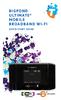 BIGPOND ULTIMATE MOBILE BROADBAND WI-FI QUICK START GUIDE WARNINGS AND SAFETY NOTICES Please read all the safety notices before using this device. The BigPond Ultimate Mobile Broadband Wi-Fi is designed
AVAYA 9608/9611G SIP DESKPHONE INSTRUCTIONS
 AVAYA 9608/9611G SIP DESKPHONE INSTRUCTIONS MESSAGE WAITING INDICATOR PHONE DISPLAY NAVIGATION ARROWS and the OK BUTTON PHONE BUTTON MESSAGE BUTTON CONTACTS HISTORY HOME HEADSET SPEAKER VOLUME BUTTON MUTE
Nokia 603 User Guide. Issue 3.0
 Nokia 603 User Guide Issue 3.0 2 Contents Contents Safety 5 Get started 6 Keys and parts 6 Insert the SIM card 6 Insert a memory card 8 Charge your phone 10 Switch the phone on or off 11 Lock the keys
AVAYA 9608 & 9611G IP DESKPHONE INSTRUCTIONS
 AVAYA 9608 & 9611G IP DESKPHONE INSTRUCTIONS 1 MESSAGE WAITING INDICATOR PHONE DISPLAY NAVIGATION ARROWS and the OK BUTTON PHONE BUTTON MESSAGE BUTTON CONTACTS HISTORY HOME HEADSET SPEAKER VOLUME BUTTON
Nokia 6303 classic User Guide
 Nokia 6303 classic User Guide 9214002 Issue 3 2 Contents Contents Safety 4 Start up 5 Keys and parts 5 Install SIM card and battery 5 Insert and remove the memory card 6 Charge the battery 6 Antenna 7
Doro PhoneEasy 626. English (US)
 Doro PhoneEasy 626 English (US) 1 2 3 4 5 6 7 8 14 13 12 11 10 9 15 20 19 18 17 16 25 24 23 22 21 Note! All illustrations are for illustrative purposes only and may not accurately depict the actual device.
GSM Desktop phone DPH101. User manual v1.00
 GSM Desktop phone DPH101 User manual v1.00 LEGAL NOTICE Copyright 2011 TELTONIKA Ltd. All rights reserved. Reproduction, transfer, distribution or storage of part or all of the contents in this document
Optus VoIP IP Handset Quick Start Guide.
 Optus VoIP IP Handset Quick Start Guide. Congratulations on your new IP Handset The Linksys SPA-942 is a functionally powerful and easy to use business phone featuring a high resolution graphical display,
WE VoIP User Guide For OfficeServ 7000 Series
 WE VoIP User Guide For OfficeServ 7000 Series WE-VoIP Client V3.5.0.3 WE VoIP User Guide for OfficeServ November 2013 1 Disclaimer Every effort has been made to eliminate errors and ambiguities in the
User s Guide for Nokia 3530
 User s Guide for Nokia 3530 List of menu functions 1. Phone book 1. Search 2. Add name 3. Edit name 4. Delete 5. Copy 6. Add number 7. Settings 1. Memory in use 2. Phone book view 3. Memory status 8. Speed
Optus VoIP IP Handset Quick Start Guide.
 Optus VoIP IP Handset Quick Start Guide. Congratulations on your new IP Handset The Linksys SPA-942 is a functionally powerful and easy to use business phone featuring a high resolution graphical display,
 Doro 6030 English 1 2 3 4 5 6 7 8 14 13 12 11 10 9 15 16 17 18 19 20 21 22 The items supplied with your phone might vary depending on the software and accessories available in your region or offered by
WF720 Wireless Home Phone User Manual
 WF720 Wireless Home Phone User Manual Content Getting to Know Your Device... 3 Appearance...3 LED Indicator...4 Device Installation... 5 Before You Begin...5 Installing the SIM Card and the Battery...5
How To Use A Number Videophone
 Digital Phone Service IRIS 3000 Videophone User Manual Contents 1. YOUR ACN VIDEOPHONE...4 1-1. Videophone components... 4 1-2. Safety instructions... 5 1-3. Getting to know your Videophone... 6 1-4. Installing
Avaya one-x Deskphone Edition for 9640 IP Telephone User Guide
 Avaya one-x Deskphone Edition for 9640 IP Telephone User Guide 16-600910 Issue 1 January 2007 Contents Contents Notices... 5 Introduction to the 9640 IP Telephone... 7 Overview... 7 About Scrolling and
WLAN600 Wireless IP Phone Administrator s Guide
 WLAN600 Wireless IP Phone Administrator s Guide Trademark Acknowledgement All brand names are trademarks or registered trademarks of their respective companies. Disclaimer This document is supplied by
Version: 01310310 Printed in Poland
 1 Content List 1. Security...3 2. Enjoy Your Cell Phone Trip...9 2.1. Install/remove the battery...9 2.1.1. Install the battery...9 2.1.2. Remove the battery...10 2.2. Install/Remove SIM Card (phone card)...12
Pocket PC Phone Quick Start Guide. Read this guide before operating your Pocket PC Phone.
 Pocket PC Phone Quick Start Guide Read this guide before operating your Pocket PC Phone. 1 Feature Maps Front Panel Components 4. 5. 2. 3. 6. 7. 1. 12. 11. 9. 8. 10. 1 Volume. Press to adjust the volume
2011 ZTE CORPORATION.
 LEGAL INFORMATION Copyright 2011 ZTE CORPORATION. All rights reserved. No part of this publication may be quoted, reproduced, translated or used in any form or by any means, electronic or mechanical, including
1 USB Modem Introduction
 1 USB Modem Introduction 1.1 Introduction Thank you for choosing the ZTE MF636 USB modem. Please read this manual carefully and keep it for future reference. The pictures, symbols and contents in this
USB Modem User Guide ZTE MF823
 Need any help? Please visit www.bt.com/business/help/mobilebroadband Xxx BT Business Mobile Broadband USB Modem User Guide ZTE MF823 1 Contents Contents Quick Start Set-up / What s In Your Pack 3 Minimum
User s Guide for Nokia 1108
 User s Guide for Nokia 1108 DECLARATION OF CONFORMITY We, NOKIA CORPORATION declare under our sole responsibility that the product Rh-18 is in conformity with the provisions of the following Council Directive:
Contents. Getting started 3 Make and receive the first call.
 Contents Getting started 3 Make and receive the first call. Getting to know your phone 6 Key functions, quick keys, entering letters and characters. Personalizing your phone 15 Choose ring signal, theme
Avaya one-x Deskphone Edition for 9630/9630G IP Telephone User Guide
 Avaya one-x Deskphone Edition for 9630/9630G IP Telephone User Guide 16-300700 Issue 3 May 2007 Contents Contents Notices... 5 Introduction to the 9630/9630G IP Telephone... 7 Overview... 7 Scrolling and
KYOCERA Kona. User Guide
 KYOCERA Kona User Guide Table of Contents Phone Basics... 1 Battery... 1 Install the Battery... 1 Charge the Battery... 2 Turn Your Phone On and Off... 2 Turn Your Phone On... 2 Turn Your Phone Off...
V660. Quick Start Guide. Dual-Mode Phone. Version 1.00 04/2007 Edition 1. Copyright 2007. All rights reserved
 V660 Dual-Mode Phone Quick Start Guide Version 1.00 04/2007 Edition 1 Copyright 2007. All rights reserved 1 Overview Your V660 provides standard cellphone functions, and adds WiFi connectivity. In the
User s Guide for Nokia 7600
 User s Guide for Nokia 7600 DECLARATION OF CONFORMITY We, NOKIA CORPORATION declare under our sole responsibility that the product NMM-3 is in conformity with the provisions of the following Council Directive:
Content Get Started... 3 Insert SIM card and Memory Card...3 Charging the Battery or Connect to a Computer...4 PAD Overview...
 Content Get Started... 3 Insert SIM card and Memory Card...3 Charging the Battery or Connect to a Computer...4 PAD Overview... 5 Locking and Unlocking the Screen...6 Basic Operation... 7 Switch on/off...
Doro PhoneEasy 606. English
 Doro PhoneEasy 606 English 1 2 14 15 3 4 5 6 7 12 11 10 9 13 16 17 18 19 8 1. Earpiece 2. Display 3. Arrow buttons 4. Left selection button 5. Call button 6. Speed dial 7. Voice mail 8. Silent / Input
Premium Design Phone with Smartphone Connect
 Smartphone Connect App Guide Premium Design Phone with Smartphone Connect Model No. KX-PRW130 Thank you for purchasing a Panasonic product. This document explains how to use the Smartphone Connect app.
Avaya one-x Deskphone Edition for 9620 IP Telephone User Guide
 Avaya one-x Deskphone Edition for 9620 IP Telephone User Guide 16-300699 Issue 3 January 2007 Contents Contents Notices... 5 Introduction to the 9620 IP Telephone... 7 Overview... 7 About Scrolling and
Wireless VoIP Phone User s Manual
 Wireless VoIP Phone User s Manual Table of Contents Chapter 1 Overview of the WiFi phone... 5 1.1 Front Panel and Keypad...5 1.2 Removing and Installing the Battery...7 1.3 Charging the WIFI PHONE...8
TABLE OF CONTENTS. Legend:
 user guide Android Ed. 1.1 TABLE OF CONTENTS 1 INTRODUCTION... 4 1.1 Indicators on the top tool bar... 5 1.2 First control bar... 7 1.3 Second control bar... 7 1.4 Description of the icons in the main
KYOCERA DuraPro. User Guide
 KYOCERA DuraPro User Guide Table of Contents Phone Basics... 7 Battery and Charger... 7 Battery Capacity... 7 Install the Battery... 7 Charge the Battery... 8 Remove the Battery... 8 Turn Your Phone On
F2400 User Guide - ENGLISH
 F2400 User Guide F2400 User Guide Some of contents in this manual may differ from your phone depending on the software of the phone or your service provider. Part No. MMBB0163204 Issue 1.0 Printed in Korea
How To Use A Bluetooth Phone On A Iphone Or Ipad (Samsung)
 Some of the contents in this manual may differ from your phone depending on the software of the phone or your service provider. www.samsungmobile.com Printed in Korea Code No.:GH68-28298A English (EU).
VoIP Handset User Manual. Digital Voice Quality Business Grade Handset Easy Plug & Play
 Digital Voice Quality Business Grade Handset Easy Plug & Play Table of Contents 1.0 Getting Started... 1 1.1 Unpacking the box... 1 1.2 Assembling the Phone... 2 2.0 Phone Button Features... 3 3.0 Phone
Telephone and Voicemail instructions Revised: 8/3/2015. Musom Help Desk: 304 691 1748 [email protected]
 Telephone and Voicemail instructions Revised: 8/3/2015 Musom Help Desk: 304 691 1748 [email protected] Phone and Voicemail Tips Dialing an Outside Line: Dial 9 to get an outside line, and then the
User Guide HUAWEI UML397. Welcome to HUAWEI
 User Guide HUAWEI UML397 Welcome to HUAWEI 1 Huawei UML397 4G LTE Wireless Modem User Manual CHAPTER 1 BEFORE USING YOUR UML397 WIRELESS MODEM ABOUT THIS USER MANUAL...4 WHAT S INSIDE THE PRODUCT PACKAGE...4
Tecdesk 3500 User Manual
 Fixed Wireless Phones Tecdesk 3500 User Manual English tecdesk.com CONTENTS INTRODUCTION 4 PACKAGE CONTENTS 5 GETTING TO KNOW YOUR PHONE 6 BUTTON FUNCTIONS 11 STATUS ICONS 14 ALPHANUMERIC KEYPAD 15 CALL
Samba W - Table of Contents
 Samba W - Table of Contents 1.Getting Started... 3 1.1 Installing the SIM Card, SD Card and Battery... 3 2. Input Type... 4 3. Menu Guide... 6 1.2 Messaging... 6 1.3 Call History... 6 1.4 Calculator...
Some of the contents in this manual may differ from your phone depending on the software of the phone or your service provider.
 Some of the contents in this manual may differ from your phone depending on the software of the phone or your service provider. World Wide Web http://www.samsungmobile.com Printed in Korea Code No.:GH68-22158A
TPG MOBILE BROADBAND QUICK SETUP GUIDE
 TPG MOBILE BROADBAND QUICK SETUP GUIDE TPG USB E1762 Modem Thank you for choosing TPG Mobile Broadband and USB E1762 modem. This User Guide provides step by step instructions that will take you through
Nokia N8 00 User Guide
 Nokia N8 00 User Guide Issue 2.1 2 Contents Contents Safety 5 Get started 6 Keys and parts 6 Change the volume of a call, song, or video 8 Lock or unlock the keys and screen 8 Insert or remove the SIM
How To Use A 9608 Phone On A Cell Phone On Sim Sims 2 (Satellite) On A Sims 3 (Cell Phone) On An Iphone Or Ipad Or Ipa 2 (Cellphone) On Sims 4
 AVAYA 9608 SIP DESKPHONE INSTRUCTIONS MESSAGE WAITING INDICATOR YOUR PHONE 9608 PHONE INSTRUCTIONS If there are messages in your Avaya Voice Mailbox, the light on the top right corner of your telephone
Samsung T199. User Manual Please read this manual before operating your phone and keep it for future reference. GH68_40686A Printed in Mexico
 Samsung T199 M O B I L E P H O N E User Manual Please read this manual before operating your phone and keep it for future reference. GH68_40686A Printed in Mexico Warning! This product contains chemicals