
i455 Boost Mobile Phone User s Guide
|
|
|
- Corey Gaines
- 10 years ago
- Views:
Transcription
1 i455 Boost Mobile Phone User s Guide

2 i Contents Introduction... 1 Welcome to Boost Mobile... 1 Boost Your Way... 1 Getting Started... 2 Battery... 4 Activating Service... 9 Powering On and Off... 9 Enabling Over-the-Air Security Finding Your Phone Number and Boost TM Walkie-Talkie Number Boost TM Voice Mail Phone Basics SIM Card Security Locking the Keypad Antenna Accessories Wireless Local Number Portability: Bringing Your Phone Number From Another Carrier Re-Boost TM Option Instant Re-Boost TM Option Boost TM Customer Care...19 Making Calls Phone Calls...20 Boost TM Walkie-Talkie Calls...20 Receiving Calls...21 Choosing a Number to Call...22 Missed Phone Calls...24 Using Speakerphone...24 Using Mute...24 Making Emergency Phone Calls...24 Call Alerts Sending Call Alerts...26 Receiving Call Alerts...26 Using the Call Alert Queue...26 Recent Calls Calls and Call Alerts...28 My Info From Other Phones...28 Contact Information From Other Phones...29 Viewing the Recent Calls List...29 Storing Items to Contacts...30 Deleting Items...30

3 Making Calls From the Recent Calls List Entering Text Using Word Mode Special Function Keys Contacts Accessing Contacts Creating Entries Editing Entries Viewing Entries Deleting Entries Checking Capacity Creating Pauses and Waits International Numbers Making Calls From Contacts Memo Call Forwarding...44 Forwarding All Calls Turning Off Call Forwarding Forwarding Missed Calls Viewing Call Forwarding Settings Advanced Calling Features Putting a Call on Hold...46 Creating Pauses and Waits While Dialing...46 Making International Calls...46 One Touch Boost TM Walkie-Talkie (WT)...47 Setting Flip Actions...47 Call Timers...48 Using Your Phone as a Modem...49 Making TTY Calls...49 Special Dialing Codes...51 Additional Phone Features...51 Messages Message Notifications...54 Voice Mail...55 Boost Mobile Text and Numeric Messages.55 Web Alerts...57 Ringtones Setting Your Phone to Vibrate...58 Assigning Ringtones to Contacts...59 Ring and Vibrate...59 Viewing Ringtone Assignments...59 ii

4 Downloading More Ringtones Managing Memory Deleting Custom Ringtones Multi-Media Messages Navigating the Inbox, Drafts, and Sent Items 61 Creating and Sending Messages Drafts Sent Items Receiving a Message Navigating a Message Viewing Received Messages from the Message Center Actions for Received Messages Customizing MMS Managing Memory Boost Mobile Voice Mail...81 Setting Up Your Voice Mail Box Playing Messages Changing Your Password Recording Your Name Recording Your Active Greeting Advanced Voice Mail Features...83 SMS SMS Messages...88 Boost TM Wireless Web Services Starting the Microbrowser...90 My Pictures Viewing Pictures...92 Getting File Information...92 Deleting Pictures...92 Managing Memory...92 My Info Viewing My Info...93 Editing My Info...93 Setting Sending Options...94 Using Walkie-Talkie Send Sending My Info and Contact Information Voice Records Viewing Voice Records...97 Creating Voice Records...97 iii

5 Playing Voice Records Labeling Voice Records Locking Voice Records Deleting Voice Records Managing Memory Java Applications Running Applications Suspending Applications Resuming Applications Ending Applications Downloading Applications Installing Applications Deleting Applications Managing Memory Shortcuts on the Main Menu Java Applications and GPS Enabled Digital Rights Management (DRM) Managing Items GPS (Global Positioning System) Enabled 108 IMPORTANT: Things to Keep in Mind Making an Emergency Call Viewing Your Approximate Location Enhancing GPS Performance Updating Satellite Almanac Data Setting Privacy Options Using GPS with Map Software Datebook Viewing Datebook Creating Events Editing Events Deleting Events Receiving Reminders Making Calls From Datebook Customizing Datebook Setup Profiles Viewing Profiles Switching Profiles How Changing Settings Affects Profiles Temporary Profiles Creating Profiles Editing Profiles iv

6 Deleting Profiles Setting Call Filtering Customizing Your Phone Setting the Volume Setting Your Phone to Vibrate Changing the Look of Your Phone Airplane Mode Temporarily Turning Off Calls. 129 Using Settings Shortcuts Creating a Shortcut Using a Shortcut Editing a Shortcut Deleting Shortcuts Using a Headset Attaching a Headset Using a Remote Boost TM Walkie-Talkie Button. 136 Boost TM Customer Care Understanding Status Messages Boost Mobile TM Terms and Conditions of Service Safety and General Information RF Operational Characteristics Portable Radio Product Operation and EME Exposure Electro Magnetic Interference/Compatibility 154 Medical Devices Operational Warnings Operational Cautions Accessory Safety Information Caring for the Environment by Recycling Disposal of your Mobile Telephone and Accessories v

7 MOTOROLA LIMITED WARRANTY Patent and Trademark Information Index vi

8 DECLARATION OF CONFORMITY Per FCC CFR 47 Part 2 Section (a) Responsible Party Name: Motorola, Inc. Address: 8000 West Sunrise Boulevard Plantation, FL USA Phone Number: 1 (800) Hereby declares that the product: Product Name: i455 Model Number: H65XAN6RR4BN Conforms to the following regulations: FCC Part 15, subpart B, section (a), (d) and section (a) Class B Digital Device As a personal computer peripheral, this device complies with Part 15 of the FCC Rules. Operation is subject to the following two conditions: (1) this device may not cause harmful interference, and (2) this device must accept any interference received, including interference that may cause undesired operation. Note: This equipment has been tested and found to comply with the limits for a Class B digital device, pursuant to part 15 of the FCC Rules. These limits are designed to provide reasonable protection against harmful interference in a residential installation. This equipment generates, uses and can radiate radio frequency energy and, if not installed and used in accordance with the instructions, may cause harmful interference to radio communications. However, there is no guarantee that interference will not occur in a particular installation. If this equipment does cause harmful interference to radio or television reception, which can be determined by turning the equipment off and on, the user is encouraged to try to correct the interference by one or more of the following measures: Reorient or relocate the receiving antenna. Increase the separation between the equipment and receiver. Connect the equipment into an outlet on a circuit different from that to which the receiver is connected. Consult the dealer or an experienced radio/tv technician for help.

9 Introduction Welcome to Boost Mobile So what's really good? You know the answer. It's life with no hassles and no limits. It's the freedom to make your own choices at your own pace. It's having all the options you need to stay ahead of the game. And that's what makes Boost Mobile Pay-As-You-Go such a tight fit for how you roll. With Boost Mobile you pay up front, stay in control of your monthly costs and get all the mobile freedom you demand. Boost Mobile has the latest Motorola handsets with the coolest features, like Boost walkie-talkie, Boost Wireless Web, and Text Messaging. Plus, you get instant access to Nextel's world-class digital iden network. Boost Your Way Trick out your Phone Got some down time? Then get down with the coolest games, entertainment, ringtones, musictones, celebrity voice mails, and wallpapers available for purchase right from your phone. No credit card needed - get it deducted from your current stash of minutes. Games and applications require a Java enabled handset. Visit boost LIVE ( for the latest list of entertainment applications currently available and purchase these options online. 1

10 Getting Started Multi Function Button Retractable Antenna Speaker on/off Display Volume Controls Boost TM walkie-talkie button Audio Jack plug in earpiece here Navigation Key down - recent call list menu right - ringtones menu up - Re-Boost left - Java Apps menu Display Rear Speaker Option Keys Menu Key view phone menus Send Key places phone calls Back Key Light Sensor OK Key Power Key turn phone on / off End Key ends phone calls & more Space Key Accessory Connector (charger connector) Microphone 2

11 p O m A s e Power button. Navigation key press the arrows to scroll through menus and lists. OK key selects highlighted item; answers calls. Menu key accesses context-sensitive menus. Option key selects the option appearing above it on the display. Note: Throughout this User s Guide, the option keys will be represented by A. Send key places phone calls. End key ends phone calls; returns to idle screen; in browser mode, returns to Web main menu. t Acts like s when the flip is closed; turns Boost TM walkie-talkie speaker on and off; used with voice names and voice records.. Acts like e when the flip is closed; accesses recent calls; sends incoming calls to voice mail. To start using your i455 phone: Make sure your SIM is in place. Charge the battery. Activate your service. Enable over-the-air security. 3

12 Getting Started Battery Removing the Battery Door 1 Make sure the phone is powered off. 2 Lift up on the bottom of the battery door. Inserting the Battery 1 Remove the battery door. 2 Insert the top of the battery into the battery area. Press the bottom of the battery to secure it. lift here 3 Replace the battery door and press it gently until you hear a click. 3 Allow the battery door to pop up, slide it forward, and remove it from the back of your phone. 4

13 Charging the Battery Your phone comes with a battery charger. 1 Plug the charger into an electrical outlet. 2 Locate the accessory connector. accessory connector Battery Charger Battery Charger Attached or Device Attached appears on the internal display. Tip: To remove the charger from the accessory connector: Press the buttons on the sides of the plug. Pull the plug straight out. 4 When charging the battery for the first time, charge for 30 minutes longer than the time shown in Charging Times. Charging Times See your battery and charger type against the grid below to determine the appropriate charging times. 3 Plug the other end of the charger into the accessory connector. Standard Lithium Ion Rapid Standard 2 hours 4 hours For best results, charge the batteries within the temperature range of 50 F to 104 F (10 C to 40 C). Prolonged charging is not recommended. 5

14 Getting Started Removing the Battery 1 With your phone powered off, remove the battery door. 2 Remove the battery by pushing it toward the antenna and lifting it out. Battery Use and Maintenance The Motorola iden Approved Lithium Ion chargers provide optimum performance. Other chargers may not fully charge the iden Lithium Ion battery or may yield a reduced number of lifetime charge cycles. Extreme temperatures degrade battery performance. Do not store the battery where temperatures exceed 140 F (60 C) or fall below 4 F (-20 C). Lithium Ion batteries have a self discharge rate and without use, lose about 1% of their charge per day. The battery capacity is degraded if the battery is stored for long periods while fully charged. If long term storage is required, store at half capacity. Inserting and Removing Your SIM Important: Do not touch the gold-colored areas of your SIM card. The SIM card is designed for optimal Contacts storage and feature use. For Boost Mobile SIM card compatibility information, visit Note: In some cases, Contacts may not be accessible if you move your SIM card to another phone. Contacts created with your i455 phone are not readable by an older iden SIM-based phone. If you remove your SIM card and use it with another phone, or use another SIM card with your phone, the following information is erased: The recent calls list Call forwarding settings Net alerts 6

15 Battery MMS messages Options set using the MMS Setup menu Information stored in Memo Pictures and audio recordings, except those that are forward locked 3 most recent GPS Enabled locations Voice records Voice names Datebook events Options set using the Personalize menu Inserting Your SIM Card 1 With your phone powered off, remove the battery door and battery. 2 Slide the latch away from the SIM card holder. 3 Open the SIM card holder. 4 Carefully slide your SIM card into the SIM cardholder. latch 7

16 Getting Started 5 Close the SIM card holder. 3 Open the SIM card holder. 6 Slide the latch toward the SIM card holder. Removing Your SIM Card Important: To avoid loss or damage, do not remove your SIM card from your phone unless absolutely necessary. 1 With your phone powered off, remove the battery door and battery. See Removing the Battery on page 6. 2 Slide the latch away from the SIM card holder. 4 Carefully slide your SIM card out of the SIM card holder. latch 8

17 Activating Service 5 Close the SIM card holder. 6 Slide the latch to the SIM card holder closed. Note: Protect your SIM card as you would any delicate object. Store it carefully. Lithium Ion batteries have a self discharge rate and without use, lose about 1% of their charge per day. The battery capacity is degraded if the battery is stored for long periods while fully charged. If long term storage is required, store at half capacity. Activating Service The first time you power your phone on, you must be in your local calling area. This activates your service. A screen then appears prompting you to select Ok to update your browser information, which enables security. This screen will only appear during initial activation. Powering On and Off To power your phone on: 1 Open the flip. 2 Press p. Note: When powering on, if you press p for more than 5 seconds, you will turn on Airplane mode. See Airplane Mode Temporarily Turning Off Calls on page 129. When You Power On For the First Time If the Enter SIM PIN Code screen appears, enter your SIM PIN. See Entering the PIN on page 16. Press A under Ok. When you receive your phone, the SIM PIN is Change your PIN to prevent fraudulent use of the SIM card (see Changing the PIN on page 16). 9

18 Getting Started As your phone connects to the network, you will see a welcome message and a connecting message. When the idle screen appears, the phone is ready to use. As your phone connects to the network, you will see a connecting message. When the idle screen appears, the phone is ready to use. BOOST To power your phone off: 1 Open the flip. 2 Press and hold p. Enabling Over-the-Air Security To receive Over-the-Air Radio Service Software (OARSS)Security you must enable security the first time you power on your phone or within 10 days of first activation of your phone. 1 Press A under Ok. Note: If you press A under Later, the idle screen will appear. The next time you select Web from the main menu, you will be prompted to enable security before you can use Boost TM Wireless Web services. 2 You are prompted to enable security. Press A under Yes. A series of screens and then the default homepage displays. 3 Press e to return to the idle screen. Within 24 hours of enabling security, you will receive a Web alert containing your Personal Telephone Number (PTN), Boost TM Customer Care number, and Boost TM walkie-talkie number. 1 When you receive a Web alert saying New Browser Message - Receive Programming Info, press A under Goto. 2 You are prompted to accept changes to your lists. Press A under Ok. 3 You are prompted again to accept changes to your lists. Press A under Ok. 4 A confirmation screen displays. Press A under Ok. 5 Press e to return to the idle screen. 10

19 Finding Your Phone Number and Boost TM Walkie-Talkie Number Finding Your Phone Number and Boost TM Walkie-Talkie Number My Info lets you view your phone number, Boost TM walkie-talkie number, and other phone information. 1 Press m to access the main menu. 2 Scroll to My Info. 3 Press O. 4 Scroll to see your information. Line 1 is your phone number. Walkie-Talkie # is your Boost TM walkie-talkie number, the number that others use to contact you using Boost TM walkie-talkie service. These numbers appear when you receive your alert notification after enabling security on your phone. See My Info on page 93 for more information about this feature. Boost TM Voice Mail You must set up your voice mail box before you can retrieve messages. The last seven digits of your Personal Telephone Number (PTN) is your initial password. See Setting Up Your Voice Mail Box on page 81. Customizing Features You can control many features of your phone, including the size of the text on the display, the way you access main menu items, and the volume of incoming sound, rings, and other tones. See Customizing Your Phone on page 127. Phone Basics Display Any time your phone is powered on, the display provides you with information and options. The external display shows a shortened version of the internal display. To see more information, open the phone cover. BOOST status icons text area menu icon Display Options The screen shown above is the idle screen. The idle screen appears when your phone is on, but not engaged in any activity. 11

20 Getting Started Text Area This area displays menus, messages, names, phone numbers, and other information. Display Options Two display options appear at the bottom of most screens. You select a display option by pressing the option key below it. Menus and Lists Your phone s features are arranged in menus, submenus, and lists. To access the items in a menu or list, scroll using the navigation key at the top of your keypad. This key lets you scroll up, down, left, or right. Holding down the appropriate part of the navigation key speeds up scrolling. In this guide, this symbol > tells you to select a menu or list item. For example, Settings > Security means: 1 Scroll to Settings on the main menu. 2 Press O to see the Settings screen. 3 Scroll to Security. 4 Press O to see the Security screen. Quick Access to Main Menu Items Each arrow in the navigation key and O can be used to access a main menu item from the idle screen. Each of these keys is assigned to a main menu item when your receive your phone. To assign different main menu items, see Personalize Features on page 131. OK Key Pressing O: Selects the highlighted menu item or list item Sets options Confirms actions Places and answer calls From the idle screen, accesses Settings. This is the default setting. You can assign a different main menu item to O. Menu Key Many features provide context-sensitive menus that let you access related features and actions. The S icon appears any time a context-sensitive menu is available. Press m to access the menu. 12

21 Phone Basics Main Menu All your phone s features can be accessed through the main menu. You can set the main menu to appear as a list or as large icons (see Setting the Menu View on page 128). Re-Boost a Web BoostLIVE q Java Apps m Ring Tones i Recent Calls b Settings Recharge your account from your phone. See page 19. Access to Boost TM Wireless Web Services. See page 90. Access to boostlive for the latest list of entertainment applications. Java applications on your phone. See page 100. Assign ringtones and turn ringer off. See page 58. Lists recent calls. See page 28. Customize your phone. See page 127. j My Info C Contacts e Messages o Datebook p Profiles View personal phone information, including phone number and Boost TM walkie-talkie number. See page 11. Create, view, store, edit contacts. See page 35. Access messages. See page 54. Schedule appointments or use as an alarm clock. See page 117. Groups of settings you apply together. See page 123. c Voice Record Record and play audio. Record directions or phone conversations while on a call. See page 97. [ My Pictures Access stored pictures received in MMS messages. See page 92. f Call Forward Set call forwarding options. See page
22 Getting Started g Memo s Shortcuts h Call Timers l GPS k Call Alert Status Icons Store a number to access later. See page 43. Create shortcuts to screens. See page 134. Phone usage information. See page 48. Find your approximate geographical location. See page 108. Lists call alerts. See page 26. Status icons appear at the top of the display. Some appear at all times. Others appear only when your phone is engaged in certain activities or when you have activated certain features. b b c d Battery Strength A fuller battery indicates a greater charge. e f g d o p q r s Signal Strength More bars next to the antenna indicate a stronger signal. A Phone In Use Your phone is active on a phone call. B Boost TM Walkie-Talkie In Use Your phone is active on a Boost TM walkie-talkie call. 1 Active Phone Line 1 indicates phone line 1 is ready to make calls. G J Call Forward Your phone is set H K to forward calls. See Call Forwarding on page 44. I L M Q Ringer Off Your phone is set not to ring. See Setting Your Phone to Vibrate on page 58. u w xt yz Speaker Off Sets Boost TM walkie-talkie sound to come through the earpiece rather than through the speaker. Your phone does not ring for Boost TM walkie-talkie calls if Alert Type is set to Silent or Vibrate. Messages You have one or more messages. See Messages on page
23 SIM Card Security DE Internet You are ready to browse the internet or are browsing the internet using a secure connection. U Airplane Mode Your phone is set to Airplane Mode. See Airplane Mode Temporarily Turning Off Calls on page 129. Y Z Packet Data You are ready to transfer packet data or are transferring packet data. N O TTY You are ready to use your phone to make calls using a teletypewriter device. See Making TTY Calls on page 49. Entering Numbers From the Keypad To enter numbers at the idle screen or any screen that requires you to enter numbers, press the numbers on the keypad. If you make a mistake: To clear a digit, press A under Delete. To clear all digits, press and hold A under Delete. To insert or delete a digit anywhere in the string of digits you have entered, scroll left or right. To cancel, press e. SIM Card Security Your SIM card stores all your Contacts and protects your personal information. Since this information is stored on your SIM card, not in your phone, you can remove the information by removing your SIM card. Note: Except for making emergency calls, your phone will not function without the SIM card. To prevent unauthorized use of your phone, your SIM card can be protected by a PIN that you enter each time the phone is powered on. You can change the PIN or turn off the requirement that it be entered. Turning the PIN Requirement On and Off When the SIM PIN requirement is off, your phone can be used without entering a PIN. Important: When the SIM PIN requirement is off, the personal data on your SIM is not protected. Anyone can use your phone and access your personal data. 15
24 Getting Started When the SIM PIN requirement is on, you are prompted to enter your PIN each time you power on your phone. Note: If a SIM PIN is required, your phone will not function until the SIM PIN is entered, except for making emergency calls. 1 From the main menu, select Settings > Security > SIM PIN. 2 Scroll to On or Off. 3 Enter the current SIM PIN. Note: When you receive your phone, the SIM PIN is Change your PIN to prevent fraudulent use of the SIM (see Changing the PIN ). 4 Press A under Ok. Entering the PIN 1 When the Enter SIM PIN Code screen appears after you power on your phone, enter your SIM PIN. 2 Press A under Ok. The message SIM Unlocked displays. 16 Important: If you enter your PIN incorrectly 3 times, your SIM is blocked. To unblock your SIM, you must contact Boost TM Customer Care. See Unblocking the PIN. Changing the PIN Note: The SIM PIN requirement must be turned on in order to access this feature. 1 From the main menu, select Settings > Security > Change Password > SIM PIN. 2 At the Enter Old SIM PIN screen, enter the current SIM PIN. 3 Press A under Ok. 4 At the Enter New SIM PIN screen, enter the new 4- to 8-digit SIM PIN. 5 Press A under Ok. 6 At the Re-enter New SIM PIN screen, re-enter the new SIM PIN to confirm. 7 Press A under Ok. Changed: SIM PIN displays. Unblocking the PIN If you enter your PIN incorrectly 3 times, your SIM is blocked. To unblock your SIM, you must contact Boost TM Customer Care to get a PIN Unblock Code (PUK).
25 Locking the Keypad Important: If you unsuccessfully enter the PUK code 10 times, your SIM is permanently blocked and must be replaced. If this happens, all data is lost. You will get a message to contact Boost TM Customer Care. Except for making emergency calls, your phone will not function with a blocked SIM. To unblock the PIN: 1 Press * # m 1. 2 At your Boost TM Customer Care representative s request, provide the information needed to give you a PUK code. 3 Select Unblock PIN. 4 Enter the PUK code. 5 Enter a new 4- to 8-digit SIM PIN. 6 Re-enter your SIM PIN. Note: These steps must be performed in quick succession. If you entered the codes properly, SIM Unlocked appears on the display. Locking the Keypad Locking the phone s keypad prevents its buttons from being pressed. When the keypad is locked, you can only: Power the phone on and off Unlock the keypad Respond to incoming calls, messages, and alerts Important: Emergency calls cannot be placed while the keypad is locked. To lock the keypad: 1 From the idle screen, press m. 2 Press *. If you press a key while the keypad is locked, instructions for unlocking the keypad display briefly. To unlock the keypad: 1 From the idle screen, press m. 2 Press *. While the keypad is locked, you can respond to incoming calls, messages, and alerts just as you do when the keypad is not locked. When finished, press e to return to the idle screen. The keypad remains locked. 17
26 Getting Started You also have the option of setting your phone to automatically lock the keypad if there has been no activity for a specified time. 1 From the main menu, select Settings > Security > Keypad Lock. 2 To lock the keypad immediately, select Lock Now. You will be given the option to press m and * to lock and unlock the keypad. 3 To set a specific time for the keypad to lock if there has been no activity, select Auto Lock and then select a time. The keypad can be set to lock in 5, 10, 15 or 20 minutes if the keypad is not touched during the specified time. To turn the auto lock off, repeat step 3 and select Off. Antenna The retractable antenna on your phone is designed to be extended during calls and is essential to attain the hearing aid compatibility rating on applicable models. To extend the antenna, pull gently on the rounded tip until the antenna is fully extended and clicks into position. When finished with a call, retract the antenna by pushing gently on the rounded tip until the antenna clicks into place. To optimize your phone's performance, extend the antenna when you make or receive a call, and avoid touching the antenna with any body part. Important: Failure to fully extend or retract the antenna until the antenna clicks into place causes severely degraded performance, which may result in missed calls, dropped calls, or garbled audio. 18
27 Accessories Accessories Your phone comes with a Standard Lithium Ion Battery and mid-rate travel charger. Various accessories are available for use with your i455 phone, including cases, vehicle battery charger, batteries, Hands-Free accessories and more. To order additional accessories, go to or call BOOST-4U ( ). You can also contact your Boost Mobile Authorized Dealership. For information on Boost Mobile retail store locations, go to Wireless Local Number Portability: Bringing Your Phone Number From Another Carrier Please contact Boost TM Customer Care for information on this service. Re-Boost TM Option You can recharge your account directly from your handset using the Re-Boost TM menu option. On your phone, launch the service from the main menu. You will then be able to log on and recharge your account using your credit card or Re-Boost Card. You can also view your account balance and call credit expiration date. The account pass code is the same one that you use to access your account. Instant Re-Boost TM Option You can Re-Boost TM instantly by dialing the letters ADD from your mobile phone and press s. You are not required to enter your PTN or pass code. If you select Prepaid Card, you will be asked to enter the 14-digit card number printed on the Re-Boost Card. If you've selected credit card, you will be asked simply to confirm your purchase. You will need to have a credit card already on file to use it for purchasing airtime. Call BOOST-4U to have your credit card added to your account. Boost TM Customer Care Boost TM Customer Care: BOOST-4U ( ) or dial 611 from your i455 phone. 19
28 Making Calls Your i455 phone makes two types of calls: digital cellular phone calls and Boost TM walkie-talkie calls. With Boost TM walkie-talkie calls, you use your phone as a long-range, digital walkie-talkie. Phone Calls With the Flip Open 1 Enter the number you want to call. 2 To place the call: Press s. -or- If you entered the number from the idle screen, press O. 3 To end the call: Press e. -or- Close the flip. To end a call by closing the flip, you must have the Flip to End feature turned on (see Setting Flip Actions on page 47). With the Flip Closed You can make phone calls with the flip closed using a voice name or the recent call list to select the number you want to call. See Using a Voice Name on page 23 and Making Calls From the Recent Calls List on page 31. To end the call, press.. Boost TM Walkie-Talkie Calls 1 If the flip is open, enter the Boost TM walkie-talkie number you want to call. -or- If the flip is closed, choose the number as you would when making a phone call. 2 Press and hold the Boost TM walkie-talkie button on the side of your phone. Begin talking after your phone emits a chirping sound. 3 Release the Boost TM walkie-talkie button to listen. 4 To end the call: If the flip is closed, press.. -or- Press e. -or- Press A under Exit. -or- Close the flip. 20
29 Receiving Calls A Boost TM walkie-talkie call ends automatically if there is no activity on the call for a few seconds. Tip: To let someone know you want to talk to him or her on a Boost TM walkie-talkie call, send a call alert. See Call Alerts on page 26. Dialing Boost TM Walkie-Talkie Numbers Every Boost TM walkie-talkie number has 3 parts an area ID, a network ID, and a member ID with an asterisk between each of these parts. For example: 999*999*9999. When you place a Boost TM walkie-talkie call, you must enter the whole Boost TM walkie-talkie number including the asterisks. Tip: When you store a Boost TM walkie-talkie number in Contacts it is good practice to include the whole Boost TM walkie-talkie number including the asterisks in case you travel with your phone, or another Boost TM walkie-talkie user whom you are trying to reach travels with their phone, outside of your network. Receiving Calls Phone Calls When you receive a phone call, your phone rings, vibrates, or lights up its backlight. Answering If the flip is closed, press t. -or- Open the flip. -or- Press s. -or- Press O. -or- Press A under Yes. -or- Press any number key. To answer a call by opening the flip, you must have the Flip to Ans feature turned on (see Setting Flip Actions on page 47). To answer a call by pressing any number key, you must have the Any Key Ans feature turned on (see Phone Calls Features on page 130). Sending to Voice Mail If the flip is closed, press.. -or- Press e. -or- Press A under No. 21
30 Making Calls Ending If the flip is closed, press.. Press e. -or- Close the flip. Boost TM Walkie-Talkie calls When you receive a Boost TM walkie-talkie call, your phone emits a chirping sound or vibrates. Answering 1 Wait for the caller to finish speaking. 2 Press and hold the Boost TM walkie-talkie button on the side of your phone. Begin talking after your phone emits a chirping sound. 3 Release the Boost TM walkie-talkie button to listen. Ending If the flip is closed, press.. -or- Press e. -or- Press A under Exit. -or- Close the flip. A Boost TM walkie-talkie call ends automatically if there is no activity on the call for a few seconds. Choosing a Number to Call You can choose the number you want to call in many ways: Enter the number on the keypad. Say a voice name into your phone. See Using a Voice Name on page 23. Use Speed Dial or Turbo Dial to make a phone call. See Using Speed Dial and Turbo Dial on page 23. Redial the last phone number called. See Redialing the Last Number on page 23. Select the number from the recent calls list. See Making Calls From the Recent Calls List on page 31. Select the number from Contacts. See Making Calls From Contacts on page 41. Select a number stored in Datebook. See Making Calls From Datebook on page 121. Use One Touch Boost TM walkie-talkie to make a Boost TM walkie-talkie call. See One Touch Boost TM Walkie-Talkie (WT) on page 47. Use the number in Memo. See Memo on page 43. Select the number in a text message you have received. 22
31 Choosing a Number to Call Using a Voice Name If you have created a voice name in Contacts for the number you want to call, say the voice name into your phone to enter the number. See page 36 for information on voice names. You can use a voice name to enter a number with the flip open or closed. 1 Press and hold t until a prompt appears telling you to say the voice name. 2 Speaking into the microphone, say the voice name assigned to the number you want to call. Your phone plays the name back to you. If you are making a phone call, the call is placed automatically. Tip: To stop a phone call from being completed, press. if the flip is closed or press e. If you are making a Boost TM walkie-talkie call, press and hold the Boost TM walkie-talkie button to place the call. Redialing the Last Number Press and hold s to place a call to the last phone number you called. Using Speed Dial and Turbo Dial Each phone number stored in Contacts is assigned a Speed Dial number which you can use to call that number. Speed Dial 1 From the idle screen, use the keypad to enter the Speed Dial number assigned to the phone number you want to call. 2 Press #. 3 Press s. Turbo Dial From the idle screen, press and hold the Speed Dial number (1 through 9) assigned to the phone number you want to call. Using One Touch Boost TM walkie-talkie One Touch Boost TM walkie-talkie sets your phone to call the most recent Boost TM walkie-talkie number on the recent calls list, or a Boost TM walkie-talkie number you choose, every time you press the Boost TM walkie-talkie button. See Setting One Touch Boost TM Walkie-Talkie (WT) on page
32 Making Calls Missed Phone Calls When you miss a call, this icon V and the number of phone calls you have missed appear briefly. With the Flip Open If you want to dismiss the missed call message, press A under Back. -or- If you want to view the missed call on the recent calls list, press A under View. With the Flip Closed If you want to dismiss the missed call message, press.. If you want to view the missed call on the recent calls list, press. twice. Using Speakerphone Turning on speakerphone makes incoming sound come out of the phone s speaker instead of the earpiece. Speakerphone is available whenever you are on an active phone call. With the Flip Open To turn speakerphone on or off: Press A under Spkr. -or- Press t. With the Flip Closed When you make a call with the flip closed, speakerphone is always on. Opening the flip turns speakerphone off. Using Mute Muting calls lets you listen to incoming sound without transmitting sound. Mute is available whenever you are on an active call. To turn mute on: Press A under Mute. While mute is on, Unmute appears as a display option. To turn mute off: Press A under Unmute. Making Emergency Phone Calls Your phone supports emergency calling. Emergency phone calls can be made even when your SIM is blocked or not in your phone. Dial 911 to be connected to an emergency response center. If you are on an active call, you must end it before calling
33 Making Emergency Phone Calls When you make an emergency call, your phone s GPS Enabled feature can help emergency service personnel find you, if you are in a location where your phone's GPS antenna has established a clear view of the open sky and your local emergency response center has the equipment to process location information. See GPS (Global Positioning System) Enabled on page 108, and particularly IMPORTANT: Things to Keep in Mind on page 108 and Making an Emergency Call on page 109, for more information on the limitations of this feature. Because of the limitations of this feature, always provide your best knowledge of your location to the emergency response center when you make a emergency call. Important: Emergency calls cannot be placed while the keypad is locked. Important: If you have not registered on the network, emergency calls cannot be placed while your SIM is in your phone. Important: If you are bringing your phone number to Boost Mobile from your previous carrier, the 911 emergency response center will not be able to make a callback to your temporary Boost Mobile phone number after the phone number you requested has been activated on your Boost Mobile phone. 25
34 Call Alerts Sending a call alert lets the recipient know you want to talk to him or her on a Boost TM walkie-talkie call. When you send a call alert, the recipient s phone emits a series of beeps and displays your name or Boost TM walkie-talkie number. The recipient can: Answer begin a Boost TM walkie-talkie call with the sender Queue store the call alert to the call alert queue, which is a list of call alerts Clear dismiss and delete the call alert Sending Call Alerts 1 Enter the Boost TM walkie-talkie number you want to send to, as you would when making a Boost TM walkie-talkie call. 2 Press A under Alert. Ready to Alert appears on the display. 3 Press the Boost TM walkie-talkie button until Alert Successful appears on the display. Note: If the alert is not successful, this may mean the person you are trying to reach is on a call or has the phone turned off. Receiving Call Alerts When you receive a call alert, you must answer, queue, or clear it. You cannot receive phone calls or Boost TM walkie-talkie calls until you do. To answer a call alert: Press the Boost TM walkie-talkie button to make a Boost TM walkie-talkie call to the sender. To queue a call alert: Press A under Queue. To clear a call alert: Press O. -or- Press A under Clear. -or- If the flip is closed, press.. Note: The recent calls list also stores call alerts you have received. They appear as Boost TM walkie-talkie calls. Call alerts remain in your recent calls list until you delete them or until they reach the end of the list. Using the Call Alert Queue When you queue a call alert, it remains in the call alert queue until you make a Boost TM walkie-talkie call to the sender or delete it. 26
35 Using the Call Alert Queue Viewing Call Alerts 1 From the main menu, select Call Alert. 2 Scroll through the list. Viewing Date and Time To view the date and time a call alert was received: 1 From the main menu, select Call Alert. 2 Select the call alert you want information on. Responding to Call Alerts in the Queue After you queue a call alert, you can respond to it by making a Boost TM walkie-talkie call to the sender or sending a call alert to the sender. Making a Boost TM walkie-talkie Call to the Sender 1 From the main menu, select Call Alert. 2 Scroll to the call alert you want to respond to. 3 Press the Boost TM walkie-talkie button to begin the call. This removes the call alert from the queue. Sending a Call Alert to the Sender 1 From the main menu, select Call Alert. 2 Scroll to the call alert you want to respond to. 3 Press A under Alert. Ready to Alert appears on the display. 4 Press the Boost TM walkie-talkie button until Alert Successful appears on the display. Deleting Call Alerts To delete a call alert from the queue: 1 From the call alert queue, scroll to the call alert you want to delete. 2 Press m. 3 Select Delete. 4 Press O or press A under Yes to confirm. To delete all call alerts from the queue: 1 From the call alert queue, press m. 2 From the call alert menu, select Delete All. 3 Press O or press A under Yes to confirm. Sorting Call Alerts Tip: You must have at least one call alert in the queue to access this feature. To sort call alerts by the order they were received: 1 From the main menu, select Call Alert. 2 Press m. 3 Select Sort By. 4 Select First on Top or Last on Top. 27
36 Recent Calls The recent calls list displays information associated with calls you have made and received and call alerts you have received. It also displays My Info and contact information sent to you from other phones. The recent calls list displays up to 20 items. Calls and Call Alerts The recent calls list contains the numbers of up to 20 of the most recent calls you have made and received. If the number of a recent call is stored in Contacts, the following information appears: The name assigned to the number The Contacts type icon associated with the number. If the Contacts entry containing the number has more than one number or address stored, <> surrounds the Contacts type icon. For information on Contacts types, see page 35. The Boost TM walkie-talkie number Contacts type icon appears when you receive a Boost TM walkie-talkie call or call alert, even if the number is not stored in Contacts. Call alerts you have received appear as Boost TM walkie-talkie calls. Like all items in the recent calls list, they remain listed until you delete them or until they reach the end of the list. For phone calls, an additional icon appears giving information about the call: X A call you made. W A call you received. V A missed call. Missed calls appear on the recent calls list only if you have Caller ID. When you select a call to view its details, you see information such as the name associated with the call, the number, date, time, and duration of the call. My Info From Other Phones The recent calls list displays My Info from other phones. See Sending My Info and Contact Information on page 95. This icon j appears with My Info from other phones on the recent calls list, along with the Boost TM walkie-talkie number of the person who sent the information. 28
37 Contact Information From Other Phones When you select My Info from other phones to view its details, you see all the information sent. If you receive My Info from the same phone more than once, only the most recently sent version appears in the recent calls list. Contact Information From Other Phones The recent calls list stores contact information sent from other phones. This information comes from the other phone s Contacts list or recent calls list. See Sending My Info and Contact Information on page 95. This icon d appears with contact information on the recent calls list. Contact information in the recent calls list displays: The name contained in the contact information The Contacts type icon associated with the number or address contained in the contact information. If the item contains more than one number or address stored, <> surrounds the Contacts type icon. The name or Boost TM walkie-talkie number of the person who sent the contact information appears as a separate item on the recent calls list, above the information sent. If one person sends you more than one item of contact information, all the items appear below the person s name or Boost TM walkie-talkie number. When you select contact information to view its details, you see the name or Boost TM walkie-talkie number or the person who sent the information and all the information in the item. If you receive My Info from the same phone more than once, only the most recently sent version appears in the recent calls list. Viewing the Recent Calls List With the Flip Open 1 From the main menu, select Recent Calls. 2 Scroll through the list. To view the details of an item on the list: From the recent calls list, select the item you want information on. Tip: To view the details of more items, keep scrolling. 29
38 Recent Calls With the Flip Closed 1 Press.. 2 If you want to view the rest of the recent calls list, press the volume controls. 3 Press. to dismiss the recent calls list. Choosing Picture View or List View You can set your phone to show the picture associated with each item as you view the recent calls list or show the list without pictures. 1 From the recent calls list, press m. 2 Select Recent Calls View. 3 Select List View to show the recent calls list without pictures. -or- Select Picture View to show the picture associated with each entry. Storing Items to Contacts 1 From the recent calls list, scroll to or select the item you want to store. 2 Press A under Store. -or- If Store is not one of your options: Press m. Select Store or Update Contacts. Tip: If the item you want to store is a call, Store does not appear if the number is already stored in Contacts. 3 To store the item as a new entry, select [New Contact]. -or- To store the number to an existing entry, select the entry. Note: Storing My Info or contact information from another phone to a Contacts entry that has a name assigned to it does not change the name of the Contacts entry. 4 If the item you want to store is a call, you must assign a Contacts type to the number: With the Contacts type field highlighted, scroll left or right to display the Contacts type you want to assign the number. 5 If you want to add more information to the entry, follow the applicable instructions in Creating Entries on page Press A under Save. Deleting Items To delete an item from the recent calls list: 1 From the recent calls list, scroll to or select the item you want to delete. 30
39 Making Calls From the Recent Calls List 2 Press A under Delete. -or- If Delete is not one of your options: Press m. Select Delete. 3 Press O or press A under Yes to confirm. To delete all items on the recent calls list: 1 From the recent calls list, press m. 2 Select Delete All. 3 Press O or press A under Yes to confirm. Making Calls From the Recent Calls List With the Flip Open 1 From the main menu, select Recent Calls. 2 Scroll to the item containing the number you want to call. If you scroll to a call, you can make a call to the number that made the call. If the number is stored in Contacts, you can make a call to any of the numbers stored with it. If you scroll to My Info from another phone, you can make a call to the Boost TM walkie-talkie number of the phone that sent the information. If you scroll to contact information from another phone, you can make a call to any of the numbers in the contact information. 3 To place the call now, go to step 4. -or- Scroll left or right to display the Contacts type for the number you want to call. 4 To make a phone call, press s. -or- To make a Boost TM walkie-talkie call, press the Boost TM walkie-talkie button. You can also make calls while viewing the details of an item on the recent calls list: 1 From the recent calls list, select the item containing the number you want to call. If you select a call or contact information from another phone, you can make a call to the number shown first on the details screen. If you scroll to My Info from another phone, you can make a call to the Boost TM walkie-talkie number of the phone that sent the information. 2 To make a phone call, press s. -or- To make a Boost TM walkie-talkie call, press the Boost TM walkie-talkie button. With the Flip Closed 1 Press. to display the most recent call. 31
40 Recent Calls 2 Press the volume controls to scroll to the name or number you want to call. If you scroll to a call, you can make a call to the number that made the call. If you scroll to My Info from another phone, you can make a call to the Boost TM walkie-talkie number of the phone that sent the information. If you scroll to contact information from another phone, you can make a call to the number currently displayed. 3 To make a phone call, press t on the top of your phone. -or- To make a Boost TM walkie-talkie call, press the Boost TM walkie-talkie button. 32
41 Entering Text You can enter text, numbers and symbols into your phone using Alpha, Word, Numeric, or Symbol text input modes. l Alpha Press a key several times for each character. j Word Press a key once for each letter while words likely to be the one you want are chosen from a database. i Symbols Enter punctuation and other symbols. k Numeric Enter numbers. When you access a screen that requires you to enter text, you start in the mode last used. To choose a text input mode: 1 At a screen that requires you to enter text, press m. 2 Select the text input mode you want to use. A checkmark appears next to the current mode. Using Word Mode In Word mode, T9 Text Input analyzes the letters on the keypad button you press and arranges them to create words. As you type, T9 Text Input matches your keystrokes to words in its database and displays the most commonly used matching word. You can add you own words to this database. Entering a Word 1 Select Word as your text input mode. 2 Type a word by pressing one key for each letter. For example, to type test press The displayed word may change as you type it. Do not try to correct the word as you go. Type to the end of the word before editing. 3 If the word that appears is not the desired word, press 0 to change the word on the display to the next most likely word in the database. Repeat until the desired word appears. If the desired word does not appear, you can add it to the database. Adding Words to the Database 1 Select Alpha as your text input mode. 33
42 Entering Text 2 Type the word using Alpha mode. 3 Select Word as your text input mode. 4 Press #. The word you typed in Alpha text entry mode is now in the database. Note: You cannot store alphanumeric combinations, such as Y2K. Choosing a Language To change the language of the database: 1 At a screen that requires you to enter text, press m. 2 Select Languages. 3 Select the language you want for your database. Special Function Keys Some of the phone s keys assume different functions while in Alpha or Word mode. Spaces Press # for a space. Capitalization Press and hold # to make the next letter typed uppercase (shift), to make all subsequent letters typed uppercase (caps lock), or to go back to lowercase letters. These icons appear in the top row of your display: m Shift is on. n Caps lock is on. When neither of these icons appear, letters typed are lowercase. Scrolling up after typing a letter makes that letter uppercase. Note: Your phone automatically makes the first letter of a sentence uppercase. Punctuation Press 1 or 0 to insert punctuation. Continue to press the key to view the list of symbols available through that key. Pause to select the symbol you want. Note: Additional punctuation symbols are available in Symbols mode. 34
43 Contacts Contacts stores up to 600 numbers or addresses. Each Contacts entry can store several numbers or addresses. Information stored in Contacts is saved on your SIM. A Contacts entry contains: A name A name is required if you are storing more than one number or address to the entry; otherwise, it is optional. Typically, this is the name of the person whose contact information is stored in the entry. A ringtone This is the sound your phone makes when you receive phone calls or call alerts from any of the numbers stored in the entry. You can assign the ringtone from your list of ringtones. If you do not assign a ringtone, the entry is created with a default ringtone assigned. A Contacts type Each number or address stored must be assigned a Contacts type: A Mobile phone number B Walkie-Talkie Boost TM walkie-talkie number C Work1 phone number D Work2 phone number E Home phone number F address G Fax phone number H Pager phone number J IP IP address K Other phone number A number or address Each Contacts entry must contain a number or address. This may be any type of phone number, Boost TM walkie-talkie number, address, or IP address. 35
44 Contacts Note: You can store numbers up to 64 digits long, but every 20 digits must be separated by a pause or wait. See Creating Pauses and Waits on page 40. A Speed Dial number When you store a phone number, it is assigned a Speed Dial number. You can accept the default Speed Dial number or change it. A voice name If you create a voice name for a number, you can then dial that number by saying the voice name into your phone. This icon P appears to the left of the Contacts type icon if a voice name is assigned. Accessing Contacts From the main menu, select Contacts. -or- If you are on a call: Press m. Select Contacts. Creating Entries A number or address and a Contacts type are required for all Contacts entries. Other information is optional. You may enter the information in any order by scrolling through the entry details. After you have entered the number or address, Contacts type, and any other information you want, you can press A under Save to save the entry to Contacts. To cancel a Contacts entry at any time press, e to return to the idle screen. To create a Contacts entry: 1 To access the entry details screen: Select Contacts > [New Contact]. -or- From the Contacts list, press m. Select New. 2 If you want to assign a name to the entry: Select Name. Enter the name. See Entering Text on page 33. When you are finished, press O. Tip: Press A under Browse to select a name already in Contacts. 3 If you want to assign a ringtone to the entry, select [Ringer]. See Assigning a Ring Tone on page To assign a Contacts type to the number or address being stored: Select the Contacts type field. Select the Contacts type you want to assign. 5 To store a number or address: Select the # field (or ID for an address, or IP for an IP address). 36
45 Creating Entries Enter the number or address. For phone numbers, use the 10-digit format. For addresses, see Entering Text on page 33. Tip: Press A under Browse to select a number or address from Contacts, the recent calls list, or Memo. When you are finished, press O. 6 If you want to change the default Speed Dial number or a create a voice name for the entry, select [Options]. See Assigning a Speed Dial Number or Voice Name. 7 If you want to add more numbers or addresses to the entry: Scroll past the information you already entered. Enter the additional information for the entry using step 3 through step 6. You must assign a name to the entry, if you have not already. 8 Press A under Done. Assigning a Ring Tone 1 If you have not already, select [Ringer]. 2 If you want to assign a ringtone from the list of ringtones: With Ringer highlighted, scroll left or right to choose a ringtone. -or- Select Ringer. Select the ringtone you want to assign. 3 When you are finished, press A under Back. Assigning a Speed Dial Number or Voice Name 1 If you have not already, select [Options]. 2 The default Speed Dial number assigned to a phone number is displayed in the Speed # field. This is always the next available Speed Dial location. If you want to assign the phone number to a different Speed Dial location: With the Speed # field highlighted, press O. Press A under Delete to delete the current Speed Dial number. Enter the new Speed Dial number using the keypad. When you are finished, press O. 3 If you want to create a voice name for a phone number, select Voice Name. As directed by the screen prompts, say and repeat the name you want to assign to the number. Speak clearly into the microphone. 4 When you are finished, press A under Back. 37
46 Contacts Editing Entries 1 From the Contacts list, scroll to the entry you want to edit. 2 Press A under Edit. -or- If Edit is not one of your options: Press m. Select Edit. The entry details screen displays. 3 Follow the applicable instructions in Creating Entries on page 36 to edit the various fields. Viewing Entries When you view Contacts entries, you can choose how much detail you want to see. Viewing the Contacts List In this view, each entry shows: The name assigned to the entry A small version of the picture assigned to the entry, if you have set Contacts to show pictures in the Contacts list. See Choosing Picture View or List View on page 39. The types of numbers and addresses stored in the entry To view entries from the Contacts list: 1 Access Contacts. 2 Scroll to view entries. Tip: To find Contacts entries faster, use the keypad to enter the first letter of the name. 3 If an entry has more than one number or address stored, <> surrounds the Contacts type icon. Scroll left or right to view the icon for each number stored in the entry. Selecting an Entry In this view, each entry shows: The name assigned to the entry A small version of the picture assigned to the entry The name of the ringtone assigned to the entry The numbers and addresses stored in the entry To select an entry: 1 From the Contacts list, select the entry you want to view. 2 Scroll to view the numbers and addresses stored in the entry. Tip: To select other entries: Scroll left or right. Or, press # or *. 38
47 Viewing Entries To return to the Contacts list, press A under Back. Viewing More Details When an entry is selected, you can view more details about the entry by selecting items within the entry. Viewing Details of a Number or Address 1 Select the entry. 2 Select the number or address you want to view details of. If the you select a phone number, you can view its Speed Dial number and see whether it has a voice name. To return to the entry, press A under Back or press O. Viewing a Large Picture To view a large version of the picture assigned to an entry: 1 Select the entry. 2 Select the first item shown on the entry screen. This item shows the name assigned to the entry or No Name. Note: You cannot make calls from this view. To return to the entry, press A under Back or press O. Choosing Picture View or List View You can set Contacts to show the picture assigned to each entry as you view the Contacts list or show the Contacts list without pictures. 1 From the Contacts list, press m. 2 Select Contact View. 3 Select List View to show the Contacts list without pictures. -or- Select Picture View to show the picture assigned to each entry. Searching for a Name To search for a name in Contacts: 1 From the Contacts list, press A under Search. -or- If Search is not one of your options: Press m. Select Search. 2 Enter the name you want to see. See Entering Text on page Press O. Your phone finds the name you entered or the nearest match. 39
48 Contacts Showing Only Boost TM Walkie-Talkie Numbers To set Contacts to show only entries that contain Boost TM walkie-talkie numbers: 1 From the Contacts list, press m. 2 Select Filter. 3 Set this option to Show WT. To set Contacts to show all entries: 1 From the Contacts list, press m. 2 Select Filter. 3 Set this option to Show All. Deleting Entries Delete an Entry 1 From the Contacts list, scroll to the entry you want to delete. 2 Press m. 3 To delete the entire entry, select Delete Contact. 4 Press O or press A under Yes to confirm. Delete a Number or Address 1 From the Contacts list, scroll to the entry that contains the number or address you want to delete. 2 Scroll left or right to display the Contacts type for the number you want to delete. 3 Press m. 4 Select Delete Number. 5 Press O or press A under Yes to confirm. Note: If an entry contains only one number or address, deleting the number or address deletes the entry. Checking Capacity To see how many numbers are stored in Contacts: 1 From the Contacts list, press m. 2 Select Capacity. Creating Pauses and Waits When storing a number, you can program your phone to pause or wait between digits while dialing. A pause makes your phone pause for 3 seconds before dialing further. A wait makes your phone wait for your response before dialing further. 40
49 International Numbers This feature is useful when using voice mail or other automated phone systems that require you to dial a phone number and then enter an access number. To program a pause: Press and hold * until the letter P appears. The P represents a 3-second pause. If you store P1234, when you select this number and make a call, your phone dials the first 11 digits, pauses for 3 seconds, then dials the last 4 digits. If you want a pause longer than 3 seconds, press and hold * more than once. Each P represents a 3-second pause. To program a wait: Press and hold * until the letter W appears. The W means your phone waits before dialing further. If you store W1234, when you select this number and make a call, your phone dials the first 11 digits and then waits. A message appears asking if you want to send the rest of the digits. Press A under Yes to dial the last 4 digits. Tip: You can create pauses and waits while dialing a number from the keypad. See Creating Pauses and Waits While Dialing on page 46. International Numbers When storing a number that you plan to use for international calls, use Plus Dialing: 1 Press and hold 0 for two seconds. A 0 appears, then changes to a +. Note: The network translates the + into the appropriate international access code needed to place the call. 2 Enter the country code, city code or area code, and phone number. For information about making international calls, see Making International Calls on page 46. Making Calls From Contacts While Viewing the Contacts List 1 Access Contacts. 2 Scroll to the name or number you want to call. Tip: To find Contacts entries faster, use the keypad to enter the first letter of the name. 3 To place the call now, go to step 4. -or- 41
50 Contacts Scroll left or right to display the Contacts type for the number you want to call. 4 To make a phone call, press s. -or- To make a Boost TM walkie-talkie call, press the Boost TM walkie-talkie button. If you are making a Boost TM walkie-talkie call, your phone places the call to the Boost TM walkie-talkie number stored in the Contacts entry, even if the Boost TM walkie-talkie icon is not displayed. If you are making a phone call: Your phone places the call to the phone number assigned to the Contacts type displayed. If the Contacts type displayed is not a phone number, your phone places the call to the phone number stored in the Contacts entry. If the Contacts type displayed is not a phone number and you have more than one phone number stored in the Contacts entry, your phone prompts you to select the phone number you want to place the call to. After Selecting an Entry 1 Access Contacts. 2 Select the Contacts entry that contains the number you want to call. 3 Scroll to or select number you want to call. 4 To make a phone call, press s. -or- To make a Boost TM walkie-talkie call, press the Boost TM walkie-talkie button. If you try to make a type of call that does not match the Contacts type of the number you chose, no call is placed. 42
51 Memo Memo lets you store a number, make a call to that number, and save it to Contacts. To create a memo: 1 From the main menu, select Memo. 2 Enter the number using your keypad. 3 Press O. To view the memo later: From the main menu, select Memo. To delete the memo: 1 From the main menu, select Memo. 2 Press and hold A under Delete. 3 Press O. To edit the memo: 1 From the main menu, select Memo. 2 Enter the new number. 3 Press O. To make a call to the memo number: 1 From the main menu, select Memo. 2 To make a phone call, press s. -or- To make a Boost TM walkie-talkie call, press the Boost walkie-talkie button. To store the memo number to Contacts: 1 From the main menu, select Memo. 2 Press m. 3 Select Store to Contacts. 4 To store the number as a new entry, select [New Contact]. -or- To store the number to an existing entry, select the entry. 5 With the Contacts type field highlighted, scroll left or right to display the Contacts type you want to assign the number. 6 If you want to add more information to the entry, follow the applicable instructions in Creating Entries on page Press A under Done. 43
52 Call Forwarding Call forwarding sends calls to the phone numbers you specify. You can forward all calls to one number or forward missed calls to different numbers depending on the reason you missed the call. Forwarding All Calls When you set your phone to forward all calls, an icon appears in the top row of the display: G Phone line 1 is active; calls to phone line 1 are being forwarded. To forward all calls: 1 From the main menu, select Call Forward > Forward > All Calls. 2 Select To. If you specified a forwarding number for all calls before, this number displays. To forward calls to this number, press A under Back. To delete this number, press O, then press and hold A under Delete. 3 To enter the number you want to forward calls to: Enter the number using your keypad. -or- Press A under Search. Select Contacts, Recent Calls, or Memo. Select the number you want to enter. 4 Press O. All your calls are now forwarded to the number you specified. Turning Off Call Forwarding If you don t want all your calls forwarded, turn the feature off: 1 From the main menu, select Call Forward > To. 2 Set this option to Off. All your calls are now sent to your phone. Calls you miss are forwarded according to the options set for missed calls. By default, missed calls are forwarded to voice mail. Forwarding Missed Calls You can specify a forwarding number for each type of missed call: If Busy Your phone is on a call or transferring data. 44
53 Viewing Call Forwarding Settings If No Answer You do not answer on the first 4 rings. If Unreachable Your phone is out of coverage or powered off. To forward missed calls: 1 From the main menu, select Call Forward > Forward > Detailed. 2 Select If Busy to specify a forwarding number for calls received when your phone is busy. 3 If you specified a forwarding number for this type of call before, this number displays. To forward calls to this number, press A under Back and go to step 6. -or- To delete this number, press O, then press and hold A under Delete. 4 To enter the number you want to forward this type of call to: Enter the number using your keypad. -or- Press A under Search. Select Contacts, Recent Calls, or Memo. Select the number you want to enter. 5 Press O. 6 Repeat step 2 through step 5 for No Answer and If Unreachable. 7 When you are finished, press A under Back. Viewing Call Forwarding Settings 1 From the main menu, select Call Forward > Forward > All Calls. 2 With To highlighted, press A under Status. 45
54 Advanced Calling Features Putting a Call on Hold 1 While on an active call, press m. 2 Select Hold. If you want to make the call active again, press A under Resume. Creating Pauses and Waits While Dialing You can enter a pause or wait while dialing a number. For more information on pauses and waits, see Creating Pauses and Waits on page 40. To create a pause while dialing a phone number: 1 From the keypad, enter the digits you want to occur before the pause. 2 Press m. 3 Select Insert Pause. 4 Enter the digits you want to occur after the pause. To create a wait while dialing a phone number: 1 From the keypad, enter the digits you want to occur before the wait. 2 Press m. 3 Select Insert Wait. 4 Enter the digits you want to occur after the wait. Making International Calls Your service default is International Calls Restricted. Contact Boost TM Customer Care to obtain international dialing access. Calls placed between the United States and Canada do not require an international access code. Plus Dialing lets you place an international call to most countries without entering the local international access code. 1 Press and hold 0 for two seconds. A 0 appears, then changes to a +. Note: The network translates the + into the appropriate international access code needed to place the call. 2 Enter the country code, city code or area code, and phone number. 3 Press s. 46
55 One Touch Boost TM Walkie-Talkie (WT) One Touch Boost TM Walkie-Talkie (WT) One Touch Boost TM walkie-talkie sets your phone to call the most recent Boost TM walkie-talkie number on the recent calls list, or a Boost TM walkie-talkie number you choose, every time you press the Boost TM walkie-talkie button. Setting One Touch Boost TM Walkie-Talkie (WT) To the Most Recent Boost TM Walkie-Talkie number 1 From the main menu, select Settings > WT Options > One Touch Boost TM walkie-talkie. 2 Set this option to Last Call. To Any Boost TM Walkie-Talkie number 1 From the main menu, select Settings > WT Options > One Touch Boost TM walkie-talkie > Assigned Number. 2 To enter the Boost TM walkie-talkie number you want your phone to call every time you press the Boost TM walkie-talkie button: Enter the number using your keypad. -or- Press A under Search. Select Contacts, Recent Calls, or Memo. Select the number you want to enter. 3 Press O. Turning Off One Touch Boost TM Walkie-Talkie 1 From the main menu, select Settings > WT Options > One Touch Boost TM walkie-talkie. 2 Set this option to Off. 3 Press O. Setting Flip Actions For Answering Calls To set your phone to answer calls when you open the flip: 1 From the main menu, select Settings > Phone Calls > Flip Activation > Flip to Ans. 2 Set this option to On. To set your phone not to answer calls when you open the flip: Set Flip to Ans to Off in step 2. 47
56 Advanced Calling Features For Ending Calls To set your phone to end calls when you close the flip: 1 From the main menu, select Settings > Phone Calls > Flip Activation > Flip to End. 2 Set this option to On. To set your phone to not end calls when you close the flip: Set Flip to End to Off in step 2. Note: If you are using your phone with a headset, and you have the Flip to End option set to On, closing your flip sends incoming sound to the headset and does not end the call. Call Timers Call timers measure the duration of your phone calls and Boost TM walkie-talkie calls, as well as the number of Kilobytes sent and received by your phone: Last Call displays the duration of your most recent phone call. Phone Reset keeps a running total of your phone call minutes, until you reset it. Phone Lifetime displays the total minutes of all your phone calls. WT Reset keeps a running total of all of your Boost TM walkie-talkie minutes, until you reset it. WT Lifetime displays the total minutes of all your Boost TM walkie-talkie calls. Circuit Reset keeps a running total of all of your circuit data use, until you reset it. Circuit Lifetime displays the total minutes of all of your circuit data use. Kbytes Reset keeps a running total of the number of kilobytes sent and received by your phone, until you reset it. To view or reset a timer: 1 From the main menu, select Call Timers. 2 To view a feature without resetting: Press O when you are finished viewing. -or- To reset a feature: Press A under Reset. Press O or press A under Yes to confirm. Note: The values displayed by Call Timers should not be used for billing. Call timers are estimates only. 48
57 Using Your Phone as a Modem Using Your Phone as a Modem To use your phone as a modem with a laptop, handheld device, or desktop computer: 1 Locate the accessory connector. accessory connector 2 With the phone s display facing up, insert the data cable s connector into the accessory connector, until you hear a click. 3 Insert the data plug into the data port of the other device. When used as a modem, your phone has these data transfer modes: Circuit data used for sending and receiving faxes and for transferring large files Packet data used for small file transfers such as To use these services, you must install the iden Wireless Data Services software (available separately) and subscribe to a Boost TM Wireless Web access plan. For more information on setting up your computer and your i455 phone for packet and circuit data calls, go to Making TTY Calls To use your phone to make phone calls using a teletypewriter (TTY) device: 1 Connect one end of a 2.5mm cable into the audio jack on your phone. Connect the other end of the cable to your TTY device. 2 Make sure that your phone s TTY feature is on and select the TTY mode you want to use. 3 Use your phone to enter phone numbers and make calls. 49
58 Advanced Calling Features When you make a TTY call, these icons appear on the phone s display: N Phone call is active. O Phone call is on hold. TTY device features such as Turbo-Code, High-Speed, and Interruption are not supported by your phone. These features must be turned off or disabled to use your TTY device with your phone. Turning On the TTY Feature Your phone s TTY feature must be on if you want to make TTY calls, set the TTY mode, or change the TTY baud rate. To make sure the TTY feature is on: From the main menu, select Settings > Phone Calls > TTY > Use TTY. This field must say On. Choosing a Mode Your phone supports these TTY modes: TTY You type and read text on your TTY device. VCO (Voice-Carry-Over) You speak into your phone and read text replies on your TTY device. HCO (Hearing-Carry-Over) You type text on your TTY device and listen to voice replies on your phone speaker. To change mode while not in a call: 1 From the main menu, select Settings > Phone Calls > TTY > Type. 2 Select the TTY mode you want. When you make a TTY call, the call begins in the TTY mode you last selected. To change mode during a call using your phone: 1 Press m. 2 Select In Call Setup > TTY > Type. 3 Select the mode you want. To change mode during a call using your TTY device, issue one of the following commands: VCO please to select VCO mode HCO please to select HCO mode HCO off please to turn off HCO mode Important: When you are using HCO, the sound coming from your phone speaker may be uncomfortably loud. Use caution when putting the phone to your ear. (For information on setting the volume of your phone speaker, see Setting the Volume on page 127.) 50
59 Special Dialing Codes Changing the TTY Baud Rate By default, your phone s TTY baud rate is set to 45.45, the baud rate required for TTY calls within the U.S. To make calls outside the U.S., set your TTY baud rate to To change the TTY baud rate: 1 From the main menu, select Settings > Phone Calls > TTY > Baud. 2 Select the baud rate for your location. Special Dialing Codes Call Restrictions You can prevent your phone from making or receiving long distance, incoming, and outgoing (except 911) calls. Contact Boost TM Customer Care for more information. Directory Assistance Telecommunications Relay Service Boost TM supports services for communicating with speech and/or hearing impaired individuals. You can dial 711 to reach a local Telecommunications Relay Center. You will then be connected to your destination number. Relay service works through a Communications Assistant who reads messages typed into a TDD/TTY device by a speech or hearing impaired individual to you. The Communications Assistant then types your spoken messages to the hearing or speech impaired individual. Telecommunications Relay Service is available 24 hours a day, seven days a week, and every call is strictly confidential. Note: Using 711 to reach Telecommunications Relay Service may not be available in all areas. Additional Phone Features Contact Boost TM Customer Care to obtain these services or for additional information: Note: Some services are not available outside of the continental United States. Caller ID Your phone can automatically display the phone number or name (if the 10-digit phone number is stored in your Contacts) of the person calling (unless blocked by the caller), enabling you to decide whether to take the call or forward it to voice mail. Caller ID information is not available on all calls. 51
60 Advanced Calling Features Per-Call Blocking You can block delivery of your phone number to other Caller ID units for a single phone call: Press * 67 before dialing the call. Your Boost TM phone number cannot be blocked from calls made to 911, 800, 855, 866, 877, 888, or other toll- free phone numbers. Per-Line Blocking You can permanently block delivery of your phone number on every call you make. To disable on a per-call basis: Press * 8 2 before dialing the call. Call Restrictions You can prevent your phone from making or receiving long distance, incoming, and outgoing (except 911) calls. Boost TM 411 The Directory that puts you straight through Now there is no need to make 2 calls, memorize a number, or hunt for a pen to write a number down. Boost TM 411 is your mobile directory service that connects you straight through to the number you want. White Page Listings You can request a telephone number for any person, business, or government agency in the continental United States and Hawaii. Operators can also provide address information if available. Yellow Page Listings You can ask the operator to perform a search by category if the specific business name is unknown. For example, you can request information for a surf shop near your home or school. Nationwide Call Completion Boost TM 411 operators can connect you to any listing in the continental United States and Hawaii. If requested, the operator will stay on the line while connecting to the number. Driving Directions Boost TM 411 operators are able to provide directions to reach a specific destination. Operators will work with you to determine your starting point and provide clear directions to the destination. 52
61 Additional Phone Features Restaurant Reservations Boost TM 411 operators can assist in finding a restaurant and then coordinate reservations. A Boost TM 411 operator will confirm your reservation information through a return phone call. For your convenience, the reservation will be in your name. Note: Reservation service may not be available for all restaurants. Movie Listings and Show Times Boost TM 411 operators have access to movie listings at most theaters in the continental United States and Hawaii. You only need to ask for a specific movie or movie theater to get current movies, locations or show times. Additional information such as running time, synopsis, and ratings are also available. Show times and listings are available hours in advance. Local Event Information You can request information on local events such as sporting events, concerts, state and county fairs and other current events. Boost TM 411 operators can provide dates, times, and locations for these events. 53
62 Messages To access your voice mail messages, text and numeric messages, Web alerts, and any other types of messages you are able to receive, go to the message center: 1 Press A under Mesg. -or- From the main menu, select Messages. 2 Scroll to the type of message you want to access. 3 Press A under the display option on the left. The message center shows how many messages you have of each type. You can listen to, read, or delete these messages. Note: In order for you to access voice mail through the message center, there must already be a message in your voice mail box. If there is no message, you must access voice mail by dialing into your voice mail box using your PTN. Message Notifications When you receive a message, your phone notifies you with text on the display and a notification tone or vibration. You can access the message or dismiss the notification. If you dismiss the notification, the message is not deleted. It can be accessed through the message center. If you are not on a phone call when you receive a message, your phone sounds a notification tone every 30 seconds until you access the message or dismiss the alert. If you are on a call when you receive a message, your phone may sound a notification tone during the call or after you end the call, depending on how you set your notification options. Setting Notification Options To control whether your phone sounds message notification tones while you are on phone calls: 1 From the main menu, select Settings > Phone Calls > Notifications. 2 Choose the option you want: Receive All Tones sound during calls for all types of messages. Message Mail Only Tones sound during calls for mail messages; tones for all other types of messages are held until you end calls. Delay All Tones for all types of messages are held until you end calls. Note: Delay All is the default setting. 54
63 Voice Mail 3 Press A under Select. Tip: To set notification options during a call: Press m. Select In Call Setup > Notifications. Voice Mail When you receive a voice mail message, New Voice Mail Message appears on the display. Press A under Call. To dismiss the message notification: If the flip is closed, press.. -or- If the flip is open, press O or press A under Back, or close the flip. This icon y appears on the display, reminding you that you have a new message. Sending Unanswered Calls to Voice Mail To send a phone call to voice mail instead of answering it: If the flip is closed, press.. -or- Press e. -or- Press A under No. If the caller leaves a message, this icon y appears on the display, reminding you that you have a new message. Boost Mobile Text and Numeric Messages Your i455 refers to Text Messages as Web Alerts. With Boost Mobile Text Messaging, you can: Send and receive messages (up to 500 characters in length) with preset replies and respond to them at the touch of a button. Send messages to one individual from your phone or contact several at once from any system or boostmobile.com. Respond to messages when you re at a movie or in a noisy location. For additional information on how to use this service, visit Sending a Text Message Boost Mobile Text Messaging provides 2 choices for sending messages: Web Messaging or Messaging. 55
64 Messages Web Messaging on BoostMobile.com Boost Mobile Web Messaging enables you to send a message to yourself, someone else, or a group of Boost Mobile customers. For more information or to send a Web message, go to and click on Send a Message. Messaging From any account, type the 10-digit phone number of a Boost Mobile customer in the To field and (for example, @myboostmobile.com). The entire message can be up to 500 characters. Sending a Numeric Message Boost Mobile TM Numeric Messaging is available through Boost Mobile Voice Mail. These messages can be displayed directly on your i455. To leave a numeric message: The caller must press 1 during your Voice Mail greeting. Once the caller presses 1 only numeric messages can be sent. The phone s display refers to text and numeric messages as Text Messages. These messages can be up to 140 letters or 20 digits long. You can store up to 16 of these messages. Each message is stamped with the date and time it was left. If your phone is powered off when you receive a message, your phone notifies you the next time you power it on. If you are out of your coverage area, your phone alerts you when you return to your coverage area. Your phone attempts to deliver these messages for up to 7 days. Tip: While reading a text and numeric message that contains a phone number, you can press s to call that number. Receiving a Message When you receive a text and numeric message, this icon w appears on the display. To view the message: 1 Press A under Read. 2 If the message fills more than one screen, scroll to read it. 3 To keep the message, press A under Save. -or- To delete the message, press A under Delete. 56
65 Web Alerts To dismiss the message notification: If the flip is closed, press.. -or- If the flip is open, press A under Back or close the flip. This icon w appears on the display, reminding you that you have a new message. Reading from the Message Center 1 From the main menu, select Messages > Text Msgs. 2 Scroll to the message you want to read. 3 Press A under Read. 4 If the message fills more than one screen, scroll to read it. 5 To keep the message, press A under Save. -or- To delete the message, press A under Delete. Web Alerts Web alerts are text and numeric messages sent from: Your i455 phone Any application Note: Your phone's SMS address is your [email protected]. Example: @myboostmobile.com. Your phone's Text Messaging address is your [email protected]. When you receive a Web alert, a notification appears on the display. If you dismiss the notification, this icon w appears on the display, reminding you that you have a new message. Deleting Web Alerts 1 From the message center, select Web Alert. 2 Press A under Goto. 3 Scroll to the message you want to delete. 4 Press m. 5 Select Delete. 6 Press A under Yes to confirm. 57
66 Ringtones To set the ringtone your phone makes when you receive phone calls, call alerts, message notifications, or Datebook reminders: 1 From the main menu, select Ring Tones. 2 Make sure VibeAll is set to Off. 3 Scroll through the list of ringtones and select the one you want to assign. Vibrate sets your phone to vibrate instead of making a sound; Silent sets your phone to neither vibrate nor make a sound. Tip: Highlight a ring tone to hear it. 4 Select the features you want to assigned the ring tone to. Tip: A checkmark next to a feature means the current ring tone has been assign to it. To remove the assignment, select the feature. 5 When you are finished, press A under Done. Note: This icon M appears on the display if you set your phone to neither vibrate nor make a sound for phone calls. Setting Your Phone to Vibrate You can set your phone to vibrate instead of making a sound when you receive all phone calls, Boost TM walkie-talkie calls, call alerts, message notifications, and Datebook reminders. 1 From the main menu, select Ring Tones > VibeAll. 2 Set this option to On. Tip: Pressing the volume controls to turn down the volume as far as possible sets VibeAll to On. To set your phone to vibrate instead of making a sound for some features but not others: 1 From the main menu, select Ring Tones. 2 Make sure VibeAll is set to Off. 3 Select Vibrate from the list of ringtones. 4 Select the features you want to set to make no sound. 5 When you are finished, press A under Done. Note: To set ring options for Boost TM walkie-talkie calls, see Setting Your Phone to Vibrate on page
67 Assigning Ringtones to Contacts These icons indicate how the ringer is set. Q The phone always vibrates instead of making a sound. R The phone vibrates instead of making a sound for phone calls. u Boost TM walkie-talkie calls are heard through the earpiece, not the speaker. These icons may appear at the same time. Assigning Ringtones to Contacts You can set the ring tone your phone makes when you receive phone calls or call alerts from someone you have stored in Contacts. 1 From the main menu, select Ring Tones. 2 Make sure VibeAll is set to Off. 3 Scroll through the list of ringtones and select the one you want to assign. 4 Select A Contact. 5 Select the Contacts entry you want to assign the ring tone to. Ring and Vibrate To set a your phone to ring and vibrate when you receive phone calls or call alerts: 1 From the main menu, select Ring Tones. 2 Make sure VibeAll is set to Off. 3 Scroll through the list of ringtones and highlight the one you want to assign. 4 Press m. 5 Select Assign w/vibe. 6 Select the features you want to set to ring and vibrate. 7 When you are finished, press A under Done. This icon S appears on the display. Viewing Ringtone Assignments 1 From the main menu, select Ring Tones. 2 Make sure VibeAll is set to Off. 3 Highlight any ring tone. 4 Press m. 5 Select Overview. 6 Scroll to view ringtones assigned to features and Contact entries. 59
68 Ringtones Downloading More Ringtones If you want to use other ringtones, you can download them into your phone for a fee. Go to for a selection of custom ring tones and downloading instructions. Note: Ringtones purchased from this web site may be downloaded only once. If you delete a ringtone from your phone, you must purchase it again to download it again. Managing Memory To view the amount of memory available for custom ringtones: 1 From the main menu, select Ring Tones. 2 Make sure VibeAll is set to Off. 3 Highlight any ring tone. 4 Press m. 5 Select Memory Usage. Deleting custom ringtones frees memory. Note: Ringtones are stored in your phone using the same memory space used to store Java applications data, voice records, ring tones, messages, and wallpaper images. Deleting some of these other items frees memory space for pictures. Deleting Custom Ringtones Deleting a ring tone from the list of ring tones deletes it from all parts of your phone, including the media center and Contacts. To delete a custom ringtone: 1 From the main menu, select Ring Tones. 2 Make sure VibeAll is set to Off. 3 Scroll to the ring tone you want to delete. 4 Press m. 5 Select Delete. 6 Press A under Yes to confirm. 60
69 Multi-Media Messages Multi-Media Messaging Service (MMS) lets you send and receive messages that may include text, pictures, and audio recordings. You can send and receive these messages from your phone, through any account, and from Your phone's MMS address is your Your PTN is your Boost TM 10-digit Personal Telephone Number. Navigating the Inbox, Drafts, and Sent Items You can access MMS messages through the following options in the message center: Inbox MMS messages you have received Drafts MMS messages you have created and saved but not sent Sent Items MMS messages you have created and sent The messages in the Inbox, Drafts, and Sent Items are grouped in pages of 9 messages. Scroll to view the messages on a page. To go to the next page: Scroll right. -or- Press #. -or- Scroll to the end of the page and select MORE. To go to the previous page: Scroll left. -or- Press *. To open a message on the current page: Select the message you want to open. -or- Press the number on the keypad corresponding to the number of the message. Creating and Sending Messages Each message you create may contain the following fields: To the phone numbers or addresses of one or more recipients Mesg the body of the message. This may include text, pictures, ringtones, or voice records. Subject the subject line 61
70 Multi-Media Messages Attach one or more attachments. These may be pictures, ringtones, or voice records. Cc the phone numbers or addresses of more recipients Priority sets the priority of the message to normal or high. Report lets you receive a report confirming that your message was delivered. Valid Until sets a date after which no more attempts are made to deliver the message. To send a message, you must address it to at least one recipient. All other message fields are optional. You can fill in the message fields in any order. Entering Text In message fields that require you to enter text, you can begin entering the text from the keypad when the field is highlighted. While entering text, you can always choose a text input mode from the context-sensitive menu. For information on ways to enter text from the keypad, see Entering Text on page 33. Message Size You can create and send messages of up to 30 KB, including attachments. To see the size of a message you are creating: 1 Scroll to any field in the message. 2 Press m. 3 Select Message Size. Sending or Canceling To send the message at any time after it has been addressed: Press A under Send. -or- If Send is not one of your options: Press m. Select Send. To cancel the message at any time: At the message screen, press A under Cancel. -or- Press e to cancel the message and save it in Drafts. Creating a Message 1 To begin creating a message: From the main menu, select Messages > [Create Mesg]. -or- Select [Create Mesg] from Inbox, Drafts, or Sent Items. -or- 62
71 Creating and Sending Messages Begin creating a message from Contacts, the recent calls list, or the idle screen. See More Ways to Begin a Message on page 65. -or- Reply to a received message. See Replying to a Message on page To address the message: Select To. Enter the phone number or address from the keypad and press O. Repeat this action to enter more phone numbers or addresses. -or- Select recipients from Contacts or the recent calls list. See More Ways to Address a Message on page 66. Tip: To remove a phone number or address from the list of message recipients, scroll to the phone number or address and press A under Remove. When you are finished addressing the message, press A under Back. 3 To enter or edit the body of the message: Select Mesg. Note: If you have created a signature, the signature automatically appears in this field. Text you enter appears before your signature. See Customizing MMS on page 77. Enter text from the keypad. -or- Use a Quick Note. See Quick Notes on page 67. -or- Insert a picture, a ringtone, or a voice record. See Inserting Pictures, Ring Tones, and Voice Records on page 68. When you are finished, press O. 4 If you want to send the message now, press A under Send. -or- If Send is not one of your options: Press m. Select Send. -or- To fill in more message fields, see Adding More Message Options on page 63. Adding More Message Options 1 To view more message fields in a message you are creating, select MORE. -or- Press A under More. 2 If you want to create or edit the subject line: Select Subject. 63
72 Multi-Media Messages Enter text from the keypad. -or- Select a Quick Note. See Quick Notes on page 67. When you are finished, press O. 3 If you want to attach a picture, a ringtone, or a voice record, see Attaching Pictures, Ring Tones, and Voice Records on page 69. When you are finished, press A under Done. 4 If you want to add more recipients in addition to those in the To field: Select Cc. Enter the phone number or address from the keypad and press O. Repeat this action to enter more phone numbers or addresses. -or- Select recipients from Contacts or the recent calls list. See More Ways to Address a Message on page 66. When you are finished addressing the message, press A under Back. 5 If you want to set the priority of the message: Select Priority. Select the priority you want. 6 If you want to receive a report confirming that your message was delivered: Select Report. Select On Delivery. 7 If you want to set a date after which attempts to deliver the message end: Select Valid Until. Select a date by scrolling or entering numbers. Press O. -or- To set no date, press A under No Date. 8 To send the message, press A under Send. -or- If Send is not one of your options: Press m. Select Send. Replying to a Message You can reply to a received message while you are viewing it. If you have already viewed a message, you can also reply to it while it is highlighted in the message center. You cannot reply to unread messages. For information on viewing received messages, see Receiving a Message on page 72 and Viewing Received Messages from the Message Center on page
73 Creating and Sending Messages When you reply to a message you received, some of the fields in your reply message are filled in automatically: To the phone number or address of the sender of the message you are replying to. If you are sending a reply to all, some recipients may be in this field. Mesg the first 40 characters of the message you are replying to. Text you add to the body of your message appears above this. Subject Re: followed by the subject line of the message you are replying to, if any. Cc If you are sending a reply to all, some recipients may be in this field. To reply to a message: 1 View the message you want to reply to. -or- If you have already viewed the message, scroll to it. 2 To reply to the sender only, press A under Reply. -or- To reply to the sender and all recipients: Press m. Select Reply All. 3 A list of short phrases is displayed. Select any of these phrases to add it to the body of your messages. -or- Select [Create Reply] to begin the body of your message without using any of these phrases. 4 Edit any message fields you want to change. 5 Send the message. Tip: To create new reply phrases to use in later reply message, see Customizing MMS on page 77. More Ways to Begin a Message In addition to beginning a message from the message center, you can begin a message from Contacts, the recent calls list, or the idle screen. From Contacts 1 From the Contacts list, scroll to the entry containing the phone number or address you want to send the message to. 2 Scroll left or right to view the Contacts types until you see the icon for the phone number or address you want to send a message to. 3 Press A under Create. -or- If Create is not one of your options: Press m. Select Create Mesg. 4 Create and send the message. The message is automatically addressed to the phone number or address you chose. 65
74 Multi-Media Messages From the Recent Calls List 1 From the recent calls list, scroll to the entry you want to send a message to. 2 If the entry has more than one phone number stored, view the phone number you want to send the message to. 3 Press A under Create. -or- If Create is not one of your options: Press m. Select Create. 4 Create and send the message. The message is automatically addressed to the phone number you chose. From the Idle Screen 1 Using the keypad, enter the number you want to send a message to. 2 Press m. 3 Select Create. The message is automatically addressed to the phone number you chose. From My Pictures 1 From My Pictures, scroll to or select the picture you want to include in your message. 2 Press A under Send. -or- If Send is not one of your options: Press m. Select Send. 3 Create and send the message. The picture you selected is automatically included as an attachment. More Ways to Address a Message When you are filling in the To and Cc message fields, you can select recipients from Contacts and the recent calls list. You can select more than one recipient from Contacts and the recent calls list. A checkmark appears next to each selected item. Tip: To deselect a selected item: Scroll to a selected item and press O. From Contacts When you select recipients from Contacts, Contacts entries containing phone numbers or addresses are displayed. You can search for an entry name as you would when viewing Contacts otherwise. See Searching for a Name on page While you are creating a message, scroll to or select To or Cc: 2 Press A under Contcs. -or- If Contcs is not one of your options: Press m. Select Contacts. 66
75 Creating and Sending Messages 3 Select the entry containing the phone number or address you want to send the message to. 4 If the entry contains more than one phone number or address, select the ones you want to send the message to. When you are finished selecting items within the entry, press A under Done. 5 When you are finished selecting entries, press A under Done. From the Recent Calls List When you select recipients from the recent calls list, phone calls are displayed. Boost TM walkie-talkie calls are displayed only if the Boost TM walkie-talkie number is stored in Contacts and its Contacts entry also contains a phone number or address. 1 While you are creating a message, scroll to or select To or Cc. 2 Press m. 3 Select Recent Calls. 4 Select the entry containing the phone number or address you want to send the message to. 5 If the entry contains more than one phone number or address, select the ones you want to send the message to. When you are finished selecting items within the entry, press A under Done. 6 When you are finished selecting entries, press A under Done. Quick Notes When you are filling in the Mesg and Subject message fields, you can add ready-made words or short phrases called Quick Notes. After you add these words or phrases, you can edit them as you would any other text. 1 While you are creating a message, scroll to or select Mesg or Subject. 2 Press A under QNotes. -or- If QNotes is not one of your options: Press m. Select Insert Quick Notes. 3 Select the Quick Note you want to insert into the message. Tip: To create new Quick Notes to use in later messages, see Customizing MMS on page
76 Multi-Media Messages Inserting Pictures, Ring Tones, and Voice Records When you are filling in the Mesg field, you can insert pictures, ringtones, and voice records into the body of the message. You can insert more than one of these objects into a message. You may include text in the body of your message in addition to these objects. Note: For information on how objects inserted into the body of a message appear when a message is received, see Embedded Objects and Attachments on page 72. Pictures You can insert pictures from My Pictures. Pictures that you download to your phone or receive in a message may be forward locked, meaning they cannot be included in a message. 1 While you are filling in the Mesg field, press m. 2 Select Insert Picture. A list of pictures that can be included in a message appears. 3 Select the picture you want to insert. Ring Tones You can insert ringtones from your list of ringtones. When you receive your phone, all musical ringtones in the list of ringtones can be included in a message. However, some ringtones you download to your phone may not be in the required format to be included in a message. Ringtones that you download to your phone or receive in a message may be forward locked, meaning they cannot be included in a message. The non-musical ringtones in the list of ringtones when you receive your phone cannot be included in a message. 1 While you are filling in the Mesg field, press m. 2 Select Insert Ring Tone. A list of ringtones that can be included in a message appears. 3 Select the ringtone you want to insert. Tip: To hear a ringtone before inserting it, highlight the ringtone. Voice Records You can insert voice records from your list of voice records. Voice records created by recording a phone call cannot be including in a message. 1 While you are filling in the Mesg field, press m. 2 Select Insert VoiceRec. 68
77 Creating and Sending Messages A list of voice records that can be included in a message appears. 3 Select the voice record you want to insert. Tip: To hear a voice record before inserting it, highlight the voice record and press A under Play. Attaching Pictures, Ring Tones, and Voice Records You can attach one or more pictures, ringtones, and voice records to a message. Note: For information on how attachments appear when a message is received, see Embedded Objects and Attachments on page 72. Pictures You can attach pictures from My Pictures. Pictures that you download to your phone or receive in a message may be forward locked, meaning they cannot be included in a message. 1 While you are creating a message, select Attach. 2 Select New Attachment. 3 Select My Pictures. A list of pictures that can be included in a message appears. 4 Select the picture you want to attach. Ring Tones You can attach ringtones from your list of ringtones. When you receive your phone, all musical ringtones in the list of ringtones can be included in a message. However, some ringtones you download to your phone may not be in the required format to be included in a message. Ringtones that you download to your phone or receive in a message may be forward locked, meaning they cannot be included in a message. The non-musical ringtones in the list of ringtones when you receive your phone cannot be included in a message. 1 While you are creating a message, select Attach. 2 Select New Attachment. 3 Select Ring Tones. A list of ringtones that can be included in a message appears. 4 Select the ringtone you want to attach. 69
78 Multi-Media Messages Tip: To hear a ringtone before attaching it, highlight the ringtone. Voice Records You can attach voice records from your list of voice records. Voice records created by recording a phone call cannot be including in a message. 1 While you are creating a message, select Attach. 2 Select New Attachment. 3 Select VoiceRec. A list of voice records that can be included in a message appears. 4 Select the voice record you want to attach. Tip: To hear a voice record before attaching it, highlight the voice record and press A under Play. Removing an Attachment To remove an attachment in a message you are creating: 1 While you are creating a message, select Attach. 2 Scroll to the attachment you want to remove. 3 Press m. 4 Select Unattach. Drafts While you are creating a message, you can save it in Drafts before you send it. You can view, edit, send, or delete saved drafts. Saving a Message in Drafts 1 While you are creating a message, press m. 2 Select Save In Drafts. You can continue to create the message. The version you saved in Drafts will not change. Sending a Draft 1 From the main menu, select Messages > Drafts. 2 Scroll to the draft you want to send. 3 Press m. 4 Select Send. Editing a Draft 1 From the main menu, select Messages > Drafts. 2 Select the draft you want to edit. 3 Continue as you would when creating a message. 70
79 Sent Items Deleting When you send a draft, it is deleted from Drafts. To delete a message in Drafts without sending it: 1 Scroll to the message you want to delete. 2 Press m. 3 Select Delete Message. 4 Press O or press A under Yes to confirm. Drafts Icons M Draft. w High priority. L Attachment. y High priority with an attachment. Sent Items Messages you have sent or tried to send are stored in Sent Items. Forwarding Sent Items 1 From the main menu, select Messages > Sent Items. 2 Scroll to the message you want to forward. 3 Press m. 4 Select Forward. 5 Edit and send your message. You can add to and edit the message you are forwarding. Resending If a message was not sent from your phone, you can resend it. 1 From the main menu, select Messages > Sent Items. 2 Scroll to the message you want to resend. 3 Press A under Resend. Note: If your message was sent successfully, Resend will not appear as an option. Checking Delivery Status If a message was successfully sent and you set the message to give a report confirming delivery, you can check the delivery status: 1 From the main menu, select Messages > Sent Items. 2 Scroll to the message you want to view. 3 Press m. 4 Select Delivery Status. 71
80 Multi-Media Messages Deleting 1 Scroll to the message you want to delete. -or- View the message you want to delete. 2 Press m. 3 Select Delete Message. 4 Press O or press A under Yes to confirm. Sent Items Icons t Successfully sent. v Unsuccessfully sent. w High priority. L Attachment. z High priority and locked. y High priority with an attachment. Receiving a Message When you receive an MMS message, a message notification appears on the display. To view the message: 1 Press O or press A under the display option on the left. The message is downloaded from the message server. 2 If the message fills more than one screen, scroll to read it. To dismiss the message notification: If the flip is closed, press.. -or- If the flip is open, press A under the display option on the right or close the flip. This icon w appears on the display, reminding you that you have a new message. Navigating a Message As you scroll through a message, numbers, addresses, and website URLs are highlighted. Pictures and audio recordings are also highlighted. Embedded Objects and Attachments Messages may contain pictures or audio recordings as part of the body of the message or as attachments. If a message contains pictures or audio recordings in the body of the message, highlight each picture or audio recording to view or play it. 72
81 Viewing Received Messages from the Message Center If a message contains a picture or audio recording as an attachment, open the attachment to view the picture or play the audio recording. Note: Audio recordings in messages do not play if Vibrate All is set to On. Opening Attachments To open an attachment. 1 View the message. 2 Highlight the attachment you want to open. Attachments appear at the end of a message. 3 Press O. Note: Attachments that are of an unknown type cannot be opened, but they can be deleted. See Deleting Attachments on page 76. Viewing Received Messages from the Message Center 1 From the main menu, select Messages > Inbox. 2 Select the message you want to read. If you have not viewed the message before, the message is downloaded from the message server. 3 If the message fills more than one screen, scroll to read it. Inbox Icons u Unread message. T Read message. r Reply sent. N Forwarded. O Locked. w High priority. L Attachment. x Locked, with an attachment. z High priority and locked. y High priority with an attachment. { High priority and locked, with an attachment. 73
82 Multi-Media Messages Actions for Received Messages Deleting Unread Messages 1 Scroll to the message you want to delete. 2 Press A under Delete. 3 Press O or press A under Yes to confirm. Read Messages 1 Scroll to the message you want to delete. -or- View the message you want to delete. 2 Press m. 3 Select Delete Message. 4 Press O or press A under Yes to confirm. Replying See Replying to a Message on page 64. Forwarding 1 View the message you want to forward. -or- If you have already viewed the message, scroll to it. 2 Press m. 3 Select Forward. 4 Create and send your message. Embedded objects and attachments are included when you forward a message. Locking and Unlocking When you lock a message, it cannot be deleted until you unlock it. 1 View the message you want to lock or unlock. -or- If you have already viewed the message, scroll to it. 2 Press m. 3 Select Lock Message or Unlock Message. Calling a Number in a Message If a message you receive contains a phone number, Boost TM walkie-talkie number, or Talkgroup ID, you can call or send a call alert to that number. These numbers may appear in the From field, the To field, the Cc field, the subject line, or the body of the message. 74
83 Actions for Received Messages Making a Phone Call 1 View the message. 2 Highlight the phone number you want to call. 3 Press s. Making a Boost TM walkie-talkie Call 1 View the message. 2 Highlight the Boost TM walkie-talkie number you want to call. 3 Press the PTT button. Sending a Call Alert 1 View the message. 2 Highlight the Boost TM walkie-talkie number or Talkgroup ID you want to alert. 3 Press m. 4 Select Alert. 5 Press the PTT button. Storing Message Information To Contacts If a message you receive contains a phone number, Boost TM walkie-talkie number, or an address, you can store this information to Contacts. These numbers may appear in the From field, the To field, the Cc field, the subject line, or the body of the message. 1 View the message. 2 Highlight the number or address you want to save. 3 Press m. 4 Select Save Number or Save . 5 To store the number or address as a new entry, select [New Contact]. -or- To store the number or address to an existing entry, select the entry. 6 With the Contacts type field highlighted, scroll left or right to display the Contacts type you want to assign the number or address. 7 If you want to add more information to the entry, follow the applicable instructions in Creating Entries on page Press A under Done. Going to a Website If a message contains one or more website URLs, you can go to the website. 1 View the message. 2 Highlight the website URL you want to go to. 3 Press m. 75
84 Multi-Media Messages 4 Select Go To Website. Note: The entire URL must appear in the message. Otherwise, you cannot go to the website. Saving an Embedded Picture or Voice Record To save a picture or voice record that is part of the body of a message you receive: 1 View the message. 2 Highlight the picture or voice record you want to save. 3 Press m. 4 Select Save Picture or Save Audio. Pictures are saved to My Pictures. Voice records are saved to your voice records. Deleting an Embedded Picture, Ring Tone, or Voice Record To delete a picture, ringtone, or voice record that is part of the body of a message you receive: 1 View the message. 2 Highlight the picture or play the ringtone or voice record you want to delete. 3 Press m. 4 Select Delete Picture or Delete Audio. Saving Attachments 1 View the message. 2 Highlight the attachment you want to save. 3 Press m. 4 Select Save Attachment. Pictures are saved to My Pictures. Ringtones are save to your list of ringtones. Voice records are save to your voice records. Audio files in the WAV format cannot be saved. Deleting Attachments 1 View the message. 2 Highlight the attachment you want to delete. 3 Press m. 4 Select Delete Attachment. 5 Press O or press A under Yes to confirm. 76
85 Customizing MMS Customizing MMS The Setup menu lets you customize MMS for your phone: Friendly Name Enter text here to create a friendly name. Your friendly name is the name displayed in the From field on other iden phones when they receive messages from you. Signature Enter text here to create a signature. Your signature is text that is automatically inserted at the end of all messages you create. You can edit the text before sending the message. Quick Notes lets you create new Quick Notes and edit or delete Quick Notes you have created. Replies lets you create new reply phrases and edit or delete reply phrases you have created. Cleanup controls how long messages remain in the Inbox and Sent Items before they are deleted. See Setting the Clean-up Option on page 78. To access the Setup menu: 1 From the main menu, select Messages. 2 With [Create Mesg] highlight, press m. 3 Select Setup. Tip: This option is available from many context-sensitive menus when you are using MMS. New Quick Notes and Reply Phrases Creating 1 From the Setup menu, select Quick Notes or Replies. 2 Select [New Note] or [New Reply]. -or- Press A under New. 3 Enter text from the keypad. 4 When you are finished, press O. Editing You can edit only Quick Notes and reply phrases you have created. 1 From the Setup menu, select Quick Notes or Replies. 2 Select the Quick Note or reply phrase you want to edit. 3 Edit the text. 4 When you are finished, press O. Deleting You can delete only Quick Notes and reply phrases you have created. 77
86 Multi-Media Messages To delete a Quick Note or reply phrase: 1 From the Setup menu, select Quick Notes or Replies. 2 Scroll to the Quick Note or reply phrase you want to delete. 3 Press press A under Delete. 4 Press O or press A under Yes to confirm. To delete all Quick Note or all reply phrase: 1 From the Setup menu, select Quick Notes or Replies. 2 Press m. 3 Select Delete All. 4 Press O or press A under Yes to confirm. Setting the Clean-up Option The clean-up option controls how long messages remain in the Inbox and Sent Items before they are deleted. You set the clean-up option for the Inbox and Sent Items separately. The clean-up option deletes only read, unlocked messages. Clean-up Options Off messages are never automatically deleted. 5 Messages If you have more than 5 messages, messages are deleted in the order they were received, starting with the oldest, until 5 are left. 10 Messages If you have more than 10 messages, messages are deleted in the order they were received, starting with the oldest, until 10 are left. 1 Day Messages are deleted if they are older than 1 day. 3 Days Messages are deleted if they are older than 3 days Custom Lets you create a clean-up option of up to 99 messages or 99 days. For the Inbox 1 From the Setup menu, select Cleanup > Inbox. 2 Choose a clean-up option. 3 To automatically delete messages now, press O or press A under Yes. -or- To delete messages later, press A under No. 78
87 Managing Memory For Sent Items 1 From the Setup menu, select Cleanup > Sent Items. 2 Choose a clean-up option. 3 To automatically delete messages now, press O or press A under Yes. -or- To delete messages later, press A under No. Choosing to Delete Messages Later If you choose to delete messages later, rather than at the time you set the clean-up option, the type of clean-up option you set determines when messages are deleted. If you set an option that cleans up messages according to how many you have, messages are deleted when you exit the message center after setting the option. If you set an option that cleans up messages according to how old the messages are, messages are deleted when you power on your phone. Managing Memory All messages in the Inbox, Drafts, and Sent Items share the same memory space. Note: The content of a message in the Inbox is not stored in your phone s memory until the message is read. Unread messages use very little memory. To view your used memory, free memory, and memory capacity: 1 From the main menu, select Messages. 2 With [Create Mesg] highlight, press m. 3 Select Setup > Memory Size. Tip: This option is available from many context-sensitive menus when you are using MMS. To free memory, delete messages. To delete many messages at once, see Deleting All Messages. To set messages to be deleted automatically, see Setting the Clean-up Option on page
88 Multi-Media Messages Note: Messages are stored in your phone using the same memory space used to store Java applications data, voice records, ringtones, pictures, and wallpaper images. Deleting some of these other items frees memory for messages. Deleting All Messages To delete all read, unlocked messages from the Inbox, all messages in Drafts, or all successfully sent messages in Sent Items: 1 Scroll to Inbox, Draft, or Sent Items. 2 Press m. 3 Select Delete All. 4 Press O or press A under Yes to confirm. 80
89 Boost Mobile Voice Mail Note: To receive voice mail messages, you must first set up your voice mail box. Setting Up Your Voice Mail Box Using your i455 phone, dial your 10-digit Boost TM Personal Telephone Number (PTN). For example: The last 7 digits of your Personal Telephone Number (PTN) is your temporary password. For example Follow the instructions to create a new 4- to 7-digit password, record your name, and greeting. When the system says, Thank you for using Boost Mobile Voice Mail, your mail box is set up. If you are calling from a phone other than your i455, dial your 10-digit Boost TM PTN. When you hear the greeting, press the star key to access your voice mail box. The system will prompt you to enter your password. You are in the main voice mail menu when you hear the options listed below. To play your messages, press 1. (This option plays only if you have new or saved messages.) To record a message, press 2. To change your greeting, press 3. To access your personal options, press 4. If you press * while you are in a sub-menu, you will go to the previous menu. If you press **, you will go to the main voice mail menu. From the main voice mail menu, press # to exit voice mail. At any time, you may end the call by pressing e. Playing Messages When you receive a new voice mail message, you can either listen to it immediately by pressing A under Call, or later by pressing A under Exit. These are options available while you are listening to your messages: Backup press 1. Rewind to beginning of message press 11. Pause or continue the current message press 2. Fast forward press 3. Fast forward to end of message press 33. Play the date and time stamp press 5 5. These options are available while a message is playing or after it has played: Forward the message to another subscriber press 6. 81
90 Boost Mobile Voice Mail Delete the message press 7. Reply to a message press 8. Save the message press 9. Skip to the next message press #. Messages that are not saved or deleted remain in your mail box as new messages. All messages are automatically deleted after 21 days. To retrieve deleted messages, press * 3. This option only applies to the current voice mail session. If you end the call, the messages will be permanently deleted. Important: After exiting the voice mail session, you cannot recover deleted messages. Changing Your Password 1 From the main voice mail menu, press 4 to access personal options. 2 Press 4 to access personal preferences. 3 Press 1 to modify password. 4 Enter your new password. It must be 4 to 7 digits long. Note: It is important that you choose a number that is easy for you to remember, but hard for someone else to guess. Passwords using all the same digits, for example 4,4,4,4 or a sequential series of digits, 1,2,3,4, will not be accepted. 5 Press * * to return to the main menu. Note: If you forget your password, contact Boost TM Customer Care. Recording Your Name When you send, reply to, or copy a message, your name response precedes the message. To record or re-record your name at any time: 1 From the main voice mail menu, press 4 to access personal options. 2 Press 4 to access personal preferences. 3 Press 3 to access the record your name option. 4 Press 2 to record your name. 5 Press ** to return to the main menu. Recording Your Active Greeting You may want to include one or all of the following options in your greeting so that callers will know they are available. 82
91 Advanced Voice Mail Features Press 1 to send a numeric message. Press 2 to send an operator-assisted message. (This option is available only if you are a subscriber of Operator Assisted Messaging. Contact Boost TM Customer Care for more information.) Press # to skip the greeting and record a message immediately. To record or alter your greeting at any time: 1 From the main voice mail menu, press 3 to change your greeting. 2 Press 1 to play, press 2 to record or re-record, or press 7 to delete your active greeting. 3 Record your greeting and press # when you have finished. 4 Press ** to return to the main menu. Advanced Voice Mail Features Multiple Greetings You can create up to five different greetings and designate which greeting will be your active greeting at any given time. The greeting that was recorded during your initial voice mail box setup is greeting 1. This is your default active greeting. To record additional greetings: 1 From the main voice mail menu, press 3 to access the greetings menu. 2 Press 4 to modify greetings. 3 Enter the greeting number you wish to create or modify. 4 Press 2 to record a greeting. 5 Record your greeting and press # when you have finished. 6 Press ** to return to the main menu. To select your active greeting: 1 From the main voice mail menu, press 3 to access the greetings menu. 2 Press 3 to select another greeting to be active. 3 Enter the number of the greeting that you would like to be active. The system will confirm your active greeting number. 4 Press 1 to play your active greeting. 5 Press ** to return to the main menu. 83
92 Boost Mobile Voice Mail Greetings Schedule You can choose to have your greetings automatically activated based on a pre-determined time schedule. By activating the Greeting Schedule, Greetings 1, 2, and 3 will automatically play according to the time schedule listed below. Greeting 1 Greeting 2 Greeting 3 Evenings and Weekends Weekday Mornings Weekday Afternoons 5:00 pm 7:59 am, Monday Friday 24-hours, Saturday and Sunday 8:00 am 11:59 am Monday Friday Noon 4:59 pm Monday Friday To activate the greeting schedule: 1 From the main voice mail menu, press 3 to access the greetings menu. 2 Press 9 to activate your greeting schedule. 3 Press ** to return to the main menu. Note: The greeting schedule, when on, will override any other greeting that you may set as active. If a greeting is not recorded, a system standard greeting will be played. Automatic Playback By default, the playback mode of your voice mail service is set to normal. This feature automatically plays and saves new messages when you log in. To activate automatic playback: 1 From the main voice mail menu, press 4 to access personal options. 2 Press 4 to access personal preferences. 3 Press 2 to access playback preferences. 4 Press 2 to switch between automatic and normal playback. 5 Press ** to return to the main menu. Changing the Playback Order of Messages You can select the order in which you want unheard messages to be played. You may listen to the last received message first, or you may listen to the first received message first. To select the order in which new messages should be played: 1 From the main voice mail menu, press 4 to access personal options. 2 Press 4 to access personal preferences. 3 Press 2 to access playback preferences. 4 Press 1 to switch between the playback orders. 5 Press ** to return to the main menu. 84
93 Advanced Voice Mail Features Recording, Forwarding, and Replying to Messages These functions allow you to record and send, reply to, or forward a message to an assigned destination address list number. If you record a complete or partial message, but do not send it, Boost Mobile Voice Mail service will refer to this message as an in preparation message. To record and send a message: 1 From the main voice mail menu, press 2 to record a message. 2 Record your message and press # to end the message. 3 Press 9 at the prompt to indicate that you want to send the message or press 5 for delivery options. 4 Enter the mail box number list number(s). (A mail box number is the 10-digit Boost TM PTN of a Boost Mobile customer. The Boost Mobile customer must be in your local calling area. The name of the recipient plays if it is recorded.) 5 Press # to send. 6 Press ** to return to the main menu. Note: You can only send messages using this method to Boost Mobile customers in your home market. Delivery Options After you have created a message, you can assign the message to a category before you send it. Below is a list of the options that can be applied to a message: Urgent Recipient will hear this message before other messages. Boost TM Walkie-Talkie Recipient cannot copy the message to another mail box or phone number. Notification of Non-Delivery You will be notified if the recipient has not listened to your message by a certain date and time. Future Delivery You can specify a time and date (up to three months in advance) for the message to be delivered. Note: All dates must have digits in the MM/DD format (2 digits for the month and 2 digits for the date). For example, January 2nd would be Important: Once a message has been sent for future delivery, it cannot be retrieved or deleted. To set a special delivery option: 1 After recording your message, but before sending it, press 5 for delivery options. 85
94 Boost Mobile Voice Mail 2 Press the number that corresponds with the desired delivery option: Press 1 for urgent. Press 2 for private. Press 3 for notification of non-delivery. At prompt, specify time and date. Press 4 for future delivery of messages. At prompt, specify time and date. Press 9 to send the message immediately. 3 The list of options will be presented again. Select an additional option or press 9 to send the message. 4 Enter the destination mail box list number of the recipient(s). 5 Press # to send. 6 Press ** to return to the main menu. Working With Group Lists This feature enables you to create a list and assign it a unique name. Then, you can add mail box numbers, group lists, or individuals. Once you create a list, you can send a voice message to everyone on the list by entering the group list number. You can have up to 40 group lists. Each list can hold up to 50 addresses. To set up a group list: 1 From the main voice mail menu, press 4 to access personal options. 2 Press 2 to access your group lists. 3 Press 2 to create a group list. 4 Enter the 1- or 2-digit group list number and press #. 5 Record a name for the list and press #. 6 Select group members by mail box number, group list, or name. 7 Press # to save all entries added to the list. 8 Press ** to return to the main menu. To modify a group list: 1 From the main voice mail menu, press 4 to access personal options. 2 Press 2 to access group lists. 3 Press 4 to modify a group list. Enter the number of the group list you want to modify. 4 Press 1 to add a new recipient. 5 Press # to save your changes. 6 Press ** to return to the main menu. To delete a group list: 1 From the main voice mail menu, press 4 to access personal options. 86
95 Advanced Voice Mail Features 2 Press 2 to access group lists. 3 Press 3 to delete a group list. 4 Enter the number of the group list you want to delete. The system will play the name of the group list. 5 Press # to delete the list. 6 Press ** to return to the main menu. Message Forwarding Note: You can only forward messages to Boost Mobile TM customers in your home market. This feature allows you to program your phone to automatically forward incoming messages to another mail box. There are two types of forwarding: notified and silent. Notified forwarding prompts the caller that the message will be forwarded. Silent forwarding does not prompt the caller that the message will be forwarded. To modify forwarding options: 1 From the main voice mail menu, press 4 to access personal options. 2 Press 5 to modify forwarding options. 3 Select the applicable option below: To create a forwarding number, press 2. If you have already created a forwarding number, press 2 to modify the number. To enable or disable message forwarding, press 3. To change the forwarding type, press 2. 4 Press ** to return to the main menu. 87
96 SMS SMS Messages Short Message Service (SMS) messages are short text messages, also called text and numeric messages. You can send SMS messages through any account or on Your phone receives SMS messages sent to its SMS address, but does not send SMS messages. Your phone's SMS address is your If your phone is powered off when you receive a message, your phone notifies you the next time you power it on. If you are out of your coverage area, your phone alerts you when you return to your coverage area. Your phone attempts to deliver these messages for up to 7 days. Receiving a Message When you receive a text and numeric message, New Text Message appears on the display. To view the message: 1 Press A under Read. 2 If the message fills more than one screen, scroll to read it. 3 To keep the message, press O. -or- To delete the message, scroll to the end of the message, then press A under Delete. To dismiss the message notification: If the flip is closed, press.. -or- If the flip is open, press A under Back or close the flip. This icon w appears on the display, reminding you that you have a new message. Reading from the Message Center 1 From the main menu, select Messages > SMS. 2 Select the message you want to read. 3 If the message fills more than one screen, scroll to read it. 4 To keep the message, press O. -or- To delete the message, scroll to the end of the message, then press A under Delete. Calling and Storing Numbers If an SMS message you receive contains a phone number, you can call that number by pressing s while viewing the message. 88
97 SMS Messages If an SMS message you receive contains a phone number, Boost TM walkie-talkie number, or Talkgroup ID, you can call or send a call alert to that number, or store that number to Contacts. Press m while viewing the message to access these options. To call the number, select Call Back. To send a call alert, select Alert, then press the Boost TM walkie-talkie button. To store the number to Contacts, select Store Number. 89
98 Boost TM Wireless Web Services You can use your phone s Web feature to access a suite of wireless data products known as Boost TM Wireless Web. Services include Text Messaging, Web and Premium Web, Address Book, Mobile , and wireless access to AOL Instant Messenger TM. With the exception of the Text Messaging Express service, Boost TM Wireless Web Services require the activation of a Boost TM Wireless Web service plan. To order, go to or call BOOST-4U ( ). You can also contact your Boost TM Authorized Dealership. Starting the Microbrowser Just as you use Netscape Navigator or Microsoft Internet Explorer to browse the Web from your desktop, the microbrowser allows you to explore and use a variety of Internet services. To begin using the Boost TM Wireless Web: 1 Press m to access the Main Menu. 2 Scroll to Web. 3 Press A under SELECT. 4 Your home page displays. Note: The first time you access Web, you will be asked to enable security to ensure your information remains private and secure. Press A under Yes. The phone will display: Generating, Computing, Sending))))). You may be asked to (re)enable security as Boost TM adds new services or upon your return to the U.S. after traveling. When transmitting highly personal or sensitive data, such as a credit card number, you will see the Secure Data icon E. This icon indicates that the data is encrypted during transmission. 5 Scroll to highlight the service you wish to access and press A under Ok. -or- Press the number shown to the left to automatically jump to that service. Press * to return to the previous screen. To return to the home page, press e. 6 To exit the browser, press e until the idle screen displays. -or- Press and hold m. The Browser Menu screen displays with Exit Browser highlighted. 90
99 Starting the Microbrowser Press A under OK. When you re-enter Web, you will enter on the page from which you exited Boost TM Wireless Web Navigation Keys Home Press e to return to your home page. Tip: Press e twice to return to your phone's idle screen. Back Press * to return to a previous screen. Scroll A scroll bar on the left of the phone s display indicates that additional text can be viewed. Scroll using the navigation key. Tip: While navigating through Boost TM Wireless screens, a number may appear to the left of the application or topic you want to access. Press the corresponding number on the keypad for quicker access to that application or topic. When transmitting highly personal or sensitive data, such as a credit card number, this icon Eappears, indicating that the data is encrypted during transmission. Note: You may be asked to (re)enable security as Boost TM adds new services or upon your return to the U.S. after traveling. For more information and multimedia demos, go to You can also get one page service-specific guides called Frequently Asked Questions and other instruction for Boost TM Wireless Web Services at 91
100 My Pictures My Pictures lets you view pictures you received in MMS messages. Viewing Pictures To view pictures stored in My Pictures: 1 From the main menu, select My Pictures. The pictures stored are listed by name. 2 Select the picture you want to view. Note: If this icon ] appears next to a picture, you cannot send it in a message. Getting File Information To view the file type and file size of a picture: 1 Scroll to or select the picture. 2 Press m. 3 Select Details. Deleting Pictures 1 Scroll to or select the picture you want to delete. 2 Press m. 3 Select Delete. Managing Memory To view your used memory, free memory, and memory capacity: 1 Scroll to or select any picture. 2 Press m. 3 Select Memory Size. Note: Pictures are stored in your phone using the same memory space used to store Java applications data, voice records, ring tones, messages, and wallpaper images. Deleting some of these other items frees memory space for pictures. 92
101 My Info My Info lets you view information about your phone and send this information to other phones. Viewing My Info 1 From the main menu, select My Info. 2 Scroll to see the entire screen. The My Info screen contains: My Name You can enter your name here. Line 1 your phone numbers for phone line 1. Each number appears when you receive your first call on that line. Walkie-Talkie # Your Boost TM walkie-talkie number is the number that others use to contact you using Boost TM walkie-talkie calls. This number appears when you receive your first Boost TM walkie-talkie call. Carrier IP the IP address assigned to Boost Mobile. This number appears when you register for packet data services. IP1 Address and IP2 Address the IP addresses you use to access the Internet with your phone. Note: If you request equipment-related transactions on your account, Boost TM Customer Care may require you to provide specific information about your phone. By pressing m anytime while in My Info, a submenu will appear that includes your phone s service status, unit information, and phone identification numbers including IMEI, SIM ID, and Serial Number (SN). Please be prepared to supply the representative with this information when requesting these types of transactions. Editing My Info To edit My Info to enter or change the text that appears in My Name: 1 From the main menu, select My Info. 2 Press A under Edit. 3 Select Name. 4 Enter the name you want to appear. See Entering Text on page 33. When you are finished, press O. You can also edit the information in Line 1, but your changes are only temporary. The next time your phone registers on the network, your actual phone number will reappear in My Info. 93
102 My Info Setting Sending Options Your phone can send information in My Info to other phones that have this capability. You can control what portion of the information in My Info is sent and whether it is sent automatically in every Boost TM walkie-talkie call or only when you choose to send it. Information Sent The information your phone sends always includes My Name and Boost TM walkie-talkie number. It may include Line 1 and Carrier IP, depending on how you set your sending options. To change which fields are sent: 1 From the main menu, select My Info. 2 Press m. 3 Select Send My Info Setup > Info to Send. 4 A checkmark appears next to the fields that will be sent. To add or remove the checkmark, select the field. 5 When you are finished, press A under Done. Automatic Sending To control whether your information is sent automatically: 1 From the main menu, select My Info. 2 Press m. 3 Select Send My Info Setup > AutoSend. 4 To set your information to be sent automatically, set this option to On. -or- To set your information to be sent only when you choose to send it, set this option to Off. 94
103 Using Walkie-Talkie Send Walkie-Talkie Send lets you exchange My Info and contact information with other phones that have this capability. You do this through Boost TM walkie-talkie calls. Sending My Info and Contact Information When you send My Info or contact information using Walkie-Talkie Send, the information you sent appears on the display of the phone you are engaged in the Boost TM walkie-talkie call with. After the call, the information appears on the recent call list of that phone. Sending My Info You can control what portion of the information in My Info is sent and whether it is sent automatically in every Boost TM walkie-talkie call or only when you choose to send it. See Setting Sending Options on page 94. Tip: When you send My Info, certain information, such as your address or fax number, cannot be included. To send complete contact information, create an entry for yourself in Contacts and send. Sending Information During a Call 1 While in a Boost TM walkie-talkie call, press m. 2 With WT Send My Info highlighted, press O. 3 When Ready to Send appears on the display, press the Boost TM walkie-talkie button to send the information. Starting a Call by Sending Information 1 From the main menu, select My Info. 2 Press m. 3 With WT Send My Info highlighted, press O. 4 Use the keypad to enter the Boost TM walkie-talkie number you want to send the information to. -or- Press A under Browse. Select Contacts, Recent Calls, or Memo. Select the number you want to enter. 5 When Ready to Send appears on the display, press the Boost TM walkie-talkie button to send the information. Sending Contact Information You can send contact information by selecting a Contacts entry or an item from the recent calls list. 95
104 Using Walkie-Talkie Send Contacts entries that contain only addresses cannot be sent. When Contacts entries are received, they do not include ring tones or pictures. These items from the recent calls list can be sent: Contact information sent from other phones Calls to or from numbers store in your Contacts list Sending Information During a Call 1 While in a Boost TM walkie-talkie call, press m. 2 Select Contacts or Recent Calls. 3 Scroll to the Contacts entry or item in the recent calls list you want to send. 4 When Ready to Send appears on the display, press the Boost TM walkie-talkie button to send the information. Starting a Call by Sending Information 1 From the Contacts list, scroll to or select the entry you want to send. -or- From the recent calls list, scroll to or select the item you want to send. 2 Press m. 3 Select WT Send Contact. 4 Use the keypad to enter the Boost TM walkie-talkie number you want to send. -or- Press A under Browse. Select Contacts, Recent Calls, or Memo. Select the number you want to enter. 5 When Ready to Send appears on the display, press the Boost TM walkie-talkie button to send the information. Receiving My Info or Contact Information When you receive My Info or contact information from another phone, an icon appears on the display: j My Info. d Contact information. To view the information while still in the Boost TM walkie-talkie call: 1 Press m. 2 Select View Contact. You can also view My Info from other phones on the recent calls list. See Recent Calls on page
105 Voice Records A voice record is a recording you make with your phone and can play back. You can record notes to yourself when your phone is not in a call or record phone calls when your phone is in a call. Viewing Voice Records To view your list of voice records: 1 From the main menu, select VoiceRecord. 2 Scroll to view more voice records. Voice Records Icons One of these icons appears next to each voice record: c A voice record made while your phone was not in a call. v A voice record made while your phone was in a call. Filtering by Voice Record Type You can set your phone to show all voice records, only voice records created when your phone was in a call, or only voice records created when your phone was not in a call. 1 From the main menu, select VoiceRec. 2 Press m. 3 Select Filter. 4 Select the option you want: All show all voice records. In Call show only voice records created when your phone was in a call. Normal show only voice records created when your phone was not in a call. Tip: You can also press * or # to scroll through these options while viewing the list of voice records. Creating Voice Records Phone Not in a Call To record a note to yourself: 1 From the main menu, select Record > [New VoiceRec]. 97
106 Voice Records 2 Say the message you want to record into the microphone. Tip: To stop recording before you are finished, press A under Pause. To start recording again, press A under Resume. 3 When you are finished recording, press O. To add to the end of an existing voice record: 1 From the main menu, select VoiceRecord. 2 Scroll to the voice record you want to add to. 3 Press m. 4 Select Add To. 5 When you are finished recording, press O. Phone in a Call To record a phone call: 1 While on an active call, press m. 2 Select Record. 3 When you are finished recording, press O. Note: Recording of phone calls is subject to applicable laws regarding privacy and recording of phone conversations. Playing Voice Records 1 From the main menu, select VoiceRecord. 2 Select the voice record you want to play. 3 To stop the voice record while it is playing, press O. Tip: To pause or resume, press any key. Labeling Voice Records When you create a voice record, it is labeled with the time and date it was recorded. You can then rename it with a custom label. 1 From the main menu, select VoiceRecord. 2 Scroll to the voice record you want to label. 3 Press A under Label. 4 Enter the label you want to assign. See Entering Text on page Press O. Locking Voice Records When you lock a voice record, it cannot be deleted until you unlock it. 1 From the main menu, select VoiceRecord. 2 Scroll to the voice record you want to lock or unlock. 98
107 Deleting Voice Records 3 Press m. 4 Select Lock to lock the message. -or- Select Unlock to unlock the message. When a voice record is locked, this icon R appears next to it. Deleting Voice Records Deleting a voice record from the voice record list deletes it from all parts of your phone, including the media center. Deleting a Voice Record 1 From the main menu, select VoiceRecord. 2 Scroll to the unlocked voice record you want to delete. 3 Press m. 4 Select Delete. 5 Press O or A under Yes to confirm. Deleting All Voice Records 1 From the main menu, select VoiceRecord. 2 Scroll to any voice record. 3 Press m. 4 Select Delete All. 5 Press O or A under Yes to confirm. Managing Memory To view the amount of memory available for voice records: 1 From the main menu, select VoiceRecord. 2 With [New VoiceRec] highlight, press A under Memory. -or- With any voice record highlighted, press m. Select Memory. To free more memory by deleting all unlocked voice records: 1 From the voice records memory screen, press A under Delete. 2 Press O or A under Yes to confirm. Note: Voice Records are stored in your phone using the same memory space used to store Java applications data, voice records, ringtones, messages, and wallpaper images. Deleting some of these other items frees memory space for voice records. 99
108 Java Applications Your phone arrives with Java applications installed and ready to run. You can download and install more Java applications. To download and install more Java applications, go to the BoostLIVE menu option on your phone or visit Note: Using Java applications may cause your phone to use up more battery power than other uses of your phone. Running Applications To run an application that has a shortcut on the main menu: 1 From the main menu, select the application or suite of applications you want to run. 2 If you have selected a suite of applications, select the application you want to run. To run an application that does not have a shortcut on the main menu: 1 From the main menu, select Java Apps. 2 Select the application or suite of applications you want to run. 3 If you have selected a suite of applications, select the application you want to run. Tip: If you don t hear the sounds associated with the Java application, select Settings > Volume and check the volumes of Java Speaker and Java Earpiece. Suspending Applications When you suspend an application, it does not stop running. It goes to the background so that you can run another application in the foreground. To suspend an application: Press e or close the flip. To view your suspended applications: From the Java menu, select Suspended Apps. You can have up to 3 applications running at one time 1 running in the foreground and 2 in the background. Resuming Applications You can resume a suspended application at any time. This brings it to the foreground. 1 From the Java menu, select Suspended Apps. 2 Select the application you want to resume. 100
109 Ending Applications Ending Applications To end an application: 1 From the main menu, select Java Apps. 2 If the application you want to end is part of a suite of applications, select the suite. 3 Scroll to the application you want to end. Press A under End. -or- If End is not one of your options: Press m. Select End. Tip: You can also end applications from the Suspended Apps screen. 4 Press A under End. To end all applications: 1 From the main menu, select Java Apps. 2 Scroll to Suspended Apps. 3 Press m. 4 Select End All. 5 Press O or press A under Yes to confirm. 6 If you want to end all applications without letting them exit, press A under EndNow. Tip: You can also end applications from the Suspended Apps screen. Downloading Applications If you want to run more Java applications, you can download them into your phone. Check the BoostLIVE menu option on your phone for a catalog of items available for purchase and download. You can also go to for a selection of Java applications and downloading instructions. Installing Applications Before running most application you have downloaded, you must install them. 1 From the main menu, select Java Apps. 2 Select the application or suite of applications you want to install. 3 If you want to create a shortcut to the Java application on the main menu: Press A under Next. Press A under Yes. 4 Press O. 5 Press A under Done. 101
110 Java Applications About DRM Java Applications Your phone supports gifting and Tell-A-Friend services for DRM java applications. However, these services may not be offered by Boost Mobile. Please contact Boost Mobile for more information about these services. For more information about DRM items, see Digital Rights Management (DRM) on page 106. Deleting Applications Note: Under certain conditions, some DRM vendors will not charge you if you download an item multiple times within a given time frame. Please contact the DRM vendor to learn more about their download regulations. To delete an application: 1 From the main menu, select Java Apps. 2 Scroll to the application you want to delete. 3 Press m. 4 Select Deinstall. 5 Press O or press A under Yes to confirm. 6 When your phone has finished deleting the application, press A under Done. To delete all Java applications: 1 From the main menu, select Java Apps. 2 Scroll to Java System. 3 Press m. 4 Select Delete All. 5 Press O or press A under Yes to confirm. Managing Memory To view the amount of memory available for Java applications: 1 From the main menu, select Java Apps > Java System. 2 Press A under Next. 3 To see more memory information, press A under Next again. Deleting Java applications frees memory. Note: Java application data is stored in your phone using the same memory space used to store voice records, ringtones, and wallpaper images. Deleting some of these other items frees memory space for Java applications. 102
111 Shortcuts on the Main Menu Shortcuts on the Main Menu When you install an application, you can create a shortcut to the application on the main menu. To create a shortcut to an application that is already installed: 1 From the main menu, select Settings > Personalize > Menu Options > Add/Remove Apps. -or- From the main menu: Press m. Select Main Menu Setup > Add/Remove Apps. 2 Scroll to view the list of Java applications. Any application that has a shortcut on the main menu has a checkmark next to it. 3 Scroll to the application you want to create a shortcut for. 4 Press O. 5 Press A under Done. To remove a shortcut: 1 From the main menu, select Settings > Personalize > Menu Options > Add/Remove Apps. -or- From the main menu: Press m. Select Main Menu Setup > Add/Remove Apps. 2 Scroll to view the list of Java applications. Any application that has a shortcut on the main menu has a checkmark next to it. 3 Scroll to the application you want to remove the shortcut for. 4 Press O. 5 Press A under Done. Java Applications and GPS Enabled Some Java applications can make use of your phone s GPS feature to determine the approximate geographical location of your phone. (See GPS (Global Positioning System) Enabled on page 108 for more information on the GPS feature.) However, for privacy reasons, you may not always want Java applications to access the location of your phone. Your phone protects your privacy by giving you the option to block all or some Java applications from accessing the location of your phone. Setting Privacy for All Java Applications These options control the privacy of all Java applications on your phone: 103
112 Java Applications Restricted No Java or similar software applications may access the location of your phone. However, location information may still be available to the phone s owner, fleet manager, or account administrator. Unrestricted All Java applications may access the location of your phone, without notifying you. By Permission When a Java application attempts to access the location of your phone, you are prompted to give permission. However, location information may still be available to the phone s owner, fleet manager, or account administrator. See Setting Privacy Options on page 113 for information on choosing these options. Granting or Denying Permission If you choose By Permission, you must grant or deny each Java application access to the location of your phone when the application requests access for the first time. You may be required to grant or deny subsequent requests from the same application, depending on the privacy setting you choose for the individual Java application (see Setting Privacy for Each Java Application on page 105). When a Java application requests access the location of your phone, a screen appears informing you. To deny this request: 1 Press A under Deny. The application does not access the location of your phone. 2 Select the denying option you want: Always If the application requests access to the location of your phone again, the request is denied without notifying you. For this session If the application requests access to the location of your phone again before you power off your phone, the request is denied without notifying you. Only Once If the application requests access to the location of your phone again, you are prompted to grant or deny permission. To grant this request: 1 Press A under Grant. The application accesses your phone s location. 2 Select the granting option you want: Always If the application requests access to the location of your phone again, the request is granted without notifying you. 104
113 Java Applications and GPS Enabled For this session If the application requests access to the location of your phone again before you power off your phone, the request is granted without notifying you. Only Once If the application requests access to the location of your phone again, you are prompted to grant or deny permission. Setting Privacy for Each Java Application After a given Java application requests access to the location of your phone for the first time, you have the opportunity to set GPS privacy option for that Java application. 1 From the main menu, select Java Apps. 2 Select the application or suite of applications you want to set the privacy option for. If the application has requested access to the location of your phone, m appears when you highlight the application. 3 Press m. 4 Select Permissions. 5 Select the privacy option you want for this application: Always The application always has permission to access the location of your phone, without notifying you. Ask When the application requests access to the location of your phone, you are prompted to grant or deny permission (see Granting or Denying Permission on page 104). Never When the application requests access to the location of your phone, the request is denied without notifying you. 105
114 Digital Rights Management (DRM) When you download multimedia content available online, such as Java applications, these items may be subject to DRM restrictions. DRM, or digital rights management, is a system that defines how copyrighted multimedia content can be distributed and used. DRM limits items to time-based or count-based usage settings. Time-based settings let you use the given item for a specified interval. Examples of time-based settings include being able to use an item for a specified number of days from the date of purchase, a specified number of days from the date that the item is first used, or a specified number of minutes. Count-based settings let you use an item for a specified number of times after you download it or for unlimited use. Managing Items Note: Depending on how the third-party vendor has set rights for the given DRM item, you may be unable to perform some of the following tasks. Viewing License Information You can check a DRM item s license to view the following information: For time-based items, either the date and time the item is scheduled to expire, or the number of days left For count-based items, the number of credits (uses) left or an unlimited use notice The name of the item s vendor To view the license of a DRM item: 1 Go to the location on your phone that contains the item you want. 2 Highlight the DRM item you want to view license information for. 3 Press m. 4 Select License Info. Renewing DRM Licenses Note: You can only renew DRM licenses if the license contains a link to the page where you purchased the item. 1 Go to the location on your phone that contains the item you want. 2 Highlight the DRM item you want to renew. 106
115 Managing Items 3 Press A under Renew or press m. Select Renew. 4 Select the link to the page where you purchased the item. 5 Follow the vendor s instructions for purchasing an additional license. Deleting Items If you delete a DRM item that you purchased from Boost Mobile from your phone, you will have to purchase it again to download it. Note: You cannot delete locked items. Under certain conditions, third-party vendors will let you download an item multiple times within a given time frame, even if you deleted the item. Please contact the third-party vendor of an item to learn more about the vendor s download regulations. To delete an item: 1 Go to the location on your phone that contains the item you want. 2 Highlight the DRM item you want to delete. 3 Press m. 4 Select Delete. 5 If prompted, press A under Yes. About Expired Items Most items will continue to display on your phone until you delete them. You can also choose to renew the license for an expired item. Note: You cannot delete items that are DRM locked. 107
116 GPS (Global Positioning System) Enabled Your phone s GPS Enabled feature uses information from Global Positioning System (GPS) satellites orbiting the Earth to determine the approximate geographical location of your phone, expressed as latitude and longitude. The availability and accuracy of this location information (and the amount of time that it takes to calculate it) will vary depending on the environment in which you are using the GPS feature. For example, GPS location fixes are often difficult to obtain indoors, in covered locations, between high buildings, or in other situations where you have not established a clear broad view of the sky. Also, nearby radio and electronic equipment may block or interfere with reception from these distant satellites. SEE: IMPORTANT: Things to Keep in Mind. When you make a 911 emergency call, the GPS feature of your phone can help emergency personnel locate you if your phone has adequate access to GPS satellite signals and your emergency response center is equipped to process such information. You can also use the GPS feature to view your approximate location. Location information appears on the phone s display. Java applications loaded on your phone can also request your location. If your phone is connected to a laptop computer or similar device, software running on that device can request your location. To protect your privacy, you can control whether these requests are granted. IMPORTANT: Things to Keep in Mind If you are using the GPS feature of your phone while driving, please give full attention to driving and to the road. Where adequate signals from multiple satellites are not available (usually because your GPS antenna cannot establish a view of a wide area of open sky), the GPS feature of your phone WILL NOT WORK. Such situations include but are not limited to: In underground locations Inside of buildings, trains, or other covered vehicles Under any other metal or concrete roof or structure 108
117 Making an Emergency Call Between tall buildings or under dense tree-cover Near a powerful radio or television tower When your GPS antenna is covered (for example, by your hand or other object) or facing the ground In temperature extremes outside the operating limits of your phone Walking or driving very slowly may also substantially reduce GPS performance. Even where location information can be calculated in such situations, it may take much longer to do so, and your location estimate may not be as accurate. Therefore, in any 911 call, always report the location to the emergency response center if you can and if you cannot, remain on your phone for as long as the emergency response center instructs you. Even where adequate signals from multiple satellites are available, your GPS feature will only provide an approximate location, often within 150 feet (45 meters) but sometimes much further from your actual location. Advice on how to improve GPS performance is provided in Enhancing GPS Performance on page 111. While the GPS feature of your phone can be a valuable navigational aid, it does not replace the need for careful navigating and good judgment. Never rely solely on one device for navigation. Remember that the accuracy of the location information and the time needed to obtain it will vary depending on circumstances, particularly the ability to receive signals from adequate numbers of satellites. On emergency calls, your phone uses assistance information from the phone network to improve the speed and accuracy of your phone s location calculation: if such assistance information becomes unavailable, it may reduce the speed and accuracy of the location calculation. The satellites used by the GPS feature of your phone are controlled by the U.S. government and are subject to changes implemented in accordance with the Department of Defense GPS user policy and the Federal Radionavigation Plan. These changes may affect the performance of the GPS feature of your phone. Making an Emergency Call Dial 911 to be connected to an emergency response center. If you are on an active call, you must end it before calling
118 GPS (Global Positioning System) Enabled When you make an emergency 911 call, the GPS feature of your phone begins to seek information to calculate your approximate location. It will take the GPS feature of your phone some time to determine your approximate location. Even where your phone has good access to sufficient GPS satellite signals and network assist data, it may take 30 seconds or more to determine the approximate location. This time will increase where there is reduced access to satellite signals. When your approximate location is determined, it is made available to the appropriate emergency response center. In some cases, your local 911 emergency response center may not be equipped to receive GPS location information. For this reason, and because the GPS location information reported is only approximate or may not be available in your location (see IMPORTANT: Things to Keep in Mind on page 108), always report your location to the 911 operator you speak to when making an emergency call, if able, just as you would when using a phone without GPS capabilities. Note: If you are concerned about whether your local 911 emergency response center is equipped to receive GPS location information, contact your local authorities. In general, if your phone has access to signals from more GPS satellites, your location will be determined faster and more accurately than if your phone has access to signals from fewer GPS satellites. If your phone does not have adequate access to GPS satellites signals, the location of the nearest cell tower in contact with your phone is automatically made available to the emergency response center, if the center has the capability to receive such information. See Enhancing GPS Performance on page 111 for information on how to help your phone determine your location. Viewing Your Approximate Location 1 From the main menu, select GPS > Position. 2 Scroll to view the entire screen. This displays the following information about the last time your location was calculated: The time (as Greenwich Mean Time) and date that the location was last calculated. The approximate location, expressed as latitude and longitude. 110
119 Enhancing GPS Performance The estimated accuracy of the calculated location. This estimate of accuracy is only a very rough estimate and may vary substantially from the actual accuracy of the approximate location information reported. The number of satellites used to calculate the location. In general, more satellites make for better accuracy. To calculate your location again: Press A under Refresh. It may take your phone several minutes to complete the process of determining your location. During this time, a message usually appears on your phone s display saying your phone is scanning for satellites. For tips on getting the best location calculation, see Enhancing GPS Performance. The Position screen displays the updated information. To cancel a location calculation before it is completed: Press A under Cancel to return to the Position screen. -or- Press e to return to the idle screen. Each time approximate location of your phone is calculated, the latest location information is stored in your phone and remains there even when your phone is powered off. You will see this information the next time you view the Position screen. If you received a phone call or alert while attempting to determine your location, the Position screen will disappear, but your phone will continue attempting to determine its location. If it is successful, the new location information will be displayed the next time you view the Position screen. Enhancing GPS Performance Sometimes the GPS feature of your phone may be unable to complete a location calculation successfully. If this happens when you are making an emergency call, the location of the nearest cell tower in contact with your phone is made available to the appropriate emergency response center if the center has the capability to receive such information. If this happens when you are trying to view your location on the phone s display, you will see a message indicating that your phone cannot access satellites. 111
120 GPS (Global Positioning System) Enabled To improve accuracy and increase your chances of a successful calculation, do the following while your phone is determining your approximate location: Stay in the open. The GPS feature works best where there is nothing between your phone and a large amount of open sky. If possible, go outside, away from tall buildings and foliage. While performance in a building is improved by moving closer to windows, glass with certain sun shielding films may block satellite signals. Extend your phone antenna. Hold your phone to enhance reception. Signals from GPS satellites are transmitted to your GPS antenna, which is in your phone antenna. Hold your phone away from your body, giving the antenna clear access to satellite signals. Do not cover the antenna area with your fingers or anything else. GPS antenna 112
121 Updating Satellite Almanac Data Stand still. If possible, stand still until your phone is finished determining your location. Moving your phone at a walking pace while your phone is calculating your approximate location may substantially decrease GPS performance. In a car. When using the GPS Enabled feature in a car, position your phone so that the GPS antenna has good access to GPS signals through the car s windows. Typically, the GPS antenna has best access to GPS signals in a car when placed near a window. Note: Although moving your phone at a walking pace decreases GPS performance, moving it at the speed of a moving car does not. Stay in network coverage. Depending on who your service provider is, the network will provide your phone with information that helps determine your location more quickly and accurately. Updating Satellite Almanac Data Another way to keep the GPS feature of your phone working well is to keep your satellite almanac data up to date. The United States government maintains an almanac of data about where GPS satellites are as they orbit the Earth. This information is available to your phone. Keeping your satellite almanac up to date helps your phone determine your location more quickly. The almanac contains information about the location of satellites, their operational status, and other satellite information. Keeping this information updated enhances the performance of your GPS feature. In most cases, your phone will be able to get a fix in strong satellite signal conditions with outdated almanac data, but it may take longer. Note: When you make an emergency call, your phone does not rely upon the almanac to determine your location. If your satellite almanac data is out of date, your phone may prompt you to update it. Follow the instructions that appear on the phone s display. You may be asked to go to a web site or call a customer care number. Setting Privacy Options Your phone s GPS privacy options control whether Java applications on your phone or other software applications may view the location of your phone.you may set your phone to one of these GPS privacy options. 113
122 GPS (Global Positioning System) Enabled Note: Privacy options do not apply to the transmission of location information during emergency 911 calls. To set your GPS privacy options: 1 From the main menu, select GPS > Privacy. 2 If your GPS PIN security feature is enabled, enter your GPS PIN. (See Setting the GPS PIN Security Feature for more information.) 3 Select the privacy option you want: Restricted No Java or similar software applications may view the location of your phone. However, location information may still be available to the phone s owner, fleet manager, or account administrator. Unrestricted All applications may view the location of your phone, without notifying you. By Permission When an application attempts to view the location of your phone, you will be prompted to give permission. However, location information may still be available to the phone s owner, fleet manager, or account administrator. Setting the GPS PIN Security Feature To prevent your GPS privacy settings from being altered without your knowledge, your GPS privacy option can be protected by a PIN. When you receive your phone, the GPS security feature is turned off, so you do not have to enter a GPS PIN to access your GPS privacy options. If you turn this feature on, you will be required to enter a GPS PIN to access your GPS privacy options. To turn the GPS Enabled security feature on or off: 1 From the main menu, select Settings > Security > GPS PIN. 2 Select On or Off. 3 Enter the current GPS PIN. Note: When you receive your phone, your GPS PIN is Press A under Ok. To change your GPS PIN: 1 From the main menu, select Settings > Security > Change Password > GPS PIN. 2 Enter the current GPS PIN. Note: When you receive your phone, your GPS PIN is Press A under Ok. 4 Enter the new 4- to 8-digit GPS PIN. 5 Press A under Ok. 6 Enter the new 4- to 8-digit GPS PIN to confirm. 7 Press A under Ok. 114
123 Using GPS with Map Software Using GPS with Map Software You can use the GPS feature of your phone to provide approximate location data to a laptop computer or similar device that is running interactive map software such as that made by DeLorme or Microsoft. This way, if your phone has good access to GPS signals, your approximate position on a map can be made available as you travel in a vehicle. To do this, connect your phone to your laptop (or other device) with a data cable and set your phone to transmit data (see Getting Started on page 115). Your phone then provides your approximate location to the device running the map software, which displays your location on a map. Your phone provides an updated location every second and the map software displays your changing location on its map. See Enhancing GPS Performance on page 111 for more details on obtaining good location information. Note: Because your phone is continuously determining your location, using the GPS feature of your phone with map software uses the phone s battery power quickly. Software Compatibility Your phone sends location information to your laptop or other device using the standard National Marine Electronics Association (NMEA) format. Your phone supports output messages in NMEA-0183 format and supports the following NMEA-0183 sentences: GGA, GLL, GSA, GSV, RMC, and VTG. The map software running on your laptop or other device must support NMEA 3.0. Getting Started To connect your phone to your laptop or other device: 1 Locate the accessory connector. accessory connector 115
124 GPS (Global Positioning System) Enabled 2 With the phone s display facing up, insert the data cable s connector into the accessory connector, until you hear a click. 3 Insert the data plug into the COM port of your laptop or other device. Make sure no other application is using the COM port selected. Make sure the COM port settings of your laptop or other device are set to the following: Bits per second: 4800 Data bits: 8 Parity: None Stop bits: 1 Flow control: Hardware To set your phone to send location information to your laptop or other device: 1 From the main menu, select GPS > Interface. 2 Set NMEA OUT to On. Your phone is now sending location data to your laptop or other device. To stop your phone from sending location data to your laptop or other device: Set NMEA OUT to Off. Each time you power your phone on, NMEA OUT is automatically set to Off. 116
125 Datebook Datebook stores up to 250 events. You can store events over a 13 month period 12 months after and 1 month before the current date. A Datebook event may contain: A subject A name you assign to the event. You can also enter a phone number or Boost TM walkie-talkie number. After the event is stored, you can call this number from Datebook or when you get a reminder of this event. A location The location of the event. You can also enter a phone number or Boost TM walkie-talkie number. After the event is stored, you can call this number from Datebook or when you get a reminder of this event. A start time The start time automatically assigned to an event is the beginning of the day. You can change the start time, or assign no start time, before storing the event. A duration the length of time the event lasts A date The date automatically assigned to an event is the date that was highlighted or selected when you began creating the event. You can change this date before storing the event. A repeat lets you store the event as a recurring event. A reminder If an event has a start time, you can set Datebook to remind you that the event is going to start. a ring tone for the reminder a profile that your phone is switched to while the event is occurring a Java application that starts when the event starts Only the subject and date are required. Viewing Datebook To access Datebook: From the main menu, select Datebook. You can view Datebook by the day, by the week, or by the month. You can also view the details of any event. In day view, brief information about each event for that day appears. In week view, events appear as markers corresponding to their times. In month view, days with events appear with a marker in the corner. 117
126 Datebook To view an event: 1 Select the day the event occurs. 2 Select the event. To change the current view: 1 While viewing Datebook, press m. 2 Select the view you want. Navigating Datebook To scroll through Datebook: Scroll left and right using the navigation key. -or- In week view and month view, press * or #. To see more in day view: Scroll up and down using the navigation key. To highlight a day in month view: Enter the date using the keypad. To go to today s date: 1 While viewing Datebook, press m. 2 Select Go To Today. To go to any date in Datebook: 1 While viewing Datebook, press m. 2 Select Go To Date. 3 Select the date you want. Creating Events Every Datebook event must have a subject and be stored to a date. Other information is optional. You may enter the information in any order by scrolling through the event details. After you have entered the information you want, you can press A under Done to store the event to Datebook. If you decide you don t want to store the event: Press A under Cancel. To create a Datebook event: 1 While viewing datebook, press A under New. -or- In day view, select [New Event]. 2 To assign a subject to the event: Select Subject. Enter the name. See Entering Text on page 33. -or- Press A under Browse to choose from common event names. -or- 118
127 Creating Events Enter a phone number or Boost TM walkie-talkie number. After the event is stored, you can call this number. When you are finished, press O. 3 If you want to assign a location to the event: Select Location. Enter the location. See Entering Text on page 33. -or- Enter a phone number or Boost TM walkie-talkie number. After the event is stored, you can call this number. When you are finished, press O. 4 The start time automatically assigned to an event is the beginning of the day. If you want to change the start time or assign no start time: Select Start. Enter the start time you want. -or- Press A under No Time to assign no start time. 5 If you want to assign a duration to the event: Select Duration. Select the duration you want. -or- Select Custom to enter a duration. 6 The date automatically assigned to an event is the date that was highlighted or selected when you began creating the event. To change the date of the event: Select Date. Enter the date you want. 7 If you want to make the event a recurring event: Select Repeat. Select the repeat cycle you want. If the event occurs more than once a week: Select Multiple Day. Select the days you want. Press A under Done. Select the date you want this event to stop recurring. 8 If you want to create reminder for this event. Select Reminder. Select the reminder time you want. -or- Select Custom to enter a reminder time. Note: If an event has no start time, you can not create a reminder for it. 9 If you have entered all the information you want for this event, press A under Done. -or- 119
128 Datebook If you want to assign a ring tone, a profile, or a Java application to the event, see Assigning More Options. Assigning More Options To assign more options before storing an event: 1 If you have created a reminder for the event and want to set the ring tone for that reminder: Select Ring Tone. Select the ring tone you want from the ring tones stored in your phone. 2 If you want to assign a profile that your phone is switched to while the event is occurring: Select Profile. Select the profile you want from the profiles stored in your phone. Your phone switches to this profile when the event starts and switches back to the previous profile when the event ends. 3 If you want to assign a Java application to start when the event starts: Select App. Select the application you want from the Java applications stored in your phone. If you created a reminder for this event, your phone prompts you to start the Java application when you get the reminder. Editing Events To change the details of an event: 1 Highlight the day the event occurs. 2 Select the event. 3 Press A under Edit. Tip: To copy an event to another date: Press m. Select Copy. 4 Follow the applicable instructions in Creating Events on page 118 to edit the various fields. Deleting Events 1 Select the day the event occurs. 2 Select the event. 3 Press m. 4 Select Delete. 5 If the event is a recurring event, press O or press A under Yes to confirm. -or- If the event is a recurring event: Select This Event Only to delete only the event selected in step
129 Receiving Reminders Select Repeat Event to delete all occurrences of the event. Receiving Reminders If you created a reminder for a Datebook event, when the reminder time occurs, your phone notifies you with text on the display and a reminder tone. To view more details about the event: Open the flip. -or- Press A under View. To dismiss the reminder: If the flip is closed, press. or open the flip. -or- If the flip is open, press O, press A under Dismiss, or close the flip. Tip: You can set your phone to power on when you receive a reminder. See Customizing Datebook Setup on page 122. For Events with Java Applications If you assigned a Java application to start when the event starts, you can start the application when you get the reminder. 1 Press m. 2 Select Launch. For Events with Numbers to Call If you stored a phone number or Boost TM walkie-talkie number in the Subject or Location field of a Datebook event, you can call or send a call alert to that number from the reminder for that event. Making Calls From Datebook If you stored a phone number or Boost TM walkie-talkie number in the Subject or Location field of a Datebook event, you can call or send a call alert to that number from Datebook. You can call the number stored in Subject and the number stored in Location if one is a phone number and the other is a Boost TM walkie-talkie number. If both are the same type of number, the number in Subject is called or sent a call alert. To call or send a call alert to the number stored in Location, you must delete the number stored in Subject. To make a call or send a call alert: 1 Highlight or select the event containing the number you want to call or send a call alert to. 2 To make a phone call: Press s. -or- Press m. Select Call # in Event. 121
130 Datebook To make a Boost TM walkie-talkie call: Press and hold the Boost TM walkie-talkie button on the side of your phone. -or- To send a call alert: Press m. Select Alert # in Event. Customizing Datebook Setup To access Datebook set up options: 1 From the main menu, select Datebook. 2 Press m. 3 Select Setup. You can view or change these options: Start View sets Datebook to start in day view, week view, or month view when you access Datebook. Daily Begin sets the beginning of your day. This is the earliest time of day displayed in week view, if you have a 12-hour day view. Reminders If this option is set to Only When On, your phone reminds you of events only when it is on. If this option is set to Always, your phone powers itself on when you receive reminders. To avoid draining the battery, your phone then powers itself off after a short time. Delete After sets the amount of time Datebook waits to delete an event after is occurs. Time Shift lets you shift the times of all Datebook events. This is useful if you are traveling to a different time zone. Alert Timeout sets the amount of time a tone continues to sound when you receive a Datebook reminder. Clock controls whether the time and date appear on the idle screen; sets time and date format; sets year. 122
131 Profiles A profile is a group of settings saved together so that you can apply them to your phone easily. A profile contains these settings: Ring Tones sets all options described in Ringtones on page 58, except assigning ring tones to Contacts. Display/Info sets Wallpaper, Color Palette, Text Size, and Backlight options. See Display/Info Features on page 130. Phone Calls sets Set Line and Auto Ans options. See Phone Calls Features on page 130. Volume sets all options described in Phone Calls Features on page 130. Call Filter controls which calls, call alerts, and message notifications your phone responds to. See Setting Call Filtering on page 126. Advanced sets headset option. See Changing the Look of Your Phone on page 127. Your phone arrives with pre-set profiles. You can also create your own profiles. Viewing Profiles To view the profiles stored in your phone: 1 From the main menu, select Profiles. 2 Select the profile you want to view. Tip: The profile that is currently in effect on your phone has a checkmark next to it. 3 Press A under View. 4 Scroll and select settings to view their values. Switching Profiles To apply a profile to your phone: 1 From the main menu, select Profiles. 2 Scroll to the profile you want to apply. 3 Press O. The profile you selected is now in effect. How Changing Settings Affects Profiles Many of the settings contained in profiles can be set without switching or editing profiles for example, by selecting Settings or Ring Tones to set options, or by setting the volume of the phone s ring using the volume controls. 123
132 Profiles When you do this, your phone either: Updates the profile in effect to reflect these changes, without notifying you -or- Creates a temporary profile that contains these changes To set your phone to create a temporary profile that contains changes you make to settings: 1 From the main menu, select Profiles. 2 Press m. 3 Select Setup > Temp Profile. 4 Set this option to On. To set your phone to update the profile in effect to reflect any changes you make to settings: Set Temp Profile to Off in step 4. Temporary Profiles If your phone is set to create temporary profiles, a temporary profile is created when you make changes to settings without switching or editing profiles. A temporary profile is based on the profile in effect when you made the changes, but reflects the changed settings. Making more changes further updates the temporary profile, for as long as it is in effect. A temporary profile stays in effect until you switch profiles, power off your phone, or delete it (or the profile it is based on) from the list of profiles. If you do not store a temporary profile, it is deleted when you switch profiles or power off your phone. A temporary profile is automatically given the same name as the profile it is based on, but with an asterisk (*) in front of it. When you view a temporary profile s settings, the options that differ from the profile it is based on have an asterisk in front of them. Storing a Temporary Profile To store a temporary profile as a new profile: 1 From the main menu, select Profiles. 2 Scroll to the temporary profile. 3 Press m. 4 Select Store As New. 5 Enter the name you want to give the profile. See Entering Text on page 33. When you are finished, press O. To overwrite the profile that temporary profile is based on: 1 From the main menu, select Profiles. 2 Scroll to the temporary profile. 124
133 Creating Profiles 3 Press m. 4 Select Store Changes. The temporary profile is stored with the name of the profile it is based on. The profile it is based on, as it existed before you made changes to settings, is gone. Creating Profiles 1 From the main menu, select Profiles. 2 Select [New Profile]. -or- Scroll to any profile. Press m. Select New. 3 Enter the name you want to give the profile. See Entering Text on page 33. When you are finished, press O. 4 If you want to base this profile on an existing profile: Select Copy from. Select the profile you want to base this profile on. If you do not choose a profile to copy from, the new profile is based on a default profile. 5 Press A under Create. 6 Scroll through the list of options and set their values. 7 Press A under Done. Editing Profiles 1 From the main menu, select Profiles. 2 Scroll to the profile you want to edit. 3 Press m. 4 Select Edit. 5 Scroll through the list of options and set their values. Deleting Profiles To delete a profile: 1 From the main menu, select Profiles. 2 Select the profile you want to delete. Note: A temporary profile is automatically deleted when the profile it is based on is deleted. 3 Press m. 4 Select Delete. 5 Press O or press A under Yes to confirm. To delete all profiles: 1 From the main menu, select Profiles. 2 Press m. 3 Select Delete All. 4 Press O or press A under Yes to confirm. 125
134 Profiles Setting Call Filtering The call filtering setting in each profile lets you control which calls, call alerts, and message notifications your phone notifies you of, and which it ignores. To set call filtering: 1 While setting options for a profile, select Call Filter. 2 To set filtering options for phone calls, select Phone. Off sets your phone to notify you of all phone calls. All sets your phone to ignore all phone calls. All Contacts sets your phone to notify you only of phone calls from numbers stored in Contacts. Some Contacts sets your phone to notify you only of phone calls from numbers you select from Contacts. 3 If you set the Phone option to Some Contacts, select up to 5 Contacts entries that contain phone numbers you want to be notified of calls from. When you are finished, press A under Done. 4 To set filtering options for Boost TM walkie-talkie calls, select Prvt/Grp. Off sets your phone to notify you of all Boost TM walkie-talkie calls. On sets your phone to ignore all Boost TM walkie-talkie calls. 5 To set filtering options for call alerts, select Alerts. Off sets your phone to notify you of all call alerts. On sets your phone to ignore all call alerts. 6 To set filtering options for message notifications, select Notifications. Off sets your phone to notify you of all messages. Voice Messages sets your phone not to sound a tone or vibrate when you receive voice messages. Text Messages sets your phone not to sound a tone or vibrate when you receive text messages. All sets your phone not to sound a tone or vibrate when you receive any message. Note: When you receive a type of message you have set not to sound a tone or vibrate, the messages notification screen appears as usual. 7 Press A under Done. 126
135 Customizing Your Phone Setting the Volume Of the Earpiece and Speaker 1 From the main menu, select Settings > Volume. 2 Scroll to Earpiece to set the earpiece volume. -or- Scroll to Speaker to set the speaker volume. 3 To set the volume: Scroll left or right. -or- Press the volume controls. Note: The volume of the shutter sound for the camera is controlled by your phone s speaker volume. Of the Ringer Press the volume controls. Setting Your Phone to Vibrate To set your phone to vibrate instead of making a sound when you receive all phone calls, Boost TM walkie-talkie calls, call alerts, message notifications, and Datebook reminders, see Setting Your Phone to Vibrate on page 58. To set your phone to vibrate instead of making a sound when you receive Boost TM walkie-talkie calls, even if you want your phone to ring for other features: 1 From the main menu, select Settings > WT Options > Alert Type. Tip: If Alert Type does not appear: From the main menu, select Ring Tones. Make sure VibeAll is set to Off. Repeat step 1. 2 Select Vibrate to set your phone to vibrate. -or- Select Silent to set your phone to neither vibrate nor make a sound. Changing the Look of Your Phone Wallpaper A wallpaper is an image that appears on the idle screen. Note: Some themes may prevent you from changing your wallpaper. Choosing a Wallpaper 1 From the main menu, select Settings > Display/Info > Wallpaper > Wallpaper. 2 Select the wallpaper you want. 127
136 Customizing Your Phone Tip: If you want to see what the wallpaper looks like, press A under View. Setting Wallpaper to Change Automatically 1 From the main menu, select Settings > Display/Info > Wallpaper > Auto Cycle. 2 Select how often you want the wallpaper to change. Any of the wallpapers in your phone may appear on the idle screen. Setting Text Size To set the size of the text on the internal display: 1 From the main menu, select Settings > Display/Info > Text Size. 2 Select the option you want: Zoom 11 characters per line Standard 14 characters per line Compressed 18 characters per line To set your phone to briefly display very large digits when you enter numbers at the idle screen: 1 From the main menu, select Settings > Display/Info > Large Dialing. 2 Set this option to Large Digits. Setting Contrast To set the contrast of the display: 1 From the main menu, select Settings > Display/Info > Contrast. 2 To set the contrast of the full-sized display, select Int. Display. -or- To set the contrast of the one-line display, select Ext. Display. 3 Scroll left or right to set the contrast. Setting the Menu View You can set the items on your main menu and Java applications menu to appear as large icons or a list: 1 From the main menu, select Settings > Display/Info > Menu View. -or- From the main menu: Press m. Select Main Menu Setup > Menu View. 2 To choose a list, select List View. -or- To choose large icons, select Icon View. Setting the Backlight A backlight lights the display and keypad when you make or receive a call, open or close the flip, or press keys or buttons. 128
137 Airplane Mode Temporarily Turning Off Calls If you do not do any of these things for 10 seconds, the backlight dims. If you do not do any of these things for 30 seconds or more, the backlight turns off. When the backlight is off, pressing a key on the keypad turns the backlight on but does not perform the action associated with the key. To control how long the backlight stays on: 1 From the main menu, select Settings > Display/Info > Backlight > Timer. 2 Select the number of seconds you want the backlight to stay on. Tip: To control how long the backlight stays on while a Java application is displayed: Select Settings > Display/Info > Backlight > Java Timer. To set the keypad backlight to light up only in low light conditions: 1 From the main menu, select Settings > Display/Info > Backlight > Sensor. Set this option to On. Airplane Mode Temporarily Turning Off Calls Sometimes you may want to have your phone on, but turn off its ability to make and receive calls, such as when you are on an airplane. To set your phone so that it can not make or receive phone calls, Boost TM walkie-talkie calls, or transfer data: 1 From the main menu, select Settings > Advanced > Airplane Mode. 2 Set this option to On. This icon U appears. To restore your phone s ability to do all these things: Set this option to Off. Using Settings Settings contains many submenus that let you customize your phone. For information on applying groups of setting to your phone together, see Profiles on page
138 Customizing Your Phone Display/Info Features The Display/Info menu controls how the keypad and display appear: Wallpaper controls the wallpaper that appears on the idle screen. Palette changes the color scheme of the display. Text Size sets size of text on the display. Home Icons controls whether main menu icons appear on the idle screen. Backlight controls backlight illumination. Clock controls whether the time and date appear on the idle screen; sets time and date format; sets year. Menu View controls whether the items on your main menu and Java applications menu appear as large icons or a list. Large Dialing sets large digits to appear on the idle screen when you enter a number. Contrast sets the contrast of the display. Language sets the language that your phone displays. Phone Calls Features The Phone Calls menu controls how your phone handles phone calls: Set Line sets phone line 1 as the active line for outgoing calls. Any Key Ans If this feature is on, you can answer calls by pressing any key on the keypad. Auto Redial sets your phone to automatically redial calls you make when the system is busy. Auto Ans sets your phone to automatically answer an incoming call after a specified number of rings. When this feature is on, the phone answers by connecting you to the caller; it does not send the call to voice mail, unless you are out of coverage or on the line. Flip Activation See Setting Flip Actions on page 47. Minute Beep causes a beep to sound every minute of an active call. Call Duration causes the duration of a call to appear on the display when the call ends. TTY See Making TTY Calls on page 49. Notifications See Setting Notification Options on page
139 Using Settings Java App Control If you have installed a Java application that answers phone calls, this setting lets you turn that application on. Walkie-Talkie Options Features The Walkie-Talkie Options menu controls how your phone handles Boost TM walkie-talkie calls: One Touch WT See Setting One Touch Boost TM Walkie-Talkie (WT) on page 47. Tkgrp Silent controls whether you hear group calls to your Talkgroup. See Call Timers on page 48. Tkgrp Area lets you define your Talkgroup area. Alert Type controls how your phone notifies you when you receive Boost TM walkie-talkie calls. Personalize Features The Personalize menu makes main menu items easier to access. Menu Options Reorder Menu lets you change the order of the items on the main menu by grabbing and moving them; Add/Remove Apps lets you create a shortcut to a Java application on the main menu. Up Key sets the main menu item you access when you scroll up from the idle screen. Down Key sets the main menu item you access when you scroll down from the idle screen. Left Key sets the main menu item you access when you scroll left from the idle screen. Right Key sets the main menu item you access when you scroll right from the idle screen. Center Key sets the main menu item you access when you press O from the idle screen. Left Softkey sets the main menu item you access when you press the left option key from the idle screen. Right Softkey sets the main menu item you access when you press the right option key from the idle screen. Power Up sets the main menu item you see when you power on your phone. To set the idle screen to be the first thing you see when you power on your phone, select Default Ready. Volume Features The volume menu sets the volume of sounds your phone makes: Line 1 sets ringer volume for phone line
140 Customizing Your Phone Messages sets the volume of message notifications and Datebook reminders. Earpiece sets the volume of sound coming out of the earpiece. Speaker sets the volume of sound coming out of the speaker. Keypad sets the volume of sound associated with pressing keys and buttons. Java Earpiece sets the volume of sound associated with Java applications coming out of the earpiece. Java Speaker sets the volume of sound associated with Java applications coming out of the speakers. Security Features The Security menu lets you turn security features on and off and change passwords: Phone Lock turns on a feature that locks your phone: Lock Now takes effect immediately; Auto Lock takes effect when your phone is powered off and then on. An unlock code is required to enable this feature, to unlock the phone, and to set a new unlock code. Contact Boost TM Customer Care for your default unlock code. Keypad Lock locks the phone s keypad, either immediately or automatically after a set period of inactivity. SIM PIN enables and disables your phone s SIM PIN security feature. See Turning the PIN Requirement On and Off on page 15. GPS PIN enables and disables your phone s GPS PIN security feature. See Setting the GPS PIN Security Feature on page 114. Change Passwords changes your phone unlock code, security code, SIM PIN, and GPS PIN. Advanced Features The Advanced menucontains advanced and rarely used Settings features. Alert Timeout sets the amount of time a tone continues to sound when you receive a message notification, call alert, or Datebook reminder. Headset/Spkr sets headset option. See Changing the Look of Your Phone on page
141 Using Settings Connectivity Network ID sets the phone s network IDs and their roaming options under the direction of Boost TM Customer Care; Master Reset lets Boost TM Customer Care reset your service in the event of a security or provisioning problem. Reset Defaults Reset Settings returns all settings to their original defaults; Reset All returns all settings to their original defaults and erases all stored lists. Use only under the direction of Boost TM Customer Care. Return to Home controls how long the recent calls list displays after calls. Airplane Mode prevents your phone from making or receiving phone calls, Boost TM walkie-talkie calls or transferring data. Phone Only prevents your phone from making or receiving Boost TM walkie-talkie calls or transferring data. Baud Rate sets the baud rate at which your phone communicates with a laptop computer, PC, or similar device. 133
142 Shortcuts Shortcuts lets you access most menu options by pressing a number on your keypad (1 through 9) or saying the voice name of the shortcut. You create the shortcut and then use it to take you to that screen any time. Creating a Shortcut Note: When you receive your phone, all number keys may already be assigned to shortcuts. If this is the case, you can create new shortcuts by deleting or replacing existing shortcuts. 1 Go to the menu item you want to create a shortcut for. For example, if you want to create a shortcut to the screen for creating a new Contacts entry: From the main menu, select Contacts > [New Contact]. 2 Press and hold m until a confirmation screen appears. 3 Press O or press A under Yes. 4 Select Key. 5 Press the key number you want to assign to the shortcut. 6 Press O. 7 If you want to record a voice name for the shortcut: Select Voice. As directed by the screen prompts, say and repeat the name you want to assign to the number. Speak clearly into the microphone. 8 Press A under Done. 9 If the number key you chose is already assigned to a shortcut, a prompt appears asking if you want to replace the existing shortcut. Press A under Yes to replace the existing shortcut. -or- Press A under No if you want to keep the existing shortcut and assign another number key to the shortcut. Using a Shortcut If you know the shortcut number: 1 From the idle screen, press m. 2 On your keypad, press the number assigned to the shortcut. If you do not know the shortcut number: 1 From the main menu, select Shortcuts. 2 Scroll to the shortcut you want to use. -or- 134
143 Editing a Shortcut If you assigned a voice name to the shortcut: Press t. Say the voice name into your phone. The shortcut with that voice name is then highlighted. 3 Press O. Editing a Shortcut To change the number assigned to a shortcut: 1 From the main menu, select Shortcuts. 2 With any shortcut highlighted, press m. 3 Select Reorder. 4 Highlight the shortcut you want to move. 5 Press A under Grab. 6 Scroll to the place where you want the shortcut to appear. 7 Press A under Insert. 8 Repeat step 4 through step 7 for all the items you want to move. 9 Press A under Done. To change the name or number assigned to a shortcut: 1 From the main menu, select Shortcuts. 2 Highlight any shortcut. 3 Press A under Edit. 4 With Key or Voice highlighted, press O to change assignments. Deleting Shortcuts To delete a shortcut: 1 From the main menu, select Shortcuts. 2 Scroll to the shortcut you want to delete. 3 Press m. 4 Select Delete. 5 Press O or press A under Yes to confirm. To delete all shortcuts: 1 From the main menu, select Shortcuts. 2 With any shortcut highlighted, press m. 3 Select Delete All. 4 Press O or press A under Yes to confirm. 135
144 Using a Headset If you use a headset or similar device with your phone, you can set your phone to send incoming sound to the headset only, or to the headset and the speaker at the same time: 1 From the main menu, select Settings > Advanced > Headset/Spkr. 2 Select HdsetOnly to send incoming sound to the headset only. -or- Select Hdset&Spkr to send incoming sound to the headset and ring tones to the speaker. Note: If you are using your phone with a headset, and you have the Flip to End option set to On, closing your flip sends incoming sound to the headset and does not end the call. See Setting Flip Actions on page 47. Attaching a Headset 1 Lift the audio jack cover. 2 Insert the headset connector firmly into the audio jack. You may have to rotate the headset connector until it fits securely into the audio jack. Using a Remote Boost TM Walkie-Talkie Button If you are using a headset or other accessory with a remote Boost TM walkie-talkie button, you can use the remote Boost TM walkie-talkie button for phone calls and Boost TM walkie-talkie calls. For phone calls, use the remote Boost TM walkie-talkie button to answer calls, switch between calls, and end calls. Hold the remote Boost TM walkie-talkie button for less than 2 seconds to answer calls and switch between calls. Hold the remote Boost TM walkie-talkie button for more than 2 seconds to end calls. For Boost TM walkie-talkie calls, use the remote Boost TM walkie-talkie button as you would the Boost TM walkie-talkie button on your phone. 136
145 Boost TM Customer Care You can contact Boost TM Customer Care 7 days a week simply by dialing 611 from your i455 phone, or by calling BOOST-4U ( ). Our Boost TM Customer Care team will assist you in answering all your questions. Or, visit for a variety of Boost TM Customer Care services online. Before you contact Boost TM Customer Care for service or to resolve an issue, be sure to have your Boost TM Personal Telephone Number, your model number (located on your phone underneath the battery), and the ID number printed on your SIM card. You ll want to record these numbers, and keep them handy, so that you can replace the battery prior to contacting Boost TM Customer Care. Please have the following information available to give to the representative who answers your inquiry. Your Personal Telephone Number (PTN). Your phone's model number (located underneath the battery). The ID numbers printed on your SIM. You'll want to keep this information handy so that you can replace the battery and power up your phone should the representative need you to access other information on it during your call. 137
146 Understanding Status Messages You may receive status messages under certain conditions. Before contacting Boost TM Customer Care, note the message, numeric code, and the conditions under which it appeared. The following table lists and describes the status messages. Note: When your battery door is closed, the one-line display screen shows a shortened version the status messages displayed in the full-size screen. To see complete status messages, open the battery door. Status Messages (one-line display) Number Not in Service Failed Not Avail. Status Messages (full-screen display) Number Not in Service Please Try Later User Not Authorized Message Description The number that you entered is not valid. This service is temporarily not available. Please try again later. The person that you called has not purchased this service. Status Messages (one-line display) Not Avail. User Not Available Busy in Prvt. User Busy in Boost Walkie-Talkie call Busy in Data User Busy in Data Restricted Not Avail. System Busy Status Messages (full-screen display) Service Restricted Service Not Available System Busy Message Description The phone that you called is either busy, out of coverage, or turned off. Please try again later. The phone that you called is busy in a Boost TM walkie-talkie call. The phone that you called is busy using Boost TM Wireless Web services. This service was restricted by Boost TM, or this service was not purchased. You are either out of coverage or having problems with provisioning. The system is experiencing heavy traffic. Please try again later. 138
147 Status Messages (one-line display) Failed Status Messages (full-screen display) No Dispatch Number Stored Service Conflict Try Again Please Try Again No message. SIM PIN incorrect. Try again. No message. Please Enter Special Code Message Description You have attempted to reach a Boost TM customer using One Touch Boost walkie-talkie, but there is no Boost walkie-talkie TM number stored in your recent calls list. This service cannot be enabled because an incompatible service has already been turned on. An error occurred. Please try again. You have entered an incorrect PIN number. You have inserted a SIM that will not work with a Boost TM phone. Contact Boost TM Customer Care if you believe this is a valid SIM. Status Messages (one-line display) Self Check Self Check PIN Blocked Status Messages (full-screen display) Self Check A fault was detected with Error + Number your phone. If this error recurs, note the error code Code and contact Boost TM Customer Care. Self Check Fail An operational fault was + Number Code detected with your phone. Note the numeric code, turn your phone off, and contact Boost TM Customer Care. PIN Blocked Call Your Provider Message Description The incorrect PIN was entered three consecutive times. You will be unable to place or receive calls on your phone. Contact Boost TM Customer Care to have them obtain the PIN Unblocking Key (PUK) code. Insert SIM Insert SIM Your SIM card is not being detected. Please check to ensure that you have inserted the SIM correctly into your phone. 139
148 Understanding Status Messages Status Messages (one-line display) Status Messages (full-screen display) Message Description Status Messages (one-line display) Status Messages (full-screen display) Message Description Check SIM Check SIM Card Enter PIN Enter SIM PIN Unit Lock Enter Unlock Code Hardware Failure Please check your SIM to make sure it has been inserted properly. Please enter your 4- to 8- digit SIM PIN code. Auto Phone Lock is activated. Enter you unlock code. A problem occurred in your phone s camera. If this error occurs, contact your service provider. Unable to Locate Sats For Update Visit: Technical Error Could not find GPS satellites. Directs you to update GPS satellite almanac data. A problem occurred in your phone s GPS circuitry. If this error occurs, contact Boost TM Customer Care. Resource Not Available Your phone s camera is temporarily unavailable for user. Please try again later. Low Memory New Browser Message Memory Full! Warns of low memory for Web Alerts. Scanning for Satellites Searching for GPS satellites. 140
149 Boost Mobile TM Terms and Conditions of Service TERMS AND CONDITIONS OF PREPAID SERVICE: PLEASE READ THESE TERMS AND CONDITIONS CAREFULLY. THEY CONSTITUTE A BINDING AGREEMENT (the Agreement ) BETWEEN YOU AND BOOST MOBILE. You ( Customer ) accept the terms of this Agreement (a) by calling to activate BOOST MOBILE SM wireless communications services ( Service ), (b) by purchasing BOOST MOBILE wireless communications equipment (the Equipment ) or Service or replenishing your airtime through boostmobile.com, or (c) by signing this Agreement, whichever applies. By using the Equipment, you subscribe to the Service provided by Boost Mobile (sometimes Company ). If you have not signed a printed copy of this Agreement and do not accept these terms, do not activate your phone; you may return your phone for a full refund, within 10 days of purchase, to the retail store where you purchased it. Should there be any conflict between the terms and conditions below, and the terms and conditions of any applicable Service/Subscriber Agreement between Customer and Company covering the Equipment accompanying the Activation Guide, the terms and conditions of the then-current applicable Service/Subscriber Agreement will control. The Service is provided to you through the Company as agent for, and using the Digital Mobile Network (the System ) of, Nextel Communications, Inc. and its affiliates and subsidiaries (collectively, Nextel ). All rights and protections afforded to the Company by this Agreement are also afforded to Nextel through Nextel s principal-agent relationship with the Company. 1. SERVICE ACTIVATION - To activate the Service and the call credits in your BOOST MOBILE Activation Guide, you must call our free automated service number before the date shown. Remember that by calling this number to activate your service, you are agreeing to these Terms and Conditions of Prepaid Service. By activating the Service you also authorize Company to exchange with its related business entities, contractors or agents who may be involved in providing the Service, any customer information you may have provided to Company that is necessary for these related businesses, contractors, and entities to assist the Company in providing the Service. Company may suspend or cancel the Service at any time without notice if: (i) there are reasonable grounds to suspect the information provided by Customer to Boost Mobile or its agent for user registration or when you activated your Service, 141
150 Boost Mobile TM Terms and Conditions of Service was incomplete or incorrect or if there has been fraud or misuse by you in relation to the Service; (ii) you breach any of the terms or conditions in this Agreement; or (iii) you do anything which in the Company s opinion, may cause damage to the System. In addition, Service may be suspended, changed or terminated without notice. 2. CALL CREDITS Your call credits are valid for the Call Credit Validity Period, i.e., from the date of their activation, until the call credit expiration date. Refer to your rate plan table for details. You may purchase additional RE-BOOST TM Cards at any time but you must activate them by calling the designated BOOST MOBILE Customer Care number before the expiration date of the RE-BOOST Card. If you don t use your call credits or replenish your service within the Call Credit Validity Period, your call credits will expire and your mobile number will be withdrawn at the end of a 60-day Grace Period. There is a limit of $300 in call credits that may be aggregated on your service at any time. RE-BOOST Cards can be used once only. Call credits are not transferable or redeemable for cash. 3. SIM CARDS The BOOST MOBILE pre-paid SIM card remains the property of Boost Mobile at all times. Should your BOOST MOBILE pre-paid SIM card or RE-BOOST Card(s) be lost or stolen, Boost Mobile will be under no obligation to replace them or compensate you. If Boost Mobile does choose to replace your SIM card, you may be charged a replacement fee. 4. USE OF SERVICE Customer agrees to comply with all statutes, rules and regulations applicable to Customer, including all applicable rules of the Federal Communications Commission (the FCC ). Customer will not use the Service for any unlawful purpose. Customer will not use the Service in aircraft or in motor vehicles in violation of law, regulation or ordinance. Customer acknowledges and agrees that all future purchases of Company Services and Equipment by customer shall be governed by the terms and conditions contained herein unless Customer and Company enter into a subsequent Service/Subscriber Agreement. Company may change this Agreement at any time. Any changes are effective when Company provides Customer with written notice stating the effective date of the change(s). If Customer elects to use the Services or make any payment to Company on or after the effective date of the changes, Customer is deemed to have accepted the change(s). If Customer does not accept the changes, Customer may terminate Services as of the effective date of the changes. 142
151 5. CUSTOMER MOBILE DIGITAL EQUIPMENT Customer must have a Company approved handset or device and must be a BOOST MOBILE Service customer to access the Service. Company is not responsible for the installation, operation, quality of transmission, or maintenance of the Equipment. Any change in Service or Equipment may require additional programming or Equipment or changes to assigned codes or numbers that may require programming fees. Company reserves the right to change or remove assigned codes and/or numbers when such change is reasonably necessary in the conduct of its business. Customer does not have any proprietary interest in such codes or numbers. Although Federal and state laws may make it illegal for third parties to listen in on service, complete privacy cannot be guaranteed. Company shall not be liable to Customer or to any third party for any eavesdropping on or interception of communications from Company s System. 6. RATES, CHARGES, AND PAYMENT You will be charged for your use of the Service in accordance with the terms of the BOOST MOBILE Rate Plan, as found in your BOOST MOBILE handset kit or online at You may request a copy of this document from Boost Mobile at any time. Customer agrees to pay Company, on a prepay basis, for charges by Company for the Service. Customer acknowledges that chargeable time for telephone calls and BOOST Walkie-Talkie call transmissions originated by a handset begins when a connection is established with Company facilities. A new BOOST Walkie-Talkie call is initiated by a call participant if that participant responds more than six (6) seconds after the other party finishes its BOOST MOBILE TM CONNECT transmission. Customer accepts responsibility for Airtime charges from incoming telephone calls to the handset from the time that Customer responds to the call. Service charges may apply to some service options when Customer calls the BOOST MOBILE TM Customer Service number BOOST-4U ( ). If Customer disputes any Service charges, Customer must submit a written explanation within forty five (45) days from the date Company debits Customer s account for the disputed Service. If Company determines that an error was made with respect to any disputed Service charges, Company shall credit Customer s account in the amount of the error. If Customer does not pay the amount in dispute owed to Company, Company may exercise any remedies it may have under this Agreement for non-payment of Service charges. Company reserves the right to modify any and all elements of the Service charges at any time by giving notice of such changes to Customer. If Customer continues to use the Service after the Company has provided 143
152 Boost Mobile TM Terms and Conditions of Service such notice, Customer will be deemed to have accepted the changes, and such changes will be effective immediately upon Customer s use of the Service following notice of the changes, unless the Company s communication indicates a later effective date. If Customer does not accept the changes, Customer must immediately cease all use of the Service. 7. BOOST MOBILE WIRELESS WEB SERVICES BOOST MOBILE Wireless Web Services, consisting of certain applications such as Internet, , data and other wireless information services (the Applications ) are part of the Services that can be obtained through Company. Certain Applications offered through Company or authorized third parties may be compatible with the Equipment and/or the Service offered by Company. Customer acknowledges and agrees that there is no guarantee or assurance that the Applications are compatible, or will continue to be compatible, with Company s System or any of its Equipment or Service offerings. Such compatibility shall not be construed as an endorsement of a particular Application or a commitment on the part of Company that Application(s) will continue to be compatible with the System, Equipment or Service for any period of time. Company reserves the right, in its sole discretion, to disable or discontinue any Application for any reason. Use of BOOST MOBILE Wireless Web Services requires a wireless Internet compatible phone, and is subject to any storage, memory or other Equipment limitation. Only certain Internet sites may be accessed, and certain BOOST MOBILE Wireless Web Services may not be available in all Company Service areas. 8. APPLICATION CUSTOMER CARE AND SUPPORT Customer acknowledges and agrees that in most cases, the developer of an Application is responsible for providing customer care and Application support to all Customers using the Application. In the event Customer contacts Company customer care with a problem concerning the use of an Application, Customer may be referred to the Application developer s customer care, and Company shall have no obligation to support such Application. 9. CONTENT; INTELLECTUAL PROPERTY RIGHTS Company is not a publisher of the third party content that Customer may access from time to time through BOOST MOBILE Wireless Web Services; therefore, Company is not responsible for the content provided by such third parties, including but not limited to statements, opinions, graphics, photos, music, services and other information ( Content ), and accessed by Customer through Boost Mobile Wireless Web Services. Company gives no guarantee or assurance as to the currency, accuracy, 144
153 completeness or utility of Content obtained through BOOST MOBILE Wireless Web Services. Company, Content providers and others have proprietary interests in certain Content. Customer shall not reproduce, broadcast, distribute, sell, publish, commercially exploit or otherwise disseminate such Content in any manner, or permit others to do so, without the prior written consent of Company, Content providers, or others with proprietary interests in such Content, as applicable. 10. RISK OF LOSS: INSURANCE Upon Customer s acceptance of delivery of the Equipment, all risk of loss, damage, theft, or destruction to the Equipment shall be borne by the Customer. No such loss, damage, theft, or destruction of the Equipment, in whole or part, shall impair the obligations of Customer hereunder, including, without limitation, responsibility for the payment of Service Charges due hereunder. 11. TAXES, FEES, SURCHARGES & ASSESSMENTS Customer is responsible for all federal, state, and local taxes, fees, surcharges, and other assessments (collectively, Charges ) that are imposed on telecommunications services, other services, and equipment or that are measured by gross receipts from the sale of telecommunications services and/or equipment. Such Charges shall include, but are not limited to: excise taxes; sales and transaction taxes; utility taxes; regulatory fees and assessments; universal service assessments, telephone relay service (TRS) assessments; recoveries or similar charges. Customer shall be responsible for such Charges regardless of whether the Charge is imposed upon the sale of equipment or services, upon Customer, or upon Company. If any such Charge is determined to be applicable and has not been paid by Customer before Customer accepts delivery of equipment, Customer shall pay Company the full amount of any such Charge no later than ten (10) days after receipt of the invoice therefor. 12. COVERAGE AREA Local Dispatch (BOOST Walkie-Talkie), cellular calling, BOOST MOBILE Wireless Web Services, and respective coverage areas for these Services are subject to change at any time at the sole discretion of Company. 13. DEFAULT / TERMINATION - If you breach any representation to Company or fail to perform any of the promises you made in this Agreement, you will be in default and Company may, without notice to you, suspend Service and/or terminate this Agreement, in addition to all other remedies available to us. You agree to pay all costs including reasonable attorneys fees, collection fees, and court costs Company may incur in enforcing this Agreement through any appeals. 145
154 Boost Mobile TM Terms and Conditions of Service 14. LIMITATION AND CONDITION OF LIABILITY; INDEMNITY - Company does not assume and shall have no liability for (i) failure to deliver the Equipment within a specified time period; (ii) unavailability or delays in delivery of the Equipment or the Services; (iii) damage due directly or indirectly to causes beyond the control of Company, including, but not limited to acts of God, acts of the public enemy, acts of the government, acts or failure to act of the Customer, its agents, employees or subcontractors, fires, floods, epidemics, quarantine restrictions, corrosive substances in the air or other hazardous environmental conditions, strikes, freight embargoes, inability to obtain materials or services, commotion, war, unusually severe weather conditions or default of Company s subcontractors whether or not due to any such causes; or (iv) the use of BOOST MOBILE Wireless Web Services, including but not limited to the accuracy or utility of any information acquired from the Internet through BOOST MOBILE Wireless Web Services; or Internet Services, Content or Applications whether or not supported by Company. Without limiting the foregoing, the Company s sole liability for Service disruption, whether caused by the negligence of the Company or otherwise, is limited to a credit allowance not exceeding an amount equal to the proportionate charge to the Customer for the period of Service disruption. EXCEPT AS OTHERWISE SET FORTH IN THE PRECEDING SENTENCE, IN NO EVENT WILL THE COMPANY BE LIABLE FOR ACTUAL, CONSEQUENTIAL, INCIDENTAL, SPECIAL OR OTHER INDIRECT DAMAGES ARISING OUT OF THE SERVICES, WHETHER CAUSED BY ITS NEGLIGENCE OR OTHERWISE, NOR FOR ECONOMIC LOSS, PERSONAL INJURIES OR PROPERTY DAMAGES SUSTAINED BY THE CUSTOMER OR ANY THIRD PARTIES ARISING OUT OF THE SERVICES. UNDER NO CIRCUMSTANCES WILL NEXTEL, IN CONJUNCTION WITH WHICH THE COMPANY PROVIDES THE SERVICES, BE LIABLE TO CUSTOMER FOR ANY DAMAGES, OF ANY KIND WHATSOVER, REGARDLESS OF THE FORM OF ACTION OR CAUSE OF ACTION, ARISING OUT OF THE SERVICES. CUSTOMER IRREVOCABLY WAIVES ANY CLAIM YOU MIGHT OTHERWISE HAVE AGAINST NEXTEL ARISING OUT OF THE SERVICES AND COVENANTS NOT TO MAKE OR BRING ANY CLAIM OF ANY KIND AGAINST NEXTEL ARISING OUT OF THE SERVICES. Customer agrees to indemnify, defend, and hold Company and Nextel harmless from any Customer violations of FCC rules and regulations or Customer violation 146
155 of any statutes, ordinances or laws of any local, state, or federal public authority. The terms of this Section 14 will survive any termination or expiration of this Agreement 15. RESOLUTION OF DISPUTES -. PLEASE READ THIS SECTION CAREFULLY. IT AFFECTS RIGHTS THAT YOU MAY OTHERWISE HAVE. IT PROVIDES FOR RESOLUTION OF MOST DISPUTES THROUGH ARBITRATION INSTEAD OF COURT TRIALS AND CLASS ACTIONS. ARBITRATION IS FINAL AND BINDING AND SUBJECT TO ONLY VERY LIMITED REVIEW BY A COURT. THIS ARBITRATION CLAUSE SHALL SURVIVE TERMINATION OR EXPIRATION OF THIS AGREEMENT. A. ARBITRATION PROCEDURES. YOU MUST FIRST PRESENT ANY CLAIM OR DISPUTE TO US BY CONTACTING BOOST MOBILE CUSTOMER CARE, IN WRITING, TO ALLOW US THE OPPURTUNITY TO RESOLVE THE DISPUTE. You may invoke arbitration if your claim or dispute is not resolved within 60 days after we receive your detailed written description of the dispute or claim and the circumstances giving rise to it. The arbitration of any dispute or claim shall be conducted in accordance with the Wireless Industry Arbitration rules ( WIA Rules ) of the American Arbitration Association ( AAA ), as modified by this Agreement. You and we agree that this Agreement evidences a transaction in interstate commerce and the arbitration will be interpreted and enforced in accordance with the WIA Rules and the laws of the Commonwealth of Virginia. The arbitration will be conducted at a location in Reston, Virginia, to be designated by the Company. B. COST OF ARBITRATION. All administrative fees and expenses of an Arbitration will be divided equally between you and Company. In all arbitrations, each party will bear the expense of its own counsel, experts, witnesses and preparation and presentation of evidence at the arbitration. C. WAIVER OF PUNITIVE DAMAGE CLAIMS AND CLASS ACTION. By this Agreement, both Customer and Company are waiving certain rights to litigate disputes in court. If for any reason the arbitration clause is deemed inapplicable or invalid, Customer and Company both waive, to the fullest extent allowed by law, any right we might otherwise have to recover punitive or exemplary damages and any right to pursue any claims on a class or consolidated basis or in a representative capacity. 147
156 Boost Mobile TM Terms and Conditions of Service 16. COMPLETE AGREEMENT/SEVERABILITY/WAIVER This Agreement sets forth all of the agreements between the parties concerning the Services and purchase of the Equipment, and there are no oral or written agreements between them other than as set forth in this Agreement. No amendment or addition to this Agreement shall be binding upon this Company unless it is in writing and signed by both parties (and, in the case of the Company, by an officer of the Company). Should any provision of this Agreement be found illegal or in contravention of the law, such provision shall be considered null and void but the remainder of this Agreement shall not be affected thereby. The failure of Company, at any time to require the performance by Customer of the provisions of this Agreement shall not affect in any way the right to require such performances at any later time, nor shall the waiver by Company of a breach of any provision hereof be taken or held to be a waiver of compliance with or breach of any other provision or a continuing waiver of such provision. 17. ASSIGNMENT/RESALE/GOVERNING LAW This Agreement may be freely assigned by Company to any successor of it or any other firm or entity capable of performing its obligations hereunder, and upon any such assignment, Company shall be released from all obligations to Customer. Customer may not assign this Agreement, or resell the services that are subject to this Agreement without prior written consent of Company. Subject to the restrictions contained herein, this Agreement shall bind and inure to the benefit of the successors and permitted assigns of the parties hereto. The laws of the Commonwealth of Virginia, without application of its conflicts of laws principles, shall govern this Agreement. 18. NOTICE REGARDING USE OF SERVICE FOR 911 OR OTHER EMERGENCY CALLS The Service provided hereunder does not interact with 911 and other emergency services in the same manner as landline telephone service. Depending on the circumstances of a particular call, the Service provided hereunder may not be able to identify your location to emergency services and you may not always be connected to the appropriate emergency services provider. Additionally, the provision of 911 or other emergency services may be conditioned on payment of amounts to the governmental authorities who implement or coordinate access to such services, and Customer agrees that Company may apportion and pass through such amounts to Customer, which shall be paid by Customer when due, in connection with Customer s access to such 911 or other emergency services, where available. CUSTOMER AGREES TO HOLD COMPANY AND NEXTEL HARMLESS AGAINST ANY AND ALL 148
157 CLAIMS, DEMANDS, ACTIONS, OR CAUSES OF ACTION (INCLUDING ALL ACTIONS BY THIRD PARTIES) ARISING OUT OF THE USE OR ATTEMPTED USE OF THE COMPANY S SERVICE TO ACCESS 911 OR OTHER EMERGENCY SERVICES. 19. NO WARRANTY (SERVICE) NEITHER COMPANY NOR NEXTEL MAKES ANY WARRANTIES, EXPRESS OR IMPLIED, INCLUDING WITHOUT LIMITATION, ANY IMPLIED WARRANTY OF MERCHANTABILITY OR FITNESS FOR A PARTICULAR PURPOSE TO CUSTOMER IN CONNECTION WITH ITS USE OF THE SERVICE. IN NO EVENT SHALL COMPANY OR NEXTEL BE LIABLE FOR INCIDENTAL, CONSEQUENTIAL OR OTHER INDIRECT DAMAGES TO THE FULL EXTENT THE SAME MAY BE DISCLAIMED BY LAW. CUSTOMER ACKNOWLEDGES THAT SERVICE INTERRUPTIONS WILL OCCUR FROM TIME TO TIME, AND AGREES TO HOLD COMPANY AND NEXTEL HARMLESS FOR ALL SUCH INTERRUPTIONS. 20. NO WARRANTY (EQUIPMENT) NEITHER COMPANY NOR NEXTEL MAKES ANY WARRANTIES OR REPRESENTATIONS OF ANY KIND, STATUTORY, EXPRESS OR IMPLIED, TO CUSTOMER OR TO ANY OTHER PURCHASER OF THIS EQUIPMENT. WITHOUT LIMITING THE FOREGOING, NEITHER COMPANY NOR NEXTEL MAKES ANY EXPRESS OR IMPLIED WARRANTIES OF MERCHANTABILITY OR FITNESS FOR A PARTICULAR PURPOSE. CUSTOMER HEREBY WAIVES, AS AGAINST COMPANY AND NEXTEL ALL OTHER WARRANTIES, GUARANTEES, CONDITIONS, OR LIABILITIES, EXPRESS OR IMPLIED, ARISING BY LAW OR OTHERWISE. IN NO EVENT SHALL COMPANY, OR NEXTEL BE LIABLE FOR CONSEQUENTIAL, SPECIAL, OR INCIDENTAL DAMAGES, WHETHER OR NOT OCCASIONED BY THEIR NEGLIGENCE AND INCLUDING, WITHOUT LIMITATION, LIABILITY FOR ANY LOSS OR DAMAGE RESULTING FROM THE INTERRUPTION OR FAILURE IN THE OPERATION OF ANY EQUIPMENT SOLD OR OTHERWISE PROVIDED HEREUNDER. THERE ARE NO WARRANTIES THAT EXTEND BEYOND THE DESCRIPTION CONTAINED HEREIN. CUSTOMER ASSUMES THE ENTIRE RISK AS TO THE QUALITY AND PERFORMANCE OF THE EQUIPMENT. UNLESS OTHERWISE AGREED BY COMPANY, IF THE EQUIPMENT PROVES DEFECTIVE, THE COSTS OF ALL NECESSARY SERVICING AND REPAIR WILL BE BORNE BY CUSTOMER. 149
158 Boost Mobile TM Terms and Conditions of Service 21. DEFINITIONS For purposes of this Agreement: 1) Call Credit Validity Period means the number of days, from the date of call credit activation until the date of call credit expiration, set out in the relevant rate plan; 2) RE-BOOST Card means the Boost Mobile card containing additional call credits which may be purchased from participating outlets or the voucher number and expiration date provided to customers when additional call credits are purchased without a card being provided, as applicable; 3) Grace Period means the 60 day period commencing on the date of Call Credit expiration, and ending on the date of account cancellation. 150
159 Safety and General Information IMPORTANT INFORMATION ON SAFE AND EFFICIENT OPERATION. READ THIS INFORMATION BEFORE USING YOUR INTEGRATED MULTI-SERVICE PORTABLE RADIO. RF Operational Characteristics Your radio product contains a radio frequency transmitter to convey the information you wish to send as well as occasional automatic signals used to sustain connection to the wireless network, and a receiver which enables you to receive communication and connection information from the network. Portable Radio Product Operation and EME Exposure Your Motorola radio product is designed to comply with the following national and international standards and guidelines regarding exposure of human beings to radio frequency electromagnetic energy (EME): United States Federal Communications Commission, Code of Federal Regulations; 47 CFR part 2 sub-part J. American National Standards Institute (ANSI) / Institute of Electrical and Electronics Engineers (IEEE). C Institute of Electrical and Electronics Engineers (IEEE). C Edition. International Commission on Non-Ionizing Radiation Protection (ICNIRP) Ministry of Health (Canada). Safety Code 6. Limits of Human Exposure to Radiofrequency Electromagnetic Fields in the Frequency Range from 3 khz to 300 GHz, Australian Communications Authority Radiocommunications (Electromagnetic Radiation - Human Exposure) Standard ANATEL, Brasil Regulatory Authority, Resolution 303 (July 2, 2002) "Regulation of the limitation of exposure to electrical, magnetic, and electromagnetic fields in the radio frequency range between 9 khz and 300 GHz." "Attachment to Resolution 303 from July 2, 2002." 151
160 Safety and General Information To assure optimal radio product performance and make sure human exposure to radio frequency electromagnetic energy is within the guidelines set forth in the above standards, always adhere to the following procedures: Phone Operation When placing or receiving a phone call, hold your radio product as you would a wireline telephone. Speak directly into the microphone. Two-way radio operation Your radio product has been designed and tested to comply with national and international standards and guidelines regarding human exposure to RF electromagnetic energy, when operated in the two-way mode (at the face, or at the abdomen when using an audio accessory) at usage factors of up to 50% talk/50% listen. Transmit no more than the rated duty factor of 50% of the time. To transmit (talk), push the Push-To-Talk (PTT) button. To receive calls, release the PTT button. Transmitting 50% of the time or less, is important because this radio generates measurable RF energy only when transmitting (in terms of measuring for standards compliance). When using your radio product as a traditional two-way radio, hold the radio product in a vertical position with the microphone one to two inches (2.5 to 5 cm) away from the lips. Body-worn operation To maintain compliance with FCC RF exposure guidelines, if you wear a radio product on your body when transmitting, always place the radio product in a Motorola approved clip, holder, holster, case or body harness for this product. Use of non-motorola-approved accessories may exceed FCC RF exposure guidelines. If you do not use a Motorola approved body-worn accessory and are not using the radio product in the intended use positions along side the head in the phone mode or in front of the face in the two-way radio mode, then ensure the antenna and the radio product are kept the following minimum distances from the body when transmitting Phone or Two-way radio mode: one inch (2.5 cm) Data operation using any data feature with or without an accessory cable: one inch (2.5 cm) 152
161 Portable Radio Product Operation and EME Exposure ALL MODELS WITH FCC ID AZ489FT5844 MEET THE GOVERNMENT S REQUIREMENTS FOR EXPOSURE TO RADIO WAVES. Your wireless phone is a radio transmitter and receiver. It is designed and manufactured not to exceed the emission limits for exposure to radiofrequency (RF) energy set by the Federal Communications Commission of the U.S. Government. These limits are part of comprehensive guidelines and establish permitted levels of RF energy for the general population. The guidelines are based on standards that were developed by independent scientific organizations through periodic and thorough evaluation of scientific studies. The standards include a substantial safety margin designed to assure the safety of all persons, regardless of age and health. The exposure standard for wireless mobile phones employs a unit of measurement known as the Specific Absorption Rate, or SAR. The SAR limit set by the FCC is 1.6W/kg. 1 Tests for SAR are conducted using standard operating positions reviewed by the FCC with the phone transmitting at its highest certified power level in all tested frequency bands. Although the SAR is determined at the highest certified power level, the actual SAR level of the phone while operating can be well below the maximum value. This is because the phone is designed to operate at multiple power levels so as to use only the power required to reach the network. In general, the closer you are to a wireless base station antenna, the lower the power output. Before a phone model is available for sale to the public, it must be tested and certified to the FCC that is does not exceed the limit established by the government-adopted requirement for safe exposure. The tests are performed in positions and locations (e.g., at the ear and worn on the body) as required by the FCC for each model. The highest SAR value for this model phone when tested for use at the ear is 1.05 W/kg and when tested on the body, as described in this user guide, is 1.15 W/kg during packet data transmission. (Body-worn measurements differ among phone models, depending upon available accessories and FCC requirements.) 2 While there may be differences between the SAR levels of various phones and at various positions, they all meet the government requirement for safe exposure. The FCC has granted an Equipment Authorization for this model phone with all reported SAR levels evaluated as in compliance with the FCC RF exposure guidelines. SAR information on this model phone is on file with the FCC and can be found under the Display Grant section of after searching on FCC ID AZ489FT5844. Additional information on Specific Absorption Rates (SAR) can be found on the Cellular Telecommunications Industry Association (CTIA) web-site at 1 In the United States and Canada, the SAR limit for mobile phones used by the public is 1.6 watts/kg (W/kg) averaged over one gram of tissue. The standard incorporates a substantial margin of safety to give additional protection for the public and to account for any variations in measurements. 2 The SAR information reported to the FCC includes the FCC-accepted Motorola testing protocol, assessment procedure, and measurement uncertainty range for this product. 153
162 Safety and General Information Antenna Care Use only the supplied or an approved replacement antenna. Unauthorized antennas, modifications, or attachments could damage the radio product and may violate FCC regulations. DO NOT hold the antenna when the radio product is IN USE. Holding the antenna affects call quality and may cause the radio product to operate at a higher power level than needed. Approved Accessories For a list of approved Motorola accessories call , or visit our website at Electro Magnetic Interference/Compatibility Note: Nearly every electronic device is susceptible to electromagnetic interference (EMI) if inadequately shielded, designed or otherwise configured for electromagnetic compatibility. Facilities To avoid electromagnetic interference and/or compatibility conflicts, turn off your radio product in any facility where posted notices instruct you to do so. Hospitals or health care facilities may be using equipment that is sensitive to external RF energy. Aircraft When instructed to do so, turn off your radio product when on board an aircraft. Any use of a radio product must be in accordance with applicable regulations per airline crew instructions. Medical Devices Pacemakers The Advanced Medical Technology Association (AdvaMed) recommends that a minimum separation of 6 inches (15 cm) be maintained between a handheld wireless radio product and a pacemaker. These recommendations are consistent with those of the U.S. Food and Drug Administration. Persons with pacemakers should: ALWAYS keep the radio product more than 6 inches (15 cm) from their pacemaker when the radio product is turned ON. 154
163 Operational Warnings Not carry the radio product in a breast pocket. Use the ear opposite the pacemaker to minimize the potential for interference. Turn the radio product OFF immediately if you have any reason to suspect that interference is taking place. Hearing Aids Some digital wireless radio products may interfere with some hearing aids. In the event of such interference, you may want to consult your hearing aid manufacturer to discuss alternatives. Other Medical Devices If you use any other personal medical device, consult the manufacturer of your device to determine if it is adequately shielded from RF energy. Your physician may be able to assist you in obtaining this information. Use While Driving Check the laws and regulations on the use of radio products in the area where you drive. Always obey them. When using the radio product while driving, please: Give full attention to driving and to the road. Use hands-free operation, if available. Pull off the road and park before making or answering a call if driving conditions so require. Operational Warnings! For Vehicles with an Air Bag Do not place a portable radio product in the area over the air bag or in the air bag deployment area. Air bags inflate with great force. If a portable radio is placed in the air bag deployment area and the air bag inflates, the radio product may be propelled with great force and cause serious injury to occupants of the vehicle. Potentially Explosive Atmospheres Turn off your radio product prior to entering any area with a potentially explosive atmosphere, unless it is a radio product type especially qualified for use in such areas as Intrinsically Safe (for example, Factory Mutual, CSA, or UL approved). Do not remove, install, or charge batteries in such areas. Sparks in a potentially explosive atmosphere can cause an explosion or fire resulting in bodily injury or even death. 155
164 Safety and General Information Note: The areas with potentially explosive atmospheres referred to above include fueling areas such as below decks on boats, fuel or chemical transfer or storage facilities, areas where the air contains chemicals or particles, such as grain, dust or metal powders, and any other area where you would normally be advised to turn off your vehicle engine. Areas with potentially explosive atmospheres are often but not always posted. Blasting Caps and Areas To avoid possible interference with blasting operations, turn off your radio product when you are near electrical blasting caps, in a blasting area, or in areas posted: Turn off two-way radio. Obey all signs and instructions. For Phones With Music Players Listening to music at high volumes over extended periods of time may be harmful to a user's hearing. User should take precautions to minimize this risk by moderating volume levels. If you experience ringing or other hearing-related discomfort, lower volume or discontinue use. Operational Cautions! Batteries All batteries can cause property damage and/or bodily injury, such as burns if a conductive material such as jewelry, keys, or beaded chains touches exposed terminals. The conductive material may complete an electrical circuit (short circuit) and become quite hot. Exercise care in handling any charged battery, particularly when placing it inside a pocket, purse, or other container with metal objects. To reduce the risk of injury, batteries should not be exposed to fire, disassembled, or crushed. Cleaning and Drying Considerations Using a leather carry case may help protect the surfaces and help prevent liquids (e.g., rain) from entering into the interior of the radio product. This product is not water proof, and exposing the unit to liquids may result in permanent damage to the unit. If your radio product interior gets wet, then do not try to accelerate drying with the use of an oven or a dryer as this will damage the radio product and void the warranty. Instead, do the following: 1 Immediately power off the radio product. 156
165 Accessory Safety Information 2 Remove Battery and SIM card (if so equipped) from radio product. 3 Shake excess liquid from radio product. 4 Place the radio product and battery in an area that is at room temperature and has good air flow. 5 Let the radio product, battery, and SIM card dry for 72 hours before reconnecting the battery and/or powering on the radio product. If the radio product does not work after following the steps listed above, contact your dealer for servicing information. Clean the external surfaces of the radio product with a damp cloth, using a mild solution of dishwashing detergent and water. Some household cleaners may contain chemicals that could seriously damage the radio product. Avoid the use of any petroleum-based solvent cleaners. Also, avoid applying liquids directly on the radio product. Accessory Safety Information Important: Save these accessory safety instructions. Before using any battery or battery charger, read all the instructions for and cautionary markings on (1) the battery, (2) the battery charger, which may include a separate wall-mounted power supply or transformer, and (3) the radio product using the battery. Do not expose any battery charger to water, rain, or snow as they are designed for indoor or in-vehicle use only.! Warning: To reduce the risk of injury, charge only the rechargeable batteries described in Battery on page 4. Other types of batteries may burst, causing personal injury and damage. To reduce the risk of damage to the cord or plug, pull by the plug rather than the cord when you disconnect the battery charger from the power source outlet. Do not operate any battery charger with a damaged cord or plug replace them immediately. Battery chargers may become warm during operation, but not hot. If it becomes hot to the touch, unplug it from the power outlet immediately and discontinue its use. 157
166 Safety and General Information Use of a non-recommended attachment to a battery charger may result in a risk of fire, electric shock, or injury to persons. Make sure the battery charger power cord is located so that it will not be stepped on, tripped over, or subjected to damage or stress. An extension cord should not be used with any battery charger unless absolutely necessary. Use of an improper extension cord could result in a risk of fire and electric shock. If an extension cord must be used, make sure that: The pins on the plug of the extension cord are the same number, size, and shape as those on the plug of the charger. The extension cord is properly wired and in good electrical condition. The cord size is 18AWG for lengths up to 100 feet and 16AWG for lengths up to 150 feet. Do not operate any battery charger if it has received a sharp blow, has been dropped, or has been damaged in any way; take it to a qualified service technician. Do not disassemble a battery charger; take it to a qualified service technician when service or repair is required. Incorrect reassembly may result in a risk of electric shock or fire. Maximum ambient temperature around the power supply or transformer of any battery charger should not exceed 40 C (104 F). The output power from the power supply or transformer must not exceed the rating given on the Desktop Dual-Pocket Charger. The disconnection from the line voltage is made by unplugging the power supply from the AC receptacle. To reduce risk of electric shock, unplug any battery charger from the outlet before attempting any maintenance or cleaning. For optimum charging performance, turn off the radio product while charging it in any battery charger. 158
167 Accessory Safety Information 159
168 Caring for the Environment by Recycling Caring for the Environment by Recycling more details. If no suitable scheme exists, you may return unwanted mobile telephones and electrical accessories to any Motorola Approved Service Centre in your region. This symbol on a Motorola product means the product should not be disposed of with household waste. Disposal of your Mobile Telephone and Accessories Please do not dispose of mobile telephones or electrical accessories, such as chargers or headsets, with your household waste. In some countries or regions, collection systems have been set up to handle waste electrical and electronic items. Please contact your regional authorities for 160
169 MOTOROLA LIMITED WARRANTY Note: FOR IDEN SUBSCRIBER PRODUCTS, ACCESSORIES AND SOFTWARE PURCHASED IN THE UNITED STATES OR CANADA What Does this Warranty Cover? Subject to the exclusions contained below, Motorola, Inc. warrants its Motorola iden Digital Mobile and Portable Handsets ("Products"), Motorola-branded or certified accessories sold for use with these Products ("Accessories") and Motorola software contained on CD-Roms or other tangible media and sold for use with these Products ("Software") to be free from defects in materials and workmanship under normal consumer usage for the period(s) outlined below. This limited warranty is a consumer's exclusive remedy, and applies as follows to new Products, Accessories and Software purchased by consumers in the United States or Canada, which are accompanied by this written warranty: PRODUCTS COVERED Products as defined above. Accessories as defined above. Products or Accessories that are Repaired or Replaced. Software as defined above. Applies only to physical defects in the media that embodies the copy of the software (e.g. CD-ROM, or floppy disk). LENGTH OF COVERAGE One (1) year from the date of purchase by the first consumer purchaser of the product. One (1) year from the date of purchase by the first consumer purchaser of the product. The balance of the original warranty or for ninety (90) days from the date returned to the consumer, whichever is longer. Ninety (90) days from the date of purchase. 161
170 MOTOROLA LIMITED WARRANTY What is not covered? (Exclusions) Normal Wear and Tear. Periodic maintenance, repair and replacement of parts due to normal wear and tear are excluded from coverage. Ornamental Decorations. Ornamental decorations such as emblems, graphics, rhinestones, jewels, gemstones and their settings, and other decorative elements, are excluded from coverage. Batteries. Only batteries whose fully charged capacity falls below 80% of their rated capacity and batteries that leak are covered by this limited warranty. Abuse & Misuse. Defects or damage that result from: (a) improper operation, storage, misuse or abuse, accident or neglect, such as physical damage (cracks, scratches, etc.) to the surface of the product resulting from misuse; (b) contact with liquid, water, rain, extreme humidity or heavy perspiration, sand, dirt or the like, extreme heat, or food; (c) use of the Products or Accessories for commercial purposes or subjecting the Product or Accessory to abnormal usage or conditions; or (d) other acts which are not the fault of Motorola, are excluded from coverage. Use of Non-Motorola Products and Accessories. Defects or damage that result from the use of Non-Motorola branded or certified Products, Accessories, Software or other peripheral equipment are excluded from coverage. Unauthorized Service or Modification. Defects or damages resulting from service, testing, adjustment, installation, maintenance, alteration, including without limitation, software changes, or modification in any way by someone other than Motorola, or its authorized service centers, are excluded from coverage. Altered Products. Products or Accessories with (a) serial numbers or date tags that have been removed, altered or obliterated; (b) broken seals or that show evidence of tampering; (c) mismatched board serial numbers; or (d) nonconforming or non-motorola housings, antennas, or parts, are excluded from coverage. Communication Services. Defects, damages, or the failure of Products, Accessories or Software due to any communication service or signal you may subscribe to or use with the Products, Accessories or Software is excluded from coverage. 162
171 Software Embodied in Physical Media. No warranty is made that the software will meet your requirements or will work in combination with any hardware or software applications provided by third parties, that the operation of the software products will be uninterrupted or error free, or that all defects in the software products will be corrected. Software NOT Embodied in Physical Media. Software that is not embodied in physical media (e.g. software that is downloaded from the internet), is provided "as is" and without warranty. Who is covered? This warranty extends only to the first consumer purchaser, and is not transferable. What will Motorola Do? Motorola, at its option, will at no charge repair, replace or refund the purchase price of any Products, Accessories or Software that does not conform to this warranty. We may use functionally equivalent reconditioned/refurbished/pre-owned or new Products, Accessories or parts. No data, software or applications added to your Product, Accessory or Software, including but not limited to personal contacts, games and ringer tones, will be reinstalled. To avoid losing such data, software and applications please create a back up prior to requesting service. How to Obtain Warranty Service or Other Information? To obtain service or information, please call: Motorola iden Customer Services or TTY Or visit us online at You will receive instructions on how to ship the Products, Accessories or Software, at your expense, to a Motorola Authorized Repair Center. To obtain service, you must include: (a) a copy of your receipt, bill of sale or other comparable proof of purchase; (b) a written description of the problem; (c) the name of your service provider, if applicable; (d) the name and location of the installation facility (if applicable) and, most importantly; (e) your address and telephone number. What Other Limitations Are There? ANY IMPLIED WARRANTIES, INCLUDING WITHOUT LIMITATION THE IMPLIED WARRANTIES OF MERCHANTABILITY AND FITNESS FOR A PARTICULAR PURPOSE, SHALL BE LIMITED TO THE DURATION OF THIS LIMITED WARRANTY, OTHERWISE THE REPAIR, REPLACEMENT, OR REFUND AS PROVIDED UNDER THIS EXPRESS LIMITED WARRANTY IS 163
172 MOTOROLA LIMITED WARRANTY THE EXCLUSIVE REMEDY OF THE CONSUMER, AND IS PROVIDED IN LIEU OF ALL OTHER WARRANTIES, EXPRESS OF IMPLIED. IN NO EVENT SHALL MOTOROLA BE LIABLE, WHETHER IN CONTRACT OR TORT (INCLUDING NEGLIGENCE) FOR DAMAGES IN EXCESS OF THE PURCHASE PRICE OF THE PRODUCT, ACCESSORY OR SOFTWARE, OR FOR ANY INDIRECT, INCIDENTAL, SPECIAL OR CONSEQUENTIAL DAMAGES OF ANY KIND, OR LOSS OF REVENUE OR PROFITS, LOSS OF BUSINESS, LOSS OF INFORMATION OR DATA, SOFTWARE OR APPLICATIONS OR OTHER FINANCIAL LOSS ARISING OUT OF OR IN CONNECTION WITH THE ABILITY OR INABILITY TO USE THE PRODUCTS, ACCESSORIES OR SOFTWARE TO THE FULL EXTENT THESE DAMAGES MAY BE DISCLAIMED BY LAW. Some states and jurisdictions do not allow the limitation or exclusion of incidental or consequential damages, or limitation on the length of an implied warranty, so the above limitations or exclusions may not apply to you. This warranty gives you specific legal rights, and you may also have other rights that vary from state to state or from one jurisdiction to another. Laws in the United States and other countries preserve for Motorola certain exclusive rights for copyrighted Motorola software such as the exclusive rights to reproduce and distribute copies of the Motorola software. Motorola software may only be copied into, used in, and redistributed with, the Products associated with such Motorola software. No other use, including without limitation disassembly of such Motorola software or exercise of the exclusive rights reserved for Motorola, is permitted. 164
173 Patent and Trademark Information 2006 Boost Worldwide, Inc. All rights reserved. BOOST, BOOST and Logo, BOOST MOBILE, BOOST MOBILE and Logo, and the Logo are trademarks and/or service marks of Boost Worldwide, Inc Nextel Communications, Inc. NEXTEL, the NEXTEL logo, NEXTEL. Done. TM, DIRECT CONNECT, GROUP CONNECT SM and NEXTEL WORLDWIDE are service marks, trademarks, and/or registered trademarks owned by Nextel Communications, Inc. MOTOROLA, the Stylized M Logo and all other trademarks indicated as such herein are trademarks of Motorola, Inc. Reg. U.S. Pat. & Tm. Off Motorola, Inc. All rights reserved. Microsoft and Microsoft Internet Explorer are registered trademarks of Microsoft Corporation. T9 is a trademark owned by Tegic Communications. T9 Text Input Patent and Trademark Information This product is covered by U.S. Pat. 5,818,437, U.S. Pat. 5,953,541, U.S. Pat. 6,011,554 and other patents pending. All other product names or services mentioned in this manual are the property of their respective trademark owners. Software Copyright Notice The Motorola products described in this manual may include copyrighted Motorola and third party software stored in semiconductor memories or other media. Laws in the United States and other countries preserve for Motorola and third party software providers certain exclusive rights for copyrighted software, such as the exclusive rights to distribute or reproduce the copyrighted software. Accordingly, any copyrighted software contained in the Motorola products may not be modified, reverse-engineered, distributed, or reproduced in any manner to the extent allowed by law. Furthermore, the purchase of the Motorola products shall not be deemed to grant either directly or by implication, estoppel, or otherwise, any license under the copyrights, patents, or patent applications of Motorola or any third party software provider, except for the normal, non-exclusive, royalty-free license to use that arises by operation of law in the sale of a product. 165
174 Index A Accessories 19 safety 157 Airplane mode power button 9 Antenna 18 Attachments 72 see also MMS messages, attachments B Backlight 128, 130 Battery care 6 charging 5 door 4 inserting 4 safety 156 Baud rate 133 Boost Mobile Customer Care 137 voice mail 81 Wireless Web 90 Wireless Web service plan 90 Wireless Web, navigation 91 Boost Walkie-Talkie call timers 48 calls 20 calls, answering 22 calls, ending 22 number 10, 11 number, viewing 11 numbers, dialing 21 options 131 setting One Touch 47 status messages 138 turning off One Touch 47 using One Touch 23, 47 C Call alerts 26 deleting 27 queue 26 receiving 26 responding 26, 27 sending 26 sorting 27 viewing 27 Call forwarding
175 all calls 44 missed calls 44 off 44 Call Timers 48 Call Waiting putting first call on hold 46 Calls advanced features 46 answering with any key 21 Boost Walkie-Talkie 20, 22 Direct Connect 47 emergency 24 ending 22 entering number 22 from Datebook 121 from memo 43 from MMS messages 74 from recent calls 31 from SMS messages 88 international 46 receiving 21 redialing 23, 130 remote Boost Walkie-Talkie 136 Speed Dial 23 TTY, see TTY calls Turbo Dial 23 voice name 23 Circuit data 49 Clock 130 Contacts 35 accessing 36 addressing MMS messages 66 capacity 40 choosing picture view 39 creating entries 36 creating MMS messages 65 deleting 40 icons 35 International numbers 41 receiving with Direct Send 29, 96 ring tones 35, 36, 37 searching 39 sending with Direct Send 95 showing all entries 40 SIM card 35 storing from Memo 43 storing from MMS messages 75 storing from recent calls
176 Index type 35 viewing in recent calls list 29 voice name 37 D Datebook 117 deleting events 120 editing events 120 making calls from 121 reminders 121 setting up 122 viewing 117 Dialing codes non-emergency numbers 51 telecommunications relay service 51 Digital rights management, see DRM Direct Connect One Touch 47 Direct Send 95 Contacts 95 My Info 95 Display backlight 130 contrast 128, 130 options 12 screen 11 Drafts 61, 70 see also MMS messages, drafts icons 71 DRM 106 count-based usage 106 definition 106 deleting items 102, 107 expired items 107 java applications 102 managing items 106 renewing items 106 renewing license 106 time-based usage 106 viewing license information 106 E 37, 49 messaging 56 receiving 57 sending 57 Emergency calls 24 End key 3 168
177 F Faxes receiving 49 sending 49 Flip action 20, 21, 47 G Getting Started 2 GPS Enabled 108 almanac data 113 best results 111 emergency calls 25, 109 map software 115 PIN 132 privacy options 113 security 114 viewing location 110 GPS, see GPS Enabled H Handset, see phone Headset 136 I Icons Contacts 35 drafts 71 Inbox 73 sent items 72 status 14 text entry 33 Idle screen 11 creating MMS messages 66 Inbox 61, 73 icons 73 International numbers 46 calling 46 storing 41 Internet, see Boost Mobile Wireless Web J Java applications 100 deleting 102 DRM 102 memory 102 K Keypad 3 locking 17, 132 L Language
178 Index Lists, see menus M Memo 43 calling from 43 creating 43 editing 43 storing to Contacts 43 viewing 43 Memory Java applications 102 MMS messages 79 pictures 60, 92 ring tones 60 voice records 99 Menu key 3, 12 Menus 12 context-sensitive 3, 12 main menu 13 Message center MMS messages 73 Message notifications 54 setting options 54 Messages 54 see also Two-Way messages, SMS messages, and MMS messages 56 reading 57, 88 receiving 54 sending 55 text and numeric 55 Web 56 Messaging, see Messages, Two-Way messages, SMS messages, and MMS messages MMS messages attachments 72, 73, 76 calls from 74 creating 61 deleting 72, 74, 78, 80 drafts 70 embedded objects 72 forwarding 71, 74 going to website 75 Inbox 73 locking 74 memory 79 message center 73 quick notes 67, 77 receiving
179 replying 74 sending 61, 70, 71 sent items 71 setting up 77 storing to Contacts 75 Multimedia messages 61 Multimedia messages see MMS Mute 24 My Info receiving 28, 96 sending with Direct Send 95 N Navigation key 3 Non-emergency numbers 51 O Over-the-air programming 10 Over-the-Air Radio Service Software (OARSS) 10 P Packet data 49 Passwords 132 voice mail 82 Patent information 165 Pauses dialing 46 storing 40 Phone 2, 11 flip action 20, 21, 47 locking 132 modem 49 off 10 on 9 only 133 setting up 3 Pictures attaching to messages 69 deleting from messages 76 inserting in messages 68 memory 60, 92 saving from messages 76 setting picture view in Contacts 39 setting picture view in recent calls 30 viewing 92 Profiles 123 PUK code 17 Q Quick notes 67, 77 see also MMS messages, Quick notes 171
180 Index R Radio frequency 151 Recent Calls 28 Recent calls 28, 31 addressing MMS messages 67 call alerts 28 contact information 29 contents 28 creating MMS messages 66 deleting 30 display time 133 setting picture view 30 storing to Contacts 30 viewing 29 viewing My Info 28 Redialing 23, 130 Ring tones 58 attaching to messages 69 deleting 60 deleting from messages 76 downloading 60 in Contacts 35, 36, 37 inserting in messages 68 memory 60 off 58 saving from messages 76 setting 58 setting in Contacts 59 vibrate 58 viewing assigned 59 Ringer 127 see also Ring tones off 127 S Safety 151 accessory 157 battery 156 electromagnetic interference 154 medical devices 154 radio frequency 151 Send key 3 Sent items 61, 71 see also MMS messages, sent items icons 72 Service activation 9 Settings 129 advanced 132 DC/GC (Boost Walkie-Talkie) options
181 display/info 130 personalize 131 phone calls 130 reset defaults 133 security 132 volume 131 Shortcuts 134 SIM 6 card, inserting 7 card, removing 8 Contacts 35 PIN 132 PIN requirement 15 PIN, changing 16 PIN, unblocking 16, 17 PUK code 17 SIM card 15 SIM PIN 15 SMS messages 88 calling from 88 Speakerphone 24 Speed Dial 23, 36, 37 Status messages 138 T T9 Text Input, see text entry TDD/TTY devices 51 Telecommunications relay service 51 Text and numeric messages see SMS messages Text display area 12 Text entry 33 database 33 icons 33 mode 33 Word mode 33 Trademark information 165 TTY calls 49 baud rate 51 making 49 mode 50 on 50 TTY devices 51 Turbo Dial 23 Two-Way messages 56 sending 55 Web
182 Index V Voice mail 55 changing password 82 greetings 82 group lists 86 message forwarding 87 playing messages 81 receiving 55 sending calls to 21, 55 setting up 11, 81 Voice name 23, 36 creating 37 Voice records 97 attaching to messages 70 deleting from messages 76 inserting in messages 68 locking 98 memory 99 saving from messages 76 W Waits dialing 46 storing 40 Web 3 messaging 56 secure data 90 White Page listings 52 Word mode 33 Y Yellow Page listings
i560 TELUS Handset User s Guide
 i560 TELUS Handset User s Guide Contents Getting Started... 1 Battery... 3 Activating your Mike Account... 6 Powering On and Off... 6 Finding Your Phone Number and Private ID... 7 Handset Basics... 7
Sprint iden Digital Multi-service Data-capable Phone. i580 Phone User s Guide
 Sprint iden Digital Multi-service Data-capable Phone i580 Phone User s Guide Contents Getting Started... 1 Removing the Battery Door...3 Locating Your SIM Card...3 Battery...4 Powering On and Off...6 Activating
TABLE OF CONTENTS CHAPTER 2. BASIC OPERATION TURNING THE PHONE ON / OFF...16. DO s...14 DON Ts...14
 TABLE OF CONTENTS CHAPTER 1. BEFORE USING YOUR PHONE PACKAGE CONTENTS...6 HANDSET DESCRIPTION...7 BATTERY USAGE...11 POWER CONNECTION...13 BATTERY HANDLING INFORMATION...14 DO s...14 DON Ts...14 CHAPTER
KYOCERA Kona. User Guide
 KYOCERA Kona User Guide Table of Contents Phone Basics... 1 Battery... 1 Install the Battery... 1 Charge the Battery... 2 Turn Your Phone On and Off... 2 Turn Your Phone On... 2 Turn Your Phone Off...
Welcome to the GreatCall Family.
 pms2603 pms1235 pms226 pms298 How-To Guide Welcome to the GreatCall Family. Thank you for choosing the Jitterbug. At GreatCall, we ve made it easy for you to stay Orange - pms 143 connected to friends
SGH-S150G. User Manual Please read this manual before operating your phone and keep it for future reference. GH68_37909A Printed in China
 SGH-S150G M O B I L E P H O N E User Manual Please read this manual before operating your phone and keep it for future reference. GH68_37909A Printed in China Intellectual Property All Intellectual Property,
SGH-S275. User Manual Please read this manual before operating your phone and keep it for future reference.
 SGH-S275 M O B I L E P H O N E User Manual Please read this manual before operating your phone and keep it for future reference. Intellectual Property All Intellectual Property, as defined below, owned
DIGITAL WIRELESS TELEPHONE. Reference Guide
 DIGITAL WIRELESS TELEPHONE Reference Guide Welcome Welcome to the world of Motorola digital wireless communications! Motorola is a global leader in communications technology. We are pleased that you have
User s Guide 9357246 Issue 5
 Electronic user's guide released subject to "Nokia User's Guides Terms and Conditions, 7th June, 1998" User s Guide 9357246 Issue 5 DECLARATION OF CONFORMITY We, NOKIA CORPORATION declare under our sole
WLAN600 Wireless IP Phone Administrator s Guide
 WLAN600 Wireless IP Phone Administrator s Guide Trademark Acknowledgement All brand names are trademarks or registered trademarks of their respective companies. Disclaimer This document is supplied by
2.4 GHz Dual Handset Cordless Telephone Answering System 2255 with Caller ID/Call Waiting
 USER S MANUAL Part 2 2.4 GHz Dual Handset Cordless Telephone Answering System 2255 with Caller ID/Call Waiting Please also read Part 1 Important Product Information AT&T and the globe symbol are registered
Motorola. iden. Digital Multi-Service Phone
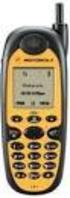 Motorola iden Digital Multi-Service Phone i700plus Phone User s Guide TTY Access TTY access is available on your phone. See the Wireless Data Services User s Guide for complete instructions. Large-Print
Samsung T199. User Manual Please read this manual before operating your phone and keep it for future reference. GH68_40686A Printed in Mexico
 Samsung T199 M O B I L E P H O N E User Manual Please read this manual before operating your phone and keep it for future reference. GH68_40686A Printed in Mexico Warning! This product contains chemicals
Back, start, and search key... 3. Lock the keys and screen... 6. Unlock the keys and screen... 7. Set the keys and screen to lock automatically...
 Userguide Nokia Lumia 620 Table of Contents Keys and parts... 3 Back, start, and search key... 3 How to Insert a SIM card... 4 First start-up... 6 Switching Phone ON and OFF... 6 Switch the phone on...
User Guide PUSH TO TALK PLUS. For Android
 User Guide PUSH TO TALK PLUS For Android PUSH TO TALK PLUS For Android Contents Introduction and Key Features...4 PTT+ Calling to Individuals and Groups...4 Supervisory Override...4 Real-Time Presence...4
Phone Guide. Sprint PCS Vision Phone C290 by Motorola. www.sprint.com
 Phone Guide Sprint PCS Vision Phone C290 by Motorola www.sprint.com 2006 Sprint Nextel. All rights reserved. SPRINT, the Going Forward logo, the NEXTEL name and logo, and other trademarks are trademarks
GLOBAL. The world s local mobile phone. Quick Start Guide
 GLOBAL The world s local mobile phone Quick Start Guide 1 SAR This mobile phone meets applicable national SAR limits of 2.0 W/Kg. The specific maximum SAR values can be found in the SAR information section
AVAYA 9608/9611G SIP DESKPHONE INSTRUCTIONS
 AVAYA 9608/9611G SIP DESKPHONE INSTRUCTIONS MESSAGE WAITING INDICATOR PHONE DISPLAY NAVIGATION ARROWS and the OK BUTTON PHONE BUTTON MESSAGE BUTTON CONTACTS HISTORY HOME HEADSET SPEAKER VOLUME BUTTON MUTE
User Guide. BlackBerry Storm 9530 Smartphone. Version: 4.7
 BlackBerry Storm 9530 Smartphone Version: 4.7 SWD-490426-0909090640-001 Contents Shortcuts... 9 BlackBerry basics shortcuts... 9 Phone shortcuts... 9 Camera shortcuts... 9 Media shortcuts... 9 Typing shortcuts...
AVAYA 9608 & 9611G IP DESKPHONE INSTRUCTIONS
 AVAYA 9608 & 9611G IP DESKPHONE INSTRUCTIONS 1 MESSAGE WAITING INDICATOR PHONE DISPLAY NAVIGATION ARROWS and the OK BUTTON PHONE BUTTON MESSAGE BUTTON CONTACTS HISTORY HOME HEADSET SPEAKER VOLUME BUTTON
V173 GSM. motorola.com
 V173 GSM motorola.com Welcome Welcome to the world of Motorola digital wireless communications! We are pleased that you have chosen the Motorola V173 wireless phone.. Earpiece Listen to your voice calls
Table of Contents. Unpacking... 7 For Your Safety... 8 Your Phone... 13. Getting Started... 17
 LG225 User Guide Table of Contents Unpacking... 7 For Your Safety... 8 Your Phone... 13 Phone Components... 13 Your Phone s Features... 14 Display Information... 15 Making a Call From the Contacts... 21
SPH-M270. User Guide Please read this manual before operating your phone and keep it for future reference
 SPH-M270 M O B I L E P H O N E User Guide Please read this manual before operating your phone and keep it for future reference Intellectual Property All Intellectual Property, as defined below, owned by
Avaya one-x Deskphone Edition for 9620 IP Telephone User Guide
 Avaya one-x Deskphone Edition for 9620 IP Telephone User Guide 16-300699 Issue 3 January 2007 Contents Contents Notices... 5 Introduction to the 9620 IP Telephone... 7 Overview... 7 About Scrolling and
WLAN660 Wireless IP Phone Administrator s Guide
 FEDERAL COMMUNICATIONS COMMISSION This device complies with Part 15 of the FCC Rules. Operation is subject to the following two conditions: (1) this device may not cause harmful interference, and (2) this
Avaya one-x Deskphone Edition for 9640 IP Telephone User Guide
 Avaya one-x Deskphone Edition for 9640 IP Telephone User Guide 16-600910 Issue 1 January 2007 Contents Contents Notices... 5 Introduction to the 9640 IP Telephone... 7 Overview... 7 About Scrolling and
How To Use Your Simsung Phone On A Simsung (Blackberry) On A Blackberry (Blackburn) On An Iphone Or Ipad (Blackford) On Simsunsung (Whiteberry) Or Black
 Samsung SGH-A157 M O B I L E P H O N E User Manual Please read this manual before operating your phone and keep it for future reference. GH68-36238A Printed in Mexico Intellectual Property All Intellectual
KYOCERA DuraPro. User Guide
 KYOCERA DuraPro User Guide Table of Contents Phone Basics... 7 Battery and Charger... 7 Battery Capacity... 7 Install the Battery... 7 Charge the Battery... 8 Remove the Battery... 8 Turn Your Phone On
How To Use A 9608 Phone On A Cell Phone On Sim Sims 2 (Satellite) On A Sims 3 (Cell Phone) On An Iphone Or Ipad Or Ipa 2 (Cellphone) On Sims 4
 AVAYA 9608 SIP DESKPHONE INSTRUCTIONS MESSAGE WAITING INDICATOR YOUR PHONE 9608 PHONE INSTRUCTIONS If there are messages in your Avaya Voice Mailbox, the light on the top right corner of your telephone
Instruction Manual. CORTELCO 2700 Single-Line / Multi-Feature Set
 1 Instruction Manual CORTELCO 2700 Single-Line / Multi-Feature Set Table of Contents Why VoiceManager SM with Cortelco Phones?... 2 Cortelco 2700 Set Features... 3 Telephone Set Part Identification...
Motorola C12A. Digital Cordless Telephone with Digital Answering Machine. For C1211A, C1212A, C1213A and C1214A
 Digital Cordless Telephone with Digital Answering Machine Motorola C12A For C1211A, C1212A, C1213A and C1214A Warning: Charge the handset for 24 hours before use. Welcome... to your new Motorola C12A Digital
 DO NOT RETURN THIS PRODUCT TO THE STORE! Please read the following important information For Siemens Customer Care, product operation information, or for problem resolution, call toll-free 1-888-777-0211
Electronic user s guide released subject to "Nokia User s Guides Terms and Conditions, 7th June, 1998" User s Guide
 Electronic user s guide released subject to "Nokia User s Guides Terms and Conditions, 7th June, 1998" User s Guide NOKIA and the Arrows logo are registered trademark of Nokia Corporation, Finland. 1996
User s Guide for Nokia 3530
 User s Guide for Nokia 3530 List of menu functions 1. Phone book 1. Search 2. Add name 3. Edit name 4. Delete 5. Copy 6. Add number 7. Settings 1. Memory in use 2. Phone book view 3. Memory status 8. Speed
Cisco IP Phone Models 7941 and 7945 Quick Reference Guide December 23, 2011
 Emergency Calls Dial 911 or 3 911 Cisco IP Phone Models 7941 and 7945 Quick Reference Guide December 23, 2011 Place a Call Lift handset (or press the Speaker button, the line button, or New Call soft key)
Avaya one-x Deskphone Edition for 9630/9630G IP Telephone User Guide
 Avaya one-x Deskphone Edition for 9630/9630G IP Telephone User Guide 16-300700 Issue 3 May 2007 Contents Contents Notices... 5 Introduction to the 9630/9630G IP Telephone... 7 Overview... 7 Scrolling and
Avaya 9400 Series Digital Deskphone User Guide for Avaya Aura Communication Manager
 Avaya 9400 Series Digital Deskphone User Guide for Avaya Aura Communication Manager 16-603535 Issue 1 August 2011 2011 Avaya Inc. All Rights Reserved. Notice While reasonable efforts have been made to
Z222 Mobile Phone User guide
 Z222 Mobile Phone User guide LEGAL INFORMATION Copyright 2013 ZTE CORPORATION. All rights reserved. No part of this publication may be excerpted, reproduced, translated or utilized in any form or by any
Polycom SoundPoint IP 650
 Polycom SoundPoint IP 650 User Guide For training/documentation, please visit us @ http://customertraining.verizonbusiness.com or call 1 800 662 1049 2009 Verizon. All Rights Reserved. The Verizon and
How To Use A Mitel 5340 Ip Phone
 silhouette Mitel IP Phone User Reference Guide Release 4.0 Final Contents Introduction...1 Setting your language...1 Setting your language for the web interface...1 Setting your language for the phone
Call Emergency Numbers... 21 Receive Phone Calls... 22 End Phone Calls... 24 Missed Call Notification... 25 Voicemail... 25 Set Up Voicemail...
 User Guide Table of Contents Phone Basics... 1 Battery and Charger... 1 Battery Capacity... 1 Install the Battery... 2 Charge the Battery... 3 Remove the Battery... 3 Insert the SIM Card... 4 Insert the
IP Phone System: Cisco 7960G and 7940G
 IP Phone System: Cisco 7960G and 7940G Table of Contents: IP Phone System 7940G and 7960G CISCO IP PHONE ROAD MAP...1 NAVIGATE THE PHONE SYSTEM AND USE THE LCD SCREEN...2 SOFT KEYS... 2 USE THE NAVIGATION
OfficeSuite Mitel IP Phone User Reference Guide Release 4.1
 OfficeSuite Mitel IP Phone User Reference Guide Release 4.1 2004-2009 Broadview Networks & Natural Convergence Inc. All rights reserved. Table of Contents TABLE OF CONTENTS...I INTRODUCTION...4 WHAT'S
466-1936 Rev E October 2004 ZZZ*(6HFXULW\FRP. Part No: 60-883-95R. CareGard. User Guide
 ) *(6HFXULW\ 466-1936 Rev E October 2004 ZZZ*(6HFXULW\FRP Part No: 60-883-95R CareGard User Guide FCC Notices FCC Part 15 Information to the User Changes or modifications not expressly approved by GE Security
Model 25423/24. 4-Line Intercom Speakerphone User s Guide. Quick Guide on Pgs. 7-14
 4-Line Intercom Speakerphone User s Guide Quick Guide on Pgs. 7-14 Please read this manual before operating product for the first time. Model 25423/24 Important Information Equipment Approval Information
Four-Line Intercom Speakerphone 944
 1 USER S MANUAL Part 2 Four-Line Intercom Speakerphone 944 Please also read Part 1 Important Product Information AT&T and the globe symbol are registered trademarks of AT&T Corp. licensed to Advanced American
SanDisk Connect Wireless Flash Drive QUICK START GUIDE
 SanDisk Connect Wireless Flash Drive QUICK START GUIDE GET STARTED 1. Charge your Wireless Drive Plug the Drive into a computer or USB-AC adaptor. A full charge can take up to 2 hours. 2) Turn on the
Sprint WeGo User Guide
 Sprint WeGo User Guide [UG template version 14a] [Sprint_OEM_S155_ug_en_140305_d1] i Table of Contents Get Started... 4 Your Phone at a Glance... 4 Set Up Your Phone... 5 Activate Your Phone... 8 Sprint
UniCom Enterprise Phone (Polycom CX600) User Guide
 UniCom Enterprise Phone (Polycom CX600) User Guide 1 6 What is UniCom Enterprise?...1 Frequently Used Make a Call...6 What is Microsoft Lync?...1 Call Functions Use Call Controls...7 Who can use UniCom
Using the Cisco IP Phone 7940/7960
 CHAPTER 3 Using the Cisco IP Phone 7940/7960 Your Cisco IP Phone 7940/7960 provides features you might not have had before on an office phone. You can learn how to use these features by exploring the available
Mitel IP Phone User Reference Guide Release 5.0
 830 Parkview Drive North, El Segundo, CA 90245 Tel: 310 747 3232 Fax: 310 747 3233 WWW.UNIVOIP.COM OfficeConnect Mitel IP Phone User Reference Guide Release 5.0 Note: The information contained in this
Polycom SoundPoint IP 550
 Polycom SoundPoint IP 550 User Guide For training/documentation, please visit us @ http://customertraining.verizonbusiness.com or call 1 800 662 1049 2009 Verizon. All Rights Reserved. The Verizon and
How To Use A U.S. Cell Phone At Home
 U.S. Cellular Home Phone 1 Contents Getting to Know Your Device...5 Appearance... 5 LED Indicators... 6 Device Installation...7 Before You Begin... 7 Installing the Battery... 7 Installing the Power Adapter...
User s Guide for Nokia 1108
 User s Guide for Nokia 1108 DECLARATION OF CONFORMITY We, NOKIA CORPORATION declare under our sole responsibility that the product Rh-18 is in conformity with the provisions of the following Council Directive:
How To Use A Sim Sim Sims 3.2 On A Cell Phone On A Pc Or Mac Or Ipa (For A Sims) On A Simmer (For An Ipa) Or Ipb (For Mac) On An Ip
 Telephone and Voice Mail Quick Reference Guide ADTRAN IP 712 and IP 706 Phones ADTRAN Polycom IP 650, IP 601, IP 501, and IP 430 Phones Table of Contents 4 5 6 10 15 16 17 19 20 21 22 Voice Mail Quick
Model No. KX-TGP500. Model No. KX-TGP550
 Panasonic Telephone Systems KX-TGP500/KX-TGP550 KX-TGP500, KXTGP500, TGP500, KX-TGP550, KXTGP550, TGP550 www.voicesonic.com Phone 877-289-2829 User Guide SIP Cordless Phone Model No. KX-TGP500 Model No.
User s Guide for Nokia 6510
 User s Guide for Nokia 6510 List of menu functions 1. Messages 1. Write message 2. Inbox 3. Outbox 4. Archive 5. Templates 6. My folders 7. Erase messages 8. Voice messages 9. Info messages 10.Service
2 Session buttons. 1 Phone Screen
 1 Phone Screen 2 Session buttons Shows information about your phone, including directory number (extension), call information (for example caller ID, icons for an active call or call on hold) and available
User s Guide EKT-824
 User s Guide EKT-824 The Communiqué Telephone Station Table of Contents Introduction 3 About This Guide 3 The Basics Answering and Making Calls 4 Answering an External Call 4 Answering an Internal Call
OfficeSuite Cloud-Based Phone System Mitel IP Phone User Reference Guide Release 5.0 Final
 OfficeSuite Cloud-Based Phone System Mitel IP Phone User Reference Guide Release 5.0 Final Note: The information contained in this document is the property of Broadview Networks Inc. and is disclosed to
Premium Design Phone with Smartphone Connect
 Smartphone Connect App Guide Premium Design Phone with Smartphone Connect Model No. KX-PRW130 Thank you for purchasing a Panasonic product. This document explains how to use the Smartphone Connect app.
TABLE OF CONTENTS YOUR PHONE 3
 TABLE OF CONTENTS 3 Front View Features 3 Bottom View 4 Side by Side View 5 Cool Apps 6 SIM Card 7 Memory Card 11 Battery 13 Power 15 Making a Call 16 Sending a Message 16 Home Screen 18 Ringtone 24 Volume
BT Freestyle 750. User Guide
 BT Freestyle 750 User Guide Welcome to your BT Freestyle 750 Digital Cordless Telephone Answering Machine Answering machine with up to 15 minutes digital recording time and helpful voice prompts. 50 Name
User Guide User Guide Guía del Usuario GH68-40578A Printed in USA
 User Guide M O B I L E P H O N E User Manual Please read this manual before operating your phone and keep it for future reference. GH68-40578A Printed in China Warning! This product contains chemicals
2011 ZTE CORPORATION.
 LEGAL INFORMATION Copyright 2011 ZTE CORPORATION. All rights reserved. No part of this publication may be quoted, reproduced, translated or used in any form or by any means, electronic or mechanical, including
4 Line Intercom Speakerphone User s Guide. Please read this manual before operating this product for the first time.
 4 Line Intercom Speakerphone User s Guide Please read this manual before operating this product for the first time. Model 25413/14 Important Information Equipment Approval Information Your telephone equipment
UK s best selling phone brand. Quick Set-up and User Guide. BT3510 Digital Cordless Phone with Answering Machine
 UK s best selling phone brand Quick Set-up and User Guide BT3510 Digital Cordless Phone with Answering Machine 2 Important please read first Only use the line cord, power supply and rechargeable batteries
TELEPHONE BUTTONS & ICONS TOUCHSCREEN OVERVIEW
 This Telephone Guide describes the various features available to you. Telephone Buttons and Icons describe the physical buttons and keys on the phone, the Touchscreen Overview outlines basic functions,
QUALCOMM Globalstar GSP-1600 Tri-Mode Phone User Guide
 QUALCOMM Globalstar GSP-1600 Tri-Mode Phone User Guide This guide is based on the production version of the QUALCOMM Globalstar GSP-1600 Tri-Mode. Software changes may have occurred after this printing.
User s manual. Corded telephone. w w w.v t e c h c a n a d a. c o m. Big Button Big Display. Model:CD1281 DIR CID
 User s manual w w w.v t e c h c a n a d a. c o m DIR CID Model:CD1281 Corded telephone Big Button Big Display Congratulations on purchasing your new VTech product. Before using this telephone, please read
VoIP Wireless Handset 7921 & 7925
 VoIP Wireless Handset 7921 & 7925 User Guide UCLA INFORMATION TECHNOLOGY SERVICES Introduction This guide covers the features that are available with the VoIP wireless telephone system. IT Services supports
User Manual. Vogue2.8-D6
 User Manual Vogue2.8-D6 S L E E C Index 1. iball Vogue2.8-D6...1 1.1 Phone Overview...1 1.2 Functions of Keys...2 2. Getting Started...3 2.1 Installing the SIM Cards and the Battery...3 2.2 Installing
Get started. All you need to know to get going.
 Get started All you need to know to get going. Welcome! Your Device Sprint is committed to developing technologies that give you the ability to get what you want when you want it, faster than ever before.
Model No. KX-TGP500. Model No. KX-TGP550
 User Guide SIP Cordless Phone Model No. KX-TGP500 Model No. KX-TGP550 Model shown is KX-TGP500. Model shown is KX-TGP550. Thank you for purchasing a Panasonic product. You can configure some of the features
Contents. Getting started 3 Make and receive the first call.
 Contents Getting started 3 Make and receive the first call. Getting to know your phone 6 Key functions, quick keys, entering letters and characters. Personalizing your phone 15 Choose ring signal, theme
Cisco VoIP 8961/9951/9971 Phones Reference Guide ICIT Technology Training and Advancement [email protected]
 Cisco VoIP 8961/9951/9971 Phones Reference Guide ICIT Technology Training and Advancement [email protected] Updated on 8/1/2014 TABLE OF CONTENTS Phone Overview... 4 Phone Terms... 5 Operating Your Phone...
Designed to block nuisance calls. Quick Set-up and User Guide. BT6500 Digital Cordless Phone with Answering Machine
 Designed to block nuisance calls Quick Set-up and User Guide BT6500 Digital Cordless Phone with Answering Machine 2 Important please read first Only use the line cord, power supply and rechargeable batteries
Four-Line Intercom Speakerphone 955
 1 USER S Revised: August 3, 2000 MANUAL Part 2 Four-Line Intercom Speakerphone 955 2000 Advanced American Telephones. All rights reserved. Printed in Indonesia. 850004037 Issue 1AT&T 8/00 Please also read
Available applications and services are subject to change at any time.
 Available applications and services are subject to change at any time. Table of Contents Get Started 1 Your Phone at a Glance 1 Set Up Your Phone 3 Activate Your Phone 3 Set Up Voicemail 4 Sprint Account
CISCO IP PHONE 6945 Series User Guide
 CISCO IP PHONE 6945 Series User Guide Notes Page 15 VOICE MAIL Setting up Voice Mail for the First Time: Press the messages key on your phone. Follow the recorded instruction to record your name, record
Cloud Voice Service Cisco Unified IP Phone 6921 User Guide. (Version 1.0)
 Cisco Unified IP Phone 6921 User Guide (Version 1.0) Table of Content 1 Phone Set Features and Functions... 3 1.1 Operation for IP Phone 6921... 3 2 Location of Control... 4 3 Preference Setup... 6 3.1
Thank you for choosing our mobile phone! Please read this manual before use.
 Thank you for choosing our mobile phone! Please read this manual before use. We reserve the right to upgrade the software and product and/or to make changes to this user manual without prior notice. from
Model 28871 DECT 6.0 Telephone/ Answering System with Cordless Handset User's Guide
 Model 28871 DECT 6.0 Telephone/ Answering System with Cordless Handset User's Guide Equipment Approval Information Your telephone equipment is approved for connection to the Public Switched Telephone Network
Android Mobile Phone User Manual
 Android Mobile Phone User Manual The manual is applicable for the Grand X mobile phone. Contents Let s get started... 1 Getting to know your phone... 2 Screen control... 2 Open and switch applications...
User s manual. TL92278/TL92328/TL92378 DECT 6.0 cordless telephone/answering system with BLUETOOTH wireless technology
 User s manual TL92278/TL92328/TL92378 DECT 6.0 cordless telephone/answering system with BLUETOOTH wireless technology Congratulations on your purchase of this AT&T product. Before using this AT&T product,
BUSINESS COMMUNICATIONS DIVISION. IP4100 SIP DECT User Guide
 BUSINESS COMMUNICATIONS DIVISION IP4100 SIP DECT User Guide TOSHIBA IP4100 DECT HANDSET END USER GUIDE FEATURES Toshiba IP4100 DECT Handset Features 2.0 inch colour TFT back-lit display Li-ion battery
PHONE USER 1 GUIDE. Morristown (MUS) Local Customer Calling FROM: Morristown (Area Code 423): 307, 317, 318, 522, 581, 585, 586, 587
 PHONE USER 1 GUIDE Local Calling Area Windstream has defined the following local calling area. All calls to these areas are included in your local monthly charge. Calls outside of this area will be billed
Polycom SoundPoint 320/321 Quick Guide
 Polycom SoundPoint 320/321 Quick Guide ISC Netwking & Telecommunications University of Pennsylvania October 2009, v2 Contents Features... 3 Phone Basics... 4 Making Calls... 4 Answering Calls... 4 Ending
ISDN 970 Telephone USER MANUAL. Copyright 1999 Lucent Technologies Inc. All rights reserved. Printed in Mexico. Issue L3 847937794
 ISDN 970 Telephone USER MANUAL Copyright 1999 Lucent Technologies Inc. All rights reserved. Printed in Mexico. Issue L3 847937794 Table of Contents ABOUT ISDN... 3 ISDN TERMS... 3 A GUIDE TO THIS MANUAL...
Quick Start Guide: Iridium GO! Advanced Portal
 Quick Start Guide: Iridium GO! Advanced Portal Contents Set-Up... 3 Overview... 4 Main Tab 1: General... 5 Status.... 5 Settings... 8 Audio.... 8 GPS.... 9 Tab 2: Communication... 9 Wi-Fi... 9 Satellite...
BT Synergy 5500 User Guide
 BT Synergy 5500 User Guide Welcome to your BT Synergy 5500 Digital Cordless Telephone Answering Machine Display with blue backlight. 250 Name and number phonebook. Copy phonebook entries between other
OmniPCX Enterprise. Easy Reflexes TM. Quick Guide
 OmniPCX Enterprise Easy Reflexes TM Quick Guide User Guide Easy REFLEXESÔ Alcatel OmniPCXÔ 4400 Your Easy REFLEXESÔ terminal provides simple and quick access to all the services and features offered by