
HP 54710A, 54710D, 54720A and 54720D Oscilloscopes
|
|
|
- Jesse Allen
- 10 years ago
- Views:
Transcription
1 User s Reference Publication number First edition, October 1995 This book applies directly to firmware revision 4.XX. For Safety information, Warranties, and Regulatory information, see the pages behind the index Copyright Hewlett-Packard Company All Rights Reserved HP 54710A, 54710D, 54720A and 54720D Oscilloscopes

2 Notice Hewlett-Packard to Agilent Technologies Transition This manual may contain references to HP or Hewlett-Packard. Please note that Hewlett- Packard s former test and measurement, semiconductor products and chemical analysis businesses are now part of Agilent Technologies. To reduce potential confusion, the only change to product numbers and names has been in the company name prefix: where a product name/number was HP XXXX the current name/number is now Agilent XXXX. For example, model number HP8648 is now model number Agilent Contacting Agilent Sales and Service Offices The sales and service contact information in this manual may be out of date. The latest service and contact information for your location can be found on the Web at: If you do not have access to the Internet, contact your field engineer or the nearest sales and service office listed below. In any correspondence or telephone conversation, refer to your instrument by its model number and full serial number. United States (tel) (fax) Canada (tel) (fax) Europe (tel) (31 20) (fax) (31 20) Latin America (tel) (305) (fax) (305) Japan (tel) (81) (fax) (81) Australia (tel) (fax) (61 3) New Zealand (tel) (fax) Asia Pacific (tel) (852) (fax) (852) Printed in USA July 2004

3 HP 54710A, 54710D, 54720A, and 54720D Oscilloscopes The HP is a modular, high-performance oscilloscope that contains four data acquisition systems behind each of four plug-in slots. Each plug-in slot provides 8 bits, 2-GSa/s maximum sample rate, 16K maximum acquisition memory on the A models and 64K maximum acquistion memory on the D models, and up to 1.5-GHz bandwidth (depending on the plug-in you are using). A two-wide plug-in, like the HP 54721A, uses two slots which allows a maximum sample rate of 4 GSa/s and a maximum acquisition memory of 32K in the A models and 128K in the D models. A four-wide plug-in, like the HP 54722A, uses four slots which allows a maximum sample rate of 8 GSa/s and a maximum acquisition memory of 64K in the 54720A and 256K in the 54720D. The HP also has firmware modularity by having a 3-1/2 inch disk drive and flash ROMs, which allows for upgrades of the system firmware features in the oscilloscope. The plug-ins provide analog signal conditioning for the A/D converters that are inside the mainframe. This performance and flexibility provide you with the most accurate analysis of single-shot phenomena found in any laboratory oscilloscope. The HP gives you the same performance as the HP 54720, except that it has two acquisition systems. This oscilloscope has many powerful features, and each of them is described in this book. Your key to unlocking the power of the oscilloscope depends how you combine its features for your application, and your knowledge of how each feature effects the operation of the oscilloscope. All calibration and repair information is contained in the Service Guide, and all programming information is contained in the Programmer s Reference. ii

4 Accessories Supplied The following accessories are supplied with the oscilloscope. This User s Reference One Programmer s Reference One Service Guide One 2.3 meter (7.5 feet) power cord See Also The Service Guide for available power cords. Accessories Available The following accessories are available for use with the oscilloscope. CAUTION Make sure you use the correct length screw to rackmount the oscilloscope. If you use a screw that is too short, it may not hold the oscilloscope safely in the rack. If you use a screw that is too long, it can damage the oscilloscope. HP (Opt 907) Rackmount kit, handles only. Includes M4 X 0.7 X 12 mm flat-head screws, HP part number HP (Opt 908) Rackmount kit, ears only. Includes M4 X 0.7 X 14 mm flat-head screws, HP part number HP (Opt 909) Rackmount kit with ears and handles. Includes M4 X 0.7 X 20 mm flat-head screws, HP part number HP (Opt 002) Training kit including a PC board, training guide, and power supply HP 10087A HP 54710A to HP 54720A upgrade service HP 54701A 2.5-GHz active probe HP 54006A 6-GHz passive probe HP 10430A 500-MHz 6.5-pF passive probe HP 10441A 500-MHz 9-pF passive probe HP 1141A 200-MHz differential probe HP 1142A Power supply for HP 1141A Probe iii

5 In This Book This book consists of 24 chapters, a glossary, and an index. Most of the chapters describe the various menus in the oscilloscope. These chapters contain the word "Menu" as part of their title. For example, "Acquisition Menu" discusses the various softkey menus that come up on the display when you press the Acquisition hardkey on the front panel. The remaining chapters contain additional information about the oscilloscope. For example, "Measurements" discusses how the oscilloscope calculates the measurement results when you select an automatic measurement. You will find it easier to use this reference book if you are at least a little familiar with how to use the front panel. The best way to learn how to use the front panel is by reading the User s Quick Start Guide that is supplied with the oscilloscope. iv

6 1 How the Oscilloscope Works 2 Front Panel Features 3 Acquisition Menu 4 Applications 5 Calibration Overview 6 Channel Menu 7 Define Measure Menu 8 Disk Menu 9 Display Menu 10 Messages 11 Marker Menu 12 Math Menu 13 Measurements 14 Setup v

7 vi

8 Setup Print Menu Specifications and Characteristics Time Base Menu 18 Trigger Menu 19 Utility Menu 20 Waveform Menu 21 FFT Menu 22 Limit Test Menu 23 Mask Menu 24 Histogram Menu Glossary Index vii

9 viii

10 Contents 1 How the Oscilloscope Works Hardware Architecture 1 10 Data Flow 1 15 Sampling Overview 1 18 Choosing Plug-ins 1 24 Choosing Probes 1 27 System Bandwidth Front-Panel Features Autoscale Key 2 3 Clear Display Key 2 3 Display 2 4 Entry Devices 2 7 Fine Mode 2 8 Help Menu 2 9 Indicator Lights 2 10 Local Key 2 12 Run Key 2 13 Stop/Single Key Acquisition Menu Sampling Mode 3 4 Digital BW Limit 3 6 Interpolate 3 6 Sampling Rate 3 12 Record Length 3 14 Averaging 3 19 Completion Applications Contents 1

11 Contents 5 Calibration Overview Mainframe Calibration 5 3 Plug-in Calibration 5 4 Normal Accuracy Calibration Level 5 5 Best Accuracy Calibration Level 5 6 Probe Calibration Channel Menu Display 6 4 Scale 6 5 Offset 6 6 Input 6 6 Probe 6 7 Calibrate Define Measure Menu Define Measure Menu 7 2 Thresholds 7 4 Top-Base 7 6 Define time 7 8 Statistics Disk Menu Disk Menu 8 2 Directory 8 3 Load 8 5 Store 8 6 Delete 8 8 Format 8 9 Type 8 10 File Format 8 12 From File, To File, or File Name 8 20 To Memory 8 21 Contents 2

12 Contents 9 Display Menu Persistence 9 3 Color Grade Display 9 5 Draw Waveform 9 6 Graticule 9 10 Label 9 13 Color Messages 11 Marker Menu Off 11 3 Manual 11 3 Waveform 11 5 Measurement 11 7 Histogram 11 8 Marker Hints Math Menu Function 12 3 Define Function 12 4 Display 12 7 Contents 3

13 Contents 13 Measurements The Oscilloscope Waveform Measurement Process The Process Starts With Data Collection Then the System Builds a Histogram The System Calculates Min and Max From the Data Record Then It Calculates Top and Base Thresholds Are the Next Values Calculated Finally, Rising and Falling Edges are Determined Standard Waveform Definitions Voltage Measurements Timing Definitions Some Important Measurement Considerations Making Automatic Measurements from the Front Panel Increasing the accuracy of your measurements Measuring time intervals Statistics Time-interval measurements Setup Menu Setup Memory 14 3 Save 14 3 Recall 14 4 Default Setup Setup Print Menu Print Format 15 4 Destination 15 6 Data 15 8 Setup Factors 15 8 TIFF and GIF files on the Apple Macintosh Computer 15 9 Contents 4

14 Contents 16 Specifications and Characteristics Specifications 16 3 Characteristics 16 4 Product Support 16 9 General Characteristics Time Base Menu Scale 17 3 Position 17 3 Reference 17 4 Windowing Trigger Menu Trigger Basics 18 4 Sweep 18 6 Mode 18 7 Source Level Slope Holdoff and Conditioning Utility Menu HP-IB Setup 19 3 System Configuration 19 4 Calibrate Self-Test Firmware Support Service Waveform Menu Waveform 20 3 Pixel 20 6 Contents 5

15 Contents 21 FFT Menu Display 21 3 Source 21 3 Window 21 3 FFT Scaling 21 4 FFTs and Automatic Measurements 21 8 FFT Basics Limit Test Menu Test 22 4 Measurement 22 4 Fail When 22 5 Upper Limit 22 7 Lower Limit 22 7 Run Until 22 7 Fail Action Mask Menu Polygon Masks in the Oscilloscope 23 4 Test 23 6 Scale mask 23 7 Edit Mask 23 9 Run Until Fail Action Histogram Menu Histograms in the oscilloscope 24 3 Mode 24 6 Axis 24 6 Histogram Window 24 7 Histogram Scale 24 8 Run Until Contents 6

16 Contents Glossary Index Contents 7

17 Contents 8

18 1 Hardware Architecture 1 3 Data Flow 1 8 Sampling Overview 1 11 Choosing Plug-ins 1 17 Choosing Probes 1 20 System Bandwidth 1 25 How the Oscilloscope Works

19 How the Oscilloscope Works This chapter gives you a brief overview of how the oscilloscope functions. This chapter is not intended for troubleshooting purposes, but rather to give you an idea of the basic hardware inside the oscilloscope, so you can make better decisions about configuring the oscilloscope when you are making measurements. The following topics are discussed: Hardware Architecture Data Flow Sampling Overview Choosing Plug-ins Choosing Probes System Bandwidth 1 2

20 How the Oscilloscope Works Hardware Architecture Hardware Architecture This is a high-level look at the internal hardware of the oscilloscope. You will find a complete block diagram of the oscilloscope in the Service Guide that is supplied with the oscilloscope. Figure 1-1 is a functional block diagram of the hardware in the oscilloscope. Figure

21 How the Oscilloscope Works Hardware Architecture Hybrid Behind each plug-in slot in the mainframe is a hybrid. The hybrid contains the following: A quad, 500-MSa/s, 2-GHz bandwidth, bipolar, sampling IC Four, 6th order, low-pass, thickfilm, IF filters Two, dual, 500 MSa/s, bipolar, ADC ICs Two, dual, 4K, FISO, memory ICs. The signal is sampled by the 500-MSa/s sampler, converted to a digital signal, and then stored into the 4K FISO (fast-in-slow-out) memory. In the real-time sampling mode the four 500-MSa/s sampling paths are interleaved to achieve a 2-GSa/s sampling rate with 16K of memory behind each plug-in slot on the A model mainframes (64K on the D model mainframes). However, the HP 54721A plug-in, for example, uses two slots which interleaves two hybrids in time to give you a 4-GSa/s sample rate and 32K (128K on the D models) of memory. The HP 54722A plug-in uses four slots which interleaves four hybrids in time to give you 8-GSa/s sample rate and 64K (256K on the D models) of memory. In the equivalent-time sampling mode, the 500-MSa/s samplers are synchronized and the voltage reference of the ADCs is shifted in voltage by one-quarter of a least significant bit to achieve higher vertical resolution. This process results in 500 MSa/s and 16K (64K on the D models) of memory behind each plug-in slot. In this mode, the HP 54721A plug-in, for example, gives you a 500-MSa/s sample rate and 32K (256K on the D models) of memory. When viewing a signal that happens either once or infrequently, the preferred acquisition mode is the real-time sampling mode because the higher sampling rate gives a higher single-shot bandwidth. When viewing signals that occur repetitively, the equivalent-time sampling mode is the preferred choice because of the higher system bandwidth and vertical resolution. 1 4
22 How the Oscilloscope Works Hardware Architecture Plug-in The plug-in is for analog signal conditioning. The plug-in scales the input signal, sets the bandwidth of the system, and allows you to choose the input coupling and input impedance. One output of the plug-in is an analog signal that is applied to the hybrid on the acquisition board inside of the mainframe, another output is a trigger signal that is sent to the time base/trigger board. CAL Table The CAL table automatically adds the calibration factors to the sampled data. The result is referred to as adjusted data, and it is sent to the system bus. The CAL table increases the throughput of the oscilloscope because the CPU now reads calibrated data, and does not have to explicitly correct it. This is faster than using a software solution. Microprocessors and coprocessors There are two 32-bit microprocessors, one 32-bit coprocessor, and one 16-bit coprocessor in the mainframe. Motorola A 32-bit microprocessor that controls the system hardware, and also acts as a traffic controller on the system bus. Motorola A 32-bit coprocessor that performs all of the floating point math. TMS34010 A 32-bit microprocessor that draws data on the display. HP custom graphics coprocessor A 16-bit coprocessor that controls the gray scale persistence mode, and also writes blocks of data (like the markers and display background) to the display. 1 5
23 How the Oscilloscope Works Hardware Architecture Host RAM The host RAM is 4 Mbytes of nonvolatile RAM. This is where the waveform data is held and manipulated. In addition, this is the location of the current front-panel setup, setup memories, and waveform memories. Flash ROM The flash ROM contains the system firmware that controls the operation of the oscilloscope. You can load new system firmware into the oscilloscope by using the disk drive. Disk Drive The disk drive is a 3-1/2 inch, high-density, MS-DOS compatible disk drive. You can use the disk drive to load system firmware into the flash ROMs, load applications, save screen dumps in a TIFF, GIF, or PCX format, or as additional storage space for saving waveforms and front-panel setups. User Interface Hardware The user interface hardware is the keyboard, and the hardware that interfaces the keyboard and knob with the system bus. FIFO and HP-IB Hardware The FIFO is a first-in-first-out memory that transfers waveforms through the HP-IB bus under hardware control. This hardware control is much faster than the software control used by other oscilloscopes. The FIFO increases the HP-IB throughput of the oscilloscope. MS-DOS is a US registered trademark of Microsoft Corporation. 1 6
24 How the Oscilloscope Works Hardware Architecture Centronics Port The Centronics port is a parallel connector for printers that are compatible with the Centronics interface. High-Speed Port The high-speed port feature is not implemented at this time. Video RAM This is 1 MByte of fast video RAM for storing the display image. The video RAM also contains the pixel memory. Display The display is a 9-inch, high-resolution, color display. See Also "Display" in Chapter 2 for additional details. 1 7
25 How the Oscilloscope Works Data Flow Data Flow The data flow gives you an idea of where the measurements are made on the acquired data, and when the post acquisition signal processing is applied to the data. Figure 1-2 is a data flow diagram of the oscilloscope. The diagram is laid out serially to give you a visual perception of how the data is affected by the oscilloscope. Figure
26 How the Oscilloscope Works Data Flow The digitizer samples the applied signal and converts it to a digital signal. The FISO holds the data until the system bus is ready for the data. The output of the FISO is used as an address to the calibration read-through table (cal table). The cal table automatically applies the calibration factors to the data. In the real-time sampling mode, the calibrated data is stored in the channel memories before any of the postprocessing is performed. Postprocessing includes turning on or off the digital bandwidth limit filter or the interpolator, calculating functions, storing data to the waveform memories, transferring data over the HP-IB bus, or transferring data to and from the disk. Notice that the measurements are performed on the real-time data after it has gone through postprocessing. Therefore, you can make measurements on the data, and you can turn on or off digital bandwidth limit or interpolation without having to reacquire the data. This is important because the real-time sampling mode is primarily used on events that happen either once or infrequently, and reacquiring the data may not be one of your options. Also, turning on interpolation usually improves the repeatability of your measurements. The equivalent-time sampling mode is slightly different. Notice that averaging is turned on or off before the data is stored in the channel memories. That means once the data is acquired, if you need to turn averaging on or off before making any measurements, you must reacquire the data. However, because the equivalent-time sampling mode is primarily used on repetitive signals, you should be able to reacquire the data. 1 9
27 How the Oscilloscope Works Data Flow Also, you may notice that postprocessing the data in the equivalent-time signal path includes calculating functions, storing data to the waveform memories, transferring data over the HP-IB bus, or transferring data to and from the disk. After the measurements are performed, the data is sent through the display portion of the oscilloscope. Notice that connected dots is a display feature, and that it has no influence on the measurement results. The pixel memory is also part of the video RAM, which is past the point where the measurements are performed on the data. Therefore, you cannot make measurements on data in the pixel memory. But, you can make measurements on data stored to the waveform memories. 1 10
28 How the Oscilloscope Works Sampling Overview Sampling Overview This gives you a brief overview of sampling. For more details on sampling techniques, refer to Feeling Comfortable with Digitizing Oscilloscopes that is supplied with your oscilloscope. You can also get a copy of HP product note 54720A-1, Bandwidth and Sampling Rate in Digitizing Oscilloscopes, by contacting you nearest Hewlett-Packard Sales Office or by calling the Hewlett-Packard Customer Information Center at Real-time sampling In the real-time sampling mode, all of the data is acquired from one time base sweep. As with any digitizing oscilloscope, the more data that is acquired, the better the oscilloscope can reproduce the waveform on the display. Therefore, this sampling mode has a maximum sampling rate of 2-GSa/s on each plug-in slot. A two-wide plug-in, like the HP 54721A, uses two plug-in slots for a maximum sampling rate of 4 GSa/s. A four wide plug-in, like the HP 54722A, uses four plug-in slots for a maximum sampling rate of 8 GSa/s. Also, this sampling mode is typically used on signals that happen either once or infrequently. Because you may have only one chance to capture the data, you will want to use the maximum sampling rate available. A simple fact of real-time sampling is that the higher the sampling rate relative to the bandwidth of the signal, the better the oscilloscope can reconstruct the signal. The oscilloscope can best reproduce signals when the sample rate is about four times or greater than the highest frequency components in the signal. That is why the HP 54713A plug-in has a 500-MHz bandwidth. It uses one slot, and one-fourth of 2 GSa/s is 500 MHz. The HP 54721A plug-in has a bandwidth of about 1 GHz because it uses two slots, and one-fourth of 4 GSa/s is 1 GHz. 1 11
29 How the Oscilloscope Works Sampling Overview Figure 1-3 shows a 489-ps pulse sampled at 1 GSa/s. You may notice that there are ten different acquisitions. From the picture in figure 1-3, it is difficult to get a sense of what the signal looks like. Any of the ten traces, or none of them, may represent the signal. You can say that the signal in figure 1-3 is undersampled because not enough data was acquired on each time base sweep for the oscilloscope to accurately reconstruct the waveform on the display. Also notice the measurement results at the bottom of the picture. The question marks indicate that there was insufficient data to make the measurements. Figure
30 How the Oscilloscope Works Sampling Overview Figure 1-4 shows the same 489-ps pulse sampled at 2 GSa/s. Notice that ten acquisitions were taken again. This time you have a better sense of what the signal looks like. However, there are still enough differences among each of the ten waveforms that you can say the signal is undersampled. Notice that figure 1-4 gives you more information about the signal than figure 1-3. The oscilloscope has enough data to make the measurements, but the statistics results show that there is a wide variation in the measurement results. Figure
31 How the Oscilloscope Works Sampling Overview Figure 1-5 shows the same 489-ps pulse sampled at 4 GSa/s. You cannot tell from the picture, but there are still ten acquisitions. Notice that the oscilloscope now acquires enough data on each acquisition so that it can more faithfully reconstruct the signal. Also notice that the statistics results indicate that the measurements are much more repeatable. Use the real-time sampling mode when: The signal occurs once or infrequently. The sample rate is four times or greater than the highest frequency components (that you are interested in) in the signal. Figure
32 How the Oscilloscope Works Sampling Overview Equivalent-time sampling The equivalent-time sampling mode is typically used on repetitive signals, which allows the oscilloscope to acquire data continuously. The sample rate is 500 MSa/s, but the data from many acquisitions are interleaved, which results in a much higher effective sample rate. You can still use the equivalent-time sampling mode for single-shot applications. Because the interpolation filter is not available in the equivalent-time mode, the maximum single-shot frequency you can reasonably view and also avoid aliasing is about one-tenth the sample rate, or 50 MHz. The HP 54711A and HP 54712A plug-ins are best suited for equivalent-time sampling because they allow access to the highest system bandwidths. 1 15
33 How the Oscilloscope Works Sampling Overview Figure 1-6 shows the same 489-ps pulse as figure 1-4. Because the signal is repetitive, the sampling mode was changed from real time to equivalent time. You may notice how the increased system bandwidth and higher effective sample rate results in excellent reconstruction of the signal. Compare the similarity between figures 1-5 and 1-6. Also notice that the statistical results indicate very repeatable measurement results. Use the equivalent-time sampling mode when: The signal is repetitive. The signal contains frequency components, that you are interested in, greater than one-fourth maximum the sample rate of the oscilloscope. Figure
34 How the Oscilloscope Works Choosing Plug-ins Choosing Plug-ins The accuracy of your measurement results depends on the configuration of your oscilloscope system. Part of the configuration is knowing how to set up the various menus that are described in this book for your application. The rest of the configuration is comprised of choosing the plug-ins and probes to use for the measurement. There are several plug-ins available for the oscilloscopes, and you need to pick the plug-in that best matches your application. When picking a plug-in, you also need to think about the rise time of the oscilloscope compared to the rise time of the signal you are measuring. The oscilloscope rise time is about: Scope Rise Time = 0.35 Bandwidth To obtain a rise time measurement accuracy of 5 percent, the rise time of the oscilloscope should be one-third the rise time of the signal you are measuring. To obtain a rise time measurement accuracy of 1 percent, the rise time of the oscilloscope should be one-seventh the rise time of the signal you are measuring. The measured rise time is about: Measured Rise Time = Actual Rise Time 2 + Scope Rise Time 2 See Also "Choosing Probes" later in this chapter for information on selecting the correct probe for your application. 1 17
35 How the Oscilloscope Works Choosing Plug-ins Table 1-1 shows the common characteristics for the channel plug-ins. Table 1-1 Characteristic HP 54711A HP 54712A HP 54713B HP 54714A HP 54721A HP 54722A Sample Rate 2 GSa/s 2 GSa/s 2 GSa/s 2 GSa/s 4 GSa/s 8 GSa/s Bandwidth in A models 1.5-GHz 1.1-GHz 500-MHz 400-MHz 1.1-GHz 1.5-GHz in D models 2.0-GHz 1.1-GHz 500-MHz 400-MHz 1.1-GHz 2.0-GHz Channels Memory depth in A models 16K 16K 16K 8K/chan 32K 64K in D models 64K 64K 64K 32K/chan 128K 256K Trigger Ext. (2.5-GHz) Internal Internal Internal Internal/Ext. Ext. (2.5-GHz) Logic trigger No Yes Yes Yes Yes Yes Max. Sensitivity 20 mv/div 10 mv/div 7 mv/div 7 mv/div 10 mv/div 80 mv/div * (with software 2 mv/div 1 mv/div 1 mv/div 1 mv/div 1 mv/div 8 mv/div expansion) Input resistance 50 Ω 50 Ω 1 M Ω/50 Ω 1 M Ω/50 Ω 50 Ω 50 Ω Slots used *The standard sequence in the 54722A plug-in, which is selected by the mainframe s front-panel knob, does not correspond exactly to the attenuator ratios in the hardware. Refer to the HP 54722A Attenuator Plug-in User s Reference for more information about the attenuator ranges. Use the HP 54711A plug-in when: The signal is repetitive, and you are using the equivalent-time sampling mode. You need high equivalent-time bandwidth. You can use external triggering, and you need high trigger bandwidth. You can give up logic triggering. Use the HP 54712A plug-in when: The signal is repetitive, and you are using the equivalent-time sampling mode. The signal happens once or infrequently, you are using the real-time sampling mode, and the input signal does not contain any frequency components above 500 MHz. You need internal triggering. 1 18
36 How the Oscilloscope Works Choosing Plug-ins Use the HP 54713B plug-in when: The signal happens once or infrequently, and you are using the real-time sampling mode. Your application requires only 500-MHz bandwidth, (rise time is slower than 2.1 ns) and you need more than 2 channels. You application requires a 1 MΩ input because you are using a passive-compensated divider probe. Use the HP 54714A plug-in when: Your application requires up to 8 channels. Use the HP 54721A plug-in when: The signal happens once or infrequently, and you are using the real-time sampling mode. You need the 1.1-GHz real-time bandwidth (rise time is slower than 1 ns). You need the 4-GSa/s sample rate. You need 32K memory depth. Use the HP 54722A plug-in when: The signal happens once or infrequently, and you are using the real-time sampling mode. You require the 8-GSa/s sample rate. You need high, real-time bandwidth. Your application requires high trigger bandwidth, and you can use external triggering. 1 19
37 How the Oscilloscope Works Choosing Probes Choosing Probes Two problems arise when you use a probe to connect an oscilloscope to a circuit. First, the probe degrades the circuit under test. The new circuit behaves differently than does the circuit without the probe. The behavior you see is the behavior of the circuit with the probe. Second, the transfer function of the probe is part of the overall measurement system response, degrading measurement accuracy. Figure 1-7 The probe is a part of the circuit under test Suppose that you are trying to debug an intermittent failure in a state machine that is implemented in high-speed CMOS logic. You know that you need a high-performance digitizing oscilloscope, but you don t know which probe gives the best results. There are two major factors influencing probe selection: the load the probe imposes on the circuit, and the required bandwidth of the circuit with the probe. 1 20
38 How the Oscilloscope Works Choosing Probes Probe Loading Figure 1-8 shows a simplified diagram of the circuit with the probe attached to indicate the principal loading effects. The probe load has both resistive and capacitive components. In addition to this, the inductance in the probe ground lead can cause ringing. Figure 1-8 Simplified equivalent circuit of DUT and probe 1 21
39 How the Oscilloscope Works Choosing Probes The resistance of the probe to ground forms a divider network with the source resistance of the circuit under test. This reduces the signal amplitude and the dc offset. For example, if the probe s resistance is 9 times the Thevenin output resistance of the circuit under test, the amplitude is reduced by about 10 percent. See figure 1-9. The frequency-independent amplitude errors and dc offset errors introduced by probe resistive loading are approximately proportional to the ratio of the probe s resistance to ground and the equivalent output resistance of the circuit under test. Figure 1-9 Reduced amplitude and dc offset caused by probe loading 1 22
40 How the Oscilloscope Works Choosing Probes The capacitance of the probe tip to ground forms an RC circuit with the output resistance of the circuit under test. The time constant of this RC circuit slows the rise time of any transitions, increases the slew rate, and introduces delay in the actual time of transitions. The approximate rise time of a simple RC circuit is 2.2 RC. Thus, for an output resistance of 100 Ω and a probe tip capacitance of 8 pf, the real rise time at the node under test cannot be faster than approximately 1.8 ns. Although, it might be faster without the probe. If the output of the circuit under test is current-limited (as is often the case for CMOS), the slew rate is limited by the relationship dv/dt = I/C. See figure Figure 1-10 Effects of probe capacitance 1 23
41 How the Oscilloscope Works Choosing Probes Perhaps you have connected an oscilloscope to a circuit for troubleshooting only to have the circuit operate correctly after connecting the probes. The capacitive loading of the probes can attenuate a glitch, remove ringing or overshoot, or slow an edge just enough that a setup or hold time violation no longer occurs. The inductance of the probe ground lead forms an LC circuit with the probe s capacitance and the output capacitance of the circuit under test, including any parasitic capacitance of PC board traces, and so on. The ringing frequency of this circuit is: F = 1 2 π LC If the rise time of the signal is sufficient to stimulate this ringing, then it can appear as part of the captured signal. An approximation of the bandwidth of the signal is: Signal Bandwidth = 0.35 Signal Rise Time To calculate the ringing frequency, you can assume that the probe ground wire has an inductance of approximately 25 nh per inch. So, a probe with a tip capacitance of 8 pf and a 4-inch ground wire has a ringing frequency of approximately 178 MHz (not considering the circuit capacitance). Here, a signal with a rise time of less than 1.9 ns can stimulate ringing. 1 24
42 How the Oscilloscope Works System Bandwidth System Bandwidth The bandwidth of the combined oscilloscope and probe system must be sufficient to accurately reproduce the input signal. Otherwise, time-interval measurements are inaccurate. For example, if the oscilloscope and probe have a combined rise time of 1 ns, and the signal also has a 1-ns rise time, the measured rise time is: (1 ns ) 2 + (1 ns) 2 = 1.41 ns The answer is in error by 41 percent. If the oscilloscope and probe have a combined rise time of 330 ps, and the signal has a 1-ns rise time, the measured rise time is: (1 ns ) 2 + (330 ps) 2 = 1.05 ns Now the error is only 5 percent. There are three rules worth memorizing. First, the combined system rise time (oscilloscope and probe) should be less than 1/3 the rise time of the measured signal for an error of less than 5 percent, or less than 1/7 of the rise time of the measure signal for an error of less than 1 percent. Second, rise time and bandwidth are inversely related as shown in equations 5 and 6. Third, rise times add approximately as the square root of the sum of the squares. For example, if the oscilloscope and the probe each have 1-GHz bandwidths, the combined bandwidth is approximately 707 MHz and the combined rise time is approximately 495 ps. Therefore this combination could be used confidently to measure actual signal rise times of 1.5 ns with less than 5 percent error, or 3.5 ns with less than 1 percent error. 1 25
43 How the Oscilloscope Works System Bandwidth Probe Types There are three common types of oscilloscope probes. Each type has different loading effects. First, there is the low-impedance resistive divider probe, like the HP 54006A. Second, is the compensated, high-resistance passive divider probe, like the HP 10430A. Third, there is the active probe, like the HP 54701A. Resistive Divider Probes Resistive divider probes are designed for oscilloscopes with a 50-Ω input impedance. The tip of the probe has a 450-Ω or 950-Ω series resistor. The cable is designed for a 50-Ω transmission line. Because the cable is terminated in 50 Ω at the oscilloscope input, it looks like a purely resistive 50-Ω load when viewed from the tip. Therefore the resistive divider is flat over a wide range of frequencies, limited primarily by the parasitic capacitance and inductance of the 450-Ω or 950-Ω resistor and the fixture that holds it. The input resistance of the probe to the circuit under test is either 500 Ω or 1 kω. Figure 1-11 Resistive divider probe 1 26
44 How the Oscilloscope Works System Bandwidth Because of the physical geometry of this type of probe and because the divider does not have to be capacitively compensated, this type of probe has the lowest capacitive loading of any probe. This low capacitance and its inherent wide bandwidth make it best suited for wide bandwidth measurements or those measurements where timing is the most critical parameter. The disadvantage of this type of probe is its relatively heavy resistive loading. Not all circuits can drive 500 Ω or 1 kω. Even for measurements in a relatively low impedance circuit, the amplitude errors can be significant. Changes in bias levels or operating current in the circuit under test might affect the circuit s behavior. This type of probe is the best choice for minimum disturbance probing of ECL circuits and 50-Ω transmission lines. The 1-kΩ divider probes are also usually suitable for high-speed CMOS circuits. If you are interested in troubleshooting CMOS, consult the data sheet for the particular CMOS part to make sure that it can drive a 1-kΩ load and to determine what the voltage error would be. Compensated Passive Divider Probes This is the most common type of oscilloscope probe. The 900-kΩ resistor in the tip forms a 10:1 voltage divider with a 111-kΩ resistor in parallel with the 1-MΩ input resistance of the oscilloscope. Some versions use a 9-MΩ resistor at the tip; the oscilloscope s input resistance forms the other part of the voltage divider. 1 27
45 How the Oscilloscope Works System Bandwidth To have a flat frequency response, the voltage divider must be compensated for the capacitance of the cable and the oscilloscope or logic analyzer s input capacitance. One of the compensating capacitors is made adjustable so you can optimize the step response flatness because the input capacitance of the oscilloscope is unknown. The HP 54720A provides a square wave at the calibrator output for this purpose. Figure 1-12 Compensated passive divider probe 1 28
46 How the Oscilloscope Works System Bandwidth Not all 1-MΩ divider probes work with all 1-MΩ oscilloscope inputs. The probe data sheet shows the range of oscilloscope input capacitance it can accommodate. You must make sure that the input capacitance of the oscilloscope is within that range. The advantage of this type of probe is that it has the highest resistance. Its disadvantages are that it has the highest capacitive loading and the lowest bandwidth. At 2 MHz, the impedance of an 8-pF capacitance is 10 kω, and at 100 MHz it is only 200 Ω. This type of probe is often referred to as a "high impedance" probe. This is a misnomer because they exhibit high impedance only at relatively low frequencies. Figure 1-13 shows a plot of the impedance of a typical 1-MΩ, 8-pF probe as a function of frequency. Some applications where 1-MΩ (or higher) probes are appropriate include high-impedance nodes ( 10-kΩ), and summing junctions in operational amplifiers where the junction voltage is not at dc ground. Figure 1-13 Impedance of a 1-MΩ, 8 pf probe versus frequency 1 29
47 How the Oscilloscope Works System Bandwidth Active Probes An active probe, like the HP 54701A, has a buffer amplifier at the tip. See figure This buffer amplifier drives a 50-Ω cable terminated in 50 Ω at the oscilloscope input. Active probes offer the best overall combination of resistive loading, capacitive loading, and bandwidth, even though an active probe does not have the highest resistance, highest bandwidth, or lowest capacitance available. The disadvantages of active probes, besides their higher cost, are the larger size of the tip and a somewhat limited input dynamic range. Previous active probe designs were more susceptible to damage, particularly to ESD, and required careful handling. The HP 54701A is designed to withstand 200 V peak ac and 12 kv of ESD, so it functions reliably in adverse conditions. The HP 54701A has sufficient bandwidth (2.5 GHz), sufficiently small capacitive loading (0.6 pf), and sufficiently high resistance (100 kω) to be useful for both ECL and CMOS circuits, and for most analog circuits. For the high-speed CMOS state machine in the example, the HP 54701A active probe offers the best combination of measurement accuracy with minimal circuit loading. Figure 1-14 Active probe 1 30
48 How the Oscilloscope Works System Bandwidth Summary There is no such thing as the perfect probe, so you must use some discretion in choosing the best type of probe for each measurement. To make the correct choice, it s helpful to know the equivalent circuit of the circuit under test. For truly demanding measurements, it may be worthwhile to simulate the effect of the probe using SPICE. This discussion assumes a simple resistance as the equivalent circuit for the circuit under test. For an actual measurement, a more complete model is useful in evaluating the effects of the probe. Some knowledge of the expected signal, particularly its rise time or spectral content, is also useful in making a probe choice. Finally, it s important to know what parameter (voltage or time) you need to measure most accurately, because some tradeoff is almost always required. 1 31
49 How the Oscilloscope Works System Bandwidth Table 1-2 shows characteristics of recommended probes for the oscilloscope. The bandwidth shown in the table is the overall system bandwidth when used with the listed plug-in and the mainframe. Table 1-2 HP 54701A Active Probe Input resistance 100 kω Input capacitance 0.6 pf Division Ratio 10:1 Offset range ±50 Vdc When used with Bandwidth Maximum sensitivity HP 54711A 1.3 GHz 20 mv/div HP 54712A 1 GHz 10 mv/div HP 54713B 500 MHz 10 mv/div HP 54721A 1 GHz 10 mv/div HP 54006A Passive 50-Ω Divider Probe Input resistance 500 Ω (10:1) or 1000 Ω (20:1) Input capacitance Typically 250 ff Division Ratio 10:1 or 20:1 When used with Bandwidth Maximum sensitivity HP 54711A 1.5 GHz 20 mv/div (10:1) or 40 mv (20:1) HP 54712A 1.1 GHz 10 mv/div (10:1) or 20 mv (20:1) HP 54721A 1.1 GHz 10 mv/div 10:1) or 20 mv (20:1) HP 10430A 1-MΩ Passive Probe Input resistance 1 MΩ Input capacitance 6.5 pf Division Ratio 10:1 When used with Bandwidth Maximum sensitivity HP 54713B 500 MHz 10 mv/div 1 32
50 2 Autoscale Key 2 3 Clear Display Key 2 3 Display 2 4 Entry Devices 2 7 Fine Mode 2 8 Help Menu 2 9 Indicator Lights 2 10 Local Key 2 12 Run Key 2 13 Stop/Single Key 2 14 Front-Panel Features
51 Front-Panel Features This chapter describes the display, indicator lights, entry devices, and hardkeys that do not display menus on the screen. Those hardkeys that display menus are described in chapters that follow. Understanding the information in this chapter will help you in operating the oscilloscope. Information on how to use the front-panel interface is in the User s Quick Start Guide that is supplied with the oscilloscope. The two types of keys on the front panel are hardkeys and softkeys. A hardkey has text, numbers, or graphics printed on it; or, it is blue in color. Softkeys are to the right side of the display, and the label for a softkey is displayed on the screen next to that softkey. These labels are referred to as menus, and which menu is displayed depends on the hardkey you press. Not all hardkeys cause softkey menus to display on the screen. 2 2
52 Front-Panel Features Autoscale Key Autoscale Key The Autoscale key causes the oscilloscope to quickly analyze the signal. Then, it sets up the vertical, horizontal, and trigger to best display that signal. Autoscale can find repetitive signals with a frequency greater than or equal to 50 Hz, a duty cycle greater than one percent, and an amplitude of 50 mv p-p or greater. Autoscale looks for signals on all channels, even if they are turned off. Also, autoscale searches for a trigger signal on the external trigger inputs before searching the channel inputs for a trigger signal. You may find situations where you have pressed the Autoscale key unintentionally. When this happens, you can use the Undo Autoscale key to return the oscilloscope to the settings prior to pressing the Autoscale key. To undo an Autoscale Press the blue shift key, then press the Autoscale key again. Clear Display Key The Clear display key erases all channel and function waveform data from the graticule area, and it resets all associated measurements and measurement statistics. When the oscilloscope is stopped If the oscilloscope is stopped, the display remains cleared of waveform data until the trigger circuit is rearmed and the oscilloscope is triggered. Then, the new data is displayed and measurements are recalculated. When the oscilloscope is running If the oscilloscope is running, new waveform data is displayed on the next acquisition and all measurements are recalculated. 2 3
53 Front-Panel Features Display Display The oscilloscope has a 9-inch, high-resolution, color display. This display is divided up into several areas that are shown in figure 2-1. Status area The status area displays prompts, messages, error messages, warnings, acquisition status, sample rate in the real-time mode, and the number of averages when averaging is turned on in the equivalent-time mode. Figure 2 1 Memory bar Softkey menu area Status area Graticule area Time base area Channel and measurement results area Time base reference indicator Time base position setting Marker results and statistics results area 2 4
54 Front-Panel Features Display Graticule area The graticule area is also referred to as the waveform viewing area. This is where all the waveform data and markers are displayed on the screen. Time base area The time base area lists the time base scale setting, reference location, and position setting. You may notice that the reference location is indicated by an arrow. In the figure, the time base settings are: Scale is 10 ns/div Reference is set to the center of the graticule area Position is 9.8 ns Channel and measurement results area The channel settings and measurement results share the same area. The channel settings are displayed only when the measurements are off. When you make an automatic measurement, the results are displayed in place of the channel settings. To get the channel settings back on the display Press the blue shift key, then press the Clr meas (clear measure) key. When a channel number is displayed, it indicates that the channel is turned on. In the figure 2-1, the channel settings are: Channel 1 is on, scale is 85 mv/div, offset is 166 mv. Channel 2 is on, scale is 50 mv/div, and offset is 100 mv. Channels 3 and 4 are turned off. 2 5
55 Front-Panel Features Display Marker results and statistics results area The marker results and statistics results share the same area. The statistics results are displayed only when the manual and waveform markers are turned off, or when the measurement marker readout is turned off. Softkey menu area The softkey menus are displayed in this area. Which menu is displayed depends on the hardkey you press. The Quick Start Guide contains an explanation of how the softkeys operate. Memory bar The memory bar represents the entire waveform record. The highlighted part of the memory bar represents the portion of the waveform record that is currently on the display. When possible, the acquisition hardware is set up so that all of the waveform record is displayed on the screen. When the waveform record contains more data than the display has resolution (number of pixels), there can be more than one data point per pixel column on the display. 2 6
56 Front-Panel Features Entry Devices Entry Devices The entry devices are the knob, arrow keys, and keypad. You can use the entry devices to change the numeric setting of some softkeys, like trigger level, or to select an item from a list of choices. When you use the entry devices to scroll through a list of choices, you may notice that the background color of each item changes as scroll through the list. Occasionally, a particular feature may not be available with a specific plug-in model. In this case, the background color of that feature will not change as you scroll through the list. 2 7
57 Front-Panel Features Fine Mode Fine Mode The fine mode allows you to change the channel scale, offset, and time base scale in smaller increments using the knob than the knob normally allows. For example, on most plug-ins the knob changes the channel scale in a sequence, like 100 mv, 200 mv, and 500 mv. In the fine mode, the knob changes the channel scale in smaller increments, like 100 mv, 101 mv, 102 mv. To put the oscilloscope in the fine mode, press the blue key on the keypad, then press the down arrow key with the word "Fine" written above it. Repeat the process to exit the fine mode. You can tell when the fine mode is active because the screen displays the word "FINE" at the top-right corner of the graticule area. 2 8
58 Front-Panel Features Help Menu Help Menu The help menu is designed to aid you in finding the initial key sequence to execute a particular feature. When you press the Help key, a three-column index is displayed on the screen. The left column lists the features of the oscilloscope, the middle column lists the hardkey key, and (if needed) the right column lists the softkey you press to find that feature. You can use either the knob or arrow keys to scroll through the list of features. For example, to move a signal vertically on the display, you can look up Channel vertical position in the help menu list. The middle column indicates that you press the Channel hardkey, and the right column indicates that you also press the Offset softkey. Offset allows you to move waveforms vertically on the display. When possible, the feature is listed under different names. This allows you to look up a feature by a name that is more familiar to you. For example, you could have also looked for position (vertical), vertical offset, or vertical position. Each of these titles give you the same key sequence to follow. Figure
59 Front-Panel Features Indicator Lights Indicator Lights There are three indicator lights near the top-left corner of the oscilloscope. These lights can give you a quick indication about the acquisition status of the oscilloscope. Armed When the armed light is turned on, it indicates that the trigger circuit is armed and waiting for a valid trigger event to occur. A valid trigger event occurs when a signal meets the triggering conditions set up in the trigger menu. In single-shot applications, when the armed light turns off, you know that the oscilloscope has triggered. If the screen does not display any data, the lack of data indicates that you need to change the channel and time base menus to properly display the signal. Also, you may have to reacquire the data after changing the setup conditions on the ocilloscope to display the signal. Triggered When the triggered light is on, it indicates that the oscilloscope accepted a trigger event. Every time the oscilloscope accepts a trigger event, it makes one time base sweep and displays the data that is acquired during that sweep. When you are in the trigger menu and the oscilloscope is internally triggered, a line is displayed that represents the trigger level. You can use this line to help you determine where to set the trigger level on the signal for your application. 2 10
60 Front-Panel Features Indicator Lights When the oscilloscope is externally triggered, there is no such indicator. However, you can use the triggered light to help you determine the trigger thresholds. To do this, simply move the trigger level in either direction. When the triggered light turns off, you know that is one of the trigger thresholds. Move the trigger level in the other direction to determine the other threshold. You now know what the trigger thresholds are and you can set the trigger level accordingly for your application. Typically you set the trigger level half way between the two thresholds. Auto Triggered When the auto triggered light is on, it indicates that the oscilloscope is not seeing any valid trigger events, and that the oscilloscope is forcing itself to trigger every 30 ms. If you see that the auto triggered light is on, you know that the oscilloscope is triggering and that the screen should display data. If the screen is not displaying data, check the channel offset to see if it is set correctly, and check to make sure that the channel display is turned on. If you are using both single-wide and two-wide plug-ins and the memory depth is set to greater than 16K, check the time base position setting. 2 11
61 Front-Panel Features Local Key Local Key You get to the local key by pressing the blue shift key on the keypad, followed by pressing the Stop/Single key. The local key tells the oscilloscope to return control to the front-panel. This is the only active key when the oscilloscope is under remote control. The exception occurs when the controller sends a local lockout command. The local lockout command prevents the local key from causing control of the oscilloscope to return to the front panel. 2 12
62 Front-Panel Features Run Key Run Key The Run key causes the oscilloscope to resume acquiring data. If the oscilloscope is stopped, it starts acquiring data on the next trigger event. If the oscilloscope is already in the run mode, it continues to acquire data on successive trigger events. If pressing the Run key does not cause waveform data to display on the screen, try the following hints: Press the Autoscale key (unless the signal is single-shot). Make sure that a signal is connected to one of the channels and that the display for that channel is turned on. Make sure that the offset does not have the trace clipped off the display. Check the trigger setup conditions to make sure that the trigger conditions are valid for the signal. Set the trigger sweep mode to Auto. Auto sweep forces the oscilloscope to trigger, which may allow you to see enough of the signal so that you can set up the front panel properly. 2 13
63 Front-Panel Features Stop/Single Key Stop/Single Key Pressing the Stop/Single key causes the oscilloscope to stop acquiring data. The status area of the screen displays the message "Acquisition Stopped." Each subsequent press of the Stop/Single key rearms the trigger circuit. The next trigger event causes the oscilloscope to make a single acquisition, any measurements are recalculated, and the status area of the screen displays the message, "Acquisition Complete." If all of the channels are turned off or if a trigger event is not found, the oscilloscope will not acquire any data. Capturing single-shot events Single-shot events are waveforms that occur only once or infrequently. Some examples of single-shot events are a switch closure, a power supply turnon, the impact of an object on the floor, or an errant pulse that causes your system to fail. In order to capture a single-shot event, you need to have some knowledge of the waveform you are trying to capture. You must know the approximate amplitude, duration, and dc offset so that you can set up the trigger level, vertical scale and offset, and time base controls so that the oscilloscope can capture and display the event. If you are using a logic family, the two common trigger levels you can use to capture an intermittent glitch are VIH minimum and VIL maximum. 2 14
64 Front-Panel Features Stop/Single Key To capture a single-shot event 1 Connect the signal to the oscilloscope. 2 Press the Channel key (located on the plug-in). Set the channel Display to on. Then, select the Scale and Offset settings to display the signal vertically. 3 Press the Time base key. Then, select the Scale and Position settings to display the signal horizontally. 4 Press thetriggered key. Then, Set up the trigger menu to best capture the signal. Set the Sweep to triggered. 5 Press Acquisition. Then, set the Sampling mode to real time. 6 Press the Stop/Single key. This stops the oscilloscope from acquiring any additional data. 7 Press the Clear display key. This erases any previously acquired data from the display and resets any measurement results. 8 Press the Stop/Single key again. This rearms the trigger circuit. The next event that meets the trigger criteria specified in step 4 is captured by the oscilloscope. If the channel and time base controls are set correctly, the signal is displayed on the screen and any measurement results are recalculated. To capture additional data, press the Stop/Single key again. Depending on your application, you can press the Clear display key between acquisitions, or you can allow the display to build a waveform. To allow the waveform to build on the display, set the display persistence to a long time (several seconds or more) and do not press the Clear display key between acquisitions. 2 15
65 2 16
66 3 Sampling Mode 3 4 Digital BW Limit 3 6 Interpolate 3 6 Sampling Rate 3 12 Record Length 3 14 Averaging 3 19 Completion 3 20 Acquisition Menu
67 Acquisition Menu The acquisition menu allows you to customize the way the oscilloscope acquires the data. Some of your choices are selecting the sampling mode, number of averages, sample rate, and record length. Figure 3 1 Acquisition menu map 3 2
68 Acquisition Menu When you press the Acquisition hardkey, the sampling mode you select determines which of these two softkey menus is displayed. The menu on the left is for the real time-time sampling mode, while the menu on the right is for the equivalent-time sampling mode. 3 3
69 Acquisition Menu Sampling Mode Sampling Mode The two sampling modes are real time and equivalent time. Real time is primarily used on events that occur either once or infrequently. Equivalent time is primarily used on repetitive signals. Real time In the real-time sampling mode, all the data points that make up a waveform come from one trigger event. Therefore, you want the highest sample rate possible to better reconstruct the signal. The real-time sampling mode has the following features: 8 bits of vertical resolution Fast waveform throughput Ability to turn on or off the bandwidth limit filter Ability to turn on or off the interpolator Selectable sample rate Selectable record length 3 4
70 Acquisition Menu Sampling Mode The maximum sample rate allows you to have the maximum single-shot bandwidth. The real-time sampling mode is intended to capture events that happen either once or infrequently. To accurately display infrequently occurring events, you need to capture and display as much data as possible with a single trigger. For example, use the real-time sampling mode for laser applications, high-speed glitch capture in digital systems, eye diagrams, or when looking for transient events. Equivalent time In the equivalent-time sampling mode, the waveform is reconstructed from data points that are acquired from multiple trigger events. The equivalent-time sampling mode has the following features: 8 bits of vertical resolution Averaging of acquired data points to achieve vertical resolutions of up to 12 bits. Maximum sampling rate of 500 MSa/s on each plug-in slot Maximum system bandwidth Ability to turn on or off averaging Selectable record length Maximum of 32K points for any equivalent-time waveform. The equivalent-time sampling mode is intended for use on repetitive signals. For repetitive signals, you can use the data acquired from multiple triggers to reconstruct the waveform, which gives you a higher system bandwidth. 3 5
71 Acquisition Menu Digital BW Limit Digital BW Limit Digital bandwidth limit is a low-pass filter that removes high-frequency noise from the waveform. Digital bandwidth limit reduces the bandwidth of the oscilloscope to the current sample rate divided by 20. Digital bandwidth limit improves the vertical resolution of the oscilloscope by reducing both the noise floor in the oscilloscope and any noise riding on the input signal. It is available in the real time sampling mode only. It is an FIR filter that approximates a Gaussian response. It affects channel waveform data only (not available on functions or memories). Interpolate Interpolate is a finite impulse response (FIR) digital filter that makes the best possible reconstruction of the waveform. This reconstruction is done by using digital signal processing (DSP) to add data points between the acquired data points. The interpolated data points are used in calculating measurement results, which usually improves the accuracy of your measurements. The bandwidth of the FIR filter is F s 4 Figure 3-2 shows a single-shot acquisition of a rising edge. Interpolate is turned off, so all you see on the display is a series of dots. However, figure 3-3 shows the same rising edge, except that interpolate is turned on. Interpolate gives you a better sense of what the actual waveform looks like. 3 6
72 Acquisition Menu Interpolate Figure 3 2 Interpolation turned off Figure 3 3 Interpolation turned on 3 7
73 Acquisition Menu Interpolate Interpolate is different from a display feature called connected dots. Connected dots does a linear interpolation by connecting the data points with a straight line. Because this is a display phenomenon, connected dots has no effect on any measurement results. The measurement results are calculated with the data that is in memory rather than what is on the display. Figure 3-4 shows the same rising edge, except that interpolate is turned off, and connected dots is turned on. For the best measurement results, leave interpolation turned on all the time. Only turn interpolation off when you want to see the actual acquired data points, or when you want to increase the throughput of the oscilloscope. Figure 3 4 Connected dots is turned on and interpolation is turned off 3 8
74 Acquisition Menu Interpolate If the applied signal is clipped, digital oscilloscopes cannot accurately reconstruct the signal. Other oscilloscopes do not always give you an indication that the applied signal is clipped, especially if any filters are also turned on. This oscilloscope has a feature that gives you an indication that the data is clipped by not filtering the clipped portion of the waveform. If Interpolate is turned on, connected dots is used instead of interpolation of the clipped data. The following two pages show some examples of clipped waveforms. Figure 3-5 shows a signal that is not clipped. Figure 3-6 shows the same signal when it is clipped. Notice that connect the dots is used instead of interpolation. When filters are turned on, like bandwidth limit, it is even more difficult to determine if the applied signal is clipped. Figure 3-7 shows the same signal as figure 3-5, (a signal that is not clipped) and the bandwidth limit filter is turned on.. Figure 3-8 shows the same signal, except that it is now clipped and the bandwidth limit filter is turned on. 3 9
75 Acquisition Menu Interpolate Figure 3 5 Applied signal is not clipped Figure 3 6 Applied signal is clipped 3 10
76 Acquisition Menu Interpolate Figure 3 7 Applied signal is not clipped and bandwidth limit is turned on Figure 3 8 Applied signal is clipped and bandwidth limit is turned on 3 11
77 Acquisition Menu Sampling Rate Sampling Rate Sampling rate and waveform record length (also called waveform memory) are very closely tied together. Sampling rate determines how often the oscilloscope samples the signal you are measuring, and waveform record length is the amount of memory the oscilloscope must fill up before it updates the measurement results. Usually, you use a high sample rate, so there are plenty of data points to better reconstruct the original waveform. For fastest throughput, you use a short waveform record because the oscilloscope must fill up the waveform record before it updates the measurement results. The higher the sample rate, the faster any waveform record fills up. A long waveform record slows down the throughput of the oscilloscope. As a result, you must often make a trade-off between sample rate and record length, that also results in measurement speed and accurate reconstruction of the waveform. If you set the sample rate and record length to automatic, the oscilloscope picks an optimum sample rate and record length that gives the best waveform reconstruction and measurement speed for the time base scale setting you selected. However, you may want to make the trade-off decisions yourself by selecting a sample rate and record length that fits your application. You may prefer to sacrifice measurement throughput by selecting a high sample rate and a long record length, or you may want to have a high sample rate and a short record length to maximize the measurement throughput. There are some points you should remember when you are mixing plug-ins, (using both single-wide plug-ins and a two-wide plug-in). The maximum sampling rate is 2 GSa/s per plug-in slot. A two-wide plug-in, like the HP 54721A, uses two plug-in slots which allows a maximum sampling rate of 4 GSa/s. A four-wide plug-in, like the HP 54722A, uses four plug-in slots which allows a maximum sampling rate of 8 GSa/s. The selected sample rate is displayed in the acquisition menu and in the status area of the screen. (The upper left corner of the screen is the status area.) 3 12
78 Acquisition Menu Sampling Rate When a single-wide plug-in and a two-wide plug-in are both turned on, both plug-ins sample at the same sample rate up to 2 GSa/s. Above 2 GSa/s, the single-wide plug-in samples at its maximum sample rate of 2 GSa/s while the two-wide plug-in samples at the selected sample rate above 2 GSa/s. Remember, even though you can select a 4-GSa/s sample rate or an 8-GSa/s sample rate, a single-wide plug-in has a maximum sample rate of 2 GSa/s. If the two-wide is turned off and the single-wide is turned on, the status line displays the actual sample rate up to 2 GSa/s. However, the acquisition menu allows you to select a sample rate up to 4 GSa/s or up to 8 GSa/s. That is because even though the two-wide plug-in or the four-wide plug-in is turned off, if it is used as an operand in a waveform math function, it is acquiring data at the selected sample rate. Automatic Automatic lets the oscilloscope select the sampling rate for you. The advantage is that the oscilloscope selects a sample rate that optimizes the way the waveform is displayed and the display update rate. When the record length is set to manual and sample rate is set to automatic, the oscilloscope selects the highest sample rate that allows all the data in the waveform record to fill the screen. Manual Manual lets you pick a sample rate. However, you have to make the trade-off decisions on the interaction among sample rate, record length, and measurement throughput. 3 13
79 Acquisition Menu Record Length Record Length Record length sets the memory depth for the waveform record. Record length is available in both the real-time and equivalent-time sampling modes. The choices for record length are automatic or manual. The time between the sample points equals 1 divided by the sample rate, and the amount of data in memory equals the time between the points times the number of points. For example, if the sample rate is 2 GSa/s and the record length is 400 points, the time between the sample points is 0.5 ns; and, 0.5 ns times 400 points is 200 ns of waveform data stored in the waveform record. Because there are ten horizontal divisions, set the time base to 20 ns/div to display the whole waveform record. 1 (Record Length) = Time Duration of the Record Sample Rate There are some points you should remember when you are mixing plug-ins, (using both single-wide plug-ins and a two-wide plug-in). The maximum record length is 16K per plug-in slot on the A model mainframes, and up to 64K per plug-in slot on the D model mainframes. A two-wide plug-in, like the HP 54721A, uses two plug-in slots which allows a maximum record length of 32K on the A model mainframes, and up to 128K on the D model mainframes. When a single-wide plug-in and a two-wide plug-in are both turned on, both plug-ins use the same record length up to 16K (or 64K). Above 16K (or 64K), the single-wide plug-in has still has a maximum record length of 16K (or 64K) while the two-wide plug-in uses the selected record length up to 32K (or 128K). Remember, even though you can select a 32K (or 128K) record length, a single-wide plug-in still has a maximum record length of 16K (or 64K). 3 14
80 Acquisition Menu Record Length Automatic Automatic lets the oscilloscope select the record length for you. The oscilloscope picks a record length that optimizes the amount of data acquired and the display update rate. When the sample rate is set to manual and the record length is set to automatic, the oscilloscope selects the shortest record length that allows all the data in the waveform record to fill the screen (to a lower limit of 256 points for a single-wide plug-in and 512 points for a two-wide plug-in, and to an upper limit of the maximum record length). When the oscilloscope is in the color graded display, waveform histogram, or mask testing modes, an optimum number of points for the database is selected. It is recommended that the auto record length be used for the above three modes. Manual Manual lets you pick a record length from 16 to 16K points with single-wide plug-ins in the A model mainframes, from 16 to 65K points in the D model mainframes. (up to 32K or 128K points with a two-wide plug-in, like the HP 54721A; or up to 64K or 256K points with a four-wide plug-in, like the HP 54722A). Use the knob, arrow keys, or keypad to select a record length. Remember that sample rate and record length work together. If you combine a small record length with a high sample rate, you will have a very fast throughput, but very little data in the record. 3 15
81 Acquisition Menu Record Length Figure 3-9 shows a 256-point record length, a 50-ns/div time base scale, and a 2-GSa/s sample rate. Notice that the entire waveform record is displayed. The 2-GSa/s sample rate fills up the 256-point waveform record quickly, which increases measurement throughput, but does not leave much data for the oscilloscope to display. 1 2 GSa (256 Points) = 128 ns of data s Because the time base is set to 50 ns/div and the screen is 10 divisions wide, the screen can display up to 500 ns of data. In this example, there is 128 ns of data in the waveform record, which is not enough data to fill the screen. In order to fill the screen, either increase the waveform record length to 1000 to capture more data or change the time base scale to 12.8 ns/div. Figure 3 9 Manual sample rate and manual record length 3 16
82 Acquisition Menu Record Length Figure 3-10 shows the same 256-point record and a 50-ns/div time base scale. However, the sampling rate was set to automatic, so the oscilloscope picks a sample rate of 500 MSa/s to avoid filling up the waveform record too fast and displaying a waveform like figure 3-9. Because the waveform record is only 256 points, the oscilloscope selected a lower sample rate in order to optimize the amount of data stored in memory to fill up the screen. Notice that more data is displayed MSa (256 Points) = 512 ns of data s Because the screen can display up to 500 ns of data, about 97.7 percent of the waveform record is displayed on the screen. The arrow on the right side of the memory bar indicates that the data in the waveform record that is not presently displayed is to the right side of the screen. Figure 3 10 Automatic sample rate and manual record length 3 17
83 Acquisition Menu Record Length Figure 3-11 shows how the oscilloscope handles the signal if the sample rate and record length are both in the automatic mode. Because of the time base scale setting, the oscilloscope picks a sample rate and record length that optimizes the throughput of the oscilloscope while still displaying most of the waveform record on the screen. Notice that the oscilloscope picked a sample rate of 2 GSa/s and increased the waveform record to 1001 points. 1 2 GSa (1001 Points) = ns of data s The same amount of data is stored in the waveform record as figure 3-10, except that in figure 3-11 the data was acquired at 2 GSa/s instead of 500 MSa/s. Figure 3 11 Automatic sample rate and automatic record length 3 18
84 Acquisition Menu Averaging Averaging Averaging is available in the equivalent-time sampling mode only. Before updating the display or measurements, the oscilloscope averages the newly acquired data with the existing data. The higher the number of averages, the less impact each new waveform will have on the composite averaged waveform. You can adjust the number of averages from 1 to 4096 with the knob, arrow keys, or keypad. Averaging significantly reduces noise on the displayed waveform, improves resolution of the displayed waveform, and increases measurement repeatability, all due to a more stable, displayed waveform. However, averaging slows down the throughput of the oscilloscope. Also, the waveform is less responsive to changes, especially when you select a high number of averages. The vertical resolution can be improved to greater than 12 bits by using averaging. The oscilloscope uses this formula to calculate how to include new data with existing data. [( 1 ) (new value )] + [(n 1) (existing value)]. n n 3 19
85 Acquisition Menu Completion Completion The Completion control is provided to allow you to make a tradeoff between how often equivalent time waveforms are measured and how much new data is included in the waveform record when a measurement is made. The completion control has no effect in the real-time mode, since the entire waveform record is filled on every trigger. The control is, however, useful in equivalent-time mode because it is possible that as few as 0 new data points are placed in the waveform record as the result of any given trigger event. It can take many trigger events to fill the entire waveform record. When the Completion control is on, it specifies how many of the data point storage bins (time buckets) in the waveform record must contain a waveform sample before a measurement is made. For example, if Completion is set to 60%, then 60% of the storage bins in the waveform record need to contain a new waveform data sample. If averaging is on, then the criteria is more stringent. At least 60% of the storage bins must contain waveform data values that were averaged the number of times specified by the number of averages control. After the measurement is made, the data in the waveform record is erased and the acquisition process starts over. Due to the nature of the real-time acquisition mode, 100% of the waveform record bins are filled after each trigger event and all of the old data in the record is replaced by new data. Hence, the Completion control really has no effect and the behavior is exactly what is expected if Completion were set to 100%. When the Completion control is off, the oscilloscope makes measurements on waveforms after each acquisition cycle, regardless of how complete they are. The waveform record is not cleared after each measurement, rather old data points are replaced by new samples as they become available. Typically, a 90% completion setting provides very good measurement results. Reaching 100% completion can require substantially more time than reaching 90% when at faster sweep speeds. Depending on the shape of your waveform, you may be able to make accurate measurements with Completion settings of even less than 90%. For a uniform data distribution when using the color graded display, waveform histogram, or mask testing modes, set Completion to 100%. Selecting default setup or pressing autoscale sets Completion to off. 3 20
86 4 Applications
87 Applications Loading Applications Because the application is stored in the oscilloscope s volatile memory, you must reload the application each time the oscilloscope s power is cycled. If the scope is turned on. 1 Place the disk into the disk drive. 2 Press the Application key at the bottom of the display. 3 Press the Install Application softkey. If the scope is turned off. 1 Place the disk into the disk drive. 2 Turn on the scope. The application will load automatically as the scope powers up and will remain loaded in RAM as long as the scope is left turned on. To access the application, press the application key at the bottom of the display. 4 2
88 5 Mainframe Calibration 5 3 Plug-in Calibration 5 4 Normal Accuracy Calibration Level 5 5 Best Accuracy Calibration Level 5 6 Probe Calibration 5 8 Calibration Overview
89 Calibration Overview This section briefly explains the calibration of the HP and HP oscilloscopes. It is intended to give you or the calibration lab personnel an understanding of the various calibration levels available, and how they were intended to be used. Also, this section acquaints you with the terms used in this manual, the help screens, and the data sheet as they apply to calibrating the oscilloscope. 5 2
90 Calibration Overview Mainframe Calibration Mainframe Calibration Mainframe calibration allows the oscilloscope to establish the calibration factors for each slot independent of the plug-ins. These factors are stored in the oscilloscope s nonvolatile RAM. Mainframe calibration is initiated from the "Utility/Calibrate/Calibrate Mainframe" menu, or from the key on the front panel of the HP 54717A Calibration Plug-in. Mainframe calibration should be done on a periodic basis (at least annually), or if the temperature since the last mainframe calibration has changed more than ±5 C. The temperature change since the last calibration is shown on the calibration status screen which is found under the "Utility/Calibrate/Calibrate Status On" menu. It is the line labeled "Current Frame Temperature : _ C" The equipment needed to perform mainframe calibration is: HP 54717A Calibration Plug-in Three BNC cables (1 to 2 ft, two cables must be the same length) 20-dB BNC attenuator BNC Tee When the calibration is initiated, instructions appear on the screen on how to connect the various pieces of equipment to perform the calibration. Note: you can use the 20-dB attenuator as a 50-Ω terminator. There is a switch on the back panel of the oscilloscope that allows the mainframe calibration to be enabled or disabled. The rear panel has a drawing that shows the function of each switch and which is the protected position. To prevent access to the mainframe calibration switch, place a sticker over the access hole to this switch. See Also The Service Guide for more details about the mainframe calibration, and the position of the rear-panel memory protect switches. 5 3
91 Calibration Overview Plug-in Calibration Plug-in Calibration Plug-in calibration allows the oscilloscope to establish the calibration factors for a particular plug-in independent of the mainframe in which it is calibrated. These calibration factors are stored in the plug-in s EEPROM, so the factors stay with plug-in, not with the mainframe the plug-in was calibrated in. Plug-in calibration is initiated from the "Utility/Calibrate/ Calibrate Plug-in" menu. Plug-in calibrations should be done annually or if the plug-in has been repaired or reprogrammed. The equipment needed to perform a plug-in calibration is a BNC cable (1 to 2 ft). Because the intent is for the oscilloscope to determine the calibration factors for the plug-in only, you should perform plug-in calibrations right after calibrating the mainframe. That way, any drifts in the mainframe calibration (due to time or temperature) will not cause drift in the calibration factors assigned to the plug-in. Inside the plug-in, there is a switch that enables or disables the ability to write into the plug-in s EEPROM memory. You must remove the cover of the plug-in to gain access to the switch. To prevent access to the switch, place a sticker on the plug-in cover. 5 4
92 Calibration Overview Normal Accuracy Calibration Level Normal Accuracy Calibration Level Normal accuracy calibration level refers to the level of accuracy that is achieved when a plug-in is installed in a slot of a mainframe, but has not been calibrated to best accuracy in that particular slot. The oscilloscope uses the mainframe calibration factors and the plug-in calibration factors to determine the normal calibration factors for that plug-in in that slot. The intent of this level of calibration is to allow any plug-in to be inserted in any mainframe slot and still achieve a typical vertical accuracy of ±3%. For two-wide plug-ins, like the HP 54721A, the interleaving of the two mainframe slots is performed during the best accuracy calibration. Therefore, the real-time sampling mode is typically not useful in the normal accuracy mode. For accurate results, a best accuracy calibration must be performed to use two-wide plug-ins in the real-time mode. See Also "Best Accuracy" in this chapter for details on the best accuracy calibration. "Normal Accuracy" in chapter 16 for more details on the normal accuracy specifications. 5 5
93 Calibration Overview Best Accuracy Calibration Level Best Accuracy Calibration Level Best accuracy calibration level refers to the level of accuracy that is achieved when a plug-in is installed in a mainframe slot and is calibrated to the best accuracy level. A best accuracy calibration is initiated from the "Channel/Calibrate/Calibrate to best accuracy" menu. The intention is that a recent best accuracy calibration should be performed before critical measurements are made to ensure the best measurement results. The best accuracy calibration is fairly quick and easy, and only a BNC cable is needed to perform the calibration. The oscilloscope establishes best accuracy calibration factors by calibrating the plug-in and the mainframe slot as a system. These calibration factors are stored in the mainframe s nonvolatile RAM. The oscilloscope keeps these calibration factors for a plug-in/slot combination until a plug-in with a different serial number is calibrated to best accuracy in that slot. This means that a plug-in that was calibrated to best accuracy in a particular mainframe slot can be removed and reinstalled later in that slot and the best accuracy calibration is still in effect, as long as no other plug-in was placed in that slot and calibrated to the best accuracy level in the meantime. The best accuracy calibration factors for a two-wide plug-in are stored in the left slot. For example, if you performed a best accuracy calibration on a two-wide plug-in in slots 2 and 3, the best accuracy calibration factors are stored in the memory behind slot two. You can remove the two-wide plug-in and install a single-wide plug-in in slot 3. You can perform a best accuracy calibration on the single-wide plug-in in slot 3 without affecting the best accuracy calibration factors for the two-wide plug-in that are stored behind slot
94 Calibration Overview Best Accuracy Calibration Level For the best measurement results, a channel (plug-in/slot combination) should be calibrated to best accuracy level. Also, two wide plug-ins must be calibrated to best accuracy level to give accurate results in real-time mode. The best accuracy calibration level has a temperature associated with it, just like the mainframe calibration. This temperature appears in the "Plug-in" calibration status screen for all plug-ins under the "Utility/Calibrate/Cal status on" menu and for each plug-in under the "Channel/Calibrate/Cal status on" menu. In order for a channel to meet the specifications listed under "Best Accuracy" in chapter 16, both the "Current frame Temp " and the "Best Accuracy Temp " must be between ±5 C. In other words, the oscilloscope must be within ±5 C from the temperature that the mainframe was calibrated at and within ±5 C from the temperature that the best accuracy calibration was calibrated at for a particular plug-in slot calibration. 5 7
95 Calibration Overview Probe Calibration Probe Calibration Probe calibration allows the oscilloscope to establish the gain and offset of a probe that is connected to a channel of the oscilloscope, and apply those factors to the calibration of that channel. Probe calibration is initiated from the "Channel/Probe/Calibrate probe" menu. To achieve the specified accuracy (±2%) with a probe connected to a channel, that channel should be calibrated to the best accuracy level. This ensures the best measurement results. If the best accuracy is not needed, a probe can be calibrated with a channel that is at the normal-accuracy level. This achieves a typical vertical accuracy of ±4%. For active probes that the oscilloscope can identify through the probe power connector, like the HP 54701A, the oscilloscope automatically adjusts the vertical scale factors for that channel even if a probe calibration is not performed. For passive probes or nonidentified probes, the oscilloscope adjusts the vertical scale factors only if a probe calibration is performed. If you do not perform a probe calibration but want to use a passive probe, the attenuation factor can be entered in the "Channel/Probe/Probe atten" menu. You can use the probe calibration to calibrate any network, including probes or cable assemblies. The oscilloscope calibrates the voltage at the tip of the probe or the cable input. If the probe being calibrated has an attenuation factor that allows the oscilloscope to adjust the gain (in hardware) to produce even steps in the vertical scale factors, the oscilloscope will do so. If the probe being calibrated has an unusual attenuation, like 3.75, the oscilloscope may have to adjust the vertical scale factors to an unusual number, like 3.75 V/div. Typically, probes have standard attenuation factors such as divide by 10, divide by 20, or divide by
96 6 Display 6 4 Scale 6 5 Offset 6 6 Input 6 6 Probe 6 7 Calibrate 6 10 Channel Menu
97 Channel Menu A plug-in performs analog signal conditioning for the oscilloscope. An HP series plug-in scales the input signal, sets the bandwidth of the system, and allows you to choose the input coupling that determines the input impedance. The output of the plug-in is an analog signal that is applied to the ADCs that are on an acquisition board inside the mainframe. The plug-in also provides a trigger sync signal to the time base/trigger board inside the mainframe. This chapter treats the channel menus generically. Specific details about each menu, operating ranges, and specifications depend on which plug-in you are using. Figure 6-1 is the channel menu map for the HP 54712A Amplifier plug-in. The other plug-ins may have specific features that are not shown on this menu map. The purpose of this menu map is to show you the softkeys that are talked about in this chapter. For specific details about another plug-in, see the User s Reference that is supplied with that plug-in. 6 2
98 Channel Menu Figure 6-1 Channel menu and menu map for the HP 54712A plug-in 6 3
99 Channel Menu Display Display Display turns the channel display off and on. When the channel display is on, a waveform is displayed for that channel, unless the offset is adjusted so that the waveform is clipped off the display. Also, the channel number, vertical scaling, and offset are displayed at the bottom left of the waveform area. They stay displayed until the channel is turned off, or until an automatic measurement is performed. The automatic measurement results share the same area of the display as the channel setups. When the channel display is off, the waveform display for that channel is turned off. Also, acquisition on that channel is stopped, unless it is needed as an operand for waveform math functions, and any pulse parameter measurements are stopped. Even though the channel display is off, you can still use the plug-in as a trigger source, as a function source in the math menu, or adjust the plug-in s parameters. However, the oscilloscope will not acquire data unless one or more of the other channel displays are turned on, or unless a math function is using one of the channels. 6 4
100 Channel Menu Scale Scale Scale controls the vertical scaling of the waveform. If the fine mode is off, then the knob and arrow keys change the vertical scaling in a sequence that is determined by the hardware scale selections. The hardware scale sequence depends on the plug-in you are using. Typically, the hardware scale sequence is either or When the fine mode is on, the knob and arrow keys change the vertical scaling in smaller increments. You can always use the keypad to enter values in 1-mV increments independent of the fine mode. Software expansion is used to obtain the scale values between the hardware scale selections. The scale range depends on the plug-in you are using, and the probe attenuation factor. The units that the scale is displayed in depend on the unit of measure selected with the units softkey. The choices are Volt, Watt, Ampere, or unknown. 6 5
101 Channel Menu Offset Offset Offset moves the waveform vertically. It is similar to the position control on analog oscilloscopes. The advantage of digital offset is that it is always calibrated. The offset voltage is the voltage at the center of the graticule area, and the range of offset depends on the scale setting. You can use the knob, arrow keys, or keypad to change the offset setting. The fine mode also works with offset. Input Input coupling for the plug-in is set by this softkey. The available input coupling choices depend on which plug-in you are using. Refer to the User s Reference for the plug-in that you are using for more information about this softkey. 6 6
102 Channel Menu Probe Probe The probe menu allows you to set up the oscilloscope for the probe you are using, and to calibrate the a probe to the probe s actual attenuation and offset. Atten units Attenuation units let you pick how you want to represent the probe attenuation factor. The choices are either decibel or ratio. You set the attenuation units to ratio for probes and to decibel for attenuators. The formula for decibel is: 20 log Vout Vin Probe atten Probe attenuation lets you select a probe attenuation that matches the probe or device connected to the oscilloscope. When the probe attenuation is set correctly, the oscilloscope maintains the current scale factors if possible. All marker values and voltage measurements will reflect the actual voltage at the tip of the probe. The probe attenuation range is from :1 to 1,000,000:1. When you connect an active probe power connector to the plug-in, the oscilloscope automatically sets the probe attenuation. For all other probes, set the probe attenuation with the knob, arrow keys, keypad, or use the Calibrate probe softkey. See Also "Calibrate Probe" in this chapter for information on how to calibrate to the tip of the probe when you are using voltage probes. 6 7
103 Channel Menu Probe Units Units lets you select unit of measure that is appended to the channel scale, offset, trigger level, and vertical measurement values. These units are Volt, Ampere, Watt, or unknown. You use Volt for voltage probes, Ampere for current probes, Watt for optical-to-electrical (O/E) converters, and unknown for other units or when you are not sure what the unit of measure is. Ext gain and Ext offset When you select Ampere, Watt, or unknown, two additional softkeys are available: external gain and external offset. These two additional softkeys allow you to compensate for the actual characteristics of the probe as compared to its ideal characteristics. For example, you might have an amplified lightwave converter whose ideal characteristics are 300 V/W with 0 V offset. But, its actual characteristics are 324 V/W with 1 mv of output offset. Therefore, set the external gain to 324 V/W and the external offset to 1 mv. Example Voltage probes Because the CAL signal on the mainframe is a voltage source, you can let the oscilloscope compensate for the actual characteristics of your probe by letting the oscilloscope calibrate to the probe s tip. The following steps illustrate how to calibrate voltage probes to the probe tip. 1 Set Atten units to ratio. 2 Set Units to Voltage. 3 Connect the probe to the front-panel CAL signal. 4 Press Probe cal Execute. The oscilloscope automatically calibrates to the tip of the probe. The calibration sets the probe attenuation correctly and automatically compensates for any offset that the probe may introduce. 6 8
104 Channel Menu Probe Example Other devices The mainframe s CAL signal is a voltage source. You cannot use it to calibrate to the probe tip when units are set to Ampere, Watt, or unknown. Instead, you set the external gain and external offset to compensate for the actual characteristics of your probe or device. If you do not know its actual characteristics, you can refer to the specifications that came with the probe or device. The following steps show you how to do this. 1 Set Atten units to ratio. 2 Set Probe atten to 1:1. 3 Set Units to Ampere, Watt, or unknown. 4 Set Ext gain to the actual gain characteristics of your probe or device. 5 Set Ext offset to the offset that is introduced by your probe or device. Calibrate probe Connect a voltage probe from the plug-in to the CAL signal on the mainframe, then press the Calibrate probe softkey. The oscilloscope calibrates to the tip of the probe by setting the probe attenuation to the actual attenuation ratio of the probe. The oscilloscope also automatically compensates for any offset that the probe may introduce. 6 9
105 Channel Menu Calibrate Calibrate The calibrate menu allows you to null out any skew between probes or cables, calibrate for best accuracy, and check the present calibration status of the oscilloscope. Skew Skew changes the horizontal position of a waveform on the display. You can use skew to compensate for differences in cable or probe lengths. It also allows you to place the triggered edge at the center of the display when you are using a power splitter connected between the channel and trigger inputs. Another use for skew is when you are comparing two waveforms that have a timing difference between them. If you are more interested in comparing the shapes of two waveforms rather than the actual timing difference between them, you can use Skew to overlay one waveform on top of the other waveform.. To skew two channels 1 Turn both channels on and overlay the signals vertically. 2 Expand the time base so that the rising edges are about a 45 degree angle. 3 Adjust the skew on one of channels so that the rising edges overlap at the 50 percent points If one of the channels you are skewing is a trigger source, skew the other channel to it. If you are skewing probes, connect the probes to the calibrator output on the mainframe using a BNC Tee and probe-tip-to-bnc adapters (HP 10218A). Then, set the calibrator output to 500 khz. 6 10
106 Channel Menu Calibrate Calibrate to best accuracy Calibrate to best accuracy allows you to achieve the one percent accuracy specifications. A best accuracy calibration is valid for a specific plug-in, in a specific slot, in a specific mainframe. It is valid as long as the current temperature and plug-in best accuracy temperature are within ±5 degrees, and no more than 24 hours has elapsed since the best accuracy calibration was performed. The calibration factors for a best accuracy calibration are stored in the mainframe s memory. The calibration factors are retained until another best accuracy calibration is performed in this slot. If you perform another best accuracy calibration on that plug-in in a different slot or mainframe, when you bring the plug-in back into the original slot, and as long as another best accuracy calibration was not performed in that slot, the original best accuracy calibration factors are retained. The best accuracy calibration factors for a two-wide plug-in are stored in the left slot. For example, if you performed a best accuracy calibration on a two-wide plug-in in slots 2 and 3, the best accuracy calibration factors are stored in the memory behind slot two. You can remove the two-wide plug-in and install a single-wide plug-in in slot 3. You can perform a best accuracy calibration on the single-wide plug-in in slot 3 without affecting the best accuracy calibration factors for the two-wide plug-in that are stored behind slot 2. Also, there is a best cal protect switch on the rear panel of the oscilloscope. The normal setting for this switch is unprotected so that you can perform a best accuracy calibration at any time without having to access the rear panel of the oscilloscope. To perform a best accuracy calibration Press the Calibrate to best accuracy softkey. Then, follow the instructions on the display. 6 11
107 Channel Menu Calibrate Cal status Pressing the Cal status (calibration status) softkey displays a screen similar to figure 6-2. Current Date This is the current date and time. You can compare this to the last best accuracy calibration time or the last plug-in calibration time. That way you will know how long it has been since the last best accuracy calibration or normal plug-in calibration was performed. Figure
108 Channel Menu Calibrate Current Frame Temp This is the temperature change inside the instrument from when the last mainframe calibration was performed. A positive number indicates how many degrees warmer the mainframe is compared to the temperature of the mainframe at the last mainframe calibration. Channel Calibration Level The oscilloscope displays Best, Normal, or Uncalibrated, depending on the present calibration level of the plug-in. Best means that a best accuracy calibration was performed on the plug-in. For the best accuracy calibration to remain valid, the current temperature and plug-in best accuracy temperature must be within ±5 degrees, and no more than 24 hours has elapsed since the best accuracy calibration was performed. Normal means that the plug-in is not calibrated for best accuracy. Either the calibration factors were cleared from the memory in the mainframe, or that a best accuracy calibration was not performed on this plug-in in this slot. Also, Normal indicates that the normal plug-in calibration is still valid for this plug-in, and all you have to do to gain back the one percent accuracy specifications is perform a best accuracy calibration. Uncalibrated means that the normal plug-in calibration is invalid. You must calibrate the plug-in to normal accuracy before performing a best accuracy calibration. To calibrate the plug-in, see the Service Guide that is supplied with the plug-in. 6 13
109 Channel Menu Calibrate Best Accuracy Calibration Memory The oscilloscope displays either protected or unprotected. Protected means that the mainframe memory is write protected so you cannot perform a best accuracy calibration on the plug-in. If you try to perform a best accuracy calibration when the memory is protected, the message "Best Accuracy Calibration Memory Protected" is displayed at the top of the screen. Then, you must set the best accuracy calibration switch on the rear panel to unprotected before continuing with the calibration. The best accuracy calibration switch on the rear panel is normally left in the unprotected position. This allows you to perform a best accuracy calibration at any time without having to change the switch setting. Plug-in This lists the model number, serial number, date, time, and temperature delta. The temperature is the temperature change from the temperature of the mainframe when the last best accuracy calibration was performed. If this temperature is more than ±5 C from the last mainframe calibration, then you must perform a best accuracy calibration to achieve the one percent accuracy specifications. 6 14
110 7 Thresholds 7 4 Top-Base 7 6 Define time 7 8 Statistics 7 9 Define Measure Menu
111 Define Measure Menu The define measure menu sets the measurement points (thresholds) where the automatic measurements are made. The menu influences the measurement algorithm by allowing you to use the standard IEEE measurement points, or by allowing you to customize the measurements with the user defined selections. Figure 7-1 is a waveform drawing that shows some of the standard measurement thresholds. See Also Chapter 13, Measurements, for details about the algorithms used to calculate the thresholds for the automatic measurement feature. Figure 7-1 Standard measurement thresholds 7 2
112 Define Measure Menu Figure 7-2 Define measure menu and menu map 7 3
113 Define Measure Menu Thresholds Thresholds The Thresholds menu sets the measurement points that the automatic measurements use for calculating the timing measurement results. The threshold points are lower, middle, and upper. For example, rise time is measured from the lower threshold to the upper threshold, while a width measurement is made between two middle thresholds. The two threshold choices are the standard IEEE measurement points (10%, 50, and 90%) or user defined. The Upper, Middle, and Lower softkeys are displayed when user defined is selected. 10%, 50%, 90% These are the standard IEEE pulse measurement thresholds for all measurements. These standard thresholds are calculated as a percentage of the top-base values, and the top-base values are calculated from the waveform that is on the display. Make sure that the waveform is expanded vertically and horizontally so that the oscilloscope can accurately determine the top and base values of the waveform. However, if too much of the top and base of the waveform is on the display, it may reduce the number of sample points on the edge of interest, which may reduce the repeatability of your measurements. A good rule of thumb is to have two divisions of top and two divisions of base. When the oscilloscope cannot make the requested measurement, a question mark is displayed instead of a measurement result. Usually, this is because there are not enough sample points, an edge is not on the display, or the specified channel is turned off. When the measurement result is followed by a question mark, this indicates that the waveform is clipped high or low, two points were not available for linear interpolation, or the amplitude of the waveform is too small. 7 4
114 Define Measure Menu Thresholds User Defined You can set the unit of measure for the upper, middle, and lower thresholds to either % (percent) or Volts. Percent is calculated from the top-base values, and you can set the percent values from 25 percent to +125 percent in 0.1 percent increments. Volts lets you set the thresholds to particular voltage values regardless of the top-base values. You can set the voltage values from 1.00 GV to GV in increments determined by the voltage range you are in. For example, if the upper threshold is set to 110 µv, you can change the threshold in 1-µV increments. However, if the threshold is set to 110 MV, you can change the threshold in 1-MV increments. The upper threshold value is always greater than the value of the middle threshold, and the middle threshold value is always greater than the value of the lower threshold. The oscilloscope will not allow a threshold to cross over the adjacent threshold. If the threshold you are using for the measurement is not positioned on the waveform, then that threshold followed by a question mark is displayed in place of the automatic measurement result. When Units is set to Volts, user defined simplifies the threshold detection algorithm. The result is that the measurement throughput of the oscilloscope is increased, because the oscilloscope does not have to calculate the voltage thresholds. To use the markers to show the threshold setting 1 Press the blue shift key, press the More meas key on the keypad, press the More meas softkey, select V upper, then press Enter. 2 Select the channel, function, or memory you are measuring, then press Enter. 3 Press the Define meas key. Then, set Thresholds to User defined. As you adjust the Upper value, the marker gives you a visual indication of where you are positioning the Upper value on the waveform. You can use this same procedure to track the Middle and Lower threshold values. If the marker value is much greater than the threshold value, the marker may be clipped off the screen. 7 5
115 Define Measure Menu Top-Base Top-Base Top-base sets the vertical reference thresholds for amplitude measurements, and the values that the upper, middle, and lower thresholds are calculated from. The top and base softkeys are displayed when user defined is selected. Standard Standard has the oscilloscope calculate the top-base using the IEEE standards and a voltage histogram of the waveform that is on the display. The oscilloscope finds the most prevalent top and base voltage values. Make sure that there is enough of the signal displayed on the screen so that the oscilloscope can accurately determine the top and base values of the waveform. However, if too much of the top and base of the waveform are on the display, it may reduce the number of sample points on the edge of interest which may reduce the repeatability of your measurements. A good rule of thumb is to have two divisions of top and two divisions of base. User Defined User defined lets you set the top and base to a specific voltage value. The upper, middle, and lower thresholds are then calculated from the voltage values you select. User defined simplifies the threshold detection algorithm. The result is that the measurement throughput of the oscilloscope is increased, because the oscilloscope does not have to calculate the top-base values. 7 6
116 Define Measure Menu Top-Base You can use the markers to give you a visual indication of where you are manually setting the top-base values on a waveform. To use the markers to show the top-base settings 1 Press the Markers key. 2 Select the Measurement mode. 3 Press the blue shift key, V amptdv amptd, then select channel you are using. 4 Press the Define meas key. 5 Set Top-base to User defined. As you adjust the values of Top and Base, the markers give you a visual indication of where you are positioning them on the waveform. If the marker values are much greater than the top-base values, the markers may be clipped off the screen. 7 7
117 Define Measure Menu Define time Define time Define time sets up the parameters for all automatic Time measurements. The sources for the time measurement are not selected in this menu. You select the sources when you select automatic Time measurement from the keypad on the front panel (shift milli on the keypad). Start edge or Stop edge You can set the start edge or the stop edge to rising, falling, or either. The selection effects all time measurements. Edge number You can set the start edge number or stop edge number from anywhere 1 to 65,534. The selection affects all time measurements. The automatic measurements are made on waveforms that are on the display. If you select an edge that is not on the display, Edge? is displayed instead of the measurement results. To get a time measurement, you must either select an edge that is already on the display or reduce the time base scale setting so the selected edge is on the display. Edge threshold You select both a start edge threshold and a stop edge threshold. The edge threshold choices are upper, middle, or lower. You set the threshold values in the Thresholds menu that was described earlier in this chapter. The selection affects all time measurements. 7 8
118 Define Measure Menu Statistics Statistics Statistics calculates the mean and standard deviation and the minimum and maximum of the automatic measurement results. The statistics results are displayed below the lower right portion of the graticule area. This is the same area where the marker results are displayed. If the marker results are displayed instead of the statistics results, either turn off the manual and waveform markers or turn off the readout for the measurement markers. When you turn statistics on, the mean, standard deviation, minimum, and maximum values start to accumulate at the same time. All results are continuously updated, even though only one pair of results is currently displayed. For example, if you select minimum and maximum, the minimum and maximum values are displayed on the screen and they are updated as the results change. The mean and standard deviation results are also calculated and continuously updated, even though they are not displayed on the screen. As the statistics accumulate, you can switch between displaying the minimum and maximum values, or the mean and standard deviation values. 7 9
119 Define Measure Menu Statistics The statistics results are reset or restarted under the following conditions: Selecting the measurement. Turning on the display of the signal under measurement. Changing any of the thresholds in the define measure menu. Changing the time base window, scale, position, reference, or resolution (number of points) Changing the channel state, scale, or offset. Changing the trigger definition. Changing the sampling mode between real time and equivalent time. Redefining the waveform math function, if the measurement is calculated on a function. Storing to memory, if the measurement is calculated on a memory. Changing the filter bandwidth, if measuring filtered data. Clearing the display. 7 10
120 Define Measure Menu Statistics When you press the Statistics softkey, this second-level softkey menu comes up on the display. Off Stops the statistics measurements, resets the results, and erases the statistics measurement results from the display. mean, stddev Mean and stddev (standard deviation) calculates the mean and standard deviation of the automatic measurement results. Mean is the statistical average of all results for a particular measurement. Standard deviation measures the dispersion of those measurement results Figure 7-3 shows the mean and standard deviation more graphically. Standard deviation is represented by the Greek letter sigma (σ). For a gaussian distribution, two sigma (±1σ from the mean) is where 67 percent of the data points reside, and six sigma (±3 σ from the mean) is where 99.7 percent of the data points reside. Figure 7-3 Standard deviations of a gaussian distribution 7 11
121 Define Measure Menu Statistics Mean is calculated as: µ n = x n µ n = µ n 1 (n 1)+x n ; (1 n 65,534). ; n = 65,535. µ = mean n = count since last statistics reset x = measurement result Standard deviation is calculated as: n x 2 ( x) 2 σ = n(n 1) 1 2 ; (2 n 65,534). µ 2 n = µ 2 n 1 (n 1) +x 2 n ; n = 65,535 σ = n[µ 2 n (µn) 2 ] n ; n = 65,535. σ = standard deviation n = count since last statistics reset x = measurement result min, max Min (minimum) and max (maximum) are the absolute extremes of the automatic measurement. 7 12
122 8 Directory 8 3 Load 8 5 Store 8 6 Delete 8 8 Format 8 9 Type 8 10 File Format 8 12 From File, To File or File Name 8 20 To Memory 8 21 Disk Menu
123 Disk Menu The oscilloscope has a high density, 3-1/2 inch, MS-DOS compatible disk drive. In the disk menu you can save and recall waveforms, save and recall front-panel setups, delete files from a disk, format a disk, or obtain a directory listing of a disk. In other menus you can use the disk drive to load applications, load new system firmware, or save a copy of the display information in a TIFF, GIF, PCX, or printer specific format. You can choose from five different disk operations: directory, load, store, delete, and format. Figure 8-1 Disk menu and menu map 8 2
124 Disk Menu Directory Directory When you select directory from the list of disk operations a screen like figure 8-2 is displayed. Directory gives you a listing of the files on a disk, including file name, type, size, date, time, and the available space left on the disk. When you press the Disk hardkey to enter the disk menu, the oscilloscope checks to see if a disk is in the drive. If there is a disk in the drive, you will see a directory listing of all the files on the disk. If there is no disk in the drive, the screen displays the message "There is no disk in the drive." Then, the disk softkey menu is displayed. Figure
125 Disk Menu Directory You can also update the directory listing or get a new directory listing by pressing the Refresh softkey. Use the Refresh softkey when: You just pressed the Disk hardkey without a disk in the drive. However, there is now a disk in the drive and you want to see a listing of the files on the disk. You just put a new disk in the drive, and you need to see a listing of the files that are on the new disk. If the type of file is not recognized by the oscilloscope, the type field is left blank. Also, the oscilloscope lists only those files that are in the root directory of the disk. All other directories on the disk are listed like files, except that a file extension is not appended to the filename and the file size is listed as 0 bytes. Any files that are not in the root directory are not included in the directory listing. There is no way to change to a subdirectory or access files in a subdirectory. See Also "Type" later in this chapter for more information on file types. 8 4
126 Disk Menu Load Load Load allows you to select from five file types: waveform, database, pixel memory, setup, or mask. You can bring only these five file types back into the oscilloscope from the disk drive.. When you select a file type, only those files that the oscilloscope recognizes as that file type are listed on the screen. Files are loaded from the root directory only. Simply use the knob, arrow keys, or keypad to scroll through the directory listing of the disk; or press the From file softkey to enter a file name. Pressing the From file softkey displays another softkey menu that allows you to enter a file name. A file extension is not needed because the file extension is determined by the type of file and format you selected. Waveform and waveform text files are loaded into one of the four waveform memories by overwriting any data previously stored in that waveform memory. Database files are read into directly into the scope by overwriting the previous database. Pixel files are loaded in the pixel memory by overwriting any data previously stored in the pixel memory. Setup files are immediately activated as the new front-panel setup by overwriting the previous front-panel setup. A Mask file is loaded into the oscilloscope by overwriting the previous mask. CAUTION See Also To avoid overwriting the database you are loading into the oscilloscope from the disk, make sure that the oscilloscope is in the stopped mode. Otherwise, the oscilloscope will continue to acquire data and will add information to your database. "Type" later in this chapter for more information on file types. Chapter 15, "Setup Print," for more information on the TIFF, GIF, and PCX file formats. 8 5
127 Disk Menu Store Store Store allows you to store waveforms, the database, the pixel memory, front-panel setups, or a mask to the disk. Files are stored to the root directory only, and the appropriate extension is automatically appended to the file name. The file extensions are listed below..wav for internal waveforms..wdb for databases..txt for text waveforms..pix for pixel memories..set for front-panel setups..msk for masks. The.PCL,.TIF,.GIF, and.pcx file extensions are used by the Setup print menu. Simply use the knob, arrow keys, or keypad to scroll through the directory listing of the disk; or press the To file softkey to enter a file name. Pressing the To file softkey displays another softkey menu that allows you to enter a file name. When you execute the store function, the oscilloscope stores the information to whichever file name is listed under the To file softkey. If the file already exists on the disk, you are prompted to press the continue key before the file on the disk is overwritten. You can either press the continue key to overwrite the file, or you can press the To file softkey and enter a new file name. After the file is written to the disk, the file listing on the display is updated. When you set the type as waveform, an additional softkey is available that allows you to select among the internal, text verbose, or text Y values formats. The text format makes it easy to transfer files to personal computer applications. The internal format maximizes the use of disk space, and allows for a higher waveform transfer rate to and from the disk. 8 6
128 Disk Menu Store Setup files are about 10 Kbytes in size and pixel files are about 15 Kbytes in size. However, the size of waveform files depends on the type of format, the setup of the oscilloscope, and the waveform source. A blank high-density disk has about 1.44 Mbytes of available space, so you could store about 140 setup files, or about 96 pixel files to a blank disk. If the disk is full when the store function is executed, the message "The disk is full" is displayed on the status line, which is near the upper-left corner of the display. If there is a file on the disk with the same name and of the same file type, the oscilloscope prompts you with the message "File already exists, press continue to overwrite the file." Press the Continue softkey to overwrite the file. Press the Cancel softkey to prevent the oscilloscope from overwriting the file. See Also "Type" later in this chapter for more information on file types. Chapter 15, "Setup Print," for more information on the TIFF, GIF, and PCX file formats. 8 7
129 Disk Menu Delete Delete Delete allows you to delete a selected file from the disk. Simply use the knob, arrow keys, or keypad to scroll through the directory listing of the disk. Press the File name softkey to enter a file name. Pressing the File name softkey displays another softkey menu that allows you to enter a file name. As a safeguard, the oscilloscope prompts you to press the continue key before deleting the selected file from the disk. This is to make sure you are not deleting a file from the disk by accident. If you select continue, then the selected file is deleted from the disk. After the file is deleted, the directory listing on the display is updated. 8 8
130 Disk Menu Format Format Format allows you to format 3-1/2 inch, high-density disks in the oscilloscope. The formatted disks are MS-DOS compatible, and you can use them in other disk drives that are also MS-DOS compatible. However, you may notice that there is a faster disk access time when you use disks in the oscilloscope that were formatted by the oscilloscope. This is because some computers and disk drives format disks with a different disk interleave factor than that used by the oscilloscope. The interleave factor used when the oscilloscope formats a disk maximizes the data transfer rate to and from the internal disk drive. As a safeguard, the oscilloscope prompts you to press the continue key before formatting the disk. This is to make sure you are not formatting a disk by accident. If you select continue, then the oscilloscope will format the disk. The oscilloscope does not support the LIF format. 8 9
131 Disk Menu Type Type Type determines the type of file that you store to a disk or load from a disk. The five file types are waveform, database, pixel memory, setup, and mask. During a store operation, the file type also determines the file extension that is automatically appended to the file. During a load operation, only those files that match the correct file type are listed on the display. The file type is determined from the file extension. The file extensions that the oscilloscope uses to recognize file types are listed below..wdb for databases..wav for internal waveforms..txt for text waveforms..pix for pixel memories..set for front-panel setups..msk for masks. The.PCL,.TIF,.GIF, and.pcx file extensions are used by the Setup print menu. Waveform The waveform file type is for storing waveforms to a disk or loading waveforms from a disk. The three file formats for storing waveforms to a disk are internal, text verbose, and text Y values. The format you select determines the file extension that is automatically appended to the file name during the store operation In the HP 54710D and 54720D, you can only use the.txt format on waveforms of 128K points or less..wav for internal waveforms..txt for text waveforms. See Also "File Format" in this chapter for more information on file formats. 8 10
132 Disk Menu Type Database The database type is for storing the database to a disk or for loading a database file from a disk. A database file is stored in the internal format only, and database files have a.wdb file extension. Pixel A pixel memory file has a.pix file extension. A pixel file is a copy of the pixel memory. It is a bitmapped file, so it does not contain any vertical or horizontal scaling information. You can use pixel files as a template to compare other waveforms against, or you can make timing diagrams for signal analysis. When you load a pixel file into the oscilloscope, it is loaded into the pixel memory by overwriting all data that was previously stored in the pixel memory. Setup A setup file is a copy of the front-panel setups and it has a.set file extension. Saving setups to a disk allows you to save more front-panel setups than the ten available in the oscilloscope. Ten front-panel setups may not be adequate for a group of workers using the same oscilloscope, or you may want to make sure that your front-panel setups are not accidentally modified by a coworker. Mask The mask type is for storing a mask to a disk or for loading a mask file from a disk. A mask file is stored in an ASCII format only, and mask files have a.msk file extension. 8 11
133 Disk Menu File Format File Format The file format softkey determines the format that is used to store waveforms to a disk. The three waveform file formats are internal, text verbose, and text Y values. The two mask file formats are mask only, and mask and setup. When a text file is loaded into the oscilloscope, it is placed into one of the four waveform memories by overwriting any data that was previously stored in that waveform memory. In the HP 54710D and 54720D, you can only use the.txt format on waveforms of 128K points or less. Internal The internal format is a binary file format, which if you try to read it in a word processing program, it will give you meaningless information. However, this is the preferred waveform-storage method because the files take up one-third as much disk space as text files. You can always convert them to text files at a later date. Internal format files have a.wav file extension. Waveform files stored using the internal format contain the vertical and horizontal scaling parameters of the original waveform. Therefore, you can go into the waveform menu and turn on the display for the waveform memory that the file was loaded into. Then, you can perform measurements on the waveform, compare it to other waveforms, rescale it vertically and horizontally, or use it as a function operand. 8 12
134 Disk Menu File Format Text Verbose The text verbose format is an ASCII file format that uses alphanumeric characters to represent the waveform. You can load text files into a word processing program. Text verbose waveforms have the file extension.txt. You may notice that text files use about three times more disk space than files stored to a disk using the internal format. Figure 8-3 shows an example of the text verbose format. Waveform data normally consists of Y-axis voltage data. A versus waveform has both X-axis and Y-axis values. Figure 8-4 shows an example of a versus waveform. You can create a versus waveform by selecting Versus as the Operator in the Math menu. When a text waveform is read back into the oscilloscope, the header information can be in any order. On a versus waveform, make sure that the X data is listed before the Y data in the waveform text file. Because the oscilloscope converts all characters to uppercase, the header information can be a mix of uppercase and lowercase characters. Also, there must be at least one space between a header and its corresponding data. For example, there must be at least one space between "Type:" and "raw." If you have modified the header information and a header field is omitted, the oscilloscope sets that field to the default value. The default values are listed with the descriptions of each header field. If the header information is incorrect, you will get one of the following error messages. "Waveform data is not valid" An error was detected in the waveform data. This error occurs if one of the data points is not a valid floating point number. "Header information is not valid" An error was detected in the header information. This error occurs if one of the header fields or the header data is incorrect. 8 13
135 Disk Menu File Format If the results are not what you expected after reading an ASCII waveform back into the oscilloscope, the cause is that the oscilloscope is interpreting your data differently than you expected. Try restoring the ASCII waveform from the waveform memory back to the disk. By comparing the restored data to what you had entered into the oscilloscope, you may find your error. Figure 8-3 Type: raw Points: 16 Count: 1 XInc: E-007 XOrg: E-007 XRef: 0 YData range: E+000 YData center: E-001 Coupling: dc 50 Ohms XRange: E-006 XOffset: E-007 YRange: E+000 YOffset: E-001 Date: 11 JAN 1993 Time: 12:34:04 Frame: 54720A:3207A00101 Module: 54712A:3207A00112 Acq mode: equivalent time Completion: 100 X Units: second Y Units: Volt Max bandwidth: Min bandwidth: 0 Data: 5.040E E E E E E E-001 Text verbose format for a text waveform 8 14
136 Disk Menu File Format Figure 8-4 Type: versus Points: 16 Count: 1 XInc: E+000 XOrg: E-001 XRef: 0 YData range: E+000 YData center: E-001 Coupling: dc 50 Ohms XRange: E+000 XOffset: E-001 YRange: E+000 YOffset: E-001 Date: 11 JAN 1993 Time: 14:29:15 Frame: 54720A:3207A00101 Module: 54712A:3207A00112 Acq mode: equivalent time Completion: 100 X Units: Volt Y Units: Volt Max bandwidth: Min bandwidth: 0 Data: X Data: 2.725E E E E E-001 Y Data: 2.725E E E E E-001 Partial listing of the text verbose format for a versus waveform 8 15
137 Disk Menu File Format Type Type describes how the waveform was acquired: normal, raw, interpolate, average, or versus. When this field is read back into the oscilloscopes, all the modes, except versus, are converted to raw. The default value is raw. Points Points indicates the number of data points contained in the waveform record. The number of points is set by the Record length softkey in the Acquisition menu. The default value is 1. Count Count represents the minimum number hits at each time bucket in the waveform record when the waveform was created using an ensemble acquisition mode, like averaging. For example, when averaging, a count of four would mean every waveform data point in the waveform record has been averaged at least four times. Count is ignored when it is read back into the oscilloscope. The default value is 0. XInc X increment is the time duration between data points on the X-axis. X increment is equal to the YData range value for versus waveforms. The default value is E-005. XOrg X origin is the x-value of the first data point in the data record. X origin is equal to the YData center value for versus waveforms. The default value is E-002 XRef X reference is always set to zero when it is read back into the oscilloscope. The default value is 0. YData range Y data range is the full voltage range covered by the A/D converter. If this field is omitted, it is calculated when read back into the oscilloscope. The default value is 0. YData center YData center is voltage level at the center of the YData range. If this field is omitted, it is calculated when read back into the oscilloscope. The default value is 0. Coupling Coupling is ignored when it is read back into the oscilloscope. The default value is dc 50 Ω. XRange XRange is the time duration across 10 horizontal divisions of the display. The default value is E-001. XOffset XOffset is the time at the left edge of the display. The default value is E
138 Disk Menu File Format YRange YRange is the voltage across eight vertical divisions of the display. The default value is E-001. YOffset YOffset is the voltage at the center of the display. The default value is 0. Date Date is the date when the waveform was acquired. The default value is 10 AUG 1992 Time Time is the time when the waveform was acquired. The default value is 01:00:00 Frame Frame is the model and serial number of the mainframe which acquired the waveform. The default value is 54720A:314A Module Module is the model and serial number of the plug-in used in the mainframe to acquire the waveform. The default value is empty :314A Acq mode Acquisition mode is the sampling mode used to acquire the waveform, either real time or equivalent time. The default value is real time. Completion Completion represents the percent of the time buckets in the waveform record that contain data. The number of time buckets is equal to the number of points in the waveform record. Completion is ignored when it is read back into the oscilloscope. The default value is 0. X Units X units is the horizontal scaling units set in the channel menu: unknown, Volt, second, constant, or Ampere. The default value is unknown. Y Units Y units is the vertical scaling units set in the channel menu: unknown, Volt, second, constant, or Ampere. The default value is unknown. Max bandwidth Maximum bandwidth is an estimation of the maximum bandwidth limit of the source signal. The default value is 0. Min bandwidth Minimum bandwidth is an estimation of the minimum bandwidth limit of the source signal. The default value is
139 Disk Menu File Format Text Y Values Text Y values files are identical to the text verbose files, except the header information is deleted from the front of the file. Figure 8-5 shows an example of the text Y values format. Text Y values files also have a.txt file extension. Figure E E E E E E E E E E E E E E E E-002 Text Y values format X Data: 4.757E E E E E E E E E E E E E E E E-002 Y Data: 4.757E E E E E E E E E E E-002 Text Y values, versus waveform 8 18
140 Disk Menu File Format Mask Formats The mask only format loads the selected mask into the oscilloscope. Loading both the mask and setup is a convenient method to make sure that the scaling for the mask is correct. You would use the mask only selection in cases when you do not want to change the present setup of the oscilloscope. Figure 8-6 shows an example of a mask. Figure 8-6 "DS1Eur 2048 kbit/s" /* Physical/Electrical Characteristics of Hierarchical Digital Interface. (Geneva 1972 : further amended) Recommendation G.703 */ /*Level1 Peak 2.37V*/ /*Level2 0.00V*/ /*Delta X 244 ns */ /*Top Polygon */1 /* Number of vertices */9-0.5, Max /*Top of screen left side */ -0.5, , , , , , , , Max /*Top of screen right side */ /* Bottom Polygon */2 /* Number of vertices */11-0.5, Min /* Bottom of screen left side */ -0.5, , , , , , , , ,
141 Disk Menu From File, To File, or File Name From File, To File, or File Name The From file, To file, or File name softkey (file field) is used to select a file name for a disk operation. Simply use the knob, arrow keys, or keypad to scroll through the directory listing. The file name in the file field matches the highlighted file name in the directory listing. Another way to select a file is to press the file field softkey. The file name menu allows you to spell out the name of the file you want. The knob positions the cursor over a letter or number in the character list. Press the Enter key on the keypad to enter that character into the file name field. You can also use the keypad to enter numbers into the filename. The arrow keys move the cursor forward and backward through the file name. The Backspace softkey backspaces over characters in the file name. The Delete softkey deletes characters from the file name. Press the Clr (clear) key on the keypad to erase the file name from the menu. You do not add a file extension in this menu because the oscilloscope automatically assigns a file extension depending the type of file you selected. The file extensions are listed below..wav for internal waveforms..wdb for databases..txt for text waveforms..pix for pixel memories..set for front-panel setups..msk for masks. The.PCL,.TIF,.GIF, and.pcx file extensions are used by the Setup print menu. 8 20
142 Disk Menu To Memory To Memory To memory selects one of the four waveform memories you want to load a waveform into. The To memory softkey comes up when you have selected waveform with the Type softkey. The oscilloscope overwrites any data that was previously stored in the waveform memory. 8 21
143 8 22
144 9 Persistence 9 3 Color Grade 9 5 Draw waveform 9 6 Graticule 9 10 Label 9 14 Color 9 17 Display Menu
145 Display Menu Figure 9-1 The display menu controls most of the features that determine how the acquired data is displayed on the screen. You can select the graticule settings, and you can change the color of most of the items that are displayed on the screen. You can also annotate waveforms by using the Label softkey menus to add text to the waveform viewing area. Display menu and menu map 9 2
146 Display Menu Persistence Persistence Persistence is a display function that determines how long a data point is kept on the display before the oscilloscope erases it from the display. You can have averaging and persistence on at the same time because when averaging is on, the averaging is done before the data is sent to the display. Averaging is controlled by the acquisition menu. Variable By selecting variable persistence, you can vary the persistence time from minimum to 40 s. When the persistence is set to minimum, all the displayed data points are kept on the display for one time base sweep. With the next time base sweep, all the previous data points are erased from the display, and new data points are written to the display. As you increase the persistence time, the previous data points are kept on the display depending on the persistence time you have selected. Therefore, the longer the persistence time, the longer each data point is left on the display before it is erased from the display. You can change the persistence time with the knob, arrow keys, or keypad. The variable persistence mode has a feature called gray scaling. On older digitizing oscilloscopes, pixels were either turned on to full brightness or turned off. This gave you no feeling for how frequently events happened. In contrast, the relative brightness of a trace on analog oscilloscopes told you the frequency of occurrence of events, but you usually used a viewing hood to see the extremely dim trace. With gray scaling, the brightness of the pixel fades though up to eight levels of intensity, and the brightness of a pixel only depends on how often it is illuminated by acquired data points. 9 3
147 Display Menu Persistence Gray scaling lets you see how frequently an event is happening. The most frequently occurring events tend to be brighter than less frequently occurring events. Gray scaling is more visible with a low persistence time, about 100 ms to 800 ms, and with dynamic signals. You can use gray scaling on PRBS signals (pseudo random bit sequence) or frequency modulated signals. A minimum persistence setting is used when the input signal is changing and you need immediate feedback. For example, if you are rapidly probing from point to point, or you are setting the amplitude or frequency of a signal source, you may find that more persistence is useful for observing long-term changes in a signal or observing signals with low repetition rates. Because all of the data points acquired from a specific trigger event are displayed at the same intensity, the gray scaling feature gives you several benefits that are listed below: You can associate various points on the display to determine which points make up individual waveforms. You can determine the relative ages of waveforms. You can determine the direction in which a waveform is changing. You can determine the value of a waveform inside of a waveform envelope. Infinite When you select infinite persistence, all the data points are kept on the display until you press the Clear display key, the Autoscale key, change the vertical settings, change the horizontal settings, change the trigger settings, or until you turn off the oscilloscope. You can use infinite persistence for worst-case characterization of signal noise, jitter, drift, and timing. 9 4
148 Display Menu Color Grade Display Color Grade Display The color grade display feature uses the same data base as mask testing and histograms. The data base is the size of the graticule area, which is 256 pixels high by 451 pixels wide. Behind each pixel is a 16-bit counter. Each time a pixel is hit by data, the counter for that pixel is incremented. The maximum count for each counter is 65,536. The color graded display feature uses seven colors to show the number of hits per pixel over the graticule area. Each color represents a range of counts, and the range depends on the total number of hits. As the total count increases, the range of hits represented by each color also increases. 9 5
149 Display Menu Draw Waveform Draw Waveform The Draw waveform softkey determines how the data is displayed. There are three choices for drawing waveforms: fast, connected dots, and high resolution. Fast Fast plots the data points on the display as fast as possible, which gives this mode the fastest throughput. If oscilloscope speed is what you need, use the fast mode. In the equivalent-time sampling mode, you may find that fast is your preferred choice because of the high sample rate and display persistence of the oscilloscope. When the waveform record length is less than 1000 points, the throughput of the oscilloscope is fast enough that you can use the other display modes without noticing much decrease in throughput. 9 6
150 Display Menu Draw Waveform Figure 9-2 Connected dots Connected dots draws a straight line among the data points on the display. On waveforms where there are only a few dots representing the acquired data points, you may find it easier to have a sense of what the waveform looks like. Figure 9-2 shows a waveform with just dots, and figure 9-3 shows a waveform that is using connected dots. Connected dots works on channels, functions, and waveform memories. However, connected dots is not available when the mask test is running. In the real-time sampling mode, a better solution is to turn on the interpolator. The interpolator reconstructs the waveform much better than connected dots, and the interpolator also improves the measurement repeatability of the oscilloscope. Figure 9-4 shows the same waveform as figure 9-3 except that the interpolator is turned on. Interpolate is only available in the real-time sampling mode so you use connected dots in the equivalent-time sampling mode. But, remember that connected dots slows down the display update rate of the oscilloscope slightly because it takes time for the oscilloscope to draw the lines among the data points. Dots only 9 7
151 Display Menu Draw Waveform Figure 9-3 Connected dots instead of interpolation Figure 9-4 Interpolation instead of connected dots 9 8
152 Display Menu Draw Waveform High resolution The high-resolution mode uses the full resolution of the waveform data to give the best possible representation of the waveform on the display. The high-resolution mode also makes the displayed waveforms look more analog. For example, when averaging is turned on, the waveform data in memory may have a greater vertical resolution than the display. The high-resolution mode then uses a display technique that gives the display the appearance of more vertical resolution than the display actually has. When the data point lies between adjacent pixels, the oscilloscope lights up both pixels, but varies the brightness of each pixel. The brightness of each pixel is proportional to how close it is to the data point. Your eye is then drawn to a point between the two pixels to the data point. However, this increased vertical resolution does take microprocessor time, which slows down the display update rate of the oscilloscope. The high-resolution mode is not available when interpolation is turned on in the real-time sampling mode, or when the mask test is running. The display update rate would be reduced without improving the appearance of the waveform on the display. 9 9
153 Display Menu Graticule Graticule The Graticule softkey menu is shown in figure 9-5. Type Type allows you to select either the grid or frame screen modes. Grid Grid overlays a graticule on the waveform-display area that has ten major horizontal divisions and eight major vertical divisions. There are also tic marks on the axis to indicate minor divisions. Vertically, one minor division is one-quarter of a major division; and horizontally, one minor division is one-fifth of a major division. Figure 9-5 shows the screen in the grid mode. Figure 9-5 Screen in grid mode using one graph 9 10
154 Display Menu Graticule Frame Frame displays a border around the waveform-display area with ten major horizontal and eight vertical major divisions marked on the border. Figure 9-6 shows the screen in the frame mode. Use the frame mode when printing to a monochrome printer, so that the graticule lines do not obscure the waveform data. Intensity Intensity controls the brightness of the horizontal and vertical graticule markings. You can vary the brightness from 0 (off) to 100 (very bright). Use the knob, arrow keys, or keypad to set the intensity level of the graticule. You can also change the color of the graticule in the color menu. Figure 9-6 Screen in frame mode using one graph 9 11
155 Display Menu Graticule Graphs With one graph, all displayed waveforms are in a single waveform viewing area. With two graphs, the waveform viewing area is divided in half. You can use the Waveform and Location softkeys to position any displayed waveforms in either of the two graphs. Figure 9-7 shows the screen divided into two graphs. The upper graph is channel 1 while the lower graph is waveform memory 1. Waveform Waveform lets you select from channels, functions, or memories. Whatever is selected with the Waveform softkey is placed into the graph chosen by the Location softkey. Location Location lets you select either the upper or lower graph. When you select upper or lower, whatever you selected with the Waveform softkey is displayed in the graph. Figure 9-7 Screen in frame mode using two graphs 9 12
156 Display Menu Label Label The label softkey allows you to annotate waveforms with text. You can place up to 16 labels on the display, and each label can contain up to 64 characters. You can then print the display with the labels to a printer. Remember, labels are not a part of the waveform. If you save the waveform to a waveform memory or to a disk, the screen labels are not saved with the waveform. However, labels are saved when you save front-panel setups with the Setup menu to a setup memory or to a disk. For positioning the first character of the label, the waveform viewing area is divided into 19 vertical rows (0-18) and 64 horizontal columns (0-63). Label position 0,0 is the upper left hand corner and position 18,63 is the lower right hand corner. Display The display softkey allows you to turn the labels off and on. Define new label The Define new label softkey allows you to add a new label to the waveform viewing area. When you press the Define new label softkey, a second-level softkey menu comes up on the display. This second-level menu allows you to position the label and enter the text for the new label. 9 13
157 Display Menu Label Row The Row softkey allows you to select one of the 19 vertical rows for the placement of the label. Column The Column softkey allows you to select one of the 64 horizontal columns where the label is placed. Label text The Label text softkey brings up a third-level menu. This menu allows you to create a label, up to 64 characters long, with the letters and numbers from the character list shown at the left. Spaces are allowed in a label. The space selection is located in the character list between the { } symbols. To move the cursor through the character list, use the knob. To select a character from the character list, use the enter key on the keypad. To enter numbers into the file name, use the keypad or select numbers from the character list. To move the cursor through the file name, use the arrow keys. To erase the entire file name, press the clear (Clr) key on the keypad. To move the cursor one character to the left in the file name and to also delete that character, use the Backspace softkey. To delete a character from the file name, use the arrow key to position the cursor over that character, then press the Delete softkey. If labels overlap on the display, only the last label defined is displayed. The previous label is not erased, it is hidden by the last label defined. Either use the Modify label softkey to reposition one of the labels to a new position, or use the Delete label softkey to erase one of the labels from the display. After you position the label, enter the text for the label, and turn the display on, the label does not appear on the screen until you press the Done softkey and exit back to the first-level label menu. 9 14
158 Display Menu Label Modify label The Modify label softkey allows you to either reposition or change the text of an already defined label. Select next label The Select next label softkey allows you to select which label you want to modify. When you enter the menu, the first label you defined is highlighted. Each subsequent press of the softkey rotates through the remaining defined labels until you end up on the first label again. You must select a label (highlighted) before you can change its position or modify its text. Row The Row softkey allows you to select one of the 19 vertical rows where you want the label to move to. Column The Column softkey allows you to select one of the 64 horizontal columns where you want the label to move to. Label text The description of the Label text softkey is the same as the description under "Define new label," except that this softkey is used to modify the text of an existing label. 9 15
159 Display Menu Label Delete The Delete softkey allows you to delete a label from the display. Select next label The Select next label softkey allows you to select the label you want to delete. When you enter the menu, the first label you defined is highlighted. Each subsequent press of the softkey rotates through the remaining defined labels until you end up on the first label again. Delete The Delete softkey erases the the selected label from the display. You must select a label (highlighted) before you can delete it. 9 16
160 Display Menu Color Color The color menu allows you to modify the color of most items that are displayed on the screen. Color The Color softkey allows you to choose from the list items. You can use either the knob or arrow keys to scroll through the list. As you scroll through the list, the name of each item and its current color is displayed next to the top softkey. Then, you vary the hue, saturation, and luminosity to modify the color of a selected item. You can change the color of the following items, and this is also the order that they are in as you scroll through the color menu. Plug-in 1 The color of waveforms from the plug-in installed in slot 1, and also the color of function 1 when when it is turned on. Plug-in 2 The color of waveforms from the plug-in installed in slot 2, and also the color of function 2 when it is turned on. Plug-in 3 The color of waveforms from the plug-in installed in slot 3, and the color of the FFT waveform when it is turned on. Plug-in 4 The color of waveforms from the plug-in installed in slot 4. Saved waveforms The color of saved waveform memories and the pixel memory when they are displayed on the screen. Trace overlap The resultant color when two or more traces of a different color overlap. Window marker The color of the time base window marker. Marker The color of the waveform markers. Graticule Color of the graticule grid lines and tic marks. 9 17
161 Display Menu Color Trace background The color the waveform viewing area (graticule background). Error The color of error messages. Advisory The color of advisory messages and prompts. Examples of advisory messages are "Storing" and "Setup saved". Status The color of status messages. Examples of status messages are "Acquisition stopped" and "Acquisition complete." Knob control The color of the active entry field on the softkeys where you are entering values with the knob, arrow keys, or keypad; or you are selecting from a list of choices. Menu foreground The color of the softkey s foreground and scale readouts in the graticule border. Menu background The color of the softkey s background and scale readout background in the graticule border. Menu outline The color of the screen s background. Menu highlight The color of the outline around the softkeys that have an entry field. Menu shadow The color of the outline around the softkeys that have an entry field, which also gives the softkey a 3-dimensional effect. Memory bar background The color of the entire memory bar frame that represents the entire waveform record. Memory bar foreground The color of the memory bar part that represents what portion of the waveform record is currently displayed on the screen. Display labels The foreground color of the screen labels you can add to the waveform viewing area by using the Label softkey in the display menu. 9 18
162 Display Menu Color Hue Hue is the gradation of color. You can use the knob, arrow keys, or keypad to vary the hue from 0 to 100. Red is at both 0 and 100, green is at 33, and blue is at 67. Saturation Saturation is the percentage of color that is mixed with white. You can use the knob, arrow keys, or keypad to vary the percentage from 0 to 100. The 0 setting is white, regardless of the hue selection, and the 100 setting is the pure color as determined by the hue selection. Luminosity Luminosity is the relative brightness of the color. You can use the knob, arrow keys, or keypad to vary the percentage from 0 to 100. The 0 setting is black, and the 100 setting is maximum brightness. Default colors The Default colors softkey sets the oscilloscope to the default colors. The default display colors were selected for the following reasons: Improve the appearance of the display. Help you discern which waveform is on which channel by making each channel a separate easy-to-identify color. Bring error messages to your attention by displaying them in red. However, you may prefer to change the color scheme to fit your personal tastes. Your color choices are saved with the front-panel settings when you save the settings to a setup memory or to a disk. 9 19
163 9 20
164 10 Messages
165 Messages you may see on your instrument This chapter contains an alphabetical list of messages you may see on the display of your instrument. Only messages needing explanation are contained in this chapter. Other messages that are the result of an action you have taken and explain what the instrument is doing or tell that the action you have requested has occurred are not listed here. Each message listed here has an explanation and, if necessary, the action you should take to remedy the condition. 10-2
166 Messages A coupled control changed? The question mark is a string substitution point that contains the name of a control that changed, for example: A coupled control changed: Acquisition Averaging. The message indicates that averaging was turned off because the sampling mode was changed from equivalent time to real time. A memory error was detected: Service is required This is likely a hardware failure, although it could be a firmware error. It is possible that you will lose data if you do not get the system serviced. A system firmware file was not found on the disk Either the file on the disk is corrupt or the disk may be the wrong one. Acquisition is not possible on? This message is displayed as a reminder when a plug-in is installed in a mainframe slot that has no acquisition hardware. For example, slots 3 and 4 of an HP 54710A or 54710D. Busy timeout occurred with plug-in?: Try reinstalling plug-in The plug-in busy signal was present too long. The? indicates which plug-in had the timeout. Check the following: Reinstall the plug-in. Finger tighten the knurled screw on the front-panel of the plug-in. If these actions do not solve the problem, there must be a hardware problem in mainframe or plug-in. Call Hewlett-Packard service. Caution: Do not exceed specified input rating on? Refer to the maximum input voltage rating on the front panel of the plug-in, and reduce the size of the signal to within the allowable range. Communication failure exists at slot?: Service is required There is a problem with the interface between the mainframe and the plug-in. The? indicates which slot has the failure. This is a mainframe hardware problem if slot empty, otherwise there must be a hardware problem in mainframe or plug-in. Call Hewlett-Packard service. 10-3
167 Messages Control setting is unchanged: Entry was not completed The enter key was not pressed after typing in numbers using the keypad before changing menus. If the entry still desired, it will have to be completely entered again. Execution not possible:? has no acquisition capability The plug-in indicated by the? does not have acquisition capability. Select another plug-in that does have acquisition capability. For example, the HP 54718A plug-in only has triggering capability. Function cannot be performed on the selected waveform The function is not defined for this waveform type, and, thus, cannot be performed. Id error occurred in plug-in?: Service is required The information the mainframe downloaded from the plug-in s memory is inconsistent with the plug-in s hardware. The? indicates which plug-in has the Id error. This is a special case of memory error. Check the following: Reinstall the plug-in. Finger tighten the knurled screw on the front-panel of the plug-in. If these actions do not solve the problem, there must be a hardware problem in mainframe or plug-in. Call Hewlett-Packard service. Incompatible setup It is possible that due to a system firmware change, a previously saved setup may become incompatible. Low battery voltage detected: Service is required Change the battery as soon as this message is displayed. Cal factors and data may be lost when the power is cycled, and the instrument may not function correctly. When Hewlett-Packard service replaces the battery, a revised boot ROM may be installed. Measurement cannot be performed on the selected waveform The measurement is not defined for this waveform type, and cannot be made. For example, the rise time of an A versus B waveform is not defined. 10-4
168 Messages Memory error occurred in plug-in?: Try reinstalling plug-in The checksum or contents of the plug-in s memory is incorrect. The? indicates which plug-in has the error. Check the following: Reinstall the plug-in. Finger tighten the knurled screw on the front-panel of the plug-in. If these actions do not solve the problem, there must be a hardware problem in the mainframe or plug-in. Call Hewlett-Packard for service. Overload condition on? The input signal on channel? is too big. The overload protection hardware has been activated. The message stays on screen until the overload is removed. Check the appropriate plug-in manual for overload limits. Each plug-in is different, and not all have overload protection. Please correct overload condition, then press Overload Cleared This is further prompting that occurs when the menu of an overloaded channel is selected. Actions to take include the following: Removing the input signal Reducing the amplitude of the input signal Decreasing the channel sensitivity Changing the input coupling from dc to ac (if the signal has a large offset) Plug-in configuration has changed The physical configuration of the plug-ins is different from when the setup was saved to memory or disk. The system has tried to establish the same setup. Plug-in? is not supported: System firmware upgrade is needed In the future, new plug-ins may require a certain revision of system firmware for proper operation. The? indicates which plug-in is not supported. Use the upgrade service to keep the system firmware current. 10-5
169 Messages Probe attenuation (or gain) exceeds calibration limits The automatic probe cal cannot generate the cal factors to compensate for the gain or attenuation of the probe. The attenuation factor limits are 80 db to 120 db.. Setup defaulted This normally occurs when you ask for setup to be defaulted. At power on, the setups are defaulted if a memory error was detected or had occurred prior to power down. The setup is also defaulted when new system firmware is installed or when the memory is declassified in the utility menu. System firmware error occurred This is a defect diagnostic that should be reported to Hewlett-Packard service. Normally, the address where the error occurred is also displayed. Record the address to help in servicing the instrument. The instrument is still operable. System load failed: System firmware is unchanged This can be caused by either a corrupt disk file or a hardware failure. Try another system disk file to narrow the problem to the file or the hardware. If it is a hardware failure, call Hewlett-Packard for service. 10-6
170 11 Off 11 3 Manual 11 3 Waveform 11 5 Measurement 11 7 Marker Hints 11 8 Histogram 11 8 Marker Menu
171 Marker Menu The marker menu allows you to turn on and position colored markers on the display. The default marker color is orange. However, you can change it to a different color in the display menu. You can use the markers to make custom measurements, to use as visual reference points on the display, or to show you where the last automatic measurement was made on the signal. There are four marker modes and each mode is discussed in this chapter: off, manual, waveform, and measurement. Figure 11-1 Marker menu and menu map 11 2
172 Marker Menu Off Off Turns off all of the marker functions, and removes the markers and marker values from the display. The statistics measurement results share the same area of the screen as the marker values. In cases where you turn on statistics, the measurement marker positions hide the statistics measurement results. To see the statistics results, set the markers to off. Manual There are two sets of manual markers that are placed in the graticule area of the display. The X1 and X2 markers are two vertical lines that you can move horizontally, and the Y1 and Y2 markers are two horizontal lines that you can move vertically. They are called manual markers because you can place them anywhere in the graticule area independent of the signal. You can position the manual markers anywhere on the display, which allows you to make custom measurements. As long as you do not press the Autoscale key, the manual markers stay in the position where you placed them which allows you to make accurate delay measurements without having both markers on the display. Also, they are not tied to the waveform data; they are just positions on the display. The position readout is based on the scale factors of the srouce waveform. X1, Y1 Source and X2, Y2 Source You can set the marker sources as channels, functions, or memories. For example, you could set the X1, Y1 source to a waveform memory, and the X2, Y2 source to a function. The scale used to position each marker on the display is based on the scale of the waveform source that the marker is tied to. You can select a marker source that is turned off, which prevents the markers from displaying on the screen. If you cannot see a marker on the screen, check to see if the marker source is turned off. Also, when you are placing markers on a waveform, make sure that the source is set to that waveform. 11 3
173 Marker Menu Manual X1 Position and X2 Position X1 Position moves the X1 marker horizontally, and X2 Position moves the X2 marker horizontally. Use the knob, arrow keys, or keypad to change the marker position. You can make timing measurements with the X markers on the signal. The difference between the marker s positions is the timing measurement. The position of each marker is displayed, in the same color as the markers, near the bottom of the display. Delta X is X2 minus X1. So if X1 is more positive than X2, delta X will be a negative number, which can result in negative time interval measurements. Also notice the 1/delta X value. If you are measuring the period of a signal with the X markers, then 1/delta X is the frequency of the signal. You can also make a channel-to-channel skew measurement by placing the X1 marker on one channel and the X2 marker on another channel. Y1 Position and Y2 Position Y1 Position moves the Y1 marker vertically, and Y2 Position moves the Y2 marker vertically. Use the knob, arrow keys, or keypad to change the marker position. You can make voltage measurements on the signal with the Y markers. The difference between the markers is the voltage measurement. The position of each marker is displayed, in the same color as the markers, near the bottom of the display. Delta Y is Y2 minus Y1. So if Y1 is more positive than Y2, delta Y will be a negative number. 11 4
174 Marker Menu Waveform Waveform There are two waveform markers: + and X. The waveform markers track the waveform data in memory rather than the displayed waveform. Because the waveform data in memory has a much greater resolution than the display, the measurements you make with the waveform markers are much more precise than measurements made with the manual markers. As long as you do not press the Autoscale key, the waveform markers stay in the position where you placed them on the data, which allows you to make accurate delay measurements without having both markers on the display. + Source and X Source You can set the marker sources as channels, functions, or memories. For example, you can set the + source to a waveform memory and the X source to a channel. The scale used to position each marker on the display is based on the scale of the waveform source that the marker is tied to. You can select a marker source that is turned off, which prevents the markers from displaying on the screen. If you cannot see a marker on the screen, check to see if the marker source is turned off. Also, when you are placing markers on a waveform, make sure that the source is set to that waveform. 11 5
175 Marker Menu Waveform + Position and X Position The + marker is controlled by the + position and the X marker is controlled by the X position. Use the knob, arrow keys, or keypad to position the markers on the signal. The marker position readouts are displayed near the bottom of the display. Each waveform marker has a Y position and an X position. Vertical measurements are made with the Y positions, and delta Y is the difference between the Y positions. Timing measurements are made with the X positions, and delta X is the difference between the X positions. Also, notice 1/delta X. If you are using the markers to measure the period of a signal, then 1/delta X is the frequency of that signal. See Also "Making Accurate Time Interval Measurements," in chapter 13, for more information on placing markers off the display. 11 6
176 Marker Menu Measurement Measurement The measurement markers show you where on the signal the last automatic measurement was made. If you make an automatic measurement and the result is already displayed on the screen, then the oscilloscope automatically places the markers when you select them. The markers will stay on the display until you either select a different marker mode, or until you press the Clr meas (clear measurement) key on the keypad. The measurement markers are not displayed if you do not make an automatic measurement sometime prior to selecting the measurement markers. The markers follow the last measurement, and the last measurement is displayed in the same color as the markers. Readout The Readout softkey determines whether or not the measurement marker positions are shown at the bottom of the display. In cases where you turn on statistics, the measurement marker positions hide the statistics measurement results. To see the statistics results, set the readout softkey to off. 11 7
177 Marker Menu Histogram Histogram Histogram displays the histogram markers, which gives you a visual aid as to where the histogram markers are placed on the display. The histogram markers are only displayed when you are in the histogram menu or when you select histogram in the marker menu. You can only reposition the histogram markers from the histogram menu. Marker Hints You can select a marker source that is not displayed. For example, you can select a memory that is turned off. Because the source is not displayed, the marker is not displayed either. However, you can still adjust the position of that marker that is not displayed, which would affect any marker measurements you are making. Therefore, make sure you pay attention to what the marker sources are set to when you are making marker measurements. You may find yourself in a situation when the markers are turned on, but they are positioned off the display. You may notice that it can take a long time to bring the markers back onto the display with the knob. If you set the marker position to the time base position value, this will snap the marker to the same location as the time base reference. The time base position value is displayed on the screen below the waveform viewing area and to the right of the time base reference arrow. The time base reference location is the left, center, or right side of the display. For example, if the time base reference is set to center and you set the marker position to the time base position value, the marker will snap to the center of the display. Once the marker is located on the display, you can reposition it with the knob, arrow keys, or keypad. 11 8
178 12 Function 12 3 Define Function 12 4 Display 12 7 Math Menu
179 Math Menu Figure 12-1 The math menu allows you to define either one or two functions. Each function consists of a math operator and either one or two operands. A function is calculated on data adjusted by the calibration factors, and a new waveform (called a function) is generated by the computation. You can place markers on functions, make measurements on functions, or store functions to waveform memories. Waveform math menu and menu map 12 2
180 Math Menu Function Function Allows you to select either function one (f1) or function two (f2). You can display both functions on the screen at the same time. Even though a channel display is set to off, you can still use that channel as part of a function and see the results of the function on the display. 12 3
181 Math Menu Define Function Define Function You can select a math operator for the function, and the waveform source for the operand or operands. Operator The Operator softkey menu is shown at the lower left. You can select any of the 12 math functions as the math operator to act on the operand or operands. To see the resultant waveform, simply turn the function display to on. Magnify Magnifies the waveform on operand 1. This allows different vertical and horizontal scales to be shown similar to the time base windowing feature. Invert Inverts the waveform on operand 1. Add Adds, point by point, operand 1 and operand 2. Use add to compare two waveforms. Simply invert one of the waveforms. Make sure that the vertical sensitivity and offset settings are identical for both waveforms. Then, use the add function to add the waveforms together. Subtract Subtracts, point by point, operand 2 from operand 1. Use subtract to make a differential measurement. Multiply Multiplies, point by point, operand 1 and operand 2. Use multiply to make power measurements. Divide Divides, point by point, operand 1 by operand
182 Math Menu Define Function Versus Draws a volts versus volts display of the two selected operands. The bandwidth of both the X and Y axis is the full bandwidth of the oscilloscope s vertical input. Use versus to compare frequency and phase relationships between two signals. Integrate Calculates the integral of operand 1. Use integrate to calculate the energy of a pulse in volt-seconds. Differentiate Calculates the discreet derivative of operand 1. Use differentiate to observe the rate at which a signal is changing. For example, you can observe the slew rate of an operational amplifier. Min Minimum stores the minimum value acquired in each time bucket on operand 1. Max Maximum stores the maximum value acquired in each time bucket on operand 1 The results for minimum and maximum are recalculated when any of the following occurs: Time base scale, position, or reference is changed. Channel state, scale, or offset is changed. Trigger definition is changed. Acquisition mode, record length, or sampling rate is changed. Additional data is stored to a waveform memory that is used as part of a function. The oscilloscope is turned off and on. The Clear display key is pressed. When the Run key is pressed after the oscilloscope was stopped. FFT magnitude Generates a new waveform by using a fast Fourier transform (FFT). See Also Chapter 21, "FFT Menu," for a detailed description of the FFT features and functions. 12 5
183 Math Menu Define Function Operand The math operator is performed either on operand 1, or on operand 1 and operand 2. The number of operands used depends on the math operator you select. For example, add requires two operands while invert requires only one operand. Operand lets you select from channels, functions, waveform memories, or a constant. If the operand waveforms have different record lengths, the function uses the shortest record. If two operands have the same time base scale, the resulting function has the same time scale which results in the proper time scale for the function. Constant operands have the same time scale as the associated waveform operand. A waveform function operand is acquired even if its display is turned off. Function 1 is allowed as an operand for function 2. This allows you to construct equations with up to two operators and three operands. 12 6
184 Math Menu Display Display When you set the display to on, the softkey menu displayed depends on which math operator you select. When magnify, versus, or FFT magnitude is the operator, the function scaling softkey replaces the vertical softkey. The display softkey turns on the display of the function, and it allows you to adjust the size and position of the newly generated waveform (function) for easily viewing the waveform and for easily making measurements. You can use the knob, arrow keys, or keypad to size and position the function. Software expansion is used to resize the function when you change the display controls. It does not change the way the hardware acquires the data. When display is set to on, the function is calculated and displayed. Turning the display to off ends function computation and erases the function from the display. Function 1 is displayed in the same color that is used to display signals from slot 1, and function 2 is displayed in the same color that is used to display signals from slot 2. Vertical You can set the scale to track the source waveform or you can adjust the scale manually with the scale and offset keys. In the HP 54710A, 54710D, 54720A, and 54720D, functions are limited to 32K points. On a waveform exceeding this length, functions are calculated on the first 32K points of the waveform. Scale Scale changes the vertical size of the function, so that it is not clipped or too small on the display. Offset Offset positions the function vertically on the display. 12 7
185 Math Menu Display Function scaling When magnify or versus is the operator, the function scaling softkey replaces the vertical softkey. When you select function scaling, a second level softkey menu allows you to change the vertical and horizontal scaling of the function. Refer to Chapter 21, "FFT Menu," for a description of the FFT scaling functions. Vertical Vertical allows you to select either track source or manual. Track source makes the function use the same vertical scale and offset of the function s waveform source. Manual allows you to set the vertical scale and offset independently of the waveform source. Horizontal Horizontal allows you to select either track source or manual. Track source allows the function to use the same horizontal scale and position as the waveform source. Manual allows you to set the horizontal scale and position of the function independently of the settings for the waveform source. 12 8
186 13 Measurements
187 How the Oscilloscope Makes Waveform Measurements This chapter describes the process the oscilloscope uses to make waveform measurements. It also describes the parameters that are measured and how to set up measurements for the best solution. Like any tool, it is important to understand how to use the tool, its limitations, and methods that may overcome some of the shortcomings. The waveform in figure 13-1 shows the pulse parameters that the oscilloscope measures. Hewlett-Packard has been using these parameters in its measurements for the past 10 years. This chapter defines these parameters and discusses how they are measured. Figure 13 1 Pulse parameters the oscilloscope measures 13 2
188 The Oscilloscope Waveform Measurement Process The illustration below shows the basic process used by the oscilloscope when making automatic parametric measurements such as rise time, Vp-p, or frequency. These measurements can be made on input signals, stored waveforms, or functions. In order to start the measurement process, the oscilloscope captures a data record. From this data record, the oscilloscope builds a histogram, recording how many times each q level (a q level is an internal voltage representation) is present in the data record. From the histogram, and from the data record, the absolute maximum and minimum voltage levels, as well as relative maximum (top) and minimum (base) voltage levels, are determined. Using the top and base levels, threshold levels are calculated. The data record is again analyzed using the thresholds to determine signal edges. Finally, with all this information, the requested parametric measurements are calculated as shown in figure Figure 13 2 The oscilloscope uses this process for waveform measurement 13 3
189 Measurements The Process Starts With Data Collection The Process Starts With Data Collection In order to make measurements on a signal, the instrument must first collect data about that signal. In the case of a live signal being measured from the front panel, the measurement process begins as soon as any data is available. In contrast, measurements being made over the bus require that a test be performed before the measurement process is started to ensure that the amount of data in the record meets a completion criterion. By default, 90 percent of the data must be acquired before the measurement process starts as shown in figure This feature keeps an interrupt over the bus from stopping the data collection before enough data has been collected to make accurate measurements. The completion criterion for measurements over the bus can be controlled using the completion criterion command ACQUIRE:COMPLETE. The data record used for making measurements on waveform memories is the stored data. Finally, measurements being made on functions require that the function be calculated before the measurement process is started. Figure 13 3 Measurements over the bus need a specified completion percentage 13 4
190 Measurements Then the System Builds a Histogram Then the System Builds a Histogram Once a data record is available, the measurement process builds a histogram of the distribution of the internal voltage levels as shown in figure The histogram does not represent the full resolution of the data, however, as this would result in a very large histogram array. The oscilloscope uses the histogram to determine the statistical maximum (top) and minimum (base) of the data record. Figure 13 4 Some measurements are made from the histogram 13 5
191 Measurements The System Calculates Min and Max From the Data Record The System Calculates Min and Max From the Data Record As it represents the full resolution of the signal, the absolute maximum and minimum voltage levels are determined from the data record. If the waveform is clipped, this information is also recorded. After the minimum and maximum measurements are complete, the Vmin, Vmax, Vp-p, Tmin, Tmax, and Tvolt measurements can be made. The remaining primitives of the measurement process (calculate thresholds, find edge, and period) are executed only if other measurements, such as fall time, frequency, or delta time, are requested. 13 6
192 Measurements Then It Calculates Top and Base Then It Calculates Top and Base The next measurements made are the top and base of the waveform. These measurements come directly from the histogram. The top 40 percent is scanned for the top, and the bottom 40 percent of the histogram is scanned for the base. The center portion of the histogram is not searched to prevent a baseline value from being chosen as the top or base as shown in figure Figure 13 5 The middle 20 percent of the waveform is ignored 13 7
193 Measurements Then It Calculates Top and Base The greatest number of data occurrences in the top half of the histogram corresponds to the top. If the occurrence count is less than a predetermined statistically significant value, the top defaults to the value of the absolute maximum. Likewise, the base represents the level with the greatest number of occurrences in the bottom portion of the histogram. If the occurrence count is less than a statistically significant value, the base defaults to the value of the absolute minimum. This may be the case for very irregular waveforms or those in which the voltage rises or falls slowly over time. This selection technique prevents the top and base from jumping around on waves with even histogram distributions such as triangle waves. It also allows the detection of the top and base for low duty cycle signals. The oscilloscope also allows you to define the top and base directly in the define measure menu. Once the top and base measurements are complete, Vtop, Vbase, and Vamp measurements can be made. 13 8
194 Measurements Thresholds Are the Next Values Calculated Thresholds Are the Next Values Calculated Once the top and base are defined, threshold levels used for timing measurements are calculated. These thresholds may be the IEEE values of 10, 50, and 90 percent, or values in percentages or volts that you set. These thresholds are called upper, middle, and lower thresholds in the measurement menu. These thresholds are used by all timing measurements as they are needed to determine the presence of a rising or falling edge. In addition, the thresholds are used by various measurements. For example, rise time is measured from the lower threshold to the upper threshold of a rising edge. Period and frequency measurements use the middle threshold as shown in figure See also Chapter 8, "Define Measure Menu," for information on manually setting the thresholds. Figure 13 6 The oscilloscope calculates the 10, 50, and 90 percent thresholds 13 9
195 Measurements Finally, Rising and Falling Edges are Determined Finally, Rising and Falling Edges are Determined The final analysis needed to make timing measurements is to define the transition points of the waveform through the threshold levels and to define the rising and falling edges. A rising edge is defined as a transition that passes through the lower, middle, and upper threshold levels. A falling edge is defined as a transition that passes through the upper, middle, and lower threshold levels. For an edge to be present and defined, it must complete the transition through all three threshold levels. Once the transition points and edges are identified, the instrument next calculates timing measurements (rise time, fall time, and frequency). Finally, it calculates voltage measurements that need timing information (Vrms cycle and Vavg cycle) as shown in figure Figure 13 7 Thresholds are used to determine edges 13 10
196 Measurements Finally, Rising and Falling Edges are Determined If there are not enough points on an edge, the rise time measurement, for example, is either not made or is flagged as questionable. The oscilloscope scans the waveform data and records the transitions through the three thresholds. If a waveform data point does not exactly correspond to the threshold level value, the system interpolates between the two points about the threshold. Then the location of the transition point is recorded in an edge array. The system ignores incomplete transitions and glitches as shown in as shown in figure Figure 13 8 The system ignores incomplete transitions when defining edges 13 11
197 Measurements Finally, Rising and Falling Edges are Determined The oscilloscope defines the points on a rising edge as the last point before crossing the lower threshold to the first point crossing the upper threshold. The points on a falling edge include the last point before crossing the upper threshold to the first point crossing the lower threshold. This will measure the fastest rise and fall times. As shown in figure 13-9, it is clear that measuring the rise time from the first point crossing the lower threshold to the last point through the upper threshold gives a different answer than the shaded line that uses the edge definition given in the previous paragraph. The points in a period are defined to be the midpoint between the first point before crossing the middle threshold to the last point after crossing the middle threshold. Figure 13 9 Waveform period is measured at the middle threshold 13 12
198 Standard Waveform Definitions The following definitions of voltage and timing measurements will help you understand just what each measurement consists of. This information might be important in helping you interpret measurement results. Voltage Measurements Once the top and base calculations area completed, most of the voltage measurements can be made. Vmin = voltage of the absolute minimum level Vmax = voltage of the absolute maximum level Vp-p = Vmax Vmin Vbase = voltage of the statistical minimum level Vtop = voltage of the statistical maximum level Vamp = Vtop Vbase Vbase may be equal to Vmin for many waveforms, such as triangle waveforms. Likewise, Vtop may be equal to Vmax. Figure shows where these waveform definitions occur
199 Measurements Voltage Measurements Figure Waveform definitions used to make voltage measurements 13 14
200 Measurements Voltage Measurements Several of the voltage measurements require threshold and edge information before they can be made. Vavg cycle = average voltage of the first cycle of the signal Vavg = average voltage of all data on the display dc Vrms = ( v(t))(v(t)) n ac Vrms = (v(t) Vavg )(v(td) Vavg) n Overshoot = a distortion which follows a major transition If first edge is rising then overshoot = local max top else overshoot = base local min Preshoot = a distortion which precedes a major transition If first edge is falling then preshoot = base local min else preshoot = local max top The oscilloscope computes a local minimum and maximum when computing preshoot and overshoot. The local minimum or maximum occurs before the first transition in the case of preshoot or in the first 50 percent of the time defined along the threshold in the case of overshoot. This makes windowing less critical for these measurements
201 Measurements Timing Definitions Timing Definitions Once the edges and transition points have been defined, timing measurements are made. Timing measurements are made on the first rising or falling edge on the display. Rise time = time at the upper threshold time at the lower threshold on the first rising edge Fall time = time at the lower threshold time at the upper threshold on the first falling edge Period = If the first edge is rising then period = mid-threshold crossing of second rising edge mid-threshold crossing of first rising edge else period = mid-threshold crossing of second falling edge mid-threshold crossing of first falling edge Frequency = 1/period +Width = if first edge is rising then +width = mid-threshold crossing of first falling edge mid-threshold crossing of first rising edge else +width = mid-threshold crossing of second falling edge mid-threshold crossing of first rising edge Width = if first edge is rising then width = mid-threshold crossing of second rising edge mid-threshold crossing of first falling edge else width = mid-threshold crossing of first rising edge mid-threshold crossing of first falling edge Duty Cycle = (+width/period)(100) 13 16
202 Measurements Timing Definitions User Defined Time On the oscilloscope, you may select the threshold level (lower/middle/upper), polarity of edge (either rise or fall), and the edge number. The measurement is then calculated as the time from the first source s edge to the second source s edge. This gives flexibility in defining time measurements between channels or on a single channel between edges. To avoid confusing the delay measurement with time base delay and trigger delay, the delay measurement has been called time as shown in figure See also Chapter 7, "Define Measure Menu," for information on delay measurements. Figure You may define time 13 17
203 Some Important Measurement Considerations The oscilloscope makes measurements for every trigger, always maintaining continuity between the measurement results and the display. This makes sure that no aberration in the waveform under observation is missed. You may set the markers on the display to track the measurement results. This helps you verify that the oscilloscope is measuring the correct phenomena and to aid in windowing the signal for measurement. Statistics are available on the oscilloscope, so you may display the mean, standard deviation, min, and max for each measurement result. In the user defined mode, you may also define some of the measurement you want to make. Specify your own thresholds rather than using the standard 10, 50, and 90 percent levels. Specify the IEEE standard definitions of thresholds and measurements. Or set thresholds in either voltage or percent. You may rely on the oscilloscope to set top and base, or define those levels yourself in voltage. The time measurement is also under your control
204 Measurements Making Automatic Measurements from the Front Panel Making Automatic Measurements from the Front Panel The oscilloscope makes its measurements using the data showing on the display. It is therefore important that you correctly window the display to get accurate measurements. Windowing allows you to pick one pulse out of a series of pulses to make measurements on. If more than one waveform, edge, or pulse is displayed, automatic measurements are made on the first (leftmost) portion of the displayed waveform that can be used. When making measurements on non symmetrical waveforms, expand the signal as necessary and move the baseline out of the window. This will avoid having the baseline selected as the top of the signal. If the signal is clipped, the oscilloscope cannot make some automatic measurements. You will get a warning or error message if this occurs. Period and Frequency Measurements At least one full cycle of the waveform, with at least two like edges, must be displayed for period and frequency measurements. Additionally, you can increase the accuracy of frequency measurements by windowing on multiple pulses. Automatic waveform measurements use a single pulse and may have significant errors introduced by interpolation and trigger inaccuracies. By placing marker 1 on edge 1 and marker 2 on edge 20, for example, you can get an average that negates errors that may be introduced in automatic measurements. This becomes even more important when using the deep memory feature of the oscilloscope. Set the markers to accomplish average frequency measurements from the front panel by using the t measurement in the define measure menu
205 Measurements Making Automatic Measurements from the Front Panel Pulse Width Measurements A complete positive pulse must be displayed to make a +Width measurement. A complete negative pulse must be displayed to make a Width measurement. Remember that an edge must pass through all three thresholds to be recognized as an edge. Therefore, it is important that the pulse be positioned so that all three thresholds are displayed on the screen. Rise Time, Fall Time, Preshoot, and Overshoot Measurement The leading (rising) edge of the waveform must be displayed for rise time and rising edge preshoot and overshoot measurements. The trailing (falling) edge of the waveform must be displayed for fall time and falling edge preshoot and overshoot measurements. Remember that an edge must pass through all three thresholds to be recognized as an edge. Therefore, it is important that the pulse be positioned so that all three thresholds are displayed on the screen. Rise time, fall time, preshoot, and overshoot measurements will be more accurate if you expand the edge of the waveform by selecting a faster sweep speed. Expanding the waveform will provide more data points on the edge and thus a more accurate measurement
206 Increasing the accuracy of your measurements The following information tells you how to obtain the highest accuracy available from the oscilloscope. Though the examples refer to the HP 54720, most of the principles apply to any oscilloscope. The discussion is divided into four sections. The first section describes various methods for making time-interval measurements and the pros and cons of each. The second section introduces the concept of statistical analysis of time intervals. The third section explores errors in time-interval measurements that are not related to the time base accuracy, including the response of the oscilloscope s vertical channels and the effect of probes. The fourth section discusses various sampling techniques used in digitizing oscilloscopes and the effects of bandwidth and sampling rate on accuracy
207 Measurements Measuring time intervals Measuring time intervals In this section, we discuss measuring a pulse width to show the principles of time-interval measurement. The time interval you want to measure might be a setup time, a propagation delay, or a rise time. However, all time-interval measurements made with oscilloscopes are similar. In all cases you measure the time between two events, where an event is defined as a voltage transition of a specified polarity through a specified level. When measuring the width of a pulse, these two events are the leading edge and the trailing edge. The concepts developed here can be applied to any other time-interval measurement. For two-channel measurements, you must take care to deskew the two channels. See "Channel-to-Channel Measurements"
208 Measurements Measuring time intervals Automatic Measurements Except in special cases, the simplest and most accurate way to measure the width of a pulse is to use the oscilloscope s automatic measurement. For the oscilloscope to measure the pulse width automatically, the time/division control must be set so that the entire pulse, including the leading and trailing edges, is on the screen. Thus, the resolution of the measurement is limited by the time base resolution. In digitizing scopes, the time base resolution is primarily limited by memory depth and by the intrinsic hardware resolution of the fine interpolator in the time base. It is important to select the optimum time/division scale to achieve the best resolution and accuracy. Both edges of the pulse must be on the screen, and at the same time, there must be sufficient baseline (or top for a negative pulse) for the top and base algorithm to reliably determine the voltage level of the base (or top). Refer to the discussion on page 5 describing the algorithm the oscilloscope uses to determine the top and base levels. If the baseline is distorted prior to the initial transition of the pulse, enough of the "true," steady-state baseline must be present on the screen so that it will be identified clearly in a voltage histogram as the most prevalent value. The minimum time/division setting that achieves this will give the most accurate measurement. In other words, spread the pulse out to occupy as much of the screen as possible while allowing the base (or top for a negative pulse) to occupy at least 10 percent of the display (1 division)
209 Measurements Measuring time intervals. The HP allows you to select time/division settings other than the standard sequence. For example, consider a pulse that is 5.8 µs wide. At 1 s/division, the pulse will be 5.8 divisions wide, or 58 percent of the screen width. However, at 500 ns/div, the leading and trailing edges will not be on the screen simultaneously. Here, you could set the time base to 650 ns/division, and the pulse will occupy 90 percent of the screen. Selecting the maximum memory depth optimizes the resolution of the pulse width measurement, at the expense of throughput. Select the Acquisition menu and set the memory to the maximum (16384 points for single-width plug-ins). The double-width plug-in, HP 54721A, gives you twice the memory depth because it uses two of the mainframe s digitizing channels and associated memory. Therefore, in some situations it is better to use the HP 54721A plug-in for increased memory, though you may not need the higher sampling rate it provides. The HP has automatic measurements for all common pulse parameters. You can configure the Delay automatic measurement to measure any arbitrary time interval. Use the Define Meas menu to specify which interval the Delay automatic measurement will measure. You can store several custom delay measurement configurations using the Setup Storage menu 13 24
210 Measurements Measuring time intervals Markers You can measure a time interval manually using the markers in the HP One advantage of using markers is that you can expand the time base around the start and stop events of the time interval to be measured, thus achieving more time resolution than with automatic measurements (you are not limited by the memory depth). To see the difference, set up a pulse generator for a pulse width of 100 ms and a rise time of 1 ns (or as small as the pulse generator will allow). Then, measure the width both by using the oscilloscope s automatic measurement and by using the markers. Channel-to-Channel Measurements To make channel-to-channel measurements, such as propagation delay, setup time, or hold time, you must remove any systematic differences in the delays between the two acquisition channels and any associated probes or cables
211 Measurements Statistics Statistics To confidently predict the reliability of a digital system, you must know the statistics of its behavior. Singular measurements of setup time, hold time, propagation delay and skew do not allow you to adequately predict the probability of errors due to timing violations. However, a design based on worst-case measurements can be too conservative. A worst-case measurement does not show how frequently, or under what conditions, the worst case will occur. Measurement statistics in the HP give valuable insight. To view statistics, select the Define Meas menu. The Statistics softkey allows you to display either the minimum and maximum or the mean and standard deviation of all selected measurements. The most recent value is always displayed. You need to know how much the oscilloscope s time-interval measurement varies statistically because this affects measurements of the statistical behavior of your system. Jitter introduced by the oscilloscope has two components: a fixed part and a variable part. The fixed component of jitter is the same at all points on the time base, including the trigger point. The variable component increases as the delay from the trigger point increases. To view the fixed part of the jitter, set the Position control in the Time Base menu to zero. Set the Reference control in the Time Base menu to Center. Set up the oscilloscope to view a fast-rising edge from a pulse generator, such as an HP 8131A. The triggered edge should be at the center of the screen. Press the Trigger menu key. You will see the trigger level marker displayed on the screen. Ideally there would be no jitter (no horizontal spreading of the trace) where the waveform intersects the trigger level. Any spreading is the fixed part of the jitter
212 Measurements Statistics To view the variable part of the jitter, you must have a synthesized, crystal-controlled signal source because the source must have less jitter than the oscilloscope s time base. You can use these HP signal sources to characterize time base jitter: HP 8656B (see following paragraph) HP 8657A (see following paragraph) HP 3335A synthesized function generator HP pulse/pattern generator The faster the slew rate of the source, the easier it is to evaluate jitter. One way to get fast-slewing edges is to trigger a pulse generator, such as an HP 8130A or HP 8131A, with a stable sine-wave source, like an HP 8656B or HP 8657A. To see the variable jitter, set the Position in the Time Base menu to a large number relative to the Scale setting. As you increase the value of Position, you will see the jitter increase. The HP s variable jitter is on the order of 10 to 20 ppm, so you must use a large value of Position and a fast setting of Time Base Scale to see it. You can use the automatic measurements in the oscilloscope to measure the jitter and observe its statistics. To calculate the slope of the variable jitter, subtract the fixed jitter from the observed jitter and divide by the Position setting. The jitter in the oscilloscope has approximately normal distribution. For measuring jitter that also has a normal distribution, the standard deviations add in quadrature (equation 1). Equation 1 (Measured jitter ) 2 = (Signal jitter) 2 + (Scope jitter)
213 Measurements Statistics If the standard deviation of the oscilloscope s jitter is 1/3 of the standard deviation of the actual jitter, the error in the measured standard deviation will be about 5 percent. Jitter and Averaging Vertical averaging removes the apparent jitter on the display, but may give misleading information about the true behavior of the signal. For example, consider measuring rise time. Figure shows a rise time measurement on a jittering signal with averaging turned on. Figure Erroneous Rise Time Measurements Due to Jitter 13 28
214 Measurements Statistics The real-time acquisition mode has an advantage in measuring the true rise time, delay, or other time intervals on jittering signals. In the real-time acquisition mode, a complete record of each transition is acquired on every trigger. The oscilloscope can make accurate measurements on these records and can calculate and display the statistics of measurements on many transitions
215 Measurements Time-interval measurements Time-interval measurements Measuring time intervals with an oscilloscope can be compared to measuring the length of a board with a ruler. However, the signal, unlike the board, is not directly accessible to the senses. Using an oscilloscope is like taking a photograph of the board, then determining the board s dimensions by measuring the photograph. The oscilloscope captures a record of the input signal, which is called the waveform. This waveform is not a perfect replica of the input signal, just as the photograph is not an undistorted replica of the board. This section examines the distortions introduced by the vertical channels, the probes, and connecting cables, and it shows how these distortions affect the accuracy of time-interval measurements. Errors introduced by the vertical channels of the oscilloscope and by the probe can be divided into the following categories: dc errors. These include offset level error, gain error, vertical non-linearity, and vertical resolution limits. Dynamic response errors. In general, the errors from the transient response of the vertical channels and probes are more significant than those from dc level errors in the vertical channels, especially for fast-slewing edges
216 Measurements Time-interval measurements dc Errors Time-interval measurements are referenced to the waveform crossing some voltage threshold. Therefore, any dc level errors cause errors in locating the times of features on the signal. Offset errors constant error Gain errors in the magnitude of the average slope of the transfer function Linearity error variations in the slope of the transfer function Random errors that can t be repeated from measurement to measurement. Figure shows how vertical dc errors affect time-interval accuracy. The linearity of the HP is typically better than 1/2 LSB, so the error is dominated by the offset and gain errors. Figure Effect of Vertical dc Errors on Measurement Accuracy 13 31
217 Measurements Time-interval measurements Time-interval errors due to voltage errors cancel when you measure the time between two edges having the same polarity, amplitude, offset, and slew rate at the same dc level on the same channel. Note that this rule applies only to single-channel measurements. For channel-to-channel measurements, the dc errors on each channel could be different, so the errors may not cancel. If the slew rates of the edges are different as in figure 13, there may still be a time error introduced by the dc level error, though both times are referenced to the same dc level and both edges have the same amplitude and polarity
218 Measurements Time-interval measurements For time-interval measurements between edges of opposite polarity, the errors caused by dc level errors add rather than cancel as shown in figure The time errors in locating the leading edge and trailing edge of the pulse reinforce rather than cancel. Figure Edges of Opposite Polarity Reinforce dc Errors 13 33
219 Measurements Time-interval measurements The faster the transition, the smaller the time error introduced by dc level errors. This is true both for edges of the same polarity and for edges of opposite polarity, as well as for channel-to-channel measurements, as illustrated by figure If the edges have a non uniform slew rate with fast and slow regions, try to reference the time-interval measurement to the fastest-changing region as shown in figure Figure Faster Transitions Decrease Effect of dc Offset Errors 13 34
220 Measurements Time-interval measurements Figure Measure Time Intervals at Fastest-Changing Part of Transition 13 35
221 Measurements Time-interval measurements Vertical Quantization The A/D converter in the HP quantizes the waveform into discrete levels. The resolution of a time measurement cannot be any finer than the time it takes the input signal to pass through one quantization level (one LSB). This time will depend on the vertical resolution and the input slew rate. The vertical resolution of the HP can vary from 8 bits to more than 10 bits, depending on the plug-in used, the sampling rate, and the sampling mode. If the resolution is 8 bits, the vertical scale factor is set to 1 V/div, and the input slew rate is 1 V/s, then the best timing resolution is 31.2 ns. Therefore, for slowly varying edges, where sampling rate and bandwidth are not the dominant influence on accuracy, increasing the vertical resolution at the expense of bandwidth may improve time-interval-measurement resolution and accuracy a conclusion that may seem counter intuitive. You can limit bandwidth and increase vertical resolution by turning on the digital bandwidth limit filter located in the acquisition menu
222 Measurements Time-interval measurements Summary of dc Errors You can minimize the effects of dc errors on time-interval measurements by observing these guidelines when feasible: Measure between identical edges same slew rate, amplitude, and offset. Use the same dc level to reference each endpoint of the interval. Reference the measurement to the fastest-slewing portion of each edge. Operate the oscilloscope in a mode that gives the best vertical resolution. Signal edges having faster slew rates minimize the effects of dc errors on the time interval measurement. Dynamic Response Errors Whenever the input voltage of an oscilloscope changes with respect to time, there is some transient error in the oscilloscope s reproduction of the input signal. The probe also has some non ideal transient response that contributes to the overall system error. Additionally, the probe and the circuit under test form a circuit that behaves differently from the circuit without the probe; the signal at the probe tip is not the same as the signal that is present when the probe is removed. Probe loading often has a more significant effect on the measurement than the transient response of the oscilloscope, and must be included in the analysis of time-interval measurement errors. See "Probe Capacitive Loading" for more information. At the very high bandwidth of the HP oscilloscope, the transient response of 50 Ω coaxial cables can be significant. You must use good quality cables and keep them as short as possible for best accuracy
223 Measurements Time-interval measurements Rise Time Response If a step with a Gaussian shape is applied to the input of the HP 54720, the measured 10 percent to 90 percent rise time is approximately equal to the quadrature sum of the rise time of the step and the rise time of the oscilloscope. The rise time of the HP depends on which plug-in is used and on whether real-time or equivalent-time sampling is used. Table 13-1 gives the rise time for various combinations of plug-in and sampling technique. Table 13-1 Rise Time Response Plug-In Real-time rise time HP 54711A *** 233 ps HP 54712A *** 318 ps HP 54713A 700 ps 700 ps HP 54721A 318 ps 318 ps *** Not recommended for single-shot Repetitive rise time 13 38
224 Measurements Time-interval measurements Consider measuring the rise time of a signal that has an actual rise time of 1 ns. If you use an oscilloscope and probe that have a combined rise time of 1 ns, the error will be approximately 40 percent: Measured rise time = (1 ns) (1 ns) = 1.41 ns If instead you measure the same signal with an oscilloscope and probe with a combined rise time of 330 ps, the error will be reduced to approximately 5 percent: Measured rise time = 1 ns) (330 ps) = 1.05 ns Table 13-2 shows the error for other ratios of oscilloscope rise time to signal rise time. Table 13-3 shows the approximate error in measuring rise times with various plug-in and probe combinations with the HP Table 13-2 Rise-Time Measurement Errors Signal rise time/ Measurement Oscilloscope rise time error percent
225 Measurements Time-interval measurements Table 13-3 Rise Time Errors for Plug-In and Probe Combinations Actual rise time Plug-In and Probe 500 ps 1 ns 2 ns 3 ns HP 54711A 10.4% 2.7% 0.7% 0.3% HP 54711A and 54006A 10.4% 2.7% 0.7% 0.3% HP 54711A and 54701A 13.8% 3.6% 0.9% 0.4% HP 54712A 18.5% 4.9% 1.3% 0.6% HP 7412A and 54006A 18.5% 4.9% 1.3% 0.6% HP 54712A and 54701A 22% 5.9% 1.5% 0.7% HP 54713A 72% 22% 5.9% 2.7% HP 54713A and 54701A 72% 22% 5.9% 2.7% HP 54713A and 10430A 72% 22% 5.9% 2.7% HP 54721A 18.5% 4.9% 1.3% 0.6% HP 54721A and 54006A 18.5% 4.9% 1.3% 0.6% HP 54721A and 54701A 22% 5.9% 1.5% 0.7% You can apply the concepts of rise time measurement to measuring the interval between two identical edges at different levels. The error in measuring the interval from the 10 percent level on one edge to the 90 percent level on some later edge is the same as the error in measuring rise time
226 Measurements Time-interval measurements Narrow Pulse Response If you apply a narrow pulse to the input of the HP 54720, the waveform is affected in three ways: the height is incorrect, the 50 percent width is incorrect, and the peak is shifted relative to the pulse as shown in figure Figure Narrow Pulse Applied to an Oscilloscope 13 41
227 Measurements Time-interval measurements If this pulse is a glitch and you need to know whether it violates the logic threshold, the peak height error might make you believe that it does not. Figure shows pulse height error as a function of oscilloscope rise time and input pulse width. Figure Errors in Pulse Height Measurement 13 42
228 Measurements Time-interval measurements You can use the above tables for rise time error to approximate the error in pulse width measurements by substituting "pulse width" for "rise time." If a pulse has Gaussian shape and its width is greater than 3X the oscilloscope s rise time, the error in the measured pulse width will be less than 5 percent, and the error in peak height measurements will also be less than 5 percent. You can extend this concept to channel-to-channel time-interval measurements between edges of opposite polarity. Measuring the time interval between two closely spaced edges of opposite polarity on two channels is equivalent to measuring the width of a narrow pulse as shown in figure Figure Error in Pulse Width at 10% Level is Approximately Equal to the Error in 10% 90% Rise Time 13 43
229 Measurements Time-interval measurements Probe Capacitive Loading The capacitance of the probe tip to ground forms an RC circuit with the output resistance of the circuit under test. The time constant of this RC circuit will slow the rise time of any transitions, increase the slew rate, and introduce delay in the actual time of transitions. The approximate rise time of a simple RC circuit is 2.2RC. Thus, for an output resistance of 100 W and a probe tip capacitance of 8 pf, the real rise time at the node under test cannot be faster than approximately 1.8 ns. Without the probe, the rise time might be faster. If the output of the circuit under test is current-limited (as is often the case for CMOS), the slew rate will be limited as shown by equation 2 as shown in figure for an example. Equation 2 dv dt = I C Figure Effects of Probe Capacitance 13 44
230 Measurements Time-interval measurements Perhaps you have connected an oscilloscope to a circuit for troubleshooting, only to have the circuit operate correctly after connecting the probes. The capacitive loading of the probes can attenuate a glitch, remove ringing or overshoot, or slow an edge just enough that a setup or hold time violation no longer occurs. Summary of Transient Response Errors Minimize the effects of transient response on time-interval measurements by following these guidelines. Choose an oscilloscope and probe with a combined rise time less than 1/3 the fastest rise time or pulse width to be measured. Consider probe loading effects, particularly capacitive loading. The RC time constant of the output impedance of the circuit under test and the capacitance of the probe should be very small compared to the signal rise time
231 Measurements Time-interval measurements Other factors that influence accuracy The HP can be operated in either real-time or equivalent-time sampling modes. The following discusses the advantages and disadvantages of each mode. Real-Time Sampling In real-time sampling, all the samples are acquired and digitized on every trigger as shown in figure There is a simple, direct correspondence between the samples and the time that they were acquired. Single-shot measurements require real-time sampling. Figure Sampling Techniques 13 46
232 Measurements Time-interval measurements Advantages of real-time sampling include the following: Usable for single-shot measurements Acquires a complete record of each edge on each trigger. Disadvantages of real-time sampling include the following: Sampling rate limits the bandwidth Memory depth limits the time resolution Slow sweep speeds increase the possibility of aliasing (see "Bandwidth, Sampling Rate, and Reconstruction" in this section). Equivalent-Time Sampling In equivalent-time sampling, the signal is constantly sampled and digitized at a rate determined by the oscilloscope s sampling clock (see figure 21). Whenever a trigger event occurs, the oscilloscope measures the time from the trigger event to the next sample. Knowing this time relationship allows the oscilloscope to assign the samples to the correct time relative to the trigger. After enough acquisition cycles have occurred, the waveform is completely defined. Equivalent-time sampling requires a repetitive signal. Because the sampling phase is random with respect to the input signal, equivalent-time sampling is very insensitive to aliasing on repetitive signals
233 Measurements Time-interval measurements In equivalent-time sampling mode, the HP time base resolution is limited only by the resolution of the interpolator hardware. Each sample is plotted on the screen at the point corresponding to the precise time determined by the time base hardware, limited to the resolution of the display. In the internal memory of the HP 54720, the full time resolution for each sample is retained, regardless of memory depth. The automatic measurement routines and the waveform tracking markers in the HP use this high-resolution time data. Therefore equivalent-time sampling gives better resolution and accuracy for time-interval measurements. Of course equivalent-time sampling cannot be used for single-shot measurements. Bandwidth affects the accuracy of time-interval measurements, and the HP has the highest bandwidth when operated in the equivalent-time sampling mode with the HP 54711A plug-in. Advantages of equivalent-time sampling include the following: Higher bandwidth than real-time sampling The range of negative time is not limited by the combination of sampling rate and memory depth The time-interval measurement resolution is not limited by the memory depth Not susceptible to aliasing on repetitive signals The major disadvantage of equivalent-time sampling is that it is not suitable for single-shot measurements 13 48
234 Measurements Time-interval measurements Bandwidth, Sampling Rate, and Reconstruction The discussion about vertical response told how bandwidth affects time-interval measurement accuracy. In the HP oscilloscope, like any digitizing oscilloscope, the signal is sampled and then quantized by an A/D converter. In the real-time sampling mode, if the sampling rate is insufficient, information about the input signal will be lost, just as it would be if the bandwidth were insufficient. The Fourier theorem states that complex signals, such as square waves or triangular waves, can be represented mathematically as the sum of a series of sine waves. If you know the phase, frequency, and magnitude of every sinusoidal component, you have all the information about the complex signal. The Shannon sampling theorem says that if you sample a signal that contains no frequencies higher than half the sampling rate, all the information about the signal is contained in the samples. Consider a sine wave with frequency f, sampled at a rate 2f, as shown in figure Figure Sine Wave Having Frequency f and Sampled at Frequency f 13 49
235 Measurements Time-interval measurements If you saw only the sampled record, you would conclude that there was no signal. However, if you increase the sampling rate slightly, the picture is very different as shown in figure Only one sine wave will fit all the sample points. Therefore, for this sine wave, sampled at greater than frequency 2f, you know everything about it, just as Shannon s theorem predicted. Figure Sine Wave Having Frequency f and Sampled at Frequency >2f 13 50
236 Measurements Time-interval measurements But what if the signal were not a sine wave? What if it were a square wave, or a triangular wave as shown in figure Figure Samples Might Represent a Sine Wave of Some Complex Waveform 13 51
237 Measurements Time-interval measurements Remember that according to Fourier, a square wave or triangular wave is made up of a series of sine waves and contains frequencies higher than the fundamental. If you sample a square wave at a rate equal to four times the fundamental frequency, then reconstruct the samples as a sine wave, you have all the information about the square wave, up to that frequency. This is no different than viewing the same square wave on an oscilloscope with insufficient bandwidth to reproduce the higher-frequency components. To accurately reproduce the square wave, you must sample it at a rate at least twice the highest frequency in its Fourier expansion. Aliasing The effect of sampling rate is the same as bandwidth: loss of high frequency information in the signal. However, there is an additional complication associated with sampling a signal. If the signal contains frequencies higher than half the sampling rate, then there will be errors due to aliasing. Consider sampling a sine wave at a rate less than twice the frequency of the sine wave as shown in figure Notice that the set of resulting samples is indistinguishable from samples of a lower-frequency sine wave. Figure Sine Wave Having Frequency f and Sampled at Frequency <2f 13 52
238 Measurements Time-interval measurements To avoid aliasing, the bandwidth of the incoming signal must be limited to less than half the sampling rate. A low-pass filter with a sharp cutoff at the Nyquist rate would reject all frequencies above that, thus eliminating aliasing, while letting all other frequencies through unattenuated. However, sharp-cutoff filters do not have the desired characteristics for accurate time-interval measurements or for viewing pulses without distortion. A sharp-cutoff filter will have very large preshoot, overshoot, and ringing in its step response. To view pulses with minimum distortion and make accurate time interval measurements on them requires a filter with the following characteristics: The step response should be monotonic, with no preshoot or overshoot. There should be no ringing in the step response or impulse response. The group delay should be constant. This simply means that all frequencies in the signal should be delayed by the same amount of time. If the higher-frequency components of a step are delayed more or less than the lower-frequency components, the step will be distorted. A Gaussian filter meets all these requirements, so the response of the HP and its plug-ins is designed to have an approximately Gaussian response. Figure shows the magnitude response of a Gaussian filter in the frequency domain
239 Measurements Time-interval measurements Figure Response of a Gaussian Filter Versus Frequency 13 54
240 Measurements Time-interval measurements The bandwidth of an oscilloscope is specified as the frequency where the response is down 3 db. At that point the amplitude is only attenuated by approximately 30 percent. If you select a Gaussian filter whose 3-dB frequency is equal to the Nyquist frequency (half the sampling rate), a significant amount of energy will be allowed to pass through at frequencies above the Nyquist frequency (see figure 26). This will result in significant errors due to aliasing. A more conservative choice would be to set the 3-dB frequency to 1/4 the sampling rate. Then the response will be down 12 db at the Nyquist frequency. The bandwidth of the HP depends on the plug-in selection. You must consider the characteristics of the signals you want to measure before selecting the appropriate plug-in for single-shot measurements. When using the HP 54711A or HP 54712A plug-ins, the bandwidth is greater than 1/4 the sampling rate, so there is risk of aliasing. These plug-ins can be used for single-shot measurements if you know the incoming signal contains no frequencies above 1/4 the sampling rate; in other words, if the rise time of the incoming signal is known to be greater than 2 ns
241 Measurements Time-interval measurements Reconstruction To introduce the concept of reconstruction, let s return to a familiar example: measuring rise time. If the rise time of the measuring system (oscilloscope and probe) is less than 1/3 the rise time of the signal to be measured, the error in measuring the rise time will be less than 5 percent. The bandwidth is approximately 0.35 divided by the rise time. Therefore, if you used an oscilloscope with a 1-GHz bandwidth, you could measure a 1-ns rise time with an error of less than 5 percent. The Shannon sampling theorem states that if you sample the same signal at 4 GSa/s, you are assured of having all the information contained in the signal up to 1 GHz with plenty of margin. As a result, you could measure the rise time with an error of less than 5 percent. At first this conclusion may seem counter intuitive. At 4 GSa/s, the time between samples is 250 ps. On an edge with a 1-ns rise time, that means there are only 4 samples located on the edge as shown in figure Rising Edge with at Least Four Samples Between 10% and 90% Points Figure
242 Measurements Time-interval measurements What if, as shown in figure 13-28, none of these samples coincide with the 10 percent or 90 percent level? If you use the time between the nearest samples as an estimate of the rise time, the error could be as much as 125 ps, which is 12.5 percent of the actual rise time, and the resolution could not be better than 250 ps. You could get a better estimate of the rise time by simply interpolating between the sample points with a straight line. Figure Linear Interpolation Between Samples Improves Accuracy of Rising Edge Measurement 13 57
243 Measurements Time-interval measurements But what if the signal had a glitch between two of the samples as shown in figure 13-29? This glitch contains higher frequency components, and it would not be seen on any oscilloscope with 1-GHz bandwidth, analog or digitizing. To see the glitch, you need an oscilloscope with higher bandwidth and a higher sampling rate. Figure A Glitch Between Samples 13 58
244 Measurements Time-interval measurements Rather than a simple straight line interpolation between sample points, the HP uses an approximate (sin x)/x digital filter for reconstruction. This yields more accurate time-interval measurements than a simple straight-line interpolation. Filling in between samples in this way is called reconstruction. But is it valid? Does reconstruction add "new" information that was not contained in the original samples? The Shannon sampling theorem assures you that reconstruction is valid, if you do not violate the Nyquist criterion. The time base accuracy and resolution specified for the HP digitizing oscilloscope, in real-time sampling mode, is much better than the 250 ps sampling interval. Reconstruction is what makes this accuracy and resolution possible and real
245 13 60
246 14 Setup Memory 14 3 Save 14 3 Recall 14 4 Default Setups 14 4 Setup Menu
247 Setup Menu The setup menu allows you to save and recall up to ten front-panel setups in nonvolatile memories. You can use the setup memories for rapidly recalling setups for production test environments, or when you are comparing waveforms by using more than one setup. You can also set the oscilloscope to its default settings. These settings set the oscilloscope to a known operating condition. Figure 14-1 Setup menu and menu map. 14 2
248 Setup Menu Setup Memory Setup Memory Setup memory selects which of the ten nonvolatile memory locations you want to store the front-panel setup to, or recall the front-panel setup from. The setup memories are numbered 0 through 9. Setup memories allow you to easily recall a previous setup for viewing a waveform for further waveform comparison or analysis. You can also use the setup memories to save a front-panel setup in case someone else changes the setup when they are using it. In situations where you need more than ten front-panel setups, or in work groups where you want to make sure that someone does not accidentally overwrite your saved setups, you can save setups to a disk. See Also Chapter 7, "Disk," for information on saving to a disk. Save Save stores the present front-panel setup to a selected setup memory. Any previous settings saved to that setup memory are overwritten. The message "Setup saved" is displayed at the top-left corner of the screen indicating the setup was saved. 14 3
249 Setup Menu Recall Recall Recall sets up the front panel by recalling a front-panel setup from a selected setup memory. The message "Setup recalled" is displayed at the top-left corner of the screen indicating the setup was recalled. If a setup is recalled and you changed plug-ins, the oscilloscope matches the recalled channel settings as close as possible to capabilities of the new plug-in. Default Setup The default setup key returns the oscilloscope to its default settings. The default settings place the oscilloscope in a known operating condition. This known operating condition is used as a starting point in the service procedures. You may find it helpful to use this known operating condition as a starting point when setting up the oscilloscope to view signals. Table 14-1 Default setups Global Run/Stop Run Menu Time base Time base Scale 20 µs/div Windowing Disabled Position 0 s Window scale 10 µs Reference Center Window position 0 s Trigger Mode Edge Glitch polarity Negative Level 0 V Glitch width 20 ns Sweep Auto Pattern When entered Hysteresis Normal Pattern definition All don t care Holdoff 140 ns Pattern GT 20 ns Edge source First channel Pattern LT 50 ns Glitch source First channel Pattern range 20 ns to 50 ns Slope Positive Delay time 30 ns 14 4
250 Setup Menu Default Setup Acquisition Record length Automatic Digital BW limit Off Sampling mode Equivalent time Interpolator On Averaging Off Sampling rate Automatic # of averages 16 Display Persistence Variable Intensity 20 Persistence time Minimum Graphs 1 Draw waveforms Fast Channel position All channels upper Graticule Grid Colors Default Color grade Color grade Off Refresh rate 1 s Marker Mode Measurement X1, Y1 source First available channel Readout Off X1 position 0 s Waveform + source First available channel Y1 position 0 V Waveform + position 0 s X2, Y2 source First available channel Waveform X source First available channel X2 position 0 s Waveform X position 0 s Y2 position 0 V Define measure Thresholds-percent 10%, 50%, 90% Delta time Thresholds-volts 0.0, 1.6, 5.0 Start edge Rising, 1, middle Top-base Standard Stop edge Falling, 1, middle Statistics Off Waveform Pixel memory Off Memory display Off Waveform save internal Y Scale 20 mv/div format Byte order MSB first Y Offset 0.0 V Waveform source First available channel X Scale 10 ms/div or memory 1 Memory type Waveform X Position 0.0 s Math Function f1 Vertical scaling Track source Function state Off Horizontal scaling Track source Operator Magnify Operand 1 First available channel or memory 1 Operand 2 First available channel or memory
251 Setup Menu Default Setup Channel Display CAL output on HP 54721A plug On Off Probe attenuation Unchanged Scale 1 V/div or maximum Units Volts Offset 0 V External offset 0.0 Sensitivity Default External gain 1.0 (HP 54711A only) Probe atten units Ratio Input dc 1 MΩ if available or dc 50 Ω Histogram Mode Off Run until Forever Axis Horizontal Run until waveforms 1000 waveforms Window source First available channel Run until samples samples X1 & X2 position 0 Scale (log) 20 db Y1 & Y2 position 0 Offset (log) 80 db Scale type Linear Scale (linear) 25% Scale mode Auto Offset (linear) 0% Utility CRT pattern Off Light output Off Color purity Off Limit test Test Off Run until Forever Measurement None Run until failures 1 failure Fail when Outside Run until waveforms waveforms Upper limit Store summary Off Lower limit Store screen Off Store waveforms Off Mask test Test Off Run until Forever Scale source Channel 1 Failed waveforms 1 failure X1 position 80µs Failed samples 1 sample X 160µs Waveforms level 3 V Samples level 3 V Store waveforms Off Store summary Off Store screen Off Store waveforms Off 14 6
252 15 Print Format 15 4 Destination 15 6 Data 15 8 Setup Factors 15 8 TIFF and GIF files on the Apple Macintosh Computer 15 9 Setup Print Menu
253 Setup Print Menu The oscilloscope can print a copy of the screen to any of several printers or to the disk. It can print to a ThinkJet, PaintJet, LaserJet, DeskJet, or Epson printer. It can also save the printer file, a TIFF file, color TIFF, GIF, or a PCX file to the disk. When you press the Print hardkey, the oscilloscope sends a copy of the screen to the device selected in the setup print menu. If that device is not connected to the oscilloscope, the screen displays the message "Print canceled: Printer is not responding." When you are printing to a printer, the time and date of the printout is also printed at the top of the printed data. The date and time are the same as the oscilloscope s. If they are incorrect, you can change the date and time in the Utility/System Configuration menu. Also, you can press the Cancel print key on the front panel to stop the printing process. Figure 15-1 Setup print menu map 15 2
254 Setup Print Menu When you press the Setup print hardkey, a menu similar to these menus is displayed. Which menu is displayed depends on the selected print format. The default format is ThinkJet. The PaintJet, LaserJet, DeskJet, and Epson menus are similar to the ThinkJet menu, and the PCX, color TIFF, and GIF menus are similar to the TIFF menu. 15 3
255 Setup Print Menu Print Format Print Format The print format softkey menu is shown at the left. This menu selects the format the oscilloscope uses to print the screen to the selected destination. The printer formats available are ThinkJet, PaintJet, LaserJet, DeskJet 500C, DeskJet 550C, DeskJet B/W, or Epson. When you print to a disk, the ThinkJet, PaintJet, DeskJet, or LaserJet file is saved to the disk in the Hewlett-Packard PCL printer language format, while the Epson printer file is saved to the disk in the Epson language format. You can also print to a file on the disk in a black and white TIFF file, color TIFF, GIF, or 256-color PCX file. You can import the TIFF or PCX files to many desk top publishing programs or word processing programs. The resolution is 576 x 368 pixels, so you need a super VGA display on your PC to see a complete screen image at 256 colors. Also, the TIFF and color TIFF files comply with the TIFF 5.0 file format. Even though you select a printer as a print format, you can still select the disk as the destination instead of a printer. The resulting file is in the format for the selected printer. If a printer is not connected to the oscilloscope, you can print the data to a disk. Then, you can take that disk to a computer or other device, and print from the disk to the printer. To print from a disk Because a print file is in a binary format, use the MS-DOS binary copy command. For example, if you printer is on LPT1, you can use this command. COPY/B <FILENAME> LPT1: To speed up the printing of data to printers, data is spooled to a buffer inside the oscilloscope in 4 Kbyte blocks. After the first 4 Kbytes are in the buffer, the data is then sent to the printer. The buffer can hold up to four black and white files or one color file. The three color printers are the PaintJet, DeskJet 500C, and DeskJet 550C. 15 4
256 Setup Print Menu Print Format Format The format softkey is displayed when PaintJet is the selected printer. Format allows you to select the type of media, paper length, and background for the PaintJet printout. Paper length There are two paper size choices: English which is 8-1/2-inches by 11-inches, or Metric, which is the A4-size, 210-mm by 297-mm. Form feed Form feed allows you to turn on or off the form feed feature. When on, the oscilloscope sends a form feed command to the printer after the printing of the data is complete. Media Media allows you to select either paper or transparency as the printing material. The media softkey is displayed when the DeskJet and PaintJet printers are selected. Background The background softkey is displayed when PaintJet color is the selected printer. Background allows you to select either a normal or white background on the paper. Normal is the color of the trace background, and the default color of the trace background is black. You can change the color of the trace background in the Display menu. 15 5
257 Setup Print Menu Destination Destination Destination allows you to select where the data is sent. If the destination device is not connected to the oscilloscope, the screen displays the message "Print canceled: Printer is not responding." Centronics Centronics prints to the parallel port on the rear panel of the oscilloscope. HP-IB HP-IB prints to the HP-IB connector on the rear panel of the oscilloscope. When HP-IB is selected, an additional softkey is available that allows you to specify an HP-IB address for the printer. Disk Disk prints to the disk drive in the oscilloscope. When disk is selected, an additional softkey is displayed that specifies the file name. If that file already exists on the disk, you are prompted to press the continue key before the file on the disk is overwritten. You can either press the continue key to overwrite the file, or you can press the To file softkey and enter a new file name. To see a directory listing of the files on a disk 1 Press the Disk hardkey. 2 Select directory. The oscilloscope automatically checks for any files on the disk, then it displays a listing of any files that are already on the disk. 15 6
258 Setup Print Menu Destination If you need to create a file name, press the file name softkey. Then, the softkey menu shown at the left is displayed. With this menu you can create a file name with the letters and numbers from the character list. You can use any of the characters from the character list, and in any order or combination. The file name cannot exceed eight characters. To move the cursor through the character list, use the knob. To select a character from the character list, use the enter key on the keypad. To enter numbers into the file name, use the keypad or select numbers from the character list. To move the cursor through the file name, use the arrow keys. To erase the entire file name, press the clear (Clr) key on the keypad. To move the cursor one character to the left in the file name and to also delete that character, use the Backspace softkey. To delete a character from the file name, use the arrow key to position the cursor over that character, then press the Delete softkey. You do not need to add a file extension in to the file name because the oscilloscope automatically assigns a file extension depending the type of file you selected. The file extensions are listed below:.tif for TIFF and color TIFF files.pcx for PCX files.pcl for PaintJet, ThinkJet, DeskJet, and LaserJet print files.epn for Epson print files..gif for GIF files 15 7
259 Setup Print Menu Data Data Data allows you to choose to print just the graticule area, the entire screen, or just the setup factors to a printer or disk. Graticule Graticule prints only the waveform viewing area (graticule area) to the printer or to the disk. If you turn on setup factors, the channel, time base, and trigger setups are also printed. Screen Screen prints the entire screen area to a printer or a disk. If you turn on setup factors, the channel, time base, and trigger setups are also printed. Factors Factors prints only the channel, time base, and trigger setups to the printer or to the disk. Setup Factors Setup factors is available when the Data softkey is set to either graticule or screen. When set to on, Setup factors prints the channel, time base, and trigger setups along with the graticule or screen data to the printer or to the disk. Setup factors are not included in the PCX, GIF, or TIF file formats. 15 8
260 Setup Print Menu TIFF and GIF files on the Apple Macintosh Computer TIFF and GIF files on the Apple Macintosh Computer To convert TIFF and GIF files for use on the Apple Macintosh computer. 1 Make sure that the Apple Macintosh computer has a 1.44 Mbyte disk drive, also called "SuperDrive." 2 Use the Apple Computer File Exchange utility (provided with the Apple Computer Macintosh System 7.0) to translate the MS-DOS TIFF file format to a file on the Macintosh computer. Select "Default" translation in the "MS-DOS to MAC" menu. 3 Use a file editing utility, like ResEdit 2.1, (available from Apple Computer, Inc., Macintosh ftp archive sites, or a local Macintosh User s group) to open the TIFF file that you translated from MS-DOS format to the Macintosh computer. To use ResEdit, choose "Get File/Folder Info..." from the "File" menu. Change the "Type:" field to "TIFF" for TIF files or change the "Type" field to "GIF " for GIF files. The Type filed must contain four characters, so make sure to use a space as the last character. Save the changes, and Exit Resedit. The file is now ready for importing into a Macintosh computer application that can read TIFF files. 15 9
261 15 10
262 16 Specifications 16 3 Characteristics 16 4 Product Support 16 9 General Characteristics Specifications and Characteristics
263 Specifications and Characteristics This chapter contains the specifications and characteristics for the HP and HP that are not dependent upon the plug-in that you are using. The specifications and characteristics for a specific plug-in are in the User s Reference that is supplied with the plug-in. 16 2
264 Specifications and Characteristics Specifications Specifications The following are specifications used to test the HP Series mainframes. Specifications are valid after a 20 minute warm-up period. Time base Time-Interval Measurement Accuracy 1 Real Time ±[(0.2)(sample interval) % of delta-time marker reading]. Equivalent Time (16 averages) ±(30 ps % of delta time marker reading) Front Panel Calibrator dc Output Adjustable output range 2.5 V to +2.5 V when terminated into 50 Ω. Output Delta Voltage Accuracy ±(0.2% of delta voltage output) 1) Time interval measurement accuracy includes error sources such as time base inaccuracy, aperture uncertainty/sample clock phase jitter, reconstruction filter uncertainty (real-time only), trigger interpolation jitter, and channel-to-channel skew. Real-time time-interval accuracy applies for input rise times greater than 1.4 multiplied by the sample interval. 16 3
265 Specifications and Characteristics Characteristics Characteristics The following characteristics are typical for the HP Series mainframes. Channel Time base ADC Input Sources (simultaneous acquisition) HP 54720A/D mainframe 4, each plug-in slot has its own 2 GSa/s ADC with 16,384 point acquisition memory for the HP 54720A and 65,536 points for the HP 54720D. HP 54710A/D mainframe 2, each plug-in slot has its own 2 GSa/s ADC with 16,384 point acquisition memory for the HP 54710A and 65,536 points for the HP 54710D. Best Accuracy Calibration Performing the Best Accuracy Cal on a channel just prior to a series of critical measurements will ensure the most accurate results. This calibration adjusts the channel s gain, offset, and linearity and requires a specific plug-in to stay installed in a specific mainframe slot. Channel Skew Adjustment The time skew between channels can be manually eliminated all the way to the probe tip to 1-ps resolution. Probe Calibration A probe calibration routine automatically computes the offset and the attenuation created by the probe attached to the channel input. Time Base Scale 100 ps/div to 20 s/div (in or fine steps) Time Base Position Range (auto sample rate and record length) Pretrigger 0 to 1 s or one full screen width, whichever is larger. Posttrigger 0 to 1 s or one full screen width, whichever is larger. Time Interval Measurement and Trigger Interpolator Resolution 1 ps Time Base Window Scale: 1 ps/div to the main time base scale factor. Position: The window must always stay in the time window defined by the main sweep. 16 4
266 Specifications and Characteristics Characteristics Trigger Sources All four input plug-in slots can be used for triggering. See plug-in specifications for more details. Edge Slope Positive/negative Holdoff Range 60 ns to 320 ms Pattern Trigger A pattern can be specified using any channel or external trigger input (up to four bits wide). Each of the inputs can be specified as high, low, or don t care with respect to the trigger level setting for that source. Trigger occurs when that pattern is entered or exited. Glitch Trigger This mode makes it easy to look for glitches on a single source. The user can distinguish glitches down to 3 ns ±1 ns in width and can capture glitches as narrow as 500 ps in width, depending on the plug-in. Time-Qualified Pattern Trigger A trigger will occur on the first edge to exit a pattern only if it meets one of these criteria: pattern present <[time], pattern present >[time], pattern present in range >[time1] and <[time2]. The time settings are adjustable from 20 ns to 160 ms [±(3% + 2 ns)] with 10 ns resolution. Filter recovery time is 12 ns. State Trigger A pattern is specified on any three of the four inputs, with the fourth input used as a clock. Trigger occurs on the rising or falling edge of the input specified as the clock, and when the pattern is present or is not present. Setup time for the pattern with respect to the clock is 10 ns or less; hold time is zero. Event-Delayed Trigger The trigger is qualified by an edge. The delay can be spec- ified as a number of occurrences of a rising or falling edge of any input. After the delay, an occurrence of a rising or falling edge of any input will generate the trigger. The trigger occurrence value is selectable from 1 to 16,000,000. The maximum edge counting rate is 70 MHz. Edges occurring <30 ns after the qualifying edge may not be detected. Time-Delayed Trigger The trigger is qualified by an edge. The delay is selectable from 30 ns to 160 ms. After the delay, an occurrence of a rising or falling edge on any one selected input will generate the trigger. Standard and User Defined TV Trigger You can trigger on 525 lines/60 Hz, 625 lines/50 Hz, and 875 lines/60 Hz standard TV systems, or you can use the user defined menu to customize the TV triggering. 16 5
267 Specifications and Characteristics Characteristics Fast Fourier Transforms (FFT) Frequency Specifications (HP 54710A/20A in Real Time Mode) Plug-in Bandwidth (-3 db) Maximum Sample Rate Record Length Maximum Freq Span 54711A >1.5 GHz 1 2 GSa/s 16-16, GHz 122 khz A >1.1 GHz 2 GSa/s 16-16, GHz 122 khz A >500 MHz 2 GSa/s 16-16, GHz 122 khz A >500 MHz 2 GSa/s 16-8, GHz 244 khz A >1.1 GHz 4 GSa/s 16-32,768 2 GHz 122 khz 54722A >1.5 GHz 1 8 GSa/s 16-32,768 4 GHz 244 khz GHz in the HP 54710D and 54720D mainframes ,768 in the HP 54710D and 54720D mainframes khz in the HP 54710D and 54720D mainframes Max Resolution at Max Frequency Span sample rate / 2 Resolution sample rate / record length Frequency Accuracy ±[(0.5 resolution)+( signal frequency)] Magnitude Specifications Magnitude Accuracy (Flattop window) 0.26 db (3%) Near dc, 3 db at maximum bandwidth Signal-to-noise Ratio 55 to 65 db (typical). Controls Span Sets the maximum frequency Resolution Sets the spacing between points in the frequency domain Magnify Controls For zooming in on a portion of the frequency record up to an expansion factor of 200. The magnify controls are: magnify on/off, magnify span, and center frequency. Vertical Scaling The vertical scale is adjustable in dbm, a logarithmic scale. You can adjust sensitivity and offset. Window There are three windows for reducing leakage and enhancing certain characteristics in the frequency domain. Rectangular (window off) Use for transients and signals where there are an integral number of cycles in the time record. Hanning Use for frequency accuracy and general purpose use. 16 6
268 Specifications and Characteristics Characteristics Flattop Use for amplitude accuracy. Window Characteristics The window characteristics are shown below. Window Highest Side Lobe (db) 3 db Bandwidth (bins) 6 db Bandwidth (bins) Scallop Loss (db) Rectangular Hanning Flattop Highest Side Lobe The minimum attenuation in the stop band. It indicates the level of leakage present in the filter; that is, how high the skirts are in relation to the main peak. 3 db bandwidth The width of the peak at a level 3 db down. A narrow 3 db bandwidth helps in separating frequency peaks that are close together. 6 db Bandwidth The width of the peak at a level 6 db down. Bins The distance between frequency points. One bin equals the resolution. Scallop Loss The attenuation of the peak half way between bins. The scallop loss determines the amplitude accuracy of a window. It measures the attenuation of a signal that falls between frequency bins versus one that is exactly on a frequency bin. FFT Measurements FFT Freq Frequency of a peak TMin Frequency at minimum point FFT Mag Magnitude of a peak VMax Maximum amplitude FFT Freq Magnitude between peaks VMin Minimum amplitude FFT Frequency between peaks Vp-p Magnitude, Max Min Mag TMax Frequency at maximum point Vtim Magnitude at a frequency (HP-IB only) FFT Update Time Points Update Time Points Update Time ms ms ms ms ms ms ms s ms s The update time includes acquisition, window calculation, FFT calculation, and the display of the FFT. The conditions are: 125 MHz span, real time, triggered mode, channels off, measurements and markers off, other functions off, and interpolation off. 16 7
269 Specifications and Characteristics Characteristics Display Update HP-IB Transfer Throughput Maximum Display Update Rate: 550 Kpixels/s Maximum HP-IB Transfer Rate: 500 Kbytes/s This throughput data was taken in the real-time sampling mode (250 MSa/s) with 512-point records onscreen, no measurements (waveforms/s only), no interpolation, fast draw mode, infinite persistence, markers off, math off, and one channel acquisition. Vp-p does not require threshold detection, but period does. Throughput Waveforms/second Measurements/second Measurement Vp-p Period Front-Panel Capture >170 >44 >39 and Transfer Rate HP-IB Capture and Transfer Rate >50 >33 >31 Front Panel Calibrator ac Output A 2 khz or 500 khz square wave with approximately 1.6 ns transitions can be used for probe compensation and system calibration. The waveform levels are 0 V and 1 V when terminated into 50 Ω. 16 8
270 Specifications and Characteristics Product Support Product Support Calibration All instrument calibration is executed with built-in calibration routines. The mainframe calibration and plug-in calibration should be performed yearly. These calibrations are valid only if performed between 15 C and 35 C. Specifications are valid ±5 C from the calibration temperature. Perform probe calibration and best-accuracy calibration to assure the highest level of performance at the time of measurement. Low Cost of Ownership The HP Series, including plug-ins and probes, include a one year, return to HP warranty. To minimize the mean time to repair and the calibration time, the series was designed with no periodic hardware adjustments. HP s board exchange program assures economical and timely repair of units, reducing the cost-of-ownership. Reliability Under normal use, estimated mean time between failures (MTBF) for the HP 54710A/D is 10,000 hours. The estimated MTBF of the HP 54720A/D is 9,000 hours. 16 9
271 Specifications and Characteristics General Characteristics General Characteristics These general characteristics apply to the HP Series mainframes. Environmental Conditions The instruments meet Hewlett-Packard s environmental specifications (section 750) for class B-1 products with exceptions as described for temperature and condensation. Contact your local HP field engineer for complete details. Temperature Operating 10 C to +40 C (50 F to +104 F) Non-operating 40 C to +70 C ( 40 F to +158 F) Humidity Operating up to 95% relative humidity (non-condensing) at +40 C (+104 F) Non-operating up to 90% relative humidity at +65 C (+149 F) Altitude Operating up to 4,600 meters (15,000 ft) Non-operating up to 15,300 meters (50,000 ft). Vibration Operating Random vibration Hz, 10 minutes per axis, 0.3 grms Non-operating Random vibration Hz, 10 minute per axis, 2.41 grms; Resonant search, 5 to 500 Hz swept sine, 1 Octave/minute sweep rate, 0.75g, 5 minute resonant dwell at 4 resonances per axis
272 Specifications and Characteristics General Characteristics Power Requirements Weight (approximate) Dimensions Voltage 90 to 132 or 198 to 264 Vac, Hz. Power 1200 VA; 650 W HP 54710A/D HP 54720A/D Net 24.5 kg (54 lb) 26.4 kg (58 lb) Shipping 31.8 kg (70 lb) 33.6 kg (74 lb) Refer to the outline drawings to the right. Notes 1. Dimensions are for general information only. If dimensions are required for building special enclosures, contact your HP field engineer. 2. Dimensions are in millimeters and (inches)
273 Specifications and Characteristics General Characteristics Product Regulations Safety IEC 348 UL 1244 CSA Standard C22.2 No.231 (Series M-89) EMC This product meets the requirement of the European Communities (EC) EMC Directive 89/336/EEC. Emissions EN55011/CISPR 11 (ISM, Group 1, Class A equipment) SABS RAA Act No. 24 (1990) Immunity EN Code 1 Notes 2 IEC (ESD) 4kV CD, 8kV AD IEC (Rad.) 3 V/m IEC (EFT) 1kV 1 Performance Codes: 1 PASS - Normal operation, no effect. 2 PASS - Temporary degradation, self recoverable. 3 PASS - Temporary degradation, operator intervention required. 4 FAIL - Not recoverable, component damage. 2 Notes: (None)
274 17 Scale 17 3 Position 17 3 Reference 17 4 Windowing 17 5 Time Base Menu
275 Time Base Menu This chapter contains a description of the time base menu and how it controls the horizontal portion of the display. The topics covered are horizontal scale, position, reference, and windowing. Figure 17-1 Time base menu and menu map 17 2
276 Time Base Menu Scale Scale Scale changes the sweep speed from 100 ps/div to 20 s/div. You can change the sweep speed with the knob, keypad, or arrow keys. The knob and arrow keys operate in two modes. One mode is a step sequence, while the other mode is a fine mode that allows smaller incremental changes. The keypad allows you to enter more precise values than are possible with either the knob or arrow keys. When the oscilloscope is stopped, and you expand the scale, the oscilloscope redisplays the signal at the new scale setting. This feature allows you to zoom in or to zoom out on the signal. If you watch the memory bar at the top of the display, you can see what portion of memory you are zooming on. Position Position moves the sweep horizontally. When position is set to zero, the trigger point corresponds to the reference point. The position range depends on the scale selection and reference selection. Positive position values indicate time after the trigger point (posttrigger), and negative position values indicate time before the trigger point (pretrigger). Viewing pretrigger information is a beneficial feature because you can see the events that led up to the trigger point. When the oscilloscope is stopped, position allows you to pan across a signal. If you watch the memory bar at the top of the display, you can see what portion of memory you are panning across. See Also Chapter 16, "Specifications and Characteristics" for the position range. 17 3
277 Time Base Menu Reference Reference Reference places the reference point to the left, center, or right side of the display. The position value is the time of the reference point relative to the trigger event. For example, a position setting of 50 ns indicates that the trigger event occurs 50 ns after the time base reference point. Center reference The data is acquired evenly on both sides of the reference point. The data in the waveform record is centered around the reference point, and changing the scale expands or contracts the signal about the reference point. Left reference The data is acquired starting at the reference point, and the data in the waveform record is all postreference. Right reference The data is acquired ending at the reference point, and the data in the waveform record is all prereference. 17 4
278 Time Base Menu Windowing Windowing When you set the windowing softkey to enabled, the softkey menu at the left is displayed. Windowing is similar to the delayed sweep on analog oscilloscopes because it turns on an expanded time base. This expanded time base allows you to pinpoint and to horizontally expand a portion of the signal for a more detailed or high resolution analysis. It can also help you to make custom automatic measurements. Automatic measurements are made on the first occurrence of the event on the display. The windowing feature allows you to isolate individual events on the display for the automatic measurement. View View lets you select main or window. When you select window, the softkey menu at the left is displayed. Main Main displays the signal according to the scale and position settings, and a window marker is placed on the signal. The window marker defines the portion of the signal you plan to expand. However, the color highlight is not available when mask testing is turned on. The default color of the window marker is red, but you can change the window marker color in the display menu. Window Window expands and displays the portion of the signal that is outlined by the window marker. The amount of expansion depends on the window scale and window position settings. 17 5
279 Time Base Menu Windowing Window scale Window scale controls the length of the window marker, and the maximum window scale setting is 100% of full screen. The window marker determines how much of the signal is expanded in the window mode. Increasing the window scale decreases the amount of expansion. Window Position Window position moves the intensified marker horizontally across the main sweep. It allows you to precisely pick the segment of the main sweep you wish to expand for further analysis. 17 6
280 18 Trigger Basics 18 4 Sweep 18 6 Mode 18 7 Source Level Slope Holdoff and Conditioning Trigger Menu
281 Trigger Menu This chapter describes the trigger menu, and explains how you can use its controls to trigger the oscilloscope. The trigger circuit performs two functions. It locates the waveform of interest, and it synchronizes the oscilloscope measurement and display to the waveform. The trigger menu that is displayed when you enter the trigger menu depends on the selected trigger mode. The menu for each trigger mode is included with the discussion of that mode. Edge is the default trigger mode. 18 2
282 Trigger Menu Figure 18-1 Trigger menu and menu map 18 3
283 Trigger Menu Trigger Basics Trigger Basics A trigger event is defined as an edge of a selected slope (either positive or negative) that transitions through a selected voltage (trigger level). This is referred to as the edge trigger mode. Events leading up to the trigger event are referred to as occurring in negative time, and events that occur after the trigger event are referred to as occurring in positive time. Additional trigger features are added, like logic triggering and holdoff, that allow you to further qualify the trigger event. The logic trigger modes are pattern, state, delay by time, and delay by events. Basically you can think of the logic trigger features as adding a 4-bit logic analyzer to your oscilloscope. The edge trigger mode looks at only one channel, logic triggering allows you to qualify the trigger across all of the available trigger sources. Rather than clutter up the waveform record with useless data that you have to shift through, you can use logic triggering to pick out the area of the signal you are most interested in viewing. Then, you can use time base delay to view what happened before and after the trigger event. Although previous digital oscilloscopes offer you logic triggering, this oscilloscope has an added feature that allows you to adjust the trigger level on each trigger source from within any of the logic trigger softkey menus. The trigger circuit and sampler circuit operate in parallel. The sampler samples the input signal at a specific rate. The trigger circuit operates independently of the sampler circuit, and a trigger event does not have to occur at the same time as a sample point. Because the oscilloscope knows when the trigger event happened in relation to the sampled data, the oscilloscope knows where to place the sampled data on the display. 18 4
284 Trigger Menu Trigger Basics There are three green LEDs at the top left corner of the mainframe. When a LED is lit, it indicates the trigger status of the oscilloscope. Armed The oscilloscope is waiting for a trigger event to occur. Triggered The oscilloscope triggered on a valid trigger event. Auto Triggered Valid trigger events are not occurring, and the oscilloscope is automatically triggering every 30 ms because it is in the Auto sweep trigger mode. The trigger specifications and the available trigger features depend on the plug-in you are using. Refer to the User s Reference for the plug-in you are using for details on the trigger specifications and available features. For example, logic triggering capabilities are not available with the HP 54711A plug-in. If you have an HP 54711A plug-in installed in the mainframe, it shows up as a trigger source in the edge trigger mode only. Also, trigger 1 on the HP 54722A plug-in shows up as a trigger source in the edge mode. 18 5
285 Trigger Menu Sweep Sweep Sweep lets you select between the triggered and auto sweep modes. Triggered The oscilloscope displays data only after all of the trigger conditions are met. The triggered mode keeps the oscilloscope from triggering and displaying data on the screen before a specific trigger event occurs. Each time the oscilloscope triggers, it lights the Triggered LED. Then, the trigger circuit is rearmed for the next trigger event. Auto After the trigger circuit is armed, the oscilloscope waits for up to 30 ms for a trigger to occur. If a trigger does not occur within 30 ms, the oscilloscope triggers itself, and the data that is acquired with the trigger is displayed on the screen. It also lights the Auto Triggered LED. Use the Auto sweep mode when you are unsure how to setup the trigger menu to trigger the oscilloscope. This mode forces the oscilloscope to trigger, giving you glimpses of the signal, which then allows you to set up the oscilloscope to display the signal. 18 6
286 Trigger Menu Mode Mode Mode lets you select between six trigger modes: edge, glitch, pattern, state, time delay, event delay. Edge is the basic trigger mode. All the other trigger modes are a variation of the edge mode. Edge The edge trigger mode identifies a trigger point by looking for a specified slope and voltage level on a waveform on one channel only. This is accomplished by arming the trigger on a voltage either slightly higher or lower than the trigger level. The arming voltage is set slightly lower than the trigger level for a positive slope and slightly higher than the trigger level for a negative slope. Then, a signal with the correct slope and voltage level triggers the oscilloscope. You can use the edge trigger mode to easily detect logic level transitions. In the menu at the left, a signal on channel 1 with a positive slope that transitions through the trigger level setting of 620 mv is identified as a trigger event. 18 7
287 Trigger Menu Mode Glitch Glitch makes it easy to have the oscilloscope look for glitches on a single trigger source. The oscilloscope can distinguish glitches down to 3 ns, and it can capture glitches as narrow as 500 ps. Glitch trigger allows you to trigger on narrow pulses. You can specify the glitch as wider or narrower than a specified width. The glitch mode triggers the oscilloscope on a pulse that is: Of the selected polarity Larger than the amplitude set with by trigger level Wider than or narrower than the selected width, but wider than 500 ps (depending on the plug-in you are using) Source Selects which trigger source the oscilloscope uses as it searches for a glitch. Level Sets a voltage level the glitch must cross before the oscilloscope triggers on the glitch. Polarity Select either a positive or negative polarity glitch. The oscilloscope triggers on the falling edge of positive polarity glitches, and on the rising edge of negative polarity glitches. Width Lets you specify the maximum or minimum width of a potential glitch that the oscilloscope is to search for. You can set the width from 3 ns to 19 ns in 2-ns increments, or from 20 ns to 160 ms in 10-ns increments. 18 8
288 Trigger Menu Mode Glitch timing requirements For the oscilloscope to trigger on a glitch, the opposite polarity of the glitch must be present for at least 5 ns. The polarity of the glitch is determined by the trigger level. Voltages above the trigger level are of positive polarity, and voltages below the trigger level are of negative polarity. For example, Figure 18-2 shows a positive polarity glitch. The signal must be below the trigger level for at least 5 ns for the oscilloscope to detect the glitch. If a negative polarity glitch was selected, then the signal must be above the trigger level for at least 5 ns. Figure 18-2 The opposite polarity of the glitch must be present for at least 5 ns Figure 18-3 If the selected glitch width is from 3 ns to 19 ns, the time between similar edges must be greater than the selected glitch width. Figure 18-3 illustrates the timing between like edges. For example, if the selected width is 8 ns, then the time from point A to point B must be greater than 8 ns. For glitch widths of 3 ns to 19, the time from A to B must be greater than the selected width 18 9
289 Trigger Menu Mode Pattern Pattern allows you to have the oscilloscope search for a pattern that you define. You can define a pattern using any channel or external trigger, up to a four bit wide pattern. After recognizing the pattern, the oscilloscope triggers. The pattern is defined as L = low, X = don t care, and H = high. A high is a voltage above the trigger level, and a low is a voltage below the trigger level. Pattern Defines a 4-bit pattern that the oscilloscope searches for. The numbers correspond to the plug-in slots. If a slot is empty, that slot number does not appear as part of the pattern. Two-wide plug-ins, like the HP 54721A, take up two slots. For example, if the two-wide plug-in is installed in slots one and two, the channel connector is slot 1 and the external trigger connector is slot 2. You can also set the trigger level independently on each slot. For example, you can set the trigger level on channel 1 to a TTL high and channel 2 to an ECL low. When Selects when the trigger is to occur. The choices are listed below. Entering a pattern, the trigger occurs on the edge of the source that is the last edge to make the pattern true. Exiting a pattern, the trigger occurs on the edge of the source that is the first edge to make the pattern false. A pattern is present greater than a defined time. A timer starts when the pattern is entered. If the pattern is present greater than the specified time, the trigger occurs when the pattern is exited. A pattern is present less than a defined time. A timer starts when the pattern is entered. If the pattern is present less than the specified time, the trigger occurs when the pattern is exited. A range of time. (When a pattern is present greater than a defined time and less than another defined time.) A timer starts when the pattern is entered. If the pattern is present greater than one specified time and less than another specified time, the trigger occurs when the pattern is exited
290 Trigger Menu Mode Figure 18-4 shows a two-channel timing diagram, and where the trigger occurs for a few patterns. Also shown is the logic gate equivalent of the each pattern. Figure 18-4 Examples of when a trigger occurs for pattern trigger 18 11
291 Trigger Menu Mode State State is similar to pattern, except that you select one channel as a clock edge, and you set the remaining channels to define a pattern. Basically state is a selective pattern trigger. The pattern can occur often, but it is checked for validity only on the selected edge on the clock line. Clock Picks a plug-in slot as the clock. The trigger source can be a channel or external trigger source. State Sets the other slots to form a trigger pattern. An arrow indicates which trigger source is the clock. You can select the polarity of the clock edge as either rising or falling. You can also select the pattern on the remaining slots, and independently set the trigger level on each slot. Pattern Sets the oscilloscope to trigger when the pattern is either present or not present. The pattern is checked for on the designated clock edge
292 Trigger Menu Mode Figure 18-5 Figure 18-5 shows a three-channel timing diagram. For this example, the clock is a rising edge on channel 3. The oscilloscope was also set to look for when a pattern is present, and the oscilloscope is looking for a high on channels 1 and 2. You may notice that channels 1 and 2 are both high during clock pulses A, B, and C. In the state mode, the pattern is checked for validity only on the selected clock edge. On the rising edge of clock pulses A and B, channel 2 is a low level. Therefore, the pattern is valid only on the rising edge of clock pulse C. Example of a when a trigger occurs on a state timing diagram 18 13
293 Trigger Menu Mode Delay time Delay time has the oscilloscope arm on an edge from one of the channel or trigger inputs, wait for a selected period of time, then trigger on an edge from any of the channel or trigger inputs. Basically you can think of delay by time as two edge triggers that are separated by a selectable time. The traditional method to view events that happen after the trigger event is to use time base position to pan through the data. The problem with this is that the further the point of interest is from the trigger event, the greater the possibility that jitter makes it difficult to analyze the point of interest. Delay by time eliminates this problem because it moves the trigger event closer to the point of interest which reduces any jitter on long delay measurements. For example, a disk drive motor does not spin at a constant speed all the time. If you use time base delay to look at a pulse separated from the trigger event by a long time period, the jitter on the pulse caused by variations in the motor s speed can make it almost impossible to see the desired pulse. Delay by time allows you to delay out to the pulse of interest, then trigger on that pulse. Because you are triggering on the pulse of interest, jitter is not a factor in viewing the pulse. Arm on Selects the slot, trigger level, and slope for the arming conditions of the trigger circuitry. Delay Used to set the delay time from 30 ns to 160 ms. Trigger Selects the slot, trigger level, and slope for the trigger event
294 Trigger Menu Mode Figure 18-6 shows a delay-by-time timing diagram. You may notice that the arming event is channel 1, and the trigger event is channel 2. By changing the amount of delay, you can look at various events in a pulse train without the effects of jitter. The first event to satisfy the trigger conditions after the delay timer times out triggers the oscilloscope. Figure 18-6 Example of a when a trigger occurs on a delay by time timing diagram 18 15
295 Trigger Menu Mode Delay events Delay by events has the oscilloscope arm on an edge from one of the channel or trigger inputs, wait for a number of events that you specify in the menu, then trigger on an edge from any of the other channel or trigger inputs. Basically you can think of delay by events as two edge triggers that are separated by a selectable number of events. You can arm the trigger circuit on one slot, count events on a second slot, then trigger on a third slot. You can use delay by events for reducing the jitter on long delay measurements on a pulse burst or pulse train. If you use a long time base delay to look at a particular pulse in a pulse burst or pulse train, the jitter on the pulse can make it almost impossible to see the desired pulse. Delay by events allows you to delay out to the pulse of interest, then trigger on that pulse. Because you are triggering on the pulse of interest, jitter is not a factor in viewing the pulse. For example, you may want to look at the 97th pulse out of 100 pulses. You can arm on the first pulse, then delay out 95 events, then trigger on the 97th pulse. By varying the number of events, you can consecutively look at pulses before and after the pulse of interest. Arm on Selects the slot, trigger level, and slope for the arming conditions of the trigger circuitry. Event Selects the slot, trigger level, and slope for the event the trigger circuitry is to count. Delay Used to set the number of events to count from 0 to 16 million. Trigger Selects the slot, trigger level, and slope for the trigger event
296 Trigger Menu Mode Figure 18-7 shows a delay-by-events timing diagram. You may notice that the arming event is channel 1, and the trigger event is channel 2. By changing the number of events, you can consecutively look at pulses in a pulse burst without the effects of jitter. The first event to satisfy the trigger conditions after the number of events are counted triggers the oscilloscope. Figure 18-7 Example of a when a trigger occurs on a delay by events timing diagram 18 17
297 Trigger Menu Mode Standard TV The standard TV menu enables the oscilloscope to trigger on clamped TV signals that use the 525 lines/60 Hz, 625 lines/50 Hz, 875 lines/60 Hz standards. Standard Softkey The standard softkey allows you to select between the three most common TV standards: 525 lines/60 Hz (NTSC) is the standard used in the United States, 625 lines/50 Hz (PAL ) is the standard used in most European and countries, and 875 lines/60 Hz is the high-definition TV standard used by Zenith in the United States. Field The field softkey allows you to set the oscilloscope to trigger on either field 1 and field 2 of the interlaced TV signal. Line The line softkey allows you to select which of the lines within the chosen field you want the oscilloscope to trigger on. The trigger is generated on the selected line. The range of lines you can choose from depends on what the standard and field softkeys are set to. When the standard softkey is set to 525 lines/60 Hz (which is compatible with broadcast standard M), field 1 allows a range of lines from 1 to 263 and field 2 allows a range of lines from 1 to 262. When the standard softkey is set to 625 lines/50 Hz (which is compatible with broadcast standards B, C, D, G, H, I, K, K1, L, and N), field 1 allows a range of lines from 1 to 313 and field 2 allows a range of lines from 314 to 625. When the standard softkey is set to 875 lines/60 Hz, field 1 allows a range of lines is from 1 to 438 and field 2 allows a range of lines from 1 to 437. Sync Polarity The Sync polarity softkey allows you to trigger on either a positive or negative sync pulse in the TV signal
298 Trigger Menu Mode User Defined TV The user defined TV trigger mode allows for triggering on TV signals that are used in other parts of the world, and for triggering on nonstandard TV signals (like high definition TV). Arm on Softkey The Arm on softkey allows you to set the oscilloscope to trigger on a low or high state. A high is a voltage above the trigger level, and a low is a voltage below the trigger level. You can also qualify that state further by defining the state be present less than a selected time (30 ns to 160 ms) and greater than a selected time (20 ns to 150 ms). Trigger on Softkey The Trigger on softkey allows you to set the oscilloscope to trigger on a positive or negative slope. Negative polarity means that the scope arms on a high state and triggers on a negative slope. Positive polarity means that the scope arms on a low state and triggers on a positive slope. Edge Number Softkey The Edge number softkey allows you to select an edge number from 1 to 16 million to trigger the oscilloscope. User defined TV example To trigger on field 2, negative sync, using the 525 line standard. In the user defined TV menu press the Arm on... softkey. Set State to high, Present < to 28 µs, and Present > to 26 µs. Set the Trigger on softkey to negative slope. Edge 1 is the first line in field 2. To compute the correct edge number, include half lines in you calculation
299 Trigger Menu Source Source When you press Source, a list of the available trigger sources appears on the display. The list of available trigger sources depends on the combination of plug-ins you are using. A plug-in can have internal trigger only, external trigger only, or a combination of both internal and external triggering. An internal trigger source is listed as a channel, and an external trigger source is listed as a trigger. Changing trigger sources while the oscilloscope is running causes newly acquired data to overwrite existing waveforms that are on the display. However, if the oscilloscope is stopped, changing trigger sources does not change the display until the oscilloscope starts running again. Level Level specifies the voltage threshold that a signal must cross in order for the oscilloscope to trigger on that signal. You can use the knob, arrow keys, or keypad to change the trigger level. You can adjust the trigger level from within any of the trigger submenus. The trigger level setting also determines what the oscilloscope uses as a reference to determine a high or low. A high is a voltage above the trigger level, and a low is a voltage below the trigger level. On plug-ins that have internal triggering, there is a horizontal line on the display with a "T" on the right side of that line. This line moves vertically as you vary the trigger level, and the line gives you a visual indicator of where the trigger level is in relation to the signal. You should not use this trigger level indicator to make exact voltage measurements because it does not have an accuracy specification. Instead, use the markers that are described in the Marker chapter in this book. Slope Slope specifies whether the oscilloscope triggers on either the positive or negative edge on a signal. A positive slope is an edge that transitions through and above the trigger level. A negative slope transitions through and below the trigger level
300 Trigger Menu Holdoff and Conditioning Holdoff and Conditioning Holdoff and conditioning allows you to select a trigger holdoff value, and the amount of trigger hysteresis that best fits your application. Hysteresis Hysteresis sets a threshold band that the trigger signal must cross before it is considered a valid trigger by the oscilloscope. The greater the hysteresis, the less sensitive the trigger circuit is to noise. However, a higher hysteresis value also means that a bigger trigger signal is needed in order to trigger the oscilloscope. If the trigger signal is very small, then you want less hysteresis. If the trigger signal is very large, then you want more hysteresis, so that the trigger circuit is less sensitive to noise. The oscilloscope offers three Hysteresis selections: noise reject, normal, and high sensitivity. The specifications for each of these selections depends on the plug-in you are using. Refer to the User s Reference for the plug-in you are using to find the hysteresis specifications. Basically, noise reject requires the largest amplitude trigger signal and high sensitivity requires the smallest amplitude trigger signal
301 Trigger Menu Holdoff and Conditioning Holdoff After the oscilloscope triggers, it waits an amount of time set by holdoff before rearming the trigger circuit. When the trigger circuit is rearmed, it can then accept the next trigger. You can specify an amount of holdoff from 60 ns to 320 ms. Use holdoff to synchronize a waveform to a trigger signal. Holdoff is used to stabilize the display of complex waveforms, or to trigger on a burst of pulses that are separated by time and you want to trigger at the start of the pulse burst. Figure 18-8 shows a pulse burst with the holdoff time represented as T1. You may notice that holdoff keeps the trigger circuit from rearming until after the pulse burst is over. That way, the first pulse in the next burst is the trigger event. The advantage of digital holdoff is that it is a fixed number. As a result, changing the time base settings does not affect the holdoff number and the oscilloscope remains triggered. In contrast, the holdoff in analog oscilloscopes is a function of the time base setting making it necessary to readjust the holdoff each time you change the time base setting. Holdoff Figure 18-8 Holdoff keeps the trigger circuit from rearming for time T
302 19 HP-IB Setup 19 3 System Configuration 19 4 Calibrate Self-test Firmware Support Service Utility Menu
303 Utility Menu The utility menu allows you access to these six additional softkey menus: HP-IB setup, System configuration, Calibrate, Self test, Firmware support, and Service. Figure 19-1 Utility menu and menu map 19 2
304 Utility Menu HP-IB Setup HP-IB Setup You may have several instruments connected by a common bus to a computer or controller. Each instrument on the bus has a separate identifying address, so that the computer or controller can communicate with only one instrument at a time. The HP-IB setup menu lets you select an address from 0 to 31. The address number you select is the address that a computer or controller uses to communicate with the oscilloscope. The default HP-IB address for oscilloscopes is
305 Utility Menu System Configuration System Configuration When you press the System config softkey, a screen similar to figure 19-2 is displayed. The system configuration menu gives you information about the mainframe and plug-ins. It allows you to set the date and time on the clock inside the mainframe. It also allows you to update the system firmware and to declassify the memory in the mainframe. Figure
306 Utility Menu System Configuration Frame The information within the box titled "Frame" is the configuration of the mainframe. Model Number Indicates the model number of the mainframe. Serial Number Indicates the serial number of the mainframe. Calibration Memory Indicates the position of the Frame cal switch on the rear panel. This switch is for the memory in the mainframe that contains the calibration factors from the last mainframe calibration. This switch is normally set to the protected position; before calibrating the mainframe, set the switch to the unprotected position. Make sure you that you return it to the protected position after completing the calibration. Power On Test Indicates if the power-on self-tests passed or failed. These power-on tests verify that the six boards are in the mainframe (five boards in the HP mainframe). A "Failed" message indicates that at least one board is loose or defective. The power-up routine is kept simple to enable the oscilloscope to power up quickly. You can execute a more complete set of self-tests from the self-test menu. Firmware Revision Indicates the revision number of the system firmware that is installed in the flash ROM memory. 19 5
307 Utility Menu System Configuration Boot Revision Indicates the boot ROM version in the mainframe. The boot ROM uncompresses files and loads new system firmware from the disk drive. Slot Indicates the slot that each board is installed in. Power Statistics Total on time (Power on) The time that the oscilloscope has been turned on since it was manufactured. Length Last Pof (Power off) The time that the oscilloscope was off the last time it was turned off. Time Since on (Power on) The time that the oscilloscope has been turned on since the last time it was turned on. Power Cycles The number of times that the oscilloscope has been turned off and on since it was manufactured. 19 6
308 Utility Menu System Configuration Plug-in The information within the box titled "Plug-in" is the configuration of the plug-ins. Slot Indicates the slot that the plug-in is installed in. Model Indicates the model number of the plug-in. If there is no plug-in in a slot, the model number is listed as empty. If the mainframe cannot recognize a plug-in, "~known" is displayed in place of a model number. If "~known" is displayed, try reinstalling the plug-in. If "~known is still displayed, refer to the Service Guide for that plug-in because it indicates that the plug-in is defective. Serial number Indicates the serial number of the plug-in that is stored in the nonvolatile memory inside of the plug-in. Analog BW Indicates the maximum analog bandwidth of the plug-in when used with the mainframe. Using probes and bandwidth limit filters can result in a lower system bandwidth for the associated channel. Calibration Memory Indicates the position of the memory protect switch inside the plug-in. This switch is for the memory in the plug-in that contains the calibration factors from the last plug-in calibration. This switch is normally set to the protected position; before performing a normal plug-in calibration, set the switch to the unprotected position. Make sure that you return it to the protected position after completing the calibration. The memory protect switch inside of the plug-in does not affect the best accuracy calibration. The memory protect switch for the best accuracy calibration is on the rear panel of the mainframe, and it is normally set to the unprotected position. 19 7
309 Utility Menu System Configuration Time and Date The oscilloscope has a 24-hour clock that it uses to stamp a time and date on waveforms when they are acquired. It also places a date and time stamp on files stored to the disk drive, on waveforms transferred over the HP-IB bus, and on waveforms that are printed. A printed waveform has both the time it was acquired and the time it was printed listed on the printout. The oscilloscope uses the same clock when it lists the date and time of the last calibration in the Cal status and Utility screens. To change the time or date, simply press the Time softkey or the Date softkey. Then, change the time or date with the knob, arrow keys, or keypad. Declassify frame memory Declassifying the memory in the mainframe is a method to ensure sensitive information is not seen by individuals without the proper clearance. Declassifying the mainframe places zeros in the oscilloscope s RAM memory. This clears all the setup memories, waveform memories, pixel memories, front-panel setups, channel memories, and function memories. Declassify the mainframe in situations when you are concerned about the security of the work you are performing. For example, you would declassify the mainframe when you are going to leave the oscilloscope unattended for awhile or when someone is visiting your area that does not have the clearance to know about your work. When the oscilloscope is not declassified, there is always the possibility that someone could analyze the front-panel setups or RAM memory of the oscilloscope to determine the type of work you are performing. After the oscilloscope declassifies the memory in the mainframe, the screen displays the message "Frame Memory is Declassified." This message stays on the screen until the oscilloscope is no longer declassified. 19 8
310 Utility Menu System Configuration The oscilloscope remains declassified until a key is pressed, an HP-IB command is sent over the bus, a plug-in is changed, or the power is cycled. When the oscilloscope declassifies the memory in the mainframe, the following actions are performed: Acquisition is stopped. Zeros are placed in RAM memory except for the following nonvolatile memory locations: Normal mainframe calibration Normal plug-in calibration (located in the plug-in) Best accuracy calibration Boot and system common variables Clock memory The portion of the display RAM that holds the software for the graphics processor All measurements are turned off. The default setup condition is stored in all of the setup memories. The oscilloscope is placed in the default setup condition. See Also Chapter 14, "Setup" for the default setup conditions. Update system firmware The operating system for the oscilloscope is located in the system ROM inside the oscilloscope. The oscilloscope does not need a disk in the disk drive in order to operate. The Update system firmware softkey is for loading new system firmware into the oscilloscope. Installing firmware is simply a matter of installing the system disk in the disk drive, then pressing the Update system firmware softkey and following the directions on the display. 19 9
311 Utility Menu Calibrate Calibrate Calibrate plug-in The Calibrate plug-in softkey is for performing service work on the oscilloscope. Refer to the Service Guide supplied with the oscilloscope for details on the features for this key. Calibrate frame The Calibrate frame softkey is for performing service work on the oscilloscope. Refer to the Service Guide supplied with the oscilloscope for details about this key. Cal status When the Cal status softkey is set to on, a screen similar to figure 19-3 is displayed. Current Temperature This is the temperature change inside the instrument between the last mainframe calibration and now. A positive number indicates how many degrees warmer the mainframe is now compared to the temperature of the mainframe at the last mainframe calibration. If the current temperature delta is more than ±5 C, you have to perform a mainframe calibration. Refer to the Service Guide supplied with the oscilloscope for calibration details. Last Calibration This is the date and time of the last mainframe calibration
312 Utility Menu Calibrate Figure 19-3 Calibration Memory This is the status of the Frame cal switch on the rear panel. This switch is normally set to the protected position; before performing a mainframe calibration, set the switch to the unprotected position. Make sure you return it to the protected position after completing the calibration. Frame Calibration Status Indicates the calibration status of the mainframe, which is either calibrated or uncalibrated. Below the Frame Calibration Status line is a display of each slot and whether the slot passed or failed the calibration. If any part of the calibration process fails, then the Frame Calibration Status line also displays failed
313 Utility Menu Calibrate Slot Indicates the slot that each plug-in is installed in. Model Indicates the model number of the plug-in. If a plug-in is not installed in a slot, the model number is listed as empty for that slot. If the mainframe cannot recognize a plug-in, "~known" is displayed in place of a model number. If "~known" is displayed, try reinstalling the plug-in. If "~known" is still displayed, refer to the Service Guide for that plug-in because it indicates that the plug-in is defective. Memory Indicates the position of the memory cal switch inside the plug-in. This switch is for the memory in the plug-in that contains the calibration factors from the last plug-in calibration. This switch is normally set to the protected position; so before calibrating a plug-in, make sure that the memory protect switch in the plug-in is in the unprotected position. Make sure you return it to the protected position after completing the calibration. Date and Time Indicates the date and time of the last normal plug-in calibration or best accuracy calibration. Accuracy Displays Best, Normal, or Uncalibrated, depending on what calibration was last performed on the plug-in. Best indicates that a best accuracy calibration was performed on the plug-in, and that the best accuracy calibration factors are retained in the mainframe s memory
314 Utility Menu Calibrate Normal indicates that the plug-in is not calibrated for best accuracy. Either the best accuracy calibration factors were cleared from the memory in the mainframe, or that a best accuracy calibration has not yet been performed on this plug-in in this slot. But calibrated does indicate that the normal plug-in calibration is still valid for this plug-in which gives you typically a 3 percent vertical accuracy characteristic. All you have to do to gain back the 1 percent best accuracy specifications is perform a best accuracy calibration again. To perform a best accuracy calibration 1 Press the Channel key on the plug-in. 2 Press the Calibrate...softkey. 3 Press the Calibrate to best accuracy softkey. 4 Follow the instructions on the display. Uncalibrated indicates that the calibration factors in the plug-in are set to the default state. See the Service Guide that is supplied with the plug-in for calibration information. Best accuracy Temp Indicates the temperature change from the temperature that the last best accuracy calibration was performed at. Output Output lets you select the output signal for the front-panel CAL signal on the mainframe. The output choices are dc, 2-kHz square wave and 500 khz square wave. The CAL signal is used for mainframe calibration, plug-in calibration, probe calibration, best accuracy calibration, skew calibration, and as a demonstration signal. The dc output is setable from 2.5 Vdc to +2.5 Vdc into 50 Ω. The 2-kHz and 500-kHz square waves are 1 Vp-p into 50 Ω with about 1.6-ns edges
315 Utility Menu Self-Test Self-Test The Self-test menu is for performing service work on the oscilloscope. Refer to the Service Guide supplied with the oscilloscope for details about this menu. Firmware Support When you press the Firmware support key, a screen similar to figure 19-4 is displayed. The Firmware support softkey lets you print a copy of the problem report form or the firmware request form. You may not have originally purchased the oscilloscope or you may share the oscilloscope with several coworkers. These forms are your way of communicating with the manufacturer of the oscilloscope, Hewlett-Packard. Because both forms reside in the memory of the oscilloscope, you can print out a copy of either form whenever you need a copy. Figure
316 Utility Menu Firmware Support Print problem report The problem report is used in case you encounter a problem using this oscilloscope. Complete the problem report and mail or FAX it to Hewlett-Packard. You can print out a problem report by simply connecting a printer to the oscilloscope, selecting printer in the Setup print menu, then pressing the Print problem report softkey. If a printer is not available, make a copy of the form that is at the end of this chapter. Print firmware request The firmware request form is designed for those who did not sign up for the firmware notification service (option +NA0) for this oscilloscope, and who would like Hewlett-Packard to notify them of all future software and hardware upgrades that become available. If you signed up for option +NA0, you do not need to fill out this form because you will automatically be notified of future firmware upgrades. Keep in mind that this form provides notification of upgrades only. If an upgrade has already occurred and you want a copy of the existing upgrade, contact your nearest Hewlett-Packard Sales Office. You can print out a firmware request by simply connecting a printer to the oscilloscope, selecting printer in the Setup print menu, then pressing the Print firmware request softkey. If a printer is not available, make a copy of the form that is at the end of this chapter
317 Utility Menu Service Service The Service menu is for performing service work on the oscilloscope. Refer to the Service Guide supplied with the oscilloscope for details on the features in this menu
318 HP Series Oscilloscope Problem Report Form Your Name Job Title Company Name Division Telephone Area/Country Code Phone Number Street Address Fax Number Mail Stop Department City Prov/State Postal/Zip Code Country Date Problem Report Classification Hardware/Mechanical Problem Documentation Problem Software/Firmware Problem Remote Programming Problem Suggested Enhancement Problem Description System Description (Remote controller, Software, Printer, Cables) Your current configuration is: Software revision Mainframe model number Serial number Plug-in 1 model number Serial number Plug-in 2 model number Serial number Plug-in 3 model number Serial number Plug-in 4 model number Serial number How would you prefer to be contacted? Mail Fax Phone Who is your local HP sales representative? Return this form to Hewlett-Packard Hewlett-Packard Company Colorado Springs Division Firmware Update Manager P.O. Box 2197, Colorado Springs, Colorado, USA Fax Number (719)
319 19 18
320 HP Series Oscilloscope Firmware Request Form Please complete this form and FAX or MAIL it to Hewlett-Packard to ensure that HP can contact you when firmware upgrades or new product information becomes available. If you have already signed up for the firmware notification service (option +NA0) for this product, you are already registered and you do not need to fill out this form. Anyone responsible for the maintenance of this product, as well as the end user, may return this form. Please feel free to return the form even if you are not the original purchaser. This form may also be used to initiate a dialogue on your product needs and expectations. Please provide as much information as possible so we will be able to contact you. Your Name Job Title Company Name Division Telephone Area/Country Code Phone Number Street Address Fax Number Mail Stop Department City Prov/State Postal/Zip Code Country Date How would you prefer to be contacted? Mail FAX Phone Who is your local HP sales representative? Has this product already been registered for Software Notification Service? _ Yes No Not Sure Your current configuration is: Mainframe Plug-ins Return the form to: Hewlett-Packard Company Colorado Springs Division Firmware Update Manager P.O. Box 2197, Colorado Springs, Colorado, USA Fax Number (719)
321 Optional Information What are the most critical decisions that this oscilloscope will help you make? What critical information do you need from the oscilloscope to make these decisions? With the built-in disk drive and flash EEPROM memory, it is possible to customize this oscilloscope to specific applications. Is this capability of interest to you? Yes No If you answered yes, what is the application and how could we customize the scope to the application? What are you making measurements on? Computers Disk Drives Tape Drives ICs Lasers Fiber Optics Instrumentation Video Datacomm Telecomm Microprocessors (# ) RF/Microwave Communications High-Energy Research TV Other (Please describe) What is the primary application for this product? General Troubleshooting Computer Aided Test Digital Design and Debug Data Acquisition Analog Design Verification Go/No Go Measure Limit Tests Device Characterization/Test Go/No Go Wave Compare Tests Transient Waveform Capture Other (Please describe) 19 20
322 20 Waveform 20 3 Pixel 20 6 Waveform Menu
323 Waveform Menu The waveform menu allows you to save or recall a waveform to a waveform memory or to the pixel memory. When you recall a waveform from a waveform memory or the pixel memory, it is displayed in the default color blue. However, you can change the default color in the display menu. Figure 20-1 Waveform menu map 20 2
324 Waveform Menu Waveform Waveform Waveform allows you to store waveforms to one of the four nonvolatile memories in the oscilloscope. Each waveform memory can hold up to 64K points. Because some plug-ins can use more than one slot, it is possible that a waveform can be longer than 64K points on a D model mainframe. In that case, the stored waveform takes up multiple waveform memories. Current memory The current memory softkey shows the available memories or memory pairs. If the waveform takes up to 64K points, all four memories are available. If the waveform is greater than 64K but less than 128K, the available memories are grouped together in pairs. The three possible memory pairs are m1 and m2, m2 and m3, and m3 and m4. If the waveform is greater than 128K but less than 256K, the available memories are grouped together into one large memory. When the display for an available memory is turned on, the bar below the memory fills in and turns blue. (The default color is blue.) If the display memory is turned off, an open white box (default color) is displayed. Display Display turns a memory location on and off. Memories are displayed in blue (default color). If a channel or function display is also on and its display is set to the channel default colors, any trace overlap is displayed in pink (default color). 20 3
325 Waveform Menu Waveform Memory scaling... The Memory scaling softkey allows you to rescale a waveform vertically and horizontally to make waveform comparison or analysis easier. The To memory softkey selects which memory you want to rescale. You turn on a memory with the Display softkey, and when a memory is on, the Memory scaling softkey is displayed. Rescaling a waveform changes the vertical and horizontal parameters of the waveform. You use the knob, arrow keys, or keypad to change the values of the four scaling softkeys. Y scale changes the vertical scaling of the waveform, and Y offset moves the waveform vertically up and down. X scale expands and contracts the waveform horizontally, while X position moves the signal horizontally. From waveform From waveform allows you to choose the source of the waveform you intend to save. You can choose between channels, functions, FFT, memories, or histogram as the waveform source. Pressing the From waveform softkey brings up a selection box that allows you to change to a different waveform source. 20 4
326 Waveform Menu Waveform To memory To memory selects which of the available memory locations the oscilloscope saves the waveform to. Pressing the To memory softkey toggles among the nonvolatile memory locations. If the waveform takes up more than 64K on a D model mainframe, the memories are paired or grouped together. The memories are grouped as needed to store the waveform. For example, in the menu at the left, the To memory softkey shows that the you can store the waveform into memory pairs m1 and m2, m2 and m3, or m3 and m4. When a waveform is saved to a memory, it overwrites any data that was previously stored in that memory. All pulse measurements or functions using that memory location are recalculated. If the waveform display is on, then the display is also updated. Waveform memories are nonvolatile so the data is not lost if you press the Autoscale softkey, turn off the power, or set the oscilloscope to the default settings. A waveform memory contains a single waveform record, including the horizontal and vertical scaling parameters. Therefore, you can make parametric measurements on stored waveforms or use them as operands in a function. You can also recall the waveform for future comparison or analysis, print it, save it to a disk, or load it from a disk. It takes less time to store and recall data to waveform memories, than to store the same data to the disk drive. Therefore, you may find it more convenient to use the four waveform memories for storing data temporarily, and the disk drive for storing data permanently. Save The Save softkey copies the selected waveform to the selected memory. If you are saving a persistence trace to a waveform memory, only the last waveform record is saved to that memory. that is because waveform memories store only single-valued, time-ordered data, and persistence traces are multivalued sets of data. 20 5
327 Waveform Menu Pixel Pixel There is one pixel memory, but you can save several waveforms to that pixel memory. Saving to the pixel memory is like taking a picture of the graticule area. It is a bitmap of the graticule area, and the horizontal and vertical parameters are not saved. The pixel memory is volatile, so turning off the oscilloscope clears the pixel memory. However, setting the oscilloscope to the default instrument setups does not clear the pixel memory. Gray-scale persistence information is not saved to a pixel memory. You can save several waveforms to the pixel memory, and each waveform can have different time base and channel scale factors. Display Display turns on and off the pixel memory. When the pixel display and the channel display are both on, the oscilloscope displays any trace overlap in a different color. The default color is pink; however, you can change the default color in the display menu. Add to memory Add to memory places additional snapshots of the graticule area in the pixel memory without overwriting any previously stored data. By using the channel offset to move signals vertically on the display, you can a create a timing diagram by saving multiple screen snapshots to the pixel memory. Then, you can save the timing diagram to a disk or you can print it. Clear memory Clear memory erases any data stored in the pixel memory. 20 6
328 21 Display 21-3 Source 21-3 Window 21-3 FFT Scaling 21-4 FFTs and Automatic Measurements 21-8 FFT Basics FFT Menu
329 FFT Menu Figure 21-1 Oscilloscopes display signals in the time domain. When an FFT, or fast Fourier transform is added to an oscilloscope, signals can also be displayed in the frequency domain. The frequency domain allows you to see the frequency content of a signal. FFT functionality added to an oscilloscope allows you to analyze a signal from two different, but complimentary points of view, the frequency domain and the time domain. FFT menu and menu map This softkey is displayed when the top softkey, Display, is set to on. To enter the FFT menu Press the blue shift key on the keypad, then press the Math hardkey. 21 2
330 FFT Menu Display Display The Display softkey turns the FFT function on and off. When on, the FFT Scaling softkey is displayed and a new waveform is displayed on the screen corresponding to the FFT function. This FFT waveform is displayed in the same color used to represent waveforms on slot 3, and the default color is purple. Source The Source softkey determines which signal the oscilloscope uses to generate the FFT function. You can select any channel, function, memory, or a constant as the source of the FFT function. Window The three FFT windows you can select from are rectangular, Hanning, and flattop. The FFT operation assumes that the time record repeats infinitely. Unless there is an integral number of cycles of the sampled waveform in the record, a discontinuity is created at the end of the record. This is referred to as leakage. In order to minimize spectral leakage, windows that approach zero smoothly at the beginning and end of the record are employed as filters to the FFT. Windows work by weighting points in the middle of the waveform record higher than those at the ends of the record. For example, a Hanning window looks like the first half of a sine wave. The Hanning window multiplies the points in the center of the record by 1 and multiplies the points at the start and the end of the record by zero. The rectangular window is essentially no window. All points in the record are multiplied by 1. The rectangular window is useful for transient signals and signals where there are an integral number of cycles in the time record. The Hanning window is useful for frequency resolution and general-purpose use. It is good for resolving two frequencies that are close together or for making frequency measurements. The flattop window is the best window for making accurate amplitude measurements of frequency peaks. 21 3
331 FFT Menu FFT Scaling FFT Scaling The FFT Scaling softkey is displayed when the FFT Display softkey is set to on. Pressing the FFT Scaling softkey brings up either of the two following softkey menus. The setting of the Magnify softkey determines which of the two menus is displayed. 21 4
332 FFT Menu FFT Scaling Magnify The magnify softkey allows you to zoom in on a portion of the FFT record. Use off to view the entire FFT spectrum, and use on to view a portion of the spectrum. The magnify softkey affects which two keys are displayed below it. When magnify is off, the Span and Resolution softkeys are displayed. When Magnify is on, the Magnify span and Center freq softkeys are displayed. The Magnify span and Center freq softkeys use software expansion to rescale the FFT. Span The Span softkey sets the maximum frequency of the FFT function. Span is the sample frequency divided by two (Nyquist frequency). Changing the span setting also changes the time base settings. You may notice that the current sample rate is displayed below the span frequency selection. In the equivalent-time mode, the effective sample rate is displayed. It is equal to one divided by the time between points, and this number can be much larger than the oscilloscope s maximum sample rate. You can only change the span for channel operands in the real-time acquisition mode. Because the keypad does not have keys for entering khz or MHz, use the enter exponent key (Eex). For example, to set the span frequency to 125 khz, press the following keys: 1, 2, 5, Eex, 3, Enter. Resolution The Resolution softkey sets the frequency resolution of the FFT record (number of points). Resolution is the sample rate divided by the record length. Because resolution is a function of record length, changing the resolution changes the record length. You may notice that the number of points used for the FFT computation is displayed below the resolution frequency selection. 21 5
333 FFT Menu FFT Scaling When the resolution is changed, the record length is set to a value that is a power of 2. The FFT operates on the data points that are displayed on the screen. If you have not changed the resolution or span, the number of data points on the screen may not be a power of two. When the resolution is not a power of 2, the FFT operates on the portion of the screen starting from the left side that is a power of 2. You can only change the resolution for channel operands in the real-time acquisition mode. When the Span or Resolution settings are changed, the time base scale is automatically set so that the entire waveform record is displayed on the screen. Also, the sample rate and record length modes are set to manual. After you have finished with an FFT, it is a good practice to reset the sample rate and the record length to automatic. That way the oscilloscope can automatically pick the sample rate and record length to optimize the display of signals on the display. You can either press the Autoscale key, or set the record length and sample rate to automatic in the acquisition menu. An FFT performed on a small number of points is computed faster than those performed on a large number of points. An FFT performed on a large number of points has better frequency resolution. The resolution affects how accurately frequencies are measured and how well two frequencies that are close together are resolved. If the display is showing 2000 points and the sample rate is 1 MHz, the resolution drops to the next lowest power of 2, which is 1024 points. The FFT is then calculated from the first 1024 points on the display. If you want the FFT to use more data points, increase the resolution (changing the resolution from 977 Hz to 488 khz increases the resolution) so that the number of points increases to the next power of 2, which is 2048 in this example. 21 6
334 FFT Menu FFT Scaling Magnify span The Magnify span softkey is displayed when Magnify is set to on. The Magnify span softkey uses software expansion to zoom in on the FFT record. The range of values is from the unmagnified span value to 1/200th of the unmagnified span in steps of 1, 2, and 5. You can enter any magnification span in that range from the keypad. Center freq The Center freq softkey is displayed when Magnify is set to on. The Center freq softkey uses software expansion to center the frequency record to the desired frequency. Scale The Scale softkey uses software expansion to set the vertical scaling of the FFT function. It does not affect the hardware settings in the plug-ins. The scaling units are in db per division. For example, if the scale is set to 10 db/div, and a peak is two divisions high, you know that the amplitude of the frequency peak is 20 db. Offset The Offset softkey uses software expansion to move the FFT function vertically on the screen. Offset is the value at the center of the graticule area. If you adjust the offset so that a peak is at the vertical center of the graticule area, then you know that the peak magnitude is the offset value. For example, if the peak of the spike is at the vertical center of the graticule area and the offset reading is 16.2 dbm, then you know that the peak magnitude is 16.2 dbm. 21 7
335 FFT Menu FFTs and Automatic Measurements FFTs and Automatic Measurements You can access the automatic FFT measurements by pressing the More meas (more measurements) key on the keypad. The available FFT measurements are frequency, magnitude, delta frequency, and delta magnitude. You can track the minimum and maximum or mean and standard deviation values of the measurements with the statistics softkey in the Define meas (define measure) menu. After an FFT measurement is selected, a second level menu allows you to customize the measurement. The delta measurement menus allow you to select two peak numbers for the measurement. Source Source selects the source for the measurement. The available sources are channels, functions, memories, or FFT. Make sure to choose FFT when you are making measurements on an FFT function selected in the FFT menu, and function 1 or function 2 when making measurements on an FFT function selected in the Math menu. Otherwise, you will be making measurements on something other than the FFT function. Peak Number Peak Number selects which peak the oscilloscope uses for the measurement. For example, a peak number of 2 indicates that the measurement is made on the second peak from the left side of the screen. The delta frequency and delta magnitude measurements have two peak selections. The delta magnitude measurement is performed by determining the magnitude of each of the two peaks and then subtracting the magnitude of the first peak from the magnitude of the second peak. The delta frequency measurement is performed by subtracting the frequency of the first peak from the frequency of the second peak. 21 8
336 FFT Menu FFTs and Automatic Measurements Pk threshold Peak threshold sets the threshold level for peak searches. In order to be considered a peak, a local max in the FFT spectrum must be above the threshold level and must go up and down at least one-eighth of full scale, (one division). Other FFT measurements There are a number of time domain measurements that you can make on FFT waveforms: Tmin, Tmax, Vp-p, Vmin and Vmax. The Tmax measurement is particularly useful because it returns the frequency of the highest peak on the display. 21 9
337 FFT Menu FFT Basics FFT Basics The Fourier series states that any waveform that repeats in time can be represented by a dc term plus a series of cosine and sine waves. The Fourier series was developed in 1807 by the French mathematician, Jean Baptiste Fourier, to solve thermodynamics problems. A more general form of the Fourier series called the Fourier transform was developed later. It allows any time domain signal, whether it is periodic or single shot, to be transformed into the frequency domain. The fast Fourier transform (FFT) was developed as a special algorithm that speeds up the discrete Fourier transform (DFT) by reducing the large number of calculations that are required by DFTs. Because an FFT runs 10 to 100 times faster than the traditional DFT, Fourier transform calculations typically use FFTs in place of DFTs. Oscilloscopes operate in the time domain and display waveforms with the vertical axis representing amplitude and the horizontal axis representing time. Because FFTs are frequency domain functions, the horizontal axis on the display changes to represent frequency when you select FFTs
338 FFT Menu FFT Basics Figure 21-2 illustrates what an FFT does. An FFT transforms a time record of N samples into a frequency record of N points from 0 Hz to Fs, where Fs is the sample frequency. The resolution or the spacing between the points in the frequency record is Fs/N. The frequency Fs/2 is a unique frequency referred to as the Nyquist frequency. At the Nyquist frequency there are exactly two samples on every cycle of the input signal. Signals above the Nyquist frequency become aliased which means that they appear as signals of a lower frequency. The reason is that there are not enough sample points on each cycle of the signal to determine the correct frequency. It turns out that the points above Fs/2 are a mirror image of the points below Fs/2. The points above Fs/2 are not displayed because they do not provide any additional information. Therefore, N time samples results in N/2 displayed frequency points. Figure 21-2 Sine wave in the frequency domain 21 11
339 FFT Menu FFT Basics Figure 21-3 shows an example. The upper graticule shows a 977 Hz sine wave in the time domain, and the lower graticule shows the same sine wave in the frequency domain. By looking at the Span and Resolution softkeys, you know that the sample rate (Fs) is 1 MSa/s, the number points (N) is 1024, the Resolution (Fs/N) is 977 Hz, and the Span (displayed spectrum or Fs/2) goes from 0 Hz to 500 khz. You may also notice that there are three horizontal lines of numbers below the graticule area. The first line lists the horizontal scale and position settings of the time domain, the second line lists the vertical and horizontal settings of the FFT, it is labeled "FT" for Fourier transform. The third line lists the vertical scale and offset settings of channel 1. Because the frequency domain may be new to you, lets look at the second line of numbers. The first number is the vertical scale in db/div. The second number is the offset in dbm at the center of the lower graticule area. The third number is the horizontal scale in frequency/div. The fourth number is the center frequency value. To maximize the use of the display area, some of the oscilloscope s features share the lower area of the display. The vertical settings and automatic measurement results share the same area of the display; the marker results, statistics results, and the horizontal settings of the frequency domain share the same area of the display. Figure 21-3 Offset value of channel 1 Offset value of FFT Fourier transform settings 21 12
340 FFT Menu FFT Basics Frequency Measurements For best frequency accuracy on peaks 1 In the acquisition menu, set the Sampling mode to real time and set Interpolate to off. 2 In the channel menu, set the Scaling for almost full scale deflection. 3 Set the Span so that the signal of interest is near the horizontal center of the screen (not down at dc), but high enough to avoid aliasing. The left edge of the screen is 0 Hz, or dc. 4 Select the Hanning window. 5 Set the Resolution to 16,384 (32,768 for a two-wide plug-in) or as high as possible if computation time is a consideration. A higher number of points results in more accurate measurements, but also takes more computation time. Depending on your application, you can balance between the need for accuracy and computation speed of the FFT. Frequency Accuracy The frequency accuracy is the sum of two terms. The first term is supplied because there are a limited number of frequency bins, and the measurement is accurate to plus or minus half a bin. The second term is related to the accuracy of the internal oscillator which generates the sample clock. accuracy = ± frequency resolution % signal frequency
341 FFT Menu FFT Basics Amplitude Measurements For best amplitude accuracy on peaks 1 In the channel menu, make sure the source impedance and probe attenuation are set correctly for your application. 2 In the acquisition menu, set the Sampling mode to real time and set Interpolate to off. 3 In the channel menu, set the Scaling for almost full scale deflection. 4 In the FFT menu, use the flattop window. 5 Press the shift key, then the More meas key on the keypad. Then, make an FFT magnitude measurement
342 FFT Menu FFT Basics Computation of dbm The vertical units of the FFT functions are dbm, and 0 dbm is defined as a 1 mw signal. The formula for converting a signal of power P into dbm is: dbm = 10 log P 1mW A handier formula, and the one that is used in the oscilloscope, is for calculating dbm from the peak voltage. dbm = 20 log Vp V The bottom term, Volts, is the peak voltage of a 1 mw signal into a 50-Ω resistor. The calculation is: Vrms VP = = P R = 1 mw 50 Ω = V If you are measuring the power of a signal, then terminate the source into 50 Ω in order to get the correct dbm reading. However, if you are measuring voltage, then you do not need to terminate source impedance into 50 Ω. The equation above for dbm as a function of peak voltage still applies
343 FFT Menu FFT Basics Computation of dbv Another common unit of amplitude is dbv. A 0 dbv signal is defined as 1 Vrms signal. You can convert a dbm reading to a dbv reading by subtracting 13 db. dbv = 20 log Vp 1V = 20 log Vp V + 20 log V 1V = dbm value 13.01dB dc Value For efficiency reasons, the FFT computation produces a dc value that is incorrect. Aliasing When using FFTs, it is important to avoid aliasing. Aliasing occurs when there are insufficient samples on each cycle of the input signal to recognize the signal. Aliasing occurs whenever the frequency of the input signal is greater than or equal to the Nyquist frequency (sample frequency divided by 2). When a signal is aliased, it shows up in the FFT spectrum as a signal of a lower frequency. Because the frequency span goes from 0 to the Nyquist frequency, the best way to prevent aliasing is to make sure that the frequency span is greater than the frequencies present in the input signal. Keep in mind that most periodic signals that are not sine waves have frequency components that are much higher than the frequency of the signal. Presetting FFT Parameters The FFT vertical parameters, Magnify, Magnify span, and Center frequency are set to the default values whenever the operand (or operator, if the FFT magnitude operator is selected from the Math menu) is changed
344 22 Test 22-4 Measurement 22-4 Fail When 22-5 Lower Limit 22-7 Upper Limit 22-7 Run Until 22-7 Fail Action 22-9 Limit Test Menu
345 Limit Test Menu Limit test allows you to automatically compare measurement results with pass or fail limits, without having to use an external controller. Limit test independently tracks up to four measurements, and you can determine the fail action the oscilloscope takes. Figure 22-1 shows a functional view of the limit test. You may notice that the test summary, screen dumps, and waveforms can each be sent to different destinations. To enter the Limit test menu Press the blue shift key on the keypad, then press the Define meas hardkey. Figure
346 Limit Test Menu Figure 22-2 Limit test menu and menu map 22 3
347 Limit Test Menu Test Test The Test softkey starts the limit test. Off keeps the limit test from running which allows you to set up test parameters before starting the limit test. On starts the limit test running. When the limit test is on, the total number of failed waveforms, the total number of waveforms measured, and the test status are displayed next to the measurement results. While the test is running, you can toggle the Test softkey to off, which stops the tests and resets the total number of failures found to zero. Restarting the test from this points restarts the test from the beginning. After the test has reached completion, the oscilloscope stops the test and stops acquiring data. If you set the Test softkey to off after completion of the test, the test results are removed from the screen. Measurement The limit test runs on all active measurements. The Measurement softkey allows you to select each of the measurements and configure the Fail when, Upper limit, and Lower limit softkeys for that measurement. This allows you to individualize the test for each measurement that the oscilloscope is running. The Run until and Fail action softkeys are global for all of the limit test measurements. If automatic measurements are not running, the Measurement softkey displays none as the only choice. If none is displayed, select one or more measurements from the keypad for the oscilloscope to run. Then, set up the limit test on those measurements. 22 4
348 Limit Test Menu Fail When Fail When The Fail when softkey brings up a second level softkey menu on the display. Fail when allows you to select when the oscilloscope decides that a test has failed, and what to do with invalid measurements. The four choices are fail inside the limits, outside the limits, always fail, or never fail. Fail Inside Fail inside causes the oscilloscope to fail on a test when the measurement results are within the parameters set by the Lower limit and Upper limit softkeys. Outside Fail outside causes the oscilloscope to fail on a test when the measurement results is greater than the upper limit or is less than the lower limit. Always Fail always causes the oscilloscope to fail on a test every time the measurement is executed, and the parameters set by the Lower limit and Upper limit softkeys are ignored. Use the fail always mode when you want to log the action each time the measurement is executed. Fail always allows you to monitor trends in measurements. For example, you may want to track a measurement during an environmental test while the oscilloscope is running a measurement for a long time as the temperature or humidity is changed. Each time the measurement is executed, the results are logged as determined by the Fail action softkey. 22 5
349 Limit Test Menu Fail When Never Fail never sets the oscilloscope so that a measurement never fails on a test. Use the fail never mode when you want to observe one measurement but determine a failure from a different measurement. The fail never mode allows you to monitor a measurement without having to set up any fail criteria. Measurement Not Found The Meas not found softkey allows you to determine what action the limit test takes when the oscilloscope cannot perform a measurement. For example, if the oscilloscope cannot find an edge on a rise time measurement, what action should the limit test take? If the oscilloscope is stopped, you can cycle through the measurement not found selections to see the limit test results in more detail. Fail Fail is used in cases where the instrument cannot make a measurement. For example, when an edge is expected to be present but is not found. The fail mode is used for most applications. The total number of waveforms is incremented, and the total number of failures is incremented. Pass You might use the pass parameter when triggering on one event and measuring another event that may not occur on every trigger. For example, in a communications system, you may want to trigger on the clock and test the rise times of edges in the data stream. However, there may be no way to guarantee that a rising edge is present to measure in the data stream at every clock edge. By using the pass parameter, the limit test will not log a failure if an edge is not found in the data stream. If the measurement cannot be made, then the total number of waveforms measured is incremented, but the total number of failures is not incremented. Ignore Ignore is similar to Pass, except that the totals for the number of waveforms and failures are not incremented. Therefore, the total indicates the number of tests when the measurement was available. 22 6
350 Limit Test Menu Upper Limit Upper Limit The Upper limit softkey sets the upper failure threshold. The units depend on which measurement is selected with the Measurement softkey. Lower Limit The Lower limit softkey sets the lower failure threshold. The units depend on which measurement is selected with the Measurement softkey. Run Until The Run until softkey brings up a second level softkey menu on the display. The Run until menu allows you to specify when the oscilloscope should stop running the limit test. The Run until selections are global for all measurements. Mode Mode allows you to configure when the limit test should stop. The three choices are run the test forever, run until a set number of failures occurs, or run until a set number of waveforms occurs. Forever Forever runs the limit test until you turn the test off. Use the forever mode when you want a measurement to run continually and to not stop after a fixed number of failures. For example, you may want the limit test to run overnight and not be limited by a number of failures. 22 7
351 Limit Test Menu Run Until Failures Failures runs the limit test until a set number of failures occurs. When failures is selected, another softkey is displayed that allows you to set the number of failures. Use the failures mode when you want the limit test to reach completion after a set number of failures. The total number of failures is additive for all of the measurements. For example, if you select 10 failures, the total of 10 failures can come from several measurements. The 10 failures can be the sum of four rise time failures, four + width failures, and two Overshoot failures. Waveforms Waveforms runs the limit test until a set number of waveforms are acquired. When waveforms is selected, another softkey is displayed that allows you to set the number of waveforms from 1 to 1 billion. In the real-time acquisition mode, a waveform is acquired with each trigger event. That is because in the real-time acquisition mode, all the data points that make up a waveform are acquired from a single trigger event. If you select 10 waveforms, that is the same as 10 trigger events. In the equivalent-time sampling mode, a waveform is reconstructed from several trigger events. The limit test operates in conjunction with the completion softkey in the acquisition menu. If the Completion softkey is set to off, measurements and limit test consider each trigger event as a waveform. Older data from previous triggers is still retained in memory and the latest trigger may or may not add additional data points to the waveform. When Completion is on, Completion acts like a holdoff control because the measurement is held off until after the Completion criteria is met. If limit test is on, it also waits for a measurement before testing the measurement results. For example, if Completion is set to 95%, then measurements are performed on the data after 95% of the waveform record is filled with data. Depending on the setup of the oscilloscope, it can take several triggers before the Completion criteria is met. After the Completion criteria is met, measurements are performed and limit test checks the measurement results. The data is then cleared from memory, and the oscilloscope starts acquiring new data. Use the waveforms mode when you want the limit test to reach completion after a set number of waveforms are acquired. The test terminates with the measurement that first reaches the specified number of waveforms. 22 8
352 Limit Test Menu Fail Action Fail Action The Fail action softkey brings up a second level softkey menu on the display. The Fail action menu allows you to specify what the oscilloscope does with the test data after each test fails, or after the limit test is complete. Store summary The summary is a log of the limit test data from failed test results. There are two parts to the summary. The first part is a header that is a running total of the number of tests that have failed. For example, if you have selected 10 failures, after five failures the summary might have two rise time measurements failed high, one rise time measurement failed low, and two + width measurements failed high. After each additional failure, the header information is updated to include the most recent number of failures. The second part is the log of the test results. After each failure, all of the measurement parameters at the time of the failure are logged to the summary. After the limit test is complete, the summary contains a log of all the measurement results at each failure. When a failure does not occur during a set of measurements, the header information is updated to show that the measurements passed, but measurement results are not logged to the summary file unless a failure occurred. When the screen or a waveform is logged to a disk, a line is added to the summary file that indicates the filename. The format softkey allows you to determine if the summary file is either brief or if it contains statistics. Brief is a one line log of the failure. Statistics includes the measurement statistics plus the one line log. Either format also documents files saved as a result of the failure. When the destination is the printer, both the header portion and the log portion of the summary are printed after each failure and at the end of the test. There is usually one summary file for the limit test. 22 9
353 Limit Test Menu Fail Action The following events reset all the limit test results, which starts a new summary file. Changing any of the thresholds in the define measure menu. Changing the time base window, scale, position, reference, or resolution (number of points) Changing the trigger definition. Changing the sampling mode between real time and equivalent time. Changing the filter bandwidth, if measuring filtered data. Clearing the display. The following events reset individual limit test results. If one of the following events also happens to reset all of the individual limit test results, then a new summary file is also started. Selecting a measurement. Turning on the display of the signal under measurement. Changing the channel state, scale, or offset for the measurement on that channel. Redefining a waveform math function, if the measurement is calculated on that function. Storing to memory, for the measurements calculated on that memory. Change the upper or lower limits. Change the fail when mode. The store summary choices are off, printer, or disk. Off Off means that the summary data is not printed or stored. Printer Printer sends the summary to the destination determined by the Print selections. The destination can be one of several printers. The printer selection gives you a hardcopy of the summary information. See also Setup print menu for a description of the selections
354 Limit Test Menu Fail Action Disk Disk stores the summary information to a disk. The store summary menu allows you to specify the first four characters of the file name. The last four characters are reserved for consecutively numbering any subsequent summary files stored to the disk. If you select SUMM as the first four characters of the file name, the file name of the summary file stored to the disk is SUMM0000.SUM. The file name of the second summary file stored to the disk is SUMM0001.SUM. Each subsequent time the oscilloscope stores a summary file to the disk, it checks which files are already on the disk, then increments the last four digits of the file name by one. If you change disks, the file number starts over again at SUMM0000.SUM Theoretically you can have up to 9,999 summary files. However, there are two limits that keep you from obtaining that many files. The first limit is with MS-DOS itself. MS-DOS limits the root directory to 224 entries (an entry is either a file name or subdirectory). Because the oscilloscope can only access files in the root directory, that limits the maximum number of files the oscilloscope can store to a disk to 224. The second limit is the potential size of a summary file. The size of the summary file depends on how many measurements are made and the setup of the Run until softkey. Usually you will not have 224 summary files. However, if you are also storing screen and waveform information to the disk, there is the potential to fill up the disk. If the oscilloscope cannot store additional files to the disk, the header portion of the summary is still updated, but additional logs are not appended to the summary file. Messages like "Channel 1 could NOT be saved to the disk" are caused by the following conditions: The disk is write protected. An MS DOS disk is not in the drive. The disk is full. The maximum number of 224 files are already stored on the disk
355 Limit Test Menu Fail Action Store screen Store screen determines what the oscilloscope does to the data on the screen on a failure. The screen data is a pixel dump of the entire screen area. The choices are off, pixel memory, printer, disk. The screen image allows you to see what the display looked like at the time of the failure, but you cannot rescale it later like you can with waveform memories or functions. If the help menu is displayed on the screen at the time of the failure, then the help menu is the screen image that is stored. Off Off means that the an image copy of the entire screen area is not stored, printed, or retained. Pixel memory Pixel memory stores an image copy of the entire screen area to the pixel memory; the same pixel memory that is accessed by the Waveform menu. Additional failures are added to the composite data stored in the pixel memory. The only way to clear the pixel memory is from the Waveform menu. The value of the pixel memory selection is that you can save the waveform area from multiple failures to the pixel memory and have a composite view of the failures. See also Chapter 20, "Waveform menu," for additional information on the pixel memory
356 Limit Test Menu Fail Action Printer Printer sends the image copy of the waveform area to the destination determined by the Store screen menu. The destination can be one of several printers. The printer selection gives you a hardcopy of what the screen looked like at the time of the failure. Disk Disk stores an image copy of the waveform area to a disk. The description for "Disk" under "Store summary" in this chapter applies except that the file extension depends on the selected print format. For example, the ThinkJet selection has a.pcl extension and the TIFF selection has a.tif extension. Store waveforms Store waveforms sends a copy of a channel, function, or memory to the selected destination of off, memory, or disk. Waveform is not an image copy of the waveform area. A stored waveform contains the vertical and horizontal scaling factors which allows you to bring the waveform back into the oscilloscope for measurement or rescaling. Waveforms are stored on a source-by-source basis. For example, you can store channel 1 to a file and channel 2 to a memory. Off Off means that the waveform data is not stored, printed, or retained. Memory Memory stores a copy of what the Source softkey is set to, to one of the four waveform memories; the same waveform memories that are accessed by the Waveform menu. Because a waveform memory can contain only one waveform at a time, a waveform memory is best used when you are looking for one failure. You can send either the waveform that failed or another waveform to the waveform memory. Disk Disk stores a copy of the waveform to a disk. The description for "Disk" under "Store summary" in this chapter applies. See also Chapter 20, "Waveform menu," for additional details on waveform memories
357 22 14
358 23 Polygon Masks in the Oscilloscope 24 4 Test 23 6 Scale Mask 23 7 Edit Mask 23 9 Run Until Fail Action Mask Menu
359 Mask Menu Mask testing allows you to compare a waveform against a template. Waveforms within the template pass the test, while waveforms outside the template fail the test. Basically a mask is a way of defining portions of the graticule area as failure regions. If any portion of an acquired waveform enters one or more of the failure regions, the mask tests considers that waveform as failing the test. The oscilloscope allows you to build a mask using either polygons or a reference waveform. With the polygon method, you use polygons to mask off failure regions on the graticule area. You can position up to eight polygons on the graticule area, and each polygon can have from 3 to 512 sides. Because of the flexibility polygons give you to design a mask, the polygon method is typically used for telecommunications, data communication, and general purpose digital design and test. For example, you can construct very complicated masks with polygons, or you can place polygons within polygons. Placing polygons within polygons allows you to test waveform failure rates to different tolerances because failure results are listed separately for each polygon. For example, an outer polygon could represent a 1% tolerance, and two inner polygons could represent a 5% tolerance and 10% tolerance respectively. With the reference waveform method, you construct a mask by adding a X and Y tolerance around your reference waveform. The reference waveform method is simpler to use, but less flexible for designing masks, than the polygon method. 23 2
360 Mask Menu Figure 23 1 Mask menu map 23 3
361 Mask Menu Polygon Masks in the Oscilloscope Polygon Masks in the Oscilloscope The oscilloscope has three features that use a specific data base that uses a different memory area than the waveform record for each channel. The three features that use the data base are histograms, mask testing, and color graded display. When any one of these three features are turned on, the oscilloscope starts building the data base. The data base is the size of the graticule area, which is 256 pixels high by 451 pixels wide. Behind each pixel is a 16-bit counter. When color graded display, mask testing, or histograms are turned on, a data base is built by incrementing the 16-bit counters each time a pixel is hit by data from a channel or function. The maximum count (saturation) for each counter is 65,535. You can check to see if any of the counters are close to saturation by going to the display menu and turning on the color graded display feature. The color graded display menu uses colors to represent the number of hits on various areas of the display. The data base continues to build until the oscilloscope stops acquiring data or all three functions (color graded display, mask testing, and histograms) are turned off. The oscilloscope stops acquiring data when the power is cycled, the Stop/Single hardkey is pressed, or the run until softkey in the mask, limit test, or histograms menus is set to stop acquiring data after a specified number of waveforms or samples are acquired. You can clear the data base by pressing the Clear display hardkey, cycling the power, or turning off all three features that use the data base. The data base does not differentiate waveforms from different channels or functions. If three channels are turned on and the waveform from each channel happens to light the same pixel at the same time, the counter is incremented by three. However, it is not possible to tell how many hits came from each waveform. You can separate waveforms by setting the display to two graphs or by positioning the waveforms vertically with the channel offset. By separating the waveforms you can avoid overlapping data in the data base caused by multiple waveforms. 23 4
362 Mask Menu Polygon Masks in the Oscilloscope Even if the display is set to show only the most recent acquisition (minimum persistence), the data base keeps track of all pixel hits while the data base is building. Color graded display, mask testing, and histograms all use the same data base, and turning on any one of them starts building the data base. Suppose that the data base is building because color graded display is turned on. When mask testing is turned on, it takes advantage of the information already established in the data base as if it had been turned on the entire time. The results are updated automatically from the existing data base, which allows you to modify the mask or to load a new mask without having to reacquire the data. You will know how many waveforms and samples were taken, and how many samples failed, but not how many waveforms failed. 23 5
363 Mask Menu Test Test The Test softkey starts and stops the mask test. Off stops the mask test. If the histogram and color graded display features are also turned off, then turning off the mask test also disables the data base. Off allows you to construct a mask and configure the test options before actually starting the mask test. On starts the mask test. The mask test continues to run until the test is turned off, the Stop/Single hardkey is pressed, power is cycled, or the conditions set by the run until softkey are met. Also, if the data base for the mask test is not already built (histograms and color graded display turned off), on starts building the data base. If the data base is already built, on automatically updates the mask test results as if mask testing had been on all the time. You will know how many waveforms and samples were taken, and how many samples failed, but not how many waveforms failed. Pressing the Clear display key clears the data base. 23 6
364 Mask Menu Scale mask Scale mask The Scale mask softkey gives you access to a second level menu that allows you to set the scale of the mask. Basically, you are defining the coordinate system for the mask, where the X, Y pairs 0,0 and 1,1 are located. Scale Source The Scale source softkey selects the channel or function that the Y1 and Y2 markers are scaled to. For example, if 0 level (Y1) is set to 100 mv and 1 level (Y2) is set to +100 mv, the distance between the markers depends on the vertical scaling of the source. If the source is set to 100 mv/div, the markers will be two divisions apart. If the source is set to 1 V/div, the markers will be about a minor division apart. With a channel as the source, the scaling of the X1 and X markers is set by the time/div setting in the time base menu. With a function or memory as the source, the scaling can be independent of the time base. Also, the 0 level, 1 level, X1 position, and X lines show up on the display as a solid line in the scale mask menu, and as a dotted line in the other mask menus. 23 7
365 Mask Menu Scale mask X1 Position The X1 Position softkey defines the vertical line where X=0. The X1 marker tracks the X1 position softkey in this menu. Because the X2 marker value is assigned a delta value that is referenced to the X1 marker, you may notice that the X2 marker moves in conjunction with the X1 marker. Moving the X1 marker moves all the mask points. X The X softkey moves the X2 marker. The value is given as a delta value from the X1 marker to correspond with telecommunication applications. Moving the X2 marker moves all mask points that do not have an X value of 0. The X value usually represents a pulse width or bit period. For example, to change a mask from a 1.44-Gbit pattern to a 2.88-Gbit pattern, simply change the X value. 1 Level (Y2) The 1 level (Y2) softkey moves the Y2 marker that defines the horizontal line, or 1 level, where Y=1. Moving the Y1 marker moves all mask points that do not have a Y value of 0. The Y2 marker tracks the 1 level softkey. 0 Level (Y1) The 0 level (Y1) softkey defines the horizontal line where Y=0. The Y1 marker tracks the Y1 Position softkey. This control is typically set to the value that corresponds to a logical 0. To change between ECL to TTL when viewing the mask, simply change the 0 level and 1 level settings. Default Scale When you press the default scale softkey, the scope sets the scaling of the mask to be one division in from the edges of the graticule borders. Mask results are updated whenever the scaling controls are changed. Because it takes time to update the mask results, the oscilloscope responds quicker to scaling changes when the mask test is turned off, or the oscilloscope is in the stopped mode. 23 8
366 Mask Menu Edit Mask Edit Mask The Edit mask softkey gives you access to a second-level menu that allows you to construct or edit a mask using the polygon method. Procedure to Define a Mask The Procedure to define a mask softkey brings up a set of brief instructions on how to construct a mask. Polygon The Polygon softkey allows you to select one of the eight polygons that you want to edit or create. If the mask does not have a polygon with the selected number, you can create that polygon using the edit polygon menu. If a polygon is scaled off of the screen, the number of that polygon is still displayed on the screen. However, it is possible that a polygon number can obscure another polygon number. Also, if a polygon is scaled completely off the screen, that polygon is not used in the mask test. 23 9
367 Mask Menu Edit Mask Edit polygon The Edit polygon softkey gives you access to a second level menu that allows you to either edit or construct a polygon. Before entering this menu, make sure that you have the correct polygon number selected with the Polygon softkey. Point Selects the point on the polygon you want to edit. You can use the knob to scroll through the points on the polygon, or you can use the keypad to jump to a point on the polygon. The point selector traverses points that are previously defined. The scope draws a dotted line from the first point to the last point. This dotted line turns to a solid line when you exit the menu. Also, you cannot cross lines as this turns one polygon into multiple polygons. For example, in figure 23-6, A requires two polygons, while B is not a legal construction because B requires lines to cross. X Moves the cursor horizontally across the display allowing you to define a point. Y Moves the cursor vertically on the display allowing you to define a point. Insert Inserts a point at the location defined by the X and Y softkeys. The point is inserted after the point number that the point softkey is set to, and all remaining points are renumbered. Delete Deletes the point selected by the point softkey. Move Moves the selected point to the location defined by the X and Y softkeys. Delete polygon Deletes the selected polygon. Figure
368 Mask Menu Edit Mask To create a polygon 1 Set the coordinate system in the Scale menu. 2 Select a new polygon number with the polygon softkey in the edit mask menu. 3 Press the Edit polygon softkey. 4 Use the X and Y softkeys to position the cursor at the location on the screen where you want to place point number 1. 5 Press the Insert softkey. Pressing the Insert softkey inserts point number 1 of the polygon as defined by the X and Y softkeys. You may also notice that the selected polygon number appears on the display next to point number 1. 6 Use the X and Y softkeys to position the cursor to the location on the screen where you want to place point number 2. 7 Press the Insert softkey. The scope draws a line from point 1 to point 2, and the Point softkey increments to the number 2. Repeat steps 5 and 6 to add more points, up to 512. You can also use the Delete softkey to remove a point or the Move softkey to change a point s location. You may notice that after you define point number three, the scope draws a dotted line between point number one and point number three. The dotted line shows the last side of the polygon. As you add more points to the polygon, the dotted line always connects to the last point you insert. When you press the done softkey to exit the edit menu, the dotted line turns into a solid line
369 Mask Menu Edit Mask Moving an X or Y value off of the graticule area (value is either minimum or maximum), fixes that point to the edge of the screen. Changing the scaling will not shrink that point unto the screen. For example, the top line of the polygon in figure 23-3 looks like both points are off the screen. However, rescaling the polygon by changing the 1 level (Y2) value from 3 V to 2 V shrinks the polygon in figure You may notice that the top-left point stayed fixed to the top of the screen, while the top-right point moved into the graticule area. To keep a point fixed to a side of the graticule area, set the point s value to either minimum or maximum
370 Mask Menu Edit Mask Figure 23 3 Figure
371 Mask Menu Edit Mask The mask in figure 23-5 is a telecommunications mask from the disk supplied with this book. You may notice that the test results are listed below the graticule area. Also, figure 23-6 is a listing of the file for the mask in figure Figure 23-7 shows the format for creating a mask. You can use a text processor to modify a mask file. If you modify a mask file, make sure you save it as a new file or to another disk to avoid overwriting the original mask file. Title Titles are optional. A title can be up to 20 characters long, and it must be enclosed in quote marks. Polygon number A number, 1 through 8. Number of vertices Number of vertices in the polygon (up to 512). Vertices Pairs X Y pairs separated by new lines, spaces, tabs, or commas. Fixed point numbers are allowed plus the special values of min or max. Min fixes a vertex to either the left edge or bottom edge of the graticule area, and max fixes a vertex to either the top edge or right edge of the graticule area. A vertex with a min or max value is not affected by scaling. Comments C language style comments are allowed within the file. Comments start with /* and end with */. Figure
372 Mask Menu Edit Mask Figure 23 6 "DS1Eur 2048 kbit/s" /* Physical/Electrical Characteristics of Hierarchical Digital Interface. (Geneva 1972 : further amended) Recommendation G.703 */ /*Level1 Peak 2.37V*/ /*Level2 0.00V*/ /*Delta X 244 ns */ /*Top Polygon */1 /* Number of vertices */9-0.5, Max /*Top of screen left side */ -0.5, , , , , , , , Max /*Top of screen right side */ /* Bottom Polygon */2 /* Number of vertices */11-0.5, Min /* Bottom of screen left side */ -0.5, , , , , +0.9 Figure
373 Mask Menu Edit Mask To edit a polygon 1 Set the coordinate system in the Scale menu. 2 Select the polygon number with the polygon softkey in the edit mask menu. 3 Press the Edit polygon softkey. 4 Press the Point softkey. 5 Use the knob or keypad to select the point on the polygon you wish to edit. The scope will not let you select a point that is not defined. 6 Edit the selected point. To delete the selected point, press the delete softkey. To insert a point or move a point, use the X and Y softkeys to move the cursor to the desired location. Then press the Insert softkey to insert a new point, or press the Move softkey to move the selected point to the new location
374 Mask Menu Edit Mask Automask The automask softkey gives you access to a third level menu that allows you to construct a mask using the reference waveform method. You can use the automask menu when you know what a good waveform looks like. Then, you can define a tolerance around the good waveform, and test other waveforms to the mask. Source The source softkey selects the channel, function, or memory that the mask is scaled to. For example, if X is set to 500 ns and Y is set to 500 mv, the distance between the mask limits depends on the vertical scaling of the source. If the source is set to 100 mv/div, the markers will be two divisions apart. If the source is set to 1 V/div, the markers will be about a minor division apart. The source selection also defines the waveform the scope generates the mask from. Units Units allows you to define X and Y in divisions or current source settings. Current is typically in volts and seconds or other appropriate units for the source. X The X softkey defines the horizontal tolerance around the edges of the reference waveform. The X value defines the tolerance around edges. Y The Y softkey defines the vertical tolerance above and below the reference waveform
375 Mask Menu Run Until Run Until The Run until softkey brings up a second-level softkey menu on the display. The Run until menu allows you to specify when the oscilloscope should stop running the mask test. Mode Mode allows you to configure when the mask test should stop. The five choices are run the test forever, run until a set number of failed waveforms occurs, run until a set number of failed samples occurs, run until a set number of waveforms occurs, or run until a set number of samples occurs. Forever Forever runs the mask test until you turn the test off. Use the forever mode when you want the mask test to run continually and to not stop after a fixed number of failures or acquisitions. For example, you may want the mask test to run overnight and not be limited by a number of failures or acquisitions. Failed Waveforms Failed waveforms runs the mask test until a set number of failed waveforms are acquired. When failed waveforms is selected, another softkey is displayed that allows you to set the number of failures. Failed Samples Failed samples runs the mask test until a set number of failed samples are acquired. When failed samples is selected, another softkey is displayed that allows you to set the number of failed samples. Waveforms Waveforms runs the mask test until a set number of waveforms are acquired. When waveforms is selected, another softkey is displayed that allows you to set the number of waveforms
376 Mask Menu Run Until In the real-time acquisition mode, a waveform is acquired with each trigger event. In the real-time acquisition mode, all the data points that make up a waveform are acquired from a single trigger event. If you select 10 waveforms, that is the same as 10 trigger events. In the equivalent-time sampling mode, a waveform is reconstructed from several trigger events. The mask test operates in conjunction with the completion softkey in the acquisition menu. If the Completion softkey is set to off, mask test considers each trigger event as a waveform. Older data increments the counters on each trigger event. For example, older data may have incremented some of the counters to a thousand. When Completion is on, Completion acts like a holdoff control because the test is held off until after the completion criteria is met. For example, if completion is set to 95%, then the counters are incremented after 95% of the waveform record is filled with data. The counters will have a lower count than if completion was turned off. Depending on the setup of the oscilloscope, it can take several triggers before the Completion criteria is met. Samples Samples runs the mask test until a set number of samples are acquired. When samples is selected, another softkey is displayed that allows you to set the number of samples
377 Mask Menu Fail Action Fail Action The Fail action softkey brings up a second level softkey menu on the display. The Fail action menu allows you to specify what the oscilloscope does with the test data after each failure of the mask test, or after the mask test is complete. Store summary The summary is a log of the mask test data from failed test results. There are two parts to the summary. The first part is a header that is a running total of the number of failures. The second part is the log of the results on each failure. When a failure does not occur during a set of measurements, the header information is updated to show that the measurements passed, but the results are not logged to the summary file unless a failure occurred. When the screen or a waveform is logged to a disk, a line is added to the summary file that indicates the filename. There is usually one summary file for the mask test
378 Mask Menu Fail Action The following events reset all the mask test results, which starts a new summary file. Changing any of the thresholds in the define measure menu. Changing one of the polygons, mask scaling, or mask source. Changing the trigger definition. Changing the sampling mode between real time and equivalent time. Changing the filter bandwidth, if measuring filtered data. Changing the record length. Changing the interpolator setting. Clearing the display. Off Off means that the summary data is not printed or stored. Printer Printer sends the summary to the destination determined by the Print selections. The destination can be one of several printers. The printer selection gives you a hardcopy of the summary information. See also Chapter 15, "Setup Print Menu" for a description of the selections
379 Mask Menu Fail Action Disk Disk stores the summary information to a disk. The store summary menu allows you to specify the first four characters of the file name. The last four characters are reserved for consecutively numbering any subsequent summary files stored to the disk. If you select SUMM as the first four characters of the file name, the file name of the summary file stored to the disk is MSUM0000.SUM. The file name of the second summary file stored to the disk is MSUM0001.SUM. Each subsequent time the oscilloscope stores a summary file to the disk, it checks which files are already on the disk, then increments the last four digits of the file name by one. If you change disks, the file number starts over again at MSUM0000.SUM Theoretically you can have up to 9,999 summary files. However, there are two limits that keep you from obtaining that many files. The first limit is with MS-DOS itself. MS-DOS limits the root directory to 224 entries (an entry is either a file name or subdirectory). Because the oscilloscope can only access files in the root directory, that limits the maximum number of files the oscilloscope can store to a disk to 224. The second limit is the potential size of a summary file. The size of the summary file depends on how many tests are made and the setup of the Run until softkey. Usually you will not have 224 summary files. However, if you are also storing screen and waveform information to the disk, there is the potential to fill up the disk. If the oscilloscope cannot store additional files to the disk, the header portion of the summary is still updated, but additional logs are not appended to the summary file. Messages like "Channel 1 could NOT be saved to the disk" are caused by the following conditions: The disk is write-protected. An MS-DOS disk is not in the drive. The disk is full. The maximum number of 224 files are already stored on the disk
380 Mask Menu Fail Action Store screen Store screen determines what the oscilloscope does to the data on the screen on a failure. The screen data is a pixel dump of the entire screen area. The choices are off, pixel memory, printer, disk. The screen image allows you to see what the display looked like at the time of the failure, but you cannot rescale it later like you can with waveform memories or functions. If the help menu is displayed on the screen at the time of the failure, then the help menu is the screen image that is stored. Off Off means that the an image copy of the entire screen area is not stored, printed, or retained. Pixel memory Pixel memory stores an image copy of the entire screen area to the pixel memory (The same pixel memory that is accessed by the Waveform menu.). Additional failures are added to the composite data stored in the pixel memory. The only way to clear the pixel memory is from the Waveform menu. The value of the pixel memory selection is that you can save the waveform area from multiple failures to the pixel memory and have a composite view of the failures. See also Chapter 20, "Waveform menu," for additional information on the pixel memory
381 Mask Menu Fail Action Printer Printer sends the image copy of the waveform area to the destination determined by the Store screen menu. The destination can be one of several printers. The printer selection gives you a hardcopy of what the screen looked like at the time of the failure. Disk Disk stores a image copy of the waveform area to a disk. The description for "Disk" under "Store summary" in this chapter applies except that the file extension depends on the selected print format. For example, the ThinkJet selection has a.pcl extension and the TIFF selection has a.tif extension. Store waveforms Store waveforms sends a copy of a channel, function, or memory to the selected destination of off, memory, or disk. Waveform is not an image copy of the waveform area. A stored waveform contains the vertical and horizontal scaling factors which allows you to bring the waveform back into the oscilloscope for measurement or rescaling. Waveforms are stored on a source-by-source basis. For example, you can store channel 1 to a file and channel 2 to a memory. Off Off means that the waveform data is not stored, printed, or retained. Memory Memory stores a copy of what the Source softkey is set to, to one of the four waveform memories; the same waveform memories that are accessed by the Waveform menu. Because a waveform memory can contain only one waveform at a time, a waveform memory is best used when you are looking for one failure. You can send either the waveform that failed or another waveform to the waveform memory. Disk Disk stores a copy of the waveform to a disk. The description for "Disk" under "Store summary" in this chapter applies. See also Chapter 20, "Waveform menu," for additional details on waveform memories
382 24 Histograms in the Oscilloscope 24 3 Mode 24 6 Axis 24 6 Histogram Window 24 7 Histogram Scale 24 8 Run Until Mode Histogram Menu
383 Histogram Menu A histogram is a probability distribution that shows the distribution of acquired data within a user-definable, histogram window. You can display the histogram either vertically for voltage measurements or horizontally for timing measurements. The two most common uses for histograms are measuring and characterizing noise or jitter on displayed waveforms. Noise is measured by sizing the histogram window to a narrow portion of time and observing a vertical histogram that measures the noise on an edge. Jitter is measured by sizing the histogram window to a narrow portion of voltage and observing a horizontal histogram that measures the jitter on an edge. Figure 24 1 Histogram menu map 24 2
384 Histogram Menu Histograms in the oscilloscope Histograms in the oscilloscope The oscilloscope has three features that use a specific data base. This data base uses a different memory area than the waveform record for each channel. The three features that use the data base are histograms, mask testing, and color graded display. When any one of these three features are turned on, the oscilloscope starts building the data base. The data base is the size of the graticule area, which is 256 pixels high by 451 pixels wide. Behind each pixel is a 16-bit counter. When color graded display, mask testing, or histograms are turned on, a data base is built by incrementing the 16-bit counters each time a pixel is hit by data from a channel or function. The maximum count (saturation) for each counter is 65,535. You can check to see if any of the counters are close to saturation by going to the display menu and turning on the color graded display feature. The color graded display menu uses colors to represent the number of hits on various areas of the display. The data base continues to build until the oscilloscope stops acquiring data or all three functions (color graded display, mask testing, and histograms) are turned off. The oscilloscope stops acquiring data when the power is cycled, the Stop/Single hardkey is pressed, or the run until mode softkey in the mask, limit test, or histograms menus is set to stop acquiring data after a specified number of waveforms or samples are acquired. You can clear the data base by pressing the clear display hardkey, cycling the power, or turning off all three features that use the data base. The data base does not differentiate waveforms from different channels or functions. If three channels are turned on and the waveform from each channel happens to light the same pixel at the same time, the counter is incremented by three. However, it is not possible to tell how many hits came from each waveform. You can separate waveforms by setting the display to two graphs or by positioning the waveforms vertically with the channel offset. By separating the waveforms you can avoid overlapping data in the data base caused by multiple waveforms. Even if the display is set to show only the most recent acquisition, the data base keeps track of all pixel hits while the data base is building. 24 3
385 Histogram Menu Histograms in the oscilloscope Color graded display, mask testing, and histograms all use the same data base, and turning on any one of them starts building the data base. Suppose that the data base is building because color graded display is turned on. When mask testing or histograms are turned on, they take advantage of the information already established in the data base as if they had been turned on the entire time. You may notice the following histogram statistics listed below the graticule area. Figure 24-2 shows an example histogram. Scale Scale lists the display scale in hits per division or db per division. Offset Offset lists the offset in hits or db. Offset is the number of hits or db at the bottom of the display, as opposed to the center of the display. Mean Mean is the average value of all the points in the histogram. Median 50% of the histogram samples are above the median and 50% are below the median. Std dev The Standard deviation (σ) value of the histogram. Hits The total number of samples included in the histogram. P-P The width of the histogram. For horizontal histograms, width is the difference time between the first and last pixel columns that contains data. For vertical histograms, width is the difference in time between the first and last pixel rows that contain data. Peak The number of hits in the histograms s greatest peak. µ±1σ The percentage of points that are within ±1σ of the mean value. µ±2σ The percentage of points that are within ±2σ of the mean value. µ±3σ The percentage of points that are within ±3σ of the mean value. 24 4
386 Histogram Menu Histograms in the oscilloscope To enter the histogram menu Press the blue shift key on the keypad, then press the Display hardkey. Figure
387 Histogram Menu Mode Mode The mode softkey turns the display of the histogram off and on. The off selection turns off the display of the histogram, while waveform turns on the display of the histogram. If the data base for the histogram is not already built (mask testing and color graded display turned off), waveform starts building the data base and the histogram. If the data base is already built, waveform displays a histogram of the data in the data base that is windowed by the histogram markers. The data base may be reset by pressing the Clear display hardkey. Axis The axis softkey orients the histogram vertically or horizontally. Vertical places the histogram at the left side of the graticule, which allows for voltage measurements. Horizontal places the histogram at the bottom of the graticule area, which allows for timing measurements. 24 6
388 Histogram Menu Histogram Window Histogram Window The hist window softkey gives you access to a second-level menu that allows you to select a region of the data base to include in the histogram. Scale Source The Scale source softkey selects the channel or function that the window scale is derived from. For example, if Y1 position is set to 100 mv and Y2 position is set to 100 mv, the distance between the histogram markers depends on the vertical scaling of the source. If the source is set to 100 mv/div, the markers will be two divisions apart. If the source is set to 1 V/div, the markers will be about a minor division apart. X and Y Position The Position softkeys allow you to use the histogram markers to select a region of the data base. X1 and X2 position move the vertical histogram markers vertically across the display, while Y1 and Y2 position move the horizontal histogram markers horizontally across the display. Because the data base that the histogram is derived from is limited to the size of the graticule area, placing the histogram markers beyond the graticule area results in a histogram of only the graticule area. For jitter measurements, you would position the Y1 and Y2 histogram markers so that the histogram is built from a very narrow horizontal slice of the graticule area. For noise measurements, you would position the X1 and X2 histogram markers so that the histogram is built from a very narrow vertical slice of the graticule area. 24 7
389 Histogram Menu Histogram Scale Histogram Scale The hist (histogram) scale softkey gives you access to a second-level menu that allows you to set the scale of the histogram. Scale Type Linear sets the display of the histogram results to the number of hits per division, while logarithmic sets the display of the histogram results to db. Linear scale For linear scale type, the scale is in the percentage of the peak per division. For example, on a horizontal histogram, 20% places one-fifth of the histogram in each of eight divisions with the top of the peak (100%) at the middle of the display. Log scale For log scale type, the scale is in decibels per division. The histogram is plotted according to the following formula. db = 20 log X peak, where X is the number of hits in a histogram row for vertical histograms, or the number of hits in a histogram column for horizontal histograms. Peak is the number of hits in the largest histogram column or row. db is the log value that gets plotted. Linear offset For linear scale type, the offset is the percentage of the peak at the left edge or lower edge of the display. For example, on a horizontal histogram, an offset of 20% places 20% of the peak at the lower edge of the display. Therefore, 20% of the histogram will be below the display, and the other 80% of the histogram will be above the lower edge of the display (displayed on the screen). 24 8
390 Histogram Menu Histogram Scale Log offset For log scale type, the offset is in decibels at the left edge or lower edge of the display. The histogram is plotted according to the following formula. db = 20 log X peak, where X is the number of hits per column for horizontal histograms, or the number of hits per row for vertical histograms. Peak is the number of hits in the peak. db is the log value that gets plotted. This means that 0 db is at the peak of the histogram and that the offset can only contain negative values. For example, with a horizontal histogram, an offset of 20 db places 10% or 10 ( 20/20) of the peak at the lower edge of the display. Scale Mode The scale mode softkey determines how much of the histogram is displayed on the screen. If the axis softkey is set to horizontal, auto sets the base of the histogram to the bottom of the graticule area and displays the histogram using half of the graticule height. If the axis softkey is set to vertical, auto sets the base of the histogram to the left edge of the graticule area and displays the histogram using half of the graticule width. Manual lets you window in on the histogram by allowing you to change the scale and offset settings. Depending on the setting of the scale type softkey, the scale value is in either percent of peak per division or db. By changing the scale, you can zoom in or out on the histogram. Offset allows you to pan across the histogram by moving the base of the histogram. Depending on the setting of the scale type softkey, the offset value is also in either percent of peak or db per division. 24 9
391 Histogram Menu Run Until Run Until The run until softkey allows you to determine when the acquisition of data stops. If forever is selected, you must press the stop/single hardkey to stop the acquisition of data. If either waveforms or samples is selected, after the number of waveforms or samples are met, then the acquisition is stopped, as if you had pressed the stop/single hardkey
392 Glossary Acquisition The process of sampling and digitizing instantaneous values of a continuous analog waveform and storing the values in memory. Acquisition system A combination of hardware and firmware that performs the acquisition process and assembles individual waveform samples into coherent waveform records. Averaging Before updating the display or measurements, the oscilloscope averages newly acquired data with existing data. The higher the number of averages, the less impact each new waveform has on the composite averaged waveform. Averaging is typically used to eliminate random noise from a repetitive waveform. Best accuracy calibration A second level calibration that is performed after a normal level calibration. This procedure calibrates the combination of the plug-in and the mainframe slot in which it resides as a single channel. The best accuracy calibration ensures that the highest level of measurement accuracy is achieved. For best measurement results, you should perform a best accuracy calibration before just prior to making critical measurements. See chapter 5, "Calibration Overview," for additional details about the calibration levels of the oscilloscope. Bit map A two-dimensional array in which each element stores the state of a corresponding pixel (dot) on a video display. Typically, there is one bit in the array for each pixel on the display. The bit indicates whether the pixel is illuminated (1) or off (0). Connected dots A straight line is drawn between two-adjacent data points on the display. Connected dots is a display feature; it has no affect on the waveform record stored in memory. Delay-by-events triggering The trigger circuitry arms on an edge from one of the channel or trigger inputs, waits for a number of events, then triggers on an edge from any of the channel or trigger inputs. Basically, it is two edge triggers separated by a selectable number of events. Delay-by-time triggering The trigger circuitry arms on an edge from one of the channel or trigger inputs, waits for a time period, then triggers on an edge from any of the channel or trigger inputs. Basically, it is two edge triggers separated by a selectable time period. Glossary-1
393 Glossary Edge triggering The traditional triggering mode. A trigger event is defined as a transitioning edge of a specified polarity crossing a specified voltage threshold. Digital BW limit A low-pass filter implemented in firmware that removes high-frequency noise from a waveform. Equivalent-time sampling A waveform is reconstructed from data points that are acquired from several trigger events. The equivalent time sampling mode is typically used on repetitive signals. Flash ROM A type of electronically erasable and programmable read only memory (EEPROM) used to store the instrument s firmware. The use of this variety of memory makes it possible to upgrade the instrument s firmware using only a floppy disk without having to touch or change any of the internal components. Glitch triggering Glitch triggering allows the oscilloscope to trigger on narrow pulses. High resolution drawing mode A method of drawing waveforms on the display that uses the full resolution of the data in the waveform memory making the display appear to have a higher vertical resolution. When a data point lies between two adjacent pixels, the oscilloscope lights up both pixels, but varies the brightness of each pixel. The brightness of each pixel is proportional to how close it is to the data point. Your eye is then drawn to a point between the two pixels at the location where the actual data resides in the waveform memory. Internal waveform file format A binary file format that the oscilloscope uses to store waveforms to a disk. The binary file format uses less disk space than the text file formats. Also, the binary file format is a convenient method for transporting waveforms from oscilloscope to oscilloscope, or from a disk back into the oscilloscope. Interpolate A finite impulse response digital filter that makes the best possible reconstruction of the waveform. The reconstruction is done by using digital signal processing to add data points between the acquired data points. Then, linear interpolation is performed with the higher sample density. Glossary-2
394 Glossary Linear interpolation Another term for connected dots. A straight line is drawn between two adjacent data points. Logic triggering Logic triggering allows you to qualify the trigger event further than the standard edge trigger mode. Basically, logic triggering is like adding a 4-bit logic analyzer trigger to your oscilloscope. Mainframe calibration The basic or normal level oscilloscope calibration that allows the oscilloscope to establish the calibration factors for the plug-in slots, independent of the plug-ins. Memory depth Another term for record length. See "Record length" in this glossary. Normal accuracy calibration The basic calibration of the mainframe and plug-ins independent of each other. You should calibrate both the mainframe and the plug-ins to normal accuracy before performing a best accuracy calibration. Offset Offset moves the waveform vertically on the display. It is similar to the vertical position control on analog oscilloscopes except that it is precisely calibrated. The offset voltage is the voltage at the center of the graticule area. Pattern triggering Pattern triggering qualifies the trigger event by having the oscilloscope search for a 4-bit pattern across the oscilloscope inputs. You can define the pattern as a combination of highs, lows, or don t care levels. Voltages above the trigger level are a high, and voltages below the trigger level are a low. Pixel memory A pixel memory is a volatile, screen image, storage area. It is essentially a snap shot of the display and has no vertical or horizontal scaling factors associated with it. Plug-in A plug-in installs into one or more of the slots in the front of the oscilloscope. A plug-in performs analog signal conditioning for the oscilloscope and supplies a trigger signal to the trigger/time base board inside of the oscilloscope. Glossary-3
395 Glossary Plug-in calibration The plug-in calibration allows the oscilloscope to establish the calibration factors for a particular plug-in independent of the mainframe in which it is calibrated. These calibration factors are stored in the plug-in s internal memory. You can calibrate a plug-in to either normal accuracy or calibrate it, in conjunction with a specific mainframe slot, to best accuracy. Position Position moves the waveform horizontally on the display. Digitizing oscilloscopes allow you to view events that happened before the trigger event. A negative position value is time before the trigger event, and a positive position value is time after the trigger event. Some oscilloscopes refer to position as delay. Real-time sampling All the data points that make up a waveform come from a single trigger event. The real-time sampling mode is typically used on events that occur either once or infrequently. signal can be determined exactly from the sequence of samples. Two problems exist in the real world to prevent exact determination of the continuous input. First, many signals are not bandwidth-limited, and second, the ideal determination requires an infinite number of samples. Reconstruction uses the assumption that the signal has minimal frequency components above the Nyquist frequency in order to accurately (but not exactly) rebuild the continuous signal from the finite set of discrete samples. Record length The number of waveform samples stored in the waveform record. The greater the memory depth, the greater the amount of sampled data that is available for analysis or measurements. Repetitive sampling A term that is used on other oscilloscopes to refer to equivalent time sampling. The terms are interchangeable. See "Equivalent time sampling" in this glossary. Reconstruction Also known as interpolation. Sampling theory indicates that if a signal is bandwidth-limited to less than half of the sampling frequency (the Nyquist frequency), the continuous Glossary-4
396 Glossary Sample rate The rate at which the acquisition system samples a waveform. In the real-time mode, all samples in a given waveform record are taken from one trigger event and are evenly spaced in time at a distance of 1/sample rate. In the equivalent-time mode, a waveform record is built up by interleaving samples taken from multiple trigger events. This process allows samples in the waveform record to be spaced more closely together for repetitive waveforms. As a result, the waveforms appear to have been sampled at a much higher rate, sometimes referred to as an effective sample rate. The effective sample rate is record length/time length of the record. This is the same as 1/(time between the sample points). Scale (channel) Channel scale controls the vertical scaling of displayed waveforms. Scale (time base) Time base scale controls the horizontal scaling of displayed waveforms. Time base scale is often referred to as sweep speed in other oscilloscopes. Skew Skew changes the horizontal position of a waveform on the display independent of any other waveforms on the display. The time base position control moves all of the waveforms on the display at the same time, whereas skew moves individual waveforms. Skew is typically used for overlaying waveforms, or eliminating timing difference caused by diverse cable and probe lengths. Slot There are four slots on the front of the oscilloscope used for plug-ins. At the back of each slot is a channel connector, a trigger connector, and a 25-pin connector. State triggering State triggering is an edge qualified, pattern trigger. A trigger event occurs if a 3-bit pattern is present when an edge occurs on the designated clock waveform. Text verbose An ASCII text file format that uses alphanumeric characters to represent a waveform. This format includes header information about the waveform and when it was acquired. The text file formats are a convenient method for transferring waveforms to desktop publishing programs. Text Y values Similar to the text verbose file format, except that the header information is deleted from the beginning of the file. Glossary-5
397 Glossary Throughput Throughput is the rate at which the oscilloscope can acquire, display, and make measurements on a waveform. The faster the throughput of an oscilloscope, the more waveforms per second that it can process. Time base reference A reference point along the time axis (X axis) of the waveform. On the HP 54720, this point can be either the left side of the display, the center, or the right side. The time of this point, relative to the trigger event, is set using the time base position control. When the time base scale is changed, the time location at the time base reference remains fixed and the waveform display either expands or contracts about the reference point. This point is identified by a small up arrow icon in the graticule frame below the waveform display area. Time bucket A storage location within a waveform record which is used to hold a waveform data sample. A waveform record is made up of a series of waveform data samples stored in ascending time order. Each waveform sample is stored in a specific time bucket within the waveform record based upon its time relationship to the other samples. The waveform record length (number of points) determines the number of time buckets in a record. A time bucket is considered "full" if it contains a waveform data sample. Trigger event A change of some type in the trigger source waveform which causes the acquisition system to begin storing waveform samples into the waveform records. The time at which the trigger event occurs is the time reference for the waveform and is, by definition, 0 seconds. Waveform memory A waveform memory is a convenient, nonvolatile, waveform storage area. A waveform memory contains a single waveform record along with the vertical and horizontal scaling factors for that waveform. Windowing 1) The term used to refer to the setting up of the waveform display using the time base and vertical controls in order to specify a portion of a waveform to be measured or analyzed. 2) A feature in the time base menu which allows you to use an intensified marker to select a subsection of the waveform on the screen for magnification and additional analysis. Glossary-6
398 Index + Position softkey, Source softkey,11 5 +Width defined, Width defined, level softkey, level softkey,23 8 1/Delta X,11 4? (status message),7 4 A ac Vrms (volts root means square) defined,13 23 accuracy (screen message),19 12 accuracy influences,13 54 Acquisition hardkey,3 3 acquisition menu map,3 2 ADC (analog digital converter) input sources considerations,16 4 Add softkey,12 4 Add to memory softkey,20 6 adjustable output range specifications,16 3 adjusted data,1 12 Aliasing,13 60, altitude characteristics,16 10 altitude considerations,16 10 amplitude measurements,21 14 analog BW (screen message),19 7 Apple Macintosh file conversion,15 9 Arm on softkey,18 14, 18 16, armed,18 5 light,2 10 ASCII waveform file data,8 14, 8 16 to 8 18 Atten units softkey,6 7 Auto softkey,18 6 auto sweep mode,18 6 auto triggered,18 5 light,2 11 automask softkey,23 17 automatic measurement,13 31, 21 8, 22 4 Automatic softkey,3 13, 3 15 Autoscale hardkey,2 3 Averaging softkey,3 19 B Background softkey,15 5 bandwidth,13 57 system,1 32 base defaults,13 16 Best (screen message),6 13 best accuracy calibration,6 11 level,5 6 to 5 7 Best Accuracy Calibration Memory (screen message),6 14 best accuracy D Temp (screen message),19 13 Best Accuracy Temp D,5 7 best amplitude accuracy measurement,21 14 bitmapped file,8 11 block diagram, hardware,1 10 boot revision (screen message),19 6 bus identifying address setting,19 3 C Cal (calibration) status softkey,6 12 CAL (calibration) table,1 12 Cal status softkey,19 10 Calculated softkey,7 6 calculations dbm,21 15 dbv,21 16 including new data with existing,3 19 mean,7 12 rise time,1 24 standard deviation,7 12 Calibrate frame softkey,19 10 Calibrate plug-in softkey,19 10 Calibrate probe softkey,6 9 Calibrate softkey menu,6 10, Calibrate to best accuracy softkey,6 11 calibration memory (screen message),19 5 calibration factors,5 3 mainframe,5 3 plug-in,5 4 to 5 7 probe,5 8 calibration memory (screen message),19 7, calibration status (screen message),19 11 Center freq softkey,21 7 center reference,17 4 centronics port,1 14 Centronics softkey,15 6 channel calibration level,6 13 display,6 4 setting area,2 5 channel characteristics,16 4 Channel hardkey,6 2 Channel menu,6 2 channel menu map,6 3 channel skew adjustment characteristics,16 4 channel-to-channel measurement,13 33 skew measurement,11 4 characteristics,16 4 altitude,16 10 channel,16 4 channel skew adjustment,16 4 dimensions,16 11 display update rate,16 8 FFT,16 6 front-panel calibrator,16 8 general,16 10 to HP-IB transfer rate,16 8 instrument reliability,16 9 mainframe,16 4 plug-in,1 25 power requirements,16 11 probe calibration,16 4 probe table,1 39 product support,16 9 temperature,16 10 time base,16 4 trigger,16 5 weight,16 11 characteristics vibration,16 10 Clear display hardkey,2 3 Clear memory softkey,20 6 Clock softkey,18 12 color menu,9 17 waveform,9 17 to 9 18 color grade refresh rate,9 5 color grade softkey,9 5 color graded display,9 5 Color softkey,9 17 Column softkey,9 14 to 9 15 Completion softkey,3 20 computer communication bus setting,19 3 Index 1
399 Index conditions environmental,16 10 connected dots,1 17 Connected dots softkey,9 7 considerations altitude,16 10 humidity,16 10 temperature,16 10 controller communication address setting,19 3 coprocessors,1 12 Current Date (screen message),6 12 Current Frame Temp (screen message),6 13 Current frame Temp,5 7 current temperature (screen message),19 10 D time,13 25 data adjusted,1 12 calculating new with existing,3 19 collection process,13 12 displaying,3 16 flow,1 15 record,13 12 to stored,1 17 data base color grade,9 5 histogram,24 3 mask,23 4 data flow diagram,1 15 Data softkey,15 8 date printout,15 2 Date softkey,19 8 dbm calculations,21 15 dbv computation,21 16 dc errors,13 38, dc output specifications,16 3 dc value of FFT,21 16 dc Vrms (volts root mean square) defined,13 23 Declassify frame memory softkey,19 8 default format,15 3 setups,14 4 Default colors softkey,9 19 default scale softkey,23 8 Default setup softkey,14 4 Define D time softkey,7 8 Define function softkey,12 4 Define Meas (Measure) menu,13 32 define measure hardkey,7 4 define measure menu,7 2 define measure menu map,7 3 Define new label softkey,9 13 Delay automatic measurement,13 32 delay events trigger softkey menu,18 16 Delay softkey,18 14, delay time trigger softkey menu,18 14 delayed sweep See windowing Delete label softkey,9 14 Delete softkey,8 8, 9 16 deleting files,8 8 Delta X,11 4 Delta Y,11 4 Destination softkey,15 6 diagram of data flow,1 15 digital BW (bandwidth) limit,3 6 digital holdoff,18 22 digitizer,1 16 dimensions of instrument,16 11 directory disk operation,8 3 files,15 6 listing of files on disk,8 3 to 8 4 listing screen,8 3 scrolling,8 5 disk compatibility,8 9 formatting,8 9 loading waveforms,8 10 menu map,8 2 storage,22 11 storing waveforms,8 10 waveform storage,22 13 Disk hardkey,8 2 to 8 3, 15 6 Disk is Full (screen display),8 7 Disk softkey,22 13 display,1 14, 2 4 Display hardkey,9 2 Display menu map,9 2 Display softkey,6 4, 9 13, 12 7, 20 3, 20 6, 21 3 display update characteristics,16 8 Divide softkey,12 4 Done softkey,9 14 Draw waveform softkey,9 6 drift,9 4 duty cycle defined,13 24 DX softkey,23 8 dynamic response errors,13 38, E Edge number softkey,7 8, Edge threshold softkey,7 8 edge trigger mode,18 4, 18 7 edge trigger softkey menu,18 7 Edit mask softkey,23 9 editing a mask,23 9 EEROM (Electrically Erasable ROM) switch,5 4 entry devices,2 7 environmental conditions,16 10 equivalent time sampling,1 22, sampling mode,1 11, 1 16, 3 5, equivalent time specifications,16 3 error messages,10 3 to 10 6 clipped signal,13 27 errors dc,13 38 dynamic response,13 38, gain,13 39 linearity,13 39 offset,13 39 pulse width,13 51 random,13 39 rise time,13 51 rise time measurement,13 47 to time,13 41 to time interval,13 40 transient,13 45 transient response,13 53 Event softkey,18 16 Ext (external) gain softkey,6 8 Ext (external) offset softkey,6 8 Index 2
400 Index F factors,15 8 Fail action softkey,22 9 fail modes,22 5 Fail softkey,22 5 to 22 6 Fail when softkey,22 5 Failures softkey,22 8 fall time defined,13 24 measurement,13 28 falling edge defined,13 18 Fast softkey,9 6 fast-slewing edges,13 35 FFT (fast Fourier transform) basics,21 10 to leakage,21 3 measurement,21 8 overview,21 2, parameters,21 16 window,21 3 FFT (fast Fourier transfrom) softkey,21 4 FFT characteristics,16 6 FFT specifications See FFT characteristics Field softkey,18 18 file bitmapped,8 11 conversion,15 9 deleting,8 8 directory,15 6 duplicate names,8 7 extension,8 5, 15 7 front-panel setups,8 11 name,15 6 overwriting,8 7, 15 6 Pixel memory,8 11 setup,8 11 summary,22 10 to types,8 5, 8 10 file format masks,8 19 tex verbose,8 13 text Y values,8 18 File format softkey,8 12 File Name softkey,8 20, 15 7 fine mode,2 8 Firmware support hardkey,19 14 flash ROM,1 13 forever mode,22 7 Form feed softkey,15 5 format default,15 3 printer,15 4 to 15 5 Format softkey,8 9, 15 5 Frame softkey,9 11 frequency accuracy,21 13 comparing signals,12 5 defined,13 24 measurement,13 27 resolution,21 5 From file softkey,8 5 From waveform softkey,20 4 front panel remote control lockout,2 12 setup,14 3 setup file,8 11 setups,14 4 storing setups to disk,8 6 front-panel calibrator characteristics,16 8 front-panel calibrator specifications,16 3 Function scaling softkey,12 8 Function softkey,12 3 G gain errors,13 39 general characteristics,16 10 to glitch,13 66 polarity,18 8 pulse,13 50 timing requirements,18 9 width,18 8 Glitch trigger softkey,18 8 Graphs softkey,9 12 graticule,15 8 graticule area,2 5 Graticule softkey,9 10 gray scaling,9 3 to 9 4 Grid softkey,9 10 H hardkey Acquisition,3 3 Autoscale,2 3 Channel,6 2 Clear display,2 3 define measure,7 4 Disk,8 2 to 8 3, 15 6 Display,9 2 Firmware support,19 14 Local,2 12 Marker,11 2 Math,12 2 Print,15 2 Run,2 13 Setup,14 2 Stop/Single,2 14 Time base,17 2 Trigger,18 2 Undo Autoscale,2 3 Utility,19 2 Waveform,20 3 hardware architecture,1 10 block diagram,1 10 FIFO (First In First Out),1 13 user interface,1 13 help menu,2 9 High resolution softkey,9 9 high-frequency noise,3 6 high-speed port,1 14 histogram building,13 13 q level,13 11 histogram menu map,24 2 holdoff,18 22 Holdoff and conditioning softkey,18 21 Horizontal softkey,12 8 host RAM,1 13 HP-IB hardware,1 13 HP-IB softkey,15 6 HP-IB softkey menu,19 3 HP-IB transfer characteristics,16 8 Hue softkey,9 19 humidity characteristics,16 10 humidity considerations,16 10 hybrid,1 11 hysteresis,18 21 Index 3
401 Index I IEEE standard pulse measurement thresholds,7 4 Ignore softkey,22 6 indicator lights,2 10 Infinite softkey,9 4 infrequent signals,1 18 input coupling,6 6 Input softkey,6 6 instrument dimensions,16 11 instrument reliability,16 9 instrument weight,16 11 Integrate softkey,12 5 Intensity softkey,9 11 interface hardware,1 13 interleaving,1 11 internal format,8 12 interpolate,3 6, 9 7 interpolator resolution,16 4 Invert softkey,12 4 J jitter,9 4 averaging,13 36 components of,13 34 elimination,18 16 measuring,13 35 to reduction,18 14 variable,13 35 viewing,13 34 to L Label softkey,9 13 Label text softkey,9 14 to 9 15 last calibration (screen message),19 10 leakage FFT (fast Fourier transform),21 3 left reference,17 4 Level softkey,18 8, Limit test,22 2 Limit test menu map,22 3 Line softkey,18 18 linearity errors,13 39 listing directory,8 3 to 8 4 files,8 3 screen,8 3 Load softkey,8 5 Local hardkey,2 12 Location softkey,9 12 lockout of local command,2 12 Lower softkey,7 4 Luminosity softkey,9 19 M Macintosh file conversion,15 9 Magnify softkey,12 4, 21 5 Magnify span softkey,21 7 Main softkey,17 5 mainframe calibration,5 3 general information,19 4 to 19 5 mainframe characteristics,16 4 Manual marker softkey,11 3 Manual softkey,3 13, 3 15 marker hints,11 8 on screen,11 5 results area,2 6 usage,13 33 Marker hardkey,11 2 Marker menu map,11 2 mask constructing,23 9 scaling,23 7 to 23 8 mask data base,23 4 mask editing,23 9 mask file format,8 19 Mask menu map,23 3 mask testing,23 2 Math hardkey,12 2 math menu,12 2 Max (maximum) softkey,7 12, 12 5 maximum memory depth,13 32 mean calculation,7 12 Mean softkey,7 11 Meas (Measurement) not found softkey,22 6 measured rise time calculation,1 24 measurement automatic,13 27, 13 31, 22 4 channel to channel,13 33 channel-to-channel skew,11 4 considerations,13 26 time,7 8 frequency,13 27 increasing accuracy,13 29 period,13 27 pulse width,13 28 setting automatic points,7 4 statistics,13 34 time interval,13 30 to 13 33, to 13 39, 13 41, timing,11 6 to store data,1 17 worst case,13 34 measurement marker softkey,11 7 measurement results area,2 5 Measurement softkey,22 4 Media softkey,15 5 memory pixel,1 17 protected,6 14 unprotected,6 14 waveform,8 21 memory (screen message),19 12 Memory (waveform storage),22 13 memory bar,2 6 Memory scaling softkey,20 4 menu map acquisition,3 2 channel,6 3 define measure,7 3 disk,8 2 Display,9 2 histogram,24 2 Limit test,22 3 Marker,11 2 mask,23 3 math menu,12 2 Setup,14 2 setup print,15 2 Time base,17 2 Trigger,18 3 Utility,19 2 Waveform,20 2 messages on screen,10 3 to 10 6 warning,13 27 microprocessors,1 12 Middle softkey,7 4 Min (minimum) softkey,7 12, 12 5 mode of operation,17 3 Mode softkey,18 7, 22 7 model (screen message),19 7 Index 4
402 Index model number (screen message),19 5 Modify label softkey,9 14 to 9 15 More meas (measurement) menu,21 8 Multiply softkey,12 4 N naming files,8 20 narrow pulse response,13 49 negative position,17 3 negative time,18 4 noise,9 4 reduction,3 19 sensitivity,18 21 Normal (screen message),6 13 normal accuracy calibration level,5 5 O Off (waveform data storage),22 13 Off (waveform storage),22 12 Off softkey,7 11, 11 3 offset errors,13 39 Offset softkey,6 6, 12 7, 21 7 one percent accuracy specification,6 11 operand constant,12 6 waveforms,12 6 operand 1,12 6 operand 2,12 6 operating conditions,14 4 Operation softkey,8 2 Operator softkey,12 4 Output softkey,19 13 overshoot defined,13 23 measurement,13 28 overwriting files,15 6 setup menus,14 3 ownership product support,16 9 P Paper length softkey,15 5 Pass softkey,22 6 Pattern softkey,18 10, pattern trigger softkey menu,18 10, Peak number softkey,21 8 period defined,13 24 measurement,13 27 persistence,9 4 Persistence softkey,9 3 phase relationships,12 5 pixel brightness,9 9 memories,8 6 memory,1 17, 20 6, memory file,8 11 pixel softkey menu,20 6 Pk (Peak) threshold softkey,21 9 plug-in best accuracy calibration level,5 6 to 5 7 calibration,5 4 characteristics table,1 25 choosing,1 24 to 1 25 function of,1 12, 6 2 general information,19 4 memory slot,1 12 normal accuracy calibration level,5 5 recommendations when mixing,3 14 Plug-in (screen message),6 14, 19 7 points in a period defined,13 20 points of reference,17 4 Polarity softkey,18 8 polygon creating,23 11 editing,23 16 Polygon softkey,23 9 polygons in masks,23 2, 23 4 port centronics,1 14 high-speed,1 14 Position softkey,17 3 position value,17 4 positive position,17 3 positive time,18 4 postprocessing,1 16 posttrigger,17 3 power on test (screen message),19 5 power requirements,16 11 power statistics (screen message),19 6 preshoot defined,13 23 measurement,13 28 pretrigger,17 3 Print error (status message),15 2 Print firmware request softkey,19 15 Print format softkey,15 4 Print hardkey,15 2 Print problem report softkey,19 15 Printer softkey,22 13 printing black and white,15 4 disk destination,15 4 eliminating graticule lines,9 11 factors,15 8 graticule,15 8 printer formats,15 5 probe active,1 37 calibration,5 8 characteristic compensation,6 8 characteristic table,1 39 choosing,1 27 compensated passive divider,1 34 to 1 36 effects of,1 29 to 1 31 loading,1 28 offset compensation,6 9 resistive divider,1 33 to 1 34 summary,1 38 types,1 33 Probe atten (attenuation) softkey,6 7 probe calibration characteristics,16 4 probe capacitive loading,13 52 Probe softkey menu,6 7 product regulations,16 12 product support,16 9 pulse glitch,13 50 pulse width errors,13 51 measurement,13 28, Q q level histogram,13 11 quantization,13 44 question mark (status message),7 4 R RAM host,1 13 video,1 14 random errors,13 39 RC circuit,13 52 Index 5
403 Index Readout softkey,11 7 real time acquisition mode,13 37 sampling,13 54 to sampling mode,1 11, 1 16, 1 18, 3 4 real-time specifications,16 3 Recall softkey,14 4 reconstruction of signal sampling,13 64 Record length softkey,3 14, 3 16 Reference softkey,17 4 refresh rate of color graded display,9 5 Refresh softkey,8 4 reliability of instrument,16 9 repetitive signals,1 22 Resolution softkey,21 5 resume data acquiring,2 13 right reference,17 4 rise time combined,1 32 defined,13 24 errors,13 51 measurement,13 17, 13 19, measurement errors,13 47 to response,13 46 to rising edge defined,13 18 determined,13 20 ROM, flash,1 13 Row softkey,9 14 to 9 15 Run hardkey,2 13 Run until softkey,22 7, 23 4 S sample rate,3 12 to 3 13, variables,3 15 sampling equivalent-time,1 22 sampling mode,3 4 real-time,3 4 Saturation softkey,9 19 Save softkey,14 3, 20 5 Scale mask softkey,23 7 Scale softkey,6 5, 12 7, 17 3, 21 7 Scale source softkey,23 7 scaling masks,23 7 to 23 8 scope rise time calculation,1 24 scrolling,8 5 Select next label softkey,9 15 to 9 16 self-test menu,19 14 serial number (screen message),19 5 Service menu,19 16 setup factors,15 8 file,8 7, 8 11 Setup hardkey,14 2 Setup memory softkey,14 3 Setup menu map,14 2 Setup Storage menu,13 32 signal clipped,3 9 conditioning,1 12 drift,9 4 infrequent,1 18 infrequent viewing,1 11 output selection,19 13 reconstructing,1 18 repetitive viewing,1 11 sampling,1 11 zooming,17 3 single-shot bandwidth,3 5 events,2 14 to 2 15 Skew softkey,6 10 slew rate,13 35 Slope softkey,18 20 slot (screen message),19 6 softkey + Position, Source, level, level,23 8 Add,12 4 Add to memory,20 6 Arm on,18 14, 18 16, Atten units,6 7 Auto,18 6 automask,23 17 Automatic,3 13, 3 15 Averaging,3 19 Background,15 5 Cal (calibrate) status,19 10 Cal (Calibration) status,6 12 Calculated,7 6 Calibrate frame,19 10 Calibrate plug-in,19 10 Calibrate probe,6 9 Calibrate to best accuracy,6 11 Center freq,21 7 Centronics,15 6 Clear memory,20 6 Clock,18 12 Color,9 17 color grade,9 5 Column,9 14 to 9 15 Completion,3 20 Connected dots,9 7 Data,15 8 Date,19 8 Declassify frame memory,19 8 Default colors,9 19 default scale,23 8 Default setup,14 4 Define time,7 8 Define function,12 4 Define new label,9 13 Delay,18 14, Delete,8 8, 9 16 Delete label,9 14 Destination,15 6 Disk,22 13 Display,6 4, 9 13, 12 7, 20 3, 20 6, 21 3 Divide,12 4 Done,9 14 Draw waveform,9 6 DX,23 8 Edge number,7 8, Edge threshold,7 8 Edit mask,23 9 Event,18 16 Ext (External) gain,6 8 Ext (external) offset,6 8 Fail,22 5 to 22 6 Fail action,22 9 Fail when,22 5 Failures,22 8 Fast,9 6 FFT (fast Fourier transform),21 4 Field,18 18 File format,8 12 File name,8 20, 15 7 Form feed,15 5 Format,8 9, 15 5 Frame,9 11 From file,8 5 From waveform,20 4 Index 6
404 Index Function,12 3 Function scaling,12 8 Glitch trigger,18 8 Graphs,9 12 Graticule,9 10 Grid,9 10 High resolution,9 9 Holdoff and conditioning,18 21 Horizontal,12 8 HP-IB,15 6 Hue,9 19 Ignore,22 6 infinite,9 4 Input,6 6 Integrate,12 5 Intensity,9 11 Invert,12 4 Label,9 13 Label text,9 14 to 9 15 Level,18 8, Line,18 18 Load,8 5 Location,9 12 Lower,7 4 Luminosity,9 19 Magnify,12 4, 21 5 Magnify span,21 7 Main,17 5 Manual,3 13, 3 15 Manual marker,11 3 Max (maximum),7 12, 12 5 Mean,7 11 Meas (Measurement) not found,22 6 Measurement,22 4 measurement marker,11 7 Media,15 5 Memory scaling,20 4 Middle,7 4 min (minimum),7 12, 12 5 Mode,18 7, 22 7 Modify label,9 14 to 9 15 Multiply,12 4 Off,7 11, 11 3 Offset,6 6, 12 7, 21 7 Operation,8 2 Operator,12 4 Output,19 13 Paper length,15 5 Pass,22 6 Pattern,18 10, Peak number,21 8 Persistence,9 3 Pk (Peak) threshold,21 9 Polarity,18 8 Polygon,23 9 Position,17 3 Print firmware report,19 15 Print format,15 4 Print problem report,19 15 Printer,22 13 Probe atten (attenuation),6 7 Readout,11 7 Recall,14 4 Record length,3 14 Reference,17 4 Refresh,8 4 Resolution,21 5 Row,9 14 to 9 15 Run until,22 7, 23 4 saturation,9 19 Save,14 3, 20 5 Scale,6 5, 12 7, 17 3, 21 7 Scale mask,23 7 Scale source,23 7 Select next label,9 15 to 9 16 Setup menu,14 3 skew,6 10 Slope,18 20 source,18 8, 18 20, 21 3, 21 8 Span,21 5 Standard,18 18 Start edge,7 8 State,18 12 Statistics,7 9, stddev (standard deviation),7 11 Stop edge,7 8 Store,8 6 Store summary,22 9 Store waveforms,22 13 Subtract,12 4 Sweep,18 6 Sync polarity,18 18 System config (configuration), 19 4 Test,22 4, 23 6 Thresholds,7 4 Time,19 8 To file,8 6 To memory,8 21, 20 5 Top-base,7 6 Trigger,18 14, Triggered,18 6 Type,8 10, 9 10 Units,6 8 Update system firmware,19 9 Upper,7 4 Upper limit,22 7 User defined,7 5 to 7 6 Variable,9 3 Versus,12 5 Vertical,12 8 View,17 5 Waveform,9 12 Waveforms,22 8 When,18 10 Width,18 8 Window,21 3 Window position,17 6 Window scale,17 6 Windowing,17 5 X Position,11 6 X Source,11 5 X1 Position,11 4, 23 8 X1, Y1 Source,11 3 X2 Position,11 4 X2, Y2 Source,11 3 Y1 Position,11 4 Y2 Position,11 4 softkey menu area,2 6 software expansion,12 7 software revision (screen sage),19 5 Source softkey,18 8, 18 20, 21 3, 21 8 Span softkey,21 5 specifications,16 3 dc output,16 3 equivalent time,16 3 front-panel calibrator,16 3 real time,16 3 time base,16 3 standard deviation calculation, 7 12 Standard softkey,18 18 Index 7
405 Index standard TV trigger,18 18 Start edge softkey,7 8 State softkey,18 12 state trigger softkey menu,18 12 statistics resetting,7 10 results area,2 6 viewing results,11 7 Statistics softkey,7 9, status area,2 4 stddev (standard deviation) softkey,7 11 Stop edge softkey,7 8 Stop/Single hardkey,2 14 store function,8 6 screen,22 12 summary choices,22 10 Store softkey,8 6 Store summary softkey,22 9 Store waveforms softkey,22 13 Subtract softkey,12 4 summary file,22 10 sweep movement,17 3 speed,17 3 Sweep softkey,18 6 Sync polarity softkey,18 18 system bandwidth,1 32 firmware,1 13 System config (configuration) softkey,19 4 T temperature internal changes,6 13 temperature characteristics,16 10 temperature considerations,16 10 test failure,22 5 to 22 6, 22 8 to 22 9, Test softkey,22 4, 23 6 text verbose,8 13 text Y values files,8 18 threshold calculated,13 17 timing measurements,13 17 Thresholds softkey,7 4 throughput,3 8, 3 12 TIFF file conversion,15 9 time errors,13 41 printout,15 2 time base delay,18 4 display area,2 5 time base characteristics,16 4 Time base hardkey,17 2 Time base menu map,17 2 time base specifications,16 3 time bucket,12 5 time errors,13 42 time interval errors,13 40 measurement,13 30 to 13 33, 13 38, measurements,13 39, usage,13 33 time interval measurement accuracy,16 4 Time softkey,19 8 time/division,13 32 timing measurements,11 6, To file softkey,8 6 To memory softkey,8 21, 20 5 Top-base softkey,7 6 top-base values, setting manually,7 7 track source,12 8 transient errors,13 45 response,13 45 response errors,13 53 trigger delay,18 14 delay by events,18 16 event,13 55 event defined,18 4 features,18 4 holdoff,18 21 to hysteresis,18 21 level of voltage,18 20 noise sensitivity,18 21 overview,18 4 pattern,18 12 rearming,18 22 slope,18 20 sources available,18 20 standard TV,18 18 trigger characteristics,16 5 Trigger hardkey,18 2 trigger interpolator resolution,16 4 Trigger menu map,18 3 Trigger softkey,18 14, triggered,18 5 auto,18 5 light,2 10 to 2 11 Triggered softkey,18 6 triggering auto sweep mode,18 6 automatic,18 6 edge placement,6 10 Type softkey,8 10, 9 10 U Uncalibrated (screen message),6 13 Undo Autoscale hardkey,2 3 Units softkey,6 8 Update system firmware softkey,19 9 Upper limit softkey,22 7 Upper softkey,7 4 User defined softkey,7 5 to 7 6 user interface hardware,1 13 Utility hardkey,19 2 Utility menu map,19 2 V Vamp defined,13 21 Variable softkey,9 3 Vavg (voltage average) cycle defined,13 23 Vavg (voltage average) defined,13 23 Vbase defined,13 21 Versus softkey,12 5 vertical resolution,3 19 vertical averaging,13 36 vertical quantization,13 44 Vertical softkey,12 8 vibration characteristics,16 10 video RAM,1 14 View softkey,17 5 Vmax defined,13 21 Vmin defined,13 21 Index 8
406 Index voltage level,13 13 volts versus volts,12 5 Vp-p defined,13 21 Vtop defined,13 21 W warning messages,13 27 waveform ASCII file data,8 14, 8 16 to 8 18 averaging,3 5, 3 19 base calculation,13 15 best amplitude accuracy on peaks, color,9 17 to 9 18 comparing,6 10 connecting dots,9 7 definition of voltage measurements, file format,8 12 to 8 13 files,8 5 to 8 7 frequency accuracy on peaks,21 13 horizontal positioning,6 10 inverting,12 4 irregular,13 16 labeling,9 13 loading from disk,8 10 magnifying,12 4 markers,11 6 mathematic functions,12 4 measurements,13 10 memory,8 21 memory location for saving,20 5 noise,3 19 nonsymmetrical,13 27 operand,12 6 patterns,18 10, reconstructing,3 6, 9 7 record,2 6, 3 12, 12 5 record discontinuity,21 3 rescaling,20 4 source selecting,20 4 storage,22 12 to storing setups to disk,8 6 storing to disk,8 10 top calculation,13 15 to track source,12 8 transitions,13 19 vertical movement,6 6 Waveform hardkey,20 3 waveform math menu map,12 2 Waveform menu map,20 2 Waveform softkey,9 12, 22 8 waveform testing,23 2 weight of instrument,16 11 When softkey,18 10 Width softkey,18 8 window,17 5 window marker,17 5 Window position softkey,17 6 Window scale softkey,17 6 Window softkey,21 3 windowing,13 27, 17 5 Windowing softkey,17 5 X X Position softkey,11 6 X Source softkey,11 5 X1 Position softkey,11 4, 23 8 X1,Y1 Source softkey,11 3 X2 Position softkey,11 4 X2,Y2 Source softkey,11 3 Y Y1 Position softkey,11 4 Y2 Position softkey,11 4 Index 9
407 Index 10
408 DECLARATION OF CONFORMITY according to ISO/IEC Guide 22 and EN Manufacturer s Name: Manufacturer s Address: Hewlett-Packard Company Colorado Springs Division 1900 Garden of the Gods Road Colorado Springs, CO U.S.A. declares, that the product Product Name: Model Number(s): Product Option(s): Digitizing Oscilloscope HP 54710A/D, 54720A/D All conforms to the following Product Specifications: Safety: IEC 348:1978 / HD 401 S1:1981 UL 1244 CSA-C22.2 No. 231 (Series M-89) EMC: CISPR 11:1990 / EN 55011:1991 Group 1 Class A IEC 801-2:1991 / EN : kv CD, 8 kv AD IEC 801-3:1984 / EN : V/m, {1kHz 80% AM, MHz} IEC 801-4:1988 / EN : kv Sig. Lines, 1 kv Power Lines Supplementary Information: The product herewith complies with the requirements of the Low Voltage Directive 73/23/EEC and the EMC Directive 89/336/EEC and carries the CE marking accordingly. This product was tested in a typical configuration with Hewlett-Packard test systems. Colorado Springs, 7/24/92 John Strathman, Quality Manager European Contact: Your local Hewlett-Packard Sales and Service Office or Hewlett-Packard GmbH, Department ZQ / Standards Europe, Herrenberger Strasse 130, D Böblingen Germany (FAX: )
409
410 X-RAY RADIATION NOTICE Model HP 54710A/D, 54720A/D Während des Betriebs erzeugt dieses Gerät Röntgenstrahlung. Das Gerät ist so abgeschirmt, daß die Dosisleistung weniger als 36 pa/kg (0,5 mr/h) in 5cm Abstand von der Oberfläche der Kathodenstrahlröhre beträgt. Somit sind die Sicherheitsbestimmungen verschiedener Länder, u.a. der deutschen Röntgenverordnung eingehalten. Die Stärke der Röntgenstrahlung hängt im wesentlichen von der Bauart der Kathodenstrahlröhre ab sowie von den Spannungen, welche an dieser anliegen. Um einen sicheren Betrieb zu gewährleisten, dürfen die Einstellungen des Niederspannungs und Hochspannungsnetzteils nur nach der Anleitung in Kapitel Einstellvorschriften des Service Handbuches vorgenommen werden. Die Kathodenstrahlröhre darf nur durch die gleiche Type ersetzt werden. (Siehe Kapitel Ersatzteile für HP-Teilenummern.) Das Gerät ist in Deutschland zugelassen unter der Nummer: BW/218/86/ROE When operating, this instrument emits x-rays; however, it is well shielded and meets safety and health requirements of various countries, such as the X-ray Radiation Act of Germany. Radiation emitted by this instrument is less than 0.5 mr/hr at a distance of five (5) centimeters from the surface of the cathode-ray tube. The x-ray radiation primarily depends on the characteristics of the cathode-ray tube and its associated low-voltage and high-voltage circuitry. To ensure safe operation of the instrument, adjust both the low-voltage and high-voltage power supplies as outlined in the Adjustments Section of the Service Manual. Replace the cathode-ray tube with an identical CRT only. Refer to the Replacement Parts Section for the proper HP part number. Number of German License: BW/218/86/ROE X-RAY
411 Copyright Hewlett- Packard Company All Rights Reserved. MS-DOS is a US registered trademark of Microsoft Corporation. Reproduction, adaptation, or translation without prior written permission is prohibited, except as allowed under the copyright laws. Document Warranty The information contained in this document is subject to change without notice. Hewlett-Packard makes no warranty of any kind with regard to this material, including, but not limited to, the implied warranties of merchantability or fitness for a particular purpose. Hewlett-Packard shall not be liable for errors contained herein or for damages in connection with the furnishing, performance, or use of this material. Complete product warranty information is given at the end of this manual. Safety This apparatus has been designed and tested in accordance with IEC Publication 348, Safety Requirements for Measuring Apparatus, and has been supplied in a safe condition. This is a Safety Class I instrument (provided with terminal for protective earthing). Before applying power, verify that the correct safety precautions are taken (see the following warnings). In addition, note the external markings on the instrument that are described under "Safety Symbols." Warning Before turning on the instrument, you must connect the protective earth terminal of the instrument to the protective conductor of the (mains) power cord. The mains plug shall only be inserted in a socket outlet provided with a protective earth contact. You must not negate the protective action by using an extension cord (power cable) without a protective conductor (grounding). Grounding one conductor of a two-conductor outlet is not sufficient protection. Only fuses with the required rated current, voltage, and specified type (normal blow, time delay, etc.) should be used. Do not use repaired fuses or short-circuited fuseholders. To do so could cause a shock of fire hazard. Service instructions are for trained service personnel. To avoid dangerous electric shock, do not perform any service unless qualified to do so. Do not attempt internal service or adjustment unless another person, capable of rendering first aid and resuscitation, is present. If you energize this instrument by an auto transformer (for voltage reduction), make sure the common terminal is connected to the earth terminal of the power source. Whenever it is likely that the ground protection is impaired, you must make the instrument inoperative and secure it against any unintended operation. Do not operate the instrument in the presence of flammable gasses or fumes. Operation of any electrical instrument in such an environment constitutes a definite safety hazard. Do not install substitute parts or perform any unauthorized modification to the instrument. Capacitors inside the instrument may retain a charge even if the instrument is disconnected from its source of supply. Use caution when exposing or handling a CRT. Handling or replacing a CRT shall be done only by qualified maintenance personnel. Safety Symbols Instruction manual symbol: the product is marked with this symbol when it is necessary for you to refer to the instruction manual in order to protect against damage to the product. Hazardous voltage symbol. Earth terminal symbol: Used to indicate a circuit common connected to grounded chassis. WARNING The Warning sign denotes a hazard. It calls attention to a procedure, practice, or the like, which, if not correctly performed or adhered to, could result in personal injury. Do not proceed beyond a Warning sign until the indicated conditions are fully understood and met. CAUTION The Caution sign denotes a hazard. It calls attention to an operating procedure, practice, or the like, which, if not correctly performed or adhered to, could result in damage to or destruction of part or all of the product. Do not proceed beyond a Caution symbol until the indicated conditions are fully understood or met. Hewlett-Packard P.O. Box Garden of the Gods Road Colorado Springs, CO 80901
412 Product Warranty This Hewlett-Packard product has a warranty against defects in material and workmanship for a period of one year from date of shipment. During the warranty period, Hewlett-Packard Company will, at its option, either repair or replace products that prove to be defective. For warranty service or repair, this product must be returned to a service facility designated by Hewlett-Packard. For products returned to Hewlett-Packard for warranty service, the Buyer shall prepay shipping charges to Hewlett-Packard and Hewlett-Packard shall pay shipping charges to return the product to the Buyer. However, the Buyer shall pay all shipping charges, duties, and taxes for products returned to Hewlett-Packard from another country. Hewlett-Packard warrants that its software and firmware designated by Hewlett-Packard for use with an instrument will execute its programming instructions when properly installed on that instrument. Hewlett-Packard does not warrant that the operation of the instrument software, or firmware will be uninterrupted or error free. Limitation of Warranty The foregoing warranty shall not apply to defects resulting from improper or inadequate maintenance by the Buyer, Buyer-supplied software or interfacing, unauthorized modification or misuse, operation outside of the environmental specifications for the product, or improper site preparation or maintenance. No other warranty is expressed or implied. Hewlett-Packard specifically disclaims the implied warranties of merchantability or fitness for a particular purpose. Exclusive Remedies The remedies provided herein are the buyer s sole and exclusive remedies. Hewlett-Packard shall not be liable for any direct, indirect, special, incidental, or consequential damages, whether based on contract, tort, or any other legal theory. Assistance Product maintenance agreements and other customer assistance agreements are available for Hewlett-Packard products. For any assistance, contact your nearest Hewlett-Packard Sales Office. Certification Hewlett-Packard Company certifies that this product met its published specifications at the time of shipment from the factory. Hewlett-Packard further certifies that its calibration measurements are traceable to the United States National Institute of Standards and Technology, to the extent allowed by the Institute s calibration facility, and to the calibration facilities of other International Standards Organization members. About this edition This is the first edition of the HP 54710A and 54720A Oscilloscope User s Reference. Publication number Printed in USA. First edition, October 1995 New editions are complete revisions of the manual. Update packages, which are issued between editions, contain additional and replacement pages to be merged into the manual by you. The dates on the title page change only when a new edition is published. A software or firmware code may be printed before the date. This code indicates the version level of the software or firmware of this product at the time the manual or update was issued. Many product updates do not require manual changes; and, conversely, manual corrections may be done without accompanying product changes. Therefore, do not expect a one-to-one correspondence between product updates and manual updates. The following list of pages gives the date of the current edition and of any changed pages to that edition. All pages original edition
RIGOL Data Sheet. DS1000E, DS1000D Series Digital Oscilloscopes DS1102E, DS1052E, DS1102D, DS1052D. Product Overview. Applications. Easy to Use Design
 RIGOL Data Sheet DS1000E, DS1000D Series Digital Oscilloscopes DS1102E, DS1052E, DS1102D, DS1052D Product Overview DS1000E, DS1000D series are kinds of economical digital oscilloscope with high-performance.
Agilent Technologies 3000 Series Oscilloscopes
 Agilent Technologies 3000 Series Oscilloscopes Data Sheet The performance and features you need at the industry s lowest price Features: 60 to 200 MHz bandwidths 1 GSa/s maximum sample rate Large 15-cm
Agilent 54621A/22A/24A/41A/42A Oscilloscopes and Agilent 54621D/22D/41D/42D Mixed-Signal Oscilloscopes. User s Guide
 User s Guide Publication Number 54622-97036 September 2002 For Safety Information and Regulatory information, see the pages behind the Index. Copyright Agilent Technologies 2000-2002 All Rights Reserved
RIGOL Data Sheet. DS1000E, DS1000D Series Digital Oscilloscopes DS1102E, DS1052E, DS1102D, DS1052D. Product Overview. Applications. Easy to Use Design
 RIGOL Data Sheet DS1000E, DS1000D Series Digital Oscilloscopes DS1102E, DS1052E, DS1102D, DS1052D Product Overview DS1000E, DS1000D series are kinds of economical digital oscilloscope with high-performance.
How To Use A High Definition Oscilloscope
 PRELIMINARY High Definition Oscilloscopes HDO4000 and HDO6000 Key Features 12-bit ADC resolution, up to 15-bit with enhanced resolution 200 MHz, 350 MHz, 500 MHz, 1 GHz bandwidths Long Memory up to 250
What is the difference between an equivalent time sampling oscilloscope and a real-time oscilloscope?
 What is the difference between an equivalent time sampling oscilloscope and a real-time oscilloscope? Application Note In the past, deciding between an equivalent time sampling oscilloscope and a real
EXPERIMENT NUMBER 5 BASIC OSCILLOSCOPE OPERATIONS
 1 EXPERIMENT NUMBER 5 BASIC OSCILLOSCOPE OPERATIONS The oscilloscope is the most versatile and most important tool in this lab and is probably the best tool an electrical engineer uses. This outline guides
Technical Datasheet Scalar Network Analyzer Model 8003-10 MHz to 40 GHz
 Technical Datasheet Scalar Network Analyzer Model 8003-10 MHz to 40 GHz The Giga-tronics Model 8003 Precision Scalar Network Analyzer combines a 90 db wide dynamic range with the accuracy and linearity
NEW PRODUCT ANNOUCEMENT
 URRllEN TECHNOLOGY NEW PRODUCT ANNOUCEMENT ADS1000CL+ / CML DSO Series 25MHz ~ 200MHz We are glad to introduce to our global customers our new series of Digital Storage Oscilloscope under ADS1000 CL+ &
Analogue/Digital Analogue and Differential Oscilloscopes
 Analogue/Digital Analogue and Differential Oscilloscopes Metrix oscilloscopes are designed to meet all your signal measurement and analysis needs, for production, laboratory, R&D or professional training
U1602A Handheld Oscilloscopes, 20 MHz
 Products & Services Technical Support Buy Industries About Agilent United States Home >... > Oscilloscopes > U1600A Series handheld oscilloscopes (2 models) > U1602A Handheld Oscilloscopes, 20 MHz Product
Impedance 50 (75 connectors via adapters)
 VECTOR NETWORK ANALYZER PLANAR TR1300/1 DATA SHEET Frequency range: 300 khz to 1.3 GHz Measured parameters: S11, S21 Dynamic range of transmission measurement magnitude: 130 db Measurement time per point:
Agilent N2717A Service Software Performance Verification and Adjustment Software for the Agilent ESA Spectrum Analyzers Product Overview
 Agilent N2717A Service Software Performance Verification and Adjustment Software for the Agilent ESA Spectrum Analyzers Product Overview Reduce your cost of ownership by minimizing time to calibrate and
1. Oscilloscope is basically a graph-displaying device-it draws a graph of an electrical signal.
 CHAPTER 3: OSCILLOSCOPE AND SIGNAL GENERATOR 3.1 Introduction to oscilloscope 1. Oscilloscope is basically a graph-displaying device-it draws a graph of an electrical signal. 2. The graph show signal change
TDS5000B, TDS6000B, TDS/CSA7000B Series Acquisition Modes
 TDS5000B, TDS6000B, TDS/CSA7000B Series Acquisition Modes Tektronix oscilloscopes provide several different acquisition modes. While this gives the user great flexibility and choice, each mode is optimized
Fundamentals of Signature Analysis
 Fundamentals of Signature Analysis An In-depth Overview of Power-off Testing Using Analog Signature Analysis www.huntron.com 1 www.huntron.com 2 Table of Contents SECTION 1. INTRODUCTION... 7 PURPOSE...
DataSheet. SHS800 Series Handheld Digital Oscilloscope SHS820/SHS815/SHS810/SHS806. Application Domain
 DataSheet SHS800 Series Handheld Digital Oscilloscope SHS820/SHS815/SHS810/SHS806 Application Domain Outdoor measure Circuit measure Wind power, PV power and other new energy equipment test Automotive
Oscilloscope, Function Generator, and Voltage Division
 1. Introduction Oscilloscope, Function Generator, and Voltage Division In this lab the student will learn to use the oscilloscope and function generator. The student will also verify the concept of voltage
Power Amplifier Gain Compression Measurements
 Technical Brief Power Amplifier Gain Compression Measurements GPIB Private Bus Sweep Out Sweep In Pulse In AC Mod Out Blank/Marker Out Blanking In Overview The 1 db gain compression of an amplifier describes
RLC Series Resonance
 RLC Series Resonance 11EM Object: The purpose of this laboratory activity is to study resonance in a resistor-inductor-capacitor (RLC) circuit by examining the current through the circuit as a function
Chapter 6: From Digital-to-Analog and Back Again
 Chapter 6: From Digital-to-Analog and Back Again Overview Often the information you want to capture in an experiment originates in the laboratory as an analog voltage or a current. Sometimes you want to
Release Notes. R&S ZVH4/ZVH8 Cable and Antenna Analyzer
 Release Notes Revision: 01 R&S ZVH4/ZVH8 Cable and Antenna Analyzer Firmware Release V1.50 These Release Notes describe the following models and options of the R&S Cable and Antenna Analyzer: R&S Cable
Agilent E5100A Network Analyzer
 Agilent E5100A Network Analyzer Data Sheet These specifications are the performance standards or limits against which the instrument is tested. When shipped from the factory, the E5100A meets the specifications
Agilent N8973A, N8974A, N8975A NFA Series Noise Figure Analyzers. Data Sheet
 Agilent N8973A, N8974A, N8975A NFA Series Noise Figure Analyzers Data Sheet Specifications Specifications are only valid for the stated operating frequency, and apply over 0 C to +55 C unless otherwise
DDX 7000 & 8003. Digital Partial Discharge Detectors FEATURES APPLICATIONS
 DDX 7000 & 8003 Digital Partial Discharge Detectors The HAEFELY HIPOTRONICS DDX Digital Partial Discharge Detector offers the high accuracy and flexibility of digital technology, plus the real-time display
DSO-1062D/DSO-1102D/DSO-1202D different bandwidths. Digital Oscilloscope User Manual
 DSO-1062D/DSO-1102D/DSO-1202D different bandwidths Digital Oscilloscope User Manual Contents Contents Contents... i Copyright Declaration... iv Chapter 1 Safety Tips... 1 1.1 General Safety Summary...
MODEL INDEX ADS1152CA ADS1102CA ADS1062CA ADS1022C
 ADS1000C & CA Series DIGITAL STORAGE OSCILLOSCOPE 25MHz / 60MHz / 100MHz / 150MHz FEATURES 500MSa/s & 1GSa/s Sampling Rate 2 Channels 5.7in LCD Color USB Host/Device: Support USB Printer and USB Flash
81110A Pulse Pattern Generator Simulating Distorted Signals for Tolerance Testing
 81110A Pulse Pattern Generator Simulating Distorted Signals for Tolerance Testing Application Note Introduction Industry sectors including computer and components, aerospace defense and education all require
Current Probes, More Useful Than You Think
 Current Probes, More Useful Than You Think Training and design help in most areas of Electrical Engineering Copyright 1998 Institute of Electrical and Electronics Engineers. Reprinted from the IEEE 1998
Agilent 4338B Milliohm Meter
 Agilent 4338B Milliohm Meter 10 µω to 100 kω Technical Overview Introduction Ideal for precise measurements of extremely low resistances using an ac test signal, the Agilent Technologies 4338B suits bench-top
PicoScope 6000A/B Series
 PicoScope 6000A/B Series PC Oscilloscopes User's Guide -1 PicoScope 6000A/B Series User's Guide I Contents 1 Welcome...1 2 Introduction...2 1 Using this guide 2 Safety symbols 3 Safety warnings 4 FCC
TekConnect Adapters. TCA75 TCA-BNC TCA-SMA TCA-N TCA-292MM Data Sheet. Applications. Features & Benefits
 TekConnect Adapters TCA75 TCA-BNC TCA-SMA TCA-N TCA-292MM Data Sheet TCA-N TekConnect-to-N DC to 11 GHz (Instrument Dependent) 50 Ω Input (Only) TCA-SMA TekConnect-to-SMA DC to 18 GHz (Instrument Dependent)
Accurate Measurement of the Mains Electricity Frequency
 Accurate Measurement of the Mains Electricity Frequency Dogan Ibrahim Near East University, Faculty of Engineering, Lefkosa, TRNC [email protected] Abstract The frequency of the mains electricity supply
A PC-BASED TIME INTERVAL COUNTER WITH 200 PS RESOLUTION
 35'th Annual Precise Time and Time Interval (PTTI) Systems and Applications Meeting San Diego, December 2-4, 2003 A PC-BASED TIME INTERVAL COUNTER WITH 200 PS RESOLUTION Józef Kalisz and Ryszard Szplet
Measuring Temperature withthermistors a Tutorial David Potter
 NATIONAL INSTRUMENTS The Software is the Instrument Application Note 065 Measuring Temperature withthermistors a Tutorial David Potter Introduction Thermistors are thermally sensitive resistors used in
Building a Simulink model for real-time analysis V1.15.00. Copyright g.tec medical engineering GmbH
 g.tec medical engineering GmbH Sierningstrasse 14, A-4521 Schiedlberg Austria - Europe Tel.: (43)-7251-22240-0 Fax: (43)-7251-22240-39 [email protected], http://www.gtec.at Building a Simulink model for real-time
User Manual. TDS 200-Series Digital Real-Time Oscilloscope 071-0398-03
 User Manual TDS 200-Series Digital Real-Time Oscilloscope 071-0398-03 This document supports firmware version FV:v1.00 and above. www.tektronix.com Copyright Tektronix, Inc. All rights reserved. Tektronix
Annex: VISIR Remote Laboratory
 Open Learning Approach with Remote Experiments 518987-LLP-1-2011-1-ES-KA3-KA3MP Multilateral Projects UNIVERSITY OF DEUSTO Annex: VISIR Remote Laboratory OLAREX project report Olga Dziabenko, Unai Hernandez
ε: Voltage output of Signal Generator (also called the Source voltage or Applied
 Experiment #10: LR & RC Circuits Frequency Response EQUIPMENT NEEDED Science Workshop Interface Power Amplifier (2) Voltage Sensor graph paper (optional) (3) Patch Cords Decade resistor, capacitor, and
Dash 18X / Dash 18 Data Acquisition Recorder
 75 Dash 18X / Dash 18 Data Acquisition Recorder QUICK START GUIDE Supports Recorder System Software Version 3.1 1. INTRODUCTION 2. GETTING STARTED 3. HARDWARE OVERVIEW 4. MENUS & BUTTONS 5. USING THE DASH
Making Basic Measurements. Publication Number 16700-97020 August 2001. Training Kit for the Agilent Technologies 16700-Series Logic Analysis System
 Making Basic Measurements Publication Number 16700-97020 August 2001 Training Kit for the Agilent Technologies 16700-Series Logic Analysis System Making Basic Measurements: a self-paced training guide
Figure 1: Multiple unsynchronized snapshots of the same sinusoidal signal.
 1 Oscilloscope Guide Introduction An oscilloscope is a device used to observe and measure time-dependent electronic signals. It is essentially an enhanced voltmeter which displays a graph of potential
Lab 1: The Digital Oscilloscope
 PHYSICS 220 Physical Electronics Lab 1: The Digital Oscilloscope Object: To become familiar with the oscilloscope, a ubiquitous instrument for observing and measuring electronic signals. Apparatus: Tektronix
Agilent AN 1316 Optimizing Spectrum Analyzer Amplitude Accuracy
 Agilent AN 1316 Optimizing Spectrum Analyzer Amplitude Accuracy Application Note RF & Microwave Spectrum Analyzers Table of Contents 3 3 4 4 5 7 8 8 13 13 14 16 16 Introduction Absolute versus relative
Agilent 4339B/4349B High Resistance Meters
 Agilent 4339B/4349B High Resistance Meters Technical Overview Within Budget Without Compromise Introducing the Agilent Technologies 4339B and 4349B High Resistance Meters Used for Making Ultra- High Resistance
DCM555 - Data Communications Lab 8 Time Division Multiplexing (TDM) Part 1 - T1/DS1 Signals
 DCM555 - Data Communications Lab 8 Time Division Multiplexing (TDM) Part 1 - T1/DS1 Signals Name: St. #: Section: (Note: Show all of your calculations, express your answer to the appropriate number of
Loop Bandwidth and Clock Data Recovery (CDR) in Oscilloscope Measurements. Application Note 1304-6
 Loop Bandwidth and Clock Data Recovery (CDR) in Oscilloscope Measurements Application Note 1304-6 Abstract Time domain measurements are only as accurate as the trigger signal used to acquire them. Often
Embest DSO2300 USB Oscilloscope
 Embest DSO2300 USB Oscilloscope - 8-bit, 100Ms/s, 50MHz, 2-channel USB1.1/2.0 Compatible Digital Storage Oscilloscope - Multi-functions Including Logic Analyzer, Spectrum Analyzer (FFT), Record & Playback
AC Measurements Using the Oscilloscope and Multimeter by Mr. David Fritz
 AC Measurements Using the Oscilloscope and Multimeter by Mr. David Fritz 1 Sine wave with a DC offset f = frequency in Hz A = DC offset voltage (average voltage) B = Sine amplitude Vpp = 2B Vmax = A +
How to Measure 5 ns Rise/Fall Time on an RF Pulsed Power Amplifier Using the 8990B Peak Power Analyzer
 How to Measure 5 ns Rise/Fall Time on an RF Pulsed Power Amplifier Using the 8990B Peak Power Analyzer Application Note Introduction In a pulsed radar system, one of the key transmitter-side components
DDX 7000 & 8003. Digital Partial Discharge Detectors FEATURES APPLICATIONS
 DDX 7000 & 8003 Digital Partial Discharge Detectors The HAEFELY HIPOTRONICS DDX Digital Partial Discharge Detector offers the high accuracy and flexibility of digital technology, plus the real-time display
Agilent PN 89400-13 Extending Vector Signal Analysis to 26.5 GHz with 20 MHz Information Bandwidth
 Agilent PN 89400-13 Extending Vector Signal Analysis to 26.5 GHz with 20 MHz Information Bandwidth Product Note The Agilent Technologies 89400 series vector signal analyzers provide unmatched signal analysis
XYZs of Oscilloscopes
 Primer XYZs of Oscilloscopes Analog Oscilloscope Delay Line Vert Amp Amp Display Trigger Horiz Amp Digital Storage Oscilloscope Amp A/D DeMux Acquisition µp Display Memory Memory Display Digital Phosphor
Dash 8Xe / Dash 8X Data Acquisition Recorder
 75 Dash 8Xe / Dash 8X Data Acquisition Recorder QUICK START GUIDE Supports Recorder System Software Version 2.0 1. INTRODUCTION 2. GETTING STARTED 3. HARDWARE OVERVIEW 4. MENUS & BUTTONS 5. USING THE DASH
Agilent 8753ET/8753ES Network Analyzers
 Agilent 8753ET/8753ES Network Analyzers 8753ET, 300 khz to 3 or 6 GHz 8753ES, 30 khz to 3 or 6 GHz Configuration Guide System configuration summary The following summary lists the main components required
Calibration Guide. Agilent Technologies ESG Vector Signal Generator
 Calibration Guide Agilent Technologies ESG Vector Signal Generator This guide applies to signal generator models and associated serial number prefixes listed below. Depending on your firmware revision,
Agilent Test Solutions for Multiport and Balanced Devices
 Agilent Test Solutions for Multiport and Balanced Devices Duplexer test solutions 8753ES option H39/006 During design and final alignment of duplexers, it is often necessary to see both the transmit-antenna
Agilent Technologies E8047B Analysis Probe System for the Intel Xeon Processor Family
 Agilent Technologies E8047B Analysis Probe System for the Intel Xeon Processor Family Product Overview Requires an Agilent 16700A/B Series or 16900A Series Logic Analysis System The Agilent E8047B analysis
Agilent 8510-13 Measuring Noninsertable Devices
 Agilent 8510-13 Measuring Noninsertable Devices Product Note A new technique for measuring components using the 8510C Network Analyzer Introduction The majority of devices used in real-world microwave
School of Electrical and Information Engineering. The Remote Laboratory System. Electrical and Information Engineering Project 2006.
 School of Electrical and Information Engineering The Remote Laboratory System Electrical and Information Engineering Project 2006 By Ben Loud Project Number: Supervisors: 2006A Jan Machotka Zorica Nedic
Recommendations for TDR configuration for channel characterization by S-parameters. Pavel Zivny IEEE 802.3 100GCU Singapore, 2011/03 V1.
 Recommendations for TDR configuration for channel characterization by S-parameters Pavel Zivny IEEE 802.3 100GCU Singapore, 2011/03 V1.0 Agenda TDR/TDT measurement setup TDR/TDT measurement flow DUT electrical
Current Loop Tuning Procedure. Servo Drive Current Loop Tuning Procedure (intended for Analog input PWM output servo drives) General Procedure AN-015
 Servo Drive Current Loop Tuning Procedure (intended for Analog input PWM output servo drives) The standard tuning values used in ADVANCED Motion Controls drives are conservative and work well in over 90%
The Effective Number of Bits (ENOB) of my R&S Digital Oscilloscope Technical Paper
 The Effective Number of Bits (ENOB) of my R&S Digital Oscilloscope Technical Paper Products: R&S RTO1012 R&S RTO1014 R&S RTO1022 R&S RTO1024 This technical paper provides an introduction to the signal
Performing Amplifier Measurements with the Vector Network Analyzer ZVB
 Product: Vector Network Analyzer R&S ZVB Performing Amplifier Measurements with the Vector Network Analyzer ZVB Application Note This document describes typical measurements that are required to be made
Supply voltage Supervisor TL77xx Series. Author: Eilhard Haseloff
 Supply voltage Supervisor TL77xx Series Author: Eilhard Haseloff Literature Number: SLVAE04 March 1997 i IMPORTANT NOTICE Texas Instruments (TI) reserves the right to make changes to its products or to
Agilent InfiniiVision 3000 X-Series Oscilloscopes. User's Guide
 Agilent InfiniiVision 3000 X-Series Oscilloscopes User's Guide s1 Notices Agilent Technologies, Inc. 2005-2013 No part of this manual may be reproduced in any form or by any means (including electronic
Agilent FieldFox RF Vector Network Analyzer N9923A Quick Reference Guide
 Contents Agilent FieldFox RF Vector Network Analyzer N9923A Quick Reference Guide Do You Have Everything?... 2 The Power Button and LED... 2 Battery Usage... 3 Measure S-Parameters... 4 Multi-Trace Configurations...
Use and Application of Output Limiting Amplifiers (HFA1115, HFA1130, HFA1135)
 Use and Application of Output Limiting Amplifiers (HFA111, HFA110, HFA11) Application Note November 1996 AN96 Introduction Amplifiers with internal voltage clamps, also known as limiting amplifiers, have
Output Ripple and Noise Measurement Methods for Ericsson Power Modules
 Output Ripple and Noise Measurement Methods for Ericsson Power Modules Design Note 022 Ericsson Power Modules Ripple and Noise Abstract There is no industry-wide standard for measuring output ripple and
1.44 kw Programmable DC Power Supplies XLN Series
 Data sheet 1.44 kw Programmable DC Power Supplies XLN Series New Family of High Density System Power Supplies The B&K Precision XLN series are compact, programmable, single-output DC power supplies, suitable
EE 242 EXPERIMENT 5: COMPUTER SIMULATION OF THREE-PHASE CIRCUITS USING PSPICE SCHEMATICS 1
 EE 242 EXPERIMENT 5: COMPUTER SIMULATION OF THREE-PHASE CIRCUITS USING PSPICE SCHEMATICS 1 Objective: To build, simulate, and analyze three-phase circuits using OrCAD Capture Pspice Schematics under balanced
Lab 3: Introduction to Data Acquisition Cards
 Lab 3: Introduction to Data Acquisition Cards INTRODUCTION: In this lab, you will be building a VI to display the input measured on a channel. However, within your own VI you will use LabVIEW supplied
Application Note Noise Frequently Asked Questions
 : What is? is a random signal inherent in all physical components. It directly limits the detection and processing of all information. The common form of noise is white Gaussian due to the many random
Timing Errors and Jitter
 Timing Errors and Jitter Background Mike Story In a sampled (digital) system, samples have to be accurate in level and time. The digital system uses the two bits of information the signal was this big
DataSheet. SHS1000 Series Handheld Digital Oscilloscope SH1102/SHS1062. Features & Benefits
 DataSheet SHS1000 Series Handheld Digital Oscilloscope SH1102/SHS1062 Features & Benefits SHS1000 Series have 2 channels; provide functions as Oscilloscope, Multimeter and Recorder (TrendPlot and waveform
Signal Integrity: Tips and Tricks
 White Paper: Virtex-II, Virtex-4, Virtex-5, and Spartan-3 FPGAs R WP323 (v1.0) March 28, 2008 Signal Integrity: Tips and Tricks By: Austin Lesea Signal integrity (SI) engineering has become a necessary
FREQUENCY RESPONSE ANALYZERS
 FREQUENCY RESPONSE ANALYZERS Dynamic Response Analyzers Servo analyzers When you need to stabilize feedback loops to measure hardware characteristics to measure system response BAFCO, INC. 717 Mearns Road
TESTS OF 1 MHZ SIGNAL SOURCE FOR SPECTRUM ANALYZER CALIBRATION 7/8/08 Sam Wetterlin
 TESTS OF 1 MHZ SIGNAL SOURCE FOR SPECTRUM ANALYZER CALIBRATION 7/8/08 Sam Wetterlin (Updated 7/19/08 to delete sine wave output) I constructed the 1 MHz square wave generator shown in the Appendix. This
Table of Contents. SAFETY INSTRUCTION...6 Safety Symbols... 6 Safety Guidelines... 7 Power cord for the United Kingdom... 9
 TABLE OF CONTENTS Table of Contents SAFETY INSTRUCTION...6 Safety Symbols... 6 Safety Guidelines... 7 Power cord for the United Kingdom... 9 GETTING STARTED... 10 Main Features...10 Panel Overview...11
User s Guide DSO-2150 USB PC Based Digital Oscilloscope Operation Manual
 User s Guide DSO-2150 USB PC Based Digital Oscilloscope Operation Manual Certificate of Product Warranty This product s warranty, provided by our company, covers a period of 1 year form the date of purchase.
A compact, lightweight, portable optical spectrum analyzer for DWDM system installation and maintenance.
 A compact, lightweight, portable optical spectrum analyzer for DWDM system installation and maintenance. Bulletin -01E http://www.yokogawa.com/tm/... Visit our website to sign for e-mail updates Compact,
FFT Spectrum Analyzers
 FFT Spectrum Analyzers SR760 and SR770 100 khz single-channel FFT spectrum analyzers SR760 & SR770 FFT Spectrum Analyzers DC to 100 khz bandwidth 90 db dynamic range Low-distortion source (SR770) Harmonic,
Using the Texas Instruments Filter Design Database
 Application Report SLOA062 July, 2001 Bruce Carter Using the Texas Instruments Filter Design Database High Performance Linear Products ABSTRACT Texas Instruments applications personnel have decades of
www.jameco.com 1-800-831-4242
 Distributed by: www.jameco.com 1-800-831-4242 The content and copyrights of the attached material are the property of its owner. LF411 Low Offset, Low Drift JFET Input Operational Amplifier General Description
RIGOL. Quick Guide. DS1000CA Series Oscilloscope. Aug. 2011. RIGOL Technologies, Inc.
 Quick Guide DS1000CA Series Oscilloscope Aug. 2011 Technologies, Inc. Guaranty and Declaration Copyright 2011 Technologies, Inc. All Rights Reserved. Trademark Information is a registered trademark of
Experiments Using the HP8714 RF Network Analyzer
 Experiments Using the HP8714 RF Network Analyzer Purpose: The purpose of this set of experiments is two folded: to get familiar with the basic operation of a RF network analyzer, and to gain a physical
How To Use An Hm804X Series Of Power Supplies
 value-instruments.com Power Supply All-Rounder for Lab and Test Field data sheet parameters, as well as an impressive variety of effortless features. Despite this large array of features, the instruments
Step Response of RC Circuits
 Step Response of RC Circuits 1. OBJECTIVES...2 2. REFERENCE...2 3. CIRCUITS...2 4. COMPONENTS AND SPECIFICATIONS...3 QUANTITY...3 DESCRIPTION...3 COMMENTS...3 5. DISCUSSION...3 5.1 SOURCE RESISTANCE...3
Laboratory 4: Feedback and Compensation
 Laboratory 4: Feedback and Compensation To be performed during Week 9 (Oct. 20-24) and Week 10 (Oct. 27-31) Due Week 11 (Nov. 3-7) 1 Pre-Lab This Pre-Lab should be completed before attending your regular
Agilent AN 1315 Optimizing RF and Microwave Spectrum Analyzer Dynamic Range. Application Note
 Agilent AN 1315 Optimizing RF and Microwave Spectrum Analyzer Dynamic Range Application Note Table of Contents 3 3 3 4 4 4 5 6 7 7 7 7 9 10 10 11 11 12 12 13 13 14 15 1. Introduction What is dynamic range?
LSR4300 Control Center Software
 LSR4300 Control Center Software User Guide Updated for version 2.0 software Table Of Contents Introduction...3 System Requirements...4 Installation...4 Launching The Software...5 Reference...7 Main Screen...7
Making Accurate Voltage Noise and Current Noise Measurements on Operational Amplifiers Down to 0.1Hz
 Author: Don LaFontaine Making Accurate Voltage Noise and Current Noise Measurements on Operational Amplifiers Down to 0.1Hz Abstract Making accurate voltage and current noise measurements on op amps in
MPC 4. Machinery Protection Card Type MPC 4 FEATURES. Continuous on-line Machinery Protection Card
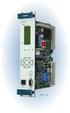 Machinery Protection Card Type FEATURES Continuous on-line Machinery Protection Card Real-time measurement and monitoring using state-of-the-art DSP techniques Fully VME-compatible slave interface Fully
APPLICATION NOTE GaGe CompuScope 14200-based Lightning Monitoring System
 APPLICATION NOTE GaGe CompuScope 14200-based Lightning Monitoring System Challenge A customer needed to upgrade an older data acquisition unit for a real-time lightning monitoring system. Unlike many lightning
Eight Ways to Increase GPIB System Performance
 Application Note 133 Eight Ways to Increase GPIB System Performance Amar Patel Introduction When building an automated measurement system, you can never have too much performance. Increasing performance
AMPLIFIED HIGH SPEED FIBER PHOTODETECTOR USER S GUIDE
 AMPLIFIED HIGH SPEED FIBER PHOTODETECTOR USER S GUIDE Thank you for purchasing your Amplified High Speed Fiber Photodetector. This user s guide will help answer any questions you may have regarding the
Agilent U1610/20A Handheld Digital Oscilloscope Quick Start Guide
 Agilent U1610/20A Handheld Digital Oscilloscope Quick Start Guide Verify that you received the following items in the shipment of your handheld scope: 1 Power cable 1 Li-Ion battery pack, 10.8 V (included
User s Guide. HP 8712ET and HP 8714ET RF Network Analyzers. HP Part No. 08714-90011. Printed in USA Print Date: October 1999
 User s Guide HP 8712ET and HP 8714ET RF Network Analyzers HP Part No. 08714-90011 Printed in USA Print Date: October 1999 Supersedes: November 1998 Copyright 1998, 1999 Hewlett-Packard Company Notice The
Spectrum and Power Measurements Using the E6474A Wireless Network Optimization Platform
 Application Note Spectrum and Power Measurements Using the E6474A Wireless Network Optimization Platform By: Richard Komar Introduction With the rapid development of wireless technologies, it has become