
Online User s Guide RJ-3050/RJ-3150 RJ-3050 RJ-3150
|
|
|
- Willis Collins
- 10 years ago
- Views:
Transcription
1 Online User s Guide RJ-3050/RJ-3150 RJ-3050 RJ-3150 Before using this printer, be sure to read this Online User s Guide. We suggest you keep this manual in a safe place. Version 0 UK ENG
2 Introduction Important Notice The contents of this document and the specifications of this product are subject to change without notice. Brother reserves the right to make changes without notice in the specifications and materials contained herein and shall not be responsible for any damages (including consequential) caused by reliance on the materials presented, including but not limited to typographical and other errors relating to the publications. Screen images in this document may differ depending on your computer's operating system. Before using the printer, be sure to read all documents included with the printer for information about safety and proper operation. Illustrations and text displays shown in this manual are for RJ Illustrations for RJ-3050 may also be shown in this manual if necessary. Symbols Used in This Guide The following symbols are used throughout this guide: WARNING CAUTION Important Tells you what to do to avoid the risk of injury. Tells you about procedures you must follow to avoid minor personal injury or damage to the printer. Indicates information or directions that should be followed. Ignoring them may result in damage, or failed operations. Indicates notes that provide information or directions that can help you better understand and use the product more efficiently. i

3 Trademarks and Copyrights BROTHER is either a trademark or a registered trademark of Brother Industries, Ltd. Microsoft, Windows Vista, Windows Server and Windows are either registered trademarks or trademarks of Microsoft Corp. in the United States and/or other countries. Android is a trademark of Google Inc. Google Play is a trademark of Google Inc. The Bluetooth word mark and logos are owned by the Bluetooth SIG, Inc. and any use of such marks by Brother Industries, Ltd. under license. Blue SDK Copyright Extended Systems, Inc., Portions copyright ianywhere Solutions, Inc., All rights reserved. The names of other software or products used in this document are trademarks or registered trademarks of the respective companies that developed them. Wi-Fi and Wi-Fi Alliance are registered trademarks of the Wi-Fi Alliance. Wi-Fi Protected Setup, WPA, and WPA2 are marks of the Wi-Fi Alliance. Each company whose software title is mentioned in this manual has a Software Licence Agreement specific to its proprietary programs. Any trade names and product names of companies appearing on Brother products, related documents and any other materials are all trademarks or registered trademarks of those respective companies. ii
4 IMPORTANT NOTE Please go to the Brother Solutions Center at and click [Manuals] on your model page to download the other manuals. This product is approved for use in the country of purchase only. Do not use this product outside the country of purchase as it may violate the wireless telecommunication and power regulations of that country. Windows Vista in this document represents all editions of Windows Vista. Windows 7 in this document represents all editions of Windows 7. Windows 8 in this document represents all editions of Windows 8. Windows 8.1 in this document represents all editions of Windows 8.1. Windows Server 2008 in this document represents all editions of Windows Server 2008 and Windows Server 2008 R2. Windows Server 2012 in this document represents all editions of Windows Server 2012 and Windows Server 2012 R2. Not all models are available in all countries Brother Industries, Ltd. All rights reserved. iii
5 Table of Contents Section I Basic Operations 1 Setting Up the Printer 2 General Description...2 Using the Rechargeable Li-ion Battery...4 Installing the Rechargeable Li-ion Battery...4 Removing the Rechargeable Li-ion Battery...4 Recharging the Rechargeable Li-ion Battery...5 While Installed in the Printer...5 Connecting to an AC Power Socket (Optional)...6 Connecting to a DC Power Socket (Optional)...7 Using the Battery Charger (Optional)...7 Using the Cradle (Optional)...7 Stopping Rechargeable Li-ion Battery Charging...8 Tips on Using the Rechargeable Li-ion Battery...8 Installing the Clock Battery (RJ-3150 Only)...9 Turning the Printer On or Off...10 Setting the RD Roll...10 When Using RJ-3050 or When Not Using the Label Peeler (RJ-3150)...11 Cutting Roll Paper...13 When Using the Label Peeler (RJ-3150 Only)...13 Printer Driver Settings...16 After Printing...17 Removing the RD Roll...18 Attaching the Belt Clip...20 Installing the Printer Driver and the Software...21 Before You Begin (Connecting the Printer Using a Wireless Network)...21 Uninstalling the Printer Driver...22 Connecting the Computer and Printer...24 USB Connection...24 Bluetooth Connection...25 Wi-Fi Connection...26 LCD Display (RJ-3150 Only)...27 Screen...27 LCD Display Settings Using the Printer 39 Operation Panel...39 Button Functions...40 Indicators...42 Printing Solutions...43 Printing from Computers and Mobile Devices...43 Making Prints Lighter or Darker...44 Printer Driver Options...45 iv

6 Printing Labels Stored in the Printer (RJ-3150 Only)...45 Configuring the Template Mode...45 Printing Using the Operation Panel on the Printer...45 Printing Using a Barcode Reader...47 Label Layouts on the Printer (Deleting and Log) (RJ-3150 Only) Printer Setting Tool 49 About the Printer Setting Tool...49 Before Using the Printer Setting Tool...49 Using the Printer Setting Tool...50 Communication Settings...52 Settings Dialog Box...52 Menu Bar...54 General Tab...57 Wireless LAN Tab...59 Wireless Direct Tab...63 Bluetooth Tab...64 Applying Setting Changes to Multiple Printers...65 Device Settings...66 Menu Bar...68 Settings Tabs...70 Store Image (RJ-3150 Only)...78 Main Screen...78 Edit Screen...79 P-touch Template Settings...81 P-touch Template...81 P-touch Template Settings Dialog Box...82 Paper Size Setup...84 Paper Size Setup Dialog Box...84 Distributing Paper Formats Other Functions 90 Mass Storage...90 Description...90 Using the Mass Storage Feature...90 JPEG Printing Printing Labels Using P-touch Template (RJ-3150 Only) 92 P-touch Template Function...92 Preparation...93 Specifying Settings in the P-touch Template Settings Tool...93 Connecting a Barcode Reader...94 Preset Template Printing...95 Barcode Printing (Copying)...97 Database-assisted Label Printing...99 Numbering Function (Serialised Number) Printing For a Text Label For a Barcode Label v
7 6 Maintaining the Printer 108 Print Head Maintenance Roller Maintenance Paper Outlet Maintenance Label Peeler Maintenance (RJ-3150 Only) Reference 112 LED Indicators Indicator Warnings Printing the Printer Set-up Information Troubleshooting 116 Overview Technical Information 122 Product Specifications Section II Software 10 How to Use P-touch Editor 125 Using P-touch Editor Using P-touch Editor Tips for Creating Templates Creating a Template Linking a Database to a Template How to Use P-touch Transfer Manager & P-touch Library 135 Using P-touch Transfer Manager Transferring the Label Template to P-Touch Transfer Manager Transferring Templates or Other Data from the Computer to the Printer via USB Backing up Templates or Other Data Saved in the Printer Deleting All the Printer Data Using P-touch Library Starting P-touch Library Opening and Editing Templates Printing Templates Searching for Templates or Other Data Transferring Label Templates with P-touch Transfer Express 150 Preparing P-touch Transfer Express Transferring the Label Template to P-Touch Transfer Manager Saving the Label Template as a Transfer Package File (.pdz) Distributing the Transfer Package File (.pdz) and P-Touch Transfer Express to the User Transferring the Transfer Package File (.pdz) to Brother Printer vi

8 13 How to update P-touch Software 158 Updating P-touch Editor Updating the Firmware Section III Wireless network 14 Introduction 163 Network Features Changing Your Printer s Network Settings 164 Changing Your Printer's Network Settings (IP Address, Subnet Mask and Gateway) Using the BRAdmin Light Utility Other Management Utilities Using the Web Based Management (Web Browser) Using the BRAdmin Professional Utility Configuring Your Printer for a Wireless Network 167 Using Your Brother Printer s Own Functions (RJ-3150 Only) Establishing a Wireless LAN Connection Displaying the Network Settings Establishing a Wireless LAN Connection Using WPS Web Based Management 168 Overview Configuring the Printer Settings Using Web Based Management (Web Browser) Troubleshooting 170 Overview Identifying the Problem Appendix A 175 Supported Protocols and Security Features Appendix B 176 Types of Network Connections and Protocols Types of Network Connections Configuring Your Brother Printer for a Network IP Addresses, Subnet Masks and Gateways Wireless Network Terms and Concepts Security Terms vii

9 21 Appendix C 185 General Procedure for the P-touch Template Function List of Barcodes for Specifying Settings viii

10 Section I Basic Operations I Setting Up the Printer 2 Using the Printer 39 Printer Setting Tool 49 Other Functions 90 Printing Labels Using P-touch Template (RJ-3150 Only) 92 Maintaining the Printer 108 Reference 112 Troubleshooting 116 Technical Information 122

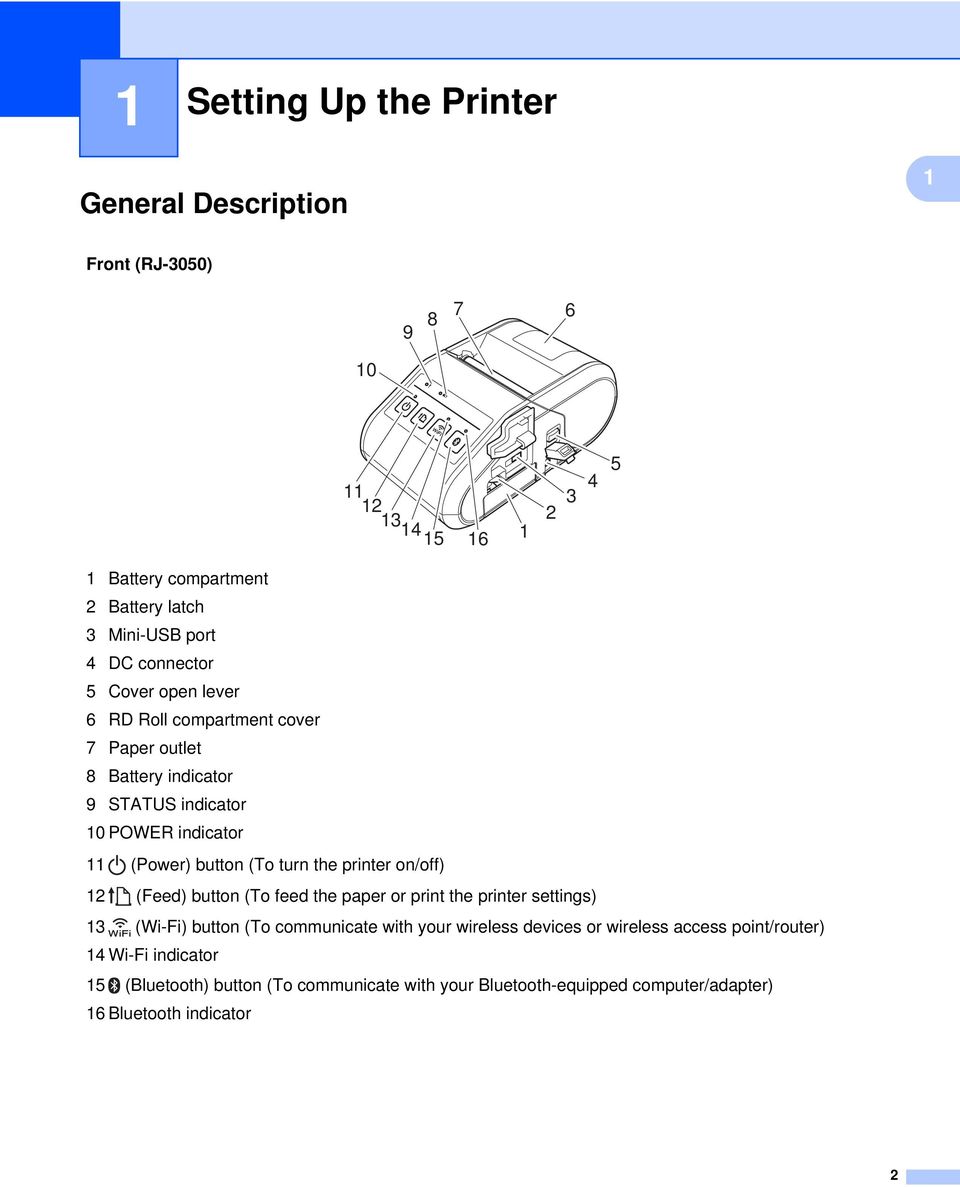
11 1 Setting Up the Printer 1 1 General Description 1 Front (RJ-3050) Battery compartment 2 Battery latch 3 Mini-USB port 4 DC connector 5 Cover open lever 6 RD Roll compartment cover 7 Paper outlet 8 Battery indicator 9 STATUS indicator 10 POWER indicator 11 (Power) button (To turn the printer on/off) 12 (Feed) button (To feed the paper or print the printer settings) 13 (Wi-Fi) button (To communicate with your wireless devices or wireless access point/router) 14 Wi-Fi indicator 15 (Bluetooth) button (To communicate with your Bluetooth-equipped computer/adapter) 16 Bluetooth indicator 2
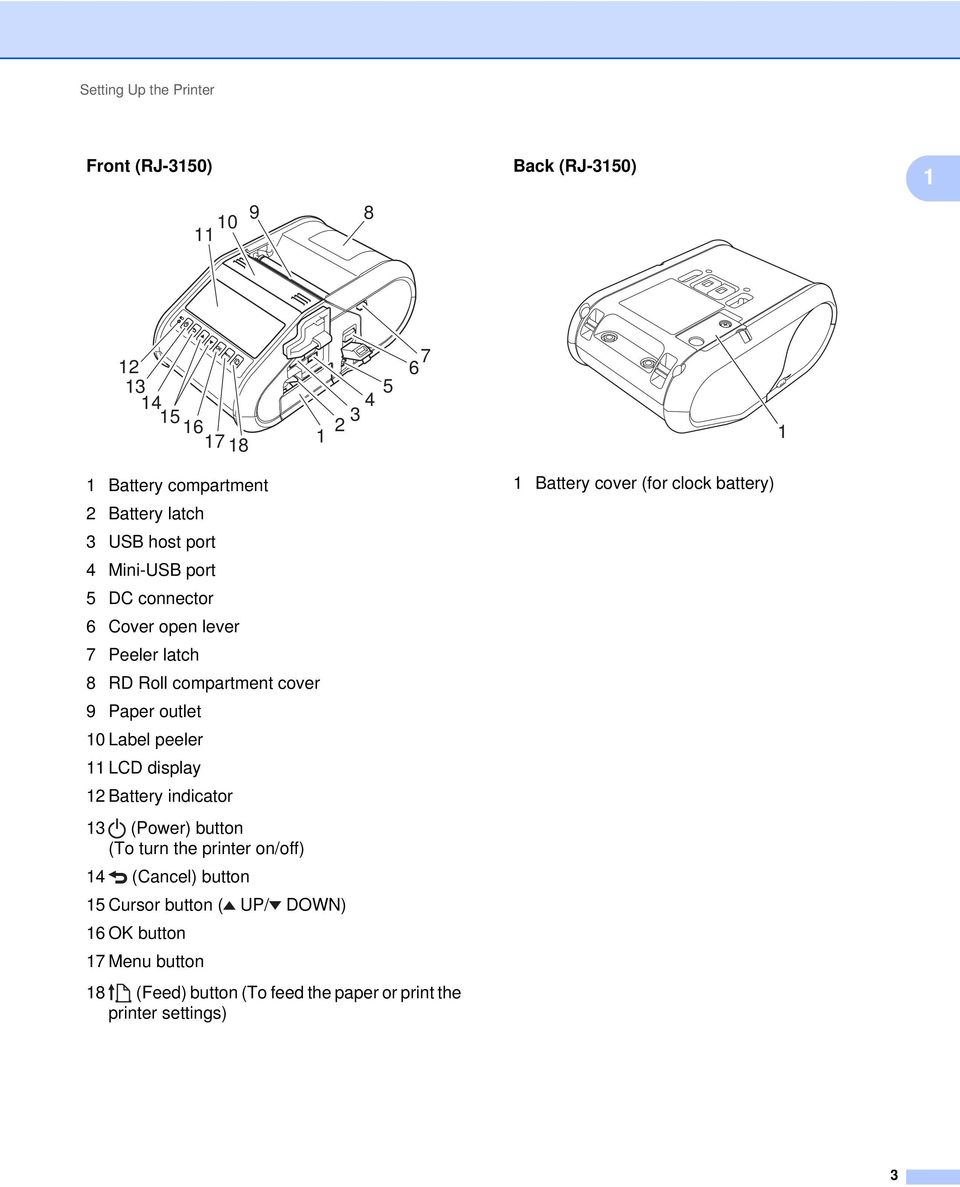
12 Setting Up the Printer Front (RJ-3150) Back (RJ-3150) Battery compartment 2 Battery latch 3 USB host port 4 Mini-USB port 5 DC connector 6 Cover open lever 7 Peeler latch 8 RD Roll compartment cover 9 Paper outlet 10 Label peeler 11 LCD display 12 Battery indicator 13 (Power) button (To turn the printer on/off) 14 (Cancel) button 15 Cursor button ( UP/ DOWN) 16 OK button 17 Menu button 18 (Feed) button (To feed the paper or print the printer settings) 1 Battery cover (for clock battery) 3
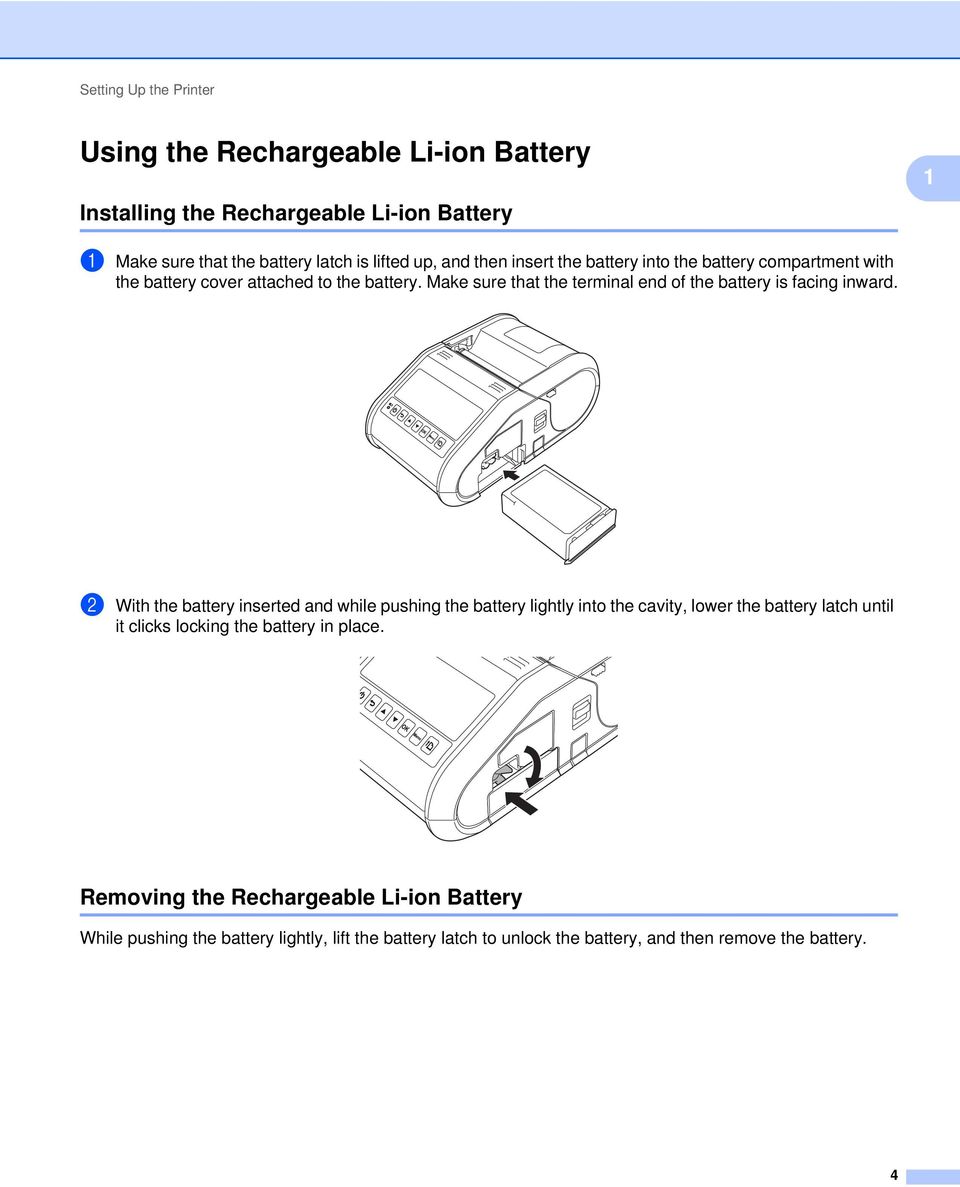
13 Setting Up the Printer Using the Rechargeable Li-ion Battery 1 1 Installing the Rechargeable Li-ion Battery 1 a Make sure that the battery latch is lifted up, and then insert the battery into the battery compartment with the battery cover attached to the battery. Make sure that the terminal end of the battery is facing inward. b With the battery inserted and while pushing the battery lightly into the cavity, lower the battery latch until it clicks locking the battery in place. Removing the Rechargeable Li-ion Battery 1 While pushing the battery lightly, lift the battery latch to unlock the battery, and then remove the battery. 4
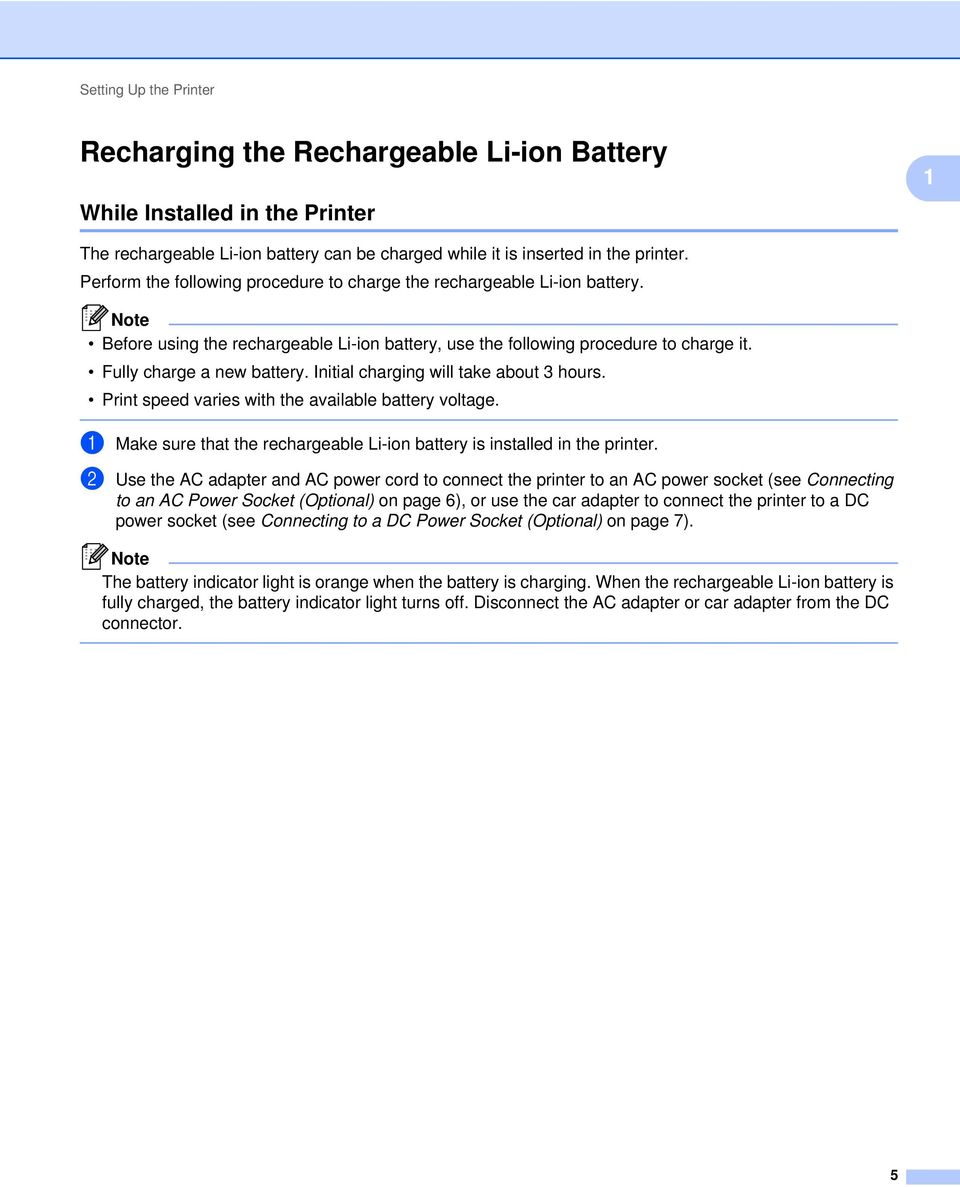
14 Setting Up the Printer Recharging the Rechargeable Li-ion Battery 1 1 While Installed in the Printer 1 The rechargeable Li-ion battery can be charged while it is inserted in the printer. Perform the following procedure to charge the rechargeable Li-ion battery. Before using the rechargeable Li-ion battery, use the following procedure to charge it. Fully charge a new battery. Initial charging will take about 3 hours. Print speed varies with the available battery voltage. a Make sure that the rechargeable Li-ion battery is installed in the printer. b Use the AC adapter and AC power cord to connect the printer to an AC power socket (see Connecting to an AC Power Socket (Optional) on page 6), or use the car adapter to connect the printer to a DC power socket (see Connecting to a DC Power Socket (Optional) on page 7). The battery indicator light is orange when the battery is charging. When the rechargeable Li-ion battery is fully charged, the battery indicator light turns off. Disconnect the AC adapter or car adapter from the DC connector. 5
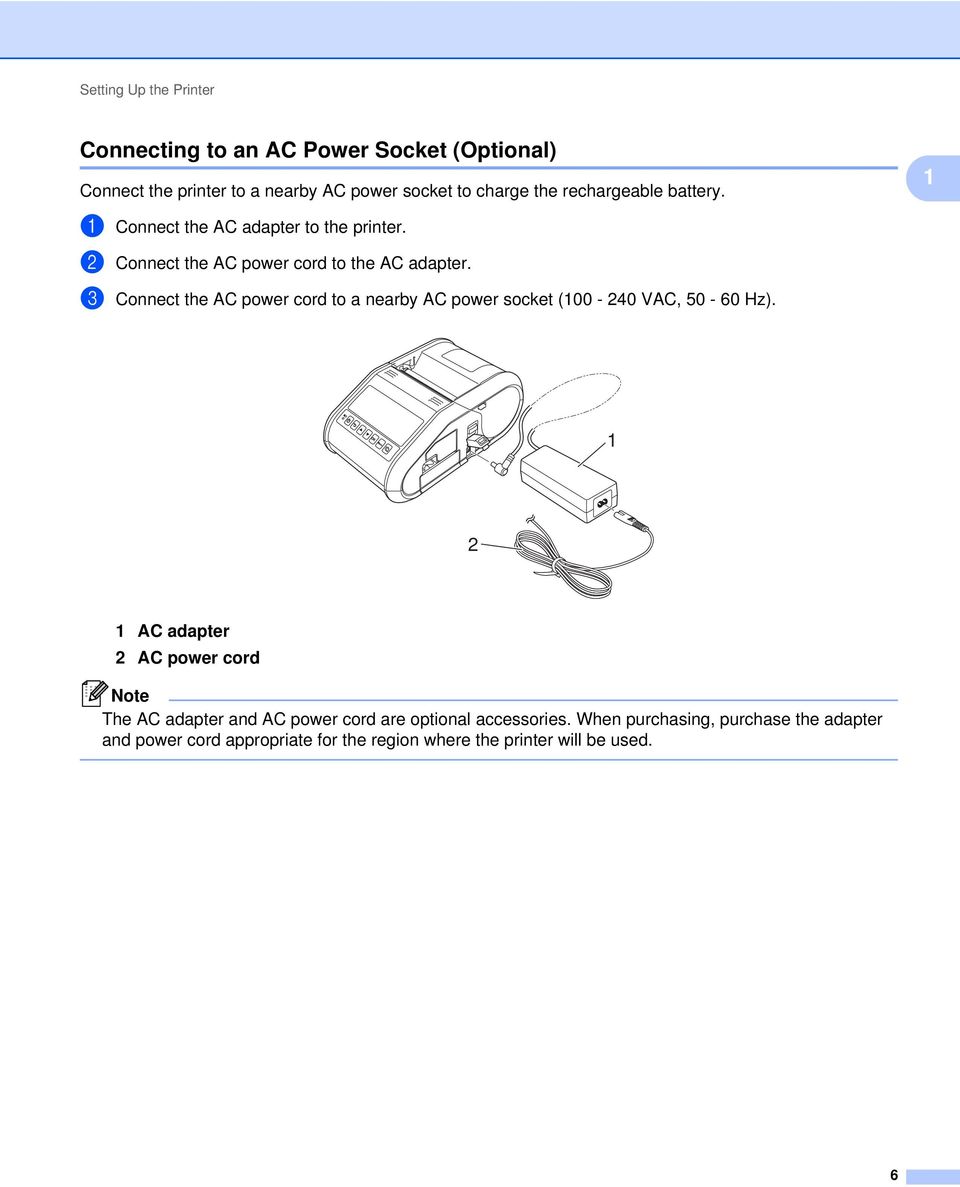
15 Setting Up the Printer Connecting to an AC Power Socket (Optional) 1 Connect the printer to a nearby AC power socket to charge the rechargeable battery. 1 a Connect the AC adapter to the printer. b Connect the AC power cord to the AC adapter. c Connect the AC power cord to a nearby AC power socket ( VAC, Hz) AC adapter 2 AC power cord The AC adapter and AC power cord are optional accessories. When purchasing, purchase the adapter and power cord appropriate for the region where the printer will be used. 6
16 Setting Up the Printer Connecting to a DC Power Socket (Optional) 1 Connect the printer to your vehicle s 12 V DC power socket (cigarette lighter, etc.) to charge the rechargeable battery. 1 a Connect the car adapter to the vehicle s 12 V DC power socket. b Connect the car adapter to the printer. 1 1 Car adapter The car adapter is an optional accessory. Using the Battery Charger (Optional) 1 The rechargeable Li-ion battery can be charged using the dedicated battery charger (PA-BC-001). When you use an AC power socket, up to four battery chargers can be connected together for charging at the same time. For details, refer to the operation manual that is included with the battery charger. Using the Cradle (Optional) 1 The rechargeable Li-ion battery can be charged by placing the printer with the battery installed into the dedicated cradle (PA-CR-001) and connecting the power cord. When you use an AC power socket, up to four cradles can be connected together for charging at the same time. For details, refer to the operation manual that is included with the cradle. 7

17 Setting Up the Printer Stopping Rechargeable Li-ion Battery Charging 1 To stop rechargeable Li-ion battery from charging, disconnect the AC power cord or car adapter from the DC connector. 1 Tips on Using the Rechargeable Li-ion Battery 1 Fully charge the rechargeable Li-ion battery before use. Do not use it before it is charged. Darker prints discharge the rechargeable Li-ion battery faster than lighter prints. Adjust the print density setting in the printer driver s dialog box or in the Device settings (see Device Settings on page 66). The rechargeable Li-ion battery charging can take place in 0-40 C environments. Charge the rechargeable Li-ion battery in an environment in this temperature range. If the surrounding temperature is out of this range, the rechargeable Li-ion battery will not be charged, and the battery indicator will remain lit. If the printer is used when both the rechargeable Li-ion battery is installed and the AC adapter or car adapter is connected, the battery indicator may turn off and charging may stop even if the rechargeable Li-ion battery has not been fully charged. Rechargeable Li-ion Battery Characteristics 1 The following guidelines will help you get the highest performance and longest life from your rechargeable Li-ion battery: Using or storing the rechargeable Li-ion battery in a location exposed to extreme high or low temperatures may accelerate its deterioration. In particular, using a rechargeable Li-ion battery with a high charge (charged 90% or more) in a location exposed to high temperatures will considerably accelerate battery deterioration. Avoid regular printing while charging. Unplug power to the printer while printing. Do not store the battery in the printer. Batteries should be stored with less than a 50% charge in a cool dry place out of direct sunlight. The battery should be recharged every 6 months when stored for long periods of time. Refer to the rechargeable Li-ion battery instruction manual for other precautions. 8
18 Setting Up the Printer Installing the Clock Battery (RJ-3150 Only) 1 a Open the battery cover using a Phillips screwdriver. 1 b Insert the supplied battery into the space for the battery, making sure that the battery is level and its positive side is facing up. c Replace the battery cover. 9

19 Setting Up the Printer Turning the Printer On or Off 1 1 On (Press and hold the (Power) button until) Off (Press and hold the (Power) button until) RJ-3050 POWER indicator turns green STATUS indicator turns red RJ-3150 LCD display turns on [System Off] appears on LCD display When turning the printer off, do NOT remove the battery until the STATUS indicator goes off (for RJ-3050) or the LCD display turns off (for RJ-3150). Setting the RD Roll 1 The RJ-3150 can display graphical loading instructions. Simply open the RD Roll compartment cover and press the [Menu] button. The RJ-3150 is equipped with a label peeler and sensor to automatically separate a printed label from its backing paper after it is printed. For details on using the label peeler, see When Using the Label Peeler (RJ-3150 Only) on page
![LCD display turns off (for RJ-3150). Setting the RD Roll 1 The RJ-3150 can display graphical loading instructions. Simply open the RD Roll compartment cover and press the [Menu] button.](/docs-images/54/10395739/images/page_19.jpg "The RJ-3150 is equipped with a label peeler and sensor to automatically separate a printed label from its backing paper after it is printed.")
20 Setting Up the Printer When Using RJ-3050 or When Not Using the Label Peeler (RJ-3150) 1 a Push the cover open lever to open the RD Roll compartment cover Cover open lever b Open the roll guides by lifting up the roll guide adjustment lever (1) and pulling the roll guide outwards. Insert an RD Roll into the RD Roll compartment with the roll feeding from the bottom as shown Roll guide adjustment lever 2 Roll guide 1 Important Make sure that the position of the roll guide to prevent the RD Roll from moving sideways. The thermal sensitive side must be on the outside of the roll and installed as shown to print properly. 11

21 Setting Up the Printer c While lifting up the roll guide adjustment lever (1), push in both roll guides (2) to the roll width. Make sure that the RD Roll is positioned straight in the RD Roll compartment. 1 d Close the RD Roll compartment by pressing down on the centre of the cover until it latches. When using die-cut labels (RJ-3150 only), press the will position the label to the correct starting position. (Feed) button after setting the RD Roll. The printer Important Use genuine Brother paper. 12
22 Setting Up the Printer Cutting Roll Paper 1 Roll paper can be cut using the printer's tear bar. Pull one edge of the ejected paper up and toward the other edge diagonally Tear bar WARNING The tear bar is sharp. To avoid injury, do not touch the tear bar. When Using the Label Peeler (RJ-3150 Only) 1 If the label peeler is used, printed labels can be automatically peeled off their backing paper before they are fed out of the media exit. This is useful when printing large quantities of labels and apply them at an inconsistent pace, because the peeler sensor prohibits printing the next label until it is removed from the printer. You can also view information about setting the label peeler and loading paper in Help. While the printer is turned on, open the RD Roll compartment cover, and press the [Menu] button on the printer. A video on setting up the label peeler is available at the following address 13
23 Setting Up the Printer a Push the cover open lever to open the RD Roll compartment cover Cover open lever b Push both sides of the label peeler towards the rear of the printer. The peeler will move up and away from the printer. Then, fully pull out the peeler away from the printer until the marks on the peeler are visible as shown. Important The peeler can be pulled out in two stages. Make sure to pull out the peeler completely, as shown in the illustration on the right. 14
24 Setting Up the Printer c Peel off the first label of the RD Roll. Then, insert the RD Roll so that the top edge of the second label is at the same height as the top edge of the media sensor plate. Position the label where the media sensor can detect it Media sensor d Close the RD Roll compartment cover. Make sure the label peeler is on top of the cover. Important Make sure that the labels are not pinched by the peeler rollers. The backing paper of the labels may not be peeled off. e In order to remove any slack in the roll, lightly pull on the paper fed out of the paper outlet until no more can be pulled out. f Push both sides of the ( ) label peeler until it clicks into place. 15
25 Setting Up the Printer Important Before using the label peeler, specify the following settings: Device settings of the Printer Setting Tool : Specify [Peeler] for [Exit Position] on the [Basic] tab. For details, see Device Settings on page 66. Printer driver: Select the [Use Peeler Function] check box on the [Basic] tab. For details, see Printer Driver Settings on page 16 and After Printing on page 17. When not using the label peeler, specify the following settings: Device settings of the Printer Setting Tool : Specify [Tear] for [Exit Position] on the [Basic] tab. For details, see Device Settings on page 66. Printer driver: Clear the [Use Peeler Function] check box on the [Basic] tab. To open the properties dialog box for the printer driver, see step a in Printer Driver Settings on page Printer Driver Settings 1 a Display the printer s [Printing Preference] dialog box. Windows Vista / Windows Server 2008 Click - [Control Panel] - [Hardware and Sound] - [Printers], right-click the printer whose settings are to be changed, and then click [Printing Preference]. Windows 7 / Windows Server 2008 R2 Click - [Devices and Printers], right-click the printer whose settings are to be changed, and then click [Printing preferences]. Windows 8 / Windows 8.1 / Windows Server 2012 / Windows Server 2012 R2 Click [Control Panel] in the [Apps] screen - [Hardware and Sound] - [Devices and Printers], rightclick the printer whose settings are to be changed, and then click [Printing preferences]. b Select the [Use Peeler Function] check box on the [Basic] tab. c Click [OK] to close the dialog box. 16
26 Setting Up the Printer After Printing 1 Printed labels can be automatically peeled off their backing paper before they are fed out of the media exit. Be sure to remove the printed label. If a label remains in the media exit, the next label will not be printed. 1 With the label peeler, a sensor detects whether or not the label has been peeled off, and controls the appropriate operation. The detection sensitivity of the sensor can be adjusted. For details, see Sensor Adjustment Tab on page
27 Setting Up the Printer Removing the RD Roll 1 a Push the cover open lever, and then open the RD Roll compartment cover. 1 When you use the label peeler (RJ-3150 only), first release the peeler latches on both sides of the printer before pushing the cover open lever. 1 1 Peeler latch 18
28 Setting Up the Printer b While pushing the roll release lever, tilt the roll guide slightly, and then remove the roll. The roll can be removed without changing the position of the roll guide. Do not forcefully tilt the roll guide too far. Otherwise, the roll guide could break Roll release lever When you use the label peeler (RJ-3150 only), make sure that the backing paper does not become caught when removing the RD Roll. 19
29 Setting Up the Printer Attaching the Belt Clip 1 When using the printer outside the office, you can attach the included belt clip to the printer and secure the belt clip to your belt. 1 a Secure the Phillips-head screws to the rear of the printer as shown Belt clip 2 Phillips screw b Attach the clip to your belt. Important Make sure that the belt clip is attached securely to the printer and the wearer s belt. There is a risk of injury if the belt clip is not attached securely and the printer falls. 20
30 Setting Up the Printer Installing the Printer Driver and the Software 1 To print from your computer, you must install P-touch Editor, the printer driver, and other applications to your computer. 1 Visit our website ( and download the installer for the software and documents. 2 Double-click the downloaded.exe file and follow the on-screen instructions to proceed with the installation. In the dialog box for selecting which items to install, select the necessary software. 1 Before You Begin (Connecting the Printer Using a Wireless Network) 1 First you must configure the wireless network settings of your printer to communicate with your network access point/router. After the printer is configured to communicate with your access point/router, computers on your network will have access to the printer. To use the printer from these computers, you will need to install the drivers and software. Important If you are going to connect the printer to your network, we recommend that you contact your system administrator prior to installation. You must know your wireless network settings before you proceed with this installation. If you have previously configured the printer's wireless settings, you must reset the network settings before you can configure the wireless settings again. For RJ Press and hold the (Power) button to turn the printer off. 2 Press and hold the (Feed) button and the (Power) button for about 3 seconds. The POWER, Wi-Fi and Bluetooth indicators start blinking (POWER: in orange; Wi-Fi and Bluetooth: in blue). 3 While pressing the (Power) button, press the (Feed) button once. 4 Release the (Power) button. For RJ Press the [Menu], [ ], or [ ] button to select the [Administration] menu, and then press the [OK] button. (The default password is "1111".) 2 Select [Reset] > [Network Reset] > [Reset] using [ ] or [ ], and then press the [OK] button. To achieve optimum results with normal everyday document printing, use the printer as close to the network access point/router as possible with minimal obstructions. Large objects and walls between the two devices as well as interference from other electronic devices can affect the data transfer speed of your documents. 21
31 Setting Up the Printer Uninstalling the Printer Driver 1 Read "RJ-XXXX" in the following steps as your model name. 1 Windows Vista / Windows Server a Press and hold the (Power) button to turn off the Brother machine. b Click the Start button - [Control Panel] - [Hardware and Sound] - [Printers]. c Select the [Brother RJ-XXXXX], and click [Delete this printer] or right click on the icon, and then click [Delete]. d In the [Printers] window, right-click and select [Run as administrator] - [Server Properties ]. If the authorisation confirmation dialog box is displayed, click [Continue]. If the [User Account Control] dialog box is displayed, enter the password and click [OK]. The [Print Server Properties] window will be displayed. e Click the [Drivers] tab and choose [Brother RJ-XXXXX]. Then, click [Remove...]. f Select [Remove driver and driver package] and click [OK]. Follow the on-screen instructions. g Close the [Print Server Properties] window. The printer driver has been uninstalled. Windows 7 / Windows Server 2008 R2 1 a Press and hold the (Power) button to turn off the Brother machine. b Click the Start button - [Devices and Printers]. c Select [Brother RJ-XXXXX], and click [Remove device] or right-click on the icon, and then click [Remove device]. If a User Account Control message displayed, type in the password, and then click [Yes]. d Select [Fax] or [Microsoft XPS Document Writer] in the [Devices and Printers] window, and then click [Print server properties], which appeared in the menu bar. e Click the [Drivers] tab, and then click [Change Driver Settings]. If a User Account Control message displayed, type in the password, and then click [Yes]. Choose [Brother RJ-XXXXX], and then click [Remove...]. f Select [Remove driver and driver package], and then click [OK]. Follow the on-screen instructions. g Close the [Print Server Properties] window. The printer driver has been uninstalled. 22
32 Setting Up the Printer Windows 8 / Windows 8.1 / Windows Server 2012 / Windows Server 2012 R2 1 a Press and hold the (Power) button to turn off the Brother machine. 1 b Click [Control Panel] on the [Apps] screen - [Hardware and Sound] - [Devices and Printers]. c Select [Brother RJ-XXXXX] and click [Remove device], or right-click the icon and click [Remove device]. If a User Account Control message appears, type in the password, and then click [Yes]. d Select [Fax] or [Microsoft XPS Document Writer] in the [Devices and Printers] window, and then click [Print server properties], which appeared in the menu bar. e Click the [Drivers] tab, and then click [Change Driver Settings]. If a User Account Control message appears, type in the password, and then click [Yes]. Select [Brother RJ-XXXXX], and then click [Remove...]. f Select [Remove driver and driver package], and then click [OK]. Follow the on-screen instructions. g Close the [Print Server Properties] window. The printer driver has been uninstalled. 23
33 Setting Up the Printer Connecting the Computer and Printer 1 The printer can be connected to your computer using a USB cable or a Bluetooth or Wi-Fi connection. 1 Important Install the printer driver before connecting the printer to the computer. When connecting via Bluetooth, the connection settings are saved even after the printer is turned off. USB Connection 1 a Make sure that the printer is turned off before connecting the USB cable. b Connect the printer end of the USB cable to the USB port on the side of the printer. c Connect the other end of the USB cable to the USB port on the computer. 24
34 Setting Up the Printer Bluetooth Connection 1 Follow the recommendations of the manufacturer of your Bluetooth-equipped devices (computers and mobile devices) or Bluetooth adapter and install any necessary hardware and software. 1 Use this procedure to pair the printer with the computer using the Bluetooth management software. a For RJ-3050 Press and hold the (Power) button to turn the printer on, and then press and hold the (Bluetooth) button. For RJ Press the [Menu], [ ], or [ ] button to select the [Bluetooth] menu, and then press the [OK] button. 2 Set [Bluetooth (On/Off)] to [On]. b Use your Bluetooth device management software to discover the printer. Bluetooth communication is now available. You can also change the printer s network settings using the Communication Settings (see Communication Settings on page 52). 25
35 Setting Up the Printer Wi-Fi Connection 1 Important In order for the printer and your network access point or router to communicate, you must first install the printer driver and the Printer Setting Tool (see Installing the Printer Driver and the Software on page 21). 1 For RJ-3050 Press and hold the (Power) button to turn the printer on, and then press the (Wi-Fi) button. Wi-Fi communication is now available. For RJ Press the [Menu], [ ], or [ ] button to select the [WLAN] menu, and then press the [OK] button. 2 Set [WLAN (On/Off)] to [On]. Wi-Fi communication is now available. You can also change the printer s network settings using the Communication Settings (see Communication Settings on page 52). The Communication Settings also allows you to easily apply the network setting changes to multiple printers. (See Applying Setting Changes to Multiple Printers on page 65). 26
36 Setting Up the Printer LCD Display (RJ-3150 Only) 1 1 Screen 1 When the printer is turned on, the main screen appears. Normal mode Template mode Settings icon 2 Media icon 3 Information icon 4 Display icon 5 Administration icon 6 WLAN icon 7 Bluetooth icon 8 Time and date 9 Battery level Indicates the remaining battery level. Full: Half: Low: Charging: 27
37 Setting Up the Printer 10 USB icon The USB icon is displayed when the printer is connected to an enabled USB host device. 11 Printer status 12 Template icon Displays the template icon. 13 Template number Displays the number for the currently selected template. 14 Database link icon Indicates that the template is linked to a database. 15 Template name Displays the name of the currently selected template. 16 Media name Displays the name of the media used by the template. 17 Scroll bar 1 LCD Display Settings 1 The settings for the LCD display can be specified either by using the printer, or by using the Printer Setting Tool on a computer connected to the printer. For details on connecting a computer and specifying settings, see Printer Setting Tool on page 49. Specifying Settings from the Printer 1 Press the [Menu], [ ], or [ ] button to select a menu option, and then press the [OK] button. Press [ ] or [ ] to select an option, and then press the [OK] button The currently selected option is highlighted. 2 The scroll bar indicates the first parameter with the up arrow, and the last parameter with the down arrow. If the last parameter is selected, pressing [ ] scrolls to the first parameter. If the first parameter is selected, pressing [ ] scrolls to the last parameter. 3 If the Menu Locks are set, a lock icon will be displayed for parameters that cannot be selected. If you want to change a locked parameter, clear the Menu Locks setting for that parameter. For details on setting the Menu Locks, see LCD Display Settings on page
38 Setting Up the Printer With the buttons on the printer, the following settings can be specified: Menu Title Sub title Settings Description Settings Printer Print Density -5 Adjust the printer s printing Settings density. Exit Position Tear Peel Select the media output location. Beeper Settings Print Adjust (X) Print Adjust (Y) Tear Adjust *.** inch (or *.** mm) *.** inch (or *.** mm) *.** inch (or *.** mm) On Off Adjust the position of the reference point (point of origin for printing). This corrects printing misalignments resulting from differences in printer models or from the fixed margins of some applications. The reference point cannot be adjusted for raster printing. The display varies according to the unit setting. Adjust the tear bar tear off position for paper media. The display varies according to the unit setting. Select whether the printer beeps when an operation panel button is pressed. 1 29
39 Setting Up the Printer Menu Title Sub title Settings Description Settings (Continued) Template Settings Template Mode On Select whether the Off template mode starts when the printer is turned on. In the template mode, you can replace the contents of the templates stored in the printer and print them. Confirm Print On Select whether a message Off appears before printing so that the number of copies can be confirmed. Text Direction Normal Select the printing Inverted 180 orientation. Serialize Mode Cont From Last Select to serialise from the last number printed. Serialize Reset Default Print Quantity Virtual Future Date Virtual Future Time From Starting# Reset Back Select to serialise from the default number each time you print. Reset the sequential number to the default number. Select [Back] to return to the previous screen without resetting the number. 1 to 999 Specify the default value for the print quantity. Off On Off On Print the specified date. If "Virtual Future Date" is enabled, the printer does not use the actual clock. Instead, the virtual date will be used. Print the specified time. If "Virtual Future Time" is enabled, the printer does not use the actual clock. Instead, the virtual time will be used. Clock Settings YY MM DD Specify the date and time. AM PM
40 Setting Up the Printer Menu Title Sub title Settings Description Settings (Continued) Auto Power Off Off Specify the amount of time 1 that passes before the printer turns off 2 automatically
41 Setting Up the Printer Menu Title Sub title Settings Description Media Active Media ****** (Media name) Type Left Margin Width Top Margin Length Bottom Margin Media Selection Media List Clear Back 01 ****** 02 ****** 03 ****** 04 ****** 05 ****** 06 ****** 07 ****** 08 ****** 09 ****** 10 ****** Back AllClear 01 ****** 02 ****** 03 ****** 04 ****** 05 ****** 06 ****** 07 ****** 08 ****** 09 ****** 10 ****** Display the information for the currently selected media. Select which media information to retrieve from the media information list. "******" indicates the media name that is displayed using up to 16 characters. The last 10 media used can be selected. Select [Back] to return to the previous screen. Select which media information to delete from the media information list. "******" indicates the media name that is displayed using up to 16 characters. The last 10 media used will be displayed. Select [Back] to return to the previous screen without deleting the information. 1 32
42 Setting Up the Printer Menu Title Sub title Settings Description Information HELP Using Peeler Display explanations Release Peeler regarding how to use the printer. Inserting Roll Removing Roll Interface Guide Custom Image ****** Select to display an image ****** that was registered to the printer beforehand. ****** The names (up to 16 ****** characters) of a maximum ****** ****** ****** ****** ****** of 10 custom images are displayed in reverse chronological order with the most recently registered image listed first. ****** Configuration Printer: RJ-3150 ProgVer: *.** FontVer: *.** ImagVer: *.** HelpVer: *.** RomFree: ********bytes Battery: *.*V Display the printer information. Print Configuration Start Back Print the printer set-up information. Select [Back] to return to the previous screen without printing the information. 1 33
43 Setting Up the Printer Menu Title Sub title Settings Description Display Display Brightness Backlight Timeout -2 Select the brightness of -1 the LCD display Off Specify the amount of time of inactivity that passes before the backlight of the LCD display turns off automatically. 5s 10s 20s 30s 60s Custom Display Background Standard Select the image that is 01 ****** displayed for the background on the LCD 02 ****** display of the printer. 03 ****** The names (up to 16 characters) of a maximum of 3 custom images are displayed. Opening Image Off Select the opening image Standard that is displayed on the LCD display of the printer 01 ****** when it is turned on. 02 ****** 03 ****** The names (up to 16 characters) of a maximum of 3 custom images are displayed. Time & date Off Select whether the date On and time are displayed on the LCD display of the printer. Battery Icon Large Select the size of the Small battery icon that is displayed on the LCD display of the printer. 1 34
44 Setting Up the Printer Menu Title Sub title Settings Description Administration (The default password is "1111".) Command Mode P-touch Template 2.0 ESC/P Raster CPCL CPCL Line Print Select the type of command mode. Date Format 1/31/2099 Select the date format for 01/31/ /1/ /01/ /1/ /01/ the clock. Time Format 01:59(24) Select the time format for 1:59(24) 1:59AM 01:59AM the clock. #Language Dansk Select the language of the Deutsch English Español Français Italiano Nederlands Norsk Português Suomi Svenska LCD display. 1 Units mm Select the measurement inch units for displayed settings. 35
45 Setting Up the Printer Menu Title Sub title Settings Description Administration (The default password is "1111".) Reset Back Select [Back] to return to the previous screen without resetting the settings. (Continued) Factory Reset Reset "Factory Reset" returns all Back printer settings, including the communication settings and device settings, to their factory defaults. Templates and databases stored in the printer are also deleted. User Data Reset Reset "User Data Reset" returns Back all device settings to their factory defaults. Templates and databases stored in the printer are also deleted. Network Reset Reset "Network Reset" returns Back the communication settings to their factory defaults. Menu Locks Printer Settings Select the check boxes for Template the settings that you do not Settings want to be changed using the LCD display of the Clock Settings printer. Auto Power Off Media Selection Media List Clear Custom Display WLAN (On/Off) WPS After selecting the check boxes, select [Finish] to complete the settings. If the "Menu Locks" are set, a lock icon will be displayed for parameters that cannot be selected. Bluetooth (On/Off) Finish Menu Security Menu Security (On/Off) On Off Set Password Select whether a password is required to enter the Administration mode. If you select [On], specify the 4-digit password. 1 36
46 Setting Up the Printer Menu Title Sub title Settings Description WLAN WLAN (On/Off) On Turn the WLAN function Off on or off. WPS Start Start the WPS Back configuration. Select [Back] to return to the previous screen without starting the WPS configuration. Bluetooth WLAN Status Mode: **** SSID: **** IP Addr: *.*.*.* Subnet: *.*.*.* Gateway: *.*.*.* MAC Addr: **** Channel: **** Bluetooth (On/Off) Bluetooth Status On Off Usage: **** Device Name: **** Visible: **** Address: **** Display the WLAN status. Turn the Bluetooth function on or off. Display the status of the Bluetooth function. 1 Some settings may differ depending on the firmware (printer software). If you want to reset the settings, use [Device settings] in the Printer Setting Tool to return all settings to their factory defaults. For details, see Device Settings on page 66. Setting the Time and Date 1 Adjust the clock to the current time and date. The time and date set here are displayed in the main screen. a Press the [Menu], [ ], or [ ] button to select the [Settings] menu, and then press the [OK] button. b Select [Clock Settings] using [ ] or [ ], and then press the [OK] button. The clock setting screen appears. c Use [ ] or [ ] to specify the last two digits of the year, and then press the [OK] button. Specify two digits for the month and day in the same way. 37
47 Setting Up the Printer d Use [ ] or [ ] to specify two digits each for the hour and minutes, and then select [AM], [PM] or [24]. e Press the [OK] button. The main screen appears, and the specified time and date are displayed. The format for the time and date can be changed. Select [Administration], and then select [Date Format] or [Time Format] to specify the setting. (The default password is "1111".) 1 Setting the Menu Security 1 When setting the menu security, access to the Administration mode can be restricted by setting a password. a Press the [Menu], [ ], or [ ] button to select the [Administration] menu, and then press the [OK] button. (The default password is "1111".) b Select [Menu Security] > [Menu Security (On/Off)] > [On] using [ ] or [ ], and then press the [OK] button. To set the password, select the [Administration] menu > [Menu Security] > [Set Password] using [ ] or [ ], and then press the [OK] button. Specify the first number using [ ] or [ ], and then press the [OK] button to proceed to the next number. Specify the remaining three numbers in the same way. After a password has been set, the password input screen appears when the [Administration] menu is selected. Enter in the specified 4-digit password using [ ] or [ ], and then press the [OK] button. To cancel the password settings, select the [Administration] menu and enter the password. Then, select [Menu Security] > [Menu Security (On/Off)] > [Off]. If you do not remember the password, use [Device settings] in the Printer Setting Tool to return all settings to their factory defaults or specify the password again and apply it. For details, see Device Settings on page
48 2 Using the Printer 2 Operation Panel 2 The operation panel consists of the following buttons and indicators. 2 RJ-3050 RJ (Power) button 2 (Feed) button 3 (Wi-Fi) button 4 (Bluetooth) button 5 Bluetooth indicator 6 Wi-Fi indicator 7 Battery indicator 8 STATUS indicator 9 POWER indicator Battery indicator 2 (Power) button 3 (Cancel) button 4 Cursor button ( UP/ DOWN) 5 OK button 6 Menu button 7 (Feed) button 39
49 Using the Printer Button Functions 2 (Power) button function Operation Turn the printer on While the printer is turned off, press and hold the (Power) button until the POWER indicator lights in green (for RJ-3050) or the LCD display turns on (for RJ-3150). Turn the printer off While the printer is turned on, press and hold the (Power) button until the POWER indicator turns off (for RJ-3050) or the LCD display turns off (for RJ-3150). (If the [Auto Power Off] feature is enabled in the Device settings, the printer will turn itself off automatically after the selected period of inactivity.) Start up the printer in mass storage mode If you press and hold this button while also pressing the (Bluetooth) button (for RJ-3050) or the OK button (for RJ-3150), the printer starts up in mass storage mode (see Mass Storage on page 90). 2 (Feed) button function Feed the paper Operation When the paper type is set to [Die-cut Label] or [Media With Marks]: Press the (Feed) button to automatically feed the paper to the print position. When the paper type is set to [Continuous Length Tape]: Press the (Feed) button to feed the paper. The paper feeds a fixed length; you can use a command to change this length. Print the printer set-up information Make sure that a roll is set, and then press and hold the (Feed) button. The printer starts printing its settings (see Printing the Printer Set-up Information on page 115). (Wi-Fi) button function (RJ-3050 only) Use WPS to set wireless network settings easily Use Wi-Fi to communicate when printing End the Wi-Fi connection Execute a file stored in the mass storage area Operation Wi-Fi settings can be configured by simply pressing and holding this button, making it easy to install the printer driver or other software (see Installing the Printer Driver and the Software on page 21). When the printer and computer are not connected via Wi-Fi, press this button to connect them and send data to the printer. When the printer and computer are connected via Wi-Fi, press this button to end the connection. If you press this button while the printer is running in mass storage mode, you can execute a command file stored in the mass storage area (see Mass Storage on page 90). 40
50 Using the Printer (Bluetooth) button function (RJ-3050 only) Use Bluetooth to communicate when printing End the Bluetooth connection Start up the printer in mass storage mode Operation When this button is pressed while the computer and the printer are not connected via Bluetooth, the Bluetooth connection is established and data can be transferred (see Bluetooth Connection on page 25). When the printer and computer are connected via Bluetooth, press this button to end the connection. If you press this button while pressing and holding the (Power) button, the printer starts up in mass storage mode (see Mass Storage on page 90). 2 (Cancel) button (RJ-3150 only) Operation Cancels the selection and returns to the previous screen. (Up) Cursor button (RJ-3150 only) Operation Selects the preceding item. Enters the menu selection mode. (Down) Cursor button (RJ-3150 only) Operation Selects the next item. Enters the menu selection mode. OK button (RJ-3150 only) Start up the printer in mass storage mode Execute a file stored in the mass storage area Use WPS to set wireless network settings easily Operation Activates the function mode for the selected item. If you press this button while pressing and holding the (Power) button, the printer starts up in mass storage mode (see Mass Storage on page 90). If you press this button while the printer is running in mass storage mode, you can execute a command file stored in the mass storage area (see Mass Storage on page 90). Wi-Fi settings can be configured by simply pressing and holding this button, making it easy to install the printer driver or other software (see Installing the Printer Driver and the Software on page 21). For details, see Establishing a Wireless LAN Connection Using WPS on page 167. Menu button (RJ-3150 only) View information in Help Operation Enters the menu selection mode. Selects the next menu option. While the printer is turned on, open the RD Roll compartment cover, and press the [Menu] button on the printer. 41
51 Using the Printer Indicators 2 RJ RJ The indicators light and blink to indicate the printer s status. Each indicator may light or blink in green, red, orange, or blue. For details, see LED Indicators on page
52 Using the Printer Printing Solutions 2 Your printer can be used with several versions of the Windows operating systems. In most situations, the printer requires driver software to communicate with your computer. These drivers can be downloaded from our website ( 2 Printing from Computers and Mobile Devices 2 For typical printing, use the following procedure. In addition to printing receipts, RJ-3150 can print labels. Use genuine Brother die-cut labels. a Open the document to be printed. b Make sure that the printer is powered using a charged battery. c Press and hold the (Power) button to turn the printer on. For RJ-3050, the POWER indicator lights in green. For RJ-3150, the LCD display turns on. RJ RJ (Power) button 2 POWER indicator d Set the RD Roll. (See Setting the RD Roll on page 10.) Use genuine Brother paper. e Connect the printer to a computer or handheld device using either a USB cable, Bluetooth, or Wi-Fi. (See Connecting the Computer and Printer on page 24.) f If necessary, change the print settings using either the printer driver or the Device settings. (See Device Settings on page 66.) 43
53 Using the Printer g Click [Print] in the computer program s menu. For RJ-3050, the POWER indicator blinks in green to indicate that the printer is receiving data, and the document is printed. For RJ-3150, the message [Printing] is displayed on the LCD display. When printing is finished, the mode before printing started returns. 2 h Turn the printer off by pressing and holding the (Power) button until the STATUS indicator is lit in red (for RJ-3050) or the LCD display turns off (for RJ-3150). When turning the printer off, keep the AC adapter connected or the batteries installed until the STATUS indicator goes off (for RJ-3050) or the LCD display turns off (for RJ-3150). To print a JPEG image without using the printer driver, see JPEG Printing on page 91. Making Prints Lighter or Darker 2 You can make prints lighter or darker by adjusting the print density setting in the printer driver s dialog box or the Device settings (see Device Settings on page 66). When using the battery, changing the print density setting may result in slight changes in printing speed and the number of pages that can be printed on a single charge. 44
54 Using the Printer Printer Driver Options 2 You can configure various settings in the printer driver screen, such as paper size, number of copies, etc. You can also use the "Paper Size Setup" and the "Device settings" to configure advanced settings (see Paper Size Setup on page 84 and Device Settings on page 66). 2 Printing Labels Stored in the Printer (RJ-3150 Only) 2 A label layout transferred to the printer can easily be printed, or the contents can be replaced with the contents scanned using a barcode reader, then printed. For details on creating labels, see Tips for Creating Templates on page 129. Configuring the Template Mode 2 Configure the template mode so that it starts when the printer is turned on. a Press the [Menu], [ ], or [ ] button to select the [Settings] menu, and then press the [OK] button. b Select [Template Settings] > [Template Mode] > [On] using [ ] or [ ], and then press the [OK] button. The mode can also be configured from a computer using the "Printer Setting Tool". For details, see Device Settings on page 66. Printing Using the Operation Panel on the Printer 2 a Turn on the printer. The template mode screen is displayed Template number 2 Database link icon (only if a database is linked) 3 Template name 4 Media name b Press [ ] or [ ] to select a template to be printed, and then press the [OK] button. 45
55 Using the Printer c If a database is linked: A screen for selecting the database number [Record#] appears. Press [ ] or [ ] to select the number of the database record to be printed, and then press the [OK] button. 2 d A message to confirm the number of copies appears Number of copies 2 Database number (only if a database is linked) 3 Preview icon 4 Template text To switch the selected field, press the [Menu] button. To display a preview, select the preview icon, and then press the [OK] button. To check the text in the template, select the template text field, and then press [ ] or [ ]. Because only the first 16 characters will be displayed, select the preview icon if you want to check more characters. The text displayed on the LCD display and its display order are set by using P-touch Editor 5.1. For details, see Setting the Text and Order for Displaying on the LCD Display on page 131. e Press [ ] or [ ] to select the number of copies to be printed, and then press the [OK] button. The labels are printed. The number of copies to be printed can be set between 1 and 999. If the template contains a serialised number, the labels will be printed with the serialised field incremented by the specified number of times. If [Confirm Print] is set to [Off], printing begins when the [OK] button is pressed in step c. 46
56 Using the Printer Printing Using a Barcode Reader 2 Using P-touch Template functions, you can scan barcodes to display a template transferred to the printer, replace the text if necessary, then print labels. At this time, the contents of the displayed template or the text to be replaced can be checked on the LCD display. For details on P-touch Template, download the P-touch Template manual (English only) from the Brother Solutions Center website: [Select your region/country.] - [Product Search] - [Manuals] To check or replace the text in the template, see Printing Using the Operation Panel on the Printer on page 45. Since the contents of the label layout can be checked before being printed, you can be sure to avoid printing the wrong label. 2 47
57 Using the Printer Label Layouts on the Printer (Deleting and Log) (RJ-3150 Only)2 With the following procedures, label layouts on the printer can be deleted or their print log can be viewed. Deleting a Label Layout 2 [Device settings] of the Printer Setting Tool can be used to delete a label layout from the printer. On the menu bar, click [Tools] - [Delete Template and Database] to delete a template or database registered on the printer. For details, see Menu Bar on page 68. To check the label layouts on the printer and select the data to be deleted, connect the printer to a computer and use P-touch Transfer Manager. For details, see How to Use P-touch Transfer Manager & P-touch Library on page Checking the Print Log for Label Layouts 2 [Device settings] of the Printer Setting Tool can be used to check the print log. If [Save Printer Print Log] on the [Advanced] tab is set to [Enable], a print log will be saved on the printer. To export the print log and save it as a.csv file, click [Tools] - [Save Print Log in File]. For details, see Device Settings on page
58 3 Printer Setting Tool 3 About the Printer Setting Tool 3 By using the Printer Setting Tool, the printer s communication settings, device settings, P-touch Template settings and paper size settings can be specified from the computer. The Printer Setting Tool is installed at the same time as other software such as the printer driver. For details, see Installing the Printer Driver and the Software on page Important The Printer Setting Tool is available only with compatible Brother printers. Before Using the Printer Setting Tool 3 Make sure that the AC adapter is connected to an AC power socket or that the rechargeable battery is fully charged. Make sure that the printer driver has been installed and is functional. Connect this printer to a computer with a USB cable. With this tool, settings cannot be specified using a wireless LAN or Bluetooth connection. 49
59 Printer Setting Tool Using the Printer Setting Tool 3 a Connect the printer to be configured to the computer. b For Windows Vista / Windows 7 / Windows Server 2008 / Windows Server 2008 R2: From the Start menu, click [All Programs] - [Brother] - [Label & Mobile Printer] - [Printer Setting Tool]. For Windows 8 / Windows 8.1 / Windows Server 2012 / Windows Server 2012 R2: Click the [Printer Setting Tool] icon on the [Apps] screen. The main window appears Printer Select the printer to be configured. If only one printer is connected, it is unnecessary to make a selection since only that printer will appear. 2 Communication settings Specify wireless LAN and Bluetooth communication settings. The wireless LAN and Bluetooth connections can be used only if the corresponding optional unit is attached to the printer and connection settings are completed. 3 Device settings Specify printer device settings, such as power settings and print settings. Settings can also be specified for the LCD display (RJ-3150 only). Important In order to open [Device settings], you must be logged on with administrator rights. 4 P-touch Template settings Specify P-touch Template settings. 50
60 Printer Setting Tool 5 Paper Size Setup Add media information and settings to the printer driver in order to use a size not listed in the [Paper Size] list of the printer driver. Important In order to open [Paper Size Setup], you must be logged on with administrator rights. 6 Exit Closes the window. 3 c Check that the printer to be configured appears beside [Printer]. If a different printer is displayed, select the desired printer from the drop-down list. If only one printer is connected, it is unnecessary to make a selection since only that printer will appear. d Select the item for the settings to be specified, and then specify or change the settings in the dialog box that appeared. For details on the settings dialog boxes, see Communication Settings on page 52, Device Settings on page 66, P-touch Template Settings on page 81 or Paper Size Setup on page 84. e After changing the settings, click [Apply] - [Exit] in the settings dialog box to apply the settings to the printer. f Click [Exit] in the main window to finish specifying settings. Important Use the Printer Setting Tool to configure the printer only when the printer is in standby. The printer may malfunction if you attempt to configure it while it is handling a job. 51
61 Printer Setting Tool Communication Settings 3 With [Communication settings] in the Printer Setting Tool, the printer communication information can be specified or changed when connecting the printer and computer with a USB cable. Not only can you change the communication settings for one printer, but you can also easily apply the same settings to multiple printers. 3 Settings Dialog Box Disable these settings When this check box is selected, changed. appears in the tab, and the settings can no longer be specified or The settings in a tab where appears will not be applied to the printer even if [Apply] is clicked. In addition, the settings in the tab will not be saved or exported when the [Save in Command File] or [Export] command is executed. To apply the settings to the printer or save or export them, be sure to clear the check box. 2 Items When [Current Status] is selected, the current settings appear in the settings display/change area. Select the item for the settings that you want to change. 3 Menu Bar Select a command contained in each menu from the list. 4 Printer Selects the printer whose settings are to be changed. If only one printer is connected, it is unnecessary to make a selection since only that printer will appear. 52
62 Printer Setting Tool 5 Node Name Displays the node name. The node name can also be changed. (See 7 Change Node Name/Bluetooth Device Name in Menu Bar on page 54.) 6 Settings Tabs Click the tab containing the settings to be specified or changed. If appears in the tab, the settings in that tab will not be applied to the printer. 7 Settings Display/Change Area Displays the current settings for the selected item. Change the settings as necessary using the drop-down menus, direct entry or other appropriate methods. 8 Refresh Click to update the displayed settings with the most recent information. 9 Exit Exits [Communication settings], and returns to the main window of the Printer Setting Tool. 3 Important Settings are not applied to printers if the [Exit] button is clicked without clicking the [Apply] button after changing settings. 10 Apply Click [Apply] to apply the settings to the printer. To save the specified settings in a command file, select [Save in Command File] from the drop-down menu. The saved command file can be used with the mass storage feature to apply the settings to a printer. (See Mass Storage on page 90.) Important Clicking [Apply] applies all settings in all tabs to the printer. If the [Disable these settings] check box is selected, the settings in that tab are not applied. 53
63 Printer Setting Tool Menu Bar Apply Settings to the Printer Applies the settings to the printer. 2 Save Settings in Command File Saves the specified settings in a command file. The file extension is.bin. The saved command file can be used with the mass storage feature to apply the settings to a printer. (See Mass Storage on page 90.) If the [Disable these settings] check box is selected, the settings in that tab are not saved. Important The following information is not saved with the settings commands: Node name IP address, subnet mask and default gateway (when the IP address is set to [STATIC]) The saved communication settings commands are only intended to be used for applying settings to a printer. The settings cannot be applied by importing this command file. Saved command files contain authentication keys and passwords. Take necessary measures to protect saved command files, such as by saving them in a location that cannot be accessed by other users. Do not send the command file to a printer whose model was not specified when the command file was exported. 54
64 Printer Setting Tool 3 Import Import from the current computer wireless settings Imports the settings from the computer. When importing the computer wireless settings, administrator privileges for the computer are necessary. Only personal security authentication settings (open system, public key authentication and WPA/WPA2-PSK) can be imported. Enterprise security authentication (such as LEAP and EAP-FAST), WPA2-PSK (TKIP) and WPA-PSK (AES) settings cannot be imported. If multiple wireless LANs are enabled for the computer being used, the first wireless settings (only personal settings) that are detected will be considered for the import data. Only settings (communication mode, SSID, authentication method, encryption mode and authentication key) from the [Wireless LAN] tab - [Wireless Settings] pane can be imported. 3 Select a Profile to import Imports the exported file and applies the settings to a printer. Click [Browse] to display a dialog box for browsing for the file. Select the file to be imported. The settings in the selected file appear in the settings display/change area. All settings, such as wireless settings or TCP/IP settings, can be imported. However, node names cannot be imported. Only profiles that are compatible with the selected printer can be imported. If the imported profile s IP address is set to [STATIC], change the IP address of the imported profile, if necessary, so that it does not duplicate the IP address of an existing printer on the network whose settings have been completed. 4 Export Saves the current settings in a file. If the [Disable these settings] check box is selected, the settings in that tab are not saved. Important Exported files are not encrypted. 5 Automatically restart the printer after applying new settings If this check box is selected, the printer automatically restarts after communication settings are applied. If this check box is cleared, printers must be manually restarted. When configuring multiple printers, you can reduce the time required to change settings by clearing this check box. In this case, we recommend selecting this check box when configuring the first printer so that you can confirm that each setting is operating as intended. 55
65 Printer Setting Tool 6 Automatically detects the connected printer, and retrieves the current settings If this check box is selected and a printer is connected to the computer, the printer is automatically detected and the printer s current settings are displayed in the [Current Status] pane. If the model of the connected printer is different than that of the printer shown in the [Printer] drop-down list, the settings available on all tabs change to match the connected printer. 7 Change Node Name/Bluetooth Device Name Allows each node name to be changed. 8 Reset to Default Communication Settings Returns the communication settings to their factory defaults. 9 Display Help Displays the Help. 10 About Displays the version information. 3 56
66 Printer Setting Tool General Tab 3 Communication Settings Network Settings on Power On Determines the conditions for connecting via Wi-Fi when the printer is turned on. Select [On by default], [Off by default] or [Keep Current State]. 2 Selected Interface Select [Wireless LAN] or [Wireless Direct]. 3 Bluetooth on Power On Determines the conditions for connecting via Bluetooth when the printer is turned on. Select [On by default], [Off by default] or [Keep Current State]. 57
67 Printer Setting Tool IPv IPv6 usage Select [Enable] or [Disable]. 2 Priority on IPv6 address Select to give priority to an IPv6 addresses. 58
68 Printer Setting Tool Wireless LAN Tab 3 TCP/IP (Wireless) Boot Method Select [AUTO], [BOOTP], [DHCP], [RARP] or [STATIC]. 2 IP Address/Subnet Mask/Gateway Specify the various values. You can only enter settings when the IP address is set to [STATIC]. 3 DNS Server Method Select [AUTO] or [STATIC]. 4 Primary DNS Server IP Address/Secondary DNS Server IP Address You can only enter settings when the DNS server is set to [STATIC]. 59
69 Printer Setting Tool IPv Static IPv6 Address Specify the value. 2 Enable this address Select to make the specified static IPv6 address effective. 3 Primary DNS Server IPv6 Address/Secondary DNS Server IPv6 Address Specify the values. 4 IPv6 Address List Displays the list of IPv6 addresses. 60
70 Printer Setting Tool Wireless Settings Communication Mode Select [Infrastructure] or [Ad-hoc]. 2 SSID (Network Name) Click the [Search] button to display the SSID selections in a separate dialog box. 3 Channel Select from the displayed options. This setting is valid only in Ad-hoc mode. 4 Authentication Method/Encryption Mode The supported encryption modes for the various authentication methods are as shown in Communication Modes and Authentication Methods/Encryption Modes on page WEP Key You can only specify a setting when WEP is selected as the encryption mode. 6 Passphrase You can only specify a setting when WPA/WPA2-PSK is selected as the authentication method. 7 User ID/Password You can only specify settings when LEAP, EAP-FAST, PEAP, EAP-TTLS or EAP-TLS is selected as the authentication method. In addition, with EAP-TLS, it is not necessary to register a password, but a client certificate must be registered. To register a certificate, connect to the printer from a web browser, and then specify the certificate. For details on using a web browser, see Web Based Management on page Display the key and password on-screen If this check box is selected, keys and passwords will be displayed in plain text (non-encrypted text). 61
71 Printer Setting Tool Communication Modes and Authentication Methods/Encryption Modes 3 When [Communication Mode] is set to [Ad-hoc] Authentication Method Open System Encryption Mode None / WEP When [Communication Mode] is set to [Infrastructure] 3 Authentication Method Open System Shared Key WPA/WPA2-PSK LEAP EAP-FAST/NONE EAP-FAST/MS-CHAPv2 EAP-FAST/GTC PEAP/MS-CHAPv2 PEAP/GTC EAP-TTLS/CHAP EAP-TTLS/MS-CHAP EAP-TTLS/MS-CHAPv2 EAP-TTLS/PAP EAP-TLS Encryption Mode None / WEP WEP TKIP+AES / AES CKIP TKIP / AES TKIP / AES TKIP / AES TKIP / AES TKIP / AES TKIP / AES TKIP / AES TKIP / AES TKIP / AES TKIP / AES Important To perform higher level security settings: When performing certificate verification with EAP-FAST, PEAP, EAP-TTLS or EAP-TLS authentication methods, the certificate cannot be specified from the "Printer Setting Tool". After the printer is configured to connect to the network, specify the certificate by accessing the printer from a web browser. For details on using a web browser, see Web Based Management on page
72 Printer Setting Tool Wireless Direct Tab 3 Wireless Direct Settings SSID/Network Key Generation Select [AUTO] or [STATIC]. 2 SSID (Network Name)/Network Key Enter the SSID (25 ASCII characters or less) and the network key (63 characters or less) to be used in the Wireless Direct mode. You can only specify a setting when [STATIC] is selected as [SSID/Network Key Generation]. The factory default SSID and password are as follows: SSID: DIRECT-brRJ-3050**** (for RJ-3050) or DIRECT-brRJ-3150**** (for RJ-3150) where **** is the last four digits of the product serial number. (You can find the serial number label on the bottom of the printer.) Password (Network key):
73 Printer Setting Tool Bluetooth Tab Visible to Other Devices Select whether the printer can be discovered by other Bluetooth devices. Available settings: [Discoverable], [Not Discoverable] 2 PIN code Specify the PIN code that will be used when pairing with devices that are compliant with Bluetooth 2.0 or earlier. 3 Display the PIN code on-screen If this check box is selected, PIN codes will be displayed in computer windows. 4 Request Secure Simple Pairing (SSP) settings during pairing If this check box is selected, pairing can be performed using the printer buttons for devices that are compliant with Bluetooth 2.1 or later. 64
74 Printer Setting Tool Applying Setting Changes to Multiple Printers 3 a After applying settings to the first printer, disconnect the printer from the computer, and then connect the second printer to the computer. b Select the newly connected printer from the [Printer] drop-down list. If the [Automatically detects the connected printer, and retrieves the current settings] check box in the [Option Settings] dialog box is selected, the printer connected with the USB cable is automatically selected. For details, see Communication Settings on page c Click the [Apply] button. The same settings that were applied to the first printer are applied to the second printer. If the [Automatically restart the printer after applying new settings] check box is cleared, the printers will not be restarted after the settings are changed, reducing the time required to configure the printers. However, we recommend selecting the [Automatically restart the printer after applying new settings] check box when configuring the first printer so that you can confirm that a connection with the access point can be correctly established with the settings. For details, see Communication Settings on page 52. d Repeat steps a c for all the printers whose settings you wish to change. Important If the IP address is set to [STATIC], the printer s IP address will also be changed to the same address as the first printer. Change the IP address if necessary. To save the current settings in a file, click [File] - [Export]. The same settings can be applied to another printer by clicking [File] - [Import], then selecting the exported settings file. (See Communication Settings on page 52.) 65
75 Printer Setting Tool Device Settings 3 With [Device settings] in the Printer Setting Tool, default printer settings as well as settings for the LCD display (RJ-3150 only) can be changed. When printing from a computer application, various printing settings can be specified from the printer driver; however, by using [Device settings] in the Printer Setting Tool, more advanced settings can be specified. When [Device settings] is opened, the printer s current settings are retrieved and displayed. If the current settings could not be retrieved, the previous settings are displayed. If the current settings could not be retrieved and previous settings have not been specified, this tool s default settings are displayed Menu Bar Select a command contained in each menu from the list. 2 Printer Select the printer whose device settings are to be specified. If only one printer is connected, it is unnecessary to make a selection since only that printer will appear. 3 Settings Tabs Click the tab containing the settings to be specified or changed. If appears in the tab, the settings in that tab cannot be specified or changed. In addition, the settings in the tab will not be applied to the printer even if [Apply] is clicked. The settings in the tab will also not be saved or exported when the [Save in Command File] or [Export] command is executed. [Display Settings (1)] and [Display Settings (2)] appear only if RJ-3150 is selected for [Printer]. Specify the settings if you have an RJ
76 Printer Setting Tool 4 Current Settings Click this button to retrieve the settings from the currently connected printer and display them in the dialog box. Settings will also be retrieved for parameters on tabs with. When the [Current Date/Time] button is clicked, the current time is retrieved from the computer and displayed for [Set Clock] in the [Display Settings (2)] tab. 3 5 Parameters Displays the current settings. Change the settings as necessary using the drop-down menus, direct entry or other appropriate methods. 6 Exit Exits [Device settings], and returns to the main window of the Printer Setting Tool. 7 Apply Click [Apply] to apply the settings to the printer. To save the specified settings in a command file, select [Save in Command File] from the drop-down menu. The saved command file can be used with the mass storage feature to apply the settings to a printer. (See Mass Storage on page 90.) 67
77 Printer Setting Tool Menu Bar Apply Settings to the Printer Applies the settings to the printer. Performs the same operation as when the [Apply] button is clicked. 2 Save Settings in Command File Saves the specified settings in a command file. Performs the same operation as when [Save in Command File] is selected from the [Apply] drop-down menu. 3 Import Imports the exported file and applies the settings to this tool. 4 Export Saves the current settings in a file. 5 Store Image (RJ-3150 only) If RJ-3050 was selected for [Printer], this item is unavailable. In the [Display Settings (1)] tab, the image that is displayed for the background on the LCD display and the opening image that is displayed on the LCD display when the printer is turned on can be registered. For details, see Store Image (RJ-3150 Only) on page
78 Printer Setting Tool 6 Save Print Log in File Saves the print log in a file in the CSV format. The following information is included in the print log: Printing time/date (RJ-3150 only. The completion time of each print job is recorded.) Key number* Template name* Name of database linked to template* Number of records in database* Number of copies printed Error information * Only when printing templates saved on the printer 3 The print log cannot be saved in a file if [Save Printer Print Log] in the [Advanced] tab has been set to [Disable] and the setting has already been applied to the printer. 7 Print Information Report The content selected for the printer setup information in the [Advanced] tab will be printed. See Printing the Printer Set-up Information on page 115. The printer setup information can also be printed by pressing and holding the details, see Printing the Printer Set-up Information on page 115. (Feed) button. For 8 Check Print Head Status Checks the print head for broken lines. 9 Reset to Factory Defaults Returns all printer settings, including the communication settings, to their factory defaults. However, templates, databases and images stored in the printer and the print log are not deleted. 10 Delete Template and Database Deletes the templates and databases stored in the printer. 11 Delete Image (RJ-3150 only) If RJ-3050 was selected for [Printer], this item is unavailable. Deletes all images that were registered using the Device settings. 12 Delete Print Log Deletes the print log stored in the printer. 13 Option Settings If the [Do not display an error message if the current settings cannot be retrieved at startup.] check box is selected, a message will not be displayed next time. 14 About Displays the version information. 69
79 Printer Setting Tool Settings Tabs 3 Basic Tab Disable these settings When this check box is selected, changed. appears in the tab, and the settings can no longer be specified or The settings in a tab where appears will not be applied to the printer even if [Apply] is clicked. In addition, the settings in the tab will not be saved or exported when the [Save in Command File] or [Export] command is executed. To apply the settings to the printer or save or export them, be sure to clear the check box. 2 Auto Power Off Specify the amount of time that passes before the printer turns off automatically. Available settings: [None], 1/2/3/4/5/6/7/8/9/10/20/30/40/50/60 minutes 3 Exit Position (RJ-3150 only) If RJ-3050 was selected for [Printer], this item is unavailable. Select the media output location. Available settings: [Tear], [Peeler] 4 Command Mode Select the printer s command format. Available settings: [Raster], [ESC/P], [P-touch Template], [CPCL emulation], [CPCL Line Print emulation] 5 Text Direction Select the printing orientation. Available settings: [Normal], [Inverted 180 Degrees] This setting is applied only if the printer driver is not used. If the printer driver is used, the setting specified in the printer driver will be applied. 70
80 Printer Setting Tool 6 Print Speed Select the printer s printing speed. Available settings: [2 ips / 50.8 mm/s], [3 ips / 76.2 mm/s], [4 ips / mm/s], [5 ips / 127 mm/s] 7 Print Density Adjust the printer s printing density. Available settings: Align Paper Leading Edge when the Cover is Closed Select whether or not the paper is automatically fed when the cover is closed. Available settings: [Feed], [Do not Feed] 9 Printing Reference Point Adjustment Adjust the position of the reference point (point of origin for printing). This corrects printing misalignments resulting from differences in printer models or from the fixed margins of some applications. The reference point cannot be adjusted for raster printing. 10 Tear Adjust Adjust the tear bar tear off position for paper media. Available settings: to 10.0 mm 3 71
81 Printer Setting Tool Advanced Tab Disable these settings When this check box is selected, changed. appears in the tab, and the settings can no longer be specified or The settings in a tab where appears will not be applied to the printer even if [Apply] is clicked. In addition, the settings in the tab will not be saved or exported when the [Save in Command File] or [Export] command is executed. To apply the settings to the printer or save or export them, be sure to clear the check box. 2 Feed Key Function Select the operation that is performed when the (Feed) button is pressed. If [Program Settings] is selected, click the [File] button and select the command file. Available settings: [Feed], [Program Settings] 3 Printer Information Report Select which sections are printed when printing the printer setup information. Available settings: [All], [Usage Log], [Printer Settings], [Printer Transfer Data] (See Printing the Printer Set-up Information on page 115.) 4 Beeper Select whether the printer beeps when an operation panel button is pressed. Available settings: [On], [Off] 5 Serialize Mode Select whether or not to serialise from the last number printed. Available settings: [Cont From Last], [From Starting#] 6 Save Printer Print Log Select whether or not to save the printer s print log. If [Disable] is selected, [Tools] - [Save Print Log in File] cannot be performed. Available settings: [Enable], [Disable] 72
82 Printer Setting Tool 7 Print Data after Printing Select whether or not print data is erased automatically after it is printed. Available settings: [Erase All Print Data], [Keep Print Data] Sensor Adjustment Tab 3 If RD Rolls are being used, it is unnecessary to adjust the sensors Disable these settings When this check box is selected, changed. appears in the tab, and the settings can no longer be specified or The settings in a tab where appears will not be applied to the printer even if [Apply] is clicked. In addition, the settings in the tab will not be saved or exported when the [Save in Command File] or [Export] command is executed. To apply the settings to the printer or save or export them, be sure to clear the check box. 2 Media Sensor (Transmissive/Gap) (RJ-3150 only) If RJ-3050 was selected for [Printer], this item is unavailable. The following transmissive/gap sensor parameters can be adjusted. [Detection Sensitivity] Adjust the precision of the sensor that detects the gaps (spacing) for die-cut labels. Available settings: [Luminescence Adjustment] Adjust the amount of light emitted by the transmissive/gap sensor. Available settings:
83 Printer Setting Tool 3 Media Sensor (Reflective/Bar) The following reflective/black mark sensor parameters can be adjusted. [Mark Detection Sensitivity] Adjust the precision of the sensor that detects the black marks. Available settings: [Luminescence Adjustment] Adjust the amount of light emitted by the reflective/black mark sensor. Available settings: Media Sensor (Peeler) (RJ-3150 only) If RJ-3050 was selected for [Printer], this item is unavailable. Specify the settings when the label peeler is used. Adjust the precision of the sensor that detects whether the label has been peeled. Available settings: Display Settings (1) (RJ-3150 only) 3 This appears only if RJ-3150 is selected for [Printer] Disable these settings When this check box is selected, changed. appears in the tab, and the settings can no longer be specified or The settings in a tab where appears will not be applied to the printer even if [Apply] is clicked. In addition, the settings in the tab will not be saved or exported when the [Save in Command File] or [Export] command is executed. To apply the settings to the printer or save or export them, be sure to clear the check box. 2 Unit Select the measurement units for displayed settings. Available settings: [mm], [inch] 74
84 Printer Setting Tool 3 Language Select the language of the LCD display. Available settings: [English], [Español], [Français], [Português], [Deutsch], [Nederlands], [Italiano], [Dansk], [Svenska], [Norsk], [Suomi], [ ] The possible display languages may differ depending on the printer model being used. If the selected language cannot be used for the LCD display, the display language will not be changed. Make sure that the LCD display can display the selected language. 3 4 Display Brightness Select the brightness of the LCD display. Available settings: Backlight Timeout Specify the amount of time of inactivity that passes before the backlight of the LCD display turns off automatically. Available settings: [Off], [5s], [10s], [20s], [30s], [60s] 6 Background Select the image that is displayed for the background on the LCD display of the printer. Available settings: [Standard], [Custom1], [Custom2], [Custom3] If you select Custom 1 3, register an image beforehand. For details, see Store Image (RJ-3150 Only) on page Opening Image Select the opening image that is displayed on the LCD display of the printer when it is turned on. Available settings: [Off], [Standard], [Custom1], [Custom2], [Custom3] If you select Custom 1 3, register an image beforehand. For details, see Store Image (RJ-3150 Only) on page Time & Date Select whether the date and time are displayed on the LCD display of the printer. Available settings: [On], [Off] 9 Battery Icon Select the size of the battery icon that is displayed on the LCD display of the printer. Available settings: [Large], [Small] 75
85 Printer Setting Tool 10 Lock Settings Select the check boxes for the settings that you do not want to be changed using the LCD display of the printer. If the [Lock Settings] are set, a lock icon will be displayed for parameters that cannot be selected. Available settings: [Printer Settings], [Template Settings], [Clock Settings], [Auto Power Off], [Media Selection], [Media List Clear], [Custom Display], [WLAN (On/OFF)], [WPS], [Bluetooth (On/OFF)] 11 Admin Password Select whether a password is required to enter the Administration menu using the printer. Available settings: [On], [Off] If you select On, specify the 4-digit password. 12 Display the password on-screen If this check box is selected, the password will be displayed in the computer window. 3 Display Settings (2) (RJ-3150 only) 3 This appears only if RJ-3150 is selected for [Printer] Disable these settings When this check box is selected, changed. appears in the tab, and the settings can no longer be specified or The settings in a tab where appears will not be applied to the printer even if [Apply] is clicked. In addition, the settings in the tab will not be saved or exported when the [Save in Command File] or [Export] command is executed. To apply the settings to the printer or save or export them, be sure to clear the check box. 2 Set Clock Set the date and time for the LCD display. 3 Current Date/Time Click to retrieve the current date and time from the computer and display them. 76
86 Printer Setting Tool 4 Date Format Select the date format for the clock. 5 Time Format Select the time format for the clock. 6 Start Up in Template Mode Select whether the template mode starts when the printer is turned on. Available settings: [On], [Off] 3 In the template mode, you can replace the contents of the templates stored in the printer and print them. 7 Confirm Print Select whether a message appears before printing so that the number of copies can be confirmed. Available settings: [On], [Off] 8 Default Print# Specify the default number of copies that appears when printing. Available settings:
87 Printer Setting Tool Store Image (RJ-3150 Only) 3 Register images to the printer and add titles to the images. In addition, the data registered to the printer can be stored as a command file. The registered images can be displayed for the background on the LCD display or displayed on the LCD display when the printer is turned on. To open the Store Image screen, open [Device settings] in the "Printer Setting Tool", and then select [Store Image] from [Tools] in the menu bar. 3 Main Screen Printer Select the printer whose settings are to be specified. If only one printer is connected, it is unnecessary to make a selection since only that printer will appear. 2 Transfer image list The images and titles can be checked in a list. Select the images that you want to edit or delete. The number of images that can be registered are as follows. Opening image: 3 images Background image: 3 images Custom image: 10 images 3 Edit Edits the images or titles that were selected in the transfer image list. When the button is pressed, the edit screen is displayed. 4 Clear Removes the selected images or titles from the transfer image list. 5 Exit Exits the Store Image screen. 6 78
88 Printer Setting Tool 6 Send to Printer Registers the images and titles, which are registered in the transfer image list, to the printer selected in the printer list. Images that are already registered in the printer but not registered in the transfer image list will remain registered in the printer. Important Be careful not to overwrite any previously uploaded files you may need. 3 Click [Send to Printer] to apply the settings to the printer. To save the specified settings in a command file, select [Save in Command File] from the drop-down menu. The saved command file can be used with the mass storage feature to apply the settings to a printer. (See Mass Storage on page 90.) Edit Screen Title editing box Enter the title for the image that will be registered. The title can contain up to 16 one-byte characters and symbols. 2 Image preview Displays the selected image for reference. 3 Browse Displays a dialog box for selecting images. The supported image formats are BMP, PNG, and JPEG (JPG). The maximum image size that can be registered is pixels for opening images and custom images, and pixels for background images. Images that are larger than these limits cannot be used. Images smaller than these limits will appear centred with black borders, and will not be scaled up. 79
89 Printer Setting Tool 4 OK Saves edited titles or accepts an image chosen with the browse function, and returns to the transfer image list of the main screen. 5 Cancel Returns to the transfer image list of the main screen without saving any changes made to the contents. 6 Clear Removes the title and image. Use the [Browse] button to select a different image. If you press the [OK] button after pressing the [Clear] button, the main screen returns. The image will also be removed from the main screen. 3 80
90 Printer Setting Tool P-touch Template Settings 3 P-touch Template mode provides functions for inserting data from a device, such as a barcode reader connected to the printer, into text and barcode objects in layouts saved on the printer. This is useful for easily printing labels and barcodes. With [P-touch Template settings] in the Printer Setting Tool, settings for using the P-touch Template functions can be specified or changed. 3 P-touch Template 3 The following are the P-touch Template functions: Basic operations 3 Preset template printing If frequently used label layouts are stored in the printer, labels can be reprinted by simply scanning the barcode for each label layout. Barcode printing A barcode scanned with the barcode reader can be printed with the protocol and size of a previously created template. Database-assisted label printing By linking objects in a label layout to a database, then scanning the key barcodes for the database, labels can be printed with objects in the template replaced with database data. Advanced operations 3 Numbering function (serialised number) printing Labels can be printed while automatically incrementing a number or barcode in the label. If command reference is used, see the P-touch Template Command Reference. The latest versions can be downloaded from the Brother Solutions Center website. Select the product, and then select [Manuals]. 81
91 Printer Setting Tool P-touch Template Settings Dialog Box Default Command Mode In order to use P-touch Templates, select the [P-touch Template] mode. Available settings: [P-touch Template], [ESC/P], [Raster] 2 Default Template Number Specify the template number selected as the default when the printer is turned on. However, if any template has been set to not be transferred to the printer, the number of that template cannot be specified. 3 Data Delimiter for P-touch Template A delimiter is the symbol used to indicate when to move to the next object in the data being sent. Between 1 and 20 characters can be specified. 4 Trigger for P-touch Template Printing Select one of the following three options for the print start trigger. [Command Character]: Printing starts when the command character specified here is received. [Data Insertion into All the Objects]: Printing starts when the delimiter for the last object is received. [Received Data Size]: Printing starts when the number of characters specified here is received. However, delimiters are not counted in the number of characters. 5 Character Code Table Select one of the following three character code sets. Available settings: [Windows 1252], [Windows 1250 Eastern Europe], [Brother standard] 82
92 Printer Setting Tool 6 International Character Set Select one of the following countries for the character set. Available settings: [United States], [France], [Germany], [Britain], [Denmark], [Sweden], [Italy], [Spain], [Japan], [Norway], [Denmark II], [Spain II], [Latin America], [Korea], [Legal] The following 12 codes are switched depending on the country selected from those listed above. 23h 24h 40h 5Bh 5Ch 5Dh 5Eh 60h 7Bh 7Ch 7Dh 7Eh For the switched characters, see the P-touch Template Command Reference (which can be downloaded from the Brother Solutions Center website). 7 Command Prefix Character Change the prefix character code. Set a single character code. The prefix character is a code to identify commands used in P-touch Template mode. 8 Non-Printed Character The characters specified here are not printed when data is received. Specify 1 to 20 characters. 9 Available Return Code The line feed code is used when feeding data to indicate that the following data should be moved to the next line in a text object. One of the following four line feed codes can be selected, or 1 to 20 characters can be specified as the line feed code. Available settings: [^CR], [\0D\0A], [\0A], [\0D] 10 Replace FNC1 Select whether or not GS codes, which are included in barcode protocols such as GS1-128 (UCC/EAN-128), are replaced with FNC1 codes. If this check box is selected, a received GS code is replaced with the FNC1 code. If this check box is cleared, a received GS code is outputted as is. 11 Number of Copies Set the number of copies. A number between 1 and 99 can be specified. 12 Give priority to print quality Select the print quality setting. If this check box is selected, priority is given to the print quality. If this check box is cleared, priority is given to the print speed. 13 Inverted 180 Degrees If this check box is selected, the data will be printed after it has been rotated 180 degrees. 14 Set After the [Set] button is clicked, the settings are saved as an.ini file when the dialog box is closed. To save the specified settings in a command file, select [Save in Command File] from the drop-down menu. The saved command file can be used with the mass storage feature to apply the settings to a printer. (See Mass Storage on page 90.) 15 Cancel Cancels the settings and closes the dialog box. The settings will remain unchanged. 16 Default Click this button to return the settings to their factory defaults. 3 83
93 Printer Setting Tool Paper Size Setup 3 With [Paper Size Setup] in the Printer Setting Tool, paper sizes not available in the [Paper Size] list of the printer driver can be added. As opposed to specifying paper settings for a normal printer, the paper format must be sent to the printer in order to add the paper size to the printer. Printing with a paper format not registered with the printer may not provide the intended print results. 3 Paper Size Setup Dialog Box Current settings Displays the current settings for the selected paper format. 2 New Click this button to display the [New] dialog box and register a new paper format. For details, see New Dialog Box on page 86. Important Do not register a paper size if the same paper size has already been registered. It may cause unintended results. If you wish to use paper of the same size as one that is currently registered, select the desired size from the [Currently Registered Paper Sizes] list in the [Paper Size Setup] dialog box, and then change the settings from the [Edit] dialog box. 3 Edit Edits the settings for the selected paper format. To save the selected paper format with the new settings, click [Overwrite]. To add a paper format with the new settings, change the name in the [Paper Size Name] box, and then click [Add]. Preset RD Roll formats cannot be edited. 84
94 Printer Setting Tool 4 Delete Deletes the selected paper format. A deleted paper format cannot be restored. 5 Import Reads the text file containing the paper format settings, and uses it to replace the contents of the [Currently Registered Paper Sizes] list. Important When the list is imported, the entire contents of the [Currently Registered Paper Sizes] list will be replaced with the imported paper formats. 3 6 Export Exports the paper formats in the [Currently Registered Paper Sizes] list to a file. The exported formats can then be distributed to other computers. For details, see Distributing Paper Formats on page Exit Exits [Paper Size Setup], and returns to the main window of the Printer Setting Tool. 8 Option Click the b button, and then select an operation. Click [Register Paper Size With Printer] to register the settings for the selected paper format in printer. Click [Save in Command File] to export the paper settings as a command file. (The file extension is.bin.) When the paper format is registered with the printer and [Exit] is clicked, the [Paper Size Setup] dialog box appears with the added paper size in the [Currently Registered Paper Sizes] list. If the application is running, exit the application, restart it in order for the new paper format to appear in the list. If the following functions are being used, you can easily apply their settings to the printer. Mass storage feature (page 90) Bluetooth (Object Push Profile (OPP)) Wi-Fi (File Transfer Profile (FTP)) Important These settings commands are only intended to be used for applying settings to a printer. These commands cannot be imported into [Paper Size Setup]. 85
95 Printer Setting Tool New Dialog Box Paper Size Name Type in the name of the paper format to be added. 2 Paper Types Select the paper type. Available settings: [Continuous Length Tape], [Die-cut Label], [Media With Marks] 3 Detailed settings Specify details for the paper format to be added. 4 Advanced Printing Adjustments Click this button to display the [Advanced Printing Adjustments] dialog box and make advanced printing adjustments for each paper format. For details, see Advanced Printing Adjustments Dialog Box on page Cancel Cancels the settings and closes the dialog box. The settings will remain unchanged. 6 Add Click this button to add the paper format. 86
96 Printer Setting Tool Advanced Printing Adjustments Dialog Box Printing Reference Point Adjustment Adjust the position of the reference point (point of origin for printing). This corrects printing misalignments resulting from differences in printer models or from the fixed margins of some applications. 2 Tear Adjust Adjust the cutting position when the paper is cut using the tear bar. Available settings: to 10.0 mm 3 Energy Rank Select a setting when it is necessary to adjust the amount of heat (energy) from the print head, for example, with special paper. There may be contrast variations in the print result due to the operating environment and media used. Change the setting if necessary. 87
97 Printer Setting Tool 4 Media Sensor (Transmissive/Gap) Adjust the precision with which the transmissive/gap sensor detects the gaps (spacing) for die-cut labels and the amount of light emitted by the sensor. Settings can be specified when [Paper Types] is set to [Die-cut Label]. Since the settings for [Media Sensor (Transmissive/Gap)] in the [Device settings] dialog box (see Sensor Adjustment Tab on page 73) will have an effect, specify appropriate values. Example of the settings: 3 Setting EX1 Setting EX2 Device settings +2-2 Paper Size Setup Actual effect Media Sensor (Reflective/Bar) Adjust the precision with which the reflective/black mark sensor detects black marks and the amount of light emitted by the sensor. Settings can be specified when [Paper Types] is set to [Media With Marks]. Since the settings for [Media Sensor (Reflective/Bar)] in the [Device settings] dialog box (see Sensor Adjustment Tab on page 73) will have an effect, specify appropriate values. Example of the settings: Setting EX1 Setting EX2 Device settings +2-2 Paper Size Setup Actual effect OK Saves the settings and returns to the previous dialog box. 7 Cancel Cancels the settings and closes the dialog box. The settings will remain unchanged. 88
98 Printer Setting Tool Distributing Paper Formats 3 The paper formats exported from the [Currently Registered Paper Sizes] list can be distributed to other computers. Distributing Only Paper Formats 3 If the printer driver has been installed on the recipient s computer, only the paper formats need to be distributed. 3 a At the sender s computer, specify the paper format settings, and then click [Export]. (For details, see Paper Size Setup on page 84.) The following files are created. RJ-3050: bsr305ed.txt, bsr305ed.ptd, pdt3337.bin RJ-3150: bsr315ed.txt, bsr315ed.ptd, pdt3437.bin b Save bsr305ed.txt or bsr315ed.txt at any location on the recipient s computer. c At the recipient s computer, click [Import]. The paper formats are replaced with the imported ones. 89
99 4 Other Functions 4 Mass Storage 4 Description 4 The mass storage feature allows you to execute commands and perform JPEG printing by sending data from a computer or other device to the printer via USB. Files that have been copied to the printer s mass storage area are processed when you press the (Bluetooth) button (for RJ-3050) or the OK button (for RJ-3150). This feature is useful in the following situations: When you want to apply settings that are stored in a command file (.bin format), or templates that are stored in.blf format files that were distributed by the administrator without using a customised tool When you want to execute commands or perform JPEG printing without installing the printer driver When you want to use a device with an OS (including non-windows operating systems) that has a USB host feature to print and transmit data 4 Using the Mass Storage Feature 4 a Confirm that the printer is turned off. b While pressing the (Bluetooth) button (for RJ-3050) or the OK button (for RJ-3150), press and hold the (Power) button. The printer starts up in mass storage mode. For RJ-3050, the POWER and STATUS indicators light in green. For RJ-3150, the message [Mass Storage] is displayed on the LCD display. c Connect the computer or device to the printer via USB. The printer s mass storage area is displayed on the computer or device s screen. If the mass storage area is not displayed automatically, refer to the operating instructions for the computer or device s operating system for information about displaying the mass storage area. d Drag and drop the file you want to copy to the mass storage area. e Press the (Bluetooth) button (for RJ-3050) or the OK button (for RJ-3150). The command file is executed. For RJ-3050, the Bluetooth indicator lights in blue. For RJ-3150, the message [Receiving] is displayed on the LCD display. f After the file has been executed, the Bluetooth indicator turns off (for RJ-3050) or the message [Mass Storage] is displayed again on the LCD display (for RJ-3150). 90
100 Other Functions g To turn mass storage mode off, turn the printer off. The printer will start up in its normal operating mode. Important When the printer is turned off, mass storage mode is deactivated and any files in the mass storage area are deleted. This feature supports.bin,.blf, and.jpg files. Do not use other file formats with this feature. Do not create folders in the mass storage area. If a folder is created, files in the folder will not be executed. The capacity of the mass storage area is 2.5 MB. Use of files larger than 2 MB cannot be guaranteed. If multiple files are copied, the order that the files will be executed in cannot be guaranteed. Wi-Fi and Bluetooth features are not available while the printer is running in mass storage mode. Do not access other files in the mass storage area when executing a copied file. 4 JPEG Printing 4 Image data (JPEG) can be printed without using the printer driver. JPEG images can be printed using the mass storage feature. The Object Push Profile (OPP) is used for printing via a Bluetooth connection. This printer will convert a colour JPEG image to a Black & White image using a dithering process. When sending a JPEG image that is already Black & White this dithering process may make your printed image fuzzy. To improve the image quality, try to turn off any preprocessing of the JPEG image. Only JPEG images can be printed. (Limited to files with the.jpg extension.) The maximum file size is 5 MB. (2.38 MB when the mass storage feature is used.) The maximum resolutions are as follows. Height Width = dots If these limits are exceeded, the data received by the printer will be discarded and not printed. 1 printed pixel = 1 dot. This printer performs binary processing (simple binary) to print the image. The image is printed with the height-to-width proportion of the received data. 91
101 5 Printing Labels Using P-touch Template (RJ-3150 Only) 5 P-touch Template Function 5 With a barcode reader connected to the printer, labels and barcodes can easily be printed by scanning barcodes. 5 Basic operations 5 Preset Template Printing (Refer to page 95) If frequently used label layouts are stored in the printer, they can be reprinted by simply scanning the barcode for each label layout. Barcode Printing (Copying) (Refer to page 97) A barcode scanned with the barcode reader can be printed with the protocol and size of a previously created template. Database-assisted Label Printing (Refer to page 99) By linking objects in a label layout to a database, then scanning the key barcodes for the database, labels can be printed with objects in the template replaced with database data. Advanced operations 5 Numbering Function (Serialised Number) Printing (Refer to page 102) Labels can be printed while automatically incrementing a number or barcode in the label. 92
102 Printing Labels Using P-touch Template (RJ-3150 Only) Preparation 5 Before connecting the barcode reader to this printer, specify barcode reader settings and the settings in the P-touch Template Settings tool. Specifying Settings in the P-touch Template Settings Tool 5 a Open the P-touch Template Settings tool. To open the P-touch Template Settings tool, first open the "Printer Setting Tool". The Printer Setting Tool is installed at the same time as other software such as the printer driver. For details, see Installing the Printer Driver and the Software on page 21 and Printer Setting Tool on page b Select the appropriate settings, and then click the [Set] button. A As a default setting, printing will begin when the code ^FF is read with the barcode reader. (This can be changed with the settings at A.) If [Received Data Size] is selected and the number of bytes is specified, printing will begin automatically after barcodes for the specified number of bytes are scanned. If printing is performed from the computer after selecting this setting, the parameter will return to the default setting mentioned above. After printing from the computer, change the settings again. 93
103 Printing Labels Using P-touch Template (RJ-3150 Only) Connecting a Barcode Reader 5 Connect a barcode reader to the printer. Barcode reader connection interfaces USB host interface can be used. Barcode reader models whose operation has been confirmed (USB connection) OPI-3601, OPI-2201 (OPTOELECTRONICS CO., LTD.) LS2208 (Motorola Solutions, Inc.) Barcode reader selection criteria HID-class models that can be identified as a keyboard Barcode readers other than the recommended models listed above may be used if they meet the criteria described above. We recommend checking the barcode reader specifications before using the barcode reader. 5 For the FAQ and up-to-date list of barcode reader models whose operation has been confirmed, visit the Brother Solutions Center ( Before this function can be used, the label layout or template to be used must be transferred with P-touch Transfer Manager from the computer to the printer. For details, see Using P-touch Transfer Manager on page 136. The barcode reader should be set to the English keyboard and for barcodes with no prefix or suffix. For details on using the barcode reader and specifying its settings, contact the manufacturer. 94
104 Printing Labels Using P-touch Template (RJ-3150 Only) Preset Template Printing 5 If a frequently used label layout is stored in the printer, identical labels can be printed simply by scanning barcodes. <Name label> <Address label> Bill Anderson Mr. Bill Anderson 4555 Cumberland Pkwy Anytown USA For details on the barcodes that can be scanned for the various settings, refer to List of Barcodes for Specifying Settings on page 186. Grouped objects will be converted and sent as an image. 5 a Using P-touch Transfer Manager, transfer (from P-touch Editor 5.1 to the printer) the label layout to be printed. (For details, see Using P-touch Transfer Manager on page 136.) A text object in the label layout can be converted to an image. After being converted to an image, the text cannot be changed. This is useful for protecting frequently used templates from being accidentally edited. In the P-touch Editor layout window, right-click the text object, and then click [Properties]. Click the [Expanded] tab, and then select the [Text Cannot Be Edited] check box. Otherwise, click [Options] in the [Tools] menu, click the [General] tab, and then select the [Display Expanded Tabs of Object Properties] check box under [Others]. When the check box is cleared, the object is converted back to text that can be edited. b When data is transferred to [Configurations] in P-touch Transfer Manager, the [Key Assign] number is automatically specified. Specify a [Key Assign] number between 1 and 10 for label layouts to be used with preset template printing. c Select the folder containing the data to be transferred, and then click the [Transfer] button to transfer the data to the printer. d Scan the P-touch template command (Initialise + begin specifying settings) barcode. Refer to List of Barcodes for Specifying Settings on page
105 Printing Labels Using P-touch Template (RJ-3150 Only) e From the Basic settings barcodes, scan the barcode for the parameter whose setting is to be specified. Settings can be specified for multiple parameters. If no settings have been specified, a label will be printed by P-touch Template Settings. The default settings for P-touch Template Settings is a single copy. For details on P-touch Template Settings, download P-touch Template manual (English only) from the following website: [Select your region/country.] - [Product Search] - [Downloads] To specify the number of copies to be printed, scan the Number of copies barcode, and then scan the barcodes under For entering numbers to specify a three-digit number. Example: Specify numbers by scanning barcodes as follows: 7i[0][0][7], 15i[0][1][5] To change the setting for the number of copies, scan the Number of copies barcode again, and then scan the barcodes for the new three-digit number. 5 f Scan the barcode under Preset template number with the same number as the [Key Assign] number for the label layout to be printed. g The specified label is printed. 96
106 Printing Labels Using P-touch Template (RJ-3150 Only) Barcode Printing (Copying) 5 A barcode scanned with the barcode reader can be printed with the protocol and size of a previously created template. For details on the barcodes that can be scanned for the various settings, refer to List of Barcodes for Specifying Settings on page 186. If the barcode to be scanned with the barcode reader has a different protocol than the barcode template already registered with the printer, it may not be possible for the barcode to be created and printed. a Using P-touch Transfer Manager, transfer (from P-touch Editor 5.1 to the printer) the barcode template to be printed. (For details, see Using P-touch Transfer Manager on page 136.) 5 CODE128/9-digit/69 mm 17 mm Be sure to create barcode templates that comply with the limits on the size and number of digits for the barcode to be created. The barcode cannot be created if it exceeds the number of digits specified in the template. b When data is transferred to [Configurations] in P-touch Transfer Manager, the [Key Assign] number is automatically specified. c Select the folder containing the data to be transferred, and then click the [Transfer] button to transfer the data to the printer. d Scan the P-touch template command (Initialise + begin specifying settings) barcode. Refer to List of Barcodes for Specifying Settings on page 186. e From the Basic settings barcodes, scan the barcode for the parameter whose setting is to be specified. 97
107 Printing Labels Using P-touch Template (RJ-3150 Only) Settings can be specified for multiple parameters. If no settings are specified, labels will be printed according to the settings specified in the P-touch Template Settings tool. The default settings for P-touch Template Settings is a single copy. For details on P-touch Template Setting Tool, download P-touch Template manual (English only) from the following website: [Select your region/country.] - [Product Search] - [Downloads] To specify the number of copies to be printed, scan the Number of copies barcode, and then scan the barcodes under For entering numbers to specify a three-digit number. The setting is automatically applied when three digits have been specified. Example: Specify numbers by scanning barcodes as follows: 7i[0][0][7], 15i[0][1][5] To change the setting for the number of copies, scan the Number of copies barcode again, and then scan the barcodes for the new three-digit number. 5 f Scan the Select template barcode, and then scan the barcodes under For entering numbers to specify the [Key Assign] number (three digits) for the barcode template. The setting is automatically applied when three digits have been specified. Example: Specify numbers by scanning barcodes as follows: 7i[0][0][7], 15i[0][1][5] If P-touch Editor 5.1 has been used to create and print barcodes ^TS007 or ^TS015 (for the above examples), scanning those barcodes reduces the number of barcodes that will need to be scanned. To change the number, scan the Select template barcode again, and then scan the barcodes for the new three-digit number. g Scan the barcode whose data is to be used. (CODE128/9-digit) h Scan the Begin printing barcode. i The barcode is printed with the protocol and size specified in the template. 98
108 Printing Labels Using P-touch Template (RJ-3150 Only) Database-assisted Label Printing 5 By linking objects in a label layout to a database, then scanning the key barcodes for the database, labels can be printed with objects in the template replaced with database data. The key barcode is the barcode for the information appearing in the database file, in the leftmost column of record view (field A in form view). These key barcodes must be created in advance. The database information in field A of the form view must not include any other data. In addition, even if the information contains two lines of data, only the first line of data is recognised when the barcode is scanned with the barcode reader. Therefore, enter only one line of data into the information in field A of the form view. For details on the barcodes that can be scanned for the various settings, refer to List of Barcodes for Specifying Settings on page a Connect the database file to the label layout to be printed. For details on specifying the settings, refer to the [P-touch Editor Help]. b Using P-touch Transfer Manager, transfer the label layout from P-touch Editor 5.1 to the printer. (For details, see Using P-touch Transfer Manager on page 136.) The database file is also transferred. c When data is transferred to [Configurations] in P-touch Transfer Manager, the [Key Assign] number is automatically specified. d Select the folder containing the data to be transferred, and then click the [Transfer] button to transfer the data to the printer. e Scan the P-touch template command barcode. Refer to List of Barcodes for Specifying Settings on page
109 Printing Labels Using P-touch Template (RJ-3150 Only) f From the Basic settings barcodes, scan the barcode for the parameter whose setting is to be specified. Settings can be specified for multiple parameters. If no settings are specified, labels will be printed according to the settings specified in the P-touch Template Settings tool. The default settings for P-touch Template Settings are to print a single copy. For details on P-touch Template Setting Tool, download P-touch Template manual" (English only) from the following website: [Select your region/country.] - [Product Search] - [Downloads] To specify the number of copies to be printed, scan the Number of copies barcode, and then scan the barcodes under For entering numbers to specify a three-digit number. The setting is automatically applied when three digits have been specified. 5 Example: Specify numbers by scanning barcodes as follows: 7i[0][0][7], 15i[0][1][5] To change the setting for the number of copies, scan the Number of copies barcode again, and then scan the barcodes for the new three-digit number. g Scan the Select template barcode, and then scan the barcodes under For entering numbers to specify the [Key Assign] number (three digits) for the barcode template. The setting is automatically applied when three digits have been specified. Example: Specify numbers by scanning barcodes as follows: 7i[0][0][7], 15i[0][1][5] In the same way, Delimiter (in step i) and Begin printing (in step j) below could be combined to create a single barcode. To change the number, scan the Select template barcode again, and then scan the barcodes for the new three-digit number. h Scan the key barcode whose data is to be used in the database file. i Scan the Delimiter barcode. j Scan the Begin printing barcode. 100
110 Printing Labels Using P-touch Template (RJ-3150 Only) k The object data in the specified template is replaced with the database data, and the labels are printed
111 Printing Labels Using P-touch Template (RJ-3150 Only) Numbering Function (Serialised Number) Printing 5 Labels can be printed while automatically incrementing a number or barcode in the label. For a Text Label 5 Operating procedures Create text label i Transfer label layout to printer i Print label Procedure a Create the text label. 1 Start P-touch Editor Type in the text. Example: 3 Click and drag the pointer to highlight the Numbering field. 4 Right-click the numbers, and then click [Numbering]. Up to 9 Numbering objects can be specified in a single template. A maximum of 15 characters can be specified for a Numbering field. 102
112 Printing Labels Using P-touch Template (RJ-3150 Only) b Make sure that the printer is connected to the computer, and then transfer the label layout to the printer. 1 Click [File]-[Transfer Template] to start Transfer Manager. Select the label layout from the list, and then right-click it to display a menu. Click [Key Assign] to select a key number. This is the label template number that will be used when printing. 5 2 Click [Transfer] to transfer the label layout to the printer. c Connect the barcode reader. For details on making connections, refer to Connecting a Barcode Reader on page 94. d Print the label. 1 With the barcode reader, scan the P-touch template command (initialise + begin specifying settings) barcode. 103
113 Printing Labels Using P-touch Template (RJ-3150 Only) 2 Refer to the example below, and scan the barcode for the number specified as the key number. Example for key number 5: Select template ^TS005 3 Scan the Number of serialised copies barcode. 5 ^NN 4 Specify the number of copies to be printed. Refer to For entering numbers on page 187, and scan the barcodes for the three digits of the number of copies to be printed. Example for 5 copies: Scan the Begin printing barcode, shown below. For this example, labels with the numbers to will be printed. The Numbering field will increase by 1 with each label that is printed. The count will be stored in the printer, even if it is turned off. To reset the count to the original number, scan the Initialise template data barcode, shown below. ^ID 104
114 Printing Labels Using P-touch Template (RJ-3150 Only) For a Barcode Label 5 Operating procedures Create barcode label i Transfer label layout to printer i Print label Procedure a Create the barcode label. 1 Start P-touch Editor Click [Insert] - [Bar Code] to display the Bar Code Properties dialog box, and then specify the settings. Example: 5 3 Click and drag the pointer to highlight the Numbering field. 4 Click the [Numbering] button, and then click the [OK] button. 105
115 Printing Labels Using P-touch Template (RJ-3150 Only) Up to 9 Numbering objects can be specified in a single template. A maximum of 15 characters can be specified for a Numbering field. b Make sure that the printer is connected to the computer, and then transfer the label layout to the printer. 1 Click [File] - [Transfer Template] to start Transfer Manager. Select the label layout from the list, and then right-click it to display a menu. Click [Key Assign] to select a key number. This is the label template number that will be used when printing. 5 2 Click [Transfer] to transfer the label layout to the printer. c Connect the barcode reader. For details on making connections, refer to Connecting a Barcode Reader on page 94. d Print the label. 1 With the barcode reader, scan the P-touch template command (initialise + begin specifying settings) barcode. 106
116 Printing Labels Using P-touch Template (RJ-3150 Only) 2 Refer to the example below, and scan the barcode for the number specified as the key number. Example for key number 6: Select template ^TS006 3 Scan the Number of serialised copies barcode. 5 ^NN 4 Specify the number of copies to be printed. Refer to For entering numbers on page 187, and scan the barcodes for the three digits of the number of copies to be printed. Example for 5 copies: Scan the Begin printing barcode, shown below. For this example, labels with the numbers to will be printed. The Numbering field will increase by 1 with each label that is printed. The count will be stored in the printer, even if it is turned off. To reset the count to the original number, scan the Initialise template data barcode, shown below. ^ID 107
117 6 Maintaining the Printer 6 Maintenance of the printer may be carried out as required. However, some environments may require that maintenance must be done more frequently (e.g. in dusty conditions). Print Head Maintenance 6 Use a dry cotton swab to wipe the print head Print head 108
118 Maintaining the Printer Roller Maintenance 6 Use a piece of cellophane tape or a lint-free cloth to remove dirt from the roller. After cleaning the roller, make sure that no lint or other material remains on the roller Roller 109
119 Maintaining the Printer Paper Outlet Maintenance 6 If adhesive accumulates at the paper outlet and media becomes jammed (for RJ-3150) or if the paper outlet becomes dirty, clean the paper outlet with a cloth slightly moistened with isopropyl alcohol Paper outlet 110
120 Maintaining the Printer Label Peeler Maintenance (RJ-3150 Only) 6 If adhesive accumulates at the label peeler and media becomes jammed, remove the rechargeable Li-ion battery or disconnect the printer from the AC or DC power socket, and then clean each part with a cloth slightly moistened with isopropyl alcohol Label peeler 111
121 7 Reference 7 LED Indicators 7 The indicators light and blink to indicate the printer s status. The following symbols are used in this section to explain the meaning of the different indicator colours and patterns: or or or Indicator is lit in the colour shown or or or Indicator is blinking in the colour shown or or or Indicator blinks 1 or 2 times in each colour, then turns off Indicator is lit or blinking in any colour or pattern Indicator is off RJ POWER STATUS (Wi-Fi) (Bluetooth) Description Power on Roll cover open Receiving data Transferring data Error Print error Feed error Cover open error Communication error Image processing error Database search error No template error Access point search error Access point connection error Security error Error Battery error Mass storage error System error 112
122 Reference POWER STATUS (Wi-Fi) (Bluetooth) Description (Once every 3 seconds) Wireless on, not connected Wireless on, connected (Once every second) Now setting WPS Bluetooth on (Once every second) Pairing with Bluetooth Now resetting Formatting complete (When [Print Data after Printing] is set to [Erase All Print Data]) Now cooling In mass storage mode Processing file in mass storage mode Initialising 7 RJ-3050 and RJ (Battery) Description (Once every second) Battery needs recharging (Twice every 4 seconds) Rechargeable battery power: low (Once every 4 seconds) Rechargeable battery power: half Charging Rechargeable battery power: full Charging complete 113
123 Reference Indicator Warnings 7 Problem The POWER indicator does not light Head or motor is cooling down Data reception error Printer is in boot mode Solution The printer is receiving no power. Confirm that the rechargeable Li-ion battery is correctly inserted (see Installing the Rechargeable Li-ion Battery on page 4). If you are using AC or DC power, make sure that the AC adapter or car adapter is properly connected (see Using the Rechargeable Li-ion Battery on page 4) and make sure that the AC or DC power socket is turned on. If you are using DC power, check the fuse. The thermal head or motor is too hot. Head: If the thermal head becomes even hotter, the thermal head may produce imaging on the paper in areas not intended to be printed. This condition is normal when printing documents with a great deal of black content. The printer will stop and resume printing after the print head has cooled down. To avoid or delay the onset of this condition, print using a lighter density setting, reduce the amount of black space being printed (for example, remove background shading and colours in graphs and presentation documents), and make sure that the printer has adequate ventilation and is not located in an enclosed space. Motor: Do not use the printer continuously. If the printer is used continuously, the motor will become too hot. In this case, the printer will stop and resume printing after the motor has cooled down. This condition may occur more often when the printer is used at high altitude (more than about 3,000 m) due to a lower air density available to cool the printer. Data may not be received correctly when communications are unstable. Try connecting again when communication conditions have improved. The AC adapter was unplugged while the firmware was being updated, and the printer started up in boot mode the next time it was started. Contact your reseller or Brother Customer Service for assistance
124 Reference Printing the Printer Set-up Information 7 You can use the (Feed) button to print a report that lists the following printer settings: Program version Printer usage history Missing dot test pattern Printer settings information List of transferred data Network setting information You can use the Device settings to set in advance which items will be printed (see Device Settings on page 66). The node name appears in the Printer Settings. The default node name is BRWxxxxxxxxxxxx. ( xxxxxxxxxxxx is based on your printer s MAC Address/Ethernet Address.) 7 a Make sure that a roll of 76.2 mm receipt paper has been loaded and the RD Roll compartment cover is closed. b Turn on the printer. c Press and hold the (Feed) button until the POWER indicator starts blinking in green (for RJ-3050) or the message [Printing] is displayed on the LCD display (for RJ-3150). The settings will print. To print the Printer Set-up Information, we recommend to use 76.2 mm receipt paper. This operation can also be performed using the Device settings (see Device Settings on page 66). If you have an RJ-3150, this operation can also be performed from the [Information] menu. 1 Press the [Menu], [ ], or [ ] button to select the [Information] menu, and then press the [OK] button. 2 Select [Print Configuration] > [Start] using [ ] or [ ], and then press the [OK] button. 115
125 8 Troubleshooting 8 Overview 8 If you have any problems with the printer, first check to make sure that you have performed the following tasks correctly: Install the battery or connect the printer to an AC or DC power socket (see Using the Rechargeable Li-ion Battery on page 4). Install and select the proper printer driver (see Installing the Printer Driver and the Software on page 21). Connect the printer to the computer (see Connecting the Computer and Printer on page 24). If you still have problems, read the troubleshooting tips in this chapter for help. Problem The printer does not print, or there is a printing error. The POWER indicator (for RJ-3050) or the LCD display (for RJ-3150) is not lit. Printed paper contains streaks or poor quality characters, or paper is not fed correctly. Solution Is the cable loose (when you are using a USB cable)? Check that the cable is connected securely. Is the RD Roll installed correctly? If not, remove the RD Roll and reinstall. (See Setting the RD Roll on page 10.) Is there enough roll remaining? If not, install a new RD Roll. Is the RD Roll compartment cover open? Check that the RD Roll compartment cover is closed. Has a print error or transmission error occurred? Turn off the printer and on again. If the problem still occurs, contact your Brother dealer. Is the roll guide not touching the side of the RD Roll? Move the roll guide against the side of the RD Roll. (See Setting the RD Roll on page 10.) Is the battery inserted correctly? Check that the battery is inserted correctly. If it is, check that the battery has sufficient charge remaining. If the POWER indicator (for RJ-3050) or the LCD display (for RJ-3150) still does not light up, contact your Brother dealer. Is the print head or roller dirty? Although the print head generally remains clean under normal use, lint or dirt from the roller may become stuck on the printer head. If this occurs, clean the roller (see Roller Maintenance on page 109)
126 Troubleshooting Problem A data transmission error appears on your computer. Paper is jammed or is not ejected correctly after printing. The print quality is poor. Solution Is the correct port selected? Check that the correct port is selected. Is the printer in cooling mode? For RJ-3050, the POWER indicator is flashing in orange. For RJ-3150, the message [Cooling] is displayed on the LCD display. Wait until the indicator stops flashing and then try printing again. Is someone printing via the network? If you try to print while other users are printing large amounts of data, the printer is unable to accept your print job until the ongoing printing is finished. In such situations, execute the print job again after the other jobs are completed. Is there dirt or lint on the roller preventing it from rolling freely? Clean the roller. (See Roller Maintenance on page 109.) Check that the ejection path of the paper is not blocked. Check that the RD Roll is set correctly by removing the RD Roll and reinstalling. (See Setting the RD Roll on page 10.) Ensure that the RD Roll compartment cover is closed correctly. If the label peeler is being used (RJ-3150 only), check the label peeler settings in the printer driver s dialog box or the "Printer Setting Tool". (See When Using the Label Peeler (RJ-3150 Only) on page 13.) Is there dust or dirt on the print head or platen roller preventing it from turning freely? Clean the print head or platen roller (see Print Head Maintenance on page 108 and Roller Maintenance on page 109). Adjust the printing density. The print density can be specified in the printer driver s dialog box or the "Printer Setting Tool"
127 Troubleshooting Problem Printed barcodes cannot be read. Solution Print labels so that barcodes are aligned with the print head as shown below I want to reset the printer/delete the data transferred from the computer. 1 Print head 2 Barcode 3 Printing orientation Try using another scanner. Set [Print Speed] to a slower option. The print speed can be specified in the Printer Setting Tool. (See Device Settings on page 66.) Adjust [Print Density]. The print density can be specified in the printer driver s dialog box or the Printer Setting Tool. (See Device Settings on page 66.) This printer is not designed exclusively for creating barcode labels. Always check that barcode labels can be read by the barcode reader. To reset the printer, perform the following procedure: For RJ Press and hold the (Power) button to turn the printer off. 2 Press and hold the (Feed) button and the (Power) button for about 3 seconds. The POWER, Wi-Fi and Bluetooth indicators start blinking (POWER: in orange; Wi-Fi and Bluetooth: in blue). 3 While pressing the (Power) button, press the (Feed) button 3 times. 8 4 Release the (Power) button. For RJ Press the [Menu], [ ], or [ ] button to select the [Administration] menu, and then press the [OK] button. (The default password is "1111".) 2 Select [Reset] > [Factory Reset] > [Reset] using [ ] or [ ], and then press the [OK] button. All the transferred data from the computer will be deleted and the printer settings will be reset to the factory settings. I want to cancel the current print job. Make sure that the printer is ON, and press the (Power) button. 118
128 Troubleshooting Problem When printing via the USB cable, the printer repeatedly pauses and then continues printing. An error occurs when the roll cannot be fed to the beginning of the printing. The computer program should be sending data to the printer, but the POWER indicator does not blink green. (RJ-3050 only) The label is ejected with the backing attached (when using the label peeler). (RJ-3150 only) There is an error (when using the label peeler). (RJ-3150 only) Solution Is the printer set for sequential printing? If so, set print mode to buffered printing. For Windows Vista / Windows Server 2008: Open printer properties from [Control Panel] - [Hardware and Sound] - [Printers] and click [Printing Preference] button in the [General] tab. Click the [Other] tab and choose the option [After one page of data is received].) For Windows 7 / Windows 8 / Windows 8.1 / Windows Server 2008 R2 / Windows Server 2012 / Windows Server 2012 R2: Open printer properties from [Devices and Printers], right-clicking the printer whose settings are to be changed, and selecting [Printing Preference]. Choose the option [After one page of data is received]. If a feed error occurs, use the Paper Size Setup of the Printer Setting Tool to assign the correct paper settings to the printer. Make sure that the USB cable is connected firmly and correctly. Try using another USB cable. Depending on whether you are using Bluetooth or Wi-Fi, confirm that the (Bluetooth) indicator or the (Wi-Fi) indicator is lit in blue. If it is not, check the connection. (See Connecting the Computer and Printer on page 24.) Check that the RD Roll is set correctly (see Setting the RD Roll on page 10). Check that the peeler is set up correctly (see When Using the Label Peeler (RJ-3150 Only) on page 13). Is the peeler set up correctly? Check that the peeler is set up correctly (see When Using the Label Peeler (RJ-3150 Only) on page 13)
129 Troubleshooting Error messages from the printer (RJ-3150 only) Error Message Incorrect Password No Template Selected Invalid Database Record Media Error! Check Loading Cover Open Close Cover Communication Error WPS did not connect Try to connect again? Mass Storage Operation Error Noncompatible USB device. Remove Device Cause/Remedy Is the admin password correct? Enter the correct password. If you do not remember the password, use [Device settings] of the Printer Setting Tool to reset the password. For details, see 11 Admin Password in Display Settings (1) (RJ-3150 only) on page 74. There is no template with the specified number. Specify a correct number. When printing a template, an error is indicated if the specified template does not exist. There is no database with the specified number. Specify a correct number. An error is indicated if the search for a template with a linked database fails. Is the correct RD Roll installed? Check that the correct media, for example, type (die-cut label or continuous length tape) and die-cut label size, is installed. Is the RD Roll installed correctly? If not, remove the RD Roll, and then reinstall it. For details, see Setting the RD Roll on page 10. Are the roll guides touching the sides of the RD Roll? Move the roll guides against the side of the RD Roll. For details, see Setting the RD Roll on page 10. Is enough of the roll remaining? If not, install a new RD Roll. Is the RD Roll compartment cover open? Check that the RD Roll compartment cover is closed. Transfer of the data failed. When sending a template as a.blf file, an error is indicated if the model name in the file is different. Has the wireless LAN or Bluetooth connection been interrupted? The wireless LAN or Bluetooth connection was interrupted. Turn off the printer, and then turn the printer on again. The access point could not be found. An access point for establishing a connection could not be specified. Is the printer in mass storage mode? An error is indicated if the file system becomes corrupted or a file is copied while a mass storage file is being processed. Turn off the printer. Has a device been connected that is not supported by the USB host port? An overcurrent was detected by the USB host port, or connection of an unsupported device was detected. Turn off the printer, and then check the connected device
130 Troubleshooting Error messages from the printer (RJ-3150 only) (continued) Error Message Unsupported USB Hub Remove Hub Battery Low Recharge Battery System Error! 01 System Error! 02 System Error! 03 Memory Full! Press [Menu] button for help Cause/Remedy Is the printer connected to a USB hub? RJ-3150 is not compatible with a USB hub. Turn off the printer, and then disconnect the USB hub. Does the rechargeable battery have a low charge? Use the AC adapter and AC power cord to connect the printer to an AC power outlet, or use the car adapter to connect the printer to a DC power outlet to charge the battery. If the error message is displayed, contact Brother Customer Service. Print jobs exceeding 1 m, or incompatible files cannot be printed. An error is indicated if data is transferred, causing the capacity of the user storage area to be exceeded. You can view instructions for the operation in Help. While the printer is turned on, open the RD Roll compartment cover, and press the [Menu] button on the printer
131 9 Technical Information 9 Product Specifications 9 Model Name RJ-3050 RJ-3150 Printing Printing technology Direct Thermal Print resolution 203 dpi Print speed (Depends on the media used.) Maximum 127 mm/sec (Under Brother standard environment) Maximum print width 72 mm Maximum print length 1 m Minimum print length Label: 6 mm* Receipt: 6 mm * With black mark only Label (without peeler): 6 mm Label (with peeler): 25.4 mm Receipt: 6 mm Size Weight Printer with battery: Approximately 610 g Printer with battery: Approximately 680 g Dimentions Approximately 113 mm (W) 80 mm (H) 186 mm (D) Approximately 116 mm (W) 82 mm (H) 189 mm (D) Interface USB USB Ver. 2.0 (Full Speed) (mini-b, Peripheral) USB host - Type A Bluetooth Ver EDR (Class 1) Wireless LAN IEEE b/g/n (Infrastructure Mode) IEEE b (Ad-hoc Mode) Environment Operating temperature Operate: -10 to 50 C Charge: 0 to 40 C Operating humidity 10 to 90% (No condensation, maximum wet bulb temperature: 27 C) Storage temperature -20 to 60 C Storage humidity 10 to 90% (No condensation, maximum wet bulb temperature: 45 C) 9 122
132 Technical Information Model Name RJ-3050 RJ-3150 Power supply (optional) Battery Rechargeable Li-ion battery: 7.2 V Battery yield 5,300 labels (when connected by USB, and using a new, fully charged battery.) Tested using Brother s print test data (8.5% coverage mm) at 23 C. Charging time 3 hours (when charging at 23 C with the printer turned off, and using a new battery) Adapter AC adapter (15 V) Car adapter Cigarette car adapter or Wired type (12 V (DC)) Media specification Media type Receipt Receipt, die-cut label Media width 25 to 80 mm Gap between labels 3 mm or more Thickness Receipt: to mm Tag: to mm Label: to mm* * For RJ-3050: With black mark only Diameter (max) 66 mm Core diameter (min) Receipt: 12.7 mm Receipt: 12.7 mm Label: 25.4 mm Media sensor Reflective/Bar Transmissive/Gap, Reflective/Bar, Peeler Software Supported printer driver Windows Vista / Windows 7 / Windows 8 / Windows 8.1 / Windows Server 2008 / Windows Server 2008 R2 / Windows Server 2012 / Windows Server 2012 R
133 Section II Software II How to Use P-touch Editor 125 How to Use P-touch Transfer Manager & P-touch Library 135 Transferring Label Templates with P-touch Transfer Express 150 How to update P-touch Software 158
134 10 How to Use P-touch Editor 10 Using P-touch Editor 10 You will need to install P-touch Editor and the printer driver to use your printer with your computer. To download the latest driver and software, please visit the Brother Solutions Center at: Using P-touch Editor 10 Starting P-touch Editor 10 a For Windows Vista / Windows 7 / Windows Server 2008 / Windows Server 2008 R2 From the Start button, click [All Programs]-[Brother P-touch]-[P-touch Editor 5.1]. When P-touch Editor starts, select whether you want to create a new layout or open an existing layout. 10 For Windows 8/ Windows 8.1 / Windows Server 2012 / Windows Server 2012 R2 Click [P-touch Editor 5.1] on the [Apps] screen or double-click [P-touch Editor 5.1] on the desktop. When P-touch Editor starts, select whether you want to create a new layout or open an existing layout. You can also start P-touch Editor using shortcuts, if you chose to create shortcuts during installation. Shortcut icon on the desktop: double-click to start P-touch Editor Shortcut icon in the Quick Launch bar: click to start P-touch Editor To change how P-touch Editor functions when it starts, click [Tools] - [Options] in the P-touch Editor menu bar to display the [Options] dialog box. On the left side, select the [General] heading and then the desired setting in the [Operations] list box under [Startup Settings]. The default setting is [Display New View]. 125
135 How to Use P-touch Editor b Select an option in the screen To create a new layout, click the [New Layout] button. 2 To create a new layout using a pre-set layout, select the desired category button. 3 To connect a pre-set layout to a database, select the check box next to [Connect Database]. 4 To open an existing layout, click [Open]
136 How to Use P-touch Editor Printing with P-touch Editor 10 Express mode 10 This mode allows you to quickly and easily create layouts that include text and images. The [Express] mode screen is explained below: You can print by selecting [Print] from [File] in the menu bar or by clicking the [Print] icon. (Configure the printing settings in the [Print] screen before printing.) Professional mode 10 This mode allows you to create layouts using a wide-range of advanced tools and options. The [Professional] mode screen is explained below: 10 B A You can print by selecting [Print] from [File] in the menu bar or by clicking the [Print] icon (A). Configure the printing settings in the [Print] screen before printing. In addition, you can click B to start printing without selecting the printing settings. 127
137 How to Use P-touch Editor Snap mode 10 This mode allows you to capture all or a portion of your computer screen display, print it as an image, and save it for future use. a Click the [Snap] mode selection button. The [Description of Snap mode] dialog box is displayed. b Click [OK]. The [Snap] mode palette is displayed
138 How to Use P-touch Editor Tips for Creating Templates 10 From the computer, use P-touch Editor 5.1, which can be downloaded from the Brother Solutions Center at to create a label layout. For details on use, see How to Use P-touch Editor on page 125. Creating a Template 10 Label sample a For Windows Vista / Windows 7 / Windows Server 2008 / Windows Server 2008 R2: From the Start menu, click [All Programs] - [Brother P-touch] - [P-touch Editor 5.1]. For Windows 8 / Windows 8.1 / Windows Server 2012 / Windows Server 2012 R2: Click [P-touch Editor 5.1] on the [Apps] screen, or double-click [P-touch Editor 5.1] on the desktop. b When the [New/Open] dialog box appears, select whether you want to create a new layout or open an existing layout. c Click [Paper] (1), and then specify the media and length (2). (This window appears in [Express] mode.)
139 How to Use P-touch Editor d Click [Text] (1), and then specify the font and style (2). 1 2 e Clicking displays the cursor so text can be typed in. 10 f After inserting the text, click the text box to move it within the template. g Repeat steps e and f to enter text and arrange the layout. After entering text, click [File] - [Save as] on the menu bar, and then specify the file name for saving the data. The first 15 characters of the file name will appear on the LCD display as the template name. 130
140 How to Use P-touch Editor Setting the Text and Order for Displaying on the LCD Display 10 Using P-touch Editor 5.1, the text displayed on the LCD display and its display order can be set. a In P-touch Editor 5.1, open the label layout to be edited. b Select the text box for text to be displayed on the LCD display, right-click it, and then click [Properties] to display the [Text Properties] dialog box. In the [Object Name] box on the [Expanded] tab, set the desired number (for example, Text1, Text2 or Text3 ). The text will be displayed on the LCD display in the order of the set numbers. To set that text not be displayed on the LCD display, select the [Text Cannot Be Edited] check box on the [Expanded] tab
141 How to Use P-touch Editor Inserting the Date and Time in a Label 10 a In P-touch Editor 5.1, open the label layout to be edited. b On the menu bar, click [Insert] - [Date/Time] to display the [Date and Time Properties] dialog box. Select settings for the format of the text to be inserted. 1 Important If the [At Printing] check box (1) is selected, the date and time of printing will be inserted. If the check box is cleared, the current date and time will be inserted and will not be updated. 10 The date and time inserted into the label will be printed in the printer s built-in character size. Since the character size is determined by the size of the date and time object, adjust the object to the desired size in P-touch Editor 5.1 before transferring the label layout to the printer. 132
142 How to Use P-touch Editor Linking a Database to a Template 10 Label sample A database can be linked to the template that was created. Since the text in the template can be replaced with text from the database, multiple labels can be printed simply by creating a single template. For details on specifying database settings, see [P-touch Editor Help]. a Prepare a database file in advance. Files saved as XLS, MDB, CSV and TXT formats can be used as databases. In order to use files in the XLSX or ACCDB format, Microsoft Office 2007, 32-bit Microsoft Office 2010, 2007 Office System Driver: Data Connectivity Components, or 32-bit 2010 Office System Driver: Data Connectivity Components must be installed. Only one database can be linked to a single template. A maximum of 65,000 records can be created in that database. (The total size of templates and databases is limited to 6 MB.) The data entered in the database can be displayed on the LCD display. Only the first 16 characters can be displayed. b In P-touch Editor 5.1, open the template to be linked to the database. 10 c On the menu bar, click [File] - [Database] - [Connect] to display the [Open Database] dialog box. Select [Connect Database File], click [Browse], and then select the database to be linked. 133
143 How to Use P-touch Editor d Click [Next] to display a settings dialog box. With [Database Field] under [Merge Fields], specify which database column will be linked to which object, and then click [OK]. e The template and database will link, and the main window appears. Click the database row to be checked in order to display the label with the text replaced. 10 Finally, transfer the created template to the printer using P-touch Transfer Manager. For details, see Using P-touch Transfer Manager on page
144 11 How to Use P-touch Transfer Manager & P-touch Library 11 P-touch Transfer Manager 11 This program allows you to transfer templates and other data to the printer and save backups of your data on the computer. After P-touch Transfer Manager is used to transfer data to the printer, P-touch Template is used to send text data to the printer that will be inserted into the template and printed. For details on P-touch Template, download the P-touch Template manual (English only) from the Brother Solutions Center website: [Select your region/country.] - [Product Search] - [Manuals] The transfer function is needed to use P-touch Template. The template can also be transferred via the network. To transfer the templates via network, P-touch Transfer Manager or BRAdmin Professional can be used. BRAdmin Professional can be downloaded from our website. P-touch Library 11 This program allows you to use your computer to manage P-touch Template and other data. You can use P-touch Library to print templates. To transfer the templates via network, P-touch Transfer Manager or BRAdmin Professional can be used. BRAdmin Professional can be downloaded from our website
145 How to Use P-touch Transfer Manager & P-touch Library Using P-touch Transfer Manager 11 In order to use P-touch Transfer Manager, the label templates created in P-touch Editor must first be transferred to P-touch Transfer Manager. Transferring the Label Template to P-Touch Transfer Manager 11 a Create the label layout you want to use as a template with P-touch Editor 5.1 and then choose [File] - [Save As] menu to save it as a template file (*.lbx). b Click [File] - [Transfer Template] - [Transfer]. When P-touch Transfer Manager starts, the main window is displayed. The following method can also be used to start the P-touch Transfer Manager. For Windows Vista / Windows 7 / Windows Server 2008 / Windows Server 2008 R2: From the Start button, click [All Programs] - [Brother P-touch] - [P-touch Tools] - [P-touch Transfer Manager 2.2]. For Windows 8 / Windows 8.1 / Windows Server 2012 / Windows Server 2012 R2: Click [P-touch Transfer Manager 2.2] on the [Apps] screen
146 How to Use P-touch Transfer Manager & P-touch Library Main window Menu bar Provides access to various commands, which are grouped under each menu title ([File], [Edit], [View], [Tool], and [Help]) according to their functions. 2 Toolbar Provides access to frequently used commands. 3 Printer selector Allows you to select which printer the data will be transferred to. When you select a printer, only the data that can be sent to the selected printer is displayed in the data list. 4 Folder list Displays a list of folders and printers. When you select a folder, the templates in the selected folder are displayed in the template list. If you select a printer, the current templates and other data stored in the printer are displayed. 5 Template list Displays a list of templates in the selected folder. 6 Preview Displays a preview of the templates in the templates list
147 How to Use P-touch Transfer Manager & P-touch Library Explanations of the Toolbar Icons Icon Button name Function Transfer (Only for P-touch Transfer Manager) Backup (Only for P-touch Transfer Manager) Transfers templates and other data from the computer to the printer. Retrieves the templates and other data saved in the printer and saves it on the computer. Open Opens the selected template. Print (Only for P-touch Library) Search Prints the selected label template with the printer. Allows you to search for templates or other data that are registered to P-touch Library. Display Style Changes the file display style
148 How to Use P-touch Transfer Manager & P-touch Library Transferring Templates or Other Data from the Computer to the Printer via USB11 Use the following procedure to transfer templates, databases and images from the computer to the printer. Important Follow these instructions when the printer is connected to the computer via USB. a Connect the computer and the printer via USB and turn on the printer. The printer model name is displayed in the folder view. If you select a printer in the folder view, the current templates and other data stored in the printer are displayed. b Select the printer that you want to transfer the template or other data to. 11 Before transferring data, check that the PC and the printer are correctly connected with a USB cable and that the printer power is On. 139
149 How to Use P-touch Transfer Manager & P-touch Library c Right-click the [Configurations] folder, select [New], and then create a new folder. In the example above, the folder [Transfer] is created. d Drag the template or other data that you want to transfer and place it in the new folder. Transfer Function Specification Data type Maximum number of transferable items Restriction details Template 99 Each template can contain a maximum of 1000 objects. Database 99 Image (User-defined character) 99 Only *.csv files can be transferred. Each *.csv file can contain a maximum of 100 fields and records. Only *.bmp files can be transferred. Monochrome *.bmp files are recommended. The size limit is pixels. Wide images may be cropped. 11 You can confirm the available space in the transfer file memory by printing out the printer set-up information. Press and hold the (Feed) button on your printer to print the printer set-up information. See [RomFree] for the available space*. If you have an RJ-3150, you can confirm the available space in the transfer file memory on the LCD display of your printer. 1 Press the [Menu], [ ], or [ ] button to select the [Information] menu, and then press the [OK] button. 2 Select [Configuration] using [ ] or [ ], and then press the [OK] button. See [RomFree] for the available space*. * The available space that is displayed in "RomFree = *******byte" may be different from the actual available space. 140
150 How to Use P-touch Transfer Manager & P-touch Library You can view the templates and other data by selecting the folder in the [Configurations] folder, selecting [All Contents] or by selecting one of the categories under [Filter], such as [Layouts]. When transferring multiple templates or other data, drag all the files that you want to transfer and place them in the new folder. Each file is assigned a key number (memory location in the printer) when it is placed in the new folder
151 How to Use P-touch Transfer Manager & P-touch Library e To change the key number assigned to an item, right-click the item, select [Key Assign], and then select the desired key number. Except for the data in databases, all data transferred to the printer is assigned a key number. The image displayed for the template icon can be changed. Using P-touch Transfer Manager, transfer the.bmp file of the image that you want to display to the printer. For the [Key Assign] number, specify the same number as the key number of the template. For details on the template icon, see Screen on page 27. If the template or other data transferred to the printer has the same key number as another template already saved in the printer, the new template will overwrite the old one. You can confirm the templates key number assignments saved in the printer by backing up the templates or other data (see Backing up Templates or Other Data Saved in the Printer on page 144). If the printer memory is full, remove one or more templates from the printer nonvolatile memory (see Backing up Templates or Other Data Saved in the Printer on page 144). 11 f To change the names of templates or other data that will be transferred, click on the desired item and enter the new name. The number of characters used for the template names may be limited depending on the printer model. 142
152 How to Use P-touch Transfer Manager & P-touch Library g Select the folder containing the templates or other data that you want to transfer, and then click [Transfer]. A confirmation message will be displayed. You can also transfer individual items to the printer without adding them to a folder. Select the template or other data that you want to transfer, and then click [Transfer]. Multiple items and folders can be selected and transferred in one operation. h Click [OK]. 11 The selected templates, folders or other data are transferred to the printer. 143
153 How to Use P-touch Transfer Manager & P-touch Library Backing up Templates or Other Data Saved in the Printer 11 Use the following procedure to retrieve the templates or other data saved in the printer and save it on the computer. Important Backed up templates or other data cannot be edited on the computer. Depending on the printer model, templates or other data backed up from one printer model may not be able to be transferred to another printer model. a Connect the computer and the printer and turn on the printer. The printer model name is displayed in the folder view. If you select a printer in the folder view, the current templates and other data stored in the printer are displayed. b Select the printer to back up from, and then click [Backup]. A confirmation message is displayed. 11 c Click [OK]. A new folder is created under the printer in the folder view. The folder name is based on the date and time of the backup. All of the printer's templates and other data are transferred to the new folder and saved on the computer. 144
154 How to Use P-touch Transfer Manager & P-touch Library Deleting All the Printer Data 11 Use the following procedure to delete all templates or other data that are saved in the printer. Important This feature is only available when the computer and printer are connected via USB. a Connect the computer and the printer and switch the printer s power On. The printer model name is displayed in the folder view. b Right-click the printer, and then select [Delete All]. A confirmation message is displayed. 11 c Click [OK]. All templates and other data saved in the printer are deleted. 145
155 How to Use P-touch Transfer Manager & P-touch Library Using P-touch Library 11 Starting P-touch Library 11 For Windows Vista / Windows 7 / Windows Server 2008 / Windows Server 2008 R2: From the Start button, click [All Programs] - [Brother P-touch] - [P-touch Tools] - [P-touch Library 2.2]. For Windows 8 / Windows 8.1 / Windows Server 2012 / Windows Server 2012 R2: Click [P-touch Library 2.2] on the [Apps] screen. When P-touch Library starts, the main window is displayed. Main window Menu bar Provides access to all available commands, which are grouped under each menu title ([File], [Edit], [View], [Tool], and [Help]) according to their functions. 2 Toolbar Provides access to frequently used commands. 3 Folder list Displays a list of folders. When you select a folder, the templates or other data in the selected folder is displayed in the templates list. 4 Templates list Displays a list of the templates or other data in the selected folder. 5 Preview Displays a preview of the templates or other data selected in the templates list. 146
156 How to Use P-touch Transfer Manager & P-touch Library Explanations of the Toolbar Icons Icon Button name Function Open Opens the selected template. Print (Only for P-touch Library) Search Prints the selected label template with the printer. Allows you to search for templates or other data that are registered to P-touch Library. Display Style Changes the file display style. Opening and Editing Templates 11 Select the template you want to open or edit, and then click [Open]. 11 The program that is associated with the template will be started and you can edit the template. The program that starts depends on the type of file that is selected. For example, if you select a P-touch Template, P-touch Editor starts. 147
157 How to Use P-touch Transfer Manager & P-touch Library Printing Templates 11 Select the template that you want to print and then click [Print]. The template is printed using the connected printer. Searching for Templates or Other Data 11 You can search for templates or other data registered to P-touch Library. a Click [Search]. The [Search] dialog box is displayed
158 How to Use P-touch Transfer Manager & P-touch Library b Specify the search criteria. The following search criteria are available: Settings Multiple Parameters Name Type Size Date Details Determines how the program searches when multiple criteria are specified. If you select [AND], the program searches for files that satisfy all of the criteria. If you select [OR], the program searches for files that satisfy any of the criteria. Allows you to search for a template or other data by specifying the file name. Allows you to search for a template or other data by specifying the file type. Allows you to search for a template or other data by specifying the file size. Allows you to search for a template or other data by specifying the file date. c Click [Begin Search]. The search begins. 11 d Close the [Search] dialog box. The search results can be confirmed by clicking [Search Results] in the folder view. You can register templates or other data to P-touch Library by dragging and dropping it into the [All Contents] folder or to the folder list. You can also configure P-touch Editor to register templates to P-touch Library automatically, using the following procedure: 1 From the P-touch Editor menu, select [Tools] - [Options]. 2 In the [Options] dialog box, click [Registration Settings] in the [General] tab. 3 Select the timing for registering templates created with P-touch Editor, and then click [OK]. 149
159 12 Transferring Label Templates with P-touch Transfer Express 12 By using P-touch Transfer Express, label templates can easily be transferred to the Brother printer. After the label template has been created by the administrator, it can be distributed to users together with P-touch Transfer Express. The user can then use P-touch Transfer Express to transfer the label template to the Brother printer. This is a simple procedure to allow other users to print labels created by the label administrator. Important If the template is to be transferred as a new one, be sure to specify a [Key Assign] number (in P-touch Transfer Manager) that is not currently used. If the specified [Key Assign] number is already being used, the existing template will be overwritten with the new one. This function requires a USB connection. Administrator Users 1. Brother Solutions Center Transfer Express P-touch Editor P-touch Transfer Manager P-touch Transfer Express xxx.lbx xxx.lbx xxx.pdz xxx.pdz Preparing P-touch Transfer Express The user must prepare P-touch Transfer Express for transferring label templates to the Brother printer. Important P-touch Transfer Express is only available in English. a The latest P-touch Transfer Express can be downloaded from the Brother Solutions Center. Choose your region (eg. Europe), your country, your model and Downloads for your model. b Download Transfer Express to any location on the computer. 150
160 Transferring Label Templates with P-touch Transfer Express Transferring the Label Template to P-Touch Transfer Manager12 a Create the label layout you want to use as a template with P-touch Editor 5.1 and then choose [File] - [Save As] menu to save it as a template file (*.lbx). b Click [File] - [Transfer Template] - [Transfer]. The label template is transferred to P-touch Transfer Manager. P-touch Transfer Manager automatically starts up. For Windows Vista / Windows 7 / Windows Server 2008 / Windows Server 2008 R2: The label template can also be transferred to P-touch Transfer Manager by clicking the Start button - [All Programs] - [Brother P-touch] - [P-touch Tools] - [P-touch Transfer Manager 2.2] to start P-touch Transfer Manager, then dragging the.lbx file to the P-touch Transfer Manager window. For Windows 8 / Windows 8.1 / Windows Server 2012 / Windows Server 2012 R2: The label template can also be transferred to P-touch Transfer Manager by clicking [P-touch Transfer Manager 2.2] on the [Apps] screen to start P-touch Transfer Manager, then dragging the.lbx file to the P-touch Transfer Manager window
161 Transferring Label Templates with P-touch Transfer Express Saving the Label Template as a Transfer Package File (.pdz) 12 In order to create a file in a format that can be used by P-touch Transfer Express, save the label template as a Transfer Package file (.pdz). a In the folder view, select [Configurations]. b Select the label template to be distributed. 12 Multiple label templates can be selected. 152
162 Transferring Label Templates with P-touch Transfer Express c Click [File] - [Save Transfer File]. If [Save Transfer File] was clicked while either [Configurations] or a created folder is selected, all label templates in the folder are saved as the Transfer Package file (.pdz). Multiple label templates can be combined into a single Transfer Package file (.pdz). d Type in the name, and then click [Save]. 12 The label template is saved as a Transfer Package file (.pdz). 153
163 Transferring Label Templates with P-touch Transfer Express Distributing the Transfer Package File (.pdz) and P-Touch Transfer Express to the User 12 If the user already has copied the Transfer Express folder onto their computer, it is not necessary for the administrator to send the Transfer Express folder to the user. In this case, the user can simply move the distributed Transfer Package file to the downloaded folder and then double-click [PtTrExp.exe]. a Move the Transfer Package file (.pdz) to the downloaded folder. b Distribute all files in the downloaded folder to the user
164 Transferring Label Templates with P-touch Transfer Express Transferring the Transfer Package File (.pdz) to Brother Printer 12 Using the P-touch Transfer Express application received from the administrator, the user can transfer the Transfer Package file (.pdz) to the Brother printer. Important Do not turn off the power when transferring templates. a Turn on the Brother printer. b Using a USB cable, connect the Brother printer to the computer. c Double-click PtTrExp.exe, in the [Transfer Express] folder, then double-click PtTrExp.exe, which was received from the administrator. d If there is a single Transfer Package file (.pdz) in the folder containing [PtTrExp.exe], click [Transfer]. The transfer of the Transfer Package file begins
165 Transferring Label Templates with P-touch Transfer Express If there are either multiple or no Transfer Package files (.pdz) in the folder containing [PtTrExp.exe], click [Browse]. Select the Transfer Package file to be transferred, and then click [Open]. Click [Transfer]
166 Transferring Label Templates with P-touch Transfer Express Click [Yes]. The transfer of the Transfer Package file begins. e Click [OK]. The transfer of the Transfer Package file is completed
167 13 How to update P-touch Software 13 The software can be upgraded to the latest available version using this tool. In the following steps, you will see XX-XXXX. Read "XX" as your printer name. To use the P-touch Update Software, download it from our website at and install it. The installation instructions are available on the download page. You must be connected to the internet in order to launch the P-touch Update Software. You may find that the software and the contents in this manual are different. Upon installation of the P-touch Update Software, an icon will be installed on your desktop for your convenience. Do not turn off the power when transferring data or updating firmware. Updating P-touch Editor 13 a For Windows Vista / Windows 7 / Windows Server 2008 / Windows Server 2008 R2 Double-click the [P-touch Update Software] icon. The following method can also be used to start the P-touch Update Software. Click the Start button, and then select [All Programs] - [Brother P-touch] - [P-touch Update Software]. For Windows 8 / Windows 8.1 / Windows Server 2012 / Windows Server 2012 R2 Click [P-touch Update Software] on the [Apps] screen or double-click [P-touch Update Software] on the desktop
168 How to update P-touch Software b Click the [Computer software update] icon. c Select the [Printer] and [Language], select the check box next to P-touch Editor and then click [Install]. 13 d A message is displayed to indicate the installation has finished. 159
169 How to update P-touch Software Updating the Firmware 13 Important Do not turn off the power when transferring data or updating firmware. If another application is running, please exit the application. a Turn the printer on and connect the USB cable. b For Windows Vista / Windows 7 / Windows Server 2008 / Windows Server 2008 R2 Double-click the [P-touch Update Software] icon. The following method can also be used to start the P-touch Update Software. Click the Start button, and then select [All Programs] - [Brother P-touch] - [P-touch Update Software]. For Windows 8 / Windows 8.1 / Windows Server 2012 / Windows Server 2012 R2 Click [P-touch Update Software] on the [Apps] screen or double-click [P-touch Update Software] on the desktop. c Click the [Machine update] icon
170 How to update P-touch Software d Select the [Printer], ensure that [The machine is connected correctly.] is displayed, and then click [OK]. e Select the [Language], select the check box next to the firmware to be updated, and then click [Transfer]. Important Do not turn off the printer or disconnect the cable while the data is being transferred. 13 f Check the content to be updated, and then click [Start] to begin the update. The software download begins. Do not turn off the printer during the update process. 161
171 Section III Wireless network III Introduction 163 Changing Your Printer s Network Settings 164 Configuring Your Printer for a Wireless Network 167 Web Based Management 168 Troubleshooting 170 Appendix A 175 Appendix B 176 Appendix C 185
172 14 Introduction 14 Network Features 14 Your Brother printer can be shared on an IEEE b/g/n wireless network using the internal network print server. The print server supports various functions and methods of connection on a network supporting TCP/IP, depending on the operating system you are running
173 15 Changing Your Printer s Network Settings15 Changing Your Printer's Network Settings (IP Address, Subnet Mask and Gateway) 15 Using the BRAdmin Light Utility 15 The BRAdmin Light utility is designed for the initial setup of Brother network connectable devices. It can also search for Brother products in a TCP/IP environment, show the status and configure basic network settings, such as the IP address. Installing BRAdmin Light 15 a Visit our website ( and download the installer for the software and documents. b Double-click the downloaded.exe file and follow the on-screen instructions to proceed with the installation. In the dialog box for selecting which items to install, select BRAdmin Light. If you require more advanced printer management, use the latest Brother BRAdmin Professional utility available as a download from the Brother Solutions Center at If you are using firewall, anti-spyware, or antivirus software, temporarily disable them. Once you are sure that you can print, re-enable them. The node name appears in the current BRAdmin Light window. The default node name of the print server in the printer is BRWxxxxxxxxxxxx. ( xxxxxxxxxxxx is based on your Brother printer s MAC Address / Ethernet Address.) Setting the IP address, Subnet Mask and Gateway using BRAdmin Light 15 a Start the BRAdmin Light utility. Windows Vista / Windows 7 / Windows Server 2008 / Windows Server 2008 R2: Click [Start] - [All Programs] - [Brother] - [BRAdmin Light] - [BRAdmin Light]. Windows 8 / Windows 8.1 / Windows Server 2012 / Windows Server 2012 R2: Click [BRAdmin Light] icon on the [Apps] screen. 15 b BRAdmin Light will search for new devices automatically. 164
174 Changing Your Printer s Network Settings c Double-click the unconfigured device. If you don t use a DHCP/BOOTP/RARP server, the device will appear as [Unconfigured] in the BRAdmin Light utility screen. d Choose [STATIC] for the [Boot Method]. Enter the [IP Address], [Subnet Mask] and [Gateway] (if needed) of your print server. e Click [OK]. f With a correctly programmed IP address, you will see the Brother print server in the device list
175 Changing Your Printer s Network Settings Other Management Utilities 15 Your Brother printer can be used with the following management utilities in addition to the BRAdmin Light utility. You can change your network settings using these utilities. Using the Web Based Management (Web Browser) 15 A standard web browser can be used to change your print server settings using the HTTP (Hyper Text Transfer Protocol). (See Configuring the Printer Settings Using Web Based Management (Web Browser) on page 169.) Using the BRAdmin Professional Utility 15 BRAdmin Professional is a utility for more advanced management of network connected Brother devices. This utility can search for Brother products on your network, and show the device status from an easy to read Explorer style window that changes colour to represent the status of each device. You can configure network and device settings along with the ability to update device firmware from a Windows computer on your Local Area Network (LAN). BRAdmin Professional can also log activity of Brother devices on your network and export the log data in an HTML, CSV, TXT or SQL format. For more information and downloads, visit us at Please use the latest version of the BRAdmin Professional utility available as a download from If you are using firewall, anti-spyware, or antivirus software, temporarily disable them. Once you are sure that you can print, re-enable them. The node name appears in the current BRAdmin Professional window. The default node name is BRWxxxxxxxxxxxx. ( xxxxxxxxxxxx is based on your Brother printer s MAC Address / Ethernet Address.)
176 16 Configuring Your Printer for a Wireless Network Using Your Brother Printer s Own Functions (RJ-3150 Only) 16 You can establish a wireless LAN connection, and configure or display the network settings using the operation panel on the printer. Establishing a Wireless LAN Connection 16 a Press the [Menu], [ ], or [ ] button to select the [WLAN] menu, and then press the [OK] button. b Set [WLAN (On/Off)] to [On]. Wi-Fi communication is now available. Displaying the Network Settings 16 a Press the [Menu], [ ], or [ ] button to select the [WLAN] menu, and then press the [OK] button. b Select [WLAN Status], and then press the [OK] button. The current settings are displayed. c The screen returns to the main screen when you press the [OK] button. Establishing a Wireless LAN Connection Using WPS 16 a First, confirm that your WLAN access point/router has the WPS symbol. b Press the [Menu], [ ], or [ ] button to select the [WLAN] menu, and then press the [OK] button. c Set [WPS] to [Start]. d Place your Brother printer within range of your WPS access point/router. The range may differ depending on your environment. See the instructions provided with your access point/router. e Press the WPS button on your WLAN access point/router and the [OK] button on your Brother printer. f [WPS Setting] is displayed for a while, and then the WLAN icon on the LCD display is displayed in blue. Your Brother printer will try to connect using WPS for 2 minutes. If the [OK] button is pressed during that time, the printer will continue trying to connect for an additional 2 minutes starting from that point. If your Brother printer could not connect to the network, the Wi-Fi mark will not be displayed on the LCD display. 167
177 17 Web Based Management 17 Overview 17 You can use a standard web browser to manage a printer on your network using HTTP. When using Web Based Management, the following are possible: Display your Brother printer status information Change network settings such as TCP/IP information Display software version information of the printer and print server Change network and printer configuration details 17 We recommend Microsoft Internet Explorer 7.0 or later or Firefox or later. Please make sure that JavaScript and cookies are always enabled in whichever browser you use. In order to use Web Based Management, your network must use TCP/IP, and the printer and computer must have a valid IP address. 168
178 Web Based Management Configuring the Printer Settings Using Web Based Management (Web Browser) 17 A standard web browser can be used to change your print server settings using the HTTP (Hyper Text Transfer Protocol). 17 a Type into your browser. (Where printer_ip_address is the IP address or the print server name.) For example (if the printer s IP address is ): If you have edited the hosts file on your computer or are using a Domain Name System, you can also enter the DNS name of the print server. As the print server supports TCP/IP and NetBIOS, you can also enter the NetBIOS name of the print server. The NetBIOS name can be seen on the printer settings page. The NetBIOS name assigned is the first 15 characters of the node name and by default it will appear as BRWxxxxxxxxxxxx where xxxxxxxxxxxx is the Ethernet address. b You can now change the print server settings. Setting a password We recommend setting a login password to prevent unauthorised access to the Web Based Management. a Click [Administrator]. b Enter the password you want to use (up to 32 characters). c Re-enter the password in [Confirm new password] box. d Click [Submit]. The next time you access Web Based Management, enter a password in the [Login] box, and then click. After configuring the settings, logout by clicking. You can also set a password by clicking [Please configure the password] on the printer s web page if you are not setting a login password. 169
179 18 Troubleshooting 18 Overview 18 This chapter explains how to resolve typical network problems you may encounter when using the Brother printer. If, after reading this chapter, you are unable to resolve your problem, visit the Brother Solutions Center at 18 Identifying the Problem 18 Make sure you have first checked the following: The rechargeable Li-ion battery is inserted correctly and has enough battery charge remaining, and the Brother printer is turned on. All protective packaging has been removed from the printer. The access point (for wireless) or router is turned on and its link light is blinking. The RD Roll compartment cover is fully closed. The roll is inserted correctly in the roll compartment. Go to the page for your solution from the lists below 18 Problem See page I see error messages when configuring Wi-Fi or Bluetooth settings from the printer (RJ-3150 only) 170 I cannot complete the Wi-Fi settings network setup configuration 171 I want to make sure that my network devices are working correctly 173 Error messages when configuring Wi-Fi or Bluetooth settings from the printer (RJ-3150 only) Error Message Incorrect Password Communication Error WPS did not connect Try to connect again? Cause/Remedy Is the admin password correct? Enter the correct password. If you do not remember the password, use [Device settings] of the Printer Setting Tool to reset the password. For details, see 11 Admin Password in Display Settings (1) (RJ-3150 only) on page 74. Has the wireless LAN or Bluetooth connection been interrupted? The wireless LAN or Bluetooth connection was interrupted. Turn off the printer, and then turn the printer on again. The access point could not be found. An access point for establishing a connection could not be specified. 170
180 Troubleshooting I cannot complete the Wi-Fi settings network setup configuration. Question Are you using security software? Are your security settings (SSID/Network Key) correct? Is your Brother printer placed too far from your mobile device? Are there any obstructions (walls or furniture, for example) between your printer and the mobile device? Is there a wireless computer, Bluetooth supported device, microwave oven or digital cordless phone near the Brother printer or the WLAN access point/router? Are you using MAC Address filtering? Is your WLAN access point/router in stealth mode (not broadcasting the SSID?) Solution Confirm your settings in the installer dialog box. Allow access when the security software alert message appears during the printer installation. Reconfirm and choose the correct security settings. The manufacturer s name or model number of the WLAN access point/router may be used as the default security settings. See the instructions supplied with your WLAN access point/router for information on how to find the security settings. Ask the manufacturer of your WLAN access point/router or ask your Internet provider or network administrator. Move your Brother printer within about 1 metre of the mobile device when you configure the Wi-Fi network settings. Move your Brother printer to an obstruction-free area. Move other devices away from the Brother printer. You can confirm the MAC address by printing out the printer set-up information. Press and hold the (Feed) button on your printer to print the printer set-up information. If you have an RJ-3150, you can confirm the MAC address on the LCD display of your printer. 1 Press the [Menu], [ ], or [ ] button to select the [WLAN] menu, and then press the [OK] button. 2 Select [WLAN Status] using [ ] or [ ], and then press the [OK] button. You should enter the correct SSID name during the installation or when using [Communication settings] in the Printer Setting Tool. Check the SSID name in the instructions supplied with your WLAN access point/router and reconfigure the wireless network setup
181 Troubleshooting I cannot complete the Wi-Fi settings network setup configuration. (continued) Question Is your Brother printer correctly connected to the network? Solution For RJ-3050, check the Wi-Fi indicator on the printer. : The network is correctly connected. (flashes once every 3 seconds): The network is not connected correctly, and the wireless network setup must be reconfigured. 18 For RJ-3150, check the WLAN icon on the LCD display. : The network is correctly connected. : The network is not connected correctly, and the wireless network setup must be reconfigured. : The wireless network settings are disabled. I have checked and tried all of the above, but still cannot complete the wireless configuration. Is there anything else I can do? Turn your Brother printer Off and back On. Then try and configure the Wi-Fi settings again. Your Brother printer cannot print over the network. Your Brother printer is not found on the network even after successful installation. Question Solution Are you using security software? See I m using security software. on page 173. Is your Brother printer assigned with an available IP address? Did your previous printing job fail? Confirm the IP address and the Subnet Mask. Verify that both the IP addresses and Subnet Masks of your computer and your Brother printer are correct and located on the same network. For more information on how to verify the IP address and the Subnet Mask, ask the network administrator. Confirm your IP address, Subnet Mask and other network settings with [Communication settings] in the Printer Setting Tool. See Printer Setting Tool on page 49. If the failed printing job is still in your computer s print queue, delete it. Double-click your printer s icon in the following folder and then choose [Cancel All Documents] in the [Printer] menu: (Windows Vista / Windows Server 2008), [Control Panel], [Hardware and Sound] and then [Printers]. (Windows 7 / Windows Server 2008 R2), [Devices and Printers] and select your printer from [Printers and Faxes]. (Windows 8 / Windows 8.1 / Windows Server 2012 / Windows Server 2012 R2) [Apps] screen, [Control Panel], [Hardware and Sound], [Devices and Printers] and select your printer from [Printers and Faxes]. 172
182 Troubleshooting Your Brother printer cannot print over the network. Your Brother printer is not found on the network even after successful installation. (continued) Question Is your Brother printer correctly connected to the network? Solution For RJ-3050, check the Wi-Fi indicator on the printer. : The network is correctly connected. (flashes once every 3 seconds): The network is not connected correctly, and the wireless network setup must be reconfigured. 18 I have checked and tried all the above, but my Brother printer does not print. Is there anything else I can do? I m using security software. For RJ-3150, check the WLAN icon on the LCD display. : The network is correctly connected. The network is not connected correctly, and the wireless network : setup must be reconfigured. : The wireless network settings are disabled. Uninstall the printer driver and the software, and then reinstall them. Question Solution Did you choose to accept the If you did not choose to accept the security alert dialog box, the firewall function of security alert dialog box during your security software may be rejecting access. Some security software might the standard installation or block access without showing a security alert dialog box. To allow access, see the BRAdmin Light installation or instructions of your security software or ask the manufacturer. when using the printing features? What port numbers are required The following port numbers are used for Brother network features: for the Brother network features? BRAdmin Light i Port number 161 / Protocol UDP For details on how to open the port, see the instructions for the security software or ask the manufacturer. I want to make sure that my network devices are working correctly. Question Are your Brother printer, access point/router or network hub turned on? Where can I find my Brother printer s network settings, such as IP address? Solution Make sure you have confirmed all instructions in Make sure you have first checked the following: on page 170. Check [Communication settings] in the [Printer Setting Tool]. See Printer Setting Tool on page
183 Troubleshooting I want to make sure that my network devices are working correctly. (continued) Question Is your Brother printer correctly connected to the network? Solution For RJ-3050, check the Wi-Fi indicator on the printer. : The network is correctly connected. (flashes once every 3 seconds): The network is not connected correctly, and the wireless network setup must be reconfigured. 18 For RJ-3150, check the WLAN icon on the LCD display. : The network is correctly connected. The network is not connected correctly, and the wireless network : setup must be reconfigured. : The wireless network settings are disabled. 174
184 19 Appendix A 19 Supported Protocols and Security Features 19 Interface Wireless IEEE b/g/n (Infrastructure Mode) IEEE b (Ad-hoc Mode) Network (common) Network (security) Protocol (IPv4) Protocol (IPv6) Wireless ARP, RARP, BOOTP, DHCP, APIPA (Auto IP), mdns, WINS, NetBIOS name resolution, DNS Resolver, LPR/LPD, Custom Raw Port/Port9100, FTP Server, TFTP client and server, SNTP client, ICMP, LLMNR responder, SNMPv1/v2c NDP, RA, DNS Resolver, LPR/LPD, mdns, Custom Raw Port/Port9100, FTP Server, SNMPv1, TFTP client and server, ICMP, LLMNR responder, SNMPv1/v2c WEP 64/128 bit, WPA/WPA2-PSK, LEAP, EAP-FAST, PEAP, EAP-TTLS, EAP-TLS
185 20 Appendix B 20 Types of Network Connections and Protocols 20 You will find basic information about the advanced network features of the Brother printer, along with general networking and common terms. The supported protocols and network features differ depending on the model you are using. Types of Network Connections 20 Peer-to-Peer printing using TCP/IP 20 In a Peer-to-Peer environment, each computer directly sends and receives data to each device. There is no central server controlling file access or printer sharing. 20 TCP/IP TCP/IP 1 Router In a smaller network of 2 or 3 computers, we recommend the Peer-to-Peer printing method as it is easier to configure than the Network Shared printing method. See Network Shared printing on page 177. Each computer must use the TCP/IP Protocol. Your Brother printer needs an appropriate IP address configuration. If you are using a router, the Gateway address must be configured on the computers and your Brother printer. 176
186 Appendix B Network Shared printing 20 In a Network Shared environment, each computer sends data via a centrally controlled computer. This type of computer is often called a Server or a Print Server. Its job is to control the printing of all print jobs. 20 Network printer (your Brother printer) 1 Client computer 2 Also known as Server or Print server 3 TCP/IP or USB In a larger network, we recommend a Network Shared printing environment. The server or the print server must use the TCP/IP print protocol. Your Brother printer needs to have an appropriate IP address configuration, unless the printer is connected via the USB interface at the server. 177
187 Appendix B Configuring Your Brother Printer for a Network 20 IP Addresses, Subnet Masks and Gateways 20 To use the printer in a networked TCP/IP environment, you need to configure its IP address and subnet mask. The IP address you assign to the print server must be on the same logical network as your host computers. If it is not, you must correctly configure the subnet mask and the gateway address. IP address 20 An IP address is a series of numbers that identifies each device connected to a network. An IP address consists of four numbers separated by dots. Each number is between 0 and 254. For example in a small network, you would normally change the final number: How the IP address is assigned to your print server: 20 If you have a DHCP/BOOTP/RARP server on your network, the print server will automatically obtain its IP address from that server. On smaller networks, the DHCP server may also be the router. If you do not have a DHCP/BOOTP/RARP server, the Automatic Private IP Addressing (APIPA) protocol will automatically assign an IP address from the range to The subnet mask is automatically set to and the gateway address is set to By default, the APIPA protocol is enabled. If you want to disable the APIPA protocol, you can disable it using BRAdmin Light or Web Based Management (web browser). 178
188 Appendix B Subnet mask 20 Subnet masks restrict network communication. For example, Computer 1 can talk to Computer 2 Computer 1 IP Address: Subnet Mask: Computer 2 IP Address: Subnet Mask: The 0 in the Subnet mask signifies that there is no limit to communication at this part of the address. In the above example, this means, we can communicate with any device with an IP address that begins with x. (where x is a number between 0 and 254). 20 Gateway (and router) 20 A gateway is a network point that acts as an entrance to another network and sends data transmitted via the network to an exact destination. The router knows where to direct data that arrives at the gateway. If a destination is located on an external network, the router transmits data to the external network. If your network communicates with other networks, you may need to configure the Gateway IP address. If you do not know the Gateway IP address contact your Network Administrator. 179
189 Appendix B Wireless Network Terms and Concepts 20 Security Terms 20 Authentication and encryption 20 Most wireless networks use some kind of security settings. These security settings define the authentication (how the device identifies itself to the network) and encryption (how the data is encrypted as it is sent on the network). If you do not correctly specify these options when you are configuring your Brother wireless printer, it will not be able to connect to the wireless network. Therefore, care must be taken when configuring these options. 20 Authentication and Encryption methods for a personal wireless network 20 A personal wireless network is a small network, for example using your printer in a wireless network at home, without IEEE 802.1x support. If you want to use your printer in an IEEE 802.1x supported wireless network, see Authentication and Encryption methods for an enterprise wireless network on page 182. Authentication methods 20 Open system Wireless devices are allowed to access the network without any authentication. Shared key A secret pre-determined key is shared by all devices that will access the wireless network. The Brother wireless printer uses a WEP key as the pre-determined key. WPA-PSK Enables a Wi-Fi Protected Access Pre-shared key (WPA-PSK), which enables the Brother wireless printer to associate with access points using TKIP for WPA-PSK. WPA2-PSK Enables a Wi-Fi Protected Access Pre-shared key (WPA2-PSK), which enables the Brother wireless printer to associate with access points using AES for WPA2-PSK (WPA-Personal). WPA/WPA2-PSK Enables a Wireless Protected Access Pre-shared key (WPA-PSK/WPA2-PSK), which enables the Brother wireless printer to associate with access points using TKIP for WPA-PSK or AES for WPA-PSK and WPA2-PSK (WPA-Personal). Encryption methods 20 None No encryption method is used. WEP When using WEP (Wired Equivalent Privacy), the data is transmitted and received with a secure key. 180
190 Appendix B TKIP TKIP (Temporal Key Integrity Protocol) provides per-packet key mixing, a message integrity check and rekeying mechanism. AES Advanced Encryption Standard (AES) provides stronger data protection by using a symmetric-key encryption. When [Communication Mode] is set to [Ad-hoc] Authentication Method Open System Encryption Mode None WEP 20 When [Communication Mode] is set to [Infrastructure] Authentication Method Open System Public Key Authentication WPA-PSK WPA2-PSK WPA/WPA2-PSK Encryption Mode None WEP WEP TKIP AES TKIP AES Network key 20 Open system/shared key with WEP This key is a 64-bit or 128-bit value that must be entered in an ASCII or hexadecimal format. 64 (40) bit ASCII: Uses 5 text characters. e.g. WSLAN (this is case sensitive) 64 (40) bit hexadecimal: Uses 10 digits of hexadecimal data. e.g. 71f2234aba 128 (104) bit ASCII: Uses 13 text characters. e.g. Wirelesscomms (this is case sensitive) 128 (104) bit hexadecimal: Uses 26 digits of hexadecimal data. e.g. 71f2234ab56cd709e5412aa2ba WPA-PSK/WPA2-PSK and TKIP or AES, WPA2 with AES Uses a Pre-Shared Key (PSK) that is 8 or more characters in length, up to a maximum of 63 characters. 181
191 Appendix B Authentication and Encryption methods for an enterprise wireless network 20 An enterprise wireless network is a large network with IEEE 802.1x support. If you configure your printer in an IEEE 802.1x supported wireless network, you can use the following authentication and encryption methods: Authentication methods 20 LEAP (For wireless network) Cisco LEAP (Light Extensible Authentication Protocol) has been developed by Cisco Systems, Inc. which uses a user ID and password for authentication. EAP-FAST EAP-FAST (Extensible Authentication Protocol-Flexible Authentication via Secured Tunnel) has been developed by Cisco Systems, Inc. which uses a user ID and password for authentication, and symmetric key algorithms to achieve a tunnelled authentication process. The Brother printer supports the following inner authentication methods: EAP-FAST/NONE EAP-FAST/MS-CHAPv2 EAP-FAST/GTC PEAP PEAP (Protected Extensible Authentication Protocol) has been developed by Microsoft Corporation, Cisco Systems and RSA Security. PEAP creates an encrypted SSL (Secure Sockets Layer)/TLS (Transport Layer Security) tunnel between a client and an authentication server, for sending a user ID and password. PEAP provides mutual authentication between the server and the client. The Brother printer supports the following inner authentication methods: PEAP/MS-CHAPv2 PEAP/GTC EAP-TTLS EAP-TTLS (Extensible Authentication Protocol Tunnelled Transport Layer Security) has been developed by Funk Software and Certicom. EAP-TTLS creates a similar encrypt SSL tunnel to PEAP, between a client and an authentication server, for sending a user ID and password. EAP-TTLS provides mutual authentication between the server and the client. The Brother printer supports the following inner authentication methods: EAP-TTLS/CHAP EAP-TTLS/MS-CHAP EAP-TTLS/MS-CHAPv2 EAP-TTLS/PAP EAP-TLS EAP-TLS (Extensible Authentication Protocol Transport Layer Security) requires digital certificate authentication both at a client and an authentication server
192 Appendix B Encryption methods 20 TKIP TKIP (Temporal Key Integrity Protocol) provides a per-packet key mixing a message integrity check and rekeying mechanism. AES Advanced Encryption Standard (AES) provides stronger data protection by using a symmetric-key encryption. CKIP The original Key Integrity Protocol for LEAP by Cisco Systems, Inc. When [Communication Mode] is set to [Infrastructure] 20 Authentication Method LEAP EAP-FAST/NONE EAP-FAST/MS-CHAPv2 EAP-FAST/GTC PEAP/MS-CHAPv2 PEAP/GTC EAP-TTLS/CHAP EAP-TTLS/MS-CHAP EAP-TTLS/MS-CHAPv2 EAP-TTLS/PAP EAP-TLS Encryption Mode CKIP TKIP AES TKIP AES TKIP AES TKIP AES TKIP AES TKIP AES TKIP AES TKIP AES TKIP AES TKIP AES 183
193 Appendix B User ID and password 20 The following security methods support a user ID less than 64 characters and a password less than 32 characters in length. LEAP EAP-FAST PEAP EAP-TTLS EAP-TLS (For user ID)
194 21 Appendix C 21 General Procedure for the P-touch Template Function 21 The general procedure for using the P-touch Template function is described below. For details on specifying the various settings, refer to Printing Labels Using P-touch Template (RJ-3150 Only) on page 92. Before connecting the barcode reader to this printer, be sure to specify barcode reader settings and the settings in the P-touch Template Settings tool specified during preparation. For a detailed procedure, see Preparation on page 93. a Use P-touch Editor 5.1 to create a template, and then transfer it to the printer. b Connect the barcode reader to the printer. c Scan the P-touch template command barcode. This allows the settings to be specified or clears the previous settings. 21 d Scan the Basic settings barcode. Specify the number of copies to be printed. e Specify the appropriate settings (A, B or C). A. Preset template printing 21 Scan the Preset template number barcode. B. Barcode printing 21 1 Scan the Select template barcode, then the barcodes under For entering numbers. 2 Scan the barcode whose data is to be used or copied. 3 Scan the Begin printing barcode. C. Database-assisted label printing 21 1 Scan the Select template barcode, then the barcodes under For entering numbers. 2 Scan the key barcode for the database data to be used. 3 Scan the Delimiter barcode. 4 Scan the Begin printing barcode. f The specified label is printed. 185
195 Appendix C List of Barcodes for Specifying Settings 21 These are the barcodes for specifying settings used with the Printing Labels Using P-touch Template (RJ-3150 Only) on page 92. When using the barcodes in this list, set Trigger for P-touch Template Printing and Command Prefix Character to default in P-touch Template Settings. When printing barcodes that will be scanned for printing labels, print the barcodes at a high resolution. It is possible that these sample barcodes may not be read correctly, depending on the quality of your printout. P-touch template command (initialise + begin specifying settings) Basic settings 21 Number of copies
196 Appendix C For entering numbers Preset template number 21 Preset template 1 21 Preset template 2 21 Preset template 3 21 Preset template
197 Appendix C Preset template 5 21 Preset template 6 21 Preset template 7 21 Preset template 8 21 Preset template 9 21 Preset template Select template 21 Number of serialised copies 21 ^NN Delimiter 21 Initialise template data 21 ^ID Begin printing 21 1 These are used when specifying the number of copies printed and when selecting a template number. Scan barcodes to specify a three-digit number, such as [0][0][7] or [0][1][5]. The setting is automatically applied when three digits have been specified. To change settings, scan the Number of copies barcode again when changing the number of copies or scan the Select template barcode again when changing the template number, and then scan the barcodes for the new three-digit number. 188
198
USER S GUIDE RJ-4030 RJ-4040
 USER S GUIDE RJ-4030 RJ-4040 Before using this printer, be sure to read this User's Guide. We suggest that you keep this manual in a handy place for future reference. Version A US ENG Introduction Thank
PJ-673 Mobile Printer USER S GUIDE
 USER S GUIDE PJ-673 Mobile Printer Before using this printer, be sure to read this Users Guide. We suggest that you keep this manual in a handy place for future reference. Version 0 ENG Introduction 0
USER S GUIDE TD-2020 TD-2120N TD-2130N
 USER S GUIDE TD-2020 TD-220N TD-230N Before using this printer, be sure to read this User's Guide. We suggest that you keep this manual in a handy place for future reference. Please visit us at http://solutions.brother.com/,
PJ-673 Mobile Printer USER S GUIDE
 USER S GUIDE PJ-673 Mobile Printer Before using this printer, be sure to read this Users Guide. We suggest that you keep this manual in a handy place for future reference. Version 0 US ENG Introduction
Connecting to an AC Power Outlet (Optional) General Description. a Connect the AC adapter to the printer. b Connect the AC power cord to the AC
 QUICK SETUP GUIDE PJ-6/PJ-63/ PJ-66/PJ-663 Mobile Printer For more information on using this printer, be sure to read the Pocket Jet User s Guide, which is included on the CD-ROM. Warranty information,
Online User s Guide. P-touch PT-P750W
 Online User s Guide P-touch PT-P750W Before using this printer, be sure to read this Online User s Guide. We suggest that you keep this manual in a handy place for future reference. Version 0 US ENG Introduction
NETWORK USER S GUIDE. Multi-Protocol On-board Ethernet Multi-function Print Server and Wireless Ethernet Multi-function Print Server
 Multi-Protocol On-board Ethernet Multi-function Print Server and Wireless Ethernet Multi-function Print Server NETWORK USER S GUIDE This Network User's Guide provides useful information of wired and wireless
Network User s Guide
 Network User s Guide Multi-Protocol On-board Ethernet Multi-function Print Server and Wireless Multi-function Print Server This Network User s Guide provides useful information of wired and wireless network
NETWORK USER S GUIDE. Multi-Protocol On-board Ethernet Multi-function Print Server and Wireless Ethernet Multi-function Print Server
 Multi-Protocol On-board Ethernet Multi-function Print Server and Wireless Ethernet Multi-function Print Server NETWORK USER S GUIDE This Network User's Guide provides useful information of wired and wireless
Software User's Guide
 Software User's Guide Brother QL-series The contents of this guide and the specifications of this product are subject to change without notice. Brother reserves the right to make changes without notice
N600 WiFi USB Adapter
 Model WNDA3100v3 User Manual December 2014 202-11470-01 350 East Plumeria Drive San Jose, CA 95134 USA Support Thank you for selecting NETGEAR products. After installing your device, locate the serial
Networking. General networking. Networking overview. Common home network configurations. Wired network example. Wireless network examples
 Networking General networking Networking overview A network is a collection of devices such as computers, printers, Ethernet hubs, wireless access points, and routers connected together for communication
Network User s Guide
 Network User s Guide Multi-Protocol On-board Ethernet Print Server and Wireless Ethernet Print Server This Network User's Guide provides useful information on wired and wireless network settings and security
QUICK START GUIDE Bluetooth Cordless Hand Scanner (CHS)
 QUICK START GUIDE Bluetooth Cordless Hand Scanner (CHS) 1D Imager Models CHS 7Ci, 7Di, 7DiRx LED Trigger button Power button (also for ios Keyboard Pop-up) Model shown: CHS 7Di This document pertains to
How To Use A Brother Ql700
 User's Guide QL-700 Be sure to read and understand this guide before using the machine. We recommend that you keep this guide nearby for future reference. www.brother.com US ENG ver.0 Thank you for purchasing
S PT-E550W ELECTRONIC E C LABELING L SYSTEM
 ELECTRONIC E C LABELING L SYSTEM S PT-E0W In order to use your P-touch labeling system safely, read the included Quick Setup Guide first. Read this guide before you start using your P-touch labeling system.
Diamante WiFi Wireless Communication User Guide. Linksys E1200
 Diamante WiFi Wireless Communication User Guide Linksys E1200 Release: February 2012; August 2011; February 2011 Patent Pending. Copyright 2012, Stenograph, L.L.C. All Rights Reserved. Printed in U.S.A.
Software User's Guide
 BROTHER QL-500/550/650TD/1050/1050N Software User's Guide QL-500 QL-650TD QL-550 QL-1050/1050N 1 Contents Contents....................................................................................2................................................................................4
Quick Setup Guide QL-710W/720NW
 Quick Setup Guide QL-710W/720NW Be sure to read and understand this guide before using the machine. We recommend that you keep this guide nearby for future reference. Not all models are available in all
OPERATION MANUAL. MV-410RGB Layout Editor. Version 2.1- higher
 OPERATION MANUAL MV-410RGB Layout Editor Version 2.1- higher Table of Contents 1. Setup... 1 1-1. Overview... 1 1-2. System Requirements... 1 1-3. Operation Flow... 1 1-4. Installing MV-410RGB Layout
NETWORK USER S GUIDE. Multi-Protocol On-board Ethernet Multi-function Print Server and Wireless Ethernet Multi-function Print Server
 Multi-Protocol On-board Ethernet Multi-function Print Server and Wireless Ethernet Multi-function Print Server NETWORK USER S GUIDE This Network User's Guide provides useful information of wired and wireless
Diamante WiFi Wireless Communication User Guide. CradlePoint CTR35
 Diamante WiFi Wireless Communication User Guide CradlePoint CTR35 Release: July 2011; March 2011 Patent Pending. Copyright 2011, Stenograph, L.L.C. All Rights Reserved. Printed in U.S.A. Stenograph, L.L.C.
Technical Support. Package Contents. CENTRIA WNDR4700/WNDR4720 Installation Guide
 Technical Support After installing your device, locate the serial number on the label of your product and use it to register your product at https://my.netgear.com. You must register your product before
Link Link sys E3000 sys RE1000
 User Guide High Performance Extender Wireless-N Router Linksys Linksys RE1000 E3000Wireless-N Table of Contents Contents Chapter 1: Product Overview 1 Front 1 Top 1 Bottom 1 Back 2 Chapter 2: Advanced
Network Interface Panel User s Guide NPD4747-01 EN
 User s Guide NPD4747-01 EN Contents Contents Copyright and Trademarks Safety Instructions Important Safety Instructions... 4 Cautions and Notes... 4 Getting to Know Your Network Interface Panel Package
Network User s Guide
 Network User s Guide Multi-Protocol On-board Ethernet Print Server and Wireless Print Server This Network User's Guide provides useful information on wired and wireless network settings and security settings
CM500 High Speed Cable Modem User Manual
 User Manual February 2015 202-11472-04 350 East Plumeria Drive San Jose, CA 95134 USA Support Thank you for selecting NETGEAR products. After installing your device, locate the serial number on the label
Legal Notes. Regarding Trademarks. Model supported by the KX printer driver. 2010 KYOCERA MITA Corporation
 Legal Notes Unauthorized reproduction of all or part of this guide is prohibited. The information in this guide is subject to change for improvement without notice. We cannot be held liable for any problems
A6210 WiFi USB Adapter 802.11ac USB 3.0 Dual Band User Manual
 802.11ac USB 3.0 Dual Band User Manual August 2014 202-11373-01 350 East Plumeria Drive San Jose, CA 95134 USA Support Thank you for selecting NETGEAR products. After installing your device, locate the
WiFi DSL Modem Router
 Support Thank you for purchasing this NETGEAR product. After installing your device, locate the serial number on the label of your product and use it to register your product at https://my.netgear.com.
COPY EOS 70D (W) Wi-Fi Function Instruction Manual INSTRUCTION MANUAL
 EOS 70D (W) Wi-Fi Function Instruction Manual E INSTRUCTION MANUAL What You Can Do Using the Wireless LAN Functions This camera s wireless LAN functions let you perform a range of tasks wirelessly, from
Wireless Router Setup Manual
 Wireless Router Setup Manual NETGEAR, Inc. 4500 Great America Parkway Santa Clara, CA 95054 USA 208-10082-02 2006-04 2006 by NETGEAR, Inc. All rights reserved. Trademarks NETGEAR is a trademark of Netgear,
Technical Support. Package Contents. D6300 WiFi ADSL Modem Router Installation Guide
 Technical Support Thank you for selecting NETGEAR products. After installing your device, locate the serial number on the label of your product and use it to register your product at NETGEAR.com/register.
Quick Start. Nighthawk X8 AC5300 Tri-Band WiFi Router Model R8500. Package Contents. NETGEAR, Inc. 350 East Plumeria Drive San Jose, CA 95134 USA
 Support Thank you for purchasing this NETGEAR product. You can visit www.netgear.com/support to register your product, get help, access the latest downloads and user manuals, and join our community. We
TE100-P21/TEW-P21G Windows 7 Installation Instruction
 Hardware Installation TE100-P21/TEW-P21G Windows 7 Installation Instruction 1. Go to http://www.trendnet.com/downloads/ to download the Windows 7 Utility. Save the file to your desktop. 2. Right click
LPT1 Printer Connector. External Power Supply Connector Power Indicator
 AXIS 1650 Set-up Instructions Page 3 Unpack box Verify that you have all the items listed below: LPT1 Printer Connector Network Indicator Ethernet Connector External Power Supply Connector Power Indicator
Home Wi-Fi Gateway Instructions
 Home Wi-Fi Gateway Instructions 1. Connect the gateway. Use the coaxial cable provided by BendBroadband to connect the cable port (A) to your cable outlet. 2. Connect your computer to the cable modem gateway
Setup & Operation Guide
 Introduction QL-570 / QL-580N Setup & Operation Guide Be sure to read and understand this guide before using the machine. We recommend that you keep this guide nearby for future reference. Reference Label
Nighthawk AC1900 WiF Range Extender
 Nighthawk AC1900 WiF Range Extender Model EX7000 User Manual December 2014 202-11469-01 350 East Plumeria Drive San Jose, CA 95134 USA Nighthawk AC1900 WiF Range Extender Support Thank you for selecting
Fibe Internet Connection Hub Reference Guide
 Fibe Internet Connection Hub Reference Guide FibeInternet_ConnectionHub_ReferenceGuide_Eng_V7 1 Bell Internet Service Agreement Use of the Bell Internet service is subject to the terms and conditions of
SC-2000USB. Quick Reference LBA909001
 SC-2000USB Quick Reference *Be sure to read and understand this guide before using the machine. We recommend that you keep this guide nearby for future reference. LBA909001 Quick Reference ENGLISH Thank
How To Use An Easypad On A Pc Or Macbook Or Ipad (For Pc)
 User Guide Congratulations on your new EasyPad 1000. Please follow the instructions in this manual carefully. Statement: If the final version of this product has any differences from the description of
The range of Wi-Fi coverage and usage. Hub Computers which can
 300Mbps Wireless LAN Repeater Quick Start Guide Version:MZK-EX300N_QIG-A_V1.1 In order to guarantee the correct usage of our products, this guide gives instructions on how to set and use our products.
2 Setting Up the Hardware for a Wired Ethernet Network... 13. 3 Setting Up the Software for an Ethernet Network... 21
 Contents 1 Networking Basics............................................... 1 Selecting a network connection........................................ 2 Wired Ethernet network...........................................
Windows Vista / Windows 7 Installation Guide
 Laser Printer Series Windows Vista / 7 Installation Guide Before you can use the printer, you must set up the hardware and install the driver. Please read the Quick Setup Guide and this Windows Vista /
Quick Start Guide. WAP371 Wireless AC/N Dual Radio Access Point with Single Point Setup Quick Start Guide. Cisco Small Business
 Quick Start Guide Cisco Small Business WAP371 Wireless AC/N Dual Radio Access Point with Single Point Setup Quick Start Guide Versión en Español para México en el CD Version en français sur CD Versione
Quick Installation Guide. Live! Titanium
 Quick Installation Guide Live! Titanium Contents 1. Live! overview... 2. Installation... 3. Network setup... 4. Wireless setup... 5. Configuring your Live!... 6. Troubleshooting... 2 4 7 8 9 10 1 1. Live!
CM400 High Speed Cable Modem User Manual
 User Manual July 2015 202-11412-02 350 East Plumeria Drive San Jose, CA 95134 USA Support Thank you for selecting NETGEAR products. After installing your device, locate the serial number on the label of
Home Monitoring and Control service provided by Verizon Online LLC
 Home Monitoring and Control service provided by Verizon Online LLC A separate subscription to Verizon FiOS TV is required for use with FiOS TV service. About This Manual This manual is designed for online
125 8880 telstra.com/ppmbb visit a telstra store or partner GETTING TO KNOW YOUR
 FOR MORE INFORMATIoN: 125 8880 telstra.com/ppmbb visit a telstra store or partner GETTING TO KNOW YOUR Telstra PRE-paid 4G wi-fi LET S GET THIS SHOW ON THE ROad WHAT S INSIDE Your Telstra Pre-Paid 4G Wi-Fi
Mobile Print/Scan Guide for Brother iprint&scan
 Mobile Print/Scan Guide for Brother iprint&scan Version I ENG Definitions of notes We use the following icon throughout this user s guide: Notes tell you how you should respond to a situation that may
MZ Series Overview. Introduction. (MZ 220 Illustrated)
 Thank you for choosing one of our Zebra MZ Series Mobile s. These rugged printers will become productive and efficient additions to your workplace thanks to their innovative design. Because they are made
English version. LW320/LW321 Sweex Wireless 300N Router. Package Contents. Terminology list
 LW320/LW321 Sweex Wireless 300N Router Do not expose the Sweex Wireless 300N Router to extreme temperatures. Do not place the device in direct sunlight or in the direct vicinity of heating elements. Do
MODEL : LK-P31 MOBILE PRINTER
 SEWOO TECH CO.,LTD. Doosung BD, 689-20, Geumjung-dong, Gunpo-si, Gyeonggi-do, 435-862 South Korea TEL : +82-31-459-8200 FAX : +82-31-459-8880 www.miniprinter.com MODEL : LK-P31 MOBILE PRINTER Rev. 1.0
Wi-Fi Direct Guide. Version 0 ENG
 Wi-Fi Direct Guide Version 0 ENG Applicable models This User s Guide applies to the following models. HL-5470DW(T)/6180DW(T)/MFC-8710DW/8910DW/8950DW(T) Definitions of notes We use the following icons
Diamante and CaseViewNet WiFi Wireless Communication. User Guide
 Diamante and CaseViewNet WiFi Wireless Communication User Guide Release: January 2013 Patent Pending. Copyright 2013, Stenograph, L.L.C. All Rights Reserved. Printed in U.S.A. Stenograph, L.L.C. Adjustable
HUAWEI HG256s. Home Gateway Quick Start
 HUAWEI HG256s Home Gateway Quick Start 1 Introduction The Front Panel of the HG256s The front panel of the HG256s provides the following indicators: One power indicator: POWER One Internet indicator: INTERNET
Mobile Print/Scan Guide for Brother iprint&scan
 Mobile Print/Scan Guide for Brother iprint&scan Version K ENG Definitions of notes We use the following note style throughout this user s guide: specifies the operating environment, conditions for installation,
Wireless Presentation System User s Manual
 Wireless Presentation System User s Manual (Model Name: WPS-Dongle) Version: 3.0 Date: August 19, 2009 Table of Contents 1. Overview...3 2. Quick Start...4 3. Windows Client Utility...7 3.1 Starting Program...7
NETWORK USER S GUIDE. Multi-Protocol On-board Ethernet Print Server and Wireless Ethernet Print Server
 Multi-Protocol On-board Ethernet Print Server and Wireless Ethernet Print Server NETWORK USER S GUIDE This Network User's Guide provides useful information of wired and wireless network settings and security
Ethernet Interface Manual Thermal / Label Printer. Rev. 1.01 Metapace T-1. Metapace T-2 Metapace L-1 Metapace L-2
 Ethernet Interface Manual Thermal / Label Printer Rev. 1.01 Metapace T-1 Metapace T-2 Metapace L-1 Metapace L-2 Table of contents 1. Interface setting Guiding...3 2. Manual Information...4 3. Interface
Monnit Wi-Fi Sensors. Quick Start Guide
 Monnit Wi-Fi Sensors Quick Start Guide Inside the Box You should find the following items in the box: Monnit Wi-Fi (MoWi ) Sensors 2 x AA Batteries for Each MoWi Sensor Quick Start Guide Note: A MoWi USB
Taurus Super-S3 LCM. Dual-Bay RAID Storage Enclosure for two 3.5-inch Serial ATA Hard Drives. User Manual March 31, 2014 v1.2 www.akitio.
 Dual-Bay RAID Storage Enclosure for two 3.5-inch Serial ATA Hard Drives User Manual March 31, 2014 v1.2 www.akitio.com EN Table of Contents Table of Contents 1 Introduction... 1 1.1 Technical Specifications...
Software User's Guide
 PT-18R/PT-2430PC/PT-9600/ PT-9700PC/PT-9800PCN Software User's Guide The contents of this guide and the specifications of this product are subject to change without notice. Brother reserves the right to
How do I configure the wireless printer using a USB or Ethernet cable and install the printer driver in Windows?
 How do I configure the wireless printer using a USB or Ethernet cable and install the printer driver in Windows? STEP I: Gather the wireless network settings of your wireless access point or wireless router
AC1200 Smart WiFi Router
 Trademarks NETGEAR, the NETGEAR logo, and Connect with Innovation are trademarks and/or registered trademarks of NETGEAR, Inc. and/or its subsidiaries in the United States and/or other countries. Information
ReadyNAS OS 6 Desktop Storage Systems
 ReadyNAS OS 6 Desktop Storage Systems Hardware Manual Models: ReadyNAS 102 ReadyNAS 104 ReadyNAS 312 ReadyNAS 314 ReadyNAS 316 ReadyNAS 516 ReadyNAS 716X EDA 500 October 2013 202-11206-04 350 East Plumeria
SwannEye HD Security Camera Wi-Fi Connections Quick Setup Guide. Welcome! Lets get started.
 EN SwannEye HD Security Camera Wi-Fi Connections Quick Setup Guide Welcome! Lets get started. 1 1 Introduction 1 2 3 4 Congratulations on your purchase of this SwannEye HD Wi-Fi Security Camera from Swann!
OC-3 SERIES OF PRINTERS
 110204-003 OC-3 SERIES OF PRINTERS User Guide TABLE OF CONTENTS OC-3 Printer Views... 1 Front and back view... 1 Side views... 1 Setting up your printer... 2 Unpacking your printer... 2 Installing/removing
N300 WiFi Range Extender
 Model EX2700 User Manual July 2014 202-11395-01 350 East Plumeria Drive San Jose, CA 95134 USA Support Thank you for selecting NETGEAR products. After installing your device, locate the serial number on
LINE PRINTER. Easy. Easy Copy. LINE PRINTER Enlarge Settings Total Count LCD Control Job Status HDD. Scan Display Mode 10:15 AM. Easy.
 U/I Customize HDD LINE PRINTER File retrieve Sharp OSA Job Status HDD LINE PRINTER File retrieve Sharp OSA Job Status Tray Toner Remaining Bk C M Y Total Count LCD Control Job Status U/I Customize TABLE
Features Reference. About Unified Communication System. Before Using This Machine. Starting a Meeting. What You Can Do During the Meeting
 Features Reference About Unified Communication System Before Using This Machine Starting a Meeting What You Can Do During the Meeting Leaving a Meeting Managing Address Book Changing Network Configuration
User Guide. for Card Reader and Payment Application
 User Guide for Card Reader and Payment Application Introduction to Pogo> This document provides detailed information on how best to use the Pogo> application to benefit your business. The intention is
Wireless VoIP Phone. Table of Contents. User s Manual
 Wireless VoIP Phone User s Manual Table of Contents Chapter 1 Overview the WiFi Phone... 6 1.1 Front Panel and Keypad... 6 1.2 Removing and Installing the Battery... 8 1.4 Powering the WiFi Phone On and
QL-580N QL-1060N. Software installation guide
 QL-580N QL-060N Software installation guide English LB9600 Features CD-ROM Precautions Do not scratch the CD-ROM. Do not subject the CD-ROM to extremely high or extremely low temperatures. Do not put
PaySaber User Guide - 1.0.11
 PaySaber User Guide - 1.0.11 Operating & Storage Precautions Please follow the precautions below to enjoy and maintain the full performance of the PaySaber. 1. Before using the PaySaber for the first time,
Chapter 1 Downloading Images to Your Computer (Windows)
 Software User Guide For the safe use of your camera, be sure to read the Safety Precautions thoroughly before use. Types of software installed on your computer varies depending on the method of installation
10/2011 - English Edition 1. Quick Start Guide. NWA1100N-CE CloudEnabled Business N Wireless Access Point
 10/2011 - English Edition 1 Quick Start Guide NWA1100N-CE CloudEnabled Business N Wireless Access Point Package Contents - 1 x ZyXEL NWA1100N-CE Access Point - 2 x Detachable Antennas - 1 x Power Adapter
Contents. Section A Networking Basics... 1. 1 Learning the Basics... 3. Section B Wired Ethernet Networking... 17
 Contents Section A Networking Basics...................................... 1 1 Learning the Basics............................................. 3 Selecting a network connection........................................
Quick Start Guide. RV 120W Wireless-N VPN Firewall. Cisco Small Business
 Quick Start Guide Cisco Small Business RV 120W Wireless-N VPN Firewall Package Contents Wireless-N VPN Firewall Ethernet Cable Power Adapter Quick Start Guide Documentation and Software on CD-ROM Welcome
HG659 Home Gateway. User Guide HUAWEI TECHNOLOGIES CO., LTD.
 HG659 Home Gateway User Guide HUAWEI TECHNOLOGIES CO., LTD. Product Overview...................................... 1 Ports and Buttons.................................................. Indicators.........................................................
Energy Communication Unit (ECU)
 Altenergy Power System Energy Communication Unit (ECU) Installation and User Manual (For ECU-3 V3.8) ALTENERGY POWER SYSTEM INC. All rights reserved TABLE OF CONTENTS 1.0 Introduction... 2 2.0 Installation...
User Guide Vodafone Mobile Wi-Fi R206-Z. Designed by Vodafone
 User Guide Vodafone Mobile Wi-Fi R206-Z Designed by Vodafone Welcome to the world of mobile communications 1 Welcome 2 Device overview 3 Getting started: Step 1 4 Getting started: Step 2 5 Mobile Wi-Fi
WLAN600 Wireless IP Phone Administrator s Guide
 WLAN600 Wireless IP Phone Administrator s Guide Trademark Acknowledgement All brand names are trademarks or registered trademarks of their respective companies. Disclaimer This document is supplied by
Media Gateway Hardware
 Media Gateway Hardware Getting to Know Your Media Gateway E-1 Media Gateway Front Panel E-1 Media Gateway Back Panel E-2 Media Player Front Panel E-2 Media Player Back Panel E-3 MP 2050 Front E-3 MP 2050
How To Connect To A Wireless Network On Your Computer (Wired) Or Ipv) On A Computer (Wireless) On Your Ipv Or Ipa (Wired Or Wireless) On An Ipv (Wired/Wired) On Pc Or Mac
 HI-SPEED INTERNET USER GUIDE Wireless Modem Router - 2704R 2013-11 VERSION 1-800-360-8555 TABLE OF CONTENTS 1. Installing Your Wireless Modem Router...4 1.1 Hardware Provided...4 1.2 Connecting Your Modem
AC1900, N900, and N450 WiFi Cable Data Gateways
 AC1900, N900, and N450 WiFi Cable Data Gateways Models C6300BD, CG4500BD, and CG3000Dv2 User Manual March 2015 202-11434-03 350 East Plumeria Drive San Jose, CA 95134 USA Support Thank you for selecting
N300 WiFi Range Extender WN2000RPT User Manual
 N300 WiFi Range Extender WN2000RPT User Manual December 2013 202-11333-01 350 East Plumeria Drive San Jose, CA 95134 USA Support Thank you for selecting NETGEAR products. After installing your device,
Network Setup Guide. Introduction. Setting up for use over LAN
 Network Setup Guide This manual contains the setup information required to use the machine over wired LAN. If you use the machine with USB connection, refer to your setup sheet. Introduction To use the
BLU Vivo 4.3 User Manual
 BLU Vivo 4.3 User Manual 1 Table of Contents Phone Safety Information... 3 Appearance and Key Functions... 4 Installation and Charging... 5 Phone Operation... 7 Communication... 10 Camera... 11 Gallery...
Cisco Unified IP Conference Phone 8831 Installation
 Cisco Unified IP Conference Phone 8831 Installation Cisco Unified IP Conference Phone 8831 Installation Overview, page 1 Before You Begin, page 1 Cisco Unified IP Conference Phone 8831 Components, page
A quick Guide to your Super Hub 2ac
 A quick Guide to your Super Hub 2ac HELLO. W el c o m e t o t h i s h a n d y g u i d e t o y o u r n ew v i r g i n m e d i a b u s i n e s s b r o a d b a n d. What s inside Getting to know your Super
EasyMP Monitor Operation Guide Ver.4.40
 EasyMP Monitor Operation Guide Ver.4.40 2 Notations Used in This Guide The following table shows the symbols used in this manual, along with descriptions of what they mean. Caution q s Indicates procedures
quick reference guide
 quick reference guide / Product Overview Product Overview Wireless (Blue) The Wireless LED lights up when the wireless feature is enabled. It flashes when the Valet sends or receives data over the wireless
ES3452 MFP, ES5462 MFP,
 Configuration Guide This guide supports the following models: MC332dn, MC342dn, MC342dw, MC352dn, MC362dn, MC362dw, MC562dn, MC562dw, ES3452 MFP, ES5462 MFP, MPS2731mc PREFACE Every effort has been made
DRG700 Quick Installation Guide. This guide applies to all DRG700 models
 DRG700 Quick Installation Guide This guide applies to all DRG700 models Contents 1. DRG700 overview... 2. Installation... 3. Network setup... 4. Wireless setup... 5. Configuring your DRG700... 6. Troubleshooting...
Using GIGABYTE Notebook for the First Time
 P55 V3.0 Congratulations on your purchase of the GIGABYTE Notebook. This manual will help you to get started with setting up your notebook. The final product configuration depends on the model at the point
NETWORK USER S GUIDE. Multi-Protocol On-board Ethernet Print Server and Wireless Ethernet Print Server
 Multi-Protocol On-board Ethernet Print Server and Wireless Ethernet Print Server NETWORK USER S GUIDE This Network User's Guide provides useful information of wired and wireless network settings and security