
ReadyNAS OS 6 Desktop Storage Systems
|
|
|
- Caitlin Turner
- 10 years ago
- Views:
Transcription
1 ReadyNAS OS 6 Desktop Storage Systems Hardware Manual Models: ReadyNAS 102 ReadyNAS 104 ReadyNAS 312 ReadyNAS 314 ReadyNAS 316 ReadyNAS 516 ReadyNAS 716X EDA 500 October East Plumeria Drive San Jose, CA USA

2 Support Thank you for selecting NETGEAR products. After installing your device, locate the serial number on the label of your product and use it to register your product at You must register your product before you can use NETGEAR telephone support. NETGEAR recommends registering your product through the NETGEAR website. For product updates and web support, visit Phone (US & Canada only): NETGEAR. Phone (Other Countries): Check the list of phone numbers at Trademarks NETGEAR, the NETGEAR logo, and Connect with Innovation are trademarks and/or registered trademarks of NETGEAR, Inc. and/or its subsidiaries in the United States and/or other countries. Information is subject to change without notice. NETGEAR, Inc. All rights reserved. 2
3 Contents Chapter 1 Getting Started Additional Documentation Setup Location Supported Operating Systems Supported Browsers Diskless Storage Systems Chapter 2 NETGEAR ReadyNAS 102 Front and Side Panels Drive Bays Rear Panel Status Information Power On and Shut Down Power On Preferred Shutdown Forced Shutdown Power State Boot Menu Chapter 3 NETGEAR ReadyNAS 104 Front and Side Panels Drive Bays Rear Panel Status Information Power On and Shut Down Power On Preferred Shutdown Forced Shutdown Power State Boot Menu Chapter 4 NETGEAR ReadyNAS 312 Front and Side Panels Drive Bays Rear Panel Status Information Power On and Shut Down Power On
4 Preferred Shutdown Forced Shutdown Boot Menu Chapter 5 NETGEAR ReadyNAS 314 Front and Side Panels Drive Bays Rear Panel Status Information Power On and Shut Down Power On Preferred Shutdown Forced Shutdown Boot Menu Chapter 6 NETGEAR ReadyNAS 316 Front and Side Panels Drive Bays Rear Panel Status Information Power On and Shut Down Power On Preferred Shutdown Forced Shutdown Boot Menu Chapter 7 NETGEAR ReadyNAS 516 Front and Side Panels Drive Bays Rear Panel Status Information Power On and Shut Down Power On Preferred Shutdown Forced Shutdown Boot Menu Chapter 8 NETGEAR ReadyNAS 716X Front and Side Panels Drive Bays Rear Panel Status Information Power On and Shut Down Power On Preferred Shutdown
5 Forced Shutdown Boot Menu Chapter 9 NETGEAR EDA 500 Front and Side Panels Drive Bays Rear Panel Status Information Power On and Shut Down Power On Preferred Shutdown Forced Shutdown Chapter 10 Disks Disk Trays Standard Disk Tray EDA 500 Disk Tray Supported Disks Previously Formatted Disks Reformat Previously Formatted Disks Migrate a Volume Add a Disk Replace a Disk Appendix A Defaults and Technical Specifications Factory Default Settings ReadyNAS 102 Technical Specifications ReadyNAS 104 Technical Specifications ReadyNAS 312 Technical Specifications ReadyNAS 314 Technical Specifications ReadyNAS 316 Technical Specifications ReadyNAS 516 Technical Specifications ReadyNAS 716X Technical Specifications EDA 500 Technical Specifications Safety Warnings Electrical Safety Precautions General Safety Precautions Electrostatic Discharge Precautions Appendix B Notification of Compliance Index 5

6 1. Getting Started 1 Congratulations on your purchase of a NETGEAR ReadyNAS storage system. This manual describes the physical features of the ReadyNAS OS 6 desktop storage systems. This chapter contains the following sections: Additional Documentation Setup Location Supported Operating Systems Supported Browsers Diskless Storage Systems 6

7 Additional Documentation For detailed information about configuring, managing, and using your ReadyNAS storage system, see the ReadyNAS OS 6 Software Manual, which is available at NETGEAR maintains a community website that supports ReadyNAS products. Visit for reviews, tutorials, a comparison chart, software updates, documentation, an active user forum, and much more. Setup Location Your ReadyNAS storage system is suitable for use in a home or small office environment where it can be freestanding. The small, compact size makes it suitable for sitting on a desk or on a closet shelf. Choose a location for your storage system that meets these criteria: Cables can be connected easily. Water or moisture cannot enter the case. Airflow around the storage system and through the vents in the side of the case is not restricted. The air is as free of dust as possible. Temperature operating limits are not likely to be exceeded. If you are using an uninterruptable power supply (UPS) for protection, the power cable can be securely and safely connected to the UPS. Supported Operating Systems The ReadyNAS storage system is supported on the following systems: Microsoft Windows 8 Microsoft Windows 7 Microsoft Windows Vista Apple Mac OS X 10.5 Leopard or later Linux, UNIX, Solaris Apple ios Google Android Getting Started 7
8 Supported Browsers The ReadyNAS local admin page supports the following browsers: Microsoft Internet Explorer 9.0+ Apple Safari, 5.0+ Google Chrome 20+ Mozilla Firefox 14+ If you have difficulty accessing the local admin page or if you notice unexpected behavior, try using another browser. For more information about the ReadyNAS local admin page, see the ReadyNAS OS 6 Software Manual. Diskless Storage Systems If you purchased a ReadyNAS storage system without a preinstalled disk drive or drives, you must add at least one disk your system before you use the system. You can add a 3.5-inch hard disk drive, a 2.5-inch hard disk drive, or a 2.5-inch solid state drive to an empty drive bay. For information about how to install a disk, see Add a Disk on page 76. Use only supported SATA hard disk drives (HDD) or solid state drives (SSD) in your ReadyNAS storage system. If you use disks that are not supported, NETGEAR technical support will not provide assistance. For a list of supported disks, see the NETGEAR Hardware Compatibility List at If you are adding a previously formatted disk to your storage system, see the instructions in Previously Formatted Disks on page 74. Getting Started 8
9 2. NETGEAR ReadyNAS This chapter provides an overview of the physical features of the ReadyNAS 102 and includes the following sections: Front and Side Panels Drive Bays Rear Panel Status Information Power On and Shut Down Boot Menu 9

10 Front and Side Panels The following figure shows the front and side panels of the ReadyNAS Figure 1. ReadyNAS 102 front and side panels 1. Power button and LED 2. Disk activity LED 3. Exhaust vent 4. USB 2.0 port 5. Backup button 6. USB and Backup status LED 7. Disk 1 and Disk 2 LEDs 8. Drive bay door NETGEAR ReadyNAS

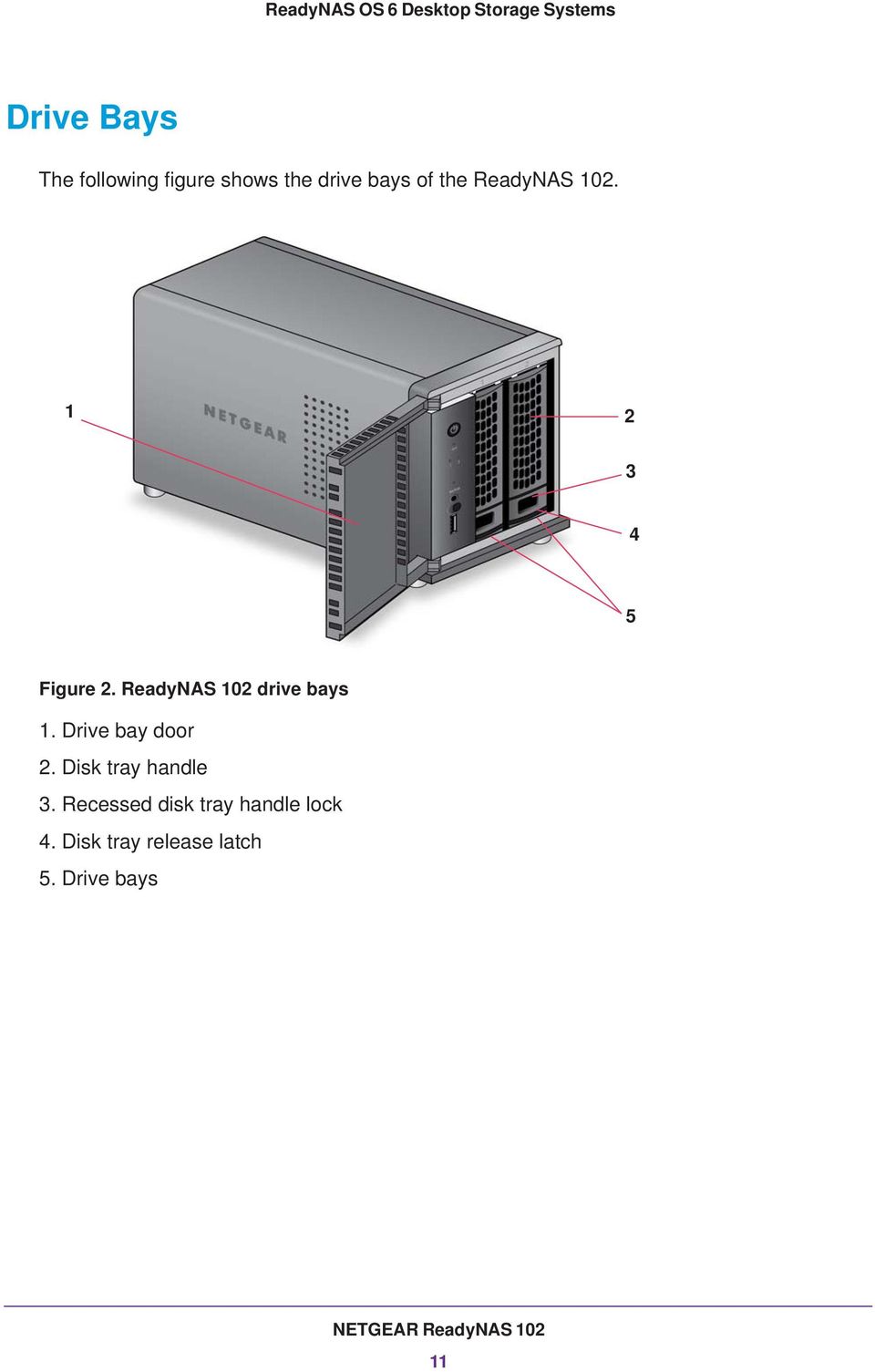
11 Drive Bays The following figure shows the drive bays of the ReadyNAS Figure 2. ReadyNAS 102 drive bays 1. Drive bay door 2. Disk tray handle 3. Recessed disk tray handle lock 4. Disk tray release latch 5. Drive bays NETGEAR ReadyNAS
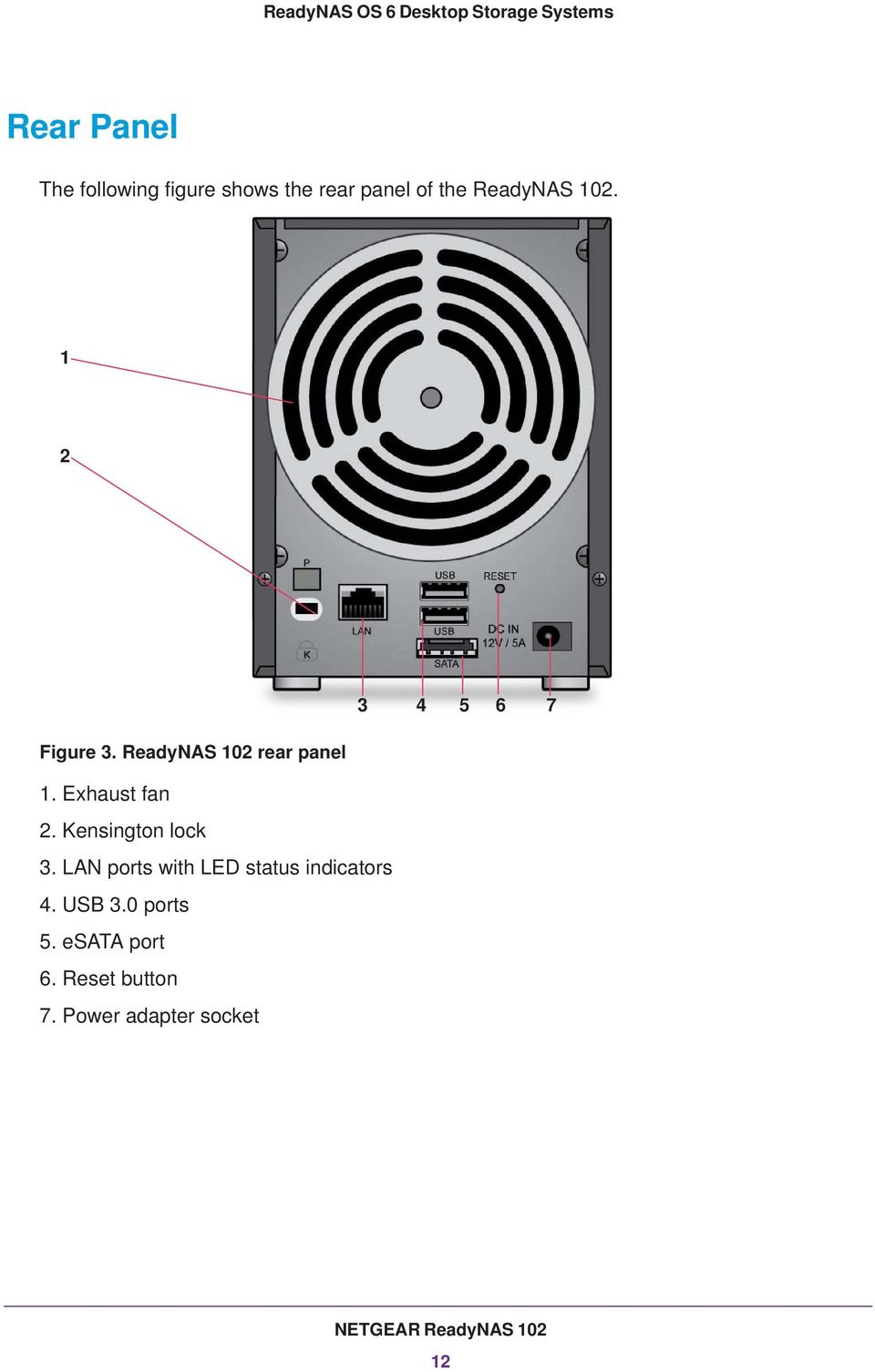
12 Rear Panel The following figure shows the rear panel of the ReadyNAS Figure 3. ReadyNAS 102 rear panel 1. Exhaust fan 2. Kensington lock 3. LAN ports with LED status indicators 4. USB 3.0 ports 5. esata port 6. Reset button 7. Power adapter socket NETGEAR ReadyNAS
13 Status Information You can obtain information about the status of your storage system by reviewing the indicators listed in the following table. Table 1. ReadyNAS 102 indicator descriptions Indicator Power button and LED Disk LEDs (1, 2) Disk activity LED Rear panel Ethernet port LEDs Description Press this button to turn on the ReadyNAS. The LED has these states: On. Powered on. Blinking. Booting or shutting down. Off. Powered off. Each drive bay has an LED associated with it on the front panel of the storage system. The disk LEDs have these states: On. Power is on and the disk is operating normally. Blinking. The disk was removed, failed, or is resynchronizing. Off. The drive bay is empty. The disk activity LED has these states: On. At least one disk is present. Blinking. A disk is active. Off. No disks are present. Two LED status indicators are built into this port, one green and one amber. They indicate port speed and activity as follows: Green on, amber off Mbps connection speed, no activity. Green blinking, amber off Mbps connection speed, activity. Green off, amber on. 10 Mbps or 100 Mbps connection speed, no activity. Green off, amber blinking. 10 Mbps or 100 Mbps connection speed, activity. Green off, amber off. No connection. NETGEAR ReadyNAS

14 Power On and Shut Down This section describes how to power on and shut down your system. If you need to shut down the system, use one of the preferred shutdown methods whenever possible. Power On To power on the system: 1. Connect the system to a power supply. Note: Depending on the system s last power state, the system might power on automatically. For more information, see Power State on page If necessary, press the Power button. The system powers on. Preferred Shutdown You can gracefully shut down your system by using the Power button or the ReadyNAS local admin page. For information about how to gracefully shut down your system using the ReadyNAS local admin page, see the ReadyNAS OS 6 Software Manual, which is available at To gracefully shut down your system using the Power button: 1. Press the Power button. The Power LED blinks, prompting you to confirm the shutdown. 2. Press the Power button again. The system shuts down gracefully. Forced Shutdown Perform a forced shutdown only if the storage system is not responding. To perform a forced shutdown: Unplug the system from the power supply. Power State If the power supply is interrupted due to a power failure, the system returns to its last state when the power supply is restored: NETGEAR ReadyNAS
15 If the system was powered on at the time of the power failure, the system powers on when the power supply is restored. If the system was powered off at the time of the power failure, the system remains off when the power supply is restored. Boot Menu Use the boot menu to restart or troubleshoot your ReadyNAS storage system. Your storage system has the following boot modes: Normal. Initiates a normal boot process, just like booting using the Power button. Factory default. Initiates a short disk test that takes approximately 5 minutes. After the disk test, a 10-minute time-out period begins. WARNING: The factory default reboot process resets the storage system to factory settings, erases all data, resets all defaults, and reformats the disk to X-RAID2. - If you want to cancel the factory default process, power off the storage system before the 10-minute time-out ends. The system powers down safely without causing any data loss. - If you want to reset the system to factory default settings, do not power off your system. After the 10-minute time-out period, the factory default process begins. Tip: To start the factory default process immediately, press the Backup button during the 10-minute time-out period. OS reinstall. Reinstalls the firmware from the internal flash to the disks. Use the OS reinstall boot mode when the system crashes and corrupts some configuration files. OS reinstall boot mode also resets some settings on your storage system, such as Internet protocol settings and the administrator password, to defaults. Tech support. Boots into a low-level diagnostic mode. Use the tech support boot mode only when a NETGEAR technical support representative instructs you to do so. Volume read only. Mounts a volume as read-only. Use this option when you are attempting to rescue data off a disk during a disaster recovery. Memory test. Performs a memory test. The pass or fail result is reported using the storage system s LEDs. Contact a NETGEAR technical support representative to interpret memory test results. Test disk. Performs an offline full disk test. This process can take four hours or more, depending on the size of your disks. Any problems are reported in the system logs. For more information about viewing the system logs, see the ReadyNAS OS 6 Software Manual, which is available at NETGEAR ReadyNAS
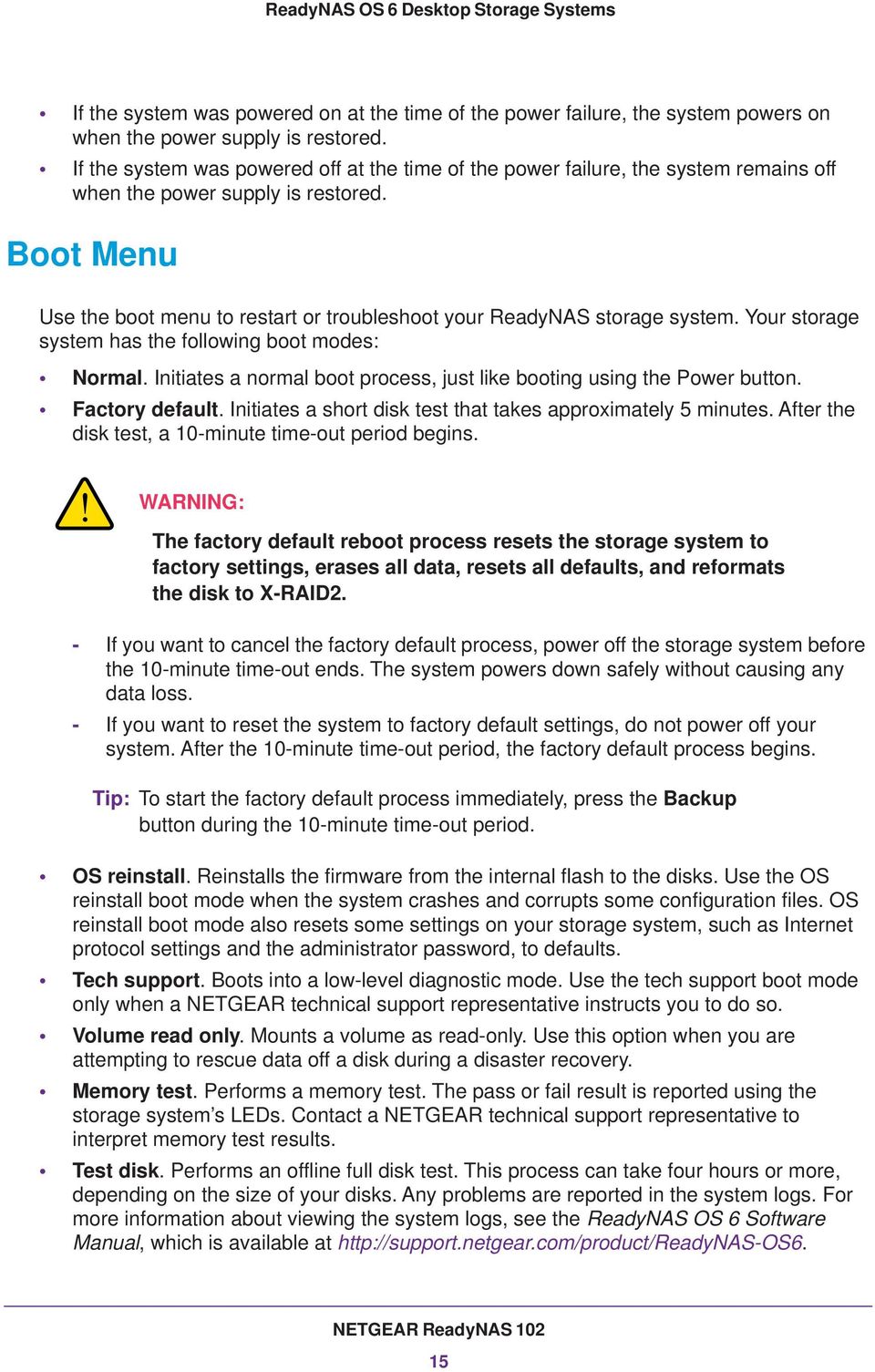
16 To access the boot menu: 1. Power off your storage system. 2. Using a straightened paper clip, press and hold the Reset button. 3. Press the Power button. The system powers on. 4. Continue to press the Reset button until the Power button LED, USB and backup status LED, disk 1 LED, and disk 2 LED light. 5. Press the Backup button to scroll through boot mode options. The storage system shows the boot mode options using the LEDs, as described in the following table: Boot Mode Boot menu Normal Factory default OS reinstall Tech support Volume read only Memory test Test disk Legend: Status Indicator Description All four LEDs light. Power LED lights. Disk 1 LED lights. Disk 2 LED lights. USB and backup status LED lights. Power LED and disk 1 LED light. Power LED and disk 2 LED light. Power LED and USB and backup status LED light. Power LED Disk 1 LED Disk 2 LED USB and Backup LED On: Off: 6. Press and release the Reset button to confirm your boot menu selection. The system boots in the selected boot mode. NETGEAR ReadyNAS
17 3. NETGEAR ReadyNAS This chapter provides an overview of the physical features of the ReadyNAS 104 and includes the following sections: Front and Side Panels Drive Bays Rear Panel Status Information Power On and Shut Down Boot Menu 17
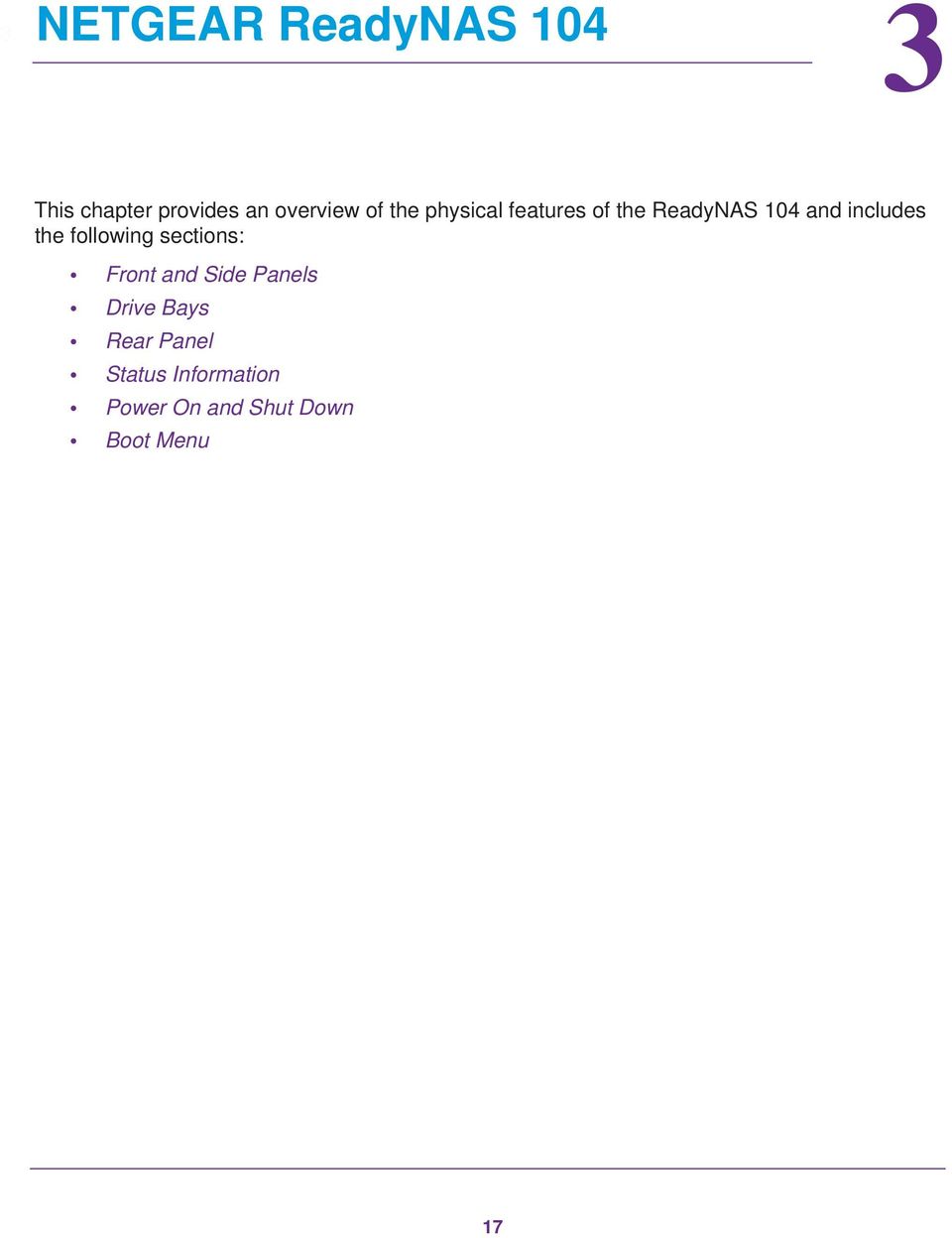
18 Front and Side Panels The following figure shows the front and side panels of the ReadyNAS Figure 4. ReadyNAS 104 front and side panels 1. Exhaust vents 2. USB 2.0 port 3. Backup button and LED 4. Disk LEDs 5. Disk activity LED 6. Power button and LED 7. Drive bay door 8. Status display screen NETGEAR ReadyNAS
19 Drive Bays The following figure shows the drive bays of the ReadyNAS Figure 5. ReadyNAS 104 drive bays 1. Drive bay door 2. Disk tray handle 3. Recessed disk tray handle lock 4. Disk tray release latch 5. Drive bays NETGEAR ReadyNAS

20 Rear Panel The following figure shows the rear panel of the ReadyNAS Figure 6. ReadyNAS 104 rear panel 1. esata port 2. Reset button 3. USB 3.0 ports 4. LAN ports with LED status indicators 5. Power cable socket 6. Exhaust fan 7. Kensington lock NETGEAR ReadyNAS

21 Status Information You can obtain information about the status of your storage system by reviewing the indicators listed in the following table. Table 2. ReadyNAS 104 indicator descriptions Indicator Power button and LED Disk LEDs (1, 2, 3, 4) Disk activity LED Rear panel Ethernet port LEDs Status display screen Description Press this button to turn on the ReadyNAS. The LED has these states: On. Powered on. Blinking. Booting or shutting down. Off. Powered off. Each drive bay has an LED associated with it, in numerical order from left to right, along the top of the front panel of the storage system. The disk LEDs have these states: On. Power is on and the disk is operating normally. Blinking. The disk was removed, failed, or is resynchronizing. See the display screen for details. Off. The drive bay is empty. The disk activity LED has these states: On. At least one disk is present. Blinking. A disk is active. Off. No disks are present. Two LED status indicators are built into this port, one green and one amber. They indicate port speed and activity as follows: Green on, amber off Mbps connection speed, no activity. Green blinking, amber off Mbps connection speed, activity. Green off, amber on. 10 Mbps or 100 Mbps connection speed, no activity. Green off, amber blinking. 10 Mbps or 100 Mbps connection speed, activity. Green off, amber off. No connection. Displays messages about the status of your storage system. Note that the status display screen goes to sleep to prevent burn-in. To wake it, press the Power button once. If the storage system reports an abnormal operation or error, the status display screen stays on. NETGEAR ReadyNAS
22 Power On and Shut Down This section describes how to power on and shut down your system. If you need to shut down the system, use one of the preferred shutdown methods whenever possible. Power On To power on the system: 1. Connect the system to a power supply. Note: Depending on the system s last power state, the system might power on automatically. For more information, see Power State on page If necessary, press the Power button. The system powers on. Preferred Shutdown You can gracefully shut down your system by using the Power button or the ReadyNAS local admin page. For information about how to gracefully shut down your system using the ReadyNAS local admin page, see the ReadyNAS OS 6 Software Manual, which is available at To gracefully shut down your system using the Power button: If the status display screen is not lit, do the following: 1. Press the Power button. The status display screen wakes. 2. Press the Power button a second time. Instructions for graceful shutdown display on the status display screen. 3. Press the Power button a third time. The system shuts down gracefully. If the status display screen is lit, do the following: 1. Press the Power button. Instructions for graceful shutdown display on the status display screen. 2. Press the Power button again. The system shuts down gracefully. NETGEAR ReadyNAS
23 Forced Shutdown Perform a forced shutdown only if the storage system is not responding. To perform a forced shutdown: Unplug the system from the power supply. Power State If the power supply is interrupted due to a power failure, the system returns to its last state when the power supply is restored: If the system was powered on at the time of the power failure, the system powers on when the power supply is restored. If the system was powered off at the time of the power failure, the system remains off when the power supply is restored. Boot Menu Use the boot menu to restart or troubleshoot your ReadyNAS storage system. Your storage system has the following boot modes: Normal. Initiates a normal boot process, just like booting using the Power button. Factory default. Initiates a short disk test that takes approximately 5 minutes. After the disk test, a 10-minute time-out period begins. WARNING: The factory default reboot process resets the storage system to factory settings, erases all data, resets all defaults, and reformats the disk to X-RAID2. - If you want to cancel the factory default process, power off the storage system before the 10-minute time-out ends. The system powers down safely without causing any data loss. - If you want to reset the system to factory default settings, do not power off your system. After the 10-minute time-out period, the factory default process begins. Tip: To start the factory default process immediately, press the Backup button during the 10-minute time-out period. OS reinstall. Reinstalls the firmware from the internal flash to the disks. Use the OS reinstall boot mode when the system crashes and corrupts some configuration files. OS reinstall boot mode also resets some settings on your storage system, such as Internet protocol settings and the administrator password, to defaults. NETGEAR ReadyNAS
24 Tech support. Boots into a low-level diagnostic mode. Use the tech support boot mode only when a NETGEAR technical support representative instructs you to do so. Volume read only. Mounts a volume as read-only. Use this option when you are attempting to rescue data off a disk during a disaster recovery. Memory test. Performs a memory test. The pass or fail result is reported on the status display screen. Test disk. Performs an offline full disk test. This process can take four hours or more, depending on the size of your disks. Any problems are reported in the system logs. For more information about viewing the system logs, see the ReadyNAS OS 6 Software Manual, which is available at To access the boot menu: 1. Power off your storage system. 2. Using a straightened paper clip, press and hold the Reset button. 3. Press the Power button. The system powers on. 4. Continue to press the Reset button until the status display screen shows a boot menu message. 5. Press the Backup button to scroll through boot mode options. The status display screen shows the current boot mode option. 6. When the status display screen shows the boot mode that you need, press and release the Reset button to confirm your boot menu selection. The system boots in the selected boot mode. NETGEAR ReadyNAS
25 4. NETGEAR ReadyNAS This chapter provides an overview of the physical features of the ReadyNAS 312 and includes the following sections: Front and Side Panels Drive Bays Rear Panel Status Information Power On and Shut Down Boot Menu 25
26 Front and Side Panels The following figure shows the front and side panels of the ReadyNAS Figure 7. ReadyNAS 312 front and side panels 1. Power button and LED 2. Disk activity LED 3. Exhaust vent 4. USB 2.0 port 5. Infrared remote receiver 6. Backup button 7. USB and Backup status LED 8. Disk 1 and Disk 2 LEDs 9. Drive bay door NETGEAR ReadyNAS
27 Drive Bays The following figure shows the drive bays of the ReadyNAS Figure 8. ReadyNAS 312 drive bays 1. Drive bay door 2. Disk tray handle 3. Recessed disk tray handle lock 4. Disk tray release latch 5. Drive bays NETGEAR ReadyNAS
28 Rear Panel The following figure shows the rear panel of the ReadyNAS Figure 9. ReadyNAS 312 rear panel 1. Exhaust fan 2. Kensington lock 3. USB 3.0 ports 4. esata port 5. LAN ports with LED status indicators 6. Reset button 7. HDMI port 8. Power adapter socket NETGEAR ReadyNAS
29 Status Information You can obtain information about the status of your storage system by reviewing the indicators listed in the following table. Table 3. ReadyNAS 312 indicator descriptions Indicator Power button and LED Disk LEDs (1, 2) Disk activity LED Rear panel Ethernet port LEDs Description Press this button to turn on the ReadyNAS. The LED has these states: On. Powered on. Blinking. Booting or shutting down. Off. Powered off. Each drive bay has an LED associated with it on the front panel of the storage system. The disk LEDs have these states: On. Power is on and the disk is operating normally. Blinking. The disk was removed, failed, or is resynchronizing. Off. The drive bay is empty. The disk activity LED has these states: On. At least one disk is present. Blinking. A disk is active. Off. No disks are present. Two LED status indicators are built into this port, one green and one amber. They indicate port speed and activity as follows: Green on, amber off Mbps connection speed, no activity. Green blinking, amber off Mbps connection speed, activity. Green off, amber on. 10 Mbps or 100 Mbps connection speed, no activity. Green off, amber blinking. 10 Mbps or 100 Mbps connection speed, activity. Green off, amber off. No connection. NETGEAR ReadyNAS
30 Power On and Shut Down This section describes how to power on and shut down your system. If you need to shut down the system, use one of the preferred shutdown methods whenever possible. Power On When the system is connected to a power supply, the system automatically powers on. You can also power on the system by pressing the Power button. Preferred Shutdown You can gracefully shut down your system by using the Power button or the ReadyNAS local admin page. For information about how to gracefully shut down your system using the ReadyNAS local admin page, see the ReadyNAS OS 6 Software Manual, which is available at To gracefully shut down your system using the Power button: 1. Press the Power button. The Power LED blinks, prompting you to confirm the shutdown. 2. Press the Power button again. The system shuts down gracefully. Forced Shutdown Perform a forced shutdown only if the storage system is not responding. To perform a forced shutdown: Press and hold the Power button for five seconds. The LEDs blink quickly and simultaneously to warn that power will be cut off forcibly. The system shuts down. NETGEAR ReadyNAS
31 Boot Menu Use the boot menu to restart or troubleshoot your ReadyNAS storage system. Your storage system has the following boot modes: Normal. Initiates a normal boot process, just like booting using the Power button. Factory default. Initiates a short disk test that takes approximately 5 minutes. After the disk test, a 10-minute time-out period begins. WARNING: The factory default reboot process resets the storage system to factory settings, erases all data, resets all defaults, and reformats the disk to X-RAID2. - If you want to cancel the factory default process, power off the storage system before the 10-minute time-out ends. The system powers down safely without causing any data loss. - If you want to reset the system to factory default settings, do not power off your system. After the 10-minute time-out period, the factory default process begins. Tip: To start the factory default process immediately, press the Backup button during the 10-minute time-out period. OS reinstall. Reinstalls the firmware from the internal flash to the disks. Use the OS reinstall boot mode when the system crashes and corrupts some configuration files. OS reinstall boot mode also resets some settings on your storage system, such as Internet protocol settings and the administrator password, to defaults. Tech support. Boots into a low-level diagnostic mode. Use the tech support boot mode only when a NETGEAR technical support representative instructs you to do so. Volume read only. Mounts a volume as read-only. Use this option when you are attempting to rescue data off a disk during a disaster recovery. Memory test. Performs a memory test. The pass or fail result is reported using the storage system s LEDs. Contact a NETGEAR technical support representative to interpret memory test results. Test disk. Performs an offline full disk test. This process can take four hours or more, depending on the size of your disks. Any problems are reported in the system logs. For more information about viewing the system logs, see the ReadyNAS OS 6 Software Manual, which is available at NETGEAR ReadyNAS
32 To access the boot menu: 1. Power off your storage system. 2. Using a straightened paper clip, press and hold the Reset button. 3. Press the Power button. The system powers on. 4. Continue to press the Reset button until the Power button LED, USB and backup status LED, disk 1 LED, and disk 2 LED light. 5. Press the Backup button to scroll through boot mode options. The storage system shows the boot mode options using the LEDs, as described in the following table: Boot Mode Boot menu Normal Factory default OS reinstall Tech support Volume read only Memory test Test disk Legend: Status Indicator Description All four LEDs light. Power LED lights. Disk 1 LED lights. Disk 2 LED lights. USB and backup status LED lights. Power LED and disk 1 LED light. Power LED and disk 2 LED light. Power LED and USB and backup status LED light. Power LED Disk 1 LED Disk 2 LED USB and Backup LED On: Off: 6. Press and release the Reset button to confirm your boot menu selection. The system boots in the selected boot mode. NETGEAR ReadyNAS
33 5. NETGEAR ReadyNAS This chapter provides an overview of the physical features of the ReadyNAS 314 and includes the following sections: Front and Side Panels Drive Bays Rear Panel Status Information Power On and Shut Down Boot Menu 33
34 Front and Side Panels The following figure shows the front and side panels of the ReadyNAS Figure 10. ReadyNAS 314 front and side panels 1. Exhaust vents 2. Shared USB 2.0 and esata port 3. Backup button and LED 4. Disk LEDs 5. Infrared remote receiver 6. Disk activity LED 7. Power button and LED 8. Drive bay door 9. Status display screen NETGEAR ReadyNAS
35 Drive Bays The following figure shows the drive bays of the ReadyNAS Figure 11. ReadyNAS 314 drive bays 1. Drive bay door 2. Disk tray handle 3. Recessed disk tray handle lock 4. Disk tray release latch 5. Drive bays NETGEAR ReadyNAS
36 Rear Panel The following figure shows the rear panel of the ReadyNAS Figure 12. ReadyNAS 314 rear panel 1. Reset button 2. LAN ports with LED status indicators 3. esata port 4. USB 3.0 ports 5. HDMI port 6. Power cable socket 7. Exhaust fan 8. Kensington lock NETGEAR ReadyNAS
37 Status Information You can obtain information about the status of your storage system by reviewing the indicators listed in the following table. Table 4. ReadyNAS 314 indicator descriptions Indicator Power button and LED Disk LEDs (1, 2, 3, 4) Disk activity LED Rear panel Ethernet port LEDs Status display screen Description Press this button to turn on the ReadyNAS. The LED has these states: On. Powered on. Blinking. Booting or shutting down. Off. Powered off. Each drive bay has an LED associated with it, in numerical order from left to right along the top of the front panel of the storage system. The disk LEDs have these states: On. Power is on and the disk is operating normally. Blinking. The disk was removed, failed, or is resynchronizing. See the display screen for details. Off. The drive bay is empty. The disk activity LED has these states: On. At least one disk is present. Blinking. A disk is active. Off. No disks are present. Two LED status indicators are built into this port, one green and one amber. They indicate port speed and activity as follows: Green on, amber off Mbps connection speed, no activity. Green blinking, amber off Mbps connection speed, activity. Green off, amber on. 10 Mbps or 100 Mbps connection speed, no activity. Green off, amber blinking. 10 Mbps or 100 Mbps connection speed, activity. Green off, amber off. No connection. Displays messages about the status of your storage system. Note that the status display screen goes to sleep to prevent burn-in. To wake it, press the Power button once. If the storage system reports an abnormal operation or error, the status display screen stays on. NETGEAR ReadyNAS
38 Power On and Shut Down This section describes how to power on and shut down your system. If you need to shut down the system, use one of the preferred shutdown methods whenever possible. Power On When the system is connected to a power supply, the system automatically powers on. You can also power on the system by pressing the Power button. Preferred Shutdown You can gracefully shut down your system by using the Power button or the ReadyNAS local admin page. For information about how to gracefully shut down your system using the ReadyNAS local admin page, see the ReadyNAS OS 6 Software Manual, which is available at To gracefully shut down your system using the Power button: If the status display screen is not lit, do the following: 1. Press the Power button. The status display screen wakes. 2. Press the Power button a second time. Instructions for graceful shutdown display on the status display screen. 3. Press the Power button a third time. The system shuts down gracefully. If the status display screen is lit, do the following: 1. Press the Power button. Instructions for graceful shutdown display on the status display screen. 2. Press the Power button again. The system shuts down gracefully. Forced Shutdown Perform a forced shutdown only if the storage system is not responding. To perform a forced shutdown: Press and hold the Power button for five seconds. NETGEAR ReadyNAS
39 The LEDs blink quickly and simultaneously to warn that power will be cut off forcibly. The system shuts down. Boot Menu Use the boot menu to restart or troubleshoot your ReadyNAS storage system. Your storage system has the following boot modes: Normal. Initiates a normal boot process, just like booting using the Power button. Factory default. Initiates a short disk test that takes approximately 5 minutes. After the disk test, a 10-minute time-out period begins. WARNING: The factory default reboot process resets the storage system to factory settings, erases all data, resets all defaults, and reformats the disk to X-RAID2. - If you want to cancel the factory default process, power off the storage system before the 10-minute time-out ends. The system powers down safely without causing any data loss. - If you want to reset the system to factory default settings, do not power off your system. After the 10-minute time-out period, the factory default process begins. Tip: To start the factory default process immediately, press the Backup button during the 10-minute time-out period. OS reinstall. Reinstalls the firmware from the internal flash to the disks. Use the OS reinstall boot mode when the system crashes and corrupts some configuration files. OS reinstall boot mode also resets some settings on your storage system, such as Internet protocol settings and the administrator password, to defaults. Tech support. Boots into a low-level diagnostic mode. Use the tech support boot mode only when a NETGEAR technical support representative instructs you to do so. Volume read only. Mounts a volume as read-only. Use this option when you are attempting to rescue data off a disk during a disaster recovery. Memory test. Performs a memory test. The pass or fail result is reported on the status display screen. Test disk. Performs an offline full disk test. This process can take four hours or more, depending on the size of your disks. Any problems are reported in the system logs. For more information about viewing the system logs, see the ReadyNAS OS 6 Software Manual, which is available at NETGEAR ReadyNAS
40 To access the boot menu: 1. Power off your storage system. 2. Using a straightened paper clip, press and hold the Reset button. 3. Press the Power button. The systems powers on. 4. Continue to press the Reset button until the status display screen shows a boot menu message. 5. Press the Backup button to scroll through boot mode options. The status display screen shows the current boot mode option. 6. When the status display screen shows the boot mode that you need, press and release the Reset button to confirm your boot menu selection. The system boots in the selected boot mode. NETGEAR ReadyNAS
41 6. NETGEAR ReadyNAS This chapter provides an overview of the physical features of the ReadyNAS 316 and includes the following sections: Front and Side Panels Drive Bays Rear Panel Status Information Power On and Shut Down Boot Menu 41
42 Front and Side Panels The following figure shows the front and side panels of the ReadyNAS Figure 13. ReadyNAS 316 front and side panels 1. Status and Menu display screen 2. Infrared remote receiver 3. Drive bay door 4. Touchpad and backlight 5. OK button NETGEAR ReadyNAS
43 Drive Bays The following figure shows the drive bays of the ReadyNAS Figure 14. ReadyNAS 316 drive bays 1. Drive bay door 2. Disk tray release latch 3. Recessed disk tray handle lock 4. USB 2.0 port 5. Disk tray handle 6. Power button 7. Disk LED 8. Drive bays NETGEAR ReadyNAS
44 Rear Panel The following figure shows the rear panel of the ReadyNAS Figure 15. ReadyNAS 316 rear panel 1. Exhaust fan 2. Power cable socket 3. Power switch 4. Kensington lock 5. esata ports 6. LAN ports with LED status indicators 7. HDMI port 8. USB 3.0 ports 9. Reset button NETGEAR ReadyNAS
45 Status Information You can obtain information about the status of your storage system by reviewing the indicators listed in the following table. Table 5. ReadyNAS 316 indicator descriptions Indicator Disk LEDs Rear panel Ethernet port LEDs Status display screen Description A disk LED next to each drive bay indicates the status of the disk inside. The disk LEDs have these states: Solid blue. Power is on and the disk is operating normally. Blinking blue. The disk is active. Solid red. The disk was removed, failed, or is resynchronizing. See the display screen for details. Off. No disk is present. Two LED status indicators are built into this port, one green and one amber. They indicate port speed and activity as follows: Green on, amber off Mbps connection speed, no activity. Green blinking, amber off Mbps connection speed, activity. Green off, amber on. 10 Mbps or 100 Mbps connection speed, no activity. Green off, amber blinking. 10 Mbps or 100 Mbps connection speed, activity. Green off, amber off. No connection. Displays messages about the status of your storage system. Note that the status display screen goes to sleep to prevent burn-in. To wake the status display screen, activate the proximity sensor, press the touchpad, press the OK button, or press the Power button once. If the storage system reports an abnormal operation or error, the status display screen stays on. Power On and Shut Down This section describes how to power on and shut down your system. If you need to shut down the system, use one of the preferred shutdown methods whenever possible. Power On When the system is connected to a power supply and the Power switch is in the On position, the system automatically powers on. You can also power on the system by pressing the Power button on the front panel of the system. NETGEAR ReadyNAS
46 Preferred Shutdown You can gracefully shut down your system by using the Power button or the ReadyNAS local admin page. For information about how to gracefully shut down your system using the ReadyNAS local admin page, see the ReadyNAS OS 6 Software Manual, which is available at To gracefully shut down your system using the Power button: If the status display screen is not lit, do the following: 1. Press the Power button on the front panel of the system. The status display screen wakes. 2. Press the Power button a second time. Instructions for graceful shutdown display on the status display screen. 3. Press the Power button a third time. The system shuts down gracefully. If the status display screen is lit, do the following: 1. Press the Power button on the front panel of the system. Instructions for graceful shutdown display on the status display screen. 2. Press the Power button again. The system shuts down gracefully. Forced Shutdown Perform a forced shutdown only if the storage system is not responding. To perform a forced shutdown: Press and hold the Power button on the front panel of the system for five seconds. The LEDs blink quickly and simultaneously to warn that power will be cut off forcibly. The system shuts down. NETGEAR ReadyNAS
47 Boot Menu Use the boot menu to restart or troubleshoot your ReadyNAS storage system. Your storage system has the following boot modes: Normal. Initiates a normal boot process, just like booting using the Power button. Factory default. Initiates a short disk test that takes approximately 2 minutes. After the disk test, a 10-minute time-out period begins. WARNING: The factory default reboot process resets the storage system to factory settings, erases all data, resets all defaults, and reformats the disk to X-RAID2. - If you want to cancel the factory default process, power off the storage system before the 10-minute time-out ends. The system powers down safely without causing any data loss. - If you want to reset the system to factory default settings, do not power off your system. After the 10-minute time-out period, the factory default process begins. Tip: To start the factory default process immediately, press the OK button during the 10-minute time-out period. OS reinstall. Reinstalls the firmware from the internal flash to the disks. Use the OS reinstall boot mode when the system crashes and corrupts some configuration files. OS reinstall boot mode also resets some settings on your storage system, such as Internet protocol settings and the administrator password, to defaults. Tech support. Boots into a low-level diagnostic mode. Use the tech support boot mode only when a NETGEAR technical support representative instructs you to do so. Volume read only. Mounts a volume as read-only. Use this option when you are attempting to rescue data off a disk during a disaster recovery. Memory test. Performs a memory test. The pass or fail result is reported on the status display screen. Test disk. Performs an offline full disk test. This process can take four hours or more, depending on the size of your disks. Any problems are reported in the system logs. For more information about viewing the system logs, see the ReadyNAS OS 6 Software Manual, which is available at NETGEAR ReadyNAS
48 To access the boot menu: 1. Power off your storage system. 2. Using a straightened paper clip, press and hold the Reset button. 3. Press the Power button on the front panel of the system. The system powers on. 4. Continue to press the Reset button until the status display screen shows a boot menu message. 5. Use the arrows on the touchpad to scroll through boot mode options. The status display screen shows the current boot mode option. 6. When the status display screen shows the boot mode that you need, press the OK button to confirm your boot menu selection. The system boots in the selected boot mode. NETGEAR ReadyNAS
49 7. NETGEAR ReadyNAS This chapter provides an overview of the physical features of the ReadyNAS 516 and includes the following sections: Front and Side Panels Drive Bays Rear Panel Status Information Power On and Shut Down Boot Menu 49
50 Front and Side Panels The following figure shows the front and side panels of the ReadyNAS Figure 16. ReadyNAS 516 front and side panels 1. Status and menu display screen 2. Infrared remote receiver 3. Drive bay door 4. Touchpad and backlight 5. OK button NETGEAR ReadyNAS
51 Drive Bays The following figure shows the drive bays of the ReadyNAS Figure 17. ReadyNAS 516 drive bays 1. Drive bay door 2. Disk tray release latch 3. Recessed disk tray handle lock 4. USB 2.0 port 5. Disk tray handle 6. Power button 7. Disk LED 8. Drive bays NETGEAR ReadyNAS
52 Rear Panel The following figure shows the rear panel of the ReadyNAS Figure 18. ReadyNAS 516 rear panel 1. Exhaust fan 2. Power cable socket 3. Power switch 4. Kensington lock 5. esata ports 6. LAN ports with LED status indicators 7. HDMI port 8. esata port 9. USB 3.0 ports 10. Reset button NETGEAR ReadyNAS
53 Status Information You can obtain information about the status of your storage system by reviewing the indicators listed in the following table. Table 6. ReadyNAS 516 indicator descriptions Indicator Disk LEDs Rear panel Ethernet port LEDs Status display screen Description A disk LED next to each drive bay indicates the status of the disk inside. The disk LEDs have these states: Solid blue. Power is on and the disk is operating normally. Blinking blue. The disk is active. Solid red. The disk was removed, failed, or is resynchronizing. See the display screen for details. Off. No disk is present. Two LED status indicators are built into this port, one green and one amber. They indicate port speed and activity as follows: Green on, amber off Mbps connection speed, no activity. Green blinking, amber off Mbps connection speed, activity. Green off, amber on. 10 Mbps or 100 Mbps connection speed, no activity. Green off, amber blinking. 10 Mbps or 100 Mbps connection speed, activity. Green off, amber off. No connection. Displays messages about the status of your storage system. Note that the status display screen goes to sleep to prevent burn-in. To wake the status display screen, activate the proximity sensor, press the touchpad, press the OK button, or press the Power button once. If the storage system reports an abnormal operation or error, the status display screen stays on. Power On and Shut Down This section describes how to power on and shut down your system. If you need to shut down the system, use one of the preferred shutdown methods whenever possible. Power On When the system is connected to a power supply and the Power switch is in the On position, the system automatically powers on. You can also power on the system by pressing the Power button on the front panel of the system. NETGEAR ReadyNAS
54 Preferred Shutdown You can gracefully shut down your system by using the Power button or the ReadyNAS local admin page. For information about how to gracefully shut down your system using the ReadyNAS local admin page, see the ReadyNAS OS 6 Software Manual, which is available at To gracefully shut down your system using the Power button: If the status display screen is not lit, do the following: 1. Press the Power button on the front panel of the system. The status display screen wakes. 2. Press the Power button a second time. Instructions for graceful shutdown display on the status display screen. 3. Press the Power button a third time. The system shuts down gracefully. If the status display screen is lit, do the following: 1. Press the Power button on the front panel of the system. Instructions for graceful shutdown display on the status display screen. 2. Press the Power button again. The system shuts down gracefully. Forced Shutdown Perform a forced shutdown only if the storage system is not responding. To perform a forced shutdown: Press and hold the Power button on the front panel of the system for five seconds. The LEDs blink quickly and simultaneously to warn that power will be cut off forcibly. The system shuts down. NETGEAR ReadyNAS
55 Boot Menu Use the boot menu to restart or troubleshoot your ReadyNAS storage system. Your storage system has the following boot modes: Normal. Initiates a normal boot process, just like booting using the Power button. Factory default. Initiates a short disk test that takes approximately 2 minutes. After the disk test, a 10-minute time-out period begins. WARNING: The factory default reboot process resets the storage system to factory settings, erases all data, resets all defaults, and reformats the disk to X-RAID2. - If you want to cancel the factory default process, power off the storage system before the 10-minute time-out ends. The system powers down safely without causing any data loss. - If you want to reset the system to factory default settings, do not power off your system. After the 10-minute time-out period, the factory default process begins. Tip: To start the factory default process immediately, press the OK button during the 10-minute time-out period. OS reinstall. Reinstalls the firmware from the internal flash to the disks. Use the OS reinstall boot mode when the system crashes and corrupts some configuration files. OS reinstall boot mode also resets some settings on your storage system, such as Internet protocol settings and the administrator password, to defaults. Tech support. Boots into a low-level diagnostic mode. Use the tech support boot mode only when a NETGEAR technical support representative instructs you to do so. Volume read only. Mounts a volume as read-only. Use this option when you are attempting to rescue data off a disk during a disaster recovery. Memory test. Performs a memory test. The pass or fail result is reported on the status display screen. Test disk. Performs an offline full disk test. This process can take four hours or more, depending on the size of your disks. Any problems are reported in the system logs. For more information about viewing the system logs, see the ReadyNAS OS 6 Software Manual, which is available at NETGEAR ReadyNAS
56 To access the boot menu: 1. Power off your storage system. 2. Using a straightened paper clip, press and hold the Reset button. 3. Press the Power button on the front panel of the system. The system powers on. 4. Continue to press the Reset button until the status display screen shows a boot menu message. 5. Use the arrows on the touchpad to scroll through boot mode options. The status display screen shows the current boot mode option. 6. When the status display screen shows the boot mode that you need, press the OK button to confirm your boot menu selection. The system boots in the selected boot mode. NETGEAR ReadyNAS
57 8. NETGEAR ReadyNAS 716X 8 This chapter provides an overview of the physical features of the ReadyNAS 716X and includes the following sections: Front and Side Panels Drive Bays Rear Panel Status Information Power On and Shut Down Boot Menu 57
58 Front and Side Panels The following figure shows the front and side panels of the ReadyNAS 716X Figure 19. ReadyNAS 716X front and side panels 1. Status and menu display screen 2. Infrared remote receiver 3. Drive bay door 4. Touchpad and backlight 5. OK button NETGEAR ReadyNAS 716X 58
59 Drive Bays The following figure shows the drive bays of ReadyNAS 716X Figure 20. ReadyNAS 716X drive bays 1. Drive bay door 2. Disk tray release latch 3. Recessed disk tray handle lock 4. USB 2.0 port 5. Disk tray handle 6. Power button 7. Disk LED 8. Drive bays NETGEAR ReadyNAS 716X 59
60 Rear Panel The following figure shows the rear panel of ReadyNAS 716X Figure 21. ReadyNAS 716X rear panel 1. Exhaust fan 2. Power cable socket 3. Power switch 4. Kensington lock 5. esata ports 6. 1Gb LAN ports with LED status indicators 7. HDMI port 8. esata port 9. USB 3.0 ports 10. Reset button Gb LAN ports with LED status indicators NETGEAR ReadyNAS 716X 60
61 Status Information You can obtain information about the status of your storage system by reviewing the indicators listed in the following table. Table 7. ReadyNAS 716X indicator descriptions Indicator Disk LEDs Rear panel Ethernet port LEDs (1 Gb) Rear panel Ethernet port LEDs (10 Gb) Status display screen Description A disk LED next to each drive bay indicates the status of the disk inside. The disk LEDs have these states: Solid blue. Power is on and the disk is operating normally. Blinking blue. The disk is active. Solid red. The disk was removed, failed, or is resynchronizing. See the display screen for details. Off. No disk is present. Two LED status indicators are built into this port, one green and one amber. They indicate port speed and activity as follows: Green on, amber off Mbps connection speed, no activity. Green blinking, amber off Mbps connection speed, activity. Green off, amber on. 10 Mbps or 100 Mbps connection speed, no activity. Green off, amber blinking. 10 Mbps or 100 Mbps connection speed, activity. Green off, amber off. No connection. Two LED status indicators are built into this port. They indicate port speed and activity as follows: LED 1 - Off. No link. - Solid green. Linked. - Blinking green. Activity LED 2 - Solid green. 10 GbE - Solid yellow. 1 GbE - Off. 100 Mbps Displays messages about the status of your storage system. Note that the status display screen goes to sleep to prevent burn-in. To wake the status display screen, activate the proximity sensor, press the touchpad, press the OK button, or press the Power button once. If the storage system reports an abnormal operation or error, the status display screen stays on. Power On and Shut Down This section describes how to power on and shut down your system. If you need to shut down the system, use one of the preferred shutdown methods whenever possible. NETGEAR ReadyNAS 716X 61
62 Power On When the system is connected to a power supply and the Power switch is in the On position, the system automatically powers on. You can also power on the system by pressing the Power button on the front panel of the system. Preferred Shutdown You can gracefully shut down your system by using the Power button or the ReadyNAS local admin page. For information about how to gracefully shut down your system using the ReadyNAS local admin page, see the ReadyNAS OS 6 Software Manual, which is available at To gracefully shut down your system using the Power button: If the status display screen is not lit, do the following: 1. Press the Power button on the front panel of the system. The status display screen wakes. 2. Press the Power button a second time. Instructions for graceful shutdown display on the status display screen. 3. Press the Power button a third time. The system shuts down gracefully. If the status display screen is lit, do the following: 1. Press the Power button on the front panel of the system. Instructions for graceful shutdown display on the status display screen. 2. Press the Power button again. The system shuts down gracefully. Forced Shutdown Perform a forced shutdown only if the storage system is not responding. To perform a forced shutdown: Press and hold the Power button on the front panel of the system for 5 seconds. The LEDs blink quickly and simultaneously to warn that power will be cut off forcibly. The system shuts down. NETGEAR ReadyNAS 716X 62
63 Boot Menu Use the boot menu to restart or troubleshoot your ReadyNAS storage system. Your storage system has the following boot modes: Normal. Initiates a normal boot process, just like booting using the Power button. Factory default. Initiates a short disk test that takes approximately 2 minutes. After the disk test, a 10-minute time-out period begins. WARNING: The factory default reboot process resets the storage system to factory settings, erases all data, resets all defaults, and reformats the disk to X-RAID2. - If you want to cancel the factory default process, power off the storage system before the 10-minute time-out ends. The system powers down safely without causing any data loss. - If you want to reset the system to factory default settings, do not power off your system. After the 10-minute time-out period, the factory default process begins. Tip: To start the factory default process immediately, press the OK button during the 10-minute time-out period. OS reinstall. Reinstalls the firmware from the internal flash to the disks. Use the OS reinstall boot mode when the system crashes and corrupts some configuration files. OS reinstall boot mode also resets some settings on your storage system, such as Internet protocol settings and the administrator password, to defaults. Tech support. Boots into a low-level diagnostic mode. Use the tech support boot mode only when instructed to do so by a NETGEAR technical support representative. Volume read only. Mounts a volume as read-only. Use this option when you are attempting to rescue data off a disk during a disaster recovery. Memory test. Performs a memory test. The pass or fail result is reported on the status display screen. Test disk. Performs an offline full disk test. This process can take four hours or more, depending on the size of your disks. Any problems are reported in the system logs. For more information about viewing the system logs, see the ReadyNAS OS 6 Software Manual, which is available at NETGEAR ReadyNAS 716X 63
64 To access the boot menu: 1. Power off your storage system. 2. Using a straightened paper clip, press and hold the Reset button. 3. Press the Power button on the front panel of the system. The system powers on. 4. Continue to press the Reset button until the status display screen shows a boot menu message. 5. Use the arrows on the touchpad to scroll through boot mode options. The status display screen shows the current boot mode option. 6. When the status display screen shows the boot mode that you need, press the OK button to confirm your boot menu selection. The system boots in the selected boot mode. NETGEAR ReadyNAS 716X 64
65 9. NETGEAR EDA This chapter provides an overview of the physical features of the EDA 500 and includes the following sections: Front and Side Panels Drive Bays Rear Panel Status Information Power On and Shut Down Note: The EDA 500 disk trays are slightly different from the standard trays. Use only EDA 500 disk trays with the EDA 500. For more information about the EDA 500 disk trays, see EDA 500 Disk Tray on page
66 Front and Side Panels The following figure shows the front and side panels of EDA Figure 22. EDA 500 front and side panels 1. Power LED 2. esata LED 3. Volume LED 4. Alert LED 5. Drive bay door NETGEAR EDA
67 Drive Bays The following figure shows the drive bays of EDA Figure 23. EDA 500 drive bays 1. Drive bay door 2. Disk tray release latch 3. Recessed disk tray handle lock 4. Disk tray handle 5. Power button 6. Disk LED 7. Disk label 8. Active drive bays 9. Cold spare drive bay NETGEAR EDA
68 Rear Panel The following figure shows the rear panel of EDA Figure 24. EDA 500 rear panel 1. Exhaust fan 2. Kensington lock 3. Power switch 4. Power cable socket 5. esata port NETGEAR EDA
69 Status Information You can obtain information about the status of your storage system by reviewing the indicators listed in the following table. Table 8. EDA 500 indicator descriptions Indicator Power LED esata LED Volume LED Alert LED Disk LEDs Description The Power LED has these states: On. Powered on. Off. Powered off. The esata LED has these states: On. The SATA link is established between the EDA 500 and a host. Off. The SATA link is not established. The Volume LED has these states: On. The data volume or volumes are mounted by a host. Off. The data volume or volumes are not mounted. You can safely disconnect the esata cable. The Alert LED has these states: On. The system needs attention. Use the local admin page to determine the problem. For more information, see the ReadyNAS OS 6 Software Manual, which is available at Off. The system is healthy. A disk LED next to each active drive bay indicates the status of the disk inside. (The cold spare drive bay has no LED.) The disk LEDs have these states: Solid blue. Power is on and the disk is operating normally. Blinking blue. The disk is active. Solid red. The disk was removed, failed, or is resynchronizing. See the display screen for details. Off. No disk is present. NETGEAR EDA
70 Power On and Shut Down This section describes how to power on and shut down your system. If you need to shut down the system, use the preferred shutdown method whenever possible. Power On When the system is connected to a power supply and the Power switch is in the On position, the system automatically powers on. When connected to a host that is powered on, the EDA 500 automatically powers on. The EDA 500 detects a powered-on host through the esata link. You can also power on the system by pressing the Power button on the front panel of the system. Preferred Shutdown If possible, always unmount the EDA 500 volumes from the host before shutting down the EDA 500. Use the ReadyNAS local admin page to gracefully shut down the EDA 500. For information about how to gracefully shut down the EDA 500 using the ReadyNAS local admin page, see the ReadyNAS OS 6 Software Manual, which is available at Forced Shutdown Perform a forced shutdown only if the storage system is not responding. To perform a forced shutdown: Flip the Power switch on the back panel of the system to the Off position. NETGEAR EDA
71 10. Disks 10 This chapter describes how to reformat, add, and replace disks in your ReadyNAS OS 6 storage system. For information about configuring disks on your storage system, see the ReadyNAS OS 6 Software Manual, which is available at This chapter includes the following topics: Disk Trays Supported Disks Previously Formatted Disks Add a Disk Replace a Disk 71
72 Disk Trays All systems except the EDA 500 use standard disk trays. The EDA 500 comes with its own special disk trays. This section describes both the standard and EDA 500 disk trays. Standard Disk Tray The following figure shows the features of the standard disk tray. This disk tray is used in all systems except the EDA 500. For information about the EDA 500 disk tray, see EDA 500 Disk Tray on page Figure 25. Standard disk tray 1. Disk tray 2. Disk tray release latch 3. Recessed disk tray handle lock 4. Disk tray handle 5. Disk screw holes 6. Mounting bracket 7. Bracket lock IMPORTANT: To maintain adequate airflow, make sure that all disk trays remain in the drive bays, even if no disk is installed in the tray. Do not use standard disk trays with the EDA 500. Use only EDA 500 disk trays with the EDA 500. Disks 72
73 EDA 500 Disk Tray The following figure shows the features of the EDA 500 disk tray. The EDA 500 disk tray and the standard disk tray are the same, except for the EMI shielding on the EDA 500 disk tray. For this reason, use only EDA 500 disk trays with the EDA Figure 26. EDA 500 disk tray 1. Disk tray 2. Disk tray release latch 3. Recessed disk tray handle lock 4. Disk tray handle 5. Disk screw holes 6. Mounting bracket 7. Bracket lock 8. EMI shielding IMPORTANT: Use only EDA 500 disk trays with the EDA 500. Do not use standard disk trays with the EDA 500. To maintain adequate airflow, make sure that all disk trays remain in the drive bays, even if no disk is installed in the tray. Disks 73
74 Supported Disks Use only supported SATA hard disk drives (HDD) or solid state drives (SSD) in your ReadyNAS storage system. If you use disks that are not supported, NETGEAR technical support will not provide assistance. For a list of supported disks, see the NETGEAR Hardware Compatibility List at Previously Formatted Disks This section describes how to use previously formatted disks with your ReadyNAS OS 6 storage system. Previously formatted disks must appear on the NETGEAR Hardware Compatibility List, which is available at Reformat Previously Formatted Disks If you want to use disks that were previously formatted for an operating system other than ReadyNAS OS 6 (for example, Windows or RAIDiator), you must reformat the disks. If you want to use disks from another ReadyNAS OS 6 storage system, see Migrate a Volume on page 75. Note: If you try to use previously formatted disks in a system that does not contain any other disks, the system does not boot and ReadyCLOUD does not discover your device. If you use RAIDar to discover your device, RAIDar displays a Corrupt Root error message. If you try to use previously formatted disks in a system that already contains usable disks, the system does not reformat or use the previously formatted disks. Any data on the previously formatted disk remains intact. The following instructions describe how to reformat previously formatted disks in a ReadyNAS OS 6 system. This procedure assumes that the system does not contain any other disks. To reformat previously formatted disks with a diskless ReadyNAS OS 6 system: 1. Gracefully shut down the storage system. For information about how to gracefully shut down your system, see the Preferred Shutdown section of the chapter that describes your system. Disks 74
75 2. Install the disks. For more information, see Add a Disk on page Reset the system to its factory default settings. WARNING: This process erases all data and reformats all disks into a single X-RAID2 volume. If you want to preserve the data on the disks, you must back up the data to an external drive before using the disks in your ReadyNAS storage system. For information about how to reset the system to its factory default settings, see the Boot Menu section of the chapter that describes your system. The disk is reformatted and becomes available for use with your ReadyNAS OS 6 storage system. Migrate a Volume You can migrate a volume from one ReadyNAS OS 6 storage system to another, as long as you migrate every disk in the volume. For example, if you want to migrate a volume that contains two disks, you must add both disks to the new system. If you add only part of a volume to the new system, the system recognizes the disk as a degraded volume. If your ReadyNAS storage system is operating with one or more disks, you can add disks while the system is running. The new system recognizes the migrated volume and its data. For more information about adding a disk while the system is running, see Add a Disk on page 76. If your ReadyNAS storage system does not have any disks installed, perform the following procedure. To migrate a volume to a diskless ReadyNAS OS 6 system: 1. Gracefully shut down the new (diskless) storage system. For information about how to gracefully shut down your system, see the Preferred Shutdown section of the chapter that describes your system. 2. Remove each disk in the volume from the old system. 3. Install each disk in the volume into the new storage system. For more information, see Add a Disk on page Turn on the new system by pressing the Power button. The new system recognizes the migrated volume and its data. Disks 75
76 Add a Disk You can add a 3.5-inch hard disk drive, a 2.5-inch hard disk drive, or a 2.5-inch solid state drive to an empty drive bay. If you want to add a previously formatted disk to your storage system, see the instructions in Previously Formatted Disks on page 74. To add a 3.5-inch hard disk drive (HDD): 1. Determine whether you need to shut down your system: If you are adding disks to a diskless system, gracefully shut down the system. For information about how to gracefully shut down your system, see the Preferred Shutdown section of the chapter that describes your system. If your system is operating with one or more disks, you can add disks while the system is running. You do not need to shut down the system. 2. If necessary, slide the recessed handle lock to the unlocked position. 3. Press the disk tray release latch. The disk tray handle pops out. 4. Pull out the disk tray. 5. Separate the mounting bracket from the disk tray: a. Press and hold the disk tray release latch. Disks 76
77 b. While holding the release latch, use your other hand to pull out one end of the mounting bracket and then the other until the ends extend slightly past the disk tray. Make sure that the ends of the mounting bracket are even with each other. c. Slide the bracket down the disk tray, keeping both sides of the bracket even with each other. Bracket lock The mounting bracket stops when it hits the bracket lock. The bracket lock prevents the mounting bracket from sliding all the way off the disk tray. 6. Attach the new HDD to the mounting bracket. Disks 77
78 Make sure that the HDD mounting holes are aligned with the bracket s mounting posts and that the HDD connectors face the interior of the disk tray. 7. Push the mounting bracket and HDD back into the disk tray. Disks 78
79 WARNING: To prevent damage to your system, make sure that the disk tray is correctly oriented before inserting it into the drive bay. 8. Insert the disk tray back into the drive bay of the storage system. For 2-bay and 4-bay systems, insert the disk tray so that the disk tray release latch is near the bottom of the system. For 6-bay systems, insert the disk tray so that the disk tray release latch is on the left side of the system. 9. Press down on the disk tray handle until it latches closed. The disk tray is secured in the drive bay. 10. If necessary, turn on your system by pressing the Power button. If the disk that you added was not previously formatted, the system uses the disk in one of the following ways: If you are adding the disk to a system that uses X-RAID2, the system automatically determines whether the disk is used for protection or storage. The new disk is incorporated in the background while you continue to use your system. If you are adding the disk to a system that uses Flex-RAID, the disk becomes available for use. You use the local admin page to manually configure the new disk. For more information about X-RAID2, Flex-RAID, and using the local admin page, see the ReadyNAS OS 6 Software Manual, which is available at To add a 2.5-inch hard disk drive (HDD) or 2.5-inch solid state drive (SSD): 1. Determine whether you need to shut down your system: If you are adding disks to a diskless system, gracefully shut down the system. For information about how to gracefully shut down your system, see the Preferred Shutdown section of the chapter that describes your system. If your system is operating with one or more disks, you can add disks while the system is running. You do not need to shut down the system. 2. If necessary, slide the recessed handle lock to the unlocked position. Disks 79
80 3. Press the disk tray release latch. The disk tray handle pops out. 4. Pull out the disk tray. 5. Remove the mounting bracket from the disk tray: a. Press and hold the disk tray release latch. b. While holding the release latch, use your other hand to pull out one end of the mounting bracket and then the other until the ends extend slightly past the disk tray. Make sure that the ends of the mounting bracket are even with each other. Disks 80
81 c. Slide the bracket down the disk tray, keeping both sides of the bracket even with each other. Bracket lock The mounting bracket stops when it hits the bracket lock. The bracket lock prevents the mounting bracket from sliding all the way off the disk tray. d. Push the mounting bracket out of each bracket lock using a pointed object, such as a pen. The mounting bracket is released from the bracket locks. e. Slide the mounting bracket out of the disk tray. The mounting bracket is not used to secure 2.5-inch HDDs or SSDs. Disks 81
82 6. Place the new 2.5-inch HDD or SSD in the disk tray. 7. Secure the HDD or SSD to the disk tray using the screws that came with your storage system. Make sure that the HDD or SSD connectors face the interior of the disk tray. Make sure that the HDD or SSD is installed on the correct side of the disk tray. WARNING: To prevent damage to your system, make sure that the disk tray is correctly oriented before inserting it into the drive bay. 8. Insert the disk tray back into the drive bay of the storage system. For 2-bay and 4-bay systems, insert the disk tray so that the disk tray release latch is near the bottom of the system. Disks 82
83 For 6-bay systems, insert the disk tray so that the disk tray release latch is on the left side of the system. 9. Press down on the disk tray handle until it latches closed. The disk tray is secured in the drive bay. 10. If necessary, turn on your system by pressing the Power button. If the disk that you added was not previously formatted, the system uses the disk in one of the following ways: If you are adding the disk to a system that uses X-RAID2, the system automatically determines whether the disk is used for protection or storage. The new disk is incorporated in the background while you continue to use your system. If you are adding the disk to a system that uses Flex-RAID, the disk becomes available for use. You use the local admin page to manually configure the new disk. For more information about X-RAID2, Flex-RAID, and using the local admin page, see the ReadyNAS OS 6 Software Manual, which is available at Replace a Disk If your volumes use a protected RAID configuration, your system can recover from the failure of a disk. When you replace the failed disk, the system rebuilds the volume using the new disk and no data from the volume is lost. The Disk LEDs can help you identify a failed disk. For more information, see the Status Information section of the chapter that describes your system. You can also use the local admin page to set up alerts that notify you when a disk fails. In addition, the local admin page provides information about the failed disk. For information about RAID configurations, setting up alerts, and using the local admin page, see the ReadyNAS OS 6 Software Manual, which is available at ReadyNAS supports hot-swap drive bays, so you do not need to power down your storage system when replacing a disk. If you are replacing a disk with a previously formatted disk, see the instructions in Previously Formatted Disks on page 74. WARNING: Replace one disk at a time. Wait for the volume to resynchronize your data before replacing another disk. If you attempt to replace more than one disk at a time, the system will crash. Disks 83
84 To replace a 3.5-inch hard disk drive (HDD): 1. If necessary, slide the recessed handle lock to the unlocked position. 2. Press the disk tray release latch. The disk tray handle pops out. 3. Pull out the disk tray. 4. Press and hold the disk tray release latch. Disks 84
85 5. While holding the disk tray release latch, pull out the mounting bracket and slide the bracket down the tray. Mounting bracket The mounting bracket stops when it hits the bracket lock. The bracket lock prevents the mounting bracket from sliding all the way off the disk tray. 6. Remove the old HDD from the mounting bracket. 7. Attach the new HDD to the mounting bracket. Disks 85
86 Make sure that the HDD mounting holes are aligned with the bracket s mounting posts and that the HDD connectors face the interior of the disk tray. 8. Push the mounting bracket and HDD back into the disk tray. Disks 86
87 WARNING: To prevent damage to your system, make sure that the disk tray is correctly oriented before inserting it into the drive bay. 9. Insert the disk tray back into the drive bay of the storage system. For 2-bay and 4-bay systems, insert the disk tray so that the disk tray release latch is near the bottom of the system. For 6-bay systems, insert the disk tray so that the disk tray release latch is on the left side of the system. 10. Press down on the disk tray handle until it latches closed. The disk tray is secured in the drive bay. If the volume that contained the failed disk uses a protected RAID configuration, the system automatically resynchronizes the volume using the new disk. Resynchronization might take several hours, depending on the disk size. You can continue to use your storage system, although access is slower until the volume resynchronization finishes. For more information about RAID configurations, see the ReadyNAS OS 6 Software Manual, which is available at To replace a 2.5-inch hard disk drive (HDD) or 2.5-inch solid state drive (SSD): 1. If necessary, slide the recessed handle lock to the unlocked position. 2. Press the disk tray release latch. The tray handle pops out. 3. Pull out the disk tray. 4. Replace the 2.5-inch HDD or SSD: Disks 87
88 a. Remove the screws and the old 2.5-inch HDD or SSD. b. Place the new 2.5-inch HDD or SSD in the disk tray. c. Secure the HDD or SSD to the disk tray using the screws. Make sure that the disk connectors face the interior of the disk tray. Disks 88
89 Make sure that the HDD or SSD is installed on the correct side of the disk tray. WARNING: To prevent damage to your system, make sure that the disk tray is correctly oriented before inserting it into the drive bay. 5. Insert the disk tray back into the drive bay of the storage system. For 2-bay and 4-bay systems, insert the disk tray so that the disk tray release latch is near the bottom of the system. For 6-bay systems, insert the disk tray so that the disk tray release latch is on the left side of the system. 6. Press down on the disk tray handle until it latches closed. The disk tray is secured in the drive bay. If the volume that contained the failed disk uses a protected RAID configuration, the system automatically resynchronizes the volume using the new disk. Resynchronization might take several hours, depending on the disk size. You can continue to use your storage system, although access is slower until the volume resynchronization finishes. For more information about RAID configurations, see the ReadyNAS OS 6 Software Manual, which is available at Disks 89
90 A. Defaults and Technical Specifications A This appendix includes the following sections: Factory Default Settings ReadyNAS 102 Technical Specifications ReadyNAS 104 Technical Specifications ReadyNAS 312 Technical Specifications ReadyNAS 314 Technical Specifications ReadyNAS 316 Technical Specifications ReadyNAS 516 Technical Specifications ReadyNAS 716X Technical Specifications EDA 500 Technical Specifications Safety Warnings 90
91 Factory Default Settings The following table lists factory default settings for ReadyNAS OS 6 desktop storage systems. Table 9. ReadyNAS OS 6 factory default settings Feature Default Login Default IP address The default IP address for the ReadyNAS is assigned by the local router (DHCP server). If a router does not assign an IP address, the ReadyNAS defaults to the IP address where the last two octets are randomly generated based on the system s MAC address. Admin user name (case-sensitive) Admin login password (case-sensitive) admin password Management System configuration Discovery, setup, and multi-storage system status monitoring web ReadyNAS local admin page web-based configuration and status monitoring ReadyCloud for Windows, Mac, and Linux LAN Connections MAC address See product label MTU size 1500 Ethernet port LAN IP address Auto Sense 10/100/1000BASE-T, RJ-45 DHCP acquired Defaults and Technical Specifications 91
92 ReadyNAS 102 Technical Specifications The ReadyNAS 102 storage system meets the following technical specifications: General: Marvell Armada GHz CPU 512 MB memory Two-bay storage One esata port One USB 2.0 port (front) Two USB 3.0 ports (back) One LAN port Physical dimensions (h x w x d): 142 x 101 x 220 mm (5.60 x 3.98 x 8.70 in.) Physical weight: 2.12 kg (4.67 lb) without disks Power consumption: BTU at full power supply utilization: 31.7W In operation: 31W Power off (Wake On LAN): 1.0 W Power off: 210 mw Electrical: External 60 W (12V, 5A) AC power supply Input: V AC, 50/60 Hz Environmental requirements: Operating temperature: 0 to 40 C (32 to 104 F) Operating humidity: 20 to 80% relative humidity (non-condensing) Storage temperature: 20 to 70 C ( 4 to 158 F) Storage humidity: 5 to 95% relative humidity (non-condensing) Software-controlled 92 mm chassis cooling fan Defaults and Technical Specifications 92
93 Certifications: FCC Class B, CE Class B, RoHS, VCCI Class B ReadyNAS 104 Technical Specifications The ReadyNAS 104 storage system meets the following technical specifications: General: Marvell Armada GHz CPU 512 MB memory Four-bay storage One esata port One USB 2.0 port (front) Two USB 3.0 ports (back) Two LAN ports LCD display Physical dimensions (h x w x d): 205 x 134 x 223 mm (8.97 x 5.28 x 8.78 in.) Physical weight: 4.70 kg (10.36 lb) without disks Power consumption: BTU at full power supply utilization: 47 W In operation: 45.6 W Power off (Wake On LAN): 1.4 W Power off: 0.44 W Electrical: External 90 W (12V, 7A) AC power supply Input: VAC, 50/60 Hz Environmental requirements: Operating temperature: 0 to 40 C (32 to 104 F) Operating humidity: 20 to 80% relative humidity (non-condensing) Storage temperature: 20 to 70 C ( 4 to 158 F) Defaults and Technical Specifications 93
94 Storage humidity: 5 to 95% relative humidity (non-condensing) Software-controlled 92 mm chassis cooling fan Certifications: FCC Class B, CE Class B, RoHS, VCCI Class B ReadyNAS 312 Technical Specifications The ReadyNAS 312 storage system meets the following technical specifications: General: Intel Atom 2.1 GHz Dual Core CPU 2 GB memory Two-bay storage One esata port One HDMI port One USB 2.0 port (front) Two USB 3.0 ports (back) Two LAN ports Infrared remote receiver Physical dimensions (h x w x d): 142 x 101 x 220 mm (5.60 x 3.98 x 8.70 in.) Physical weight: 2.22 kg (4.89 lb) without disks Power consumption: BTU at full power supply utilization: W In operation: W Power off (Wake On LAN): mw Power off: mw Electrical: External 60 W (12V, 5A) AC power supply Input: VAC, 50/60 Hz Defaults and Technical Specifications 94
95 Environmental requirements: Operating temperature: 0 to 40 C (32 to 104 F) Operating humidity: 20 to 80% relative humidity (non-condensing) Storage temperature: 20 to 70 C ( 4 to 158 F) Storage humidity: 5 to 95% relative humidity (non-condensing) Software-controlled 92 mm chassis cooling fan Certifications: FCC Class B, CE Class B, RoHS, VCCI Class B ReadyNAS 314 Technical Specifications The ReadyNAS 314 storage system meets the following technical specifications: General: Intel Atom 2.1 GHz Dual Core CPU 2 GB memory Four-bay storage Two esata ports (one shared USB 2.0 and esata port) One HDMI port One USB 2.0 port (front) Two USB 3.0 ports (back) Two LAN ports LCD display Infrared remote receiver Physical dimensions (h x w x d): 205 x 134 x 223 mm (8.97 x 5.28 x 8.78 in.) Physical weight: 3.97 kg (8.75 lb) without disks Power consumption: BTU at full power supply utilization: W In operation: W Power off (Wake On LAN): mw Power off: mw Defaults and Technical Specifications 95
96 Electrical: External 90 W (12V, 7A) AC power supply Input: VAC, 50/60 Hz Environmental requirements: Operating temperature: 0 to 40 C (32 to 104 F) Operating humidity: 20 to 80% relative humidity (non-condensing) Storage temperature: 20 to 70 C ( 4 to 158 F) Storage humidity: 5 to 95% relative humidity (non-condensing) Software-controlled 92 mm chassis cooling fan Certifications: FCC Class B, CE Class B, RoHS, VCCI Class B ReadyNAS 316 Technical Specifications The ReadyNAS 316 storage system meets the following technical specifications: General: Intel Atom 2.1 GHz Dual Core CPU 2 GB memory Six-bay storage Two esata ports One HDMI port One USB 2.0 port (front) Two USB 3.0 ports (back) Two LAN ports LCD display Infrared remote receiver Proximity sensor Physical dimensions (h x w x d): 259 x 192 x mm (10.20 x 7.56 x in.) Physical weight: 7.49 kg (16.50 lb) without disks Defaults and Technical Specifications 96
97 Power consumption: BTU at full power supply utilization: W In operation: W Power off (Wake On LAN): mw Power off: mw Electrical: Internal 200 W server-rated AC power supply Input: VAC, 50/60 Hz Environmental requirements: Operating temperature: 0 to 40 C (32 to 104 F) Operating humidity: 20 to 80% relative humidity (non-condensing) Storage temperature: 20 to 70 C ( 4 to 158 F) Storage humidity: 5 to 95% relative humidity (non-condensing) Software-controlled 120 mm chassis cooling fan Certifications: FCC Class B, CE Class B, RoHS, VCCI Class B ReadyNAS 516 Technical Specifications The ReadyNAS 516 storage system meets the following technical specifications: General: Intel Core i3 3.3 GHz Dual Core CPU 4 GB ECC memory Six-bay storage Three esata ports One HDMI port One USB 2.0 port (front) Two USB 3.0 ports (back) Two LAN ports LCD display Infrared remote receiver Proximity sensor Defaults and Technical Specifications 97
98 Physical dimensions (h x w x d): 259 x 192 x mm (10.20 x 7.56 x in.) Physical weight: 8.00 kg (17.60 lb) without disks Power consumption: BTU at full power supply utilization: W In operation: W Power off (Wake On LAN): mw Power off: mw Electrical: Internal 200 W server-rated AC power supply Input: VAC, 50/60 Hz Environmental requirements: Operating temperature: 0 to 40 C (32 to 104 F) Operating humidity: 20 to 80% relative humidity (non-condensing) Storage temperature: 20 to 70 C ( 4 to 158 F) Storage humidity: 5 to 95% relative humidity (non-condensing) Software-controlled 120 mm chassis cooling fan Certifications: FCC Class B, CE Class B, RoHS, VCCI Class B ReadyNAS 716X Technical Specifications The ReadyNAS 716X storage system meets the following technical specifications: General: Intel Xeon processor E3-1265L v2 CPU 16 GB ECC memory Six-bay storage Three esata ports One HDMI port One USB 2.0 port (front) Defaults and Technical Specifications 98
99 Two USB 3.0 ports (back) Two 1GbE LAN ports Two 10GbE LAN ports LCD display Infrared remote receiver Proximity sensor Physical dimensions (h x w x d): 259 x 192 x mm (10.20 x 7.56 x in.) Physical weight: 8.20 kg (18.04 lb) without disks Power consumption: BTU at full power supply utilization: W In operation: W Power off (Wake On LAN): mw Power off: mw Electrical: Internal 200W server-rated AC power supply Input: VAC, 50/60 Hz Environmental requirements: Operating temperature: 0 to 40 C (32 to 104 F) Operating humidity: 20 to 80% relative humidity (non-condensing) Storage temperature: 20 to 70 C ( 4 to 158 F) Storage humidity: 5 to 95% relative humidity (non-condensing) Software-controlled 120 mm chassis cooling fan Certifications: FCC Class B, CE Class B, RoHS, VCCI Class B Defaults and Technical Specifications 99
100 EDA 500 Technical Specifications The EDA 500 storage system meets the following technical specifications: General: Five-bay storage One esata port Proximity sensor Physical dimensions (h x w x d): 259 x 192 x mm (10.20 x 7.56 x in.) Physical weight: 7.3 kg (16.1 lb) without disks Power consumption: BTU at full power supply utilization: W In operation: 37.3 W Power off: mw Electrical: Internal 200 W server-rated AC power supply Input: V AC, 50/60 Hz Environmental requirements: Operating temperature: 0 to 40 C (32 to 104 F) Operating humidity: 20 to 80% relative humidity (non-condensing) Storage temperature: 20 to 70 C ( 4 to 158 F) Storage humidity: 5 to 95% relative humidity (non-condensing) Software controlled 120 mm chassis cooling fan Certifications: FCC Class B, CE Class B, RoHS, VCCI Class B Defaults and Technical Specifications 100
101 Safety Warnings The equipment contains no operator access areas and is certified for installation only by trained personnel, according to the installation instructions provided with each storage system. Install the socket-outlet near the equipment in an easily accessible location. Observe the on-board battery precautions. DANGER: Risk of explosion if battery is replaced by an incorrect type. Dispose of used batteries according to their instructions. Connect the storage systems and their associated LAN connections only to equipment within the same building. Electrical Safety Precautions Follow basic electrical safety precautions to protect yourself from harm and the ReadyNAS from damage: Be aware of the locations of the power on/off switch on the chassis as well as the room s emergency power-off switch, disconnection switch, or electrical outlet. If an electrical accident occurs, you can then quickly remove power from the system. Do not work alone when working with high-voltage components. Always disconnect power from the system when removing or installing main system components, such as the main board or memory modules. When disconnecting power, first power down the system with the operating system and then unplug the power cords of all the power supply storage systems in the system. When working around exposed electrical circuits, ensure that another person who is familiar with the power-off controls is nearby to switch off the power if necessary. Use only one hand when working with powered-on electrical equipment. This is to avoid making a complete circuit, which will cause electrical shock. Use extreme caution when using metal tools, which can easily damage any electrical components or circuit boards they come into contact with. Do not use mats designed to decrease static electrical discharge as protection from electrical shock. Instead, use rubber mats that have been specifically designed as electrical insulators. Use only power supply cords that include a grounding plug and plug them into grounded electrical outlets. Defaults and Technical Specifications 101
102 General Safety Precautions Follow these rules to ensure general safety: Keep the area around the ReadyNAS clean and free of clutter. See the technical specifications in this manual for details about your specific ReadyNAS storage systems. Replace the on-board battery only with the same battery or an equivalent type of battery recommended by the manufacturer. Dispose of used batteries according to the manufacturer s instructions. DANGER: Installing the battery upside down reverses its polarities and creates a danger of explosion. Only trained service technicians can replace the soldered-in self-resetting PTC (positive temperature coefficient) fuses on the main board, using only new fuses that are the same as or equivalent to the ones being replaced. Contact technical support for details and support. Electrostatic Discharge Precautions Electrostatic discharge (ESD) is generated by two objects with different electrical charges coming into contact with each other. An electrical discharge is created to neutralize this difference, which can damage electronic components and printed circuit boards. The following measures are generally sufficient to neutralize this difference before contact is made to protect your equipment from ESD: Use a grounded wrist strap designed to prevent static discharge. Keep all components and printed circuit boards (PCBs) in their antistatic bags until ready for use. Touch a grounded metal object before removing the board from the antistatic bag. Do not let components or PCBs come into contact with your clothing, which might retain a charge even if you are wearing a wrist strap. Handle a board by its edges only; do not touch its components, peripheral chips, memory modules, or contacts. When handling chips or modules, avoid touching their pins. Put the main board and peripherals back into their antistatic bags when not in use. For grounding purposes, make sure your computer chassis provides excellent conductivity between the power supply, the case, the mounting fasteners, and the main board. Defaults and Technical Specifications 102
103 B. Notification of Compliance B Regulatory Compliance Information This section includes user requirements for operating this product in accordance with National laws for usage of radio spectrum and operation of radio devices. Failure of the end-user to comply with the applicable requirements may result in unlawful operation and adverse action against the end-user by the applicable National regulatory authority. This product's firmware limits operation to only the channels allowed in a particular Region or Country. Therefore, all options described in this user's guide may not be available in your version of the product. Europe EU Declaration of Conformity Products bearing the EMC Directive 2004/108/EC Low Voltage Directive 2006/95/EC marking comply with the following EU directives: If this product has telecommunications functionality, it also complies with the requirements of the following EU Directive: R&TTE Directive 1999/5/EC Compliance with these directives implies conformity to harmonized European standards that are noted in the EU Declaration of Conformity. FCC Requirements for Operation in the United States FCC Information to User This product does not contain any user serviceable components and is to be used with approved antennas only. Any product changes or modifications will invalidate all applicable regulatory certifications and approvals. This device complies with Part 15 of the FCC Rules. Operation is subject to the following two conditions: (1) This device may not cause harmful interference, and (2) this device must accept any interference received, including interference that may cause undesired operation. 103
104 FCC Guidelines for Human Exposure This equipment complies with FCC radiation exposure limits set forth for an uncontrolled environment. This equipment should be installed and operated with minimum distance of 20 cm between the radiator and your body. This transmitter must not be co-located or operating in conjunction with any other antenna or transmitter. FCC Declaration Of Conformity We, NETGEAR, Inc., 350 East Plumeria Drive, San Jose, CA 95134, declare under our sole responsibility that the NETGEAR ReadyNAS OS 6 desktop storage systems comply with Part 15 of FCC Rules. Operation is subject to the following two conditions: This device may not cause harmful interference, and This device must accept any interference received, including interference that may cause undesired operation. FCC Radio Frequency Interference Warnings & Instructions This equipment has been tested and found to comply with the limits for a Class B digital device, pursuant to Part 15 of the FCC Rules. These limits are designed to provide reasonable protection against harmful interference in a residential installation. This equipment uses and can radiate radio frequency energy and, if not installed and used in accordance with the instructions, may cause harmful interference to radio communications. However, there is no guarantee that interference will not occur in a particular installation. If this equipment does cause harmful interference to radio or television reception, which can be determined by turning the equipment off and on, the user is encouraged to try to correct the interference by one or more of the following methods: Reorient or relocate the receiving antenna. Increase the separation between the equipment and the receiver. Connect the equipment into an electrical outlet on a circuit different from that which the radio receiver is connected. Consult the dealer or an experienced radio/tv technician for help. Modifications made to the product, unless expressly approved by NETGEAR, Inc., could void the user's right to operate the equipment. Canadian Department of Communications Radio Interference Regulations This digital apparatus, NETGEAR ReadyNAS OS 6 Desktop Storage Systems, does not exceed the Class B limits for radio-noise emissions from digital apparatus as set out in the Radio Interference Regulations of the Canadian Department of Communications. This Class [B] digital apparatus complies with Canadian ICES-003. Cet appareil numérique de la classe [B] est conforme à la norme NMB-003 du Canada. Notification of Compliance 104
105 Index B battery 101 boot menu ReadyNAS ReadyNAS ReadyNAS ReadyNAS ReadyNAS ReadyNAS ReadyNAS 716X 63 browsers, supported 8 C compliance 103 D Declaration of Conformity 104 disk trays EDA standard 72 diskless storage systems 8 disks adding 76 previously formatted 74 replacing 84, 87 supported 8, 74 drive bays EDA ReadyNAS ReadyNAS ReadyNAS ReadyNAS ReadyNAS ReadyNAS ReadyNAS 716X 59 E EDA 500 features 65 electrical safety 101 electrostatic discharge (ESD) 102 alerts 83 F factory default settings 91 FCC 103 forced shutdown EDA ReadyNAS ReadyNAS ReadyNAS ReadyNAS ReadyNAS ReadyNAS ReadyNAS 716X 62 front panel EDA ReadyNAS ReadyNAS ReadyNAS ReadyNAS ReadyNAS ReadyNAS ReadyNAS 716X 58 G general safety 102 graceful shutdown EDA ReadyNAS ReadyNAS ReadyNAS ReadyNAS ReadyNAS ReadyNAS ReadyNAS 716X 62 H Hardware Compatibility List 8, 74 L LEDs EDA ReadyNAS ReadyNAS ReadyNAS
106 ReadyNAS ReadyNAS ReadyNAS ReadyNAS 716X 61 location, storage system 7 O operating systems, supported 7 P powering on EDA ReadyNAS ReadyNAS ReadyNAS ReadyNAS ReadyNAS ReadyNAS ReadyNAS 716X 61 preferred shutdown EDA ReadyNAS ReadyNAS ReadyNAS ReadyNAS ReadyNAS ReadyNAS ReadyNAS 716X 62 R ReadyNAS 102 features 9 ReadyNAS 104 features 17 ReadyNAS 312 features 25 ReadyNAS 314 features 33 ReadyNAS 316 features 41 ReadyNAS 516 features 49 ReadyNAS 716X features 57 rear panel EDA ReadyNAS ReadyNAS ReadyNAS ReadyNAS ReadyNAS ReadyNAS ReadyNAS 716X 60 S safety 101, 102 setup location 7 shutting down EDA ReadyNAS ReadyNAS ReadyNAS ReadyNAS ReadyNAS ReadyNAS ReadyNAS 716X 62 side panel EDA ReadyNAS ReadyNAS ReadyNAS ReadyNAS ReadyNAS ReadyNAS ReadyNAS 716X 58 socket outlet 101 status information EDA ReadyNAS ReadyNAS ReadyNAS ReadyNAS ReadyNAS ReadyNAS ReadyNAS 716X 61 storage system location 7 supported browsers 8 supported operating systems 7 system status EDA ReadyNAS ReadyNAS ReadyNAS ReadyNAS ReadyNAS ReadyNAS ReadyNAS 716X 61 T technical specifications EDA ReadyNAS ReadyNAS ReadyNAS ReadyNAS ReadyNAS ReadyNAS ReadyNAS 716X 98 technical support 2 troubleshooting with boot menu ReadyNAS
107 W ReadyNAS ReadyNAS ReadyNAS ReadyNAS ReadyNAS ReadyNAS 716X 63 warning, safety
ReadyNAS Duo and NV+
 ReadyNAS Duo and NV+ Hardware Manual 350 East Plumeria Drive San Jose, CA 95134 USA December 2011 202-10925-02 2011 NETGEAR, Inc. All rights reserved. No part of this publication may be reproduced, transmitted,
350 East Plumeria Drive San Jose, CA 95134 USA March 2012 202-10895-04
 ReadyNAS Duo v2 and NV+ v2 Hardware Manual 350 East Plumeria Drive San Jose, CA 95134 USA March 2012 202-10895-04 NETGEAR, Inc. All rights reserved. No part of this publication may be reproduced, transmitted,
CM500 High Speed Cable Modem User Manual
 User Manual February 2015 202-11472-04 350 East Plumeria Drive San Jose, CA 95134 USA Support Thank you for selecting NETGEAR products. After installing your device, locate the serial number on the label
ReadyNAS Ultra, Ultra Plus, NVX, and Pro Series
 ReadyNAS Ultra, Ultra Plus, NVX, and Pro Series Hardware Manual Models: Ultra 2 Ultra 4 Ultra 6 Ultra 2 Plus Ultra 4 Plus Ultra 6 Plus NVX Pioneer NVX (Business Edition) Pro 2 Pro 4 Pro 6 Pro Pioneer Pro
NETGEAR ReadyNAS OS 6 Rack-Mount Storage Systems
 NETGEAR ReadyNAS OS 6 Rack-Mount Storage Systems Hardware Manual Models: 2120 April 2013 202-11272-01 350 East Plumeria Drive San Jose, CA 95134 USA Support Thank you for purchasing this NETGEAR product.
CM400 High Speed Cable Modem User Manual
 User Manual July 2015 202-11412-02 350 East Plumeria Drive San Jose, CA 95134 USA Support Thank you for selecting NETGEAR products. After installing your device, locate the serial number on the label of
NETGEAR ReadyNAS OS 6 Rack-Mount Storage Systems
 NETGEAR ReadyNAS OS 6 Rack-Mount Storage Systems Hardware Manual Models: ReadyNAS 2120 ReadyNAS 3220 ReadyNAS 4220 September 2013 202-11272-02 350 East Plumeria Drive San Jose, CA 95134 USA Support Thank
ReadyNAS OS 6.1 Software Manual
 Software Manual Models: ReadyNAS 102 ReadyNAS 104 ReadyNAS 312 ReadyNAS 314 ReadyNAS 316 ReadyNAS 516 ReadyNAS 2120 ReadyNAS 3220 ReadyNAS 4220 EDA 500 September 2013 202-11207-04 350 East Plumeria Drive
Time Machine Setup for Routers
 User Manual August 2015 202-11590-02 350 East Plumeria Drive San Jose, CA 95134 USA Support Thank you for selecting NETGEAR products. After installing your device, locate the serial number on the label
Technical Support. Package Contents. CENTRIA WNDR4700/WNDR4720 Installation Guide
 Technical Support After installing your device, locate the serial number on the label of your product and use it to register your product at https://my.netgear.com. You must register your product before
Installation. N300 WiFi Range Extender Model WN3100RP
 Installation N300 WiFi Range Extender Model WN3100RP Getting Started The NETGEAR WiFi Range Extender increases the distance of a WiFi network by boosting the existing WiFi signal and enhancing the overall
AC750 WiFi Range Extender
 Model EX6100 User Manual April 2014 202-11307-03 350 East Plumeria Drive San Jose, CA 95134 USA Support Thank you for selecting NETGEAR products. After installing your device, locate the serial number
N300 WiFi Range Extender
 Model EX2700 User Manual July 2014 202-11395-01 350 East Plumeria Drive San Jose, CA 95134 USA Support Thank you for selecting NETGEAR products. After installing your device, locate the serial number on
Quick Start. Nighthawk X8 AC5300 Tri-Band WiFi Router Model R8500. Package Contents. NETGEAR, Inc. 350 East Plumeria Drive San Jose, CA 95134 USA
 Support Thank you for purchasing this NETGEAR product. You can visit www.netgear.com/support to register your product, get help, access the latest downloads and user manuals, and join our community. We
ReadyNAS Remote. User Manual. June 2013 202-11078-03. 350 East Plumeria Drive San Jose, CA 95134 USA
 User Manual June 2013 202-11078-03 350 East Plumeria Drive San Jose, CA 95134 USA Support Thank you for selecting this NETGEAR product. After installing your device, locate the serial number on the label
N600 WiFi USB Adapter
 Model WNDA3100v3 User Manual December 2014 202-11470-01 350 East Plumeria Drive San Jose, CA 95134 USA Support Thank you for selecting NETGEAR products. After installing your device, locate the serial
N600 WiFi Range Extender
 Installation Guide N600 WiFi Range Extender Model WN2500RP Contents Getting Started......................................... 3 Meet Your Extender..................................... 4 Front Panel........................................
BlackArmor NAS 110 User Guide
 BlackArmor NAS 110 User Guide BlackArmor NAS 110 User Guide 2010 Seagate Technology LLC. All rights reserved. Seagate, Seagate Technology, the Wave logo, and FreeAgent are trademarks or registered trademarks
Using GIGABYTE Notebook for the First Time
 Congratulations on your purchase of the GIGABYTE Notebook P7! This Manual will help you to get started with setting up your notebook. For more detailed information, please visit our website at http://www.gigabyte.com.
EX6100 WiFi Range Extender Installation Guide
 EX6100 WiFi Range Extender Installation Guide Getting Started The NETGEAR WiFi Range Extender increases the distance of a WiFi network by boosting the existing WiFi signal and enhancing the overall signal
How To Use 1Bay 1Bay From Awn.Net On A Pc Or Mac Or Ipad (For Pc Or Ipa) With A Network Box (For Mac) With An Ipad Or Ipod (For Ipad) With The
 1-bay NAS User Guide INDEX Index... 1 Log in... 2 Basic - Quick Setup... 3 Wizard... 3 Add User... 6 Add Group... 7 Add Share... 9 Control Panel... 11 Control Panel - User and groups... 12 Group Management...
Your Data Security Guardian. SafeTANK GR5630-WSB3+ User Manual. v.1.0 (Oct, 2012) www.raidon.com.tw
 SafeTANK GR5630-WSB3+ User Manual v..0 (Oct, 202) Introduction Thank you for purchasing RAIDON products. This manual will introduce the GR5630-WSB3+. Before using your GR5630-WSB3+, please read this manual
Taurus Super-S3 LCM. Dual-Bay RAID Storage Enclosure for two 3.5-inch Serial ATA Hard Drives. User Manual March 31, 2014 v1.2 www.akitio.
 Dual-Bay RAID Storage Enclosure for two 3.5-inch Serial ATA Hard Drives User Manual March 31, 2014 v1.2 www.akitio.com EN Table of Contents Table of Contents 1 Introduction... 1 1.1 Technical Specifications...
Using GIGABYTE Notebook for the First Time
 Congratulations on your purchase of the GIGABYTE Notebook! This Manual will help you to get started with setting up your notebook. For more detailed information, please visit our website at http://www.gigabyte.com.
Using GIGABYTE Notebook for the First Time
 P34 V6.0 Congratulations on your purchase of the GIGABYTE Notebook. This manual will help you to get started with setting up your notebook. The final product configuration depends on the model at the point
AC1200 WiFi Range Extender
 Model EX6200 User Manual February 2014 202-11298-01 350 East Plumeria Drive San Jose, CA 95134 USA Support Thank you for selecting NETGEAR products. After installing your device, locate the serial number
Using GIGABYTE Notebook for the First Time
 Congratulations on your purchase of the GIGABYTE Notebook. This manual will help you to get started with setting up your notebook. The final product configuration depends on the model at the point of your
N300 WiFi Range Extender WN2000RPT User Manual
 N300 WiFi Range Extender WN2000RPT User Manual December 2013 202-11333-01 350 East Plumeria Drive San Jose, CA 95134 USA Support Thank you for selecting NETGEAR products. After installing your device,
Installation. Powerline 500 Model XAVB5221
 Installation Powerline 500 Model XAVB5221 Package Contents In some regions, a resource CD is included with your product. 2 Getting Started Powerline networking solutions give you an alternative to Ethernet-only
Wireless Router Setup Manual
 Wireless Router Setup Manual NETGEAR, Inc. 4500 Great America Parkway Santa Clara, CA 95054 USA 208-10082-02 2006-04 2006 by NETGEAR, Inc. All rights reserved. Trademarks NETGEAR is a trademark of Netgear,
Quick Start Guide. WAP371 Wireless AC/N Dual Radio Access Point with Single Point Setup Quick Start Guide. Cisco Small Business
 Quick Start Guide Cisco Small Business WAP371 Wireless AC/N Dual Radio Access Point with Single Point Setup Quick Start Guide Versión en Español para México en el CD Version en français sur CD Versione
Infinity C Reference Guide
 1 2! Infinity C Reference Guide Table of Contents Components... 1 Hardware Setup... 5 SmartDrive Configuration... 12 Startup... 15 Login... 16 System Configuration... 19 DICOM Setup... 20 Monitoring Status...
ReadyNAS RAIDiator 4.1
 ReadyNAS RAIDiator 4.1 Software Manual Models: Duo NV+ 1100 350 East Plumeria Drive San Jose, CA 95134 USA November 2011 202-10926-01 2011 NETGEAR, Inc. All rights reserved No part of this publication
McAfee Firewall Enterprise
 Hardware Guide Revision C McAfee Firewall Enterprise S1104, S2008, S3008 The McAfee Firewall Enterprise Hardware Product Guide describes the features and capabilities of appliance models S1104, S2008,
ReadyNAS for Home RAIDiator 5.3
 ReadyNAS for Home RAIDiator 5.3 Software Manual Models: Duo v2 NV+ v2 350 East Plumeria Drive San Jose, CA 95134 USA November 2011 202-10896-01 2011 NETGEAR, Inc. All rights reserved. No part of this publication
Reboot the ExtraHop System and Test Hardware with the Rescue USB Flash Drive
 Reboot the ExtraHop System and Test Hardware with the Rescue USB Flash Drive This guide explains how to create and use a Rescue USB flash drive to reinstall and recover the ExtraHop system. When booting
AC1900, N900, and N450 WiFi Cable Data Gateways
 AC1900, N900, and N450 WiFi Cable Data Gateways Models C6300BD, CG4500BD, and CG3000Dv2 User Manual March 2015 202-11434-03 350 East Plumeria Drive San Jose, CA 95134 USA Support Thank you for selecting
Quick Start. PowerLINE WiFi 1000 Models PL1000 and PLW1000
 Quick Start PowerLINE WiFi 1000 Models PL1000 and PLW1000 Package Contents In some regions, a resource CD is included with your product. 2 Get Started PowerLINE adapters give you an alternative way to
Using GIGABYTE Notebook for the First Time
 Congratulations on your purchase of the GIGABYTE Notebook. This manual will help you to get started with setting up your notebook. The final product configuration depends on the model at the point of your
ReadyNAS OS 6.1 Software Manual
 Software Manual Models: ReadyNAS 102 ReadyNAS 104 ReadyNAS 312 ReadyNAS 314 ReadyNAS 316 ReadyNAS 516 ReadyNAS 716X ReadyNAS 2120 ReadyNAS 3220 ReadyNAS 4220 EDA 500 October 2013 202-11207-05 350 East
Amcrest 960H DVR Quick Start Guide
 Amcrest 960H DVR Quick Start Guide Welcome Thank you for purchasing our Amcrest 960H DVR! This quick start guide will help you become familiar with our DVR in a very short time. Before installation and
How to setup EW-7438RPn with a Windows computer to extend an existing Wi-Fi network
 2 How to setup EW-7438RPn with a Windows computer to extend an existing Wi-Fi network Note: 1. This instruction use pictures from EW-7438RPn firmware v1.13. 2. If you need to restore to the default settings,
BlackArmor NAS 440/420 User Guide
 BlackArmor NAS 440/420 User Guide BlackArmor NAS 440/420 User Guide 2010 Seagate Technology LLC. All rights reserved. Seagate, Seagate Technology, the Wave logo, and FreeAgent are trademarks or registered
Using AORUS Notebook for the First Time
 V2.0 Congratulations on your purchase of the AORUS Notebook! This Manual will help you to get started with setting up your notebook. For more detailed information, please visit our website at http://www.aorus.com.
Using GIGABYTE Notebook for the First Time
 Congratulations on your purchase of the GIGABYTE Notebook. This manual will help you to get started with setting up your notebook. The final product configuration depends on the model at the point of your
Network Video Recorder Quick Operation Guide
 Network Video Recorder Quick Operation Guide UD.6L0202B1283A01 TABLE OF CONTENTS NVR Pre-Installation... 2 NVR Installation... 2 Hard Disk Installation... 2 Front Panel... 4 Rear Panel... 5 Specifications...
DRG700 Quick Installation Guide. This guide applies to all DRG700 models
 DRG700 Quick Installation Guide This guide applies to all DRG700 models Contents 1. DRG700 overview... 2. Installation... 3. Network setup... 4. Wireless setup... 5. Configuring your DRG700... 6. Troubleshooting...
N600 Wireless Dual Band Gigabit Router WNDR3700v3 Setup Manual
 N600 Wireless Dual Band Gigabit Router WNDR3700v3 Setup Manual NETGEAR, Inc. 350 E. Plumeria Drive San Jose, CA 95134 USA May 2011 208-10774-02 v1.0 2011 by NETGEAR, Inc. All rights reserved. Trademarks
Using GIGABYTE Notebook for the First Time
 P55 V3.0 Congratulations on your purchase of the GIGABYTE Notebook. This manual will help you to get started with setting up your notebook. The final product configuration depends on the model at the point
Nighthawk AC1900 WiF Range Extender
 Nighthawk AC1900 WiF Range Extender Model EX7000 User Manual December 2014 202-11469-01 350 East Plumeria Drive San Jose, CA 95134 USA Nighthawk AC1900 WiF Range Extender Support Thank you for selecting
ReadyNAS RAIDiator 4.1
 ReadyNAS RAIDiator 4.1 Software Manual Models: Duo NV+ 1100 350 East Plumeria Drive San Jose, CA 95134 USA December 2011 202-10926-02 2011 NETGEAR, Inc. All rights reserved No part of this publication
A6210 WiFi USB Adapter 802.11ac USB 3.0 Dual Band User Manual
 802.11ac USB 3.0 Dual Band User Manual August 2014 202-11373-01 350 East Plumeria Drive San Jose, CA 95134 USA Support Thank you for selecting NETGEAR products. After installing your device, locate the
ReadyNAS OS 6.0. Software Manual. Models: ReadyNAS 102 ReadyNAS 104 ReadyNAS 312 ReadyNAS 314 ReadyNAS 316 ReadyNAS 516 ReadyNAS 2120 EDA 500
 Software Manual Models: ReadyNAS 102 ReadyNAS 104 ReadyNAS 312 ReadyNAS 314 ReadyNAS 316 ReadyNAS 516 ReadyNAS 2120 EDA 500 April 2013 202-11207-02 350 East Plumeria Drive San Jose, CA 95134 USA Support
WiFi DSL Modem Router
 Support Thank you for purchasing this NETGEAR product. After installing your device, locate the serial number on the label of your product and use it to register your product at https://my.netgear.com.
Quick Start Guide. RV 120W Wireless-N VPN Firewall. Cisco Small Business
 Quick Start Guide Cisco Small Business RV 120W Wireless-N VPN Firewall Package Contents Wireless-N VPN Firewall Ethernet Cable Power Adapter Quick Start Guide Documentation and Software on CD-ROM Welcome
AC1600 Smart WiFi Router
 Trademarks NETGEAR, the NETGEAR logo, and Connect with Innovation are trademarks and/or registered trademarks of NETGEAR, Inc. and/or its subsidiaries in the United States and/or other countries. Information
User Manual OMNINAS KD20
 User Manual OMNINAS KD20 CHAPTER TITLE TABLE OF CONTENTS TABLE OF CONTENTS Product Overview Features................................. 1-2 Package Contents........................... 1-2 System Requirements........................
Iomega Home Media Network Hard Drive
 Page 1 of 75 Iomega Home Media Network Hard Drive Iomega, the stylized "i" logo, and all Iomega brand blocks are either registered trademarks or trademarks of Iomega Corporation in the United States and/or
3.5 EXTERNAL NETWORK HDD. User s Manual
 3.5 EXTERNAL NETWORK HDD User s Manual Table of Content Before You Use Key Features H/W Installation Illustration of Product LED Definition NETWORK HDD Assembly Setup the Network HDD Home Disk Utility
Experience Next-Generation WiFi
 Do More Experience Next-Generation WiFi Your new WiFi extender supports the 802.11ac networking standard. This new standard offers better speed, improved reliability, and more range than older WiFi networking
N150 Wireless Router Setup Manual
 N150 Wireless Router Setup Manual NETGEAR, Inc. 350 E. Plumeria Drive San Jose, CA 95134 USA July 2010 208-10679-01 v1.0 2010 by NETGEAR, Inc. All rights reserved. Trademarks NETGEAR and the NETGEAR logo
4 Backing Up and Restoring System Software
 4 Backing Up and Restoring System Software In this Chapter... Planning a Backup Strategy, 4-3 Preparing for Disaster Recovery, 4-4 Creating Boot Recovery Diskettes, 4-5 Making a Full Backup Tape, 4-8 Restoring
Allworx Installation Course
 VPN Hello and welcome. In the VPN section we will cover the steps for enabling the VPN feature on the Allworx server and how to set up a VPN connection to the Allworx System from your PC. Page 1 VPN The
ThinkPad USB Portable Secure Hard Drive User Guide
 ThinkPad USB Portable Secure Hard Drive User Guide Note Before installing the product, be sure to read the information in Lenovo Limited Warranty on page B-1 and Before you begin the installation on page
Using GIGABYTE Notebook for the First Time
 Congratulations on your purchase of the GIGABYTE Notebook. This manual will help you to get started with setting up your notebook. The final product configuration depends on the model at the point of your
N300 WiFi Range Extender
 Model WN3000RP User Manual September 2014 202-11409-01 350 East Plumeria Drive San Jose, CA 95134 USA Support Thank you for selecting NETGEAR products. After installing your device, locate the serial number
Network Video Recorder Quick Operation Guide
 Network Video Recorder Quick Operation Guide UD.6L0202B1119A01 Thank you for purchasing our product. If there is any question or request, please do not hesitate to contact dealer. This manual is applicable
Taurus - RAID. Dual-Bay Storage Enclosure for 3.5 Serial ATA Hard Drives. User Manual
 Dual-Bay Storage Enclosure for 3.5 Serial ATA Hard Drives User Manual v1.0 August 23, 2007 EN Table of Contents CHAPTER 1 - INTRODUCTION 1 CHAPTER 3 - SYSTEM SET UP 9 ICON KEY 1 THE TAURUS RAID 1 AVAILABLE
iosafe 1513+ Quick Start Guide Powered by Synology DSM
 iosafe 1513+ Quick Start Guide Powered by Synology DSM 910-11568-00 Rev03 QUICKSTART GUIDE, NC, 1513+, ENG Table of Contents Chapter 1: Before You Start Package Contents... 3 iosafe at a Glance... 4 Safety
Chapter 1 Installing the Gateway
 Chapter 1 Installing the Gateway This chapter describes how to set up the wireless voice gateway on your Local Area Network (LAN), connect to the Internet, and perform basic configuration. For information
User s Manual Ver. 2.3
 Office NAS 3.5 IDE/SATA Network Attached Storage Model # ANAS350 User s Manual Ver. 2.3 Table of Contents 1. Introduction... 3 1.1 Package Contents... 3 1.2 Features... 3 1.3 NAS Diagram... 4 2. Hard Drive
AC750 WiF Range Extender
 Model EX3700 User Manual May 2015 202-11487-01 350 East Plumeria Drive San Jose, CA 95134 USA Support Thank you for selecting NETGEAR products. After installing your device, locate the serial number on
AC1200 Smart WiFi Router
 Trademarks NETGEAR, the NETGEAR logo, and Connect with Innovation are trademarks and/or registered trademarks of NETGEAR, Inc. and/or its subsidiaries in the United States and/or other countries. Information
Quick Start Guide. RV0xx Series Routers
 Quick Start Guide RV0xx Series Routers RV042 Dual WAN VPN Router RV042G Gigabit Dual WAN VPN Router RV082 Dual WAN VPN Router RV016 Multi-WAN VPN Router Package Contents VPN Router Power Adapter (Cisco
Open Source and License Source Information
 BlackArmor NAS 220 BlackArmor NAS 220 User Guide 2010 Seagate Technology LLC. All rights reserved. Seagate, Seagate Technology, the Wave logo, and FreeAgent are trademarks or registered trademarks of Seagate
HP MediaSmart Server Software Upgrade from v.2 to v.3
 HP MediaSmart Server Software Upgrade from v.2 to v.3 Table of Contents Table of Contents Upgrade Your Server Software to HP MediaSmart Server v.3 2 Before You Begin 3 What's New 3 Features That Will
Network Storage System with 2 Bays
 USER GUIDE Network Storage System with 2 Bays Model: NAS200 About This Guide About This Guide Icon Descriptions While reading through the User Guide you may see various icons that call attention to specific
Apple Server Diagnostics User Guide. For Version 3X10⁶
 Apple Server Diagnostics User Guide For Version 3X10⁶ KKApple Inc. 2009 Apple Inc. All rights reserved. Under the copyright laws, this manual may not be copied, in whole or in part, without the written
WiFi Booster for Mobile WN1000RP Installation Guide. Extended Wireless Range Router Range
 WiFi Booster for Mobile WN1000RP Installation Guide Extended Wireless Range Router Range Contents Hardware Features..................................... 3 Getting Started.........................................
Support Package Contents AC1600 WiFi VDSL/ADSL Ethernet cable Trademarks Modem Router Compliance Phone cable Modem router
 Support Thank you for purchasing this NETGEAR product. After installing your device, locate the serial number on the label of your product and use it to register your product at https://my.netgear.com.
DF-7506 1-to-2 SATA II RAID Box
 DF-7506 1-to-2 SATA II RAID Box Version 1.0 Table of Contents Chapter 1 Product Introduction...3 1.1 Features...3 1.1.1 Shipping Package Content...3 1.2 Front View...4 1.3 Rear View...6 1.4 Disk Drive
Network Attached Storage System Recovery Procedure
 TECHNICAL BULLETIN Network Attached Storage System Recovery Procedure This document describes how to recover your Network Attached Storage (NAS) system if it has failed due to a problem with the internal
Chapter 3 Management. Remote Management
 Chapter 3 Management This chapter describes how to use the management features of your ProSafe 802.11a/g Dual Band Wireless Access Point WAG102. To access these features, connect to the WAG102 as described
Router Setup Manual. NETGEAR, Inc. 4500 Great America Parkway Santa Clara, CA 95054 USA 208-10060-01 2006-03-17
 NETGEAR, Inc. 4500 Great America Parkway Santa Clara, CA 95054 USA 208-10060-01 2006-03-17 2006 by NETGEAR, Inc. All rights reserved. Trademarks NETGEAR is a trademark of Netgear, Inc. Microsoft, Windows,
N600 Wireless Dual Band Gigabit Router WNDR3700v2 Setup Manual
 N600 Wireless Dual Band Gigabit Router WNDR3700v2 Setup Manual 2010 by NETGEAR, Inc. All rights reserved. NETGEAR, Inc. 350 E. Plumeria Drive San Jose, CA 95134 USA October 2010 208-10737-01 v1.0 Trademarks
NAS HARD DRIVE ENCLOSURE USER MANUAL. S T O R E n S H A R E MUSIC DATA PHOTO MOVIE
 NAS HARD DRIVE ENCLOSURE USER MANUAL S T O R E n S H A R E MUSIC DATA PHOTO MOVIE w w w. v a n t e c u s a. c o m Package Contents: NexStar LX External 3.5 HDD NAS Enclosure: User Manual NexStar LX External
WN1000RP WiFi Booster for Mobile Installation Guide
 WN1000RP WiFi Booster for Mobile Installation Guide Contents Getting Started......................................... 3 Meet Your WiFi Booster.................................. 4 Front Panel and Side Panel...........................
Network Interface Panel User s Guide NPD4747-01 EN
 User s Guide NPD4747-01 EN Contents Contents Copyright and Trademarks Safety Instructions Important Safety Instructions... 4 Cautions and Notes... 4 Getting to Know Your Network Interface Panel Package
Networking Guide Redwood Manager 3.0 August 2013
 Networking Guide Redwood Manager 3.0 August 2013 Table of Contents 1 Introduction... 3 1.1 IP Addresses... 3 1.1.1 Static vs. DHCP... 3 1.2 Required Ports... 4 2 Adding the Redwood Engine to the Network...
Type Message Description Probable Cause Suggested Action. Fan in the system is not functioning or room temperature
 Table of Content Error Messages List... 2 Troubleshooting the Storage System... 3 I can t access the Manager... 3 I forgot the password for logging in to the Manager... 3 The users can t access the shared
HP MediaSmart Server Software Upgrade from v.1 to v.3
 HP MediaSmart Server Software Upgrade from v.1 to v.3 Table of Contents Upgrade Your Server Software to HP MediaSmart Server v.3 2 Before You Begin 3 What's New... 3 Features That Will Change... 4 Prepare
Chapter 4 Management. Viewing the Activity Log
 Chapter 4 Management This chapter describes how to use the management features of your NETGEAR WG102 ProSafe 802.11g Wireless Access Point. To get to these features, connect to the WG102 as described in
WHICH INTERFACE: USB OR ETHERNET?... 3 CONNECTING NAS DRIVE USING USB...
 Revision 1.2 INTRODUCTION... 1 CONTROLS, CONNECTORS AND INDICATORS... 1 Front Panel Area... 1 Rear Panel Area... 2 ABOUT THE HARD DISK... 2 LOCATING NAS DRIVE ON YOUR DESK... 3 WHICH INTERFACE: USB OR
Coolmax CN-590 Network Storage Solution
 Coolmax CN-590 Network Storage Solution Model Name Controller hip CPU OS Memory Interface CN-590 S2892 150MHz RTOS 8MB SDRAM / 1MB NOR Flash LAN Standard 10/100Base-TX Auto MDI/MDI-X Connector Type RJ-45
How To Set Up A Hard Drive With A Harddrive With A 2Gb Hard Drive (I386) And 2Gb Drive (Amd64) On A Hardrive (I219) (Iee) (Amd66) (Ai219
 1 Package Contents Device User manual Power adapter Power cord USB 2.0 Cable FireWire 800 Cable (IEEE1394.B) esata cable 2 Front View of the Device A Drive eject button B LED indicator C Front door panel
USER S MANUAL. www.vantecusa.com
 USER S MANUAL www.vantecusa.com Package Contents: Dual 3.5 RAID Enclosure w/fan USB 3.0 & esata Interface 1 NexStar MX 2 USB 3.0 Cable 3 esata Cable 4 Power Adapter 5 User s Manual 6 Enclosure Stand 7
PePWave Surf Series PePWave Surf Indoor Series: Surf 200, AP 200, AP 400
 PePWave Surf Series PePWave Surf Indoor Series: Surf 200, AP 200, AP 400 PePWave Surf Outdoor Series: Surf AP 200/400-X, PolePoint 400-X, Surf 400-DX User Manual Document Rev. 1.2 July 07 COPYRIGHT & TRADEMARKS
NETGEAR Trek N300 Travel Router and Range Extender
 NETGEAR Trek N300 Travel Router and Range Extender PR2000 Installation Guide NETGEAR Reset /LAN LAN Contents Get Started........................................... 3 Connect on the Go..................................
Media Gateway Hardware
 Media Gateway Hardware Getting to Know Your Media Gateway E-1 Media Gateway Front Panel E-1 Media Gateway Back Panel E-2 Media Player Front Panel E-2 Media Player Back Panel E-3 MP 2050 Front E-3 MP 2050
Stora. User Manual. 350 East Plumeria Drive San Jose, CA 95134 USA. May 2011 202-10540-05
 Stora User Manual 350 East Plumeria Drive San Jose, CA 95134 USA May 2011 202-10540-05 2010-2011 NETGEAR, Inc. All rights reserved. No part of this publication may be reproduced, transmitted, transcribed,