
Lynx. Instruction Manual
|
|
|
- Lilian Chapman
- 9 years ago
- Views:
Transcription
1 Lynx Instruction Manual

2

3 Lynx INSTRUCTION MANUAL

4 DATALOGIC S.p.A. Via Candini Lippo di Calderara di Reno Bologna - Italy Lynx Ed.: 08/2003 This manual refers to Lynx D302 software version 1.22, Lynx D402 software version 1.00 and later. ALL RIGHTS RESERVED Datalogic reserves the right to make modifications and improvements without prior notification. Datalogic shall not be liable for technical or editorial errors or omissions contained herein, nor for incidental or consequential damages resulting from the use of this material. Product names mentioned herein are for identification purposes only and may be trademarks and or registered trademarks of their respective companies. Datalogic S.p.A (Rev. E)

5 CONTENTS HOW TO USE THIS MANUAL...viii COMPLIANCE...ix FCC...ix Laser Safety... x LED Illuminator... x Aiming System...xi Power Supply...xiv 1 GETTING STARTED Description Accessories System Connections RS232 Connection Wedge USB Connection Operating the Reader Aiming System Operating Mode Autoscanning Camera Control Defining the Format Concatenation Indicators LED Indicators Beeper CONFIGURATION USING BARCODE SYMBOLS Default Settings Configuration Editing Commands Enter and Exit Commands Other Editing Commands Interface Selection RS232 Interface Baud Rate Parity Data Bits Stop Bits ACK/NACK Protocol Handshake FIFO Intercharacter Delay RX Timeout iii

6 Intercode Delay Wedge Interface Keyboard Nationality Caps Lock Num Lock Intercharacter Delay Intercode Delay Alphanumeric Keys Extended Keys Operating Mode Normal Mode Image Mode Data Format Data Format Default Symbology Independent Parameters Code Identifier Code Length Set Headers Headers Set Terminators Terminators Symbology Dependent Parameters Custom Code Identifier Symbology Specific Format Symbology Headers Headers Symbology Terminators Terminators Symbology Character Substitution Character Substitution Symbology Character Deletion Character Deletion Symbology Specific Format Default Concatenation Define Concatenation First Concatenated Code Length Second Concatenated Code Length Third Concatenated Code Length Fourth Concatenated Code Length Concatenation Enable/Disable Concatenation with Intercode Delay Concatenation Failure Transmission Concatenation Timeout Transmission After Timeout Concatenation Result Code ID Camera Control Exposure Mode iv

7 Camera Calibration Power Save Illumination System Power Code Selection Linear Symbologies UPC/EAN/JAN Family Code 39 Family MSI Family Interleaved 2 of 5 Family Codabar Family Code 128 Family Code 93 Family RSS Code Family Composite Code Family D Symbologies PDF417 Family PDF417 OPTIONS Micro PDF DataMatrix Family QR Family Maxicode Family AZTEC Family Postal Codes Family Codablock A Family Codablock F Family Codablock F EAN Family Reading Parameters Trigger Mode Trigger Type Flash Mode Beeper Tone Beeper Volume Beeper Duration Read per Cycle Scan Timeout User Defined Beeper User Defined Beeper Tone User Defined Beeper Volume User Defined Beeper Duration Test User Defined Beeper Code Ordering and Selection Code per Scan Central Code Transmission Order By Code Length Order By Code Symbology Autoscan Autoscan Mode v

8 Autoscan Aiming System Autoscan Hardware Trigger Autoscan Illumination System Safety Time Safety Time Duration Image Formatting Image Format Jpeg Image Size Jpeg Quality Factor Advanced Data Format Format Definition Method 1 - Extracting Information from Barcode Method 2 - Manipulating the Barcode Data Match Conditions Format Enable/Disable Mismatch Result TEST BARCODE SYMBOLS TROUBLESHOOTING & MAINTENANCE Cable Connections Configuration Tools Maintenance TECHNICAL FEATURES A PROGRAMMING FOR EXPERT USERS B CODE IDENTIFIER TABLE C HEX AND NUMERIC TABLE vi

9 GENERAL VIEW LYNX 1. Aiming System ON/Wrong Read LED (red) Figure A 2. Good Read LED (green) vii

10 HOW TO USE THIS MANUAL CONNECTIONS To make system connections see par CONFIGURATION You can configure the LYNX reader in the following ways: reading the programming barcode symbols in this manual configuration commands and their relative arguments are read individually using the symbols in this manual. See chapter 2, Appendix B and Appendix C. using the Lynx Configuration Tools software utility programming the reader is accomplished by selecting configuration commands or printing them through a user-friendly graphical interface running on the PC. These commands are sent to the reader over the current communication interface; or they can be printed to be read. Install the Datalogic VisualSetup program from the CD-ROM provided. DESCRIPTIONS For information on how to use the device read chapter 1. Explanations for some of the more complex barcode reading parameters are given next to the relative parameter in chapter 2. viii

11 COMPLIANCE Datalogic S.p.A Via Candini Lippo di Calderara di Reno -Bologna Italy Model LYNX D302 E 10-30V 0.75 A *A01P00290* AVOID EXPOSURE TO BEAM This product complies with 21 CFR Subchapter J CAUTION - LASER LIGHT WHEN OPEN LASER LIGHT - DO NOT STARE INTO BEAM CLASS 2 LASER PRODUCT MAX. OUTPUT RADIATION 0.25 mw - EMITTED WAVE LENGTH nm TO IEC (1993) LASERSTRAHLUNG - NICHT IN DEN STRAHL BLICKEN LASER KLASSE 2 MAX. AUSGANGSLEISTUNG 0.25 mw - WELLENLÄNGE nm EN :1994 AVOID EXPOSURE - LASER LIGHT IS EMITTED FROM THIS APERTURE The device complies with PART 15 of the FCC Rules: Operation is subject to the following two conditions: (1) The device may not cause harmful interference, and (2) This device must accept any interference received, including interference which may cause undesired operation. Figure B - LYNX Reader Product Labels FCC This device complies with Part 15 of the FCC Rules. Operation is subject to the following two conditions: (1) This device may not cause harmful interference, and (2) this device must accept any interference received, including interference which may cause undesired operation. ix

12 This equipment has been tested and found to comply with the limits for a Class A digital device, pursuant to part 15 of the FCC Rules. These limits are designed to provide reasonable protection against harmful interference when the equipment is operated in a commercial environment. This equipment generates, uses, and can radiate radio frequency energy and, if not installed and used in accordance with the instruction manual, may cause harmful interference to radio communications. Operation of this equipment in a residential area is likely to cause harmful interference in which case the user will be required to correct the interference at his own expense. LASER SAFETY The LYNX hand-held reader is equipped with the following type of laser component: Aiming system LED Illuminator The LYNX hand-held reader is a Class 1 LED product: CLASS1 LED PRODUCT LED KLASSE 1 APPAREIL A LED DE CLASSE 1 APPARECCHIO LED CLASSE 1 LED DE CLASE 1 x

13 Aiming System The Lynx aiming system meets the requirements for laser safety. AVOID EXPOSURE TO BEAM This product complies with 21 CFR Subchapter J CAUTION - LASER LIGHT WHEN OPEN LASER LIGHT - DO NOT STARE INTO BEAM CLASS 2 LASER PRODUCT MAX. OUTPUT RADIATION 0.25 mw - EMITTED WAVE LENGTH nm TO IEC (1993) LASERSTRAHLUNG - NICHT IN DEN STRAHL BLICKEN LASER KLASSE 2 MAX. AUSGANGSLEISTUNG 0.25 mw - WELLENLÄNGE nm EN :1994 AVOID EXPOSURE - LASER LIGHT IS EMITTED FROM THIS APERTURE I D F E LA LUCE LASER È VISIBILE ALL'OCCHIO UMANO E VIENE EMESSA DALLA FINESTRA INDICATA NELLA FIGURA. DIE LASER- LE RAYON LASER EST A LUZ LÁSER ES STRAHLUNG IST FÜR VISIBLE À L'OEIL MU VISIBLE AL OJO DAS MENSCHLICHE ET IL EST ÉMIS PAR LA HUMANO Y ES AUGE SICHTBAR UND FENÊTRE DÉSIGNÉE EMITIDA POR LA WIRD AM STRAHLAUS- SUR L'ILLUSTRATION VENTANA INDICADA TRITTSFENTSTER AUSGESENDET (SIEHE BILD) DANS LA FIGURE EN LA FIGURA. LUCE LASER NON FISSARE IL FASCIO APPARECCHIO LASER DI CLASSE 2 MASSIMA POTENZA D'USCITA: LUNGHEZZA D'ONDA EMESSA: CONFORME A IEC (1993) LASERSTRAHLUNG NICHT IN DEN STRAHL BLICKEN PRODUKT DER LASERKLASSE 2 MAXIMALE AUSGANGSLEISTUNG: WELLENLÄGE: ENTSPR. (1994) EN RAYON LASER EVITER DE REGARDER LE RAYON APPAREIL LASER DE CLASSE 2 PUISSANCE DE SORTIE: LONGUER D'ONDE EMISE: CONFORME A IEC (1993) RAYO LÁSER NO MIRAR FIJO EL RAYO APARATO LÁSER DE CLASE 2 MÁXIMA POTENCIA DE SALIDA: LONGITUD DE ONDA EMITIDA: CONFORME A IEC (1993) ENGLISH The following information is provided to comply with the rules imposed by international authorities and refers to the correct use of your terminal. STANDARD LASER SAFETY REGULATIONS This product conforms to the applicable requirements of both CDRH 21 CFR 1040 and IEC at the date of manufacture. For installation, use and maintenance, it is not necessary to open the device. WARNING Use of controls or adjustments or performance of procedures other than those specified herein may result in exposure to hazardous visible laser light. xi

14 The product utilizes a low-power laser diode. Although staring directly at the laser beam momentarily causes no known biological damage, avoid staring at the beam as one would with any very strong light source, such as the sun. Avoid that the laser beam hits the eye of an observer, even through reflective surfaces such as mirrors, etc. ITALIANO Le seguenti informazioni vengono fornite dietro direttive delle autorità internazionali e si riferiscono all uso corretto del terminale. NORMATIVE STANDARD PER LA SICUREZZA LASER Questo prodotto risulta conforme alle normative vigenti sulla sicurezza laser alla data di produzione: CDRH 21 CFR 1040 e IEC Non si rende mai necessario aprire l appa-recchio per motivi di installazione, utilizzo o manutenzione. ATTENZIONE L'utilizzo di procedure o regolazioni differenti da quelle descritte nella documentazione può provocare un'esposizione pericolosa a luce laser visibile. Il prodotto utilizza un diodo laser a bassa potenza. Sebbene non siano noti danni riportati dall occhio umano in seguito ad una esposizione di breve durata, evitare di fissare il raggio laser così come si eviterebbe qualsiasi altra sorgente di luminosità intensa, ad esempio il sole. Evitare inoltre di dirigere il raggio laser negli occhi di un osservatore, anche attraverso superfici riflettenti come gli specchi. DEUTSCH Die folgenden Informationen stimmen mit den Sicherheitshinweisen überein, die von internationalen Behörden auferlegt wurden, und sie beziehen sich auf den korrekten Gebrauch vom Terminal. NORM FÜR DIE LASERSICHERHEIT Dies Produkt entspricht am Tag der Herstellung den gültigen IEC und CDRH 21 CFR 1040 Normen für die Lasersicherheit. Es ist nicht notwendig, das Gerät wegen Betrieb oder Installations-, und Wartungsarbeiten zu öffnen. ACHTUNG Jegliche Änderungen am Gerät sowie Vorgehensweisen, die nicht in dieser Betriebsanleitung beschreiben werden, können ein gefährliches Laserlicht verursachen. xii

15 Der Produkt benutzt eine Laserdiode. Obwohl zur Zeit keine Augenschäden von kurzen Einstrahlungen bekannt sind, sollten Sie es vermeiden für längere Zeit in den Laserstrahl zu schauen, genauso wenig wie in starke Lichtquellen (z.b. die Sonne). Vermeiden Sie es, den Laserstrahl weder gegen die Augen eines Beobachters, noch gegen reflektierende Oberflächen zu richten. FRANÇAIS Les informations suivantes sont fournies selon les règles fixées par les autorités internationales et se réfèrent à une correcte utilisation du terminal. NORMES DE SECURITE LASER Ce produit est conforme aux normes de sécurité laser en vigueur à sa date de fabrication: CDRH 21 CFR 1040 et IEC Il n est pas nécessaire d ouvrir l appareil pour l installation, l utilisation ou l entretien. ATTENTION L'utilisation de procédures ou réglages différents de ceux donnés ici peut entrainer une dangereuse exposition à lumière laser visible. Le produit utilise une diode laser. Aucun dommage aux yeux humains n a été constaté à la suite d une exposition au rayon laser. Eviter de regarder fixement le rayon, comme toute autre source lumineuse intense telle que le soleil. Eviter aussi de diriger le rayon vers les yeux d un observateur, même à travers des surfaces réfléchissantes (miroirs, par example). ESPAÑOL Las informaciones siguientes son presentadas en conformidad con las disposiciones de las autoridades internacionales y se refieren al uso correcto del terminal. NORMATIVAS ESTÁNDAR PARA LA SEGURIDAD LÁSER Este aparato resulta conforme a las normativas vigentes de seguridad láser a la fecha de producción: CDRH 21 CFR 1040 y IEC No es necesario abrir el aparato para la instalación, la utilización o la manutención. ATENCIÓN La utilización de procedimientos o regulaciones diferentes de aquellas describidas en la documentación puede causar una exposición peligrosa a la luz láser visible. El aparato utiliza un diodo láser a baja potencia. No son notorios daños a los ojos humanos a consecuencia de una exposición de corta duración. Eviten de mirar fijo el rayo láser así como evitarían cualquiera otra fuente de luminosidad intensa, por ejemplo el sol. Además, eviten de dirigir el rayo láser hacia los ojos de un observador, también a través de superficies reflectantes como los espejos. xiii

16 CAUTION The LYNX Hand-Held Reader is not user-serviceable. Opening the case of the unit can cause internal damage and will void the warranty. POWER SUPPLY This device is intended to be supplied by a UL Listed Power Unit marked "Class 2" or "LPS" output rated V, minimum 0.75 A which supplies power directly to the scanner via the jack connector on the cable. xiv

17 GETTING STARTED 1 1 GETTING STARTED 1.1 DESCRIPTION The LYNX Hand-Held Reader packs a lot of performance into an attractive, rugged, hand-held device. It operates in commercial and industrial environments as well as the front office. Omnidirectional Operating Decoding And Imaging FLASH MEMORY To read a symbol or capture an image, you simply aim the reader and pull the trigger. Since the orientation of the symbol is not important, the LYNX reader is a powerful, omnidirectional device. In normal operating mode, powerful algorithms reliably decode all major 1D (linear) barcodes, 2D stacked codes (such as PDF417), 2D matrix symbols (such as DataMatrix, MaxiCode, and QR Code), postal codes (such as POSTNET, PLANET). The data stream acquired from decoding a symbol is rapidly sent to the host. The reader is immediately available to read another symbol. In image mode the reader captures images of signatures, labels and other items (see par for further details). Flash technology allows to upgrade the LYNX reader as new symbologies are supported or as improved decoding algorithms become available. 1.2 ACCESSORIES The following parts are included in the LYNX package contents: LYNX Hand-Held Reader CD-ROM containing the Lynx Configuration Tools software. LYNX Instruction Manual You may want to save your packing material in case you need to ship the reader at some later time. 1

18 1 LYNX 1.3 SYSTEM CONNECTIONS CAUTION Connections should always be made with power off. 1.4 RS232 CONNECTION The LYNX Reader requires the RS232 interface cable and the AC/DC power adapter to be connected. To install your reader to your host system, follow these instructions (see Figure 1 below). 1. Insert the cable into the bottom of the handle of the LYNX reader. 2. Connect the RS232 interface cable to the proper port on the host terminal. 3. Connect the power cord to the RS232 interface cable. 4. Connect the AC/DC power adapter at the wall outlet. Figure 1 - RS232 Connection 2

19 GETTING STARTED WEDGE The LYNX Reader requires the Wedge interface cable and the AC/DC power adapter to be connected. To install your reader to your host system, follow these instructions (see Figure 2 below). 1. Insert the cable into the bottom of the handle of the LYNX reader; 2. Connect the cable to the power cord; 3. Connect the AC/DC power adapter at the wall outlet; 4. Once the reader is turned on, connect the WEDGE interface cable between the keyboard and the host terminal; Figure 2 - Wedge Connection CAUTION When not using the Lynx reader remember to disconnect the Wedge interface from the PC before disconnecting the power cord. NOTE While using the Lynx it is always necessary to use cables adopting an external power supply. 3

20 1 LYNX 1.6 USB CONNECTION The LYNX Reader requires the USB interface cable and the AC/DC power adapter to be connected. To install your reader to your host system, follow these instructions (see Figure 3 below). 1. Insert the cable into the bottom of the handle of the LYNX reader. 2. Connect the power cord to the USB interface cable. 3. Connect the AC/DC power adapter at the wall outlet. 4. Connect the USB interface cable to the a USB port on the host terminal. The PC automatically recognizes the device and asks to install the device driver. 5. Install the USB driver on your PC to complete the connection (see DLBulkUSB User Guide file provided on the CD-ROM for details). Figure 3 USB connection NOTE The Lynx reader is a USB self-powered device. 4

21 GETTING STARTED OPERATING THE READER Aiming System The LYNX reader uses an intelligent aiming system similar to those on cameras. The aiming system creates a field of view where the code is to be positioned: Figure 4 - Aiming System When you pull the trigger completely a red beam illuminates the code. If the aiming system is centered and the entire symbology is within the aiming system, you will get a good read. The field of view changes size as you move the reader closer or farther away from the code. Linear barcode 2D Matrix symbol Figure 5 - Relative Size and Location of Aiming System Pattern 5
22 1 LYNX The field of view created by the aiming system will be smaller when the Lynx is closer to the code and larger when it is farther from the code. Symbologies with smaller bars or elements (mil size) should be read closer to the unit. Symbologies with larger bars or elements (mil size) should be read farther from the unit. (See par for further details) Operating Mode Two operating modes allow Lynx to have a normal functioning by capturing and decoding codes or to function as a camera by capturing images of labels, signatures, and other items. When the reader is in normal operating mode, (see par. 2.6): point the reader at the target and pull the trigger partially to enable the aiming system. Then, pull it completely to capture and decode the image. The reader will repeatedly flash until the symbol is decoded or timeout is reached. In between the flashes of the reader, the aiming system keeps on showing the field of view on the target (see Figure 5). as you are reading code symbols, adjust the distance at which you are holding the reader. NOTE The LYNX hand-held reader aiming system is designed for general reading and decoding of 1D and 2D symbols. Some variation in reading distance will occur due to narrow bar width and other factors. When the reader is in image operating mode, (see par. 2.6): you can use the aiming system to position the reader from the object (ensure the reader is about centered over the target). Adjust the distance at which you are holding the reader (see Figure 5). 6
23 GETTING STARTED Autoscanning Normal Mode Lynx provides an autoscan command (see par. 2.11), which when enabled, causes the reader to scan continuously and to monitor the central zone of its reading area. In this way, Lynx is ready to capture any image (containing a potential code) positioned on a uniform background. The aiming system can be enabled to indicate the reading area of the potential code to be captured. The illumination system can also be enabled when the ambient light conditions are not sufficient to autodetect the potential code to be captured; furthermore, the illumination system increases in intensity for an instant when capturing and decoding an image. A safety time may be defined to prevent Lynx from reading the same code repeatedly. If the decoding is completed successfully, the reader starts monitoring the reading area again. In case of decoding failure, Lynx keeps on decoding until a potential code is present in the central zone of the reading area. Pattern Mode The Autoscan pattern mode is particularly advised when reading barcodes positioned on a non-uniform background. In these cases Lynx may perceive some elements of the background as barcodes and start the decoding. To avoid this undesired effect, the Autoscan Pattern Code is placed in the Lynx reading area which prevents decoding. Using this code as the background, code reading takes place normally by presenting desired codes to be read over the Pattern Code. Between each code read, the Pattern Code must be represented to Lynx. Pattern Code can be printed from the file of the manual (Apx. C) available on the CD-ROM. In case of low ambient light conditions, Lynx automatically activates the illumination system. If desired, the illumination system can be enabled so that it is always active Camera Control Exposure and Calibration Two different control modes are available for managing the camera: automatic mode and fixed mode. 7
24 1 LYNX The automatic mode provides three different options to get the best tuning of the image to be captured: - Automatic based on entire image: camera control mode based on the analysis of the whole image. This mode works well in most of standard applications. It is the default setting. - Automatic based on central image: camera control mode based on the analysis of a restricted area positioned in the central zone of the image. This mode is suggested when reading small codes positioned in a dark and extensive background. - Automatic for highly reflective surfaces: camera control mode allowing to read codes on highly reflective surfaces. This mode is suggested, for example, when reading codes positioned on plastic or metal surfaces. The fixed mode is particularly suggested for expert users. It requires a camera calibration to adjust the acquisition parameters to the ambient light conditions. The defined values will always be used when working with a fixed exposure. These values are permanently saved in the reader memory. Refer to par. 2.8 for configuration barcodes. Aiming System Calibration The factory-defined Lynx aiming system is already correctly and precisely calibrated to the Lynx focus distance and therefore works for the most typical applications. However, it is possible to modify the aiming system precision for the following condition: when a fixed reading distance different from the Lynx focus distance is used. The Lynx focus distance is 115 mm for Lynx D302 / Lynx D402 and 55 mm for Lynx D302 E. Refer to the VisualSetup software program for performing the aiming system calibration. 1.8 DEFINING THE FORMAT The string of a decoded code to be sent to the host may be formatted as follows: defining a simple data formatting (see par. 2.7 ); defining an advanced data formatting giving a complete flexibility in changing the format of data (see par. 2.13). The codes to be sent to the host may be also selected or ordered depending on the following two conditions: one code per scan: Lynx sends the code being closest to the image center. If the "Central Code Transmission" command is enabled, only the code containing the image center will be transmitted (see par ); 8
25 GETTING STARTED 1 all codes per scan: the codes to be sent to the host may be ordered either by length or by symbology starting from the code being closest to the image center (see par ). When enabling both these criteria, codes belonging to the same symbology are sent to the host depending on their length Concatenation It is possible to concatenate up to 4 different codes, set their length and an intercode delay among them (see par. 2.4 and par. 2.5). When enabling the delay (see par ) one or more global headers and terminators are added to the decoded data. The concatenation procedure may occur in different ways depending on the number of codes to be decoded per image: One code per scan If the code resulting from the single decoding of an image belongs to one of the code families to be concatenated, it is saved to the Lynx memory waiting for other codes to complete the concatenation. If the code belongs to the same family of a code previously saved, it overwrites to old one. If the code resulting from the decoding does not belong to one of the code families to be concatenated, it causes the concatenation failure and clears the temporary memory. If the "Concatenation Failure Transmission" command is set to "Tx codes causing failure" (see par ), this code will be sent in the output message. All codes per scan All codes resulting from the decoding of an image and belonging to one of the families to be concatenated are saved to the Lynx memory waiting for other codes to complete the concatenation. If one or more codes resulting from the decoding belong to the same family of codes previously saved, they overwrite the old ones. When the image contains no code to be concatenated, the concatenation fails and the reader temporary memory is cleared. If the "Concatenation Failure Transmission" command is set to "Tx codes causing failure" (see par ), the codes causing the concatenation failure will be sent in the output message. 9
26 1 LYNX 1.9 INDICATORS LED Indicators The following LED indicators signal the reader functions. LED Behavior Red (Figure A,1) Green (Figure A,2) Reader Power On lights until a beep occurs. Then, it turns off. Normal Functioning lights when a wrong read occurs. Lights for the entire time the aiming system is enabled. It turns off only when the trigger is released and the aiming system is disabled. lights when a symbol has been read and decoded Beeper The Lynx basic software provides beeper signals for good/wrong reading or successful/unsuccessful software upgrade. Its tone, volume and duration can be directly configured by using the codes given in par The application program can also manage the beeper (User Defined Beeper) when the reader is controlled by a Host PC. It is possible to activate the beeper by sending a command from the Host to the reader via the current communication interface. The codes given in par allow defining the beeper properties. NOTE The configuration of the User Defined Beeper does not influence or change the functioning of the beeper managed by the Lynx basic software (see par ) 10
27 CONFIGURATION USING BARCODE SYMBOLS 2 2 CONFIGURATION USING BARCODE SYMBOLS This section describes the programming method of using configuration barcode symbols to program your reader. By using the LYNX reader to read/decode these special configuration symbols, you can configure, and obtain information from its system software. When you are reading configuration barcode symbols, carefully aim the LYNX 2D reader to avoid reading adjacent symbols. The configuration barcode symbols in this chapter are divided into logical sections according to the type of configuration required, (RS232 configuration, Code selection, etc.). If arguments are required with a command, you can read additional barcode labels (typically digits) from Appendix C. To configure your reader: 1. Open the folded page in Appendix C the Hex/Numeric table and keep it open during the device configuration. 2. Read the Enter Configuration code ONCE, available on the folded page in Appendix C or in par Modify the desired parameters in one or more sections by reading the parameter code and selecting the value from the Hex/Numeric table or by following the given procedures. = parameter available only for Lynx D Read the Exit and Save Configuration code ONCE, available on the folded page in Appendix C or in par Example: To set the maximum length of characters in a Code 39 barcode symbol that the reader will decode to 32: first read the Maximum Length symbol for Code 39 on page 45. then read the symbol for the digit "3" and lastly the symbol for the digit "2" in Appendix C. 11
28 2 LYNX 2.1 DEFAULT SETTINGS Configuration Field Default Setting RS232 Communication Baud Rate Parity, Data Bits, Stop Bits No parity; 8 Data bits; 1 Stop bit Handshake None Protocol None FIFO Enabled Intercharacter Delay 0 RX Timeout 10 seconds Intercode Delay 0 WEDGE-Communication *Keyboard nationality USA CapsLock OFF NumLock OFF Intercharacter Delay 0 Intercode Delay 0 Operating Mode Operating Mode Normal Mode Data Format-Symbology Independent Parameters Code Identifier Code Length *Header No headers *Terminator CR and LF terminators for RS232 ENTER terminator for Wedge Data Format-Symbology Dependent Parameters Custom Code Identifier Symbology Specific Format Select All Header Symbology No headers Terminator Symbology No terminators Symbology Character Substitution No character to substitute Symbology Character Deletion No character to delete Data Format-Concatenation Concatenation Define Concatenation 2EAN/UPC codes concatenated Set First Concatenated Code Length 000 = any length Set Second Concatenated Code Length 000 = any length Set Third Concatenated Code Length 000 = any length Set Fourth Concatenated Code Length 000 = any length Concatenation with Intercode Delay Concatenation Timeout 10 seconds * The default values of these parameters are set when reading the interface selection. 12
29 CONFIGURATION USING BARCODE SYMBOLS 2 Configuration Field Default Setting Data Format-Concatenation Concatenation Failure Transmission Tx codes causing failure Transmission after Timeout No code transmission Concatenation Result Code ID No code identifier Advanced Formatting Format enable/disable Camera Control Exposure Mode Automatic, based on entire image Power Save Illumination Power Max power EAN/UPC Selection Enabled Add-On UPCE Expansion Code 39 Selection Enabled - no check digit Code39 Full ASCII Code Length Check Minimum Length 001 Maximum Length 255 Start/Stop Character MSI Selection Code Length Check Minimum Length 001 Maximum Length 255 Interleaved 2 of 5 Selection Enabled - no check digit Code Length Check Minimum Length 014 Maximum Length 255 Codabar Selection Code Length Check Minimum Length 001 Maximum Length 255 Code 128 Code128 Selection Enabled Code Length Check Minimum Length 001 Maximum Length
30 2 LYNX Configuration Field Default Setting EAN128 Selection Code Length Check Minimum Length 001 Maximum Length 255 Code 93 Selection Code Length Check Minimum Length 001 Maximum Length 255 Codablock A Selection Code Length Check Minimum Length 001 Maximum Length 255 Codablock F Selection Code Length Check Minimum Length 001 Maximum Length 255 Codablock F EAN Selection Code Length Check Minimum Length 001 Maximum Length 255 RSS Code RSS Expanded code RSS Limited RSS14 and RSS14 Truncated Composite Codes Composite Codes PDF-417 Selection Enabled Macro PDF417 Buffered Micro PDF-417 Selection Data Matrix Selection Enabled - normal & reverse Rectangular Style Enabled Minimum Code Length 0001 Maximum Code Length
31 CONFIGURATION USING BARCODE SYMBOLS 2 Configuration Field Default Setting MaxiCode Mode 0 Mode 1 Mode 2 Mode 3 Mode 4 Mode 5 Mode 6 QR Selection Enabled - normal & reverse AZTEC Selection Postal Codes Selection Reading Parameters Trigger Mode Trigger level Trigger Type Normal trigger Flash ON 2 sec Flash OFF 2 sec Beeper Tone Tone 1 Beeper Volume High volume Beeper Duration 50 ms Read per Cycle One read per cycle Scan Timeout 5 sec User Defined Beeper Tone Tone 1 User Defined Beeper Volume High Volume User Defined Beeper Duration 100 ms Code per Scan One code per scan Central Code Transmission Enabled Order by Code Length Order by Code Symbology Autoscan Mode Autoscan Aiming System Enabled Autoscan Hardware Trigger Enabled Autoscan Illumination System Safety Time 500 ms (if Autoscan mode or Flash on/off are enabled and only one code can be read per image). Image Formatting Image Format Jpeg format Image Size VGA (640x480) Set Jpeg Quality Factor 50 15
32 CONFIGURATION EDITING COMMANDS 2.2 CONFIGURATION EDITING COMMANDS Enter and Exit Commands Enter Configuration Exit and Save Configuration Other Editing Commands Cancel All Restore Default End of modifications (Exit saving to RAM without saving in FLASH) 16
33 CONFIGURATION EDITING COMMANDS The following three commands carry out their specific function and then exit the configuration environment. Show Software Release Show All Data Formatting Show General Reader Status 17
34 CONFIGURATION EDITING COMMANDS 2.3 INTERFACE SELECTION RS232 Wedge - IBM AT USB 2.4 RS232 INTERFACE BAUD RATE 1200 baud 2400 baud 4800 baud 9600 baud baud baud 18
35 RS baud baud baud PARITY None Odd Even DATA BITS 7 Bits 8 Bits 19
36 RS232 STOP BITS 1 Bit 2 Bits ACK/NACK PROTOCOL Enabled HANDSHAKE None XON/XOFF RTS/CTS 20
37 RS232 FIFO Enabled INTERCHARACTER DELAY Intercharacter Delay = disabled = delay from 1 to 99 msec RX TIMEOUT RX Timeout = disabled = timeout from 1 to 99 sec INTERCODE DELAY Intercode Delay = disabled = delay from 1 to 99 sec 21
38 WEDGE 2.5 WEDGE INTERFACE KEYBOARD NATIONALITY USA Italian French German English Swedish Spanish Belgian 22
39 WEDGE CAPS LOCK Caps Lock Off Caps Lock On NUM LOCK Num Lock Off Num Lock On INTERCHARACTER DELAY Intercharacter Delay = disabled = delay from 1 to 99 msec INTERCODE DELAY Intercode Delay = disabled = delay from 1 to 99 sec 23
40 WEDGE Alphanumeric Keys The reader can be used with terminals or PCs with various keyboard types and nationalities through a simple keyboard setting procedure The type of computer or terminal must be selected before activating the keyboard setting command. Keyboard setting consists of communicating to the reader how to send data corresponding to the keyboard used in the application. The keys must be set in a specific order. Press and release a key to set it. Some characters may require more than one key pressed simultaneously during normal use (refer to the manual of your PC or terminal for keyboard use). The exact sequence must be indicated to the reader in this case pressing and releasing the different keys. Example: If one has to press the "Shift" and "4" keys simultaneously on the keyboard to transmit the character "$" to the video, to set the "$", press and release "Shift" then press and release "4". Each pressed and released key must generate an acoustic signal on the reader, otherwise repress the key. Never press more than one key at the same time, even if this corresponds to the normal use of your keyboard. Press "Backspace" to correct a wrong key entry. In this case the reader emits 2 beeps. Note: "CAPS LOCK" and "NUM LOCK" must be off before starting the keyboard setting procedure. "SHIFT" must be repressed for each character and cannot be substituted by "CAPS LOCK". Read the "Alphanumeric Keys" code. Press the keys shown in the following table according to their numerical order: 24
41 WEDGE Some ASCII characters may be missing as this depends on the type of keyboard: these are generally particular characters relative to the various national symbologies. In this case: The first 4 characters (Shift, Alt, Ctrl, and Backspace) can only be substituted with keys not used, or substituted with each other. Characters can be substituted with other single symbols (e.g. "SPACE") even if not included in the barcode set used. Characters can be substituted with others corresponding to your keyboard. The reader signals the end of the procedure with 2 beeps indicating the keys have been registered. 01 : Shift 02 : Alt 03 : Ctrl 04 : Backspace 05 : SPACE 28 : 7 51 : N 06 :! 29 : 8 52 : O 07 : " 30 : 9 53 : P 08 : # 31 : : 54 : Q 09 : $ 32 : ; 55 : R 10 : % 33 : < 56 : S 11 : & 34 : = 57 : T 12 : ' 35 : > 58 : U 13 : ( 36 :? 59 : V 14 : ) : W 15 : * 38 : A 61 : X 16 : + 39 : B 62 : Y 17 :, 40 : C 63 : Z 18 : - 41 : D 64 : [ 19 :. 42 : E 65 : \ 20 : / 43 : F 66 : ] 21 : 0 44 : G 67 : ^ 22 : 1 45 : H 68 : _ (underscore) 23 : 2 46 : I 69 : ` 24 : 3 47 : J 70 : { 25 : 4 48 : K 71 : 26 : 5 49 : L 72 : } 27 : 6 50 : M 73 : ~ 74 : DEL 25
42 WEDGE Extended Keys The header/terminator selection is not effected by the reading of the restore default code. In fact, header and terminator default values depend on the interface selection: RS232: no header, terminator CR-LF WEDGE: no header, terminator ENTER These default values are always restored through the reading of RS232 or WEDGE interface selection code. For the WEDGE interface, the following extended keyboard value can also be configured: EXTENDED KEYBOARD TO HEX CONVERSION IBM AT HEX KEY 83 ENTER 84 TAB 85 F1 86 F2 87 F3 88 F4 89 F5 8A F6 8B F7 8C F8 8D F9 8E F10 8F F11 90 F12 91 HOME 92 END 93 PG UP 94 PG DOWN ESC 9A CTRL (Right) 9B Euro 26
43 WEDGE The extended Header/Terminator keys for Wedge Interface users can be customized by defining them through a simple keyboard setting procedure. For example, the Numeric Keypad keys can be set for use as Headers or Terminators by substituting the default extended keys during this procedure. The type of computer or terminal must be selected before activating the keyboard setting command. Press and release a key to set it. Some characters may require more than one key pressed simultaneously during normal use (refer to the manual of your PC or terminal for keyboard use). The exact sequence must be indicated to the reader in this case pressing and releasing the different keys. Example: If one has to press the "Shift" and "4" keys simultaneously on the keyboard to transmit the character "$" to the video, to set the "$", press and release "Shift" then press and release "4". Each pressed and released key must generate an acoustic signal on the reader, otherwise repress the key. Never press more than one key at the same time, even if this corresponds to the normal use of your keyboard. Press "Backspace" to correct a wrong key entry. In this case the reader emits 2 beeps. Note: "CAPS LOCK" and "NUM LOCK" must be off before starting the keyboard setting procedure. "SHIFT" must be repressed for each character and cannot be substituted by "CAPS LOCK". Read the "Extended Keys" code. 27
44 WEDGE If the first 4 KEYS (Shift, Alt, Ctrl, and Backspace) are not available on your keyboard, you can only substitute them with keys not used, or substitute them with each other. Keys 5 to 28 must be defined. The reader signals the end of the procedure with 2 beeps indicating the keys have been registered. CUSTOM EXTENDED KEYBOARD SETTING TABLE Custom Order HEX KEY 01 - Shift 02 - Alt 03 - Ctrl 04 - Backspace A 13 8B 14 8C 15 8D 16 8E 17 8F A 28
45 WEDGE Acoustic Signals Four types of acoustic signals are associated to the following procedures: 1. Enter keyboard setup 2. Exit keyboard setup 3. SHIFT, ALT, CTRL, BACKSPACE keys 4. Keyboard keys (SHIFT, ALT, CTRL, BACKSPACE excluded) These signals facilitate the selection of those characters requiring more than one key pressed simultaneously. Example The transmission of the "%" character implies two different procedures: 1. Press the SHIFT key 2. Press the "5" key The different tones produced by the reader indicate that both the procedures has been successful and that the character has been transmitted. 29
46 OPERATING MODE 2.6 OPERATING MODE The following two commands carry out their specific function and then exit the configuration environment. Normal Mode The reader captures and decodes the image. Then, it sends the data to the PC. Image Mode After reading this code the user must pull the trigger to cause the reader to capture the image and transfer it to the PC, via XMODEM_1K protocol if the RS232 interface has been selected. Then, the reader returns to Normal Mode. 30
47 DATA FORMAT 2.7 DATA FORMAT With the exception of the Symbology Independent Header and Terminator selections, the parameters of this group can be restored to their default values using the following default code settings: 1) the general Restore Default code, see par , restores all the configuration parameter groups to their default values; 2) the Data Format Default code restores the Data Format Symbology Independent and Symbology Dependent parameters to their default values and disables the defined concatenation by resetting all its parameters. The default values of the Symbology Independent Header and Terminator selections are set when reading the interface selection. Data Format Default DATA FORMAT DEFAULT Symbology Independent Parameters CODE IDENTIFIER Custom Code ID AIM Standard Code ID CODE LENGTH Enabled 31
48 DATA FORMAT SET HEADERS Set Headers 1. Set the number of characters in the range Read the corresponding characters as Hex values from the Hex/Numeric table. Valid values are in the range: 00-7F for RS B for Wedge 3. Read the following code to enable the configuration you have set. HEADERS Enabled SET TERMINATORS Set Terminators 1. Set the number of characters in the range Read the corresponding characters as Hex values from the Hex/Numeric table. Valid values are in the range: 00-7F for RS B for Wedge 3. Read the following code to enable the configuration you have set. TERMINATORS Enabled 32
49 DATA FORMAT Symbology Dependent Parameters The Symbology Specific Format Default code allows restoring the symbology dependent parameters related to a specific code family to the default values. CUSTOM CODE IDENTIFIER Custom Code Identifier 1. Select a Datalogic Standard Code Identifier from the Code Identifier Table in Appendix B. 2. Set the number of characters in the range 0-3, where 0 = Code ID disabled. 3. Read the corresponding characters as Hex values from the Hex/Numeric table. Valid values are in the range 00-7F SYMBOLOGY SPECIFIC FORMAT Symbology Specific Format 1. Select a Datalogic Standard Code Identifier from the Code Identifier Table in Appendix B. 2. Formatting: 0 = select all - Stop 1 = select right - followed by Step 3 2 = select left - followed by Step 3 3 = select middle - followed by a number in the range for the starting character and then, by Step 3 4 = discard right - followed by Step 3 5 = discard left - followed by Step 3 6 = discard middle - followed by a number in the range for the starting character and then, by Step 3 3. Set the number of characters to select/discard in the range
50 DATA FORMAT SYMBOLOGY HEADERS Symbology Headers 1. Select a Datalogic Standard Code Identifier from the Code Identifier Table in Appendix B. 2. Set the number of characters in the range Read the corresponding characters as Hex values from the Hex/Numeric table. Valid values are in the range: 00-7F for RS B for Wedge 4. Read the following code to enable the configuration you have set. HEADERS Headers 1. Select a Datalogic Standard Code Identifier from the Code Identifier Table in Appendix B = disabled 1 = enabled SYMBOLOGY TERMINATORS Symbology Terminators 1. Select a Datalogic Standard Code Identifier from the Code Identifier Table in Appendix B. 2. Set the number of characters in the range Read the corresponding characters as Hex values from the Hex/Numeric table. Valid values are in the range: 00-7F for RS B for Wedge 4. Read the following code to enable the configuration you have set. 34
51 DATA FORMAT TERMINATORS Terminators 1. Select a Datalogic Standard Code Identifier from the Code Identifier Table in Appendix B = disabled 1 = enabled SYMBOLOGY CHARACTER SUBSTITUTION Symbology Character Substitution 1. Select a Datalogic Standard Code Identifier from the Code Identifier Table in Appendix B. 2. Read the corresponding character as Hex value from the Hex/Numeric table which identifies the character to be substituted. Valid value is in the range 00-7F. 3. Read the corresponding character as Hex value from the Hex/Numeric table which identifies the new substituting character. Valid value is in the range 00-7F. 4. Read the following code to enable the configuration you have set. CHARACTER SUBSTITUTION Character Substitution 1. Select a Datalogic Standard Code Identifier from the Code Identifier Table in Appendix B = disabled 1 = enabled 35
52 DATA FORMAT SYMBOLOGY CHARACTER DELETION Symbology Character Deletion 1. Select a Datalogic Standard Code Identifier from the Code Identifier Table in Appendix B. 2. Read the corresponding character as Hex value from the Hex/Numeric table which identifies the character to be deleted. Valid value is in the range 00-7F. 3. Read the following code to enable the configuration you have set. CHARACTER DELETION Character Deletion 1. Select a Datalogic Standard Code Identifier from the Code Identifier Table in Appendix B = disabled 1 = enabled SYMBOLOGY SPECIFIC FORMAT DEFAULT Symbology Specific Format Default Select a Datalogic Standard Code Identifier from the Code Identifier Table in Appendix B. 36
53 DATA FORMAT Concatenation DEFINE CONCATENATION Define Concatenation 1. Select the number of codes to concatenate in the range Select the Datalogic Standard Code Identifier for each code to concatenate (repeat for same code types) from the table in Appendix B. 3. Read the following code to enable the configuration you have set. FIRST CONCATENATED CODE LENGTH Set First Concatenated Code Length Read the number in the range = any code length SECOND CONCATENATED CODE LENGTH Set Second Concatenated Code Length Read the number in the range = any code length THIRD CONCATENATED CODE LENGTH Set Third Concatenated Code Length Read the number in the range = any code length 37
54 DATA FORMAT FOURTH CONCATENATED CODE LENGTH Set Fourth Concatenated Code Length Read the number in the range = any code length CONCATENATION ENABLE/DISABLE Enabled CONCATENATION WITH INTERCODE DELAY Enabled This parameter is enabled with concatenation activated (see par for details). CONCATENATION FAILURE TRANSMISSION TX Codes Causing Failure No Code TX See par for details 38
55 DATA FORMAT CONCATENATION TIMEOUT Concatenation Timeout = timeout from 5 to 99 seconds. TRANSMISSION AFTER TIMEOUT No Code Transmission First Code Transmission Second Code Transmission Third Code Transmission 39
56 DATA FORMAT CONCATENATION RESULT CODE ID No Code Identifier Use First Code Identifier Use Second Code Identifier Use Third Code Identifier Use Fourth Code Identifier 40
57 CAMERA CONTROL 2.8 CAMERA CONTROL EXPOSURE MODE Fixed Automatic (Entire Image) Automatic (Central Part of Image) Automatic for Highly Reflective Surfaces See par for details. CAMERA CALIBRATION Calibrate Calibrates the correct exposure parameter values when using fixed exposure. The parameters defined will be permanently saved in the reader memory (see par for details). 41
58 POWER SAVE 2.9 POWER SAVE ILLUMINATION SYSTEM POWER Illumination System OFF Low Power Intermediate Power Maximum Power 42
59 CODE SELECTION - LINEAR SYMBOLOGIES 2.10 CODE SELECTION Disable All Symbologies Disable All Linear Symbologies Disable All 2D Symbologies Linear Symbologies UPC/EAN/JAN FAMILY EAN/UPC/JAN EAN/UPC/JAN Enabled Add-On Add-On Enabled UPCE Expansion UPCE Expansion Enabled 43
60 CODE SELECTION - LINEAR SYMBOLOGIES CODE 39 FAMILY Code 39 Std - Code 39 Std - No Check Digit Control Code 39 Std - Check Digit Control without Transmission Code 39 Std - Check Digit Control and Transmission Code 39 Full ASCII - Code 39 Full ASCII- Enabled Code Length Check - Code Length Check - Enabled 44
61 CODE SELECTION - LINEAR SYMBOLOGIES Minimum Code Length Read the number in the range Maximum Code Length Read the number in the range Start-Stop Character Transmission - Start-Stop Character Transmission - Enabled MSI FAMILY Enabled - No Check Digit Control Enabled MOD10 Check Digit Control without Transmission Enabled MOD10 Check Digit Control and Transmission 45
62 CODE SELECTION - LINEAR SYMBOLOGIES Enabled MOD10 - MOD11 Check Digit Control without Transmission Enabled MOD10 - MOD11 Check Digit Control and Transmission Enabled MOD10 - MOD10 Check Digit Control without Transmission Enabled MOD10 - MOD10 Check Digit Control and Transmission Code Length Check - Code Length Check Enabled Minimum Code Length Read the number in the range Maximum Code Length Read the number in the range
63 CODE SELECTION - LINEAR SYMBOLOGIES INTERLEAVED 2 OF 5 FAMILY Enabled - No Check Digit Control Enabled - Check Digit Control and without Transmission Enabled - Check Digit Control and Transmission Code Length Check - Code Length Check - Enabled Minimum Code Length Read the number in the range Maximum Code Length Read the number in the range
64 CODE SELECTION - LINEAR SYMBOLOGIES CODABAR FAMILY Enabled - No Check Digit Control Enabled - Check Digit Control without Transmission Enabled - Check Digit Control and Transmission Code Length Check - Code Length Check - Enabled Minimum Code Length Read the number in the range Maximum Code Length Read the number in the range
65 CODE SELECTION - LINEAR SYMBOLOGIES CODE 128 FAMILY Code Code Enabled Code Length Check - Code Length Check - Enabled Code Min. Code Length Read the number in the range Code Max. Code Length Read the number in the range EAN EAN Enabled 49
66 CODE SELECTION - LINEAR SYMBOLOGIES EAN Code Length Check EAN Code Length Check Enabled EAN Min. Code Length Read the number in the range Maximum Code Length Read the number in the range CODE 93 FAMILY Enabled Code Length Check - Code Length Check - Enabled Minimum Code Length Read the number in the range
67 CODE SELECTION - LINEAR SYMBOLOGIES Maximum Code Length Read the number in the range RSS CODE FAMILY RSS Expanded Code - RSS Expanded Code - Enabled RSS Limited Code - RSS Limited Code - Enabled RSS14 and RSS14 Truncated - RSS14 and RSS14 Truncated - Enabled COMPOSITE CODE FAMILY The following commands are available only when EAN128, EAN/UPC or RSS codes are enabled. Enabled 51
68 CODE SELECTION - 2D SYMBOLOGIES D Symbologies PDF417 FAMILY Enabled PDF417 OPTIONS Macro PDF417 Unbuffered Mode Macro PDF417 Buffered Mode The following command carries out its specific function. Abort Macro PDF417 Buffered Mode It stops buffering the read codes at any time. All the buffered codes will not be saved. MICRO PDF417 Enabled 52
69 CODE SELECTION - 2D SYMBOLOGIES DATAMATRIX FAMILY Normal and Inverted Inverted Only (White on Black) Normal Only (Black on White) Minimum Code Length Read the number in the range Maximum Code Length Read the number in the range Rectangular Style - Rectangular Style - Enabled 53
70 CODE SELECTION - 2D SYMBOLOGIES QR FAMILY Normal and Inverted Inverted Only (White on Black) Normal Only (Black on White) MAXICODE FAMILY Maxicode Mode 0 - Maxicode Mode 0 Enabled Maxicode Mode 1 - Maxicode Mode 1 - Enabled Maxicode Mode 2 - Maxicode Mode 2 - Enabled 54
71 CODE SELECTION - 2D SYMBOLOGIES Maxicode Mode 3 - Maxicode Mode 3 - Enabled Maxicode Mode 4 - Maxicode Mode 4 - Enabled Maxicode Mode 5 - Maxicode Mode 5 - Enabled Maxicode Mode 6 - Maxicode Mode 6 - Enabled 55
72 CODE SELECTION - 2D SYMBOLOGIES AZTEC FAMILY Normal Only (Black on White) Inverted Only (White on Black) Normal and Inverted POSTAL CODES FAMILY All Australian Post - Enabled Japan Post - Enabled PLANET - Enabled POSTNET - Enabled POSTNET with B and B' - Enabled 56
73 CODE SELECTION - 2D SYMBOLOGIES POSTNET and PLANET - Enabled POSTNET with B and B' and PLANET - Enabled KIX Code - Enabled Royal Mail Code (RM4SCC) - Enabled CODABLOCK A FAMILY Enabled Code Length Check - Code Length Check - Enabled Minimum Code Length Read the number in the range Maximum Code Length Read the number in the range
74 CODE SELECTION - 2D SYMBOLOGIES CODABLOCK F FAMILY Enabled Code Length Check - Code Length Check - Enabled Minimum Code Length Read the number in the range Maximum Code Length Read the number in the range CODABLOCK F EAN FAMILY Enabled Code Length Check - Code Length Check - Enabled 58
75 CODE SELECTION - 2D SYMBOLOGIES Minimum Code Length Read the number in the range Maximum Code Length Read the number in the range
76 READING PARAMETERS 2.11 READING PARAMETERS TRIGGER MODE Trigger Level Trigger Pulse TRIGGER TYPE Normal Trigger Software Trigger FLASH MODE Flash ON Duration Read a number in the range 01-99, which corresponds to a max 9.9 seconds duration. Flash OFF Duration Read a number in the range 01-99, which corresponds to a max 9.9 seconds duration. 60
77 READING PARAMETERS BEEPER TONE Tone 1 Tone 2 Tone 3 Tone 4 BEEPER VOLUME Beeper OFF Low Volume Medium Volume High Volume BEEPER DURATION Beeper Duration Read a number in the range 01-99, which corresponds to a max 99 ms duration. 61
78 READING PARAMETERS READ PER CYCLE One Read per Cycle More Reads per Cycle SCAN TIMEOUT Define Timeout Read a number in the range 01-99, which corresponds to a max 99 seconds duration. The timeout is activated when the decoding fails User Defined Beeper USER DEFINED BEEPER TONE Tone 1 Tone 2 Tone 3 Tone 4 62
79 READING PARAMETERS USER DEFINED BEEPER VOLUME Beeper OFF Low Volume Medium Volume High Volume USER DEFINED BEEPER DURATION Set Duration Read a number in the range 01-99, which corresponds to a max 990 ms duration. TEST USER DEFINED BEEPER The following command carries out its specific function. Test User Defined Beeper See par for details. 63
80 READING PARAMETERS Code Ordering and Selection CODE PER SCAN One Code per Scan All Codes per Scan CENTRAL CODE TRANSMISSION The following command is available when working in "one code per scan". Enabled See par. 1.8 for details. ORDER BY CODE LENGTH The following commands are available when working in "all codes per scan". Enabled - Increasing Order Enabled - Decreasing Order 64
81 READING PARAMETERS ORDER BY CODE SYMBOLOGY The following commands are available when working in "all codes per scan". Set Order 1. Select the number of codes in the range Select the Datalogic Standard Code Identifier for each above defined code from the table in Appendix B. See par. 1.8 for details Autoscan AUTOSCAN MODE Enabled in Normal Mode See par for details. Enabled in Pattern Mode See par for details. AUTOSCAN AIMING SYSTEM Enabled 65
82 READING PARAMETERS AUTOSCAN HARDWARE TRIGGER Enabled AUTOSCAN ILLUMINATION SYSTEM Enabled The following commands can be activated when it is possible to read one code per image only. SAFETY TIME Enabled Valid only with Flash ON/OFF, software trigger or autoscan enabled. SAFETY TIME DURATION Set Duration Read a number in the range 01-99, where 01 corresponds to 100 ms and 99 to 9.9 seconds. 66
83 IMAGE FORMATTING 2.12 IMAGE FORMATTING IMAGE FORMAT Bitmap Format Jpeg Format JPEG IMAGE SIZE VGA (640 x 480 pixels) CIF (320 x 240 pixels) JPEG QUALITY FACTOR Jpeg Quality Factor Set the jpeg compression level in the range
84 ADVANCED DATA FORMAT 2.13 ADVANCED DATA FORMAT Advanced data format has been designed to offer you complete flexibility in changing the format of barcode data before transmitting it to the host system. Up to 5 advanced code management formats can be defined by completing the four given procedures following the desired order: Format Definition Mismatch Result Enable/Disable Format Match Conditions The formats defined will be restored to default values when reading the general "Restore Default" code given in par Read the Enter Configuration Command Define Format 1, 2, 3, 4, or 5 (par ) Choose the method and define the format Method 1 Extract information from barcode (page 71) Method 2 Manipulate barcode data (page 76) YES Define another? Define Mismatch Result (see par ) Enable or disable the Format (see par ) Define one or more Match Conditions (par ) Read the Exit and Save Configuration Command 68
85 ADVANCED DATA FORMAT Format Definition STEP 1 FORMAT DEFINITION Define Format 1 Define Format 2 Define Format 3 Define Format 4 Define Format 5 69
86 ADVANCED DATA FORMAT STEP 2 FORMAT DEFINITION Method 1 - Extracting Information from Barcode Method 1 allows extracting one or more fields by position or by characters from the decoded barcode. These fields are sent to the host computer as data of the output message, while the characters not included in the formatting procedure will be deleted and not inserted in the output message. These two kinds of extraction (by position / by character) can be used together within the same format definition; furthermore, it possible to complete the new format by adding a new string of characters. Since there is no fixed rule, the procedures can be freely put in order and repeated according to your requirement. The only limit is determined by the size of the internal reserved memory used to define the format. Begin Format Definition 1, 2, 3, 4, or 5 Add Add Extraction by Position Extraction by Characters Add new string Add Add Add 70
87 ADVANCED DATA FORMAT Example Method 1 Extracting Information from Barcode Decoded code: <DATALOGICproduct> Formatting procedure: Add new string + Extract field by position + Add new string + Extract field by character + Add new string Define New String End String Add Field Starting Position Field Ending Position End Selection Add + + Define New String End String + Add + Field Starting Characters + 4F Field Ending Character End Selection Including Starting and Ending Characters Add Define New String End String End Format Output message: <21DAT21OGICpr21> 71
88 ADVANCED DATA FORMAT FIELD EXTRACTION BY CHARACTER a) Define Field Starting Character(s) Field Starting Character(s) Read the Hex value from the Hex/Numeric table identifying the starting character(s) of the field to be extracted. Valid values are in the range 00-7F. b) Define Field Ending Character(s) Field Ending Character(s) Read the Hex value from the Hex/Numeric table identifying the ending character(s) of the field to be extracted. Valid values are in the range 00-7F. c) Field Delimiter Selection Include Start/End Characters OR Discard Start/End Characters d) EITHER Add Field or String Add To add other fields selected by characters read the code and repeat this procedure from step a for each field to be selected; To add a new string of characters read the barcode and follow the procedure described on page 70; To add the procedure selecting new fields by position read the code and follow the description given on page 69. OR End Format Definition End Format Definition Read the code to end the format definition. 72
89 ADVANCED DATA FORMAT FIELD EXTRACTION BY POSITION a) Define Field Starting Position Field Starting Position Read a number corresponding to the field starting position. b) Define Field Ending Position Field Ending Position Read a number corresponding to the field ending position. OR Last Position Read this code to set the field ending position to the last position of the code: c) End Field Selection End Selection Read the code to end the field selection. d) EITHER Add Field or String Add To add other fields selected by position read the code and repeat this procedure from step a for each field to be selected; To add a new string of characters read the barcode and follow the procedure described on page 70; To add the procedure selecting new fields by characters read the code and follow the description given on page 68. OR End Format Definition End Format Definition Read the code to end the format definition. 73
90 ADVANCED DATA FORMAT ADD NEW STRING a) Define New String String Character(s) Read the Hex value from the Hex/Numeric table identifying the character(s). Valid values are in the range 00-7F. b) End String End String Read the code to end the string defined in step a. c) EITHER Add Procedure Add To add the procedure extracting fields by characters follow the steps given on page 68; To add the procedure extracting fields by position follow the steps given on page 69; OR End Format Definition End Format Definition Read the code to end the format definition. 74
91 ADVANCED DATA FORMAT Method 2 - Manipulating the Barcode Data Method 2 allows modifying the barcode data by means of one of the following procedures: String insertion; String deletion; String substitution; Field deletion. Once the data has been modified, it is sent to the host computer as data of the output message. Unlike Method 1 this method does not allow associating different procedures together. This means that each format definition corresponds to a single procedure. Despite this, it possible to add a new string of characters to the beginning or ending part of the formatted barcode. The only limit is determined by the size of the internal reserved memory used to define the format. 75
92 ADVANCED DATA FORMAT STRING INSERTION To complete this procedure proceed as follows: Define Format 1, 2, 3, 4, or 5 Add String? NO YES Add new String Insert String Add Add new String YES Add Add String? NO End Format Definition Example Decoded code: <DATALOGICproduct> Formatting procedure: Add new string + Insert String Define New String End String Add Insert String String Position End Selection End Format Output message: <17DATA123LOGICproduct> 76
93 ADVANCED DATA FORMAT String Insertion Procedure a) Insert String Insert String Read the Hex value from the Hex/Numeric table identifying the characters to be inserted. Valid values are in the range 00-7F. b) Define String Position String Position Read a number corresponding to the string position within the barcode. c) End Selection End Selection Read the code to end the field selection. d) EITHER Add String Add To add a new string of characters read the barcode and follow the procedure described on page 81; OR End Format Definition End Format Definition Read the code to end the format definition. 77
94 ADVANCED DATA FORMAT STRING DELETION To complete this procedure proceed as follows: Define Format 1, 2, 3, 4, or 5 Add String? NO YES Add new String Delete String Add Delete Add new String YES Add Add String? NO End Format Definition Example Decoded code: <DATALOGICproduct> Formatting procedure: Delete First String + Delete Second String + Add New String. Delete String + 4C +4F + Loop + 6F End Selection + Add + Define New String End String End Format Output message: <DATAGICpruct31> 78
95 ADVANCED DATA FORMAT String Deletion Procedure a) Delete String Delete Read the Hex value from the Hex/Numeric table identifying the string character(s) to be deleted. Valid values are in the range 00-7F. b) (optional) Select Other Strings to be Deleted Loop Read the code above and repeat the procedure from step a. c) End Selection End Selection Read the code to end the selection. d) EITHER Add String Add To add a new string of characters read the barcode and follow the procedure described on page 81; OR End Format Definition End Format Definition Read the code to end the format definition. 79
96 ADVANCED DATA FORMAT STRING SUBSTITUTION To complete this procedure proceed as follows: Define Format 1, 2, 3, 4, or 5 Add String? NO YES Add new String Substitute String Add Add new String YES Add Add String? NO End Format Definition Example Decoded code: <DATALOGICproduct> Formatting procedure: Add new string + String substitution + Add new string. Define New String End String Add Substitute String Substituting String End Selection Add Define New String End String End Format Output message: <43D7T7LOGICproduct43> 80
97 ADVANCED DATA FORMAT String Substitution Procedure a) Define String to be Substituted Substitute String Read the Hex value from the Hex/Numeric table identifying the characters of the string to be substituted. Valid values are in the range 00-7F. b) Define Substituting String Substituting String Read the Hex value from the Hex/Numeric table identifying the characters of the substituting string. Valid values are in the range 00-7F. c) End Selection End Selection Read the code to end the selection. d) EITHER Add String Add To add a new string of characters read the barcode and follow the procedure described on page 81; OR End Format Definition End Format Definition Read the code to end the format definition. 81
98 ADVANCED DATA FORMAT FIELD DELETION To complete this procedure proceed as follows: Define Format 1, 2, 3, 4, or 5 Add String? NO YES Add new String Delete Field Add Delete Add new String YES Add Add String? NO End Format Definition Example Decoded code: <DATALOGICproduct> Formatting procedure: Delete First Field + Delete Second Field + Add New String. Delete + 1 st Field Starting Character st Field Ending Character + 4C + 4F + + End Selection Loop 2 nd Field Starting Character nd Field Ending Character End Selection Add + + Define New String End String End Format Output message: <DGICct51> 82
99 ADVANCED DATA FORMAT Field Deletion Procedure a) Delete Field Delete Read the code to enable the command deleting the field. b) Define Field Starting Character Field Starting Character Read the Hex value from the Hex/Numeric table identifying the starting characters. Valid values are in the range 00-7F. c) Define Field Ending Character Field Ending Character Read the Hex value from the Hex/Numeric table identifying the ending character/s. Valid values are in the range 00-7F. d) End Field Selection End Selection Read the code to end the field selection. e) (optional) Select Other Fields to be Deleted Loop Read the following code and repeat the procedure from step b for each field to be deleted: 83
100 ADVANCED DATA FORMAT f) EITHER Add String Add To add a new string of characters read the barcode and follow the procedure described on page 81; OR End Format Definition End Format Definition Read the code to end the format definition. 84
101 ADVANCED DATA FORMAT ADD NEW STRING a) Define New String String Character Read the Hex value from the Hex/Numeric table identifying the starting characters. Valid values are in the range 00-7F. b) End String and Define Procedure End String Plus Procedure Read the code to end the string selection and continue defining a new procedure belonging to Method 1. OR End String & Format End String and Format Read the code to end the string and the format definition. 85
102 ADVANCED DATA FORMAT Match Conditions By setting one or more of the following conditions it is possible to select the codes to be formatted. Follow the given steps to define the desired condition/s: MATCH WITH PREDEFINED SUBSTRING Define Matching Substring Match with Substring (optional) Matching Substring Position Read the above code and: 1. read a number in the range 1-5 corresponding to the desired format number; 2. set the number of characters defining the matching string in the range 00-10; 3. read the corresponding character as Hex value from the Hex/Numeric table identifying the substring character/s. Valid values are in the range 00-7F. Define Substring Position Read the above code and: 1. read a number in the range 1-5 corresponding to the desired format number; 2. read the number corresponding to the substring position in the range 0-255; AND/OR MATCH CODE LENGTH Define Code Length Match Code Length Read the above code and: 1. read a number in the range 1-5 corresponding to the desired format number; 2. read the number in the range 0-255; 86
103 ADVANCED DATA FORMAT AND/OR MATCH SYMBOLOGY Define Code Symbology Match Symbology Read the above code and: 1. read a number in the range 1-5 corresponding to the desired format number; 2. set the number of the matching code symbologies in the range 0-4; 3. select the Datalogic Standard Code Identifier from the Code Identifier Table in Appendix B. 87
104 ADVANCED DATA FORMAT Format Enable/Disable Format 1 Format 2 0 = disabled 0 = disabled 1 = enabled 1 = enabled Format 3 Format 4 0 = disabled 0 = disabled 1 = enabled 1 = enabled Format 5 Disable All Formats 0 = disabled 1 = enabled 88
105 ADVANCED DATA FORMAT Mismatch Result The result of each format may be set in case the match conditions previously selected are not satisfied. Once the desired formats have been enabled and a code has been read, the results corresponding to each format will be concatenated together and transmitted in the output message. For this reason, it is strongly advised to set the mismatch result for each format. Example Decoded Code: <DATALOGICproduct> Format definition: Format Enable/Disable Match Condition Function Mismatch Result Format 1 Enabled Code having a length Select field from No string of 16 characters position1 to position3 Format 2 / / / Format 3 Enabled Code having a length Substitute string Unformatted read of 25 characters "ab" with string "12" code Format 4 Enabled Code having the substring "AT" in position 2 Format 5 Enabled Code belonging to the PDF417 symbology Insert string "789" in position 7 Delete string "DA" and "pr" Unformatted read code Unformatted read code Output message: <DATDATALOGICproductDATALO789GICproductDATALOGICproduct> Format 1 Format 3 Format 4 Format 5 Define Mismatch Result Mismatch Result Read the above code and: 1. read a number in the range 1-5 corresponding to the desired format number; 2. 0 = empty string as output 1 = unformatted read code as output. 89
106 3 LYNX 3 TEST BARCODE SYMBOLS Use these test 1D and 2D symbols to check that the reader is imaging and decoding properly, according to your configuration. UPC-A UPC-E EAN EAN
107 TEST BARCODE SYMBOLS 3 Code 39 (Normal) Code 39 (Full ASCII) a b { Codabar A B Code 128 t e s t 91
108 3 LYNX Interleaved 2 of PDF417 QR 92
109 TEST BARCODE SYMBOLS 3 MAXICODE DATA MATRIX NORMAL INVERSE DATA MATRIX 93
110 4 LYNX 4 TROUBLESHOOTING & MAINTENANCE 4.1 CABLE CONNECTIONS Ensure your reader-to-host interface cable and the reader power supply cable are correctly and firmly attached (see "System Connections" in par. 1.3). If the reader is simply not functioning, contact your nearest Datalogic distributor. 4.2 CONFIGURATION TOOLS If initial communication with the LYNX reader and the computer failed when using the LYNX Configuration Tools software, then your serial port may be configured differently. 1. If your serial port is configured differently, choose Options > RS232 Host Setting to make the necessary settings for your COM port. 2. If you still can not establish host-reader communication, try one or more of the following solution: restore the Reader's settings by reading the Restore System Fields Default symbol to set all communication settings to their default. 3. If you choose Actions > Dump Reader Status, then text for the current reader configuration should appear in the text window. If nothing happens, copy and complete the following Worksheet form and contact your service representative. 94
111 TROUBLESHOOTING & MAINTENANCE MAINTENANCE You do not need to perform regular preventative maintenance on the LYNX reader. Do not try to open the case, because you might damage the interior electronic components and such action voids the warranty. You can keep your reader in good operating condition by: periodically cleaning the reading window using water or a mild detergent solution and a soft cloth or tissue. watching for any damage to the housing. CAUTION Do not use abrasive cleaning agents on the reader's window to avoid scratches. Do not use solvents on the housing or window to avoid damage. Do not submerge the reader in water. It is not waterproof. 95
112 5 LYNX 5 TECHNICAL FEATURES LYNX D302 / D302 E Common Features Electrical Features Operating Voltage 10 to 30 V Power 12V (Stand-by) V (Typical) V (Peak current) 440 ma Communications Features Interface Environmental Features RS232, Keyboard emulation AT IBM, USB Operating Temperature Storage Temperature Humidity Shock resistance Mechanical Features Dimensions Weight Decoding Capability 1D 2D Postal Codes Imaging Option Image Graphic Format 0 to +40 C (+32 to +104 F) -20 to +70 C (-4 to +158 F) 0 to 95% NC IEC Test ED 203 x x 68.9 mm (7.99 x 4.61 x 2.71 inches) 265 g (9.3 oz.) without cable Interleaved 2 of 5, Code39, MSI, Code128, EAN 128, Code93, UPC/EAN/JAN, Codabar, RSS PDF417, Micro PDF, Maxicode, DataMatrix (ECC200), QR, AZTEC POSTNET, PLANET, Japan Post, Australia Post, KIX Code, Royal Mail Code (RM4SCC) 640 x 480 pixel format (VGA); 8 bit gray scale 320 x 240 pixel format (CIF); 8 bit gray scale JPEG BMP 96
113 TECHNICAL FEATURES 5 LYNX D302 Optical Features Sensor 640 x 480 pixel element, 2D CCD Array Aiming Visible laser diode at 650 nm Ambient light lux Focus distance 115 mm Field of view 28.6 (H) x 21.9 (V) Max Resolution Linear codes mm (mils) Datamatrix mm (mils) 0.13 (5) 0.25 (10) Depth of field* 1D (linear): X-dimension mm (mils) DOF cm (inches) Code (5) 7.5 to 10.5 (2.95 to 4.13) 0.5 (20) 7.5 to 32.5 (2.95 to 12.8) EAN (13) 4.5 to 20.5 (1.77 to 8.07) 2D: X-dimension mm (mils) DOF cm (inches) POSTNET 0.5 (20) 7.5 to 32.5 (2.95 to 12.8) PDF (6.6) 4.5 to 16.0 (1.77 to 6.3) 0.25 (10) 3.5 to 21.5 (1.37 to 8.46) QR 0.25 (10) 5.5 to 10.5 (2.16 to 4.13) 0.38 (15) 4.5 to 17.5 (1.77 to 6.89) DataMatrix 0.25 (10) 6.0 to 12.0 (2.36 to 4.72) 0.38 (15) 4.5 to 16.5 (1.77 to 6.5) Maxicode to 32.5 (1.77 to 12.8) Skew ±40 Pitch ±35 Rotation 360 Print Contrast (Min.) 23% * Reading distances are measured from the nose of the reader. 97
114 5 LYNX LYNX D302 E Optical Features Sensor 640 x 480 pixel element, 2D CCD Array Aiming Visible laser diode at 650 nm Ambient light lux Focus distance 55 mm Field of view 21.8 (H) x 16.2 (V) Max Resolution Linear codes mm (mils) Datamatrix mm (mils) (3) 0.13 (5) Depth of field* 1D (linear): X-dimension mm (mils) DOF cm (inches) Code (5) 3.5 (1.37) to 7.0 (2.75) 2D: X-dimension mm (mils) DOF cm (inches) PDF (5) 4.0 to 7.5 (1.57 to 2.95) 0.25 (10) 4.5 to 10.0 (1.77 to 3.93) QR 0.13 (5) 4.5 to 6.0 (1.77 to 2.36) 0.25 (10) 3.5 to 8.5 (1.37 to 3.34) DataMatrix (4/157.4 cell) 0.13 (5) 4.5 to 6.0 (1.77 to 2.36) DataMatrix 0.25 (10) 3.5 to 8.5 (1.37 to 3.34) Skew ±60 Pitch ±50 Rotation 360 Print Contrast (Min.) 45% * Reading distances are measured from the nose of the reader. 98
115 TECHNICAL FEATURES 5 LYNX D402 Electrical Features Operating Voltage 10 to 30 V Power 12V (Stand-by) V (Typical) V (Peak current) 360 ma Communications Features Interface Optical Features Sensor Aiming Ambient light Focus distance Field of view Horizontal field of view at distance (d) in mm Vertical field of view at distance (d) in mm RS232, Keyboard emulation AT IBM, USB 640 x 480 pixel element, 2D CMOS Array Visible laser diode at 650 nm lux LYNX D mm 21.8 (H) x 16.7 (V) 0.4d d + 9 Max Resolution Linear codes - mm (mils) Datamatrix mm (mils) Depth of field* 1D (linear): X-dimension mm (mils) 0.13 (5) 0.17 (6.6) Symbol size cm (in) DOF cm (in) Code (5) 1.2 (0.47) 8.0 to 15.0 (3.15 to 5.90) 0.5 (20) 3.2 (1.26) 8.0 to 33.0 (3.15 to 12.99) EAN (13) 3.1 (1.22) 7.5 to 24.5 (2.95 to 9.65) 2D: X-dimension mm (mils) Symbol size cm (in) POSTNET 0.5 (20) 4.0 x 0.4 (1.57 x 0.16) PDF (5) 1.1 x 0.9 (0.43 x 0.35) 0.17 (6.6) 1.4 x 1.2 (0.55 x 0.47) 0.25 (10) 2.2 x 1.8 (0.86 x 0.71) DOF cm (in) 11.5 to 30.0 (4.53 to 11.81) 8.5 to 15.5 (3.35 to 6.10) 7.0 to 19.0 (2.76 to 7.48) 4.5 to 24.0 (1.77 to 9.45) 99
116 5 LYNX Optical Features QR 0.25 (10) 0.7 x 0.7 (0.28 x 0.28) 0.38 (15) 1.1 x 1.1 (0.43 x 0.43) DataMatrix 0.19 (7.5) 0.8 x 0.8 (0.31 x0.31) 0.25 (10) 0.8 x 0.8 (0.31 x 0.31) 0.38 (15) 1.0 x 1.0 (0.39 x 0.39) Skew ±40 Pitch ±35 Rotation 360 Print Contrast (Min.) 23% Environmental Features Operating Temperature 0 to+ 40 C (+32 to +104 F) Storage Temperature -20 to +70 C (-4 to +158 F) Humidity 0 to 95% NC Shock resistance IEC Test ED Mechanical Features Dimensions Weight Decoding Capability 1D 2D Postal Codes Imaging Option Image Graphic Format 7.0 to 15.5 (2.76 to 6.10) 4.5 to 21.0 (1.77 to 8.27) 9.0 to 13.0 (3.54 to 5.12) 7.5 to 16.5 (2.95 to 6.50) 6.0 to 22.0 (2.36 to 8.66) 203 x x 68.9 mm (7.99 x 4.61 x 2.71 inches) 265 g (9.3 oz.) without cable Interleaved 2 of 5, Code39, MSI, Code128, EAN 128, Code93, UPC/EAN/JAN, Codabar, RSS;MSI PDF417, Micro PDF, Maxicode, DataMatrix (ECC200), QR, AZTEC: Codablock A; Codablock F; Codablock F EAN POSTNET, PLANET, Japan Post, Australia Post, KIX Code, Royal Mail Code (RM4SCC) 640 x 480 pixel format (VGA); 8 bit gray scale 320 x 240 pixel format (CIF); 8 bit gray scale JPEG BMP * Reading distances are measured from the nose of the reader. 100
117 PROGRAMMING FOR EXPERT USERS A A PROGRAMMING FOR EXPERT USERS This document is addressed to expert users who are familiar with software programming languages and want to define a personalized code formatting. The provided programming language allows creating either simple or complex formatting expressions by means of the basic functions connected together through the following operators: (, ), -, +. The syntax to be used to transmit the expressions to the Lynx is the following: $+ELB<n>formatting expression<etx>$- where: <n> is a number in the range 1-5 corresponding to the format to be defined; <ETX> is the conventional character used as terminator of the command; the formatting expression uses ASCII characters when containing text strings. For this reason, the string must be inserted between two quotation marks. The following example shows the ASCII conversion of the "ABC" string: $+ELB #DS^C$-. A.1 FUNCTION DESCRIPTION All the functions and conventions to be used within the formatting expressions are listed below: FUNCTION NAME FSTR FLSTR SSTR FPOS LSTR ISTR RSTR DESCRIPTION Searches for a defined substring by its starting and ending string. Searches for a defined substring by its starting string and its length. Extracts a defined substring from the original string. Searches for a position of a defined substring within the original string. Returns a string length. Insert a substring in the original string. Substitutes a defined substring contained in the original string with a new one. 101
118 A LYNX CONVENTIONS DESCRIPTION + Concatenates two strings or fields. - Deletes a substring or a field from the original string. #DS Returns the string which has been decoded by the library. #F<n> Returns the result of a format which has been previously defined. The <n> value is in the range 1-4. FindStringByStarting&EndingChar (FSTR) This function has the following syntax: FSTR<source_string, string_start, string_stop, mode> string This function searches for a substring having a defined starting character ("string_start") and a defined ending character ("string_stop") within the "source_string". It returns the string you searched for, or an empty one in case of failure. If searching for a substring having characters already known, the "string_start" and "string_stop" arguments must share the same value. The "mode" argument allows managing the starting character ("string_start") and the ending character ("string_stop"): 0 = include both starting and ending character 1 = include only starting character 2 = include only ending character 3 = discard both starting and ending character FindStringByStartingChar&Len (FLSTR) This function has the following syntax: FLSTR<source_string, string_start, len, mode> string This function searches for a substring having a defined starting character ("string_start") and a defined length ("len") within the "source_string". It returns the string you searched for, or an empty one in case of failure. If searching for a substring having a length already known, the "string_start" and "string_stop" arguments must share the same number. The "mode" argument allows managing the starting character ("string_start"): 0 = include starting character 1 = discard starting character 102
119 PROGRAMMING FOR EXPERT USERS A SelectString (SSTR) This function has the following syntax: SSTR<source_string, pos_start, pos_end> string It extracts a substring whose characters are between "pos_start" and "pos_end" from the "source_string". If "pos_end" is longer than the "source_string" length, no error will be generated since the exceeding characters are ignored. The first character of every string is in position 1. FindPosition (FPOS) This function has the following syntax: FPOS<source_string, search_string> position This function searches for a defined substring within the "source_string" and returns its position. If the substring is not found, the returned value is 1. StringLength (LSTR) This function has the following syntax: LSTR<string> length This function returns the length of the defined string. StringConcatenation This function has the following syntax: string1 + string2 string This function allows concatenating two different strings in order to get a single string as result. 103
120 A LYNX StringDiscard This function has the following syntax: string1 - string2 string This function discards all the strings having the same value as "string2" which can be found in "string1". If no "string2" is found within "string1", the result returns "string1". InsertString (ISTR) This function has the following syntax: ISTR<source_string, string1, position> string This function inserts a new string ("string1") within the "source_string" and places it in the defined "position". If the value of the "position" argument is longer than "source_string" length, "string1" will be placed after the last character of the source string. ReplaceString (RSTR) This function has the following syntax: RSTR<source_string, string1, string2> string This function searches for "string1" within the "source_string". All the strings having the same value as "string1" within the "source_string" will be replaced by "string2". If no "string1" is found in the "source_string", the result returns the "source_string". 104
121 PROGRAMMING FOR EXPERT USERS A Examples The string transmitted is 12345abcdef3790 and corresponds to the #DS function, as defined in the programming language. 1) expression SSTR<#DS,1,5> + SSTR<#DS,11,15> + SSTR<#DS,6,9> result 12345f3790abcd 2) expression FSTR<#DS, , , 0> + SSTR<#DS,LSTR<#DS> -3, LSTR<#DS> result abc3790 3) expression FSTR<#DS, , , 0> result null string 4) expression #DS - FSTR<#DS, , 6566, 0> result During the format definition the decoded string represented by #DS does not change. Using Format Output in Format Definition The input used by the above functions to define the code formatting usually corresponds to the decoded code (#DS). Actually, the formatting expression of each function can also format the result (output) produced by a preceding code formatting. The format output is represented as follow: #F<n>, where: <n> = format number in the range 1-4 #F = format output Being Format 5 not included in other format expression, the format number is in the range 1-4. Furthermore, since a format expression operates upon the output of the preceding formats, the expression defining Format 1 will never contain the result of another format. Example The following expression is used to define Format 3: #DS + FSTR<#F2, 6173, 6263, 0> The expression input consists of the decoded code and the result produced by Format 2 (#F2). The FSTR function searches for a defined substring within the #F2 result; then, it concatenates this substring and the decoded code. The result corresponds to #F3 output. 105
122 B LYNX B CODE IDENTIFIER TABLE EAN/UPC CODABAR CODE128 EAN128 CODE93 CODE39 106
123 CODE IDENTIFIER TABLE B MSI INTERLEAVED 2 OF 5 PDF417 and Micro PDF417 MAXICODE DATAMATRIX QR 107
124 B LYNX AZTEC AUSTRALIA POST JAPAN POST PLANET POSTNET KIX CODE 108
125 CODE IDENTIFIER TABLE B RM4SCC RSS CODE CODABLOCK A CODABLOCK F CODABLOCK F EAN 109
126 C LYNX C HEX AND NUMERIC TABLE OPEN THIS PAGE TO READ THE DESIRED HEX AND NUMERIC SELECTIONS 110
127 HEX AND NUMERIC TABLE Enter configuration C Exit and Save configuration CHARACTER TO HEX CONVERSION TABLE char decimal hex char decimal hex char decimal hex NUL * 042 2A U SOH B V STX , 044 2C W ETX D X EOT E Y ENQ / 047 2F Z 090 5A ACK [ 091 5B BEL \ 092 5C BS ] 093 5D HT ^ 094 5E LF 010 0A _ 095 5F VT 011 0B ` FF 012 0C a CR 013 0D b SO 014 0E c SI 015 0F d DLE : 058 3A e DC ; 059 3B f DC < 060 3C g DC = 061 3D h DC > 062 3E i NAK ? 063 3F j 106 6A SYN k 107 6B ETB A l 108 6C CAN B m 109 6D EM C n 110 6E SUB 026 1A D o 111 6F ESC 027 1B E p FS 028 1C F q GS 029 1D G r RS 030 1E H s US 031 1F I t SPACE J 074 4A u ! K 075 4B v " L 076 4C w # M 077 4D x $ N 078 4E y % O 079 4F z 122 7A & P { 123 7B ' Q C ( R } 125 7D ) S ~ 126 7E T DEL 127 7F
128 A B AUTOSCAN PATTERN CODE dichiara che declares that the déclare que le bescheinigt, daß das Gerät declare que el LYNX D302, 2D Reader LYNX D302 E, 2D Reader DATALOGIC S.p.A., Via Candini, Lippo di Calderara Bologna - Italy e tutti i suoi modelli and all its models et tous ses modèles und seine modelle y todos sus modelos C D sono conformi alle Direttive del Consiglio Europeo sottoelencate: are in conformity with the requirements of the European Council Directives listed below: sont conformes aux spécifications des Directives de l'union Européenne ci-dessous: den nachstehenden angeführten Direktiven des Europäischen Rats: cumple con los requisitos de las Directivas del Consejo Europeo, según la lista siguiente: 89/336/EEC EMC Directive e 92/31/EEC, 93/68/EEC emendamenti successivi and further amendments et ses successifs amendements und späteren Abänderungen y succesivas enmiendas 73/23/EEC Low Voltage Directive Basate sulle legislazioni degli Stati membri in relazione alla compatibilità elettromagnetica ed alla sicurezza dei prodotti. On the approximation of the laws of Member States relating to electromagnetic compatibility and product safety. Basée sur la législation des Etates membres relative à la compatibilité électromagnétique et à la sécurité des produits. Über die Annäherung der Gesetze der Mitgliedsstaaten in bezug auf elektromagnetische Verträglichkeit und Produktsicherheit entsprechen. Basado en la aproximación de las leyes de los Países Miembros respecto a la compatibilidad electromagnética y las Medidas de seguridad relativas al producto. Questa dichiarazione è basata sulla conformità dei prodotti alle norme seguenti: This declaration is based upon compliance of the products to the following standards: Cette déclaration repose sur la conformité des produits aux normes suivantes: Diese Erklärung basiert darauf, daß das Produkt den folgenden Normen entspricht: Esta declaración se basa en el cumplimiento de los productos con las siguientes normas: EN 55022, August 1994: EN , April 1999: EN 60825, March 1993: LIMITS AND METHODS OF MEASUREMENTS OF RADIO DISTURBANCE CHARACTERISTICS OF INFORMATION TECHNOLOGY EQUIPMENT (ITE) ELECTROMAGNETIC COMPATIBILITY (EMC). PART 6-2: GENERIC STANDARDS - IMMUNITY FOR INDUSTRIAL ENVIRONMENTS RADIATION SAFETY OF LASER PRODUCTS, EQUIPMENT CLASSIFICATION, REQUIREMENTS AND USER'S GUIDE. Lippo di Calderara, 11/05/2001 Ruggero Cacioppo E F Quality Assurance Supervisor
Datalogic Scanning, Inc. 959 Terry Street Eugene, Oregon 97402 Telephone: (541) 683-5700 Fax: (541) 345-7140
 Datalogic Scanning, Inc. 959 Terry Street Eugene, Oregon 97402 Telephone: (541) 683-5700 Fax: (541) 345-7140 An Unpublished Work - All rights reserved. No part of the contents of this documentation or
Laser Barcode Scanner User s Manual
 Laser Barcode Scanner User s Manual FCC Compliance This equipment has been tested and found to comply with the limits for a Class A digital device, pursuant to Part 15 of the FCC Rules. These limits are
QUICK START GUIDE. Wasp WLS 9500. www.waspbarcode.com
 QUICK START GUIDE Wasp WLS 9500 www.waspbarcode.com LED Scan Window Beeper Trigger CORD ATTACHMENT Model Number and Serial Number appear here. Cable interface Interface cable modular connector Interface
HAND-HELD DEVICES II. Software Configuration Manual
 HAND-HELD DEVICES II Software Configuration Manual HAND-HELD DEVICES II SOFTWARE CONFIGURATION MANUAL DATALOGIC S.p.A. Via Candini 2 40012 - Lippo di Calderara di Reno Bologna - Italy Hand-Held Devices
How To Fix A Fault In A Microsoft Powerbook On A Microsatellite On A Pc Or Macbook Or Macintosh On A Macbook On An Iphone Or Ipad On A Powerbook (For A Microosoft Powerbook
 PowerScan PD8530 Reference Manual Datalogic Scanning, Inc. 959 Terry Street Eugene, Oregon 97402 Telephone: (541) 683-5700 Fax: (541) 345-7140 An Unpublished Work - All rights reserved. No part of the
Laser Barcode Scanner
 Laser Barcode Scanner User s Manual FCC Compliance This equipment has been tested and found to comply with the limits for a Class A digital device, pursuant to Part 15 of the FCC Rules. These limits are
Gryphon TM D432/D412Plus Barcode Reader
 Gryphon TM D432/D412Plus Barcode Reader Product Reference Guide Datalogic Scanning, Inc. 959 Terry Street Eugene, Oregon 97402 USA Telephone: (541) 683-5700 Fax: (541) 345-7140 An Unpublished Work - All
GRYPHON D432/D412Plus Barcode Reader
 GRYPHON D432/D412Plus Barcode Reader Product Reference Guide Datalogic Scanning, Inc. 959 Terry Street Eugene, Oregon 97402 Telephone: (541) 683-5700 Fax: (541) 345-7140 An Unpublished Work - All rights
QuickScan Mobile. Reference Manual
 QuickScan Mobile Reference Manual Datalogic Scanning, Inc. 959 Terry Street Eugene, Oregon 97402 USA Telephone: (541) 683-5700 Fax: (541) 345-7140 An Unpublished Work - All rights reserved. No part of
Wireless Laser Barcode Scanner ils 6300BU. User s Manual
 Wireless Laser Barcode Scanner ils 6300BU User s Manual FCC Compliance This equipment has been tested and found to comply with the limits for a Class A digital device, pursuant to Part 15 of the FCC Rules.
BARCODE READER V 2.1 EN USER MANUAL
 BARCODE READER V 2.1 EN USER MANUAL INSTALLATION OF YOUR DEVICE PS-2 Connection RS-232 Connection (need 5Volts power supply) 1 INSTALLATION OF YOUR DEVICE USB Connection 2 USING THIS MANUAL TO SETUP YOUR
DL910 SERIES. Instruction Manual
 DL910 SERIES Instruction Manual DL910 SERIES INSTRUCTION MANUAL ALL RIGHTS RESERVED Datalogic reserves the right to make modifications and improvements without prior notification. Datalogic shall not
Xi2000 Series Configuration Guide
 U.S. Default Settings Sequence Reset Scanner Xi2000 Series Configuration Guide Auto-Sense Mode ON UPC-A Convert to EAN-13 OFF UPC-E Lead Zero ON Save Changes POS-X, Inc. 2130 Grant St. Bellingham, WA 98225
METROLOGIC INSTRUMENTS, INC. Area Imaging Bar Code Supplemental Configuration Guide
 METROLOGIC INSTRUMENTS, INC. Area Imaging Bar Code Supplemental Configuration Guide Copyright 2007 by Metrologic Instruments, Inc. All rights reserved. No part of this work may be reproduced, transmitted,
HS-251xW-TS Series Laser Barcode Scanner User s Manual
 HS-251xW-TS Series Laser Barcode Scanner User s Manual FCC Notes: This equipment generates, uses, and can radiate radio frequency energy and, if not installed and used in accordance with the instructions
Part No. : MUL-53221-07 PROGRAMMING GUIDE
 Part No. : MUL-53221-07 PROGRAMMING GUIDE PROGRAMMING GUIDE for BARCODE SCANNERS The guide can be used as keyboard emulation, RS- 232C serial interface, and USB 1.1 interface and wand emulation. IMPORTANT
MATRIX 210. Host Mode Programming
 MATRIX 210 Host Mode Programming Datalogic Automation Srl Via Lavino, 265 40050 - Monte S. Pietro Bologna - Italy Matrix 210 Host Mode Programming Ed.: 04/2011 This manual refers to software release 6.10
Allen-Bradley. Bar Code. 2-D Hand-Held. Programming Guide. Bar Code. Scanners. (Cat. No. 2755-HTG-4)
 Allen-Bradley 2-D Hand-Held Bar Code Scanners Bar Code Programming Guide (Cat. No. 2755-HTG-4) Important User Information The illustrations, charts, sample programs and layout examples shown in this guide
S302D. Programming Guide. 2D Imaging Barcode Scanner. Advanced Handheld High-Speed Laser Scanner
 S302D 2D Imaging Barcode Scanner Programming Guide 1 Advanced Handheld High-Speed Laser Scanner Revision History Changes to the original manual are listed below: Version Date Description of Version 1.0
E-i. Section E. Code Formatting. E/D = Enable/Disable T/DNT = Transmit/Do Not Transmit EX/DNEX = Expand/Do Not Expand
 Section E Code Formatting E/D = Enable/Disable T/DNT = Transmit/Do Not Transmit EX/DNEX = Expand/Do Not Expand C/DNC = Convert/Do Not Convert E/DNE = Enable/Do Not Enable T/DNT UPC-A Check Digit (E - 1)
GRYPHON. Reference Manual
 GRYPHON Reference Manual GRYPHON REFERENCE MANUAL DATALOGIC S.p.A. Via Candini 2 40012 - Lippo di Calderara di Reno Bologna - Italy GRYPHON Ed.: 08/2004 This manual refers to software version 3.1.0 and
2 Advanced Scanner Configuration Guide
 2 Advanced Scanner Configuration Guide Table of contents Introduction...4 Operational Parameters...4 Set Default Parameter...7 Default Parameters...7 Beeper Volume...7 Beeper Tone...8 Beeper Frequency
USER'S GUIDE NUSCAN 2100 Series
 BARCODE SCANNER USER'S GUIDE NUSCAN 2100 Series Table of Contents 1. Limited Warranty...1 2. Introduction...2 3. Contents...3 4. Barcode Symbologies...3 5. Product Introduction...3 6. Installation...4
Programming Reference Guide HP USB Barcode Scanner
 Programming Reference Guide HP USB Barcode Scanner Document Part Number: 430944-002 August 2006 Print this document before setting up the HP USB Barcode Scanner. The document provides the programming bar
VersaScan II. Barcode Scanner Quick Start Manual. ID TECH 10721 Walker Street Cypress, CA 90630 (714) 761-6368 www.idtechproducts.
 VersaScan II TM Barcode Scanner Quick Start Manual ID TECH 10721 Walker Street Cypress, CA 90630 (714) 761-6368 www.idtechproducts.com 80105501-001 rev.a FCC WARNING STATEMENT This equipment has been tested
SocketScan Software Advanced Programming Guide
 SocketScan Software Advanced Programming Guide A guide to help you program symbology and parameter settings for the following Socket barcode scanning products: Secure Digital Scan Card Series 3 CompactFlash
Laser Scanner Programming Guide (SE923 laser engine)
 Laser Scanner Programming Guide (SE923 laser engine) CONTENT Technical note... 5 How to recognise the type of the laser barcode engine... 5 How to program the laser barcode reader into default value...
Scanner Configuration
 Scanner Configuration SmartScan Manual DOC Version 2.21 This document is specifically designed for the user to print two pages per sheet of paper with optimal print quality. Copyright 2005~ 2008 CIPHERLAB
Locked Web Browser. User s Manual
 Locked Web Browser User s Manual Locked Web Browser USER'S MANUAL DATALOGIC S.p.A. Via Candini 2 40012 - Lippo di Calderara di Reno Bologna - Italy Locked Web Browser Ed.: 04/2005 ALL RIGHTS RESERVED
Enter/Exit Programming Mode
 Enter/Exit Programming Mode (This barcode can also be found at back cover page.) Framed values are default values. IMPORTANT NOTICE No warranty of any kind is made in regard to this material, including,
because we care MS910 Wireless Barcode Scanner Quick Guide Full user s manual is available on the enclosed CD. Version 1.2 400947G
 because we care MS910 Wireless Barcode Scanner Quick Guide Full user s manual is available on the enclosed CD. Version 1.2 400947G because we care OUT OF THE BOX INTRODUCTION 2. Trigger 3. LED Indicator
CD-3860 Bar Code Scanner User s Manual
 CD-3860 Bar Code Scanner User s Manual Important Notice Rev. Original No warranty of any kind is made in regard to this material, including, but not limited to, implied warranties of merchantability or
Gryphon I GFS4400. Fixed Mount Area Imager Bar Code Reader. Quick Reference Guide
 Gryphon I GFS4400 Fixed Mount Area Imager Bar Code Reader Quick Reference Guide Datalogic ADC, Inc. 959 Terry Street Eugene, Oregon 97402 USA Telephone: (541) 683-5700 Fax: (541) 345-7140 An Unpublished
BCST-20 Barcode Scanner. Instruction Manual. www.inateck.com
 BCST-20 Barcode Scanner Instruction Manual www.inateck.com IMPORTANT NOTICE Safety Precaution * DO NOT disassemble the scanner, or place foreign matter into the scanner causing a short circuit or circuit
DUET / VS800 Scanner. DUET Scanner VS800 Scanner. Programming Kit
 DUET / VS800 Scanner DUET Scanner VS800 Scanner Programming Kit PSC Scanning, Inc. 959 Terry Street Eugene, Oregon 97402 Telephone: (541) 683-5700 Telefax: (541) 345-7140 PSC and the PSC logo are registered
Datalogic Memor. User's Manual
 Datalogic Memor User's Manual Datalogic Memor USER'S MANUAL DATALOGIC S.p.A. Via Candini 2 40012 - Lippo di Calderara di Reno Bologna - Italy Datalogic Memor - User's Manual Ed.: 09/2006 ALL RIGHTS RESERVED
Index...1. Introduction...3. Installation- Keyboard Wedge...3 RS-232...3 USB...3. Default Setting for each barcode shown as below:...
 Index Index...1 Introduction...3 Installation- Keyboard Wedge...3 RS-232...3 USB...3 Default Setting for each barcode shown as below:...4 Programming the MS320...5 Interface Selection...7 Keyboard wedge...8
QuickScan i. QD2100 Barcode Imager. Product Reference Guide
 QuickScan i QD2100 Barcode Imager Product Reference Guide Configuring the Interface KEYBOARD FEATURES AT, PS/2 25-286, 30-286, 50, 50Z, 60, 70, 80, 90 & 95 w/standard Key Encoding Select KBD-AT Keyboard
PowerScan 7000 2D Imager
 PowerScan 7000 2D Imager Product Reference Guide Datalogic Scanning, Inc. 959 Terry Street Eugene, Oregon 97402 Telephone: (541) 683-5700 Fax: (541) 345-7140 An Unpublished Work - All rights reserved.
Metrologic MS1690 2D Scanner Installation Guide
 Metrologic MS1690 2D Scanner Installation Guide Revision 1.0 Revision History 1.0 04/17/2007 Initial Release The latest version of this document can be found in the following places: Internally for Cerner
METROLOGIC INSTRUMENTS, INC. MetroSelect Configuration Guide
 METROLOGIC INSTRUMENTS, INC. MetroSelect Configuration Guide Copyright 2005 by Metrologic Instruments, Inc. All rights reserved. No part of this work may be reproduced, transmitted, or stored in any form
Bar Code CCD Scanner OPERATION MANUAL
 ISO 9002 Certified Lead with technology Win customers with service Bar Code CCD Scanner OPERATION MANUAL 69 Jarltech International Inc. 1998. All rights reserved. Under the copyright laws, this manual
Dolphin 70e Black. Quick Start Guide. with Windows Embedded Handheld 6.5. 70E-WEH-QS Rev B 6/13
 Dolphin 70e Black with Windows Embedded Handheld 6.5 Quick Start Guide 70E-WEH-QS Rev B 6/13 Out of the Box Verify that your carton contains the following items: Dolphin 70e Black mobile computer (terminal)
LS6300 Lecteur de code-barres laser
 WWW.SYMCOD.COM Manuel LS6300 Lecteur de code-barres laser Version: 30/04/2013 Introduction Le lecteur laser Symcod LS6300 est une solution très abordable pour la gestion de vos opérations. Toujours à la
SG20T. Tethered Scanner. User s Guide
 SG20T Tethered Scanner User s Guide Intermec by Honeywell 6001 36th Ave.W. Everett, WA 98203 U.S.A. www.intermec.com The information contained herein is provided solely for the purpose of allowing customers
TaoTronics Laser Barcode Scanner User s Manual
 TaoTronics Laser Barcode Scanner User s Manual SETUP from PC keyboard For KBW or KBW/RS232 interface 1 Features * Simple installation,keyboard Wedge Serial, Wand Emulation tc * Superior keyboard wedge
Enter/Exit programming
 P/N: MUL-53247-02 Enter/Exit programming (This barcode is also found at back cover page.) Framed values are default values. All Rights Reserved This guide is designed for advanced settings of Hand Free
1166 / 1266 Barcode Scanner
 1166 / 1266 Barcode Scanner Setup barcodes included. Version 3.03 Copyright 2005~2014 CIPHERLAB CO., LTD. All rights reserved The software contains proprietary information of CIPHERLAB CO., LTD.; it is
Gateway Port Replicator User Guide
 Gateway Port Replicator User Guide Using the Port Replicator Identifying features Connecting and disconnecting the port replicator 1 Using the Port Replicator Top Power button Component Icon Description
IMATION SECURE SCAN. ck Start Guide. Imation Secure Scan
 IMATION SECURE SCAN Quick ck Start Guide Imation Corp 2012 Imation Secure Scan page 1 of 6 1 Unpacking your Imation Secure Scan The following items are contained inside the case: 1 2 Imation Secure Scan
QuickScan TM L QD 2300 Bar Code Scanner
 QuickScan TM L QD 2300 Bar Code Scanner Product Reference Guide Datalogic ADC, Inc. 959 Terry Street Eugene, OR 97402 USA Telephone: (541) 683-5700 Fax: (541) 345-7140 2007-2014 Datalogic ADC, Inc. An
Barcode Scanner User Manual V6.6.2
 Barcode Scanner User Manual V6.6.2 CONTENTS.......................................................................................... 1 1 2 2 3 4 13 14 15 17 17 19 19 20 22 23 23 28 29 33 42 60 65 85 87
Barcode Scanning Made Easy. WWS500 Programming Guide
 Barcode Scanning Made Easy WWS500 Programming Guide Table of Contents Chapter 1. Introduction...........................2 Chapter 2. Barcode Symbologies...................3 Chapter 3. Quick Start............................4
Barcode Magstripe. Decoder & Scanner. Programming Manual
 Barcode Magstripe Decoder & Scanner Programming Manual CONTENTS Getting Started... 2 Setup Procedures... 3 Setup Flow Chart...4 Group 0 : Interface Selection... 5 Group 1 : Device Selection for keyboard
Symbol LS9203. Product Reference Guide
 Symbol LS9203 Product Reference Guide Symbol LS9203 Product Reference Guide 72E-71538-03 Revision A February 2007 Motorola, Inc. 2007. All rights reserved. No part of this publication may be reproduced
Revision History. Advanced Handheld CCD/Laser Scanner
 Revision History Changes to the original manual are listed below: Version Date Description of Version 1.0 September 9, 2010 Initial release 1.1 February 18, 2011 Added Blink mode selections. i Important
Product Reference Guide
 PowerScan 7000 SRI Product Reference Guide Datalogic Scanning, Inc. 959 Terry Street Eugene, Oregon 97402 Telephone: (541) 683-5700 Fax: (541) 345-7140 An Unpublished Work - All rights reserved. No part
User guide. Stereo Bluetooth Headset SBH80
 User guide Stereo Bluetooth Headset SBH80 Contents Introduction...3 Function overview...3 Hardware overview...3 Basics...5 Charging the battery...5 Battery status...5 Turning the headset on and off...5
1704 Barcode Scanner. Setup barcodes included. Version 1.08
 1704 Barcode Scanner Setup barcodes included. Version 1.08 Copyright 2010~2012 CIPHERLAB CO., LTD. All rights reserved The software contains proprietary information of CIPHERLAB CO., LTD.; it is provided
All brand, product and service, and trademark names are the property of their registered owners.
 Copyright 2010 EQUATOR LIMITED All rights reserved. All intellectual property rights are the property of their owners. EQUATOR LIMITED is authorized the right to use the software; it is provided under
Operating Manual BCSi-1 *
 Operating Manual BCSi-1 * Barcode scanner Doc.Nr.:60000340 MANUAL BCSI-1 REV 1.8 EN.DOC 19.12.08 A.J. - 1 - List of Contents List of Contents...2 Introduction...3 BCSi-1 * models available...4 Technical
TMCT-10 Barcode Scanner User Manual. 102, 5661-99 St. Edmonton, AB T6E 3N8 Ph. 780.988.0215 Fax 780.988.0465
 TMCT-10 Barcode Scanner User Manual 102, 5661-99 St. Edmonton, AB T6E 3N8 Ph. 780.988.0215 Fax 780.988.0465 IMPORTANT NOTICE Safety Precaution * DO NOT disassemble the scanner, or place foreign matter
MS100 Bar Code Pen Reader
 MS100 Bar Code Pen Reader AdventureJan General Advisory Improper handling, storage, environmental influences and /or product modification can lead to problems during use. This is particularly true if repairs
SR30. Handheld Scanner. User s Guide
 SR30 Handheld Scanner User s Guide Intermec Technologies Corporation Worldwide Headquarters 6001 36th Ave.W. Everett, WA 98203 U.S.A. www.intermec.com The information contained herein is provided solely
Wi-Fi Barcode Scanner
 Wireless Wi-Fi Barcode Scanner A world-class Wi-Fi barcode scanner for enterprise WLAN connectivity Thanks to the convergence of the cutting-edge FuzzyScan 2.0 Imaging Technology and IEEE 802.11 wireless
Copyright 2010. All rights reserved. No warranty of any kind is made in regard to this material, including, but not limited to, implied warranties of
 Copyright 2010. All rights reserved. No warranty of any kind is made in regard to this material, including, but not limited to, implied warranties of merchantability or fitness for a particular purpose.
HANDHELD LASER SCANNER
 HANDHELD LASER SCANNER PROGRAMMING GUIDE PSC Scanning, Inc. En Suisse: 959 Terry Street GOMARO s.a. Eugene, Oregon 97402-9120 1123 Aclens - Switzerland Telephone: (541) 683-5700 http://www.gomaro.ch/ Toll
QUICK REFERENCE GUIDE
 Dragon M131 READERS QUICK REFERENCE GUIDE 820001782eng (Rev. B) 09/07 UPDATES AND LANGUAGE AVAILABILITY UK/US The latest drivers and documentation updates for this product are available on Internet. Log
Bluetooth Version FUZZYSCAN FAMILY. Quick Start Guide WIRELESS SCANNER
 Bluetooth Version FUZZYSCAN FAMILY Quick Start Guide WIRELESS SCANNER Getting Familiar with Your FuzzyScan Thank you for choosing Cino FuzzyScan Bluetooth Cordless Image Scanner. Powered by the combination
Transmitter Speed. Instructions for use Betriebsanleitung Mode d emploi Instrucciones para el uso Istruzioni per l uso
 Transmitter Speed 1 9 3 5 0 Instructions for use Betriebsanleitung Mode d emploi Instrucciones para el uso Istruzioni per l uso E L S Tr a n s m i t t e r S p e e d M a n u a l 0 2. 0 2. 2 0 1 0 / / 7
Touch TD1100 Family General Purpose Corded Handheld Contact Imager Bar Code Reader
 Touch TD1100 Family General Purpose Corded Handheld Contact Imager Bar Code Reader Product Reference Guide Datalogic ADC, Inc. 959 Terry Street Eugene, Oregon 97402 USA Telephone: (541) 683-5700 Fax: (541)
METROLOGIC INSTRUMENTS, INC. MS1690 Focus Area Imaging Bar Code Scanner Supplemental Configuration Guide
 METROLOGIC INSTRUMENTS, INC. MS1690 Focus Area Imaging Bar Code Scanner Supplemental Configuration Guide Copyright 2005 by Metrologic Instruments, Inc. All rights reserved. No part of this work may be
Barcode Scanning Made Easy. Programming Guide
 Barcode Scanning Made Easy Programming Guide CCD Scanner Programming Guide Please Read Note: The Wasp WCS3900 Series Scanners are ready to scan the most popular barcodes out of the box. This manual should
Targus Wireless Remote Presenter USER S GUIDE. Making Your Mobile Life Easier. Making Your Mobile Life Easier.
 Targus Wireless Remote Presenter Making Your Mobile Life Easier. Visit our Web site at: www.targus.com Features and specifications are subject to change without notice. 2003 Targus Corp. 400-0110-001B
QuickScan L. Barcode Scanner. Advanced Data Formatting (ADF) Guide
 QuickScan L Barcode Scanner Advanced Data Formatting (ADF) Guide Datalogic Scanning, Inc. 959 Terry Street Eugene, Oregon 97402 Telephone: (541) 683-5700 Fax: (541) 345-7140 An Unpublished Work - All rights
HEGS5300 CCTV Control Keyboard
 HEGS5300 CCTV Control Keyboard User Manual MXMU000933 July 2004 Rev. A ISSUE DATE REVISIONS A July 2004 Initial Release (PCN 1752). Rev. A ii MXMU000933 FCC COMPLIANCE STATEMENT INFORMATION TO THE USER:
Synapse Smart Cable for NEC PC 9821 Interface Guide
 Synapse Smart Cable for NEC PC 9821 Interface Guide 73-12805-0152 Revision A March 1996 For the following Model Configuration: STI80-0152 73-12805-0152 Revision A March 1996 FCC Information This equipment
Magellan TM 3200VSi. On-Counter Vertical Presentation Scanner. Product Reference Guide
 Magellan TM 3200VSi On-Counter Vertical Presentation Scanner Product Reference Guide Datalogic Scanning, Inc. 959 Terry Street Eugene, Oregon 97402 USA Telephone: (541) 683-5700 Fax: (541) 345-7140 An
Register your product and get support at www.philips.com/dictation DPM8500. Barcode scanner configuration guide
 Register your product and get support at www.philips.com/dictation DPM8500 Barcode scanner configuration guide Table of contents 1 Introduction 5 Operational Parameters 5 Parameter defaults 5 2 Set default
Product Reference Guide. QuickScan TM QS6500/QS6500BT. General Purpose Handheld Linear Imager Bar Code Reader with Bluetooth Wireless Technology
 QuickScan TM QS6500/QS6500BT General Purpose Handheld Linear Imager Bar Code Reader with Bluetooth Wireless Technology Product Reference Guide Datalogic Scanning, Inc. 959 Terry Street Eugene, Oregon 97402
NOTICE: respective owner. Note: Specification is subject to changes without. notice.
 0 NOTICE: This device complies with Part 15 of the FCC Rules. Operation shall be subject to the following two conditions: (1) This device may not cause harmful interface, and (2) This device must accept
Regulatory Compliance Statement
 Regulatory Compliance Statement 0560 EU Declaration of Conformity The declaration of conformity may be consulted at www.kobo.com/userguides SAR Limits The exposure standard for wireless devices employs
QuickScan TM Lite QW2100
 QuickScan TM Lite QW2100 General Purpose Corded Handheld Linear Imager Bar Code Reader Product Reference Guide Datalogic ADC, Inc. 959 Terry Street Eugene, OR 97402 USA Telephone: (541) 683-5700 Fax: (541)
Quick Installation Guide TK-204UK H/W: V1.0R
 Quick Installation Guide TK-204UK H/W: V1.0R English... 1. Before You Start... 2. How to Install... 3. Operation... 4. Using the KVM Utility... Specifications... Troubleshooting... 1 1 2 4 5 8 9 1. Before
MiniView Micro USB Plus 2-Port KVM Switch with Built-in KVM Cables and Audio Support. Installation Manual (GCS632U)
 MiniView Micro USB Plus 2-Port KVM Switch with Built-in KVM Cables and Audio Support Installation Manual (GCS632U) 2005 IOGEAR. All Rights Reserved. PKG-M0089b IOGEAR, the IOGEAR logo, MiniView, VSE are
SE05: Getting Started with Cognex DataMan Bar Code Readers - Hands On Lab Werner Solution Expo April 8 & 9
 SE05: Getting Started with Cognex DataMan Bar Code Readers - Hands On Lab Werner Solution Expo April 8 & 9 Learning Goals: At the end of this lab, the student should have basic familiarity with the DataMan
QuickScan TM Lite QW2100
 QuickScan TM Lite QW2100 General Purpose Corded Handheld Linear Imager Bar Code Reader Product Reference Guide Datalogic Scanning, Inc. 959 Terry Street Eugene, Oregon 97402 USA Telephone: (541) 683-5700
CLASS 1 VS. CLASS 2 BAR CODE LASER SCANNERS
 Copyright 2001 Socket Communications. All rights reserved. CLASS 1 VS. CLASS 2 BAR CODE LASER SCANNERS A technology brief on bar code laser scanners By Jack Brandon Product Marketing Manager, Scanner Products
METROLOGIC INSTRUMENTS INC. MetroSelect Single-Line Configuration Guide
 METROLOGIC INSTRUMENTS INC. MetroSelect Single-Line Configuration Guide Copyright 2005 by Metrologic Instruments, Inc. All rights reserved. No part of this work may be reproduced, transmitted, or stored
MiniView Micro USB Plus
 MiniView Micro USB Plus 2-Port KVM Switch with Built-in KVM Cables and Audio Support Installation Manual (GCS632U) 2003 IOGEAR. All Rights Reserved. PKG-M0089 IOGEAR, the IOGEAR logo, MiniView, VSE are
Xenon 1900. Corded Area-Imaging Scanner. Quick Start Guide
 Xenon 1900 Corded Area-Imaging Scanner Quick Start Guide Note: Refer to your user s guide for information about cleaning your device. For localized language versions of this document, go to www.honeywellaidc.com.
Model No. CF-U1 Series
 First-time Operation Supplementary Instructions for 2D Barcode Reader Personal Computer Model No. CF-U1 Series This Supplementary Instructions explains how to get started with a barcode reader and point
User Manual 2-Port USB KVM Switch with Audio GCS632U PART NO. M0104
 User Manual 2-Port USB KVM Switch with Audio 1 GCS632U PART NO. M0104 Welcome Thank you for purchasing one of the most feature-rich keyboard, video, and mouse switches on the market. IOGEAR s MiniView
HP-1000E v2. User s Manual. Powerline Ethernet Adapter. HP1000E v2 User s Manual
 HP-1000E v2 Powerline Ethernet Adapter User s Manual HP1000E v2 User s Manual Table of Contents Chapter 1: Introduction...1 Chapter 2: Planning your Powerline Network...1 Network Topology...1 Chapter 3:
GateKeeper: Barcode Scanner Setup. Rev. 20130410
 GateKeeper: Barcode Scanner Setup Table of Contents I. Introduction...3 A. Why Use a Serial Interface Barcode Scanner?...3 B. Adding a Serial Port to your computer...3 C. GateKeeper and Member Check-In...3
Voyager 9520/40 Voyager GS9590 Eclipse 5145
 Voyager 9520/40 Voyager GS9590 Eclipse 5145 Quick Start Guide Aller à www.honeywellaidc.com pour le français. Vai a www.honeywellaidc.com per l'italiano. Gehe zu www.honeywellaidc.com für Deutsch. Ir a
Wireless Scanner. User s Manual - MS910 - Version 1.0
 Wireless Scanner - MS910 - User s Manual Version 1.0 Table of Contents Chapter 1 Overview... 1 Introducing the MS910... 1 Package Contents... 2 Chapter 2 Installation and Connection... 5 Connecting (Pairing)
QuickScan QS6500/QS6500BT
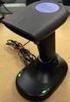 QuickScan QS6500/QS6500BT Product Reference Guide PSC Inc 959 Terry Street Eugene, Oregon 97402 Telephone: (541) 683-5700 Fax: (541) 345-7140 An Unpublished Work - All rights reserved. No part of the contents
Gryphon I GD4100/GM4100
 Gryphon I GD4100/GM4100 General Purpose Handheld Linear Imager Barcode Reader Product Reference Guide Datalogic Scanning, Inc. 959 Terry Street Eugene, Oregon 97402 USA Telephone: (541) 683-5700 Fax: (541)
1560/1562 Barcode Scanner
 1560/1562 Barcode Scanner Setup barcodes included. Version 1.13 Copyright 2009~2014 CIPHERLAB CO., LTD. All rights reserved The software contains proprietary information of CIPHERLAB CO., LTD.; it is provided