
Barcode Scanner User Manual V6.6.2
|
|
|
- Kathlyn Daniel
- 9 years ago
- Views:
Transcription
1 Barcode Scanner User Manual V6.6.2

2 CONTENTS

3 Copyright All right reserved by our company, reprint,copy or sales of this manual are forbidden without our company permission. Responsibility Clause We are not responsibility for errors,omissions and variation without notice. 1

4 Chapter 1 System Setting Enable/Disable Barcode Programming Scanning the Enter Setup/Exit Setup barcode can enable barcode programming. After barcode programming is enabled, you can scan a number of programming barcodes to configure your scanner. Barcode programming is on by default. In real application, programming barcodes hardly overlap witnh on- programming barcodes, so it is unnecessary to disable programming each time you finish the configuration. Programming Barcode Data *Enter Setup W010F01 Exit Setup W010F00 2

5 Transmit Programming Barcode Data W060F06 *Do Not Transmit Programming Barcode Data W060F00 Factory Defaults Scanning the following barcode can restore the scanner to the factory defaults. You may need to reset your scanner when: 1. scanner is not properly configured so that it fails to decode barcodes; 2. you forget previous configuration and want to avoid its impact; 3. functions that are rarely used have been enabled for the time being. Restore All Factory Defaults WFFD980 3

6 Scan Mode Manual Mode:A trigger pull activates a decode session. The decode session continues until the barcode is decoded or the trigger is released or the decode session timeout expires. *Manual Mode W Decode Session Timeout: This parameter sets the maximum time decode session continues during a scan attempt. It is programmable in 1s increments from 1s to 255s. The default timeout is 15s. If the parameter is set to 0, the decode session timeout is infinite. Decode Session Timeout M00031D Example: Set the decode session timeout to 5s 1. Scan the Enter Setup barcode. 2. Scan the Decode Session Timeout barcode. 3. Scan the numeric barcode 5. (See the Digit Barcodes section in Appendix) 4. Scan the Save barcode. (See the Save/Cancel Barcodes section in Appendix) 5. Scan the Exit Setup barcode. 4

7 Continuous Mode Continuous Mode: A trigger press activates the scanner to scan and decode at user-specified intervals, i.e. the timeout between decodes. Each decode session lasts until barcode is decoded or the decode session timeout expires. To suspend/resume the operation, simply press the trigger. By default, the scanner rereads same barcode with no delay. Continuous Mode W Decode Session Timeout: This parameter sets the maximum time decode session continues during a scan attempt. It is programmable in 1s increments from 1s to 255s. The default timeout is 15s. If the parameter is set to 0, the decode session timeout is infinite. Decode Session Timeout M00031D Example: Set the decode session timeout to 5s 1. Scan the Enter Setup barcode. 2. Scan the Decode Session Timeout barcode. 3. Scan the numeric barcode 5. (See the Digit Barcodes section in Appendix) 4. Scan the Save barcode. (See the Save/Cancel Barcodes section in Appendix) 5. Scan the Exit Setup barcode. 5

8 Timeout between Decodes:This parameter sets the timeout between decode sessions. When a decode session ends, next session will not happen until the timeout between decodes expires. It is programmable in 0.1s increments from 0.0s to 25.5s. The default timeout is 1.0s. Timeout between Decodes M00031C Example: Set the timeout between decodes to 5s 1. Scan the Enter Setup barcode. 2. Scan the Timeout between Decodes barcode. 3. Scan the numeric barcodes 5 and 0. (See the Digit Barcodes section in Appendix) 4. Scan the Save barcode. (See the Save/Cancel Barcodes section in Appendix) 5. Scan the Exit Setup barcode. 6

9 Reread Delay sets the time period before the scanner can read the same barcode a second time. It protects against accidental rereads of the same barcode. This parameter is programmable in 0.1s increments from 0.1s to 25.5s. The default delay is 3.0s. If the parameter is set to 0, the delay is infinite. Note: This parameter only applies when the Reread Same Barcode with a Delay is enabled. Reread Delay M00031E W100A00 *Reread Same Barcode with No Delay Reread Same Barcode with a Delay W100A10 Example: Set the reread delay to 5s 1. Scan the Enter Setup barcode. 2. Scan the Reread Delay barcode. 3. Scan the numeric barcodes 5 and 0. (See the Digit Barcodes section in Appendix) 4. Scan the Save barcode. (See the Save/Cancel Barcodes section in Appendix) 5. Scan the Exit Setup barcode. 7

10 Sense Mode Sense Mode: The scanner activates a decode session every time when it detects a change in ambient illumination and meets the requirement of the image stabilization timeout. Decode session continues until barcode is decoded or the decode session timeout expires. A trigger pull can also activate a decode session. By default, the scanner rereads same barcode with no delay. Sense Mode W Decode Session Timeout: This parameter sets the maximum time decode session continues during a scan attempt. It is programmable in 1s increments from 1s to 255s. The default timeout is 15s. If the parameter is set to 0, the decode session timeout is infinite. Decode Session Timeout M00031D Example: Set the decode session timeout to 5s 1. Scan the Enter Setup barcode. 2. Scan the Decode Session Timeout barcode. 3. Scan the numeric barcode 5. (See the Digit Barcodes section in Appendix) 4. Scan the Save barcode. (See the Save/Cancel Barcodes section in Appendix) 5. Scan the Exit Setup barcode. 8

11 Image Stabilization Timeout: The scanner waits for the image stabilization timeout to expire before activating a decode session every time it detects a change in ambient illumination. This parameter is programmable in 0.1s increments from 0.0s to 25.5s. The default timeout is 0.4s. Image Stabilization Timeout M00031B Example: Set the Image Stabilization Timeout to 5s 1. Scan the Enter Setup barcode. 2. Scan the Image Stabilization Timeout barcode. 3. Scan the numeric barcodes 5 and 0. (See the Digit Barcodes section in Appendix) 4. Scan the Save barcode. (See the Save/Cancel Barcodes section in Appendix) 5. Scan the Exit Setup barcode. Reread Delay sets the time period before the scanner can read the same barcode a second time. It protects against accidental rereads of the same barcode. This parameter is programmable in 0.1s increments from 0.1s to 25.5s. The default delay is 3.0s. If the parameter is set to 0, the delay is infinite. Note: This parameter only applies when the Reread Same Barcode with a Delay is enabled. Reread Delay M00031E 9

12 Reread Same Barcode with No Delay: The scanner is allowed to reread same barcode, ignoring the Reread Same Barcode with a Delay: The scanner is not allowed to reread same barcode before the reread delay expires. To disable rereads of same barcode, enable the Reread Same Barcode with a Delay and set the delay to 0. W100A00 *Reread Same Barcode with No Delay Reread Same Barcode with a Delay W100A10 Example: Set the reread delay to 5s 1. Scan the Enter Setup barcode. 2. Scan the Reread Delay barcode. 3. Scan the numeric barcodes 5 and 0. (See the Digit Barcodes section in Appendix) 4. Scan the Save barcode. (See the Save/Cancel Barcodes section in Appendix) 5. Scan the Exit Setup barcode. 10

13 Sensitivity: This parameter specifies the degree of acuteness of the scanner s response to changes in ambient illumination. The higher the sensitivity, the lower requirement in illumination change to trigger the scanner. You can select an appropriate degree of sensitivity that fits the ambient environment. High Sensitivity WFF0305 Medium Sensitivity WFF0310 * Low Sensitivity WFF0330 Custom Sensitivity M00031A Sensitivity levels range from 0 to 255. The smaller the number, the higher the sensitivity. 11

14 Command Trigger Mode Command Trigger Mode: Decode session is activated by a host command. The decode session continues until the barcode is decoded or the decode session time out expires. Command Trigger Mode W Decode Session Timeout: This parameter sets the maximum time decode session continues during a scan attempt. It is programmable in 1s increments from 1s to 255s. The default timeout is 15s. If the parameter is set to 0, the decode session timeout is infinite. Decode Session Timeout M00031D 12

15 Security Level This parameter specifies the number of times to decode a barcode during a scan attempt. The higher the security level, the lower the error rate and decoding efficiency. Set Security Level to 0 W030A00 Set Security Level to 1 W030A01 Set Security Level to 2 W030A02 Set Security Level to 3 W030A03 13

16 Good Read Beep Good Read Beep Off W *Good Read Beep On W Good Read Beep Frequency Low WFF10DA *Medium WFF104B High WFF

17 Good Read Beep Duration 40ms WFF111F *80ms WFF111E 120ms WFF111D Decode Result Notification *Enable Decode Result Notification W Disable Decode Result Notification W

18 Other Settings You can change the following parameter settings temporarily and the changes will be lost when you power down or reboot the scanner. Silent Mode On W *Silent Mode Off W Note: This feature is only applicable to decode beep and will be automatically disabled when the scanner is powered down or rebooted. Illumination Off W0C0000 On When Scanning W0C0004 Always On W0C

19 Chapter 2 Communication Settings Introduction The scanner provides an RS-232 interface, a USB interface and a PS/2 interface (hardware version: V2 or higher) to communicate with the host device. The host device can receive scanned data and send commands to control the scanner or to access/alter the configuration information of the scanner via the RS-232 or USB or PS/2 interface. RS-232 Interface Serial communication interface is usually used to connect the scanner to a host device (like PC, POS). When the scanner is connected to a host device through its RS-232 interface, you need to set communication parameters to match the host device. Baud Rate *9600 WFFD9D WFFD9D WFFD9D1 17

20 4800 WFFD9D WFFD9D WFFD9D WFFD9D WFFD9D WFFD9D8 18

21 Parity Check *None W Even Parity W Odd Parity W Stop Bit *Stop Bit W Stop Bits W
22 Data Bit 8 Data Bits W *8 Data Bits, No Parity, 1 Stop Bit W0F Data Bits, Even Parity, 1 Stop Bit W0F290E 8 Data Bits, Odd Parity, 1 Stop Bit W0F290C 8 Data Bits,No Parity, 2 Stop Bits W0F Data Bits, Even Parity, 2 Stop Bits W0F290F 20
23 8 Data Bits, Odd Parity, 2 Stop Bits W0F290D 7 Data Bits W Data Bits, Even Parity, 1 Stop Bit W0F Data Bits, Odd Parity, 1 Stop Bit W0F Data Bits, Even Parity, 2 Stop Bits W0F Data Bits, Odd Parity, 2 Stop Bits W0F
24 USB Interface When the scanner is connected to a host device through its USB interface, USB HID-KBW is enabled by default. User can switch between options USB DATAPIPE, USB HID-KBW, USB COM Port Emulation and HID-POS, upon actual need. * USB HID-KBW W *Standard Keyboard W031A00 Emulate ALT+Keypad When Emulate ALT+Keypad is enabled, any ASCII character (0x00-0xFF) is sent over the numeric keypad no matter which keyboard type is selected. Since sending a character involves multiple keystroke emulations, this method appears less efficient. 1. ALT Make 2. Enter the number corresponding to the ASCII character on the keypad. 3. ALT Break Emulate ALT+Keypad W031A03 22
25 Function Key Mapping When Function Key Mapping is enabled, function character (0x00-0x1F) are sent as ASCII sequences over the numeric keypad. Function Key Mapping W031A01 1. CTRL Make 2. Press function key (Refer to the ASCII Function Key Mapping Table on the following page) USB Country Keyboard Types Keyboard layouts vary from country to country. All supported keyboard types are listed below. *1 -U.S. WFF Belgium WFF
26 3-Brazil WFF Canada WFF Czech WFF Denmark WFF Finland WFF France WFF
27 9-Austria WFF Greece WFF Hungary WFF190A 12-Israel WFF190B 13-Italy WFF190C 14-Latin America WFF190D 25
28 15-Netherland WFF190E 16-Norway WFF190F 17-Poland WFF Portugal WFF Romania WFF ussia WFF
29 21-Slovakia WFF Spain WFF Sweden WFF Switzerland WFF Turkey1 WFF Turkey2 WFF191A 27
30 27-UK WFF191B 28-Japan WFF191C Inter-Keystroke Delay This parameter specifies the delay between emulated keystrokes. *No Delay WC01A00 Short Delay (5ms) WC01A40 Medium Delay (10ms) WC01A80 Long Delay (15ms) WC01AC0 28
31 Convert Case This parameter is valid when the Standard Keyboard or Function Key Mapping is enabled. No Case Conversion W381A00 Convert All to Upper Case W381A20 W381A30 Convert All to Lower Case W381A08 Invert Upper and Lower Case Characters 29
32 Emulate Numeric Keypad When this feature is disabled, sending barcode data is emulated as keystroke(s) on main keyboard. To enable this feature, scan the Emulate Numeric Keypad barcode. Sending a number (0-9) is emulated as keystroke on numeric keypad, whereas sending other character like +, _, *, / and. is still emulated as keystroke on main keyboard. However, this feature is influenced by the state of the Num Lock key on the host: if the Num Lock light on the host is ON, numbers are sent over numeric keypad, if it is OFF, numbers are sent over main keyboard. Emulate Numeric Keypad W041A04 W041A00 *Do Not Emulate Numeric Keypad Note: Make sure the Num Lock light of the Host is turned ON when using this feature.emulate ALT+Keypad ON prevails over Emulate Numeric Keypad. 30
33 USB COM Port Emulation This feature allows the host to receive data in the way as a serial port does. However, you need to set communication parameters on the scanner to match the Host requirements. A driver is required for this feature. USB COM Port Emulation W USB DataPipe A driver is required when using this protocol to communicate with the scanner. USB Data Pipe W
34 HID-POS The HID-POS interface is recommended for new application programs. It can send up to 56 characters in a single USB report and appears more efficient than USB HID-KBW. Features: HID based, no custom driver required. Way more efficient in communication than USB HID-KBW and traditional RS-232 interface. Note: HID-POS does not require a custom driver. However, a HID interface on Windows 98 does. All HID interfaces employ standard driver provided by the operating system. Use defaults when installing the driver. HID-POS W PS/2 Interface (Hardware Version: V2 or higher) When the scanner is connected to a host device through its PS/2 interface, users need to scan the following barcode to enable the PS/2 port. PS/ 2-KBW W To switch from PS/2 to RS-232, scan the barcode below. RS-232 W
35 Chapter 3 Data Formatting Introduction After a successful barcode read, a string containing numbers, letters or symbols will be returned. In real applications, barcode data may be found insufficient for your needs. You may wish to include additional information such as barcode type, data acquisition time or delimiter in data being scanned. Adding extra information to printed barcodes does not seem like a sensible solution since that will increase the barcode size and make them inflexible. Instead, we come up with the idea of appending prefix and suffix to the data without making any change to barcodes. We will show you how to conduct the configuration in the following sections. Note: Customized data: <Prefix> <Data><Suffix> <Terminating Character> Prefix Sequence *Code ID+Custom+AIM ID W Custom+Code ID+ AIM ID W
36 Prefix Enable Custom Prefix W * Disable Custom Prefix W Set Custom Prefix W Enable AIM ID Prefix W * Disable AIM ID Prefix W
37 Enable CODE ID Prefix W *Disable CODE ID Prefix W Restore All Default Code IDs WFFD9C2 Set Code ID Barcodes Set Code 128 Code ID M Set UCC/EAN-128 Code ID M Set AIM 128 Code ID M
38 Set EAN-8 Code ID M Set EAN-13 Code ID M Set ISSN Code ID M Set ISBN Code ID M Set UPC-E Code ID M Set UPC-A Code ID M
39 Set Interleaved 2 of 5Code ID M00200A Set ITF-6 Code ID M00200B Set ITF-14 Code ID M00200C Set Deutsche 14 Code ID M00200D Set Deutsche 12 Code ID M00200E Set Matrix 2 of 5 Code ID M00200F 37
40 Set Industrial 25 Code ID M Set Standard 25 Code ID M Set Code 39 Code ID M Set Codabar Code ID M Set Code 93 Code ID M Set Code 11 Code ID M
41 Set Plessey Code ID M Set MSI-Plessey Code ID M Set RSS-14 Code ID M Set RSS-Limited Code ID M Set RSS-Expand Code ID M00021A 39
42 Suffix Enable Custom Suffix W *Disable Custom Suffix W Set Custom Suffix M *Enable Terminating Character Suffix W Disable Terminating Character Suffix W
43 Terminating Character 0x0D WFFD9C3 Terminating Character 0x0D,0x0A WFFD9C4 Terminating Character 0x0A WFFD9C5 Set Terminating Character Suffix M
44 Chapter 4 Symbologies Introduction Every symbology (barcode type) has its own unique attributes.this chapterprovides programming barcodes for configuring the scanner so that it can identify various barcode symbologies. It is recommended to disable those that are rarely used to increase the efficiency of the scanner. Global Settings Enable All Symbologies WFFD981 Disable All Symbologies WFFD982 WFFD990 Restore the Factory Defaults of Code 128 *Enable Code 128 W Disable Code 128 W
45 Restore the Factory Defaults of UCC/EAN-128 WFFD991 Enable UCC/EAN-128 W Disable UCC/EANI-128 W Decode as Code 128 W Restore the Factory Defaults of AIM128 WFFD992 Enable AIM128 W
46 * Disable AIM128 W Decode as Code 128 W Restore the Factory Defaults of EAN-8 WFFD994 *Enable EAN-8 W DisableEAN-8 W
47 Restore the Factory Defaults of ISSN WFFD966 Enable ISSN W *Disable ISSN W Decode as EAN-13 W
48 Restore thefactory Defaults of ISBN WFFD997 Enable ISBN W *Disable ISBN W Decode as EAN-13 W Restore the Factory Defaults of UPC-A WFFD999 *Enable UPC-A W036B02 46
49 Disable UPC-A W036B00 Decode as EAN-13 W036B01 Restore the Factory Defaults of Interleaved 2 Of 5 WFFD99A *Enable Interleaved 2 of 5 W016C01 Disable Interleaved 2 of 5 W016C00 47
50 Restore the Factory Defaults of ITF-6 WFFD99B Disable ITF-6 W036D01 Enable ITF-6 But Do Not Transmit Check Digit W036D02 Enable ITF-6 and Transmit Check Digit W036D0A Restore thefactorydefaults of ITF-14 WFFD99C Disable ITF-14 W036E01 48
51 Enable ITF-14 But Do Not Transmit Check Digit W036E02 Enable ITF-14 and Transmit Check Digit W036E0A Restore the FactoryDefaults of Deutsche 14 WFFD99D Disable Deutsche 14 W036F01 Enable Deutsche14 But Do Not Transmit Check Digit W036F02 Enable Deutsche 14 and Transmit Check Digit W036F0A 49
52 Restore the Factory Defaults of Deutsche 12 WFFD99E Disable Deutsche 12 W Enable Deutsche 12 But Do Not Transmit Check Digit W0B7002 Enable Deutsche 12 and Transmit Check Digit W0B700A Restore the Factory Defaults of Matrix 2 of 5 WFFD99F *Enable Matrix 2 of 5 W
53 Disable Matrix 2 of 5 W Restore the Factory Defaults of Industrial 25 WFFD9A0 * Enable Industrial 25 W Disable Industrial 25 W Restore the Factory Defaults of Standard 25 WFFD9A1 *Enable Standard 25 W
54 Disable Standard 25 W Restore the Factory Defaults of Code 39 WFFD922 *Enable Code 39 W Disable Code 39 W *Enable Code 39 Full ASCII W Disable Code 39 Full ASCII W
55 Restore the Factory Defaults of Codabar WFFD9A3 *Enable Codabar W Disable Codabar W Restore the Factory Defaults of Code 93 WFFD9A4 *Enable Code 93 W Disable Code 93 W
56 Restore the Factory Defaults of Code 11 WFFD9A5 Enable Code 11 W *Disable Code 11 W Restore the Factory Defaults of Plessey WFFD9A6 Enable Plessey W *Disable Plessey W
57 Restore the Factory Defaults of MSI-Plessey WFFD9A7 Enable MSI-Plessey W *Disable MSI-Plessey W Restore the Factory Defaults of RSS-14 WFFD9A8 *Enable RSS-14 W017A01 Disable RSS-14 W017A00 55
58 Restore the Factory Defaults of RSS-Limited WFFD9A9 *Enable RSS-Limited W017B01 Disable RSS-Limited W017B00 Restore the Factory Defaults of RSS Expand WFFD9AA *Enable RSS-Expand W017C01 Disable RSS-Expand W017C00 56
59 Enable EAN-8 Zero Extend WC06540 *Disable EAN-8 Zero Extend WC06500 Convert EAN-8 to EAN-13 WC06580 Restore the Factory Defaults of EAN-13 WFFD995 *Enable EAN-13 W Disable EAN-13 W
60 Restore the Factory Defaults of UPC-E WFFD998 *Enable UPC-E W Disable UPC-E W Enable UPC-E Extend WC06940 *Disable UPC-E Extend WC06900 Convert UPC-E to UPC-A WC
61 *Enable Code 39 Full ASCII W Disable Code 39 Full ASCII W
62 Set Length Range Set the Minimum Length for Code 128 M Set the Maximum Length for Code 128 M Set the Minimum Length for UCC/EAN-128 M Set the Maximum Length for UCC/EAN-128 M Set the Minimum Length for AIM 128 M Set the Maximum Length for AIM 128 M
63 Set the Minimum Length for Interleaved 2 of 5 M Set the Maximum Length for Interleaved 2 of 5 M Set the Minimum Length for Matrix 2 of 5 M Set the Maximum Length for Matrix 2 of 5 M Set the Minimum Length for Industrial 25 M00030B Set the Maximum Length for Industrial 25 M00030A 61
64 Set the Minimum Length for Industrial 25 M00030D Set the Maximum Length for Industrial 25 M00030C Set the Minimum Length for Code 39 M00030F Set the Maximum Length for Code 39 M00030E Set the Minimum Length for Codabar M Set the Maximum Length for Codabar M
65 Set the Minimum Length for Code 93 M Set the Maximum Length for Code 93 M Set the Minimum Length for Code 11 M Set the Maximum Length for Code 11 M Set the Minimum Length for Plessey M Set the Maximum Length for Plessey M
66 Set the Minimum Length for MSI-Plessey M Set the Maximum Length for MSI-Plessey M Example: Set the scanner to decode MSI- Plessey barcodes containing between 8 and 12 characters. 1. Scan the Enter Setup barcode. 2. Scan the Set the Minimum Length barcode. 3. Scan the numeric barcode 8. (See the Digit Barcodes section in Appendix) 4. Scan the Save barcode. (See the Save/Cancel Barcodes section in Appendix) 5. Scan the Set the Maximum Length barcode. 6. Scan the numeric barcode Scan the numeric barcode Scan the Save barcode. 9. Scan the Exit Setup barcode. 64
67 Transmit Check Digit * Transmit EAN- 8 Check Digit W Do Not Transmit EAN-8 Check Digit W * Transmit EAN-13 Check Digit W Do Not Transmit EAN-13 Check Digit W * Transmit UPC-E Check Digit W Do Not Transmit UPC-E Check Digit W
68 *Transmit UPC-A Check Digit W086B08 Do Not Transmit UPC-A Check Digit W086B00 Check Digit Verification Example: Set the scanner for check digit Interleaved 2 of 5. A check digit is optional for Interleaved 2 of 5 and can be added as the last digit. It is a calculated value used to verify the integrity of the data. Disable: The scanner transmits Interleaved 2 of 5 barcodes as is. Do Not Transmit Check Digit After Verification: The scanner checks the integrity of all Interleaved 2 of 5 barcodes to verify that the data complies with the check digit algorithm. Barcodes passing the check will be transmitted except the last digit, whereas those failing it will not be transmitted. Transmit Check Digit After Verification: The scanner checks the integrity of all Interleaved 2 of 5 barcodes to verify that the data complies with the check digit algorithm. Barcodes passing the check will be transmitted, whereas those failing it will not be transmitted. 66
69 Disable W0C6C00 Do Not Transmit Check Digit After Verification W0C6C04 Transmit Check Digit After Verification W0C6C0C 67
70 A check digit is optional for Matrix 2 of 5 and can be added as the last digit. It is a calculated value used to verify the integrity of the data. Disable: The scanner transmits Matrix 2 of 5 barcodes as is. Do Not Transmit Check Digit After Verification: The scanner checks the integrity of all Matrix 2 of 5 barcodes to verify that the data complies with the check digit algorithm. Barcodes passing the check will be transmitted except the last digit, whereas those failing it will not be transmitted. Transmit Check Digit After Verification: The scanner checks the integrity of all Matrix 2 of 5 barcodes to verify that the data complies with the check digit algorithm. Barcodes passing the check will be transmitted, whereas those failing it will not be transmitted. *Disable W0C7100 Do Not Transmit Check Digit After Verification W0C7104 Transmit Check Digit After Verification W0C710C 68
71 A check digit is optional for Industrial 25 and can be added as the last digit. It is a calculatedvalue used to verify the integrity of the data. Disable: The scanner transmits Industrial 25 barcodes as is.do Not Transmit Check Digit After Verification: The scanner checks the integrity of all Industrial 25 barcodes to verify that the data complies with the check digit algorithm. Barcodes passing the check will be transmitted except the last digit, whereas those failing it will not be transmitted. Transmit Check Digit After Verification: The scanner checks the integrity of all Industrial 25 barcodes to verify that the data complies with the check digit algorithm. Barcodes passing the check will be transmitted, whereas those failing it will not be transmitted. *Disable W0C7200 Do Not Transmit Check Digit After Verification W0C7204 Transmit Check Digit After Verification W0C720C 69
72 A check digit is optional for Standard 25 and can be added as the last digit. It is a calculated value used to verify the integrity of the data. Disable: The scanner transmits Standard 25 barcodes as is. Do Not Transmit Check Digit After Verification: The scanner checks the integrity of all Standard 25 barcodes to verify that the data complies with the check digit algorithm. Barcodes passing the check will be transmitted except the last digit, whereas those failing it will not be transmitted. Transmit Check Digit After Verification: The scanner checks the integrity of all Standard 25 barcodes to verify that the data complies with the check digit algorithm.barcodes passing the check will be transmitted, whereas those failing it will not be transmitted. *Disable W0C7300 Do Not Transmit Check Digit After Verification W0C7304 Transmit Check Digit After Verification W0C730C 70
73 A check digit is optional for Code 39 and can be added as the last digit. It is a calculated value used to verify the integrity of the data. Disable: The scanner transmits Code 39 barcodes as is. Do Not Transmit Check Digit After Verification: The scanner checks the integrity of all Code 39 barcodes to verify that the data complies with the check digit algorithm. Barcodes passing the check will be transmitted except the last digit, whereas those failing it will not be transmitted. Transmit Check Digit After Verification: The scanner checks the integrity of all Code 39 barcodes to verify that the data complies with the check digit algorithm. Barcodes passing the check will be transmitted, whereas those failing it will not be transmitted. *Disable W Do Not Transmit Check Digit After Verification W Transmit Check Digit After Verification W
74 A check digit is optional for Codabar and can be added as the last digit. It is a calculated value used to verify the integrity of the data. Disable: The scanner transmits Codabar barcodes as is. Do Not Transmit Check Digit After Verification: The scanner checks the integrity of all Codabar barcodes to verify that the data complies with the check digit algorithm. Barcodes passing the check will be transmitted except the last digit, whereas those failing it will not be transmitted. Transmit Check Digit After Verification: The scanner checks the integrity of all Codabar barcodes to verify that the data complies with the check digit algorithm. Barcodes passing the check will be transmitted, whereas those failing it will not be transmitted. *Disable W Do Not Transmit Check Digit After Verification W Transmit Check Digit After Verification W
75 Check digits are optional for Code 93 and can be added as the last two digits, which are calculated valuesused to verify the integrity of the data. Disable: The scanner transmits Code 93 barcodes as is. Do Not Transmit Check Digit After Verification: The scanner checks the integrity of all Code 93 barcodes to verify that the data complies with the check digit algorithm. Barcodes passing the checks will be transmitted except the last two digits, whereas those failing them will not be transmitted. Transmit Check Digit After Verification: The scanner checks the integrity of all Code 93 barcodes to verify that the data complies with the check digit algorithm. Barcodes passing the checks will be transmitted, whereas those failing them will not be transmitted. Disable W0C7600 W0C7604 *Do Not Transmit Check Digit After Verification Transmit Check Digit After Verification W0C760C 73
76 Check digits are optional for Plessey and can be added as the last one or two digits, which are calculated values used to verify the integrity of the data. Disable: The scanner transmits Plesseybarcodes as is. Do Not Transmit Check Digit After Verification: The scanner checks the integrity of all Plessey barcodes to verify that the data complies with the check digit algorithm. Barcodes passing the checks will be transmitted except the last two digits, whereas those failing them will not be transmitted. Transmit Check Digit After Verification: The scanner checks the integrity of all Plessey barcodes to verify that the data complies with the check digit algorithm. Barcodes passing the checks will be transmitted, whereas those failing them will not be transmitted. Disable W0C7800 W0C7804 *Do Not Transmit Check Digit After Verification Transmit Check Digit After Verification W0C780C 74
77 Check digits are optional for Code 11 and can be added as the last one or two digits, which are calculated values used to verify the integrity of the data. If the Disable option is enabled, the scanner transmits Code 11 barcodes as is. Disable W0C7900 *One Check Digit,MOD10 W0C7904 Two Check Digits, MOD10/MOD10 W0C7908 Two Check Digits, MOD10/MOD11 W0C790C 75
78 Transmit Check Digit W *Do Not Transmit Check Digit W Add-On Code An EAN-8 barcode can be augmented with a twodigit or five-digit add-on code to form a new one. In the examples below, the part surrounded by blue dotted line is an EAN-8 barcode while the part circled by red dotted line is add-on code. 76
79 Enable 2-Digit Add-On Code W *Disable 2-Digit Add-On Code W Enable 5-Digit Add-On Code W *Disable 5-Digit Add-On Code W * EAN-8 Add-On Code Not Required W EAN-8 Add-On Code Required W
80 Enable 2-Digit Add-On Code/ Enable 5-Digit Add-On Code: The scanner decodes a mix of EAN-8 barcodes with and without 2-digit/5-digit add-on codes. Disable 2-Digit Add-On Code/ Disable 5-Digit Add-On Code: The scanner decodes EAN-8 and ignores the add-on code when presented with an EAN-8 plus add-on barcode. It can also decode An EAN-13 barcode can be augmented with a two-digit or five-digit add-on code to form a new one. In the examples below, the part surrounded by blue dotted line is an EAN-13 barcode while the part circled by red dotted line is add-on code. 78
81 Enable 2-Digit Add-On Code W *Disable 2-Digit Add-On Code W Enable 5- Digit Add-On Code W *Disable 5-Digit Add-On Code W EAN-13 Add-On Code Required W *EAN-13 Add-On Code Not Required W
82 Enable 2-Digit Add-On Code/ Enable 5-Digit Add-On Code: The scanner decodes a mix of EAN-13 barcodes with and without 2-digit/5-digit add-on codes. Disable 2-Digit Add-On Code/ Disable 5-Digit Add-On Code: The scanner decodes EAN-13 and ignores the add-on code when presented with an EAN-13 plus add-on barcode. It can also decode EAN-13 barcodes without add-on codes. Transmit System Character The first character of UPC-character barcode is the system Do Not Transmit System Character W306A10 *Transmit System Character W306A20 80
83 A UPC-E barcode can be augmented with a twodigit or five-digit add-on code to form a new one. In the examples below, the part surrounded by blue dotted line is a UPC-E barcode while the part circled by red dotted line is add-on code. Enable 2-Digit Add-On Code W *Disable 2-Digit-Add-On Code W Enable 5-Digit Add-On Code W
84 *Disable 5-Digit Add-On Code W UPC-E Add-On Code Required W *UPC-E Add-On Code Not Required W Enable 2-Digit Add-On Code/ Enable 5-Digit Add-On Code: The scanner decodes a mix of UPC-E barcodes with and without 2-digit/5-digit add-on codes. Disable 2-Digit Add-On Code/ Disable 5-Digit Add-On Code: The scanner decodes UPC-E and ignores the add-on code when presented with a UPC-E plus add-on barcode. It can also decode UPC-Ebarcodes without add-on codes. This parameter is only valid when Enable 2-Digit Add-On Code and/or Enable 5-Digit Add-On Code is selected. 82
85 A UPC-A barcode can be augmented with a twodigit or five-digit add-on code to form a new one. In the examples below, the part surrounded by blue dotted line is a UPC-A barcode while the part circled by red dotted line is add-on code. Enable 2-Digit Add-On Code W206B20 *Disable 2 Digit Add-On Code W206B00 83
86 Enable 5-Digit Add-On Code W206B40 *Disable5-Digit Add-On Code W206B00 UPC-A Add-On Code Required W106B10 *UPC-A Add-On Code Not Required W106B00 Enable 2-Digit Add-On Code/ Enable 5-Digit Add-On Code: The scanner decodes a mix of UPC-Abarcodes with and without 2-digit/5-digit add-on codes. Disable 2-Digit Add-On Code/ Disable 5-Digit Add-On Code: The scanner decodes UPC-A and ignores the add-on code when presented with a UPC-A plus add-on barcode. It can also decode UPC-A barcodes without add-on codes. This parameter is only valid when Enable 2-Digit Add-On Code and/or Enable 5-Digit Add-On Code is selected. 84
87 Transmit Start/Stop Characters Transmit Start/Stop Characters code39 W *Do Not Transmit Start/Stop Characters code39 W Transmit Start/Stop Characters W DO Not Transmit Start/Stop Characters W *ABCD/ABCD as the Start/ Stop CharacterS W ABCD/TN*E as the Start/ Stop Characters W
88 abcd/abcd as the Start/ Stop Characters W abcd/tn*e as the Start/ Stop Characters W Set ISBN Format *ISBN-13 W ISBN-10 W
89 Transmit Preamble Character Preamble characters (Country Code and System Character) can be transmitted as part of a UPC- Abarcode. Select one of the followingoptions for transmitting UPC-Apreamble to the host device: transmit system character only, transmit system character and countrycode ("0" for USA), or transmit no preamble. No Preamble W036A00 *System Character W036A01 System Character & Country Code W036A02 87
90 *Transmit UPC-A Check Digit W086B08 Do Not Transmit UPC-A Check Digit W086B00 Check Digit Verification Interleaved 2 of 5 A check digit is optional for Interleaved 2 of 5 and can be added as the last digit. It is a calculated value used to verify the integrity of the data. Disable: The scanner transmits Interleaved 2 of 5 barcodes as is. Do Not Transmit Check Digit After Verification: The scanner checks the integrity of all Interleaved 2 of 5 barcodes to verify that the data complies with the check digit algorithm. Barcodes passing the check will be transmitted except the last digit, whereas those failing it will not be transmitted. Transmit Check Digit After Verification: The scanner checks the integrity of all Interleaved 2 of 5 barcodes to verify that the data complies with the check digit algorithm. Barcodes passing the check will be transmitted, whereas those failing it will not be transmitted. 88
91 Disable W0C6C00 Do Not Transmit Check Digit After Verification W0C6C04 Transmit Check Digit After Verification W0C6C0C Matrix 2 of 5 A check digit is optional for Matrix 2 of 5 and can be added as the last digit. It is a calculated value used to verify the integrity of the data. Disable: The scanner transmits Matrix 2 of 5 barcodes as is. Do Not Transmit Check Digit After Verification: The scanner checks the integrity of all Matrix 2 of 5 barcodes to verify that the data complies with the check digit algorithm. Barcodes passing the check will be transmitted except the last digit, whereas those failing it will not be transmitted. Transmit Check Digit After Verification: The scanner checks the integrity of all Matrix 2 of 5 barcodes to verify that the data complies with the check digit algorithm. Barcodes passing the check will be transmitted, whereas those failing it will not be transmitted. 89
92 * Disable W0C7100 Do Not Transmit Check Digit After Verification W0C7104 Transmit Check Digit After Verification W0C710C Industrial 25 A check digit is optional for Industrial 25 and can be added as the last digit. It is a calculated value used to verify the integrity of the data. Disable: The scanner transmits Industrial 25 barcodes as is. Do Not Transmit Check Digit After Verification: The scanner checks the integrity of all Industrial 25 barcodes to verify that the data complies with the check digit algorithm. Barcodes passing the check will be transmitted except the last digit, whereas those failing it will not be transmitted. Transmit Check Digit After Verification: The scanner checks the integrity of all Industrial 25 barcodes to verify that the data complies with the check digit algorithm. Barcodes passing the check will be transmitted, whereas those failing it will not be transmitted. 90
93 *Disable W0C7200 Do Not Transmit Check Digit After Verification W0C7204 Transmit Check Digit After Verification W0C720C Standard 25 A check digit is optional for Standard 25 and can be added as the last digit. It is a calculated value used to verify the integrity of the data. Disable: The scanner transmits Standard 25 barcodes as is. DoNot Transmit Check Digit After Verification: The scanner checks the integrity of all Standard 25 barcodes to verify that the data complies with the check digit algorithm. Barcodes passing the check will be transmitted except the last digit, whereas those failing it will not be transmitted. Transmit Check Digit After Verification: The scanner checks the integrity of all Standard 25 barcodes to verify that the data complies with the check digit algorithm. Barcodes passing the check will be transmitted, whereas those failing it will not be transmitted. 91
94 *Disable W0C7300 Do Not Transmit Check Digit After Verification W0C7304 Transmit Check Digit After Verification W0C730C Code 39 A check digit is optional for Code 39 and can be added as the last digit. It is a calculated value used to verify the integrity of the data. Disable: The scanner transmits Code 39 barcodes as is. Do Not Transmit Check Digit After Verification: The scanner checks the integrity of all Code 39 barcodes to verify that the data complies with the check digit algorithm. Barcodes passing the check will be transmitted except the last digit, whereas those failing it will not be transmitted. Transmit Check Digit After Verification: The scanner checks the integrity of all Code 39 barcodes to verify that the data complies with the check digit algorithm. Barcodes passing the check will be transmitted, whereas those failing it will not be transmitted. 92
95 *Disable W Do Not Transmit Check Digit After Verification W Transmit Check Digit After Verification W Codabar A check digit is optional for Codabar and can be added as the last digit. It is a calculated value used to verify the integrity of the data. Disable: The scanner transmits Codabar barcodes as is. Do Not Transmit Check Digit After Verification: The scanner checks the integrity of all Codabar barcodes to verify that the data complies with the check digit algorithm. Barcodes passing the check will be transmitted except the last digit, whereas those failing it will not be transmitted. Transmit Check Digit After Verification: The scanner checks the integrity of all Codabar barcodes to verify that the data complies with the check digit algorithm. Barcodes passing the check will be transmitted, whereas those failing it will not be transmitted. 93
96 *Disable W Do Not Transmit Check Digit After Verification W Transmit Check Digit After Verification W Code 93 Check digits are optional for Code 93 and can be added as the last two digits, which are calculated values used to verify the integrity of the data. Disable: The scanner transmits Code 93 barcodes as is. Do Not Transmit Check Digit After Verification: The scanner checks the integrity of all Code 93 barcodes to verify that the data complies with the check digit algorithm. Barcodes passing the checks will be transmitted except the last two digits, whereas those failing them will not be transmitted. Transmit Check Digit After Verification: The scanner checks the integrity of all Code 93 barcodes to verify that the data complies with the check digit algorithm. Barcodes passing the checks will be transmitted, whereas those failing them will not be transmitted. 94
97 Disable W0C7600 *Do Not Transmit Check Digit After Verification W0C7604 Transmit Check Digit After Verification W0C760C Plessey Check digits are optional for and can be added as the last one or two digits, which are calculated values used to verify the integrity of the data. Disable: The scanner transmits Plessey barcodes as is. Do Not Transmit Check Digit After Verification: The scanner checks the integrity of all Plessey barcodes to verify that the data complies with the check digit algorithm. Barcodes passing the checks will be transmitted except the last two digits, whereas those failing them will not be transmitted. Transmit Check Digit After Verification: The scanner checks the integrity of all Plessey barcodes to verify that the data complies with the check digit algorithm. Barcodes passing the checks will be transmitted, whereas those failing them will not be transmitted. 95
98 Disable W0C7800 After Verification W0C7804 Transmit Check Digit After Verification W0C780C Code 11 Check digits are optional for Code 11 and can be added as the last one or two digits, which are calculated values used to verify the integrity of the data. If the Disable option is enabled, the scanner transmits Code 11 barcodes as is. 96
99 Disable W0C7900 *One Check Digit,MOD10 W0C7904 Two Check Digits, MOD10/MOD10 W0C7908 Two Check Digits, MOD10/MOD W0C790C Transmit Check Digit W0C7910 *Do Not Transmit Check Digit W0C
100 Add-On Code An EAN-8 barcode can be augmented with a two-digit or five-digit add-on code to form a new one. In the examples below, the part surrounded by blue dotted line is an EAN-8 barcode while the part circled by red dotted line is add-on code. Enable 2-Digit Add-On Code W *Disable 2-Digit Add-On Code W
101 Enable 5-Digit Add-On Code W *Disable 5-Digit Add-On Code W EAN-8 Add-On Code Required W *EAN-8 Add-On Code Not Required W Enable 2-Digit Add-On Code/ Enable 5-Digit Add-On Code: The scanner decodes a mix of EAN-8 barcodes with and without 2-digit/5-digit add-on codes. Disable 2-Digit Add-On Code/Disable 5-Digit Add-On Code: The scanner decodes EAN-8 and ignores the add-on code when presented with an EAN-8 plus add-on barcode. It can also decode EAN-8 barcodes without add-on codes. 99
102 An EAN-13 barcode can be augmented with a two-digit or five-digit add-on code to form a new one. In the examples below, the part surrounded by blue dotted line is an EAN-13 barcode while the part circled by red dotted line is add-on code. Enable 2-Digit Add-On Code W *Disable 2-Digit Add-On Code W
103 Enable 5-Digit Add-On Code W *Disable 5-Digit Add-On Code W EAN-13 Add-On Code Required W *EAN-13 Add-On Code Not Required W Enable 2-Digit Add-On Code/ Enable 5-Digit Add-On Code: The scanner decodes a mix of EAN-13 barcodes with and without 2-digit/5-digit add-on codes. Disable 2-Digit Add-On Code/Disable 5-Digit Add-On Code:The scanner decodes EAN-13 and ignores the add-on code when presented with an EAN-13 plus add-on barcode. It can also decode EAN-13 barcodes without add-on codes. 101
104 Transmit System Character The first character of UPC-E barcode is the system character *Do Not Transmit System Character W306A10 Transmit System Character W306A20 A UPC-E barcode can be augmented with a twodigit or five-digit add-oncode to form a new one. In the examples below, the part surrounded by blue dotted line is a UPC-E barcode while the part circled by red dotted line is add-on code. 102
105 Enable 2-Digit Add-On Code W *Disable 2-Digit Add-On Code W Enable 5-Digit Add-On Code W *Disable 5-Add-On Code W
106 UPC-E Add-On Code Required W *UPC-E Add-On Code Not Required W Enable 2-Digit Add-On Code/ Enable 5-Digit Add-On Code: The scanner decodes a mix of UPC-E barcodes with and without 2-digit/5-digit add-on codes. Disable 2-Digit Add-On Code/Disable 5-Digit Add-On Code: The scanner decodes UPC-E and ignores the add-on code when presented with a UPC-E plus add-on barcode. It can also decode UPC-E barcodes without add-on codes. This parameter is only valid when Enable 2-Digit Add-On Code and/or Enable 5-Digit Add-On Code is selected. 104
107 A UPC-A barcode can be augmented with a twodigit or five-digit add-on code to form a new one. In the examples below, the part surrounded by blue dotted line is a UPC-A barcode while the part circled by red dotted line is add-on code. Enable 2-Digit Add-On Code W206B20 *Disable 2-Digit Add-On Code W206B00 105
108 Enable 5- Digit Add-On Code W406B40 *Disable 5-Digit Add-On Code W406B00 UPC-A Add-On Code Required W106B10 *UPC-A Add-On Code Not Required W106B00 Enable 2-Digit Add-On Code/ Enable 5-Digit Add-On Code: The scanner decodes a mix of UPC-Abarcodes with and without 2-digit/5-digit add-on codes. Disable 2-Digit Add-On Code/ Disable 5-Digit Add-On Code: The scanner decodes UPC-A and ignores the add-on code when presented with a UPC-A plus add-on barcode. It can also decode UPC-A barcodes without add-on codes. This parameter is only valid when Enable 2-Digit Add-On Code and/or Enable 5-Digit Add-On Code is selected. 106
109 TransmitStart/Stop Characters Transmit Start/Stop Characters Code 39 W *Do Not Transmit Start/Stop Characters Code 39 W *Transmit Start/Stop Characters W DoNot Transmit Start/Stop Characters W *ABCD/ABCD as the Start/ Stop Characters W
110 ABCD/TN*E as the Start/ Stop Character W abcd/abcd as the Start/ Stop Character W abcd/tn*e as the Start/ Stop Character W Set ISBN Format *ISBN-13 W ISBN-10 W
111 Transmit Preamble Character Preamble characters (Country Code and System Character) can be transmitted as part of a UPC-A. Select one of the following barcode options for transmitting UPC-Apreamble to the host device: transmit system character only, transmit system character and country code ( 0 for USA), or transmit no preamble. No Preamble W036A00 *System Character W036A01 System Character & Country Code W036A02 109
112 Appendix Factory Defaults Table Parameter Factory Default Remark System Settings Barcode Programming Programming Barcode Data Scan Mode Enabled Do not send Manual Mode Manual Mode Decode Session Timeout 15 s 1-255s; 0: infinite. Decode Session Timeout 15 s 1-255s; 0: infinite. Timeout between Decodes 1.0s s Continuous Mode Reread Same Barcode With no delay To disable rereads of same barcode, enable the Reread Same Barcode with a Delay and set the delay to 0. Decode Session Timeout 15 s 1-255s; 0: infinite. Image Stabilization Timeout 0.4s s To disable rereads of same Sense Mode Reread Same Barcode With no delay barcode,enable the Reread Same Barcode with a Delay and set the delay to 0. Sensitivity Medium Command rigger Mode Decode Session Timeout 15s 1-255s; 0: infinite. ecurity Level 0 Good Read Beep Good Read Beep Frequency Good Read Beep Duration Decode Result Notification Enabled Medium 80ms Disabled Silent Mode Disabled Temporary setting Illumination On When Scanning Temporary setting 110
113 Parameter Factory Default Remark Communication Interfaces Baud Rate 9600 Parity Check None TTL-232 Interface Number of Data Bits 8 Number of Stop Bits 1 Flow Control None USB Interface USB HID-KBW Other options:datapipe,usb COM Port Emulation, HID-POS Input Mode Standard Keyboard USB Country Keyboard Type U.S. USB HID- KBW Data Formatting Inter-Keystroke Delay Convert Case Emulate Numeric Keypad No delay No Conversion Disabled Prefix Sequence AIM ID Prefix Code ID+Custom+AIM ID Disabled Code ID Prefix Disabled 1 or 2 English letters Custom Prefix Disabled 1 to 5 characters Custom Suffix Disabled 1 to 5 characters Terminating Character Suffix Enabled, 0x0D,0x0A 0x0D,0x0A : CRLF Code 128 Code 128 Minimum Length Maximum Length UCC/EAN-128(GS1-128) Enabled 1 80 No less than 1 (including check digit) UCC/EAN-128 Minimum Length Maximum Length AIM 128 Enabled 1 80 No less than 1 (including check digit) AIM 128 Minimum Length Maximum Length Enabled 1 No less than 1 (including check digit) 80 EAN-8 EAN-8 2-Digit Add-On Code 5-Digit Add-On Code Add-On Code Extend to EAN-13 Enabled Transmit Disabled Not required Disabled 111
114 Parameter Factory Default Remark EAN-13 EAN-13 Check Digit 2-Digit Add-On Code 5-Digit Add-On Code Add-On Code Enabled Transmit Disabled Not required Disabled ISSN ISSN Disabled ISBN ISBN ISBN Format Disabled ISBN-13 UPC-E UPC-E Check Digit 2-Digit Add-On Code 5-DigitAdd-On Code Add-On Code Extend to UPC-A System Character Enabled Transmit Disabled Disabled Not required Disabled Transmit UPC-A UPC-A Check Digit 2-Digit Add-On Code 5-DigitAdd-On Code Add-On Code Extend to UPC-A System Character Enabled Transmit Disabled Disabled Not required Disabled Transmit Interleaved 2 of 5 Interleaved 2 of 5 Check Digit Verification Enabled Enabled Check Digit Do not transmit Minimum Length 6 No less than 1 (including check digit) Maximum Length 100 ITF-6 ITF-6 Check Digit Decode as I25 Transmit ITF-14 ITF-14 Check Digit Decode as I25 Transmit 112
115 Parameter Factory Default Remark Deutsche14 Deutsche14 Check Digit Decode as I25 Transmit Deutsche12 Deutsche12 Check Digit Decode as I25 Transmit Matrix 2 of 5 Matrix 2 of 5 Check Digit Verification Check Digit Minimum Length Maximum Length Industrial 25 Industrial 25 Check Digit Verification Check Digit Minimum Length Maximum Length Standard 25 Standard 25 Check Digit Verification Check Digit Minimum Length Maximum Length Code 39 Code 39 Check Digit Verification Check Digit Start/Stop Characters Code 39 Ful ASCIIl Minimum Length Maximum Length Codabar Codabar Check Digit Verification Check Digit Start/Stop Character Start/Stop Character Format Minimum Length Maximum Length Enabled Disabled Do not transmit 6 80 Enabled Disabled Do not transmit 6 80 Enabled Disabled Do not transmit 6 80 Enabled Disabled Do not transmit Do not transmit Enabled 4 50 Enabled Disabled Do not transmit Transmit ABCD/ABCD 4 60 No less than 1 (including check digit) No less than 1 (including check digit) No less than 1 (including check digit) No less than 1 (including check digit) No less than 1 (including check digit) 113
116 Parameter Factory Default Remark Code93 Code 93 Check Digit Verification Check Digit Minimum Length Maximum Length Code11 Code 11 Enabled Enabled Do not transmit 2 80 Disabled No less than 1 (including check digit) Check Digit Verification Check Digit One check digit, MOD11 Do not transmit Minimum Length Maximum Length Plessey Plessey Check Digit Verification Check Digit Minimum Length Maximum Length 4 80 Enabled Disabled Do not transmit 4 60 No less than 1 (including check digit) No less than 1 (including check digit) MSI-Plessey MSI-Plessey Check Digit Verification Check Digit Minimum Length Maximum Length RSS-14 RSS-14 Enabled Disabled Do not transmit 6 80 Disabled No less than 1 (including check digit) AI (Application Identifier) One check digit, MOD11 RSS-Limited RSS-Limited (Application Identifier) RSS-Expand RSS-Expand 4 60 Enabled No less than 1 (including check digit) 114
117 AIM ID Table Symbology AIM ID Remark Code 128 UCC/EAN 128 (GS1-128) AIM 128 EAN-8 EAN-13 ISSN ISBN UPC-E UPC-A Interleaved 2 of 5 ITF-6 ITF-14 Deutsche 14 Deutsche 12 Matrix 2 of 5 Industrial 25 Standard 25 ]C0 ]C1 ]C2 ]E4 ]E4.]E1 ]E4.]E2 ]E0 ]E3 ]X5 ]X4 ]E0 ]E3 ]E0 ]E3 ]I0 ]I1 ]I3 ]I1 ]I3 ]I1 ]I3 ]X0 ]X1 ]X2 ]X3 ]S0 ]R0 ]R8 Standard Code 128 FNC1 is the character right after the start character FNC1 is the 2nd character after the start character Standard EAN-8 EAN-8+2-Digit Add-On Code EAN-8+5-Digit Add-On Code Standard EAN-13 EAN-13+ 2/5-Digit Add-On Code Standard UPC-E UPC-E+ 2/5-Digit Add-On Code Standard UPC-A UPC-A+ 2/5-Digit Add-On Code No check digit verification Transmit check digit after verification Do not transmit check digit after verification Transmit check digit Do not transmit check digit Transmit check digit Do not transmit check digit No check digit verification Transmit check digit after verification Do not transmit check digit after verification Not specified No check digit verification One check digit, MOD 7; do not transmit check digit ]R9 One check digit, MOD 7; transmit check digit ]A0 Code 39 ]A1 ]A3 ]A4 ]A5 ]A7 One check digit, MOD 43; transmit check digit One check digit, MOD 43; do not transmit check digit Full ASCII enabled; no check digit verification Full ASCII enabled; MOD43; do not transmit check digit Full ASCII enabled; MOD43; transmit check digit 115
118 Symbology AIM ID Remark Codabar Code 93 Code 11 Plessey MSI Plessey RSS-14/RSS-Limited RSS-Expand ]F0 ]F1 ]F2 ]F4 ]G0 ]H0 ]H1 ]H3 ]H8 ]H9 ]P0 ]M0 ]M1 ]M7 ]M8 ]M9 ]e0 ]e1 ]e2 ]e3 Standard Codabar ABC Codabar Transmit check digit afte verificationr Do not transmit check digit after verification Not specified One check digit, MOD11; transmit check digit Two check digits, MOD11/MOD11; transmit check digit Do not transmit check digit after verification Two check digits, MOD11/MOD9; transmit check digit No check digit verification Not specified One check digit, MOD10; transmit check digit One check digit, MOD10; do not transmit check digit Two check digits, MOD10 /MOD11; do not transmit check digit Two check digits, MOD10 /MOD11; transmit check digit No check digit verification Standard User-defined User-defined User-defined Reference: ISO/IEC15424:2008Informationtechnology- Automatic -identification and data techniques capture-data Carrier Identifiers (including Symbol ogy identifiers). 116
119 Hex Dec Char ` (Single Quote) ( (Right / Closing Parenthesis) ) (Right/ Closing Parenthesis) 2a 42 * (Asterisk) 2b 2c 2d 2e 2f e 3f (Plus), (Comma) - (Minus / Dash). (Dot) / (Forward Slash) : (Colon) ; (Semi- colon) < (Less Than) = (Equal Sign) > (Greater Than)? (Question Mark) 40 (AT Symbol) A B C D E F G H I 4a 74 J 4b 75 K 4c 76 L 4d 77 M 4e 78 N 4f 79 O 117
120 Code ID Table Symbology Code 128 UCC/EAN-128 AIM 128 SETTING 128 EAN-8 EAN-13 ISSN ISBN UPC-E UPC-A Interleaved 2 of 5 ITF-6 ITF-14 Deutsche 14 Deutsche 12 Industrial 25 Standard 25 Code 39 Codabar Code 93 Code 11 Plessey MSI-Plessey RSS-14 RSS-Limited RSS-Expand Code ID j u f t g d n B h c e r q w l v i s b a y z p m D R 118
121 Hex Dec Char ` (Single Quote) ( (Right / Closing Parenthesis) ) (Right/ Closing Parenthesis) 2a 42 * (Asterisk) 2b 2c 2d 2e 2f e 3f (Plus), (Comma) - (Minus / Dash). (Dot) / (Forward Slash) : (Colon) ; (Semi- colon) < (Less Than) = (Equal Sign) > (Greater Than)? (Question Mark) 40 (AT Symbol) A B C D E F G H I 4a 74 J 4b 75 K 4c 76 L 4d 77 M 4e 78 N 4f 79 O 119
122 ASCII Table Hex Dec Char NUL (Null char.) SOH (Start of Header) STX (Start of Text) ETX (End of Text) EOT (End of Transmission) ENQ (Enquiry) ACK (Acknowledgment) BEL (Bell) BS (Backspace) 09 9 HT (Horizontal Tab) 0a 10 LF (Line Feed) 0b 0c VT (Vertical Tab) FF (Form Feed) 0d 13 CR (Carriage Return) 0e 14 SO (Shift Out) 0f 15 SI (Shift In) DLE (Data Link Escape) Dc1 (XON) (Device Control 1) Dc2 (Device Control 2) Dc3 (XOFF) (Device Control 3) Dc4 (Device Control 4) NAK (Negative Acknowledgment) SYN (Synchronous Idle) ETB (End of Trans. Block) CAN (Cancel) EM (End of Medium) 1a 1b SUB (Substitute) ESC (Escape) 1c 28 FS (File Separator) 1d 29 GS (Group Separator) 1e 30 RS (Request to Send) 1f 31 US (Unit Separator) SP (Space) ! (Exclamation Mark) " (Double Quote) # (Number Sign) $ (Dollar Sign) % (Percent) & (Ampersand) 120
123 Hex Dec Char ` (Single Quote) ( (Right / Closing Parenthesis) ) (Right/ Closing Parenthesis) 2a 42 * (Asterisk) 2b 2c 2d 2e 2f e 3f (Plus), (Comma) - (Minus / Dash). (Dot) / (Forward Slash) : (Colon) ; (Semi- colon) < (Less Than) = (Equal Sign) > (Greater Than)? (Question Mark) 40 (AT Symbol) A B C D E F G H I 4a 74 J 4b 75 K 4c 76 L 4d 77 M 4e 78 N 4f 79 O 121
124 Hex Dec Char a 5b 5c 5d P Q R S T U V W X Y Z [ (Left / Opening Bracket) \ (Back Slash) ] (Right / Closing Bracket) 5e 94 ^ (Caret / Circumflex) 5f 95 _ (Underscore) ' (Grave Accent) A B C d e f g h i 6a 106 j 6b 107 k 6c 108 l 6d 109 m 6e 110 n 6f 111 o p q r s t u v w x 122
125 Hex Dec Char 79 7a 7b 7c 7d 7e 7f y z { (Left/ Opening Brace) (Vertical Bar) } (Right/Closing Brace) ~ (Tilde) DEL (Delete) 123
126 Digit Barcodes 0 D D D D D D
127 6 D D D D
128 Save/Cancel Barcodes After reading numeric barcode(s), you need to scan the Save barcode to save the data. If you scan the wrong digit(s), you can either scan the Cancel the Last Digit barcode and then the correct digit, or scan the Cancel All Digits barcode and then the digits you want. For instance, after reading the Decode Session Timeout barcode and numeric barcodes "1", "2" and "3", you scan: Cancel the Last Digit: The last digit "3" will be removed. Cancel All Digits: All digits "123" will be removed. Save D Cancel the Last Digit D Cancel All Digits D
129 A ~ F A D00000A B D00000B C D00000C D D00000D E D00000E F D00000F 127
130 F1~F12 F1 F F2 F F3 F F4 F F5 F F6 F
131 F7 F F8 F F9 F F10 F F11 F00000A F12 F00000B 129
NLS-FR20 Series Fixed Mount Barcode Scanner. User Guide
 NLS-FR20 Series Fixed Mount Barcode Scanner User Guide Disclaimer 2015 Fujian Newland Auto-ID Tech. Co., Ltd. All rights reserved. Please read through the manual carefully before using the product and
MK-5200 2D Imager Barcode Scanner Configuration Guide
 MK-5200 2D Imager Barcode Scanner Configuration Guide V 1.2 Programming the Engine Code Programming On/Off Read the barcode to activate Code Programming function. One or more Code Programming barcodes
Laser Barcode Scanner User s Manual
 Laser Barcode Scanner User s Manual FCC Compliance This equipment has been tested and found to comply with the limits for a Class A digital device, pursuant to Part 15 of the FCC Rules. These limits are
QuickScan i. QD2100 Barcode Imager. Product Reference Guide
 QuickScan i QD2100 Barcode Imager Product Reference Guide Configuring the Interface KEYBOARD FEATURES AT, PS/2 25-286, 30-286, 50, 50Z, 60, 70, 80, 90 & 95 w/standard Key Encoding Select KBD-AT Keyboard
Laser Barcode Scanner
 Laser Barcode Scanner User s Manual FCC Compliance This equipment has been tested and found to comply with the limits for a Class A digital device, pursuant to Part 15 of the FCC Rules. These limits are
Laser Scanner Programming Guide (SE923 laser engine)
 Laser Scanner Programming Guide (SE923 laser engine) CONTENT Technical note... 5 How to recognise the type of the laser barcode engine... 5 How to program the laser barcode reader into default value...
Xi2000 Series Configuration Guide
 U.S. Default Settings Sequence Reset Scanner Xi2000 Series Configuration Guide Auto-Sense Mode ON UPC-A Convert to EAN-13 OFF UPC-E Lead Zero ON Save Changes POS-X, Inc. 2130 Grant St. Bellingham, WA 98225
APPENDIX E COMMAND BARCODES
 APPENDIX E COMMAND BARCODES Scan command barcode(s) to quickly configure the Socket Bluetooth Cordless Hand Scanner v3 (1D laser versions). By default, the CHS is in HID mode as a Keyboard device. IMPORTANT!
BCST-20 Barcode Scanner. Instruction Manual. www.inateck.com
 BCST-20 Barcode Scanner Instruction Manual www.inateck.com IMPORTANT NOTICE Safety Precaution * DO NOT disassemble the scanner, or place foreign matter into the scanner causing a short circuit or circuit
BARCODE READER V 2.1 EN USER MANUAL
 BARCODE READER V 2.1 EN USER MANUAL INSTALLATION OF YOUR DEVICE PS-2 Connection RS-232 Connection (need 5Volts power supply) 1 INSTALLATION OF YOUR DEVICE USB Connection 2 USING THIS MANUAL TO SETUP YOUR
Scanner Configuration
 Scanner Configuration SmartScan Manual DOC Version 2.21 This document is specifically designed for the user to print two pages per sheet of paper with optimal print quality. Copyright 2005~ 2008 CIPHERLAB
CT20 Barcode Scanner User Manual
 CT20 Barcode Scanner User Manual IMPORTANT NOTICE Safety Precaution * DO NOT disassemble the scanner, or place foreign matter into the scanner cause a short circuit or circuit damage. * DO NOT expose the
S302D. Programming Guide. 2D Imaging Barcode Scanner. Advanced Handheld High-Speed Laser Scanner
 S302D 2D Imaging Barcode Scanner Programming Guide 1 Advanced Handheld High-Speed Laser Scanner Revision History Changes to the original manual are listed below: Version Date Description of Version 1.0
TMCT-10 Barcode Scanner User Manual. 102, 5661-99 St. Edmonton, AB T6E 3N8 Ph. 780.988.0215 Fax 780.988.0465
 TMCT-10 Barcode Scanner User Manual 102, 5661-99 St. Edmonton, AB T6E 3N8 Ph. 780.988.0215 Fax 780.988.0465 IMPORTANT NOTICE Safety Precaution * DO NOT disassemble the scanner, or place foreign matter
E-i. Section E. Code Formatting. E/D = Enable/Disable T/DNT = Transmit/Do Not Transmit EX/DNEX = Expand/Do Not Expand
 Section E Code Formatting E/D = Enable/Disable T/DNT = Transmit/Do Not Transmit EX/DNEX = Expand/Do Not Expand C/DNC = Convert/Do Not Convert E/DNE = Enable/Do Not Enable T/DNT UPC-A Check Digit (E - 1)
Programming Reference Guide HP USB Barcode Scanner
 Programming Reference Guide HP USB Barcode Scanner Document Part Number: 430944-002 August 2006 Print this document before setting up the HP USB Barcode Scanner. The document provides the programming bar
TaoTronics Laser Barcode Scanner User s Manual
 TaoTronics Laser Barcode Scanner User s Manual SETUP from PC keyboard For KBW or KBW/RS232 interface 1 Features * Simple installation,keyboard Wedge Serial, Wand Emulation tc * Superior keyboard wedge
Index...1. Introduction...3. Installation- Keyboard Wedge...3 RS-232...3 USB...3. Default Setting for each barcode shown as below:...
 Index Index...1 Introduction...3 Installation- Keyboard Wedge...3 RS-232...3 USB...3 Default Setting for each barcode shown as below:...4 Programming the MS320...5 Interface Selection...7 Keyboard wedge...8
Product Reference Guide
 PowerScan 7000 SRI Product Reference Guide Datalogic Scanning, Inc. 959 Terry Street Eugene, Oregon 97402 Telephone: (541) 683-5700 Fax: (541) 345-7140 An Unpublished Work - All rights reserved. No part
SocketScan Software Advanced Programming Guide
 SocketScan Software Advanced Programming Guide A guide to help you program symbology and parameter settings for the following Socket barcode scanning products: Secure Digital Scan Card Series 3 CompactFlash
All brand, product and service, and trademark names are the property of their registered owners.
 Copyright 2010 EQUATOR LIMITED All rights reserved. All intellectual property rights are the property of their owners. EQUATOR LIMITED is authorized the right to use the software; it is provided under
Register your product and get support at www.philips.com/dictation DPM8500. Barcode scanner configuration guide
 Register your product and get support at www.philips.com/dictation DPM8500 Barcode scanner configuration guide Table of contents 1 Introduction 5 Operational Parameters 5 Parameter defaults 5 2 Set default
Wireless Laser Barcode Scanner ils 6300BU. User s Manual
 Wireless Laser Barcode Scanner ils 6300BU User s Manual FCC Compliance This equipment has been tested and found to comply with the limits for a Class A digital device, pursuant to Part 15 of the FCC Rules.
METROLOGIC INSTRUMENTS, INC. MetroSelect Configuration Guide
 METROLOGIC INSTRUMENTS, INC. MetroSelect Configuration Guide Copyright 2005 by Metrologic Instruments, Inc. All rights reserved. No part of this work may be reproduced, transmitted, or stored in any form
DUET / VS800 Scanner. DUET Scanner VS800 Scanner. Programming Kit
 DUET / VS800 Scanner DUET Scanner VS800 Scanner Programming Kit PSC Scanning, Inc. 959 Terry Street Eugene, Oregon 97402 Telephone: (541) 683-5700 Telefax: (541) 345-7140 PSC and the PSC logo are registered
Allen-Bradley. Bar Code. 2-D Hand-Held. Programming Guide. Bar Code. Scanners. (Cat. No. 2755-HTG-4)
 Allen-Bradley 2-D Hand-Held Bar Code Scanners Bar Code Programming Guide (Cat. No. 2755-HTG-4) Important User Information The illustrations, charts, sample programs and layout examples shown in this guide
Barcode Magstripe. Decoder & Scanner. Programming Manual
 Barcode Magstripe Decoder & Scanner Programming Manual CONTENTS Getting Started... 2 Setup Procedures... 3 Setup Flow Chart...4 Group 0 : Interface Selection... 5 Group 1 : Device Selection for keyboard
LS6300 Lecteur de code-barres laser
 WWW.SYMCOD.COM Manuel LS6300 Lecteur de code-barres laser Version: 30/04/2013 Introduction Le lecteur laser Symcod LS6300 est une solution très abordable pour la gestion de vos opérations. Toujours à la
HANDHELD LASER SCANNER
 HANDHELD LASER SCANNER PROGRAMMING GUIDE PSC Scanning, Inc. En Suisse: 959 Terry Street GOMARO s.a. Eugene, Oregon 97402-9120 1123 Aclens - Switzerland Telephone: (541) 683-5700 http://www.gomaro.ch/ Toll
NOTICE: respective owner. Note: Specification is subject to changes without. notice.
 0 NOTICE: This device complies with Part 15 of the FCC Rules. Operation shall be subject to the following two conditions: (1) This device may not cause harmful interface, and (2) This device must accept
HAND-HELD DEVICES II. Software Configuration Manual
 HAND-HELD DEVICES II Software Configuration Manual HAND-HELD DEVICES II SOFTWARE CONFIGURATION MANUAL DATALOGIC S.p.A. Via Candini 2 40012 - Lippo di Calderara di Reno Bologna - Italy Hand-Held Devices
METROLOGIC INSTRUMENTS INC. MetroSelect Single-Line Configuration Guide
 METROLOGIC INSTRUMENTS INC. MetroSelect Single-Line Configuration Guide Copyright 2005 by Metrologic Instruments, Inc. All rights reserved. No part of this work may be reproduced, transmitted, or stored
QuickScan L. Barcode Scanner. Advanced Data Formatting (ADF) Guide
 QuickScan L Barcode Scanner Advanced Data Formatting (ADF) Guide Datalogic Scanning, Inc. 959 Terry Street Eugene, Oregon 97402 Telephone: (541) 683-5700 Fax: (541) 345-7140 An Unpublished Work - All rights
MS100 Bar Code Pen Reader
 MS100 Bar Code Pen Reader AdventureJan General Advisory Improper handling, storage, environmental influences and /or product modification can lead to problems during use. This is particularly true if repairs
Metrologic MS1690 2D Scanner Installation Guide
 Metrologic MS1690 2D Scanner Installation Guide Revision 1.0 Revision History 1.0 04/17/2007 Initial Release The latest version of this document can be found in the following places: Internally for Cerner
MetroSelect Programming Guide. MLPN 2407/December 1998
 MetroSelect Programming Guide MLPN 2407/December 1998 Locations: USA Corporate Headquarters Europe Metrologic Instruments, Inc. Metrologic Instruments GmbH 90 Coles Road Dornierstrasse 2 Blackwood, NJ
2 Advanced Scanner Configuration Guide
 2 Advanced Scanner Configuration Guide Table of contents Introduction...4 Operational Parameters...4 Set Default Parameter...7 Default Parameters...7 Beeper Volume...7 Beeper Tone...8 Beeper Frequency
METROLOGIC INSTRUMENTS, INC. IS4225 ScanGlove USB Addendum for the MetroSelect Single-Line Configuration Guide
 METROLOGIC INSTRUMENTS, INC. IS4225 ScanGlove USB Addendum for the MetroSelect Single-Line Configuration Guide Copyright 2005 by Metrologic Instruments, Inc. All rights reserved. No part of this work may
QuickScan Mobile. Reference Manual
 QuickScan Mobile Reference Manual Datalogic Scanning, Inc. 959 Terry Street Eugene, Oregon 97402 USA Telephone: (541) 683-5700 Fax: (541) 345-7140 An Unpublished Work - All rights reserved. No part of
Wireless Scanner. User s Manual - MS910 - Version 1.0
 Wireless Scanner - MS910 - User s Manual Version 1.0 Table of Contents Chapter 1 Overview... 1 Introducing the MS910... 1 Package Contents... 2 Chapter 2 Installation and Connection... 5 Connecting (Pairing)
Xenon 1900. Corded Area-Imaging Scanner. Quick Start Guide
 Xenon 1900 Corded Area-Imaging Scanner Quick Start Guide Note: Refer to your user s guide for information about cleaning your device. For localized language versions of this document, go to www.honeywellaidc.com.
PowerScan 7000 2D Imager
 PowerScan 7000 2D Imager Product Reference Guide Datalogic Scanning, Inc. 959 Terry Street Eugene, Oregon 97402 Telephone: (541) 683-5700 Fax: (541) 345-7140 An Unpublished Work - All rights reserved.
MD6 Series 2D Barcode Scanner
 MD6 Series 2D Barcode Scanner User Manual Version: MD6_UM_EN_V1.1.9 2 Warning: Ensure that the optional DC adapter works at +5V, especially for the RS-232 interface cable. NOTICE: 1. All software, including
Part No. : MUL-53221-07 PROGRAMMING GUIDE
 Part No. : MUL-53221-07 PROGRAMMING GUIDE PROGRAMMING GUIDE for BARCODE SCANNERS The guide can be used as keyboard emulation, RS- 232C serial interface, and USB 1.1 interface and wand emulation. IMPORTANT
Barcode Scanning Made Easy. Programming Guide
 Barcode Scanning Made Easy Programming Guide CCD Scanner Programming Guide Please Read Note: The Wasp WCS3900 Series Scanners are ready to scan the most popular barcodes out of the box. This manual should
Product Reference Guide. QuickScan TM QS6500/QS6500BT. General Purpose Handheld Linear Imager Bar Code Reader with Bluetooth Wireless Technology
 QuickScan TM QS6500/QS6500BT General Purpose Handheld Linear Imager Bar Code Reader with Bluetooth Wireless Technology Product Reference Guide Datalogic Scanning, Inc. 959 Terry Street Eugene, Oregon 97402
QuickScan QS6500/QS6500BT
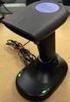 QuickScan QS6500/QS6500BT Product Reference Guide PSC Inc 959 Terry Street Eugene, Oregon 97402 Telephone: (541) 683-5700 Fax: (541) 345-7140 An Unpublished Work - All rights reserved. No part of the contents
BI-300. Barcode configuration and commands Manual
 BI-300 Barcode configuration and commands Manual 1. Introduction This instruction manual is designed to set-up bar code scanner particularly to optimize the function of BI-300 bar code scanner. Terminal
QuickScan TM L QD 2300 Bar Code Scanner
 QuickScan TM L QD 2300 Bar Code Scanner Product Reference Guide Datalogic ADC, Inc. 959 Terry Street Eugene, OR 97402 USA Telephone: (541) 683-5700 Fax: (541) 345-7140 2007-2014 Datalogic ADC, Inc. An
1166 / 1266 Barcode Scanner
 1166 / 1266 Barcode Scanner Setup barcodes included. Version 3.03 Copyright 2005~2014 CIPHERLAB CO., LTD. All rights reserved The software contains proprietary information of CIPHERLAB CO., LTD.; it is
MK-SERIE 1000/1500/2000 AllOfBarcode.de Michael Krug - 83278Traunstein BARCODE SCANNER
 MK-SERIE 1000/1500/2000 AllOfBarcode.de Michael Krug - 83278Traunstein BARCODE SCANNER Configuration Guide - 1 - Table of Contents Chapter 1 System Information 1.1 About this manual 3 1.2 How to set up
QUICK START GUIDE. Wasp WLS 9500. www.waspbarcode.com
 QUICK START GUIDE Wasp WLS 9500 www.waspbarcode.com LED Scan Window Beeper Trigger CORD ATTACHMENT Model Number and Serial Number appear here. Cable interface Interface cable modular connector Interface
Touch TD1100 Family General Purpose Corded Handheld Contact Imager Bar Code Reader
 Touch TD1100 Family General Purpose Corded Handheld Contact Imager Bar Code Reader Product Reference Guide Datalogic ADC, Inc. 959 Terry Street Eugene, Oregon 97402 USA Telephone: (541) 683-5700 Fax: (541)
MetroSelect. Single-Line Scanner. Configuration Guide
 MetroSelect Single-Line Scanner Configuration Guide Disclaimer Honeywell International Inc. ( HII ) reserves the right to make changes in specifications and other information contained in this document
Bar Code CCD Scanner OPERATION MANUAL
 ISO 9002 Certified Lead with technology Win customers with service Bar Code CCD Scanner OPERATION MANUAL 69 Jarltech International Inc. 1998. All rights reserved. Under the copyright laws, this manual
May 2001. Prepared: Product version: Keyword: Accelio Present Central 5.4. Original value:
 : Page 1 : : ANSI/AIM BC2-1995, Uniform Symbology Specification - Interleaved 2 of 5 0 2 of 5 Industrial Interleaved 2 of 5 (also called I-2/5 and ITF) is suitable for encoding general purpose all-numeric
CD-3860 Bar Code Scanner User s Manual
 CD-3860 Bar Code Scanner User s Manual Important Notice Rev. Original No warranty of any kind is made in regard to this material, including, but not limited to, implied warranties of merchantability or
ScanMaster for Scanner Configuration
 ScanMaster for Scanner Configuration For 1 Series Barcode Scanners: 1070, 1500, 1502 (1D, tethered) 1560, 1562, 1660, 1661 (1D, cordless) 1504, 1704 (2D, tethered) 1564, 1664 (2D, cordless) Version 1.30
Barcode reader setup manual
 Barcode reader setup manual Setup procedures are as follows: 1 Scan Begin setting 2 Scan your required function and its corresponding barcode 3 Scan End setting 4 All the setting parameters will be saved
To perform Ethernet setup and communication verification, first perform RS232 setup and communication verification:
 PURPOSE Verify that communication is established for the following products programming option (488.2 compliant, SCPI only): DCS - M9C & DCS M130, DLM M9E & DLM-M9G & DLM M130, DHP - M9D, P series, SG,
OPR3301 USER MANUAL (OS version: RBJV0211 / Application version: RFJ35530)
 CAUTION: This information is subject to change without prior notice. Copyright 2010, Opticon Sensors Europe BV, all rights reserved. This manual may not, in whole or in part, be copied, photocopied, reproduced,
Voyager 1202g. Quick Start Guide. Cordless Single-Line Laser Bar Code Scanner
 Voyager 1202g Cordless Single-Line Laser Bar Code Scanner Quick Start Guide Aller à www.honeywellaidc.com pour le français. Vai a www.honeywellaidc.com per l'italiano. Gehe zu www.honeywellaidc.com für
Barcode Scanning Made Easy. WWS500 Programming Guide
 Barcode Scanning Made Easy WWS500 Programming Guide Table of Contents Chapter 1. Introduction...........................2 Chapter 2. Barcode Symbologies...................3 Chapter 3. Quick Start............................4
Symbol CS3000 Series Scanner Product Reference Guide
 Symbol CS3000 Series Scanner Product Reference Guide Symbol CS3000 Series Scanner Product Reference Guide 72E-136088-01 July 2010 ii Symbol CS3000 Series Scanner Product Reference Guide 2010 by Motorola,
Voyager 1202g BF. Quick Start Guide. Cordless Single-Line Laser Bar Code Scanner and CCB00-010BT-01N-BF base
 Voyager 1202g BF Cordless Single-Line Laser Bar Code Scanner and CCB00-010BT-01N-BF base Quick Start Guide Aller à www.honeywellaidc.com pour le français. Vai a www.honeywellaidc.com per l'italiano. Gehe
QuickScan TM Lite QW2100
 QuickScan TM Lite QW2100 General Purpose Corded Handheld Linear Imager Bar Code Reader Product Reference Guide Datalogic ADC, Inc. 959 Terry Street Eugene, OR 97402 USA Telephone: (541) 683-5700 Fax: (541)
because we care MS910 Wireless Barcode Scanner Quick Guide Full user s manual is available on the enclosed CD. Version 1.2 400947G
 because we care MS910 Wireless Barcode Scanner Quick Guide Full user s manual is available on the enclosed CD. Version 1.2 400947G because we care OUT OF THE BOX INTRODUCTION 2. Trigger 3. LED Indicator
Synergy Controller Application Note 4 March 2012, Revision F Tidal Engineering Corporation 2012. Synergy Controller Bar Code Reader Applications
 Synergy Controller Bar Code Reader Applications Synergy Controller with Hand Held Products Bar Code Scanner OCR-A Labeled Part Introduction The value of the ubiquitous Bar Code Scanner for speeding data
Enter/Exit programming
 P/N: MUL-53247-02 Enter/Exit programming (This barcode is also found at back cover page.) Framed values are default values. All Rights Reserved This guide is designed for advanced settings of Hand Free
Voyager 9520/40 Voyager GS9590 Eclipse 5145
 Voyager 9520/40 Voyager GS9590 Eclipse 5145 Quick Start Guide Aller à www.honeywellaidc.com pour le français. Vai a www.honeywellaidc.com per l'italiano. Gehe zu www.honeywellaidc.com für Deutsch. Ir a
QuickScan TM Lite QW2100
 QuickScan TM Lite QW2100 General Purpose Corded Handheld Linear Imager Bar Code Reader Product Reference Guide Datalogic Scanning, Inc. 959 Terry Street Eugene, Oregon 97402 USA Telephone: (541) 683-5700
3800 Linear Series. Quick Start Guide
 3800 Linear Series Quick Start Guide Note: Refer to your user s guide for information about cleaning your device. For localized language versions of this document, go to www.honeywell.com/aidc. Getting
OPN_DL UTILITY SOFTWARE. INSTALLATION AND USER GUIDE - v2.03
 OPN_DL UTILITY SOFTWARE INSTALLATION AND USER GUIDE - v2.03 Electronic Reading Systems Ltd 14 Wolseley Business Park Kempston Beds MK42 7PW Tel: 01234 855300 Fax: 01234 855446 CONTENTS 1.0 INTRODUCTION
1560/1562 Barcode Scanner
 1560/1562 Barcode Scanner Setup barcodes included. Version 1.13 Copyright 2009~2014 CIPHERLAB CO., LTD. All rights reserved The software contains proprietary information of CIPHERLAB CO., LTD.; it is provided
Symbol LS9203. Product Reference Guide
 Symbol LS9203 Product Reference Guide Symbol LS9203 Product Reference Guide 72E-71538-03 Revision A February 2007 Motorola, Inc. 2007. All rights reserved. No part of this publication may be reproduced
Quick Installation. A Series of Intelligent Bar Code Reader with NeuroFuzzy Decoding. Quick Installation
 Quick Installation A Series of Intelligent Bar Code Reader with NeuroFuzzy Decoding This chapter intends to get your new FuzzyScan scanner working with your existing system within minutes. General instructions
MIRROR VT/5250 Terminal Emulation
 MIRROR VT/5250 Terminal Emulation 9300 / 9400 / 9500CE / 9600 Series Mobile Computers DOC Version 1.12 Copyright 2007~ 2009 CIPHERLAB CO., LTD. All rights reserved The software contains proprietary information
CS3000 SERIES SCANNER PRODUCT REFERENCE GUIDE
 CS3000 SERIES SCANNER PRODUCT REFERENCE GUIDE CS3000 SERIES SCANNER PRODUCT REFERENCE GUIDE 72E-136088-04 Revision A February 2013 ii CS3000 Series Scanner Product Reference Guide 2013 Motorola Solutions,
Magellan TM 800i. On-Counter Presentation Omnidirectional Bar Code Reader. Product Reference Guide
 Magellan TM 800i On-Counter Presentation Omnidirectional Bar Code Reader Product Reference Guide Datalogic Scanning, Inc. 959 Terry Street Eugene, Oregon 97402 USA Telephone: (541) 683-5700 Fax: (541)
Magellan TM 3200VSi. On-Counter Vertical Presentation Scanner. Product Reference Guide
 Magellan TM 3200VSi On-Counter Vertical Presentation Scanner Product Reference Guide Datalogic Scanning, Inc. 959 Terry Street Eugene, Oregon 97402 USA Telephone: (541) 683-5700 Fax: (541) 345-7140 An
MATRIX 210. Host Mode Programming
 MATRIX 210 Host Mode Programming Datalogic Automation Srl Via Lavino, 265 40050 - Monte S. Pietro Bologna - Italy Matrix 210 Host Mode Programming Ed.: 04/2011 This manual refers to software release 6.10
Symbol CS3000 Series Scanner Product Reference Guide
 Symbol CS3000 Series Scanner Product Reference Guide Symbol CS3000 Series Scanner Product Reference Guide 72E-136088-02 October 2010 ii Symbol CS3000 Series Scanner Product Reference Guide 2010 by Motorola,
Scanner Configuration Manager Manual. for PC type computers
 Scanner Configuration Manager Manual for PC type computers TABLE OF CONTENTS 1. SCANNER CONFIGURATION MANAGER......... 1 Start it Up...................... 1 First Look...................... 3 Settings......................
Bluetooth Version FUZZYSCAN FAMILY. Quick Start Guide WIRELESS SCANNER
 Bluetooth Version FUZZYSCAN FAMILY Quick Start Guide WIRELESS SCANNER Getting Familiar with Your FuzzyScan Thank you for choosing Cino FuzzyScan Bluetooth Cordless Image Scanner. Powered by the combination
Enter/Exit Programming Mode
 Enter/Exit Programming Mode (This barcode can also be found at back cover page.) Framed values are default values. IMPORTANT NOTICE No warranty of any kind is made in regard to this material, including,
Symbol LS1203. Product Reference Guide
 Symbol LS1203 Product Reference Guide LS1203 Product Reference Guide 72E-73953-04 Revision A November 2012 ii Symbol LS1203 Product Reference Guide Motorola Solutions, Inc. All rights reserved. No part
Users Manual. QuickBarII Single-Chip Bar Code Decoder
 Users Manual QuickBarII Single-Chip Bar Code Decoder REV E Dec. 22, 2009 LIMITED WARRANTY ID TECH warrants to the original purchaser for a period of 12 months from the date of invoice that this product
1500/1502 Series Barcode Scanner
 1500/1502 Series Barcode Scanner Setup barcodes included. Version 1.20 Copyright 2008~2015 CIPHERLAB CO., LTD. All rights reserved The software contains proprietary information of CIPHERLAB CO., LTD.;
LS 4004 ISBT 128/ABC Codabar Product Reference Guide
 LS 4004 ISBT 128/ABC Codabar Product Reference Guide Click on red text at any location in the manual to jump to the specified chapter, topic, or reference. About This Manual Introduction to LS 4004 ISBT
USER'S GUIDE NUSCAN 2100 Series
 BARCODE SCANNER USER'S GUIDE NUSCAN 2100 Series Table of Contents 1. Limited Warranty...1 2. Introduction...2 3. Contents...3 4. Barcode Symbologies...3 5. Product Introduction...3 6. Installation...4
Synapse Smart Cable for NEC PC 9821 Interface Guide
 Synapse Smart Cable for NEC PC 9821 Interface Guide 73-12805-0152 Revision A March 1996 For the following Model Configuration: STI80-0152 73-12805-0152 Revision A March 1996 FCC Information This equipment
Revision History. Advanced Handheld CCD/Laser Scanner
 Revision History Changes to the original manual are listed below: Version Date Description of Version 1.0 September 9, 2010 Initial release 1.1 February 18, 2011 Added Blink mode selections. i Important
Keep it Simple Timing
 Keep it Simple Timing Support... 1 Introduction... 2 Turn On and Go... 3 Start Clock for Orienteering... 3 Pre Start Clock for Orienteering... 3 Real Time / Finish Clock... 3 Timer Clock... 4 Configuring
Universal Serial Bus (USB)
 Universal Serial Bus (USB) HID Point of Sale Usage Tables 5 March 2001 Version 1.02 Please send comments via electronic mail to: [email protected] 1998, 1999, 2001 USB Implementers Forum All rights reserved.
1704 Barcode Scanner. Setup barcodes included. Version 1.08
 1704 Barcode Scanner Setup barcodes included. Version 1.08 Copyright 2010~2012 CIPHERLAB CO., LTD. All rights reserved The software contains proprietary information of CIPHERLAB CO., LTD.; it is provided
Virtual Integrated Design Getting started with RS232 Hex Com Tool v6.0
 Virtual Integrated Design Getting started with RS232 Hex Com Tool v6.0 Copyright, 1999-2007 Virtual Integrated Design, All rights reserved. 1 Contents: 1. The Main Window. 2. The Port Setup Window. 3.
Thermal Control Board User Manual 1
 Thermal Control Board User Manual 1 1 Outline... 2 2 HOW TO USE... 2 2.1 Printing test... 2 2.2 On board LED... 2 3 MECHANISM... 2 4 CONNECTOR... 3 5 ESC/POS PRINTING COMMAND SET... 3 5.1 Set of Command...
Rapier V1. Laser Gaming Mouse. User Guide English
 Rapier V1 Laser Gaming Mouse User Guide English Contents Welcome 3 Whats in the Pack 3 Key Features 3 Button Assignment 3 Rapier V1 Installation 4 Software Introduction 4 Rapier V1 Gamer Toolkit 4 Funtion
Mobile POS Tablet Barcode Scanner
 OPERATION GUIDE Mobile POS Tablet Barcode Scanner Installation The Barcode Scanner is preinstalled as an option for WebDT 312/ 362. Button Management To assign Scanner Trigger button, follow the procedures