
1560/1562 Barcode Scanner
|
|
|
- Moris Barker
- 10 years ago
- Views:
Transcription
1 1560/1562 Barcode Scanner Setup barcodes included. Version 1.13

2 Copyright 2009~2014 CIPHERLAB CO., LTD. All rights reserved The software contains proprietary information of CIPHERLAB CO., LTD.; it is provided under a license agreement containing restrictions on use and disclosure and is also protected by copyright law. Reverse engineering of the software is prohibited. Due to continued product development this information may change without notice. The information and intellectual property contained herein is confidential between CIPHERLAB and the client and remains the exclusive property of CIPHERLAB CO., LTD. If you find any problems in the documentation, please report them to us in writing. CIPHERLAB does not warrant that this document is error-free. No part of this publication may be reproduced, stored in a retrieval system, or transmitted in any form or by any means, electronic, mechanical, photocopying, recording or otherwise without the prior written permission of CIPHERLAB CO., LTD. For product consultancy and technical support, please contact your local sales representative. Also, you may visit our web site for more information. The CipherLab logo is a registered trademark of CIPHERLAB CO., LTD. All brand, product and service, and trademark names are the property of their registered owners. The editorial use of these names is for identification as well as to the benefit of the owners, with no intention of infringement. CIPHERLAB CO., LTD. Website:

3 IMPORTANT NOTICES FOR USA This equipment has been tested and found to comply with the limits for a Class B digital device, pursuant to Part 15 of the FCC Rules. These limits are designed to provide reasonable protection against harmful interference in a residential installation. This equipment generates, uses and can radiate radio frequency energy and, if not installed and used in accordance with the instructions, may cause harmful interference to radio communications. However, there is no guarantee that interference will not occur in a particular installation. If this equipment does cause harmful interference to radio or television reception, which can be determined by turning the equipment off and on, the user is encouraged to try to correct the interference by one or more of the following measures: Reorient or relocate the receiving antenna. Increase the separation between the equipment and receiver. Connect the equipment into an outlet on a circuit different from that to which the receiver is connected. Consult the dealer or an experienced radio/tv technician for help. This device complies with Part 15 of the FCC Rules. Operation is subject to the following two conditions: (1) This device may not cause harmful interference, and (2) this device must accept any interference received, including interference that may cause undesired operation. FOR CANADA This digital apparatus does not exceed the Class B limits for radio noise emissions from digital apparatus as set out in the interference-causing equipment standard entitled "Digital Apparatus," ICES-003 of Industry Canada. This device complies with Part 15 of the FCC Rules. Operation is subject to the following two conditions: (1) This device may not cause harmful interference, and (2) this device must accept any interference received, including interference that may cause undesired operation. Cet appareil numerique respecte les limites de bruits radioelectriques applicables aux appareils numeriques de Classe B prescrites dans la norme sur le material brouilleur: "Appareils Numeriques," NMB-003 edictee par l'industrie.

4 FOR HAND-HELD PRODUCT WITH RF FUNCTIONS The 1560/1562 unit (FCC ID: Q3N-1560) complies with FCC radiation exposure limits set forth for uncontrolled environment and meets the FCC radio frequency (RF) Exposure Guidelines in Supplement C to OET65. The unit has very low level of RF energy that it is deemed to comply without testing of specific absorption ratio (SAR). The 3656 unit (FCC ID: Q3N-3656) complies with FCC radiation exposure limits set forth for an uncontrolled environment. This equipment should be installed and operated with minimum distance 20 cm between the radiator & your body. It only operated in hand-held used. If you only transfer data to the host wirelessly, please keep the minimum distance 20 cm between machine & your body. FOR PRODUCT WITH LASER CAUTION This laser component emits FDA / IEC Class 2 laser light at the exit port. Do not stare into beam. SAFETY PRECAUTIONS RISK OF EXPLOSION IF BATTERY IS REPLACED BY AN INCORRECT TYPE. DISPOSE OF USED BATTERIES ACCORDING TO THE INSTRUCTIONS. The use of any batteries or charging devices, which are not originally sold or manufactured by CipherLab, will void your warranty and may cause damage to human body or the product itself. DO NOT disassemble, incinerate or short circuit the battery. DO NOT expose the scanner or the battery to any flammable sources. For green-environment issue, it's important that batteries should be recycled in a proper way. Under no circumstances, internal components are self-serviceable. The charging device uses an AC power adaptor. A socket outlet shall be installed near the equipment and shall be easily accessible. Make sure there is stable power supply for the scanner or its peripherals to operate properly. CARE & MAINTENANCE Use a clean cloth to wipe dust off the scanning window and the body of the scanner as well as the charging device. DO NOT use/mix any bleach or cleaner. If you want to put away the scanner for a period of time, download the collected data to a host computer when in the memory mode, and then take out the battery. Store the scanner and battery separately. When the scanner resumes its work, make sure the battery is fully charged before use. Keep the scanner away from any magnets and magnetic fields to prevent the laser engine from malfunctioning.

5 If you shall find the scanner malfunctioning, write down the specific scenario and consult your local sales representative.

6 RELEASE NOTES Version Date Notes 1.13 Mar. 14, 2014 Modified: Care & Maintenance Keep the scanner away from any magnets and magnetic fields to prevent the laser engine from malfunctioning. added New: GTIN-13 format barcodes added New: GS1 formatting barcodes added New: Application ID Mark barcodes added New: Field Separator barcode added New: GS1 Formatting barcodes added New: Application ID Mark barcodes added 1.12 Oct. 09, 2013 New: Transmit Speed setting barcodes (for BT HID) added New: Secure Simple Pairing (SSP) setting barcodes added New: ISBT Concatenation setting barcodes added 1.11 Jan. 02, 2013 Modified: Symbologies Supported Code GS1-128 (EAN-128): default value to Enabled New: Free Memory barcode Modified: 2.1/2.4/2.6 Add Keyboard Type: PCAT (Hungarian), PCAT (Swiss German), PCAT (Danish) Modified: 2.7/3.1 Note for Driver version 5.4 or later required New: Security Level (Codabar) setup barcodes New: Security Level (Code 39) setup barcodes New: Security Level (Code 128) setup barcodes Modified: 4.10 GS1-128 (EAN-128) - GS1-128 default to Enable Modified: Appendix II - #@RDSN command added 1.10 Aug 31, 2011 New: Auto Power Off Ignoring Scan Mode is added. Sections involved are: - Renamed section Turn on/off the Scanner - Modified section: Power Economy. - Adjusted new section: Power Economy vs. WPAN Connection 1.09 May 25, 2011 Modified: 3656+USB+Adaptor issue Modified: 2.1 BT HID add Inter-Character Delay Modified: 2.6 USB HID via 3656 add Inter-Character Delay 1.08 Mar. 11, 2011 New: Quick Start Create One-Scan Setup Barcodes (e.g #@109950# ) Modified: 1.11 Auto-Sense Mode (1560 Only) add High Sensitivity behavior Modified: Specifications Power Adaptor

7 1.07 Jan. 10, 2011 Modified: Introduction, Product Highlights add CipherConnect Modified: 4.10 GS1-128 (EAN-128) Cannot read when disabled since firmware v1.01 Modified: Edit a Concatenation of Barcodes Code type for ISBT 128 New: Pause Field Setting Modified: 6.5 Configuring Format Define Transmission Sequence (add Pause Field, Null Character Field ) 1.06 Nov. 30, 2010 Modified: Introduction, Symbologies Supported add support of more RSS symbologies New: Introduction Charging the Battery via Charger Modified: Auto Power Off & Power-Saving Modified: 1.4 Beeper describe Low Battery Alarm New: Keypad Support for iphone/ipad Modified: Connect to Dongle describe random PIN in Step 12 Modified: 4.16 GS1 DataBar (RSS Family) Modified: GS1 DataBar Omnidirectional (RSS-14) Modified: GS1 DataBar Expanded (RSS Expanded) Modified: 5.2 Character Substitution add table for Scan Code/Normal Key 1.05 Apr. 09, 2010 Modified: Auto Power Off & Power-Saving Modified: Activate BT HID & Select Keyboard Type add Turkish Modified: Keyboard Settings BT HID supports Alphabets Layout Modified: HID Character Transmit Mode Modified: 2.2 BT SPP Slave Modified: 2.3 BT SPP Master Modified: Activate Keyboard Wedge & Select Keyboard Type add Turkish Modified: Baud Rate add setup barcode for 4800 bps (100100) Modified: Baud Rate change default baud rate to bps Modified: Activate USB HID & Select Keyboard Type add Turkish Modified: Keyboard Settings USB HID supports Alphabets Layout Modified: HID Character Transmit Mode New: Configure Related Settings Sniff Mode Modified: Security Level Modified: Appendix III Keyboard Wedge Table remove settings for user-defined scan code Modified: Appendix III Keyboard Wedge Table provide examples 1.04 Mar. 02, 2010 Modified: Charging the Battery via 3656 suggest connecting power cord for USB

8 1.03 Oct. 30, 2009 Modified: 1.10 Auto-Sense Mode (1560 Only) Continuous mode as an alternative Modified: 1.13 Symbologies Supported ISBT 128 enabled by default Modified: Symbologies for Character Substitution (All 3 Sets) add ISBT 128 Modified: Select Pre-defined Code ID add ISBT 128 Modified: Change Code ID add ISBT 128 Modified: 5.5 Length Code add ISBT 128 Modified: Applicable Code Type (for Editing Format) add ISBT July 07, 2009 Modified: Charging the Battery via 3656 charging time changed from 3 to 5 (hr) Modified: 1.1 Battery charging time changed from 3 to 5 (hr) Modified: Auto Power Off & Power-Saving add setup barcode for Power-Saving setting (101021) Modified: Configure Related Settings Authentication 1.01 June 3, 2009 Modified: 1.10 Auto-Sense Mode Power supply cord is required. Modified: Appendix II Host Serial Commands 1.00 Apr. 29, 2009 Initial release

9 CONTENTS IMPORTANT NOTICES For USA For Canada For Hand-held Product with RF Functions For Product with Laser Safety Precautions Care & Maintenance RELEASE NOTES INTRODUCTION... 1 Getting Familiarized with 1560/1562 and Installing the Battery to 1560/ Setting up Charging the Battery via Charging the Battery via Charger... 6 Inside the Package... 7 Product Highlights... 7 Symbologies Supported... 8 QUICK START...11 Enter Configuration Mode...13 Exit Configuration Mode...13 Default Settings...14 Save User Settings as Defaults...14 Restore User Defaults...14 Restore System Defaults...14 Read a Setup Barcode...15 Configure Parameters...15 List the Current Settings...19 Create One-Scan Setup Barcodes...21 UNDERSTANDING THE BARCODE SCANNER Battery Turn on/off the Scanner Power Economy Power Economy vs. WPAN Connection Memory Transmit Buffer Memory Mode Free Memory LED Indicator Good Read LED...33

10 1560/1562 Series Barcode Scanner User Guide Good Read LED Duration Beeper Beeper Volume Good Read Beep Low Battery Alarm Send NR to Host Scan Modes Continuous Mode Test Mode Laser Mode Auto Off Mode Auto Power Off Mode Alternate Mode Aiming Mode Multi-Barcode Mode Scanning Timeout Delay between Re-read Read Redundancy for All Symblogies Addon Security for UPC/EAN Barcodes Auto-Sense Mode (1560 Only) CCD Sensor Always Active (1560 Only) Negative Barcodes Effective Decoding Area Positioning Window Adjusting Window...52 SELECTING OUTPUT INTERFACE BT HID Activate BT HID & Select Keyboard Type Reset Connection Keyboard Settings Inter-Character Delay Inter-Function Delay HID Character Transmit Mode Keypad Support for iphone/ipad Transmit Speed BT SPP Slave Activate BT SPP Slave Mode Inter-Function Delay ACK/NAK Timeout BT SPP Master Activate BT SPP Master Mode Inter-Function Delay ACK/NAK Timeout Switch between Master/Slave Mode Keyboard Wedge via Activate Keyboard Wedge & Select Keyboard Type Keyboard Settings Inter-Character Delay...82

11 1560/1562 Series Barcode Scanner User Guide Inter-Function Delay RS-232 via Activate RS-232 Interface Baud Rate Data Bits Parity Stop Bit Flow Control Inter-Character Delay Inter-Function Delay ACK/NAK Timeout USB HID via Activate USB HID & Select Keyboard Type Keyboard Settings Inter-Character Delay Inter-Function Delay HID Character Transmit Mode USB Virtual COM via Activate USB Virtual COM Inter-Function Delay ACK/NAK Timeout SETTING UP A WPAN CONNECTION Connecting via Connect to Change Interface Configure Related Settings Connecting via Bluetooth Dongle Change Interface Configure Related Settings Connect to Dongle Secure Simple Pairing (SSP) CHANGING SYMBOLOGY SETTINGS Codabar Start/Stop Characters Selection Start/Stop Transmission CLSI Conversion Security Level Code 25 Industrial Start/Stop Pattern Selection Verify Check Digit Transmit Check Digit Code Length Qualification Code 25 Interleaved Start/Stop Pattern Selection Verify Check Digit Transmit Check Digit Code Length Qualification Code 25 Matrix Start/Stop Pattern Selection...126

12 1560/1562 Series Barcode Scanner User Guide Verify Check Digit Transmit Check Digit Code Length Qualification Code Start/Stop Transmission Verify Check Digit Transmit Check Digit Standard/Full ASCII Code Security Level Code Code Security Level EAN Convert to EAN Transmit Check Digit Conversion Format EAN ISBN Conversion ISSN Conversion Transmit Check Digit Security Level GS1-128 (EAN-128) Code ID Transmission Field Separator (GS Character) GS1 Formatting Application ID Mark ISBT ISBT Concatenation MSI Verify Check Digit Transmit Check Digit Code Length Qualification French Pharmacode Transmit Check Digit Italian Pharmacode Transmit Check Digit Plessey Convert to UK Plessey Transmit Check Digit GS1 DataBar (RSS Family) Code ID Selection GS1 DataBar Omnidirectional (RSS-14) GS1 DataBar Expanded (RSS Expanded) GS1 DataBar Limited (RSS Limited) Field Separator (GS Character) GS1 Formatting Application ID Mark Telepen Telepen Output Full ASCII/Numeric...151

13 1560/1562 Series Barcode Scanner User Guide 4.18 UPC-A Convert to EAN System Number Transmission Transmit Check Digit UPC-E System Number Selection Convert to UPC-A System Number Transmission Transmit Check Digit DEFINING OUTPUT FORMAT Letter Case Character Substitution Select a Set for Character Substitution Symbologies for Character Substitution (All 3 Sets) Prefix/Suffix Code Code ID Select Pre-defined Code ID Change Code ID Clear Code ID Settings Length Code Multi-Barcode Editor Edit a Concatenation of Barcodes Activate the Concatenation of Barcodes Removal of Special Character APPLYING FORMATS FOR DATA EDITING Activating Editing Formats Activate Editing Formats Exclusive Data Editing How to Configure Editing Formats Select Format to Configure Restore Default Format Configuring Format Define Data Criteria Applicable Code Type Data Length Matching String & Location Configuring Format Define Data Field Start Position Field Adjustment Total Number of Fields Field Settings Pause Field Setting Configuring Format Define Transmission Sequence Programming Examples Example I Example II...205

14 1560/1562 Series Barcode Scanner User Guide SPECIFICATIONS FIRMWARE UPGRADE How to Upgrade 1560/1562 Firmware Using Using Bluetooth Dongle How to Upgrade 3656 Firmware Upgrading 3656 CPU Firmware Upgrading 3656 USB Bridge Firmware HOST SERIAL COMMANDS /1562 Serial Commands Example Setup Barcodes & Serial Commands Setup Barcodes Example KEYBOARD WEDGE TABLE Key Type & Status Key Type Key Status Example NUMERAL SYSTEMS Decimal System Hexadecimal System ASCII Table Entering PIN Code for Authentication Use Preset PIN Disable Authentication or Use Random PIN...233

15 INTRODUCTION CipherLab s 1560 Series Barcode Scanners are specifically designed to answer your mobile demands. The versatile scanners are designed to help accelerate productivity while lowering the total cost of ownership. Intensive data collection jobs are made easier with fast, accurate barcode scanning in various working environments, especially in small businesses. Integrating short-distance wireless technology to small-form-factor scanners, the 1560/1562 scanners are ideal for carrying around, and thus give workers tether-free mobility anytime anywhere and get job done more efficiently. This line of scanners deliver data over a wireless personal network at a range of up to 90 meters and a prolonged battery life to keep business running. Owing to the slim, ergonomic design, extremely low power consumption, and powerful decoding capability, the 1560 Series Barcode Scanners are the best choice for the following applications Receiving in Retail Product labeling & Tracking Shelf Product Replenishment Mobile Point of Sale (POS) Mobile Inventory Management Order Picking & Staging Work-In-Process Tracking Material Flow Control Transportation & Distribution Warehousing Asset Management This manual contains information on operating the scanner and using its features. We recommend you to keep one copy of the manual at hand for quick reference or maintenance purposes. To avoid any improper disposal or operation, please read the manual thoroughly before use. Thank you for choosing CipherLab products! 1

16 1560/1562 Series Barcode Scanner User Guide GETTING FAMILIARIZED WITH 1560/1562 AND 3656 INSTALLING THE BATTERY TO 1560/1562 When you first receive the package, the rechargeable battery is stored separately from the scanner. Insert the battery into the scanner first so that it can be charged when sitting in the Auto-Sense stand. Note: Any improper handling may reduce the battery life. 1) Hold the scanner still and insert the battery into the battery compartment at the bottom of the scanner. 2) Slide the battery latch to lock the battery in the compartment. 3) Hold down the trigger about 2 seconds to turn on the scanner. 4) The scanner will respond with a long beep and its LED will come on-off shortly. Note: (1) To turn off the scanner, remove the battery. Refer to settings of Auto Power Off. (2) For shipping and storage purposes, save the scanner and the battery separately. This will keep the battery in good condition for future use. (3) When the battery charge becomes low, you will find the scanner cannot emit scan beam and its power-on beep sounds differently. 2 Enter Setup

17 Introduction SETTING UP 3656 Capable of charging 1560/1562, the 3656 stand is specifically designed for the scanner to communicate with a host computer wirelessly. The connection between the scanners and 3656 is made easy and reliable. Refer to Connect to The 3656 stand is also an Auto-Sense stand when used with the scanner set to Auto-Sense mode. Two LED indicators are provided for power and communications status. Power LED Red, solid Meaning --- Power ON Power OFF Communication LED --- Blue, solid Meaning Initialize Red, solid --- Failed to establish a USB connection Red, solid Red, flashing Blue, flashing Blue, flashing Serial command mode with USB Virtual COM or RS-232: wait 3 seconds for starting a serial command Serial command mode with USB HID: wait 3 seconds for pressing [Num Lock] or [Caps Lock] 5 times via keyboard --- Blue, flashing Wait for connection request from the scanner (Slow flash at 0.5 Hz) 3

18 1560/1562 Series Barcode Scanner User Guide --- Blue, flashing Connected with the scanner (Fast flash at 1 Hz) Red, solid Blue, flashing Failed to send data to host via USB Virtual COM (Fast flash at 1 Hz) Red, flashing --- Enter Download Mode 4 Enter Setup

19 Introduction CHARGING THE BATTERY VIA 3656 The battery may not be charged to full for shipment. When you first receive the package, you will need to charge the battery to full before using the scanner. When using the RS-232 cable, it takes approximately 5 hours to charge the battery to full (from the power adaptor). Note: Battery charging stops when the temperature drops below 0 C or exceeds 40 C. It is recommended to charge the battery at room temperature (18 C to 25 C) for optimal performance. 1) Install the battery to the scanner. 2) Seat the scanner in the 3656 stand. 3) Connect the 3656 stand to your computer or notebook via the USB or RS-232 cable. 4) Connect the power supply cord from 3656 to a proper power outlet. Warning: RS-232/USB interface both require connecting the power supply cord. When the stand is solely on USB power, the current may be insufficient for it to function normally. You must connect the power supply cord. 5) The LED for power indication on 3656 will become solid red. 6) The scanner LED will be flashing red during charging. When the charging is done, the LED will turn off. When charging error occurs, the LED will turn solid red. 7) The LED for communications on 3656 will first become solid blue while initializing. Refer to the table above for details on different stage of communications. The two pivot bolts need to be tightened, or charging error may occur. Warning: If the two pivot bolts are not tightened properly, charging error may occur. 5

20 1560/1562 Series Barcode Scanner User Guide CHARGING THE BATTERY VIA CHARGER The battery charger is provided for charging the battery only. You may purchase the charger separately. It takes approximately 3 hours to charge the battery to full. Note: Battery charging stops when the temperature drops below 0 C or exceeds 40 C. It is recommended to charge the battery at room temperature (18 C to 25 C) for optimal performance. 1) Insert the battery. 2) Lock the battery. 3) Connect the power supply cord to the charger. 4) Connect the other end of the power cord to a suitable power outlet. Status LED Red, solid Red, solid Meaning --- Charger power ON (LED on for 0.5 second) --- Charging battery --- Green, solid Charging done Red, solid Green, solid Pre-charging when battery voltage under 3V (Typical) Power or battery not ready 6 Enter Setup

21 Introduction INSIDE THE PACKAGE The items included in the package may be different, depending on your order. Save the box and packaging material for future use in case you need to store or ship the scanner. Barcode Scanner (1560 or 1562) BT Base (3656) Rechargeable Li-ion battery Product CD Note: The CD-ROM includes this manual and Windows-based ScanMaster software for configuration, as well as the USB Virtual COM driver. PRODUCT HIGHLIGHTS Small-form-factor and built tough to survive drop test Extremely low power consumption Firmware upgradeable Supports most popular barcode symbologies, including GS1-128 (EAN-128), GS1 DataBar (RSS), etc. Supports negative barcodes Supports different scan modes, including Aiming Mode and Multi-Barcode Mode User feedback via LED indicator and beeper Beeping tone and duration programmable for Good Read 512 KB flash memory for Memory Mode operation, storing up to 32,768 scans based on EAN-13 barcodes Provides up to 4 KB SRAM for reserve buffer while getting out of range over a wireless personal area network (WPAN), storing up to 256 scans based on EAN-13 barcodes Capable of transmitting scanned data, emulating a serial cable (BT SPP) or as keyboard input (BT HID), to a notebook computer or PDA with Bluetooth wireless technology Programmable parameters include data output format, editing format, symbologies, etc. Easy configuration through ScanMaster Easy connection through CipherConnect, available via online marketplace for mobile devices running on Android 2.x, BlackBerry 5.x, or Windows Mobile 6.x 7
22 1560/1562 Series Barcode Scanner User Guide SYMBOLOGIES SUPPORTED Most of the popular barcode symbologies are supported, as listed below. Each can be individually enabled or disabled. The scanner will automatically discriminate and recognize all the symbologies that are enabled. Refer to Chapter 4 Changing Symbology Settings for details of each symbology. Symbologies Supported: Enable/Disable Codabar Code 93 Default Enabled Enabled MSI Plessey Telepen Disabled Disabled Disabled Code 128 Code 128 GS1-128 (EAN-128) ISBT 128 Enabled Enabled Enabled Note: Starting from firmware version 1.01, ISBT 128 is enabled by default. Code 2 of 5 Industrial 25 Interleaved 25 Enabled Enabled Matrix 25 Disabled Code 3 of 9 Code 39 Enabled Italian Pharmacode French Pharmacode Disabled Disabled EAN/UPC EAN-8 Enabled EAN-8 Addon 2 EAN-8 Addon 5 Disabled Disabled EAN-13 Enabled EAN-13 & UPC-A Addon 2 EAN-13 & UPC-A Addon 5 ISBN Disabled Disabled Disabled UPC-E0 Enabled UPC-E1 UPC-E Addon 2 UPC-E Addon 5 Disabled Disabled Disabled UPC-A Enabled 8 Enter Setup
23 Introduction GS1 DataBar (RSS) GS1 DataBar Omnidirectional (RSS-14) GS1 DataBar Truncated GS1 DataBar Stacked GS1 DataBar Stacked Omnidirectional GS1 DataBar Limited (RSS Limited) GS1 DataBar Expanded (RSS Expanded) GS1 DataBar Expanded Stacked Disabled Disabled Disabled Disabled Disabled Disabled Disabled 9
24 1560/1562 Series Barcode Scanner User Guide 10 Enter Setup
25 QUICK START The configuration of the scanner can be done by reading the setup barcodes contained in this manual or via the ScanMaster software. This section describes the procedure of configuring the scanner by reading the setup barcodes and provides some examples for demonstration. Configuration Mode 1. Hold down the trigger about 2 seconds to turn on the scanner. It will respond with a long beep and its LED will come on-off shortly. 2. Have the scanner read the Enter Setup barcode. It will respond with six beeps and its LED indicator will become flashing red after reading the barcode. 3. Have the scanner read more setup barcodes Most of the setup barcodes are normal. The scanner will respond with two beeps (low-high tone). For special setup barcodes, it requires reading more than one setup barcode to complete the setting. 4. Have the scanner read the or Abort barcode. It will respond with six beeps and its LED indicator will become flashing red after reading the barcode. 5. The scanner will restart automatically upon reading the or Abort barcode. It will respond with a long beep and its LED will come on-off shortly. Note: Refer to Appendix II Host Serial Commands for how to configure the 3656 stand by having the scanner read 3656-related setup barcodes or using serial commands. 11
26 1560/1562 Series Barcode Scanner User Guide Working Mode Upon powering up, the 1560/1562 scanner will try to establish a connection with 3656 or a computer with Bluetooth wireless technology. Refer to Chapter 3 Setting up a WPAN Connection for details. The connection between the scanners and 3656 is made easy and reliable. Note: If RS-232, USB Virtual COM or BT SPP is selected for output interface, the host can directly send serial commands to configure the scanner. For example, run HyperTerminal.exe and type the 6-digit command located under each setup barcode. Refer to Appendix II Host Serial Commands. 12 Enter Setup
27 Quick Start ENTER CONFIGURATION MODE For the scanner to enter the configuration mode, you must have it read the Enter Setup barcode, which can be located at the bottom of almost every even page of this manual. The scanner will respond with six beeps and its LED indicator will become flashing red after reading the barcode. Enter Setup For configuring scanner parameters, see Read a Setup Barcode below. EXIT CONFIGURATION MODE For the scanner to save settings and exit the configuration mode, you must have it read the barcode, which can be located at the bottom of almost every odd page of this manual. If you want to exit the configuration mode without saving any changes, have the scanner read the Abort barcode instead. Just like reading the Enter Setup barcode, the scanner will respond with six beeps and its LED indicator will become flashing red after reading the barcode. Wait for a few seconds for the scanner to restart itself. Abort 13
28 1560/1562 Series Barcode Scanner User Guide DEFAULT SETTINGS SAVE USER SETTINGS AS DEFAULTS For the scanner to keep the customized settings as user defaults, you must have it read the Save as User Defaults barcode. This is a normal setup barcode, and the scanner will respond with two beeps (low-high tone). After reading the barcode, the current settings will be saved as user defaults. Save as User Defaults RESTORE USER DEFAULTS For the scanner to restore the user defaults, which you have saved earlier, you must have it read the Restore User Defaults barcode. This is a normal setup barcode, and the scanner will respond with two beeps (low-high tone). After reading the barcode, all the parameters of the scanner will return to their customized values. Restore User Defaults RESTORE SYSTEM DEFAULTS For the scanner to restore the factory defaults, you must have it read the Restore System Defaults barcode. This is a normal setup barcode, and the scanner will respond with two beeps (low-high tone). For 3656 to restore factory defaults, refer to 3656 Setup Barcodes & Serial Commands. After reading the barcode, all the parameters of the scanner will return to their default values. The current connection record will be cleared as well. Restore System Defaults Note: The system default value (if there is) for each setting is indicated by an asterisk *. 14 Enter Setup
29 Quick Start READ A SETUP BARCODE CONFIGURE PARAMETERS For most of the scanner parameters, only one read is required to set them to new values. The scanner will respond with two beeps (low-high tone) when each parameter is set successfully. But for a number of special parameters, multiple reads are required to complete the setting. In this case, the scanner will respond with a short beep to indicate it needs to read more setup barcodes. These special parameters may require reading one or more setup barcodes, such as Numeric barcodes, say, for keyboard type, inter-character delay, length qualification Hexadecimal barcodes, say, for character strings as prefix, suffix, etc. When BT HID, USB HID or Keyboard Wedge is configured for interface, Key Type and Key Status will then become applicable. You may decide whether or not to change key status when Normal Key is selected for Key Type. To complete the configuration of these special parameters, it requires reading the Validate barcode, and the scanner will respond with two beeps (low-high tone) to indicate the input values are validated. 15
30 1560/1562 Series Barcode Scanner User Guide The example below shows how to save your settings as User Default so that you may restore user defaults at a later time: Steps Action User Feedback if Successful 1 Power on the scanner The scanner will respond with a long beep (high tone) and its LED indicator will become solid red and go off quickly. 2 Enter the Configuration Mode The scanner will respond with six beeps (high-low tone repeats three times), and its LED indicator will be flashing red. 3 Read a Setup barcode For example, The scanner will respond with two beeps (low-high tone) if reading a normal setup barcode. 4 Exit the Configuration Mode Same as for Enter the Configuration Mode. OR 5 The scanner will automatically restart itself Same as for Power on the scanner. * When any configuration error occurs... The scanner will respond with one long beep (low tone). 16 Enter Setup
31 Quick Start The example below shows how to set numeric parameters: Steps Action User Feedback if Successful 1 Power on the scanner... The scanner will respond with a long beep (high tone) and its LED indicator will become solid red and go off quickly. 2 Enter the Configuration Mode The scanner will respond with six beeps (high-low tone repeats three times), and its LED indicator will become flashing red. 3 Read a Setup barcode... For example, The scanner will respond with two beeps (low-high tone) if reading a normal setup barcode. Normal setup barcode Normal setup barcode Special setup barcode The scanner will respond with one short beep if reading a special setup barcode such as Max. Length, indicating the setup requires reading more barcodes. Decimal barcodes Read the Decimal Value barcode(s). Refer to Appendix IV Decimal System The scanner will respond with two beeps (low-high tone) when the input values are validated. 4 Exit the Configuration Mode Same as for Enter the Configuration Mode. OR 5 The scanner will automatically restart itself Same as for Power on the scanner. 17
32 1560/1562 Series Barcode Scanner User Guide The example below shows how to set string parameters: Steps Action User Feedback if Successful 1 Power on the scanner... The scanner will respond with a long beep (high tone) and its LED indicator will become solid red and go off quickly. 2 Enter the Configuration Mode The scanner will respond with six beeps (high-low tone repeats three times), and its LED indicator will become flashing red. 3 Read a Setup barcode... For example, Special setup barcodes The scanner will respond with one short beep if reading a special setup barcode such as Prefix Code, indicating the setup requires reading more barcodes. When BT HID, USB HID or Keyboard Wedge is configured for interface, Key Type and Key Status will then become applicable. You may decide whether or not to change key status when Normal Key is selected for Key Type. Refer to Appendix III Hexadecimal barcodes Read the Hexadecimal Value barcodes for the desired character string. For example, read 2 and B for the scanner to prefix the character +. Refer to Appendix IV Hexadecimal System The scanner will respond with two beeps (low-high tone) when the input values are validated. 4 Exit the Configuration Mode Same as for Enter the Configuration Mode. OR 5 The scanner will automatically restart itself Same as for Power on the scanner. 18 Enter Setup
33 Quick Start LIST THE CURRENT SETTINGS The current settings of all scanner parameters can be sent to the host computer for user inspection. The listing includes pages as shown below. You can select the page of interest by having the scanner read the List Page x barcode. The scanner will respond with two beeps (low-high tone) and send the selected page to the host immediately. List settings regarding Firmware Version, Serial Number, Interface, Buzzer, and Other Scanner Parameters List Page 1 List settings regarding Prefix, Suffix, and Length Code Setting List Page 2 List settings regarding Code ID List Page 3 List settings regarding: Readable Symbologies List Page 4 List settings regarding Symbology Parameters (1/3) List Page 5 List settings regarding Symbology Parameters (2/3) List Page 6 List settings regarding Symbology Parameters (3/3) List Page 7 List settings regarding Editing Format 1 List Page 8 List settings regarding Editing Format 2 List Page 9 List settings regarding Editing Format 3 List Page 10 19
34 1560/1562 Series Barcode Scanner User Guide List settings regarding Editing Format 4 List Page 11 List settings regarding Editing Format 5 List Page Enter Setup
35 Quick Start CREATE ONE-SCAN SETUP BARCODES The fact is most of the scanner parameters require only one read for setting new values. To facilitate configuring the scanner, you may create One-Scan setup barcodes for use. The requirements of a One-Scan setup barcode are: a prefix of the #@ characters the six digits of command parameters a suffix of the # character For example, the scanner needs reading three setup barcodes for the command parameter to take effect: Enter Setup List Page 3 Now, it requires only one read: One-Scan Setup Barcode for Note: The scanner will restart automatically upon reading the One-Scan setup barcode for (1) changing the interface or (2) setting memory mode, enable or disable. It will respond with a long beep and its LED will come on-off shortly. 21
36 1560/1562 Series Barcode Scanner User Guide 22 Enter Setup
37 Chapter 1 UNDERSTANDING THE BARCODE SCANNER This chapter will guide you through the features of the barcode scanner and how it can function for you. IN THIS CHAPTER 1.1 Battery Memory LED Indicator Beeper Send NR to Host Scan Modes Scanning Timeout Delay between Re-read Read Redundancy for All Symblogies Addon Security for UPC/EAN Barcodes Auto-Sense Mode (1560 Only) CCD Sensor Always Active (1560 Only) Negative Barcodes Effective Decoding Area BATTERY The scanner is powered by a rechargeable 3.7 V/800 mah Li-ion battery, and it takes approximately 5 hours to charge the battery to full (via 3656 from the power adaptor). However, the charging time may vary by working condition. For intensive data collection, you may need to purchase a spare battery for non-stop operation. Note: See also Power Economy, CCD Sensor Always Active, Sniff Mode, as well as Low Battery Alarm TURN ON/OFF THE SCANNER Turn on the scanner After installing the battery, pull down the trigger for about 2 seconds. The scanner will respond with a long beep (high tone), then the LED will become solid red and go off quickly. Turn off the scanner Remove the battery directly or let it turn off automatically in specific circumstances. 23
38 1560/1562 Series Barcode Scanner User Guide POWER ECONOMY The scanner features Power-Saving, Auto Power Off and Auto Power Off Ignoring Scan Mode giving consideration to the power issue that is generally critical for Bluetooth-enabled devices. By the scanner s support of power economy, its power consumption may progress by the following transition: 1) running at full CPU speed at power-on 2) shifting to low CPU speed (Power-Saving) 3) finally shutting down automatically (Auto Power Off) In the following content of this section, you will be guided through the configurations for the scanner s power economy POWER-SAVING For the scanner to save power, you need to appoint the timing for the scanner to shift to power-saving mode. Make the configuration that best suits your application while noting the following points: Power-Saving: 1~254 minutes configurable. 0= Disable. By default, the scanner stands by at full-speed for 2 minutes after power-on and before entering low-speed mode. If Power-Saving isn t desired, set it to 0 to disable it. Read the setup barcode in the following to achieve the setup. Note: Power-Saving setting won t take effect when the WPAN connection is established successfully whether via BT HID or SPP. Power-Saving after 0~254 min. (*2) 1) Read the barcode above to enable the scanner to enter low-speed Power-Saving. 2) Assign the time for the scanner to enter low-speed mode by reading the Decimal Value barcode on page 229. For example, read 5 for the scanner to enter low-speed mode after idleness of 5 minutes. 3) Read the Validate barcode on the same page to complete this setting. 24 Enter Setup
39 Chapter 1 Understanding the Barcode Scanner Note: Power-Saving won t take effect when one of the following conditions is met: (1) the scanner has already established a BT HID/SPP connection, (2) the scanner is in the configuration mode, (3) the scan mode is set to Test, Continuous or Alternate Mode, (4) 1560 is in Auto-Sense mode and seated in the 3656 stand, or (5) the setting value of Power-Saving is greater than that of Auto Power Off AUTO POWER OFF For the scanner to save power, further to setting up Power-Saving mode, you may also need to enable Auto Power Off, which deals with a time for the scanner to automatically power off after power-on. Make the configuration that best suits your application while noting the following points: Auto Power Off: 1~254 minutes configurable. 0= Disable. 1. By default, the scanner automatically shuts down 10 minutes after power-on. 2. If Auto Power Off isn t desired, set the parameter to 0 to disable it. 3. When the scan mode is set to any of Continuous Mode, Test Mode, and Alternate Mode, you need to enable Auto Power Off Ignoring Scan Mode in addition to enabling Auto Power Off. See the following section Auto Power Off Ignoring Scan Mode to achieve auto power off. Note: When the scanner is set to any scan mode other than Continuous Mode, Test Mode and Alternate Mode, you can skip Auto Power Off Ignoring Scan Mode. Auto Power Off after 0~254 min. (*10) 1) Read the barcode above to enable the scanner to automatically turn off at a specified time after power-on. 2) Assign the auto power off time by reading the Decimal Value barcode on page 229. For example, read 1 and 5 for the scanner to automatically turn off after idleness of 15 minutes. 3) Read the Validate barcode on the same page to complete this setting. 25
40 1560/1562 Series Barcode Scanner User Guide Note: Auto Power Off will not take effect when one of the following conditions is met: (1) the scanner is in the configuration mode, or (2) 1560 is in Auto-Sense mode and seated in the 3656 stand AUTO POWER OFF IGNORING SCAN MODE This mode is intended only for Continuous Mode, Test Mode, and Alternate Mode. To force a scanner that is set to one of these three modes to automatically power off to save power, you need the following settings: 1. Enable Auto Power Off as detailed in the foregoing section Auto Power Off. And set a time for the scanner to automatically power off after power-on. 2. Enable Auto Power Off Ignoring Scan Mode by reading the barcode below: Enable *Disable Read the barcode above to enable/disable automatic power-off for Continuous Mode, Test Mode, and Alternate Mode. Note: Auto Power Off Ignoring Scan Mode only features enabling and disabling. It doesn t feature the setting of auto power-off time. Such setting should be configured in the preceding setup of Auto Power Off. 26 Enter Setup
41 Chapter 1 Understanding the Barcode Scanner POWER ECONOMY VS. WPAN CONNECTION Before the scanner can communicate with the host computer, Bluetooth connection (or WPAN connection) needs to be established. The scanner s power economy always accommodates itself to the establishment of the WPAN connection. The following describes how the scanner carries out power economy before and after the establishment of the WPAN connection: Before establishing a WPAN connection successfully 1. The scanner stays active for a specified period of time (2 minutes by default) for the following scenarios. The CPU runs at full speed, and the LED blinks blue (On/Off ratio 0.5 s: 0.5 s). (a) waiting for a connection request from the host (BT SPP Slave Mode) (b) trying to connect to the host (BT HID or BT SPP Master Mode) (c) trying to connect to If the scanner fails to connect within 2 minutes, it becomes inactive to save power for the remaining period of time (the specified Auto Power Off value minus 2 minutes). The CPU starts to run at low speed, and the LED begins to blink red (On/Off ratio 0.3 s: 2.5 s). Pull the trigger to wake up the scanner when it becomes inactive, and the scanner will become active again. 3. If it fails to connect again and again, and finally stays inactive until the specified Auto Power Off time elapses, the scanner will automatically turn off in order to conserve battery power. Pull down the trigger for about 2 seconds to turn it on again. Note: For scenarios (a) and (b) in step 1, you may need to search for the scanner again on your computer. After establishing a WPAN connection successfully 1. Once a WPAN connection is established successfully, the scanner will stay active for a specified period of time (2 minutes by default) for data transmission. The CPU runs at full speed, and the LED blinks blue (On/Off ratio 0.02 s: 3 s). 2. If the scanner stays idle for 2 minutes (default), it will then turn inactive to save power for the remaining period of time (the specified Auto Power Off value minus 2 minutes). The CPU runs at low speed, and the LED is blinking red (On/Off ratio 0.3 s: 2.5 s). Pull the trigger to wake up the scanner when it becomes inactive, then the scanner will stay active again. For BT HID or SPP, the scanner automatically shuts down after the configured Auto Power Off time without the transition from full CPU speed to low CPU speed. However, when connecting with 3656, the scanner will go through the transition in order to save power. 3. If the scanner first becomes idle and finally stays inactive until the specified Auto Power Off time is up, the scanner will automatically turn off in order to conserve battery power. You will hear three short beeps, tone descending from high to low. Pull down the trigger for about 2 seconds to turn it on again. For BT HID, the scanner resumes the connection with the host upon powering on again, as long as the host application is running. You will hear three short beeps, tone ascending from low to high upon the resumption. If the scanner fails to resume the connection, it will 27
42 1560/1562 Series Barcode Scanner User Guide try every 5 seconds to re-connect to the host unless you have the scanner read the Reset Connection barcode. For BT SPP Slave Mode, the scanner waits for the host to re-connect. For BT SPP Master Mode, the scanner resumes the connection with the host upon powering on again as long as the host application is running. You will hear three short beeps, tone ascending from low to high upon resumption. If the scanner fails to resume the connection, it will try every 5 seconds to re-connect to the host unless you have the scanner read the Reset Connection or Restore System Defaults barcode. With the use of 3656, the scanner tries to re-connect 3656 unless you turn off the scanner. 28 Enter Setup
43 Chapter 1 Understanding the Barcode Scanner 1.2 MEMORY The collected data can be sent back to a host computer one by one via the WPAN connection or stored in flash memory when the scanner is set to Memory mode TRANSMIT BUFFER By default, transmit buffer is enabled and for use when the scanner is out of range. Upon reading a barcode successfully within range, the scanner responds with one short beep (high tone) and its LED indicator becomes solid green and goes off quickly. However, the host computer may not receive the data immediately if getting out of range. With the 4 KB transmit buffer, the scanner can ignore the transmission status and keep on reading barcodes until the buffer is full. When transmit buffer is enabled If the scanner is out of range, it will respond with two short beeps, high-low tone, upon reading a barcode successfully. When transmit buffer is full, the scanner will respond with one long beep (low tone) and its LED indicator will become solid red and go off quickly. You are advised to get back to range. When transmit buffer is disabled If the scanner is out of range, it will respond with one long beep (low tone) and its LED indicator will become solid red and go off quickly. You are advised to get back to range. *Enable Disable Note: The 4 KB transmit buffer on the scanner can hold as many as 256 scans based on EAN-13 barcodes. Data will be cleared out once the scanner is turned off or running out of battery power! 29
44 1560/1562 Series Barcode Scanner User Guide MEMORY MODE The scanner keeps 512 KB flash memory for memory mode operation. When the scanner is in memory mode, it means any real-time connection established with the host is disabled. Enable *Disable Warning: No real-time connection is allowed unless the memory mode is disabled. Memory Data Delay You may set a delay between each data record while transmitting data back to the host. *None 250 ms 500 ms 1 sec 2 sec 3 sec 5 sec 30 Enter Setup
45 Chapter 1 Understanding the Barcode Scanner 8 sec Send Data The 512 KB flash memory on the scanner can store up to 32,768 scans based on EAN-13 barcodes. When it is used up, the scanner will respond with two short beeps (high-low tone) as a warning. You are advised to send data to the host immediately by having the scanner read the Send Data barcode below. It will resume the previous WPAN connection with the host temporarily. Send Data Clear Data & Confirm Even though data has been sent back to the host, the flash memory is still occupied unless you erase the memory by having the scanner read two barcodes Clear Data and Confirm. 1. Read the Clear Data barcode to clear the flash memory. 2. Read the Confirm barcode to confirm the action. Clear Data Confirm FREE MEMORY In memory mode, you can scan the barcode below to show the available capacity of the flash memory in percentage terms. Spare memory 31
46 1560/1562 Series Barcode Scanner User Guide 1.3 LED INDICATOR The triple-color LED on top of the scanner is used to provide user feedback. For example, the LED becomes solid red and goes off quickly upon powering on or running out of transmit buffer. You may tell the difference by the beeps you will hear a long beep of high tone when powering on the scanner, and a long beep of low tone when the transmit buffer becomes full. Scanner LED Red, flashing Red, solid Red, flashing Red, on-off Meaning Charging (On/Off ratio 0.5 s: 0.5 s) Configuration Mode (On/Off ratio 0.5 s: 0.5 s) Charging error Flashing red (On/Off ratio 0.3 s: 2.5 s) indicates the scanner is inactive and its CPU running at low speed to save power No WPAN connection is established after waiting for two minutes Power on, with one long beep (high tone, LED on for 1 second) Data saved to buffer when transmit buffer is enabled and the scanner is out of range, with two short beeps (high-low tone) Transmit buffer full, with one long beep (low tone) Transmit buffer disabled, with one long beep (low tone) Memory full in memory mode, with two short beeps (high-low tone) Green, on-off Good Read, with one short beep (high tone) and beeper pitch and duration programmable --- Blue, flashing --- Blue, flashing --- Blue, flashing --- First, flashing blue (On/Off ratio 0.5 s: 0.5 s) for two minutes indicates the scanner is waiting for connection, and goes off if no connection is established, then flashing red (On/Off ratio 0.3 s: 2.5 s) indicates the scanner is inactive. It is ready for connection only while the LED is flashing blue SPP Slave: waiting host to connect HID or SPP Master: trying to connect to host Using 3656: trying to connect to Flashing blue (On/Off ratio 0.1 s: 0.1 s) indicates the scanner receives a PIN code request from host (flashing more quickly than waiting connection). --- Flashing blue (On/Off ratio 0.02 s: 3 s) indicates the scanner has established a WPAN connection successfully. --- Blue, flashing Green, flashing Flashing blue and green (On/Off ratio 0.1 s: 0.1 s) indicates an error occurs while entering the PIN code. Press the trigger to get ready for re-connecting. 32 Enter Setup
47 Chapter 1 Understanding the Barcode Scanner GOOD READ LED *Enable Good Read LED Disable Good Read LED GOOD READ LED DURATION By default, the Good Read LED stays on for 40 milliseconds. Specify a value, ranging from 1 to 254 in units of 10 milliseconds. Good Read LED Time-out after 0.01~2.54 sec. (*40 ms) 1) Read the barcode above to specify the time interval before the Good Read LED goes off. 2) Read the Decimal Value barcode on page 229. For example, read 1 and 5 for the Good Read LED to go off after 150 milliseconds. 3) Read the Validate barcode on the same page to complete this setting. 33
48 1560/1562 Series Barcode Scanner User Guide 1.4 BEEPER The scanner has a buzzer to provide user feedback in various operating conditions. Beeping One long beep, high tone One short beep, high tone Programmable, default to 4 KHz Six short beeps High-low tone repeats three times Two short beeps, low-high tone One short beep, high tone One short beep, low tone One long beep, low tone Two short beeps, high-low tone Two short beeps, high tone Two long beeps, high-low tone Three short beeps, tone ascending from low to high Three short beeps, tone ascending from high to low Meaning Power on, with red LED on (1 second) and off quickly Good Read, with green LED on-off quickly Enter Configuration Mode, with red LED flashing Exit Configuration Mode Setup barcode read successfully More setup barcode required Input PIN code Clear PIN code More barcodes required to complete the output sequence requirements of Multi-Barcode Editor, with green LED on-off quickly (Upon completion, same as Good Read.) Transmit buffer full, with red LED on-off quickly Transmit buffer disabled, with red LED on-off quickly Configuration error (Wrong barcode ) PIN code input error Reject random PIN request Fail to send data in memory mode Data saved to buffer when transmit buffer is enabled and the scanner is out of range, with red LED on-off quickly Memory Mode Memory full, with red LED on-off quickly Low Battery Alarm Multi-Barcode Mode Buffer full WPAN connection established, with blue LED flashing WPAN connection resumed, with blue LED flashing WPAN connection out of range or suspended 34 Enter Setup
49 Chapter 1 Understanding the Barcode Scanner BEEPER VOLUME Mute Minimum Volume Medium Volume *Maximum Volume 35
50 1560/1562 Series Barcode Scanner User Guide GOOD READ BEEP Frequency 8 khz *4 khz 2 khz 1 khz Duration *Shortest Shorter Longer Longest 36 Enter Setup
51 Chapter 1 Understanding the Barcode Scanner LOW BATTERY ALARM By default, it will activate the beeper to give a warning when the battery charge gets low. In order to prevent data loss, you are advised to replace the battery immediately when you hear two short beeps (high tone). No Alarm *Low Battery Alarm 37
52 1560/1562 Series Barcode Scanner User Guide 1.5 SEND NR TO HOST The scanner can send the NR string to the host to notify the No Read event. Enable *Disable 38 Enter Setup
53 Chapter 1 Understanding the Barcode Scanner 1.6 SCAN MODES Different scan modes are supported select the scan mode that best suits the requirements of a specific application. Refer to the comparison table below. Scan Mode Start to Scan Stop Scanning Always Press trigger once Hold trigger Press trigger twice Release trigger Press trigger once Barcode being read Timeout Continuous mode Test mode Laser mode Auto Off mode Auto Power Off mode Alternate mode Aiming mode Multi-Barcode mode Note: By default, the scan mode is set to Laser mode. 39
54 1560/1562 Series Barcode Scanner User Guide CONTINUOUS MODE The scanner is always scanning. After a successful decoding, the removal of barcode is required. It is not allowed to proceed to decode until the decoding delay time has passed. To decode the same barcode repeatedly, move away the barcode and put it back again and again for scanning. Note: Refer to Delay between Re-read. Continuous Mode Decoding Delay Set the time interval between each decoding. *Disable 0.5 sec 1 sec 2 sec TEST MODE The scanner is always scanning. Capable of decoding the same barcode repeatedly without removing it, for testing purpose. Test Mode 40 Enter Setup
55 Chapter 1 Understanding the Barcode Scanner LASER MODE The scanner will start scanning once the trigger is held down. The scanning won t stop until (1) a barcode is decoded, (2) the pre-set timeout expires, or (3) you release the trigger. Note: Refer to Scanning Timeout. *Laser Mode AUTO OFF MODE The scanner will start scanning once the trigger is pressed. The scanning won t stop until (1) a barcode is decoded, and (2) the pre-set timeout expires. Note: Refer to Scanning Timeout. Auto Off Mode AUTO POWER OFF MODE The scanner will start scanning once the trigger is pressed. The scanning won t stop until the pre-set timeout expires, and, the pre-set timeout period re-counts after each successful decoding. Note: Refer to Delay between Re-read and Scanning Timeout. Auto Power Off Mode 41
56 1560/1562 Series Barcode Scanner User Guide ALTERNATE MODE The scanner will start scanning once the trigger is pressed The scanning won't stop until you press the trigger again. Alternate Mode AIMING MODE The scanner will aim at a barcode once the trigger is pressed, and start scanning when the trigger is pressed again within one second. The scanning won't stop until (1) a barcode is decoded, and (2) the pre-set timeout expires. Aiming Mode Aiming Timeout You can limit the aiming time interval (1~15). By default, the scanner time-out is set to 1 second. Aiming Time-out after 1~15 sec. (*1) 1. Read the barcode above to specify the time interval before aiming ends. (It is set to 1 by default.) 2. Read the Decimal Value barcode on page 229. For example, read 1 and 0 for the scanner to automatically shut down after idleness for 10 seconds. 3. Read the Validate barcode on the same page to complete this setting. 42 Enter Setup
57 Chapter 1 Understanding the Barcode Scanner MULTI-BARCODE MODE The scanner will be scanning as long as the trigger is held down, capable of decoding one single barcode, as well as multiple unique barcodes one at a time. While decoding a bunch of unique barcodes, if a barcode is decoded twice, its subsequent decoding will be ignored and the scanner is expecting another unique barcode. The scanning won't stop until you release the trigger. Multi-Barcode Mode Note: (1) A barcode is considered unique when its Code Type or data is different from others. (2) Multi-Barcode Mode has nothing to do with the Multi-Barcode Editor. 43
58 1560/1562 Series Barcode Scanner User Guide 1.7 SCANNING TIMEOUT Specify the scanning time interval (1~254 sec.; 0= Disable) when the scan mode is set to any of the following Laser mode Auto Off mode Auto Power Off mode Aiming mode Scanner Time-out after 0~254 sec. (*10) 1) Read the barcode above to specify the time interval before the scan engine times out. 2) Read the Decimal Value barcode on page 229. For example, read 1 and 5 for the scanner to automatically shut down after idleness of 15 seconds. 3) Read the Validate barcode on the same page to complete this setting. 44 Enter Setup
59 Chapter 1 Understanding the Barcode Scanner 1.8 DELAY BETWEEN RE-READ This is also referred to as the Blocking Time, which is used to prevent the scanner from accidentally reading the same barcode twice when the scan mode is set to any of the following Continuous mode Auto Power Off mode Alternate mode 100 ms 200 ms *400 ms 800 ms 1 sec 2 sec 3 sec 5 sec 45
60 1560/1562 Series Barcode Scanner User Guide 1.9 READ REDUNDANCY FOR ALL SYMBLOGIES Select the level of reading security. For example, If No Redundancy is selected, one successful decoding will make the reading valid and induce the READER Event. If Three Times is selected, it will take a total of four consecutive successful decoding of the same barcode to make the reading valid. The higher the reading security is (that is, the more redundancy the user selects), the slower the reading speed gets. It is obvious that the more redundancy you select, the higher the reading security is, and thus, the slower the reading speed becomes. You will have to compromise between reading security and decoding speed. *No Redundancy One Time Two Times Three Times 46 Enter Setup
61 Chapter 1 Understanding the Barcode Scanner 1.10 ADDON SECURITY FOR UPC/EAN BARCODES The scanner is capable of decoding a mix of UPC/EAN barcodes with and without addons. The read redundancy (0~30 times) allows changing the number of times to decode a UPC/EAN barcode before transmission. The more redundancy you select, the higher the reading security is, and thus, the slower the reading speed becomes. You will have to compromise between reading security and decoding speed. Note: UPC/EAN Addon 2 and Addon 5 must be enabled individually for this setting to take effect. Addon Security Level (*0~30) 1) Read the barcode above to specify the read redundancy for UPC/EAN barcodes. (It is set to 0 by default.) 2) Read the Decimal Value barcode on page 229. For example, read 1 and 2 for the scanner to re-read the barcode for 12 times. 3) Read the Validate barcode on the same page to complete this setting. 47
62 1560/1562 Series Barcode Scanner User Guide 1.11 AUTO-SENSE MODE (1560 ONLY) This mode is only available when you want to seat the scanner in the Auto-Sense stand. When you enable this mode, it will force the scanner to apply Laser mode as the scan mode. However, it works slightly differently from the original Laser mode. Now the scanner will be expecting barcodes as long as it is seated in the Auto-Sense stand, as shown below. Whenever a barcode is brought within range, the scanner will be able to decode it. Note: Auto-sense can only be enabled for CCD scanner and will force it to Laser mode. To stop this mode, you may remove the scanner from the stand or have the scanner read the Disable (Auto-Sense) barcode below. It will return to Laser mode. If Laser mode is not desired, proceed to select a scan mode best suits your application. Note: For Auto-Sense mode to work, you must connect both the power supply cord and the interface cable to the Auto-Sense stand. USB power is insufficient. Enable *Disable 48 Enter Setup
63 Chapter 1 Understanding the Barcode Scanner When the ambient light is too dim to activate the sensor, you may have the scanner read the High Sensitivity barcode to improve performance. Starting from firmware version 1.23, it will emit scan beam every 300 milliseconds when High Sensitivity is enabled. High Sensitivity *Normal Note: If the ambient light is under 100 lux, we suggest that you either add lighting or use Continuous mode instead. 49
64 1560/1562 Series Barcode Scanner User Guide 1.12 CCD SENSOR ALWAYS ACTIVE (1560 ONLY) This feature is used to keep the CCD sensor always active so that the scanner can decode more efficiently. However, you may disable it in order to save battery power. *Enable Disable 1.13 NEGATIVE BARCODES Normally, barcodes are printed with the color of the bars darker than that of the spaces. But for negative barcodes, they are printed in the opposite sense just like negative films. The spaces of negative barcodes are printed with a color darker than that of the bars. You can configure the scanner to be able to read negative barcodes. Enable *Disable 50 Enter Setup
65 Chapter 1 Understanding the Barcode Scanner 1.14 EFFECTIVE DECODING AREA By default, the effective decoding area is 100% covered by the scanned area. However, you may narrow down the decoding area to prevent reading the wrong barcode when a number of barcodes are printed closely. The scanner will only read barcodes that appear in the effective decoding area. Read the barcode Centering On and specify the percentage to narrow down the decoding area. For example, read Left 10% and then Right 30% for the scanner to decode barcode A only POSITIONING WINDOW Centering On *Centering Off 51
66 1560/1562 Series Barcode Scanner User Guide ADJUSTING WINDOW Percentage for Left Half *Left 50% Left 40% Left 30% Left 20% Left 10% Percentage for Right Half Right 10% Right 20% Right 30% Right 40% *Right 50% 52 Enter Setup
67 SELECTING OUTPUT INTERFACE Chapter 2 In order to establish a proper connection between your computer and the scanner, we suggest that you follow these instructions 1) Install the battery and hold down the trigger for about 2 seconds to turn on the scanner. 2) Have the scanner read the Enter Setup barcode to enter the configuration mode. 3) Have the scanner read the associated barcodes to activate the desired interface. See the following sections for output interfaces supported. 4) Have the scanner read the barcodes for related settings. 5) Have the scanner read the barcode to exit the configuration mode. 6) Turn on your computer or laptop and establish a WPAN connection with the scanner. Refer to Chapter 3 Setting up a WPAN Connection. Note: By default, the output interface is set to BT HID. IN THIS CHAPTER 2.1 BT HID BT SPP Slave BT SPP Master Keyboard Wedge via RS-232 via USB HID via USB Virtual COM via
68 1560/1562 Series Barcode Scanner User Guide 2.1 BT HID For BT HID, refer to Chapter 3 Setting up a WPAN Connection for related connection settings. Run any text editor on your computer, and the scanned data will be transmitted to the computer. HID Settings Keyboard Type Alphabets Layout Digits Layout Capital Lock Type Capital Lock State Alphabets Transmission Digits Transmission Inter-Character Delay Inter-Function Delay Defaults PCAT (US) Normal Normal Normal Off Case-sensitive Alphanumeric keypad 0 (ms) 0 (ms) 54 Enter Setup
69 Chapter 2 Selecting Output Interface ACTIVATE BT HID & SELECT KEYBOARD TYPE When BT HID interface is activated, you will have to select a keyboard type to complete this setting. By default, BT HID is activated on the scanner, and the keyboard type is set to PCAT (US). Activate BT HID & Select Keyboard Type 1) Read the barcode above to activate BT HID and select a keyboard type. 2) Read the Decimal Value barcode on page 229. Refer to the table below for the number of desired keyboard type. 3) Read the Validate barcode on the same page to complete this setting. BT HID By default, the keyboard type is set to PCAT (US). The following keyboard types are supported No. Keyboard Type No. Keyboard Type 64 PCAT (US) 72 PCAT (Spanish) 65 PCAT (French) 73 PCAT (Portuguese) 66 PCAT (German) 74 PS55 A01-2 (Japanese) 67 PCAT (Italy) 75 User-defined table 68 PCAT (Swedish) 76 PCAT (Turkish) 69 PCAT (Norwegian) 77 PCAT (Hungarian) 70 PCAT (UK) 78 PCAT (Swiss German) 71 PCAT (Belgium) 79 PCAT (Danish) 55
70 1560/1562 Series Barcode Scanner User Guide RESET CONNECTION For BT HID, you can only have the scanner connected to one computer at a time. If you want to connect the scanner to another host, you must have it read the Reset Connection barcode so that the current connection record will be cleared. Then, the scanner will restart itself automatically. Go through the whole process in Connect to Dongle to establish a new connection. Reset Connection Note: The Restore System Defaults barcode will have the current connection record cleared as well. 56 Enter Setup
71 Chapter 2 Selecting Output Interface KEYBOARD SETTINGS Alphabets Layout Digits Layout Capital Lock Type Capital Lock Setting Alphabets Transmission Digits Transmission Note: BT HID does not support these functions on PDAs (1) Capital Lock Setting: Auto Detection (2) Digits Transmission: Numeric Key Alphabets Layout By default, the alphabets layout is set to normal mode, also known as the standard English layout. Select French or German keyboard layout if necessary. The scanner will make adjustments when sending the "A", "Q", "W", "Z", "Y", and "M" characters according to this setting. *Normal AZERTY QWERTZ Note: This setting only works when the keyboard type selected is US keyboard, such as PCAT (US). The Alphabets Layout and Digits Layout setting must match your keyboard. 57
72 1560/1562 Series Barcode Scanner User Guide US Keyboard Style Normal QWERTY layout, which is normally used in western countries. Select Lower Row for the Digits Layout setting for the upper row is for special characters. French Keyboard Style AZERTY French layout; see below for French Keyboard Style. Select Upper Row for the Digits Layout setting for the lower row is for special characters. German Keyboard Layout QWERTZ German layout; see below for German Keyboard Style. Select Lower Row for the Digits Layout setting for the upper row is for special characters. 58 Enter Setup
73 Chapter 2 Selecting Output Interface Digits Layout Select a proper layout that matches the alphabets layout. The scanner will make adjustments according to this setting. Options Normal Lower Row Upper Row Description Depends on the [Shift] key or [Shift Lock] setting For QWERTY or QWERTZ keyboard For AZERTY keyboard *Normal Upper Row Lower Row Note: This setting is to be used with the Character Substitution setting when support to certain keyboard types (languages) is unavailable but required. 59
74 1560/1562 Series Barcode Scanner User Guide Capital Lock Type & Setting In order to send the alphabets with correct case, the scanner needs to know the status of Caps Lock on the keyboard. Incorrect settings may result in reversed case of the alphabets being transmitted. Cap Lock Type Normal Capital Lock Shift Lock Description Normal type When enabled, the keys of alphabetic characters will be interpreted as capital letters. However, this does not affect the number or punctuation keys. When enabled, the keys of alphabetic characters will be interpreted as capital letters. In addition, this affects the number or punctuation keys. *Normal Shift Lock Capital Lock Capital Lock State Capital Lock OFF Capital Lock ON Auto Detection Description Assuming that the status of Caps Lock on the keyboard is OFF, transmitted characters are exactly the same as in the barcode (when "case-sensitive" is selected for Alphabets Transmission). Assuming that the status of Caps Lock on the keyboard is ON, transmitted characters are exactly the same as in the barcode (when "case-sensitive" is selected for Alphabets Transmission). Refer to the Capital Lock Type above. The scanner will automatically detect the status of Caps Lock on the keyboard before data is transmitted; transmitted characters are exactly the same as in the barcode (when "case-sensitive" is selected for Alphabets Transmission). This setting is not supported on PDAs. Auto Detect Capital Lock ON 60 Enter Setup
75 Chapter 2 Selecting Output Interface *Capital Lock OFF 61
76 1560/1562 Series Barcode Scanner User Guide Alphabets Transmission By default, the alphabets transmission is case-sensitive, meaning that the alphabets will be transmitted according to their original case, the status of Caps Lock on the keyboard, as well as the Capital Lock setting. Select [Ignore Case] to have alphabets transmitted according to the status of Caps Lock on the keyboard only. Ignore Case *Case-sensitive Refer to 5.1 Letter Case. 62 Enter Setup
77 Chapter 2 Selecting Output Interface Digits Transmission By default, the alphanumeric keypad is used for transmitting digits. Select Numeric Keypad if you wish to use the keys on the numeric keypad. Numeric Key *Alphanumeric Key Note: If you select Numeric Keypad, the Num Lock status of the physical keyboard should be ON. This setting is not supported on PDAs. 63
78 1560/1562 Series Barcode Scanner User Guide INTER-CHARACTER DELAY By default, the inter-character delay is set to zero. Specify a value, ranging from 0 to 254 in units of millisecond, to match the computer response time of the keyboard interface. Such delay time is inserted between every character being transmitted. The longer the delay time is, the slower the transmission speed will be. Inter-Character Delay (*0~254) 1) Read the barcode above to specify the inter-character delay. 2) Read the Decimal Value barcode on page 229 for the desired inter-character delay (millisecond). 3) Read the Validate barcode on the same page to complete this setting INTER-FUNCTION DELAY By default, the inter-function delay is set to zero. Specify a value, ranging from 0 to 254 in units of millisecond, to match the computer response time of the keyboard interface. Such delay time is inserted between every function code (0x01 ~ 0x1F) being transmitted. The longer the delay time is, the slower the transmission speed will be. Inter-Function Delay (*0~254) 1) Read the barcode above to specify the inter-function delay. 2) Read the Decimal Value barcode on page 229 for the desired inter-function delay (millisecond). 3) Read the Validate barcode on the same page to complete this setting. 64 Enter Setup
79 Chapter 2 Selecting Output Interface HID CHARACTER TRANSMIT MODE By default, HID interface sends data to the host in batch. You may have the scanner read the By Character barcode to process data one character at a time. *Batch Processing By Character Note: By Character transmit mode is required when working with iphone or ipad KEYPAD SUPPORT FOR IPHONE/IPAD When the scanner has been successfully connected to iphone or ipad for data collection, the onscreen keypad of iphone or ipad will disappear. Have the scanner read the following barcode to show or hide the keypad if necessary. Show or Hide Keypad Note: This function only works for (1) iphone 4 and 3GS version 4.1 or later, and (2) ipad version 4.2 or later TRANSMIT SPEED By default, the BT HID transmit speed is set to normal. Users can have the scanner work in quicker transmit speed by reading the Fast barcode. *Normal Fast 65
80 1560/1562 Series Barcode Scanner User Guide 2.2 BT SPP SLAVE For BT SPP Slave, refer to Chapter 3 Setting up a WPAN Connection for related connection settings ACTIVATE BT SPP SLAVE MODE This is SPP Slave Mode. Activate BT SPP, Slave Mode INTER-FUNCTION DELAY By default, the inter-function delay is set to zero. Specify a value, ranging from 0 to 254 in units of millisecond, to match the computer response time of the keyboard interface. Such delay time is inserted between every function code (0x01 ~ 0x1F) being transmitted. The longer the delay time is, the slower the transmission speed will be. Inter-Function Delay (*0~254) 1) Read the barcode above to specify the inter-function delay. 2) Read the Decimal Value barcode on page 229 for the desired inter-function delay (millisecond). 3) Read the Validate barcode on the same page to complete this setting. 66 Enter Setup
81 Chapter 2 Selecting Output Interface ACK/NAK TIMEOUT By default, the scanner sends data to the host without waiting for an ACK/NAK response before sending more data. Specify a value, ranging from 1 to 99 in units of 0.1 second. If no response within the specified period of time, the scanner will attempt to send the same data two more times. If all three attempts fail without any notification, data loss will occur. ACK/NAK Time-out after (*0~99) 1) Read the barcode above to specify the time interval for the scanner to send data and wait for a response from the host. 2) Read the Decimal Value barcode on page 229. For example, read 1 and 0 for the scanner to automatically shut down after idleness of 1 second. 3) Read the Validate barcode on the same page to complete this setting. ACK/NAK Error Beep Enable Error Beep *Disable Error Beep Note: We suggest enabling the error beep so that you will be notified of such data loss and have the scanner re-read data. 67
82 1560/1562 Series Barcode Scanner User Guide 2.3 BT SPP MASTER As a SPP master device, the scanner will be able to resume connection with the host upon powering on again, as long as the host application is running. If the scanner fails to resume connection, it will try every 5 seconds to re-connect to the host unless you have the scanner read the Reset Connection or Restore System Defaults barcode. For BT SPP Master, refer Configure Related Settings for related connection settings. Note: In SPP Master Mode, if the scanner fails to re-connect within the specified period of time (2 minutes by default), the scanner will become inactive to save power. Once the re-connection is established successfully, the scanner will not go through transition from full CPU speed to low CPU speed even though it is idle during the specified time interval for Auto Power Off. It will automatically turn off when the time is up. Refer to1.1.3 Power Economy vs. WPAN Connection ACTIVATE BT SPP MASTER MODE This is SPP Master Mode. Activate BT SPP, Master Mode How to connect with the target device? Produce two setup barcodes for the target SPP slave device, just like what we do for Set Connection MAC ID Note: The MAC ID barcode must have a prefix of two characters, either 0x or 0X, followed by the real MAC address of the target device. Usage: 1. Read the Activate BT SPP, Master Mode barcode above and barcodes for connection settings, such as authentication and preset PIN. Skip this step if no connection settings are desired. 2. Read the Set Connection and MAC ID barcodes. The scanner will respond with one beep upon reading each of the barcodes. Set Connection Prefix 0X to target MAC address 68 Enter Setup
83 Chapter 2 Selecting Output Interface Note: Read the Set Connection barcode first, and then the MAC ID barcode within 10 seconds. Instead of producing the MAC ID barcode, you may have the scanner read the setup barcodes for entering the MAC address. Have the scanner read the Abort barcode to cancel the operation at any time while reading setup barcodes for the MAC address. If the MAC address has not been completed yet, having the scanner read the Validate barcode can cancel the operation as well. Enter MAC ID in Hexadecimal Usage: 1. Read the barcode above. 2. Read the Hexadecimal Value barcode on page 230 for the desired MAC address. 3. Read the Validate barcode on the same page to complete this setting. Exit SPP Master Mode To stop such re-connection, have the scanner read Reset Connection or Restore System Defaults barcode so that the current connection record (= MAC ID) will be cleared. Then, the scanner will restart itself automatically. Go through the whole process in Connect to Dongle to establish a new WPAN connection. Reset Connection 69
84 1560/1562 Series Barcode Scanner User Guide INTER-FUNCTION DELAY By default, the inter-function delay is set to zero. Specify a value, ranging from 0 to 254 in units of millisecond, to match the computer response time of the keyboard interface. Such delay time is inserted between every function code (0x01 ~ 0x1F) being transmitted. The longer the delay time is, the slower the transmission speed will be. Inter-Function Delay (*0~254) 1) Read the barcode above to specify the inter-function delay. 2) Read the Decimal Value barcode on page 229 for the desired inter-function delay (millisecond). 3) Read the Validate barcode on the same page to complete this setting. 70 Enter Setup
85 Chapter 2 Selecting Output Interface ACK/NAK TIMEOUT By default, the scanner sends data to the host without waiting for an ACK/NAK response before sending more data. Specify a value, ranging from 1 to 99 in units of 0.1 second. If no response within the specified period of time, the scanner will attempt to send the same data two more times. If all three attempts fail without any notification, data loss will occur. ACK/NAK Time-out after (*0~99) 1) Read the barcode above to specify the time interval for the scanner to send data and wait for a response from the host. 2) Read the Decimal Value barcode on page 229. For example, read 1 and 0 for the scanner to automatically shut down after idleness of 1 second. 3) Read the Validate barcode on the same page to complete this setting. ACK/NAK Error Beep Enable Error Beep *Disable Error Beep Note: We suggest enabling the error beep so that you will be notified of such data loss and have the scanner re-read data SWITCH BETWEEN MASTER/SLAVE MODE After the scanner has established a connection as a SPP slave device, you may have it read the Activate BT SPP, Master Mode setup barcode to switch to SPP Master Mode. This will result in easy and reliable re-connection, just like connecting with
86 1560/1562 Series Barcode Scanner User Guide 2.4 KEYBOARD WEDGE VIA 3656 The Y cable allows you to connect the scanner via 3656 to the keyboard input port of PC and you may join the keyboard as well. The scanned data will be transmitted to the host keyboard port as if it is manually entered via the keyboard. For example, run a text editor on your computer to receive the data. Keyboard Wedge Settings Keyboard Type Alphabets Layout Digits Layout Capital Lock Type Capital Lock State Alphabets Transmission Digits Transmission Alternate Composing Laptop Support Inter-Character Delay Inter-Function Delay Defaults PCAT (US) Normal Normal Normal Off Case-sensitive Alphanumeric keypad No Disable 0 (ms) 0 (ms) 72 Enter Setup
87 Chapter 2 Selecting Output Interface ACTIVATE KEYBOARD WEDGE & SELECT KEYBOARD TYPE When Keyboard Wedge interface is activated, you will have to select a keyboard type to complete this setting. Activate 3656 Keyboard Wedge & Select Keyboard Type 1) Read this barcode above to activate Keyboard Wedge and select a keyboard type. 2) Read the Decimal Value barcode on page 229. Refer to the table below for the number of desired keyboard type. 3) Read the Validate barcode on the same page to complete this setting. Keyboard Wedge via 3656 By default, the keyboard type is set to PCAT (US). The following keyboard types are supported when using 3656 with the keyboard wedge cable provided No. Keyboard Type No. Keyboard Type 1 PCAT (US) 18 PS PCAT (French) 19 PS A 3 PCAT (German) 20 PS , PCAT (Italian) 21 PS , PCAT (Swedish) 22 PS , PCAT (Norwegian) 23 PS , PCAT (UK) 24 PS , PCAT (Belgium) 25 PS A, 003-8A 9 PCAT (Spanish) 26 IBM 3477 Type 4 (Japanese) 10 PCAT (Portuguese) 27 PS PS55 A IBM 34XX/319X, Memorex Telex 122 Keys 12 PS55 A01-2 (Japanese) 29 User-defined table 13 PS55 A PCAT (Turkish) 14 PS PCAT (Hungarian) 15 PS PCAT (Swiss German) 16 PS PCAT (Danish) 17 PS
88 1560/1562 Series Barcode Scanner User Guide KEYBOARD SETTINGS Alphabets Layout Digits Layout Capital Lock Type Capital Lock Setting Alphabets Transmission Digits Transmission Alternate Composing Laptop Support Alphabets Layout By default, the alphabets layout is set to normal mode, also known as the standard English layout. Select French or German keyboard layout if necessary. The scanner will make adjustments when sending the "A", "Q", "W", "Z", "Y", and "M" characters according to this setting. *Normal AZERTY QWERTZ Note: This setting only works when the keyboard type selected is US keyboard, such as PCAT (US). The Alphabets Layout and Digits Layout setting must match your keyboard. 74 Enter Setup
89 Chapter 2 Selecting Output Interface US Keyboard Style Normal QWERTY layout, which is normally used in western countries. Select Lower Row for the Digits Layout setting for the upper row is for special characters. French Keyboard Style AZERTY French layout; see below for French Keyboard Style. Select Upper Row for the Digits Layout setting for the lower row is for special characters. German Keyboard Layout QWERTZ German layout; see below for German Keyboard Style. Select Lower Row for the Digits Layout setting for the upper row is for special characters. 75
90 1560/1562 Series Barcode Scanner User Guide Digits Layout Select a proper layout that matches the alphabets layout. The scanner will make adjustments according to this setting. Options Normal Lower Row Upper Row Description Depends on the [Shift] key or [Shift Lock] setting For QWERTY or QWERTZ keyboard For AZERTY keyboard *Normal Upper Row Lower Row Note: This setting is meant to be used with the Alphabets Layout; and perhaps with the Character Substitution setting when support to certain keyboard types (languages) is unavailable but required. 76 Enter Setup
91 Chapter 2 Selecting Output Interface Capital Lock Type & Setting In order to send the alphabets with correct case, the scanner needs to know the status of Caps Lock on the keyboard. Incorrect settings may result in reversed case of the alphabets being transmitted. Cap Lock Type Normal Capital Lock Shift Lock Description Normal type When enabled, the keys of alphabetic characters will be interpreted as capital letters. However, this does not affect the number or punctuation keys. When enabled, the keys of alphabetic characters will be interpreted as capital letters. In addition, this affects the number or punctuation keys. *Normal Shift Lock Capital Lock Capital Lock State Capital Lock OFF Capital Lock ON Auto Detection Description Assuming that the status of Caps Lock on the keyboard is OFF, transmitted characters are exactly the same as in the barcode (when "case-sensitive" is selected for Alphabets Transmission). Assuming that the status of Caps Lock on the keyboard is ON, transmitted characters are exactly the same as in the barcode (when "case-sensitive" is selected for Alphabets Transmission). Refer to the Capital Lock Type above. The scanner will automatically detect the status of Caps Lock on the keyboard before data is transmitted; transmitted characters are exactly the same as in the barcode (when "case-sensitive" is selected for Alphabets Transmission). Auto Detect Capital Lock ON 77
92 1560/1562 Series Barcode Scanner User Guide *Capital Lock OFF 78 Enter Setup
93 Chapter 2 Selecting Output Interface Alphabets Transmission By default, the alphabets transmission is case-sensitive, meaning that the alphabets will be transmitted according to their original case, the status of Caps Lock on the keyboard, as well as the Capital Lock setting. Select [Ignore Case] to have alphabets transmitted according to the status of Caps Lock on the keyboard only. Ignore Case *Case-sensitive Refer to 5.1 Letter Case. 79
94 1560/1562 Series Barcode Scanner User Guide Digits Transmission By default, the alphanumeric keypad is used for transmitting digits. Select Numeric Keypad if you wish to use the keys on the numeric keypad. Numeric Key *Alphanumeric Key Note: If you select Numeric Keypad, the Num Lock status of the physical keyboard should be ON. 80 Enter Setup
95 Chapter 2 Selecting Output Interface ALT Composing By default, Alternate key composing is disabled. Select [Yes] to allow emulating Alternate key code of a specific keyboard character. For example, [Alt] + [065] will be sent to host for the character A regardless the keyboard type you are using. Yes *No Laptop Support By default, laptop support is disabled. It is suggested to enable this feature if you connect the wedge cable to a laptop without an external keyboard being inter-connected. Enable *Disable 81
96 1560/1562 Series Barcode Scanner User Guide INTER-CHARACTER DELAY By default, the inter-character delay is set to zero. Specify a value, ranging from 0 to 254 in units of millisecond, to match the computer response time of the keyboard interface. Such delay time is inserted between every character being transmitted. The longer the delay time is, the slower the transmission speed will be. Inter-Character Delay (*0~254) 1) Read the barcode above to specify the inter-character delay. 2) Read the Decimal Value barcode on page 229 for the desired inter-character delay (millisecond). 3) Read the Validate barcode on the same page to complete this setting INTER-FUNCTION DELAY By default, the inter-function delay is set to zero. Specify a value, ranging from 0 to 254 in units of millisecond, to match the computer response time of the keyboard interface. Such delay time is inserted between every function code (0x01 ~ 0x1F) being transmitted. The longer the delay time is, the slower the transmission speed will be. Inter-Function Delay (*0~254) 1) Read the barcode above to specify the inter-function delay. 2) Read the Decimal Value barcode on page 229 for the desired inter-function delay (millisecond). 3) Read the Validate barcode on the same page to complete this setting. 82 Enter Setup
97 Chapter 2 Selecting Output Interface 2.5 RS-232 VIA 3656 Use the RS-232 cable to connect the scanner via 3656 to the serial port of PC, and connect the power supply cord. The associated RS-232 parameters must match those configured on the computer. You may run HyperTerminal.exe on your computer, and the scanned data will be transmitted to the computer. RS-232 Settings Baud Rate, Data Bit, Parity, Stop Bit Flow Control Inter-Character Delay Inter-Function Delay Defaults bps, 8 bits, No parity, 1 stop bit None 0 (ms) 0 (ms) ACK/NAK Timeout 0 ACK/NAK Beep Disable ACTIVATE RS-232 INTERFACE Activate 3656 RS-232 Interface BAUD RATE * bps bps bps bps 9600 bps 83
98 1560/1562 Series Barcode Scanner User Guide 4800 bps 2400 bps 1200 bps 600 bps DATA BITS *8 bits 7 bits PARITY *No parity Even Odd 84 Enter Setup
99 Chapter 2 Selecting Output Interface STOP BIT 2 stop bits *1 stop bit FLOW CONTROL By default, there is no flow control in use. Select the flow control (handshake) method. Options No Scanner Ready Data Ready Inverted Data Ready Description No flow control The scanner will activate the RTS signal upon powering on. After each good read, the scanner will then wait for the CTS signal to become active. Data will not be sent until the CTS signal becomes active. The RTS signal will be activated after each good read. The scanner will then wait for the CTS signal to become active. Data will not be sent until the CTS signal becomes active. It works the same as the Data Ready flow control except that the RTS signal level is inverted. *None Scanner Ready Data Ready Invert Data Ready 85
100 1560/1562 Series Barcode Scanner User Guide INTER-CHARACTER DELAY By default, the inter-character delay is zero. Specify a value, ranging from 0 to 254 in units of millisecond, to match the computer response time. Such delay time is inserted between every character being transmitted. The longer the delay time is, the slower the transmission speed will be. Inter-Character Delay (*0~254) 1) Read the barcode above to specify the inter-character delay. 2) Read the Decimal Value barcode on page 229 for the desired inter-character delay (millisecond). 3) Read the Validate barcode on the same page to complete this setting INTER-FUNCTION DELAY By default, the inter-function delay is set to zero. Specify a value, ranging from 0 to 254 in units of millisecond, to match the computer response time of the keyboard interface. Such delay time is inserted between every function code (0x01 ~ 0x1F) being transmitted. The longer the delay time is, the slower the transmission speed will be. Inter-Function Delay (*0~254) 1) Read this barcode above to specify the inter-function delay. 2) Read the Decimal Value barcode on page 229 for the desired inter-function delay (millisecond). 3) Read the Validate barcode on the same page to complete this setting. 86 Enter Setup
101 Chapter 2 Selecting Output Interface ACK/NAK TIMEOUT By default, the scanner sends data to the host without waiting for an ACK/NAK response before sending more data. Specify a value, ranging from 1 to 99 in units of 0.1 second. If no response within the specified period of time, the scanner will attempt to send the same data two more times. If all three attempts fail without any notification, data loss will occur. ACK/NAK Time-out after (*0~99) 1) Read the barcode above to specify the time interval for the scanner to send data and wait for a response from the host. 2) Read the Decimal Value barcode on page 229. For example, read 1 and 0 for the scanner to automatically shut down after idleness off 1 second. 3) Read the Validate barcode on the same page to complete this setting. ACK/NAK Error Beep Enable Error Beep *Disable Error Beep Note: We suggest enabling the error beep so that you will be notified of such data loss and have the scanner re-read data. 87
102 1560/1562 Series Barcode Scanner User Guide 2.6 USB HID VIA 3656 For USB HID, use the USB cable to connect the scanner via 3656 to the USB port of PC and connect the power supply cord. Run any text editor on your computer, and the scanned data will be transmitted to the computer. Warning: When the 3656 stand is solely on USB power, the current may be insufficient for it to function normally. You must connect the power supply cord. HID Settings Keyboard Type Digits Layout Capital Lock Type Capital Lock State Alphabets Transmission Digits Transmission Inter-Character Delay Inter-Function Delay Defaults PCAT (US) Normal Normal Off Case-sensitive Alphanumeric keypad 0 (ms) 0 (ms) 88 Enter Setup
103 Chapter 2 Selecting Output Interface ACTIVATE USB HID & SELECT KEYBOARD TYPE When USB HID interface is activated, you will have to select a keyboard type to complete this setting. Activate 3656 USB HID & Select Keyboard Type 1) Read the barcode above to activate USB HID and select a keyboard type. 2) Read the Decimal Value barcode on page 229. Refer to the table below for the number of desired keyboard type. 3) Read the Validate barcode on the same page to complete this setting. USB HID By default, the keyboard type is set to PCAT (US). The following keyboard types are supported No. Keyboard Type No. Keyboard Type 64 PCAT (US) 72 PCAT (Spanish) 65 PCAT (French) 73 PCAT (Portuguese) 66 PCAT (German) 74 PS55 A01-2 (Japanese) 67 PCAT (Italy) 75 User-defined table 68 PCAT (Swedish) 76 PCAT (Turkish) 69 PCAT (Norwegian) 77 PCAT (Hungarian) 70 PCAT (UK) 78 PCAT (Swiss German) 71 PCAT (Belgium) 79 PCAT (Danish) 89
104 1560/1562 Series Barcode Scanner User Guide KEYBOARD SETTINGS Alphabets Layout Digits Layout Capital Lock Type Capital Lock Setting Alphabets Transmission Digits Transmission Alphabets Layout By default, the alphabets layout is set to normal mode, also known as the standard English layout. Select French or German keyboard layout if necessary. The scanner will make adjustments when sending the "A", "Q", "W", "Z", "Y", and "M" characters according to this setting. *Normal AZERTY QWERTZ Note: This setting only works when the keyboard type selected is US keyboard, such as PCAT (US). The Alphabets Layout and Digits Layout setting must match your keyboard. 90 Enter Setup
105 Chapter 2 Selecting Output Interface US Keyboard Style Normal QWERTY layout, which is normally used in western countries. Select Lower Row for the Digits Layout setting for the upper row is for special characters. French Keyboard Style AZERTY French layout; see below for French Keyboard Style. Select Upper Row for the Digits Layout setting for the lower row is for special characters. German Keyboard Layout QWERTZ German layout; see below for German Keyboard Style. Select Lower Row for the Digits Layout setting for the upper row is for special characters. 91
106 1560/1562 Series Barcode Scanner User Guide Digits Layout Select a proper layout that matches the alphabets layout. The scanner will make adjustments according to this setting. Options Normal Lower Row Upper Row Description Depends on the [Shift] key or [Shift Lock] setting For QWERTY or QWERTZ keyboard For AZERTY keyboard *Normal Upper Row Lower Row Note: This setting is to be used with the Character Substitution setting when support to certain keyboard types (languages) is unavailable but required. 92 Enter Setup
107 Chapter 2 Selecting Output Interface Capital Lock Type & Setting In order to send the alphabets with correct case, the scanner needs to know the status of Caps Lock on the keyboard. Incorrect settings may result in reversed case of the alphabets being transmitted. Cap Lock Type Normal Capital Lock Shift Lock Description Normal type When enabled, the keys of alphabetic characters will be interpreted as capital letters. However, this does not affect the number or punctuation keys. When enabled, the keys of alphabetic characters will be interpreted as capital letters. In addition, this affects the number or punctuation keys. *Normal Shift Lock Capital Lock Capital Lock State Capital Lock OFF Capital Lock ON Auto Detection Description Assuming that the status of Caps Lock on the keyboard is OFF, transmitted characters are exactly the same as in the barcode (when "case-sensitive" is selected for Alphabets Transmission). Assuming that the status of Caps Lock on the keyboard is ON, transmitted characters are exactly the same as in the barcode (when "case-sensitive" is selected for Alphabets Transmission). Refer to the Capital Lock Type above. The scanner will automatically detect the status of Caps Lock on the keyboard before data is transmitted; transmitted characters are exactly the same as in the barcode (when "case-sensitive" is selected for Alphabets Transmission). Auto Detect Capital Lock ON 93
108 1560/1562 Series Barcode Scanner User Guide *Capital Lock OFF 94 Enter Setup
109 Chapter 2 Selecting Output Interface Alphabets Transmission By default, the alphabets transmission is case-sensitive, meaning that the alphabets will be transmitted according to their original case, the status of Caps Lock on the keyboard, as well as the Capital Lock setting. Select [Ignore Case] to have alphabets transmitted according to the status of Caps Lock on the keyboard only. Ignore Case *Case-sensitive Refer to 5.1 Letter Case. 95
110 1560/1562 Series Barcode Scanner User Guide Digits Transmission By default, the alphanumeric keypad is used for transmitting digits. Select Numeric Keypad if you wish to use the keys on the numeric keypad. Numeric Key *Alphanumeric Key Note: If you select Numeric Keypad, the Num Lock status of the physical keyboard should be "ON". 96 Enter Setup
111 Chapter 2 Selecting Output Interface INTER-CHARACTER DELAY By default, the inter-character delay is set to zero. Specify a value, ranging from 0 to 254 in units of millisecond, to match the computer response time of the keyboard interface. Such delay time is inserted between every character being transmitted. The longer the delay time is, the slower the transmission speed will be. Inter-Character Delay (*0~254) 1) Read the barcode above to specify the inter-character delay. 2) Read the Decimal Value barcode on page 229 for the desired inter-character delay (millisecond). 3) Read the Validate barcode on the same page to complete this setting INTER-FUNCTION DELAY By default, the inter-function delay is set to zero. Specify a value, ranging from 0 to 254 in units of millisecond, to match the computer response time of the keyboard interface. Such delay time is inserted between every function code (0x01 ~ 0x1F) being transmitted. The longer the delay time is, the slower the transmission speed will be. Inter-Function Delay (*0~254) 1) Read the barcode above to specify the inter-function delay. 2) Read the Decimal Value barcode on page 229 for the desired inter-function delay (millisecond). 3) Read the Validate barcode on the same page to complete this setting. 97
112 1560/1562 Series Barcode Scanner User Guide HID CHARACTER TRANSMIT MODE By default, HID interface sends data to the host in batch. You may have the scanner read the By Character barcode to process data one character at a time. *Batch Processing By Character 98 Enter Setup
113 Chapter 2 Selecting Output Interface 2.7 USB VIRTUAL COM VIA 3656 Use the USB cable to connect the scanner via 3656 to the USB port of PC and connect the power supply cord. You may run HyperTerminal.exe on your computer, and the scanned data will be transmitted to the computer. Warning: When the 3656 stand is solely on USB power, the current may be insufficient for it to function normally. You must connect the power supply cord. Note: If you are using USB Virtual COM for the first time, you must install its driver from the CD-ROM. Driver version 5.4 or later is required. Please remove older versions! ACTIVATE USB VIRTUAL COM Activate 3656 USB Virtual COM INTER-FUNCTION DELAY By default, the inter-function delay is set to zero. Specify a value, ranging from 0 to 254 in units of millisecond, to match the computer response time of the keyboard interface. Such delay time is inserted between every function code (0x01 ~ 0x1F) being transmitted. The longer the delay time is, the slower the transmission speed will be. Inter-Function Delay (*0~254) 1) Read the barcode above to specify the inter-function delay. 2) Read the Decimal Value barcode on page 229 for the desired inter-function delay (millisecond). 3) Read the Validate barcode on the same page to complete this setting. 99
114 1560/1562 Series Barcode Scanner User Guide ACK/NAK TIMEOUT By default, the scanner sends data to the host without waiting for an ACK/NAK response before sending more data. Specify a value, ranging from 1 to 99 in units of 0.1 second. If no response within the specified period of time, the scanner will attempt to send the same data two more times. If all three attempts fail without any notification, data loss will occur. ACK/NAK Time-out after (*0~99) 1) Read the barcode above to specify the time interval for the scanner to send data and wait for a response from the host. 2) Read the Decimal Value barcode on page 229. For example, read 1 and 0 for the scanner to automatically shut down after being idle for 1 second. 3) Read the Validate barcode on the same page to complete this setting. ACK/NAK Error Beep Enable Error Beep *Disable Error Beep Note: We suggest enabling the error beep so that you will be notified of such data loss and have the scanner re-read data. 100 Enter Setup
115 SETTING UP A WPAN CONNECTION Chapter 3 The 1560/1562 scanner can be configured to send data to a host computer wirelessly via the 3656 stand, or to a notebook computer or PDA with Bluetooth wireless technology. Upon powering up, the scanner will be ready for establishing a WPAN connection. To establish a connection via 3656 after reading Set Connection and Serial No. labels Interface Option Reference Keyboard Wedge 2.4 Keyboard Wedge via 3656 RS RS-232 via 3656 USB HID 2.6 USB HID via 3656 USB Virtual COM 2.7 USB Virtual COM via 3656 To establish a connection via Bluetooth dongle after pairing Interface Option BT HID BT SPP Reference 2.1 BT HID 2.2 BT SPP Slave, 2.3 BT SPP Master IN THIS CHAPTER 3.1 Connecting via Connecting via Bluetooth Dongle
116 1560/1562 Series Barcode Scanner User Guide 3.1 CONNECTING VIA 3656 By default, the interface of 3656 is set to USB HID. Use the interface cable to connect the scanner via 3656 to PC. You can have up to seven scanners connected to one computer at the same time. Note: If you are using USB Virtual COM for the first time, you must install its driver from the CD-ROM. Driver version 5.4 or later is required. Please remove older versions! CONNECT TO 3656 You can connect any scanner to 3656 by having the scanner read the two labels at the back of The scanner will respond with one beep upon reading each of the labels. Set Connection label Serial Number label After reading these labels, the scanner will stay active for a specified period of time (2 minutes by default) trying to connect to the 3656 stand while its LED is flashing blue (On/Off ratio 0.5 s: 0.5 s). Once connected, the scanner will respond with three beeps (tone ascending from low to high), and the LED becomes flashing blue (On/Off ratio 0.02 s: 3 s). When getting out of range, the scanner will respond with three short beeps (tone descending from high to low). Read the Set Connection label first, and then the Serial Number label. If the Set Connection label on 3656 is illegible, try this one Set Connection Note: The 3656 settings will overwrite the interface-related settings on the scanners that are currently connected to Enter Setup
117 Chapter 3 Setting up a WPAN Connection CHANGE INTERFACE If you want to change the interface cable of 3656, use one of the scanners to configure the interface-related settings and it will pass the new settings to 3656, which will then initialize and pass the settings to any other connected scanners. 1) Have the scanner read the Set Connection and Serial Number labels at the back of ) Within two minutes, connect the interface cable between 3656 and your computer. For USB Virtual COM, you may need to install its driver first! 3) The scanners will connect to your computer via ) Have one scanner read the Enter Setup barcode to enter the configuration mode. 5) Have the scanner read the desired interface barcode and configure its related settings Activate Keyboard Wedge & Select Keyboard Type Activate RS-232 Activate USB HID & Select Keyboard Type Activate USB Virtual COM 6) Have the scanner read the barcode to exit the configuration mode. 7) After the scanner resumes connection with 3656, it will pass the interface-related settings to ) Upon receipt of the new settings, 3656 will initialize itself. 9) d with new settings, 3656 will pass the settings to other connected scanners. 103
118 1560/1562 Series Barcode Scanner User Guide CONFIGURE RELATED SETTINGS Sniff Mode (Power-saving) By default, this feature is enabled, meaning the scanner will listen to the wireless network at a reduced rate. *Enable Disable 104 Enter Setup
119 Chapter 3 Setting up a WPAN Connection 3.2 CONNECTING VIA BLUETOOTH DONGLE CHANGE INTERFACE Below is the procedure to configure the scanner before establishing a WPAN connection via Bluetooth dongle. 1) Have the scanner read the Enter Setup barcode to enter the configuration mode. 2) Have the scanner read the desired interface barcode Activate BT HID & Select Keyboard Type Activate BT SPP Slave Mode Activate BT SPP Master Mode 3) Have the scanner read the barcodes related to WPAN settings, such as Device Name Broadcasting, Authentication & PIN Code, etc. 4) Have the scanner read the barcode to exit the configuration mode. 5) The scanner will stay active for a specified period of time (2 minutes by default) waiting for a connection request from the host (SPP Slave Mode) or trying to connect to the host (HID or SPP Master Mode). Its CPU is running at full speed, and the LED is flashing blue (On/Off ratio 0.5 s: 0.5 s). Once connected, when getting out of range, the scanner will respond with three short beeps (tone descending from high to low). 105
120 1560/1562 Series Barcode Scanner User Guide CONFIGURE RELATED SETTINGS Sniff Mode (Power-saving) By default, this feature is enabled, meaning the scanner will listen to the wireless network at a reduced rate. *Enable Disable Note: When connecting more than two scanners to a notebook computer or PDA with Bluetooth wireless technology, we suggest that you disable the power-saving setting for a more reliable connection. Device Name Broadcasting The scanner can be configured to hide itself from other devices equipped with Bluetooth wireless technology. Simply disable the device name broadcasting setting so that it won t be discovered by any other computer or PDA. However, broadcasting must be enabled for establishing an initial connection with the scanner. For example, you can disable device name broadcasting after successfully connecting the scanner to WorkStation1. Such connection will be maintained automatically unless the scanner is removed from the paired device list (called unpairing) by WorkStation1 or any changes made to authentication and the PIN code. If you want WorkStation2 to connect to the scanner, you will have to enable device name broadcasting first. *Enable Disable Note: By default, device name broadcasting is enabled (which is required for initial connection). 106 Enter Setup
121 Chapter 3 Setting up a WPAN Connection Authentication When any changes are made to authentication and PIN code on the scanner side, you will have to remove the scanner from the paired device list (called unpairing) and go through the whole process to re-establish the connection. The scanner allows up to 16 characters for a PIN code and provides two options for authentication: Enable Authentication with Preset PIN Have the scanner read the Use preset PIN barcode, and change the preset PIN if necessary. This means you will have to enter exactly the same string for your computer or PDA to connect to the scanner. If the PIN or passkey is incorrect, any connection attempt will be turned down by the scanner. See step 8 in Connect to Dongle. 1. Read the Use preset PIN barcode to enable authentication with a preset PIN. Use Preset PIN 2. Read one of the barcodes to specify the PIN code, in decimal or hexadecimal. By default, the PIN code is set to Maximum 16 characters are allowed. Enter PIN in Hexadecimal Enter PIN in Decimal 3. Read the Decimal Value barcode on page 229 or the Hexadecimal Value barcode on page 230 for the desired digits or character string. Read the Clear PIN Code barcode first if you need to re-input the PIN code. Clear PIN Code 4. Read the Validate barcode to complete this setting. Enable Authentication with Random PIN or No Authentication By default, it is set to No PIN or use random PIN, which depends on the setting of the target device. (No PIN = No authentication.) *No PIN or use random PIN 107
122 1560/1562 Series Barcode Scanner User Guide Use random PIN No PIN required Note: When using BT HID, some device driver may not support pre-defined PIN code for authentication. In this case, make sure you have the scanner set to No PIN or use random PIN before pairing. While pairing, the host PIN code will be displayed on the computer screen. Have the scanner read the setup barcode Enter PIN Code in Decimal or Enter PIN Code in Hexadecimal to input the matching PIN code. Refer to Disable Authentication or Use Random PIN. 108 Enter Setup
123 Chapter 3 Setting up a WPAN Connection CONNECT TO DONGLE The procedure goes through associating devices for establishing a WPAN connection, which is pretty much the same except for the software you are using. If your computer is running Microsoft Windows XP Service Pack 3 (SP3) or Windows Vista Service Pack 1 (SP1), you can use the software support that Windows includes, or you can use the driver that the device manufacturer provides. Now, let s try using the software support that Windows XP Service Pack 2 includes. BT HID Procedure By default, BT HID is activated on the scanner, and the keyboard type is set to PCAT (US). When BT HID is re-activated, you will have to select a keyboard type to complete this setting. The procedure is the same as for BT SPP. Refer to steps 1~11 below. BT SPP Procedure 1. Turn on the Bluetooth function on your computer, running Windows XP SP2. 2. Double-click the Bluetooth icon from the lower right of the taskbar. Alternatively, you may go to Control Panel > Bluetooth Devices. 3. Click [Add] to search devices nearby. 109
124 1560/1562 Series Barcode Scanner User Guide 4. Turn on the scanner with correct WPAN settings, such as select BT SPP or BT HID, broadcasting enabled, authentication enabled, and PIN code specified, etc. Select the check box of [My device is set up and ready to be found] on your computer. 5. Click [Next]. 6. Wait for a few seconds for the Wizard to search available devices nearby. The scanner will appear with its serial number as the device name. You may double-check the Serial Number label on the scanner to ensure connecting with the correct scanner. Select the target scanner. If the target scanner does not appear on the list, click [Search Again] to refresh the list. The scanner might enter Suspend Mode now, and you can press the trigger to have it active again (=discoverable). It will then stay active for a specified period of time (2 minutes by default) and wait for PC to establish a connection. 110 Enter Setup
125 Chapter 3 Setting up a WPAN Connection 7. Click [Next]. 8. Enter the passkey for authentication, which must be exactly the same as configured for the scanner. 111
126 1560/1562 Series Barcode Scanner User Guide 9. Click [Next]. Wait for a few seconds for Windows to exchange passkeys. 112 Enter Setup
127 Chapter 3 Setting up a WPAN Connection Note: When Bluetooth security is enabled without providing a pre-set PIN code, dynamic input of PIN code is supported. 10. Click [Finish] as BT SPP Slave 1560 as BT SPP Master 113
128 1560/1562 Series Barcode Scanner User Guide 11. Now the target scanner will be listed as shown below. You can have up to seven scanners connected to one computer at the same time. Select and Remove Note: When any changes are made to authentication and PIN code on the scanner side, or you want to change to use BT HID, it is suggested that you remove the scanner from the paired device list (called unpairing) and go through the whole process to re-establish the connection. 12. Run the desired application on your computer, such as HyperTerminal.exe if using BT SPP or Notepad.exe if using BT HID. The status of the scanner listed on the device list will be updated to Connected, indicating the WPAN connection is established successfully via the outgoing COM port if using BT SPP. Note: Even though the scanner is connected to the host with authentication disabled (= no PIN code required), the host may still request a PIN code while the application is opening COM port. Dynamic input of PIN code is supported so that you may input a matching PIN code on the scanner. Refer to Disable Authentication or Use Random PIN. 114 Enter Setup
129 Chapter 3 Setting up a WPAN Connection BT SPP Connected BT SPP Disconnected 115
130 1560/1562 Series Barcode Scanner User Guide SECURE SIMPLE PAIRING (SSP) Secure Simple Pairing (SSP), introduced in Bluetooth Core Specification EDR, is a new feature designed to ease the pairing process while keeping up the communication security level. This function is disabled by default. When connecting to a Bluetooth host that supports Bluetooth HID or Bluetooth SPP profile, you can implement the secure simple pairing process. By scanning the Enable barcode below, the password dialog box won t show up during the pairing process. *Disable Enable Note: Secure Simple Pairing only supports to devices with Bluetooth v2.1 or later. 116 Enter Setup
131 CHANGING SYMBOLOGY SETTINGS Chapter 4 In this chapter, a brief on the symbology settings is provided for your reference. IN THIS CHAPTER 4.1 Codabar Code 25 Industrial Code 25 Interleaved Code 25 Matrix Code Code Code EAN EAN GS1-128 (EAN-128) ISBT MSI French Pharmacode Italian Pharmacode Plessey GS1 DataBar (RSS Family) Telepen UPC-A UPC-E
132 1560/1562 Series Barcode Scanner User Guide 4.1 CODABAR *Enable Disable START/STOP CHARACTERS SELECTION Select one of the four different start/stop character pairs * abcd/abcd abcd/tn*e ABCD/ABCD ABCD/TN*E 118 Enter Setup
133 Chapter 4 Changing Symbology Settings START/STOP TRANSMISSION Decide whether to include the start/stop characters in the data being transmitted. Transmit Start/Stop Characters *Do Not Transmit CLSI CONVERSION When enabled, the CLSI editing strips the start/stop characters and inserts a space after the first, fifth, and tenth characters of a 14-character Codabar barcode. Apply CLSI Editing *Do Not Apply Note: The 14-character barcode length does not include start/stop characters SECURITY LEVEL Security Level renders more decoding accuracy giving consideration to barcodes print quality. Decide the security level for reading CodaBar barcodes. *High Normal 119
134 1560/1562 Series Barcode Scanner User Guide 4.2 CODE 25 INDUSTRIAL 25 *Enable Disable START/STOP PATTERN SELECTION This decides the readability of all 2 of 5 symbology variants. For example, flight tickets actually use an Industrial 2 of 5 barcode but with Interleaved 2 of 5 start/stop pattern. In order to read this barcode, the start/stop pattern selection parameter of Industrial 2 of 5 should set to "Interleaved 25". *Industrial 25 Start/Stop Pattern Interleaved 25 Start/Stop Pattern Matrix 25 Start/Stop Pattern 120 Enter Setup
135 Chapter 4 Changing Symbology Settings VERIFY CHECK DIGIT Decide whether to verify the check digit. If incorrect, the barcode will not be accepted. Verify Industrial 25 Check Digit *Do Not Verify TRANSMIT CHECK DIGIT Decide whether to include the check digit in the data being transmitted. *Transmit Industrial 25 Check Digit Do Not Transmit 121
136 1560/1562 Series Barcode Scanner User Guide CODE LENGTH QUALIFICATION To prevent the "short scan" error, define the "Length Qualification" settings to ensure that the correct barcode is read by qualifying the allowable code length. If "Max/Min Length" is selected, the maximum length and the minimum length must be specified. It only accepts those barcodes with lengths that fall between max/min lengths specified. If Fixed Length is selected, up to 2 fixed lengths can be specified. 1) Read the barcode to enable either Max. /Min. Length qualification or Fixed Length(s) qualification. *Enable Max./Min. Length (0~127) Enable Fixed Length(s) 2) Read the barcode for Max. Length or Fixed Length 1, and follow steps 3~4. Repeat steps 2~4 for Min. Length or Fixed Length 2. Max. Length (*127) or Fixed Length 1 Min. Length (*4) or Fixed Length 2 3) Read the Decimal Value barcode on page 229 for the desired length. 4) Read the Validate barcode on the same page to complete this setting. 122 Enter Setup
137 Chapter 4 Changing Symbology Settings 4.3 CODE 25 INTERLEAVED 25 *Enable Disable START/STOP PATTERN SELECTION This decides the readability of all 2 of 5 symbology variants. For example, flight tickets actually use an Industrial 2 of 5 barcode but with Interleaved 2 of 5 start/stop pattern. In order to read this barcode, the start/stop pattern selection parameter of Industrial 2 of 5 should set to "Interleaved 25". Industrial 25 Start/Stop Pattern *Interleaved 25 Start/Stop Pattern Matrix 25 Start/Stop Pattern 123
138 1560/1562 Series Barcode Scanner User Guide VERIFY CHECK DIGIT Decide whether to verify the check digit. If incorrect, the barcode will not be accepted. Verify Interleaved 25 Check Digit *Do Not Verify TRANSMIT CHECK DIGIT Decide whether to include the check digit in the data being transmitted. *Transmit Interleaved 25 Check Digit Do Not Transmit 124 Enter Setup
139 Chapter 4 Changing Symbology Settings CODE LENGTH QUALIFICATION To prevent the "short scan" error, define the "Length Qualification" settings to ensure that the correct barcode is read by qualifying the allowable code length. If "Max/Min Length" is selected, the maximum length and the minimum length must be specified. It only accepts those barcodes with lengths that fall between max/min lengths specified. If Fixed Length is selected, up to 2 fixed lengths can be specified. 1) Read the barcode to enable either Max. /Min. Length qualification or Fixed Length(s) qualification. *Enable Max./Min. Length (0~127) Enable Fixed Length(s) 2) Read the barcode for Max. Length or Fixed Length 1, and follow steps 3~4. Repeat steps 2~4 for Min. Length or Fixed Length 2. Max. Length (*126) or Fixed Length 1 Min. Length (*4) or Fixed Length 2 3) Read the Decimal Value barcode on page 229 for the desired length. 4) Read the Validate barcode on the same page to complete this setting. 125
140 1560/1562 Series Barcode Scanner User Guide 4.4 CODE 25 MATRIX 25 Enable *Disable START/STOP PATTERN SELECTION This decides the readability of all 2 of 5 symbology variants. For example, flight tickets actually use an Industrial 2 of 5 barcode but with Interleaved 2 of 5 start/stop pattern. In order to read this barcode, the start/stop pattern selection parameter of Industrial 2 of 5 should set to "Interleaved 25". Industrial 25 Start/Stop Pattern Interleaved 25 Start/Stop Pattern *Matrix 25 Start/Stop Pattern 126 Enter Setup
141 Chapter 4 Changing Symbology Settings VERIFY CHECK DIGIT Decide whether to verify the check digit. If incorrect, the barcode will not be accepted. Verify Matrix 25 Check Digit *Do Not Verify TRANSMIT CHECK DIGIT Decide whether to include the check digit in the data being transmitted. *Transmit Matrix 25 Check Digit Do Not Transmit 127
142 1560/1562 Series Barcode Scanner User Guide CODE LENGTH QUALIFICATION To prevent the "short scan" error, define the "Length Qualification" settings to ensure that the correct barcode is read by qualifying the allowable code length. If "Max/Min Length" is selected, the maximum length and the minimum length must be specified. It only accepts those barcodes with lengths that fall between max/min lengths specified. If Fixed Length is selected, up to 2 fixed lengths can be specified. 1) Read the barcode to enable either Max. /Min. Length qualification or Fixed Length(s) qualification. *Enable Max./Min. Length (0~127) Enable Fixed Length(s) 2) Read the barcode for Max. Length or Fixed Length 1, and follow steps 3~4. Repeat steps 2~4 for Min. Length or Fixed Length 2. Max. Length (*127) or Fixed Length 1 Min. Length (*4) or Fixed Length 2 3) Read the Decimal Value barcode on page 229 for the desired length. 4) Read the Validate barcode on the same page to complete this setting. 128 Enter Setup
143 Chapter 4 Changing Symbology Settings 4.5 CODE 39 *Enable Disable START/STOP TRANSMISSION Decide whether to include the start/stop characters in the data being transmitted. Transmit Code 39 Start/Stop Characters *Do Not Transmit VERIFY CHECK DIGIT Decide whether to verify check digit. If incorrect, the barcode will not be accepted. Verify Code 39 Check Digit *Do Not Verify 129
144 1560/1562 Series Barcode Scanner User Guide TRANSMIT CHECK DIGIT Decide whether to include the check digit in the data being transmitted. *Transmit Code 39 Check Digit Do Not Transmit STANDARD/FULL ASCII CODE 39 Decide whether to support Code 39 Full ASCII that includes all the alphanumeric and special characters. Code 39 Full ASCII *Standard Code SECURITY LEVEL Security Level renders more decoding accuracy giving consideration to barcodes print quality. Decide the security level for reading Code 39 barcodes. *High Normal 130 Enter Setup
145 Chapter 4 Changing Symbology Settings 4.6 CODE 93 *Enable Disable 4.7 CODE 128 *Enable Disable SECURITY LEVEL Security Level renders more decoding accuracy giving consideration to barcodes print quality. Decide the security level for reading Code 128 barcodes. *High Normal 131
146 1560/1562 Series Barcode Scanner User Guide 4.8 EAN-8 EAN-8 *Enable EAN-8 (No Addon) Disable EAN-8 Addon 2 Enable EAN-8 Addon 2 *Disable EAN-8 Addon 5 Enable EAN-8 Addon 5 *Disable 132 Enter Setup
147 Chapter 4 Changing Symbology Settings CONVERT TO EAN-13 Decide whether to expand the read EAN-8 barcode, as well as its addons, into EAN-13. After conversion, the data follows EAN-13 format and is affected by EAN-13 programming selections (e.g. Check Digit). Convert EAN-8 to EAN-13 *Do Not Convert TRANSMIT CHECK DIGIT Decide whether to include the check digit in the data being transmitted. *Transmit EAN-8 Check Digit Do Not Transmit CONVERSION FORMAT When converting EAN-8 to EAN-13, you can scan the barcode below to decide conversion in default or GTIN-13 format. *Default Format GTIN-13 Format 133
148 1560/1562 Series Barcode Scanner User Guide 4.9 EAN-13 EAN-13 *Enable EAN-13 (No Addon) Disable EAN-13 Addon 2 Enable EAN-13 Addon 2 *Disable EAN-13 Addon 5 Enable EAN-13 Addon 5 *Disable 134 Enter Setup
149 Chapter 4 Changing Symbology Settings ISBN CONVERSION Decide whether to convert the EAN-13 barcode, starting with 978 and 979, to ISBN. Convert EAN-13 to ISBN *Do Not Convert ISSN CONVERSION Decide whether to convert the EAN-13 barcode, starting with 977 to ISSN. Convert EAN-13 to ISSN *Do Not Convert TRANSMIT CHECK DIGIT Decide whether to include the check digit in the data being transmitted. *Transmit EAN-13 Check Digit Do Not Transmit 135
150 1560/1562 Series Barcode Scanner User Guide SECURITY LEVEL Security Level renders more decoding accuracy giving consideration to barcodes print quality. Decide the security level for reading EAN-13 barcodes. Normal *High 136 Enter Setup
151 Chapter 4 Changing Symbology Settings 4.10 GS1-128 (EAN-128) *Enable Disable Note: When this setting is disabled, GS1-128 barcodes used to be taken as Code 128. However, starting from firmware version 1.01, GS1-128 barcodes can be decoded only when this setting is enabled CODE ID TRANSMISSION Decide whether to include the Code ID ("]C1") in the data being transmitted. Transmit Code ID *Do Not Transmit FIELD SEPARATOR (GS CHARACTER) Decide whether to apply a field separator (to convert the FNC1 control character to human readable character). Enable Field Separator 1) Read the barcode above to enable field separator. 2) Read the Hexadecimal Value barcode on page 230 for the desired character string. 3) Read the Validate barcode to complete this setting. Note: GS1-128 barcodes start with the FNC1 control character to distinguish themselves from other uses of Code 128. FNC1 is also used to separate data fields in the GS1-128 barcodes. 137
152 1560/1562 Series Barcode Scanner User Guide GS1 FORMATTING Decide whether to enable GS1 formatting for GS Enable *Disable APPLICATION ID MARK Decide whether to add an application ID mark (1 character) to the left (AIMark1) or right (AIMark2) of an application ID (AI) for the purpose of labeling it when formatting the GS1 data. AIMark1 AIMark2 1) Read the barcode above to add a mark to the left (AIMark1)/right (AIMark2) of an application ID. 2) Read the Hexadecimal Value barcode on page 230 for the desired character string. Read 00 if you want to remove the AI mark. 3) Read the Validate barcode to complete this setting. 138 Enter Setup
153 Chapter 4 Changing Symbology Settings 4.11 ISBT 128 *Enable Disable ISBT CONCATENATION Decide whether to decode and concatenate pairs of ISBT barcodes. Auto-discriminate ISBT Concatenation It decodes and concatenates pairs of ISBT barcodes immediately. If only a single ISBT barcode is present, the scanner must decode 10 times before transmitting its data to confirm that there is no additional ISBT barcode. Enable ISBT Concatenation There must be two ISBT barcodes in order for the scanner to decode and perform concatenation. It does not decode single ISBT barcodes. Disable ISBT Concatenation It will not concatenate pairs of ISBT barcodes it encounters. *Auto-discriminate Enable Disable 139
154 1560/1562 Series Barcode Scanner User Guide 4.12 MSI Enable *Disable VERIFY CHECK DIGIT Select one of the three calculations to verify check digit when decoding barcodes. If incorrect, the barcode will not be accepted. *Single Modulo 10 Double Modulo 10 Modulo 10 & TRANSMIT CHECK DIGIT Decide whether to include the check digit in the data being transmitted. *Last Digit Not Transmitted Both Digits Transmitted Both Digits Not Transmitted 140 Enter Setup
155 Chapter 4 Changing Symbology Settings CODE LENGTH QUALIFICATION To prevent the "short scan" error, define the "Length Qualification" settings to ensure that the correct barcode is read by qualifying the allowable code length. If "Max/Min Length" is selected, the maximum length and the minimum length must be specified. It only accepts those barcodes with lengths that fall between max/min lengths specified. If Fixed Length is selected, up to 2 fixed lengths can be specified. 1) Read the barcode to enable either Max. /Min. Length qualification or Fixed Length(s) qualification. *Enable Max./Min. Length (0~127) Enable Fixed Length(s) 2) Read the barcode for Max. Length or Fixed Length 1, and follow steps 3~4. Repeat steps 2~4 for Min. Length or Fixed Length 2. Max. Length (*127) or Fixed Length 1 Min. Length (*4) or Fixed Length 2 3) Read the Decimal Value barcode on page 229 for the desired length. 4) Read the Validate barcode on the same page to complete this setting. 141
156 1560/1562 Series Barcode Scanner User Guide 4.13 FRENCH PHARMACODE Enable *Disable TRANSMIT CHECK DIGIT Decide whether to include the check digit in the data being transmitted. *Transmit French Pharmacode Check Digit Do Not Transmit 142 Enter Setup
157 Chapter 4 Changing Symbology Settings 4.14 ITALIAN PHARMACODE Enable *Disable TRANSMIT CHECK DIGIT Decide whether to include the check digit in the data being transmitted. *Transmit Italian Pharmacode Check Digit Do Not Transmit 143
158 1560/1562 Series Barcode Scanner User Guide 4.15 PLESSEY Enable *Disable CONVERT TO UK PLESSEY Decide whether to change each occurrence of the character 'A' to character 'X' in the decoded data. Convert to UK Plessey *Do Not Convert TRANSMIT CHECK DIGIT Decide whether to include the two check digits in the data being transmitted. *Transmit Plessey Check Digits Do Not Transmit 144 Enter Setup
159 Chapter 4 Changing Symbology Settings 4.16 GS1 DATABAR (RSS FAMILY) It is categorized into three groups: Group I GS1 DataBar Omnidirectional (RSS-14) This group consists of the following: Group II GS1 DataBar Expanded (RSS Expanded) This group consists of the following: Group III GS1 DataBar Limited (RSS Limited) This group consists of the following: GS1 DataBar Omnidirectional GS1 DataBar Truncated GS1 DataBar Stacked GS1 DataBar Stacked Omnidirectional GS1 DataBar Expanded GS1 DataBar Expanded Stacked GS1 DataBar Limited CODE ID SELECTION Select a desired Code ID to use: ]e0 ]C1 (GS1 DataBar Code ID) (GS1-128 Code ID) Use ]C1 *Use ]e0 145
160 1560/1562 Series Barcode Scanner User Guide GS1 DATABAR OMNIDIRECTIONAL (RSS-14) Enable RSS-14 & RSS Expanded (Groups I, II) *Disable The settings below apply to Group I symbologies only: GS1 DataBar Omnidirectional GS1 DataBar Truncated GS1 DataBar Stacked GS1 DataBar Stacked Omnidirectional Transmit Code ID Decide whether to include the Code ID in the data being transmitted. *Transmit RSS-14 Code ID Do Not Transmit Transmit Application ID Decide whether to include the Application ID ("01") in the data being transmitted. *Transmit RSS-14 Application ID Do Not Transmit 146 Enter Setup
161 Chapter 4 Changing Symbology Settings Transmit Check Digit Decide whether to include the check digit in the data being transmitted. *Transmit RSS-14 Check Digit Do Not Transmit 147
162 1560/1562 Series Barcode Scanner User Guide GS1 DATABAR EXPANDED (RSS EXPANDED) Enable RSS-14 & RSS Expanded (Groups I, II) *Disable The settings below apply to Group II symbologies only: GS1 DataBar Expanded GS1 DataBar Expanded Stacked Transmit Code ID Decide whether to include the Code ID in the data being transmitted. *Transmit RSS Expanded Code ID Do Not Transmit 148 Enter Setup
163 Chapter 4 Changing Symbology Settings GS1 DATABAR LIMITED (RSS LIMITED) Enable RSS Limited (Group III) *Disable Transmit Code ID Decide whether to include the Code ID in the data being transmitted. *Transmit RSS Limited Code ID Do Not Transmit Transmit Application ID Decide whether to include the Application ID ("01") in the data being transmitted. *Transmit RSS Limited Application ID Do Not Transmit Transmit Check Digit Decide whether to include the check digit in the data being transmitted. *Transmit RSS Limited Check Digit Do Not Transmit 149
164 1560/1562 Series Barcode Scanner User Guide FIELD SEPARATOR (GS CHARACTER) Decide whether to apply a field separator (to convert the GS control character to human readable character). Enable Field Separator 1) Read the barcode above to enable field separator. 2) Read the Hexadecimal Value barcode on page 230 for the desired character string. 3) Read the Validate barcode to complete this setting GS1 FORMATTING Decide whether to enable GS1 formatting for GS1 DataBar (RSS family). Enable *Disable APPLICATION ID MARK Decide whether to add an application ID mark (1 character) to the left (AIMark1) or right (AIMark2) of an application ID (AI) for the purpose of labeling it when formatting the GS1 data. AIMark1 AIMark2 1) Read the barcode above to add a mark to the left (AIMark1)/right (AIMark2) of an application ID. 2) Read the Hexadecimal Value barcode on page 230 for the desired character string. Read '00' if you want to remove the AI mark. 3) Read the Validate barcode to complete this setting. 150 Enter Setup
165 Chapter 4 Changing Symbology Settings 4.17 TELEPEN Enable Telepen *Disable TELEPEN OUTPUT FULL ASCII/NUMERIC Decide whether to support Telepen in full ASCII code. By default, it supports ASCII mode. AIM Telepen (Full ASCII) includes all the alphanumeric and special characters. Original Telepen (Numeric) *AIM Telepen 151
166 1560/1562 Series Barcode Scanner User Guide 4.18 UPC-A UPC-A *Enable UPC-A (No Addon) Disable UPC-A Addon 2 Enable UPC-A Addon 2 *Disable UPC-A Addon 5 Enable UPC-A Addon 5 *Disable 152 Enter Setup
167 Chapter 4 Changing Symbology Settings CONVERT TO EAN-13 Decide whether to expand the read UPC-A barcode, as well as its addons, into EAN-13. After conversion, the data follows EAN-13 format and is affected by EAN-13 programming selections (e.g. Check Digit). Convert UPC-A to EAN-13 *Do Not Convert SYSTEM NUMBER TRANSMISSION Decide whether to include the system number in the data being transmitted. *Transmit UPC-A System Number Do Not Transmit TRANSMIT CHECK DIGIT Decide whether to include the check digit in the data being transmitted. *Transmit UPC-A Check Digit Do Not Transmit 153
168 1560/1562 Series Barcode Scanner User Guide 4.19 UPC-E UPC-E *Enable UPC-E (No Addon) Disable UPC-E Addon 2 Enable UPC-E Addon 2 *Disable UPC-E Addon 5 Enable UPC-E Addon 5 *Disable 154 Enter Setup
169 Chapter 4 Changing Symbology Settings SYSTEM NUMBER SELECTION Decide whether to decode the ordinary UPC-E barcodes only or both UPC-E0 and UPC-E1 barcodes. System number 0 enabled for decoding UPC-E0 barcodes. System number 1 enabled for decoding UPC-E1 barcodes. System Number 0 & 1 *System Number 0 Only Warning: Because of the way system number 1 is encoded, if both system numbers are enabled, the user might suffer from short scanning UPC-A or EAN-13 barcodes into UPC-E1 barcodes CONVERT TO UPC-A Decide whether to expand the read UPC-E barcode, as well as its addons, into UPC-A. After conversion, the data follows UPC-A format and is affected by UPC-A programming selections (e.g. System Number, Check Digit). Convert UPC-E to UPC-A *Do Not Convert 155
170 1560/1562 Series Barcode Scanner User Guide SYSTEM NUMBER TRANSMISSION Decide whether to include the system number in the data being transmitted. Transmit UPC-E System Number *Do Not Transmit TRANSMIT CHECK DIGIT Decide whether to include the check digit in the data being transmitted. *Transmit UPC-E Check Digit Do Not Transmit 156 Enter Setup
171 DEFINING OUTPUT FORMAT Chapter 5 You may configure in which format the collected data will be output to the host computer. Barcode read by the scanner will be processed in the following sequence 1) Perform character substitution on the data scanned. 2) Add Code ID and Length Code to the front of the data:[code ID][Length Code][Data] 3) Process the whole data in step 2 with user formats. Data is now divided into fields by user specified rules. Refer to Chapter 6 Applying Formats for Data Editing. 4) Add Prefix Code and Suffix Code before transmission:[prefix Code][Processed Data][Suffix Code] IN THIS CHAPTER 5.1 Letter Case Character Substitution Prefix/Suffix Code Code ID Length Code Multi-Barcode Editor Removal of Special Character LETTER CASE By default, the alphabets transmission is case-sensitive, meaning that the alphabets will be transmitted according to their original case. Ignoring the original letter case, select [Upper Case] to output data in upper case only; otherwise, select [Lower Case] to output data in lower case only. *Normal Upper Case Lower Case 157
172 1560/1562 Series Barcode Scanner User Guide 5.2 CHARACTER SUBSTITUTION Character substitution is performed on every occurrence of the first character specified. If only one character is specified, every occurrence of that character in the barcode will be taken away. The first character will be replaced by the second character(s). Up to three sets of character substitution can be configured. If BT HID, USB HID or Keyboard Wedge is configured for interface, Key Type and Key Status will then become applicable. You may decide whether or not to apply Key Status when Normal Key is selected for Key Type. Key Type Scan Code Only 1 scan code value is allowed. Refer to Select a Set for Character Substitution. Normal Key Up to 3 character strings are allowed. Key Status N/A Add Shift Add Left Ctrl Add Left Alt Add Right Ctrl Add Right Alt Refer to Keyboard Wedge Table. Note: The character substitution is performed only on the barcode itself and before the processing of editing formats. It is not applicable to the Prefix/Suffix Code, Code ID, Length Code, or any Additional Field. 158 Enter Setup
173 Chapter 5 Defining Output Format SELECT A SET FOR CHARACTER SUBSTITUTION Configure Set 1 Configure Set 2 Configure Set 3 1) Read the barcode above to enable character substitution by set. For example, have the scanner read the Set 1 barcode to configure the first set of character substitution. The scanner will respond with one short beep, high tone, to indicate more setup barcodes are required. 2) Read the Hexadecimal Value barcode on page 230 for the desired character substitution. For example, KEY TYPE = NORMAL Read 3, 0, 2, and D to replace the character 0 with a dash -. Read 3, 0, 2, D, 3, and 0 to replace the character 0 with a dash -0. KEY TYPE = SCAN CODE If you want to replace the character 0 with a (= 1C on the scan code table): 1. Read 3 and Read the Scan Code barcode. 3. Read 1 and C. KEY TYPE = NORMAL + KEY STATUS = SHIFT If you want to replace the character 0 with! (= Shift + 1 on keyboard): 1. Read 3 and Read the Add Shift barcode. 3. Read 3 and 1. 3) Read the Validate barcode to complete this setting. (The defined set or sets will be applied to all symbologies by default.) 159
174 1560/1562 Series Barcode Scanner User Guide SYMBOLOGIES FOR CHARACTER SUBSTITUTION (ALL 3 SETS) By default character substitution will be performed on all symbologies. If the character substitution is not desired with one or more symbologies, read the Do Not Apply barcode for each undesired symbologies and all the three sets will be ignored for them. Character Substitution for Codabar *Apply Do Not Apply Character Substitution for Code 39 *Apply Do Not Apply Character Substitution for Code 93 *Apply Do Not Apply Character Substitution for Code 128 *Apply Do Not Apply 160 Enter Setup
175 Chapter 5 Defining Output Format Character Substitution for GS1-128 *Apply Do Not Apply Character Substitution for ISBT 128 *Apply Do Not Apply Character Substitution for EAN-8 (No Addon) *Apply Do Not Apply Character Substitution for EAN-8 Addon 2 *Apply Do Not Apply Character Substitution for EAN-8 Addon 5 *Apply Do Not Apply 161
176 1560/1562 Series Barcode Scanner User Guide Character Substitution for EAN-13 (No Addon) *Apply Do Not Apply Character Substitution for EAN-13 Addon 2 *Apply Do Not Apply Character Substitution for EAN-13 Addon 5 *Apply Do Not Apply Character Substitution for French Pharmacode *Apply Do Not Apply Character Substitution for Italian Pharmacode *Apply Do Not Apply 162 Enter Setup
177 Chapter 5 Defining Output Format Character Substitution for Industrial 25 *Apply Do Not Apply Character Substitution for Interleaved 25 *Apply Do Not Apply Character Substitution for Matrix 25 *Apply Do Not Apply Character Substitution for MSI *Apply Do Not Apply Character Substitution for Plessey *Apply Do Not Apply 163
178 1560/1562 Series Barcode Scanner User Guide Character Substitution for GS1 DataBar *Apply Do Not Apply Character Substitution for Telepen *Apply Do Not Apply Character Substitution for UPC-A (No Addon) *Apply Do Not Apply Character Substitution for UPC-A Addon 2 *Apply Do Not Apply Character Substitution for UPC-A Addon 5 *Apply Do Not Apply 164 Enter Setup
179 Chapter 5 Defining Output Format Character Substitution for UPC-E (No Addon) *Apply Do Not Apply Character Substitution for UPC-E Addon 2 *Apply Do Not Apply Character Substitution for UPC-E Addon 5 *Apply Do Not Apply 165
180 1560/1562 Series Barcode Scanner User Guide 5.3 PREFIX/SUFFIX CODE By default, there is no prefix code, and [ENTER] or [CR] (Carriage Return) is configured to be suffix code. Up to 8 characters can be configured, for example, Barcode_, and you will have the string appear in front of the barcode read, like this Barcode_ If BT HID, USB HID or Keyboard Wedge is configured for interface, Key Type and Key Status will then become applicable. You may decide whether or not to apply Key Status when Normal Key is selected for Key Type. Key Type Scan Code Up to 4 scan code values are allowed. Normal Key Up to 8 character strings are allowed. Key Status N/A Add Shift Add Left Ctrl Add Left Alt Add Right Ctrl Add Right Alt Refer to Keyboard Wedge Table. Configure Prefix Configure Suffix 1) Read the barcode above to apply prefix code or suffix code separately, and follow steps 2~3. (Max. 8 characters each) 2) Read the Hexadecimal Value barcode on page 230 for the desired character string. For example, read 2 and B for the scanner to prefix or suffix the character [+]. 3) Read the Validate barcode to complete this setting. 166 Enter Setup
181 Chapter 5 Defining Output Format 5.4 CODE ID Up to two characters for Code ID can be configured for each symbology. To make the Code ID configuration easier, the scanner provides five pre-defined Code ID sets that you can select one and make necessary changes on it. If BT HID, USB HID or Keyboard Wedge is configured for interface, Key Type and Key Status will then become applicable. You may decide whether or not to apply Key Status when Normal Key is selected for Key Type. Key Type Scan Code Only 1 scan code value is allowed. N/A Key Status Normal Key Up to 2 character strings are allowed. Add Shift Add Left Ctrl Add Left Alt Add Right Ctrl Add Right Alt Refer to Keyboard Wedge Table. Note: "]C1" is the Code ID of GS1-128 (EAN-128) barcodes; "]e0" is the default Code ID of GS1 DataBar (RSS) barcodes SELECT PRE-DEFINED CODE ID Apply Code ID Set 1 Apply Code ID Set 2 Apply Code ID Set 3 Apply Code ID Set 4 Apply Code ID Set 5 167
182 1560/1562 Series Barcode Scanner User Guide Code ID options Set 1 Set 2 Set 3 Set 4 Set 5 Code 39 A C Y M A Italian Pharmacode A C Y M A French Pharmacode A C Y M A Industrial 25 C H H H S Interleaved 25 D I Z I S Matrix 25 E G G G S Codabar F N X N F Code 93 I L L L G Code 128 H K K K C ISBT 128 H K K K C UPC-E S E C E E EAN-8 P B B FF E EAN-13 M A A F E UPC-A J A A A E MSI V V D P M Plessey W W E Q P Telepen Z Enter Setup
183 Chapter 5 Defining Output Format CHANGE CODE ID 1) Read the barcode below to change code ID of a specific symbology. 2) Read the Hexadecimal Value barcode on page 230 for the desired character string. For example, read 4 and 4 for applying the character [D] for Code ID. 3) Read the Validate barcode to complete this setting. Configure Code ID for Codabar Configure Code ID for Code 39 Configure Code ID for Code 93 Configure Code ID for Code 128 Configure Code ID for ISBT 128 Configure Code ID for EAN-8 Configure Code ID for EAN-13 Configure Code ID for French Pharmacode Configure Code ID for Italian Pharmacode Configure Code ID for Industrial
184 1560/1562 Series Barcode Scanner User Guide Configure Code ID for Interleaved 25 Configure Code ID for Matrix 25 Configure Code ID for MSI Configure Code ID for Plessey Configure Code ID for Telepen Configure Code ID for UPC-A Configure Code ID for UPC-E CLEAR CODE ID SETTINGS Clear All Code ID Settings 170 Enter Setup
185 Chapter 5 Defining Output Format 5.5 LENGTH CODE A two-digit code representing the length of barcode data (character count) can be inserted in front of data being transmitted. Such "Length" code can be individually enabled or disabled for each symbology. Length Code for Codabar Apply *Do Not Apply Length Code for Code 39 Apply *Do Not Apply Length Code for Code 93 Apply *Do Not Apply Length Code for Code 128 Apply *Do Not Apply 171
186 1560/1562 Series Barcode Scanner User Guide Length Code for GS1-128 & GS1 DataBar Apply *Do Not Apply Length Code for ISBT 128 Apply *Do Not Apply Length Code for EAN-8 Apply *Do Not Apply Length Code for EAN-13 Apply *Do Not Apply Length Code for French Pharmacode Apply *Do Not Apply 172 Enter Setup
187 Chapter 5 Defining Output Format Length Code for Italian Pharmacode Apply *Do Not Apply Length Code for Industrial 25 Apply *Do Not Apply Length Code for Interleaved 25 Apply *Do Not Apply Length Code for Matrix 25 Apply *Do Not Apply Length Code for MSI Apply *Do Not Apply 173
188 1560/1562 Series Barcode Scanner User Guide Length Code for Plessey Apply *Do Not Apply Length Code for Telepen Apply *Do Not Apply Length Code for UPC-A Apply *Do Not Apply Length Code for UPC-E Apply *Do Not Apply 174 Enter Setup
189 Chapter 5 Defining Output Format 5.6 MULTI-BARCODE EDITOR The Multi-Barcode Editor allows you to decide the output sequence of a concatenation of barcodes. Up to five barcodes can be specified. When you enable this mode, it will force the scanner to apply Laser mode as the scan mode. Note: The Multi-Barcode Editor has nothing to do with Multi-Barcode Mode. The barcodes that are found meeting the specified criteria below will be arranged in the desired sequence. Code Type 4-digit barcode length, excluding prefix, suffix, length code, etc. Matching the first character of barcode data 175
190 1560/1562 Series Barcode Scanner User Guide EDIT A CONCATENATION OF BARCODES Edit Output Sequence 1) Read the barcode above to start editing a concatenation of barcodes. 2) Code Type setting read the Hexadecimal Value barcode on page 230 for Code Type of the (first) barcode. For example, read 4 and 1 for Code 39. Code Type Symbology Code Type Symbology 40 (@) ISBT 128 4F (O) EAN-8 with Addon 5 41 (A) Code (P) EAN (B) Italian Pharmacode 51 (Q) EAN-13 with Addon 2 43 (C) French Pharmacode 52 (R) EAN-13 with Addon 5 44 (D) Industrial (S) MSI 45 (E) Interleaved (T) Plessey 46 (F) Matrix (U) GS1-128 (EAN-128) 47 (G) Codabar (NW7) 56 (V) UPC-A 48 (H) Code (W) UPC-A with Addon 2 49 (I) Code (X) UPC-A with Addon 5 4A (J) UPC-E0 / UPC-E1 4B (K) UPC-E with Addon 2 5A (Z) Telepen 4C (L) UPC-E with Addon 5 5B ( [ ) GS1 DataBar (RSS) 4D (M) EAN-8 4E (N) EAN-8 with Addon 2 3) Barcode Length setting read the Decimal Value barcode on page 229 for the 4-digit length of the (first) barcode. For example, read 0065 for barcode length of 65 characters or read 0000 for any length. Note: If not reading 0000 for any length, the 4-digit length must exclude prefix, suffix (0x0d by default), length code, etc. 4) Matching Character setting read the Hexadecimal Value barcode on page 230 for the 1 st character that must be found matching in the (first) barcode. For example, read 4 and 1 for matching character A as the first character in the barcode or read 00 for any character. 5) Read twice the F barcode on page 230 ( FF ) to complete the setting of each barcode. 6) Read the Validate barcode to end the editing of the barcode set. 176 Enter Setup
191 Chapter 5 Defining Output Format ACTIVATE THE CONCATENATION OF BARCODES By default, the output sequence editing of the concatenation of barcodes is not applied. When Enforce Output Sequence is enabled, all barcodes read by the scanner must meet with the criteria for the concatenation. If data is found excluded from all output sequence sets (= not meeting with the criteria), the scanner will not accept the reading, and therefore, data will not be transmitted. When Apply Output Sequence is enabled, only barcodes found meeting with the criteria are counted for the concatenation. Those found not meeting with the criteria are processed normally and individually. Note: When it requires reading more barcodes to complete the output sequence requirements, the scanner will respond with one short beep (low tone). After reading an acceptable barcode, its LED indicator will become solid green and go off quickly (= Good Read). Upon completion of reading acceptable barcodes, the scanner will respond with one short beep (high tone) and its LED indicator will become solid green and go off quickly (= Good Read). *Ignore Output Sequence Enforce Output Sequence Apply Output Sequence Warning: When you disable the Multi-Barcode Editor later, the scan mode remains unchanged. If Laser mode is not desired, proceed to select a scan mode best suits your application. 177
192 1560/1562 Series Barcode Scanner User Guide 5.7 REMOVAL OF SPECIAL CHARACTER You can only specify 1 character, but it will remove every matching character encountered from the starting position of barcode data until a different character is met. For example, if it is configured to remove the character 0 (hex value is 30 ), one or more zeros will be stripped off the barcode data and However, for barcode data , only the first zero will be stripped off. Remove Special Character 1) Read the barcode above to remove the specified character. 2) Read the Hexadecimal Value barcode on page 230 for the desired character. For example, read 3 and 0 for the scanner to remove the character 0. 3) Read the Validate barcode to complete this setting. 178 Enter Setup
193 APPLYING FORMATS FOR DATA EDITING Chapter 6 The scanner allows advanced data editing by applying user-configured editing formats. The whole processed data can be divided into fields by user-specified rules. These fields together with the user-configurable additional fields consist of the data actually sent to the host computer. [Prefix Code] [Code ID] [Length Code] [Data] [Suffix Code] Additional Field(s) None by default None by default None by default Barcode itself 0x0d by default IN THIS CHAPTER 6.1 Activating Editing Formats How to Configure Editing Formats Configuring Format Define Data Criteria Configuring Format Define Data Field Configuring Format Define Transmission Sequence Programming Examples
194 1560/1562 Series Barcode Scanner User Guide 6.1 ACTIVATING EDITING FORMATS ACTIVATE EDITING FORMATS If you have already configured any editing format before, you may directly apply the editing format. If not, you must start with configuring an editing format first, and then, activate the editing format when it is desired in use. Editing Format 1 Enable *Disable Editing Format 2 Enable *Disable Editing Format 3 Enable *Disable Editing Format 4 Enable *Disable 180 End Programming Format
195 Chapter 6 Applying Formats for Data Editing Editing Format 5 Enable *Disable EXCLUSIVE DATA EDITING By default, only barcodes found meeting with the criteria are processed by the editing formats. Those found not meeting with the criteria are processed normally. When Exclusive Data Editing is enabled, all barcodes read by the scanner must be processed by the editing formats. If data is found excluded from all enabled editing formats (= not meeting with the specified criteria), the scanner will not accept the reading, and therefore, data will not be transmitted. Yes *No 181
196 1560/1562 Series Barcode Scanner User Guide 6.2 HOW TO CONFIGURE EDITING FORMATS 182 End Programming Format
197 Chapter 6 Applying Formats for Data Editing SELECT FORMAT TO CONFIGURE Start Programming Format Select one editing format (Format 1~5) and the parameters pertaining to the editing format can then be configured applicable code type, data length, matching string & location, start position, field adjustment, total number of fields, field settings (field-dividing rule), additional fields, and field transmission sequence. Up to five different formats can be specified. Configure Format 1 Configure Format 2 Configure Format 3 Configure Format 4 Configure Format 5 Note: Before you complete the programming of an editing format, if you have the scanner read any barcode for parameters other than those pertaining to the editing format, it will automatically abort the programming process. End Programming Format After having configured all the desired parameters, you must have the scanner read the End Programming Format barcode, which can be located at the bottom of every even page in this chapter. End Programming Format 183
198 1560/1562 Series Barcode Scanner User Guide RESTORE DEFAULT FORMAT You may select an existing editing format and have the defaults restored. The default settings of an editing format are listed below. Editing format Applicable Code Type Data Length Matching String Matching String Location Start Position Field Adjustment Defaults All 0 (No qualification) Disable None From head No adjustment Total Number of Fields 1 Field Setting field-dividing rule Additional Fields Field Transmission Sequence Not configured None F1 Restore Default Format 184 End Programming Format
199 Chapter 6 Applying Formats for Data Editing 6.3 CONFIGURING FORMAT DEFINE DATA CRITERIA Three applicable conditions can be configured to check whether the data read by the scanner can be processed by the particular editing format. Note: Data editing cannot be performed unless the three conditions are all met APPLICABLE CODE TYPE By default, barcodes of all the supported symbologies will be processed by any editing format, if having been configured and enabled. For quick configuration, you may first clear all, and then select the desired symbologies. Note: You must have at least one symbology selected. *Apply to All Clear All 185
200 1560/1562 Series Barcode Scanner User Guide Editing Format for Codabar *Apply Do Not Apply Editing Format for Code 39 *Apply Do Not Apply Editing Format for Code 93 *Apply Do Not Apply Editing Format for Code 128 *Apply Do Not Apply Editing Format for GS1-128 & GS1 DataBar *Apply Do Not Apply 186 End Programming Format
201 Chapter 6 Applying Formats for Data Editing Editing Format for ISBT 128 *Apply Do Not Apply Editing Format for EAN-8 *Apply Do Not Apply Editing Format for EAN-8 Addon 2 *Apply Do Not Apply Editing Format for EAN-8 Addon 5 *Apply Do Not Apply Editing Format for EAN-13 *Apply Do Not Apply 187
202 1560/1562 Series Barcode Scanner User Guide Editing Format for EAN-13 Addon 2 *Apply Do Not Apply Editing Format for EAN-13 Addon 5 *Apply Do Not Apply Editing Format for French Pharmacode *Apply Do Not Apply Editing Format for Italian Pharmacode *Apply Do Not Apply Editing Format for Industrial 25 *Apply Do Not Apply 188 End Programming Format
203 Chapter 6 Applying Formats for Data Editing Editing Format for Interleaved 25 *Apply Do Not Apply Editing Format for Matrix 25 *Apply Do Not Apply Editing Format for MSI *Apply Do Not Apply Editing Format for Plessey *Apply Do Not Apply Editing Format for Telepen *Apply Do Not Apply 189
204 1560/1562 Series Barcode Scanner User Guide Editing Format for UPC-A *Apply Do Not Apply Editing Format for UPC-A Addon 2 *Apply Do Not Apply Editing Format for UPC-A Addon 5 *Apply Do Not Apply Editing Format for UPC-E *Apply Do Not Apply Editing Format for UPC-E Addon 2 *Apply Do Not Apply 190 End Programming Format
205 Chapter 6 Applying Formats for Data Editing Editing Format for UPC-E Addon 5 *Apply Do Not Apply 191
206 1560/1562 Series Barcode Scanner User Guide DATA LENGTH The length must include prefix, suffix (0x0d by default), length code, etc. By default, barcodes of any length (character count) are eligible for data editing. You may specify a value from 0 to 254. When zero is given to both, the scanner will not perform the length qualification. 1) Read the barcode below to specify Max. Length or Min. Length separately, and follow steps 2~3. Max. Length Min. Length 2) Read the Decimal Value barcode on page 229 for the desired length. 3) Read the Validate barcode on the same page to complete this setting. 192 End Programming Format
207 Chapter 6 Applying Formats for Data Editing MATCHING STRING & LOCATION By default, no matching string is specified, and therefore, it is disabled. You may enable this feature by specifying a matching string; up to four characters are allowed. When the Matching String Location is zero, the scanner will only check for the existence of the matching string in the barcode data. You may specify a value from 1 to 254 to indicate where the matching string starts in the barcode data. 1) Read the barcode to specify a matching string. Matching String 2) Read the Hexadecimal Value barcode on page 230 for the desired character string. 3) Read the Validate barcode to complete this setting. 4) Read the barcode to specify the location of the matching string. Location of Matching String 5) Read the Decimal Value barcode on page 229 for the desired location. 6) Read the Validate barcode on the same page to complete this setting. 6.4 CONFIGURING FORMAT DEFINE DATA FIELD START POSITION Data can be divided into fields in one of the following direction from head (F1) to tail (F5) from tail (F1) to head (F5) *From Head From Tail 193
208 1560/1562 Series Barcode Scanner User Guide FIELD ADJUSTMENT You may apply equal length to all fields, if necessary. If data is found longer than specified, it will be truncated automatically. When data is found shorter, it will add Space (0x20) to field. *No adjustment Set length to adjust fields (*0) 1) Read the barcode above to adjust field by length. 2) Read the Decimal Value barcode on page 229 for the desired field length. 3) Read the Validate barcode on the same page to complete this setting TOTAL NUMBER OF FIELDS Data can be divided into at most 6 fields; each of them is numbered from F1 to F6 accordingly. However, only F1~F5 can be configured. The total number of fields must be specified correctly. If three fields are configured for the editing format, the data characters after F3 will be assigned to F4 automatically. This feature is quite useful especially when data of variable lengths is processed by editing formats. *One Field Two Fields Three Fields Four Fields 194 End Programming Format
209 Chapter 6 Applying Formats for Data Editing Five Fields Six Fields Note: The number of configurable fields is always one less than the total number of fields specified. The extra data characters beyond the last field configured will be automatically assigned to the next field FIELD SETTINGS Data eligible for editing formats is divided into fields by user-specified rules either using the field terminating string or specified field length. By Terminating String Specify the field terminating string. Up to two characters are allowed. The scanner will search for the occurrence of this particular string in the data. By default, this string will be included in the field. You may discard it. By Length Alternatively, you may simply specify the field length. The scanner will assign the next specified number of characters into the field. Field 1 Setting 1. Read the barcode below to divide field 1 by a specified terminating string. Select Field Separator to Divide Field 1 2. Read the Hexadecimal Value barcode on page 230 for the desired character string. 3. Read the Validate barcode to complete this setting. 4. Read the Discard Separator barcode if the field separator is not desired in the field. *Include Separator Discard Separator 195
210 1560/1562 Series Barcode Scanner User Guide If not dividing the field by a specific separator, you may divide it by a specified length. 1. Read the barcode below to divide field 1 by length. Divide Field 1 by Length 2. Read the Decimal Value barcode on page 229 for the desired field length. 3. Read the Validate barcode on the same page to complete this setting. Field 2 Setting 1. Read the barcode below to divide field 2 by a specified terminating string. Select Field Separator to Divide Field 2 2. Read the Hexadecimal Value barcode on page 230 for the desired character string. 3. Read the Validate barcode to complete this setting. 4. Read the Discard Separator barcode if the field separator is not desired in the field. *Include Separator Discard Separator If not dividing the field by a specific separator, you may divide it by a specified length. 1. Read the barcode below to divide field 2 by length. Divide Field 2 by Length 2. Read the Decimal Value barcode on page 229 for the desired field length. 3. Read the Validate barcode on the same page to complete this setting. 196 End Programming Format
211 Chapter 6 Applying Formats for Data Editing Field 3 Setting 1. Read the barcode below to divide field 3 by a specified terminating string. Select Field Separator to Divide Field 3 2. Read the Hexadecimal Value barcode on page 230 for the desired character string. 3. Read the Validate barcode to complete this setting. 4. Read the Discard Separator barcode if the field separator is not desired in the field. *Include Separator Discard Separator If not dividing the field by a specific separator, you may divide it by a specified length. 1. Read the barcode below to divide field 3 by length. Divide Field 3 by Length 2. Read the Decimal Value barcode on page 229 for the desired field length. 3. Read the Validate barcode on the same page to complete this setting. 197
212 1560/1562 Series Barcode Scanner User Guide Field 4 Setting 1. Read the barcode below to divide field 4 by a specified terminating string. Select Field Separator to Divide Field 4 2. Read the Hexadecimal Value barcode on page 230 for the desired character string. 3. Read the Validate barcode to complete this setting. 4. Read the Discard Separator barcode if the field separator is not desired in the field. *Include Separator Discard Separator If not dividing the field by a specific separator, you may divide it by a specified length. 1. Read the barcode below to divide field 4 by length. Divide Field 4 by Length 2. Read the Decimal Value barcode on page 229 for the desired field length. 3. Read the Validate barcode on the same page to complete this setting. 198 End Programming Format
213 Chapter 6 Applying Formats for Data Editing Field 5 Setting 1. Read the barcode below to divide field 5 by a specified terminating string. Select Field Separator to Divide Field 5 2. Read the Hexadecimal Value barcode on page 230 for the desired character string. 3. Read the Validate barcode to complete this setting. 4. Read the Discard Separator barcode if the field separator is not desired in the field. *Include Separator Discard Separator If not dividing the field by a specific separator, you may divide it by a specified length. 1. Read the barcode below to divide field 5 by length. Divide Field 5 by Length 2. Read the Decimal Value barcode on page 229 for the desired field length. 3. Read the Validate barcode on the same page to complete this setting. 199
214 1560/1562 Series Barcode Scanner User Guide Additional Fields Up to five additional fields can be created for each editing format; each of them is numbered from AF1 to AF5 accordingly. If BT HID, USB HID or Keyboard Wedge is configured for interface, Key Type and Key Status will then become applicable. You may decide whether or not to apply Key Status when Normal Key is selected for Key Type. Key Type Scan Code Up to 2 scan code values are allowed. N/A Key Status Normal Key Up to 4 character strings are allowed. Add Shift Add Left Ctrl Add Left Alt Add Right Ctrl Add Right Alt Refer to Keyboard Wedge Table. 1. Read the barcode below to specify an additional field, one at a time. Additional Field 1 Additional Field 2 Additional Field 3 Additional Field 4 Additional Field 5 2. Read the Hexadecimal Value barcode on page 230 for the desired additional field. 3. Read the Validate barcode to complete this setting. 200 End Programming Format
215 Chapter 6 Applying Formats for Data Editing PAUSE FIELD SETTING Pause Field Time You can limit the pause time interval (1~16). By default, it is set to 1 second. Pause Field Time 1~16 sec. (*1) 1. Read the barcode above to specify the time interval for the Pause Field. (It is set to 1 by default.) 2. Read the Decimal Value barcode on page 229. For example, read 1 and 0 for setting the Pause Field Time to 10 seconds. 3. Read the Validate barcode on the same page to complete this setting. 201
216 1560/1562 Series Barcode Scanner User Guide 6.5 CONFIGURING FORMAT DEFINE TRANSMISSION SEQUENCE After configuring the data fields and additional fields, you must now program the transmission sequence of these fields that comprise the final data. This field transmission sequence can be assigned in any desired order and fields can be assigned multiple times as well. Note: Up to twelve fields can be assigned. 1) Read the Start barcode to begin with programming the field transmission sequence. Start Programming 2) Program the transmission sequence by reading the desired fields as well as additional fields. Field 1 Field 2 Field 3 Field 4 Field 5 Field 6 Additional Field 1 Additional Field End Programming Format
217 Chapter 6 Applying Formats for Data Editing Additional Field 3 Additional Field 4 Additional Field 5 Pause Field Null Character Field 3) Read the End barcode to complete this setting. End Programming 203
218 1560/1562 Series Barcode Scanner User Guide 6.6 PROGRAMMING EXAMPLES EXAMPLE I Extract data from the 10th character to the 19th character... The editing format should be configured as follows: 1. Read the Enter Setup barcode to enter the Configuration Mode. 2. Read the Configure Format 1 barcode. 3. Read the Clear All and Code 128 barcodes for applicable code type. 4. Read the Three Fields barcode. 5. Read the Divide Field 1 by Length barcode, and set length to 9. Field 1 data starts from the 1 st character to the 9 th character. 6. Read the Divide Field 2 by Length barcode, and set length to 10. Field 2 data starts from the 10 th character to the 19 th character. 7. Read the Start (Programming) barcode to program the transmission sequence. 8. Read the Field 2 barcode. 9. Read the End barcode to complete the transmission sequence setting. 10. Read the End Programming Format barcode to complete the setting of Editing Format Read the Enable Format 1 barcode to apply Editing Format 1 to Code Read the barcode to exit the Configuration Mode. 204 End Programming Format
219 Chapter 6 Applying Formats for Data Editing EXAMPLE II Extract the date code, item number, and quantity information from barcodes. Data in a barcode is encoded like this: From the 1 st character to the 6 th character is the date code. From the 7 th character to the dash - character is the item number. After the dash - character is the quantity information. Data will be transmitted like this: The item number goes first, then a TAB character, followed by the date code, then another TAB character, and finally the quantity information. The editing format should be configured as follows: 1. Read the Enter Setup barcode to enter the Configuration Mode. 2. Read the Configure Format 2 barcode. 3. Read the Three Fields barcode. 4. Read the Divide Field 1 by Length barcode, and set length to 6. Field 1 data starts from the 1 st character to the 6 th character. 5. Read the Select Field Separator to Divide Field 2 barcode, and use a dash - character. Field 2 data starts from the 7 th character until the dash - character is met. 6. Read the Additional Field 1 barcode, and use a tab character for the field. 7. Read the Start (Programming) barcode to program the transmission sequence. 8. Read the Field 2, Additional Field 1, Field 1, Additional Field 1, Field 3 barcodes. 9. Read the End barcode to complete the transmission sequence (F2 A1 F1 A1 F3) setting. 10. Read the End Programming Format barcode to complete the setting of Editing Format Read the Enable Format 2 barcode to apply Editing Format 2 to all code types. 12. Read the barcode to exit the Configuration Mode. 205
220 1560/1562 Series Barcode Scanner User Guide 206 End Programming Format
221 SPECIFICATIONS Optical Characteristics Scan Engine Non-contact type Non-contact type Optical Sensor CCD, 2500 pixels Laser Light Source Visible red LED Visible laser diode RF Characteristics WPAN Module Wireless PAN BT Class 2 compliance Coverage (line-of-sight) 90 meters with 3656 Interface Supported Serial Port Profile (BT SPP) Human Interface Device Profile (BT HID) 3656 Physical Characteristics Memory Switch Indication 4 KB for transmit buffer 512 KB flash for memory mode Tactile switch Triple-color LED (Red/Green/Blue) and beeper Weight Approx. 170 g Approx. 175 g 207
222 1560/1562 Series Barcode Scanner User Guide Electrical Characteristics Battery Rechargeable Li-ion battery 3.7 V, 800 mah Power Adaptor Input AC 100~240 V, 50/60 Hz Output DC 5V, 2A (3656) DC 5V 0.5A (Battery Charger) Operating Temperature 0 C to 40 C Environmental Characteristics Temperature Humidity (Non-condensing) Operating Storage Operating Storage 0 C to 50 C -20 C to 60 C 10% to 90% 5% to 95% Resistance Impact Resistance 1.2 m, 5 drops per 6 sides Splash / Dust Resistance IP 30 Electrostatic Discharge ± 15 kv air discharge, ± 8 kv contact discharge Programming Support Configuration via Setup Barcodes Use setup barcodes or host serial commands. Software Firmware upgradeable Windows -based ScanMaster Download firmware updates via the download utility. Accessories ( means supported ) Rechargeable Li-ion Battery Battery Charger 3656 Stand USB Cable RS-232 Cable Keyboard Wedge Cable Note: The 3656 stand is not only an Auto-Sense stand (for 1560 only) and capable of charging the 1560/1562 scanner, but specifically designed for the scanner to communicate with a host computer wirelessly. 208 Enter Setup
223 FIRMWARE UPGRADE Appendix I You can only upgrade firmware of one scanner at a time. For example, you must turn off each of the rest 1560/1562 scanners when there is more than one scanner connected to your computer. Note: In case it fails downloading due to low battery, make sure the targe scanner is loaded with good battery and the battery charge is enough. HOW TO UPGRADE 1560/1562 FIRMWARE USING ) Connect the interface cable, RS-232 or USB, between 3656 and your computer. For USB Virtual COM, you may need to install its driver first! 2) Connect the power supply cord from 3656 to a proper power outlet. 3) Refer to Connect to 3656 for the target scanner to connect to Read the Set Connection label first, and then the Serial Number label. Both labels can be located at the back of ) Read the following barcodes in sequence to configure the scanner to use RS-232 as download interface. Enter Setup Activate 3656 RS bps Or, read the following barcodes in sequence to configure the scanner to use USB Virtual COM as download interface. 209
224 1560/1562 Series Barcode Scanner User Guide Enter Setup Activate 3656 USB Virtual COM 5) Read the following barcodes in sequence for the scanner to enter the download mode. The scanner will respond with beeps to indicate it is ready for downloading. Enter Setup Download 6) Run the download utility ProgLoad.exe on your computer. Kernel Program K1560_V*.shx User Program STD1560_V*.shx For the communication settings, select RS-232 and the correct COM port for RS-232 or USB Virtual COM interface. For RS-232, select bps for baud rate; for USB Virtual COM, ignore the baud rate setting. For the file option, click [Browse] to select the target file for firmware update. Click [OK]. 7) After upgrading kernel, you will need to manually restart the scanner. After upgrading the user program, the scanner will automatically restart itself once the download is completed successfully. 210 Enter Setup
225 Appendix I Firmware Upgrade Note: The output interface remains unchanged as specified in step 3 (= RS-232 or USB Virtual COM). For RS-232, the baud rate setting is still bps! 211
226 1560/1562 Series Barcode Scanner User Guide USING BLUETOOTH DONGLE 1) Refer to Connect to Dongle for the target scanner to accept the connection request from your computer. 2) Read the following barcodes in sequence to configure the scanner to use BT SPP as download interface. Enter Setup Activate BT SPP 3) Read the following barcodes in sequence for the scanner to enter the download mode. The scanner will respond with beeps to indicate it is ready for downloading. Enter Setup Download 4) Run the download utility ProgLoad.exe on your computer. Kernel Program K1560_V*.shx User Program STD1560_V*.shx 212 Enter Setup
227 Appendix I Firmware Upgrade For the communication settings, select RS-232 and the correct COM port for BT SPP interface. Ignore the baud rate setting. For the file option, click [Browse] to select the target file for firmware update. Click [OK]. 5) After upgrading kernel, you will need to manually restart the scanner. After upgrading the user program, the scanner will automatically restart itself once the download is completed successfully. Note: The output interface remains unchanged as specified in step 2 (= BT SPP). 213
228 1560/1562 Series Barcode Scanner User Guide HOW TO UPGRADE 3656 FIRMWARE UPGRADING 3656 CPU FIRMWARE 1) Connect the interface cable, RS-232 or USB, between 3656 and your computer. For USB Virtual COM, you may need to install its driver first! 2) Connect the power supply cord from 3656 to a proper power outlet. 3) Refer to Connect to 3656 for the target scanner to connect to Read the Set Connection label first, and then the Serial Number label. Both labels can be located at the back of ) Read the following barcodes in sequence to configure the scanner to use RS-232 as download interface. Enter Setup Activate 3656 RS-232 Or, read the following barcodes in sequence to configure the scanner to use USB Virtual COM as download interface. Enter Setup Activate 3656 USB Virtual COM 5) Read the following barcodes in sequence for 3656 to enter the download mode. The Communication LED on 3656 will be flashing red to indicate it is ready for downloading. 214 Enter Setup
229 Appendix I Firmware Upgrade Enter Setup Download 3656 CPU Firmware 6) Run the download utility ProgLoad.exe on your computer. Kernel Program K3656_V*.shx User Program STD3656_V*.shx For the communication settings, select RS-232 and the correct COM port for RS-232 or USB Virtual COM interface. For RS-232, select bps for baud rate; for USB Virtual COM, ignore the baud rate setting. For the file option, click [Browse] to select the target file for firmware update. Click [OK]. 7) The 3656 will automatically restart itself when upgrading firmware is completed successfully. 8) Read the barcode for the scanner to resume its operation (exit the configuration mode). 215
230 1560/1562 Series Barcode Scanner User Guide UPGRADING 3656 USB BRIDGE FIRMWARE 1) Connect the USB cable between 3656 and your computer. For USB Virtual COM, you may need to install its driver first! 2) Connect the power supply cord from 3656 to a proper power outlet. 3) Refer to Connect to 3656 for the target scanner to connect to Read the Set Connection label first, and then the Serial Number label. Both labels can be located at the back of ) Read the following barcodes in sequence to configure the scanner to use USB Virtual COM as download interface. Enter Setup Activate 3656 USB Virtual COM Note: You can download USB Bridge firmware via USB Virtual COM only! 5) Read the following barcodes in sequence for 3656 to enter the download mode. The Communication LED on 3656 will be flashing red to indicate it is ready for downloading. Enter Setup Download 3656 USB Bridge Firmware 6) Run the download utility ProgLoad.exe on your computer. Kernel Program K3656Bridge_V*.shx User Program STD3656Bridge_V*.shx 216 Enter Setup
231 Appendix I Firmware Upgrade For the communication settings, select RS-232 and the correct COM port for USB Virtual COM interface. Ignore the baud rate setting. For the file option, click [Browse] to select the target file for firmware update. Click [OK]. 7) The 3656 will automatically restart itself when upgrading firmware is completed successfully. 8) Read the barcode for the scanner to resume its operation (exit the configuration mode). 217
232 1560/1562 Series Barcode Scanner User Guide 218 Enter Setup
233 HOST SERIAL COMMANDS Appendix II 1560/1562 SERIAL COMMANDS D Purpose Remarks E Purpose Remarks To disable the scanner. D To enable the scanner. E #@ nnnnnn <CR> Purpose To configure the scanner. Remarks nnnnnn the six digits of command parameters. For example, is to list the current Code ID settings. List Page 3 Serial Command 0x23 + 0x40 + 0x31 + 0x30 + 0x39 + 0x39 + 0x35 + 0x32 + 0x0d Note: After configuring the scanner, you may send the serial command #@ to save the settings. #@ <CR> Purpose Remarks #@.... <CR> Purpose Remarks #@////<CR> Purpose Remarks To halt the scanner. 0x23 + 0x40 + 0x2d + 0x2d + 0x2d + 0x2d + 0x0d To resume operation. 0x23 + 0x40 + 0x2e + 0x2e + 0x2e + 0x2e + 0x0d To respond with a beep. 0x23 + 0x40 + 0x2f + 0x2f + 0x2f + 0x2f + 0x0d 219
234 1560/1562 Series Barcode Scanner User Guide Purpose To disable the software trigger Remarks 0x23 + 0x40 + 0x54 + 0x52 + 0x49 + 0x47 + 0x4f + 0x46 + 0x46 + 0x0d #@TRIGON<CR> Purpose To enable the software trigger Remarks 0x23 + 0x40 + 0x54 + 0x52 + 0x49 + 0x47 + 0x4f + 0x4e + 0x0d #@RDSN<CR> Purpose Remarks Read serial number 0x23 + 0x40 + 0x52 + 0x44 + 0x53 + 0x4E + 0x0D EXAMPLE You may run HyperTerminal.exe on the host computer to send serial commands to the 1560/1562 scanner via RS-232, USB Virtual COM or BT SPP. For the scanner to stop immediately D For the scanner to resume working E For the scanner to change the beeper to medium volume and beep #@101011<CR> #@////<CR> For the scanner to change the beeper to minimal volume and beep #@101010<CR> #@////<CR> For the scanner to change the beeper frequency to 8 khz (for Good Read Beep only) and beep #@101001<CR> #@////<CR> For the scanner to change the beeper length to longest (for Good Read Beep only) and beep #@101008<CR> #@////<CR> For the scanner to save the settings, send the serial command #@ #@101011<CR> #@109999<CR> 220 Enter Setup
235 Appendix II Host Serial Commands For the scanner to read the serial number and beep Note: (1) For RS-232 or USB Virtual COM, you can only configure the first scanner that connects to To identify the scanner, you may send the serial command to have it respond with a beep. (2) For BT SPP, you can configure up to seven scanners at the same time SETUP BARCODES & SERIAL COMMANDS Normally, you can configure the 3656 stand by having a connected scanner read 3656-related setup barcodes. 1) Connect the interface cable, RS-232, Keyboard Wedge or USB, between 3656 and your computer. For USB Virtual COM, you may need to install its driver first! 2) Connect the power supply cord from 3656 to a proper power outlet. 3) Refer to Connect to 3656 for the target scanner to connect to Read the Set Connection label first, and then the Serial Number label. Both labels can be located at the back of ) Read the following barcodes in sequence to configure Enter Setup (3656-related setup barcodes) For 3656-related setup barcodes, refer to the Serial Command table below. Note that for the Version and GetID barcodes, you must run HyperTerminal.exe or any text editor to receive the information. If the output interface is RS-232 or USB Virtual COM, run HyperTerminal.exe on your computer to receive the information. If the output interface is Keyboard Wedge or USB HID, run any text editor to receive the information. 221
236 1560/1562 Series Barcode Scanner User Guide 3656 SETUP BARCODES Config<CR> Purpose To configure Here is the setup barcode for this serial command: Remarks Config A list of the current settings will be displayed. Run HyperTerminal.exe on your computer and change the settings one by one. DefaultSetting<CR> Purpose To restore the default settings. Here is the setup barcode for this serial command: DefaultSetting SingleConnection<CR> Purpose To allow only one scanner connecting to Here is the setup barcode for this serial command: SingleConnection MultiConnection<CR> Purpose To allow up to seven scanners connecting to Here is the setup barcode for this serial command: UseOnePortforAll<CR> Purpose MultiConnection To use one Virtual COM port for all whenever connecting 3656 to PC via USB. This setting requires you to connect one 3656 at a time, and will facilitate configuring a great amount of 3656 via the same Virtual COM port (for administrators or factory use). Here is the setup barcode for this serial command: UseOnePortforAll 222 Enter Setup
237 Appendix II Host Serial Commands UseVariablePort<CR> Purpose To use variable Virtual COM port when connecting more than one 3656 to PC via USB. Here is the setup barcode for this serial command: UseVariablePort Version<CR> Purpose To get the firmware versions (CPU+USB Bridge). Here is the setup barcode for this serial command: Version GetID<CR> Purpose To get MAC ID. Here is the setup barcode for this serial command: GetID Download<CR> Purpose To download CPU firmware to 3656 via RS-232 or USB. Here is the setup barcode for this serial command: Download LoadBridge<CR> Purpose To download USB Bridge firmware to 3656 via USB only. Here is the setup barcode for this serial command: LoadBridge 223
238 1560/1562 Series Barcode Scanner User Guide EXAMPLE Without using the scanner to read the above setup barcodes for configuring the 3656 stand, you may run HyperTerminal.exe on the host computer to send serial commands to 3656 via RS-232 or USB. 1) Connect the interface cable, RS-232 or USB, between 3656 and your computer. For USB Virtual COM, you may need to install its driver first! 2) Connect the power supply cord from 3656 to a proper power outlet. The Communication LED will indicate when 3656 can accept serial commands after initializing. Refer to the table below. If the output interface is USB Virtual COM or RS-232, run HyperTerminal.exe on your computer. While the Communication LED on 3656 is purple (red with flashing blue), type the serial command within three seconds. If the output interface is USB HID, press the Num Lock or Caps Lock key on your keyboard 5 times within 3 seconds while the Communication LED on 3656 is flashing red and blue. This will change the interface from USB HID to USB Virtual COM and the Communication LED will become purple (red with flashing blue). Then, run HyperTerminal.exe on your computer. While the Communication LED on 3656 is purple (red with flashing blue), type the serial command within three seconds. After configuring via serial commands, the interface will be reset to USB HID after re-connecting the power supply cord. Communication LED --- Blue, solid Meaning Initialize Red, solid Red, flashing Blue, flashing Blue, flashing Serial command mode with USB Virtual COM or RS-232: wait 3 seconds for starting a serial command Serial command mode with USB HID changed to USB Virtual COM first: wait 3 seconds for pressing [Num Lock] or [Caps Lock] 5 times via keyboard 224 Enter Setup
239 KEYBOARD WEDGE TABLE Appendix III F2 SP P ` p 1 INS F3! 1 A Q a q 2 DLT F4 " 2 B R b r 3 Home F5 # 3 C S c s 4 End F6 $ 4 D T d t 5 Up F7 % 5 E U e u 6 Down F8 & 6 F V f v 7 Left F9 ' 7 G W g w 8 BS F10 ( 8 H X h x 9 HT F11 ) 9 I Y i y A LF F12 * : J Z j z B Right ESC + ; K [ k { C PgUp Exec, < L \ l D CR CR* - = M ] m } E PgDn. > N ^ n ~ F F1 /? O _ o Dly ENTER* Note: (1) ~ : Digits of numeric keypad. (2) CR*/ENTER*: ENTER key on the numeric keypad. 225
240 1560/1562 Series Barcode Scanner User Guide KEY TYPE & STATUS KEY TYPE If BT HID, USB HID or Keyboard Wedge is configured for interface, Key Type and Key Status will then become applicable. *Normal Scan Code KEY STATUS Decide whether or not to change key status when Normal Key is selected for Key Type. Add Shift Add Left Ctrl Add Right Ctrl Add Left Alt Add Right Alt 226 Enter Setup
241 Appendix III Keyboard Wedge Table EXAMPLE KEY TYPE = NORMAL For example, if you want to program the character! as the prefix code: 1. Read the Configure Prefix barcode. 2. Read the Hexadecimal Value barcode on page 230 for 2 and Read the Validate barcode to complete this setting. KEY TYPE = SCAN CODE For example, if you want to program the character a (= 1C on the scan code table) as the prefix code: 1. Read the Configure Prefix barcode. 2. Read the Scan Code barcode. 3. Read the Hexadecimal Value barcode on page 230 for 1 and C. 4. Read the Validate barcode to complete this setting. KEY TYPE = NORMAL + KEY STATUS = SHIFT For example, if you want to program the character! (= Shift + 1 on keyboard) as the prefix code: 1. Read the Configure Prefix barcode. 2. Read the Add Shift barcode. 3. Read the Hexadecimal Value barcode on page 230 for 3 and Read the Validate barcode to complete this setting. KEY TYPE = NORMAL + KEY STATUS = CTRL For example, if you want to program Ctrl+A and Ctrl+$ as the prefix code: 1. Read the Configure Prefix barcode. 2. Read the Add Left Ctrl barcode. 3. Read the Hexadecimal Value barcode on page 230 for 4, 1 (= A ). 4. Read the Add Left Ctrl barcode. 5. Read the Hexadecimal Value barcode on page 230 for 2, 4 (= $ ). 6. Read the Validate barcode to complete this setting. 227
242 1560/1562 Series Barcode Scanner User Guide 228 Enter Setup
243 NUMERAL SYSTEMS Appendix IV DECIMAL SYSTEM Decimal Validate the Values Validate Abort 229
244 1560/1562 Series Barcode Scanner User Guide HEXADECIMAL SYSTEM Hexadecimal A B C D E F 230 Enter Setup
245 Appendix IV Numeral Systems Validate the Values Validate ASCII TABLE DLE SP P ` p 1 SOH DC1! 1 A Q a q 2 STX DC2 " 2 B R b r 3 ETX DC3 # 3 C S c s 4 EOT DC4 $ 4 D T d t 5 ENQ NAK % 5 E U e u 6 ACK SYN & 6 F V f v 7 BEL ETB ' 7 G W g w 8 BS CAN ( 8 H X h x 9 HT EM ) 9 I Y i y A LF SUB * : J Z j z B VT ESC + ; K [ k { C FF FS, < L \ l D CR GS - = M ] m } E SO RS. > N ^ n ~ F SI US /? O _ o DEL Abort 231
246 1560/1562 Series Barcode Scanner User Guide ENTERING PIN CODE FOR AUTHENTICATION USE PRESET PIN 1) In the configuration mode, read the barcode below to use a preset PIN for authentication. Use Preset PIN 2) Read one of the barcodes to specify the PIN code, in decimal or hexadecimal. By default, the PIN code is set to Maximum 16 characters are allowed. Enter PIN in Hexadecimal Enter PIN in Decimal 3) Read the Decimal Value barcode on page 229 or the Hexadecimal Value barcode on page 230 for the desired digits or character string. Read the Clear PIN Code barcode first if you need to re-input the PIN code. Clear PIN Code 4) Read the Validate barcode to complete this setting. 232 Enter Setup
247 Appendix IV Numeral Systems DISABLE AUTHENTICATION OR USE RANDOM PIN In the configuration mode, read the barcode below to disable authentication (= No PIN) or use a random PIN for authentication. *No PIN or use random PIN Note: When using BT HID, some device driver may not support pre-defined PIN code for authentication. In this case, make sure you have the scanner set to No PIN or use random PIN before pairing. While pairing, the host PIN code will be displayed on the computer screen. Use Random PIN When the target device is set to use a random PIN for authentication, wait until the random PIN is displayed on the target device while pairing, and then input the matching PIN code on the scanner. Note: Follow the steps below to enter the matching PIN on the scanner. There is no need to enter the configuration mode! 1. Read one of the barcodes to specify the PIN code, in decimal or hexadecimal. Enter PIN in Hexadecimal Enter PIN in Decimal 2. Read the Decimal Value barcode on page 229 or the Hexadecimal Value barcode on page 230 for the desired digits or character string. Read the Clear PIN Code barcode first if you need to re-input the PIN. Clear PIN Code 3. Read the Validate barcode to complete this setting. Reject Random PIN Request When the random PIN is displayed on the target device while pairing, you can reject the PIN request by having the scanner read the Validate barcode. Abort 233
All brand, product and service, and trademark names are the property of their registered owners.
 Copyright 2010 EQUATOR LIMITED All rights reserved. All intellectual property rights are the property of their owners. EQUATOR LIMITED is authorized the right to use the software; it is provided under
1166 / 1266 Barcode Scanner
 1166 / 1266 Barcode Scanner Setup barcodes included. Version 3.03 Copyright 2005~2014 CIPHERLAB CO., LTD. All rights reserved The software contains proprietary information of CIPHERLAB CO., LTD.; it is
1500/1502 Series Barcode Scanner
 1500/1502 Series Barcode Scanner Setup barcodes included. Version 1.20 Copyright 2008~2015 CIPHERLAB CO., LTD. All rights reserved The software contains proprietary information of CIPHERLAB CO., LTD.;
ScanMaster for Scanner Configuration
 ScanMaster for Scanner Configuration For 1 Series Barcode Scanners: 1070, 1500, 1502 (1D, tethered) 1560, 1562, 1660, 1661 (1D, cordless) 1504, 1704 (2D, tethered) 1564, 1664 (2D, cordless) Version 1.30
Scanner Configuration
 Scanner Configuration SmartScan Manual DOC Version 2.21 This document is specifically designed for the user to print two pages per sheet of paper with optimal print quality. Copyright 2005~ 2008 CIPHERLAB
BCST-20 Barcode Scanner. Instruction Manual. www.inateck.com
 BCST-20 Barcode Scanner Instruction Manual www.inateck.com IMPORTANT NOTICE Safety Precaution * DO NOT disassemble the scanner, or place foreign matter into the scanner causing a short circuit or circuit
1704 Barcode Scanner. Setup barcodes included. Version 1.08
 1704 Barcode Scanner Setup barcodes included. Version 1.08 Copyright 2010~2012 CIPHERLAB CO., LTD. All rights reserved The software contains proprietary information of CIPHERLAB CO., LTD.; it is provided
CT20 Barcode Scanner User Manual
 CT20 Barcode Scanner User Manual IMPORTANT NOTICE Safety Precaution * DO NOT disassemble the scanner, or place foreign matter into the scanner cause a short circuit or circuit damage. * DO NOT expose the
TMCT-10 Barcode Scanner User Manual. 102, 5661-99 St. Edmonton, AB T6E 3N8 Ph. 780.988.0215 Fax 780.988.0465
 TMCT-10 Barcode Scanner User Manual 102, 5661-99 St. Edmonton, AB T6E 3N8 Ph. 780.988.0215 Fax 780.988.0465 IMPORTANT NOTICE Safety Precaution * DO NOT disassemble the scanner, or place foreign matter
Laser Barcode Scanner
 Laser Barcode Scanner User s Manual FCC Compliance This equipment has been tested and found to comply with the limits for a Class A digital device, pursuant to Part 15 of the FCC Rules. These limits are
Laser Barcode Scanner User s Manual
 Laser Barcode Scanner User s Manual FCC Compliance This equipment has been tested and found to comply with the limits for a Class A digital device, pursuant to Part 15 of the FCC Rules. These limits are
Wireless Laser Barcode Scanner ils 6300BU. User s Manual
 Wireless Laser Barcode Scanner ils 6300BU User s Manual FCC Compliance This equipment has been tested and found to comply with the limits for a Class A digital device, pursuant to Part 15 of the FCC Rules.
Bluetooth Version FUZZYSCAN FAMILY. Quick Start Guide WIRELESS SCANNER
 Bluetooth Version FUZZYSCAN FAMILY Quick Start Guide WIRELESS SCANNER Getting Familiar with Your FuzzyScan Thank you for choosing Cino FuzzyScan Bluetooth Cordless Image Scanner. Powered by the combination
because we care MS910 Wireless Barcode Scanner Quick Guide Full user s manual is available on the enclosed CD. Version 1.2 400947G
 because we care MS910 Wireless Barcode Scanner Quick Guide Full user s manual is available on the enclosed CD. Version 1.2 400947G because we care OUT OF THE BOX INTRODUCTION 2. Trigger 3. LED Indicator
QUICK START GUIDE. Wasp WLS 9500. www.waspbarcode.com
 QUICK START GUIDE Wasp WLS 9500 www.waspbarcode.com LED Scan Window Beeper Trigger CORD ATTACHMENT Model Number and Serial Number appear here. Cable interface Interface cable modular connector Interface
Xi2000 Series Configuration Guide
 U.S. Default Settings Sequence Reset Scanner Xi2000 Series Configuration Guide Auto-Sense Mode ON UPC-A Convert to EAN-13 OFF UPC-E Lead Zero ON Save Changes POS-X, Inc. 2130 Grant St. Bellingham, WA 98225
HS-251xW-TS Series Laser Barcode Scanner User s Manual
 HS-251xW-TS Series Laser Barcode Scanner User s Manual FCC Notes: This equipment generates, uses, and can radiate radio frequency energy and, if not installed and used in accordance with the instructions
Laser Scanner Programming Guide (SE923 laser engine)
 Laser Scanner Programming Guide (SE923 laser engine) CONTENT Technical note... 5 How to recognise the type of the laser barcode engine... 5 How to program the laser barcode reader into default value...
QuickScan Mobile. Reference Manual
 QuickScan Mobile Reference Manual Datalogic Scanning, Inc. 959 Terry Street Eugene, Oregon 97402 USA Telephone: (541) 683-5700 Fax: (541) 345-7140 An Unpublished Work - All rights reserved. No part of
User s Manual. Bluetooth Calculator Keypad. Page
 User s Manual Bluetooth Calculator Keypad Page Regulatory Compliance This device complies with Part 15 of the FCC Rules. Operation is subject to the following two conditions: (1) This device may not cause
OPR3301 USER MANUAL (OS version: RBJV0211 / Application version: RFJ35530)
 CAUTION: This information is subject to change without prior notice. Copyright 2010, Opticon Sensors Europe BV, all rights reserved. This manual may not, in whole or in part, be copied, photocopied, reproduced,
METROLOGIC INSTRUMENTS, INC. MetroSelect Configuration Guide
 METROLOGIC INSTRUMENTS, INC. MetroSelect Configuration Guide Copyright 2005 by Metrologic Instruments, Inc. All rights reserved. No part of this work may be reproduced, transmitted, or stored in any form
E-i. Section E. Code Formatting. E/D = Enable/Disable T/DNT = Transmit/Do Not Transmit EX/DNEX = Expand/Do Not Expand
 Section E Code Formatting E/D = Enable/Disable T/DNT = Transmit/Do Not Transmit EX/DNEX = Expand/Do Not Expand C/DNC = Convert/Do Not Convert E/DNE = Enable/Do Not Enable T/DNT UPC-A Check Digit (E - 1)
USER'S GUIDE NUSCAN 2100 Series
 BARCODE SCANNER USER'S GUIDE NUSCAN 2100 Series Table of Contents 1. Limited Warranty...1 2. Introduction...2 3. Contents...3 4. Barcode Symbologies...3 5. Product Introduction...3 6. Installation...4
QuickScan i. QD2100 Barcode Imager. Product Reference Guide
 QuickScan i QD2100 Barcode Imager Product Reference Guide Configuring the Interface KEYBOARD FEATURES AT, PS/2 25-286, 30-286, 50, 50Z, 60, 70, 80, 90 & 95 w/standard Key Encoding Select KBD-AT Keyboard
Programming Reference Guide HP USB Barcode Scanner
 Programming Reference Guide HP USB Barcode Scanner Document Part Number: 430944-002 August 2006 Print this document before setting up the HP USB Barcode Scanner. The document provides the programming bar
HAND-HELD DEVICES II. Software Configuration Manual
 HAND-HELD DEVICES II Software Configuration Manual HAND-HELD DEVICES II SOFTWARE CONFIGURATION MANUAL DATALOGIC S.p.A. Via Candini 2 40012 - Lippo di Calderara di Reno Bologna - Italy Hand-Held Devices
METROLOGIC INSTRUMENTS INC. MetroSelect Single-Line Configuration Guide
 METROLOGIC INSTRUMENTS INC. MetroSelect Single-Line Configuration Guide Copyright 2005 by Metrologic Instruments, Inc. All rights reserved. No part of this work may be reproduced, transmitted, or stored
Wireless Scanner. User s Manual - MS910 - Version 1.0
 Wireless Scanner - MS910 - User s Manual Version 1.0 Table of Contents Chapter 1 Overview... 1 Introducing the MS910... 1 Package Contents... 2 Chapter 2 Installation and Connection... 5 Connecting (Pairing)
CipherConnect is ready for purchase and downloadable via the Windows Marketplace for Mobile. Go on-line and browse the market for the applications:
 Prior to Use of Download to Windows Mobile Phones is a COM-to-key utility designed for CipherLab cordless scanners (156x and 166x) to work as an input device for the Windows Mobile phone, enabling intensive
Bar Code CCD Scanner OPERATION MANUAL
 ISO 9002 Certified Lead with technology Win customers with service Bar Code CCD Scanner OPERATION MANUAL 69 Jarltech International Inc. 1998. All rights reserved. Under the copyright laws, this manual
MetroSelect. Single-Line Scanner. Configuration Guide
 MetroSelect Single-Line Scanner Configuration Guide Disclaimer Honeywell International Inc. ( HII ) reserves the right to make changes in specifications and other information contained in this document
Index...1. Introduction...3. Installation- Keyboard Wedge...3 RS-232...3 USB...3. Default Setting for each barcode shown as below:...
 Index Index...1 Introduction...3 Installation- Keyboard Wedge...3 RS-232...3 USB...3 Default Setting for each barcode shown as below:...4 Programming the MS320...5 Interface Selection...7 Keyboard wedge...8
Baracoda RoadRunners. User Guide. This document is to be used with the Baracoda RoadRunners. Baracoda RoadRunners
 User Guide Baracoda RoadRunners This document is to be used with the Baracoda RoadRunners Baracoda RoadRunners Package contents Check that you have the following items. Contact your reseller if any item
OPERATOR S Manual All specifications are subject to change without notice
 OPERATOR S Manual All specifications are subject to change without notice Warning - U.S. This equipment has been tested and founded to comply with the limits for a Class A digital device pursuant to Part
110244-003. PrintPAD CN3/4/3e/4e. User Guide
 110244-003 PrintPAD CN3/4/3e/4e User Guide TABLE OF CONTENTS PrintPAD CN3/4 & PrintPAD CN3e/4e Printer Views...1 Open View...1 Closed View...1 Using Batteries: General Guidelines...1 Installing and/or
VersaScan II. Barcode Scanner Quick Start Manual. ID TECH 10721 Walker Street Cypress, CA 90630 (714) 761-6368 www.idtechproducts.
 VersaScan II TM Barcode Scanner Quick Start Manual ID TECH 10721 Walker Street Cypress, CA 90630 (714) 761-6368 www.idtechproducts.com 80105501-001 rev.a FCC WARNING STATEMENT This equipment has been tested
Barcode Scanner User Manual V6.6.2
 Barcode Scanner User Manual V6.6.2 CONTENTS.......................................................................................... 1 1 2 2 3 4 13 14 15 17 17 19 19 20 22 23 23 28 29 33 42 60 65 85 87
PORTABLE ALARM CLOCK. Dual Alarm. FM Radio. Wake-up Sounds. USB Phone Charger G-1CR
 G-BUZZ PORTABLE ALARM CLOCK Dual Alarm FM Radio Wake-up Sounds USB Phone Charger G-1CR Welcome Alarm clocks can be boring. Get ready to shake things up with your new G-BUZZ. Slap the snooze for more ZZZ
Product Reference Guide
 PowerScan 7000 SRI Product Reference Guide Datalogic Scanning, Inc. 959 Terry Street Eugene, Oregon 97402 Telephone: (541) 683-5700 Fax: (541) 345-7140 An Unpublished Work - All rights reserved. No part
HANDS-FREE BLUETOOTH CONTROLLER for SMART READY TABLETS AND COMPUTERS
 HANDS-FREE BLUETOOTH CONTROLLER for SMART READY TABLETS AND COMPUTERS Operating Manual 2 CONTENTS Before Turning on Your PED... 4 Power... 5 ON... 5 OFF... 5 Modes... 6 Changing the MODE... 7 Connecting
Key. ➍ Micro USB Port ➎ Operating System Toggle Keys ➏ Foam Screen Protectors. ➊ On/Off switch ➋ Bluetooth Connect Button (flashes when searching)
 INSTRUCTION MANUAL ➏ ➋ ➊ Product Features ➎ ➍ ➌ Built-in wireless Bluetooth 3.0 keyboard Compatible across ios, Android, and Windows, enabling you to mix and match with devices Ultra-thin, lightweight
BARCODE READER V 2.1 EN USER MANUAL
 BARCODE READER V 2.1 EN USER MANUAL INSTALLATION OF YOUR DEVICE PS-2 Connection RS-232 Connection (need 5Volts power supply) 1 INSTALLATION OF YOUR DEVICE USB Connection 2 USING THIS MANUAL TO SETUP YOUR
Owner s Manual. Not suitable for mobile applications. Important Safety Instructions 2. Quick Installation 3. Basic Operation 4. Storage & Service 7
 Register online today for a chance to win a FREE Tripp Lite product! www.tripplite.com/warranty Owner s Manual Internet Office & BC Personal UPS Systems Not suitable for mobile applications. Important
WLAN600 Wireless IP Phone Administrator s Guide
 WLAN600 Wireless IP Phone Administrator s Guide Trademark Acknowledgement All brand names are trademarks or registered trademarks of their respective companies. Disclaimer This document is supplied by
S302D. Programming Guide. 2D Imaging Barcode Scanner. Advanced Handheld High-Speed Laser Scanner
 S302D 2D Imaging Barcode Scanner Programming Guide 1 Advanced Handheld High-Speed Laser Scanner Revision History Changes to the original manual are listed below: Version Date Description of Version 1.0
User guide. Stereo Bluetooth Headset SBH70
 User guide Stereo Bluetooth Headset SBH70 Contents Introduction...3 Function overview...3 Hardware overview...3 Basics...5 Charging the battery...5 Battery and power management...5 Turning the headset
Register your product and get support at www.philips.com/dictation DPM8500. Barcode scanner configuration guide
 Register your product and get support at www.philips.com/dictation DPM8500 Barcode scanner configuration guide Table of contents 1 Introduction 5 Operational Parameters 5 Parameter defaults 5 2 Set default
ST815 Illumination Sensor with LCD
 ST815 Illumination Sensor with LCD The Illumination Sensor with LCD (refer to as Illumination Sensor hereafter) is a Z-Wave TM enabled device which is fully compatible with any Z-Wave TM enabled network.
Synapse Smart Cable for NEC PC 9821 Interface Guide
 Synapse Smart Cable for NEC PC 9821 Interface Guide 73-12805-0152 Revision A March 1996 For the following Model Configuration: STI80-0152 73-12805-0152 Revision A March 1996 FCC Information This equipment
HT580 User Reference Guide. Version 1.0
 Version 1.0 NOTICE 1. Li-Ion Battery Pack The HT580 Portable Terminal and the Li-Ion Battery Pack are packaged separately. You will have to install the Battery Pack when you receive your terminal. Please
Gryphon Family General Purpose Handheld Linear Imager or Laser Bar Code Readers
 Gryphon Family General Purpose Handheld Linear Imager or Laser Bar Code Readers Gryphon I GD4100/GM4100 Gryphon BT4100/ L GD4300 Product Reference Guide Datalogic Scanning, Inc. 959 Terry Street Eugene,
QuickScan QS6500/QS6500BT
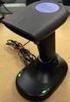 QuickScan QS6500/QS6500BT Product Reference Guide PSC Inc 959 Terry Street Eugene, Oregon 97402 Telephone: (541) 683-5700 Fax: (541) 345-7140 An Unpublished Work - All rights reserved. No part of the contents
Revision History. Advanced Handheld CCD/Laser Scanner
 Revision History Changes to the original manual are listed below: Version Date Description of Version 1.0 September 9, 2010 Initial release 1.1 February 18, 2011 Added Blink mode selections. i Important
Part No. : MUL-53221-07 PROGRAMMING GUIDE
 Part No. : MUL-53221-07 PROGRAMMING GUIDE PROGRAMMING GUIDE for BARCODE SCANNERS The guide can be used as keyboard emulation, RS- 232C serial interface, and USB 1.1 interface and wand emulation. IMPORTANT
TaoTronics Laser Barcode Scanner User s Manual
 TaoTronics Laser Barcode Scanner User s Manual SETUP from PC keyboard For KBW or KBW/RS232 interface 1 Features * Simple installation,keyboard Wedge Serial, Wand Emulation tc * Superior keyboard wedge
Hands-free phone system features (for cellular phone)
 Hands-free phone system features (for cellular phone) This system supports Bluetooth, which allows you to make or receive calls without using cables to connect a cellular phone and the system, and without
Enter/Exit Programming Mode
 Enter/Exit Programming Mode (This barcode can also be found at back cover page.) Framed values are default values. IMPORTANT NOTICE No warranty of any kind is made in regard to this material, including,
56-A11A-10511. Plantronics Calisto Headset with Bluetooth USB Adapter. User Guide
 56-A11A-10511 Plantronics Calisto Headset with Bluetooth USB Adapter User Guide Table of Contents Package Contents... 1 Product Features... 2 Wearing Your Headset... 3 Powering... 4 Charging... 5 Indicator
INFINEA TAB USER MANUAL. INFINEA ipad TAB
 INFINEA TAB USER MANUAL INFINEA ipad TAB CONTACT INFORMATION National Sales Headquarters: Infinite Peripherals, Inc. 1124 Main Street Suite B Irvine, CA 92614 Toll Free: (866) 278-7860 Office: (949) 222-0300
CINEMATE 1 SR DIGITAL HOME THEATER SPEAKER SYSTEM. Operating Guide Guía del usuario Guide d utilisation
 CINEMATE 1 SR DIGITAL HOME THEATER SPEAKER SYSTEM Operating Guide Guía del usuario Guide d utilisation Notice This equipment has been tested and found to comply with the limits for a Class B digital device,
User manual. Your best protection against theft and loss. (Android) Made for
 User manual Made for Your best protection against theft and loss (Android) Warranty SCOPE OF THE WARRANTY Subject to legal provisions, the responsibility of SECU4 under this warranty is limited to the
Wireless Internet Keyboard and Laser Mouse
 Wireless Internet Keyboard and Laser Mouse User s Manual Model KB1045LSR FCC STATEMENT KB1045LSR This device complies with part 15 of FCC Rules. Operation is subject to the following two conditions: (1)
Allen-Bradley. Bar Code. 2-D Hand-Held. Programming Guide. Bar Code. Scanners. (Cat. No. 2755-HTG-4)
 Allen-Bradley 2-D Hand-Held Bar Code Scanners Bar Code Programming Guide (Cat. No. 2755-HTG-4) Important User Information The illustrations, charts, sample programs and layout examples shown in this guide
DUET / VS800 Scanner. DUET Scanner VS800 Scanner. Programming Kit
 DUET / VS800 Scanner DUET Scanner VS800 Scanner Programming Kit PSC Scanning, Inc. 959 Terry Street Eugene, Oregon 97402 Telephone: (541) 683-5700 Telefax: (541) 345-7140 PSC and the PSC logo are registered
User s Manual Model KB990W
 Wireless Internet Keyboard & Optical Mouse User s Manual Model KB990W FCC Statement This device complies with part 15 of FCC Rules. Operation is subject to the following two conditions: (1) this device
SG20T. Tethered Scanner. User s Guide
 SG20T Tethered Scanner User s Guide Intermec by Honeywell 6001 36th Ave.W. Everett, WA 98203 U.S.A. www.intermec.com The information contained herein is provided solely for the purpose of allowing customers
Symbol CS3000 Series Scanner Product Reference Guide
 Symbol CS3000 Series Scanner Product Reference Guide Symbol CS3000 Series Scanner Product Reference Guide 72E-136088-01 July 2010 ii Symbol CS3000 Series Scanner Product Reference Guide 2010 by Motorola,
56-K61A-15000. Plantronics Calisto Headset with Bluetooth USB Adapter. User Guide
 56-K61A-15000 Plantronics Calisto Headset with Bluetooth USB Adapter User Guide Table of Contents Package Contents... 1 Product Features... 2 Wearing Your Headset... 3 Powering... 4 Charging... 5 Indicator
Copyright 2010. All rights reserved. No warranty of any kind is made in regard to this material, including, but not limited to, implied warranties of
 Copyright 2010. All rights reserved. No warranty of any kind is made in regard to this material, including, but not limited to, implied warranties of merchantability or fitness for a particular purpose.
SocketScan Software Advanced Programming Guide
 SocketScan Software Advanced Programming Guide A guide to help you program symbology and parameter settings for the following Socket barcode scanning products: Secure Digital Scan Card Series 3 CompactFlash
Table of Contents Function Keys of Your RF Remote Control Quick Setup Guide Advanced Features Setup Troubleshooting
 Congratulations on your purchase of the AT&T U-verse TV Point Anywhere RF Remote Control. This product has been designed to provide many unique and convenient features to enhance your AT&T U-verse experience.
CD-3860 Bar Code Scanner User s Manual
 CD-3860 Bar Code Scanner User s Manual Important Notice Rev. Original No warranty of any kind is made in regard to this material, including, but not limited to, implied warranties of merchantability or
Product Reference Guide. QuickScan TM QS6500/QS6500BT. General Purpose Handheld Linear Imager Bar Code Reader with Bluetooth Wireless Technology
 QuickScan TM QS6500/QS6500BT General Purpose Handheld Linear Imager Bar Code Reader with Bluetooth Wireless Technology Product Reference Guide Datalogic Scanning, Inc. 959 Terry Street Eugene, Oregon 97402
CS3000 SERIES SCANNER PRODUCT REFERENCE GUIDE
 CS3000 SERIES SCANNER PRODUCT REFERENCE GUIDE CS3000 SERIES SCANNER PRODUCT REFERENCE GUIDE 72E-136088-04 Revision A February 2013 ii CS3000 Series Scanner Product Reference Guide 2013 Motorola Solutions,
MS100 Bar Code Pen Reader
 MS100 Bar Code Pen Reader AdventureJan General Advisory Improper handling, storage, environmental influences and /or product modification can lead to problems during use. This is particularly true if repairs
QUICK START GUIDE Bluetooth Cordless Hand Scanner (CHS)
 QUICK START GUIDE Bluetooth Cordless Hand Scanner (CHS) 1D Imager Models CHS 7Ci, 7Di, 7DiRx LED Trigger button Power button (also for ios Keyboard Pop-up) Model shown: CHS 7Di This document pertains to
ENGLISH USER S MANUAL. compact handheld 1D/2D code scanner
 ENGLISH USER S MANUAL compact handheld 1D/D code scanner 11175-en-GB 5J006 04 006 1 3 A B 4 C INSTALLATION INSTRUCTIONS FIRST STEP: TURN POWER OFF! Exercise caution at all times when working with AC and
Intelli-Time Alarm Clock model 13027
 Instruction Manual Intelli-Time Alarm Clock model 13027 CONTENTS Unpacking Instructions... 2 Package Contents... 2 Product Registration... 2 Features & Benefits... 3 Clock Setup... 4 Intelli-Time Clock...
Energy Smart Electric Water Heater Controller
 Installation, Operation and Troubleshooting Instructions Energy Smart Electric Water Heater Controller Table of Contents Installation and Setup, 2 Operation, 5 Troubleshooting, 7 Regulatory Notices, 11
USER GUIDE. Compatible with most Bluetooth phones & Bluetooth enabled computers (Windows or Macintosh )
 USER GUIDE Compatible with most Bluetooth phones & Bluetooth enabled computers (Windows or Macintosh ) TABLE OF CONTENTS 4 Package Contents 5 Safety Instructions/ Glossary 6 Charging the Headset 7 Battery
Installation Guide. Wyse VX0L and VX0LE Thin Clients 1-GB RAM Upgrade Option Kit. Issue: 022808 PN: 883884-07L Rev. A
 Installation Guide Wyse VX0L and VX0LE Thin Clients 1-GB RAM Upgrade Option Kit Issue: 022808 PN: 883884-07L Rev. A ii Copyright Notice 2008, Wyse Technology Inc. All rights reserved. This manual and the
BTX180 Wireless Bluetooth Speaker
 BTX180 Wireless Bluetooth Speaker User Manual 2012 Kinivo LLC. All rights reserved. Kinivo is a trademark of Kinivo LLC. Bluetooth word mark and the Bluetooth logo are registered trademarks of Bluetooth
Wi-Fi Barcode Scanner
 Wireless Wi-Fi Barcode Scanner A world-class Wi-Fi barcode scanner for enterprise WLAN connectivity Thanks to the convergence of the cutting-edge FuzzyScan 2.0 Imaging Technology and IEEE 802.11 wireless
Keep it Simple Timing
 Keep it Simple Timing Support... 1 Introduction... 2 Turn On and Go... 3 Start Clock for Orienteering... 3 Pre Start Clock for Orienteering... 3 Real Time / Finish Clock... 3 Timer Clock... 4 Configuring
APPENDIX E COMMAND BARCODES
 APPENDIX E COMMAND BARCODES Scan command barcode(s) to quickly configure the Socket Bluetooth Cordless Hand Scanner v3 (1D laser versions). By default, the CHS is in HID mode as a Keyboard device. IMPORTANT!
Pad. Quick Start Guide
 Pad Quick Start Guide Copyright 2008 Mimio Congratulations on your mimio Pad purchase! mimio Pad is a 4 GHz wireless pad. To configure mimio Pad for use, install the mimio Studio software and plug the
WLAN660 Wireless IP Phone Administrator s Guide
 FEDERAL COMMUNICATIONS COMMISSION This device complies with Part 15 of the FCC Rules. Operation is subject to the following two conditions: (1) this device may not cause harmful interference, and (2) this
Socket Bluetooth Cordless Hand Scanner (CHS) 7Xi and 7XiRx. 2D and 1D Barcode Scanners. User s Guide
 Socket Bluetooth Cordless Hand Scanner (CHS) 7Xi and 7XiRx 2D and 1D Barcode Scanners User s Guide 1/2013 Document # 6410-00233 O COPYRIGHT NOTICE Copyright 2010-2013 Socket Mobile, Inc. All rights reserved.
Gateway Port Replicator User Guide
 Gateway Port Replicator User Guide Using the Port Replicator Identifying features Connecting and disconnecting the port replicator 1 Using the Port Replicator Top Power button Component Icon Description
Gigabit Ethernet Switch 10/100/1000 Mbps GS605 / GS608. Installation Guide
 Gigabit Ethernet Switch 10/100/1000 Mbps GS605 / GS608 Installation Guide Introduction The NETGEAR 5/8-Port Gigabit Ethernet Switch Model GS605 / GS608 provides you with a high-speed, reliable, easy-to-use
How To Use A U.S. Cell Phone At Home
 U.S. Cellular Home Phone 1 Contents Getting to Know Your Device...5 Appearance... 5 LED Indicators... 6 Device Installation...7 Before You Begin... 7 Installing the Battery... 7 Installing the Power Adapter...
QuickScan TM L QD 2300 Bar Code Scanner
 QuickScan TM L QD 2300 Bar Code Scanner Product Reference Guide Datalogic ADC, Inc. 959 Terry Street Eugene, OR 97402 USA Telephone: (541) 683-5700 Fax: (541) 345-7140 2007-2014 Datalogic ADC, Inc. An
NOTICE: respective owner. Note: Specification is subject to changes without. notice.
 0 NOTICE: This device complies with Part 15 of the FCC Rules. Operation shall be subject to the following two conditions: (1) This device may not cause harmful interface, and (2) This device must accept
LINĒA-PRO 4 iphone /ipod Touch 1D/2D SCANNER LINĒA-PRO 4 USER MANUAL
 LINĒA-PRO 4 iphone /ipod Touch 1D/2D SCANNER LINĒA-PRO 4 CONTACT INFORMATION National Sales Headquarters: Infinite Peripherals, Inc. 1124 Main Street Suite B Irvine, CA 92614 Toll Free: (866) 278-7860
ZTE WIRELESS HOME PHONE BASE USER GUIDE
 ZTE WIRELESS HOME PHONE BASE USER GUIDE INTRODUCTION HOW IT WORKS Thank you for choosing Consumer Cellular! We know you re excited to use your new Wireless Home Phone Base and this short guide will help
Metrologic MS1690 2D Scanner Installation Guide
 Metrologic MS1690 2D Scanner Installation Guide Revision 1.0 Revision History 1.0 04/17/2007 Initial Release The latest version of this document can be found in the following places: Internally for Cerner
Mini Speaker. Printed in China Part No. 480-919-P Version D. CWA BT300 Product Information Guide
 Mini Speaker Printed in China Part No. 480-919-P Version D CWA BT300 Product Information Guide IMPORTANT To get the full capability of your new Cobra Airwave Mini, please read this manual. It's more than
BTS200 High-Definition Speaker. Haut-parleur haute définition BTS 200
 BTS200 High-Definition Speaker Haut-parleur haute définition BTS 200 Questions? Problems? Get help on the web at www.uniden.com or call our Customer Service line at 800-292-2294. Questions? Problèmes?
HP POS Keyboard with MSR for Point of Sale System. User Guide
 HP POS Keyboard with MSR for Point of Sale System User Guide Copyright 2008 2010 Hewlett-Packard Development Company, L.P. The information contained herein is subject to change without notice. Microsoft,