
Micro Programmable Logic Controller
|
|
|
- Augusta Harvey
- 9 years ago
- Views:
Transcription
1 FC9Y-B FC4A SERIES Micro Programmable Logic Controller FC4A-AS62M AS-Interface Master Module User s Manual

2 SAFETY PRECAUTIONS Read this user s manual to make sure of correct operation before starting installation, wiring, operation, maintenance, and inspection of the MicroSmart AS-Interface master module. All MicroSmart AS-Interface master modules are manufactured under IDEC s rigorous quality control system, but users must add a backup or failsafe provision to the control system using the MicroSmart AS-Interface master module in applications where heavy damage or personal injury may be caused in case the MicroSmart AS-Interface master module should fail. In this user s manual, safety precautions are categorized in order of importance to Warning and Caution: Warning Warning notices are used to emphasize that improper operation may cause severe personal injury or death. Turn off the power to the MicroSmart before starting installation, removal, wiring, maintenance, and inspection of the MicroSmart AS-Interface master module. Failure to turn power off may cause electrical shocks or fire hazard. Special expertise is required to install, wire, program, and operate the MicroSmart AS-Interface master module. People without such expertise must not use the MicroSmart AS-Interface master module. Emergency stop and interlocking circuits must be configured outside the MicroSmart. If such a circuit is configured inside the MicroSmart, failure of the MicroSmart may cause disorder of the control system, damage, or accidents. Install the MicroSmart AS-Interface master module according to the instructions described in this user s manual. Improper installation will result in falling, failure, or malfunction of the MicroSmart AS-Interface master module. Caution Caution notices are used where inattention might cause personal injury or damage to equipment. The MicroSmart AS-Interface master module is designed for installation in a cabinet. Do not install the MicroSmart AS- Interface master module outside a cabinet. Install the MicroSmart AS-Interface master module in environments described in this user s manual. If the MicroSmart AS-Interface master module is used in places where the MicroSmart AS-Interface master module is subjected to high-temperature, high-humidity, condensation, corrosive gases, excessive vibrations, and excessive shocks, then electrical shocks, fire hazard, or malfunction will result. The environment for using the MicroSmart AS-Interface master module is Pollution degree 2. Use the MicroSmart AS- Interface master module in environments of pollution degree 2 (according to IEC ). Prevent the MicroSmart AS-Interface master module from falling while moving or transporting the MicroSmart AS-Interface master module, otherwise damage or malfunction of the MicroSmart AS-Interface master module will result. Prevent metal fragments and pieces of wire from dropping inside the MicroSmart AS-Interface master module housing. Put a cover on the MicroSmart AS-Interface master module during installation and wiring. Ingress of such fragments and chips may cause fire hazard, damage, or malfunction. Use a power supply of the rated value. Use of a wrong power supply may cause fire hazard. Use an IEC approved fuse on the power line outside the MicroSmart. This is required when equipment containing the MicroSmart is destined for Europe. Use an IEC approved fuse on the output circuit. This is required when equipment containing the MicroSmart is destined for Europe. Use an EU-approved circuit breaker. This is required when equipment containing the MicroSmart is destined for Europe. Make sure of safety before starting and stopping the MicroSmart or when operating the MicroSmart to force outputs on or off. Incorrect operation on the MicroSmart may cause machine damage or accidents. Do not connect the ground wire directly to the MicroSmart. Connect a protective ground to the cabinet containing the MicroSmart using an M4 or larger screw. This is required when equipment containing the MicroSmart is destined for Europe. Do not disassemble, repair, or modify the MicroSmart modules. When disposing of the MicroSmart modules, do so as an industrial waste. MICROSMART AS-INTERFACE MASTER MODULE USER S MANUAL PREFACE-1

3 About This Manual This user s manual describes brief information about the AS-Interface and the entire functions, installation, and programming of the MicroSmart AS-Interface interface module. Note: WindLDR Ver and higher are compatible with the AS-Interface master module. This manual describes procedures for using WindLDR Ver CHAPTER 1: AS-INTERFACE General information about of the Actuator-Sensor-Interface, abbreviated AS-Interface. CHAPTER 2: MODULE SPECIFICATIONS Specifications of the AS-Interface master module and applicable cables. CHAPTER 3: INSTALLATION AND WIRING Methods and precautions for installing and wiring the AS-Interface master module. CHAPTER 4: OPERATION BASICS General information about simple operating procedures for the basic AS-Interface system from programming WindLDR on a computer to monitoring the slave operation. CHAPTER 5: PUSHBUTTONS AND LED INDICATORS Operation of pushbuttons PB1 and PB2 on the AS-Interface master module to change operation modes, and also the functions of address and I/O LED indicators. CHAPTER 6: AS-INTERFACE OPERANDS AS-Interface operands, or internal relays M1300 through M1997 and data registers D1700 through D1999, assigned in the CPU module to control and monitor the AS-Interface bus. Provides detailed description about internal relays allocated to SwitchNet control units for use as slaves in the AS-Interface network. Also describes ASI commands used to update AS- Interface operands in the CPU module or to control the AS-Interface master module. CHAPTER 7: USING WINDLDR Procedures to use WindLDR ver for the AS-Interface system. INDEX Alphabetical listing of key words. TM SwitchNet is an IDEC trademark for pushbuttons, pilot lights, and other control units capable of direct connection to the AS-Interface. SwitchNet devices are completely compatible with AS-Interface Ver Note: In this manual, ASI is short for AS-Interface and is not intended to represent any particular product. IMPORTANT INFORMATION Under no circumstances shall IDEC IZUMI Corporation be held liable or responsible for indirect or consequential damages resulting from the use of or the application of IDEC PLC components, individually or in combination with other equipment. All persons using these components must be willing to accept responsibility for choosing the correct component to suit their application and for choosing an application appropriate for the component, individually or in combination with other equipment. All diagrams and examples in this manual are for illustrative purposes only. In no way does including these diagrams and examples in this manual constitute a guarantee as to their suitability for any specific application. To test and approve all programs, prior to installation, is the responsibility of the end user. PREFACE-2 MICROSMART AS-INTERFACE MASTER MODULE USER S MANUAL

4 TABLE OF CONTENTS CHAPTER 1: AS-INTERFACE CHAPTER 2: CHAPTER 3: CHAPTER 4: CHAPTER 5: Applicable Sensors and Actuators for AS-Interface AS-Interface System Requirements Main Features of AS-Interface V2 with Slave Expansion Capability Slave Addresses Slave Identification Quantities of Slaves and I/O Points AS-Interface Bus Topology and Maximum Length AS-Interface Bus Cycle Time High Reliability and Security MODULE SPECIFICATIONS Parts Description Specifications Applicable Cables Dimensions INSTALLATION AND WIRING Installation Location Assembling Modules Disassembling Modules Mounting on DIN Rail Removing from DIN Rail Direct Mounting on Panel Surface Terminal Connection AS-Interface Cable Wiring Power Supply OPERATION BASICS AS-Interface System Setup Selecting the PLC Type Function Area Settings Assigning a Slave Address Configuring a Slave Monitoring Digital I/O, and Changing Output Status and Parameters Troubles at System Start-up PUSHBUTTONS AND LED INDICATORS Pushbutton Operation Transition of AS-Interface Master Module Modes Using Pushbuttons AS-Interface Master Module Operation Modes LED Indicators Status LEDs Address LEDs and I/O LEDs MICROSMART AS-INTERFACE MASTER MODULE USER S MANUAL i

5 TABLE OF CONTENTS CHAPTER 6: CHAPTER 7: AS-INTERFACE OPERANDS AS-Interface Operand Allocation Numbers I/O Data Status Information Slave List Information Slave Identification Information (Slave Profile) SwitchNet Data I/O Port Internal Relays for SwitchNet Slaves ASI Commands USING WINDLDR Configure AS-Interface Master Change Slave Address Configuration Monitor AS-Interface Slave Error Messages I NDEX ii MICROSMART AS-INTERFACE MASTER MODULE USER S MANUAL

6 1: AS-INTERFACE Introduction This chapter describes general information about the Actuator-Sensor-Interface, abbreviated AS-Interface. AS-Interface is a type of field bus that is primarily intended to be used to control sensors and actuators. AS-Interface is a network system that is compatible with the IEC62026 standard and is not proprietary to any one manufacturer. A master device can communicate with slave devices such as sensors, actuators, and remote I/Os, using digital and analog signals transmitted over the AS-Interface bus. The AS-Interface system is comprised of the following three major components: One master, such as the MicroSmart AS-Interface master module (FC4A-AS62M) One or more slave devices, such as sensors, actuators, switches, and indicators Dedicated 30V DC AS-Interface power supply (26.5 to 31.6V DC) These components are connected using a two-core cable for both data transmission and AS-Interface power supply. AS- Interface employs a simple yet efficient wiring system and features automatic slave address assignment function, while installation and maintenance are also very easy. Applicable Sensors and Actuators for AS-Interface AS-Interface Compatible Sensors and Actuators AS-Interface compatible sensors and actuators communicate using the built-in AS-Interface function, and serve as AS- Interface slaves when connected directly to the AS-Interface bus via a branch unit or a T-junction unit. Sensors/Actuators Not Compatible with AS-Interface Conventional sensors and actuators that are not compatible with the AS-Interface can also be connected to the AS-Interface bus using a remote I/O slave and be handled in the same way as devices that are compatible with the AS-Interface. Branch Unit T-junction Unit Remote I/O Type Slave AS-Interface Bus AS-Interface Compatible Sensors/Actuators AS-Interface Non-compatible Sensors/Actuators 62 slaves maximum 434 I/O points maximum (248 inputs and 186 outputs) Maximum Communication Distance Without repeater: 100m With 2 repeaters: 300m MICROSMART AS-INTERFACE MASTER MODULE USER S MANUAL 1-1

7 1: AS-INTERFACE AS-Interface System Requirements Master The AS-Interface master controls and monitors the status of slave devices connected to the AS-Interface bus. Normally, the AS-Interface master is connected to a PLC (sometimes called host ) or a gateway. For example, the Micro- Smart AS-Interface master module is connected to the MicroSmart CPU module. MicroSmart Slim Type CPU Module FC4A-D20RK1 FC4A-D20RS1 FC4A-D40K3 FC4A-D40S3 AS-Interface Master Module FC4A-AS62M Slaves Various types of slave devices can be connected to the AS-Interface bus, including sensors, actuators, and remote I/O devices. Analog slaves can also be connected to process analog data. Slaves are available in standard slaves and A/B slaves. Standard slaves have an address of 1 trough 31 in the standard address range. A/B slaves have an address of 1A through 31A in the standard address range or 1B through 31B in the expanded address range. Among the A/B slaves, slaves with an address of 1A through 31A are called A slaves, and slaves with an address of 1B through 31B are called B slaves. AS-Interface Power Supply The AS-Interface bus uses a dedicated 30V DC power supply (AS-Interface power supply), which is indicated with the AS-Interface mark. General-purpose power supply units cannot be used for the AS-Interface bus. Caution Use a VLSV (very low safety voltage) to power the AS-Interface bus. The normal output voltage of the AS-Interface power supply is 30V DC. AS-Interface Marks Cables The AS-Interface bus uses only one cable to transmit signals and power. Use one of the following cable types (the wire does not have to be stranded). Standard yellow unshielded AS-Interface cable (with polarity) Ordinary two-wire flat cable AS-Interface Cable Two-wire Flat Cable 1-2 MICROSMART AS-INTERFACE MASTER MODULE USER S MANUAL

8 1: AS-INTERFACE Main Features of AS-Interface V2 with Slave Expansion Capability The AS-Interface is a reliable bus management system in which one master periodically monitors each slave device connected on the AS-Interface bus in sequence. The master manages the I/O data, parameters, and identification codes of each slave in addition to slave addresses. The management data depends on the type of the slave as follows: Standard Slaves A maximum of four inputs and four outputs for each slave Four parameters for setting a slave s operation mode (P3, P2, P1, P0) Four identification codes (ID code, I/O code, ID2 code, and ID1 code) A/B Slaves A maximum of four inputs and three outputs for each slave Three parameters for setting a slave s operation mode (P2, P1, P0) Four identification codes (ID code, I/O code, ID2 code, and ID1 code) Note 1: Parameters P3 through P0 are used to set an operation mode of the slave. For details, see the user s manual for the slave. Note 2: The slaves connected to the AS-Interface bus are distinguished from each other by the ID code and I/O code contained in each slave. Some slaves have ID2 code and ID1 code to indicate the internal functions of the slave. For example, analog slaves use the ID2 code to represent the channel number of the slave. Note 3: The MicroSmart AS-Interface master module is also compatible with AS-Interface ver. 2.1 and earlier slaves. Slave Addresses Each standard slave connected to the AS-Interface bus can be allocated an address of 1 through 31. Each A/B slave can be allocated an address of 1A through 31A or 1B through 31B. All slaves are set to address 0 at factory before shipment. The address of a slave can be changed using the addressing tool. Using WindLDR, the addresses of slaves connected to the AS-Interface master module can be changed (see page 7-1). When a slave fails during operation and needs to be replaced, if the auto addressing function is enabled on the master module, just replace the slave with a new one (with address 0 and the same identification codes). The new slave will automatically be allocated the same address as the slave that was removed, and you do not have to set the address again. For details of the ASI command to enable auto addressing, see page Slave Identification Slaves have the following four identification codes. The master checks the identification codes to determine the type and feature of the slave connected on the AS-Interface bus. ID Code The ID code consists of 4 bits to indicate the type of the slave, such as sensor, actuator, standard slave, or A/B slave. For example, the ID code for a standard remote I/O is 0, and that for an A/B slave is A (hex). I/O Code The I/O code consists of 4 bits to indicate the quantity and allocation of I/O points on a slave. I/O Code Allocation I/O Code Allocation I/O Code Allocation I/O Code Allocation 0h I, I, I, I 4h I, I, B, B 8h O, O, O, O Ch O, O, B, B 1h I, I, I, O 5h I, O, O, O 9h O, O, O, I Dh O, I, I, I 2h I, I, I, B 6h I, B, B, B Ah O, O, O, B Eh O, B, B, B 3h I, I, O, O 7h B, B, B, B Bh O, O, I, I Fh (reserved) I: input, O: output, B: input and output ID2 Code The ID2 code consists of 4 bits to indicate the internal function of the slave. ID1 Code The ID1 code consists of 4 bits to indicate additional identification of the slave. Standard slaves can have an ID1 code of 0000 through 1111 (bin). A/B slaves use the MSB to indicate A or B slave, and can have a unique value only for the lower three bits. The MSB of A slaves is set to 0, and that of B slaves is set to 1. MICROSMART AS-INTERFACE MASTER MODULE USER S MANUAL 1-3

9 1: AS-INTERFACE Quantities of Slaves and I/O Points The quantity of slaves that can be connected to one AS-Interface bus is as follows. Standard slaves: 31 maximum A/B slaves: 62 maximum The limits for slave quantities given above apply when the slaves are either all standard slaves or are all A/B slaves. When 62 A/B slaves (with four inputs and three outputs) are connected, a maximum of 434 I/O points (248 inputs and 186 outputs) can be controlled over the bus. When using a mix of standard slaves and A/B slaves together, the standard slaves can only use addresses 1(A) through 31(A). Also, when a standard slave takes a certain address, the B address of the same number cannot be used for A/B slaves. AS-Interface Bus Topology and Maximum Length The AS-Interface bus topology is flexible, and you can wire the bus freely according to your requirements. When repeaters or extenders are not used, the bus length can be 100m (328 feet) at the maximum. AS-Interface Bus Cycle Time The AS-Interface bus cycle time is the amount of time required for a master to cycle through every slave on the bus. The information for each slave is continuously transmitted over the bus in sequence, so the AS-Interface bus cycle time depends on the quantity of active slaves. When up to 19 slaves are active, the bus cycle time is 3 msec. When 20 to 31 slaves are active, the bus cycle time is (1+N) msec where N is the number of slaves. When A slave and B slave have the same address number (e.g. 12A and 12B), the two slaves are alternately updated each cycle. Therefore, when the system consists of 31 A slaves and 31 B slaves, then the AS-Interface bus cycle time will be 10 msec. Maximum AS-Interface Bus Cycle Time When 31 slaves are connected, the maximum bus cycle time is 5 msec. When 62 slaves are connected, the maximum bus cycle time is 10 msec. High Reliability and Security The AS-Interface employs a transfer process of high reliability and high security. The master monitors the AS-Interface power supply voltage and data transmitted on the bus, and detects slave failures and data errors. Even when a slave is replaced or a new slave is added during operation, the AS-Interface master module need not be shut down and can continue uninterrupted communication with other active slaves on the bus. 1-4 MICROSMART AS-INTERFACE MASTER MODULE USER S MANUAL

10 2: MODULE SPECIFICATIONS Introduction This chapter describes specifications of the MicroSmart AS-Interface master module and applicable cables. AS-Interface Master Module Type Number Module Name Type No. AS-Interface Master Module FC4A-AS62M The AS-Interface master module can connect a maximum of 62 digital I/O slaves. A maximum of seven analog I/O slaves can also be connected to the AS-Interface master module (compliant with AS-Interface ver. 2.1 and analog slave profile 7.3). The AS-Interface master module can be used with the 20-I/O relay output slim type CPU modules (FC4A-D20RK1 and FC4A-D20RS1) and the 40-I/O slim type CPU modules (FC4A-D40K3 and FC4A-D40S3). Use a CPU module version of 201 or higher. When using WindLDR, use ver or higher. Caution The AS-Interface master module cannot be used with the all-in-one type CPU modules and the 20-I/O transistor output slim type CPU modules. Only one AS-Interface master module can be connected to the slim type CPU module. If more than one AS-Interface master module is connected, an error occurs and special data register D8037 (quantity of expansion I/O modules) stores error code 40 (hex). Normally, a maximum of seven expansion I/O modules can be connected to the slim type CPU module. But when the AS-Interface master module is connected, only a total of six expansion modules can be connected, including the AS-Interface master module. Do not connect more than six expansion modules due to the amount of heat generated. If more than six expansion modules, including the AS-Interface master module, are connected, an error occurs and special data register D8037 (quantity of expansion I/O modules) stores error code 20 (hex). The AS-Interface master module can connect a maximum of seven analog I/O slaves. When more than seven analog I/O slaves are connected, the AS-Interface system will not operate correctly. MICROSMART AS-INTERFACE MASTER MODULE USER S MANUAL 2-1

11 2: MODULE SPECIFICATIONS Parts Description (5) Unlatch Button (6) Expansion Connector (1) LED Indicators (7) Module Label (2) Pushbuttons PB1 PB2 (4) AS-Interface Cable Connector (3) AS-Interface Cable Terminal Block (supplied with the AS-Interface master module) (5) Unlatch Button (1) LED Indicators Status LEDs: Indicate the AS-Interface bus status. I/O LEDs: Indicate the I/O status of the slave specified by the address LEDs. Address LEDs: Indicate slave addresses. (2) Pushbuttons Used to select slave addresses, change modes, and store configuration. (3) AS-Interface Cable Terminal Block (4) AS-Interface Cable Connector Connects the AS-Interface cable. One terminal block is supplied with the AS-Interface master module. When ordering separately, specify Type No. FC4A-PMT3P and quantity (package quantity: 2). Installs the AS-Interface cable terminal block. (5) Unlatch Button Used to unlatch the AS-Interface master module from the CPU or I/O module. (6) Expansion Connector Connects to the CPU and other I/O modules. (Applicable CPU modules are 20-I/O relay output and 40-I/O slim types.) (7) Module Label Indicates the AS-Interface master module Type No. and specifications. 2-2 MICROSMART AS-INTERFACE MASTER MODULE USER S MANUAL

12 2: MODULE SPECIFICATIONS Specifications General Specifications Operating Temperature 0 to 55 C (operating ambient temperature, no freezing) Storage Temperature 25 to +70 C (no freezing) Relative Humidity Level RH1, 30 to 95% (non-condensing) Pollution Degree 2 (IEC 60664) Degree of Protection IP20 Corrosion Immunity Free from corrosive gases Altitude Vibration Resistance Shock Resistance External Power Supply AS-Interface Current Draw Effect of Improper Input Connection Connector on Mother Board Connector Insertion/Removal Durability Internal Current Draw AS-Interface Master Module Power Consumption Weight Operation: 0 to 2,000m (0 to 6,565 feet) Transport: 0 to 3,000m (0 to 9,840 feet) When mounted on a DIN rail: 10 to 57 Hz amplitude mm, 57 to 150 Hz acceleration 9.8 m/s 2 2 hours per axis on each of three mutually perpendicular axes When mounted on a panel surface: 2 to 25 Hz amplitude 1.6 mm, 25 to 100 Hz acceleration 39.2 m/s 2 90 minutes per axis on each of three mutually perpendicular axes 147 m/s 2, 11 msec duration, 3 shocks per axis, on three mutually perpendicular axes (IEC 61131) AS-Interface power supply, 29.5 to 31.6V DC 65 ma (normal operation) 110 ma maximum No damage MSTB2.5/3-GF-5.08BK (Phoenix Contact) 100 times minimum 80 ma (5V DC) 0 ma (24V DC) 540 mw (24V DC) 85g Communication Specifications Maximum Bus Cycle Maximum Slaves Maximum I/O Points Maximum Cable Length Rated Bus Voltage When 1 through 19 slaves are connected: 3 msec When 20 through 62 slaves are connected: (1 + N) msec where N is the number of active slaves 5 msec maximum when 31 standard or A/B slaves are connected 10 msec maximum when 62 A/B slaves are connected Standard slaves: 31 A/B slaves: 62 When using a mix of standard slaves and A/B slaves together, the standard slaves can only use addresses 1(A) through 31(A). Also, when a standard slave takes a certain address, the B address of the same number cannot be used for A/B slaves. Standard slaves: A/B slaves: AS-Interface Cable 2-wire Flat Cable Single Wires 30V DC 248 total (124 inputs outputs) 434 total (248 inputs outputs) When using no repeater or extender: When using a total of 2 repeaters or extenders: 200 mm 100m 300m MICROSMART AS-INTERFACE MASTER MODULE USER S MANUAL 2-3

13 2: MODULE SPECIFICATIONS Applicable Cables The AS-Interface cable transfers data and supplies power to the sensors and actuators connected to the bus. The following cables can be used with the AS-Interface master module. Applicable Cable Specifications Cable Type Cable Size/Manufacturer Cross-sectional View AS-Interface Standard Cable Cable sheath color: Yellow Conductor cross section: 1.5 mm 2 LAPP s Cables Type No: (sheath material EPDM) Type No: (sheath material TPE) AS-Interface AS-Interface + (blue) (brown) 2-wire Flat Cable or Single Wires (See Note) Conductor cross section Stranded wire: 0.5 to 1.0 mm 2 Solid wire: 0.75 to 1.5 mm 2 AWG: 20 to 16 AS-Interface AS-Interface + (blue) (brown) Note: When using single wires, the maximum cable length is 200 mm. See Maximum Cable Length on page 2-3. Dimensions The AS-Interface master module has the same profile as all other MicroSmart modules for consistent mounting on a DIN rail * *8.5 mm when the clamp is pulled out. All dimensions in mm. 2-4 MICROSMART AS-INTERFACE MASTER MODULE USER S MANUAL

14 3: INSTALLATION AND WIRING Introduction This chapter describes the methods and precautions for installing and wiring the AS-Interface master module. Before starting installation and wiring, be sure to read Safety Precautions in the beginning of this manual and understand precautions described under Warning and Caution. Warning Turn off the power to the AS-Interface master module before starting installation, removal, wiring, maintenance, and inspection of the AS-Interface master module. Failure to turn power off may cause electrical shocks or fire hazard. Emergency stop and interlocking circuits must be configured outside the MicroSmart. If such a circuit is configured inside the MicroSmart, failure of the MicroSmart may cause disorder of the control system, damage, or accidents. Special expertise is required to install, wire, program, and operate the MicroSmart. People without such expertise must not use the MicroSmart. Caution Prevent metal fragments and pieces of wire from dropping inside the MicroSmart housing. Put a cover on the MicroSmart modules during installation and wiring. Ingress of such fragments and chips may cause fire hazard, damage, or malfunction. Do not touch the connector pins with hand, otherwise electrostatic discharge may damage the internal elements. Installation Location The MicroSmart modules must be installed correctly for optimum performance. The MicroSmart is designed for installation in a cabinet. Do not install the MicroSmart outside a cabinet. The environment for using the MicroSmart is Pollution degree 2. Use the MicroSmart in environments of pollution degree 2 (according to IEC ). Make sure that the operating temperature does not drop below 0 C or exceed 55 C. If the temperature does exceed 55 C, use a fan or cooler. Mount the MicroSmart on a vertical plane as shown at right. To eliminate excessive temperature build-up, provide ample ventilation. Do not install the MicroSmart near, and especially above, any device which generates considerable heat, such as a heater, transformer, or large-capacity resistor. The relative humidity should be above 30% and below 95%. The MicroSmart should not be exposed to excessive dust, dirt, salt, direct sunlight, vibrations, or shocks. Do not use the MicroSmart in an area where corrosive chemicals or flammable gases are present. The modules should not be exposed to chemical, oil, or water splashes. Mounting Clip BNL6P MICROSMART AS-INTERFACE MASTER MODULE USER S MANUAL 3-1

15 3: INSTALLATION AND WIRING Assembling Modules Caution Assemble MicroSmart modules together before mounting the modules onto a DIN rail. Attempt to assemble modules on a DIN rail may cause damage to the modules. Turn off the power to the MicroSmart before assembling the modules. Failure to turn power off may cause electrical shocks. The following example demonstrates the procedure for assembling the 40-I/O type CPU module and the AS-Interface master module together. When assembling the 20-I/O relay output type CPU module, take the same procedure. 1. When assembling an AS-Interface master module, remove the expansion connector seal from the 40-I/O type CPU module. 2. Place the CPU module and AS-Interface master module side by side. Put the expansion connectors together for easy alignment. 3. With the expansion connectors aligned correctly and the blue unlatch button in the down position, press the CPU module and AS-Interface master module together until the latches click to attach the modules together firmly. If the unlatch button is in the up position, push down the button to engage the latches. Note: When assembling other I/O modules with the AS-Interface master module, take the same procedure. Unlatch Button Disassembling Modules Caution Remove the MicroSmart modules from the DIN rail before disassembling the modules. Attempt to disassemble modules on a DIN rail may cause damage to the modules. Turn off the power to the MicroSmart before disassembling the modules. Failure to turn power off may cause electrical shocks. 1. If the modules are mounted on a DIN rail, first remove the modules from the DIN rail as described on page 3-3. Unlatch Button 2. Push up the blue unlatch button to disengage the latches, and pull the modules apart as shown. Note: When disassembling other I/O modules from the AS-Interface master module, take the same procedure. 3-2 MICROSMART AS-INTERFACE MASTER MODULE USER S MANUAL

16 3: INSTALLATION AND WIRING Mounting on DIN Rail Caution Install the MicroSmart modules according to instructions described in this user s manual. Improper installation will result in falling, failure, or malfunction of the MicroSmart. Mount the MicroSmart modules on a 35-mm-wide DIN rail or a panel surface. Applicable DIN rail: IDEC s BAA1000NP or BAP1000NP (1000mm/39.4 long) 1. Fasten the DIN rail to a panel using screws firmly. 2. Pull out the clamp from each MicroSmart module, and put the groove of the module on the DIN rail. Press the modules towards the DIN rail and push in the clamps as shown on the right. 3. Use BNL6P mounting clips on both sides of the MicroSmart modules to prevent moving sideways. Groove 35-mm-wide DIN Rail Clamp Removing from DIN Rail 1. Insert a flat screwdriver into the slot in the clamp. 2. Pull out the clamps from the modules. 3. Turn the MicroSmart modules bottom out. 35-mm-wide DIN Rail Clamp Direct Mounting on Panel Surface MicroSmart modules can also be mounted on a panel surface inside a console. When mounting a slim type CPU module, AS-Interface master module, and other expansion modules, use optional direct mounting strip FC4A-PSP1P as described below. Installing the Direct Mounting Strip 1. Remove the clamp from the module by pushing the clamp inward. 2. Insert the direct mounting strip into the slot where the clamp has been removed (A). Further insert the direct mounting strip until the hook enters into the recess in the module (B). Direct Mounting Strip FC4A-PSP1P (B) (A) MICROSMART AS-INTERFACE MASTER MODULE USER S MANUAL 3-3

17 3: INSTALLATION AND WIRING Removing the Direct Mounting Strip 1. Insert a flat screwdriver under the latch of the direct mounting strip to release the latch (A). 2. Pull out the direct mounting strip (B). (B) (A) Caution Reusing the Direct Mounting Strip When you attempt to reuse a direct mounting strip, the hook may not catch on the recess sufficiently and may come out easily. When using a direct mounting strip again, be certain to push the hook deeply into the recess. Mounting Hole Layout for Direct Mounting on Panel Surface Make mounting holes of ø4.3 mm as shown below and use M4 screws (6 or 8 mm long) to mount the AS-Interface master module on the panel surface ø ± Direct Mounting Strip FC4A-PSP1P 3-4 MICROSMART AS-INTERFACE MASTER MODULE USER S MANUAL

18 3: INSTALLATION AND WIRING Terminal Connection Caution Make sure that the operating conditions and environments are within the specification values. Be sure to connect the ground terminal on the CPU module to a proper ground, otherwise electrical shocks may be caused. Do not touch live terminals, otherwise electrical shocks may be caused. Do not touch terminals immediately after power is turned off, otherwise electrical shocks may be caused. When using ferrules, insert a wire to the bottom of the ferrule and crimp the ferrule. When connecting a stranded wire or multiple solid wires to a screw terminal block, use a ferrule. Otherwise the wire may slip off the terminal block. Ferrules, Crimping Tool, and Screwdriver for Phoenix Terminal Blocks The screw terminal block for the AS-Interface cable can be wired with or without using ferrules on the end of the cable. Applicable ferrules for the Phoenix terminal blocks and crimping tool for the ferrules are listed below. The screwdriver is used for tightening the terminal screws and mounting screws on the terminal block. These ferrules, crimping tool, and screwdriver are made by Phoenix Contact and are available from Phoenix Contact. Type numbers of the ferrules, crimping tool, and screwdriver listed below are the type numbers of Phoenix Contact. When ordering these products from Phoenix Contact, specify the Order No. and quantity listed below. Ferrule Order No. Quantity of Cables Cable Size Phoenix Type Order No. Pcs./Pkt. For 1-cable connection For 2-cable connection 0.5 mm 2 AWG20 AI 0,5-8 WH mm 2 AWG18 AI 0,75-8 GY mm 2 AWG16 AI 1,5-8 BK mm 2 AWG20 AI-TWIN 2 x 0,5-8 WH mm 2 AWG18 AI-TWIN 2 x 0,75-8 GY Crimping Tool and Screwdriver Order No. Tool Name Phoenix Type Order No. Pcs./Pkt. Tightening Torque Description Crimping Tool CRIMPFOX ZA For crimping ferrules Screwdriver SZS 0,6 x 3, to 0.6 N m For tightening terminal screws 0.3 to 0.5 N m For tightening mounting screws MICROSMART AS-INTERFACE MASTER MODULE USER S MANUAL 3-5

19 3: INSTALLATION AND WIRING AS-Interface Cable Wiring Before wiring the AS-Interface cable, remove the AS-Interface cable terminal block from the AS-Interface cable connector on the AS-Interface master module. AS-Interface specifies use of brown cables for the AS-Interface + line, and blue cables for the AS-Interface line. Connect the cables to match the color labels on the terminal block. Tighten the terminal screws to a torque of 0.5 to 0.6 N m. Insert the terminal block to the connector on the AS-Interface master module, and tighten the mounting screws to a torque of 0.3 to 0.5 N m. Use a ferrule. Brown AS-Interface + Brown Label Power Supply Blue AS-Interface Use a ferrule. Blue Label Caution When turning off the power to the CPU module, also turn off the AS-Interface power supply. If the CPU module is powered down and up while the AS-Interface power remains on, AS-Interface communication may stop due to a configuration error, resulting in a communication error. Turn on the AS-Interface power supply no later than the CPU module power supply, except when slave address 0 exists on the network. The two power supplies may be turned off in any order. Power Supply Wiring Diagram A recommended power supply wiring diagram is shown below. Use a common power switch for both the CPU module power supply and AS-Interface power supply to make sure that both power supplies are turned on and off at the same time. Slim Type CPU Module FC4A-D40K3 AS-Interface Master Module FC4A-AS62M AC Power Power Switch AS-Interface Cable Connector CPU Module Power Supply 24V DC AS-Interface Power Switch (Note) Slave 2 AS-Interface Power Supply 30V DC VLSV (very low safety voltage) Slave 1 Note: A failed slave can be replaced with a new slave with address 0 without turning off the power to the CPU module and the AS-Interface line. But, if power has been turned off before replacing the slaves, install a new slave with address 0 and take one of the following steps, because the AS-Interface master module has to be initialized to enable communication. Disconnect the AS-Interface cable connector and turn on both power supplies. Five seconds later, connect the AS-Interface cable connector. Turn on the CPU module power supply first. Five seconds later, turn on the AS-Interface power supply. 3-6 MICROSMART AS-INTERFACE MASTER MODULE USER S MANUAL

20 4: OPERATION BASICS Introduction This chapter describes general information about simple operating procedures for the basic AS-Interface system from programming WindLDR on a computer to monitoring the slave operation. AS-Interface System Setup The sample AS-Interface system consists of the following devices: Name Type No. Description MicroSmart Slim Type CPU Module FC4A-D20RK1 System program version 201 or later MicroSmart AS-Interface Master Module FC4A-AS62M WindLDR FC9Y-LP2CDW Version 4.21 or higher AS-Interface Standard Slave 1 unit Address 0 ID: 0, I/O: 7, ID2: F, ID1: 7 AS-Interface Power Supply PS2R-Q30ABL Output 30.5V DC, 2.4A (73W) Connect the devices as shown below. Slim Type CPU Module FC4A-D20RK1 AS-Interface Master Module FC4A-AS62M Computer Link Cable 4C FC2A-KC4C 3m (9.84 ft.) long Standard AS-Interface Cable AS-Interface Power Supply Standard Slave Address 0 ID: 0, I/O: 7, ID2: F, ID1: 7 MICROSMART AS-INTERFACE MASTER MODULE USER S MANUAL 4-1

21 4: OPERATION BASICS Selecting the PLC Type Start WindLDR on a computer. 1. From the WindLDR menu bar, select Configure > PLC Selection. The PLC Selection dialog box appears. 2. Select MicroSmart-20Ry. 3. Click OK to save changes and return to the ladder editing screen. Function Area Settings Use of the AS-Interface master module must be selected in the Function Area Settings dialog box. 1. From the WindLDR menu bar, select Configure > Function Area Settings. The Function Area Settings dialog box appears. 2. Select the Others tab. 3. Make sure of a check mark in the check box on the left of Use AS-Interface Master Module. This check box is checked as default. Since this setting relates to the user program, download the user program to the CPU module after changing any of these settings. If the ERR LED on the CPU module goes on when the AS-Interface master module is connected, download the user program to the CPU module after making the above setting. 4-2 MICROSMART AS-INTERFACE MASTER MODULE USER S MANUAL
22 4: OPERATION BASICS Assigning a Slave Address AS-Interface compatible slave devices are set to address 0 at factory. Connect the slave to the AS-Interface master module as shown on page 4-1. Do not connect two or more slaves with slave address 0, otherwise the AS-Interface master module cannot recognize slave addresses correctly. 1. Power up the MicroSmart CPU module first. Approximately 5 seconds later, turn on the AS-Interface power supply. Note: When slave address 0 is not mounted on the AS-Interface bus, the CPU module power supply and the AS-Interface power supply can be turned on at the same time. See page From the WindLDR menu bar, select Configure > AS-Interface Master to open the Configure AS-Interface Master dialog box. Press Refresh to collect slave information and update the screen display. (When configuration in the master module is complete, you do not have to press Refresh since the screen display is updated automatically.) On the Configure AS-Interface Master dialog box, slave address 0 is shaded with yellow. This means that the master module has found slave address 0 on the AS-Interface bus. The CDI for address 0 shows 07F7 (ID: 0, I/O: 7, ID2: F, ID1: 7). 3. Click the slave address 00 to open the Change Slave Address dialog box for slave 0. To assign slave address 1 to the slave, enter 1 in the New Address field and click OK. Yellow Shade Click slave address 0 to open the Change Slave Address dialog box. CDI: Configuration Data Image PCD: Permanent Configuration Data The new address 01 is shaded with yellow to indicate that the address assignment is complete. 4. When changing slave addresses on other slaves, continue from step 3 if it is possible to wire the slave without turning off power, or from step 1 if the CPU module is shut down. Yellow Shade MICROSMART AS-INTERFACE MASTER MODULE USER S MANUAL 4-3
23 4: OPERATION BASICS Configuring a Slave Next, you have to set the slave configuration in the AS-Interface master module, either by using pushbuttons PB1 and PB2 on the AS-Interface master module or WindLDR. Configuration Using Pushbuttons PB1 and PB2 Shut down and power up again. Press PB1 and PB2. Press PB2. Press PB1. 1. Check that PWR LED and CMO LED on the AS-Interface master module are on (normal protection mode). 2. Press pushbuttons PB1 and PB2 together for 3 seconds. CMO LED turns off and LMO LED turns on (protected mode). 3. Press pushbutton PB2 for 3 seconds. CNF LED flashes (configuration mode). 4. About 5 seconds later, press pushbutton PB1 for 3 seconds. All I/O LEDs blink once to complete configuration. 5. Shut down the CPU module and AS-Interface master module, and power up again. Check that FLT LED is off, which indicates that configuration is complete. 6. Use WindLDR to view slave information on the Configure AS-Interface Master dialog box and check that all slaves are recognized correctly. 4-4 MICROSMART AS-INTERFACE MASTER MODULE USER S MANUAL
24 4: OPERATION BASICS Configuration Using WindLDR Slave configuration can be set using WindLDR in two ways; using the Auto Configuration or Manual Configuration button on the Configure AS-Interface Master dialog box. 1. Click the Auto Configuration button to store the configuration information (LDS, CDI, PI) of the connected slaves to the EEPROM (LPS, PCD, PP) in the AS-Interface master module. For details, see page 7-3. The auto configuration automatically stores the information of slaves found on the AS-Interface bus to the EEPROM in the master module, and this completes configuration. Another method of configuration is manual configuration as follows. 2. Click the PCD value FFFF of slave address 01 to open the Configure Slave 01A dialog box. 3. Enter the same value as CDI 07F7 to the PCD field. (Set FFFF to PCD values of all unused slaves.) 4. Select initial settings of parameters 0 through 3, if required. Yellow Shade 5. Click the Manual Configuration button to store the selected PCD and parameter values to the master module. 6. Check that the blue shade appears at slave address 01. Now, configuration is complete. Blue Shade MICROSMART AS-INTERFACE MASTER MODULE USER S MANUAL 4-5
25 4: OPERATION BASICS Monitoring Digital I/O, and Changing Output Status and Parameters While the MicroSmart is communicating with AS-Interface slaves through the AS-Interface bus, operating status of AS- Interface slaves can be monitored using WindLDR on a PC. Output statuses and parameter image (PI) of slaves connected to the AS-Interface master module can also be changed using WindLDR. 1. From the WindLDR menu bar, select Online > Monitor. From the WindLDR menu bar, select Online, and select Monitor AS-Interface Slaves in the pull-down menu. The Monitor AS-Interface Slaves dialog box appears. Active slaves are indicated with blue shade. Next step is to change output status of the active slave. 2. Click the output of slave address 01 to open the Slave Status 01A dialog box. 3. Click the On or Off button to change the statuses of outputs O0 through O3 and parameters (PI) P0 through P3 as required. Blue Shade The selected parameters (PI) are in effect until the CPU module is shut down. When the CPU module is powered up again, the parameter values (PP) selected in the slave configuration procedure (page 4-4) will take effect. To store the changed parameter values to the AS-Interface master module EEPROM, execute the Copy PI to PP command by storing 0306, 0100, 0000, 0000, 0001 to data registers D1941 through D1945. See page MICROSMART AS-INTERFACE MASTER MODULE USER S MANUAL
26 4: OPERATION BASICS Troubles at System Start-up The following table summarizes possible troubles at system start-up, probable causes and actions to be taken. PWR LED is off. (power) FLT LED is on. (fault) LMO LED is on. (local mode) OFF LED is on. (offline) Trouble Slave operation is unstable. Cause and Action AS-Interface power is not supplied to the AS-Interface master module. Check that wiring is correct and AS-Interface power is supplied. Power is not supplied from the CPU module to the AS-Interface master module. Check the connection between the CPU module and the AS-Interface master module. Slave configuration on the bus is incorrect. Use the WindLDR slave monitor function to check that slaves are connected correctly. Perform configuration, if necessary. For the configuration method, see page 7-1. If FLT LED remains on even though slaves are connected correctly and configuration is completed, either disconnect and reconnect the AS-Interface connector, or turn off and on the AS-Interface power supply. The CPU module fails to communicate with the AS-Interface master module. Check the following points. Is the CPU module compatible with AS-Interface? Check the Type No. of the CPU module. Is the system program of the CPU module 201 or higher? Check the system program version in the Online > PLC Status dialog box in WindLDR. Is a check mark put in the check box Use AS-Interface Master Module in WindLDR Function Area Settings? The box is checked as default. If not, put a check mark and download the user program to the CPU module. While a slave of address 0 was connected, power was turned on. After changing the slave address, power up again. For the address changing method, see page 7-2. Check if there are two or more slaves with the same address. Each slave must have a unique address. If two slaves have the same address and same identification codes (ID, I/O, ID2, ID1), the AS-Interface master module may fail to detect an error. When changing the duplicate slave address using WindLDR, remove one of the slaves from the bus. MICROSMART AS-INTERFACE MASTER MODULE USER S MANUAL 4-7
27 4: OPERATION BASICS 4-8 MICROSMART AS-INTERFACE MASTER MODULE USER S MANUAL
28 5: PUSHBUTTONS AND LED INDICATORS Introduction This chapter describes the operation of pushbuttons PB1 and PB2 on the AS-Interface master module to change operation modes, and also explains the functions of address and I/O LED indicators. Pushbutton Operation The operations performed by pushbuttons PB1 and PB2 on the front of the AS-Interface master module depend on the duration of being pressed. A long press switches the operation mode, and a short press switches the slave being monitored on the I/O LEDs. If the duration of pressing PB1 or PB2 does not correspond to either of these, the status of the AS- Interface master module does not change. Long Press A long press takes effect when you press either pushbutton PB1 or PB2 or both for 3 seconds or more. Use the long press to change the operation mode of the AS-Interface master module or to save the configuration data to the AS-Interface master module EEPROM. PB1 PB2 Short Press A short press takes effect when you press either pushbutton PB1 or PB2 for 0.5 second or less. Use the short press to change the slave address when monitoring slave I/O status on the AS-Interface master module LED indicators. Transition of AS-Interface Master Module Modes Using Pushbuttons Connected Mode MicroSmart Power ON Normal Protected Mode *1 *2 *3 *4 *5 PB2 PB2 Normal Protected Data Exchange Off Normal Protected Offline Store Configuration Data to EEPROM Note: All pushbutton operations for changing modes are long press. Local Mode PB1 PB2 Protected Mode PB2 PB1 PB2 Configuration Mode PB1 Store Configuration Data to EEPROM *1 Pushbutton operation or execution of the ASI command Go to Normal Protected Offline. *2 Pushbutton operation or execution of the ASI command Go to Normal Protected Mode. *3 Execution of the ASI command Prohibit Data Exchange. *4 Execution of the ASI command Enable Data Exchange. *5 Configuration is done by clicking the Auto Configuration or Manual Configuration button in WindLDR. The configuration data is saved to the AS-Interface master module EEPROM. MICROSMART AS-INTERFACE MASTER MODULE USER S MANUAL 5-1
29 5: PUSHBUTTONS AND LED INDICATORS AS-Interface Master Module Operation Modes The AS-Interface master module has two modes of operation: connected mode is used for actual operation, and local mode is used for maintenance purposes. Connected Mode In connected mode, the CPU module communicates with the AS-Interface master module to monitor and control each slave. Connected mode is comprised of the following three modes. Normal Protected Mode When the CPU module is powered up, the AS-Interface master module initially enters normal protected mode of connected mode if no error occurs. This is the normal operation mode for the AS-Interface master module to perform data communication with the connected slaves. If the configuration data stored in the AS-Interface master module do not match the currently connected slave configuration, the FLT LED on the front of the AS-Interface master module goes on. Execute configuration using the pushbuttons on the AS-Interface master module. Configuration can also be done using WindLDR. See page 7-3. Normal Protected Offline The AS-Interface master module stops communication with all slaves and enables offline operation (initialization of the master module). In this mode, the CPU module cannot monitor the slave status. To enter normal protected offline from normal protected mode, either long-press the PB2 button or execute the ASI command Go to Normal Protected Offline. To return to normal protected mode and resume data communication, either longpress the PB2 button again or execute the ASI command Go to Normal Protected Mode. For details about the ASI commands, see page Normal Protected Data Exchange Off Data communication with all slaves is prohibited. To enter this mode, execute the ASI command Prohibit Data Exchange. To return to normal protected mode and resume data communication, execute the ASI command Enable Data Exchange. For details about the ASI commands, see page When auto configuration or manual configuration is executed on WindLDR, the AS-Interface master module enters this mode during configuration. Local Mode In local mode, the CPU module does not communicate with the AS-Interface master module. Local mode is used to carry out maintenance operations such as checking the configuration and slave inputs. Use the input LEDs to check the slave input data during operation. When the CPU module is powered up, the AS-Interface master module initially enters normal protected mode of connected mode if no error occurs. To switch from any of connected mode to local mode (protected mode), long-press the PB1 and PB2 buttons simultaneously. It is not possible to switch from local mode back to connected mode using the pushbuttons. To return to connected mode, shut down the CPU module and power up again. Local mode is comprised of two modes: protected mode and configuration mode. Protected Mode This mode operates the slaves in accordance with the slave configuration data stored in the AS-Interface master module. If the configuration data stored in the AS-Interface master module does not match the currently connected slave configuration, the FLT LED on the front of the AS-Interface master module goes on, and slaves are not operated correctly. To enter protected mode from any of connected mode, long-press the PB1 and PB2 buttons simultaneously. Configuration Mode This mode switches all currently connected slaves to active, regardless of the slave configuration data stored in the AS- Interface master module. To store the current slave configuration data to the AS-Interface master module EEPROM, long press the PB1 button. This way, configuration is executed. To enter configuration mode from protected mode, long-press the PB2 button. To return to protected mode, long-press the PB1 and PB2 buttons simultaneously. 5-2 MICROSMART AS-INTERFACE MASTER MODULE USER S MANUAL
30 LED Indicators 5: PUSHBUTTONS AND LED INDICATORS The LED indicators on the AS-Interface master module consist of status LEDs, I/O LEDs, and address LEDs. Status LEDs Address LEDs (0x to 3x) Input LEDs Address LEDs (x0 to x9) Output LEDs Address LEDs (A and B) Status LEDs Input LEDs Output LEDs Address LEDs LED Indicators PWR (AS-Interface power supply) FLT (Fault) LMO (Local mode) CMO (Connected mode) OFF (Offline) CNF (Configuration) IN0-IN3 OUT0-OUT3 0x-3x (place of 10) x0-x9 (place of 1) A, B (A or B slave) Description Indicates the status of the AS-Interface power supply for the AS-Interface master module. Goes on when the AS-Interface power is supplied sufficiently. Indicates the AS-Interface configuration status. Goes on when the permanent configuration data (PCD) stored in the AS- Interface master module EEPROM does not match the current slave configuration, or configuration data image (CDI). Then, configuration is not complete or an error was found on the AS-Interface bus. Indicates the mode of the AS-Interface master module. Goes on when the AS-Interface master module is in local mode. Goes off when the AS-Interface master module is in connected mode. Indicates the mode of the AS-Interface master module. Goes on when the AS-Interface master module is in connected mode. Goes off when the AS-Interface master module is in local mode. Indicates the operating status of the AS-Interface master module. Goes on when the AS-Interface master module is in normal protected offline. Indicates the configuration status of the AS-Interface master module. Flashes when the AS-Interface master module is in configuration mode. Indicates the operating status of four inputs at the address indicated by the address LEDs. Goes on when the corresponding input at the indicated address is on. Indicates the operating status of four outputs at the address indicated by the address LEDs. Goes on when the corresponding output at the indicated address is on. Indicates the slave address of 0A through 32B. Goes on when the selected address exists. Flashes when the selected address does not exist. MICROSMART AS-INTERFACE MASTER MODULE USER S MANUAL 5-3
31 5: PUSHBUTTONS AND LED INDICATORS Status LEDs The operation modes of the AS-Interface master module can be changed by pressing the pushbuttons on the front of the AS-Interface master module or by executing ASI commands. The operation modes can be confirmed on the six status LEDs on the AS-Interface master module. For details about the ASI commands, see page Status LED Indication Status LED PWR FLT LMO CMO OFF CNF Connected Mode Local Mode Normal Protected Mode ON *1 OFF *2 OFF ON OFF OFF Normal Protected Offline ON *1 ON OFF ON ON OFF Normal Protected Data Exchange Off ON *1 ON OFF ON OFF OFF Protected Mode ON *1 OFF *2 ON OFF OFF OFF Configuration Mode ON *1 OFF *2 ON OFF OFF Flash *1: Goes off when AS-Interface power is not supplied. *2: Goes on when an error is found on the AS-Interface bus. Address LEDs and I/O LEDs The operating status and I/O status of each slave can be monitored on the address LEDs and I/O LEDs on the front of the AS-Interface master module. Slave Operating Status The operating status of each slave can be determined by viewing the address LEDs and I/O LEDs. Address LED I/O LED Description ON ON or OFF The slave at this address is active. ON Flash The slave at this address is active, but has an error. Flash OFF This address is not assigned a slave. OFF OFF The AS-Interface bus communication is disabled because the AS-Interface power is not supplied or the AS-Interface master module is in normal protected offline. Slave I/O Status The I/O status of each slave can be monitored on the address LEDs and I/O LEDs. Use the short press to change the slave address when monitoring slave I/O status on the AS-Interface master module. A short press on PB1 increments the address. At the last address (31B), another short press will return to the first address (0A). A short press on PB2 decrements the address. At the first address (0A), another short press will return to the last address (31B). The figures below illustrate what happens when you press the PB1 button while the address LEDs indicate 25A. The address LEDs increment to 26A where a slave is assigned. Note that the address LEDs flash if no slave is assigned. Short press on PB1 I/O LEDs indicate statuses Monitoring Slave Address 25A Address LEDs are flashing since no slave is assigned. Monitoring Slave Address 26A Address LEDs go on and I/O LEDs indicate the statuses. 5-4 MICROSMART AS-INTERFACE MASTER MODULE USER S MANUAL
32 6: AS-INTERFACE OPERANDS Introduction This chapter describes AS-Interface operands, or internal relays M1300 through M1997 and data registers D1700 through D1999, assigned in the CPU module to control and monitor the AS-Interface bus, and provides detailed description about internal relays allocated to SwitchNet control units for use as slaves in the AS-Interface network. Also describes ASI commands used to update AS-Interface operands in the CPU module or to control the AS-Interface master module. AS-Interface Operand Allocation Numbers The I/O data and parameters of slaves on the AS-Interface bus, the status of the AS-Interface bus, and various list information of the slaves are allocated to the AS-Interface master module EEPROM. This information is called AS-Interface objects, which can be accessed through the AS-Interface operands. The allocation is shown in the table below. MicroSmart CPU Module Precessing Read/ AS-Interface Master Module EEPROM Operand Allocation No. Time (msec) *1 Write AS-Interface Object AS-Interface Internal Relays AS-Interface Data Registers M1300-M R *2 Digital input (IDI) *4 M1620-M W *2 Digital output (ODI) *4 M1940-M R Status information D1700-D R Analog input *5 D1732-D W Analog output *5 D1764-D R *2 List of active slaves (LAS) D1768-D R *2 List of detected slaves (LDS) D1772-D R *2 List of peripheral fault slaves (LPF) D1776-D R/W *2*3 List of projected slaves (LPS) Operand Updated Every scan D1780-D R *2 Configuration data image (CDI) D1844-D R/W *2*3 Permanent configuration data (PCD) Each time ASI command is D1908-D R *2 Parameter image (PI) executed D1924-D R/W *2*3 Permanent parameter (PP) D R/W Slave 0 ID1 code D1941-D1945 R/W For ASI command description D1946-D1999 (reserved) *1: The time required to update the operand data. When using the AS-Interface master module, the scan time increases by a minimum of 10 msec. *2: These AS-Interface operand data can be read or written using WindLDR. For details, see page 7-1. *3: The LPS, PCD, and PP are set and downloaded to a PLC using WindLDR. For details, see page 7-3. *4: IDI (input data image), ODI (output data image) *5: The analog I/O data is updated only when an analog slave is connected to the AS-Interface bus. Processing Time AS-Interface internal relays for digital I/O and status information, and data registers for LAS, LDS, LPF are updated in every scan. Data registers for analog I/O operands are also updated in every scan only when analog I/O are connected to the AS-Interface bus. The processing times for these AS-Interface operands are shown in the table above. Other AS-Interface data registers are updated when an ASI command is executed in the CPU module. For the processing times of the ASI commands, see page Ladder Processing AS-Interface Processing Other Processing MicroSmart CPU Module AS-Interface Operands Constantly Updated Operands M1300-M1997 D1700-D1775 ASI Command D1941-D1945 ASI Command Updated Operands D1776-D1940 AS-Interface Master Module AS-Interface Objects IDI, ODI Status Information Analog I/O LAS, LDS, LPF LPS, CDI, PCD PI, PP Slave 0 ID1 MICROSMART AS-INTERFACE MASTER MODULE USER S MANUAL 6-1
33 6: AS-INTERFACE OPERANDS I/O Data The AS-Interface master module can process digital I/O data and analog I/O data. Digital I/O data can be a maximum of 4 digital inputs and 4 digital outputs per slave. Analog I/O data consists of 4 channels of 16-bit analog input or output data per slave. Digital I/O Data of Standard Slaves and Expansion Slaves The digital I/O data for standard slaves and A/B slaves (sensors and actuators) on the AS-Interface bus are allocated to the AS-Interface internal relays in the ascending order starting with slave 0. The input data image (IDI) for each slave is allocated to M1300 through M1617, and the output data image (ODI) is allocated to M1620 through M1937. For example, in the case of slave 3A, the input data is allocated to M1314 (DI0) through M1317 (DI3), and the output data is allocated to M1634 (DO0) through M1637 (DO3). Digital Input Data Image Input Data Image (IDI) 7 (DI3) 6 (DI2) 5 (DI1) Data Format 4 (DI0) 3 (DI3) 2 (DI2) M1300 Byte 0 Slave 1(A) (Slave 0) M1310 Byte 1 Slave 3(A) Slave 2(A) M1320 Byte 2 Slave 5(A) Slave 4(A) M1330 Byte 3 Slave 7(A) Slave 6(A) M1340 Byte 4 Slave 9(A) Slave 8(A) M1350 Byte 5 Slave 11(A) Slave 10(A) M1360 Byte 6 Slave 13(A) Slave 12(A) M1370 Byte 7 Slave 15(A) Slave 14(A) M1380 Byte 8 Slave 17(A) Slave 16(A) M1390 Byte 9 Slave 19(A) Slave 18(A) M1400 Byte 10 Slave 21(A) Slave 20(A) M1410 Byte 11 Slave 23(A) Slave 22(A) M1420 Byte 12 Slave 25(A) Slave 24(A) M1430 Byte 13 Slave 27(A) Slave 26(A) M1440 Byte 14 Slave 29(A) Slave 28(A) M1450 Byte 15 Slave 31(A) Slave 30(A) M1460 Byte 16 Slave 1B M1470 Byte 17 Slave 3B Slave 2B M1480 Byte 18 Slave 5B Slave 4B M1490 Byte 19 Slave 7B Slave 6B M1500 Byte 20 Slave 9B Slave 8B M1510 Byte 21 Slave 11B Slave 10B M1520 Byte 22 Slave 13B Slave 12B M1530 Byte 23 Slave 15B Slave 14B M1540 Byte 24 Slave 17B Slave 16B M1550 Byte 25 Slave 19B Slave 18B M1560 Byte 26 Slave 21B Slave 20B M1570 Byte 27 Slave 23B Slave 22B M1580 Byte 28 Slave 25B Slave 24B M1590 Byte 29 Slave 27B Slave 26B M1600 Byte 30 Slave 29B Slave 28B M1610 Byte 31 Slave 31B Slave 30B 1 (DI1) 0 (DI0) 6-2 MICROSMART AS-INTERFACE MASTER MODULE USER S MANUAL
34 6: AS-INTERFACE OPERANDS Digital Output Data Image Output Data Image (ODI) 7 (DO3) 6 (DO2) 5 (DO1) Data Format 4 (DO0) 3 (DO3) 2 (DO2) M1620 Byte 0 Slave 1(A) (Slave 0) M1630 Byte 1 Slave 3(A) Slave 2(A) M1640 Byte 2 Slave 5(A) Slave 4(A) M1650 Byte 3 Slave 7(A) Slave 6(A) M1660 Byte 4 Slave 9(A) Slave 8(A) M1670 Byte 5 Slave 11(A) Slave 10(A) M1680 Byte 6 Slave 13(A) Slave 12(A) M1690 Byte 7 Slave 15(A) Slave 14(A) M1700 Byte 8 Slave 17(A) Slave 16(A) M1710 Byte 9 Slave 19(A) Slave 18(A) M1720 Byte 10 Slave 21(A) Slave 20(A) M1730 Byte 11 Slave 23(A) Slave 22(A) M1740 Byte 12 Slave 25(A) Slave 24(A) M1750 Byte 13 Slave 27(A) Slave 26(A) M1760 Byte 14 Slave 29(A) Slave 28(A) M1770 Byte 15 Slave 31(A) Slave 30(A) M1780 Byte 16 Slave 1B M1790 Byte 17 Slave 3B Slave 2B M1800 Byte 18 Slave 5B Slave 4B M1810 Byte 19 Slave 7B Slave 6B M1820 Byte 20 Slave 9B Slave 8B M1830 Byte 21 Slave 11B Slave 10B M1840 Byte 22 Slave 13B Slave 12B M1850 Byte 23 Slave 15B Slave 14B M1860 Byte 24 Slave 17B Slave 16B M1870 Byte 25 Slave 19B Slave 18B M1880 Byte 26 Slave 21B Slave 20B M1890 Byte 27 Slave 23B Slave 22B M1900 Byte 28 Slave 25B Slave 24B M1910 Byte 29 Slave 27B Slave 26B M1920 Byte 30 Slave 29B Slave 28B M1930 Byte 31 Slave 31B Slave 30B 1 (DO1) 0 (DO0) Caution Immediately after power up, the digital I/O data of standard slaves and expansion slaves cannot be accessed. Data communication between the CPU module and the connected slaves starts when special internal relay M1945 (Normal_Operation_Active) turns on. Make sure that M1945 is on before starting to access the slave I/O data. MICROSMART AS-INTERFACE MASTER MODULE USER S MANUAL 6-3
35 6: AS-INTERFACE OPERANDS Analog I/O Data of Analog Slaves The I/O data for a maximum of seven analog slaves (four channels for each slave) on the AS-Interface bus is stored to AS- Interface data registers in the CPU module. The analog slave addresses (1 to 31) are in the ascending order. The input data for each analog slave is allocated to data registers D1700 to D1731, and the output data is allocated to D1732 to D1763. The AS-Interface master module is compliant with analog slave profile 7.3. Caution The maximum number of analog slaves that can be connected to the AS-Interface bus is seven. Do not connect eight or more analog slaves to one bus, otherwise the slaves will not function correctly. When data registers D1700 through D1731 allocated to analog inputs contain 7FFF, do not use this data for programming, because this value is reserved for a special meaning as follows: Unused channel on a slave allocated to analog slave. (For a channel on a slave not allocated an analog slave, the corresponding data register holds an indefinite value.) Data overflow. Communication between the master and analog slave is out of synchronism. When using analog slaves, read the user s manual for the analog slave to process the data properly. Analog Input Data Analog Input Channel No. Data Format D1700 Bytes 0 and 1 Channel 1 D1701 Bytes 2 and 3 Channel 2 1st data D1702 Bytes 4 and 5 Channel 3 (AI0) D1703 Bytes 6 and 7 Channel 4 D1704 Bytes 8 and 9 Channel 1 D1705 Bytes 10 and 11 Channel 2 2nd data D1706 Bytes 12 and 13 Channel 3 (AI1) D1707 Bytes 14 and 15 Channel 4 D1708 Bytes 16 and 17 Channel 1 D1709 Bytes 18 and 19 Channel 2 3rd data D1710 Bytes 20 and 21 Channel 3 (AI2) D1711 Bytes 22 and 23 Channel 4 D1712 Bytes 24 and 25 Channel 1 D1713 Bytes 26 and 27 Channel 2 4th data D1714 Bytes 28 and 29 Channel 3 (AI3) D1715 Bytes 30 and 31 Channel 4 D1716 Bytes 32 and 33 Channel 1 D1717 Bytes 34 and 35 Channel 2 5th data D1718 Bytes 36 and 37 Channel 3 (AI4) D1719 Bytes 38 and 39 Channel 4 D1720 Bytes 40 and 41 Channel 1 D1721 Bytes 42 and 43 Channel 2 6th data D1722 Bytes 44 and 45 Channel 3 (AI5) D1723 Bytes 46 and 47 Channel 4 D1724 Bytes 48 and 49 Channel 1 D1725 Bytes 50 and 51 Channel 2 7th data D1726 Bytes 52 and 53 Channel 3 (AI6) D1727 Bytes 54 and 55 Channel 4 D1728 Bytes 56 and 57 D1729 Bytes 58 and 59 D1730 Bytes 60 and 61 D1731 Bytes 62 and 63 (reserved) 6-4 MICROSMART AS-INTERFACE MASTER MODULE USER S MANUAL
36 6: AS-INTERFACE OPERANDS Analog Output Data Analog Output Channel No. Data Format D1732 Bytes 0 and 1 Channel 1 D1733 Bytes 2 and 3 Channel 2 1st data D1734 Bytes 4 and 5 Channel 3 (AO0) D1735 Bytes 6 and 7 Channel 4 D1736 Bytes 8 and 9 Channel 1 D1737 Bytes 10 and 11 Channel 2 2nd data D1738 Bytes 12 and 13 Channel 3 (AO1) D1739 Bytes 14 and 15 Channel 4 D1740 Bytes 16 and 17 Channel 1 D1741 Bytes 18 and 19 Channel 2 3rd data D1742 Bytes 20 and 21 Channel 3 (AO2) D1743 Bytes 22 and 23 Channel 4 D1744 Bytes 24 and 25 Channel 1 D1745 Bytes 26 and 27 Channel 2 4th data D1746 Bytes 28 and 29 Channel 3 (AO3) D1747 Bytes 30 and 31 Channel 4 D1748 Bytes 32 and 33 Channel 1 D1749 Bytes 34 and 35 Channel 2 5th data D1750 Bytes 36 and 37 Channel 3 (AO4) D1751 Bytes 38 and 39 Channel 4 D1752 Bytes 40 and 41 Channel 1 D1753 Bytes 42 and 43 Channel 2 6th data D1754 Bytes 44 and 45 Channel 3 (AO5) D1755 Bytes 46 and 47 Channel 4 D1756 Bytes 48 and 49 Channel 1 D1757 Bytes 50 and 51 Channel 2 7th data D1758 Bytes 52 and 53 Channel 3 (AO6) D1759 Bytes 54 and 55 Channel 4 D1760 Bytes 56 and 57 D1761 Bytes 58 and 59 D1762 Bytes 60 and 61 D1763 Bytes 62 and 63 (reserved) For example, when analog input slaves 1, 13 and 20, analog output slaves 5 and 25, and analog I/O slaves 14 and 21 are used, the analog I/O slave data will be allocated by configuration as shown below and maintained until the next configuration is executed. Four channels (8 bytes) are always reserved for each slave. Analog Slave Module Data Storage Analog Input Slave Data Storage Analog Output Slave 1st D1700-D1703 Slave 1 D1732-D1735 Unused 2nd D1704-D1707 Unused D1736-D1739 Slave 5 3rd D1708-D1711 Slave 13 D1740-D1743 Unused 4th D1712-D1715 Slave 14 D1744-D1747 Slave 14 5th D1716-D1719 Slave 20 D1748-D1751 Unused 6th D1720-D1723 Slave 21 D1752-D1755 Slave 21 7th D1724-D1727 Unused D1756-D1759 Slave 25 (8th) (D1728-D1731) (reserved) (D1760-D1763) (reserved) MICROSMART AS-INTERFACE MASTER MODULE USER S MANUAL 6-5
37 6: AS-INTERFACE OPERANDS Status Information The status information is allocated to AS-Interface internal relays M1940 through M1997. These internal relays are used to monitor the status of the AS-Interface bus. If an error occurs on the bus, you can also confirm the error with the status LEDs on the front of the AS-Interface master module in addition to these status internal relays. Status Information Internal Relays Description Internal Relays Status ON OFF M1940 Config_OK Configuration is complete. Configuration is incomplete. M1941 LDS.0 Slave address 0 is detected on the AS-Interface bus. Slave address 0 is not detected on the AS-Interface bus. M1942 Auto_Address_Assign Auto addressing is enabled. Auto addressing is disabled. M1943 Auto_Address_Available Auto addressing is ready. Auto addressing is not ready. M1944 Configuration Configuration mode is enabled. Other than configuration mode. M1945 Normal_Operation_Active Normal protected mode is enabled. Other than normal protected mode. M1946 APF/not APO AS-Interface power supply failure. AS-Interface power supply is normal. M1947 Offline_Ready Normal protected offline is enabled. Other than normal protected offline. M1950 Periphery_OK Peripheral devices are normal. Peripheral devices are abnormal. M1951-M1957 (reserved) M1960 Data_Exchange_Active Data exchange is enabled. Data exchange is prohibited. M1961 Off-line Command to go to normal protected offline was issued by the pushbutton or WindLDR. Command to go to normal protected offline was not issued. M1962 Connected Mode Connected mode is enabled. Local mode is enabled. M1963-M1997 (reserved) M1940 Config_OK M1940 indicates the configuration status. M1940 goes on when the permanent configuration data (PCD) stored in the AS-Interface master module EEPROM matches the configuration data image (CDI). When configuration is changed, e.g. a new slave is added or a slave fails, M1940 goes off. Then, the FLT LED goes on. M1941 LDS.0 M1941 is used to check for the presence of a slave with address 0 on the AS-Interface bus. M1941 goes on when a slave with address 0 (the factory setting) is detected on the AS-Interface bus in normal protected mode or protected mode, or when a slave address is changed to 0 while the AS-Interface master module is in normal protected mode. M1942 Auto_Address_Assign M1942 indicates that the auto addressing function is enabled. The default setting is enabled, and M1942 is normally on. This setting can be changed using the ASI commands Enable Auto Addressing and Disable Auto Addressing. Note: When the auto addressing function is enabled at the AS-Interface master module and a slave fails, you can replace the slave with a new slave which has the same identification codes without stopping the AS-Interface bus. If the replacement slave is assigned the same address and has the same identification codes as the failed slave, the replacement slave is automatically added to the LDS (list of detected slaves) to continue operation. If the assigned address or the identification codes of the replacement slave are different from the failed slave, the FLT LED will go on. When replacing a failed slave with a new slave which is assigned address 0 (factory setting) and has the same identification codes, the new slave will be assigned the address of the failed slave and added to the LDS and LAS (list of active slaves). If the identification codes of the replacement slave are different from the failed slave, the FLT LED will go on. The auto addressing function for a replacement slave works only when one slave has failed. This function cannot be used to replace multiple slaves. 6-6 MICROSMART AS-INTERFACE MASTER MODULE USER S MANUAL
38 6: AS-INTERFACE OPERANDS M1943 Auto_Address_Available M1943 indicates whether or not the conditions for the auto addressing function are satisfied. M1943 goes on when the auto addressing function is enabled and there is one faulty slave (a slave which cannot be recognized by the AS-Interface master module) on the AS-Interface bus. M1944 Configuration M1944 indicates whether the AS-Interface master module is in configuration mode (on) or other mode (off). While configuration mode is enabled, M1944 remains on, and the CNF LED flashes. M1945 Normal_Operation_Active M1945 remains on while the AS-Interface master module is in normal protected mode. M1945 is off while in other modes. When M1945 turns on, the CPU module starts to exchange data communication with the connected slaves. M1946 APF/not APO M1946 goes on when the AS-Interface power supply has failed, then the PWR LED goes off. M1947 Offline_Ready M1947 indicates that the AS-Interface master module is in normal protected offline. While in normal protected offline, M1947 remains on and the OFF LED also remains on. M1950 Periphery_OK M1950 remains on while the AS-Interface master module does not detect a failure in peripheral devices. When a failure is found, M1950 goes off. M1960 Data_Exchange_Active M1960 indicates that data exchange is enabled. While M1960 is on, the AS-Interface master module is in normal protected mode, and data exchange between the AS-Interface master module and slaves is enabled. The data exchange can be enabled and disabled using the ASI commands Enable Data Exchange and Prohibit Data Exchange. M1961 Off-line M1961 goes on when a command to switch to normal protected offline is issued. To switch to normal protected offline from normal protected mode, either press the PB2 button on the AS-Interface master module or issue the ASI command Go to Normal Protected Offline. M1961 remains on until normal protected offline is exited. M1962 Connected Mode M1962 indicates that the AS-Interface master module is in connected mode. While in connected mode, M1962 remains on. Then, LMO LED remains off and the CMO LED remains on. MICROSMART AS-INTERFACE MASTER MODULE USER S MANUAL 6-7
39 6: AS-INTERFACE OPERANDS Slave List Information Data registers D1764 through D1779 are assigned to slave list information to determine the operating status of the slaves. The slave list information is grouped into four lists. List of active slaves (LAS) shows the slaves currently in operation. List of detected slaves (LDS) the slaves detected on the AS-Interface bus. List of peripheral fault slaves (LPF) the faulty slaves. List of projected slaves (LPS) the slave configuration stored in the AS-Interface master module. List of Active Slaves (LAS) Data registers D1764 through D1767 are allocated to read the LAS. You can check the register bits to determine the operating status of each slave. When a bit is on, it indicates that the corresponding slave is active. LAS Data Format Bits 15 to 8 Bits 7 to 0 D1764 Bytes 0 and 1 Slaves 15(A) to 8(A) Slaves 7(A) to 0 D1765 Bytes 2 and 3 Slaves 31(A) to 24(A) Slaves 23(A) to 16(A) D1766 Bytes 4 and 5 Slaves 15B to 8B Slaves 7B to (0B) D1767 Bytes 6 and 7 Slaves 31B to 24B Slaves 23B to 16B List of Detected Slaves (LDS) Data registers D1768 through D1771 are allocated to read the LDS. You can check the register bits to determine the detection status of each slave. When a bit is on, it indicates that the corresponding slave has been detected by the master. LDS Data Format Bits 15 to 8 Bits 7 to 0 D1768 Bytes 0 and 1 Slaves 15(A) to 8(A) Slaves 7(A) to 0 D1769 Bytes 2 and 3 Slaves 31(A) to 24(A) Slaves 23(A) to 16(A) D1770 Bytes 4 and 5 Slaves 15B to 8B Slaves 7B to (0B) D1771 Bytes 6 and 7 Slaves 31B to 24B Slaves 23B to 16B List of Peripheral Fault Slaves (LPF) Data registers D1772 through D1775 are allocated to read the LPF. You can check the register bits to determine the fault status of each slave. When a bit is on, it indicates that the corresponding slave is faulty. LPF Data Format Bits 15 to 8 Bits 7 to 0 D1772 Bytes 0 and 1 Slaves 15(A) to 8(A) Slaves 7(A) to 0 D1773 Bytes 2 and 3 Slaves 31(A) to 24(A) Slaves 23(A) to 16(A) D1774 Bytes 4 and 5 Slaves 15B to 8B Slaves 7B to (0B) D1775 Bytes 6 and 7 Slaves 31B to 24B Slaves 23B to 16B List of Projected Slaves (LPS) Data registers D1776 through D1779 are allocated to read and write the LPS. The LPS settings are stored to the AS-Interface master module when either Auto Configuration or Manual Configuration is executed on WindLDR. The ASI command Read LPS can be used to read the LPS data to data registers D1776 through D1779. Then, you can check the register bits to determine the slave projection. When a bit is on, it indicates that the corresponding slave is set as a projected slave. After changing the LPS settings, execute the ASI command Read LPS, then you can use the updated data for program execution. LPS Data Format Bits 15 to 8 Bits 7 to 0 D1776 Bytes 0 and 1 Slaves 15(A) to 8(A) Slaves 7(A) to 0 D1777 Bytes 2 and 3 Slaves 31(A) to 24(A) Slaves 23(A) to 16(A) D1778 Bytes 4 and 5 Slaves 15B to 8B Slaves 7B to (0B) D1779 Bytes 6 and 7 Slaves 31B to 24B Slaves 23B to 16B 6-8 MICROSMART AS-INTERFACE MASTER MODULE USER S MANUAL
40 6: AS-INTERFACE OPERANDS Slave Identification Information (Slave Profile) Data registers D1780 through D1940 are assigned to the slave identification information, or the slave profile. The slave profile includes configuration data and parameters to indicate the slave type and slave operation, respectively. Configuration Data Image (CDI) Data registers D1780 through D1843 are allocated to read the CDI of each slave. The CDI is the current slave configuration data collected by the AS-Interface master module at power-up and stored in the AS-Interface master module. The CDI is made up of four codes: the ID code, I/O code, ID2 code, and ID1 code. The CDI of slaves not connected to the AS-Interface bus is FFFFh. The ASI command Read CDI can be used to read the CDI data to data registers D1780 through D1843. Execute the ASI command Read CDI before using the CDI data for program execution. CDI Bits 15 to 12 ID Code Bits 11 to 8 I/O Code Data Format D1780 Bytes 0 and 1 Slave 0 D1781 Bytes 2 and 3 Slave 1(A) D1782 Bytes 4 and 5 Slave 2(A) D(1780+N) Slave N(A) D1811 Bytes 62 and 63 Slave 31(A) D1812 Bytes 64 and 65 (unused) D1813 Bytes 66 and 67 Slave 1B D(1812+N) Slave NB D1843 Bytes 126 and 127 Slave 31B Bits 7 to 4 ID2 Code Bits 3 to 0 ID1 Code Permanent Configuration Data (PCD) Data registers D1844 through D1907 are allocated to read and write the PCD of each slave. Like the CDI, the PCD is made up of four codes: the ID code, I/O code, ID2 code, and ID1 code. When auto configuration is executed, the CDI is copied to the PCD and stored in the EEPROM of the AS-Interface master module. When you execute manual configuration, you can set the PCD using the Configure Slave dialog box on WindLDR. Set the PCD of each slave to the same value as its CDI. If the PCD is different from the CDI for a slave, then that slave does not function correctly. Set FFFFh to the PCD of vacant slave numbers. The ASI command Read PCD can be used to read the PCD data to data registers D1844 through D1907. Execute the ASI command Read PCD before using the PCD data for program execution. PCD Bits 15 to 12 ID Code Bits 11 to 8 I/O Code Data Format D1844 Bytes 0 and 1 Slave 0 D1845 Bytes 2 and 3 Slave 1(A) D1846 Bytes 4 and 5 Slave 2(A) D(1844+N) Slave N(A) D1875 Bytes 62 and 63 Slave 31(A) D1876 Bytes 64 and 65 (unused) D1877 Bytes 66 and 67 Slave 1B D(1876+N) Slave NB D1907 Bytes 126 and 127 Slave 31B Bits 7 to 4 ID2 Code Bits 3 to 0 ID1 Code MICROSMART AS-INTERFACE MASTER MODULE USER S MANUAL 6-9
41 6: AS-INTERFACE OPERANDS Parameter Image (PI) Data registers D1908 through D1923 are allocated to read the PI of each slave. The PI is made up of four parameters: the P3, P2, P1, and P0. The PI is the current slave parameter data collected by the AS-Interface master module at power-up and stored in the AS-Interface master module. To change the PI settings, use WindLDR (Slave Status dialog box) or execute the ASI command Change Slave PI. The ASI command Read PI can be used to read PI data to data registers D1908 through D1923. After changing the PI settings, execute the ASI command Read PI, then you can use the updated PI data for program execution. PI Bits 15 to 12 P3/P2/P1/P0 Bits 11 to 8 P3/P2/P1/P0 Data Format Bits 7 to 4 P3/P2/P1/P0 Bits 3 to 0 P3/P2/P1/P0 D1908 Bytes 0 and 1 Slave 3(A) Slave 2(A) Slave 1(A) Slave 0 D1909 Bytes 2 and 3 Slave 7(A) Slave 6(A) Slave 5(A) Slave 4(A) D1910 Bytes 4 and 5 Slave 11(A) Slave 10(A) Slave 9(A) Slave 8(A) D(1908+N/4) Slave (N+3)(A) Slave (N+2)(A) Slave (N+1)(A) Slave N(A) D1915 Bytes 14 and 15 Slave 31(A) Slave 30(A) Slave 29(A) Slave 28(A) D1916 Bytes 16 and 17 Slave 3B Slave 2B Slave 1B (unused) D1917 Bytes 18 and 19 Slave 7B Slave 6B Slave 5B Slave 4B D(1916+N/4) Slave (N+3)B Slave (N+2)B Slave (N+1)B Slave NB D1923 Bytes 30 and 31 Slave 31B Slave 30B Slave 29B Slave 28B Permanent Parameter (PP) Data registers D1924 through D1939 are allocated to read and write the PP of each slave. Like the PI, the PP is made up of four parameters: the P3, P2, P1, and P0. When auto configuration is executed, the PI is copied to the PP and stored in the EEPROM of the AS-Interface master module. When you execute manual configuration, you can set the PP using the Configure Slave dialog box on WindLDR. The ASI command Read PP can be used to read PP data to data registers D1924 through D1939. After changing the PP settings, execute the ASI command Read PP, then you can use the updated PP data for program execution. PP Bits 15 to 12 P3/P2/P1/P0 Bits 11 to 8 P3/P2/P1/P0 Data Format Bits 7 to 4 P3/P2/P1/P0 Bits 3 to 0 P3/P2/P1/P0 D1924 Bytes 0 and 1 Slave 3(A) Slave 2(A) Slave 1(A) Slave 0 D1925 Bytes 2 and 3 Slave 7(A) Slave 6(A) Slave 5(A) Slave 4(A) D1926 Bytes 4 and 5 Slave 11(A) Slave 10(A) Slave 9(A) Slave 8(A) D(1924+N/4) Slave (N+3)(A) Slave (N+2)(A) Slave (N+1)(A) Slave N(A) D1931 Bytes 14 and 15 Slave 31(A) Slave 30(A) Slave 29(A) Slave 28(A) D1932 Bytes 16 and 17 Slave 3B Slave 2B Slave 1B (unused) D1933 Bytes 18 and 19 Slave 7B Slave 6B Slave 5B Slave 4B D(1932+N/4) Slave (N+3)B Slave (N+2)B Slave (N+1)B Slave NB D1939 Bytes 30 and 31 Slave 31B Slave 30B Slave 29B Slave 28B Changing ID1 Code of Slave 0 Data register D1940 is allocated to read and write the ID1 code of slave 0. To change the slave 0 ID1 settings, store a required value in D1940 and execute the ASI command Write Slave 0 ID1. The ASI command Read Slave 0 ID1 can be used to read slave 0 ID1 data to data register D1940. After changing the slave 0 ID1 settings, execute the ASI command Read Slave 0 ID1, then you can use the updated slave 0 ID1 data for program execution. Data Format Slave 0 ID1 Code Bits 15 to 12 Bits 11 to 8 Bits 7 to 4 Bits 3 to 0 D1940 Bytes 0 and 1 ID1 code 6-10 MICROSMART AS-INTERFACE MASTER MODULE USER S MANUAL
42 6: AS-INTERFACE OPERANDS SwitchNet Data I/O Port SwitchNet control units can be used as slaves in the AS-Interface network and are available in ø16mm L6 series and ø22mm HW series. Input signals to the MicroSmart AS-Interface master module are read to internal relays allocated to each input point designated by a slave number and a DI number. Similarly, output signals from the MicroSmart AS-Interface master module are written to internal relays allocated to each output point designated by a slave number and a DO number. When programming a ladder diagram for the MicroSmart, use internal relays allocated to input signals and output signals of SwitchNet control units. L6 series and HW series SwitchNet control units have slightly different digital I/O data allocations. L6 Series Digital I/O Data Allocation Input data is sent from slaves to the AS-Interface master. Output data is sent from the AS-Interface master to slaves. SwitchNet L6 Series Slave Unit Input Data (slave send data) Output Data (slave receive data) Used I/O DI3 DI2 DI1 DI0 DO3 DO2 DO1 DO0 Pushbutton 1 in 0 X1 1 1 * Pilot light 1 out * X1 Illuminated pushbutton 1 in/1 out 0 X1 1 1 * X1 Selector, Key selector, Lever: 2-position 1 in 0 X2 1 1 * Selector, Key selector, Lever: 3-position 2 in X3 X3 1 1 * Illuminated selector: 2-position 1 in/1 out 0 X2 1 1 * X1 Illuminated selector: 3-position 2 in/1 out X3 X3 1 1 * X1 Notes: 1. The AS-Interface master uses bit DO3 for addressing A/B slaves. 2. In the above table, bits marked with X1, X2, and X3 are used for SwitchNet I/O data. 3. X1: When pushbutton is pressed, input data is 1 (on). When not pressed, input data is 0 (off). When output data is 1 (on), LED is on. When output data is 0 (off), LED is off. 4. X2: The input data from 2-position selector, key selector, and illuminated selector switches and 2-position lever switches depend on the operator position as shown below. Selector Lever 2-position Operator Left Right 2 Up Down Operator Position 1 2 DI X3: The input data from 3-position selector, key selector, and illuminated selector switches and 3-position lever switches depend on the operator position as shown below. Selector Lever 3-position Operator Center Left 0 Right 2 Up Center 1 Down Operator Position DI DI Unused input bits DI3 and DI2 are 0 (off), and unused input bits DI1 and DI0 are 1 (on). Slaves ignore unused output data ( ) sent from the master. MICROSMART AS-INTERFACE MASTER MODULE USER S MANUAL 6-11
43 6: AS-INTERFACE OPERANDS HW Series Digital I/O Data Allocation Input data is sent from slaves to the AS-Interface master. Output data is sent from the AS-Interface master to slaves. SwitchNet HW Series Slave Unit Communication Block Mounting Position Input Data (slave send data) Output Data (slave receive data) Used I/O DI3 DI2 DI1 DI0 DO3 DO2 DO1 DO0 Pushbutton 1 in ➁ 0 X1 1 1 * Pilot light 1 out ➁ * X1 Illuminated pushbutton 1 in/1 out ➁ 0 X1 1 1 * X1 Selector, Key selector: 2-position 1 in ➁ 0 X2 1 1 * 1 in ➀ 0 X3 1 1 * Selector, Key selector: 3-position 1 in ➁ 0 X3 1 1 * Illuminated selector: 2-position 1 in/1 out ➁ 0 X2 1 1 * X1 Illuminated selector: 3-position 1 in ➀ 0 X3 1 1 * 1 in/1 out ➁ 0 X3 1 1 * X1 Notes: 1. The AS-Interface master uses bit DO3 for addressing A/B slaves. 2. In the above table, bits marked with X1, X2, and X3 are used for SwitchNet I/O data. 3. X1: When pushbutton is pressed, input data is 1 (on). When not pressed, input data is 0 (off). When output data is 1 (on), LED is on. When output data is 0 (off), LED is off. 4. X2: The input data from 2-position selector, key selector, and illuminated selector switches depend on the operator position as shown below. Selector 2-position Operator Left Right 1 2 Operator Position 1 2 DI X3: The input data from 3-position selector, key selector, and illuminated selector switches depend on the operator position as shown below. 3-position Operator Operator Position Communication Block Mounting Position Input Data Bit Selector Center Left 0 Right 1 2 ➀ DI ➁ DI As shown in the table and figure, 3-position selector, key selector, and illuminated selector switches use two communication blocks. Each communication block must have a unique address, therefore the 3-position selectors require 2 slave addresses. Communication Block Mounting Position (Rear View) Mounting Position ➁ Address Marking Area Mounting Position ➀ 6. Unused input bits DI3 and DI2 are 0 (off), and unused input bits DI1 and DI0 are 1 (on). Slaves ignore unused output data ( ) sent from the master. AS-i (+) AS-i ( ) AS-i ( ) AS-i (+) On 3-position selector, key selector, and illuminated selector switches, communication blocks ➀ and ➁ are mounted in positions shown above MICROSMART AS-INTERFACE MASTER MODULE USER S MANUAL
44 6: AS-INTERFACE OPERANDS Internal Relays for SwitchNet Slaves L6 Series Selector, Key selector, Pushbutton Pilot Light Illuminated Pushbutton Slave Number Lever: 2-position Input DI2 Output DO0 Input DI2 Output DO0 Input DI2 (Slave 0) M1302 M1620 M1302 M1620 M1302 Slave 1(A) M1306 M1624 M1306 M1624 M1306 Slave 2(A) M1312 M1630 M1312 M1630 M1312 Slave 3(A) M1316 M1634 M1316 M1634 M1316 Slave 4(A) M1322 M1640 M1322 M1640 M1322 Slave 5(A) M1326 M1644 M1326 M1644 M1326 Slave 6(A) M1332 M1650 M1332 M1650 M1332 Slave 7(A) M1336 M1654 M1336 M1654 M1336 Slave 8(A) M1342 M1660 M1342 M1660 M1342 Slave 9(A) M1346 M1664 M1346 M1664 M1346 Slave 10(A) M1352 M1670 M1352 M1670 M1352 Slave 11(A) M1356 M1674 M1356 M1674 M1356 Slave 12(A) M1362 M1680 M1362 M1680 M1362 Slave 13(A) M1366 M1684 M1366 M1684 M1366 Slave 14(A) M1372 M1690 M1372 M1690 M1372 Slave 15(A) M1376 M1694 M1376 M1694 M1376 Slave 16(A) M1382 M1700 M1382 M1700 M1382 Slave 17(A) M1386 M1704 M1386 M1704 M1386 Slave 18(A) M1392 M1710 M1392 M1710 M1392 Slave 19(A) M1396 M1714 M1396 M1714 M1396 Slave 20(A) M1402 M1720 M1402 M1720 M1402 Slave 21(A) M1406 M1724 M1406 M1724 M1406 Slave 22(A) M1412 M1730 M1412 M1730 M1412 Slave 23(A) M1416 M1734 M1416 M1734 M1416 Slave 24(A) M1422 M1740 M1422 M1740 M1422 Slave 25(A) M1426 M1744 M1426 M1744 M1426 Slave 26(A) M1432 M1750 M1432 M1750 M1432 Slave 27(A) M1436 M1754 M1436 M1754 M1436 Slave 28(A) M1442 M1760 M1442 M1760 M1442 Slave 29(A) M1446 M1764 M1446 M1764 M1446 Slave 30(A) M1452 M1770 M1452 M1770 M1452 Slave 31(A) M1456 M1774 M1456 M1774 M1456 Slave 1B M1466 M1784 M1466 M1784 M1466 Slave 2B M1472 M1790 M1472 M1790 M1472 Slave 3B M1476 M1794 M1476 M1794 M1476 Slave 4B M1482 M1800 M1482 M1800 M1482 Slave 5B M1486 M1804 M1486 M1804 M1486 Slave 6B M1492 M1810 M1492 M1810 M1492 Slave 7B M1496 M1814 M1496 M1814 M1496 Slave 8B M1502 M1820 M1502 M1820 M1502 Slave 9B M1506 M1824 M1506 M1824 M1506 Slave 10B M1512 M1830 M1512 M1830 M1512 Slave 11B M1516 M1834 M1516 M1834 M1516 Slave 12B M1522 M1840 M1522 M1840 M1522 Slave 13B M1526 M1844 M1526 M1844 M1526 Slave 14B M1532 M1850 M1532 M1850 M1532 Slave 15B M1536 M1854 M1536 M1854 M1536 Slave 16B M1542 M1860 M1542 M1860 M1542 Slave 17B M1546 M1864 M1546 M1864 M1546 Slave 18B M1552 M1870 M1552 M1870 M1552 Slave 19B M1556 M1874 M1556 M1874 M1556 Slave 20B M1562 M1880 M1562 M1880 M1562 Slave 21B M1566 M1884 M1566 M1884 M1566 Slave 22B M1572 M1890 M1572 M1890 M1572 Slave 23B M1576 M1894 M1576 M1894 M1576 Slave 24B M1582 M1900 M1582 M1900 M1582 Slave 25B M1586 M1904 M1586 M1904 M1586 Slave 26B M1592 M1910 M1592 M1910 M1592 Slave 27B M1596 M1914 M1596 M1914 M1596 Slave 28B M1602 M1920 M1602 M1920 M1602 Slave 29B M1606 M1924 M1606 M1924 M1606 Slave 30B M1612 M1930 M1612 M1930 M1612 Slave 31B M1616 M1934 M1616 M1934 M1616 MICROSMART AS-INTERFACE MASTER MODULE USER S MANUAL 6-13
45 6: AS-INTERFACE OPERANDS L6 Series (continued) Selector, Key selector, Lever: Slave Number 3-position Illuminated selector: 2-position Illuminated selector: 3-position Input DI3 Input DI2 Input DI2 Output DO0 Input DI3 Input DI2 Output DO0 (Slave 0) M1303 M1302 M1302 M1620 M1303 M1302 M1620 Slave 1(A) M1307 M1306 M1306 M1624 M1307 M1306 M1624 Slave 2(A) M1313 M1312 M1312 M1630 M1313 M1312 M1630 Slave 3(A) M1317 M1316 M1316 M1634 M1317 M1316 M1634 Slave 4(A) M1323 M1322 M1322 M1640 M1323 M1322 M1640 Slave 5(A) M1327 M1326 M1326 M1644 M1327 M1326 M1644 Slave 6(A) M1333 M1332 M1332 M1650 M1333 M1332 M1650 Slave 7(A) M1337 M1336 M1336 M1654 M1337 M1336 M1654 Slave 8(A) M1343 M1342 M1342 M1660 M1343 M1342 M1660 Slave 9(A) M1347 M1346 M1346 M1664 M1347 M1346 M1664 Slave 10(A) M1353 M1352 M1352 M1670 M1353 M1352 M1670 Slave 11(A) M1357 M1356 M1356 M1674 M1357 M1356 M1674 Slave 12(A) M1363 M1362 M1362 M1680 M1363 M1362 M1680 Slave 13(A) M1367 M1366 M1366 M1684 M1367 M1366 M1684 Slave 14(A) M1373 M1372 M1372 M1690 M1373 M1372 M1690 Slave 15(A) M1377 M1376 M1376 M1694 M1377 M1376 M1694 Slave 16(A) M1383 M1382 M1382 M1700 M1383 M1382 M1700 Slave 17(A) M1387 M1386 M1386 M1704 M1387 M1386 M1704 Slave 18(A) M1393 M1392 M1392 M1710 M1393 M1392 M1710 Slave 19(A) M1397 M1396 M1396 M1714 M1397 M1396 M1714 Slave 20(A) M1403 M1402 M1402 M1720 M1403 M1402 M1720 Slave 21(A) M1407 M1406 M1406 M1724 M1407 M1406 M1724 Slave 22(A) M1413 M1412 M1412 M1730 M1413 M1412 M1730 Slave 23(A) M1417 M1416 M1416 M1734 M1417 M1416 M1734 Slave 24(A) M1423 M1422 M1422 M1740 M1423 M1422 M1740 Slave 25(A) M1427 M1426 M1426 M1744 M1427 M1426 M1744 Slave 26(A) M1433 M1432 M1432 M1750 M1433 M1432 M1750 Slave 27(A) M1437 M1436 M1436 M1754 M1437 M1436 M1754 Slave 28(A) M1443 M1442 M1442 M1760 M1443 M1442 M1760 Slave 29(A) M1447 M1446 M1446 M1764 M1447 M1446 M1764 Slave 30(A) M1453 M1452 M1452 M1770 M1453 M1452 M1770 Slave 31(A) M1457 M1456 M1456 M1774 M1457 M1456 M1774 Slave 1B M1467 M1466 M1466 M1784 M1467 M1466 M1784 Slave 2B M1473 M1472 M1472 M1790 M1473 M1472 M1790 Slave 3B M1477 M1476 M1476 M1794 M1477 M1476 M1794 Slave 4B M1483 M1482 M1482 M1800 M1483 M1482 M1800 Slave 5B M1487 M1486 M1486 M1804 M1487 M1486 M1804 Slave 6B M1493 M1492 M1492 M1810 M1493 M1492 M1810 Slave 7B M1497 M1496 M1496 M1814 M1497 M1496 M1814 Slave 8B M1503 M1502 M1502 M1820 M1503 M1502 M1820 Slave 9B M1507 M1506 M1506 M1824 M1507 M1506 M1824 Slave 10B M1513 M1512 M1512 M1830 M1513 M1512 M1830 Slave 11B M1517 M1516 M1516 M1834 M1517 M1516 M1834 Slave 12B M1523 M1522 M1522 M1840 M1523 M1522 M1840 Slave 13B M1527 M1526 M1526 M1844 M1527 M1526 M1844 Slave 14B M1533 M1532 M1532 M1850 M1533 M1532 M1850 Slave 15B M1537 M1536 M1536 M1854 M1537 M1536 M1854 Slave 16B M1543 M1542 M1542 M1860 M1543 M1542 M1860 Slave 17B M1547 M1546 M1546 M1864 M1547 M1546 M1864 Slave 18B M1553 M1552 M1552 M1870 M1553 M1552 M1870 Slave 19B M1557 M1556 M1556 M1874 M1557 M1556 M1874 Slave 20B M1563 M1562 M1562 M1880 M1563 M1562 M1880 Slave 21B M1567 M1566 M1566 M1884 M1567 M1566 M1884 Slave 22B M1573 M1572 M1572 M1890 M1573 M1572 M1890 Slave 23B M1577 M1576 M1576 M1894 M1577 M1576 M1894 Slave 24B M1583 M1582 M1582 M1900 M1583 M1582 M1900 Slave 25B M1587 M1586 M1586 M1904 M1587 M1586 M1904 Slave 26B M1593 M1592 M1592 M1910 M1593 M1592 M1910 Slave 27B M1597 M1596 M1596 M1914 M1597 M1596 M1914 Slave 28B M1603 M1602 M1602 M1920 M1603 M1602 M1920 Slave 29B M1607 M1606 M1606 M1924 M1607 M1606 M1924 Slave 30B M1613 M1612 M1612 M1930 M1613 M1612 M1930 Slave 31B M1617 M1616 M1616 M1934 M1617 M1616 M MICROSMART AS-INTERFACE MASTER MODULE USER S MANUAL
46 6: AS-INTERFACE OPERANDS HW Series Selector, Key selector: Pushbutton Pilot Light Illuminated Pushbutton Slave Number 2-position Input DI2 Output DO0 Input DI2 Output DO0 Input DI2 (Slave 0) M1302 M1620 M1302 M1620 M1302 Slave 1(A) M1306 M1624 M1306 M1624 M1306 Slave 2(A) M1312 M1630 M1312 M1630 M1312 Slave 3(A) M1316 M1634 M1316 M1634 M1316 Slave 4(A) M1322 M1640 M1322 M1640 M1322 Slave 5(A) M1326 M1644 M1326 M1644 M1326 Slave 6(A) M1332 M1650 M1332 M1650 M1332 Slave 7(A) M1336 M1654 M1336 M1654 M1336 Slave 8(A) M1342 M1660 M1342 M1660 M1342 Slave 9(A) M1346 M1664 M1346 M1664 M1346 Slave 10(A) M1352 M1670 M1352 M1670 M1352 Slave 11(A) M1356 M1674 M1356 M1674 M1356 Slave 12(A) M1362 M1680 M1362 M1680 M1362 Slave 13(A) M1366 M1684 M1366 M1684 M1366 Slave 14(A) M1372 M1690 M1372 M1690 M1372 Slave 15(A) M1376 M1694 M1376 M1694 M1376 Slave 16(A) M1382 M1700 M1382 M1700 M1382 Slave 17(A) M1386 M1704 M1386 M1704 M1386 Slave 18(A) M1392 M1710 M1392 M1710 M1392 Slave 19(A) M1396 M1714 M1396 M1714 M1396 Slave 20(A) M1402 M1720 M1402 M1720 M1402 Slave 21(A) M1406 M1724 M1406 M1724 M1406 Slave 22(A) M1412 M1730 M1412 M1730 M1412 Slave 23(A) M1416 M1734 M1416 M1734 M1416 Slave 24(A) M1422 M1740 M1422 M1740 M1422 Slave 25(A) M1426 M1744 M1426 M1744 M1426 Slave 26(A) M1432 M1750 M1432 M1750 M1432 Slave 27(A) M1436 M1754 M1436 M1754 M1436 Slave 28(A) M1442 M1760 M1442 M1760 M1442 Slave 29(A) M1446 M1764 M1446 M1764 M1446 Slave 30(A) M1452 M1770 M1452 M1770 M1452 Slave 31(A) M1456 M1774 M1456 M1774 M1456 Slave 1B M1466 M1784 M1466 M1784 M1466 Slave 2B M1472 M1790 M1472 M1790 M1472 Slave 3B M1476 M1794 M1476 M1794 M1476 Slave 4B M1482 M1800 M1482 M1800 M1482 Slave 5B M1486 M1804 M1486 M1804 M1486 Slave 6B M1492 M1810 M1492 M1810 M1492 Slave 7B M1496 M1814 M1496 M1814 M1496 Slave 8B M1502 M1820 M1502 M1820 M1502 Slave 9B M1506 M1824 M1506 M1824 M1506 Slave 10B M1512 M1830 M1512 M1830 M1512 Slave 11B M1516 M1834 M1516 M1834 M1516 Slave 12B M1522 M1840 M1522 M1840 M1522 Slave 13B M1526 M1844 M1526 M1844 M1526 Slave 14B M1532 M1850 M1532 M1850 M1532 Slave 15B M1536 M1854 M1536 M1854 M1536 Slave 16B M1542 M1860 M1542 M1860 M1542 Slave 17B M1546 M1864 M1546 M1864 M1546 Slave 18B M1552 M1870 M1552 M1870 M1552 Slave 19B M1556 M1874 M1556 M1874 M1556 Slave 20B M1562 M1880 M1562 M1880 M1562 Slave 21B M1566 M1884 M1566 M1884 M1566 Slave 22B M1572 M1890 M1572 M1890 M1572 Slave 23B M1576 M1894 M1576 M1894 M1576 Slave 24B M1582 M1900 M1582 M1900 M1582 Slave 25B M1586 M1904 M1586 M1904 M1586 Slave 26B M1592 M1910 M1592 M1910 M1592 Slave 27B M1596 M1914 M1596 M1914 M1596 Slave 28B M1602 M1920 M1602 M1920 M1602 Slave 29B M1606 M1924 M1606 M1924 M1606 Slave 30B M1612 M1930 M1612 M1930 M1612 Slave 31B M1616 M1934 M1616 M1934 M1616 MICROSMART AS-INTERFACE MASTER MODULE USER S MANUAL 6-15
47 6: AS-INTERFACE OPERANDS HW Series (continued) Selector, Key selector: Slave Number 3-position Illuminated selector: 2-position Illuminated selector: 3-position Input DI2 (Comm. Block ➀ ➁) Input DI2 Output DO0 Input DI2 (Comm. Block ➀ ➁) Output DO0 (Comm. Block ➁) (Slave 0) M1302 M1302 M1620 M1302 M1620 Slave 1(A) M1306 M1306 M1624 M1306 M1624 Slave 2(A) M1312 M1312 M1630 M1312 M1630 Slave 3(A) M1316 M1316 M1634 M1316 M1634 Slave 4(A) M1322 M1322 M1640 M1322 M1640 Slave 5(A) M1326 M1326 M1644 M1326 M1644 Slave 6(A) M1332 M1332 M1650 M1332 M1650 Slave 7(A) M1336 M1336 M1654 M1336 M1654 Slave 8(A) M1342 M1342 M1660 M1342 M1660 Slave 9(A) M1346 M1346 M1664 M1346 M1664 Slave 10(A) M1352 M1352 M1670 M1352 M1670 Slave 11(A) M1356 M1356 M1674 M1356 M1674 Slave 12(A) M1362 M1362 M1680 M1362 M1680 Slave 13(A) M1366 M1366 M1684 M1366 M1684 Slave 14(A) M1372 M1372 M1690 M1372 M1690 Slave 15(A) M1376 M1376 M1694 M1376 M1694 Slave 16(A) M1382 M1382 M1700 M1382 M1700 Slave 17(A) M1386 M1386 M1704 M1386 M1704 Slave 18(A) M1392 M1392 M1710 M1392 M1710 Slave 19(A) M1396 M1396 M1714 M1396 M1714 Slave 20(A) M1402 M1402 M1720 M1402 M1720 Slave 21(A) M1406 M1406 M1724 M1406 M1724 Slave 22(A) M1412 M1412 M1730 M1412 M1730 Slave 23(A) M1416 M1416 M1734 M1416 M1734 Slave 24(A) M1422 M1422 M1740 M1422 M1740 Slave 25(A) M1426 M1426 M1744 M1426 M1744 Slave 26(A) M1432 M1432 M1750 M1432 M1750 Slave 27(A) M1436 M1436 M1754 M1436 M1754 Slave 28(A) M1442 M1442 M1760 M1442 M1760 Slave 29(A) M1446 M1446 M1764 M1446 M1764 Slave 30(A) M1452 M1452 M1770 M1452 M1770 Slave 31(A) M1456 M1456 M1774 M1456 M1774 Slave 1B M1466 M1466 M1784 M1466 M1784 Slave 2B M1472 M1472 M1790 M1472 M1790 Slave 3B M1476 M1476 M1794 M1476 M1794 Slave 4B M1482 M1482 M1800 M1482 M1800 Slave 5B M1486 M1486 M1804 M1486 M1804 Slave 6B M1492 M1492 M1810 M1492 M1810 Slave 7B M1496 M1496 M1814 M1496 M1814 Slave 8B M1502 M1502 M1820 M1502 M1820 Slave 9B M1506 M1506 M1824 M1506 M1824 Slave 10B M1512 M1512 M1830 M1512 M1830 Slave 11B M1516 M1516 M1834 M1516 M1834 Slave 12B M1522 M1522 M1840 M1522 M1840 Slave 13B M1526 M1526 M1844 M1526 M1844 Slave 14B M1532 M1532 M1850 M1532 M1850 Slave 15B M1536 M1536 M1854 M1536 M1854 Slave 16B M1542 M1542 M1860 M1542 M1860 Slave 17B M1546 M1546 M1864 M1546 M1864 Slave 18B M1552 M1552 M1870 M1552 M1870 Slave 19B M1556 M1556 M1874 M1556 M1874 Slave 20B M1562 M1562 M1880 M1562 M1880 Slave 21B M1566 M1566 M1884 M1566 M1884 Slave 22B M1572 M1572 M1890 M1572 M1890 Slave 23B M1576 M1576 M1894 M1576 M1894 Slave 24B M1582 M1582 M1900 M1582 M1900 Slave 25B M1586 M1586 M1904 M1586 M1904 Slave 26B M1592 M1592 M1910 M1592 M1910 Slave 27B M1596 M1596 M1914 M1596 M1914 Slave 28B M1602 M1602 M1920 M1602 M1920 Slave 29B M1606 M1606 M1924 M1606 M1924 Slave 30B M1612 M1612 M1930 M1612 M1930 Slave 31B M1616 M1616 M1934 M1616 M1934 Note: Three-position selector, key selector, and illuminated selector switches use two communication blocks, therefore require two slave addresses. For the communication block mounting position, see page MICROSMART AS-INTERFACE MASTER MODULE USER S MANUAL
48 6: AS-INTERFACE OPERANDS ASI Commands The ASI commands are used to update AS-Interface operands in the CPU module or to control the AS-Interface master module. Data registers D1941 through D1944 are used to store command data. D1945 is used to store a request code before executing the command. While the command is executed, D1945 stores status and result codes. ASI Command Format Command Part (8 bytes) Request/Result D1941 D1942 D1943 D1944 D1945 ASI Command Data To execute an ASI command, store required values to data resisters D1941 through D1945 as listed in the table below: ASI Command Processing Time (ms) Description *1: WindLDR has the Slave Status dialog box to execute this command to write a PI value to a designated slave. See Sample Program on page *2: WindLDR has the Change Slave Address dialog box to execute this command. *3: Completed in a scan when the five data registers store respective values. When completed, D1945 stores 4. See Request and Result Codes on page Other commands takes several scans to complete execution. *4: Each scan time extends by 0.8 msec. At least 1 sec is required until the ASI command takes effect. Note: Specify the slave address in the data register as shown in the table below: Command Data (Hexadecimal) D1941 D1942 D1943 D1944 D1945 Read LPS 1.0 *3 Reads LPS to D1776-D B 084C Read CDI 10.4 *3 Reads CDI to D1780-D C Read PCD 10.4 *3 Reads PCD to D1844-D E Read PI 3.0 *3 Reads PI to D1908-D D Read PP 3.0 *3 Reads PP to D1924-D E Read Slave 0 ID1 0.7 *3 Reads slave 0 ID1 to D F Write Slave 0 ID1 0.7 *3 Writes D1940 to slave 0 ID F Copy PI to PP 0.8 *4 Copies parameter image to permanent parameter Change Slave PI *1 0.8 *4 Writes PI ( ) to slave ( ) (Note) Go to Normal Protected Offline 0.8 *4 From normal protected mode to normal protected offline Go to Normal Protected Mode 0.8 *4 From normal protected offline to normal protected mode Prohibit Data Exchange 0.8 *4 From normal protected mode to normal protected data exchange off Enable Data Exchange 0.8 *4 From normal protected data exchange off to normal protected mode Change Slave Address *2 0.8 *4 Change slave address ( ) to new address (++) (Note) Enable Auto Addressing 0.8 *4 Enables auto address assign (default) Disable Auto Addressing 0.8 *4 Disables auto address assign Slave Address Data Register Value Data Register Value Slave Address Hexadecimal Decimal Hexadecimal Decimal 0(A) 0h 0 1(A) 1h 1 1B 21h 33 2(A) 2h 2 2B 22h 34 31(A) 1Fh 31 31B 3Fh 63 MICROSMART AS-INTERFACE MASTER MODULE USER S MANUAL 6-17
49 6: AS-INTERFACE OPERANDS Request and Result Codes D1945 Value Lower Byte Description Note 00h Initial value at power up 01h 02h 04h 08h 14h 24h 74h 84h Request Processing ASI command Completed normally (Executing configuration) Peripheral device failure ASI command error Impossible to execute Execution resulting in error While D1945 lower byte stores 01h, 02h, or 08h, do not write any value to D1945, otherwise the ASI command is not executed correctly. The CPU module stores all values automatically, except for 01h. Sample Program: Change Slave PI This sample program changes the PI value of slave 1A to 3. To use the ASI command Change Slave PI, store new parameter value 3 to D1943 and 1 to D1944 to designate the slave address using the MACRO instruction on WindLDR. Command Data (Hexadecimal) Program D1941 D1942 D1943 D1944 D1945 Write PI parameter 3 to slave 1A Parameters P3 through P0 are weighted as shown in the table below. When the PI parameter is set to 3, P3 and P2 are turned off, and P1 and P0 are turned on. Parameter P3 P2 P1 P0 Weight ON/OFF OFF OFF ON ON I0 SOTU MACRO S1 D1 D2 10 D1941 D1945 When input I0 turns on, the MACRO instruction stores hexadecimal values 0306, 0102, 0003, 0001, and 0001 to five data registers D1941 through D MICROSMART AS-INTERFACE MASTER MODULE USER S MANUAL
50 7: USING WINDLDR Introduction This chapter describes the procedures to use WindLDR for the AS-Interface system. WindLDR contains the Configure AS- Interface Master dialog box to configure slaves and to change slave addresses, and the Monitor AS-Interface Slave dialog box to monitor the slave operation. For the procedures to select the PLC type and Function Area Settings, see page 4-2. Configure AS-Interface Master AS-Interface compatible slave devices are set to address 0 at factory and must be assigned a unique slave address so that the master can communicate with the slave correctly. From the WindLDR menu bar, select Configure > AS-Interface Master. The Configure AS-Interface Master dialog box appears. Click the slave address to open the Change Slave Address dialog box. Click a PCD value to open the Configure Slave dialog box. Dialog Box Button Description Configure AS-Interface Master Change Slave Address Configure Slave Auto Configuration Manual Configuration Refresh Switch Slave File Open File Save Help OK Cancel OK Cancel Writes the currently connected AS-Interface slave configuration (LDS, CDI, PI) information to the AS-Interface master module EEPROM (LPS, PCD, PP). Auto configuration takes about 1 minute. Writes the slave PCD and parameters configured by the user to the AS-Interface master module EEPROM (LPS, PCD, PP). Refreshes the screen display. Refreshing takes about 40 seconds. Switches between the Slave A and Slave B setting screens. Opens the configuration (LPS, PCD, PP) file. Saves the configuration (LPS, PCD, PP) file. Displays explanations for functions on the screen. Changes the slave address. Discards the changes and closes the window. Updates the PCD and PP. Not written to the master module yet. Discards the changes and closes the window. MICROSMART AS-INTERFACE MASTER MODULE USER S MANUAL 7-1
51 7: USING WINDLDR Slave Address Shading Colors Operating status of the slave can be confirmed by viewing the shading color at the slave address on the Configure AS- Interface Master dialog box. The screen display can be updated by clicking the Refresh button. Address Shading Description LAS List of active slaves LDS List of detected slaves LPF List of peripheral fault slaves LPS List of projected slaves No Shade The slave is not recognized by the master. OFF OFF OFF ON/OFF Blue Shade The slave is active. ON ON OFF ON Yellow Shade The slave is recognized but not enabled to operate. OFF ON OFF OFF Red Shade An error was found in the slave. ON/OFF ON/OFF ON ON/OFF Change Slave Address When a slave is connected to the AS-Interface master module, the slave address can be changed using WindLDR. Warning Duplicate slave addresses Each slave must have a unique address. Do not connect two or more slaves with the same address, otherwise the AS-Interface master module cannot locate the slave correctly. When two slaves have the same address and different identification codes (ID, I/O, ID2, ID1), the AS-Interface master module detects an error. When two slaves have the same address and same identification codes, the AS-Interface master module cannot detect an error. Failure to observe this warning may cause severe personal injury or heavy damage to property. Caution When a slave with address 0 is connected to the AS-Interface master module, power up the Micro- Smart CPU module first. Approximately 5 seconds later, turn on the AS-Interface power supply. If the CPU module and AS-Interface power supply are turned on at the same time, the AS-Interface master module enters normal protected offline. In this mode, slave addresses can be changed, but the slave status cannot be confirmed on WindLDR. To change a slave address, from the WindLDR menu bar, select Configure > AS-Interface Master. The Configure AS-Interface Master dialog box appears. Click a slave address to open the Change Slave Address dialog box. Select Slave A or Slave B, enter a required address in the New Address field, and click OK. The Change Slave Address dialog box is closed. The new slave address is stored in the slave module nonvolatile memory. Changing slave addresses takes approximately 40 seconds. If the command is not processed correctly, the error message AS-Interface Master Error and an error code will appear. See page 7-5. The address cannot be changed in the following cases. Error Code Description 1 An error was found on the expansion I/O bus. 7 The AS-Interface master module is in local mode. 8 The slave you are trying to change does not exist. A slave of the designated new address already exists. While a standard slave was set at A address, attempt was made to set an A/B slave at B address of the same number. While an A/B slave was set at B address, attempt was made to set a standard slave at A address of the same number. 7-2 MICROSMART AS-INTERFACE MASTER MODULE USER S MANUAL
52 Configuration 7: USING WINDLDR Before commissioning the AS-Interface master module, configuration must be done using either WindLDR or the pushbuttons on the front of the AS-Interface master module. This section describes the method of configuration using WindLDR. Configuration is the procedure to store the following information to the AS-Interface master module EEPROM. A list of slave addresses to be used Configuration data to specify slave types, or identification codes (ID, I/O, ID2, ID1) Parameters (P3, P2, P1, P0) to designate the slave operation at power-up WindLDR provides two options for configuration: auto configuration to execute automatic configuration and manual configuration to execute configuration according to the data selected by the user. Auto Configuration Auto configuration stores the current slave configuration data (LDS, CDI, PI) to the AS-Interface master module EEPROM (LPS, PCD, PP). To execute auto configuration, press Auto Configuration in the Configure AS-Interface Master dialog box. Auto configuration takes approximately 1 minute, and has the same effect as the configuration using the pushbuttons on the AS-Interface master module. Slave Configuration Data List of detected slaves (LDS) Configuration data image (CDI) Parameter image (PI) Configuration AS-Interface Master Module EEPROM List of projected slaves (LPS) Permanent configuration data (PCD) Permanent parameter (PP) Manual Configuration Manual configuration is the procedure to write the LPS, PCD, and PP designated on WindLDR to the AS-Interface master module EEPROM. LPS is automatically generated by WindLDR based on the value for PCD. PCD FFFFh Other values LPS 0 1 To change PCD and PP, use the Configure Slave dialog box. Set the PCD of each slave to the same value as its CDI. If the PCD is different from the CDI for a slave, then that slave does not function correctly. Set FFFFh to the PCD of vacant slave numbers. Permanent Parameter (PP) After entering a PCD value and selecting parameter statuses, click OK. At this point, the configuration data are not stored to the AS- Interface master module EEPROM. To store the changes, click Manual Configuration on the Configure AS-Interface Master dialog box. The screen display of the Configure AS-Interface Master dialog box can be updated using Refresh. If you save the configuration data to a file, you can open the file to configure other AS-Interface master modules using the same data. To save and open the configuration file, click File Save or File Open. If the configuration command is not processed correctly, the error message AS-Interface Master Error and an error code will appear. See page 7-5. If the error message Configuration failure. Confirm the slave setup, and perform configuration again. is shown, and the FLT LED is on, then remove the cause of the error, referring to page 4-7, and repeat configuration. The configuration cannot be done in the following cases. Error Code Description 1 An error was found on the expansion I/O bus. While the AS-Interface master module was in offline mode, attempt was made to execute auto 2 configuration or manual configuration. While slave address 0 existed on the bus, attempt was made to execute auto configuration or 7 manual configuration. The AS-Interface master module is in local mode. MICROSMART AS-INTERFACE MASTER MODULE USER S MANUAL 7-3
53 7: USING WINDLDR Monitor AS-Interface Slave While the MicroSmart is communicating with AS-Interface slaves through the AS-Interface bus, operating status of AS- Interface slaves can be monitored using WindLDR on a PC. Output statuses and parameter image (PI) can also be changed using WindLDR. To open the Monitor AS-Interface Slaves dialog box, from the WindLDR menu bar, select Online > Monitor. From the WindLDR menu bar, select Online, and select Monitor AS-Interface Slaves in the pull-down menu. Parameter Image (PI) Dialog Box Button Description Switch Slaves Switches between Slave A screen and Slave B screen. Monitor AS-Interface Slaves Close Closes the window. Help Displays explanations for functions on the screen. Slave Status Store Stores output statuses and parameters to the slave. Close Closes the window. Change Slave Output Statuses and Parameters The output statuses and parameter image (PI) of the slaves connected to the AS-Interface master module can be changed. To open the Slave Status dialog box, click the output of a required slave address in the Monitor AS-Interface Slaves dialog box. Then, click the On or Off button to change the statuses of outputs O0 through O3 and parameters P0 through P3 as required. Click Store to save the changes to the slave module. If the command is not processed correctly, the error message AS-Interface Master Error and an error code will appear. See page 7-5. The output statuses and parameters cannot be changed in the following cases. Error Code Description 1 An error was found on the expansion I/O bus. 7 The AS-Interface master module is in local mode. 8 Attempt was made to change the parameters of a slave which did not exist. 7-4 MICROSMART AS-INTERFACE MASTER MODULE USER S MANUAL
54 Error Messages 7: USING WINDLDR When an error is returned from the AS-Interface master module, WindLDR will display an error message. The error codes and their meanings are given below. Error Code Description 1 An error was found on the expansion I/O bus. While the AS-Interface master module was in offline mode, attempt was made to perform auto 2 configuration or manual configuration. An incorrect command was sent. While slave address 0 existed on the bus, attempt was made to perform auto configuration or 7 manual configuration. The AS-Interface master module is in local mode. The slave you are trying to change does not exist. A slave of the designated new address already exists. While a standard slave was set at A address, attempt was made to set an A/B slave at B 8 address of the same number. While an A/B slave was set at B address, attempt was made to set a standard slave at A address of the same number. Attempt was made to change the parameters of a slave which did not exist. When a reply message is not returned from the AS-Interface master module, the following error message will be displayed. MICROSMART AS-INTERFACE MASTER MODULE USER S MANUAL 7-5
55 7: USING WINDLDR 7-6 MICROSMART AS-INTERFACE MASTER MODULE USER S MANUAL
56 INDEX A A/B slaves 1-3 address LEDs 5-3 and I/O LEDs 5-4 addressing tool 1-3 allocation numbers 6-1 analog I/O data 6-4 input data 6-4 output data 6-5 slave profile 6-4 APF/not APO 6-7 applicable cables 2-4 sensors and actuators 1-1 ASI commands 6-17 AS-Interface 1-1 bus cycle time 1-4 topology and maximum length 1-4 cable wiring 3-6 operand allocation numbers 6-1 operands 6-1 power supply 1-2 standard cable 2-4 system setup 4-1 assembling modules 3-2 assigning a slave address 4-3 Auto_Address_Assign 6-6 Auto_Address_Available 6-7 C cable computer link 4C 4-1 length 2-3 cables 1-2, 2-4 CDI 6-9 changing ID1 code of slave communication block mounting position 6-12 specifications 2-3 computer link cable 4C 4-1 Config_OK 6-6 Configuration 6-7 configuration 7-3 data image (CDI) 6-9 mode 5-2 configure AS-Interface master 7-1 configuring a slave 4-4 Connected Mode 6-7 connected mode 5-2 crimping tool 3-5 cycle time 1-4 D Data_Exchange_Active 6-7 digital I/O data allocation 6-11 input data image 6-2 output data image 6-3 digital I/O data allocation 6-12 dimensions 2-4 DIN rail 3-3 direct mounting on panel surface 3-3 strip 3-3 disassembling modules 3-2 E error 4-7 code 7-2, 7-3, 7-4, 7-5 messages 7-5 expansion capability 1-3 F ferrule 3-5 flat cable 2-4 function area settings 4-2 G general specifications 2-3 H HW series digital I/O data allocation 6-12 I I/O code 1-3 data 6-2 ID code 1-3 ID1 code 1-3 of slave ID2 code 1-3 identification 1-3 IDI 6-2 input data 6-11, 6-12 LEDs 5-3 installation and wiring 3-1 location 3-1 internal relays for SwitchNet slaves 6-13 L L6 series digital I/O data allocation 6-11 LAPP s cables 2-4 LAS 6-8 LDS 6-8 LDS LED indicators 5-1, 5-3 list of active slaves (LAS) 6-8 detected slaves (LDS) 6-8 peripheral fault slaves (LPF) 6-8 projected slaves (LPS) 6-8 local mode 5-2 long press 5-1 LPF 6-8 LPS 6-8 M maximum AS-Interface bus cycle time 1-4 cable length 2-3 module specifications 2-1 monitor AS-Interface slave 7-4 monitoring digital I/O and changing output status 4-6 mounting clip 3-1 MICROSMART AS-INTERFACE MASTER MODULE USER S MANUAL i
57 INDEX N hole layout for direct mounting 3-4 on DIN rail 3-3 on panel surface 3-3 position communication block 6-12 strip 3-3 normal protected data exchange off 5-2 mode 5-2 offline 5-2 Normal_Operation_Active 6-7 O ODI 6-3 Off-line 6-7 Offline_Ready 6-7 operands 6-1 operation basics 4-1 modes 5-2 output data 6-11, 6-12 LEDs 5-3 P parameter 1-3 image (PI) 6-10 parts description 2-2 PCD 6-9 Periphery_OK 6-7 permanent configuration data (PCD) 6-9 parameter (PP) 6-10 Phoenix 3-5 PI 6-10 power supply 1-2, 3-6 wiring diagram 3-6 PP 6-10 processing time 6-1 profile 6-9 analog slave 6-4 protected mode 5-2 pushbutton operation 5-1 pushbuttons and LED indicators 5-1 send data 6-11, 6-12 specifications 2-1, 2-3 standard cable 2-4 slaves 1-3 status information 6-6 internal relays 6-6 LEDs 5-3, 5-4 strip direct mounting 3-3 SwitchNet 6-2 data I/O port 6-11 slaves internal relays 6-13 system requirements 1-2 setup 4-1 T terminal connection 3-5 tightening torque 3-5 topology 1-4 transition of AS-Interface master module modes 5-1 troubles at system start-up 4-7 type number 2-1 U using WindLDR 7-1 V very low safety voltage 1-2, 3-6 VLSV 1-2, 3-6 W wiring 3-1 Q quantities of slaves and I/O points 1-4 R receive data 6-11, 6-12 removing from DIN rail 3-3 request and result codes 6-18 S safety precautions 6-1 sample program 6-18 screwdriver 3-5 selecting the PLC type 4-2 send data 6-11, 6-12 short press 5-1 slave addresses 1-3 expansion capability 1-3 identification 1-3 information 6-9 list information 6-8 profile 6-9 analog 6-4 receive data 6-11, 6-12 ii MICROSMART AS-INTERFACE MASTER MODULE USER S MANUAL
58 JAPAN IDEC IZUMI CORPORATION 7-31, Nishi-Miyahara 1-Chome, Yodogawa-ku, Osaka , Japan Tel: Fax: UNITED STATES IDEC CORPORATION 1175 Elko Drive, Sunnyvale, CA , USA Tel: Toll Free: (800) 262-IDEC Fax: Fax: CANADA IDEC CANADA LIMITED Unit Brunel Road, Mississauga, Ontario, L4Z 1X3, Canada Tel: Toll Free: (888) Fax: AUSTRALIA IDEC AUSTRALIA PTY. LTD. 2/3 Macro Court, Rowville, Victoria 3178, Australia Toll Free: Fax: UNITED KINGDOM IDEC ELECTRONICS LIMITED Unit 2, Beechwood, Chineham Business Park, Basingstoke, Hampshire RG24 8WA, United Kingdom Tel: Fax: GERMANY IDEC ELEKTROTECHNIK GmbH Wendenstraße 331, D Hamburg, Germany Tel: Fax: HONG KONG IDEC IZUMI (H.K.) CO., LTD. Room No. 1409, Tower 1, Silvercord, 30 Canton Road, Tsimshatsui, Kowloon, Hong Kong Tel: Fax: CHINA IDEC IZUMI (Shanghai) Co., Ltd. Room E, 15F, Majesty Building, No. 138 Pudong Avenue, Shanghai , P.R.C. Tel: , Fax: TAIWAN IDEC TAIWAN CORPORATION 8F-1, No. 79, Hsin Tai Wu Road, Sec. 1, Hsi-Chih, Taipei County, Taiwan, Republic of China Tel: Fax: SINGAPORE IDEC IZUMI ASIA PTE. LTD. No. 31, Tannery Lane #05-01, Dragon Land Building, Singapore Tel: Fax: IDEC IZUMI CORPORATION. All Rights Reserved. Manual No. B-644(1) Printed in Japan 0.2S 03/03
FC9Y-B1278(4) FC5A SERIES. User s Manual Web Server CPU Module
 FC9Y-B1278(4) FC5A SERIES User s Manual Web Server CPU Module SAFETY PRECAUTIONS Read this user s manual to make sure of correct operation before starting installation, wiring, operation, maintenance,
SIMATIC NET. CP 243-2 AS-Interface Master B C. Preface Contents. Technical Description and Installation Instructions Interface to the User Program
 Preface Contents SIMATIC NET CP 243-2 AS-Interface Master Manual Technical Description and Installation Instructions Interface to the User Program 2 in the S7-200 CPU Access to the Data of the AS-i Slaves
When any of the following symbols appear, read the associated information carefully. Symbol Meaning Description
 Samba OPLC SM35-J-R20 Installation Guide The Unitronics SM35-J-R20 offers the following onboard I/Os: 12 Digital Inputs, configurable via wiring to include: 1 HSC/Shaft-encoder Input, 2 Analog inputs (only
MILLENIUM INSTALLATION MANUAL NTR 735 A. Simple Automation Control Module (MAS)
 MILLENIUM Table of contents 1. INTRODUCTION 1 2. HARDWARE DESCRIPTION 2 3. INSTALLATION 5 4. CONNECTION 6 5. USER SAFETY AND PROTECTION OF EQUIPMENT 8 1. Introduction The MILLENIUM series has been designed
UniStream CPU-for-Panel
 UniStream CPU-for-Panel Installation Guide USC-P-B10 Unitronics UniStream platform comprises control devices that provide robust, flexible solutions for industrial automation. This guide provides basic
Modular I/O System Analog and Digital Interface Modules
 OPERATING INSTRUCTIONS Modular I/O System Analog and Digital Interface Modules Installation Operation Maintenance Document Information Document ID Title: Operating Instructions Modular I/O System Part
Cross-beam scanning system to detect slim objects. 100 mm 3.937 in
 891 Object Area Sensor General terms and conditions... F-17 Related Information Glossary of terms... P.1359~ Sensor selection guide...p.831~ General precautions... P.1405 PHOTO PHOTO Conforming to EMC
CAUTION OPC-LM1-ID. Option Card for Frequency Divider. Fuji Electric FA Components & Systems Co., Ltd. Instruction Manual
 Instruction Manual Option Card for Frequency Divider Deliver this instruction manual without fail to those who actually operate the equipment. Read this operation manual and understand the description
Product and Applications Description. Application Programs. Example of Operation. GAMMA instabus Technical Product-Information.
 Product and Applications Description The power supply units N 125/x2 can supply DC 24 V power from an additional pair of terminals (yellowwhite). This DC 24 V output voltage can be used to power e.g. an
OPLC Installation Guide
 Samba OPLC SM43-J-T20/ SM35-J-T20 OPLC Installation Guide 12 Digital Inputs, include 1 HSC/Shaft-encoder Input, 2 Analog inputs (only when the digital inputs are set to pnp), 8 Relay Outputs 12 Digital
FC9Y-B919 FC4A SERIES. MICROSmart. Web Server Unit. Instruction Manual
 FC9Y-B919 FC4A SERIES MICROSmart Web Server Unit Instruction Manual PRECAUTIONS Read this user s manual to make sure of correct operation before starting installation, wiring, operation, maintenance, and
Addendum to the Operating Instructions
 Drive Technology \ Drive Automation \ System Integration \ Services Addendum to the Operating Instructions MOVIMOT with AS-Interface and AC Motor DT/DV Unit Replacement MOVIMOT MM..C -> MM..D with MLK3A
SIMATIC S7-300. Getting Started for First Time Users. Order No.: 6ZB5310-0NC02-0BA0 04/2007 A5E01094750-01
 SIMATIC S7-300 Getting Started for First Time Users Order No.: 6ZB5310-0NC02-0BA0 04/2007 A5E01094750-01 Safety Guidelines This manual contains notices you have to observe in order to ensure your personal
TM7BDM8B expansion block - TM7 - IP67-8 DI/DO - 24V DC - 0.5 A - M8 connector
 Product datasheet Characteristics TM7BDM8B expansion block - TM7 - IP67-8 DI/DO - 24V DC - 0.5 A - M8 connector Main Range of product Product or component type Range compatibility Enclosure material Bus
HP UPS R1500 Generation 3
 HP UPS R1500 Generation 3 Installation Instructions Part Number 650952-001 NOTE: The rating label on the device provides the class (A or B) of the equipment. Class B devices have a Federal Communications
DLP-PU/E Instruction Manual
 Instruction Manual BEFORE USING THE POWER SUPPLY UNIT Pay attention to all warnings and cautions before using the unit. Incorrect usage could lead to an electrical shock, damage to the unit or a fire hazard.
COLOR VIDEO DOOR PHONE CDV-71BE/D
 COLOR VIDEO DOOR PHONE CDV-71BE/D 513-11, Sangdaewon-dong, Jungwon-gu, Seongnam-si, Gyeonggi-do, Korea Int l Business Dept. : Tel.; +82-31-7393-540~550 Fax.; +82-31-745-2133 Web site : www.commax.com Printed
Instruction Bulletin. MCS025 Sync-Check Module Installation Sheet
 Instruction Bulletin 63230-216-244B1 LaVergne, TN, USA MCS025 Sync-Check Module Installation Sheet Retain for future use. DANGER HAZARD OF ELECTRIC SHOCK, EXPLOSION, OR ARC FLASH Only qualified electrical
RMM2 Heat-Tracing Remote Monitoring Module for the Raychem NGC Control System Installation Instructions
 Heat-Tracing Remote Monitoring Module for the NGC Control System Installation Instructions Tools Required 3 mm slotted screwdriver 3/8 hex key (for -4X only) Approvals Nonhazardous locations Type NM LISTED
Square D Clipsal DIN-Rail Four-Channel Auxiliary Input Unit
 Square D Clipsal DIN-Rail Four-Channel Auxiliary Input Unit SLCLE5504AUX for Use with Wired C-Bus Networks Instruction Bulletin Retain for future use. Square D Clipsal DIN-Rail Four-Channel Auxiliary Input
/ Instruction Manual. Analog Input/Output Interface Card "OPC-G1-AIO"
 / Instruction Manual Analog Input/Output Interface Card "OPC-G1-AIO" Fuji Electric Co., Ltd. INR-SI47-1288b-JE English Version Preface Thank you for purchasing our analog input/output interface card.
CAUTION OPC-LM1-IL. Option Card for Encoder of Line Driver Output. Instruction Manual
 Instruction Manual OPC-LM1-IL Option Card for Encoder of Line Driver Output CAUTION Deliver this instruction manual without fail to those who actually operate the equipment. Read this operation manual
40.3. Control Relays and Timers
 .3 Contents EASY500/700/800 Intelligent Relays........ EASY/MFD Expansion Modules............ MFD Intelligent Relays................... EASY/MFD Communication Modules....... EASY/MFD Power Supplies, Accessories
User Manual. Air-conditioner Controller SB-DN-HVAC (MAC01.331) www.hdlautomation.com
 Air-conditioner Controller SB-DN-HVAC (MAC01.331) www.hdlautomation.com Document updates: Version Data Description V1.0 2015.05.25 Finish new document HVAC Controller User Manual INDEX 1. Overview...1
Product and functional description
 Product and functional description The KNX / DALI gateway N 141/02 is a 4 MU wide, DINrail mounted KNX device with one DALI interface to which up to 64 DALI actuators (e.g. DALI ballasts) can be connected
AXIS T81B22 DC 30W Midspan
 INSTALLATION GUIDE AXIS T81B22 DC 30W Midspan ENGLISH About this Document This document includes instructions for installing AXIS T81B22 on your network. Previous experience of networking will be beneficial
Daker DK 1, 2, 3 kva. Manuel d installation Installation manual. Part. LE05334AC-07/13-01 GF
 Daker DK 1, 2, 3 kva Manuel d installation Installation manual Part. LE05334AC-07/13-01 GF Daker DK 1, 2, 3 kva Index 1 Introduction 24 2 Conditions of use 24 3 LCD Panel 25 4 Installation 28 5 UPS communicator
Duct Humidity Transmitter
 SDC-H Duct Humidity Transmitter Features Replaceable sensor element Humidity measurement for air ducts Minimum and maximum value memory 0 0V, 0 0mA or 0V, 4 0mA measuring signals selectable with jumpers
ADM1TE 5/30A DIN rail single phase two wire energy meter
 ADMTE 5/30A DIN rail single phase two wire energy meter. Safety instruction.2 Foreword.3 Performance criteria.4 Specifications.5 Basic errors.6 Description.7 Dimensions.8 Installation.9 Operating.0 Troubleshooting.
DVPPF02-H2. PROFIBUS DP Slave Communication Module Application Manual
 DVPPF02-H2 PROFIBUS DP Slave Communication Module Application Manual Warning Please read this instruction carefully before use and follow this instruction to operate the device in order to prevent damages
SEZ220. Signal Converter. Synco 200. With preprogrammed standard applications Freely programmable Menu-driven operation. Use
 s 5 146 Synco 200 Signal Converter SEZ220 With preprogrammed standard applications Freely programmable enu-driven operation Use The signal converter is for use in HVAC plant to provide minimum / maximum
T7560A,B,C Digital Wall Module
 T7560A,B,C Digital Wall Module HONEYWELL EXCEL 5000 OPEN SYSTEM BEFORE INSTALLATION All wiring must comply with local electrical codes and ordinances or as specified on installation wiring diagrams. Digital
Redundancy Module QUINT-DIODE/40
 Redundancy Module QUT DIODE provides: 00% decoupling of power supplies connected in parallel Can be installed in potentially explosive areas Load currents up to 60 A supported Easy assembly by snapping
Installation Instructions for FT-10 Network PowerCommand ATS Communication Module (NCM) Kits 541 0812 and 541 0868
 Instruction Sheet 10-2004 Installation Instructions for FT-10 Network PowerCommand ATS Communication Module (NCM) Kits 541 0812 and 541 0868 PowerCommand is a registered trademark of Cummins Inc. InPower
DRM75A 230V 20/100A DIN rail single phase two wire energy meter
 DRM75A 230V 20/100A DIN rail single phase two wire energy meter 1.1 Safety instruction 1.2 Foreword 1.3 Performance criteria 1.4 Specifications 1.5 Basic errors 1.6 Description 1.7 Dimensions 1.8 Installation
Application/Connection Examples
 This Quick Start Guide is designed to familiarize the user with the connection and configuration of the DTS-305 DIN rail mounted single / 3 phase power & energy meter with RS-485 or TCP communications.
Install the DeviceNet Module using the following procedure:
 Installation INSTALLATION INSTRUCTIONS: MCD DEVICENET MODULE Order Code: 175G9002 1. Installation Install the DeviceNet Module using the following procedure: 1. Remove control power and mains supply from
MAKING MODERN LIVING POSSIBLE. AK-SC255 On-Site Installation Guide DANFOSS ELECTRONIC CONTROLS & SENSORS
 MAKING MODERN LIVING POSSIBLE AK-SC255 On-Site Installation Guide DANFOSS ELECTRONIC CONTROLS & SENSORS How to Use This Guide Read this Guide completely as you install and start up your new AK-SC 255 controller.
MCR1900 Media Converter 19-Slot Chassis
 MCR1900 Media Converter 19-Slot Chassis Installation Guide Part #5500304-11 Copyright Statement This document must not be reproduced in any way whatsoever, either printed or electronically, without the
Adjustment functions for both span and shift have been incorporated
 SENSORS FOR SERIES LED Type Wafer Alignment Sensor FX-0-F FT-F9 FD-F7 EX-F70/F60 M SH-7 FD-L4 M-DW The use of a safe LED light beam now allows for high precision detection with a resolution of 0!m (.8
Type: EASY719 DC RC Article No.: 274119. Ordering information Relay outputs Quantity 6 Power supply V DC 24 V DC. Description
 Type: EASY719 DC RC Article.: 274119 Ordering information Relay outputs Quantity 6 Power supply V DC 24 V DC Description 12 digital inputs (4 inputs available as analog inputs) 6 relay outputs LCD display
ABB Drives. User s Manual. Pulse Encoder Interface Module RTAC-01
 ABB Drives User s Manual Pulse Encoder Interface Module RTAC-0 Pulse Encoder Interface Module RTAC-0 User s Manual 3AFE 64486853 REV A EN EFFECTIVE:.5.00 00 ABB Oy. All Rights Reserved. Safety instructions
MINI MCR-SL-R-UI(-SP)
 Resistance/potiposition transducer INTERFACE Data Sheet 0807_en_05 Description PHOENIX CONTACT - 0/008 Features The slim MINI MCR-SL-R-UI... potiposition transducer has a width of only 6. mm and converts
Signaling Lights. LH Series Surface Mount Indicators. Part Numbers. Jumbo Dome (one color) Jumbo Dome (two color)
 Innovative indicators in a slim & stylish design. uces installation space. LH Series Surface Mount Indicators Key features of the LH series include: Direct mounting on surfaces such as panels, aluminum
Safety Precautions. Copyright / Trademarks
 Safety Precautions Observe the following notices to ensure personal safety or to prevent accidents. To ensure that you use this product correctly, read this User s Manual thoroughly before use. Make sure
How to read this guide
 How to read this guide The following shows the symbols used in this Quick start guide with descriptions and examples. Symbol Description Example P oint Reference Caution [ ] This symbol explains information
INSTALLATION INSTRUCTIONS
 LIGHTING CONTROL PANELS 4 AND 8 RELAYS INSTALLATION INSTRUCTIONS INSTALLATION OVERVIEW The installation instructions contained in this document are provided as a guide for proper and reliable installation.
Technical data. General specifications. Indicators/operating means. 30 Hz Multiplex operation 30 Hz / n, n = number of sensors, n 5
 Model Number Single head system Features Parameterization interface for the application-specific adjustment of the sensor setting via the service program ULTRA 000 programmable switch outputs Hysteresis
Digital input modules
 8 172 TX-I/O Digital input modules TXM1.8D TXM1.16D Two fully compatible versions: TXM1.8D: 8 inputs, each with a three-color LED (green, yellow or red) TXM1.16D: As TXM1.8X, but 16 inputs, each with a
Technical data. General specifications. Indicators/operating means. Electrical specifications Operating voltage U B Power consumption P 0 Interface
 Release date: 06-0- 09: Date of issue: 06-0- 009_eng.xml Model Number Single head system Features Parameterization interface for the application-specific adjustment of the sensor setting via the service
T0118 T2118 T3118. Instruction Manual
 Programmable indoor transmitter of temperature T0118 Programmable indoor transmitter of atmospheric pressure T2118 Programmable indoor transmitter of temperature, relative humidity and other derived humidity
Doc.No. NDP 192U-02. Electric Pump Controller CE-124P. Instruction Manual
 Doc.No. NDP 192U-02 Electric Pump Controller CE-124P Instruction Manual 1. Parts Name and Function 1) POWER LED Indicate that CE-124P is powered up. 2) START/STOP KEY (SELECTOR KEY) Used to start and stop
Magnetic and Hydraulic-Magnetic Circuit Breaker 8340-G2...
 Magnetic and Hydraulic-Magnetic Circuit Breaker 840-G2... Description Single, two and three pole magnetic circuit breakers with trip-free mechanism and push/pull on/off manual actuation. A choice of fast
Universal Serial Bus (USB) to DH-485 Interface Converter
 Installation Instructions Universal Serial Bus (USB) to DH-485 Interface Converter Catalog Number 1747-UIC Contents Overview..................................................3 Computer and Operating System
2013 Wireless Video Intercom INSTALLATION GUIDE
 2013 Wireless Video Intercom INSTALLATION GUIDE INDEX System configuration and wiring VL-SWD501 System Component.. 4 VL-SWD501EX wiring schematic diagram VL-SWD501EX wiring type and length... 5.... 6 Door
ZC-24DO CANopen I/O Module: 24 Digital Outputs
 Z-PC Line EN ZC-24DO CANopen I/O Module: 24 Digital Outputs Installation Manual Contents: - General Specifications - Technical Specifications - Installation Rules - Electrical connections - DIP-switches
Lighting Controls ! WARNING RISK OF ELECTRIC SHOCK. Installation Instructions DESCRIPTION
 GE Lighting Installation Instructions Lighting Controls Centralized Lighting Control Panel Interior Catalog Number CLCINTxx DESCRIPTION The Centralized Lighting Control System is a small network of relay
Programmable set for Ethernet Modbus/TCP in IP67 TI-BL67-PG-EN-2
 Type code Ident no. 1545065 Number of channels 2 Dimensions (W x L x H) 108 x 145 x 77.5 mm CoDeSys-programmable acc. to IEC 61131-3 Cable max. 50 m between interface and read/write head 10/100 Mbps Male
KNX R. Rain Sensor. Installation and Adjustment
 EN KNX R Rain Sensor Installation and Adjustment 1 Content 1. Description... 3 1.1. Technical specifications... 3 2. Installation and commissioning... 4 2.1. Installation notes... 4 2.2. Location... 4
Power Supply Unit, Primary Switched, Narrow Design MINI-PS-12-24DC/24DC/1
 Power Supply Unit, Primary Switched, Narrow Design MINI POWER provides: Extra narrow design with widths of 22.5 mm, 45 mm, and 67.5 mm (0.886, 1.772, and 2.657 in.) Global use due to a wide-range input
RM17TE 183...528 V AC. Main. Product or component type. Product specific application. Relay monitored parameters 250 V DC 5 A DC
 Characteristics multifunction control relay RM17-TE - range 183..528 V AC Complementary Reset time Maximum switching voltage Minimum switching current Maximum switching current [Us] rated supply voltage
Programming Logic controllers
 Programming Logic controllers Programmable Logic Controller (PLC) is a microprocessor based system that uses programmable memory to store instructions and implement functions such as logic, sequencing,
12 Volt 30 Amp Digital Solar Charge Controller Installation & Operation Manual
 12 Volt 30 Amp Digital Solar Charge Controller Installation & Operation Manual This 30Amp charge controller is designed to protect your 12Volt Lead-acid or Gel-cell battery from being overcharge by solar
PCS0100en 02.2008. Persy Control Services B.V. Netherlands
 P-Bus Gateway PBGW2.128 Universal gateway between the P-bus protocol and open standard protocols. The variety of available electrical interfaces on the gateway offers a wide range of possibilities for
User Manual. Video Doorphone CDV-1020AQ
 User Manual Video Doorphone CDV-1020AQ 513-11, Sangdaewon-dong, Jungwon-gu, Seongnam-si, Gyeonggi-do, Korea Int l Business Dept. Tel. : +82-31-7393-540~550 Fax. : +82-31-745-2133 Web site : www.commax.com
LIEBERT VNSA Installation Sheet
 LIEBERT VNSA Installation Sheet Description The Liebert vnsa network switch is designed for connecting multiple Ethernet-ready devices and comes in various models. The unit may have: A Liebert icom display
CompactLogix Power Supplies Specifications
 Technical Data CompactLogix Power Supplies Specifications 1768 CompactLogix Power Supplies Catalog Numbers 1768-PA3, 1768-PB3 1769 Compact I/O Power Supplies Catalog Numbers 1769-PA2, 1769-PB2, 1769-PA4,
MCR-VDC-UI-B-DC. Voltage Transducer for DC Voltages. INTERFACE Data Sheet 100260_en_01. 1 Description
 Voltage Transducer for DC Voltages TERFACE Data Sheet 000_en_0 PHOENIX CONTACT - /00 Description The MCR voltage transducer measures DC voltages in several signal ranges from 0... ±0 V DC to 0... ±0 V
NC-12 Modbus Application
 NC-12 Modbus Application NC-12 1 Table of Contents 1 Table of Contents... 2 2 Glossary... 3 SCADA...3 3 NC-12 Modbus in general... 3 4 Entire system... 4 4.1 PFC to PC connection alternatives...4 4.1.1
Advantium 2 Plus Alarm
 ADI 9510-B Advantium 2 Plus Alarm INSTALLATION AND OPERATING INSTRUCTIONS Carefully Read These Instructions Before Operating Carefully Read These Controls Corporation of America 1501 Harpers Road Virginia
Model 201 Wiegand Touchpad Reader Installation Guide
 Model 201 Wiegand Touchpad Reader Installation Guide P/N 460353001C 15AUG11 2011 UTC Fire & Security. All rights reserved. This document may not be copied in whole or in part or otherwise reproduced without
Small U-shaped Micro Photoelectric Sensor. Enables space saving and quick installation!
 4 Small Micro Photoelectric Amplifier Built-in PM-44 SERIES PM-4 SERIES General terms and conditions... F- selection guide... P.44~ Related Information Glossary of terms / General precautions... P.39~
FC5A Modbus Communication Training
 FC5A Modbus Communication Training Table of Contents 1 System Setup... 3 1.1 1:1 Network... 3 1.2 1:N Network (Up to 31 Slaves)... 3 2 Modbus Communication Examples... 4 2.1 Example 1 - Reading 1 word
LS1024B / LS2024B/ LS3024B. Solar Charge Controller USER MANUAL
 EPSOLAR LS1024B / LS2024B/ LS3024B Solar Charge Controller USER MANUAL Thank you very much for selecting our product! This manual offers important information and suggestions with respect to installation,
CQM1-SF200/CS1W-SF200
 Safety Relay Unit ( I/O Unit Type) CQM1-SF200/CS1W-SF200 CSM_CQM1-SF200_CS1W-SF200_DS_E_2_1 A Safety Relay Unit That Functions as a I/O Unit. Less Installation Space and Wiring Required. Safety Relay Unit
How To Use A Power Supply Unit (Upu)
 BRAVER UPS (Uninterruptible Power System) User s Manual Safety CAUTION! This UPS utilizes voltages that may be hazardous. Do not attempt to disassemble the unit. The unit contains no user replaceable parts.
SECTION G2: CABLE PROCESSOR MODULE MAINTENANCE
 SECTION G2: CABLE PROCESSOR MODULE MAINTENANCE Cable Processor Module overview WARNING! When tipping the Cable Processor Module back, (after removing the toggle arm pin), use extreme caution not to drop
CPU systron S 200 - S 250 - S 250c. systron S 200 - S 250 - S 250c. CPUs to the process modules. Stand-alone PLC
 E031019 000823 systron S 200 - S 250 - S 250c CPU systron S 200 - S 250 - S 250c 45 mm width Flexible and expandable Easy to use software for bus connection (S 250/ S 250c) CPUs to the process modules
Detector transparent with Color Inserts. FAA 500 TR P Trim Ring transparent with Color Inserts. FCA 500 / FCA 500 E Detector Bases
 Detector Color Detector transparent with Color Inserts FAA 500 TR W Trim Ring FAA 500 TR P Trim Ring transparent with Color Inserts FAA 500 BB Ceiling Mount Back Box FCA 500 / FCA 500 E Detector Bases
12 Volt 30 Amp Digital Solar Charge Controller
 12 Volt 30 Amp Digital Solar Charge Controller User s Manual WARNING Read carefully and understand all INSTRUCTIONS before operating. Failure to follow the safety rules and other basic safety precautions
HMI display Installation Guide
 HMI display Installation Guide Product Description Specifications Important Information o Package Contents o Related Documents o Accessories Cautions and Warnings Mounting and Dimensions o BAC-DIS-ENC
Smart Sensing Solutions Since 1954
 Smart Sensing Solutions Since 1954 X-tremely High Speed Photoelectric Registration Sensor 800-237-0946 ttco.com 813-886-4000 Photoelectric Registration Sensor The SMARTEYE X-MARK TM is the fastest, most
Mobile Data Power Model: MDP-25
 Mobile Data Power Model: MDP-25 Topic Section Features... 2 Operational Features Summary... 2 Back-up Battery Power Internal Charger Voltage Spike Protection RF Noise Filtering Warning of Imminent Loss
IO-RM3 3-Stage Relay Module
 Page 1 of 6 IO-RM3 3-Stage Relay Module Features: Benefits: Link selectable modes binary, heat/cool, staged or sequenced On/Off/Auto links for ease of commissioning DIN Rail mounting Fault finding LED
EMBEDDED ACCESS CONTROL Hardware Installation Guide
 EMBEDDED ACCESS CONTROL Hardware Installation Guide Lenel goentry Hardware Installation Guide, product version 1.00. This guide is item number DOC- ENHW-ENU, revision 1.003, April 2009 Copyright 2009 Lenel
Express5800/120Ed. Rack Mount Kit Installation Procedures PN: 455-01607-001
 Express5800/120Ed Rack Mount Kit Installation Procedures PN: 455-01607-001 Proprietary Notice and Liability Disclaimer The information disclosed in this document, including all designs and related materials,
ETC TWO STAGE ELECTRONIC TEMPERATURE CONTROL
 RANCO INSTALLATION INSTRUCTIONS ETC TWO STAGE ELECTRONIC TEMPERATURE CONTROL Relay Electrical Ratings PRODUCT DESCRIPTION The Ranco ETC is a microprocessor-based family of electronic temperature controls,
How To Use A Power Supply On A Powerline 2.2 (Ai)
 KNX/EIB Product documentation Issue: 05.08.2010 629x1220 Push button sensor 3 comfort 1-gang Push button sensor 3 comfort 2-gang (1+1) Push button sensor 3 comfort 3-gang Push button sensor 3 comfort 4-gang
SolarEdge. RS485 Expansion Kit Installation Guide. Version 1.0
 SolarEdge RS485 Expansion Kit Installation Guide Version 1.0 Disclaimers Disclaimers Important Notice Copyright SolarEdge Inc. All rights reserved. No part of this document may be reproduced, stored in
Your Advantages For safety application up to PL e / Cat. 4 e.g. SIL 3 Manual or automatic start 0225592. * see variants. Applications.
 Safety Technique SAFEMASTER Emergency Stop Module BG 5924, IP 5924 Your Advantages For safety application up to PL e / Cat. 4 e.g. SIL 3 Manual or automatic start 0225592 BG 5924 IP 5924 Product Description
HERZ-Thermal Actuators
 HERZ-Thermal Actuators Data Sheet 7708-7990, Issue 1011 Dimensions in mm 1 7710 00 1 7710 01 1 7711 18 1 7710 80 1 7710 81 1 7711 80 1 7711 81 1 7990 00 1 7980 00 1 7708 11 1 7708 10 1 7708 23 1 7709 01
KNX L. Brightness Sensor. Technical specifications and installation instructions Item number 70119
 EN KNX L Brightness Sensor Technical specifications and installation instructions Item number 70119 Elsner Elektronik GmbH Control and Automation Engineering Herdweg 7 D 75391 Gechingen Phone +49 (0) 70
Power supply unit Model: PAC-SC50KUA
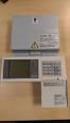 Building Air Conditioning Control System Power supply unit Model: PAC-SC50KUA Installation Manual Contents 1. Safety precautions... 1 2. Product feature... 2 1. Specification... 2 2. Appearance... 2 3.
Automation System TROVIS 6400 TROVIS 6493 Compact Controller
 Automation System TROVIS 6400 TROVIS 6493 Compact Controller For panel mounting (front frame 48 x 96 mm/1.89 x 3.78 inch) Application Digital controller to automate industrial and process plants for general
AC 800M. EtherNet/IP DeviceNet Linking Device LD 800DN. Power and productivity for a better world TM SP1134
 AC 800M EtherNet/IP DeviceNet Linking Device LD 800DN SP1134 Power and productivity for a better world TM AC 800M EtherNet/IP DeviceNet Linking Device LD 800DN NOTICE This document contains information
Application Note - Connecting an Electricity Meter to SolarEdge Devices (Europe and APAC)
 February 2015 February 2015 Application Note - Connecting an Electricity Meter to SolarEdge Devices (Europe and APAC) This document describes how to connect an electricity meter to a SolarEdge device (inverters,
PRELIMINARY MANUAL STAGE COLOR 48. Preliminary User Guide. Official version will follow soon on: WWW.BRITEQ-LIGHTING.COM TABLE OF CONTENTS
 STGE COO 48 Preliminary User Guide Official version will follow soon on: WWW.BITEQ-IGHTIG.COM TBE OF COTETS 1. Safety Instruction 2. Technical Specification 3. How To Set The Unit 4. How To Control The
Moxa EtherDevice Switch
 Moxa EtherDevice Switch EDS-205 Hardware Installation Guide Third Edition, June 2008 2008 Moxa Inc., all rights reserved. Reproduction without permission is prohibited. P/N: 1802002050000 Overview The
Perle Protocol Transparent Media Converter Modules
 Perle Protocol Transparent Media Converter Modules Installation Guide C-4GPT-DSFP CM-4GPT-DSFP Part# 5500335-10 Overview This document contains instructions necessary for the installation and operation