
DOT/TSI Online Training Center Student User Guide
|
|
|
- Dennis Cain
- 9 years ago
- Views:
Transcription
1 DEPARTMENT OF TRANSPORTATION DEPARTMENT OF TRANSPORTATION U NITE D STATES O F A M E RIC A U NITE D STATES O F A M ERIC A DOT/TSI Online Training Center Student User Guide (P-CD-DOTTSI )

2 User Guide - Introduction pg 1 of 6 Welcome to the DOT TSI Online Training Center, a powerful training delivery and management system that allows you to conveniently access and take Web-based training courses. This User Guide provides the information you need to get started immediately. The DOT TSI Online Training Center is administered by Bright Brains. If you have further questions after reading the User Guide, please send an to [email protected] or call Bright Brains Customer Support toll free at (866)

3 User Guide - Creating a student account pg 2 of 6 Step 1 Register with the DOT TSI Online Training Center Creating a student account with the DOT TSI Online Training Center is free. Registration is required before you purchase or use any of the courses offered. You only need to register once, no matter how many courses you purchase. This student account allows you to access your courses, see and modify your personal information- including your personal password, as well as access your transcript. When you create an account, you provide information that allows us to contact you, if necessary, and allows us to keep records as required by some government regulations and employers. However, we always protect the privacy of our students. DOT TSI Online Training Center For additional information on privacy, go to and click the Privacy Statement link at the bottom of the page. To create a Student Account, follow these steps: This takes you to the homepage for the DOT TSI Online Training Center. 2. In the upper right corner, click the link titled "Create a new account." This opens a new pop-up window. 3. Follow the directions and complete the form. Make sure you include all of the required information. 4. When you have successfully registered, you will be given a unique username and password. This is what you use to log in to the DOT TSI Online Training Center. Please store your username and password in a secure location. This is for your use only. If you suspect your password has been compromised at any time, please change it immediately. Provide Account Information Important: If you forget your username and/or password, click on the Forgot log-on information? link and enter the information requested to receive your log-on information. You can also contact Customer Support direct at Please do not reregister if you already have a student account set-up. Review Account Details

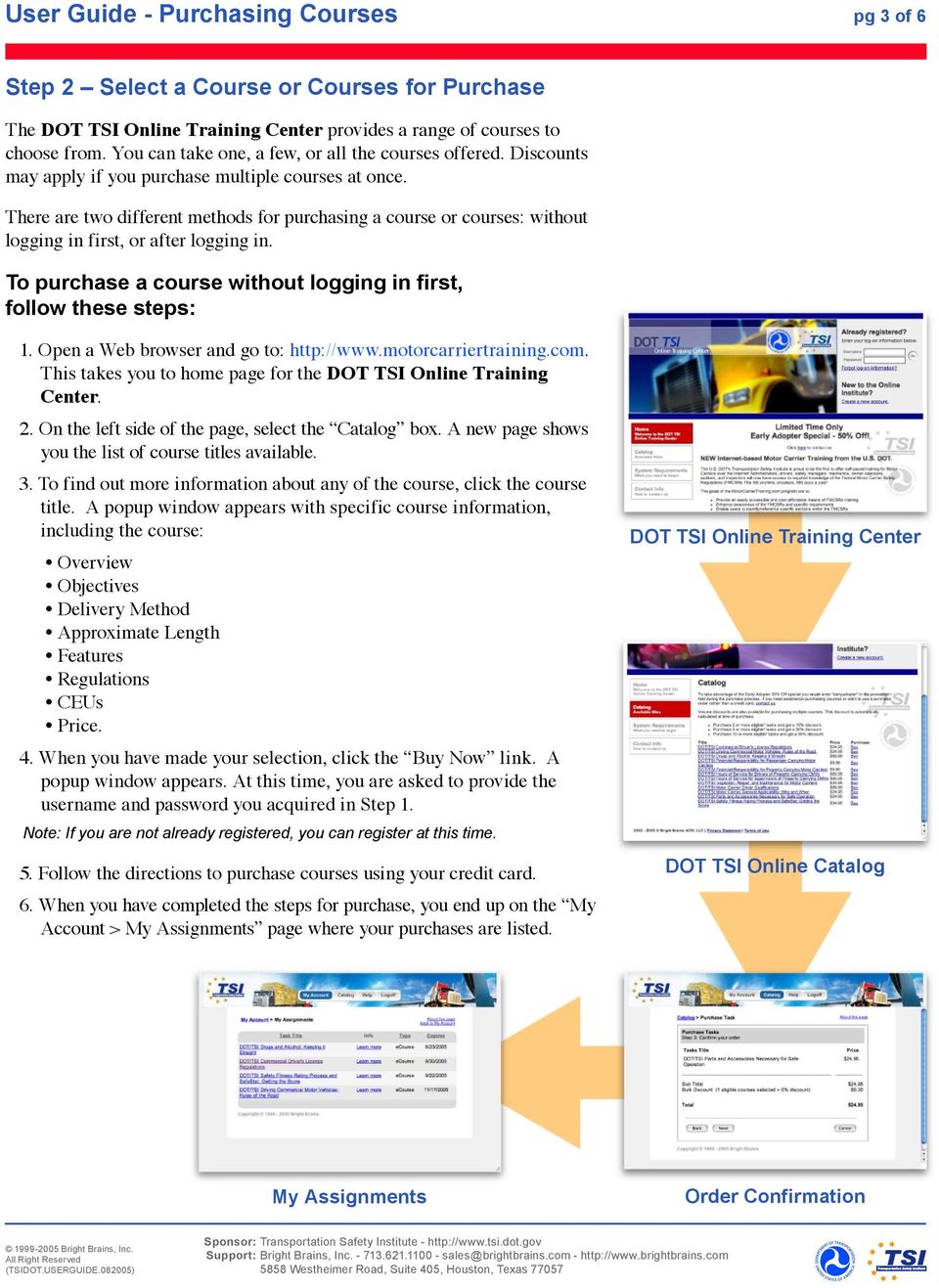
4 User Guide - Purchasing Courses pg 3 of 6 Step 2 Select a Course or Courses for Purchase The DOT TSI Online Training Center provides a range of courses to choose from. You can take one, a few, or all the courses offered. Discounts may apply if you purchase multiple courses at once. There are two different methods for purchasing a course or courses: without logging in first, or after logging in. To purchase a course without logging in first, follow these steps: This takes you to home page for the DOT TSI Online Training Center. 2. On the left side of the page, select the Catalog box. A new page shows you the list of course titles available. 3. To find out more information about any of the course, click the course title. A popup window appears with specific course information, including the course: Overview Objectives Delivery Method Approximate Length Features Regulations CEUs Price. 4. When you have made your selection, click the Buy Now link. A popup window appears. At this time, you are asked to provide the username and password you acquired in Step 1. Note: If you are not already registered, you can register at this time. 5. Follow the directions to purchase courses using your credit card. 6. When you have completed the steps for purchase, you end up on the My Account > My Assignments page where your purchases are listed. DOT TSI Online Training Center DOT TSI Online Catalog My Assignments Order Confirmation
5 User Guide - Purchasing Courses pg 4 of 6 Step 2 Select a Course or Courses for Purchase To purchase a course after logging in first, follow these steps: This takes you to homepage for the DOT TSI Online Training Center. 2. Type your username and password in the boxes provided in the upper left, then click the Go button. This takes you to the My Assignments page. 3. In the top menu bar, select Catalog. You will see a list of the course titles available. a. Drop-down boxes at the top allow you to search for specific titles. b. The Print Catalog button allows you to print a list of the available titles. 4. Learn More is a link. When you click it, a pop-up window appears with specific course information, including the course: Overview Objectives Delivery Method Approximate Length Features Regulations CEUs Price. 5. When you have made your selection, click the Buy Now link. A pop-up window appears. Follow the directions to purchase courses using your credit card. 6. When you have completed the steps for purchase, you end up on the My Account > My Assignments page where your purchases are listed. DOT TSI Online Training Center DOT TSI Online Catalog My Assignments Order Confirmation

6 User Guide - Taking Courses pg 5 of 6 Step 3 Take Your Course Now that you are signed up, you can take your course at your convenience, 24-hours a day, seven days a week. In order to finish a course, you must complete each Lesson, do each required Laboratory Exercise, pass each Exam, and meet any other requirements listed for the course. Please be aware that this training can be taken over multiple sessions, you are not required to finish it all at once. As you complete each module, they are checked off in the Overview so you can always know how much work you have left. By following Step 2, you should have ended up on the My Assignments page. If you are returning, to access this page, do the following: This takes you to homepage for the DOT TSI Online Training Center. 2. Type your username and password in the boxes provided in the upper left, then click the Go button. This takes you to the My Assignments page. From the My Assignments page, you see a list of Course titles. To begin a course, follow these steps: My Assignments 1. Click the title of the course you want to start. This takes you to the Task Overview page for that course. 2. The Task Overview page lists the Lesson titles for that course. Click the first Lesson title in the list. A new window opens. Note: If the new window does not appear, please make sure you do not have a pop-up blocker turned on. See System Requirements to find out how to turn off your pop-up blocker. 3. Within this new window, read the Completion Requirements and put a check in the box next to Failure to meet criterion. Also read the User Agreement. Click I Agree at the bottom of the page to continue. 4. You are now on the first page of the course. Above the word Introduction there is a link to the Quick Start Tutorial. If this is your first time taking a DOT TSI Online course, you may find it helpful to view this tutorial by clicking on the link. This short, narrated animation will help you get the most out of your course experience. Course Task Overview Completion Requirement

7 User Guide - Conclusion pg 6 of 6 That is all you need to get started in the DOT TSI Online Training Center! If you have further questions, you will find Help buttons throughout the top menu of DOT TSI Online Training Center after you log in and in the course pages. The Help button that appears in the top menu bar of My Account pages takes you to the Help Center popup window where you can browse for additional information or contact Customer Support. The About this page links in the upper right corner of the My Account pages give you additional information on each page. From within a course, you can also reach the Help Center by clicking the Help button on the upper right portion of the course window. Also within the course, you will see Help buttons on interactions. These appear in the lower right corner of the interaction, and provide additional information on how to use the interaction. Remember, Bright Brains Customer Support is just an or phone call away. You can contact us by at [email protected] or by phone at (866)

Note: you will need speakers or headphones in order to hear the narration, but there is a Closed Captioning option.
 Security Awareness Training Program In collaboration with the DAS Bureau of Enterprise Systems and Technology (BEST), DDS has implemented a web-based training program called SANS Securing the Human in
Setting up an account and logging in using Design & Print Online. Opening a saved project
 Setting up an account and logging in using Design & Print Online Opening a saved project 1 of 7 Account Set-Up & Login 1. On the Design and Print Online home page click on the Click to start Design & Print
Remote Viewer Recording Backup
 Remote Viewer Recording Backup Introduction: In this tutorial we will explain how to retrieve your recordings using the Web Service online. Using this method you can backup videos onto your computer using
ACT State Testing Online Services Tutorial
 ACT State Testing Online Services Tutorial Back-up Test Supervisor Version Released July, 2009 2009 by ACT, Inc., All rights reserved. Back-up Test Supervisor Online Profile Form Introduction The Back-up
Learning Management System (LMS) User Guide for Network Learners
 Learning Management System (LMS) User Guide for Network Learners Table of Contents 1) Create an Account... 1 2) Log In... 3 3) Find Courses... 4 4) Register for Courses... 5 5) Complete Presentation Activity...
Still unable to log in? Email one of the following people for assistance and provide your name and site.
 TPS Support Course 2015: Risk Management, FERPA Review, Classroom Management, Roles of Paraprofessionals and Teachers, Strategies for English Language Development This online professional learning opportunity
New Agent Registration
 Welcome to the Uplink Employer Self Service tutorial for new agent registration. If you are an agent and need to register with the Department of Workforce Development this tutorial has helpful information
NCAA Single-Source Sign-On System User Guide
 NCAA Single-Source Sign-On System Table of Contents General Description... 1 Glossary of Terms... 1 Common Features Log In... 2 Password... 3 Log Out... 4 Tabs... 4 Buttons and Links... 4 Management and
Your Archiving Service
 It s as simple as 1, 2, 3 This email archiving setup guide provides you with easy to follow instructions on how to setup your new archiving service as well as how to create archiving users and assign archiving
2. _General Help and Technical Support
 1. _Welcome Welcome to Business Internet Banking. Our online service is available 06:00 AM ET 12:00 AM (Midnight) ET, seven days a week, so you and your employees can manage your business banking accounts
AVDC Document Management System Getting Started
 Page 1 of 7 AVDC Document Management System Getting Started Login Upon entering the AVDC document management system (http://www.avdc-dms.org/dms/ or via the link on the AVDC web site Home page), the initial
Learning Management System. Student Guide
 Learning Management System Student Guide Table of Contents Introduction...1 Quick Tips...2 Self-Reported Training...4 Turning Off Pop-Up Blockers...6 Setting Screen Resolution...8 Help/Support Resources...9
1. Go to Here! Note: the Forgot or to have. a password 3. Enter. Guide
 Online Employment Application Guide How to Create Your Applicant Profile Before Applying for a Job 1. Go to http://jobs..marin.edu and click Create/Manage Application in the left navigation menu. 2. Click
Are you having trouble logging in with a Username that contains special characters or spaces?
 Troubleshooting Guide Forgot your Username or Password? Are you having trouble logging in with a Username that contains special characters or spaces? Can t launch a course in InfoComm University? Can t
Medical Professional Liability Insurance Claims Online User Manual
 Medical Professional Liability Insurance Claims Online User Manual Missouri Department of Insurance, Financial Institutions and Professional R egistration Contents Summary... 1 Site Address... 1 Account
Surplus Lines Online User Guide
 Surplus Lines Online User Guide Missouri Department of Insurance, Financial Institutions and Professional Registration Contents Summary... 1 Site Address... 1 Account Management... 2 Account Registration...
Proofpoint provides the capability for external users to send secure/encrypted emails to EBS-RMSCO employees.
 Proofpoint provides the capability for external users to send secure/encrypted emails to EBS-RMSCO employees. To create a new email message to be sent securely to an EBS-RMSCO employee: 1. Click on the
The web-based training (WBT) is a detailed training resource on Access Online functions. The WBT includes:
 The web-based training (WBT) is a detailed training resource on Access Online functions. The WBT includes: Interactive lessons Detailed user guides Quick references Recorded instructor-led classes Interactive
New volunteers will need to create a new username and a password to log into the system. This login information will be how you can access online
 1 New volunteers will need to create a new username and a password to log into the system. This login information will be how you can access online registration and will be how we track any trainings that
525 South 29 th Street. Harrisburg, PA 17104. Learning Management System User s Guide
 525 South 29 th Street Harrisburg, PA 17104 Learning Management System User s Guide July 2015 1 Table of Contents User Accounts Overview 3 Changing your Email address 3 Changing your Password 3 Changing
Ships & Offshore Structures
 Ships & Offshore Structures And Tutorial for Reviewers Table of Contents Registering 3 Logging In 3 4 Changing your password 4 Software requirements 5 New Reviewer Invitations 5 Submitting your review
Table of Contents. 1. Software House Website Login. a. Forgot My Password Recovery Feature. 2. Site Registration. a. Creating Your Account
 Welcome to the Software House Website Registration Process Guide. This guide has been assembled to provide an overview of the registration process on the Software House website and can be used to help
DOCQN. Account. CA Departm. Version 2.0
 DOCQN NET Project Account Creation & Maintenancee CA Departm ment of Business Oversight Version 2.0 (6/18/2014) Table of Contents 1. Overview... 3 2. Account Management... 4 2.1 How to Create a New Account...
HOW TO USE OIT EMAIL VIA THE WEB
 HOW TO USE OIT EMAIL VIA THE WEB A) Logging into your MyOIT account which includes your email account 1) Open a browser such as Firefox, Chrome or Safari. Please do not use Internet Explorer. 2) In the
GUIDEWIRE. Introduction to Using WebMail. macrobatix. Learn how to: august 2008
 macrobatix GUIDEWIRE august 2008 Introduction to Using WebMail Learn how to: Manage Your Inbox Compose a Message Activate Spam Filter Modify Spam Settings Check Held Messages *To download the complete
REGISTER OF COMPANIES, ENTERPRISES AND BUSINESS
 RWANDA BUSINESS REGISTRY PROJECT REGISTER OF COMPANIES, ENTERPRISES AND BUSINESS NAMES USER MANUAL Online user Version: 1.0 March 9 th 2010 NORWAY REGISTERS DEVELOPMENT AS TABLE OF CONTENTS 1 INTRODUCTION...
How to Set Up Your. Email Account
 How to Set Up Your Email Account Contents Outlook 2002 (Office XP)... 3 Outlook 2003 (Office 2003)... 6 Outlook 2007 (Office 2007)... 10 Outlook 2010 (Office 2010)... 14 Outlook Account Setup Page 2 HOW
Genesee Intermediate School District Technology & Media Services 2413 West Maple Avenue Flint, Michigan 48507. GenNET Self-Service Helpdesk Tipsheet
 Genesee Intermediate School District Technology & Media Services 2413 West Maple Avenue Flint, Michigan 48507 GenNET Self-Service Helpdesk Tipsheet The GenNET Self-Service Help Desk is an innovative, web-based
LEARNING RESOURCE CENTRE. Guide to Microsoft Office Online and One Drive
 LEARNING RESOURCE CENTRE Guide to Microsoft Office Online and One Drive LEARNING RESOURCE CENTRE JULY 2015 Table of Contents Microsoft Office Online... 3 How to create folders... 6 How to change the document
IMAP and SMTP Setup in Email Clients
 IMAP and SMTP Setup in Email Clients Configuring an Email Client for IMAP Configuring an Email Client for the SMTP Server Overview Internet Message Access Protocol (IMAP), or a remote connection through
GETTING STARTED WITH D2L
 GETTING STARTED WITH D2L Quick Start Guide v.9.2.1 ecampus This guide provides tips for users new to using the D2L Learning Environment. It discusses how to navigate the main areas and how to change your
Online Registration Instructions
 Online Registration Instructions 1. Open Internet Explorer and browse to my.nyack.edu 2. Click on Check Email icon and login to the MyNyackSSO page shown below using the login information you were assigned
Legal Malpractice Insurance Online Claims Reporting User Manual
 Legal Malpractice Insurance Online Claims Reporting User Manual Missouri Department of Insurance, Financial Institutions and Professional Registration Contents Summary... 1 Site Address... 1 https://apps.difp.mo.gov/profliab/login.aspx...
Purchasing & Enrollment Guide
 Purchasing & Enrollment Guide Last updated June 30, 2014 Contents Purchasing Student Licenses for a North Carolina Public School/District... 3 Purchasing Additional Student Licenses for a School or District...
College Credit Plus Funding Application Parent User Manual. College Credit Plus Student Funding Application
 College Credit Plus Funding Application Parent User Manual College Credit Plus Student Funding Application February 2016 Table of Contents Accessing the Funding Application...2 Adding New Funding Application...5
Terminal Four. Content Management System. Moderator Access
 Terminal Four Content Management System Moderator Access Terminal Four is a content management system that will easily allow users to manage their college web pages at anytime, anywhere. The system is
Contents. Summary. Site Address. Account Management MISSOURI DEPARTMENT OF INSURANCE, FINANCIAL INSTITUTIONS AND PROFESSIONAL REGISTRATION
 Contents Summary... 1 Site Address... 1 Account Management... 1 Account Registration... 2 Registration Process... 2 Contact Information Updates... 2 Reporting... 3 Product Liability Form... 4 Product Liability
IntelliPay Billpay Application Documentation
 IntelliPay Billpay Application Documentation Contents Billpay Introduction First Time Payment (With username and password) First Time Payment (Without username and password) Returning Customer Introduction:
GRS Advantage Website User Reference Guide
 GRS Advantage Website User Reference Guide This document describes how to use the GRS Advantage Website. Table of Contents GRS Advantage Website... 2 Accessing the Website... 2 Requesting Access to the
U.S. Bank Secure Mail
 U.S. Bank Secure Mail @ Table of Contents Getting Started 3 Logging into Secure Mail 5 Opening Your Messages 7 Replying to a Message 8 Composing a New Message 8 1750-All Introduction: The use of email
Instructor Getting Started Guide for Desire2Learn
 Instructor Getting Started Guide for Desire2Learn Table of Contents About McGraw-Hill Campus... 2 Before you begin... 2 Initial Setup of the McGraw-Hill Campus Module... 3 Accessing McGraw-Hill Campus...
Logging into LTC Instant Access the First Time
 Logging into LTC Instant Access the First Time Access the Instant Access website at: https://mycampus.gotoltc.edu Enter your LTC network username and password. These are the credentials you use to initially
Quick Reference Guide. Vendor FAQ
 This Frequently Asked Questions guide is meant to assist vendor users of the new emaryland Marketplace. If you require additional support, the emaryland Marketplace Support Team can be reached at [email protected].
An Introduction to Box.com
 An Introduction to Box.com Box is an online file sharing and cloud content management service and it provides features such as: Security controls Space Mobility Online collaboration Mobile access Version
All Colleagues Landing Page
 INTERNAL USE ONLY All Colleagues Landing Page User's Manual Version 5 Table of Contents Login... 2 Password Features... 4 Expired password...4 Password reset...6 Region Selection... 8 Changing Your Region...8
Reset Virtual Gateway Password Job Aid
 Summary of Job Aid In order to access a Virtual Gateway s business service, you must first log on to the Virtual Gateway (VG). From the Virtual Gateway s website (www.mass.gov/vg), click Logon to Virtual
Page 2 THIS IS YOUR HOME BUTTON TO GET BACK TO THIS PAGE, ALWAYS CLICK THE NORTHERN LOGO.
 Page 1 This is the home page. You can simply browse the catalogs for products from here. To order online, you must login. Search capabilities are restricted to Northern part number only until you have
Welcome to echalk My echalk Community: For Students
 Welcome to echalk : For Students Introduction echalk is an online learning environment that connects students, teachers, parents and administrators within your school and district. echalk provides your
Indiana Campaign Finance System Secure Site
 Indiana Campaign Finance System Secure Site Overview The Indiana Campaign Finance System is provided by the Indiana Election Division to enable campaign committees to manage contributions and expenditures,
OCCAM Learning Management System Student FAQs
 OCCAM Learning Management System Student FAQs The fastest way to resolve most problems is to use this self-help guide. 1. Why can t I run the course? Most courses are only certified to run on Windows computers,
This document provides a brief, end-user overview of the Cisco Registered Envelop Service which has been implemented by Sterne Agee.
 Email Encryption User Guide Sterne Agee is committed to the security of your information. We have implemented Cisco Email Encryption to secure email communication so that only you can open it.* Questions?
User guide. Business Email
 User guide Business Email June 2013 Contents Introduction 3 Logging on to the UC Management Centre User Interface 3 Exchange User Summary 4 Downloading Outlook 5 Outlook Configuration 6 Configuring Outlook
The site also provides self-guided product demonstrations, basic service information and support contact information.
 USER GUIDE TCC Online Getting Started TCC Online is a free service that makes it quicker and more convenient for you to access all of your conferencing services. From a single point of entry you ll be
Instructions for Registering for a Miradi Account & Installing Miradi Software
 Instructions for Registering for a Miradi Account & Installing Miradi Software www.miradi.org/download Version: March 2015 Introduction The following slides guide users through the process for registering
Vestal Central School District New Service Desk System: Service-Now Go live July 2, 2011
 435 Glenwood Road, Binghamton, NY 13905-1609 Service Desk Phone: (607) 766-3800 Vestal Central School District New Service Desk System: Service-Now Go live July 2, 2011 In order to help facilitate increased
Campus Portal for Parents and Students
 Campus Portal for Parents and Students April 2013 KNOWLEDGE BASE - CAMPUS PORTAL FOR PARENTS AND STUDENTS Portal Areas The following areas are available on the Portal. Different schools within a district
ESS Internet Report Access System (IRAS) Applicant Tracking System (ATS) Instructions 4-12
 Logon ESS Internet Report Access System (IRAS) Applicant Tracking System (ATS) Instructions 4-12 1. Go to https://iras.essclientservices.com 2. Enter your Username (which is your email address.) 3. Enter
account multiple solutions
 Quick Start Guide 1 Our easy to use guide will get you up and running in no time! The guide will assist you with: Generating your Sage Pay login Navigation Creating contacts Creating system users Setting
https://weboffice.edu.pe.ca/
 NETSTORAGE MANUAL INTRODUCTION Virtual Office will provide you with access to NetStorage, a simple and convenient way to access your network drives through a Web browser. You can access the files on your
Security Guard Online Training
 Security Guard Online Training Student Handbook: Updated 05/15/2010 Table of Contents Welcome... 2 Before you get started... 2 System Requirements... 3 Flash Requirements... 4 Add trilliumtraining.com
How to Log in to LDRPS-Web v10 (L10) https://enterprise.strohlservices.com
 How to Log in to LDRPS-Web v10 (L10) https://enterprise.strohlservices.com Contents First Time Login Instructions... 1 1) Use the Internet Explorer (IE) Web browser*... 1 2) Install the.net Framework...
Seton Learning Central. SumTotal Training Coordinator Manual v8.2
 Seton Learning Central SumTotal Training Coordinator Manual v8.2 Purpose of this Document The SumTotal LMS Instructional Manual is used as a reference guide for managing training and resources in instructor
Online Student Services at Thomas Edison State College Student User Guide Access the newly redesigned Online Student Services at:
 Online Student Services at Thomas Edison State College Student User Guide Access the newly redesigned Online Student Services at: https://webadvisor1.tesc.edu/webadvisor/webadvisor At Thomas Edison State
End User Service Desk Guide
 435 Glenwood Road, Binghamton, NY 13905-1609 Service Desk Phone: (607) 766-3800 End User Service Desk Guide In order to help facilitate increased communication regarding user requests, the South Central
WEB-BASED CLAIMS REPORTING AN OVERVIEW OF THE ONLINE FIRST NOTICE OF LOSS TOOL
 WEB-BASED CLAIMS REPORTING AN OVERVIEW OF THE ONLINE FIRST NOTICE OF LOSS TOOL CONTENTS Overview... 3 How to submit a claim online Step 1: Access the application - POLICY HOLDERS... 4 Step 1A: Access the
Support System User Guide
 Support System User Guide The Virtual Office support system provides users with a useful way to submit and track issues and resolutions. This feature- rich system is one more way that VO provides customers
Coast Guard Pay & Personnel Center Topeka, KS
 Coast Guard Pay & Personnel Center Topeka, KS Setting Up and Using the Self-Service Password Reset Features in Direct Access and T-PAX Contents: Direct Access (DA) Account Setup... 2 Add Your E-Mail Address
Learning Management System (LMS) User Guide. 4 March 2015
 Learning Management System (LMS) User Guide 4 March 2015 Contents Accessing ATPCO s Learning Management System (LMS)... 3 Overview of ATPCO s LMS... 5 Accessing Training Course Schedules... 7 Quick Search
OHIO BUSINESS GATEWAY USER ACCOUNT UPDATE GUIDE FOR PASSWORD RESET AND ACCOUNT SECURITY FUNCTIONALITY
 OHIO BUSINESS GATEWAY USER ACCOUNT UPDATE GUIDE FOR PASSWORD RESET AND ACCOUNT SECURITY FUNCTIONALITY Ohio Business Gateway 1-866-OHIO-GOV Last Updated: November 16, 2015 Contents 1. Completing a Business
My Online Education. Student Guide
 My Online Education Student Guide Table of Contents Introduction...3 System Requirements...4 Quick Tips...5 Turning Off Pop-Up Blockers...7 Setting Screen Resolution...9 Help/Support Resources...10 MOE
Premier.Dell.com Shopping and Ordering Guide
 Premier.Dell.com Shopping and Ordering Guide 1 Premier.Dell.com is designed to make you more efficient. This document will introduce you to the process of shopping and ordering within Premier. If you need
LMS USER GUIDE WELCOME KIT
 WELCOME KIT WELCOME 02 WELCOME 03 WELCOME TO TRAINING CENTER LEARNING MANAGEMENT SYSTEM Welcome to the new Customer Training Learning Management System (LMS). The new LMS is designed to provide you with
Provider OnLine. Log-In Guide
 Provider OnLine Log-In Guide Table of Contents 1 LOG-IN ACCESS... 3 1.1 ENTERING THE USER ID AND PASSWORD... 4 1.2 OVERVIEW AND PURPOSE OF TRICIPHER... 5 1.2.1 Log-in for Users Who Are Active, But Not
LCTCB Instructions for Individual Payment Website
 Lancaster County Tax Collection Bureau 1845 William Penn Way Lancaster, PA 17601 Phone (717) 569-4521 www.lctcb.org LCTCB Instructions for Individual Payment Website Revised April 18, 2016 These instructions
Kronos 6 Work Force Time Keeping System. Manager Procedure Manual
 Kronos 6 Work Force Time Keeping System Manager Procedure Manual Table of Contents Kronos Manager Procedure Manual Log In to Kronos https://kronos.rit.edu/wfc/logon... 1 Punches Access an Employee Timecard...
External Account Creation and Upload Instructions for the Local Government (LG) Audit Report Collection System
 External Account Creation and Upload Instructions for the Local Government (LG) Audit Report Collection System In order to submit data for any Department of Audits and Accounts (DOAA) web application,
CITY OF RALEIGH ONLINE TRAINING STUDENT S HANDBOOK
 CITY OF RALEIGH ONLINE TRAINING STUDENT S HANDBOOK CITY OF RALEIGH INFORMATION TECHNOLOGY DEPARTMENT 222 W. HARGETT STREET RALEIGH, NC 27601 WEBSITE: WWW.RALEIGHNC.GOV CUSTOMER SUPPORT CENTER 919.996.6000
INTRODUCTION TO THE UC LEARNING CENTER. 2 SYSTEM REQUIREMENTS. 3 LOGGING ON TO THE UC LEARNING CENTER. 4 THE UC LEARNING CENTER HOME PAGE. 24 NOTES:.
 UC Learning Center INTRODUCTION TO THE UC LEARNING CENTER... 2 SYSTEM REQUIREMENTS... 3 LOGGING ON TO THE UC LEARNING CENTER... 4 THE UC LEARNING CENTER HOME PAGE... 6 UPDATING YOUR PERSONAL INFORMATION...
UC Learning Center: Learner Guide
 UC Learning Center: Learner Guide Updated 3/11/2015 Introduction The UC Learning Center is the web-based learning management system (LMS) used across the University of California, for system wide training
How do I accept my offer of admission to Purdue University?
 How do I accept my offer of admission to Purdue University? 1. Use your Purdue Career Account username and password to login to the MyPurdue portal, www.mypurdue.purdue.edu. (If you have not activated
Frequently Asked Questions for logging in to Online Banking
 Frequently Asked Questions for logging in to Online Banking Why don t I recognize any of the phone numbers on the Secure Code page? I can t remember my password; can I reset it myself? I know I have the
Schools CPD Online General User Guide Contents
 Schools CPD Online General User Guide Contents New user?...2 Access the Site...6 Managing your account in My CPD...8 Searching for events...14 Making a Booking on an Event...20 Tracking events you are
PERSONAL DEVELOPMENT SERIES
 PERSONAL DEVELOPMENT SERIES GUIDE TO USING THE LEARNING MANAGEMENT SYSTEM Welcome Thank you for choosing the Judgment Index Personal Development Series of courses as a resource for your personal and professional
WebFile Guide For Claimants
 COMMONWEALTH OF VIRGINIA WORKERS COMPENSATION COMMISSION WebFile Guide For Claimants Instructional Guide for WebFile System SEPTEMBER 2009 EDITION PREFACE This Guide is designed to assist Claimants with
FAQ for Students. Note: The new password must be between six and 12 characters long.
 What is MY Portal? MY Portal is a secure website that provides access to news, announcements, personal information, registration and online billing services, collaboration areas, Blackboard and email.
Tutorial for Creating a DEBA Lawyer Directory Listing
 Tutorial for Creating a DEBA Lawyer Directory Listing *This tutorial is for creating a listing using a laptop or desktop. If you are using a mobile device or a small screen, your experience may be different.
Installation Guide and Machine Setup
 Installation Guide and Machine Setup Page 1 Browser Configurations Installation Guide and Machine Setup The first requirement for using CURA is to ensure that your browser is set up accurately. 1. Once
Global UGRAD Program
 Application Instructions for Global UGRAD 2016-2017 Portal Step-by-Step I. REGISTERING FOR THE PROGRAM Google Chrome and Mozilla Firefox work best when completing the UGRAD application. We do NOT recommend
Student Manager s Guide to the Talent Management System
 Department of Human Resources 50 Student Manager s Guide to the Talent Management System 1 Table of Contents Topic Page SYSTEM INTRODUCTION... 3 GETTING STARTED... 4 NAVIGATION WITHIN THE TALENT MANAGEMENT
7. In the boxed unlabeled field, enter the last 4 digits of your Social Security number.
 CREATE YOUR MYVIEW LOGIN To access myview while ensuring security, you will be given an encrypted access key token. You will use this token the first time you log into myview. Once you have successfully
welcome to my Randstad web timesheets!
 welcome to my Randstad web timesheets! In addition to viewing bookings and payslips, your my Randstad web portal now also has an easy to use timesheet section, to enter and submit your shift, break, allowance,
records in the RIBI Template Website system.
 District 1050 A Step-by-Step Guide for Club Administrators on how to enter club membership records in the RIBI Template Website system For District 1285 to function properly, all clubs that will be in
Websense Secure Messaging User Help
 Websense Secure Messaging User Help Welcome to Websense Secure Messaging, a tool that provides a secure portal for the transmission and viewing of sensitive, personal data in email. Use the portal to view
Reference Document. SedonaOnline Support
 Document Overview This document is being provided to explain how to request a SedonaOnline password and how to use SedonaOnline to submit and view Support Tickets. Our company utilizes the SedonaOffice
If you would like to purchase an Access Code directly from the publisher, proceed to step 1.
 Instructions for Purchasing and Registering an Online Access Code If you purchased an Access Card at the bookstore, skip to step 10. If you would like to purchase an Access Code directly from the publisher,
First Settings Check for your Internet Explorer 7.0. Please make sure that you follow the settings process on all pages attached
 First Settings Check for your Internet Explorer 7.0 Please make sure that you follow the settings process on all pages attached This Web Site undergoes daily changes due to the complexity of laws governing
Secure Email Client User Guide Receiving Secure Email from Mercantile Bank
 Receiving Secure Email from Contents This document provides a brief, end-user overview of the Secure Email system which has been implemented by. Why Secure Email? When someone sends you an email, the email
First Certificate in English Online Practice Test Free Sample. How to complete the FCE Online Practice Test Free Sample: Writing
 First Certificate in English Online Practice Test Free Sample How to complete the FCE Online Practice Test Free Sample: Writing Welcome to the First Certificate in English Online Practice Test Free Sample.