
LMS USER GUIDE WELCOME KIT
|
|
|
- Elijah Robbins
- 10 years ago
- Views:
Transcription
1 WELCOME KIT

2 WELCOME 02

3 WELCOME 03 WELCOME TO TRAINING CENTER LEARNING MANAGEMENT SYSTEM Welcome to the new Customer Training Learning Management System (LMS). The new LMS is designed to provide you with easy access to all maintenance, pilot and simulator course information and training schedules. The benefits of registering for the Training Center LMS include: The ability to search for course information and class schedules. Self register for training. View and manage your training schedule. View and print transcripts and training certificates of all completed courses. Access to training materials. And the ability to access the LMS from any of your devices. QUESTIONS OR FEEDBACK If you have any questions regarding the new Learning Management System, please review the user guide on how to access and navigate the system on the following pages. If the user guide does not address all your questions or if you would like to provide feedback regarding the LMS please send an to the Training Center at eurocopterusa.com. As a registrant to a course on the LMS you also have access to course training materials to further your knowledge and to help you apply what you learn in class to the requirements of your job. On the following pages you will learn more about how to register for courses and how to access the training materials. Airbus Helicopters, Inc. s Training Center has been a leader in providing both pilots and maintainers the highest level of training for our products in the U.S. We hope you enjoy participating in this new initiative.
4 ACCOUNT REGISTRATION 04 HOW TO REGISTER FOR NEW ACCOUNT Use the following instructions to register for a new account: 1. Go to the following URL to access the Training Center LMS sign in page (Figure 1): 2. Select the Sign up now link which will take you to the registration form 3. Complete the registration form and select the Submit button (Figure 2) Note: Enter 0 for Total Turbine Time if not applicable 4. You should now be taken back to the sign in page where you can sign in with your newly created username and password Figure 1 Figure 2

5 COURSE REGISTRATION 05 HOW TO REGISTER FOR A COURSE Use the following instructions to register for a course: 1. Once signed in with your Username and Password, select the LMS tab at the top of the Training Center home page (Figure 3) 2. This takes you in to the LMS 3. Search for a desired Course or view a selection of available courses through the catalog (Figure 4) 4. Select the desired Course and click the Register button 5. On the Registration page, scroll left to right to select the available Class sessions (Figure 5) 6. If a class also has an associated ground school track, select the desired option 7. Click next to continue 8. Continue to make desired selections until the Submit button is activated 9. Click Submit and finally click Done when registered Note: Registrations submitted will be pending approval. Once approved you will receive a confirmation . Figure 3 Figure 4 Figure 5


6 TRAINING SCHEDULE 06 HOW TO VIEW TRAINING SCHEDULE Use the following instructions to view your training schedule: 1. Once you sign in to the LMS, you will see a list of your current Training Schedule under the To Do list (Figure 6) or 2. When in the LMS, hover your mouse pointer over the Learner tab on the navigation bar which will open a sub-menu 3. Select Learn > Training Schedule under the sub-menu (Figure 7) 4. You will see a list of your current training schedule or 5. Click on the Training Schedule link to take you directly to your schedule, under the Quick Links menu in the left menu bar (Figure 8) Figure 7 Figure 8 Figure 6 Figure 9


7 COURSE INFORMATION 07 HOW TO FIND COURSE INFORMATION AND PRICING Use the following instructions to find class information: 1. Search for a Course or view a selection of available courses through the catalog (Figure 4) 2. Click on View Availability to see a list of class offerings (Figure 10) 3. Click on a Course or a class title to view the Course summary page (Figure 11) 4. Here you will find detailed Course Summary including the course pricing (Figure 12) Note: To exit this screen and return to the class offerings, click on the close button with the X at the top right hand corner of the screen. Figure 11 Figure 10 Figure 12


8 COURSE INFORMATION 08 HOW TO VIEW COURSE INFORMATION AND POI Use the following instructions to view program of instructions: 1. In your Training Schedule, click on the Course title to view the summary of information for that Course (Figure 13) Note: Click on the small drop down arrow on the left side of the Course title to expand view to the class offerings. 2. Click on the link, Click here to download to download a list of the general classroom information and procedures 3. Click on the link, Click here to view under Program of Instruction to view the Program of Instructions (Figure 14) Figure 13 Figure 14

9 TRAINING MATERIALS 09 HOW TO ACCESS TRAINING MATERIALS Use the following instructions to access the training materials: 1. Click on the link, Click here to access training materials to download the training materials. (Figure 15) Note: You will only be able to download the training materials if you are registered for the course. 2. Click on the green Start button to download the training materials. (Figure 16) Note: If you are not registered for the course you will receive an error message (Figure 17) 3. Save the zip file to your desktop 4. Extract the zipped file and view the training materials Note: Most training materials require Adobe PDF viewer to view the files. Figure 15 Figure 16 Figure 17

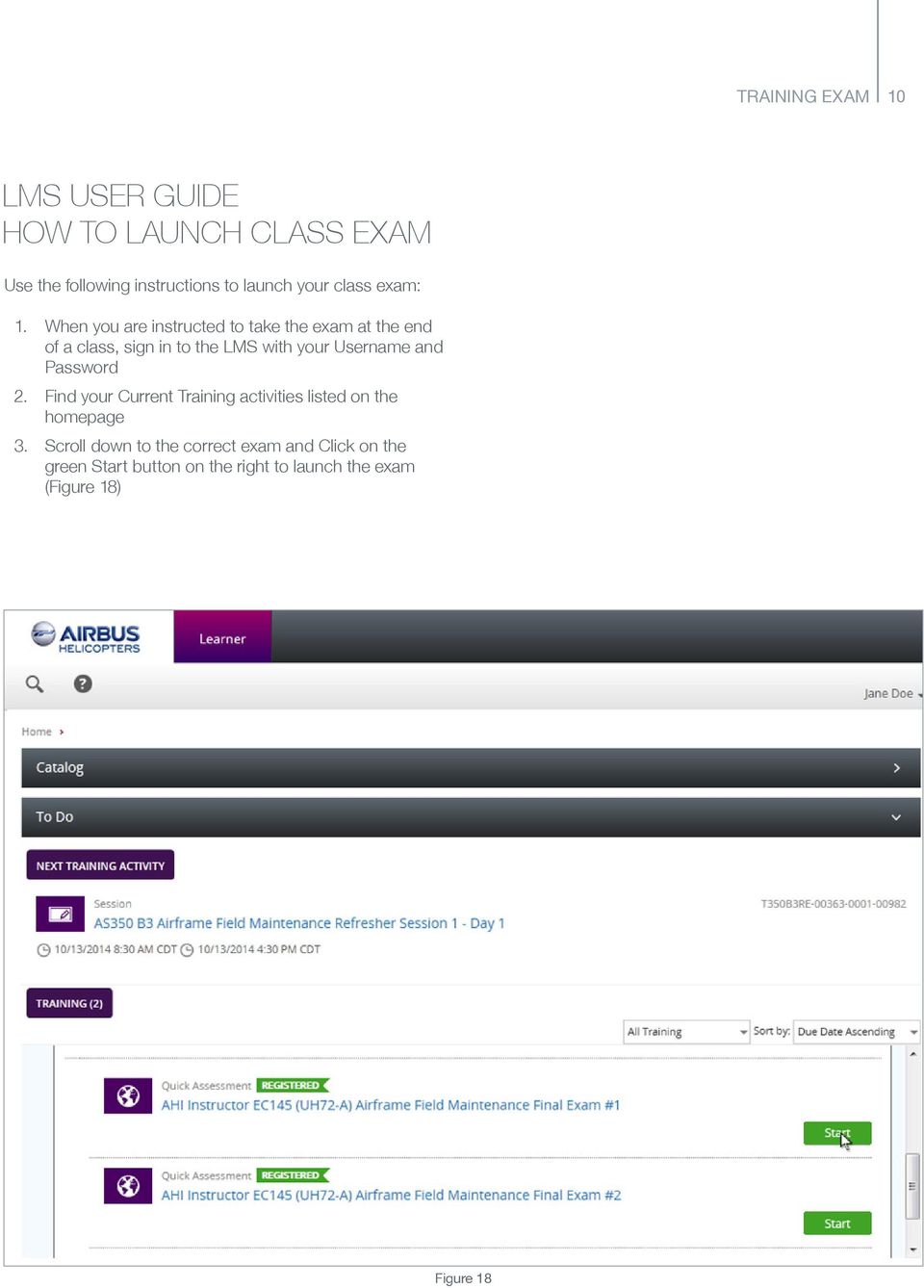
10 TRAINING EXAM 10 HOW TO LAUNCH CLASS EXAM Use the following instructions to launch your class exam: 1. When you are instructed to take the exam at the end of a class, sign in to the LMS with your Username and Password 2. Find your Current Training activities listed on the homepage 3. Scroll down to the correct exam and Click on the green Start button on the right to launch the exam (Figure 18) Figure 18
11 11

12 VER03 10/2014 Airbus Helicopters, Inc N. Forum Dr. Grand Prairie, TX

Learning Management System. Student Guide
 Learning Management System Student Guide Table of Contents Introduction...1 Quick Tips...2 Self-Reported Training...4 Turning Off Pop-Up Blockers...6 Setting Screen Resolution...8 Help/Support Resources...9
PERSONAL DEVELOPMENT SERIES
 PERSONAL DEVELOPMENT SERIES GUIDE TO USING THE LEARNING MANAGEMENT SYSTEM Welcome Thank you for choosing the Judgment Index Personal Development Series of courses as a resource for your personal and professional
Learning Management System (LMS) User Guide for Network Learners
 Learning Management System (LMS) User Guide for Network Learners Table of Contents 1) Create an Account... 1 2) Log In... 3 3) Find Courses... 4 4) Register for Courses... 5 5) Complete Presentation Activity...
My Online Education. Student Guide
 My Online Education Student Guide Table of Contents Introduction...3 System Requirements...4 Quick Tips...5 Turning Off Pop-Up Blockers...7 Setting Screen Resolution...9 Help/Support Resources...10 MOE
Kallidus User Guide. Step-by-step instructions for users of the Eversheds Learning Management System (LMS)
 Kallidus User Guide Step-by-step instructions for users of the Eversheds Learning Management System (LMS) 1 Signing into the Learning Management System (LMS)... 3 Forgotten your password?... 3 Amending
AVTranz The Court Record Online (TCRO) Operating Instructions Vermont Court System
 TCRO Operating Instructions 1 AVTranz The Court Record Online (TCRO) Operating Instructions Vermont Court System This document is intended to provide very clear instructions on how to upload content to
Online Student Services at Thomas Edison State College Student User Guide Access the newly redesigned Online Student Services at:
 Online Student Services at Thomas Edison State College Student User Guide Access the newly redesigned Online Student Services at: https://webadvisor1.tesc.edu/webadvisor/webadvisor At Thomas Edison State
Attention. Save, print and read this information. This document will provide insight on issues that will help you through the course.
 Attention Save, print and read this information. This document will provide insight on issues that will help you through the course. You can download this document to your mobile device by following the
Click on the Courses & Pricing link
 Getting to your ONLINE Driver Improvement class This is not the online course site, these are instructions for taking the 55+ Driver Improvement class online. This is a general guide for the steps to take,
Learning Management System (LMS) User Guide. 4 March 2015
 Learning Management System (LMS) User Guide 4 March 2015 Contents Accessing ATPCO s Learning Management System (LMS)... 3 Overview of ATPCO s LMS... 5 Accessing Training Course Schedules... 7 Quick Search
Venza Group. Learning Management System (LMS) Login and Dashboard Guide
 10886 Crabapple Rd, Ste 100 Roswell, GA 30075 Phone: 770-685-6500 Fax: 770-685-6553 Venza Group Learning Management System (LMS) Login and Dashboard Guide Table of Contents 1.0 Learning Management System
First Certificate in English Online Practice Test Free Sample. How to complete the FCE Online Practice Test Free Sample: Writing
 First Certificate in English Online Practice Test Free Sample How to complete the FCE Online Practice Test Free Sample: Writing Welcome to the First Certificate in English Online Practice Test Free Sample.
mytraining INSTRUCTION GUIDE
 mytraining INSTRUCTION GUIDE This guide is to be used as a resource for successfully completing training within the mytraining training management system LOGGING INTO MYTRAINING To log into mytraining:
Student Manager s Guide to the Talent Management System
 Department of Human Resources 50 Student Manager s Guide to the Talent Management System 1 Table of Contents Topic Page SYSTEM INTRODUCTION... 3 GETTING STARTED... 4 NAVIGATION WITHIN THE TALENT MANAGEMENT
NCEPTION REPORT. Short Introduction to use of MESA Training Distance Education LMS
 NCEPTION REPORT Short Introduction to use of MESA Training Distance Education LMS Implementation of the training strategy of the Monitoring for Environment and Security in Africa (MESA) programme EuropeAid/134534/D/SER/MULTI
Note: you will need speakers or headphones in order to hear the narration, but there is a Closed Captioning option.
 Security Awareness Training Program In collaboration with the DAS Bureau of Enterprise Systems and Technology (BEST), DDS has implemented a web-based training program called SANS Securing the Human in
How to complete the FCE Online Practice Test Free Sample: Use of English
 First Certificate in English Online Practice Test Free Sample How to complete the FCE Online Practice Test Free Sample: Use of English Welcome to the First Certificate in English Online Practice Test Free
Instructions for Importing (migrating) Data
 Instructions for Importing (migrating) Data from CTAS Version 7 to CTAS Version 8 For Windows 8 and 8.1 CTAS Version 8 is designed to work with your Version 7 data if you choose to. These instructions
Using OwnCloud. OwnCloud is a very easy to use file storage and sharing system that you can access anywhere you have an internet connection.
 Using OwnCloud OwnCloud is a very easy to use file storage and sharing system that you can access anywhere you have an internet connection. 1. Contact the IT Department to set up your account. 2. Once
Schools CPD Online General User Guide Contents
 Schools CPD Online General User Guide Contents New user?...2 Access the Site...6 Managing your account in My CPD...8 Searching for events...14 Making a Booking on an Event...20 Tracking events you are
STEPfwd Quick Start Guide
 CERT/Software Engineering Institute June 2016 http://www.sei.cmu.edu Table of Contents Welcome to STEPfwd! 3 Becoming a Registered User of STEPfwd 4 Learning the Home Page Layout 5 Understanding My View
Online Learning Management System Student Guide
 Welcome to the Vanguard Continuing Education Program. This tutorial will help you better understand the functionality of the system. If you have a question that is not answered here, please contact us
UC Learning Center: Learner Guide
 UC Learning Center: Learner Guide Updated 2/5/15 Introduction The UC Learning Center is the web based learning management system (LMS) used across the University of California for managing training and
How to complete the FCE Online Practice Test Free Sample: Reading
 First Certificate in English Online Practice Test Free Sample How to complete the FCE Online Practice Test Free Sample: Reading Welcome to the First Certificate in English Online Practice Test Free Sample.
Ships & Offshore Structures
 Ships & Offshore Structures And Tutorial for Reviewers Table of Contents Registering 3 Logging In 3 4 Changing your password 4 Software requirements 5 New Reviewer Invitations 5 Submitting your review
Citrix Client Install Instructions
 Citrix Client Install Instructions If you are using Citrix remotely, Information Technology Services recommends updating Citrix client to the newest version available online. You must be an administrator
How to complete the PET Online Practice Test Free Sample: Listening
 Preliminary English Test Online Practice Test Free Sample How to complete the PET Online Practice Test Free Sample: Listening Welcome to the Preliminary English Test Online Practice Test Free Sample. This
Learning Management System (LMS) Quick Tips. Contents LMS REFERENCE GUIDE
 Learning Management System (LMS) Quick Tips Contents Process Overview... 2 Sign into the LMS... 3 Troubleshooting... 5 Required Software... 5 Mobile devices are not supported... 5 Using the Check System
Welcome to the Opus Bank Mobile Banking App User Guide
 Welcome to the Opus Bank Mobile Banking App User Guide 1.855.678.7226 [email protected] www.opusbank.com Table of Contents Enroll in Mobile Banking & Install App... 3 Login to Personal Online
SPOC Instruction Guide
 SPOC Instruction Guide The following information should guide you through navigating NC AWWA-WEA s self-paced online course (SPOC) program. If you have additional questions please contact Nicole Banks
How To Write A Goal On A Computer On A Workstation
 ACCESSING ULEARN... 1 CREATING AND ASSIGNING GOALS... 1 COMPLETING A YEAR END REVIEW... 2 SIGNING OFF ON THE APPRAISAL... 3 APPROVING AN IDP... 5 APPROVING GOALS SUBMITTED BY EMPLOYEES... 5 REVIEWING OR
CI Financial Exception Dashboard. User Manual
 CI Financial Exception Dashboard User Manual CONTENTS THE CI FINANCIAL EXCEPTION DASHBOARD... 2 ACCESSING ANU INSIGHT... 2 LOGGING INTO ANU INSIGHT... 3 NAVIGATING TO THE DASHBOARD... 4 THE INSIGHT HOMEPAGE...
To view your team, including your universal profile, please complete the following steps: Result: Your universal bio page will display.
 Overview The Milwaukee County Training and Development Center is the new cloud-based Learning Management System (LMS) for Milwaukee County. The LMS will allow you to track your or your direct reports training,
Haiku LMS Quick Start A Helpful Guide for Teachers
 Haiku LMS Quick Start A Helpful Guide for Teachers Getting Started Logging In Log on to your class by going to your school s Haiku LMS address. Once you log in to your class, you will find yourself on
Kodak Learning Management System (LMS)
 Kodak Learning Management System (LMS) Accessing the System...2 Using the LMS in Learner Mode...3 The Home Page...3 Locating Assigned Training...4 Registering for a Learning Activity...5 Launching Learning
MUNIS Leave Request System (Employee Self Service) Time Off Approver
 MUNIS Leave Request System (Employee Self Service) Time Off Approver The MUNIS software system will be utilized by all employees to request time off beginning April 2, 2014. REVIEW AN EMPLOYEE S TIME OFF
UC Learning Center: Learner Guide
 UC Learning Center: Learner Guide Updated 3/11/2015 Introduction The UC Learning Center is the web-based learning management system (LMS) used across the University of California, for system wide training
Managing Customers. Pipfrog AS www.pipfrog.com
 Customer Management Managing Customers Customer management takes place in the Manage Customers submenu of Customers menu. Customer management page displays information on registered customers. Customers
NATIONAL TRAINING CENTER
 NATIONAL TRAINING CENTER Information Systems and Analysis Department Desktop Procedure Title: Number: Revision: Learning Management System Student User Guide ITD-DP-275 2 Submitted By: Reviewed By: Approved
Contents. Accessing Compensation Reports Generating Compensation Reports. Saving PDF Reports after Viewing Printing PDF Reports
 Broker Compensation Reports Online Contents Accessing Compensation Reports Generating Compensation Reports PDF o o Excel o o o Saving PDF Reports after Viewing Printing PDF Reports Exporting Reports to
Online Registration Instructions
 Online Registration Instructions 1. Open Internet Explorer and browse to my.nyack.edu 2. Click on Check Email icon and login to the MyNyackSSO page shown below using the login information you were assigned
Guide to Training Teachers on the Co-op Dashboard
 Guide to Training Teachers on the Co-op Dashboard https://www.hourrepublic.com Hour Republic is a tool used by (i) students to track co-op hours, activities, skills and more, and (ii) teachers to monitor
MyInterskill LMS Student Guide
 MyInterskill LMS Student Guide Your Guide to Mainframe Training Expanding your knowledge anywhere, anytime! www.interskill.com Table of Contents Student Home Page...3 Changing your profile and password...6
Electronic Payments & Statements User Guide
 Electronic Payments & Statements User Guide Contents Welcome to Electronic Payments & Statements (EPS) This guide will show you how to: 4 Get More Information about EPS on the Welcome Page The EPS Welcome
Creating a Website with Google Sites
 Creating a Website with Google Sites This document provides instructions for creating and publishing a website with Google Sites. At no charge, Google Sites allows you to create a website for various uses,
Creating a Website with Google Sites
 Creating a Website with Google Sites This document provides instructions for creating and publishing a website with Google Sites. At no charge, Google Sites allows you to create a website for various uses,
Table of Contents User Guide... 1 Welcome... 4 Front End Life Blue... 5 General Navigation... 5 Menu Bar... 5 Continuous Scroll... 5 Hyperlinks...
 User Guide Table of Contents User Guide... 1 Welcome... 4 Front End Life Blue... 5 General Navigation... 5 Menu Bar... 5 Continuous Scroll... 5 Hyperlinks... 6 Sections/Pages/Information... 6 Announcements...
IELTS ONLINE PRACTICE TEST FREE SAMPLE
 IELTS ONLINE PRACTICE TEST FREE SAMPLE General Training IELTS General Training Online Practice Test Free Sample How to complete the IELTS General Training Online Practice Test Free Sample: Reading This
Manual - Schlatter E-Shop
 Manual - Schlatter E-Shop Content 1 Preliminary...3 2 Logon at Shatter E-Shop...3 3 Welcome Page...4 4 Create New Shopping Cart...5 5 Catalog...6 6 Create Orders in E-Shop...9 7 Create Quotations in E-Shop...9
Managing Documents in the Citrix XenApp Remote Desktop
 Introduction Managing Documents in the Citrix XenApp Remote Desktop What is a Citrix XenApp Remote Desktop? It is a virtualized instance of MS Windows with only enough software to run TAS in a controlled
UF Health SharePoint 2010 Introduction to Content Administration
 UF Health SharePoint 2010 Introduction to Content Administration Email: [email protected] Web Page: http://training.health.ufl.edu Last Updated 2/7/2014 Introduction to SharePoint 2010 2.0 Hours
Adding An Audio Profile To An Adobe Connect Account
 Adding An Audio Profile To An Adobe Connect Account This How-To Guide will walk through the process of adding an Audio Profile to a Host account within Adobe Connect. The Audio Profile will allow the Host
How to Add Users 1. 2.
 Administrator Guide Contents How to Add Users... 2 How to Delete a User... 9 How to Create Sub-groups... 12 How to Edit the Email Sent Out to New Users... 14 How to Edit and Add a Logo to Your Group's
GRS Advantage Website User Reference Guide
 GRS Advantage Website User Reference Guide This document describes how to use the GRS Advantage Website. Table of Contents GRS Advantage Website... 2 Accessing the Website... 2 Requesting Access to the
Security Guard Online Training
 Security Guard Online Training Student Handbook: Updated 05/15/2010 Table of Contents Welcome... 2 Before you get started... 2 System Requirements... 3 Flash Requirements... 4 Add trilliumtraining.com
Online Banking Quick Reference Guide
 1 Page 2 Set Up and Access to Online Banking 2 How do I set up Online Banking? 2 How do I sign in to Online Banking? Online Banking Quick Reference Guide 3 Security 3 How do I change User ID? 3 What should
Success Factor LMS - Learner Mode
 Success Factor LMS - Learner Mode Objectives This training is designed to introduce you to Health Net s new and improved Learning Management System (LMS). The course covers: Overview of the new LMS Launching
Student Guide - Student Groups and Adobe Connect in Canvas
 Student Guide - Student Groups and Adobe Connect in Canvas Creating an Adobe Connect Conference 1. Use Chrome or Firefox as your browser. Make sure you are on the latest version. 2. Connect your headset
How To Register For A Course Online
 How to Register and Pay for BEST Center Classes Online Welcome to our new online registration system for The BEST Center at Genesee Community College! All of our scheduled noncredit classes are listed
Welcome to Bridgit @ CSU The Software Used To Data Conference.
 Welcome to Bridgit @ CSU The Software Used To Data Conference. Overview SMART Bridgit software is a client/server application that lets you share programs and information with anyone, anywhere in the world.
IELTS ONLINE PRACTICE TEST FREE SAMPLE
 IELTS ONLINE PRACTICE TEST FREE SAMPLE Academic IELTS Academic Online Practice Test Free Sample How to complete the IELTS Academic Online Practice Test Free Sample: Reading This is the Reading Test tutorial
How to Use JCWHosting Reseller Cloud Storage Solution
 How to Use JCWHosting Reseller Cloud Storage Solution Go to https://www.internetspace.co.za and log in with your Cloud Reseller account username and password. How to Use create a cloud account for your
PeopleAdmin. Mott s Applicant Tracking System. Executive Approver s Guide. Mott Community College
 Mott Community College PeopleAdmin Mott s Applicant Tracking System Executive Approver s Guide Created by: Staffing & Recruiting, Mott Human Resource Office 2011 Executive Approver s Guide Table of Contents
Editing your Website User Guide
 User Guide Adding content to your Website To add or replace content on your website you will need to log in to your Content Management System (Joomla) using your username and password. If you do not already
Learning Management System (LMS) User Guide Contents
 Learning Management System (LMS) User Guide Contents 1. Navigating around the Portal... 1 1.1. Overview of the Home Page... 1 1.2. Launch Bar... 2 2. Accessing My Tasks... 3 3. Quiz... 4 3.1. Attempting
DOT/TSI Online Training Center Student User Guide
 DEPARTMENT OF TRANSPORTATION DEPARTMENT OF TRANSPORTATION U NITE D STATES O F A M E RIC A U NITE D STATES O F A M ERIC A DOT/TSI Online Training Center Student User Guide (P-CD-DOTTSI-382-081605) User
New Agent Registration
 Welcome to the Uplink Employer Self Service tutorial for new agent registration. If you are an agent and need to register with the Department of Workforce Development this tutorial has helpful information
New To Blackboard: Faculty Edition
 Bb Abbreviation for Blackboard /ilearn Edit Mode is in the upper-right corner of Bb and must be ON for you to modify your course content. Click the icon to turn edit on or off. The Action Link contains
Axis 360 Guides Table of Contents. Axis 360 & Blio ebooks with Android Devices (1/30/14)
 Axis 360 Guides Table of Contents Axis 360 & Blio ebooks with Android Devices (1/30/14) Axis 360 & Blio ebooks with eread Devices or a Computer (1/30/14) Axis 360 & Blio ebooks with ios Devices (1/30/14)
How to Run a What-If Report
 Description: The What-If Advisement Report can be used to create advisement results for a program/plan other than your declared program/plan. The What-If Report allows you to consider what- if I change
Introduction to Ethics for Health Care Aides Online course presented by the Manitoba Provincial Health Ethics Network Frequently asked questions
 Introduction to Ethics for Health Care Aides Online course presented by the Manitoba Provincial Health Ethics Network Frequently asked questions Contents What do I need to take Introduction to Ethics for
Congratulations on your recent admission to Clemson University! Instructions on How to Connect to Clemson University s VPN
 Congratulations on your recent admission to Clemson University! We look forward to welcoming you to Clemson University soon. Please find instructions on how to access Clemson University s VPN and how to
How To Use Turna 4Europe Online Education And Training Programmes Online (Eu)
 Carries your information globally USER MANUAL v.2.0 2 TABLE OF CONTENTS TABLE OF CONTENTS... 2 LIST OF FIGURES... 3 1. PURPOSE... 4 2. TURNA... 4 3. TURNA USER INTERFACE... 4 3.1 TURNA Login Page... 4
Joining an XP workstation to a domain Version 1.00
 Joining an XP workstation to a domain Version 1.00 All Windows XP Professional workstations need to be joined to a domain to function as part of the domain security environment. Need to Know TM 1. To join
525 South 29 th Street. Harrisburg, PA 17104. Learning Management System User s Guide
 525 South 29 th Street Harrisburg, PA 17104 Learning Management System User s Guide July 2015 1 Table of Contents User Accounts Overview 3 Changing your Email address 3 Changing your Password 3 Changing
Instructions for Registering for a Miradi Account & Installing Miradi Software
 Instructions for Registering for a Miradi Account & Installing Miradi Software www.miradi.org/download Version: March 2015 Introduction The following slides guide users through the process for registering
Vermont Student Census Spring Update School Year 2014-2015. Online Instructions
 Vermont Student Census Spring Update School Year 2014-2015 Online Instructions Due Date: July 15, 2015 IT Team: Data Management & Analysis (802) 479-1044 Table of Contents System Requirements... 1 Starting
smespire - Exercises for the Hands-on Training on INSPIRE Network Services April 2014 Jacxsens Paul SADL KU Leuven
 smespire - Exercises for the Hands-on Training on INSPIRE Network Services April 2014 Jacxsens Paul SADL KU Leuven These exercises aim at people who already have some basic knowledge of INSPIRE Network
ClickView Digital Signage User Manual
 ClickView Digital Signage User Manual Table of Contents 1. What is ClickView Digital Signage?... 3 2. Where do I find ClickView Digital Signage?... 3 2.1. To find ClickView Digital Signage... 3 3. How
Quick Reference Guide PAYMENT GATEWAY (Virtual Terminal)
 PAYMENT GATEWAY (Virtual Terminal) Document Version 131227 Copyright 2013 epaymentamerica, Inc. All Rights Reserved Logging in to the Virtual Terminal 1. Open your internet browser; We strongly recommend
How to Configure Windows 8.1 to run ereports on IE11
 How to Configure Windows 8.1 to run ereports on IE11 Description: Windows 8.1 ships with IE10, but can be updated to IE11. There is a special mode in IE11 called Enterprise Mode that can be used to emulate
Key English Test Online Practice Test Free Sample. How to complete the KET Online Practice Test Free Sample: Reading & Writing
 Key English Test Online Practice Test Free Sample How to complete the KET Online Practice Test Free Sample: Reading & Writing Welcome to the Key English Test Online Practice Test Free Sample. This is the
WESD Online Class Registration New User Guide
 GoSignMeUp Website WESD Online Class Registration New User Guide Powered by: 1 Ver 3 08-27-10 WESD Online Class Registration New User Guide 2009 Washington Elementary School District, 4650 W Sweetwater
New volunteers will need to create a new username and a password to log into the system. This login information will be how you can access online
 1 New volunteers will need to create a new username and a password to log into the system. This login information will be how you can access online registration and will be how we track any trainings that
Online Employment System User Manual
 Troy University Online Employment System User Manual People Admin Version 7 Human Resources April 2014 Table of Contents Introduction... 2 User Types and Access... 2 Creating a User Account... 3 Homepage...
In order to get the most out of your Bert Rodgers courses, it is important to ensure that your computer meets some minimum system requirements.
 System Requirements In order to get the most out of your Bert Rodgers courses, it is important to ensure that your computer meets some minimum system requirements. Please select your preferred or current
1. Right click using your mouse on the desktop and select New Shortcut.
 offers 3 login page styles: Standard Login, List Login or Quick Time Punch. Each login page can be saved as a shortcut to your desktop or as a bookmark for easy fast login access. For quicker access to
INTRODUCTION TO THE LS360 LMS
 INTRODUCTION TO THE LS360 LMS LEARNER MODE QUICKSTART GUIDE CONTENTS INTRODUCTION... 3 Overview... 3 YOUR FIRST LOGIN... 4 Username, Password, and Logging In... 4 Visual Guide... 4 A note about regulated
Getting to know Windows 8
 Getting to know Windows 8 Queen Mary student desktop Sign In & Sign Out Sign in: Please enter your Queen Mary username and password when prompted. Sign out: There are two easy ways to sign out: From the
FAQ for Students. Note: The new password must be between six and 12 characters long.
 What is MY Portal? MY Portal is a secure website that provides access to news, announcements, personal information, registration and online billing services, collaboration areas, Blackboard and email.
Enter your User Id and Password and click the Log In button to launch the application.
 Working with CECAS How to Log In to CECAS Training Site In your internet browser, go to the following IP address: training.nccecas.org/cecas Enter your User Id and Password and click the Log In button
Instructor Getting Started Guide for Desire2Learn
 Instructor Getting Started Guide for Desire2Learn Table of Contents About McGraw-Hill Campus... 2 Before you begin... 2 Initial Setup of the McGraw-Hill Campus Module... 3 Accessing McGraw-Hill Campus...
Using Blackboard Collaborate WithOUT Blackboard
 Using Blackboard Collaborate WithOUT Blackboard Blackboard (Bb) Collaborate is a web conferencing tool similar to AdobeConnect. It can be used separately without Bb and it can be embedded within Bb. This
INFORMATION SYSTEMS SERVICE NETWORKS AND TELECOMMUNICATIONS SECTOR. User Guide for the RightFax Fax Service. Web Utility
 INFORMATION SYSTEMS SERVICE NETWORKS AND TELECOMMUNICATIONS SECTOR User Guide for the RightFax Fax Service Web Utility August 2011 CONTENTS 1. Accessing the Web Utility 2. Change Password 3. Web Utility:
PMI Marketing Portal User Guide
 PMI Marketing Portal User Guide PMI Marketing Portal: Supporting member and credential holder acquisition and retention 2010 Project Management Institute, Inc. All right reserved. PMI, the PMI logo and