
Exhibitor Services User Guide
|
|
|
- Walter Sherman
- 10 years ago
- Views:
Transcription
1 Exhibitor Services User Guide For Exhibitors CONTENTS Login and overview... 2 Profile... 3 Logo... 4 Products... 4 How does my company information appear in the mobile app?... 5 LEADS Users... 6 Qualifying Questions... 7 My LEADS... 9 Using the Mobile App to track LEADS... 10

2 Login and overview Exhibitor Services User Guide Login to the Exhibitor Services application with your username. The username is your address associated with your exhibitor listing. There is only one user for each organization/company listing. If you do not know your login, please contact Overview of menus: Some of these options may not be available until you purchase advanced features or if the functions are not available for your event. Profile: Set up your company/exhibitor profile visible to Mobile App users Logo: if enabled, you can add a logo for your company/exhibitor listing that will be displayed on the Mobile App Products: Set up your products so they can be available on the Mobile App The Purchase menu will be available if your event has the option to purchase LEAD tracking. Select the products you want to purchase, and pay using PayPal or a credit card. The following menus are visible only after your purchase LEADS: LEADS Users: Manage your booth personnel who will be using the LEADS mobile app to track leads stopping by your booth Qualifying Questions: Create qualifying questions that you can respond to when a new lead is added My LEADS: View your tracked leads

3 Profile Here you can edit the information that users of Mobile App will see about your company. The screen below may not completely resemble the screen you see as each event is customized to show different data for companies, but typically you will see: Basic information: Enter or edit company website, phone, fax, address, and a brief description of your company. This information appears in the Mobile App. Your event organizer may not have enabled the ability for you to add marketing materials in which case you will not see this tab. Marketing materials: You may add PDF documents, press releases and any other materials to your company profile. These materials will be available to Mobile App users. Select Add, enter a name and select a file and click on upload. ** Remember to click on Save when you are done with your edits

4 Logo Your event organizer may not have enabled the ability for you to add a logo in which case you will not see this tab. Here you can add a logo for your company/exhibitor that appears on the mobile app. Select Add, enter a name and select a file and click on upload. ** Remember to click on Save when you are done with your edits Products Your event organizer may not have enabled the ability for you to add marketing materials in which case you will not see this tab. Here you can add or edit the products for your company. The Mobile App users will be able to view your products and related information. You can add a maximum of 150 products. Import: You can also Import an xls file with your product information. Click on Import and download the sample file, update it with your product information and follow the instructions to import. The file must be.xls file (not.xlsx) and must be in the same format as the sample provided. Details: Enter or edit the product name, description and a picture of the product. Suggested size for the image is a 200x100 rectangular image. Marketing Materials: You may add PDF documents, press releases and any other materials that describe this product. This material is available to the Mobile App Users. Select Add, enter a name and select a file and click on upload. ** Remember to click on Save when you are done with your edits

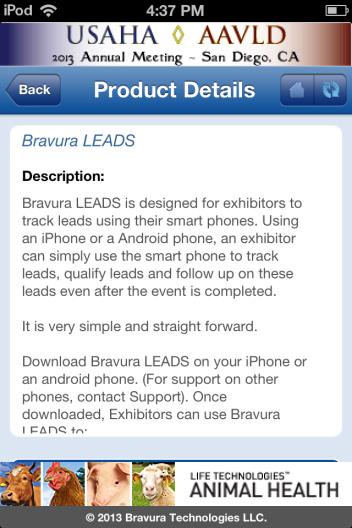
5 How does my company information appear in the mobile app?

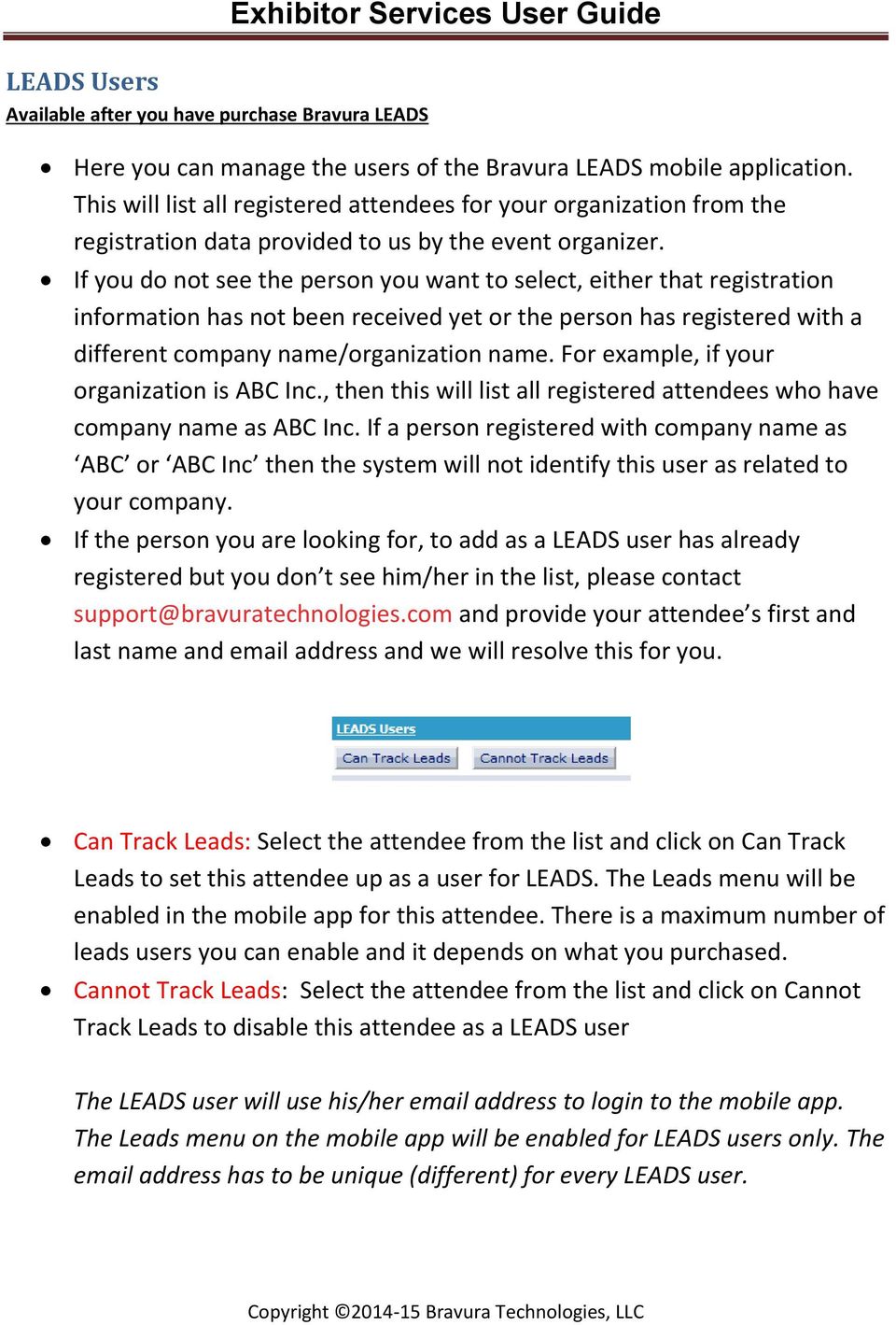
6 LEADS Users Available after you have purchase Bravura LEADS Exhibitor Services User Guide Here you can manage the users of the Bravura LEADS mobile application. This will list all registered attendees for your organization from the registration data provided to us by the event organizer. If you do not see the person you want to select, either that registration information has not been received yet or the person has registered with a different company name/organization name. For example, if your organization is ABC Inc., then this will list all registered attendees who have company name as ABC Inc. If a person registered with company name as ABC or ABC Inc then the system will not identify this user as related to your company. If the person you are looking for, to add as a LEADS user has already registered but you don t see him/her in the list, please contact [email protected] and provide your attendee s first and last name and address and we will resolve this for you. Can Track Leads: Select the attendee from the list and click on Can Track Leads to set this attendee up as a user for LEADS. The Leads menu will be enabled in the mobile app for this attendee. There is a maximum number of leads users you can enable and it depends on what you purchased. Cannot Track Leads: Select the attendee from the list and click on Cannot Track Leads to disable this attendee as a LEADS user The LEADS user will use his/her address to login to the mobile app. The Leads menu on the mobile app will be enabled for LEADS users only. The address has to be unique (different) for every LEADS user.
7 Qualifying Questions Available after you have purchase Bravura LEADS Here you can manage the qualifying form that the LEADS users will see when they track leads using the mobile application. Create a set of questions that you want to record for each of your leads. Setting up qualifying questions in an optional step. In addition to the questions, the app allows you to record notes. The questions are common for all LEADS users in your organization. Create a question: When you select this, you will see a list of predefined questions that you can select from. There are two types of responses: o Question with a typed in response or comment response o Question with a response that can be selected from a pick list Highlight one of the pre-defined questions and click on Select. You will have the chance to edit this question and its responses, BUT you cannot edit the response type (Choice or Comment Only). Edit a question: Highlight the question you just added, or any other question from the list and select Edit a question to edit the question. Depending on the response type, you will have the ability to edit the question or edit both the question and its valid responses. Type in your question and the list of valid choices. You can clear out any choices that you do not want to use. Selection Type: if more than one option can be selected, set the selection type to Multiple Remember to click on Save when you are done

8 ** Although you can edit qualifying questions at any time, a lock symbol will appear next to a question that has already been used to track leads and you will not be able to edit the questions that are locked. Remove a question: Highlight a question and select Remove a question to delete the question. Move Up/Down: Use this to order your questions. This controls the order in which questions appear on the mobile application.

9 My LEADS Available after you have purchase Bravura LEADS Exhibitor Services User Guide This is where you can view the leads you tracked using Bravura LEADS on the mobile app. Attendees at your booth: View a list of leads that stopped by your booth. See who added the lead, the lead details such as registration id, name, company, etc. o View the notes added for that lead. o At the bottom the screen you can view the questions and responses for the selected lead. Attendees accessing your info: Virtual leads are leads that connected with you via Mobile App. You can see the name and company of the user and you can also view what they did. Virtual leads are users who: o View: viewed your exhibitor details in Mobile App o Message: Sent you or someone in your organization a message via Mobile App o Appointment: Requested or accepted an appointment with you or someone in your organization via Mobile App o Added to To Do List: Added your company to their To Do list using Mobile App Export: Click on the Export Leads link to export all the leads you have captured in xls format. This excel will contain leads captured by all of the devices used at the event. The xls file exported will have 3 worksheets. Attendees at your booth: Registration ID, Date and time the lead was captured, Lead captured by, Full Name, company name, title, address, phone, street address and any notes you had entered against this lead. Qualifying Questions: Responses to Qualifying questions you defined. Attendees accessing your info: Full Name, company name, title, address, phone and street address.

10 Using the Mobile App to track LEADS The leads are captured using the Mobile App. Please download the mobile app from the Apple itunes Store or Google Play Store. The event organizer will notify you when the app becomes available. Login to the app as one of the LEADS users. LEADS users can be set up in the Exhibitor Services app using the LEADS User tab. Use a different user for each device you are using. Navigate to the Leads menu in the app. If you do not see the Leads menu, you are probably not allowed to capture Leads. Check your user settings and ensure it is set to CAN Track Leads. Under the Leads menu you will have the option of o Entering the last name (or registration id) of the attendee and searching for and selecting the attendee o Scanning the QR Code on the attendee badge o Adding a lead manually by entering all details One or more of the above options may not be available in some events Once you have added the attendee, you can add notes and select responses to qualifying questions you have created. LEADS can be used on the mobile app without an internet connection. However connectivity is required the first time you login to the mobile app. Make sure you synch up the leads you captured back to our server by selecting the Synchronize option on the mobile app (top right menu) whenever you have connectivity. QUESTIONS? Please [email protected] and we will be happy to help.

Schools CPD Online General User Guide Contents
 Schools CPD Online General User Guide Contents New user?...2 Access the Site...6 Managing your account in My CPD...8 Searching for events...14 Making a Booking on an Event...20 Tracking events you are
MLeads. Mobile App User's Guide
 MLeads Mobile App User's Guide About us As you know, turning leads into sales is complicated, leads are difficult to capture and organize, follow-ups are difficult and sales cycles are long, ROI is difficult
Booth Gmail Configuration
 Student email is accessed via a Booth branded Gmail service. Student mailboxes will be accessed via Gmail. Configure Gmail Settings Before you connect Gmail to send and receive Booth Gmail on your mobile
ExpoBadge Mobile App User Guide
 ExpoBadge Mobile App User Guide ExpoLeads Mobile is an application that can be used to scan, qualify and survey attendees at events and trade shows using smart phones or tablets. It is compatible with
Initial Setup of Microsoft Outlook with Google Apps Sync for Windows 7. Initial Setup of Microsoft Outlook with Google Apps Sync for Windows 7
 Microsoft Outlook with Initial Setup of Concept This document describes the procedures for setting up the Microsoft Outlook email client to download messages from Google Mail using Internet Message Access
MLeads. Mobile App User's Guide. Never Lose a Lead Again..
 MLeads Mobile App User's Guide Never Lose a Lead Again.. About us As you know, turning leads into sales is complicated, leads are difficult to capture and organize, follow-ups are difficult and sales cycles
User Guidelines. For. Smart Phone App - Mleads Lite (Version- 3.0)
 User Guidelines For Smart Phone App - Mleads Lite (Version- 3.0) Table of Contents Splash screen:... 3 Registration screen:... 3 Login:... 4 Upgrade & Review screen:... 4 Home screen:... 5 Events screen:...
Benutzerhandbuch TrustDrive. Mobile Clients
 Benutzerhandbuch TrustDrive Mobile Clients Verfasser Dobratz Gunter Version 1.0 Datum 6. Juli 2015 Inhaltsübersicht 1. Installing TrustDrive...2 2. Starting TrustDrive for the First Time...2 3. Joining
Brainloop Secure Dataroom Version 8.30. QR Code Scanner Apps for ios Version 1.1 and for Android
 Brainloop Secure Dataroom Version 8.30 QR Code Scanner Apps for ios Version 1.1 and for Android Quick Guide Brainloop Secure Dataroom Version 8.30 Copyright Brainloop AG, 2004-2015. All rights reserved.
GIFF 2014 Event App User Guide
 GIFF 2014 Event App User Guide Event App Installation Guide GETTING STARTED GIFF 2014 App Installation Guide The event app is a convenient way to review everything you need to know about GIFF 2014 Enhance
PowerSchool. Parent Single Sign-On (SSO)
 PowerSchool Parent Single Sign-On (SSO) K i n g s C a n y o n U n i f i e d 6 7 5 W M a n n i n g A v e, R e e d l e y, C A 9 3 6 5 4 559-3 0 5-7 0 1 0 w w w. k c u s d. c o m Starting with the 2015-2016
The Official GFWC Mobile App Guide Last Updated 2/3/2016
 The Official GFWC Mobile App Guide Last Updated 2/3/2016 Table of Contents: 1. Overview and Disclaimers 1.1. Description.Page 2-3 1.2. Changes... Page 3 1.3. Photo/Information Use Disclaimer..... Page
Business Book NCSBN 2012 Annual Meeting Driving Onward
 Section I: Meeting Resources 2012 NCSBN Annual Meeting Mobile App Event Guide 7 Save the Date: 2012-2013 Upcoming Events 11 Directions for Obtaining Continuing Education (CE) Contact Hours for the 2012
Using OwnCloud. OwnCloud is a very easy to use file storage and sharing system that you can access anywhere you have an internet connection.
 Using OwnCloud OwnCloud is a very easy to use file storage and sharing system that you can access anywhere you have an internet connection. 1. Contact the IT Department to set up your account. 2. Once
App Operating Instructions Manual ES File Explorer
 App Operating Instructions Manual ES File Explorer 2013/5 ES File Explorer (for Android only) In addition to managing local / shared / FTP / and Bluetooth file folders, you can also directly manage a variety
File Storage. This is a manual that contains pertinent information about your File Storage space at SLC.
 File Storage This is a manual that contains pertinent information about your File Storage space at SLC. About All students at SLC are provided with an allotment of secure storage space to save and store
Interreg Europe Online application system USER MANUAL
 European Union European Regional Development Fund Sharing solutions for better regional policies Interreg Europe Online application system USER MANUAL 01 June 2015 v. 01/06/2015 Login: Login information
Initial Setup of Microsoft Outlook 2011 with IMAP for OS X Lion
 Initial Setup of Microsoft Outlook Concept This document describes the procedures for setting up the Microsoft Outlook email client to download messages from Google Mail using Internet Message Access Protocol
1 Mhelpdesk LLC. mhelpdesk.com @mhelpdesk
 1 Mhelpdesk LLC. mhelpdesk.com @mhelpdesk Mhelpdesk Success Stories Mhelpdesk has allowed us to out-compete our competition big and small! Before incorporating Mhelpdesk into our business, we were scattered
Lenovo Partner Access - Overview
 Table of Contents: Lenovo Partner Access Overview How to Access the Lenovo Partner Access Portal Registration Process and Account Activation First time login Accepting the T s & C s and Selecting Challenge
GETTING STARTED GUIDE
 [email protected] Support: +84-4-3127-1357 SIMICLOUD GETTING STARTED GUIDE - Version 1.0-1 Table of Content 1. INTRODUCTION... 3 2. HOW TO NAVIGATE... 4 3. HOW TO CREAT A MOBILE SHOPPING APP... 8 3.1.
COSTARS Sales Reporting Manual December 2013
 COSTARS Sales Reporting Manual December 2013-1 - DGS/COSTARS website Suppliers access the COSTARS website through the DGS website. Follow the steps below to navigate to the COSTARS website. 1. Navigate
How to Use JCWHosting Reseller Cloud Storage Solution
 How to Use JCWHosting Reseller Cloud Storage Solution Go to https://www.internetspace.co.za and log in with your Cloud Reseller account username and password. How to Use create a cloud account for your
EMAIL CONFIGURATION AND SETUP USER GUIDE AND REFERENCE MANUAL
 EMAIL CONFIGURATION AND SETUP USER GUIDE AND REFERENCE MANUAL The following manual will outline the configuration and setup for email access by any staff member. There are multiple ways to configure this
B&SC Office 365 Email
 B&SC Office 365 Email Microsoft Office 365 In its continuous efforts to provide the highest quality student experience, Bryant & Stratton College is giving students access to a new tool for accessing email.
Follow these easy instructions to list your business on the BEC Australia National Business Directory.
 Follow these easy instructions to list your business on the BEC Australia National Business Directory. Go to www.becaustralia.org.au 1. Click on the Directory tab (see below) 2. Click on the Add listing
Downloading the GAIG Annuity App. Log In Screen. Home Page
 Downloading the GAIG Annuity App ios users: https://itunes.apple.com/us/app/gaig-annuity/id925743711?ls=1&mt=8 Android users: https://play.google.com/store/apps/details?id=com.gaig.annuity.app.mobile.android.agent
Welcome to the Opus Bank Mobile Banking App User Guide
 Welcome to the Opus Bank Mobile Banking App User Guide 1.855.678.7226 [email protected] www.opusbank.com Table of Contents Enroll in Mobile Banking & Install App... 3 Login to Personal Online
How To Use Textbuster On Android (For Free) On A Cell Phone
 www.textbuster.com 1 Applications and Account Manager Dashboard User Guide For Android phones www.textbuster.com 2 Downloading the TextBuster applications After the TextBuster device is installed into
Information for Job Seekers
 Information for Job Seekers The Workforce Planning Board and Conestoga College would like to invite you to participate in Today's Portal for Tomorrow's Job, a Virtual Job Fair from November 18th 22nd.
1. Application Overview... 3. 2. System Requirements... 3. 3. Installation... 3. 4. Splash Screen... 4. 5. Registration Screen...
 1 P a g e Table of Contents 1. Application Overview... 3 2. System Requirements... 3 3. Installation... 3 4. Splash Screen... 4 5. Registration Screen... 5 5.1 Registration... 5 6. Login Screen... 7 6.1
Table of Contents 1. Contents...1
 Table of Contents 1. Contents...1 1.1 Introduction/Getting Started...1 1.1.1 Creating an Account...1 1.1.2 Logging In...2 1.1.3 Forgotten Password...2 1.1.4 Creating a New Project...3 1.2 My Projects...3
1. Manage your Group. 1. Log on to the CampusGroups platform.
 1 1. Manage your Group 1. Log on to the CampusGroups platform. 2. Upon logging in, select your club from the Groups drop-down (next to the Home icon) and click on the Manage button next to the group of
EBOX Digital Content Management System (CMS) User Guide For Site Owners & Administrators
 EBOX Digital Content Management System (CMS) User Guide For Site Owners & Administrators Version 1.0 Last Updated on 15 th October 2011 Table of Contents Introduction... 3 File Manager... 5 Site Log...
Step by Step. Use the Cloud Login Website
 Step by Step HOW TO Use the Cloud Login Website This How To article will show you how to use the Cloud Login Website to upload and download your files from the cloud. For a complete list of available How
How to generate an APNs Certificate to use the Apple MDM protocol via the portal
 How to generate an APNs Certificate to use the Apple MDM protocol via the portal Introduction Before you can manage ios devices with your device management portal you will need an Apple Push Notification
ewebextra OfficeMate Integration User s Guide
 ewebextra OfficeMate Integration User s Guide September 2013 2013 Eyefinity, Inc. All rights reserved. Eyefinity, OfficeMate, ewebextra, and ExamWRITER are registered trademarks of Eyefinity, Inc. All
Visit Connect Full User Guide R3.17
 Visit Connect Full User Guide R3.17 Contents 1. Welcome to Visit Connect... 3 Scan app... 3 Barcode Scanners... 3 Web Portal... 3 2. Getting started... 4 3. Scan App for Mobile Devices... 5 Download...
How to Add Users 1. 2.
 Administrator Guide Contents How to Add Users... 2 How to Delete a User... 9 How to Create Sub-groups... 12 How to Edit the Email Sent Out to New Users... 14 How to Edit and Add a Logo to Your Group's
2) Log in using the Email Address and Password provided in your confirmation email
 Welcome to HR Classroom! The following will show you how to use your HR Classroom admin account, including setting up Training Groups, inserting Policies, and generating Trainee Reports. 1) Logging into
1. Go to ArizOTA.org, and select Employer Registration from the OT Jobs drop down menu:
 Welcome Thank you for your interest in ArizOTA.org s Job Advertisement feature. We ve made many changes and improvements to our job listings, including the following enhancements: You can now create an
Welcome to PowerClaim Net Services!
 Welcome to PowerClaim Net Services! PowerClaim Net Services provides a convenient means to manage your claims over the internet and provides detailed reporting services. You can access PowerClaim Net Services
Google Integration Instructions
 SAFARI Montage Google Integration Instructions SAFARI Montage now offers Interoperability Support Services subscribers a powerful new integration option that links SAFARI Montage directly with Google,
Initial Setup of Mozilla Thunderbird with IMAP for Windows 7
 Initial Setup of Mozilla Thunderbird Concept This document describes the procedures for setting up the Mozilla Thunderbird email client to download messages from Google Mail using Internet Message Access
ewebextra OfficeMate Integration User s Guide
 ewebextra OfficeMate Integration User s Guide April 2014 2014 Eyefinity, Inc. All rights reserved. Eyefinity, OfficeMate, ewebextra, and ExamWRITER are registered trademarks of Eyefinity, Inc. All other
Getting started with OneDrive
 Getting started with OneDrive What is OneDrive? OneDrive is an online storage area intended for business purposes. Your OneDrive library is managed by the University. You can use it to share documents
Mobile Conference Connection User Guide Apple iphone Mobile Device
 User Guide: Insert Title Mobile Conference Connection User Guide Apple iphone Mobile Device What is Mobile Conference Connection? Mobile Conference Connection (MCC) enables registered Instant Meeting leaders
Cloud Services MDM. ios User Guide
 Cloud Services MDM ios User Guide 10/24/2014 CONTENTS Overview... 3 Supported Devices... 3 System Capabilities... 3 Enrollment and Activation... 4 Download the Agent... 4 Enroll Your Device Using the Agent...
Help. myprint introduction myprint website. Create account. Forgot your password? Home. Printing using upload (WebPrint)
 myprint Help myprint introduction myprint website Create account Forgot your password? Home Printing using upload (WebPrint) Printing using email (EmailPrint) Printing using Right Mouse Click (Sent To
SNAMP Data Server Tutorial
 SNAMP Data Server Tutorial The server hosted by UC Merced is a data server that is used to share data among the science teams and with the public. To ensure the proper data disclosure, a sharing level
8 Ways to Sell In-App Sponsorships. Generate revenue with your mobile event app.
 8 Ways to Sell In-App Sponsorships Generate revenue with your mobile event app. 20 Mobile sponsor ads are dynamic, measurable, and easily editable for last-minute strategy tweaks. We'll show you how sponsors
Helpdesk Portal End User Guide
 Helpdesk Portal End User Guide Contents Using the Portal... 3 Portal web page... 3 Log in... 3 Log out... 3 Managing your account... 4 Terminology... 4 Submit a ticket... 5 Help us to Help you... 6 Upload
Mobile Iron User Guide
 2015 Mobile Iron User Guide Information technology Sparrow Health System 9/1/2015 Contents...0 Introduction...2 Changes to your Mobile Device...2 Self Service Portal...3 Registering your new device...4
Using the Help Desk. Logging into Help Desk. Creating a New Help Desk Ticket
 powered by Logging into Help Desk 1. Go to http://helpdesk.hslc.org. 2. Login using your username and password. 3. Are you creating a new Help Desk ticket? If yes, see Creating a New Help Desk Ticket.
Strategic Asset Tracking System User Guide
 Strategic Asset Tracking System User Guide Contents 1 Overview 2 Web Application 2.1 Logging In 2.2 Navigation 2.3 Assets 2.3.1 Favorites 2.3.3 Purchasing 2.3.4 User Fields 2.3.5 History 2.3.6 Import Data
WebEx Integration to Outlook. User Guide
 WebEx Integration to Outlook User Guide 072310 Copyright 1997 2010 Cisco and/or its affiliates. All rights reserved. WEBEX, CISCO, Cisco WebEx, the CISCO logo, and the Cisco WebEx logo are trademarks or
/ 1. Online Banking User Guide SouthStateBank.com / (800) 277-2175
 / 1 Online Banking User Guide SouthStateBank.com / (800) 277-2175 Welcome Thank you for using South State s Online Banking. Whether you are a first time user or an existing user, this guide will walk you
Somalia Online Projects System
 Somalia Online Projects System CHF DATABASE Main steps 1. Partner registration. This is upon submission of the partners profile (certificate of registration, contact details, board of directors details,
Council of Ontario Universities. COFO Online Reporting System. User Manual
 Council of Ontario Universities COFO Online Reporting System User Manual Updated September 2014 Page 1 Updated September 2014 Page 2 Table of Contents 1. Security... 5 Security Roles Defined in the Application...
Get Up & Thrive. Program Frequently Asked Questions
 Get Up & Thrive. Program Frequently Asked Questions What is Get Up & Thrive.? Get Up & Thrive. is a comprehensive, activity based social wellness program that helps individuals set and meet personal health
Country Club Bank- Intro to Mobile Banking- Android & iphone Apps
 Country Club Bank- Intro to Mobile Banking- Android & iphone Apps MOBILE APP BANKING (FOR IPHONE AND ANDROID)... 2 SIGN ON PAGE... 4 ACCOUNT SUMMARY PAGE... 4 ACCOUNT ACTIVITY PAGE... 6 SEARCH ACTIVITY
For technical assistance our webmaster can be reached at [email protected].
 Welcome Thank you for your interest in ArSHA.org s job listing boards. We ve made a number of changes and improvements to our job listings, including the following enhancements: You can now create an account
DarwiNet Client Level
 DarwiNet Client Level Table Of Contents Welcome to the Help area for your online payroll system.... 1 Getting Started... 3 Welcome to the Help area for your online payroll system.... 3 Logging In... 4
Administrator Instructions for Link2CDMS Contractor Document Management System
 Table of Contents Administrator Instructions for Link2CDMS Contractor Document Management System Getting Started... 2 Viewing Your Approvals Dashboard... 2 Specifying Contractor Approval Status... 7 Adding
Outlook Web App User Guide
 Outlook Web App Table of Contents QUICK REFERENCE... 2 OUTLOOK WEB APP URL... 2 Imagine! Help Desk...... 2 OUTLOOK WEB APP MAIN WINDOW... 2 KEY NEW FEATURES... 3 GETTING STARTED WITH OUTLOOK... 4 LOGGING
NOTE: New directions for accessing the Parent Portal using Single Sign On
 NOTE: New directions for accessing the Parent Portal using Single Sign On PROCESS STEPS SCREEN SHOTS Launch a web browser (Internet Explorer, Safari, or FireFox) and go to PowerSchool Parent Portal URL:
How to install/upgrade the LANDesk virtual Cloud service appliance (CSA)
 How to install/upgrade the LANDesk virtual Cloud service appliance (CSA) The upgrade process for the virtual Cloud Services Appliance is a side- by- side install. This document will walk you through backing
Guide to Training Teachers on the Co-op Dashboard
 Guide to Training Teachers on the Co-op Dashboard https://www.hourrepublic.com Hour Republic is a tool used by (i) students to track co-op hours, activities, skills and more, and (ii) teachers to monitor
SAS Visual Analytics 7.1 for SAS Cloud. Quick-Start Guide
 SAS Visual Analytics 7.1 for SAS Cloud Quick-Start Guide The correct bibliographic citation for this manual is as follows: SAS Institute Inc. 2014. SAS Visual Analytics 7.1 for SAS Cloud: Quick-Start Guide.
A Guide to using egas Lead Applicant
 A Guide to using egas Lead Applicant egas Browsers and Browser Settings Logging In Passwords Navigation Principles Your Contact Details Tasks Overview Completing Tasks egas The Health and Care Research
Social Application Guide
 Social Application Guide Version 2.2.0 Mar 2015 This document is intent to use for our following Magento Extensions Or any other cases it might help. Copyright 2015 LitExtension.com. All Rights Reserved
Administrator Quick Start Guide
 This guide is designed to provide Administrators with a quick overview of the features and functionalities provided to them in LEARN360 s Administration section. Login Figures 1-4 feature different components
You should see the following screen when you first login to Student E-Service
 You should see the following screen when you first login to Student E-Service Check your status at the bottom of the screen. It should read Ready to Register Online You will find useful information in
A quick guide to setting up your new website
 A quick guide to setting up your new website Hi there. Welcome to MrSite we re really happy you chose to build your brand new website with us and look forward to seeing what you create! We re sure you
Reseller Panel Step-by-Step Guide
 1. Legal notice setup. Alternative language setup. Enter legal notice as text. Enter legal notice as link 2. ResellerPanel design. Edit colors and layout. Edit themes and icons 3. Create a new customer.
Client Portal User Guide
 NetClient CS Client Portal User Guide Simple, Secure and Always-On Document Sharing ACCOUNTING AUDIT TAX TECHNOLOGY CONSULTING BUSINESS ADVISORY SERVICES Contents Introduction... 1 System requirements
MDM User Guide June 2012
 June 2012 Sy mantec Corporation, 2012 Page 1 Purpose of Document This document provides a guide for users of App Center to set up and use Mobile Device Management (MDM) capabilities. MDM allows the App
Kalendi Android Calendar Client User Manual
 Kalendi Android Calendar Client User Manual After Installation! 1 How to hook up to Kalendi! 2 How to hook up to Google! 4 Periodic Syncing! 4 Calendars! 5 Recurring events! 6 Custom properties! 8 Attachments!
ClicktoFax Service Usage Manual
 ClicktoFax Service Usage Manual 1. Log in to Fax Service 2. Configure your account 3. Send a fax 4. Receive a fax/search for Faxes/View Faxes 5. Logout 6. Additional Support 1. Log into fax service: a.
SPONSORSHIP OPPORTUNITIES. #ibtmamerica
 SPONSORSHIP OPPORTUNITIES #ibtmamerica 1 Digital Sponsorships 2 WEBSITE BANNER HEADER BOARD Header Banner (580x250) You ll receive a hyperlinked banner displayed throughout the ibtm america website Visibility
ExDesk s Quick Start Account Configuration Guide
 ExDesk s Quick Start Account Configuration Guide 1. Some Quick Definitions 2. Account Creation 3. The Decisions 4. Customizing your ExDesk account 5. Creating Admins 6. Creating additional Clients 7. Sharing
NetSuite OpenAir Mobile for Android User Guide Version 1.3
 NetSuite OpenAir Mobile for Android User Guide Version 3 General Notices Attributions NetSuite OpenAir includes functionality provided by HighCharts JS software, which is owned by and licensed through
EXPOLeads Connect User Guide
 EXPOLeads Connect User Guide EXPOLeads Mobile is an application that can be used to scan, qualify and survey attendees at events and trade shows using smartphones or tablets. It is compatible with most
GET INTO OFFICE 365: OneDrive for Business Guide
 GET INTO : OneDrive for Business Guide Your classroom resources online, anywhere at any time. This guide will introduce you to OneDrive for Business, which is part of the Office 365 offering provided by
Step 1. Step 2. Open your browser and go to https://accounts.bestcare.org and you will be presented a logon screen show below.
 Manage your two-factor options through the accounts.bestcare.org website. This website is available internally and externally of the organization. Like other services, if you connect while external of
/ 1. Online Banking User Guide SouthStateBank.com / (800) 277-2175
 / 1 Online Banking User Guide SouthStateBank.com / (800) 277-2175 Welcome Thank you for using South State s Online Banking. Whether you are a first time user or an existing user, this guide will walk you
Service Desk Menu. User Guide. Concerto Support Services Ltd Stuart Cripps 1/30/2013
 Service Desk Menu User Guide Concerto Support Services Ltd Stuart Cripps 1/30/2013 Contents Getting Started... 3 Logging In... 4 Assigning to your favourites... 5 Service Desk Menu Introduction... 6 Service
DocuSign Connect for Salesforce Guide
 Information Guide 1 DocuSign Connect for Salesforce Guide 1 Copyright 2003-2013 DocuSign, Inc. All rights reserved. For information about DocuSign trademarks, copyrights and patents refer to the DocuSign