
How To Send Mail From A Macbook Access To A Pc Or Ipad With A Password Protected Address (Monroe Access) On A Pc (For Macbook) Or Ipa (For Ipa) On Pc Or Macbook (For
|
|
|
- Oscar Richard
- 5 years ago
- Views:
Transcription
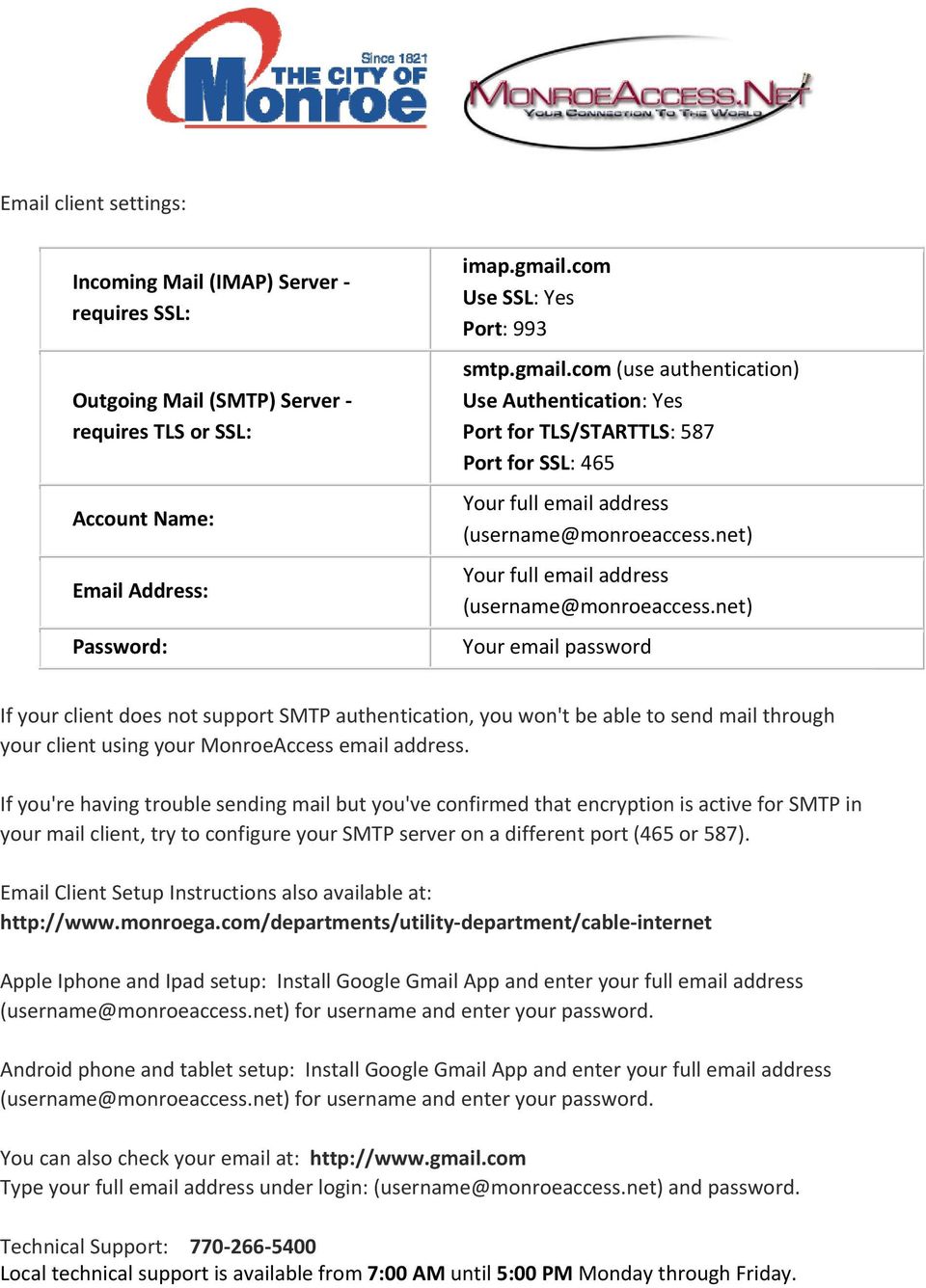
1 client settings: Incoming Mail (IMAP) Server requires SSL: Outgoing Mail (SMTP) Server requires TLS or SSL: Account Name: Address: Password: imap.gmail.com Use SSL: Yes Port: 993 smtp.gmail.com (use authentication) Use Authentication: Yes Port for TLS/STARTTLS: 587 Port for SSL: 465 Your full address Your full address Your password If your client does not support SMTP authentication, you won't be able to send mail through your client using your MonroeAccess address. If you're having trouble sending mail but you've confirmed that encryption is active for SMTP in your mail client, try to configure your SMTP server on a different port (465 or 587). Client Setup Instructions also available at: department/cable internet Apple Iphone and Ipad setup: Install Google Gmail App and enter your full address ([email protected]) for username and enter your password. Android phone and tablet setup: Install Google Gmail App and enter your full address ([email protected]) for username and enter your password. You can also check your at: Type your full address under login: ([email protected]) and password. Technical Support: Local technical support is available from 7:00 AM until 5:00 PM Monday through Friday.
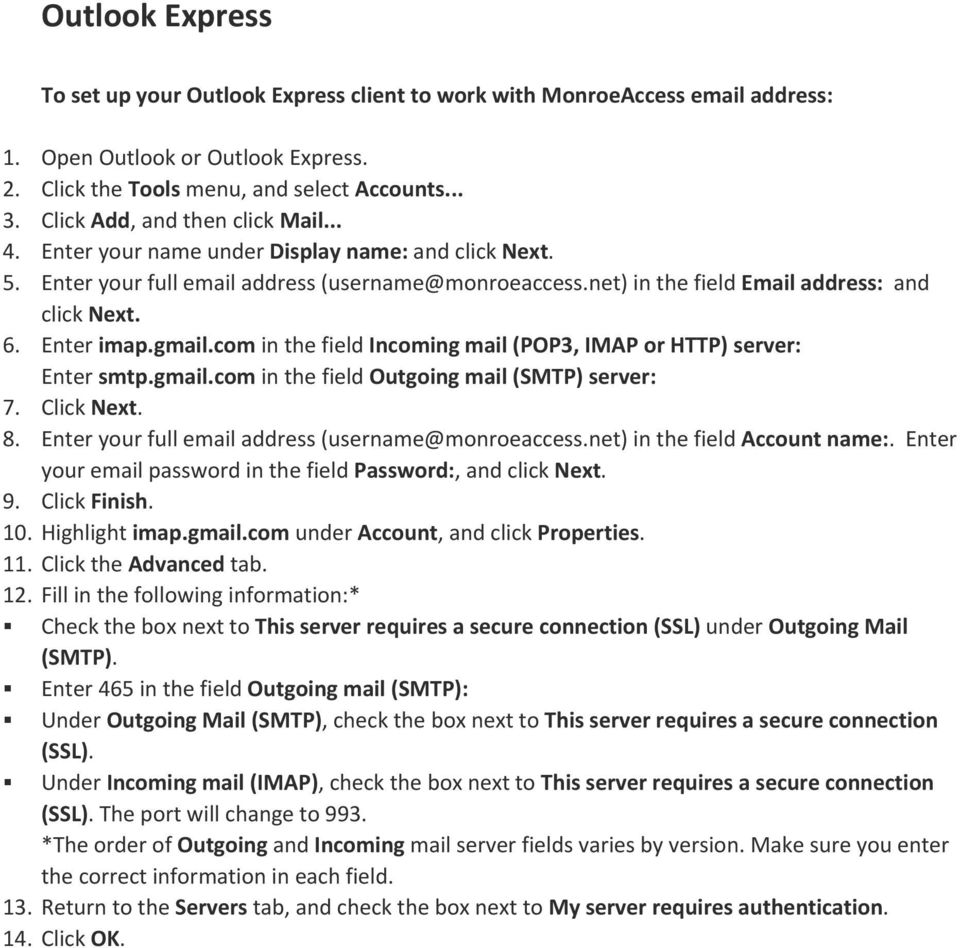
2 Outlook Express To set up your Outlook Express client to work with MonroeAccess address: 1. Open Outlook or Outlook Express. 2. Click the Tools menu, and select Accounts Click Add, and then click Mail Enter your name under Display name: and click Next. 5. Enter your full address in the field address: and click Next. 6. Enter imap.gmail.com in the field Incoming mail (POP3, IMAP or HTTP) server: Enter smtp.gmail.com in the field Outgoing mail (SMTP) server: 7. Click Next. 8. Enter your full address in the field Account name:. Enter your password in the field Password:, and click Next. 9. Click Finish. 10. Highlight imap.gmail.com under Account, and click Properties. 11. Click the Advanced tab. 12. Fill in the following information:* Check the box next to This server requires a secure connection (SSL) under Outgoing Mail (SMTP). Enter 465 in the field Outgoing mail (SMTP): Under Outgoing Mail (SMTP), check the box next to This server requires a secure connection (SSL). Under Incoming mail (IMAP), check the box next to This server requires a secure connection (SSL). The port will change to 993. *The order of Outgoing and Incoming mail server fields varies by version. Make sure you enter the correct information in each field. 13. Return to the Servers tab, and check the box next to My server requires authentication. 14. Click OK.
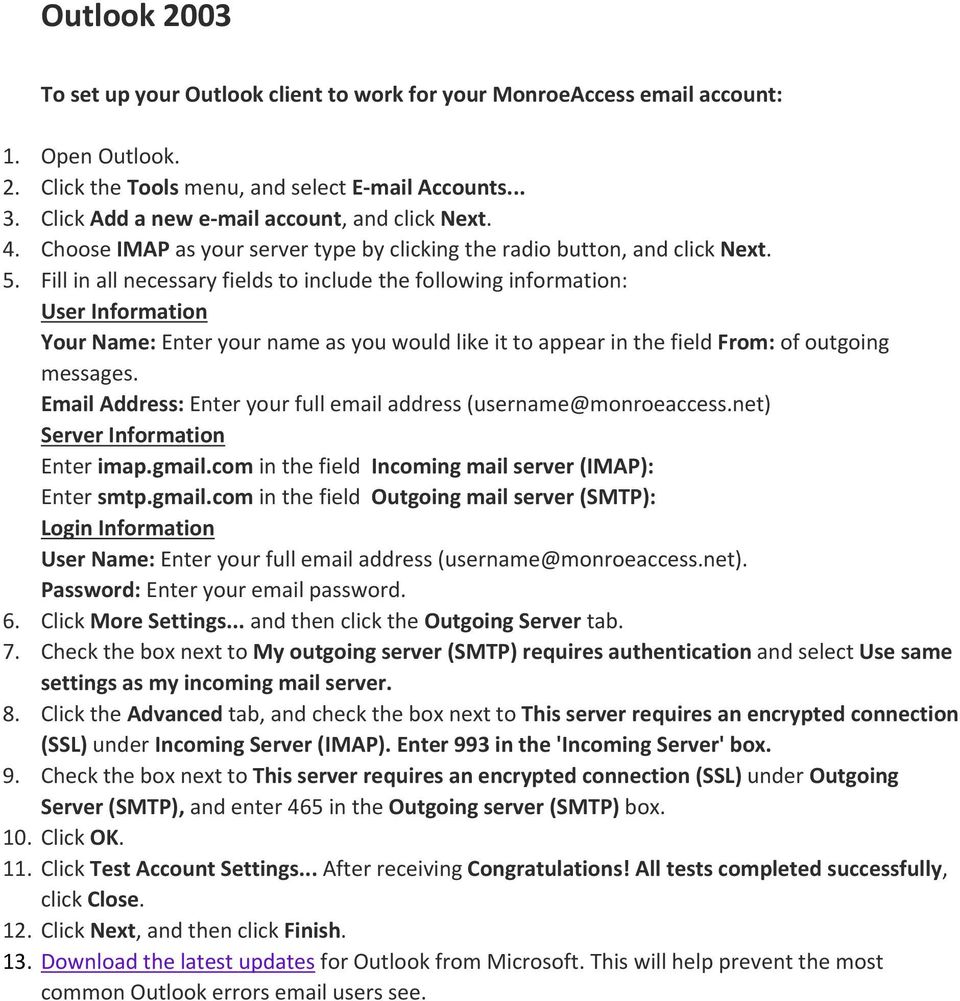
3 Outlook 2003 To set up your Outlook client to work for your MonroeAccess account: 1. Open Outlook. 2. Click the Tools menu, and select E mail Accounts Click Add a new e mail account, and click Next. 4. Choose IMAP as your server type by clicking the radio button, and click Next. 5. Fill in all necessary fields to include the following information: User Information Your Name: Enter your name as you would like it to appear in the field From: of outgoing messages. Address: Enter your full address ([email protected]) Server Information Enter imap.gmail.com in the field Incoming mail server (IMAP): Enter smtp.gmail.com in the field Outgoing mail server (SMTP): Login Information User Name: Enter your full address ([email protected]). Password: Enter your password. 6. Click More Settings... and then click the Outgoing Server tab. 7. Check the box next to My outgoing server (SMTP) requires authentication and select Use same settings as my incoming mail server. 8. Click the Advanced tab, and check the box next to This server requires an encrypted connection (SSL) under Incoming Server (IMAP). Enter 993 in the 'Incoming Server' box. 9. Check the box next to This server requires an encrypted connection (SSL) under Outgoing Server (SMTP), and enter 465 in the Outgoing server (SMTP) box. 10. Click OK. 11. Click Test Account Settings... After receiving Congratulations! All tests completed successfully, click Close. 12. Click Next, and then click Finish. 13. Download the latest updates for Outlook from Microsoft. This will help prevent the most common Outlook errors users see.
4 Outlook 2007/2010 To configure Outlook 2007/2010 for your MonroeAccess account: 1. Open Outlook. 2. Click the Tools menu, and select Account Settings On the E mail tab, click New Configure Outlook 2007/2010 manually, select Internet E mail and click Next. 5. Verify your User Information, and enter the following additional information: Server Information Account Type: IMAP Enter imap.gmail.com in the field Incoming mail server (IMAP): Enter smtp.gmail.com in the field Outgoing mail server (SMTP): Logon Information User Name: Enter your full address ([email protected]). Password: Enter your password. Require logon using Secure Password Authentication (SPA): Leave this option unchecked. 6. Click the More Settings... button, and select the Outgoing Server tab. 7. Check the box next to My outgoing server (SMTP) requires authentication and select Use same settings as my incoming mail server. 8. Click the Advanced tab, and check the box next to This server requires an encrypted connection (SSL) under Incoming Server (IMAP). Enter 993 in the 'Incoming Server' box. 9. In the Outgoing server (SMTP) box, enter 587, and select TLS from the drop down menu next to Use the following type of encrypted connection:. 10. Click OK. 11. Click Test Account Settings... After receiving 'Congratulations! All tests completed successfully', click Close. 12. Click Next, and then click Finish.

5 Windows Mail To configure Windows Mail for your MonroeAccess address: 1. Open Windows Mail. 2. Click the Tools menu, and select Accounts Click Add Select Account, and click Next. 5. Enter your name as you would like it to appear in the 'From:' field of outgoing messages, and click Next. 6. Enter your full address 7. Fill in all necessary fields to include the following information: Incoming mail server type: IMAP Enter imap.gmail.com in the field Incoming mail (POP3 or IMAP) server: Enter smtp.gmail.com in the field Outgoing e mail server (SMTP) name: Outgoing server requires authentication: enabled 8. Click Next, and enter your full address ([email protected]) and your password. 9. Click Next, and then check the box next to Do not download my e mail at this time. Click Finish. 10. On the Internet Accounts screen, make sure that your imap.gmail.com mail account is selected, and click the Properties button. 11. On the Advanced tab, enter 465 in the in the box next to Outgoing mail (SMTP), and check the box next to This server requires an encrypted connection (SSL). 12. Check the box next to This server requires an encrypted connection (SSL) under Incoming mail (IMAP). The box next to Incoming mail (IMAP) should automatically update to Click OK. You're done! Close the Internet Accounts window and click Send/Receive to start checking your MonroeAccess messages.

6 Apple Mail 4.0 Please note that if you're adding your MonroeAccess address to Apple Mail 4.0 for the first time with automatic configuration, your mail will be configured for IMAP access. To set up your Apple Mail 4.0 client to work with your MonroeAccess address: 1. Enable IMAP. Don't forget to click Save Changes when you're done. 2. Open your Apple Mail client 3. Fill in the Welcome to Mail window with the following information: o Full Name: [your name] o Address: Your full address ([email protected]) o Password: Your password 4. Click Continue 5. Fill in the following Incoming Mail Server information: o Account Type: Select IMAP o Incoming Mail Server: Change this to imap.gmail.com o User Name: Your full address ([email protected]) o Password: Your password 6. Click Continue 7. Incoming Mail Security o Use Secure Sockets Layer (SSL): selected o Authentication: Password 8. Click Continue 9. Enter the following Outgoing Mail Server information: o You can leave description blank this field is optional o Outgoing Mail Server: smtp.gmail.com o Use Authentication: selected o User Name: Your full address ([email protected]) o Password: Your password 10. Click Continue. 11. Outgoing Mail Security o Use Secure Sockets Layer (SSL): selected o Authentication: Password 12. Click Continue 13. Review your Account Summary and uncheck Take account online as you will need to adjust your incoming port number 14. Click Create
![Fill in the Welcome to Mail window with the following information: o Full Name: [your name] o Email Address: Your full email address (username@monroeaccess.net) o Password: Your email password 4.](/docs-images/41/7895171/images/page_6.jpg "Click Continue 5. Fill in the following Incoming Mail Server information: o Account Type: Select IMAP o Incoming Mail Server: Change this to imap.gmail.")
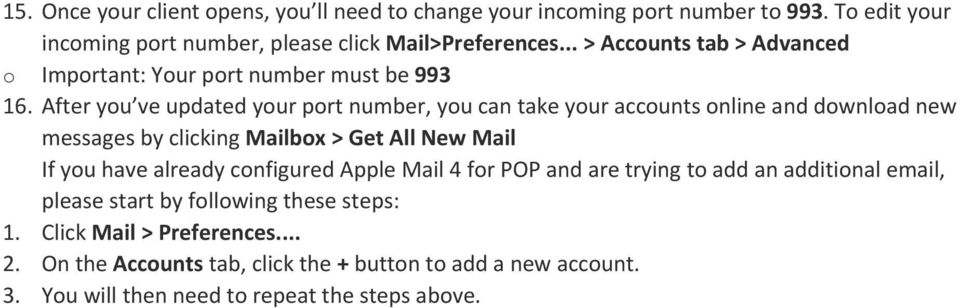
7 15. Once your client opens, you ll need to change your incoming port number to 993. To edit your incoming port number, please click Mail>Preferences... > Accounts tab > Advanced o Important: Your port number must be After you ve updated your port number, you can take your accounts online and download new messages by clicking Mailbox > Get All New Mail If you have already configured Apple Mail 4 for POP and are trying to add an additional , please start by following these steps: 1. Click Mail > Preferences On the Accounts tab, click the + button to add a new account. 3. You will then need to repeat the steps above.
Email Update Instructions
 1 Email Update Instructions Contents Email Client Settings The Basics... 3 Outlook 2013... 4 Outlook 2007... 6 Outlook Express... 8 Windows Mail... 9 Thunderbird 3... 10 Apple Mail... 11 2 Email Client
Using Outlook with SaderApps
 William Carey University Information Technology Using Outlook with SaderApps January 12, 2011 2011 William Carey University 498 Tuscan Avenue, Box 147 Hattiesburg, MS 39401 Phone 601.318.6203 Fax 601.318.6546
Email Update Instructions
 1 Email Update Instructions Contents Email Client Settings The Basics... 3 Outlook 2013... 4 Outlook 2007... 6 Outlook Express... 7 Windows Mail... 8 Thunderbird 3... 9 Apple Mail... 10 Apple Mail 8.2...
How to Set Up Your. Email Account
 How to Set Up Your Email Account Contents Outlook 2002 (Office XP)... 3 Outlook 2003 (Office 2003)... 6 Outlook 2007 (Office 2007)... 10 Outlook 2010 (Office 2010)... 14 Outlook Account Setup Page 2 HOW
Email Update Instructions
 1 Email Update Instructions Contents Email Client Settings The Basics... 3 Outlook 2013... 4 Outlook 2007... 6 Outlook Express... 7 Windows Mail... 8 Thunderbird 3... 9 Apple Mail... 10 2 Email Client
How to Pop Email to Outlook
 Webmail Access How to Pop Email to Outlook You can access your email account through the following URL: http://webmail.usalocalbiz.com. The login is your full email address and your account password. We
Getting started with IMAP for Aggiemail What is IMAP?
 Getting started with IMAP for Aggiemail What is IMAP? IMAP, or Internet Message Access Protocol, lets you download messages from Aggiemail s servers onto your computer so you can access your mail with
Open Thunderbird. To set up an e-mail account in Thunderbird, from the Tools menu select Account Settings; choose Email account; then click Next.
 Server Type: POP3 or IMAP Incoming(POP3 or IMAP) Mail Server: student.ncnm.edu POP3 Port: 995 (SSL) IMAP Port: 993 (SSL) Outgoing(SMTP) Mail Server: student.ncnm.edu SMTP Port: 587 (TLS) (Users must change
Email Update Instructions
 Email Update Instructions Table of Contents Email Client Settings The Basics... 2 Outlook 2013... 2 Outlook 2007... 4 Outlook Express... 6 Windows Mail... 7 Thunderbird 3... 9 Apple Mail... 11 1 Email
Outlook Express. Make Changes in Red: Open up Outlook Express. From the Menu Bar. Tools to Accounts - Click on. User Information
 Outlook Express Open up Outlook Express From the Menu Bar Tools to Accounts - Click on Mail Tab Click on mail.btconline.net mail (default) Click on Properties button Click on the General tab User Information
Email setup information for most domains hosted with InfoRailway.
 Email setup information for most domains hosted with InfoRailway. Incoming server (POP3): pop.secureserver.net port 995 (SSL) Incoming server (IMAP): imap.secureserver.net port 993 (SSL) Outgoing server
UNI EMAIL - WINDOWS. How to... Access your University email on your Windows Computer. Introduction. Step 1/1 - Setting Up Your Windows Computer
 UNIVERSITY EMAIL - WINDOWS How to... Access your University email on your Windows Computer Introduction The University of South Wales offers all enrolled students the use of a free personal e-mail account
Outlook Express. Make Changes in Red: Open up Outlook Express. From the Menu Bar. Tools to Accounts - Click on Mail Tab.
 Outlook Express Open up Outlook Express From the Menu Bar Tools to Accounts - Click on Mail Tab Click on mail.nefcom.net (default) Click on Properties button Click on the General tab User Information E-mail
Set up Outlook for your new student e mail with IMAP/POP3 settings
 Set up Outlook for your new student e mail with IMAP/POP3 settings 1. Open Outlook. The Account Settings dialog box will open the first time you open Outlook. If the Account Settings dialog box doesn't
StarterPlus Mailbox Email Software Setup Guide
 StarterPlus Mailbox Email Software Setup Guide Setting up an StarterPlus mailbox only takes a few minutes. You can set up any email software to send and receive email from your mailbox. You can connect
1 Login to your CSUF student email account and click on the Settings icon ( ) at the far right.
 Connect to Your Student Email: Microsoft Outlook for PC Before you can access your student email account on your e-mail client, you must first enable POP/IMAP features on your student email account and
Outlook Express. Make Changes in Red: Open up Outlook Express. From the Menu Bar. Tools to Accounts - Click on Mail Tab.
 Outlook Express Open up Outlook Express From the Menu Bar Tools to Accounts - Click on Mail Tab Click on mail.nefcom.net (default) Click on Properties button Click on the General tab User Information E-mail
Set Up E-mail Setup with Microsoft Outlook 2007 using POP3
 Page 1 of 14 Help Center Set Up E-mail Setup with Microsoft Outlook 2007 using POP3 Learn how to configure Outlook 2007 for use with your 1&1 e-mail account using POP3. Before you begin, you will need
507-214-1000. This information is provided for informational purposes only.
 507-214-1000 This information is provided for informational purposes only. The following guide will show you how to set up email in various email programs. The Basic Email settings for all email addresses
Patriots Email Outlook Configuration
 Patriots Email Outlook Configuration Contents Configuration in Outlook... 2 Exchange/Active Sync Configuration... 2 IMAP and POP Configuration... 5 Retrieve Unique POP/IMAP Server... 5 IMAP or POP Setup
Email Setup Guide. network support pc repairs web design graphic design Internet services spam filtering hosting sales programming
 Email Setup Guide 1. Entourage 2008 Page 2 2. ios / iphone Page 5 3. Outlook 2013 Page 10 4. Outlook 2007 Page 17 5. Windows Live Mail a. New Account Setup Page 21 b. Change Existing Account Page 25 Entourage
Knights Email Outlook 2013 Configuration
 Knights Email Outlook 2013 Configuration Contents Need Help?... 1 Configuration in Outlook... 1 Exchange/ActiveSync Configuration... 1 IMAP and POP Configuration... 4 IMAP and POP Configuration in Outlook
Microsoft Outlook 2013 & 2010. Microsoft Outlook 2007. Microsoft Outlook 2003. Windows Live Mail 2012 & 2011. MAC Mail. Mozilla Thunderbird
 How to configure your WorldPath email address in various mail applications Microsoft Outlook 2013 & 2010 Microsoft Outlook 2007 Microsoft Outlook 2003 Windows Live Mail 2012 & 2011 MAC Mail Mozilla Thunderbird
How To Create A Mailbox In Windows Mail On A Pc Or Mac Or Ipad (For A Mac)
 Advanced Mailbox Email Software Setup Guide Advanced Mailbox Setup Guide Setting up an Advanced mailbox only takes a few minutes. You can set up any email software to send and receive email from your mailbox.
Email Client Configuration Secure Socket Layer. Information Technology Services 2010
 Email Client Configuration Secure Socket Layer Information Technology Services 2010 Table of Contents A. Apple Mail [Mac OSX Leopard]... 1 1. POP SSL Secure Settings... 1 2. IMAP SSL Secure Settings...
Knowledge Base. Setup GoogleApps Email in Outlook 2007. 19 Pages. Zeumic Pty Ltd. PO Box 44 Kew, VIC Australia 3101
 Knowledge Base Setup GoogleApps Email in Outlook 2007 19 Pages Zeumic Pty Ltd PO Box 44 Kew, VIC Australia 3101 ABN: 62 116 073 459 Email: [email protected] Ph: 03 9018 1615 Web: http://www.zeumic.com.au
Knights Email Outlook Configuration
 Knights Email Outlook Configuration Contents Configuration in Outlook... 2 Exchange/Active Sync Configuration... 2 IMAP and POP Configuration... Error! Bookmark not defined. Retrieve Unique POP/IMAP Server...
Configure Outlook 2007 for Brandeis Gmail
 Configure Outlook 2007 for Brandeis Gmail These instructions detail how to configure Microsoft Outlook 2007 to access Brandeis Gmail. Note: You may need to change your UNet password before configuring
Configuring Outlook 2002-2003 for IMAP. Creating a New IMAP Account. Modify an Existing Account
 mai l. uml. edu mai l. uml. edu Configuring Outlook 2002-2003 for IMAP This document will show you how to setup or modify Outlook 2003 as an IMAP client. It is intended for Faculty and Staff whose mailboxes
Exchange 2010. Outlook Profile/POP/IMAP/SMTP Setup Guide
 Exchange 2010 Outlook Profile/POP/IMAP/SMTP Setup Guide September, 2013 Exchange 2010 Outlook Profile/POP/IMAP/SMTP Setup Guide i Contents Exchange 2010 Outlook Profile Configuration... 1 Outlook Profile
Microsoft Outlook 2010
 Microsoft Outlook 2010 a. Open Outlook 2010. b. Click File i. Select Info. ii. Within Account Information, click Add Account. c. Within the Setup wizard select Manually configure server settings or additional
Standard Mailbox Email Software Setup Guide
 Standard Mailbox Email Software Setup Guide Standard Mailbox Setup Guide Setting up a Standard mailbox only takes a few minutes. You can set up any email software to receive email from your mailbox. This
How to configure your Desktop Computer and Mobile Devices post migrating to Microsoft Office 365
 How to configure your Desktop Computer and Mobile Devices post migrating to Microsoft Office 365 1 Contents Purpose... 3 Office 365 Mail Connections... 3 Finding IMAP server... 3 Desktop computers... 4
Email: [email protected] Toll Free: 1-866-716-2040 International: 1-646-506-9354
 1. Check your Welcome e-mail for login credentials for the control panel. 2. Using the login details in the welcome e-mail; login at https://cp.hostallapps.com Adding Domain: 1. On the Home Page of the
To configure Outlook Express for your InfoMetrics E-mail address:
 To configure Outlook Express for your InfoMetrics E-mail address: 1. Open Outlook Express 2. Click the Tools menu, and select Accounts... 3. Internet Accounts window will open, click Add and menu will
Configuring Outlook 2016 for Windows
 Configuring Outlook 2016 for Windows This document assumes that you already have Outlook 2016 installed on your computer and you are ready to configure Outlook. Table of Contents Configuring Outlook 2016
Configuring Outlook Express
 Configuring Outlook Express Contents 1. Configuring Outlook Express... 1 2. Add the new IMAP email account to Outlook... 2 2.1. SMTP authentication... 4 3. IMAP Folders:... 6 4. Add/Change your signature....
NeoMail Guide. Neotel (Pty) Ltd
 NeoMail Guide Neotel (Pty) Ltd NeoMail Connect Guide... 1 1. POP and IMAP Client access... 3 2. Outlook Web Access... 4 3. Outlook (IMAP and POP)... 6 4. Outlook 2007... 16 5. Outlook Express... 24 1.
Setting up CatMail on Outlook 2010
 Setting up CatMail on Outlook 2010 Before beginning this process, make sure that IMAP is enabled in your account and that you have your CatMail Secondary password. For more information on CatMail Secondary
Outlook Express POP Instructions - Bloomsburg University Students
 1. Open Outlook Express by clicking Start, All Programs, and Outlook Express. 2. Click on the Tools menu and click Accounts. 1 3. Click on Add Mail 4. Enter your name and click Next. 2 5. Enter your full
PaperClip. em4 Cloud Client. Manual Setup Guide
 PaperClip em4 Cloud Client Manual Setup Guide Copyright Information Copyright 2014, PaperClip Inc. - The PaperClip32 product name and PaperClip Logo are registered trademarks of PaperClip Inc. All brand
IMAP and SMTP Setup in Email Clients
 IMAP and SMTP Setup in Email Clients Configuring an Email Client for IMAP Configuring an Email Client for the SMTP Server Overview Internet Message Access Protocol (IMAP), or a remote connection through
EMAIL SETUP INSTRUCTIONS
 EMAIL SETUP INSTRUCTIONS ANDROID...PAGE 1 APPLE...PAGE 2 APPLE...PAGE 3 OUTLOOK 2010...PAGE 4 OUTLOOK EXPRESS...PAGE 6 WINDOWS LIVE MAIL...PAGE 8 ANDROID INSTRUCTIONS To add a new email account on Your
HGC SUPERHUB HOSTED EXCHANGE EMAIL
 HGC SUPERHUB HOSTED EXCHANGE EMAIL OUTLOOK 2010 POP3 SETUP GUIDE MICROSOFT HOSTED COMMUNICATION SERVICE V2013.5 Table of Contents 1. Get Started... 1 1.1 Start from Setting up an Email account... 1 1.2
Configuring Microsoft Outlook for First Time Use. with POP3 email provided by Blue Tangerine Solutions
 Configuring Microsoft Outlook for First Time Use with POP3 email provided by Blue Tangerine Solutions Step 1 Open Outlook if this is your first time using Outlook, then you will be launched into the Startup
CHARTER BUSINESS custom hosting faqs 2010 INTERNET. Q. How do I access my email? Q. How do I change or reset a password for an email account?
 Contents Page Q. How do I access my email? Q. How do I change or reset a password for an email account? Q. How do I forward or redirect my messages to a different email address? Q. How do I set up an auto-reply
Email Client configuration and migration Guide Setting up Thunderbird 3.1
 Email Client configuration and migration Guide Setting up Thunderbird 3.1 1. Open Mozilla Thunderbird. : 1. On the Edit menu, click Account Settings. 2. On the Account Settings page, under Account Actions,
MICROSOFT OUTLOOK 2003
 MICROSOFT OUTLOOK 2003 Follow these steps to update an Outlook 2003 account to send and receive e-mail using GCMUNI's new mail settings. Before you start, you must change your temporary GCMUNI e-mail password.
After you've enabled POP/IMAP access in i.mail, you need to configure your email client to download i.mail messages.
 User Guide- i.mail enhancement Configure POP/IMAP access using Outlook and Windows Mail Firstly, you need to enable POP/IMAP on your i.mail account: 1. Log into your i.mail account via web 2. Click Mail
How To Configure Email Using Different Email Clients
 How To Configure Email Using Different Email Clients This document will show step by step instructions for setting up and updating email accounts using different Email Clients. Always remember to verify
Guidelines to setup mobile devices to a UOITnet account Google Apps for Education. Information Technology Services
 Guidelines to setup mobile devices to a UOITnet account Google Apps for Education Information Technology Services Contents Support for UOITnet email set up on a Mobile Device... 2 Generate Google Token...
How to set up your Secure Email in Outlook 2010*
 How to set up your Secure Email in Outlook 2010* This guide is for hosting clients who are hosting their email with us. If you are using a third party email, you should not use these instructions. 1. Open
3. On the E-mail Accounts wizard window, select Add a new e-mail account, and then click Next.
 To Set Up Your E-mail Account in Microsoft Outlook 2003 1. Open Microsoft Outlook 03 3. On the E-mail Accounts wizard window, select Add a new e-mail account, and then click Next. 4. For your server type,
How to Set Up LSUS IMAP Email in Outlook 2013
 How to Set Up LSUS IMAP Email in Outlook 2013 Page 1 Table of Contents Basic Settings Overview..3 Complete Text Only Guide for Faculty/Staff...4 Complete Text Only Guide for Students..5 Picture Guide for
Email Instructions. Outlook (Windows) Mail (Mac) Webmail Windows Live Mail iphone 4, 4S, 5, 5c, 5s Samsung Galaxy S4 BlackBerry
 Email Instructions Outlook (Windows) Mail (Mac) Webmail Windows Live Mail iphone 4, 4S, 5, 5c, 5s Samsung Galaxy S4 BlackBerry ii Table of Contents Table of Contents 1 Mail Account Settings 1 Account Set
USING YOUR GMAIL ACCOUNT FOR SCRUBBING YOUR REGULAR EMAIL OF SPAM Beginners Kaffee Klatch Presented by Bill Wilkinson
 USING YOUR GMAIL ACCOUNT FOR SCRUBBING YOUR REGULAR EMAIL OF SPAM Beginners Kaffee Klatch Presented by Bill Wilkinson The Gmail spam filter is highly acclaimed by many experts in the security and privacy
Windows Mail POP Instructions - Bloomsburg University Students
 1. Open Windows Mail from your Start Menu. 2. Click on the Tools menu and click Accounts. 1 3. Click on Add to add your account. 4. Click on Email Account and then click Next. 2 5. Enter your full name
Create Mail Profiles for Gmail, Yahoo or Hotmail Accounts for Outlook Windows
 Create Mail Profiles for Gmail, Yahoo or Hotmail Accounts for Outlook Windows 1 Create Mail Profiles Firstly select the start menu and open control Panel. In the control panel window select Mail (32-bit)
Instructions for Microsoft Outlook 2003
 ElkhartNet, Inc. is dedicated to providing our email customers with excellent service and support. In a targeted effort to reduce SPAM and to provide more secure and faster email, we are changing our outgoing
Business mail 1 MS OUTLOOK CONFIGURATION... 2
 Business mail Instructions for configuration of Outlook, 2007, 2010, 2013 and mobile devices CONTENT 1 MS OUTLOOK CONFIGURATION... 2 1.1 Outlook 2007, 2010 and 2013 adding new exchange account, automatic
BOTTOM UP THINKING EMAIL SETUP INSTRUCTIONS. Unique businesses require unique solutions CLIENT GUIDE
 BOTTOM UP THINKING Unique businesses require unique solutions EMAIL SETUP INSTRUCTIONS CLIENT GUIDE INDEX How to connect a. Deciding on best method (POP or IMAP) Setting up email on devices Webmail a.
1. Open the preferences screen by opening the Mail menu and selecting Preferences...
 Using TLS encryption with OS X Mail This guide assumes that you have already created an account in Mail. If you have not, you can use the new account wizard. The new account wizard is in the Accounts window
Google Apps for Education at UTK
 Google Apps for Education at UTK 1. Change your NetID Password Getting Started Visit directory.utk.edu/change to change your password online 1. Login using your current NetID password 2. Create a new password
Migration User Guides: The Console Email Application Setup Guide
 Migration User Guides: The Console Email Application Setup Guide Version 1.0 1 Contents Introduction 3 What are my email software settings? 3 Popular email software setup tutorials 3 Apple Mail OS Maverick
Configuring Outlook 2013 For IMAP Connections
 Configuring Outlook 2013 For IMAP Connections VERSION 1.0 1 P a g e U A C o n n e c t C o n f i g u r i n g O u t l o o k 2013 f o r I M A P 12/2013 Configuring Outlook 2013 for IMAP Connections Overview
Configuration Manual for Lime Domains
 Email Accounts Configuration Manual for Lime Domains Table of Contents Introduction:... 2 To configure your Outlook Express client:... 3 To configure your Microsoft Outlook client:... 12 To configure your
Install and Configure Oracle Outlook Connector
 Install and Configure Oracle Outlook Connector To install and configure Oracle Outlook Connector for Outlook to send and receive e-mail and to access your TechTime TM calendar, do the following. 1. Run
Microsoft Outlook 2013 & 2010. Microsoft Outlook 2007. Microsoft Outlook 2003. Windows Live Mail 2012 & 2011. MAC Mail. Mozilla Thunderbird
 How to configure your cpanel email address in various mail applications Microsoft Outlook 2013 & 2010 Microsoft Outlook 2007 Microsoft Outlook 2003 Windows Live Mail 2012 & 2011 MAC Mail Mozilla Thunderbird
Configuring Outlook to send mail via your Exchange mailbox using an alternative email address
 Configuring Outlook to send mail via your Exchange mailbox using an alternative email address This document is based on Exchange mailboxes and using Outlook 2007. The principles outlined are equally valid
Webmail. Setting up your email account
 Setting up your email account In these notes, yourdomain means the full domain name (i.e. the part of an email address after the @ sign). This doesn t include www, but does include.co.uk or.com. For example,
Exchange 2010. Outlook Profile/POP/IMAP/SMTP Setup Guide
 Exchange 2010 Outlook Profile/POP/IMAP/SMTP Setup Guide Document Revision Date: Nov. 13, 2013 Exchange 2010 Outlook Profile/POP/IMAP/SMTP Setup Guide i Contents Introduction... 1 Exchange 2010 Outlook
[email protected]: Email Address: [email protected] Email Username: [email protected] Email Password: emailpassword
 The following document will walk you through HBC domain changes to mail services in order to view mail after March 31, 2014. These setting changes apply to any email client software (i.e. Outlook Outlook
700 Fox Glen Barrington, Illinois 60010 ph: [847] 842-9570 fx: [847] 842-0190 www.excaltech.com [email protected].
![700 Fox Glen Barrington, Illinois 60010 ph: [847] 842-9570 fx: [847] 842-0190 www.excaltech.com support@excaltech.com.](/thumbs/39/18704095.jpg "700 Fox Glen Barrington, Illinois 60010 ph: [847] 842-9570 fx: [847] 842-0190 www.excaltech.com support@excaltech.com.") 700 Fox Glen Barrington, Illinois 60010 ph: [847] 842-9570 fx: [847] 842-0190 www.excaltech.com [email protected] Email Setup Guide 1. Entourage 2008 Page 2 2. Outlook 2007 Page 5 3. Outlook 2003 Page
700 Fox Glen Barrington, Illinois 60010 ph: [847] 842-9570 fx: [847] 842-0190 www.excaltech.com [email protected] Email Setup Guide 1. Entourage 2008 Page 2 2. Outlook 2007 Page 5 3. Outlook 2003 Page
OUTLOOK EXPRESS EMAIL ACCOUNT SETUP FOR USE WITH ELLIPSE ADVANCED SPAM FILTER
 *PLEASE NOTE* Specific information such as email servers, usernames, email addresses, and passwords should have already been provided to you by Ellipse. Please contact us before beginning, if you do not
Configuring an Email Client to Connect to CASS Mail Servers
 Configuring an Email Client to Connect to CASS Mail Servers Table of Contents Introduction... 2 Webmail... 2 Settings... 2 Forwarding... 2 Email Client Configuration... 3 Outlook 2003... 3 Outlook 2007...
Thank you for using Synapse Hosted Exchange service. Please find the instructions for setting up your email clients are below:
 101/22 Rd Thank you for using Synapse Hosted Exchange service. Please find the instructions for setting up your email clients are below: 1. Outlook 2013 and Outlook 2010 for Windows 2. Outlook 2011 for
Quick Reference Guide: Business Mail
 : Business Mail TABLE OF CONTENTS GENERAL INFORMATION...2 DETAILED STEPS ON CONFIGURING WINDOWS FOR E-MAIL...2 Set-up For Microsoft Outlook Express...7 Set-up Of Microsoft Outlook On Windows XP...9 PROBLEMS
MelbourneOnline Hosted Exchange Setup
 MelbourneOnline Hosted Exchange Setup Your email on our Hosted Exchange servers can be accessed by multiple devices including PC, Mac, iphone, IPad, Android, Windows Phone and of course webmail. It s all
How to configure your email client
 How to configure your email client This guide will teach you how to set up your email client. In this guide we will cover both Outlook and Windows Live mail, which are two of the major email clients used
Updated: 7/10/2013 Author: Tim Unten
 Office 365 Email Access Updated: 7/10/2013 Author: Tim Unten Contents Outlook 2010 Setup off DOP Network... 1 Outlook 2010 Setup on DOP Network... 2 Outlook 2010 Manual Setup... 2 Android Setup... 3 iphone/ipad
Using TLS Encryption with Microsoft Outlook 2007
 Using TLS Encryption with Microsoft Outlook 2007 This guide is meant to be used with Microsoft Outlook 2007. While the instructions are similar, the menu layouts and options have changed since the previous
Outlook 2010 Setup Guide (POP3)
 Versions Addressed: Microsoft Office Outlook 2010 Document Updated: 8/31/2012 Copyright 2012 Smarsh, Inc. All rights Purpose: This document will assist the end user in configuring Outlook 2010 to access
CSC E Mail. Mobile Device Configuration Settings and Setup Instructions
 CSC E Mail Mobile Device Configuration Settings and Setup Instructions Contents Overview... 3 Android (Droid, Google Android, etc.)... 4 Exchange Settings... 4... 4 RIM Blackberry... 5... 5 Apple iphone
Configuring Your Email Client: Outlook Express. Quick Reference
 Configuring Your Email Client: Outlook Express Quick Reference Table of Contents Chapter 1. Introduction...1-1 What is an Email Client?...1-1 Who Should Read This Manual?...1-1 POP, IMAP, and SSL: Which
Hosted Microsoft Exchange Client Setup & Guide Book
 Hosted Microsoft Exchange Client Setup & Guide Book Section 1 Microsoft Outlook Web Access (OWA) access directions Section 2 Windows 10 Mail App setup & configuration Section 3 Windows Mobile Phone ActiveSync
IT Information Packet
 IT Information Packet Welcome to the University of Mount Olive! Beginning college is an exciting time where you will be experiencing many new things in a short amount of time. We understand that technology
Secure Outgoing Mail (SMTP) Setup Guide
 Secure Outgoing Mail (SMTP) Setup Guide Mozilla Thunderbird Windows* 1. Load Mozilla Thunderbird. 2. In the Tools pull-down menu select Account Settings 3. In the left hand panel select Outgoing Server
 405-375-0786 1-800-375-8903 www.pldi.net HIGH-SPEED INTERNET Connection and Windows Mail Set Up for Windows Vista Users Page 1 Form # PLD 475 01-10 1. To set up a Pioneer High-Speed Internet connection
Versions Addressed: Microsoft Office Outlook 2010/2013. Document Updated: 2014. Copyright 2014 Smarsh, Inc. All right reserved
 Versions Addressed: Microsoft Office Outlook 2010/2013 Document Updated: 2014 Copyright 2014 Smarsh, Inc. All right reserved Table of Contents Getting Started 3 Add Your New Account 3 Account Setup 5 Basic
Follow these steps to configure Outlook Express to access your Staffmail email account:
 Windows Instructions (This documentation is based on Outlook Express version 6). Outlook Express is no longer a recommended email client as it can cause unnecessary network traffic and server overload.
Grapevine Mail User Guide
 Grapevine Mail User Guide Table of Contents Accessing Grapevine Mail...2 How to access the Mail portal... 2 How to login... 2 Grapevine Mail user guide... 5 Copying your contacts to the new Grapevine Mail
Configuring Outlook 2010 for Windows
 Configuring Outlook 2010 for Windows This document assumes that you already have Outlook 2010 installed on your computer and you are ready to configure Outlook. Table of Contents Configuring Outlook 2010
OPS Data Quick Start Guide
 OPS Data Quick Start Guide OPS Data Features Guide Revision: October, 2014 Technical Support (24/7) - (334) 705-1605 http://www.opelikapower.com Quick Start Guide OPS Data: Beginning today, you have access
Configuring Your Email Client: Outlook Express
 Configuring Your Email Client: Outlook Express Information in this document created by Webmail.us and provided by Bare Feet Studios. Table of Contents Chapter 1. Introduction... 1-1 What is an Email Client?...
Hosted Microsoft Exchange Client Setup & Guide Book
 Hosted Microsoft Exchange Client Setup & Guide Book Section 1 Microsoft Outlook Web Access (OWA) access directions Section 2 Windows Mobile Phone ActiveSync setup & configuration Section 3 - Apple iphone
How to move email to your new @students.ecu.edu account with MAC Mail
 How to move email to your new @students.ecu.edu account with MAC Mail 1. Open Mail, and then do one of the following: If you've never set up any e mail accounts using Mail, the Welcome to Mail page appears.
Warwick Email: The Switch Over to Live@edu
 Warwick Email: The Switch Over to Live@edu For people who use Outlook or access email via Web Access the login process is very simple. You are required to change your password twice before you will be