
Quick Start Guide for Tempo RAID66
|
|
|
- Frederica Sanders
- 10 years ago
- Views:
Transcription
1 Quick Start Guide for Tempo RAID66 You Should Have The following items should be included in your product package: One Tempo RAID66 PCI Macintosh Two Ultra ATA/66 Cables (supports four internal hard drives) Eight screws (for mounting hard drives) One power cable Y-adapter One Quick Start Guide 40-pin/80-wire Ultra ATA/66 cable The following items may be required for installation: Medium Phillips screwdriver Small flat blade screwdriver Needle nose pliers Drive mounting brackets/carriers or drive mounting sleds sold separately (if your computer does not already have them) Additional power cable Y-adapters master connector slave connector host connector (connects to Tempo RAID66) Figure 1 System Requirements In addition to the hard drives you will connect, the Tempo RAID66 requires the following in order to operate in your system: One available PCI slot Two or four available hard drive bays (depending on configuration) Mac OS 8.1 or later Installation Preparation: Prior to installing the Tempo RAID66 and hard drives into your system, you should familiarize yourself with the parts you will install in your system.. Support Note: We recommend you make a backup of important information on your system s current hard drive(s) prior to installing new hardware or software. When handling computer products, you must take care to prevent components from being damaged by static electricity. Always ground yourself by touching a metal part of the computer such as the power supply s metal case, and work in an area free of static electricity; avoid carpeted areas. Handle the Tempo RAID66 only by its edges, and avoid touching connector traces and component pins on PCI cards, hard drives, and other IDE devices. 1. Identify the connectors on one of the included ATA/66 cables as shown in Figure 1; the host connector plugs into the Tempo RAID66 controller card, while the master and slave connectors plug into the hard drives. Software updates and links are available from the Sonnet web site at Sonnet Technologies Customer Service hours are Monday-Friday, 8am-5pm Pacific Time Customer Service Phone: [email protected] Sonnet Technologies, Inc., 15 Whatney, Irvine, California USA Tel: Fax: Sonnet Technologies, Inc. All rights reserved. Sonnet, the Sonnet logotype, Simply Fast, the Simply Fast logotype, and Tempo RAID66 are trademarks of Sonnet Technologies, Inc. Macintosh and Mac are trademarks of Apple Computer, Inc., registered in the United States and other countries. Other product names are trademarks of their respective owners. Product specifications subject to change without notice. Printed in the USA. TAT-66R-QS-E

2 Support Note: Most hard drives are factory preset for use as a single or master drive. To change the setting, you will need to reconfigure the hard drives jumpers. Be sure the jumpers are configured properly, otherwise, your computer may not boot or your new drives may not be recognized. 2. Locate the jumper blocks on your hard drives. Figure 2 shows the two most common jumper block locations. Installation Steps Striping Configuration jumper block This section covers the configuration and installation of the Tempo RAID66 and one or two pairs of hard drives to create striped volumes (two drives per volume); striping improves disk performance (data input/output speeds), in many cases, significantly. If you intend to use the Tempo RAID66 as a PCI host adapter instead, and not take advantage of the striping function, skip to page 5 for normal, non-raid configuration installation steps. jumper block Figure 2 Support Note: Certain computer models may require technical knowledge to gain access to the drive expansion bays. We recommend you first consult your computer s user manual. If you feel you are unable to install the computer hardware, contact a qualified technician. 1. Shut down the computer. Ultra ATA/66 cable Ultra ATA/66 cable 2. Remove the case cover from the computer and access the expansion card area and drive bay(s) in your computer; refer to your computer s user manual for specific information.. Support Note: When the Tempo RAID66 is used as a RAID controller, you must connect your hard drives in pairs. We recommend that you use identical hard drives in your RAID setup. If you choose to use drives with different capacities, your striped volume s size will be equal to twice the capacity of the smaller drive. Refer to the hard drives user manuals for jumper setting information specific to your drives. Alternately, you may find jumper setting information printed on your hard drives labels. Make sure the drives are oriented the same way as the illustration before moving jumpers. drive 2 (single or master) Figure 3 drive 0 (single or master) 3. Configure your hard drives jumpers as follows: When installing one pair of drives to create one striped volume, you must set the jumpers on both drives to the single setting when available, or the master setting if not. When connecting two pairs of drives to create two striped volumes, set the jumpers on one pair to the master setting and on the other pair to the slave setting Install the hard drives into expansion bays. (Depending on your computer model, drive mounting brackets/carriers or drive mounting sleds may be required to install your hard drives. Refer to your computer s user manual.) drive 3 (slave) drive 1 (slave) Support Note: A pair of drives consists of two drives connected at the same position (connector) on each of the two ATA/66 cables, such as master + master, or slave + slave. Two drives connected on the same cable (master + slave) are not recognized as a pair by the Tempo RAID66. drive 2 (master) Figure 4 drive 0 (master) 5. Connect the ATA/66 cables to the hard drives as follows: When connecting one pair of drives, connect the master connector on each ATA/66 cable to each drive (Figure 3). When connecting two pairs of drives, connect the ATA/66 cables master connectors to the drives with jumpers set in the master setting; connect the slave connectors to the drives with jumpers configured in the slave setting (Figure 4).

3 Installation Steps Striping Configuration (continued) 6. Locate the existing hard drive in your computer and find the power connector plugged into it. You should find at least one extra power connector near the existing drive; connect it to the supplied power connector Y-adapter. If you are installing only two additional hard drives, connect the Y-adapter to the new hard drives. Otherwise, connect additional Y-adapters (sold separately) as necessary to power all four hard drives. Verify the connectors are plugged in securely. 7. Remove the Tempo RAID66 card from the packaging materials. 8. Locate an available PCI slot inside your computer and remove its port access cover (if present) from the rear of the computer. normal mode. Support Note: When you first install the Tempo RAID66 into your computer, leave the DIP switches set in the normal mode setting (both DIP switches off.) You must first initialize (format) each of the hard drives connected to the Tempo RAID66 individually, before initializing the striped volumes. Figure 5 9. Install the Tempo card into the PCI slot; make sure the card is firmly seated in the slot. Leave the DIP switches in the normal mode setting for now (Figure 5). access cover Support Note: Desktop G3 users must remove the access panel on the main chassis to route the ATA/66 cables from the drives to the Tempo RAID66 card. You may need tools to perform this procedure. To remove the access panel, first unlock and tilt up the internal assembly; remember to lower the assembly support stand. Next, firmly twist the top edge of the panel forward toward the power supply, then lift the panel out (Figure 6). Save the panel in case you ever need to use it again. power supply support stand 10. Route the ATA/66 cables to the Tempo RAID66 card; avoid the processor s heatsink and make sure they will not get crushed or pinched by any part of the case when the computer is reassembled. Figure Attach the ATA/66 cables host connectors to the Tempo RAID66 card (Figures 3 and 4). 12. Check the cable connections; make sure all cables are properly connected to the Tempo RAID66 and the hard drives. 13. Turn on your computer. Support Note: IDE hard drives attached to the Tempo RAID66 will not mount (appear on the desktop) until they are initialized (formatted.) 14. Prepare each of the newly installed hard drives by initializing (formatting) them with Apple s Drive Setup utility (Figure 7). (The Drive Setup application is installed during the Mac OS installation process and is usually located in the Utilities folder on the hard drive containing your active System Folder.) For drives larger than 2 Gigabytes, you should format them as HFS+ to take full advantage of their storage capacity. Figure 7 3 Support Note: IDE hard drives attached to the Tempo RAID66 will register as a SCSI devices to the computer. For example, in Figure 7 the newly installed hard drives show up as <not initialized> under Volume Name(s) and SCSI under Type.

4 Installation Steps Striping Configuration (continued) 15. Shut down the computer. 16. Move DIP switch 2 to ON to select the striping mode (Figure 8). 17. If you removed the card to move the DIP switches, verify the card is seated firmly in the slot. 18. Recheck the cable connections; make sure all cables are properly connected to the Tempo RAID66 and the hard drives. 19. Close the computer and carefully replace its case cover; be very careful not to crimp the cables. striping mode 20. Turn on your computer. Support Note: The Tempo RAID66 creates one striped volume for each pair of hard drives installed one pair of drives creates one volume, two pairs of drives create two volumes. Figure Open Drive Setup again. You will see <not mounted> instead of <not initialized> for each volume (pair of hard drives) connected to the Tempo RAID66; you must now initialize each of the unmounted volumes (Figure 9). 22. Name each of the volumes once they have been initialized; each pair of hard drives (a volume) will appear on the desktop as a single virtual drive (Figure 10). Your drives are now ready for use. Figure 9 4 Figure 10

5 Installation Steps Normal (Non-Striping) Configuration This section covers the configuration and installation of the Tempo RAID66, used as a PCI host adapter, and one or more hard drives. This setup will enable you to connect up 4 hard drives as separate volumes. Support Note: Certain computer models may require technical knowledge to gain access to the drive expansion bays. We recommend you first consult your computer s user manual. If you feel you are unable to install the computer hardware, contact a qualified technician. Ultra ATA/66 cable 1. Shut down the computer. 2. Remove the case cover from the computer and access the expansion card area and drive bay(s) in your computer; refer to your computer s user manual for specific information.. Support Note: Refer to the hard drives user manuals for jumper setting information specific to your drives. Alternately, you may find jumper setting information printed on your hard drives labels. Make sure the drives are oriented the same way as the illustration before moving jumpers. Figure 11 drive 0 (single or master) 3. Configure your hard drives jumpers as follows: When installing one drive, set the jumpers on the drive to the single setting (when available) or the master setting as indicated in Figure 12. When connecting more than one drive, configure the drives jumpers as indicated in Figure Install the hard drives into expansion bays. (Depending on your computer model, drive mounting brackets/carriers or drive sleds may be required to install your hard drives. Refer to your computer s user guide.) drive 3 (slave) drive 1 (slave) 5. Connect the ATA/66 cables to the hard drives as follows: When connecting one drive, connect the ATA/66 cable s master connector to it (Figure 11). When connecting more than one drive, connect the ATA/66 cables master connectors to the drives with jumpers configured in the master setting; connect the slave connectors to the drives with jumpers configured in the slave setting (Figure 12). drive 2 (master) Figure 12 drive 0 (master) access cover 6. Locate the existing hard drive in your computer and find the power connector plugged into it; you should find at least one extra power connector near the existing drive. If you are installing only one drive, connect the extra power connector directly to the new drive. If you are installing two additional hard drives, connect the extra power connector to the supplied power connector Y-adapter, then connect the Y-adapter to the new hard drives. Otherwise, connect additional Y-adapters (sold separately) as necessary to power all of the hard drives. Verify the connectors are plugged in securely. power supply support stand 5 Support Note: Desktop G3 users must remove the access panel on the main chassis to route the ATA/66 cables from the drives to the Tempo RAID66 card. You may need tools to perform this procedure. To remove the access panel, first unlock and tilt up the internal assembly; remember to lower the assembly support stand. Next, firmly twist the top edge of the panel forward toward the power supply, then lift the panel out (Figure 13). Save the panel in case you ever need to use it again. Figure 13

6 Installation Steps Normal Configuration (continued) 7. Remove the Tempo RAID66 card from the packaging materials. 8. Locate an available PCI slot inside your computer and remove its port access cover (if present) from the rear of the computer. 9. Install the Tempo card into the PCI slot; make sure the card is firmly seated in the slot. Leave the DIP switches in the normal mode setting (Figure 14). 10. Route the ATA/66 cable to the Tempo RAID66 card; avoid the processor s heatsink and make sure they will not get crushed or pinched by any part of the case when the computer is reassembled. 11. Attach the ATA/66 cables host connectors to the Tempo RAID66 card (Figures 11 and 12). 12. Check the cable connections; make sure all cables are properly connected to the Tempo RAID66 and the hard drives. normal mode Figure Close the computer and carefully replace its case cover; be very careful not to crimp the cables. 14. Turn on your computer. Support Note: IDE hard drives attached to the Tempo RAID66 will not mount (appear on the desktop) until they are initialized (formatted.) 15. Prepare each of the newly installed hard drives by initializing (formatting) them with Apple s Drive Setup utility (Figure 15). (The Drive Setup application is installed during the Mac OS installation process and is usually located in the Utilities folder on the hard drive containing your active System Folder.) For drives larger than 2 Gigabytes, you should format them as HFS+ to take full advantage of their storage capacity. Figure 15 Support Note: IDE hard drives attached to the Tempo Ultra ATA66 will register as a SCSI devices to the computer. For example, in Figure 15 the newly installed hard drives show up as <not initialized> under Volume Name(s) and SCSI under Type. 16. Name each of the drives once they have been initialized; each drive will appear on the desktop as a single drive (Figure 16). Your drives are now ready for use. 6 Figure 16

SCSI Card 2930CU. Installation Guide
 R SCSI Card 2930CU Installation Guide This Installation Guide describes how to install the Adaptec SCSI Card 2930CU. It also describes how to install and connect your internal and external SCSI devices.
FUSION R400 RAID USB 3.0
 FUSION R400 RAID USB 3.0 1U Rackmount 4-Drive Hardware RAID 5 SATA Storage System with USB 3.0 Interface User s Guide For Windows Contents 1 Fusion R400 RAID USB 3.0 Features 1 2 Drive Installation and
Replacement Instructions. Warning: During this procedure, keep small parts away from children.
 apple Power Mac G4 / Macintosh Server G4 ATA Hard Drive Replacement Instructions Follow the instructions in this sheet carefully. Failure to follow these instructions could damage your equipment and void
User Manual. For more information visit www.caldigit.com
 User Manual For more information visit www.caldigit.com Contents 1. Introduction 03 Package Contents 06 T3 Diagram 07 2. Using the T3 08 Connecting the T3 08 How to create a RAID 09 - Mac OS X 09 - Windows
MaxAttach NAS 4000 Series OS 2.2 Hard Disk Drive Replacement
 MaxAttach NAS 4000 Series MaxAttach NAS 4000 Series OS 2.2 Hard Disk Drive Replacement DOCUMENT OVERVIEW Who Should Use This Instruction Set This MaxAttach NAS 4000 Series by Maxtor HDD Replacement Instruction
8 Channel Status Input Panel model SIP-8
 Description The Sine Systems model SIP-8 Status Input Panel is to be used with the RFC-1/B Remote Facilities Controller. It consists of a long PC board mounted on a 1.75 inch (1U) rack panel. The SIP-8
INTRODUCTION INSTALLING THE SCSI CARD 2940UW PRO
 2940UWPro-ig.qxd 12/21/98 9:55 AM Page 1 INTRODUCTION With the SCSI Card 2940UW Pro, you can connect up to 15 SCSI devices to any IBM-compatible computer with PCI expansion slots. This installation guide
SanDisk Solid State Drive
 SanDisk Solid State Drive Quick-Start Installation Guide This guide applies to most solid state drives; check the instructions included with your SSD for more details. Upgrading your existing hard disk
is605 Dual-Bay Storage Enclosure for 3.5 Serial ATA Hard Drives FW400 + FW800 + USB2.0 Combo External RAID 0, 1 Subsystem User Manual
 is605 Dual-Bay Storage Enclosure for 3.5 Serial ATA Hard Drives FW400 + FW800 + USB2.0 Combo External RAID 0, 1 Subsystem User Manual (English/Deutsch/ 中 文 ) v1.0 August 23, 2007 Table of Contents CHAPTER
Guardian MAXimus ASSEMBLY MANUAL & USER GUIDE
 Guardian MAXimus ASSEMBLY MANUAL & USER GUIDE TABLE OF CONTENTS 1. INTRODUCTION...1 1.1 MINIMUM SYSTEM REQUIREMENTS 1.1.1 Apple Mac Requirements 1.1.2 PC Requirements 1.1.3 Supported Drives 1.2 PACKAGE
Taurus - RAID. Dual-Bay Storage Enclosure for 3.5 Serial ATA Hard Drives. User Manual
 Dual-Bay Storage Enclosure for 3.5 Serial ATA Hard Drives User Manual v1.0 August 23, 2007 EN Table of Contents CHAPTER 1 - INTRODUCTION 1 CHAPTER 3 - SYSTEM SET UP 9 ICON KEY 1 THE TAURUS RAID 1 AVAILABLE
PCI-to-SATA RAID Adapter AEC-6890M. User s Manual Version:1.0
 PCI-to-SATA RAID Adapter AEC-6890M User s Manual Version:1.0 Copyright 2003 ACARD Technology Corp. Release: August 2003 Copyright and Trademarks The information of the product in this manual is subject
IDE ATA/133 Controller
 IDE ATA/133 Controller 2 Port PCI ATA-133 IDE Adapter Card PCIIDE2 Actual product may vary from photo FCC Compliance Statement This equipment has been tested and found to comply with the limits for a Class
PCI ATA 133 RAID Controller Card. User Manual
 PCI ATA 133 RAID Controller Card User Manual Features and Benefits Silicon Image SiI 0680 Compliant with UltraDMA6 ATA/133 specifications Compliant with PCI v2.2 Plug-n-Play Provides two independent Ultra
Verbatim PowerBay 4-Bay RAID Multi-Interface Drive Version 1.00
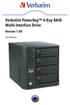 Verbatim PowerBay 4-Bay RAID Multi-Interface Drive Version 1.00 User Manual Table of Contents Introduction... 2 Package Contents... 2 Controls, Connectors and Indicators... 2 About the Hard Drive... 4
Building A Computer: A Beginners Guide
 Building A Computer: A Beginners Guide Mr. Marty Brandl The following was written to help an individual setup a Pentium 133 system using an ASUS P/I- P55T2P4 motherboard. The tutorial includes the installation
Table of Contents. Configuring IDE RAID Hard Drive(s) (Controller GigaRAID (IT8212))... 2
 Table of Contents Configuring IDE RAID Hard Drive(s) (Controller GigaRAID (IT8212))... 2 (1) Installing IDE hard drive(s) in your system... 2 (2) Configuring GigaRAID controller mode and boot sequence
HP SATA/SAS hard drive and Solid State Drive installation
 HP SATA/SAS hard drive and Solid State Drive installation This document describes how to install Serial ATA (SATA) and Serial Attached SCSI (SAS) hard drives or Solid State Drives (SSD) in an internal
User s Manual. Home CR-H212. 2.5 2-BAY RAID Storage Enclosure
 User s Manual Home CR-H212 2.5 2-BAY RAID Storage Enclosure 1 Introduction 1.1 Features - 2-Bay Bus Powered Portable RAID Enclosure -Works with SATA HDD or SSD -Supports Big (JBOD), RAID0, RAID1, and Normal
SATA+Ultra ATA RAID CONTROLLER RC212. User Manual
 SATA+Ultra ATA RAID CONTROLLER RC212 Contents Feature and benefits Package contents System requirement Magic Switch introduction and jumper setting Hardware installation Important message for user RAID
Small form factor bay converter and hard drive installation
 Small form factor bay converter and hard drive installation HP xw6600 and HP xw8600 Workstations This document describes how to convert HP xw6600 and HP xw8600 Workstation 3.5-inch hard drive bays to hold
Express5800/120Ed. Rack Mount Kit Installation Procedures PN: 455-01607-001
 Express5800/120Ed Rack Mount Kit Installation Procedures PN: 455-01607-001 Proprietary Notice and Liability Disclaimer The information disclosed in this document, including all designs and related materials,
How To Set Up A Hard Drive With A Harddrive With A 2Gb Hard Drive (I386) And 2Gb Drive (Amd64) On A Hardrive (I219) (Iee) (Amd66) (Ai219
 1 Package Contents Device User manual Power adapter Power cord USB 2.0 Cable FireWire 800 Cable (IEEE1394.B) esata cable 2 Front View of the Device A Drive eject button B LED indicator C Front door panel
Internal Modem Installation with Windows 95
 Internal Modem Installation with Windows 95 You will need these items from your U.S. Robotics modem box: modem phone cord Plus: a screwdriver (not included) Determining Available Resources Your U.S. Robotics
Chapter 2 Installation
 Installation Chapter 2 Installation This chapter will guide you through the installation of the Quartet Serial PCI. There are no jumpers or switches to set for this PCI Plug-n-Play board. 2-1 Hardware
Taurus Super-S3 LCM. Dual-Bay RAID Storage Enclosure for two 3.5-inch Serial ATA Hard Drives. User Manual March 31, 2014 v1.2 www.akitio.
 Dual-Bay RAID Storage Enclosure for two 3.5-inch Serial ATA Hard Drives User Manual March 31, 2014 v1.2 www.akitio.com EN Table of Contents Table of Contents 1 Introduction... 1 1.1 Technical Specifications...
3.5 Dual Bay USB 3.0 RAID HDD Enclosure
 3.5 Dual Bay USB 3.0 RAID HDD Enclosure User Manual August 11, 2011 v1.1 MFG Part # MT2U3-MP BARCODE Introduction 1 Introduction 1.1 System Requirements 1.1.1 PC Requirements Minimum Intel Pentium III
ZOTAC RAIDbox User s Manual
 ZOTAC RAIDbox User s Manual No part of this manual, including the products and software described in it, may be reproduced, transmitted, transcribed, stored in a retrieval system, or translated into any
Cascade Profiler Fibre Channel SAN Attached Storage Installation Guide. Version 8.2 March 2009
 Cascade Profiler Fibre Channel SAN Attached Storage Installation Guide Version 8.2 March 2009 Trademarks Riverbed, the Riverbed logo, Riverbed Cascade, and Cascade are trademarks of Riverbed Technology,
Installation Guide MAXTOR SATAII/300 INTERNAL HARD DRIVE
 Installation Guide MAXTOR SATAII/300 INTERNAL HARD DRIVE Contents Warranty Registration Information.............................. 1 Introduction.................................................. 2 Precautions................................................
PCI/PXI ETHERNET ADAPTERS
 INSTALLATION GUIDE PCI/PXI ETHERNET ADAPTERS Installing Your PCI Board National Instruments offers several Ethernet adapters based on the Intel 82559-compatible Ethernet controller. This document explains
Hydra esata. 4-Bay RAID Storage Enclosure. User Manual January 16, 2009 - v1.0
 4-Bay RAID Storage Enclosure User Manual January 16, 2009 - v1.0 EN Table of Contents 1 Introduction... 1 1.1 System Requirements... 1 1.1.1 PC Requirements... 1 1.1.2 Mac Requirements... 1 1.1.3 Supported
Winlead Dialer Software Users Manual Addendum 3 Installing Winlead Dialer Software on the Windows 2000 System
 Winlead Dialer Software Users Manual Addendum 3 Installing Winlead Dialer Software on the Windows 2000 System Copyright 2002 by Winlead Dialer Software 1.0 - Install Guide for Winlead Dialer Software Software
Raritan AMS Series Intelligent Electronic Asset Management
 Raritan AMS Series Intelligent Electronic Asset Management Quick Setup Guide Thank you for purchasing Raritan AMS asset management sensors (asset sensors), which work with Raritan EMX, PX3TS transfer switches
Processor Cage Fans, Front and Rear Replacement Instructions
 apple Mac Pro Processor Cage Fans, Front and Rear Replacement Instructions First Steps 1 Shut down computer. Note: Follow these instructions carefully. Failure to do so could damage your equipment and
3-Port FireWire 800/400 PCI Host Card
 3-Port FireWire 800/400 PCI Host Card 400 FireWire Low Included FireWire Upgrade to FireWire800! U S E R S M A N U A L Low FireWire 400 Included Package Contents : 1 3-Port FireWire 800/400 PCI Host Card
ATA HARD DRIVE Installation Guide
 ATA HARD DRIVE Installation Guide P/N: 20255400 FCC Declaration of Conformance This device complies with part 15 of the FCC Rules. Operation is subject to the following two conditions: (1) this device
Packard Bell Easy Repair 1. Packard Bell Easy Repair
 Packard Bell Easy Repair Hard Disk Drives Important Safety Check Instructions You must read all instructions carefully before you begin work and comply with the procedures set out below. Failure to comply
RocketRAID esata 3G HBA Series Bootable RAID. Installation Guide.
 RocketRAID esata 3G HBA Series Bootable RAID Installation Guide. Overview: This installation guide provides step and step instructions on how to configure the RocketRAID esata 3G storage to support booting
RocketRAID mini-sas 6G HBA Series Data RAID. Installation Guide
 RocketRAID mini-sas 6G HBA Series Data RAID Installation Guide Overview: This installation guide provides step and step instructions on how to configure the RocketRAID mini-sas 6G storage to support a
Promise FastTrak 100-Lite RAID Controller
 Promise FastTrak 100-Lite RAID Controller User s Manual Version 1.3, November 9, 2001 Copyright Copyright by Promise Technology, Inc. ( Promise ), XP. No part of this manual may be reproduced or transmitted
2 Bay USB 3.0 RAID 3.5in HDD Enclosure
 2 Bay USB 3.0 RAID 3.5in HDD Enclosure SAT3520U3SR *actual product may vary from photos DE: Bedienungsanleitung - de.startech.com FR: Guide de l'utilisateur - fr.startech.com ES: Guía del usuario - es.startech.com
Hydra Super-S Combo. 4-Bay RAID Storage Enclosure (3.5 SATA HDD) User Manual July 29, 2009 - v1.3
 4-Bay RAID Storage Enclosure (3.5 SATA HDD) User Manual July 29, 2009 - v1.3 EN Introduction 1 Introduction 1.1 System Requirements 1.1.1 PC Requirements Minimum Intel Pentium III CPU 500MHz, 128MB RAM
OWC Mercury Elite Pro Dual ASSEMBLY MANUAL & USER GUIDE
 OWC Mercury Elite Pro Dual ASSEMBLY MANUAL & USER GUIDE TABLE OF CONTENTS 1. INTRODUCTION...1 1.1 MINIMUM SYSTEM REQUIREMENTS 1.1.1 Apple Mac Requirements 1.1.2 PC Requirements 1.1.3 Supported Drives 1.2
XTreme Files OS & Data Backup/Restore User Manual Please read the Instruction manual before using the XTreme Files (F Series) 1.
 XTreme Files OS & Data Backup/Restore User Manual Please read the Instruction manual before using the XTreme Files (F Series) 1. The suggested interface for your computer is USB2.0 to have better speed
The UltraATA 133 PCI is an ultra high-speed dual channel Ultra ATA/133 controller board for use in Pentium-class computer.
 UltraATA 133 PCI Quick Installation Guide Introducing the UltraATA 133 PCI The UltraATA 133 PCI is an ultra high-speed dual channel Ultra ATA/133 controller board for use in Pentium-class computer. Features
Mercury Helios 2 ASSEMBLY MANUAL & USER GUIDE
 Mercury Helios 2 ASSEMBLY MANUAL & USER GUIDE TABLE OF CONTENTS INTRODUCTION...1 1.1 MINIMUM SYSTEM REQUIREMENTS 1.1.1 Apple Mac Requirements 1.1.2 PC Requirements 1.1.3 Supported PCIe Cards 1.2 PACKAGE
H ARDWARE C ONSIDERATIONS
 H ARDWARE C ONSIDERATIONS for Sidewinder 5 firewall software Compaq ProLiant ML370 G2 This document provides information on specific system hardware required for running Sidewinder firewall software on
Western Digital Hard Drive Installation Guide
 Western Digital Hard Drive Installation Guide Western Digital EIDE Hard Drive Installation Guide Information furnished by Western Digital is believed to be accurate and reliable. However, no responsibility
Chapter 5 Cubix XP4 Blade Server
 Chapter 5 Cubix XP4 Blade Server Introduction Cubix designed the XP4 Blade Server to fit inside a BladeStation enclosure. The Blade Server features one or two Intel Pentium 4 Xeon processors, the Intel
Data Lifeguard Tools. Software Manual
 Data Lifeguard Tools Software Manual WD Data Lifeguard Tools User Manual Information furnished by WD is believed to be accurate and reliable; however, no responsibility is assumed by WD for its use nor
DESKTOP. Internal Drive Installation Guide
 DESKTOP Internal Drive Installation Guide Seagate Desktop Installation Guide 2013 Seagate Technology LLC. All rights reserved. Seagate, Seagate Technology, the Wave logo, and FreeAgent are trademarks or
Replacement Instructions. Warning: During this procedure, keep small parts away from children.
 apple ibook G4 Memory Card Replacement Instructions Follow the instructions in this sheet carefully. Failure to follow these instructions could damage your equipment and void its warranty. Note: Written
SATA/eSATA II PCI & PCI-E Card & CardBus
 SATA/eSATA II PCI & PCI-E Card & CardBus Package Contents: SATA/eSATA PCI Host Controller (UGT-ST300): Driver CD-ROM User Manual PCI Card SATA/eSATA PCI-Express Host Controller (UGT-ST400): Driver CD-ROM
SERIAL ATA HOST CONTROLLER CARD USER MANUAL SATA3112-150R SATA3112-150I WARNING
 SD-SIL3112-041103 SERIAL ATA HOST CONTROLLER CARD USER MANUAL SATA3112-150R SATA3112-150I WARNING Before installing and activating RAID function, please make sure you have a complete backup of your existing
ITE RAID Controller USER MANUAL
 ITE RAID Controller USER MANUAL 120410096E1N Copyright Copyright 2004. All rights reserved. No part of this publication may be reproduced, transmitted, transcribed, stored in a retrieval system or translated
Serial ATA to Serial ATA
 Serial ATA to Serial ATA Model: MRK-300ST-BK Aluminum Mobile Rack 3-1 3-1 Introduction... 3-3 Mobile Rack Features... 3-3 Unpacking Your Mobile Rack... 3-4 IDE Basics... 3-4 3-2 Hardware Installation...
How to Install a Motherboard
 How to Install a Motherboard This guide is by no means comprehensive, but serves as a general guide to installing a JNCS motherboard bundle into a standard ATX case. JNCS has already set any relevant jumpers
Version : 1.0. SR3620-2S-SB2 User Manual. SOHORAID Series
 Version : 1.0 SR3620-2S-SB2 User Manual SOHORAID Series Introduction About this Manual Thank you for using the product of RAIDON Technology Inc. This user manual will introduce the STARDOM SR3620-2S-SB2
Front Panel Board Cable Replacement Instructions
 apple Mac Pro Front Panel Board Cable Replacement Instructions First Steps 1 Shut down computer. Note: Follow these instructions carefully. Failure to do so could damage your equipment and void its warranty.
Memory Installation Guide
 Memory Installation Guide For ASUSTOR 6 Series NAS Ver.1.0.0.1204 Table of Contents 1. Introduction... 3 1.1. Notes and Precautions... 3 1.2. Parts and Tools Needed... 4 2. Installation Guide... 5 2.1.
This guide explains how to install an Intel Solid-State Drive (Intel SSD) in a SATA-based desktop or notebook computer.
 Installation Guide This guide explains how to install an (Intel SSD) in a SATA-based desktop or notebook computer. The instructions include migrating your data from your current storage device (such as
Update: About Apple RAID Version 1.5 About this update
 apple Update: About Apple RAID Version 1.5 About this update This update describes new features and capabilities of Apple RAID Software version 1.5, which includes improvements that increase the performance
SATA II-150 PCI Quick Installation Guide
 SATA II-150 PCI Quick Installation Guide Introducing the SATA II-150 PCI The SATA II-150 PCI is an ultra high-speed dual channel Serial ATA Generation 2 controller for use in PCI enabled systems. Features
Navico-Northstar 2kW JRC Radar Package, Scanner Cable Removal and Replacement
 Navico-Northstar 2kW JRC Radar Package, Scanner Cable Removal and Replacement This work instruction describes the methods and means for which to remove and reinstall optional scanner cable configurations
HP ProLiant DL165 G7 Server. Installation Instructions
 HP ProLiant DL165 G7 Server Installation Instructions Identifying server components Front panel components Figure 1 Front Panel Components / 4 3.5 HDD Item 1 Thumbscrews for rack mounting 2 Drive status
Ultra ATA 133 RAID PCI Pro
 Ultra ATA 133 RAID PCI Pro 1-1 Introduction Quick Installation Guide This ultra high-speed dual channel Ultra ATA/133 RAID controller is designed to support RAID 0, 1, 0+1 and JBOD. RAID configurations
SATA PCI Express Adapter PEXSATA22I
 SATA PCI Express Adapter PEXSATA22I FCC Compliance Statement This equipment has been tested and found to comply with the limits for a Class B digital device, pursuant to part 15 of the FCC Rules. These
Mitsubishi LS-120 High Capacity Flexible Disk Drive Model MF357G Installation Guide Mitsubishi Electric Australia
 Mitsubishi LS-120 High Capacity Flexible Disk Drive Model MF357G Installation Guide Mitsubishi Electric Australia Rev. 5 20 October, 1998 CONTENTS Before You Start... 3 Precautions... 3 Cleaning the LS-120
Quick Start Guide. NSS322 Smart Storage. Package Contents. Cisco Small Business
 Quick Start Guide Cisco Small Business NSS322 Smart Storage Package Contents Smart Storage Power Adapter Quick Start Guide Ethernet Cable (2) Disk Tray Screws (2 Packs) Inline Switch Module HDD Sequence
Tyan Computer. Transport PX22. Service Engineer s Manual
 Tyan Computer Transport PX22 Service Engineer s Manual 1 Precaution To read through the user manual, check all assembly and follow setup process before any operation on this server To keep paper clips,
11.4.5 Optional Lab: Install, Configure, and Partition a Second Hard Drive in Windows Vista
 11.4.5 Optional Lab: Install, Configure, and Partition a Second Hard Drive in Windows Vista Introduction Print and complete this lab. In this lab, you will change the boot order, install a second hard
PCI SATA + PATA Raid Card
 PCI SATA + PATA Raid Card User Manual Ver. 5.00 All brand names and trademarks are properties of their Respective owners. Features and Benefits Compliant with Serial ATA 1.0 specification Compliant with
ilan Ethernet Box for 9100 Installation Manual
 ilan Ethernet Box for 9100 Installation Manual 07103-00154 March 11, 2014 Corporate Headquarters: 21405 B Street Long Beach, MS 39560 Phone: (800) 259-6672 Fax: (228) 868-9445 Copyright Notice 2014 Triton.
USB to RS-422/485 Serial Adapter
 USB to RS-422/485 Serial Adapter User Manual Ver. 2.00 All brand names and trademarks are properties of their respective owners. Contents: Chapter 1: Introduction... 3 1.1 Product Introduction... 3 1.2
Rack Mount Kit Install Guide: Intel Entry Server Chassis SC5295-E UP/DP/WS/BRP Intel Entry Server Chassis SC5299-E DP/WS/BRP
 Rack Mount Kit Install Guide: Intel Entry Server Chassis SC5295-E UP/DP/WS/BRP Intel Entry Server Chassis SC5299-E DP/WS/BRP A Guide for Technically Qualified Assemblers of Intel Identified Subassemblies/Products
ProLiant DL380 Generation 2 Server Maintenance and Service Guide
 ProLiant DL380 Generation 2 Server Maintenance and Service Guide Second Edition (June 200) Part Number 203840-002 Spare Part Number 228520-00 Compaq Computer Corporation Notice 200 Compaq Computer Corporation
4 Channel 6-Port SATA 6Gb/s PCIe RAID Host Card
 4 Channel 6-Port SATA 6Gb/s PCIe RAID Host Card User Manual Model: UGT-ST644R All brand names and trademarks are properties of their respective owners www.vantecusa.com Contents: Chapter 1: Introduction...
Important Note Regarding Your Blu ray Drives
 Important Note Regarding Your Blu ray Drives Use these supplemental instructions to complete the setup of your unit Your Disc Publisher unit uses esata to connect the Blu-ray drive(s) to the computer.
430 Power/Electronics Replacement
 Replacing the main board WARNING Before proceeding, turn off the main power switch and unplug the power cord. Caution Make sure you are properly grounded with an ESD strap before continuing. The main printed
4+1 SATA II 300 IDE/PATA PCI-E. Combo Host Card w/ RAID & Port. Multiplier
 4+1 SATA II 300 IDE/PATA PCI-E Combo Host Card w/ RAID & Port Multiplier User Manual Model: UGT-IS100R All brand names and trademarks are properties of their respective owners. w w w. v a n t e c u s a.
Sabrent USB DSC5 USB 2.0 to SATA/IDE Hard Drive Adapter. 2.5 Notebook IDE Hard Drive
 Sabrent USB DSC5 USB 2.0 to SATA/IDE Hard Drive Adapter 2.5 Notebook IDE Hard Drive 1. Connect the short 2.5 IDE connector from the Sabrent adapter to the pins on your 2.5 Hard Drive. Note the keyed pin
Hydra Super-S LCM. 4-Bay RAID Storage Enclosure for four 3.5-inch Serial ATA Hard Drives. User Manual August 18, 2011 - v1.0 www.akitio.
 Hydra Super-S LCM 4-Bay RAID Storage Enclosure for four 3.5-inch Serial ATA Hard Drives User Manual August 18, 2011 - v1.0 www.akitio.com EN Hydra Super-S LCM Table of Contents Table of Contents 1 Introduction...
Inspiron 15. Service Manual. 3000 Series
 Inspiron 15 3000 Series Service Manual Computer Model: Inspiron 15 3541/Inspiron 15 3542/Inspiron 15 3543 Regulatory Model: P40F Regulatory Type: P40F001/P40F002 Notes, Cautions, and Warnings NOTE: A NOTE
Xserve G5 Using the Hardware RAID PCI Card Instructions for using the software provided with the Hardware RAID PCI Card
 Xserve G5 Using the Hardware RAID PCI Card Instructions for using the software provided with the Hardware RAID PCI Card 2 Using the Hardware RAID PCI Card You use command-line tools to configure and manage
UPGRADING AND SERVICING GUIDE
 UPGRADING AND SERVICING GUIDE HPTouchSmart 610 PC Computer features may vary by model. Removing and Replacing a CD/DVD Drive...2 Removing the CD/DVD Drive... 2 Installing a New CD/DVD Drive... 5 Removing
Intel RAID Maintenance Free Backup Unit 4 Quick Installation User's Guide
 Intel RAID Maintenance Free Backup Unit 4 Quick Installation User's Guide Thank you for buying an Intel RAID Maintenance Free Backup Unit 4. The Intel RAID Maintenance Free Backup Unit 4 supports the Intel
Low Profile Ultra ATA-133 RAID PCI Host
 Low Profile Ultra ATA-133 RAID PCI Host User Manual English LINDY No. 70642 www.lindy.com LINDY ELECTRONICS LIMITED & LINDY-ELEKTRONIK GMBH - FIRST EDITION (November 2004) 1. Introduction This Low Profile
Raritan AMS Series Intelligent Electronic Asset Management
 Raritan MS Series Intelligent Electronic sset Management Quick Setup Guide Thank you for purchasing Raritan MS asset management sensors (asset sensors), which can be used with the Raritan EMX or specific
USB 2.0 3.5 External Hard Disk Drive
 USB 2.0 3.5 External Hard Disk Drive System Requirements Notebook or Desktop PC with USB2.0 or USB1.1 port. Windows 98SE/Me/2000, or Windows XP (Make sure the device driver for USB Host controller has
RAID installation guide for ITE8212F
 RAID installation guide for ITE8212F Contents Contents 2 1 Introduction 3 1.1 About this Guide 3 1.2 The Basics 3 1.2.1 What is RAID? 3 1.2.2 Advantages of RAID 3 1.2.3 Disadvantages of RAID 3 1.3 Different
2 Bay FireWire 800/400/USB RAID Solution RAID 0, RAID 1, & JBOD. User Manual
 2 Bay FireWire 800/400/USB RAID Solution RAID 0, RAID 1, & JBOD User Manual CalDigit, Inc. 1941 Miraloma Ave, Unit B Placentia, CA 92870 USA www.caldigit.com The information of the products in this manual
PCI Express SATA / esata 6Gb/s RAID Card User Manual
 PCI Express SATA / esata 6Gb/s RAID Card User Manual Specifications : - 2 x SATA 6Gb/s Port (SATA version) - 2 x esata 6Gb/s Port (esata version) - Max. 6Gb/s transfer rate per port - Supports both SATA
Warnings: This manual is intended to guide a technicians or customers who would like to repair DBL's
 DBL's Service Manual Warnings: This manual is intended to guide a technicians or customers who would like to repair DBL's devices (GoIP, SIM Bank, FXS/FXO gateways) at his/her own risk. DBL SHALL NOT be
Installation Guide. N5101A Baseband Studio PCI Card. Overview
 Installation Guide N5101A Baseband Studio PCI Card Overview This guide provides instructions on how to install the N5101A Baseband Studio PCI card in a PC. The PCI card is installed in a PC and is used
SATA150 TX2PLUS, TX4 QUICK START GUIDE. Version 1.2
 SATA150 TX2PLUS, TX4 QUICK START GUIDE Version 1.2 SATA150 TX2plus, TX4 Copyright 2002 Promise Technology, Inc. Copyright by Promise Technology, Inc. (Promise Technology). No part of this manual may be
4 Port PCIe 2.0 SATA III 6Gbps RAID Controller
 4 Port PCIe 2.0 SATA III 6Gbps RAID Controller PEXSAT34SFF *actual product may vary from photos DE: Bedienungsanleitung - de.startech.com FR: Guide de l'utilisateur - fr.startech.com ES: Guía del usuario