
Troubleshooting. Operating Instructions
|
|
|
- Scott Kenneth Harper
- 10 years ago
- Views:
Transcription
1 Operating Instructions Troubleshooting When the Machine Does Not Operate As Wanted Troubleshooting When Using the Copy Function Troubleshooting When Using the Facsimile Function Troubleshooting When Using the Printer Function Troubleshooting When Using the Scanner Function Adding Paper and Replacing Toner Clearing Misfeeds Remarks Read this manual carefully before you use this machine and keep it handy for future reference. For safe and correct use, be sure to read the Safety Information in "About This Machine" before using the machine.

2 Introduction This manual contains detailed instructions and notes on the operation and use of this machine. For your safety and benefit, read this manual carefully before using the machine. Keep this manual in a handy place for quick reference. Important Contents of this manual are subject to change without prior notice. In no event will the company be liable for direct, indirect, special, incidental, or consequential damages as a result of handling or operating the machine. Notes: Some illustrations in this manual might be slightly different from the machine. Certain options might not be available in some countries. For details, please contact your local dealer. Depending on which country you are in, certain units may be optional. For details, please contact your local dealer. Caution: Use of controls or adjustments or performance of procedures other than those specified in this manual might result in hazardous radiation exposure. Two kinds of size notation are employed in this manual. With this machine refer to the metric version. For good copy quality, the supplier recommends that you use genuine toner from the supplier. The supplier shall not be responsible for any damage or expense that might result from the use of parts other than genuine parts from the supplier with your office products. Power Source V, 50/60Hz, 4A or more. Please be sure to connect the power cord to a power source as shown above. For details about power source, see p.87 Power Connection.

3 Manuals for This Machine Refer to the manuals that are relevant to what you want to do with the machine. Important Media differ according to manual. The printed and electronic versions of a manual have the same contents. Adobe Acrobat Reader/Adobe Reader must be installed in order to view the manuals as PDF files. Depending on which country you are in, there may also be html manuals. To view these manuals, a Web browser must be installed. About This Machine Be sure to read the Safety Information in this manual before using the machine. This manual provides an introduction to the functions of the machine. It also explains the control panel, preparation procedures for using the machine, how to enter text, and how to install the CD-ROMs provided. General Settings Guide Explains User Tools settings, and Address Book procedures such as registering fax numbers, addresses, and user codes. Also refer to this manual for explanations on how to connect the machine. Troubleshooting Provides a guide to solving common problems, and explains how to replace paper, toner, and other consumables. Security Reference This manual is for administrators of the machine. It explains security functions that the administrators can use to protect data from being tampered with, or prevent the machine from unauthorized use. Also refer to this manual for the procedures for registering administrators, as well as setting user and administrator authentication. Copy Reference Explains Copier functions and operations. Also refer to this manual for explanations on how to place originals. Facsimile Reference Explains Facsimile functions and operations. Printer Reference Explains Printer functions and operations. Scanner Reference Explains Scanner functions and operations. i
4 Network Guide Explains how to configure and operate the machine in a network environment, and use the software provided. This manual covers all models, and includes descriptions of functions and settings that might not be available on this machine. Images, illustrations, and information about operating systems that are supported might also differ slightly from those of this machine. Other manuals Manuals for This Machine Safety Information Quick Reference Copy Guide Quick Reference Fax Guide Quick Reference Printer Guide Quick Reference Scanner Guide PostScript3 Supplement UNIX Supplement Manuals for DeskTopBinder Lite DeskTopBinder Lite Setup Guide DeskTopBinder Introduction Guide Auto Document Link Guide Note Manuals provided are specific to machine types. For UNIX Supplement, please visit our Web site or consult an authorized dealer. PostScript3 Supplement and UNIX Supplement include descriptions of functions and settings that might not be available on this machine. ii

5 TABLE OF CONTENTS Manuals for This Machine...i How to Read This Manual...1 Symbols...1 Name of Major Item When the Machine Does Not Operate As Wanted Indicators...3 Panel Tone...4 When the Function Status Indicator Lights Up in Red...5 When You Have Problems Operating the Machine...6 When a Job Is Not Performed Troubleshooting When Using the Copy Function When a Message Is Displayed...11 When You Cannot Make Clear Copies...13 When You Cannot Make Copies As Wanted...15 When Memory Is Full Troubleshooting When Using the Facsimile Function Adjusting the Volume...19 When a Message Is Displayed...22 When You Cannot Send or Receive Fax Messages As Wanted...29 When Memory Is Full...33 When an Error Report Is Printed...34 Turning Off the Main Power / In the Event of Power Failure...35 When an Error Occurs Using Internet Fax...36 Error Mail Notification...36 Error Report ( )...36 Server-Generated Error Troubleshooting When Using the Printer Function When a Message Is Displayed during Installation of the Printer Driver...37 Windows 95/98/Me, Windows 2000 or Windows NT Windows XP Professional or Windows Server Windows XP Home Edition...38 When a Message Is Displayed...39 Status Messages...39 Alert Messages...40 Printing the Error Log...42 When You Cannot Print...43 Other Printing Problems...46 iii
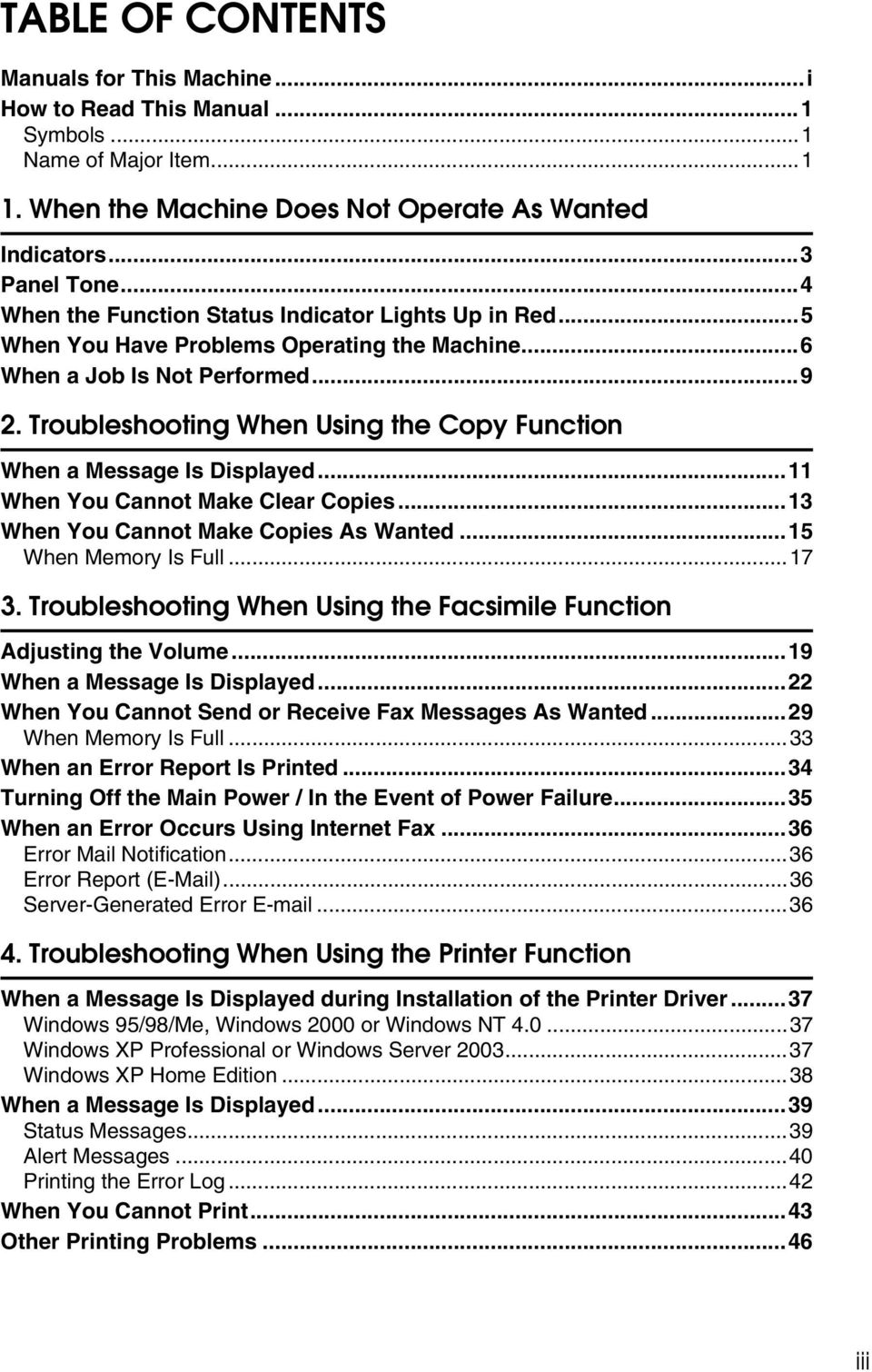
6 5. Troubleshooting When Using the Scanner Function When Scanning Is Not Done As Expected...53 When You Cannot Send Scanned Files...54 When You Cannot Browse the Network to Send a Scanned File...54 When the TWAIN Driver Cannot Be Started...54 The Network Delivery Function Cannot Be Used...54 Operations Are Not Possible When Messages Appear...55 When a Message Is Displayed...56 When a Message Is Displayed on the Display Panel...56 When a Message Is Displayed on the Client Computer Adding Paper and Replacing Toner Loading Paper...65 Loading Paper into the Paper Trays...66 Orientation-Fixed Paper or Two-Sided Paper...67 Changing the Paper Size...70 Changing the Paper Size in the Paper Tray (Tray 1)...70 Changing a Paper Size in the Optional Paper Tray Unit (Tray 2)...73 Adding Toner...77 Replacing Toner...78 Sending Fax Messages When Toner Has Run Out...79 Waste Toner Clearing Misfeeds Removing Jammed Paper Remarks Where to Put Your Machine...85 Machine Environment...85 Moving...86 Power Connection...87 Access to the Machine...88 When Not Used for a Long Time...88 Maintaining Your Machine...89 Cleaning the Exposure Glass...89 Cleaning the Exposure Glass Cover...90 Cleaning the ARDF...90 INDEX iv

7 How to Read This Manual Symbols This manual uses the following symbols: Indicates important safety notes. Ignoring these notes could result in serious injury or death. Be sure to read these notes. They can be found in the Safety Information section of About This Machine. Indicates important safety notes. Ignoring these notes could result in moderate or minor injury, or damage to the machine or to property. Be sure to read these notes. They can be found in the Safety Information section of About This Machine. Indicates points to pay attention to when using the machine, and explanations of likely causes of paper misfeeds, damage to originals, or loss of data. Be sure to read these explanations. Indicates supplementary explanations of the machine s functions, and instructions on resolving user errors. This symbol is located at the end of sections. It indicates where you can find further relevant information. [ ] Indicates the names of keys that appear on the machine s display panel. { } Indicates the names of keys on the machine s control panel. Name of Major Item Major item of this machine is referred to as follows in this manual: Auto Document Feeder capable of scanning both sides of a sheet ARDF 1

8 2

9 1. When the Machine Does Not Operate As Wanted This section describes basic troubleshooting procedures that are applicable to all functions of this machine. Indicators This section explains the indicators that light up when the machine requires the user to remove misfed paper, add paper, or perform other procedures. h: Error indicator Appears when there is a misfeed, a cover is left open, or another problem occurs. See p.81 Clearing Misfeeds. B: Load Paper indicator Appears when paper-out condition occurs. See p.65 Loading Paper. D: Add Toner indicator Appears when toner runs out. See p.77 Adding Toner. 3

10 When the Machine Does Not Operate As Wanted Panel Tone 1 The following table explains the various beep patterns that the machine produces to alert users about machine conditions. Beep pattern Meaning Cause Two long beeps. Single short beep. Five short beeps repeated five times. Machine has warmed up. A valid operation is accepted. Strong alert. After cooling or being switched on, the machine has fully warmed up and is ready for use. A control panel key was pressed, the machine was switched on, or a document was placed on the ARDF. Machine requires user attention. Paper might have jammed or toner might need replenishing. Note Users cannot mute the machine's beep alerts. When the machine beeps to alert users of a paper jam or toner request, if the machine's covers are opened and closed repeatedly within a short space of time, the beep alert might continue, even after normal status has resumed. Reference For details about enabling or disabling beep alerts, see General Features, General Settings Guide. 4

11 When the Function Status Indicator Lights Up in Red When the Function Status Indicator Lights Up in Red If a function key is lit in red, press the key to switch to the screen for the corresponding function, and then follow the message that appears. 1 Problem Cause Solution Documents and reports are not printed out. An error has occurred. There is no copy paper left. The function whose indicator is lit is defective. Add more paper. See p.65 Loading Paper. Record the code number shown in the display and contact your service representative. See When a Message Is Displayed of each chapter. You can use other functions normally. The machine is unable to connect to the network. A network error has occurred. Check the displayed message and take an appropriate action. See When a Message Is Displayed of each chapter. Check that the machine is correctly connected to the network, and that the machine is correctly set. See Network Settings, General Settings Guide. Contact the administrator. When the function key is still lit in red, even if you take the measures above, contact your service representative. Note If an error occurs in the function you are using, check the message that appears on the display panel, and then refer to When a Message Is Displayed for the relevant function. Reference p.11 Troubleshooting When Using the Copy Function p.19 Troubleshooting When Using the Facsimile Function p.37 Troubleshooting When Using the Printer Function p.53 Troubleshooting When Using the Scanner Function 5

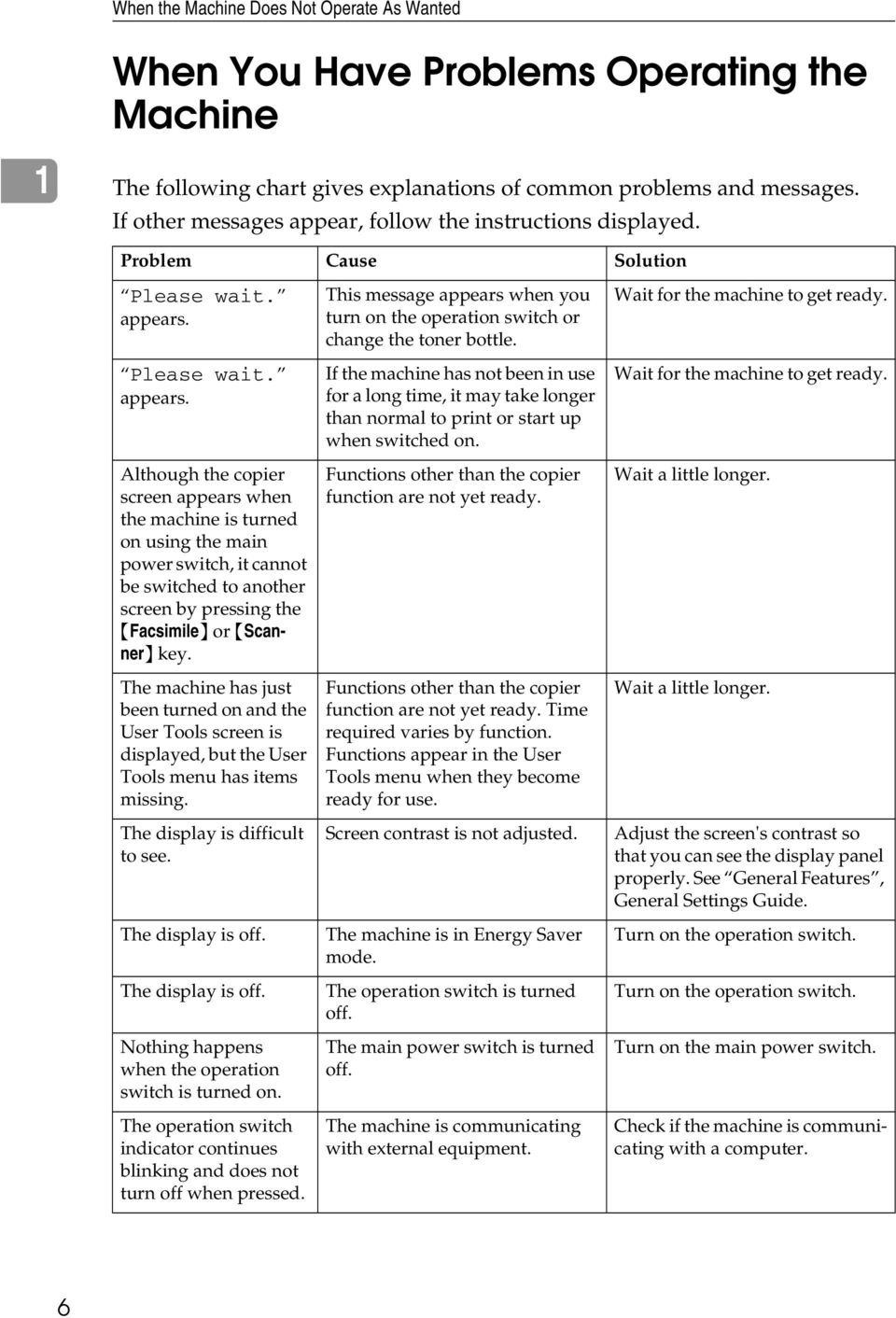
12 When the Machine Does Not Operate As Wanted When You Have Problems Operating the Machine 1 The following chart gives explanations of common problems and messages. If other messages appear, follow the instructions displayed. Problem Cause Solution Please wait. appears. Please wait. appears. Although the copier screen appears when the machine is turned on using the main power switch, it cannot be switched to another screen by pressing the {Facsimile} or {Scanner} key. The machine has just been turned on and the User Tools screen is displayed, but the User Tools menu has items missing. The display is difficult to see. The display is off. The display is off. Nothing happens when the operation switch is turned on. The operation switch indicator continues blinking and does not turn off when pressed. This message appears when you turn on the operation switch or change the toner bottle. If the machine has not been in use for a long time, it may take longer than normal to print or start up when switched on. Functions other than the copier function are not yet ready. Functions other than the copier function are not yet ready. Time required varies by function. Functions appear in the User Tools menu when they become ready for use. Screen contrast is not adjusted. The machine is in Energy Saver mode. The operation switch is turned off. The main power switch is turned off. The machine is communicating with external equipment. Wait for the machine to get ready. Wait for the machine to get ready. Wait a little longer. Wait a little longer. Adjust the screen's contrast so that you can see the display panel properly. See General Features, General Settings Guide. Turn on the operation switch. Turn on the operation switch. Turn on the main power switch. Check if the machine is communicating with a computer. 6
13 When You Have Problems Operating the Machine Problem Cause Solution Original images are printed on the reverse side of the paper. You may have loaded the paper incorrectly. Load paper correctly. Load paper into Tray 1-2 with the print side up, and into the bypass tray with the print side down. See p.67 Orientation-Fixed Paper or Two-Sided Paper. Misfeeds occur frequently. Copy paper size setting is not correct. Set the proper paper size. See Tray Paper Settings, General Settings Guide and Copy Paper, About This Machine. Misfeeds occur frequently. An error message remains, even if misfed paper is removed. Cannot print in duplex mode. Cannot print in duplex mode. The user code entry screen is displayed. The Authentication screen appears. Temperature Alert. Turn main power off, adjust room temp. and wait a while before restarting. appears, and printing is disabled. You do not have privileges to use this function. appears. The tray's end fence may not be set properly. When a misfeed message appears, it remains until you open and close the cover as required. Paper is still jammed in the tray. You cannot use paper in the bypass tray for duplex printing. You have selected a tray that is set to [Off] for duplex printing in [Tray Paper Settings] under [System Settings]. Users are restricted by user management. Basic Authentication, Windows Authentication, LDAP Authentication or Integration Server Authentication is set. The temperature inside the machine is too high or too low. The use of the function is restricted to authenticated users only. Check the end fence is set properly. See p.70 Changing the Paper Size. Clear misfed paper, and then open and close the cover. See p.81 Removing Jammed Paper. For duplex printing, select Tray 1-2 in the copier mode or with the printer driver. Select a paper tray in [Tray Paper Settings] under [System Settings], and then press [OK]. Then, select [No Display (Plain Paper)] or [Recycled Paper] for Paper Type, press [Duplex], and then select [On]. See Tray Paper Settings, General Settings Guide. Enter the user code (up to eight digits), and then press the {OK} or {q} key. Enter your login user name and user password. See When the Authentication Screen is Displayed, About This Machine. Locate the machine in an environment where the temperature remains between 10 and 32 C. See p.85 Where to Put Your Machine. Contact the administrator. 7 1
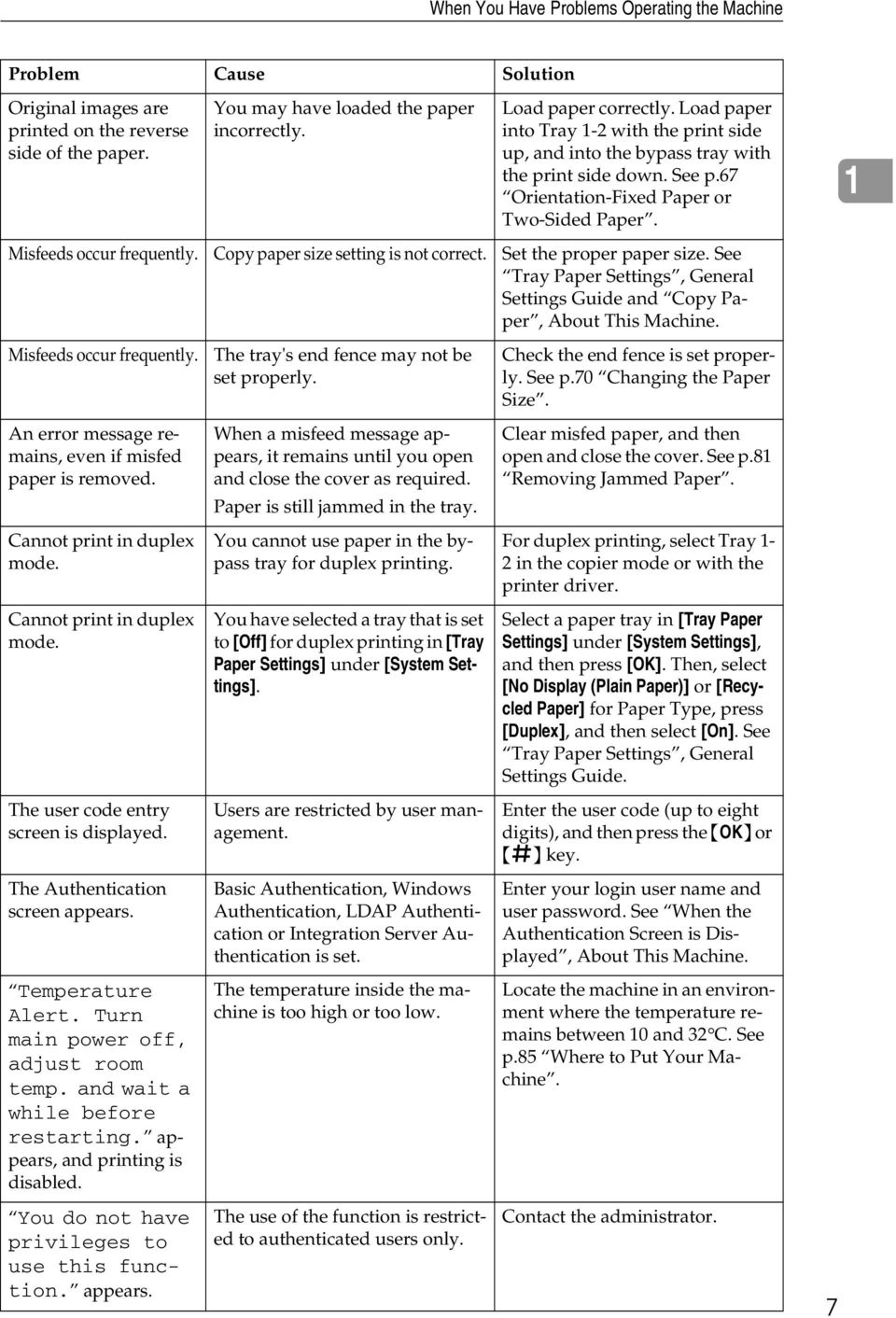
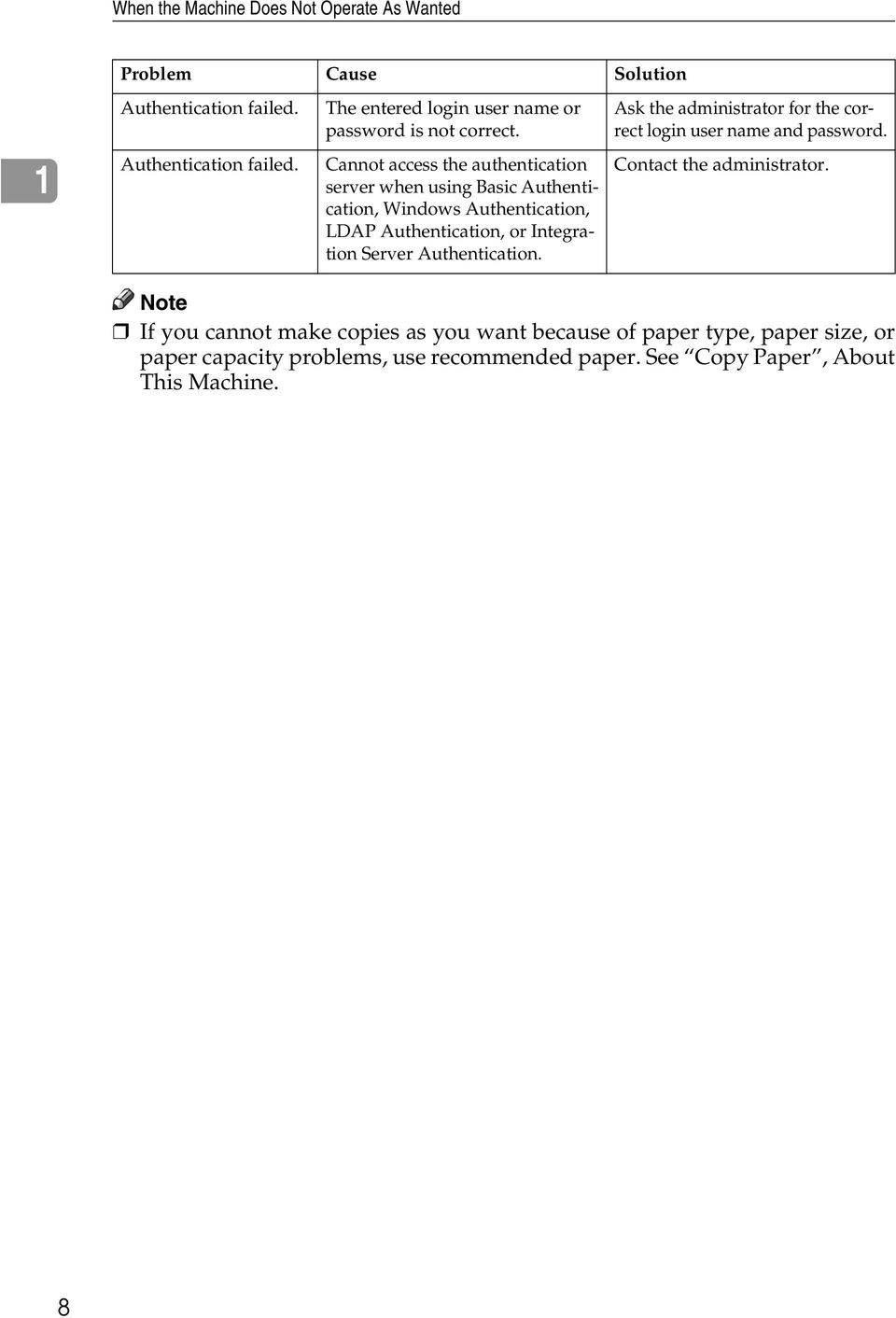
14 When the Machine Does Not Operate As Wanted Problem Cause Solution Authentication failed. The entered login user name or password is not correct. Ask the administrator for the correct login user name and password. 1 Authentication failed. Cannot access the authentication server when using Basic Authentication, Windows Authentication, LDAP Authentication, or Integration Server Authentication. Contact the administrator. Note If you cannot make copies as you want because of paper type, paper size, or paper capacity problems, use recommended paper. See Copy Paper, About This Machine. 8
15 When a Job Is Not Performed When a Job Is Not Performed If you cannot execute a function, it may be that the machine is being held up by another function. If you cannot execute a function, terminate any other functions currently active, and then try executing the function again. In some cases, you can carry out another job (copier, facsimile, printer, or scanner) without canceling the current job being performed. Performing multiple functions simultaneously like this is called Multi-accessing. 1 Combination Chart Mode after you select Copy Facsimile Printer Scanner Transmission Reception Print TWAIN Using the control panel Copying Transmission Operation Scanning an Original for Memory Transmission Mode before you select Using the control panel Copying *1 *1 *1 Copy Transmission Operation Memory Transmission Immediate Transmission Memory Reception Printing Received Data Receive Data Printing Using the control panel Scanning Scanning TWAIN Scanner Printer Facsimile Scanning an Original for Memory Transmission Memory Transmission Immediate Transmission Memory Reception Printing Received *2 *2 *2 Data Receive Data Transmission Reception Print Printing Using the control panel Scanning *1 *1 *1 Scanning means that these functions can be used together. means that you can interrupt the current job with the function keys to proceed to a subsequent job. means that another job will automatically start after the current job is finished. means that you must manually start another job after the current job is finished (i.e., these functions cannot be used together). *1 You can scan a document once the preceding job documents are all scanned. *2 During parallel reception, any subsequent job is suspended until reception is completed. 9

16 When the Machine Does Not Operate As Wanted 1 Note If the machine is capable of executing multiple functions simultaneously, specify which function should have priority in Print Priority. This setting is factory-preset to Display mode. For setting of Printing Priority Function, see General Features, General Settings Guide. While printing is in progress, scanning a document using another function may take more time. 10

17 2. Troubleshooting When Using the Copy Function This chapter describes likely causes of and possible solutions for copier function problems. When a Message Is Displayed This section describes the machine's main messages. If other messages appear, follow the instructions they contain. Important For messages that are not listed here, see When You Have Problems Operating the Machine. Message Cause Solution Cannot dup. copy this size. Duplex mode does not support the selected paper size. Duplex mode supports the following paper sizes: A4L, B5 JISL, 8 1 / 2 " 14"L, 8 1 / 4 " 14"L, 8 1 / 2 " 11"L, 8 1 / 2 " 13"L, 8 1 / 4 " 13"L, 7 1 / 4 " 10 1 / 2 "L, 16KL. Select one of these sizes. Cannot sort this size. The specified paper size is not available with the Sort function. This message appears when the bypass tray is selected. Use copy paper that is not longer than 356 mm. Size error in Combine mode. The specified paper size is not available with the Combine function. This message appears when the bypass tray is selected. Use copy paper that is not longer than 356 mm. Cannot select Bypass Tray in current setting. The specified function is not available with the bypass tray. Select a paper tray other than the bypass tray. Original with this length cannot be duplex scanned. The specified custom length is not available for duplex printing from the ARDF (e.g., 2 Sided 2 Sided, 2 Sided 1 Sided, 2 Sided Combine). Do not place originals that are longer than 356 mm. Max. number of sets is nn. The number of copies exceeds the maximum copy quantity. You can change the maximum copy quantity. See Copier Features, General Settings Guide. Cannot copy. Original is being scanned by another function. The scanner function is in use. Cancel the current scan job. To do this, press the {Clear/ Stop} key on the scanner screen to display the message Clear/Stop key was pressed. Stop scanning?, and then press [Stop]. 11
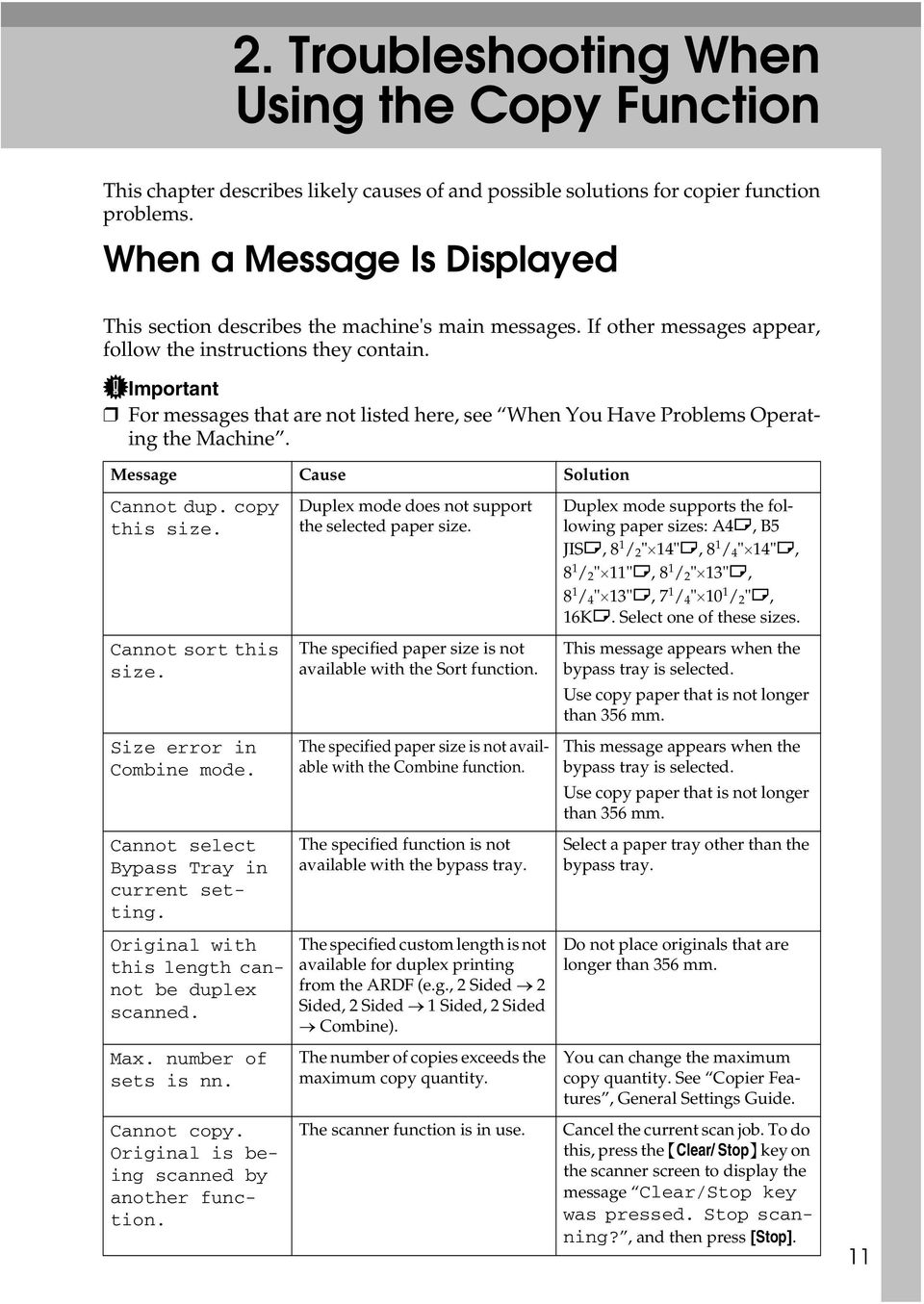
18 Troubleshooting When Using the Copy Function 2 Message Cause Solution You do not have privileges to use this function. Authentication failed. Authentication failed. The use of this function is restricted to authentified users only. The entered login user name or password is not correct. Cannot access the authentication server when using Basic Authentication, Windows Authentication, LDAP Authentication, or Integration Server Authentication. Contact the administrator. Ask the administrator for the correct login user name and password. Contact the administrator. Reference p.6 When You Have Problems Operating the Machine 12

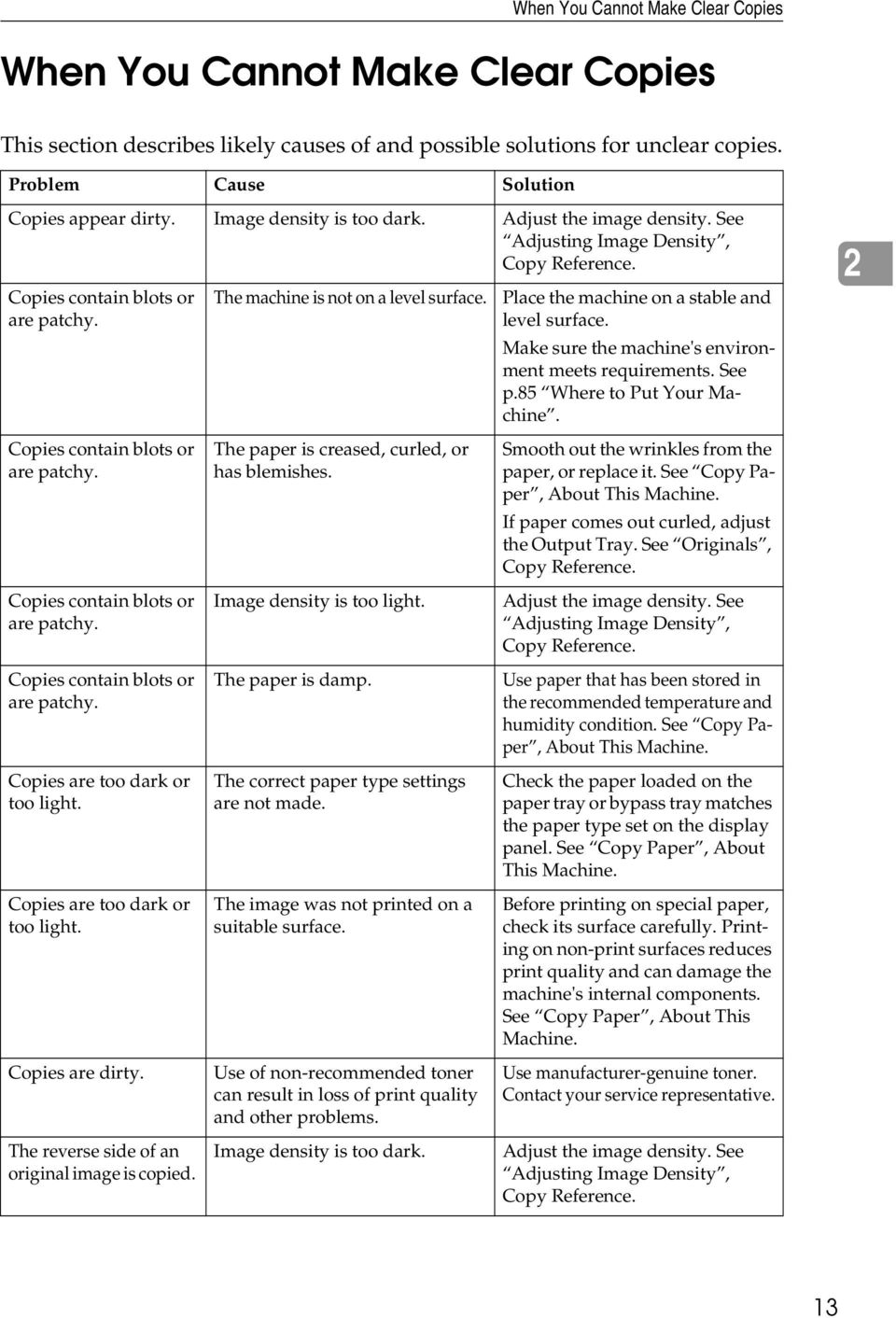
19 When You Cannot Make Clear Copies When You Cannot Make Clear Copies This section describes likely causes of and possible solutions for unclear copies. Problem Cause Solution Copies appear dirty. Image density is too dark. Adjust the image density. See Adjusting Image Density, Copy Reference. Copies contain blots or are patchy. Copies contain blots or are patchy. Copies contain blots or are patchy. Copies contain blots or are patchy. Copies are too dark or too light. Copies are too dark or too light. Copies are dirty. The reverse side of an original image is copied. The machine is not on a level surface. The paper is creased, curled, or has blemishes. Image density is too light. The paper is damp. The correct paper type settings are not made. The image was not printed on a suitable surface. Use of non-recommended toner can result in loss of print quality and other problems. Image density is too dark. Place the machine on a stable and level surface. Make sure the machine's environment meets requirements. See p.85 Where to Put Your Machine. Smooth out the wrinkles from the paper, or replace it. See Copy Paper, About This Machine. If paper comes out curled, adjust the Output Tray. See Originals, Copy Reference. Adjust the image density. See Adjusting Image Density, Copy Reference. Use paper that has been stored in the recommended temperature and humidity condition. See Copy Paper, About This Machine. Check the paper loaded on the paper tray or bypass tray matches the paper type set on the display panel. See Copy Paper, About This Machine. Before printing on special paper, check its surface carefully. Printing on non-print surfaces reduces print quality and can damage the machine's internal components. See Copy Paper, About This Machine. Use manufacturer-genuine toner. Contact your service representative. Adjust the image density. See Adjusting Image Density, Copy Reference. 2 13
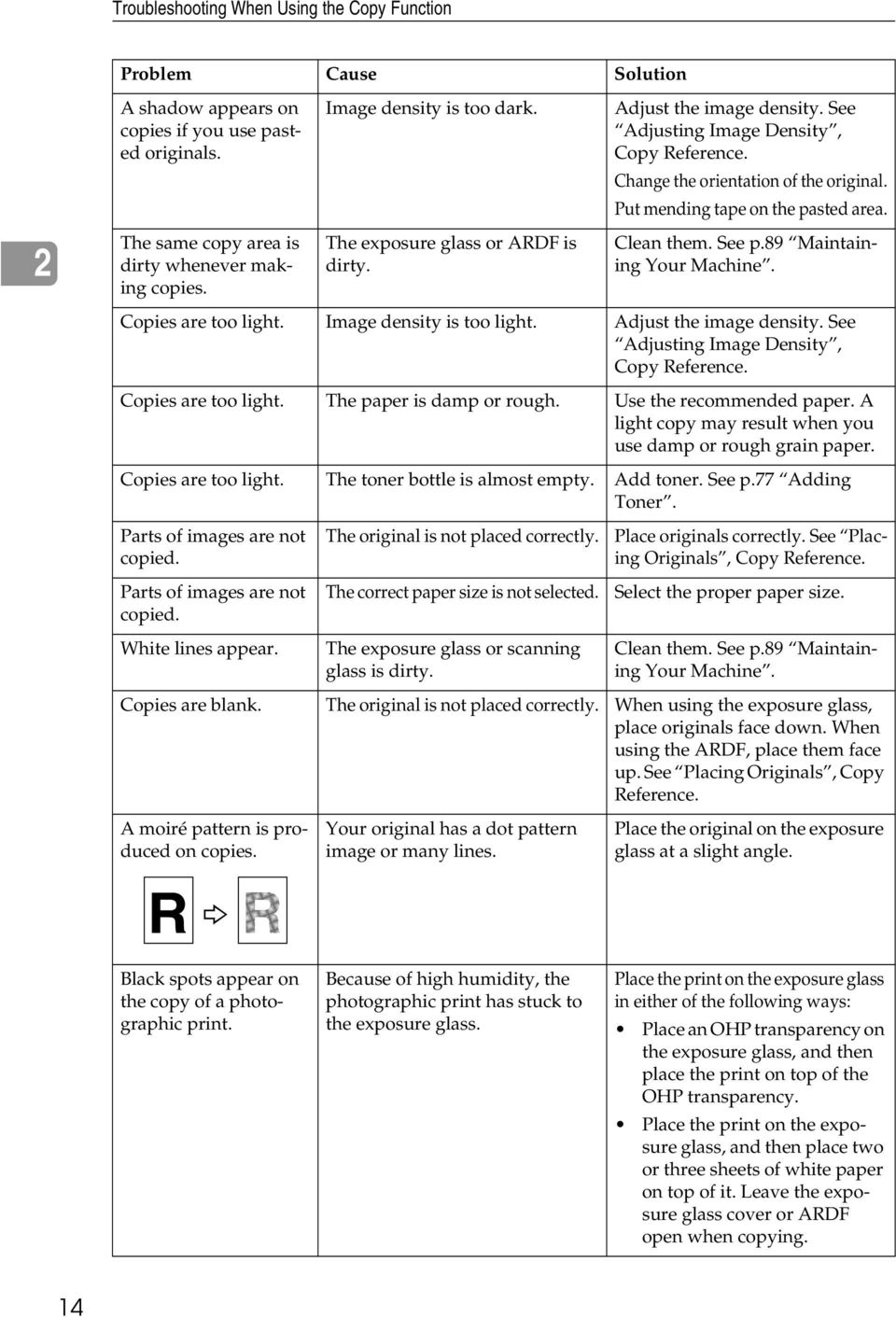
20 Troubleshooting When Using the Copy Function Problem Cause Solution 2 A shadow appears on copies if you use pasted originals. The same copy area is dirty whenever making copies. Image density is too dark. The exposure glass or ARDF is dirty. Adjust the image density. See Adjusting Image Density, Copy Reference. Change the orientation of the original. Put mending tape on the pasted area. Clean them. See p.89 Maintaining Your Machine. Copies are too light. Image density is too light. Adjust the image density. See Adjusting Image Density, Copy Reference. Copies are too light. The paper is damp or rough. Use the recommended paper. A light copy may result when you use damp or rough grain paper. Copies are too light. The toner bottle is almost empty. Add toner. See p.77 Adding Toner. Parts of images are not copied. Parts of images are not copied. White lines appear. The original is not placed correctly. The correct paper size is not selected. The exposure glass or scanning glass is dirty. Place originals correctly. See Placing Originals, Copy Reference. Select the proper paper size. Clean them. See p.89 Maintaining Your Machine. Copies are blank. The original is not placed correctly. When using the exposure glass, place originals face down. When using the ARDF, place them face up. See Placing Originals, Copy Reference. A moiré pattern is produced on copies. Your original has a dot pattern image or many lines. Place the original on the exposure glass at a slight angle. Black spots appear on the copy of a photographic print. Because of high humidity, the photographic print has stuck to the exposure glass. Place the print on the exposure glass in either of the following ways: Place an OHP transparency on the exposure glass, and then place the print on top of the OHP transparency. Place the print on the exposure glass, and then place two or three sheets of white paper on top of it. Leave the exposure glass cover or ARDF open when copying. 14
21 When You Cannot Make Copies As Wanted When You Cannot Make Copies As Wanted This section describes causes and remedies when copy results are not as expected. Basic Problem Cause Solution Misfeeds occur frequently. The number of sheets loaded exceeds the capacity of the machine. Load paper only as high as the upper limit markings on the side fences of the paper tray or bypass tray. See Copy Paper, About This Machine. Misfeeds occur frequently. The paper is damp. Use paper that has been stored in the recommended temperature and humidity condition. See Copy Paper, About This Machine. Misfeeds occur frequently. The paper is too thick or too thin. Use recommended paper. See Copy Paper, About This Machine. Misfeeds occur frequently. The copy paper is wrinkled or has been folded/creased. Use recommended paper. Use paper that has been stored in the recommended temperature and humidity condition. See Copy Paper, About This Machine. Misfeeds occur frequently. Printed paper is used. Use recommended paper. Do not reuse copy paper that has been already copied or printed onto. See Copy Paper, About This Machine. Copy paper becomes creased. Copy paper becomes creased. You cannot combine several functions. Print is slanted. The paper is damp. The paper is too thin. Selected functions cannot be used together. The side fences in the paper tray is not locked. Use paper that has been stored in the recommended temperature and humidity condition. See Copy Paper, About This Machine. Use recommended paper. See Copy Paper, About This Machine. Check the combination of functions and make the settings again. See Combination Chart, Copy Reference. Make sure the side fence is locked. See p.70 Changing the Paper Size. Print is slanted. The paper is feeding in at a slant. Load the paper correctly. See p.65 Loading Paper. Print is slanted. The machine's cover is open. Make sure the right and lower right covers are properly closed. 2 15
22 Troubleshooting When Using the Copy Function Edit Problem Cause Solution 2 When using the Duplex Margin function, parts of the original image are not copied. When using the Duplex Margin function, parts of the original image are not copied. You set a wide erased margin. There is a lack of margin space on the opposite side of the binding position. Set a narrower margin with User Tools. You can set the width between 0-50 mm (0" - 2"). See Copier Features, General Settings Guide. Set a narrower margin with User Tools. You can set the width between 0-50 mm (0" - 2"). See Copier Features, General Settings Guide. Combine Problem Cause Solution When using Combine, parts of the image are not copied. When using Combine, parts of the image are not copied. Copies are not in correct order. You specified a reproduction ratio that does not match the sizes of your originals and copy paper. Your originals are not identical in size and direction. You placed the originals in the incorrect order. When you specify a reproduction ratio using the Manual Paper Select function, make sure that the ratio matches your originals and the copy paper. (Select the correct reproduction ratio before using the Combine function.) Use originals that are identical in size and direction. When placing a stack of originals in the ARDF, the last page should be on the bottom. If you place an original on the exposure glass, start with the first page to be copied. 16
23 When You Cannot Make Copies As Wanted Duplex Problem Cause Solution Cannot print in duplex mode. You may have loaded paper on the bypass tray. Remove paper loaded on the bypass tray. Load paper in Tray 1-2. Cannot print in duplex mode. Cannot print in duplex mode. You have loaded paper exceeding 90 g/m 2. You have selected a tray that is set to [Off] for duplex printing in [Tray Paper Settings] under [System Settings]. Change the paper. Select a paper tray in [Tray Paper Settings] under [System Settings], and then press [OK]. Then, select [No Display (Plain Paper)] or [Recycled Paper] for Paper Type, press [Duplex], and then select [On]. See Tray Paper Settings, General Settings Guide. 2 Order of copies is not correct. You placed the originals in the incorrect order. When placing a stack of originals in the ARDF, the last page should be on the bottom. If you place an original on the exposure glass, start with the first page to be copied. When using Duplex, copy is made Top to Bottom even though [Top to Top] is selected. You placed the originals in the wrong orientation. Place the original in the correct orientation. See Original Orientation, Copy Reference. Parts of the original image are not copied. The margin is too wide. Set a narrower margin with User Tools. See User Tools Menu (Copier Features), Copy Reference. Parts of the original image are not copied. There is a lack of margin space on the opposite side of the binding position. Set a narrower margin with User Tools. See User Tools Menu (Copier Features), Copy Reference. When Memory Is Full This section describes likely causes of and possible solutions for problems related to full memory. Message Cause Solution Press [Resume] to scan and copy remaining originals. The machine checks if the remaining originals should be copied, after the scanned original has been printed. To continue copying, remove all copies, and then press [Resume]. To stop copying, press [Stop]. 17
24 Troubleshooting When Using the Copy Function 2 18
25 3. Troubleshooting When Using the Facsimile Function This chapter describes likely causes of and possible solutions for facsimile function problems. Adjusting the Volume The following describes how to adjust the volume. You can change the volume of the following sounds that the machine makes. On Hook Mode Heard when the {On Hook Dial} key is pressed. At Transmission Heard when immediate transmission is performed. At Reception Heard when the machine receives a document. At Dialing Heard after pressing the {Start} key, until the line connects to the destination. At Printing Heard when a received document is printed. A Press the {User Tools/Counter} key. ARK004S B Select [Fax Features] using {U} or {T}, and then press the {OK} key. 19
26 Troubleshooting When Using the Facsimile Function C Select [General Settings/Adjust] using {U} or {T}, and then press the {OK} key. D Select [Adjust Sound Volume] using {U} or {T}, and then press the {OK} key. 3 E Select the item you want to adjust using {U} or {T}, and then press the {OK} key. F Select the volume using {W} or {V}, and then press the {OK} key. Press the {Escape} key to cancel the setting and the display returns to that of step E. G Press the {User Tools/Counter} key. The standby display appears. ARK004S 20
27 Adjusting the Volume Note You can also adjust the On Hook volume when you press the {On Hook Dial} key. See On Hook Dial, Facsimile Reference. If the extended security function prevents you from changing this setting, contact the administrator. You can set the volume level to between 0 and
28 Troubleshooting When Using the Facsimile Function When a Message Is Displayed This section describes the machine's main messages. If other messages appear, follow their instructions. Message Cause Solution 3 Error occurred, and trans. was cancelled. Put original back, check it and press Start key. A document jam occurred during Immediate Transmission. There may be a problem with the machine or the telephone line (for example, noise or cross talk). Original jammed during Memory Transmission. Press [Exit], and then resend the pages that have not been sent. If the error reoccurs frequently, contact your service representative. Place originals that have not been scanned on the exposure glass or ARDF again. LFunc. Problems Data will be initialized. Memory is full. Scanning will be stopped and only scanned page(s) will be stored. Cannot send fax as scanner is in use by another function. Updating the settings... Reselect dest./functions after update finishes. There is a problem with the fax. The memory is full. The machine is scanning an original under another function. The destination list is being updated from the network using SmartDeviceMonitor for Admin or Web Image Monitor. Record the code number shown in the display and contact your service representative. Other functions can be used. If you press [Exit], the machine returns to standby mode and starts transmitting the pages that have been stored. Before sending the fax, cancel the current scan job under the other function. To do this, press the {Clear/Stop} key on the control panel to display the message Clear/Stop key was pressed. Stop scanning?, and then press [Stop]. Wait with the main power switch on. The machine will enter standby mode after it exits from RDS mode. Updating destination list. Reselect destination(s) or sender's name later. The destination list is being updated from the network using SmartDeviceMonitor for Admin or Web Image Monitor. Wait until the message disappears. Do not switch off the power while this message is displayed. Depending on the number of destinations to be updated, there may be some delay before you can resume operation. Operations are not possible while this message is displayed. 22
29 When a Message Is Displayed Message Cause Solution You do not have privileges to use this function. Authentication failed. Authentication failed. Connection with LDAP server has failed. Check the server status. LDAP server auth. has failed. Check the settings. Exceeded max. number of search results which can be displayed. Max.: nnn (A figure is placed at n.) LDAP server search timed out. Check the server status. Specified group contains some invalid dest. Do you want to select only valid dest.? Sender's name is not selected. Specify sender's name. Use of this function is restricted. Wrong login user name or password. Authentication is not possible from this machine. A network error has occurred and connection has failed. The entered user name or password does not match that specified for LDAP server authentication. The number of search results has exceeded the maximum number of items that can be displayed. A network error has occurred and connection has failed. The specified group contains some destinations for sending by and some destinations for sending by Scan to Folder. The sender has not been specified. Contact the administrator. Confirm correct login user name or password. Contact the administrator. Try the operation once more. If the message is still shown, the network may be crowded. Check the information of [System Settings]. See Administrator Tools, General Settings Guide. Make settings correctly for the user name and the password for LDAP server authentication. Search again after changing the search conditions. Try the operation once more. If the message is still shown, the network may be crowded. Check the information of [System Settings]. See Administrator Tools, General Settings Guide. To select destinations for sending by , press [Select] for the message displayed on the screen. To select destination for sending by Scan to Folder, press [Select] for the message displayed on the Scan to Folder screen. A sender's name should be specified before sending . Send after specifying the sender's name. 3 23
30 Troubleshooting When Using the Facsimile Function Message Cause Solution 3 Check whether there are any network problems. {13-10} Check whether there are any network problems. {13-11} Check whether there are any network problems. {13-17} Check whether there are any network problems. {13-18} The alias telephone number you entered is already registered on the gatekeeper by another device. Check the alias telephone number is correctly programmed using the Web Image Monitor. See the Web Image Monitor's Help. Contact your network administrator. Cannot access gatekeeper. Use your Web Image Monitor to check the gatekeeper address is correctly programmed. See the Web Image Monitor's Help. Contact your network administrator. Registering of user name is rejected by the SIP server. Use your Web Image Monitor to check the SIP server address and user name are correctly programmed. See the Web Image Monitor's Help. Contact your network administrator. Cannot access the SIP server. Use your Web Image Monitor to check the SIP server address is correctly programmed. See the Web Image Monitor's Help. Contact your network administrator. 24
31 When a Message Is Displayed Message Cause Solution Check whether there are any network problems. {14-01} Cannot find the DNS server, SMTP server or folder for forwarding. Check that the DNS server IPv4 address is correctly programmed using Web Image Monitor. See the Web Image Monitor's Help. Check that the host name or IPv4 address of the SMTP server is correctly programmed using Web Image Monitor. See the Web Image Monitor's Help. Check that the SMTP server is correctly programmed using Web Image Monitor. See the Web Image Monitor's Help. Check that the folder for transfer is correctly specified. Check that the computer in which the folder for transfer is specified is operating correctly. Check that the LAN cable is correctly connected to the machine. Check the network connection and radio wave status. Contact your network administrator. 3 25
32 Troubleshooting When Using the Facsimile Function Message Cause Solution 3 Check whether there are any network problems. {14-09} transmission was refused by SMTP authentication, POP before SMTP authentication or login authentication of the computer in which the folder for forwarding is specified. Check that the user name and password for SMTP authentication or POP before SMTP authentication are correctly programmed from [File Transfer] under [System Settings]. See File Transfer, General Settings Guide. You can also use the Web Image Monitor for confirmation. See the Web Image Monitor's Help. Check that the user name and password of the Account are correctly programmed from [File Transfer] under [System Settings]. See File Transfer, General Settings Guide. You can also use the Web Image Monitor for confirmation. See the Web Image Monitor's Help. Check that the user ID and password for the computer in which the folder for forwarding is specified are correctly programmed. Check that the folder for forwarding is correctly specified. Check that the computer in which the folder for forwarding is specified is correctly operated. Contact your network administrator. Check whether there are any network problems. {14-33} No machine address is programmed. Check that the machine's e- mail address is correctly programmed from [File Transfer] under [System Settings]. See File Transfer, General Settings Guide. You can also use the Web Image Monitor for confirmation. See the Web Image Monitor's Help. Contact your network administrator. 26
33 When a Message Is Displayed Message Cause Solution Check whether there are any network problems. {15-01} No POP3/IMAP4 server address is programmed. Check that the host name or IPv4 address of the POP3/IMAP4 server is correctly programmed using the Web Image Monitor. See the Web Image Monitor's Help. Contact your network administrator. Check whether there are any network problems. {15-02} Cannot log on to the POP3/IMAP4 server. Check that the user name and password of the Account are correctly programmed using [File Transfer] under [System Settings]. See File Transfer, General Settings Guide. You can also use the Web Image Monitor for confirmation. See the Web Image Monitor's Help. Contact your network administrator. 3 Check whether there are any network problems. {15-03} No machine address is programmed. Check that the machine's e- mail address is correctly programmed using [File Transfer] under [System Settings]. See File Transfer, General Settings Guide. You can also use the Web Image Monitor for confirmation. See the Web Image Monitor's Help. Contact your network administrator. Check whether there are any network problems. {15-11} Cannot find the DNS server or POP3/IMAP4 server. Check that the DNS server IPv4 address is correctly programmed using Web Image Monitor. See the Web Image Monitor's Help. Check that the POP3/IMAP4 server is correctly programmed using Web Image Monitor. See the Web Image Monitor's Help. Check the network connection and radio wave status. Check that the LAN cable is correctly connected to the machine. Contact your network administrator. 27
34 Troubleshooting When Using the Facsimile Function Message Cause Solution 3 Check whether there are any network problems. {15-12} Cannot log on to the POP3/IMAP4 server. Check that the user name and password of the Account are correctly programmed from [File Transfer] under [System Settings]. See File Transfer, General Settings Guide. You can also use the Web Image Monitor for confirmation. See the Web Image Monitor's Help. Check that the user name and password for POP before SMTP authentication are correctly programmed from [File Transfer] under [System Settings]. See File Transfer, General Settings Guide. You can also use the Web Image Monitor for confirmation. See the Web Image Monitor's Help. Contact your network administrator. Note If Check whether there are any network problems. appears, the machine is not correctly connected to the network or the settings of the machine are not correct. If you do not need to connect the machine to the network, you can specify the setting so this message is not displayed, and then the {Facsimile} key no longer lights. See Parameter Setting, General Settings Guide. If you reconnect the machine to the network, be sure to set Display with User Parameters. Otherwise, you cannot check the status of the network connection. If the paper tray runs out of paper, Out of paper. Load it, then press [Exit]. appears on the display, add more paper. If there is paper left in the other trays, you can receive documents as usual, even if the message appears on the display. You can turn this function on or off with Parameter Setting. See Parameter Setting, General Settings Guide. 28
35 When You Cannot Send or Receive Fax Messages As Wanted When You Cannot Send or Receive Fax Messages As Wanted This section describes likely causes of and possible solutions for transmission and reception-related problems. Transmission/Reception Problem Cause Solution Both transmission and reception are impossible. Both transmission and reception are impossible. The modular cable may be disconnected. The terminal adaptor setting is incorrect. Make sure that the modular cable is correctly connected. See Connecting the Machine to a Telephone Line and Telephone, General Settings Guide. Check the setting. 3 Transmission Problem Cause Solution Document appears blank at the other end. Transmission failed due to a maximum e- mail size error. LAN-Fax Driver does not work. LAN-Fax Driver does not work. Cannot cancel a Memory Transmission. Cannot cancel a Memory Transmission. Cannot cancel an Immediate Transmission. The original was placed upside down. The size of the Internet fax document exceeds the maximum e- mail size specified on the machine. The entered login user name, password, or driver encryption key is incorrect. A high security level is set by the extended security function. The document is being scanned. The document is being sent or it is in standby. Place it correctly. See Placing Originals, Facsimile Reference. Set [Maximum Size] under [ Settings] to [Off], or set the maximum size to a larger value. Then, re-send the document. See Settings, General Settings Guide. Check your login user name, password, or driver encryption key, and enter them correctly. Contact the administrator. Contact the administrator. Press the {Clear/Stop} key. See Canceling a Transmission, Facsimile Reference. Press the {Clear/Stop} key. See Canceling a Transmission, Facsimile Reference. - Press the {Clear/Stop} key. See Canceling a Transmission, Facsimile Reference. 29
36 Troubleshooting When Using the Facsimile Function Problem Cause Solution 3 Cannot cancel Internet Fax transmission. Although a group specification was set for the following, reception was not possible. Forwarding, Forwarding of Special Sender, TX Result, routing received via SMTP. Reception - Press the {Clear/Stop} key. See Canceling a Transmission, Facsimile Reference. Canceling Internet Fax transmission is possible only during scanning. It is impossible during communication. The number of specified destinations exceeds the maximum number that can be specified as a group. A maximum of 100 parties can be specified for a group. Check if there are over the specified numbers registered in the address book. If a group was registered in another group, transmission is canceled but an error message does not appear. See Registering Names to a Group, General Settings Guide. Problem Cause Solution The machine failed to print received fax documents. The machine failed to print received fax documents. Reception is impossible, but transmission is possible. Reception is possible, but transmission is impossible. Transmission is possible, but reception is impossible. If this happened when the Receive File indicator was lit, the paper or toner might have run out, making printing impossible. When the B Load Paper indicator is lit. Load paper into the paper tray. Add toner. See Substitute Reception, Facsimile Reference. Load paper into the paper tray. See p.65 Loading Paper. The toner has run out. Replace the toner bottle. See p.78 Replacing Toner. The terminal adaptor setting is incorrect. The terminal adaptor setting is incorrect. Check the setting. Check the setting. 30
37 When You Cannot Send or Receive Fax Messages As Wanted Printing Problem Cause Solution Print is slanted. The tray's side fences may not be locked. Check the side fences are locked. See p.70 Changing the Paper Size. Print is slanted. The paper is fed in at a slant. Load the paper correctly. See p.65 Loading Paper. Print is slanted. The machine's cover is open. Make sure the right and lower right covers are properly closed. Misfeeds occur frequently. The number of sheets loaded exceeds the capacity of the machine. Load paper only as high as the upper limit markings on the side fences of the paper tray or bypass tray. See Copy Paper, About This Machine. Misfeeds occur frequently. The paper is damp. Use paper that has been stored in the recommended temperature and humidity condition. See Copy Paper, About This Machine. Misfeeds occur frequently. The paper is too thick or too thin. Use recommended paper. See Copy Paper, About This Machine. Misfeeds occur frequently. Copy paper becomes creased. Copy paper becomes creased. Copy paper becomes creased. Printed images contain blots or are patchy. Printed images contain blots or are patchy. The copy paper is wrinkled or has been folded/creased. Printed paper is used. The paper is damp. The paper is too thin. The machine is not on a level surface. The paper is creased, curled, or has blemishes. Use recommended paper. Use paper that has been stored in the recommended temperature and humidity condition. See Copy Paper, About This Machine. Use recommended paper. Do not reuse copy paper that has been already printed onto. See Copy Paper, About This Machine. Use paper that has been stored in the recommended temperature and humidity condition. See Copy Paper, About This Machine. Use recommended paper. See Copy Paper, About This Machine. The machine must be placed on a stable and level surface. Check the environment of location to select an appropriate location. See p.85 Where to Put Your Machine. Straighten the paper if curled. Replace it if wrinkled or damaged. See Copy Paper, About This Machine. 3 31
38 Troubleshooting When Using the Facsimile Function Problem Cause Solution 3 The image is too dark or too light. The image is too dark or too light. Background of received images appears dirty. Images from the back of the page appear. Printed or sent images are spotty. Received image is too light. Received image is too light. Received image is too light. Received image is too light. Other fax machine's name is not correctly printed or displayed. The correct paper type settings are not made. Using toner bottles not recommended by the supplier or refilling the toner bottle may degrade the print quality or cause a malfunction. Image density is too dark. The exposure glass or ARDF is dirty. When using moist, rough, or processed paper, areas of print may not be fully reproduced. The paper is damp. The image density has been set too low. The original of the transmitted fax was printed on paper that is too thin. When the D Add Toner indicator is lit, toner is beginning to run out. When a destination is programmed in the Address Book using SmartDeviceMonitor for Admin or Web Image Monitor, in some languages, the programmed destination may not be printed or displayed correctly. Check the paper loaded on the paper tray or bypass tray matches the paper type set on the display panel. See Copy Paper, About This Machine. Use only toner bottles recommended by the supplier. Adjust scan density. See Image Density (Contrast), Facsimile Reference. Clean them. See p.89 Maintaining Your Machine. Only use recommended paper. See Copy Paper, About This Machine. Use paper that has been stored in the recommended temperature and humidity condition. See Copy Paper, About This Machine. Increase the scanning density. See Image Density (Contrast), Facsimile Reference. Ask the sender to reprint the original on thicker paper and fax it again. Replace the toner bottle soon. See p.78 Replacing Toner. Use ASCII characters (for example: a-z, 0-9). 32
39 When You Cannot Send or Receive Fax Messages As Wanted Others Problem Cause Solution All fax documents stored in memory have been lost. Those documents include ones stored through Memory Transmission/Reception, Memory Lock, and Substitute Reception. All fax documents are lost from memory if the machine remains unpowered for approximately 12 hours or longer. If any documents have been lost for this reason, a Power Failure Report is automatically printed when the machine is turned on. If fax documents stored for Memory Transmission have been lost, check the destinations and resend the documents. If fax documents received through Memory, Memory Lock or Substitute Reception have been lost, ask the senders to resend the documents. See p.35 Turning Off the Main Power / In the Event of Power Failure. 3 The following functions are not available: Forwarding, routing received via SMTP. This function is made unavailable by the enhanced security function. Contact the administrator. When Memory Is Full This section describes likely causes of and possible solutions for problems related to full memory. Message Cause Solution Exceeded max. memory capacity. Do you want to send the scanned data? The memory is full. If you press [Exit], the machine returns to standby mode and starts transmitting the stored pages. 33
40 Troubleshooting When Using the Facsimile Function When an Error Report Is Printed An Error Report is printed if a document cannot be successfully sent or received. Possible causes include a problem with the machine or noise on the telephone line. If an error occurs during transmission, resend the original. If an error occurs during reception, ask the sender to resend the document. 3 Note If an error happens frequently, contact your service representative. The Page column gives the total number of pages. The Page not sent or Page not received column gives the number of pages not sent or received successfully. You can display a destination with the User Parameters. See Parameter Setting, General Settings Guide. You can display a sender name with the User Parameters. See Parameter Setting, General Settings Guide. 34
41 Turning Off the Main Power / In the Event of Power Failure Turning Off the Main Power / In the Event of Power Failure This section describes the machine status when the power is turned off or if the power fails. R CAUTION: When you disconnect the power plug from the wall outlet, always pull the plug (not the cable). Important Do not turn off the main power switch while the power indicator is lit or blinking. If you do, the memory may be damaged and failure could result. Turn off the main power switch before pulling out the plug. If you pull out the plug with the switch on, the memory may be damaged and failure could result. Make sure that 100% is shown on the display before you unplug the machine. If a lower value is shown, some data is currently present in memory. Right after a power failure, the internal battery needs to be sufficiently recharged to guard against future data loss. Keep the machine plugged in and the main power switch on for about 5 days after the power loss. Even if the main power switch is turned off, the contents of the machine memory (for example, programmed numbers) will not be lost. However, if power is lost for about 12 hours because the main power switch is turned off, there is a power cut, or the power cord is removed, contents of the Fax memory are lost. Lost items will include any fax documents stored in memory using Memory Transmission/Reception, Memory Lock, or Substitute Reception. If a file was deleted from memory, a Power Failure Report is automatically printed as soon as the power is restored. This report can be used to identify lost files. If a document stored for Memory Transmission was lost, resend it. If a document received by Memory Reception or Substitute Reception was lost, ask the sender to resend it. 3 35
42 Troubleshooting When Using the Facsimile Function When an Error Occurs Using Internet Fax This section describes reports that the machine sends if an Internet Fax error occurs. Error Mail Notification 3 The machine sends the Error Mail Notification to the sender when it is unable to successfully receive a particular message. A cc of this notification is also sent to the administrator's address when one is specified. Note You can select to send Error Mail Notification with User Parameters. See Parameter Setting, General Settings Guide. If Error Mail Notification cannot be sent, the Error Report ( ) is printed by the machine. If an error occurs when is received via SMTP, the SMTP server sends error to the originator of the document. Error Report ( ) The Error Report ( ) is printed by the machine when it is unable to send an Error Mail Notification. Server-Generated Error The transmitting server sends this error to the originator of that cannot be transmitted successfully (due to reasons such as specifying an incorrect address). Note After server-generated error is printed, the first page of the sent document is printed. 36
43 4. Troubleshooting When Using the Printer Function This chapter describes likely causes of and possible solutions for printer function problems. When a Message Is Displayed during Installation of the Printer Driver This section describes what to do if a message appears when installing the printer driver. The message number 58 or 34 indicates that the printer driver cannot be installed using Auto Run. Install the printer driver using [Add Printer] or [Install Printer]. Windows 95/98/Me, Windows 2000 or Windows NT 4.0 This section describes the procedure under Windows 95/98/Me, Windows 2000 or Windows NT 4.0. A On the [Start] menu, point to [Settings], and then click [Printers]. B Double-click the Add Printer icon. C Follow the instructions in Add Printer Wizard. If the printer driver is on a CD-ROM, the location of the RPCS printer driver is either\drivers\rpcs\win9x_me, or \DRIVERS\RPCS\WIN2K_XP. If the installer starts, click [Cancel] to quit. Windows XP Professional or Windows Server 2003 This section describes the procedure under Windows XP Professional or Windows Server A On the [Start] menu, click [Printers and Faxes]. B Click [Add a printer]. C Follow the instructions in Add Printer Wizard. If the printer driver is on a CD-ROM, the location of the RPCS printer driver is \DRIVERS\RPCS\WIN2K_XP. If the installer starts, click [Cancel] to quit. 37
44 Troubleshooting When Using the Printer Function Windows XP Home Edition This section describes the procedure under Windows XP Home Edition. A On the [Start] menu, click [Printers and Faxes]. B Click [Add a Printer]. C Follow the instructions in Add Printer Wizard. If the printer driver is on a CD-ROM, the location of the RPCS printer driver is \DRIVERS\RPCS\WIN2K_XP. If the installer starts, click [Cancel] to quit. 4 38
45 When a Message Is Displayed When a Message Is Displayed This section describes the principal messages that appear on the display panel. If a message not described here appears, act according to the message. Reference Before turning the main power off, see Turning On the Power, About This Machine. Status Messages This section describes the machine status messages. Ready Printing... Waiting... Offline Message Please wait. Resetting Job... Setting change... Hex Dump Mode Status This is the default ready message. The machine is ready for use. No action is required. The machine is printing. Wait a while. The machine is waiting for the next data to print. Wait a while. The machine is offline. To start printing, switch the machine online by pressing the {Online} Key. This message may appear for a few seconds. It means the machine is initializing or executing maintenance operations. Wait a while. The machine is resetting the print job. Wait until Ready appears on the display panel. The machine settings are being changed. Wait a while. In Hex Dump mode, the machine prints received data in hexadecimal format. Turn off the machine after printing, and then turn back on. Hex Dump mode is used for advanced troubleshooting. 4 39
46 Troubleshooting When Using the Printer Function Alert Messages This section describes the machine alert messages. Message Cause Solution 4 Problem:Wireless card Problem:Wireless board Paper Tray is in use. Tray # Error USB Error Duplex mode is in off position for Tray # Ethernet Board Error An error may have occurred in the IEEE b card. An error may have occurred in the IEEE b board. The specified paper tray is in use by another function, such as the copier function. An error has occurred with the paper tray. # indicates the tray number. An error has occurred in the USB interface. The selected paper tray has not been configured for duplex printing. # indicates the tray number. An error has occurred in the Ethernet board. Turn off the main power switch, and back on again. If the message appears again, contact your sales or service representative. Turn off the main power switch, and back on again. If the message appears again, contact your sales or service representative. Wait until the other function has finished using the specified paper tray. Press [JobReset] to change the paper tray settings, or press [Form- Feed] to select another paper tray and print using that. Turn off the main power switch, and back on again. If the message appears again, contact your sales or service representative. Press [JobReset] to change the paper tray settings or do single-sided printing. For details about the tray settings, see General Settings Guide. Turn off the main power switch, and back on again. If the message appears again, contact your sales or service representative. NV-RAM Error An error has occurred in the machine. Turn off the main power switch, and back on again. If the message appears again, call your sales or service representative. Authentication failed. Parallel I/F Error Printer Font Error. The login user name or password entered is incorrect. The machine currently cannot perform authentication. An error has occurred in the parallel interface board. An error has occurred in the font settings. Check your login user name and password. Contact the administrator. Contact your service representative. Turn off the main power switch, and back on again. If the message appears again, contact your sales or service representative. 40
47 When a Message Is Displayed Message Cause Solution Memory Overflow Maximum capacity of PCL or PostScript 3 list display has been exceeded. Reduce the value of [Resolution] in the printer driver, or select [Font Priority] from [Memory Usage] in [System] (see Printer Features, General Settings Guide). If this message continues to appear after taking these steps, decrease the number of files sent to the machine. 4 41
48 Troubleshooting When Using the Printer Function Printing the Error Log If files could not be printed due to printing errors, print the error log to identify the problem. A Press the {User Tools/Counter} key. 4 ARK004S B Select [Printer Features] using {U} or {T}, and then press the {OK} key. C Select [List/Test Print] using {U} or {T}, and then press the {OK} key. D Select [Error Log] using {U} or {T}, and then press the {OK} key. An error log is printed. Note The most recent 30 errors are stored in the error log. If a new error is added when there are 30 errors already stored, the earliest error is deleted. You can check any of these print jobs for error log information. If the main power switch is turned off, the log is deleted. 42
49 When You Cannot Print When You Cannot Print Use the following procedures if printing does not start even after performing [Print]. Problem Cause Solution Printing does not start. The power is off. Check the cable is securely plugged into the power outlet and the machine. Turn on the main power switch. Printing does not start. The machine is set to Offline. Press the {Online} key. Printing does not start. The cause is displayed on the display panel. Check the error message or warning status on the display panel and take the required action. See p.39 When a Message Is Displayed. 4 Printing does not start. The interface cable was connected after the machine was turned on. Connect the interface cable before turning on the machine. Printing does not start. The interface cable is not connected correctly. Connect the interface cable securely. If it has a fastener, fasten that securely as well. See Connecting to the Interfaces, General Settings Guide. Printing does not start. The appropriate interface cable is not used. The type of interface cable you should use depends on the computer. Be sure to use the correct one. If the cable is damaged or worn, replace it. See Connecting to the Interfaces, General Settings Guide. Printing does not start. If an extended wireless LAN is used, failure to print might result from a weak wireless signal. To check signal status, press the {User Tools/Counter} key, and then select [System Settings] using {U} or {T}. On [Interface Settings], select [IEEE b], and then press [Wireless LAN Signal] using {U} or {T}. If signal quality is poor, move the machine to a location where radio waves can pass or remove objects that might cause interference. (You can check signal status only when using wireless LAN in infrastructure mode.) Printing does not start. If the machine is operating in an extended wireless LAN, the SSID settings are incorrect. Check using the machine's display panel that the SSID is correctly set. See Network Settings, General Settings Guide. 43
50 Troubleshooting When Using the Printer Function Problem Cause Solution 4 Printing does not start. Printing does not start. Printing does not start. Printing does not start. The Data In indicator does not blink or light up. The status indicator of the machine is red. Updating the destination list. Reselect destination(s) or sender's name later. [List/Test Print] is disabled. Printing does not start when using extended wireless LAN in Adhoc mode. If the machine is operating in an extended wireless LAN, the receiver's MAC address may be preventing communication with the access point. The extended wireless LAN has not started. Advanced encryption has been set using the Extended Security function. The login user name, password, or driver encryption key is invalid. If the Data In indicator is unlit or not flashing even after performing [Print], the machine has not received the data. The cause is displayed on the display of the control panel. The destination list is being updated from the network using SmartDeviceMonitor for Admin or Web Image Monitor. A mechanical error might have occurred. Correct communication mode is not set. Check access point settings when in infrastructure mode. Depending on the access point, client access may be limited by MAC address. Also, check there are no problems in transmission between access point and wired clients, and between access point and wireless clients. Confirm the orange LED is lit, and the green LED is lit or blinks during transmission. Check the settings of the Extended Security function with the administrator. Check the login user name, password, or driver encryption key is correct. When the machine is connected to a computer via a cable, check the computer print port settings are correct. For how to check the print port, see Confirming the Connection Method, Printer Reference. When it is networked with a computer, contact the administrator. Check the error message on the display panel and take required action. See p.39 When a Message Is Displayed. Wait until the message disappears. Do not switch off the power while this message is displayed. Depending on the number of destinations to be updated, there may be some delay before you can resume operation. Operations are not possible while this message is displayed. Contact your service representative. See List/Test Print, General Settings Guide. Turn the main power off and back on. See Turning On the Power, About This Machine. Or, change the settings in [Network] under [Interface Settings] of [System Settings]. See Network Settings, General Settings Guide. 44 If the printing does not start, contact your service representative.
51 When You Cannot Print When the machine is connected to the computer using the interface cable The following shows how to check the print port when the Data In indicator does not light up or blink. Check if the print port setting is correct. When it is connected using a parallel interface, connect it to LPT1 or LPT2. For Windows 95/98/Me A Click the [Start] button, point to [Settings], and then click [Printers]. B Click the icon of the machine. On the [File] menu, click [Properties]. C Click the [Details] tab. D In the [Print to the following port:] list, confirm the correct port is selected. For Windows 2000 or Windows NT 4.0 A Click the [Start] button, point to [Settings], and then click [Printers]. B Click the icon of the machine. On the [File] menu, click [Properties]. C Click the [Ports] tab. D In the [Print to the following port(s)] list, confirm the correct port is selected. For Windows XP Professional or Windows Server 2003 A Click the [Start] button, and then click [Printers and Faxes]. B Click the icon of the machine. On the [File] menu, click [Properties]. C Click the [Ports] tab. D In the [Print to the following port(s)] list, confirm the correct port is selected. For Windows XP Home Edition A Click the [Start] button, and then click [Control Panel]. B Click [Printers and Other Hardware]. C Click [Printers and Faxes]. D Click the icon of the machine. On the [File] menu, click [Properties]. E Click the [Ports] tab. F In the [Print to the following port(s)] list, confirm the correct port is selected. 4 45
52 Troubleshooting When Using the Printer Function Other Printing Problems This section describes likely causes of and possible solutions for problems that can occur when printing from a computer. Problem Cause Solution 4 46 The print on the entire page is faded. The print on the entire page is faded. The print on the entire page is faded. Printed images contain blots or are patchy. Printed images contain blots or are patchy. Printed images contain blots or are patchy. Printed images contain blots or are patchy. Printed images contain blots or are patchy. The image is too dark or too light. The image is too dark or too light. The paper is damp. The paper is unsuitable. On the printer driver, under [Print Quality], [Level Color] is checked. Settings for thick paper have not been made when printing on thick paper. Printing on coarse paper or treated paper can result in faint print image. The paper is damp. Check the machine is set on a level surface. The machine must be placed on a stable and level surface. The paper is creased, curled, or has blemishes. The correct paper type settings are not made. The paper is loaded reverse side up. Use paper that has been stored in the recommended temperature and humidity condition. See Copy Paper, About This Machine. Use recommended paper. (Printing on coarse or treated paper might result in faint print image.) See Copy Paper, About This Machine. See the printer driver Help. PCL 6/5e and PostScript 3 Select [Thick] in the [Type:] list on the [Paper] tab. RPCS Select [Thick] in the [Paper type:] list on the [Print Settings] tab. Use supplier-recommended paper. See Copy Paper, About This Machine. Use paper that has been stored in the recommended temperature and humidity condition. See Copy Paper, About This Machine. Check the environment of location to select an appropriate location. See p.85 Where to Put Your Machine. Smooth out the wrinkles from the paper, or replace it. See Copy Paper, About This Machine. Check the paper loaded on the paper tray or bypass tray matches the paper type set on the display panel. See Copy Paper, About This Machine. Before printing on special paper, check its surface carefully. Printing on non-print surfaces reduces print quality and can damage the machine's internal components. See Copy Paper, About This Machine.
53 Other Printing Problems Problem Cause Solution Image is dirty. Print result differs from the display. Print result differs from the display. Print result differs from the display. Characters differ from the display. Characters differ from the display. It takes too much time to resume printing. It takes too much time to resume printing. Optional components connected to the machine are not recognized when using Windows 95/98/Me, Windows 2000/XP, and Windows NT 4.0. Paper is not fed from the selected tray. Use of non-recommended toner can result in loss of print quality and other problems. A non-windows OS is being used. The machine is not selected for printing. Data transmission failed or was cancelled during printing. The print density is too dark. The loaded paper is unsuitable. The data is so large or complex that it takes time to process. The machine was in Energy Saver mode. The option setup in printer properties is not configured when bidirectional transmission is not enabled. When you are using a Windows operating system, printer driver settings override those set using the display panel. Use manufacturer-genuine toner. Contact your service representative. Check the application supports the printer driver. Use the machine's printer driver and check the machine is the designated printer. See Setting Up the Printer Driver, Printer Reference. Check whether there is failed or cancelled data remaining. See Checking the Error Log, Printer Reference. Adjust the image density. See the printer driver Help. Printing on recommended paper produces better resolution. See Copy Paper, About This Machine. If the Data In indicator is blinking, data is being processed. Simply wait until printing resumes. To resume from Energy Saver mode, it has to warm up, and this takes time. See ENERGY STAR Program, About This Machine. See the printer driver Help. Set the desired input tray using the printer driver. See the printer driver Help. 4 47
54 Troubleshooting When Using the Printer Function Problem Cause Solution Some types of data, such as graphics data or data from certain applications, do not print. Some characters are not printed or appear strange. The correct printer driver settings are not made. On the [Details...] tab, for the [Print priority according to selected paper] group, select [Quality], and then print. On the [Misc.] tab, select [Spool data in EMF format]. In the [Change User Settings] dialog box, on the [Misc.] tab, select [Print as bitmap]. See the printer driver Help. The correct printer driver settings are not made. In the [Change User Settings] dialog box, on the [Misc.] tab, select [Change methods to extract TrueType fonts]. On the [Misc.] tab, select [Spool data in EMF format]. In the [Change User Settings] dialog box, on the [Misc.] tab, select [Print as bitmap]. See the printer driver Help. 4 Some characters are not printed or appear faint. Print speed or application relinquishing speed is slow. The correct printer driver settings are not made. On the [Print Quality] tab, for the [Print priority according to selected paper] group, select [Quality], and then print. See the printer driver Help. The correct printer driver settings are not made. On the [Print Quality] tab, for the [Print priority according to selected paper] group, select [Fast]. On the [Misc.] tab, select [Spool data in EMF format]. See the printer driver Help. Quit any other applications. Print ends mid-job. An error might have occurred. Check the machine's display panel to see if an error has occurred. Image position differs from the display. The correct page layout settings are not made. Check the page layout settings made using the application. See the application's Help. Image position differs from the display. The correct page layout settings are not made. Check that the size of the loaded paper matches that specified in the printer driver's [Printout paper size:] dialog box. See the printer driver Help. The printed image is different from the image on the computer display. With certain functions, such as enlargement and reduction, image layout might be different to that on the computer display. In the application, change the layout, character size, and character settings. 48 The printed image is different from the image on the computer display. You might have selected to replace TrueType fonts with machine fonts in the printing process. To print an image similar to that of the computer display, make settings to print TrueType fonts as an image. See the printer driver Help.
55 Other Printing Problems Problem Cause Solution Print is slanted. Print is slanted. Misfeeds occur frequently. Misfeeds occur frequently. Misfeeds occur frequently. Misfeeds occur frequently. Misfeeds occur frequently. Copy paper becomes creased. Copy paper becomes creased. Garbled characters are printed. Images are printed in the wrong orientation. There is considerable delay between the print start instruction and actual printing. The paper is feeding in at a slant. The machine's cover is open. The number of sheets loaded exceeds the capacity of the machine. The paper is damp. The paper is too thick or too thin. The copy paper is wrinkled or has been folded/creased. Printed paper is being used. The paper is damp. The paper is too thin. The correct printer language might have not been selected. The feed orientation you selected and the feed orientation selected in the printer driver's option setup might not be the same. Sleep mode might be set. Load the paper correctly. See p.65 Loading Paper. Make sure the right and lower right covers are properly closed. Load paper only as high as the upper limit markings on the side fences of the paper tray or bypass tray. See Copy Paper, About This Machine. Use paper that has been stored in the recommended temperature and humidity condition. See Copy Paper, About This Machine. Use recommended paper. See Copy Paper, About This Machine. Use recommended paper. Use paper that has been stored in the recommended temperature and humidity condition. See Copy Paper, About This Machine. Use recommended paper. See Copy Paper, About This Machine. Use paper that has been stored in the recommended temperature and humidity condition. See Copy Paper, About This Machine. Use recommended paper. See Copy Paper, About This Machine. Set the correct printer language. Set the machine's feed orientation and the printer driver's feed orientation accordingly. See the printer driver Help. The machine requires time to warm up if it has been in Sleep mode. See Timer Settings, General Settings Guide and ENERGY STAR Program, About This Machine. 4 49
56 Troubleshooting When Using the Printer Function Problem Cause Solution There is considerable delay between the print start instruction and actual printing. Processing time depends on data volume. High volume data, such as graphics-heavy documents, takes longer to process. If the Data In indicator is blinking, data has been received by the machine. Wait for a while. Making the following setting on the printer driver may reduce the computer's workload. For how to open the printing preferences dialog box, see Setting Up the Printer Driver, Printer Reference. PCL 6/5e Select the lower value for the [Resolution] list on the [Print Quality] tab in the printing preferences dialog box. 4 PostScript3 If your operating system is Windows, select [PostScript (optimize for speed)] in the [PostScript Output Option] list. [PostScript Output Option] is located as follows: Windows 95 / 98 / Me [PostScript output format:] on the [PostScript] tab in the printing preferences dialog box. Windows 2000 / XP, Windows Server 2003 [PostScript Output Option] in [PostScript Options] on [Advanced...] on the [Layout] tab in the printing preferences dialog box. Windows NT 4.0 [PostScript Output Option] in [PostScript Options] on [Document Options] on the [Advanced] tab in the printing preferences (document defaults) dialog box. RPCS Select the lower value for [Resolution:] on the [Print Quality] tab in the printer driver's dialog box. Select [Fast] for the [Document type] list on the [Print Quality] tab in the printer driver's dialog box. To enable [Change User Settings...], select the [User settings] check box. See the printer driver Help. Graphics print out differently to how they appear on screen. If the printer driver is configured to use the graphics command, the graphics command from the machine is used to print. If you want to print accurately, set the printer driver to print without using the graphics command. See the printer driver Help. 50 Page layout is not as expected. Print areas differ depending on the machine used. Information that fits on a single page on one machine may not fit on a single page of another machine. Adjust the [Printable area:] setting in the [Printer Configuration...] dialog box on the [Print Settings] tab in the RPCS printer driver. See the printer driver Help.
57 Other Printing Problems Problem Cause Solution Photo images are coarse. Solid lines are printed as broken lines. Optional components connected to the machine are not recognized when using Windows 95 / 98 / Me, Windows 2000 / XP, Windows Server 2003, or Windows NT 4.0. When using Windows 95/98/Me, Windows 2000/XP, or Windows NT 4.0, Auto Reduce/Enlarge print does not come out as expected. The print job is not canceled even when the machine is switched to offline status. Images are incomplete, or excess pages are printed. Duplex printing is malfunctioning. Duplex printing is malfunctioning. Some applications print at lower resolution. Dither patterns do not match. Bidirectional communication is not working. Use the application's settings to specify a higher resolution. Make the following settings with the printer driver: Change the [Dithering:] setting on the [Image Adjustments] tab in the [Change User Settings] dialog box, on the [Print Quality] tab in the RPCS printer driver. See the printer driver Help. Set up optional devices on the Properties of the machine. See the printer driver Help. - Make sure the application's paper size and orientation settings match those of the printer driver. If a different paper size and orientation are set, select the same size and orientation. - Even when the machine is offline, printing is performed when [Job Acceptance Priority] is selected for [Signal Control] in [Parallel Interface] in [Interface Settings] under [System Settings]. Select [Printer Priority] for [Signal Control]. See Interface Settings, General Settings Guide. You may be using paper smaller than the size selected in the application. Duplex printing cannot be done with paper set in the bypass tray. You have loaded thick paper, OHP transparencies, or labels specified as the paper type. Use the same size paper as that selected in the application. If you cannot load paper of the correct size, use the reduction function to reduce the image, and then print. See the printer driver Help. When using duplex printing, make settings to use paper from a tray other than the bypass tray. Specify another paper type. 51 4
58 Troubleshooting When Using the Printer Function Problem Cause Solution 4 Duplex printing is malfunctioning. When using Windows 95 / 98 / Me / 2000 / XP, Windows Server 2003, or Windows NT 4.0, combined printing or booklet printing does not come out as expected. A print instruction was issued from the computer, but printing did not start. Printing by Bluetooth is slow. Duplex printing cannot be done with a tray for which [Off] has been specified as Paper Type on the System Settings menu. The correct application or printer driver settings are not made. User code management may have been set. The number of jobs exceeds the capacity of the machine. A communication error might have occurred. Interference from IEEE802.11b (wireless LAN) devices affects communication speed. Bluetooth transmission speeds are not high. Change the Paper Type setting for the tray to [On] on the System Settings menu. See System Settings, General Settings Guide. Make sure the application's paper size and orientation settings match those of the printer driver. If a different paper size and orientation are set, select the same size and orientation. Ask the administrator about valid user codes. To print, the user code must be entered from the printer driver. Reduce the number of jobs. Remove the machine from close proximity with IEEE802.11b wireless LAN devices. If there are active IEEE802.11b wireless LAN devices or other Bluetooth devices nearby, relocate the machine or deactivate those devices. If the problem cannot be solved, contact your sales or service representative. 52
59 5. Troubleshooting When Using the Scanner Function This chapter describes likely causes of and possible solutions for scanner function problems. When Scanning Is Not Done As Expected This section describes causes and remedies when scan results are not as expected. Problem Cause Solution The scanned image is dirty. The image is distorted or out of position. The image is distorted or out of position. The scanned image is upside down. No image results from scanning. Images are scanned in rotated orientation. The scanned image contains white spaces. The exposure glass, scanning glass, exposure glass cover or ARDF is dirty. The original was moved during scanning. The original was not pressed flat against the exposure glass. The original was placed upside down. The original was placed with the front and back reversed. If you set the original with its upper edge backward and save grey scale images as a TIFF or JPEG file, they are scanned in rotated orientation. If you scan originals using functions other than the network TWAIN scanner function, certain paper size and resolution settings may produce scanned images that are larger than the specified size because of margins being added to the sides. Clean these parts. See p.89 Maintaining Your Machine. Do not move the original during scanning. Make sure that the original is pressed flat against the exposure glass. Place the original in the correct orientation. See Placing Originals, Copy Reference. When the original is placed directly on the exposure glass, the side to be scanned must face down. When the original is fed via the ARDF, the side to be scanned must face up. See Placing Originals, Copy Reference. If you select [Top to Bottom] for one- or two-sided originals, place your originals upper edge first in the ARDF. If you select [Top to Top] for two-sided originals, select [Single Page:PDF] or [Multipage:PDF] for [File Type Priority]. Scanning at a higher resolution may reduce the margins. 53
60 Troubleshooting When Using the Scanner Function When You Cannot Send Scanned Files The following sections describe likely causes of and solutions for network delivery and sending-related problems. When You Cannot Browse the Network to Send a Scanned File This section describes likely causes of and possible solutions for the browser network failing to operate when files are sent. Problem Cause Solution 5 The network cannot be browsed when specifying the destination folder. The following machine settings may not be correct: IPv4 address Subnet Mask When the TWAIN Driver Cannot Be Started Check the settings. See Network Settings, General Settings Guide. This section describes likely causes of and possible solutions for the TWAIN driver failing to operate. Problem Cause Solution The Scanner Properties dialog box cannot be displayed. Advanced encryption has been specified in the extended security setting. For details about the extended security setting, contact the administrator. The Network Delivery Function Cannot Be Used This section describes likely causes of and possible solutions for the Network Delivery function failing to operate. Problem Cause Solution The network delivery function cannot be used. The network delivery function cannot be used. The delivery software may be an old version or a security setting may be specified. The network delivery function setting is not correct. Contact the administrator. Specify it correctly. See Settings Required to Use the Network Delivery Scanner, General Settings Guide. 54
61 When You Cannot Send Scanned Files Operations Are Not Possible When Messages Appear This section describes likely causes of and possible solutions for messages that appear when the machine fails to operate. Message Cause Solution Updating destination list. Reselect destination(s) or sender's name later. The destination list is being updated from the network using SmartDeviceMonitor for Admin or Web Image Monitor. Wait until the message disappears. Do not switch off the power while this message is displayed. Depending on the number of destinations to be updated, there may be some delay before you can resume operation. Operations are not possible while this message is displayed. 5 55
62 Troubleshooting When Using the Scanner Function When a Message Is Displayed This section describes likely causes of and possible solutions for error messages that may appear on the machine's display panel. When a Message Is Displayed on the Display Panel This section describes causes and remedies if an error message appears on the display of the control panel. Important For messages that are not listed here, see When You Have Problems Operating the Machine. 5 Message Cause Solution Connection with LDAP server has failed. Check the server status. LDAP server auth. has failed. Check the settings. Destination list has been updated. Selected destinations/sender will be cleared. Updating destination list has failed. Try again? Updating destination list. Reselect destination(s) or sender's name later. A network error has occurred and connection has failed. The user name and password differ from those set for LDAP server authentication. A specified destination or sender's name was cleared when the destination list in the delivery server was updated. A network error has occurred. The destination list is being updated. Try the operation once more. If the message is still shown, the network may be crowded. Check the information of System Settings. See Administrator Tools, General Settings Guide. Make settings correctly for the user name and the password for LDAP server authentication. Specify the destination or sender's name again. Check whether the server is connected. If a destination or sender's name was already selected, re-select it after this message disappears. 56
63 When a Message Is Displayed Message Cause Solution Exceeded max. number of search results which can be displayed. Max.: nnn (A figure is placed at n.) Search results have exceeded the max. displayable number. Search again after changing the search conditions. You do not have privileges to use this function. Privileges to use this function. Contact the administrator. LDAP server search timed out. Check the server status. A network error has occurred and connection has failed. Try the operation once more. If the message is still shown, the network may be crowded. Check the information of System Settings. See Administrator Tools, General Settings Guide. 5 Specified group contains some invalid dest. Do you want to select only valid dest.? The specified group contains some destinations for sending by and some destinations for sending by Scan to Folder. To select destinations for sending by , press [Select] for the message displayed on the screen. To select destination for sending by Scan to Folder, press [Select] for the message displayed on the Scan to Folder screen. Connection has failed. Check settings and check Scanned File Status. The correct network settings are not made. Check the network settings of the client computer. Check that components such as the LAN cable are connected properly. Check that the server settings are correct and the server is working properly. Dest. authentication failed. Check settings and check Scanned File Status. The entered user name or password was invalid. Check that the user name and password are correct. Check that the ID and password for the destination folder are correct. A password of 128 or more characters may not be recognized. Sender's name is not selected. Specify sender's name. The sender's name was not specified. A sender's name should be specified before sending . Send after specifying the sender's name. 57
64 Troubleshooting When Using the Scanner Function Message Cause Solution 5 Cannot enter manually more than nnn destinations. (A figure is placed at n.) Cannot specify more than 100 destinations. The number of destination folders selectable in one time is limited to 32. Exceeded max. E- mail size. Sending has been cancelled. Sending failed. Check settings and check Scanned File Status. Entered protection code for dest. is incorrect. Please reenter. Exceeded max. number of alphanumeric characters. Authentication failed. The has too many (nnn or more) destinations. The has too many (100 or more) destinations. The maximum number of destination folders that can be selected at one time has been exceeded. The maximum size has been exceeded. While a file was being sent, a network error occurred and the file could not be sent correctly. The correct protection code was not entered. The maximum enterable number of alphanumeric characters has been exceeded. The entered login user name or password is incorrect. Split the destinations into two or more groups. Split the destinations into two or more groups. Select 32 or fewer destination folders. Increase the size of [Max. Size]. Set [Divide & Send ] to [On (per page)] or [On (per max. size)]. See Send Settings, General Settings Guide. Try the operation once more. If the message is still shown, the network may be crowded. Contact the administrator. Press the {Job Information} key to display the transmission results, and then check which job has not been sent. See Confirmation Displays, Scanner Reference. Make sure the protection code is correct, and then enter it again. See Registering a Protection Code, General Settings Guide. Make sure the maximum number of characters which can be entered, and then enter it again. See Values of Various Set Items for Transmission/Delivery Function, Scanner Reference. Check the login user name and password. The machine is unable to authenticate. Contact the administrator. 58
65 When a Message Is Displayed Message Cause Solution Original is being scanned by another function. Exceeded max.memory capa. Scanning will be cancelled. Scanned data will be cleared. The machine is using another function such as copying. The memory is full. Retry scanning after the operation with the other function is completed. Try one of the following measures: Wait for a while, and then retry the scan operation. Reduce the scan area or scanning resolution. Delete unneeded stored files. Exceeded max. memory capacity. Do you want to send the scanned data? No valid dest. lists. Check the settings or the server status. Sending has failed. Press Job Information key to check the status. Out of paper. Set paper on the tray. Check the resolution and reset nnn original(s). (A figure is placed at nnn.) Exceeded max. data capacity Check resolution and Start. The memory is full. The authentic settings for the delivery server are incorrect. Sending has failed. Press the {Job Information} key to check the status. No paper is loaded in the specified paper tray. The scanned original exceeded maximum data capacity. The scanned data exceeded maximum data capacity. Specify whether to use the data or not. Check that the delivery server is on and the authentic settings for the delivery server are correct. Try the operation once more. If the message is still shown, the network may be crowded. Contact your network administrator. Use the Job Information screen to check for the file where the problem occurred. See Confirmation Displays, Scanner Reference. Load paper of a size that is listed in the message. Specify the scan size and resolution again. Note that it may not be possible to scan very large originals at a high resolution. See Relationship between Resolution and Scan Size, Scanner Reference. Specify the scan size and resolution again. Note that it may not be possible to scan very large originals at a high resolution. See Relationship between Resolution and Scan Size, Scanner Reference. 5 59
66 Troubleshooting When Using the Scanner Function Message Cause Solution Exceeded max. page capacity. Do you want to send the scanned data? The number of scanned pages exceeded maximum page capacity. Select whether to send the data so far. When a Message Is Displayed on the Client Computer This section describes likely causes of and possible solutions for the main error messages displayed on the client computer when using the TWAIN driver. 5 Important If an error message that is not included in this section appears, turn off the main power switch of the machine, and then turn it on again. For information about how to turn off the main power switch, see Turning Off the Main Power, About This Machine. Message Cause Solution Clear Misfeed(s) in ADF. Invalid Winsock version. Please use version 1.1 or higher. The name is already in use. Check the registered names. Cannot add any more scanning mode. Cannot specify any more scanning area. Scanner is not available on the specified device. A paper misfeed has occurred inside the ARDF. You are using an invalid version of Winsock. You tried to register a name that is already in use. The maximum number of registerable scanning modes has been exceeded. The maximum number of registerable scanning areas has been exceeded. The TWAIN scanner function cannot be used on this machine. Remove jammed originals, and place them again. Check whether the originals are suitable to be scanned by the machine. Install the operating system of the computer or copy Winsock from the operating system CD-ROM. Use another name. The maximum number of modes that can be stored is 99. Delete unneeded modes. The maximum number of scanning areas that can be stored is 99. Delete unneeded scanning area. Contact your service representative. 60
67 When a Message Is Displayed Message Cause Solution Scanner is not available. Check the scanner connection status. No response from the scanner. No response from the scanner. Error has occurred in the scanner. Fatal error has occurred in the scanner. Cannot connect to the scanner. Check the network Access Mask settings in User Tools. Scanner is not ready. Check the scanner and the options. The machine's main power switch is off. The machine is not connected to the network correctly. The machine is not connected to the network correctly. The network is crowded. The application-specified scan conditions have exceeded the setting range of the machine. An unrecoverable error has occurred on the machine. An access mask is set. The ARDF cover is open. Set the main power switch to On. Check whether the machine is connected to the network correctly. Deselect the personal firewall function of the client computer. Use an application such as telnet to make sure SNMPv1 or SNMPv2 is set as the machine s protocol. See Network Settings, General Settings Guide and Remote Maintenance by telnet, Network Guide. Check whether the machine is connected to the network correctly. Wait for a while, and then try to reconnect. Check whether the scanning settings made with the application exceed the setting range of the machine. Call your service representative. Contact the administrator. Check whether the ARDF cover is closed. 5 61
68 Troubleshooting When Using the Scanner Function Message Cause Solution 5 Insufficient memory. Reduce the scanning area. Insufficient memory. Reduce the scanning area. Cannot find XXX scanner used for the previous scan. YYY will be used instead. (XXX and YYY indicate a scanner name.) Error has occurred in the scanner driver. Scanner memory is insufficient. Reset the scan size. Lower the resolution. Set with no compression. See TWAIN Driver help. The problem may be due to the following cause: The Relationship between the Resolution and the Scanning Area chart in Help for halftone scanning might not always apply. Scanning cannot be performed if large values are set for brightness when using halftone or high resolution. When a paper misfeed occurs in the machine during printing, scanning cannot be performed. The main power switch of the previously used scanner is not set to On. The machine is not connected to the network correctly. An error has occurred in the driver. After the misfed paper has been removed, proceed with scanning. Check whether the main power switch of the scanner used for the previous scan is turned off. Check the previously used scanner is connected to the network correctly. Deactivate the personal firewall of the client computer. Use an application such as telnet to make sure SNMPv1 or SNMPv2 is set as the machine s protocol. See Network Settings, General Settings Guide and Remote Maintenance by telnet, Network Guide. Select the scanner used for the previous scan. Check whether the network cable is connected correctly to the client computer. Check whether the Ethernet board of the client computer is recognized correctly by Windows. Check whether the client computer can use the TCP/IP protocol. 62
69 When a Message Is Displayed Message Cause Solution Communication error has occurred on the network. A communication error has occurred on the network. Check whether the client computer can use the TCP/IP protocol. Insufficient memory. Close all other applications, then restart scanning. Memory is insufficient. Close all the unnecessary applications running on the client computer. Uninstall the TWAIN Driver, restart the computer, and then reinstall the TWAIN Driver. Any of Login User Name, Login Password or Driver Encryption Key is incorrect. The entered login user name, password, or driver encryption key was invalid. Check the login user name, password, and driver encryption key. Permission to use this function has not been granted. Contact the administrator. 5 63
70 Troubleshooting When Using the Scanner Function 5 64
71 6. Adding Paper and Replacing Toner This chapter describes troubleshooting procedures that are applicable to all the machine's functions. Loading Paper This section describes what to do when paper runs out and needs reloading. R CAUTION: When loading paper, take care not to trap or injure your fingers. Note Fan the paper before loading. Straighten curled or warped paper before loading. For paper types and sizes, see Recommended Paper Sizes and Types, About This Machine. To load paper in the bypass tray, see Copying from the Bypass Tray, Copy Reference. Reference For details about paper sizes and types, see Recommended Paper Sizes and Types, About This Machine. 65
72 Adding Paper and Replacing Toner Loading Paper into the Paper Trays This procedure explains how to load paper into the paper trays. A Pull the paper tray out slowly until it stops. B Press the metal plate down until it clicks, and then square the paper and load it in the tray. ARK027S 6 Check that the top of the stack is not higher than the limit mark inside the tray. ARK019S C Push the paper tray in until it stops. Note The illustration above shows Tray 1. When using the optional paper tray unit (Tray 2), load paper flush against the right side of the tray. Space between the paper and the tray's sides can cause misfeeds. Reference p.70 Changing the Paper Size 66
73 Loading Paper Orientation-Fixed Paper or Two-Sided Paper This section describes loading paper that has a specified orientation and printing side (such as letterhead paper). Orientation-fixed (top to bottom) or two-sided paper (for example, letterhead paper, prepunched paper, or copied paper) might not print correctly, depending on how the originals and paper are placed. Select [On] in [Letterhead Setting] under [Copier Features], and then place the original and paper as shown below. See Copier Features, General Settings Guide. When printing with the printer function, placing orientation is the same. Original Orientation Exposure glass ARDF *1 *2 *1 *1 When copying in this orientation using the duplex function, select [Always Specify] in [Orientation] under [Copier Features] (User Tools). Place originals, and then select as the original orientation. *2 When copying in this orientation using the duplex function, and loaded paper orientation is L, place originals as shown below: 6 Under [Copier Features], if [Orientation] is set to [Always Specify], load paper in orientation. 67
74 Adding Paper and Replacing Toner Loaded paper orientation For machine with copier function only 6 ASS001S 68
75 Loading Paper For MFP 6 ASS002S Note In [Tray Paper Settings] under [System Settings], specify [Letterhead] for Paper Type of the paper tray you want to use. This setting is only available when the printer/scanner and fax units are installed. See Tray Paper Settings, General Settings Guide. 69
76 Adding Paper and Replacing Toner Changing the Paper Size This section describes how to change paper sizes. Procedures for changing the paper size differ depending on the paper tray (Tray 1 or the optional paper tray unit). Make sure you are following the appropriate procedure before you begin. Note Fan the paper before loading. Straighten curled or warped paper before loading. Reference For details about paper sizes and types, see Tray Paper Settings, General Settings Guide. Changing the Paper Size in the Paper Tray (Tray 1) 6 Use the following procedure when changing a paper size in the paper tray. A Make sure the paper tray is not in use. B Pull the paper tray out slowly until it stops. C Remove any remaining copy paper. D While pinching the release levers, pull the end fence off from the tray. ARK011S To load A4L size paper: place the end fence in the corner pocket on the left. 70 ARK012S
77 Changing the Paper Size E While pressing the release lever, slide the side fences outward. ARK013S F Push the metal plate down. 6 ARK014S G Square the paper and place it in the tray. Be sure to set the paper under the roller. Do not stack paper over the limit mark. ASS003S 71
78 Adding Paper and Replacing Toner H While pressing the release lever, push in the side fences until they are flush against the paper's edges. ARK016S I While pinching the release levers, set the end fence to the new paper size. 6 ARK017S J Push the paper tray in until it stops. Note When setting small quantities of copy paper, be careful not to squeeze in the side fence too much. Paper might not feed in properly if the side fences are too tight against the paper's edges. Be sure to set the correct size, otherwise a paper jam might occur. 72
79 Changing the Paper Size Changing a Paper Size in the Optional Paper Tray Unit (Tray 2) This section describes how to change the size of paper loaded in the optional paper tray unit. A Make sure the paper tray is not in use. B Pull the paper tray out slowly until it stops. C Remove any remaining copy paper. D While pinching the release levers, slide the end fence outward. 6 To load 8 1 / 4 " 14"L or 8 1 / 2 " 14"L size paper: pull the end fence out of the tray and place it in the corner pocket on the left. E While pressing the release lever, slide the side fence outward. 73
80 Adding Paper and Replacing Toner F Push the metal plate down, and then square the paper and place it in the tray. Do not stack paper over the limit mark. ASS004S G While pressing the release levers, push in the side and end fences until they are flush against the paper's edges. 6 H Push the paper tray in until it stops. Note When setting small quantities of copy paper, be careful not to squeeze in the side fence too much. Paper might not feed in properly if the side fence is too tight against the paper's edge. Be sure to set the correct size, otherwise a paper jam might occur. Load paper so that the paper touches the right side of the tray. Otherwise misfeeds might occur. 74
81 Changing the Paper Size Selecting the Paper Size with User Tools This procedure explains how to select to a paper size with User Tools. A Press the {User Tools/Counter} key. ARK004S B Select [System Settings] using {U} or {T}, and then press the {OK} key. 6 C Select [Tray Paper Settings] using {U} or {T}, and then press the {OK} key. D Select Paper Size for the paper tray of which paper size will be changed using {U} or {T}, and then press the {OK} key. E Select the paper size using the scroll keys, and then press the {OK} key. 75
82 Adding Paper and Replacing Toner F Press the {User Tools/Counter} key. ARK004S 6 76
83 Adding Toner Adding Toner This section describes adding and storing toner. R WARNING: Do not incinerate used toner or toner containers. Toner dust might ignite when exposed to an open flame. Dispose of used toner containers in accordance with local regulations. R CAUTION: Keep toner (used or unused) and toner containers out of reach of children. R CAUTION: If toner or used toner is inhaled, gargle with plenty of water and move into a fresh air environment. Consult a doctor if necessary. R CAUTION: If toner or used toner gets into your eyes, flush immediately with large amounts of water. Consult a doctor if necessary. R CAUTION: If toner or used toner is swallowed, dilute by drinking a large amount of water. Consult a doctor if necessary. 6 R CAUTION: Avoid getting toner on your clothes or skin when removing a paper jam or replacing toner. If your skin comes into contact with toner, wash the affected area thoroughly with soap and water. If toner gets on your clothing, wash with cold water. Hot water will set the toner into the fabric and may make removing the stain impossible. Important Fault may occur if you use toner other than the recommended type. When adding toner, do not turn off the operation switch. If you do, settings will be lost. Always add toner when the machine instructs you. When a message Add toner. is shown on the display panel, replace the toner. Store the toner bottles in a cool, dry place free from direct sunlight. Store on a flat surface. Do not repeatedly install and remove toner bottles. This will result in toner leakage. Do not shake the removed toner bottle. Remaining toner might scatter. Note You can make about 50 copies even after the D Add Toner indicator begins flashing, but replace toner early to prevent poor copy quality. 77
84 Adding Paper and Replacing Toner Replacing Toner This section describes how to replace the toner bottle. Removing Toner ASS005S 6 Inserting Toner Important Do not shake the removed toner bottle. The remaining toner might scatter. ASS006S 78 Note Do not remove the black cap before shaking. Do not remove the inner cap.
85 Adding Toner Sending Fax Messages When Toner Has Run Out When the machine has run out of toner, the indicator on the display lights. Note that even if there is no toner left, you can still send fax documents. Important Communication is not possible if the number of communications executed after the toner has run out plus the number of communications not listed in the journal exceeds 100. A Make sure that the machine is in facsimile mode. B Press [Exit], and then perform transmission operation. The error message disappears. Note The communication results report cannot be printed. If the fax screen does not appear in step A, press the {Facsimile} key. Waste Toner Waste toner cannot be re-used. Take the bottle of waste toner to your sales representative or service representative for recycling. If you dispose of it on your own, treat it as general plastic waste. 6 79
86 Adding Paper and Replacing Toner 6 80
87 7. Clearing Misfeeds This chapter describes what to do when paper or originals misfeed (become jammed inside the machine). Removing Jammed Paper R WARNING: Connect the machine only to the power source described on the inside front cover of this manual. Connect the power cord directly into a wall outlet and do not use an extension cord. Do not damage, break or make any modifications to the power cord. Do not place heavy objects on it. Do not pull it hard nor bend it more than necessary. These actions could cause an electric shock or fire. R CAUTION: The fusing section of this machine might be very hot. Caution should be taken when removing misfed paper. Important When clearing misfeeds, do not turn off the operation switch. If you do, your copy settings are cleared. To prevent misfeeds, do not leave any torn scraps of paper inside the machine. If paper misfeeds occur frequently, contact your service representative. 81
88 Clearing Misfeeds Note More than one misfeed area may be indicated. If this is the case, check every indicated area. Refer to the following charts: A, P, and Y. You can find stickers explaining how to remove misfed paper inside the right cover and on the top of the ARDF cover. When the machine instructs you to reset originals, reset them in the feeding position. The display will show you the number of originals to return. ARK028S 7 When A is displayed ASS008S 82
89 Removing Jammed Paper When P is displayed When Y is displayed ASS007S 7 ASS009S 83
90 Clearing Misfeeds 7 84
91 8. Remarks This chapter describes how to maintain and operate the machine. Where to Put Your Machine This section provides precautions for installation, movement and disposal. Machine Environment Choose your machine's location carefully. Environmental conditions greatly affect its performance. Optimum Environmental Conditions The following describes precautions when locating the machine. R CAUTION: Keep the machine away from humidity and dust. Otherwise a fire or an electric shock might occur. Do not place the machine on an unstable or tilted surface. If it topples over, an injury might occur. R CAUTION: After you move the machine, use the caster fixture to fix it in place. Otherwise the machine might move or come down to cause an injury. R CAUTION: Make sure the room where you are using the machine is well ventilated and spacious. Good ventilation is especially important when the machine is used heavily. Temperature: C ( F) (humidity to be 54% at 32 C, 89.6 F) Humidity: 15-80% (temperature to be 27 C, 80.6 F at 80%) Ventilation: 3 times/hr/person or more A strong and level base. The machine must be level within 5 mm, 0.2 inches: both front to rear and left to right. 85
92 Remarks Environments to Avoid Locations exposed to direct sunlight or other sources of strong light (more than 1,500 lux). Locations directly exposed to cool air from an air conditioner or heated air from a heater. (Sudden temperature changes can cause condensation to form inside the machine.) Locations close to machines generating ammonia, such as a diazo copy machine. Places where the machine will be subject to frequent strong vibration. Dusty areas. Areas with corrosive gases. Moving The following describes precautions when moving the machine. R CAUTION: Before moving the machine, be sure to pull all four handles fully out. If not, an injury might occur. After moving the machine, return the four handles to their original positions. 8 R CAUTION: Before moving the machine, be sure to disconnect all external connections, especially the power cord from the wall outlet. Damaged power cords are a fire and electric shock hazard. R CAUTION: If you have to move the machine when the optional paper tray unit is attached, do not push on the main unit's top section. Doing so can cause the optional paper tray unit to detach, possibly resulting in injury. R CAUTION: Unplug the power cord from the wall outlet before you move the machine. While moving the machine, you should take care that the power cord will not be damaged under the machine. 86 Important Be careful when moving the machine. Take the following precautions: Turn off the main power. See p.35 Turning Off the Main Power / In the Event of Power Failure. Unplug the power cord from the wall outlet. When you pull out the plug from the socket, grip the plug to avoid damaging the cord, thereby reducing the risk of fire or electric shock. Close all covers and trays, including the front cover and bypass tray. Do not take off the holding stand. Protect the machine from strong shocks. Impact can damage the memory.
93 Where to Put Your Machine Power Connection The following describes power supply. R WARNING: Connect the machine only to the power source described on the inside front cover of this manual. Connect the power cord directly into a wall outlet and do not use an extension cord. Do not damage, break or make any modifications to the power cord. Do not place heavy objects on it. Do not pull it hard nor bend it more than necessary. These actions could cause an electric shock or fire. R CAUTION: Unplug the power cord from the wall outlet before you move the machine. While moving the machine, you should take care that the power cord will not be damaged under the machine. R CAUTION: If the power cord is damaged (exposure of the core, disconnection, etc.), contact your service representative to change a new one. Operating the machine with a damaged power cord may cause an electric shock or fire. R CAUTION: When you disconnect the power plug from the wall outlet, always pull the plug (not the cable). R CAUTION: To disconnect the power cord, pull it out by plug. Do not drag the cord itself. Doing so may result in damage to the cord, leading to fire or electric shock. 8 Make sure the plug is inserted firmly in the wall outlet. Voltage must not fluctuate by more than 10%. The wall outlet shall be installed near the machine and shall be easily accessible. 87
94 Remarks Access to the Machine Place the machine near the power source, providing the clearance areas shown. 1. Rear: 6 cm (2.4") or more 2. Right: 1 cm (0.4") or more 3. Front: 75 cm (29.6") or more 4. Left: 1 cm (0.4") or more Note For the required space when options are installed, contact your service representative. When Not Used for a Long Time 8 R CAUTION: For safety reason, unplug the power cord from the wall outlet if the machine will not be used for an extended period of time such as holidays. Note the following: If the machine has not been used recently, it requires time to initialize so cannot start printing immediately. Leave the machine switched on and wait about ten minutes. 88
95 Maintaining Your Machine Maintaining Your Machine If the exposure glass, exposure glass cover, ARDF belt is dirty, copy clarity may be reduced. Clean these parts if they are dirty. R CAUTION: Fire and breakdown can result from heavy accumulation of dust inside this machine. Consult your service representative for details about and charges for cleaning the machine s interior. Important Do not use chemical cleaners or organic solvents, such as thinner or benzene. If such substances get inside the machine or melt plastic parts, a failure might occur. Do not clean parts other than those explicitly specified in this manual. Other parts should only be cleaned by your service representative. Cleaning the machine Wipe the machine with a soft, damp cloth, and then wipe it with a dry cloth to remove the water. Cleaning the Exposure Glass This section describes how to clean the exposure glass and scanning glass. 8 Clean 1 and 2. 89
96 Remarks Cleaning the Exposure Glass Cover This section describes how to clean the exposure glass cover. Cleaning the ARDF This section describes how to clean the ARDF. 8 ARK026S Clean 1 and 2. 90
97 INDEX A Add Toner indicator, 3 Adjusting the screen's contrast, 6 ARDF, 1, 90 ARDF belt is dirty, 89 Authentication failure, 6 B C Basic, 15 Changing a Paper Size in the Optional Paper Tray Unit (Tray 2), 73 Changing the Paper Size, 70 Changing the Paper Size in the Paper Tray (Tray 1), 70 Cleaning the machine, 89 Combination Chart, 9 Combine, 15 Copies appear dirty, 13 Copies are too light, 13 D Display is off, 6 Duplex, 15 E Edit, 15 End fence, 70, 73 Environments to Avoid, 86 Error indicator, 3 Error log, 42 Error Mail Notification, 36 Error Report ( ), 36 Exposure glass cover is dirty, 89 Exposure glass is dirty, 89 F I J L Fax error report, 34 Function status indicator, 5 Image is dirty, 46 Indicators, 3 Inserting Toner, 78 Jammed paper, 81 Letterhead paper, 67 Limit mark, 66, 70 Loaded paper orientation, 67 Loading Paper into the Paper Trays, 66 Load Paper indicator, 3 M Main power switch, 35 Meaning of beep patterns, 4 Memory is full, 17, 33 Multi-accessing, 9 N Network cannot be browsed, 54 Network Delivery, 54 Network Delivery function cannot be used, 54 No scan image, 53 O Operation Switch indicator, 6 Optimum Environmental Conditions, 85 Orientation-Fixed Paper, 67 Original Orientation, 67 91
98 P Panel Tone, 4 Paper is not fed from selected tray, 46 Paper jam, 81 Paper orientation, 67 Parts of image not copied, 13 Password not correct, 6 Power Connection, 87 Power Failure Report, 35 Power indicator, 35 Power supply, 87 Precautions when locating the machine, 85 Precautions when moving the machine, 86 Printed image is different from computer display, 46 Printed image is faded, 46 Printed image is in wrong orientation, 46 Printer driver installation, 37 Printing, 29 Printing does not start, 43 T Toner, 77, 78, 79 Transmission, 29 Transmission/Reception, 29 TWAIN, 60 Two-Sided Paper, 67 U V W User code entry, 6 Volume adjustment, 19 Waste Toner, 79 When A is displayed, 81 When P is displayed, 81 When Y is displayed, 81 R Reception, 29 Release lever, 70 Removing Jammed Paper, 81 Replacing Toner, 78 Reverse side of original is copied, 13 S Scanned image contains white spaces, 53 Scanned image is dirty, 53 Scanned image is distorted, 53 Scanned image is out of position, 53 Scanned image is upside down, 53 Scanner Properties dialog box not displayed, 54 Selecting the Paper Size with User Tools, 75 Server-Generated Error , 36 Shadow appears on copies, 13 Side fences, 70, 73 Status Messages, GB GB B
99 Declaration of Conformity The Product complies with the requirements of the EMC Directive 89/336/EEC and its amending directives and the Low Voltage Directive 73/23/EEC and its amending directives. In accordance with IEC 60417, this machine uses the following symbols for the main power switch: a means POWER ON. c means STAND BY. Trademarks Microsoft, Windows and Windows NT are registered trademarks of Microsoft Corporation in the United States and/or other countries. TrueType is registered trademarks of Apple Computer, Inc. PostScript and Acrobat are registered trademarks of Adobe Systems, Incorporated. PCL is a registered trademark of Hewlett-Packard Company. Bluetooth is a Trademark of the Bluetooth SIG, Inc. (Special Interest Group) and licensed to Ricoh Company Limited. Other product names used herein are for identification purposes only and might be trademarks of their respective companies. We disclaim any and all rights to those marks. The proper names of the Windows operating systems are as follows: The product name of Windows 95 is Microsoft Windows 95 The product name of Windows 98 is Microsoft Windows 98 The product name of Windows Me is Microsoft Windows Millennium Edition (Windows Me) The product names of Windows 2000 are as follows: Microsoft Windows 2000 Advanced Server Microsoft Windows 2000 Server Microsoft Windows 2000 Professional The product names of Windows XP are as follows: Microsoft Windows XP Professional Microsoft Windows XP Home Edition The product names of Windows Server TM 2003 are as follows: Microsoft Windows Server TM 2003 Standard Edition Microsoft Windows Server TM 2003 Enterprise Edition Microsoft Windows Server TM 2003 Web Edition The product names of Windows NT are as follows: Microsoft Windows NT Server 4.0 Microsoft Windows NT Workstation 4.0 Copyright 2006
100 GB GB B Operating Instructions Troubleshooting
Scanner Reference. Operating Instructions
 Operating Instructions Scanner Reference 1 2 3 4 5 6 7 Sending Scan Files by E-mail Sending Scan Files by Scan to Folder Storing Files Using the Scanner Function Delivering Scan Files Scanning Originals
General Settings Guide
 Operating Instructions General Settings Guide 1 2 3 4 5 6 7 8 9 Connecting the Machine System Settings Copier / Document Server Features Facsimile Features Printer Features Scanner Features Registering
General Settings Guide
 Operating Instructions General Settings Guide 1 Connecting the Machine 2 System Settings 3 Copier/Document Server Features 4 Facsimile Features 5 Printer Features 6 Scanner Features 7 Registering Addresses
Printer/Scanner Unit Type 3045. Scanner Reference. Operating Instructions
 Printer/Scanner Unit Type 3045 Operating Instructions Scanner Reference 1 2 3 4 5 6 7 8 9 10 Getting Started Sending Scan Files by E-mail Sending Scan Files by Scan to Folder Storing Files Delivering Scan
Printer Reference. Operating Instructions
 Operating Instructions Printer Reference 1 2 3 4 5 Preparing the Machine Setting Up the Printer Driver Other Print Operations Direct Printing from a Digital Camera (PictBridge) Appendix Read this manual
Printer / Scanner Reference
 Operating Instructions Printer / Scanner Reference 1 2 3 4 5 6 Getting Started Installing the Software Using the Printer Function Using the TWAIN Scanner Function Troubleshooting Appendix Read this manual
DDST Unit Type A / Type B. Printer / Scanner Reference. Operating Instructions
 DDST Unit Type A / Type B Operating Instructions Printer / Scanner Reference 1 2 3 4 5 6 Getting Started Installing the Software Using the Printer Function Using the TWAIN Scanner Function Troubleshooting
Network Guide. For safe and correct use of this machine, please be sure to read the Safety Information in the "Copy Reference" before you use it.
 Network Guide Functions Available over a Network Connecting the Network Cable to the Network Setting Up the Machine on a Network Windows Configuration Using the Printer Function Using SmartDeviceMonitor
Software Version Conventions Used in This Manual NetWare 3.x means NetWare 3.12 and 3.2. NetWare 4.x means NetWare 4.1, 4.11, 4.2 and IntranetWare.
 Network Guide Functions Available over a Network Connecting the Network Cable to the Network Setting Up the Machine on a Network Windows Configuration Using the Printer Function Using SmartNetMonitor for
Sending Fax Documents from Computers
 6. LAN-Fax Features Sending Fax Documents from Computers The optional printer/scanner unit is required. Using computers connected to the machine through parallel ports, IEEE 1394 (IP Over 1394) ports,
RICOH. Quick User Guide For Copying, Printing E-mailing and Faxing
 RICOH Quick User Guide For Copying, Printing E-mailing and Faxing 1 Index Chapter 1: Chapter 2: Navigating the Ricoh Operation Panel Chapter 3: Making a Copy Chapter 4: Sending a Fax Enter a Fax Number
PostScript 3 Supplement
 PostScript 3 Supplement 1 2 3 4 Windows Configuration Mac OS Configuration Using PostScript 3 Printer Utility for Mac Read this manual carefully before you use this machine and keep it handy for future
Network Guide. Windows Configuration Using a Printer Server Monitoring and Configuring the Printer Appendix
 Network Guide 1 2 3 4 Windows Configuration Using a Printer Server Monitoring and Configuring the Printer Appendix Read this manual carefully before you use this machine and keep it handy for future reference.
How To Manage A Printer On Windows 7.2.2 (Windows 7) (Windows 8) (Powerbook) (For Windows 7) And Windows 7 (Windows) (Netware) (Amd64) (Operations) (A
 Network Guide 1 3 4 Using a Printer Server Monitoring and Configuring the Printer Special Operations under Windows Appendix Read this manual carefully before you use this machine and keep it handy for
DIGITAL MULTIFUNCTIONAL SYSTEM
 MODEL: MX-M283N MX-M363N MX-M453N MX-M503N DIGITAL MULTIFUNCTIONAL SYSTEM Quick Start Guide Before using the machine Functions of the machine and procedures for placing originals and loading paper. Copying
ADMINISTRATOR SETTINGS GUIDE PURPOSE OF THE ADMINISTRATOR SETTINGS ADMINISTRATOR SETTINGS LIST USING THE ADMINISTRATOR SETTINGS
 ADMINISTRATOR SETTINGS GUIDE DIGITAL MULTIFUNCTIONAL SYSTEM This manual explains settings for use by the administrator of the machine. PURPOSE OF THE ADMINISTRATOR SETTINGS ADMINISTRATOR SETTINGS LIST
Quick Reference Guide. copy. locked print. fax. scan-to-email
 Quick Reference Guide copy locked print fax scan-to-email Copy Basic Copy Procedure 3 Place original(s) face up in the Auto Document Feeder, or face down on the Platen Glass.. Select the [Copy] function
AR-NB2 A NETWORK EXPANSION KIT. OPERATION MANUAL (for network scanner) SCANNER FUNCTION 17 USING THE NETWORK
 MODEL AR-NB A NETWORK EXPANSION KIT OPERATION MANUAL (for network scanner) Page INTRODUCTION BEFORE USING THE NETWORK SCANNER FUNCTION USING THE NETWORK SCANNER FUNCTION 7 TROUBLESHOOTING SHARPDESK CD-ROM
Quick Reference. Store this guide next to the machine for future reference. ENG
 Quick Reference Store this guide next to the machine for future reference. ENG Contents * Screen shots used in this manual may differ from the ones you actually see. Things You Can Do with This Device...........................................................................................................
AR-M316 AR-M317 AR-M318 AR-M256 AR-M257 AR-M258 DIGITAL MULTIFUNCTIONAL SYSTEM. OPERATION MANUAL (for network scanner)
 AR-M56 AR-M57 AR-M58 MODEL AR-M6 AR-M7 AR-M8 DIGITAL MULTIFUNCTIONAL SYSTEM OPERATION MANUAL (for network scanner) INTRODUCTION BEFORE USING THE NETWORK SCANNER FUNCTION HOW TO USE THE NETWORK SCANNER
Two kinds of size notation are employed in this manual. With this machine refer to the metric version.
 Network Guide 1 2 3 4 5 6 7 Functions Available over a Network Connecting the Network Cable to the Network Setting Up the Machine on a Network Windows Configuration Using the Printer Function Configuring
Network Guide. Using a Printer Server Monitoring and Configuring the Printer Special Operations under Windows Appendix
 Network Guide 1 3 4 Using a Printer Server Monitoring and Configuring the Printer Special Operations under Windows Appendix Read this manual carefully before you use this machine and keep it handy for
MULTIFUNCTIONAL DIGITAL COLOR SYSTEMS / MULTIFUNCTIONAL DIGITAL SYSTEMS. e-filing Guide
 MULTIFUNCTIONAL DIGITAL COLOR SYSTEMS / MULTIFUNCTIONAL DIGITAL SYSTEMS e-filing Guide 2012-2014 TOSHIBA TEC CORPORATION All rights reserved Under the copyright laws, this manual cannot be reproduced in
OPERATION MANUAL. (for image send) LASER PRINTER
 OPERATION MANUAL (for image send) LASER PRINTER INTRODUCTION This manual explains the scanner function, the Internet fax function, and the metadata send function of the machine. To use these functions,
MULTIFUNCTIONAL DIGITAL SYSTEMS. Scanning Guide
 MULTIFUNCTIONAL DIGITAL SYSTEMS Scanning Guide 2009 KYOCERA MITA Corporation All rights reserved Preface Thank you for purchasing Multifunctional Digital Color Systems. This manual provides instructions
MULTIFUNCTIONAL DIGITAL SYSTEMS. Troubleshooting Guide
 MULTIFUNCTIONAL DIGITAL SYSTEMS Troubleshooting Guide 0-03 TOSHIBA TEC CORPORATION All rights reserved Under the copyright laws, this manual cannot be reproduced in any form without prior written permission
OPERATION GUIDE. TASKalfa 181/221 FS-1300D
 OPERATION GUIDE FS-1100 FAX SYSTEM R TASKalfa 181/221 FS-1300D NOTICE This Operation Guide contains information for using this FAX System that relates to both the inch and metric versions of this machine.
DX 3243 / DX 3443. Operating Instructions. Before Using the Machine Basics Printing Functions Troubleshooting User Tools Remarks Specifications
 DX 3243 / DX 3443 Operating Instructions 1 2 3 4 5 6 7 Before Using the Machine Basics Printing Functions Troubleshooting User Tools Remarks Specifications Read this manual carefully before you use this
MULTIFUNCTIONAL DIGITAL COLOR SYSTEMS. Troubleshooting Guide
 MULTIFUNCTIONAL DIGITAL COLOR SYSTEMS Troubleshooting Guide 2009 KYOCERA MITA All rights reserved Preface Thank you for purchasing Multifunctional Digital Color System. This guide describes how to troubleshoot
Lexmark T64x Troubleshooting Guide
 Lexmark T64x Troubleshooting Guide Online technical support Technical support is available on our Lexmark Web site at www.lexmark.com. Checking an unresponsive printer If the printer is not responding,
MULTIFUNCTIONAL DIGITAL COLOR SYSTEMS. User Management Guide
 MULTIFUNCTIONAL DIGITAL COLOR SYSTEMS User Management Guide SOFTWARE LICENSE AGREEMENT INSTALLING OR OTHERWISE USING THIS SOFTWARE PRODUCT CONSTITUTES YOUR ACCEPTANCE OF THE FOLLOWING TERMS AND CONDITIONS
MULTIFUNCTIONAL DIGITAL SYSTEMS. Scanning Guide
 MULTIFUNCTIONAL DIGITAL SYSTEMS Scanning Guide 2008, 2009 TOSHIBA TEC CORPORATION All rights reserved Under the copyright laws, this manual cannot be reproduced in any form without prior written permission
Features Reference. About Unified Communication System. Before Using This Machine. Starting a Meeting. What You Can Do During the Meeting
 Features Reference About Unified Communication System Before Using This Machine Starting a Meeting What You Can Do During the Meeting Leaving a Meeting Managing Address Book Changing Network Configuration
MULTIFUNCTIONAL DIGITAL SYSTEMS. MFP Management Guide
 MULTIFUNCTIONAL DIGITAL SYSTEMS MFP Management Guide 009 KYOCERA MITA Corporation All rights reserved Preface Thank you for purchasing Multifunctional Digital Color Systems. This manual explains the instructions
MULTIFUNCTIONAL DIGITAL COLOR SYSTEMS / MULTIFUNCTIONAL DIGITAL SYSTEMS. Scanning Guide
 MULTIFUNCTIONAL DIGITAL COLOR SYSTEMS / MULTIFUNCTIONAL DIGITAL SYSTEMS Scanning Guide 2012-2015 TOSHIBA TEC CORPORATION All rights reserved Under the copyright laws, this manual cannot be reproduced in
MULTIFUNCTIONAL DIGITAL SYSTEMS. Scanning Guide
 MULTIFUNCTIONAL DIGITAL SYSTEMS Scanning Guide 2011 TOSHIBA TEC CORPORATION All rights reserved Under the copyright laws, this manual cannot be reproduced in any form without prior written permission of
Print-Quality and Copy-Quality Problems
 Print-Quality and Copy-Quality Problems Topics Covered: Print-quality checklist...................... Page 1 Image defect examples: Light print (partial page)................... Page 2 Light print (entire
Plain-paper digital Fax/Copier/Printer/Scanner Scanner and Fax Guide
 Plain-paper digital Fax/Copier/Printer/Scanner Scanner and Fax Guide Please read this guide before operating this machine. After you finish reading this guide, keep it handy for easy reference. Chapter
Codici errore Universal Send Kit
 Codici errore Universal Send Kit #001 -Check your document. -Paper jam. #003 -Document is too long. -Communications that take longer than a preset time (64 minutes) an error. #005 -No answer. -The other
ES3452 MFP, ES5462 MFP,
 Configuration Guide This guide supports the following models: MC332dn, MC342dn, MC342dw, MC352dn, MC362dn, MC362dw, MC562dn, MC562dw, ES3452 MFP, ES5462 MFP, MPS2731mc PREFACE Every effort has been made
Operation Guide <Functions Edition> Click on the button to jump to the desired section.
 Operation Guide Click on the button to jump to the desired section. Using the Scanner Function Sending Scanned Image Data to Your Computer Sending Scanned Image Data by Email Using
This guide describes the action to take when a paper jam or other problem occurs.
 This guide describes the action to take when a paper jam or other problem occurs. Applicable Printer models 9050/9050R 7050/7050R/7010/7010R 3050/3050R/3010/3010R CAUTION After reading this guide, keep
Message Meaning Suggested Solutions
 BOOTP problem BOOTP has a problem. Reconfigure DHCP/static IP BOOTP problem BOOTP has a problem. Switching to Auto IP There is a problem with network. There is a problem with network. Check your network
17 April 2014. Remote Scan
 17 April 2014 Remote Scan 2014 Electronics For Imaging. The information in this publication is covered under Legal Notices for this product. Contents 3 Contents...5 Accessing...5 Mailboxes...5 Connecting
AR-5620 AR-5623 AR-5618D AR-5620D AR-5623D DIGITAL MULTIFUNCTIONAL SYSTEM OPERATION GUIDE
 MODEL: AR-568 AR-560 AR-56 AR-568D AR-560D AR-56D DIGITAL MULTIFUNCTIONAL SYSTEM OPERATION GUIDE CONTENTS INTRODUCTION... USING THE MANUAL... DIFFERENCES BETWEEN MODELS... 5 SETUP BEFORE SOFTWARE SETUP...
Operating Instructions (For User Authentication)
 PLAIN PAPER FACSIMILE Operating Instructions (For User Authentication) Appendix General Description Using Machine Setting Machine The following trademarks and registered trademarks are used throughout
MULTIFUNCTIONAL DIGITAL SYSTEMS. Network Fax Guide
 MULTIFUNCTIONAL DIGITAL SYSTEMS Network Fax Guide 2009 KYOCERA MITA Corporation All rights reserved Preface Thank you for purchasing Multifunctional Digital Color Systems. This manual explains the instructions
www.ricoh-usa.com Ricoh Product Line Segment 2 thru 6 MP/5000/5001, MP C5000/C6000/C6501, MP7000/8000, MP6001/7001, MP8001/9001, MP907EX
 www.ricoh-usa.com Ricoh Product Line Segment 2 thru 6 MP/5000/5001, MP C5000/C6000/C6501, MP7000/8000, MP6001/7001, MP8001/9001, MP907EX Understanding Your Ricoh Control Panel To access system administrator
im4511 / im3511 For Océ and Imagistics Models
 Océ Network Scanning Operations Manual im45 / im35 For Océ and Imagistics Models INTRODUCTION The optional Network Scanner Expansion Kit (ZB350060) enables the machine to be used as a network scanner.
KM-1820 FS-1118MFP. Network Scanner Setup Guide
 KM-180 FS-1118MFP Network Scanner Setup Guide Introduction Trademark Information About this Guide Important Microsoft, Windows, Windows NT and Internet Explorer are registered trademarks of Microsoft
Xerox 700 Digital Color Press with Integrated Fiery Color Server. Utilities
 Xerox 700 Digital Color Press with Integrated Fiery Color Server Utilities 2008 Electronics for Imaging, Inc. The information in this publication is covered under Legal Notices for this product. 45072726
ADVANCED USER S GUIDE
 ADVANCED USER S GUIDE MFC-7360N MFC-7460DN MFC-7860DW Not all models are available in all countries. Version 0 USA/CAN User's Guides and where do I find it? Which manual? What's in it? Where is it? Safety
KM-2810/KM-2820 SETUP GUIDE. Please read this Setup Guide before using this machine. Keep it close to the machine for easy reference.
 KM-80/KM-80 SETUP GUIDE Please read this Setup Guide before using this machine. Keep it close to the machine for easy reference. Introduction About this Guide This guide explains the following setting
PostScript User Guide 604P17454_EN
 CopyCentre C118 WorkCentre M118/M118i PostScript User Guide 604P17454_EN Prepared by: The Document Company Xerox GKLS European Operations Bessemer Road Welwyn Garden City Hertfordshire AL7 1HE ENGLAND
Print/Scan System (U)
 Print/Scan System (U) KM-3035/4035/5035 Network Scanner Operation Guide ALWAYS read this Operation Guide thoroughly before use. After reading, maintain it in good condition and keep it
Operating Instructions
 Operating Instructions (For Setting Up) Digital Color Imaging Systems Installation Overview Table of Contents Installation Overview General Installation Overview... Setting Your Machine Network Configuration...
bizhub C3850/C3350 USER S GUIDE Applied Functions
 bizhub C3850/C3350 USER S GUIDE Applied Functions Table of contents 1 Using Web Connection 1.1 Web Connection... 1-3 Web Connection... 1-3 Operating environment... 1-3 1.2 Operations required to use this
Frequently Asked Questions
 Frequently sked Questions Store this guide next to the machine for future reference. ENG Contents * Screen shots used in this manual may differ from the ones you actually see. Copy Functions Q1 I want
EasyMP Monitor Operation Guide Ver.4.40
 EasyMP Monitor Operation Guide Ver.4.40 2 Notations Used in This Guide The following table shows the symbols used in this manual, along with descriptions of what they mean. Caution q s Indicates procedures
System Settings Guide
 System Settings Guide Please read this guide before operating this product. After you finish reading this guide, store it in a safe place for future reference. ENG imagerunner 2545i/2545 2535i/2535 2530i/2530
Printer/Scanner Unit Type 2018
 Printer/Scanner Unit Type 2018 Operating Instructions Scanner Reference Network Scanner Preparations for Use as a Network Scanner Setting Originals Sending Scan Files by E-mail Using the Network Delivery
MULTIFUNCTIONAL DIGITAL SYSTEMS. TopAccess Guide
 MULTIFUNCTIONAL DIGITAL SYSTEMS TopAccess Guide 0 TOSHIBA TEC CORPORATION All rights reserved Under the copyright laws, this manual cannot be reproduced in any form without prior written permission of
Solving printing problems 1
 Solving printing problems 1 Some printer problems are very easy to solve. If your printer is not responding, first make sure: The printer cable is securely attached to the printer and the host computer.
im5530 / im6030 / im7230 / im8530 For Océ and Imagistics Models
 Océ Scanning Guide im5530 / im6030 / im7230 / im8530 For Océ and Imagistics Models SOFTWARE LICENSE AGREEMENT INSTALLING OR OTHERWISE USING THIS SOFTWARE PRODUCT CONSTITUTES YOUR ACCEPTANCE OF THE FOLLOWING
Administrator Operations Guide
 Administrator Operations Guide 1 What You Can Do with Remote Communication Gate S 2 Login and Logout 3 Settings 4 Printer Management 5 Log Management 6 Firmware Management 7 Installation Support 8 Maintenance
General Settings Guide
 Operating Instructions General Settings Guide 1 2 3 4 5 6 Getting Started Combined Function Operations User Tools ( System Settings ) Troubleshooting Other Functions Specifications Read this manual carefully
KM-1820 FS-1118MFP. Network Scanner Setup Guide
 KM-1820 FS-1118MFP Network Scanner Setup Guide The KM-1820 model is applicable to USA, Canada, and the Asia Pacific region. The FS-1118MFP model is applicable to Europe and Australasia. Introduction About
MULTIFUNCTIONAL DIGITAL COLOR SYSTEMS / MULTIFUNCTIONAL DIGITAL SYSTEMS. Remote Scan driver Help
 MULTIFUNCTIONAL DIGITAL COLOR SYSTEMS / MULTIFUNCTIONAL DIGITAL SYSTEMS Remote Scan driver Help 2012, 2013 TOSHIBA TEC CORPORATION All rights reserved Under the copyright laws, this manual cannot be reproduced
V1.0 April 2010. Xerox WorkCentre 3550 User Guide
 V1.0 April 2010 Xerox WorkCentre 3550 2010 Xerox Corporation. All Rights Reserved. Unpublished rights reserved under the copyright laws of the United States. Contents of this publication may not be reproduced
Quick Reference. Store this guide next to the machine for future reference. ENG
 Quick Reference Store this guide next to the machine for future reference. ENG Contents * Screen shots used in this manual may differ from the ones you actually see. Things You Can Do With This Device.....................................................................................................
Xerox WorkCentre 6655 Color Multifunction Printer Control Panel
 Control Panel Available services can vary on your printer setup. For details about services and settings, see the User Guide. 3 4 5 Touch screen Menus 6 6 Alphanumeric keypad 7 Job controls 7 Services
MG2400 series. Online Manual. Troubleshooting. English
 MG2400 series Online Manual Troubleshooting English Contents Troubleshooting................................................... 5 Problems with Printing.....................................................
MULTIFUNCTIONAL DIGITAL SYSTEMS. TopAccess Guide
 MULTIFUNCTIONAL DIGITAL SYSTEMS TopAccess Guide 008-0 TOSHIBA TEC CORPORATION All rights reserved Under the copyright laws, this manual cannot be reproduced in any form without prior written permission
Phaser 3635MFP Quick Use Guide
 Phaser 3635MFP Quick Use Guide Version 3.2 25.01.08 Quick Use Guide Phaser 3635MFP Xerox Phaser 3635MFP Quick Use Guide Thank you for choosing the Phaser 3635MFP. If you work through the procedures in
SCAN SYSTEM F(B) SETUP GUIDE
 d-copia 1800MF d-copia 2200MF SCAN SYSTEM F(B) SETUP GUIDE GB 552101en PUBLICATION ISSUED BY: Olivetti S.p.A. Gruppo Telecom Italia Via Jervis, 77-10015 Ivrea (ITALY) www.olivetti.com Copyright 2009, Olivetti
MULTIFUNCTIONAL DIGITAL SYSTEMS. Operator's Manual for Remote Scan Driver
 MULTIFUNCTIONAL DIGITAL SYSTEMS Operator's Manual for Remote Scan Driver 2008, 2009 TOSHIBA TEC CORPORATION All rights reserved Under the copyright laws, this manual cannot be reproduced in any form without
MODEL: MX-C250 MX-C300W DIGITAL FULL COLOR MULTIFUNCTIONAL SYSTEM OPERATION GUIDE
 MODEL: MX-C250 MX-C300W DIGITAL FULL COLOR MULTIFUNCTIONAL SYSTEM OPERATION GUIDE INTRODUCTION This manual describes MX-C250/MX-C300W Digital full color multifunctional system. Where "MX-XXXX" appears
How To Use A Powerpoint 3D Printer On A Pc Or Mac Or Mac (For Pc Or Ipad) On A Mac Or Ipod (For Mac) On An Ipod Or Ipo (For Ipo) On Pc Or Pc
 Xerox ColorQube 90 / 90 / 90 Control Panel Available services can vary on your printer setup. For details about services and settings, see the User Guide.? Menus GHI PRS 7 * ABC JKL TUV 8 0 DEF MNO 6 WXY
MFD User Guide. Ver 1.3
 MFD User Guide Ver 1.3 CONTENTS CONTROL PANEL Page 4 An overview of the function buttons. MFD BASICS Page 5 Explains some of the most commonly used buttons. COPIER Double-sided Page 7 Make 2-sided copies
NETWORK PRINT MONITOR User Guide
 NETWORK PRINT MONITOR User Guide Legal Notes Unauthorized reproduction of all or part of this guide is prohibited. The information in this guide is subject to change without notice. We cannot be held liable
DIGITAL MULTIFUNCTIONAL SYSTEM
 MODEL: MX-M283N MX-M363N MX-M453N MX-M503N DIGITAL MULTIFUNCTIONAL SYSTEM Software Setup Guide BEFORE INSTALLING THE SOFTWARE SETUP IN A WINDOWS ENVIRONMENT SETUP IN A MACINTOSH ENVIRONMENT TROUBLESHOOTING
Operating Instructions
 Operating Instructions (For Facsimile and Internet Fax) Digital Color Imaging Systems Model No. DP-C406 / C306 / C266 Before operating this machine, please carefully read this manual, and keep this documentation
NETWORK USER S GUIDE MFC-9460CDN MFC-9465CDN MFC-9560CDW. Internet Fax and Fax to Server features
 Internet Fax and Fax to Server features NETWORK USER S GUIDE MFC-9460CDN MFC-9465CDN MFC-9560CDW To find basic information about network and advanced network features of your Brother machine, see the Network
9236245 Issue 2EN. Nokia and Nokia Connecting People are registered trademarks of Nokia Corporation
 9236245 Issue 2EN Nokia and Nokia Connecting People are registered trademarks of Nokia Corporation Nokia 9300 Configuring connection settings Legal Notice Copyright Nokia 2005. All rights reserved. Reproduction,
Trademarks...3 How to Read This Manual...4
 Maintenance Guide Read This First Trademarks...3 How to Read This Manual...4 Paper and Other Media Paper and Other Media Supported by This Printer...5 Paper Recommendations...9 Loading Paper...9 Storing
User Guide. Guide to the Machine. Loading Paper. Printing Documents. Configuring the Machine Using Utilities. Maintaining the Machine.
 User Guide Guide to the Machine Loading Paper Printing Documents Configuring the Machine Using Utilities Maintaining the Machine Troubleshooting Appendix For safe and correct use, be sure to read Safety
Quick Scan Features Setup Guide. Scan to E-mail Setup. See also: System Administration Guide: Contains details about E-mail setup.
 Quick Scan Features Setup Guide XE3024EN0-2 This guide includes instructions for: Scan to E-mail Setup on page 1 Scan to Mailbox Setup on page 6 Network Scanning Setup on page 9 Scan to PC Setup on page
Scan to FTP Guide. Version 0 ENG
 Scan to FTP Guide To find basic information about network and advanced network features of your Brother machine: See the uu Network User's Guide. To find basic information about network scanning features
Operating Instructions
 Operating Instructions (For Setting Up) Digital Imaging Systems Installation Overview Model No. DP-8060 / 8045 / 8035 Table of Contents Setting Your Machine Installation Overview General Installation Overview...
CONTENTS. Contents > 3
 PREFACE Every effort has been made to ensure that the information in this document is complete, accurate, and up-to-date. The manufacturer assumes no responsibility for the results of errors beyond its
Xerox WorkCentre 7800 Series Control Panel
 Control Panel Available services can vary on your printer setup. For details about services and settings, see the User Guide. ABC DEF Menus GHI PQRS 7 JKL TUV 8 MNO 6 WXYZ 9 7 Job controls 0 # C Touch
MULTIFUNCTIONAL DIGITAL COLOR SYSTEMS. Printing Guide
 MULTIFUNCTIONAL DIGITAL COLOR SYSTEMS Printing Guide 009 KYOCERA MITA Corporation All rights reserved. Preface Thank you for purchasing Multifunctional Digital Color Systems. Also this guide describes
hp embedded web server for hp LaserJet printers
 hp embedded web server for hp LaserJet printers user guide Trademark Credits Microsoft is a U.S. registered trademark of Microsoft Corporation. Netscape is a U.S. trademark of Netscape Communications Corporation.
Network ScanGear Guide
 Network ScanGear Guide Please read this guide before operating this product. After you finish reading this guide, store it in a safe place for future reference. ENG Network ScanGear Guide Contents Before
SETX SFX Dial-Up Program
 SETX SFX Dial-Up Program PROGRAM EXPLANATIONS Introduction Thank you for purchasing SFX Dial-Up Software for SETX. Before using the instrument, please read this manual carefully. Some of the diagrams and