
DIGITAL MULTIFUNCTIONAL SYSTEM
|
|
|
- Dorcas Crystal Casey
- 10 years ago
- Views:
Transcription
1 MODEL: MX-M283N MX-M363N MX-M453N MX-M503N DIGITAL MULTIFUNCTIONAL SYSTEM Quick Start Guide Before using the machine Functions of the machine and procedures for placing originals and loading paper. Copying Using the copy function. Printing Using the printer function. Faxing Using the fax function. Scanning Using the scan function. Document filing Storing jobs as files on the hard drive. System settings Configuring settings to make the machine easier to use. Keep this manual close at hand for reference whenever needed. Troubleshooting Frequently asked questions and how to clear paper misfeeds.

2 OPERATION MANUALS AND HOW TO USE THEM 3 printed manuals and a manual in PDF format are provided with the machine. Printed manuals To learn the parts of the machine and how to use them To load paper Before using the machine (page 7) To make a copy Copying (page 23) Quick Start Guide (this manual) To print a file Printing (page 45) To send a fax Faxing (page 57) To send a scanned image To use Internet fax Scanning (page 77) What is document filing? What is it used for? Document filing (page 93) What are the system settings? System settings (page 101) This manual provides easy-tounderstand explanations of the functions of the machine in a single manual. The explanations in this manual focus on frequently used functions. For special functions, troubleshooting, and detailed procedures for using the machine, see the manuals in PDF format. Frequently asked questions and how to clear paper misfeeds Troubleshooting (page 107) Please read before using the machine. Safety Guide Contains important safety information and the specifications of the machine. Software Setup Guide Explains the procedures for installing the printer driver and scanner driver.

3 Manuals in PDF format Detailed explanations of the functions that can be used on the machine are provided in the Operation Guide in PDF format. The Operation Guide can be downloaded from the Web pages in the machine. Operation Guide Download the Operation Guide from the Web pages in the machine. For detailed information For the downloading procedure, see "Downloading the Operation Guide" (page 3). Convenient methods for using the Operation Guide The first page contains a regular table of contents as well as an "I want to..." table of contents. "I want to..." lets you jump to an explanation based on what you want to do. For example, "I use the copier function often, so I'd like to save paper". Use either table of contents as appropriate based on what you want to know. The contents of the Operation Guide are as follows: BEFORE USING THE MACHINE COPIER PRINTER FACSIMILE SCANNER / INTERNET FAX DOCUMENT FILING SYSTEM SETTINGS TROUBLESHOOTING * To view the Operation Guide in PDF format, Adobe Reader or Acrobat Reader of Adobe Systems Incorporated is required. Adobe Reader can be downloaded from the following URL: 1

4 CHECKING THE IP ADDRESS To check the IP address of the machine, print out the all custom setting list in the system settings. SYSTEM SETTINGS 1 Press the [SYSTEM SETTINGS] key. System Settings Admin Password Exit Total Count Paper Tray Settings Printer Condition Settings Default Settings Address Control Document Filing Control List Print (User) (1) Fax Data Receive/Forward USB-Device Check 2 Select the all custom setting list in the touch panel. (1) Touch the [List Print (User)] key. System Settings List Print (User) All Custom Setting List: Printer Test Page: PCL Symbol Set List Print (2) Print Back (2) Touch the [Print] key to the right of "All Custom Setting List". The IP address is shown in the list that is printed. Sending Address List: Individual List Print Document Filling Folder List: Print 2
![USB-Device Check 2 Select the all custom setting list in the touch panel. (1) Touch the [List Print (User)] key.](/docs-images/53/10879894/images/page_4.jpg "System Settings List Print (User) All Custom Setting List: Printer Test Page: PCL Symbol Set List Print (2) Print Back (2) Touch the [Print] key to the right of \"All Custom Setting List\".")
5 ACCESSING THE WEB SERVER IN THE MACHINE When the machine is connected to a network, the machine's built-in Web server can be accessed from a Web browser on your computer. Opening the Web pages Access the Web server in the machine to open the Web pages. Start a Web browser on a computer that is connected to the same network as the machine and enter the IP address of the machine. Recommended Web browsers Internet Explorer: 6.0 or higher (Windows ) Netscape Navigator: 9 (Windows ) Firefox: 2.0 or higher (Windows ) Safari: 1.5 or higher (Macintosh) The Web page will appear. The machine settings may require that user authentication be performed in order to open the Web page. Please ask the administrator of the machine for the password that is required for user authentication. Downloading the Operation Guide The Operation Guide, which is a more detailed manual, can be downloaded from the machine's Web pages. (1) Downloading the Operation Guide. (1) Click [Operation Manual Download] in the menu of the Web page. (2) Select the desired language. (2) (3) Click the [Download] button. The Operation Guide is downloaded. (3) 3

6 TABLE OF CONTENTS CHECKING THE IP ADDRESS ACCESSING THE WEB SERVER IN THE MACHINE Before using the machine PART NAMES AND FUNCTIONS OPERATION PANEL USING THE TOUCH PANEL USER AUTHENTICATION HOME SCREEN IMAGE CHECK FUNCTION (PREVIEW) PLACING ORIGINALS CHANGING PAPER IN A TRAY Copying BASE SCREEN OF COPY MODE MAKING COPIES SIDED COPYING (matic Document Feeder) COPYING ON SPECIAL PAPER (Bypass Copy) SELECTING THE EXPOSURE AND IMAGE TYPE FITTING THE COPY IMAGE TO THE PAPER (matic Ratio Selection) ENLARGEMENT/REDUCTION (Preset Ratios / Zoom) INTERRUPTING A COPY RUN (Interrupt Copy) STORING COPY OPERATIONS (Job Programs) SPECIAL MODES SELECTING A SPECIAL MODE CONVENIENT COPY FUNCTIONS Printing PRINTING CANCELING PRINTING (AT THE MACHINE) SELECTING PRINT SETTINGS CONVENIENT PRINTER FUNCTIONS

7 Faxing BASE SCREEN OF FAX MODE SENDING A FAX CHANGING THE SIZE OF A FAX CHANGING THE EXPOSURE CHANGING THE RESOLUTION STORING A FAX NUMBER FORWARDING RECEIVED FAXES (Fax Data Forward) CONVENIENT DIALING METHODS SENDING THE SAME FAX TO MULTIPLE DESTINATIONS (Broadcast Transmission) SPECIAL FAX MODES SELECTING A SPECIAL MODE CONVENIENT FAX FUNCTIONS Scanning NETWORK SCANNER FUNCTION BASE SCREEN OF SCAN MODE SCANNING AN ORIGINAL CHANGING THE EXPOSURE AND ORIGINAL IMAGE TYPE CHANGING THE RESOLUTION CHANGING THE FILE FORMAT STORING A DESTINATION CONVENIENT TRANSMISSION METHODS SENDING THE SAME IMAGE TO MULTIPLE DESTINATIONS (Broadcast Transmission) SPECIAL SCAN MODES SELECTING A SPECIAL MODE CONVENIENT SCANNER FUNCTIONS

8 Document filing DOCUMENT FILING QUICKLY SAVING A JOB (Quick File) APPENDING INFORMATION WHEN STORING A FILE (File) SAVING A DOCUMENT ONLY (Scan to HDD) PRINTING A SAVED FILE System settings SYSTEM SETTINGS SYSTEM SETTINGS MENU Troubleshooting FREQUENTLY ASKED QUESTIONS REMOVING MISFEEDS

9 Before using the machine This section provides general information about the machine, including the names and functions of the parts of the machine and its peripheral devices, and the procedures for placing originals and loading paper. PART NAMES AND FUNCTIONS OPERATION PANEL USING THE TOUCH PANEL USER AUTHENTICATION HOME SCREEN IMAGE CHECK FUNCTION (PREVIEW) PLACING ORIGINALS CHANGING PAPER IN A TRAY

10 PART NAMES AND FUNCTIONS (1) (2) (3) (4) (5) (6) (7) (8) (9) (10) (11) (12) (1) matic document feeder This automatically feeds and scans multiple originals. Both sides of 2-sided originals can be scanned at once. (2) Document feeder tray Place the originals in this tray when using the automatic document feeder. (3) Operation panel (4) Output tray (center tray) Copy jobs and print jobs are delivered to this tray. (When a finisher or saddle stitch finisher is installed, the output tray (center tray) cannot be used.) (5) Saddle Stitch Finisher* This can be used to staple output. The machine is also equipped with the staple function, which folds paper and staples it at the center, and the fold function, which folds paper in half. A punch module can be installed to punch holes in output. (6) Finisher (large stacker)* This can be used to staple output. (7) Punch module* This is used to punch holes in output. (8) Tray 1 / Tray 2 Up to 500 sheets of paper (21 lbs. (80 g/m 2 )) can be loaded in each tray. (9) Tray 3 (when a stand/1 x 500 sheet paper drawer or stand/2 x 500 sheet paper drawer is installed)* This holds paper. Up to 500 sheets (21 lbs. (80 g/m 2 )) of paper can be loaded. (10) Tray 4 (when a stand/2 x 500 sheet paper drawer is installed)* This holds paper. Up to 500 sheets (21 lbs. (80 g/m 2 )) of paper can be loaded. (11) Tray 5 (when a large capacity tray is installed)* Up to 3500 sheets (21 lbs. (80 g/m 2 )) of paper can be loaded. When a stand/1 x 500 sheet paper drawer is installed, this is tray 4. (12) Finisher* This can be used to staple output. A punch module can be installed to punch holes in output. * Peripheral device. For more information, see "PERIPHERAL DEVICES" in "1. BEFORE USING THE MACHINE" in the Operation Guide. 8

11 (13) (14) (15) (16) (17) (18) (19) (13) Document glass This is used to scan books and other originals that cannot be scanned using the automatic document feeder. (14) Keyboard This is a keyboard that is incorporated into the machine. When not used, it can be stored under the operation panel. Use the keyboard to enter a password, file name, or other text. (15) Main power switch This is used to power on the machine. When using the fax or Internet fax functions, keep this switch in the "on" position. (16) Front cover Open to replace a toner cartridge. (17) Bypass tray Special types of paper can be fed from the bypass tray. (18) Exit tray unit (right tray)* When installed, output can be delivered to this tray. (19) USB connector (type A) This is used to connect a USB memory or other USB device to the machine. * Peripheral device. For more information, see "PERIPHERAL DEVICES" in "1. BEFORE USING THE MACHINE" in the Operation Guide. 9

12 OPERATION PANEL Image send indicators LINE indicator This lights up during transmission or reception in fax mode. The indicator also lights up during transmission in scan mode. DATA indicator When a received fax cannot be printed because of a problem such as out of paper, the indicator blinks. The indicator lights steadily when there is data that is waiting to be transmitted. Touch panel Messages and keys appear in the LCD display. Operations are performed by touching the keys with your fingers. [JOB STATUS] key Press this key to view the job status screen. You can check the status of jobs and cancel jobs in the job status screen. Print mode indicators READY indicator Print data can be received when this indicator is lit. DATA indicator This blinks while print data is being received and lights steadily while printing is taking place. Ready to scan for copy. Exposure Copy Ratio 100% R 3. 8½x x17 Paper Select Special Modes 2-Sided Copy Output File Quick File Preview 0 Job Status MFP Status 020/015 Copying 005/000 Waiting 010/000 Waiting 010/000 Waiting JOB STATUS SYSTEM SETTINGS HOME PRINT READY DATA IMAGE SEND LINE DATA Tray1 [SYSTEM SETTINGS] key Press this key to display the system settings screen. The system settings can be adjusted to make the machine easier to use, such as configuring paper tray settings and storing addresses. [HOME] key Touch this key to display the home screen. Keys of frequently used functions can be registered in this screen for quick access, making the machine easier to use. 10

13 Numeric keys These are used to enter the number of copies, fax numbers, and other numbers. [LOGOUT] key ( ) When user authentication is enabled, press this key to log out after using the machine. When using the fax function, this key can be pressed to send tone signals on a pulse dial line. [#/P] key ( ) Press this key to use a job program when using the copier function. When using the fax function, press this key to dial using a program. [CLEAR] key Press this key to return settings such as the number of copies to "0". [START] key Use this key to copy or scan an original. This key is also used to send a fax in fax mode. Main power indicator This indicator lights when the main power is switched on. [POWER] key Use this key to turn the machine power on and off. LOGOUT [CLEAR ALL] key Press this key to redo an operation from the beginning. All settings will be cleared and operation will return to the initial state. [POWER SAVE] key Use this key to activate power save mode. The [POWER SAVE] key blinks when the machine is in power save mode. This key is also used to deactivate power save mode. [STOP] key Press this key to stop a copy job or scanning of an original. 11
![When using the fax function, press this key to dial using a program. [CLEAR] key Press this key to return settings such as the number of copies to "0".](/docs-images/53/10879894/images/page_13.jpg "[START] key Use this key to copy or scan an original. This key is also used to send a fax in fax mode. Main power indicator This indicator lights when the main power is switched on.")
14 USING THE TOUCH PANEL The touch keys that appear in the touch panel are grouped for easy operation. The layout and functions of the touch keys are explained below. Mode select keys [COPY] key To use the copy function, touch this key to switch to copy mode. Keep your finger on the [COPY] key to view the machine's total page use count and amount of toner remaining. [IMAGE SEND] key To use the scan or fax function, touch this key to switch to image send mode. [DOCUMENT FILING] key When you wish to print or send a file stored on the hard drive, touch this key to switch to document filing mode. Ready to scan for copy. Special Modes 0 Job Status MFP Status 020/015 Exposure ½x x17 2-Sided Copy Output File Quick File Copying 005/000 Waiting 010/000 Copy Ratio 100% Paper Select Preview Waiting 010/000 Waiting Tray1 When the mode of the machine is changed, the base screen of the newly selected mode appears. Functions can be selected and settings checked in the base screen. System display This shows the brightness adjustment key for the touch panel, the entry mode when text is entered, and other items. Using general keys Special Modes OK Job Settings / Print Cancel Number of Selected Files: 5 Margin Shift Pamphlet Copy Erase Job Build Dual Page Copy Tandem Copy 1 2 Number of Prints (3) 1 (1 999) Print and Delete the Data Covers/Inserts Transparency Inserts Multi Shot Print and Save the Data Book Copy Tab Copy Card Shot (1) (2) Apply the Number from Stored Setting of Each Job. (1) When the displayed screen is one of two or more screens, use the keys to switch through the screens. (2) When a checkbox is touched, a checkmark will appear to indicate that the setting is enabled. (3) The keys can be used to increase or decrease a value. To make a value change quickly, keep your finger on the key. You can also directly touch a numeric value display key to change a number with the numeric keys. 12
![Keep your finger on the [COPY] key to view the machine's total page use count and amount of toner remaining.](/docs-images/53/10879894/images/page_14.jpg "[IMAGE SEND] key To use the scan or fax function, touch this key to switch to image send mode.")
15 Checking the status of the machine The touch panel has a key for checking the status of the machine. "Job Status" display This shows the first 4 print jobs in the print queue (the job in progress and jobs waiting to be printed). The type of job, the set number of copies, the number of copies completed, and the job status appear. Display selection key The status display can be switched between "Job Status" and "MFP Status". If the job status screen is displayed, the status display automatically changes to the "MFP Status". Ready to scan for copy. Exposure Copy Ratio 100% R 3. 8½x x17 Paper Select 0 Special Modes 2-Sided Copy Output File Quick File Preview Job Status MFP Status 020/015 Copying 005/000 Waiting 010/000 Waiting 010/000 Waiting Job Status MFP Status Maintenance Information DC DC DC Tray1 "MFP Status" display This shows machine system information. "Maintenance Information" This shows machine maintenance information by means of codes. Job status display The mode icon of the reserved job or job in progress, the tray being used to feed paper, and the job status appear. This can be touched to show the job status screen Print Job Scan to Fax Job Internet Fax Computer01 002/001 Printing /000 Waiting /000 Waiting 1 Spool Job Queue Complete Jobs are displayed as a list of touch keys. The job keys appear in the order that they will be run. A job key can be touched to select it. 4 Copy 002/000 Waiting Detail Priority A selected job can be given priority and run ahead of other jobs, or a job waiting in the queue can be canceled. Stop/Delete 13

16 USER AUTHENTICATION When user authentication is enabled in the system settings, you must log in before using the machine. User authentication is initially disabled. When you have finished using the machine, log out. User authentication methods There are two methods for performing user authentication: login by user number and login by login name and password. Ask the administrator of the machine for the information that is required to log in. For details on user authentication, see "USER AUTHENTICATION" in "1. BEFORE USING THE MACHINE" in the Operation Guide. Login by user number User Authentication OK This method requires that you log in by entering your user number (5 to 8 digits), which is stored in the system settings of the machine. Admin Login Login by login name and password User Authentication Login Name User Name Password Auth to: Login Locally OK This method requires that you log in by entering your login name, password, and the login destination, which are stored in the system settings of the machine. Depending on how the machine administrator has configured the system settings, an address may also be used for authentication. Logging out When you have finished using the machine, log out. Logging out prevents unauthorized use of the machine. How to log out You can log out from any mode of the machine by pressing the [LOGOUT] key ( ). However, note that the [LOGOUT] key ( ) cannot be used to log out when a fax number is being entered in fax mode, as the [LOGOUT] key ( ) functions as a numeric key at this time. If a preset duration of time elapses after the machine is last used, the auto clear function will activate. When auto clear activates, logout automatically takes place. 14

17 HOME SCREEN When the [HOME] key is pressed on the operation panel, the home screen appears in the touch panel. Mode selection keys appear in the home screen. These keys can be touched to open the base screen of each mode. The [My Menu] key can be touched to display shortcuts to functions stored in "My Menu". 1st screen 2nd screen (1) (2) (3) (1) COPY IMAGE SEND DOCUMENT FILING COPY IMAGE SEND DOCUMENT FILING My Menu Total Count Document Filing Control Address Control Paper Tray Settings App 01 App 02 App 03 App 04 My Menu 04/04/ :40 (4) (5) (6) (7) (1) Mode select keys Use these keys to switch between copy, image send, document filing, and Sharp OSA modes. Key names and images can be changed. (1st screen only) (2) Background Image Background image of the home screen. The background image can be changed. (3) [My Menu] key Touch to go to your my menu screen. Key names and images can be changed. (5) Title This shows the title of the my menu screen. (6) Shortcut key A registered function appears as a shortcut key. The key can be touched to select the registered function. (7) User name This shows the name of the logged in user. The user name appears when user authentication is enabled on the machine. (4) Application Keys Up to four shortcuts to Sharp OSA applications can be displayed. Shortcuts to functions can be registered as keys in the my menu screen. When a shortcut key is touched, the screen for that function appears. Register frequently used functions in the my menu screen to quickly and conveniently access those functions. When user authentication is used, the my menu screen of "Favorite Operation Group" can be displayed. Use the Web page to configure the following settings: Changing the name of the home screen key, changing the image, storing an application key Storing keys that appear in the my menu screen. 15

18 IMAGE CHECK FUNCTION (PREVIEW) The image check function allows you to view scanned images and received faxes on the touch panel. Convenient uses of image check You can view images scanned for copying, fax/image send, and Scan to HDD of document filing. This allows you to check the effect of special modes and correct problems before copying or transmission takes place. "Printing only faxes that are needed" You can check a received fax before printing it. If you don't need the fax, you can delete it without printing it, allowing you to save paper and toner. "Checking the content of a file stored in the machine" Before printing or sending a file stored using the document filing function, you can check the content of the file. A preview can be displayed directly from the Job Settings menu, making it easy to move from image preview to execution of the job. When the image check function is used, a screen similar to the following screen appears. The key names in the image check screen and the procedures for using the screen vary depending on the image type. The content of the data appears here In the touch panel, you can Scroll the display Change pages Change the display magnification Image Check Public Box Back Display Rotation Example: The image check screen for a received fax Print For details on the image check function, see each of the modes in the Operation Guide. * A preview image is an image for display on the touch panel. It will differ from the actual print result. 16

19 PLACING ORIGINALS The automatic document feeder can be used to automatically scan many originals at once. This saves you the trouble of manually feeding each original. For originals that cannot be scanned using the automatic document feeder, such as a book or a document with notes attached, use the document glass. Using the automatic document feeder When using the automatic document feeder, place the originals in the document feeder tray. Make sure an original has not been placed on the document glass. Place the originals face up with the edges aligned evenly. Adjust the original guides to the width of the originals. The indicator line indicates approximately how many originals can be placed. The placed originals must not be higher than this line. Using the document glass Take care that your fingers are not pinched when closing the automatic document feeder. After placing the original, be sure to close the automatic document feeder. If left open, parts outside of the original will be copied black, causing excessive use of toner. Place the original face down. Align the top left corner of the original with the tip of the mark in the far left corner of the glass. Place the original face down. To place a thick original such as a book, push up the far edge of the automatic document feeder and then close the automatic document feeder slowly. 17

20 CHANGING PAPER IN A TRAY Names of the trays The names of the trays are shown below. For the number of sheets of paper that can be loaded in each tray, see the following manuals: Operation Guide, "Paper Tray Settings" in "7. SYSTEM SETTINGS" Safety Guide, "SPECIFICATIONS" (6) (5) (1) Tray 1 (2) Tray 2 (3) Tray 3 (1) (2) (3) (4) (4) Tray 4 (5) Tray 5 (large capacity tray) (6) Bypass tray Print side face up or face down Paper is loaded with the print side face up or face down depending on the paper type and tray. Trays 1 to 4 Load the paper with the print side face up. However, if the paper type is "Pre-Printed" or "Letter Head", load the paper with the print side face down*. Bypass tray and tray 5 Load the paper with the print side face down. However, if the paper type is "Pre-Printed" or "Letter Head", load the paper with the print side face up*. * If "Disabling of Duplex" is enabled in the system settings (administrator), load the paper in the normal way (face up in trays 1 to 4; face down in the bypass tray and tray 5). 18

21 Loading paper in a tray To change the paper in a tray, load the desired paper in the tray and then change the tray settings in the machine to specify the loaded paper. The procedure for changing the tray paper size is explained below. As an example, the paper in tray 1 is changed from 8-1/2" x 14" (B4) size plain paper to 8-1/2" x 11" (A4) size recycled paper. Gently pull out the paper tray. If paper remains in the tray, remove it. Move the two guides on the tray. For example, move the guides from 8-1/2" x 14" (B4) to 8-1/2" x 11" (A4). Insert the paper with the print side face up. Fan the paper well before inserting it. Otherwise, multiple sheets may feed at once and cause a misfeed. Insert the paper and then gently push the tray into the machine. Do not load as shown below. Indicator line The indicator line indicates the maximum height of the paper that can be loaded in the tray. When loading paper, make sure that the stack is not higher than the indicator line. 19
22 Changing the tray settings When you change the paper in a tray, the tray settings in the system settings must also be changed. SYSTEM SETTINGS 1 Press the [SYSTEM SETTINGS] key. System Settings Admin Password Exit 2 Configure the tray settings in the touch panel. Total Count Paper Tray Settings (1) Printer Condition Settings Default Settings Address Control Document Filing Control List Print (User) Fax Data Receive/Forward USB-Device Check (1) Touch the [Paper Tray Settings] key. System Settings Paper Tray Settings Back (2) Touch the [Tray Settings] key. Tray Settings (2) Paper Type Registration Tray Switching Custom Size Registration (Bypass) Tray Settings Back (3) Touch the [Change] key in "Tray 1". Tray 1 Type Change Size 8-1/2x14 Paper Property (3) Fixed Paper Side Disable Duplex Disable Staple Disable Punch Feeding Approved Job Copy Print Fax I-Fax Doc. Filing System Settings (4) Select [Recycled] from the "Type" select box. Tray Settings Tray: Type: Size: Paper Property: Tray 1 Recycled 8-1/2x11 216x330(8 1/2x13) A3,A4,A4R,B4,B5,B5R, Print Copy I-Fax Fax Cancel (4) (5) OK (6) (5) Make sure that [-Inch] is selected in the "Size" select box. For more information, see "Paper Tray Settings" in "7. SYSTEM SETTINGS" in the Operation Guide. (6) Touch the [OK] key. The above steps change the paper settings for tray 1 to 8-1/2" x 11" recycled paper. 20
23 Loading paper in other trays Bypass tray The side to be copied on must be face down! When loading 12" x 18", 11" x 17", 8-1/2" x 14", or 8-1/2" x 13"R size paper, pull out the tray extension. The maximum number of sheets that can be loaded in the bypass tray is approximately 100 for plain paper and approximately 20 for envelopes. Example: Loading an envelope Place paper that is 7-1/4" x 10-1/2" (A5) or smaller in the horizontal orientation. Only the address side of envelopes can be printed on. Place envelopes with the address side face down. Special types of paper that cannot be loaded in other trays can be loaded in the bypass tray. For detailed information on the bypass tray, see "LOADING PAPER IN THE BYPASS TRAY" in "1. BEFORE USING THE MACHINE" in the Operation Guide. 21
24 Large capacity tray The paper size of tray 5 can only be changed by a service technician. Gently pull out the paper tray. Insert the paper with the print side face down. Fan the paper well before inserting it. Otherwise, multiple sheets may feed at once and cause a misfeed. Insert the paper and then gently push the tray into the machine. Do not load as shown below. Indicator line The indicator line indicates the maximum height of the paper that can be loaded in the tray. When loading paper, make sure that the stack is not higher than the indicator line. 22
25 Copying This section explains the basic procedures for using the copier function. This section also introduces the various types of copying that can be performed using the special modes. BASE SCREEN OF COPY MODE MAKING COPIES SIDED COPYING (matic Document Feeder).. 26 COPYING ON SPECIAL PAPER (Bypass Copy) SELECTING THE EXPOSURE AND IMAGE TYPE FITTING THE COPY IMAGE TO THE PAPER (matic Ratio Selection) ENLARGEMENT/REDUCTION (Preset Ratios / Zoom) INTERRUPTING A COPY RUN (Interrupt Copy) STORING COPY OPERATIONS (Job Programs) SPECIAL MODES SELECTING A SPECIAL MODE CONVENIENT COPY FUNCTIONS
26 BASE SCREEN OF COPY MODE Touch the [COPY] key in the touch panel to open the base screen of copy mode. Select copy settings in the base screen. (6) (7) Ready to scan for copy. 0 (8) Special Modes (9) (1) (2) (3) (4) Exposure Copy Ratio 100% R 3. 8½x x17 5. Paper Select 2-Sided Copy Output File Quick File Preview (10) (11) (12) (13) (5) (1) Output display When one or more output functions such as sort, group, staple sort, or saddle stitch have been selected, this shows the icons of the selected functions. (2) [Exposure] key This shows the current copy exposure and exposure mode settings. Touch this key to change the exposure or exposure mode setting. (3) [Copy Ratio] key This shows the current copy ratio. Touch this key to adjust the copy ratio. (4) [] key Touch this key to enter the original size manually. When an original is placed, this key shows the automatically detected original size. If the original size is set manually, the set size appears. (5) [Paper Select] key Touch this key to change the paper (tray) that is used. The tray, paper size, and paper type will appear. The tray images in the paper size display can be touched to open the same screen. (6) feed display This appears when an original is inserted in the automatic document feeder. (7) Paper select display This shows the size of paper loaded in each tray and the amount of paper remaining. The selected tray is highlighted. The tray that is feeding paper is indicated in green. Do not pull out a tray while paper is being fed from the tray. This will cause a paper misfeed. (8) Number of copies display This shows the number of copies set. (9) [Special Modes] key Touch this key to select special modes such as Margin Shift, Erase, and Dual Page Copy. (10) [2-Sided Copy] key Touch this key to select the 2-sided copying function. (11) [Output] key Touch this to select an output function such as sort, group, offset, staple sort, saddle stitch, punch, or fold. (12) Customized keys The keys that appear here can be changed to show settings or functions that you prefer. (13) [Preview] key Touch to view a preview image of a copy in the touch panel before printing the copy. 24
27 MAKING COPIES This is the most basic procedure for making copies. 1-sided original 1-sided copy Ready to scan for copy. Special Modes 0 1 Touch the [COPY] key. The base screen of copy mode appears. Exposure R 3. 8½x x17 2-Sided Copy Output File Quick File Copy Ratio 100% Paper Select Preview The side to be scanned must be face up! 2 Place the originals. When using the document glass, place the original with the side to be scanned face down. 3 Set the number of copies and then press the [START] key. Correct sets Cancel scanning Cancel copying 25
28 2-SIDED COPYING (matic Document Feeder) You can use the automatic document feeder to make automatic 2-sided copies without the bother of manually turning the originals over and re-inserting them. This section explains how to copy 1-sided originals onto both sides of the paper. 1-sided original 2-sided copy The side to be scanned must be face up! 1 Place the originals. Special Modes 2 Select settings in the touch panel. Exposure R 3. 8½x x17 2-Sided Copy Output (1) File (1) Touch the [2-Sided Copy] key. Quick File Copy Ratio 100% Paper Select Preview 2-Sided Copy OK (3) (2) Touch the [1-Sided to 2-Sided] key. (3) Touch the [OK] key. (2) Binding Change 3 Set the number of copies and then press the [START] key. Correct sets Cancel scanning Cancel copying 26
29 COPYING ON SPECIAL PAPER (Bypass Copy) Use the bypass tray to copy on special media such as heavy paper, envelopes, and tab paper. This section explains how to load 8-1/2" x 11" heavy paper in the bypass tray. Copy on heavy paper The side to be scanned must be face up! 1 Place the originals. When using the document glass, place the original with the side to be scanned face down. The side to be copied on must be face down! 2 Insert paper in the bypass tray. Special Modes 3 Select settings in the touch panel. Exposure R 3. 8½x x17 2-Sided Copy Output File (1) Touch the [Paper Select] key. Quick File Copy Ratio 100% Paper Select (1) Preview Paper Select OK (2) Touch the paper type key of the bypass tray. Here the [] key has been touched. Paper Tray R 3. 8½x14 Bypass Tray (2) 4. 11x17 Paper Select (3) Touch the [Heavy Paper] key. Bypass Tray Type/Size Setting Cancel Select the paper type. Pre-Printed Recycled Letter Head 1 2 Pre-Punched Color Thin Paper Labels Heavy Paper Transparency Tab Paper Envelope (3) Heavy Paper: 28 lbs.bond lbs.index ( g/m 2 ) 27
30 Paper Select Bypass Tray Type/Size Setting Type Heavy Paper -Inch -AB (4) Custom Size Size 12x18(A3W),11x17,8½x14,R,5½x8½R 7¼x10 ½R,A3,A4,B4,B5 A3W(12x18),A3,A4,A4R,A5R,B4 B5,B5R,216x330(8½x13) 11x17, X17 Y11 OK (5) Select settings in the touch panel. (Continued) (4) Touch the [-Inch] key. (5) Touch the [OK] key. Manual Paper Select Paper Tray Bypass Tray OK (7) (6) Touch the bypass tray key. (7) Touch the [OK] key R (6) 3. 8½x x17 4 Set the number of copies and then press the [START] key. Correct sets Cancel scanning Cancel copying Selecting a tray Exposure R 3. 8½x x17 5. Special Modes 2-Sided Copy Output File To select paper, touch the [Paper Select] key or the image of the machine in the base screen of copy mode. Quick File Copy Ratio Paper Select 100% Preview Paper Select R 3. 8½x14 Paper Tray Bypass Tray (B) (C) Large Capacity Tray 5. OK Touch a key to select a tray. (A) Touch to select one of trays 1 to 4. (B) Touch to select the bypass tray. (C) Touch to set the type of paper in the bypass tray. (D) Touch to select tray 5 (large capacity tray) x17 (A) (D) 28
31 SELECTING THE EXPOSURE AND IMAGE TYPE You can specify the original image type to obtain a clearer copy. The example of making a copy of a map is explained below. Light original Exposure adjustment The side to be scanned must be face up! 1 Place the originals. When using the document glass, place the original with the side to be scanned face down. Special Modes 2 Select settings in the touch panel. Exposure R 3. 8½x x17 2-Sided Copy Output File (1) Touch the [Exposure] key. (1) 100% Copy Ratio Paper Select Quick File Preview Exposure Manual (3) Image Type Text/ Text Prtd.Photo Printed Photo Photo OK Text/Photo Map (2) (4) Scan Resolution (2) Touch the [Map] key. (3) Darken the printed result with the key. Nine levels are available for the exposure. Darken light originals with the key, and lighten dark originals with the key. (4) Touch the [OK] key. 3 Set the number of copies and then press the [START] key. Correct sets Cancel scanning Cancel copying 29
32 FITTING THE COPY IMAGE TO THE PAPER (matic Ratio Selection) You can copy an original onto any size of paper using automatic enlargement/reduction. This section explains how to copy an 8-1/2" x 11" original onto 11" x 17" paper. 8-1/2" x 11" 11" x 17" The side to be scanned must be face up! 1 Place the originals. When using the document glass, place the original with the side to be scanned face down. Special Modes 2 Select settings in the touch panel. Exposure R 3. 8½x x17 2-Sided Copy Output File (1) Touch the [Paper Select] key. Quick File Copy Ratio 100% Paper Select (1) Preview Paper Select Paper Tray Bypass Tray OK (3) (2) Touch the tray that has the desired paper size. (3) Touch the [OK] key R 3. 8½x x17 (2) Special Modes (4) Touch the [ Image] key. Exposure R 3. 8½x x17 2-Sided Copy Output File Quick File Copy Ratio 100% Image (4) Paper Select 11x17 Preview 30
33 3 Set the number of copies. Correct sets 4 Press the [START] key. Cancel scanning Cancel copying 31
34 ENLARGEMENT/REDUCTION (Preset Ratios / Zoom) For precise adjustment of the copy size, you can select a preset ratio and/or adjust the ratio in increments of 1%. As an example, this section explains how to reduce the image to 55%. 55% Ratio-specified copy The side to be scanned must be face up! 1 Place the originals. When using the document glass, place the original with the side to be scanned face down. Special Modes 2 Select settings in the touch panel. Exposure R 3. 8½x x17 2-Sided Copy Output File (1) Touch the [Copy Ratio] key. Quick File Copy Ratio 100% (1) Paper Select Preview Copy Ratio OK (2) Touch the key. 11x17 11x17 8½x14 5½x8½ 8½x14 64% 77% 100 Zoom % 121% 129% 8½x14 5½x8½ 11x17 11x % Image XY Zoom (2) Copy Ratio 25% 50% Image (3) XY Zoom 55 Zoom 100% % (4) 200% 400% OK (5) 2 2 (3) Touch the [50%] key. Touch the preset ratio key that is closest to 55% (the desired ratio). (4) Set the copy ratio to 55% with the key. The key decreases the ratio in increments of 1%, and the key increases the ratio in increments of 1%. (5) Touch the [OK] key. 32
35 3 Set the number of copies. Correct sets 4 Press the [START] key. Cancel scanning Cancel copying 33
36 INTERRUPTING A COPY RUN (Interrupt Copy) When the machine is printing, you can temporarily interrupt the job and perform a copy job that you wish to prioritize. This feature is useful when you need to make an urgent copy during a long copy run. Printing Interrupt Copies in progress from tray 2. Interrupt Ready to scan for next copy job. 7 Exposure R 3. 8½x x17 Special Modes 2-Sided Copy Output File Quick File 1 Touch the [Interrupt] key while the machine is printing. The [Interrupt] key appears in the base screen while the machine is printing. Copy Ratio 100% Paper Select Preview The side to be scanned must be face up! 2 Place the originals. When using the document glass, place the original with the side to be scanned face down. 3 Set the number of copies and then press the [START] key. The interrupted copy job will resume when the copy job is finished. Correct sets Cancel scanning Cancel copying 34
37 STORING COPY OPERATIONS (Job Programs) You can store a group of copy settings. The settings can be retrieved and used whenever needed. When you frequently use the same group of settings, this saves you the trouble of manually selecting the settings each time you need to use them. Storing a job program 1 Press the [#/P] key ( ). Job Programs Press program number Exit Select settings in the touch panel. (1) Touch the [Store/Delete] tab Recall Store/Delete (1) Job Programs Press program number (2) 5 6 Exit 1 4 (2) Touch the key in which you want to store a job program. Touch any key that is not highlighted. Keys that have a job program stored are highlighted Recall Store/Delete To store, make selections and press [OK], to delete, press [Cancel]. Exposure R 3. 8½x x17 Cancel (5) OK Special Modes 2-Sided Copy Output Program Name (4) (3) Select the copy settings that you wish to store. (4) Touch the [Program Name] key. A text entry screen appears. Enter a name for the program. (5) Touch the [OK] key. Copy Ratio 100% (3) Paper Select Preview Using a job program 1 Press the [#/P] key ( ). Place the original. 35
38 Job Programs Press program number Exit Touch the key of the desired job program. After selecting the job program, set the number of copies and press the [START] key to begin copying Recall Store/Delete Deleting a job program 1 Press the [#/P] key ( ). Job Programs Press program number Exit Select settings in the touch panel. (1) Touch the [Store/Delete] tab Recall Store/Delete (1) Job Programs Press program number (2) 5 6 Exit 1 4 (2) Touch the key of the job program that you wish to delete. Touch a key that is highlighted. Keys that have a job program stored are highlighted Recall Store/Delete A job program has been already stored in this location. (3) Read the displayed message and touch the [Delete] key. Cancel Delete (3) Store Job Programs Press program number Exit (4) 1 4 (4) Touch the [Exit] key Recall Store/Delete 36
39 SPECIAL MODES The special modes can be used for a variety of special-purpose copy jobs. This section introduces the types of copies that can be made with the special modes. (The procedures for using each special mode are not explained.) Each special mode has its own settings and steps, however, the basic procedure is the same for all modes. The basic procedure for selecting a special mode is explained on the next page using "Margin Shift" as an example. For the procedures for using the special modes, see "SPECIAL MODES" in "2. COPIER" in the Operation Guide. Special modes Exposure R 3. 8½x x17 Special Modes 2-Sided Copy Output File Quick File To use a special mode, open the special modes menu and touch the key of mode that you wish to use. The menu consists of two screens. Use the keys to switch between the screens. Touch the [Special Modes] key in the base screen to open the special modes menu. Copy Ratio 100% Paper Select Preview 1st screen Special Modes OK Margin Shift Erase Dual Page Copy Pamphlet Copy Job Build Tandem Copy 1 2 Covers/Inserts Transparency Inserts Multi Shot Book Copy Tab Copy Card Shot 2nd screen Special Modes OK Image edit menu screen Image Edit OK Stamp Image Edit Sharpness File Quick File Proof Copy 2 2 Photo Repeat Multi-Page Enlargement Mirror Image Count Mixed Size Slow Scan Mode 11x17 Full Bleed Centering B/W Reverse When a special mode key encircled by is touched, the key is highlighted and the setting is completed. When any other special mode key is touched, a screen appears to let you select settings for that mode. Note that the keys that appear will vary depending on what peripheral devices are installed. 37
40 SELECTING A SPECIAL MODE The procedure for selecting settings for "Adding margins (Margin Shift)" is explained below as an example. Although the specific settings for each special mode vary, the general procedure is the same. The side to be scanned must be face up! 1 Place the originals. When using the document glass, place the original with the side to be scanned face down. Exposure R 3. 8½x x17 Special Modes (1) 2-Sided Copy Output File 2 Select settings in the touch panel. (1) Touch the [Special Modes] key. Quick File Copy Ratio 100% Paper Select Preview Special Modes Margin Shift (2) Pamphlet Copy Erase Job Build Dual Page Copy Tandem Copy OK 1 2 (2) Touch the [Margin Shift] key. Shifting the left margin by 3/4" will be explained as an example. Covers/Inserts Transparency Inserts Multi Shot Book Copy Tab Copy Card Shot Special Modes Margin Shift Right Left Down Side 1 3/4 Cancel Side 2 (0~1) 3/4 inch (3) OK (4) OK (0~1) inch (3) Select 3/4" for the front side and 3/4" for the reverse side using the keys. The margin shift position is initially set to "Right". To change the position to "Left" or "Down", touch the corresponding key. (4) Touch the [OK] key. 3 Set the number of copies and then press the [START] key. Correct sets Cancel scanning Cancel copying 38
41 CONVENIENT COPY FUNCTIONS Adding margins (Margin Shift) Use this function to shift the image on the copy to create binding margins. This function is convenient when you will be binding the copies with a string or placing them in a binder. Erasing peripheral shadows (Erase) Use this function to erase peripheral shadows that occur when making copies of books and other thick originals. Without erase With erase Copying each facing page of a bound document (Dual Page Copy) Use this function to make separate copies of the left and right pages of a bound document such as a pamphlet. In addition, two facing pages can be copied to each side of one sheet of paper. Making copies in pamphlet format (Pamphlet Copy) Use this function to make copies that can be folded into a pamphlet. Pamphlet copy makes it easy to create pamphlets. When a saddle stitch finisher is installed, the output is automatically folded at the center and stapled
42 Copying a large number of originals at once (Job Build) A stack of originals higher than the indicator line on the automatic document feeder cannot be fed through the feeder. The job build function lets you divide the stack of originals into sets, feed each set, and copy the sets as a single job. Using two machines to make a large number of copies (Tandem Copy) You can divide a copy job between two machines connected to the same network. This saves considerable time when running a large copy job. To use this function, the tandem connection setting must be configured in the system settings. 4 sets 2 sets 2 sets Using a different paper type for covers (Covers/Inserts) This function enables you to use a different type of paper for the front and back covers of a set of copies. A different type of paper can also be added as an insert at specified pages. Cover Insert Insert Back cover Adding inserts when copying on transparency film (Transparency Inserts) When copying onto transparency film, this function inserts sheets of paper between the sheets of transparency film to keep them from sticking together. Paper insert Paper insertpaper insert 40
43 Copying multiple pages onto one sheet of paper (Multi Shot) Use this function to copy two or four original pages onto one sheet of paper Copying a pamphlet (Book Copy) Use this function to copy a book, pamphlet, or other bound original. The copies will be arranged in the same pamphlet-style layout. When a saddle stitch finisher is installed, the output is automatically folded at the center and stapled Copying captions onto tab paper (Tab Copy) Use this function to copy captions onto the tabs of tab paper. Tab paper INDEX INDEX INDEX Copying both sides of a card onto one sheet of paper (Card Shot) Use this function to copy the front and reverse side of a card onto one sheet of paper. Front Back 41
44 Printing the date or a stamp on copies (Stamp) Use this function to print the date, a stamp, the page number, or text on copies. In addition, specific text can be added to a copy as a watermark. Repeating photos on a copy (Photo Repeat) Use this function to print up to 24 copies of one photo on one sheet of paper. Page number 1 Date print 04/04/ Stamp CONFIDENTIAL Text Planning Meeting Water mark CONFIDENTIAL Creating a large poster (Multi-Page Enlargement) Use this function to enlarge a copy image and print it using multiple sheets of paper. The sheets of paper can be attached together to form one large copy. Inverting the image (Mirror Image) Use this function to make a copy that is a mirror image of the original. 42
45 Copying an 11" x 17" size original without cutting off the edges (11x17 Full Bleed) Use this feature to make a full-size copy of an 11" x 17" original on 12" x 18" paper so that the edges are not cut off. The original must be placed on the document glass. Copying in the center of the paper (Centering) Use this function to position the copy image at the center of the paper. This is convenient when the image is reduced or copied onto paper that is larger than the original. Reversing white and black in a copy (B/W Reverse) This function reverses black and white in a copy to create a negative image. Use this function to save toner when copying an original with large black areas. Adjusting the sharpness of an image (Sharpness) Use this function to sharpen or soften a copy image. Checking copies before printing (Proof Copy) Regardless of the number of copies specified, this function initially prints only the first set. After you have checked the first set, the remaining sets are printed. 5 sets Check 1 set 4 sets 43
46 Checking the number of scanned original sheets before copying ( Count) The number of scanned original sheets can be counted and displayed before copying is executed. By allowing you to check the number of original sheets that were scanned, this helps reduce the occurrence of copy mistakes. 4 sheets Scan originals 4 sheets Check 4 sheets Copying originals that are different sizes (Mixed Size ) For example, even when a 5-1/2" x 8-1/2" original is mixed in with 8-1/2" x 11" originals, this function lets you copy all originals at once. When used in combination with the auto image function, the copies can all be printed on the same size of paper. 5-1/2x8-1/2 8-1/2x11 5-1/2x8-1/2 8-1/2x11 Copying thin originals (Slow Scan Mode) This function lets you scan thin originals, which are normally difficult to handle, in the automatic document feeder. 44
47 Printing This section explains the basic procedure for printing using the printer driver of the machine. The settings that can be selected in the printer driver are also introduced. The explanations of screens and procedures are primarily for Windows Vista in Windows environments, and Mac OS X v10.4 in Macintosh environments. The window varies depending on the operating system version, the printer driver version, and the application. PRINTING CANCELING PRINTING (AT THE MACHINE) SELECTING PRINT SETTINGS CONVENIENT PRINTER FUNCTIONS
48 PRINTING This section explains the basic procedures for printing. Windows The following example explains how to print a letter size document from WordPad, which is a standard accessory program in Windows. To install the printer driver and configure settings in a Windows environment, see "2. SETUP IN A WINDOWS ENVIRONMENT" in the Software Setup Guide. For information on the available printer drivers and the requirements for their use, see "PRINTER FUNCTION OF THE MACHINE" in "3. PRINTER" in the Operation Guide. (1) (2) 1 Select the print command in the application. (1) Open the [File] menu. (2) Select [Print]. (1) (2) 2 Open the printer driver properties window. (1) Select the printer driver of the machine. (2) Click the [Preferences] button. In Windows 2000, the [Preferences] button does not appear. Click the tabs in the "Print" dialog box to adjust the settings on the tabs. In Windows 98/Me/NT 4.0, click the [Properties] button. 46
49 (1) 3 Select print settings. (1) Click the [Paper] tab. (2) Select [Letter]. (3) Click the [OK] button. (2) (3) 4 Click the [Print] button. Printing begins. In Windows 98/Me/NT 4.0, click the [OK] button. 47
50 Using printer driver help When selecting settings in the printer driver properties window, you can display Help to view explanations of the settings. (Only in Windows) (1) (2) 1 Open the printer driver properties window. (1) Select the printer driver of the machine. (2) Click the [Preferences] button. In Windows 2000, the [Preferences] button does not appear. Click the tabs in the "Print" dialog box to adjust the settings on the tabs. In Windows 98/Me/NT 4.0, click the [Properties] button. 2 Click the [Help] button. The Help window will open to let you view explanations of the settings on the tab. To view Help for settings in a dialog box, click the green text at the top of the Help window. To view Help for a specific setting Click the setting that you wish to learn about and press the [F1] key. Help for that setting will appear. * To view Help for a particular setting in Windows 98/Me/NT 4.0/2000/XP/ Server 2003, click the button in the upper right-hand corner of the printer driver window and then click the setting. When the information icon ( ) appears The icon can be clicked to show prohibited combinations of functions and other information. 48
51 Macintosh The following example explains how to print a letter size document from "TextEdit" ("SimpleText" in Mac OS 9), which is a standard accessory program on Macintosh computers. In a Macintosh environment, the PS3 expansion kit must be installed to use the machine as a network printer. To install the printer driver and configure settings in a Macintosh environment, see "3. SETUP IN A MACINTOSH ENVIRONMENT" in the Software Setup Guide. Setting the paper size Select paper settings in the printer driver before selecting the print command. (1) 1 Open the page setup window in TextEdit. (1) Open the [File] menu. (2) Select [Page Setup]. In Mac OS 9, select [Print] from the [File] menu of SimpleText. (2) (1) (2) 2 Select paper settings. (1) Make sure the correct printer is selected. The machine name that appears in the "Format for" menu is normally [SCxxxxxx]. ("xxxxxx" is a sequence of characters that varies depending on your machine model.) (2) Select [US Letter]. (3) Click the [OK] button. (3) 49
52 Printing a file (1) 1 Execute printing from TextEdit. (1) Open the [File] menu. (2) Select [Print]. In Mac OS 9, select [Print] from the [File] menu of SimpleText. (2) (1) (2) (3) 2 Select print settings and click the [Print] button. (1) Make sure the correct printer is selected. The machine name that appears in the "Printer" menu is normally [SCxxxxxx]. ("xxxxxx" is a sequence of characters that varies depending on your machine model.) (2) Select print settings. Click next to [Copies & Pages] and select each setting that you wish to configure from the pull-down menu. The screen for the selected setting will appear. If the settings do not appear in Mac OS X v10.5 to , click next to the printer name. In Mac OS 9, click next to [General] and select a setting from the pull-down menu. The screen for the selected setting will appear. (3) Click the [Print] button. Printing begins. 50
53 CANCELING PRINTING (AT THE MACHINE) You can cancel a print job if you cancel before printing actually begins. JOB STATUS 1 Press the [JOB STATUS] key. Print Job Scan to Fax Job Internet Fax (1) Job Queue Sets / Progress Status Spool Computer01 Computer Copy 020 / / / 000 (3) 002 / 000 Printing Waiting Waiting Waiting 1 1 Job Queue Complete (2) Copy 002 / 000 Waiting Copy 002 / 000 Waiting Copy 002 / 000 Waiting Copy 002 / 000 Waiting Delete the job? Computer02 Detail Priority Stop/Delete (4) 2 Select settings in the touch panel. (1) Touch the [Print Job] tab. (2) Change the print job status mode to [Spool] or [Job Queue]. Touch this key to change modes. The selected mode will be highlighted. (3) Touch the key of the print job that you wish to cancel. (4) Touch the [Stop/Delete] key. (5) Touch the [Yes] key. No Yes (5) 51
54 SELECTING PRINT SETTINGS To use the print function of the machine, the settings in the printer driver properties window must be configured. See "PRINTING" (page 46) for the procedure for opening the printer driver properties window and the basic procedure for printing. Windows The procedure for selecting settings in the printer driver is explained below using "Fitting the print image to the paper (Fit To Paper Size)" as an example. The Fit To Paper Size function is used to automatically enlarge or reduce the print image to fit the selected paper size. In this example, a letter-size image will be printed on ledger-size paper. The procedures for configuring printer driver settings vary by setting. For more information on each setting, see "FREQUENTLY USED FUNCTIONS" and "CONVENIENT PRINTING FUNCTIONS" in "3. PRINTER" in the Operation Guide. (1) (3) (2) (4) Select print settings. (1) Click the [Paper] tab. (2) Select [Letter]. Select the size of the print image. (3) Select [Fit To Paper Size]. (4) Select [Ledger]. Select the size of paper that you want to print on. (5) Click the [OK] button. This completes the settings. Start printing. (5) 52
55 Macintosh The procedure for selecting printer driver settings is explained below using "Printing multiple images on one page (N-Up Printing)" as an example. This function reduces the size of each page to let you print multiple pages on one sheet of paper. The example of printing two pages on one sheet of paper with borderlines is explained. The procedures for configuring printer driver settings vary by setting. For more information on each setting, see "FREQUENTLY USED FUNCTIONS" and "CONVENIENT PRINTING FUNCTIONS" in "3. PRINTER" in the Operation Guide. (1) (4) (2) (3) Select print settings. (1) Select [Layout]. (2) Select [2]. (3) Select the order of the pages. (4) Select the desired type of borderline. 53
56 CONVENIENT PRINTER FUNCTIONS Printing on both sides of the paper (2-sided printing) Use this function to print on both sides of the paper. You can use 2-sided printing to reduce the number of printed sheets when you are printing a large number of pages or when you wish to conserve paper Fitting the print image to the paper (Fit To Paper Size) Use this function to enlarge or reduce the print image to fit the paper size. This is convenient for such purposes as enlarging a letter or A4 size document to ledger or A3 size paper to make it easier to view, and to print when the same size of paper as the print image is not loaded in the machine. Letter Ledger Printing multiple images on one page (N-Up Printing) Use this function to print multiple pages on a single sheet of paper by reducing the size of the print images. This is convenient when you wish to show an overall view of multiple pages or conserve paper Stapling printed pages (Staple) Use this function to staple printed output. (When a saddle stitch finisher or finisher is installed.) 54
57 Punching holes in output (Punch) Use this function to punch holes in output. (When a punch module and saddle stitch finisher or finisher are installed.) The machine also has these functions For information on each of these functions, see "CONVENIENT PRINTING FUNCTIONS" in "3. PRINTER" in the Operation Guide. Convenient functions for creating pamphlets and posters Creating a pamphlet (Pamphlet/Pamphlet Staple) Increasing margin (Margin Shift) Creating a large poster (Poster Printing) Functions to adjust the size and orientation of the image Rotating the image 180 degrees (Rotate 180 degrees) Enlarging/reducing the print image (Zoom / XY-Zoom) Adjusting line widths when printing (Line Width Settings) Reversing the image (Mirror Image) Image adjustment function Adjusting the brightness and contrast of the image (Image Adjustment) Printing faint text or lines in black (Text To Black/Vector To Black) Functions to combine text and images Adding a watermark to printed pages (Watermark) Printing an image over the print data (Image Stamp) Creating overlays for print data (Overlays) Print functions for special purposes Printing specified pages on different paper (Different Paper) Adding inserts when printing on transparency film (Transparency Inserts) Printing a carbon copy (Carbon Copy) Printing text on tabs of tab paper (Tab Printing) Printing so that a specific page is the front page when using two-sided printing (Chapter Inserts) Printing with the output folded in half (Fold) Convenient printer functions Using two machines to print a large print job (Tandem Print) Saving and using print files (Retention/Document Filing) 55
58
59 Faxing This section explains the basic procedures for using the fax function of the machine. In addition, special modes that can be used with the fax function are introduced. The facsimile expansion kit is required to use the fax function. BASE SCREEN OF FAX MODE SENDING A FAX CHANGING THE SIZE OF A FAX CHANGING THE EXPOSURE CHANGING THE RESOLUTION STORING A FAX NUMBER FORWARDING RECEIVED FAXES (Fax Data Forward) CONVENIENT DIALING METHODS SENDING THE SAME FAX TO MULTIPLE DESTINATIONS (Broadcast Transmission) SPECIAL FAX MODES SELECTING A SPECIAL MODE CONVENIENT FAX FUNCTIONS
60 BASE SCREEN OF FAX MODE Touch the [IMAGE SEND] key in the touch panel to open the base screen of fax mode. If the fax screen does not appear, touch the [Fax] tab. Select fax settings in the base screen. (1) (2) (3) (4) (5) (1) Send mode tabs Use these tabs to change the mode of the image send function. To switch to fax mode, touch the [Fax] tab. (2) [Address Book] key Touch this key to dial using a one-touch key or group key. When the key is touched, the address book screen appears. (3) [Direct TX] key Touch this key to send a fax by direct transmission. When the [Direct TX] key is not highlighted, normal transmission (memory TX mode) is selected. (4) [Sub Address] key Touch this key to enter a sub-address and passcode for F-code transmission. (5) Customized keys The keys that appear here can be changed to show settings or functions that you prefer. (6) [Preview] key Touch to check the image that will be sent in the touch panel before transmission. (7) key Touch this key to retrieve a destination using a search number.* * 4-digit number assigned to a destination when it is stored. (8) [Speaker] key / [Pause] key / [Space] key Touch this key to dial using the speaker. When entering a fax number to be dialed, the key changes to the [Pause] key. When entering a sub-address, the key changes to the [Space] key. Scan Address Book Direct TX Sub Address Address Review File Quick File Internet Fax Exposure Resolution Special Modes Fax Scan: Standard USB Mem. Scan PC Scan Reception Preview (6) Fax Memory:100% (14) (7) Ready to send. Speaker Send: Resend (8) (9) (10) (11) (12) (13) (9) [Resend] key / [Next Address] key The destinations of the most recent eight transmissions by Scan to , fax and/or Internet fax (including Direct SMTP addresses) are stored. To select one of these destinations, touch the desired destination. After a destination is selected, this key changes to the [Next Address] key. (10) Image settings Image settings (original size, exposure, resolution) can be selected. (11) key This key appears when a special mode or 2-sided scanning is selected. Touch the key to display the selected special modes. (12) [Special Modes] key Touch this key to use a special mode. (13) key / key / key When "Hold Setting for Received Data Print" or "Received Data Image Check Setting" is enabled in the system settings (administrator), this will appear when a fax is received. : Only "Hold Setting for Received Data Print" is enabled : Only "Received Data Image Check Setting" is enabled : Both settings are enabled (14) This shows the currently selected fax reception mode and the amount of free memory remaining. 58
61 SENDING A FAX The basic procedure for sending faxes is explained below. In fax mode, color originals are sent as black and white images. Transmission Transmission result COPY IMAGE SEND Ready to send. Scan Internet Fax Address Book Fax Scan: DOCUMENT FILING Speaker USB Mem. Scan Send: Resend PC Scan 1 Touch the [IMAGE SEND] key. The base screen of fax mode appears. If the fax screen does not appear, touch the [Fax] tab. Direct TX Sub Address Address Review Exposure Resolution Special Modes Standard File Quick File Preview Reception Fax Memory:100% The side to be scanned must be face up! 2 Place the originals. When using the document glass, place the original with the side to be scanned face down. 3 Enter the fax number of the receiving fax machine and press the [START] key. Correct a mistake Cancel scanning 59
62 CHANGING THE SIZE OF A FAX The size of the original and the transmission size can be specified before transmission. This is convenient when faxing an original that is small and difficult to read. The procedure for faxing both sides of an 8-1/2" x 11" original at 11" x 17" size is explained below. The side to be scanned must be face up! 1 Place the originals. When using the document glass, place the original with the side to be scanned face down. Scan Address Book Direct TX Internet Fax (1) Exposure Fax Scan: USB Mem. Scan Send: PC Scan 2 Select settings in the touch panel. (1) Touch the [] key. Sub Address Resolution Standard Address Review Special Modes File Quick File Preview Reception Fax Memory:100% Fax/ OK (2) Touch the [2-Sided Booklet] key. This key is used to send a 2-sided original. Scan Size 100% Send Size (3) (3) Touch the [Send Size] key. Image Orientation 2-Sided Booklet (2) 2-Sided Tablet Fax/ Manual Manual OK (5) (4) Touch the desired send size key (example: 11 x 17). (5) Touch the [OK] key. 5½x8½ 5½x8½R R 8½x13(213x330) 8½x14 11x17 (4) 8½x13(213x340) AB Inch Fax/ Scan Size 129% Send Size 11x17 OK (6) (6) Touch the [OK] key. Image Orientation 2-Sided Booklet 2-Sided Tablet 60
63 3 Enter the fax number of the first destination. Correct a mistake 4 Press the [START] key. Cancel scanning 61
64 CHANGING THE EXPOSURE The exposure can be changed as appropriate for the darkness or lightness of the original. The following example explains how to darken light colors in an original to make the image clearer. The side to be scanned must be face up! 1 Place the originals. When using the document glass, place the original with the side to be scanned face down. Scan Address Book Direct TX Sub Address Internet Fax Exposure (1) Resolution Fax Scan: Standard USB Mem. Scan Send: PC Scan 2 Select settings in the touch panel. (1) Touch the [Exposure] key. Address Review Special Modes File Quick File Preview Reception Fax Memory:100% Fax/Exposure Manual (2) OK (4) (2) Touch the [Manual] key. (3) Touch the key to darken the exposure. 5 levels are available for the exposure. Darken light originals with the key, and lighten dark originals with the key (3) (4) Touch the [OK] key. 3 Enter the fax number of the receiving fax machine and press the [START] key. Correct a mistake Cancel scanning 62
65 CHANGING THE RESOLUTION The resolution can be selected to match the characteristics of the original, such as text or photo, the size of the text, and the darkness of the image. The following example explains how to set the resolution to [Fine] and [Half Tone] when sending an original with small text. The side to be scanned must be face up! 1 Place the originals. When using the document glass, place the original with the side to be scanned face down. Scan Address Book Direct TX Internet Fax Exposure Fax Scan: USB Mem. Scan Send: PC Scan 2 Select settings in the touch panel. (1) Touch the [Resolution] key. Sub Address Address Review Resolution (1) Special Modes Standard File Quick File Preview Reception Fax Memory:100% Fax/Resolution Standard Fine (2) Super Fine Ultra Fine Half Tone (3) OK (4) (2) Touch the [Fine] key. The resolution increases (producing a clearer image) in the following order: [Standard], [Fine], [Super Fine], [Ultra Fine]. (3) Touch the [Half Tone] key. Select [Half Tone] for a photo or illustration with shading to further improve the image. [Half Tone] cannot be selected when [Standard] is selected. (4) Touch the [OK] key. 3 Enter the fax number of the receiving fax machine and press the [START] key. Correct a mistake Cancel scanning 63
66 STORING A FAX NUMBER You can store fax numbers in one-touch keys. Stored fax numbers can be retrieved quickly and easily. If you frequently send faxes to the same group of fax machines, the numbers of those fax machines can be stored as a group (multiple fax numbers can be stored in one key). One-touch keys Group key A Corp. Storing an individual key SYSTEM SETTINGS 1 Press the [SYSTEM SETTINGS] key. System Settings Admin Password Exit Total Count Paper Tray Settings Printer Condition Settings Default Settings Address Control (1) Document Filing Control List Print (User) Fax Data Receive/Forward USB-Device Check 2 Select settings in the touch panel. (1) Touch the [Address Control] key. System Settings Address Control Address Book (2) Custom Index Program Back (2) Touch the [Address Book] key. F-Code Memory Box Address Book Back Add New (3) Index Switch ABC Sort Address AAA AAA CCC CCC EEE EEE All BBB BBB DDD DDD FFF FFF 1 2 (3) Touch the [Add New] key. Sorting Order Search Number GGG GGG HHH HHH III III JJJ JJJ Freq. ABCD EFGH IJKL MNOP QRSTU VWXYZ etc. 64
67 Select settings in the touch panel. (Continued) System Settings Address Control Cancel OK Address Type: Fax Search Number: 1 (1-999) Address Name (Required): KKK KKK Initial (Optional): K Key Name: Custom Index: User 1 (4) (5) (6) (7) Register this Address to be added to the [Frequent Use] index. System Settings Address Control Cancel Register this Address to be added to the [Frequent Use] index. Fax Number (Required): Transmission Mode: 33.6 kbps Transmission Speed: Transmission Mode: None OK (9) (8) (4) Select [Fax] from the "Address Type" select box. (5) Touch the "Address Name" text box. A text entry screen appears. Enter the name of the destination. (6) Touch the "Initial" text box. A text entry screen appears. Enter search characters for the destination. (7) Touch the scroll bar to move the screen. (8) Touch the "Fax Number" text box. A text entry screen appears. Enter the fax number that you wish to store. (9) Touch the [OK] key. The items in the above step must be entered. For details on items entered, see "7. SYSTEM SETTINGS" in the Operation Guide. When sending the same document or image to multiple destinations, it is convenient to store a destination group. For details on storing groups, see "7. SYSTEM SETTINGS" in the Operation Guide. 65
68 FORWARDING RECEIVED FAXES (Fax Data Forward) When the machine cannot print because it is out of paper or out of toner, received faxes can be forwarded to another fax machine. To use this function, the fax number of the destination machine must be stored in "Set the Telephone Number for Data Forwarding" in the system settings (administrator). SYSTEM SETTINGS 1 Press the [SYSTEM SETTINGS] key. System Settings Admin Password Exit Total Count Paper Tray Settings Printer Condition Settings Default Settings Address Control Document Filing Control List Print (User) Fax Data Receive/Forward (1) USB-Device Check 2 Select settings in the touch panel. (1) Touch the [Fax Data Receive/Forward] key. System Settings (2) Touch the [Fax Settings] key. Fax Data Receive/Forward Back Fax Settings (2) I-Fax Settings System Settings Fax Settings Receive Setting: Reception Cancel OK (3) Touch the [Execute] key in "Forward Received Data". Multiple Set Print Staple Forward Received Data: Execute (3) Transfer the received data to another device? (4) Touch the [OK] key. Cancel OK (4) 66
69 CONVENIENT DIALING METHODS Easy to use one-touch keys and the resend function can be used to prevent dialing errors and save time. One-touch keys A fax number stored in a one-touch key can be retrieved by a simple touch of the key. A one-touch key for a group can be selected to automatically transmit to each of the destinations stored in the group. Scan Internet Fax Fax USB Mem. Scan PC Scan (1) Touch the [Address Book] key. Address Book (1) Direct TX Exposure Scan: Send: Sub Address Resolution Standard Address Review Special Modes File Quick File Preview Reception Fax Memory:100% To Cc Condition Settings (3) AAA AAA Address Review CCC CCC Address Entry Global Address Search Sub Address EEE EEE GGG GGG III III (2) BBB BBB DDD DDD FFF FFF HHH HHH JJJ JJJ 1 2 (2) Touch the key of the desired destination. To change the number of one-touch keys displayed in the screen, touch the key. Select 5, 10, or 15 keys. (3) Touch the [To] key. Sort Address Preview Freq. ABCD EFGH IJKL MNOP QRSTU VWXYZ etc. Reception Fax Memory:100% 67
70 Resending The [Resend] key can be touched to transmit to one of the eight most recent destinations used for transmission. Resending is not possible in some cases, such as when an image is sent using a one-touch key for a group. Ready to send. Scan Address Book Internet Fax Fax Scan: Speaker USB Mem. Scan Send: Resend (1) PC Scan (1) Touch the [Resend] key. Direct TX Sub Address Address Review Exposure Resolution Special Modes Standard File Quick File Preview Reception Fax Memory:100% Resend No.01 No.03 No.05 AAA AAA CCC CCC EEE EEE (2) No.02 No.04 No.06 BBB BBB DDD DDD FFF FFF Cancel (2) Touch the key of the desired destination. The destinations that appear also include Scan to and Internet fax destinations. No.07 GGG GGG No.08 HHH HHH Speed dialing When you store an individual key or a group key, a 4-digit search number is assigned to the key. You can select a destination using the key and the 4-digit search number. To check a search number, print the appropriate list in the sending address list menu in the system settings. (1) Touch the key. Ready to send. Speaker Resend Scan Internet Fax Fax USB Mem. Scan PC Scan Address Book Scan: Send: Direct TX Exposure Sub Address Resolution Standard Address Review Special Modes File Quick File Preview Enter search number.( ) Scan Address Book (1) (2) Internet Fax Reception Fax Memory:100% Fax Scan: USB Mem. Scan Send: PC Scan (2) Enter the 4-digit search number with the numeric keys. Direct TX Sub Address Address Review Exposure Resolution Special Modes Standard File Quick File Preview Reception Fax Memory:100% 68
71 Dialing using the speaker When the speaker is used to dial, fax transmission is started after the number is dialed and the connection is established. If a person answers, you will be able to hear his or her voice, but you will not be able to speak. Telephone mode. Scan Address Book Internet Fax Speaker Volume Exposure Resolution Address Review Special Modes File Fax Scan: Standard Speaker USB Mem. Scan Send: Resend PC Scan Touch the [Speaker] key. You will hear the dial tone through the machine's speaker. Dial the fax number of the destination with the numeric keys or with the [Address Book] key. When the connection is established, press the [START] key to send the fax. Quick File Fax Memory:100% Fax Manual Reception 69
72 SENDING THE SAME FAX TO MULTIPLE DESTINATIONS (Broadcast Transmission) The same document/image can be sent to multiple fax mode, scan mode, and Internet fax mode destinations in a single operation. If you frequently send documents/images to the same group of destinations, it is recommended that you store those destinations as a group in a one-touch key. The following procedure explains how to enter a fax number with the numeric keys and then select a destination that is stored in a one-touch key. Transmission Broadcast The side to be scanned must be face up! 1 Place the originals. When using the document glass, place the original with the side to be scanned face down. 2 Enter the fax number of the first destination. Correct a mistake Scan Address Book (1) Direct TX Internet Fax Exposure Fax Scan: USB Mem. Scan Send: PC Scan 3 Select settings in the touch panel. (1) Touch the [Address Book] key. Sub Address Resolution Standard Address Review Special Modes File Quick File Preview Reception Fax Memory:100% To Cc Condition Settings Address Review (4) Address Entry Global Address Search Sub Address Sort Address Preview (3) AAA AAA CCC CCC EEE EEE GGG GGG III III (2) BBB BBB DDD DDD FFF FFF HHH HHH JJJ JJJ Freq. ABCD EFGH IJKL MNOP QRSTU VWXYZ etc. Reception Fax Memory:100% 1 2 (2) Touch the one-touch key in which the desired destination is stored. To change the number of one-touch keys displayed in the screen, touch the key. Select 5, 10, or 15 keys. (3) Touch the [To] key. (4) Touch the [Address Review] key. 70
73 Address Review CCC CCC OK (5) 1 1 Select settings in the touch panel. (Continued) (5) Check the destinations and then touch the [OK] key. To delete a destination, touch the key of the destination that you wish to delete. A message will appear to confirm the deletion. Touch the [Yes] key. To Cc 4 Press the [START] key. Cancel scanning 71
74 SPECIAL FAX MODES The special modes can be used for a variety of special-purpose fax transmission jobs. The following pages show the types of fax transmissions that can be performed. (The procedures for using each special mode are not explained.) Each special mode has its own settings and steps, however, the basic procedure is the same for all modes. The basic procedure for selecting a special mode is explained on the next page using "Erase" as an example. For the procedures for using the special modes, see "SPECIAL MODES" in "4. FACSIMILE" in the Operation Guide. Special modes Scan Internet Fax Address Book Direct TX Sub Address Address Review File Exposure Resolution Special Modes Fax USB Mem. Scan Scan: Send: Standard PC Scan To use a special mode, open the special modes menu and touch the key of mode that you wish to use. The menu consists of two screens. Use the keys to switch between the screens. Touch the [Special Modes] key in the base screen to open the special modes menu. Quick File Preview Reception Fax Memory:100% 1st screen 2nd screen Fax/Special Modes OK Fax/Special Modes OK Program Erase Dual Page Scan Verif. Stamp Transaction Report Timer 2in1 Card Shot 1 2 Own Name Select Memory Box Polling 2 2 Job Build Mixed Size Slow Scan Mode Count File Quick File When a special mode key encircled by is touched, the key is highlighted and the setting is completed. When any other special mode key is touched, a screen appears to let you select settings for that mode. The keys that appear will vary depending on what peripheral devices are installed. 72
75 SELECTING A SPECIAL MODE The procedure for selecting a special mode for fax is explained below. The settings that must be selected vary for each special mode, however, the general procedure is the same. The procedure for erasing shadows at the edges of the image when sending a fax is explained below as an example. The side to be scanned must be face up! 1 Place the originals. When using the document glass, place the original with the side to be scanned face down. Scan Address Book Direct TX Internet Fax Exposure Fax Scan: USB Mem. Scan Send: PC Scan 2 Select settings in the touch panel. (1) Touch the [Special Modes] key. Sub Address Resolution Standard Address Review File Special Modes (1) Quick File Preview Reception Fax Memory:100% Fax/Special Modes Program Timer Erase (2) 2in1 Dual Page Scan Card Shot OK 1 2 (2) Touch the [Erase] key. The erase settings will be configured to erase a width of 3/4" around the edges of the original. Job Build Mixed Size Slow Scan Mode Count File Quick File Fax/Special Modes Erase Edge Erase Center Erase Side Erase Edge+Center Erase Cancel Edge 3/4 (0~1) inch (3) OK (4) OK (3) Set the erasure width to 3/4" with the keys. The erase area is set to "Edge Erase" by default. To select "Center Erase", "Edge+Center Erase", or "Side Erase", touch the appropriate key. (4) Touch the [OK] key. 3 Enter the fax number of the receiving fax machine and press the [START] key. Cancel scanning 73
76 CONVENIENT FAX FUNCTIONS Erasing peripheral shadows (Erase) Use this function to erase peripheral shadows that occur when faxing books and other thick originals. Transmission Without erase Transmission With erase Sending the left and right pages of a bound document as two separate pages (Dual Page Scan) Use this function to send the left and right pages of a pamphlet or other bound document as two separate pages. Transmission Sending two original pages as a single page (2in1) Use this function to reduce two original pages to half their size and send them as a single page Transmission Sending the front and reverse sides of a card as a single page (Card Shot) Use this function to send the front and reverse sides of a card as a single page in a single transmission. Front Transmission Back 74
77 Sending a large number of pages as a single transmission job (Job Build) A stack of originals higher than the indicator line on the automatic document feeder cannot be fed through the feeder. The job build function lets you divide the stack of originals into sets, feed each set, and send the sets as a single transmission. Transmission Sending a fax directly from a computer (PC-Fax) A document on a computer can be sent via the machine as a fax. Select the PC-Fax driver as the printer driver on your computer and then select the Print command in the software application. Image data for transmission will be created and sent as a fax. This function can only be used on a Windows computer. For more information, see the Help file for the PC-Fax driver. The machine also has these functions Forwarding a received fax to a network address (Inbound Routing Settings) Operation Guide "FAX RECEPTION" in "4. FACSIMILE" Sending a fax at a specified time (Timer) Storing fax operations (Program) Changing the print settings for the transaction report (Transaction Report) Temporarily changing the sender information (Own Name Select) Transmitting originals of different sizes (Mixed Size ) Faxing thin originals (Slow Scan Mode) Checking the number of scanned original sheets before transmission ( Count) Calling a fax machine and initiating fax reception (Polling) Sending a fax when another machine polls your machine (Polling Memory) Stamping scanned originals (Verification Stamp) Operation Guide "SPECIAL MODES" in "4. FACSIMILE" Performing F-code communication Operation Guide "PERFORMING F-CODE COMMUNICATION" in "4. FACSIMILE" Connecting and using an existing phone (Extension Phone Connection) Operation Guide "USING AN EXTENSION PHONE" in "4. FACSIMILE" Transmission 75
78
79 Scanning This section explains the uses of the network scanner function and the basic procedure for using scan mode. In addition, special modes that can be used with the network scanner function are introduced. The Internet fax expansion kit is required to use the Internet fax function. NETWORK SCANNER FUNCTION BASE SCREEN OF SCAN MODE SCANNING AN ORIGINAL CHANGING THE EXPOSURE AND ORIGINAL IMAGE TYPE CHANGING THE RESOLUTION CHANGING THE FILE FORMAT STORING A DESTINATION CONVENIENT TRANSMISSION METHODS SENDING THE SAME IMAGE TO MULTIPLE DESTINATIONS (Broadcast Transmission) SPECIAL SCAN MODES SELECTING A SPECIAL MODE CONVENIENT SCANNER FUNCTIONS
80 NETWORK SCANNER FUNCTION The network scanner function of the machine can be used to transmit scanned images by a variety of methods. The network scanner function has the following modes. Scan modes USB memory mode To send an image to an address, use Scan to Use this mode to save an image to USB memory To upload an image to an FTP server, use Scan to FTP Scan the original, and then... Internet fax mode Use this mode to send a fax via the Internet The machine supports Direct SMTP. To send an image to a shared folder on your computer, use Scan to Network Folder PC scan mode Use this mode to scan a photo while making corrections on your computer To process an image in a specific application, use Scan to Desktop A TWAIN-compliant software application can be used. Data entry mode Use this mode for an applicationlinked document solution Modes that can be used will vary depending on your model and the expansion kits that are installed. The explanations in this manual are centered on the Scan to function of scan mode. Operation Guide "5. SCANNER / INTERNET FAX" 78
81 BASE SCREEN OF SCAN MODE Touch the [IMAGE SEND] key in the touch panel to open the base screen of scan mode. If the scan screen does not appear, touch the [Scan] tab. Select various scan settings in the base screen. (1) Ready to send. Scan Internet Fax Fax USB Mem. Scan Resend PC Scan (8) (2) Address Book Scan: Send: (3) Address Entry Exposure (4) Send Settings Resolution 200X200dpi (9) Address Review File Format PDF (5) File Color Mode Mono2 Quick File Special Modes (10) (6) Preview (11) (7) (1) Send mode tabs Use these keys to change the mode of the image send function. To switch to scan mode, touch the [Scan] tab. (2) [Address Book] key Touch this key to use a one-touch key or a group key. When the key is touched, the address book screen appears. (3) [Address Entry] key Touch this key to manually enter a destination address instead of using a one-touch key. (4) [Send Settings] key Touch this key to select or enter the subject, file name, sender name, or message text, which have been previously stored in the Web page. (5) Customized keys The keys that appear here can be changed to show settings or functions that you prefer. (6) [Preview] key Touch to check the image that will be sent in the touch panel before transmission. (7) key Touch this key to specify a destination using a search number *. * 4-digit number assigned to a destination when it is stored. (8) [Resend] key / [Next Address] key The destinations of the most recent eight transmissions by Scan to , fax and/or Internet fax (including Direct SMTP addresses) are stored. To select one of these destinations, touch the desired destination. After a destination is selected, this key changes to the [Next Address] key. (9) Image settings Image settings (original size, exposure, resolution, file format, and color mode) can be selected. (10) key This key appears when a special mode or 2-sided scanning is selected. Touch the key to display the selected special modes. (11) [Special Modes] key Touch this key to use a special mode. 79
82 SCANNING AN ORIGINAL The basic operation for scanning is explained below. This section explains how to send a scanned file by . In scan mode, originals can be scanned in full color or grayscale. Scan transmission Scanned image COPY Ready to send. Scan (2) Address Book Address Entry Send Settings IMAGE SEND (1) Internet Fax Exposure Resolution Fax Scan: DOCUMENT FILING 200X200dpi USB Mem. Scan Send: Resend PC Scan 1 Select settings in the touch panel. (1) Touch the [IMAGE SEND] key. (2) Touch the [Scan] tab. The base screen of scan mode appears. Address Review File Quick File File Format Color Mode Special Modes PDF Mono2 Preview The side to be scanned must be face up! 2 Place the originals. When using the document glass, place the original with the side to be scanned face down. Scan Address Book Address Entry (1) Send Settings Internet Fax Exposure Resolution Fax USB Mem. Scan Scan: Send: 200X200dpi PC Scan 3 Select settings in the touch panel. (1) Touch the [Address Entry] key. Address Review File Format PDF File Color Mode Mono2 Quick File Special Modes Preview Select the destination type. (2) Touch the [ ] key. (2) Network Folder Select addressee type. (3) Touch the [To] key. A text entry screen will appear. Enter the address of the recipient and touch the [OK] key. To (3) Cc 4 Press the [START] key. Cancel scanning 80
83 CHANGING THE EXPOSURE AND ORIGINAL IMAGE TYPE Exposure and original image type settings can be selected as appropriate for the original. The procedure for darkening the exposure and setting the original image type to "Text/Prtd. Photo" is explained below. The side to be scanned must be face up! 1 Place the originals. When using the document glass, place the original with the side to be scanned face down. Scan Address Book Address Entry Send Settings Internet Fax Exposure (1) Resolution Fax USB Mem. Scan Scan: Send: 200X200dpi PC Scan 2 Select settings in the touch panel. (1) Touch the [Exposure] key. Address Review File Format PDF File Color Mode Mono2 Quick File Special Modes Preview When Fax/I-Fax address is included, exposure setting shared among Fax/ I-Fax/ Scanner mode is selected. (2) Read the displayed message and touch the [OK] key. OK (2) Scan/Exposure Manual Image Type Text/ Text Prtd.Photo Printed Photo (3) Photo OK (5) Text/Photo Map (3) Touch the [Text/Prtd. Photo] key. (4) Darken light colors with the key. 5 levels are available for the exposure. Darken light originals with the key, and lighten dark originals with the key. (4) Moiré Reduction (5) Touch the [OK] key. 3 Select the destination and then press the [START] key. Cancel scanning 81
84 CHANGING THE RESOLUTION You can select the resolution as appropriate for the original type. This section explains how to set the resolution to "300X300dpi", which creates a clearer image than the default resolution. The side to be scanned must be face up! 1 Place the originals. When using the document glass, place the original with the side to be scanned face down. Scan Address Book Address Entry Internet Fax Exposure Fax Scan: USB Mem. Scan Send: PC Scan 2 Select settings in the touch panel. (1) Touch the [Resolution] key. Send Settings Address Review Resolution (1) File Format 200X200dpi PDF File Color Mode Mono2 Quick File Special Modes Preview Scan/Resolution 100X100dpi OK (3) (2) Touch the [300X300dpi] key. (3) Touch the [OK] key. 200X200dpi 300X300dpi (2) 400X400dpi 600X600dpi 3 Select the destination and then press the [START] key. Cancel scanning 82
85 CHANGING THE FILE FORMAT The file format (file type and compression method) for sending a scanned image is specified when the destination is stored in a one-touch key; however, you can change the format at the time of transmission. The procedure for sending a scanned image in TIFF format is explained below. The side to be scanned must be face up! 1 Place the originals. When using the document glass, place the original with the side to be scanned face down. Scan Address Book Address Entry Internet Fax Exposure Fax Scan: USB Mem. Scan Send: PC Scan 2 Select settings in the touch panel. (1) Touch the [File Format] key. Send Settings Resolution 200X200dpi Address Review File File Format (1) Color Mode PDF Mono2 Quick File Special Modes Preview Select a file format to apply it to all scan destinations. (2) Read the displayed message and touch the [OK] key. OK (2) Scan/File Format OK (3) Change the mode to Color/Grayscale mode. File Type Compression Mode PDF Encry. None TIFF XPS Programmed MH (G3) MMR (G4) B/W Color/Gray (3) Specified Pages per File (1-99) (4) Touch the [TIFF] key. Scan/File Format File Type PDF TIFF (4) XPS JPEG Programmed Encry. High U-Fine Compression Ratio Low Medium High (5) OK (6) B/W Color/Gray (5) Touch the [High] key. This sets the compression to high. A higher compression ratio creates a smaller file size. (6) Touch the [OK] key. Specified Pages per File (1-99) 3 Select the destination and press the [START] key. If the file type is set to [Encrypt PDF], you will be prompted to enter a password when you start transmission. Cancel scanning 83
86 STORING A DESTINATION The procedure for storing addresses in one-touch keys for Scan to is explained below. Stored addresses can be retrieved quickly and easily. If you frequently send images to the same group of destinations, those destinations can be stored as a group. To store destinations for the other modes of the network scanner function, see "STORING DESTINATION ADDRESSES FOR EACH SCAN MODE IN THE ADDRESS BOOK" in "5. SCANNER / INTERNET FAX" in the Operation Guide. Storing an individual key SYSTEM SETTINGS 1 Press the [SYSTEM SETTINGS] key. System Settings Admin Password Exit 2 Select settings in the touch panel. Total Count Paper Tray Settings Printer Condition Settings Default Settings Address Control (1) Document Filing Control List Print (User) Fax Data Receive/Forward USB-Device Check (1) Touch the [Address Control] key. System Settings Address Control Back (2) Touch the [Address Book] key. Address Book (2) Custom Index Program F-Code Memory Box Address Book Add New (3) Index Switch ABC Sort Address AAA AAA CCC CCC EEE EEE All BBB BBB DDD DDD FFF FFF Back 1 2 (3) Touch the [Add New] key. Sorting Order Search Number GGG GGG HHH HHH III III JJJ JJJ Freq. ABCD EFGH IJKL MNOP QRSTU VWXYZ etc. System Settings Address Control Cancel Address Type: Search Number: 1 (1-999) Address Name (Required): KKK KKK Initial (Optional): K Key Name: Custom Index: User 1 (4) (5) (6) Register this Address to be added to the [Frequent Use] index. OK (7) (4) Select [ ] from the "Address Type" select box. (5) Touch the "Address Name" text box. A text entry screen appears. Enter the name of the destination. (6) Touch the "Initial" text box. A text entry screen appears. Enter search characters for the destination. (7) Touch the scroll bar to move the screen. 84
87 System Settings Address Control Cancel OK Address (Required): File Format: File Type: Black & White: Color/Grayscale: (8) PDF Compression Mode MMR(G4) Compression Ratio Medium (9) Select settings in the touch panel. (Continued) (8) Touch the " Address" text box. A text entry screen appears. Enter the address that you want to store. (9) Touch the [OK] key. The items in the above step must be entered. For details on items entered, see "7. SYSTEM SETTINGS" in the Operation Guide. When sending the same document or image to multiple destinations, it is convenient to store a destination group. For details on storing groups, see "7. SYSTEM SETTINGS" in the Operation Guide. 85
88 CONVENIENT TRANSMISSION METHODS One-touch sending, resending, and other convenient transmission functions that make it easy to send an image are available. One-touch key A destination stored in a one-touch key can be retrieved by a simple touch of the key. Scan Internet Fax Fax USB Mem. Scan PC Scan (1) Touch the [Address Book] key. Address Book (1) Address Entry Exposure Scan: Send: Send Settings Resolution 200X200dpi Address Review File Format PDF File Color Mode Mono2 Quick File Special Modes Preview Condition Settings Address Review Address Entry Global Address Search Sort Address Preview To AAA AAA CCC CCC EEE EEE GGG GGG III III (2) (3) Cc BBB BBB DDD DDD FFF FFF HHH HHH JJJ JJJ Freq. ABCD EFGH IJKL MNOP QRSTU VWXYZ etc. Reception Fax Memory:100% 1 2 (2) Touch the key in which the desired destination is stored. To change the number of one-touch keys displayed in the screen, touch the key. Select 5, 10, or 15 keys. (3) Touch the [To] key. If an address is stored in the one-touch key, select [To] or [Cc] to specify the type of recipient after selecting the key. 86
89 Resending The [Resend] key can be touched to send an image to one of the most recent 8 transmission destinations. Resending is not possible in some cases, such as when an image is sent using a one-touch key for a group. Ready to send. (1) Touch the [Resend] key. Resend Scan Internet Fax Fax USB Mem. Scan PC (1) Scan Address Book Scan: Send: Address Entry Send Settings Address Review File Quick File Exposure Resolution File Format Color Mode Special Modes 200X200dpi PDF Mono2 Preview Resend No.01 No.03 No.05 AAA AAA CCC CCC EEE EEE (2) No.02 No.04 No.06 BBB BBB DDD DDD FFF FFF Cancel (2) Touch the key in which the desired destination is stored. The destinations that appear also include fax and Internet fax destinations. No.07 GGG GGG No.08 HHH HHH Search number sending When you store an individual key or a group key, a 4-digit search number is assigned to the key. You can select a destination using the key and the 4-digit search number. To check a search number, print the appropriate list in the sending address list menu in the system settings. (1) Touch the key. Scan Internet Fax Fax USB Mem. Scan PC Scan Address Book Scan: Send: Address Entry Exposure Send Settings Resolution 200X200dpi Address Review File Format PDF File Color Mode Mono2 Quick File Special Modes Preview (1) Enter search number.( ) Scan (2) Internet Fax Fax Address Book Scan: USB Mem. Scan Send: PC Scan (2) Enter the 4-digit search number with the numeric keys. Address Entry Send Settings Address Review File Quick File Exposure Resolution File Format Color Mode Special Modes 200X200dpi PDF Mono2 Preview 87
90 SENDING THE SAME IMAGE TO MULTIPLE DESTINATIONS (Broadcast Transmission) The same image can be sent to multiple scan mode, Internet fax mode, and fax mode destinations in a single operation. If you frequently send images to the same group of destinations, it is recommended that you store those destinations as a group in a one-touch key. The procedure for selecting multiple destinations stored in one-touch keys and sending an image to those destinations is explained below. The side to be scanned must be face up! 1 Place the originals. When using the document glass, place the original with the side to be scanned face down. Scan Address Book (1) Address Entry Internet Fax Exposure Fax Scan: USB Mem. Scan Send: PC Scan 2 Select settings in the touch panel. (1) Touch the [Address Book] key. Send Settings Resolution 200X200dpi Address Review File Format PDF File Color Mode Mono2 Quick File Special Modes Preview Condition Settings Address Review (5) Address Entry Global Address Search Sort Address Preview Address Review To AAA AAA CCC CCC EEE EEE GGG GGG III III Cc BBB BBB DDD DDD FFF FFF HHH HHH JJJ JJJ Freq. ABCD EFGH IJKL MNOP QRSTU VWXYZ etc. 001 EEE EEE 002 HHH HHH To (2) (4) Reception Fax Memory:100% Cc (3) OK (6) (2) Touch the one-touch key in which the desired destination is stored. To change the number of one-touch keys displayed in the screen, touch the key. Select 5, 10, or 15 keys. (3) Touch the one-touch keys of the additional destinations to which you want to send the image. (4) Touch the [To] key. (5) Touch the [Address Review] key. (6) Check the destinations and then touch the [OK] key. To delete a destination, touch the key of the destination that you wish to delete. A message will appear to confirm the deletion. Touch the [Yes] key. 3 Press the [START] key. If fax or Internet fax destinations are included in the broadcast transmission, scanning will take place in [Mono2]. Cancel scanning 88
91 SPECIAL SCAN MODES The special modes can be used for a variety of special-purpose scan send jobs. The following pages show the types of scan send jobs that can be performed. (The procedures for using each special mode are not explained.) Each special mode has its own settings and steps, however, the basic procedure is the same for all modes. The basic procedure for selecting a special mode is explained on the next page using "Suppress Background" as an example. For the procedures for using the special modes, see "SPECIAL MODES" in "5. SCANNER / INTERNET FAX" in the Operation Guide. Scan Address Book Address Entry Send Settings Address Review File Internet Fax Exposure Resolution File Format Color Mode Fax USB Mem. Scan Scan: Send: 200X200dpi PDF Mono2 PC Scan To use a special mode, open the special modes menu and touch the key of mode that you wish to use. The menu varies depending on whether scan mode, Internet fax mode, or USB memory mode is selected. Touch the [Special Modes] key in the base screen to open the special modes menu. Quick File Special Modes Preview Scan mode 1st screen 2nd screen Scan/Special Modes OK Scan/Special Modes OK Program Timer Erase Suppress Background Dual Page Scan Card Shot 1 2 Verif. Stamp 2 2 Job Build Mixed Size Slow Scan Mode Count File Quick File When a special mode key encircled by is touched, the key is highlighted and the setting is completed. When any other special mode key is touched, a screen appears to let you select settings for that mode. The keys that appear will vary depending on what peripheral devices are installed. 89
92 SELECTING A SPECIAL MODE The procedure for selecting a special mode for the scanner function is explained below. The settings that must be selected vary for each special mode, however, the general procedure is the same. The procedure for selecting "Whitening faint colors in the image (Suppress Background)" is explained here as an example. The side to be scanned must be face up! 1 Place the originals. When using the document glass, place the original with the side to be scanned face down. Scan Address Book Address Entry Internet Fax Exposure Fax Scan: USB Mem. Scan Send: PC Scan 2 Select settings in the touch panel. (1) Touch the [Special Modes] key. Send Settings Resolution 200X200dpi Address Review File Format PDF File Color Mode Mono2 Quick File Special Modes Preview (1) Scan/Special Modes Program Erase Dual Page Scan OK (2) Touch the [Suppress Background] key. Read the message that appears and then touch the [OK] key. Timer Job Build Suppress Background (2) Mixed Size Card Shot Slow Scan Mode 1 2 Count File Quick File Scan/Special Modes Suppress Background Cancel Light areas of the original may be suppressed as background. 1 3 (3) OK (4) OK (3) Set the darkness of the background that will remain with the [-] [+] keys. 3 levels are available. Touch the [-] key for a lighter background. Touch the [+] key for a darker background. Here "1" is set for the lightest background. (4) Touch the [OK] key. 3 Select the destination and press the [START] key. This function cannot be used when the color mode is set to [Mono2]. Cancel scanning 90
93 CONVENIENT SCANNER FUNCTIONS Erasing peripheral shadows on the image (Erase) Use this function to erase peripheral shadows that occur when scanning books and other thick originals. Scan Without erase Scan With erase Scanning an original as two separate pages (Dual Page Scan) Use this function to scan the left and right pages of an open pamphlet or other bound document as separate pages. Scan Whitening faint colors in the image (Suppress Background) Use this function to suppress light background areas in the scanned image. This is convenient for scanning an original that is printed on colored paper. This function does not operate when the original is scanned in Mono2. Scan Scanning both sides of a card onto a single page (Card Shot) Use this function to scan the front and back of a card as a single image. Front Scan Back 91
94 Scanning many originals at once (Job Build) A stack of originals higher than the indicator line on the automatic document feeder cannot be fed through the feeder. The job build function lets you divide the stack of originals into sets, feed each set, and send the sets as a single transmission. Scan Sending two pages as a single page (2in1) Use this function to reduce two original pages to half their size and send them as a single page. This is a special function in Internet fax mode Scan The machine also has these functions For detailed information on each of these functions, see "SPECIAL MODES" and "INTERNET FAX RECEPTION FUNCTIONS" in "5. SCANNER / INTERNET FAX" in the Operation Guide. Sending an image at a specified time (Timer Transmission) Storing scan operations (Program) Scanning thin originals (Slow Scan Mode) Scanning originals of different sizes (Mixed Size ) Checking the number of scanned original sheets before transmission ( Count) Stamping scanned originals (Verification Stamp) Changing the print settings for the transaction report (Transaction Report) Forwarding a received Internet fax to a network address (Inbound Routing Settings) 92
95 Document filing The document filing function is used to store the document or print image on the hard drive when performing a copy, print, or other job. A stored file can be called up and used whenever needed. This section introduces several of the document filing functions. DOCUMENT FILING QUICKLY SAVING A JOB (Quick File) APPENDING INFORMATION WHEN STORING A FILE (File) SAVING A DOCUMENT ONLY (Scan to HDD) PRINTING A SAVED FILE
96 DOCUMENT FILING The document filing function allows you to save the document image of a copy or image send job, or the data of a print job, as a file on the machine's hard drive. The stored file can be retrieved and printed or transmitted as needed. Uses of the document filing function Copy Fax Print Scan Files that you want to store for later use Store quickly and easily Store and manage Quick File File Scan to HDD Using Quick File, you can easily copy or send a document and store the document data on the hard drive at the same time. When File is used, a user name and file name can be appended to the stored file. You can also select which folder the file is stored in, for easy file management. Use Scan to HDD to store a document on the hard drive without performing printing or transmission. Like File, a user name, file name, and folder can be specified. Quick File Folder Files saved with Quick File are stored in this folder. Main Folder / Custom Folder If a folder is not specified when a file is saved with File or Scan to HDD, the file is stored in the main folder. In addition to the main folder, files can be saved in custom folders. Custom folders are created in the system settings. Stored files can be printed or transmitted whenever needed. A file that has been stored using the printer driver cannot be transmitted. 94
97 The document filing function is convenient in these situations In this situation... You prepared copies of a many-page handout for a meeting, but the number of participants suddenly increases and you need to quickly prepare more copies of the handout. Special Modes 2-Sided Copy Exposure Copy Ratio 100% 1. x11 2. R 3. 8½x x17 Paper Select Output File Quick File Preview Document filing is convenient It takes time to scan all of the pages of the handout. And the copy settings must be selected again. In this situation, there is no need to panic. Simply print the file that you stored using document filing. There is no need to scan the originals or select the copy settings again. In this situation... Forms for daily or weekly reports are kept in the office, but they are often used up and you have to print more using the original file. File Retrieve Scan to HDD HDD Status Ex Data Access File Information Scan: Store: Exposure Document filing is convenient Preview Resolution 200X200dpi Color Mode Full Color Special Modes If you store the forms for daily or weekly reports together in a folder, users can obtain a form using the Web page or the operation panel of the machine. Features that make the document filing function even more convenient When user authentication is enabled, "My Folder" can be specified in the user information of the users. When a user retrieves a stored file, "My Folder" appears first, saving the user the trouble of selecting the folder. For information on setting up "My Folder", see "User List" in "7. SYSTEM SETTINGS" in the Operation Guide. 95
98 QUICKLY SAVING A JOB (Quick File) As an example, the procedure for using "Quick File" while copying is explained below. Quick File is the easiest way to save a file using the document filing function. The side to be scanned must be face up! 1 Place the originals. When using the document glass, place the original with the side to be scanned face down. Exposure Copy Ratio 100% R 3. 8½x x17 Paper Select Special Modes 2-Sided Copy Output File Quick File (1) Preview 2 Select settings in the touch panel. Select settings in the same way as when making a regular copy. (1) Touch the [Quick File] key. Scanned data is automatically stored in the quick file folder. Do not store confidential data to the folder. (2) Touch the [OK] key. OK (2) 3 Set the number of copies and then press the [START] key. The file is stored on the hard drive at the same time as the copy is made. Correct sets Cancel scanning Cancel copying 96
99 APPENDING INFORMATION WHEN STORING A FILE (File) As an example, the procedure for using "File" while copying is explained below. Unlike Quick File, a file name, user name, and folder can be specified when saving a file. The side to be scanned must be face up! 1 Place the originals. When using the document glass, place the original with the side to be scanned face down. Exposure R 3. 8½x x17 Special Modes 2-Sided Copy Output File (1) Quick File 2 Select settings in the touch panel. Select settings in the same way as when making a regular copy. (1) Touch the [File] key. Copy Ratio 100% Paper Select Preview File Information Cancel OK (2) Touch the [User Name] key. Confidential Password User Name (2) File Name Stored to: User Unknown Copy_ _112030AM Main Folder User Name Cancel OK Name 1 Name 3 Name 5 (3) Name 2 Name 4 Name 6 (4) 1 2 (3) Touch the [Name 1] key. (4) Touch the [OK] key. ABC Name 7 Name 9 Name 11 Name 8 Name 10 Name 12 User All ABCD EFGH IJKL MNOP QRSTU VWXYZ etc. File Information Confidential Password Cancel OK (5) Touch the [File Name] key. A text entry screen appears. Enter a file name. (6) Touch the [Stored to:] key. (5) User Name Name 1 File Name file-01 Stored to: (6) Main Folder 97
100 Stored to: Main Folder OK (8) Select settings in the touch panel. (Continued) (7) Touch the [User 1] key. (8) Touch the [OK] key. User 1 User 3 User 5 (7) User 2 User 4 User User 7 User 8 User 9 User 10 All Folders ABCD EFGHI JKLMN OPQRST UVWXYZ File Information Cancel OK (9) (9) Touch the [OK] key. Confidential Password User Name Name 1 File Name Stored to: file-01 User 1 3 Set the number of copies and then press the [START] key. The file is stored on the hard drive at the same time as the copy is made. Correct sets Cancel scanning Cancel copying 98
101 SAVING A DOCUMENT ONLY (Scan to HDD) You can save a document without performing a copy, print, or send job. The procedure for storing a document in the main folder is explained below. COPY IMAGE SEND DOCUMENT FILING File Retrieve Scan to HDD HDD Status Ex Data Access 1 Touch the [DOCUMENT FILING] key. The base screen of document filing mode appears. Folder Select Search Main Folder User 1 User 3 User 5 User 7 User 9 Quick File Folder User 2 User 4 User 6 User 8 User All Folders ABCD EFGHI JKLMN OPQRST UVWXYZ The side to be scanned must be face up! 2 Place the originals. When using the document glass, place the original with the side to be scanned face down. File Retrieve Scan to HDD HDD Status Ex Data Access Folder Select Search 3 Touch the [Scan to HDD] tab. Main Folder User 1 User 3 User 5 User 7 User 9 Quick File Folder User 2 User 4 User 6 User 8 User All Folders ABCD EFGHI JKLMN OPQRST UVWXYZ File Retrieve Scan to HDD HDD Status Ex Data Access File Information Exposure Scan: Store: The Scan to HDD base screen appears. To specify a user name, file name, and folder, touch the [File Information] key. Resolution Color Mode 600X600dpi Mono2 Special Modes Preview 4 Press the [START] key. 99
102 PRINTING A SAVED FILE You can retrieve a file stored by document filing and print or transmit the file. This section explains how to retrieve and print a file stored in the main folder. COPY File Retrieve Scan to HDD HDD Status Ex Data Access Folder Select IMAGE SEND DOCUMENT FILING (1) Search Select the file and print it. (1) Touch the [DOCUMENT FILING] key. (2) Touch the [Main Folder] key. Main Folder User 1 User 3 User 5 User 7 User 9 (2) Quick File Folder User 2 User 4 User 6 User 8 User All Folders ABCD EFGHI JKLMN OPQRST UVWXYZ File Retrieve Scan to HDD HDD Status Ex Data Access Main Folder Search Back File Name User Name Date 1 file-01 Name 1 04/04/ (3) file-02 Name 2 04/04/2010 file-03 Name 3 04/04/2010 file-04 Name 4 04/04/2010 (3) Touch the key of the file that you wish to retrieve. Touch the [Switch Display] key to display the switch display screen. Touch the [Thumbnail] key in the switch display screen to display thumbnail images in the file keys. file-05 Name 5 04/04/2010 Switch Display All Files Multi-File Print Job Settings Cancel file-01 Name 1 B/W Select the job. (4) Touch the [Print] key. Touch the [Image Check] key to check the content of a file. Property Print Send Image Check Change (4) Move Delete Detail Job Settings / Print Cancel file-01 Name 1 B/W Paper Select Output 2-Sided Number of Prints 1 (1~999) Print and Delete the Data (5) Print and Save the Data (5) Touch the [Print and Save the Data] key. When [Print and Save the Data] is selected, the file is saved after printing. To delete the file after printing it, select [Print and Delete the Data]. Special Modes 100
103 System settings The system settings let you adjust the operation of the machine to suit the needs of your workplace. This section briefly introduces several of the system settings. For detailed explanations of the system settings, see "7. SYSTEM SETTINGS" in the Operation Guide. SYSTEM SETTINGS SYSTEM SETTINGS MENU
104 SYSTEM SETTINGS The date and time can be set, fax and scan destinations can be stored, document filing folders can be created, and various other settings related to the operation of the machine can be configured in the system settings screen. The procedure for opening the system settings screen and the items in the screen are explained below. For detailed explanations of the system settings, see "7. SYSTEM SETTINGS" in the Operation Guide. Displaying the system settings screen SYSTEM SETTINGS Press the [SYSTEM SETTINGS] key. System Settings Admin Password Exit Total Count Paper Tray Settings Default Settings Address Control List Print (User) Fax Data Receive/Forward The system settings screen will appear. The keys that appear will vary depending on what peripheral devices are installed. Printer Condition Settings Document Filing Control USB-Device Check What you can do in the system settings Settings Total Count Default Settings List Print (User) Paper Tray Settings Address Control Fax Data Receive/Forward Printer Condition Settings Document Filing Control USB-Device Check Description This displays the total number of pages printed by job type such as copy jobs and print jobs. This lets you set the clock and change the software keyboard used for text entry. This lets you print lists showing the machine status and settings. This is used to set the type and size of paper used in each tray, and to store new paper types. Destinations for the image send function can be stored in one-touch keys, and settings can be stored in program keys. This is used to configure settings for receiving faxes and Internet faxes, and settings for forwarding received faxes and Internet faxes. This is used to configure settings for printing without using the printer driver and settings for the printer function. This is used to store, edit, and delete custom folders for the document filing function. This is used to check the connection status of a USB device. 102
105 System settings (administrator) The system settings (administrator)* are system settings that can only be configured by the administrator of the machine. To configure these settings, the administrator password must be entered. However, when user authentication is enabled, users who log in with certain user rights may be able to configure these settings without entering the administrator password. Check with your administrator. * Although the manuals for the machine indicate system settings that require administrator rights as "system settings (administrator)", this is only for convenience in explaining the settings. The word "administrator" does not appear in the touch panel or elsewhere on the machine. For the items of the system settings (administrator), see "7. SYSTEM SETTINGS" in the Operation Guide. (You can also refer to the "SYSTEM SETTINGS MENU" on the next page.) 103
106 SYSTEM SETTINGS MENU System Settings Entering Administrator's Password Total Count Default Settings List Print (User) Paper Tray Settings Address Control Fax Data Receive/Forward Printer Condition Settings Document Filing Control USB-Device Check User Control User Control Energy Save Operation Settings Job Count Clock Adjust Device Count Keyboard Select All Custom Setting List Printer Test Page Sending Address List Document Filing Folder List Tray Settings Paper Type Registration Tray Switching Custom Size Registration (Bypass) Address Book Custom Index Program F-Code Memory Box Fax Settings Printer Default Settings PCL Settings PostScript Settings Modify User Information User Authentication Setting Other Settings User List Page Limit Group List Authority Group List User Count I-Fax Settings Toner Save Mode Power Shut-Off Power Shut-Off Timer Preheat Mode Setting Other Settings MFP Display Pattern Setting Preview Setting Remote Operation Settings Soft Keyboard Template Setting Copies Orientation Default Paper Size Default Output Tray Default Paper Type Actions when the Limit of Pages for Output Jobs The Number of User Name Displayed Setting A Warning when Login Fails Initial Resolution Setting Disable Blank Page Print Line Thickness 2-Sided Print N-Up Print matically print stored jobs after login Default Network Authentication Server Setting Control Access in LDAP Server Disabling of Printing by Invalid User Display Usage Status after Login Fit To Page Output Quick File User Information Print Keys Touch Sound Default Display Settings Disabling of Clock Adjustment Clear Setting Message Time Setting Disabling of Job Priority Operation Disabling of Covers/Inserts Mode Disabling of Bypass Printing Set Keyboard Priority MFP Display Language Setting Key Operation Setting Initial Count Setting Device Control Other Settings Feeding Mode Tandem Connection Setting Clear All Job Log Data Size Detector Setting Saddle Stitch Position Adjust Switching of Finisher Trays Paper Selection Setting Optimization of a Hard Disk Disabling of Devices Disabling of Document Feeder Disabling of Tray Settings Disabling of Punch Fusing Control Settings Disabling of Duplex Disabling of Finisher Disabling of Large Capacity Cassette Disabling of Offset Disabling of Optional Paper Drawer Disabling of Stapler Copy Settings Initial Status Settings Other Settings Copy Exposure Adjustment Rotation Copy Setting Erase Width Adjustment Card Shot Settings Disabling of Bypass-Tray in Duplex Copy Disabling of Paper Selection Add or Change Extra Preset Ratios matic Saddle Stitch Selection Setting of Tray that is Supplied the Paper 600dpiX600dpi Scanning Mode for Setting a Maximum Number of Copies Initial Tab Copy Setting Document Feeder Initial Margin Shift Setting Disabling Deletion of Job Programs Quick Scan from Document Glass Network Settings IPv4 Settings Enable TCP/IP Enable EtherTalk Reset the NIC IPv6 Settings Enable NetWare Enable NetBEUI Ping Command Printer Settings Default Settings Prohibit Notice Page Printing Print Density Level Disabling of USB Memory Direct Print Prohibit Test Page Printing Bypass Tray Settings Disabling of Network Folder Direct Print A4/Letter Size Change Job Spool Queuing Interface Settings Hexadecimal Dump Mode I/O Timeout Enable USB Port USB Port Emulation Switching Port Switching Method Enable Network Port Network Port Emulation Switching 104
107 Image Send Settings Operation Settings Other Settings Default Display Settings Scan Complete Sound Setting Default Verification Stamp Address Book Default Selection Erase Width Adjustment Initial Resolution Setting Default Exposure Settings Disable Switching of Display Order Hold Setting for Received Data Print Must Input Next Address Key at Broadcast Setting The Number of File Name/Subject/Body Keys Displayed Setting The Number of Direct Address Keys Displayed Setting Settings to Disable Registration Disable Registering Destination from Operation Panel Disable Registering Destination on Web Page Disable Registration of Program Disable Registration of Memory Box Disable Destination Registration Using Global Address Search Disable Registration Using Network Scanner Tool Settings to Disable Transmission Own Name and Destination Set Disable [Resend] on Image Send Mode Disable Direct Entry Disable PC-Fax Transmission Disable Selection from Address Book Disable PC-I-Fax Transmission Scan Settings Other Settings Default Address Setting Default Sender Set Default Color Mode Settings Initial File Format Setting Compression Mode at Broadcasting Maximum Size of Attachments ( ) Maximum Size of Data Attachments (FTP/Desktop/Network Folder) Bcc Setting Disable Scan Function Pre-Setting Mail Signature I-Fax Settings I-Fax Default Settings Wake Up Print Print on Transaction Report Body Text Print Select Setting Compression Setting Transaction Report Print Select Setting Pre-Setting Mail Signature Speaker Volume Setting Activity Report Print Select Setting Fax Settings I-Fax Send Settings I-Fax Receive Settings Anti Junk Mail/Domain Name Setting Fax Default Settings I-Fax Reception Report On/Off Setting I-Fax Reception Report Request Timeout Setting Number of Resend Times at Reception Error Maximum Size of Attachments Recall in Case of Line Busy Rotation Sending Setting Printing Page Number at Receiver Recall in Case of Communication Error Receive Reduce Setting Receiving Date & Time Print Reception Check Interval Setting Duplex Reception Setting A3 RX Reduce I-Fax Output Setting Set Address for Data Forwarding POP3 Communication Timeout Setting Dial Mode Setting Remote Reception Number Setting Distinctive Ring Detection Wake Up Print Print on Transaction Report Transaction Report Print Select Pause Time Setting Setting Fax Dest. Confirmation Mode Activity Report Print Select Setting Speaker Settings ECM Fax Send Settings Reduction Sending Setting Printing Page Number at Receiver Recall in Case of Communication Error Rotation Sending Setting Date/Own Number Print Position Setting Quick On Line Sending Recall in Case of Line Busy Document Filing Settings Fax Receive Settings Allow/Reject Number Setting Fax Polling Security Other Settings Document Output Options matic Deletion of File Settings Number of Calls in Reception Print Style Setting A3 RX Reduce Set the Telephone Number for Duplex Reception Setting Data Forwarding Fax Output Settings Receive Reduce Setting Receiving Date & Time Print Default Mode Settings Default Exposure Settings Batch Print Settings Sort Method Setting Initial Resolution Settings Erase Width Adjustment Administrator Authority Setting Scan Complete Sound Setting Card Shot Settings Delete All Quick Files Default Output Tray Default Color Mode Settings Disable Stamp for Reprinting List Print (Administrator) Security Settings Enable/Disable Settings Change Administrator Password Product Key Administrator Settings List Image Sending Activity Report Data Receive/Forward List Web Settings List SSL Settings IPsec Settings IEEE802.1X Setting Metadata Set List * This menu shows the overall structure of the system settings. For detailed setting items, see "7. SYSTEM SETTINGS" in the Operation Guide. Data Backup Storage Backup Device Cloning Storing/Calling of System Settings Restore Factory Defaults Store Current Configuration Restore Configuration Sharp OSA Settings External Account Setting USB Driver Settings Job Priority Preference 105
108
109 Troubleshooting This sections contains answers to frequently asked questions and explains how to remove paper misfeeds. FREQUENTLY ASKED QUESTIONS REMOVING MISFEEDS
110 FREQUENTLY ASKED QUESTIONS Making a copy of a non-standard size original The procedure for making a copy of a payment slip or other non-standard size original is explained below. The "Centering" special mode of copy mode can be selected to position the copied image in the center of the paper. 1 Place the originals. 2 Enter the original size. If the X dimension (width) of the document is less than 5-1/2" (140 mm) or the Y dimension (height) is less than 5-1/8" (131 mm), place the original on the document glass. For a thin original, use "Slow Scan Mode". From the base screen of copy mode, touch [] then [Size Input]. Size Input X 8 Y 6 (1-17) inch Cancel (1-11 5/8) inch OK OK 3 Place paper in the bypass tray. 4 Select the bypass tray. The bypass tray is used here to copy onto paper that is not loaded in any of the paper trays of the machine. From the base screen of copy mode, touch [Paper Select] and then "Bypass tray paper type". Paper Select Bypass Tray Type/Size Setting Cancel Select the paper type. Pre-Printed Recycled Letter Head 1 2 Pre-Punched Color Thin Paper Labels Heavy Paper Transparency Tab Paper Envelope Heavy Paper: 28 lbs.bond, -110 lbs.index ( g/m 2 ) Type : Recycled Size : 8-1/2" x 11" Paper Select OK Paper Tray Bypass Tray R Recycled 3. 8½x x17 108
111 Printing on an envelopes The procedure for printing on an envelope is explained below. Only the name and address side of an envelope can be printed on. It is recommended that you do a test print to check the print result before using an envelope. For detailed information on how to set paper in the bypass tray, see "LOADING PAPER IN THE BYPASS TRAY" in "1. BEFORE USING THE MACHINE" in the Operation Guide. 1 Place paper in the bypass tray. 2 Tray Settings. Tray Settings Back Bypass Print on the name and address side Type Envelope Change Size COM-10 Paper Property Fixed Paper Side Disable Duplex Disable Staple Disable Punch Feeding Approved Job Copy Print Fax I-Fax Doc. Filing 5 5 Type : Envelope Size : Select the envelope size 3 Select settings in the printer driver. (1) (2) (3) (4) (1) Click the [Paper] tab. (2) Select the size of the envelope in "Paper Size". (3) Select "Bypass Tray" from "Paper Source" in "Paper Selection". (4) Select [Envelope] in "Paper Type". If needed, select the "Rotate 180 degrees" checkbox ( ) in "Image Orientation" on the [Main] tab. (5) 109
112 Changing the paper size used for a print job When the size of paper specified for a print job is not loaded in any of the machine's paper trays, follow the steps below to change the paper size. Paper Empty 1 Check details on the job Print Job Scan to Fax Job Internet Fax Job Queue Sets / Progress Status Copy 020 / 001 Copying Computer / 000 Paper Empty 1 Copy 002 / 000 Waiting / 000 Waiting Spool Job Queue Complete Press the [JOB STATUS] key on the operation panel to display the job status screen. Select the job whose status is [Paper Empty] and touch the [Detail] key. Detail Priority To delete the job, you can press the [Stop/Delete] key. Stop/Delete Detail Computer / 000 Paper Empty Color / B/W: B/W OK Check the paper size specified for the job in the detail screen, and touch the [Paper Select] key. Paper: 5½x8½ Paper Select Output: Special Modes: 2 Change the paper size used for the job. Paper Select Paper Tray R Bypass Tray OK Select the paper size on which you wish to print the job from the set paper sizes. To avoid cutting off part of the image, select a paper size that is larger than the paper size specified for the job. 3. 8½x x17 110
113 Adjusting the volume of the ringer If the ringing sound made when the machine receives a fax is too loud or too soft, follow the steps below to adjust the volume. The fax ringer volume is adjusted in the system settings (administrator). Press the [SYSTEM SETTINGS] key on the operation panel, touch [Image Send Settings] - [Fax Settings] - [Fax Default Settings] - [Speaker Settings] - [Ringer Volume] in that order, and then select the desired volume. Checking the machine's communication record To check the machine's record of communication using the image send function, follow the steps below to print the image sending activity report. The image sending activity report is printed from the system settings (administrator). Press the [SYSTEM SETTINGS] key on the operation panel, and then touch [List Print (Administrator)] - [Image Sending Activity Report] to print the report. 111
114 REMOVING MISFEEDS When a paper misfeed occurs, the message "A misfeed has occurred." will appear in the touch panel and printing and scanning will stop. In this event, touch the [Information] key in the touch panel. When the key is touched, instructions for removing the misfeed will appear. Follow the instructions. When the misfeed is cleared, the message will automatically clear. The blinking mark in the image at left indicates the approximate position of the misfeed. Misfeed location A misfeed has occurred. Touch the [Information] key to display the following screen. Information OK Misfeed Removal Open the center cover and remove the misfed originals. (A) (B) (D) Exit (A) Instructions for removing the misfeed appear here. (B) Animation showing what to do. (C) Display the previous screen or the next screen. (D) This closes the information screen. The information screen cannot be closed until the misfeed is removed. Back (C) Next While the message appears, printing and scanning cannot be resumed. If the message does not clear even after the misfeed has been removed, the causes below are possible. Check once again. - The misfeed was not correctly removed. - A torn piece of paper remains in the machine. - A cover or unit that was opened or moved to remove the misfeed was not returned to its original position. For detailed procedures for removing misfeeds, see "REMOVING MISFEEDS" in "8. TROUBLESHOOTING" in the Operation Guide. 112
115 Please note For information on your operating system, please refer to your operating system manual or the online Help function. The explanations of screens and procedures in a Windows environment are primarily for Windows Vista. The screens may vary depending on the version of the operating system or the software application. The explanations of screens and procedures in a Macintosh environment are based on Mac OS X v10.4 in the case of Mac OS X. The screens may vary depending on the version of the operating system or the software application. Wherever "MX-xxxx" appears in this manual, please substitute your model name for "xxxx". Considerable care has been taken in preparing this manual. If you have any comments or concerns about the manual, please contact your dealer or nearest SHARP Service Department. This product has undergone strict quality control and inspection procedures. In the unlikely event that a defect or other problem is discovered, please contact your dealer or nearest SHARP Service Department. Aside from instances provided for by law, SHARP is not responsible for failures occurring during the use of the product or its options, or failures due to incorrect operation of the product and its options, or other failures, or for any damage that occurs due to use of the product. Warning Reproduction, adaptation or translation of the contents of the manual without prior written permission is prohibited, except as allowed under copyright laws. All information in this manual is subject to change without notice. Illustrations and the operation panel and touch panel shown in this manual The peripheral devices are generally optional, however, some models include certain peripheral devices as standard equipment. The explanations in this manual assume that a right tray and stand/2x500 sheet paper drawer are installed on the MX-M503N. For some functions and procedures, the explanations assume that devices other than the above are installed. The display screens, messages, and key names shown in the manual may differ from those on the actual machine due to product improvements and modifications. 113
116 SHARP ELECTRONICS CORPORATION 1 Sharp Plaza, Mahwah, New Jersey MX-M283N/MX-M363N/MX-M453N/MX-M503N Quick Start Guide SHARP ELECTRONICS OF CANADA LTD. 335 Britannia Road East, Mississauga, Ontario, L4Z 1W9 This manual has been printed using a vegetable-based soy oil ink to help protect the environment. PRINTED IN CHINA 2009B KS1 TINSE4367FCZZ
ADMINISTRATOR SETTINGS GUIDE PURPOSE OF THE ADMINISTRATOR SETTINGS ADMINISTRATOR SETTINGS LIST USING THE ADMINISTRATOR SETTINGS
 ADMINISTRATOR SETTINGS GUIDE DIGITAL MULTIFUNCTIONAL SYSTEM This manual explains settings for use by the administrator of the machine. PURPOSE OF THE ADMINISTRATOR SETTINGS ADMINISTRATOR SETTINGS LIST
Quick Reference Guide. copy. locked print. fax. scan-to-email
 Quick Reference Guide copy locked print fax scan-to-email Copy Basic Copy Procedure 3 Place original(s) face up in the Auto Document Feeder, or face down on the Platen Glass.. Select the [Copy] function
Quick Reference. Store this guide next to the machine for future reference. ENG
 Quick Reference Store this guide next to the machine for future reference. ENG Contents * Screen shots used in this manual may differ from the ones you actually see. Things You Can Do with This Device...........................................................................................................
 - - - - - - 601/751 Print To access the print driver in most programs: 1. File Print 2. From the dropdown box next to Name, select the Bizhub 601/751 Printer 3. Click the Properties or Preferences button
RICOH. Quick User Guide For Copying, Printing E-mailing and Faxing
 RICOH Quick User Guide For Copying, Printing E-mailing and Faxing 1 Index Chapter 1: Chapter 2: Navigating the Ricoh Operation Panel Chapter 3: Making a Copy Chapter 4: Sending a Fax Enter a Fax Number
LINE PRINTER. Easy. Easy Copy. LINE PRINTER Enlarge Settings Total Count LCD Control Job Status HDD. Scan Display Mode 10:15 AM. Easy.
 U/I Customize HDD LINE PRINTER File retrieve Sharp OSA Job Status HDD LINE PRINTER File retrieve Sharp OSA Job Status Tray Toner Remaining Bk C M Y Total Count LCD Control Job Status U/I Customize TABLE
AR-M316 AR-M317 AR-M318 AR-M256 AR-M257 AR-M258 DIGITAL MULTIFUNCTIONAL SYSTEM. OPERATION MANUAL (for network scanner)
 AR-M56 AR-M57 AR-M58 MODEL AR-M6 AR-M7 AR-M8 DIGITAL MULTIFUNCTIONAL SYSTEM OPERATION MANUAL (for network scanner) INTRODUCTION BEFORE USING THE NETWORK SCANNER FUNCTION HOW TO USE THE NETWORK SCANNER
OPERATION MANUAL. (for image send) LASER PRINTER
 OPERATION MANUAL (for image send) LASER PRINTER INTRODUCTION This manual explains the scanner function, the Internet fax function, and the metadata send function of the machine. To use these functions,
Printer / Scanner Reference
 Operating Instructions Printer / Scanner Reference 1 2 3 4 5 6 Getting Started Installing the Software Using the Printer Function Using the TWAIN Scanner Function Troubleshooting Appendix Read this manual
Quick Reference. Store this guide next to the machine for future reference. ENG
 Quick Reference Store this guide next to the machine for future reference. ENG Contents * Screen shots used in this manual may differ from the ones you actually see. Things You Can Do With This Device.....................................................................................................
MULTIFUNCTIONAL DIGITAL COLOR SYSTEMS / MULTIFUNCTIONAL DIGITAL SYSTEMS. e-filing Guide
 MULTIFUNCTIONAL DIGITAL COLOR SYSTEMS / MULTIFUNCTIONAL DIGITAL SYSTEMS e-filing Guide 2012-2014 TOSHIBA TEC CORPORATION All rights reserved Under the copyright laws, this manual cannot be reproduced in
Scanner Reference. Operating Instructions
 Operating Instructions Scanner Reference 1 2 3 4 5 6 7 Sending Scan Files by E-mail Sending Scan Files by Scan to Folder Storing Files Using the Scanner Function Delivering Scan Files Scanning Originals
Xerox WorkCentre 6655 Color Multifunction Printer Control Panel
 Control Panel Available services can vary on your printer setup. For details about services and settings, see the User Guide. 3 4 5 Touch screen Menus 6 6 Alphanumeric keypad 7 Job controls 7 Services
AR-5620 AR-5623 AR-5618D AR-5620D AR-5623D DIGITAL MULTIFUNCTIONAL SYSTEM OPERATION GUIDE
 MODEL: AR-568 AR-560 AR-56 AR-568D AR-560D AR-56D DIGITAL MULTIFUNCTIONAL SYSTEM OPERATION GUIDE CONTENTS INTRODUCTION... USING THE MANUAL... DIFFERENCES BETWEEN MODELS... 5 SETUP BEFORE SOFTWARE SETUP...
MULTIFUNCTIONAL DIGITAL COLOR SYSTEMS. Troubleshooting Guide
 MULTIFUNCTIONAL DIGITAL COLOR SYSTEMS Troubleshooting Guide 2009 KYOCERA MITA All rights reserved Preface Thank you for purchasing Multifunctional Digital Color System. This guide describes how to troubleshoot
MULTIFUNCTIONAL DIGITAL SYSTEMS. Troubleshooting Guide
 MULTIFUNCTIONAL DIGITAL SYSTEMS Troubleshooting Guide 0-03 TOSHIBA TEC CORPORATION All rights reserved Under the copyright laws, this manual cannot be reproduced in any form without prior written permission
Understanding the home screen
 Quick Reference Learning about the printer Using the printer control panel 1 2 3 4 5 6 Understanding the home screen When the printer is turned on, the display shows a basic screen, referred to as the
MULTIFUNCTIONAL DIGITAL SYSTEMS. Scanning Guide
 MULTIFUNCTIONAL DIGITAL SYSTEMS Scanning Guide 2009 KYOCERA MITA Corporation All rights reserved Preface Thank you for purchasing Multifunctional Digital Color Systems. This manual provides instructions
d-color MF 2 Code: 57
 d-color MF 2 d-color MF2 2/d-COLOR MF 2 d-color MF452/d-COLOR MF552 Code: 57 PUBLICATION ISSUED BY: Olivetti S.p.A. Gruppo Telecom Italia Via Jervis, 77-10015 Ivrea (ITALY) www.olivetti.com Copyright 2012,
Plain-paper digital Fax/Copier/Printer/Scanner Scanner and Fax Guide
 Plain-paper digital Fax/Copier/Printer/Scanner Scanner and Fax Guide Please read this guide before operating this machine. After you finish reading this guide, keep it handy for easy reference. Chapter
AR-NB2 A NETWORK EXPANSION KIT. OPERATION MANUAL (for network scanner) SCANNER FUNCTION 17 USING THE NETWORK
 MODEL AR-NB A NETWORK EXPANSION KIT OPERATION MANUAL (for network scanner) Page INTRODUCTION BEFORE USING THE NETWORK SCANNER FUNCTION USING THE NETWORK SCANNER FUNCTION 7 TROUBLESHOOTING SHARPDESK CD-ROM
MULTIFUNCTIONAL DIGITAL COLOR SYSTEMS. Printing Guide
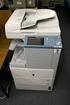 MULTIFUNCTIONAL DIGITAL COLOR SYSTEMS Printing Guide 009 KYOCERA MITA Corporation All rights reserved. Preface Thank you for purchasing Multifunctional Digital Color Systems. Also this guide describes
Frequently Asked Questions
 Frequently sked Questions Store this guide next to the machine for future reference. ENG Contents * Screen shots used in this manual may differ from the ones you actually see. Copy Functions Q1 I want
www.ricoh-usa.com Ricoh Product Line Segment 2 thru 6 MP/5000/5001, MP C5000/C6000/C6501, MP7000/8000, MP6001/7001, MP8001/9001, MP907EX
 www.ricoh-usa.com Ricoh Product Line Segment 2 thru 6 MP/5000/5001, MP C5000/C6000/C6501, MP7000/8000, MP6001/7001, MP8001/9001, MP907EX Understanding Your Ricoh Control Panel To access system administrator
Phaser 3635MFP Quick Use Guide
 Phaser 3635MFP Quick Use Guide Version 3.2 25.01.08 Quick Use Guide Phaser 3635MFP Xerox Phaser 3635MFP Quick Use Guide Thank you for choosing the Phaser 3635MFP. If you work through the procedures in
MULTIFUNCTIONAL DIGITAL SYSTEMS. Scanning Guide
 MULTIFUNCTIONAL DIGITAL SYSTEMS Scanning Guide 2011 TOSHIBA TEC CORPORATION All rights reserved Under the copyright laws, this manual cannot be reproduced in any form without prior written permission of
Xerox WorkCentre 7800 Series Control Panel
 Control Panel Available services can vary on your printer setup. For details about services and settings, see the User Guide. ABC DEF Menus GHI PQRS 7 JKL TUV 8 MNO 6 WXYZ 9 7 Job controls 0 # C Touch
MFD User Guide. Ver 1.3
 MFD User Guide Ver 1.3 CONTENTS CONTROL PANEL Page 4 An overview of the function buttons. MFD BASICS Page 5 Explains some of the most commonly used buttons. COPIER Double-sided Page 7 Make 2-sided copies
MULTIFUNCTIONAL DIGITAL SYSTEMS. Scanning Guide
 MULTIFUNCTIONAL DIGITAL SYSTEMS Scanning Guide 2008, 2009 TOSHIBA TEC CORPORATION All rights reserved Under the copyright laws, this manual cannot be reproduced in any form without prior written permission
im4511 / im3511 For Océ and Imagistics Models
 Océ Network Scanning Operations Manual im45 / im35 For Océ and Imagistics Models INTRODUCTION The optional Network Scanner Expansion Kit (ZB350060) enables the machine to be used as a network scanner.
V1.0 April 2010. Xerox WorkCentre 3550 User Guide
 V1.0 April 2010 Xerox WorkCentre 3550 2010 Xerox Corporation. All Rights Reserved. Unpublished rights reserved under the copyright laws of the United States. Contents of this publication may not be reproduced
KX Driver Version 4.1. User Guide
 KX Driver Version 4. User Guide Legal Notes Unauthorized reproduction of all or part of this guide is prohibited. The information in this guide is subject to change for improvement without notice. We cannot
MULTIFUNCTIONAL DIGITAL SYSTEMS. MFP Management Guide
 MULTIFUNCTIONAL DIGITAL SYSTEMS MFP Management Guide 009 KYOCERA MITA Corporation All rights reserved Preface Thank you for purchasing Multifunctional Digital Color Systems. This manual explains the instructions
User s Guide [Network Scan/Fax/Network Fax Operations]
![User s Guide [Network Scan/Fax/Network Fax Operations]](/thumbs/27/11353988.jpg "User s Guide [Network Scan/Fax/Network Fax Operations]") User s Guide [Network Scan/Fax/Network Fax Operations] Table of contents 1 Introduction 1.1 Welcome... 1-2 1.1.1 User's guides... 1-2 1.1.2 User's Guide... 1-3 1.2 Conventions used in this manual... 1-4
User s Guide [Network Scan/Fax/Network Fax Operations] Table of contents 1 Introduction 1.1 Welcome... 1-2 1.1.1 User's guides... 1-2 1.1.2 User's Guide... 1-3 1.2 Conventions used in this manual... 1-4
X644e, X646e. User s Guide. www.lexmark.com. January 2006
 X644e, X646e User s Guide January 2006 www.lexmark.com Lexmark and Lexmark with diamond design are trademarks of Lexmark International, Inc., registered in the United States and/or other countries. 2006
How To Use A Powerpoint 3D Printer On A Pc Or Mac Or Mac (For Pc Or Ipad) On A Mac Or Ipod (For Mac) On An Ipod Or Ipo (For Ipo) On Pc Or Pc
 Xerox ColorQube 90 / 90 / 90 Control Panel Available services can vary on your printer setup. For details about services and settings, see the User Guide.? Menus GHI PRS 7 * ABC JKL TUV 8 0 DEF MNO 6 WXY
Legal Notes. Regarding Trademarks. Model supported by the KX printer driver. 2010 KYOCERA MITA Corporation
 Legal Notes Unauthorized reproduction of all or part of this guide is prohibited. The information in this guide is subject to change for improvement without notice. We cannot be held liable for any problems
MULTIFUNCTIONAL DIGITAL COLOR SYSTEMS / MULTIFUNCTIONAL DIGITAL SYSTEMS. Scanning Guide
 MULTIFUNCTIONAL DIGITAL COLOR SYSTEMS / MULTIFUNCTIONAL DIGITAL SYSTEMS Scanning Guide 2012-2015 TOSHIBA TEC CORPORATION All rights reserved Under the copyright laws, this manual cannot be reproduced in
Xerox 700 Digital Color Press with Integrated Fiery Color Server. Utilities
 Xerox 700 Digital Color Press with Integrated Fiery Color Server Utilities 2008 Electronics for Imaging, Inc. The information in this publication is covered under Legal Notices for this product. 45072726
Photocopying and scanning
 Photocopying and scanning Logging in at the copier Scan your card using the Barcode Scanner at the copier Press in the PIN field Enter your PIN, and then press OK. 1 Photocopying 1. Position your document
Faxing. Fax Overview
 Fax Overview Faxing is an optional printer feature providing several methods for faxing an original document. Embedded Fax: Document is scanned and sent directly to a fax machine. Server Fax: Document
DDST Unit Type A / Type B. Printer / Scanner Reference. Operating Instructions
 DDST Unit Type A / Type B Operating Instructions Printer / Scanner Reference 1 2 3 4 5 6 Getting Started Installing the Software Using the Printer Function Using the TWAIN Scanner Function Troubleshooting
Version 1.0 09/10. Xerox ColorQube 9301/9302/9303 Administration and Accounting
 Version 1.0 09/10 Xerox ColorQube 9301/9302/9303 2010 Xerox Corporation. All Rights Reserved. Unpublished rights reserved under the copyright laws of the United States. Contents of this publication may
Xerox ColorQube 9201/9202/9203 Quick Use Guide
 Xerox ColorQube 9201/9202/9203 2009 Xerox Corporation. All Rights Reserved. Unpublished rights reserved under the copyright laws of the United States. Contents of this publication may not be reproduced
Operation Guide <Functions Edition> Click on the button to jump to the desired section.
 Operation Guide Click on the button to jump to the desired section. Using the Scanner Function Sending Scanned Image Data to Your Computer Sending Scanned Image Data by Email Using
Understanding the home screen
 Quick Reference Learning about the printer Using the printer control panel 1 2 3 4 5 6 Understanding the home screen When the printer is turned on, the display shows a basic screen, referred to as the
MODEL: MX-M623N MX-M753N MX-M623U MX-M753U DIGITAL MULTIFUNCTIONAL SYSTEM START GUIDE. Keep this manual close at hand for reference whenever needed.
 MODEL: MX-M623N MX-M753N MX-M623U MX-M753U DIGITAL MULTIFUNCTIONAL SYSTEM START GUIDE Keep this manual close at hand for reference whenever needed. Each instruction also covers the optional units used
MODEL: MX-C250 MX-C300W DIGITAL FULL COLOR MULTIFUNCTIONAL SYSTEM OPERATION GUIDE
 MODEL: MX-C250 MX-C300W DIGITAL FULL COLOR MULTIFUNCTIONAL SYSTEM OPERATION GUIDE INTRODUCTION This manual describes MX-C250/MX-C300W Digital full color multifunctional system. Where "MX-XXXX" appears
WF-R5690 User's Guide
 WF-R5690 User's Guide Contents WF-R5690 User's Guide... 15 Product Basics... 16 Using the Control Panel... 16 Control Panel Buttons and Lights... 17 Status Icon Information... 18 Status Button Information...
Printer/Scanner Unit Type 3045. Scanner Reference. Operating Instructions
 Printer/Scanner Unit Type 3045 Operating Instructions Scanner Reference 1 2 3 4 5 6 7 8 9 10 Getting Started Sending Scan Files by E-mail Sending Scan Files by Scan to Folder Storing Files Delivering Scan
HP Color LaserJet CM6030 and CM6040 MFP Series Use output finishers
 Print to the optional -bin stapler/stacker. If you have the optional stapler/stacker the following options are available: Job offset: Each copy of a job is shifted to one side in the output bin in order
Advanced User s Guide
 Advanced User s Guide MFC-9130CW MFC-9330CDW MFC-9340CDW Not all models are available in all countries. Version 0 USA/CAN User s Guides and where do I find them? Which Guide? What s in it? Where is it?
S PT-E550W ELECTRONIC E C LABELING L SYSTEM
 ELECTRONIC E C LABELING L SYSTEM S PT-E0W In order to use your P-touch labeling system safely, read the included Quick Setup Guide first. Read this guide before you start using your P-touch labeling system.
Troubleshooting. Operating Instructions
 Operating Instructions Troubleshooting 1 2 3 4 5 6 7 8 When the Machine Does Not Operate As Wanted Troubleshooting When Using the Copy Function Troubleshooting When Using the Facsimile Function Troubleshooting
Overview. Quick User Guide. Copy. ApeosPort-IV C5570/4470/3370/2270 DocuCentre-IV C5570/4470/3370/2270. Fax. Scan. Print. Job Status.
 Quick User Guide ApeosPort-IV C5570/4470/3370/2270 DocuCentre-IV C5570/4470/3370/2270 Setup Job Status Print Overview Copy Scan Fax This User Guide is printed on FUJI XEROX Office Color Capable Products.
CANON USER GUIDE. 1. How to register and print with your LSE ID Card 2. Changing print settings 3. Scan to email 4. How to copy
 CANON USER GUIDE 1. How to register and print with your LSE ID Card 2. Changing print settings 3. Scan to email 4. How to copy 1 How to register and print with your LSE ID Card 1 Getting Started: 2 To
Advanced User s Guide
 Advanced User s Guide MFC-J650DW MFC-J870DW DCP-J552DW DCP-J752DW Version 0 UK/IRE/GEN User's Guides and where do I find them? Which Guide? What's in it? Where is it? Product Safety Guide Quick Setup Guide
CONTENT. 1 Normal Printing. 2 Secure Printing. 3 Faxing from PC. 4 Setting Mailbox. 5 Scanning documents into mailbox. 6 Retrieve Scanned Image
 CONTENT 1 Normal Printing 2 Secure Printing 3 Faxing from PC 4 Setting Mailbox 5 Scanning documents into mailbox 6 Retrieve Scanned Image 7 Scanning Documents to Ifax 8 Setting Of Speed Dial Via Internet
Xerox 700 Digital Color Press with Integrated Fiery Color Server. Printing from Mac OS
 Xerox 700 Digital Color Press with Integrated Fiery Color Server Printing from Mac OS 2008 Electronics for Imaging, Inc. The information in this publication is covered under Legal Notices for this product.
ADVANCED USER S GUIDE
 ADVANCED USER S GUIDE MFC-7360N MFC-7460DN MFC-7860DW Not all models are available in all countries. Version 0 USA/CAN User's Guides and where do I find it? Which manual? What's in it? Where is it? Safety
OPERATION GUIDE. TASKalfa 181/221 FS-1300D
 OPERATION GUIDE FS-1100 FAX SYSTEM R TASKalfa 181/221 FS-1300D NOTICE This Operation Guide contains information for using this FAX System that relates to both the inch and metric versions of this machine.
MULTIFUNCTIONAL DIGITAL SYSTEMS. TopAccess Guide
 MULTIFUNCTIONAL DIGITAL SYSTEMS TopAccess Guide 008-0 TOSHIBA TEC CORPORATION All rights reserved Under the copyright laws, this manual cannot be reproduced in any form without prior written permission
Interactive Whiteboard Functionality Overview... 4. Choosing Pen Style... 5. Erasing / Modifying Writing... 6. Undo / Redo... 6. Email...
 Quick Start Guide 1 Stand-alone Usage Interactive Whiteboard Functionality Overview... 4 Choosing Pen Style... 5 Erasing / Modifying Writing... 6 Undo / Redo... 6 Email... 7 Import / Open file... 7 Saving
Artisan 1430 User's Guide
 Artisan 1430 User's Guide Contents Artisan 1430 User's Guide... 9 Product Basics... 10 Printer Parts Locations... 10 Printer Parts - Top... 10 Printer Parts - Back... 11 Printer Parts - Inside... 12 Printer
PostScript User Guide 604P17454_EN
 CopyCentre C118 WorkCentre M118/M118i PostScript User Guide 604P17454_EN Prepared by: The Document Company Xerox GKLS European Operations Bessemer Road Welwyn Garden City Hertfordshire AL7 1HE ENGLAND
Version 6.x Generic. KYOCERA KX DRIVER 6.x USER GUIDE
 Version 6.x Generic KYOCERA KX DRIVER 6.x USER GUIDE Legal Notes Unauthorized reproduction of all or part of this guide is prohibited. The information in this guide is subject to change without notice.
General Settings Guide
 Operating Instructions General Settings Guide 1 2 3 4 5 6 7 8 9 Connecting the Machine System Settings Copier / Document Server Features Facsimile Features Printer Features Scanner Features Registering
DIGITAL MULTIFUNCTIONAL SYSTEM
 MODEL: MX-M283N MX-M363N MX-M453N MX-M503N DIGITAL MULTIFUNCTIONAL SYSTEM Software Setup Guide BEFORE INSTALLING THE SOFTWARE SETUP IN A WINDOWS ENVIRONMENT SETUP IN A MACINTOSH ENVIRONMENT TROUBLESHOOTING
Printer Reference. Operating Instructions
 Operating Instructions Printer Reference 1 2 3 4 5 Preparing the Machine Setting Up the Printer Driver Other Print Operations Direct Printing from a Digital Camera (PictBridge) Appendix Read this manual
Network FAX Driver. Operation Guide
 Network FAX Driver Operation Guide About this Operation Guide This Operation Guide explains the settings for the Network FAX driver as well as the procedures that are required in order to use the Network
17 April 2014. Remote Scan
 17 April 2014 Remote Scan 2014 Electronics For Imaging. The information in this publication is covered under Legal Notices for this product. Contents 3 Contents...5 Accessing...5 Mailboxes...5 Connecting
Samsung Multifunction Printer's Practical Use Guide
 Samsung Multifunction Printer's Practical Use Guide Print Basic properties Printing options Samsung Anyweb Print Watermark printing Overlay printing Direct printing Secure Printing Eco printing Samsung
Integrated Cloud Environment Google Drive User s Guide
 Integrated Cloud Environment Google Drive User s Guide 2012-2015 Ricoh Americas Corporation It is the reader's responsibility when discussing the information contained this document to maintain a level
Features Reference. About Unified Communication System. Before Using This Machine. Starting a Meeting. What You Can Do During the Meeting
 Features Reference About Unified Communication System Before Using This Machine Starting a Meeting What You Can Do During the Meeting Leaving a Meeting Managing Address Book Changing Network Configuration
Detailed Specifications
 Detailed Specifications Better Buys for Business EDITOR S CHOICE 2003 CopyCentre TM C35/C45 CopyCentre C35 shown with Platen Cover, Stand and Offsetting Catch Tray options. CopyCentre C45 shown with Duplex
Operating Instructions
 Operating Instructions (For Facsimile and Internet Fax) Digital Color Imaging Systems Model No. DP-C406 / C306 / C266 Before operating this machine, please carefully read this manual, and keep this documentation
For safe and correct use, be sure to read the Safety Information in Read This First before using the machine. Operating Instructions
 For safe and correct use, be sure to read the Safety Information in Read This First before using the machine. Operating Instructions TABLE OF CONTENTS Introduction...6 How to Read This Manual...7 Symbols...7
MX-2300N MX-2700G MX-2700N MX-3500N MX-3501N MX-4500N MX-4501N. User's Guide
 MODEL: MX-2300G MX-2300N MX-2700G MX-2700N MX-3500N MX-3501N MX-4500N MX-4501N User's Guide TABLE OF CONTENTS ABOUT THIS MANUAL........................ 2 MANUALS PROVIDED WITH THE MACHINE... 2 1 BEFORE
Lexmark T64x Troubleshooting Guide
 Lexmark T64x Troubleshooting Guide Online technical support Technical support is available on our Lexmark Web site at www.lexmark.com. Checking an unresponsive printer If the printer is not responding,
Advanced User s Guide
 Advanced User s Guide MFC-8950DW MFC-8950DWT Not all models are available in all countries. Version 0 USA/CAN User's Guides and where do I find them? Which Guide? What's in it? Where is it? Product Safety
Cloud Portal for imagerunner ADVANCE
 Cloud Portal for imagerunner ADVANCE User's Guide Please read this guide before operating this product. After you finish reading this guide, store it in a safe place for future reference. ENG How This
FAQ: How to copy? Step-by-Step-Instructions for advanced Functions. 1. Preview: Checking the preview image before copying.
 FAQ: How to copy? Step-by-Step-Instructions: Advanced Functions 1 FAQ: How to copy? Step-by-Step-Instructions for advanced Functions. 1. Preview: Checking the preview image before copying... 3 2. Copy
Scanning. WorkCentre C2424 Copier-Printer
 Scanning This chapter includes: "Basic Scanning" on page 4-2 "Installing the Scan Driver" on page 4-4 "Adjusting Scanning Options" on page 4-5 "Retrieving Images" on page 4-11 "Managing Files and Controlling
Document Manager 2.0. User Guide
 Document Manager 2.0 User Guide Document Manager 2.0 Introduction Document Manager 2.0 is the Web to Print ordering application for OfficeMax ImPress. Many features and functionality are available to you
Mobility with Eye-Fi Scanning Guide
 Mobility with Eye-Fi Scanning Guide Scan and Transfer Images Wirelessly with Eye-Fi This document is to be used in addition to the scanner s user guide located on the installation disc. The instructions
HP LaserJet P2050 Series Printer Print tasks
 Cancel a print job Stop the current print job from the control panel Press the Cancel button on the control panel. OK Stop the current print job from the software program When you send the print job, a
Print & Copy Control Solution
 Print & Copy Control Solution Sharp MFP s Card & Windows Authentication Photocopier Guide and Reference Information Print & Copy Control Solution Access control using: Proximity Card Windows Authentication
Integrated Cloud Environment Box User s Guide
 Integrated Cloud Environment Box User s Guide 2012-2015 Ricoh Americas Corporation It is the reader's responsibility when discussing the information contained this document to maintain a level of confidentiality
Software User's Guide
 BROTHER QL-500/550/650TD/1050/1050N Software User's Guide QL-500 QL-650TD QL-550 QL-1050/1050N 1 Contents Contents....................................................................................2................................................................................4
Navigate your workflow
 Océ Document Management Tool 2.2 Navigate your workflow Digital document workflow software that streamlines productivity Put convenience and productivity at your fingertips Gain control over your document
Ricoh Copier Scan to File Instructions
 Overview Ricoh Copier Scan to File Instructions Your new Ricoh copier provides scanning functions to: Scan documents up to 11 by 17 Convert them to Adobe Acrobat PDF file or TIFF file format and then either:
Customer Release Notes for Xerox Integrated Fiery Color Server for the Xerox Color C75 Press, version 1.0
 Customer Release Notes for Xerox Integrated Fiery Color Server for the Xerox Color C75 Press, version 1.0 This document contains important information about this release. Be sure to provide this information
MULTIFUNCTIONAL DIGITAL SYSTEMS. Network Fax Guide
 MULTIFUNCTIONAL DIGITAL SYSTEMS Network Fax Guide 2009 KYOCERA MITA Corporation All rights reserved Preface Thank you for purchasing Multifunctional Digital Color Systems. This manual explains the instructions
Advanced User s Guide
 Advanced User s Guide FAX-2840 FAX-2845 FAX-2940 Not all models are available in all countries. Version 0 UK/IRE User s Guides and where do I find them? Which Guide? What s in it? Where is it? Product
Technical Support. Package Contents. CENTRIA WNDR4700/WNDR4720 Installation Guide
 Technical Support After installing your device, locate the serial number on the label of your product and use it to register your product at https://my.netgear.com. You must register your product before
WF-2650 User's Guide
 WF-2650 User's Guide Contents WF-2650 User's Guide... 13 Product Basics... 14 Using the Control Panel... 14 Control Panel Buttons and Lights... 14 Status Icons... 15 Entering Characters on the LCD Screen...
MULTIFUNCTIONAL DIGITAL COLOR SYSTEMS / MULTIFUNCTIONAL DIGITAL SYSTEMS. Remote Scan driver Help
 MULTIFUNCTIONAL DIGITAL COLOR SYSTEMS / MULTIFUNCTIONAL DIGITAL SYSTEMS Remote Scan driver Help 2012, 2013 TOSHIBA TEC CORPORATION All rights reserved Under the copyright laws, this manual cannot be reproduced
Royal Mail Despatch Manager Online Printer Installation Guide
 Royal Mail Despatch Manager Online Printer Installation Guide Getting you started Thank you for opting to use Royal Mail s Despatch Manager Online (DMO) system. To help get you started successfully please