
CONTENTS. Contents > 3
|
|
|
- Regina Tate
- 10 years ago
- Views:
Transcription
1

2 PREFACE Every effort has been made to ensure that the information in this document is complete, accurate, and up-to-date. The manufacturer assumes no responsibility for the results of errors beyond its control. The manufacturer also cannot guarantee that changes in software and equipment made by other manufacturers and referred to in this guide will not affect the applicability of the information in it. Mention of software products manufactured by other companies does not necessarily constitute endorsement by the manufacturer. While all reasonable efforts have been made to make this document as accurate and helpful as possible, we make no warranty of any kind, expressed or implied, as to the accuracy or completeness of the information contained herein TOSHIBA TEC CORPORATION All rights reserved Energy Star is a trademark of the United States Environmental Protection Agency. Microsoft, MS-DOS and Windows are registered trademarks of Microsoft Corporation. Apple, Macintosh, Mac and Mac OS are registered trademarks of Apple Computer. Other product names and brand names are registered trademarks or trademarks of their proprietors. Preface > 2

3 CONTENTS Preface Contents Notes, cautions and warnings About this guide Documentation suite Purpose of this guide On-line usage Printing pages Configuring the network settings Checking the common setup information Setting up scan to and internet fax Checking the settings of the computer Setting the address for your machine Configuring your machine for scan to and internet fax Setting up scan to network PC Checking the name of the computer Determining the names of the items required for scan to network PC...16 Configuring the computer for scan to network PC Managing profiles Creating a profile for scan to network PC Deleting a network profile Managing the address book Setting sender and reply to addresses (from/reply to) Creating templates Adding an address entry to the address book Deleting an address entry from the address book Modifying an address entry from the address book Adding a group entry to the address book Deleting a group address entry from the address book Modifying a group address entry from the address book Configuring the fax settings (e-studio223cs and e-studio263cs)..29 Basic setup Advanced set up Connecting to a PBX Automatic redial Reception mode Adding a telephone handset Managing the phone book Adding a speed dial entry to the phone book Adding a group entry to the phone book Deleting a speed dial entry from the phone book Deleting a group dial entry from the phone book Modifying a speed dial entry Modifying a group dial entry Registering an entry from reception or transmission history Contents > 3

4 User authentication and access control PIN authentication Registering a PIN Enabling PIN authentication Operation when PIN authentication is enabled User name and password authentication Registering a user name and password Enabling user name and password authentication Operation when user name and password authentication is enabled Operation from the computer Advanced network settings Network setting items TCP/IP NetWare EtherTalk NBT/NetBEUI send receive alert SNMP Printer trap IPP Windows rally IEEE802.1X Secure protocol server (Kerberos) LDAP Mail server Security IP filtering MAC address filtering SSL/TLS IPSec Maintenance Time setup (SNTP settings) Web printing Changing network settings from the web page Encrypting Communication by SSL/TLS IPP printing (Windows only) Encrypting communication by IPSec Controlling access using IP address (IP filtering) Controlling access using MAC address (MAC address filtering) Error notification by ( alert) Using SNMPv Using IPv Enabling IPv Checking IPv6 address Using IEEE802.1X Configuring your machine for IEEE802.1X Connecting your machine to authentication switch Configuring LDAP server Configuring secure protocols Printing without printer driver (direct printing) Printing PDFs Configuring server to print files attached to s Changing settings on EtherTalk (Mac only) Changing EtherTalk machine name Changing EtherTalk zone Contents > 4

5 Other operations Initializing network settings Using DHCP Configuring DHCP server Configuring your machine Appendix A - menu system Reports Paper setup Address book Phone book Profile Network scan destination Store document settings View information Shutdown Easy setup Admin setup Index Contents > 5

6 S, CAUTIONS AND WARNINGS A note provides additional information to supplement the main text. CAUTION! A caution provides additional information which, if ignored, may result in equipment malfunction or damage. WARNING! A warning provides additional information which, if ignored, may result in a risk of personal injury. Notes, cautions and warnings > 6

7 ABOUT THIS GUIDE Images used in this manual may include optional features that your product does not have installed. DOCUMENTATION SUITE This guide is part of a suite of online and printed documentation provided to help you become familiar with your product and to make the best use of its many powerful features. The documentation is summarised below for reference and is found on the manuals DVD unless indicated otherwise: > Installation Safety booklet: provides information for safe use of your product. This is a paper document that is packaged with the product and should be read before setting up your machine. > Set-up guide: describes how to unpack, connect and turn on your product. This is a paper document that is packaged with the product. > User s Guide: helps you become familiar with your product and make the best use of its many features. Also included are guidelines for troubleshooting and maintenance to ensure that it performs at its best. Additionally, information is provided for adding optional accessories as your printing needs evolve. > Configuration Guide: provides machine, fax and network configuration information. > Printing Guide: helps you become familiar with the many features of the driver software supplied with your product. > Barcode Printing Guide: helps you become familiar with your product s built in barcode printing feature. > Security Guide: helps you become familiar with your product s security features. > Installation Guides: accompany consumable items and optional accessories to describe how to install them. These are paper documents that are packaged with the consumables and optional accessories. > On-line Help: on-line information accessible from the printer driver and utility software. PURPOSE OF THIS GUIDE The purpose of this guide is to provide you with in-depth information on how configure the network, scan and fax for your machine. About this guide > 7

8 ON-LINE USAGE This guide is intended to be read on screen using Adobe Reader. Use the navigation and viewing tools provided in Adobe Reader. There are many cross-references within this book, each highlighted as blue text. When you click on a cross-reference the display will instantly jump to the part of the manual containing the referenced material. By using the button in Adobe Reader, you can navigate directly back to where you were before. You can access specific information in two ways: > In the list of bookmarks down the left hand side of your screen, click on the topic of interest to jump to the required topic. (If the bookmarks are not available, use the Contents on page 3.) > In the list of bookmarks, click on Index to jump to the Index. (If the bookmarks are not available, use the Contents on page 3.) Find the term of interest in the alphabetically arranged index and click on the associated page number to jump to the page containing the term. PRINTING PAGES The whole manual, individual pages, or sections may be printed. The procedure is: 1. From the toolbar, select File > Print (or press the Ctrl + P keys). 2. Choose which pages you wish to print: (a) All pages, (1), for the entire manual. (b) Current page, (2), for the page at which you are looking (c) (d) Pages from and to, (3), for the range of pages you specify by entering their page numbers. Click OK. About this guide > 8

9 CONFIGURING THE NETWORK SETTINGS Functions such as Scan To , Scan To Network PC and Internet Fax enable you to send scanned data to a computer via the network connection. To use them, you need to set up your machine and the computer to which you want to send scanned data. First check your computer settings and fill in the information in the Your Value column of the Setup Information Form, on page 9. Then, configure your machine and the computer using the information in Your Value. Be sure to set up the network connection before continuing. Refer to the Setup Guide supplied with the machine. Table 1: Setup Information Form NO. ITEM EXAMPLE YOUR VALUE Common Setup Information A-1 Administrator password for your machine aaaaaa A-2 IP address of your machine Setup Information Required for Scan To and Internet Fax B-1 address for your machine [email protected] (Up to 80 characters) B-2 SMTP server address smtp.test.com B-3 POP3 server address pop3.test.com B-4 Authentication method SMTP B-5 SMTP user ID TTECe-STUDIO263CS B-6 SMTP password TTECe-STUDIO263CS B-7 POP user ID user B-8 POP password TTECe-STUDIO263CS B-9 Name of the destination User B-10 address of the destination [email protected] Setup Information Required for Scan To Network PC C-1 Name of the destination computer PC1 C-2 User name to log into the destination computer C-3 Password to log into the destination computer e-studio263cs e-studio263cs (Up to 32 characters) (Up to 32 characters) C-4 Profile name to register the settings Sales (Up to 16 characters) C-5 Shared folder name on the destination computer SalesDev (Up to 64 characters) C-6 File name of the scanned data ScanData (Up to 64 characters) Configuring the network settings > 9
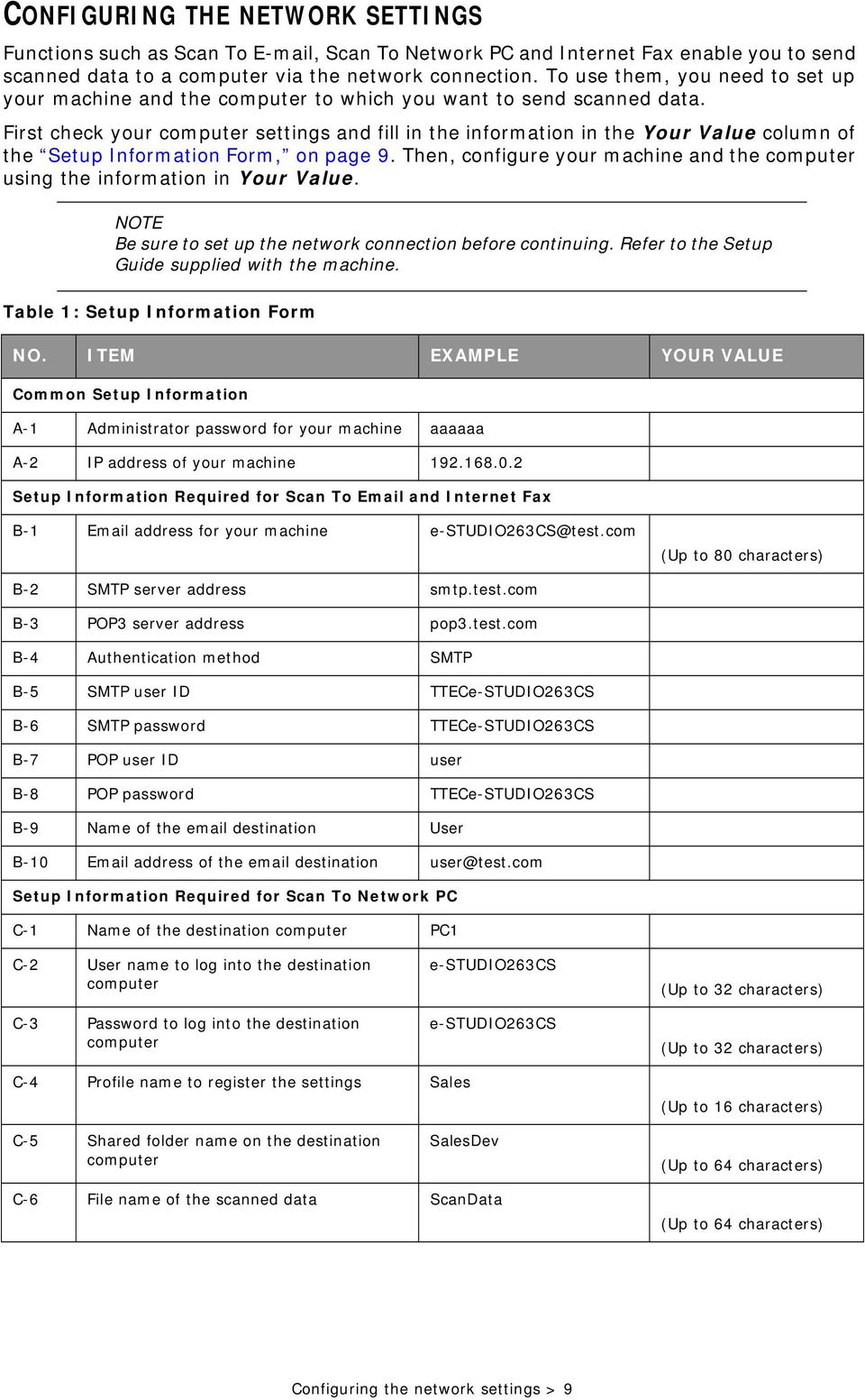
10 CHECKING THE COMMON SETUP INFORMATION Check the common setup information for Scan To , Scan To Network PC and Internet Fax, and fill in the corresponding column in the Setup Information Form, on page 9. Administrator password Enter the administrator password of your machine in the Setup Information Form, on page 9. The default administrator password is aaaaaa. Passwords are case sensitive. IP address of your machine 1. Press the SETTING key on the control panel. 2. Using the Down arrow key, scroll to View Information and press OK. 3. Using the Down arrow key, scroll to Network and press OK. 4. Note the IPv4 address in the Setup Information Form, on page 9. SETTING UP SCAN TO AND INTERNET FAX The Scan To and Internet Fax functions enable you to send scanned images as a file attachment in an to the specified address on the network. To use these functions, set up the setting for your machine. CHECKING THE SETTINGS OF THE COMPUTER If a network administrator specifies the values such as a mail server account, password and address for your machine, note them in the Setup Information Form, on page 9, otherwise follow the procedure below. The procedure below uses Windows Live Mail on Windows 7. If you are using different software, refer to the manual for the software. 1. Click Start > Windows Live Mail. 2. From the drop-down menu, select Tools > Accounts. If the menu bar is not displayed, click the Menus icon and then select Show menu bar. 3. Select the default mail account and then click Properties. Configuring the network settings > 10
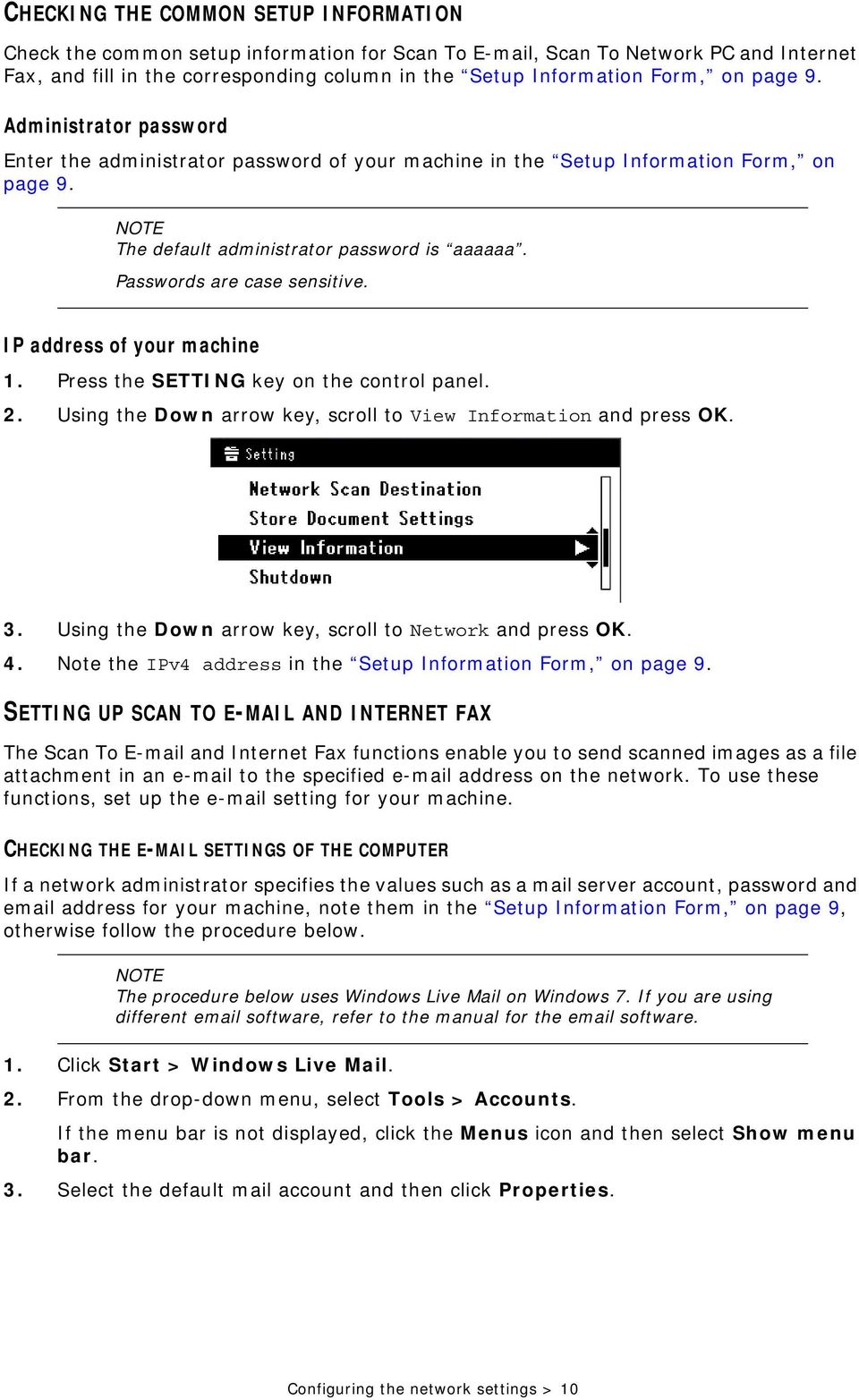
11 4. On the General tab, note the Name and address in the Setup Information Form, on page 9. B-9 B Click the Server tab, and then note each of the settings as shown: B-3 B-2 B-7 B-8 If My server requires authentication is selected, enter SMTP. If it is not selected, enter POP. 6. Select My server requires authentication and then click Settings. 7. Refer to the Outgoing Mail Server dialog box, and note the settings in the Setup Information Form, on page 9. B-5 B-6 If Use the same settings as my incoming mail server is selected, enter the same values as above. If Log on using is selected, note the Account name and Password. Configuring the network settings > 11
12 SETTING THE ADDRESS FOR YOUR MACHINE Enter an address to be used by your machine in the Setup Information Form, on page 9. > If the address for your machine is specified by the network administrator, enter the address in B-1. > If you are using an Internet Service Provider, obtain an address for your machine from the provider and then enter the address in B-1. > If the address for your machine is neither specified nor obtained, determine the address according to the value you entered in authentication method: > If authentication method is SMTP, determine an address and enter it in B-1. > If authentication method is POP, enter the same address as B-12 in B-1. If you want your machine to receive , you must obtain an address for your machine from a network administrator or your Internet Service Provider. Configuring the network settings > 12

13 CONFIGURING YOUR MACHINE FOR SCAN TO AND INTERNET FAX Set up your machine for Scan To and Internet Fax using the information in the Setup Information Form, on page Press the SETTING button on the control panel. 2. Using the Down arrow key, scroll to Easy Setup and press OK. 3. Using the arrow keys and on-screen keypad, enter the Administrator password. Highlight Done and press OK. The default password is aaaaaa. 4. Using the Down arrow key, scroll to Setting and then press the Right arrow key. 5. Press the Right arrow key, then enter the SMTP server address (B-2) using the arrow keys and on-screen keypad. 6. Highlight Done and then press OK. 7. Press the Right arrow key, then enter the address for your machine (B- 1) using the arrow keys and on-screen keypad. 8. Highlight Done and then press OK. 9. Press the Right arrow key, then enter the authentication method (B-4) using the arrow keys and on-screen keypad. 10. Highlight Done and then press OK. 11. Press the Right arrow key, then enter the SMTP user ID (B-5) using the arrow keys and on-screen keypad. 12. Highlight Done and then press OK. 13. Press the Right arrow key, then enter the SMTP password (B-6) using the arrow keys and on-screen keypad. 14. Highlight Done and then press OK. 15. Press the Right arrow key, then enter the POP-3 server address (B-3) using the arrow keys and on-screen keypad. 16. Highlight Done and then press OK. 17. Press the Right arrow key, then enter the POP-3 user ID (B-7) using the arrow keys and on-screen keypad. 18. Highlight Done and then press OK. 19. Press the Right arrow key, then enter the POP password (B-8) using the arrow keys and on-screen keypad. 20. Highlight Done and then press OK. 21. When the setup menu screen is displayed, press OK. The setup for Scan To and Internet Fax is complete. Configuring the network settings > 13

14 SETTING UP SCAN TO NETWORK PC The Scan To Network PC function enables you to send and save scanned images to the shared folder of a computer on the network. To use this function, register your machine on the computer as a user and create a shared folder, and then create a profile on your machine to register the settings for the computer. Before starting the setup, get permission from the network administrator to create a shared folder on the computer by following the procedure below. The CIFS protocol is used in this procedure. CHECKING THE NAME OF THE COMPUTER Check the name of the computer following the procedure below, and fill in C-1 of the Setup Information Form, on page 9. Windows 7, Windows Server 2008 R2, Windows Server 2008 and Vista The procedure below uses Windows 7 as an example. The display may differ depending on the operating system. 1. Click Start > Control Panel. 2. Select System and Security. For Windows Server 2008 and Windows Vista, select System and Maintenance. 3. Click System > See the name of this computer. 4. Note the Computer name in C-1. C-1 5. Close the window. Configuring the network settings > 14
15 Windows Server 2003 and Windows XP 1. For Windows Server 2003, click Start > Control Panel > System. For Windows XP, click Start > Control Panel > Performance and Maintenance > System. 2. Select the Computer Name tab and then click Change. 3. Note the Computer name in C Click Cancel to close the window. Windows Click Start > Settings > Control Panel. 2. Double-click System. 3. Select the Network Identification tab and then click Properties. 4. Note the Computer name in C Click Cancel to close the window. Configuring the network settings > 15

16 DETERMINING THE NAMES OF THE ITEMS REQUIRED FOR SCAN TO NETWORK PC Determine the names of the following items and fill in C-2 to C-6 on the Setup Information Form, on page 9. > User name to log into the destination computer (C-2) > Password to log into the destination computer (C-3) > Profile name to register the settings on your machine (C-4) > Shared folder name on the destination computer (C-5) > File name of the scanned data (C-6) CONFIGURING THE COMPUTER FOR SCAN TO NETWORK PC Register your machine on the computer as a user and then set up a shared folder to which scanned images are sent and saved. If the computer is in a domain, the procedure of adding a user account may be different to the procedure below. Refer to Windows help. Windows 7, Windows Server 2008 R2, Windows 2008 and Windows Vista The procedure below uses Windows 7 as an example. The display may differ depending on the operating system. 1. Click Start > Control Panel. 2. Select Add or remove user accounts. 3. Select Create a new account. 4. Enter the user name (C-2) in the text box. C-2 es263cs 5. Ensure that Standard user is selected, and then click Create Account. 6. Click the icon of the user account created in step 5. Configuring the network settings > 16

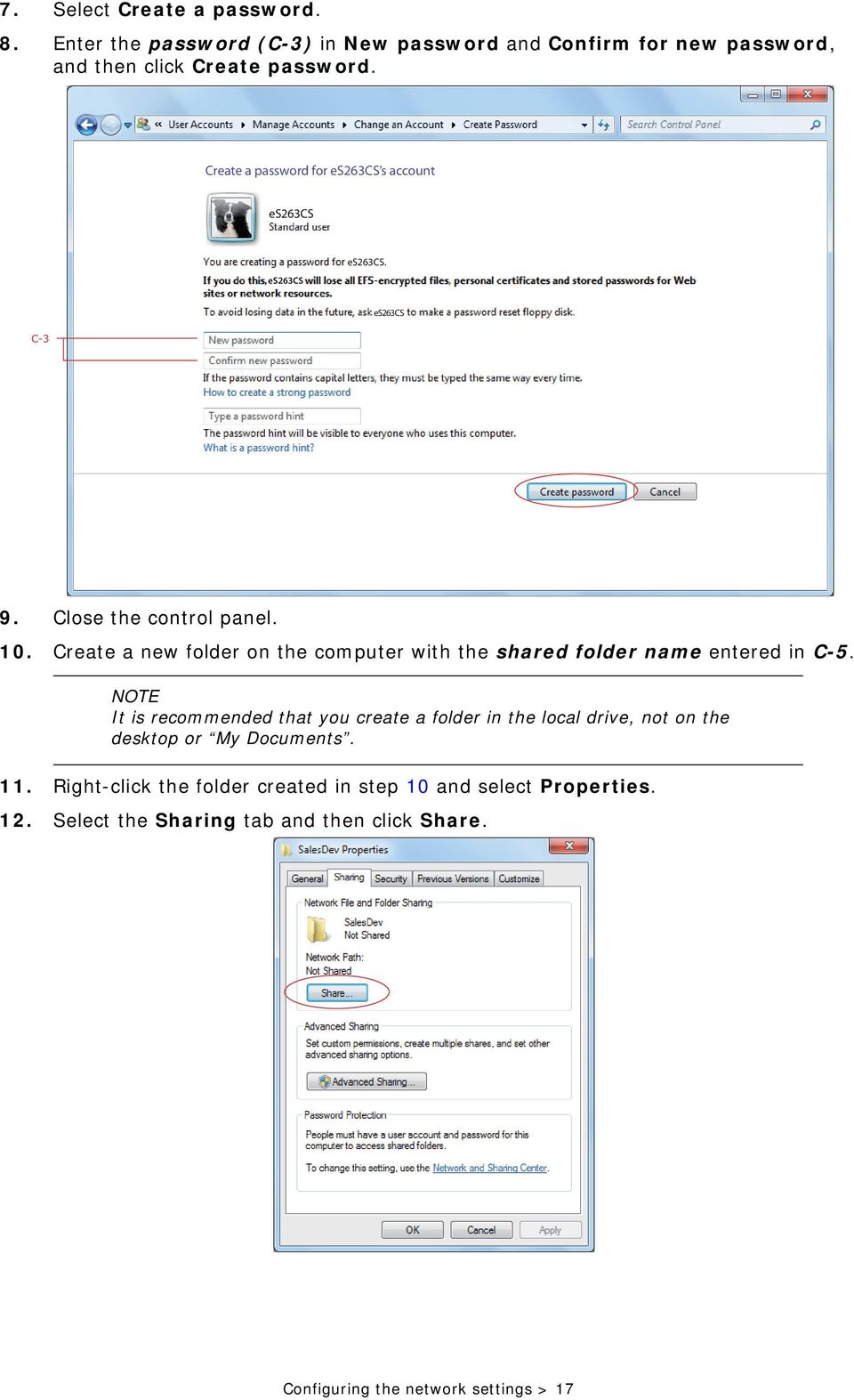
17 7. Select Create a password. 8. Enter the password (C-3) in New password and Confirm for new password, and then click Create password. Create a password for es263cs s account es263cs es263cs es263cs. C-3 es263cs 9. Close the control panel. 10. Create a new folder on the computer with the shared folder name entered in C-5. It is recommended that you create a folder in the local drive, not on the desktop or My Documents. 11. Right-click the folder created in step 10 and select Properties. 12. Select the Sharing tab and then click Share. Configuring the network settings > 17
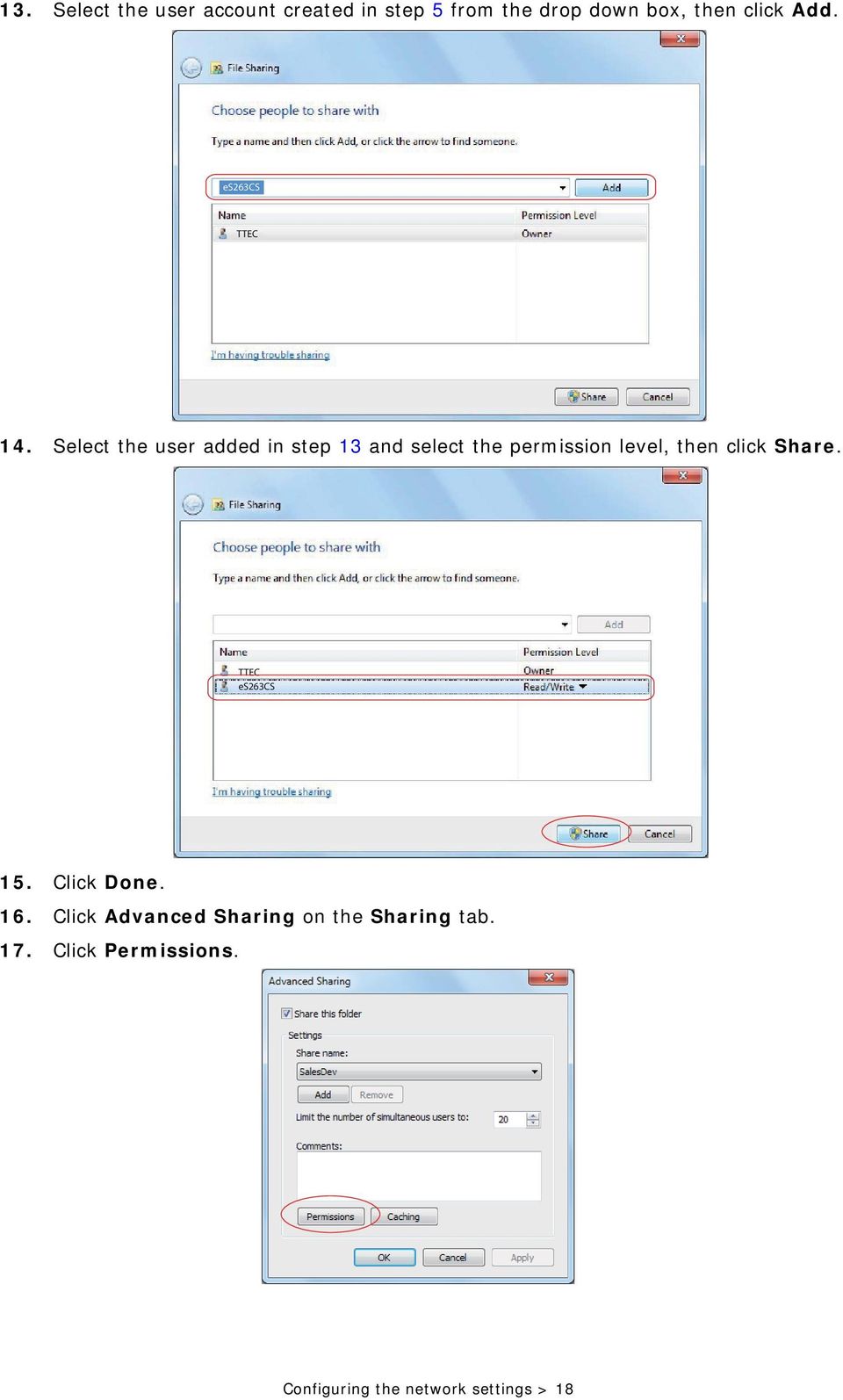
18 13. Select the user account created in step 5 from the drop down box, then click Add. es263cs TTEC 14. Select the user added in step 13 and select the permission level, then click Share. TTEC es263cs 15. Click Done. 16. Click Advanced Sharing on the Sharing tab. 17. Click Permissions. Configuring the network settings > 18
19 18. Select the user added in step 13 and select the Allow check box for Full Control, then click OK. 19. Close the folder s property dialog box. Create a profile to complete the setup for Scan To Network PC. Refer to Creating a profile for scan to network PC on page 22. Windows Server Click Start > Administrative Tools > Server Management. 2. Click Users. 3. Select Add a user. 4. Enter the user name (C-2) in the First name text box and then click Next. 5. Enter the password (C-3) in Password and Confirm password. 6. Select the Cannot change password and then click Next. 7. Click Finish. 8. Click Close. 9. Create a new folder on the computer with the shared folder name entered in C-5. It is recommended that you create a folder in the local drive, not on the desktop or My Documents. 10. Right-click the folder created in step 9, and then select Sharing and Security. 11. On the Sharing tab, select Share this folder and then click Permissions. 12. Click Add. 13. Enter the user name (C-2) and then click Check Names. 14. Check that the user name (C-2) is displayed, and then click OK. 15. Select the Allow check box for Full Control, and then click OK. Configuring the network settings > 19

20 16. Close the folder s property dialog box. Create a profile to complete the setup for Scan To Network PC. Refer to Creating a profile for scan to network PC on page 22. Windows XP 1. Click Start > Control Panel. 2. Double-click User Accounts. 3. Select Create a new account. 4. Enter the user name (C-2) in the text box and click Next. 5. Select Limited and click Create Account. 6. Click the icon of the user account created in step Select Create a password. 8. Enter the password (C-3) in Type a new password and Type the new password again to confirm, and then click Create Password. 9. Close the control panel. 10. Create a new folder on the computer with the shared folder name entered in C-5. It is recommended that you create a folder in the local drive, not on the desktop or My Documents. 11. Right-click the folder created in step 10, and then select Sharing and Security. 12. Click If you understand the security risks but want to share files without running the wizard, click here.. If a pop-up screen displays, select Share this folder and click Permissions. Proceed to step Select Share this folder in Windows Firewall, and then click OK. 14. Select the Share this folder on the network and Allow network users to change my files check box, and then click OK. 15. Select the Allow check box for Full Control, and then click OK. Create a profile to complete the setup for Scan To Network PC. Refer to Creating a profile for scan to network PC on page 22. Configuring the network settings > 20

21 Windows Right-click My Computer on the desktop and then select Manage. 2. In the right window, double-click System Tools > Local Users and Groups, and then Right-click Users and select New User. 3. Enter the user name (C-2) in User name and the password (C-3) in Password and Confirm Password. 4. Select User can not change password and Password never expires, and then click Create. Click Close to close the New User dialog. If User must change password at next logon is selected, clear it so that you can select User can not change password and Password never expires. 5. Double-click User and check that the user created in step 4 is displayed. Close the Computer Management window. 6. Create a new folder on the computer with the shared folder name entered in C-5. It is recommended that you create a folder in the local drive, not on the desktop or My Documents. 7. Right-click the folder created in step 6 and then select Sharing. 8. Select Share this folder and then click Permissions. 9. Click Add. 10. Select the user account created in step 4 and then click Add. 11. Check that the user account is displayed, and then click OK. 12. Select the Allow check box for Full Control, and then click OK. 13. Ensure that the icon of the shared folder changes into the icon with a hand, and then close the window. Create a profile to complete the setup for Scan To Network PC. Refer to Creating a profile for scan to network PC on page 22. Configuring the network settings > 21
22 MANAGING PROFILES CREATING A PROFILE FOR SCAN TO NETWORK PC Register the information you configured on the computer as a profile. It is necessary when you perform Scan To Network PC with the computer. 1. Press the SETTING button on the control panel to prompt the Setting screen. 2. Using the Down arrow key, scroll to Profile and press OK. 3. Select the desired profile number. 4. Press the Right arrow key to prompt the Operation Menu screen. From here you can register or sort profiles. 5. When registering a new profile, press the Right arrow key to prompt the Profile screen. 6. Ensure Profile Name: is highlighted then press the Right arrow key. 7. Using the arrow keys and on-screen keypad, enter the information in C-4. e-studio263cs only: You can also use the qwerty keyboard to enter details. 8. Using the arrow keys, highlight Done and press OK. 9. Using the Down arrow key, scroll to Target URL then press the Right arrow key. 10. Using the arrow keys and on-screen keypad, enter the name of the destination computer (C-1) and the shared folder name (C-5) as \\name of the destination computer\shared folder name. 11. Using the arrow keys, highlight Done and press OK. 12. Using the Down arrow key, scroll to User Name then press the Right arrow key. 13. Using the arrow keys and on-screen keypad, enter a suitable user name (C-2). If domain management is done, enter user name@domain name. 14. Using the arrow keys, highlight Done and press OK. 15. Using the Down arrow key, scroll to Password then press the Right arrow key. 16. Using the arrow keys and on-screen keypad, enter a suitable password (C-3). 17. Using the arrow keys, highlight Done and press OK. 18. Using the Down arrow key, scroll to File Name then press the Right arrow key. 19. Using the arrow keys and on-screen keypad, enter a suitable file name (C-6). You can enter up to 64 characters. By adding #n to the end of the file name, a serial number is automatically assigned to the end of the name of sent files. By adding #d to the end of the file name, a date is automatically assigned to the end of the name of sent files. 20. Using the arrow keys, highlight Done and press OK. 21. Configure other items if necessary, for example: \\PC1\SalesDev Configuring the network settings > 22
23 22. Press OK to register the settings and save the profile entry. The setup for Scan To Network PC is complete. DELETING A NETWORK PROFILE To delete a network profile: 1. Press the SETTING button on the control panel to prompt the Setting screen. 2. Using the Down arrow key, scroll to Profile List and press OK. 3. Select the desired profile number. 4. Ensure Delete is highlighted then press the Right arrow key. 5. At the prompt: > press OK to continue deleting the profile entry, or... > use the Right arrow key to highlight No, then press OK to cancel. Configuring the network settings > 23
24 MANAGING THE ADDRESS BOOK SETTING SENDER AND REPLY TO ADDRESSES (FROM/REPLY TO) You can set the address from which s are sent and the address to which responses are sent. 1. Press the SETTING button. 2. Using the Down arrow key, scroll to Admin Setup and then press OK. 3. Using the arrow keys and on-screen keyboard, enter the administrator password. The default password is aaaaaa. e-studio263cs only: You can also use the qwerty keyboard to enter details. 4. Select Done and then press OK. 5. Using the Down arrow key, scroll to Scanner Setup and then press OK. 6. Using the Down arrow key, scroll to Setup and then press OK. 7. Using the Down arrow key, scroll to From/Reply to and then press OK. 8. Using the Down arrow key, scroll to From or Reply to and then press OK. 9. Using the on-screen keyboard, enter the address up to 80 characters. e-studios263cs only: You can also use the qwerty keyboard to enter details. 10. Select Done and then press OK. You can select addresses from the address book. 11. Using the Down arrow key, scroll to Close and then press OK. 12. Press the RESET/LOGOUT button. Configuring the network settings > 24
25 CREATING TEMPLATES You can create up to five templates with various subject lines and body text. Registering a subject 1. Press the SETTING button. 2. Using the Down arrow key, scroll to Admin Setup and then press OK. 3. Using the arrow keys and on-screen keyboard, enter the administrator password. 4. Select Done and then press OK. 5. Using the Down arrow key, scroll to Scanner Setup and then press OK. 6. Using the Down arrow key, scroll to Setup and then press OK. 7. Using the Down arrow key, scroll to Template and then press OK. 8. Make sure that Edit Subject is selected and then press OK. 9. Using the Down arrow key, select a template entry number and then press OK. 10. Using the on-screen keyboard, enter the subject up to 80 characters. 11. Select Done and then press OK. Registering body text The default password is aaaaaa. e-studios263cs only: You can also use the qwerty keyboard to enter details. e-studios263cs only: You can also use the qwerty keyboard to enter details. 1. Follow steps 1 to 7 in Registering a subject on page Using the Down arrow key, scroll to Edit Body and then press OK. 3. Using the on-screen keyboard, enter the body text up to 256 characters. e-studios263cs only: You can also use the qwerty keyboard to enter details. 4. Select Done and then press OK. Configuring the network settings > 25
26 ADDING AN ADDRESS ENTRY TO THE ADDRESS BOOK The machine can hold up to 100 addresses in the address book. To assign a new address to the address book: 1. Press the SETTING button on the control panel. 2. Using the Down arrow key, scroll to Address Book and press OK. 3. Press OK to select Address. 4. Using the arrow keys, scroll to the required entry position and press OK. 5. Press OK to select Register. 6. Press the Right arrow key to select Name. 7. Using the keypad or arrows keys and the on-screen keypad, type in the name. The maximum length of name is 16 characters. If you do not enter a name, this column remains blank. 8. Highlight Done and press OK. 9. Using the Down arrow key, scroll to Address and press the Right arrow key. 10. Using the keypad or arrows keys and the on-screen keypad, type in the new address. The maximum length of address is 80 characters. 11. Highlight Done and press OK. 12. If required, use the arrow keys and scroll to Group No. then press the Right arrow key. 13. Using the arrow keys, select the group number to assign the address to and press OK. The check box is selected. You can select multiple entries. 14. Press the Right arrow key to complete. 15. Press OK to confirm. 16. Press OK once more to add your entry to the address book. 17. Press the Left arrow key to exit the menu. DELETING AN ADDRESS ENTRY FROM THE ADDRESS BOOK To delete an address entry from the address book: 1. Press the SETTING button on the control panel. 2. Using the Down arrow key, scroll to Address Book and press OK. 3. Press OK to select Address. 4. Using the arrow keys, scroll to the required entry position and press OK. 5. Using the arrow keys, scroll to Delete and press OK. 6. At the prompt select Yes to continue or select No to cancel the operation. 7. Press OK. Configuring the network settings > 26
27 8. Press the Left arrow key to exit the menu. MODIFYING AN ADDRESS ENTRY FROM THE ADDRESS BOOK To edit an address entry from the address book: 1. Press the SETTING button on the control panel. 2. Using the Down arrow key, scroll to Address Book and press OK. 3. Press OK to select Address. 4. Using the arrow keys, scroll to the required entry position and press OK. 5. Press OK to select Edit. 6. Modify the Name, Address and/or Group No. details as required then press OK. 7. Press the Left arrow key to exit the menu. ADDING A GROUP ENTRY TO THE ADDRESS BOOK The machine can hold up to 20 group addresses. To add a new group address to the address book: 1. Press the SETTING button on the control panel. 2. Using the Down arrow key, scroll to Address Book and press OK. 3. Using the Down arrow key, scroll to Group and press OK. 4. Using the arrow keys, scroll to the required entry position and press OK. 5. Press OK to select Register. 6. Press the Right arrow key to select Name. 7. Using the keypad or arrows keys and the on-screen keypad, type in the name. The maximum length of name is 16 characters. 8. Highlight Done and press OK. 9. Using the Down arrow key, scroll to Address No. and press the Right arrow key. 10. Using the arrow keys, select the destination to assign the group to and press OK. The check box is selected. You can select multiple entries. 11. Press the Right arrow key to complete. 12. Press OK to confirm. 13. Press OK once more to add your entry to the address book. 14. Press the Left arrow key to exit the menu. Configuring the network settings > 27
28 DELETING A GROUP ADDRESS ENTRY FROM THE ADDRESS BOOK To delete a group address entry from the address book: 1. Press the SETTING button on the control panel. 2. Using the Down arrow key, scroll to Address Book and press OK. 3. Using the Down arrow key, scroll to Group and press OK. 4. Using the arrow keys, scroll to the required entry position and press OK. 5. Using the arrow keys, scroll to Delete and press OK. 6. At the prompt select Yes to continue or select No to cancel the operation. 7. Press OK. 8. Press the Left arrow key to exit the menu. MODIFYING A GROUP ADDRESS ENTRY FROM THE ADDRESS BOOK To edit a group address entry from the address book: 1. Press the SETTING button on the control panel. 2. Using the Down arrow key, scroll to Address Book and press OK. 3. Using the Down arrow key, scroll to Group and press OK. 4. Using the arrow keys, scroll to the required entry position and press OK. 5. Press OK to select Edit. 6. Modify the Name and/or Address No. details as required then press OK. 7. Press the Left arrow key to exit the menu. Configuring the network settings > 28
29 CONFIGURING THE FAX SETTINGS (e-studio223cs AND e- STUDIO263CS) BASIC SETUP Minimum configuration requirements; a PSTN telephone line connection. If you wish to connect an external telephone or answering machine, refer to Adding a telephone handset on page 32. Your MFP has to be set up properly to allow faxing from the machine. The following parameters must be set before using the fax function: > Date and time > Local fax number > Sender ID If you ran the driver installer program from the DVD-ROM you may have already set the time zone, date and time via the Panel Language Setup utility. There are other parameters that can be adjusted to suit your personal preferences later if required, refer to fax set up table for details (See Advanced set up on page 30). To set fax parameters: 1. Press the SETTING button on the control panel. 2. Using the Down arrow key, scroll to Easy Setup and press OK. 3. Using the arrow keys and on-screen keypad, enter the Administrator password. Highlight Done and press OK. The default password is aaaaaa. 4. Press the Right arrow key to select Date/Time Setting. 5. Using the arrow keys, select the correct time zone and press OK. 6. Using the arrow keys, select the correct daylight saving option and press OK. 7. Press OK to select Manual. 8. Using the arrow keys, enter today s date. Use the Right and Left arrow keys to move between digits. 9. Press OK. 10. Using the arrow keys, enter the correct time. Use the Right and Left arrow keys to move between digits. 11. Press OK. 12. Using the Down arrow key and scroll to Fax Setting then press Right arrow key. 13. Press the Right arrow key to select Fax Number. 14. Using the keypad and on screen options enter the fax number for this MFP. Configuring the fax settings (e-studio223cs and e-studio263cs) > 29
30 15. Highlight Done and press OK. 16. Press the Right arrow key to select Sender ID. 17. Using the keypad or arrow keys and on screen keyboard, enter the sender ID. Maximum 22 characters. 18. Highlight Done and press OK. 19. Press OK to complete. 20. Press the Left arrow key to exit the menu. By default the country code is set to International. If you need to change this, refer to Country Code on page 101. If required, set the dialling method for your region (Pulse or Tone). Refer to MF(Tone)/DP(Pulse) on page 117. If connecting the machine through a private branch exchange (PBX) line, you must also specify a dial prefix to allow the machine to obtain an external line before dialling. Refer to Connecting to a PBX on page 30. ADVANCED SET UP Your machine offers a multitude of features which reduce the time required for manual operation and make fax communications more efficient. CONNECTING TO A PBX Private branch exchanges (PBXs) are private telephone systems used to route calls internally, for example, in a company. When dialling a telephone number, if a prefix is required to open an outside line, the line is connected to a PBX. If this MFP is going to be connected to a PBX, please make the following changes to enable it to recognise the prefix digits in the telephone numbers used to obtain access to the outside line. After dialling the prefix digits, the MFP will wait until the outside line is available (secondary dial tone detected) before dialling the rest of the number. 1. Press the SETTING button on the control panel. 2. Using the Down arrow key, scroll to Admin Setup and press OK. 3. Using the arrow keys and on-screen keypad, enter the Administrator password. Highlight Done and press OK. 4. Using the Down arrow key, scroll to Fax Setup and press OK. 5. Using the Down arrow key, scroll to Other Settings and press OK. 6. Using the Down arrow key, scroll to Prefix and press OK. 7. Using the keypad, arrow keys and on screen options, enter the required prefix and press OK. 8. Press the Left arrow key to exit the menu. Configuring the fax settings (e-studio223cs and e-studio263cs) > 30
31 AUTOMATIC REDIAL You can set the fax to automatically redial if the initial fax transmission fails. The machine will redial on: > Line busy > No answer > Communication error To set auto-redial: 1. Press the SETTING button on the control panel. 2. Using the Down arrow key, scroll to Admin Setup and press OK. 3. Using the arrow keys and on-screen keypad, enter the Administrator password. Highlight Done and press OK. 4. Using the Down arrow key, scroll to Fax Setup and press OK. 5. Using the Down arrow key, scroll to Other Settings and press OK. 6. Press OK to select the Redial Tries. 7. Using the keypad, enter the required number of redial attempts (between 0 and 9), then press OK to confirm. 8. Using the Down arrow key, scroll to Redial Interval and press OK. 9. Using the keypad, enter the required redial interval (between 1 and 5 minutes), then press OK to confirm. 10. Press the Left arrow key to exit the menu. RECEPTION MODE You can change the way your MFP handles incoming fax transmissions and telephone calls (if you have a telephone handset connected) depending on your office requirements. Choose from: > Fax Ready Mode > Tel/Fax Ready Mode > Ans/Fax Ready Mode > Tel Ready Mode > DRD To change the reception mode: 1. Press the SETTING button on the control panel. 2. Using the Down arrow key, scroll to Admin Setup and press OK. 3. Using the arrow keys and on-screen keypad, enter the Administrator password. Highlight Done and press OK. 4. Using the Down arrow key, scroll to User Install and press OK. 5. Using the Down arrow key, scroll to Reception Mode and press OK. 6. Using the arrow keys, select the required reception mode and press OK. 7. Press the Left arrow key to exit the menu. The machine behaviour differs depending on the specified reception mode, refer to the User s Guide for details. Configuring the fax settings (e-studio223cs and e-studio263cs) > 31
32 ADDING A TELEPHONE HANDSET If you want to add a telephone handset to your MFP, connect the line to the Tel socket (in certain countries it may be necessary to use a telephone plug adaptor). You will also need to update the telephone settings to set the ring response: 1. Press the SETTING button on the control panel. 2. Using the Down arrow key, scroll to Admin Setup and press OK. 3. Using the arrow keys and on-screen keypad, enter the Administrator password. Highlight Done and press OK. 4. Using the Down arrow key, scroll to Fax Setup and press OK. 5. Using the Down arrow key, scroll to Other Settings and press OK. 6. Using the Down arrow key, scroll to Ring Response and press OK. 7. Using the arrow keys, select the required response setting (between 1 ring and 20 seconds) and press OK. 8. Press the Left arrow key to exit the menu. You must also set the reception mode to the appropriate setting. See Reception mode on page 31. Dialling for speech purposes is not available using the MFP keypad or speed dial keys. Configuring the fax settings (e-studio223cs and e-studio263cs) > 32
33 MANAGING THE PHONE BOOK The following section describes how to add/remove/modify speed and group dial entries to/ from the Phone Book. ADDING A SPEED DIAL ENTRY TO THE PHONE BOOK The machine can hold up to 100 speed dial numbers in the phone book. To add a new speed dial number to the phone book: 1. Press the SETTING button on the control panel. 2. Using the Down arrow key, scroll to Phone Book and press OK. 3. Press OK to select Speed Dial List. 4. Using the arrow keys, scroll to the required entry position and press OK. 5. Press OK to select Register. 6. Press the Right arrow key to select Name. 7. Using the keypad or arrows keys and the on-screen keypad, type in the name. The maximum length of name is 24 characters. 8. Highlight Done and press OK. 9. Using the Down arrow key, scroll to Fax Number and press the Right arrow key. 10. Using the keypad, type in the destination fax number. The maximum length of number is 40 digits. If the destination fax number has an extension number, press the Pause button between numbers. The machine will enter a pause when dialling. If your MFP is connected to a PBX (private branch exchange), you will need to add a Prefix in order to access to the outside line. Refer to Connecting to a PBX on page 30. If you need to change the dialling method for the region, press the Tone button to change the call parameters for this particular number. If you make a mistake while entering the number, press the Clear button to delete the last digit. 11. Highlight Done and press OK. 12. If required, use the arrow keys and scroll to Group No. then press the Right arrow key. 13. Using the arrow keys, select the group number to assign the fax number to and press OK. The check box is selected. You can select multiple entries. Numbers registered to groups from the Speed Dial function are synchronized with the numbers that are registered to groups using the Group No. function. 14. Press the Right arrow key to complete. 15. Press OK to confirm. 16. Press OK once more to add your entry to the phone book. Configuring the fax settings (e-studio223cs and e-studio263cs) > 33
34 17. Press the Left arrow key to exit the menu. ADDING A GROUP ENTRY TO THE PHONE BOOK The machine can hold up to 20 group dial settings. To add a new group dial number to the phone book: 1. Press the SETTING button on the control panel. 2. Using the Down arrow key, scroll to Phone Book and press OK. 3. Using the Down arrow key, scroll to Group No. Book and press OK. 4. Using the arrow keys, scroll to the required entry position and press OK. 5. Press OK to select Register. 6. Press the Right arrow key to select Name. 7. Using the keypad or arrows keys and the on-screen keypad, type in the name. The maximum length of name is 16 characters. 8. Highlight Done and press OK. 9. Using the Down arrow key, scroll to Speed Dial and press the Right arrow key. 10. Using the arrow keys, select the speed dial number you wish to assign to the group and press OK. The check box is selected. You can select multiple entries. 11. Press the Right arrow key to complete. 12. Press OK to confirm. 13. Press OK once more to add your entry to the phone book. 14. Press the Left arrow key to exit the menu. DELETING A SPEED DIAL ENTRY FROM THE PHONE BOOK To delete a speed dial entry from the phone book: 1. Press the SETTING button on the control panel. 2. Using the Down arrow key, scroll to Phone Book and press OK. 3. Press OK to select Speed Dial List. 4. Using the arrow keys, scroll to the required entry position and press OK. 5. Using the arrow keys, scroll to Delete and press OK. 6. At the prompt select Yes to continue or select No to cancel the operation. 7. Press OK. 8. Press the Left arrow key to exit the menu. DELETING A GROUP DIAL ENTRY FROM THE PHONE BOOK To delete a group dial entry from the phone book: 1. Press the SETTING button on the control panel. 2. Using the Down arrow key, scroll to Phone Book and press OK. 3. Using the Down arrow key, scroll to Group No. Book and press OK. 4. Using the arrow keys, scroll to the required entry position and press OK. Configuring the fax settings (e-studio223cs and e-studio263cs) > 34
35 5. Using the arrow keys, scroll to Delete and press OK. 6. At the prompt select Yes to continue or select No to cancel the operation. 7. Press OK. 8. Press the Left arrow key to exit the menu. MODIFYING A SPEED DIAL ENTRY To modify a speed dial entry: 1. Press the SETTING button on the control panel. 2. Using the Down arrow key, scroll to Phone Book and press OK. 3. Press OK to select Speed Dial List. 4. Using the arrow keys, scroll to the required entry position and press OK. 5. Press OK to select Edit. 6. Modify the Name, Fax Number and/or Group No. details as required then press OK. 7. Press the Left arrow key to exit the menu. MODIFYING A GROUP DIAL ENTRY To modify a group dial entry: 1. Press the SETTING button on the control panel. 2. Using the Down arrow key, scroll to Phone Book and press OK. 3. Using the Down arrow key, scroll to Group No. Book and press OK. 4. Using the arrow keys, scroll to the required entry position and press OK. 5. Press OK to select Edit. 6. Modify the Name, and/or Speed Dial details as required then press OK. 7. Press the Left arrow key to exit the menu. REGISTERING AN ENTRY FROM RECEPTION OR TRANSMISSION HISTORY 1. Press the Fax button on the control panel to prompt the Fax Mode screen. 2. Ensure Fax is highlighted, then press OK. 3. Using the Down arrow key, scroll to Fax History and press OK. 4. Using the arrow keys, highlight Tx History or Rx History as appropriate and press OK. 5. Using the arrow keys, scroll to the required entry and press OK. 6. Check the entry contents and then press the Right arrow key. 7. Press OK to select Register To Speed Dial. 8. Using the arrow keys, scroll to the required entry position and press OK. 9. Continue the registration process as described in Adding a speed dial entry to the phone book on page 33. The fax number is automatically entered. You do not have to enter it manually. Configuring the fax settings (e-studio223cs and e-studio263cs) > 35
36 USER AUTHENTICATION AND ACCESS CONTROL The user authentication and access control functions allow you to limit the functions available to each user. These functions can help you save toner and paper. Your machine has the following two methods of user authentication: > PIN (personal identification number) > User name and password To control access to the machine, register a PIN or a user name and password for each user in advance. The user must enter the PIN (or the user name and password) to log into the machine or to print from a computer. You can register up to 100 PINs and 100 user name and password sets. Access control can be applied to the following functions: > Copying (Color/Mono) > Printing (Color/Mono) > Printing from USB Memory > Scanning to > Scanning to network PC > Scanning to USB memory > Faxing (e-studio223cs and e-studio263cs only) > Faxing via PC (e-studio223cs and e-studio263cs only) > Internet Faxing (e-studio223cs and e-studio263cs only) The following conditions are required to enable the user authentication and access control functions: > Your machine is connected to a network > A computer on which Configuration Tool is installed is on the network User authentication and access control > 36
37 PIN AUTHENTICATION REGISTERING A PIN Before enabling user authentication and access control, be sure to register a PIN for each user. You must be the administrator to register PINs. To register a PIN, launch PIN Manager from Configuration Tool. You can also register a PIN from the MFP web page. ENABLING PIN AUTHENTICATION You must be the logged on as the administrator to control access to the machine. 1. Press the SETTING button on the control panel. 2. Using the Down arrow key, scroll to Admin Setup and then press OK. 3. Using the arrow keys and on-screen keypad, enter the Administrator password. Highlight Done and press OK. 4. Using the Down arrow key, scroll to Management and press OK. 5. Using the Down arrow key, scroll to System Setup and press OK. 6. Make sure that Access Control is selected and press OK. 7. Using the arrow keys, scroll to PIN and press OK. 8. Press the BACK button to exit the menu. User authentication and access control > 37
38 OPERATION WHEN PIN AUTHENTICATION IS ENABLED Logging into the machine For general users 1. Enter your PIN using the keypad on the control panel. 2. Press OK. If authentication succeeds, the top screen displays. For the Administrator 1. Enter using the keypad on the control panel. The Administrator PIN is You cannot change this value. 2. Press OK. 3. When the password entry screen displays, enter the administrator password. 4. Using the arrow keys, highlight Done and then press OK. If authentication succeeds, the top screen displays. Logging out of the machine When you have finished operations, be sure to log out of the machine. 1. Press the BACK button or Left arrow key until the top screen displays. 2. Press the RESET/LOGOUT button on the control panel. After a certain period of time, the machine automatically logs out users. User authentication and access control > 38
39 USER NAME AND PASSWORD AUTHENTICATION REGISTERING A USER NAME AND PASSWORD Before enabling user authentication and access control, be sure to register a user name and a password for each user. You must be the administrator to register user names and passwords. To register a user name and password, launch PIN Manager from Configuration Tool. You can also register a user name and password from the MFP web page. ENABLING USER NAME AND PASSWORD AUTHENTICATION You must be the logged on as the administrator to control access to the machine. 1. Press the SETTING button on the control panel. 2. Using the Down arrow key, scroll to Admin Setup and then press OK. 3. Using the arrow keys and on-screen keypad, enter the Administrator password. Highlight Done and press OK. The default password is aaaaaa. 4. Using the Down arrow key, scroll to Management and press OK. 5. Using the Down arrow key, scroll to System Setup and press OK. 6. Make sure that Access Control is selected and press OK. 7. Using the arrow keys, scroll to User/Password and press OK. 8. Using the Down arrow key, scroll to User Authentication Method and press OK. 9. Make sure that Local is selected and press OK. When you select LDAP or Secure Protocol, the server settings are necessary. For details, refer to Network Menu on page Press the BACK button to exit the menu. OPERATION WHEN USER NAME AND PASSWORD AUTHENTICATION IS ENABLED Logging into the machine 1. Make sure that User Name is selected and then press the Right arrow key. 2. Enter your name. 3. Using the arrow keys, highlight Done and then press OK. 4. Make sure that Password is selected and then press OK. 5. Enter your password. 6. Using the arrow keys, highlight Done and then press OK. 7. At the Login screen, press OK. If authentication succeeds, the top screen displays. User authentication and access control > 39
40 Logging out of the machine When you have finished operations, be sure to log out of the machine. 1. Press the BACK button or Left arrow key until the top screen displays. 2. Press the RESET/LOGOUT button on the control panel. After a certain period of time, the machine automatically logs out users. OPERATION FROM THE COMPUTER The authentication type specified on the computer overrides the one specified on the machine. Printing from Windows 1. Open the file you want to print. 2. From the File menu, select Print. 3. Choose the printer driver you want in Select Printer and click Preferences. 4. Select the Job Options tab. 5. Click User Auth. 6. Select Enable User Authentication. 7. Enter the user name in Username and the password in Password. Clicking Use Windows Login automatically enters your login name on Windows. 8. Click OK. 9. Click OK and then click Print. Printing from Mac You cannot use the PCL XPS printer driver for this function. This procedure uses Windows 7 and NotePad as an example. The procedures and menus may differ depending on the OS you use. This procedure uses Mac OS X 10.6 as an example. The procedures and menus may differ depending on the OS you use. 1. Open the file you want to print. 2. From the File menu, select Print. 3. Select your machine s printer driver. 4. Select User Authentication from the panel menu under the Printer and Presets menus. 5. Select Enable User Authentication. 6. Enter the user name in User Name and the password in Password. 7. Click Print. User authentication and access control > 40
41 Faxing (Windows only)) This procedure uses Windows 7 and NotePad as an example. The procedures and menus may differ depending on the OS you use. 1. Open the file you want to fax. 2. From the File menu, select Print. 3. Select your machine (fax driver) in Select Printer and click Preferences. 4. On the Setup tab, click User Auth. 5. Select Enable User Authentication. 6. Enter the user name in Username and the password in Password. Clicking Use Windows Login automatically enters your login name on Windows. 7. Click OK. 8. Click OK and then click Print. User authentication and access control > 41
42 ADVANCED NETWORK SETTINGS This chapter explains advanced network settings for your machine. NETWORK SETTING ITEMS This section explains the menus available for network settings. You can check the current network settings by pressing the SETTING key and selecting View Information then Network on the machine control panel. You can also print the setting list. For details on how to print the network setting list, refer to Network Information on page 87. You can change the network settings from the machine s web page, Configuration Tool, TELNET, and Network Card Setup. For available menus on each utility, refer to the following tables. TCP/IP ITEM WEB PAGE TELNET CONFIG. TOOL NETWORK SETTING PLUG-IN NETWORK CARD SETUP (WIN.) (MAC) DEFAULT VALUE DESCRIPTION IP Address Set IP Address Set DHCP/ BOOTP DHCP/ BOOTP DHCP/ BOOTP Auto Specifies whether to request the DHCP/BOOTP server to assign an IP address. IP Address IP Address IP Address IP Address IP Address xxx.xxx.xxx.x xx Sets an IP address. Subnet Mask Subnet Mask Subnet Mask Subnet Mask Subnet Mask xxx.xxx.xxx.x xx Sets a subnet mask. Gateway Address Gateway Address Default Gateway Address Default Gateway Address Default Gateway Address Sets a gateway address. DNS Server (Primary) DNS Server (Secondary) Dynamic DNS DNS Server (Pri.) DNS Server (Sec.) Dynamic DNS Specifies the IP address of the primary DNS server. Be sure to specify this item when you use a domain name to specify the SMTP/ POP/LDAP server Specifies the IP address of the secondary DNS server. Be sure to specify this item when you use a domain name to specify the SMTP/ POP/LDAP server Disable Specifies whether to register the information to the DNS server when a setting has been changed. Advanced network settings > 42
43 ITEM WEB PAGE TELNET CONFIG. TOOL NETWORK SETTING PLUG-IN NETWORK CARD SETUP (WIN.) (MAC) DEFAULT VALUE DESCRIPTION Domain Name WINS Server (Primary) WINS Server (Secondary) Domain Name WINS Server (Pri.) WINS Server (Sec.) (NULL) Sets the domain name the machine belongs to Specifies the name or IP address of the WINS server (for Windows only) Specifies the name or IP address of the WINS server (for Windows only). Scope ID Scope ID (NULL) Specifies the Scope ID for WINS. From 1 to 223 characters can be used. Windows Windows Disable Specifies whether to use the auto-discovery function of Windows. Macintosh Macintosh Enable Specifies whether to use the auto-discovery function of Macintosh. Device Name Printer Name TTEC- (machine name)-(last 6 digits of MAC address) Specifies the rule of displaying the machine name when the auto-detect function is enabled. IPv6 IP Version Disable Specifies whether to use IPv6. Advanced network settings > 43
44 NETWARE ITEM WEB PAGE TELNET CONFIG. TOOL NETWORK SETTING PLUG-IN NETWORK CARD SETUP (WIN.) (MAC) DEFAULT VALUE DESCRIPTION Print mode Print Server Specifies how to use the machine, as a print server, or as a remote printer. Connection method NetWare Mode NDS+ Bindery Specifies the NetWare priority mode. Communication protocol TCP or IPX IPX Select IPX or TCP/IP to be used on NetWare. Print Server Name Print Server Name TTEC- (machine name)-(last 6 digits of Ethernet address)-ps Specifies the print server name up to 31 characters. This value must be identical to the one specified in the file server. Printer Name PrinterName TTEC- (machine name)-(last 6 digits of Ethernet address)-pr Specifies the machine name when you use a remote printer. This value must be identical to the one specified in the file server. Frame Type Bindery Mode Frame Type Auto Specifies the frame type the machine uses on Netware Enable Specifies whether to use the bindery mode. When you access Netware 3.12 or the bindery network of NetWare 6.0, 5.0, or 4.1, enable the bindery mode. When you access NDS of NetWare 6.0, 5.0, or 4.1, disable the bindery mode. File Server Names File Server Name # (NULL) Specifies the name of the file server up to 47 characters. You can specify up to 8 servers. Password for File Servers Password (NULL) Sets a password to log in to the file server up to 31 characters. You must specify this item when you set a password on the file server for the machine. Job Polling Rate JobPolling Time (Sec.) (seconds) Sets the interval to access the queue for a print job. Advanced network settings > 44
45 ITEM WEB PAGE TELNET CONFIG. TOOL NETWORK SETTING PLUG-IN NETWORK CARD SETUP (WIN.) (MAC) DEFAULT VALUE DESCRIPTION Tree NDS Tree (NULL) Specifies the NDS tree name up to 31 characters. Specify the tree name to which the file server belongs. Context NDS Context (NULL) Specifies the NDS context name up to 77 characters. Specify the context name to which the print server belongs. Job Timeout Job Timeout (Sec.) (seconds) Specifies when to free a port after the last print job has been accepted. Print Server Names Print Sever Name # (NULL) Specifies the name of the print server to access up to 47 characters. You can specify up to 8 servers. ETHERTALK ITEM WEB PAGE TELNET CONFIG. TOOL NETWORK SETTING PLUG-IN NETWORK CARD SETUP (WIN.) (MAC) DEFAULT VALUE DESCRIPTION EtherTalk Zone Name Zone Name * Specifies the EtherTalk zone name up to 32 characters. EtherTalk Printer Name Printer Name (machine name) Specifies the Ethertalk printer name up to 31 characters. Advanced network settings > 45
46 NBT/NETBEUI ITEM WEB PAGE TELNET CONFIG. TOOL NETWORK SETTING PLUG-IN NETWORK CARD SETUP (WIN.) (MAC) DEFAULT VALUE DESCRIPTION Short Device Name Short Device Name (machine name)- (last 6 digits of Ethernet address) Sets the rule of specifying the name to be identified on NetBIOS over TCP/NetBEUI up to 15 characters. It is displayed on the PrintServer group in Network Computer on Windows. Workgroup Name Master Browser Setting Work group Name Master Browser Setting PrintServer Specifies the work group name to be displayed on Windows network computers up to 15 characters Enable Specifies whether to use master browser. Comment Comment Ethernet- Board LAN 8500e Sets a comment up to 48 characters. It is displayed when Windows Explorer is in the detailed view. SEND ITEM WEB PAGE TELNET CONFIG. TOOL NETWORK SETTING PLUG-IN NETWORK CARD SETUP (WIN.) (MAC) DEFAUL T VALUE DESCRIPTION SMTP Send SMTP Server Device Address Authenticat ion Method SMTP Send SMTP Server Name Device Address SMTP Auth- Method Enable Specifies whether to use SMTP ( ) (NULL) Specifies the SMTP server name. Specify the domain name or IP address. Be sure to configure DNS settings when you enter a domain name (NULL) Specifies the address of the machine None Specifies whether to perform SMTP authentication. Advanced network settings > 46
47 ITEM WEB PAGE TELNET CONFIG. TOOL NETWORK SETTING PLUG-IN NETWORK CARD SETUP (WIN.) (MAC) DEFAUL T VALUE DESCRIPTION SMTP Port Number SMTP UserID SMTP Password SMTP Encryption POP UserID POP Password POP Encryption Algorithm Attached Information Device Model Attached Information Network Interface Attached Information Serial Number Attached Information Asset Number Attached Information Device Name Attached Information Location Attached Information IP Address SMTP Port Number SMTP Server User ID SMTP Server Password SMTP Encryption Algorithm POP3 Server UserID POP3 Server Password POP Encryption Algorithm Attached Info Device Model Attached Info Network Interface Attached Info Serial Number Attached Info Asset Number Attached Info Device Name Attached Info Location Attached Info IP Address Specifies the SMTP port number (NULL) Sets a user ID for SMTP authentication method (NULL) Sets a password for SMTP authentication None Specifies the method for encrypting the SMTP ( ) send protocol (NULL) Sets a user ID to access the POP server (NULL) Sets a password to access the POP server None Specifies the method to encrypt POP communication Enable Specifies whether to list the machine model name on an alert Enable Specifies whether to list the network interface name on an alert Enable Specifies whether to list the machine serial number on an alert Disable Specifies whether to list the machine asset number on an alert Disable Specifies whether to list the machine SystemName on an alert Disable Specifies whether to list the machine SystemLocation on an alert Enable Specifies whether to list the machine IP address on an alert . Advanced network settings > 47
48 ITEM WEB PAGE TELNET CONFIG. TOOL NETWORK SETTING PLUG-IN NETWORK CARD SETUP (WIN.) (MAC) DEFAUL T VALUE DESCRIPTION Attached Information MAC Address Attached Information Short Device Name Attached Information Device URL Comment Reply-To- Address Attached Info MAC Address Attached Info Short Device Name Attached Info Device URL Comment Line 1-4 Reply-To Address Disable Specifies whether to list the machine MAC address on an alert Disable Specifies whether to list the short product name of the machine on an alert Disable Specifies whether to list the machine URL on an alert e- mail (NULL) Sets a comment to add to an alert . You can enter a maximum of 63 characters in a line. Up to 4 lines can be specified (NULL) Specifies the address used to reply to s. Specify the address of the network administrator. RECEIVE ITEM WEB PAGE TELNET CONFIG. TOOL NETWORK SETTING PLUG-IN NETWORK CARD SETUP (WIN.) (MAC) DEFAUL T VALUE DESCRIPTION Use Protocol POP Server Name POP User ID POP Password POP or SMTP POP3 Server POP3 Server UserID POP3 Server Password Disable Specifies whether to use reception function. Select the protocol to use Specifies the POP server name. Enter the domain name or IP address (NULL) Sets a user ID to access the POP server (NULL) Sets a password to access the POP server. APOP Support Use APOP Disable Specifies whether to use APOP. POP Port Number POP port number Specifies the port number to access the POP server. Advanced network settings > 48
49 ITEM WEB PAGE TELNET CONFIG. TOOL NETWORK SETTING PLUG-IN NETWORK CARD SETUP (WIN.) (MAC) DEFAUL T VALUE DESCRIPTION POP Encryption POP Receive Interval Domain Filter from the following listed domains Domain 1-5 SMTP Receive Port Number POP Encryption Algorithm MailPolling Time (min) Domain filter Filter Policy Domain 1-5 Port Number None Specifies the method to encrypt POP communication (mins) Specifies the interval to access the POP server to receive e- mails Disable Specifies whether to use domain filtering Accept Specifies whether to accept or block s from the specified domain (NULL) Specifies a domain to apply domain filtering Specifies the port number to access the machine via SMTP. ALERT ITEM WEB PAGE TELNET CONFIG. TOOL NETWORK SETTING PLUG-IN NETWORK CARD SETUP (WIN.) (MAC) DEFAULT VALUE DESCRIPTION Address 1-5 Address (NULL) Specifies the destination e- mail addresses. You can specify up to 5 destinations. Way of E- mail Alerting Notify Mode Upon occurrence of an event Specifies when to notify you of an error. Alert Interval Consumable Warning Consumable Warning Alert Interval (Hours) 1-5 Consumable Warning Event 1-5 Consumable Warning Period (Hours) Specifies the interval of the e- mail alert. Valid only when the periodical alert is specified Immediate Specifies whether to notify you of a warning on consumables. Valid only when the alert in the event of an error is selected Enable Specifies whether to notify you of a warning on consumables. Valid only when the periodical alert is selected. Advanced network settings > 49
50 ITEM WEB PAGE TELNET CONFIG. TOOL NETWORK SETTING PLUG-IN NETWORK CARD SETUP (WIN.) (MAC) DEFAULT VALUE DESCRIPTION Consumable Error Consumable Error Maintenance Unit Warning Maintenance Unit Warning Maintenance Unit Error Maintenance Unit Error Paper Supply Warning Paper Supply Warning Paper Supply Error Paper Supply Error Printing Paper Warning Consumable Error Event 1-5 Consumable Error Period 1-5 Maintenance Unit Warning Event 1-5 Maintenance Unit Warning Period 1-5 Maintenance Unit Error Event 1-5 Maintenanc e Unit Error Period 1-5 Paper Supply Warning Event 1-5 Paper Supply Warning Period 1-5 Paper Supply Error Event 1-5 Paper Supply Error Period 1-5 Printing Paper Warning Event Immediate Specifies whether to notify you of an error on consumables. Valid only when the alert in the event of an error is selected Enable Specifies whether to notify you of an error on consumables. Valid only when the periodical alert is selected H0M Specifies whether to notify you of a warning on the maintenance unit. Valid only when the alert in the event of an error is selected Enable Specifies whether to notify you of a warning on the maintenance unit. Valid only when the periodical alert is selected Immediate Specifies whether to notify you of an error on the maintenance unit. Valid only when the alert in the event of an error is selected Enable Specifies whether to notify you of an error on the maintenance unit. Valid only when the periodical alert is selected H15M Specifies whether to notify you of a warning on paper. Valid only when the alert in the event of an error is selected Enable Specifies whether to notify you of a warning on paper. Valid only when the periodical alert is selected Immediate Specifies whether to notify you of an error on paper. Valid only when the alert in the event of an error is selected Enable Specifies whether to notify you of an error on paper. Valid only when the periodical alert is selected Disable Specifies whether to notify you of a warning on paper feed. Valid only when the alert in the event of an error is selected. Advanced network settings > 50
51 ITEM WEB PAGE TELNET CONFIG. TOOL NETWORK SETTING PLUG-IN NETWORK CARD SETUP (WIN.) (MAC) DEFAULT VALUE DESCRIPTION Printing Paper Warning Printing Paper Error Printing Paper Error Storage Device Warning Storage Device Warning Print Result Warning Print Result Warning Print Result Error Print Result Error Interface Warning Interface Warning Printing Paper Warning Period 1-5 Printing Paper Error Event 1-5 Printing Paper Error Period 1-5 Storage Device Event 1-5 Storage Device Period 1-5 Print Result Warning Event 1-5 Print Result Warning Period 1-5 Print Result Error Event 1-5 Print Result Error Period 1-5 Interface Warning Event 1-5 Interface Warning Period Disable Specifies whether to notify you of a warning on paper feed. Valid only when the periodical alert is selected H0M Specifies whether to notify you of an error on paper feed. Valid only when the alert in the event of an error is selected Enable Specifies whether to notify you of an error on paper feed. Valid only when the periodical alert is selected Disable Specifies whether to notify you of an error on the storage device. Valid only when the alert in the event of an error is selected Enable Specifies whether to notify you of an error on the storage device. Valid only when the periodical alert is selected Disable Specifies whether to notify you of a warning on an error affecting print results. Valid only when the alert in the event of an error is selected Enable Specifies whether to notify you of a warning on an error affecting print results. Valid only when the periodical alert is selected H0M Specifies whether to notify you of an error affecting print results. Valid only when the alert in the event of an error is selected Enable Specifies whether to notify you of an error affecting print results. Valid only when the periodical alert is selected Disable Specifies whether to notify you of a warning on the interface. Valid only when the alert in the event of an error is selected Disable Specifies whether to notify you of a warning on the interface. Valid only when the periodical alert is selected. Advanced network settings > 51
52 ITEM WEB PAGE TELNET CONFIG. TOOL NETWORK SETTING PLUG-IN NETWORK CARD SETUP (WIN.) (MAC) DEFAULT VALUE DESCRIPTION Interface Error Interface Error Security Warning Security Warning Scanner Warning Scanner Warning Scanner Error Scanner Error Fax Warning a Fax Warning a Fax Error a Interface Error Event 1-5 Interface Error Period 1-5 Security Warning Event 1-5 Security Warning Period 1-5 Scanner Warning Event 1-5 Scanner Warning Period 1-5 Scanner Error Event 1-5 Scanner Error Period 1-5 FAX Warning Event 1-5 FAX Warning Period 1-5 FAX Error Event H0M Specifies whether to notify you of an error on the interface. Valid only when the alert in the event of an error is selected Enable Specifies whether to notify you of an error on the interface. Valid only when the periodical alert is selected Disable Specifies whether to notify you of a warning on the security function. Valid only when the alert in the event of an error is selected Disable Specifies whether to notify you of a warning on the security function. Valid only when the periodical alert is selected Disable Specifies whether to notify you of a warning on the scanner. Valid only when the alert in the event of an error is selected Disable Specifies whether to notify you of a warning on the scanner. Valid only when the periodical alert is selected Disable Specifies whether to notify you of an error on the scanner. Valid only when the alert in the event of an error is selected Disable Specifies whether to notify you of an error on the scanner. Valid only when the periodical alert is selected Disable Specifies whether to notify you of a warning on the fax function. Valid only when the alert in the event of an error is selected Disable Specifies whether to notify you of a warning on the fax function. Valid only when the periodical alert is selected Disable Specifies whether to notify you of an error on the fax function. Valid only when the alert in the event of an error is selected. Advanced network settings > 52
53 ITEM WEB PAGE TELNET CONFIG. TOOL NETWORK SETTING PLUG-IN NETWORK CARD SETUP (WIN.) (MAC) DEFAULT VALUE DESCRIPTION Fax Error a Other Error Other Error FAX Error Period 1-5 Other Error Event 1-5 Other Error Period Disable Specifies whether to notify you of an error on the fax function. Valid only when the periodical alert is selected H0M Specifies whether to notify you of other errors. Valid only when the alert in the event of an error is selected Enable Specifies whether to notify you of other errors. Valid only when the periodical alert is selected. a. e-studio223cs and e-studio263cs only. SNMP ITEM WEB PAGE TELNET CONFIG. NETWORK SETTING PLUG-IN NETWORK CARD SETUP (WIN.) (MAC) DEFAULT VALUE DESCRIPTION Contact to Administra tor Contact to Admin (NULL) Specifies the contact information of the system administrator up to 225 characters. Printer Name Printer Name TTEC- (machine name)-(last 6 digits of MAC address) Sets the machine name up to 31 characters. Printer Location Printer Number SNMP Mode Printer Location Printer Asset Number SNMP Version (NULL) Sets the machine location up to 255 characters (NULL) Sets the arbitrary number to manage your machine up to 8 characters SNMPv3+v1 Specifies the SNMP version. User Name User Name root Sets the user name in SNMPv3 up to 32 characters. Authentica tion Settings Passphrase Auth Passphrase (NULL) Sets the password to create an authentication key for SNMPv3 Packet Authentication. From 8 to 32 characters can be used. Advanced network settings > 53
54 ITEM WEB PAGE TELNET CONFIG. NETWORK SETTING PLUG-IN NETWORK CARD SETUP (WIN.) (MAC) DEFAULT VALUE DESCRIPTION - Auth Key (NULL) Sets the authentication key for SNMPv3 packet authentication in HEX code. Maximum number of characters differs depending on the algorithm you select. Authentica tion Settings Algorithm Privacy Settings Passphrase Auth Algorithm Privacy Passphrase MD5 Specifies the algorithm for SNMPv3 packet authentication (NULL) Sets the password to create a privacy key for SNMPv3 packet encryption. From 8 to 32 characters can be used. - Privacy Key (NULL) Sets the authentication key for SNMPv3 packet encryption in HEX code. 16 octets (HEX code 32 characters) can be used. Privacy Settings Algorithm New SNMP Read Community New SNMP Write Community Privacy Algorithm Read Community Write Community DES Specifies the algorithm for SNMPv3 packet encryption. You cannot change the value public Sets the read community for SNMPv1 up to 15 characters public Sets the write community for SNMPv1 up to 15 characters. PRINTER TRAP ITEM WEB PAGE TELNET CONFIG. TOOL NETWORK SETTING PLUG-IN NETWORK CARD SETUP (WIN.) (MAC) DEFAULT VALUE DESCRIPTION Printer Trap Community Name Address 1-5 Trap Enable 1-5 Prn-Trap Community TCP #1-5 Trap Address TCP #1-5 Trap Enable public Sets a community name for a printer trap up to 31 characters Specifies a trap destination in TCP/IP. You can specify up to 5 destinations Disable Specifies whether to use a printer trap in TCP #1-5. Advanced network settings > 54
55 ITEM WEB PAGE TELNET CONFIG. TOOL NETWORK SETTING PLUG-IN NETWORK CARD SETUP (WIN.) (MAC) DEFAULT VALUE DESCRIPTION Printer Reboot 1-5 Receive Illegal Packet 1-5 TCP #1-5 Printer Reboot Trap TCP #1-5 Receive Illegal Trap Disable Specifies whether to send an SNMP message when the machine has rebooted Disable Specifies whether to use a trap when a community name other than the one set in Printer Trap Community Name is used to access the machine. Online 1-5 TCP #1-5 Online Trap Offline 1-5 TCP #1-5 Offline Trap Disable Specifies whether to send an SNMP message every time the machine comes online Disable Specifies whether to send an SNMP message every time the machine goes offline. Paper Out 1-5 Paper Jam 1-5 Cover Open 1-5 Printer Error 1-5 TCP #1-5 Paper Out Trap TCP #1-5 Paper Jam Trap TCP #1-5 Cover Open Trap TCP #1-5 Printer Error Trap Disable Specifies whether to send an SNMP message when the machine runs out of paper Disable Specifies whether to send an SNMP message when the paper jams Disable Specifies whether to send an SNMP message every time the machine s cover opens Disable Specifies whether to send an SNMP message when an error occurs. IPX IPX Trap Address/ Net : Specifies a trap destination in IPX. Specify the value as (network address):(node address). You can specify only one address. IPX Trap Enable IPX Trap Enable Disable Specifies whether to use a printer trap in IPX. IPX Printer Reboot IPX Receive Illegal Packet Disable Specifies whether to send an SNMP message when the machine has rebooted Disable Specifies whether to use a trap when a community name other than the one set in Printer Trap Community Name is used to access the machine. IPX Online IPX Offline IPX Online Trap IPX Offline Trap Disable Specifies whether to send an SNMP message every time the machine comes online Disable Specifies whether to send an SNMP message every time the machine goes offline. Advanced network settings > 55
56 ITEM WEB PAGE TELNET CONFIG. TOOL NETWORK SETTING PLUG-IN NETWORK CARD SETUP (WIN.) (MAC) DEFAULT VALUE DESCRIPTION IPX Paper Out IPX Paper Jam IPX Cover Open IPX Printer Error IPX Paper Out Trap IPX Paper Jam Trap IPX Cover Open Trap IPX Printer Error Trap Disable Specifies whether to send an SNMP message when the machine runs out of paper Disable Specifies whether to send an SNMP message when the paper jams Disable Specifies whether to send an SNMP message every time the machine s cover opens Disable Specifies whether to send an SNMP message when an error occurs. IPP ITEM WEB PAGE TELNET CONFIG. TOOL NETWORK SETTING PLUG-IN NETWORK CARD SETUP (WIN.) (MAC) DEFAULT VALUE DESCRIPTION IPP Disable Specifies whether to use IPP. Message from administrator (NULL) Enter a message according to the language selected in Charset and Language. Charset UTF-8 Specifies a character set to use when submitting settings to the machine. Language EN-US Specifies the language used in the settings containing text strings. Authentic ation User Name 1-50 Password NONE Specifies whether to use authentication when performing IPP printing (NULL) If you select BASIC in Authentication, specify a user name up to 63 characters (NULL) If you select BASIC in Authentication, specify a password up to 16 characters. Advanced network settings > 56
57 WINDOWS RALLY ITEM WEB PAGE TELNET CONFIG.T OOL NETWORK SETTING PLUG-IN NETWORK CARD SETUP (WIN.) (MAC) DEFAULT VALUE DESCRIPTION WSD Print WSD Print Enable Specifies whether to use WSD Print. LLTD LLTD Enable Specifies whether to use LLTD. IEEE802.1X ITEM WEB PAGE TELNET CONFIG. TOOL NETWORK SETTING PLUG-IN NETWORK CARD SETUP (WIN.) (MAC) DEFAULT VALUE DESCRIPTION IEEE802.1X 802.1X Disable Specifies whether to use IEEE802.1X. EAP Type EAP Type EAP-TLS Specifies the EAP method. EAP User EAP User eapuser Specifies the user name to be used for EAP up to 64 characters. EAP Password Client Certificate Setting EAP Password Use SSL. Certificate (NULL) Specifies the password to be used for an EAP user up to 64 characters. Valid only when PEAP is selected in EAP Type (NULL) Specifies whether to use an SSL/TLS certificate to IEEE802.1X authentication. It is unavailable when no SSL/TLS certificate is installed. Valid only when EAP-TLS is selected. CA Certification Setting Authentica te Server Authenticate Server Specifies whether to authenticate a certificate from the RADIUS server by a CA certificate. - EAP retry Specifies the number of retries of IEEE802.1X authentication. - EAP timeout Specifies the timeout value to wait for the server response during IEEE802.1X authentication. Advanced network settings > 57
58 SECURE PROTOCOL SERVER (KERBEROS) ITEM WEB PAGE TELNET CONFIG. TOOL NETWORK SETTING PLUG-IN NETWORK CARD SETUP (WIN.) (MAC) DEFAULT VALUE DESCRIPTION Domain Realm Name (NULL) Specifies the realm name for Kerberos authentication. LDAP ITEM WEB PAGE TELNET CONFIG. TOOL NETWORK SETTING PLUG-IN NETWORK CARD SETUP (WIN.) (MAC) DEFAULT VALUE DESCRIPTION LDAP Server Port Number Timeout LDAP Server LDAP Port Number LDAP Timeout (NULL) Specifies the LDAP server name. Enter the domain name or IP address Specifies the port number of the LDAP server Specifies the timeout value to wait for the LDAP server response. Max. Entries Max Entry Specifies the maximum search results. Search Root User Name 1 User Name 2 User Name 3 Mail Address Additional Filter Method User ID Search Root User Name 1 User Name 2 User Name 3 Mail Address Additional Filter Authentica tion Method Authentica tion User ID (NULL) Specifies where to search (BaseDN) in LDAP search cn Specifies the attribute name searched for as the user name sn givenname mail Specifies the attribute name searched for as the address (NULL) Specifies additional filters for LDAP search Anonymous Specifies the authentication method for LDAP server (NULL) Sets a user ID to access the LDAP server. Advanced network settings > 58
59 ITEM WEB PAGE TELNET CONFIG. TOOL NETWORK SETTING PLUG-IN NETWORK CARD SETUP (WIN.) (MAC) DEFAULT VALUE DESCRIPTION Password Encryption Authentica tion User Password Encryption Algorithm (NULL) Sets a password to access the LDAP server None Specifies the method to encrypt LDAP communication. MAIL SERVER ITEM WEB PAGE TELNET CONFIG. TOOL NETWORK SETTING PLUG-IN NETWORK CARD SETUP (WIN.) (MAC) DEFAULT VALUE DESCRIPTION SMTP Server SMTP Port SMTP Encryption POP3 Server POP3 Port POP Encryption SMTP Server Name SMTP Port Number SMTP Encryption Algorithm POP3 Server POP port number POP Encryption Algorithm (NULL) Specifies the SMTP server name. Specify the domain name or IP address. Be sure to configure DNS settings when you enter a domain name Specifies the SMTP port number None Specifies the method for encrypting the SMTP ( ) send protocol (NULL) Specifies the POP server name. Enter the domain name or IP address Specifies the port number to access the POP server None Specifies the method to encrypt POP communication. Authentica tion method SMTP UserID SMTP Auth None Specifies whether to perform SMTP authentication. User ID (NULL) Sets a user ID for SMTP authentication method. SMTP Password POP UserID POP Password User Password POP3 Server UserID POP3 Server Password (NULL) Sets a password for SMTP authentication (NULL) Sets a user ID to access the POP server (NULL) Sets a password to access the POP server. Advanced network settings > 59
60 SECURITY ITEM WEB PAGE TELNET CONFIG. TOOL NETWORK SETTING PLUG-IN NETWORK CARD SETUP (WIN.) (MAC) DEFAUL T VALUE DESCRIPTION - TCP/IP Enable Specifies whether to use TCP/IP. NetBEUI NetBEUI Disable Specifies whether to use NetBEUI. NetBIOS over TCP NetBIOS over TCP Enable Specifies whether to use NetBIOS over TCP. NetWare NetWare Disable Specifies whether to use NetWare. EtherTalk EtherTalk Disable Specifies whether to use EtherTalk. Web (Port No.: 80) Web (Default Port 80) Device Settings (Web)- Enable Printer Web Page -Enable Web Page Settings Enable Specifies whether to use the web page to access the machine. Web Web (IPP) Specifies the port number to access the web page of the machine. IPP (Port No.: 631) IPP (Default Port 631) Disable Specifies whether to use IPP. Telnet Telnet Disable Specifies whether to use TELNET to access the machine. FTP FTP Disable Specifies whether to use FTP to access the machine. SNMP SNMP Enable Specifies whether to use SNMP to access the machine. POP POP (E- Mail) Disable Specifies whether to use POP3. POP POP Specifies the port number for POP3. SNTP SNTP Disable Specifies whether to use SNTP. Local Ports Local Ports Enable Specifies whether to use a unique protocol. - SMTP ( ) Enable Specifies whether to use SMTP send. SMTP Send Port Number SMTP Receive Port Number SMTP Send SMTP Receive Specifies the port number for SMTP send Specifies the port number for SMTP receive. Advanced network settings > 60
61 ITEM WEB PAGE TELNET CONFIG. TOOL NETWORK SETTING PLUG-IN NETWORK CARD SETUP (WIN.) (MAC) DEFAUL T VALUE DESCRIPTION Network Password Configuration Password Change Password Change Password Change Password Last 6 digits of MAC address Sets a new administrator password up to 15 characters. The password is case-sensitive. This password is used only when you change settings from the utilities. The administrator password set in the machine cannot be changed from this item. IP FILTERING ITEM WEB PAGE TELNET CONFIG. TOOL NETWORK SETTING PLUG-IN NETWORK CARD SETUP (WIN.) (MAC) DEFAULT VALUE DESCRIPTION IP Filtering IP Filtering Disable Specifies whether to use IP filtering. Be sure to configure the following settings of this category when you enable IP filtering. If you do not, you cannot access the machine via TCP/IP at all. Start Address 1-10 End Address 1-10 Printing 1-10 Config 1-10 Administra tor s IP Address setting Start Address #1-10 End Address #1-10 IP Address Range #1-10 Printing IP Address Range #1-10 Configuration Admin IP Address Specifies IP addresses which are allowed to access the machine. You can specify an individual address or an address range Disable Specifies whether to allow print jobs from specified IP addresses Disable Specifies whether to allow the configuration from specified IP addresses Specifies the administrator IP address automatically. Only this address can always access the machine. When the administrator accesses the machine via a proxy server, all access via the proxy server is allowed. Advanced network settings > 61
62 MAC ADDRESS FILTERING ITEM WEB PAGE TELNET CONFIG. TOOL NETWORK SETTING PLUG-IN NETWORK CARD SETUP (WIN.) (MAC) DEFAULT VALUE DESCRIPTION MAC Address Filtering Communic ation from the following MAC Addresses MAC Address Filtering MAC Address Access Disable Specifies whether to use MAC address filtering. This function uses Ethernet addresses for filtering. Be sure to configure the following settings of this category when you enable MAC address filtering. If not, you cannot access the machine via a network at all Accept Specifies whether to accept or block the access from specified MAC addresses. MAC Address 1-50 MAC Address # :00:00:0 0:00:00 Specifies MAC addresses to which the filtering is applied. Administra tor s MAC Address setting Admin MAC Address :00:00:0 0:00:00 Specifies the administrator MAC address automatically. Only this address can always access the machine. When the administrator accesses the machine via a proxy server, all access via the proxy server is allowed. SSL/TLS ITEM WEB PAGE TELNET CONFIG. TOOL NETWORK SETTING PLUG-IN NETWORK CARD SETUP (WIN.) (MAC) DEFAULT VALUE DESCRIPTION SSL/TLS Cipher Strength Cipher (SSL/TLS) Cipher Strength OFF Specifies whether to encrypt SSL/TLS communication Standard Specifies the strength of the encryption. HTTP/IPP Receive HTTP/IPP OFF Specifies whether to encrypt reception via HTTP/IPP. HTTP/IPP Receive Cipher Strength FTP Receive HTTP/IPP Cipher Strength FTP Receive Standard Specifies the strength of the encryption of reception via HTTP/IPP OFF Specifies whether to encrypt reception via FTP. Advanced network settings > 62
63 ITEM WEB PAGE TELNET CONFIG. TOOL NETWORK SETTING PLUG-IN NETWORK CARD SETUP (WIN.) (MAC) DEFAULT VALUE DESCRIPTION FTP Receive Cipher Strength SMTP Receive SMTP Receive Cipher Strength FTP Receive Cipher Strength SMTP Receive SMTP Receive Cipher Strength Standard Specifies the strength of the encryption of reception via FTP OFF Specifies whether to encrypt reception via SMTP Standard Specifies the strength of the encryption of reception via SMTP. Select Certificate type Common Name Using selfsigned Certificate (Machine s IP Address) Creates a self-signed certificate. And also creates a CSR to send to a certificate authority and installs a certificate issued by it. The machine s IP address is specified when you create a self-signed certificate. Organizati on Organizati onal Unit (NULL) Specifies the official organization name you belong to up to 64 characters (NULL) Specifies the sub-group name such as a branch you belong to up to 64 characters. Locality (NULL) Specifies the country or region name you are in up to 128 characters. State/ Province Country/ Region Key Exchange method (NULL) Specifies the state or province name you are in up to 128 characters (NULL) Specifies the country or region code in 2 characters RSA Specifies the key method for encrypted communication. Key size bit Specifies the key size for encrypted communication. Advanced network settings > 63
64 IPSEC ITEM WEB PAGE TELNET CONFIG. TOOL NETWORK SETTING PLUG-IN NETWORK CARD SETUP (WIN.) (MAC) DEFAULT VALUE DESCRIPTION IPSec IPSec Disable Specifies whether to use IPSec. IP Address 1-50 IKE Encryption Algorithm IKE Hash Algorithm Diffie- Hellman Group Specifies the host allowed to communicate in IPSec DES-CBC Specifies the IKE encryption method SHA-1 Specifies the IKE Hash method Group2 Specifies the Diffie-Hellman group for Phrase 1 Proposal. LifeTime (seconds) Specifies the life time for ISAKMP SA. Pre- Shared Key (NULL) Specifies the pre-shared key. Key PFS NOPFS Specifies whether to use Key PFS (Perfect Forward Secrecy). Key PFS Diffie- Hellman Group None Specifies the Diffie-Hellman group for Key PFS. ESP Enable Specifies whether to use ESP (Encapsulating Security Payload). ESP Encryption Algorithm ESP Authentica tion Algorithm DES-CBC Specifies the encryption algorithm for ESP SHA-1 Specifies the authentication algorithm for ESP. AH Enable Specifies whether to use AH (Authentication Header). AH Authentica tion Algorithm SHA-1 Specifies the authentication algorithm for AH. LifeTime (seconds) Specifies the life time for IPSec SA. Advanced network settings > 64
65 MAINTENANCE ITEM WEB PAGE TELNET CONFIG. TOOL NETWORK SETTING PLUG-IN NETWORK CARD SETUP (WIN.) (MAC) DEFAULT VALUE DESCRIPTION Reset Network Card Reset Network Card to Factory Defaults LAN Scale Setting Reset Network Card Reset Network Card to Factory Defaults LAN Scale Setting Disable Select to reset Network Card Disable Select to restore the factory default settings Normal Use the default value. SMALL is recommended only when you use a small LAN to which a few computers are connected. Network PS- Protocol RAW Specifies the format of PostScript data for the network port. HEX Dump HEX Dump Mode NO Specifies whether to show the received print data in hexadecimal number. Restarting the machine disables this mode. HUB Link Setting HUB Link Setting AUTO NEGOTIAT- ION Specifies the speed and method of communication between the hub and the machine. TIME SETUP (SNTP SETTINGS) ITEM WEB PAGE TELNET CONFIG. TOOL NETWORK SETTING PLUG-IN NETWORK CARD SETUP (WIN.) (MAC) DEFAULT VALUE DESCRIPTION Time Setup Manual Specifies how to set date and time, manually or automatically. SNTP Server (Primary) SNTP Server (Secondary) NTP Server (Pri.) NTP Server (Sec.) (NULL) Specifies the IP address of the primary NTP server to get the current time (NULL) Specifies the IP address of the secondary NTP server to get the current time. Advanced network settings > 65
66 ITEM WEB PAGE TELNET CONFIG. TOOL NETWORK SETTING PLUG-IN NETWORK CARD SETUP (WIN.) (MAC) DEFAULT VALUE DESCRIPTION Adjust Interval Time Zone Set Daylight Saving Adjust Interval Local Time Zone Daylight Saving (hour) Specifies how often the machine should adjust the time :00 Sets the time lag between GMT and your local time OFF Sets daylight saving time. WEB PRINTING ITEM WEB PAGE TELNET CONFIG. TOOL NETWORK SETTING PLUG-IN NETWORK CARD SETUP (WIN.) (MAC) DEFAULT VALUE DESCRIPTION Paper tray Tray 1 Specifies the tray to be used for print jobs. Copies Specifies the number of copies. Collate Enable Specifies whether to collate the output. Fit to page Enable Specifies whether to fit the document size to the paper size. Duplex printing Page Select PDF Password None Specifies whether to and how to bind a duplex job Disable Specifies the pages to be printed Disable Select this item and enter the password necessary when you print an encrypted PDF file. Advanced network settings > 66
67 CHANGING NETWORK SETTINGS FROM THE WEB PAGE This section explains how to change the network settings from the machine s web page. This function is available on Windows and Mac. To access the machine s web page, your computer must meet the following conditions: > TCP/IP is enabled > Microsoft Internet Explorer 6 or later, Safari 3.0 or later, or Firefox 3.0 or later is installed > Be sure that the security setting for a web browser is set to the middle level or cookies are allowed. > To enter the Admin Setup menu, the administrator password is necessary. The default password is aaaaaa. Some of the following settings can be performed on other utilities. For details, Network setting items on page 42. ENCRYPTING COMMUNICATION BY SSL/TLS You can encrypt the communication between your computer and the machine. The communication is encrypted by SSL/TLS when you change the machine settings from the web page, perform the IPP printing, direct print, or LDAP search, and print data received via SMTP or FTP. Creating a certificate You can create a certificate on the web page. The following two certificates are available: > A self-signed certificate > A certificate created by a certificate authority If you change the machine IP address after you create a certificate, the certificate becomes invalid. Be sure not to change the machine s IP address after creating a certificate. 1. Access the machine s web page and log in as the administrator. 2. Select Admin Setup. 3. Select Network > Security > SSL/TLS. 4. Follow the on-screen instructions to specify the detailed settings. The machine s IP address is set to Common Name. 5. Click OK. 6. Check the settings and click OK. 7. If you are creating a self-signed certificate, go to Enabling encryption on page 68 to enable encryption. If you are getting a certificate created by a certificate authority, go to step Follow the on-screen instructions to send a CSR to a certificate authority. Advanced network settings > 67
68 9. Click Export Certificate. 10. Perform steps 1 to 3 in Creating a certificate on page 67 to enter the encryption screen. 11. Follow the on-screen instructions to install a certificate from the certificate authority. 12. Click Submit. 13. Go to Enabling encryption on page 68 to enable encryption. Enabling encryption After you creating a certificate, perform the following procedure to enable encryption. When you enable encryption, the communication is encrypted the next time you change the settings from the web page. 1. Access the machine s web page and log in as the administrator. 2. Select Admin Setup. 3. Select Network > Security > Protocol ON/OFF. 4. Select Enable for the desired protocol. 5. Click Submit. Launching the web page 1. Launch a web browser. 2. Type the IP address of the MFP in the URL field of your browser and then press Enter. For example Advanced network settings > 68
69 IPP PRINTING (WINDOWS ONLY) IPP printing allows you to transmit your print job data from your computer to the machine via the Internet. The following OSs are supported; Windows 7, Windows Server 2008 R2, Windows Server 2008, Windows Vista, Windows Server 2003, Windows XP, and Windows This procedure uses Windows 7 as an example. The procedures and menus may differ depending on the OS you use. Enabling IPP Printing IPP printing is disabled by factory default. To perform IPP printing, enable IPP first. 1. Access the machine s web page and log in as the administrator. 2. Select Admin Setup. 3. Select Network > IPP. 4. Select Enable. 5. Click Submit. Setting up your machine as an IPP printer Add your machine as an IPP printer to your computer. 1. Click Start and select Devices and Printers > Add a printer. 2. Select Add a network, wireless or Bluetooth printer on the Add Printer wizard. 3. In the list of available printers, select The printer that I want isn't listed. 4. Choose Select a shared printer by name. 5. Enter machine IP address/ipp or machine IP address/ipp/lp and then click Next. 6. Click Have Disk. 7. Insert the DVD that was supplied with your machine into the DVD-ROM drive. 8. Enter the following value in Copy from: > For PCL driver, D:\Drivers\ENU\PCL. > For PS driver, D:\Drivers\ENU\PS. > For PCL XPS driver, D:\Drivers\ENU\XPS. The values above are the example of when the DVD-ROM drive is set to the D drive. 9. Click OK. 10. Select the desired printer and click OK. 11. Select Yes in Use this printer as default and click Next. 12. If the Share this printer wizard appears, select Do not share and then click Next. 13. Select No in Print test page? and click Next. 14. Click Finish. Advanced network settings > 69
70 15. On the Hardware Install screen, click Continue. 16. When the installation finishes, print a test page. Performing IPP printing The following procedure is explained using NotePad as an example. The procedures and menus may differ depending on the application you use. 1. Open an application file. 2. From the File menu, select Print. 3. From Select Printer, select the created IPP printer and then click Print. Advanced network settings > 70
71 ENCRYPTING COMMUNICATION BY IPSEC You can encrypt the communication between your computer and the machine. The communication is encrypted by IPSec. When IPSec is enabled, encryption is applied to all the applications using the IP protocols. You can specify up to 50 hosts by their IP addresses. When a host that is not registered tries to access the machine, it is rejected. When you try to access a host that is not registered, it is invalid. You must have a pre-shared key in advance. Configuring your machine Be sure to configure your machine first from the web page to enable IPSec. > When you enable IPSec, the communication to and from a host that is not specified in this procedure is rejected. > Be sure to memorize the values specified in this procedure. They are necessary when you configure the IPSec setting on your computer. 1. Access the machine s web page and log in as the administrator. 2. Select Admin Setup. 3. Select Network > Security > IPSec. 4. Follow the on-screen instructions to specify the detailed settings. Either ESP or AH must be enabled in the configuration for Phase2 Proposal. 5. Click Submit. The network system reboots to enable the new settings. If you fail to set up IPSec due to the mismatch of the specified parameter, you cannot access the web page. In this case, disable IPSec from the control panel of the machine or initialize the network settings. Configuring your computer Be sure to configure your machine in advance before configuring your computer. This procedure uses Windows 7 as an example. The procedures and menus may differ depending on the OS you use. 1. Click Start and select Control Panel > Administrative Tools. 2. Double-click Local Security Policy. 3. On the Local Security Policy window, click IP Security Policies on Local Computer. 4. From the Action menu, select Create IP Security Policy. 5. On the IP Security Policy Wizard, click Next. Advanced network settings > 71
72 6. Enter a Name and a Description and then click Next. 7. Clear the Activate the default response rule (earlier versions of Windows only). check box and then click Next. 8. Select Edit properties and then click Finish. 9. On the IP security policy properties window, select the General tab. 10. Click Settings. 11. On the Key Exchange Settings window, enter the value (minutes) in Authenticate and generate a new key after every. Specify the same value as Life time specified in the configuration for Phase1 Proposal in Configuring your machine on page 71. Although Life time is specified by seconds, enter a value by minutes in this step. 12. Click Methods. 13. On the Key Exchange Security Methods window, click Add. 14. Specify Integrity algorithm, Encryption algorithm, and Diffie-Hellman group. Select the same value specified in IKE Encryption Algorithm, IKE Hash Algorithm, and Diffie-Hellman group in the configuration for Phase1 Proposal in Configuring your machine on page Click OK. 16. On the Key Exchange Security Methods window, click OK. 17. On the Key Exchange Settings window, click OK. 18. On the IP security policy properties window, select the Rules tab. 19. Click Add. 20. On the Security Rule Wizard, click Next. 21. On the Tunnel Endpoint screen, make sure that This rule does not specify a tunnel is selected and then click Next. 22. On the Network Type screen, make sure that All network connections is selected and then click Next. 23. On the IP Filter List screen, click Add. 24. On the IP Filter List window, click Add. 25. On the IP Filter Wizard, click Next. 26. On the IP Filter Description and Mirrored Property screen, click Next. 27. On the IP Traffic Source screen, click Next. 28. On the IP Traffic Destination screen, click Next. 29. On the IP Protocol Type screen, click Next. 30. Click Finish. 31. On the IP Filter List wizard, click OK. 32. On the Security Rule Wizard, select the new IP filter from the list and then click Next. 33. On the Filter Action screen, click Add. Advanced network settings > 72
73 34. On the Filter Action Wizard, click Next. 35. On the Filter Action Name screen, enter a Name and a Description and then click Next. 36. On the Filter Action General Options screen, make sure that Negotiate security is selected and then click Next. 37. On the Communicating with computers that do not support IPsec screen, make sure that Do not allow unsecured communication. is selected and then click Next. 38. On the IP Traffic Security screen, select Custom and then click Settings. 39. On the Custom Security Method Settings window, configure the settings and then click OK. Select the same values specified in the configuration for Phase2 Proposal in Configuring your machine on page On the IP Traffic Security screen, click Next. 41. Select Edit properties and then click Finish. 42. On the filter action properties window, select Use session key perfect forward secrecy (PFS) if you want to enable Key PFS. 43. Select Accept unsecured communication, but always respond using IPsec if you perform IPSec communication by the IPv6 global address. 44. Click OK. 45. Select the new filter action and then click Next. 46. On the Authentication Method screen, select the value you want and then click Next. 47. Click Finish. 48. On the IP security policy properties window, click OK. 49. On the Local Security Policy window, select the new IP security policy. 50. From the Action menu, select Assign. 51. Make sure that Policy Assigned for the new IP security policy is displayed as Yes. 52. Click X on the Local Security Policy screen. Advanced network settings > 73
74 CONTROLLING ACCESS USING IP ADDRESS (IP FILTERING) You can control access to the machine using the IP address. You can set whether to allow configuration or printing from the specified IP addresses. By factory default, IP filtering is disabled. Be sure to specify the correct IP address. If you specify a wrong IP address, you cannot access the machine using the IP protocol. When you enable IP filtering, the access to and from a host that is not specified in this procedure is rejected. You can use only IPv4 for IP filtering. 1. Access the machine s web page and log in as the administrator. 2. Select Admin Setup. 3. Select Network > Security > IP Filtering. 4. Follow the on-screen instructions to specify the detailed settings. If nothing is registered in Administrator s IP Address setting, you may not be able to access the machine depending on the specified IP address range. Your Current Local Host/Proxy IP Address and the IP address of your host may not match if you use a proxy server. 5. Click Submit. The network system reboots to enable the new settings. CONTROLLING ACCESS USING MAC ADDRESS (MAC ADDRESS FILTERING) You can control access to the machine using the MAC address. You can allow or reject the access from the specified MAC addresses. Be sure to specify the correct MAC address. If you specify the wrong MAC address, you cannot access the machine via a network. You cannot individually specify acceptance or rejection for each address. 1. Access the machine s web page and log in as the administrator. 2. Select Admin Setup. 3. Select Network > Security > MAC Address Filtering. 4. Follow the on-screen instructions to specify the detailed settings. If nothing is registered in Administrator s MAC Address setting, you may not be able to access the machine depending on the specified MAC address. Your Current Local Host/Proxy MAC Address and the MAC address of your host may not match if you use a proxy server. 5. Click Submit. The network system reboots to enable the new settings. Advanced network settings > 74
75 ERROR NOTIFICATION BY ( ALERT) You can set the machine to send an error notification when an error happens. You can set when to be notified: > On a regular basis > Only when an error occurs Configuring your machine You can configure the settings for alert using the web page. When you specify a domain name in SMTP Server, configure the DNS server in the TCP/IP setting. You need to set the mail server to allow the machine to send an . For details on the mail server setting, refer to your network administrator. When you use Internet Explorer 7, select Tools > Internet Options, click Custom level on the Security tab, and then select Enable in Allow websites to prompt for information using scripted windows to send a test Access the machine s web page and log in as the administrator. 2. Select Admin Setup. 3. Select Network > > Send Settings. 4. Follow the on-screen instructions to specify the detailed settings. 5. Select Set detail of the SMTP Protocol.. 6. If necessary, you can configure Security settings, Configure attached information, and Others. 7. Click Submit. The network system reboots to enable the new settings. Regular alert 1. Access the machine s web page and log in as the administrator. 2. Select Admin Setup. 3. Select Network > > Alert Settings. 4. Enter an address to receive the alerts. 5. Click Setting for the specified address. Copy is useful when you want to apply the alert conditions to another address. 6. Follow the on-screen instructions to specify the detailed settings. 7. Click OK. 8. Click View a summary of current configuration to check the current settings, and then click X to close the window. You can also check the current settings of up to two addresses on the main window. Select the desired addresses from the list box. 9. Click Submit. Advanced network settings > 75
76 The network system reboots to enable the new settings. If there is no error specified, the alert in not sent. Alert when an error occurs 1. Perform steps 1 to 6 in Regular alert. 2. Specify the time lag between when an error occurs and when the alert is sent. If you specify a longer time, only continuing errors are notified. 3. Click OK. 4. Click View a summary of current configuration to check the current settings, and then click X to close the window. You can also check the current settings of up to two addresses on the main window. Select the desired addresses from the list box. 5. Click Submit. The network system reboots to enable the new settings. USING SNMPV3 The SNMPv3 manager supporting SNMPv3 encrypts the management of the machine by SNMP. 1. Access the machine s web page and log in as the administrator. 2. Select Admin Setup. 3. Select Network > SNMP > Setting. 4. Follow the on-screen instructions to specify the detailed settings. 5. Click Submit. The network system reboots to enable the new settings. Your machine has an SNMP agent. You can check and change the machine settings by a commercially available SNMP agent. For the MIB of the machine, refer to the DVD supplied with your machine and check Readme.text in the MISC > Mib folder. Advanced network settings > 76
77 USING IPV6 Your machine supports IPv6. The machine gets an IPv6 address automatically. You cannot set the IPv6 address manually. The machine supports the following protocols: > For Printing: > LPR > IPP > RAW (Port9100) > FTP > For Configuration: > HTTP > SNMPv1/v3 > Telnet To enter the Admin Setup menu, the administrator password is necessary. The default password is aaaaaa. The table below shows the protocols that are supported: PROTOCOL OS APPLICATION LIMITATIONS LPD Windows 7 Windows Vista Windows XP FTP Windows 7 Windows Vista Windows XP LPR (Command Prompt) *1, 2, 3 FTP (Command Prompt) *1, 2, 3 Mac OS X FTP (Terminal) *1, 2, 3 HTTP Windows 7 Windows Vista Windows XP Internet Explorer 6.0/7.0 *1, 2, 3 Mac OS X Safari (2.0-v412.2) *1, 2, 3, 4 Telnet Windows 7 Windows Vista Windows XP Telnet (Command Prompt) *1, 2, 3 Mac OS X FTP (Terminal) *1, 2, 3 *1) To specify a host name, edit the hosts file or access via the DNS server. *2) You cannot specify a host name by the DNS server when you enable only IPv6 on Telnet. *3) You cannot specify a host name when you use a link local address to access. *4) Enter an IPv6 address enclosed with brackets. To use IPv6 on Windows XP, install IPv6. Advanced network settings > 77
78 ENABLING IPV6 1. Access the machine s web page and log in as the administrator. 2. Select Admin Setup. 3. Select Network > TCP/IP. 4. Select Enable for IPv6. 5. Click Submit. The network system reboots to enable the new settings. CHECKING IPV6 ADDRESS The IPv6 address is automatically assigned. 1. Select View Info. 2. Select Network > TCP/IP. When the global address is displayed with only 0, it may be an error due to the router you use. You can also check the IPv6 address in the network report from the machine by pressing the SETTING key and then selecting Reports > System > Network Information. USING IEEE802.1X Your machine supports the IEEE802.1X authentication. Be sure to set up your machine and computer in advance before performing the following procedure. For details on the initial setup and the IP address, refer to Configuring the network settings on page 9. CONFIGURING YOUR MACHINE FOR IEEE802.1X Using PEAP 1. Access the machine s web page and log in as the administrator. 2. Select Admin Setup. 3. Select Network > IEEE802.1X. 4. Select Enable for IEEE802.1X. 5. Select PEAP for EAP Type. 6. Enter a user name in EAP User. 7. Enter a password in EAP Password. 8. Select Authenticate Server and then click Import. 9. Enter the file name of the CA certificate and then click OK. Specify the certificate issued by the certificate authority from which the RADIUS server got it. A PEM, DER, and PKCS#7 file can be imported. Advanced network settings > 78
79 10. Click Submit. The network system reboots to enable the new settings. 11. When the standby screen appears on the machine, turn off the machine. 12. Go to Connecting your machine to authentication switch on page 79. Using EAP-TLS 1. Access the machine s web page and log in as the administrator. 2. Select Admin Setup. 3. Select Network > IEEE802.1X. 4. Select Enable for IEEE802.1X. 5. Select EAP-TLS for EAP Type. 6. Enter a user name in EAP User. 7. Select Not use SSL/TLS Certificate for EAP authentication and then click Import. 8. Enter the file name of the certificate. Only a PKCS#12 file can be imported. 9. Enter the password of the certificate and then click OK. 10. Select Authenticate Server and then click Import. 11. Enter the file name of the CA certificate and then click OK. Specify the certificate issued by the certificate authority from which the RADIUS server got it. A PEM, DER, and PKCS#7 file can be imported. 12. Click Submit. The network system reboots to enable the new settings. 13. When the standby screen appears on the machine, turn off the machine. 14. Go to Connecting your machine to authentication switch on page 79. CONNECTING YOUR MACHINE TO AUTHENTICATION SWITCH 1. Make sure that the machine is turned off. 2. Connect an Ethernet cable to the network interface port. 3. Connect the Ethernet cable to the authentication port of an authentication switch. 4. Turn on the machine. 5. Set up the machine. For details on the initial setup, refer to Configuring the network settings on page 9. Advanced network settings > 79
80 CONFIGURING LDAP SERVER For details on the LDAP server and encryption settings to be specified, refer to your network administrator. 1. Access the machine s web page and log in as the administrator. 2. Select Admin Setup. 3. Select Network > LDAP. 4. Enter the domain name or IP address of the LDAP server in LDAP Server. 5. Enter the port number of the LDAP server in Port Number. 6. Specify a value for time-out to wait for the search results in Timeout. 7. Specify a value for the maximum entry of the search results in Max. Entries. 8. Specify a BaseDN to access the LDAP server in Search Root. 9. Enter attribute names to be searched for as the user name in User Name. Be sure to specify a value for Name Enter an address to be searched for in Mail Address. 11. If necessary, specify a search condition in Additional Filter. 12. Select the authentication method you want in Method. > When you select Anonymous or Simple, user authentication using LDAP fails. You need to select Digest-MD5 or Secure Protocol if you configure the LDAP server for user authentication. > When you select Digest-MD5, you need to configure the DNS server setting. > When you select Secure Protocol, you need to configure the DNS server and the secure protocol server settings. 13. If you do not select Anonymous in step 12, specify the user ID and password to log in to the LDAP server. 14. Select a value in Encryption. 15. Click Submit. The network system reboots to enable the new settings. CONFIGURING SECURE PROTOCOLS Authentication using the Kerberos server is available when you access the LDAP server. Be sure to complete the SNTP and DNS server settings to use the secure protocol. 1. Access the machine s web page and log in as the administrator. 2. Select Admin Setup. 3. Select Network > Secure Protocol Server. 4. Enter a realm name in Domain. 5. Click Submit. The network system reboots to enable the new settings. Advanced network settings > 80
81 PRINTING WITHOUT PRINTER DRIVER (DIRECT PRINTING) PRINTING PDFS You can print PDFs without a printer driver. Specify the file you want to print on the web page and submit it to the machine. > It may be necessary to install additional RAM in order to print some PDF files. > If you have problems printing a PDF file, open the file in Adobe Reader and print it. 1. Access the machine s web page and log in as the administrator. 2. Select Direct Print. 3. Select Web Printing. 4. Follow the on-screen instructions to specify the detailed settings. 5. Check the settings and then click OK. 6. Click Print. CONFIGURING SERVER TO PRINT FILES ATTACHED TO S You can print attached files when the machine receives an . > When you have performed the initial setup described in Configuring the network settings on page 9, the server settings are finished. > Up to 10 files and a maximum of 8 MB for each file can be printed. > PDF, JPEG, and TIFF files can be printed. > It may be necessary to install additional RAM in order to print some PDF files. > If you have problems printing a PDF file, open the file in Adobe Reader and print it. Configuration for POP 1. Access the machine s web page and log in as the administrator. 2. Select Admin Setup. 3. Select Network > > Receive Settings. 4. Select POP3 and then click To STEP2. 5. Follow the on-screen instructions to specify the detailed settings. Be sure to specify the correct value for your mail server. If you enable APOP when your mail server does not support the APOP protocol, s may not be correctly received. When you specify a domain name for the mail server, configure the DNS server in the TCP/IP setting. Advanced network settings > 81
82 6. Click Submit. When the POP server does not support the SSL encryption, s may not be correctly received. Configuration for SMTP 1. Access the machine s web page and log in as the administrator. 2. Select Admin Setup. 3. Select Network > > Receive Settings. 4. Select SMTP and then click To STEP2. 5. Follow the on-screen instructions to specify the detailed settings. 6. Click Submit. CHANGING SETTINGS ON ETHERTALK (MAC ONLY) CHANGING ETHERTALK MACHINE NAME 1. Access the machine s web page and log in as the administrator. 2. Select Admin Setup. 3. Select Network > EtherTalk. 4. Enter a new name in EtherTalk Printer Name. 5. Click Submit. CHANGING ETHERTALK ZONE 1. Access the machine s web page and log in as the administrator. 2. Select Admin Setup. 3. Select Network > EtherTalk. 4. Enter a new zone name in EtherTalk Zone Name. 5. Click Submit. Be sure to specify a zone in the same segment. Advanced network settings > 82
83 OTHER OPERATIONS This section explains how to initialize the network settings and how to setup your machine and computer to use DHCP. INITIALIZING NETWORK SETTINGS This procedure initializes all the network settings. 1. Press the SETTING key. 2. Using the Down arrow key, scroll to Admin Setup and then press OK. 3. Enter the administrator password. 4. Select Enter and then press OK. 5. Using the arrow keys, scroll to Network Menu and then press OK. 6. Make sure that Network Setup is selected and then press OK. 7. Using the arrow keys, scroll to select Factory Defaults and then press OK. 8. Press OK. 9. Using the arrow keys, highlight Yes to continue or No to exit and then press OK. The machine restarts to enable the new settings. USING DHCP You can get an IP address from the DHCP server. > You must be authorized as the administrator. > If you enter a wrong IP address, the network system may go down. > You can also get an IP address from the BOOTP server. CONFIGURING DHCP SERVER DHCP assigns an IP address to each host on the TCP/IP network. The machine must have a static IP address if you want to print via a network. For details on how to assign a static IP address, refer to the manual of your DHCP server. The following OSs are supported; Windows Server 2008 R2, Windows Server 2008, and Windows Server 2003 The following procedure uses Windows Server 2008 as an example. The procedures and menus may differ depending on the OS you use. 1. Click Start > Server Manager. If DHCP Server is already displayed, go to step Select Add Roles on the Roles Summary area. 3. On the Add Roles Wizard, click Next. 4. Select DHCP Server and click Next. Other operations > 83
84 5. Follow the on-screen instructions and configure the settings as necessary. 6. On the Confirm Installation Selections screen, check the settings and click Install. 7. When the installation finishes, click Close. 8. Click Start and select All Programs > Administrative Tools > DHCP to launch the DHCP wizard. 9. On the DHCP list, select a server to use. 10. From the Action menu, select New Scope. 11. On the New Scope Wizard, follow the on-screen instructions and configure the settings as necessary. > Be sure to configure the default gateway settings. > On the Activate Scope screen, select Yes, I want to activate this scope now. 12. Click Finish. 13. Select the new scope from the DHCP list and then select Reservations. 14. From the Action menu, select New Reservation. 15. Configure the settings. 16. Click Add. 17. Click X to close the DHCP wizard. CONFIGURING YOUR MACHINE The following explains how to configure your machine to use DHCP/BOOTP. By factory default, the DHCP/BOOTP protocol is enabled, so you do not have to perform this procedure. The following procedure is explained using Network Card Setup and Windows 7 as an example. The procedures and menus may differ depending on the OS you use. 1. Turn on the machine. 2. Turn on your computer. 3. Insert the Software DVD-ROM into the DVD drive. The Setup Utility starts automatically. if it does not start, double-click setup.exe (in the root directory) on the DVD-ROM. 4. Choose your language. 5. Select your model and then click Next. 6. Read the license agreement and click I Agree. 7. Select Device Configuration > Network Card Setup. 8. Select your machine from the list. 9. From the Setting menu, select Setting Printer. 10. Enter the IP address and then click OK. Other operations > 84
85 11. Enter the password for Password and then click OK. The initial password is the last six digits of the Ethernet address. The password is case-sensitive. 12. Click OK on the confirmation window. The machine restarts to enable the new settings. During the restart, the machine status icon changes to red. When the machine has restarted and the new settings have been enabled, the status icon changes to green. 13. From the File menu, select Exit to close Network Card Setup. Other operations > 85
86 APPENDIX A - MENU SYSTEM The top-level function menus are: > Reports > Paper setup > Address book > Phone book > Profile > Network scan destination > Store document settings > View information > Shutdown > Easy setup > Admin setup The menu trees are given to the lowest menu item level. Typically, this can be a parameter that can be set by selecting from a range of values provided or a command that can be executed to display or print a status or setting value. Appendix A - menu system > 86
87 REPORTS ITEM OPTION OPTION/DESCRIPTION Configuration Yes, No Prints out a report of the machine s configuration System File List Yes, No Prints out a file list Demo Page 01:Demo_Page Yes, No Prints a Demonstration page Error Log Yes, No Prints out an error log MFP Usage Yes, No Prints a full report of the machine usage. Network Information Yes, No Prints out a report of the Network configuration Fax a Speed Dial List Enter the Admin Password Yes, No Prints the list of fax numbers registered for speed dials. Group List Enter the Admin Password Yes, No Prints the list of fax numbers registered under groups. Fax Tx/Rx Log Enter the Admin Password Yes, No Prints the list of the communication results for the latest 100 fax jobs received or sent. Fcode Box List Yes, No Prints the list of fcode boxes. /Internet Fax Journal Report Enter the Admin Password Yes, No Prints the results of the latest 50 Internet Fax jobs. Address Book Enter the Admin Password Yes, No Prints the registered address list. Print PCL Font List Yes, No Prints the list of PCL font samples. PSE Font List Yes, No Prints the list of PostScript font samples. PPR Font List Yes, No Prints the list of IBM PPR font samples. FX Font List Yes, No Prints the list of EPSON FX font samples. Color Tuning Pattern Yes, No Prints a color tuning pattern for adjusting gradation characteristics. Color Profile List Yes, No Prints the list of colour profiles. a. e-studio223cs and e-studio263cs only. Appendix A - menu system > 87
88 PAPER SETUP ITEM OPTION OPTION/DESCRIPTION Tray 1 Paper Size A4/A5/A6/B5/ Letter/Legal13/ Legal13.5/Legal14/ Executive/ 16K(184x260mm)/ 16K(195x270mm)/ 16K(197x273mm)/ Custom Sets paper in Tray 1. Custom Media Type Media Weight Width: 105~210~216mm Length: 148~297~356mm Plain/Letter Head/ Bond/Recycled/Card Stock/Rough/Glossy Light/Medium Light/ Medium/Heavy/ Ultra Heavy1 Enter paper width and length. Select the type of media loaded in this tray. This will help the MFP to adjust its internal operating parameters, such as engine speed and fusing temperature, to better accommodate the media to be fed. For example, letterhead may benefit from a slightly lower fusing temperature to ensure that its ink does not offset. Adjusts the MFP for the weight of paper stock loaded in this tray. Tray 2 Paper Size A4/A5/B5/Letter/ Legal13/Legal13.5/ Legal14/Executive/ 16K(184x260mm)/ 16K(195x270mm)/ 16K(197x273mm)/ Custom Sets paper in Tray 2. Custom Media Type Media Weight Width: 148~210~216mm Length: 210~297~356mm Plain/Letter Head/ Bond/Recycled/Card Stock/Rough/Glossy Light/Medium Light/ Medium/Heavy/ Ultra Heavy1 Enter paper width and length. Select the type of media loaded in this tray. This will help the MFP to adjust its internal operating parameters, such as engine speed and fusing temperature, to better accommodate the media to be fed. For example, letterhead may benefit from a slightly lower fusing temperature to ensure that its ink does not offset. Adjusts the MFP for the weight of paper stock loaded in this tray. Appendix A - menu system > 88
89 ITEM OPTION OPTION/DESCRIPTION MP Tray Paper Size A4/A5/A6/B5/ Letter/Legal13/ Legal13.5/Legal14/ Executive/ 16K(184x260mm)/ 16K(195x270mm)/ 16K(197x273mm)/ Custom/COM-9 Envelope/COM-10 Envelope/Monarch Envelope/DL Envelope/C5 Envelope/Index Card Select the size of paper to be fed from the multi purpose tray. Custom Media Type Media Weight Width: 64~210~216mm Length: 127~297~1321mm Plain/Letter Head/ Labels/Bond/ Recycled/Card Stock/Rough/Glossy Light/Medium Light/ Medium/Heavy/ Ultra Heavy1/Ultra Heavy2 Enter paper width and length. Select the type of media to be fed from the multi purpose tray so that the MFP can adjust its internal parameters to better accommodate the selected type of media. Select the media weight to be fed from the multi purpose tray. Select Tray Fax a Tray 1: Tray 2: ON/OFF/ON(Prior) ON/OFF/ON(Prior) Fax: Set tray for received Fax. Tray usage, priority MP Tray: ON/OFF/ON(Prior) given to trays set to ON(Prior), then ON. If tray is set to OFF, it will not be used. Copy Tray 1: Tray 2: ON/OFF/ON(Prior) ON/OFF/ON(Prior) Copy: Set tray for copy jobs. If Tray Selection is MP Tray: ON/OFF/ON(Prior) set to Auto : Tray usage, priority given to trays set to ON, then ON(Prior). If tray is set to OFF, it will not be used. a. e-studio223cs and e-studio263cs only. Appendix A - menu system > 89
90 ADDRESS BOOK ITEM OPTION OPTION/DESCRIPTION Address Select an address number. Max. 100 entries. Register Name user defined Enter a name for the address entry. Max. 16 characters. Address user defined Enter the address. Max. 80 digits. Group No. Add to a registered group. Edit Edit settings. Refer to options above for details. Delete Yes, No Delete entry. Sort By Name Sort By Number Group Sort list of entries by name. Sort list of entries by number. Select a group number. Max. 20 group entries. Register Name user defined Enter a name for the group entry. Max. 16 characters. Address No. Select and assign addresses from resultant list. Max. 100 entries can be register to a group. Edit Edit settings. Refer to options above for details. Delete Yes, No Delete entry. Sort By Name Sort By Number Sort list of entries by name. Sort list of entries by number. Appendix A - menu system > 90
91 PHONE BOOK e-studio223cs and e-studio263cs only. ITEM OPTION OPTION/DESCRIPTION Speed Dial Select a speed dial number. Max. 100 speed dial entries. Register Name user defined Enter a name for the speed dial entry. Max. 24 characters. Fax Number user defined Enter the fax number for the speed dial entry. Max. 40 digits. Group No. Add to a registered group. Edit Edit settings. Refer to options above for details. Delete Yes, No Delete entry. Group No. Sort By Name Sort By Number Sort list of entries by name. Sort list of entries by number. Select a group number. Max. 20 group entries. Register Name user defined Enter a name for the group dial entry. Max. 16 characters. Speed Dial Select and assign speed dial entries from resultant list. Max. 100 entries can be register to a group. Edit Edit settings. Refer to options above for details. Delete Yes, No Delete entry. Sort By Name Sort By Number Sort list of entries by name. Sort list of entries by number. Appendix A - menu system > 91
92 PROFILE ITEM OPTION VALUE/DESCRIPTION No. Select a profile number. Register Profile Name user defined Sets a profile name. Max. 16 characters. Protocol CIFS, FTP, HTTP Selects a protocol to use for storing files. Target URL user defined Sets a server address and a directory to store the scanned data. Max. 144 characters. Port No. 1 ~ 445 ~65535 Sets a port number. PASV Mode OFF Sets whether to use the FTP Passive mode. Display condition: Protocol set to FTP. User Name user defined Sets a user name to use for logging onto the server. Max. 32 characters. Password user defined Sets a password to use when logging onto the server. Max. 32 characters. CIFS Character Set Encode Communication UTF-16, ASCII None Sets a character set to use in CIFS. Display condition: CIFS is set as a protocol. Selects an encryption method for communication. Not available when using CIFS protocol. Choices vary depending on the protocol selected. Scan Size A4, A5, A6, B5, Letter, Legal 13, Legal 13.5, Legal 14, Executive Selects a scan size. Image Settings Density -3 ~ 0 ~ +3 Sets the density of images. Document Type Text, Text&Photo, Photo, Photo (Glossy) Sets the image quality. Background Removal OFF, 1, 2, 3, 4, 5, 6 Sets the default setup of the background removal. Resolution 75dpi, 100dpi, 150dpi, 200dpi, 300dpi, 400dpi, 600dpi Selects a resolution. Contrast -3 ~ 0 ~ +3 Sets the contrast. Hue -3 ~ 0 ~ +3 Sets the red-green colour balance. Saturation -3 ~ 0 ~ +3 Sets the colour saturation. RGB -3 ~ 0 ~ +3 R:[0], G:[0], B:[0] Sets the RGB contrast. Appendix A - menu system > 92
93 ITEM OPTION VALUE/DESCRIPTION Register (cont.) File Name user defined Sets a file name. Max. 64 characters. The following options can be set as the default file name: #n: adding a serial number from to #d: adding the date of a file creation (yymmddhhmmss) Greyscale OFF, ON Select ON to print in grayscale. File Format Color PDF, TIFF, JPEG, XPS Sets a file format for scanning. Mono (Greyscale) PDF, TIFF, JPEG, XPS Mono (Binary) PDF, TIFF, XPS Encrypted PDF Not Encrypt Encryption disabled. Encrypt Low, Medium, High Set encryption level. Also enable/disable document open and permissions passwords. Compression Rate Color High, Medium, Low Sets a compression rate for scanning. Mono (Greyscale) High, Medium, Low Mono (Binary) High, Medium, Raw Edge Erase OFF Sets whether to erase the edge shadow created in the surrounding of 2-page spread documents. ON Width: 5 mm Sets an erasing width. Range: 5 to 50 mm. Edit Edit profile settings. Refer to options above for details. Delete Yes, No Delete profile. Sort By Name Sort By Number Sort list of entries by name. Sort list of entries by number. Appendix A - menu system > 93
94 NETWORK SCAN DESTINATION ITEM OPTION OPTION/DESCRIPTION No. Select a destination number. Register Destination user defined Sets a destination name. Max. 16 characters. Destination Address user defined Sets a destination address. Max. 16 characters. Port No Sets a port number. Available range: 1 to Edit Destination Edit destination name. Destination Address Port No. Edit destination address. Edit port no. Delete Yes, No Deletes destination. Sort By Name Sort By Number Sort list of entries by name. Sort list of entries by number. STORE DOCUMENT SETTINGS ITEM OPTION OPTION/DESCRIPTION Store Fcode Bulletin Board Over Write Stores documents in a bulletin box. Delete Fcode Bulletin Board Deletes accumulated documents. Received Documents Print Fcode Box Prints accumulated documents. Reserved Tx Doc. Received Documents Appendix A - menu system > 94
95 VIEW INFORMATION ITEM OPTION OPTION/DESCRIPTION System Information Network Serial No. Asset No. Lot No. CU Version PU Version Scanner Version Total Memory Flash Memory SD Memory Card a IPv4 Address b Subnet Mask b Gateway Address b MAC Address NIC Program Version IPv6 Address (Local) c IPv6 Address (Global) c Displays system information Displays network information a. e-studio263cs only. b. Appears only when the TCP/IP setting is Enable and the IP Version setting is IPv4. c. Appears only when the TCP/IP setting is Enable and the IP Version setting is IPv6. SHUTDOWN ITEM OPTION OPTION/DESCRIPTION Shutdown Yes, No Select Yes to perform a controlled shutdown of the MFP, ensuring that all files on the internal hard disk are closed before power is turned off. Only power the MFP off when the display indicates that shutdown is complete. Appendix A - menu system > 95
96 EASY SETUP The Easy Setup menu is blocked by the Admin password. ITEM OPTION OPTION/DESCRIPTION Date/Time Setting user defined Using the arrow keys, select your time zone, in relation to GMT, from the list. Press OK to continue. Not Summer Time Now Summer Time Manual Day Month Year Hour Minute Second Using the keypad and arrow keys, enter the correct date and time. Server Set Address of SNTP Server (Primary) user defined Set SNTP Server (Secondary) Fax Setting a Fax Number user defined Using the keypad and on screen options, enter the fax number of this machine. Sender ID user defined Using the arrow keys and on screen keyboard, enter the sender ID. Network Setting Manual Auto IP Address Specifies whether IP address allocation is automatic (DHCP) or manually assigned. Display condition: TCP/IP protocol must be enabled. Subnet Mask Current assigned subnet mask. To change, enter the address using the keypad. Press OK to register new address. Display condition: TCP/IP protocol must be enabled. Default Gateway Current assigned gateway address. To change, proceed as above. Display condition: TCP/IP protocol must be enabled. DNS Server (Primary) Current assigned DNS server (primary). DNS Server (Secondary) Current assigned DNS server (secondary). WINS Server (Primary) Current assigned WINS server (primary). WINS Server (Secondary) Current assigned WINS server (secondary). Appendix A - menu system > 96
97 ITEM OPTION OPTION/DESCRIPTION Setting Set IP Address of Mail Server user defined Enter the IP address of the mail server. From user defined Enter the sender s address No Authentication SMTP Auth User Name Password Set the authentication method. POP Before SMTP Set Address of POP3 Server User Name Password a. e-studio223cs and e-studio263cs only. ADMIN SETUP The Admin Setup option is blocked by a password. ITEM OPTION VALUE/DESCRIPTION Copy Setup Default Settings Scan size A4, A5, A6, B5, Letter, Legal 13, Legal 13.5, Legal 14, Executive Allows you to select the document size. Duplex Document -> Bind Position OFF(Simplex), Simplex -> Duplex LE, Simplex -> Duplex SE, Duplex -> Duplex, Duplex LE -> Simplex, Duplex SE -> Simplex Turns the duplex (2- sided) function off or on. Note: A6 duplex copy is not supported. Zoom Auto, 100%, Zoom (25-400%), A4->A5(70%), Leg14->Let(78%), Leg13.5->Let(81%), Leg13->Let(84%), A4->B5(86%), A4->Let(94%), Let->A4(97%), Fit to page(98%), B5->A4(115%), A5->A4(141%) Allows you to scale the copy using the presets values or by scaling in 1% increments up to 400% and down to 0 by entering the value using the keypad. Sort ON, OFF ON prints 1 entire copy/ set of the multiple copy document at a time (e.g. pages 1,2,3,1,2,3,1,2,3, ) OFF batch prints the multiple copy document page by page (e.g. pages 1,1,1,2,2,2,3,3,3, ) Appendix A - menu system > 97
98 ITEM OPTION VALUE/DESCRIPTION Copy Setup (cont.) Default Settings (cont.) Image Settings Density : -3 ~ 0 ~ +3 Document Type : Text, Text&Photo, Photo, Photo (Glossy) Allows you to edit the image settings. Scan Resolution : Normal, Extra Fine Background Removal : OFF, 1, 2, 3, 4, 5, 6 Contrast : -3 ~ 0 ~ +3 Hue : -3 ~ 0 ~ +3 Saturation : -3 ~ 0 ~ +3 RGB : -3 ~ 0 ~ +3 R:0/G:0/B:0 Direction Portrait, Landscape Selects the default page orientation. ID Card Copy ON, OFF Allows you to set ID card copying as the default copy mode. Note: place the ID card 5mm from the edge of the scanner flatbed. Continue Scan ON, OFF Allows you to continue scanning more documents. Allows you to construct a single scan job from multiple individual sheets or originals. Mixed Size ON, OFF Allows you to load originals of same width but different length in the ADF. The following document sizes can be set concurrently; A3 and A4 LEF, B4 and B5 LEF, A4SEF and A5 LEF. When enabled, the tray setting is automatic, you cannot specify a tray manually. Margin ON, OFF Allows you to change the document top and left margin areas. Input range: -25 to +25mm. Appendix A - menu system > 98
99 ITEM OPTION VALUE/DESCRIPTION Copy Setup (cont.) Default Settings (cont.) Edge Erase ON, OFF Allows you to block out the peripheral areas of the document where spurious shadows and borders may arise when copying with the document cover open (such as with books and magazines) or for other purposes. Input range: 5 to 50mm. Fax Setup a Default Settings Resolution Normal, Fine, Extra- Fine, Photo Allows you to specify the type of images on the document. Density -3 ~ 0 ~ +3 Adjust density Darker: Keep colour intensity and darker image. Lighter: Reduce colour intensity and gives lighter image. Scan Size A4, Letter, Legal 13, Legal 13.5, Legal 14 Allows you to select the paper size to match the document size. Continue Scan ON, OFF Allows you to continue scanning more documents. Allows you to construct a single fax job from multiple individual sheets or originals. TTI ON, OFF Prints the sender name on the header of the transmitted fax. By default, the name you specified in Sender ID is printed. Transmit Confirmation Report ON, OFF Select ON to print a fax confirmation after transmission. Memory Tx ON, OFF Select OFF to enable real time transmission, i.e. fax transmission synchronisation with scanning. Appendix A - menu system > 99
100 ITEM OPTION VALUE/DESCRIPTION Fax Setup a (cont.) Fcode Box Register Confidential Box Box Name Sub-Address Hold Time I.D.Code user defined user defined 00 ~ 0 ~ 31 user defined Confidential Box: received data cannot be printed without entering ID code (for secret documents). You can also enter a Box Name, Password and specify the hold time for your secure box. Range: Bulletin Box Box Name Sub-Address user defined user defined Bulletin Box: Enable to transmit/receive documents to/from Bulletin. Edit Edit settings. Refer to options above for details. Delete Yes, No Delete entry. Security Function ID Check Tx ON, OFF Check and match the last four digits of the destination fax numbers with those registered in the target. If ON, the MFP will send only when they match. Broadcast Destination ON, OFF Fax number confirmation screen displays before sending the fax. Confirm Dial ON, OFF When ON, you will be asked to re-enter the destination fax number. The fax will only be sent when the two numbers match. Other Settings Redial Tries 0 ~ 2 ~ 9 time(s) Set the number of redial attempts. Range: 0-9 time(s) Redial Interval 1 ~ 5 minute(s) Set the time between redial attempts. Range: 1-5 minute(s) Ring Response 1 Ring, 5 seconds, 10 seconds, 15 seconds, 20 seconds Enter the number of rings required before receiving an incoming fax. Dialling Pause Duration 0 ~ 2 ~ 10 second(s) Enter the pause duration required. Range: 0-10 second(s) Rx Reduc. Rate Auto, 100% Select the Rx reduction rate. Reduc. Margin 0 ~ 24 ~ 100 mm Select the reduction margin. Range: mm Appendix A - menu system > 100
101 ITEM OPTION VALUE/DESCRIPTION Fax Setup a (cont.) Other Settings (cont.) ECM Mode ON, OFF Error correction mode (ECM) automatically detects and corrects errors in the fax transmission process that are sometimes caused by telephone line noise. Prefix user defined Enter the require dialling prefix (if you are connected via a PBX then you need to enter a prefix to obtain an outside line connection). Received Time Stamp ON, OFF Set to ON if you want the time stamp printed on incoming faxes. Print Check Message ON, OFF If enabled, when a transmission error occurs the error content is reported. Fax Setting Service Bit ON, OFF Country Code International Select the country in which the MFP is situated. H/Modem Rate (For Tx) H/Modem Rate (For Rx) PBX Line Forwarding Setting 33.6 Kbps, 28.8 Kbps, 14.4 Kbps, 9.6 Kbps, 48. Kbps 33.6 Kbps, 28.8 Kbps, 14.4 Kbps, 9.6 Kbps, 48. Kbps ON, OFF ON, OFF Specify modem rate. Note: If you are using an IP phone line and fax Tx/Rx fails, change the modem rate to 14.4kbps or less. TAD Mode Type 1, Type 2, Type 3 Specify TAD mode type. Tel Priority Mode CNG Detection T/F Timer Programming ON, OFF ON, OFF 20 seconds, 35 seconds Soft Ringer Volume OFF, Low, Middle, High Select volume level. Remote Receive Number OFF, 000, 111, 222, 333, 444, 555, 666, 777, 888, 999 Appendix A - menu system > 101
102 ITEM OPTION VALUE/DESCRIPTION Internet Fax Setup Default Settings Scan Size A4, Letter, Legal 13, Legal 13.5, Legal 14 Allows you to select the paper size to match the document size. Density -3 ~ 0 ~ +3 Adjust density Darker: Keep colour intensity and darker image. Lighter: Reduce colour intensity and gives lighter image. Resolution Normal, Fine, Extra- Fine, Photo Allows you to specify the type of images on the document. Background Removal OFF, 1, 2, 3, 4, 5, 6 Allows you to block out the colour background of the image (assuming document has a colour background) - such that the background colour is not printed. Continue Scan ON, OFF Allows you to continue scanning more documents. Allows you to construct a single fax job from multiple individual sheets or originals. Compression Rate High, Medium, Low Select the appropriate compression level. Scanner Setup Default Settings Scan Size A4, A5, A6, B5, Letter, Legal 13, Legal 13.5, Legal 14, Executive Allows you to select the scan size. Image Settings Density : -3 ~ 0 ~ +3 Allows you to adjust image settings. Document Type : Text, Text&Photo, Photo, Photo (Glossy) Background Removal : OFF, 1, 2, 3, 4, 5, 6 Resolution : 75dpi, 100dpi, 150dpi, 200dpi, 300dpi, 400dpi, 600dpi Contrast : -3 ~ 0 ~ +3 Hue : -3 ~ 0 ~ +3 Saturation : -3 ~ 0 ~ +3 RGB : -3 ~ 0 ~ +3 R:0/G:0/B:0 Continue Scan ON, OFF Allows you to continue scanning more documents. Allows you to construct a single scan job from multiple individual sheets or originals. Appendix A - menu system > 102
103 ITEM OPTION VALUE/DESCRIPTION Scanner Setup (cont.) Default Settings (cont.) Greyscale ON, OFF Select ON to print in grayscale. File Format Color: Greyscale: Mono: PDF, TIFF, JPEG, XPS PDF, TIFF, JPEG, XPS PDF, TIFF, XPS Select the appropriate file format. Encrypted PDF Setting Document Open Password: Permissions Password: Display Default Password: Compression Rate Color: Greyscale: Mono: user defined user defined Disable, Enable High, Medium, Low High, Medium, Low High, Medium, Raw Set the encryption passwords and display option. Select the appropriate compression level. Edge Erase ON, OFF Input range: 5 to 50mm. Appendix A - menu system > 103
104 ITEM OPTION VALUE/DESCRIPTION Scanner Setup (cont.) Setup File Name user defined Template Edit Subject Edit Body Select template from list From / Reply To From: Address Book Select address from the address book. Direct Input Enter address using the on-screen keyboard. LDAP Simple Search Use the on-screen keyboard to enter a search value. Advanced Search Search Method User Name Address Use Advanced Search to search the LDAP address book by user name and/or address. Reply To: user defined Broadcast Destination MDN Response A/R Full Print ON, OFF ON, OFF ON, OFF MCF Report ON, OFF Select ON to print a fax confirmation after transmission. Timeout of MCF Report Print Check Message OFF, 5 minutes, 15 minutes, 30 minutes, 90 minutes, 150 minutes ON, OFF If enabled, when a transmission error occurs the error content is reported. USB Memory Setup File Name user defined Max. 64 characters. #n:assigns a consecutive number as the file name. #d:assigns a created date and time (YYMMDDHHMMSS format) as the file name. TWAIN Setup Network TWAIN ON, OFF Port No. 1 ~ 9967 ~ Range: PC Scan Mode Simple Scan Mode, Secure Scan Mode Timeout Setting 1 ~ 5 ~ 30 minute(s) Range: 1-30 minute(s) Scanner Calibration Execute Yes, No Appendix A - menu system > 104
105 ITEM OPTION VALUE/DESCRIPTION Print From USB Memory Setup Default Settings Paper Feed Tray 1(A4), Tray 2(A4), MP Tray(A4) Selects the default tray for paper feed, Tray 1 (upper), Tray 2 (lower, if installed) or MP Tray (multi purpose tray). Copies Enter the number of copies of a document to be printed. Duplex ON, OFF Switches the Duplex (2 sided) function ON/OFF. Binding Long Edge Bind, Short Edge Bind Display condition: duplex setting is enabled. Fit ON, OFF Sets the printing mode that can fit print data in the printable area. Print Setup Print Menu Tray Configuration Paper Feed: Auto Tray Switch: Tray Sequence: MP Tray Usage: Media Check: Tray 1, Tray 2, MP Tray ON, OFF Down, Up, Paper Feed Tray When Mismatching, Do Not Use Enable, Disable Adjust tray configuration settings. Print Setup Copies: Adjust print setup. Duplex: Binding: Resolution: Toner Save Mode: Mono-Print Speed: Orientation: Lines Per Page: ON, OFF Long Edge Bind, Short Edge Bind 600x1200dpi, 600dpi M-LEVEL ON, OFF Auto, Color Print Speed, Normal print Speed Portrait, Landscape 5 ~ 64 ~ 128 Line(s) Edit Size: Cassette Size, A4, A5, A6, B5, Letter, Legal 13, Legal 13.5, Legal 14, Executive, 16K(184x260mm), 16K(195x270mm), 16K(197x280mm), Custom, COM-9 Envelope, COM-10 Envelope, Monarch Envelope, DL Envelope, C5 Envelope, Index Card Width: Length: 64 ~ 210 ~ 216 mm 127 ~ 297 ~ 1321 mm Appendix A - menu system > 105
106 ITEM OPTION VALUE/DESCRIPTION Print Setup (cont.) Print Menu (cont.) Printer Adjust Manual Timout: Disable, 30 seconds, 60 seconds Adjust general printer settings. Wait Timeout: Disable, 5 seconds, 10 seconds, 20 seconds, 30 seconds, 40 seconds, 50 seconds, 60 seconds, 90 seconds, 120 seconds, 150 seconds, 180 seconds, 210 seconds, 240 seconds, 270 seconds, 300 seconds Print Mode Without Color Toner: Jam Recovery: Alarm, Cancel Enable, Disable Paper Black Setting: -2 ~ 0 ~ +2 Paper Color Setting: -2 ~ 0 ~ +2 SMR Setting: -3 ~ 0 ~ +3 BG Setting: -3 ~ 0 ~ +3 Print Position Adjust Front X Adjust: Front Y Adjust: Back X Adjust: Back Y Adjust: 0.00 mm 0.00 mm 0.00 mm 0.00 mm Range: to mm Drum Cleaning ON, OFF Set to produce idling of a drum before printing in order to reduce horizontal white lines. This shortens image drum life. Hex Dump ON, OFF Prints out the data received from the host PC in hexidecimal code. Color Menu Density Control Auto, Manual If set to Auto, image density will be automatically adjusted at power on, when a new image drum or toner cartridge is installed, and at intervals of 100, 300 and 500 drum counts. If a 500 drum count interval occurs during a print job it will occur at the end of that job, and will take up to 55 seconds. If set to manual, this adjustment will only be performed when initiated by the next menu item. Appendix A - menu system > 106
107 ITEM OPTION VALUE/DESCRIPTION Print Setup (cont.) Color Menu (cont.) Adjust Density Execute Selecting this will perform the auto density set up immediately. Color Tuning/Print Pattern Execute Selecting this item prints the colour tuning pattern to help you adjust the colour balance. Cyan Highlight Cyan Mid-Tone -3 ~ 0 ~ +3-3 ~ 0 ~ +3 Adjusts image density for each colour component (cyan, Cyan Dark -3 ~ 0 ~ +3 magenta, yellow and black). Normal setting is Magenta Highlight -3 ~ 0 ~ Magenta Mid-Tone -3 ~ 0 ~ +3 Magenta Dark -3 ~ 0 ~ +3 Yellow Highlight -3 ~ 0 ~ +3 Yellow Mid-Tone -3 ~ 0 ~ +3 Yellow Dark -3 ~ 0 ~ +3 Black Highlight -3 ~ 0 ~ +3 Black Mid-Tone -3 ~ 0 ~ +3 Black Dark -3 ~ 0 ~ +3 Cyan Darkness Magenta Darkness -3 ~ 0 ~ +3-3 ~ 0 ~ +3 Adjusts darkness of each colour (cyan, magenta, yellow and Yellow Darkness -3 ~ 0 ~ +3 black). Normal setting is 0. Black Darkness -3 ~ 0 ~ +3 Adjust Registration Execute Performs automatic colour registration adjustment. Normally this is done on power on and when the top cover is opened and then closed. This process accurately aligns the cyan, magenta and yellow images to the black image. Cyan Reg Fine Adj -3 ~ 0 ~ +3 Performs fine Magenta Reg Fine Adj -3 ~ 0 ~ +3 Yellow Reg Fine Adj -3 ~ 0 ~ +3 adjustment of image timing in relation to the black image component. Ink Simulation OFF, SWOP, EUROSCALE, JAPAN Selects from a range of industry standard colour swatches. Appendix A - menu system > 107
108 ITEM OPTION VALUE/DESCRIPTION Print Setup (cont.) Color Menu (cont.) UCR Low, Medium, High Selects the limitation of the toner layer thickness. If paper curl occurs in dark printing, selecting Medium or Low sometimes helps reduce curl. CMY100% Density Enable, Disable When enabled, black areas are produced using 100% C, M, and Y instead of black. This results in a glossier finish. CMYK Conversion ON, OFF Setting to OFF will simplify the conversion process of CMYK data, which will reduce process time. This setting is ignored when Ink Simulation function is used. System Configuration Menu Personality Auto Emulation, PCL, IBM PPR, EPSON FX, PS3 Emulation This item selects which industry standard emulation your MFP should use. When set to Auto, incoming data is examined and the correct emulation is automatically selected each time a print job is received. Alarm Release Manual, Auto When Manual, noncritical warnings, such as requests for a different paper size, can be cleared by pressing the RESET button. When set to Auto, they are cleared when the print job resumes. Auto Continue ON, OFF Determines whether or not the MFP will automatically recover from a memory overflow condition. Error Report ON, OFF If ON, the MFP will print error details when a PostScript emulation error occurs. Appendix A - menu system > 108
109 ITEM OPTION VALUE/DESCRIPTION Print Setup (cont.) PCL Setup Font Source Resident, Resident2 Specifies the location of the PCL default font. Normally this will be internal unless additional fonts are installed in the expansion POM slot or additional fonts have been downloaded to RAM as permanent fonts. Font No. I0 ~ I90 Sets the PCL font number. Font Pitch 0.44~10.00~99.99 CPI Sets the width of the PCL default font. Font Height 4.00~12.00~ point(s) Sets the height of the PCL default font. Symbol Set PC-8 PCL symbol set. If the font source and number are changed to one which does not support the selected symbol set, this must be changed to an available symbol set for that font. A4 Print Width 78 Column, 80 Column Sets the number of columns subject to Auto LF with A4 paper in PCL. This is the value when Auto CR/LF Mode is set to OFF with the 10CPI character. White Page Skip ON, OFF Selects whether blank pages are printed or not. CR Function CR, CR+LF Selects whether a received carriage return character (0Dh) also causes a line feed. LF Function LF, CR+LF Selects whether a received line feed character (0Ah) also causes a carriage return. Print Margin Normal, 1/5 inch, 1/6 inch Sets the non-printable page area. Normal is PCL compatible. True Black ON, OFF Selects whether black image data is printed using black toner (True Black ON) or 100% CMY. (Valid in PCL emulation mode only.) Appendix A - menu system > 109
110 ITEM OPTION VALUE/DESCRIPTION Print Setup (cont.) PCL Setup (cont.) Pen Width Adjust ON, OFF The thinnest line width in PCL, a 1-dot line, may look broken. ON: when the thinnest line width is specified, line width is emphasized to look wider. OFF: the line appears as specified. Tray ID# Tray 2 : MP Tray : 1 ~ 5 ~ 59 1 ~ 4 ~ 59 Sets the number to specify Tray 2 and MP Tray for the paper feed destination command in PCL5e emulation. PS Setup L1 Tray Type 1, Type 2 Switches between Postscript types. SIDM Setup SIDM Manual ID# 0 ~ 2 ~ 9 Set up Pn specified in MANUAL by MANUAL-1 ID No.FX/PPR Emu in CSF control command (ESC EM Pn). SIDM Manual2 ID# 0 ~ 3 ~ 9 Set up Pn specified MANUAL by MANUAL-2 ID No.FX/PPR Emu in CSF control command(esc EM Pn). SIDM MP Tray ID# 0 ~ 4 ~ 9 Set up Pn specified TRAYO(MP Tray) by MP Tray ID No.FX/PPR Emu in CSF control command(esc EM Pn). SIDM Tray1 ID# 0 ~ 1 ~ 9 Set up Pn specified TRAY 1by Tray 1 ID No.FX/PPR Emu in CSF control command(esc EM Pn). SIDM Tray2 ID# 0 ~ 5 ~ 9 Set up Pn specified TRAY 2 by Tray 2 ID No.FX/PPR Emu in CSF control command (ESC EM Pn). IBM PPR Setup Character Pitch 10 CPI, 12 CPI, 17 CPI, 20 CPI, Proportional Specifies character pitch in IBM PPR emulation. Font Condense 12CPI to 20CPI, 12CPI to 12CPI Specifies 12CPI pitch for Condense Mode. Character Set SET-1, SET-2 Specifies a character set. Symbol Set IBM-437 Specifies a symbol set. Letter O Style Enable, Disable Specifies the style that replaces 9BH with letter o and 9DH with a zero Zero Character Normal, Slashed Sets the zero to be slashed or unslashed. Line Pitch 6 LPI, 8 LPI Specifies the line spacing. Appendix A - menu system > 110
111 ITEM OPTION VALUE/DESCRIPTION Print Setup (cont.) IBM PPR Setup (cont.) White Page Skip ON, OFF Selects whether blank pages are printed or not. CR Function CR, CR+LF Selects whether a received carriage return character (0Dh) also causes a line feed. LF Function LF, LF+CR Selects whether a received line feed character (0Ah) also causes a carriage return. Line Length Form Length 80 Column, 136 Column 11 inch, 11.7 inch, 12 inch Specifies the number of characters per line. Specifies the length of paper. TOF Position 0.0 ~ 1.0 inch Specifies the distance of print from the top edge of the paper. Left Margin 0.0 ~ 1.0 inch Specifies the distance of print from the left hand edge of the paper. Fit To Letter Enable, Disable Sets the printing mode that can fit print data, equivalent to 11 inches (66 lines), in the LETTER-size printable area. Text Height Same, Diff Sets the height of a character. SAME: Regardless of CPI, same height DIFF: As CPI, character heights vary. EPSON FX Setup Character Pitch 10 CPI, 12 CPI, 17 CPI, 20 CPI, Proportional Specifies character pitch in this emulation. Character Set SET-1, SET-2 Specifies a character set. Symbol Set IBM-437 Specifies a symbol set. Letter O Style Enable, Disable Specifies the style that replaces 9BH with letter o and 9DH with a zero Zero Character Normal, Slashed Sets the zero to be slashed or unslashed. Line Pitch 6 LPI, 8 LPI Specifies the line spacing. White Page Skip ON, OFF Selects whether blank pages are printed or not. CR Function CR, CR+LF Selects whether a received carriage return character (0Dh) also causes a line feed. Appendix A - menu system > 111
112 ITEM OPTION VALUE/DESCRIPTION Print Setup (cont.) EPSON FX Setup (cont.) Line Length 80 Column, 136 Column Specifies the number of characters per line. Network Menu Network Setup Form Length 11.7 inch, 12 inch Specifies the length of paper. TOF Position 0.0 ~ 1.0 inch Specifies the distance of print from the top edge of the paper. Left Margin 0.0 ~ 1.0 inch Specifies the distance of print from the left hand edge of the paper. Fit To Letter Enable, Disable Sets the printing mode that can fit print data, equivalent to 11 inches (66 lines), in the LETTER-size printable area. Text Height Same, Diff Sets the height of a character. SAME: Regardless of CPI, same height DIFF: As CPI, character heights vary. TCP/IP Enable, Disable Enables or disables this network protocol. IP Version IPv4, IPv4+IPv6 Set up the IP version. Display condition: TCP/ IP protocol must be enabled. NetBEUI Enable, Disable Enables or disables this network protocol. NetBIOS Over TCP Enable, Disable Enables or disables this network protocol. Display condition: TCP/ IP protocol must be enabled. NetWare Enable, Disable Enables or disables this network protocol. EtherTalk Enable, Disable Enables or disables this network protocol. Frame Type Auto, 802.2, 802.3, ETHERNET II, SNAP Selects the Ethernet MAC layer frame type. Display condition: Netware must be enabled. IP Address Set Auto, Manual Specifies whether IP address allocation is automatic (DHCP) or manually assigned. Display condition: TCP/ IP protocol must be enabled. Appendix A - menu system > 112
113 ITEM OPTION VALUE/DESCRIPTION Network Menu (cont.) Network Setup (cont.) IPv4 Address xxx.xxx.xxx.xxx Current assigned IP address. To change, enter the address using the numerical keypad. Press Enter to register new address. Display condition: TCP/ IP protocol must be enabled. Subnet Mask xxx.xxx.xxx.xxx Current assigned subnet mask. To change, proceed as above. Display condition: TCP/ IP protocol must be enabled. Gateway Address xxx.xxx.xxx.xxx Current assigned gateway address. To change, proceed as above. Display condition: TCP/ IP protocol must be enabled. DNS Server (Primary) DNS Server (Secondary) WINS Server (Primary) WINS Server (Secondary) The IP address of your DNS server (primary) The IP address of your DNS server (secondary) The IP address of your WINS server (primary) The IP address of your WINS server (secondary). Web Enable, Disable Enables or disables web config. facility. Display condition: TCP/ IP protocol must be enabled. Telnet Enable, Disable Enables or disables Telnet config. facility. Display condition: TCP/ IP protocol must be enabled. FTP Enable, Disable Enables or disables communication via FTP. Display condition: TCP/ IP protocol must be enabled. IPSec Enable, Disable Enable via the web page or Configuration Tool. SNMP Enable, Disable Enables or disables SNMP of FTP (TCP/IP or NetWare). Display condition: TCP/ IP protocol must be enabled. Appendix A - menu system > 113
114 ITEM OPTION VALUE/DESCRIPTION Network Menu (cont.) Network Setup (cont.) Network Scale Normal, Small Normal: Can work effectively even when connected to a HUB that has a spanning tree feature. However, printer start up time gets longer when computers are connected to two or three small LANs. Small: Computers can cover from two or three small LANs to a large LAN, but it may not work effectively when it is connected to a HUB with a spanning tree feature. HUB Link Setting Auto Negotiate, 100BASE-TX FULL, 100BASE-TX HALF, 10BASE-T FULL, 10BASE-T HALF Sets the hub linking method. Network PS-Protocol ASCII, RAW Select PostScript data format for the network port. Factory Defaults Execute Select Yes to reload the settings present when the unit was setup by the manufacturer. Mail Server Setup SMTP Server user defined Set the host name for the SMTP server. SMTP Port 1 ~ 25 ~ Set the port number. SMTP Encryption None, SMTPS, STARTTLS Select encryption method. POP3 Server user defined Set the IP address or host name for the POP3 server. POP3 Port 1 ~ 110 ~ Set the port number. POP Encryption Authentication Method None, POP3S, STARTTLS None, SMTP, POP Select encryption method. Set the authentication method. SMTP User ID user defined Set a user ID for the SMTP server. SMTP Password user defined Set a password for the SMTP server. POP User ID user defined Set a user ID for the POP3 server. POP Password user defined Set a password for the POP3 server. Appendix A - menu system > 114
115 ITEM OPTION VALUE/DESCRIPTION Network Menu (cont.) LDAP Server Setting Server Setting LDAP Server: Port No.: Timeout: Max. Entries: Search Root: user defined 1 ~ 389 ~ ~ 30 ~ 120second(s) Entries user defined Edit the LDAP server settings. Attribute Name1: Name2: Name3: Address: Additional Filter: cn sn givenname mail user defined Edit the LDAP search attribute if required. Authentication Method: Anonymous, Simple, Digest-MD5, Secure Protocol Set the authentication method for LDAP. User ID: Password: user defined user defined Set a user ID and password for the LDAP server. Displays when authentication method is set. Encryption None, LDAPS, STARTTLS Set the encryption method. Secure Protocol Server Setting Domain user defined Domain must be registered in the DNS server. Management Default Mode Copy, Scan, Print, Fax* * e-studio223cs & e-studio263cs only. Operation Clear Operation Timeout Clear After Job After 1 ~3~ 10 minutes ON, OFF Sound Control Key Touch Tone Volume OFF, Low, Middle, High Select key touch volume level. Fax Buzzer Volume OFF, Low, Middle, High Select volume level. Local Interface USB Menu Soft Reset: Speed: USB PS_Protocol: Offline Receive: Serial Number: Enable, Disable 480Mbps, 12 Mbps ASCII, RAW Enable, Disable Enable, Disable Default settings listed, these can be changed if required. System Setup Access Control PIN, User/Password, Disable Enable access control to restrict usage to authorised user only. Unit Of Measure Inch, Millimeter Select unit of measure. Date Format mm/dd/yyyy, dd/mm/yyyy, yyyy/mm/dd Select desired date format. Appendix A - menu system > 115
116 ITEM OPTION VALUE/DESCRIPTION Management (cont.) System Setup (cont.) Allow All Reports To Print Enable, Disable Enable/disable report printing. Near Life LED Enable, Disable Enable/disable near life LED. Status In Near Life Enable, Disable Enable: Display a nearlife warning. Disable: Do not display a near-life warning. Address Information Lock Time Out 1 ~ 3 ~ 10 minute(s) Enter time-out duration. USB Memory Interface Enable, Disable Select disable to turn off scan to USB function. Panel Contrast -10 ~ 0 ~ +10 Adjust the LCD panel contrast. Power Save Power Save Time 1 minute, 2 minutes, 3 minutes, 4 minutes, 5 minutes, 10 minutes, 15 minutes, 30 minutes, 60 minutes, 120 minutes Select desired time interval before machine enters power save mode. Sleep Time 1 minute, 2 minutes, 3 minutes, 4 minutes, 5 minutes, 10 minutes, 15 minutes, 30 minutes, 60 minutes, 120 minutes Select desired time interval before machine enters sleep mode. Silent Mode ON, OFF Enable/disable silent mode. ECO Mode ON, OFF When ON, if the machine is in power save mode and you send a small print job (1 or 2 pages), the machine will print the job without warming the fuser to the normal operating temperature beforehand. Memory Setup Receive Buffer Size Auto, 0.5 MB, 1 MB, 2 MB, 4 MB, 8 MB Specify the size of the buffer you want to use to receive data. Resource Save Auto, OFF, 0.5 MB, 1 MB, 2 MB, 4 MB, 8 MB Specify the size of the buffer you want to use for resource saving. Storage Maintenance Setup Check File System Execute Making changes will automatically restart the system. Erase SD Memory Card Execute Deletion of all data stored in the SD Card. Data cannot be recovered. Initial Lock Enable, Disable Enable/disable initial lock. Appendix A - menu system > 116
117 ITEM OPTION VALUE/DESCRIPTION Management (cont.) Encryption Setup Job Limitation Disable, Encrypted Job Only Enable/disable limitation setting. Language Maint Setup Admin Password Initialize Execute Making changes will automatically restart the system. New Password user defined Enter new password. Enter Password (Verify) user defined Retype your password when prompted to verify. Note: password must be between 6 and 12 characters. Reset Settings Execute Continuing will automatically restart the system. Job Log Setup Save Job Log Enable, Disable Print Statistics Supplies Report Enable, Disable Indication of frequency of consumable exchange/non indication is set. Reset Main Counter Execute Zeros the counter. User Install Time Setup Auto Setup SNTP Server (Primary): SNTP Server (Secondary): user defined user defined Set todays date and time automatically. Manual Date: Time: user defined user defined Enter todays date and time using the keypad. Use the arrow keys to move between digits. Set Daylight Saving ON, OFF Enable/disable daylight saving setting. Time Zone 00:00 Range: -12:00 to +12:00 minutes in 15 minute increments. Power Save Power Save Enable ON, OFF Enable/disable power save mode. Sleep ON, OFF Enable/disable sleep mode. High Humid Mode ON, OFF If moistened paper is curled significantly after printing, change the setting to ON. Note: Moistened paper means paper that has been left in a high-humidity environment. MF(Tone)/DP(Pulse) Tone, Pulse Select the appropriate dialling method for the region you are in. Appendix A - menu system > 117
118 ITEM OPTION VALUE/DESCRIPTION User Install (cont.) Reception Mode Fax Ready Mode, Tel/Fax Ready Mode, Ans/Fax Ready Mode, Tel Ready Mode, DRD Specify the reception mode. DRD Type Type 1, Type 2, Type 3, Type 4 Allows the machine to detect a distinctive ring if it has been enabled on the phone line. Dial Tone Detection ON, OFF Enable/disable dial tone detection. Busy Tone Detection ON, OFF Enable/disable busy tone detection. TTI Register/ Edit TTI 1: TTI 2: TTI 3: user defined Register/Edit transmit terminal identification (TTI) settings. Standard TTI TTI 1, TTI 2, TTI 3 Select default TTI from the registered list. TTI Number user defined Enter your fax number. TTI Calendar Type yyyy/mm/dd, mm/dd/yyyy, dd/mm/yyyy Specify the TTI calendar date format. Super G3 ON, OFF OFF=G3, ON=SuperG3 Erase Privacy Data Execute Continuing will delete all settings and registered data. a. e-studio223cs and e-studio263cs only. Appendix A - menu system > 118
119 INDEX A Adding a telephone handset.32 Address book adding a group entry adding an entry deleting a group entry deleting an entry editing a group entry editing an entry D Direct Print E Reception Encryption IPSec SSL/TLS error notification EtherTalk F Fax automatic redial initial setup reception mode I IEEE802.1X Initializing network IP Filtering...61, 74 IPP Printing IPP printing IPSec...64, 71 L LDAP M MAC Address Filtering...62, 74 Maintenance N NBT/NetBEUI NetWare P Phone book adding a group dial entry.34 adding a speed dial entry.33 deleting a group dial entry34 deleting a speed dial entry34 Printer Trap S Security SMTP ( Send)...46, 49 SNMP SNTP SSL/TLS...62, 67 T TCP/IP W Web Browser Web Printing Windows Rally...56, 57, 58, 59 Index > 119 0MM
120
ES3452 MFP, ES5462 MFP,
 Configuration Guide This guide supports the following models: MC332dn, MC342dn, MC342dw, MC352dn, MC362dn, MC362dw, MC562dn, MC562dw, ES3452 MFP, ES5462 MFP, MPS2731mc PREFACE Every effort has been made
PREFACE http://www.okiprintingsolutions.com 07108001 iss.01 -
 Network Guide PREFACE Every effort has been made to ensure that the information in this document is complete, accurate, and up-to-date. The manufacturer assumes no responsibility for the results of errors
DocuPrint C3290 FS Features Setup Guide
 DocuPrint C3290 FS Features Setup Guide Adobe and PostScript are trademarks of Adobe Systems Incorporated in the United States and/or other countries. Apple, Bonjour, ColorSync, EtherTalk, Macintosh, and
MULTIFUNCTIONAL DIGITAL SYSTEMS. Operator s Manual for AddressBook Viewer
 MULTIFUNCTIONAL DIGITAL SYSTEMS Operator s Manual for AddressBook Viewer 2008, 2009 TOSHIBA TEC CORPORATION All rights reserved Under the copyright laws, this manual cannot be reproduced in any form without
Quick Scan Features Setup Guide. Scan to E-mail Setup. See also: System Administration Guide: Contains details about E-mail setup.
 Quick Scan Features Setup Guide XE3024EN0-2 This guide includes instructions for: Scan to E-mail Setup on page 1 Scan to Mailbox Setup on page 6 Network Scanning Setup on page 9 Scan to PC Setup on page
MULTIFUNCTIONAL DIGITAL SYSTEMS. TopAccess Guide
 MULTIFUNCTIONAL DIGITAL SYSTEMS TopAccess Guide 0 TOSHIBA TEC CORPORATION All rights reserved Under the copyright laws, this manual cannot be reproduced in any form without prior written permission of
bizhub C3850/C3350 USER S GUIDE Applied Functions
 bizhub C3850/C3350 USER S GUIDE Applied Functions Table of contents 1 Using Web Connection 1.1 Web Connection... 1-3 Web Connection... 1-3 Operating environment... 1-3 1.2 Operations required to use this
KM-2810/KM-2820 SETUP GUIDE. Please read this Setup Guide before using this machine. Keep it close to the machine for easy reference.
 KM-80/KM-80 SETUP GUIDE Please read this Setup Guide before using this machine. Keep it close to the machine for easy reference. Introduction About this Guide This guide explains the following setting
Operating Instructions
 Operating Instructions (For Setting Up) Digital Color Imaging Systems Installation Overview Table of Contents Installation Overview General Installation Overview... Setting Your Machine Network Configuration...
File Management Utility User Guide
 File Management Utility User Guide Legal Notes Unauthorized reproduction of all or part of this guide is prohibited. The information in this guide is subject to change without notice. We cannot be held
Setting up Sharp MX-Color Imagers for Inbound Fax Routing to Email or Network Folder
 Setting up Sharp MX-Color Imagers for Inbound Fax Routing to Email or Network Folder MX-2300, MX-2600, MX-2700, MX-3100, MX-3501, MX-4501, MX-5500, MX-6200, MX-6201, MX-7000, MX-7001, *MX-M850, *MX-M950,
Operating Instructions
 Operating Instructions (For Setting Up) Digital Imaging Systems Installation Overview Model No. DP-8060 / 8045 / 8035 Table of Contents Setting Your Machine Installation Overview General Installation Overview...
Personal Call Manager User Guide. BCM Business Communications Manager
 Personal Call Manager User Guide BCM Business Communications Manager Document Status: Standard Document Version: 04.01 Document Number: NN40010-104 Date: August 2008 Copyright Nortel Networks 2005 2008
User s Guide [Network Administrator]
![User s Guide [Network Administrator]](/thumbs/35/17319391.jpg "User s Guide [Network Administrator]") User s Guide [Network Administrator] Table of contents 1 Introduction 1.1 Welcome... 1-2 1.1.1 User's guides... 1-2 1.1.2 User's Guide... 1-3 1.2 Conventions used in this manual... 1-4 1.2.1 Symbols used
User s Guide [Network Administrator] Table of contents 1 Introduction 1.1 Welcome... 1-2 1.1.1 User's guides... 1-2 1.1.2 User's Guide... 1-3 1.2 Conventions used in this manual... 1-4 1.2.1 Symbols used
Operating Instructions (For User Authentication)
 PLAIN PAPER FACSIMILE Operating Instructions (For User Authentication) Appendix General Description Using Machine Setting Machine The following trademarks and registered trademarks are used throughout
Setting Up Sharp MX-Color Imagers To Scan To Email
 Setting Up Sharp MX-Color Imagers To Scan To Email MX-2300, MX-2600, MX-2700, MX-3100, MX-3501, MX-4501, MX-5500, MX-6200, MX-6201, MX-7000, MX-7001, MX-M850, MX-M950, MX-M1100 Step 1. Click Start > Run
PC User s Guide PC User s Guide Muratec America, Inc.
 PC User s Guide Contents Chapter 1 Getting Started...1-1 Main functions of OfficeBridge...1-2 Sending / Receiving faxes and e-mails...1-2 Network printing...1-3 Scan to User...1-4 Bulletin board...1-5
Network Setup Guide. Introduction. Setting up for use over LAN
 Network Setup Guide This manual contains the setup information required to use the machine over wired LAN. If you use the machine with USB connection, refer to your setup sheet. Introduction To use the
MULTIFUNCTIONAL DIGITAL SYSTEMS. Operator's Manual for TWAIN Driver/File Downloader
 MULTIFUNCTIONAL DIGITAL SYSTEMS Operator's Manual for TWAIN Driver/File Downloader 2008 KYOCERA MITA Corporation All rights reserved Preface Thank you for purchasing KYOCERA MITA Multifunctional Digital
MULTIFUNCTIONAL DIGITAL SYSTEMS. Operator s Manual for Backup/Restore Utility
 MULTIFUNCTIONAL DIGITAL SYSTEMS Operator s Manual for Backup/Restore Utility 2008 TOSHIBA TEC CORPORATION All rights reserved Under the copyright laws, this manual cannot be reproduced in any form without
Legal Notes. Regarding Trademarks. 2012 KYOCERA Document Solutions Inc.
 Legal Notes Unauthorized reproduction of all or part of this guide is prohibited. The information in this guide is subject to change without notice. We cannot be held liable for any problems arising from
Communication/Internet Operation Manual
 Communication/Internet Operation Manual To ensure correct use of your camera, read this manual carefully before use. Keep the manual handy for future use. Introduction Thank you for purchasing a Ricoh
Scan to SMB(PC) Set up Guide
 Scan to SMB(PC) Set up Guide Regarding Trade Names Windows is a registered trademark of Microsoft Corporation in the U.S.A. and/or other countries. Windows XP and Windows Vista are trademarks of Microsoft
MULTIFUNCTIONAL DIGITAL SYSTEMS. Network Fax Guide
 MULTIFUNCTIONAL DIGITAL SYSTEMS Network Fax Guide 2009 KYOCERA MITA Corporation All rights reserved Preface Thank you for purchasing Multifunctional Digital Color Systems. This manual explains the instructions
Network User's Guide for HL-2070N
 f Multi-Protocol On-board Print Server Network User's Guide for HL-2070N Please read this manual thoroughly before using the printer. You can print or view this manual from the Printer CD-ROM at any time,
MULTIFUNCTIONAL DIGITAL SYSTEMS. Scanning Guide
 MULTIFUNCTIONAL DIGITAL SYSTEMS Scanning Guide 2008, 2009 TOSHIBA TEC CORPORATION All rights reserved Under the copyright laws, this manual cannot be reproduced in any form without prior written permission
9236245 Issue 2EN. Nokia and Nokia Connecting People are registered trademarks of Nokia Corporation
 9236245 Issue 2EN Nokia and Nokia Connecting People are registered trademarks of Nokia Corporation Nokia 9300 Configuring connection settings Legal Notice Copyright Nokia 2005. All rights reserved. Reproduction,
NETWORK PRINT MONITOR User Guide
 NETWORK PRINT MONITOR User Guide Legal Notes Unauthorized reproduction of all or part of this guide is prohibited. The information in this guide is subject to change without notice. We cannot be held liable
MULTIFUNCTIONAL DIGITAL COLOR SYSTEMS / MULTIFUNCTIONAL DIGITAL SYSTEMS. e-filing Guide
 MULTIFUNCTIONAL DIGITAL COLOR SYSTEMS / MULTIFUNCTIONAL DIGITAL SYSTEMS e-filing Guide 2012-2014 TOSHIBA TEC CORPORATION All rights reserved Under the copyright laws, this manual cannot be reproduced in
System Administration Guide Xerox WorkCentre 4250/4260 Series
 System Administration Guide Xerox WorkCentre 4250/4260 Series Xerox WorkCentre 4260 Series System Administration Guide i Prepare and Translated by: Xerox GKLS Europe Operations Bessemer Road Welwyn Garden
Network FAX Driver. Operation Guide
 Network FAX Driver Operation Guide About this Operation Guide This Operation Guide explains the settings for the Network FAX driver as well as the procedures that are required in order to use the Network
Legal Notes. Regarding Trademarks. 2011 KYOCERA MITA Corporation
 Legal Notes Unauthorized reproduction of all or part of this guide is prohibited. The information in this guide is subject to change without notice. We cannot be held liable for any problems arising from
MULTIFUNCTIONAL DIGITAL SYSTEMS. Scanning Guide
 MULTIFUNCTIONAL DIGITAL SYSTEMS Scanning Guide 2011 TOSHIBA TEC CORPORATION All rights reserved Under the copyright laws, this manual cannot be reproduced in any form without prior written permission of
Using Avaya Aura Messaging
 Using Avaya Aura Messaging Release 6.3.2 Issue 1 December 2014 Contents Chapter 1: Getting Started... 4 Messaging overview... 4 Prerequisites... 4 Accessing your mailbox from any phone... 4 Accessing the
KM-1820 FS-1118MFP. Network Scanner Setup Guide
 KM-180 FS-1118MFP Network Scanner Setup Guide Introduction Trademark Information About this Guide Important Microsoft, Windows, Windows NT and Internet Explorer are registered trademarks of Microsoft
Operating Instructions
 Operating Instructions (For Setting up the Printer Driver and the Panasonic Document Management System) Digital Imaging Systems Model No. DP-800P / 800E / 806P Installation Table of Contents Installation
MULTIFUNCTIONAL DIGITAL SYSTEMS. Operator's Manual for Remote Scan Driver
 MULTIFUNCTIONAL DIGITAL SYSTEMS Operator's Manual for Remote Scan Driver 2008, 2009 TOSHIBA TEC CORPORATION All rights reserved Under the copyright laws, this manual cannot be reproduced in any form without
SOFTWARE SETUP GUIDE DIGITAL MULTIFUNCTIONAL SYSTEM
 SOFTWARE SETUP GUIDE DIGITAL MULTIFUNCTIONAL SYSTEM INTRODUCTION CONTENTS INSTALLING THE SOFTWARE (THAT ACCOMPANIES THE MACHINE) INSTALLING THE SOFTWARE (FOR OPTIONS) TROUBLESHOOTING AND USEFUL INFORMATION
Pre-Installation Checks Installation Creating Users and Quick Setup Usage Examples and Settings Appendix
 Standard Setup Guide 1 2 3 4 5 Pre-Installation Checks Installation Creating Users and Quick Setup Usage Examples and Settings Appendix Read this manual carefully before you use this product and keep it
NetBak Replicator 4.0 User Manual Version 1.0
 NetBak Replicator 4.0 User Manual Version 1.0 Copyright 2012. QNAP Systems, Inc. All Rights Reserved. 1 NetBak Replicator 1. Notice... 3 2. Install NetBak Replicator Software... 4 2.1 System Requirements...
Xerox 700 Digital Color Press with Integrated Fiery Color Server. Utilities
 Xerox 700 Digital Color Press with Integrated Fiery Color Server Utilities 2008 Electronics for Imaging, Inc. The information in this publication is covered under Legal Notices for this product. 45072726
Configuration Information
 This chapter describes some basic Email Security Gateway configuration settings, some of which can be set in the first-time Configuration Wizard. Other topics covered include Email Security interface navigation,
MULTIFUNCTIONAL DIGITAL SYSTEMS. Software Installation Guide
 MULTIFUNCTIONAL DIGITAL SYSTEMS Software Installation Guide 2008-2010 TOSHIBA TEC CORPORATION All rights reserved Under the copyright laws, this manual cannot be reproduced in any form without prior written
Administrator's Guide
 Administrator's Guide Contents Administrator's Guide... 7 Using Web Config Network Configuration Software... 8 About Web Config... 8 Accessing Web Config... 8 Restricting Features Available for Users...
Windows Server 2008 R2 Initial Configuration Tasks
 Windows Server 2008 R2 Initial Configuration Tasks I am not responsible for your actions or their outcomes, in any way, while reading and/or implementing this tutorial. I will not provide support for the
Iomega Home Media Network Hard Drive
 Page 1 of 75 Iomega Home Media Network Hard Drive Iomega, the stylized "i" logo, and all Iomega brand blocks are either registered trademarks or trademarks of Iomega Corporation in the United States and/or
Network Guide. For safe and correct use of this machine, please be sure to read the Safety Information in the "Copy Reference" before you use it.
 Network Guide Functions Available over a Network Connecting the Network Cable to the Network Setting Up the Machine on a Network Windows Configuration Using the Printer Function Using SmartDeviceMonitor
CentreWare Internet Services Setup and User Guide. Version 2.0
 CentreWare Internet Services Setup and User Guide Version 2.0 Xerox Corporation Copyright 1999 by Xerox Corporation. All rights reserved. XEROX, The Document Company, the digital X logo, CentreWare, and
Print Server Application Guide. This guide applies to the following models.
 Print Server Application Guide This guide applies to the following models. TL-WR842ND TL-WR1042ND TL-WR1043ND TL-WR2543ND TL-WDR4300 CONTENTS Chapter 1. Overview... 1 Chapter 2. Before Installation...
User s Guide [Network Administrator]
![User s Guide [Network Administrator]](/thumbs/24/4289530.jpg "User s Guide [Network Administrator]") User s Guide [Network Administrator] Introduction Thank you for purchasing this machine. This User s Guide describes setting methods for each function utilizing bizhub 50/42/36, mainly using the PageScope
User s Guide [Network Administrator] Introduction Thank you for purchasing this machine. This User s Guide describes setting methods for each function utilizing bizhub 50/42/36, mainly using the PageScope
SonicWALL SSL VPN 3.5: Virtual Assist
 SonicWALL SSL VPN 3.5: Virtual Assist Document Scope This document describes how to use the SonicWALL Virtual Assist add-on for SonicWALL SSL VPN security appliances. This document contains the following
Scan to Network Guide (Windows )
 Scan to Network Guide (Windows ) To find basic information about network and advanced network features of your Brother machine: See the uu Network User's Guide. To find basic information about network
SOFTWARE SETUP GUIDE DIGITAL MULTIFUNCTIONAL SYSTEM
 SOFTWARE SETUP GUIDE DIGITAL MULTIFUNCTIONAL SYSTEM INTRODUCTION CONTENTS INSTALLING THE SOFTWARE (THAT ACCOMPANIES THE MACHINE) INSTALLING THE SOFTWARE (FOR OPTIONS) TROUBLESHOOTING AND USEFUL INFORMATION
STATIC IP SET UP GUIDE VERIZON 7500 WIRELESS ROUTER/MODEM
 STATIC IP SET UP GUIDE VERIZON 7500 WIRELESS ROUTER/MODEM Verizon High Speed Internet for Business Verizon High Speed Internet for Business SETTING UP YOUR NEW STATIC IP CONNECTION AND IP ADDRESS(ES) This
Scan to E-mail Quick Setup Guide
 Xerox WorkCentre M118i Scan to E-mail Quick Setup Guide 701P42574 This guide provides a quick reference for setting up the Scan to E-mail feature on the Xerox WorkCentre M118i. It includes procedures for:
All Rights Reserved. Copyright 2006
 All Rights Reserved Copyright 2006 The use, disclosure, modification, transfer, or transmittal of this work for any purpose, in any form, or by any means, without the written permission of the copyright
Xerox Global Print Driver. Installation Guide
 Xerox 2010 Xerox Corporation. All Rights Reserved. Unpublished rights reserved under the copyright laws of the United States. Contents of this publication may not be reproduced in any form without permission
General Settings Guide
 Operating Instructions General Settings Guide 1 2 3 4 5 6 7 8 9 Connecting the Machine System Settings Copier / Document Server Features Facsimile Features Printer Features Scanner Features Registering
KM-1820 FS-1118MFP. Network Scanner Setup Guide
 KM-1820 FS-1118MFP Network Scanner Setup Guide The KM-1820 model is applicable to USA, Canada, and the Asia Pacific region. The FS-1118MFP model is applicable to Europe and Australasia. Introduction About
MULTIFUNCTIONAL DIGITAL COLOR SYSTEMS. User Management Guide
 MULTIFUNCTIONAL DIGITAL COLOR SYSTEMS User Management Guide SOFTWARE LICENSE AGREEMENT INSTALLING OR OTHERWISE USING THIS SOFTWARE PRODUCT CONSTITUTES YOUR ACCEPTANCE OF THE FOLLOWING TERMS AND CONDITIONS
MULTIFUNCTIONAL DIGITAL COLOR SYSTEMS / MULTIFUNCTIONAL DIGITAL SYSTEMS. Scanning Guide
 MULTIFUNCTIONAL DIGITAL COLOR SYSTEMS / MULTIFUNCTIONAL DIGITAL SYSTEMS Scanning Guide 2012-2015 TOSHIBA TEC CORPORATION All rights reserved Under the copyright laws, this manual cannot be reproduced in
Exchange 2010. Outlook Profile/POP/IMAP/SMTP Setup Guide
 Exchange 2010 Outlook Profile/POP/IMAP/SMTP Setup Guide September, 2013 Exchange 2010 Outlook Profile/POP/IMAP/SMTP Setup Guide i Contents Exchange 2010 Outlook Profile Configuration... 1 Outlook Profile
Two kinds of size notation are employed in this manual. With this machine refer to the metric version.
 Network Guide 1 2 3 4 5 6 7 Functions Available over a Network Connecting the Network Cable to the Network Setting Up the Machine on a Network Windows Configuration Using the Printer Function Configuring
Using Avaya Flare Experience for Windows
 Using Avaya Flare Experience for Windows Release 9.0 Issue 02.01 September 2013 Contents Chapter 1: About Flare Experience... 5 About Flare Experience... 5 Main window... 6 Button descriptions... 10 Chapter
General Settings Guide
 Operating Instructions General Settings Guide 1 Connecting the Machine 2 System Settings 3 Copier/Document Server Features 4 Facsimile Features 5 Printer Features 6 Scanner Features 7 Registering Addresses
MULTIFUNCTIONAL DIGITAL SYSTEMS. Operator s Manual for Backup/Restore Utility
 MULTIFUNCTIONAL DIGITAL SYSTEMS Operator s Manual for Backup/Restore Utility 2009 KYOCERA MITA Corporation All rights reserved Preface Thank you for purchasing Multifunctional Digital Color Systems. Read
HP LaserJet MFP Analog Fax Accessory 300 Send Fax Driver Guide
 HP LaserJet MFP Analog Fax Accessory 300 Send Fax Driver Guide Copyright and License 2008 Copyright Hewlett-Packard Development Company, L.P. Reproduction, adaptation, or translation without prior written
Legal Notes. Regarding Trademarks. Models supported by the KX printer driver. 2011 KYOCERA MITA Corporation
 Legal Notes Unauthorized reproduction of all or part of this guide is prohibited. The information in this guide is subject to change without notice. We cannot be held liable for any problems arising from
Corporate Telephony Toolbar User Guide
 Corporate Telephony Toolbar User Guide 1 Table of Contents 1 Introduction...6 1.1 About Corporate Telephony Toolbar... 6 1.2 About This Guide... 6 1.3 Accessing The Toolbar... 6 1.4 First Time Login...
Global VPN Client Getting Started Guide
 Global VPN Client Getting Started Guide 1 Notes, Cautions, and Warnings NOTE: A NOTE indicates important information that helps you make better use of your system. CAUTION: A CAUTION indicates potential
Dell SupportAssist Version 2.0 for Dell OpenManage Essentials Quick Start Guide
 Dell SupportAssist Version 2.0 for Dell OpenManage Essentials Quick Start Guide Notes, Cautions, and Warnings NOTE: A NOTE indicates important information that helps you make better use of your computer.
VRC 7900/8900 Avalanche Enabler User s Manual
 VRC 7900/8900 Avalanche Enabler User s Manual WLE-VRC-20030702-02 Revised 7/2/03 ii Copyright 2003 by Wavelink Corporation All rights reserved. Wavelink Corporation 6985 South Union Park Avenue, Suite
MULTIFUNCTIONAL DIGITAL SYSTEMS. Operator s Manual for Document Monitor
 MULTIFUNCTIONAL DIGITAL SYSTEMS Operator s Manual for Document Monitor 2009 KYOCERA MITA Corporation All rights reserved Preface Thank you for purchasing Multifunctional Digital Color Systems. This manual
READYNAS INSTANT STORAGE. Quick Installation Guide
 READYNAS INSTANT STORAGE Quick Installation Guide Table of Contents Step 1 Connect to FrontView Setup Wizard 3 Installing RAIDar on Windows 3 Installing RAIDar on Mac OS X 3 Installing RAIDar on Linux
System Settings Guide
 System Settings Guide Please read this guide before operating this product. After you finish reading this guide, store it in a safe place for future reference. ENG imagerunner 2545i/2545 2535i/2535 2530i/2530
How To Manage A Printer On Windows 7.2.2 (Windows 7) (Windows 8) (Powerbook) (For Windows 7) And Windows 7 (Windows) (Netware) (Amd64) (Operations) (A
 Network Guide 1 3 4 Using a Printer Server Monitoring and Configuring the Printer Special Operations under Windows Appendix Read this manual carefully before you use this machine and keep it handy for
Network Guide. Windows Configuration Using a Printer Server Monitoring and Configuring the Printer Appendix
 Network Guide 1 2 3 4 Windows Configuration Using a Printer Server Monitoring and Configuring the Printer Appendix Read this manual carefully before you use this machine and keep it handy for future reference.
Network User s Guide. Version 0 ENG
 Network User s Guide Version 0 ENG Table of Contents 1 Introduction 1 Network Features...1 Other Network Features...2 2 Changing Your Network Settings 3 Change Your Machine s Network Settings...3 Using
ReadyNAS Setup Manual
 ReadyNAS Setup Manual NETGEAR, Inc. 4500 Great America Parkway Santa Clara, CA 95054 USA October 2007 208-10163-01 v1.0 2007 by NETGEAR, Inc. All rights reserved. Trademarks NETGEAR, the NETGEAR logo,
RADAR NETWORK SETUP WITH WINDOWS XP/VISTA
 RADAR NETWORK SETUP WITH WINDOWS XP/VISTA These instructions are for setting up a Network between RADAR and a PC. To use RADAR s FTP client a 3 rd party FTP Server is needed such as FileZilla Server. This
Software Version Conventions Used in This Manual NetWare 3.x means NetWare 3.12 and 3.2. NetWare 4.x means NetWare 4.1, 4.11, 4.2 and IntranetWare.
 Network Guide Functions Available over a Network Connecting the Network Cable to the Network Setting Up the Machine on a Network Windows Configuration Using the Printer Function Using SmartNetMonitor for
MULTIFUNCTIONAL DIGITAL SYSTEMS. TopAccess Guide
 MULTIFUNCTIONAL DIGITAL SYSTEMS TopAccess Guide 008-0 TOSHIBA TEC CORPORATION All rights reserved Under the copyright laws, this manual cannot be reproduced in any form without prior written permission
How To Use Senior Systems Cloud Services
 Senior Systems Cloud Services In this guide... Senior Systems Cloud Services 1 Cloud Services User Guide 2 Working In Your Cloud Environment 3 Cloud Profile Management Tool 6 How To Save Files 8 How To
InventoryControl for use with QuoteWerks Quick Start Guide
 InventoryControl for use with QuoteWerks Quick Start Guide Copyright 2013 Wasp Barcode Technologies 1400 10 th St. Plano, TX 75074 All Rights Reserved STATEMENTS IN THIS DOCUMENT REGARDING THIRD PARTY
MySphere Assistant User Guide
 MySphere Assistant User Guide Release 070420 Document Version 1 TeleSphere 9237 E. Via de Ventura Blvd. 2 nd Floor Scottsdale, AZ 85258 888-MYSPHERE 480.385.7007 WWW.TELESPHERE.COM Page 1 of 44 Table of
CHARTER BUSINESS custom hosting faqs 2010 INTERNET. Q. How do I access my email? Q. How do I change or reset a password for an email account?
 Contents Page Q. How do I access my email? Q. How do I change or reset a password for an email account? Q. How do I forward or redirect my messages to a different email address? Q. How do I set up an auto-reply
Upgrading to Document Manager 2.7
 Upgrading to Document Manager 2.7 22 July 2013 Trademarks Document Manager and Document Manager Administration are trademarks of Document Logistix Ltd. TokOpen, TokAdmin, TokImport and TokExRef are registered
Lepide Event Log Manager. Users Help Manual. Lepide Event Log Manager. Lepide Software Private Limited. Page 1
 Users Help Manual Lepide Event Log Manager Lepide Software Private Limited. Page 1 Users Help Manual for Lepide Event Log Manager Lepide Software Private Limited, All Rights Reserved This User Guide and
Features Reference. About Unified Communication System. Before Using This Machine. Starting a Meeting. What You Can Do During the Meeting
 Features Reference About Unified Communication System Before Using This Machine Starting a Meeting What You Can Do During the Meeting Leaving a Meeting Managing Address Book Changing Network Configuration
PLANET is a registered trademark of PLANET Technology Corp. All other trademarks belong to their respective owners.
 Trademarks Copyright PLANET Technology Corp. 2004 Contents subject to revise without prior notice. PLANET is a registered trademark of PLANET Technology Corp. All other trademarks belong to their respective
NF1Adv VOIP Setup Guide (for Pennytel)
 NF1Adv VOIP Setup Guide (for Pennytel) Configuring your NF1Adv for VOIP Service The following steps will take you through the process of setting up your VOIP connection. Step 1: Checking Computer Network
Fiery E100 Color Server. Welcome
 Fiery E100 Color Server Welcome 2011 Electronics For Imaging, Inc. The information in this publication is covered under Legal Notices for this product. 45098226 27 June 2011 WELCOME 3 WELCOME This Welcome
Setting up Scan to Email
 Setting up Scan to Email Basic information provided from the end user or the customer s IT staff: Static IP for the copier Subnet Mask (use IPCONFIG Command if not provided) Gateway (use IPCONFIG Command
WorkCentre 7120. System Administrator Guide Guide de l administrateur système Español Português. Xerox WorkCentre 7120 Multifunction Printer
 Xerox WorkCentre 7120 Multifunction Printer Xerox WorkCentre 7120 Guide de l administrateur système Español Português Guía del administrador del sistema Guia de Administração do Sistema 2010 Xerox Corporation.
email-lead Grabber Business 2010 User Guide
 email-lead Grabber Business 2010 User Guide Copyright and Trademark Information in this documentation is subject to change without notice. The software described in this manual is furnished under a license
Software Version 5.1 November, 2014. Xerox Device Agent User Guide
 Software Version 5.1 November, 2014 Xerox Device Agent User Guide 2014 Xerox Corporation. All rights reserved. Xerox and Xerox and Design are trademarks of Xerox Corporation in the United States and/or
Easy Setup Guide for the Sony Network Camera
 -878-191-11 (1) Easy Setup Guide for the Sony Network Camera For setup, a computer running the Microsoft Windows Operating System is required. For monitoring camera images, Microsoft Internet Explorer
Operating Instructions Driver Installation Guide
 Operating Instructions Driver Installation Guide For safe and correct use, be sure to read the Safety Information in "Read This First" before using the machine. TABLE OF CONTENTS 1. Introduction Before