
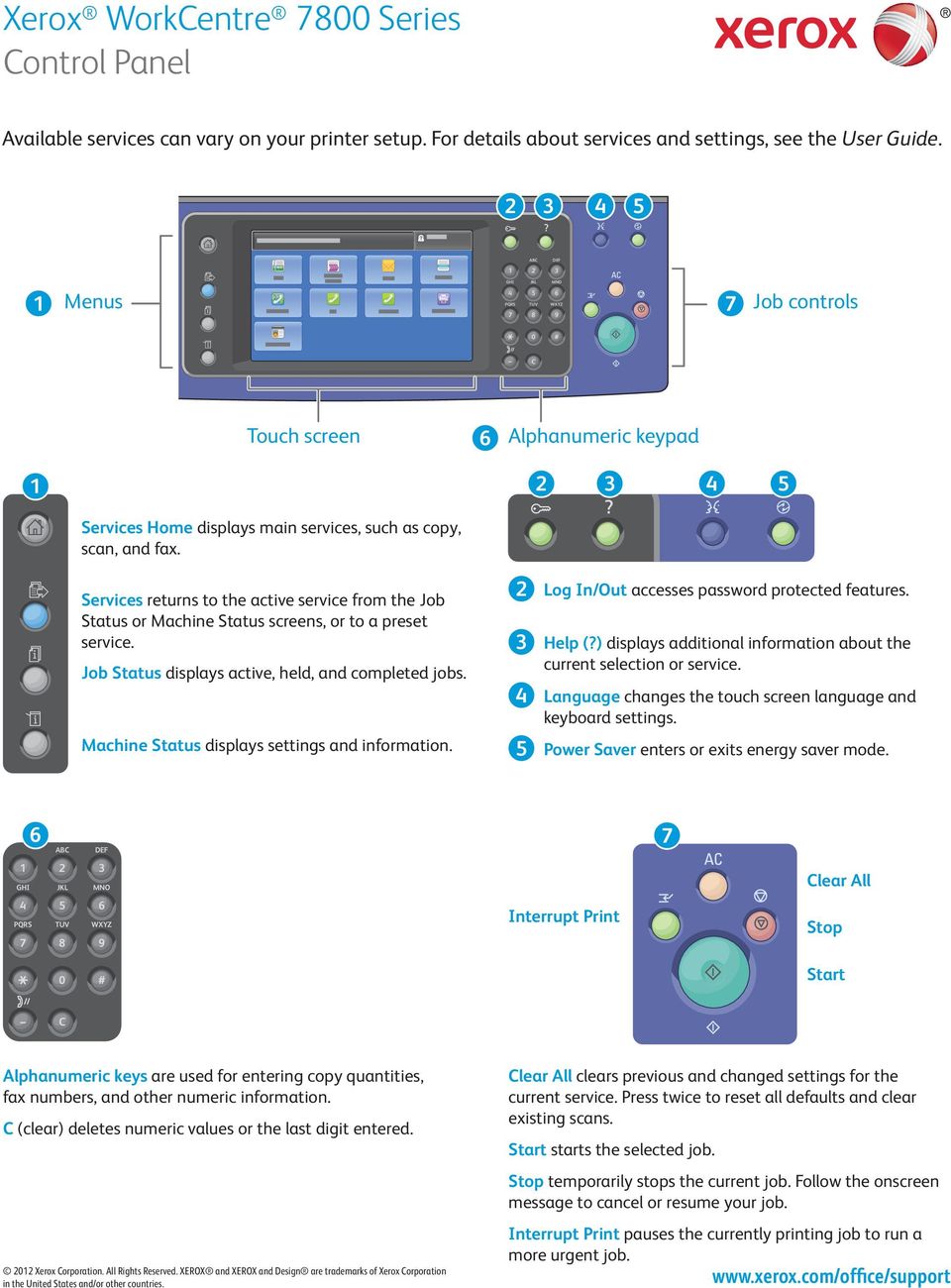
Xerox WorkCentre 7800 Series Control Panel
|
|
|
- Abraham Simon
- 10 years ago
- Views:
Transcription
1 Control Panel Available services can vary on your printer setup. For details about services and settings, see the User Guide. ABC DEF Menus GHI PQRS 7 JKL TUV 8 MNO 6 WXYZ 9 7 Job controls 0 # C Touch screen 6 Alphanumeric keypad Services Home displays main services, such as copy, scan, and fax. Services returns to the active service from the Job Status or Machine Status screens, or to a preset service. Job Status displays active, held, and completed jobs. Machine Status displays settings and information. Log In/Out accesses password protected features. Help (?) displays additional information about the current selection or service. Language changes the touch screen language and keyboard settings. Power Saver enters or exits energy saver mode. 6 ABC DEF 7 GHI JKL MNO Clear All PQRS 7 TUV 8 6 WXYZ 9 Interrupt Print Stop 0 # Start C Alphanumeric keys are used for entering copy quantities, fax numbers, and other numeric information. C (clear) deletes numeric values or the last digit entered. 0 Xerox Corporation. All Rights Reserved. XEROX and XEROX and Design are trademarks of Xerox Corporation in the United States and/or other countries. Clear All clears previous and changed settings for the current service. Press twice to reset all defaults and clear existing scans. Start starts the selected job. Stop temporarily stops the current job. Follow the onscreen message to cancel or resume your job. Interrupt Print pauses the currently printing job to run a more urgent job.
2 Machine Status The Machine Status menu provides access to supplies status, printer information, and settings. Some menus and settings require log in using the administrator name and password. Billing and Usage Information In the Machine Status menu, touch the Billing Information tab for basic impression counts. Touch the Usage Counters button for detailed usage counts. The drop-down menu provides more count categories. 0 Xerox Corporation. All Rights Reserved. XEROX and XEROX and Design are trademarks of Xerox Corporation in the United States and/or other countries.

3 Printer Tour Optional accessories can be part of your printer setup. For details, see the User Guide. Duplex Automatic Document Feeder Work Surface Fuser USB Port Toner Cartridges Left Tray Output Trays K Y C M Drum Cartridges Waste Cartridge Paper Trays 6 Second Bias Transfer Roll Envelope Tray To restart printer, use the secondary power switch on top of printer. For full shut down turn off the secondary power switch, then turn off the main power switch behind front cover. 0 Xerox Corporation. All Rights Reserved. XEROX and XEROX and Design are trademarks of Xerox Corporation in the United States and/or other countries.

4 Paper Handling For a complete list of paper that works with your printer, see the Recommended Media List at: (U.S./Canada) For details about trays and paper, see the User Guide. Loading Paper Confirm or change size and type settings if needed. Windows Mac For best results, fan the edges of the paper. Adjust guides to fit the paper size. Do not load paper above the maximum fill line. Paper Orientation When printing, select options in the print driver. Letterhead Prepunched Envelope 0 Xerox Corporation. All Rights Reserved. XEROX and XEROX and Design are trademarks of Xerox Corporation in the United States and/or other countries.

5 Copying For details, see the Copying chapter in the User Guide located on your Software and Documentation disc or online. 8 8 g/m (6 lb. Text lb. Bond) 0 8 g/m (0 lb. lb. Bond) Y X X: 8 mm (. 7 in.) Y: 97 mm ( in.) 0 (80 g/m ) 780 / 78 0 (80 g/m ) 78 / 78 Y X X: mm (7 in.) Y: 97 mm (.69 in.) Load the original... Press Services Home, then touch Copy. Clear All clears previous and changed settings for the current service. 0 Xerox Corporation. All Rights Reserved. XEROX and XEROX and Design are trademarks of Xerox Corporation in the United States and/or other countries.

6 ABC DEF GHI JKL MNO 6 PQRS TUV WXYZ # C Change the settings as needed. Select number of copies. Stop temporarily stops the current job. Follow the onscreen message to cancel or resume your job. Press Start. Interrupt Print pauses the currently printing job to run a more urgent job. Copying

7 Scanning and ing The printer is connected typically to a network rather than a single computer, so you select a destination for the scanned image at the printer. This guide covers techniques to scan documents without preparing special setups: Scanning documents to an address. Scanning documents to a saved Favorite, Address Book listing, or USB Flash drive Scanning documents to the Public folder on the printer hard drive, and retrieving them using your Web browser. For details and more scan setups, see the Scanning chapter in the User Guide. For details about address book and workflow template setup, see the System Administrator Guide. 8 8 g/m (6 lb. Text lb. Bond) 0 8 g/m (0 lb. lb. Bond) Y X X: 8 mm (. 7 in.) Y: 97 mm ( in.) 0 (80 g/m ) 780 / 78 0 (80 g/m ) 78 / 78 Y X X: mm (7 in.) Y: 97 mm (.69 in.) Load the original... Press Services Home, then touch for ing the scan, or Workflow Scanning to scan to the _PUBLIC folder or a USB Flash drive. Touch Scan To if your scan destination is stored in the Address Book or saved as a Favorite. Clear All clears previous and changed settings for the current service. 0 Xerox Corporation. All Rights Reserved. XEROX and XEROX and Design are trademarks of Xerox Corporation in the United States and/or other countries.

8 For , touch New Recipient, then enter the address using the touch screen keypad. Touch +Add to add addresses to the list, then touch Close. Use the Address Book or Favorites to enter saved addresses. For Workflow Scanning, touch _PUBLIC, or insert your USB Flash drive and touch USB. For Scan To, touch Favorites or Address Book to enter saved addresses. USB Press Start. Change the settings as needed. Stop temporarily stops the current job. Scanning and ing

9 Retrieving Scan files To retrieve your scanned images from the _PUBLIC folder, use CentreWare Internet Services to copy the scan files from the printer to your computer. You can also use CentreWare Internet Services to set up personal mailboxes and workflow scanning templates. For details, see the User Guide. Note the printer IP address on the touch screen. If the IP Address does not show in the upper left corner of the touch screen, press Machine Status and check the information field. Scanning and ing

10 CentreWare Internet Services Type the printer IP address in a Web browser, then press Enter or Return. Click the Scan tab. CentreWare Internet Services.. Select the Default Public Folder, then click Go to download the scan. Click Update View to refresh the list. Select Download to save the file to your computer. Select Reprint to print the saved file again. Select Delete to permanently remove the stored job. Scanning and ing

11 Faxing You can send a fax in one of four ways: Embedded Fax scans the document and sends it directly to a fax machine. Server Fax scans the document and sends it to a fax server, which transmits the document to a fax machine. Internet Fax scans the document and s it to a recipient. LAN Fax sends the current print job as a fax. For details, see the Faxing chapter in the User Guide. For details about LAN Fax, see the print driver software. For details about fax setup and advanced settings, see the System Administrator Guide. 8 8 g/m (6 lb. Text lb. Bond) 0 8 g/m (0 lb. lb. Bond) Y X X: 8 mm (. 7 in.) Y: 97 mm ( in.) 0 (80 g/m ) 780 / 78 0 (80 g/m ) 78 / 78 Y X X: mm (7 in.) Y: 97 mm (.69 in.) Load the original... Press Services Home, then touch Fax, Server Fax, or Internet Fax. Clear All clears previous and changed settings for the current service.

12 For fax numbers, use the alphanumeric keypad to enter fax numbers. Touch Dialing Characters to insert special characters. Touch +Add to add additional numbers. For Internet Fax addresses, touch New Recipient, then enter the address using the touch screen keypad. Touch +Add to add addresses to the list, then touch Close. Use the Address Book or Favorites to enter stored numbers or addresses. Press Start. Change the settings as needed. Stop temporarily stops the current job. Faxing

13 Printing from USB You can print.pdf,.tiff,.ps, and.xps files directly from a USB Flash drive. For more information, see the Printing chapter in the User Guide located on your Software and Documentation disc or online. To set up this feature, see the System Administrator Guide. Do not remove USB Flash drive during reading. Files may be damaged. Insert USB Flash drive in the USB port.. Press Services Home, then touch Print From. Touch USB drive, then select a file or folder. 0 Xerox Corporation. All Rights Reserved. XEROX and XEROX and Design are trademarks of Xerox Corporation in the United States and/or other countries.

14 ABC GHI JKL PRS TUV 7 8 DEF MNO 6 WXY 9 * 0 C # Once the desired file is selected, adjust the job quantity and select desired print settings. Stop temporarily stops the current job. Follow the onscreen message to cancel or resume your job. Press Start. Interrupt Print pauses the currently printing job to run a more urgent job. Printing from USB

How To Use A Powerpoint 3D Printer On A Pc Or Mac Or Mac (For Pc Or Ipad) On A Mac Or Ipod (For Mac) On An Ipod Or Ipo (For Ipo) On Pc Or Pc
 Xerox ColorQube 90 / 90 / 90 Control Panel Available services can vary on your printer setup. For details about services and settings, see the User Guide.? Menus GHI PRS 7 * ABC JKL TUV 8 0 DEF MNO 6 WXY
Xerox WorkCentre 6655 Color Multifunction Printer Control Panel
 Control Panel Available services can vary on your printer setup. For details about services and settings, see the User Guide. 3 4 5 Touch screen Menus 6 6 Alphanumeric keypad 7 Job controls 7 Services
Faxing. Fax Overview
 Fax Overview Faxing is an optional printer feature providing several methods for faxing an original document. Embedded Fax: Document is scanned and sent directly to a fax machine. Server Fax: Document
V1.0 April 2010. Xerox WorkCentre 3550 User Guide
 V1.0 April 2010 Xerox WorkCentre 3550 2010 Xerox Corporation. All Rights Reserved. Unpublished rights reserved under the copyright laws of the United States. Contents of this publication may not be reproduced
Scan to E-mail Quick Setup Guide
 Xerox WorkCentre M118i Scan to E-mail Quick Setup Guide 701P42574 This guide provides a quick reference for setting up the Scan to E-mail feature on the Xerox WorkCentre M118i. It includes procedures for:
Understanding the home screen
 Quick Reference Learning about the printer Using the printer control panel 1 2 3 4 5 6 Understanding the home screen When the printer is turned on, the display shows a basic screen, referred to as the
Scanning. WorkCentre C2424 Copier-Printer
 Scanning This chapter includes: "Basic Scanning" on page 4-2 "Installing the Scan Driver" on page 4-4 "Adjusting Scanning Options" on page 4-5 "Retrieving Images" on page 4-11 "Managing Files and Controlling
Xerox ColorQube 9201/9202/9203 Quick Use Guide
 Xerox ColorQube 9201/9202/9203 2009 Xerox Corporation. All Rights Reserved. Unpublished rights reserved under the copyright laws of the United States. Contents of this publication may not be reproduced
Version 1.0 09/10. Xerox ColorQube 9301/9302/9303 Administration and Accounting
 Version 1.0 09/10 Xerox ColorQube 9301/9302/9303 2010 Xerox Corporation. All Rights Reserved. Unpublished rights reserved under the copyright laws of the United States. Contents of this publication may
MFD User Guide. Ver 1.3
 MFD User Guide Ver 1.3 CONTENTS CONTROL PANEL Page 4 An overview of the function buttons. MFD BASICS Page 5 Explains some of the most commonly used buttons. COPIER Double-sided Page 7 Make 2-sided copies
Xerox 700 Digital Color Press with Integrated Fiery Color Server. Utilities
 Xerox 700 Digital Color Press with Integrated Fiery Color Server Utilities 2008 Electronics for Imaging, Inc. The information in this publication is covered under Legal Notices for this product. 45072726
Understanding the home screen
 Quick Reference Learning about the printer Using the printer control panel 1 2 3 4 5 6 Understanding the home screen When the printer is turned on, the display shows a basic screen, referred to as the
Quick Scan Features Setup Guide. Scan to E-mail Setup. See also: System Administration Guide: Contains details about E-mail setup.
 Quick Scan Features Setup Guide XE3024EN0-2 This guide includes instructions for: Scan to E-mail Setup on page 1 Scan to Mailbox Setup on page 6 Network Scanning Setup on page 9 Scan to PC Setup on page
Digital Postage Meter. Quick Install Guide US English Version
 Digital Postage Meter Quick Install Guide US English Version Lock. Lock Class *#_ Funds GHI Menu ABC JKL PQRS DEF TUV Back MNO WXYZ Space Shift. Review no Enter yes Contents mailstation 2 Scale (optional)
Customer Release Notes for Xerox Integrated Fiery Color Server for the Xerox Color C75 Press, version 1.0
 Customer Release Notes for Xerox Integrated Fiery Color Server for the Xerox Color C75 Press, version 1.0 This document contains important information about this release. Be sure to provide this information
WorkCentre 7120. Xerox WorkCentre 7120 Multifunction Printer. Dansk Norsk Suomi Čeština Polski. Magyar Русский Türkçe Ελληνικά Română
 Xerox WorkCentre 7120 Multifunction Printer Xerox WorkCentre 7120 Guide d'utilisation Italiano Guida per l utente Deutsch Benutzerhandbuch Español Guía del usuario Português Guia do usuário Nederlands
Version 1.0 November 2010. Xerox Phaser 4600/4620 User Guide
 Version 1.0 November 2010 Xerox Phaser 4600/4620 2010 Xerox Corporation. XEROX and XEROX and Design are trademarks of Xerox Corporation in the United States and/or other countries. Changes are periodically
NETWORK PRINT MONITOR User Guide
 NETWORK PRINT MONITOR User Guide Legal Notes Unauthorized reproduction of all or part of this guide is prohibited. The information in this guide is subject to change without notice. We cannot be held liable
Quick Scan Features Setup Guide
 Xerox WorkCentre 7132 Quick Scan Features Setup Guide 701P45042 This guide includes instructions for: Scan to Email on page 1 Scan to Mailbox Setup (Optional) on page 5 Network Scanning Setup (Optional)
WorkCentre 7425/7428/7435 Security Function Supplementary Guide
 WorkCentre 7425/7428/7435 Security Function Supplementary Guide Version 1.0, August 2009 Table of Contents Before Using the Security Function...5 Preface...5 Security Features...6 Settings for the Secure
Phaser 3635MFP Quick Use Guide
 Phaser 3635MFP Quick Use Guide Version 3.2 25.01.08 Quick Use Guide Phaser 3635MFP Xerox Phaser 3635MFP Quick Use Guide Thank you for choosing the Phaser 3635MFP. If you work through the procedures in
System Administration Guide
 System Administration Guide ME3613E4-2 2006 by Fuji Xerox Co., Ltd. All rights reserved. Copyright protection claimed includes all forms and matters of copyrighted material and information now allowed
Xerox D95/D110/D125 Copier/Printer
 Version 1.0 February 2012 Xerox D95/D110/D125 Copier/Printer Security Function Supplementary Guide 2012 Xerox Corporation. All rights reserved. Xerox, Xerox and Design, CentreWare and FreeFlow are trademarks
Xerox WorkCentre 5325/5330/5335 Security Function Supplementary Guide
 Xerox WorkCentre 5325/5330/5335 Security Function Supplementary Guide Version 1.0, September 2011 Table of Contents GuideCopyright 2011 by Fuji Xerox Co., Ltd. All rights reserved. 2 Before Using the Security
DocuPrint C3290 FS Features Setup Guide
 DocuPrint C3290 FS Features Setup Guide Adobe and PostScript are trademarks of Adobe Systems Incorporated in the United States and/or other countries. Apple, Bonjour, ColorSync, EtherTalk, Macintosh, and
Legal Notes. Regarding Trademarks. 2012 KYOCERA Document Solutions Inc.
 Legal Notes Unauthorized reproduction of all or part of this guide is prohibited. The information in this guide is subject to change without notice. We cannot be held liable for any problems arising from
System Administration Guide Xerox WorkCentre 4250/4260 Series
 System Administration Guide Xerox WorkCentre 4250/4260 Series Xerox WorkCentre 4260 Series System Administration Guide i Prepare and Translated by: Xerox GKLS Europe Operations Bessemer Road Welwyn Garden
User Guide TC 7.1. Cisco TelePresence SX10
 1 Cisco TelePresence SX10 TC 7.1 User Guide 2 Contents What s in this guide All entries in the table of contents are clickable hyperlinks that will take you to the corresponding article. To go between
WorkCentre 5632/5638/5645/5655/5665/5675/5687. Quick Use Guide MAXIMISE YOUR PRODUCTIVITY...
 WorkCentre 563/5638/5645/5655/5665/5675/5687 Quick Use Guide 604P90C MAXIMISE YOUR PRODUCTIVITY......by taking advantage of all the capabilities of your device. An Interactive User Guide CD is supplied
RICOH. Quick User Guide For Copying, Printing E-mailing and Faxing
 RICOH Quick User Guide For Copying, Printing E-mailing and Faxing 1 Index Chapter 1: Chapter 2: Navigating the Ricoh Operation Panel Chapter 3: Making a Copy Chapter 4: Sending a Fax Enter a Fax Number
How To Use A Sim Sim Sims 3.2 On A Cell Phone On A Pc Or Mac Or Ipa (For A Sims) On A Simmer (For An Ipa) Or Ipb (For Mac) On An Ip
 Telephone and Voice Mail Quick Reference Guide ADTRAN IP 712 and IP 706 Phones ADTRAN Polycom IP 650, IP 601, IP 501, and IP 430 Phones Table of Contents 4 5 6 10 15 16 17 19 20 21 22 Voice Mail Quick
IS SERIES. QuikStart Programming Guide. IP Network Direct System. Programming Videos
 0215 IS SERIES IP Network Direct System QuikStart Programming Guide 1 4 GHI 2 ABC 5 JKL 3 DEF 6 MNO PRIVACY TRANSFER LIST SETTING 7 PQRS 8 TUV 9 WXYZ ZOOM 0 # WIDE Programming Videos ATTENTION: This is
Xerox 700 Digital Color Press with Integrated Fiery Color Server. Printing from Mac OS
 Xerox 700 Digital Color Press with Integrated Fiery Color Server Printing from Mac OS 2008 Electronics for Imaging, Inc. The information in this publication is covered under Legal Notices for this product.
Phaser 3635MFP Software Upgrade Process
 Overview Phaser 3635MFP Software Upgrade Process The Software Upgrade feature allows the customer to upgrade the machine software as requested by a Xerox Customer Support Center Representative, without
Graphical LCD. Dial. Line 1. Menu. Messages TUV 7 8 9 OPER. Dial Pad Volume Up/Down
 User Guide. Thank you for choosing our Cloud9 hosted phone solution. This user guide will provide everything you need to know in how to use your new system with the Polycom Soundpoint 331/335 desktop phone
How To Use A Number Videophone
 Digital Phone Service IRIS 3000 Videophone User Manual Contents 1. YOUR ACN VIDEOPHONE...4 1-1. Videophone components... 4 1-2. Safety instructions... 5 1-3. Getting to know your Videophone... 6 1-4. Installing
Xerox DocuPrint P12 Print Driver User Guide
 Xerox DocuPrint P12 Print Driver User Guide Xerox Corporation 800 Phillips Road Webster, New York 14580 1998 Xerox Corporation. Xerox, The Document Company, the stylized X, and the identifying product
CentreWare Internet Services Setup and User Guide. Version 2.0
 CentreWare Internet Services Setup and User Guide Version 2.0 Xerox Corporation Copyright 1999 by Xerox Corporation. All rights reserved. XEROX, The Document Company, the digital X logo, CentreWare, and
MULTIFUNCTIONAL DIGITAL COLOR SYSTEMS / MULTIFUNCTIONAL DIGITAL SYSTEMS. e-filing Guide
 MULTIFUNCTIONAL DIGITAL COLOR SYSTEMS / MULTIFUNCTIONAL DIGITAL SYSTEMS e-filing Guide 2012-2014 TOSHIBA TEC CORPORATION All rights reserved Under the copyright laws, this manual cannot be reproduced in
Xerox WorkCentre 5945/5955 Multifunction Printer Xerox ConnectKey 1.5 Technology System Administrator Guide
 Xerox WorkCentre 5945/5955 Multifunction Printer Xerox ConnectKey 1.5 Technology 2014 Xerox Corporation. All rights reserved. Unpublished rights reserved under the copyright laws of the United States.
Using the Control Panel for Wireless Network Installation. WorkForce 600 Series Artisan 700 Series
 Using the Control Panel for Wireless Network Installation WorkForce 600 Series Artisan 700 Series Before You Begin Make sure you installed ink cartridges and loaded paper in the printer as described on
DIGITAL MULTIFUNCTIONAL SYSTEM
 MODEL: MX-M283N MX-M363N MX-M453N MX-M503N DIGITAL MULTIFUNCTIONAL SYSTEM Quick Start Guide Before using the machine Functions of the machine and procedures for placing originals and loading paper. Copying
Version 1.0 09/10. Xerox ColorQube 9301/9302/9303 Internet Services
 Version 1.0 09/10 Xerox ColorQube 9301/9302/9303 2010 Xerox Corporation. All Rights Reserved. Unpublished rights reserved under the copyright laws of the United States. Contents of this publication may
Print Server Application Guide. This guide applies to the following models.
 Print Server Application Guide This guide applies to the following models. TL-WR842ND TL-WR1042ND TL-WR1043ND TL-WR2543ND TL-WDR4300 CONTENTS Chapter 1. Overview... 1 Chapter 2. Before Installation...
CONTENT. 1 Normal Printing. 2 Secure Printing. 3 Faxing from PC. 4 Setting Mailbox. 5 Scanning documents into mailbox. 6 Retrieve Scanned Image
 CONTENT 1 Normal Printing 2 Secure Printing 3 Faxing from PC 4 Setting Mailbox 5 Scanning documents into mailbox 6 Retrieve Scanned Image 7 Scanning Documents to Ifax 8 Setting Of Speed Dial Via Internet
Installing Your Multifunction to Your Network for the First Time
 > Installing Your Multifunction to Your Network for the First Time PIXMA MP499 Mac OS 1 > Installing Your Multifunction to Your Network for the First Time PIXMA MP499
MULTIFUNCTIONAL DIGITAL SYSTEMS. Scanning Guide
 MULTIFUNCTIONAL DIGITAL SYSTEMS Scanning Guide 2011 TOSHIBA TEC CORPORATION All rights reserved Under the copyright laws, this manual cannot be reproduced in any form without prior written permission of
Printer / Scanner Reference
 Operating Instructions Printer / Scanner Reference 1 2 3 4 5 6 Getting Started Installing the Software Using the Printer Function Using the TWAIN Scanner Function Troubleshooting Appendix Read this manual
Digital telephony. Softphone Getting Started Guide. Business Edition TEL-GDA-AFF-002-0902
 Digital telephony Business Edition Softphone Getting Started Guide TEL-GDA-AFF-002-0902 Contents ABOUT THIS GUIDE 3 911 EMERGENCY SERVICES 3 DOWNLOADING THE SOFTWARE 3 CONFIGURING THE SOFTWARE 5 INITIALIZING
Network Setup Guide. Introduction. Setting up for use over LAN
 Network Setup Guide This manual contains the setup information required to use the machine over wired LAN. If you use the machine with USB connection, refer to your setup sheet. Introduction To use the
Xerox. Xerox WorkCentre 7755 / 7765 / 7775 Multifunction Printer. Dansk Norsk Suomi Čeština Polski. Magyar Русский Türkçe Ελληνικά Română
 Xerox WorkCentre 7755 / 7765 / 7775 Multifunction Printer Xerox WorkCentre 7755 / 7765 / 7775 Guide d'utilisation Italiano Guida per l utente Deutsch Benutzerhandbuch Español Guía del usuario Português
Telephone and Voicemail instructions Revised: 8/3/2015. Musom Help Desk: 304 691 1748 [email protected]
 Telephone and Voicemail instructions Revised: 8/3/2015 Musom Help Desk: 304 691 1748 [email protected] Phone and Voicemail Tips Dialing an Outside Line: Dial 9 to get an outside line, and then the
Xerox Security Bulletin XRX13-006
 Cumulative update for Common Criteria Certification Background The System Software Versions listed below for the WorkCentre 5845/5855/5865/5875/5890, WorkCentre 7220/7225, WorkCentre 7830/7835/7845/7855
TX3 Series. Telephone Access, Card Access, Configurator and Touch Screen. Configuration and Administration Manual
 TX3 Series Telephone Access, Card Access, Configurator and Touch Screen Configuration and Administration Manual Version 5.2 TX3 Configuration and Administrator Manual 1 (257) LT-995 Copyright November
WorkCentre 6400. Color Multifunction Printer. Polski Magyar Русский Türkçe Ελληνικά
 WorkCentre 6400 Color Multifunction Printer WorkCentre 6400 English Français Guide d'utilisation Italiano Guida dell'utente Deutsch Benutzerhandbuch Español Guía del usuario Português Guia do usuário Nederlands
Xerox WorkCentre 7220/7225 Color Multifunction Printer Xerox ConnectKey 1.5 Technology System Administrator Guide
 Xerox WorkCentre 7220/7225 Color Multifunction Printer Xerox ConnectKey 1.5 Technology 2013 Xerox Corporation. All rights reserved. Unpublished rights reserved under the copyright laws of the United States.
Legal Notes. Regarding Trademarks. Model supported by the KX printer driver. 2010 KYOCERA MITA Corporation
 Legal Notes Unauthorized reproduction of all or part of this guide is prohibited. The information in this guide is subject to change for improvement without notice. We cannot be held liable for any problems
WorkCentre 5845/5855/5865/5875/5890 System Administrator Guide Guide de l administrateur système
 Xerox WorkCentre 5845/5855/5865/5875/5890 Multifunction Printer Imprimante multifonction Xerox Español Português Guía del administrador del sistema Guia de Administração do Sistema WorkCentre 5845/5855/5865/5875/5890
MULTIFUNCTIONAL DIGITAL SYSTEMS. Scanning Guide
 MULTIFUNCTIONAL DIGITAL SYSTEMS Scanning Guide 2009 KYOCERA MITA Corporation All rights reserved Preface Thank you for purchasing Multifunctional Digital Color Systems. This manual provides instructions
Printer/Scanner Unit Type 3045. Scanner Reference. Operating Instructions
 Printer/Scanner Unit Type 3045 Operating Instructions Scanner Reference 1 2 3 4 5 6 7 8 9 10 Getting Started Sending Scan Files by E-mail Sending Scan Files by Scan to Folder Storing Files Delivering Scan
17 April 2014. Remote Scan
 17 April 2014 Remote Scan 2014 Electronics For Imaging. The information in this publication is covered under Legal Notices for this product. Contents 3 Contents...5 Accessing...5 Mailboxes...5 Connecting
Installing Your Multifunction to Additional Computers on Your Network. PIXMA MX340/ PIXMA MX350/ PIXMA MX870 Mac OS
 Installing Your Multifunction to Additional Computers on Your Network PIXMA MX340/ PIXMA MX350/ PIXMA MX870 Mac OS 1 Navigation Tips for Macintosh Users DOWN To navigate this guide, please use the arrows
AR-NB2 A NETWORK EXPANSION KIT. OPERATION MANUAL (for network scanner) SCANNER FUNCTION 17 USING THE NETWORK
 MODEL AR-NB A NETWORK EXPANSION KIT OPERATION MANUAL (for network scanner) Page INTRODUCTION BEFORE USING THE NETWORK SCANNER FUNCTION USING THE NETWORK SCANNER FUNCTION 7 TROUBLESHOOTING SHARPDESK CD-ROM
Installing Your Printer to Your Network for the First Time
 Installing Your Printer to Your Network for the First Time PIXMA ip8720 Windows OS 1 Installing Your Printer to Your Network for the First Time PIXMA ip8720 Windows OS Preparing to Connect My Printer to
MULTIFUNCTIONAL DIGITAL COLOR SYSTEMS / MULTIFUNCTIONAL DIGITAL SYSTEMS. Scanning Guide
 MULTIFUNCTIONAL DIGITAL COLOR SYSTEMS / MULTIFUNCTIONAL DIGITAL SYSTEMS Scanning Guide 2012-2015 TOSHIBA TEC CORPORATION All rights reserved Under the copyright laws, this manual cannot be reproduced in
Network FAX Driver. Operation Guide
 Network FAX Driver Operation Guide About this Operation Guide This Operation Guide explains the settings for the Network FAX driver as well as the procedures that are required in order to use the Network
Printed in China. Issue 1.2 AT&T 03/07. Advanced American Telephones. AT&T and the AT&T logo are trademarks of AT&T Knowledge Ventures, licensed to
 2007 Advanced American Telephones. All rights reserved. AT&T and the AT&T logo are trademarks of AT&T Knowledge Ventures, licensed to Advanced American Telephones. Printed in China. Issue 1.2 AT&T 03/07
Quick Reference Guide. copy. locked print. fax. scan-to-email
 Quick Reference Guide copy locked print fax scan-to-email Copy Basic Copy Procedure 3 Place original(s) face up in the Auto Document Feeder, or face down on the Platen Glass.. Select the [Copy] function
2016 Xerox ConnectKey Technology-enabled MFPs Comparison White Paper
 06 Xerox ConnectKey Technology-enabled MFPs Comparison White Paper Executive Summary The information in this document is intended to provide a summary, or where appropriate to avoid duplication, a reference
hp embedded web server for hp LaserJet printers
 hp embedded web server for hp LaserJet printers user guide Trademark Credits Microsoft is a U.S. registered trademark of Microsoft Corporation. Netscape is a U.S. trademark of Netscape Communications Corporation.
KIP Cloud Apps User Guide
 KIP Cloud Apps User Guide - 1 - Contents System Requirements... 3 Setup of Cloud (Driverless) Printing... 4 Printer Configuration... 5 Cloud Printing... 8 General Tab... 11 Color Tab... 12 Misc Tab...
Print/Scan System (U)
 Print/Scan System (U) KM-3035/4035/5035 Network Scanner Operation Guide ALWAYS read this Operation Guide thoroughly before use. After reading, maintain it in good condition and keep it
WF-R5690 User's Guide
 WF-R5690 User's Guide Contents WF-R5690 User's Guide... 15 Product Basics... 16 Using the Control Panel... 16 Control Panel Buttons and Lights... 17 Status Icon Information... 18 Status Button Information...
MULTIFUNCTIONAL DIGITAL SYSTEMS. Scanning Guide
 MULTIFUNCTIONAL DIGITAL SYSTEMS Scanning Guide 2008, 2009 TOSHIBA TEC CORPORATION All rights reserved Under the copyright laws, this manual cannot be reproduced in any form without prior written permission
Copyright 2009 Xerox Corporation. All Rights Reserved. Unpublished rights reserved under the copyright laws of the United States.
 Copyright 2009 Xerox Corporation. All Rights Reserved. Unpublished rights reserved under the copyright laws of the United States. Contents of this publication may not be reproduced in any form without
Operation Guide <Functions Edition> Click on the button to jump to the desired section.
 Operation Guide Click on the button to jump to the desired section. Using the Scanner Function Sending Scanned Image Data to Your Computer Sending Scanned Image Data by Email Using
Installing Your Printer to the Network for the First Time
 Installing Your Printer to the Network for the First Time PIXMA ip110 Windows OS Wireless Setup Using the USB Cable 1 Installing Your Printer to Your Network for the First Time PIXMA ip110 Windows OS Preparing
Operating Instructions
 Operating Instructions (For Facsimile and Internet Fax) Digital Color Imaging Systems Model No. DP-C406 / C306 / C266 Before operating this machine, please carefully read this manual, and keep this documentation
Mobility with Eye-Fi Scanning Guide
 Mobility with Eye-Fi Scanning Guide Scan and Transfer Images Wirelessly with Eye-Fi This document is to be used in addition to the scanner s user guide located on the installation disc. The instructions
Maintaining the Content Server
 CHAPTER 7 This chapter includes the following Content Server maintenance procedures: Backing Up the Content Server, page 7-1 Restoring Files, page 7-3 Upgrading the Content Server, page 7-5 Shutting Down
Scan to FTP Guide. Version 0 ENG
 Scan to FTP Guide To find basic information about network and advanced network features of your Brother machine: See the uu Network User's Guide. To find basic information about network scanning features
Scanner Reference. Operating Instructions
 Operating Instructions Scanner Reference 1 2 3 4 5 6 7 Sending Scan Files by E-mail Sending Scan Files by Scan to Folder Storing Files Using the Scanner Function Delivering Scan Files Scanning Originals
CONTENTS. Contents > 3
 PREFACE Every effort has been made to ensure that the information in this document is complete, accurate, and up-to-date. The manufacturer assumes no responsibility for the results of errors beyond its
Version 1.0 June 2009. Xerox 4112 /4127 Copier/Printer Backup/restore/migrate tools
 Version 1.0 June 2009 Xerox 4112 /4127 Copier/Printer Backup/restore/migrate tools 2009 Xerox Corporation. All rights reserved. Xerox, the sphere of connectivity design, and 4112/4127 are trademarks of
ES3452 MFP, ES5462 MFP,
 Configuration Guide This guide supports the following models: MC332dn, MC342dn, MC342dw, MC352dn, MC362dn, MC362dw, MC562dn, MC562dw, ES3452 MFP, ES5462 MFP, MPS2731mc PREFACE Every effort has been made
How do I configure the wireless printer using a USB or Ethernet cable and install the printer driver in Windows?
 How do I configure the wireless printer using a USB or Ethernet cable and install the printer driver in Windows? STEP I: Gather the wireless network settings of your wireless access point or wireless router
XEROX. WorkCentre Pro 665, 685, 765, 785 System Administrator s Guide
 XEROX WorkCentre Pro 665, 685, 765, 785 System Administrator s Guide Xerox Limited, Global knowledge and Language Services, Enterprise Centre, Bessemer Road, WELWYN GARDEN CITY, AL7 1HL United Kingdom
Administrator Operations Guide
 Administrator Operations Guide 1 What You Can Do with Remote Communication Gate S 2 Login and Logout 3 Settings 4 Printer Management 5 Log Management 6 Firmware Management 7 Installation Support 8 Maintenance
Message Meaning Suggested Solutions
 BOOTP problem BOOTP has a problem. Reconfigure DHCP/static IP BOOTP problem BOOTP has a problem. Switching to Auto IP There is a problem with network. There is a problem with network. Check your network
System Administrator Guide Guide de l administrateur système
 Xerox WorkCentre 7500 Series Multifunction Printer Xerox WorkCentre 7500 Series Guide de l administrateur système Español Guía del administrador del sistema Português Guia de Administração do Sistema 2011
The FlexiSchools Online Order Management System Installation Guide
 The FlexiSchools Online Order Management System Installation Guide Installation Pack Welcome to the FlexiSchools system. You will have received a disc containing: Zebra Drivers FlexiSchools Online Order
WebEx Meeting Center User's Guide
 WebEx Meeting Center User's Guide Table of Contents Accessing WebEx... 3 Choosing the scheduler that works for you... 6 About the Quick Scheduler Page... 6 About the Advanced Scheduler... 8 Editing a scheduled
Fibe Internet Connection Hub Reference Guide
 Fibe Internet Connection Hub Reference Guide FibeInternet_ConnectionHub_ReferenceGuide_Eng_V7 1 Bell Internet Service Agreement Use of the Bell Internet service is subject to the terms and conditions of
Frequently Asked Questions
 Frequently sked Questions Store this guide next to the machine for future reference. ENG Contents * Screen shots used in this manual may differ from the ones you actually see. Copy Functions Q1 I want
Sending Fax Documents from Computers
 6. LAN-Fax Features Sending Fax Documents from Computers The optional printer/scanner unit is required. Using computers connected to the machine through parallel ports, IEEE 1394 (IP Over 1394) ports,
LASERJET PRO MFP. User Guide M125-126 M125-126 M127-128 M127-128
 LASERJET PRO MFP User Guide M125-126 M125-126 M127-128 M127-128 HP LaserJet Pro MFP M125, M126, M127, M128 User Guide Copyright and License 2014 Copyright Hewlett-Packard Development Company, L.P. Reproduction,
Version 1.0 October 2009. Xerox ColorQube 9201/9202/9203 System Administrator Guide
 Version 1.0 October 2009 2009 Xerox Corporation. All rights reserved. Xerox and the sphere of connectivity design are trademarks of Xerox Corporation in the US and/or other countries. Product names and
MULTIFUNCTIONAL DIGITAL SYSTEMS. TopAccess Guide
 MULTIFUNCTIONAL DIGITAL SYSTEMS TopAccess Guide 0 TOSHIBA TEC CORPORATION All rights reserved Under the copyright laws, this manual cannot be reproduced in any form without prior written permission of
TOSHIBA GA-1310. Printing from Windows
 TOSHIBA GA-1310 Printing from Windows 2009 Electronics for Imaging, Inc. The information in this publication is covered under Legal Notices for this product. 45081979 04 February 2009 CONTENTS 3 CONTENTS