
Manual. 3CX Phone System for Windows > Version 2.0. Version 2.0 Beta 4
|
|
|
- Sabrina Park
- 10 years ago
- Views:
Transcription
1 Manual > Version 2.0 Version 2.0 Beta 4

2

3 Copyright 2006, 3CX ltd. Information in this document is subject to change without notice. Companies names and data used in examples herein are fictitious unless otherwise noted. No part of this document may be reproduced or transmitted in any form or by any means, electronic or mechanical, for any purpose, without the express written permission of 3CX Ltd. is copyright of 3CX Ltd. 3CX is a registered trademark, and and the 3CX logo are trademarks of 3CX Ltd. in Europe, the United States and other countries. Version 2.0 Last updated 9 January 2007

4 Table of Contents 1. Introduction to... 9 What is?... 9 Benefits of a VOIP Phone System / IP PBX... 9 How a VOIP Phone system works CX Phone System components CX Phone System features Installing System requirements Run set-up Firewall configuration CX Phone System behind NAT / firewall Firewall installed on the 3CX Phone System machine Creating Extensions Introduction Adding Extensions Importing extensions Configuring the phones Introduction to SIP phones Software based SIP phones USB phones Hardware SIP Phones Analog phones using an ATA adapter Configuring a software based SIP phone Configuring X-lite Configuring 3CX VOIP Phone for Windows Configuring a hardware based SIP Phone Configuring a Grandstream GXP 2000 with 3CX Phone System Entering the IP manually if you do not have a DHCP server Configuring a D-Link DPH-140S with 3CX Phone System Entering the IP manually if you do not have a DHCP server Testing your setup... 35

5 1. Check Phone System status with the status monitor Place a call to another extension Troubleshooting tips Adding PSTN line(s) via a VOIP Gateway Introduction What is a VOIP Gateway? Step1: Create the PSTN lines in the 3CX Phone System Step 2: Configure the VoIP gateway VOIP Gateway configuration overview Configuring a Grandstream GXW-4104 Gateway with 3CX Phone System Configuring a D-Link or Micronet VoIP Gateway with 3CX Phone System Configuring other gateways Step 3: Create an outbound rule Step 4 (optional): Line configuration Adding lines hosted by a VOIP Provider Introduction Step 1: Create an account with a VOIP Provider Example 1: Creating an account with SIPgate (available in the UK & Germany) Example 2: Creating an account with Broadvoice (available in the US) List of Terminology used per VOIP provider Step 2: Create the VOIP lines in 3CX Phone System Step 3: Create outbound rule Step 4 (optional): Line configuration Creating Outbound Call Rules Introduction Creating an outbound call rule Manage outbound call rules Examples of Outbound Rules Routing calls by destination prefix example Routing calls by dedicated line prefix example The Digital Receptionist / Auto attendant Introduction Recording a menu prompt... 69
6 Recording the prompt in Windows Sound Recorder Creating a prompt using Text to Speech Creating a digital receptionist Manage Digital Receptionists Reaching an Extension directly Voice Mail Introduction Configuring voice mail Enabling voice mail Voice mail settings Retrieving voice mail Retrieving voice mail by phone Receiving voice mail in your inbox The Call Assistant Introduction Adding Direct numbers using DID/DDI lines Introduction DID numbers and 3CX Phone System How it works Adding a DID line Advanced configuration Introduction Ring Groups Configuring office hours Generating Call Reports Introduction to reports Creating a report Analyzing the call logs General configuration Introduction Admin credentials General Settings Ports to use for internal calls Ports to use for external calls... 96

7 Voice mail settings Backup phone system data Restore phone system data Other System prompts Troubleshooting Introduction Manual FAQ Web Forum Request support via Troubleshooting / Analyzing a SIP call Step 1: Identifying the source of the caller Step 2: Verifying the source of the caller Step 3: Finding the destination of the call Step 4: 3CX Phone System returns the invite Index

8

9 1. Introduction to What is? 3CX Phone System is a software based IP PBX that replaces a traditional PBX and delivers employees the ability to make, receive and transfer calls. The IP PBX supports all traditional PBX features. An IP PBX is also referred to as a VOIP Phone System, IP PABX or SIP server. Calls are sent as data packets over the computer data network instead of via the traditional phone network. Phones share the network with computers and separate phone wiring can therefore be eliminated. With the use of a VOIP gateway, you can connect existing phone lines to the IP PBX and make and receive phone calls via a regular PSTN line. Companies are switching their traditional phone systems / PBXs to IP PBXs at a staggering rate: IP Telephony equipment sales are increasing each year by more then 50% and are expected to reach $15 billion yearly by end The 3CX phone system uses standard SIP software or hardware phones, and provides internal call switching, as well as outbound or inbound calling via the standard phone network or via a VOIP service. Benefits of a VOIP Phone System / IP PBX Much easier to install & configure then a proprietary phone system: A software program running on a computer can take advantage of the advanced processing power of the computer and user interface of Windows. Anyone with an understanding of computers and windows can install and configure the PBX. A proprietary phone system often requires an installer trained on that particular proprietary phone system. Easier to manage because of web based configuration interface: A VOIP phone system has a web based configuration interface, allowing you to easily maintain and fine tune your phone system. Proprietary phone systems often have difficult to use interfaces which are designed so that only the phone system installers can use it effectively. Call cost reduction: You can save substantially by using a VOIP service provider for long distance or international calls. Easily connect phone systems between offices/branches via t h e Internet or WAN and make free phone calls. No need for separate phone wiring use computer network: A VOIP phone system allows you to connect hardware phones directly to a standard computer network port (which it can share with the adjacent computer). Software phones can be installed directly onto the PC. This means that you do not need to install & Page 9

10 maintain a separate wiring network for the phone system, giving you much greater flexibility to add users/extensions. If you are moving into an office and have not yet installed phone wiring, you can save significantly by just installing a computer network. No vendor lock-in: VOIP phone systems are open standard all modern IP PBX systems use SIP as a protocol. This means that you can use almost any SIP VOIP phone or VOIP gateway hardware. In contrast, a proprietary phone system often requires proprietary phones, designed specifically for that phone system and proprietary expansion modules to add features and lines. Scaleable: Proprietary systems are easy to outgrow: Adding more phone lines or extensions often requires expensive hardware upgrades. In some cases you need an entirely new phone system. Not so with a VOIP phone system: a standard computer can easily handle a large number of phone lines and extensions just add more phones to your network to expand! Better customer service & productivity: Because calls are computer based, it i s much easier for developers to integrate with business applications. For example: an incoming call can automatically bring up the customer record of the caller, dramatically improving customer service and cutting cost. Outbound calls can be placed directly from Outlook, removing the need for the user to type in the phone number. Software based Phones are easier to use: It i s often difficult to use advanced phone system features such as conferencing on proprietary phones. Not so with software based SIP phones all features are easily performed from a user friendly windows GUI. More features included as standard: Because a VOIP phone system is software based, it is easier for developers to improve feature sets and performance. Therefore most VOIP phone systems come with a rich feature set, including auto attendant, voice mail, call queuing and more. These options are often very expensive in proprietary systems. Better control via better reporting: VOIP settings store inbound and outbound call information in a database on your server, allowing for much more powerful reporting of call costs and call traffic. Better overview of current system status and calls: Proprietary systems often require expensive system phones to get an idea what is going on in your phone system. Even then, status information is cryptic at best. With VOIP systems you can define which users can see phone system status graphically via a web browser. Allow users to hot plug their phone anywhere in the office: Users simply take their phone, plug it into the nearest Ethernet port and they keep their existing number! Allows easy roaming of users: Calls can be diverted anywhere in the world because of the SIP protocol characteristics Page 10

11 How a VOIP Phone system works A VOIP Phone System, also referred to as an IP PBX, consists of one or more SIP standard based phones, an IP PBX server and optionally a VOIP Gateway. The IP PBX server is similar to a proxy server: SIP clients, being either soft phones or hardware based phones, register with the IP PBX server, and when they wish to make a call they ask the IP PBX to establish the connection. The IP PBX has a directory of all phones/users and their corresponding sip address and thus is able to connect an internal call or route an external call via either a VOIP gateway or a VOIP service provider. Figure 1 - VOIP Phone System Overview The image illustrates how an IP PBX integrates on the network and how it uses the PSTN or Internet to connect calls. 3CX Phone System components 3CX Phone System consists of the following components: The SIP server this is a windows service that sets up the calls using the SIP protocol. It performs the PBX functions such as call routing, call transfer and so on. A Media server this is a windows service that performs call streaming, i.e. the actual audio conversation. A Management Console to allow for web based configuration of the phone system. 3CX Phone System includes Apache web server, which is fast, scalable and secure. Postgresql server this is a light-weight SQL database server that stores all the phone system configuration settings. Page 11

12 The PHP environment PHP is a widely-used general-purpose scripting language that is especially suited for web development. 3CX Phone System features Call switching & transfer Web based configuration Web based status indicator See the phone system status from anywhere in the network: Which lines /extensions are occupied etc. For the latest feature list and explanation, take the product tour online at Page 12

13 2. Installing System requirements requires the following: Windows XP, 2000 or 2003 Ports 5060 (SIP), 5480 (Postgres), 5481 (Apache) and 5482 (Mediaserver) to be free SIP standard based software or hardware phones Optional VOIP Gateway (if you need to connect PSTN phone lines) Optional VOIP service provider account (if you want to place calls via the internet) You will need to have a good basic understanding of Windows Networking. It is recommended to read up on IP PBX s & SIP. For more information visit the IP PBX FAQ at Run set-up 1. Download the latest version of 3CX Phone System from R u n s e t -up by double-clicking on the file 3CXPHONESYSTEM2.EXE. Screenshot 1-3CX Phone System setup welcome dialog 2. Click Next to start installation. 3. In the License agreement dialog box, review the license agreement and click Yes to continue the installation. 4. Choose the destination location of 3CX Phone System and click Next. 3CX Phone System will need a minimum of approximately 50 MB of free hard disk space. You will need to reserve additional space to store voice mail files & prompts. Page 13


14 Screenshot 2 - Administrator Credentials 5. In order to secure the configuration interface, setup will ask you for a preferred username and password, which you will need to logon to the configuration interface and manage the phone system. Enter the preferred credentials and then click Install to start the installation. 6. Setup will now copy all files and install the necessary Windows services. Click Finish when ready. Setup will have installed the following new services: 3CX PhoneSystem Web Server (Apache) 3CX PhoneSystem 3CX PhoneSystem Media Server 3CX PhoneSystem Database Server (Postgresql) After Set-up has completed, you can connect to the 3CX Phone System Management Console by clicking on the management console short cut in the 3CX Phone System program group. To connect to the management console from a remote machine, start a web browser and enter the name of the machine on which 3CX Phone System is installed, followed by port (For example: ) Note: If running Windows XP Service Pack 2 with Windows Firewall enabled, after installation, Windows XP will request confirmation to continue blocking Apache HTTP Server and 3CX PBX server. Click the Unblock button on this dialog! Firewall configuration There are 2 scenarios in which you will need to update your firewall configuration: 1. If your PBX server is behind a NAT / firewall and you intend to use a VOIP provider 2. If you are using a firewall on the PBX server itself, for example Windows Firewall Page 14

15 3CX Phone System behind NAT / firewall The best place for 3CX Phone System i s on a machine behind the firewall. This configuration is easier and more secure. If you will just use PSTN lines, you don t even need to make any changes to your firewall configuration. If you intend to use a VOIP Provider, then you will need to open the following ports to allow 3CX Phone System to communicate with the VOIP Provider: Port 5060 (UDP) for SIP communications (send & receive) Port 3478 (UDP) for communication with the STUN server (send & receive) Port (or higher) (UDP) (send & receive) for RTP communications, which contain the actual call. Each call requires 2 RTP ports, one to control to call and one for the call data. Therefore, you must open twice as many ports as you wish to support simultaneous calls via the VOIP provider. For example, if you want to allow 4 people to make calls via the VOIP provider simultaneously, you must open port 9000 to Note that the above port ranges are the default ports in 3CX Phone System. You can adjust these ports from the Management Console, in the general > general settings page. Screenshot 3 - Configuring the ports to be used In this page, you can configure the ports to be used for internal calls, and the ports to be used for external calls being made via the VOIP provider. Page 15

16 Firewall installed on the 3CX Phone System machine If your phone system is running on the internal network behind a firewall, it is not necessary to enable the firewall on the machine running 3CX Phone System. However if you wish to do this, then you will have to open the following ports: Port 5481 (TCP) for the 3CX Phone System management console Port 5060 (UDP) for the SIP server Port 3478 (UDP) for communication with the STUN server Port 7000 to 7500 (UDP) (or higher if you have more then 250 extensions) Port (UDP) for RTP communications, which contain the actual call. Each call requires 2 RTP ports, one to control the call and one for the call data. Therefore, you must open twice as many ports as you wish to support simultaneous calls via the VOIP provider. For example, if you want to allow 4 people to make calls via the VOIP provider simultaneously, you must open port 9000 to Note that the above port ranges are the default ports in 3CX Phone System. You can adjust these ports from the Management console. Page 16


17 3. Creating Extensions Introduction After you have installed 3CX phone system, you will need to follow a number of steps to complete the setup: 1. Create 3CX Phone System extensions. 2. Configure software and/or hardware SIP phones. 3. Configure phone lines. To get started, start-up the 3CX Management console from the 3CX program group, or point your web browser to the Management Console by entering the name of the machine on which 3CX Phone System is installed, followed by port (For example: Screenshot 4 - The login page A login page will appear. Enter the Username and Password that you provided during setup, and then click on the Login button. Page 17
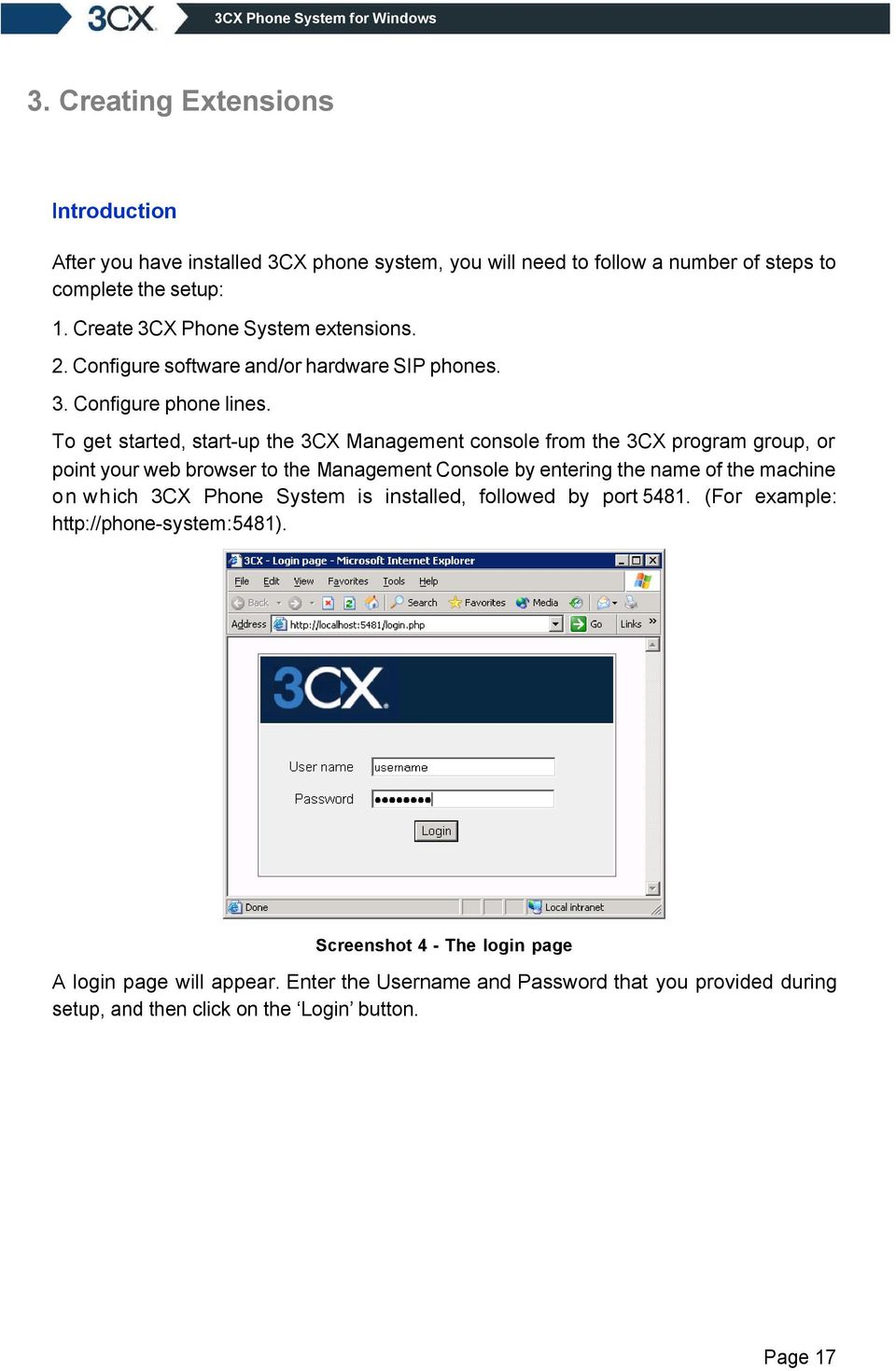

18 Screenshot 5 - Management console startup screen before creating extensions The 3CX Phone System Management console will appear. The screen is divided in 2 main sections: A left hand menu which includes the most important configuration sections, including Extensions, Lines, Outbound rules, Advanced and General. A right hand section which lists the configuration/management options for the selected configuration option. The first time you startup the management console it will show you a screen with the steps you still need to perform to get 3CX Phone System up and running. Page 18

19 Screenshot 6 - Management startup screen after creating extensions The second time you startup the Management console, after you have created the extensions, it will display the line status of all extensions and external lines. Adding Extensions To add an extension, click Add in the Extensions section. This will bring up the Add Extension Page. Page 19


20 Screenshot 7 - Adding an extension Now enter the following information: 1. User information. Extension number specify extension number First name Enter the user s first name. Last name Enter the user s last name. 2. Authentication. Specify a SIP User ID and password. These fields must match the UserID and password set in the software or hardware phone. ID The SIP Username. e.g Password The SIP Password (password can be hidden from the user). Page 20

21 Note that different phones and software tend to use different names for this field. Sip User ID, Authentication ID, SIP ID, User ID are some of the terms that are used for this field. 3. Options Outbound caller ID Optionally enter a custom caller ID which will be displayed on outbound calls. Screenshot 8 - Voice mail configuration 4. Voice mail Configuration. Enable voice mail allows you to enable voice mail for the extension/user PIN number this pin number is used to protect the voice mailbox and should be used by the user to access the mailbox. options You can choose the following options when a voice mail arrives: o No notification The system will not send any s o Send notification only This option will notify the user that there is a new voice mail. However the will not contain the voice mail, the voice mail will have to be retrieved via the phone. o Send vmail as attachment This option will send an and attach the voice mail as a WAV file to the . It will still leave the voice mail in the voice mail box just in case you wish to pick up the voice mail via the phone. o Send as attachment and delete from mbox will send an with the voice mail attached AND delete the voice mail from the voice mailbox on the 3CX server. This avoids the user having to delete the voice mail from 2 locations, i.e. from the inbox and from the 3CX voice mailbox. address specify address to be used if using the options Page 21

22 Screenshot 9 - Destination unreachable configuration 5. Destination Unreachable / Call forwarding You can configure what the phone system should do if this particular extension does not answer the call / is busy or is unregistered. In the case of No Answer you have to specify the time in seconds that you want the system to wait. In the case of busy, you have to specify whether you want the phone or the PBX to do the busy signaling. By default, most SIP phones do not give a busy signal back, but accept a second incoming call. If you want to redirect a call when an extension is busy, you will need to specify this value. You have the following re-direction options; Continue ringing the system will do nothing. Forward to voice mail the system will forward the call to voice mail Forward to extension the system will forward the call to another extension which you can specify using the list box. Forward to ring group - the system will forward the call to a ring group. Forward to Digital receptionist the system will forward the call to a digital receptionist. Forward to Outside number In this case the system will forward the call to an outside number. Be sure to include the complete dial string including the prefix The Forward all calls option is used when a user is temporarily out of the office, for example on holiday. Once you have filled out all necessary fields, click on the OK button to save the new extension. W ith the extension created you can now go ahead and configure a phone to use the extension. Page 22

23 Importing extensions If you need to create a large number of extensions it is handier to bulk import the extensions. To do so follow these steps; 1. Create a spreadsheet with the following columns: <<Extension number>>, <<First Name>>, <<Last Name>>, <<Authentication ID>>, <<Authentication password>>, <<Outbound Caller ID>> Screenshot 10 - Creating an extension list 2. Now list all the extension numbers, user names, authentication ID and password, and outbound caller ID, on separate lines. An example of a spreadsheet with the correct columns and data is displayed in the screenshot. 3. After you have entered all the desired extensions, save the file as a CSV (Comma Delimited) file. 4. In the 3CX Phone System Management Console, go to the Manage page under the Extensions section. Click on the Import Extensions icon to load up the Import extensions page. Click Browse and select the file previously created. 5. Click on the Import button to import and create the extensions. Page 23
24

25 4. Configuring the phones Introduction to SIP phones A VOIP phone system requires the use of SIP phones. These phones are based on the Session Initiation Protocol (SIP), an industry standard to which all modern IP PBXs adhere. The SIP protocol defines how calls should be established and is specified in RFC Because of SIP, it is possible to mix and match IP PBX software, phones and gateways. This protects your investment in the phone hardware. SIP phones are available in several versions/types: Software based SIP phones Screenshot 11 A SIP software phone A software based SIP phone is a program which makes use of your computers microphone and speakers, or an attached headset to allow you to make or receive calls. Examples of SIP phones are SJPhone from SJlabs ( Xten ( or 3CX VOIP Phone for Windows. Page 25
26 USB phones Figure 2 - A USB Phone A USB phone plugs into the USB port of a computer and with the use of a SIP/ VOIP soft phone software behaves just like a phone. Essentially it is not more then a microphone with a speaker, however because they look like a phone they are more intuitive to use for a user. Hardware SIP Phones Figure 3 - A hardware sip phone A hardware based SIP phone looks like and behaves like a normal phone. It s actually a mini computer that connects directly to the computer network. Because they have an integrated mini hub, they can share a network connection point w i t h a computer, eliminating the need for an additional network point for the phone. Examples of hardware SIP phones are Grand stream ( h t tp:// D-Link DPH-140S Business IP Phone ( or Elmeg IP-S290 ( Page 26
27 Analog phones using an ATA adapter Figure 4 - An ATA adapter If you want to use your current phone with the VOIP phone system, you can use an ATA adapter. An ATA adapter allows you to plug in the Ethernet network jack into the adapter and then plug the phone into the adapter. This way your old regular phone will appear to the VOIP phone system software as a SIP phone. Configuring a software based SIP phone This section describes how to configure a SIP software phone for use with 3CX Phone System. The exact configuration depends on which software phone you will use, however the options are similar for each software phone. We will use the 3CX VOIP phone for Windows and Counterpath s X-lite 3.0 as examples. These phones can be downloaded for free. Configuring X-lite X-lite 3.0 can be downloaded from 1. Ensure that you have created the extension that you wish to use with the phone in 3CX Phone System first. Take note of the ID field and the password that you have entered for the extension. Page 27
28 Screenshot 12- Configuring a SIP account in X-lite 2. Now startup X-lite. The first time you start it up, it will bring up the Sip Accounts dialog. Click Add to create a new account. Screenshot 13 - SIP account properties Page 28
29 3. Now enter a Display name. 4. In the User name field, enter the extension number. This field should correspond with the ID field specified in the Authentication section of the Add Extension page in the 3CX Management Console. 5. In the Password field enter the SIP password. This password should match the password configured in the Password field in the Authentication section of the Add Extension page in the 3CX Management Console. 6. In the Authorized User name field, enter the extension number again. This field should correspond with the ID field specified in the Authentication section of the Add Extension page in the 3CX Management Console. 7. In the Domain field enter the Network address (IP or fully qualified domain name) of the 3CX phone system server. (Note: If you have configured 3CX Phone System in General Options to have a different S IP port from the default setting of 5060, you have to include the custom port number in this setting, for e.g :5070.) 8. In the Domain proxy section, ensure that you have selected Register with domain and receive inbound calls. Select Target Domain. 9. Click OK to save the account. Screenshot 14 X-lite showing successful registration with the phone system 10. X-lite now tries to register with 3CX Phone System. If successful, you will see a screen similar to the one in the screenshot. 11. Now switch to the 3CX Phone System Management console, and click on Phone System > Line Status (This is the default page). The extension should be listed, and the status should show On Hook. Configuring 3CX VOIP Phone for Windows 3CX Phone can be downloaded from Page 29
30 Screenshot 15-3CX Phone SIP Phone Configuration 12. Ensure that you have created the extension that you wish to use with the phone in 3CX Phone System first. Take note of the ID field and the password that you have entered for the extension. 13. Now startup 3CX Phone and go to configuration page by clicking on the Configuration tab. 14. In the Profile name list box, type any suitable name for example 3CX_PhoneSystem 15. Enter the extension number in the User name field. This field should correspond with the ID field specified in the Authentication section of the Add Extension page in the 3CX Management Console. 16. In the Password field enter the SIP password. This password should match the password configured in the Password field in the Authentication section of the Add Extension page in the 3CX Management Console. 17. Enter your extension number in Displayed name text box 18. Ensure that your local IP address has been detected correctly. 19. In the Proxy/registrar text box enter the Network address (IP or fully qualified domain name) of the 3CX phone system server. Make sure that the register check box is ticked. (Note: If you have configured 3CX Phone System in General Options to have a different SIP port from the default setting of 5060, you have to include the custom port number in this setting, for e.g :5070.) 20. Press the Save button to save this profile. Screenshot 16-3CX Phone showing successful registration with the phone system Page 30
31 21. As soon as you save the profile, 3CX VOIP phone activates it and tries to connect to 3CX Phone System. In the status bar at the bottom you should see your extension and the word registered indicating that the registration with the 3CX Phone System was successful. 22. Now switch to the 3CX Phone System Management console, and click on Phone System > Line Status (This is the default page). The extension should be listed, and the status should show On Hook. Configuring a hardware based SIP Phone This section describes how to configure a SIP hardware phone for use with 3CX Phone System. The exact configuration depends on which hardware phone you will use, however the options are similar for each phone. In this section we will describe the process for a Grandstream GXP 2000, as well as a D-Link DPH140S. Configuring a Grandstream GXP 2000 with 3CX Phone System. 1. Ensure that you have created the extension that you wish to use with the phone in 3CX Phone System first. Take note of the ID field and the password that you have entered for the extension. 2. Connect the Grandstream GXP 2000 phone to the network and mains power supply. The phone will boot up, and providing you have DHCP installed on your network, will obtain an IP and display it at the bottom of the phone s LCD screen. 3. Now point your browser to the web interface of the phone: where <phone-ip-address> is the IP address shown on the phone. 4. Enter the password of the phone and click login to access the phone s configuration. For this particular phone, the default password is admin Page 31

32 Screenshot 17 - GXP 2000 Account configuration page 5. Click on Account 1 from the available links at the top of the page. 6. Now configure the account for the phone. First of all make sure that Account Active is set to YES. Enter an account name for the phone in the Account Name box. This setting is not used by 3CX Phone System. It is only used when making calls to other phones directly. 7. In the SIP server field, enter the IP or server name of the 3CX Phone System server. 8. Repeat the same setting for the Outbound Proxy option 9. Enter the extension number you want to associate with this phone in the SIP User ID setting. 10. Now enter an Authenticate ID & Authenticate Password in the appropriate fields. These fields must match the ID & password configured in the ID & Password fields in the Authentication section of the Add Extension page in the 3CX Management Console. Page 32
33 11. Scroll to the bottom of the page and press Update to save these settings. 12. Click Reboot to reset your Grandstream phone and put your changes into effect. 13. When the phone boots, it should register with 3CX Phone System. 14. Now switch to the 3CX Phone System Management console, and click on Phone System > Line Status (This is the default page). The extension should be listed, and the status should show On Hook. Entering the IP manually if you do not have a DHCP server If you don t have a DHCP server, you will need to assign an IP number to the phone before you can access it. To do this: 1. Press the round menu button in the top right corner once to activate the menu. You will see the words [1] Do Not Disturb -Off on the phone s LCD screen. 2. Press the down arrow (in the same group of buttons) ONCE to navigate to [2] DHCP/PPOE mode. If instead you see [2] Static IP Mode, skip to #6. 3. Press the round menu button twice to disable DHCP mode. On the phone s screen you should now see [2] Static IP Mode. 4. Press the down arrow once to get to the [3] IP address menu. Press the round menu button once and key in your desired IP address on the phone s numeric keypad, allowing 3 digits for each octet and leaving out the dots in between. For e.g would be keyed in as When ready press the round menu button to save this IP address in the phone s configuration. 5. Press the down arrow to go to the Subnet Mask configuration. Press the round menu button once and type in your subnet mask using the same concept as when entering the IP address in #6 (e.g should be keyed in as ). Once ready press the round menu button to save the subnet mask. 6. Press the down arrow multiple times until you get to --RESET-- on the LCD screen and then press the round menu button to reboot the phone and activate the new settings. Configuring a D-Link DPH-140S with 3CX Phone System. 1. Ensure that you have created the extension that you wish to use with the phone in 3CX Phone System first. Take note of the ID field and the password that you have entered for the extension. 2. Connect the D-Link DPH-140S phone to the network and mains power supply. The phone will boot up, and providing you have DHCP installed on your network, will obtain an IP. The assigned IP can be retrieved from within the Phone s menu, to do so press the phone s MENU button (top right), and navigate down through the menu using the down arrow button (top center). The down arrow button has to be pressed 3 times as the IP Address is the 4th Menu item. Once the IP is noted you can then press the MENU button once again to exit the phone s menu. Page 33

34 3. Now point your browser to the web interface of the phone: where <phone-ip-address> is the IP address shown on the phone. Note the :9999 suffix which is the URL s port portion, indicating that the site is on port To log on the Website simply Click the OK button when asked for a username and password. The D-Link DPH-140S is not set with a default username and password; you can proceed with authentication using a blank username and password. 5. Select Sip Settings from the left menu bar. 6. Configure the Registrar Server Domain Name/IP Address by inputting the IP or server name of the 3CX Phone System server. 7. Repeat the same setting for the Outbound Proxy option. 8. Under the Others section; confirm that Register with Proxy is set to Enable. 9. Click on the submit button to commit the changes. 10. Select SIP Account Settings from the left menu bar. Screenshot 18 - DPH-140S Account configuration page 11. Enter the desired Display name for this extension in the Display Name field, also input the extension number you want to associate with this phone in the Sip User Name setting under the Account 1 Setting Section. 12. Confirm that the Account Active switch under the Account 1 Setting Section is set to Enable. 13. Now enter an Authentication Username & Authentication Password in the appropriate fields. These fields must match the ID & password configured in the ID & Password fields in the Authentication section of the Add Extension page in the 3CX Management Console. Page 34
35 14. Click on the submit button at the bottom of the page to commit these settings. Restart the phone. 15. After the phone has restarted, switch to the 3CX Phone System Management console, and click on Phone System > Line Status (This is the default page). The extension should be listed, and the status should show On Hook. Entering the IP manually if you do not have a DHCP server If you don t have a DHCP server, you will need to assign an IP number to the phone before you can access it. To do this: 1. Press the menu button in the top right corner once to activate the menu. You will be prompted with the first menu item to change the Display Name. 2. Press the down arrow TWICE to navigate to the third menu item: DHCP:. 3. Press the Left or Right arrow button to toggle DHCP mode to DISABLE. 4. Press the down arrow ONCE to get to the IP address: menu, and key in your desired IP address on the phone s numeric keypad, allowing 3 digits for each octet and leaving out the dots in between. For e.g would be keyed in as Hit the menu button. 5. On being asked to UPDATE CHANGES? Press on the round OK button, wait until the phone has finished initializing. Testing your setup As soon as you have created at least 2 extensions, and configured SIP software and or hardware phones to work with those extensions, you can test whether your setup is working correctly. To do this: Page 35
36 1. Check Phone System status with the status monitor Figure 5 - The Status monitor Load up the 3CX Phone System Management console, and click on Phone System > Line Status (This is the default page). Check that all extensions are listed and are On Hook. The status monitor shows the status of your extensions and any external lines. It is the default screen when you load up the management console after having configured the extensions. The following states are displayed: Not registered The extension has been created, however the phone has not registered itself with the system. This could be because the device is off, or because the SIP credentials are incorrect. Another cause could be that you have a firewall enabled on the machine running 3CX Phone System and that it is blocking communications between the server and the phone. On Hook - The extension is registered and ready for phone calls. Calling The extension is dialing a number Ringing The extension is ringing Connected The extension is currently on a call Page 36
37 On Hold The extension has a call that has been placed on hold 2. Place a call to another extension If the status shows that the phones have registered correctly, you can make a call to another extension. The status monitor will show that you picked up one extension and are calling another. 3. Troubleshooting tips If dialing another extension does not work, check the following: That you have c reated the extensions and configured the phones with the same authentication details Check whether both phones have received an IP address. If not you need to fix this. Check whether you can dial the other SIP phone by dialing its IP directly. If you still cannot call the second phone, you are experiencing a network or phone configuration problem. Screenshot 19-3CX Phone System server status Click on Phone System > Server status to bring up the server status screen. This screen shows the activity log of the server. Often these messages can give you further information to what the problem is. Check your Firewall configuration! Switch off the firewall temporarily to check if the problem is caused by the firewall. Page 37
38
39 5. Adding PSTN line(s) via a VOIP Gateway Introduction External calls are received and made on PSTN phone lines. A traditional PBX requires you to connect the PSTN lines to the PBX hardware box; however in the case of 3CX Phone System you have more options: Connect PSTN lines ( physical phone lines) to a VOIP Gateway situated on your internal network. Use a hosted phone line from a VOIP Service Provider. In this case the VOIP service provider has connected external lines to a VOIP Gateway and allows you to access these lines via your internet connection. To make & receive external phone calls via your regular phone lines, you will have to buy and configure a VOIP gateway. This chapter explains VOIP Gateways and how to configure them. What is a VOIP Gateway? A VOIP gateway is a device which converts telephony traffic into data, so that it can be transmitted over a computer n e t w o r k. In this manner PSTN/telephone lines are converted to SIP extensions, allowing you to receive & place calls via the regular telephony network. In many cases, it is preferable to continue to use traditional phone lines because they can guarantee a higher call quality and availability. There are 2 types of VOIP gateways: VOIP Gateways for analog lines: Analog units are used to connect regular analog phone lines and can handle up to 24 lines. VOIP Gateways for digital lines: These allow you to connect one or more BRI ISDN lines (Europe), one or more PRI/E1 lines (Europe) or one or more T1 lines (USA). VOIP Gateways behave like SIP phones on the network side. Each line gets a SIP user ID & Password, and to the IP PBX, the PSTN line appears just like any other SIP extension. There are lots of VOIP gateways available today at competitive prices. Analog VOIP gateways start at as little as $300. Easy to configure and inexpensive VOIP gateways are available from Clipcomm ( and D-link ( More expensive and more difficult to configure but of industrial quality are those from Audiocodes: ( a n d Vegastream ( They can all be bought online via one of the many VOIP product online shops. Please check with our support team or on the 3CX forums for the latest VOIP gateway recommendations. Page 39

40 Step1: Create the PSTN lines in the 3CX Phone System After you have decided for a particular VOIP Gateway model and obtained the device, the first step is to create the PSTN lines in the 3CX management console. Each PSTN Line will become a virtual extension and be assigned a SIP ID. This enables the IP PBX to take calls from the VOIP Gateway and to forward calls to it. To add PSTN lines to the 3CX phone System; 1. In the 3CX Phone Management console click on the Add PSTN link in the left hand menu. The Add PSTN Line(s) screen appears. Screenshot 20 - Adding a PSTN Line 2. In the name field, enter a friendly name for the PSTN gateway. 3. Enter the host name or IP of the VOIP Gateway in the Gateway Hostname or IP field. 4. Now specify the SIP Port on which the gateway is operating. By default this is Specify the number of physical lines that the gateway supports and that you are using. Page 40
41 6. In the PSTN Line range box, specify the phone line number(s) of the phone lines attached to the device. You can specify a range, for example , or you can specify individual lines separated by commands (1000, 1001, 1002, 1003) Screenshot 21 - Adding PSTN Lines 7. Click Next. The individual lines will be created and displayed in a columnar format. You will need to review the default values set by the management console: External Number This field specifies the actual PSTN phone line number and is used for identification purposes only. The value set is based on the range you inputted in the first screen. Internal Number In effect the VOIP Gateway converts each line to an extension, so that the phone system can receive and forward calls to it. The internal number is a number assigned to it by the 3CX Phone System so that it can address it as an extension. There is no need to change this field. Authentication ID & Password: These values are used to authenticate the phone lines connected to the VOIP Gateway with 3CX phone system. These values must match the settings configured in your gateway! By default the SIP user ID and password has been set to the Internal Line number. Direction: This field specifies whether the line will be used for inbound calls, outbound calls or both. By default it supports both directions. Page 41
42 Inbound Route: If the line will receive inbound calls, you can specify to which extension, ring group or digital receptionist a call must be routed. You can specify a different option depending on whether the call is received inside or outside office hours. 8. When done click finish to create the lines. You can change line options of lines that have been created by going to the Lines > Manage page. Step 2: Configure the VoIP gateway VOIP Gateway configuration overview. Just as it is necessary to configure a phone to make use of an extension, it is necessary to configure the VoIP gateway to register its lines in the 3CX Phone System. The gateway is a device that bridges the two telephone systems; on the one hand it acts like a normal telephone connected to the PSTN, and on the other hand it acts like a SIP phone connected to the VoIP network. In order to integrate the gateway in your system you need to configure these two interfaces, as well as its behavior i.e. configure what the phone is supposed to do when receiving incoming calls from either end. The configuration steps broadly fall into these steps: Configure the VoIP lines Each line created for the VoIP gateway in the 3CX Phone System has to be configured in the VoIP gateway s SIP or VoIP settings section. Each line has to be configured with a User ID (line number), an Authentication ID and an Authentication Password. These must match the values you entered in the corresponding fields of the lines you created in the 3CX Management Console. If necessary the PSTN line settings can be changed in the Line Management page. The gateway also has to know the IP or machine name of the 3CX Phone System machine. Often this should be entered in a field Registrar Server, Sip proxy or SIP server. The codec preference and registration expiration time can usually also be set. Configure the PSTN Interface Most VoIP Gateways allow you to configure the PSTN (FXO) interface with CPTD (Call Progress Tone Detection) (which varies from country to country), and other settings such as Input/Output gain, line impedance or timings related to ringing. These are not strictly critical, but are best set correctly according to the standards that your region uses for best operation. Configure the Routing Once you the gateway has been configured so that its SIP or VoIP lines register with the 3CX Phone System server, you might need to change its behavior. By default, some gateways require you to authenticate using a PIN before they receive the call. Alternatively they can be configured to forward calls directly. This is commonly known as call forwarding or calling to a Hot Line. The gateway must be configured to forward incoming calls from the PSTN to the internal numbers of the PSTN lines created in the 3CX Phone System Console. Page 42
43 After you create the first gateway, the 3CX Phone System will automatically create an outbound rule that will apply to all prefixes (blank), and for all extensions (blank) routing calls starting with default line number 0 to any available PSTN gateway. You can modify this rule afterwards by making new Outbound Call Rules in the Outbound Rules section. This next section describes how to configure a VOIP Gateway for use with 3CX Phone System. The exact configuration depends on the VOIP Gateway that you will use, however the options are similar for each Gateway. In this following section we will describe the process for a Clipcomm CG-410, as well as for a D-Link DVG-3004S. Configuring a Grandstream GXW-4104 Gateway with 3CX Phone System Follow these steps to set up a Grandstream GXW-4104 gateway for 3CX Phone System: 1. Ensure that you have created the PSTN lines in 3CX Phone System first. Take note of the Authentication ID field and the Authentication password that you have entered for each line connected to the VOIP Gateway. 2. Connect the Grandstream GXW-4104 gateway to the network and mains power supply. The device will boot up, using its factory-configured default IP address Now point your browser to the gateway s configuration site: 4. Enter the password of the device and click OK to access the gateway s configuration. The default password is admin. Page 43

44 Screenshot 22 Profile 1 Settings 5. Once the page loads click on the Profile 1 tab at the top of the page: a. Set the SIP Server field to the IP Address or FQDN of the server on which 3CX Phone System is installed. b. Set the SIP Registration field to yes. c. Click the Update button at the bottom of the page. Page 44

45 Screenshot 23 Channel Settings 6. Click on the Channels tab at the top of the page. In the Phone Number Settings table, the rows represent the 4 PSTN lines connected to the gateway. Configure each line as follows: a. The Channel(s) field should contain the order number for the line. Normally 1 for the first enabled line, 2 for the second enabled line, and so on. b. The SIP User ID field should match the Internal Line Number field of the line created for this PSTN line in the 3CX Phone System Management Console. c. In the Authenticate ID and Authentication Password fields enter the ID and Password that you entered for the line in the 3CX Phone System Management Console. These fields must match the ID and password set for that line in the 3CX Phone System Management Console. d. Click the Update button at the bottom of the page. Page 45

46 Screenshot 24 FXO Lines Settings 7. Click on the FXO Lines tab at the top of the page. Configure this page as follows: a. Set the Stage Method field to ch1-4:1; b. Set the Offhook Auto Dial(VoIP) field to ch1-4:yyyyy; where yyyyy is the SIP User ID for the first line defined in the Channels page. c. Click the Update button at the bottom of the page. 8. Click on the Reboot button to restart the device. 9. After the gateway has restarted, switch to the 3CX Phone System Management Console, and click on Phone System -> Line Status (This is the default page). In the section External Lines, the PSTN lines connected to the VoIP Gateway should be listed with a green status light. Configuring a D-Link or Micronet VoIP Gateway with 3CX Phone System. The D-Link DVG-3004S, Micronet SP 5050, Micronet 5054 and the Micronet 5052 are based on the same design and software, and are therefore practically identical. To set-up any of those VOIP gateways for 3CX Phone System follow these steps: Page 46
47 1. Ensure that you have created the PSTN lines in 3CX Phone System first. Take note of the Authentication ID field and the Authentication password that you have entered for each line connected to the VOIP Gateway. 2. Connect the D-Link gateway to the network and mains power supply. The device will boot up, and providing you have DHCP installed on your network, will obtain an IP. To get the exact IP number, check the most recent DHCP lease, or alternatively use a network scanner to find a device with the string D-Link. 3. Now point your browser to the gateway s configuration site: where <phone-ip-address> is the IP address leased to the gateway. 4. Enter the user name and password of the device and click OK to access the gateway s configuration. The default username is root and the default password is blank. Page 47
48 Screenshot 25 D-Link DVG-3004S gateway SIP configuration 5. Click on the SIP Configuration button on the Interface s left hand side menu to load the SIP Configuration Settings page. 6. Ensure that the Mode is set to Proxy 7. In the Primary Proxy IP Address field, enter the IP or the machine name on which 3CX Phone system is running. Page 48
49 8. In the Primary Proxy port field enter 5060, which is the default SIP port of 3CX Phone System. 9. In the Line Number fields, enter the line numbers of the PSTN lines you created in the 3CX Management console. 10. Enter the SIP port to be used by the gateway (default 5060), and the desired RTP port for the outbound connection. 11. The Expire field sets the interval at which the gateway device will renew its line registration with the 3CX Phone System Server. We recommend a value of 1 hour, i.e 3600 seconds. 12. Click on the OK button to save the changes. Screenshot 26 D-Link DVG-3004S gateway Security Configuration 13. Now click on the Security configuration button in the left hand side menu to load the Authentication Settings page. 14. Enter the Line Account and Line Password value for each configured line. These values have to match the line s Authentication ID and Authentication Password as configured for the line in the 3CX Phone System management console. 15. Click on OK button to save the changes. Page 49
50 Screenshot 27 - D-Link DVG-3004S Line Configuration 16. Now click on the Line Configuration button in the left hand side menu to load the Line Configuration page. In this page you configure how to handle calls coming in on the PSTN lines. 17. To configure the gateway to forward inbound calls from the PSTN line to the appropriate 3CX Phone System line, input the internal number (as configured for that line in the 3CX Phone System management console) in the Hot Line field. Repeat this for all the lines. You must specify a different number then in the Line Number field on the SIP configuration page, otherwise the device will loop the incoming calls. Therefore, use the line number field in the SIP configuration page and the internal number in the hot line field in the Line Configuration page. 18. Click on OK button to save the changes. 19. In the left hand side menu click on the Commit data button, then click on the commit button in the loaded page. 20. Reboot the D-Link gateway. 21. After the gateway has restarted, switch to the 3CX Phone System Management console, and click on Phone System > Line Status (This is the default page). In the section External Lines, the PSTN lines connected to the VOIP Gateway should be listed with a green status light. Configuring other gateways 3CX lists configuration guides for other gateways in its 3CX Phone System FAQ at: Page 50
51 Step 3: Create an outbound rule After you have configured the gateway and lines in 3CX Phone System, a catch all outbound rule will be automatically created which makes all external calls (any number with the 0 prefix) on the newly configured gateway. If you wish to fine tune this rule, i.e. configure when the gateway should be used, you can edit this outbound call rule or create a new one. For more information how to create and manage outbound call rules see the chapter Creating outbound call rules. Note that if you delete the outbound call rule or wrongly configure outbound call rules, you will not be able to make outbound calls. Step 4 (optional): Line configuration After you have created the PSTN lines, you can manage their settings from the Lines > Manage page in the 3CX Phone System Management Console. This page allows you to configure a number of options: Page 51
52 Screenshot 28 - Line Configuration External number this number is used for identification purposes. It s best to use the actual PSTN line number in this field. Internal number this number is used by 3CX Phone System to access the line. Do not change this number without changing the number in the VOIP Gateway itself. Allow outbound calls on this line enable to allow the line to be used for outbound calls. Answer incoming calls enable this option to answer incoming calls Answer after # rings Input the number of rings after which to answer Page 52
53 Authentication In this section you can edit the ID and password for the PSTN line. If you change this, ensure that you also change it on the VOIP Gateway, otherwise the line will no longer register. Route inbound call to: This section allows you to specify how an inbound call should be routed during office hours. You can choose to route inbound calls to a: Digital receptionist Select the digital receptionist from the drop down list of configured digital receptionists (note that digital receptionists are not available in the beta version). Extension Select the extension from the drop down list of available extensions. Ring group Select the ring group from the list of available ring groups. Queue Select the queue from the drop down list of available queues (Queues are not available in the beta version). If outside office hours or on public holiday You can specify that an incoming call is routed differently if it is received outside office hours. You can select from the same routing options. Click on the Specify Office Hours button to define your office opening hours. Page 53
54
55 6. Adding lines hosted by a VOIP Provider. Introduction VOIP providers often are able to give better call rates because they have an international network or simply because they have negotiated better rates. Therefore, using VOIP providers can reduce call costs. VOIP providers can also host local numbers in cities and countries and route these to your phone system. However be aware that each VOIP call requires bandwidth. VOIP is real time, so it does place a demand on your internet connection. As a rule of thumb, each VOIP line will consume approximately 64k per second, unless you use advanced compression. To add a VOIP line you need to have an account with a quality VOIP service provider. You will also need to have 64k available per phone line that you will configure. 3CX Phone system supports any SIP standard based VOIP service provider such as SIPgate, Nikotel, and others. Note that Skype has a proprietary protocol and is therefore currently not supported. Step 1: Create an account with a VOIP Provider This section describes how to create an account at a VOIP Provider for use with 3CX Phone System. The exact steps will depend on the VOIP Provider that you choose, however the options are very similar for each provider. Example 1: Creating an account with SIPgate (available in the UK & Germany) In this example we will create an account at SIPgate.co.uk ( A German version of this service is available at T o create an account; 1. Go to Click on the registration tab to create an account. 2. Select country of residence, and follow the steps in the wizard. 3. Obtain the details from your SIPgate account: a. Go to the SIPgate web site, and log on with your username and password. b. Go to the My Account page to list your connection details. Page 55

56 Figure 6 - SIPGate Connection Details c. Note the Connection information. The value next to SIP-ID is the value you must enter as Authentication ID when creating a VOIP provider line and the value next to SIP-Password is the value you must use as Authentication Password. The Registry value equals the Gateway Hostname or IP when creating the VoIP Provider Gateway. Example 2: Creating an account with Broadvoice (available in the US) In this example we will create an account with Broadvoice ( 1. Go to Click on the Signup tab to create an account. Page 56


57 Screenshot 29 - Creating a BroadVoice account 2. In the sign up page, select option I want to use My Own Sip Device on the BYOD program. Now continue with the wizard to create the account. 3. After your account is created, log-in to your account using the account login option on the BroadVoice website. Your account portal will load. Screenshot 30 - Obtaining the connection information from Device Configuration Page 57
58 4. Now click on the Account tab and click on the show settings link in the My Devices section. This will show the Device Configuration details. 5. Take note of the values in the fields proxy_ip, registrar_ip, auth_id, auth_password. The value next to auth_id is the value you must enter as Authentication ID when creating a VOIP provider line and the value next to auth_password is the value you must use as Authentication Password. The Proxy_ip value equals the Proxy Hostname or IP when creating the VoIP Provider Gateway. The Registrar_ip value equals the Registrar Hostname or IP when creating the VoIP Provider Gateway. List of Terminology used per VOIP provider The terminology used for connection information can vary per VoIP provider. The table below specifies the connection information terminology used by the listed VoIP providers and which field they match in 3CX Phone System. Simply find your VOIP provider, look for the values given for the terminology/fields specified in the table, and enter these values in the corresponding Proxy hostname or IP, authentication ID a n d authentication password fields when creating a VOIP provider line in the 3CX Phone System Management console. If your VOIP provider is not listed, simply determine the appropriate fields from the examples given. Most VOIP providers will use similar names for these key fields. If in doubt, contact your VOIP provider for support. Provider SIPGate Nikote Broadvoice VOIPbuster Name used for Proxy Hostname Registry Name used for Registrar Hostname Name used for Authentication ID SIP-ID Name used Authentication Password SIP-Password User account username User account Password Proxy host name has no field, example of n a m e i s calamar0.nikotel.com Proxy_ip Registrar_ip auth_id Auth_password Proxy server (sip.voipbuster.c om) Registrar (sip.voipbust er.com) Account name Password for Table 1 - VoIP Provider line Terminology Step 2: Create the VOIP lines in 3CX Phone System After you have created the SIP provider account, you will need to create the lines in 3CX Phone System and enter the settings of the provider for the lines. To add VOIP lines to the 3CX phone System: 1. In the 3CX Phone Management console click on the Add VOIP link in the Lines section in the left hand menu. The Add VOIP Provider page appears. Page 58
59 Screenshot 31 - Adding a VOIP Provider 2. Enter the name of the VOIP provider for the VoIP provider account that is being added. 3. Now enter the host or IP of the VOIP service in the Proxy Hostname or IP field. For SIPgate, this value can be found next to Registry. In most cases this is sipgate.co.uk. 4. Enter the port that the VOIP provider proxy is using. In most cases this is 5060, which is the industry default. Page 59
60 5. If your provider has a separate registrar server and port, specify them in the registrar name and port fields. If you are not sure, leave the fields blank and 3CX will assume that the registrar server is the same as the SIP proxy server. 6. Time between registration attempts Enter the time in seconds that 3CX Phone System should wait before refreshing a SIP registration with the VOIP provider. You can leave the suggested default. 7. Now specify how many VOIP lines your VOIP service provider account supports. 8. In the VOIP External number field, enter the VoIP line number that has been assigned to you by your VOIP Provider, or in the case of multiple lines enter the line range. It s important you enter the exact number that you have chosen, since this number will be used to route the call. If you enter a different external number the call will not be answered. In our example, enter Screenshot 32 - Adding VOIP Provider Lines 9. Now click Next. The individual lines will be created and displayed in a columnar format. You will need to review the default values set by the management console: External Number This field specifies the actual phone line number and is the number dialed by the callers. This value is based on the range you inputted in the first screen. Remember it has to be the same as the external number assigned to you by the VOIP provider. Page 60
61 Internal Number In effect the VOIP Provider line becomes an extension on 3CX Phone System. The internal number is a number assigned to the line by the 3CX Phone System so that it can address it as an extension. There is no need to change this field. Authentication ID & Password: These values are used to authenticate the VOIP provider with 3CX phone system. These values must match the settings provided by your VOIP provider! For SIPgate, enter the value next to SIP-ID (found in connection information) in the authentication ID field. In the authentication password field, enter the value next to SIP-Password. Please refer to the table in step 1 to find the correct fields for other VOIP providers. Direction: This field specifies whether the line will be used for inbound calls, outbound calls or both. By default it supports both directions. Inbound Route: If the line will receive inbound calls, you can specify to which extension, ring group or digital receptionist a call must be routed. You can specify a different option depending on whether the call is received inside or outside office hours. 8. When done click finish to create the lines. You can change line options of lines that have been created by going to the Lines > Manage page. Step 3: Create outbound rule After you have configured the VOIP provider lines in 3CX Phone System, a catch all outbound rule will be created which makes all calls on the newly configured VOIP provider. Note that if you have already installed a VOIP gateway, all calls will still be routed via the gateway. You will have to create an outbound rule to specify which calls you wish to route via the VOIP provider. For more information how to create and manage outbound call rules see the chapter Creating outbound call rules. Note that if you delete the outbound call rule or wrongly configure outbound call rules, you will not be able to make outbound calls. Step 4 (optional): Line configuration After you have created the lines, you can manage their settings from the Lines > Manage page in the 3CX Phone System Management Console. This page allows you to configure a number of options: Page 61

62 Screenshot 33 - Line Configuration External number this number is used for identification purposes. It s best to use the actual line number provided by the VOIP provider in this field. Internal number this number is used by 3CX Phone System to access the line. Allow outbound calls on this line enable to allow the line to be used for outbound calls. Answer incoming calls enable this option to answer incoming calls Answer after # rings Input the number of rings after which to answer Page 62
63 Authentication In this section you can edit the ID and password for the VOIP provider account. If you change this, ensure that you also change it on VOIP account; otherwise the line will no longer register. Route inbound call to: This section allows you to specify how an inbound call should be routed during office hours. You can choose to route inbound calls to a: Digital receptionist Select the digital receptionist from the drop down list of configured digital receptionists (note that digital receptionists are not available in the beta version). Extension Select the extension from the drop down list of available extensions. Ring group Select the ring group from the list of available ring groups. Queue Select the queue from the drop down list of available queues (Queues are not available in the beta version). If outside office hours or on public holiday You can specify that an incoming call is routed differently if it is received outside office hours. You can select from the same routing options. Click on the Specify Office Hours button to define your office opening hours. Page 63
64

65 7. Creating Outbound Call Rules Introduction An outbound route defines on which line an outbound call should be placed. This allows you to create a set of rules which specifies how a call should be made based on who is making a call and who he/she is calling. Creating an outbound call rule Screenshot 34 - Creating a new outbound rule To create an outbound rule: 1. Click on Add Rule in the Outbound rules section of the 3CX Management console. 2. In the Outbound Call Rule page, give a name to the rule in the general field. 3. Now specify to what calls to apply the outbound route. In the Apply this rule to these calls section, specify either or both of these options: Page 65
66 Calls from extension(s) Select this option to define particular extensions or extension ranges for which this rule applies. Specify one or more extensions separated by commas, or specify a range using a -, for example Calls to Numbers starting with Tick this option to apply this rule to all calls starting with the number you specify. For example, specify 0044 (or in the US) to specify that all calls to the UK should routed via a particular line or service provider. The following entries can be used in order to make a valid Number prefix INTEGERS Integers (numbers) are used to match a dialed prefix. e.g. [001] (Canada and US), [0044] (UK), COMMA The comma, is the number deliminator that signifies an OR logical operand. You can have multiple prefixes deliminated with commas (, ) in a rule. e.g. [001,0044,0049] (Canada and US OR UK OR Germany) - DASH Placed between two numbers the dash will signify a range. Naturally the smaller number must be placed first. e.g. [20-30] would catch a range of calls starting with 20 to You can transform a number that has been caught by an outbound rule before it is routed to a selected gateway or provider with the use of transform mask. The following are valid transform mask components. r the r token is used to remove an integer from the dialed number. Several r token s can be used to remove several integers. e.g. [r] removes the leading 0 in [ ] to produce [ ], [rrr] would remove the first 3 0s in [ ] to produce [ ], INTEGER The use of an integer in a transform mask ADDS the integer to the dialed number. e.g [001] would transform a caught number [ ] to produce [ ] 5. Now specify how the outbound calls should be made. In the Make outbound calls on section, select: VOIP Gateway select the VOIP Gateway on which the calls should be made. VOIP Provider select the VOIP provider on which the calls should be placed. Page 66

67 Manage outbound call rules Screenshot 35 - Dialing Plan Rules To manage outbound rules, click on Outbound Rules > Manage in the 3CX Management console. This brings up the list of the rules and shows you at a glance how outbound calls are routed. You can configure the priority of a rule by moving the rules up or down in the list. Examples of Outbound Rules Routing calls by destination prefix example. This example illustrates how calls are routed to Gateways or providers according to dialed number prefixes. Screenshot 36 - Outbound call rule example Here the first rule will catch numbers dialed with the 001 (Canada & US) or 0044 (UK) prefix (with an additional 0 which is used by the user indicate calls is an outbound call), and place them (CanadaUS or UK calls) on the voipbuster VoIP Provider line. Page 67
68 The second rule will place calls bound to 0049 (Germany) (with additional 0) on the Nikotel VoIP Provider line. The number will be stripped of it s leading 0s. This is useful since Nikotel works without the 00s in the dialed number s prefix. The third rule in the example catches all calls with that start with a number that start with 020 to 030 (i.e.; 020,021,022,023,024,025,026,027,028,029,030), the calls are then placed to the PSTNGW_001 Gateway. The forth rule catches only numbers with 079 or 099 and places them on the second gateway. Examples: Dialed: Transformed: (same) ON: voipbuster Dialed: Transformed: ON: Nikotel Dialed: Transformed: ON: PSTNGW_001 Dialed: Transformed: ON: PSTNGW_001 Dialed: Transformed: ON: PSTNGW_002 Dialed: Transformed: ON: PSTNGW_002 Routing calls by dedicated line prefix example. Screenshot 37 - Outbound call rule example Instead of catching calls by prefix, you can dedicate a prefix to a certain provider and use that prefix in order to route calls to a desired provider. The prefix would need to be stripped before being routed to the provider. In the above examples this is done with the [rr] Transform mark. Examples: Dialed: Transformed: ON: Nikotel Dialed: Transformed: ON: PSTNGW_001 Page 68
69 8. The Digital Receptionist / Auto attendant Introduction The digital receptionist feature allows you to answer phone calls automatically using the computer and present the caller with a list of options. The caller can then choose the appropriate option using the numbers on his phone key pad. Using this feature you can implement a menu, for example for sales press 1, for support press 2 etc. A digital receptionist is also known as an auto attendant. You can configure different menu options and text for the menus based on which line the calls comes in, as well as based on whether the cal is received within or outside office hours. This way you could have a different answer outside office hours and de-activate the menu options. Recording a menu prompt Before you create your digital receptionist, you must write down the menu options you wish to offer the caller, think of a suitable text and record the announcement. A simple example would be Welcome to Company XYZ, for sales press 1, for support press 2 or stay on the line for an operator Note: It is generally recommended to put the number the user should press after the option, i.e. for sales, press 1, rather then press 1 for sales. This is because the user will wait for the desired option and only then register what number to press Once you have devised the text you can create the prompt and save the file in the format PCM, 8 khz, 16 bit, Mono. Windows Sound Recorder supports creation and conversion of this format. You can have 2 options for creating prompts: 1. Record the prompt directly in Windows Sound Recorder and save it in the specified format. (Requires a microphone!) 2. Use a text to speech program to create the prompt, and then convert it into the correct format using Windows Sound Recorder. Recording the prompt in Windows Sound Recorder To record the prompt in Windows Sound Recorder: 1. Startup Windows Sound Recorder from the Start > Programs > Accessories > Entertainment group. This program should be installed by default on Windows. Page 69
70 Screenshot 38 - Windows Sound Recorder 2. Now click the record button to record your system prompt. 3. Select Save As from the File menu to save the file. You have to select save as because you can not use the default format that Windows Recorder saves in. Screenshot 39 - Changing the Wav format 4. In the Save As dialog click on the Change button to change the format used to save the prompt. A small sound selection dialog will appear. From the Attributes drop down list, select khz, 16 Bit, Mono, 15kb/sec. Click OK. Screenshot 40 - Saving the prompt Page 70
71 5. Now enter a name for the prompt and save the prompt. When creating a digital receptionist menu you will be asked for the path to the file. Creating a prompt using Text to Speech You can also create a prompt using a text to speech utility. There are several good text to speech utilities. You can either download a program such as Balabolka ( or you can use an online text to speech converter, for example In this example we will use the online service of AT &T. 1. Go to the AT&T page at Screenshot 41 - The AT & T Text to speech engine 2. In Step 1, select the voice type and language. 3. Enter the text of the prompt in the edit box and click on Speak to listen to the result. Then click on Download to get a link to download the file to your computer. Note: This service is for demonstration purposes only. If this is an issue for your company then use the Balabolka program. 4. After you have downloaded the file to your computer, you need to convert it to a format that 3CX PhoneSystem can use. This can be done using Windows Sound Recorder. Page 71
72 Startup Windows Sound Recorder from the Start > Programs > Accessories > Entertainment group. This program should be installed by default on Windows. 5. In Windows Sound Recorder, open the file that you have downloaded using the File Open command. 6. Select Save As from the File menu to save the file in a different format. Screenshot 42 - Changing the Wav format 7. In the Save As dialog, click on the Change button to change the format used to save the prompt. The Sound Selection dialog will appear. From the Attributes drop down list, select khz, 16 Bit, Mono, 15kb/sec. Click OK. Screenshot 43 - Saving the prompt 8. Now enter a name for the prompt and save the prompt. When creating a digital receptionist menu you will be asked for the path to the file. Creating a digital receptionist You can create multiple digital receptionists and link them to a particular line. To create a digital receptionist: Page 72

73 1. In the 3CX Phone Management console click on the Add Receptionist link in the left hand menu. The Digital Receptionist screen appears. Screenshot 44 - Configuring a digital receptionist 2. Now specify an extension number for the digital receptionist. This will be used internally by the system and can not be in use. 3. Specify a name and description for the digital receptionist 4. Now click on the browse button and specify the file that you previously recorded. The file will be copied into the 3CXPhoneSystem\Data\Http\prompts\ directory. Page 73

74 5. Specify the time out in seconds. If the system does not receive an input, it will perform the configured action. 6. Now you can specify the menu options. Select the appropriate key, and then select from the available actions. You can select from these actions Connect to Extension Connect to Ring group Connect to Digital receptionist Connect to Queue (feature not available yet) Repeat prompt Depending on the action you choose, you have to specify the appropriate value, for example the extension number. 6. When you are ready, click OK to save the digital receptionist. Manage Digital Receptionists Screenshot 45 - Manage digital receptionists To manage digital receptionists, click on Digital receptionists > Manage in the 3CX Management console. This brings up the list of digital receptionists. You can Add, Edit or Page 74
75 Delete a receptionist by clicking on it and selecting the appropriate action from the toolbar. Reaching an Extension directly Whilst a digital receptionist prompt is playing, a caller can enter the extension number directly to be connected to an extension. This allows callers who know their parties extension to connect to their party without having to listen to bother the receptionist and without requiring you to setup an option for each extension in your company. This option is enabled by default. If you wish to make use of this feature simply instruct your callers by explaining this in the voice prompt. For example: Welcome to Company XYZ, for sales press 1, for support press 2. If you know your parties extension number, you may enter it now Page 75
76
77 9. Voice Mail Introduction The voice mail feature allows messages to be recorded when a particular extension can not be answered. It is also possible to send particular calls to a voice mail box directly. Voice mail messages are recorded in wav format and are stored in the user s mailbox and optionally forwarded by to the user. The system can; Store the voice mail for retrieval by phone by the user Store the voice mail for retrieval by phone and send an notification to the user Attach the voice mail as a wav message to an and send it to the users inbox. After that it can delete the message from the voice mail box Store the voice mail for retrieval by phone as well as send it by . 3CX Phone System realizes the concept of a unified messaging system, in which the user only needs to check his inbox for messages as well as voice mail messages. Configuring voice mail Enabling voice mail Screenshot 46 - Voice mail configuration for an extension Page 77
78 To enable voice mail for a particular extension; 1. In the 3CX Management console, go to the Manage Extensions page, click on an extension and go to the voice mail configuration section. 2. Check the Enable voice mail tick box. 3. Enter a pin number. This will be used to login to the voice mail box. You can enter a default PIN number which the user can then change via his/her voice mail menu. 4. Specify whether an notification should be sent or whether the voice mail should be attached to an . Specify address if required. 5. Now configure when calls should be sent to voice mail in the Destination Unreachable / Forwarding section. Calls can be sent to voice mail when an extension is busy, a call remains unanswered or when an extension is unregistered. Click OK to complete voice mail configuration for the extension. Voice mail settings To be able to send voice mail by , your mail server details are required. You we re prompted for the mail server IP and / or name during setup. If you did not fill in the details correctly at the time, you can change this from the General settings page, in the Voice mail settings section. Retrieving voice mail You can retrieve voice by phone or from your inbox. Retrieving voice mail by phone To retrieve your voice mail by phone: 1. Dial the voice mail system extension If you are outside the company, you can dial this number from any digital receptionist menu. 2. Enter your extension number and when prompted your pin number. 3. A prompt will be played with the number of read and unread messages in your voice mailbox. 4. Now enter 0 to skip to the next message and play your unread messages 5. You also have these other options: 0 - Skip to the next message 1 Skip to the previous message. If the current message is the first one, then the Beginning of Messages prompt is played to the user. 2 - Repeat current message. 3 - Delete the current message and automatically go to the next message. 7 Change your PIN 9 Change your voice mail greeting Page 78
79 * - Play all messages from the current one until the last one. Pressing * while playing pauses this sequence. # - hangs up call Receiving voice mail in your inbox If your system is setup to attach the voice mail to your , simply open up the and double-click on the attachment. The voice mail has been attached in the wav format, s o i t will automatically be opened and played in media player. Page 79
80
81 10. The Call Assistant Introduction The Call Assistant is a small windows application that allows you to see the extension numbers of other users and whether they are available to take calls. The Call Assistant application is phone-independent, enabling you to use your favorite SIP hardware or software phone. In the pro version of 3CX Phone System (Available March/April 07), the Call Assistant has additional features, allowing you to easily manage your inbound calls. You can transfer calls, place calls on hold and launch conference calls with a few mouse-clicks. You do not need to learn complicated phone functions. Installing the 3CX Call Assistant The Call Assistant is only 90K and is very easy to deploy. To install it: 1. From the machine on which you wish to install the Call Assistant, go to: 2. Click on the Link Install 3CX Call Assistant. 3. Click Run to execute the setup process. 4. You will be prompted to select a location. The files will be copied. Click Finish to complete installation. Launching 3CX Call Assistant To use the Call Assistant, you must enable voice mail for the extension for which you want to use the Call Assistant. You must also have your voice mail pin handy. The pin number has been set when you created your extension. If you have not yet set a Voice Mail pin number, you must ask your administrator to give you your pin number. 1. Start 3CX Call Assistant by double clicking on its tray icon. The first time you start it, you will be prompted for your extension number and Voice mail pin number. Set-up would have automatically detected the server name and inserted it for you. 2. Tick the option Log me in automatically so that you don t have to enter the login information each time 3CX Call Assistant starts up. 3. Tick the option Automatically start 3CX Call Assistant when Windows starts, so that 3CX Call Assistant will automatically run in the System Tray. 4. Click OK to start 3CX Call Assistant. Once you have logged in successfully, your extension number will be shown in the status bar. Page 81
82 Using 3CX Call Assistant Screenshot 47 - The 3CX Call Assistant The Call Assistant interface is didvided into 2 sections: A section that lists active inbound or outbound calls and a section with a number of tabs, listing Call History and Extension status. New Calls As soon as a call comes in, 3CX Call Assistant will pop up a small dialog in the system tray informing you of the new call. The new call will also be shown in the Active Calls List. You can pick up the call as usual with your phone. Call History The Call History tab will show you a list of Calls that you made or received, including missed calls. Extension Status The extension status tab will list all extensions of the phone system, including their extension number and whether the phone is registered or not. Page 82
83 11. Adding Direct numbers using DID/DDI lines Introduction Many companies provide users and/or departments with Direct or DID numbers, which allow their contacts to call them directly, bypassing the receptionist. DID numbers are referred to as DDI numbers in the United Kingdom and as MSN numbers in Germany. Even if you have a digital receptionist, a direct line / number is often preferable because it s more convenient for the caller. Direct numbers can be easily implemented using DID numbers. DID numbers are provided by your VOIP provider or Phone Company and are virtual numbers assigned to your physical lines. Usually you are assigned a range of numbers, which is linked to an existing BRI/T1/E1. There will be an extra charge per number or per range, but this will be a fraction of the cost of adding physical lines. VOIP providers also provide DID lines. Enquire with your Phone Company or VOIP provider for more information. DID numbers and 3CX Phone System How it works DID numbers play well with 3CX Phone System, or indeed with any SIP based IP PBX. Acting according to the SIP standard, 3CX Phone System expects the DID number, i.e. the intended destination, to be in the To: field of the SIP invite request. Most VOIP providers and VOIP Gateways will do this by default. If your VOIP Provider and VOIP Gateway do this by default, all you need to do in the 3CX Management Console is setup a DID Line (which is akin to an inbound rule) to configure calls made to that particular DID number to go to a particular extension, digital receptionist or other destination. Adding a DID line To add a DID line to the 3CX phone System; 1. In the 3CX Phone Management console click on the Add DID link in the left hand menu. The Add DID(s) screen appears. Page 83

84 Screenshot 48 - Adding a DID Line 2. Enter the DID number as it will appear in the SIP to header. 3CX Phone System will match the number inserted in this field with the to header, starting from the last part of the received string, thus avoiding any differences in the format of the number. For example, if you are based in the UK and your DID number is , then you can enter the number This will match any DID number inserted in the to field ending with these numbers, including , , and of course Of course it is best to check with your VOIP provider or Phone Company in what format the DID number will be inserted just for reference. Another way of finding out the exact number that is inserted in the to field is by viewing the server status log and seeing the to field assigned by the VOIP Provider / Gateway and then adjusting the DID line number. 3. Now enter the Gateway or Provider which provides the DID number (i.e from which the call will originate). This field is optional but adds a level of security, since otherwise 3CX Phone System will accept calls to that DID number from any source. If you are not using a VOIP provider but only a VOIP Gateway, you could leave this field unchecked. Page 84
85 4. In the next section you can specify where calls to this DID line should be routed to: Route inbound call to: This section allows you to specify how an inbound call should be routed during office hours. You can choose to route inbound calls to a: Digital receptionist Select the digital receptionist from the drop down list of configured digital receptionists (note that digital receptionists are not available in the beta version). Extension Select the extension from the drop down list of available extensions. Ring group Select the ring group from the list of available ring groups. Queue Select the queue from the drop down list of available queues (Queues are not available in the beta version). If outside office hours or on public holiday You can specify that an incoming call is routed differently if it is received outside office hours. You can select from the same routing options. Click on the Specify Office Hours button to define your office opening hours. Troubleshooting DID lines If you have created DID lines, but calls are not being forwarded, its best to do the following: 1. Go to the Server Status screen in the 3CX management Console. The Server Status screen lists current server activity and logs calls that are being received and for which number they were received. 2. Call the DID number that you configured, and monitor the Server Status log. You will see a line appearing something like: Incoming call from 1000 to <sip: @3cxphonesystem> where 1000 is the internal number of the line configured to receive calls from the VOIP Gateway or VOIP Provider and <sip: @3cxphonesystem> is the content of the To header of the INVITE, i.e. the intended recipient. 3. Now analyze the to header carefully and ensure that the DID number you have dialed is present in the To header: <sip: @3cxphonesystem>. 4. If the DID number is not present in the To header, you will have to check the documentation of your VOIP Gateway how you can configure it to insert the DID number into the To field. In the case of a VOIP Provider, contact your VOIP provider for more information. 5. If the DID number is present in the To header, check whether the string listed in the To field matches the string you configured in the rule. Adjust accordingly and try again. Page 85
86 Page 86

87 12. Advanced configuration Introduction This chapter explains the advanced options available in. Ring Groups A ring group allows you to direct calls on particular numbers to a group of extensions. For example, you could define a group of 3 sales people, and have the general sales number ring on all 3 extensions at the same time or after each other. When you create a ring group, you also assign it a virtual extension number. This will be the number used by the phone system to address the ring group. Screenshot 49 - Adding a ring group To add a ring group: 1. Click on the Advanced > Add Ring Group link to bring up the Add Ring Group page. Page 87
88 2. Now enter the ring group options: Virtual extension number Specify an extension number which will be reserved for this ring group. Note that this extension number will be automatically created. Do not specify an existing extension number. Name Enter a friendly name for the ring group Ring strategy Select the appropriate ring strategy for this ring group: o Hunt this will start ringing on the first extension, then the second etc. o Ring all all phones will ring at the same time Ring time Specify how long the phones should ring for. 3. In the section Ring group members specify the extensions that should be part of this ring group. Simply click on the extensions and click on the -> to make them a member. Move the extensions up or down to configure the priority of an extension 4. In the section Destination if no answer, you can define what should happen if the call does not get answered by the ring group. Configuring office hours By configuring the office hours, the system can route a call differently depending on whether the call is received within or outside office hours. You can configure this per line in the line configuration. To configure office hours: 1. Go to the Lines > Manage page and click on the Office hours button. This brings up the Set Office hours page. Here you can define the days that your office is open and the daily opening times. Page 88

89 Screenshot 50 - Defining Office Hours 2. Now tick the days that your office is open. Those days of the week will appear in the table below. In that table, tick the hours that your office is open. Click Save when done. Page 89
90
91 13. Generating Call Reports Introduction to reports The reports feature allows you to analyze your call traffic. You can generate reports on your call traffic using the call reports feature or analyze the logs directly using the call logs feature. Using this feature it is also possible to export the call data in CSV format so you can import them into a spreadsheet or database program for further analysis. Creating a report To create a report: 1. In the 3CX Phone Management console click on the Call Reports link in the left hand menu. The Call Reports screen appears. Screenshot 51 - Number of Calls Report 2. Now select the report type you wish. You can select from the following reports o Number of calls per month o Number of call minutes per month Page 91
92 o Number of outbound calls o Number of outbound call minutes per month o Number of inbound calls per month o Number of inbound call minutes per month o Number of calls per extension o Number of call minutes per extension o Number of calls per ring group o Number of call minutes per ring group o Number of calls per gateway/provider o Number of call minutes per gateway/provider 3. Now select for which months you want the report 4. Click Build report to generate the report. Analyzing the call logs If you need to look at the individual calls, for example to find times and destinations of particular calls or to see the call traffic for a particular extension, use the Call log feature. To create a report using the call log feature: 1. In the 3CX Phone Management console click on the Call Logs link in the left hand menu. The Call Logs screen appears. Page 92
93 Screenshot 52 - Analyzing the call logs 2. Specify the time frame that you wish to analyze by indicating a starting month in the from field and an ending month in the to field. 3. You can specify a source and/or destination filter. For example, entering an extension number in the source field will only show the calls made from that extension. 4. Optionally you can filter calls that were longer than or less than a particular time. Specify the time in minutes. 5. Click on the Build report button to build a report in table format. Click on Export to CSV to export the report to a CSV file (Comma Separated Values). This file can then be imported in Microsoft Excel or other products for further analysis. Click on Print Report to print the report directly. Page 93
94
95 14. General configuration Introduction This chapter describes general configuration options of 3CX PhoneSystem. Admin credentials Screenshot 53 - Admin credentials To access the 3CX Management console, a user requires credentials. You specified these credentials during set-up. You can change these credentials as follows: 1. Click on General > Administrator credentials, to bring up the Admin credentials page. 2. Now enter the new Administrator ID and password. Re-enter the password in the section Confirm Administrator Password. 3. Click OK to change the user ID and/or password. At the next logon to the Management console you will have to specify the new ID and password. Page 95

96 General Settings The general settings page allows you to configure a number of important options, including the ports range to be used by 3CX Phone System. Screenshot 54 - General settings page Ports to use for internal calls In this section you can enter the ports that will be used by 3CX Phone System for internal calls. These ports will be used for calls between extensions and to external numbers routed via a VOIP Gateway. (Since your VOIP Gateway will be located on your internal network, calls via the VOIP gateway are considered internal calls). Ports to use for external calls This section allows you to configure which ports will be used for external calls via a VOIP provider. The range you specify here must be opened on your firewall. For more information see the section Firewall configuration in Chapter 2. Page 96
97 Voice mail settings The voice mail settings section allows you to configure an SMTP mail server and a reply to address. This is needed in order for 3CX PhoneSystem to send out notifications when a new voice mail arrives for a user. Optionally 3CX PhoneSystem can attach the voice mail as a wav file. Specify the SMTP server name or IP and a reply to address to be used as the sender name. Backup phone system data This function allows you to create a complete back of your phone system configuration to a file. Restore phone system data To restore phone system data, locate the backup of the phone system data and click Restore. Note that the current configuration will be OVERWRITTEN with the backup data, and any changes that you have made since performing the backup will be lost. Other Extension length: Specify the number of digits you wish the extension to be. 3 is the usual length, allowing room for expansion. Note that the system uses a number of extensions for digital receptionists, VOIP gateways and so on. Prefix for external calls: Specify the prefix that a user should dial to get an external line. By default it is 0, and this number will be removed from the number to be dialed. By default the first provider or gateway configured for external calls will be used. You can change this behavior by creating outbound rules. Music file on hold: Here you can specify a wav file with the music that you wish to play for callers that are on hold. System prompts System prompts are messages played to the caller by the phone system for standard situations within the voice mail and digital receptionist. For example, when the caller has listened to all his voice mail messages the system will play a system prompt that tells the caller that there are no more messages. 3CX PhoneSystem ships with a default set of system prompts. However if you wish to change these default system prompts for example use a different language or different voice, then you can do so from the System Prompts page. To modify the System Prompts: 1. In the 3CX Management Console, click on the General > System Prompts link. This brings up the System Prompts page. Page 97

98 Screenshot 55 - System prompts page 2. The top section allows you select a different prompts set. 3CX provides several system prompts sets, with different voices and spoken in different languages (These prompts are in development and will be available when we release in January 07). Select one of the available prompts sets from the drop down list. 3. Optionally you can copy and entire prompts set and make changes to particular system prompts whilst keeping a backup of the original set. To do this, simply click Create Copy and enter a new name for the prompts set. 4. In the prompts section all system prompts are listed, with their particular meaning and a path to the file. You can replace a particular file simply by recording the new prompt and then selecting the new prompt using the Browse button. Be sure to record system prompts according to the instructions provided in the section Recording a menu prompt in chapter 8. The Digital Receptionist / Auto attendant. The Page 98
99 format of the system prompts must be PCM, 8 khz, 16 bit, Mono. This format can be created with Windows Sound Recorder according to the instructions provided. Page 99
100
101 15. Troubleshooting Introduction If you have problems configuring 3CX Phone System, you can access the following sources of information for help: The manual most issues can be solved by reading the manual. The 3CX FAQ accessible from the 3CX website. The Support forum Contacting the 3CX support department by at Manual The manual describes the installation process in detail, as well as providing examples how to configure VOIP Gateways and VOIP Providers with 3CX Phone System. Many of the questions we receive in support are clearly documented in the manual. You can always find the latest version of the manual here: FAQ 3CX maintains an FAQ, which includes answers to the most common problems. If you have a problem, please consult the FAQ first. The FAQ is currently under development but an initial version can be found at Web Forum User to user support is available via the web forum. The forum can be found at: Request support via If you are you having problems that can not be resolved via the FAQ or the manual, you can contact the 3CX support department. The best way to do this is via , since you can include vital system information that will enable us to solve problems more quickly. 3CX Phone System will automatically generate a file which includes all relevant support information. NO PASSWORDS TO PHONES OR VOIP PROVIDERS WILL BE INCLUDED. The data will NOT be sent automatically. You will be prompted for a location to save the data, so you can check what data will be sent to us before you it. Page 101
102 Figure 7 - Generating support information To generate the support info file: 1. In the 3CX Phone System Management console, click on General > Support. This will load up the Support options page. 2. Click on the button Generate support info in the bottom section. 3. You will be prompted for a location to save the data. You can review the data that will be sent prior to ing it to us. 4. When you are ready to send us the support information, attach the file to an Include a detailed problem description. It should clearly indicate what the exact problem is, and when it occurs. Mention what hardware or VOIP provider you are using with 3CX Phone System. 6. Send the to [email protected] Troubleshooting / Analyzing a SIP call This section describes how a SIP call is established in 3CX Phone system, and what events will be written to the Server Status page in the 3CX Management console. Using Page 102
103 this call flow description, and by analyzing the events, you will be able to better understand what s going on and troubleshoot potential problems. Note that the call flow below is identical for both incoming and outgoing calls. Step 1: Identifying the source of the caller A call is initiated by a caller by picking up the phone and sending a SIP INVITE. When 3CX Phone System receives a SIP INVITE from a caller, a Call History event Incoming is written to the server status log: 12:03: Log(2): Incoming c1 "232"<sip:232@ > <sip:900@ > Incoming call (before routing) The entry "232"<sip:232@ > is the SIP address of the caller. The address can be interpreted as follows: 232 is the display name of caller; 232 (after <sip: ) is its user name (extension number); IP address or domain name is the host or domain where it is registered. The entry <sip:900@...> is the SIP address of the destination of the call. Note that the event is called incoming, even though it could be both an inbound or an outbound call. Incoming refers to the fact that the PBX server is receiving a request from a caller which could be an incoming or an outbound call. Step 2: Verifying the source of the caller 3CX Phone System will now try resolve the source of the caller: 1. If the call originates from a line configured on the 3CX Phone System (i.e the call is being received from a PSTN or VOIP Provider line), the following event will be logged: 12:03: Log (2): Call is incoming from line If the source s host/ip matches one of the known gateways, but the given line number is not found among lines defined for the gateway, the call will be rejected and the following warning message will appear: 12:03: Warning( 1): Incoming call appears to be from gateway DLink, but line number # is unknown to phone system VOIP provider and VOIP Gateway lines do not need to be registered. To allow for wider support of gateways and providers (which work differently sometimes), 3CX Phone System will place or receive the call, even if the source is not registered. 2. Now, 3CX Phone System will check if the call is made from an extension registered with 3CX Phone System. If it is found, the following event is written to the log: 12:03: Log (2): Registrar resolved <addr> as <addr> If the extension is not found or is not registered the following message appears: 12:03: Log (2): Registrar can not resolve <addr> Page 103
104 3. If the source of the caller can not be resolved, the Call History event Rejected is generated: 12:03: Log(2): Rejected c1 Attempt to call from an extension/line that is not registered/known to the phone system In this case the call initiator gets a SIP response 403 Forbidden. This will be displayed on his/her SIP phone. At this point the call is terminated and a corresponding Call History event is generated: 12:03: Log (2): Terminated <sip:900@ > Call ended c1 "232"<sip:232@ > Step 3: Finding the destination of the call If the source of the call has been determined, the next step is to find the destination for the call. 1. If the caller is from a PSTN or VOIP provider line, the associated inbound rule is used to find the extension number to forward the call to. The system checks whether the extension is registered with the system. If the extension is known and is registered, the following event is logged: Found destination <dest> for caller <caller> 2. Now the phone system checks if the call is from an extension for an outbound number. It does this by applying outbound rules to the dialled number. If a rule matches the number it is an outbound call (for example it finds a prefix 0) If no outbound rule can been matched it is assumed that the destination is an internal number (extension, ring group, IVR, etc.) and the system will try to find it in systems database. If it is an extension, but this extension is not registered, the following warning is written to the log: Destination <dest> has been found for registered! Unable to complete call. <caller>, but it hasn't been If the number is not found in the systems database it may be a Ring Group, Queue or Conference call. If it is, we proceed to the next point. 3. If the dialed number is completely unknown to the phone system, the call is rejected and the following event is written to the server status log. 14:21: Warn (1): Dialed number is not known to the phone system After both source and destination have been resolved, the following Call History event is issued: 14:20: Log (2): Routed c2 <sip: @ > "103"<sip:103@ > Ext:103; To: [# Page 104
105 Step 4: 3CX Phone System returns the invite Now that both source and destination are known, 3CX Phone System returns the invite: 1. 3CX Phone System sends an INVITE to the resolved destination address and writes the following Call History event to the server status log: 14:20: Log(2): c2 Send INVITE to [# If a response does not arrive within 30 seconds, the call fails and the following Call history event is written to the log: 14:21: Log (2): Failed c2 "103"<sip:103@ > <sip: @ > Call failed, reason: Request Timeout 3. If a response is received the following Call History event is logged: 1 4 : 1 9 : L o g (2): Got respons e f r o m <sip:101@ :5060;cid=0>;tag=b6edc8bfc47cda77 on invite from <sip:103@ :5060;cid=0>;tag=766caf3f. Response line: SIP/ Ringing 4. Now the call will be either established callee picks up the phone -, or terminated caller hangs up the phone before answering. If the call is terminated, the terminated event in the Call History is as follows: 14:19: Log (2): Terminated <sip:101@ > Call ended c1 "103"<sip:103@ > 5. If the call is established the following Call History event is written to the log: 15:55: Log(2): Established c6 "103"<sip:103@ > <sip:101@ > Call is established 6. When the call is terminated i.e caller or callee hangs up his phone another Call History event is issued. Page 105
106
107 Index Clipcomm CG PSTN Interface D-Link DPH-140S...27 PSTN lines... 31, 32 Extensions...17 Routing Grandstream GXP SIP phones Importing extensions...19 SIPGate media server...9 Skype office hours... 34, 44, 51, 53, 68 Troubleshooting tips outbound route...55 VOIP Gateway outbound rule...41 VOIP Provider Page 107
Manual 3CX Phone System for Windows Version 5.1
 Manual 3CX Phone System for Windows Version 5.1 Copyright 2006-2008, 3CX ltd. http:// E-mail: [email protected] Information in this document is subject to change without notice. Companies names and data used
Manual. 3CX Phone System for Windows Version 7.0
 Manual 3CX Phone System for Windows Version 7.0 Copyright 2006-2008, 3CX ltd. http:// E-mail: [email protected] Information in this document is subject to change without notice. Companies names and data used
Manual. 3CX Phone System for Windows Version 7.0
 Manual 3CX Phone System for Windows Version 7.0 Copyright 2006-2008, 3CX ltd. http:// E-mail: [email protected] Information in this document is subject to change without notice. Companies names and data used
Manual. 3CX Phone System for Windows Version 7.1
 Manual 3CX Phone System for Windows Version 7.1 Copyright 2006-2008, 3CX ltd. http:// E-mail: [email protected] Information in this document is subject to change without notice. Companies names and data used
Manual 3CX Phone System for Windows Version 6.0
 Manual 3CX Phone System for Windows Version 6.0 Copyright 2006-2008, 3CX ltd. http://www.3cx.com E-mail: [email protected] Information in this document is subject to change without notice. Companies names
Manual. 3CX Phone System for Windows Version 8.0
 Manual 3CX Phone System for Windows Version 8.0 Copyright 2006-2009, 3CX ltd. http:// E-mail: [email protected] Information in this document is subject to change without notice. Companies names and data used
Manual. 3CX Phone System for Windows Version 9.0
 Manual 3CX Phone System for Windows Version 9.0 Copyright 2006-2010, 3CX ltd. http:// E-mail: [email protected] Information in this document is subject to change without notice. Companies names and data used
Manual. 3CX Phone System for Windows Version 10.0
 Manual 3CX Phone System for Windows Version 10.0 Copyright 2006-2011, 3CX ltd. http:// E-mail: [email protected] Information in this document is subject to change without notice. Companies names and data used
Extension Manual User portal, Dial codes & Voice mail for 3CX Phone System Version 6.0
 Extension Manual User portal, Dial codes & Voice mail for 3CX Phone System Version 6.0 Copyright 2006-2008, 3CX ltd. http://www.3cx.com E-mail: [email protected] Information in this document is subject to change
Extension Manual. User portal, Dial codes & Voice mail for 3CX Phone System Version 7.0
 Extension Manual User portal, Dial codes & Voice mail for 3CX Phone System Version 7.0 Copyright 2006-2008, 3CX ltd. http:// E-mail: [email protected] Information in this document is subject to change without
User Manual. 3CX VOIP client / Soft phone Version 6.0
 User Manual 3CX VOIP client / Soft phone Version 6.0 Copyright 2006-2008, 3CX ltd. http:// E-mail: [email protected] Information in this document is subject to change without notice. Companies names and data
Manual. 3CX Phone System for Windows Version 11
 Manual 3CX Phone System for Windows Version 11 Copyright 2006-2012, 3CX Ltd. http:// E-mail: [email protected] Information in this document is subject to change without notice. Companies names and data used
Extension Manual. 3CX Assistant, MyPhone User portal, Dial codes & Voice mail for 3CX Phone System Version 8.0
 Extension Manual 3CX Assistant, MyPhone User portal, Dial codes & Voice mail for 3CX Phone System Version 8.0 Copyright 2006-2009, 3CX ltd. http:// E-mail: [email protected] Information in this document is
How To Program A Talkswitch Phone On A Cell Phone On An Ip Phone On Your Ip Phone (For A Sim Sim) On A Pc Or Ip Phone For A Sim Phone On Iphone Or Ipro (For An Ipro) On
 TALKSWITCH DOCUMENTATION ADDING IP PHONES TO TALKSWITCH RELEASE 6.50 CT.TS005.008104 ANSWERS WITH INTELLIGENCE COPYRIGHT INFORMATION Copyright 2011 Fortinet, Inc. All rights reserved. Fortinet, FortiGate,
IP PBX. SD Card Slot. FXO Ports. PBX WAN port. FXO Ports LED, RED means online
 1 IP PBX SD Card Slot FXO Ports PBX LAN port PBX WAN port FXO Ports LED, RED means online 2 Connect the IP PBX to Your LAN Internet PSTN Router Ethernet Switch FXO Ports 3 Access the PBX s WEB GUI The
SIP Proxy Server. Administrator Installation and Configuration Guide. V2.31b. 09SIPXM.SY2.31b.EN3
 SIP Proxy Server Administrator Installation and Configuration Guide V2.31b 09SIPXM.SY2.31b.EN3 DSG, DSG logo, InterPBX, InterServer, Blaze Series, VG5000, VG7000, IP590, IP580, IP500, IP510, InterConsole,
Application Note. IP8000 Conference Phone Configuration Guide. Table of Contents. Overview. Requirements. ST-10010 October 25, 2007
 Application Note ST-10010 October 25, 2007 IP8000 Conference Phone Configuration Guide This application note provides the details on adding the IP8000 conference phone to the ShoreTel IP phone system.
VoIPon www.voipon.co.uk [email protected] Tel: +44 (0)1245 808195 Fax: +44 (0)1245 808299
 VoiceGear/3CX Integration Guide Ver.0.1 Page 2 1. OVERVIEW... 3 1.1 SETTING UP 3CX PBX...4 1.2 SETTING UP VOICEGEAR GATEWAY...5 2. VOICEGEAR-3CX SIP INTEGRATION... 6 2.1 3CX CONFIGURATION...7 2.2 VOICEGEAR
Zed One Hosted VoIP Telephony User Guide. A document to provide end user guidance on enterprise-class Hosted VoIP Telephony solution.
 Zed One Hosted VoIP Telephony User Guide A document to provide end user guidance on enterprise-class Hosted VoIP Telephony solution. Contents Unity Desktop Client Quick Start User Guide... 3 Broadworks
Mediatrix 4404 Step by Step Configuration Guide June 22, 2011
 Mediatrix 4404 Step by Step Configuration Guide June 22, 2011 Proprietary 2011 Media5 Corporation Table of Contents First Steps... 3 Identifying your MAC Address... 3 Identifying your Dynamic IP Address...
SIP Domain/Proxy, Ring Detect Extension or/and Page Audio Extension, (The 8180 needs its own phone extension) Authentication ID, Password,
 The 8180 requires the information below: SIP Domain/Proxy, Ring Detect Extension or/and Page Audio Extension, (The 8180 needs its own phone extension) Authentication ID, Password, Get TalkSwitch SIP Domain/Proxy:
Quick Start Guide v1.0
 Quick Start Guide v1.0 Table of contents : 01. Quick Start Guide...03 O2. Configuring your VoIPOffice appliance...14 03. Adding a VoIPtalk trunk...21 04. Configuring UADs for use with VoIPOffice...25 05.
SIP Trunking using Optimum Business Sip Trunk Adaptor and the Zultys MX250 IP PBX
 SIP Trunking using Optimum Business Sip Trunk Adaptor and the Zultys MX250 IP PBX Table of Contents Goal 3 Prerequisites 3 Zultys MX250 Configuration 4 Network Settings 4 Phone Registration and Assignment
1 VoIP/PBX Axxess Server
 - 1 1 VoIP/PBX Axxess Server The Axxess Server supports comprehensive Voice Over Internet Protocol network services, which are based on the Open Source Asterisk VoIP software. The Axxess Server VoIP telephony
Kerio Operator. Administrator s Guide. Kerio Technologies
 Kerio Operator Administrator s Guide Kerio Technologies 2011 Kerio Technologies s.r.o. All rights reserved. This guide provides detailed description on Kerio Operator, version 1.0. All additional modifications
Kerio Operator. Getting Started Guide
 Kerio Operator Getting Started Guide 2011 Kerio Technologies. All rights reserved. 1 About Kerio Operator Kerio Operator is a PBX software for small and medium business customers. Kerio Operator is based
FortiVoice. Version 7.00 VoIP Configuration Guide
 FortiVoice Version 7.00 VoIP Configuration Guide FortiVoice Version 7.00 VoIP Configuration Guide Revision 2 14 October 2011 Copyright 2011 Fortinet, Inc. All rights reserved. Contents and terms are subject
AudioCodes. MP-20x Telephone Adapter. Frequently Asked Questions (FAQs)
 AudioCodes MP-20x Telephone Adapter Frequently Asked Questions (FAQs) Page 2 AudioCodes Customer Support Table of Contents Introduction... 6 Frequently Asked Questions... 7 Web Access... 7 Q1: How must
Grandstream Networks, Inc.
 Grandstream Networks, Inc. UCM6100 Basic Configuration Guide Grandstream Networks, Inc. www.grandstream.com TABLE OF CONTENTS OVERIEW... 4 SETUP GUIDE SCENARIO... 4 QUICK INSTALLATION... 5 Connecting the
Note: these functions are available if service provider supports them.
 Key Feature New Feature Remote Maintenance: phone can be diagnosed and configured by remote. Zero Config: automated provisioning and software upgrading even through firewall/nat. Centralized Management:
ZyXEL IP PBX Support Note. ZyXEL IP PBX (X2002) VoIP. Support Notes
 ZyXEL IP PBX (X2002) VoIP Support Notes Version 1.00 October 2008 1 Contents Overview ZyXEL IP PBX Support Note 1. How to manage and maintain your IPPBX?...3 1.1 Firmware Upgrade..3 1.2 Backing up your
Application Note Configuring the Synapse SB67070 SIP Gateway for Broadvox GO! SIP Trunking
 Configuring the Synapse SB67070 SIP Gateway for Broadvox GO! SIP Trunking 2012 Advanced American Telephones. All Rights Reserved. AT&T and the AT&T logo are trademarks of AT&T Intellectual Property licensed
AudioCodes Mediant 1000 Configuration Guide
 AudioCodes Mediant 1000 Configuration Guide 2010 FaxBack, Inc. All Rights Reserved. NET SatisFAXtion and other FaxBack products, brands and trademarks are property of FaxBack, Inc. Other products, brands
Manual. 3CX Phone System for Windows Version 12
 Manual 3CX Phone System for Windows Version 12 Copyright 2006-2013, 3CX Ltd. http:// E-mail: [email protected] Information in this document is subject to change without notice. Companies names and data used
H.323 / SIP VoIP Gateway VIP GW. Quick Installation Guide
 H.323 / SIP VoIP Gateway VIP GW Quick Installation Guide Overview This quick installation guide describes the objectives; organization and basic installation of the PLANET VIP-281/VIP-480/VIP-880/VIP-1680/VIP-2480
3CX IP PBX Phone System Technical Training Deerfield.com
 3CX IP PBX Phone System Technical Training Deerfield.com 1 Copyright 2002 ACNielsen Agenda High level overview of SIP & RTP Call set-up, ports needed and codecs SIP phone configuration VOIP Gateway configuration
CPEi 800/825 Series. User Manual. * Please see the Introduction Section
 CPEi 800/825 Series User Manual * Please see the Introduction Section Contents Introduction...iii Chapter 1: CPEi 800/825 User Guide Overview... 1-1 Powerful Features in a Single Unit... 1-2 Front of the
LifeSize Networker Installation Guide
 LifeSize Networker Installation Guide November 2008 Copyright Notice 2006-2008 LifeSize Communications Inc, and its licensors. All rights reserved. LifeSize Communications has made every effort to ensure
Internet Telephony PBX System. IPX-300 Series. Quick Installation Guide
 Internet Telephony PBX System IPX-300 Series Quick Installation Guide Overview PLANET IPX-300/IPX-300W IP PBX telephony systems ( IP PBX in the following term) are designed and optimized for the small
Grandstream Networks, Inc. UCM6510 Basic Configuration Guide
 Grandstream Networks, Inc. UCM6510 Basic Configuration Guide Index Table of Contents OVERVIEW... 4 SETUP ENVIRONMENT... 5 QUICK INSTALLATION... 6 CONNECT UCM6510... 6 ACCESS UCM6510 WEB INTERFACE... 6
Application Notes for Configuring Yealink T-22 SIP Phones to interoperate with Avaya IP Office - Issue 1.0
 Avaya Solution & Interoperability Test Lab Application Notes for Configuring Yealink T-22 SIP Phones to interoperate with Avaya IP Office - Issue 1.0 Abstract These Application Notes describe the configuration
Wave IP 2.0 SP1. Wave ViewPoint User Guide
 Wave IP 2.0 SP1 Wave ViewPoint User Guide 2011 by Vertical Communications, Inc. All rights reserved. Vertical Communications and the Vertical Communications logo and combinations thereof and Vertical ViewPoint
P160S SIP Phone Quick User Guide
 P160S SIP Phone Quick User Guide Version 2.2 TABLE OF CONTENTS 1.0 INTRODUCTION... 1 2.0 PACKAGE CONTENT... 1 3.0 LIST OF FIGURES... 2 4.0 SUMMARY OF KEY FUNCTIONS... 3 5.0 CONNECTING THE IP PHONE... 4
3CX PBX v12.5. SIP Trunking using the Optimum Business Sip Trunk Adaptor and the 3CX PBX v12.5
 SIP Trunking using the Optimum Business Sip Trunk Adaptor and the 3CX PBX v12.5 Table of Contents 1. Overview 3 2. Prerequisites 3 3. PBX Configuration 3 4. Creating Extensions 4 5. VoIP Provider Setup
LifeSize Phone User Guide
 LifeSize Phone User Guide April 2008 Copyright Notice 2005-2008 LifeSize Communications Inc, and its licensors. All rights reserved. LifeSize Communications has made every effort to ensure that the information
V310 Support Note Version 1.0 November, 2011
 1 V310 Support Note Version 1.0 November, 2011 2 Index How to Register V310 to Your SIP server... 3 Register Your V310 through Auto-Provision... 4 Phone Book and Firmware Upgrade... 5 Auto Upgrade... 6
IP Office SIP Extension Support
 SIP Extension Support - Issue 1b - (05 August 2009) 2009 AVAYA All Rights Reserved. Notice While reasonable efforts were made to ensure that the information in this document was complete and accurate at
Using Avaya Flare Experience for Windows
 Using Avaya Flare Experience for Windows Release 9.0 Issue 02.01 September 2013 Contents Chapter 1: About Flare Experience... 5 About Flare Experience... 5 Main window... 6 Button descriptions... 10 Chapter
Setup Reference guide for PBX to SBC interconnection
 Setup Reference guide for PBX to SBC interconnection Method of connection by "LAN interface only" i.e. SBC is placed behind the Perimeter Router / Fire-wall. Panasonic PBX (KX-TDE, NCP series), Media5
Configuration Notes 0217
 PBX Remote Line Extension using Mediatrix 1104 and 1204 Introduction... 2 Application Scenario... 2 Running the Unit Manager Network (UMN) Software... 3 Configuring the Mediatrix 1104... 6 Configuring
Manual. 3CX Phone System integration with Microsoft Outlook and Salesforce Version 1.0
 Manual 3CX Phone System integration with Microsoft Outlook and Salesforce Version 1.0 Copyright 2006-2009, 3CX ltd. http:// E-mail: [email protected] Information in this document is subject to change without
VoIP CONFIGURATION GUIDE FOR MULTI-LOCATION NETWORKS
 VoIP CONFIGURATION GUIDE FOR MULTI-LOCATION NETWORKS INTRODUCTION About this guide This guide is designed to help you plan and configure a TalkSwitch multi-location network for Voice over IP (VoIP). NOTE:
Analog IP Gateway GXW410x Quick Installation Guide SW version 1.0.0.36
 Analog IP Gateway GXW410x Quick Installation Guide SW version 1.0.0.36 Updated 10/24/06 Grandstream Analog IP Gateway GXW410x Quick Installation Guide SW version 1.0.0.36 WARNING: Please DO NOT power cycle
DPH-140S SIP Phone Quick User Guide
 DPH-140S SIP Phone Quick User Guide Version 1.0 TABLE OF CONTENTS 1.0 INTRODUCTION... 1 2.0 PACKAGE CONTENT... 1 3.0 LIST OF FIGURES... 2 4.0 SUMMARY OF KEY FUNCTIONS... 3 5.0 CONNECTING THE IP PHONE...
Setup Reference Guide for KX-NS1000 to SBC SIP Trunking
 Setup Reference Guide for KX-NS1000 to SBC SIP Trunking Method of connection by "WAN Global IP address directly" (i.e. SBC is the Perimeter Router device.) Panasonic IP-PBX (KX-NS1000 Version2 series),
TALKSWITCH VOIP NETWORK TROUBLESHOOTING GUIDE
 TALKSWITCH DOCUMENTATION TALKSWITCH VOIP NETWORK TROUBLESHOOTING GUIDE RELEASE 3.24 CT.TS005.008001 ANSWERS WITH INTELLIGENCE COPYRIGHT INFORMATION TalkSwitch. Copyright 2006. All Rights Reserved. Reproduction,
Broadband Phone Gateway BPG510 Technical Users Guide
 Broadband Phone Gateway BPG510 Technical Users Guide (Firmware version 0.14.1 and later) Revision 1.0 2006, 8x8 Inc. Table of Contents About your Broadband Phone Gateway (BPG510)... 4 Opening the BPG510's
61200796L1-31B February 2008. NetVanta 7100 Administrator s Guide
 61200796L1-31B February 2008 NetVanta 7100 Administrator s Guide NetVanta 7100 Administrator s Guide Conventions Notes provide additional useful information. Cautions signify information that could prevent
NetComm V90 VoIP Phone Quick Start Guide Draft Release 0.1
 NetComm V90 VoIP Phone Quick Start Guide Draft Release 0.1 Copyright NetComm Ltd Overview NetComm V90 SIP VoIP Phone User Guide Table of Contents Overview... 3 V90 VoIP Phone Specification...4 Shipping
Setup Reference Guide for KX-TDE/NCP to SBC SIP Trunking
 Setup Reference Guide for KX-TDE/NCP to SBC SIP Trunking Method of connection by "WAN Global IP address directly" (i.e. SBC is the Perimeter Router device.) Panasonic IP-PBX (KX-TDE/NCP Version6 series),
TELEPHONE MAN OF AMERICA. Earning Your Business Every Step of the Way!
 TELEPHONE MAN OF AMERICA Earning Your Business Every Step of the Way! Specializing in Telecom Equipment of all Brands, Carrier Services, Technician Services, Maintenance Agreements & Purchasing Excess
6.40A AudioCodes Mediant 800 MSBG
 AudioCodes Mediant 800 MSBG Page 1 of 66 6.40A AudioCodes Mediant 800 MSBG 1. Important Notes Check the SIP 3 rd Party Validation Website for current validation status. The SIP 3 rd party Validation Website
VOIP NETWORK CONFIGURATION GUIDE RELEASE 6.10
 TALKSWITCH DOCUMENTATION VOIP NETWORK CONFIGURATION GUIDE RELEASE 6.10 CT.TS005.002606 ANSWERS WITH INTELLIGENCE INTRODUCTION About this guide This guide will help you plan and configure a TalkSwitch system
GW400 VoIP Gateway. User s Guide
 GW400 VoIP Gateway User s Guide P/N: 956YD30001 Copyright 2006. All Rights Reserved. Document Version: 1.0 All trademarks and trade names are the properties of their respective owners. i Table of Contents
User Manual. Onsight Management Suite Version 5.1. Another Innovation by Librestream
 User Manual Onsight Management Suite Version 5.1 Another Innovation by Librestream Doc #: 400075-06 May 2012 Information in this document is subject to change without notice. Reproduction in any manner
Hosted Fax Mail. Hosted Fax Mail. User Guide
 Hosted Fax Mail Hosted Fax Mail User Guide Contents 1 About this Guide... 2 2 Hosted Fax Mail... 3 3 Getting Started... 4 3.1 Logging On to the Web Portal... 4 4 Web Portal Mailbox... 6 4.1 Checking Messages
3CX PHONE SYSTEM CUSTOMER CONFIGURATION ADVICE. Configuring for Integra Telecom SIP Solutions
 3CX PHONE SYSTEM CUSTOMER CONFIGURATION ADVICE Configuring for Integra Telecom SIP Solutions BACKGROUND This document provides guidance for configuring the 3CX Phone System to properly interface to and
ICE 008 IP PBX. 1. Product Information. 1.1. New Mini PBX. 1.2. Features 1.2.1. System Features
 1. Product Information 1.1. New Mini PBX ICE 008 IP PBX ICE008 is new generation office communication equipment that delivers traditional PBX (private branch exchange) functions and more with advanced
EZLoop IP-PBX Enterprise SIP Server
 EZLoop IP-PBX Enterprise SIP Server Copyright 2007 Teletronics International, Inc. 2 Choke Cherry Road, Rockville, MD 20850 [email protected] www.teletronics.com CH1. Overview...4 1.1 Specifications...4
GXP-2020 6-line SIP Enterprise Phone Quick Installation Guide
 1 GXP-2020 6-line SIP Enterprise Phone Quick Installation Guide WARNING: Please DO NOT power cycle the GXP-2020 when LED lights are flashing during system boot up or firmware upgrade. You may corrupt firmware
Application Notes for Configuring Microsoft Office Communications Server 2007 R2 and Avaya IP Office PSTN Call Routing - Issue 1.0
 Avaya Solution & Interoperability Test Lab Application Notes for Configuring Microsoft Office Communications Server 2007 R2 and Avaya IP Office PSTN Call Routing - Issue 1.0 Abstract These Application
Quick Start Guide. Cisco SPA232D Mobility Enhanced ATA
 Quick Start Guide Cisco SPA232D Mobility Enhanced ATA Package Contents Analog Telephone Adapter Ethernet Cable Phone Cable Power Adapter Quick Start Guide Product CD-ROM Welcome Thank you for choosing
VoIP Network Configuration Guide
 The owner friendly phone system for small business VoIP Network Configuration Guide Release 7.10 Copyright 2011 Fortinet, Inc. All rights reserved. Fortinet, FortiGate, FortiGuard, FortiCare, FortiManager,
All Rights Reserved. Copyright 2006
 All Rights Reserved Copyright 2006 The use, disclosure, modification, transfer, or transmittal of this work for any purpose, in any form, or by any means, without the written permission of the copyright
Technical Manual 3CX Phone System for Windows
 Technical Manual 3CX Phone System for Windows This technical manual is intended for those who wish to troubleshoot issues encountered with implementing 3CX Phone System. It is not intended to replace the
How To Set Up A Gxp280 Ip Phone On A Cell Phone On Your Computer Or Ip Phone (Siphone) On A Sim Sim Sim Or Ipro (Cell Phone) On Your Ipro Or Ipo (Cellphone) On
 GXP280 Small Business IP Phone Quick Installation Guide Part Number: 9620001302A Document Version Number: 1.0 1 GXP280 IP Phone Quick Installation Guide WARNING: Please DO NOT power cycle the GXP280 when
LifeSize UVC Multipoint Deployment Guide
 LifeSize UVC Multipoint Deployment Guide May 2014 LifeSize UVC Multipoint Deployment Guide 2 LifeSize UVC Multipoint LifeSize UVC Multipoint is a software MCU optimized for conferences that mix high definition
Prestige 2002 Series. VoIP Analog Telephone Adaptor. Quick Start Guide
 VoIP Analog Telephone Adaptor Quick Start Guide Version 3.60 5/2005 Overview The Prestige allows you to use an analog telephone to make phone calls over the Internet (Voice over IP or VoIP). It uses SIP
FortiVoice. Version 7.00 User Guide
 FortiVoice Version 7.00 User Guide FortiVoice Version 7.00 User Guide Revision 2 28 October 2011 Copyright 2011 Fortinet, Inc. All rights reserved. Contents and terms are subject to change by Fortinet
OCS Client Installation - Quick Start Guide. Web Conferencing & Secure Instant Messaging via Microsoft Office Communications Server 2007
 OCS Client Installation - Quick Start Guide Web Conferencing & Secure Instant Messaging via Microsoft Office Communications Server 2007 MailStreet Live Support: 866-461-0851 Document Revision: March, 2010
Technical Configuration Notes
 MITEL SIPCoE Technical Configuration Notes Configure Inn-Phone SIP Phone for use with MCD SIP CoE NOTICE The information contained in this document is believed to be accurate in all respects but is not
Sharp Remote Device Manager (SRDM) Server Software Setup Guide
 Sharp Remote Device Manager (SRDM) Server Software Setup Guide This Guide explains how to install the software which is required in order to use Sharp Remote Device Manager (SRDM). SRDM is a web-based
SIP Trunking using the EdgeMarc Network Services Gateway and the Mitel 3300 ICP IP-PBX
 June 26th, 2014 SIP Trunking using the EdgeMarc Network Services Gateway and the Mitel 3300 ICP IP-PBX Page 1 of 30 Table of Contents 1 Overview... 3 2 Prerequisites... 3 3 Network Topology... 4 4 Description
OfficeMaster Gate (Virtual) Enterprise Session Border Controller for Microsoft Lync Server. Quick Start Guide
 OfficeMaster Gate (Virtual) Enterprise Session Border Controller for Microsoft Lync Server Quick Start Guide October 2013 Copyright and Legal Notice. All rights reserved. No part of this document may be
Positron G-320 Business Phone System Setup Guide
 Positron G-320 Business Phone System Setup Guide 5101 Buchan Street, Suite 200 Montreal, Quebec H4P 2R9 Phone: (514)-345-2220 Support: (514)-664-4719 July 2011 Steps Once your Positron G-320 unit hardware
Wireless VoIP Phone User s Manual
 Wireless VoIP Phone User s Manual Table of Contents Chapter 1 Overview of the WiFi phone... 5 1.1 Front Panel and Keypad...5 1.2 Removing and Installing the Battery...7 1.3 Charging the WIFI PHONE...8
LifeSize UVC Manager TM Deployment Guide
 LifeSize UVC Manager TM Deployment Guide May 2014 LifeSize UVC Manager Deployment Guide 2 LifeSize UVC Manager Network administrators who use UVC Manager to manage video and voice communications systems
OfficeMaster SBA (Survivable Branch Appliance)
 OfficeMaster SBA (Survivable Branch Appliance) Resilient branch office solution for Microsoft Lync Server 2010 December 2010 Based on Lync RTM (4.0.7577.0) Please send feedback on this documentation to
Ipiphony Phone System. User Manual. 1 P a g e
 Ipiphony Phone System User Manual 1 P a g e About this Guide This guide explains how to use the basic features of your new Aastra phones. Not all features listed are available by default. Contact your
WEB CONFIGURATION. Configuring and monitoring your VIP-101T from web browser. PLANET VIP-101T Web Configuration Guide
 WEB CONFIGURATION Configuring and monitoring your VIP-101T from web browser The VIP-101T integrates a web-based graphical user interface that can cover most configurations and machine status monitoring.
Fonality. Optimum Business Trunking and the Fonality Trixbox Pro IP PBX Standard Edition V4.1.2- p13 Configuration Guide
 Fonality Optimum Business Trunking and the Fonality Trixbox Pro IP PBX Standard Edition V4.1.2- p13 Configuration Guide Fonality Table of Contents 1. Overview 2. SIP Trunk Adaptor Set-up Instructions 3.
Using the NetVanta 7100 Series
 MENU OK CANCEL 1 2 3 4 5 6 7 8 9 * 0 # MENU MENU OK CANCEL CANCEL 1 2 3 4 5 6 7 8 9 * 0 # MENU OK CANCEL CANCEL 1 2 3 4 5 6 7 8 9 * 0 # MENU OK CANCEL CANCEL 1 2 3 4 5 6 7 8 9 * 0 # MENU OK CANCEL 1 2
SOYO G668 VOIP IP PHONE USER MANUAL
 SOYO G668 VOIP IP PHONE USER MANUAL Inglos Networks Industrial Global Solutions Teléfono: +1 (585) 217-9864, Fax: + 1 (585) 872-9627, Email: [email protected] Table of Content SAFETY INFORMATION... 1 INTRODUCTION...
eyebeam Quick Start Guide
 Installation and Basic Operations Guide to eyebeam Xten s Full-Featured Video SIP Softphone Xten Networks, Inc. Research and Development Facility Suite 188, 4664 Lougheed Highway Burnaby, BC Canada V5C
Using Avaya Aura Messaging
 Using Avaya Aura Messaging Release 6.3.2 Issue 1 December 2014 Contents Chapter 1: Getting Started... 4 Messaging overview... 4 Prerequisites... 4 Accessing your mailbox from any phone... 4 Accessing the
P-2024. Quick Start Guide. VoIP Analog Telephone Adaptor DEFAULT LOGIN. IP Address http://192.168.5.1 Password 1234. Version 3.60 7/2007 Edition 1
 P-2024 VoIP Analog Telephone Adaptor Quick Start Guide Version 3.60 7/2007 Edition 1 DEFAULT LOGIN IP Address http://192.168.5.1 Password 1234 Copyright 2007. All rights reserved. Overview Use your P-2024
Avaya IP Office 8.1 Configuration Guide
 Avaya IP Office 8.1 Configuration Guide Performed By tekvizion PVS, Inc. Contact: 214-242-5900 www.tekvizion.com Revision: 1.1 Date: 10/14/2013 Copyright 2013 by tekvizion PVS, Inc. All Rights Reserved.
Voice Gateway with Router
 Voice User Guide Model No. SPA3102 Copyright and Trademarks Specifications are subject to change without notice. Linksys is a registered trademark or trademark of Cisco Systems, Inc. and/or its affiliates
Corporate Telephony Toolbar User Guide
 Corporate Telephony Toolbar User Guide 1 Table of Contents 1 Introduction...6 1.1 About Corporate Telephony Toolbar... 6 1.2 About This Guide... 6 1.3 Accessing The Toolbar... 6 1.4 First Time Login...
How To Use Gfi Mailarchiver On A Pc Or Macbook With Gfi Email From A Windows 7.5 (Windows 7) On A Microsoft Mail Server On A Gfi Server On An Ipod Or Gfi.Org (
 GFI MailArchiver for Exchange 4 Manual By GFI Software http://www.gfi.com Email: [email protected] Information in this document is subject to change without notice. Companies, names, and data used in examples