
How To Operate Loader On A Microsoft Powerbook 2.5 (Powerbook) With A Powerbee 2.2 (Powerbee) And Powerbee 3.5 Powerbee (Powerbore) (Powerboard) (Operating
|
|
|
- Griffin Hutchinson
- 5 years ago
- Views:
Transcription
1 Inverter Support Software FRENIC Loader 3.2 (FRENIC-Mini/Eco/Multi/MEGA/HF) Instruction Manual INR-SI b-E

2 Copyright Fuji Electric Co., Ltd. No part of this publication may be reproduced or copied without prior written permission from Fuji Electric Co., Ltd. Microsoft and Windows are registered trademarks of Microsoft Corporation in the United States. All other products and company names mentioned in this manual are trademarks or registered trademarks of their respective holders. The information contained herein is subject to change without prior notice for improvement.

3 Preface This manual provides all the information on Fuji s inverter support software FRENIC Loader and the related communications protocols and devices supporting its operations. Read this manual carefully for correct use of FRENIC Loader. This manual does not contain information on the inverter itself and RS-485 communication. Read the inverter user's manual, instruction manual, and RS-485 communication user's manual in conjunction with this manual. Incorrect handling may prevent Loader from operating correctly, shorten the inverter service life, or cause problems. Safety Precautions Read this manual thoroughly before proceeding with installation, connections (wiring), or operation. Ensure you have sound knowledge of the device and software and have familiarized yourself with all safety information and precautions before proceeding to operate the inverter via FRENIC Loader. Safety precautions are classified into the following two categories in this manual. Failure to heed the information indicated by this symbol may result in death or serious injury. Failure to heed the information indicated by this symbol may result in minor or light injury and/or substantial property damage. Wiring and Connection of Cables Be sure to turn off the power to the inverters and related devices before making RS-485 connection. Risk of electric shock if this warning is not heeded. When connecting an RS-485 communications cable to the RJ-45 connector on the inverter, be sure to check the pin assignment of the device to be connected. For details, refer to Chapter 1, Section "Pin assignment for RS-485 port (RJ-45 connector)." An accident or mechanical failure could occur if this warning is not heeded. Operation Resetting an alarm with a run command being ON will cause the inverter to run the motor unexpectedly. An accident or injury could occur. i

4 If Loader or OS freezes or is forced to quit when Loader is operating the inverter(s) from the Test run window, the connected inverter(s) cannot be stopped from Loader. If it happens, perform any of the following operations to stop the inverter(s). 1) Prepare a separate emergency stop switch and use it to stop the inverter. 2) Turn off the power to the inverter. 3) Turn off the external run command at the inverter side and switch the command source from "Via communications line" to "From inverter" by doing one of the following: - Turn off the terminal which the LE command is assigned to. - Set function code y99 data (Link support function) to "0 "using the keypad. - Set function code H30 data (Link function) to "0" using the keypad. When operating the inverter(s) from the Test run window, never disconnect the RS-485 communications cable, USB cable, or keypad. Doing so makes it impossible to stop the inverter(s) from Loader. It is dangerous. An accident or injury could occur if this warning is not heeded. ii

5 Contents Preface...i Safety Precautions...i Contents...iii Chapter 1 Before Using FRENIC Loader 1.1 Overview Features Loader functions Warranty Connecting Inverters to a PC Connection Configuring a USB network Example of networking Configuring an RS-485 communications network Example of networking Pin assignment for RS-485 port (RJ-45 connector) Communications support devices for RS-485 communication [ 1 ] Communications level converters [ 2 ] Requirements for the cable [ 3 ] Branch adapter for multi-drop Noise suppression Installation Installation of FRENIC Loader [ 1 ] Windows 7/Windows Vista [ 2 ] Windows XP/Windows Installation of USB driver Installing the USB driver [ 1 ] Windows [ 2 ] Windows Vista [ 3 ] Windows XP [ 4 ] Windows Checking the installation of the USB driver Uninstallation of FRENIC Loader Before uninstallation (Quitting Loader and Message Manager) [ 1 ] Windows [ 2 ] Windows Vista/Windows XP/Windows Uninstalling Loader [ 1 ] From Start menu Windows 7/Windows Vista [ 2 ] From Start menu Windows XP/Windows [ 3 ] From setup icon Windows 7/Windows Vista [ 4 ] From Setup icon Windows XP/Windows Configuring the Settings for Inverter(s) and Loader Configuring communication-related function codes in the inverter(s) Checking the COM port on the PC (when using a communications level converter) Configuring Loader Configuring communications parameters [ 1 ] For connection to USB port (FRENIC-MEGA/HF only) [ 2 ] For connection to RS-485 port Configuring connection settings [ 1 ] For connection to USB port (FRENIC-MEGA/HF only) [ 2 ] For connection to RS-485 port Chapter 2 Functions of FRENIC Loader 2.1 Top Window of FRENIC Loader iii
![.. 1-6 1.2.3.3 Communications support devices for RS-485 communication... 1-7 [ 1 ] Communications level converters... 1-7 [ 2 ] Requirements for the cable... 1-8 [ 3 ] Branch adapter for multi-drop.](/docs-images/40/6060201/images/page_5.jpg ".. 1-8 1.2.3.4 Noise suppression... 1-8 1.3 Installation... 1-9 1.3.1 Installation of FRENIC Loader 3.2... 1-9 [ 1 ] Windows 7/Windows Vista... 1-10 [ 2 ] Windows XP/Windows 2000... 1-13 1.3.2 Installation of USB driver.")
6 2.2 File New Open Print setup Exit Menu Function code setting Function code edit [ 1 ] Reading function code data stored in the inverter [ 2 ] Changing the function code data [ 3 ] Writing function code data into the inverter from Loader [ 4 ] Notes in writing function code data into inverters whose rated power inputs or capacities are different from each other [ 5 ] Saving function code data into the PC [ 6 ] Initializing the function code data stored in the inverter [ 7 ] Printing the function code data list [ 8 ] Displaying user-selected function codes only (User definition) [ 9 ] Searching for a character string in function code names Auto-tuning Comparison File information [ 1 ] Changing the region [ 2 ] Changing the input power supply voltage [ 3 ] Changing the inverter capacity [ 4 ] Changing the current definition file Operation monitor I/O monitor (for control terminal input/output signal status of the inverter) System monitor (for current setup info and maintenance info of inverter) Alarm monitor Meter display (Showing the inverter running states) [ 1 ] Changing data to be displayed on meters [ 2 ] Changing the advanced settings for analog meters Saving data in CSV format (on operation status monitors) Multi-monitor (for the running status of more than one inverter) [ 1 ] Adding/deleting the monitor items to be listed Test-running Setting up the inverter and running the motor from Loader Monitoring the inverter operation from Loader Recovering Loader whose Test run window cannot monitor inverter status Trace (Showing the inverter operation status in waveforms) Starting/stopping monitoring Saving trace data Making a copy of the waveform monitor Sub-panes [ 1 ] Cursor [ 2 ] Graph Position adjustment Advanced waveform settings [ 1 ] Channel configuration [ 2 ] Ch1 to Ch4 (Analog channels) [ 3 ] Ch1 to Ch8 (Digital channels) [ 4 ] Channel check [ 5 ] Other settings Optimizing Y-axis of the graph Quick access menu Option View Toolbar iv
![.. 2-9 [ 4 ] Notes in writing function code data into inverters whose rated power inputs or capacities are different from each other... 2-10 [ 5 ] Saving function code data into the PC.](/docs-images/40/6060201/images/page_6.jpg "..2-11 [ 6 ] Initializing the function code data stored in the inverter... 2-12 [ 7 ] Printing the function code data list... 2-13 [ 8 ] Displaying user-selected function codes only (User definition).")
7 2.4.2 Status bar Window Cascade windows Tile windows Tile windows vertically Arrange icons Help About FRENIC Loader Chapter 3 Reference Information 3.1 Troubleshooting Frequently asked questions (FAQ) Cannot communicate with inverter (Failed to get inverter information) Message Manager not installed correctly [ 1 ] Windows [ 2 ] Windows Vista/ Windows XP/ Windows USB driver not installed correctly (for FRENIC-MEGA/HF) [ 1 ] Windows [ 2 ] Windows Vista [ 3 ] Windows XP [ 4 ] Windows USB driver installed correctly (for FRENIC-MEGA/HF) [ 1 ] Windows [ 2 ] Windows Vista/Windows XP/Windows USB communication impossible after the PC has gone standby or to sleep) [ 1 ] Windows [ 2 ] Windows Vista/Windows XP/Windows Cannot read or write function code data from/to the inverter Cannot open saved files (The specified file did not exist) Cannot find saved files (Windows 7/Windows Vista) Notes on updating Loader Specifications of FRENIC Loader v
![.. 3-3 [ 1 ] Windows 7... 3-3 [ 2 ] Windows Vista/ Windows XP/ Windows 2000... 3-3 3.2.1.2 USB driver not installed correctly (for FRENIC-MEGA/HF)... 3-4 [ 1 ] Windows 7... 3-4 [ 2 ] Windows Vista.](/docs-images/40/6060201/images/page_7.jpg ".. 3-5 [ 3 ] Windows XP... 3-8 [ 4 ] Windows 2000... 3-8 3.2.1.3 USB driver installed correctly (for FRENIC-MEGA/HF)... 3-9 [ 1 ] Windows 7... 3-9 [ 2 ] Windows Vista/Windows XP/Windows 2000... 3-9 3.")
8 vi

9 Chapter 1 Before Using FRENIC Loader This chapter gives an overview of the inverter support software FRENIC Loader and provisions for its installation and operation.
10

11 1.1 Overview 1.1 Overview Features Loader enables a PC to support remote operation of inverters either individually or collectively via the RS-485 port or the USB port on the inverters. Simplified operation of Loader allows you to easily run/stop the motor, monitor operation status of the inverter, and to manage and set the function code data for the inverter. Real-time trace allows you to monitor operation status of the inverters real-time in a graph chart format with data lists, and to save the monitored result in a file that is useful to analyze operation of a system configured with inverters Loader functions Function code settings The table below provides an overview of the Loader functions. Function Function code edit Auto-tuning Comparison File information I/O monitor System monitor Alarm monitor Meter display Multi-monitor Test run Operation Status Monitor Real-time trace Historical trace Displaying Function codes Writing the changed data Writing data changed from factory defaults Writing all Help (information on function codes) Saving data Printing data Initialization Overview Shows the function codes by category--all, in groups (F, E, C, etc.), those whose data settings differ from factory defaults, those selected by the user to show, communications codes, results of comparison, or searching result of the function codes. The function code files listed and edited in the Function code edit window are one of the following: - Newly created. - Read data set in the inverter. - Read data stored in the PC. Edits the function code data read from the inverter and overwrites new function code data to the inverter. Overwrites only the function code data changed from those set in the inverter as factory defaults. Overwrites all data to the inverter unconditionally. Shows the meaning of function code data for each code. Saves the function code data currently listed in the file. Prints a list of function codes. Initializes all function code data set in the inverter(s) managed by Loader or currently being edited by Loader. Obtains motor parameters (%R1, %X, no-load current, etc.) and save them in the inverter. Compares the editing code data with those saved in the selected file or set in the selected inverter. Displays and modifies information such as model and comments related to the file used to save the function code data. Indicates the I/O terminal status of the selected inverter. Indicates the inverter ROM version, maintenance information, etc. Indicates the inverter status during alarm mode. Indicates the inverter running status in analog meter format. Lists the operation status of inverter(s). Enables the user to run/stop the inverter or set the frequency command and the terminal assignment, and shows the output frequency, drive current and status of programmable I/O terminals. Shows the running status of inverters graphically in real-time. Shows the running status records saved in the inverters graphically. Chap. 1 Before Using FRENIC Loader

12 1.1.3 Warranty Limited Warranty In no event will Fuji Electric Co., Ltd. be held liable for any damage (including, but not limited to lost profit, suspension or interruption of operations, loss of operational data or other monetary loss) whatsoever resulting from the use of the software or malfunction of the same or from information contained in this document. 1-2

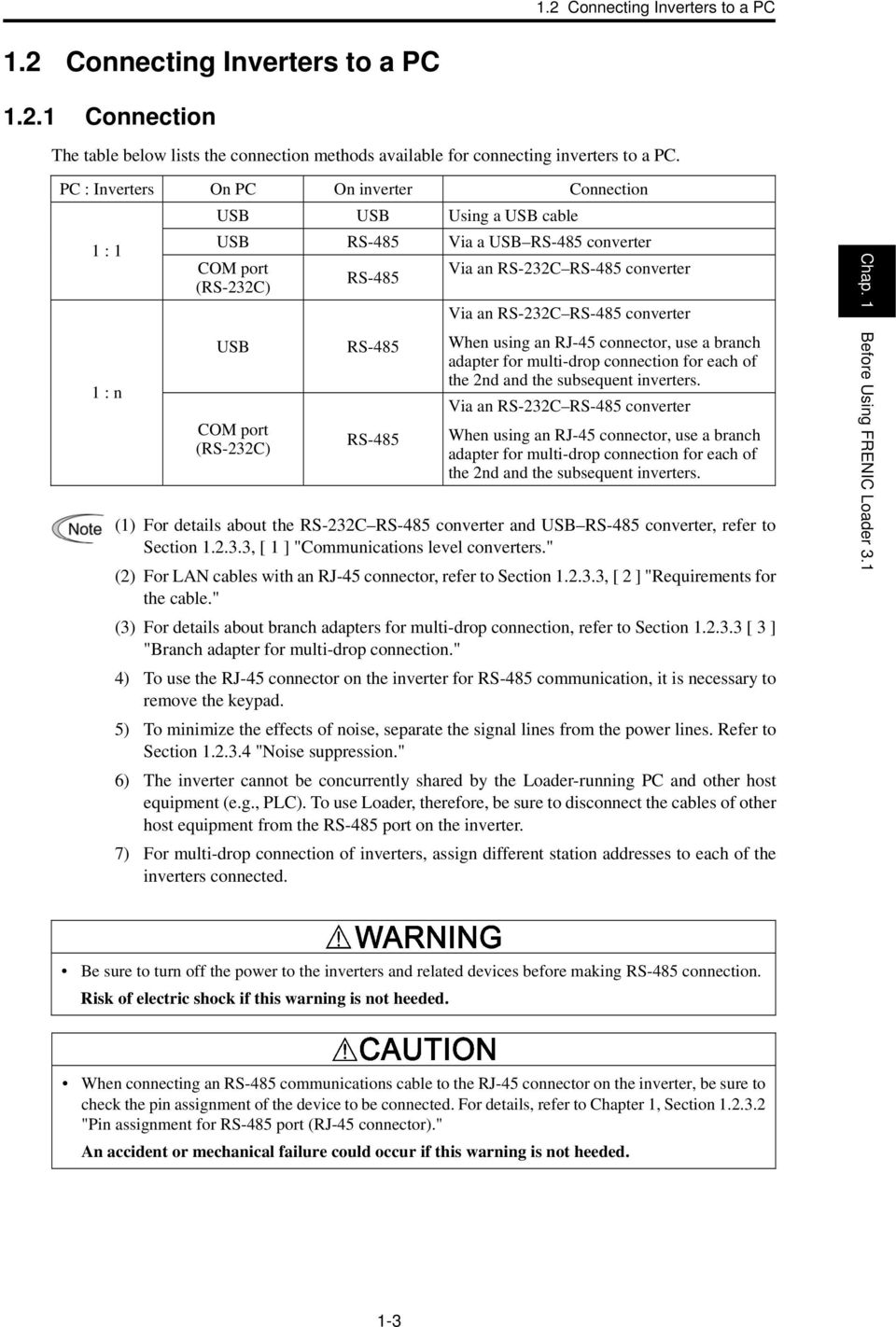
13 1.2 Connecting Inverters to a PC 1.2 Connecting Inverters to a PC Connection The table below lists the connection methods available for connecting inverters to a PC. PC : Inverters On PC On inverter Connection 1 : 1 1 : n USB USB Using a USB cable USB RS-485 Via a USB RS-485 converter COM port (RS-232C) USB COM port (RS-232C) RS-485 RS-485 RS-485 Via an RS-232C RS-485 converter Via an RS-232C RS-485 converter When using an RJ-45 connector, use a branch adapter for multi-drop connection for each of the 2nd and the subsequent inverters. Via an RS-232C RS-485 converter When using an RJ-45 connector, use a branch adapter for multi-drop connection for each of the 2nd and the subsequent inverters. (1) For details about the RS-232C RS-485 converter and USB RS-485 converter, refer to Section , [ 1 ] "Communications level converters." (2) For LAN cables with an RJ-45 connector, refer to Section , [ 2 ] "Requirements for the cable." (3) For details about branch adapters for multi-drop connection, refer to Section [ 3 ] "Branch adapter for multi-drop connection." 4) To use the RJ-45 connector on the inverter for RS-485 communication, it is necessary to remove the keypad. 5) To minimize the effects of noise, separate the signal lines from the power lines. Refer to Section "Noise suppression." 6) The inverter cannot be concurrently shared by the Loader-running PC and other host equipment (e.g., PLC). To use Loader, therefore, be sure to disconnect the cables of other host equipment from the RS-485 port on the inverter. 7) For multi-drop connection of inverters, assign different station addresses to each of the inverters connected. Chap. 1 Before Using FRENIC Loader 3.1 Be sure to turn off the power to the inverters and related devices before making RS-485 connection. Risk of electric shock if this warning is not heeded. When connecting an RS-485 communications cable to the RJ-45 connector on the inverter, be sure to check the pin assignment of the device to be connected. For details, refer to Chapter 1, Section "Pin assignment for RS-485 port (RJ-45 connector)." An accident or mechanical failure could occur if this warning is not heeded. 1-3
14 1.2.2 Configuring a USB network Example of networking To configure a USB network connecting the inverter and a Loader-running PC, use a commercially available USB cable (mini B connector). (See below.) Connection using the USB connector For connection using the USB connector, refer to Section "Setting up communications parameters." FRENIC-MEGA/HF USB A connector USB cable PC USB mini B connector Figure 1.1 USB Network Using a USB Cable (mini B) Table 1.1 Specifications of USB Network Specifications Transmission speed Wiring length Connector Power supply USB 1.1 compliant 12M bps Max. 5 m USB mini B connector When connected to the inverter: Self-powered When connected to the keypad: Bus-powered When connecting the inverter to a PC via the USB port, be sure to connect them, one to one. Do not use a USB hub. 1-4

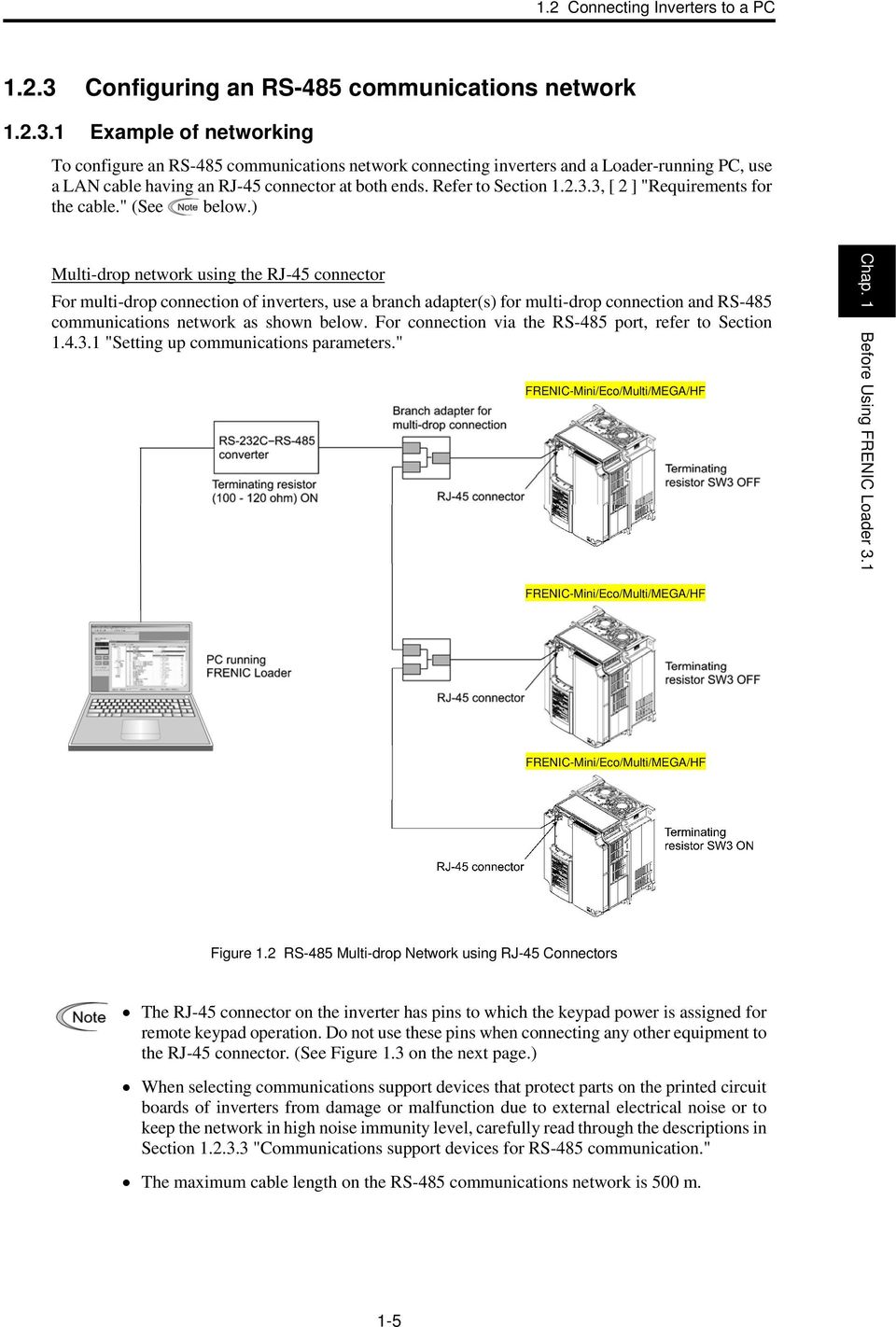
15 1.2 Connecting Inverters to a PC Configuring an RS-485 communications network Example of networking To configure an RS-485 communications network connecting inverters and a Loader-running PC, use a LAN cable having an RJ-45 connector at both ends. Refer to Section , [ 2 ] "Requirements for the cable." (See below.) Multi-drop network using the RJ-45 connector For multi-drop connection of inverters, use a branch adapter(s) for multi-drop connection and RS-485 communications network as shown below. For connection via the RS-485 port, refer to Section "Setting up communications parameters." FRENIC-Mini/Eco/Multi/MEGA/HF Chap. 1 Before Using FRENIC Loader 3.1 FRENIC-Mini/Eco/Multi/MEGA/HF FRENIC-Mini/Eco/Multi/MEGA/HF Figure 1.2 RS-485 Multi-drop Network using RJ-45 Connectors The RJ-45 connector on the inverter has pins to which the keypad power is assigned for remote keypad operation. Do not use these pins when connecting any other equipment to the RJ-45 connector. (See Figure 1.3 on the next page.) When selecting communications support devices that protect parts on the printed circuit boards of inverters from damage or malfunction due to external electrical noise or to keep the network in high noise immunity level, carefully read through the descriptions in Section "Communications support devices for RS-485 communication." The maximum cable length on the RS-485 communications network is 500 m. 1-5
16 Pin assignment for RS-485 port (RJ-45 connector) For ease of connection to a standard RS-232C RS-485 converter, the inverter's RS-485 port is designed to be compliant with the standard 4 pairs signal line pin assignment for the RJ-45 connector, where a pair of signal lines DX- and DX+ are assigned to #4 and #5 pins as shown in Figure 1.3. The power feed lines to the keypad occupy #1, #2, #7 and #8 pins. Do not use these pins when connecting equipment other than the keypad to this port. Figure 1.3 Standard RS-485 Port and RJ-45 Connector Pin Assignment Table 1.2 RJ-45 Pin Assignments on the FRENIC Series of Inverters Pin # Assignment Remarks 1 Vcc (+5 V) 2 GND Using these pins may cause a short-circuit between the Vcc and GND lines. 3 NC No connection. 4 DX- 5 DX+ A pair of RS-485 communications lines 6 NC No connection. 7 GND 8 Vcc (+5 V) Using these pins may cause a short-circuit between the Vcc and GND lines. 1-6

17 1.2 Connecting Inverters to a PC Communications support devices for RS-485 communication This section describes the devices required for connecting the inverter to a PC having no RS-485 port or for connecting two or more inverters in multi-drop network. [ 1 ] Communications level converters Usually PCs are not equipped with an RS-485 port but with an RS-232C port. To connect inverters to a PC, therefore, you need an RS-232C RS-485 converter or a USB RS-485 converter*. To run Loader correctly, use a converter satisfying the requirements given below. * The USB RS-485 converter should be a product that is compatible with the conventional COM port by emulation of a virtual COM port device driver. Requirements for recommended communications level converters Send/receive switching: Auto-switching by monitoring of send/receive data status at the PC (RS-232C) Electric isolation: Electrically isolated from the RS-485 port Fail-safe: Fail-safe facility* Other requirements: Superior noise immunity * The fail-safe facility refers to a feature that ensures the RS-485 receiver's output at "High" (logical value = 0) even if the RS-485 receiver's input is opened or short-circuited or all the RS-485 drivers are inactive. Refer to Figure 1.4. Chap. 1 Before Using FRENIC Loader 3.1 Recommended converters System Sacom Corporation (Japan) : KS-485PTI (RS-232C RS-485 converter) : USB-485I RJ45-T4P (USB RS-485 converter) Send/receive switching system The RS-485 communications system of the inverter acts in half-duplex mode (2-wire) so the converter must feature a send/receive switching circuitry. Generally, the switching system may be either one of the following. (1) Auto-switching by monitoring of send/receive data (2) Switching by RS-232C control signal of RTS or DTR (hardware flow control system) Computer Driver Driver Receiver input Receiver input RS-232C Level conversion Transmission/ 送 receiving 受 信 切 換 switching Driver enable Receiver output Driver enable Receiver output Receiver enable Receiver enable Receiver RS-485 Receiver RS-232C RS-485 converter FRENIC-MEGA (two-wire system) Figure 1.4 Communications Level Conversion 1-7
![in multi-drop network. [ 1 ] Communications level converters Usually PCs are not equipped with an RS-485 port but with an RS-232C port.](/docs-images/40/6060201/images/page_17.jpg "To connect inverters to a PC, therefore, you need an RS-232C RS-485 converter or a USB RS-485 converter*. To run Loader correctly, use a converter satisfying the requirements given below.")
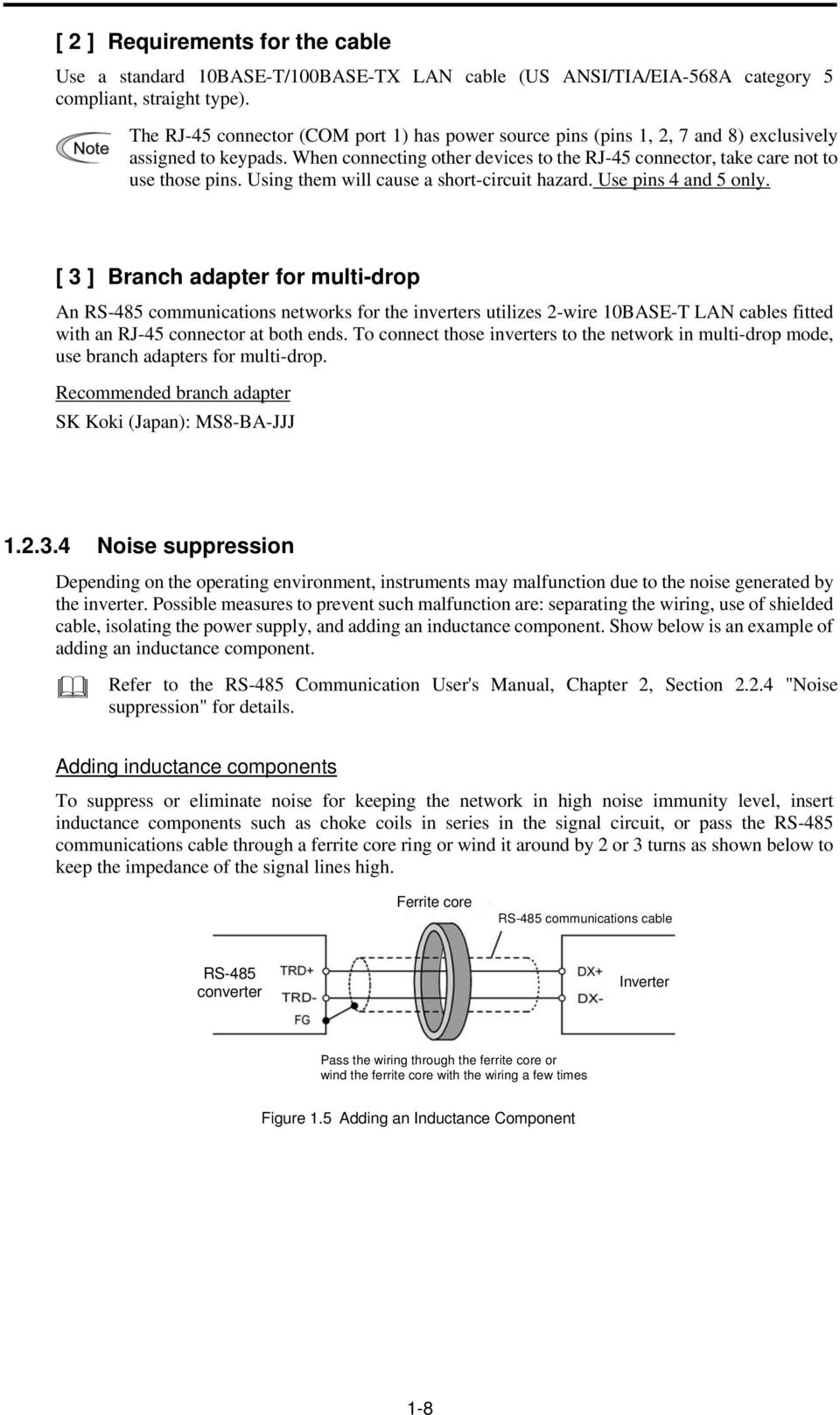
18 [ 2 ] Requirements for the cable Use a standard 10BASE-T/100BASE-TX LAN cable (US ANSI/TIA/EIA-568A category 5 compliant, straight type). The RJ-45 connector (COM port 1) has power source pins (pins 1, 2, 7 and 8) exclusively assigned to keypads. When connecting other devices to the RJ-45 connector, take care not to use those pins. Using them will cause a short-circuit hazard. Use pins 4 and 5 only. [ 3 ] Branch adapter for multi-drop An RS-485 communications networks for the inverters utilizes 2-wire 10BASE-T LAN cables fitted with an RJ-45 connector at both ends. To connect those inverters to the network in multi-drop mode, use branch adapters for multi-drop. Recommended branch adapter SK Koki (Japan): MS8-BA-JJJ Noise suppression Depending on the operating environment, instruments may malfunction due to the noise generated by the inverter. Possible measures to prevent such malfunction are: separating the wiring, use of shielded cable, isolating the power supply, and adding an inductance component. Show below is an example of adding an inductance component. Refer to the RS-485 Communication User's Manual, Chapter 2, Section "Noise suppression" for details. Adding inductance components To suppress or eliminate noise for keeping the network in high noise immunity level, insert inductance components such as choke coils in series in the signal circuit, or pass the RS-485 communications cable through a ferrite core ring or wind it around by 2 or 3 turns as shown below to keep the impedance of the signal lines high. Ferrite core RS-485 communications cable RS-485 converter Inverter Pass the wiring through the ferrite core or wind the ferrite core with the wiring a few times Figure 1.5 Adding an Inductance Component 1-8
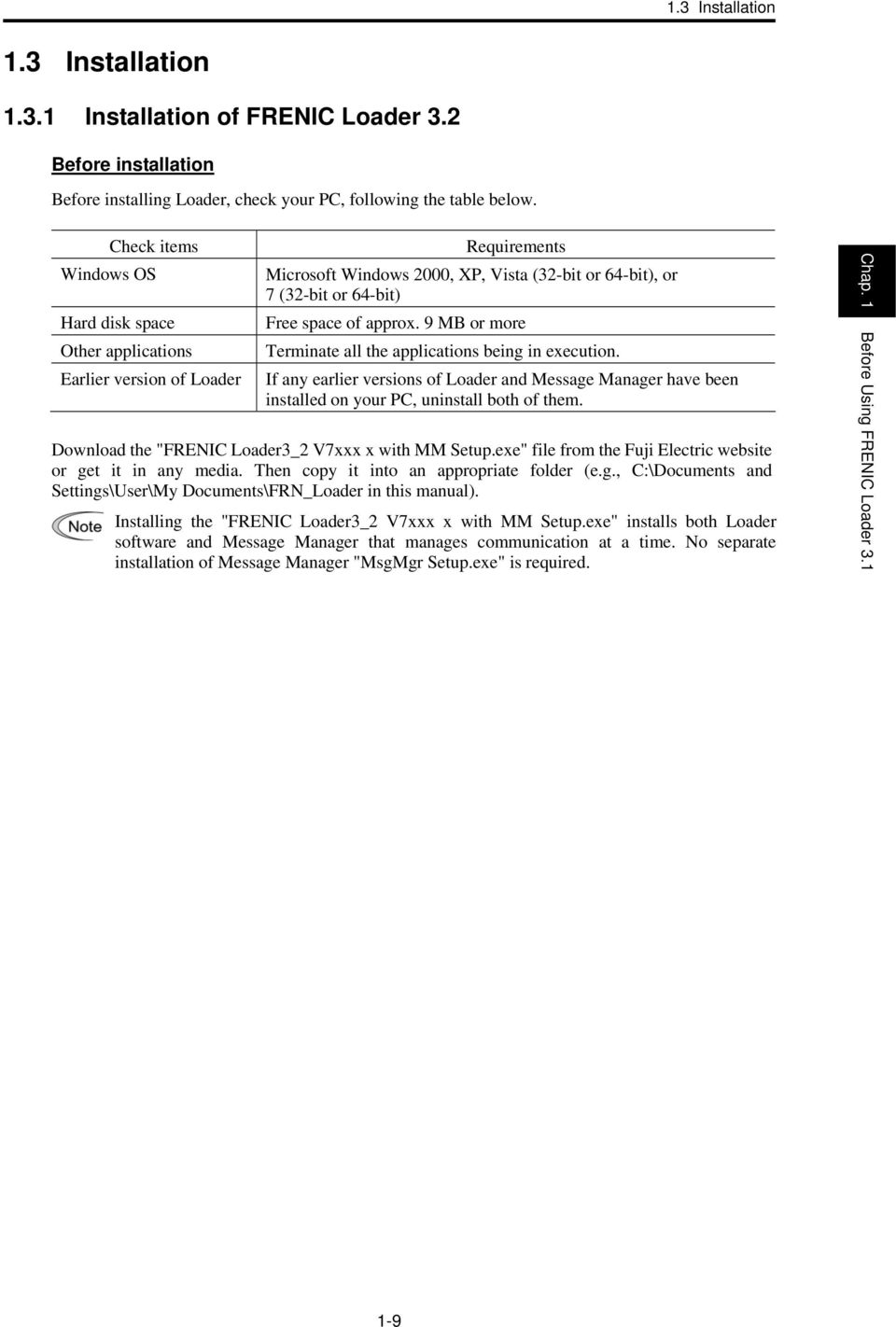
19 1.3 Installation 1.3 Installation Installation of FRENIC Loader 3.2 Before installation Before installing Loader, check your PC, following the table below. Check items Windows OS Hard disk space Other applications Earlier version of Loader Requirements Microsoft Windows 2000, XP, Vista (32-bit or 64-bit), or 7 (32-bit or 64-bit) Free space of approx. 9 MB or more Terminate all the applications being in execution. If any earlier versions of Loader and Message Manager have been installed on your PC, uninstall both of them. Download the "FRENIC Loader3_2 V7xxx x with MM Setup.exe" file from the Fuji Electric website or get it in any media. Then copy it into an appropriate folder (e.g., C:\Documents and Settings\User\My Documents\FRN_Loader in this manual). Installing the "FRENIC Loader3_2 V7xxx x with MM Setup.exe" installs both Loader software and Message Manager that manages communication at a time. No separate installation of Message Manager "MsgMgr Setup.exe" is required. Chap. 1 Before Using FRENIC Loader
20 Installing Loader [ 1 ] Windows 7/Windows Vista Follow the wizard and install Loader as shown below. Double-click the FRENIC Loader3_2 V7xxx E with MM Setup.exe icon. The exe automatically starts the installation wizard. Windows 7 To continue, click Yes. Windows Vista To continue, click Allow. To continue, click Next. 1-10

21 1.3 Installation Carefully read the license agreement. To view the entire contents of the agreement, scroll the screen up and down using the Page Up/Down keys or the scroll bar. If you agree, click Yes to proceed. Enter your user name and company name. Chap. 1 Before Using FRENIC Loader 3.1 After entry, click Next to proceed. Select the destination folder to install. A default folder has appeared. To select a different folder, click Browse. Click Next to proceed. Select the start menu folder that the shortcut to FRENIC Loader is to be added to. You can select one from existing folders in the list or create a new one. After entry, click Next to proceed. 1-11
22 The screen confirming your selection appears. If you want to change the selection, click Back to return to the previous screen. If OK, click Next to proceed. To abort the installation, click Cancel. The installation progress bar appears. To abort the installation, click Cancel. To continue, click OK. Upon completion of the installation, the screen at left appears. To exit the installation wizard and return to Windows, click Finish. 1-12
23 1.3 Installation [ 2 ] Windows XP/Windows 2000 Follow the wizard and install Loader as shown below. Double-click the FRENIC Loader3_2 V7xxx E with MM Setup.exe icon. The exe automatically starts the installation wizard. To continue, click Next. Chap. 1 Before Using FRENIC Loader 3.1 Carefully read the license agreement. To view the entire contents of the agreement, scroll the screen up and down using the Page Up/Down keys or the scroll bar. If you agree, click Yes to proceed. Enter your user name and company name. After entry, click Next to proceed. 1-13
24 Select the destination folder to install. A default folder has appeared. To select a different folder, click Browse. Click Next to proceed. Select the start menu folder that the shortcut to FRENIC Loader is to be added to. You can select one from existing folders in the list or create a new one. After entry, click Next to proceed. The screen confirming your selection appears. If you want to change the selection, click Back to return to the previous screen. If OK, click Next to proceed. To abort the installation, click Cancel. The installation progress bar appears. To abort the installation, click Cancel. 1-14
25 1.3 Installation Upon completion of the installation, the screen at left appears. To exit the installation wizard and return to Windows, click Finish. Chap. 1 Before Using FRENIC Loader
26 1.3.2 Installation of USB driver Using the USB interface for accessing the inverter(s) requires installing the USB driver to your PC. The driver installation is required only once at the first use of the USB interface. If the USB driver has not been installed correctly, no communication via the USB interface is possible Installing the USB driver First of all, connect the USB connector (A) on the PC and the USB connector (mini B) on the inverter's keypad with each other using a USB cable. Before installation of the USB driver, install Loader and Message Manager. Refer to Section "Installation of FRENIC Loader 3.2" for details. [ 1 ] Windows 7 When the OS finds a USB device of the Loader, it displays the following. The system-supplied driver setup wizard does not run automatically. Install the USB driver as shown below. From the Start menu, select and right-click Computer to show the submenu. Click Properties. Wait for the Control Panel Home screen and click Device Manager. 1-16
27 1.3 Installation On the Device Manager window, right-click Unknown device to show the drop-down list. Click Update Driver Software. Chap. 1 Before Using FRENIC Loader 3.1 Click Browse my computer for driver software. Click Browse. 1-17
28 In the folder in which FRENIC Loader has been installed, select \Driver\MICREXSX and then click OK. The default folder is C drive when the OS, 32-bit C:\Program Files\Fuji Electric\FRENIC Loader3 EN\Driver\ MICREXSX 64-bit C:\Program Files(x86)\Fuji Electric\FRENIC Loader3 EN\Driver\ MICREXSX To continue, click Next. Click Install this driver software anyway. 1-18
29 1.3 Installation Installation starts. Upon completion of the installation, the screen at left appears. To exit the installation wizard and return to Windows, click Close. Chap. 1 Before Using FRENIC Loader
30 [ 2 ] Windows Vista When the OS finds a USB device of the Loader, it displays the following. Follow the wizard and install Loader as shown below. Click Locate and install driver software. Click Continue to proceed. 1-20
31 1.3 Installation Click Browse my computer for driver software (advanced). Click Browse. Chap. 1 Before Using FRENIC Loader 3.1 In the folder in which FRENIC Loader has been installed, select \Driver\MICREXSX and then click OK. The default folder is C drive when the OS, 32-bit C:\Program Files\Fuji Electric\FRENIC Loader3 EN\Driver\ MICREXSX 64-bit C:\Program Files(x86)\Fuji Electric\FRENIC Loader3 EN\Driver\ MICREXSX 1-21
32 To continue, click Next. Click Install this driver software anyway. Installation starts. 1-22
33 1.3 Installation Upon completion of the installation, the screen at left appears. To exit the installation wizard and return to Windows, click Close. This message appears when the USB driver has been successfully installed. Chap. 1 Before Using FRENIC Loader
34 [ 3 ] Windows XP When the OS finds a USB device of the Loader, it displays the following. Follow the wizard and install Loader as shown below. Wait for this screen to appear, select Yes, now and every time I connect a device, then click Next. Select Install from a list or specific location (Advanced), then click Next. Select Search for the best driver in these locations and the Include this location in the search check box, then click Browse. 1-24
35 1.3 Installation In the folder in which FRENIC Loader has been installed, select \Driver\MICREXSX and then click OK. The default folder is C:\Program Files\Fuji Electric\FRENIC Loader3 EN\Driver\ MICREXSX when the OS drive is C. Chap. 1 Before Using FRENIC Loader 3.1 Click Next. Installation starts. Upon completion of the installation, the screen at left appears. To exit the installation wizard and return to Windows, click Finish. 1-25
36 [ 4 ] Windows 2000 When the OS finds a USB device of the Loader, it displays the following. Follow the wizard and install Loader as shown below. Wait for this screen to appear and then click Next. Select Search for a suitable driver for my device (recommended), then click Next. Select the Specify a location check box, then click Next. Click Browse. 1-26
37 1.3 Installation In the folder in which FRENIC Loader has been installed, select \Driver\MICREXSX and then click OK. The default folder is C:\Program Files\Fuji Electric\FRENIC Loader3 EN\Driver\ MICREXSX if Windows is installed in drive C. Select SxUsb.inf and then click Open. Chap. 1 Before Using FRENIC Loader 3.1 Click OK. Click Next. Installation starts. 1-27
38 Upon completion of the installation, the screen at left appears. To exit the installation wizard and return to Windows, click Finish. 1-28
39 1.3 Installation Checking the installation of the USB driver To check whether the USB driver has been installed correctly, open Device Manager. If FRENIC is added to the sub-tree of Loader USB device, the driver has been installed correctly. Installation finished successfully Installation failed Chap. 1 Before Using FRENIC Loader
40 1.3.3 Uninstallation of FRENIC Loader Before uninstallation (Quitting Loader and Message Manager) Before uninstalling Loader, be sure to quit both Loader and Message Manager. Quitting Message Manager Message Manager is software that manages communication between the PC and inverters. To make sure that Message Manager has quitted, check that no Message Manager icon is displayed in the task tray. If the icon is displayed, right-click it to quit Message Manager. If doing so cannot quit it, shut down or log off Windows. Once you uninstall Loader when Message Manager is running, a new version of Loader installed after that cannot run properly, that is, it may no longer be able to recognize inverters. If this happens, first delete the folder (including its contents) named Fuji Electric Shared in the file path as shown below, and then reinstall Loader. C:\Program Files\Common Files\Fuji Electric Shared (In the file path shown above, "C" represents the drive letter of the partition or hard disk where Windows is installed. If Windows is installed on a different drive in your system, replace "C" with the letter corresponding to that drive.) Quitting Message Manager [ 1 ] Windows 7 Click this to display the hidden icons as shown below. Right-click this icon to display Exit MessageManager, then click it. The confirmation window appears. Click Yes to quit Message Manager. 1-30
41 1.3 Installation [ 2 ] Windows Vista/Windows XP/Windows 2000 Right-click the Message Manager icon to display Exit MessageManager, then click it. The confirmation window appears. Click Yes to quit Message Manager Uninstalling Loader [ 1 ] From Start menu Windows 7/Windows Vista (1) From the Start menu, select All Programs FRENIC Loader3 EN FRENIC Loader3.2 EN Uninstall. Chap. 1 Before Using FRENIC Loader 3.1 The confirmation screen at left appears. Click Yes. 1-31
42 The confirmation screen at left appears. To continue the uninstallation procedure, click Yes. The uninstallation progress bar appears. To abort the uninstallation, click Cancel. Upon completion of the uninstallation, the screen at left appears. Select Yes, I want to restart my computer now. and then click Finish. 1-32
43 1.3 Installation [ 2 ] From Start menu Windows XP/Windows 2000 From the Start menu, select All Programs FRENIC Loader3 EN FRENIC Loader3.2 EN Uninstall. The uninstallation confirmation screen appears as shown left. To proceed and uninstall Loader, click Yes. Chap. 1 Before Using FRENIC Loader 3.1 The uninstallation progress bar appears. To abort the uninstallation, click Cancel. Upon completion of the uninstallation, the screen at left appears. Select Yes, I want to restart my computer now. and then click Finish. 1-33
44 [ 3 ] From setup icon Windows 7/Windows Vista If uninstalling from the Start menu cannot start and the Problem with Shortcut dialog appears as shown below, uninstall Loader from the setup icon "FRENIC Loader3_2 V7xxx E with MM Setup." Double-click the FRENIC Loader3_2 V7xxx E with MM Setup icon. The exe automatically starts the installation wizard. Select Remove and click Next. Windows 7 Click Yes. 1-34
45 1.3 Installation Windows Vista Click Allow. The confirmation screen at left appears. Click OK. The uninstallation progress bar appears Chap. 1 Before Using FRENIC Loader 3.1 To abort the uninstallation, click Cancel. Upon completion of the uninstallation, the screen at left appears. Select Yes, I want to restart may computer now. and then click Finish. 1-35
46 [ 4 ] From Setup icon Windows XP/Windows 2000 If uninstalling from the Start menu cannot start and the Problem with Shortcut dialog appears as shown below, uninstall Loader from the setup icon "FRENIC Loader3_2 V7xxx E with MM Setup.exe." Double-click the FRENIC Loader3_1 V6030 E with MM Setup icon. The exe automatically starts the installation wizard. Select Remove and click Next. The confirmation screen at left appears. Click OK. 1-36
47 1.3 Installation The uninstallation progress bar appears. To abort the uninstallation, click Cancel. Upon completion of the uninstallation, the screen at left appears. Chap. 1 Before Using FRENIC Loader 3.1 Select Yes, I want to restart may computer now. and then click Finish. 1-37
48 1.4 Configuring the Settings for Inverter(s) and Loader This section describes the inverter and Loader settings to be configured before the use of Loader Configuring communication-related function codes in the inverter(s) The table below lists inverter's function codes related to Loader. Configure those codes before connecting Loader to the inverter. Function code Name Setting range Factory default y01 RS-485 Communication 1 (Station address) 1 to y04 (Baud rate) 0: 2400 bps 1: 4800 bps 2: 9600 bps 3 3: bps 4: bps 0: Modbus RTU protocol y10 1: FRENIC Loader protocol (SX protocol) 1 (Protocol) 2: Fuji general-purpose inverter protocol y01: Station address Set the y01 data to the same value as the RS-485 No. setting made in Loader's Device connection list (see Section , [ 2 ]). y04: Baud rate Set the y04 data to the same value as the baud rate setting made in Loader's Communication Setting window (see Section , [ 2 ]). y10: Protocol Set the y10 data to "1" (FRENIC Loader protocol). 1-38
49 1.4 Configuring the Settings for Inverter(s) and Loader Checking the COM port on the PC (when using a communications level converter) Loader running on the PC uses the RS-232C communications port (COM) to interface with inverters. When an RS-232C RS-485 converter is connected to the PC, check what COM port number (COM#) on the PC is assigned to the RS-232C RS-485 converter. To use the USB interface, select a USB RS-485 converter that functions as a virtual RS-232C communications port (COM). When a USB RS-485 converter is connected, Windows automatically assigns a free COM port on the PC to the converter. To check the assignment, follow the procedure below. Windows 7/Windows Vista From the Start menu, select Control Panel Hardware and Sound Device Manager. Windows XP/Windows 2000 From the Start menu, select Control Panel System Hardware Device Manager. Click + preceding Ports (COM & LPT) to show details. Chap. 1 Before Using FRENIC Loader 3.1 Check the number "n" in USB Serial Port (COMn). This example shows that COM3 is assigned to the USB Serial Port. 1-39
50 1.4.3 Configuring Loader When Loader has been installed on your PC, selecting All Programs FRENIC Loader3 EN FRENIC Loader3.2 EN Start from the Start menu starts Loader. 1-40
51 If Loader starts, the Quick Access Menu first appears as shown below. 1.4 Configuring the Settings for Inverter(s) and Loader This menu contains the 10 quick-start icons for the programs contained in Loader. To start a program, simply click the corresponding icon. Details of the programs are described in Chapter 2. When using Loader for the first time or after having changed the supporting inverter(s), you need to configure the operating environment by setting up the communications parameters (Com. Set.) and the interface with the inverter(s) (Connect). Click either the Com. Set. or Connect icon to open the Communication Setting dialog or Device connection list window, respectively. Configures communications parameters. Chap. 1 Before Using FRENIC Loader 3.1 Configures the connection with inverters. If the Quick Access Menu is not displayed, click the icon on the toolbar (shown below) at the bottom of the Loader top window to open the menu. If USB: Data in keypad has been selected in the Communication Setting window (see Section ), [Multi-monitor], [Real-time trace], or [Historical tracing] cannot be selected. 1-41
52 Configuring communications parameters Clicking the Com. Set. icon in the left row of the Quick Access Menu calls up the Communication Setting window (shown below) which provides a choice of ports (USB and RS-485), target memory to access (inverter memory and keypad memory), and communications conditions. The Communication Setting window can also be called up from the menu bar on the Loader top window (shown in Section 2.1) by selecting Setup Communication Setup About "Target" The inverter holds various data in its memory to control itself. The keypad itself has also a memory that can be used to back up the data held in the inverter memory. Loader can access data in both of the inverter memory and keypad memory as shown below. The Target combo box provides a choice of three combinations of a port and target memory to access. The following three combinations are provided in the Target combo box. USB: Data in inverter (FRENIC-MEGA/HF only) Selecting this combination uses the USB port and accesses function code, running status monitor, real-time trace, and other data to be used in the inverter memory. USB: Data in keypad (FRENIC-MEGA/HF only) Selecting this combination uses the USB port and accesses function code, running status monitor, and other data held in the keypad memory. RS-485: Data in inverter Selecting this combination uses the RS-485 port and accesses function code, running status monitor, real-time trace, and other data to be used in the inverter memory. Ports and Target Memory to Access 1-42
53 1.4 Configuring the Settings for Inverter(s) and Loader PC Keypad USB RS-45 connector connector (RS-485 port) Inverter RS-45 connector (RS-485 port) Data Access to the keypad memory Data Backup of inverter me mory (copying f rom inverter memory) RS-485 converter Access to the inverter memory Control of inverter Chap. 1 Before Using FRENIC Loader
54 [ 1 ] For connection to USB port (FRENIC-MEGA/HF only) Target Select the desired combination of the port and memory to access. - USB: Data in inverter Select this choice to connect the PC to the USB port and access data in the inverter memory. USB A connector FRENIC-MEGA/HF USB cable PC USB mini B connector - USB: Data in keypad Select this choice to connect the PC to the USB port and access data in the keypad memory. USB A connector Keypad only USB cable PC USB mini B connector USB A connector FRENIC-MEGA/HF and Keypad USB cable PC USB mini B connector Selecting USB: Data in keypad in the Communication Setting window disables [Multi-monitor], [Real-time trace], and [Historical tracing]. 1-44
55 1.4 Configuring the Settings for Inverter(s) and Loader USB Selecting "USB: Data in inverter" or "USB: Data in keypad" in the Target combo box automatically selects the USB radio button. Port Baud rate Flow control When USB is selected, these settings are invalid. Retry times Select the number of times for retry upon failure of a transmission. If a large number is selected, the feasibility of successful transmission may be high. Note that, however, it may take a long time to show failure of the transmission after retrying. The recommended setting is one or more. Timeout If Loader receives no response from the inverter within the time specified in this box, the communications error dialog automatically opens. The shorter the timeout setting, the faster the dialog will open. Setting a too short timeout, however, may result in a false transmission error due to the long internal processing time of the inverter although the transmission itself is successful. The recommended setting is 1.5 seconds. Connected check This feature always monitors the communications status between Loader and inverter(s) registered by the Device connection list and displays the status on the status bar of the Loader top window. Select the check box to enable this feature. If Loader cannot communicate with the registered inverter due to a wire break, for example, the response time becomes very long. Chap. 1 Before Using FRENIC Loader 3.1 After completion of data entry, check the settings again and click OK to exit the communications setting operation. 1-45
56 [ 2 ] For connection to RS-485 port Target Select the desired combination of the port and memory to access. - RS-485: Data in inverter Select this choice to use the RJ-45 connector (RS-485 port) on the inverter via an RS-232C RS-485 or USB RS-485 converter and access data in the inverter memory. USB A connector LAN cable FRENIC-MEGA PC USB cable RJ-45 connector (RS-485 port) USB RS-485 converter COM port connector LAN cable FRENIC-MEGA PC RS-232C cable RJ-45 connector (RS-485 port) RS-232C RS-485 converter To connect the PC to the RJ-45 connector (RS-485 port) on the inverter, remove the keypad from the inverter. 1-46
57 1.4 Configuring the Settings for Inverter(s) and Loader RS-485 Selecting "RS-485: Data in inverter" in the Target combo box automatically selects the RS-485 radio button. Port Select the PC's COM port to which the RS-232C RS-485 converter is connected. (See Section "Checking the COM port on the PC.") Retry times Select the number of times for retry upon failure of a transmission. If a large number is selected, the feasibility of successful transmission may be high. Note that, however, it may take a long time to show failure of the transmission after retrying. The recommended setting is one or more. Timeout If Loader receives no response from the inverter within the time specified in this box, the communications error dialog automatically opens. The shorter the timeout setting, the faster the dialog will open. Setting a too short timeout, however, may result in a false transmission error due to the long internal processing time of the inverter although the transmission itself is successful. If Loader is managing a single inverter, the recommended setting is 1.5 seconds; if it is managing two or more inverters, the setting is "1.5 x number of inverters." Baud rate The rate should be identical to that of the inverter. The recommended rate is bps. If the transmission between the PC and inverter is erratic due to noise or other factors, however, you will need to slow down the rate. Flow control As Loader does not support flow control, no setting is required. Flow control refers to a system using the RS-232C hardware control signal to switch send/receive of RS-485 signals. Refer to Section , "[ 1 ] Communications level converters" for details. Connected check This feature always monitors the communications status between Loader and inverter(s) registered by the Device connection list and displays the status on the status bar of the Loader top window. Select the check box to enable this feature. If Loader cannot communicate with any one of registered inverters due to a wire break, for example, the response time becomes very long. If it happens, remove such an inverter from the Device connection list, referring to Section Chap. 1 Before Using FRENIC Loader 3.1 After completion of data entry, check the settings again and click OK to exit the communications setting operation. 1-47
58 Configuring connection settings Clicking the Connect icon in the left row of the Quick Access Menu calls up the Device connection list window (shown below) which provides information on equipment (such as inverters and keypad) available. The Device connection list window can also be called up from the menu bar on the Loader top window (shown in Section 2.1) by selecting Setup Connection Setup. [ 1 ] For connection to USB port (FRENIC-MEGA/HF only) When "USB: Data in inverter" is selected Only a single line appears as shown below. After making sure that the equipment name and RS-485 No. (station address) are correct, click the Browse button to monitor the current communications link status. If they are not correct, double-click the row (or use the Advance button) to call up the Advanced dialog shown below and modify the contents. Browse Clicking this button checks whether a link between Loader and the inverter is established. The result appears in the Status column. Status column - Unknown: The communications status has been unknown. - Connecting: The communications link has been established. - Disconnected: The communications link has not yet been established. Advance Clicking the row to be modified and clicking this Advance button calls up the Advanced dialog shown at the right. Clicking the OK button returns to the Device connection list window. After completion of data entry, check the settings again and click OK to exit the device connection operation. The RS-485 No. (station address) should be the same as the data of function code y
59 1.4 Configuring the Settings for Inverter(s) and Loader When "USB: Data in keypad" is selected Only a single line appears as shown below. After making sure that the equipment name and KP No. are correct, click the Browse button to monitor the current communications link status. If they are not correct, double-click the row (or use the Advance button) to call up the Advanced dialog shown below and modify the contents. Browse Clicking this button checks whether a link between Loader and the keypad is established. The result appears in the Status column. Status column - Unknown: The communications status has been unknown. - Connecting: The communications link has been established. - Disconnected: The communications link has not yet been established. Advance Clicking the row to be modified and clicking this Advance button calls up the Advanced dialog shown at the right. Clicking the OK button returns to the Device connection list window. Chap. 1 Before Using FRENIC Loader 3.1 After completion of data entry, check the settings again and click OK to exit the device connection operation. The KP No. should be set to "1." Do not specify any other number. 1-49
60 [ 2 ] For connection to RS-485 port When "RS-485: Data in inverter" is selected The Device connection list window shows the inverters available for RS-485 communication. Double-clicking (or use the Advance button) the row where the inverter to be modified or added is listed calls up Advanced dialog shown below. Selection of inverters to be monitored To make an inverter enable to be monitored, put a check mark ( ) in the box located at the left end column of the list. The following buttons allow you to perform advanced settings. Delete Clicking the row to be deleted and clicking this Delete button deletes the inverter listed in that row. Use this for the inverter(s) that has been disconnected from Loader. Browse Clicking this button checks whether a link between Loader and the inverter(s) (marked with ) is established. The result appears in the Status column. Status column - Unknown: The communications status has been unknown. - Connecting: The communications link has been established. - Disconnected: The communications link has not yet been established. Advance Clicking the row to be modified or added and clicking this Advance button calls up the Advanced dialog shown at the right. Fill in the Equipment name and RS-485 address (station address) boxes in the dialog and click OK. To cancel your entry or selection, click Cancel. Clicking the OK button returns to the Device connection list window. After completion of data entry, check the settings again and click OK to exit the device connection operation. 1-50
61 Chapter 2 Functions of FRENIC Loader This chapter contains descriptions of typical functions of FRENIC Loader 3.2.
62
63 2.1 Top Window of FRENIC Loader Top Window of FRENIC Loader 3.1 When Loader starts, first the top window shown below appears which normally contains Quick Access Menu (shown on page 1-23). (In the example below, the Quick Access Menu is omitted.) Main menu Main menu Allows you to access all of the Loader functions. Tool bar Allows you to access the major functions with a single click. Mouse-pointing an icon on the Tool bar calls up a popup text to show its function. Status bar Shows details of the function you have accessed. Shows the connection status with the inverter in the rightmost box. The main menu contains six commands. File, Menu, Setup, View and Help are active even if there is nothing displayed in the window. Window will be active only when any window is opened. These commands except Setup are detailed in Sections 2.2 through 2.6. For details about Setup, see Sections and Chap. 2 Functions of FRENIC Loader 3.2 Tool bar Using the tool bar easily accesses frequently used functions. To open a function code file stored in the PC from the toolbar, for example, just click the icon, while two actions--menu Open--are required to open the file from the main menu. Status bar The status bar shows the running status of Loader at all times. Also, to find out what an icon or menu means, simply place the mouse cursor over it and a text explaining it will pop up in the left part of the status bar. When Connected check (shown in Section 1.4.3) is selected, the box at the right end of the status bar shows the connection status with inverters at all times. 2-1
64 2.2 File This section describes main commands contained in the File menu New Creates a new file of function code data. Selection tab for the inverter model Shows the model number of available inverters. FRENIC-MEGA: G1S Icon for a file to be created Shows the icon for a new function code data file. OK Executes selection. (This button becomes active if any file is selected.). Selecting File New opens a function code data file that Loader has by default (for 200 V class series of inverters with 5.5 kw), in the function code edit list format. You can edit the function code data even if the communications link between Loader and inverter is not established Open Reads out the selected one of the existing data files (e.g., function code data, real-time trace data, historical trace data) saved in the PC and opens the edit window. Look in Selects folder location of the file. File name Shows the name of selected file. You can also type a new file name. Open Opens the file selected. Files of type Selects the file type (extension). To show all the files, select All PC loader files. File extensions *.FNC: Function code data file *.HIM: Historical trace data file *.RTM: Real-time trace data file 2-2
65 2.2 File Print setup Specifies the available printer, paper size, print orientation and other features needed to print the data. Name Selects the available printer. Properties Opens the detailed settings dialog of the printer Exit Exits Loader. Network Selects a network printer. OK Completes your printer setup. Chap. 2 Functions of FRENIC Loader
66 2.3 Menu This menu provides the following commands: - Trace (Section 2.3.5) - Multi-monitor (Section 2.3.3) - Operation monitor (Section 2.3.2) - Function code setting (Section 2.3.1) - Test-run (Section 2.3.4) - Quick access menu (Section 2.3.6) - Options (Section 2.3.7) Function code setting Selecting Menu Function code setting calls up the Editing data window (shown below) where you select the target data--new file, File saved in the PC, or File configured in the inverter. Selecting the target data and clicking OK opens the target function code data file that has the four tabs--function code edit, Auto-tuning, Comparison, and File Information as shown on the next page. New Creates a new function code data file. Property Files Select Property File corresponding to inverter ROM version when creating a new function code data file. Model Specifies the series or type of inverter when New is selected. Read from the file Opens a function code data file saved in the PC. Read from the INV Reads the function code data configured in the inverter. Function code property Selects the function code group(s) to be read from the inverter. Select inverter Selects the inverter from which the function code data should be read. Selecting New in the above window opens a function code data file that Loader has by default (for 200 V class series of inverters with 5.5 kw), in the function code edit list format. You can edit the function code data even if the communications link between Loader and inverter is not established. 2-4
67 2.3 Menu Function code edit In the Function code edit window showing the function code data, its setting range, and other attributes, you can edit the function codes. Descriptions for button and combo-box functions in the window are given below. Code group: Change from factory defaults: Contents of change (in red): User definition: Code for communication: Comparison result: Search result: Lists function codes by group. Lists function codes whose data has been changed from factory defaults. (Except communications-related codes) Lists edited function codes not yet written into an inverter. Lists function codes defined by the user. Lists function codes used for communication. Lists only comparison results with function codes stored in the inverter or saved in Loader. Lists only search results commanded by Edit Search. Setting value Select function code data listed in the drop-down menu in the edit window. Chap. 2 Functions of FRENIC Loader 3.1 READ : WRITE : Factory set: Func. code set : Func. code info : Initialization : Advanced : Print : Reads the data from the inverter selected in Select inverter. Writes data saved in Loader into the inverter selected in Select inverter. Reverts the data of the selected function code to the factory default. Shows the data of the selected function code in the edit window. Shows information of the selected function code in the window. Initializes all function code data in the inverter selected at Select inverter. Calls up the Advanced setting dialog for Display items, Function code attribute, and Print setting. Prints function codes selected in the hierarchy tree in the left pane. Select inverter: Close: Select the inverter to which the data is to be sent. Closes the Function code edit window. 2-5
68 [ 1 ] Reading function code data stored in the inverter To read out function code data from an inverter first time after Loader starts In the Editing data dialog (shown below) called up by selecting Menu Function code setting, select Read from the INV and click OK. To update the function code data already read from the inverter Click the READ button at the bottom of the Function code edit window to call up the dialog below. Clicking OK starts reading the function code data from the inverter. 2-6
69 2.3 Menu To read out the function code together with its attribute If you place the mark in the head-box of Read also function code attributes in the dialog above, Loader reads the function code data altogether its default setting, minimum value, maximum value and other attributes from the inverter. To specify what is the function code group you want to read the function code attributes, first call up the Advanced dialog shown below by clicking Advanced at the bottom of the Function code edit window. Then click Func. code attributes in the dialog to open the Function code property dialog. Place the mark(s) in the head-box(es) of the function code(s) you want to read the code(s) with its attribute(s). To do so for all function codes, place the mark in the head-box of All function codes. Chap. 2 Functions of FRENIC Loader
70 [ 2 ] Changing the function code data The function code data change procedure differs depending upon the property of function codes, as shown below. (1) For function codes whose data is a numeric value such as frequency, time, or voltage, double-click the Range of setting column of the listed function code. The Range of setting dialog will appear. Enter a numeric value directly or select it by clicking the list box handles in the dialog. (2) For function codes whose data specifies the inverter function -- for example, F00 (1: Protect data)/01 (1: Frequency setting by voltage input)/02 (0: Run/stop by keypad), click the Setting value column of the listed function code. A combo-box will appear. Click to show the data you can select in the dropdown menu. (3) In the Function code edit window, clicking the Func. Code info. button or double-clicking the function code name on the function code row calls up a popup text below, which gives you more detail information of the function code. Furthermore, just clicking another row switches contents of the text for the new function code while this text is shown. Selected data that has not been written into the inverter is shown in red on the list. If the selected data differs from the factory default, it will be marked with an asterisk (*) in the first column of the list. 2-8
71 [ 3 ] Writing function code data into the inverter from Loader 2.3 Menu Click the WRITE button at the bottom of the Function code edit window to call up the following window. Follow the instructions on the window. Function code data not written into the inverter successfully is displayed in pink. The possible causes of the failure are listed below. - Attempting to write to function codes not allowed to be changed during running - Attempting to write to read-only function codes - Attempting to write to function codes that cannot be written via the communications link - Editing via the communications link not allowed (e.g., writing S codes when H30 = 0) - In case Store the function code data to EEPROM, after writing function code data, the settings are stored to EEPROM in the inverter. At the condition that y97 is written, y97 setting is also stored in EEPROM. - In case Storing method depends on y97 of inverter, after writing function code data, it is determined depending on y97 of inverter whether store the data to EEPROM. Regardless of the writing method, y97 setting is not written. - At the model in which y97 does not exist, the function code data settings are stored to EEPROM. Chap. 2 Functions of FRENIC Loader
72 [ 4 ] Notes in writing function code data into inverters whose rated power inputs or capacities are different from each other It is impossible for the inverters whose rated power inputs are different each other to write the identical data of function code with the data-copy attribute of "1." Further, also impossible for the inverters whose rated power inputs or capacities are different each other to write the identical data of function code with the data-copy attribute is "2." For function codes with the data-copy attribute is "0" the identical data set is written into any inverters unconditionally. Data copy attributes Numeric in Data Description Copy column 0 Writes the copied data into the inverter unconditionally. 1 Does not write the data into the inverter whose rated input differs from original one s. 2 Does not write the data into the inverter whose rated input or rated capacity differs from original one s. Example: 2-10
73 2.3 Menu [ 5 ] Saving function code data into the PC To save the function code data listed in the Loader window or dialog into the PC s file, select File Save or File Save As. At the time of first data saving, even selecting File Save calls up the Save As dialog shown below. Select a folder in the Save In box and type a filename in the File name box, and then click the Save button. Chap. 2 Functions of FRENIC Loader 3.1 In addition to the folder selection and filename entry as above, in order to change the file type (filename extension), click the arrow next to Save as type to show the pull-down list, then click the desired type as shown below. *.FNC: File format exclusive to Loader. This can be opened only by the general-purpose inverter loader. *.CSV: Comma-separated values format. This can be opened by Microsoft Excel and others, but cannot be opened by the general-purpose inverter loader. 2-11
74 [ 6 ] Initializing the function code data stored in the inverter To initialize the function code data stored in the inverter currently selected, click the Initialization button at the bottom of the Function code edit window. The Function code initialization dialog appears as shown below. Click in the Function code combo box, select the target code, and click OK. Select H03 = 1 Initialization (factory setting value) H03 = 2 Initialization of motor 1 parameters H03 = 3 Initialization of motor 2 parameters H03 = 4 Initialization of motor 3 parameters H03 = 5 Initialization of motor 4 parameters To Initialize F, E, C, P, H, A, b, r, J, d, y, and o codes to factory defaults. Initialize P codes to factory defaults, except P02 (Rated capacity) and P99 (Motor 1 selection). Initialize A codes to factory defaults, except A16 (Rated capacity) and A39 (Motor 2 selection). Initialize b codes to factory defaults, except b16 (Rated capacity) and b39 (Motor 3 selection). Initialize r codes to factory defaults, except r16 (Rated capacity) and r39 (Motor 4 selection). 2-12
75 2.3 Menu [ 7 ] Printing the function code data list Click Function or Code group in the hierarchy tree in the left pane of the Function code edit window to show function code/code group of F, E, C,... To print a function code list, select File Print in the main menu of Loader top window or click the Print button at the bottom of the Function code edit window. The Print dialog shown below appears. Specify the printer to use, the print range and the number of copies, and then click OK. To check or reconfigure the printer shown in the Name combo box, click Properties. To quick-print To print only the function codes (F. No.) and their setting data out of the items listed in the Function code edit window, click the Advance button at the bottom of the window to call up the Advanced dialog shown below. Chap. 2 Functions of FRENIC Loader 3.1 Click Printer setup to call up the Print setting window shown below. In the window shown above, place the mark at Prints in simplified way and click OK. Note that this action only specifies a print format and does not start printing. Print preview To preview what to print before actual printing, select File Print preview in the Loader main menu. 2-13
76 [ 8 ] Displaying user-selected function codes only (User definition) In the Function code edit window, select the desired function code and right-click on it to show the user definition menu as shown below. Left-click on the desired user definition group (1, 2, or 3), and the function code is registered as an item of the selected user-definition group. In the hierarchy tree in the left pane of the Function code edit window, click any of User definition 1 to 3, and the function codes that have been registered appear. 2-14
77 2.3 Menu To deregister a function code from a user definition group (1, 2, or 3), select the target function code and right-click on it to show the user definition menu as shown below. Left-click on the User definition release, and the function code is deregistered from the function code group. Chap. 2 Functions of FRENIC Loader
78 [ 9 ] Searching for a character string in function code names When the Function code edit window is displayed, select Edit Search from the main menu. The Search dialog shown below appears. In the Input the character string to search box, enter a string (keyword) you want to search for, e.g., frequency, current, and voltage. In the example shown at the left, "current" is entered. Then click OK. If function codes including the keyword are found, Loader automatically switches to Search result in the hierarchy tree in the left pane and lists function codes whose names contain the keyword in the right pane. Target fields for search include all items such as Change, Function code No., Function code name, Range of setting, etc. They also include items hidden by Advanced Display items. The content of Func. code info are not included in target fields for search. 2-16
79 2.3 Menu Auto-tuning Selecting the Auto-tuning tab displays the window shown below. Auto-tuning automatically measures motor parameters for motors 1 to 4 and saves them as data of the corresponding function codes, using function codes P04 (Motor 1, Auto-tuning), A18 (Motor 2, Auto-tuning), b18 (Motor 3, Auto-tuning), and r18 (Motor 4, Auto-tuning). Selecting Motor Select any of motors M1 to M4 whose parameters are to be auto-tuned. (See below for details.) Selecting motor tuning options Select the motor parameter to be auto-tuned. Processing status This shows the current status of auto-tuning in progress. Motor parameters This shows the motor parameters stored in the target inverter. Auto-tuning control Start the auto-tuning. Chap. 2 Functions of FRENIC Loader 3.1 Output frequency This shows the current output frequency of the inverter. Rotation direction Select the rotation direction of the motor. (See below for details.) Select inverter Select the target inverter to auto-tune the motor. Motor tuning (Select) 0: Disable 1: Tune while the motor stops (Tune %R1, %X, and rated slip frequency.) 2: Tune while the motor is rotating under V/f control (Tune %R1, %X, rated slip frequency, no-load current, magnetic saturation factors 1 to 5, and magnetic saturation extension factors "a" to "c.") 3: Tune while the motor is rotating under vector control (Tune %R1, %X, rated slip frequency, no-load current, magnetic saturation factors 1 to 5, and magnetic saturation extension factors "a" to "c." Available only when the vector control is enabled.) Rotation direction Local command: Follow the external terminal command FWD or REV. (Available only when F02 = 1 (External digital signal input).) FWD (Loader): Run the motor forward. (Available only when Loader can run the inverter.) REV (Loader): Run the motor reverse. (Available only when Loader can run the inverter.) Selecting FWD or REV forces you to choose "2" or "3" for the frequency/run command in Test-running. (See Section "Test-running.") Auto-tuning tab is not displayed with FRENIC-Mini. 2-17
80 Comparison To compare the function code data currently being edited with those configured in the selected inverter or with those saved in the specified file, click the Comparison tab in the Function code edit window. Compared with inverter Compares the function code data being edited on Loader with those configured in the inverter. Go Runs the comparing program. Compared with file Compares the function code data being edited on Loader with those stored in the file on the PC. Browse Browses the directory of the file. Before stating comparison, click of the Select inverter combo-box at the bottom of the Function code edit window to show all inverters available in the dropdown menu, and select one. Loader lists the comparison result, which includes only those function code data that differ each other, in the Comparison window shown below. How to update the comparison result To update the comparison result when this window is displayed, click Re-compare. Even after the above Comparison window is closed, selecting Comparison result in the hierarchy tree in the Function code edit window shows the comparison result as shown below. 2-18
81 2.3 Menu File information Click the File information tab in the Function code edit window displays information that affects function code data. In this window, you can arbitrarily change Region spec., Voltage, Capacity, and Current definition file. If Read from the INV is selected in the Editing data window, this File information window shows the inverter's data. If New is selected in the Editing data window, this window shows default data for the inverter type. Chap. 2 Functions of FRENIC Loader 3.1 TYPE: Type of inverter 2-19
82 [ 1 ] Changing the region You can change the region (shipping destination) of the inverter whose function code data is currently listed in the Function code edit window. Changing the region automatically modifies the factory default, minimum, and maximum values of function codes to the values suited for the region. For details of function codes whose data differs depending on the region, refer to the inverter's instruction manual prepared for each region. As shown in the dialog box above, changing the region initializes all function code data--even those that have been changed from the factory defaults. Save the current data before changing the region, if necessary. [ 2 ] Changing the input power supply voltage You can change the input power supply voltage of the inverter whose function code data is currently listed in the Function code edit window. Changing the voltage automatically modifies the factory default, minimum, and maximum values of function codes whose data copy attribute is "1" accordingly. As shown in the dialog box above, changing the voltage initializes all function code data that depend on the voltage. Save the current data before changing the voltage, if necessary. [ 3 ] Changing the inverter capacity You can change the capacity of the inverter whose function code data is currently listed in the Function code edit window. Changing the capacity automatically modifies the factory default, minimum, and maximum values of function codes whose data copy attribute is "2" accordingly. As shown in the dialog box above, changing the capacity initializes all of the capacity-related function code data. Save the current data before changing the capacity, if necessary. 2-20
83 2.3 Menu [ 4 ] Changing the current definition file The Current definition file indicates the name of the definition file corresponding to the inverter ROM version. If Read from the INV is selected in the Editing data window, Loader automatically selects the definition file corresponding to the inverter ROM version. If New is selected in the Editing data window, Loader automatically selects the latest definition file. If Read from the file is selected in the Editing data window, Loader selects the definition file last automatically saved. Definition file name (FRENIC-MEGA) fnc_x_3_.csv ROM version that the definition file supports To read or write function code data from/to the inverter, It is necessary to perform as follows relation between a definition file and an inverter ROM version. Definition file Inverter ROM version fnc_x_3_0000o.csv 0000 to 0499 fnc_x_3_0500e_en.csv 0500 to 0999 fnc_x_3_1000a_en.csv 1000 to 1999 fnc_x_3_2000_en.csv 2000 to 2999 fnc_x_3_3000a_en.csv 3000 to 3599 fnc_x_3_3600_en.csv 3600 or 3799 fnc_x_3_3800_en.csv 3800 or later Chap. 2 Functions of FRENIC Loader 3.1 If the ROM version of the current definition file and that of the inverter do not match, Loader cannot read or write function code data from/to the inverter. To check the inverter ROM version, select Operation Monitor System Monitor from the Quick Access Menu. On the System Monitor window, see the Main control CPU field in the ROM Ver. area. This screen shows that the ROM version of the connected inverter is
84 To change the current definition file, click Change. In the Open window, select the desired definition file that supports the inverter's ROM version. The current definition file supports the inverter ROM version 0500 to It is necessary, therefore, to change the file to the one that supports version 2000 or later. Click Change to display the Open window as shown below. Select the definition file "fnc_x_3_2000_en.csv" that supports the inverter ROM version 2000, then click Open. Check that the current definition file is "fnc_x_3_2000_en.csv." On the function code information list (shown on page 2-8), function code data that has been changed but not yet written into the inverter is shown in red. Changing the current definition file as described above cannot preserve the red display so that such function code data turns blue. Changing the current definition file also clears entries in the Comment area. 2-22
85 2.3 Menu Operation monitor Selecting Menu Operation monitor calls up the Operation Status Monitor window (shown below) which monitors the running status of the inverter I/O monitor (for control terminal input/output signal status of the inverter) The I/O monitor allows you to monitor the ON/OFF states of the programmable terminals--digital inputs, transistor outputs and relay contact outputs of the selected inverter. CSV Save Saves the I/O monitor data in CSV format. Select inverter Selects the inverter to be monitored. Chap. 2 Functions of FRENIC Loader System monitor (for current setup info and maintenance info of inverter) The System monitor allows you to check the inverter ROM version, inverter type, current setup information, and maintenance information of the selected inverter. CSV Save Saves the system monitor data in CSV format Select inverter Selects the inverter to be monitored.
86 Alarm monitor The Alarm monitor shows the alarm status of the selected inverter. In this window, you can check the content of the current alarm and the various running information recorded when the alarm has occurred. Select the running info recorded when an alarm has occurred Selects the running information recorded when the alarm selected from the last 4 alarms has occurred in the inverter. Alarm reset Resets the alarm that currently occurs. ALM history initialization Initializes the alarm history in the selected inverter. Print Prints data recorded when the alarm has occurred. Select inverter Selects the inverter to be monitored. CSV Save Saves the alarm data in CSV format. Resetting an alarm with a run command being ON will cause the inverter to run the motor unexpectedly. An accident or injury could occur. 2-24
87 2.3 Menu Meter display (Showing the inverter running states) The Meter display shows analog data including inverter's output frequency on the analog meters as shown below. The hollow pointers indicate the peak values if the Peak-hold is checked. Select data to be shown Selects data to be displayed on the analog meters from the combo boxes. Monitor START/STOP Starts or stops monitoring the inverters. Advanced Specifies details of the data format to be shown on the meters for maximum, minimum, decimal points, etc. CSV Save Saves the displayed data in CSV format. [ 1 ] Changing data to be displayed on meters Click the button in each of the combo boxes provided at the bottom of meter panes, select an item listed there. The table below lists data on the analog meter. Chap. 2 Functions of FRENIC Loader 3.1 Inverter information FRENIC-Mini FRENIC-Eco FRENIC-Multi FRENIC-MEGA FRENIC-HF Frequency command Y Y Y Y Y Output frequency Y Y Y Y Y (before slip compensation) Output frequency Y N Y Y N (after slip compensation) Output current Y Y Y Y Y Output voltage Y Y Y Y Y Output torque N Y Y Y N Motor speed N Y Y Y Y (Rotation speed) Load shaft speed Y Y Y Y Y Line speed Y N Y Y Y PID command Y Y Y Y N PID feedback value Y Y Y Y N PID output value N Y Y Y N DC link bus voltage Y Y Y Y Y Input power Y Y Y Y N Load factor N Y Y Y N Motor output power N Y Y Y N Motor temperature N N N Y N Y: Available, N: Not available 2-25
88 Inverter information FRENIC-Mini FRENIC-Eco FRENIC-Multi FRENIC-MEGA FRENIC-HF Temperature inside inverter N Y N Y Y Heat sink temperature Y Y Y Y Y Input voltage on terminal Y Y Y Y Y [12] Input current on terminal Y Y Y Y Y [C1] Input voltage on terminal N Y Y Y Y [V2] Analog input monitor N Y Y Y N Output voltage on terminal Y Y Y Y N [FMA] Output current on terminal N Y Y Y N [FMA] Output voltage on terminal N Y N Y N [FMP] Output pulse rate on terminal N Y Y Y N [FMP] Output voltage on terminal N N N N Y [FM1] Output current on terminal N N N N Y [FM1] Output voltage on terminal N M N N Y [FM2] Output pulse rate on terminal N N N N Y [FM2] PG pulse rate N N Y Y N (A/B phase signal from reference PG) PG pulse rate N N Y Y N (Z phase signal from reference PG) PG pulse rate N N Y Y N (A/B phase signal from slave PG) PG pulse rate N N Y Y N (Z phase signal from slave PG) Pulse input monitor on N N N Y N terminal [X7] Detected speed N N N Y N Torque command N N N Y N Torque current command N N N Y N Torque current N N N Y N Positional deviation in N N N Y N synchronous operation Y: Available, N: Not available 2-26
89 2.3 Menu [ 2 ] Changing the advanced settings for analog meters Click Advanced in the analog meter pane to call up the dialog below. Peak-hold Red zone Chap. 2 Functions of FRENIC Loader 3.1 Minimum value Current value Maximum value Minimum value: Specify the minimum value at the low end point of the meter scale. Maximum value: Specify the maximum value at the high end point of the meter scale. Decimal places of the display: Specify the number of decimal places for the current and peak-hold display. (Digital display precision) Decimal places of the range: Specify the number of decimal places for the analog meter dial. Peak-hold: Enable/disable the peak-hold that makes the meter hold the measured peak value. Red zone: Specify the red colored scale ratio to the meter full scale. 2-27
90 Saving data in CSV format (on operation status monitors) Clicking the CSV Save button on each operation status monitor saves the currently monitored data in CSV format. Clicking the CSV Save button creates a CSV file automatically in the directory as shown below for each monitor item. Example: I/O monitor data C:\Program Files\Fuji Electric\FRENIC Loader3 EN\DATA\IO monitor.csv After specifying the directory to save the CSV file, click the Setting button. To save the data into any other folder, click Browse and select a desired folder. Given below are sample files saved in CSV format for each monitor item. I/O monitor System monitor Alarm monitor Meter display 2-28
91 2.3 Menu Multi-monitor (for the running status of more than one inverter) Selecting Menu Multi-monitor calls up the Multi-monitor window (shown below) which lists the running status of more than one inverter on the network. Status monitor items Lists status monitor items for inverters listed in the equipment name column. [ 1 ] Adding/deleting the monitor items to be listed Selection Adds or deletes status monitor items. Click the Selection button to call up the following window that lists monitor items available. Chap. 2 Functions of FRENIC Loader 3.1 To add an item to be listed in the table, place a check mark ( ) in the box at the left of that item. Click the box again to remove the mark. After completion of your selection, click OK. Any items without a mark will not be shown in the Multi-monitor window. 2-29
92 The table below lists the monitor items available. Monitor items FRENIC-Mini FRENIC-Eco FRENIC-Multi FRENIC-MEGA FRENIC-HF Equipment name Y Y Y Y Y RS-485 address Y Y Y Y Y Inverter model name Y Y Y Y Y (Inverter type) Capacity Y Y Y Y Y Operation status Y Y Y Y Y Brake signal Y Y Y Y Y Latest alarm information Y Y Y Y Y Frequency command Y Y Y Y Y Output frequency (before slip compensation) Y Y Y Y Y Output frequency (after slip compensation) Y N Y Y N Output current Y Y Y Y Y Output voltage Y Y Y Y Y Motor speed N Y Y Y Y (Rotation speed) Load shaft speed Y Y Y Y Y Line speed Y N Y Y Y PID command Y Y Y Y N PID feedback value Y Y Y Y N PID output value N Y Y Y N Torque command N N N Y N Output torque N Y Y Y N Torque current command N N N Y N Torque current N N N Y N DC link bus voltage Y Y Y Y Y Input power Y Y Y Y N Y: Available, N: Not available 2-30
93 2.3 Menu Test-running Selecting Menu Test-running calls up the Test run window (shown below) which allows you to test-run the motor in the forward or reverse direction while monitoring the running status of the selected inverter. Select monitor item Select what is to be displayed (e.g., output frequency or current) here using the pull-down menu. Frequency reference Enter or select the frequency command to write it into the inverter. Click Apply to make it effective. I/O terminal status Shows the status of the programmable, digital I/O terminals of the inverter. Operation status Shows FWD, REV, STOP and alarm codes. Operation buttons (See the table below.)* Chap. 2 Functions of FRENIC Loader 3.1 Select monitor item Select the operation status information to be monitored in real-time. Update inverter information Click the Refresh button to refresh the contents of this window to show the latest inverter status. Switching of frequency and run command sources Select the frequency and run command sources and click Apply. CSV Save Use these buttons to save the displayed data in CSV format. (For details, see Section ) * The details of the operation buttons are described in the table below. Button STOP FWD REV RESET Use to Stop the motor. Run the motor forward. (The indented appearance of the button indicates that the button is active and the motor is running.) Run the motor reverse. (The indented appearance of the button indicates that the button is active and the motor is running.) Reset all alarm information saved in the selected inverter. To proceed test-running, select an inverter by clicking the mark in the Select inverter combo box. When the Test run window is first opened, the Switch of freq. command, Ope. command is set at [0: Freq. = Inverter, Ope. = Inverter] so that you cannot modify the frequency command or run/stop the inverter per Loader. The operation buttons STOP/REV/STOP (except RESET) and input signal assignment buttons for [X1] to [X9], [FWD] and [REV] are disabled. These buttons are enabled only when the [Ope. = Loader] is specified. The monitors in this window display the running status of the selected inverter. Never change the selected inverter when the motor is running; doing so loses the means for stopping the motor. For safety, first stop the inverter operation, change the selected inverter, and then start running the newly selected inverter. To test-run two or more inverters concurrently, open the Test run windows for individual inverters. 2-31
94 Setting up the inverter and running the motor from Loader Click of the Switch of freq. command, Ope. command combo box and select any of [1: Freq. = Loader, Ope. = Inverter], [2: Freq. = Inverter, Ope. = Loader] and [3: Freq. = Loader, Ope. = Loader] depending upon the commands to be issued from Loader. See the table below for details. Commands to be issued from Loader None Frequency command Run command Frequency command and run command Setting in the Switch of freq. command, Ope. command combo box [0: Freq. = Inverter, Ope. = Inverter] (Factory defaults) [1: Freq. = Loader, Ope. = Inverter] [2: Freq. = Inverter, Ope. = Loader] [3: Freq. = Loader, Ope. = Loader] Frequency reference box Operation buttons (STOP, FWD and REV) Disabled Disabled Disabled Enabled Disabled Disabled Disabled Enabled Enabled Enabled Enabled Enabled Input signal assignment buttons for [X1] to [X9], [FWD] and [REV] Given below is a sample procedure for issuing both frequency and run commands from Loader. (1) Select [3: Freq. = Loader, Ope. = Loader] in the Switch of freq. command and Ope. command combo box and click Apply. (2) All of the Frequency reference combo box, operation buttons STOP, FWD and REV (except RESET), and input signal assignment buttons for [X1] to [X9], [FWD] and [REV] become enabled. (3) Enter a desired frequency in the Frequency command combo box and click Apply. To run the motor in the forward direction, click FWD; to run it in the reverse direction, click REV. To stop the motor, click STOP. 2-32
95 2.3 Menu Relationship between the setting in Switch of freq. command, Ope. command combo box and function code H30 data The setting selected in the Switch of freq. command, Ope. command combo box in the Test run window may be affected by the function code H30 data. The relationship between those settings for each of the frequency and run commands is shown below. < Signal flow of frequency command > Frequency command source Inverter RS-485 (Port 1) Loader RS-485 (Port 2) Setting value 0, 2, 6 1, 3, 7 4, 5, 8 H30: Communications link function Setting value 0, 2 1, 3 Setting in the Switch of freq. command, Ope. command combo box in the Test run window Frequency command If the setting selected in the Switch of freq. command, Ope. command combo box is "0" or "2," the frequency command is determined by the H30 data; if it is "1" or "3," the frequency command from Loader is always effective. Data for H30 (Communications link function) 0: Frequency command = F01/C30, Run command = F02 2: Frequency command = F01/C30, Run command = RS-485 (Port 1) 6: Frequency command = F01/C30, Run command = RS-485 (Port 2) 1: Frequency command = RS-485 (Port 1), Run command = F02 3: Frequency command = RS-485 (Port 1), Run command = RS-485 (Port 1) 7: Frequency command = RS-485 (Port 1), Run command = RS-485 (Port 2) 4: Frequency command = RS-485 (Port 2), Run command = F02 5: Frequency command = RS-485 (Port 2), Run command = RS-485 (Port 1) 8: Frequency command = RS-485 (Port 2), Run command = RS-485 (Port 2) Not applicable Setting in the Switch of freq. command, Ope. command combo box [0: Freq. = Inverter, Ope. = Inverter] [2: Freq. = Inverter, Ope. = Loader] [1: Freq. = Loader, Ope. = Inverter] [3: Freq. = Loader, Ope. = Loader] Frequency command source Inverter Loader RS-485 communications link (Port 2) Loader Chap. 2 Functions of FRENIC Loader
96 < Signal flow of run command > Frequency command source Inverter RS-485 (Port 1) Loader RS-485 (Port 2) Setting value 0, 1, 4 2, 3, 5 6, 7, 8 H30: Communications link function Setting value 0, 1 2, 3 Setting in the Switch of freq. command, Ope. command combo box in the Test run window Run command If the setting selected in the Switch of freq. command, Ope. command combo box is "0" or "1," the run command is determined by the H30 data; if it is "2" or "3," the run command from Loader is always effective. Data for H30 (Communications link function) 0: Frequency command = F01/C30, Run command = F02 1: Frequency command = RS-485 (Port 1), Run command = F02 4: Frequency command = RS-485 (Port 2), Run command = F02 2: Frequency command = F01/C30, Run command = RS-485 (Port 1) 3: Frequency command = RS-485 (Port 1), Run command = RS-485 (Port 1) 5: Frequency command = RS-485 (Port 2), Run command = RS-485 (Port 1) 6: Frequency command = F01/C30, Run command = RS-485 (Port 2) 7: Frequency command = RS-485 (Port 1), Run command =RS-485 (Port 2) 8: Frequency command = RS-485 (Port 2), Run command =RS-485 (Port 2) Not applicable Setting in the Switch of freq. command, Ope. command combo box [0: Freq. = Inverter, Ope. = Inverter] [1: Freq. = Loader, Ope. = Inverter] [2: Freq. = Inverter, Ope. = Loader] [3: Freq. = Loader, Ope. = Loader] Run command source Inverter Loader RS-485 communications link (Port 2) Loader 2-34
97 2.3 Menu Monitoring the inverter operation from Loader Loader always monitors the running status of the inverter(s) in the Test run window. The monitor items listed in the dropdown menu of the Select monitor item combo box in the monitor pane can be selected by clicking the mark in the combo box, which are shown in the table below. Furthermore for important items, Loader displays the monitoring data in the enlarged format on the display box above the running status monitor box. The table below lists the monitor items that can be displayed. Chap. 2 Functions of FRENIC Loader 3.1 Inverter information FRENIC-Mini FRENIC-Eco FRENIC-Multi FRENIC-MEGA FRENIC-HF Frequency command Y Y Y Y Y Output frequency (before slip compensation) Y Y Y Y Y Output frequency (after slip compensation) Y N Y Y N Output current Y Y Y Y Y Output voltage Y Y Y Y Y Output torque N Y Y Y N Motor speed (Rotation speed) N Y Y Y Y Load shaft speed (Load rotation speed) Y Y Y Y Y Line speed Y N Y Y Y PID process command Y Y Y Y N PID feedback value Y Y Y Y N PID output value N Y Y Y N DC link bus voltage Y Y Y Y Y Input power Y Y Y Y N Motor output power N Y Y Y N Operation status Y Y Y Y Y Y: Available, N: Not available 2-35
98 Recovering Loader whose Test run window cannot monitor inverter status When a communications error occurs between Loader and the inverter(s) so that the communications error dialog pops up, clicking the Cancel button on the dialog can recover Loader from the error state; however, Loader cannot automatically relink the inverter(s). In this case, to recover Loader operation, call up the Device connection list window (see Section ), click Browse, and check the current communications state. Click Browse. If the status is "Connected" as shown below, Loader relinks the inverter (INV1) and restarts monitoring the inverter, making the Test run window reflect the running status. Check that the status is "Connected." 2-36
99 2.3 Menu Resetting an alarm with a run command being ON will cause the inverter to run the motor unexpectedly. An accident or injury could occur. If Loader or OS freezes or is forced to quit when Loader is operating the inverter(s) from the Test run window, the connected inverter(s) cannot be stopped from Loader. If it happens, perform any of the following operations to stop the inverter(s). (See IMPORTANT! below.) 1) Prepare a separate emergency stop switch and use it to stop the inverter. 2) Turn off the power to the inverter. 3) Turn off the external run command at the inverter side and switch the command source from "Via communications line" to "From inverter" by doing one of the following: - Turn off the terminal which the LE command is assigned to. - Set function code y99 data (Link support function) to "0 "using the keypad. - Set function code H30 data (Link function) to "0" using the keypad. When operating the inverter(s) from the Test run window, never disconnect the RS-485 communications cable, USB cable, or keypad. Doing so makes it impossible to stop the inverter(s) from Loader. It is dangerous. An accident or injury could occur if this warning is not heeded. IMPORTANT! Even after the inverter is stopped by one of the operations described above, it still retains the data of the communications-related function codes--s05 (frequency command), S06 (run command) and y99 (link support). With those function code data being retained, attempting to run the inverter may run the motor unexpectedly. For your safety, reset the data of those function codes (S05, S06, and y99) to "0" using the following procedure before restarting operation. 1) Turn the power to the inverter off. After making sure that the inverter completely stops, turn the power on again. 2) Set the y99 data to "0" using the keypad on the inverter. After that, restart Loader, call up the Function code edit window, and set the S05 and S06 data to "0". Chap. 2 Functions of FRENIC Loader
100 2.3.5 Trace (Showing the inverter operation status in waveforms) Selecting Menu Trace calls up the Real time trace window (shown below) which provides the following two types of trace functions. Real-time trace: Suitable for monitoring for long hours (Continuous waveform capturing capability: Max. 15,360 samples/channel) Historical trace: Suitable for monitoring short-period samples (Waveform capturing capability: Max. 500 samples/channel) Historical trace corresponds only to MEGA and HF. Each trace function can simultaneously monitor the inverter operation status with a total of eight channels (maximum of four channels of analog data and maximum of eight channels of digital data) in seamless waveform format. Sub-screen Cursor - Cursor position - Adjustment of graph positions (See Section ) Type of trace - Real-time trace - Historical trace Tracing status Save Data (See Section ) Hardcopy of waveform monitor Cursor scroll bar START/STOP the trace (See Section ) Advanced waveform settings for each channel (See Section ) Scope scroll bar Optimize Y-axis origin of the channels Cursor A Cursor B Monitor window While tracing is in progress, the following cannot be changed. - RS-485 station address - Advanced waveform settings Resizing the trace window automatically changes the waveform monitor window size. 2-38
101 2.3 Menu Starting/stopping monitoring To start monitoring each trace, click the START/STOP button at the bottom left of the screen. To stop it, click the button again. Upon start of monitoring, the "Type of trace" box (Real-time trace or Historical trace) at the top center of the screen flashes., The "Tracing status" box at the top center of the screen also changes as shown below. Tracing status display Stop Pre Trigger Wait Trigger Running Meaning Tracing stopped. In tracing. Loader is loading data preceding the trigger point. Note: In this state, Loader does not detect a trigger. In tracing. Loader is waiting for a trigger to be detected. In tracing. Loader has detected a trigger and displayed the data on the screen. Chap. 2 Functions of FRENIC Loader
102 Saving trace data To save trace data, click the Save As button at the top of the screen or select File Save As. At the time of first data saving, even selecting File Save calls up the Save As dialog shown below. Select a folder in the Save In box, select a file type in the Save as type box, type a filename in the File name box, and then click the Save button. The real-time trace data is saved as an *.RTM file, and the historical trace data, as an *.HIM file. To save data in comma-separated format (*.CSV), select *.CSV in Save as type. If data is saved in comma-separated format (*.CSV), Loader no longer loads it. It is possible to open the trace data file by selecting File Open on the Loader top window (see Section "Open") and analyze the data at an arbitrary sampling point with the screen scroll bar and the cursor. If tracing operation has not been finished successfully due to communication break, etc., the trace data cannot be saved even if the waveform data displays on the screen. 2-40
103 2.3 Menu Making a copy of the waveform monitor To make a copy of the waveform monitor, click Copy at the top of the screen. The graph only is copied to Clipboard. Paste it to desired documents. Chap. 2 Functions of FRENIC Loader
104 Sub-panes [ 1 ] Cursor Each box in this pane shows the measured numerical data or ON/OFF state at the point where each cursor lies. Displays the monitored value at the point where each cursor lies, on the waveform-traced channel. Selects a cursor Selects a cursor to move. type to display. Displays the time at the point where the cursor lies on the graph. Use the scroll bar and move the opened trace screen to the sampling time frame to be analyzed, and click a point on the trace line to place the cursor here. The cursor moves to the sampling point (time) nearest to the clicked point. The trace data on the cursor on all channels will be shown in the corresponding boxes in the cursor pane. It is possible to move the cursor by dragging the cursor scroll bar or the cursor itself. During tracing in progress, however, both the waveform monitor and cursor cannot be moved. 2-42
105 2.3 Menu [ 2 ] Graph Position adjustment Use this pane to position the graphs in each monitor channel. Select channel Select a channel whose graph position is to be customized. Position Customize the graph display position on the y-axis for the selected channel. The top of the waveform monitor window is regarded as zero (0). The grid lines are drawn at intervals of 60 dots. Amplitude Set a multiplier to magnify the waveform amplitude on the selected channel. Scale Specify the measuring scale for the selected monitor channel. Full scale is at (This feature is only applicable to analog channels.) Reset positioning Revert the Position, Amplitude and Scale settings to the factory defaults. Style line Specify the trace line style on the selected channel. Timeframe per window Specify the timeframe per waveform monitor window in seconds. Background color Select the background color of the waveform monitor. Chap. 2 Functions of FRENIC Loader
106 Advanced waveform settings [ 1 ] Channel configuration This window allows you to configure the trace windows for the analog and digital channels. See [ 2 ] to [ 5 ] for details. [ 2 ] Ch1 to Ch4 (Analog channels) Selecting analog channels in the configuration window in [ 1 ] in this section and selecting any of Ch1 to Ch4 tabs displays the following window that is used for advanced setup of the analog channels. 2-44
107 2.3 Menu Select inverter Select the inverter number that has been registered in the connection setting. This item does not apply to the historical trace. Choose the inverter of the same model. The right waveform may be unable to be displayed if two or more models are intermingled. Channel This box shows the channel type that has been selected in the Configuration window. Select (signal item) Listed below are items that can be real-time traced for inverters. Inverter information FRENIC-Mini FRENIC-Eco FRENIC-Multi FRENIC-MEGA FRENIC-HF Frequency command Y Y Y Y Y Output frequency (before slip compensation) Y Y Y Y Y Output frequency (after slip compensation) Y N Y Y N Output current (average) Y Y Y Y Y Output voltage Y Y Y Y Y Motor speed (Rotation speed) N Y Y Y Y Load shaft speed (Load rotation speed) Y Y Y Y Y Line speed Y N Y Y Y Detected speed N N N Y N PID command Y Y Y Y N PID feedback value Y Y Y Y N PID output value N Y Y Y N Torque command N N N Y N Output torque N Y Y Y N Torque current command N N N Y N Torque current N N N Y N Magnetic flux command N N N Y N DC link bus voltage Y Y Y Y Y Input power Y Y Y Y N Accumulated electric power N Y Y Y N Load factor N Y Y Y N Motor temperature N N N Y N Temperature inside inverter N Y N Y Y Heat sink temperature Y Y Y Y Y Output current N N N Y Y Motor output power N Y Y Y N Input voltage on terminal [12] Y Y Y Y Y Input current on terminal [C1] Y Y Y Y Y Input voltage on terminal [V2] N Y Y Y Y Position deviation in synchronous operation N N N Y N Y: Available, N: Not available Chap. 2 Functions of FRENIC Loader
108 Filter Specify the filter for each channel as shown below. Disabled Select this option when using no filter. Trigger Specify the trigger for each channel as shown below. Manual filtering Selecting this uses the low-pass filter (lpf) with a filter time constant arbitrarily specified. Select time constant for manual filtering Select the filter time constant from the following: Historical trace: 5, 10, 20, 50, 100 ms Real-time trace: 50, 100 ms Peak waveform (within a sampling time) Selecting this displays the maximum monitored value in the sampling cycle. Automatic filtering Selecting this performs anti-aliasing, corresponding to the sampling cycle. Filter time constant = lpf with "sampling cycle x 3.2" (Example) When the sampling time is set at 1 ms: Filter time constant = 3.2 ms Trigger Select a channel for which the trigger is to be specified. For an analog channel, only one trigger can be specified. Level Use the slide bar to specify the level in %. Use the Actual value box to specify the data amount of monitor item selected for each channel. Edge Select either the rising edge ( ) or trailing edge ( ) of the trigger. To customize the filter or the trigger for real-time trace, it is necessary to select the "Use reserved communication commands" check box of the Communication command on the Others window called up by selecting Advanced Others. 2-46
109 2.3 Menu Style line Clicking the Advance button calls up the Style line dialog shown below. In this dialog, you can style a trace line for each selected channel. Color Click the Color box to call up the Color dialog shown below. Type of line Select the desired type of a trace line using the pull-down menu. Thickness Select the desired thickness of a trace line using the pull-down menu. Chap. 2 Functions of FRENIC Loader 3.1 Select the desired color for a trace line and click OK. 2-47
110 [ 3 ] Ch1 to Ch8 (Digital channels) Selecting digital channels in the configuration window in [ 1 ] in this section and selecting any of Ch1 to Ch8 tabs displays the following window that is used for advanced setup of the digital channels. Subject inverter Select the inverter number that has been registered in the connection setting. This item does not apply to the historical trace. Channel This box shows the channel type that has been selected in the Configuration window. Select signal block--control signal input terminals Listed below are items that can be real-time traced for inverters. Signal input terminals FRENIC-Mini FRENIC-Eco FRENIC-Multi FRENIC-MEGA FRENIC-HF X1 Y Y Y Y Y X2 Y Y Y Y Y X3 Y Y Y Y Y X4 N Y Y Y Y X5 N Y Y Y Y X6 N N N Y Y X7 N N N Y Y X8 N N N Y N X9 N N N Y N EN N N N N Y FWD Y Y Y Y Y REV Y Y Y Y Y Y: Available, N: Not available 2-48
111 2.3 Menu Select (signal item)--signal output terminals Listed below are items that can be real-time traced for inverters. Signal output terminals FRENIC-Mini FRENIC-Eco FRENIC-Multi FRENIC-MEGA FRENIC-HF Y1 Y Y Y Y Y Y2 N Y Y Y Y Y3 N Y N Y Y Y4 N N N Y Y Y5 N Y N Y Y 30A/B/C Y Y Y Y Y Y: Available, N: Not available Style line Style a trace line in the same way as for analog signals. (Refer to "[ 2 ] Ch1 to Ch4 (Analog channels)" in this section. Trigger Specify the trigger for each channel as shown below. Trigger Select Low level, High level, Rising edge ( ) or Falling edge ( ). For a digital channel, specifying more than one trigger is possible. Triggers can be ORed or ANDed in detection. (Refer to "[ 5 ] Other settings" in this section.) Chap. 2 Functions of FRENIC Loader 3.1 To customize the trigger for real-time trace, it is necessary to select the "Use reserved communication commands" check box of the Communication command on the Others window called up by selecting Advanced Others. 2-49
112 [ 4 ] Channel check Selecting the Channel check tab displays the following window that allows you to confirm your real-time trace channel setup. To make your setting effective, press OK; to cancel it, press Cancel. [ 5 ] Other settings Selecting the Other tab displays the following window that allows you to customize your real-time trace waveform configuration in details. 2-50
113 2.3 Menu Sampling time Specify the sampling time, referring to the table below. Sampling time Real-time trace Historical trace 1 ms N Y 2 ms N Y 5 ms N Y 10 ms N Y 20 ms Y (Note) Y 50 ms Y Y 100 ms Y Y 200 ms Y Y Y: Available, N: Not available When selecting 20 ms for real-time trace, select the RS-385 connection and bps; otherwise, the graph display may be intermissive. Chap. 2 Functions of FRENIC Loader 3.1 Trigger position Specify the number of sampling points preceding the trigger point. Detection conditions Specify the trigger detection conditions--"or" or "AND." Analog: Only one channel Digital: Channels 1 to 8 To customize the sampling time, trigger position, or trigger detection conditions for real-time trace, it is necessary to select the "Use reserved communication commands" check box of the Communication command on the Others window called up by selecting Advanced Others. 2-51
114 Grid Clicking the Advance button calls up the Style line dialog shown below. In this dialog, you can style a grid line for each selected channel. Color Click the Color box to call up the Color dialog shown below. Type of line Select the desired type of a grid line using the pull-down menu. Thickness Select the desired thickness of a grid line using the pull-down menu. Select the desired color for a grid line and click OK. 2-52
115 2.3 Menu Save waveform info into a file Specify the range of a waveform to be saved into a file. Set trace start date and time Set the date and time to start tracing. Auto Save Select this option to automatically save trace data. Chap. 2 Functions of FRENIC Loader 3.1 Communication command Select this option to use data saved in the inverter memory during real-time tracing. Without selecting this option, the sampling time, trigger position, trigger detection conditions, trace start date and time, or auto save for real-time trace cannot be customized. Historical trace does not support this option. Only the FRENIC-MEGA supports this option. 2-53
116 Optimizing Y-axis of the graph Clicking the Y Cursor Adjust button at the bottom of the screen automatically optimizes the position and measuring scale of the Y-axis for monitored data of each channel. Before optimization After optimization 2-54
117 2.3 Menu Quick access menu The Quick Access Menu enables an access to any of the 10 most frequently used functions (programs) with a single click of the mouse. When the Quick Access Menu is not displayed, click the icon on the toolbar to call it up. Chap. 2 Functions of FRENIC Loader 3.1 If "USB: Data in keypad" has been selected in communications setting, the [Multi-monitor], [Real-time trace], or [Historical tracing] cannot be selected Option Selecting Menu Option calls up the option window (shown below) which is used to open a file or program related or unrelated to Loader. Name Enter or select the name of an object (a file or program) to be opened. Browse Open the dialog to browse for the location containing the file or program to be opened. If you have typed in or chosen a file or a program name in the Name combo box, click OK to open it. 2-55
118 2.4 View Selecting View Toolbar Main shows or hides the toolbar. Selecting View Status Bar shows or hides the status bar Toolbar The toolbar, which is usually located at the top of the Loader window, contains program icons and allows you to access the desired function (program) with a single click. Toolbar Mouse-pointing any icons on the tool and status bars will call up a popup text to explain its function Status bar Status bar The status bar, which is usually located at the bottom of the Loader window (as shown above), shows the running status of the currently selected inverter and the program execution status. 2-56
119 2.5 Window 2.5 Window Specify how to display the Loader windows on the Loader top window. This facility becomes active only if any window is opened on the top window Cascade windows Selecting Window Cascade arranges multiple windows, overlapping each other. You can call an inactive window up by clicking its title bar. Chap. 2 Functions of FRENIC Loader Tile windows Selecting Window Tile tiles multiple windows so that all windows are seen together. 2-57
120 2.5.3 Tile windows vertically Selecting Window Tile vertically tiles multiple windows vertically Arrange icons Selecting Window Arrange Icons arranges icons of the active windows or programs at the bottom of the Loader top window. 2-58
121 2.5 Window 2.6 Help About FRENIC Loader Selecting Help About Loader shows the FRENIC Loader version, copyright, and license information. Chap. 2 Functions of FRENIC Loader
122
123 Chapter 3 Reference Information This chapter contains troubleshooting and major specifications of FRENIC Loader 3.2.
124
125 3.1 Troubleshooting 3.1 Troubleshooting If any problem occurs during Loader operations, follow the steps listed in the troubleshooting chart shown below. For USB connection For RS-485 connection Communication failed (Timeout error) Communication failed (Timeout error) Is the USB cable connected correctly? No Correct the connection. Is the inverter(s) connected to the PC correctly? No Correct the connection. Yes Yes Is current noise suppression effective enough? Yes Has the USB driver been installed correctly? Yes Is USB: Data in inverter or USB: Data in keypad selected as a connection destination in communication setting? Yes No No No Take measures for noise suppression using a ferrite core, etc. Install the USB driver correctly according to Section Installation of USB driver. Select either one as a connection destination. Is a host device other than a PC connected? No In the case of multi-drop connection, are the terminators mounted correctly? Yes Does the cable connecting the PC with the communications level converter meet specifications? Yes Is configuration of the communications level converter correct? Yes No No No Disconnect the device. Mount the terminators correctly. Use a cable that meets the specifications of the communications level converter. Set up the converter referring to its manual. Chap. 3 Reference Information Is the station address set up correctly? Yes No Change the RS-485 address to match the station address of the inverter. Yes Is current noise suppression effective enough? No Take measures for noise suppression using a ferrite core, etc. Contact us. Yes Is any COM port of the PC free? Yes No Make one free. (Check it using the control panel of Windows.) Is the RS-485: Data in inverter selected as connection a destination? No Select the RS-485: Data in inverter as a connection destination. Yes In the communications setup, is the COM port number in Loader configured correctly? No Reconfigure the port to match the PC's COM port. Yes Do the communications conditions match the inverter? No Reconfigure the PC's COM port to match the inverter s one. Yes Is the station address set up correctly for all the inverters? No Change the RS-485 address to match the station address of the inverter. Yes Contact us. 3-1
126 Response is slow (for Display or Write All). Failed to write data to the inverter Is the transmission speed bps or above? (Only for RS- 485 connection) Yes Are all station addresses set up correctly? Yes Are all connected inverters powered ON? Yes Is current noise suppression effective enough? No No No No Set it at bps or above. Change the RS-485 address to match the station address of the inverter. Turn all inverters being connected ON. Take measures for noise suppression using a ferrite core, etc. Has the inverter been stopped? (Is FWD/REV command OFF?) Yes Is the write data within the specified range? Yes Is the data written via the communications link option? Yes Stop writing via the communications link option. No No No Stop the inverter and then write data. (Turn FWD/REV command OFF and then write data.) Check the range of the write data. Contact us. Yes Contact us. 3-2
127 3.2 Frequently asked questions (FAQ) 3.2 Frequently asked questions (FAQ) Cannot communicate with inverter (Failed to get inverter information) Message Manager not installed correctly Message Manager is software that manages communication between the PC and inverter. If Message Manager has not been installed correctly, your PC cannot communicate with the inverter. The installation state can be checked in the task bar of Windows OS (see the Message Manager icon sample given below). If no Message Manager icon is displayed in the task bar, Message Manager has not been installed correctly. Delete the folder (including its contents) named Fuji Electric Shared in the file path as shown below, and then reinstall Loader. C:\Program Files\Common Files\Fuji Electric Shared (In the file path shown above, "C" represents the drive letter of the partition or hard disk where Windows is installed. If Windows is installed on a different drive in your system, replace "C" with the letter corresponding to that drive.) Message Manager icon sample [ 1 ] Windows 7 Chap. 3 Reference Information Click here to show the hidden icon. [ 2 ] Windows Vista/ Windows XP/ Windows
128 USB driver not installed correctly (for FRENIC-MEGA/HF) To communicate with the inverter via the USB connector provided on the FRENIC-MEGA/HF keypad, the USB driver (Loader USB device) should be installed. If the USB driver has not been installed correctly, Unknown device appears as shown below. Installation finished successfully Installation failed [ 1 ] Windows 7 Refer to Section "Installing the USB driver, [ 1 ] Windows 7." 3-4
129 3.2 Frequently asked questions (FAQ) [ 2 ] Windows Vista Follow the wizard and install the USB driver as shown below. From the Start menu, select Control Panel Hardware and Sound Device Manager to open Device Manager as shown at left. Right-click Unknown device to show the drop-down list. Click Update Driver Software to proceed. Chap. 3 Reference Information Click Browse my computer for driver software. 3-5
130 Click Browse. In the folder in which FRENIC Loader has been installed, select \Driver\MICREXSX and then click OK. The default folder is C drive when the OS, 32-bit C:\Program Files\Fuji Electric\FRENIC Loader3 EN\Driver\ MICREXSX 64-bit C:\Program Files(x86)\Fuji Electric\FRENIC Loader3 EN\Driver\ MICREXSX To continue, click Next. 3-6
131 3.2 Frequently asked questions (FAQ) Click Install this driver software anyway. Installation starts. Upon completion of the installation, the screen at left appears. Chap. 3 Reference Information To exit the installation wizard and return to Windows, click Close. 3-7
132 [ 3 ] Windows XP Follow the wizard and install the USB driver as shown below. From the Start menu, select Control Panel System Hardware Device Manager to open Device Manager as shown at left. On the sub-tree of Other devices, right-click USB Device to show the drop-down list. Click Update Driver to start the update wizard of the hardware. Install the USB driver, referring to Section "Installing the USB driver." [ 4 ] Windows 2000 From the Start menu, select Settings Control Panel System Hardware Device Manager to open Device Manager as shown at left. On the sub-tree of Other devices, right-click USB Device to show the drop-down list. Click Properties. Click Reinstall Driver to start the update wizard of the device driver. Install the USB driver, referring to Section "Installing the USB driver." 3-8
133 3.2 Frequently asked questions (FAQ) USB driver installed correctly (for FRENIC-MEGA/HF) Although the USB driver has been installed correctly, Loader cannot communicate with the inverter. This problem is considered to be caused by installing the USB driver when Message Manager is running. In this case, Message Manager is no longer able to recognize the USB driver, so it is necessary to quit both Loader and Message Manager and then start Loader again. Quitting Message Manager [ 1 ] Windows 7 Click this to display the hidden icons as shown below. Right-click this icon to display Exit MessageManager, then click it. The confirmation window appears. Click Yes to quit Message Manager. Chap. 3 Reference Information [ 2 ] Windows Vista/Windows XP/Windows 2000 Right-click the Message Manager icon to display Exit MessageManager, then click it. The confirmation window appears. Click Yes to quit Message Manager. 3-9
134 USB communication impossible after the PC has gone standby or to sleep) If Windows 7 or Windows Vista goes standby or to sleep, Loader cannot recognize the USB driver so that it cannot communication with the inverter. Follow the instructions given below. [ 1 ] Windows 7 Turn the PC power OFF and ON, then restart Loader. Note: Unplugging and plugging the USB connector cannot enable the OS to recognize the USB driver again. [ 2 ] Windows Vista/Windows XP/Windows 2000 Unplug and plug the USB connector, then restart Loader. Note: Unplugging and plugging the USB connector enables the OS to recognize the USB driver again. 3-10
135 3.2 Frequently asked questions (FAQ) Cannot read or write function code data from/to the inverter Definition file refers to a form describing information on function codes. If the ROM version of the current definition file and that of the inverter do not match, Loader cannot read or write function code data from/to the inverter. To read or write function code data from/to the inverter, it is necessary to perform as follows relation between a definition file and an inverter ROM version. Example (FRENIC-MEGA) Definition file Inverter ROM version fnc_x_3_0000o.csv 0000 to 0499 fnc_x_3_0500e_en.csv 0500 to 0999 fnc_x_3_1000a_en.csv 1000 to 1999 fnc_x_3_2000_en.csv 2000 to 2999 fnc_x_3_3000a_en.csv 3000 to 3599 fnc_x_3_3600_en.csv 3600 or 3799 fnc_x_3_3800_en.csv 3800 or later Chap. 3 Reference Information To check the inverter ROM version, select Operation Monitor System Monitor from the Quick Access Menu. On the System Monitor window, see the Main control CPU field in the ROM Ver. area. This screen shows that the ROM version of the connected inverter is
136 To change the current definition file, click Change. In the Open window, select the desired definition file that supports the inverter's ROM version. The current definition file supports the inverter ROM version 0500 to It is necessary, therefore, to change the file to the one that supports version 2000 or later. Click Change to display the Open window as shown below. Select the definition file "fnc_x_3_2000_en.csv" that supports the inverter ROM version 2000, then click Open. Check that the current definition file is "fnc_x_3_2000_en.csv." In the Open window above, the definition file to be changed is marked with red. After change, the newly selected file is marked with blue as shown above and the entries in the Comment area disappear. 3-12
137 3.2 Frequently asked questions (FAQ) Cannot open saved files (The specified file did not exist) When opening the function code data (*. fnc) of FRENIC-Mini (FRN-C 1S) saved by the version of the loader, the following messages are displayed and it may be unable to open. It may not have opened since version Deterrence method Open the saved function code data (*. fnc) of FRENIC-Mini (FRN-C 1S) on a Notepad etc., and do the following work. 1) The saved function code data (*. fnc) is copied, and a name is changed and saved. 2) The copied function code data (*. fnc) is opened by text editors (Notepad etc.). 3) It checks that anything does not have description in the part enclosed with the following circle. Chap. 3 Reference Information 4) It is described as, fnc_x_0_0300.csv in the part enclosed with the following circle. 5) The function code data (*. fnc) is saved. 6) The copied function code data (*. fnc) is opened by the loader of a version (Ver or later). 3-13
138 3.2.4 Cannot find saved files (Windows 7/Windows Vista) In Windows 7/Windows Vista, Loader saves function code data and trace waveform data in the directory, C:\Program Files\Fuji Electric\FRENIC Loader3 EN\DATA. If you use Explorer or the like to check the content of the DATA folder in the directory, however, no saved files are found. To find saved files, select File Open and access the DATA file. Saved files are stored in the following directory. Computer\Local disk (C:)\Users\(Log-in name)\appdata\local\virtualstore\program Files\ Fuji Electric\FRENIC Loader3 EN\DATA Note: The \AppData is usually hidden. To show it, refer to Section "Notes on updating Loader," Showing the hidden \AppData folder. 3-14
139 3.2 Frequently asked questions (FAQ) Notes on updating Loader To update Loader from old version to new version in Windows 7/Windows Vista, follow the procedure given below. (1) Uninstall the old version. (2) Delete the folder in the following directory. Computer\Local disk (C:)\Users\(Log-in name)\appdata\local\virtualstore\program Files\ Fuji Electric\FRENIC Loader3 EN\DATA To show the AppData folder usually hidden, refer to Showing the hidden \AppData folder below. (3) Install a new version. Showing the hidden \AppData folder Show the hidden \AppData folder using the following procedure. 1) Open Control Panel and click Appearance and Personalization. Chap. 3 Reference Information 2) Click Folder Options. 3-15
140 3) Select View Advanced settings Hidden files and folders Show hidden files, folder, and drives, then click OK. 4) Delete the folder that is shown in the following directory. Computer\Local disk (C:)\Users\(Log-in name)\appdata\local\virtualstore\program Files\ Fuji Electric\FRENIC Loader3 EN\DATA 3-16
141 3.2 Frequently asked questions (FAQ) 3.3 Specifications of FRENIC Loader 3.2 Listed below are the standard specifications of FRENIC Loader 3.2. Item Specifications Remarks Name of software FRENIC Loader 3.2 Supported inverter FRENIC-Mini/Eco/Multi/MEGA/HF (See Note 1.) No. of supported inverters Recommended cable Operating environment Transmission requirements For USB connection: Only one inverter For RS-485 connection: Up to 31 inverters 10BASE-T cable with RJ-45 connectors compliant with EIA568 For RS-485 connection CPU Intel Pentium III 600 MHz or higher (See Note 2.) OS Microsoft Windows 2000 Microsoft Windows XP (SP2 or later) Microsoft Windows Vista Microsoft Windows and XP 32-bit version only. Memory 32 MB or more RAM 64 MB or more is recommended Hard disk 11.5 MB or more free space COM port RS-232C or USB Conversion to RS-485 communications required to connect inverters Monitor resolution or higher XGA ( )/16-bit color is recommended COM port** COM1 to COM255 PC COM ports assigned to Loader* Transmission rates** USB connection: Loader keypad: Fixed at 12 Mbps Keypad inverter: Fixed at bps RS-485 connection: 38400, 19200, 9600, 4800 and 2400 bps Character length** 8 bits Prefixed Stop bit length** 1 bit Prefixed Parity** Even Prefixed bps or more is recommended. No. of retries** None or 1 to 10 No. of retry times before detecting communications error Timeout setting** (100 ms, 300 ms, 500 ms), (1.0 s to 1.5 s to 1.9 s, 2.0 to 9.0 s) or (10.0 to 60.0 s) This setting should be longer than the response interval time specified by the function code y09. Bolded, underlined values are factory defaults. Chap. 3 Reference Information (Note 1) FRENIC Loader cannot be used with inverters that do not support SX protocol (Loader protocol). With special order-made inverters, FRENIC Loader may not be able to display some function codes normally. (Note 2) Use a PC with as high a performance as possible since some slower PCs may not refresh the Operation Status Monitor window and Test run window correctly. 3-17
142 Inverter Support Software FRENIC Loader 3.2 Instruction Manual First Edition, October 2010 Second Edition October 2011 Third Edition January 2012 Fuji Electric Co., Ltd. The purpose of this manual is to provide an operation guide to FRENIC Loader for the FRENIC series of inverters. Please feel free to send your comments regarding any errors or omissions you may have found, or any suggestions you may have for generally improving the manual. In no event will Fuji Electric Co., Ltd. be liable for any direct or indirect damage resulting from the application of the information in this manual.
Inverter Support Software. FRENIC Loader 3.3. (FRENIC-Mini /Eco/Multi/Ace/MEGA/HF) Instruction Manual. INR-SI47-1549d-E
 Inverter Support Software FRENIC Loader 3.3 (FRENIC-Mini /Eco/Multi/Ace/MEGA/HF) Instruction Manual INR-SI47-1549d-E Copyright 2008-2014 Fuji Electric Co., Ltd. No part of this publication may be reproduced
FRENIC-HVAC/AQUA Loader
 Instruction Manual Inverter Support Software FRENIC-HVAC/AQUA Loader Thank you for purchasing our high-performance, vector control FRENIC-HVAC/AQUA series of inverters. This manual provides all the information
Inverter Support Software. FRENIC Loader. Instruction Manual INR-SI47-0903-E
 Inverter Support Software FRENIC Loader Instruction Manual INR-SI47-0903-E Copyright 2004 Fuji Electric FA Components & Systems Co., Ltd. No part of this publication may be reproduced or copied without
32 Transferring Projects and Data
 32 Transferring Projects and Data This Chapter explains how to transfer GP-Pro EX project files to the GP and how to transfer the project files stored on the GP to your PC. Please start by reading 32.1
Phone: 800.894.0412 - Fax: 888.723.4773 - Web: www.ctiautomation.net - Email: [email protected]
 Safety Precautions Read and understand this specifications, instruction manual, installation manual and catalog to make proper use of the product. WARNING If critical situations that could lead to user
Features Reference. About Unified Communication System. Before Using This Machine. Starting a Meeting. What You Can Do During the Meeting
 Features Reference About Unified Communication System Before Using This Machine Starting a Meeting What You Can Do During the Meeting Leaving a Meeting Managing Address Book Changing Network Configuration
Chapter 1 Downloading Images to Your Computer (Windows)
 Software User Guide For the safe use of your camera, be sure to read the Safety Precautions thoroughly before use. Types of software installed on your computer varies depending on the method of installation
UFR II Driver Guide. UFR II Driver Ver. 2.20 ENG
 UFR II Driver Guide UFR II Driver Ver. 2.20 Please read this guide before operating this product. After you finish reading this guide, store it in a safe place for future reference. ENG 0 Ot UFR II Driver
Handheld LPC Utility Software for Windows. Operation Manual
 Handheld LPC Utility Software for Windows MODEL S388-70 Operation Manual Read this manual carefully and understand the warnings described in this manual before operating the product. Keep this manual handy
OfficeServ Link. User Guide. Version 2.1 June 2005
 OfficeServ Link User Guide Version 2.1 June 2005 OfficeServ Link Version 2.1 User Guide This manual should be read before the installation and operation of the OfficeServ Link Software. COPYRIGHT This
USB Driver Installation Manual [Windows Vista/Windows 7]
![USB Driver Installation Manual [Windows Vista/Windows 7]](/thumbs/31/15219471.jpg "USB Driver Installation Manual [Windows Vista/Windows 7]") USB Communication Converter COM-K USB Driver Installation Manual [Windows Vista/Windows 7] NOV. 2010 R RKC INSTRUMENT INC. IMT01D10-E1 NOTICE This manual assumes that the reader has a fundamental knowledge
USB Communication Converter COM-K USB Driver Installation Manual [Windows Vista/Windows 7] NOV. 2010 R RKC INSTRUMENT INC. IMT01D10-E1 NOTICE This manual assumes that the reader has a fundamental knowledge
WindO/I-NV2 Utility Pass-Through Tool
 B-1159(3) WindO/I-NV2 Utility Pass-Through Tool Instruction Manual Introduction This instruction manual explains the operation and handling of the WindO/I-NV2 Utility Pass-Through Tool. Before using the
RDC-7 Windows XP Installation Guide
 RDC-7 Windows XP Installation Guide CONTENTS 1. End User License Agreement...3 2. Important notes...4 3. Customer support...4 4. Installing the USB driver...4 I. Prior to installation...4 II. Installation
Modbus RTU (RS-485) TCP/IP (Ethernet)
 Eaton Innovative Technology PEM PC Software Installation and Operation Instruction Manual: IM01005006E Rev. 2 March 2007 Modbus RTU (RS-485) TCP/IP (Ethernet) Effective Date 3/2007 For more information
Iridium Extreme TM Satellite Phone. Data Services Manual
 Iridium Extreme TM Satellite Phone Data Services Manual Table of Contents 1 OVERVIEW... 1 2 HOW IT WORKS... 1 3 BEFORE INSTALLING... 2 4 USB DRIVER INSTALLATION... 3 5 MODEM INSTALLATION AND CONFIGURATION...
Metasys System Direct Connection and Dial-Up Connection Application Note
 Metasys System Direct Connection and Dial-Up Connection Application Note Code No. LIT-1201639 Software Release 5.1 Issued August 27, 2013 Supersedes October 4 2010 Refer to the QuickLIT website for the
Automation License Manager
 s Contents Product Overview 1 Installation 2 Working with the Automation License Manager 3 Glossary Manual Index 12/2008 A5E02389428-01 Legal information Warning notice system This manual contains notices
TR-3 Channel Editor. Software Manual
 TR-3 Channel Editor Software Manual Trilithic Company Profile Trilithic is a privately held manufacturer founded in 1986 as an engineering and assembly company that built and designed customer-directed
Guide to Installing BBL Crystal MIND on Windows 7
 Guide to Installing BBL Crystal MIND on Windows 7 Introduction The BBL Crystal MIND software can not be directly installed on the Microsoft Windows 7 platform, however it can be installed and run via XP
NETWORK PRINT MONITOR User Guide
 NETWORK PRINT MONITOR User Guide Legal Notes Unauthorized reproduction of all or part of this guide is prohibited. The information in this guide is subject to change without notice. We cannot be held liable
QIAsymphony Management Console User Manual
 April 2012 QIAsymphony Management Console User Manual For use with software version 4.0 Sample & Assay Technologies Trademarks QIAGEN, QIAsymphony, Rotor-Gene (QIAGEN Group). InstallShield (Informer Technologies,
Installation Instructions
 Installation Instructions Windows USB driver for Installation If a Diagnostic Interface with USB is connected to a PC with a Windows operating system 98, ME, XP or Vista for the first time, it is necessary
The following pages will help you to solve issues linked to the installation and first use of the Wintech Manager software and Wintech USB computer.
 WINTECH MANAGER FAQ The purpose of this document is not to replace the complete user guide delivered on the Wintech Manager s CD. Most of the common question you may have about the use of the Wintech Manager
Page 1 S5.5 Monitoring Software Manual Rev 1.2 for Software Ver 1.0
 Trantec S5.5 Monitoring Software Manual Initial Setup Minimum PC Requirements 1.6 GHz CPU, 256 MB Memory, 1 available USB port, Windows XP Recommended PC >2.0 GHz CPU, 512 MB (XP) 1 GB (Vista) memory,
Throughout this document the following abbreviations are used in text.
 Trademarks Microsoft, Windows, Windows 8, Windows 7, Windows Vista and Windows XP are registered trademarks or trademarks of Microsoft Corporation in the United States and/or other countries. Abbreviations
Rogue RE-CONN Utility
 Rogue RE-CONN Utility Rogue s RE-CONN software is a utility that enables remote communication with compatible Rogue devices, using a Windows-based PC and a DCV-0001 data converter. With this utility you
JVC Monitor Calibration 2 User's Guide
 JVC Monitor Calibration 2 User's Guide Table of Contents 1. What is JVC Monitor Calibration 2? 2. System Requirement 3. Installation (JVC Monitor Calibration 2) 4. Uninstall 5. Installation (EyeOne Display
Lifecycle Service Tool. Operator's manual
 REF 542plus 1MRS756725 Issued: 23.12.2008 Version: A/23.12.2008 REF 542plus Contents Copyrights... 5 1. Introduction...7 1.1. This manual... 7 1.2. Use of symbols... 7 1.3. Intended audience... 7 1.4.
User Manual. Thermo Scientific Orion
 User Manual Thermo Scientific Orion Orion Star Com Software Program 68X637901 Revision A April 2013 Contents Chapter 1... 4 Introduction... 4 Star Com Functions... 5 Chapter 2... 6 Software Installation
RS-232/422/485, Power over Ethernet
 IP-COM-M IP-COMi-M IP-COM-M PoE IP-COMi-M PoE RS-232 RS-232/422/485 RS-232, Power over Ethernet RS-232/422/485, Power over Ethernet Edition: September 2012 The computer programs provided with the hardware
Samsung Drive Manager User Manual
 Samsung Drive Manager User Manual The contents of this manual are subject to change without notice. Companies, names and data used in examples are not actual companies, names or data unless otherwise noted.
Network Installation Guide. Artisan 810 Series
 Network Installation Guide Artisan 810 Series Before You Begin Make sure you installed ink cartridges and loaded paper as described on the Start Here sheet. Then follow the instructions in this guide to
EasyMP Multi PC Projection Operation Guide
 EasyMP Multi PC Projection Operation Guide Contents Introduction to EasyMP Multi PC Projection... 7 EasyMP Multi PC Projection Features... 7 Connection to Various Devices... 7 Four-Panel Display... 8
SHARP Digital Signage Software Pro PN-SS05 OPERATION MANUAL
 SHARP Digital Signage Software Pro PN-SS05 Version 4.1 OPERATION MANUAL Contents Introduction... 2 Precautions on Use...2 Trademarks...2 How to Read this Manual...3 Definitions...3 Installing/Launching...
Data Management Software. CL-S10w. Installation Guide
 Data Management Software CL-S10w Installation Guide Safety Warning Please read this manual and the instrument and computer manual carefully beforehand and use the software properly and safely. Official
Caplio Utility for Windows
 Caplio Utility for Windows Operation Manual English To ensure correct use of the product, read this manual carefully before use. Keep the manual handy for future use. Introduction Thank you for purchasing
OPERATION MANUAL. MV-410RGB Layout Editor. Version 2.1- higher
 OPERATION MANUAL MV-410RGB Layout Editor Version 2.1- higher Table of Contents 1. Setup... 1 1-1. Overview... 1 1-2. System Requirements... 1 1-3. Operation Flow... 1 1-4. Installing MV-410RGB Layout
Printer Driver Installation Manual
 Printer Driver Installation Manual Copyrights Any unauthorized reproduction of the contents of this document, in part or whole, is strictly prohibited. Limitation of Liability SATO Corporation and its
Dell Statistica 13.0. Statistica Enterprise Installation Instructions
 Dell Statistica 13.0 2015 Dell Inc. ALL RIGHTS RESERVED. This guide contains proprietary information protected by copyright. The software described in this guide is furnished under a software license or
AIM SOFTWARE AND USB DRIVER INSTALLATION PROCEDURE
 AIM SOFTWARE AND USB DRIVER INSTALLATION PROCEDURE CONTENTS AIM software and USB Driver installation Chapter 1 Installing AIM software and AIM USB driver... 2 Chapter 2 Installation under Microsoft Windows
Operating Instructions Driver Installation Guide
 Operating Instructions Driver Installation Guide For safe and correct use, be sure to read the Safety Information in "Read This First" before using the machine. TABLE OF CONTENTS 1. Introduction Before
Temperature Controller Support Software
 Temperature Controller Support Software CX-Thermo Ver.4.0 Online Help Contents Chapter 1 Introduction 1.1 What is CX-Thermo? 1.2 Compatible Device Models and Computers 1.3 Hardware Setups 1.4 Basic Use
NTI Backup Now EZ v2 User s Guide
 NTI Backup Now EZ v2 User s Guide GMAA00423010 11/12 2 Copyright statement This guide is copyrighted by Toshiba Corporation with all rights reserved. Under the copyright laws, this guide cannot be reproduced
DTAP3000 DTSX3000 Control Visualization Software LAS2.0 Data Conversion Guide
 User s Manual DTAP3000 DTSX3000 Control Visualization Software LAS2.0 Data Conversion Guide 1st Edition Blank Page < Introduction > i Introduction About this Manual Thank you for purchasing the DTSX3000
Table of Contents. 1. Overview... 3. 1.1 Materials Required. 3 1.2 System Requirements. 3 1.3 User Mode 3. 2. Installation Instructions..
 Table of Contents 1. Overview..... 3 1.1 Materials Required. 3 1.2 System Requirements. 3 1.3 User Mode 3 2. Installation Instructions.. 4 2.1 Installing the On Call Diabetes Management Software. 4 2.2
Networking. General networking. Networking overview. Common home network configurations. Wired network example. Wireless network examples
 Networking General networking Networking overview A network is a collection of devices such as computers, printers, Ethernet hubs, wireless access points, and routers connected together for communication
Manuals for This Product
 Installation Guide Manuals for This Product Manuals for this product have the following structure. Read the manual according to your purpose for using this product. Disc Guides with this symbol are PDF
Music Data Management Software. Data Manager for Windows. User s Guide
 E Music Data Management Software Data Manager for Windows User s Guide Use this manual in combination with the User fs Guide that comes with the Instrument. DATAMANAGERE1C Contents Introduction...3 What
NEC Projector User Supportware 2 Software Utility Installation Guide
 NEC Projector User Supportware 2 Software Utility Installation Guide Image Express Utility 2.0 Desktop Control Utility 1.0 Ulead Photo Explorer 8.0 Viewer PPT Converter 2.0 PC Control Utility 3.0 To Our
ABB solar inverters. Installation and setup instruction Aurora Manager TL software and ABB PVI-USB-RS232_485 adapter
 ABB solar inverters Installation and setup instruction Aurora Manager TL software and ABB PVI-USB-RS232_485 adapter Introduction This document details the procedure for the installation on a user s computer
Config software for D2 systems USER S MANUAL
 DT-CONFIG SOFTWARE Config software for D2 systems USER S MANUAL CONTENTS 1. Introductions ------------------------------------------------------------------- 3 2. System Requirement and Connection ----------------------------------------
Operating Instructions
 Operating Instructions (For Setting Up) Digital Imaging Systems Installation Overview Model No. DP-8060 / 8045 / 8035 Table of Contents Setting Your Machine Installation Overview General Installation Overview...
Global Monitoring + Support
 Use HyperTerminal to access your Global Monitoring Units View and edit configuration settings View live data Download recorded data for use in Excel and other applications HyperTerminal is one of many
OralChroma OralChroma DataManager
 OralChroma OralChroma DataManager User s Guide for Windows Version 3.5 Introduction This is a user s manual for the OralChroma DataManager. Copyright Copyright (C) 2008- ABIMEDICAL CORPORATION. All Rights
PowerPanel Personal Edition User Manual. User Manual. PowerPanel Personal Edition. Rev. 6 2012/02/24
 User Manual PowerPanel Personal Edition Rev. 6 2012/02/24 ELECTRONIC END USER LICENSE AGREEMENT FOR CYBERPOWER POWERPANEL PERSONAL EDITION NOTICE TO USER: THIS IS A CONTRACT. BY INSTALLING THIS SOFTWARE
Allworx Installation Course
 VPN Hello and welcome. In the VPN section we will cover the steps for enabling the VPN feature on the Allworx server and how to set up a VPN connection to the Allworx System from your PC. Page 1 VPN The
SOFTWARE INSTALLATION INSTRUCTIONS
 AUDITGARD LGA Electronic Combination Lock SOFTWARE INSTALLATION INSTRUCTIONS Implementation Package The AuditGard Software implementation package includes: 707013 AuditGard Software Install CD 42145 Programming/Audit
Ultra Thin Client TC-401 TC-402. Users s Guide
 Ultra Thin Client TC-401 TC-402 Users s Guide CONTENT 1. OVERVIEW... 3 1.1 HARDWARE SPECIFICATION... 3 1.2 SOFTWARE OVERVIEW... 4 1.3 HARDWARE OVERVIEW...5 1.4 NETWORK CONNECTION... 7 2. INSTALLING THE
Legal Notes. Regarding Trademarks. 2012 KYOCERA Document Solutions Inc.
 Legal Notes Unauthorized reproduction of all or part of this guide is prohibited. The information in this guide is subject to change without notice. We cannot be held liable for any problems arising from
USB Driver. Installation Manual
 USB Driver Installation Manual Issue 1.00 Detailed guide for the installation of Actisense USB Drivers under the following operating systems: Windows XP / 2000 Windows Vista USB Driver Installation Manual
Legal Notes. Regarding Trademarks. Model supported by the KX printer driver. 2010 KYOCERA MITA Corporation
 Legal Notes Unauthorized reproduction of all or part of this guide is prohibited. The information in this guide is subject to change for improvement without notice. We cannot be held liable for any problems
Accounting Manager. User Guide A31003-P1030-U114-2-7619
 Accounting Manager User Guide A31003-P1030-U114-2-7619 Our Quality and Environmental Management Systems are implemented according to the requirements of the ISO9001 and ISO14001 standards and are certified
SOFTWARE GUIDE PM1405 DATA PROCESSING SOFTWARE
 SOFTWARE GUIDE PM1405 DATA PROCESSING SOFTWARE Equipment Software Manufacturer Survey meter РМ1405 "РМ1405 Software" Polimaster Copyright Polimaster 2015. All rights reserved. According Copyright protection
Printer Driver Installation Guide
 Fujitsu Dot Matrix Printer DL Series Printer Driver Installation Guide - Windows 7 - Windows Server 2008 R2 Rev.01: April 12, 2010 IMPORTANT NOTE TO USERS For Windows 7 / Windows Server 2008 R2, install
Verbatim Secure Data USB Drive. User Guide. User Guide Version 2.0 All rights reserved
 Verbatim Secure Data USB Drive User Guide User Guide Version 2.0 All rights reserved Table of Contents Table of Contents... 2 1. Introduction to Verbatim Secure Data USB Drive... 3 2. System Requirements...
PLA Series. User s Guide. Quick Start Guide. Powerline Ethernet Adapters. PLA4101, PLA4111, PLA4201, PLA4201 v2, PLA5205, PLA5215, PLA5206, PLA5405
 PLA Series Powerline Ethernet Adapters PLA4101, PLA4111, PLA4201, PLA4201 v2, PLA5205, PLA5215, PLA5206, PLA5405 Utility Version 7.0.1 Edition 1, 05/2014 Default Network Name: HomePlugAV Quick Start Guide
Parallels Desktop for Mac
 Parallels Software International, Inc. Parallels Desktop for Mac Quick Start Guide 3.0 (c) 2005-2007 Copyright 2006-2007 by Parallels Software International, Inc. All rights reserved. Parallels and Parallels
DCT-16 USB HD Audio Converter
 DCT-16 USB HD Audio Converter Operation Manual DISCLAIMERS The information in this manual has been carefully checked and is believed to be accurate. Cypress Technology assumes no responsibility for any
SA-9600 Surface Area Software Manual
 SA-9600 Surface Area Software Manual Version 4.0 Introduction The operation and data Presentation of the SA-9600 Surface Area analyzer is performed using a Microsoft Windows based software package. The
Network Installation Guide. WorkForce 610 Series Artisan 710 Series
 Network Installation Guide WorkForce 610 Series Artisan 710 Series Contents Before You Begin.......................................... 3 Choose Your Connection Type................................ 4 Wireless.............................................
WinLIN Setup and Operation:
 Frequently Asked Questions about the 07551-Series Masterflex L/S Computer-Compatible drives and about the Masterflex WinLIN Linkable Instrument Control Software (07551-70) WinLIN Setup and Operation: Will
QUICK START GUIDE. SG2 Client - Programming Software SG2 Series Programmable Logic Relay
 QUICK START GUIDE SG2 Client - Programming Software SG2 Series Programmable Logic Relay SG2 Client Programming Software T he SG2 Client software is the program editor for the SG2 Series Programmable Logic
Instruction Manual Copy Adapter "CPAD-C1A" "CP Fuji Electric Systems Co., Ltd. INR-SI47-0886a-EU Rev 052010
 Instruction n Manual Copy Adapter "CPAD-C1A" Thank you for purchasing our Copy Adapter CPAD-C1A. This product is designed to copy function codes and their data, which are stored in the FRENIC-Mini series
Korosi Monitoring System (KMS) Software Manual
 PT. KOROSI SPECINDO Corrosion Monitoring System Eng. Doc. No.: KS-MNL-KMS Korosi Monitoring System (KMS) Software Manual Revision Date Prepared Approved Description 0 23/05/2008 ES JH Issued for approval
EasyMP Monitor Operation Guide Ver.4.40
 EasyMP Monitor Operation Guide Ver.4.40 2 Notations Used in This Guide The following table shows the symbols used in this manual, along with descriptions of what they mean. Caution q s Indicates procedures
How To Use An Easymp Network Projector On A Computer Or Network Projection On A Network Or Network On A Pc Or Mac Or Ipnet On A Laptop Or Ipro Or Ipo On A Powerbook On A Microsoft Computer On A Mini
 EasyMP Network Projection Operation Guide Contents 2 Before Use Functions of EasyMP Network Projection....................... 5 Sharing the Projector....................................................
DigiFox Professional Instruction Manual
 DigiFox Professional Instruction Manual Ver1.0 Copyright Our company owns all rights of this unpublished work and intends to maintain it as a confidential work. We may also seek to maintain this work as
How to read this guide
 How to read this guide The following shows the symbols used in this Quick start guide with descriptions and examples. Symbol Description Example P oint Reference Caution [ ] This symbol explains information
Power Log PC Application Software
 Power Log PC Application Software Users Manual May 2007 Rev. 1, 5/08 2007-2008 Fluke Corporation. All rights reserved. Specifications are subject to change without notice. All product names are trademarks
Computer Requirements
 Installing Pro64 Network Manager It is recommended that you quit all running Windows applications before starting the Aviom Pro64 Network Manager installation process. Check the Aviom website (www.aviom.com)
User's Guide. Using RFDBManager. For 433 MHz / 2.4 GHz RF. Version 1.23.01
 User's Guide Using RFDBManager For 433 MHz / 2.4 GHz RF Version 1.23.01 Copyright Notice Copyright 2005 Syntech Information Company Limited. All rights reserved The software contains proprietary information
ViewPower. User s Manual. Management Software for Uninterruptible Power Supply Systems
 ViewPower User s Manual Management Software for Uninterruptible Power Supply Systems Table of Contents 1. ViewPower Overview... 2 1.1. Introduction...2 1.2. Structure...2 1.3. Applications...2 1.4. Features...2
Device configurator DRC200
 Operating manual 42/49-27 EN Engineer IT Device configurator DRC200 R&C Process Data Management Software Impressum Device configurator DRC200 Operating manual Document No. 42/49-27 EN Date of issue: 11.02
Operation Manual AC servo driver MINAS series Set up support software PANATERM Ver. 5.0
 Operation Manual AC servo driver MINAS series Set up support software PANATERM Ver. 5.0 (For Windows XP/Windows Vista /Windows 7 ) We really appreciate that you have demand the Panasonic AC servodriver
Personal Call Manager User Guide. BCM Business Communications Manager
 Personal Call Manager User Guide BCM Business Communications Manager Document Status: Standard Document Version: 04.01 Document Number: NN40010-104 Date: August 2008 Copyright Nortel Networks 2005 2008
DriveRight. Fleet Management Software. Getting Started Guide. CarChip. DriveRight. Drivers. Vehicles. Product #8186
 DriveRight Fleet Management Software Getting Started Guide CarChip DriveRight Drivers Vehicles Product #8186 DriveRight Fleet Management Software Getting Started Guide; P/N 8186 Davis Instruments Part
Agilent Automated Card Extraction Dried Blood Spot LC/MS System
 Agilent Automated Card Extraction Dried Blood Spot LC/MS System SCAP DBS Software User Guide Notices Agilent Technologies, Inc. 2012 No part of this manual may be reproduced in any form or by any means
1. Installing The Monitoring Software
 SD7000 Digital Microphone Monitor Software manual Table of Contents 1. Installing The Monitor Software 1.1 Setting Up Receivers For Monitoring 1.2 Running The Application 1.3 Shutdown 2. The Detail Monitoring
HP LaserJet MFP Analog Fax Accessory 300 Send Fax Driver Guide
 HP LaserJet MFP Analog Fax Accessory 300 Send Fax Driver Guide Copyright and License 2008 Copyright Hewlett-Packard Development Company, L.P. Reproduction, adaptation, or translation without prior written
BMV-602 Data Link Manual
 BMV-602 Data Link Manual 1 Contents of the kit 1 x BMV-602 data link cable. 1 x Installation CD 2 System Requirements 2.1 Hardware requirements A BMV-602 with software version 2.03 or higher. A spare RS-232
4469 en - 2013.08 / c. Ready. Run Start. Stop LCL RMT. Reset USB MODULE. Communications module. User Guide
 4469 en - 2013.08 / c Stop Ready Run Start Trip Reset Local LCL RMT This manual is to be given to the end user USB MODULE Communications module User Guide General Information The manufacturer accepts no
PC Program User s Guide (01.01.05) 1. Connecting the PC. 2. Installation and Start-up. 3. Programming
 Work Off-Line Set up a new database or modify a previously saved database (without being connected to the telephone system). This helps minimize on-site programming time. Work On-Line (connected directly
ES3452 MFP, ES5462 MFP,
 Configuration Guide This guide supports the following models: MC332dn, MC342dn, MC342dw, MC352dn, MC362dn, MC362dw, MC562dn, MC562dw, ES3452 MFP, ES5462 MFP, MPS2731mc PREFACE Every effort has been made
Topaz Installation Sheet
 Topaz Installation Sheet P/N 460924001E ISS 08FEB12 Content Introduction... 3 Recommended minimum requirements... 3 Setup for Internet Explorer:... 4 Topaz installation... 10 Technical support... 14 Copyright
Centurion PLUS CPC4 Download Guide
 Centurion PLUS CPC4 Download Guide using C4 File Transfer Utility. 1010537 03 01 10 Section 50 1.0 Background: 1.1 The Centurion PLUS Control system consists of a Centurion PLUS Core (CPC4 1) and Color
USB DRIVER INSTALLATION GUIDE
 USB DRIVER INSTALLATION GUIDE Thank you for using the Icom Download Service. Please read this installation guide before installing the USB driver into your PC that is connected to the USB (Universal Serial
GE Healthcare Life Sciences UNICORN 5.31. Administration and Technical Manual
 GE Healthcare Life Sciences UNICORN 5.31 Administration and Technical Manual Table of Contents Table of Contents 1 Network setup... 1.1 Network terms and concepts... 1.2 Network environment... 1.3 UNICORN
USB Driver Installation for Windows XP
 USB Driver Installation for Windows XP USB Serial Converter Driver Installation for Windows XP CAUTION: You must use the drivers on the CD-ROM supplied with your USB Device. DO NOT download drivers from
Eco-POWER METER Data Collection Software KW Monitor Operation Manual
 Eco-POWER METER Data Collection Software KW Monitor Operation Manual Software version: KW Monitor V2.70 Issued on January 2014 Table of Contents Chapter 1 Introduction...1 Chapter 2 Main functions of KW
Safety Precautions WARNINGS
 Safety Precautions This guide contains a variety of safety markings related to the safe and correct operation of the USB Data Transfer Cable. Be sure to read this guide and any related manuals carefully