
Thirdlane PBX Manager Users Guide 12/04/2007. Third Lane Technologies, LLC 39 Power Lane Fairfax, CA
|
|
|
- Morgan Douglas
- 10 years ago
- Views:
Transcription
1 Thirdlane PBX Manager Users Guide 12/04/2007 Third Lane Technologies, LLC 39 Power Lane Fairfax, CA Copyright Third Lane Technologies, LLC. All rights reserved.
2 Legal Notice The information contained in this document is subject to change without notice. Third Lane Technologies, LLC makes no warranty of any kind with regard to this material, including, but not limited to, the implied warranties of merchantability and fitness for a particular purpose. Third Lane Technologies, LLC shall not be liable for errors contained herein or for incidental or consequential damages in connection with the furnishing, performance, or use of this material. This document contains proprietary information which is protected by copyright. The contents of this manual and the associated software are the property of Third Lane Technologies, and all rights are reserved. No part of this document may be photocopied, reproduced, stored in any computer format, translated to another language, or publicly displayed without the prior written consent of Third Lane Technologies, LLC. The information contained herein has been prepared by Third Lane Technologies, LLC solely for use by Third Lane Technologies, LLC employees, agents, and customers. Dissemination or use of the information or concepts contained herein to or by other parties is prohibited without prior written consent from Third Lane Technologies. Revision History 12/04/2007 Updated for PBX Manager /27/ , major changes, auto-provisioning 06/24/2006 User management, User Portal 06/02/2006 System, Generator and MOH changes 04/09/2006 Generator options 03/28/2006 Generator changes 03/27/2006 Multi tenant features 01/25/2006 Minor corrections 12/27/2005 Name changes, Trunks, PBX Options changes, minor corrections 11/25/2005 Agents, minor corrections 11/08/2005 Auto reload option, minor corrections
3

4 Table of Contents Introduction... 7 Management screens overview... 7 Tenant Management ( Multi-Tenant PBX Manager only)... 7 System Settings... 7 PBX Settings...8 Media Files...8 DIDs & Trunks... 9 Extensions & Directory... 9 Routes... 9 PBX Features...10 ACD / Call Queues...10 Tools...10 Call History User Portal screens overview Compatibility...12 Prerequisites...12 Asterisk PBX...12 Webmin Installation Adding administrators and setting permissions Obtaining permanent license Getting Started Terminology PBX Manager configuration files' structure Making and applying changes Creating basic PBX Verifying system configuration Configuring trunks Configuring Outbound Routes...16 Creating extensions and users Configuring phones Configuring an auto-attendant Management Screens Tenant Management (Multi-Tenant PBX Manager only) Edit/Create Tenant System Settings General Settings...22 Branding...22 Network...22 Provisioning Settings CDR Settings... 24
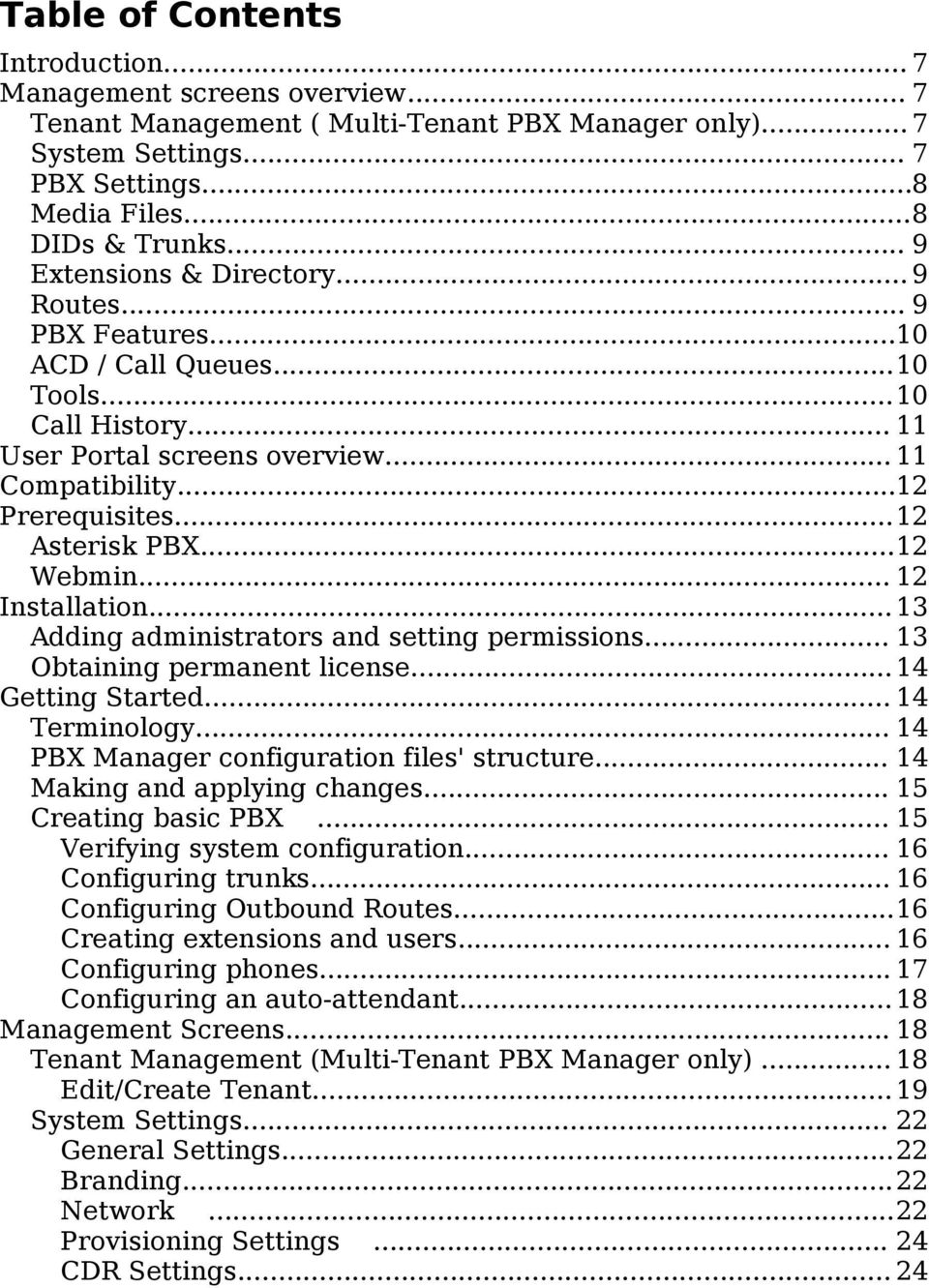
5 Edit/Create Administrator...25 Menu / Link Manager Edit/Create Link Preferences...27 License PBX Settings...28 Default Values Global Variables Schedules Edit/Create Schedule Script Library Edit/Create Script Media Files...36 Voice Recordings...36 Edit/Create Voice Recording...37 Music-on-hold Edit/Create Playlist DIDs & Trunks DIDs...39 Trunks Edit/Create Trunk...40 Extensions & Directory Bulk Generator User Extensions...45 Edit/Create User Extension...46 Directory...52 Edit/Create Contact...52 Routes Inbound Routes Edit/Create Inbound Route Outbound Routes...54 Edit/Create Route...55 PBX Features...56 IVR / Voice Menus Edit/Create Voice Menu Hunt Lists Edit/Create Hunt List Feature Codes Edit/Create Feature Code Registrations Edit/Create Registration Special Mailboxes...61 Edit/Create Mailbox Conference Rooms... 63
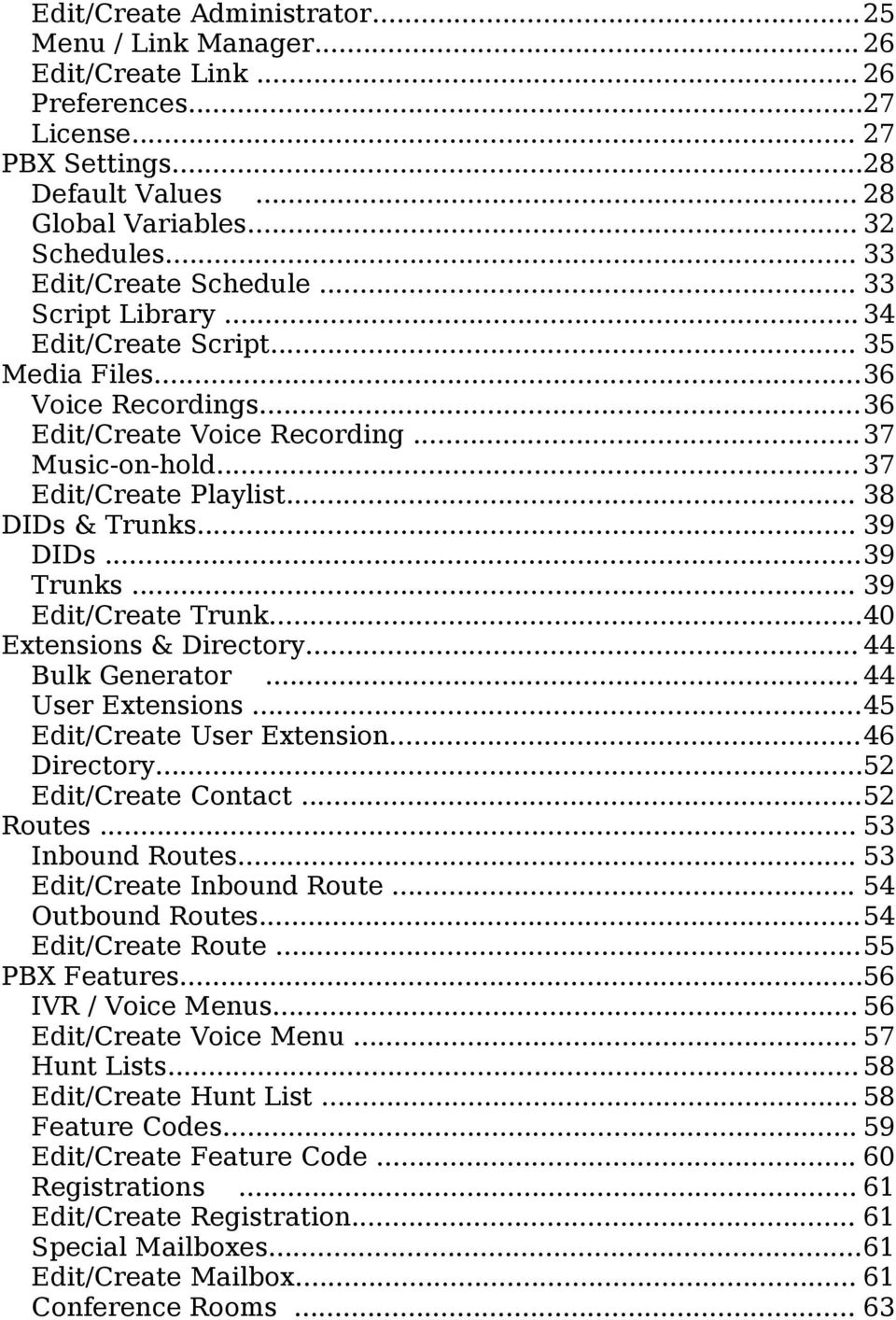
6 Edit/Create Conference Room...63 ACD / Call Queues...64 Agents...64 Edit/Create Agent...64 Queues...64 Edit/Create Queue...65 Tools...67 PBX Information Auto-Provisioning Edit/Create Managed Phone Configuration Editor...69 Backup/Restore PBX Command Shell...70 Call History Recorded Calls Call Detail Records...72

7 Introduction Thirdlane PBX Manager is a web GUI for management of Asterisk based phone systems. PBX Manager is available in a Single-Tenant or Multi-Tenant versions. The Multi-Tenant version of PBX Manager allows to set up multiple PBXs on the same instance of Asterisk. This creates practically no overhead and allows these PBXs to be independent and have their own administrators, users, extensions, routes, call queues, media files, etc. PBX Manager is a powerful tool that allows allows you to configure your base PBX very quickly and makes day-to-day PBX maintenance accessible to less technical users, while allowing addition of practically unlimited features by extending the system using Feature Codes and Script Library. Management screens overview Management screens are divided in the following categories: Tenant Management ( Multi-Tenant PBX Manager only) Tenant Management allows to manage tenants and tenant level administrators and perform basic branding on a tenant level. System Settings General Settings allows to specify Asterisk directories, ports and run time options Branding allows to upload logo images and perform basic customization on a system level.

8 Network allows to specify hostname, IP address, subnet and DNS servers. Provisioning Settings allows to specify the server address and directory for TFTP (or other supported protocol) based automatic phone configuration. CDR Settings allows to configure CDR destinations and specify CDR display options. Administrators allows to create and manage access permissions for additional administrators on a system level. Menu / Link Manager allows to create and manage custom links for addition to PBX Manager menu. Preferences allows setting of web GUI preferences and specifying when the configuration changes made through the GUI will be applied. License shows license information and allows to request or install a new license. PBX Settings Default Values allows to set default values that will be used by various PBX Manager screens. Global Variables allows to set dialplan variables for use in PBX Manager scripts. Schedules allows to define date/time ranges that are used to manage time based call handling. These schedules are currently used by Inbound Routes. Script Library allows to manage scripts, which are groups of PBX commands used as the building blocks for extending PBX functionality. Media Files

9 Voice Recordings allows to record announcements and voice prompts used throughout the system and, in particular, by the Voice Menus (or auto-attendant). Music-on-Hold allows to manage music-on-hold play lists and upload sound files. DIDs & Trunks DIDs allows to manage an inventory of external phone numbers that can be assigned to tenants. (Multi-Tenant PBX Manager only). Trunks allows to manage service providers and peers. Extensions & Directory Bulk Generator allows quick generation of multiple users, extensions, Primary Registrations, directory entries and mailboxes as well as create configuration files for phones' auto-provisioning. User Extensions allows performing all-in-one generation of individual users, extensions, Primary Registrations, directory entries and mailboxes as well as create configuration files for phone autoprovisioning. Directory allows to create or edit directory entries both for extensions and external phone numbers. This directory can be used for a click-to-call feature in the User's Portal. Routes Inbound Routes allows to specify how the inbound calls are handled. Outbound Routes allows to specify how the outbound calls are handled.

10 PBX Features IVR / Voice Menus allows to create an Auto attendant and unlimited multi-level voice menus and link them as necessary. Hunt Lists allows to create Hunt Lists lists of ring groups that are dialed in sequence. Feature Codes allows to extend PBX functionality by associating scripts that can contain groups of PBX commands with internal numbers. Registrations allows to create and manage SIP and IAX registrations not associated with users in addition to the Primary Registrations that are created automatically when creating User Extensions. Special Mailboxes allows to create and manage mailboxes in addition to those that are created automatically when creating User Extensions. Conference Rooms allows to manage conference rooms. ACD / Call Queues Agents allows to create agents for servicing call queues. Queues allows to manage call queues. Tools Auto-Provisioning allows to auto-provision phones using TFTP or other supported protocols. Configuration Editor allows direct editing of Asterisk configuration files. Use with caution. Backup / Restore allows to set up scheduled backups, selectively archive PBX related files (configuration files, as well as media files) and then upload and deploy these archives to other boxes with

11 Thirdlane PBX Manager. PBX Command Shell allows to execute Asterisk commands as well as to start and stop your PBX. Call History Recorded Calls allows to view, search and manage recorded calls. Call Detail Records allows to view and search call history. User Portal screens overview When PBX Manager creates a User Extension, it automatically creates a user that can login and manage his/her extension using User Portal. These screens are available to all end-users created using PBX Manager. PBX Manager administrators also have access to these screens (and can manage user options on end-users' behalf) through User Portal links on the User Extensions screen. Voic Settings allows end-users to change their personal settings for voice mail handling. Call Forwarding allows end-users to configure the rules for call forwarding. Call Screening allows end-users to configure the rules for call screening. Call Blocking allows end-users to configure the rules for blocking incoming calls. Call Recording allows end-users to configure the rules for call recording. Contacts & Directory gives end-users an ability to access office directory, manage their personal contacts as well as initiate calls

12 through click-to-call feature. Voic gives end-users an ability to access and manage voice mail messages. Recorded Calls provides end-users with access to recorded calls. Call History provides end-users with a Call Detail Records viewer, with selection, sorting and click-to-call capabilities. Preferences allows end-users to set personal web interface options. The details of using these screens are provided in the User Portal Guide. Compatibility PBX Manager has been tested with Webmin and later, and Perl 5.8 and later. Prerequisites Asterisk PBX You have to install Asterisk prior to installing PBX Manager. Asterisk is available at where you can also find installation instructions. PBX Manager works with Asterisk 1.2.x as well as Asterisk 1.4.x. Webmin PBX Manager is a Webmin module and therefore requires Webmin to be installed on the same computer. Webmin is a web-based interface for system administration for Unix and contains a web server. Webmin is free and is distributed under a BSD-like license. It can be downloaded from where you can also find installation instructions.

13 Installation Please make sure that you backup your system prior to installing PBX Manager. PBX Manager will overwrite configuration files in your Asterisk installation directory. To install PBX Manager Webmin module go to Webmin -> Webmin Configuration -> Webmin Modules, select radio button labeled From ftp or http URL, enter the URL provided by Third Lane Technologies and click Install Module button. If you have PBX Manager module archive on your computer (you downloaded it or received it via ), then select From uploaded file, browse to the archive location and click the Install Module button. This will install Thirdlane PBX Manager module in the Servers category of Webmin and provide you with a temporary license. To start using Thirdlane PBX Manager go to Servers -> Thirdlane PBX Manager. Note that the latest version of Webmin uses frames and PBX Manager screens will appear framed. If you prefer a full screen view, you can change Webmin theme to Old Webmin Theme. You can also set an option to go directly to PBX Manager after login in Webmin Configuration -> Index Page Options. These options can be set on a system wide basis or for individual users. Adding administrators and setting permissions After the installation, the only user with access to PBX Manager is the original Webmin user which is either root or admin (this depends on the default you selected during Webmin installation). You can add other administrators and manage their permissions using System Settings -> Administrators screen. For example, you can add an administrator with access rights to manage User Extensions and nothing else (by disabling everything except Can manage User Extensions?, or just prevent an administrator from directly editing configuration files and using PBX Command Shell by disabling Can edit configuration files? and Can use PBX command shell? options.

14 Obtaining permanent license PBX Manager includes a temporary evaluation license. If you purchased PBX Manager and decided that you will be permanently using it on the computer where it is installed, you should request a permanent license. To request a permanent license, select System Settings -> License on the PBX Manager menu and click on the address next to the Request License. Alternatively you can just send your contact information, the name you would like to appear on the license, as well as the MAC address of any interface cards installed on the computer you will be using to run PBX Manager to [email protected]. See License section for the instructions on installing your license. Getting Started Terminology While we tried not to introduce any new terms to the general and Asterisk specific telephony terminology, the term Registration used in this document requires some explanation. Registration refers to a SIP or IAX account, an entity that can receive and initiate calls, and can be associated with a Line/Button of an IP phone. When creating User Extensions PBX Manager creates a SIP or IAX account which is referred to as Primary Registration. Registrations can be created and managed using PBX Features -> Registrations. PBX Manager configuration files' structure Thirdlane PBX Manager configuration files are installed automatically. Default configuration includes the following: 1. Sample schedules for defining company business hours

15 2. Sample IVR / Voice Menus (auto-attendant) based on the company business hours 3. Various Feature Codes including: 1. Access to voice mail 2. Company directory 3. Codes for call forwarding activation and deactivation 4. Various scripts (see Script Library section). 5. Basic Outbound Routes (see Outbound Routes section) While not required, it may be useful to study the installed configuration files in order to understand how the PBX is organized. Basic organization is as follows: 1. Outbound or internal calls from registered phones start in one of the from-inside contexts depending on the access permissions. 2. Inbound calls start in the from-outside context. 3. Extensions and Feature Codes are placed in local-extensions and feature-extensions contexts respectively and are stored in the extensions.include file. 4. Outbound Routes are placed in one of the outgoing contexts (depending on Category) and stored in the outbound.include file. 5. Contexts are included as appropriate using include => context-toinclude. 6. Files are included as appropriate using #include xxx.include Making and applying changes Note that using System Settings -> Preferences you can set an option to reload configuration files after every change made by the PBX Manager. Alternatively you can make multiple changes and then reload PBX configuration. PBX Manager informs you that reload or restart is required by displaying Reload or Restart link that allows you to apply changes below the menu. Note that Reload is not disruptive while Restart will disconnect all the calls in progress so you should use it with caution. Creating basic PBX What you do next depends on your specific requirements, here is a

16 typical scenario: Verifying system configuration Go to Settings -> General Settings and verify that the information there is correct for your system, also check or set System Settings -> Network and (if you plan to auto-provision your phones) System Settings -> Provisioning Settings. Configuring trunks If you have any hardware that needs to be installed and configured, do that following the manufacturers instructions. Make sure that all the necessary drivers are loaded and that the hardware is operational. If you are using FXO connection to PSTN, make sure that the context you specify in zapata.conf is from-outside. This is required in order to make PBX Manager generated code properly route inbound calls. The same applies to ISDN trunks. If you use IP trunks, go to Trunks screen and create trunk(s) based on the information from your provider. If you are using Digium or other zaptel compatible hardware to connect to PSTN create a ZAP trunk for each channel group you specified in zapata.conf. Naming must follow these rules - for group1 in zapata.conf, name the trunk g1, for group2 name it g2, etc. Configuring Outbound Routes PBX Manager ships with a few sample Outbound Routes, they need to be edited as they don't have any real trunks associated with them. Go to Routes -> Outbound Routes screen, edit the routes you are going to use (or add new routes if needed) and select your trunk(s) as the Trunk for these routes. Creating extensions and users
17 The fastest way to create extensions and users is to upload a CSV file in Extensions & Directory -> Bulk Generator. Alternatively you can use a table in the Bulk Generator screen or create extensions individually by using Extensions & Directory -> User Extensions. Since Bulk Generator relies on various default values, first go to PBX Settings -> Default Values screen and review the defaults or enter whatever may be appropriate for your devices (codecs, DTMF mode, etc) in the Phone Template and voic settings in the Voic Template. If you are going to use auto-provisioning feature for your phones' configuration, go to System Settings -> Provisioning Settings and make sure that your provisioning settings are specified correctly. You should also verify that the provisioning directory is accessible and that TFTP (or other provisioning server if you use FTP or HTTP) is running. Enter users' information into a CSV file in the format specified on the Bulk Generator screen (you can download the sample file) and upload it using Bulk Generator (Note that a MAC address is required for each user's phone you would like to auto-provision). This step will create user information, extensions, Primary Registrations, mailboxes, directory entries, and optionally (if DIDs were specified) Inbound Routes. At this point end-users can login into the User Portal (by default Webmin user name and password are the same as extension) and manage their own settings. See the Bulk Generator section for more details. Alternatively you can create extensions individually in Extensions & Directory -> User Extensions. Configuring phones You can either configure your phones using tools provided by the phone manufacturer or use PBX Manager for auto-provisioning of supported SIP phone models (see Provisioning section for details). If you are using auto-provisioning, make sure that your System Settings -> Provisioning Settings are specified correctly and that TFTP (or other provisioning server) is running. When configuring phones by hand, make sure that the registration information (name and password) matches those created by the Bulk Generator or when creating User Extensions. Verify that the

18 phones are working. Configuring an auto-attendant If you would like one or more of the incoming lines to be answered by an auto-attendant you can configure that next. You can set up an autoattendant using PBX Features -> IVR / Voice Menus. Multiple auto- attendants can be also configured - each for a different external phone number (DID). Each Voice Menu requires an Announcement, which you can record using Media Files -> Voice Recordings. For professional recording (matching the rest of Asterisk sounds) we recommend Allison Smith at Once the recordings are done (or uploaded), go to PBX Features -> IVR / Voice Menus screen and create or edit a Voice Menu to suit your needs. Once the Voice Menu is created, go to Routes -> Inbound Routes and create an inbound route for each external phone number (DID) you are going to direct to an auto-attendant. When creating Inbound Routes, you can select an existing Schedule or create a new Schedule using PBX Settings -> Schedules screen. Select a schedule, pick Go to Menu script and select your Voice Menu from the list. Management Screens This section describes screens and features available to PBX Manager administrators. Administrators are Webmin users with permissions to access Thirdlane PBX Manager module. User Portal screens are described in the User Portal Guide. Tenant Management (Multi-Tenant PBX Manager only) Tenant Management allows you to manage individual virtual PBXs (tenants) sharing the Asterisk box. Each tenants' users, extensions, mailboxes, phones as well as the menus, media files (announcements and music-on-hold) are managed independently. Existing tenants are presented in a list. Clicking on the Name column displays the Edit Tenant screen.
19 To create a tenant, click on the Create Tenant button. To select a tenant for further management (all the subsequent tenant specific operations will be performed on the selected tenant) use the drop down list on the top of the screen. To delete a tenant, select it using the check box on the left and click Delete Selected. Edit/Create Tenant Tenant name. Unique alphanumeric name for the tenant (no spaces, underscores or dashes are allowed). Example: thirdlane Tenant ID. This field is only shown when editing an existing tenant. Used internally by PBX Manager. Description. Short description, optional. Status. Tenant status (enabled/disabled). This allows a system administrator to temporarily disable the tenant (all calls originating from the phones associated with the tenant will be disabled). Maximum number of extensions. By default the number of user extensions for a tenant is unlimited. Entering a number in this field will limit the number of user extensions. Maximum number of Voice Mailboxes. By default the number of voic mailboxes for a tenant is unlimited. Entering a number in this field will limit the number of voic mailboxes. Maximum number of Registrations. By default the number of Registrations for a tenant is unlimited. Entering a number in this field will limit the
20 number of Registrations. Maximum number of Managed Phones. By default the number of Managed Phones for a tenant is unlimited. Entering a number in this field will limit the number of Managed Phones. Maximum number of Conference Rooms. By default the number of Conference Rooms for a tenant is unlimited. Entering a number in this field will limit the number of Conference Rooms. Allow tenant to manage Caller IDs. You can use this field to allow a tenant level administrator to set up their own caller id. Alternatively you can set the caller id for the tenant and prevent them from modifying it. This caller id will appear when outbound calls are made by the phones associated with the tenant. Note that whether this caller id will be available to the called party is dependent on your service provider. Default External Caller ID. You can set a default caller id for the tenant by selecting one of the DIDs assigned to the tenant. Note that whether this caller id will be available to the called party is dependent on your service provider. Default External Caller ID Name. Default caller id name for the tenant. Note that whether this caller id will be available to the called party is dependent on your service provider. Administrators Administrators. This field is only shown when editing an existing tenant. List of the Webmin users who are allowed to manage this tenant. Typically you would create a tenant level administrator ( Webmin user) for each tenant. If necessary, you can further limit their access rights, for example you may not allow these users to manage Trunks, Routes, Inbound Numbers. Note that the root user or any user with the permission to manage all tenants will be able to manage any tenant. Add an Administrator. This field is only shown when editing an

21 existing tenant. You can add tenant level administrator here. Use existing tenant as prototype. This filed is shown only when creating a new tenant and allows you to clone an existing tenant's configuration. If you select a tenant to clone you will be offered a list of options for the further selection of which parts of the configuration will be cloned. Bulk Generator options Phone Model. Allows to select a default phone model for autoprovisioning. This will be used in Bulk Generator or User Extensions when creating an extension (entering a MAC address in Bulk Generator is required for the autoprovisioning to take place). Length of randomly generated phone passwords. Passwords (for phone registration) are generated randomly and this field allows to specify their length. Note that these passwords can be changed after they are generated and the length of new passwords can be different. Create web passwords and mailbox PINs. Web passwords and mailbox PINs can be generated based on extension or the default value specified here. Append to mailbox PINs. If mailbox PINs are based on the extension number this field will be appended to the PIN generated for the corresponding extension. For example if the extension is 100 and this field contains 175, then the generated PIN will be Append to web passwords. If web passwords for users based on the extension number, this field will be appended to the password generated for the corresponding user. For example if the extension is 100 and this field contains xyz, then the generated web password will be 100xyz. Default schedule for inbound calls. Default schedule to be used
22 when automatically generating Inbound Routes for created User Extensions both used in Bulk Generator (when DIDs are specified) or in User Extensions. System Settings General Settings Command to start PBX allows you to specify a command that PBX Manager uses to start your PBX. Ports/Bindings section allows you to specify bind addresses and ports for your PBX. Defaults are generally don't need to be changed. Manager interface access section allows you to configure Asterisk Manager interface and specify manager port and user password. The default values are set during PBX Manager installation, but can be changed for security reasons. Note that Manager Interface access is required for normal PBX Manager operation. Branding This screen allows you to upload a custom logo to be used in the page header and the Login screen, specify a URL that the logo links to (by default it links to Third Lane Technologies web site) and hide some Thirdlane related information if you don't want that to be shown to your customers or users. Network The Network screen allows system administrator to configure networking.
23 For each of the interfaces you can configure the following: Configure interface. Select an interface for configuration. IP Address. Specify whether the IP address will be assigned by DHCP or specify static IP address Example: Netmask. Specify netmask Example: Broadcast address. Specify broadcast address Example: In Global network configuration section you can specify the following: System hostname. Specify fully qualified name for your PBX Example: pbx.yourcompany.com Default getaway. Specify default getaway DNS domain. Specify DNS domain Example: yourcompany.com DNS nameservers. Specify addresses of DNS name servers Example:
24 Provisioning Settings The Provisioning Settings screen allows system administrator to specify settings for auto-provisioning of SIP phones. This server's address. This is the address that will be placed in the generated phone configuration files as server or proxy address. The default for this field is the fully qualified name of your server. Example: pbx.yourcompany.com Auto provisioning method. Your phones may support different protocols for auto provisioning (HTPP(S), FTP, TFTP,etc). If using HTTP or HTTPS, you can use PBX Manager for serving configuration files. If using other methods you will have to configure and run an appropriate server and specify a directory where PBX Manager is supposed to place configuration files it generates. You have to make sure that this directory is accessible by your provisioning server or that the generated files are moved to the appropriate location. CDR Settings The CDR Settings screen allows you to specify Asterisk CDR destinations and connection options as well as to specify where PBX Manager is going to look for CDR records to display. Note that for writing CDR to databases you must also install an appropriate database software and compile Asterisk with relevant libraries. Note that CDR records will be written to all the enabled destinations. Call Detail Records destinations Write CDRs to CSV text file allows you to enable/disable of Asterisk writing Call Detail Records to a text file. This is enabled by default. Write CDRs to PostgreSQL allows you to enable/disable of Asterisk
25 writing Call Detail Records to a PostgreSQL database and allows to enter connection options. Write CDRs to MySQL allows you to enable/disable of Asterisk writing Call Detail Records to a MySQL database and allows to enter connection options. Call Detail Records display When displaying records select them from: allows to specify the default for selection of records for display in Call History -> Call Detail Records screen. Administrators The Administrators screen allows system administrator to create and manage administrators and their permissions. Note that this section is not supposed to be used for managing tenant level administrators. Existing administrators are presented in a list. Clicking on the Login Name column displays Edit Administrator screen. To create a new administrator, click on the Add a new administrator button. To delete an administrator, select it using the check box on the left and click on Delete Selected. Edit/Create Administrator This screen is used to create new and modify existing PBX administrators. Login name. Administrator's login Login password. Password Description. Short description Allowed capabilities. Check boxes corresponding to PBX Manager screens/functions. Checking a capability will make the corresponding functionality available for the administrator. All the
26 unselected items will not be present on PBX Manager menus for the administrator. Menu / Link Manager The Menu / Link Manager screen allows you to add custom twoilevel menus to the PBX Manager menu. Existing links are presented in a list. Clicking on the id column displays Edit Link screen. To create a Link, click on the Create link button. To delete a Link, select it using the check box on the left and click on Delete Selected. Edit/Create Link Link text. Text to appear on the menu. Link URL. Associated URL this only applies to lower level links that are not parents of other links. Description. A description of this link that will appear on an index page of a parent link. Parent Link. A parent link of this link. Show in management menu. Specify whether this link should appear on the PBX Manager management/adminstration menu. You can also specify which users will be allowed to see this link. Show in end-user menu. Specify whether this link should appear in the end-user menu in User Portal. Open in a new window. Specify whether this link should open in a new window. Weight (menu position). Specify a relative position of this link in relation to other links (higher weight positions the link lower in the menu.
27 Preferences Preferences screen allows you to set your preferences for using PBX Manager. The following can be set: Operational preferences Issue reload after every change. If set to yes, a reload command will be issued after PBX Manager applies changes to the configuration files, and changes will take effect immediately without the need to reload manually. Display preferences Language. User interface language. Color scheme. Select user interface color scheme. Number of rows to display per page. Allows you to specify the number of rows displayed on pages presenting lists of data. Show expanded menus. Allows you to specify whether the menu items for all categories will be always shown. If No is selected then only the items for the currently selected category are shown. Initial forms display mode. Allows you to specify how the forms that have Advanced or Basic options will be displayed initially. License License screen shows license information and allows to request or install a new license. License status. PBX Manager performs license file validation and displays the status here.
28 Select license file to install. Allows you to upload and install a license file from your computer. If you purchased PBX Manager from Third Lane Technologies, you can request a license by following the instructions in Obtaining permanent license in this document. PBX Settings Default Values Default Values screen is used for creation of default values used by PBX Manager when creating various items. The Caller ID section allows to set default caller id for outbound calls. (Single-Tenant only, for Multi-Tenant PBX Manager this is managed in Edit Tenant screen). The Outbound Dialing section allows you to select a default script used by the Outbound Routes when creating new routes. The Extensions section allows you to specify a default script that will be used by the Bulk Generator and User Extensions when creating new user extensions. The Voic Template section allows you to set the defaults used in the Bulk Generator, User Extensions or Special Mailboxes when creating voic mailboxes. You should look at the related documentation for creating User Extensions and consult Asterisk documentation for the available options. The Phone Template section allows you to set the defaults used by the Bulk Generator, User Extensions and Registrations when creating SIP or IAX Primary Registrations. You should look at the related documentation for creating User Extensions and consult Asterisk documentation for the available options. To summarize: User Extensions, and Outbound Routes and the Bulk Generator will use the value specified in Default Script of respective sections when creating new user extensions and routes, User
29 Extensions, Registrations and Bulk Generator will use the default values specified in Phone Template when creating new Registrations, and User Extensions, Mailboxes and the Bulk Generator will use the default values specified in Voic Template when creating new mailboxes. Specific fields on the screen are described below. Caller ID (Single-Tenant only, for Multi-Tenant PBX Manager this is managed in Edit Tenant screen) Default External Caller ID. You can set a default caller id for calls made outside of your company by entering it here. Note that whether this caller id will be available to the called party is dependent on your service provider. This can be overridden by specifying it for an individual extension. Default External Caller ID Name. Default caller id name for calls outside of your company. Note that whether this caller id will be available to the called party is dependent on your service provider. This can be overridden by specifying it for an individual extension. Outbound Dialing Default Script for outbound dialing. Name of the script that will be used by default when creating new routes in Outbound Routes. Extensions Default Script for extensions. Name of the script that will be used to handle calls when creating new user extensions. Bulk Generator Options The Bulk Generator Options section is available on this screen only for the Single-Tenant version of PBX Manager. In Multi-Tenant version these options are specified for each tenant.
30 Phone Model. Allows to select a default phone model for autoprovisioning and this field must be entered for phone provisioning to work in bulk generator. This will be used in Bulk Generator or User Extensions when creating an extension (entering a MAC address in Bulk Generator is also required for the auto-provisioning configuration files generation to take place). Length of randomly generated phone passwords. Passwords for Primary Registrations are generated randomly and this field allows to specify their length. Note that these passwords can be changed after they are generated and the length of new passwords can be different. Create web passwords and mailbox PINs. Web passwords and mailbox PINs can be generated based on extension or the default value specified here. Append to mailbox PINs. If mailbox PINs are based on the extension number this field will be appended to the PIN generated for the corresponding extension. For example if the extension is 100 and this field contains 175, then the generated PIN will be Append to web passwords. If web passwords for users based on the extension number, this field will be appended to the password generated for the corresponding user. For example if the extension is 100 and this field contains xyz, then the generated web password will be 100xyz. Default schedule for Inbound Routes. Bulk Generator generates an Inbound Route if a DID (external phone number) is specified for a User Extension. This field determines what schedule will be used when creating Inbound Route handler for this DID. Voic Template Voic Template allow you to set defaults for user voic mailboxes. These options will be used by the Bulk Generator, User Extensions and Special Mailboxes screens. Notify by . Determines whether user will be notified about new voice mail messages via .
31 Attach messages to . Determines whether the sound file will be attached to the notification . Delete after delivery. Determines whether voice mail message will be deleted after it is delivered via . Notify by pager. Determines whether user will be notified about new voice mail messages via pager. Other options. Specify any additional options not provided in the GUI in the key=value form. Each pair must be entered on a separate line. Please consult Asterisk documentation for the list of available options. Phone Template The default values specified here will be used by the Bulk Generator, User Extensions and Registrations screens. Protocol. Default protocol (SIP or IAX). Dialing permissions. Determines whether the phone can dial all, unrestricted or only internal and emergency Outbound Routes. Call groups. Determines the group membership that this phone belongs to for call pickup purposes. Pickup groups. Determines the list of groups that this phone is permitted to pickup. You can dial *8# (This is an Asterisk default that can be changed) and pickup a ringing phone if you have a group in your "pickupgroup" that is in the ringing phone's "callgroup". Authentication method. (IAX) Authentication method this phone will use when registering with Asterisk. This should match authentication method specified in phone configuration. Call-limit. Number of simultaneous calls for this phone. Set to 1 to disable call waiting. Enabled codecs and disabled codecs. Codecs for this phone configuered in Astersik these must match
32 codecs available and configured in the actual phone. You can use drag-and-drop to move codecs around. DTMF mode. Should match DTMF mode in phone configuration (applies to SIP phones only). NAT. Check this if your phone is behind NAT firewall. Can reinvite. (SIP) Is used to tell the server to issue a reinvite to the client. Turning this off will keep Asterisk in the media path. You should have this unchecked for phones behind NAT. Qualify. You can select yes (defaults to 2 seconds), no, or a time interval (in milliseconds) to specify how frequently Asterisk will check if the device is reachable. Other options. Specify any additional phone options in the key=value form. Each pair should be entered on a separate line. Please consult Asterisk documentation for the list of available options. Global Variables Users can create variables for use in their scripts and elsewhere in the dialplan. The following variables are used in Thirdlane PBX Manager configuration files as shipped. DIALOUT. Some organizations use a digit (typically 9) for dialing outside, you can specify it here. This variable is used when specifying patterns in outbound routes can be changed. INTERNATIONAL-PREFIX. Digits dialed by users when making international calls (011 in the US). This typically depends on your provider, and may not have to be specified at all. This variable is used when specifying patterns in outbound routes can be changed. RINGTIME. Default time for dialing in seconds can be changed.
33 TL-DASH. Used internally do not remove or change. TL-MULTI. Used internally do not remove or change. OPERATOR. Default operator extension can be changed. RECORDING_FORMAT. Default recording format can be changed. Schedules Schedules screen allows you to define groups of date/time ranges used for time dependent call handling. These time intervals are currently used by Inbound Routes. Existing Schedules are presented in a list. Clicking on the Name column displays Edit Schedule screen. To create a Schedule, click on the Create Schedule button. To delete a Schedule, select it using the check box on the left and click on Delete Selected. Edit/Create Schedule Name. Alphanumeric unique schedule name. Descriptive name. Short user friendly name of the schedule. Description. Schedule description Using Add Time Range button user can add up to 10 time ranges. Note that an '*' specifies 'any', so for example leaving month and Dayof-Month as '*' and selecting from Monday to Friday would mean that the time range will be true Monday through Friday regardless of the month. Specifying the same Day-of-Week range and also selecting January in the from Month would mean 'Monday through Friday in January', etc. You can remove time ranges by clicking Remove button. You can save the schedule you are editing by clicking Save/Create,
34 duplicate the schedule you are editing by clicking Clone, delete the existing schedule by clicking Delete, or go back to the list of schedules by clicking Cancel. Script Library Script Library section allows you to create scripts, which are groups of Asterisk commands. Scripts are a fundamental building block in Thirdlane PBX Manage and are used in the various parts of the application - Bulk Generator, User Extensions, Feature Codes, Voice Menus, Inbound Rules, Outbound Routes, Hunt Lists, etc where they are associated with extensions, feature codes and called numbers. Dialing an extension/feature code executes an associated script. Thirdlane PBX Manager comes with a number of scripts which can not be modified. Users can clone these scripts or create their own scripts to extend PBX Manager functionality as necessary. PBX Manager displays an installed version of the Thirdlane scripts shipped with PBX Manager in the upper right corner of the screen. Clicking on Check for Script Updates allows you to check if the newer scripts are available and install the new scripts. Scripts created by PBX Manager users are preserved during the update. Installed (Thirdlane and user scripts) are presented in a list note that Thirdlane scripts do not have a selector checkbox for deletion). Clicking on the Name column displays Edit Script screen. Select scripts that can be used for drop down allows you to limit the list to the scripts that are intended for use in inbound routes, user extensions, feature codes, etc. To create a script, click on the Create Script button. To delete a script, select it using the check box on the left and click on Delete Selected. Note that Thirdlane scripts shipped with PBX manager are protected and cannot be modified or deleted.
35 Edit/Create Script Name. Alphanumeric name of the script, no spaces allowed. We recommend you use a common prefix for your scripts. Thirdlane scripts shipped with PBX Manager include a number of useful scripts, which by convention start with tl- prefix. You can use Thirdlane scripts directly or create your own scripts either from scratch or by cloning and changing Thirdlane scripts. Please do not use tl- prefix for your scripts. Example: ae-stdexten Script can be used for:. The intended purpose of the script. This will determine whether the script will be presented as an option when creating inbound routes, outbound routes, feature codes, etc Descriptive name. Short user friendly name of the script taht will be shown while assigning this script to extensions, feature codes, etc. Example: Standard Extension Description: Description of the script Example: Rings phone(s) and leaves voice mail. Asterisk Commands: Asterisk commands that will be executed when this script is invoked. Asterisk rules for macros apply, so scripts arguments will be referred to as ${ARG1}, #{ARG2}, etc Example:
36 exten => s,1,dial(${arg1},30,rt) exten => s,2,voic (${arg2}) exten => s,3,hangup exten => s,102,voic (${arg2}) exten => s,103,hangup You can add script arguments by clicking Add Argument button. The information you specify here will be used/shown when scripts are used with/assigned to/attached to routes, extensions, feature codes, etc. To delete a script argument, click the Remove button. Description. Description of the argument Example: Phones to ring Type. Select from the list of argument types. Most of the types will result in the list of that type to be presented when using/attaching the script. To allow any value to be entered when using/attaching the script select the Text type. You can save the script you are editing by clicking Save or Create, create a duplicate of the existing script by clicking Clone, delete the existing script by clicking Delete, or go back to the list of scripts by clicking Cancel. Note that you can not modify Thirdlane scripts shipped with PBX Manager and Save button will not be shown when viewing scripts with tl- prefix. Media Files Voice Recordings Voice Recordings screen allows you to record announcements and voice prompts used throughout the system, and in particular in the Voice Menus.
37 Existing voice recordings are presented in a list. Clicking on the Recording column displays the Edit Voice Recording screen, where you can rerecord the message if necessary. To create a Voice Recording, click on the Create Voice Recording button. To delete a voice a Voice Recording, select it using the check box on the left and click on Delete Selected. To listen to the existing Voice Recording click on Play, and the sound file will be downloaded and played (provided that you have an appropriate player). Typically windows workstation will be able to play messages recorded in the wav format, to play gsm messages you may need to install additional software. Edit/Create Voice Recording File name. File name for the sound file to be recorded, no spaces allowed. Format. Sound file format used for recording. Phone to use for recording. Select the phone to be used for recording. Clicking Start recording will ring the specified phone, and recording can be performed by following simple instructions. You can upload gsm and wav files (with.gsm or.wav extensions) by clicking the Upload button. Files without extensions are assumed to be in.wav format. Music-on-hold Music-on-hold allows you to manage music on hold playlists (groups of files). Existing Music-on-Hold play lists are presented in a list. Clicking on the Playlist column displays the Edit Playlist screen.
38 To create a new Playlist, click on the Create Playlist button. To delete a music-on-hold Playlist, select it using the check box on the left and click on Delete Selected. Edit/Create Playlist Name. Unique identifier for this Playlist. Example: jazz Mode. Mode of music-on-hold. Valid modes include files, mp3, quietmp3, mp3nb, quietmp3nb, and custom. We suggest using files mode when possible. See Asterisk documentation for details. Format. Codec to be used when playing this Playlist. See Asterisk documentation for details. Application. Specify a command that will play music-on-hold. Only available if custom Mode is selected. Random. Specifies that the files in the Playlist should be played in random order. Options. Additional options for this Playlist. See Asterisk documentation for the list of available options. The bottom part of the screen allows you to upload files into this Playlist. You can save the Music-on-Hold Playlist definition you are editing by clicking Save/Create, delete the existing Playlist by clicking Delete, or go back to the list of Music-on-Hold Playlists by clicking Cancel.
39 DIDs & Trunks DIDs The DID screen applies to the Multi-Tenant PBX Manager only and is used to manage phone numbers frequently called DIDs or DDIs. Single-Tenant version does not require to maintain the DIDs separately and allows you to enter DIDs directly in Bulk Generator, and when creating Inbound Routes or User Extensions. You can enter DIDs into the system and then assign them to tenants as required. Once assigned to a tenant they can be used in creation of Inbound Routes or in User Extensions (both in Bulk Generator or when creating individual User Extensions) for that tenant. Existing DIDs are presented in a list. A selector on the top of the screen allows you to view all DIDs, DIDs that are assigned to tenants, unassigned DIDs, DIDs assigned to the currently selected tenant, or DIDs in use (assigned to User Extensions, Voice Menus, etc). To add a range of DIDs enter them in the fields on the bottom of the screen (to enter just one DID repeat it in the through field) and click Add DIDs button. When adding DIDs prepend field allows adding prefix to a range of DIDs you specify this can be useful when DIDs may start with 0 or a +. To assign (unassigned) DIDs to the currently selected tenant select them and click Assign Selected, to unassign select and click Unassign Selected (Note that you can not unassign DIDs that are in use - you would have to delete corresponding Inbound Route first). To delete unassigned DIDs select them and click Delete Selected. Trunks Trunks allows you to configure SIP, IAX, ZAP and custom trunks your connections with VoIP service providers, PSTN, other Asterisk servers or soft switches. Existing trunks are presented in a list. A selector on the top of the
40 screen allows to view all trunks or only the trunks for the current tenant. Clicking on the Name column displays the Edit Trunk screen. To create a trunk, click on the Create <type> Trunk button. Currently SIP, IAX, ZAP and CUSTOM trunk types are supported. To delete a trunk, select it using the check box on the left and click on Delete Selected. Note that deleting a trunk that is used by Outbound Routes will make these routes invalid. Edit/Create Trunk Type. Trunk's type or protocol (SIP, IAX, ZAP or CUSTOM). Name. Unique alphanumeric name for the trunk (no spaces allowed). For ZAP trunks the name must match a group defined in zapata.conf following a convention where a trunk corresponding to the group named group1 in zapata.conf must be named g1, a trunk corresponding to group2 must be named g2, etc. In some cases the name of IP trunks will be provided to you by your service provider. Description. Description of the trunk, optional. Can be used by. Trunks can be created for use by all tenants or only a particular tenant. If trunk is for a particular tenant it won't be available for use by other tenants and will not appear as an option when creating Outbound Routes for other tenants. The rest of the fields are shown on the form depending on the trunk type and protocol.
41 Host. (SIP, IAX) Domain name or address of your VoIP service provider's gateway or proxy. Direction. (SIP, IAX) Specifies whether this trunk is inbound, outbound or both. Context. (SIP, IAX, ZAP, CUSTOM). Specifies the context for this trunk. For external inbound providers it should from-outside. Note that for ZAP or ISDN (and CUSTOM trunks the context in zapata.conf or relevant configuration files should be also specified as from-outside). User Name. (SIP, IAX) Specify user name associated with the trunk, usually provided by your VoIP service provider. Note that in cases where the traffic from the host is allowed based on the IP address you can omit both user name and password and specify insecure=very in other options field. Password. (SIP, IAX) Specify user name associated with the trunk, usually provided by your VoIP service provider. Caller ID. (SIP, IAX) Caller id associated with the trunk. You can specify both the numeric caller id and a readable name. Example: John Doe <100> Password. (SIP, IAX) Password for this trunk, usually provided by your VoIP service provider. Example: 1y3ts89h Authentication method. (IAX) This is supposed to match authentication method expected by your VoIP service provider.
42 Enabled codecs. (SIP, IAX) This is supposed to match codec preferences specified by the service provider. You can drag-and-drop codecs to move them around. Disabled codecs. (SIP, IAX) Codecs to be disabled for this trunk. DTMF mode. (SIP) Must match DTMF mode specified by your VoIP service provider. NAT. Check this if trunk is behind NAT firewall. Can reinvite. (SIP) Is used to tell the server to issue a reinvite to the client. Turning this off will keep Asterisk in the media path. You should have this unchecked for trunks behind NAT. Qualify. You can select yes (defaults to 2 seconds), no, or a time interval (in milliseconds) to specify how frequently Asterisk will check if the trunk is reachable. Other Options. (SIP, IAX). This field allows you to specify additional options that don't have corresponding GUI fields. Specify any additional options in the key=value form. Each pair should be entered on a separate line. See Asterisk documentation for the list of available options. For example, in cases where the traffic from your provider is allowed based on the IP address you can omit both user name and password and specify insecure=very in this field. Example: insecure=very Registration. (SIP, IAX) The registration string as provided by your VoIP service provider ( may be required for inbound trunks). Example: 12345:[email protected]
43 Trunk Dialing options allow you to specify how the calls routed through this trunk will be handled. Status. (All trunk types) This sets a global dialplan variable TRUNK_STATUS for this trunk. This variable is referenced in the default Thirdlane supplied scripts used for Outbound Routes. This allows to disable trunk temporarily if required. Dialstring creation. Allows to control how the dailstring for the Dial command will be generated from the dialed number. For custom trunks the only option is Custom string, for other trunk types the dialstring can be either generated based on the trunk type (Generate) or specified directly (Use Custom). If option Generate is selected the following fields are also available: # of digits to strip how many digits will be stripped from the front of a dialed number. String to prepend - string that will be prepended to the dialed number. Note that digits can be also prepended or stripped when specifying Outbound Routes. Custom string should conform to the format of Dial command. To specify the position of a dialed number in the custom string use $. Examples: ZAP/g1/$ CAPI/contr1/$ Caller ID options. Allows to alter Caller ID on the outbound calls using this trunk. The following fields are also available: # of digits to strip how many digits will be stripped from the front of th caller id.
44 String to prepend - string that will be prepended to the caller id. Provider's web site. This field is for informational and convenience purposes only. If specified, will open this in a new browser window. PBX Manager stores this information in the trunk specific global variables that can be used by user scripts. Please see the source of tl-dialout-base script shipped with the default PBX Manager configuration for the details of using these variables. You can save the trunk you are editing by clicking Save/Create, delete the existing trunk by clicking Delete, duplicate the trunk you are editing by clicking Clone, or go back to the list of trunks by clicking Cancel. Extensions & Directory Bulk Generator Bulk Generator lets you quickly create multiple user extensions. When using Bulk Generator, you first set default values using PBX Settings -> Default Values and then either upload a CSV file containing information for each user or enter data in a simple list like form. When Bulk Generator creates user extensions it also creates corresponding phones, mailboxes and web users with permissions limited to accessing their personal information through the User Portal. Web users are created with a web login equal to their extension and default password based on the options specified for password generation (in PBX Settings -> Default Values or Tenant settings for Multi-Tenant version). Note that Multi-Tenant Manager prepends current tenant's name to the generated user names, and appends current tenant's name to the generated phone names. The Default script for extensions as specified in PBX Settings -> Default Values will be associated with each generated user extension.
45 Generated phones will have the User Name, Caller ID, password and associated mailbox fields set based on the data entered on the form or the CSV file, and mailboxes will have the Owner's name, and pager set accordingly. If DID (external phone number) is specified, then an Inbound Route with appropriate inbound call handler will be also created by the Bulk Generator. Specifying MAC address allows you to also create configuration files for auto-provisioning of the generated phone line. Note that you must select a default Phone Model first. This is done in Bulk Generator section of PBX Settings -> Default Values (for Single-Tenant) and Bulk Generator section of Tenant screen (for Multi-Tenant). You also have to insure that TFTP directory and server name are set properly in Provisioning Settings. If any of these are not set, PBX Manager will ignore specified MACs and not generate files for auto-provisioning. If Bulk Generator is executed again with the same list of extensions, all the matching previously created users, extensions, phones and mailboxes will be updated based on the new information. Repeating the generation process with a different list of extensions, will not affect previously created phone users, extensions, phones and mailboxes. If the extensions overlap, then the corresponding items will be updated based on the options selected at the time of the last generation. User Extensions User Extensions allows you to manage phone system users, their extensions, Primary Registrations and mailboxes. For a new system the preferred way of entering user information is Bulk Generator, as it allows you to reduce manual data entry tasks. Edit User Extension screen can be used to refine data for individual User Extensions or enter additional User Extensions. Note that creation of a User Extension results in creation of extension (in extensions.include), Primary Registration (in sip.conf or iax.conf),
46 mailbox (in voic .conf), user (in users.txt), creation of a directory entry, creation of a Webmin user with User Portal access permissions, and population of Asterisk database with user information, and optionally creation of an Inbound Route (if DID has been specified) and configuration files for auto-provisioning (if MAC was specified). Existing User Extensions are presented in a list. Clicking on the Ext. column displays Edit User Extension screen. To create a new user, click on the Create User button. To delete a User Extension, select it using the check box on the left and click on Delete Selected. Edit/Create User Extension This screen is used to create new and modify existing User Extensions. Note that creation of a User Extension results in creation of extension (in extensions.include), Primary Registration (in sip.conf or iax.conf), mailbox (in voic .conf), user (in users.txt), creation of a directory entry, creation of a Webmin user with User Portal access permissions, and population of Asterisk database with user information, and optionally creation of an Inbound Route (if DID has been specified) and configuration files for auto-provisioning (if MAC was specified). Note that Multi-Tenant PBX Manager prepends current tenant's name followed by a '-' to the generated user's login and appends it to the generated Primary Registration, so that creating extension 100 for a tenant thirdlane results in creation of a user thirdlane-100 and a Primary Registration. Note that there are only a few fields that have to be entered on this screen and there are many fields that are optional and where the default values can be used. To facilitate data entry, this screen can be shown in two modes as a Basic or Advanced form, with an ability to toggle between the two. You can specify which form is to be displayed initially in System Settings -> Preferences -> Initial forms' display mode. The basic form contains the following fields:
47 First Name / Last Name. User's first and last name Extension. User's extension Example: 100 Phone Model. The model of the phone this user will be using. If the phone's MAC address is also entered, this field is used to select appropriate template when generating configuration files for autoprovisioning. MAC address. MAC address of the phone this user will be using entering the MAC address results in generation of appropriate configuration files for auto-provisioning. You must also properly set auto-provisioning method, directory and server address in System Settings -> Provisioning Settings. The rest of the fields are part of the Advanced form: DID. Optional external phone number (DID) for this User Extension. Entering a DID will result in creation of Inbound Route routing inbound calls to the DID to this User Extension. Example: External Caller ID Number. This field is presented differently depending on whether you are using Multi- Tenant or Single-Tenant PBX Manager. In Single-Tenant version it can be entered
48 directly, in Multi-Tenant version user is given an option (provided that the tenant is configured with an option to set caller id) of using an assigned default or selecting from a list of assigned DIDs. If tenant is not allowed to set the caller id, then the assigned caller id is used. External Caller ID Name. This field is presented differently depending on whether you are using Multi- Tenant or Single-Tenant PBX Manager. In Single-Tenant version it can be entered directly, in Multi-Tenant version user is given an option (provided that the tenant is configured with an option to set caller id) of using an assigned default or entering a name. If tenant is not allowed to set the caller id, then the assigned caller id name is used. Internal Caller ID Name. This field defaults to First Name + Last Name separated by a space but can be overriden by entering data in this field. Account code. Account code to be associated with the calls originated form this User Extension. Script. Script that will handle calls to this extension. In order to support User's ability to manage their call handling options, this script has to be aware of internal variables managed in the User Portal. Another restriction is on the script's arguments the first argument must be a phone, and the second a mailbox (these arguments are not shown and will default to the phone and mailbox generated when the User Extension is created). The rest of the arguments don't have any restrictions, neither on their type nor on the number of the arguments. Thirdlane PBX Manager's default script for User Extensions is tl-stdexten (Standard Extension (IP)). It handles call forwarding, follow-me, call screening, and call recording and should be sufficient in most cases. It also allows to dial an optional operator extension by pressing 0 during
49 voic announcement. Phone settings. When creating Users Extensions the values of fields in this section are populated based on the defaults specified in the Phone Template in PBX Settings -> Default Values. Registration name. SIP or IAX User ID. This is a name for the Primary Registration for this phone. By default PBX Manager will use extension as the registration name, but you can also enter a different name if needed. Multi-Tenant PBX Manager also prepends tenant's name to registration name. Protocol. Protocol (SIP or IAX). Dialing permissions. Determines whether the phone can dial all, unrestricted or only internal and emergency Outbound Routes. Password. Password for the Registration PBX Manager generates random password but you can enter another value. Call groups. Determines the group membership that this phone belongs to for call pickup purposes. Pickup groups. Determines the list of groups that this phone is permitted to pickup. You can dial *8# (This is an Asterisk default that can be changed) and pickup a ringing phone if you have a group in your "pickupgroup" that is in the ringing phone's "callgroup". Authentication method. (IAX) Authentication method this phone will use when registering with Asterisk. This should match authentication method specified in phone configuration. Enabled codecs and disabled codecs. Codecs to be used that must match codecs in phone configuration. You can use drag-and-drop to move codecs around.
50 DTMF mode. Should match DTMF mode in phone configuration (applies to SIP phones only). NAT. Check this if your phone is behind NAT firewall. Can reinvite. (SIP) Is used to allow sending of a SIP reinvite which allows the phones to send media stream directly to each other. Turning this off will keep Asterisk in the media path. Qualify. You can select yes (defaults to 2 seconds), no, or a time interval (in milliseconds) to specify how frequently Asterisk will check if the device is reachable. Call-limit. Number of simultaneous calls for this users phone. Set to 1 to disable call waiting. Other options. Specify any additional phone options in the key=value form. Each pair should be entered on a separate line. Please consult Asterisk documentation for the list of available options. Voic Settings. Mailbox. Name of a mailbox associated with this user. A simple convention is to use the extension number as a mailbox name, which is what is offered as a default in create mode (Same as Extension), alternatively a new name can be entered. Example: 100 PIN. PIN for accessing mailbox defaults to extension. Notify by . Determines whether user will be notified about
51 address. User's address. new voice mail messages via . If this is checked, then address is also required. Attach messages to . Determines whether message sound files will be attached to the notification . Delete after delivery. Determines whether voice mail message will be deleted after it is delivered via . Notify by pager. Determines whether user will be notified about new voice mail messages via pager. If this is checked, then Pager is also required. Pager. User's pager address. Call Recording. Record calls. Specify whether calls to/from this extension will be recorded. The options are to Do not Record, Record all calls, Record calls selectively by pressing a key sequence. This key sequence is defined in features.conf (automon) and is #9 by default. Allow user to manage settings. If set, will allow user to change call recording settings through the User Portal. Web Settings. Language. User Portal language for this user. Password. User Portal color scheme for this user. Password. User's password for accessing User Portal web interface. By default it is the same as extension. Directory Information. All the fields in this section are optional. Home phone. User's home phone. Mobile phone. User's department.
52 Other phone. Other user's phone. Department. User's department. Add to directory. By default PBX Manager adds users to directory, you can turn this off if necessary. You can save User Extension you are editing by clicking Save/Create, delete an existing User Extension by clicking Delete, or go back to the list of User Extensions users by clicking Cancel. Deleting a User Extension will also delete an associated Webmin user, Primary Registration, mailbox, and Inbound Route associated with a DID if it was specified. Directory Directory allows you to create or edit directory entries both for the extensions and external phone numbers and is available for a clickto-call in the User's Portal. Note that directory entries are created automatically (by default) when creating User Extensions. Selection Filter allows limiting your selection of directory entries based on Last Name, First Name or Department. For each of these fields you can specify whether you are looking for an exact match or entries starting with or containing the specified string. If multiple fields are specified all of them are combined in the filter. Existing directory entries are presented in a list. Clicking on the Last Name column will present Edit Contact screen. To create a new Contact (directory entry), click on the Create Contact button. To delete a directory entry select it using the check box on the left and click on Delete Selected. Edit/Create Contact This screen allows you to enter Contact information for a directory
53 entry. Note that directory entries are created automatically (by default) when creating User Extensions. Routes Inbound Routes Inbound Routes allows you to associate external phone numbers (DIDs/DDIs) with schedules and scripts thus defining how the inbound calls to each number will be handled. Note that the Single- Tenant PBX Manager allows you to use patterns to match a group of numbers as well as directly enter DIDs when creating Inbound Routes, while in the Multi-Tenant PBX Manager DIDs are restricted to those assigned to the current tenant and patterns can not be used. A typical use of Inbound Routes would be to specify that the calls to different numbers at different times would be answered by different auto-attendants (Voice Menus), or a particular number will be answered by an operator during business hours and will be forwarded to an auto-attendant after hours, etc. Existing patterns/dids are presented in a list. Note that in Multi- Tenant PBX Manager the DIDs with assigned Inbound Routes have a checkbox next to them and can be edited, and DIDs without a corresponding Inbound Route do not have the checkbox and can by assigned when creating a new Inbound Route. Clicking on the DID column for a DID with assigned Inbound Route will present Edit Inbound Route screen. To create a new Inbound Route, click on the Create Inbound Route button. To delete an Inbound Route select it using the check box on the left and click on Delete Selected. Note that creating an Inbound Route in Multi-Tenant PBX Manager changes corresponding DID status from Assigned to In Use and deleting an Inbound Route does the opposite.
54 Edit/Create Inbound Route DID. DID (external phone number) or pattern. This can be entered directly (Single-Tenant) or selected from a list of DIDs assigned to the tenant (Multi-Tenant). Description. Description of this Inbound Route. By clicking Add time based handler you will be able to add up to 10 time based handlers - script/schedule pairs that define the Inbound Route (typically 1 or 2 is sufficient, with the first one covering a special time condition and the second covering the rest by using tl-allhours schedule or an equivalent). PBX Manager will use these handlers for handling inbound calls and process them in sequence if date/time of the call matches first When condition, the first script will be executed, if the second When is matched, the second script, etc. When. Name of the schedule that will be used to select a time range to this pattern/number. Run script. Name of the script that will be used to handle calls to this DID/pattern if the call time falls within the time range of the corresponding schedule. Except when this variable is set. Name of a global variable which can be set to any non empty value to prevent this script from executing. This can be used to temporarily change Inbound Route. Depending on the selected script, you will be presented with a list of parameters that were defined for the script. Depending on the type of these parameters you will be able to select from the lists of possible values or enter them directly. You can save the Inbound Route you are editing by clicking Save/Create, delete the existing Inbound Route by clicking Delete, or go back to the list of Inbound Routes by clicking Cancel. Outbound Routes Outbound Routes allows you to manage outbound dialing and
55 associate patterns with scripts to specify how the calls to these numbers will be handled. PBX Manager allows you to assign Outbound Routes to 3 categories (Emergency, Unrestricted, Restricted) in order to control outbound dialing permissions from your phones. Existing routes are presented in a list. Clicking on the Outbound Route column displays Edit Route screen. To create an Outbound Route, click on the Create Route button. To delete an Outbound Route, select it using the check box on the left and click on Delete Selected. Edit/Create Route Route. A number or a pattern for outbound dialing. If the first character of the route is _ it means that whatever follows is to be treated as a pattern as follows: X matching any digit 0-9 Z matching any digit 1-9 N matching any digit 2-9 bracketed expressions like [13-5] matching any digit in the brackets (in this case 1,3,4,5). matching one or more characters. See Asterisk documentation for the details and for the available formats for pattern definition. Example: _1NXXNXXXXXX Description. Description of this route Category. Specify whether the route is in Restricted, Unrestricted or Emergency category. Routes in Emergency
56 category can be dialed from all phones, Unrestricted routes are not available to phones configured to make only internal calls, and Restricted are not available to phones that are not allowed to make all calls. For example you can put pattern for making international calls into Restricted category and make some specific international destinations and all local calls Unrestricted. Script. Name of the script that will be used to handle calls that match the pattern for this route. You should also fill in the parameters expected by the script. Trunk parameter is required, but the rest of the parameters for the default Thirdlane supplied scripts are optional. Note that the default Thirdlane supplied scripts used in Outbound Routes references global variables ${DIALOUT} and ${INTERNATIONAL-PREFIX}. ${DIALOUT} can be set so that all the calls to outside numbers will require preceding them with the specified digit, and ${INTERNATIONAL-PREFIX} is a country and provider specific prefix for making international calls you can change these according to your requirements. If you don't use ${DIALOUT}, you can remove all the Thirdlane supplied routes that reference it. You can save the Outbound Route you are editing by clicking Save/Create, delete the existing Outbound Route by clicking Delete, or go back to the list of Outbound Routes by clicking Cancel. PBX Features IVR / Voice Menus IVR / Voice Menus allows you to create a basic auto-attendant or multi level IVR system with multiple menus that can be linked as necessary. Existing voice menus are presented in a list. Clicking on the Name column displays the Edit Voice Menu screen.
57 To create a voice menu, click on the Create Voice Menu button. To delete a voice menu, select it using the check box on the left and click on Delete Selected. Edit/Create Voice Menu Name. Unique alphanumeric name for the menu, no spaces allowed. Description. Menu description, optional. What to play?. Allows you to choose whether the menu will play a prerecorded sound file (Prerecorded announcement) or a a sound file dynamically generated by a custom command (Announcement generated using command). You can select existing announcements from the list or record (or upload) new announcement by clicking Record new. Wait before playing (sec). Total time Asterisk will wait before playing the announcement. Ring while waiting. If selected will simulate ringing to the caller before the announcement is played. Wait for response (sec). Total time Asterisk will wait for the response from the caller before it executes the action specified for No Input. Wait for key press (sec). The time Asterisk will wait for a key press by the caller before it executes the action specified for No Input. Allow dialing extensions. If set, will allow user to dial any User Extension. Allow dialing Feature Codes. If set, will allow user to dial any of the Feature Codes defined in PBX Features -
58 > Feature Codes. Authentication. You can make menus protected by specifying a code that user will be prompted to enter before accessing this menu. An example of using this would be a voice portal accessible only to the company employees. You can assign actions to user selections (key presses) by specifying options in the What to do? and Select columns. You can save the Voice Menu you are editing by clicking Save/Create, create a duplicate of the existing voice menu by clicking Clone, delete the existing voice menu by clicking Delete, or go back to the list of voice menus by clicking Cancel. Hunt Lists Hunt Lists allows you to create lists of ring groups that are processed sequentially. In order to use Hunt Lists they must be associated with/attached to Feature Codes. Existing Hunt Lists are presented in a list. Clicking on the Name column displays the Edit Hunt List screen. To create a Hunt List, click on the Create Hunt List button. To delete a Hunt List, select it using the check box on the left and click on Delete Selected. Edit/Create Hunt List Name. Unique alphanumeric name for the Hunt List, no spaces allowed. Description. Hunt List description, optional. Ring Groups. Up to 10 ring groups can be associated with a Hunt List. To add a Ring Group to the list click on
59 Add Ring Group to Hunt List button. Each Ring Group allows you to specify the following: Announcement to caller before ringing. A voice announcement played to callers before ringing the phones in this ring group. User extensions to ring. A list of user extensions in this ring group. Use Ctrl-Click to select multiple extensions. At least one of either the User Extensions to ring or External phone numbers to dial has to be selected. External phone numbers to dial. External phone numbers to dial as part of this ring group. Separate phone numbers by spaces or commas. How long to ring (sec). The time Asterisk will continue to ring this ring group. Note that voic and all the call forwarding ans screening options for the User Extension are disabled when User Extension is dialed in a ring group, while Call Recording options remain in effect. Description. Hunt List description, optional. The If no one answers run the script field is used to specify an action taken if none of the ring groups answers. You can select a script to be executed from a list of available scripts and fill the scripts parameters as per script definition. See PBX Settings -> Script Library for details on Scripts. You can save the Hunt List you are editing by clicking Save/Create, delete the existing Hunt List by clicking Delete, or go back to the list of Hunt Lists by clicking Cancel. Feature Codes Feature Codes allow you to add functionality to your PBX and execute scripts when these codes are dialed either directly or using
60 selections in Voice Menus. Thirdlane PBX Manager comes with a number of Feature Codes for basic PBX functions and you should freely add feature code as needed. Existing Feature Codes are presented in a list. Clicking on the Feature Code column displays Edit Feature Code screen. To create a Feature Code, click on the Create Feature Code button. To delete a Feature Code, select it using the check box on the left and click on Delete Selected. Edit/Create Feature Code Feature Code. Code that will invoke an associated script. Frequently these codes start with an * and are called star codes, but this is not a requirement. You have to be careful choosing these codes so that they don't interfere with neither User Extensions nor Outbound Routes. Example: *85 Description. Description of this Feature Code Example: Check Voice Mail Script. Name of a script that will be associated with this Feature Code. Depending on the script selected for handling calls to this Feature Code, you will be presented with a list of arguments that were defined for the script. Depending on the type of arguments you will be able select from the lists of possible values or enter the values for the argument directly. You can save the Feature Code you are editing by clicking Save/Create, delete the existing Feature Code by clicking Delete, or
61 go back to the list of Feature Codes by clicking Cancel. Registrations Registrations allows you to create SIP or IAX registrations in addition to those that are created when creating User Extensions. Existing Registrations are presented in a list. Clicking on the Name column displays the Edit Registration screen. To create a Registration, click on the Create SIP Registration or Create IAX Registration button. To delete a Registration, select it using the check box on the left and click on Delete Selected. Edit/Create Registration Fields on this screen are a subset of the fields available on the Edit User Extension screen. Please use Edit User Extension screen section as a reference. Special Mailboxes Special Mailboxes allows you to manage voice mail mailboxes in addition to those that are created when creating User Extensions. Existing mailboxes are presented in a list. Clicking on the Name column displays the Edit Mailbox screen. To create a Mailbox, click on the Create Mailbox button. To delete a Mailbox, select it using the check box on the left and click on Delete Selected. Edit/Create Mailbox Name. Unique identifier for this mailbox, typically a number. Example: 100
62 Owner's name. Name of the mailbox user; used by the Asterisk Directory application. PIN. PIN (password) for accessing this mailbox. Example: 100 Address. address to forward voice mail messages. Specifying address will result in notifications being sent every time a new voice mail message is left in the mailbox. Example [email protected] Attach messages to . Determines whether the sound file will be attached to the notification . Delete after delivery. Determines whether voice mail message will be deleted after it is delivered via . Pager. Pager address to send notice about the new voice mail. Specifying pager address will result in pager notifications being sent every time a new voice mail message is left in the mailbox. Example: [email protected] Other mailbox options. Additional options for this mailbox. See Asterisk documentation for the list of available options. You can save the Mailbox you are editing by clicking Save/Create, delete the existing Mailbox by clicking Delete, or go back to the list of Special Mailboxes by clicking Cancel.
63 Conference Rooms Conference Rooms allows you to create and manage conference rooms. Existing conference rooms are presented in a list. Clicking on the Conference Room column displays the Edit Conference Room screen. To create a Conference Room, click on the Create Conference Room button. To delete a Conference Room, select it using the check box on the left and click on Delete Selected. Edit/Create Conference Room Conference Room. Conference room number. Note that you will also have to create a Feature Code associated provided script Dial Conference to access conference rooms. Example: 8600 Password. Password to access the conference room, optional Example: 8600
64 ACD / Call Queues Agents Agents allows you to manage call queue agents. Existing agents are presented in a list. Clicking on the Agent column displays the Edit Agent screen. To create an agent, click on the Create Agent button. To delete an agent, select it using the check box on the left and click on Delete Selected. Edit/Create Agent Agent. Unique identifier for this agent. Example: 100 Name. Descriptive name for this agent Example: John Smith Password. This agent's password You can save the agent you are editing by clicking Save/Create, delete the existing agent by clicking Delete, or go back to the list of agents by clicking Cancel. Queues
65 Queues allows you to manage call queues. Queues consist of: Incoming calls being placed in the queue Members that answer the queue (phones or users that login as agents) A strategy for how to handle the queue and divide calls between members Music played while waiting in the queue Announcements for members and callers Existing queues are presented in a list. Clicking on the Name column displays the Edit Queue screen. To create a queue, click on the Create Queue button. To delete a queue, select it using the check box on the left and click on Delete Selected. Edit/Create Queue Name. Unique identifier for this queue. Example: sales Description. Queue description Maximum Callers. Maximum queue size (0 is unlimited) Announce Hold Time. Specify whether the hold time is to be announced and when. Announce Frequency. Specify how frequently the hold time will be announced.
66 Periodic Announcement. Specify whether the periodic announcements are played to the caller. Periodic Announcement Frequency. Specify frequency of periodic announcements. Rounding of announced hold time. How long can the agents phone ring before a timeout. Agent timeout. How long can the agents phone ring before a timeout. Agent retry. Retry timer between attempts to call queue members. Report hold time to agent. Specify whether the caller's hold time will be announced to the agent when the call is connected. Announcement to agent. Specify whether an announcement will be played to the agent when they answer a call. Call Recording. Specifies whether the call recording will be enabled for this queue, as well as the recording format. Combine recorded files. Specifies whether files containing recorded conversation should be joined together. Ring Strategy. A strategy may be specified and includes: ringall - ring all available members until one answers (default) roundrobin - take turns ringing each available member leastrecent - ring a member which was least recently called by queue fewestcalls - ring the one with fewest completed calls from this queue random - ring randomly rrmemory - next call will go the agent after the last one who answered.
67 Music-on-Hold. Specify music-on-hold for the queue. Other queue options. Additional options for the queue. See Asterisk documentation for the list of available options. Queue members. Specify members of the queue. Members can be selected from the list of available members by clicking the > button. You can save the queue you are editing by clicking Save/Create, delete the existing queue by clicking Delete, or go back to the list of queues by clicking Cancel. Tools PBX Information This screen display a summary of your PBX configuration and status including PBX version, Uptime, SIP Channels, SIP Peers, SIP Registry, IAX Channels, IAX Peers, IAX Registry, ZAP Channels, Conferences, and Voic Users. Please see Asterisk documentation for details. Note that this and additional information can be obtain using individual Asterisk command using Tools -> PBX Command Shell. Auto-Provisioning To provision a phone is to supply it with all the information it needs to register with a server (Asterisk) and become operational. While registration information can be entered using phone manufacturer's supplied web interface, it is also possible (and generally more efficient) to use PBX Manager's auto-provisioning feature to create configuration files for the phone.
68 The phones' auto-provisioning files are generated automatically when User Extensions are created in Bulk Generator or individually, provided that Provisioning Settings are in place (see System Settings -> Provisioning Settings), and phone models and MAC addresses are specified. Note that if you use Bulk Generator you must specify the default Phone Model (in PBX Settings when using Single-Tenant and Tenant Management if using Multi-Tenant PBX Manager). By default the Primary Registration created when creating User Extension is assigned to all the phone's Lines/Buttons. The Auto-Provisioning screens allow you to further refine autoprovisioning information and assign Registrations to phones' Lines/Buttons as needed. All the phones for which PBX Manager generates auto-provisioning configuration files are considered to be Managed Phones as opposed to unmanaged devices whose configuration and provisioning is not handled by PBX Manager. Auto-Provisioning screen presents all the Managed Phones in a list. Clicking on the MAC Address column displays the Edit Managed Phone screen. To create a Managed Phone click on the Create Managed Phone button. To generate configuration files for existing Managed Phones select them using the check box on the left and click on Provision Selected. To delete a Managed Phone, select it using the check box on the left and click on Delete Selected. Edit/Create Managed Phone MAC Address. Phone' s MAC address. Description. Short description
69 Phone Model. Select phone model from the list of supported models. Clicking add Line/Button creates a row where you can select a Line/Button of the phone being provisioned and specify a Registration that will be associated with this Line/Button. To associate a Registration with all available Lines/Buttons use All Lines/Buttons option. You can generated configuration files for the by clicking Save and Provision or go back to the list of Managed Phones by clicking Cancel. Configuration Editor Configuration Editor allows direct editing of PBX configuration files. Edit File: Select one of the configuration files from the list After the file is edited, you can save it by clicking the Save button. Backup/Restore Backup/Restore allows you to archive Asterisk related files (configuration files, as well as Media Files) and then upload and deploy these archives to other boxes running Asterisk. It is both a simple backup tool and a powerful tool for quickly cloning Asterisk configurations. Backup/Restore screen contains two sections: Replace PBX Manager configuration. This allows you to deploy previously saved configurations or reinstall the configuration files shipped with PBX Manager. We strongly encourage you to to backup your system before performing this step. Use PBX Manager configuration archive. To upload and deploy
70 a previously created archive, type in the name of the archive or use the Browse button, and click Deploy New Configuration. PBX Manager will upload the archive and uncompress it into appropriate directories. Reinstall configuration shipped with PBX Manager. This will install default configuration files shipped with PBX Manager witch can be useful if your configuration files are damaged or you just want to start from a fresh installation. If you are trying to start fresh, you should delete your existing User Extensions before performing this step (deleting User Extensions will remove Webmin users and clean up user related data from the Asterisk database). Note that in the earlier versions of PBX Manager installing files shipped with PBX Manager was a required step after the PBX Manager installation - this is no longer required as the default configuration files are installed automatically. Backup now (download PBX Manager archive). This allows you to archive your Asterisk configuration, and save it on your local computer. To create an archive click the Download button. The archive will be created as a compressed.tar.gz file. Include Voic and recordings? Specify whether all Asterisk voic messages and media files you have recorded will be included in the backup. Scheduled backup. This allows you to specify frequency, content and target location for a scheduled PBX backup. PBX Command Shell PBX Command Shell allows you to start and stop Asterisk, as well as issue Asterisk commands using a simple web interface. Note that command interface screen elements will only be shown if PBX Manager detects that the Asterisk is running.
71 Command. Enter Asterisk commands here. To execute the command, click the Execute button. All the executed commands and their outputs (if any) will be shown in the Command History at the top of the screen. To get a list of available commands enter the help command. Example: help Command History. Drop down the box that contains a list of commands previously executed by the same user. This list is maintained across the sessions, so commands will be available even after you log out. To execute a previously executed command, select it in the Command History drop down box and click the Execute button on the right. To edit a previously executed command, click the Edit button. To clear the output of previously executed commands, click the Clear History button. To clear the Command History drop down box, click the Clear Commands button. Start / Stop PBX. The appearance and function of this button depends on whether PBX Manager detects that Asterisk is running or not. Clicking on this button will either start Asterisk using the Command to start PBX as specified in System Settings -> General Settings or stop the running Asterisk. Note that you can also restart Asterisk by issuing the restart now or restart gracefully commands.
72 Call History Recorded Calls Recorded Calls allows you to manage files containing calls recorded during PBX operation. You view a list of the files and listen to them on you computer by clicking PLAY. You can also send files as attachments via . To delete a file, select it using the check box on the left and click on Delete Selected. Call Detail Records Call Detail Records allows you to view Call Detail Records created during PBX operation. You can specify a selection filter to be applied. You can filter by a range of dates, caller id, and source and destination channels. Note that the users of the Multi-Tenant PBX Manager can only see the CDR for the tenants they are allowed to manage. Note that PBX Manager stores tenant information in so called userfield. To include this field in CDRs you have to enable it while compiling Asterisk (see cdrrelevant You can sort records by clicking on the headers of any column; clicking on the same header again reverses the sort order.
PBX Manager Portal v2.0
 PBX Manager Portal v2.0 Introduction Virtel s PBX Manager is a powerful tool that allows to configure a PBX very quickly and makes day-to-day PBX maintenance accessible to less technical users, while allowing
Thirdlane PBX and Thirdlane PBX Manager 6.0
 Thirdlane PBX and Thirdlane PBX Manager 6.0 Administrator's Guide 05/12/2008 Third Lane Technologies, LLC 39 Power Lane Fairfax, CA 94930 http://www.thirdlane.com Copyright 2003-2008. Third Lane Technologies,
ERFECT PBX. Admin Training Guide
 ERFECT PBX Admin Training Guide Voice and Data Experts Proudly Serving Colorado Since 1995 Quick Tips Managing Users / Phones / Extensions Login to your account and click on Extensions and Directory. User
Thirdlane User Portal 2.1. Users Guide 05/12/2008. Third Lane Technologies, LLC 39 Power Lane Fairfax, CA 94930. http://www.thirdlane.
 Thirdlane User Portal 2.1 Users Guide 05/12/2008 Third Lane Technologies, LLC 39 Power Lane Fairfax, CA 94930 http://www.thirdlane.com Copyright 2003-2008. Third Lane Technologies, LLC. All rights reserved.
MAXIS ONE TECHNOLOGIES, L.L.C. MAXIS ONE TECHNOLOGIES, L.L.C. CLOUD-BASED VIRTUAL HOSTED PBX USER S MANUAL
 MAXIS ONE TECHNOLOGIES, L.L.C. WWW.MAXISONE.COM BRINGING THE NEXT GENERATION OF VOICE TECHNOLOGY TO YOU CLOUD-BASED VIRTUAL HOSTED PBX USER S MANUAL July 27, 2015 MAXIS ONE TECHNOLOGIES, L.L.C. A Service-Disabled
IP PBX. SD Card Slot. FXO Ports. PBX WAN port. FXO Ports LED, RED means online
 1 IP PBX SD Card Slot FXO Ports PBX LAN port PBX WAN port FXO Ports LED, RED means online 2 Connect the IP PBX to Your LAN Internet PSTN Router Ethernet Switch FXO Ports 3 Access the PBX s WEB GUI The
RiOffice Users Manual
 RiOffice Users Manual Rio Networks 9/23/2009 Contents Available Services... 4 Core PBX Features... 4 Voicemail Features... 4 Call Center Features... 4 Call Features... 4 Using Your Phone... 5 Phone Layout...
Enswitch Administrator Guide
 Enswitch Administrator Guide July 2012 Enswitch Administrator Guide 1 Contents 1 Introduction... 5 1.1 The Purpose of this Document...5 1.2 Features...5 1.3 Workflows...5 2 User Enrollment... 6 3 User
Configurator Administrators Guide
 Configurator Administrators Guide Table of Contents 1 Introduction and Definitions...1 2 Users...5 2.1 Users...5 2.1.1 Viewing Users...5 2.1.2 Adding a User...5 2.1.3 Editing a User...7 2.1.4 Add User
Quick Start Guide v1.0
 Quick Start Guide v1.0 Table of contents : 01. Quick Start Guide...03 O2. Configuring your VoIPOffice appliance...14 03. Adding a VoIPtalk trunk...21 04. Configuring UADs for use with VoIPOffice...25 05.
Configuration Notes 290
 Configuring Mediatrix 41xx FXS Gateway with the Asterisk IP PBX System June 22, 2011 Proprietary 2011 Media5 Corporation Table of Contents Introduction... 3 About Mediatrix 41xx Series FXS Gateways...
IP PBX SH-500N WWW.HIPERPBX.COM
 IP PBX SH-500N COMPANIES THAT WANT TO EXPAND AND IMPROVE THEIR TELEPHONE SYSTEM IP PBX SH-500N The IP PBX SH-500N is designed for companies that want to expand and improve their telephone system, and/or
3CX PBX v12.5. SIP Trunking using the Optimum Business Sip Trunk Adaptor and the 3CX PBX v12.5
 SIP Trunking using the Optimum Business Sip Trunk Adaptor and the 3CX PBX v12.5 Table of Contents 1. Overview 3 2. Prerequisites 3 3. PBX Configuration 3 4. Creating Extensions 4 5. VoIP Provider Setup
FOR COMPANIES THAT WANT TO EXPAND AND IMPROVE THEIR TELEPHONE SYSTEM
 IP PBX VH-500 FOR COMPANIES THAT WANT TO EXPAND AND IMPROVE THEIR TELEPHONE SYSTEM IP PBX VH-500 The Virtual IP PBX VH-500 is an unified communication system hosted in the cloud, and it's an excellent
Grandstream Networks, Inc. UCM6510 Basic Configuration Guide
 Grandstream Networks, Inc. UCM6510 Basic Configuration Guide Index Table of Contents OVERVIEW... 4 SETUP ENVIRONMENT... 5 QUICK INSTALLATION... 6 CONNECT UCM6510... 6 ACCESS UCM6510 WEB INTERFACE... 6
Kerio Operator. Getting Started Guide
 Kerio Operator Getting Started Guide 2011 Kerio Technologies. All rights reserved. 1 About Kerio Operator Kerio Operator is a PBX software for small and medium business customers. Kerio Operator is based
iview (v2.0) Administrator Guide Version 1.0
 iview (v2.0) Administrator Guide Version 1.0 Updated 5/2/2008 Overview This administrator guide describes the processes and procedures for setting up, configuring, running and administering the iview Operator
ZyXEL IP PBX Support Note. ZyXEL IP PBX (X2002) VoIP. Support Notes
 ZyXEL IP PBX (X2002) VoIP Support Notes Version 1.00 October 2008 1 Contents Overview ZyXEL IP PBX Support Note 1. How to manage and maintain your IPPBX?...3 1.1 Firmware Upgrade..3 1.2 Backing up your
EZLoop IP-PBX Enterprise SIP Server
 EZLoop IP-PBX Enterprise SIP Server Copyright 2007 Teletronics International, Inc. 2 Choke Cherry Road, Rockville, MD 20850 [email protected] www.teletronics.com CH1. Overview...4 1.1 Specifications...4
IP-PBX Quick Start Guide
 IP-PBX Quick Start Guide Introduce... 3 Configure and set up the IP-PBX... 4 How to change the IP address... 7 Set up extensions and make internal calls... 8 How to make calls via the FXO port... 10 How
Hosted PBX. Administrator Guide_Metaswitch. Version 7.2 Issue 1 29 Nov 2010
 Hosted PBX Administrator Guide_Metaswitch Version 7.2 Issue 1 29 Nov 2010 XACT COMMUNICATIONS 560 e. 3 RD STREET, SUITE 202 LEXINGTON, KY 40508 888.747.9228 Notices Copyright 2010 Xact Communications.
Digium Switchvox AA65 PBX Configuration
 Digium Switchvox SIP Trunking using Optimum Business SIP Trunk Adaptor and the Digium Switchvox AA65 IP-PBX v23695 Goal The purpose of this configuration guide is to describe the steps needed to configure
8x8 Virtual Office Phone System Setup Guide
 8x8 Virtual Office May 2013 Effective May 10, 2013, the Privileges tab in the top navigation bar of the Account Manager was renamed My Account. Privileges and User Profiles can now be found in the My Account
Grandstream Networks, Inc.
 Grandstream Networks, Inc. UCM6100 Basic Configuration Guide Grandstream Networks, Inc. www.grandstream.com TABLE OF CONTENTS OVERIEW... 4 SETUP GUIDE SCENARIO... 4 QUICK INSTALLATION... 5 Connecting the
Positron G-320 Business Phone System Setup Guide
 Positron G-320 Business Phone System Setup Guide 5101 Buchan Street, Suite 200 Montreal, Quebec H4P 2R9 Phone: (514)-345-2220 Support: (514)-664-4719 July 2011 Steps Once your Positron G-320 unit hardware
ACCELERATOR 6.3 ASTERISK LINES INTEGRATION GUIDE
 ACCELERATOR 6.3 ASTERISK LINES INTEGRATION GUIDE January 2014 Tango Networks, Inc. phone: +1 469-229-6000 3801 Parkwood Blvd, Suite 500 fax: +1 469-467-9840 Frisco, Texas 75034 USA www.tango-networks.com
SIP Trunking using Optimum Business Sip Trunk Adaptor and the Zultys MX250 IP PBX
 SIP Trunking using Optimum Business Sip Trunk Adaptor and the Zultys MX250 IP PBX Table of Contents Goal 3 Prerequisites 3 Zultys MX250 Configuration 4 Network Settings 4 Phone Registration and Assignment
1. OVERVIEW...4. 1.1 SPECIFICATIONS...4 1.2 HARDWARE OVERVIEW...6 1.2.1 Front Panel and LED Indication...6 1.2.2 Back Panel...7
 epbx-100 User s Manual V.1.1 1. OVERVIEW...4 1.1 SPECIFICATIONS...4 1.2 HARDWARE OVERVIEW...6 1.2.1 Front Panel and LED Indication...6 1.2.2 Back Panel...7 2. START TO CONFIGURE EPBX-100...8 2.1 STEP 1...8
Avaya IP Office 8.1 Configuration Guide
 Avaya IP Office 8.1 Configuration Guide Performed By tekvizion PVS, Inc. Contact: 214-242-5900 www.tekvizion.com Revision: 1.1 Date: 10/14/2013 Copyright 2013 by tekvizion PVS, Inc. All Rights Reserved.
Configuration Guide for connecting the Eircom Advantage 4800/1500/1200 PBXs to the Eircom SIP Voice platform.
 Configuration Guide for connecting the Eircom Advantage 4800/1500/1200 PBXs to the Eircom SIP Voice platform. 1 Contents Introduction.... 3 Installing the Applications Module... 4 Ordering a Licence for
Hosted IP-PBX Phone System
 Administrator Guide Hosted IP-PBX Phone System Business Voice Systems Metro Connection Services Commercial DirecTV Managed Services Data Center Business Voice Systems Metro Broadband Services Data Center
MEGAPBX. User Manual
 Allo.com MEGAPBX ( IP Only ) User Manual Version 2.0 2 Table of Contents 1. Introduction... 6 1.1 Typical setup of MegaPBX... 7 2. Getting Started With the MegaPBX... 8 2.1 Hardware Setup... 8 2.2 Access
Metaswitch Hosted IP PBX. Administrator Guide. Version 7.2 Issue 1 30 Sep 2010. Document Number VPM-531-0100
 Metaswitch Hosted IP PBX Administrator Guide Version 7.2 Issue 1 30 Sep 2010 Document Number VPM-531-0100 Metaswitch Hosted IP PBX Administrator Guide CONFIDENTIAL Notices Copyright 2010 Metaswitch Networks.
Web Portal User Guide
 Web Portal User Guide Fusion Hosted Voice Web Portal User Guide, Revision 2, September 2013 NCTC North Central 872 Highway 52 Bypass E Lafayette, TN 37083 615-666-2151 www.nctc.com Fusion Hosted Voice
Using the NetVanta 7100 Series
 MENU OK CANCEL 1 2 3 4 5 6 7 8 9 * 0 # MENU MENU OK CANCEL CANCEL 1 2 3 4 5 6 7 8 9 * 0 # MENU OK CANCEL CANCEL 1 2 3 4 5 6 7 8 9 * 0 # MENU OK CANCEL CANCEL 1 2 3 4 5 6 7 8 9 * 0 # MENU OK CANCEL 1 2
Mediatrix 3000 with Asterisk June 22, 2011
 Mediatrix 3000 with Asterisk June 22, 2011 Proprietary 2011 Media5 Corporation Table of Contents Introduction... 3 Network Topology... 3 Equipment Detail... 3 Configuration of the Fax Extension... 4 Configuration
spiderstar VoIP Interface Version 4.0 User manual
 spiderstar VoIP Interface Version 4.0 User manual 2009 Vanillatech GmbH Contents 1 Introduction...3 2 Setup...4 2.1 on an existing VMWare Server or -Player...4 2.2 on an existing Linux server...4 3 Features...5
Application Notes for G-Tek SIP Telephone MT-102H version 1510X.27.1.02i with Avaya Software Communication System Release 3.0 Issue 1.0.
 Avaya Solution & Interoperability Test Lab Application Notes for G-Tek SIP Telephone MT-102H version 1510X.27.1.02i with Avaya Software Communication System Release 3.0 Issue 1.0 Abstract These Application
intelligence at the edge of the network www.critical-links.com EdgeBOX V 4.5 VoIP How To
 intelligence at the edge of the network www.critical-links.com EdgeBOX V 4.5 VoIP HowTo Page 1 Page 2 Introduction to VoIP on the edgebox VoIP (Voice over Internet Protocol) is handled by an open source
Virtual Office Account Manager Phone System Setup Guide. 8x8 Virtual Office Phone System Setup Guide
 8x8 Virtual Office Version 1.1, October 2011 Contents Introduction...3 System Requirements...4 Supported Operating Systems....4 Required Plug-ins....4 Supported Browsers....4 Required Firewall Ports...4
GXE502x User Manual 2/26/2008. GXE5024 Users Manual. Version.02
 GXE5024 Users Manual 1 Table of Contents GXE502x User Manual 2/26/2008 1. INTRODUCTION... 4 Equipment Packaging... 4 2. ADMINISTERING EXTENSIONS ON THE GXE... 4 Using the Express Setup wizard to create
Introducing Cisco Voice and Unified Communications Administration Volume 1
 Introducing Cisco Voice and Unified Communications Administration Volume 1 Course Introduction Overview Learner Skills and Knowledge Course Goal and Course Flow Additional Cisco Glossary of Terms Your
Hosted VoIP Phone System. Admin Portal User Guide for. Call Center Administration
 Hosted VoIP Phone System Admin Portal User Guide for Call Center Administration Contents 1 About this Guide... 4 2 Accessing the Hosted VoIP Phone System Administration Portal... 5 3 Hosted VoIP Phone
one Managing your PBX Administrator ACCESSING YOUR PBX ACCOUNT CHECKING ACCOUNT ACTIVITY
 one Managing your PBX Administrator ACCESSING YOUR PBX ACCOUNT Navigate to https://portal.priorityonenet.com/ and log in to the PriorityOne portal account. If you would like your web browser to keep you
SIP Trunking using Optimum Business SIP Trunk Adaptor and the Cisco Call Manager Express Version 8.5
 CISCO SIP Trunking using Optimum Business SIP Trunk Adaptor and the Cisco Call Manager Express Version 8.5 Goal The purpose of this configuration guide is to describe the steps needed to configure the
SIP Trunking using Optimum Business SIP Trunk Adaptor and the Allworx 6x IP PBX 7.1.6.1
 ALLWORX SIP Trunking using Optimum Business SIP Trunk Adaptor and the Allworx 6x IP PBX 7.1.6.1 Goal The purpose of this configuration guide is to describe the steps needed to configure the Allworx 6x
FacetPhone Administrator s Guide
 FacetPhone Administrator s Guide Trademarks and Copyright FacetPhone is a trademark of Facet Corp. Mac, Mac OS and iphone are registered trademarks of Apple Inc. Windows is a registered trademark of Microsoft
Device SIP Trunking Administrator Manual
 Table of Contents Device SIP Trunking Administrator Manual Version 20090401 Table of Contents... 1 Your SIP Trunking Service... 2 Terminology and Definitions... 2 PBX, IP-PBX or Key System... 2 Multi-port
Voice Mail. Objectives. When you finish this module, you will be able to:
 Voice Mail 23 Objectives When you finish this module, you will be able to: Verify that the Embedded Voice Mail (EVM) application can record and play messages. Check the EVM health. Maintain the EVM system.
IPOne Phone System User Interface Guide
 IPOne Phone System User Interface Guide DoubleHorn Communications, LLC 1802 W. 6 th Street Austin, TX 78703 Main Office: 512-637-5200 Toll Free: 877-637-HORN (4676) DHC Support: Dial 611 IPOne Phone System
SIP Trunking using the Optimum Business SIP Trunk adaptor and the AltiGen Max1000 IP PBX version 6.7
 SIP Trunking using the Optimum Business SIP Trunk adaptor and the AltiGen Max1000 IP PBX version 6.7 Goal The purpose of this configuration guide is to describe the steps needed to configure the AltiGen
Table of Contents GETTING STARTED... 3. Enter Password Dialog...3 Using Online Help...3 System Configuration Menu...4
 Table of Contents DV2000 Configuration - Service Release 3.0 GETTING STARTED... 3 Enter Password Dialog...3 Using Online Help...3 System Configuration Menu...4 SYSTEM CONFIGURATION OVERVIEW... 5 Using
LifeSize Networker Installation Guide
 LifeSize Networker Installation Guide November 2008 Copyright Notice 2006-2008 LifeSize Communications Inc, and its licensors. All rights reserved. LifeSize Communications has made every effort to ensure
IP- PBX. Functionality Options
 IP- PBX Functionality Options With the powerful features integrated in the AtomOS system from AtomAmpd, installing & configuring a cost- effective and extensible VoIP solution is easily possible. 4/26/10
ACCELERATOR 6.3 ASTERISK 1.4 INTEGRATION GUIDE
 ACCELERATOR 6.3 ASTERISK 1.4 INTEGRATION GUIDE October 2014 Tango Networks, Inc. phone: +1 469-229-6000 3801 Parkwood Blvd, Suite 500 fax: +1 469-467-9840 Frisco, Texas 75034 USA www.tango-networks.com
Kerio Operator. Administrator s Guide. Kerio Technologies
 Kerio Operator Administrator s Guide Kerio Technologies 2011 Kerio Technologies s.r.o. All rights reserved. This guide provides detailed description on Kerio Operator, version 1.0. All additional modifications
Digium IP-PBX. SIP Trunking using the Optimum Business SIP Trunk Adaptor and the Digium IP-PBX
 SIP Trunking using the Optimum Business SIP Trunk Adaptor and the Digium IP-PBX Table of Contents 1. Overview 3 2. Prerequisites 3 3. Digium PBX Configuration 3 3.1 SIP Trunking 4 3.2 Extensions/DID 7
Quick Start Guide CREATING A NEW SITE
 IVY is our complete control panel for managing you or your customers SIP trunks and hosted PBX settings. This guide will help you get up and running with IVY as quickly as possible. First thing we need
BroadCloud Adtran Total Access Quick Start Guide
 BroadCloud Adtran Total Access Quick Start Guide Specification Document Version 2.0 1009 Pruitt Road The Woodlands, TX 77380 Tel +1 281.465.3320 WWW.BROADSOFT.COM BroadCloud Adtran NetVanta QSG Copyright
ADMINISTRATOR GUIDE Call Queuing Administrator Guide V 2.0. 8x8 Call Queuing. Administrator Guide. Version 2.0 February 2011
 8x8 Call Queuing Administrator Guide Version 2.0 February 2011 Table of Contents Introduction...3 How an 8x8 Call Queue Works...4 Example: Primary and Secondary Queue Extension Group...4 Getting Started...5
Table of Contents INTRODUCTION... 5 ADMINISTRATION... 6 MANAGING ACD GROUPS... 8
 WorldSmart ACD Help Table of Contents INTRODUCTION... 5 OVERVIEW... 5 WHO CAN CREATE AND MANAGE ACD... 5 ADMINISTRATION... 6 CREATING A NEW GROUP... 6 ASSIGN PHONE NUMBER... 7 MANAGING ACD GROUPS... 8
PBX Administrator Guide
 DDev8.10 1 PBX Administrator Guide URL for the site is https://hostedpbx.voxnetinc.com/login.php Enter you Username E mail address Enter your Password - Your extension The HOME page opens Here you can
Rev. 2.6.4. www.telinta.com
 Rev. 2.6.4 Copyright Notice Copyright 2010-2014 Telinta Inc. No part of this document may be reproduced or transmitted in any form or by any means, electronic or mechanical, for any purpose, without the
System Admin Module User Guide. Schmooze Com Inc.
 Schmooze Com Inc. Chapters Overview Using the Module DDNS DNS Email Setup FTP Server Intrusion Detection License Network Settings Notification Settings Port Management Power Options Storage Time Zone Updates
IPPBX FAQ. For Firmware Version: V2.0/V3.0 2013-12-11
 For Firmware Version: V2.0/V3.0 2013-12-11 Contents 1. IPPBX Access... 3 1.1 How to access IPPBX via SSH?... 3 1.2 How to access IPPBX if I forget the IP of WAN?... 4 1.3 How to retrieve WEB password via
icalldroid User Manual
 icalldroid User Manual Version: 2.2 Copyright Copyright 2012 OpenVox Inc. All rights reserved. No part of this document may be reproduced without prior written permission. Confidentiality Information contained
Cisco Unified Communications Express - Quick Configuration Tool User Guide
 Cisco Unified Communications Express - Quick Configuration Tool User Guide Revised: October 12, 2006 First Published: November 2005 This guide describes how to use the Cisco Unified Communications Express
Auto Attendant Setup & Operation
 SCS 4.0 Auto Attendant Setup & Operation Task Based Guide Copyright 2010 Avaya Inc. All Rights Reserved. Notices While reasonable efforts have been made to ensure that the information in this document
Quick Installation and Configuration Guide OX10
 Quick Installation and Configuration Guide OX10 Hybrid Office Business Telephone System with Built-In Analog Phone Ports, CO Line Ports and SIP Adaptors Table of Contents 1. INTRODUCTION... 3 2. GETTING
Mediatrix 4404 Step by Step Configuration Guide June 22, 2011
 Mediatrix 4404 Step by Step Configuration Guide June 22, 2011 Proprietary 2011 Media5 Corporation Table of Contents First Steps... 3 Identifying your MAC Address... 3 Identifying your Dynamic IP Address...
PBXware End User Guide. 2003-2008 Bicom Systems
 PBXware End User Guide Part I Introduction 3 1 Introduction PBXware End User Guide PBXware system is a scalable telephony solution featuring a range of traditional telephony and emerging VoIP technologies.
Kerio Operator. Administrator s Guide. Kerio Technologies
 Kerio Operator Administrator s Guide Kerio Technologies 2015 Kerio Technologies s.r.o. Contents Installing Kerio Operator...................................................... 13 Product Editions.........................................................
1 VoIP/PBX Axxess Server
 - 1 1 VoIP/PBX Axxess Server The Axxess Server supports comprehensive Voice Over Internet Protocol network services, which are based on the Open Source Asterisk VoIP software. The Axxess Server VoIP telephony
Technical Configuration Notes
 MITEL SIPCoE Technical Configuration Notes Configure Inn-Phone SIP Phone for use with MCD SIP CoE NOTICE The information contained in this document is believed to be accurate in all respects but is not
User Manual. 3CX VOIP client / Soft phone Version 6.0
 User Manual 3CX VOIP client / Soft phone Version 6.0 Copyright 2006-2008, 3CX ltd. http:// E-mail: [email protected] Information in this document is subject to change without notice. Companies names and data
Setup Guide: on the MyNetFone Service. Revision History
 Setup Guide: on the MyNetFone Service Revision History Version Author Revision Description Release Date 1.0 Sampson So Initial Draft 02/01/2008 2.0 Sampson So Update 27/09/2011 1 Table of Contents Introduction...
A Guide to Connecting to FreePBX
 A Guide to Connecting to FreePBX FreePBX is a basic web Graphical User Interface that manages Asterisk PBX. It includes many features available in other PBX systems such as voice mail, conference calling,
Application Notes for Avaya IP Office 7.0 Integration with Skype Connect R2.0 Issue 1.0
 Avaya Solution & Interoperability Test Lab Application Notes for Avaya IP Office 7.0 Integration with Skype Connect R2.0 Issue 1.0 Abstract These Application Notes describe the steps to configure an Avaya
Feature and Technical
 BlackBerry Mobile Voice System for SIP Gateways and the Avaya Aura Session Manager Version: 5.3 Feature and Technical Overview Published: 2013-06-19 SWD-20130619135120555 Contents 1 Overview...4 2 Features...5
Version: SIPPBXUM.101
 SIPPBX 6200A User s Manual Version: SIPPBXUM.101 CH1. Overview... - 5-1.1 Specifications... - 5-1.2 Hardware Overview... - 8-1.2.1 The Front Panel... - 8-1.2.2 The Back Panel... - 8 - CH2. Start to configure
IPitomy IP PBX Administrator Guide. Version v4.0.1
 IPitomy IP PBX Administrator Guide Version v4.0.1 All materials in this documentation are proprietary and considered confidential to IPitomy Communications, LLC and may not be disclosed without the express
BlackBerry Mobile Voice System. Version: 5.3. Administration Guide
 BlackBerry Mobile Voice System Version: 5.3 Administration Guide Published: 2013-06-27 SWD-20130627112233808 Contents 1 Overview...7 2 Preparing to manage BlackBerry MVS user accounts... 8 3 Managing user
Evolution PBX User Guide for SIP Generic Devices
 Evolution PBX User Guide for SIP Generic Devices Table of contents Introduction... 1 Voicemail... Using Voicemail... Voicemail Menu... Voicemail to Email... 3 Voicemail Web Interface... 4 Find Me Rules...
5 Setting up a Contact Center
 contact_center.fm 5 This example describes the setup and configuration of an OpenScape Office Contact Center based on a fictional customer scenario. It is intended to assist you in setting up a customized
Broadband Phone Gateway BPG510 Technical Users Guide
 Broadband Phone Gateway BPG510 Technical Users Guide (Firmware version 0.14.1 and later) Revision 1.0 2006, 8x8 Inc. Table of Contents About your Broadband Phone Gateway (BPG510)... 4 Opening the BPG510's
Nokia Call Connect v1.1 for Cisco User s Guide. Part Number: N450000431 Rev 003 Issue 1
 Nokia Call Connect v1.1 for Cisco User s Guide Part Number: N450000431 Rev 003 Issue 1 Reproduction, transfer, distribution or storage of part or all of the contents in this document in any form without
Brekeke PBX Version 2 User Guide Brekeke Software, Inc.
 Brekeke PBX Version 2 User Guide Brekeke Software, Inc. Version Brekeke PBX Version 2 User Guide Revised October 2010 Copyright This document is copyrighted by Brekeke Software, Inc. Copyright 2010 Brekeke
Configuration Notes 283
 Mediatrix 4400 Digital Gateway VoIP Trunking with a Legacy PBX June 21, 2011 Proprietary 2011 Media5 Corporation Table of Contents Table of Contents... 2 Introduction... 3 Mediatrix 4400 Digital Gateway
Configuration guide on common features of OM20 with NeeHau APP
 Configuration guide on common features of OM20 with NeeHau APP Part 1: OM20 OM20 is a full-featured IP-Telephony system with 20 extensions, providing features such as auto-attendant, mobile extension,
Xorcom CompletePBX Overview
 Xorcom CompletePBX Overview CompletePBX is a comprehensive, business-grade VoIP telephony system. It is a single product line of varying hardware configurations that are optimized to support the communications
Using Asterisk with Odin s OTX Boards
 Using Asterisk with Odin s OTX Boards Table of Contents: Abstract...1 Overview...1 Features...2 Conclusion...5 About Odin TeleSystems Inc...5 HeadQuarters:...6 Abstract Odin TeleSystems supports corporate
Why choose an Asteriskbased. from Foehn? A communication solution that will answer your call. Based on the world s largest open source platform
 Asterisk Systems Why choose an Asteriskbased phone system from Foehn? Asterisk is the world s leading open source telephony platform. It s a software product that can turn a general purpose computer into
Brekeke PBX Version 3 Administrator's Guide (Basic) Brekeke Software, Inc.
 Brekeke PBX Version 3 Administrator's Guide (Basic) Brekeke Software, Inc. Version Brekeke PBX Version 3 Administrator s Guide (Basic) Copyright This document is copyrighted by Brekeke Software, Inc. Copyright
ipecs Communicator Installation and Operation Guide Please read this manual carefully before operating your set. Retain it for future reference.
 ipecs Communicator Installation and Operation Guide ipecs is an Ericsson-LG Brand Please read this manual carefully before operating your set. Retain it for future reference. Revision History Issue Date
Wildix Management System (WMS) White Paper
 Wildix Management System (WMS) White Paper February 2007 Author: Giuseppe Innamorato Wildix Management System White Paper Status: Draft 0.1 Page 1 Index: 1. Management Summary...3 2. Document purpose...3
Extension Manual User portal, Dial codes & Voice mail for 3CX Phone System Version 6.0
 Extension Manual User portal, Dial codes & Voice mail for 3CX Phone System Version 6.0 Copyright 2006-2008, 3CX ltd. http://www.3cx.com E-mail: [email protected] Information in this document is subject to change
DiskPulse DISK CHANGE MONITOR
 DiskPulse DISK CHANGE MONITOR User Manual Version 7.9 Oct 2015 www.diskpulse.com [email protected] 1 1 DiskPulse Overview...3 2 DiskPulse Product Versions...5 3 Using Desktop Product Version...6 3.1 Product
ScopTEL TM IP PBX Software. Basic Installation Hierarchy for Telephony Server
 Basic Installation Hierarchy for Telephony Server Basic Installation Hierarchy for Telephony Server Objects like telephony extensions, Class of Service, and Outgoing Lines require that other objects exist
FortiVoice. Version 7.00 User Guide
 FortiVoice Version 7.00 User Guide FortiVoice Version 7.00 User Guide Revision 2 28 October 2011 Copyright 2011 Fortinet, Inc. All rights reserved. Contents and terms are subject to change by Fortinet