
Table of Contents. Product Overview...5 System Requirements... 5 Introduction...6 Features... 6 Installing Your IP Camera... 7
|
|
|
- Erica Francis
- 10 years ago
- Views:
Transcription
1

2 Table of Contents Table of Contents Product Overview...5 System Requirements... 5 Introduction...6 Features... 6 Installing Your IP Camera... 7 Software Installation...8 Add Camera(s)...13 D-ViewCam Interface Overview...16 Main Console...17 Log Out/Exit Program/Minimize Window Split-Screen Options Monitor...19 PTZ Features Configuration...25 General...26 Startup Storage Status Display Miscellaneous Start Live Streaming service Start Remote Playback service Audio Preview Camera Add Camera IP Camera / Video Server Setting Panel Camera Parameter OSD (On-Screen Display) Settings I/O Device PTZ Config...35 Hotline Address Book...38 Monitor Display...39 User Account Setting...40 Network Service...43 Live Streaming Server Remote Playback Server About Main Console...51 Schedule...52 Day Mode...53 Load Preset Modes...54 Insert a New Schedule Manually Copy Schedule...56 Week Mode...56 Adjust the Schedule Settings Encoding Option...58 Record Mode...59 Encoded Options...59 Playback...61 Post Processing Tool

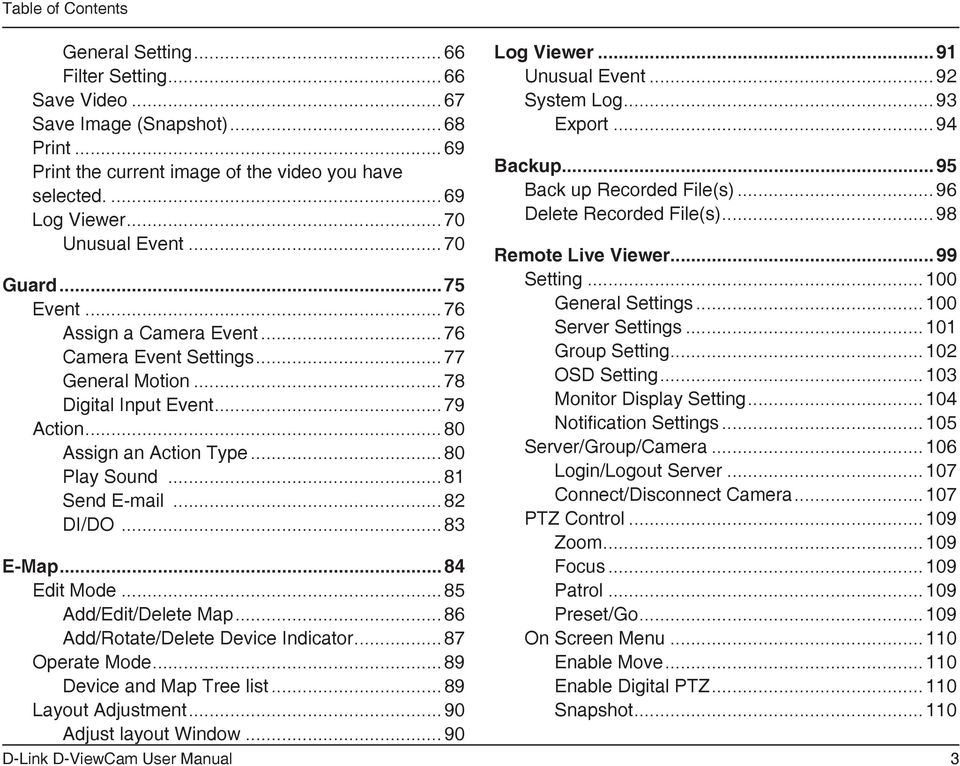
3 Table of Contents General Setting Filter Setting Save Video...67 Save Image (Snapshot) Print Print the current image of the video you have selected...69 Log Viewer...70 Unusual Event Guard...75 Event Assign a Camera Event Camera Event Settings General Motion Digital Input Event Action Assign an Action Type Play Sound Send DI/DO...83 E-Map...84 Edit Mode...85 Add/Edit/Delete Map Add/Rotate/Delete Device Indicator Operate Mode...89 Device and Map Tree list Layout Adjustment...90 Adjust layout Window Log Viewer...91 Unusual Event...92 System Log...93 Export...94 Backup...95 Back up Recorded File(s) Delete Recorded File(s)...98 Remote Live Viewer...99 Setting General Settings Server Settings Group Setting OSD Setting Monitor Display Setting Notification Settings Server/Group/Camera Login/Logout Server Connect/Disconnect Camera PTZ Control Zoom Focus Patrol Preset/Go On Screen Menu Enable Move Enable Digital PTZ Snapshot
4 Table of Contents Start Monitor E-Map I/O Control Playback Add Remote Playback Site Access Remote Playback Site Web View Server IP Remote Live Viewer Remote Playback Utilities Verification Tool Overview Verifying Image/Video DB Tools Repair Database Export Configurations Frequently Asked Questions Open Source Software Notification Minimum Hardware Requirement - How to calculate S value

5 Section 1 - Product Overview System Requirements Product Overview To ensure your D-ViewCam system can maintain high video monitoring and recording performance, certain minimum system configurations are required. D C B A S of All Cam.* 2200~ ~ ~ ~0 CPU Intel Core I7 Intel Core I5 Intel Core 2 Quad Q9400 Intel Core 2 Duo E5300 RAM 2 GB 2 GB 2 GB 1 GB Motherboard Display card Ethernet Hard Disk OS Intel P55 or H57 chip or above, MB vendor Asus, Gigabyte or Intel with Intel Chipset recommended Intel P35 or P33 chip or above, MB vendor Asus, Gigabyte or Intel with Intel Chipset recommended ATI Radeon 4650, nvidia GeForce GF-9600 or above (ATI recommended) 100 BaseT or above, Gigabit LAN recommended 250 GB or above Microsoft Windows XP Professional SP3 / 2003 / Vista / Server 2008 R2 (64 bits) /Win 7 (32 bit/64 bits) * To calculate the S value, please refer to Page 171- Minimum Hardware Requirement - How to calculate S value. Note: Recording video over a long period of time will consume large amounts of disk space. Make sure that you have enough disk space available if you want to use the recording function. You can still complete the installation even if you have less than the suggested free disk space. Note: If a Megapixel camera is used with the D-ViewCam application, the minimum system requirement should be raised to CPU: Intel P GhZ or above with 1 GB of memory due to the resources required to process and store large amounts of image data. 5

6 Section 1 - Product Overview Introduction Thank you for purchasing a D-Link IP camera, which provides state-of-the-art camera technology combined with IP network capabilities. You can build a home or small business surveillance system by using D-Link IP cameras and the latest features offered by the D-ViewCam application software. Features D-ViewCam can automatically locate and add IP cameras in the local network. Storage management for recording files. Single and multiple video stream monitoring (up to 32 video channels). Two-way audio communication. Intelligent filter and search capabilities for scheduling recording and/or event recording. 6

7 Section 1 - Product Overview Installing Your IP Camera Before installing D-ViewCam, please make sure you have installed your D-Link IP camera(s) that will be managed by D-ViewCam. Step 1 - Follow the installation procedures that came with your IP camera(s) to complete the camera installation process. Step 2 - Verify that you are able to view the video images from the IP camera(s) by accessing the camera s web-based configuration utility. It is recommended that all IP cameras be installed in the same subnet as your management PC running the D-ViewCam software. Step 3 - Please refer to page 14 to add IP camera(s) to the D-ViewCam system. Note: D-ViewCam is optimized for a small-scale LAN environment. To protect the system and cameras from attacks from the Internet, install the D-ViewCam software on a computer that is protected behind a firewall or an IP sharing device. 7

8 Section 2 - Installation Turn on the computer and insert the D-ViewCam CD into the CD-ROM drive. Below step-by-step instructions will be shown if you are using Windows XP. However, similar instructions and screens will also be provided for other Windows operating systems. When the autorun screen starts, click Install D-ViewCam. Note: If the Installation Wizard does not start automatically, you can manually start the wizard by double-clicking the setup.exe file from the CD. 1. Select a language and click Next to continue. Software Installation 2. Click Next to continue. 8

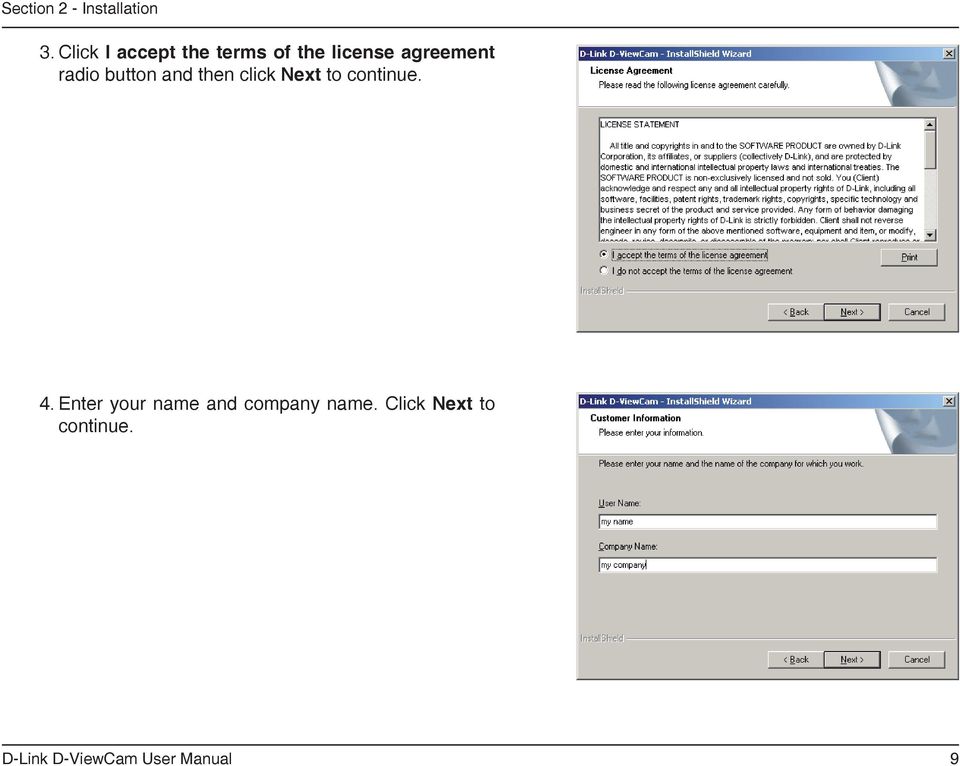
9 Section 2 - Installation 3. Click I accept the terms of the license agreement radio button and then click Next to continue. 4. Enter your name and company name. Click Next to continue. 9
10 Section 2 - Installation 5. Select Complete to install the entire D-ViewCam software package or select Custom to choose which programs to install. Click Next to continue. 6. Click Install to continue. The installation process may take a few minutes. 10

11 Section 2 - Installation 7. You may be prompted to install Visual C++ Runtime Libraries. Click Yes to install. 8. Click Yes to accept the license agreement. 9. Click Finish to complete the installation process. 11

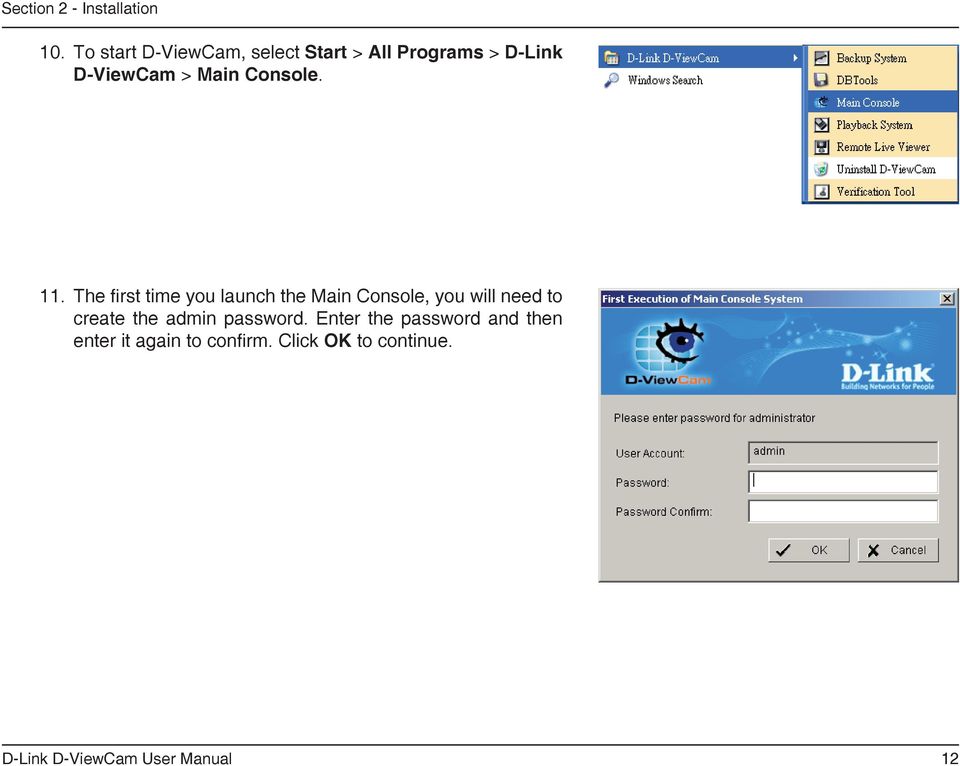
12 Section 2 - Installation 10. To start D-ViewCam, select Start > All Programs > D-Link D-ViewCam > Main Console. 11. The first time you launch the Main Console, you will need to create the admin password. Enter the password and then enter it again to confirm. Click OK to continue. 12
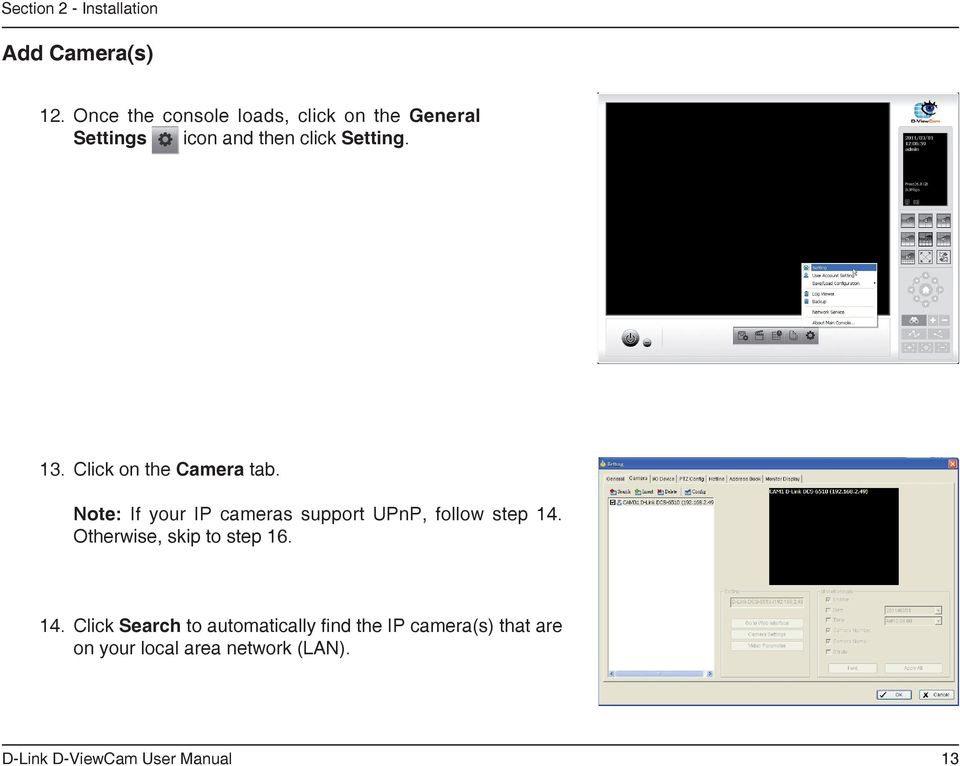
13 Section 2 - Installation Add Camera(s) 12. Once the console loads, click on the General Settings icon and then click Setting. 13. Click on the Camera tab. Note: If your IP cameras support UPnP, follow step 14. Otherwise, skip to step Click Search to automatically find the IP camera(s) that are on your local area network (LAN). 13
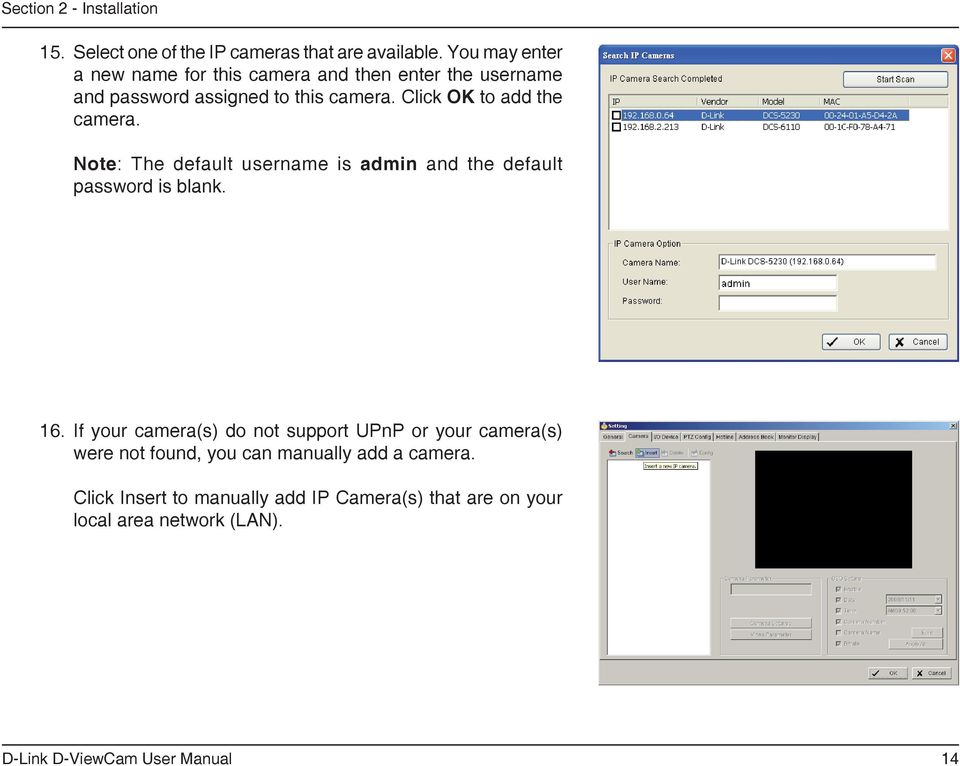
14 Section 2 - Installation 15. Select one of the IP cameras that are available. You may enter a new name for this camera and then enter the username and password assigned to this camera. Click OK to add the camera. Note: The default username is admin and the default password is blank. 16. If your camera(s) do not support UPnP or your camera(s) were not found, you can manually add a camera. Click Insert to manually add IP Camera(s) that are on your local area network (LAN). 14
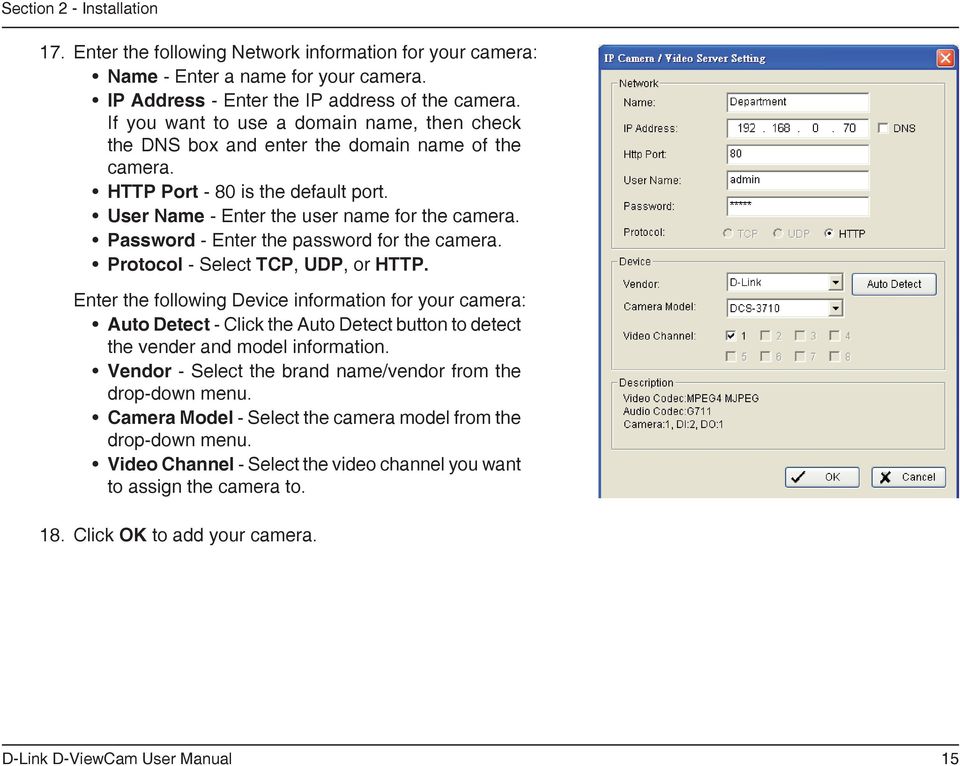
15 Section 2 - Installation 17. Enter the following Network information for your camera: Name - Enter a name for your camera. IP Address - Enter the IP address of the camera. If you want to use a domain name, then check the DNS box and enter the domain name of the camera. HTTP Port - 80 is the default port. User Name - Enter the user name for the camera. Password - Enter the password for the camera. Protocol - Select TCP, UDP, or HTTP. Enter the following Device information for your camera: Auto Detect - Click the Auto Detect button to detect the vender and model information. Vendor - Select the brand name/vendor from the drop-down menu. Camera Model - Select the camera model from the drop-down menu. Video Channel - Select the video channel you want to assign the camera to. 18. Click OK to add your camera. 15
16 D-ViewCam Interface Overview This section will show you how to start and configure D-ViewCam. To start D-ViewCam, select Start > All Programs > D-Link D-ViewCam > Main Console. Enter Admin as the default username and enter your password. Click OK to log into the system. 16

17 Main Console Main Display Area 4 Monitor 7 2 Log Out/Exit Program 5 Playback 8 Configure Smart Guard System General Settings and Utilities 10 Split-Screen Options 11 PTZ Features 3 Minimize Window 6 Configure Schedule 9 System Information 17

18 Log Out/Exit Program/Minimize Window Click to log the current user out or to close the D-ViewCam program. Click to minimize the window. Split-Screen Options Select a split-screen display layout by clicking on the desired layout icon. The system provides 4, 6, 9, 10, 16, and 36 split-screen modes. To switch to single camera display, double-click the camera s image. To return to the previous configuration screen, press the Esc key or double-click on the screen again. Displays 1 screen. Divides into 9 screens. Divides into 32 screens. Divides into 4 screens. Divides into 10 screens. Switch to full screen. Divides into 6 screens. Divides into 16 screens. Rotate all screens. 18

19 Monitor Option Start/Stop Monitor All Start/Stop Recording Schedule Start/Stop Smart Guard System Open Event Report Open E-Map Open I/O Control Panel Lock System Function Click to start or stop all monitoring functions. Click to start or stop the recording schedule. Click to start or stop the smart guard system. Click to open the event report which will log any events. Click to open E-Map which monitors all devices with map indicators. Click to open the I/O control panel which montors the DI/DO and manual triggering the DO devices. Click to lock the system. 19

20 Monitor: Click on the Start Monitor icon and select from the menu to start/stop recording schedule system or the guard system features. You can also open monitor tools such as event report, E-Map, I/O control panel, and system lock. Playback: Click on the icon to open the Playback Console. You can watch recorded video, search recorded video, adjust the image of the stored data, save video/pictures, print images, check log information and event records, and set up recording function configuration. See PlayBack on page 61 for details. Schedule: Organize the recording time schedule and configure recorder settings. See Schedule on page 52 for details. Guard: Add/edit type(s) of events that you want to detect and setup action(s) responding to events. See Guard on page 75 for details. General Setting and Utilities: Select to modify general settings, user account settings, save/ load configuration settings, access log viewer and backup files, and configure network services. See Config on page 25 for details. 20

21 System Information Displays the date, time, free disk space, IP Camera bitrate, customized text, and network utilization. PTZ Features PTZ Control Control the movement of PTZ (pan/tilt/zoom) cameras. With cameras that support PTZ control, you can move, zoom, patrol, auto pan, adjust focus, and set preset points. Click on the Home icon in the center to return to the original view. Zoom Click on the + sign (Zoom Tele) to zoom in or click the sign (Zoom Wide) to zoom out. Add Preset Point/Go to Preset Point Adjust the camera view until you are satisfied. Click on the Set icon and set up the view as the preset point 01. Adjust the camera view again and set up the preset point 02. Repeat the process until all preset points are set. You can assign a custom name to each preset. Click on the Go icon and view the result of your setting. Note: To adjust the speed settings of the PTZ camera, go to General Setting and Utilities > Setting > PTZ Config. 21
22 Patrol Go to Add Preset Point > Set Patrol to bring up the Patrol Setup dialog. From the left window, select the camera(s) that you would like to have in the patrol group. Align the cameras in order in the right window and adjust the time. Rename the group name if you want. After completing the setup, check the Active option, and then click OK. You can set up up to four groups of auto patrol. To start or stop, click on the Go to Preset Point icon in the Main Console, and select Start Patrol or Stop Patrol. Auto Pan Go to Go to Preset Point and click on Start AutoPan to enable auto pan. Click on Stop AutoPan to stop. Auto Pan enables the camera to scan an area horizontally from left to right or right to left. Focus You can select to focus the camera near, far, or have it auto focus. Click on the + sign to focus near, click on the - sign to focus far, and click on the center icon to auto focus. To focus near means objects that are closer will be clearer than the objects that are further away. In contrast, to focus far means objects that are further will be clearer than the objects that are closer. Click on the Focus icon and select auto focus if you want the system to decide the focus point for you. 22
23 On Screen Menu Right-click on the camera screen and get the On Screen menu, from which you can quickly adjust the settings of your camera. Enable Move With cameras that support PT function, click Enable Move to adjust the current camera s view by clicking on the display screen. To cancel this function, right-click on the screen and select Disable Move. Enable Talk With cameras that support two-way audio, select Enable Talk to utilize the function. Connect/ Disconnect Right-click on the display screen and select Connect/Disconnect to modify the connecting status of the camera. Show Camera Select the camera from the Show Camera menu to display video on selected screen. The list of cameras will be displayed in the right column of the monitor display panel. Delete Camera Click on Delete Camera to remove a camera from the display screen. 23
24 Enable Digital PTZ To enable the PTZ functions of the camera, select the Enable Digital PTZ option. Use the mouse wheel or click on the + and signs to zoom in and zoom out on the camera. The square flashing on the video grid indicates the correspondent view of the camera. Fix Aspect Ratio Enable Fix Aspect Ratio to view the original ratio video or disable this option to stretch 3:4 to fit window. Snapshot Select the snapshot function to capture a screen shot of the current video. You have the option to copy the image to clipboard or to save it. You may select the OSD option to export the image with date/time and camera number/name text. If the digital PTZ function is enabled, you can decide either Full size or Selected region as your snapshot region. Manual Record Select to start recording video. Toggle Fullscreen Select it to view live video(s) in fullscreen. Press ESC to go back to original window. Live Display Live display is flexible to change channels and screen divisions. Each screen division will have the same display list, but have the different sequence. Such like, when using Show/ Delete Camera function to edit camera list, the operator will apply to all different screen divisions. 24
25 Click on the General Setting and Utilities Configuration icon. Click Setting to configure your settings. 25
26 General Startup Main Console: Check to open the Main Console system when windows startup. Check the following 3 main functions and 2 network services to auto-activate functions when the Main Console system is starting, including Schedule Recording System, Smart Guard System, Live Streaming Server, and Remote Playback Server. Full Screen: Check to launch video at full screen when launched. Setup Auto login: Enable Auto login and click the Setup button to open the Auto Login Setup panel. Enter the User Account and Password to login automatically when the system starts. Enable Minimize after login to minimize the Main Console window after login. 26
27 Storage Location: Assign the default folder for the system to store data files. It is recommend not to save in the system drive (I.E. C:\) to avoid PC efficiency drop when free storage is low. New Click to add a new location. Click the... button to browse to a folder. Click OK to save the location. Delete Highlight a location and then click the Delete button to remove it. Move Item Up Move Item Down Highlight a location and click the Move Item Up button to move the location higher in the list. Highlight a location and click the Move Item Down button to move the location lower in the list. Automatic Recycle: The system will automatically delete out-of-date data to save storage space. Recycle when disk space is less than: Select and enter the available space (in MBs). When the default folder available space falls below the entered about, the system will begin to store data to the next folder in the location list. If all the status of locations exceeds the storage rule, the system will start recycling in an hour progress. Only keep video for: Delete the video records that are older than the number of days set. If the default storage spaces exhausted (disc space is less than 1200MB), the system will start to recycle by hourly period. Log Recycling: Click to set the days that you want to keep specific event logs or keep all event logs within interval of video files. 1. Event Log: Delete the event log data that is older than the number of days set. 2. System Log: Delete the system log data that is older than the number of days set. 27
28 Status Display Select the information that you wish to display in the information window on the Main Console such as Current Date, Current Time, Free Disk Space, IP Camera Bitrate, and User Defined Text. Start Live Streaming service Start Remote Playback service Miscellaneous Automatically Popup Event Report: Make sure to stop Smart Guard System before you modify this setting, otherwise the modification will not take place. The Event Report dialog box will automatically popup when events have been detected. Minimize to system tray: Enable this option to display an icon in the task bar when clicking the minimize button. Note: Enter the username and password of Main Console again when clicking the minimized Main Console icon in notification area of windows task bar to start monitoring. Synchronize video frames: Select to prevent tearing that may occur in the video display. However, this will increase the CPU processing load. 28
29 Audio Preview Default Channel: Select the audio channel that you wish to hear from. Enable Audio on Active Channel: Select the Enable Audio on Active Channel option to hear the audio from the selected video channel on each video grid of the Main Console. The default channel plays if the video channel isn t selected. Volume: Adjust the volume with the volume bar. System plays the audio of default channel System plays the audio of left-top selected channel 29
30 Camera Add Camera Four function buttons will be included in the Setting/Camera panel. Search: Click on the Search icon to obtain the Search IP Camera panel. The system will start scanning automatically once the panel is opened. You may manually stop scanning by clicking on the Stop Scan button. Fill in the user name and password for each IP camera found and click OK to add it to the camera list. Note: Drag the mouse to multi-select the cameras and then insert the username and password. The username and password will be applied to all the selected cameras automatically. 30
31 Insert: Click to open the IP Camera/Video Server Setting panel and add IP cameras to the list. Delete: Click to remove the selected IP camera(s) from the system. Click OK to finalize the modification. Config: Click to obtain the IP Camera/Video Server Setting panel. You can modify the IP camera settings with the Setting panel. IP Camera / Video Server Setting Panel Network: Fill up the Network field (including Name, IP Address, Http Port, User Name, Password and Protocol) referring to the instruction provided by the camera manufacturer. Check Use DNS to use domain name instead of IP address. Device: Choose the IP camera manufacturer from the drop-down menu. Click on Auto Detect and the model name will show in the box. Description: Displays information about the device. 31
32 Camera Parameter Camera List: Displays all the cameras that are connected to the system. Click the name of the camera to edit the settings. Camera Name: Name the camera for your convenience. Go to Web Interface: Go to the web-based interface of your camera to configure the settings (optional). Camera Settings: Edit the camera s parameters offered by camera vendor. Video Parameter: Adjusts the video s brightness, contrast, saturation, and color hue values. 32
33 OSD (On-Screen Display) Settings Select the information that you wish to see on the on-screen display. Click the Font button to select the font style. 33
34 I/O Device I/O Device Setting: Module: Name of the module and ID of the digital input/output device(s) that is connected to your system. Device: This column displays the device(s) already installed to the system. ID: Select the I/O port. Input Monitor: The device(s) is turned on if the dot is in red. By triggering the digital input device, the related icon will light up. This is used to check if the device is correctly connected or not. Output Monitor: The device(s) is turned on if the dot is in red. By clicking on the icon, you may trigger the digital device connecting to the system. This can be used to test if the output device is correctly connected. Device Setting Name: Insert the name of the device (input and output). Type: Select the device type from the drop-down menu. 1. N/O: Normal Open. 2. N/C: Normal Close. 34
35 PTZ Config Check the box on the camera list to activate the PTZ control function of a PTZ camera. Basic Setting: Select the camera model, com port, baud rate, and address of your PTZ camera. Note: If your camera model is an IP camera, the PTZ function will work directly without the com port, baud rate, and address settings. Advanced Setting: You may setup the pan speed, tilt speed, and zoom speed. Adjust the settings by dragging the bars. Miscellaneous: Patrol Group: You can setup a Patrol Group. 35
36 User-Define Preset: User-Define Preset can trigger the extra-function of speed dome itself such as auto-tracking, login menu of camera etc. You can refer the detail description of each speed dome on it s user manual. Step 1: Type a Preset Name. Step 2: Type the Preset Number. Step 3: Click OK to save your preset. You may click Add to add a new preset, highlight a preset in the list and click Delete to remove it, or highlight a preset and change the preset name and/or preset number and then click Update to save. 36
37 Hotline Configure the Hotline settings including , once an unusual event is detected. Input the following information: Server, Port, Sender s address, s subject title, Body content and SSL option for encrypted transmission. Click on the Send Test Mail button to test the settings. 37
38 Address Book Address Book: Manage the address book from which you may send out an when an unusual event is detected. 38
39 Monitor Display Cameras List: The left column displays a list of all available cameras. Highlight the camera and click the right arrow --> to move the camera to the right column. The right column will display the primary and secondary cameras. These cameras will be available for the auto-scan function. Auto Scan: Activate auto scan to rotate the channels / cameras on the display screen. For instance, you may select to show only 4 sub-screens on the Main Console while having 16 channels connected to the system. With auto scan function, you will be able to see all 16 channels by turns. You can set up a primary channel that will always be on the screen and a secondary channel that has secondary priority. 39
40 User Account Setting Only the default admin account can manage user accounts. From the list on this tab, highlight each account and modify the privilege setting. Note: When entering into this page, the system will display one of the account group s default privilege profiles first. End users can insert Name and Password to create a new account, or click an existed account to modify his/ her privilege. There are 3 default privilege profiles of account groups: Admin: Have privileges to all system functions and devices, except add/delete/update privileges of other users. Power User: Have limited privileges of system functions and complete privileges of assigned devices. User: All the privileges of system functions are forbidden, user can only manage assigned devices. Add: Click it to create a new account after inserting related information. The Add button is only enabled when filled a new account. Delete: Click it to delete the indicated account. Default: Click it to go back to default privilege settings of related user group. Upgrade: Click it to save the modifications of each account. 40
41 User Account Setting: The admin may create and modify the content of user account here. Name: Insert an user name. Group: Assign the group for each user. Description: Insert a description related to each user. Password: Insert the password assigned to each user. Password Confirm: Insert again to confirm the password. Disable User Account: Check Disable User Account to block this account. Note: Only the default admin account cannot be disabled. Keep remote login for minutes: Insert the duration to autolog off an account after logging in from remote LiveViewer or Remote Playback server. Privilege: Check each privilege of functions and devices for each user account. Function: Check the settings and operations related system configuration, and the privilege of remote access. Device: Check the device privileges of camera, digital output in Main Console and client applications. 41
42 The Save/Load Configuration function allows system users to save any specific setting as a.cfg (config) file. You may save up several different.cfg files at any time. Save Configuration: To save a specific setting, go to General Setting and Utilities > Save/Load Configuration > Save. In the popup window, type in the file name and then save it as a.cfg file. Load Configuration: To load a specific setting, go to General Setting and Utilities > Save/Load Configuration > Load. In the popup window, go to the directory that you saved the.cfg files at, select any one of them and then click OK to load the file. Note: Main Console will be automatically shutdown after loading a new configuration. Please re-start Main Console manually. 42
43 Network Service There are 2 types of network services: Live streaming server and Remote playback server. From the Main Console, go to General Setting and Utilities > Network Service to obtain the Network Service panel. Live Streaming Server When starting the live streaming function of computer, the system allows remote users to log in to the specific computer and view cameras that are connected to it. As system administrator, user could be able to monitor these accounts in order to maintain the system efficiency. Main On Live Streaming Server panel, administrator can see all the clients who are currently logging in to the computer and watching the live video from the remote side. 43
44 Client List Client Count: Show the amount of channels that are connected. Kill Client: Highlight an IP address and click on the Kill Client button to block the client from your client list. Kill All Clients: Click on this button to block all the clients logging to your system. Service Server Status: Click on Start/Stop to turn on/off the server. Options: Adjust the setting only when the server is stopped. Port: Assign a port for the clients to connect to your system via Remote Live Viewer. Default port is Maximum Connections: Number of connections that are allowed to connect to the system. Default is 64 channels and maximum is 64, one camera video counts as one connection. Use Default Web Server: Activate the Web server by checking this box. Clients will be able to watch live video via Internet Explorer. The port for live streaming server is 80 by default. Save Log: Save the current log information to your computer. Enable Audio: Select this option to enable the audio transmission along with video stream. 44
45 Black / White List White List: Check the Enable White List box to activate the white list filter. Only IPs from the white list is allowed to log in. Black List: Check the Enable Black List box to activate the black list filter. IPs from the black list will be blocked. IP Address: Enter an IP address into the IP address field on the left. To add an IP address range to the system, enter 2 sets of IP address to indicate a series of IP(s). Add/Delete: Add the IP(s) onto the list or remove it from the list. Apply to All Network Servers: Apply the settings to both live streaming server and remote playback server. 45
46 Performance 46
47 Remote Playback Server When starting the remote playback function, the system allows remote users to log in to the specific computer and withdraw data files that are stored on it. As system administrator, user could be able to monitor the accounts logging in to maintain the system efficiency. Main On the Remote Playback Server panel, all the clients who are currently logged into the computer and watching the playback video from the remote side. Client List User Count: Show the amount of users that are connecting to system. Kill Client: Highlight an IP address and click on the Kill Client button to block the client from your client list. Kill All Clients: Click on this button to block all the clients logging in to your system. Service Server Status: Click on Start/Stop to turn on/off this option. 47
48 Options Port: Assign a port for the clients to connect to your system via Remote playback server. Default port is Maximum Users: Number of connections that are allowed to connect to the system. Default is 16 users and maximum is 16. Note: One user counts as one account that is logging in to the server. Use Default Web Server: Activate the Web server by checking this box. Clients will be able to watch live video via Internet Explorer. The port for live streaming server is set to 80 by default. Save Log: Save the current log information. Note: The server must be stopped before editing any settings. 48
49 Black / White List White List: Check the Enable White List box to activate the white list filter. Only IPs from the white list is allowed to log in. Black List: Check the Enable Black List box to activate the black list filter. IPs from the black list will be blocked. IP Address: Enter an IP address into the IP address field on the left. To add an IP address range to the system, enter 2 sets of IP address to indicate a series of IP(s). Add/Delete: Add the IP(s) onto the list or remove it from the list. Apply to All Network Servers: Apply the settings to both live streaming server and remote playback server. 49
50 Performance 50
51 About Main Console Go to About Main Console to view the version of your D-ViewCam software and model name information. 51
52 Schedule Click on the Schedule icon on the Main Console to set up the time duration for video recording. 52
53 Day Mode Schedule the camera(s) to record video at the same time every day. There are three ways to setup the time schedule for each camera: 1. Load a preset mode or 2. Insert a new schedule manually or 3. Copy to other cameras after manually setup
54 Load Preset Modes The system provides six modes to quickly setup recording schedule. Click on the select the preset mode. Refer below tables for the definitions of each mode in each series. button to bring up the drop-down menu to Mode Format Time Record FPS Quality Resolution Regular M-PEG Max 0:00-24:00 Always MPEG-4 Max Max Max Office M-PEG Max 8:00-20:00 Always MPEG-4 Max Max Max Shop M-PEG Max 10:00-22:00 Always MPEG-4 Max Max Max Highly Secure M-PEG Max 0:00-24:00 Always MPEG-4 Max Max Max Disk Saving M-PEG 10 0:00-24:00 Motion MPEG-4 i-frame Max Max Minor M-PEG 5 0:00-24:00 Motion MPEG-4 i-frame Max Max 54
55 Insert a New Schedule Manually Step 1 Left-click and draw the bar you want to add to the time table. The scheduled time will show as a grey bar Step 2 Click the Insert icon and add a new schedule in the Regular Mode, i.e. to record video during the time period you set with 30 FPS, Normal video quality, and Normal resolution. Step 3 Change the settings by clicking on the Configure icon or double-click the schedule information. Step 4 Click OK. 55
56 Copy Schedule You may set up the schedule for each channel/camera by repeating the process above, or simply apply the settings of a single camera to all the others by clicking the Copy To icon on the top of the display window. Week Mode Schedule the camera(s) for each day of the week. In addition, you may assign holidays under the Week Mode. Default Follow the same process to setup the schedule for every day in a week. Holiday You may assign holidays where the system will work according to the Sunday setting. Custom You can assign a particular date(s) on which the system will work according to a special schedule(s) different from the others. 56
57 Adjust the Schedule Settings You can manually change the settings at any time after you insert or load a schedule. Option 1: Move the cursor to the Time Bar and slide the bar to the left or right to change the start and end points. Option 2: Click on the Configure icon or double-click on the schedule information on the screen (highlighted in blue) to open the Encoding Option panel (next page) and change the settings. 57
58 Encoding Option Pre-record/Post-record Time The pre-record/post-record function saves the recording data accordingly. For instance, to set up a 5 second pre-record time means the system will start saving the recording data 5 seconds before the event happens. Note: The maximum record period is 60 seconds. 58
59 Record Mode Always Record Select this option to record video continuously. Record on Motion Select this option to start recording when motions are detected. Please adjust sensitivity, the frame interval and setup the detection zone to detect motion. To setup a single detection zone, left-click and drag the mouse to draw a rectangle. To setup more than one detection zones, simply repeat the same process. You may create up to 10 detection zones. Click All to select the entire detection zone. Encoded Options This option is to configure the quality of video. The Original Video window is the original stream from the camera and the Encoded Video window is a preview of the recording video correspond with the encode settings (on the next page). 59
60 Keep Original Video format Select this option to lower the frame rate but not re-encode the video stream. Adjust MJPEG video frame rate: Use the slider to reduce or increase the frame rate. Note: The maximum FPS (move the slider to the right) will be correspond with original video stream set up on camera configuration. Keep key-frame only: System will only record key frames of video streaming. Note: The key frame interval is controlled by each camera manufacturer and cannot be adjusted. 60
61 Playback The Playback console allows you to watch the recorded video, view and/or search for unusual events, and view recorded system information Exit Playback 5 Speed 9 Information Window 13 Enhancement 2 Minimize Window 6 Play/Rewind/Fast Forward 10 Open Record 14 Setting & Save Video 3 Cue (Start/Stop Point) 7 Zoom 11 Volume Control 15 Snapshot & Print 4 Control (Play/Stop/Pause) 8 Scroll Bar 12 Screen Division 16 Backup & Log Viewer 61
62 1. Exit Close the Playback window. 2. Minimize Minimize the Playback console. 3. Cue When playing video, click on the Cue In/Cue Out icon to set the starting/ending point of a saved video clip. The Cue In and Cue Out time will be displayed on the Playback Information Window once they are set. 4. Control Play, pause, and stop the video. 5. Speed Control the speed of the playing video. Click + to speed up and to slow down. 6. Play/Rewind/Fast Forward Control the video. 7. Zoom Zoom in and out of the recorded video. 8. Scroll Bar Indicates the status of the playing video; drag it to where you want to review. 9. Information Window Display video date and time, current video status, cue in/out points time, and speed. 10. Open Record Click on the Open Record button to access the Date Time Panel. 11. Audio Volume Control Adjust the sound level. 12. Screen Division: Allocate the sub-screen display by clicking on the desired layout. To switch to a single camera display, double-click on a particular sub-screen. Double click on the screen again to restore the previous screen division layout. To view in fullscreen mode, right-click on the screen to enable Toggle Fullscreen. 13. Enhancement : Click to open the Enhancement window 14. Setting & Save Video: Click to open the Setting window and to open the Save Video window. 15. Snapshot & Print: Click to take a picture and to open the Print window. 16. Backup & Log Viewer: Click to open the Backup window and to open the Log Viewer window. 62
63 Date Time Panel Record Display Window The record display window shows the information of the available video clips. It may show in calendar or list control view. Remote Server Site: Open Remote Playback Site Management dialog could select to access local machine or set up remote playback server. Select Folder option could directly access recorded data folder or use Recent List to access previous browser recorded folders. Note: To use Select Folder function need password of Main Console. Refresh: To refresh the record display window. Log Viewer: To access the Log Viewer Tool. Previous Days: To show recorded video from the previous recording date. Next Days: To show recorded video of the next recording date. 63
64 Date Time Period Select the starting and ending time points that indicate the time period you would like to view. Video Preview Check the Enable Preview box to view the selected video. Event Type You can change the color by clicking on the color bar and then click the down arrow. Time Table Click the icon to select all channels or the icon to deselect all channels. Finally, utilize the scale bar to modify the scale of the time table. Check the Show Records box to display the time period of recording data. 64
65 Click the Show Event Log button to display the time of event detection: To Withdraw the Record Step 1: From the record display window at the top left of the Date Time Panel, select the date you want to view the recorded video from. The red/green/blue lines shown on the time table indicate available recorded video records. Note: The record display window can be shown in (a) calendar view or (b) list control view. To modify the settings of the record display window, click on the Settings button at the right of the Playback Console. Refer to the next page for more details. Step 2: Use color bars to differentiate event types from each other. Step 3: Highlight the video clip you want to review by left-clicking and dragging the time period. You may also utilize the Start Time and End Time in the Date Time Period Section. In addition, modify the scale of the time table with the + and signs on the bottom left. Step 4: Check the Enable Preview option to view the video you select. Step 5: Click OK when finished. 65
66 Post Processing Tool General Setting Select the option to either apply the filter settings to only the active channels or to all channels. Filter Setting Visibility: Check the box and adjust the gamma value of the image to enhance the image and make it cleaner. Sharpen: Check the box to activate. Move the slider control to the right to sharpen the image or to the left to soften it. Brightness: Check the box to activate. Move the slider control to the right to make the image brighter. Contrast: Check the box to activate the function. Move the slider control to the right to increase contrast. Grey Scale: Check the box to show the record in grey scale mode so the image displays in black and white. Default: Click to change the settings back to the default settings. OK: Click to save and apply your settings. 66
67 Save Video Step 1: Click on the display screen to select the camera display that you want to save as a video clip. Step 2: Click the cue buttons to select the start and end points. The cue in and cue out time will show in the information window. Step 3: Click the Save Video icon. Select the location where you want to save the file at and enter the file name. Click Save. Step 4: Set the Export Format from the drop-down (ASF or AVI). Step 5: Select the profile to use from the Use Profile drop-down. Step 6: Select to export (i.e. save) the recorded video with Audio, OSD (On-Screen Display), or export video only. Step 7: Click OK to save the video. 67
68 Save Image (Snapshot) Step 1: Click on the display screen to select the camera display from which you want to save pictures. Step 2: Click the Save Image button when the image you want is displayed on the screen. You may click Pause to freeze the video and use the Step Forward/Step Backward buttons to find the picture that you want to save. Step 3: Check the OSD box to export the image with the date/time and camera number/name displayed. If the digital PTZ function is enabled in the display view, you can also select either Full size or Selected Region as your image region. Step 4: You have the option to copy the image to the clipboard or to save it to your computer. Click Save Image and select the folder you want to save it to. Select the image format (BMP or JPEG) and click Save. 68
69 Print Print the current image of the video you have selected. Print Content: Print the image from the selected channel or all the channels shown on the screen. Page Setting: Set to print the image at the Original Size or Fit to Page. Set the alignment from the Align Image drop-down (Top, Center, or Bottom). Print: Click to print the image. The Backup function saves everything from the Playback panel, including log information. You can start a full function Playback Console and load the backup files into it on any PC with Windows operating system. This means you may monitor the real time video and work on the backup files on separate computers simultaneously. Step 1: Press the Open Record button and click Backup. Step 2: In the Date Time Period section, select the Start Time and End Time you want to back up. Step 3: In the Select Camera(s) section, select the camera(s) you want to back up. Step 4: Click the Calculate Size button to calculate the size of the backup data. Step 5: Under Media, select where you would like to save the backup data. Step 6: Under Option, check the type of data you want to back up. Step 7: Click the Backup button to start backing up. Note: The backup cannot exceed 7 days of recordings. 69
70 Log Viewer Unusual Event View the unusual event history that had been detected by the Smart Guard System. Step 1: Select the type of events you wish to view or select All from the drop-down menu to view all types of events. The types of Unusual Event include General Motion, Signal Lost, and Digital Input Triggered. Step 2: Select the camera channel you wish to view or select All for all the channels available. Step 3: View the events that happened on a particular date or during a given time period by selecting the search period. For a particular data: check the Date box right and indicate the date. For a period: check the Date&Time and then enter the date and time. Step 4: Click Search. Note: When working with a video record, Log Viewer will search for Unusual Event in the video record in Date & Time mode, start from the beginning to the end of the record, which is the default setting of the system. A link will appear right next to each event time. By clicking on the link, the video will jump to the point where the unusual event takes place. 70
71 System Log Select Log Type form the drop-down menu. There are total 23 types of log types, including: 1. Main Console Startup 2. Main Console Shutdown 3. User Login 4. User Login Failed 5. Start Schedule 6. Stop Schedule 7.Execute Recycle 8. Enable Channel 9. Disable Channel 10. Start Smart Guard 11. Stop Smart Guard 12. Modify Smart Guard 13.Modify Schedule 14. Modify Configuration 15. Start Live Streaming Server 16. Stop Live Streaming Server 17. Modify Live Streaming Server 18. Start Remote Playback Server 19. Stop Remote Playback Server 20. Modify Remote Playback Server 21. IP Camera Connection Lost 22. Auto Restart Windows 23. Modify E-Map Step 1: Select the type of event you want to check or select All from the drop-down menu. Step 2: View the events that happened on a particular date or during a given time period by selecting search period. Step 3: Click the Search button. Step 4: You can export the data to a text file (.txt) or Excel file (.xls). Click the Export to button, enter the filename, and select the format to export to. 71
72 Setting - Record Display Calendar View (left): Display in calendar view. List Control (right): Display in list view. Play Play when open: Check this option to start playing the video clip every time when a record is withdrawn. Auto skip when record motion only mode: Check this option to set up the system to automatically skip to the points where there were motions recorded. Next interval: Set the interval with which the video goes forward when you click on the Next icon on the control panel. Previous interval: Set the interval with which the video goes backward when you click on the Previous icon on the control panel. Capture Image Save in clipboard: The image will be saved in the clipboard and can be pasted to other applications. Manually save the image file: You can manually select where you want to save the image, name the saved file, and the format you want to save the image. Automatically save the image file: By pre-setting a path/url and the image format, the system will automatically save the image accordingly when you click the Save button in the control panel. 72
73 Miscellaneous Synchronize video frames: Select to prevent tearing that may occur in the video display. However, this will increase the CPU processing load. OSD Setting Check the Enable Camera OSD box to display video information on recording video. Information includes camera name, camera number, date and time. Users also can set up the font, size, font color and any font effects desired. 73
74 Remote Server Add Remote Playback Site Click the Remote Server icon to add and setup a remote playback site. Step 1: Enter the IP address or DNS, Port, Username, and Password. Step 2: Click Add to add the server. Step 3: Click OK to exit. Access Remote Playback Site Go to the Date Time Panel and click the icon on the top of the display window to access the Remote Playback Site. 74
75 Guard Click on the Guard icon on the Main Console to start the Event and Action Configuration panel. You need to specify an event to be detected and set up an action in which the system will take when the specified event is detected. Note: To access the Event Report, click Start > Open Event Report. 75
76 Event There are 2 sources of events: Camera (video image) and Digital Input. You can assign multiple events by following the instructions below. Assign a Camera Event Step 1: Select a channel from the camera list and click the Insert Event icon. Step 2: There are two types of events: Signal Lost and General Motion. Select the event you want in the Event Type list and click OK. Step 3: Configure the setting of the Event Type. Refer to the next page. 76
77 Camera Event Settings Basic setting of video Signal Lost and General Motion. Enable Event: Check the box to activate the event. Life Cycle: Automatically cancel event when event disappears: The alarm/action will be cancelled once the abnormality is fixed or ends. Manually cancel event or event continues triggered: The alarm/action will continue until canceled from the Main Console. To cancel the event, click Start > Open Event Report > Cancel All Events. Cancel event after timeout xx seconds: Click the checkbox and enter the time (in seconds) to cancel the event after the time that you set whatever the events disappear or not. Always Activated: Select to have the event enabled 24 hours a day. Activated only in the following period: Select and choose a time period to have the event active. 77
78 General Motion Detect any movement in the defined detection zone. Alarm Event Option: Sensitivity: Click and move the slider control to the right to increase sensitivity so that a relatively small movement will trigger the alarm. Move the bar to the left to reduce the sensitivity of movement detection. Set up an appropriate Sensitivity value will reduce the chance of false alarm. For example, you can lower the Sensitivity to avoid the alarm being triggered by a swinging tree in the breeze. Interval: Click and move the slider control to the right to increase interval time so that the alarm will only be triggered when the movement lasts longer. Move to the left to reduce the interval time. Region Definition: Define detection zone: To detect General Motion, you have to define a detection zone. Left-click and drag the mouse to draw a detection zone. You may define more than one zone on the screen by repeating the same process. You can also click on the All button to select the entire detection zone. Start Simulation: Click the Start Simulation button and test the function on the preview screen. 78
79 Digital Input Event Step 1: Click and highlight the Digital Input on the event type list and then click the Insert Event icon. Step 2: Select the device that is connected to your camera(s). 79
80 Action Assign an Action Type Insert Action: To configure actions responding to an unusual event. Step 1: Select an event and click the Insert Action icon. Step 2: Select one of the three actions you want and then click OK. 1. Play Sound 2. Send 3. DI/DO Step 3: Configure the setting of the Action Type if needed. 80
81 Play Sound The system will play the sound when an unusual event is detected. Step 1: Select the Play Sound action and then click OK. Step 2: The window below will appear. Select a Wave file (.wav) and then click the Play Sound indicator to modify the setting. 81
82 Send The system will send an immediately to given accounts indicating the type of event, the time, and attaching a picture taken while the event is detected. Step 1: Select the Send action and then click OK. Step 2: From the Select Contactor window select the address(es) you want to send alerts to. Edit Address Book: Click the Edit Address Book button to add, delete, or edit contacts. 82
83 DI/DO Use to trigger Digital Input/Output devices that are connected to the camera(s), such as alarm lights and sirens. Step 1: Select the DI/DO action and then click OK. Step 2: Select Digital Input Module and then click the DI/DO indicator to modify the setting. Step 3: Select the device that is connected to your system, that is, the PC you are working with. You can enable the Automatically popup I/O control panel check box to obtain the correspondent panel to monitor the I/O status. You should adjust the setting of I/O device in General Setting and Utilities > Setting > I/O Device first, the I/O control panel will display the device status based on it. You can also adjust the size of the panel by dragging a mouse or click the on the right top of the display window. 83
84 E-Map With E-Map, users can track the actual location and alarm status easily for each camera and receive instant response when the event happens. The arrows and lightening icon on E-Map represent cameras and I/O devices and these icons will turn red once they are triggered by alarms. To launch E-Map application, simply click on Start and select Open E-Map from start menu to open E-Map window. There are 2 modes in E-Map application: Edit mode: Allow users to add/edit maps and indicators of devices. In Edit mode, the function buttons on the bottom of the window will be active, and then setup the configuration before running E-map function at the first time. Operate mode: All settings will be activated in this mode. 84
85 Edit Mode You will need to be in Edit Mode to activate the function buttons. Function Buttons Edit mode/operate mode Switch button 85
86 Add/Edit/Delete Map Add E-Map Step 1: Make sure you are in Edit Mode and all devices are connected. Step 2: Click the Add Map button to load a map image. Step 3: Select the map file and insert the map name. Click OK, and then the map you added appears in the tree structure in the device and map list. Step 4: The map indicator appears on the left-up corner of parent map. Drag it to the position you want on the map. 86
87 Edit E-Map Step 1: Make sure you are in Edit Mode and all devices are connected. Step 2: Right-click on the Map dialog. icon to obtain the option menu to edit map, or just click the Edit Map button to open the Map Config Step 3: Modify the required details and then click OK to save configuration. Delete E-Map Step 1: Make sure you are in Edit Mode and all devices are connected. Step 2: Right-click on the Map icon to open the option menu to delete map, or just click Delete to remove the map from the list. Note: The root map cannot be deleted. Add/Rotate/Delete Device Indicator Add Indicator: Step 1: Make sure you are in Edit Mode and all devices are connected. Step 2: Select on the Map icon which you want add device indicator to. Step 3: Before adding indicator, ensure that the map you want is displayed. Select device from list and directly drag a device to the desired location on the map. Note: Different device is symbolized by different indicator. - Camera indicator - digital Input indicator 87
88 Rotate Indicator Step 1: Make sure you are in Edit Mode and all devices are connected. Select device indicator from map or form Device and Map list. The device indicator will be marked with a green ring. Step 2: Click the Rotate button, the indicator will rotate 45 degree. Note: Only camera indicators are allowed to be rotated. Delete Indicator Step 1: Make sure you are in Edit Mode and all devices are connected. Select device indicator from map or form Device and Map list. The device indicator will be marked with a green ring. Step 2: Click the Delete button, the indicator will be gone. 88
89 Operate Mode Device and Map Tree list This window will list all devices and map hierarchies. Click the Device or Map indicator to show related information in the E-Map window. Map Select the map you want to show in the E-Map Window. Camera Select the camera you want to preview video from in the preview window. Digital Input Digital Output Select to highlight the device with a green ring on the map and show its status in the Information window. If the Digital Input is from an IP camera, the preview window will display live video from the camera. Select to highlight the device with a green ring on the map and show its status on the Information window. If the Digital Output is from an IP camera, the preview window will display live video from the camera. 89
90 Layout Adjustment Adjust layout Window Shrink the window: Click the triangular indicators to go back to the default setting. to hide the Device and Information windows on the right and left side. Click triangular indicator again Full screen display: For a computer system with dual monitors, you can view the Main Console on primary monitor and view the full-size E-Map on a secondary monitor. Step 1: Click the triangular indicators to hide the Device and Information windows on the right and left side. Step 2: Click on located on the upper-right of the window to switch to full screen mode. 90
91 Log Viewer To launch Log Viewer, Click on General Setting and Utilities and select Log Viewer from the menu. View the unusual event history that had been detected by the Smart Guard System. 91
92 Unusual Event Step 1: Select the type of event you wish to view or select All from the drop-down menu to view all types of events. The types include General Motion, Signal Lost, and Digital Input Triggered. Step 2: Select the camera channel you wish to view or select All for all available channels. Step 3: View the events that happened on a particular date or during a given time period by selecting a search period. For a particular data: Check the Date box and select the date you want to view. For a period: Check the Date&Time box and then enter the date and time. Step 4: Click Search. 92
93 System Log Select the Log Type from the drop-down menu. There are a total of 23 log types to choose from: 1. Main Console Startup 2. Main Console Shutdown 3. User Login 4. User Login Failed 5. Start Schedule 6. Stop Schedule 7.Execute Recycle 8. Enable Channel 9. Disable Channel 10. Start Smart Guard 11. Stop Smart Guard 12. Modify Smart Guard 13.Modify Schedule 14. Modify Configuration 15. Start Live Streaming Server 16. Stop Live Streaming Server 17. Modify Live Streaming Server 18. Start Remote Playback Server 19. Stop Remote Playback Server 20. Modify Remote Playback Server 21. IP Camera Connection Lost 22. Auto Restart Windows 23. Modify E-Map Step 1: Select the type of event you want to check or select All from the drop-down menu for all types of events. Step 2: View the events that happened on a particular date or during a given time period by selecting a search period. For a particular data: Check the Date box and select the date you want to view. For a period: Check the Date&Time box and then enter the date and time. Step 3: Click Search. 93
94 Export After you search the log you want, you can export it to an Excel (.xls) or a text (.txt) file. Step 1: Click the Export To button. Step 2: Type the file name and select the file format (.xls or.txt). 94
95 The backup function saves video records and other log information. Backup Note: The backup cannot exceed 7 days of recordings. 95
96 Back up Recorded File(s) Step 1: Click the Remote Sever icon to add and set up the backup. Enter the IP address or DNS, Port, Username, and Password. Click Add to add the server. Click OK to exit the Setting panel. Step 2: To access the Remote Backup Site, click on the icon and enter the username/ password of the remote server to access the backup site. Step 3: Click on New Period to open the Select DateTime Period panel. Step 4: Select the data you want to back up by highlighting the time period. You may also set up a start and end time in the Date Time Period section. 96
97 Step 5: Click on the camera number icon to add camera(s) or click delete all channels. to add/ Step 6: Check the Enable Preview box to display the preview of the video you selected. Step 7: Click OK when the settings are complete. Step 8: If there is a data period you do not want, click Remove Period to remove the data period from the backup list. Step 9: Click the Backup icon to open the Backup panel. Step 10: Under Media, select the path you want to save the file or burn the file directly to a CD (direct CD burning for Windows XP only), DVD or to a hard drive. Step 11: Under Option, select the log information you would like to back up (Event Log or System Log,), and then click OK. Note: The backup cannot exceed 7 days of recordings. 97
98 Delete Recorded File(s) Step 1: Click on New Period to open the Select Date Time Period panel. Step 2: Follow steps 3-7 from the previous two pages to select the data period which you want to delete. Step 3: Click on the Delete icon to remove all the data in the backup list from the database. Note: The deleted video cannot be recovered. 98
99 Remote Live Viewer With the Remote Live Viewer console, remote users may watch up to 64 real-time video channels from remote live streaming servers. 99
100 Setting Click the General Settings icon to open settings dialog window. General Settings Audio Preview Enable audio on active channel: Select it to enable the audio streaming on active channel. Miscellaneous Select to prevent tearing that may occur in the video display. However, this will increase the CPU processing load. 100
101 Server Settings Step 1: Enter the Server Name as preference. Step 2: Enter the IP Address, Port, User Name, Password to log in the server. Step 3: Enable the Save Password to login without entering the password again. Step 4: Enable the Auto Login to login automatically when starting the Remote Live Viewer. Step 5: Click Test Server to check if the server is available. Step 6: Click Add to insert the setting to server list. Note: To remove the server, select a server on the server list and then click Delete. 101
102 Group Setting Allocate different cameras into groups. Step 1: Log in to all the servers that contain the camera(s) you would like to put into the group(s). Step 2: Click Insert to create and name a new group. Step 3: From the window at the right, highlight the camera that you would like to add to a group and then click on the <-- button. Repeat the process until all the cameras you want in the group are added. Step 4: Click on the Delete button to remove a specific group or click the Rename button to change the name of a specific group. Step 5: Click OK to save your group. 102
103 OSD Setting Select the font style and colors of information displayed on the video. 103
104 Monitor Display Setting Activate auto scan to rotate the channels/cameras on screen. For instance, you may select to show only 4 sub-screens on the live viewer while having 16 channels connected to the system. Step 1: Select the Monitor connected to the system. Step 2: From the Auto scan group drop-down, select a group. Step 3: Select a primary channel that will always be on the screen when activating auto scan settings. Step 4: Select a channel that has secondary priority then primary channel on the screen when activating auto scan settings. Step 5: From the Layout drop-down, select the screen division you want displayed. 104
105 Notification Settings Status display Show recording status: Check the box to display the recording status on the monitor display. Show camera event: Check the box to display detected events on each channel. 105
106 Server/Group/Camera Display a complete list of the server(s), group(s), and camera(s) that are added to the system. Server View: Display cameras sorted by servers. Group View: Display cameras sorted by group names. Server View Group View 106
107 Login/Logout Server Option 1: Select a server on the list and then click on the Log In icon to access or the Log Out icon to leave the server. Option 2: On the server list, right-click to open the menu options. Connect/Disconnect Camera Option 1: On the server/camera list, double-click on a camera to connect it. Option 2: On the server/camera list, right-click on a camera to open the menu options to connect/disconnect it. 107
108 Option 3: Select a camera from the list and drag it to where you want the image to be displayed. 108
109 PTZ Control Control the movement of PTZ cameras. With cameras that support PTZ control, you can move, zoom, patrol, adjust the focus, and set preset points of the cameras. Add Preset Point/Go to Preset Point Adjust the camera view and click on the Set icon and save the view as preset point 01. Adjust the camera view again and set up the preset point 02. Repeat the process until finish setting up all preset points. Enter any names you want instead of the preset point 01, preset point 02, preset point 03, click on the Go icon to view the preset points. Note: To change the speed settings of your PTZ camera, click on Main Console > General Setting and Utilities > Setting > PTZ Config. Auto Pan Go to Go to Preset Point and click on Start AutoPan to enable auto pan. Click on Stop AutoPan to stop. Auto Pan enables the camera to scan an area horizontally from left to right or right to left. Zoom Click on the + (Zoom Tele) and signs (Zoom Wide) to zoom in and zoom out the view. Patrol To have your PTZ camera patrol around pre-defined path of preset points, click on the Go to Preset Point icon in the Main Console, and select Start Patrol or Stop Patrol to start/stop the patrol. To set up a patrol path, go to Add Preset Point > Set Patrol to bring up the Patrol Setup dialog. From the left window, select the camera(s) that you would like to have in the patrol group. Align the cameras in order in the right window and adjust the time. Rename the group name if you want. After completing the setup, check the Active option, and then click OK. Focus To focus near means objects that are closer will be clearer than the objects that are further away. On contrast, to focus far means objects that are further will be clearer than the objects that are closer. Click on the Focus icon and select auto focus if you want the system to decide the focus point for you. 109
110 On Screen Menu Right-click on the camera screen and get the On Screen Menu, from which you can quickly adjust the setting of camera. Enable Move With cameras that support PTZ, the function allows you to use your mouse to control the PTZ functions by clicking on the display screen. To enable, click the Enable Move. To disable, click Disable Move to cancel this function. Enable Digital PTZ To enable the digital PTZ functions of the video, select Enable Digital PTZ. Use your mouse wheel or click on the + and signs to zoom in and zoom out on the camera. The square flashing on the video grid indicates the corresponding view of the camera. Snapshot The snapshot function captures a specific video image to the clipboard or to a file you can save to your computer. Toggle Fullscreen Switch to view video with full screen display. To disable the function, right-click on screen and uncheck this option or simply press ESC to go back to original window. 110
111 Start Monitor E-Map Select Open E-Map to open the E-Map window. Map Select the map you want to show on E-Map Window. Camera Select the camera you want to preview video and mark an indicator on E-map. Digital Input Digital Output Select to highlight the device with a green ring on the map and show status on the Information window. If the Digital Input is from an IP camera, the preview window will display live video from the camera. Select to highlight the device with a green ring on the map and show status on the Information window. If the Digital Output is from an IP camera, the preview window will display live video from the camera. I/O Control Select to open the I/O control panel. The panel allows you to control DO devices remotely. Note: Adjust the setting of I/O device in Main Console > General Setting and Utilities > Setting > I/O Device first, the I/O control panel will display the device status base on it. 111
112 Playback Select to open the Playback panel and view video remotely. Add Remote Playback Site Click the Remote Sever icon can go to remote playback site management to add and setup the remote playback site. Step 1: Enter the IP address or DNS, Port, Username, and Password. Step 2: Click Add to add the server. Step 3: Click OK to exit the Setting panel. Access Remote Playback Site Go to Date/Time Panel and click on the icon on the top of the display window to access the Remote Playback Site 112
113 Web View Note: Make sure the Live Stream Server is enabled. 113
114 Server IP Open Internet Explorer and enter the IP address or DDNS name of the server followed by the connecting port. Example: Note: is the IP address of the server is the port specified in Use Default Web Server in Network Service. Remote Live Viewer Click this icon to use Remote Live Viewer. Refer to page 99. Remote Playback Click this icon to use Remote Playback. Refer to page
115 Verification Tool Utilities The Verification Tool verifies whether the data created by the system be tampered with or not. It is the process by which a digital watermark (a digital signature) is added to each recorded video frame to ensure its authenticity. The 3 types of data that is verified by the Verification Tool are: 1. File in (.dat) (.264) format will be displayed as. 2. File in (.avi) (.asf) format will be displayed as. 3. File in (.bmp) (.jpg) format will be displayed as. Step 1: Go to Start > All Programs > D-Link D-ViewCam > Verification Tool. Step 2: Enter the Username and Password to log in. 115
116 Overview Add File: Click to insert a file to the list for verification. Add Folder: Click to choose a folder with multiple files and then add it to the list for verification. Remove File: Click to remove the selected file(s) from list. Select All: Click to select all the files in the list for verification. 116
117 Video Preview: To preview the selected file from the verification list. Use Play, Verify, Pause and Stop for preview. Note: Preview of.bmp and.jpg formats are not allowed. Verifying Image/Video Step 1: Select a single or multiple files for verification. Step 2: Click verify to start verification. Step 3: The verification results will be displayed in the Watermark column. Note: If the file passes the verification, it will show. Note: If the file was tampered with, it will show. Step 4: The Status and Verify fields will display the information related to verification. 117
118 DB Tools Step 1: Execute DB Tools from the Start menu. Step 2: Enter the administrator password and click OK to log in. 118
119 Repair Database This page has three repair methods: Modify Location, Verify Only, and Repair. Modify Location Playback system can recognize all recording video in the folders which list on Main Console > Config > Setting > General page. For some reason, users need to use the Playback system to open recording video beyond storage location setting. Note: The default storage location is in your installation directory, (ex: C:\Program Files\SCB_IP). Step 1: Select Repair Database. Step 2: Select Modify Location from the Method drop-down menu. 119
120 Step 3: Click on the button and select a new location. To remove a database location, select it from the list and click on the button to delete location. Step 4: Click on the Modify button to save the location. 120
121 Example of modify database In certain cases that video data needs to be transfered from one PC to another, you will need to perform the following procedure: 1. Manually copy all recorded video data files from the default installation path or other user-defined storage path of the old PC. 2. Manually paste all recorded video files to the default installation path or other user-defined storage path of the new PC. 3. Follow previous page to add new location on new PC. 4. Old recorded video data can be viewed by playback system on the new PC. For verify and repair proposes: This tool is used to check and repair your database and recording video with below problems: (1) If there are records in database, but no video file, use DB Tools to delete records. (2) If there are video files but no record in database, use DB Tools to rearrange the database and find these records. 121
122 Step 1: Switch to Repair Database. Step 2: Select Modify Location from the Method drop-down menu. Step 3: Check the video location windows. The system will list all video locations in table, but if there are any omit, please use insert. After inserting location, the system will show a file count table. to Step 4: Select Verify Only and then click Verify. This method will only check the files without modify. Verify result will show how many files broken or missing. 122
123 Step 5: Choose the method of Repair (Complete), and click Repair to repair. The Repair Result will show how many files are fixed and inserted. Step 6: The repair new database will replace old ones. And the original database will change file names with extend repair date and time as below. Note: Open Log is a tool to record repair database recodes. It will recode repair method, file operation, strat time and end time. 123
124 Export Configurations This tool is used when you want to export all configuration settings to a backup. Step 1: Click Export. Step 2: Select the location you want to export to and type the name of the config file. Step 3: Click Save. 124
125 Section 4 - FAQs Frequently Asked Questions 1. D-ViewCam software supported languages Bulgarian Chinese (Simplified ) Chinese (Traditional) Czech Danish English Finnish French German Greek Hungarian Italian Japanese Korean Norwegian Persian Polish Portuguese (Brazil) Portuguese (Standard) Romanian Russian Slovak Slovenian Spanish Swedish Thai Turkish 2. How do I set up E-Map? Please go to <Main Console>-<Start> and then click on <E-map> Step 1: Click on <Map> Step 2: Click on <Browser/ Edit Mode> Step 3: Click on <Add Map> Step 4: Choose a map and then fill in the map name 125
126 Section 4 - FAQs Step 5: Click on the map you set Step 6: Draw the camera or IO device to the map Step 7: Click on <OK> to save this setting
127 Section 4 - FAQs 3. How do I backup video files? User can backup any period of video record into VCD or other drive location, and view those video via playback.exe which will also be saved in the backup folder. Please follow those steps to backup your video record: Step 1: Go to [Main Console]->[Config]->[Backup] Step 2: Click on [New Period] Step 3: Set start and end time for time period Step 4: Select cameras what you want to backup Step 5: Click [OK], and period will show 127
128 Section 4 - FAQs Step 6: Click [backup] Step 7: Choose a location to backup media Step 8: Set option to backup log files. Step 9: Click [OK] to execute backup Step 10: After backup, you can execute the playback.exe to check the backup files 128
129 Section 4 - FAQs 129
130 Section 4 - FAQs 4. How do I enable audio in live streaming for IP cameras? In order to save bandwidth, the default setting for audio is disabled, user needs to enable this function manually, please follow those steps. Step 1: Go to [Config]--->[Setting]--->[General] please enable [Preview Active Channel] Step 2: Default channel means the background audio of camera channel. Step 3: Switch audio channel When choose sub-screen 1, you will hear audio from camera 1 When choose sub-screen 2, you will hear audio from camera 2 If you don t choose any sub-screen, you will hear audio of default channel. 130
131 Section 4 - FAQs 5. How do I record audio for IP cameras? Step 1: Execute Main Console and go to [Schedule] -> [Configure] -> enable [Record Audio] -> [OK] Step 2: Start Recording Schedule [Start] -> [Start Recording Schedule] 6. How do I change the recording frame rate and the resolution for IP cameras? The recording frame rate and resolution are the same with live video, please follow those steps for adjustment. Step 1: Open up Main Console and go to [Config] -> [Setting] -> [Camera] Step 2: Select the camera of which you want to change the frame rate 131
132 Section 4 - FAQs Step 3: Click on [Camera settings]. And then you can change the frame rate, the resolution, the quality, etc. 7. How do I set multiple storage paths for video recording? Our Main Console allows you to set up several hard disk drives as the storage location. When the first hard disk is almost full (the capacity is less than 800MB on system disks or 100MB on non-system disks), Main Console will try to find a second storage with enough capacity. If no more capacity is available, Main Console will start recycling if auto-recycling is enabled. If auto-recycling is not enabled, recording will stop. Please go to [Main Console] -> [Config] -> [General] -> [Storage Location] to modify your settings. 132
133 Section 4 - FAQs 8. Why do I get Disk space is low and the scheduler has been shut down. Please check the storage location setting to recover? The error means recycling is not working, please follow the steps to diagnose this problem. 133
134 Section 4 - FAQs Step 1: check the setting and configuration Make sure the auto recycle option is enabled in Mainconsole setting. Make sure auto login, auto startup of Mainconsole and schedule are enabled in Mainconsole setting. Remove NOD 32if NOD32 is installed since it will generate a great amount of log files (.tmp files) with tremendous size to occupy a lot of hard drive space and cause stop recording. Do not adjust the system clock after recording is started. Do not unplug removable disk when system is recording. Check if any quota limit is set in your hard drive. Check if the hard drive is set as read only or if a folder named 1 exists. Check if the hard drive is damaged or there are bad sectors inside. Make sure you do not use network hard drive. Step 2: If system stops recording which is caused by insufficient hard drive space. Check the recording paths are the same in FileRecord.ini and Storage location. Remove the oldest few day video folders or move them to other hard drive. Check dberr.log (it can be found in D-ViewCam installation folder). If there are a lot of errors of Eventlog and Systemlog in dberr.log, and Eventlog.mdb and Systemlog.mdb is oversized caused by extremely frequent events or scheduler is set as record on motion while the cameras focus on a dynamic background. The space for system hard drive must be more than 800 MB and the space of data hard drive must be more than 500 MB for Mainconsole to run recording. If you still experience stop recording, please use DB tools to repair/rebuild database to re-associated recorded video. 9. Why do I get Live streaming server can not be connected? In general, this error message is caused by network problem so always check your network connection first. If you are connecting to a remote server or device through WAN. Please make sure the remote server or device is not behind a router's firewall or the port is forwarded properly to bypass the router's firewall. 134
135 Section 4 - FAQs 10. Why do I get Cannot load database template. Please re-install the system to solve the problem? You will receive this error message when Mainconsole experienced a critical error when loading the database. This problem is frequently observed on Windows Vista due to its tightened security system. There are two ways to fix. 1.) Turn off UAC in control panel on Windows Vista. 2.) Enable the privilege level option in compatibility tab in Mainconsole properties. 11. Why do I get Missing or corrupted resource files. Please re-install the system to solve the problem? This error message occurs when the software failed to execute the necessary file for the requested operation. (1)Occur when loading Mainconsole The skin files or database may be corrupted to cause this error message. Please uninstall the software, remove D-ViewCam folder in C:\Program Files\ and install the latest version. (2)Occur when loading ActiveX of web live viewer/ playback Please follow below instrument for troubleshooting. 135
136 Section 4 - FAQs 1.) Turn off UAC in control panel on Windows Vista. 2.) Enable the privilege level option in compatibility tab in Mainconsole properties. 12. Why do I get The procedure entry point WMCreateWriter could not be located in the dynamic link library WMVCore.DLL.? If you met the error message as follows, please upgrade your windows media player and this problem will be fixed. Please download the latest Windows media player here, 136
137 Section 4 - FAQs 13. How do I start network services? Step 1: Go to [Config] -> [Network services], and you will see several services you can use. Step 2: Please remember to click on [Start] of the services you want to start in Main Console. 137
138 Section 4 - FAQs 14. How to configurd my PC/Server to allow remote access for the viewer and playback? In order to view remote live viewer and remote playback from the internet, there are two things you have to do. Step 1: Start <Network Service> in Mainconsole Please go to <Main Console> - <Config> - <Network Service> and then start this service. Our default port number for live streaming is Our default port number for remote playback is The default port for web browser is 80. If you need to change it to another one, please don t forget to set it to port forwarding on your router. 138
139 Section 4 - FAQs Please notice that if you met the following error message, it means your port 80 was occupied by the other device, therefore, you have to change it to another port number. Step 2: Enable port forwarding in your router After that, what we have to do is to find the public IP address of your router and set port forwarding on the router to NVR LAN IP. You can see the public IP address of your router in its configuration menu. You can also configure NAT (or port forwarding) port 80, 5150 and 5160 to your NVR s LAN IP (e.g ) in the router. Port forwarding looks something like this in your router: You have to forward 3 ports, one for 80, one for 5150 and one for All 3 ports should point to e.g After you have successfully forward the 3 ports in your router, you will be able to access remote live viewer and remote playback from the internet. 15. Why can t l see live view and video playback on Internet Explorer after up grading to the latest version? It is often caused by the old temporary IE components in Windows. Please remove the old IE components and reinstall ActiveX to solve the problem. Step 1: Closed IE and all of its related applications first. Otherwise some files may be locked during removal. If your OS is Vista, please run "Command prompt" as administrator first or you will not able to remove the components. 139
140 Section 4 - FAQs Step 2: Go to [Start]->[Run]->key in: cmd and press [OK] Step 3: Key in: cd C:\WINDOWS\Downloaded Program Files Step 4: Key in: dir to list all objects on this folder Step 5: Key in: del /s. Don't forget the Period (.) after /s Step 6: Keep pressing Y when prompted to delete all the files in the folder 140
141 Section 4 - FAQs Step 7: Key in: rmdir /s. Don t forget the Period (.) after /s Step 8: Keep pressing Y when prompted to clear up the remaining files in the folder Step 9: Key in: dir and press [Enter] to check if the folder is empty. Step 10: Complete. You can now reinstall your ActiveX with web remote client. 16. What ports for network service are used by default? The default ports can be changed however you like, but we strongly recommend you avoid using ports below 1024 because they are often used by other system services. Service Port Purpose Live streaming 5150 Communication between desktop remote live viewer and Main Console Default web server 80 Access protocol of web based remote client 141
142 Section 4 - FAQs Remote playback 5160 Communication between desktop remote playback and Main Console Remote desktop 5140 Remote access to Main Console 17. Can I hear the audio at D-ViewCam remote live viewer application and Internet Explorer browser? Yes, please right click on the screen and check <Enable Audio>. Please do not forget to enable audio at Main Console first. If you are using IP cameras, please go to <Main Console> - <Config> - <Setting> - <Camera> - <Camera Settings> 142
143 Section 4 - FAQs If you are using analog cameras, please go to <Main Console> - <Config> - <Setting> - <Audio Preview> After that, please go to remote live viewer and right click on the screen to check <Enable Audio> 143
144 Section 4 - FAQs 18. Why my IE8 doesn t work well with D-ViewCam software? In order to install ActiveX under IE 8 environment, we need to setup following settings. Generally, there are two settings to make it work. First of all, please make sure vcredist_x86.exe has already been installed. Step 1: Add the Server IP into Trusted Web Site. 144
145 Section 4 - FAQs 145
146 Section 4 - FAQs 146
147 Section 4 - FAQs Step 2: Add the Server IP Compatibility View Setting 147
148 Section 4 - FAQs 148
149 Section 4 - FAQs Enjoy 3.2 web live viewer with Internet Explorer 8. Step 3: (Optional) If the instructions above doesn't work, please try the following method. 149
150 Section 4 - FAQs 19. What is the version of my software? In [Main Console] -> [Config] -> [About Mainconsole...] 20. How do I get the Windows system log and application log? System log Step 1: Go to [Desktop] -> right click on [My Computer] -> [Manage] Step 2: In [Computer Management] -> go to [System Tools] -> [Event Viewer] -> [System] 150
151 Section 4 - FAQs Step 3: Right click on [System]->[Save Log File As...] Step 4: Type "system" as file name and save as.evt format Please name the file as "system" so we know that it is a system log file 151
152 Section 4 - FAQs Application log Step 1: Go to [Desktop]-> right click on [My Computer]-> [Manage] Step 2: In [Computer Management]-> go to [System Tools]->[Event Viewer]->[Application] Step 3: Right click on [Application]->[Save Log File As...] 152
153 Section 4 - FAQs Step 4: Type "application" as file name and save file with.evt format Please name the file as "application" so we know that it is a application log file 21. How many user accounts can I create? You can create an unlimited number of user accounts. 22. How do I setup local area network or LAN? D-ViewCam supports both LAN and WAN. If your surveillance system does not need to have internet access, you can setup a private network or LAN to establish networking between Mainconsole and other network devices such as IP camera. Setup with static IP Step 1: Go to [Control Panel]->[Network Connections] 153
154 Section 4 - FAQs Step 2: Right click on [Local Area Connection]->[Properties] Step 3: Select [Internet Protocol(TCP/IP)]->[Properties] 154
155 Section 4 - FAQs Step 4: Select [Use the following IP address:] and fill the fields as shown in the picture [ ] and [ ] is normally occupied by the router or other network devices, so please try to avoid using these IP addresses. Please note that you will only be able to access IP address between the same subnet address, such as [ to ] Setup with dynamic IP We strongly discourage the assigning dynamic IP address to IP cameras which is based on DHCP. The IP address of each IP cameras is temporary so whenever the address is reassigned, the camera will lose connection permanently to your D-ViewCam server unless you manually rematch the camera's new IP address to D-ViewCam server. 23. How should I do when popping-up UAC message? When using Windows Vista, the system will pop-up the following message to stop your D-ViewCam. Follow the following steps to turning off UAC. 155
156 Section 4 - FAQs 1.) Go to Vista's [Control Panel] 2.) Click on [User Accounts] 156
157 Section 4 - FAQs 3.) Click on [User Accounts] 4.) Click on [Turn User Account Control on or off] 157
158 Section 4 - FAQs 5.) Click to deselect the [Turn User Account Control on or off] box to turn off UAC 6.) Click on [OK] and restart Windows to complete the new setting 24. The camera D-ViewCam supports both LAN and WAN. If your surveillance system does not need to have internet access, you can setup a private network or LAN to establish networking between Mainconsole and other network devices such as IP camera. 158
159 Appendix A - Open Source Software Notification Open Source Software Notification D-ViewCam 3.x product makes use of the following software licensed under LGPL (Lesser General Public License). You can download the copies of the LGPL licensed software from the official web site listed as the following. 1.1 LIVE555 Streaming Media ( GPL v2) 1991, 1999 Free Software Foundation, Inc., 51 Franklin Street, Fifth Floor, Boston, MA USA Everyone is permitted to copy and distribute verbatim copies of this license document, but changing it is not allowed. 1.2 ffmpeg v ( GPL v2) 1991, 1999 Free Software Foundation, Inc. 51 Franklin Street, Fifth Floor, Boston, MA USA Everyone is permitted to copy and distribute verbatim copies of this license document, but changing it is not allowed. 1.3 FAAC v (sourceforge.net/projects/faac, GPL v2) 1991 Free Software Foundation, Inc. 59 Temple Place, Suite 330, Boston, MA USA Everyone is permitted to copy and distribute verbatim copies of this license document, but changing it is not allowed. TERMS AND CONDITIONS FOR COPYING, DISTRIBUTION AND MODIFICATION 0. This License Agreement applies to any software library or other program which contains a notice placed by the copyright holder or other authorized party saying it may be distributed under the terms of this Lesser General Public License (also called this License ). Each licensee is addressed as you. A library means a collection of software functions and/or data prepared so as to be conveniently linked with application programs (which use some of those functions and data) to form executables. The Library, below, refers to any such software library or work which has been distributed under these terms. A work based on the Library means either the Library or any derivative work under copyright law: that is to say, a work containing the Library or a portion of it, either verbatim or with modifications and/or translated straightforwardly into another language. (Hereinafter, translation is included without limitation in the term modification.) 159
160 Appendix A - Open Source Software Notification Source code for a work means the preferred form of the work for making modifications to it. For a library, complete source code means all the source code for all modules it contains, plus any associated interface definition files, plus the scripts used to control compilation and installation of the library. Activities other than copying, distribution and modification are not covered by this License; they are outside its scope. The act of running a program using the Library is not restricted, and output from such a program is covered only if its contents constitute a work based on the Library (independent of the use of the Library in a tool for writing it). Whether that is true depends on what the Library does and what the program that uses the Library does. 1. You may copy and distribute verbatim copies of the Library s complete source code as you receive it, in any medium, provided that you conspicuously and appropriately publish on each copy an appropriate copyright notice and disclaimer of warranty; keep intact all the notices that refer to this License and to the absence of any warranty; and distribute a copy of this License along with the Library. You may charge a fee for the physical act of transferring a copy, and you may at your option offer warranty protection in exchange for a fee. 2. You may modify your copy or copies of the Library or any portion of it, thus forming a work based on the Library, and copy and distribute such modifications or work under the terms of Section 1 above, provided that you also meet all of these conditions: a) The modified work must itself be a software library. b) You must cause the files modified to carry prominent notices stating that you changed the files and the date of any change. c) You must cause the whole of the work to be licensed at no charge to all third parties under the terms of this License. 160
161 Appendix A - Open Source Software Notification d) If a facility in the modified Library refers to a function or a table of data to be supplied by an application program that uses the facility, other than as an argument passed when the facility is invoked, then you must make a good faith effort to ensure that, in the event an application does not supply such function or table, the facility still operates, and performs whatever part of its purpose remains meaningful. (For example, a function in a library to compute square roots has a purpose that is entirely well-defined independent of the application. Therefore, Subsection 2d requires that any application-supplied function or table used by this function must be optional: if the application does not supply it, the square root function must still compute square roots.) These requirements apply to the modified work as a whole. If identifiable sections of that work are not derived from the Library, and can be reasonably considered independent and separate works in themselves, then this License, and its terms, do not apply to those sections when you distribute them as separate works. But when you distribute the same sections as part of a whole which is a work based on the Library, the distribution of the whole must be on the terms of this License, whose permissions for other licensees extend to the entire whole, and thus to each and every part regardless of who wrote it. Thus, it is not the intent of this section to claim rights or contest your rights to work written entirely by you; rather, the intent is to exercise the right to control the distribution of derivative or collective works based on the Library. In addition, mere aggregation of another work not based on the Library with the Library (or with a work based on the Library) on a volume of a storage or distribution medium does not bring the other work under the scope of this License. 3. You may opt to apply the terms of the ordinary GNU General Public License instead of this License to a given copy of the Library. To do this, you must alter all the notices that refer to this License, so that they refer to the ordinary GNU General Public License, version 2, instead of to this License. (If a newer version than version 2 of the ordinary GNU General Public License has appeared, then you can specify that version instead if you wish.) Do not make any other change in these notices. Once this change is made in a given copy, it is irreversible for that copy, so the ordinary GNU General Public License applies to all subsequent copies and derivative works made from that copy. 161
162 Appendix A - Open Source Software Notification This option is useful when you wish to copy part of the code of the Library into a program that is not a library. 4. You may copy and distribute the Library (or a portion or derivative of it, under Section 2) in object code or executable form under the terms of Sections 1 and 2 above provided that you accompany it with the complete corresponding machine-readable source code, which must be distributed under the terms of Sections 1 and 2 above on a medium customarily used for software interchange. If distribution of object code is made by offering access to copy from a designated place, then offering equivalent access to copy the source code from the same place satisfies the requirement to distribute the source code, even though third parties are not compelled to copy the source along with the object code. 5. A program that contains no derivative of any portion of the Library, but is designed to work with the Library by being compiled or linked with it, is called a work that uses the Library. Such a work, in isolation, is not a derivative work of the Library, and therefore falls outside the scope of this License. However, linking a work that uses the Library with the Library creates an executable that is a derivative of the Library (because it contains portions of the Library), rather than a work that uses the library. The executable is therefore covered by this License. Section 6 states terms for distribution of such executables. When a work that uses the Library uses material from a header file that is part of the Library, the object code for the work may be a derivative work of the Library even though the source code is not. Whether this is true is especially significant if the work can be linked without the Library, or if the work is itself a library. The threshold for this to be true is not precisely defined by law. If such an object file uses only numerical parameters, data structure layouts and accessors, and small macros and small inline functions (ten lines or less in length), then the use of the object file is unrestricted, regardless of whether it is legally a derivative work. (Executables containing this object code plus portions of the Library will still fall under Section 6.) Otherwise, if the work is a derivative of the Library, you may distribute the object code for the work under the terms 162
163 Appendix A - Open Source Software Notification of Section 6. Any executables containing that work also fall under Section 6, whether or not they are linked directly with the Library itself. 6. As an exception to the Sections above, you may also combine or link a work that uses the Library with the Library to produce a work containing portions of the Library, and distribute that work under terms of your choice, provided that the terms permit modification of the work for the customer s own use and reverse engineering for debugging such modifications. You must give prominent notice with each copy of the work that the Library is used in it and that the Library and its use are covered by this License. You must supply a copy of this License. If the work during execution displays copyright notices, you must include the copyright notice for the Library among them, as well as a reference directing the user to the copy of this License. Also, you must do one of these things: a) Accompany the work with the complete corresponding machine-readable source code for the Library including whatever changes were used in the work (which must be distributed under Sections 1 and 2 above); and, if the work is an executable linked with the Library, with the complete machine-readable work that uses the Library, as object code and/or source code, so that the user can modify the Library and then relink to produce a modified executable containing the modified Library. (It is understood that the user who changes the contents of definitions files in the Library will not necessarily be able to recompile the application to use the modified definitions.) b) Use a suitable shared library mechanism for linking with the Library. A suitable mechanism is one that (1) uses at run time a copy of the library already present on the user s computer system, rather than copying library functions into the executable, and (2) will operate properly with a modified version of the library, if the user installs one, as long as the modified version is interface-compatible with the version that the work was made with. c) Accompany the work with a written offer, valid for at least three years, to give the same user the materials specified in Subsection 6a, above, for a charge no more than the cost of performing this distribution. d) If distribution of the work is made by offering access to copy from a designated place, offer equivalent access to copy the above specified materials from the same place. 163
164 Appendix A - Open Source Software Notification e) Verify that the user has already received a copy of these materials or that you have already sent this user a copy. For an executable, the required form of the work that uses the Library must include any data and utility programs needed for reproducing the executable from it. However, as a special exception, the materials to be distributed need not include anything that is normally distributed (in either source or binary form) with the major components (compiler, kernel, and so on) of the operating system on which the executable runs, unless that component itself accompanies the executable. It may happen that this requirement contradicts the license restrictions of other proprietary libraries that do not normally accompany the operating system. Such a contradiction means you cannot use both them and the Library together in an executable that you distribute. 7. You may place library facilities that are a work based on the Library side-by-side in a single library together with other library facilities not covered by this License, and distribute such a combined library, provided that the separate distribution of the work based on the Library and of the other library facilities is otherwise permitted, and provided that you do these two things: a) Accompany the combined library with a copy of the same work based on the Library, uncombined with any other library facilities. This must be distributed under the terms of the Sections above. b) Give prominent notice with the combined library of the fact that part of it is a work based on the Library, and explaining where to find the accompanying uncombined form of the same work. 8. You may not copy, modify, sublicense, link with, or distribute the Library except as expressly provided under this License. Any attempt otherwise to copy, modify, sublicense, link with, or distribute the Library is void, and will automatically terminate your rights under this License. However, parties who have received copies, or rights, from you under this License will not have their licenses terminated so long as such parties remain in full compliance. 9. You are not required to accept this License, since you have not signed it. However, nothing else grants you permission to modify or distribute the Library or its derivative works. These actions are prohibited by law if you do not accept this License. Therefore, by modifying or distributing the Library (or any work based on the Library), you indicate your 164
165 Appendix A - Open Source Software Notification acceptance of this License to do so, and all its terms and conditions for copying, distributing or modifying the Library or works based on it. 10. Each time you redistribute the Library (or any work based on the Library), the recipient automatically receives a license from the original licensor to copy, distribute, link with or modify the Library subject to these terms and conditions. You may not impose any further restrictions on the recipients exercise of the rights granted herein. You are not responsible for enforcing compliance by third parties with this License. 11. If, as a consequence of a court judgment or allegation of patent infringement or for any other reason (not limited to patent issues), conditions are imposed on you (whether by court order, agreement or otherwise) that contradict the conditions of this License, they do not excuse you from the conditions of this License. If you cannot distribute so as to satisfy simultaneously your obligations under this License and any other pertinent obligations, then as a consequence you may not distribute the Library at all. For example, if a patent license would not permit royalty-free redistribution of the Library by all those who receive copies directly or indirectly through you, then the only way you could satisfy both it and this License would be to refrain entirely from distribution of the Library. If any portion of this section is held invalid or unenforceable under any particular circumstance, the balance of the section is intended to apply, and the section as a whole is intended to apply in other circumstances. It is not the purpose of this section to induce you to infringe any patents or other property right claims or to contest validity of any such claims; this section has the sole purpose of protecting the integrity of the free software distribution system which is implemented by public license practices. Many people have made generous contributions to the wide range of software distributed through that system in reliance on consistent application of that system; it is up to the author/donor to decide if he or she is willing to distribute software through any other system and a licensee cannot impose that choice. This section is intended to make thoroughly clear what is believed to be a consequence of the rest of this License. 12. If the distribution and/or use of the Library is restricted in certain countries either by patents or by copyrighted interfaces, the original copyright holder who places the Library under this License may add an explicit geographical distribution limitation excluding those countries, so that distribution is permitted only in or among countries not thus 165
166 Appendix A - Open Source Software Notification excluded. In such case, this License incorporates the limitation as if written in the body of this License. 13. The Free Software Foundation may publish revised and/or new versions of the Lesser General Public License from time to time. Such new versions will be similar in spirit to the present version, but may differ in detail to address new problems or concerns. Each version is given a distinguishing version number. If the Library specifies a version number of this License which applies to it and any later version, you have the option of following the terms and conditions either of that version or of any later version published by the Free Software Foundation. If the Library does not specify a license version number, you may choose any version ever published by the Free Software Foundation. 14. If you wish to incorporate parts of the Library into other free programs whose distribution conditions are incompatible with these, write to the author to ask for permission. For software which is copyrighted by the Free Software Foundation, write to the Free Software Foundation; we sometimes make exceptions for this. Our decision will be guided by the two goals of preserving the free status of all derivatives of our free software and of promoting the sharing and reuse of software generally. NO WARRANTY 15. BECAUSE THE LIBRARY IS LICENSED FREE OF CHARGE, THERE IS NO WARRANTY FOR THE LIBRARY, TO THE EXTENT PERMITTED BY APPLICABLE LAW. EXCEPT WHEN OTHERWISE STATED IN WRITING THE COPYRIGHT HOLDERS AND/OR OTHER PARTIES PROVIDE THE LIBRARY AS IS WITHOUT WARRANTY OF ANY KIND, EITHER EXPRESSED OR IMPLIED, INCLUDING, BUT NOT LIMITED TO, THE IMPLIED WARRANTIES OF MERCHANTABILITY AND FITNESS FOR A PARTICULAR PURPOSE. THE ENTIRE RISK AS TO THE QUALITY AND PERFORMANCE OF THE LIBRARY IS WITH YOU. SHOULD THE LIBRARY PROVE DEFECTIVE, YOU ASSUME THE COST OF ALL NECESSARY SERVICING, REPAIR OR CORRECTION. 16. IN NO EVENT UNLESS REQUIRED BY APPLICABLE LAW OR AGREED TO IN WRITING WILL ANY COPYRIGHT HOLDER, OR ANY OTHER PARTY WHO MAY MODIFY AND/OR REDISTRIBUTE THE LIBRARY AS PERMITTED ABOVE, BE LIABLE TO YOU FOR DAMAGES, INCLUDING ANY GENERAL, SPECIAL, INCIDENTAL 166
167 Appendix A - Open Source Software Notification OR CONSEQUENTIAL DAMAGES ARISING OUT OF THE USE OR INABILITY TO USE THE LIBRARY (INCLUDING BUT NOT LIMITED TO LOSS OF DATA OR DATA BEING RENDERED INACCURATE OR LOSSES SUSTAINED BY YOU OR THIRD PARTIES OR A FAILURE OF THE LIBRARY TO OPERATE WITH ANY OTHER SOFTWARE), EVEN IF SUCH HOLDER OR OTHER PARTY HAS BEEN ADVISED OF THE POSSIBILITY OF SUCH DAMAGES. 2. Expat XML parser v2.0.1 (expat.sourceforge.net) 1998, 1999, 2000 Thai Open Source Software Center Ltd and Clark Cooper 2001, 2002, 2003, 2004, 2005, 2006 Expat maintainers. Permission is hereby granted, free of charge, to any person obtaining a copy of this software and associated documentation files (the Software ), to deal in the Software without restriction, including without limitation the rights to use, copy, modify, merge, publish, distribute, sublicense, and/or sell copies of the Software, and to permit persons to whom the Software is furnished to do so, subject to the following conditions: The above copyright notice and this permission notice shall be included in all copies or substantial portions of the Software. THE SOFTWARE IS PROVIDED AS IS, WITHOUT WARRANTY OF ANY KIND, EXPRESS OR IMPLIED, INCLUDING BUT NOT LIMITED TO THE WARRANTIES OF MERCHANTABILITY, FITNESS FOR A PARTICULAR PURPOSE AND NONINFRINGEMENT. IN NO EVENT SHALL THE AUTHORS OR COPYRIGHT HOLDERS BE LIABLE FOR ANY CLAIM, DAMAGES OR OTHER LIABILITY, WHETHER IN AN ACTION OF CONTRACT, TORT OR OTHERWISE, ARISING FROM, OUT OF OR IN CONNECTION WITH THE SOFTWARE OR THE USE OR OTHER DEALINGS IN THE SOFTWARE. 3. OpenSSL v0.9.8.g ( The OpenSSL toolkit stays under a dual license, i.e. both the conditions of the OpenSSL License and the original SSLeay license apply to the toolkit. See below for the actual license texts. Actually both licenses are BSD-style Open Source licenses. 167
168 Appendix A - Open Source Software Notification The OpenSSL Project. All rights reserved. Redistribution and use in source and binary forms, with or without modification, are permitted provided that the following conditions are met: 1. Redistributions of source code must retain the above copyright notice, this list of conditions and the following disclaimer. 2. Redistributions in binary form must reproduce the above copyright notice, this list of conditions and the following disclaimer in the documentation and/or other materials provided with the distribution. 3. All advertising materials mentioning features or use of this software must display the following acknowledgment: This product includes software developed by the OpenSSL Project for use in the OpenSSL Toolkit. ( openssl.org/) 4. The names OpenSSL Toolkit and OpenSSL Project must not be used to endorse or promote products derived from this software without prior written permission. For written permission, please contact [email protected]. 5. Products derived from this software may not be called OpenSSL nor may OpenSSL appear in their names without prior written permission of the OpenSSL Project. 6. Redistributions of any form whatsoever must retain the following acknowledgment: This product includes software developed by the OpenSSL Project for use in the OpenSSL Toolkit ( openssl.org/) THIS SOFTWARE IS PROVIDED BY THE OpenSSL PROJECT ``AS IS AND ANY EXPRESSED OR IMPLIED WARRANTIES, INCLUDING, BUT NOT LIMITED TO, THE IMPLIED WARRANTIES OF MERCHANTABILITY AND FITNESS FOR A PARTICULAR PURPOSE ARE DISCLAIMED. IN NO EVENT SHALL THE OpenSSL PROJECT OR ITS CONTRIBUTORS BE LIABLE FOR ANY DIRECT, INDIRECT, INCIDENTAL, SPECIAL, EXEMPLARY, OR CONSEQUENTIAL DAMAGES (INCLUDING, BUT NOT LIMITED TO, PROCUREMENT OF SUBSTITUTE GOODS OR SERVICES; LOSS OF USE, DATA, OR PROFITS; OR BUSINESS INTERRUPTION) HOWEVER CAUSED AND ON ANY THEORY OF LIABILITY, WHETHER IN CONTRACT, STRICT LIABILITY, OR TORT (INCLUDING NEGLIGENCE 168
169 Appendix A - Open Source Software Notification OR OTHERWISE) ARISING IN ANY WAY OUT OF THE USE OF THIS SOFTWARE, EVEN IF ADVISED OF THE POSSIBILITY OF SUCH DAMAGE. 4. Crypto++ v5.5.2 ( by Wei Dai. All rights reserved. This copyright applies only to this software distribution package as a compilation, and does not imply a copyright on any particular file in the package. The following files are copyrighted by their respective original authors, and their use is subject to additional licenses included in these files. mars.cpp - Copyright 1998 Brian Gladman. All other files in this compilation are placed in the public domain by Wei Dai and other contributors. I would like to thank the following authors for placing their works into the public domain: Joan Daemen - 3way.cpp Leonard Janke - cast.cpp, seal.cpp Steve Reid - cast.cpp Phil Karn - des.cpp Michael Paul Johnson - diamond.cpp Andrew M. Kuchling - md2.cpp, md4.cpp Colin Plumb - md5.cpp, md5mac.cpp Seal Woods - rc6.cpp Chris Morgan - rijndael.cpp Paulo Baretto - rijndael.cpp, skipjack.cpp, square.cpp Richard De Moliner - safer.cpp Matthew Skala - twofish.cpp Kevin Springle - camellia.cpp, shacal2.cpp, ttmac.cpp, whrlpool.cpp, ripemd.cpp 169
170 Appendix A - Open Source Software Notification Permission to use, copy, modify, and distribute this compilation for any purpose, including commercial applications, is hereby granted without fee, subject to the following restrictions: 1. Any copy or modification of this compilation in any form, except in object code form as part of an application software, must include the above copyright notice and this license. 2. Users of this software agree that any modification or extension they provide to Wei Dai will be considered public domain and not copyrighted unless it includes an explicit copyright notice. 3. Wei Dai makes no warranty or representation that the operation of the software in this compilation will be errorfree, and Wei Dai is under no obligation to provide any services, by way of maintenance, update, or otherwise. THE SOFTWARE AND ANY DOCUMENTATION ARE PROVIDED AS IS WITHOUT EXPRESS OR IMPLIED WARRANTY INCLUDING, BUT NOT LIMITED TO, THE IMPLIED WARRANTIES OF MERCHANTABILITY AND FITNESS FOR A PARTICULAR PURPOSE. IN NO EVENT WILL WEI DAI OR ANY OTHER CONTRIBUTOR BE LIABLE FOR DIRECT, INCIDENTAL OR CONSEQUENTIAL DAMAGES, EVEN IF ADVISED OF THE POSSIBILITY OF SUCH DAMAGES. 4. Users will not use Wei Dai or any other contributor s name in any publicity or advertising, without prior written consent in each case. 5. Export of this software from the United States may require a specific license from the United States Government. It is the responsibility of any person or organization contemplating export to obtain such a license before exporting. 6. Certain parts of this software may be protected by patents. It is the users responsibility to obtain the appropriate licenses before using those parts. If this compilation is used in object code form in an application software, acknowledgement of the author is not required but would be appreciated. The contribution of any useful modifications or extensions to Wei Dai is not required but would also be appreciated. 170
171 Appendix B - Minimum Hardware Requirement - How to calculate S value Minimum Hardware Requirement - How to calculate S value Parameter definition: M: parameter of resolution of camera. Resolution 5 M 3 M 2 M 1 M VGA / D1 CIF Value of M N: FPS of Camera S=M*N For example: 16 channel system a) 8 camera at 1 Megapixel resolution with 10FPS b) 3 cameras at D1 resolution with 15FPS c) 5 cameras at CIF resolution with 30FPS a) M=14; N=10, S=14*10=140 b) M=3; N=15, S=3*15=45 c) M=1; N=30, S=1*30=30 S of All Cam.=(8*140)+(3*45)+(5*30)=1405 Therefore, the minimum hardware requirement is C level. Minimum Hardware Requirement D C B A S of All Cam. 2200~ ~ ~ ~0 CPU Intel Core I7 Intel Core I5 Intel Core 2 Quad Q9400 Intel Core 2 Duo E5300 RAM 2 GB 2 GB 2GB 1GB Motherboard Intel P55 or H57 chip or above, MB vendor Asus, Gigabyte or Intel with Intel Chipset recommended Intel P35 or P33 chip or above, MB vendor Asus, Gigabyte or Intel with Intel Chipset recommended Display card ATI Radeon 4650, nvidia GeForce GF-9600 or above (ATI recommended) Ethernet 100 baset or above, Gigabit LAN recommended Hard Disk 250 GB or above OS Microsoft Windows XP Professional SP3 / 2003 / Vista / Server 2008 R2 (64bits) /Win 7 (32bit/64bits) 171
Table of Contents. Product Overview...5 System Requirements... 5 Introduction...6 Features... 6 Installing Your IP Camera... 7
 Table of Contents Table of Contents Product Overview...5 System Requirements... 5 Introduction...6 Features... 6 Installing Your IP Camera... 7 Software Installation...8 Add Camera(s)...13 D-ViewCam Interface
Table of Contents. Product Overview...5 System Requirements... 5 Introduction...6 Features... 6 Installing Your IP Camera... 7
 Table of Contents Product Overview...5 System Requirements... 5 Introduction...6 Features... 6 Installing Your IP Camera... 7 Software Installation...8 Add Camera(s)...13 D-ViewCam Interface Overview...16
IP Surveillance System. User s manual
 IP Surveillance System User s manual IP Surveillance system Table of Contents TABLE OF CONTENTS TABLE OF CONTENTS...1 SYSTEM REQUIREMENT...3 INSTALLATION...4 1. MAIN CONSOLE...12 1.1 Start...14 1.2 Information
Manual Overview. Manual Revisions. Trademarks
 Table of Contents Manual Overview D-Link reserves the right to revise this publication and to make changes in the content hereof without obligation to notify any person or organization of such revisions
IP Network-Digital Video Recorder
 Ver. 99.264.7A05.001 Intelligent Surveillance Solution Table of Contents TABLE OF CONTENTS TABLE OF CONTENTS...01 SYSTEM REQUIREMENT...05 INSTALLATION...07 QUICK START...10 1. DVR MAIN...14 1.1 Start...15
Cam Viewer Pro. user s manual
 user s manual TABLE OF CONTENTS 1. INTRODUCTION...3 2. SYSTEM REQUIREMENT...3 3. SOFTWARE INSTALLATION...4 4. MAIN CONSOLE...18 5. CONFIGURATION...21 5.1 Setting General...22 5.2 Setting - Camera...26
The Intelligent Surveillance Solution. NVR/DVR/Hybrid NDVR User Manual. Ver. 4.0.0.120904.00
 NVR/DVR/Hybrid NDVR User Manual Ver. 4.0.0.120904.00 TABLE OF CONTENTS TABLE OF CONTENTS... 1 INSTALLATION... 7 Server Application Installation... 8 Client Application Installation... 11 Remote Desktop
Central Management Software CV3-M1024
 Table of Contents Chapter 1. User Interface Overview...5 Chapter 2. Installation...6 2.1 Beginning Installation...6 2.2 Starting the CMS software...10 2.3 Starting it from the Start menu...10 2.4 Starting
IP CamSecure. User Manual. All features and functions are subject to change without notice. Please visit www.level1.com for the latest ones.
 IP CamSecure User Manual Ver : 1.28-101228 Copyright (c) 2011 Digital Data Communications Co., Ltd. All Rights Reserved. All features and functions are subject to change without notice. Please visit www.level1.com
ADMINISTRATION GUIDE Cisco Small Business
 ADMINISTRATION GUIDE Cisco Small Business Video Monitoring System for SWVMS16 Basic VM 200-32 Basic Plus VM 300-xx Advanced Cisco and the Cisco Logo are trademarks of Cisco Systems, Inc. and/or its affiliates
ACS CLIENT SOFTWARE USER MANUAL
 ACS CLIENT SOFTWARE USER MANUAL 1 ACS USER GUIDE 1.1 System Requirement Recommended System Requirement OS CPU VGA RAM HDD WindowXP, Vista Pentium 4, 2Ghz 1024*768, 64MB 24bit color graphic card 1GB 20MB
How To Set Up Flir Cloud Client For Pc Or Mac Or Mac (For Pc Or Ipad) On A Pc Or Pc Or Mouse (For Mac) On An Iphone Or Ipa) On Pc Or Tv (For Ipa
 Instruction Manual FLIR Cloud Services Client Instruction Manual FLIR Cloud Services Client #LX400018; r. 2.0/14567/14568; en-us iii Table of contents 1 Setting up FLIR Cloud Client for PC or Mac...1
NVMS - 1000 USER MANUAL. Version 2.1.0
 NVMS - 1000 USER MANUAL Version 2.1.0 Contents 1 Software Introduction... 1 1.1 Summary... 1 1.2 Operation Environment... 1 1.3 Install and Uninstall... 2 1.3.1 Install the Software... 2 1.3.2 Uninstall
NVMS-1200. User Manual
 NVMS-1200 User Manual Contents 1 Software Introduction... 1 1.1 Summary... 1 1.2 Install and Uninstall... 1 1.2.1 Install the Software... 1 2 Login Software... 3 2.1 Login... 3 2.2 Control Panel Instruction...
KViewCenter Software User Manual 2012 / 04 / 20 Version 2.2.1.0
 KViewCenter Software User Manual 2012 / 04 / 20 Version 2.2.1.0 Table of Contents Chapter 1. KViewCenter Interface... 5 1.1. Log in.... 5 1.2. Log out... 5 1.3. Control Panel... 6 1.4. Control Panel (Preview
Professional Surveillance System User s Manual
 Professional Surveillance System User s Manual \ 1 Content Welcome...4 1 Feature...5 2 Installation...6 2.1 Environment...6 2.2 Installation...6 2.3 Un-installation...8 3 Main Window...9 3.1 Interface...9
Surveillance Manager REV: 1.0.0 1910010755
 Surveillance Manager REV: 1.0.0 1910010755 Contents Chapter 1 System Requirement... 1 Chapter 2 Installation... 2 2.1 Before Installing the Software...2 2.2 Starting the Installation...2 Chapter 3 Quick
CMS-DH CENTRAL MANAGEMENT SOFTWARE
 CMS-DH CENTRAL MANAGEMENT SOFTWARE CMS-DH is a central management software that allows you to view and manage up to 300 DH200 series DVRs. System Requirements Your system must meet the system requirements
User Manual V1.0. Remote Software
 User Manual V1.0 Notice: The information in this manual was current when published. The manufacturer reserves the right to revise and improve its products. All specifications are therefore subject to change
Multi-Site 4200. Remote Viewing Software. User Guide
 Multi-Site 4200 Remote Viewing Software User Guide Document 800-12064V1 Rev A 09/2012 User Guide Revisions Issue Date Revisions A 07/2012 New document. V1 Rev A 09/2012 Updated the description of the
PowerVideo Plus. EverFocus Central Management Software. for Networked Video Devices Management. User s Manual
 EverFocus Central Management Software for Networked Video Devices Management User s Manual Copyright EverFocus Electronics Corp. Release Date: January, 2013 Copyright 2012 EverFocus Electronics Corp. All
Central Management System
 Central Management System NCS System Installation User Manual Ver. 1.6.0.110630.001 Table of Contents Table of Contents Table of Contents... ii Part 1: NCS Overview... 4 System Introduction... 5 Client/Server
CMS Basic User s Manual
 CMS Basic User s Manual Central Management Solution For Multi-sites Applications V1.0.0 2 CMS Basic User s Manual Table of Contents User Interface Overview... 4 CMS UI Overview... 4 Installation... 6 Begin
LOREX CLIENT Remote Software 4.0
 LOREX CLIENT Remote Software 4.0 Instruction Manual English Version 2.0 MODEL: L20WD800 Series www.lorexcctv.com Copyright 2008 LOREX Technology Inc. Table of Contents Table of Contents Software Installation...
Manual Client Management Software HDR50-CMS
 Manual Client Management Software HDR50-CMS HDR50-CMS (Client Management Software) A-1. Install HDR50-CMS for Windows PC HDR50-CMS is a program for communication between DVR and PC to control signal and
Appendix A. CMS(Client Management Software)
 Appendix A. CMS(Client Management Software) A-1. Install CMS for Windows PC CMS is a program for communication between DVR and PC to control signal and video. Insert the enclosed CD, and go to CD-ROM Drive
SMS (Server Management Software) Digital Video Recorder. User s Manual
 SMS (Server Management Software) Digital Video Recorder User s Manual Contents 1 - Introduction 2 1.1 About this manual 2 1.2 Configuration 2 1.3 SMS Functions 2 1.4 Product Information 2 1.5 System Requirements
Central Management System
 Central Management System NCS System Installation User Manual Ver. 1.7.0.130326.001 Table of Contents Table of Contents Table of Contents... ii Part 1: NCS Overview... 4 System Introduction... 5 Client/Server
Central Management System
 Central Management System Software Installation Guide Ver. 1.5.0.101115.001 ... ii System Introduction... 3 Client/Server Architecture...3 System Requirements... 4 System Setup...4 Multiple Monitor Configuration...5
SecuGuard. Basic 5.0. User s manual. Jun. 2010 Version: 5.0.2.xxx
 SecuGuard Basic 5.0 User s manual Jun. 2010 Version: 5.0.2.xxx SecuGuard Basic System Requirement...6 Installation...7 Before Installing the Software... 7 Starting the Installation... 7 Quick Start...10
ImagineWorldClient Client Management Software. User s Manual. (Revision-2)
 ImagineWorldClient Client Management Software User s Manual (Revision-2) (888) 379-2666 US Toll Free (905) 336-9665 Phone (905) 336-9662 Fax www.videotransmitters.com 1 Contents 1. CMS SOFTWARE FEATURES...4
SEC-PCC10 SEC-PCC20 SEC-PCC30 PCI SECURITY CARD
 SEC-PCC10 SEC-PCC20 SEC-PCC30 PCI SECURITY CARD ADVANCED ENGLISH MANUAL 0 Installation 1. Turn off the PC s power and unplug the power cable. 2. Open the PC s cover and plug the capture card into an empty
DVR4C Remote Viewer Operation Manual Table of Contents EN 3 1. OVERVIEW...5 1.1 MINIMUM PC REQUIREMENTS...5 2. INSTALLING THE PROGRAM...
 DVR4x4RemoteViewer.book Page 3 Tuesday, February 15, 2005 9:19 AM DVR4C Remote Viewer Operation Manual Table of Contents EN 3 1. OVERVIEW...5 1.1 MINIMUM PC REQUIREMENTS...5 2. INSTALLING THE PROGRAM...5
User Manual. IP Camera Recorder. www.allthings.com.au
 User Manual IP Camera Recorder I. Preface IP Camera Recorder is a 36 Channel Camera recording software which supports IP Camera, and Camera Server. Users use this software to monitor real-time Camera,
MJPEG Camera Client User Manual
 MJPEG Camera Client User Manual CONTENTS User Manual 1 WELCOME... 3 1.1Features... 3 1.2Installation Requirements... 3 1.3 Software Installation... 3 2 Software Operation... 5 2.1 Tab bar... 6 2.2 Device
Chapter 4 Control Center
 Chapter 4 Control Center Control Center is a central monitoring station solution (CMS) that provides the CMS operator with these major features: Access to client DVRs (See Remote DVR) Access to remote
i -CEN S USER S Manual 2007. 08. 13.
 i -CEN S i -CEN'S USER S Manual 2007. 08. 13. i -CEN S Table of Contents Overview of i-cen S software... 4 1 Introduction of i-cen S... 4 2 Key Features... 5 3 Key Benefits... 5 4 System Specification...
NetClient software user manual
 NetClient software user manual 1-1. General information Net Client is an application which provides users not only viewing and controling remote DVRs, but also receiving realtime event data or alarm signals
1. Central Monitoring System Software
 1. Central Monitoring System Software 1-1. General information CMS program is an application with which users not only watch and control remote DVRs, but also receive video/audio data or alarm signals
Access to remote DVR from IE USER S MANUAL CONTENT
 Access to remote DVR from IE CONTENT... 2 Preface... 2 1. Introduction... 2 2. System requirement and executing environment... 2 2.1. Supported operating System:... 2 2.2. Hardware requirement (recommend):...
BlackHawk for MAC Software User Guide
 BlackHawk for MAC Software User Guide Products: BLK-DH2 Series and BLK-HD Series DVRs Please read this manual before using your software, and always follow the instructions for safety and proper use. Save
ReadyNAS Surveillance
 ReadyNAS Surveillance Add-on Manual Firmware: RAIDiator 4.2.17 or later 350 East Plumeria Drive San Jose, CA 95134 USA May 2012 202-11009-01 2012 NETGEAR, Inc. All rights reserved No part of this publication
Central Management System (CMS) USER MANUAL
 Central Management System (CMS) USER MANUAL LEGAL INFORMATION Reproduction, transfer, distribution or storage of part or all of the contents in this document in any form without the prior written permission
DVS Net (Integration)
 DVS Net (Integration) Installation and User s Guide Ver 11.10.x Digital Video Security System Digital Video Recorder www.tuniss.com PLEASE CALL TUNISS COMPUTER AT: 650-401-6138 FOR ANY QUASTIONS REGARDING
User Manual (V1.03) UD.6L0201D1056A01
 ivms-4200 PCNVR User Manual (V1.03) UD.6L0201D1056A01 Thank you for purchasing our product. If there is any question or request, please do not hesitate to contact the dealer. This manual applies to ivms-4200
ivms-4200 Client Software User Manual Version 1.02
 ivms-4200 Client Software User Manual Version 1.02 Contents Chapter 1. Overview... 3 1.1 Description... 3 1.2 Running Environment... 3 Chapter 2. Starting ivms-4200... 4 2.1 User Registration... 4 2.2
Contents. Introduction 3. Installation 4
 VMS User Manual Contents Introduction 3 Installation 4 Minimum Recommended Requirements 4 Login 4 Main Window 5 Menu Items 5 Toolbar Items 6 Play Bar Items 7 Configuration 8 Add network cameras/ digital
SMS (Server Management Software) Digital Video Recorder. User s Manual
 SMS (Server Management Software) Digital Video Recorder User s Manual 1 Table of Contents Chapter 1 Overview.....03 1.1 In This Manual..03 1.2 Overview 03 1.3 SMS Features...03 1.4 Product Information..03
AXIS Camera Station Quick Installation Guide
 AXIS Camera Station Quick Installation Guide Copyright Axis Communications AB April 2005 Rev. 3.5 Part Number 23997 1 Table of Contents Regulatory Information.................................. 3 AXIS Camera
VMS A1 Client Software. User Manual (V2.0)
 VMS A1 Client Software User Manual (V2.0) Contents Chapter 1 Overview...4 1.1 Description...4 1.2 Running Environment...4 1.3 Function Modules...5 Chapter 2 Live View...7 2.1 User Registration and Login...7
1. Central Monitoring System Software
 1. Central Monitoring System Software 1-1. General information CMS program is an application with which users not only watch and control remote DVRs, but also receive video/audio data or alarm signals
CMS Pro. User`s Manual. Professional Central Monitoring Software. Full-featured Enterprise Class Surveillance Solution MADE IN KOREA
 Professional Central Monitoring Software CMS Pro Full-featured Enterprise Class Surveillance Solution User`s Manual MADE IN KOREA M11131CMSProDR This document contains preliminary information and is subject
CDVS-7000 Series Remote Software Users Guide
 CDVS-7000 Series Remote Software Users Guide Crest Electronics, Inc. Version 12.1005 Remote Surveillance Program The remote surveillance program enables users of the Crest 7000 series DVRs to connect remotely
Table of Contents. Chapter 1 Overview... 1 1.1 In This Manual... 1 1.2 Speco Central Features... 1 1.3 Product Information... 1
 Speco Central Table of Contents Chapter 1 Overview... 1 1.1 In This Manual... 1 1.2 Speco Central Features... 1 1.3 Product Information... 1 Chapter 2 Installation... 3 Chapter 3 Configuration... 9 3.1
DIGICLIENT 8.0 Remote Agent Software
 DIGICLIENT 8.0 Remote Agent Software MODEL: D17800 Series Instruction Manual English Version 1.0 Copyright 2007 Digimerge Technologies Inc Table of Contents Table of Contents About the DigiClient 8.0...
RASplus (Remote Administration System)
 RASplus (Remote Administration System) Digital Video Recorder Software User Guide Document 900.0857 Rev 1.01 Revisions Issue Date Revisions 1.00 New document. 1.01 Minor changes. Rev 1.01 ii Document 900.0857
Remote Client Program... 3. Web Client... 39
 Remote Client / Web Client USER MANUAL T Series Digital Video Recorder Remote Client Program... 3 Remote Client Program Installation... 4 Remote Client... 6 Main Window... 6 Site Registration... 7 Group
User Manual ivms-4200 Client Software. Version 1.02
 User Manual ivms-4200 Client Software Version 1.02 TABLE OF CONTENTS Chapter 1. Overview... 3 Chapter 2. Starting ivms-4200... 3 2.1 User Registration... 3 2.2 Wizard for Importing Device... 3 2.3 User
Instruction for IE network monitor
 Instruction for IE network monitor This system features a built-in browser-based software that allows you to access your system remotely over your local area network (LAN) or over the Internet (WAN) using
Digital Sentry DS ControlPoint
 O P E R A T I O N Digital Sentry DS ControlPoint C3674M-I (5/11) 2 C3674M-I (5/11) C3674M-I (5/11) 3 Contents Description...........................................................................................................
Enterprise Management Suite
 Light Version 02.01V 0 Tale of Contents II. INSTALLING... 4 III.EXECUTING EMS... 6 IV. FEATURES... 7 1. EMS Overview... 7 1. Online/Offline button... 7 2. Device Manager... 8 3. Tree... 10 4. EMS Log...
SMS Remote Software User Manual. Pro Series & Contender Series DVRs
 SMS Remote Software User Manual Pro Series & Contender Series DVRs Table of Contents Chapter 1 Overview 1 1.1 In This Manual 1 1.2 Overview 1 1.3 SMS Features 1 1.4 Product Information 1 1.5 System Requirements
IP Camera Centralization Management. Client Application. (IPCMonitor) Feb, 2013 Version 1.9. User Manual
 IP Camera Centralization Management Client Application (IPCMonitor) Feb, 2013 Version 1.9 User Manual INDEX 1 Introduction...3 2 Computer Requirement...3 3 Installation...4 4 Devices list...4 4.1 Adding
How To Use Vs.Org Video Storage Server (Vs)
 Video Storage Server VSS User s Manual Version 3.10.0 Table of Contents 1. Overview... 3 1.1 Recommended Operation System... 4 2. Software Installation... 5 3. Software Upgrade... 7 3.1 Automatic Software
MAC CMS User Manual 1
 1 TABLE OF CONTENTS Chapter 1. Overview... 4 Chapter 2. Starting CMS Client... 4 2.1 User Registration... 4 2.2 Wizard for Importing Device... 4 2.3 User Login... 9 2.4 Control Panel and Main Menu Bar
Integrated Intelligent Video Surveillance Management System. User's Manual V2.0
 Integrated Intelligent Video Surveillance Management System User's Manual V2.0 1 Contents 1. Product Description... 4 1.1. General Information... 4 1.2. System Topology... 5 1.3. Operating Environment...
ACTi NVR User s Manual. Version 2.3.01 2011/1/24
 ACTi NVR User s Manual Version 2.3.01 2011/1/24 Table of Contents 1 Overview 9 ACTi NVR Architecture... 9 ACTi NVR Server... 9 ACTi NVR Workstation... 10 NVR Web Client... 10 System Requirements... 11
ActiView. Visual Presenter Image Software User Manual - English
 ActiView Visual Presenter Image Software User Manual - English Date: 05/02/2013 Table of Contents 1. Introduction... 3 2. System Requirements... 3 3. Install ActiView - Windows OS... 4 4. Install ActiView
Network Video Monitor Software
 Network Video Monitor Software V1.0.0.0 Operation menu Chapter 1 Product Overview 1.1 Performance instruction Network video monitoring software is a centralized management tool for I8 protocol surveillance
RASplus (Remote Administration System)
 RASplus (Remote Administration System) Digital Video Recorder Software User Guide Document 800-05056 Rev C 11/09 Revisions Issue Date Revisions A 09/09 New document based on 900.0857 rev 6.00 with updates
ivms-4200 Client Software Quick Start Guide V1.02
 ivms-4200 Client Software Quick Start Guide V1.02 Contents 1 Description... 2 1.1 Running Environment... 2 1.2 Surveillance System Architecture with an Performance of ivms-4200... 3 2 Starting ivms-4200...
How To Use A Pew V.V.V (Windows) V.A.1.1 (Windows 8) (Windows 7) (Powerpoint) (For Windows) (Win Xp) (V.A) (Amd)
 VIDEO VIEWER USER MANUAL Please read instructions thoroughly before operation and retain it for future reference. Video_viewer_V1.0 LEGAL INFORMATION Reproduction, transfer, distribution or storage of
SeeTec ExpansionPackage
 SeeTec ExpansionPackage Contents Contents 1 SeeTec WebClient...1 1.1 System requirements... 2 1.1.1 Server requirements for Apache HTTP Server, SeeTec TranscodingEngine (STE) and SeeTec ApplicationGateway
Version 2.10 09/22/2014. User Manual. 2-Bay Professional Network Video Recorder (NVR) DNR-326
 Version 2.10 09/22/2014 User Manual 2-Bay Professional Network Video Recorder (NVR) DNR-326 Table of Contents Manual Overview D-Link reserves the right to revise this publication and to make changes in
Professional Surveillance System User s Manual
 Professional Surveillance System User s Manual Version 4.06 Table of Contents 1 OVERVIEW AND ENVIRONMENT... 1 1.1 Overview... 1 1.2 Environment... 1 2 INSTALLATION AND UPGRADE... 2 2.1 Installation...
Table of Contents. Chapter 1 Introduction... 1 1.1 Features... 1 1.2 System Diagram... 2
 inex Basic Table of Contents Chapter 1 Introduction... 1 1.1 Features... 1 1.2 System Diagram... 2 Chapter 2 Installation... 3 2.1 Product Information... 3 2.2 Installation... 3 2.3 Uninstall... 5 Chapter
PC-ZViewer User Manual
 PC-ZViewer User Manual For further help, please visit www.zmodo.com Contents Preface... 3 Statement... 3 Intended Reader... 3 Terms in this Manual... 3 Software Introduction... 3 Operating Environment...
Camera Control for Windows
 Camera Control for Windows 1910011253 REV1.0.0 Contents Chapter 1 Introduction... 1 1.1 Overview... 1 1.2 System Requirement... 1 Chapter 2 Software Installation... 2 Chapter 3 Quick Start... 5 3.1 Create
Avigilon Control Center Web Client User Guide
 Avigilon Control Center Web Client User Guide Version: 4.12 Enterprise OLH-WEBCLIENT-E-E-Rev2 Copyright 2013 Avigilon. All rights reserved. The information presented is subject to change without notice.
DVR-4TL/8TL/16TL Setup Guide
 Package Content DVR-4TL/8TL/16TL Setup Guide Inspect the DVR s packaging. Make sure that the DVR-4TL/8TL/16TL is packed properly. Remove all items from the box and make sure it contains the following items.
Quick Start Guide NVR DS-7104NI-SL/W NVR. www.hikvision.com. First Choice For Security Professionals
 Quick Start Guide NVR DS-7104NI-SL/W NVR NOTE: For more detailed information, refer to the User s Manual on the CD-ROM. You must use your PC or MAC to access the files. www.hikvision.com Quick Start 1.
User`s Manual. CMS Pro. Professional Central Monitoring Software. Full-featured Enterprise Class Surveillance Solution
 Professional Central Monitoring Software CMS Pro Full-featured Enterprise Class Surveillance Solution User`s Manual This document contains preliminary information and is subject to change without notice.
User Manual of Web Client
 User Manual of Web Client 1 Index Chapter 1 Software Installation... 3 Chapter 2 Begin to Use... 5 2.1 Login and Exit... 5 2.2 Preview Interface Instruction... 6 2.3 Preview Image... 7 Chapter 3 Playback...
Quick-Start Guide. Remote Surveillance & Playback SUPER DVR MONITORING SOFTWARE. For use on Q-See s QSDT series of PC Securitiy Surveillance Cards
 Quick-Start Guide SUPER DVR MONITORING SOFTWARE Remote Surveillance & Playback For use on Q-See s QSDT series of PC Securitiy Surveillance Cards 2 CONFIGURING ROUTER FOR REMOTE ACCESS REMOTE SURVEILLANCE
ACTi Central Management System
 ACTi Central Management System User s Manual Version 1.1.05.06 2012/10/12 Table of Contents 1 Overview 5 Software Architecture... 5 2 Installation 6 Requirements... 6 Operating System... 6 Hardware System
Network Camera. User s Guide Software Version 1.3 Before operating the unit, please read this manual thoroughly and retain it for future reference.
 4-194-204-14 (1) Network Camera User s Guide Software Version 1.3 Before operating the unit, please read this manual thoroughly and retain it for future reference. SNC-CH110/CH210 SNC-DH110/DH110T/DH210/DH210T
ACTi Streaming Explorer User s Manual Ver 2.1.09
 ACTi Streaming Explorer User s Manual Ver 2.1.09 2011/06/24 Overview Streaming Explorer is a Web tool used to manage devices remotely. The Functions provided include Connection, PTZ, DI/DO, Motion, Camera
User s Manual of DVR DVS Remote Client Software V 4.0.1
 User s Manual of DVR DVS Remote Client Software V 4.0.1 Index Version description...4 1 Introduction...8 2 Software Install, Uninstall and use...9 2.1 Install remote client software ver4.0.1...9 2.2 Uninstall
USER S MANUAL. AXIS Camera Station
 USER S MANUAL AXIS Camera Station About this Guide This guide is intended for administrators and users of the AXIS Camera Station, and is applicable for software release 3.11. It covers the configuration
SMS (Server Management Software) Digital Video Recorder. User s Manual
 SMS (Server Management Software) Digital Video Recorder User s Manual 1 SMS User s Guide Table of Contents Chapter 1 Overview.....03 1.1 In This Manual..03 1.2 Overview 03 1.3 SMS Features...03 1.4 Product
How To Use The Workstation Program On A Pc Or Mac Or Macbook Or Macintosh (Aero) With A Computer Or Ipa (A2) With An Ipa Or Ipad (A3) With The Powerpoint 2.
 Mirasys NVR 6.1 User s Guide CONTENTS Contents... 2 Before you start... 3 Introduction... 6 Logging in... 9 User interface... 13 Navigator... 16 Cameras... 25 Video outputs... 41 Digital outputs... 46
Professional Surveillance System User s Manual
 Professional Surveillance System User s Manual Version 4.06 Table of Contents 1 OVERVIEW AND ENVIRONMENT... 1 1.1 Overview...1 1.2 Environment...1 2 INSTALLATION AND UPGRADE... 2 2.1 Installation...2 2.2
AXIS Camera Station User s Manual
 AXIS Camera Station User s Manual AXIS Camera Station User s Manual 1 Regulatory Information About This Document This manual is intended for administrators and operators of AXIS Camera Station and is applicable
Server Application. ACTi NVR v2.2. Quick Installation Guide
 Server Application ACTi NVR v2.2 Quick Installation Guide ACTi APP-2000 This document is copyrighted, 2003-2008 by ACTi Corporation. All rights are reserved. ACTi Corporation reserves the right to make
ACTi NVR User s Manual. Version 2.3.04 2011/12/27
 ACTi NVR User s Manual Version 2.3.04 2011/12/27 Table of Contents 1 Overview 6 ACTi NVR Architecture... 6 ACTi NVR Server... 6 ACTi NVR Workstation... 7 NVR Web Client... 7 Hardware System Requirements...
Network Video Recorder. Operation Manual
 Network Video Recorder Operation Manual Content 1 Product Description... 1 1.1 Product Overview... 1 1.2 Specification... 1 2 Product Structure Introduction... 2 2.1 Back Interface... 2 2.2 Front Panel...
Network Viewing Software User and Administrators Guide
 Network Viewing Software User and Administrators Guide Contents Contents...2 Introduction...3 System requirements...3 Connecting through a firewall....3 Connecting using a proxy server....3 Using Network
Network Camera. User s Guide Software Version 1.2 Before operating the unit, please read this manual thoroughly and retain it for future reference.
 4-194-204-13 (1) Network Camera User s Guide Software Version 1.2 Before operating the unit, please read this manual thoroughly and retain it for future reference. SNC-CH110/CH210 SNC-DH110/DH110T/DH210/DH210T
1. Central Monitoring System Software
 1. Central Monitoring System Software 1-1. General information CMS program is an application with which users not only watch and control remote DVRs, but also receive video/audio data or alarm signals