
Network Video Monitor Software
|
|
|
- Brook McKenzie
- 10 years ago
- Views:
Transcription
1 Network Video Monitor Software V Operation menu

2 Chapter 1 Product Overview 1.1 Performance instruction Network video monitoring software is a centralized management tool for I8 protocol surveillance devices which include NVR, DVR, IPC, MDI, SDI series. It support video preview, playback, electronic map, configuration, and other kinds of function, greatly promoted the users supervision and control. Each PC can only support one software operation, and it can provide 200 channels front devices access at most. The automatically memory function let the accessed devices number recorded, users have to delete the recorded channels information as the front devices log out. 1.2 System operation environment Operation system: Microsoft Windows XP or later CPU:Intel(R) Celeron(R) CPU or later HDD: 2G or later Network: Gigabit network interface controlle for PC, Gigabit network for interchanger
3 Chapter 2 Software Introduction Installation instruction Double click installation program icon to operate the software, and the below interface will pop out: Click Next to go to store location selection interface:

4 Click Next, and the below interface will pop out, select Create a desktop icon: Click Next, it will create a desktop icon and meanwhile software installation complete.

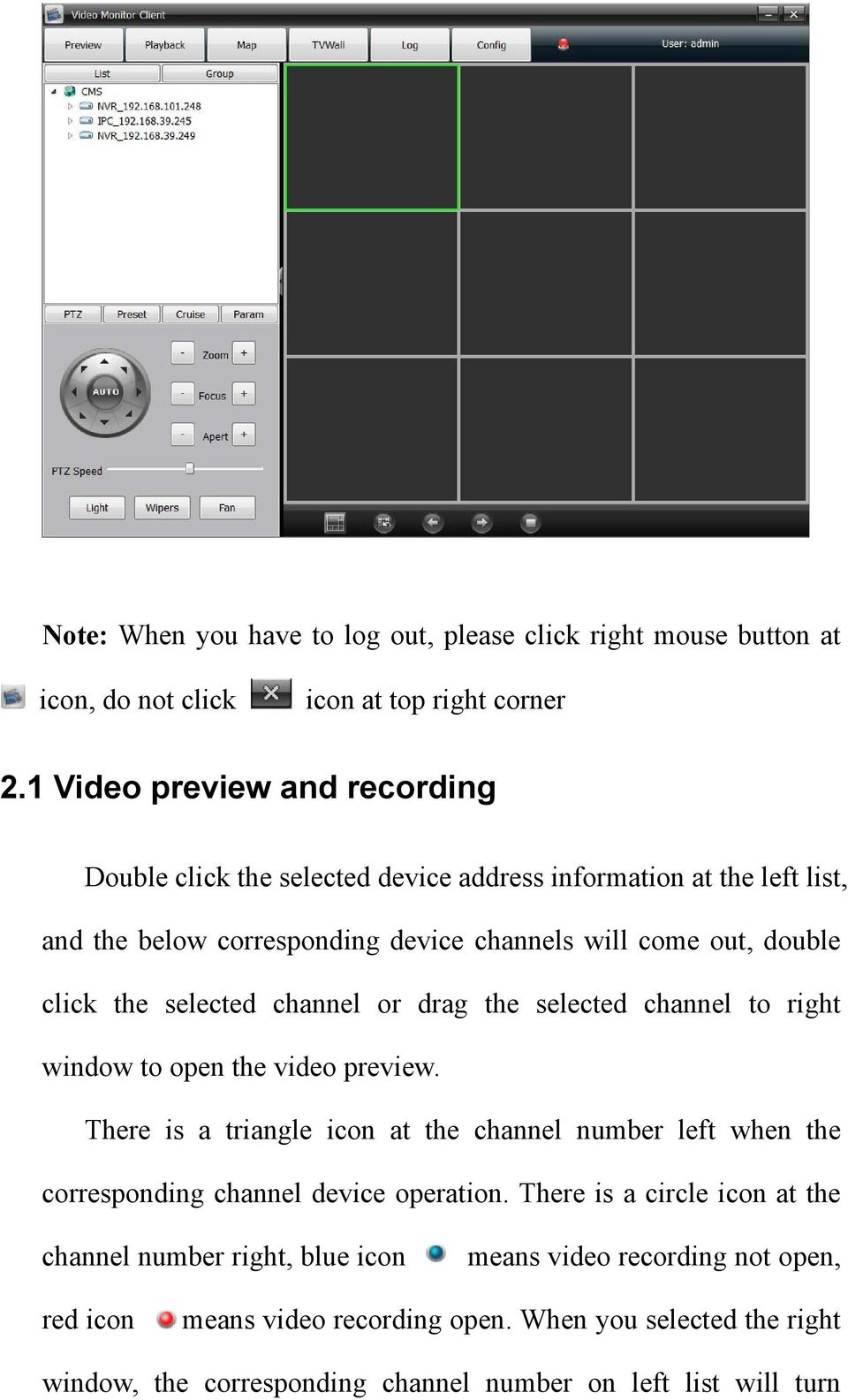
5 After software installation successfully, click the corresponding desktop icon to operate it. The follow interface will pop out, input username and password ( Default Username is admin, password is blank) to log in. Any modification for ADMN please go to client-side to handle: As log in the main interface, it divide into 6 modules include Preview, Playback, Map, TVwall, Log, Config:

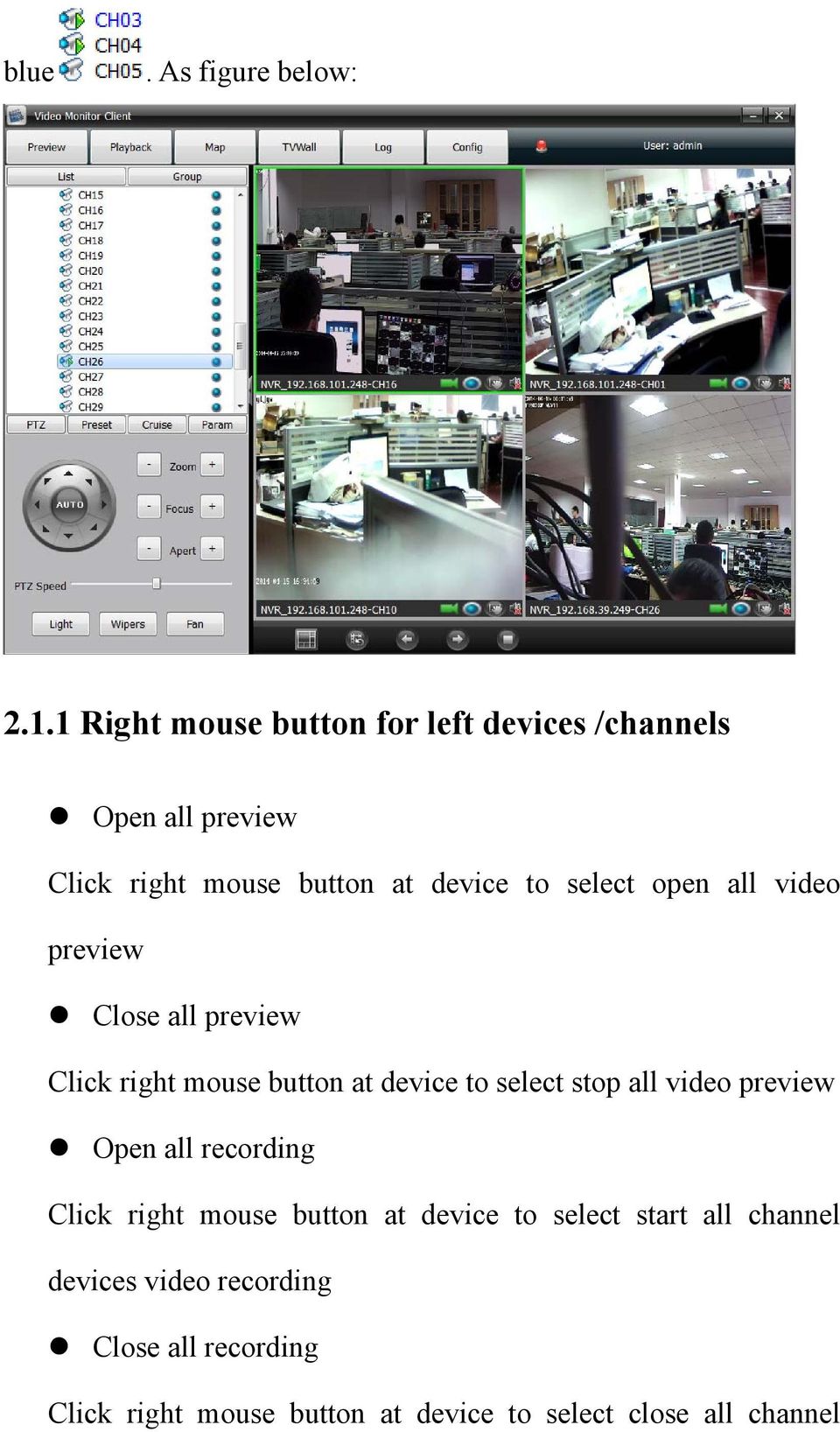
6 Note: When you have to log out, please click right mouse button at icon, do not click icon at top right corner 2.1 Video preview and recording Double click the selected device address information at the left list, and the below corresponding device channels will come out, double click the selected channel or drag the selected channel to right window to open the video preview. There is a triangle icon at the channel number left when the corresponding channel device operation. There is a circle icon at the channel number right, blue icon means video recording not open, red icon means video recording open. When you selected the right window, the corresponding channel number on left list will turn
7 blue. As figure below: Right mouse button for left devices /channels Open all preview Click right mouse button at device to select open all video preview Close all preview Click right mouse button at device to select stop all video preview Open all recording Click right mouse button at device to select start all channel devices video recording Close all recording Click right mouse button at device to select close all channel
8 devices video recording Start/Stop record Click right mouse button at channel to select start or stop the channel video recording Main stream/ Sub stream Click right mouse button at channel to select main stream or sub stream Right mouse button for windows Stop preview Click right mouse button to stop the selected window video preview Capture Click right mouse button to do real-time capture for preview interface, and then store the capture file to specified directory Start/ Stop record Click right mouse button to start or stop the the corresponding channel local video recording Open/ Close sound Click right mouse button to set open or close the corresponding channel audio preview( There are only support opening one

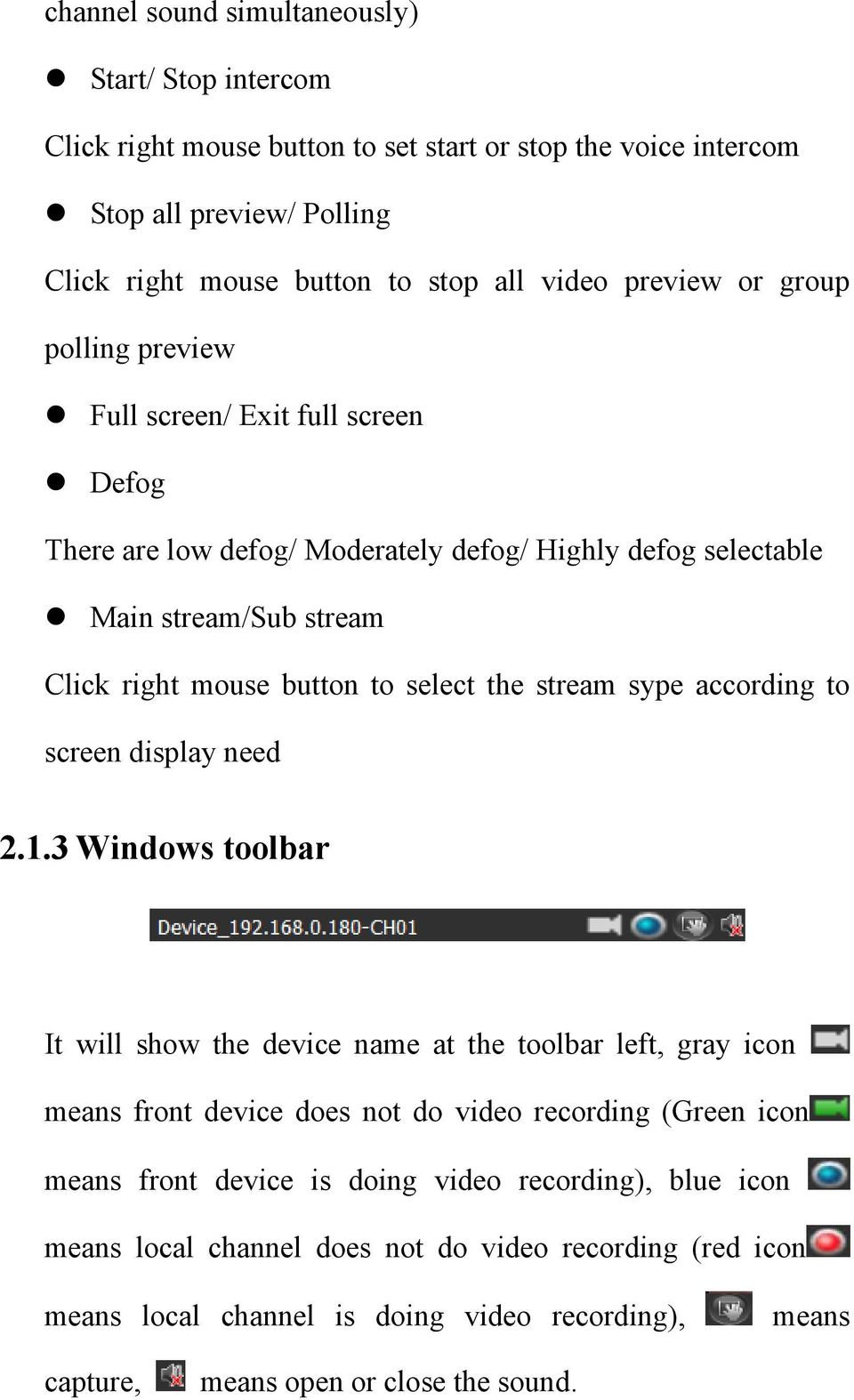
9 channel sound simultaneously) Start/ Stop intercom Click right mouse button to set start or stop the voice intercom Stop all preview/ Polling Click right mouse button to stop all video preview or group polling preview Full screen/ Exit full screen Defog There are low defog/ Moderately defog/ Highly defog selectable Main stream/sub stream Click right mouse button to select the stream sype according to screen display need Windows toolbar It will show the device name at the toolbar left, gray icon means front device does not do video recording (Green icon means front device is doing video recording), blue icon means local channel does not do video recording (red icon means local channel is doing video recording), means capture, means open or close the sound.
10 2.1.4 Below toolbar at the video preview windows All the icon at the toolbar respectively is Set split-screen, Start/Stop polling, Last group, Next group, Stop all preview/ Polling Device video group polling Add two or more then two channels video to compose a group( More details for operation steps please refer to Config module introduction), Click below: icon to start group video polling. As figure Click the icon once again to stop group video polling, Click icon to close group video polling.

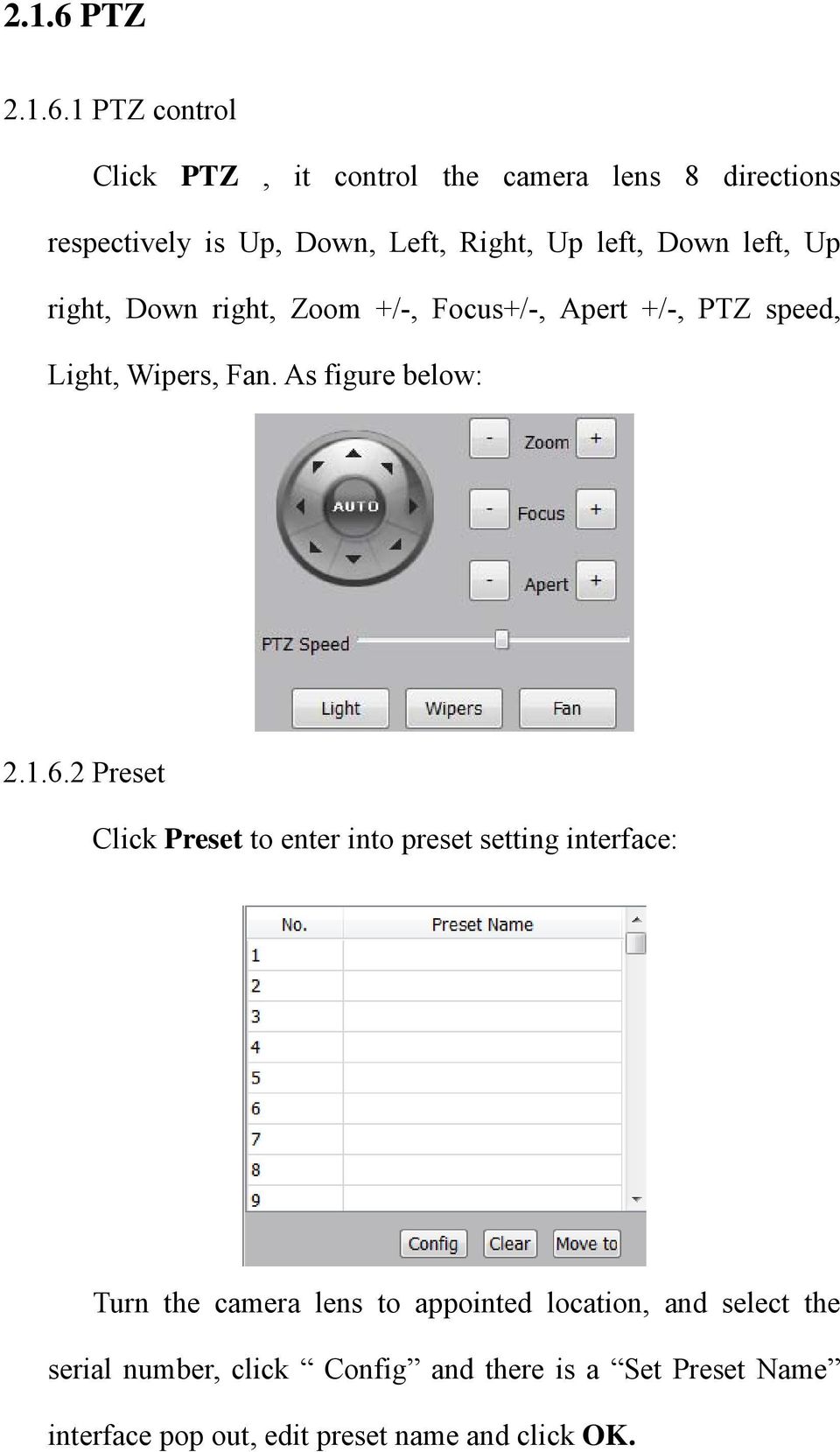
11 2.1.6 PTZ PTZ control Click PTZ, it control the camera lens 8 directions respectively is Up, Down, Left, Right, Up left, Down left, Up right, Down right, Zoom +/-, Focus+/-, Apert +/-, PTZ speed, Light, Wipers, Fan. As figure below: Preset Click Preset to enter into preset setting interface: Turn the camera lens to appointed location, and select the serial number, click Config and there is a Set Preset Name interface pop out, edit preset name and click OK.
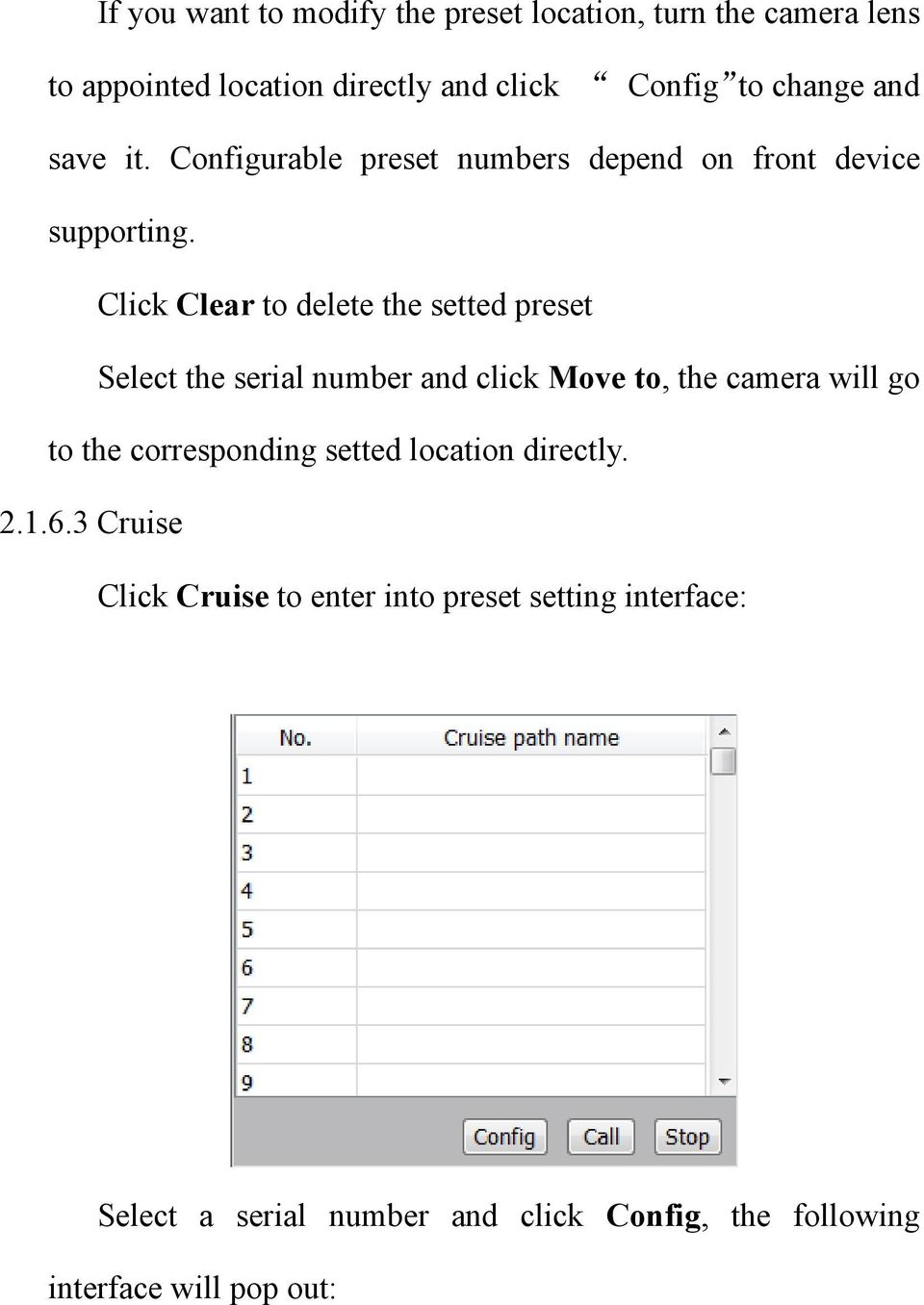
12 If you want to modify the preset location, turn the camera lens to appointed location directly and click Config to change and save it. Configurable preset numbers depend on front device supporting. Click Clear to delete the setted preset Select the serial number and click Move to, the camera will go to the corresponding setted location directly Cruise Click Cruise to enter into preset setting interface: Select a serial number and click Config, the following interface will pop out:
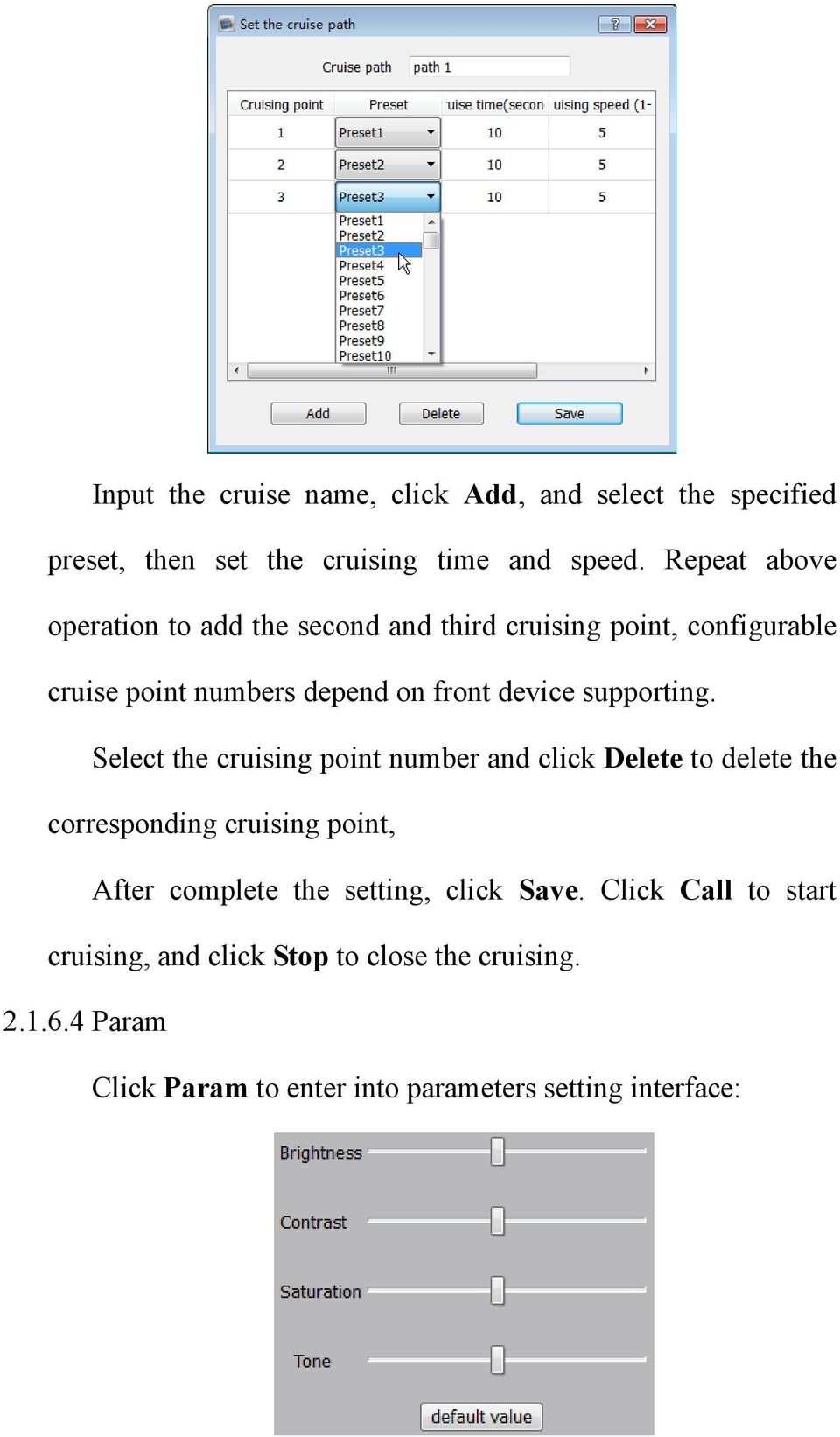
13 Input the cruise name, click Add, and select the specified preset, then set the cruising time and speed. Repeat above operation to add the second and third cruising point, configurable cruise point numbers depend on front device supporting. Select the cruising point number and click Delete to delete the corresponding cruising point, After complete the setting, click Save. Click Call to start cruising, and click Stop to close the cruising Param Click Param to enter into parameters setting interface:
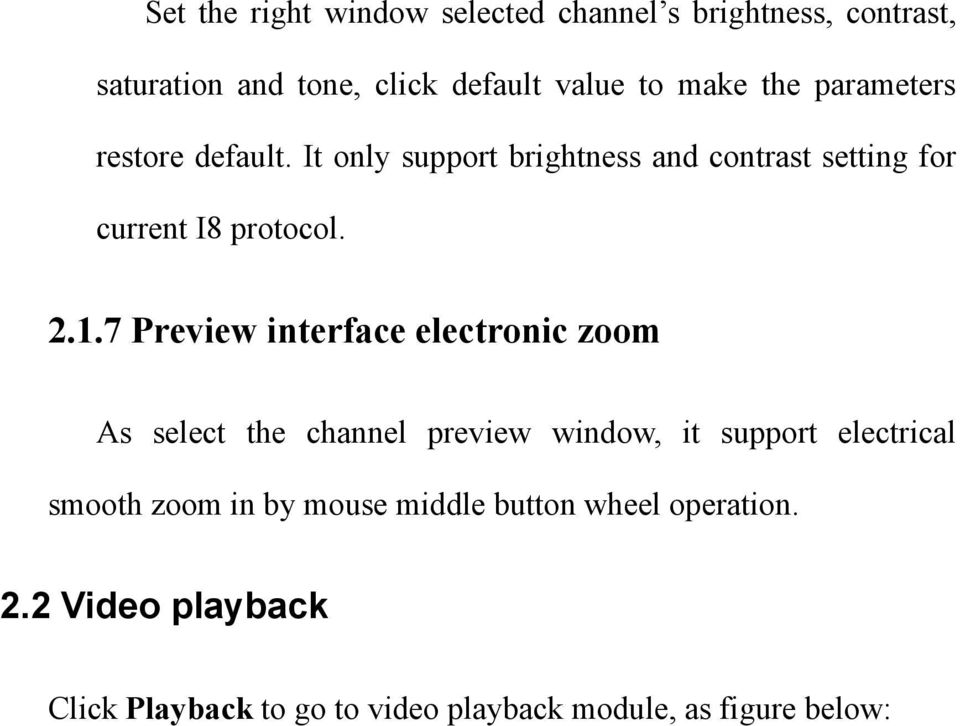
14 Set the right window selected channel s brightness, contrast, saturation and tone, click default value to make the parameters restore default. It only support brightness and contrast setting for current I8 protocol Preview interface electronic zoom As select the channel preview window, it support electrical smooth zoom in by mouse middle button wheel operation. 2.2 Video playback Click Playback to go to video playback module, as figure below:
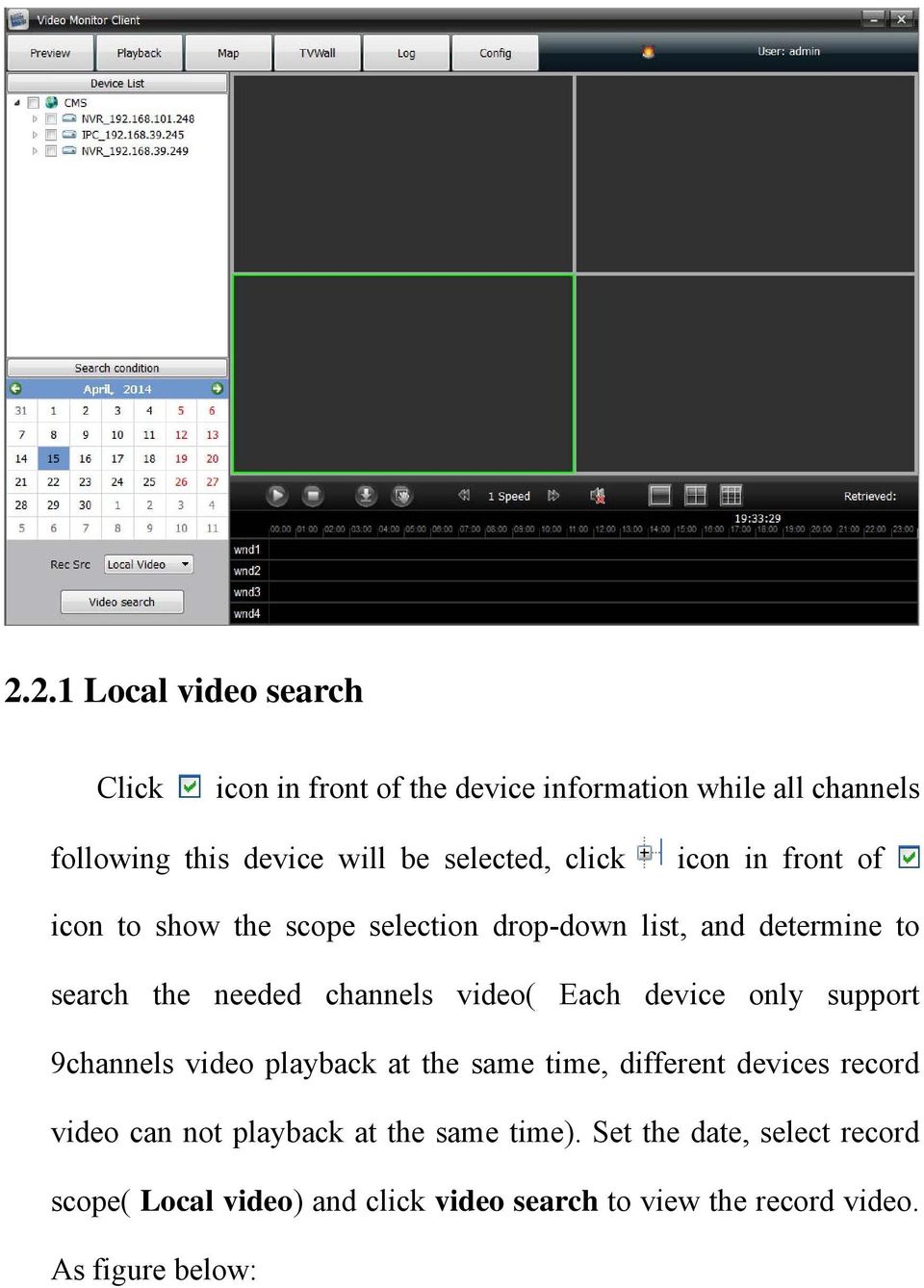
15 2.2.1 Local video search Click icon in front of the device information while all channels following this device will be selected, click icon in front of icon to show the scope selection drop-down list, and determine to search the needed channels video( Each device only support 9channels video playback at the same time, different devices record video can not playback at the same time). Set the date, select record scope( Local video) and click video search to view the record video. As figure below:
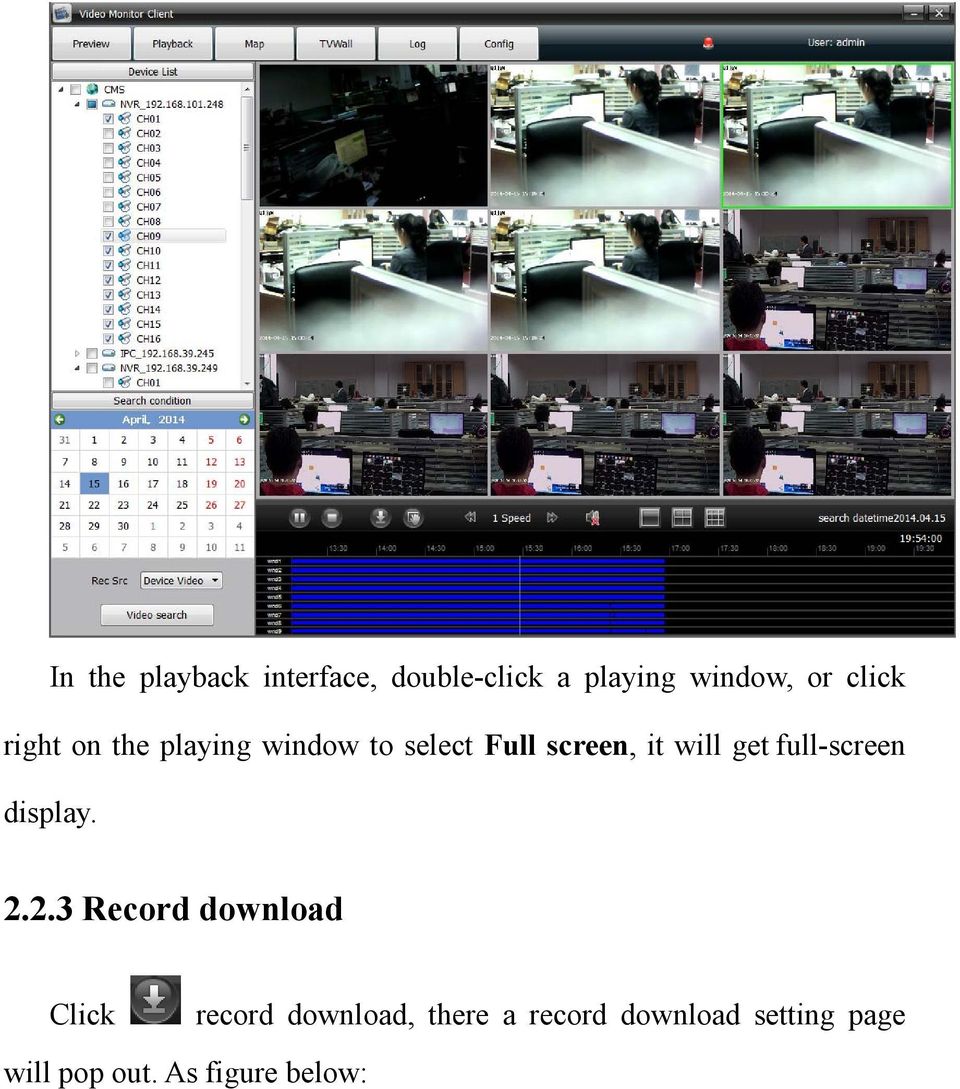
16 2.2.2 video playback Click to play, click to stop, double-click on the video progress bar can pinpoint playback. As figure below:

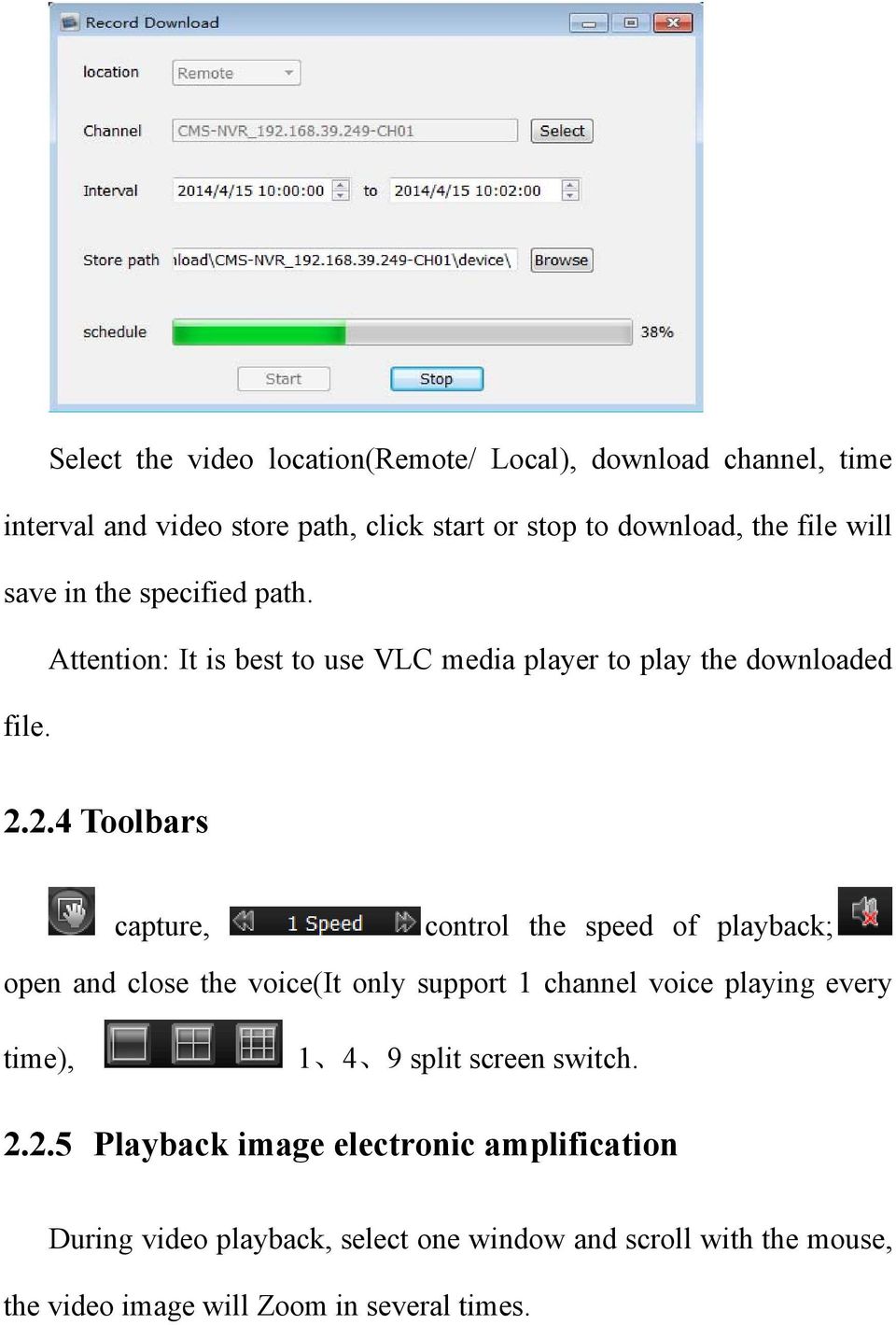
17 In the playback interface, double-click a playing window, or click right on the playing window to select Full screen, it will get full-screen display Record download Click record download, there a record download setting page will pop out. As figure below:
18 Select the video location(remote/ Local), download channel, time interval and video store path, click start or stop to download, the file will save in the specified path. Attention: It is best to use VLC media player to play the downloaded file Toolbars capture, control the speed of playback; open and close the voice(it only support 1 channel voice playing every time), split screen switch Playback image electronic amplification During video playback, select one window and scroll with the mouse, the video image will Zoom in several times.
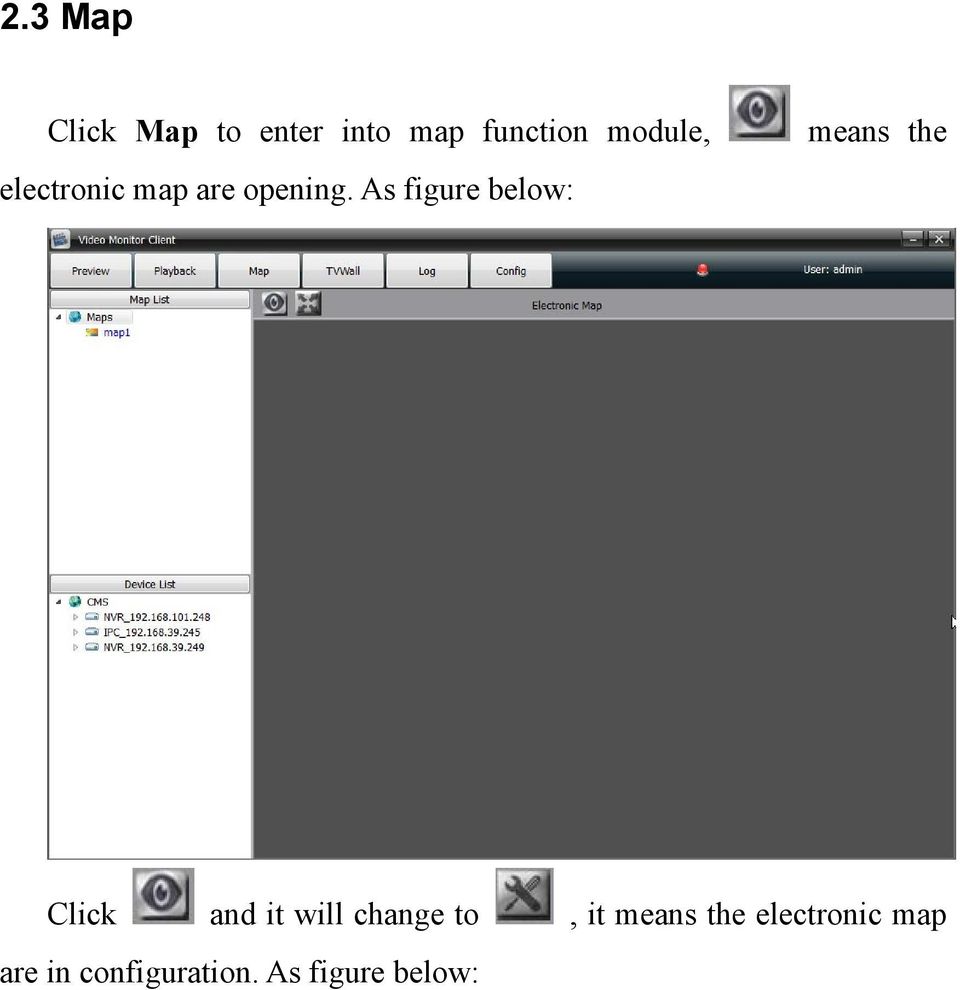
19 2.3 Map Click Map to enter into map function module, electronic map are opening. As figure below: means the Click and it will change to, it means the electronic map are in configuration. As figure below:
20 2.3.1 Add map Click right key on and select New Map, the follow interface will pop out, edit the map name and add a map image, click OK, the map added successfully.
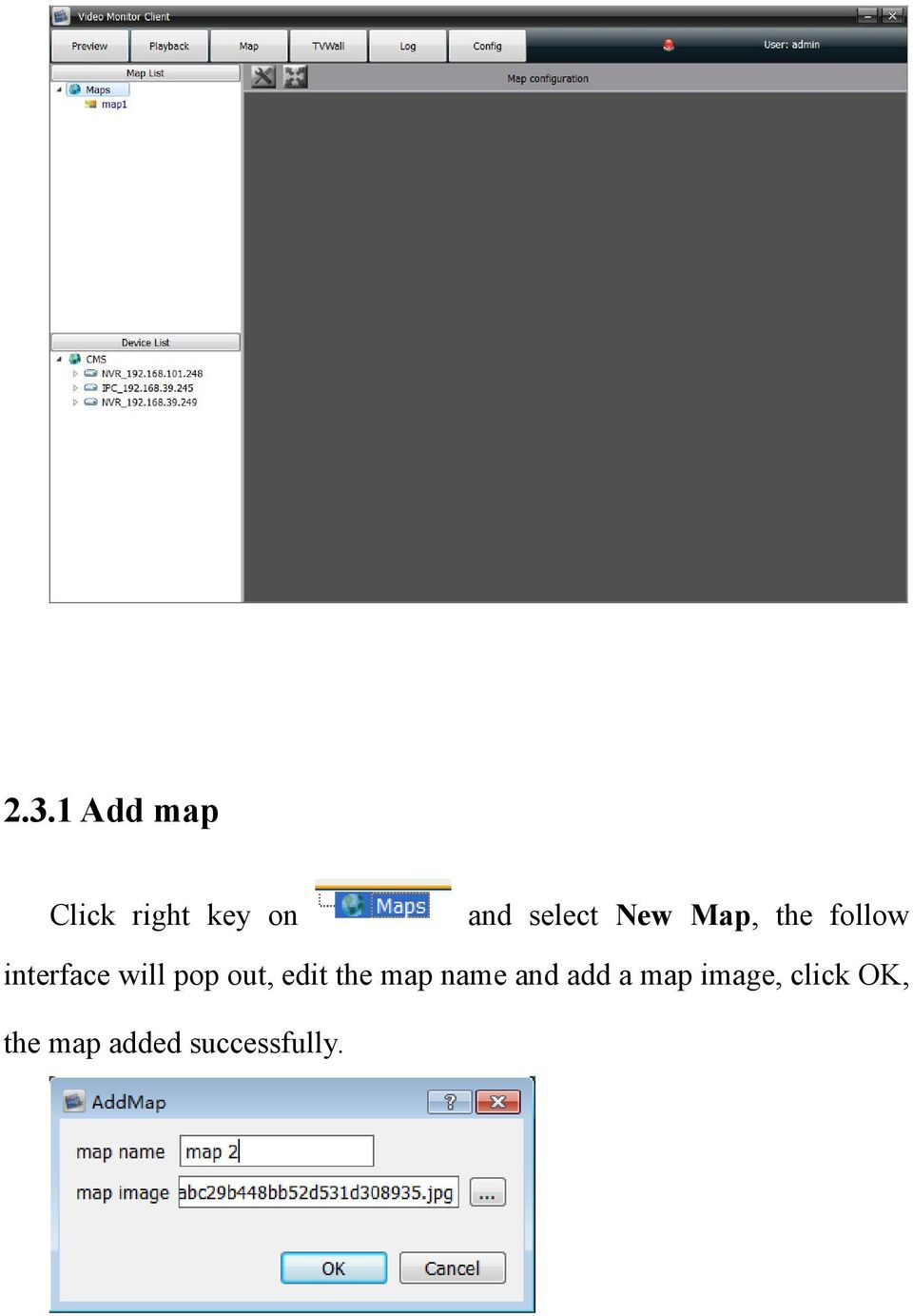
21 When the electronic map display, the corresponding name will turn blue Right-click on map name Delete map Delete the current map Add child map Add a sub map for the current map, there are only 2 levels for each main map, so it can not add a new map under the sub map. icon will appear on the main map, double click to open the sub map( It is only available for the map situation is ) Click icon on sub-map to return to the main map Right-click on / icon
22 Select the channel in the device list and drag on the map to successful set up defence. As figure below: remove channel Delete the channel from the map channel icon There are two icons for selectable: monitor icon and gun icon Motion detection: Set the motion detection alarm linkage, when the alarm is triggered, it will popping preview window automatically in the electronic map. Loss of signal: Set the signal loss alarm linkage, when the alarm is triggered, it will popping preview window automatically in the electronic map.
23 Shelter alarm: Set the video shelter alarm linkage, when the alarm is triggered, it will popping preview window automatically in the electronic map. Alarm input: Set the alarm output linkage,when the alarm is triggered, it will popping preview window automatically in the electronic map. (As aimed at NVR series, the front part of alarm input signal is NVR local alarm input, the behind part signal front-end IPC alarm input) Electronic map Enter into the module of electronic map( Icon status): Right-click on / icon Channel preview
24 Channel playback (Operation details please refer to the 2.2 Video playback ) alarm linkage preview After the front device alarm toggle opened, and linked to this network video monitoring software, the linkage channel will pop out the preview window as alarm detected, the channel icon in the map and red light on the screen right corner will flashing simultaneously. The software can handle multiple channels alarm linkage at the same time, and support different map linkage alarm preview windows which pop out at the same time Map widening, narrowing and full screen Map support the mouse scroll to widening and narrowing
25 icon used to widen screen map, icon used to close the full screen map 2.4 TV -Wall Decoder list was used to add decoder and show the decoder added. Right-click menu decoder, select Add decoder, the follow interface will pop out, As figure below:
26 Input the device IP, port, device name of decoder and then click OK. If there are many decoders, click search and open the search interface. As figure below: Check multiple decoder devices, click Bulk add. Or check and add the decoder device one by one. After add the decoder, according to the TV-wall to set matrix display through the toolbar on the screen below, input the numbers and click SET. As figure below:
27 Matrix right-click menu: Add new matrix/delete matrix TV-wall daily TV-wall daily include decoder preview and decoder rotation. Drag the decoder to the matrix, there will appear relevant information about decoder on the screen. As figure below:
28 icon shows the condition of decoder: means the decoder is used to preview only means the decoder is used to rotation only shows the decoder status of set/remove defence means the decoder removed the defence and can not support video display on the TV wall means the decoder set the defence and can support video display on the TV wall means it is used to delete the channel of decoder : select the split screen, and click icon is used to amend the split screen of decoder Right click: Delete matrix output/ widening display Decoder preview Transfer the wall into preview status, drag the device channel into decoder split screen directly. As figure below:
29 Decoder rotation Transfer the wall into rotation status, it indicate the wall is in rotation condition. User add channels into group. As figure below: After added group successfully, double-click a group icon into configuration state. Then drag the channel to the group, the
30 dragged channels will be recorded in the decoder. As figure below: While all group are setting done, click to open rotation. switch to last group to monitoring switch to next group to monitoring close the rotation it is used to set the time of rotation TV-wall playback Click playback to check the record video. As figure below:
31 One decoder only support one channel record video playback at every time,, each device only support 9channels video playback at the same time, different devices record video can not playback at the same time. Drag channels to the decoder then select the time and position of video, finally click the button of video search. As figure below:
32 click to play record video, or precisely click the record video blue bar directly close the playback control the playback speed. 2.5 Log Alarm logs Alarm logs: It can be search out as the front device marked alarm signal upload center, it can be search out if check the alarm of upload center in device side which respond to the alarm linkage rule in client-side. It will show the relevant information of rules in linkage action and playback. As the picture below:
33 The type of alarm can be divided into alarm input, motion detection, video shelter, video lost. Alarm source come from the device channels. Begin time and end time is the time of alarm triggered and the time of alarm stop. Linkage action shows the relevant linkage rule information, such as there will show pop image chars if set video action linkage. In the playback, icon indicate that there a record video, click the icon to play Operation logs Operation logs : All users operations will be recorded, and the operation type include: All type, log in/out, add/ delete devices, setup/ cancel alarm, open/ close record, remote configuration, set alarm linkage.
34 2.5.3 Remote logs Remote log is to search the alarm information saved in the front-end device. Select the front-end device, set date and type then click Search, all alarm information of the preset time period will appear in the blank area. As figure below: 2.6 configuration Device manage Click and enter into the device manage configuration page. As figure below:
35 Right-key on left area icon Add area Right click to add a new sub-area, input the area name and save it. Add device Right click to select Add device, and the follow interface will pop up: Input the information and click OK to add successfully, or click
36 , the follow interface will pop up: Search: Click to update the device information Select: Select one device and click to select, add the device into CMS. As figure below: Batch add: check one or more device simultaneously, click the Batch add to add series devices one-time. Cancel : Close the window Sub menu delete node Right click to select delete node to remove the device( If the device in
37 the video preview/video record/ video playback, it can not delete) Modify the sub menu device name Right click to select Update node name to modify the device name Refresh channel name Right click to select to refresh the channel name Set alarm Right click to open alarm linkage Set IP channel click Click to list the IPC in online IPC then select IPC and, add it to NVR channel successfully. Select the channel in NVR channel, click to cancel channel Select the channel in NVR channel ( Notice the device base color, not behind the device information ), click to move up channel Select the channel in NVR channel ( Notice the device base color,
38 not behind the device information ), click to move down channel. Double-click the device on online IPC, users can change IP param and others of IPC in modify IPC net param area. Double-click the channel of NVR channel, input the correct param (user name and password) in NVR channel param area to ensure NVR can connect IPC Remote configuration Select the device and click remote config:
39 Remote configuration can be used to modified device parameter, more specific operations please refer to device specification manual Right click to add group node Right click on icon to add group Right click on group name to select Delete group to delete it Select the device channel in the left area, and select specified group in the right area, click then click to add the channel in the specified group. Select the device information in the right area and click to remove it Select the group and click, to sorting it.
40 2.6.2 local config Click enter into the local configuration page. As figure below: Capture file path/ Download file path: Set the file store path. Click Open to find the file location. Group polling time: Set the group preview time 10 seconds in general. Alarm sound configuration:
41 Users can set the custom alarm sound, click to select the audio file, change the old audio file into the new audio file, click to preview audio file. Attention: Only support WAV format audio. window display scale: Set the video display scale, users can select 16:9, 4:3 and full screen. Remember login: user can log in directly next time after select Auto login. Remember to open preview: Users can get continuous video preview as who turn off the software directly before, and the record video stored also. Local record configuration
42 Select the saved path of local video, set reserve space and wether cycling the video. It will work after modified the param and click the button of modify. Click auto switch stream Sub stream for above 4 split screen, main stream for 1/4 split screen. Fast mode: Opened the main stream and sub stream simultaneously in fact, it only change the display chars at every stream switch Save switch stream: It have to turn off the current stream then turn to another stream, the speed is a little slow then Fast mode Non click auto switch stream: Right click on the preview window to select the stream type Color for front-end video record type Different color means different video record type for front-end device.
43 software version: The current software version users manage Click users manage in configuration module then enter into the users manager page. Add user: click Add to open the add user page:
44 Define user name and password, user authority can be subdivided to single device channel when checking. To note here is:if device has no preview authority, it will not offer other permissions, if the channel has preview authority, it support video record automatically. User modify: Modify the name, password, permission of ordinary user, superuser (It is the first client, we call it root) allowed to modify password only. User delete: cancel the ordinary user but super-user alarm linkage Click Linkage config to enter the alarm linkage setting page. As figure below:
45 This is used to configurate alarm linkage information and manage the configured alarm linkage. Click new alarm linkage,as figure below : Rule name: Rule name (user defined)
46 Type: Alarm input,motion detection, video cover, video lost Source: Select any device channel for alarm linkage Linkage action: Corresponding actions for alarm signal receiving, user can select one or more linkage action including : sound: Buzzer alarm Map: Alarming on the electronic map TV wall: Alarming on the TV wall Preview: Popp up a preview window Record: Alarm triggered video record Capture: Alarm triggered capture PTZ: Alarm triggered PTZ control Action param: Display the relevant action information Remark : Indicate the alarm information(user defined)
Network Video Monitor Software
 Network Video Monitor Software V2.0.0.7 Operation menu Chapter 1 Product Overview 1.1 Performance instruction Network video monitoring software is a centralized management software for I8 protocol surveillance
Integrated Intelligent Video Surveillance Management System. User's Manual V2.0
 Integrated Intelligent Video Surveillance Management System User's Manual V2.0 1 Contents 1. Product Description... 4 1.1. General Information... 4 1.2. System Topology... 5 1.3. Operating Environment...
NVMS-1200. User Manual
 NVMS-1200 User Manual Contents 1 Software Introduction... 1 1.1 Summary... 1 1.2 Install and Uninstall... 1 1.2.1 Install the Software... 1 2 Login Software... 3 2.1 Login... 3 2.2 Control Panel Instruction...
NVMS - 1000 USER MANUAL. Version 2.1.0
 NVMS - 1000 USER MANUAL Version 2.1.0 Contents 1 Software Introduction... 1 1.1 Summary... 1 1.2 Operation Environment... 1 1.3 Install and Uninstall... 2 1.3.1 Install the Software... 2 1.3.2 Uninstall
UC2 Video Surveillance Client. User Manual V1.0.6
 UC2 Video Surveillance Client User Manual V1.0.6 MODIFY STEPS VERSION WRITER STATUS DESCRIPTION DATE V1.0.3 BRIAN A Add access mode function 2011-4-11 V1.0.4 BRIAN A Add PTZ and user role and so on 2011-4-23
How To Set Up Flir Cloud Client For Pc Or Mac Or Mac (For Pc Or Ipad) On A Pc Or Pc Or Mouse (For Mac) On An Iphone Or Ipa) On Pc Or Tv (For Ipa
 Instruction Manual FLIR Cloud Services Client Instruction Manual FLIR Cloud Services Client #LX400018; r. 2.0/14567/14568; en-us iii Table of contents 1 Setting up FLIR Cloud Client for PC or Mac...1
ivms-4200 Client Software Quick Start Guide V1.02
 ivms-4200 Client Software Quick Start Guide V1.02 Contents 1 Description... 2 1.1 Running Environment... 2 1.2 Surveillance System Architecture with an Performance of ivms-4200... 3 2 Starting ivms-4200...
ImagineWorldClient Client Management Software. User s Manual. (Revision-2)
 ImagineWorldClient Client Management Software User s Manual (Revision-2) (888) 379-2666 US Toll Free (905) 336-9665 Phone (905) 336-9662 Fax www.videotransmitters.com 1 Contents 1. CMS SOFTWARE FEATURES...4
1. Central Monitoring System Software
 1. Central Monitoring System Software 1-1. General information CMS program is an application with which users not only watch and control remote DVRs, but also receive video/audio data or alarm signals
Multi-Site 4200. Remote Viewing Software. User Guide
 Multi-Site 4200 Remote Viewing Software User Guide Document 800-12064V1 Rev A 09/2012 User Guide Revisions Issue Date Revisions A 07/2012 New document. V1 Rev A 09/2012 Updated the description of the
1. Central Monitoring System Software
 1. Central Monitoring System Software 1-1. General information CMS program is an application with which users not only watch and control remote DVRs, but also receive video/audio data or alarm signals
NetClient software user manual
 NetClient software user manual 1-1. General information Net Client is an application which provides users not only viewing and controling remote DVRs, but also receiving realtime event data or alarm signals
VMS A1 Client Software. User Manual (V2.0)
 VMS A1 Client Software User Manual (V2.0) Contents Chapter 1 Overview...4 1.1 Description...4 1.2 Running Environment...4 1.3 Function Modules...5 Chapter 2 Live View...7 2.1 User Registration and Login...7
User s Manual of DVR DVS Remote Client Software V 4.0.1
 User s Manual of DVR DVS Remote Client Software V 4.0.1 Index Version description...4 1 Introduction...8 2 Software Install, Uninstall and use...9 2.1 Install remote client software ver4.0.1...9 2.2 Uninstall
Central Management Software CV3-M1024
 Table of Contents Chapter 1. User Interface Overview...5 Chapter 2. Installation...6 2.1 Beginning Installation...6 2.2 Starting the CMS software...10 2.3 Starting it from the Start menu...10 2.4 Starting
Contents. 1.2 Software Installation... 1
 Software Manual Contents 1 Software Installation... 1 1.1 Overview...1 1.2 Software Installation... 1 2 Introduction To Basic Function...5 2.1 Login System... 5 2.2 CMS Operating Interface...5 2.2.1 Operating
NVMS Network Video Monitor System Standard Edition. Users Manual
 Network Video Monitor System Standard Edition Users Manual Contents Contents... 1 1. Introduction... 2 1.1. Brief Introduction... 2 1.2. Definition... 3 1.3. System Features... 3 1.4. System operating
Professional Surveillance System User s Manual
 Professional Surveillance System User s Manual Version 4.06 Table of Contents 1 OVERVIEW AND ENVIRONMENT... 1 1.1 Overview... 1 1.2 Environment... 1 2 INSTALLATION AND UPGRADE... 2 2.1 Installation...
PC-ZViewer User Manual
 PC-ZViewer User Manual For further help, please visit www.zmodo.com Contents Preface... 3 Statement... 3 Intended Reader... 3 Terms in this Manual... 3 Software Introduction... 3 Operating Environment...
IPC Video Surveillance Client. User Manual V1.1.2
 IPC Video Surveillance Client User Manual V1.1.2 Statement Thank you for purchasing our products! If you have any questions or need, please contact the customer department at any time. This manual applies
Instruction for IE network monitor
 Instruction for IE network monitor This system features a built-in browser-based software that allows you to access your system remotely over your local area network (LAN) or over the Internet (WAN) using
Professional Surveillance System User s Manual
 Professional Surveillance System User s Manual \ 1 Content Welcome...4 1 Feature...5 2 Installation...6 2.1 Environment...6 2.2 Installation...6 2.3 Un-installation...8 3 Main Window...9 3.1 Interface...9
contents 1.1 Introduction...4 1.2 running the environment...4 Chapter 2 install and uninstall 2.1 The installation of monitoring software...
 1 Chapter 1 monitoring software is introduced. contents 1.1 Introduction...4 1.2 running the environment...4 Chapter 2 install and uninstall 2.1 The installation of monitoring software...5 2.2 Monitoring
A quick user guide for your LX Apollo DVR
 A quick user guide for your LX Apollo DVR The LX Apollo series of DVR s is designed specially for the security and surveillance field and is an outstanding digital surveillance product. It has an embedded
1. Central Monitoring System Software
 1. Central Monitoring System Software 1-1. General information CMS program is an application with which users not only watch and control remote DVRs, but also receive video/audio data or alarm signals
ACS CLIENT SOFTWARE USER MANUAL
 ACS CLIENT SOFTWARE USER MANUAL 1 ACS USER GUIDE 1.1 System Requirement Recommended System Requirement OS CPU VGA RAM HDD WindowXP, Vista Pentium 4, 2Ghz 1024*768, 64MB 24bit color graphic card 1GB 20MB
ivms-4200 Intelligent Video Management System Quick Start Guide
 ivms-4200 Intelligent Video Management System Quick Start Guide Notices The information in this documentation is subject to change without notice and does not represent any commitment on behalf of HIKVISION.
Centralized Monitoring Management Platform Manual
 Centralized Monitoring Management Platform Manual 1 Contents 1 Products...3 1.1. Summary...3 1.2. Network topology...4 1.3. Application Environment...4 1.4. Related technology...4 2. System Architecture...5
Professional Surveillance System User s Manual
 Professional Surveillance System User s Manual Version 4.06 Table of Contents 1 OVERVIEW AND ENVIRONMENT... 1 1.1 Overview...1 1.2 Environment...1 2 INSTALLATION AND UPGRADE... 2 2.1 Installation...2 2.2
CMS Client Software. Instruction
 CMS Client Software Instruction Version:1.0 CONTENTS 1 Introduction & operation of CMS Client software... 3 1.1 DVR Network Remote Client... 3 1.1.1 Login... 3 1.1.2 Introduction of main interface... 3
Central Management System (CMS) USER MANUAL
 Central Management System (CMS) USER MANUAL LEGAL INFORMATION Reproduction, transfer, distribution or storage of part or all of the contents in this document in any form without the prior written permission
KViewCenter Software User Manual 2012 / 04 / 20 Version 2.2.1.0
 KViewCenter Software User Manual 2012 / 04 / 20 Version 2.2.1.0 Table of Contents Chapter 1. KViewCenter Interface... 5 1.1. Log in.... 5 1.2. Log out... 5 1.3. Control Panel... 6 1.4. Control Panel (Preview
ivms-4200 Client Software Quick Start Guide
 ivms-4200 Client Software Quick Start Guide Notices The information in this documentation is subject to change without notice and does not represent any commitment on behalf of HIKVISION. HIKVISION disclaims
TREND series H.264 DVR Central Management System Quick User Guide
 TREND series H.264 DVR Central Management System Quick User Guide Table of Contents 1. Introduction... 2 2. Install CMS/NVMS Software... 3 3. Create DVR Device... 9 3.1 Add DVR to CMS... 9 3.2 DVR Automatically
ivms-4200 Client Software User Manual Version 1.02
 ivms-4200 Client Software User Manual Version 1.02 Contents Chapter 1. Overview... 3 1.1 Description... 3 1.2 Running Environment... 3 Chapter 2. Starting ivms-4200... 4 2.1 User Registration... 4 2.2
PowerVideo Plus. EverFocus Central Management Software. for Networked Video Devices Management. User s Manual
 EverFocus Central Management Software for Networked Video Devices Management User s Manual Copyright EverFocus Electronics Corp. Release Date: January, 2013 Copyright 2012 EverFocus Electronics Corp. All
ivms-4200 Client Software User Manual (V2.0.0)
 ivms-4200 Client Software User Manual (V2.0.0) UD.6L0201D1034A01 Contents Chapter 1 Overview... 3 1.1 Description... 3 1.2 Running Environment... 3 1.3 Function Modules... 3 1.4 Updates Instruction...
DVS Net (Integration)
 DVS Net (Integration) Installation and User s Guide Ver 11.10.x Digital Video Security System Digital Video Recorder www.tuniss.com PLEASE CALL TUNISS COMPUTER AT: 650-401-6138 FOR ANY QUASTIONS REGARDING
IP Camera Centralization Management. Client Application. (IPCMonitor) Feb, 2013 Version 1.9. User Manual
 IP Camera Centralization Management Client Application (IPCMonitor) Feb, 2013 Version 1.9 User Manual INDEX 1 Introduction...3 2 Computer Requirement...3 3 Installation...4 4 Devices list...4 4.1 Adding
How To Use Hvs Pc Client Software On A Pc Or Mac Or Ipa (For Acedo) With A Tvc (For Mac) Or Ipc (Fordee) (For An Ipc) (Powerbook) (Windows
 Hills Video Security CCTV PC Client User Manual V1.1 Contents Chapter 1 Overview... 3 1.1 Description... 3 1.2 Running Environment... 3 1.3 Function Modules... 4 1.4 Updates Instruction... 6 Chapter 2
Access to remote DVR from IE USER S MANUAL CONTENT
 Access to remote DVR from IE CONTENT... 2 Preface... 2 1. Introduction... 2 2. System requirement and executing environment... 2 2.1. Supported operating System:... 2 2.2. Hardware requirement (recommend):...
XMEye Android Mobile Monitoring Client English Manual
 XMEye Android Mobile Monitoring Client English Manual Written by: The test department Prepared Date: 2014-03-25 Version: V1.0 目 录 1. Introduction... 3 1.1. Brief Introduction... 3 1.2. Main Functions...
DVR4C Remote Viewer Operation Manual Table of Contents EN 3 1. OVERVIEW...5 1.1 MINIMUM PC REQUIREMENTS...5 2. INSTALLING THE PROGRAM...
 DVR4x4RemoteViewer.book Page 3 Tuesday, February 15, 2005 9:19 AM DVR4C Remote Viewer Operation Manual Table of Contents EN 3 1. OVERVIEW...5 1.1 MINIMUM PC REQUIREMENTS...5 2. INSTALLING THE PROGRAM...5
Content. Chapter1 Start up and Main interface 2
 Content Chapter1 Start up and Main interface 2 1.1 Start up 2 1.2 Main interface 3 1.2.1 Interface description 3 1.2.2 Local setup 6 1.2.3 Local search 6 1.2.4 Remote setup 6 1.2.5 Remote search 6 1.2.6
Network Video Recorder. Operation Manual
 Network Video Recorder Operation Manual Content 1 Product Description... 1 1.1 Product Overview... 1 1.2 Specification... 1 2 Product Structure Introduction... 2 2.1 Back Interface... 2 2.2 Front Panel...
ivms-4200 Client Software Technical Specification v1.02
 ivms-4200 Client Software Technical Specification v1.02 Introduction ivms-4200 Client Software is a centralized video management software using a distributed structure for surveillance device control and
ivms 4000(V2.0) User Manual
 ivms 4000(V2.0) User Manual Table of Contents Chapter 1 Welcome to ivms 4000 (V2.0)...4 1.1 Overview...4 1.2 Computer Disposition Request...4 1.3 Convention...4 Chapter 2 Install & Uninstall...5 2.1 Install
User Manual of Web Client
 User Manual of Web Client 1 Index Chapter 1 Software Installation... 3 Chapter 2 Begin to Use... 5 2.1 Login and Exit... 5 2.2 Preview Interface Instruction... 6 2.3 Preview Image... 7 Chapter 3 Playback...
ivms-4500 (Android Tablet) Mobile Client Software User Manual (V3.0)
 ivms-4500 (Android Tablet) Mobile Client Software User Manual (V3.0) Thank you for purchasing our product. This manual applies to ivms-4500 (Android Tablet) mobile client software; please read it carefully
Quick Start Guide NVR DS-7104NI-SL/W NVR. www.hikvision.com. First Choice For Security Professionals
 Quick Start Guide NVR DS-7104NI-SL/W NVR NOTE: For more detailed information, refer to the User s Manual on the CD-ROM. You must use your PC or MAC to access the files. www.hikvision.com Quick Start 1.
CMS3.0 CMS3.0. Manual. User. Use V3.01 声 明 非 常 感 谢 您 购 买 我 公 司 的 产 品, 如 果 您 有 什 么 疑 问 或 需 要 请 随 时 联 系 我 们
 CMS3.0 Use ser V3.01 声 明 非 常 感 谢 您 购 买 我 公 司 的 产 品, 如 果 您 有 什 么 疑 问 或 需 要 请 随 时 联 系 我 们 1 This manual maybe exist inexact in technology,product feature,operation discrepancy or misprint. The content of
idvr-pro Viewer Software for Mac User Manual ver 0.1
 idvr-pro Viewer Software for Mac User Manual ver 0.1 1 Contents 1. Introduction... Error! Bookmark not defined. 1.1 Summary... Error! Bookmark not defined. 2. Install... Error! Bookmark not defined. 2.1
HRG App for Android Devices. User Guide
 HRG App for Android Devices User Guide Document 800-12218 Rev A 07/2012 Revisions Issue Date Revisions A 07/2012 New document. Contents 3 Contents 1 1 Introduction...............................................
CDVS-7000 Series Remote Software Users Guide
 CDVS-7000 Series Remote Software Users Guide Crest Electronics, Inc. Version 12.1005 Remote Surveillance Program The remote surveillance program enables users of the Crest 7000 series DVRs to connect remotely
MULTI-CLIENT Remote Monitor Center. User manual
 MULTI-CLIENT Remote Monitor Center User manual Contents 1.Multi-client introduction... 3 2.Main features... 4 3.Working Envoirment and installation... 4 4.Login... 4 5.Using procedures... Ошибка! Закладка
SMS (Server Management Software) Digital Video Recorder. User s Manual
 SMS (Server Management Software) Digital Video Recorder User s Manual Contents 1 - Introduction 2 1.1 About this manual 2 1.2 Configuration 2 1.3 SMS Functions 2 1.4 Product Information 2 1.5 System Requirements
BlackHawk for MAC Software User Guide
 BlackHawk for MAC Software User Guide Products: BLK-DH2 Series and BLK-HD Series DVRs Please read this manual before using your software, and always follow the instructions for safety and proper use. Save
Mobile Video Analysis Software User Guide. Version 2.0.8
 User Guide Version 2.0.8 Content 1. Introduction......1 1.1 Software Overview... 1 1.2 Documentation Overview... 1 1.3 Application Range... 1 1.4 System Requirements... 1 2. Getting Started... 3 2.1 Main
MAC CMS User Manual 1
 1 TABLE OF CONTENTS Chapter 1. Overview... 4 Chapter 2. Starting CMS Client... 4 2.1 User Registration... 4 2.2 Wizard for Importing Device... 4 2.3 User Login... 9 2.4 Control Panel and Main Menu Bar
ZKiVision Client Software User Manual
 Document version: 6.2 Software version: Pro V5.1 Date: May 2014 Overview This document describes the installation, functions, user interface and operations of ZKiVision Client Software. General Instructions
REMOTE AGENT USER S MANUAL
 REMOTE AGENT USER S MANUAL Revision Date : 2006.10.02. 0 INDEX CHAPTER 1. Installation-------------------------------------------------------- 2 CHAPTER 2. Function introduction------------------------------------------------
User Manual V1.0. Remote Software
 User Manual V1.0 Notice: The information in this manual was current when published. The manufacturer reserves the right to revise and improve its products. All specifications are therefore subject to change
Mobile Surveillance. User Manual
 Mobile Surveillance User Manual Contents 1 Network Configuration... 1 1.1 Access Device via WLAN... 1 1.2 Access Device via 3G Network... 1 2 By Phones with iphone OS... 2 2.1 Installation Instruction...
OPERATION MANUAL. MV-410RGB Layout Editor. Version 2.1- higher
 OPERATION MANUAL MV-410RGB Layout Editor Version 2.1- higher Table of Contents 1. Setup... 1 1-1. Overview... 1 1-2. System Requirements... 1 1-3. Operation Flow... 1 1-4. Installing MV-410RGB Layout
ivms-4500(iphone) Mobile Client Software User Manual (V1.0)
 ivms-4500(iphone) Mobile Client Software User Manual (V1.0) Thank you for purchasing our product. This manual applies to ivms-4500 (iphone) mobile client software, please read it carefully for the better
ivms-4500(windows Mobile) Mobile Client Software User Manual Version 1.0
 ivms-4500(windows Mobile) Mobile Client Software User Manual Version 1.0 Thank you for purchasing our product. This manual applies to ivms-4500 (Windows Mobile) mobile client software, please read it carefully
Quick-Start Guide. Remote Surveillance & Playback SUPER DVR MONITORING SOFTWARE. For use on Q-See s QSDT series of PC Securitiy Surveillance Cards
 Quick-Start Guide SUPER DVR MONITORING SOFTWARE Remote Surveillance & Playback For use on Q-See s QSDT series of PC Securitiy Surveillance Cards 2 CONFIGURING ROUTER FOR REMOTE ACCESS REMOTE SURVEILLANCE
User Manual of CMS. Contents
 CMS User Manual Thank you for purchasing our product. If there is any question or request, please do not hesitate to contact the dealer. This manual applies to CMS. This manual may contain several technically
Client Software-4000(V2.00.02) User Manual
 Client Software-4000(V2.00.02) User Manual Index Chapter 1 Welcome to Client Software-4000 (V2.0)... 1 1.1 Overview... 1 1.2 Computer Disposition Request... 1 1.3 Convention... 1 Chapter 2 Install & Uninstall...
Manual Client Management Software HDR50-CMS
 Manual Client Management Software HDR50-CMS HDR50-CMS (Client Management Software) A-1. Install HDR50-CMS for Windows PC HDR50-CMS is a program for communication between DVR and PC to control signal and
Multi Client (Integration)
 Multi Client (Integration) Installation and User s Guide Ver 12.10.x *All contents of this document may change without prior notice. INDEX 1. Index 01 2. Introduction 02 3. Installation 03 4. Using Multi
User Manual (V1.03) UD.6L0201D1056A01
 ivms-4200 PCNVR User Manual (V1.03) UD.6L0201D1056A01 Thank you for purchasing our product. If there is any question or request, please do not hesitate to contact the dealer. This manual applies to ivms-4200
Pro Surveillance System 4.0. Quick Start Reference Guide
 Pro Surveillance System 4.0 Quick Start Reference Guide 1 Table of Contents 1) Overview 3 2) Initial Setup Adding a Connection..4 3) Viewing Live Cameras...6 4) Single or Multi Channel Playback..8 5) Predetermined
IPC series IP camera user manual
 IPC series IP camera user manual 1. Product introduction IPC series IP camera applied embedded RTOS system design, Dual-core T architecture 32-bit TI Da Vinci chip (DSP), Super storage capability, which
User Manual ivms-4200 Client Software. Version 1.02
 User Manual ivms-4200 Client Software Version 1.02 TABLE OF CONTENTS Chapter 1. Overview... 3 Chapter 2. Starting ivms-4200... 3 2.1 User Registration... 3 2.2 Wizard for Importing Device... 3 2.3 User
Remote Client Program... 3. Web Client... 39
 Remote Client / Web Client USER MANUAL T Series Digital Video Recorder Remote Client Program... 3 Remote Client Program Installation... 4 Remote Client... 6 Main Window... 6 Site Registration... 7 Group
ivms-4000 (V2.03.07) Client Software User Manual
 ivms-4000 (V2.03.07) Client Software User Manual Table of Contents User Manual... 2 Table of Contents... 1 Chapter 1 Welcome to ivms-4000 (V2.03.04.07)... 4 1.1 Overview... 4 1.2 Computer Disposition Request...
ivms-4500(android) Mobile Client Software User Manual (V1.0)
 ivms-4500(android) Mobile Client Software User Manual (V1.0) Thank you for purchasing our product. This manual applies to ivms-4500 (Android) mobile client software, please read it carefully for the better
ivms-4200 Client Software Quick Start Guide
 ivms-4200 Client Software Quick Start Guide UD.6L0202B1538A01 Thank you for purchasing our product. If there is any question or request, please do not hesitate to contact the dealer. This manual applies
User Manual. IP Camera. For further help, please visit www.zmodo.com 1
 User Manual IP Camera For further help, please visit www.zmodo.com 1 Preface Preface Dear customer, Thank you for purchasing our products. If there are any questions, or requests, please do not hesitate
CMS Pro. User`s Manual. Professional Central Monitoring Software. Full-featured Enterprise Class Surveillance Solution MADE IN KOREA
 Professional Central Monitoring Software CMS Pro Full-featured Enterprise Class Surveillance Solution User`s Manual MADE IN KOREA M11131CMSProDR This document contains preliminary information and is subject
Local Playback Software User Manual (V2.0)
 User Manual (V2.0) Thank you for purchasing our product. This manual applies to Local Playback software, please read it carefully for the better use of this software. The contents in this manual are subject
AXIS Camera Station Quick Installation Guide
 AXIS Camera Station Quick Installation Guide Copyright Axis Communications AB April 2005 Rev. 3.5 Part Number 23997 1 Table of Contents Regulatory Information.................................. 3 AXIS Camera
XCenter User Manual (For Windows XP/2003/2008/ Vista/Win7)
 Xcenter(v2.0.1.8) User Manual XCenter User Manual (For Windows XP/2003/2008/ Vista/Win7) Document edition: For all IP cameras and digital video servers made in our company. 1/39 Xcenter(v2.0.1.8) User
ivms-4500 (Android) Mobile Client Software User Manual (V3.1)
 ivms-4500 (Android) Mobile Client Software User Manual (V3.1) UD.6L0202D1111A01 Thank you for purchasing our product. This manual applies to ivms-4500 (Android) V3.1 mobile client software; please read
Chapter 4 Control Center
 Chapter 4 Control Center Control Center is a central monitoring station solution (CMS) that provides the CMS operator with these major features: Access to client DVRs (See Remote DVR) Access to remote
SMS (Server Management Software) Digital Video Recorder. User s Manual
 SMS (Server Management Software) Digital Video Recorder User s Manual 1 Table of Contents Chapter 1 Overview.....03 1.1 In This Manual..03 1.2 Overview 03 1.3 SMS Features...03 1.4 Product Information..03
How To Use The Workstation Program On A Pc Or Mac Or Macbook Or Macintosh (Aero) With A Computer Or Ipa (A2) With An Ipa Or Ipad (A3) With The Powerpoint 2.
 Mirasys NVR 6.1 User s Guide CONTENTS Contents... 2 Before you start... 3 Introduction... 6 Logging in... 9 User interface... 13 Navigator... 16 Cameras... 25 Video outputs... 41 Digital outputs... 46
4CH/8CH Full D1 Full real-time USB DVR USER GUIDE
 4CH/8CH Full D1 Full real-time USB DVR USER GUIDE Default User Name: admin Default Password: admin Main UI: 1 System info window 2 PTZ panel button 3 Alarm panel button 4 PTZ panel 5 Logon info panel 6
LOREX CLIENT Remote Software 4.0
 LOREX CLIENT Remote Software 4.0 Instruction Manual English Version 2.0 MODEL: L20WD800 Series www.lorexcctv.com Copyright 2008 LOREX Technology Inc. Table of Contents Table of Contents Software Installation...
Mobile Device Management Platform Operation Manual V1.4 RECODA
 Mobile Device Management Platform Operation Manual V1.4 Shenzhen Technologies Limited All rights reserved Contents 1. Overview... 4 2. Preparations for Installation... 5 3. Installation Guide... 6 3.1.
Guarding Expert (Android Tablet) Mobile Client Software User Manual (V3.1)
 Guarding Expert (Android Tablet) Mobile Client Software User Manual (V3.1) UD.6L0202D1080A01 Thank you for purchasing our product. This manual applies to Guarding Expert (Android Tablet) mobile client
ZKiVision Client Software User Manual
 ZKiVision Client Software User Manual Document version: 2.2 Software version: 3.1.7.654 Date: 2012.10 Overview This document describes the installation, functions, user interface and operations of ZKiVision
Contents. Introduction 3. Installation 4
 VMS User Manual Contents Introduction 3 Installation 4 Minimum Recommended Requirements 4 Login 4 Main Window 5 Menu Items 5 Toolbar Items 6 Play Bar Items 7 Configuration 8 Add network cameras/ digital
CMS Basic User s Manual
 CMS Basic User s Manual Central Management Solution For Multi-sites Applications V1.0.0 2 CMS Basic User s Manual Table of Contents User Interface Overview... 4 CMS UI Overview... 4 Installation... 6 Begin
Appendix A. CMS(Client Management Software)
 Appendix A. CMS(Client Management Software) A-1. Install CMS for Windows PC CMS is a program for communication between DVR and PC to control signal and video. Insert the enclosed CD, and go to CD-ROM Drive
Surveillance Manager REV: 1.0.0 1910010755
 Surveillance Manager REV: 1.0.0 1910010755 Contents Chapter 1 System Requirement... 1 Chapter 2 Installation... 2 2.1 Before Installing the Software...2 2.2 Starting the Installation...2 Chapter 3 Quick
SMS Remote Software User Manual. Pro Series & Contender Series DVRs
 SMS Remote Software User Manual Pro Series & Contender Series DVRs Table of Contents Chapter 1 Overview 1 1.1 In This Manual 1 1.2 Overview 1 1.3 SMS Features 1 1.4 Product Information 1 1.5 System Requirements
DIGIMobile V2 User Manual
 DIGIMobile V2 User Manual Information in this document is subject to change without notice. 2014 Copyright, DIGIEVER Corporation. All rights reserve 1 Table of Contents CHAPTER1. OVERVIEW... 1 CHAPTER2.
TapCMS/TapCMSHD for iphone/ipad (Central Monitoring Software) User s Manual
 TapCMS/TapCMSHD for iphone/ipad (Central Monitoring Software) User s Manual Before attempting to operate this product, please read these instructions carefully and save this manual for future use. TapCMS-M10400E