
EX-s Series GigE. Digital Microwave Radios Installation and Management Guide. FCC Models:
|
|
|
- Gabriel Boyd
- 10 years ago
- Views:
Transcription
1 EX-s Series GigE Digital Microwave Radios Installation and Management Guide FCC Models: 1000F IDU F IDU DS3/8-1000F IDU DS3/ F IDU 4DS3/4-1000F IDU 2OC3/4-1000F IDU 6, 11, 18, and 23GHz ODUs ETSI/ITU Models: 1000E E E 2STM1/4-1000E 7, 8, 13, 15, 18, 23 and 38GHz ODUs

2 Legal Notice The information contained herein is the property of Exalt Communications, Inc. ( Exalt ) and is supplied without liability for errors or omissions. No part of this document may be reproduced, in any form, except as authorized by contract or other written permission from the owner. Any brand names and product names included in this manual are trademarks, registered trademarks, or trade names of their respective holders. The contents of this document are current as of the date of publication. Exalt reserves the right to change the contents without prior notice. The publication of information in this document does not imply freedom from patent or other rights of Exalt or others Exalt Communications Inc. All rights reserved. The Exalt logo is a trademark of Exalt Communications, Inc. Open-Source License Information In addition to proprietary software/firmware, which is the sole intellectual property of Exalt, the EX-s Series GigE Digital Microwave Radios make use of public (open-source) software/firmware within the terms of use of their respective shared license agreements. Exalt will supply copies of any of this code, within the terms of their individual licensing agreements, upon request. Open-Source Code License Agreement Website Linux Operating System GNU GPL Version 2 BusyBox CLI GNU GPL Version GoAhead Web Server Copyright (c) 2003 GoAhead Software, Inc. All Rights Reserved. U-boot Boot Code GNU GPL Version Net-SNMP See Copyright Notices. ii

3 Table of Contents Exalt Installation and Management Guide Legal Notice... ii Open-Source License Information... ii List of Figures... vi List of Tables... viii About this Document... ix Revision History... ix Introduction... 1 The... 1 Pre-installation Tasks... 7 Link Engineering and Site Planning... 7 Familiarization with the EX-s Series GigE Radios... 7 Shipping Box Contents... 8 Initial Configuration and Back-to-Back Bench Test... 8 RF Output Power Setting... 9 General Radio Configuration System Installation and Initiation Process Record Keeping Installation Mechanical Configuration and Mounting Rack Mounting the IDU Mounting the Outdoor Unit (ODU) Table or Rack Shelf Mounting the IDU Radio Ports and Indicators Connector Overview LED Indicators DS3 Grounding Switches Front Panel Button Power The TO ODU Connector AC Power DC Power Reset to Critical Factory Settings Coaxial Cabling between IDU and ODU Lightning and Surge Protection for the IDU/ODU Cable Antenna/Transmission System Initial Antenna Mounting Installing the IDU-to-ODU Cable Antenna Alignment Configuration and Management Command Line Interface (CLI) Connect to the Radio with a Serial Connection Telnet into the Command Line Interface (CLI) Connect to the Radio in a Telnet Session Exalt Graphical User Interface (GUI) Preparing to Connect Log In iii

4 Login Privileges Quick Start Navigating the GUI Summary Status Section Navigation Panel Radio Information Page Administration Settings Page Simple Network Management Protocol (SNMP) Configuration SNMP v1/v2c/v3 Support Options SNMP Traps File Transfer Page File Activation Page System Configuration Page Ethernet Interface Configuration Page T1/E1 Configuration Pages T1 Interface Configuration Page E1 Interface Configuration Page T1/E1 Loopback DS3 Interface Configuration Page MHS/Diversity Configuration Page Ethernet Rate Limiting Page Ethernet Learning Page VLAN Configuration Page Ethernet Aggregation Alarms Page MHS/Diversity Status Page Performance Page Event Log Page Diagnostic Charts Page Reboot Page Manual Page Specifications Physical Specifications Common System Specifications FCC Lower 6GHz Specifications FCC 11GHz Specifications FCC 18GHz Specifications FCC 23GHz Specifications FCC 38GHz Specifications ETSI/ITU 7GHz Specifications ETSI/ITU 8GHz Specifications ETSI/ITU 13GHz Specifications ETSI/ITU 15GHz Specifications ETSI/ITU 18GHz Specifications ETSI/ITU 23GHz Specifications ETSI/ITU 38GHz Specifications Interfaces iv

5 Interface Connections T1/E1 Connections Ethernet Connections Alarm Connector AUX Connector DC Power Connector Antennas and Related Items Troubleshooting General Practices Typical Indications of Issues Multipath Propagation RF Interference Path Obstruction Misaligned Antenna Faulty Antenna Improper Grounding Insufficient Link Margin Bench Testing Over-the-Air Basic Test Back-to-Back Bench Test Specification Performance Verification General Compliance and Safety Safety Notices Regulatory Notices United States Compliance Federal Communications Commission (FCC), United States Canada Compliance Industry Canada (IC), Canada Regulatory Compliance Licensing United States Canada Exalt Limited Hardware Warranty Registration Exclusions RMA Procedures Copyright Notices Index v

6 List of Figures Exalt Installation and Management Guide Figure 1: EX-s Series GigE Digital Microwave Radio IDU Model DS3/8-1000F...1 Figure 2: EX-s Series GigE Digital Microwave Radio ODU 2 Types...2 Figure 3: Indoor mounted IDU interconnection with Direct-Mount ODU...5 Figure 4: Indoor mounted IDU interconnection with Remote-Mounted ODU...5 Figure 5: Radio installation tasks...11 Figure 6: Front flush mount configuration...13 Figure 7: Front projection mount configuration...13 Figure 8: Rear-mount locations...14 Figure 9: ODU waveguide slot...14 Figure 10: ODU remote mount with flexible waveguide...15 Figure 11: EX-s Series IDU front panel model DS3/8-1000F...15 Figure 12: DC connectors 48V and +/ V versions...21 Figure 13: Round and elliptical ODU models...25 Figure 14: CLI main menu...28 Figure 15: Initiating the browser connection...29 Figure 16: Browser Login screen...29 Figure 17: Radio Information page...30 Figure 18: Exalt GUI window description...31 Figure 19: Summary status information...32 Figure 20: Radio Information page...33 Figure 21: Administration Settings page...34 Figure 22: SNMP Configuration page...36 Figure 23: Trap Configuration page...37 Figure 24: File Transfer page...39 Figure 25: File Transfer page download file link...40 Figure 26: File Activation page...42 Figure 27: System Configuration page...43 Figure 28: Ethernet Interface Configuration page Inband Management...45 Figure 29: Ethernet Interface Configuration page Out-of-Band Management...46 Figure 30: T1 Interface Configuration page...48 Figure 31: E1 Interface Configuration page...49 Figure 32: External (remote) loopback...50 Figure 33: External (local) loopback...50 Figure 34: Internal loopback...50 Figure 35: DS3 Interface Configuration page...51 Figure 36: MHS/Diversity Configuration page...52 Figure 37: Ethernet Rate Limiting page...53 Figure 38: Ethernet Learning page...54 Figure 39: VLAN Configuration page...55 Figure 40: Ethernet Aggregation page...57 Figure 41: Alarms page...58 Figure 42: MHS/Diversity Status page...60 Figure 43: Performance page no MHS/SD...61 Figure 44: Performance page MHS/SD enabled...63 Figure 45: Event Log page...64 Figure 46: Diagnostic Charts page...65 Figure 47: Reboot page...67 Figure 48: Manual page...68 Figure 49: T1/E1 connectors...85 Figure 50: Ethernet connectors vi

7 Figure 51: Alarm Connector Figure 52: AUX Connector Figure 53: DC Power Connector floating 48V version and wide-mouth +/ V version Figure 54: Bench back-to-back test configuration vii

8 List of Tables Exalt Installation and Management Guide Table 1: Factory default settings...10 Table 2: Connectors...15 Table 3: LED indicators...17 Table 4: Default login information...29 Table 5: Alarm status indicators...58 Table 6: Recommended FCC 6GHz antennas (rectangular waveguide, direct-coupled)...88 Table 7: Recommended ETSI/ITU 7GHz & 8GHz antennas (circular waveguide, direct-coupled)...88 Table 8: Recommended 11GHz antennas (rectangular waveguide, direct-coupled)...88 Table 9: Recommended ETSI/ITU 13GHz antennas (rectangular waveguide, direct-coupled)...88 Table 10: Recommended ETSI/ITU 15GHz antennas (rectangular waveguide, direct-coupled)...89 Table 11: Recommended 18GHz antennas (rectangular waveguide, direct-coupled)...89 Table 12: Recommended 23GHz antennas (rectangular waveguide, direct-coupled)...90 Table 13: Recommended FCC or ETSI/ITU 38GHz antennas (circular waveguide, direct-coupled).90 Table 14: Remote Mount Solutions...90 Table 15: Flexible waveguides...91 Table 16: Monitored Hot Standby (MHS) Couplers...92 Table 17: Additional Waveguide Items...93 Table 18: Product Approvals viii

9 About this Document This manual provides a complete description of the and related software. This manual provides planners, engineers, installers, system administrators, and technicians general and specific information related to the planning, installation, operation, management, and maintenance of these devices. Revision History Date Products and Release code DS3/8-1000F IDU with 6, 11, 18, and 23GHz FCC ODUs (initial release) Added all FCC and ETSI IDUs/ODUs; new feature release v1.1.x., includes MHS/SD and capacity aggregation Icons The following icons denote specific types of information: Note: This symbol means take note. Notes contain helpful suggestions or references to materials not contained in the manual. Warning! This symbol means there is a risk of electric shock or bodily injury. Before working on any equipment, be aware of the hazards involved with electrical circuitry and be familiar with standard practices for preventing accidents. Caution! This symbol means be careful. There is a risk of doing something that might result in equipment damage or loss of data. This is a general warning, caution, or risk of danger ix

10 Introduction Exalt Communications, Inc. thanks you for your purchase. Our goal is to build the highest quality, highest reliability digital microwave radio products. This commitment to quality and reliability extends to our employees and partners alike. We appreciate any comments on how we can improve our products, as well as your sales and Customer Care experience. Customer Care Hotline (USA): (408) Toll-Free Customer Care Hotline (USA): (877) EXALT-01 ( ) Direct-Dial Telephone (USA): (408) Website: Sales Customer Care Mailing Address: Exalt Communications, Inc. 580 Division St. Campbell, CA USA Related Documentation and Software This manual makes reference to other documentation and software files that may be necessary. To access all documents and software mentioned in this manual visit: You must have a user account to view all downloads. Follow the online instructions to create a user account and request access. The The are the most advanced carrier-class point-to-point terrestrial radio communications devices operating in the FCC and ITU licensed bands. A link is made up of two endpoints, each with an Indoor Unit (IDU) and an Outdoor Unit (ODU). Figure 1 shows the EX-s Series GigE Digital Microwave Radio, indoor unit (IDU). Figure 1 EX-s Series GigE Digital Microwave Radio IDU Model DS3/8-1000F Figure 2 shows two versions of the EX-s Series GigE Digital Microwave Radio outdoor unit (ODU)

11 Figure 2 EX-s Series GigE Digital Microwave Radio ODU 2 Types The ODU directly connects to certain antennas or can be remotely mounted with a short flexible waveguide jumper to any antenna with a waveguide connector. See Antennas and Related Items for a list of Exalt approved antennas. The EX-s Series GigE radios connect voice and/or digital data from one location to another, obviating the need for copper or fiber connectivity, or enhancing existing connectivity by providing a redundancy solution, a primary solution, and/or additional capacity. The following FCC IDU models are covered in this manual: 1000F (4xGbE, -48VDC) Configured with 50Mbps full-duplex Ethernet With license key upgrades for 100, 150, 200, 250 and 300Mbps full-duplex With license key upgrades for 128-bit AES Encryption and 256-bit AES Encryption F (8xT1/E1 + 4xGbE, -48VDC) Configured with 50 Mbps full-duplex Ethernet and 4xT1/E1 With license key upgrades for 100, 200 and 300 Mbps full-duplex With license key upgrade for 8xT1/E1 With license key upgrades for 128-bit AES Encryption and 256-bit AES Encryption DS3/8-1000F (1xDS3 + 8xT1/E1 + 4xGbE, -48VDC) Configured with 50Mbps full-duplex Ethernet With license key upgrades for 100, 200 and 300 Mbps full-duplex With license key upgrades for 4xT1/E1, 8xT1/E1, and 1xDS3 With license key upgrades for 128-bit AES Encryption and 256-bit AES Encryption DS3/ F (1xDS3 + 16xT1/E1 + 4xGbE, +/- 20 to 60VDC) Configured with 50Mbps full-duplex Ethernet With license key upgrades for 100, 200 and 300 Mbps full-duplex With license key upgrades for 4xT1/E1, 8xT1/E1, 12xT1/E1, 16xT1/E1 and 1xDS3 With license key upgrades for 128-bit AES Encryption and 256-bit AES Encryption 4DS3/4-1000F (4xDS3 + 4xT1/E1 + 2xGbE, +/- 20 to 60VDC) Configured with 50Mbps full-duplex Ethernet and 1xDS3 With license key upgrades for 100, 200 and 300 Mbps full-duplex

12 With license key upgrades for 4xT1/E1, 2xDS3, 3xDS3, and 4xDS3 With license key upgrades for 128-bit AES Encryption and 256-bit AES Encryption 2OC3/4-100OF (2xOC3 + 4xT1/E1 + 2xGbE, +/- 20 to 60VDC) Configured with 200Mbps full-duplex Ethernet and 1xOC3 With license key upgrades for 300 Mbps full-duplex With license key upgrades for 4xT1/E1 and 2xOC3 With license key upgrades for 128-bit AES Encryption and 256-bit AES Encryption The following models of FCC ODUs are covered within this manual: 6GHz Lower FCC 11GHz FCC 18GHz FCC 23GHz FCC The following ETSI IDUs are covered in this manual: 1000E (4xGbE, -48VDC) Configured with 50Mbps full-duplex Ethernet With license key upgrades for 100, 150, 200, 250, 300 and 360Mbps full-duplex With license key upgrades for 128-bit AES Encryption and 256-bit AES Encryption E (8xE1/T1 + 4xGbE, -48VDC) Configured with 50Mbps full-duplex Ethernet and 4xE1/T1 With license key upgrades for 100, 200, 300 and 360Mbps full-duplex/itu With license key upgrade for 8xE1/T1 With license key upgrades for 128-bit AES Encryption and 256-bit AES Encryption E (16xE1/T1 + 4xGbE, -48VDC) Configured with 50Mbps full-duplex Ethernet and 8xE1/T1 With license key upgrades for 100, 200, 300 and 360Mbps full-duplex With license key upgrades for 12xE1/T1, 16xE1/T1 With license key upgrades for 128-bit AES Encryption and 256-bit AES Encryption 2STM1/4-1000E (2xSTM1 + 4xE1/T1 + 4xGbE, +/- 20 to 60 VDC) Configured with 200Mbps full-duplex Ethernet and 1xSTM1 With license key upgrades for 300 and 360Mbps full-duplex With license key upgrades for 2xSTM1 and 4xE1/T1 With license key upgrades for 128-bit AES Encryption and 256-bit AES Encryption

13 The following ETSI/ITU ODUs are covered in this manual: 7GHz ETSI/ITU 8GHz ETSI/ITU 13GHz ETSI/ITU 15GHz ETSI/ITU 18GHz ETSI/ITU 23GHz ETSI/ITU 38GHz ETSI/ITU Note: Not all software features mentioned in this document are enabled on all radios with the current firmware releases. Please note the revision history in the front section of the manual and check the Exalt website download section to verify the most recent firmware release available for your product. Generally, the EX-s Series GigE models require a clear line-of-sight and proper path clearance to achieve a high-performance, reliable connection. Perform professional path engineering and site planning BEFORE installing this equipment. The primary focus of this document is the installation and maintenance of the digital microwave radio, and assumes that path engineering and site planning has already been performed. All IDUs are compatible with all ODUs within their given regulatory family (FCC or ETSI/ITU). In most countries these frequency bands are considered licensed. This means that some form of frequency coordination and/or licensing/registration is necessary for the legal use of the product. There may be limitations on classifications/types/sizes of antennas, effective isotropic radiated power (EIRP), specific frequency pairs, antenna polarization, and other aspects of the link. The link design engineer and/or professional installer must determine the legal requirements and limitations and engineer/install the system within the confines of all local regulations. Also, it is required that any regulations that may apply to peripheral equipment, installation, and cabling of the system that may be regulated for human safety, electrical code, air-traffic control, and other safetyrelated categories be examined and complied with. In almost all cases, the product itself must be authorized for use in your country. Either Exalt or Exalt s agent must have applied for certification or authorization to allow the sale and/or deployment of the system within the country. It is also possible that only certain versions or configurations of the device are allowed within a particular country. Please contact Exalt or your authorized Exalt representative for information pertaining to your country. Note: It is the professional installer s responsibility to ensure that the radio system is implemented in a legal fashion. Exalt is not liable for any unsafe or illegal installations. Basic Features The EX-s Series GigE digital microwave radios IDUs are single integrated units intended for allindoor or enclosure-based mounting. The associated ODU and antenna is typically mounted on a tower or rooftop mast structure with coaxial cabling running from the ODU location, with an egress through the structure or enclosure, with proper lightning suppression and grounding, to the TO ODU connector of the IDU. In turn, the communications interfaces and power connections are directly applied to the

14 IDU, or in some cases, also with an egress through the structure or radio enclosure with proper lightning or surge-suppression devices and associated grounding. Figure 3 Indoor mounted IDU interconnection with Direct-Mount ODU Figure 4 Indoor mounted IDU interconnection with Remote-Mounted ODU If using the remote-mount ODU solution, for highest performance and reliability, it is advised to minimize the length and associated losses of the flexible waveguide jumper between the remote mount and the antenna. Individual IDU models provide connection combinations of these data communication interfaces: Up to 2x 10/100/1000BaseT Ethernet ports

15 Up to 2xSFP ports, which accept fiber or copper GbE GBICs (number and types of Ethernet SFP interfaces is determined by model) Up to 16xT1/E1 interfaces for synchronous voice traffic (number of TDM interfaces is determined by model and license-key configuration) Up to 4xDS3 interfaces for synchronous voice traffic (number of TDM interfaces is determined by model and license-key configuration) Up to 2xOC3 interfaces for synchronous voice traffic (number of TDM interfaces is determined by model and license-key configuration) Up to 2xSTM-1 interfaces for synchronous voice traffic (number of TDM interfaces is determined by model and license-key configuration) Depending on model, the IDUs either feature a 48VDC floating power connection or a wide mouth direct DC connection (±20 to 60V) that can be used with an external AC adapter (sold separately). All models provide the following primary features and benefits: Low-latency optimization and control for voice and data connections Very high throughput and flexible interface configurations with voice+data combinations Encryption for extreme wireless security Easy-to-use management and configuration Software-controlled channel bandwidth Software-controlled center frequency tuning for easier frequency coordination

16 Pre-installation Tasks This section describes the steps necessary to prepare a site for the installation of the Exalt Digital Microwave Radio. Link Engineering and Site Planning Design all terrestrial wireless links prior to purchase and installation. Generally, professional wireless engineering personnel are engaged to determine the viability and requirements for a well-engineered link to meet users needs for performance and reliability. The reader is referred to the ExaltCalc path calculator and online Path Profiler. The calculator and profiler aid in the pre-planning and engineering required to determine the following attributes: Antenna type/gain at each end of the link Antenna mounting height/location for proper path clearance Antenna polarization orientation Waveguide and Remote ODU mounting, if any IDU/ODU cabling type, length, connectors, route, and mounting Antenna system grounding IDU/ODU Cable lightning arrestor type(s), location(s), and grounding Radio mounting location and mechanisms Radio grounding Radio transmitter output power setting Anticipated received signal level (RSL) at each end Anticipated fade margin and availability performance at each end Anticipated throughput performance (TDM circuit support and Ethernet) With respect to radio path and site planning, these radios are generally identical to other microwave terrestrial wireless systems. Engineering of these systems requires specific knowledge about the radios, including: RF specifications (transmitter output power, receiver threshold, occupied channel bandwidth, and carrier-to-interference tolerance) Regulatory limitations on transmitter output power setting and antenna type/gain/polarization Familiarization with the EX-s Series GigE Radios The EX-s Series GigE radios utilize frequency division duplex (FDD) radio transmission. This means that the transmitted signal in each direction uses a different center frequency, separated by a fixed Transmit/Receive spacing. As such, there is a designated ODU for the High transmitter frequency, and a matching paired ODU for the Low center frequency. Generally, the licensing/coordination agency will designate which transmitter should be installed at which end of the link. The IDUs are independent of frequency and may be interchanged at either end of the link. The frequency pair is controlled by the IDU and the tunable frequency range and maximum bandwidth/modulation combination are determined by the ODU that is connected. For some frequency

17 bands, there is more than one ODU pair to cover the entire band, so each ODU pair may be limited to tune only over a portion of the band. Due to limitations of maximum bandwidth and/or modulation, certain ODUs are not capable of the highest capacity that Exalt offers. The ODU type should be carefully selected with respect to the application and any plans for future upgrade. Exalt recommends using the Exalt GUI for radio configuration of the frequency and other parameters. This interface requires a computer with an Ethernet port and web browser software, such as Microsoft Internet Explorer 5.0 or above. See Configuration and Management for details on how to connect to and use the browser-based GUI interface. Shipping Box Contents A complete link or hop consists of two ODUs (one high, one low) and two IDUs. The ODUs are individually boxed and ready to install onto a direct-mount antenna or remote mounting bracket. The IDUs are individually boxed, each box contains the following items: Indoor unit (IDU) Accessory kit: Rack mount flanges Flange mounting hardware (4 x M4 screws; 4 x M4 wave washers) DC power connector (1) Grounding hardware (1 x M5 screw; 1 x M5 wave washer; 2 x M5 flat washers) Quick start guide Product registration card Inspect the outer packaging and the contents of the boxes upon receipt. If you suspect any shipping damage or issues with the contents, contact Exalt Customer Care. Note: Register your system as soon as possible. A 2-year Warranty period applies to products registered within 90 days of purchase. The Warranty period is reduced to 1-year for unregistered products and products registered after the first 90 days. See Exalt Limited Hardware Warranty. Initial Configuration and Back-to-Back Bench Test Every Exalt digital microwave radio goes through extensive quality testing and performance evaluation over the full operating temperature range prior to shipment. However, before installation, it is strongly advised to perform several tests and tasks that are much more difficult to perform once the radio link endpoints are distant from one another. A back-to-back bench test and pre-configuration review provides confidence that the radio link is operational and properly configured prior to installation, so that if troubleshooting is necessary, the radio hardware and configuration settings are eliminated from the troubleshooting process. Verify the following in the back-to-back testing: Confirm that the radio system is generally operational Radios power-up with planned power and wiring solutions RF link connects in both directions Traffic passes across the link

18 Configure connected equipment and cabling Test Ethernet (CAT5) cabling, and/or TDM (T1/E1, DS3, OC3) cabling, any auxiliary connector cabling and configure all interfaces Configure IP settings for configuration and management Configure passwords and security modes Become familiar with the configuration and management interfaces through the Exalt GUI interface Configure radio parameters, including installing any optional software license keys and configuring features controlled by license keys Set transmitter output power to engineered or allowed level (see RF Output Power Setting) Set operating center frequency Set occupied channel bandwidth Make detailed radio performance measurements Measure transmitter output power Measure receiver threshold performance Confirm unfaded error-free performance Some of these tasks may not be possible or practical within a bench test environment due to the nature of the remote connectivity of peripheral equipment. However, it is good practice to perform as much as possible in this environment to minimize field/installation time and troubleshooting efforts. Detailed performance measurements are usually not required for pre-installation, but can be easily performed at this stage and may be helpful for later troubleshooting efforts or for internal records. During troubleshooting, there may often be a point at which a back-to-back bench test should be performed to verify many or all of the above items, and in the case of a suspected faulty device, to help confirm the fault and determine which end of the system is at fault and in need of repair or replacement. Note: See Bench Testing for detailed instructions. RF Output Power Setting The maximum RF output power is bounded by one of the following criteria: Maximum RF output power setting capability of the radio device Maximum RF output power allowed/authorized by the local government regulations and for each specific device Maximum effective isotropic radiated power (EIRP) of the transmission system allowed/ authorized by the local government regulations and for each specific device Desired RSL to not exceed the maximum RSL allowed by the device

19 In some cases the radio must be pre-configured at or below legal maximum output power before connecting to the antenna and transmission system. Instructions for adjusting the output power can also be found in RF Output Power Setting. General Radio Configuration Table 1 Factory default settings Parameter Frequency Transmit Power Bandwidth Mode Description Lowest frequency pair defined by the ODU model type Lowest output power defined by the ODU model type Narrowest bandwidth defined by the ODU model type and license key Lowest mode defined by ODU model type Link Security Key Administration Password User Password* password password IP Address IP Mask IP Gateway Ethernet Interfaces TDM Settings Enabled, auto-negotiate, in-band Management (Traffic+Mgmt) Disabled Note: Disable all TDM ports if there are no TDM interfaces connected. This shifts all available throughput to the Ethernet interface. In many cases, the system design will not be identical to the factory default configuration and in some cases, these differences prohibit the installation of the radio. If possible, obtain a computer and configure the radio terminals using the Exalt Graphical User Interface (GUI)

20 System Installation and Initiation Process The tasks required for radio installation and initiation are outlined in the following figure. Transmission System Tasks Radio Preparation Tasks Path & Site Analysis Read This Manual Completely Link Design Pre-configure Radios Build Antenna and Radio Structures & Egress Perform Back-to-Back Test Install & Test Network & Power Wiring Both Transmission System & Radio Preparation Tasks Must Be Complete Mount Antennas, ODUs (& waveguide, if necessary) Connect IDU/ODU cable and Lightning arrestors Mount IDU, connect IDU/ODU cable and apply power to IDU Align Antennas to Planned RSL Verify Alarms & Performance Test Network Connectivity Connect & Test Primary Services Test Network Management System Figure 5 Radio installation tasks

21 Record Keeping Exalt Installation and Management Guide After installation, record the following items for ongoing maintenance and future troubleshooting. Keep a record for each end of the radio link and store a copy of these records at the radio location, at the opposite end radio location, and a central record storage location. GPS coordinates for antenna locations at each site Antenna heights above ground level (AGL), as mounted Antenna model numbers, serial numbers, and specifications Antenna polarization, as mounted Length and type of waveguide, if any, at each site Model number and serial number of lightning arrestors Length and types of IDU/ODU cables Transmitter output power setting as installed at each site RSL, as measured after antenna alignment at each site Designed RSL per original design at each site RSL reading with far-end power off (from each end) Spectrum analyzer plot with far-end power off at each site Radio s network management IP address at each site Radio s network management gateway address at each site Radio s operating frequency, bandwidth setting, and mode of operation Optionally purchased extended warranty and/or emergency service contract details In addition, certain information may be desired for central record keeping only: Link security codes, License Keys, log in passwords, and (optional) AES security strings (stored in a secure place) Photographs of complete installation End-user sign-off/acceptance documentation (if any) Photos of product identification labels (part number, serial number) for IDU, ODU, and antenna Electronic copy of radio s configuration file Electronic copy of radio s installed software
22 Installation This section presents all tasks required to install the Exalt Digital Microwave Radio. Mechanical Configuration and Mounting The EX-s Series GigE IDUs are one-piece designs intended for deployment in a telecom equipment rack indoors or in an appropriate environmental enclosure. The device must be deployed within an ambient temperature range as specified, and properly ventilated with no obstructions to the air intake and exhaust. The IDUs occupy 1 rack unit (1RU = 1.75"/4.5cm) height in a typical telecom rack. In most cases, additional racked equipment can be placed directly above and/or below the device with no empty spaces in the rack. However, depending on power consumption and ventilation for adjoining devices, they may pass heat to the device, not allowing the radio to cool properly and increasing the risk of malfunction. Heat dissipation from the radio may also affect adjoining devices. Provide air space above and below the device, where possible. If not possible, a thermal analysis may be required by a professional engineer to determine the impact of thermal transfer between all adjoining units. Provide proper clearance for all cables and connectors attached to the device. Notably, the IDU/ODU cable connector may require clearance for the bend radius of the coaxial cable assembly. Use a properly specified 90º RF connector to meet demanding clearance requirements, which may be necessary in enclosure implementations. The ODU/IDU connection carries signals from 0 to 500MHz and also DC voltage. Rack Mounting the IDU Rack mounting hardware for a standard 19" (48cm) rack is included in the accessory kit. Attach the rack mounting brackets to the sides of the unit with the provided screws. The IDU can be mounted in one of four configurations: Front flush mount (front panel even with the rack mounting surface) Figure 6 Front flush mount configuration Front projection mount (front panel extended forward from the rack mounting surface) Figure 7 Front projection mount configuration Rear flush mount (rear panel even with the rack mounting surface) Rear projection mount (rear panel extended forward from the rack mounting surface)
23 Figure 8 Rear-mount locations Note: Screws for attaching the radio to the telecom rack are not provided; use the appropriate screw type that matches the equipment rack. Mounting the Outdoor Unit (ODU) The ODU mounts directly to the antenna using the integrated friction clips. Exalt specifies the proper antennas from several vendors. See Antennas and Related Items. When using specified antennas ensure that the ODU waveguide slot aligns with the waveguide slot on the antenna (Figure 9). Figure 9 ODU waveguide slot Adjust the antenna (with ODU attached) to determine vertical or horizontal polarization. Mount the antenna using the mounting hardware included with the antenna and according to the manufacturer s instructions. A lubricant, such as silicone, may be needed for the O-ring on the antenna to allow the ODU to slide over the waveguide fitting. If a direct mount antenna is not used, there is a remote mount kit available (sold separately) that mounts the ODU to a pole near the antenna. A flexible waveguide (Figure 10) is required to connect the waveguide flange on the remote mount to the waveguide flange on the antenna. See Antennas and Related Items
24 Figure 10 ODU remote mount with flexible waveguide Table or Rack Shelf Mounting the IDU Affix rubber feet or adhesive-backed non-slip pads (not included) near the corners of the unit along the bottom panel when mounting on a table or a rack shelf. These pads help keep the radio stable on a wooden or metal surface. Warning! In many regions, it is necessary to strap the equipment to a table or rack shelf if mounting in this manner. In case of earthquake or other shock or vibration, or an accidental pull on a cable, the unit must be secured. It may also be necessary to secure the AC adapter (if used). Radio Ports and Indicators This section provides a brief overview of the connectors, controls, and indicators on the device. Details about each item are in other sections of this document. An example EX-s Series IDU front panel is shown in Figure 11. Figure 11 EX-s Series IDU front panel model DS3/8-1000F Connector Overview The user interfaces are shown in Figure 11. Detailed pin structures for each connector are in Interface Connections. Table 2 Connectors Label Type Gender Function (Ground) Threaded (M5) receptacle F Chassis ground connection (M5 x 0.8 threads). TO ODU N F Coaxial cable connection to ODU antenna. This port carries the transmitter and receiver IF signals, two-way communications between the ODU and IDU, and DC power to the ODU
25 Table 2 Connectors (Continued) Label Type Gender Function RSL Bantam F Voltmeter test point for measuring received signal level. Connect the return probe to ground. DS3 IN/OUT (up to 4 pairs) BNC F Coaxial cable connections for DS3 circuits to traverse link. STM-1 (up to 2) SFP F Single-mode connection for STM-1 circuits to traverse link. OC-3 (up to 2) SFP F Single-mode connection for OC-3 circuits to traverse link. T1/E1 (up to 16) RJ-48C F Primary ports for User T1 or E1 circuits to traverse link. ETH 1/2 RJ-45 F Primary ports for user Ethernet and/or management data (10BaseT, 100BaseT, or 1000BaseT). EXP RJ-45 F Expansion port used for MHS/SD and capacity aggregation configurations. PROT RJ-45 F Protection port used for MHS configurations. SFP 1/2 SFP F Insert GBIC for single-mode fiber, multi-mode fiber, or copper Gigabit Ethernet. AUX 9-pin sub-d F Management port console (serial) for PC/PDA for Command Line Interface (CLI) communications. ALARMS 9-pin sub-d F External alarm inputs and outputs VDC or 48VDC 2- or 3-pin modular M DC power input: 2-pin connector is floating 48VDC (can be connected to a properly specified AC adapter) 3-pin connector is wide mouth +/ VDC (can be connected to a properly specified AC adapter)
26 LED Indicators Table 3 provides details of the LED indicators on all models. Table 3 LED indicators Location/Label Type Function LINK 3-color LED Indicates incoming (receive) end-to-end RF link status: Green Solid = Error-free connection (BER<10e-6) Yellow Solid = Errored connection (10e-3>BER >10e-6) Red Solid = No link (BER>10e-3) Red Flash= No remote information available (when RMT is pressed and held) Off = Radio configured for MHS and is currently off-line, or improperly powered or fatal system failure STATUS 3-color LED Indicates radio terminal status (for the local end): Green Solid = No alarm conditions (normal operation) Yellow Solid = Alarm conditions, not traffic effecting Yellow Slow Flash = In loopback (from this end) Yellow Fast Flash = In loopback (at this end) Red Solid = Alarm conditions; traffic effecting Red Flash = No remote information available (when RMT is pressed and held) Off = Improperly powered or fatal system failure ODU 3-color LED Local end ODU status: Red Solid = IDU is not communicating to the ODU due to lack of appropriate cable and/or faulty ODU Green Solid = Proper IDU-to-ODU communications established and ODU not in alarm RMT 3-color LED Remote IDU overall status Yellow Solid = Telemetry is down Yellow Flash = Alarms exist on far-end Off = No alarms on far-end ETH1/2 Left Corner ETH1/2 Right Corner SFP Left Side Green LED Green LED Green LED Solid/Flashing = Data present Off = No data present Solid = 100Mbps Flash = 10Mbps Off = No connection negotiated SFP Ethernet link status: Solid = Link engaged Off = Link not engaged
27 Table 3 LED indicators (Continued) Location/Label Type Function SFP Right Side T1/E1 Left Corner T1/E1 Right Corner EXP Left Corner EXP Right Corner PROT Left Corner PROT Right Corner Unmarked LED on rear panel Unmarked LED near DS3 connectors Green LED Green LED Green LED Green LED Green LED Green LED Green LED 2-color LED 3-color LED SFP Ethernet traffic: Solid/Flashing = Data present Off = No data present Solid = Connection present (clocking confirmed) Fast Flash = Connection present; coding/clock problem Slow Flash = Connection present, but unexpected Off = No connection/clock Fast Flash = Automatic indication signal (AIS) active Solid = Expansion link is OK Off = Expansion link is down or unconfigured Flash = Expansion traffic is present Off = Expansion traffic is absent or unconfigured. Solid = Configured as Primary in MHS/SD Off = Configured as Secondary in MHS/SD, or unconfigured Solid = Protection link OK Flash = Protection link Problematic Off = Protection link not active or unconfigured Indicates overall summary status of the local end (from the rear panel): Green = LINK and STATUS LEDs are both green Red Flash = LINK and/or STATUS are in a yellow state; no red states exist Red Solid = LINK and/or STATUS are in a red state Off = Improperly powered or fatal system failure Indicates overall DS3 connection status: Green = DS3 is enabled and connection is present Yellow = DS3 is disabled, but a connection is present Red = DS3 is enabled and not connected Off = DS3 is disabled and not connected DS3 Grounding Switches For 1xDS3 versions, there are two mechanical switches between the DS3 IN/OUT connection that allow the shield to be connected (C) or not connected (NC) to ground. This is required for various DS3 configurations so that ground loops do not occur when connecting to external equipment. For models with more than one DS3 connector, this configuration is accomplished through management control (using the GUI, CLI or SNMP)
28 Front Panel Button The front panel button is unmarked and near to the left side of the power connector on the front panel. This button has two the following two functions: If the button is held while the radio is powered-up and maintains being held through the entire boot cycle, the radio is defaulted to factory configurations for IP settings and passwords. See Reset to Critical Factory Settings for more information. If the button is held while the radio is in normal operation, the LINK and STATUS LEDs indicate far-end (RMT) status information. When the button is disengaged, these LEDs indicate near-end status. Power The radio requires a DC power source within specifications. The DC can be provided from a DC battery source, central lab/rack supply, or from an AC adapter (sold separately). Caution: Risk of equipment damage! Connect only to proper source of supply. Read this entire section and Safety Notices prior to applying power. The TO ODU Connector When power is applied to the IDU, the TO ODU connector has DC voltage between the center pin and ground. Warning! Do not touch the center connector pin of the TO ODU connector or any connected coaxial cable when power is connected. There is risk of electric shock if the TO ODU connector center pin is touched by persons or tools. Disconnect power from the IDU before connecting coaxial cable(s) or any other devices (such as surge arrestors) between the TO ODU connector and the ODU. AC Power For models where an AC adapter is provided or allowed, it easily connects to the device. The AC rating of the adapter accepts most standard voltages and frequencies worldwide. Refer to the input voltage requirements stated on the label affixed to the adapter to ensure that the adapter can be used with the AC mains supply. The AC plug outlet provided with the adapter may need to be replaced to match the country configuration. The adapter cable uses a standard connector for this cable for use of a pre-wired cable appropriate to the outlet configuration. If the appropriate cable is not available, the existing AC plug end can be severed and a replacement plug affixed. Consult a qualified electrician for this activity. Do not plug the adapter into the mains power. First, verify that the RF connector is properly terminated (see Power), and then plug in the radio-side connector from the AC adapter to the radio. If the AC mains can be turned off using a switch, disable the power, plug the AC side of the adapter into the AC mains socket, and then enable power to the circuit. If the AC mains cannot be turned off, plug in to the AC main socket to apply power. Verify that the radio is active by observing LED activity. All LEDs on the radio flash at initial power cycle
29 It is strongly encouraged that the AC mains supply be fused or on a separate circuit to protect against over-voltage and/or over-current situations and protect the radio electronics and other devices connected to the same supply. Also, the use of power conditioning is recommended if the AC power is subject to significant spikes or variation. The quality of main power has a direct impact on the device operation, performance, and/or reliability. An Uninterruptible Power Source (UPS) or other batterybacked system protects against brown- and black-out conditions, and conditions the power presented to the adapter. It is important to consider lightning or similar power surges on the powering system, including the ability for surges to couple to the power wiring system. If an evaluation indicates a potential for these conditions, Exalt recommends additional surge protection for the input power wiring, especially to protect radio electronics between the adapter and the DC input connector of the radio. Surge evaluation is important for every wired connection to the device. While the configuration for surge suppression or line conditioning is of a different type for each signal interface, the opportunity for damage to the device and loss of communications and property is significant. In some cases, there may be a risk to human life if a building is not protected from lightning entering through wiring or because of improper grounding. Consult a qualified electrician and/or telecom professional during installation and wiring of the equipment. DC Power The device accepts DC power within the voltage specifications. EX-s Series GigE IDUs come in two versions with different types of power systems. It is important that the proper power be connected to the system. Products that are 48VDC (only) must be connected to an isolated power source. Ensure that the power source is specified for the proper amount of current delivery capability. For products rated +/ VDC, the DC power can be connected as a positive or negative voltage supply, and be referenced to ground or floating (differential voltage). For 48VDC versions, the DC power applied must have a floating DC output. There are different system-grounding considerations, depending on the nature of the DC supply grounding. Consult a qualified electrician or telecoms professional on the proper wiring and grounding process. As a rule of thumb, inrush current requirements are generally % of steady-state current specification. The DC power source and any external fusing must be capable of sourcing this inrush current. To connect a DC source: 1 Ensure that the power is disabled on the DC supply. 2 Connect proper gauge wiring to the DC supply. Most (short) power cable runs can use 18AWG wire. For longer runs of DC wiring, use thicker wire and/or a higher current source supply to overcome the additional resistance. 3 Strip the ends just long enough to be enclosed in the DC radio connector (approximately 0.25"/ 6mm). Note: Solder tip the leads to the DC terminal connector when using stranded wire. 4 Ensure that the power wiring is long enough to neatly traverse, when properly dressed, between the source supply and the radio mounting location. If DC wires are for outdoor exposure, use wire with a weatherproof jacket
30 5 Insert the wiring ends into the DC mating connector (supplied) and tighten the terminal screws to secure the wire into the connector. Do not connect the mating connector to the radio system and disable the power system. Pay close attention to the polarization of the DC signals coming from the DC supply and the ground conductor (if any). Ensure that the wires are connected to the proper pins on the DC mating connector. The connector mate on the radio is clearly marked on the front panel adjacent to the DC connector for proper polarization and ground connection. 6 Wire across the plus (+) and minus (-) terminals from the DC supply for +/ VDC systems and wire across the minus ( ) and ground ( ) for 48VDC systems. 7 Place a separate jumper between the proper terminal and ground terminal to reference one side of the power supply line to the radio chassis ground for +/ VDC versions. In some cases, the DC system may need to be floating and this ground jumper is not necessary; however, many configurations require one side be grounded for electrical safety. Warning! Consult a qualified electrician if uncertain about how to properly ground the system and connect power. Figure 12 DC connectors 48V and +/ V versions Once the wires are connected to the mating connector, do not connect to the radio. 8 Test the DC connection to the connector from the DC supply. 9 Engage power on the DC supply and use a voltmeter to verify the voltage level and polarity. 10 Verify that the RF connector is properly terminated, as described in The TO ODU Connector. 11 Disengage power on the DC source and connect the mating connector to the radio device. 12 Engage power on the DC source. 13 Verify that the radio is active by observing LED activity. All LEDs flash during the initial power cycle to verify that they are operational. 14 Secure the DC connector using the integral captive screws at each end. This prevents accidental disconnection. See Power for recommendations regarding fusing, breakers, lightning protection, surge protection, and power conditioning
31 Reset to Critical Factory Settings Exalt Installation and Management Guide If necessary, the IDU can be reset to critical factory settings. This may be necessary if the IP address and/or passwords for the system are not known. All other configurations are left at their current settings. For full radio configuration, a configuration file can be uploaded to the IDU, as described in File Activation Page. The following parameters are configured after a reset to critical factory settings: IP Address = IP Mask = IP Gateway = Administration password = password User password = password ETH1/ETH2 set to auto-negotiate and In-band management VLAN is disabled To perform a reset to critical factory settings: 1 Remove power. 2 Hold the Reset button (unmarked near the power connector) on the front panel while applying power. Continue to hold the Reset button through the entire boot cycle (approximately 1 to 3 minutes, depending on the firmware version). The front-panel LEDs toggle during the boot cycle. 3 Release the Reset button when LED behavior stabilizes. Coaxial Cabling between IDU and ODU A coaxial cable or set of interconnected cables must be connected between the N-female TO ODU connector on the IDU to the N-female connector on the ODU. This cable carries the DC power IF signals in both directions and the inter-system communications. The cable requirements are: Maximum RF loss at 350MHz of 16dB Maximum resistance of center conductor or shield of 1.5Ohm The maximum resistance specification is typically the defining specification for any selected coaxial cable. Use the following cable guidelines: Andrew LDF1-50 Heliax, 1/4-inch Solid Shield, up to 620 feet (190 meters) Andrew LDF2-50 Heliax, 3/8-inch Solid Shield, up to 900 feet (270 meters) Andrew LDF4-50 Heliax, 1/2-inch Solid shield, up to 3000 feet (900 meters) Times LMR-400, 3/8-inch Braided Shield, up to 600 feet (180 meters) Times LMR-600, 1/2-inch Braided Shield, up to 1250 feet (380 meters)
32 Use Solid Shield cable for locations where there is a high level of RF coupling from other cables in parallel runs up the tower structure and/or where high-powered VHF/UHF transmitters are located such as broadcast, paging, and cellular transmitters. Other than meeting the maximum RF loss requirement, the RF loss of the cable does not factor into system performance. Coaxial cables have a maximum bend radius and must be handled carefully that over-bending beyond specification never occurs. Cables bent more than the stated in the bend radius specification may not meet their specified performance. Lightning and Surge Protection for the IDU/ODU Cable Place a lightning or surge suppression device at the egress point for the IDU/ODU cable. This device provides safety for humans at the same location as the IDU, and also protects the IDU from surges entering through this cable. Ensure that the protection device meets the following characteristics: DC non-blocking 5MHz ±50kHz, 10.5MHz ±50kHz, 140MHz ±50MHz, 350MHz ±50MHz RF The following devices are appropriate for this application: Polyphaser BGXZ-60NFNM-AS (recommended) Polyphaser RGT Polyphaser GT-NFF-AL The Polyphaser BGXZ-60NFNM-AS can direct mount to the ODU. For the Egress connection, the male side faces the IDU and may require an N-Type female-female adapter. The other listed devices may not direct mount to the ODU and should use a short jumper cable between the device and the ODU. Antenna/Transmission System This section provides guidance to mounting and connecting the RF transmission system, which consists of the antenna, RF cabling, and RF lightning arrestors. Consult the manufacturer s instructions for proper mounting, grounding, and wiring of these devices, and for definitive direction. These manufacturer s instructions supersede any information in this section. See Antennas and Related Items for a list of supported antennas. Initial Antenna Mounting The antenna must be an exact model recommended by the path and site planning engineer(s). Mount the antenna at the proper height, mast/mounting location, and polarization orientation as determined by the path and site planning engineer(s). The model type, location, and orientation of the antenna are critical to achieve proper path clearance and may also be mandated by the licensing process. Warning! Mount the antenna in a restricted area and in a manner preventing long-term human exposure to the transmitted RF energy. Consult government regulations to determine the minimum safe distance from the antenna for continuous human exposure. The antenna structure must be secure and safe enough to mount the antenna and support the weight of the transmission system combined with repair/installation personnel. It is important to consider the
33 load and forces when designing the structure. Be sure to consider the load consequences of all mounted objects under the highest regional wind conditions. If additional objects are affixed to the structure in the future, it may be important to evaluate both the mechanical impact of these planned additions (with respect to wind and weight loading), as well as the potential impact to RF interference and frequency coordination (if additional radio equipment is anticipated). This is especially important if planned equipment installations may operate in the same frequency band. Once the antenna is mounted, cabled, and aligned, the goal is to never require modification. Careful consideration in the path and site planning stages and in construction of the antenna structure is important. Follow the antenna manufacturer s instructions for mechanical mounting of the antenna. Ensure that there is enough room around the antenna for alignment activities (moving the antenna in vertical and horizontal arcs). Also ensure that there is enough room for proper mounting of the ODU on the back of a direct-mount antenna or for the flexible waveguide connection to a remotely mounted ODU. Always mount remote-mount ODUs as close to the antenna as possible to minimize the length and associated losses of the flexible waveguide. At this point in the installation process, the antenna mounts are fully secured to the structure, the feed of the antenna is securely mounted to the antenna (if the feed is a separate assembly), and the azimuth and elevation adjustments are not completely tightened to allow antenna alignment. It is good practice to connect the ODU or flexible waveguide to the antenna connector as early in the process as possible to reduce the opportunity for debris or moisture to enter either the antenna connector or waveguide. The ODU and most antennas and waveguides have a piece of tape or cover that should remain in place until all connections are made. Take extra care if the system is installed during inclement weather to ensure that no moisture gets inside any connectors at any time. Now the antenna can be aimed in the general direction required for the link. Use a compass, a reference bearing, binoculars, or other similar device to point the antenna in the direction of the far-end radio, and then slightly tighten the azimuth and elevation adjustments so that the antenna maintains its general position and is safe to be left without additional securing. Refer to the Exalt white paper, Antenna Alignment, for more information on antenna alignment techniques. Installing the IDU-to-ODU Cable The IDU-to-ODU cable is typically two or three separate cables separated by lightning arrestors. Generally, a short male-to-male coaxial cable connects the ODU to the local lightning arrestor, which must be properly grounded. The primary cable runs from the ODU lightning arrestor to the egress point, where another lightning arrestor is mounted and grounded. The final cable runs from the egress point to the IDU. The cables should traverse the exact route provided by the site planner. If using a direct-mount antenna and ODU, there is often need for a small excess of cable near the antenna/odu to accommodate both the need for extra slack for movement during antenna alignment and for a drip loop for the cable and the initial cable securing hardware and grounding near the antenna. The cable can be very stiff and can cause undue pulling force on the ODU connector. Ensure that the cable is aligned with the connector so that there is no torque or strain on the connector. Consult your cable manufacturer for the proper transportation, hoisting, securing, and grounding processes. Always ensure that the entire length of cable never twists, kinks, or gets over-bent beyond the specified bend radius. Once a cable is over-bent or kinked, it may never recover its specified characteristics even after straightening, rendering it unusable. As soon as practical, weatherproof the connected ends of the cable to the ODU and the lightning arrestors. Test the IDU-to-ODU connection prior to installing weatherproofing
34 For the indoor cable run, a cable ladder or tray may be needed to secure the cable. In some cases, a short flexible jumper allows ease of connection to the IDU TO ODU connector. A properly specified 90º connector can often eliminate this requirement. Ensure that there is enough space around the radio to accommodate a gentle bend radius in the transmission line for a good direct connection. In all cases, ensure that the cable is not applying any pulling force on the TO ODU connector on the IDU. Cables can be very stiff and can damage the connector if not dressed properly. Follow the cable manufacturer s instructions for the proper use of cable securing devices. Indoor Mounting On rare occasions the antenna can be mounted indoors behind a window. In these cases, there would be no need for drip loops or lightning arrestors on the ODU-to-IDU cable. Weatherproofing can also be omitted. Antenna Alignment Antennas must be installed at both ends of the planned link to commence precision alignment. Refer to the Exalt white paper, Antenna Alignment. Antennas are typically aligned using the radio hardware for precise alignment. However, there are many useful tools to aid alignment, which includes devices specifically designed for this purpose. Some examples are: XL Microwave Path Align-R Teletronics Use of these devices may be extremely advantageous as compared to only using the radio because they employ many unique features. Use of these tools also makes it possible to align the antennas before the radio equipment is delivered. However, many installers successfully use the radios to align the antennas. There are three primary functions when using the radio to align the antenna: RSL voltage test point on the ODU using a voltmeter (recommended) The RSL test point DC voltage from the ODU rises as RSL gets stronger. The ExaltCalc program provides the target voltage for this connection. There are two ODU models: round and elliptical (Figure 13). Figure 13 Round and elliptical ODU models The round ODU model has voltage at this connector is equal to: (the RSL in dbm )/15.77 To determine the RSL in dbm of the voltage being read, use the conversion: 15.77V
35 For elliptical ODUs, the voltage at this connector is equal to: (the RSL in dbm )/15.97 To determine the RSL in dbm of the voltage being read, use the conversion: 15.97V RSL voltage test point on the IDU using a voltmeter The RSL voltage from the IDU is inversely proportional and numerically calibrated to the received signal level. The voltage rises as the antennas are less in alignment, and falls as antennas are more in alignment. The voltage measurement corresponds to the received signal level in measurements of dbm (a negative number for RSL measurements). For example, an RSL of 60dBm yields an RSL voltage measurement of 0.60VDC; an RSL of -45dBm measures 0.45VDC. GUI RSL reading indicates the current RSL in dbm. Only use the Exalt GUI for antenna alignment if no other means is available. If this method is required, refer to Exalt Graphical User Interface (GUI). RSL can be read on a PC or handheld computing device that supports an HTML browser and Ethernet connectivity. Note: There is a slight delay in RSL readings in the GUI and the IDU s RSL voltage as the RSL levels change. Fine alignment can be done in small adjustments allowing a small gap of time so that the impact of the adjustment on the GUI display and IDU RSL voltage levels catch up to real time
36 Configuration and Management This section describes the command line interface (CLI) and Exalt graphical user interface (GUI). Command Line Interface (CLI) Exalt Digital Microwave Radios provide a CLI to set key parameters on the system. Use the AUX port for serial devices, or use the ETH1, ETH2, SFP1, or SFP2 ports for a Telnet session over a network connection. Connect to the Radio with a Serial Connection For serial interface to the AUX port, on your PC, PDA, dumb terminal, or any other device with a serial interface and text input capabilities, use Hyperterminal or a similar application with the following settings: Bits per second: 9600 Data bits: 8 Parity: None Stop bits: 1 Flow Control: None Use a standard straight-through serial cable to connect between most computer serial ports and the AUX port on the radio. A null modem cable is not properly wired for this interface. See Interface Connections for wiring details. After establishing the serial connection, press ENTER to display the login prompt. Telnet into the Command Line Interface (CLI) Use a Telnet connection to access the CLI in the Exalt Digital Microwave Radios. Use the CLI to set key parameters on the system. Connect to the Radio in a Telnet Session Make the Telnet connection to the radio through the Ethernet port. Use a DOS shell in Windows to perform the following steps: 1 Open a command prompt or MS-DOS prompt (Start > Run). 2 Type C:\>Telnet <IP Address> at the prompt: The default IP address is Note: The accessing computer must be on the same IP subnet as the radio with different IP addresses. Use Telnet when prompted to enter the administration level login and password. The default administration login is admin and password is password. It is recommended that the default administration password be reset by performing a radio reset (see Reset to Critical Factory Settings). Figure 14 shows the menu choices available after log in
37 Figure 14 CLI main menu In addition to the menus shown in Figure 14, the following selections can be made on all screens: 0 = back to previous screen h = help Ctrl+\ (control and backslash keys) = exit session Exalt Graphical User Interface (GUI) The Exalt GUI is the primary user interface for configuring and troubleshooting the radio and radio system. A computer or hand-held device with a conventional HTML browser and Ethernet port is required. Microsoft Internet Explorer is the preferred browser. Netscape, Mozilla, and Firefox are also supported. Preparing to Connect If the radios are new, both radios are preconfigured as Radio B, and have the same IP address. The initial priority is to configure one radio to Radio A and assign different IP addresses, unique to each radio. There are two ways to change the IP address: 1 Reset the radio to the critical default factory settings (see Reset to Critical Factory Settings). 2 Connect to the GUI using the default IP address ( ), and change the IP address through the GUI interface. To configure a radio as Radio A, connect to the GUI and change the configuration, as discussed in this section. Log In Note: To connect to the radio s Ethernet port and use the GUI interface, the accessing computer must match the radio s IP address subnet. It is therefore necessary to either change the radio s IP address through the CLI to match the subnet of the computer, or change the computer s IP address to match the subnet of the radio (such as a computer IP address of if trying to connect to a radio set to the factory default IP address of ). Use the following steps to log in to the Exalt GUI. 1 Open a browser window. Microsoft Internet Explorer is the recommended browser. Netscape, Mozilla, and Firefox are also supported. If there are issues with your browser, please report it to Exalt Customer Care. You may be required to use a different browser to immediately overcome issues
38 2 Type the IP address of the radio in the address bar. Figure 15 Initiating the browser connection The following window displays after pressing the Enter key or clicking the Go button in the browser window. Figure 16 Browser Login screen Login Privileges There are two levels of login privileges: Administrator (admin) assigned complete permissions to view, edit, and configure User (user) assigned limited, view-only permissions with no edit or configuration rights The default login names and passwords are as follows: Table 4 Default login information Privilege level User name Default password Administrator admin password User user password Administrator login credentials are required for configuration purposes. Type the user name and passwords for Administrator level and click OK. The following screen displays
39 Figure 17 Radio Information page Quick Start To establish a link on the bench, apply the following basic configurations to the radio terminal. Use the steps in the Quick Start Guide included with the radio. A summary of the items that need to be configured are: Radio IP address for each end. Each end must have a different IP address and cannot match the accessing computer s IP address or any address assigned if radios are part of a larger network. It may be required to change the IP address of the accessing computer after changing the IP address of the radio so that the IP subnet matches. The radio IP address is listed on the Administration Settings Page. If all other parameters are still configured at their factory default settings, the radios can now be connected back-to-back to verify that the link is communicating and perform any other desired tests. See Bench Testing for test information. Navigating the GUI describes each page of the GUI. Most configuration parameter settings are intuitive. The following link parameters must match at both ends for the link to communicate: Link Security Key (Administration Settings Page) Bandwidth (System Configuration Page) Mode (System Configuration page) RF Frequency exactly opposite of one another (System Configuration page)
40 Note: Changing any of these parameters causes a temporary loss of link. The GUI displays a warning and provides an opportunity to cancel changes. Navigating the GUI The GUI provides the primary interface for all configuration and management. There are three sections of the main GUI window: Summary status information section (upper-left corner) Navigation panel Main window Figure 18 Exalt GUI window description Summary Status Section This section of the Exalt GUI provides a review of the system status. In the screens in Figure 19, the top bar illustrates the alarm condition of the link. The information inside the bar is equivalent to the entry of the Link Name set by the administrator in the Administration Settings Page. The color of the panel indicates alarm status: Green indicates the system is communicating and all functions are normal Yellow indicates a minor non-traffic affecting alarm condition Red indicates a major traffic affecting alarm condition Grey indicates that there is no far-end information (telemetry is down) The left panel summarizes the alarm conditions of the local radio (the radio that matches the IP address). The information displayed is the IP address and the endpoint identifier (Radio A or Radio B). The right panel summarizes the alarm conditions of the remote radio (the radio linked to the local radio)
41 Note: The local radio might be the near-end or the far-end radio, depending on the management interface connection. The terms local and remote refer to the orientation of the radio terminals relative to the IP address you are managing. When making certain changes to a near-end radio without first making changes to the far-end radio, the link may become disconnected unless configuration changes are reverted to their original settings. When making changes that may disrupt the link, always change the far-end radio first, and then the near-end radio to match. The Summary Status Section allows the Exalt GUI to be a rudimentary management system. Minimize the browser window to display just the top bar or the top bar and radio information, and open several browsers on the desktop. When a window status changes to yellow or red, you can quickly maximize that window to determine the issue. Figure 19 Summary status information Navigation Panel In the navigation panel in the left-hand pane, pages with sub-pages have a plus (+) to the left of the page link. Click the plus sign or page name title to view sub-page titles. The pages can be collapsed to hide the sub-pages when a minus ( ) sign appears to the left of the page link. Management pages are indicated with an to the left of the page name. Click the or page name to display the page within the main window
42 Radio Information Page This page provides general information about the local radio terminal. This information is helpful for troubleshooting and for record keeping. Figure 20 Radio Information page
43 Administration Settings Page Exalt Installation and Management Guide This page contains general parameters for the radio system. The Current Value column lists entries current settings. Desired changes are entered in the New Value column. After all desired changes are entered, click the Update button to accept and enable changes. Figure 21 Administration Settings page Most entries on this page are self-explanatory. The following lists unique or important parameters. Fill in the date and time fields as soon as practical. Events are captured with time/date stamps, which is valuable information for troubleshooting. Set the Link Security Key to something other than the factory default setting (12 characters, all zeros) at each end. The link security key must match at both sides of the link. If the security key remains at the factory setting, the radio link is open to sabotage by a party with the same radio model. Each link should have a unique security key. If using the same security key for every link in the network, the radio could link to any other radio with the same security key. This is problematic in multi-radio networks. Note that the security key must be exactly 12 characters. Any alphanumeric character can be used. The link security key is case sensitive
44 Note: Changing the link security key interrupts transmission until the opposite end is changed to match. Always change the far-end radio first, and then change the near-end radio. Change the admin and user passwords. These passwords should not match. If the admin password remains at the factory default setting, it provides an opportunity for random reassignment by a network-connected user. The new password must be entered twice. If the passwords do not match and the Update button clicked, the password is not changed and remains set to the previous password. Enter the license key provided by Exalt to access extended features or diagnostic capabilities. Click Update to accept the changes and enable the new features. License keys are issued by radio serial number, so ensure that the license key used was issued for this particular radio. AES is a license-key configuration. When available, it may be enabled or disabled, and the key string entered by the administrator. The key string must match at both ends of the link for the wireless link to operate. The key string is 32 Hexadecimal (0-9, A-F) characters for an AES-128 bit key and 64 Hexadecimal characters for an AES-256 bit key
45 Simple Network Management Protocol (SNMP) Configuration This page allows the enabling and disabling of the Simple Network Management Protocol (SNMP) functions. Use SNMP to manage networked devices and execute the following functions: GET: Obtain information from the device, such as a configuration setting or parameter. SET: Change a configuration setting on the device. TRAP: The device proactively informs the management station of a change of state, usually used for critical alarms or warnings. See SNMP Traps. Figure 22 SNMP Configuration page One feature of the SNMP implementation is that system configuration changes do not take effect using the SET command. Instead, groups of configuration settings can be preconfigured for global change on Update. When some parameters are changed, a link may drop and/or management control lost. MIB files allow many parameters to be set at once, allowing only a temporarily dropped link or management control issue. The opposite end radio can be quickly reconfigured, with little downtime for the link and management control. Dropped links or management control issues do not occur with every parameter change. Many configuration changes do not impact traffic or management access. The SNMP MIBs can be downloaded from the File Transfer Page. The MIB structure is organized similar to the GUI. Become familiar with the GUI before using the SNMP function. SNMP v1/v2c/v3 Support Options Enable the SNMPv1/v2c options to allow input of read and read/write community strings. Note: Users are encouraged to avoid enabling SNMPv1/V2c support due to known security loopholes in these protocols. Enable the SNMPv3 options to allow entering read and read/write user names and passwords. These entries are not associated with the standard radio user names and passwords. SNMPv3 provides full management security
46 SNMP Traps SNMP traps alert the central network management system with important issues about the radio system. Trap filters are set on the Traps Configuration page. Not all EX-s Series GigE radios support SNMP traps. Consult the release notes for more information. Trap support for all versions of SNMP are provided and can be independently enabled. Enter the IP address to which the traps are directed in the Trap Destination IP Address field. The AUX port (or the MAIN port when using in-band management) must be connected to the network to allow trap information to reach the designated IP address. In a bridged network, this may not require special network settings. In a routed network, the connected router must have a defined path for the IP address. Figure 23 Trap Configuration page Note: Click the Update button to save changes to this page. The following traps are available: Authentication Trap: This is an SNMP standard trap when password information for SNMP is incorrect. This can help identify unwanted intrusions into the management system and for diagnosis of SNMP issues for valid users. Radio Reboot Trap: This trap is sent after any radio reboot to inform the network manager of the reboot status. Local Link Status Trap: This trap is sent when Link is in errored state (equivalent to the Link LED on the radio front panel or the Link status bar in the upper-left of the Exalt GUI window). Local Radio/Remote Radio Status Traps: This trap is sent when Status is in errored state (equivalent to the Status LED on the front panel or the radio status box in the upper-left of the Exalt GUI window). Local RSL Status Trap: This trap is sent when the local RSL drops below the value set in the Threshold Value (dbm) field. Buffers are provided so that continuous traps are not sent if the RSL
47 is bouncing near the set threshold value. This trap is reset only if the RSL rises to 3dBm above the set threshold value and then drops below that value. Exalt recommends that this trap be set to a value 5dBm or 10dBm above the threshold as a warning that the system has faded and may be approaching an outage. Temperature Status Trap: This trap is sent when the internal temperature reaches the warning point. This conveys that the external temperature control is in a fault state. Buffers are applied to this trap to avoid multiple traps when the temperature remains near the warning point
48 File Transfer Page This page allows the administrator to upload and download files to and from the radio. Two types of files can be uploaded: configuration and radio firmware. When uploading Configuration Files, current configuration parameters are immediately overwritten, and the unit automatically reboots. When uploading radio firmware files, the file is placed into reserve memory space. After the new radio firmware file uploads, use the File Activation page to enable the files (see File Activation Page). Figure 24 File Transfer page Up to three types of files can be downloaded: radio firmware, configuration, and event log. Note: Check the File Activation page before uploading radio firmware files. New file uploads overwrite the secondary file location. If important files reside in the primary or secondary file location, download them before uploading the new files. Only the active radio firmware file can be downloaded. Therefore, to download the reserve file, it must first be activated (using the Swap button). The current radio firmware version can be viewed on the Radio Information Page. Use the following steps to download a file. 1 Select the type of file to download (configuration, radio firmware, MIB file, or event log). 2 Click the Download button and wait for the radio to prepare the file for download. 3 Left-click the link on the page to download the file to a desired location
49 Figure 25 File Transfer page download file link File download and upload is useful when configuring several radios with similar settings. A copy of the configuration file can also help restore radio settings. In addition, a copy of the Exalt default configuration file is helpful to restore the radio to factory settings. If copying the same configuration file into multiple radios, take into account that some parameters will match, which may be undesirable. However, it may be easier to change just a subset of parameters rather than every parameter. The following parameters can cause problems or confusion if they match at each of a link: Radio Name IP Address IP Subnet Mask Default Gateway RF Frequency (for a working link, the frequencies need to be opposite pair) The following parameters can match at both ends of the link: Link Name Note: Do not change the name of any download file. The configuration file must be named config.xml. To keep track of multiple configuration files, use a folder naming system or temporarily rename the file, however, it must be named config.nv before it can be uploaded to a radio. Never change radio firmware file names under any circumstances. Link Security Key (this MUST match for a working link, although each link in your network can be different) Admin and User passwords Bandwidth (this MUST match for a working link)
50 Mode (Modulation) Ethernet configurations TDM (T1/E1) configurations
51 File Activation Page Exalt Installation and Management Guide Use this page to move stored or uploaded files to use on the radio. The page indicates which file is currently in use, and which file is available for use. Click the Swap button to place the file in the Alternative File column into the active state and move the file in the Current File column to the Alternative File column. Figure 26 File Activation page Note: In all cases, the radio reboots after a new file is selected using the Swap function. This places the radio out of service for a short time
52 System Configuration Page This page contains several critical system parameters. Figure 27 System Configuration page Most entries on this page are self explanatory. The following lists unique or important parameters. Set the Radio Transmit Power (dbm) parameter to the designed level. The professional installer sets this value or dictates the value of this setting to the system administrator following the system design and local regulations. In many cases, this value must be set to a proper value to comply with legal restrictions. Improper values can result in liability to the user and/or installer. Note: Changing Radio Transmit Power may temporarily interrupt traffic. Small changes in output power do not normally interrupt traffic, but larger changes may. Do not adjust the Radio Transmit Power parameter to a value higher than is legally allowed. Do not adjust the Radio Transmit Power parameter lower than the link budget and fade margin can afford. Note: The link may be lost and unrecoverable through GUI control. If the link is lost due to reduction of Radio Transmit Power, travel to the radio location(s) may be required to reset the value. Set the Bandwidth (MHz) parameter to the designed level. The value of this is determined in the design/engineering stage. The Bandwidth parameter must match at both ends of the link. In conjunction with the Mode parameter, the Bandwidth parameter directly relates to the capacity, latency, and the number of TDM circuits supported. The transmitter and receiver bandwidth are modified using this parameter, making it critical that it be set with respect to the local RF noise and interference profile, and/or in relation to any multi-link network design
53 Note: Changing Bandwidth will temporarily interrupt traffic. The Bandwidth parameter must match at each end. Adjust the far-end radio first, and then the near-end radio. Changing Bandwidth changes the radio s threshold. A narrower bandwidth has better threshold performance and improved interference immunity. If changing to a wider bandwidth, there is a possibility that the link may be lost and unrecoverable through GUI control. Check the available fade margin and interference profile to determine if the impact to threshold and increased bandwidth is acceptable to maintain the link and the desired performance. If the link is lost due to increasing the Bandwidth parameter, travel to the radio location(s) may be required to reset the value. Set the Mode parameter to the designed selection. The value of this setting is determined in the design/engineering stage. The Mode parameter must match at both ends of the link. In conjunction with the Bandwidth parameter, the Mode parameter setting directly relates to the capacity of the system, as well as critical RF parameters, including receiver threshold, carrier-to-interference ratio, and in some cases, maximum radio transmit power. Note: Changing Mode will temporarily interrupt traffic. The Mode setting must match at each end. Adjust the far-end radio first, and then the near-end radio. Changing Mode changes the radio s threshold, carrier-to-interference ratio, and may also impact Radio Transmit Power. A lower mode has better threshold performance and carrier-to-interference ratio, and in some cases, higher output power, therefore if changing to a higher mode (for example, from Mode 1 to Mode 2), there is a possibility that the link may be lost and unrecoverable through GUI control. Check the available fade margin and interference profile, and determine if the impact to RF performance is sufficient to maintain the link and desired performance. If the link is lost due to increasing the Mode parameter, travel to the radio location(s) may be required to reset the value. Set the RF Frequency (khz) parameter to the desired transmitter frequency. The value of this setting is determined in the design/engineering and/or licensing stage. The Transmitter/Receiver (T/R) spacing of the connected ODU is shown on the row below the Tx/Rx Frequency fields. After pressing UPDATE, the current Tx/Rx frequency value displays. A working link must have opposite Tx and Rx frequencies. Note: Changing RF Frequency will temporarily interrupt traffic. The RF Frequency parameter setting must match at each end. Adjust the far-end radio first, and then the near-end radio. If the RF Frequency parameter is changed to a frequency with interference, the link may be lost and unrecoverable through GUI control. If the link is lost due to changing the RF Frequency parameter, travel to the radio location(s) may be required to reset the value. The External Alarm Inputs parameter can be ignored unless connecting external alarm sources to the radio for monitoring the status of these external alarms through the radio management system (see Interface Connections)
54 Ethernet Interface Configuration Page This page allows the administrator to set the function, muting, alarm, and duplex settings of Ethernet connections ETH1, ETH2, SFP1, and SFP2. Figure 28 Ethernet Interface Configuration page Inband Management The Function of each port can be assigned in two ways: In-Band Management (Figure 28) All ports can pass traffic over the link and also have access to management of the radio. Management traffic is carried over the link
55 Figure 29 Ethernet Interface Configuration page Out-of-Band Management Out-of-band Management (Figure 29) Each port can be set to either Traffic or Management. All ports set to traffic are connected together, and all ports set to management are connected together, but separated from the traffic. Management is not available over the wireless link in this configuration. The radio requires that a minimum of one interface have access to management. If VLAN is enabled, VLAN IDs assigned to separate interfaces must match the topology of the Function setting on this page. For example, any port with access to Management must include the Management VLAN ID when configuring VLANs. The Mode, Alarm, and Mute options for each port have the following functionality: Mode allows for specific negotiation settings on each interface. Exalt recommends setting these interfaces to Auto Negotiation. However, there may be cases where connected equipment performance can be improved using a specific negotiation type. Alarm determines if the radio goes into alarm when the interface connection is disconnected or not sensed. Enable alarms on in-use interfaces. Unused interfaces should have alarms disabled. Mute when enabled mutes the interface on link outage. This accommodates connected equipment that requires loss of connection sense to enact network alarms. For example, Spanning Tree Protocol can be enabled on loss of connection. The radio prohibits setting all interfaces to Mute, as this prohibits access to manage the radio. Port with access to Management should not be muted
56 T1/E1 Configuration Pages These pages allow the administrator to selectively enable or disable the T1 or E1 circuits, one at a time. For enabled T1/E1 circuits, additional configuration, including loopback functions, are available. Disable the unused T1 or E1 so that the alarms are turned off and more throughput is allocated to the Ethernet interface. Every enabled T1 or E1 input, even if there is no T1 or E1 signal present, reduces the aggregate throughput of the Ethernet interface by roughly 3Mbps (for T1) or 4Mbps (for E1). This page toggles between T1 and E1, as required, by clicking the Set to T1 Mode or Set to E1 Mode button. A warning displays that a reboot is necessary, and the radio reboots if the administrator continues. This will interrupt traffic. It may be necessary to re-login to the radio after the reboot completes. T1/E1 mode self-coordinates across the link if the link is active. This means that it only needs to be set while connected at one end. In addition, enabling and disabling T1/E1 circuits also selfcoordinates across the link if the link is active. If a link is not active and T1/E1 enabling is a mismatch when a link is first created, the Radio A configuration for T1/E1 enabling supersedes the settings on the Radio B configuration, and changes the settings on Radio B. Note: Certain combinations of the Mode and Bandwidth parameter settings limit the number of T1/E1 circuits that can be carried by the radio. In these cases, certain fields on the T1/E1 Interface Configuration pages are not available, starting with the highest port number. For example, for a 4x T1/E1 radio version, if only three (3) circuits can be carried, port 4 is not available for configuration and is disabled. If only two circuits can be carried, both ports 3 and 4 are not available. Increasing the Mode and/or increasing the Bandwidth parameters results in an increase in the supported number of T1/E1 circuits. Some increases in Mode and/or Bandwidth may require a license key
57 T1 Interface Configuration Page Exalt Installation and Management Guide This page allows the administrator to enable/disable each individual T1 channel, set the Line Build Out (LBO), Line Code (either AMI or B8ZS), and AIS enabling/disabling for each input. If enabled, the radio places an AIS code on the output of the associated interface if and when the link fails or when there is no T1 signal available from the far end to provide the user at the local end. Loopback controls are also provided (see T1/E1 Loopback). Figure 30 T1 Interface Configuration page
58 E1 Interface Configuration Page This page allows the administrator to enable/disable each individual E1 channel. The AIS can also be enabled and disabled for each input. If enabled, the radio places an AIS code on the output of the associated interface if and when the link fails or when there is no E1 signal available from the far end to provide the user at the local end. Loopback controls are also provided (see T1/E1 Loopback). Figure 31 E1 Interface Configuration page T1/E1 Loopback Loopback is provided for any enabled T1 or E1 port. As shown in Figure 32, Figure 33, and Figure 34, the choices are: No Loopback (default) External (local) External (remote) Internal Note: Only one Internal loopback can be enabled at any time. All loopback configurations control the loop at the Line Interface integrated circuit, which is the device wired directly to the front panel ports. External loopback modes are used in conjunction with an external test source. The designation of local or remote refers to where the loopback is occurring relative to the location where the loopback is implemented. That is, on the radio being accessed, if External (remote) is selected, this loops the signal back at the remote radio interface back towards the local radio. Likewise, if External (local) is selected, the signal loops back at the local interface towards the remote radio (Figure 32 and Figure 33)
59 Figure 32 External (remote) loopback Figure 33 External (local) loopback When a local T1/E1 port is configured for External (remote) loopback, it is the same as configuring the remote radio for External (local) loopback. Internal loopback uses an internal test source, and sends the test source signal across the link, looped at the remote radio s interface, returned to the local radio, and looped at the local radio s interface back to the source. The inputs at both ends are looped back at the line level. Figure 34 illustrates the internal loopback function. Figure 34 Internal loopback
60 DS3 Interface Configuration Page This page allows the administrator to enable/disable the DS3 interface, and configure LBO and AIS. When AIS is enabled, on link failure or when there is no DS3 signal available from the far end at the local end the radio places an AIS code on the output of the associated interface. Loopback controls are available with similar functions to those described in T1/E1 Loopback. Figure 35 DS3 Interface Configuration page
61 MHS/Diversity Configuration Page Exalt Installation and Management Guide This page provides the capability to configure the system for Monitored Hot Standby (MHS) and/or Space Diversity. Both of these configurations implement a second IDU and ODU at one or both ends of the link for hardware protection (MHS) and/or path protection (SD). Figure 36 MHS/Diversity Configuration page For MHS, the two ODUs at one end of the link are connected to an ODU coupler (sold separately), and are connected to the same antenna. One IDU/ODU pair is in a standby configuration, and will automatically switch out if issues are identified with the other IDU/ODU pair. Special MHS protection cabling (sold separately) is required to connect the PROT ports of the IDUs, along with a standard CAT5 cable for the EXP ports of the IDUs. For Space Diversity, the configuration is nearly identical, except that the second ODU is connected to a separate antenna spaced at a different height. This allows countering the impact of path fading. The MHS function is still active in this configuration. One IDU at the endpoint is designated as primary and the other secondary. Generally, the primary IDU is connected to the ODU on the main antenna (for SD) or the lower-loss side of the MHS coupler. The Lock On features are provided for troubleshooting. The default setting is No Lock on (Normal), to enable protection. When swapping cables or hardware on one of the terminals or for troubleshooting, set the primary or secondary radio to Lock On and set the amount of time
62 Ethernet Rate Limiting Page This page provides capability for the three Ethernet ports of the radio to perform rate limiting. This feature is useful to keep the output information rate for the radio at or below the capability of downstream networking equipment. Figure 37 Ethernet Rate Limiting page Rate limitingis by default disabled, and can be enabled per interface. The rate is specified in Mbps or kbps. Use the Update button to save changes
63 Ethernet Learning Page Exalt Installation and Management Guide This page allows enabling or disabling Media Access Control (MAC) learning. This is a universal setting for all Ethernet interfaces. Figure 38 Ethernet Learning page Some network configurations may broadcast the same MAC Source address on multiple interfaces, and if learning is enabled, data transport errors can result. For these cases, disable learning to improve networking functionality. However, disabling learning can cause unnecessary traffic to occupy the interfaces and the radio link, and lead to lower throughput performance
64 VLAN Configuration Page VLAN is disabled by default. The Exalt radios pass VLAN and non-vlan traffic across the link, but do not examine the VLAN traffic nor act upon it. Enable VLAN using the Exalt GUI for expanded VLAN support. Figure 39 VLAN Configuration page The top table allows the configuration of the default VLAN assigned to each interface and the VLAN used for radio management. VLAN may be enabled in one of three different ways: Where programmed VLANs from the bottom table are passed and all other traffic is blocked. Where programmed VLANs from the bottom table are passed, untagged traffic is passed, and VLANs not in the table are blocked. Where programmed VLANs from the bottom table are passed, untagged traffic is tagged with the default VLAN assigned to the interface, and VLANs not in the table are blocked. Note: Once a management VLAN is configured or modified and the Update Configuration button clicked, the management connection will likely be lost. The management connection to the radio must follow the configuration to the assigned VLAN. After configuring and enabling the management VLAN on the radio, reconfigure your network s management access to match the settings on the radio. In the bottom table, create a list of VLANs to pass on the selected interface. This list can be in the form of individual VLAN IDs, separated by commas, and/or ranges of VLAN IDs. (for example, 105, , 156, )
65 The new value list matches the current value list to allow easy editing by subtracting, adding, or otherwise modifying the list before clicking Update. The VLAN IDs that are assigned to any interface should support the Function settings on each interface as defined on the Ethernet Interface Configuration Page. VLAN configurations are maintained even when VLAN is disabled. That is, the VLANs can be configured and the configuration saved, even though they are not active until VLAN is enabled. Use the following methods to restore the management connection if a mistake was made assigning the management VLAN and access cannot be restored: Reset the radio to the critical factory defaults (see Reset to Critical Factory Settings), or Connect to the AUX port using a serial interface and the CLI, as described in Command Line Interface (CLI), and reconfigure the VLAN settings
66 Ethernet Aggregation This page allows enabling or disabling the Ethernet Aggregation function. When enabled, the radio can be interconnected with other radios (typically in parallel) to aggregate the Ethernet traffic so that only one connection is needed at each end without external routers or aggregating switches. Figure 40 Ethernet Aggregation page The radio that has Ethernet Aggregation enabled is the primary radio in the aggregation arrangement, and the EXP port can be connected to another radio s GbE port or connected to a simple GbE switch connected to other radio s EXP ports and/or GbE ports. The net result of this feature is that a set of radios appear as ONE connection to the LAN/WAN. If a radio link fails or degrades for any reason, the capacity scales accordingly, up or down dynamically up to a maximum of 1Gbps full-duplex
67 Alarms Page Exalt Installation and Management Guide This page provides an easy-to-read summary of the alarm status of both local and remote radios. The colors on this page reflect the color of the alarms displayed on the radio front panel. However, additional details display on this page to aid in quick assessment of issues and status. Figure 41 Alarms page Table 5 lists alarm status conditions that appear on this page. Table 5 Alarm status indicators Label Link System Link Main Status Indicates RF link status for a single-ended link (no MHS/SD), or RF link status of the currently active link in an MHS/SD configuration: Green Solid = Error-free connection (BER<10e-6) Yellow Solid = Errored connection (10e-3>BER >10e-6) Red Solid = No link (BER>10e-3) Indicates RF link status for this particular IDU in an MHS/SD configuration: Green Solid = Error-free connection (BER<10e-6) Yellow Solid = Errored connection (BER>10e-6)
68 Table 5 Alarm status indicators (Continued) Label ETH1/2 and SFP 1/2 DS3 Input T1/E1 Input IDU/ODU Temperature Cable ODU Status External Inputs (1 and 2) Status Green Solid = Data present Red Solid = No data present (and alarms are enabled) Grey = No data present (and alarm not enabled) Green = Enabled and connection present (clocking confirmed) Red = Enabled and no connection present Yellow = Disabled and connection present Grey = Disabled or unavailable due to configuration Green = Enabled and connection present (clocking confirmed) Red = Enabled and no connection present Yellow = Disabled and connection present Grey = Disabled or unavailable due to configuration Green Solid = Normal temperature range Yellow Solid = Exceeding normal temperature range Green = ODU/IDU cable tests without issue Red = ODU/IDU cable fault or disconnection, or complete ODU failure Green = ODU tests without issue Red = ODU failure Indicates the status of the external alarm inputs from the ALARMS connector, in accordance with the open/closed logic defined on the System Configuration Page. MHS Indicates status for MHS/SD configurations: Green = MHS status is OK Yellow = MHS status is in alarm. See status detail on MHS/Diversity Status Page. Expansion Port Link Security Indicates status of the Expansion port for MHS/Diversity or Ethernet Aggregation configurations: Green = Expansion port status is OK Yellow = Expansion port cable or connection is bad, or partner radio is not powered-up, working or configured properly Green = link security key matches at each end Red = link security key mismatch
69 MHS/Diversity Status Page Exalt Installation and Management Guide This page provides information regarding the status of MHS and SD configuration and alarms. Figure 42 MHS/Diversity Status page The 'local' radio is the IDU that you are logged into, and the 'partner' information is the IDU that is configured as it's MHS and/or SD partner. One of these must be designated as Primary, while the other is designated as Secondary (see MHS/Diversity Configuration Page). The Radio Status indicates which radio is being used for the link and which one is on standby. The Protection Link status refers to the communications between the PROT ports of the IDUs. The Configuration status indicates if there are any mis-matches in required configurations between the two IDUs. The following items must match between partner radios: Hi/Lo ODU orientation one terminal must be primary and the other secondary all TDM enabled channels Ethernet traffic/management, alarming and muting The Expansion Link status refers to the communications between the EXP ports on the IDUs
70 Performance Page This page provides statistical information about the performance of the system in relation to the integrity of the user data and the RF link. Figure 43 illustrates the Performance Page for a typical radio configuration without MHS or SD. Figure 44 illustrates the Performance Page for an SD or MHS configuration. Figure 43 Performance page no MHS/SD The Current BER field indicates the current bit error rate of the link. If the link is operating perfectly, this should indicate zero. Generally, the link should remain at a BER less than 1x10⁻⁶ (1 bit out of every million bits errored). This is the threshold performance specification and the standard to which the link was engineered. However, radio links can and are affected by weather, interference, and other external sources and will occasionally have a higher error rate. A link remains operational unless the BER exceeds 1x10⁻³ (1 bit out of every hundred bits errored). Consult the link design engineer for an understanding of the predicted error rate of the radio link as it has been designed. Many applications are unaffected by bit errors, but TDM circuits (for example, T1 or E1) are more sensitive. Also, if the link operator is providing a service guarantee, this value may need to be monitored or examined in cases of service issues. The behavior of BER in relation to other alarms or measurements and external events can be very helpful in troubleshooting activities. Current RSL is the measurement of the received signal level at the radio antenna port. This is the measured level of the RF signal coming from the opposite end of the radio link. The link was engineered to a specific RSL by the link design engineer, and this RSL should be obtained during installation and remain relatively stable during the operation of the link. RSL can and will vary as a result of weather changes and other external sources, such as path obstructions. Once again, this variation was part of the original design to achieve a certain level of performance over time. Bit errors occur when the RSL falls to a level within roughly 3dB of the threshold specification. When the RSL falls below the threshold specification, the link disconnects and will not reconnect until the RSL is above the threshold specification. The behavior of RSL in relation to other alarms or measurements and external events can be very helpful in troubleshooting activities
71 Errored Seconds (ES) indicates the total number of seconds that occurred where there was at least one bit error since the last time that the radio statistics counter was reset. Generally, ES are not a significant concern, as long as they are not continuous or above the anticipated performance based on the original link engineering goals. Continuous or high-rate ES indicates poor link performance due to poor RSL or interference, or severe impact by weather or other environmental factors. However, similar to the performance factors previously listed, ES can and will occur in any radio link. Once again, consult the link engineer to determine the original design goals, and compare actual performance to these expectations to determine if any improvements are necessary or if other problems may be causing excessive ES. Note: Unavailable Seconds do not register as ES. In other words, the ES counter counts all seconds that are errored NOT INCLUDING the seconds that were classified as unavailable. The total number of seconds with errors or outages is the sum of ES and Unavailable Seconds. Unavailable Seconds (also called UAS) are similar to ES, but this counter keeps track of every second where the bit error rate equals or exceeds 1x10⁻³, as well as any seconds where there is a complete loss of radio communication, over the period since the last counter reset. continuous or high-rate UAS indicates poor link performance due to poor RSL or interference, or severe impact by weather or other environmental factors. However, similar to the performance factors listed above, Unavailable Seconds can and do occur in any radio link. Consult the link engineer to determine the original design goals, and compare actual performance to these expectations to determine if any improvements are necessary or if other problems may be causing excessive Unavailable Seconds. Minimum RSL indicates the worst (lowest) received signal level that occurred since the last counter reset. It is helpful to know if the RSL dropped significantly from the normal level, or has reached a level near or below threshold. Minimum RSL Timestamp indicates the date and time when the Minimum RSL occurred. This is helpful for general troubleshooting, and especially comparing to items in the event log or diagnostic charts from the same time period. Maximum RSL indicates the best (highest) RSL that occurred since the last counter reset. This indicates the best performance of the radio link, which is normally equal to the installed value, and is usually the designed value. Time Since Reset indicates the amount of time passed since the last counter reset. This helps to quantify the seriousness of other statistics, such as ES and Unavailable Seconds, if there have been high numbers of ES and/or Unavailable Seconds over a relatively short period of time. All end-of-link statistics can be independently reset using the respective reset statistics button for the local or remote radio. It is good practice to reset the statistics during link commissioning (after all antenna alignment is complete and stable RSL at designed levels is achieved, and no more system reboots are anticipated). Regularly review this page to record performance and reset statistics so that the counters can more precisely pinpoint issues. Note: Resetting statistics from one end also resets the statistics for the radio at the opposite end. That is, if the Local statistics are reset, logging into the remote end shows the Remote statistics on that end (which is the local radio in the first condition) as being reset at the same time. For Space Diversity and/or MHS configurations, the Performance page illustrates some additional information, as shown in Figure
72 Figure 44 Performance page MHS/SD enabled The information provided in this table is the same as the information described above, but three columns of information are provided for some of the statistics. The System column provides information for the 'system', showing the performance of the MHS/ Diversity link as a whole, combining the performance that has applied to the link during operation and the present performance. The Main column provides information for the terminal that you are logged into. The Partner column provides information for the terminal that is the partner to the terminal that you are logged into
73 Event Log Page Exalt Installation and Management Guide Use this page to review a list of the events logged by the radio. The following items are listed in the event log: Alarms Alarms clearing (normal) Radio reboots Radio configuration changes System logins Every event is tagged with the time that the event occurred, and a severity and type. The event log also allows filtering to limit the view of the log to only the level(s) of desired information. The log contains the last 1000 events. Events are deleted on a FIFO basis, erasing the oldest entries to make room for the newest entries. The event log can be cleared and downloaded from the file transfer page (some models may require a software upgrade to enable this feature). Figure 45 Event Log page
74 Diagnostic Charts Page This troubleshooting aid illustrates the historical (and current) performance for three parameters: RSL, Radio Temperature, and BER. The horizontal scale illustrates 120 points of time measurement and is synchronized on all three graphs. The scale displays in minutes, hours, or days from the last two hours (120 minutes), five days (120 hours), or four months (120 days). All information is stored, so all of these periods are available for short- and long-term performance analysis. The right side of a graph represents the most recent measurement, and data marches from the right-to-left at every interval. The vertical scale of each chart independently scales to show the maximum resolution based on the maximum variation of the data over the selected time measurement. Figure 46 Diagnostic Charts page Use the cursor to point to any spot on any of the three charts, and all three charts illustrate the measurements taken for that time interval in the upper-left corner of each chart. The time interval is indicated by T=(value). This is followed by the value of the measurement, listing the highest value, lowest value, and average value measured over that time interval. For example, if the displayed time interval is minutes, and the cursor is held at the T=17 mark on the horizontal axis, the measurements shown indicate performance from 17 minutes ago. The high/low/ average values shown on each chart are measurements made across that specific one-minute interval
75 Changes in RSL often impact BER. This can be confirmed by looking for synchronized events. BER events that occur without corresponding changes in RSL indicate interference, atmospheric changes, transmission system issues (such as problems with cables, connectors or antennas), or possibly radio hardware problems. For MHS/SD configurations, the Diagnostics chart offers the selection of information to display in three formats: System displays the performance of the MHS/Diversity link as a whole, combining the performance that has applied to the link during operation. The Main column provides information for the terminal that you are logged into. The Partner column provides information for the terminal that is the partner to the terminal that you are logged into
76 Reboot Page Use this page to reboot the radio. The function may never be required, but can be used in emergencies. All configurations that require a reboot automatically reboot on administrator confirmation. Figure 47 Reboot page
77 Manual Page Exalt Installation and Management Guide The manual (this document or the version that matches the installed firmware) is available within the GUI. Adobe Acrobat Reader 5.5 or higher is required (go to to download the free Acrobat Reader). Click the Manual link to display the manual within the browser window. Once the manual displays, click the save button on the PDF toolbar to download the manual locally. Figure 48 Manual page
78 Specifications This section presents specifications for Exalt. Physical Specifications Physical Configuration IDU Dimensions (HxWxD) ODU Dimensions Weight Operating Temperature Full Spec Temperature Altitude Humidity Indoor Unit (IDU) + Outdoor Unit (ODU) 1RU: 1.75" x 17" x 14"/ 4.5 x 43.2 x 35.6 cm Circular: 10.5 /26.7cm diameter; 3.5 /8.9cm depth Elliptical: 10.9 x 9.4 x 3.6 in (27.7 x 23.9 x 9 cm) 9.5lbs/4.3kg ODU: <10 lbs/4.6kg IDU: 10 to +55 C / +14 to +131 F ODU: 40 to +55 C / 40 to +131 F IDU: 5 to +50 C / +23 to +122 F ODU: 33 to +50 C / 27 to +122 F 15,000'/4.6 km IDU: 95% non-condensing ODU: 100% condensing Safety Compliance EN , IEC , UL EMC Compliance FCC Part 15, IC RSS-210, CISPR 22, EN Environmental IDU: based on GR-63-CORE ODU: NEMA4/IP56, EN Radio (RF) Compliance FCC Part 101, IC SRSP-305.9, SRSP-306.4, EN
79 Common System Specifications Tuning Resolution Power Control Step Size Selectable Modulation Modes Selectable Channel Bandwidths Full Duplex Capacity (Mbps) 5MHz or higher, depending upon regulation and bandwidth selection 0.5dB QPSK, 16QAM, 32QAM, 64QAM, 128QAM and 256QAM FCC: 5, 10, 20, 30, 40, and 50MHz, depending on regulation ETSI/ITU: 7, 14, 28, and 56MHz, depending on regulation QPSK 16QAM 32QAM 64QAM 128QAM 256QAM 5MHz n/a n/a MHz MHz MHz MHz MHz Error Floor Frequency Stability Emission Designator(s) Data/Link Security Maximum Packet Size Ethernet Latency QPSK 16QAM 32QAM 64QAM 128QAM 256QAM 7MHz MHz MHz MHz ppm 5MHz 10MHz 20MHz 30MHz 40MHz 50MHz 5M00D7W 10M0D7W 20M0D7W 30M0D7W 40M0D7W 50M0D7W 96-bit Security Code, NIST FIPS bit AES, and 256-bit AES optional 9728 bytes <100µS at full throughput (GbE)
80 FCC Lower 6GHz Specifications Frequency Band T/R Spacing Output Power (at full power) Selectable Channel Bandwidths Receiver Threshold (BER=10 6 ) Maximum error-free RSL 5925 to 6425 MHz MHz +25dBm at 64QAM +24dBm at 128QAM +22dBm at 256 QAM 5MHz, 10MHz, 20MHz, 30MHz 25dBm at 64QAM 27dBm at 128QAM 30dBm at 256QAM 64QAM 128QAM 256QAM 5MHz MHz MHz MHz
81 FCC 11GHz Specifications Frequency Band T/R Spacing Output Power (at full power) Selectable Channel Bandwidths Receiver Threshold (BER=10 6 ) Maximum error-free RSL to MHz 490MHz +20dBm at 16QAM +20.5dBm at 32QAM +18.5dBm at 64QAM +18dBm at 128QAM +16.5dBm at 256 QAM 5MHz, 10MHz, 30MHz, 40MHz 25dBm at 64QAM 27dBm at 128QAM 30dBm at 256QAM 16QAM 32QAM 64QAM 128QAM 256QAM 5MHz n/a MHz n/a MHz MHz
82 FCC 18GHz Specifications Frequency Band T/R Spacing Output Power (at full power) Selectable Channel Bandwidths Receiver Threshold (BER=10 6 ) Maximum error-free RSL to MHz 1560MHz +22.5dBm at QPSK +18.5dBm at 16QAM +19dBm at 32QAM +17.5dBm at 64QAM +17dBm at 128QAM +15.5dBm at 256QAM 10MHz, 20MHz, 30MHz, 40MHz, 50MHz -25dBm at 64QAM -27dBm at 128QAM -30dBm at 256QAM QPSK 16QAM 32QAM 64QAM 128QAM 256QAM 5MHz n/a n/a n/a n/a 10MHz MHz MHz MHz MHz
83 FCC 23GHz Specifications \ Frequency Band T/R Spacing Output Power (at full power) Selectable Channel Bandwidths Receiver Threshold (BER=10 6 ) to 23610MHz 1200 MHz +22.5dBm at QPSK +18.5dBm at 16QAM +19dBm at 32QAM +16.5dBm at 64QAM +16dBm at 128QAM +14.5dBm at 256QAM 5MHz, 10MHz, 20MHz, 30MHz, 40MHz, 50MHz QPSK 16QAM 32QAM 64QAM 128QAM 256QAM 5MHz n/a n/a n/a n/a 10MHz MHz MHz MHz MHz Maximum error-free RSL -25dBm at 64QAM -27dBm at 128QAM -30dBm at 256QAM
84 FCC 38GHz Specifications \ Frequency Band T/R Spacing Output Power (at full power) Selectable Channel Bandwidths Receiver Threshold (BER=10 6 ) to 40000MHz 700 MHz +22dBm at QPSK +18dBm at 16QAM +18.5dBm at 32QAM +15.5dBm at 64QAM +15dBm at 128QAM 5MHz, 10MHz, 20MHz, 30MHz, 40MHz, 50MHz QPSK 16QAM 32QAM 64QAM 128QAM 20MHz MHz Maximum error-free RSL -25dBm at 64QAM -27dBm at 128QAM
85 ETSI/ITU 7GHz Specifications \ Frequency Band T/R Spacing Output Power (at full power) Selectable Channel Bandwidths Receiver Threshold (BER=10 6 ) Maximum error-free RSL 7125 to 7900MHz 154, 161, 168, 196 and 245 MHz +25.5dBm at QPSK +21dBm at 16QAM +21.5dBm at 32QAM +20.5dBm at 64QAM +20dBm at 128QAM +18.5dBm at 256QAM 7MHz, 14MHz, 28MHz, 56MHz -25dBm at 64QAM -27dBm at 128QAM -30dBm at 256QAM QPSK 16QAM 32QAM 64QAM 128QAM 256QAM 7MHz MHz MHz MHz
86 ETSI/ITU 8GHz Specifications \ Frequency Band T/R Spacing Output Power (at full power) Selectable Channel Bandwidths Receiver Threshold (BER=10 6 ) 7900 to 8500MHz 1200 MHz +25dBm at QPSK +21dBm at 16QAM +21.5dBm at 32QAM +20.5dBm at 64QAM +20dBm at 128QAM +18.5dBm at 256QAM 7MHz, 14MHz, 28MHz, 56MHz QPSK 16QAM 32QAM 64QAM 128QAM 256QAM 7MHz MHz MHz MHz Maximum error-free RSL -25dBm at 64QAM -27dBm at 128QAM -30dBm at 256QAM
87 ETSI/ITU 13GHz Specifications \ Frequency Band T/R Spacing Output Power (at full power) Selectable Channel Bandwidths Receiver Threshold (BER=10 6 ) Maximum error-free RSL to MHz 119, 266, MHz +24.5dBm at QPSK +19.5dBm at 16QAM +20dBm at 32QAM +18.5dBm at 64QAM +18dBm at 128QAM +16.5dBm at 256QAM 7MHz, 14MHz, 28MHz, 56MHz -25dBm at 64QAM -27dBm at 128QAM -30dBm at 256QAM QPSK 16QAM 32QAM 64QAM 128QAM 256QAM 7MHz MHz MHz MHz
88 ETSI/ITU 15GHz Specifications \ Frequency Band T/R Spacing Output Power (at full power) Selectable Channel Bandwidths Receiver Threshold (BER=10 6 ) Maximum error-free RSL to 15350MHz 315, 420, 490, 728MHz +24.5dBm at QPSK +19.5dBm at 16QAM +20dBm at 32QAM +18.5dBm at 64QAM +18dBm at 128QAM +16.5dBm at 256QAM 7MHz, 14MHz, 28MHz, 56MHz -25dBm at 64QAM -27dBm at 128QAM -30dBm at 256QAM QPSK 16QAM 32QAM 64QAM 128QAM 256QAM 7MHz MHz MHz MHz
89 ETSI/ITU 18GHz Specifications \ Frequency Band T/R Spacing Output Power (at full power) Selectable Channel Bandwidths Receiver Threshold (BER=10 6 ) Maximum error-free RSL to 23610MHz 1200 MHz +22.5dBm at QPSK +18.5dBm at 16QAM +19dBm at 32QAM +17.5dBm at 64QAM +17dBm at 128QAM +15.5dBm at 256QAM 7MHz, 14MHz, 28MHz, 56MHz -25dBm at 64QAM -27dBm at 128QAM -30dBm at 256QAM QPSK 16QAM 32QAM 64QAM 128QAM 256QAM 7MHz MHz MHz MHz
90 ETSI/ITU 23GHz Specifications \ Frequency Band T/R Spacing Output Power (at full power) Selectable Channel Bandwidths Receiver Threshold (BER=10 6 ) Maximum error-free RSL to 23610MHz 1200 MHz +22.5dBm at QPSK +18.5dBm at 16QAM +19dBm at 32QAM +16.5dBm at 64QAM +16dBm at 128QAM +14.5dBm at 256QAM 7MHz, 14MHz, 28MHz, 56MHz -25dBm at 64QAM -27dBm at 128QAM -30dBm at 256QAM QPSK 16QAM 32QAM 64QAM 128QAM 256QAM 7MHz MHz MHz MHz
91 ETSI/ITU 38GHz Specifications \ Frequency Band T/R Spacing Output Power (at full power) Selectable Channel Bandwidths Receiver Threshold (BER=10 6 ) to 40100MHz 1260 MHz +23dBm at QPSK +19.5dBm at 16QAM +20dBm at 32QAM +16.5dBm at 64QAM +16dBm at 128QAM 7MHz, 14MHz, 28MHz, 56MHz QPSK 16QAM 32QAM 64QAM 128QAM 7MHz MHz MHz MHz Maximum error-free RSL -25dBm at 64QAM -27dBm at 128QAM -30dBm at 256QAM
92 Interfaces RF ODU to Antenna Connector ODU-to-IDU Connector Impedance Proprietary, direct-mount coupler N-type female on both IDU and ODU 50 Ohms T1/E1 (x4, x8, or x16) Connector RJ-45 (RJ48C), female T1 Impedance 100 Ohms, balanced T1 Line Codes AMI, B8ZS, selectable T1 LBO Settings (in ft.) 0-133, , , , T1 Clocking Speed Mbps T1 Compliance ANSI T ; ITU-T; G.823; GR-49T-CORE E1 Impedance 120 Ohms, balanced E1 Line Codes HDB3 E1 Clocking Speed Mbps E1 Compliance CEPT-1; G.703; ITU-T-G703 Ethernet (copper) Connectors RJ-45, female, auto-mdix Interface Speed 10, 100, or 1000 Mbps Duplex Half, full, auto, selectable Compliance Ethernet (SFP) Connectors SFP Interface Speed 1000Mbps Duplex Full Compliance AUX (Serial) Connector Interface Speed Compliance 9-pin sub-d, female 9600 bps EIA-574 DTE (RS-232) Alarm Connector 9-pin sub-d, female Inputs (2) TTL/Closure Outputs (2) Relay (Form C)
93 DS3 (In and Out) Connector BNC, female DS3 Impedance 75 Ohms, unbalanced DS3 Line Code B3ZS DS3 LBO Settings (in ft.) 0-133, , , , DS3 Clocking Speed Mbps DS3 Compliance ANSI T ; GR-499-CORE OC3 / STM-1 Connector SFP, Single-mode LC Transceiver Line Code Clocking Speed Compliance RxTx: Binary Scrambled NRZ CMI MHz ITU-T G.957; G.703 GR-253-CORE 1310 nm (Short Range 15km) Rx: -31 to -7dBm, Tx: -15 to 0dBm 1310 nm (Long Range 40km) Rx: -35 to 0dBm, Tx: -5 to 0dBm Power Consumption <115W 48V; 48V-only versions Connector 2-pin barrier strip Wide-mouth versions AC Adapter (sold separately) Input Voltage Connector Input Voltage Input: Output: 48VDC floating 3-pin barrier strip +/ VDC VAC, 2.5A 48VDC, 3A, 150W
94 Interface Connections This section provides the pin number assignment and wiring information for the connectors on the EXs Series GigE radios. All connectors are shown as viewed from the radio front panel. T1/E1 Connections There are two orientations of T1/E1 connections. Channels 1 and 2 have the securing tab towards the top of the connector while Channels 3 and 4 have the securing tab towards the bottom of the connector. Figure 49 illustrates the pin orientation and functionality of these connectors. Pin Function 1 Tip Out (from radio) 2 Ring Out (from radio) 3 Ground 4 Tip In (to radio) 5 Ring In (to radio) 6 Ground 7 Unused 8 Unused Figure 49 T1/E1 connectors Ethernet Connections There are two orientations of Ethernet connections. Figure 50 illustrates the pin orientation and functionality of these connectors. Pin Function 1 Paired with Pin 2 2 Paired with Pin 1 3 Paired with Pin 6 4 Unused 5 Unused 6 Paired with Pin 3 7 Unused 8 Unused Figure 50 Ethernet connectors The Ethernet connections implement Auto-MDIX, and therefore either straight or crossover Ethernet cables can be used, independent of the wiring of the connected device. Depending on the settings for NMS (in-band or out-of-band), the Ethernet ports can access the far-end radio (if in-band) or not (out-of-band). For out-of-band, only the port(s) allocated to Management can
95 access the GUI ports allocated to Traffic carry Ethernet traffic across the link, but do not have access to Management. Alarm Connector The Alarm connector provides two alarm outputs that can be connected to external alarm collection equipment. The connector also allows connection of up to two external alarm sources, where the radio reports the status of these connections through the radio network management. Output alarm connections are Form C style connections, performing alarm logic based on either Normally Opened (NO) or Normally Closed (NC) connections compared to a Common (C) pin. Input alarm connections can be TTL logic or NO/NC style relay closures. Pin Function 1 Alarm Output 1 - NO 2 Alarm Output 1 - NC 3 Ground (for Alarm Inputs) 4 Alarm Output 2 NO 5 Alarm Output 2 NC 6 Alarm Output 1 Common 7 Alarm Input 1 8 Alarm Input 2 9 Alarm Output 2 Common Figure 51 Alarm Connector Alarm Output 1 is in alarm any time that there is a traffic-impacting alarm condition (Major). Alarm Output 2 is in alarm any time that there is an alarm that is not traffic-impacting (Minor). The administrator can set the polarity of the alarm inputs
96 AUX Connector The AUX connector provides a serial interface for the Command Line Interface (CLI) functions. Typically, a straight-through serial cable is used between a computer s serial port and the AUX connector. Figure 52 AUX Connector DC Power Connector Warning: On the IDU, the N-type connector labeled TO ODU has DC voltage potential between the center pin and ground. Do not connect to this coaxial connection while power is applied to the radio. Disengage power first, connect both ends of this connection, and then apply power. Depending on the IDU model, the DC connector is either a 2-pin connector accepting a 48VDC floating connection or a 3-pin connector accepting a wide-mouth +/ VDC connection. Pin Function 1 Unused 2 Tx (from radio) 3 Rx (into radio) 4 Unused 5 Ground 6 Unused 7 Unused 8 Unused 9 Unused Figure 53 DC Power Connector floating 48V version and wide-mouth +/ V version
97 Antennas and Related Items Exalt Installation and Management Guide Exalt recommends the antennas listed in the following tables. These antennas allow direct mounting of the ODU. Direct mounting eliminates transmission line losses, improves performance, and simplifies installation. Table 6 Recommended FCC 6GHz antennas (rectangular waveguide, direct-coupled) Manufacturer Model # Description Mid-band Gain (dbi) RadioWaves HP6-59RR 6-foot Solid Parabolic Dish 39.0 Table 7 Recommended ETSI/ITU 7GHz & 8GHz antennas (circular waveguide, direct-coupled) Manufacturer Model # Description Mid-band Gain (dbi) Andrew VHLP2-7W-RC1 2-foot Solid Parabolic Dish 30.7 Andrew VHLP2.5-7W-RC1 3-foot Solid Parabolic Dish 33.9 Andrew VHLP4-7W-RC1A 4-foot Solid Parabolic Dish 37.3 Andrew VHLP6-7W-RC1A 6-foot Solid Parabolic Dish 40.8 RadioWaves HP2-77RR 2-foot Solid Parabolic Dish 30.7 RadioWaves HP3-77RR 3-foot Solid Parabolic Dish 33.9 RadioWaves HP4-77RR 4-foot Solid Parabolic Dish 36.7 RadioWaves HP6-77RR 6-foot Solid Parabolic Dish 39.9 RFS SU2-W71REC 2-foot Solid Parabolic Dish 31.3 RFS SU4-W71REC 4-foot Solid Parabolic Dish 36.9 RFS SU6-W71REC 6-foot Solid Parabolic Dish 40.8 Table 8 Recommended 11GHz antennas (rectangular waveguide, direct-coupled) Manufacturer Model # Description Mid-band Gain (dbi) Andrew VHLP2-11-RR1 2-foot Solid Parabolic Dish 34.4 Andrew VHLP RR1 3-foot Solid Parabolic Dish 38.1 Andrew VHLP4-11-RR1A 4-foot Solid Parabolic Dish 40.4 Andrew VHLP6-11-RR1A 6-foot Solid Parabolic Dish 43.8 RadioWaves HP2-11RR 2-foot Solid Parabolic Dish 33.4 RadioWaves HP3-11RR 3-foot Solid Parabolic Dish 36.9 RadioWaves HP4-11RR 4-foot Solid Parabolic Dish 39.4 RadioWaves HP6-11R 6-foot Solid Parabolic Dish 42.9 Table 9 Recommended ETSI/ITU 13GHz antennas (rectangular waveguide, direct-coupled) Manufacturer Model # Description Mid-band Gain (dbi) Andrew VHLP1-13-RR1 1-foot Solid Parabolic Dish 30.9 Andrew VHLP2-13-RR1 2-foot Solid Parabolic Dish 35.8 Andrew VHLP RR1 2.5-foot Solid Parabolic Dish 38.4 Andrew VHLP4-13-RR1A 4-foot Solid Parabolic Dish
98 Table 9 Recommended ETSI/ITU 13GHz antennas (rectangular waveguide, direct-coupled) Andrew VHLP6-13-RR1A 6-foot Solid Parabolic Dish 45.2 RadioWaves HP2-13RR 2-foot Solid Parabolic Dish 35.9 RadioWaves HP3-13RR 3-foot Solid Parabolic Dish 38.7 RadioWaves HP4-13RR 4-foot Solid Parabolic Dish 41.9 RadioWaves HP6-13RR 6-foot Solid Parabolic Dish 44.4 RFS SB2-127REC 2-foot Solid Parabolic Dish 36.7 RFS SB4-127REC 4-foot Solid Parabolic Dish 41.5 RFS SU6B-127REC 6-foot Solid Parabolic Dish 45.1 Table 10 Recommended ETSI/ITU 15GHz antennas (rectangular waveguide, direct-coupled) Manufacturer Model # Description Mid-band Gain (dbi) Andrew VHLP1-15-RR1 1-foot Solid Parabolic Dish 32.1 Andrew VHLP2-15-RR1 2-foot Solid Parabolic Dish 36.8 Andrew VHLP RR1 2.5-foot Solid Parabolic Dish 39.7 Andrew VHLP4-15-RR1A 4-foot Solid Parabolic Dish 42.9 Andrew VHLP6-15-RR1A 6-foot Solid Parabolic Dish 46.2 RadioWaves HP2-15RR 2-foot Solid Parabolic Dish 37.0 RadioWaves HP3-15RR 3-foot Solid Parabolic Dish 40.0 RadioWaves HP4-15RR 4-foot Solid Parabolic Dish 42.5 RadioWaves HP6-15RR 6-foot Solid Parabolic Dish 45.9 RFS SB2-142REC 2-foot Solid Parabolic Dish 37.3 RFS SB4-142REC 4-foot Solid Parabolic Dish 42.5 RFS SU6B-142REC 6-foot Solid Parabolic Dish 46.0 Table 11 Recommended 18GHz antennas (rectangular waveguide, direct-coupled) Manufacturer Model # Description Mid-band Gain (dbi) Andrew VHLP1-18-RR1 1-foot Solid Parabolic Dish 34.2 Andrew VHLP2-18-RR1 2-foot Solid Parabolic Dish 38.7 Andrew VHLP RR1 2.5-foot Solid Parabolic Dish 41.0 Andrew VHLP4-18-RR1A 4-foot Solid Parabolic Dish 44.7 Andrew VHLP6-18-RR1A 6-foot Solid Parabolic Dish 47.8 RadioWaves HPLP1-18RR 1-foot Solid Parabolic Dish 34.0 RadioWaves HP2-18RR 2-foot Solid Parabolic Dish 38.6 RadioWaves HP3-18RR 3-foot Solid Parabolic Dish 42.0 RadioWaves HP4-18RR 4-foot Solid Parabolic Dish 44.5 RadioWaves HP6-18RR 6-foot Solid Parabolic Dish 48.0 RFS SB1-190REC 1-foot Solid Parabolic Dish 34.0 RFS SB2-190REC 2-foot Solid Parabolic Dish
99 Table 11 Recommended 18GHz antennas (rectangular waveguide, direct-coupled) (Continued) RFS SB4-190REC 4-foot Solid Parabolic Dish 44.5 Table 12 Recommended 23GHz antennas (rectangular waveguide, direct-coupled) Manufacturer Model # Description Mid-band Gain (dbi) Andrew VHLP1-23-RR1 1-foot Solid Parabolic Dish 35.3 Andrew VHLP2-23-RR1 2-foot Solid Parabolic Dish 40.4 Andrew VHLP RR1 2.5-foot Solid Parabolic Dish 43.0 Andrew VHLP4-23-RR1A 4-foot Solid Parabolic Dish 46.7 Andrew VHPL6-23-RR1A 6-foot Solid Parabolic Dish 49.4 RadioWaves HPLP1-23RR 1-foot Solid Parabolic Dish 35.1 RadioWaves HP2-23RR 2-foot Solid Parabolic Dish 40.2 RadioWaves HP3-23RR 3-foot Solid Parabolic Dish 43.7 RadioWaves HP4-23RR 4-foot Solid Parabolic Dish 46.2 RadioWaves HP6-23RR 6-foot Solid Parabolic Dish 49.2 RFS SB1-220REC 1-foot Solid Parabolic Dish 35.6 RFS SB2-220REC 2-foot Solid Parabolic Dish 41.0 RFS SB4-220REC 4-foot Solid Parabolic Dish 46.1 Table 13 Recommended FCC or ETSI/ITU 38GHz antennas (circular waveguide, direct-coupled) Manufacturer Model # Description Mid-band Gain (dbi) Andrew VHLP1-38-RC1 1-foot Solid Parabolic Dish 40.1 Andrew VHLP2-38-RC1 2-foot Solid Parabolic Dish 45.2 RadioWaves HPLP1-38RR 1-foot Solid Parabolic Dish 39.3 RadioWaves HP2-38RR 2-foot Solid Parabolic Dish 44.3 RFS SB1-380REC 1-foot Solid Parabolic Dish 40.0 RFS SB2-380REC 2-foot Solid Parabolic Dish 45.0 Other rectangular or circular waveguide antennas in the proper frequency range can be used. In these cases, the ODU must be mounted using a remote mount. A waveguide flange transition may be needed if the waveguide flange on the antenna does not match the remote mount. Remote mounting requires a flexible waveguide jumper to connect the ODU to the antenna. Table 14 lists approved remote mount solutions. Table 14 Remote Mount Solutions Band Manufacturer Model # Flange 6GHz FCC Filtel ADA-PLMT-7 UDR70 (WR137) 6GHz FCC RadioWaves RMK-59-RR CPR137G (WR137) 7GHz ETSI/ITU Andrew RMK71/RC UBR84 (WR112) 7GHz ETSI/ITU RadioWaves RMK-59-RR CPR137G (WR137) 7GHz ETSI/ITU Filtel ADA-PLMT-1 UBR84 (WR112)
100 Table 14 Remote Mount Solutions (Continued) Band Manufacturer Model # Flange 8GHz ETSI/ITU Andrew RMK80/RC UBR84 (WR112) 8GHz ETSI/ITU Filtel ADA-PLMT-1 UBR84 (WR112) 11GHz FCC Andrew RMK11-13/RR UBR120 (WR75) 11GHz FCC Filtel ADA-PLMT-8 UBR100 (WR90) 13GHz ETSI/ITU Andrew RMK11-13/RR UBR120 (WR75) 13GHz ETSI/ITU Filtel ADA-PLMT-2 UBR120 (WR75) 15GHz ETSI/ITU Andrew RMK15/RR UBR140 (WR62) 15GHz ETSI/ITU Filtel ADA-PLMT-3 UBR140 (WR62) 18GHz FCC or ETSI/ITU Andrew RMK18-26/RR UBR220 (WR42) 18GHz FCC or ETSI/ITU Filtel ADA-PLMT-4 UBR220 (WR42) 23GHz FCC or ETSI/ITU Andrew RMK18-26/RR UBR220 (WR42) 23GHz FCC or ETSI/ITU Filtel ADA-PLMT-4 UBR220 (WR42) 38GHz FCC or ETSI/ITU Andrew RMK38/RC UBR320 (WR28) 38GHz FCC or ETSI/ITU Filtel ADA-PLMT-5 UBR320 (WR28) 13GHz ETSI/ITU Filtel ADA-PLMT-2 UBR120 (WR75) Remote mounts and flexible waveguide jumper are sold separately. Appropriate flexible waveguides are listed in Table 15. Table 15 Flexible waveguides Band Manufacturer Model # Length Flange 6 Lower FCC Andrew F137CCA3 3ft/900mm CPR137G 7 and 8 GHz ETSI/ITU Andrew F112KKS1 1ft/300mm PBR84 7 and 8 GHz ETSI/ITU Andrew F112KKS2 2ft/600mm PBR84 7 and 8 GHz ETSI/ITU Andrew F112KKS3 35in/900mm PBR84 7 and 8 GHz ETSI/ITU Andrew F112KKS4 1m PBR84 7 and 8 GHz ETSI/ITU Andrew F112KKS5 4ft/1200mm PBR84 11GHz Andrew F090KKS1 1ft/300mm PBR100 11GHz Andrew F090KKS2 2ft/600mm PBR100 11GHz Andrew F090KKS3 35in/900mm PBR100 11GHz Andrew F090KKS4 1m PBR100 11GHz Andrew F090KKS5 4ft/1200mm PBR and 13GHz Andrew F075KKS1 1ft/300mm PBR and 13GHz Andrew F075KKS2 2ft/600mm PBR and 13GHz Andrew F075KKS3 35in/900mm PBR and 13GHz Andrew F075KKS4 1m PBR and 13GHz Andrew F075KKS5 4ft/1200mm PBR
101 Table 15 Flexible waveguides (Continued) Band Manufacturer Model # Length Flange 15GHz Andrew F062KKS1 1ft/300mm PBR140 15GHz Andrew F062KKS2 2ft/600mm PBR140 15GHz Andrew F062KKS3 35in/900mm PBR140 15GHz Andrew F062KKS4 1m PBR140 15GHz Andrew F062KKS5 4ft/1200mm PBR and 23GHz Andrew F042KKS1 1ft/300mm PBR and 23GHz Andrew F042KKS2 2ft/600mm PBR and 23GHz Andrew F042KKS3 35in/900mm PBR and 23GHz Andrew F042KKS4 1m PBR and 23GHz Andrew F042KKS5 4ft/1200mm PBR220 38GHz Andrew F028KKS1 1ft/300mm PBR320 38GHz Andrew F028KKS2 2ft/600mm PBR320 38GHz Andrew F028KKS3 35in/900mm PBR320 38GHz Andrew F028KKS4 1m PBR320 38GHz Andrew F028KKS5 4ft/1200mm PBR320 Table 16 Monitored Hot Standby (MHS) Couplers Band Manufacturer Model # Description 6 Lower FCC Filtel COUP6G dB symmetrical with WR137 Flange 6 Lower FCC Filtel COUP6G /6dB asymmetrical with WR137 Flange 6 Lower FCC Filtel COUP6G /6 asymmetrical direct mount 7GHz ETSI/ITU Andrew C0370/RC 3dB symmetrical direct mount 7GHz ETSI/ITU Andrew C0670/RC 1/6 asymmetrical direct mount 7GHz ETSI/ITU RadioWaves HSB-07R 1/6 asymmetrical direct mount 7GHz ETSI/ITU Filtel COUP7&8G dB symmetrical direct mount 7GHz ETSI/ITU Filtel COUP7&8G /6 asymmetrical direct mount 8GHz ETSI/ITU Andrew C0380/RC 3dB symmetrical direct mount 8GHz ETSI/ITU Andrew C0680/RC 1/6 asymmetrical direct mount 8GHz ETSI/ITU RadioWaves HSB-08R 1/6 asymmetrical direct mount 11GHz FCC Andrew C0311/RR 3dB symmetrical direct mount 11GHz FCC Andrew C0611/RR 1/6 asymmetrical direct mount 11GHz FCC RadioWaves HSB-11RR 1/6 asymmetrical direct mount 13GHs ETSI/ITU Andrew C0313/RR 3dB symmetrical direct mount 13GHs ETSI/ITU Andrew C0613/RR 1/6 asymmetrical direct mount 15GHz ETSI/ITU Andrew C0315/RR 3dB symmetrical direct mount 15GHz ETSI/ITU Andrew C0615/RR 1/6 asymmetrical direct mount 15GHz ETSI/ITU RadioWaves HSB-15RR 1/6 asymmetrical direct mount
102 Table 16 Monitored Hot Standby (MHS) Couplers (Continued) Band Manufacturer Model # Description 18GHz FCC or ETSI/ITU Andrew C0318/RR 3dB symmetrical direct mount 18GHz FCC or ETSI/ITU Andrew CO618/RR 1/6 asymmetrical direct mount 18GHz FCC or ETSI/ITU RadioWaves HSB-18RR 1/6 asymmetrical direct mount 23GHz FCC or ETSI/ITU Andrew C0323/RR 3dB symmetrical direct mount 23GHz FCC or ETSI/ITU Andrew CO623/RR 1/6 asymmetrical direct mount 23GHz FCC or ETSI/ITU RadioWaves HSB-23RR 1/6 asymmetrical direct mount 38GHz FCC or ETSI/ITU RadioWaves HSB-38RR 1/6 asymmetrical direct mount Table 17 Additional Waveguide Items Manufacturer Model # Description Andrew T075KCG 11GHz Tapered Transition, WR-75 to WR-90 Andrew E090PC036C036BG 11GHz 90-degree WR90 bend (CPR90G)
103 Troubleshooting Exalt Installation and Management Guide This section provides information regarding troubleshooting of common issues and alarms on these radios. Exalt digital microwave radio systems are designed by Exalt s expert engineers with extensive experience through multiple generations of microwave radio design. These new-generation systems contain extensive diagnostic tools, alarm indications, and troubleshooting aids. And, as compared to other systems in their class, are easier to install, maintain, and troubleshoot. The GUI provides information to aid in troubleshooting (see Diagnostic Charts Page). Contact Exalt Customer Care for further assistance with issues with your Exalt radio and with suggestions on how the radio and documentation can be improved. General Practices Troubleshooting a microwave radio link can be a complex task. Approach troubleshooting as a process of elimination, and first determine which portions of the system are operating properly. In a vast majority of cases, failures or poor performance of microwave links is attributed to something other than the microwave radio hardware. In this respect, the back-to-back bench test (see Bench Testing) is very important to determine if radio hardware is operating properly and eliminate many variables in the troubleshooting process. If a back-to-back bench test fails, then the radio hardware is either broken, the radios are improperly configured, or there may be a firmware related problem. Upgrade the radio to the most current release of firmware, and/or reset the radio to its critical factory settings, following the quick start guide instructions and those in Configuration and Management, helps to confirm if configuration issues cause failure. The most common issues with EX-s Series GigE microwave radio links are: Multipath propagation Path obstruction Misaligned antennas Faulty antennas Improper grounding Insufficient link margin in the design/implementation Moisture in the transmission system (antenna feed and/or waveguide) If the radio link has been operating without issues and is exhibiting new poor performance behavior or becomes completely inoperative, the troubleshooting process should pay close attention to any conditions that may have changed between the time when the system was working without issue and the time when the issues started. Also, it can be helpful to compare some performance parameters of the system before and after the presence of issues. Often the source of the issues can be determined by thoughtful consideration of changes, such as: Changes in weather, including high winds Changes made to the radio equipment, transmission system, or connected equipment New radio systems or electronic equipment the nearby radio or transmission system New construction nearby either end of the link, or along the path Tree growth, flooded fields, or changes in rivers/lakes along the path
104 Verify that configurations are set as follows: Frequency pair is opposite at each end of the link Bandwidth matches at each end of the link Mode setting matches at each end of the link Ethernet interfaces are enabled, as desired AUX Ethernet is set for in-band or out-of-band NMS, as desired T1/E1 enabling matches at each end of the link Link security key matches at each end of the link Also, use the ExaltCalc tool in the design phase to determine the proper settings for Bandwidth and Mode parameters for the given link distance. The calculator tool provides guidance on the expected RF link performance, as well as throughput, and number of supported T1/E1 circuits based on the selected configuration. Note that if the link is governed by a user license, the Bandwidth and Mode parameters are typically specified by the license. Typical Indications of Issues In many cases, microwave radio users do not notice changes or degradation to the radio system until the radio system fails completely, becomes highly errored, or significantly intermittent. However, regular management of the radio system can help indicate changes in performance that have not yet impacted user performance, but may impact performance at a later date if left unchecked or unaddressed. The administrator can use this as an opportunity to be proactive and monitor the radio link performance regularly, watching for unexplained or unexpected changes in performance and trends in performance changes. Most importantly, monitoring radio system RSL over time indicates the performance of the radio system. Address any long-term drop in RSL and erratic or unsteady RSL. Some RSL changes are expected and weather patterns and the related multipath can cause dramatic RSL changes resulting in system outage. However, that outage should not occur at a significantly greater rate than the designed long-term performance. Consult the path design engineer for more information about link reliability expectations and anticipated RSL deviation. In addition, regular inspection of the transmission system (waveguide and antennas) and paying close attention to changes along the path, such as construction or tree height, or new microwave radio installations nearby, can be extremely helpful and proactive. When link performance is very poor, alarms on the radio front panel and within the radio s management system indicate particular failures. Consult this manual for more information on the specific alarms and diagnostics, or contact Exalt Customer Care for assistance. Exalt Customer Care is primarily motivated to determine if the radio hardware is faulty and require return for repair, and to help execute an effective and efficient repair and return process for radio terminals believed to be faulty. Exalt Customer Care can provide advice regarding the total radio system, RF path engineering and environment, and troubleshooting. End users should first contact the installer and/or designer of the system. In many cases, an in-depth understanding of RF design is required, and on-site analysis and special test equipment, may be necessary. Compared to phone support from Exalt Customer Care, troubleshooting is more expeditious if the professional installer and/or link designer examines the system and reviews the management information in the Exalt GUI. In turn, if the professional installer and/or link designer contacts Exalt
105 Customer Care, the process to rectify the system is more expedient due to the in-depth knowledge related to the implementation and the RF environment. Multipath Propagation Multipath propagation is a term that encompasses changes to the RF path, such as reflections and/or refraction, causing partial or complete destruction of the radio signal, and thus excessive bit errors and/ or system outages. Rapid changes in temperature, inversion layers, humidity, air pressure, water evaporation, as well as standing water or moisture on objects along the path are all examples of changes that can cause multipath propagation. New building construction near either end of the path or along the path can cause new reflection characteristics. If your system has been operating without issue and is suddenly experiencing issues that are symptomatic of a certain time of day or related to change in climatic events or some of the external factors listed above, changes in multipath propagation is likely the cause. Consult a professional RF path engineer in these cases. Often, minor repositioning of the antennas at either or both ends can reduce or eliminate these problems. RF Interference While uncommon in coordinated licensed radio paths, RF interference is usually indicative of another radio system nearby either end of your radio system or aimed towards one or both ends of your radio system usually at or near the same frequency and usually with a similar signal level. Other forms of RF interference also exist, such as electronic equipment placed close to the radio chassis or transmitters that couple onto the cabling or grounding system of the radio. Microwave ovens and wireless communication devices used near the equipment or cabling are examples of electronic equipment interference. RF interference, like most other causes of problems, is indicated by significant bit errors and/or system outages. One way to determine interference is present is using a spectrum analyzer that covers the same range as the radio system. A professional RF engineer can use a spectrum analyzer to locate sources of interference, measure these sources, and determine potential remedies to take to operate in the presence of interference. Some EX-s Series GigE radios have a built-in spectrum analyzer. If a spectrum analyzer is not available, the radio s RSL port can help determine RSL levels of interfering signals. By turning the far-end radio off, residual RSL measured by the radio indicates the level of interference. It is possible that interference levels below that measured still have an impact on the radio system especially if the radio system has low fade margin or is using a high-order modulation. Exalt digital microwave radios provide considerable frequency flexibility. Tuning to a different frequency within supported bandwidth is the easiest method to avoid existing interference. In addition, the occupied bandwidth of the radio can be reduced. This, along with re-tuning, can be very effective, however throughput may be reduced. Again, pay close attention to the user license, if any. Often, the frequency of the radio cannot be changed without licensing approval. Another way to check RF interference is to reposition the antenna and/or change polarization, or upgrade the antenna to a higher gain, and/or use a high-performance antenna. Combinations of both radio changes (retuning, occupied bandwidth reduction) and antenna system changes (position, polarization, upgrade) may also be necessary. These antenna aspects are also typically mandated by a user license and often cannot be changed without licensing approval
106 Path Obstruction A path obstruction is defined as an object, such as a building or tree, impeding the proper path of the radio system. If the system design was proper at the time of installation and issues arise at a later date, an updated path profile and survey may be necessary to identify changes in path clearance. Misaligned Antenna At the time of initial installation, it is critical that the antennas at each end are properly aligned and that the designed RSL is achieved. However, antennas may become misaligned due to high winds, changes in the guy-wiring systems keeping the antenna mast stable, or loosening of the antenna mounting hardware. A reduction in the RSL of the link is symptomatic of this condition, but this condition is not the only condition that results in a reduction of RSL. However, if conditions occur where the antenna alignment may be suspected, the mechanics must be inspected and the antennas realigned. Faulty Antenna A faulty antenna is rare, but is still a possibility. In some cases, the mechanics of the antenna feed can get moisture inside, or a bad or weak connection in the pin and connector structure of the antenna may occur. A VSWR measurement of the antenna connection can be made to verify this condition, although this is challenging with direct-odu mount antennas. Sometimes tapping lightly on the antenna can cause changes to BER and/or RSL, and this can be an indication of a faulty antenna feed. Improper Grounding In addition to being a potential human safety issue, improper system grounding is a common condition that causes continuous bit errors or bit errors when metal objects come in contact with the radio, transmission system, or racking system. If touching the radio causes errors, grounding is the cause. It can be difficult to identify grounding problems, but a professional electrician can normally inspect a system and identify if there are deficiencies in the grounding system. Insufficient Link Margin Ideally, the link was designed with enough link margin (fade margin) to allow for multipath propagation and atmospheric fading to remain reliable. In some cases, link margin is compromised by economic factors, such as using low-cost RF cabling or lower-cost antennas that have less gain or deficient performance compared to higher cost transmission system components. In some cases, there may be antenna size restrictions that forced the design to not have the desired amount of link margin
107 Bench Testing Exalt Installation and Management Guide Use bench testing to test the radio before installation, pre-configure the radio and connected equipment before installation, or during troubleshooting to identify if radio hardware is the source of a system issue. This useful process is often required and highly desirable for installation or troubleshooting. This section presents two types of basic tests, a specification performance verification test, and describes how to properly configure radio hardware and accessories. EX-s Series GigE ODUs do not allow direct flexible waveguide mounting. There is no easy way to cable two ODUs with attenuation in-between. This limits conventional testing. Hardware solutions are described in this section. Over-the-Air Basic Test Use this test when using direct-mount antennas (that is, not using the remote-mount solution). This is a general functionality test only. It determines that the radios are properly configured and yielding expected results. For the over-the-air basic tests, the following items are needed: Radio pair EX-s Series GigE radios (two IDUs and two ODUs) Power source Direct-mount antennas Antenna mounting structures such as tripods Two coaxial cables for IDU/ODU connection; length is dependent on your test environment Computer with Ethernet port and Ethernet cable Browser to access Exalt GUI Use the following procedure to perform the test. 1 Mount the ODUs to the antennas. 2 Connect the IDUs to the ODUs using the coaxial cables. 3 Separate the antenna/odus by at least 25' (7.62m). Caution: Do not to create an RSL higher than the maximum specified RSL for the radio. Do not aim directly the antennas at one another. The antennas should start off at roughly the same elevation, but directed parallel to one another or significantly off-angle. Follow the Quick-Start Guide instructions or Configuration and Management for powering the IDUs, connecting the computer, browsing to the Exalt GUI, and configuring each IDU to allow communication. 1 Turn down transmitter power on both ends of the link to minimum. 2 Attempt to link the system by slowing pointing antennas nearer to on-azimuth. Stop rotating antennas when a link is established. Once a link is established, general tests of Ethernet and/or TDM connectivity across the link can be performed, along with complete radio configuration except for final output power setting. General
108 testing for RSL movement can be performed by slightly changing output power or adjusting antenna alignment. Familiarity with the RSL voltage can be obtained and other Exalt GUI functions performed. For a more predictable RSL, antennas can be properly aligned using small antennas separated as much as allowable in your environment. Start with the output power set to minimum. Note: Do not to create an RSL higher than the maximum specified RSL for the radio. To verify the RSL, use ExaltCalc to predict the proper RSL to match this shortened test path length. If the target RSL is verified at both ends of the link, the transmitters and receivers on both sides of the link are operating within specification. Monitoring the RSL level near the link outage point also verifies threshold specification performance. Misalign the antennas slowly to drop RSL until the radio link is dropped. Back-to-Back Bench Test For back-to-back bench tests, the following items are required: Radio pair EX-s Series GigE radios (two IDUs and two ODUs) Power source Two remote mounts for ODUs Two waveguide-to-coax transitions (generally, on the coaxial side these are SMA connectors) Low-loss coaxial cable with matching connectors or adapters to the coax transitions and attenuators; length is dependent on your test environment Coaxial attenuators rated at the operating frequency for the radio; a minimum of 40dB and up to 90dB total to facilitate a full-threshold test Low-loss coaxial cable with matching connectors or adapters to the coax transitions and attenuators Connect the items as follows (see Figure 54): 1 Connect the ODUs to the remote mounts. 2 Connect the waveguide-to-coax transitions to each ODU. 3 Divide attenuators and coaxial cable in-between with roughly equal attenuation connected to each transition. 4 Insert 40dB attenuation to start with and increase attenuation while performing threshold testing. 5 Apply power to one IDU. 6 Connect a computer to access the browser-based Exalt GUI. Follow the instructions in the Quick Start Guide or Configuration and Management. 7 Set the radio output power to minimum. 8 Set the radio frequency pair, bandwidth, and Mode. The radio should establish the link. Full-link configuration and interface testing can now be performed. RSL can also be compared to expected results. Insert additional attenuation and increase the output power to perfect threshold performance
109 Figure 54 Bench back-to-back test configuration Specification Performance Verification Specification performance verification testing provides a detailed record and ensures radio performance. It verifies that radio output power and threshold specifications are correct. Typically, this test is performed in troubleshooting scenarios and can be performed before installation. Test configuration is identical that shown in Figure 54, except that fixed attenuation is replaced with calibrated variable attenuation, a set of calibrated fixed attenuators, or a combination of both, until reaching a total attenuation value of 120dB, as measured at the operating frequency of the radio. For this test, connect the system as shown in Figure 54, except use a combination of fixed and/or variable attenuation between the radio RF ports. Connect a voltmeter to either the IDU s RSL test point and associated reference ground connection or the ODU s RSL test point. Alternate between monitoring RSL using the Monitor>Performance page in the Exalt GUI and voltmeter readings. Use pre-tested, known good RF cables, where the insertion loss is known at the operating frequency. If the cables are short, less than 1' (0.3m), you can estimate the loss, including connectors, to be less than 2dB for each cable. The cable loss estimate is critical to the overall precision of test measurements. Two critical specifications can be tested in this configuration: RF output power Radio receiver threshold To measure transmitter output power: 1 Insert attenuation (between 60 80dB) between the radios. 2 Set the RF output power settings of both radios to maximum. 3 Use the voltmeter or the Exalt GUI Performance page to evaluate the RSL in both directions. The measured RSL value should match the value according to the inserted attenuation as: RSL = RF output power cabling losses total attenuation Verify the output power by adjusting using the Exalt GUI and evaluating the corresponding change to the RSL measurement. For threshold testing, the key is to insert a measured amount of loss close to but not exceeding the specified system gain for the radio. System gain is the difference between RF output power and receiver threshold. Determine the specified threshold performance while at your selected modulation
110 and bandwidth settings, and choose an attenuation value (including cable losses) that adds up to roughly 5 15dB less than the system gain. For example, using an EX-18s at a certain setting with a threshold measurement of 84dBm and the output power set to +23dBm, the system gain is 107dB. Choose a value of total attenuation of approximately dB. Once attenuated, verify RSL readings, and then use the Exalt GUI to reduce radio output power in 1dB increments until the Link LED on the receiving radio (the one whose output power is not being adjusted) turns from green to yellow, indicating RSL reached threshold. Then verify the equation for system gain using the new output power level setting and verify that threshold performance is meeting or exceeding specification. Note: Cable loss estimations are critical for this evaluation. Due to measurement variation and accuracies involved in this test, measurements up to 1dB and as much as 3dB off predetermined values can be expected. Values more than 3dB are a matter for concern
111 General Compliance and Safety Exalt Installation and Management Guide The use of radio transmission devices is subject to specific regulatory requirements governed by regional legislation. In most cases, the specific device must be authorized for use in a given country and must be installed and adjusted in accordance with specific radio-frequency settings and in a manner that has been authorized specific to the device itself and in accordance with the specific location of the device. Some users may be completely or partially restricted from use of the device. Please consult local governmental agency/agencies for regulatory requirements before use, or contact Exalt or your Exalt authorized dealer for assistance. Do not modify this device in any way without the expressed written consent of Exalt. Modification voids the manufacturer warranty, and may also be illegal in accordance with government regulations. In addition, there are no user-serviceable parts or assemblies inside the product housing. There may also be voltages, signals, and mechanisms within the device that could be harmful to human safety. The mounting of this device and associated peripherals and connections (inclusive of antenna mast, antenna, cabling, egress, lightning protection devices, grounding, power, and so on) may be subject to regional requirements for health and human safety. A qualified professional installer and an electrician are highly recommended and may be required by law
112 Safety Notices 1 Review this entire guide for important installation instructions BEFORE attempting to install this product. 2 This product is intended to be installed, used, and maintained by trained service personnel only. 3 Employ a properly licensed or authorized electrician to install or evaluate/certify the installation of all power and grounding related to the use of this equipment and all connected devices. 4 Use a separate breaker circuit at the power source. Products rated +/-20 60VDC can be connected to an isolated or non-isolated power source. Products rated 48VDC have special cautions that need to be followed: 48VDC products must be installed only in Restricted Access areas that can only be accessed by trained service personnel instructed on installation restrictions. Each installation must be secure (that is, access is restricted to those with a tool or key, which is controlled by the authority responsible for the location). 5 Lightning, surge protection devices, and earth grounding are required for most installations to reduce the risk of equipment damage and risk to humans. Consult a qualified electrician. 6 Servicing of this device should be performed by authorized personnel only. Do not disassemble this device. By opening or removing any covers you may expose yourself to hazardous energy parts. Incorrect reassembly of this product can cause a malfunction, and/or electrical shock, when the unit is subsequently used. 7 Do not connect or disconnect the power connection to the device when the power supply is plugged into its source of supply. To connect, first connect the power connection to the device, and then apply power (or plug in) at the outlet. To disconnect, disengage power at the source of supply, or unplug and then disconnect the direct connection to the device. 8 Do not insert any object of any shape or size inside this product at any time, whether powered or not. Objects may contact hazardous energy components that could result in a risk of fire or personal injury. 9 Liquids shall not come in contact with, or enter the inside of the device at any time. 10 Proper ventilation and/or airflow shall be provided surrounding the equipment. Items shall not come in contact with heat-sinking materials. Ensure that ambient operational and storage temperature specifications are maintained at all times. 11 Equipment is suitable for mounting on noncombustible surfaces only. 12 Do not move or alter the marking labels. 13 A CSU or similar isolating device is necessary between the equipment and the public telecommunications network. The equipment has not been evaluated for direct connection to the public telecommunications network
113 Regulatory Notices This section presents the Regulatory Compliance Regulations for your country. United States Compliance Exalt Installation and Management Guide The EXs Series GigE product family operates under FCC Rule Parts 101 as a licensed device. They may only be used as a point-to-point transmission device for fixed or temporary-fixed (non-mobile) installations. The devices are subject to the following restrictions: Do not use external amplifiers to boost the power or overcome transmission system losses, unless the specific amplifier/cable/antenna combination has expressly been authorized by the FCC. The output power must never exceed +30 dbm. Cross-border transmissions are expressly prohibited, except with written permission from both the FCC and the governing body of the neighboring country (Cofetel for Mexico; Industry Canada for Canada). Use only parabolic dish antennas. No other types of antennas (omni-directional, yagi, and so on) are authorized. Federal Communications Commission (FCC), United States The device is allowed to be used provided it does not cause interference to other devices. It is not guaranteed to provide protection against interference from other electronic and radio devices. The system has been tested and found to comply with the limits of a Class B digital device, pursuant to Part 15 of the FCC Rules. These limits are designed to provide reasonable protection against harmful interference in a residential installation. This equipment generates uses and can radiate radio frequency energy and, if not installed and used in accordance with the instructions, may cause harmful interference to radio communications. However, there is no guarantee that interference will not occur in a particular installation. If this equipment does cause harmful interference to radio or television reception, which can be determined by turning the equipment off and on, the user is encouraged to try to correct the interference by one of more of the following measures: Reorient or relocate the receiving antenna. Increase the separation between the equipment and receiver. Connect the equipment into an outlet on a circuit different from that to which the receiver is connected. Consult the dealer or an experienced radio/tv technician for help. Shielded cables and I/O cords must be used for this equipment to comply with the relevant FCC regulations. Changes or modifications not expressly approved in writing by Exalt may void the user s authority to operate this equipment. This device must be professionally installed. To comply with regulations, the output power of this device may need to be adjusted in accordance to the associated transmission system. See RF Output Power Setting for details. The antenna associated with Exalt EX-s Series GigE radios shall be mounted in a location that is at least 10 feet away from humans that may be subject to long-term or continuous exposure
114 Canada Compliance The EX-s Series GigE radios operate under RSS-210 of Industry Canada regulations. Operation is subject to the following conditions, unless express permission is granted by Industry Canada to operate in a different manner: External amplifiers cannot be used to boost the power or to overcome transmission system losses, unless the specific amplifier/cable/antenna combination is expressly authorized by Industry Canada. Cross-border transmissions are expressly prohibited, except with written permission from both Industry Canada and the governing body of the neighboring country (FCC for USA) Only parabolic dish antennas may be used. No other types of antennas (omni-directional, yagi, and so on) are authorized Industry Canada (IC), Canada This device complies with RSS-210 of Industry Canada. Operation is subject to the following two conditions: 1 this device may not cause interference, and 2 this device must accept any interference, including interference that may cause undesired operation of the device
115 Regulatory Compliance Exalt Installation and Management Guide As of this printing, Exalt Communications, Inc. has approvals for the products that are covered by this manual, as indicated in Table 18. If your application or country is not listed, check with your Sales Representative for the current status. Table 18 Product Approvals Country 11 GHz 18 GHz 23 GHz Canada United States
116 Licensing Frequency coordination for EX-s Series GigE radios is normally required by local regulations. To obtain and maintain licensing, consult the licensing authorities. United States In the US frequency coordination is often conducted by a Certified Frequency Coordinator (CFC), who coordinates spectrum allocation for the Federal Communications Commission (FCC). CFCs assist applicants with licensing. Applicants can also apply using the FCC s Universal Licensing System (ULS) online at: You must first register with the FCC to use the on-line system, and obtain an FCC Registration Number (FRN). The FRN identifies you in all transactions to the FCC. Exalt provides EX-s Series GigE radio information to the following CFCs: Comsearch ( Micronet Communications, Inc. ( Upon request, EX-s Series GigE radio information can be provided to any CFC. Canada Note: The professional installer is responsible to ensure that RF output power, channel assignment, bandwidth, and modulation are properly adjusted in accordance with local regulatory requirements and licensing, if any. Antenna models and polarization are usually specified within the licensing requirements. In Canada frequency coordination is often conducted by a National Frequency Coordinator (NFC), who coordinates spectrum allocation for Industry Canada (IC). NFCs assist applicants in licensing. Applicants can also apply using the IC s online system at: You must first register with the IC to use the online system
117 Exalt Limited Hardware Warranty Exalt Installation and Management Guide Exalt Communications, Inc. ( Exalt ) warrants solely to the original purchaser ( Purchaser ) that the (the Product ) will substantially conform in all material respects to the relevant Exalt published specifications that apply at the time of manufacture of such Product for two (2) years from the date of tender of Product by Exalt from FOB point designated by Exalt (the Warranty Period ). Proof-of-purchase in the form of an invoice, payment of invoice, or delivery waybill must be supplied, if requested by Exalt, in case of any dispute of warranty start date. Exalt shall within the Warranty Period, at its own option: (A) use reasonable efforts to remedy any reproducible Product defect covered by this limited warranty within a reasonable period of time; (B) replace the defective Product with a functionally equivalent product (repair parts and products may be either reconditioned or new, but, if reconditioned, shall be of the same quality as new parts or products); or (C) if Exalt determines that it is unable to repair or replace such Product, Exalt will refund to Purchaser the amount actually paid by Purchaser for the applicable Product. All replaced parts become the property of Exalt. Exalt may, at its sole option, refuse to accept as defective Product that (i) is subject to the exclusions set forth below; or (ii) cannot be demonstrated to be defective by Exalt and Purchaser is unable to provide adequate information describing how the Product failed. Such Product will, at Purchaser s option and expense, either be: (a) returned to Purchaser in the state received, or (b) repaired and returned to Purchaser. Repaired or replaced Product will be warranted for the remainder of the original Warranty Period, but not less than ninety (90) days. Registration Purchaser is required to register its Product, within ninety (90) days of purchase, for full warranty support. Unregistered or late-registered Product will receive a Warranty Period of only one (1) year. Exclusions This limited warranty will not apply to: (A) any Product that: (i) has been modified or altered by any party other than Exalt; (ii) has been subject to accident, misuse, abnormal wear and tear, neglect, or mistreatment; (iii) has been damaged during installation of the Product; (iv) has been damaged by the equipment or system with which the Product is used; (v) has sustained damage to the Products interface or power connectors; (vi) are determined to be stolen; or (vii) has been damaged caused by fire, power changes, other hazards, or acts of God (including without limitation lightning); or (B) any software included in any such Product. The warranty applies only to Products that can be identified by the Exalt trademark, trade name, serial number or logo affixed to them. Exalt does not warrant any Product that is not manufactured by, for, or with permission from Exalt. The Products covered by this warranty are not consumer products and are not intended for personal, family, or household purposes. RMA Procedures A return material authorization (RMA) is required prior to returning Product to Exalt for warranty or out-of-warranty repair/evaluation. As such, Purchaser must use the following procedure: 1 Contact Exalt and request an RMA number. Please be prepared to provide the serial number of the Product, the date of purchase, and a description of the failure that is as complete as possible. 2 Pack the Product in its original container and packing or an equivalent. 3 Write the RMA number CLEARLY on the outside of the shipping box. 4 For services during the Warranty Period, cost of shipment to Exalt s authorized service center, taxes, duty, tariffs, risk of loss and insurance charges to Exalt shall be borne by the Purchaser. Cost of return shipment and insurance charges shall be borne by Exalt and will be made by Exalt s
118 choice of carrier and method/schedule of shipment. Purchaser may expedite return shipments, upon request, at its own expense. PRODUCTS RETURNED WITHOUT A DULY ISSUED RMA NUMBER WILL BE RETURNED TO PURCHASER AT PURCHASER S EXPENSE. THIS EXPRESS WARRANTY IS IN LIEU OF ALL OTHER WARRANTIES, EXPRESSED, IMPLIED OR STATUTORY, REGARDING THE PRODUCT, AND EXALT, ITS SUPPLIERS AND LICENSORS HEREBY EXPRESSLY DISCLAIM ALL SUCH IMPLIED AND EXPRESS WARRANTIES, INCLUDING WITHOUT LIMITATION ANY AND ALL IMPLIED WARRANTIES OF FITNESS FOR A PARTICULAR PURPOSE, TITLE, INTERFERENCE WITH QUIET ENJOYMENT, NON-INFRINGEMENT OF THIRD-PARTY RIGHTS AND MERCHANTABILITY. FURTHER, EXALT DOES NOT WARRANT RESULTS OF USE OR THAT PURCHASER S USE OF THE PRODUCT WILL BE UNINTERRUPTED OR ERROR FREE. NO WARRANTIES ARE MADE BY EXALT S SUPPLIERS OR LICENSORS. EXCEPT FOR THE EXPRESS WARRANTY STATED HEREIN, THE PRODUCT IS PROVIDED AS IS AND WITH ALL FAULTS. THE ENTIRE RISK AS TO SATISFACTORY QUALITY, ACCURACY, AND EFFORT IS WITH PURCHASER
119 Copyright Notices Exalt Installation and Management Guide This section presents copyright notices for third-party software licensed to Exalt Communications, Inc. Net-SNMP The following copyright notice applies to the open-source licensing agreement for Net-SNMP. Copyright 1989, 1991, 1992 by Carnegie Mellon University Derivative Work , Copyright 1996, The Regents of the University of California All Rights Reserved Permission to use, copy, modify and distribute this software and its documentation for any purpose and without fee is hereby granted, provided that the above copyright notice appears in all copies and that both that copyright notice and this permission notice appear in supporting documentation, and that the name of CMU and The Regents of the University of California not be used in advertising or publicity pertaining to distribution of the software without specific written permission. CMU AND THE REGENTS OF THE UNIVERSITY OF CALIFORNIA DISCLAIM ALL WARRANTIES WITH REGARD TO THIS SOFTWARE, INCLUDING ALL IMPLIED WARRANTIES OF MERCHANTABILITY AND FITNESS. IN NO EVENT SHALL CMU OR THE REGENTS OF THE UNIVERSITY OF CALIFORNIA BE LIABLE FOR ANY SPECIAL, INDIRECT OR CONSEQUENTIAL DAMAGES OR ANY DAMAGES WHATSOEVER RESULTING FROM THE LOSS OF USE, DATA OR PROFITS, WHETHER IN AN ACTION OF CONTRACT, NEGLIGENCE OR OTHER TORTIOUS ACTION, ARISING OUT OF OR IN CONNECTION WITH THE USE OR PERFORMANCE OF THIS SOFTWARE. Network Associates Technology, Inc. Copyright (c) , Networks Associates Technology, Inc All rights reserved. Redistribution and use in source and binary forms, with or without modification, are permitted provided that the following conditions are met: * Redistributions of source code must retain the above copyright notice, this list of conditions and the following disclaimer. * Redistributions in binary form must reproduce the above copyright notice, this list of conditions and the following disclaimer in the documentation and/or other materials provided with the distribution. * Neither the name of the Networks Associates Technology, Inc nor the names of its contributors may be used to endorse or promote products derived from this software without specific prior written permission. THIS SOFTWARE IS PROVIDED BY THE COPYRIGHT HOLDERS AND CONTRIBUTORS ''AS IS'' AND ANY EXPRESS OR IMPLIED WARRANTIES, INCLUDING, BUT NOT LIMITED TO, THE IMPLIED WARRANTIES OF MERCHANTABILITY AND FITNESS FOR A PARTICULAR PURPOSE ARE DISCLAIMED. IN NO EVENT SHALL THE COPYRIGHT HOLDERS OR CONTRIBUTORS BE LIABLE FOR ANY DIRECT, INDIRECT, INCIDENTAL, SPECIAL,
120 EXEMPLARY, OR CONSEQUENTIAL DAMAGES (INCLUDING, BUT NOT LIMITED TO, PROCUREMENT OF SUBSTITUTE GOODS OR SERVICES; LOSS OF USE, DATA, OR PROFITS; OR BUSINESS INTERRUPTION) HOWEVER CAUSED AND ON ANY THEORY OF LIABILITY, WHETHER IN CONTRACT, STRICT LIABILITY, OR TORT (INCLUDING NEGLIGENCE OR OTHERWISE) ARISING IN ANY WAY OUT OF THE USE OF THIS SOFTWARE, EVEN IF ADVISED OF THE POSSIBILITY OF SUCH DAMAGE. Cambridge Broadband, Ltd. Portions of this code are copyright (c) , Cambridge Broadband Ltd. All rights reserved. Redistribution and use in source and binary forms, with or without modification, are permitted provided that the following conditions are met: * Redistributions of source code must retain the above copyright notice, this list of conditions and the following disclaimer. * Redistributions in binary form must reproduce the above copyright notice, this list of conditions and the following disclaimer in the documentation and/or other materials provided with the distribution. * The name of Cambridge Broadband Ltd. may not be used to endorse or promote products derived from this software without specific prior written permission. THIS SOFTWARE IS PROVIDED BY THE COPYRIGHT HOLDER ``AS IS'' AND ANY EXPRESS OR IMPLIED WARRANTIES, INCLUDING, BUT NOT LIMITED TO, THE IMPLIED WARRANTIES OF MERCHANTABILITY AND FITNESS FOR A PARTICULAR PURPOSE ARE DISCLAIMED. IN NO EVENT SHALL THE COPYRIGHT HOLDER BE LIABLE FOR ANY DIRECT, INDIRECT, INCIDENTAL, SPECIAL, EXEMPLARY, OR CONSEQUENTIAL DAMAGES (INCLUDING, BUT NOT LIMITED TO, PROCUREMENT OF SUBSTITUTE GOODS OR SERVICES; LOSS OF USE, DATA, OR PROFITS; OR BUSINESS INTERRUPTION) HOWEVER CAUSED AND ON ANY THEORY OF LIABILITY, WHETHER IN CONTRACT, STRICT LIABILITY, OR TORT (INCLUDING NEGLIGENCE OR OTHERWISE) ARISING IN ANY WAY OUT OF THE USE OF THIS SOFTWARE, EVEN IF ADVISED OF THE POSSIBILITY OF SUCH DAMAGE. Sun Microsystems, Inc. Copyright 2003 Sun Microsystems, Inc., 4150 Network Circle, Santa Clara, California 95054, U.S.A. All rights reserved. Use is subject to license terms below. This distribution may include materials developed by third parties. Sun, Sun Microsystems, the Sun logo and Solaris are trademarks or registered trademarks of Sun Microsystems, Inc. in the U.S. and other countries. Redistribution and use in source and binary forms, with or without modification, are permitted provided that the following conditions are met: * Redistributions of source code must retain the above copyright notice, this list of conditions and the following disclaimer. * Redistributions in binary form must reproduce the above copyright notice, this list of conditions and the following disclaimer in the documentation and/or other materials provided with the distribution. * Neither the name of the Sun Microsystems, Inc. nor the names of its contributors may be used to endorse or promote products derived from this software without specific prior written permission
121 THIS SOFTWARE IS PROVIDED BY THE COPYRIGHT HOLDERS AND CONTRIBUTORS ''AS IS'' AND ANY EXPRESS OR IMPLIED WARRANTIES, INCLUDING, BUT NOT LIMITED TO, THE IMPLIED WARRANTIES OF MERCHANTABILITY AND FITNESS FOR A PARTICULAR PURPOSE ARE DISCLAIMED. IN NO EVENT SHALL THE COPYRIGHT HOLDERS OR CONTRIBUTORS BE LIABLE FOR ANY DIRECT, INDIRECT, INCIDENTAL, SPECIAL, EXEMPLARY, OR CONSEQUENTIAL DAMAGES (INCLUDING, BUT NOT LIMITED TO, PROCUREMENT OF SUBSTITUTE GOODS OR SERVICES; LOSS OF USE, DATA, OR PROFITS; OR BUSINESS INTERRUPTION) HOWEVER CAUSED AND ON ANY THEORY OF LIABILITY, WHETHER IN CONTRACT, STRICT LIABILITY, OR TORT (INCLUDING NEGLIGENCE OR OTHERWISE) ARISING IN ANY WAY OUT OF THE USE OF THIS SOFTWARE, EVEN IF ADVISED OF THE POSSIBILITY OF SUCH DAMAGE. Sparta, Inc. Copyright (c) , Sparta, Inc All rights reserved. Redistribution and use in source and binary forms, with or without modification, are permitted provided that the following conditions are met: * Redistributions of source code must retain the above copyright notice, this list of conditions and the following disclaimer. * Redistributions in binary form must reproduce the above copyright notice, this list of conditions and the following disclaimer in the documentation and/or other materials provided with the distribution. * Neither the name of Sparta, Inc nor the names of its contributors may be used to endorse or promote products derived from this software without specific prior written permission. THIS SOFTWARE IS PROVIDED BY THE COPYRIGHT HOLDERS AND CONTRIBUTORS ''AS IS'' AND ANY EXPRESS OR IMPLIED WARRANTIES, INCLUDING, BUT NOT LIMITED TO, THE IMPLIED WARRANTIES OF MERCHANTABILITY AND FITNESS FOR A PARTICULAR PURPOSE ARE DISCLAIMED. IN NO EVENT SHALL THE COPYRIGHT HOLDERS OR CONTRIBUTORS BE LIABLE FOR ANY DIRECT, INDIRECT, INCIDENTAL, SPECIAL, EXEMPLARY, OR CONSEQUENTIAL DAMAGES (INCLUDING, BUT NOT LIMITED TO, PROCUREMENT OF SUBSTITUTE GOODS OR SERVICES; LOSS OF USE, DATA, OR PROFITS; OR BUSINESS INTERRUPTION) HOWEVER CAUSED AND ON ANY THEORY OF LIABILITY, WHETHER IN CONTRACT, STRICT LIABILITY, OR TORT (INCLUDING NEGLIGENCE OR OTHERWISE) ARISING IN ANY WAY OUT OF THE USE OF THIS SOFTWARE, EVEN IF ADVISED OF THE POSSIBILITY OF SUCH DAMAGE. Cisco, Inc. Copyright (c) 2004, Cisco, Inc and Information Network Center of Beijing University of Posts and Telecommunications. All rights reserved. Redistribution and use in source and binary forms, with or without modification, are permitted provided that the following conditions are met: * Redistributions of source code must retain the above copyright notice, this list of conditions and the following disclaimer
122 * Redistributions in binary form must reproduce the above copyright notice, this list of conditions and the following disclaimer in the documentation and/or other materials provided with the distribution. * Neither the name of Cisco, Inc, Beijing University of Posts and Telecommunications, nor the names of their contributors may be used to endorse or promote products derived from this software without specific prior written permission. THIS SOFTWARE IS PROVIDED BY THE COPYRIGHT HOLDERS AND CONTRIBUTORS ''AS IS'' AND ANY EXPRESS OR IMPLIED WARRANTIES, INCLUDING, BUT NOT LIMITED TO, THE IMPLIED WARRANTIES OF MERCHANTABILITY AND FITNESS FOR A PARTICULAR PURPOSE ARE DISCLAIMED. IN NO EVENT SHALL THE COPYRIGHT HOLDERS OR CONTRIBUTORS BE LIABLE FOR ANY DIRECT, INDIRECT, INCIDENTAL, SPECIAL, EXEMPLARY, OR CONSEQUENTIAL DAMAGES (INCLUDING, BUT NOT LIMITED TO, PROCUREMENT OF SUBSTITUTE GOODS OR SERVICES; LOSS OF USE, DATA, OR PROFITS; OR BUSINESS INTERRUPTION) HOWEVER CAUSED AND ON ANY THEORY OF LIABILITY, WHETHER IN CONTRACT, STRICT LIABILITY, OR TORT (INCLUDING NEGLIGENCE OR OTHERWISE) ARISING IN ANY WAY OUT OF THE USE OF THIS SOFTWARE, EVEN IF ADVISED OF THE POSSIBILITY OF SUCH DAMAGE. Fabasoft R&D Software GmbH & Co. Copyright (c) Fabasoft R&D Software GmbH & Co KG, 2003 [email protected] Author: Bernhard Penz Redistribution and use in source and binary forms, with or without modification, are permitted provided that the following conditions are met: * Redistributions of source code must retain the above copyright notice, this list of conditions and the following disclaimer. * Redistributions in binary form must reproduce the above copyright notice, this list of conditions and the following disclaimer in the documentation and/or other materials provided with the distribution
123 Index A AC adapter 19 Administration Settings page 34 administrator privileges 29 AIS 51 AIS enabling/disabling 48 alarm conditions 31 Alarm connector 86 alarms 58, 83 Alarms page 58 AMI 48 antennas 18GHz 89 alignment 25, 97 mounting 4, 23 indoor 25 mounting height 7 site preparation considerations 7 troubleshooting 97 AUX connector 87 B B8ZS 48 back-to-back bench test 8 Bandwidth parameter 40, 43 battery source 19 BER 65 browsers 28 C cables Ethernet (CAT5) 9 GBIC 16 IDU/ODU 7 TDM (T1/E1, DS3, OC3) 9 CLI 27 main menu 27 menu options 28 configuration file 39 connectors 40-60VDC 16 Alarm 86 alarms 16 antenna 15 AUX 16, 27 CONSOLE 87 DC 21 DS3 16 ETH1/2 16 Ethernet 85 EXP 16 OC-3 16 PROT 16 RSL 16 STM-1 16 Sync 16 T1/E1 16, 85 TO ODU 19 console interface 83 Current RSL field 61 D data communication interface 5 date and time 34 DC connector 21 DC power source 19 Diagnostic Charts page 65 documentation, related 1 E E1 channels 49 E1 Interface Configuration page 49 effective isotropic radiated power (EIRP) 9 encryption 6 Errored Seconds (ES) field 62 ETH1 45 ETH2 45 ETH3 45 Ethernet 7 Ethernet configuration 45 Ethernet connectors 85 Ethernet interface 83 throughput settings 47 ETHERNET MAIN/AUX LED 17 Ethernet rate limiting 53 ExaltCalc tool 95 External Alarm Inputs parameter 44 external loopback modes 49 F factory default settings 22, 40 fade margin 7, 97 features 4, 6 File Activation page 42 File Transfer page 39 file transfers 39 files
124 activating stored 42 default configuration file 40 frequency center 7 G grounding 97 GUI Administration Settings page 34 Alarms page 58 browsers supported 28 description 28 Diagnostic Charts page 65 DS3 interface 51 E1 Interface Configuration page 49 Ethernet Aggregation page 57 Ethernet Interface Configuration page 45 Ethernet Learning 54 Ethernet Rate Limiting pagee 53 Event Log page 64 File Activation page 39, 42 File Transfer page 39 IP address (default) 28 log in 28 login privileges 29 MHS/Diversity Status page 60 navigation panel 31, 32 Performance page 61 Radio A configuration 28 Radio Information page 33 Reset page 67 summary status information 31 System Configuration page 43 T1/E1 Configuration page 47 VLAN page 55 H hop 8 I interfaces alarm 83 Ethernet 83 power 84 serial console 83 Sync (In/Out) 84 T1/E1 83 interference 62 IP settings 9 L latency optimization 6 LBO 51 LED indicators ETHERNET MAIN/AUX 17 EXP 18 LINK 17 PROT 18 RMT 17 STATUS 17 system status (rear panel) 18 T1/E1 18 License Key 35 lightning arrestor 7 Line Build Out (LBO) 48 Line Code 48 link 7 RF link testing 8 LINK LED 17 link margin 97 link parameters 30 Link Security Key 34 Link Security Key parameter 40 login names 29 login privileges 29 loopback 48, 49 external (local) 49 external (remote) 49 internal 49 M Maximum RSL field 62 Media Access Control (MAC) learning 54 MIB files 39 Minimum RSL field 62 Minimum RSL Timestamp field 62 Mode parameter 44 multipath 95 multipath propagation 96 muting 45 P passwords 9, 29 path obstruction 97 performance degradation 95 Performance page 61 power AC adapter 19 DC specifications
125 DC wiring 20 system LEDs and 19 power interface 84 R rack mounting hardware 13 temperature considerations 13 radio grounding 97 initiation tasks 11 installation tasks 11 maximum transmit power setting 44 mounting 7, 13 parameters 9 rebooting 64, 67 warranty 108 RADIO A LED 17 radio configuration 8 radio features 6 radio firmware files 39 Radio Information page 33 radio mount enclosure 4 indoor 4 connections 5 Radio Transmit Power parameter 43 receiver threshold 7 record keeping 12 Regulatory Domain Database (RDD) 39 Reset page 67 RF connector 25 RF Frequency parameter 40, 44 RF interface 83 RF interference 96 RF output power 9 RSL 9 current RSL readings 61 diagnostics 65 Maximum RSL field 62 Minimum RSL Timestamp field 62 monitor for performance 95 RSL voltage 25, 26 S safety 102 serial connection settings 27 serial console interface 83 Set to E1 Mode button 47 Set to T1 Mode button 47 shipping box contents 8 site preparation 7 SNMP 36 SNMP Traps 37 STATUS LED 17 Swap button 39, 42 Sync (In/Out) interface 84 SYNC IN LED 18 System Configuration page 43 system parameters default settings 22 system performance 61 system reboot 64 system settings Current BER field 61 Errored Seconds (ES) field 62 grounding 97 Maximum RSL 62 Minimum RSL field 62 Time Since Reset field 62 Unavailable Seconds field 62 T T1 Interface Configuration page 48 T1/E1 circuits 47 T1/E1 Configuration page 47 T1/E1 connectors 85 T1/E1 interfaces 83 T1/E1 LED 18 T1/E1 loopback 49 TDM circuit 7 TDM circuits 43 Telnet session 27 temperature 65 testing back-to-back bench 8 back-to-back bench test configuration 100 over-the-air 98 threshold 100 time division duplex (TDD) See TDD frame Time Since Reset 62 TO ODU connector 19 transmitter output power 9 traps 37 troubleshooting
126 U Unavailable Seconds (UAS) 62 unfaded error-free performance 9 Update button 34 user privileges 29 V VLAN page 55 voltage test 25, 26 W warranty
127
ExtendAir (TDD) Series
 ExtendAir (TDD) Series Digital Microwave Radios Installation and Management Guide Models: r40xx & rc40xx Series r49xx & rc49xx Series r50xx & rc50xx Series 203591-009 Legal Notice The information contained
PRO 5000 CPE 1D Quick Installation Guide
 PRO 5000 CPE 1D Quick Installation Guide Introduction This Quick Installation Guide covers the basic installation of the PRO 5000 CPE. For more information, refer to the relevant sections in the Product
MCR1900 Media Converter 19-Slot Chassis
 MCR1900 Media Converter 19-Slot Chassis Installation Guide Part #5500304-11 Copyright Statement This document must not be reproduced in any way whatsoever, either printed or electronically, without the
Quick Start Guide. Cisco Small Business. 300 Series Managed Switches
 Quick Start Guide Cisco Small Business 300 Series Managed Switches Welcome Thank you for choosing the Cisco 300 Series Managed Switch, a Cisco Small Business network communications device. This device
HP UPS R1500 Generation 3
 HP UPS R1500 Generation 3 Installation Instructions Part Number 650952-001 NOTE: The rating label on the device provides the class (A or B) of the equipment. Class B devices have a Federal Communications
IP DSLAM IDL-2402. Quick Installation Guide
 IP DSLAM IDL-2402 Quick Installation Guide Table of Contents Package Contents... 3 Overview... 4 Setup the IDL series IP DSLAM... 5 Safety Instruction... 5 Hardware Installation... 6 WEB Configuration...
SPECIAL SPECIFICATION 6819 Wireless Ethernet Microwave Radio
 2004 Specifications CSJ 2266-02-127 SPECIAL SPECIFICATION 6819 Wireless Ethernet Microwave Radio 1. Description. Furnish and install Wireless Ethernet Microwave Radio (WEMR) as shown on the plans, as detailed
Quick Start Guide. Cisco Small Business. 200E Series Advanced Smart Switches
 Quick Start Guide Cisco Small Business 200E Series Advanced Smart Switches Welcome Thank you for choosing the Cisco 200E series Advanced Smart Switch, a Cisco Small Business network communications device.
How to Set Up Your NSM4000 Appliance
 How to Set Up Your NSM4000 Appliance Juniper Networks NSM4000 is an appliance version of Network and Security Manager (NSM), a software application that centralizes control and management of your Juniper
BX7000 Multi-Access Gateway Getting Started Guide
 BX7000 Multi-Access Gateway Getting Started Guide This guide provides instructions on connecting the Juniper Networks BX Series 7000 Multi-Access Gateway to a network. For more information, see the BX7000
VCL-MX Version 6 DXC 80 T1, 120Mbps Digital Access Cross Connect Switch. System Guide. VCL-MX Version 6 - T1 120Mbps Voice & Data Multiplexer
 VCL-MX Version 6 - T 20Mbps Voice & Data Multiplexer VCL-MX Version 6 DXC 80 T, 20Mbps Digital Access Cross Connect Switch System Guide Copyright: Valiant Communications Limited - 202 Warranty This Valiant
Quick Installation Guide 24-port PoE switch with 2 copper Gigabit ports and 2 Gigabit SFP ports (af Version 15.4W)
 Quick Installation Guide 24-port PoE switch with 2 copper Gigabit ports and 2 Gigabit SFP ports (af Version 15.4W) Table of Contents Introduction.. Power Over Ethernet (PoE) & Features.... Unpacking and
Cisco Unified IP Conference Phone 8831 Installation
 Cisco Unified IP Conference Phone 8831 Installation Cisco Unified IP Conference Phone 8831 Installation Overview, page 1 Before You Begin, page 1 Cisco Unified IP Conference Phone 8831 Components, page
T3 Mux M13 Multiplexer
 T3 Mux M13 Multiplexer User Manual [Type the abstract of the document here. The abstract is typically a short summary of the contents of the document. Type the abstract of the document here. The abstract
BODi rs BD004 Series Bandwidth-on-Demand Internet with Reliability and Survivability. Quick Start Guide NOTES
 NOTES BODi rs BD004 Series Bandwidth-on-Demand Internet with Reliability and Survivability Quick Start Guide This is a Class A device and is not intended for use in a residential environment. Important
Setting Up and Testing the MAX Hardware
 Page 1 of 12 Setting Up and Testing the MAX Hardware This chapter covers these topics: Planning the hardware installation Inserting an expansion card Setting up the hardware Connecting to input power Connecting
Disclaimers. Important Notice
 Disclaimers Disclaimers Important Notice Copyright SolarEdge Inc. All rights reserved. No part of this document may be reproduced, stored in a retrieval system, or transmitted, in any form or by any means,
* DISCLAIMER: Contents. How to Use This Guide: COMMERCIAL INSTALL GUIDE 2
 COMMERCIAL INSTALL GUIDE 2 Contents How to Use This Guide: The first section of this guide is designed to assist you with the installation of your DECK Monitoring hardware. The revenue grade meter and
2-Pair HDSL1 Adtran Fiber Optic Link System
 ISSUE 2 June 01, 2004 Data Sheet #37 2-Pair HDSL1 Adtran Fiber Optic Link System Contents 1. General. 1 2. Application... 2 3. Housings.. 2 4. Installation 3 5. Provisioning. 5 6. LED Indicators. 6 7.
How To Install A Power Supply (Uplast) With A Battery Pack
 APC Smart-UPS RT SURTA48XLBP/SURTA48XLBPJ External Battery Pack User Manual Introduction/Before Installation About this Manual The APC Smart-UPS RT external battery pack (SURTA48XLBP or SURTA48XLBPJ) connects
PCS300 Universal IP Reporting Module V1.0
 PCS300 Universal IP Reporting Module V1.0 Reference and Installation Manual Patents: One or more of the following US patents may apply: 7046142, 6215399, 6111256, 6104319, 5920259, 5886632, 5721542, 5287111,
OPTICAL HEADEND PLATFORM OTOHP-NMS NETWORK MONITORING MODULE INSTRUCTION MANUAL
 OPTICAL HEADEND PLATFORM OTOHP-NMS NETWORK MONITORING MODULE INSTRUCTION MANUAL Phone: (209) 586-1022 (800) 545-1022 Fax: (209) 586-1026 OTOHP-NMS Rev. X1 E-Mail: [email protected] www.olsontech.com
24 GHz Point-to-Point 1.4+ Gbps Radio. Datasheet. Model: AF24. High Performance Wireless Backhaul. Long Range of 13+ km
 24 GHz Point-to-Point 1.4+ Gbps Radio Model: AF24 High Performance Wireless Backhaul Long Range of 13+ km Worldwide License-Free 24 GHz Operation Revolutionary Wireless Technology Introducing airfiber,
Installation Guide. Wireless N Access Point EAP110/EAP120/EAP220
 Installation Guide Wireless N Access Point EAP110/EAP120/EAP220 CONTENTS Network Topology 01 Hardware Overview 02 Hardware Installation 05 1. Installation Requirements... 05 2. Mounting Bracket... 05
User Guide TL-SG1016D 16-Port Gigabit Switch TL-SG1024D 24-Port Gigabit Switch
 User Guide TL-SG1016D 16-Port Gigabit Switch TL-SG1024D 24-Port Gigabit Switch Rev: 1.1.0 7106503251 COPYRIGHT & TRADEMARKS Specifications are subject to change without notice. is a registered trademark
Quick Start Guide. RV0xx Series Routers
 Quick Start Guide RV0xx Series Routers RV042 Dual WAN VPN Router RV042G Gigabit Dual WAN VPN Router RV082 Dual WAN VPN Router RV016 Multi-WAN VPN Router Package Contents VPN Router Power Adapter (Cisco
HP R12000 and R18000 DirectFlow UPS User Guide
 HP R12000 and R18000 DirectFlow UPS User Guide Abstract This document includes installation, configuration, and operation information for the HP R12000 and R18000 DirectFlow UPS. This document is for the
5-port / 8-port 10/100BaseTX Industrial Ethernet Switch User Manual
 5-port / 8-port 10/100BaseTX Industrial Ethernet Switch User Manual Content Overview... 1 Introduction... 1 Features... 3 Packing List... 4 Safety Precaution... 4 Hardware Description... 5 Front Panel...
Wireless LAN Outdoor Bridge Solution
 309-2273-001AA.fm Page 1 Monday, February 3, 2003 4:54 PM Quick Start Guide Wireless LAN Outdoor Bridge Solution 3CRWEASY96A Outdoor solution for secure long-distance wireless connections The 3Com Wireless
Acano solution. Acano Solution Installation Guide. Acano. January 2014 76-1002-03-B
 Acano solution Acano Solution Installation Guide Acano January 2014 76-1002-03-B Contents Contents 1 Introduction... 3 1.1 Before You Start... 3 1.1.1 Safety information... 3 1.1.2 You will need the following
Advantium 2 Plus Alarm
 ADI 9510-B Advantium 2 Plus Alarm INSTALLATION AND OPERATING INSTRUCTIONS Carefully Read These Instructions Before Operating Carefully Read These Controls Corporation of America 1501 Harpers Road Virginia
LevelOne IFE-0500 4-Port PoE + 1-Port TP Industrial Fast Ethernet Switch User Manual
 LevelOne IFE-0500 4-Port PoE + 1-Port TP Industrial Fast Ethernet Switch User Manual Ver. 1.0.0-0711 1 FCC Warning This Equipment has been tested and found to comply with the limits for a Class-A digital
Full_IG.book Page 1 Monday, January 9, 2012 6:11 PM. ProSafe 24 Port Gigabit Switch Installation Guide
 Full_IG.book Page 1 Monday, January 9, 2012 6:11 PM ProSafe 24 Port Gigabit Switch Installation Guide Full_IG.book Page 2 Monday, January 9, 2012 6:11 PM 2011 NETGEAR, Inc. All rights reserved. No part
CABLE MODEM QUICK START
 CABLE MODEM QUICK START This Quick Start describes how to connect your Zoom cable modem to a cable modem service. This lets your cable modem provide Internet access to a computer or other device connected
M7250P. PoE Powered. Gigabit Ethernet Media Converter 1000BASE-TX TO 1000BASE-SX/LX. Installation Guide
 M7250P PoE Powered Gigabit Ethernet Media Converter 1000BASE-TX TO 1000BASE-SX/LX Installation Guide September 2009 VERSITRON, Inc. 83 Albe Drive - Suite C Newark, DE 19702 www.versitron.com www.versitron.com
MicroTech II McQuay Maverick II Rooftop Unit Controller BACnet Communication Module (MS/TP)
 Installation and Maintenance Manual IM 852 Group: Controls Part Number: IM 852 Date: June 2007 Supercedes: New MicroTech II McQuay Maverick II Rooftop Unit Controller BACnet Communication Module (MS/TP)
Ericsson W25. Mobile Networks. Quick Installation Guide
 Ericsson W25 Fixed Wireless Terminal for WCDMA/HSDPA Mobile Networks Quick Installation Guide Table of Contents INTRODUCTION... 3 Package Contents... 3 Requirements... 3 INSTALLATION... 4 Unit Preparation...
CM500 High Speed Cable Modem User Manual
 User Manual February 2015 202-11472-04 350 East Plumeria Drive San Jose, CA 95134 USA Support Thank you for selecting NETGEAR products. After installing your device, locate the serial number on the label
Short Range Wireless Switch System Handheld 8 Installation and Operations Guide
 Phone: (866) 701-1146 Fax: (425) 216-7558 www.remotecontroltech.com Short Range Wireless Switch System Handheld 8 Installation and Operations Guide Introduction... 2 Before Installation... 2 Receiver Installation...
mysensors mysensors Wireless Sensors and Ethernet Gateway Quick Start Guide Information to Users Inside the Box mysensors Ethernet Gateway Quick Start
 mysensors Information to Users mysensors Wireless Sensors and Ethernet Gateway Quick Start Guide This equipment has been tested and found to comply with the limits for a Class B digital devices, pursuant
Linksys WAP300N. User Guide
 User Guide Contents Contents Overview Package contents 1 Back view 1 Bottom view 2 How to expand your home network 3 What is a network? 3 How to expand your home network 3 Where to find more help 3 Operating
Wireless Router Setup Manual
 Wireless Router Setup Manual NETGEAR, Inc. 4500 Great America Parkway Santa Clara, CA 95054 USA 208-10082-02 2006-04 2006 by NETGEAR, Inc. All rights reserved. Trademarks NETGEAR is a trademark of Netgear,
Perle Protocol Transparent Media Converter Modules
 Perle Protocol Transparent Media Converter Modules Installation Guide C-4GPT-DSFP CM-4GPT-DSFP Part# 5500335-10 Overview This document contains instructions necessary for the installation and operation
NeoGate TG Series Installation Guide
 NeoGate TG Series Installation Guide Version: V1.1 Yeastar Technology Co., Ltd. Date: Sept. 2, 2014 http://www.yeastar.com 1/14 Contents NeoGate TG Series Installation Guide 1. Preparation before Installation...
Disclaimers. Important Notice
 Disclaimers Disclaimers Important Notice Copyright SolarEdge Inc. All rights reserved. No part of this document may be reproduced, stored in a retrieval system, or transmitted, in any form or by any means,
Waveguide Access Point WGA631. Product Guide
 Waveguide Access Point Product Guide Waveguide Access Point Contents 1. Description............................ 3 2. Application............................ 3 3. Technical data... 4 4. Physical interfaces......................
VoIP Zone Controller: 4-Port Audio Out Operations Guide
 The IP Endpoint Company VoIP Zone Controller: 4-Port Audio Out Operations Guide SiP Compliant 010881 Document Part #930109D for Firmware Version 1.0.6 CyberData Corporation 3 Justin Court Monterey, CA
User Guide. Guide d utilisation Guida dell'utente Benutzerhandbuch Guía del usuario Guia do Usuário WNA-100. Wireless Network Adapter
 WNA-100 Wireless Network Adapter User Guide Guide d utilisation Guida dell'utente Benutzerhandbuch Guía del usuario Guia do Usuário www.xerox.com/office/wna Copyright 2007 Xerox Corporation. All Rights
SNQ-60x0-320 Series Data Center Switch. Quick Installation Guide
 Introduction This guide is to assist the reader with the most basic form of installation and connection to switches in this series. As there is more than one switch in this series, the diagrams might slightly
TP-LINK TECHNOLOGIES CO.,LTD. E-mail [email protected] Website http:// www.tp-link.com.cn ADD FI.3,Bldg.R1-B.High-Tech Industrial Park,Shenzhen
 71035787 TP-LINK TECHNOLOGIES CO.,LTD. E-mail [email protected] Website http:// www.tp-link.com.cn ADD FI.3,Bldg.R1-B.High-Tech Industrial Park,Shenzhen Road.Shenzhen.China User s Guide TL-SG1008 8-port
Lightning Protection Guide. PTP 400 and 600 SERIES
 Technical Note Lightning Protection Guide MOTOROLA POINT-TO-POINT BROADBAND WIRELESS SOLUTIONS MOTOROLA PTP 400 and 600 SERIES WIRELESS ETHERNET BRIDGES Table of Contents Introduction.... 3 Recommended
WIRELESS STATUS MONITOR
 INSTALLATION INSTRUCTIONS WIRELESS STATUS MONITOR (WSM or AUWSM) The most current version of this document is available for download at: http://www.ir-swa.com P/N: M053-032-D Schlage 245 W. Roosevelt Road,
BLACK BOX. T1/E1 Link Extenders OCTOBER 2007 MT195A-T1 MT196A-E1
 BLACK BOX NETWORK SERVICES OCTOBER 2007 MT195A-T1 MT196A-E1 T1/E1 Link Extenders Important This is a Class A device and is intended for use in a light industrial environment. It is not intended nor approved
User Guide TL-SG1016/ TL-SG1024 16/24-port Gigabit Ethernet Switch
 User Guide TL-SG1016/ TL-SG1024 16/24-port Gigabit Ethernet Switch Rev:2.0.0 7106500823 COPYRIGHT & TRADEMARKS Specifications are subject to change without notice. is a registered trademark of TP-LINK
Express5800/120Ed. Rack Mount Kit Installation Procedures PN: 455-01607-001
 Express5800/120Ed Rack Mount Kit Installation Procedures PN: 455-01607-001 Proprietary Notice and Liability Disclaimer The information disclosed in this document, including all designs and related materials,
StorTrends 3400 Hardware Guide for Onsite Support
 StorTrends 3400 Hardware Guide for Onsite Support MAN-3400-SS 11/21/2012 Copyright 1985-2012 American Megatrends, Inc. All rights reserved. American Megatrends, Inc. 5555 Oakbrook Parkway, Building 200
F2400 FOM II Series Fiber Optic Modem Technical Manual
 F2400 FOM II Series Fiber Optic Modem Technical Manual T1 Revision B Copyright April 2003 VERSITRON, Inc. 83 Albe Drive / Suite C Newark, DE 19702 www.versitron.com A030430283T PROPRIETARY DATA All data
About the BitStorm 6051 POTS Splitter
 BitStorm 6051 Installation Instructions Document Number 6051-A2-GZ40-10 July 2002 About the BitStorm 6051 The BitStorm system enables simultaneous high-speed digital data access and analog voice service
Installing the Broadband Global Area Network (BGAN) Fixed Mount Kit
 Installing the Broadband Global Area Network (BGAN) Fixed Mount Kit Product description BGAN fixed mount kit Although the BGAN satellite modem terminal is designed for portable use, the BGAN Fixed Mount
Quick Start Guide. RV 120W Wireless-N VPN Firewall. Cisco Small Business
 Quick Start Guide Cisco Small Business RV 120W Wireless-N VPN Firewall Package Contents Wireless-N VPN Firewall Ethernet Cable Power Adapter Quick Start Guide Documentation and Software on CD-ROM Welcome
SPL 2-00/-01 OPERATION INSTRUCTIONS
 SPL 2-00/-01 OPERATION INSTRUCTIONS Powerline Ethernet Adapter 500 Mbps EN Read and keep Operation Instructions SPL 2-00/-01 Safety Notes Do NOT use this product near water, for example, in a wet basement
Setting Up the Cisco Unified IP Phone
 CHAPTER 3 This chapter includes the following topics, which help you install the Cisco Unified IP Phone on an IP telephony network: Before You Begin, page 3-1 Understanding the Cisco Unified IP Phone 7962G
8-port 10/100Base-TX +2-port 100Base-FX Switch. User s Guide
 8-port 10/100Base-TX +2-port 100Base-FX Switch User s Guide COPYRIGHT All rights reserved. No part of this publication may be reproduced, stored in a retrieval system, or transmitted in any form or by
FB-500A User s Manual
 Megapixel Day & Night Fixed Box Network Camera FB-500A User s Manual Quality Service Group Product name: Network Camera (FB-500A Series) Release Date: 2011/7 Manual Revision: V1.0 Web site: Email: www.brickcom.com
AI120 AIswitch Series 120 Chassis
 AI120 AIswitch Series 120 Chassis Guide INSTALLATION GUIDE Westell Technologies Part # 030-300715 Rev. A Copyright 2015 by Westell Technologies. All Rights Reserved. Westell, Kentrox and Optima Management
The cost and performance benefits of 80 GHz links compared to short-haul 18-38 GHz licensed frequency band products
 The cost and performance benefits of 80 GHz links compared to short-haul 18-38 GHz licensed frequency band products Page 1 of 9 Introduction As service providers and private network operators seek cost
dedicated KVM switch and rackmount screen technology User Manual IP-S101 Combo KVM Extender Designed and manufactured by Austin Hughes
 dedicated KVM switch and rackmount screen technology User Manual IP-S101 Combo KVM Extender Designed and manufactured by Austin Hughes 751 Legal Information First English printing, October 2002 Information
CM400 High Speed Cable Modem User Manual
 User Manual July 2015 202-11412-02 350 East Plumeria Drive San Jose, CA 95134 USA Support Thank you for selecting NETGEAR products. After installing your device, locate the serial number on the label of
The SYSTIMAX ipatch System
 The SYSTIMAX ipatch System Panel Manager Guide June 2009 Material ID 860 442 573 Guide: SYSTIMAX ipatch Panel Manager Guide 2009 CommScope, Inc. All rights reserved Printed in the U.S.A. 860 442 573 SYSTIMAX
P-2024. Quick Start Guide. VoIP Analog Telephone Adaptor DEFAULT LOGIN. IP Address http://192.168.5.1 Password 1234. Version 3.60 7/2007 Edition 1
 P-2024 VoIP Analog Telephone Adaptor Quick Start Guide Version 3.60 7/2007 Edition 1 DEFAULT LOGIN IP Address http://192.168.5.1 Password 1234 Copyright 2007. All rights reserved. Overview Use your P-2024
Ethernet Radio Configuration Guide
 Ethernet Radio Configuration Guide for Gateway, Endpoint, and Repeater Radio Units April 20, 2015 Customer Service 1-866-294-5847 Baseline Inc. www.baselinesystems.com Phone 208-323-1634 FAX 208-323-1834
AXIS 291 1U Video Server Rack Installation Guide
 AXIS 291 1U Video Server Rack Installation Guide About This Document This document describes how to install Axis blade video servers in the AXIS 291 1U Video Server Rack. Updated versions of this document
EMBEDDED ACCESS CONTROL Hardware Installation Guide
 EMBEDDED ACCESS CONTROL Hardware Installation Guide Lenel goentry Hardware Installation Guide, product version 1.00. This guide is item number DOC- ENHW-ENU, revision 1.003, April 2009 Copyright 2009 Lenel
Hardware Manual Product Model: DAS-3626 VDSL2 Switch Release 1.00
 Hardware Manual Product Model: DAS-3626 VDSL2 Switch Release 1.00 Copyright 2009. All rights reserved Information in this document is subject to change without notice. 2009 D-Link Corporation. All rights
USER GUIDE AC2600 MU-MIMO GIGABIT ROUTER. Model# EA8500
 USER GUIDE AC2600 MU-MIMO GIGABIT ROUTER Model# EA8500 Table of Contents Product overview EA8500.....................................1 Setting Up Your Router Where to find more help.........................
8-Port PoE Network Switch
 Page 1 of 12 8-Port PoE Network Switch User s Guide Document Number 91I00-1 Rev A August, 2009 FCC Warning: Page 2 of 12 This devices has been tested and found to comply with the regulations for Class
MultiVOIP FX FXS-Only SIP Gateways
 MultiVOIP FX FXS-Only SIP Gateways MVPFXS-8 MVPFXS-16 MVPFXS-24 Cabling Guide MultiVOIP MVPFXS-8/16/24 Cabling Guide Cabling Guide MultiVOIP FX SIP FXS-Only Gateways Models MVPFXS-8, MVPFXS-16, MVPFXS-24
Network Management Card
 Network Management Card AP9617 AP9618 AP9619 Installation and Quick-Start Manual How to Avoid Equipment Damage Disconnect UPS power You do not need to turn off a Symmetra or a Silcon model UPS to install
8-Port E3/DS3 ATM Line Card Overview
 CHAPTER 8-Port E/DS ATM Line Card Overview This chapter describes the Cisco series 8-port E/DS ATM line card (referred to as the 8-port E/DS ATM line card) and contains the following sections: Line Card
Square D Clipsal DIN-Rail Four-Channel Auxiliary Input Unit
 Square D Clipsal DIN-Rail Four-Channel Auxiliary Input Unit SLCLE5504AUX for Use with Wired C-Bus Networks Instruction Bulletin Retain for future use. Square D Clipsal DIN-Rail Four-Channel Auxiliary Input
ScreenLogic Wireless Connection Kit. Installation Guide. pool/spa control system
 pool/spa control system ScreenLogic Wireless Connection Kit Installation Guide P/N 520663 - Rev B 8 Technical Support Contact Technical Support at: Sanford, North Carolina (8 A.M. to 5 P.M.) Phone: (800)
Quick Start Guide. WAP371 Wireless AC/N Dual Radio Access Point with Single Point Setup Quick Start Guide. Cisco Small Business
 Quick Start Guide Cisco Small Business WAP371 Wireless AC/N Dual Radio Access Point with Single Point Setup Quick Start Guide Versión en Español para México en el CD Version en français sur CD Versione
Nighthawk AC1900 WiF Range Extender
 Nighthawk AC1900 WiF Range Extender Model EX7000 User Manual December 2014 202-11469-01 350 East Plumeria Drive San Jose, CA 95134 USA Nighthawk AC1900 WiF Range Extender Support Thank you for selecting
5-port 10/100Base-TX Industrial Switch (314500) User s Guide
 5-port 10/100Base-TX Industrial Switch (314500) User s Guide COPYRIGHT All rights reserved. No part of this publication may be reproduced, stored in a retrieval system, or transmitted in any form or by
Quick Start Guide. 500 Series Stackable Managed Switches
 Quick Start Guide 500 Series Stackable Managed Switches Welcome Thank you for choosing the Cisco 500 Series Stackable Managed Switch, a Cisco network communications device. This device is designed to be
AC1900, N900, and N450 WiFi Cable Data Gateways
 AC1900, N900, and N450 WiFi Cable Data Gateways Models C6300BD, CG4500BD, and CG3000Dv2 User Manual March 2015 202-11434-03 350 East Plumeria Drive San Jose, CA 95134 USA Support Thank you for selecting
User Manual. PePWave Surf / Surf AP Indoor Series: Surf 200, E200, AP 200, AP 400. PePWave Mesh Connector Indoor Series: MC 200, E200, 400
 User Manual PePWave Surf / Surf AP Indoor Series: Surf 200, E200, AP 200, AP 400 PePWave Mesh Connector Indoor Series: MC 200, E200, 400 PePWave Surf AP Series: Surf AP 200-X, E200-X, 400-X PePWave Surf
Wireless Access Point AT-WA7400. Installation Guide. PN 613-000487 RevA
 Wireless Access Point AT-WA7400 Installation Guide PN 613-000487 RevA Copyright 2006 Allied Telesyn, Inc. All rights reserved. No part of this publication may be reproduced without prior written permission
INSTRUCTION MANUAL MODEL PCD-88
 INSTRUCTION MANUAL MODEL PCD-88 CLOSED CAPTION DECODER LINK ELECTRONICS, INC. 2137 Rust Avenue Cape Girardeau, Missouri 63703 Phone: 573-334-4433 Fax: 573-334-9255 e-mail: sales @ linkelectronics.com website:
SCREENLOGIC INTERFACE WIRELESS CONNECTION KIT
 SCREENLOGIC INTERFACE WIRELESS CONNECTION KIT FOR INTELLITOUCH AND EASYTOUCH CONTROL SYSTEMS INSTALLATION GUIDE IMPORTANT SAFETY INSTRUCTIONS READ AND FOLLOW ALL INSTRUCTIONS SAVE THESE INSTRUCTIONS Technical
Zlinx Wireless I/O. Peer-to-Peer and Modbus I/O B&B ELECTRONICS PRODUCT INFORMATION
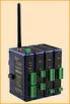 Modular, Customizable Wire Replacement 128 / 256 Bit AES Encryption Software Selectable RF Transmit Power Software Selectable Over-the-air Data Rate Modbus ASCII /RTU Compatible Wide Operating Temperature
About the HotWire 7900 10-Slot Standalone Shelf
 TM HotWire Model 7900 10-Slot Standalone Shelf Installation Instructions Document Number 7900-A2-GN10-10 About the HotWire 7900 10-Slot Standalone Shelf The HotWire 7900 10-Slot Standalone Shelf is designed
Table of Contents. 1. Introduction...1. 2. PDU Package...2. 3. Function...3. 4. Installation...5. 5. Web Interface...7
 PDU User Manual Table of Contents 1. Introduction...1 2. PDU Package...2 3. Function...3 4. Installation...5 5. Web Interface...7 1. Introduction The PDU is an Internet ready device designed and is equipped
Setting Up the Cisco IP Phone
 CHAPTER 3 This chapter includes this following topics, which help you install the Cisco IP Phone on an IP telephony network: Before You Begin, page 3-1 Installing the Cisco IP Phone, page 3-6 Adjusting
AXIS T81B22 DC 30W Midspan
 INSTALLATION GUIDE AXIS T81B22 DC 30W Midspan ENGLISH About this Document This document includes instructions for installing AXIS T81B22 on your network. Previous experience of networking will be beneficial
USB 3.0* Radio Frequency Interference Impact on 2.4 GHz Wireless Devices
 USB 3.0* Radio Frequency Interference Impact on 2.4 GHz Wireless Devices White Paper April 2012 Document: 327216-001 INFORMATION IN THIS DOCUMENT IS PROVIDED IN CONNECTION WITH INTEL PRODUCTS. NO LICENSE,
RICi-E1, RICi-T1 Fast Ethernet over E1/T1 Intelligent Converters
 Data Sheet RICi-E1, RICi-T1 Connect Fast Ethernet LANs over E1 or T1 circuits Wire-speed packet forwarding 4 levels of QoS, based on four VLAN priority queues in accordance with 802.1p and IP Precedence
Mercury Helios 2 ASSEMBLY MANUAL & USER GUIDE
 Mercury Helios 2 ASSEMBLY MANUAL & USER GUIDE TABLE OF CONTENTS INTRODUCTION...1 1.1 MINIMUM SYSTEM REQUIREMENTS 1.1.1 Apple Mac Requirements 1.1.2 PC Requirements 1.1.3 Supported PCIe Cards 1.2 PACKAGE
SMAC SM Status Monitoring and Control Quality of Service (QoS) Diplex Switch Test Gear. Installation & Operation Manual
 SM by Status Monitoring And Control Solutions (HMS Compliant, SNMP Based) SMAC SM Status Monitoring and Control Quality of Service (QoS) Diplex Switch Test Gear Installation & Operation Manual Although
FTW 175 VERIZON Wireless Monitoring System Reference Manual Part Number 7911751VERIZON
 FTW 175 VERIZON Wireless Monitoring System Reference Manual Part Number 7911751VERIZON SERIAL NUMBER Flash Technology, 332 Nichol Mill Lane, Franklin, TN 37067 (615) 261-2000 Front Matter Abstract This