
WIRELESS STATUS MONITOR
|
|
|
- Marian Warner
- 10 years ago
- Views:
Transcription
1 INSTALLATION INSTRUCTIONS WIRELESS STATUS MONITOR (WSM or AUWSM) The most current version of this document is available for download at: P/N: M D

2 Schlage 245 W. Roosevelt Road, Building 7, Suite 48 West Chicago, IL main: ( ) technical support: fax: web: ir-swa.com Copyright Ingersoll Rand, all rights reserved. No part of this document can be reproduced, transmitted, or transcribed in any form by electrical, mechanical, optical, manual, or otherwise without the prior written consent of Ingersoll Rand. Ingersoll Rand reserves the right to alter or revise the content of this document as needed to support future product revisions, without obligation to notify any persons of specific changes. The use of trademarks, trade names, or other product identification is solely for reference purposes. All other product brand names are trademarks or registered trademarks of their respective holders. Ingersoll Rand believes the information in this document to be accurate and reliable. Ingersoll Rand does not guarantee results from the use of this information. Ingersoll Rand assumes no responsibility, obligation, or liability for the information presented in this document. P/N: M D Page 2 of 14

3 INSTALLATION INSTRUCTIONS Wireless Status Monitor (WSM) NOTE: These instructions are for installing the Wireless Status Monitor (WSM), a component of a Schlage Wireless Access System. AUWSM is an Australian version of the wireless status monitor. In this manual, WSM refers to either a WSM or an AUWSM model. After completing this installation refer to the Configuring and Operating the Schlage Wireless Access System manual. Table of Contents 1. Schlage Wireless Access System Components Overview WSM Components & Sales Models Installing the WSM Tools Hardware Required Determining the Best WPIM and WSM Locations Mounting the WSM Components Connecting the Access Control Peripherals Contacting Technical Support FCC/UL Compliance & Warnings FCC Compliance ACA Compliance UL Compliance Warnings Revision History...14 P/N: M D Page 3 of 14

4 1. Schlage Wireless Access System Components 1.1 Overview Every access control system that uses Schlage Wireless Access contains two different types of modules (Figure 1-1): at least one Wireless Panel Interface Module (WPIM), and at least one Wireless Access Point Module (WAPM) Figure 1-1 Schlage Wireless Access System Block Diagram The Schlage Wireless Access product line contains several different expressions of each module. The WPIM is wired to the access control panel and ideally is installed very close to the access control panel. The WPIMs installation location is determined by the location of the WAPMs with which it will communicate using RF. The WAPM is installed at the access point where access will be controlled and/or monitored. Depending on the application and which WAPM is used, some wiring at the access control point may be required. Regardless of which WPIM or WAPM module is used, the communication link between the WPIM and WAPM is always RF. This manual describes the installation of a Wireless Status Monitor (WSM) which is a WAPM. P/N: M D Page 4 of 14

5 1.2 WSM Components & Sales Models The WSM includes a Transceiver Control Module, and a Battery Pack (located inside the Transceiver Control Module) (Figure 1-2 and Figure 1-3). Figure 1-2 WSM Figure 1-3 WSM Battery Pack MODEL MOUNTING LOCATION WSM surface indoor AUWSM surface indoor Table 1-1- WSM Sales Model Table P/N: M D Page 5 of 14

6 2. Installing the WSM 2.1 Tools Hardware Required Hammer 9/32 & 3/4 drill bits Flat and Phillips head screwdrivers (1/8 wide flat blade for screw terminals) Pencil Transceiver Control Module Mounting Kit, provided, including four #8 X 2 ½ screws, four heavyduty anchors, four washers and four 1 high round spacers 2.2 Determining the Best WPIM and WSM Locations Proper selection of WPIM and WSM Transceiver Control Module mounting locations insures reliable RF communications. The WPIM manual contains a section for determining the best location for the WPIM. The maximum distance between WPIM and a WSM Transceiver Control Module is 200 horizontally when installed inside a building on the same floor that uses normal building construction materials. Never locate the WSM and WPIM more than one (1) floor apart. If on different floors, limit the maximum horizontal distance to 100. The maximum distance is 1000 for a line of sight installation. This section provides additional application specific help and guidelines to select the best mounting location for the WSM Transceiver Control Module: Mount the WSM Transceiver Control Module inside the protected area. Mount the WSM Transceiver Control Module on the wall, at least 55 from the floor A WSM Transceiver Control Module, in all directions (sides, top, bottom, and back), have a minimum 1 separation from any metal surface. Therefore if the WRI-IN must be mounted on a metal surface, though not recommended, the supplied 1 spacers must be used. NOTE: A WSM located with a substantial steel barrier intervening between it and the WPIM may require alternate WSM and/or WPIM placement in order to ensure reliable RF communications. In these applications, mount the WPIM remote from the access control panel. Choose the WPIM or the WPIM s Remote Antenna location to prevent RF shadowing of the WSM from the WPIM. P/N: M D Page 6 of 14

7 2.3 Mounting the WSM Components TRANSCEIVER CONTROL MODULE A 1 hole is provided in the back of the Transceiver Control Module for routing wires in & out. If needed, additional hole(s) can be drilled in the lower left hand corner of the Transceiver Control Module. Wire routing inside the enclosure is very important. Improper wire routing will reduce the RF range. Keep the wires inside the enclosure as short as possible (i.e. do not coil any excess wire inside the enclosure) (Figure 2-1 & Figure 2-2). NOTE: Do not run wires across the printed circuit board. Figure 2-1 Improper Wire Routing Figure 2-2 Proper Wire Routing Remove the Transceiver Control Module cover Place the Transceiver Control Module (cover removed) against the wall in the position it was successfully link tested Using Transceiver Control Module as a template, mark the four corner mounting holes and the 1 wire hole (if used) with a pencil Drill a 9/32 hole at each mounting mark, 1 ¾ deep, and a ½ hole at the wire hole mark (if used) Insert the four anchors provided firmly into the holes so they are flush with the wall Depending on the installation, you may want to screw the Transceiver Control Module to the wall now or wait until the rest of the components are installed to facilitate wire routing. If the WSM is to be mounted on a non-metallic surface use the #8, 2 ½ screws provided to attach the WSM to the wall. If the WSM is to be mounted on a metallic surface use the round 1 high spacers and the #8, 2½ screws provided to attach the WSM 1 from the wall MONITOR POINT DEVICE Mount the Monitor Point Device (not supplied) using the installation instructions provided with the Monitor Point Device. Route the Monitor Point Device wires into the Transceiver Control Module. NOTE: Only Monitor Point Devices with a dry contact switch closure can be used with the WSM. Contacts that use a glass encapsulated reed switch are strongly recommended. NOTE: If the Monitor Point Device requires power, use a separate power supply. Do not power the Monitor Point Device from the WSM! P/N: M D Page 7 of 14

8 2.4 Connecting the Access Control Peripherals The access control peripherals for the WSM are connected to the Transceiver Control PCB via two 10 terminal connectors, J3 & J4 (Figure 2-3 & Figure 2-4). The WSM is capable of monitoring and reporting the state of one dry contact Monitor Point Device, usually just a switch. The Monitor Point Device is connected to the WSM through the Door Position Switch Input. NOTE: Do not use the Request to Exit or Request to Enter inputs to monitor contacts or battery life will be shortened! Figure 2-3 WSM Transceiver Control Module with Cover Removed P/N: M D Page 8 of 14

9 Figure 2-4 WSM Typical Wiring Diagram P/N: M D Page 9 of 14

10 2.4.1 CONTACT MONITOR DEVICE The Contact Monitor Device connects to the Transceiver Control Module through the Door Position Switch connection on J4 using 2 wires (Figure 2-4). Trim the cable to the desired length, strip the wires, tin the wires, and connect the wires to the mating connector following the information in Table 2-1. Either wire can go to either connection, i.e. the connection is non-polar. J4 WSM Terminal DR_POS_A DR_POS_B Description A dry contact closure across these terminals indicates to the ACP that the contact being monitored is closed. An open circuit indicates to the ACP that the contact being monitored is open. Table 2-1 Door Position Switch Connections (J4) NOTE: The only recommended Contact Monitor Device to use with a WSM is one that does not require any power. If a powered Contact Monitor Device must be used, then its power must come from a separate power supply and not from the WSM Battery Pack CARD READER CONNECTOR NOTE: The WSM ships with the two reader jumpers already connected. Although the WSM does not use a card reader, two jumpers need to be added to the Card Reader Connector (J3) to insure that the WSM s DC current draw is minimized to maximize the battery life. The two reader signal connections, RDR_CLK & RDR_DAT, need to be grounded by jumping them to the GND connection (Figure 2-4 & Table 2-2). WSM Terminal RDR_CLK J3 RDR_DAT GND Description Card Reader s clock or data1 signal Card Reader s data or data0 signal Card Reader s DC ground Table 2-2 Card Reader Connector (J3) BATTERY PACK INSTALLATION Although the Transceiver Control Module is shipped with a Battery Pack installed and connected (Figure 2-6), this section details how to install and connect a Battery Pack If the WSM enclosure cover is on, use the Phillips screwdriver to remove WSM cover. There are 4 cover screws, one in each corner (Figure 1-2) Install the Battery Pack into the Transceiver Control Module enclosure using the Velcro provided (Figure 2-5). Figure 2-5 Positioning the Battery Pack to Connect the Wires P/N: M D Page 10 of 14

11 Connect the Battery Pack Connector to its mating connector that is factory installed on J4 (Figure 2-6). Figure 2-6 Battery Pack Installed The WSM needs to be linked before installing the WSM cover, follow the instructions in the Configuring & Operating a Wireless Access System manual. If the WSM is not going to be linked immediately following this installation install the WSM using the 4 cover screws ((Figure 1-2). NOTE: Leaving the WSM cover off for extended periods of time with the Battery Pack connected will shorten the expected battery life. WSM Terminal Battery Connector Description Wire J4 +12V RED Positive battery pack wire to this terminal GND BLACK Negative battery pack wire to this terminal Table 2-3 Battery Pack Connections (J4) This completes the installation of the WSM. Do not install the WSM cover yet, this will be done after the Panel Interface Module (PIM) is installed and during system configuration. If the Wireless Panel Interface Module (WPIM) that will control this WSM is not installed, now is the time to install it, please refer to the PIM Installation Instruction manual. If the WPIM is installed, then you are ready to configure your Schlage Wireless Access System, please refer to the Configuring & Operating a Schlage Wireless Access System manual. P/N: M D Page 11 of 14

12 3. Contacting Technical Support For questions regarding Schlage Wireless Access: main: ( ) technical support: fax: P/N: M D Page 12 of 14

13 4. FCC/UL Compliance & Warnings 4.1 FCC Compliance This device has been authorized by the FCC Rules and Industry Canada. This device complies with the limits for a Class B digital device and a Class B intentional radiator, pursuant to Part 15 of the FCC Rules and with RSS-210 of Industry Canada. Operation is subject to the following two conditions: (1) This device may not cause harmful interference, and (2) this device must accept any interference received, including interference that may cause undesired operation. The Schlage Wireless Access System Component must be installed by qualified professionals or contractors in accordance with FCC part , Antenna Requirements. Do not use any antenna other than the one provided with the unit. 4.2 ACA Compliance The Australian version of AUWSM has been authorized by the Australian Communications Authority (ACA). 4.3 UL Compliance The Wireless Status Monitor (WSM) is listed under UL294 as an access control system accessory. Access equipment manufactured and/or sold by IR Security Technologies is not rated for, or intended for use in life safety installations. The Wireless Status Monitor (WSM) maximum standby current at 12 VDC is 10mA. 4.4 Warnings RF Exposure - To comply with FCC RF exposure requirements for mobile transmitting devices this transmitter should only be used or installed at locations where there is normally at least a 20 cm separation between the antenna and all persons. Do not co-locate and operate in conjunction with any other antenna or transmitter. Use only the Battery Pack specified in this instruction manual. Do not subject Battery Pack to fire or high temperatures. Do not attempt to recharge, short out or disassemble Battery Pack. Follow local regulations for alkaline battery disposal. Immediately remove the batteries and discontinue use if: - the product is impacted after which the interior is exposed, or - the product emits a strange smell, heat, or smoke. Changes or modifications not expressly approved by IR Security Technologies could void the user s authority to operate the equipment. P/N: M D Page 13 of 14

14 5. Revision History Version Date Changes X001 08/05/03 preliminary in house release for comments X /11/03 made minor corrections, updated figures showing WSM /13/03 made minor corrections, released for publication /16/03 updated wiring diagram /01/03 made minor corrections, added more conditions to best WPIM & WSM locations, changed wording in Monitor Point Device section C 05/16/05 Changed name of product from Wireless Contact Monitor (WCM) to Wireless Status Monitor (WSM), changed contact info throughout manual. D 10/31/06 made minor edits and corrections, updated pictures, added Schlage logo, changed Ingersoll-Rand to Ingersoll Rand, changed Security & Safety to Security Technologies, removed address from cover page, changed wyreless to wireless, removed all s, changed to changed technical support # to , added Australian model number: AUWSM, added when to use spacers paragraphs P/N: M D Page 14 of 14

WIRELESS READER INTERFACE - INDOOR
 INSTALLATION INSTRUCTIONS WIRELESS READER INTERFACE - INDOOR (WRI-IN-12VDC or AUWRI-IN-12VDC) The most current version of this document is available for download at: http://www.ir-swa.com P/N: M053-014-C
WPR400 Wireless Portable Reader
 P516-098 WPR400 Wireless Portable Reader User guide Para el idioma español, navegue hacia www.schlage.com/support. Pour la portion française, veuillez consulter le site www.schlage.com/support. Contents
SCREENLOGIC INTERFACE WIRELESS CONNECTION KIT
 SCREENLOGIC INTERFACE WIRELESS CONNECTION KIT FOR INTELLITOUCH AND EASYTOUCH CONTROL SYSTEMS INSTALLATION GUIDE IMPORTANT SAFETY INSTRUCTIONS READ AND FOLLOW ALL INSTRUCTIONS SAVE THESE INSTRUCTIONS Technical
TK400 WIRELESS TEST KIT
 P516-226 TK400 WIRELESS TEST KIT INSTRUCTIONS FOR TK400 TEST KIT Para el idioma español, navegue hacia www.schlage.com/support. Pour la portion française, veuillez consulter le site www.schlage.com/support.
ScreenLogic Wireless Connection Kit. Installation Guide. pool/spa control system
 pool/spa control system ScreenLogic Wireless Connection Kit Installation Guide P/N 520663 - Rev B 8 Technical Support Contact Technical Support at: Sanford, North Carolina (8 A.M. to 5 P.M.) Phone: (800)
Installer Guide smart connect
 Installer Guide smart connect TM 7330 Wireless Remote Humidity Sensor Please read all instructions before proceeding. The wireless remote humidity sensor monitors the humidity passing through the return
TM Advanced Tracking Technologies, Inc. 2003 ATTI All rights reserved
 TM Advanced Tracking Technologies, Inc. 2003 ATTI All rights reserved Copyright 2003, Advanced Tracking Technologies, Inc. All rights reserved. No part of this publication may be reproduced or transmitted
Aura SSD. for the 2013 Apple Mac Pro INSTALLATION GUIDE
 Aura SSD for the 2013 Apple Mac Pro INSTALLATION GUIDE TABLE OF CONTENTS 1. INTRODUCTION...1 1.1 SYSTEM REQUIREMENTS 1.2 PACKAGE CONTENTS 1.3 ABOUT THIS MANUAL 2. INSTALLATION...2 2.1 PREPARING THE MAC
GSM-EXT Cable Assembly Installation Guide
 GSM-EXT Cable Assembly Installation Guide For Documentation and Online Support: http://www.security.honeywell.com/hsc/resources/mywebtech General Information The GSM-EXT cable assembly is used to connect
Installation Instructions. Wireless Adapter/Repeater. Introduction. 30-3001-887 Rev C
 /Repeater Installation Instructions 30-3001-887 Rev C Workstation Ethernet bcx Controller Repeater Repeater Introduction Schneider Electric has designed a device that allows Andover Continuum controllers
InnoMedia ESBC 9580-4B. Quick Install Guide. www.innomedia.com 1
 InnoMedia ESBC 9580-4B Quick Install Guide www.innomedia.com 1 Table of Contents Introduction 2 Package Contents 2 CAUTION 2 Installation 3 Wall-Mounting Instructions 5 Troubleshooting 6 Appendix A. LED
PCS300 Universal IP Reporting Module V1.0
 PCS300 Universal IP Reporting Module V1.0 Reference and Installation Manual Patents: One or more of the following US patents may apply: 7046142, 6215399, 6111256, 6104319, 5920259, 5886632, 5721542, 5287111,
WIRELESS WATER LEAK DETECTOR
 ITEM #0422362 WIRELESS WTER LEK DETECTOR MODEL #ST812-2 Español p. XX REQUIRES: IRIS Smart Hub FOR FUTURE REFERENCE TTCH YOUR RECEIPT HERE ND SVE THIS MNUL Z-Wave is a registered trademark of Sigma Designs
InnoMedia ESBC 9380-4B. Quick Install Guide. www.innomedia.com 1
 InnoMedia ESBC 9380-4B Quick Install Guide www.innomedia.com 1 Table of Contents Introduction 2 Package Contents 2 CAUTION 2 Installation 3 Wall-Mounting Instructions 5 Troubleshooting 6 Appendix A. LED
Wireless Alarm System. Panic Button. User s Manual. Choice ALERT. Control all sensors, accessories and remote transmitters from one location
 Wireless Alarm System Panic Button User s Manual Choice ALERT Control all sensors, accessories and remote transmitters from one location Table of Contents Important Safeguards 4 Introduction 5 Activating
Manual. Simrad StructureScan LSS-1 Sonar Module. English
 Manual Simrad StructureScan LSS-1 Sonar Module English www.simrad-yachting.com A brand by Navico - Leader in Marine Electronics Disclaimer As Navico is continuously improving this product, we retain the
Wireless Alarm System. Window/Door Sensor. User s Manual. Choice ALERT. Control all Sensors & accessories from one location
 45131 Wireless Alarm System Window/Door Sensor User s Manual Choice ALERT Control all Sensors & accessories from one location Table of Contents Important Safeguards 4 Introduction 5 Installation 6 Assigning
StructureScan HD Module. Installation Guide ENGLISH. www.bandg.com www.simrad-yachting.com www.lowrance.com
 StructureScan HD Module Installation Guide ENGLISH www.bandg.com www.simrad-yachting.com www.lowrance.com Disclaimer As Navico is continuously improving this product, we retain the right to make changes
SMART Board 8055i and 8055i-SMP
 SMART Board 8055i and 8055i-SMP Interactive flat panel Installation guide Product registration If you register your SMART product, we ll notify you of new features and software upgrades. Register online
SMART Board 8070i-SMP and 8070i
 SMART Board 8070i-SMP and 8070i Interactive flat panel Installation guide Product registration If you register your SMART product, we ll notify you of new features and software upgrades. Register online
Installation Guide. GPS vehicle security, recovery and location awareness
 Installation Guide GPS vehicle security, recovery and location awareness Welcome! The ESCORT Entourage CIS vehicle security, recovery & GPS locator device powered by Blackline GPS is a state-of-the-art
SP1790JK 900MHz Wireless Indoor/Outdoor Speakers. User Manual INTRODUCTION FEATURES IMPORTANT SAFETY INFORMATION
 SP1790JK 900MHz Wireless Indoor/Outdoor Speakers INTRODUCTION This 900 MHz digital hybrid wireless speaker system uses the latest wireless technology that enables you to enjoy music and TV sound anywhere
NX-591NE-GSM NetworX GSM 3G HSPA+ Module Installation Sheet
 NX-591NE-GSM NetworX GSM 3G HSPA+ Module Installation Sheet The NX-591NE-GSM is a microprocessor-controlled GSM interface module used to connect the NetworX series of control panels to GSM cellular networks
2013 VTech Printed in China 91-009656-000 US
 Rechargeable Power Pack User s Manual 2013 VTech Printed in China 91-009656-000 US INTRODUCTION The Rechargeable Power Pack makes it easier than ever to keep the InnoTab 3 or InnoTab 3S charged and ready
Wireless Indoor/ Outdoor Thermometer
 Wireless Indoor/ Outdoor Thermometer Owner s Manual Please read before using this equipment. ˆ Contents FCC Information... 3 FCC Declaration of Conformity... 5 Preparation... 5 Installing Batteries...
Universal Vehicle Power Supply 9007AX01. Installation Instructions
 Universal Vehicle Power Supply 9007AX01 Installation Instructions Disclaimer Honeywell International Inc. ( HII ) reserves the right to make changes in specifications and other information contained in
WIRELESS HOME ALARM SYSTEM (WHA1)
 WIRELESS HOME ALARM SYSTEM (WHA1) IMPORTANT : PLEASE READ THIS MANUAL CAREFULLY BEFORE ATTEMPTING TO INSTALL AND OPERATE THIS ALARM SYSTEM. SAFETY Please note: Before you start to install this alarm, we
Zebra RW 420 Mobile Battery Eliminator Kits
 Zebra Technologies Corporation 475 Half Day Road, Suite 500 Lincolnshire, IL 60069 USA Zebra RW 420 Mobile Battery Eliminator Kits Installation Instructions September, 2010 RW 420 Mobile Battery Eliminator
RADIO CONTROLLED DIGITAL CLOCK MODELS 88905 / 88906
 RADIO CONTROLLED DIGITAL CLOCK MODELS 88905 / 88906 QUICK SETUP GUIDE IMPORTANT! INSTALL BATTERIES IN THE OUTDOOR TRANSMITTER BEFORE INSTALLING BATTERIES IN THE RADIO-CONTROLLED CLOCK. ALKALINE BATTERIES
Advantium 2 Plus Alarm
 ADI 9510-B Advantium 2 Plus Alarm INSTALLATION AND OPERATING INSTRUCTIONS Carefully Read These Instructions Before Operating Carefully Read These Controls Corporation of America 1501 Harpers Road Virginia
ST815 Illumination Sensor with LCD
 ST815 Illumination Sensor with LCD The Illumination Sensor with LCD (refer to as Illumination Sensor hereafter) is a Z-Wave TM enabled device which is fully compatible with any Z-Wave TM enabled network.
Wireless Alarm System. Wireless Keypad. User s Manual. Choice ALERT. Control all sensors, accessories and remote transmitters from one location
 Wireless Alarm System Wireless Keypad User s Manual 1 2 3 4 Choice ALERT Control all sensors, accessories and remote transmitters from one location Table of Contents Important Safeguards 4 Introduction
mysensors mysensors Wireless Sensors and Ethernet Gateway Quick Start Guide Information to Users Inside the Box mysensors Ethernet Gateway Quick Start
 mysensors Information to Users mysensors Wireless Sensors and Ethernet Gateway Quick Start Guide This equipment has been tested and found to comply with the limits for a Class B digital devices, pursuant
D7050/D7050TH. Installation Instructions. Multiplex Photoelectric Smoke Detectors
 D7050/D7050TH EN Installation Instructions Multiplex Photoelectric Smoke Detectors D7050/D7050TH Installation Instructions.0 Description Notices These instructions cover the installation of the D7050/D7050TH
RC8021 Indoor Camera Installation Guide
 RC8021 Indoor Camera Installation Guide P/N: 957YL502GJ Document Version: 1.0 Copyright 2011. All Rights Reserved. All trademarks and trade names are the properties of their respective owners i Package
25 Code GTO Digital Keypad
 2 Code GTO Digital Keypad Instructions for Wired and Wireless Installations (FM1-G only) Thank you for purchasing the GTO Digital Keypad. Be sure to read the directions carefully and completely. Before
Mercury Helios 2 ASSEMBLY MANUAL & USER GUIDE
 Mercury Helios 2 ASSEMBLY MANUAL & USER GUIDE TABLE OF CONTENTS INTRODUCTION...1 1.1 MINIMUM SYSTEM REQUIREMENTS 1.1.1 Apple Mac Requirements 1.1.2 PC Requirements 1.1.3 Supported PCIe Cards 1.2 PACKAGE
QUICK START GUIDE CX-MC200LE-VZ
 QUICK START GUIDE CX-MC200LE-VZ LTE/EV-DO Business-Grade Modem For use with Juniper Networks CX111 3G/4G Bridge with Enhanced Performance and Reliability GETTING READY TO USE YOUR CX-MC200LE-VZ MODEM Thank
Model 201 Wiegand Touchpad Reader Installation Guide
 Model 201 Wiegand Touchpad Reader Installation Guide P/N 460353001C 15AUG11 2011 UTC Fire & Security. All rights reserved. This document may not be copied in whole or in part or otherwise reproduced without
Indoor/Outdoor Color Camera with Built-in 2.4 GHz Wireless Transmitter, plus X10 controlled power supply, and Video Receiver.
 Indoor/Outdoor Color Camera with Built-in 2.4 GHz Wireless Transmitter, plus X10 controlled power supply, and Video Receiver. OWNER'S MANUAL VR36A XC18A XM13A MODEL VK69A (INCLUDES XC18A CAMERA, XM13A
Contractors Guide Central Inverter System Installation
 Contractors Guide Central Inverter System Installation Step By Step Procedures 2,200 Watt/VA 6 Step Installation 1. Mount Bottom Cabinet 2. Mount Top Cabinet 3. Install Batteries 4. Install Conduit 5.
Cisco Aironet 2.4-GHz MIMO Wall-Mounted Omnidirectional Antenna (AIR-ANT2440NV-R)
 Cisco Aironet 2.4-GHz MIMO Wall-Mounted Omnidirectional Antenna (AIR-ANT2440NV-R) This document outlines the specifications for the Cisco Aironet 2.4-GHz MIMO Wall-Mounted Omnidirectional Antenna (AIR-ANT2440NV-R)
Model: 616-146v2 Quick Setup Guide DC: 071015 Atomic Projection Alarm with Indoor and Outdoor Temperature
 Model: 616-146v2 Quick Setup Guide DC: 071015 Atomic Projection Alarm with Indoor and Outdoor Temperature Snooze/Backlight BUTTONS Time, Alarm with Snooze, & Calendar Projection Arm Rotates 180 Indoor/Outdoor
Stand Alone POTS Fiber Optic System. P31372 Station (Subscriber) Unit P31379 Remote (Exchanger) Unit. Description & Installation
 Stand Alone POTS Fiber Optic System P31372 Station (Subscriber) Unit P31379 Remote (Exchanger) Unit Description & Installation Printed in USA 09/11 TO466 Rev. A Table of Contents Page 1.0 SCOPE 2 2.0 PRODUCT
Standard WIRED Installation Guide
 Standard WIRED Installation Guide Version 1.0.1 1 Installing the STANDARD WIRED DEVICE The installation of the STANDARD WIRED DEVICE and its antennas can have a major impact on the STANDARD WIRED DEVICE
aseries A13B Mini Bullet Camera User Manual
 aseries A13B Mini Bullet Camera User Manual Thank you for purchasing our product. If there are any questions, or requests, please do not hesitate to contact the dealer. This manual applies to the MicroView
On/Off Relay Switch and 3-Way Switch Kit
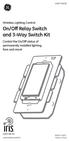 45637/45638 Wireless Lighting Control On/Off Relay Switch and 3-Way Switch Kit marthome Control the On/Off status of permanently installed lighting, fans and more! www.lowes.com/iris 2012 JASCO Made in
Model 70A00-1. GSM Cellular Communications Center
 Home Automation, Inc. Model 70A00-1 GSM Cellular Communications Center Operation Manual Document Number 70I00-1 Rev A August, 2009 Contents Description... 1 Use with security systems...1 Everyday use...2
Weather Radio Alarm Clock
 1200093 User s Guide Weather Radio Alarm Clock Thank you for purchasing your Weather Radio Alarm Clock from RadioShack. Please read this user s guide before installing, setting up, and using your new weather
ES-3305P V2 / ES-3308P V2. Quick Installation Guide. 09-2013 / v1.0
 ES-3305P V2 / ES-3308P V2 Quick Installation Guide 09-2013 / v1.0 1 COPYRIGHT Copyright Edimax Technology Co., Ltd. all rights reserved. No part of this publication may be reproduced, transmitted, transcribed,
AT&T. PARTNER Plus Door Phone. Installation and Operation Manual
 AT&T PARTNER Plus Door Phone Installation and Operation Manual Copyright 1990 AT&T All Rights Reserved Printed in U.S.A. CIC# 999-500-317 OII722050-051 Issue 1 October 1990 PARTNER Plus Door Phone is a
Solar Power Systems Models: PVS220W-24 and PVS220W-48 Installation Manual
 Solar Power Systems Models: PVS220W-24 and PVS220W-48 Installation Manual 255379 Rev. D0 1015 Printed in U.S.A. Copyright 2015 Federal Signal Corporation Limited Warranty The Alerting and Notification
BroadBand PowerShield. User Manual
 BroadBand PowerShield User Manual 990-0375G 12/2006 Chapter 1 General Information The PowerShield provides a power source for broadband telephony and other DC applications. Safety This Safety Guide contains
Dialog Telephone Interface Module Installation Sheet
 Dialog Telephone Interface Module Installation Sheet Description The Dialog Telephone Module (DTIM), model number 60-879- 95R, is a battery operated communication link between the security system control
Installation & Operation Manual
 GET CONNECTED Installation & Operation Manual DEVICE INTEGRATION AND CHARGING KIT TranzIt USB IS32 Note to Readers, The information contained within the following documentation is subject to change without
Nest Learning Thermostat Installation Guide. Installation step-by-step
 Nest Learning Thermostat Installation Guide Installation step-by-step Contents Compatibility. 3 In the box. 4 Before you start. 5 Choose an installation method. 6 Replacing an existing wired thermostat.
safe, smart, protected
 safe, smart, protected en Safety, Regulatory, &Legal Charging Dock Operation Charging Dock Operation The charging dock is designed for tabletop use. To be compliant with RF exposure guidelines and to
AastraLink RP 500. Installation Guide. 41-001244-00 Rev 03
 AastraLink RP 500 Installation Guide 41-001244-00 Rev 03 Software License Agreement Aastra Telecom Inc., hereinafter known as "Seller", grants to Customer a personal, worldwide, non-transferable, non-sublicenseable
xpico Wi-Fi Embedded Device Server Evaluation Kit Quick Start Guide
 xpico Wi-Fi Embedded Device Server Evaluation Kit Quick Start Guide Part Number 900-685 Revision A June 2013 Copyright and Trademark Contacts 2013 Lantronix, Inc.. All rights reserved. No part of the contents
Installation Guide. Wyse D Class 4-GB RAM Upgrade Option Kit. Products: D90D7, D90DW. Issue: 121312 PN: 883884-35L Rev. A
 Installation Guide Wyse D Class 4-GB RAM Upgrade Option Kit Products: D90D7, D90DW Issue: 121312 PN: 883884-35L Rev. A Copyright Notices 2012, Wyse Technology Inc. All rights reserved. This manual and
Wireless Alarm System. Alarm Siren. User s Manual. Choice ALERT. Control all Sensors & accessories from one location
 45136 Wireless Alarm System Alarm Siren User s Manual Low Batt On Armed ON/OFF LEARN Choice ALERT Control all Sensors & accessories from one location Table of Contents Important Safeguards 4 Introduction
Wiser Panel Meter, Model Number WISERCTPM200 Installer s Guide
 Instruction Bulletin EAV85226 08/2014 Wiser Panel Meter, Model Number WISERCTPM200 Installer s Guide Retain for future use. Product Description Kit Contents The Wiser Panel Meter is for use in energy management
Architect/Contractor Information Package
 Architect/Contractor Information Package 3M SelfCheck System C-Series C1 Model 877 This package provides architects and contractors with the information necessary for the successful installation of the
Schlage Control Smart Locks
 Schlage Control Smart Locks with Engage technology User guide Schlage Control Smart Locks with Engage technology User Guide Contents 3 Warranty 4 Standard Operation 4 Operation from the Inside 4 Operation
HLWLAN 802.11b/g/n Transceiver Kit
 092524 RevB HLWLAN 802.11b/g/n Transceiver Kit Wireless Communications for OmniLogic Owner s Manual Contents Introduction...1 Installation...2 Configuration...6 Operation...8 Troubleshooting...9 HLWLAN
SmartCard On-Board Reader (# 8105) SmartCard Desktop Reader (# 8108) SmartCards, Pack of 10 (# 8112) Starter Interrupter Kit (# 8116)
 athena Includes: SmartCard On-Board Reader (# 8105) SmartCard Desktop Reader (# 8108) SmartCards, Pack of 10 (# 8112) Starter Interrupter Kit (# 8116) Davis Instruments, 3465 Diablo Avenue, Hayward, CA
Wireless Alarm System. Silent Alert. User s Manual. Choice ALERT. Control all Sensors & accessories from one location
 45137 Wireless Alarm System Silent Alert User s Manual Choice ALERT Control all Sensors & accessories from one location Table of Contents Important Safeguards 4 Introduction 4 Adding a Silent Alert to
LED Security Spotlight User Manual
 MOT ION-TR ACKING LED Security Spotlight User Manual www.jascoproducts.com 1-800-654-8483 2 TABLE OF CONTENTS Parts List 3 Questions? Missing Parts? 4 Installation (Wall mount) 6-9 Installation (Eave mount)
Disclaimers. Important Notice
 Disclaimers Disclaimers Important Notice Copyright SolarEdge Inc. All rights reserved. No part of this document may be reproduced, stored in a retrieval system, or transmitted, in any form or by any means,
MAKING MODERN LIVING POSSIBLE. AK-SC255 On-Site Installation Guide DANFOSS ELECTRONIC CONTROLS & SENSORS
 MAKING MODERN LIVING POSSIBLE AK-SC255 On-Site Installation Guide DANFOSS ELECTRONIC CONTROLS & SENSORS How to Use This Guide Read this Guide completely as you install and start up your new AK-SC 255 controller.
Targus Wireless RF Mouse USER S GUIDE. Making Your Mobile Life Easier.
 Targus Wireless RF Mouse Visit our Web site at: www.targus.com Features and specifications are subject to change without notice. 2004 Targus Group International and Targus, Inc.. 400-0111-001B USER S GUIDE
MCR1900 Media Converter 19-Slot Chassis
 MCR1900 Media Converter 19-Slot Chassis Installation Guide Part #5500304-11 Copyright Statement This document must not be reproduced in any way whatsoever, either printed or electronically, without the
Atomic Alarm Clock model 13131W2
 Instruction Manual Atomic Alarm Clock model 13131W2 CONTENTS Unpacking Instructions... 2 Package Contents... 2 Product Registration... 2 Features & Benefits... 3 Clock Setup... 4 Atomic Clock... 5 Set
Arecont Vision H.264 Color or Day/Night SurroundVideo Series Installation Manual
 0 P a g e H.264 Color or Day/Night SurroundVideo Installation Manual Inside the box: A. Arecont Vision SurroundVideo camera B. Mounting template C. RJ45 female to female coupler D. Hex key E. Security
HM-W536 Install Guide
 HM-W536 Install Guide 9/13/2013 IMPORTANT SAFETY INSTRUCTIONS Warning - When using electrical devices, basic safety precautions should be followed to reduce the risk of fire, electrical shock or injury.
4.3-inch Back-Up Camera
 TM 4.-inch Back-Up Camera Model No.: PKC0BU4 Owner s Manual and Warranty Information Read these instructions completely before using this product. Retain this Owner s Manual for future reference. INTRODUCTION
WARNING: FAILURE TO FOLLOW THESE RULES MAY RESULT IN SERIOUS PERSONAL INJURY CAUTION: INSTALLATION LOCATION:
 Revision Level: 01 Revision Date: 07/07/2011 Please read all instructions carefully to help ensure a correct and SAFE installation of your Second Wind Ultraviolet Germicidal Air Purifier. Failure to do
INSTALLATION INSTRUCTIONS
 LIGHTING CONTROL PANELS 4 AND 8 RELAYS INSTALLATION INSTRUCTIONS INSTALLATION OVERVIEW The installation instructions contained in this document are provided as a guide for proper and reliable installation.
Dome Security Camera with IR night vision
 Dome Security Camera with IR night vision EN INSTRUCTION MANUAL 1 Before you begin Limited Warranty Terms & Conditions Swann Communications warrants this product against defects in workmanship and material
FTW 175 VERIZON Wireless Monitoring System Reference Manual Part Number 7911751VERIZON
 FTW 175 VERIZON Wireless Monitoring System Reference Manual Part Number 7911751VERIZON SERIAL NUMBER Flash Technology, 332 Nichol Mill Lane, Franklin, TN 37067 (615) 261-2000 Front Matter Abstract This
Simon XTi Installation Guide
 Simon XTi Installation Guide Content Contact information... 1 Description... 1 Installation... 1 Connecting hardwired devices... 2 Wiring phone lines... 3 Wiring the power transformer... 4 Resetting memory
DVI DA2 and DVI DA 4 User Guide
 DVI DA2 and DVI DA 4 User Guide This guide describes the installation and operation of the Extron DVI DA2 and DVI DA4 Distribution Amplifiers. Unless stated otherwise, distribution amplifier or the unit
Wireless Base Station Single and Multiple Headsets
 Wireless Base Station Single and Multiple Headsets Operation Manual 7340 SW Durham Road Portland, OR 97224 USA Phone: 503-684-6647 1-800-527-0555 Fax: 503-620-2943 email: [email protected] www.firecom.com
User Guide Nokia Portable Wireless Charging Plate DC-50
 User Guide Nokia Portable Wireless Charging Plate DC-50 Issue 1.1 EN User Guide Nokia Portable Wireless Charging Plate DC-50 Contents For your safety 3 About your accessory 4 Keys and parts 5 Top up your
IMPORTANT SAFETY INSTRUCTIONS
 IMPORTANT SAFETY INSTRUCTIONS Before you install or use the apparatus, you must read and understand these Important Safety Instructions. At all times when using the apparatus you must follow these Important
HP UPS R1500 Generation 3
 HP UPS R1500 Generation 3 Installation Instructions Part Number 650952-001 NOTE: The rating label on the device provides the class (A or B) of the equipment. Class B devices have a Federal Communications
PIR-1 Owner s Manual
 PIR-1 Owner s Manual PIR-1 Owner s Manual 2010 Universal Remote Control, Inc. The information in this manual is copyright protected. No part of this manual may be copied or reproduced in any form without
Installing the Broadband Global Area Network (BGAN) Fixed Mount Kit
 Installing the Broadband Global Area Network (BGAN) Fixed Mount Kit Product description BGAN fixed mount kit Although the BGAN satellite modem terminal is designed for portable use, the BGAN Fixed Mount
90 Degree PIR Wireless Security Sensor. Installation Instructions 5420/90F
 90 Degree PIR Wireless Security Sensor Installation Instructions 5420/90F Copyright Clipsal Australia P/L 2007. All rights reserved. Clipsal is a registered trademark of Clipsal Australia Pty Ltd. The
CINEMATE 1 SR DIGITAL HOME THEATER SPEAKER SYSTEM. Operating Guide Guía del usuario Guide d utilisation
 CINEMATE 1 SR DIGITAL HOME THEATER SPEAKER SYSTEM Operating Guide Guía del usuario Guide d utilisation Notice This equipment has been tested and found to comply with the limits for a Class B digital device,
Usage, Installation, Warranty and Service Information
 T13C Table Updater for Seating Management U S E R M A N UA L Usage, Installation, Warranty and Service Information Long Range Systems, LLC 4550 Excel Parkway, Suite 200 Addison, TX 75001 800.437.4996 www.lrsus.com
ADSL Modem Installation Guide. Model # 36R515 Part # 030-300108 Rev. D Revision Date 12/2000. ADSL Modem Installation Guide
 ADSL Modem Installation Guide Model # 36R515 Part # 030-300108 Rev. D Revision Date 12/2000 ADSL Modem Installation Guide Installation Instructions Westell ADSL Modem 1. Package Inspection and Contents...2
Key. ➍ Micro USB Port ➎ Operating System Toggle Keys ➏ Foam Screen Protectors. ➊ On/Off switch ➋ Bluetooth Connect Button (flashes when searching)
 INSTRUCTION MANUAL ➏ ➋ ➊ Product Features ➎ ➍ ➌ Built-in wireless Bluetooth 3.0 keyboard Compatible across ios, Android, and Windows, enabling you to mix and match with devices Ultra-thin, lightweight
USB Dual Handset Adapter for Nortel 1100-Series IP Phones
 1021 USB Dual Handset Adapter for Nortel 1100-Series IP Phones User Guide Document#: 90-00039 [email protected] [email protected] www.algosolutions.com Table of Contents Algo 1021 USB Dual
Introduction. Setting Up Your Remote Installing the Battery. Contents. System Requirements
 410-1681-001F / AMP13US 1 YEAR LIMITED WARRANTY: We pride ourselves on the quality of our products. For complete warranty details and a list of our worldwide offices, please visit www.targus.com. Features
SoftRAID 5 QUICK START GUIDE. for OWC ThunderBay
 SoftRAID 5 QUICK START GUIDE for OWC ThunderBay TABLE OF CONTENTS INTRODUCTION...1 1.1 MINIMUM SYSTEM REQUIREMENTS 1.2 FEATURES 1.3 ABOUT THIS MANUAL SYSTEM SETUP...2 2.1 GETTING STARTED 2.2 INITIALIZING,
5.8GHz Audio/Video Sender
 5.8GHz Audio/Video Sender RF-Link / Araneus USA Inc. 44845 Industrial Dr. Fremont, CA. 94538 U.S.A. Tel: +1-510-4135885~5886 Fax: +1-510-6515995 URL: http://www.rflinkusa.com Design and specification subject
Full_IG.book Page 1 Monday, January 9, 2012 6:11 PM. ProSafe 24 Port Gigabit Switch Installation Guide
 Full_IG.book Page 1 Monday, January 9, 2012 6:11 PM ProSafe 24 Port Gigabit Switch Installation Guide Full_IG.book Page 2 Monday, January 9, 2012 6:11 PM 2011 NETGEAR, Inc. All rights reserved. No part
AC-115 Compact Networked Single Door Controller. Installation and User Manual
 AC-115 Compact Networked Single Controller Installation and User Manual December 2007 Table of Contents Table of Contents 1. Introduction...5 1.1 Key Features... 6 1.2 Technical Specifications... 7 2.