
UM A. DT9837 User s Manual
|
|
|
- Augustine Moris Sherman
- 10 years ago
- Views:
Transcription
1 UM-2241-A DT9837 User s Manual

2 First Edition October, 200 Copyright 200 by Data Translation, Inc. All rights reserved. Information furnished by Data Translation, Inc. is believed to be accurate and reliable; however, no responsibility is assumed by Data Translation, Inc. for its use; nor for any infringements of patents or other rights of third parties which may result from its use. No license is granted by implication or otherwise under any patent rights of Data Translation, Inc. Use, duplication, or disclosure by the United States Government is subject to restrictions as set forth in subparagraph (c)(1)(ii) of the Rights in Technical Data and Computer software clause at 48 C.F.R, , or in subparagraph (c)(2) of the Commercial computer Software - Registered Rights clause at 48 C.F.R., as applicable. Data Translation, Inc., 100 Locke Drive, Marlboro, MA Data Translation, Inc. 100 Locke Drive Marlboro, MA (508) Fax: (508) [email protected] Data Translation is a registered trademark of Data Translation, Inc. DT-Open Layers TM, DT-Open Layers for.net Class Library TM, DataAcq SDK TM, Data Acquisition OMNI CD TM, DT-LV Link TM, and DTx-EZ TM are trademarks of Data Translation, Inc. All other brand and product names are trademarks or registered trademarks of their respective companies.

3 Radio and Television Interference This equipment has been tested and found to comply with CISPR EN55022 Class A, and EN (CE) requirements and also with the limits for a Class A digital device, pursuant to Part 15 of the FCC Rules. These limits are designed to provide reasonable protection against harmful interference when the equipment is operated in a commercial environment. This equipment generates, uses, and can radiate radio frequency energy and, if not installed and used in accordance with the instruction manual, may cause harmful interference to radio communications. Operation of this equipment in a residential area is likely to cause harmful interference, in which case the user will be required to correct the interference at his own expense. Changes or modifications to this equipment not expressly approved by Data Translation could void your authority to operate the equipment under Part 15 of the FCC Rules. Note: This product was verified to meet FCC requirements under test conditions that included use of shielded cables and connectors between system components. It is important that you use shielded cables and connectors to reduce the possibility of causing interference to radio, television, and other electronic devices. Canadian Department of Communications Statement This digital apparatus does not exceed the Class A limits for radio noise emissions from digital apparatus set out in the Radio Interference Regulations of the Canadian Department of Communications. Le présent appareil numérique n émet pas de bruits radioélectriques dépassant les limites applicables aux appareils numériques de la class A prescrites dans le Règlement sur le brouillage radioélectrique édicté par le Ministère des Communications du Canada.

4

5 Table of Contents About this Manual Intended Audience How this Manual is Organized Conventions Used in this Manual Related Information Where To Get Help Chapter 1: Overview DT9837 Hardware Features Supported Software Getting Started Procedure Part 1: Getting Started Chapter 2: Preparing to Use a Module Unpacking Checking the System Requirements Installing the Software Viewing the Documentation Chapter 3: Setting Up and Installing the Module Attaching Modules to the Computer Connecting Directly to the USB Ports Connecting to an Expansion Hub Configuring the DT9837 Device Driver

6 Contents Chapter 4: Wiring Signals Preparing to Wire Signals Wiring Recommendations Wiring Signals to the DT9837 Module Connecting Analog Input Signals Connecting an Analog Output Signal Connecting a Tachometer Input Chapter 5: Verifying the Operation of a Module Installing the Quick DataAcq Application Running the Quick DataAcq Application Testing Single-Value Analog Input Testing Continuous Analog Input Testing Single-Value Analog Output Testing Continuous Analog Output Part 2: Using Your Module Chapter : Principles of Operation Analog Input Features Analog Input Channels Specifying a Single Analog Input Channel Specifying One or More Analog Input Channels Specifying a Tachometer Input in the Analog Input Channel List Input Ranges and Gains IEPE Functions Input Resolution Clock Source

7 Contents Analog Input Conversion Modes Single-Value Operations Continuous Scan Mode Input Triggers Data Format and Transfer Error Conditions Analog Output Features Analog Output Channels Output Ranges and Gains Output Resolution Output Clocks Output Conversion Modes Output Trigger Data Format and Transfer Error Conditions Synchronizing Acquisition on Multiple Modules Chapter 7: Supported Device Driver Capabilities Data Flow and Operation Options Buffering Triggered Scan Mode Data Encoding Channels Gain Ranges Resolution Thermocouple Support IEPE Support Triggers Clocks Counter/Timers

8 Contents Chapter 8: Troubleshooting General Checklist Technical Support If Your Module Needs Factory Service Chapter 9: Calibration Using the Calibration Utility Calibrating the Analog Input Subsystem Connecting a Precision Voltage Source Using the Auto-Calibration Procedure Using the Manual Calibration Procedure Calibrating the Analog Output Subsystem Appendix A: Specifications Analog Input Specifications Analog Output Specifications Tachometer Input Specifications Power, Physical, and Environmental Specifications Regulatory Specifications Index

9 About this Manual The first part of this manual describes how to install and set up your DT9837 module and device driver, and verify that your module is working properly. The second part of this manual describes the features of the DT9837 module, the capabilities of the DT9837 Device Driver, and how to program the DT9837module using the DT-Open Layers for.net Class Library software. Troubleshooting information is also provided. Note: For more information on the class library, refer to the DT-Open Layers for.net Class Library User s Manual. If you are using the DataAcq SDK or a software application to program your device, refer to the documentation for that software for more information. Intended Audience This document is intended for engineers, scientists, technicians, or others responsible for using and/or programming the DT9837 modules for data acquisition operations in the Microsoft Windows 2000 or Windows XP operating system. It is assumed that you have some familiarity with data acquisition principles and that you understand your application. 9

10 About this Manual How this Manual is Organized This manual is organized as follows: Chapter 1, Overview, describes the major features of the DT9837 module, as well as the supported software and accessories for the modules. Chapter 2, Preparing to Use a Module, describes how to unpack the DT9837 package, check the system requirements, install the DT9837 software under Windows 2000 or Windows XP, and view the DT9837 documentation online. Chapter 3, Setting Up and Installing the Module, describes how to install a DT9837 module, how to apply power to the module, and how to configure the device driver. Chapter 4, Wiring Signals, describes how to wire signals to a DT9837 module. Chapter 5, Verifying the Operation of a Module, describes how to verify the operation of the DT9837 module with the Quick DataAcq application. Chapter, Principles of Operation, describes all of the features of the DT9837 module and how to use them in your application. Chapter 7, Supported Device Driver Capabilities, lists the data acquisition subsystems and the associated features accessible using the DT9837 Device Driver. Chapter 8, Troubleshooting, provides information that you can use to resolve problems with the DT9837 module and device driver, should they occur. Chapter 9, Calibration, describes how to calibrate the analog I/O circuitry of the DT9837 module. Appendix A, Specifications, lists the specifications of the DT9837 module. An index completes this manual. 10

11 About this Manual Conventions Used in this Manual The following conventions are used in this manual: Notes provide useful information or information that requires special emphasis, cautions provide information to help you avoid losing data or damaging your equipment, and warnings provide information to help you avoid catastrophic damage to yourself or your equipment. Items that you select or type are shown in bold. Related Information Refer to the following documents for more information on using the DT9837 module: Benefits of the Universal Serial Bus for Data Acquisition. This white paper describes why USB is an attractive alternative for data acquisition. It is available on the Data Translation web site ( Measure Foundry Getting Started Manual (UM-19298) and online help. These documents describe how to use Measure Foundry to build drag-and-drop test and measurement applications for Data Translation data acquisition devices without programming. DT-Open Layers for.net User s Manual (UM-2211). For programmers who are developing their own application programs using Visual C# or Visual Basic.NET, this manual describes how to use the DT-Open Layers for.net Class Library to access the capabilities or Data Translation data acquisition devices. 11

12 About this Manual DataAcq SDK User s Manual (UM-1832). For programmers who are developing their own application programs using the Microsoft C compiler, this manual describes how to use the DT-Open Layers DataAcq SDK to access the capabilities of Data Translation data acquisition devices. DTx-EZ Getting Started Manual (UM-15428). This manual describes how to use the ActiveX controls provided in DTx-EZ to access the capabilities of Data Translation data acquisition devices in Microsoft Visual Basic or Visual C++. LV-Link Online Help. This help file describes how to use LV-Link with the LabVIEW graphical programming language to access the capabilities of Data Translation data acquisition devices. Microsoft Windows 2000 or Windows XP documentation. USB web site ( Where To Get Help Should you run into problems installing or using a DT9837 module, the Data Translation Technical Support Department is available to provide technical assistance. Refer to Chapter 8 for more information. If you are outside the United States or Canada, call your local distributor, whose number is listed on our web site ( 12

13 1 Overview DT9837 Hardware Features Supported Software Getting Started Procedure

14 Chapter 1 DT9837 Hardware Features The DT9837 is a high-performance, multifunction data acquisition modules for the USB (Ver. 2.0 or Ver. 1.1) bus. The key hardware features of the DT9837 module are as follows: Simultaneous analog input and waveform analog output operations Analog input subsystem: Four, simultaneous 24-bit A/D converters Throughput rate up to ksamples/s for simultaneous, high-resolution measurements Input range of ±10 V with software-selectable gains of 1 and 10 for an effective input range of ±10 V and ±1 V Support for IEPE (Integrated Electronic Piezoelectric) inputs, including use of a 4 ma current source and AC or DC coupling Support for a tachometer input in the analog input data stream for synchronous measurements Software-programmable trigger type (software, external digital trigger, or analog threshold trigger) to start the analog input operation Analog output subsystem: One 24-bit D/A converter Waveform capability of up to 8,192 samples Output rate fixed at ksamples/s Output range of ±10 V. Software trigger starts the waveform operation Internal clock source (shared between the analog input and analog output subsystems). 14

15 Overview Supported Software The following software is available for use with the DT9837 module and is on the Data Acquisition OMNI CD: DT9837 Device Driver The device driver allows you to use a DT9837 module with any of the supported software packages or utilities. Quick DataAcq application The Quick DataAcq application provides a quick way to get up and running using a DT9837 module. Using this application, you can verify key features of the modules, display data on the screen, and save data to disk. (Note that this application does not support configuring AC/DC coupling or the excitation current source for IEPE inputs.) The quickdaq application An evaluation version of this.net application is included on the Data Acquisition OMNI CD. quickdaq lets you acquire analog data from all devices supported by DT-Open Layers for.net software at high speed, plot it during acquisition, analyze it, and/or save it to disk for later analysis. Measure Foundry An evaluation version of this software is included or provided via a link on the Data Acquisition OMNI CD. Measure Foundry is a drag-and-drop test and measurement application builder designed to give you top performance with ease-of-use development. Order the full development version of this software package to develop your own application using real hardware. DT-Open Layers for.net Class Library Use this class library if you want to use Visual C# or Visual Basic for.net to develop your own application software for a DT9837 module using Visual Studio 2003 or Visual Studio 2005; the class library complies with the DT-Open Layers standard

16 Chapter 1 DataAcq SDK Use the Data Acq SDK if you want to use Visual Studio.0 and Microsoft C or C++ to develop your own application software for a DT9837 module using Windows 2000 or Windows XP; the DataAcq SDK complies with the DT-Open Layers standard. DAQ Adaptor for MATLAB Data Translation s DAQ Adaptor provides an interface between the MATLAB Data Acquisition (DAQ) subsystem from The MathWorks and Data Translation s DT-Open Layers architecture. LV-Link An evaluation version of LV-Link is included on the Data Acquisition OMNI CD. Use LV-Link if you want to use the LabVIEW graphical programming language to access the capabilities of the DT9837 module. Refer to the Data Translation web site ( for information about selecting the right software package for your needs. 1

17 Overview Getting Started Procedure The flow diagram shown in Figure 1 illustrates the steps needed to get started using the DT9837 module. This diagram is repeated in each Getting Started chapter; the shaded area in the diagram shows you where you are in the getting started procedure. Prepare to Use the Module (see Chapter 2 starting on page 21) Set Up and Install the Module (see Chapter 3 starting on page 29) Wire Signals to the BNC Connection Box (see Chapter 4 starting on page 37) Verify the Operation of the Module (see Chapter 5 starting on page 45) Figure 1: Getting Started Flow Diagram

18 Chapter 1 18

19 Part 1: Getting Started

20

21 2 Preparing to Use a Module Unpacking Checking the System Requirements Installing the Software Viewing the Documentation
22 Chapter 2 Prepare to Use the Module (this chapter) Set Up and Install the Module (see Chapter 3 starting on page 29) Wire Signals (see Chapter 4 starting on page 37) Verify the Operation of the Module (see Chapter 5 starting on page 45) 22
23 Preparing to Use a Module Unpacking Open the shipping box and verify that the following items are present: DT9837 module EP35 USB cable Data Acquisition OMNI CD-ROM If an item is missing or damaged, contact Data Translation. If you are in the United States, call the Customer Service Department at (508) An application engineer will guide you through the appropriate steps for replacing missing or damaged items. If you are located outside the United States, call your local distributor, listed on Data Translation s web site ( Once you have unpacked your module, check the system requirements, as described in the next section
24 Chapter 2 Checking the System Requirements For reliable operation, your DT9837 module requires the following: PC with Pentium 233 MHz (or higher) processor Windows 2000 or Windows XP (Professional Edition) operating system For USB Ver. 2.0 support, make sure that you install Service Pack 2 (for Windows XP) or Service Pack 4 (for Windows 2000). In addition, for some systems, you may have to disable standby mode. If you are not sure whether you are using USB Ver. 1.1 or Ver. 2.0, run the Open Layers Control Panel applet, described on page 35. One or more USB ports (Ver. 2.0 or Ver. 1.1). USB Ver. 2.0 is strongly recommended; USB Ver. 1.1 will severely degrade performance 4 MB (or more) of RAM; 128 MB (or more) recommended One or more CD-ROM drives Super VGA (800 x 00 or higher resolution) display monitor Once you have verified that your system meets the system requirements, install the software, as described in the next section. 24
25 Preparing to Use a Module Installing the Software To install the software, perform the following steps: 1. Insert the Data Acquisition OMNI CD into your CD-ROM or DVD drive. The installation program should automatically start, and the InstallShield Wizard should appear. 2. If the installation program does not automatically start, double-click Setup.exe from the CD. The InstallShield Wizard appears. 3. Click Install Drivers. The installation screen appears. 4. Click Install now! The InstallShield Wizard appears. 5. If your system does not have the Microsoft.NET Framework 1.1 software installed, the following prompt appears: DT-Open Layers optionally uses the Microsoft.NET 1.1 Framework. Would you like to install it now? a. Click Yes; the Framework is required. The Framework installation begins and the license agreement is displayed. b. Read the license agreement, click the radio button next to "I agree," and then click Install. c. After the components have been installed, click OK to configure them. d. Without removing your Data Acquisition OMNI CD, click Restart to restart your system. When the system restarts, the Windows Installer dialog box appears, followed by the DT-Open Layers InstallShield Wizard.. Click Next. The license agreement appears
26 Chapter 2 7. Read the license agreement, click the radio button next to "I accept the terms in the license agreement," and then click Next. The Destination Folder dialog box appears. 8. Change the default destination folder path, if you wish, by clicking Change, and then click Next. 9. Click Install. The files are copied to the specified destination folder. 10. Click Finish to complete the installation process. 2
27 Preparing to Use a Module Viewing the Documentation Note: To view the documentation, you must have Adobe Acrobat Reader 5.0 or greater installed on your system. Acrobat Reader is provided on the Data Acquisition OMNI CD. If you install Acrobat Reader from this CD, make sure that you open Acrobat Reader and accept the license agreement before viewing the documentation. You can access the DT9837 documentation from the Hardware Documentation program group. From the Windows Start menu, click Programs Data Translation, Inc Hardware Documentation, and then select the appropriate document to view. The following may be helpful when using Adobe Acrobat Reader: To navigate to a specific section of the document, click a heading from the table of contents on the left side of the document. Within the document, click the text shown in blue to jump to the appropriate reference (the pointer changes from a hand to an index finger). To go back to the page from which the jump was made, click the right mouse button and Go Back, or from the main menu, click Document, and then Go Back. To increase or decrease the size of the displayed document, from the main menu, click View, and then Zoom. By default, Acrobat Reader smooths text and monochrome images, sometimes resulting in blurry images. If you wish, you can turn smoothing off by clicking File, and then Preferences/General, and unchecking Smooth Text and Images
28 Chapter 2 28
29 3 Setting Up and Installing the Module Attaching Modules to the Computer Configuring the DT9837 Device Driver
30 Chapter 3 Prepare to Use the Module (see Chapter 2 starting on page 21) Set Up and Install the Module (this chapter) Wire Signals (see Chapter 4 starting on page 37) Verify the Operation of the Module (see Chapter 5 starting on page 45) Note: The DT9837 module is factory-calibrated. If you decide that you want to recalibrate the analog input or analog output circuitry, refer to the instructions in Chapter 9. 30
31 Setting Up and Installing the Module Attaching Modules to the Computer This section describes how to attach a DT9837 module to the host computer. Notes: Most computers have several USB ports that allow direct connection to USB devices. If your application requires more DT9837 modules than you have USB ports for, you can expand the number of USB devices attached to a single USB port by using expansion hubs. For more information, refer to page 33. You can unplug a module, then plug it in again, if you wish, without causing damage. This process is called hot-swapping. Your application may take a few seconds to recognize a module once it is plugged back in. The DT9837 module uses less than 500 ma; therefore, it does not require external power supply. You must install the device driver before connecting your DT9837 module(s) to the host computer. See Installing the Software on page
32 Chapter 3 Connecting Directly to the USB Ports To connect a DT9837 module directly to a USB port on your computer, do the following: 1. Attach one end of the USB cable to the USB port on the module. 2. Attach the other end of the USB cable to one of the USB ports on the host computer, as shown in Figure 2. The operating system automatically detects the USB module and starts the Found New Hardware wizard. DT9837 Modules USB Ports Host Computer USB Cable Figure 2: Attaching the Module to the Host Computer 3. Click Next and/or Finish as required in the wizard. Once the firmware is loaded, the wizard restarts to initiate the firmware to accept commands. Click Next and/or Finish again. 4. Repeat the steps to attach another DT9837 module to the host computer, if desired. 32
33 Setting Up and Installing the Module Note: Once you have connected your module to the host computer, power is turned on to the DT9837 module when your application program opens the module. The LED on the module turns green to indicate that power is turned on. Power is turned off to the DT9837 module when your application program terminates its connection to the module. Connecting to an Expansion Hub Expansion hubs are powered by their own external power supply. Theoretically, you can connect up to five expansion hubs to a USB port on the host computer. However, the practical number of DT9837 modules that you can connect to a single USB port depends on the throughput you want to achieve. Each of the hubs supports up to four modules. To connect multiple DT9837 modules to an expansion hub, do the following: 1. Attach one end of the USB cable to the module and the other end of the USB cable to an expansion hub. 2. Connect the power supply for the expansion hub to an external power supply. 3. Connect the expansion hub to the USB port on the host computer using another USB cable. The operating system automatically detects the USB module and starts the Found New Hardware wizard. 4. Click Next and/or Finish as required in the wizard. Once the firmware is loaded, the wizard restarts to initiate the firmware to accept commands. Click Next and/or Finish again. 5. Repeat these steps until you have attached the number of expansion hubs (up to five) and modules (up to four per hub)
34 Chapter 3 that you require. Refer to Figure 3. The operating system automatically detects the USB devices as they are installed. DT9837 Module USB Cables DT9837 Module Host Computer USB Cable USB Cable Power Supply for Hub DT9837 Module DT9837 Module Expansion Hubs Power Supply for Hub USB Cables Figure 3: Attaching Multiple Modules Using Expansion Hubs Note: Once you have connected your module to the host computer, power is turned on to the DT9837 module when your application program opens the module. The LED on the module turns green to indicate that power is turned on. Power is turned off to the DT9837 module when your application program terminates its connection to the module. 34
35 Setting Up and Installing the Module Configuring the DT9837 Device Driver To configure the device driver for the DT9837 module, do the following: 1. If you have not already done so, power up the host computer and all peripherals. 2. From the Windows Start menu, select Settings Control Panel. 3. From the Control Panel, double-click Open Layers Control Panel. The Data Acquisition Control Panel dialog box appears. 4. Click the DT9837 module that you want to configure, and then click Advanced. The Configurable Board Options dialog box appears. 5. If you want to rename the module, click Edit Name, enter a new name for the module, and then click OK. The name is used to identify the module in all subsequent applications.. Repeat steps 4 to 5 for the other modules that you want to configure. 7. When you are finished configuring the modules, click Close. Continue with the instructions on wiring in Chapter 4 starting on page
36 Chapter 3 3
37 4 Wiring Signals Preparing to Wire Signals Connecting Analog Input Signals Connecting an Analog Output Signal Connecting a Tachometer Input
38 Chapter 4 Prepare to Use a Module (see Chapter 2 starting on page 21) Set Up and Install the Module (see Chapter 3 starting on page 29) Wire Signals (this chapter) Verify the Operation of the Module (see Chapter 5 starting on page 45) 38
39 Wiring Signals Preparing to Wire Signals This section provides recommendations and information about wiring signals to the DT9837 module. Wiring Recommendations CAUTION: To avoid electrostatic sensitivity, unplug your module from the computer before wiring signals. Keep the following recommendations in mind when wiring signals to a DT9837 module: Separate power and signal lines by using physically different wiring paths or conduits. To avoid noise, do not locate the module and cabling next to sources that produce high electromagnetic fields, such as large electric motors, power lines, solenoids, and electric arcs, unless the signals are enclosed in a mumetal shield. Prevent electrostatic discharge to the I/O while the DT9837 module is operational. Connect all unused analog input channels to analog ground
40 Chapter 4 Wiring Signals to the DT9837 Module The DT9837 module contains five BNC connectors on one end of the module, and two BNC connectors and a USB connector on the other end of the module as shown in Figure 4. A/D Chan 0 A/D Chan 1 A/D Chan 2 A/D Chan 3 DT9837 Module USB Port Status LED D/A Chan 0 Tachometer Input Ext Trigger Figure 4: Connectors of the DT9837 Module The remaining sections of this chapter describe how to attach signals to these connectors. 40
41 Wiring Signals Connecting Analog Input Signals You can connect up to four analog input signals (or IEPE sensors) to the BNC connectors on the DT9837 module. Internally, these signals are connected in single-ended mode. The DT9837 supports an input signal range of ±10 V (using a gain of 1) or ±1 V (using a gain of 10). Figure 5 shows how to connect analog inputs (channels 0 and 1, in this case) to the BNC connectors on the DT9837 module Signal Source Analog In 0 Analog In 1 DT9837 Module A/D Chan 0 A/D Chan 1 A/D Chan A/D Chan 3 Tachometer Input 4 Figure 5: Connecting Analog Inputs to the DT9837 Module
42 Chapter 4 Connecting an Analog Output Signal The DT9837 module provides one analog output channel with an output range of ±10 V. Figure shows how to connect an analog output signal to the DT9837 module. DT9837 Module USB Port LED D/A Chan 0 Analog Out 0 Load Ext Trigger Note that the BNC automatically connects the Analog Ground signal appropriately. Figure : Connecting an Analog Output Signal to the DT
43 Wiring Signals Connecting a Tachometer Input You can connect a ±30 V, 31-bit tachometer input signal with a maximum frequency of 380 khz and a minimum pulse width of 1.3 μs to the tachometer input BNC on the DT9837 module, as shown in Figure 5. Note: In software, you can read the tachometer input as part of the analog input channel list. Refer to Chapter for more information. DT9837 Module A/D Chan 0 A/D Chan A/D Chan 2 4 A/D Chan 3 Signal Source Tachometer In 0 Tachometer Input 4 Figure 7: Connecting a Tachometer Input Signal to the DT
44 Chapter 4 44
45 5 Verifying the Operation of a Module Installing the Quick DataAcq Application Running the Quick DataAcq Application Testing Single-Value Analog Input Testing Continuous Analog Input Testing Continuous Analog Output
46 Chapter 5 Prepare to Use a Module (see Chapter 2 starting on page 21) Set Up and Install the Module (see Chapter 3 starting on page 29) Wire Signals (see Chapter 4 starting on page 37) Verify the Operation of the Module (this chapter) You can verify the operation of a DT9837 module using the Quick DataAcq application. Quick DataAcq lets you do the following: Acquire data from a single analog input channel Acquire data continuously from one or more analog input channels using an oscilloscope, strip chart, or Fast Fourier Transform (FFT) view Output a single value from the analog output channel Output a waveform from the analog output channel Save the input data to disk Note: This application does not support configuring AC/DC coupling or the excitation current source for IEPE inputs. 4
47 Verifying the Operation of a Module Installing the Quick DataAcq Application The Quick DataAcq application is installed automatically when you install the driver software. See Installing the Software on page 25. Running the Quick DataAcq Application To run the Quick DataAcq application, do the following: 1. If you have not already done so, power up your computer and any attached peripherals. 2. Click Start from the Task Bar. 3. Browse to Programs Data Translation, Inc DT-Open Layers for Win32 QuickDataAcq. The main menu appears. Note: The Quick DataAcq application allows you to verify basic operations on the board; however, it may not support all of the board s features. For information on each of the features provided, use the online help for the Quick DataAcq application by pressing F1 from any view or selecting the Help menu. If the system has trouble finding the help file, navigate to C:\Program Files\Data Translation\Win32\ dtdataacq.hlp, where C: is the letter of your hard disk drive
48 Chapter 5 Testing Single-Value Analog Input To verify that the module can read a single analog input value, do the following: 1. Connect a voltage source, such as a function generator, to analog input channel 0 on the DT9837 module. Refer to page 41 for an example of how to connect an analog input. 2. In the Quick DataAcq application, choose Single Analog Input from the Acquisition menu. 3. Select the appropriate DT9837 module from the Board list box. 4. In the Channel list box, select analog input channel In the Range list box, select the range for the channel. The default is ±10 V.. Select Single-Ended. 7. Click Get to acquire a single value from analog input channel 0. The application displays the value on the screen in both text and graphical form. 48
49 Verifying the Operation of a Module Testing Continuous Analog Input To verify that the module can perform a continuous analog input operation, do the following: 1. Connect known voltage sources, such as the outputs of a function generator, to analog input channels 0 and 1 on the DT9837 module. 2. In the Quick DataAcq application, choose Scope from the Acquisition menu. 3. Select the DT9837 module from the Board list box. 4. In the Sec/Div list box, select the number of seconds per division (.1 to.00001) for the display. 5. In the Channel list box, select analog input channel 1, and then click Add to add the channel to the channel list. Note that, by default, channel 0 is included in the channel list.. Click Config from the Toolbar. 7. In the Config dialog, select ChannelType, and then select Single-Ended. 8. In the Config dialog, select Range, and then select Bipolar. 9. Click OK to close the dialog box 10. From the Scope view, double-click the input range of the channel to see the input range of the module. The default is ±10 V. The display reflects the selected range for all the analog input channels on the module. 11. In the Trigger box, select Auto to acquire data continuously from the specified channels or Manual to acquire a burst of data from the specified channels
50 Chapter Click Start from the Toolbar to start the continuous analog input operation. The application displays the values acquired from each channel in a unique color on the oscilloscope view. 13. Click Stop from the Toolbar to stop the operation. Testing Single-Value Analog Output To verify that the module can output a single analog output value, do the following: 1. Connect an oscilloscope or voltmeter to analog output channel 0 on the module. Refer to page 42 for an example of how to connect analog output signals. 2. In the Quick DataAcq application, choose Single Analog Output from the Control menu. 3. Select the appropriate DT9837 module from the Board list box. 4. In the Channel list box, select analog output channel In the Range list box, select the output range of DAC0. The default is ±10 V.. Enter an output value or use the slider to select a value to output from DAC0. 7. Click Send to output a single value from analog output channel 0. The application displays the output value both on the slider and in the text box. 50
51 Verifying the Operation of a Module Testing Continuous Analog Output To verify that the module can output a continuous waveform from the analog channel, do the following: 1. Connect an oscilloscope or voltmeter to analog output channel 0 on the module. Refer to page 42 for an example of how to connect analog output signals. 2. In the Quick DataAcq application, choose Wave Generator from the Control menu. 3. Select the appropriate DT9837 module from the Board list box. 4. In the Waveform area, select Sine. 5. Change the Peak Voltage and Wave Frequency values, if desired.. Click Start to output a waveform from analog output channel 0. The application displays the waveform in the Wave Generator window, and on the attached oscilloscope or voltmeter
52 Chapter 5 52
53 Part 2: Using Your Module
54
55 Principles of Operation Analog Input Features Analog Output Features Synchronizing Acquisition on Multiple Modules
56 Chapter Figure 8 shows a block diagram of the DT9837 module. ± 18 V Compliance Voltage 4 ma Current Source A/D Input 0 A/D Input 1 A/D Input 2 4 ma 4 ma 4 ma 1 M x1, 10 1 M x1, 10 1 M x1, Bit A/D 24-Bit A/D 24-Bit A/D Control Logic Clock 8K FIFO 24-Bit D/A High- Speed USB 2.0 Interface 10 khz Filter USB 2.0 D/A Output 0 A/D Input 3 1 M x1, Bit A/D Ext Trigger Tachometer Input Figure 8: Block Diagram of the DT9837 Module 5
57 Principles of Operation Analog Input Features This section describes the following features of analog input (A/D) subsystem on the DT9837 module: Analog input channels, described below IEPE functions, described on page 1 Input resolution, described on page 1 Input ranges and gains, described on page 1 Input sample clock sources, described on page 2 Analog input conversion modes, described on page 3 Input triggers, described on page 5 Data format and transfer, described on page Error conditions, described on page 7 Analog Input Channels The DT9837 module supports four, single-ended analog input channels (numbered 0 to 3). All analog input channels are simultaneously clocked. If desired, you can connect IEPE sensors to these inputs; refer to page 1 for more information on IEPE functions. The DT9837 module uses Delta-Sigma analog-to-digital converters (ADCs) that provide anti-aliasing filters based on the clock rate. These filters remove aliasing, which is a condition where high frequency input components erroneously appear as lower frequencies after sampling. Note: To maintain simultaneous operation, all analog input connections must have the same lead lengths. 57
58 Chapter DT9837 modules can acquire data from a single analog input channel or from a group of analog input channels. In addition, the DT9837 module can acquire data from a tachometer input that is specified as part of the analog input channel list. The following subsections describe how to specify these channels. Specifying a Single Analog Input Channel The simplest way to acquire data from a single analog input channel is to specify the channel for a single-value analog input operation using software; refer to page 3 for more information about single-value operations. You can also specify a single channel using the analog input channel list, described in the next section. Specifying One or More Analog Input Channels You can read data from one or more analog input channels using an analog input channel list. Using software, specify the channels you want to sample in sequential order. You can enter up to 5 entries in the channel list, including four analog input channels and the tachometer input; see the next section for more information about including the tachometer input in the analog input channel list. Refer to page 3 for more information about the supported conversion modes. 58
59 Principles of Operation Specifying a Tachometer Input in the Analog Input Channel List The DT9837 module accepts one ±30 V, 31-bit tachometer input signal with a maximum frequency of 380 khz and a minimum pulse width of 1.3 μs. The threshold voltage is fixed at ±2 V with 0.5 V of hysteresis. You can read the number of counts between two consecutive rising on the tachometer input by including channel 4 in the analog input channel list. The software automatically synchronizes the value of the tachometer input with the analog input measurements, so that all measurements are correlated in time. The tachometer input is treated like any other channel in the analog input channel list; therefore, all the triggering and conversion modes supported for analog input channels are supported for the tachometer input. When the operation is started, an internal counter/timer on the DT9837 module starts incrementing when it detects a rising edge on the tachometer input and stops incrementing when it detects the next rising edge on the tachometer input.when the measurement is complete, the counter/timer remains idle until it is next read. On the next read, the current value of the tachometer input (from the previous measurement operation) is returned and the next operation is started automatically. Note: If you read the value of the tachometer input before the measurement is complete, the previous value of the tachometer input returned. If the 31-bit counter rolls over, indicating that you are reading the value of the tachometer input very slowly, a value of 0 is returned. 59
60 Chapter When you read the value of the tachometer input as part of the analog input data stream, you might see results similar to the following: Table 5: An Example of Reading the Tachometer Input as Part of the Analog Input Data Stream Time A/D Value Tachometer Input Value Status of Operation Operation started, but is not complete Operation not complete Operation not complete Operation complete Next operation started, but is not complete Operation not complete Operation not complete Operation complete Next operation started, but is not complete Using the count that is returned from the tachometer input, you can determine the following: Frequency of a signal pulse (the number of periods per second). You can calculate the frequency as follows: Frequency = 12 MHz/(Number of counts 1) where 12 MHz is the internal counter/timer clock frequency For example, if the count is 21, the measured frequency is 00 khz (12 MHz/20). 0
61 Principles of Operation Period of a signal pulse. You can calculate the period as follows: Period = 1/Frequency Period = (Number of counts 1)/12 MHz where 12 MHz is the internal counter/timer clock frequency Input Ranges and Gains The DT9837 module provides an input range of ±10 V and software-selectable gains of 1 and 10. This provides effective input ranges of ±10 V (when the gain is 1) and ±1 V (when the gain is 10). IEPE Functions Applications that require accelerometer, vibration, noise, or sonar measurements often use IEPE sensors. IEPE conditioning is built-in to the analog input circuitry of the DT9837. The DT9837 module supports the following following software-programmable IEPE functions for each of the four analog inputs: Excitation current source You can enable or disable the use of a 4 ma, internal excitation current source. By default, the excitation current source is disabled. Coupling type You can select whether AC coupling or DC coupling is used. By default, DC coupling is selected. Input Resolution The resolution of the analog input channels is fixed at 24 bits; you cannot specify the resolution in software. 1
62 Chapter Clock Source The DT9837 module supports an internal clock, which is derived from the USB clock. Use software to specify the internal clock source and the frequency at which to pace the input and output operations and to start the sample clock. The sampling frequency ranges from Hz to khz. Note: According to sampling theory (Nyquist Theorem), specify a frequency that is at least twice as fast as the input s highest frequency component. For example, to accurately sample a 20 khz signal, specify a sampling frequency of at least 40 khz to avoid aliasing. The DT9837 supports a wide pass band of 0.5 Hz to 25.8 khz (0.49 x sampling frequency) to eliminate aliasing, allowing you to measure low frequency signals accurately at the Nyquist sampling rate. The actual frequency that the module can achieve may be slightly different than the frequency you specified due to the accuracy of the clock. You can determine the actual clock frequency using software. The value that you specify for the internal clock frequency is multiplied by 512 internally to set the oscillator on the module. For example, if you specify an internal clock frequency of 50 khz, the module sets the internal oscillator for the A/D converters to 25. MHz. The maximum timebase is 27 MHz. Once the sample clock is started, the DT9837 module requires 38 clock pulses before the first A/D conversion is completed (38/sample rate) due to the group delay of the converters. The software automatically adjusts for the group delay to provide only valid data in each buffer. 2
63 Principles of Operation The tachometer data (which does not have the 38 sample group delay) is synchronized with the analog data stream. This is done through the firmware and device driver by caching the tachometer data and aligning it in time with the analog data in the user s data buffers. Analog Input Conversion Modes DT9837 modules support single-value and continuous scan conversion modes. This section describes each of these conversion mode. Single-Value Operations Single-value operations are the simplest to use. Using software, you specify the analog input channel and the gain that you want to use. The module acquires the data from the specified channel and returns the data immediately. For a single-value operation, you cannot specify a clock source, trigger source, scan mode, or buffer. Single-value operations stop automatically when finished; you cannot stop a single-value operation. Note: You can also read a single value from the tachometer input by specifying analog input channel 4 and a gain of 1 for a single-value operation. 3
64 Chapter Continuous Scan Mode Continuous scan mode takes full advantage of the capabilities of the DT9837 module. You can specify a channel list, clock source, trigger source, and buffer using software. When it detects an initial trigger, the module simultaneously samples all of the input channels, including the tachometer input, if it is included in the channel list, and converts the analog input data. The sampled data is placed in the allocated buffer(s) and the operation continues until the allocated buffers are filled or until you stop the operation. Refer to page for more information about buffers. The conversion rate is determined by the frequency of the input sample clock; refer to page 2 for more information about the input sample clock. Using software, you can stop a scan by performing either an orderly stop or an abrupt stop. In an orderly stop, the module finishes acquiring the current buffer, stops all subsequent acquisition, and transfers the acquired data to host memory; any subsequent triggers are ignored. In an abrupt stop, the module stops acquiring samples immediately; the current buffer is not completely filled, it is returned to the application only partially filled, and any subsequent triggers are ignored. To select continuous scan mode, use software to specify the following parameters: Specify the data flow as Continuous Specify the trigger source as any of the supported trigger sources (refer to page 5) Figure 9 illustrates continuous scan mode using a channel list with five entries: channel 0, 1, 2, 3, and 4. In this example, data is acquired simultaneously on all channels on each clock pulse of the input sample clock. Data is acquired continuously until all the queued buffers have been filled or you stop the operation. 4
65 Principles of Operation Input Sample Clock Chan 4 Chan 3 Chan 2 Chan 1 Chan 0 Initial trigger event occurs Chan 4 Chan 4 Chan 3 Chan 3 Chan 2 Chan 2 Chan 1 Chan 1 Chan 0 Chan 0 Data is acquired continuously Chan 4 Chan 3 Chan 2 Chan 1 Chan 0 Input Triggers Figure 9: Continuous Scan Mode A trigger is an event that occurs based on a specified set of conditions. Acquisition starts when the module detects the initial trigger event and stops when either all the buffers that have been queued to the subsystem have been filled or you stop the operation. The DT9837 module supports the following trigger sources: Software trigger A software trigger event occurs when you start the analog input operation (the computer issues a write to the module to begin conversions). Using software, specify the trigger source as a software trigger. External digital (TTL) trigger An external digital (TTL) trigger event occurs when the DT9837 module detects a rising-edge transition on the signal connected to the Ext Trig BNC connector on the module. Using software, specify the trigger source as an external, positive digital (TTL) trigger. 5
66 Chapter Analog threshold trigger An analog threshold trigger event occurs when the signal attached to analog input channel 0 rises above 1.0 V (the fixed threshold level). Using software, specify the trigger source as a positive threshold trigger. Note: Channel 0 does not have to be included in the channel list for the trigger to work. Data Format and Transfer DT9837 modules use offset binary data encoding, where 0000 represents negative full-scale, and FFFFh represents positive full-scale. Use software to specify the data encoding as binary. The ADC outputs FFFFh for above-range signals, and 0000 for below-range signals. Before you begin acquiring data, you must allocate buffers to hold the data. A Buffer Done event is returned whenever a buffer is filled. This allows you to move and/or process the data as needed. We recommend that you allocate a minimum of two buffers for continuous analog input operations. Data is written to multiple allocated input buffers continuously; when no more empty buffers are available, the operation stops. The data is gap-free.
67 Principles of Operation Error Conditions The DT9837 module reports any overrun errors by sending an overrun event to the application program. This event indicates that data buffers are not being sent from the host to the module fast enough, and so the A/D converter ran out of buffers. To avoid this error, try one or more of the following: Reduce the clock rate of the A/D Increase the size of the buffers Increase the number of buffers Close any other applications that are running Run the program on a faster computer If one of these error conditions occurs, the module stops acquiring and transferring data to the host computer. 7
68 Chapter Analog Output Features This section describes the following features of analog output operations: Analog output channels, described below Output ranges and gains, described below Output resolution, described on page 8 Output conversion mode, described on page 9 Output clocks, described on page 9 Output triggers, described on page 71 Data format and transfer, described on page 71 Error conditions, described on page 71 Analog Output Channels The DT9837 module supports one analog output channel through analog output subsystem 0. A two-pole, 10 khz Butterworth filter is applied to prevent noise from interfering with the output signal. The analog output channel powers up to a value of 0 V ±10 mv. Output Ranges and Gains The DT9837 module can output bipolar analog output signals in the range of ±10 V, with a gain of 1. Output Resolution The resolution of the analog output channel is fixed at 24-bits; you cannot specify the resolution in software. 8
69 Principles of Operation Output Clocks The DT9837 module uses a fixed 12 MHz internal clock, which is derived from the USB clock, to produce an effective sampling frequency of khz. Use software to specify an internal clock source for the analog output subsystem with a clock frequency of 4.875kHz. Once the sample clock is started, the DT9837 module requires 34 clock pulses before the first D/A conversion is completed (34/4.875 khz) due to the group delay of the converter. Output Conversion Modes The DT9837 module supports the following analog output conversion modes: Single-value mode is the simplest to use but offers the least flexibility and efficiency. Use software to specify the analog output channel that you want to update, and the value to output from that channel. The value is output from the specified channel immediately. For a single-value operation, you cannot specify a clock source, trigger source, or buffer. Single-value operations stop automatically when finished; you cannot stop a single-value operation. Note: To perform a single value analog output operation, ensure that no analog input operations are running or an error will be reported. 9
70 Chapter Waveform generation mode takes full advantage of the capabilities of the DT9837 module. In this mode, a waveform, which is specified in a single buffer, is output repetitively. You must allocate a buffer less than or equal to 8192 samples, and then fill the buffer with the waveform that you want to output. When it detects a software trigger, the host computer transfers the entire waveform pattern to the FIFO on the module, and the module starts writing output values to the analog output channel. The module recycles the data, allowing you to output the same pattern continuously without any further CPU or USB bus activity. When it reaches the end of the FIFO, the module returns to the first location of the FIFO and continues outputting the data. This process continues indefinitely until you stop it. To select waveform generation mode, use software to specify the following parameters: Specify the data flow as Continuous Specify WrapSingleBuffer as True to use a single buffer Specify a software trigger source, described below Notes: Since the waveform is downloaded to the FIFO on the module, an error will be reported if you specify a buffer with greater than 8192 samples (the size of the FIFO on the module). If you want to output data from the analog output channel while acquiring analog input data, ensure that you set up and start the analog output operation before starting the analog input operation, or an error will be reported. 70
71 Principles of Operation Output Trigger The DT9837 module supports a software trigger only. A software trigger occurs when you issue a command to start the analog output operation. Specify the trigger type in software. Data Format and Transfer Data from the host computer must use offset binary data encoding for analog output signals, where 0000 represents 10 V, and FFFFh represents +10 V. Using software, specify the data encoding as binary. Error Conditions The DT9837 module reports any underrun errors by sending an underrun event to the application. This event indicates that data buffers are not being sent from the host to the module fast enough, and so the D/A converter ran out of data. To avoid this error, try one or more of the following: Reduce the clock rate of the analog output operation Ensure that you allocate a single buffer with 8192 or fewer samples Close any other applications that are running Run the program on a faster computer 71
72 Chapter Synchronizing Acquisition on Multiple Modules The internal clock on the DT9837 module, which is derived from the USB clock, provides the timing for both the analog input and analog output subsystems on the module. You can synchronize the start of acquisition on multiple modules by connecting all modules to a shared external trigger input, as shown in Figure 10. When triggered, the modules remain locked to the same clock. Note that due to the logic delays, you may see a delay of one A/D conversion between modules. Host PC Device Under Test USB Port 1 USB Port 2 USB Port n External Trigger Inputs DT9837 #1 Inputs DT9837 #2 Inputs... DT9837 #n Figure 10: Synchronizing Multiple Modules Using an External Trigger 72
73 7 Supported Device Driver Capabilities Data Flow and Operation Options Buffering Triggered Scan Mode Gain Channels Ranges Resolution Thermocouple Support IEPE Support Triggers Clocks Counter/Timers
74 Chapter 7 The DT9837 Device Driver provides support for the analog input (A/D), analog output (D/A), and counter/timer (C/T) subsystems. For information on how to configure the device driver, refer to Chapter 3. Table : DT9837 Subsystems DT9837 A/D D/A DIN DOUT C/T QUAD Total Subsystems on Module The tables in this chapter summarize the features available for use with the DT-Open Layers for.net Class Library and the DT9837 module. The DT-Open Layers for.net Class Library provides properties that return support information for specified subsystem capabilities. The first row in each table lists the subsystem types. The first column in each table lists all possible subsystem capabilities. A description of each capability is followed by the property used to describe that capability in the DT-Open Layers for.net Class Library. Note: Blank fields represent unsupported options. For more information, refer to the description of these properties in the DT-Open Layers for.net Class Library online help or DT-Open Layers for.net Class Library User s Manual. 74
75 Supported Device Driver Capabilities Data Flow and Operation Options Table 7: DT9837 Data Flow and Operation Options DT9837 A/D D/A DIN DOUT C/T QUAD Single-Value Operation Support SupportsSingleValue Yes Yes a Continuous Operation Support SupportsContinuous Yes Yes b Continuous Operation until Trigger SupportsContinuousPreTrigger Continuous Operation before & after Trigger SupportsContinuousPrePostTrigger Waveform Operations Using FIFO Only SupportsWaveformModeOnly Simultaneous Start List Support SupportsSimultaneousStart Interrupt Support SupportsInterruptOnChange Output FIFO Size FifoSize a. To perform a single value analog output operation, ensure that no analog input operations are running or an error will be reported. b. If you want to output data from the analog output channel while acquiring analog input data, ensure that you set up and start the analog output operation before starting the analog input operation, or an error will be reported. Yes 8K
76 Chapter 7 Buffering Table 8: DT9837 Buffering Options DT9837 A/D D/A DIN DOUT C/T QUAD Buffer Support SupportsBuffering Yes Yes Single Buffer Wrap Mode Support SupportsWrapSingle Yes Inprocess Buffer Flush Support SupportsInProcessFlush Yes Triggered Scan Mode Table 9: DT9837 Triggered Scan Mode Options DT9837 A/D D/A DIN DOUT C/T QUAD Triggered Scan Support SupportsTriggeredScan Maximum Number of CGL Scans per Trigger MaxMultiScanCount Maximum Retrigger Frequency MaxRetriggerFreq Minimum Retrigger Frequency MinRetriggerFreq
77 Supported Device Driver Capabilities Data Encoding Table 10: DT9837 Data Encoding Options DT9837 A/D D/A DIN DOUT C/T QUAD Binary Encoding Support SupportsBinaryEncoding Yes Yes Twos Complement Support SupportsTwosCompEncoding Channels Table 11: DT9837 Channel Options 7 DT9837 A/D D/A DIN DOUT C/T QUAD Number of Channels NumberOfChannels 5 a SE Support SupportsSingleEnded Yes Yes SE Channels MaxSingleEndedChannels DI Support SupportsDifferential DI Channels MaxDifferentialChannels Maximum Channel-Gain List Depth CGLDepth Simultaneous Sample-and-Hold Support SupportsSimultaneousSampleHold Yes Channel-List Inhibit SupportsChannelListInhibit a. Channels 0 to 3 read the analog input channels; channel 4 reads the tachometer input
78 Chapter 7 Gain Table 12: DT9837 Gain Options DT9837 A/D D/A DIN DOUT C/T QUAD Programmable Gain Support SupportsProgrammableGain Yes Number of Gains NumberOfSupportedGains Gains Available SupportedGains 1 and 10 1 Ranges Table 13: DT9837 Range Options DT9837 A/D D/A DIN DOUT C/T QUAD Number of Voltage Ranges NumberOfRanges Available Ranges SupportedVoltageRanges ±10 V a ±10 V a. By applying a gain of 1, the effective input range is ±10 V. By applying a gain of 10, the effective input range is ±1 V. 78
79 Supported Device Driver Capabilities Resolution Table 14: DT9837 Resolution Options DT9837 A/D D/A DIN DOUT C/T QUAD Software Programmable Resolution SupportsSoftwareResolution Number of Resolutions NumberOfResolutions Available Resolutions SupportedResolutions Thermocouple Support Table 15: DT9837 Thermocouple Support Options DT9837 A/D D/A DIN DOUT C/T QUAD Thermocouple Support SupportsThernocouple Voltage Converted to Temperature in Hardware SupportsTemperatureDataInStream Supported Thermocouple Types ThermocoupleType Supports CJC Source Internally in Hardware SupportsCJCSourceInternal Supports CJC Channel SupportsCJCSourceChannel Available CJC Channels SupportedCJCChannels
80 Chapter 7 IEPE Support Table 1: DT9837 IEPE Support Options DT9837 A/D D/A DIN DOUT C/T QUAD Software Programmable AC Coupling SupportsACCoupling Software Programmable DC Coupling SupportsDCCoupling Yes Yes Software Programmable External ExcitationCurrent Source SupportsExternalExcitationCurrent Src Software Programmable Internal Excitation Current Source SupportsInternalExcitationCurrentSrc Yes Available Excitation Current Source Values SupportedExcitationCurrentValues.004 A 80
81 Supported Device Driver Capabilities Triggers Table 17: DT9837 Trigger Options DT9837 A/D D/A DIN DOUT C/T QUAD Software Trigger Support SupportsSoftwareTrigger Yes Yes 7 7 External Positive TTL Trigger Support SupportsPosExternalTTLTrigger External Negative TTL Trigger Support SupportsNegExternalTTLTrigger Positive Threshold Trigger Support SupportsPosThresholdTrigger Negative Threshold Trigger Support SupportsNegThresholdTrigger Digital Event Trigger Support SupportsDigitalEventTrigger a. The threshold level is fixed at 1.0 V. Yes Yes Yes a
82 Chapter 7 Clocks Table 18: DT9837 Clock Options DT9837 A/D D/A DIN DOUT C/T QUAD Internal Clock Support SupportsInternalClock Yes Yes External Clock Support SupportsExternalClock Simultaneous Input/Output on a Single Clock Signal SupportsSimultaneousClocking Yes Base Clock Frequency BaseClockFrequency 27 MHz 24 MHz 0 0 Maximum Clock Divider MaxExtClockDivider Minimum Clock Divider MinExtClockDivider Maximum Frequency MaxFrequency Minimum Frequency MinFrequency khz Hz khz khz
83 Supported Device Driver Capabilities Counter/Timers Table 19: DT9837 Counter/Timer Options DT9837 A/D D/A DIN DOUT C/T QUAD Cascading Support SupportsCascading Event Count Mode Support SupportsCount Generate Rate Mode Support SupportsRateGenerate One-Shot Mode Support SupportsOneShot Repetitive One-Shot Mode Support SupportsOneShotRepeat Up/Down Counting Mode Support SupportsUpDown Edge-to-Edge Measurement Mode Support SupportsMeasure Continuous Edge-to-Edge Measurement Mode Support SupportsContinuousMeasure High to Low Output Pulse Support SupportsHighToLowPulse Low to High Output Pulse Support SupportsLowToHighPulse Variable Pulse Width Support SupportsVariablePulseWidth None (internal) Gate Type Support SupportsGateNone High Level Gate Type Support SupportsGateHighLevel Low Level Gate Type Support SupportsGateLowLevel
84 Chapter 7 Table 19: DT9837 Counter/Timer Options (cont.) DT9837 A/D D/A DIN DOUT C/T QUAD High Edge Gate Type Support SupportsGateHighEdge Low Edge Gate Type Support SupportsGateLowEdge Level Change Gate Type Support SupportsGateLevel Clock-Falling Edge Type SupportsClockFalling Clock-Rising Edge Type SupportsClockRising Gate-Falling Edge Type SupportsGateFalling Gate-Rising Edge Type SupportsGateRising Interrupt-Driven Operations SupportsInterrupt 84
85 8 Troubleshooting General Checklist Technical Support If Your Module Needs Factory Service
86 Chapter 8 General Checklist Should you experience problems using a DT9837 module, do the following: 1. Read all the documentation provided for your product. Make sure that you have added any Read This First information to your manual and that you have used this information. 2. Check the Data Acquisition OMNI CD for any README files and ensure that you have used the latest installation and configuration information available. 3. Check that your system meets the requirements stated in Chapter Check that you have installed your hardware properly using the instructions in Chapter Check that you have installed and configured the device driver properly using the instructions in Chapter 3.. Check that you have wired your signals properly using the instructions in Chapter Search the DT Knowledgebase in the Support section of the Data Translation web site (at for an answer to your problem. If you still experience problems, try using the information in Table 20 to isolate and solve the problem. If you cannot identify the problem, refer to page 90. 8
87 Troubleshooting Table 20: Troubleshooting Problems Symptom Possible Cause Possible Solution 8 Module is not recognized You plugged the module into your computer before installing the device driver. From the Control Panel > System > Hardware > Device Manager, uninstall any unknown devices (showing a yellow question mark). Then, run the setup program on your OMNI CD to install the USB device drivers, and reconnect your USB module to the computer. 8 8 Module does not respond. Intermittent operation. The module configuration is incorrect. The module is damaged. Loose connections or vibrations exist. Check the configuration of your device driver; see the instructions in Chapter 3. Contact Data Translation for technical support; refer to page 90. Check your wiring and tighten any loose connections or cushion vibration sources; see the instructions in Chapter The module is overheating. Electrical noise exists. Check environmental and ambient temperature; consult the module s specifications on page 107 of this manual and the documentation provided by your computer manufacturer for more information. Check your wiring and either provide better shielding or reroute unshielded wiring; see the instructions in Chapter
88 Chapter 8 Table 20: Troubleshooting Problems (cont.) Symptom Possible Cause Possible Solution Device failure error reported. Data appears to be invalid. The DT9837 module cannot communicate with the Microsoft bus driver or a problem with the bus driver exists. The DT9837 module was removed while an operation was being performed. An open connection exists. A transducer is not connected to the channel being read. The module is set up for differential inputs while the transducers are wired as single-ended inputs or vice versa. Check your cabling and wiring and tighten any loose connections; see the instructions in Chapter 4. Ensure that your DT9837 module is properly connected; see the instructions in Chapter 3. Check your wiring and fix any open connections; see the instructions in Chapter 4. Check the transducer connections; see the instructions in Chapter 4. Check your wiring and ensure that what you specify in software matches your hardware configuration; see the instructions in Chapter 4. 88
89 Troubleshooting Data appears to be invalid (cont.) USB 2.0 is not recognized. Table 20: Troubleshooting Problems (cont.) Symptom Possible Cause Possible Solution The DT9837 module is out of calibration. Your operating system does not have the appropriate Service Pack installed. DT9837 modules are calibrated at the factory. If you want to readjust the calibration of the analog input or analog output circuitry, refer to Chapter 9 starting on page 93. Ensure that you load the appropriate Windows Service Pack (version 2 for Windows XP or version 4 for Windows 2000). If you are unsure of whether you are using USB 2.0 or USB 1.1, run the Open Layers Control Panel applet, described in Chapter Standby mode is enabled on your PC. For some PCs, you may need to disable standby mode on your system for proper USB 2.0 operation. Consult Microsoft for more information
90 Chapter 8 Technical Support If you have difficulty using a DT9837 module, Data Translation s Technical Support Department is available to provide technical assistance. To request technical support, go to our web site at and click on the Support link. When requesting technical support, be prepared to provide the following information: Your product serial number The hardware/software product you need help on The version of the OMNI CD you are using Your contract number, if applicable If you are located outside the USA, contact your local distributor; see our web site ( for the name and telephone number of your nearest distributor. 90
91 Troubleshooting If Your Module Needs Factory Service If your module must be returned to Data Translation, do the following: 1. Record the module s serial number, and then contact the Customer Service Department at (508) , ext (if you are in the USA) and obtain a Return Material Authorization (RMA). If you are located outside the USA, call your local distributor for authorization and shipping instructions; see our web site ( for the name and telephone number of your nearest distributor. All return shipments to Data Translation must be marked with the correct RMA number to ensure proper processing. 2. Using the original packing materials, if available, package the module as follows: Wrap the module in an electrically conductive plastic material. Handle with ground protection. A static discharge can destroy components on the module. Place in a secure shipping container. 3. Return the module to the following address, making sure the RMA number is visible on the outside of the box. Customer Service Dept. Data Translation, Inc. 100 Locke Drive Marlboro, MA
92 Chapter 8 92
93 9 Calibration Using the Calibration Utility Calibrating the Analog Input Subsystem Calibrating the Analog Output Subsystem
94 Chapter 9 DT9837 modules are calibrated at the factory and should not require calibration for initial use. We recommend that you check and, if necessary, readjust the calibration of the analog input and analog output circuitry on the DT9837 modules every six months using the DT9837 Calibration Utility. Note: Ensure that you installed the DT9837 Device Driver prior to using the DT9837 Calibration Utility. Refer to Chapter 2 for more information on installing the device driver. This chapter describes how to calibrate the analog input and output subsystems of DT9837 modules using the DT9837 Calibration Utility. 94
95 Calibration Using the Calibration Utility Start the DT9837 Calibration Utility as follows: 1. Ensure that you installed the software using the instructions in Chapter Click Start from the Task Bar, and then select Programs Data Translation, Inc Calibration DT9837 Calibration Utility. The main menu of the DT987 Calibration Utility appears. 3. Select the module to calibrate, and then click OK. Once the DT9837 Calibration Utility is running, you can calibrate the analog input circuitry (either automatically or manually), described on page 9, or the analog output circuitry of the DT9837 module, described on page
96 Chapter 9 Calibrating the Analog Input Subsystem This section describes how to use the DT9837 Calibration Utility to calibrate the analog input subsystem of a DT9837 module. The DT9837 module has separate calibration for each A/D input channel. You can choose to calibrate either an individual channel or all channels on the module. Connecting a Precision Voltage Source To calibrate the analog input circuitry, you need to connect an external V precision voltage source to the DT9837 module. Connect the precision voltage source to the first channel you want to calibrate; for example, Analog In 0 (AD Ch0). Using the Auto-Calibration Procedure Auto-calibration is the easiest to use and is the recommended calibration method. To auto-calibrate the analog input subsystem, do the following: 1. Select the A/D Calibration tab of the DT9837 Calibration Utility. 2. Choose either a single channel or all channels from the Type of Calibration drop-down list box in the Automatic Calibration area. 3. Set the voltage supply on your selected channel to 0.000V. 4. Click the Auto Calibration Start button. A message appears notifying you to verify that V is applied to the channel. 5. Verify that the supplied voltage to your selected channel is V, and then click OK. The offset value is calibrated. When the offset calibration is complete, a message appears notifying you to set the input voltage of the channel to V. 9
97 Calibration. Check that the supplied voltage to your selected channel is V, and then click OK. The gain value is calibrated and a completion message appears. 7. If you chose to calibrate all channels, then the proceeding four steps repeat for all other A/D channels on the board the calibration utility prompts you to attach the precision voltage source to the next channel). Follow the on-screen prompts to proceed through the rest of the channels. Note: At any time, you can click Restore Factory Settings to reset the A/D calibration values to their original factory settings. This process will undo any auto or manual calibration settings. Using the Manual Calibration Procedure If you want to manually calibrate the analog input circuitry instead of auto-calibrating it, do the following for each channel (substitute the appropriate channel number as you go): 1. Adjust the offset as follows: a. Verify that V is applied to AD Ch0, and that A/D Channel Select is set to Channel 0. The current voltage reading for this channel is displayed in the A/D Value window. b. Adjust the offset by entering values between 0 and 255 in the Offset edit box, or by clicking the up/down buttons until the A/D Value is V. 2. Adjust the gain as follows: a. Verify that V is applied to AD Ch0, and that A/D Channel Select is set to Channel 0. The current voltage reading for this channel is displayed in the A/D Value window
98 Chapter 9 b. Adjust the gain by entering values between 0 and 255 in the Gain edit box, or by clicking the up/down buttons until the A/D Value is V. Note: At any time, you can click Restore Factory Settings to reset the A/D calibration values to their original factory settings. This process will undo any auto or manual calibration settings. Once you have finished this procedure, continue with Calibrating the Analog Output Subsystem. 98
99 Calibration Calibrating the Analog Output Subsystem This section describes how to use the DT9837 Calibration Utility to calibrate the analog output subsystem of a DT9837 module. To calibrate the analog output circuitry, you need to connect an external precision voltmeter to analog output channel 0 of the DT9837 module. Do the following to calibrate the analog output circuitry: 1. Select the D/A Calibration tab of the DT9837 Calibration Utility. 2. Connect an external precision voltmeter to Analog Output 0 (DAC Ch0) of the DT9837 module. 3. In the DAC Output Voltage box, select V. 4. Adjust the offset by entering values between 0 and 255 in the DAC 0 Offset edit box or by clicking the up/down buttons until the voltmeter reads V. 5. In the DAC Output Voltage box, select V.. Adjust the gain by entering values between 0 and 255 in the DAC 0 Gain edit box or by clicking the up/down buttons until the voltmeter reads V. Note: At any time, you can click Restore Factory Settings to reset the D/A calibration values to their original factory settings. This process will undo any D/A calibration settings. Once you have finished this procedure, the analog output circuitry is calibrated. To close the DT9837 Calibration Utility, click the close box in the upper right corner of the window
100 Chapter 9 100
101 A Specifications 101
102 Appendix A Analog Input Specifications Table 3 lists the specifications for the analog input subsystem on the DT9837 module. Table 3: Analog Input Subsystem Specifications Feature Number of analog input channels Resolution Specifications 4, single-ended, simultaneous 24 bits Ranges and gains ±10 V (gain of 1), ±1 V (gain of 10) Gain error Gain of 1: Gain of 10: A/D type Maximum sample rate Minimum sample rate Group delay Pass band at 3 db: at 100 db: Pass band ripple Signal/noise (typical) Total harmonic distortion ( 0.5 db) using 1 khz sine wave, sampled at 50 khz ±0.02% ±0.5% Delta-Sigma khz a Hz 38/Sample Frequency 0.49 x Sample Frequency 0.55 x Sample Frequency ±0.005 db 10 db 90 db typical 102
103 Specifications Spurious free dynamic range (SFDR) using a 1 khz sine wave, sampled at 50 khz 10 V full-scale signal ( 0.5 db): 1 V signal ( 20 db): 100 mv signal ( 40 db): 0 V signal: Data encoding Maximum input voltage (without damage) Power on: Power off: Input impedance Table 3: Analog Input Subsystem Specifications (cont.) Feature 90 db typical 105 db typical 115 db typical 115 db typical Offset binary ±30 V ±20 V 1 MΩ, 20 pf b Specifications A A A A Overvoltage protection (power on/off) ESD protection Arc: Contact: Current source Compliance voltage ±40 V 8 kv 4 kv 4 ma 18 V c A A Current 1 khz bandwidth 5 na rms Current source accuracy ±1.0% DC offset AC coupling at 3 db 1.5 mv 0.5 Hz a. The conversion rate = Sample rate * 512. b. Cable capacitance of typically 30 pf per foot must be added. c. Options are available for accessing the 18 V output signal on the DT9837-OEM version of the module. Contact Data Translation for details. A A A 103
104 Appendix A Analog Output Specifications Table 4 lists the specifications for the analog output subsystem on the DT9837 module. Table 4: Analog Output Subsystem Specifications Feature Specifications Number of analog output channels 1 Resolution Output range Data encoding 24 bits ±10 V Offset binary Output current ±1 ma maximum load (10 V across 10 K) FIFO ESD protection Arc: Contact: DC offset 8192 Samples, total 8 kv 4 kv ±1.5 mv Gain error ±3.0% 2-pole, low-pass Butterworth filter Time delay (typical) Power fault and reset 10 khz 34/output frequency Goes to 0 V ±10 mv if the USB cable is removed or the power fails Total harmonic distortion (typical at 1 khz) % Internal clock output frequency x 25 Sample frequency khz 104
105 Specifications Table 4: Analog Output Subsystem Specifications (cont.) Feature Specifications Pass band ripple (typical ±0.002 db) x output frequency Pass band (typical) x output frequency Stop band (typical) 0.54 x output frequency A A A A A A A A A 105
106 Appendix A Tachometer Input Specifications Table 5 lists the specifications for the tachometer input on the DT9837 module. Table 5: Tachometer Input Specifications Feature Specifications Number of channels 1 Resolution Input voltage range Threshold voltage Maximum input frequency Minimum pulse width high/low (minimum amount of time it takes a C/T to recognize an input pulse) Measurement clock frequency 31 bits per channel ±30 V ±2 V with 0.5 V hysteresis 380 khz 1.3 μs 12 MHz 10
107 Specifications Power, Physical, and Environmental Specifications Power, +5 V Table lists the power, physical, and environmental specifications for the DT9837 modules. Table : Power, Physical, and Environmental Specifications Feature ±0.5 V@ 0.5 A Specifications A A A Physical Dimensions of enclosure: Dimensions of PCB only: Weight: PCB assembly with enclosure: PCB assembly: Environmental Operating temperature range: Storage temperature range: Relative humidity: Altitude: Width = 100 mm Length = mm Height = mm Width: 100 mm Length: 14.5mm Thickness: 1.57 mm g g 0 C to 55 C 25 C to 85 C to 95%, noncondensing up to 10,000 feet A A A A A A 107
108 Appendix A Regulatory Specifications Table 7 lists the regulatory specifications for the DT9837 module. Table 7: Regulatory Specifications Feature Specifications EMI EN :1998 IEC 801-2:1984: IEC 801-3: IEC 801-4: VCCI (Japan version of CISPR-22) Safety: FCC part 15, class A EN 55022:1994 (based on CISPR-22:1993) 8 KV air/4 KV contact 3 V/m from 27 to 500 MHz 1 KV coupled to AC lines 0.5 KV coupled to I/O lines UL, CSA RoHS (EU Directive 2002/95/EG) Compliant (as of July 1st, 200) 108
109 Index A AC coupling 80 aliasing 2 analog input calibrating 9 channel list 58 channels 57 conversion modes 3 data format and transfer error conditions 7 gain 1 IEPE functions 1 input range 1 resolution 1 sample clock 2 single-ended configuration 41 single-ended operations 3 specifications 102 testing continuous 49 testing single-value 48 triggers 5 wiring 41 analog output calibrating 99 channels 8 clock sources 9 conversion modes 9 data format and transfer 71 error conditions 71 gain 8 ranges 8 resolution 8 single-value operations 9 specifications 104 testing continuous 51 testing single-value operations 50 waveform generation mode 70 wiring 42 analog threshold trigger applet, Open Layers Control Panel 24, 89 application wiring analog inputs 41 analog output 42 tachometer input 43 applications DT Measure Foundry 15 LV-Link 1 Quick DataAcq 15 B base clock frequency 82 BaseClockFrequency 82 binary data encoding 77 buffers 7 inprocess flush 7 single wrap mode 7 C C/C++ programs 1 cables, USB 32, 33 calibrating the module analog input subsystem 9 109
110 Index analog output subsystem 99 running the calibration utility 95 CGLDepth 77 channel list specifying a tachometer input 59 specifying analog input channels 58 channel type differential 77 single-ended 77 channel-gain list depth 77 channels analog input 57 analog output 8 number of 77 clocks analog input 2 analog output 9 base frequency 82 internal 82 maximum external clock divider 82 maximum throughput 82 minimum external clock divider 82 minimum throughput 82 simultaneous 82 connecting signals analog inputs 41 analog output 42 tachometer input 43 connecting to the host computer 31 continuous analog input post-trigger 75 scan operations 4 continuous analog output 75 continuous counter/timer 75 continuous digital I/O 75 Control Panel applet 24, 89 conversion modes continuous analog input (scan mode) 4 single-value analog input 3 single-value analog output 9 waveform generation mode 70 conversion rate 4 counter/timer 59 channels 77 clock sources 82 subsystem specifications 10 coupling type 1 current source 1, 80 customer service 91 D data encoding, 71, 77 data flow modes continuous C/T 75 continuous digital input 75 continuous post-trigger 75 single-value 75 waveform stored in FIFO only 75 data format and transfer analog input analog output 71 DataAcq SDK 1 DC coupling 80 device driver 15, 35 differential channels 77 digital trigger 5 DT Measure Foundry 15 DT-Open Layers for.net Class Library
111 Index E encoding data, 71 environmental specifications 107 errors analog input 7 analog output 71 excitation current source 1 available 80 internal 80 expansion hub 33 external clock divider maximum 82 minimum 82 external digital trigger 5 negative TTL 81 positive TTL 81 F factory service 91 features 14 FifoSize 75 formatting data analog input analog output 71 frequency analog input operations 2 analog output operations 9 base clock 82 internal A/D clock 82 internal A/D sample clock 82 internal C/T clock 82 internal retrigger clock 7 G gain 1 actual available 78 analog output 8 number of 78 programmable 78 group delay 2, 9 H hardware features 14 help, online 47 hot-swapping 31 I IEPE features 1 inprocess buffers 7 input channels 57 configuration, single-ended 41 ranges 1 resolution 1 installing the Quick DataAcq application 47 installing the software 25 internal clock 82 internal excitation current source 80 interrupts 75 L LabVIEW 1 LED 32, 33 LV-Link 1 111
112 Index M MaxDifferentialChannels 77 MaxExtClockDivider 82 MaxFrequency 82 MaxMultiScanCount 7 MaxRetriggerFreq 7 MaxSingleEndedChannels 77 MinExtClockDivider 82 MinFrequency 82 MinRetriggerFreq 7 multiple channels, analog input 58 multiple modules 72 N number of differential channels 77 gains 78 I/O channels 77 resolutions 79 scans per trigger 7 single-ended channels 77 voltage ranges 78 NumberOfChannels 77 NumberOfRanges 78 NumberOfResolutions 79 NumberOfSupportedGains 78 Nyquist Theorem 2 O online help 47 Open Layers Control Panel applet 24, 89 operation modes continuous analog input (scan mode) 4 single-value analog input 3 single-value analog output 9 waveform generation 70 output clock sources 9 ranges 8 P physical specifications 107 positive threshold trigger 81 post-trigger acquisition mode 75 power 33, 34 specifications 107 preparing to wire signals 39 Q Quick DataAcq application 15 installing 47 running 47 quickdaq 15 R ranges analog input 1 analog output 8 number of 78 recommendations for wiring 39 regulatory specifications 108 requirements 24 resolution analog input 1 analog output 8 available 79 number of
113 Index retrigger clock frequency 7 returning boards to the factory 91 RMA 91 S sample clock 2 SDK 1 simultaneous clocking 82 simultaneous sample-and-hold support 77 single buffer wrap mode 7 single channel, analog input 58 single-ended channels 41, 77 number of 77 single-value configuration 3 single-value operations 75 analog output 9 software trigger 5, 71, 81 specifications 101 analog input 102 analog output 104 counter/timer 10 environmental 107 physical 107 power 107 regulatory 108 stopping an operation 4 SupportedExcitationCurrentValues 80 SupportedGains 78 SupportedResolutions 79 SupportedVoltageRanges 78 SupportsACCoupling 80 SupportsBinaryEncoding 77 SupportsBuffering 7 SupportsContinuous 75 SupportsDCCoupling 80 SupportsDifferential 77 SupportsInProcessFlush 7 SupportsInternalClock 82 SupportsInternalExcitationCurrentSrc 80 SupportsNegExternalTTLTrigger 81 SupportsPosExternalTTLTrigger 81 SupportsPosThresholdTrigger 81 SupportsProgrammableGain 78 SupportsSimultaneousClocking 82 SupportsSimultaneousSampleHold 77 SupportsSingleEnded 77 SupportsSingleValue 75 SupportsSoftwareTrigger 81 SupportsWaveformModeOnly 75 SupportsWrapSingle 7 synchronizing multiple modules 72 synchronizing tachometer and analog input data 3 system requirements 24 T tachometer input 59 specifications 10 wiring 43 technical support 90 threshold trigger, positive 81 throughput maximum 82 minimum 82 transferring data analog input analog output 71 triggered scan number of scans per trigger 7 retrigger frequency 7 113
114 Index triggers analog input 5 analog threshold external 5 external negative digital 81 external positive digital 81 positive analog threshold 81 software 5, 71, 81 troubleshooting procedure 8 technical support 90 troubleshooting table 87 TTL trigger 5 writing programs in C/C++ 1 Visual Basic.NET 15 Visual C# 15 U unpacking 23 USB cable 32, 33 USB expansion hub 33 V Visual Basic for.net programs 15 Visual C# programs 15 voltage ranges 1, 78 number of 78 W wiring signals 40 analog inputs 41 analog output 42 preparing 39 recommendations 39 tachometer input
ECONseries Low Cost USB DAQ
 ECONseries Low Cost USB Data Acquisition Modules ECONseries Low Cost USB DAQ The ECONseries is a flexible yet economical series of multifunction data acquisition modules. You choose the number of analog
EPSON USB/Parallel Adapter User s Guide
 EPSON USB/Parallel Adapter User s Guide EPSON Stylus COLOR 440 EPSON Stylus COLOR 800 EPSON Stylus COLOR 600 EPSON Stylus COLOR 850 EPSON Stylus COLOR 640 EPSON Stylus COLOR 1520 EPSON Stylus Photo EX
USB 2.0 VGA ADAPTER USER MANUAL
 USB 2.0 VGA ADAPTER USER MANUAL CONTENTS INTRODUCTION... 3 FEATURES... 3 SYSTEM REQUIREMENTS... 3 PACKAGE CONTENTS... 3 SUPPORTED COMMON DISPLAY RESOLUTION... 4 TECHNICAL SPECIFICATIONS... 4 INSTALLATION
Meridian 1 Meridian 1 Attendant PC LAN Interface Installation Guide
 Meridian 1 Meridian 1 Attendant PC LAN Interface Installation Guide Document Number: P0874391 Document Release: Standard 1.00 Date: November 1997 Year Publish FCC TM 1997 All rights reserved Printed in
DT9836 Series. BNC Connection Box. OEM Embedded Version
 BUS: USB DT9836 Type: Simultaneous Multifunction DT9836 Series Simultaneous Analog Input Multifunction Data Acquisition USB Modules Simultaneously Captured Analog Input Channels 12 separate 16-bit A/D
Appendix C I/O Hardware Installation
 Appendix C I/O Hardware Installation SIGNAL I/O Support: Overview... C-1 Communication Automation Corp (Dart card)... C-2 Data Translation: Overview... C-9 Data Translation under Windows 98/2000/XP...
reflecta Super 8 Scanner
 reflecta Super 8 Scanner User Manual 1 FEDERAL COMMUNICATIONS COMMISSION (FCC) STATEMENT This Equipment has been tested and found to comply with the limits for a class B digital device, pursuant to Part
3-IN-1 DIGITAL MUSIC PLAYER
 3-IN-1 DIGITAL MUSIC PLAYER 1 Gateway digital music player 3-IN-1 DIGITAL MUSIC PLAYER Contents Preparing to Use Features 6 Package content 6 Product overview 7 LCD Panel 7 Button function table 8 Using
USB Mini Print Server PS121. Installation Guide
 USB Mini Print Server PS121 Installation Guide Introduction Thank you for purchasing a NETGEAR PS121 USB Mini Print Server. With this print server you can share your printer with all the computers in your
EPSON USB/Parallel Adapter User s Guide
 EPSON USB/Parallel Adapter User s Guide EPSON Stylus COLOR 440 EPSON Stylus COLOR 1520 EPSON Stylus COLOR 600 EPSON Stylus COLOR 3000 EPSON Stylus COLOR 640 EPSON Stylus Photo 700 EPSON Stylus COLOR 660
IEEE 802.11b WLAN PC Card
 IEEE 802.11b WLAN PC Card User s Guide Version: 1.3 August 2001 Please install the Utility/Driver first before inserting the PCMCIA Card. FCC Class B Radio Frequency Interference Statement The manufacturer
Transmitter Interface Program
 Transmitter Interface Program Operational Manual Version 3.0.4 1 Overview The transmitter interface software allows you to adjust configuration settings of your Max solid state transmitters. The following
ASTi PC ver Windows 7 Installation Guide. Document: DOC-01-PCVW7-IG-1
 500 A Huntmar Park Drive ASTi PC ver Windows 7 Installation Guide Document: DOC-01-PCVW7-IG-1 Advanced Simulation Technology inc. 500A Huntmar Park Drive, Herndon, Virginia, 20170 USA Revision B (October
USB VoIP Phone Adapter. User s Manual
 USB VoIP Phone Adapter User s Manual FCC Certifications This Equipment has been tested and found to comply with the limits for a Class B digital device, pursuant to part 15 and part 68 of the FCC Rules.
PicoScope 6000A/B Series
 PicoScope 6000A/B Series PC Oscilloscopes User's Guide -1 PicoScope 6000A/B Series User's Guide I Contents 1 Welcome...1 2 Introduction...2 1 Using this guide 2 Safety symbols 3 Safety warnings 4 FCC
TL-PS310U Single USB 2.0 Port MFP and Storage Server
 TL-PS310U Single USB 2.0 Port MFP and Storage Server Rev: 2.0.0 1910010313 Contents Chapter 1 Introduction... 1 1.1 Product Overview...1 1.2 Network Management...1 1.3 Components and Features...1 1.4 Hardware
Additional Requirements for ARES-G2 / RSA-G2. One Ethernet 10 Base T/100 Base TX network card required for communication with the instrument.
 TA Instruments TRIOS Software Installation Instructions Installation Requirements Your TRIOS Instrument Control software includes all the components necessary to install or update the TRIOS software, as
Building a Simulink model for real-time analysis V1.15.00. Copyright g.tec medical engineering GmbH
 g.tec medical engineering GmbH Sierningstrasse 14, A-4521 Schiedlberg Austria - Europe Tel.: (43)-7251-22240-0 Fax: (43)-7251-22240-39 [email protected], http://www.gtec.at Building a Simulink model for real-time
Gigabit Ethernet Switch 10/100/1000 Mbps GS605 / GS608. Installation Guide
 Gigabit Ethernet Switch 10/100/1000 Mbps GS605 / GS608 Installation Guide Introduction The NETGEAR 5/8-Port Gigabit Ethernet Switch Model GS605 / GS608 provides you with a high-speed, reliable, easy-to-use
Gateway Port Replicator User Guide
 Gateway Port Replicator User Guide Using the Port Replicator Identifying features Connecting and disconnecting the port replicator 1 Using the Port Replicator Top Power button Component Icon Description
User Guide USB 2.0 LAPTOP DOCKING STATION WITH VIDEO N2953
 USB 2.0 LAPTOP DOCKING STATION WITH VIDEO 410-1864-001B / ACP51US 1 YEAR LIMITED WARRANTY: We pride ourselves on the quality of our products. For complete warranty details and a list of our worldwide offices,
5-Bay Raid Sub-System Smart Removable 3.5" SATA Multiple Bay Data Storage Device User's Manual
 5-Bay Raid Sub-System Smart Removable 3.5" SATA Multiple Bay Data Storage Device User's Manual www.vipower.com Table of Contents 1. How the SteelVine (VPMP-75511R/VPMA-75511R) Operates... 1 1-1 SteelVine
Installation Guide. Wyse VX0L and VX0LE Thin Clients 1-GB RAM Upgrade Option Kit. Issue: 022808 PN: 883884-07L Rev. A
 Installation Guide Wyse VX0L and VX0LE Thin Clients 1-GB RAM Upgrade Option Kit Issue: 022808 PN: 883884-07L Rev. A ii Copyright Notice 2008, Wyse Technology Inc. All rights reserved. This manual and the
Diamond II v2.3 Service Pack 4 Installation Manual
 Diamond II v2.3 Service Pack 4 Installation Manual P/N 460987001B ISS 26APR11 Copyright Disclaimer Trademarks and patents Intended use Software license agreement FCC compliance Certification and compliance
QUICK START GUIDE. SG2 Client - Programming Software SG2 Series Programmable Logic Relay
 QUICK START GUIDE SG2 Client - Programming Software SG2 Series Programmable Logic Relay SG2 Client Programming Software T he SG2 Client software is the program editor for the SG2 Series Programmable Logic
SOFTWARE INSTALLATION INSTRUCTIONS
 AUDITGARD LGA Electronic Combination Lock SOFTWARE INSTALLATION INSTRUCTIONS Implementation Package The AuditGard Software implementation package includes: 707013 AuditGard Software Install CD 42145 Programming/Audit
Page 1 S5.5 Monitoring Software Manual Rev 1.2 for Software Ver 1.0
 Trantec S5.5 Monitoring Software Manual Initial Setup Minimum PC Requirements 1.6 GHz CPU, 256 MB Memory, 1 available USB port, Windows XP Recommended PC >2.0 GHz CPU, 512 MB (XP) 1 GB (Vista) memory,
User s Manual Model KB990W
 Wireless Internet Keyboard & Optical Mouse User s Manual Model KB990W FCC Statement This device complies with part 15 of FCC Rules. Operation is subject to the following two conditions: (1) this device
LabelWriter. Print Server. User Guide
 LabelWriter Print Server User Guide Copyright 2010 Sanford, L.P. All rights reserved. 08/10 No part of this document or the software may be reproduced or transmitted in any form or by any means or translated
Benefits and Potential Dangers of Using USB for Test & Measurement Applications. Benefits of Using USB for Test and Measurement
 Benefits and Potential Dangers of Using USB for Test & Measurement Applications What is USB? USB (Universal Serial Bus) is a standard that was developed by a group of manufacturers (including Intel, Microsoft,
How To Install A Basler Aviator Gige Camera
 Basler aviator QUICK INSTALLATION GUIDE FOR GigE CAMERAS Document Number: AW000977 Version: 02 Language: 000 (English) Release Date: 15 June 2011 Preliminary The information in this document is preliminary
2-Bay Raid Sub-System Smart Removable 3.5" SATA Multiple Bay Data Storage Device User's Manual
 2-Bay Raid Sub-System Smart Removable 3.5" SATA Multiple Bay Data Storage Device User's Manual www.vipower.com Table of Contents 1. How the SteelVine (VPMP-75211R/VPMA-75211R) Operates... 1 1-1 SteelVine
Table of Contents. Hardware Installation...7 Push Button Security... 8. Using the Setup Wizard...10. Configuration...11 Main... 12 Security...
 Table of Contents Table of Contents Product Overview...3 Package Contents...3 System Requirements... 3 Introduction...4 Features... 4 Hardware Overview...5 LEDs... 5 Connection... 6 Hardware Installation...7
USB 2.0 to VGA Quick Installation Guide
 Introduction USB 2.0 to VGA Quick Installation Guide The USB 2.0 to VGA allows you to connect an additional display to your desktop or notebook PC and use it as an extended desktop or as an additional
2.0 AUDIO RECORDING INTERFACE
 24-Bit/96kHz USB 2.0 AUDIO RECORDING INTERFACE USER MANUAL 1 of 13 Contents: 1. Instruction 03 2. Key Features 03 3. Front Panel 03 4. Rear Panel 04 5. Minimum System Requirements 04 6. Installation Process
PicoScope 3000 A and B Series
 PicoScope 3000 A and B Series PC Oscilloscopes and MSOs User's Guide PicoScope 3000 A and B Series PC Oscilloscopes and MSOs User's Guide I Contents 1 Welcome...1 2 Introduction...2 1 Safety symbols 2
File Management Utility. T u t o r i a l
 File Management Utility T u t o r i a l Contents System Requirements... 2 Preparing Files for Transfer to GlobalMark... 2 Application Launch... 2 Printer Setup... 2 Communication Status... 4 Communication
16-port Gigabit Switch 10/100/1000 Mbps GS116. Installation Guide
 16-port Gigabit Switch 10/100/1000 Mbps GS116 Installation Guide Introduction The NETGEAR 16-port Gigabit Switch Model GS116 provides you with a low-cost, reliable, high-performance switch to connect up
COMBOGARDPRO. 39E Electronic Combination Lock SOFTWARE INSTALLATION INSTRUCTIONS
 COMBOGARDPRO 39E Electronic Combination Lock SOFTWARE INSTALLATION INSTRUCTIONS IMPLEMENTATION PACKAGE The ComboGard Pro Software implementation package includes: 707012 ComboGard Pro Software Install
USB Fieldbus Interface
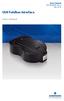 AW7060MNL, Rev 2 May 2014 USB Fieldbus Interface May 2014 Copyright Emerson Process Management, 2014. All rights reserved. Printed in the USA. Trademarks The Emerson logo is a trademark and service mark
e-dpp 4.0.2 May 2013 Quick Installation Guide Microsoft Windows 2003 Server, XP, Vista, 7 Access Database
 e-dpp 4.0.2 May 2013 Microsoft Windows 2003 Server, XP, Vista, 7 Access Database ELTECHS Engineering and Consulting Co., Ltd., Japan www.eltechs.co.jp Tel No. +81 (47) 490-1010 Fax No. +81 (47) 490-1011
FileMover 1.2. Copyright Notice. Trademarks. Patents
 FileMover 1.2 Copyright Notice No part of this publication may be reproduced, transmitted, transcribed, stored in a retrieval system, or translated into any human or computer language, in any form or by
PCMCIA Wireless LAN Card User s Manual
 PCMCIA Wireless LAN Card User s Manual Rev 1.0 Regulatory compliance FCC Warning This equipment has been tested and found to comply with the limits for a Class B digital device, pursuant to part 15 of
Getting Started. Table of Contents. Quick User Guide - English
 Getting Started This Quick User Guide helps you get started with the IRIScan TM Anywhere Wifi. Please read this guide before operating this scanner and its software. All information is subject to change
IMATION SECURE SCAN. ck Start Guide. Imation Secure Scan
 IMATION SECURE SCAN Quick ck Start Guide Imation Corp 2012 Imation Secure Scan page 1 of 6 1 Unpacking your Imation Secure Scan The following items are contained inside the case: 1 2 Imation Secure Scan
Duplex ID Card & License Scanner. User Guide
 Duplex ID Card & License Scanner User Guide CE Conformity and FCC Statement This equipment has been tested and found to comply with the limits of the European Council Directive on the approximation of
Chapter 1 Downloading Images to Your Computer (Windows)
 Software User Guide For the safe use of your camera, be sure to read the Safety Precautions thoroughly before use. Types of software installed on your computer varies depending on the method of installation
Installing the Gerber P2C Plotter USB Driver
 Installing the Gerber P2C Plotter USB Driver 1 You can install a Gerber P2C plotter using a USB connection and communicate with it using compatible design software. The following procedures describe installing
Centran Version 4 Getting Started Guide KABA MAS. Table Of Contents
 Page 1 Centran Version 4 Getting Started Guide KABA MAS Kaba Mas Welcome Kaba Mas, part of the world-wide Kaba group, is the world's leading manufacturer and supplier of high security, electronic safe
SF16-FMD. 16-Bit 3-D Sound Board with FM Radio. User Manual
 SF16-FMD 16-Bit 3-D Sound Board with FM Radio User Manual SF16-FMD 16-Bit 3-D Sound Board with FM Radio User Manual All rights reserved. No part of this publication may be produced, transmitted, transcribed,
PLUS TV ANALOG USB STICK Installation Manual
 PLUS TV ANALOG USB STICK Installation Manual Contents V1.2 Chapter 1 : PLUS TV ANALOG USB STICK Hardware Installation...2 1.1 Package Contents...2 1.2 System Requirements...2 1.3 Hardware Installation...2
Software Installation Procedure (MS Windows)
 Software Installation Procedure (MS Windows) E9970-96005 Rev. A 02/2004 (3070 05.30p 0603 WN) In this guide... Introduction, 1 Agilent 3070 Tech Support Web Site, 2 Time for Installation, 2 PC Specifications
Checking the Package Contents. Installing the Printer Software. Connecting. Unpacking the. the Printer. Printer. Attaching
 Installing the Printer Software Checking the Package Contents Connecting the Printer Unpacking the Printer Installing the Ink Cartridges Plugging in the Printer Attaching the Printer Parts 4032216-00 EUL
Portions of this product were created using LEADTOOLS 1991-2009 LEAD Technologies, Inc. ALL RIGHTS RESERVED.
 Installation Guide Lenel OnGuard 2009 Installation Guide, product version 6.3. This guide is item number DOC-110, revision 1.038, May 2009 Copyright 1992-2009 Lenel Systems International, Inc. Information
USBSPYDER08 Discovery Kit for Freescale MC9RS08KA, MC9S08QD and MC9S08QG Microcontrollers User s Manual
 USBSPYDER08 Discovery Kit for Freescale MC9RS08KA, MC9S08QD and MC9S08QG Microcontrollers User s Manual Copyright 2007 SofTec Microsystems DC01197 We want your feedback! SofTec Microsystems is always on
Capacitive Touch Lab. Renesas Capacitive Touch Lab R8C/36T-A Family
 Renesas Capacitive Touch Lab R8C/36T-A Family Description: This lab will cover the Renesas Touch Solution for embedded capacitive touch systems. This lab will demonstrate how to setup and run a simple
USB to VGA Adapter USB2VGAE2. Instruction Manual. USB 2.0 to VGA Multi Monitor External Video Adapter
 USB to VGA Adapter USB2VGAE2 Instruction Manual USB 2.0 to VGA Multi Monitor External Video Adapter *Please ensure that the driver installation is complete prior to the physical installation of the USB
IMPORTANT! CPD 8424R1
 IMPORTANT! You need to reinstall EPSON Image Authentication System (IAS) on your camera if it was installed before your camera was repaired. Please see your EPSON Image Authentication System User s Guide
Beckhoff onboard SATA-RAID
 Installation and operating instructions for Beckhoff onboard SATA-RAID Version: 1.3 Date: 2009-07-24 Table of contents Table of contents 1. 2. 3. 4. 5. 6. 7. General notes 2 Notes on the documentation
SOFTWARE INSTALLATION AND USB/i.LINK CONNECTION GUIDE
 SOFTWARE INSTALLATION AND USB/i.LINK CONNECTION GUIDE ENGLISH LYT1155-001A COPYRIGHT 2003 VICTOR COMPANY OF JAPAN, LTD. M3D8 Printed in Japan 0403-FO-ID-VP This document explains the basic information
How To Use An Easymp Network Projection Software On A Projector On A Computer Or Computer
 EasyMP Network Projection Operation Guide Contents 2 Before Use Functions of EasyMP Network Projection....................... 5 Sharing the Projector....................................................
Installation Guide Wireless 4-Port USB Sharing Station. GUWIP204 Part No. M1172-a
 Installation Guide Wireless 4-Port USB Sharing Station 1 GUWIP204 Part No. M1172-a 2011 IOGEAR. All Rights Reserved. PKG-M1172-a IOGEAR, the IOGEAR logo, MiniView, VSE are trademarks or registered trademarks
USB Plus+ RFID Reader Setup Guide
 875-0042-03 RevA USB Plus+ RFID Reader Setup Guide 1 Government Limited Rights Notice: All documentation and manuals were developed at private expense and no part of it was developed using Government funds.
footscan SCSI system Installation guide: balance software
 footscan SCSI system Installation guide: balance software Doc nr RS-PRD-00137-01 PN 80000061 Page 1 Information in this guide is subject to change without notice. No part of this document may be reproduced
Quick Start Using DASYLab with your Measurement Computing USB device
 Quick Start Using DASYLab with your Measurement Computing USB device Thank you for purchasing a USB data acquisition device from Measurement Computing Corporation (MCC). This Quick Start document contains
500/600/1000. User Manual June 2011 Rev. 061311. 1 v061311
 500/600/1000 User Manual June 2011 Rev. 061311 1 v061311 http://shopping.netsuite.com/digitalcheck TABLE OF CONTENTS Contents Radio Frequency Interference... 3 About the SB Scanner... 3 SB Scanner Equipment...
RDC-7 Windows XP Installation Guide
 RDC-7 Windows XP Installation Guide CONTENTS 1. End User License Agreement...3 2. Important notes...4 3. Customer support...4 4. Installing the USB driver...4 I. Prior to installation...4 II. Installation
FB-500A User s Manual
 Megapixel Day & Night Fixed Box Network Camera FB-500A User s Manual Quality Service Group Product name: Network Camera (FB-500A Series) Release Date: 2011/7 Manual Revision: V1.0 Web site: Email: www.brickcom.com
Installation Guide. APA-1460 SlimSCSI. PCMCIA-to-SCSI Host Adapter
 R Installation Guide APA-1460 SlimSCSI PCMCIA-to-SCSI Host Adapter Introduction This document explains how to install and use Adaptec s APA -1460 SlimSCSI PCMCIA-to-SCSI adapters. The SlimSCSI adapters
PCXpocket 440. Professional Digital Audio Card. User s manual. www.digigram.com DU 144600201 IS=A
 PCXpocket 440 Professional Digital Audio Card User s manual www.digigram.com DU 144600201 IS=A CONTENTS Information for the user 1 Overview 2 Installation 3 Specifications 4-5 Schematic diagram 6-7 Copyright
PCI230+ & PCI260+ MULTI-FUNCTION ANALOG AND DIGITAL INPUT/OUTPUT BOARDS
 PCI230+ & PCI260+ MULTI-FUNCTION ANALOG AND DIGITAL INPUT/OUTPUT BOARDS This Instruction Manual is supplied with the PCI230+/260+ to provide the user with sufficient information to utilise the purchased
INSTALL GUIDE Making Your Mobile Life Easier.
 Targus USB Bluetooth Adapter Making Your Mobile Life Easier. Visit our Web site at: www.targus.com Features and specifications are subject to change without notice 2005 Targus Group International, Inc.
How To Use An Easymp Network Projector On A Computer Or Network Projection On A Network Or Network On A Pc Or Mac Or Ipnet On A Laptop Or Ipro Or Ipo On A Powerbook On A Microsoft Computer On A Mini
 EasyMP Network Projection Operation Guide Contents 2 Before Use Functions of EasyMP Network Projection....................... 5 Sharing the Projector....................................................
USER S MANUAL USB FILE TRANSFER CABLE
 1. Introduction USER S MANUAL USB FILE TRANSFER CABLE Congratulations on your purchase of the PC-Linq, an USB file transfer cable. This unique cable allows you to easily connect two computers with USB
Network Scanner Tool R3.1. User s Guide Version 3.0.04
 Network Scanner Tool R3.1 User s Guide Version 3.0.04 Copyright 2000-2004 by Sharp Corporation. All rights reserved. Reproduction, adaptation or translation without prior written permission is prohibited,
Introduction to Data Acquisition
 Introduction to Data Acquisition Overview This tutorial is part of the National Instruments Measurement Fundamentals series. Each tutorial in this series, will teach you a specific topic of common measurement
Important. Please read this User s Manual carefully to familiarize yourself with safe and effective usage.
 Important Please read this User s Manual carefully to familiarize yourself with safe and effective usage. About This Manual This manual describes how to install and configure RadiNET Pro Gateway and RadiCS
Remote Deposit Capture Installation Guide
 Remote Deposit Capture Installation Guide Please contact [email protected] or call 860-284-6549 with any questions. Remote Deposit Capture Installation Instructions It is necessary to
User Guide. Guide d utilisation Guida dell'utente Benutzerhandbuch Guía del usuario Guia do Usuário WNA-100. Wireless Network Adapter
 WNA-100 Wireless Network Adapter User Guide Guide d utilisation Guida dell'utente Benutzerhandbuch Guía del usuario Guia do Usuário www.xerox.com/office/wna Copyright 2007 Xerox Corporation. All Rights
User s Guide DDS-3X25 USB ARBITRARY FUNCTION GENERATOR
 User s Guide DDS-3X25 USB ARBITRARY FUNCTION GENERATOR Content General safety summary...1 Introduction...2 Chapter 1 Getting started...3 System Requirements...4 Installing Hardware...5 Installing Software...8
Datacolor TOOLS. Datacolor TOOLS QCX. Datacolor TOOLS WORKSTATION
 Datacolor TOOLS Datacolor TOOLS QCX Datacolor TOOLS WORKSTATION Installation Instructions Datacolor TOOLS Installation Guide (June, 2009) All efforts have been made to ensure the accuracy of the information
Congratulations on your HomePortal purchase. To install your HomePortal and configure your home network, follow these steps.
 Notice to Users 2003 2Wire, Inc. All rights reserved. This manual in whole or in part, may not be reproduced, translated, or reduced to any machine-readable form without prior written approval. 2WIRE PROVIDES
InventoryControl for use with QuoteWerks Quick Start Guide
 InventoryControl for use with QuoteWerks Quick Start Guide Copyright 2013 Wasp Barcode Technologies 1400 10 th St. Plano, TX 75074 All Rights Reserved STATEMENTS IN THIS DOCUMENT REGARDING THIRD PARTY
Analyzer 2.0. Installation Guide. Contents
 Analyzer 2.0 Analyzer 2.0 is a comprehensive suite of tools designed to help you analyze complex aqueous and multisolvent electrolyte solution chemistry, thermophysical properties, phase behavior and corrosion
Table of Contents. 1. Overview... 3. 1.1 Materials Required. 3 1.2 System Requirements. 3 1.3 User Mode 3. 2. Installation Instructions..
 Table of Contents 1. Overview..... 3 1.1 Materials Required. 3 1.2 System Requirements. 3 1.3 User Mode 3 2. Installation Instructions.. 4 2.1 Installing the On Call Diabetes Management Software. 4 2.2
ScanShell.Net Install Guide
 ScanShell.Net Install Guide Please install the software first - DO NOT PLUG IN THE SCANNER The scanner has been carefully packaged to avoid damage during transportation. Before operating the scanner, please
SharpdeskTM R3.1. Installation Guide Version 3.1.01
 SharpdeskTM R3.1 Installation Guide Version 3.1.01 1 Copyright 2000-2004 by Sharp Corporation. All rights reserved. Reproduction, adaptation or translation without prior written permission is prohibited,
AIM SOFTWARE AND USB DRIVER INSTALLATION PROCEDURE
 AIM SOFTWARE AND USB DRIVER INSTALLATION PROCEDURE CONTENTS AIM software and USB Driver installation Chapter 1 Installing AIM software and AIM USB driver... 2 Chapter 2 Installation under Microsoft Windows
CashFlow Programming Module CPM
 CashFlow Programming Module CPM Installation & User Guide GB REV G4 08/08/2006 Table of Content Table of Content... 2 CashFlow Programming Module (CPM)... 4 What is a CPM?... 4 CPM Identification... 4
ENGLISH. Matrox TripleHead2Go. Digital Edition DP Edition Digital SE. User Guide (Windows version) 20020-301-0200 2012.10.18
 ENGLISH Matrox TripleHead2Go Digital Edition DP Edition Digital SE User Guide (Windows version) 20020-301-0200 2012.10.18 Contents About this user guide...4 Using this guide...4 More information...4 Overview...5
user manual IH-W350DB IH-W351DW MyLife webcam pro 5.0 megapixel max resolution
 IH-W350DB IH-W351DW MyLife webcam pro 5.0 megapixel max resolution Congratulations on the purchase of your new MyLife webcam pro. This product comes with a limited lifetime warranty. Before using your
SMART Response PE. Quick Start Guide. Safety and Compliance Information...2. Compliance...2. What s in the Box?...3. Environmental Considerations...
 SMART Response PE Quick Start Guide Safety and Compliance Information...2 Compliance...2 What s in the Box?...3 Environmental Considerations...3 Installing the Clicker Batteries...3 Installing SMART Response
USB to DVI-I Graphics Adapter CSV-2300D USER S MANUAL
 USB to DVI-I Graphics Adapter CSV-2300D USER S MANUAL 1 of 40 Table of contents Safety instructions 3 Copyright 4 Trademarks 4 Introduction 4 Features 5 Application 5 Package contents 6 System requirement
PCI Sound Card Genius Sound Maker Value Series User Manual
 TABLE OF CONTENTS PCI Sound Card Genius Sound Maker Value Series User Manual Overview 2 Installing the sound card..4 Appendix A. Hardware Information 8 FCC and CE Radiation Norm FCC This equipment has
Trademark Notice. Copyright Notice
 User s Guide Trademark Notice LinQ, SMART Board, Sympodium, Notebook, Bridgit, smarttech and the SMART logo are trademarks or registered trademarks of SMART Technologies Inc. in the U.S. and/or other countries.
USB 3.0 to Multi Monitor Video Adapter Quick Installation Guide
 USB 3.0 to Multi Monitor Video Adapter Quick Installation Guide Introduction The USB 3.0 to Multi Monitor Video Adapter allows you to connect a monitor, LCD or projector to your desktop or notebook computer
PicoScope 3000 Series
 PicoScope 3000 Series A, B and D MSO model oscilloscopes User's Guide PicoScope 3000 Series A/B Oscilloscope & D MSO User's Guide I Contents 1 Introduction...1 1 Safety information...3...4 1 Symbols...5
Orbit PCI Mk 2 Network Card. User Manual. Part No. 502566 Issue 4
 Orbit PCI Mk 2 Network Card User Manual Part No. 502566 Issue 4 Information in this document is subject to change without notice. Companies, names and data used in examples herein are fictitious unless
GE Healthcare Life Sciences UNICORN 5.31. Administration and Technical Manual
 GE Healthcare Life Sciences UNICORN 5.31 Administration and Technical Manual Table of Contents Table of Contents 1 Network setup... 1.1 Network terms and concepts... 1.2 Network environment... 1.3 UNICORN