
First. Alcatel-Lucent 8232 DECT Handset OmniPCX Office User manual
|
|
|
- Angelica Ursula Johnston
- 10 years ago
- Views:
Transcription
1 First First Alcatel-Lucent 8232 DECT Handset OmniPCX Office User manual 8AL USAB ed01 11/2012

2 CoverPage 2

3 Contents Toc Precautions for use p Getting to know your telephone p Phone description p Status icons p MENU icons p Call icons p Accessing the MENU and navigating p Getting started p Installing the battery in the telephone p Charging your telephone battery p Switching on your telephone p Using your telephone p Making a call p Calling from your personal directory (Individual number) p Calling your correspondent by name (company directory) p Receiving a call p Redialing p Requesting automatic callback if internal number is busy p Activate/deactivate voice frequency p During a call p During a conversation p Placing a call on hold (hold) p Make a second call p Receiving a second call p Switching between two calls (Broker call) p Transferring a call p Transfer a call to the voice mailbox of an absent party p Three-way conference with internal and/or external correspondents (conference) p Placing an outside call on hold (parking) p Store a number p Sharing p Answering the general bell p Call pick-up p Hunting groups p Diverting hunting group calls p Sending a written message to an internal correspondent p Send a voice message copy p Sending a recorded message to a number a distribution list p Modify the automated attendant welcome message remotely p Keep in touch p Selecting calls to be diverted p Diverting calls to your voice mailbox p Consulting your voice mailbox p Activatingdeactivating the personal assistant p Personal assistant: reaching you with one number only p Diverting calls to another number (immediate diversion) p Different types of diversions - Example of diversion on busy p Cancelling all diversions p Consulting messages left while you were away p. 27 3

4 Contents 7. Programming your telephone p Initializing your voice mailbox p Customising your voice greeting p Modifying your personal code p Adjusting the audio functions p Activating headset mode p Adjusting your telephone functions p Selecting language p Programming your personal directory (Individual number) p Modifying a card in the personal directory p Programming an appointment reminder p Identify the terminal you are on p Locking your telephone p Registering the telephone p Registering the telephone on a system for the first time p Registering the telephone on other systems p Using the telephone in GAP mode p Making a call p Receiving a call p Make a second call p Receiving a second call p Calling from your personal directory p Calling your correspondent by name (company directory) p Redialling the last number dialed (redial) p Sending DTMF signals p Immediate forward to a number p Diverting your calls to your voice message service p Deactivate forward p Consulting your voice mailbox p Sending a calibrated cut-off p Programming your personal directory p Deleting a card p Customizing and adjusting your telephone p read incoming text message p Sending text message p Sending predefined message p Accessories p Phone package p Chargers p Characteristics of the mains power adapter p Presentation of the battery pack p Headphone / external microphone p Cleaning your telephone p Transporting and protecting your telephone p Glossary p. 48 Declaration of compliance p. 49 4

5 Precautions for use howtoc Coverage area The DECT functions provided by your Alcatel-Lucent system allow user mobility management via DECT cordless telephones. Radio coverage of the Alcatel-Lucent system is ensured by a network of radio terminals. The coverage area of a radio terminal is called a cell. Mobility: A user can make or receive calls in any cell. Radio transfer: This function enables the user to move during a conversation and go from one cell to another. The transfer takes place automatically and has no effect on the conversation. In some cases, slight crackling may be audible at the moment of transition. Use of approved DECT equipment This DECT telephone is designed to be used with a private automatic branch exchange (PABX) without an Alcatel- Lucent wire. The CE symbol means that this product is compliant with current Community directives, more especially the following directives: 89/336/ Electromagnetic Compatibility CEE 73/23/CEE (Low voltage) 1999/5/CE (R&TTE) Pursuant to directive 1999/5/CE (R&TTE) published in the Official Journal of the European Community of April 7, 1999, these items of equipment use the DECT harmonized frequency spectrum and can be used in all the countries of the European Community, in Switzerland and Norway. No guarantee is given concerning possible interference affecting DECT equipment, due to other authorised utilisation of the radio frequencies concerned. 5

6 Precautions for use Operating conditions This approved DECT telephone is intended to be used with an Alcatel-Lucent cordless PBX. The following conditions must be respected, notably concerning the use of radioelectric frequencies: Changes or modifications to the equipment not expressly approved by the party responsible for compliance could void the user s authority to operate the equipment. To limit the risk of interference, people with pacemakers must keep the wireless telephone away from their equipment (minimum distance of 15 cm/6 inches) It is recommended to follow the standard acceptance procedures before using this equipment in human safety critical areas (hospitals...). DECT equipment can only be used to establish links between fixed points if these links are temporary and the equivalent isotropically radiated power at the antenna is less than 250 mw. The conditions of access to a DECT equipment telepoint network shall be stipulated by contract with the operator of the authorized telepoint network concerned. Do not expose your telephone to severe conditions (rain, sea air, dust, etc.). Switch off the telephone before changing the battery. You must not switch on or use your telephone near gas or inflammable liquids. The handset includes magnetic elements that may attract sharp metallic objects. To prevent injury, before each use ensure sharp metallic objects are not stuck to the earpiece. There is a danger of explosion if the battery is replaced incorrectly. Use only recommended battery: Alcatel- Lucent 3BN67332AA (China Shenzhen DRN Battery Co. Ltd. RTR001FXX / China Effort Limited CE-MB206-5C-XX - Li-ion 3.7V 1100mAh 4.1Wh). The mains power socket used must be close to the charger/holder and easily accessible, so that it can be used as an "on/off" facility. Battery charge: Charge the battery for about 16 hours before initial use. Use only 8232 DECT Handset charging units: 8232 DECT Handset Desktop charger (3BN67331AA), 8232 DECT Handset Desktop charger PSU (SALOM SSW-2374, Friwo FW7712-/FW7713/XX, Ten Pao S005SV / S005SB ). You can charge the device by connecting it to a USB 2.0 port (type A). Use only the cable provided with the 8232 DECT Handset Desktop Charger (USB "A" plug). The labels and icons presented in this document are not contractually binding and may be modified without prior warning.the labels and icons displayed on your phone depend on the system to which you are connected and may differ from those specified in this document. 6

7 Getting to know your telephone 1 Other 1.1 Phone description answer the call long press (feature depending on the system): redial last number or access the redial list switching between two calls (Broker call) switch off ringer hang up long press: Switch on the phone / Switch off the phone return to previous menu erase a character delete an entire field back to homepage Lock/unlock keypad confirm navigate short press: access the company directory Long press: Customizing your telephone ; Telephone ID (Features depending on the system ) short press: access the ringer and vibrate adjustment feature long press: Activate vibrate only short press: activate/deactivate the loudspeaker long press: Activate/deactivate the mute feature long press (features depending on the system): access to personal speed dial / access the dtmf feature during a conversation GAP mode: Switch from one call to the other LED green steady: the phone is on the charger and the battery is fully charged red steady: the phone is on the charger and the battery is charging slow yellow flashing: telephonic event such as unread message, missed call, etc. rapid yellow flashing: incoming call red flashing: out of coverage flashing when the phone is plugged into the charger means the same as when the phone is not plugged into the charger; however, the LED will display red or green in between the yellow flash depending on the charging status. 3.5 mm jack plug for headset and maintenance short press: decrease the volume of ring tone during an incoming call (4 steps) or decrease volume of loudspeaker during a conversation (8 steps). long press: activate/deactivate the mute feature. short press: increase the volume of ring tone during an incoming call (4 steps) or increase volume of loudspeaker during a conversation (8 steps). long press: activate/deactivate the loudspeaker. clip to hook your phone on your belt. you can remove the clip and instead use the cover that is provided in the phone package. usb plug for charging the battery press on this key to light up the screen when the phone is in idle state 7

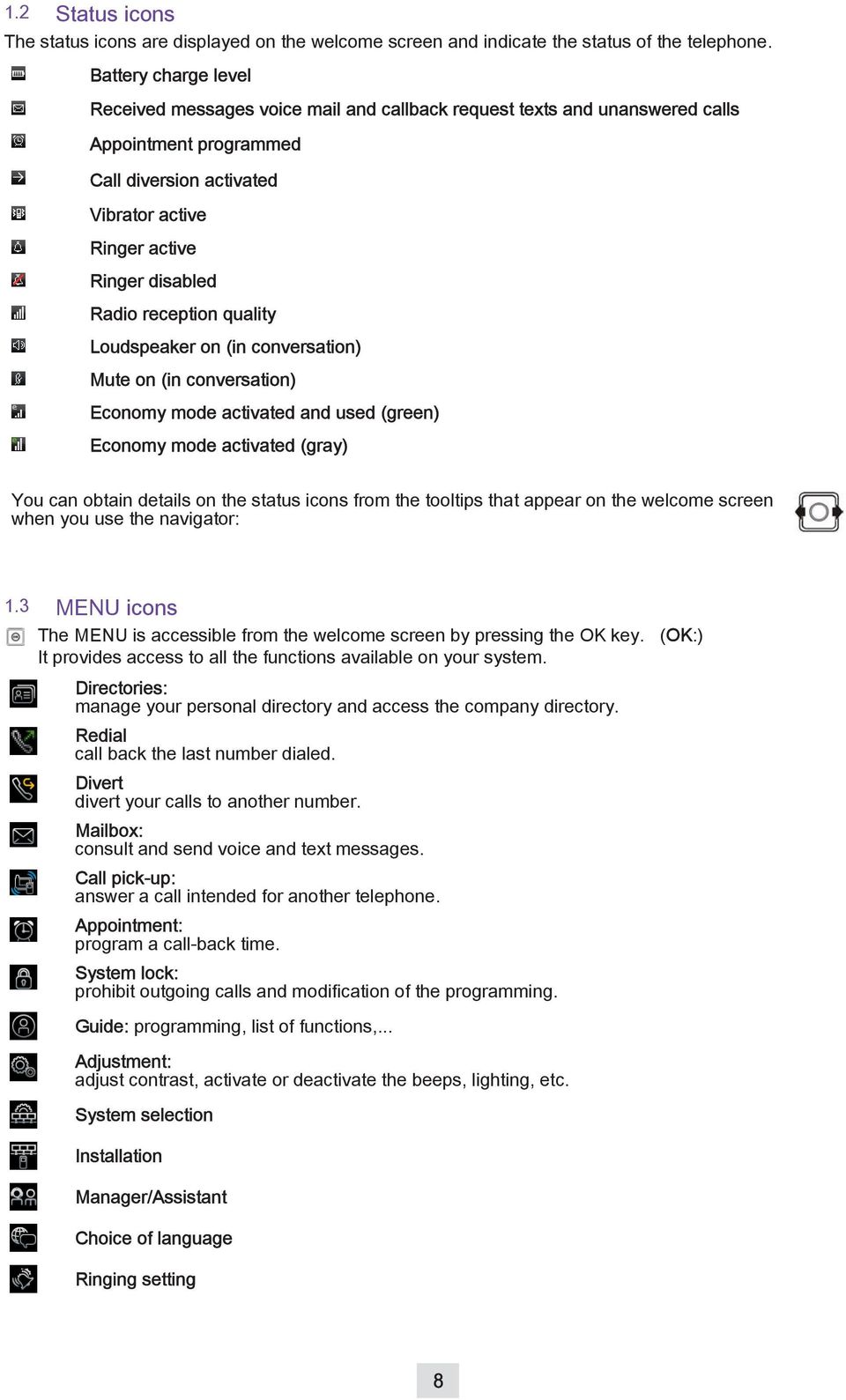
8 1.2 Status icons The status icons are displayed on the welcome screen and indicate the status of the telephone. Battery charge level Received messages voice mail and callback request texts and unanswered calls Appointment programmed Call diversion activated Vibrator active Ringer active Ringer disabled Radio reception quality Loudspeaker on (in conversation) Mute on (in conversation) Economy mode activated and used (green) Economy mode activated (gray) You can obtain details on the status icons from the tooltips that appear on the welcome screen when you use the navigator: 1.3 MENU icons The MENU is accessible from the welcome screen by pressing the OK key. (OK:) It provides access to all the functions available on your system. Directories: manage your personal directory and access the company directory. Redial call back the last number dialed. Divert divert your calls to another number. Mailbox: consult and send voice and text messages. Call pick-up: answer a call intended for another telephone. Appointment: program a call-back time. System lock: prohibit outgoing calls and modification of the programming. Guide: programming, list of functions,... Adjustment: adjust contrast, activate or deactivate the beeps, lighting, etc. System selection Installation Manager/Assistant Choice of language Ringing setting 8
9 1.4 Call icons Making a call Receiving a call Call on hold Accessing the directories Transferring a call Switching to DTMF signals Setting up a conference Diverting your calls to your voice message service Putting on common hold Parking an external communication Call duration and cost Additional options (Features depending on the system ) In the event of a multiple call, the icons are given indices to represent the different correspondents 1.5 Accessing the MENU and navigating The MENU is accessible from the welcome screen by pressing the OK key. Access MENU Select a function in the MENU You can move horizontally along the various icons within the function 9

10 Getting started 2 Other 2.1 Installing the battery in the telephone Installing the battery in the telephone If the belt clip is installed, you must lift it up and maintain it in this position during the battery installation or replacement. You can also turn the belt clip counterclockwise. To remove it Position the battery connectors side as shown in the drawing (A). Terminate the installation of the battery in its compartment by pressing as shown in the drawing (B). Replace the cover. If the belt clip is installed, you must lift it up and maintain it in this position during the battery installation or replacement. You can also turn the belt clip counterclockwise. Lift up the cover.. Remove the battery from its compartment as shown in the drawing. 10

11 2.2 Charging your telephone battery How to dock your phone on the desk support Put your phone on its support. Plug the USB cable into the 5V socket of the desk support. Plug the other end of the USB cable into the AC/DC adapter. Plug the adapor into the mains power supply. How to dock your phone with the USB cable Plug the USB cable into the USB port of your phone. The other end of the USB cable can be plugged into the AC/DC adapter or into a computer USB port. You can also charge your phone from any USB plug, such as a computer USB plug. However, the charging time is longer than charging with the AC/DC adapter. LED Green steady: the phone is on the charger and the battery is fully charged. Red steady: the phone is on the charger and the battery is charging. Recharge your telephone battery regularly. The telephone can be on or off when recharging the battery. If the telephone is to remain unused or out of its charger for several weeks, remove the battery and store it separately. The battery charging time is less than 3 hours. The charging time is longer if charging through the USB plug from a device other than the AC/DC adapter. Autonomy of your telephone On standby in the radio up to 200 hours coverage zone: In continuous conversation: up to 20 hours Switch off the telephone before changing the battery. 11

12 2.3 Switching on your telephone Press the switch on/off key (long press) Your telephone is switched on If the display fails to light up or the battery icon is flashing, recharge the battery. ; If the radio reception icon doesn t appear on the telephone display: Check that you re in an area covered (if you re not, move close to a radio terminal). Check that the telephone is properly installed in the system (consult the PABX manager). If the display indicates: "System 1 Auto install?", see paragraph "Registering the telephone" or contact your installation technician. Switching off your telephone: Press the switch on/off key (long press). 12

13 Using your telephone 3 Other 3.1 Making a call dial send the call You are in communication hang up To make an external call, dial the outside line access code before dialing your contact number 3.2 Calling from your personal directory (Individual number) contacts persspdial validate access to the personal directory select the name of the person you wish to call send the call The call can be sent directly from the list of names by dialling the number of the card. quick access: (Long press) 3.3 Calling your correspondent by name (company directory) contacts directory validate access to the personal directory enter the first letter of your correspondent s surname* select the desired name send the call en.txt excel2pt-mv-lg.sh lg8082.txt If several names come up, you can refine the search by entering the successive letters (second, third, etc.) of the name you are looking for. Press 1 when you do not know one of the letters of the name. For fast access to this function from the home screen page, press the directory key. 13

14 3.4 Receiving a call You are receiving a call long press - more information on the caller: successive presses for name and number answered incoming calls Speak disabling the ringer:press the hang up key when your telephone rings: it is still possible to answer by pressing the unhook key. hang up The ringer does not ring if:. the vibrator is active, the vibrator active icon is displayed on the screen saver.. the ringer is disabled, the ringer disabled icon is displayed on the screen saver. Long press = Guide key: (i) Depending on how the system is configured, the name or number of the caller is displayed on the screen. Pressing the i key displays the name or number of the caller on the screen. If the number is displayed by default, pressing the i key displays the name. If the name is displayed by default, pressing the i key displays the number. 3.5 Redialing call log select the no. in the last 8 issued send the call 3.6 Requesting automatic callback if internal number is busy The telephone of the internal correspondent you are trying to contact is busy, and you want the person to call you back as soon as they are free. callback To cancel the automatic callback request, enter the "Cancel automatic callback" function code. 14

15 3.7 Activate/deactivate voice frequency During a call, you sometimes have to send DTMF signals, for example, for a voice message service, an automatic switchboard or when remotely consulting an answering machine: you are in conversation with one caller mfcode to activate sending dtmf signals to deactivate The function is automatically cancelled when you hang up 3.8 During a call During a call and without losing the connection, there are several ways to access the options offered by your system, using: the list of icons at the top of the screen the list of items at the bottom of the screen Call in progress Slot for second call (reception of a call ou call waiting ) Contacts transfer Put through a second call Voice frequency Conference ManualHold Parkcall TrfVMU 15

16 During a conversation 4 Other 4.1 Placing a call on hold (hold) You are in conversation with one caller the first call is on hold Recover the correspondent on hold hang up Your telephone rings recover the correspondent on hold 4.2 Make a second call You are in conversation with one caller dial the number send the call the first call is on hold Recover the correspondent on hold hang up Your telephone rings recover the correspondent on hold You can also initiate a second call by first validating the Other call option and using the personal directory or the company directory. 4.3 Receiving a second call You are in conversation and a correspondent is trying to contact you: The caller s name is displayed for 3 seconds, and a beep is sent long press - more information on the caller: successive presses for name and number answered incoming calls the first call is on hold Over 3 seconds, move with the navigate-left-right key to the receiving a second call icon, to see the identity of the second caller (and off-hook if necessary) Long press = Guide key: (i) Depending on how the system is configured, the name or number of the caller is displayed on the screen. Pressing the i key displays the name or number of the caller on the screen. If the number is displayed by default, pressing the i key displays the name. If the name is displayed by default, pressing the i key displays the number. 16

17 4.4 Switching between two calls (Broker call) During a call, to recover the correspondent on hold: recover the correspondent on hold You can establish the identity of the waiting call without taking it by using the navigate-left-right key. display the correspondent s identity recover the correspondent on hold 4.5 Transferring a call During a conversation, to transfer the call to another number: You are in communication with a first correspondent call the recipient of the transfer send the call You are in conversation with the destination number transfer the two correspondents are connected After dialling the number of the recipient, you can transfer your call directly without waiting for your correspondent to answer by selecting "Transfer". You can initiate the transfer by using the "Transfer" icon or text. The transfer between two external correspondents and the transfer action by the onhook key depends on the system configuration 4.6 Transfer a call to the voice mailbox of an absent party During the call, you want to transfer your correspondent to the voice mailbox of another correspondent. You are in communication with a first correspondent trfvmu number of second correspondent 17

18 4.7 Three-way conference with internal and/or external correspondents (conference) During a conversation, a second call is on hold conference you are in conference mode cancel conference and return to first correspondent (if conference is active ) conference 4.8 Placing an outside call on hold (parking) You can park an outside correspondent in order to take the call on another set. You are holding an external conversation parkcall Your correspondent is parked and hears the hold melody. To recover your parked call: contacts parking dial the number of the set that originated parking You are on a call If the parked call is not recovered within a preset time (by default 1 minute 30), it is directed to the operator. 4.9 Store a number To store the displayed number in the personal directory while a communication is in progress: contacts persspdial validate access to the personal directory select the chosen card enter the name * (twice ) *To key in the name: the keys in the keypad include letters that you can display by pressing them successively. Example: press "8" twice to display the letter "U". 18

19 Sharing 5 Other 5.1 Answering the general bell When the operator is absent, incoming external calls are diverted to a general bell. You can answer these calls: contacts ansgenbell You are on a call confirm to take the call 5.2 Call pick-up You hear a telephone ringing in an office where no-one can answer. If authorised, you can answer the call on your own telephone. contacts pick-upind enter number of ringing telephone If the telephone ringing is in your own pick-up group: contacts pick-upgrp The system can be configured to prevent call pick-up on certain telephones. 19

20 5.3 Hunting groups Hunting group call: Some extensions can be associated to form a group. You can contact any one of them by dialling the group number. Belonging to a group does not affect the management of direct calls. A specific telephone within a group can always be called by using its own number. Temporary exit from your hunting group: code of the "group exit" function your group number Display of exit acceptance Return into your group: code of the "return to group" function your group number Display of exit cancellation 5.4 Diverting hunting group calls You can divert your own group calls: code of the "group call diversion" function no. of diversion telephone diversion acknowledgement is displayed To cancel this function, refer to chapter 6 "Cancelling all diversions". 5.5 Sending a written message to an internal correspondent messages textmails Confirm sendamsg Confirm dial the destination number Confirm select the message to be sent 20

21 The following 27 predefined messages exist: 1 Call me back 15 MEETING ON xx.xx.xx (*) 2 Call me back tomorrow 16 MEETING ON xx.xx.xx AT xx: xx (*) 3 CALL ME BACK AT xx: xx (*) 17 Out for a while 4 CALL BACK xx.xx.xx (*) 18 Absent for the rest of the day 5 Call the attendant 19 ABSENT, BACK AT xx: xx (*) 6 Call the assistant 20 ABSENT, BACK ON xx.xx.xx AT xx: xx (*) 7 I will call back at _:_ (*) 21 ON VACATION, BACK ON xx.xx.xx (*) 8 Use paging 22 External meeting 9 Please fetch your fax 23 EXTERN MEETING, BACK ON xx.xx.xx (*) 10 Please fetch your mail 24 I am in room nr (*) 11 Please cancel your forwarding 25 In a meeting - do not disturb 12 Visitors are waiting 26 At lunch 13 You are expected at reception 27 Indisposed 14 MEETING AT xx: xx (*) (*) Messages to be completed using numeric keypad If selected message has to be completed: confirm access to the message to be completed complete the message When editing a message to be completed you can use the delete key to delete any characters key ined. 5.6 Send a voice message copy messages voic Confirm access to the voice mailbox personal code Confirm select the message to copy sendcopy number or name of the recipient or list confirm confirm Confirm 21
22 To record a comment sendcopy number or name of the recipient or list confirm reccomment confirm confirm Start recording Recording in progress stop ok confirm While recording a comment you can select other functions using the navigate-up-down key 5.7 Sending a recorded message to a number a distribution list messages voic Confirm access to the voice mailbox personal code confirm sendamsg no. or name of the recipient or the list ( ) * select the message to be sent confirm * Distribution lists: 000: the message is sent to all voice mailboxes 001 to 050: the message is sent to a group of voice mailboxes 22
23 To record the message reccomment Confirm confirm Start recording Recording in progress stop? ok confirm send message While the message is being recorded, you can select other functions with the navigate-updown key. 5.8 Modify the automated attendant welcome message remotely This feature enables a user with the appropriate rights to modify the automated attendant night or day-time message. voice mail call number send the call number of your voice mailbox personal code access the "personal options" menu access the "welcome messages customisation" menu follow the instructions of the voice guide 23
24 Keep in touch 6 Other 6.1 Selecting calls to be diverted This function enables you to select the calls to be diverted. These can be: external calls, internal calls (local) or all calls. forward select the "list of calls" icon select the type of call to divert confirm return to idle 6.2 Diverting calls to your voice mailbox select the "diversion" function fwdimmvmu confirm 6.3 Consulting your voice mailbox When you have received a message, the Message icon is displayed on the welcome screen. OR the number of new vocal messages is displayed in the phone notification area ; messages voic Confirm access to the voice mailbox personal code confirm Display number of new and old messages playnew 24
25 To access voice mail functions You can move horizontally along the various icons. Listen to the messages Delete the current message Call back the person who left the message Send a copy of a message Pause while listening to message Go back 10 seconds Go forward 10 seconds 6.4 Activatingdeactivating the personal assistant As well as leaving a message in the voice mailbox, the personal assistant directs the caller to an extension number, an outside number, a mobile or the switchboard services persoassist forwardon: to activate personal assistant ForwardOFF: to deactivate personal assistant Confirm If the personal assistant and immediate forwarding are activated simultaneously the personal assistant functions are deactivated for as long as the forwarding function remains active. 6.5 Personal assistant: reaching you with one number only services persoassist menu To select the type of forwarding internalnb enter the name of a colleague or your assistant or any other name externalnb key in an outside number mobilenb key in the number of your mobile choiceon, choiceoff activate/deactivate the transfer to the switchboard dial the number (if necessary) 25
26 6.6 Diverting calls to another number (immediate diversion) The number can be your home, portable or car phone, voice mailbox or an internal extension (operator, etc.). forward fwdimm dial the destination number confirm You can continue to make calls while your telephone is diverted. General remark concerning diversions: you can only activate a single diversion on your telephone. Programming a new diversion will cancel the previous one. 6.7 Different types of diversions - Example of diversion on busy Different types of diversions You can initiate different types of forwarding from the call forward list. FwdBusy FwdDND FwdFollow FwdtoPag When you are in conversation, all your calls are diverted to the number you choose. Your telephone is momentarily inaccessible to all incoming calls. Your calls follow you when you are at another set. Your calls are diverted to your portable radio paging receiver. FwdTextAns Example of diversion on busy When a correspondent tries to call you, the text message you will have selected will be displayed on his or her phone screen forward fwdbusy dial the destination number confirm 6.8 Cancelling all diversions forward select the "diversion cancellation" icon confirm 26
27 6.9 Consulting messages left while you were away When you have received a message, the Message icon is displayed on the welcome screen. OR the number of new vocal messages is displayed in the phone notification area messages textmails Confirm select the desired message confirm to read it read the message from the options menu, you can erase the message, callback the message sender, answer the message or read the next message 27
28 Programming your telephone 7 Other 7.1 Initializing your voice mailbox You can use the Message icon on the welcome screen to initialize your voice mailbox. the number of new vocal messages is displayed in the phone notification area enter your password and record your name in accordance with the spoken instructions Your password has 6 digits Your personal code is used to access your voice mailbox and to lock your telephone. A weak personal code with 6 identical digits (000000, , etc.) or a simple sequence of 6 digits (012345, , etc.) will be rejected by the system. After a system upgrade, the password may still have only 4 digits. For security reasons, we recommend you use a password with 6 digits. Contact your installer for more information. 7.2 Customising your voice greeting You can replace the greeting message by a personal message services mbxgreeting record start recording Recording in progress stop ok confirm While recording the message you can select other functions with the navigate-up-down key. 28
29 To go back to the default message services mbxgreeting default Yes 7.3 Modifying your personal code Your personal code is used to access your voice mailbox and to lock your telephone. services useroptions Password enter the old password Enter the new password (Your password has 6 digits) Until your voice mailbox is initialized, the password is Each digit of the code is symbolized by an asterisk. A weak personal code with 6 identical digits (000000, , etc.) or a simple sequence of 6 digits (012345, , etc.) will be rejected by the system. After a system upgrade, the password may still have only 4 digits. For security reasons, we recommend you use a password with 6 digits. Contact your installer for more information. 7.4 Adjusting the audio functions You can choose the ring melody of your telephone (6 options) and adjust the audio volume (4 levels). A progressing ringing tone (meeting mode) can be used. Choose the tune services phoneset 29
30 Choose the tune ring.melody select the melody of your choice Adjusting the ringer volume ring.level select the volume of your choice You can adjust the buzzer/ringer mode according to your needs press on the ringer/vibrate key off:ringer and buzzer are deactivated Ring only:rings only Vibrate then ring:vibrates before ringing Vibrate only:vibrates only Vibrate and ring:vibrates and rings simultaneously This key can be used to switch rapidly from the ringer to the vibrator and vice-versa. 7.5 Activating headset mode This mode allows you to answer calls automatically (without doing anything) and to direct the call to the external headset. services phoneset autoanswer select active/inactive as you wish 7.6 Adjusting your telephone functions settings select the function* you want to activate or disable activate / disable return to idle 30
31 *You can activate or disable the following functions: Handset name you can enter a name for your handset Status to find out the software version of your phone Ascending ringing activate or deactivate the ascending ringtone Coverage warning activate or deactivate the coverage warning Keypad tone activate or deactivate the keypad tone Headset mode activate or deactivate the headset mode ECONOMY mode activate or deactivate the economy mode Vibrator / Ring to adjust the ringer and/or the vibrate function Security to activate the automatic keylock or change the PIN code Reset settings to reset the setting and go back to the default settings Silent charging Deactivate ringing and/or vibrate when the phone is on its charging holder. 7.7 Selecting language services useroptions languages select the language of your choice The initial language selection is made automatically by the system. 7.8 Programming your personal directory (Individual number) Your personal directory can contain up to 10 numbers. contacts persspdial select the chosen card confirm (long press) enter the name enter the number To key in the name: the keys in the keypad include letters that you can display by pressing them successively. Example: press "8" twice to display the letter "U". To delete a character, briefly press the delete key. 31
32 7.9 Modifying a card in the personal directory contacts persspdial select the card to be modified confirm (long press) move onto the letter to be modified modify the name move to the digit to be modified modify the number To delete an index card, delete the name and the number by holding down the delete key for a few seconds. To delete a character, briefly press the delete key Programming an appointment reminder alarms select the "permanent appointment" or "temporary appointment" icon: permappt, tempappt enter the time of the appointment Temporary appointment: call back within the next 24 hours Permanent appointment: call back every day at the same time At the programmed time, your telephone rings: press hang up or off-hook to confirm the answer. If you are in conversation, the display flashes, a tone is sent and you will hear a beep. After a third unanswered call, the temporary call request will be cancelled but the permanent call will remain in memory. If your line is diverted to another number, your call will not follow the diversion. To cancel your appointment call-back request: Select the meeting to be cancelled and press the delete key to delete the preset time. 32
33 7.11 Identify the terminal you are on The identifier or telephone number are displayed permanently when the telephone is within the radio coverage zone and is not being used (when standby screen not displayed) Locking your telephone This service enables you to prohibit outside calls and any programming changes on your telephone: lock enter your password Follow the same procedure to unlock your telephone. Each digit is represented by an asterisk. To select or modify your telephone interlock code, see paragraph "Modify your password" 33
34 Registering the telephone 8 Other 8.1 Registering the telephone on a system for the first time For the mobile telephone to function, it must be registered on at least one Alcatel-Lucent or GAP system (registration operation).if when first switched on the display indicates: "System 1 Auto install?" your telephone has not been registered on any system; consult your installation technician or proceed as follows: 1. Prepare your system for registration (see system installation guide). 2. When the system is ready, the station always displays the starting screen: auto install? confirm Registration can begin a- If the system does not use an AC code launch subscription b- If the system uses an AC (authentication code) register enter the pin code (the default is 0000) select a system (it is recommended that the first empty system is selected) enter park code enter access code select power mode (your are advised not to select the 50 mw power mode unless required. the "50mw power mode" is intended for hazardous sites such as nuclear plants where it is requested that emissions do not exceed the maximum value.) The registration operation can last up to 2 minutes. If the operation has been done correctly (subscription accepted), the telephone is ready to be used and the radio reception quality icon is displayed. If the registration operation has not been successful, the station proposes launching the subscription again. Utilization of the telephone in GAP mode can lead to functional limitations for which no claims will be considered under the terms of the warranty. 8.2 Registering the telephone on other systems The telephone can be declared on several systems (maximum of 5). Note: the input is usually reserved for use with your main Alcatel-Lucent system. You can select the other inputs to register the telephone under another system (Alcatel-Lucent or other system). 34
35 To make a new registration, when the telephone has already been registered on one or more systems, proceed as follows: 1. Prepare your system for registration (see the system installation manual or consult your installation manager). 2. When the system is ready: install register enter the pin code select a system enter park code enter access code select power mode Launch subscription return to idle If the registration operation runs correctly (Subscription accepted), the telephone is ready for use, and the radio coverage icon appears. If the registration operation has not been successful, the station proposes launching the subscription again. Depending on the type of system concerned, registration may require one or more additional operations on the system. Selecting your telephone system Your telephone can be programmed to function on 5 different DECT systems (Alcatel-Lucent or GAP). install select network select the desired input (the chosen option is indicated by the radio button with a central dot) return to idle The selection is retained even after switching the telephone on/off. The selection of a specific system (SYSTEM...) forces operation on a specific system. This selection must be changed if one wishes to change system. Selecting "Lock to any" enables the telephone to connect automatically when it enters a system coverage zone. If the systems programmed in the telephone have common coverage zones, the telephone selects the first system found. 35
36 Using the telephone in GAP mode 9 Other Your telephone complies with the GAP standard and can be used in simplified mode Unless otherwise specified, the functions described below are available on your telephone in combination with the mandatory functions provided by your fixed GAP system. Automatic transfer between radio cells: This telephone function enables you to move around between radio relay units, without any break in communications. However, this facility depends on the inherent limitations of the fixed system, notably its ability to manage several radio relays. Display function: When a call is made from the telephone, the digits dialed are displayed. When you receive a call, the display indicates the caller s number or name, if this function is provided by the fixed system. The feature descriptions and feature codes are dependent on your system. For more information, contact your installer or administrator. This utilisation may involve functional restrictions outside the coverage of our guarantee. 9.1 Making a call dial send the call You are in communication hang up 9.2 Receiving a call You are receiving a call answered incoming calls Speak hang up 9.3 Make a second call When you are on a call, you can initiate a second call. You are in conversation with one caller press the off hook key dial the number send the call the first call is on hold Switching between calls (Broker call) switch from one call to the other Connect your two callers (Transfer ) hang up 36
37 9.4 Receiving a second call The operation of your phone depends on its single or multi-line installation. Contact your installer to know which feature description must be used on your installation. You are in conversation and a correspondent is trying to contact you: single-line set multiline set enter the feature code answered incoming calls the first call is on hold Switching between calls (Broker call) single-line set multiline set enter the feature code switch from one call to the other Recover the correspondent on hold hang up 9.5 Calling from your personal directory contacts contacts access your personal directory select the name of the person you wish to call choose the number to call (select from mobile, work or home) send the call 37
38 9.6 Calling your correspondent by name (company directory) contacts While writing, you can: symbol: add symbols Clear: clear characters central directory access to the company directory enter the first letter of your correspondents surname* select the desired name view you can see the caller s number if required send the call (call) *If several names come up, you can refine the search by entering the successive letters (second, third, etc.) of the name you are looking for. For fast access to this function from the home screen page, press the directory key. 9.7 Redialling the last number dialed (redial) OR long press dialed select the name of the person you wish to call send the call 38
39 9.8 Sending DTMF signals During a call, you sometimes have to send DTMF signals, for example, for a voice message service, an automatic switchboard or when remotely consulting an answering machine. To do this: If DTMF is activated by default on your system press the keyboard keys If DTMF is not activated by default on your system press the star key (hold down for a few seconds). press the keyboard keys Depending on the system configuration, the DTMF can be activated by default. 9.9 Immediate forward to a number You are not connected. enter the feature code: immediate forward enter the destination number Depending on your system and its configuration you may hear a specific tone after hanging up the receiver when you set call forward. Code to associate to a speed dial key: Immediate forward + No. of diversion telephone. Your set allows you to program other types of forward depending on the entered code: Forward duration noreply, Selective forward Diverting your calls to your voice message service You are not connected. enter the feature code: enter the desired forward code enter the voic number When the set is forwarded, you hear a specific tone after hooking off the set. Code to associate to a speed dial key: Forward + Voic number. 39
40 9.11 Deactivate forward You are not connected. enter the code of the forward to cancel If you have defined a forward on a speed dial key, you can cancel this forward by a long press on this key A diversion can also be cancelled by programming another type of diversion Consulting your voice mailbox When you have received a message, the Message icon is displayed on the welcome screen. To listen to your voice messages, dial your voic number and follow instructions given. For more information, contact your installer or administrator Sending a calibrated cut-off The calibrated cut-off activates functions such as transfer to another telephone set.to make a calibrated cut-off: Press the 0 key (hold down for a few seconds) Programming your personal directory Your directory can contain up to 12 numbers contacts contacts access your personal directory 40
41 Add new contact more add contact name: enter the name (24 characters maximum) select the type of contact work: / mobile: / home: / other: enter the number save ring edit select the ringtone to use when this contact calls you. save Yes return to idle To key in the name: the keys in the numeric keypad include letters that you can display by pressing them successively. Example: press twice in succession on 8 to display the letter "U". To insert a pause in a number, press the 1 (hold down for a few seconds). To insert a measured break, press 0 (hold down for a few seconds). Modify a contact select the card to be modified edit OR select the type of contact work: / mobile: / home: / other: edit contact name: enter the name (24 characters maximum) select the type of contact work: / mobile: / home: enter the number save ring edit select the ringtone to use when this contact calls you. save Yes return to idle To delete a character, briefly press the delete key. ; to erase a field full of characters, hold down the erase key (long press). 41
42 9.15 Deleting a card contacts contacts access your personal directory select the card to delete delete contact yes return to idle To delete all contacts, select: Delete all cont Customizing and adjusting your telephone Choosing your melody: ring Adjusting the ringer volume off-site ringing / on-site ringing select the melody of your choice (you can play/stop and select the ringtone ) return to idle ring ring volume increase / reduce the volume return to idle Set time and date: settings time & date enter date and time return to idle 42
43 Selecting language: Other features: Ring settings languages Select the language of your choice return to idle ring vibrator: to adjust the ringer and/or the vibrate function Keypad tone: activate or deactivate the keypad tone Confirmation sound: Activate or deactivate a signal when you confirm an action Coverage warning: activate or deactivate the coverage warning Charger warning: Activate or deactivate a warning when the phone is charging Ascending ringing: activate or deactivate the ascending ringtone Headset mode: activate or deactivate the headset mode select off / on return to idle Other features: Settings settings ECONOMY mode: activate or deactivate the economy mode Security: to activate the automatic keylock or change the PIN code Handset name: you can enter a name for your handset Reset settings: to reset the setting and go back to the default settings Auto answer: the phone automatically answers the call Status: to find out the software version of your phone 2s key repeat Silent charging: Deactivate ringing and/or vibrate when the phone is on its charging holder. select / off / on return to idle 43
44 9.17 read incoming text message A new text message is notified to the user by a beep, an LED signal and indicated by the new text message icon in the phone s status bar. OR select the incoming message icon messages incoming txt messages Confirm unread messages are highlighted with an incoming arrow. select an unread message message status display (sender, date and time, number of messages) message content display message display if the content is longer than one screen from the options menu, you can erase the message, callback the message sender, answer the message or read the next message 9.18 Sending text message messages new message write the message While writing, you can: symbol: add symbols Clear: clear characters send You can send the message to your caller by entering their number, selecting them from the contacts list or by selecting them from the call log. 44
45 9.19 Sending predefined message You can send predefined messages to your correpondents. These messages are: In a meeting, I am absent for the moment, Please call again. messages select the predefined message option ((icon on the right side) ) select the predefined message to send You can send the message to your caller by entering their number, selecting them from the contacts list or by selecting them from the call log. send 45
46 Accessories 10 Other 10.1 Phone package When you purchase your phone, it is equipped with a belt clip on the back. You can remove this belt clip and replace it with the cover provided in the box of your new phone. turn the belt clip by doing a counterclockwise quarter turn remove the belt clip by pulling it towards you. Put on the cover instead of the belt clip as shown in the picture. Push the cover towards the back of the phone until the cover is clipped on Chargers Your phone charger is supplied with the following equipment: An AC/DC adapter made of a body and a separate plug head that clips onto the AC/DC adapator body. A USB cable A desk support for docking your phone How to dock your phone on the desk support Put your phone on its support. Plug the USB cable into the 5V socket of the desk support. Plug the other end of the USB cable into the AC/DC adapter. Plug the adapor into the mains power supply. How to dock your phone with the USB cable Plug the USB cable into the USB port of your phone. The other end of the USB cable can be plugged into the AC/DC adapter or into a computer USB port. 46
47 10.3 Characteristics of the mains power adapter Input: 100/240 V - 50/60 Hz Output: 5V - 1A The mains power socket used must be close to the charger/holder and easily accessible, so that it can be used as an "on/off" facility Presentation of the battery pack Autonomy of your telephone On standby in the radio coverage zone In continuous conversation Initial charge: up to 200 hours up to 20 hours Place the telephone in the charging holder On charge (3 hours) Battery icon flashing The battery is charged Maximum battery performance is only reached after around 10 charge/discharge cycles. These batteries contain polluting substances: do not dispose of them in a dustbin - take them to a specialized collection point Headphone / external microphone The side of the telephone features a 3.5 mm jack connector for headphone / external microphone. Contact your retailer for information on the various headphone models available Cleaning your telephone Your telephone does not require any particular servicing. However, it may be cleaned using a soft, damp cloth. Do not use soap or detergent that would risk altering the colours or damaging the surface of the telephone Transporting and protecting your telephone To avoid losing your telephone, get into the habit of clipping it onto your belt. Your telephone can also be carried in a protective case. Various models of carrying case are available. Ask your installation technician for information. It is vital to use the special protective carrying case if your telephone is to be used in an industrial environment (presence of dust, filings, vapours of diverse origins and risk of being dropped). If the telephone is used with a carrying case, the belt clip must be removed. 47
48 Glossary 11 Other Call transfer Function enabling a call to be transferred to another telephone within the system. Common directory: This directory contains all the speed-dial numbers accessible to the users of the France Télécom diatonis system. Conference: The conference function allows the user, in contact with two correspondents, to set up a three-way conference. DECT: European cordless telephone standard: Digital Enhanced Cordless Telecommunication. DECT telephone: Cordless telephone complying with the DECT standard. GAP (Generic Access Profile): Specific operating mode defined in the European DECT standard. The telephone GAP mode is a basic and simplified form of operation compatible with other DECT GAP systems (other PBX or indoor relay). Hunting groups: Several telephones grouped under one directory number. A call to this number is directed to one of the free telephones within the group. Intrusion: Function allowing intrusion into a conversation between two correspondents. Personal assistant: This facility enables the caller to avoid having to leave a message in the voice mailbox and directs him/her to an extension number, an outside number, a mobile or the switchboard. Parking: This function places an outside call on hold, for subsequent recovery on another "authorised" extension within the system. Password This directory contains all the abbreviated numbers that can be accessed by users of the Alcatel-Lucent installation Personal directory: This directory contains the personal numbers of the user of a terminal. Pick-up group: This function enables you to answer a call ringing on another terminal. Calls can only be picked up within the pick-up group. Broker call During a conversation, DTMF codes are sometimes required. These codes are used when a user wants to consult a voice server, access a PABX or remotely consult an answering machine. 48
49 Declaration of compliance howtoc Regulatory Statements EU/EFTA This equipment is in compliance with the essential requirements of R & TTE Directive 1999/5/EC. The Declaration of Conformity may be obtained from your installer. USA and Canada Handset: This device complies with Part 15 of the FCC Rules and with RSS-210 of Industry Canada. (FCC ID: T7HCT8111, IC: 4979B-CT8111). This device complies with Part 68 of the FCC Rules and with IC CS-03 Part V of Industry Canada. The ACTA registration number is US: T7HW4NANCT8111. Chargers: This device complies with Part 15 of the FCC Rules and with RSS-210 of Industry Canada. Operation is subject to the following two conditions: (1) this device may not cause harmful interference, and (2) this device must accept any interference received, including interference that may cause undesired operation. Exposure to Radio Frequency Signals. This device has been designed and manufactured not to exceed the SAR (Specific Absorption Rate) radio frequency power transmission limits established by the different countries concerned. The SAR value measured is equal to W/kg (the globally accepted maximum limit being 1.6 W/kg). User Instructions Only use the handset in temperatures between -5 C to +45 C (23 F to 113 F). ( ) This apparatus is Hearing Aid Compatible (HAC). This device complies with Part 68 of the FCC Rules and with IC CS-03 Part V of Industry Canada. Acoustic shock protection The acoustic level of the signal generated by the handset earpiece is less than 130 dbspl for a transient signal (123 dbspl for Australia) and less than 118 dbspl (rms) for a continuous signal (120 dba for Australia). Directive 2003/10/EC specifying the risks inherent in noise at work The ring contributes towards overall daily noise. To reduce the level, the following is recommended: reduce the setting, program a progressive ring. Privacy Privacy of communications may not be ensured when using the Bluetooth handset or any additionnal Bluetooth device Disposal The equipment must be returned to a collection point for electronic equipment waste disposal. Defective batteries must be returned to a collection point for chemical waste disposal. Alcatel, Lucent, Alcatel-Lucent and the Alcatel-Lucent logo are trademarks of Alcatel-Lucent. All other trademarks are the property of their respective owners. The information presented is subject to change without notice. Alcatel-Lucent assumes no responsibility for inaccuracies contained herein. Copyright 2012 Alcatel- Lucent. All rights reserved. 49
Alcatel OmniPCX Office Alcatel 4018/4019
 Alcatel OmniPCX Office Alcatel 4018/4019 First User manual How Introduction How to use this guide Thank you for choosing a telephone from the 4018/4019 range manufactured by Alcatel. Your terminal has
Alcatel OmniPCX Office Alcatel 4028/4029
 Alcatel OmniPCX Office Alcatel 408/409 First User manual How Introduction How to use this guide Thank you for choosing a 408/409 telephone manufactured by Alcatel. Your 408 (IP) or 409 (digital) terminal
Alcatel-Lucent 8242 DECT Handset
 Alcatel-Lucent OpenTouch Suite for MLE User Manual 8AL90306USAAed01-1423 1 GETTING TO KNOW YOUR TELEPHONE... 7 1.1 PHONE DESCRIPTION... 7 1.2 STATUS ICONS... 9 1.3 MENU ICONS... 10 1.4 CALL ICONS... 11
Alcatel Premium Reflexes Alcatel Easy Reflexes. Alcatel OmniPCX Office ARCHITECTS OF AN INTERNET WORLD
 Alcatel Premium Reflexes Alcatel Easy Reflexes Alcatel OmniPCX Office ARCHITECTS OF AN INTERNET WLD User guide how Thank you for choosing one of our Reflexes, range of telephones, and for your confidence
Alcatel OmniPCX Office Alcatel 4028/4029
 Alcatel OmniPCX Office Alcatel 408/409 First User manual How Introduction How to use this guide Thank you for choosing a telephone from the 408/409 range manufactured by Alcatel. Your 408 (IP) / 409 (digital)
Alcatel-Lucent OmniPCX Office
 Alcatel-Lucent OmniPCX Office Alcatel-Lucent IP Touch 4018 Phone Alcatel-Lucent IP Touch 4008 Phone Alcatel-Lucent 4019 Digital Phone User manual Introduction How to use this guide Thank you for choosing
Alcatel-Lucent OmniPCX Office
 Alcatel-Lucent OmniPCX Office Alcatel-Lucent IP Touch 408 Phone Alcatel-Lucent IP Touch 408 Phone Alcatel-Lucent 409 Digital Phone User manual Introduction How to use this guide Thank you for choosing
Alcatel-Lucent OmniPCX Enterprise Communication Server
 Alcatel-Lucent OmniPCX Enterprise Communication Server Alcatel-Lucent IP Touch 4018 Phone Alcatel-Lucent IP Touch 4008 Phone Alcatel-Lucent 4019 Digital Phone User manual Introduction How to use this
Alcatel OmniPCX Enterprise IP Touch 4068 IP Touch 4038
 Alcatel OmniPCX Enterprise IP Touch 408 IP Touch 408 User manual Introduction How to use this guide Thank you for choosing a telephone from the IP Touch range manufactured by Alcatel. Your IP Touch digital
Alcatel-Lucent OmniPCX Office. Alcatel-Lucent IP Touch 4028 Phone Alcatel-Lucent 4029 Digital Phone
 Alcatel-Lucent OmniPCX Office Alcatel-Lucent IP Touch 408 Phone Alcatel-Lucent 409 Digital Phone User manual Introduction How to use this guide Thank you for choosing a telephone from the IP Touch 408
Alcatel-Lucent OmniPCX Enterprise
 First Alcatel-Lucent OmniPCX Enterprise Alcatel-Lucent IP Touch 4018 Phone Alcatel-Lucent IP Touch 4008 Phone Alcatel-Lucent 4019 Digital Phone User manual Introduction How to use this guide Thank you
OmniPCX Enterprise. Easy Reflexes TM. Quick Guide
 OmniPCX Enterprise Easy Reflexes TM Quick Guide User Guide Easy REFLEXESÔ Alcatel OmniPCXÔ 4400 Your Easy REFLEXESÔ terminal provides simple and quick access to all the services and features offered by
2.4 GHz Dual Handset Cordless Telephone Answering System 2255 with Caller ID/Call Waiting
 USER S MANUAL Part 2 2.4 GHz Dual Handset Cordless Telephone Answering System 2255 with Caller ID/Call Waiting Please also read Part 1 Important Product Information AT&T and the globe symbol are registered
Alcatel-Lucent OmniPCX Office. Alcatel-Lucent IP Touch 4028 Phone Alcatel-Lucent 4029 Digital Phone
 Alcatel-Lucent OmniPCX Office Alcatel-Lucent IP Touch 408 Phone Alcatel-Lucent 409 Digital Phone User manual Introduction How to use this guide Thank you for choosing a telephone from the IP Touch 408
Your First REFLEXES terminal provides simple and quick access to all the services and functions offered by your Alcatel OmniPCX 4400 system.
 Alcatel OmniPCX 4400 User guide First REFLEXES Alcatel OmniPCX 4400 Your First REFLEXES terminal provides simple and quick access to all the services and functions offered by your Alcatel OmniPCX 4400
Alcatel-Lucent OmniTouch 8082 My IC Phone
 First Alcatel-Lucent OmniTouch 8082 My IC Phone OmniPCX Enterprise 8AL90835USAAed01 User manual Introduction Thank you for choosing an Alcatel-Lucent phone.. This model offers enhanced ergonomical features
Alcatel-Lucent OmniPCX Enterprise Communication Server
 Alcatel-Lucent OmniPCX Enterprise Communication Server Alcatel-Lucent IP Touch 4018 Phone Alcatel-Lucent IP Touch 4008 Phone Alcatel-Lucent 4019 Digital Phone User manual Introduction How to use this
Alcatel-Lucent OmniPCX Enterprise Communication Server. Alcatel-Lucent IP Touch 4028 Phone Alcatel-Lucent 4029 Digital Phone
 Alcatel-Lucent OmniPCX Enterprise Communication Server Alcatel-Lucent IP Touch 408 Phone Alcatel-Lucent 409 Digital Phone User manual Introduction How to use this guide Thank you for choosing a telephone
Alcatel Advanced Reflexes. Alcatel OmniPCX Office ARCHITECTS OF AN INTERNET WORLD
 Alcatel Advanced Reflexes Alcatel OmniPCX Office ARCHITECTS OF AN INTERNET WLD User guide How Thank you for choosing one of our Reflexes, range of telephones, and for your confidence in Alcatel Your Alcatel
Alcatel OmniPCX Enterprise
 Alcatel OmniPCX Enterprise User guide Easy REFLEXES Alcatel OmniPCX Enterprise Your Easy REFLEXES terminal provides simple and quick access to all the services and functions offered by your Alcatel OmniPCX
Motorola C12A. Digital Cordless Telephone with Digital Answering Machine. For C1211A, C1212A, C1213A and C1214A
 Digital Cordless Telephone with Digital Answering Machine Motorola C12A For C1211A, C1212A, C1213A and C1214A Warning: Charge the handset for 24 hours before use. Welcome... to your new Motorola C12A Digital
BUSINESS COMMUNICATIONS DIVISION. IP4100 SIP DECT User Guide
 BUSINESS COMMUNICATIONS DIVISION IP4100 SIP DECT User Guide TOSHIBA IP4100 DECT HANDSET END USER GUIDE FEATURES Toshiba IP4100 DECT Handset Features 2.0 inch colour TFT back-lit display Li-ion battery
BT Freestyle 750. User Guide
 BT Freestyle 750 User Guide Welcome to your BT Freestyle 750 Digital Cordless Telephone Answering Machine Answering machine with up to 15 minutes digital recording time and helpful voice prompts. 50 Name
UK s best selling phone brand. User Guide. BT3710 Digital Cordless Phone With Answering Machine
 UK s best selling phone brand User Guide BT3710 Digital Cordless Phone With Answering Machine 2 This User Guide provides you with all the information you need to get the most from your phone You must set
How To Use A U.S. Cell Phone At Home
 U.S. Cellular Home Phone 1 Contents Getting to Know Your Device...5 Appearance... 5 LED Indicators... 6 Device Installation...7 Before You Begin... 7 Installing the Battery... 7 Installing the Power Adapter...
Alcatel-Lucent OmniPCX Enterprise Communication Server
 Alcatel-Lucent OmniPCX Enterprise Communication Server Alcatel-Lucent IP Touch 408 Phone Alcatel-Lucent IP Touch 408 Phone Alcatel-Lucent 409 Digital Phone User manual Introduction How to use this guide
INTRODUCTION TO YOUR BT MICRO... 2 WELCOME... 2 BT MICRO FEATUREPHONE... 2 HOW TO USE YOUR BT MICRO FEATURE PHONE... 3
 Table of Contents INTRODUCTION TO YOUR BT MICRO... 2 WELCOME... 2 BT MICRO FEATUREPHONE... 2 HOW TO USE YOUR BT MICRO FEATURE PHONE... 3 Phone setup... 3 Answering and making calls... 3 Transferring calls...
Alcatel Easy Reflexes. Alcatel OmniPCX Enterprise
 Alcatel Easy Reflexes Alcatel OmniPCX Enterprise How to use this guide You have an Alcatel Easy REFLEXES digital telephone. Actions Off-hook Display Hang up Description of an action or context Partial
Dialog 4220 Lite/Dialog 4222 Office
 Dialog 4220 Lite/Dialog 4222 Office System telephones for MD110 Communication System User Guide Flinders University Table of Contents Description 2 Incoming Calls... 10 Outgoing Calls... 12 During Calls
Home Phone with Answering Machine Sonus 1500. Quick set-up and user guide
 Home Phone with Answering Machine Sonus 1500 Quick set-up and user guide 2 Important please read first Only use the line cord, power supply and rechargeable batteries supplied with your phone. Make sure
VoIP Wireless Handset 7921 & 7925
 VoIP Wireless Handset 7921 & 7925 User Guide UCLA INFORMATION TECHNOLOGY SERVICES Introduction This guide covers the features that are available with the VoIP wireless telephone system. IT Services supports
User Guide. BT Graphite 2500. Think before you print!
 BT Graphite 2500 User Guide This new interactive user guide lets you navigate easily through the pages and allows you to be directed straight to any websites or email addresses that are referenced Simply
User Guide. Nortel Networks. i2004 Internet Telephone
 User Guide Nortel Networks i2004 Internet Telephone Table of Contents Description of the i2004 Internet Telephone 1 Control keys... 1 Display screen... 1 Description of keys...2 Notification of message
UK s best selling phone brand. Quick Set-up and User Guide. BT3510 Digital Cordless Phone with Answering Machine
 UK s best selling phone brand Quick Set-up and User Guide BT3510 Digital Cordless Phone with Answering Machine 2 Important please read first Only use the line cord, power supply and rechargeable batteries
Professional answering machine with time control, SMS service and message transfer. Retell 540 office
 Manual (UK) Professional answering machine with time control, SMS service and message transfer Retell 540 office Safety instructions Safety instructions When installing, connecting and operating the Retell
DIVERTING CALLS: EXTENSION DIVERT... 36 Diverting all calls from your extension... 36 Diverting your calls while you are at another extension (Follow
 Contents WELCOME...1 USING THIS DOCUMENT...1 BT CONTACT DETAILS...1 ABOUT YOUR BT QUANTUM TELEPHONES...2 BT QUANTUM SYSTEMPHONES...2 BT 8568 Digital Systemphone...2 BT 8528 Digital Systemphone...5 BT 5360
User Guide for Alcatel Telephone Advanced Phone Features For 4035
 The Alcatel 4035 set is equipped with the following elements: 1. Handset 2. Loudspeaker 3. Voice message indicator 4. Navigator key ; this is used to scroll the dynamic keys labels pages or lines (upwards
User Guide for Alcatel Telephone
 User Guide for Alcatel Telephone The Alcatel 4020 set is equipped with the following elements : 1. Handset 2. Loudspeaker 3. Alphanumeric display 20 characters 4. Information key 5. System programmed key
BT Synergy 5500 User Guide
 BT Synergy 5500 User Guide Welcome to your BT Synergy 5500 Digital Cordless Telephone Answering Machine Display with blue backlight. 250 Name and number phonebook. Copy phonebook entries between other
2 line (1 symbol, 1 display) / 16 character display
 Aastra Office 60 & 60IP Overview of the phone 2 line (1 symbol, 1 display) / 16 character display Message and Phone Status LEDs Absence Redial Phone Book Loudspeaker Microphone key Volume (+ / -) Call
Ascotel IntelliGate Communications Systems A150 A300 2025 2045 2065. Office 60IP User s Guide
 Ascotel IntelliGate Communications Systems A150 A300 2025 2045 2065 Office 60IP User s Guide Operating and Display Elements Operating and Display Elements 1 4 5 6 7 2 8 9 10 16 11 12 13 17 14 15 3 Operating
BT Granite User Guide
 BT Granite User Guide Think before you print! This new interactive user guide lets you navigate easily through the pages and allows you to be directed straight to any websites or email addresses that are
BT Paragon 550. User Guide
 BT Paragon 550 User Guide Section Welcome to your BT Paragon 550 corded digital telephone and answering machine Directory lets you store up to 100 names and numbers for easy dialling. Send and receive
Digital Phone 4029 Operation Guide
 Digital Phone 4029 Operation Guide 1 Content Page No. 1. Getting to know your telephone (Model : 4029) ------------------------ 4 5 2. Using Your Phone - Basic Call Feature - 2.1 - Making a Call (Internal
BT 8528 Digital Phone
 0 BT 8528 Digital Phone 2 3 1 8 4 5 1 Handset 2 Display 3 Ring/Message Indicator 4 Feature Keys 5 Dialpad 6 Navigation Keys 7 Programmable Keys 8 External Speaker 7 6 Handset: The handset is hearing aid
USER GUIDE. Cisco Small Business Pro. SPA 500 Series IP Phones Models 504G, 508G, and 509G. Provided by
 USER GUIDE Cisco Small Business Pro SPA 500 Series IP Phones Models 504G, 508G, and 509G Provided by Understanding Your Phoneʼs Lines and Buttons Use the following graphic and table to identify the parts
User Guide. BT Concero 1500. Think before you print!
 BT Concero 1500 User Guide This new interactive user guide lets you navigate easily through the pages and allows you to be directed straight to any websites or email addresses that are referenced. Simply
Cisco SPA302D Mobility Enhanced Cordless Handset
 USER GUIDE Cisco SPA30D Mobility Enhanced Cordless Handset Contents Chapter 1: Getting Started 1 Overview 1 Understanding Your Cisco SPA30D Cisco SPA30D Display Screen 4 Turning the Handset On and Off
Home Phone with Answering Machine Aura 1500. Quick set-up and user guide
 Home Phone with Answering Machine Aura 1500 Quick set-up and user guide 2 Important please read first Only use the line cord, power supply and rechargeable batteries supplied with your phone. Make sure
Alcatel-Lucent OmniPCX Enterprise Communication Server
 Alcatel-Lucent OmniPCX Enterprise Communication Server Alcatel-Lucent IP Touch 408 Phone Alcatel-Lucent IP Touch 408 Phone Alcatel-Lucent 409 Digital Phone User manual Introduction How to use this guide
Instruction Manual. CORTELCO 2700 Single-Line / Multi-Feature Set
 1 Instruction Manual CORTELCO 2700 Single-Line / Multi-Feature Set Table of Contents Why VoiceManager SM with Cortelco Phones?... 2 Cortelco 2700 Set Features... 3 Telephone Set Part Identification...
Designed to block nuisance calls. Quick Set-up and User Guide. BT6500 Digital Cordless Phone with Answering Machine
 Designed to block nuisance calls Quick Set-up and User Guide BT6500 Digital Cordless Phone with Answering Machine 2 Important please read first Only use the line cord, power supply and rechargeable batteries
TELEPHONE BUTTONS & ICONS TOUCHSCREEN OVERVIEW
 This Telephone Guide describes the various features available to you. Telephone Buttons and Icons describe the physical buttons and keys on the phone, the Touchscreen Overview outlines basic functions,
2 Session buttons. 1 Phone Screen
 1 Phone Screen 2 Session buttons Shows information about your phone, including directory number (extension), call information (for example caller ID, icons for an active call or call on hold) and available
KX-TD7695. Operating Instructions. DECT 6.0 Portable Station. Model No.
 Operating Instructions DECT 6.0 Portable Station Model No. KX-TD7695 Thank you for purchasing a Panasonic DECT 6.0 Portable Station. Please read this manual carefully before using this product and save
How To Use A Telephone In European Europe
 ISDN-Telephone Integral TS 13 connected to Integral 33 systems Operating Instructions We give you the edge. Familiarise yourself with your telephone Important notes What you should definitely read -- Your
How To Use A Cell Phone In Germany
 Dialog 4220 Lite / Dialog 3210 BusinessPhone Communication Platform User Guide Cover Page Graphic Place the graphic directly on the page, do not care about putting it in the text flow. Select Graphics
Quick Set-up and User Guide. BT8500 Advanced Call Blocker Digital Cordless Phone with Answering Machine 100% Block. Nuisance Calls
 Block up to 100% Nuisance Calls Call Guardian Block up to 100% of Nuisance Calls Quick Set-up and User Guide BT8500 Advanced Call Blocker Digital Cordless Phone with Answering Machine PQ RS PQ RS Volume
User s Guide EKT-824
 User s Guide EKT-824 The Communiqué Telephone Station Table of Contents Introduction 3 About This Guide 3 The Basics Answering and Making Calls 4 Answering an External Call 4 Answering an Internal Call
Dialog 4220 Lite / Dialog 3210
 Dialog 4220 Lite / Dialog 3210 BusinessPhone Communication Platform User Guide Cover Page Graphic Place the graphic directly on the page, do not care about putting it in the text flow. Select Graphics
Hicom 300 optiset E standard optiset E advance / advance plus optiset E memory
 s Hicom 300 optiset E standard optiset E advance / advance plus optiset E memory 2 User Guide Introduction... 5 Executive / Secretary Features... 7 Dial Executive / Dial Secretary... 7 Answering Calls
Mitel IP Phone User Reference Guide Release 5.0
 830 Parkview Drive North, El Segundo, CA 90245 Tel: 310 747 3232 Fax: 310 747 3233 WWW.UNIVOIP.COM OfficeConnect Mitel IP Phone User Reference Guide Release 5.0 Note: The information contained in this
Centrepoint Technologies. Phone System Solutions for: Smart homes Home businesses Small offices Branch/Remote offices DESKTOP PHONE SYSTEM.
 Centrepoint Technologies DESKTOP PHONE SYSTEM Phone System Solutions for: Smart homes Home businesses Small offices Branch/Remote offices User Guide Table of Contents 1.0 Installing TalkSwitch 1.1 What's
UK s best selling phone brand. User Guide. BT Decor 2500 Corded Phone
 UK s best selling phone brand User Guide BT Decor 2500 Corded Phone 2 This User Guide provides you with all the information you need to get the most from your phone. Before you make your first call you
NEC SL1100 Telephone System. Quick Reference Guide. For: Certified Customers Only! Notes: IP4WW-12/24 Series Desktop Digital Terminals with Voicemail
 Notes: For Questions or Service Contact: Certified Alarm Co. of Alabama Inc. 2904 Jackson Hwy Sheffield Al. 35660 (256) 383-1225 www.certified-alarm.com www.necsl1100.com NEC SL1100 Telephone System IP4WW-12/24
UK s best selling phone brand. User Guide. BT Decor 2200 Corded Phone
 UK s best selling phone brand User Guide BT Decor 2200 Corded Phone 2 This User Guide provides you with all the information you need to get the most from your phone. Before you make your first call you
OfficeSuite Mitel IP Phone User Reference Guide Release 4.1
 OfficeSuite Mitel IP Phone User Reference Guide Release 4.1 2004-2009 Broadview Networks & Natural Convergence Inc. All rights reserved. Table of Contents TABLE OF CONTENTS...I INTRODUCTION...4 WHAT'S
Four-Line Intercom Speakerphone 944
 1 USER S MANUAL Part 2 Four-Line Intercom Speakerphone 944 Please also read Part 1 Important Product Information AT&T and the globe symbol are registered trademarks of AT&T Corp. licensed to Advanced American
Welcome to BT Inspiration An introduction to your new BT Inspiration System and its documentation 6 Featurephone basics 7
 Contents PAGE Welcome to BT Inspiration An introduction to your new BT Inspiration System and its documentation 6 Featurephone basics 7 Your BT Inspiration Featurephone 7 Facility menus and scroll keys
Release Date Version Supersedes Description. June 2006 Initial Release Initial Release
 45p SLT User Guide Record of Revision Release Date Version Supersedes Description June 2006 Initial Release Initial Release Copyright XBLUE Networks, LLC 2006 XBLUE Networks reserves the right to make
cordless telephone with answering machine
 cordless telephone with answering machine Safety precautions Caution: Warning/danger statement, follow safety precautions! Please note that the ringer for incoming calls as well as signal tones are emitted
Model No. KX-TGP500. Model No. KX-TGP550
 Panasonic Telephone Systems KX-TGP500/KX-TGP550 KX-TGP500, KXTGP500, TGP500, KX-TGP550, KXTGP550, TGP550 www.voicesonic.com Phone 877-289-2829 User Guide SIP Cordless Phone Model No. KX-TGP500 Model No.
Clear Choice Communications. Digital Voice Services User Guide
 Clear Choice Communications Digital Voice Services User Guide 2 P a g e * Feature Access Codes *62 Access Voicemail *72 Call Forwarding Always Activation *73 Call Forwarding Always Deactivation *90 Call
IP Office Essential Edition IP Office Essential Edition - PARTNER Version 1400 Series Phone User Guide
 - PARTNER Version 1400 Series Phone User Guide - Issue 5a - (25 October 2011) 2011 AVAYA All Rights Reserved. Notices While reasonable efforts have been made to ensure that the information in this document
Ipiphony Phone System. User Manual. 1 P a g e
 Ipiphony Phone System User Manual 1 P a g e About this Guide This guide explains how to use the basic features of your new Aastra phones. Not all features listed are available by default. Contact your
User Guide VERIZON WIRELESS HOME PHONE CONNECT
 User Guide VERIZON WIRELESS HOME PHONE CONNECT label Welcome to Verizon Wireless Thank you for choosing Verizon Wireless Home Phone Connect. You re now connected to America s most reliable wireless network.
WF720 Wireless Home Phone User Manual
 WF720 Wireless Home Phone User Manual Content Getting to Know Your Device... 3 Appearance...3 LED Indicator...4 Device Installation... 5 Before You Begin...5 Installing the SIM Card and the Battery...5
User Guide for Cisco Unified IP Phones 7961G and 7941G
 User Guide for Cisco Unified IP Phones 7961G and 7941G Common Phone Tasks Softkey Definitions View online help on the phone Press. Place a call Redial a number Switch to the handset during a call Switch
Cisco SPA 500 Series IP Phones
 Cisco SPA 500 Series IP Phones Cisco Small Business Pro SPA 500 Series IP Phones Models 502G, 504G, 508G, and 509G Cisco SPA 500 Series IP Phones User Guide 1 P age Table of Contents Getting Started...
IP Office Basic Edition IP Office Basic Edition - Quick Mode 1400 Series Phone User Guide
 - Quick Mode 1400 Series Phone User Guide - Issue 6b - (23 November 2011) 2011 AVAYA All Rights Reserved. Notices While reasonable efforts have been made to ensure that the information in this document
2nd generation Cordless digital telephone (DECT) User manual
 2nd generation Cordless digital telephone (DECT) User manual Welcome to Swissvoice The epure 2nd generation is a cordless telephone designed for connection to an analog telephone network. International
User Manual Ascom d62 DECT Handset
 User Manual Contents 1 Introduction... 1 1.1 Abbreviations and Glossary... 1 1.2 Functions and Accessories... 2 2 Descriptions... 4 2.1 The...5 2.2 Chargers... 6 2.2.1 Desktop Charger... 6 2.2.2 Charging
Napa Valley College Cisco Telephone User Guide
 Napa Valley College Cisco Telephone User Guide Button Legend 1 Programmable buttons Depending on configuration, programmable buttons provide access to: Phone lines (line buttons) Speed-dial numbers (speed-dial
TABLE: The 2420 Telephone Components
 2420 Telephone TABLE: The 2420 Telephone Components 1. Display, Call Appearance and Feature buttons: Call Appearance Keys allow the user to handle multiple calls and the display shows call information.
User s manual. w w w. v t e c h p h o n e s. c o m. Models: mi6885/mi6889/mi6890
 User s manual w w w. v t e c h p h o n e s. c o m Models: mi6885/mi6889/mi6890 Table of contents Getting started...................... 5 Parts checklist for mi6885............... 5 Parts checklist for
General notes: To avoid problems, always use:
 Questions and answers If you have any questions about the use of your phone, you can contact us at www.gigaset.com/service at any time. For more information about combining different Gigaset devices, visit:
User Guide. BT Graphite 2100. Think before you print!
 BT Graphite 2100 User Guide This new interactive user guide lets you navigate easily through the pages and allows you to be directed straight to any websites or email addresses that are referenced Simply
NITSUKO DS01 TELEPHONE USER S GUIDE
 NITSUKO DS01 TELEPHONE USER S GUIDE 2003-2004 Version 1.1 TABLE OF CONTENTS PAGES INTRODUCTION TELEPHONE FEATURES. TELEPHONE SERVICES.. VOICE MAIL. TELEPHONE FREQUENTLY ASKED QUESTIONS (FAQs) ADVANCED
1 VoIP/PBX Axxess Server
 - 1 1 VoIP/PBX Axxess Server The Axxess Server supports comprehensive Voice Over Internet Protocol network services, which are based on the Open Source Asterisk VoIP software. The Axxess Server VoIP telephony
Overview INT 1. Overview
 Contents Contents Overview..............................................................................2 Safety precautions.....................................................................4 Getting
OM2260VW2 USER MANUAL VERIZON WIRELESS HOME PHONE CONNECT
 OM2260VW2 USER MANUAL VERIZON WIRELESS HOME PHONE CONNECT Welcome to Verizon Wireless Thank you for choosing Verizon Wireless Home Phone Connect. You re now connected to the power of America s most reliable
How To Use Fairpoint.Com On A Cell Phone On A Pc Or Landline Phone On An Iphone Or Ipad Or Ipa Or Ipo Or Cell Phone (For A Cell) On A Landline Or Cellphone On A
 Definition FairPoint Communications Hosted PBX is easy to use and manage. Hosted PBX is packed with a wide variety of useful standard, advanced and business group calling features, including voicemail.
Hosted PBX Calling Features and Voice Mail Guide
 Definition FairPoint Communications Hosted PBX is easy to use and manage. Hosted PBX is packed with a wide variety of useful standard, advanced and business group calling features, including voicemail.
AVAYA 9608/9611G SIP DESKPHONE INSTRUCTIONS
 AVAYA 9608/9611G SIP DESKPHONE INSTRUCTIONS MESSAGE WAITING INDICATOR PHONE DISPLAY NAVIGATION ARROWS and the OK BUTTON PHONE BUTTON MESSAGE BUTTON CONTACTS HISTORY HOME HEADSET SPEAKER VOLUME BUTTON MUTE
Model No. KX-TGP500. Model No. KX-TGP550
 User Guide SIP Cordless Phone Model No. KX-TGP500 Model No. KX-TGP550 Model shown is KX-TGP500. Model shown is KX-TGP550. Thank you for purchasing a Panasonic product. You can configure some of the features
Quick reference guide. 1070 4-Line small business system with caller ID/ call waiting and speakerphone
 Quick reference guide 1070 4-Line small business system with caller ID/ call waiting and speakerphone 7 This quick reference guide provides basic instructions For additional installation options and complete
Optus VoIP IP Handset Quick Start Guide.
 Optus VoIP IP Handset Quick Start Guide. Congratulations on your new IP Handset The Linksys SPA-942 is a functionally powerful and easy to use business phone featuring a high resolution graphical display,
OmniTouch 8440 Messaging Software Quick Reference Guide. Messaging Services Telephone User Interface
 Quick Reference Guide Introduction Access to voice messaging is available: Via the Telephone User Interface The Telephone User Interface is accessible from any phone, whether internal or external to the
System Phone. User Guide. System DECT 35
 System Phone User Guide System User Instructions The AGFEO Cordless System Phone is designed for the connection / registration to an AGFEO DECT S0 Base or an AGFEO DECT S0-Base plus. The AGFEO will be