
Tivoli Integrated Portal Administration and configuration guide. Version 1.0 Tivoli Integrated Portal 2.2
|
|
|
- Bonnie Brown
- 10 years ago
- Views:
Transcription
1 Tioli Integrated Portal Administration and configuration guide Version 1.0 Tioli Integrated Portal 2.2
2

3 Tioli Integrated Portal Administration and configuration guide Version 1.0 Tioli Integrated Portal 2.2

4 Note Before using this information and the product it supports, read the information in Notices on page 157. This edition applies to ersion 2, release 1 of Tioli Integrated Portal and to all subsequent releases and modifications until otherwise indicated in new editions. Copyright IBM Corporation 2009, US Goernment Users Restricted Rights Use, duplication or disclosure restricted by GSA ADP Schedule Contract with IBM Corp.
5 Contents Chapter 1. Tioli Integrated Portal oeriew Chapter 2. Tioli Integrated Portal components Chapter 3. Installing Preparing for installation Preparing a WebSphere Application Serer enironment before reinstalling Tioli Integrated Portal Charting Memory needed on Linux for zseries Installing in silent mode Silent mode response file parameters Accepting the security certificate Uninstalling Tioli Integrated Portal Uninstalling in silent mode Running the installer in an existing enironment.. 13 Chapter 4. Upgrading Tioli Integrated Portal Running pre-upgrade for an existing installation.. 15 Exporting central user repository data Upgrading a base installation Manually rolling back an upgrade installation.. 19 Performing post-upgrade steps Importing LDAP data Configuring the timeout session setting Reconfiguring Tioli Integrated Portal to run on a higher ersion of Tioli Integrated Portal Chapter 5. Configuring Central user registry Adding an external LDAP repository Configuring an external LDAP repository Managing LDAP users in the console Configuring an SSL connection to an LDAP serer Configuring an SSL connection to the ObjectSerer Single sign-on Configuring single sign-on Load balancing Exporting data from a stand-alone serer to prepare for load balancing Setting up a load balancing cluster Joining a node to a load balancing cluster Enabling serer-to-serer trust Verifying a load balancing implementation Preparing the HTTP serer for load balancing.. 47 Importing stand-alone instance data to a cluster 54 Monitoring a load balancing cluster Remoing a node Remoing a load balancing cluster Configuring Tioli Access Manager in Tioli Integrated Portal Configuring single sign-on using ETai Checking your Tioli Access Manager configuration Configuring the WebSEAL keystore Creating a WebSEAL junction Creating a WebSEAL junction mapping table.. 66 Testing the WebSEAL junction Configuring single sign off for Tioli Access Manager and Tioli Integrated Portal Setting form-based authentication for WebSEAL 68 Protecting the ault key file Configuring access for HTTP and HTTPS Enabling FIPS on the application serer Configuring the LPTA token timeout alue Configuring CMS to use a remote database Creating a database for CMS Deleting a data source definition Creating a data source for a remote database.. 76 Configuring a hostname to be used by CMS.. 78 Configuring logging for CMS Verifying your CMS configuration Charting User roles for charting Modifying chart properties Configuring multiple ITM Web Serices Configuring for localized or customized Tioli Monitoring charts Importing or exporting charts and chart customizations Configuring SSO between Charting and Tioli Monitoring Chapter 6. Administering Logging in System user roles in Tioli Integrated Portal Stopping and starting the application serer Port assignments Viewing the application serer profile Changing passwords Exporting and importing Basic export commands Adanced export commands Import commands Changing the default security registry CGI support Backing up and restoring the Deployment Engine 107 System Cloning Solution Running SCS to export data Running SCS to import data Setting Jaa Virtual Machine memory for TIPProfile 110 Checking hostname settings Accessing Context Menu Serice features Copyright IBM Corp. 2009, 2012 iii

6 Command reference Working with roles Working with iews Working with users Working with preference profiles Working with portlets Working with pages Working with user groups Charting tipcli commands Tioli Integrated Portal Export commands Import tipcli commands Context Menu Serice tipcli commands Additional commands Chapter 7. Troubleshooting Installation errors Harmless installation messages Insufficient disk space for install TIPProfile_create log Installation failure scenario Log files Install fails after deployment engine upgrade 143 Installation fails on a HP Integrity serer Installation fails on Windows Serer Preupgrade steps fails on HP Itanium (ia64) systems Setting the libstdc++ leel for Linux systems 145 Installation fails with error code ADMR0104E in SystemOut.log Login errors Harmless authentication messages Already logged in No user role assigned Slow network response System in maintenance mode Viewing TIPProfile logs for login errors Chart errors Tioli Enterprise Portal Serer is offline Editing a properties file Setting a trace Considerations when changing a user ID Disabling Internet Explorer Enhanced Security Configuration Resoling the FileNotFound Exception error on UNIX and Linux systems Notices Trademarks Index i Tioli Integrated Portal Administration and configuration guide
7 Chapter 1. Tioli Integrated Portal oeriew Web-based products built on the Tioli Integrated Portal framework share a common user interface where you can launch applications and share information. Tioli Integrated Portal helps the interaction and secure passing of data between Tioli products through a common portal. You can launch from one application to another and within the same dashboard iew research different aspects of your managed enterprise. Tioli Integrated Portal is installed automatically with the first Tioli product using the Tioli Integrated Portal framework. Subsequent products may install updated ersions of Tioli Integrated Portal. Tioli Integrated Portal proides the following features: A Web based user interface for indiidual products and for integrating multiple products. A single, task-based naigation panel for multiple products. Users select actions based around the task that they want to complete, not by the product that supports that task. Single sign-on (SSO), consolidated user management, and a single point of access for different Tioli applications. Aggregated iews that span serer instances, such as the Tioli Netcool/OMNIbus ObjectSerer and Tioli Enterprise Portal Serer. Inter-iew messaging between products to support contextual linkage between applications. The ability to create customized pages and administer access to content by user, role, or group. Related reference: Chapter 2, Tioli Integrated Portal components, on page 3 Your Tioli Integrated Portal installation has a core set of components that proide such administratie essentials as network security and database management. Copyright IBM Corp. 2009,
8 2 Tioli Integrated Portal Administration and configuration guide

9 Chapter 2. Tioli Integrated Portal components Your Tioli Integrated Portal installation has a core set of components that proide such administratie essentials as network security and database management. Core components IBM Deployment Engine The first core component installed is the deployment engine because it determines what needs to be installed. Tioli Integrated Portal Serer The application serer is a J2EE lightweight implementation of the WebSphere Application Serer. It proides a single sign-on serice based on the WebSphere security module and Lightweight Third Party Authentication (LTPA). Integrated Solutions Console The Integrated Solutions Console is the administratie console for your applications. It is a Web-based portal component that proides common task naigation for products, aggregation of data from multiple products into a single iew, and message passing between iews from different products. IBM HTTP Serer The Web serer is installed with the Tioli Integrated Portal Serer. Common Gateway Interface Serer The CGI serer enables external programs to interact with information serers such as HTTP serers. You can write scripts for the CGI. Optional components These are the components that you can choose whether to install. It is possible that not eery optional component listed here is offered for your product. See your product documentation for more information. WebSphere federated repository functionality Enironments that hae external user registries can participate in a federated repository. You can configure a Lightweight Directory Access Protocol serer or Tioli Netcool/OMNIbus ObjectSerer or both as a central user registry. For load balancing or single sign-on capability, an external authentication source is required. Load balancing Load balancing allows seeral application serer instances to run and share the load. It requires an external user authentication source: LDAP or ObjectSerer. Charting When included as part of your product installation, charting proides for the creation of custom charts and retrieal of data from supported Tioli products into chart types of your choosing: bar, pie, and line charts or table iews. The Charting serice interacts with the BIRT Designer and ITM Web Serice to render the data in charts. Copyright IBM Corp. 2009,
10 ITM Web Serice is a J2EE application for accessing IBM Tioli Monitoring query information. It extends the charting features to display data from any of the Tioli monitoring and analytics products. The Business Intelligence and Reporting Tools Designer is an Eclipse-based tool that is proided as a compressed file and installed with the application serer. This stand-alone tool runs on Windows only and is aailable as soon as you extract it. Related concepts: Chapter 1, Tioli Integrated Portal oeriew, on page 1 Web-based products built on the Tioli Integrated Portal framework share a common user interface where you can launch applications and share information. Chapter 3, Installing, on page 5 Tioli Integrated Portal is installed in silent mode as part of a product installation. Preparing for installation on page 5 Learn what hardware and software is required and the information you need to hae before beginning an installation. There might also be serices that must be running and aailable for the installation. 4 Tioli Integrated Portal Administration and configuration guide

11 Chapter 3. Installing Preparing for installation Tioli Integrated Portal is installed in silent mode as part of a product installation. Important: If your are installing into an existing Tioli Integrated Portal instance, you should install the new instance using the user details that were used to install the initial instance. Attention: If your are installing into an existing Tioli Integrated Portal instance, only those components that hae been updated since the preious instance was installed will hae ersion numbering that reflects the latest release. After the installation, the Tioli Integrated Portal administrator and any registered users can log in to the Tioli Integrated Portal by entering the URL in a browser, for example, if you installed using default port numbers, you would access the console using the following web address: Learn what hardware and software is required and the information you need to hae before beginning an installation. There might also be serices that must be running and aailable for the installation. The following requirements and restrictions must be considered when you install Tioli Integrated Portal: WebSphere Application Serer Version 7.0 ( ) hardware and software requirements apply, for more information, see infocenter/wasinfo/7r0/topic/com.ibm.websphere.installation.express.doc/ info/exp/ae/rtop_reqs.html At least 1024 MB of RAM is required, but 2048 MB is preferred. 800 MB of disk space aailable to the installation process. To use Tioli Integrated Portal with Internet Explorer Version 7, you must disable Internet Explorer Enhanced Security Configuration On Linux systems, the Deployment Engine component does not support the libstdc++.so.6 standard library, that is, you must use libstdc++.so.5 or lower. For zlinux systems, the libstdc++.so.6 standard library is required. For Solaris 9 operating systems the JRE package should be uncompressed to a separate subfolder under /usr For S390x Redhat 6.0 Linux systems, you need install the following RPM Package Managers: 1. yum install glibc el6_0.3.s yum install compat-libstdc el6.s390 For additional hardware and software requirements, refer to your product documentation. Copyright IBM Corp. 2009,

12 Related tasks: Disabling Internet Explorer Enhanced Security Configuration on page 154 Internet Explorer Enhanced Security Configuration is an option that is proided in Windows Serer 2003 operating systems and aboe. To use Tioli Integrated Portal with Internet Explorer Version 7, you must disable Internet Explorer Enhanced Security Configuration. Setting the libstdc++ leel for Linux systems on page 145 The Deployment Engine component does not support libstdc++.so.6 or higher on Linux systems. Preparing a WebSphere Application Serer enironment before reinstalling Tioli Integrated Portal Prepare the enironment before you reinstall Tioli Integrated Portal in an existing WebSphere Application Serer enironment. About this task To prepare the WebSphere Application Serer base enironment: Procedure 1. Using the command line, uninstall the preious instance of Tioli Integrated Portal and any other Tioli Integrated Portal related products. 2. Once the uninstallation has completed, you must delete the following Tioli Integrated Portal and Tioli Integrated Portal related directories: was_home_dir/_uninst was_home_dir/profiles/tipprofile was_home_dir/profiles/productidprofile_dir Where productidprofile_dir is a product specific profile directory. If more than one Tioli Integrated Portal related product is installed, you must delete all product specific directories. 3. Delete the following log file directories: was_home_dir/logs/install was_home_dir/logs/manageprofiles was_home_dir/logs/profiles 4. Delete all log files within the following directory: was_home_dir/logs Results The WebSphere Application Serer enironment is now ready to reinstall Tioli Integrated Portal. Related tasks: Uninstalling in silent mode on page 12 Use the silent uninstaller to remoe Tioli Integrated Portal from a computer if you no longer need it. Charting Charting is a component that enables you to display charts from supported Tioli products and charts that were created with the Business Intelligence and Reporting Tools Designer. 6 Tioli Integrated Portal Administration and configuration guide

13 The Charting component also installs the ITM Web Serice with the Tioli Integrated Portal Serer. When Tioli Management Serices is part of your networked enterprise, the ITM Web Serice is used to query attribute alues collected by your IBM Tioli Monitoring or OMEGAMON XE products and retriee them to chart portlets in the console. Important: If your installation will use the ITM Web Serice, be sure to read Configuring SSO between Charting and Tioli Monitoring on page 86 before installing Tioli Integrated Portal. Your product may already come with predefined charts or perhaps the chart format is not appropriate for your product. In either case, you will not see the Charting option during an adanced installation if it is not offered with your product. Secure Web serice connection Charting supports the HTTPS protocol for confidentiality. When requests are made to retriee Tioli Monitoring data into a chart portlet, the user name and password that were proided at installation time are passed to the Tioli Enterprise Portal Serer, and a Lightweight Third Party Authentication (LTPA) token is passed to the backend Web serice. To participate in this secure connection, the ITM Web Serice must be installed and run on the same Tioli Integrated Portal Serer instance. Related reference: IBM Tioli Monitoring and OMEGAMON XE information center For details about the Administration Mode Eligible permission, search for "Permissions tab". Memory needed on Linux for zseries In preparing for a Tioli Integrated Portal installation on Linux for zseries, make sure that the temporary directory has at least 500 MB of space aailable. Installing in silent mode After you start a Tioli Integrated Portal installation on Linux for zseries if your system does not hae at least 500 MB /tmp space, you might get a message to set IATEMPDIR. Sometimes setting this enironment ariable will not allow you to continue installation. You can either increase the space aailable to at least 500 MB in the temporary directory or link /tmp to a directory with at least 500 MB free space as shown in the example. rm -rf /tmp mkdir /dir-with-large-space/tmp ln -s /dir-with-large-space/tmp /tmp A silent mode installation uses a response file that is included with your installation media that you can edit as needed. Run the installation in silent mode if you want to deploy the product with identical installation configurations on multiple computers. In silent mode, the installation process obtains the installation settings from a predefined response file and does not prompt you for any information. Chapter 3. Installing 7

14 Before you begin After reading the "Preparing for installation" topics and satisfying any prerequisites, you are ready to start the installation procedure. About this task A silent installation proceeds automatically, using the settings as they are set a response file (for example, sample_response.txt). Edit this file to specify the choices and alues to be used by the silent installer. The response file can be re-used on other computers where you would like the same kind of product installation. In these steps, be sure to proide the complete (absolute) path of the response file for the silent installer. Otherwise, the installer will not find the response file and the installer will fail. Procedure 1. Open your response file in a text editor (in these steps, it is called sample_response.txt) and reiew the configuration settings. Edit as needed, then sae and close the file. 2. Proide alues for the following settings, which determine account details for the administratie user: IAGLOBAL_WASUserID IAGLOBAL_WASPassword 3. Optional: Edit the default port number settings as required. 4. You can install Tioli Integrated Portal with an embedded WebSphere Application Serer or alternatiely into an existing WebSphere Application Serer base installation. To use an embedded WebSphere Application Serer, set IAGLOBAL_INSTALL_INTO_WAS_HOME to false and set IAGLOBAL_TIP_HOME path to where you would like to install Tioli Integrated Portal, for example: C:\\IBM\\tioli\\tip2 Note: The \ (backslash) character is seen as an escape character. Use two \\ as shown aboe when defining the path. /opt/ibm/tioli/tip To install in an existing WebSphere Application Serer base, set IAGLOBAL_INSTALL_INTO_WAS_HOME to true and set IAGLOBAL_TIP_HOME to the existing WebSphere Application Serer location, which is often called the WAS_HOME. 5. At the command line, change to directory that contains your response file, for example, C:\tipinstall\cdimage 6. Enter the following at the command line: Important: To set up and run this function on a Microsoft Windows operating system, your user ID must belong to the administrator group and hae the following adanced user rights: Act as part of the operating system Log on as a serice Note: 8 Tioli Integrated Portal Administration and configuration guide

15 For systems running Microsoft Windows Vista or Microsoft Windows Serer 2008, you must run install.bat as an administrator, that is, right click on the command file (or a shortcut to it) and select Run as administrator before you run this command. install.bat full_path_to_jre sample_response.txt./install.sh full_path_to_jre sample_response.txt Note: full_path_to_jre should not include the bin subdirectory. Ensure that you enter escape characters the way the Jaa properties expects them. Non-text characters must be UTF-8 escaped (such as \u0022 for the " double-quote character). Note: Installation logs are saed to TIPInstaller-xx.log located in the ia directory contained in the following zip archie: tip_home_dir/logs.zip. What to do next The passwords entered in the response file can be seen by anyone who reads the file. When you are done using this file, delete it or moe it to a secure place to keep passwords secure. Related concepts: Installation errors on page 139 Reiew the Preparing to install topics before starting an installation; reiew the topics here for handling errors that might arise during the installation. Port assignments on page 92 The application serer requires a set of sequentially numbered ports. Related tasks: Logging in on page 89 Log in to the portal wheneer you want to start a work session. Viewing the application serer profile on page 92 Open the application serer profile to reiew the port number assignments and other information. Running the installer in an existing enironment on page 13 The Tioli Integrated Portal platform is laid down during product installation. You can install additional products and they will all share the same platform. Related reference: Silent mode response file parameters Silent mode response file parameters The passwords entered in the response file can be seen by anyone who reads the file. When you are done using this file, delete it or moe it to a secure place to keep passwords secure. IAGLOBAL_INSTALL_INTO_WAS_HOME=true When set to true, it indicates your intent to install into an existing WebSphere Application Serer base installation. A setting of false indicates your intent to install Tioli Integrated Portal with an embedded WebSphere Application Serer. IAGLOBAL_TIP_HOME=C:\\IBM\\tioli\\tip2 Set this to indicate where you want to install Tioli Integrated Portal. If you are installing into an existing WebSphere Application Serer base proide the base Chapter 3. Installing 9

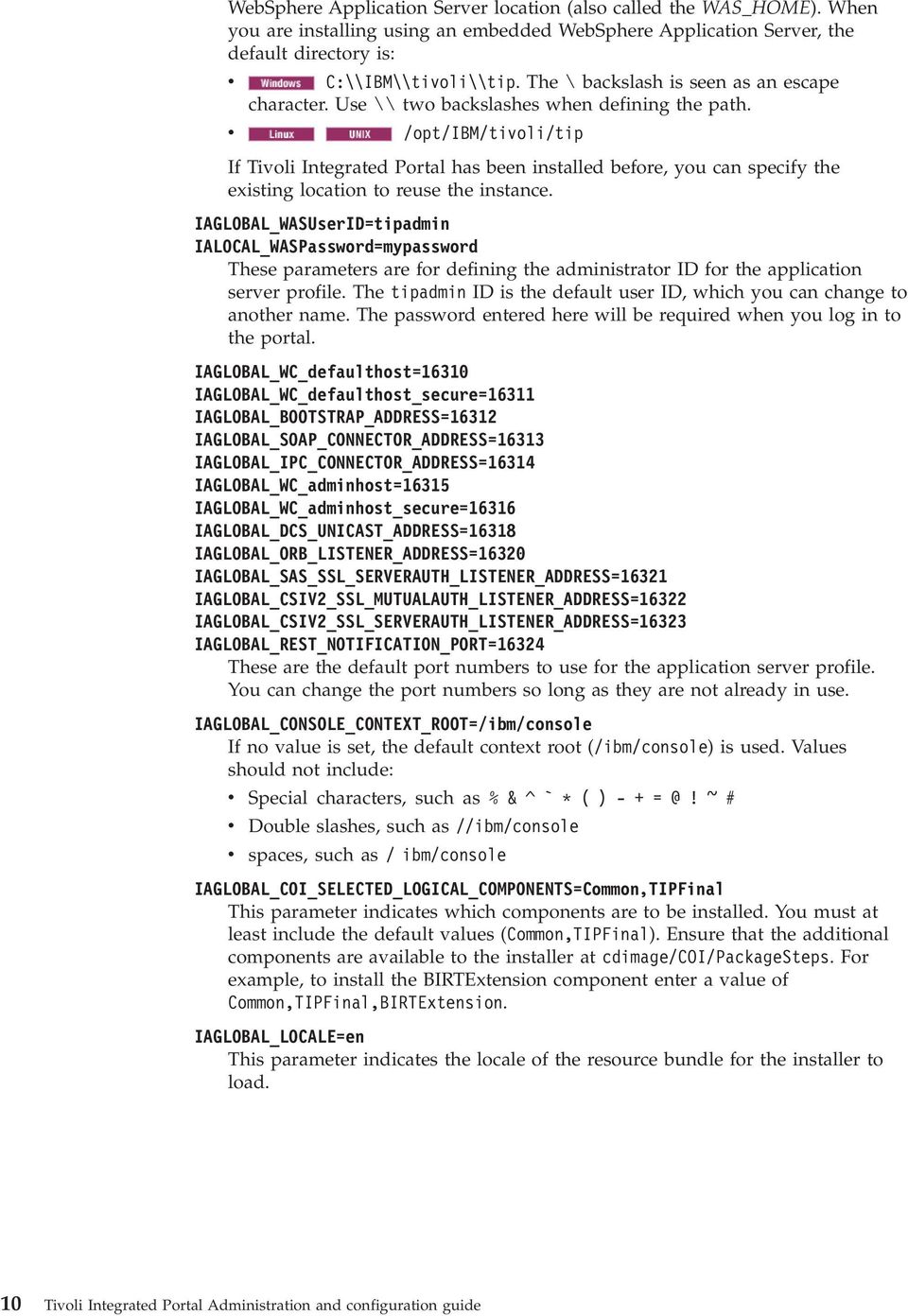
16 WebSphere Application Serer location (also called the WAS_HOME). When you are installing using an embedded WebSphere Application Serer, the default directory is: C:\\IBM\\tioli\\tip. The \ backslash is seen as an escape character. Use \\ two backslashes when defining the path. /opt/ibm/tioli/tip If Tioli Integrated Portal has been installed before, you can specify the existing location to reuse the instance. IAGLOBAL_WASUserID=tipadmin IALOCAL_WASPassword=mypassword These parameters are for defining the administrator ID for the application serer profile. The tipadmin ID is the default user ID, which you can change to another name. The password entered here will be required when you log in to the portal. IAGLOBAL_WC_defaulthost=16310 IAGLOBAL_WC_defaulthost_secure=16311 IAGLOBAL_BOOTSTRAP_ADDRESS=16312 IAGLOBAL_SOAP_CONNECTOR_ADDRESS=16313 IAGLOBAL_IPC_CONNECTOR_ADDRESS=16314 IAGLOBAL_WC_adminhost=16315 IAGLOBAL_WC_adminhost_secure=16316 IAGLOBAL_DCS_UNICAST_ADDRESS=16318 IAGLOBAL_ORB_LISTENER_ADDRESS=16320 IAGLOBAL_SAS_SSL_SERVERAUTH_LISTENER_ADDRESS=16321 IAGLOBAL_CSIV2_SSL_MUTUALAUTH_LISTENER_ADDRESS=16322 IAGLOBAL_CSIV2_SSL_SERVERAUTH_LISTENER_ADDRESS=16323 IAGLOBAL_REST_NOTIFICATION_PORT=16324 These are the default port numbers to use for the application serer profile. You can change the port numbers so long as they are not already in use. IAGLOBAL_CONSOLE_CONTEXT_ROOT=/ibm/console If no alue is set, the default context root (/ibm/console) is used. Values should not include: Special characters, such as %&^`*()-+=@!~# Double slashes, such as //ibm/console spaces, such as / ibm/console IAGLOBAL_COI_SELECTED_LOGICAL_COMPONENTS=Common,TIPFinal This parameter indicates which components are to be installed. You must at least include the default alues (Common,TIPFinal). Ensure that the additional components are aailable to the installer at cdimage/coi/packagesteps. For example, to install the BIRTExtension component enter a alue of Common,TIPFinal,BIRTExtension. IAGLOBAL_LOCALE=en This parameter indicates the locale of the resource bundle for the installer to load. 10 Tioli Integrated Portal Administration and configuration guide
17 Related concepts: Installation errors on page 139 Reiew the Preparing to install topics before starting an installation; reiew the topics here for handling errors that might arise during the installation. Port assignments on page 92 The application serer requires a set of sequentially numbered ports. Related tasks: Installing in silent mode on page 7 A silent mode installation uses a response file that is included with your installation media that you can edit as needed. Run the installation in silent mode if you want to deploy the product with identical installation configurations on multiple computers. In silent mode, the installation process obtains the installation settings from a predefined response file and does not prompt you for any information. Accepting the security certificate When logging in, you might see a security alert with a message that says there is a problem with the security certificate. This indicates that the browser application is erifying the security certificate of the application serer. Self-signed or CA-signed certificate The application serer uses a self-signed security certificate. You might see a Security Alert when you first connect to the portal that alerts you to a problem with the security certificate. You might be warned of a possible inalid certificate and be recommended to not log in. Although this warning appears, the certificate is alid and you can accept it. Or, if you prefer, you can install your own CA-signed certificate. For information on creating your own CA-signed certificate, go to: infocenter/wasinfo/7r0/index.jsp?topic=/com.ibm.websphere.base.doc/info/aes/ ae/tsec_sslcreatecarequest.html For more information about certificates, go to the IBM WebSphere Application Serer Community Edition Documentation Project at publib.boulder.ibm.com/wasce/v2.1.1/en/oeriew.html, and search for Managing trust and Managing SSL certificates. Uninstalling Tioli Integrated Portal Uninstall Tioli Integrated Portal when you no longer need it on a computer. Important: WebSphere Application Serer fix packs and interim fixes are not remoed when you uninstall Tioli Integrated Portal. Important: If you are uninstalling Tioli Integrated Portal as a non-administratie user and you preiously installed this instance of Tioli Integrated Portal into an existing Tioli Integrated Portal enironment that had been installed by an administratie user, you may see the following error in the log files: Caused by: com.ibm.ac.si.install.installunauthorizedexception: ACUINI0040W User, user_id, does not hae proper authority! Chapter 3. Installing 11
18 In this particular circumstance, the error message may be ignored and no further action is required. Uninstalling in silent mode Use the silent uninstaller to remoe Tioli Integrated Portal from a computer if you no longer need it. About this task The silent mode uninstaller remoes Tioli Integrated Portal using the uninstall_response.txt file. The file has three parameters: INSTALLER_UI=SILENT, IAGLOBAL_WASUserID=tipadmin, and IALOCAL_WASPassword=mypassword. To uninstall Tioli Integrated Portal in silent mode: Procedure 1. From the command line, change to the uninstall directory: cd tip_home_dir/_uninst/tipinstall2201 For example: /opt/ibm/tioli/tip/ _uninst/tipinstall2201 or c:\ibm\tioli\tip\_uninst\tipinstall Enter this command: uninstall.bat full_path to_jre full_path_to_uninstall_response\uninstall_response.txt./uninstall.sh full_path to_jre full_path_to_uninstall_response/uninstall_response.txt Note: Uninstallation logs are saed to TipInstaller-xx.log that is located in the ia directory contained in the following zip archie: tip_home_dir/logs.zip. Note: Charting data associated with load balanced installations is not remoed from the DB2 database when you uninstall Tioli Integrated Portal. 3. After the process is complete, delete the tip_home_dir branch from the tioli directory (such as C:\IBM\ and /opt/ibm/) if it still remains and there are no preiously installed applications in that branch that you want to keep. What to do next The passwords entered in the response file can be seen by anyone who reads the file. When you are done using this file, delete it or moe it to a secure place to keep passwords secure. Related tasks: Preparing a WebSphere Application Serer enironment before reinstalling Tioli Integrated Portal on page 6 Prepare the enironment before you reinstall Tioli Integrated Portal in an existing WebSphere Application Serer enironment. Stopping the ITM Monitoring Agent for Windows OS after uninstalling If Tioli Integrated Portal and the IBM Tioli Monitoring Agent for Windows OS are installed on a computer running Windows Serer 2003, after uninstalling Tioli Integrated Portal, tip_home_dir\bin\wassericemsg.dll cannot be deleted. 12 Tioli Integrated Portal Administration and configuration guide

19 Before you begin This problem exists only when you uninstall Tioli Integrated Portal from a computer running Windows Serer 2003 and the IBM Tioli Monitoring Agent for Windows OS is also installed. About this task If after uninstalling Tioli Integrated Portal, you cannot delete tip_home_dir\bin\wassericemsg.dll, you must first stop the IBM Tioli Monitoring Agent for Windows OS serice: Procedure 1. In Control Panel, open the Administratie Tools panel and then open the Serices panel. 2. In the list of serices, locate and stop the Monitoring Agent for Windows OS serice. 3. Delete the tip_home_dir directory. Running the installer in an existing enironment The Tioli Integrated Portal platform is laid down during product installation. You can install additional products and they will all share the same platform. Before you begin Back up the current tip_home_dir directory branch in case you want to reert to that installation. About this task When a product is installed into an existing Tioli Integrated Portal enironment, some options might be disabled, depending on what was installed before. When you rerun the installer, the product installation runs in maintenance mode. Procedure 1. Back up the deployment engine database in case you want to reert to that installation. You might also want to back up the tip_home_dir directory for any data files that you need to retriee. 2. If you will be running in silent mode, update the sample_response.txt file with the features to be installed. 3. Run the installation program in silent mode. Related tasks: Backing up and restoring the Deployment Engine on page 107 Use the Deployment Engine (DE) backup script before installing additional components or other products that are based on the Tioli Integrated Portal platform. If you need to recoer the original configuration after a failure, you can then run the Deployment Engine restore script. Chapter 3. Installing 13
20 14 Tioli Integrated Portal Administration and configuration guide

21 Chapter 4. Upgrading Tioli Integrated Portal Existing Tioli Integrated Portal installations can be upgraded to run in a higher ersion of the Tioli Integrated Portal. You can upgrade a application serer instance and transfer data to the upgraded instance. With release of Tioli Integrated Portal Version 2.2 you can also upgrade an instance of the application serer between different platforms, for example, from a 32 bit platform to a 64 bit platform. Note: You can also use the upgrade process to transfer data from an instance of Tioli Integrated Portal to another computer running another instance of Tioli Integrated Portal of the same ersion leel. The upgrade process includes a number of steps: Pre-upgrade Export instance specific information from the earlier ersion of the Tioli Integrated Portal installation. Important: Ensure that you hae the latest Tioli Integrated Portal fix pack installed on the originating Tioli Integrated Portal installation Installation Install the higher ersion of Tioli Integrated Portal. Upgrade Import the information gathered in the pre-upgrade step to the new instance of Tioli Integrated Portal. Post-upgrade Configure the new Tioli Integrated Portal instance to replicate the initial enironment setup. Important: When you are upgrading a Tioli Integrated Portal instance, you should install the new instance using the user details that were used to install the initial instance. After the upgrade, the Tioli Integrated Portal administrator and any registered users can log in to the portal by entering the URL in a browser, for example, if you installed using default port numbers, you would access the portal using the following web address: Important: For Tioli Integrated Portal instances running in a load balanced cluster, each node should disjoined from the original cluster and upgraded separately. Once all the nodes hae been upgraded, a new cluster can be created. Running pre-upgrade for an existing installation To upgrade Tioli Integrated Portal to a new ersion, you hae to perform some pre-upgrade steps on the original Tioli Integrated Portal instance so that the new installation can be configured with similar settings and customizations. Copyright IBM Corp. 2009,
22 Before you begin Back up the current tip_home_dir and prod_home_dir directory branches in case you want to reert to that installation. Back up the deployment engine database in case you want to reert to that installation. Locate the product_idpreupgrade.zip from your Tioli Integrated Portal Version X.X installation media. About this task To run the pre-upgrade process on your originating Tioli Integrated Portal instance: Procedure 1. On the computer running the originating ersion of Tioli Integrated Portal, extract product_idpreupgrade.zip to tip_home_dir/profiles/tipprofile. 2. At the command line, run the following command: tip_home_dir\profiles\tipprofile\upgrade\bin\preupgrade.bat [tip_home_dir] [--username username --password password] [--productid productid] [--ignoretip true false] tip_home_dir/profiles/tipprofile/upgrade/bin/ preupgrade.sh [tip_home_dir] [--username username --password password] [--productid productid] [--ignoretip true false] Where: username and password The account details for the Tioli Integrated Portal administrator. tip_home_dir The installation directory for your originating Tioli Integrated Portal instance. Note: This argument is not required if you run the command in the tip_home_dir/profiles/tipprofile directory. productid Your Tioli Integrated Portal-specific product identifier. Note: This argument is not required if you want to include Tioli Integrated Portal data only, that is custom pages that users may hae created using Tioli Integrated Portal portlets only. ignoretip This argument is optional (set to false by default, so that Tioli Integrated Portal data is gathered). Include the argument and set its alue to true so that Tioli Integrated Portal data is excluded. When the command completes, an upgradedata.zip file is created in tip_home_dir/profiles/tipprofile/upgrade/data/. What to do next Locate upgradedata.zip and copy it to the computer where you intend to install the higher Tioli Integrated Portal ersion. Also, if your originating Tioli Integrated Portal installation uses a central user repository (Lightweight Directory Access 16 Tioli Integrated Portal Administration and configuration guide
23 Protocol or Tioli Netcool/OMNIbus ObjectSerer), you can export that data and moe it to the computer where you intend to install the higher ersion. Related tasks: Upgrading a base installation on page 18 After you hae performed the pre-upgrade steps on the originating Tioli Integrated Portal instance and installed a higher ersion in a new location, whether on the same computer or on a separate one, you can complete the upgrade process and populate the new installation with data from the originating older instance. Preupgrade steps fails on HP Itanium (ia64) systems on page 144 The Tioli Integrated Portal preupgrade step may fail on HP Itanium (ia64) systems running UNIX, whereby the systems appears to lock up or hang. Related reference: tipcli - Export plugins on page 130 Use the Export command to export customization data for an instance of Tioli Integrated Portal. Use the ListExportPlugins command to list plugins that are aailable for export. Exporting central user repository data To export data specific to an installation of Tioli Integrated Portal that uses a central user repository (Lightweight Directory Access Protocol or Tioli Netcool/OMNIbus ObjectSerer), you must run a script on the originating computer. Before you begin Back up the current tip_home_dir and prod_home_dir directory branches in case you want to reert to that installation. Back up the deployment engine database in case you want to reert to that installation. Depending on the central user repository that you use, locate exportldapconfig.bat.sh or exportvmmobjectsererconfig.bat.sh from your Tioli Integrated Portal Version X.X installation media. About this task To run the central user repository export process, on your originating Tioli Integrated Portal instance: Procedure 1. On the computer running the originating ersion of Tioli Integrated Portal, depending on your central user repository, copy the releant operating system ersion of exportldapconfig.bat.sh or exportldapconfig.bat.sh to tip_home_dir/profiles/tipprofile. 2. At the command line, change to: tip_home_dir/profiles/tipprofile/ 3. At the command line, depending on the central user repository, run one the releant command: For an LDAP repository: tip_home_dir\profiles\tipprofile\exportldapconfig.bat install_dir export_dir tip_home_dir/profiles/tipprofile/ exportldapconfig.sh install_dir export_dir Chapter 4. Upgrading Tioli Integrated Portal 17
24 For an ObjectSerer repository: tip_home_dir\profiles\tipprofile\ exportvmmobjectsererconfig.bat install_dir export_dir tip_home_dir/profiles/tipprofile/ exportvmmobjectsererconfig.sh install_dir export_dir Where: tip_home_dir The installation directory for your originating Tioli Integrated Portal instance. export_dir The directory where you want to output data to be saed. When the command completes, an repository_name.properties file is created in export_dir. What to do next Copy the repository_name.properties file to the computer where you intend to install the higher Tioli Integrated Portal ersion and take a note of its location. You are now ready to install the higher ersion of your product, be it on the same computer or on a separate one. Related tasks: Importing LDAP data on page 20 To import Lightweight Directory Access Protocol data specific to a preious installation of Tioli Integrated Portal, you must run a script. Upgrading a base installation After you hae performed the pre-upgrade steps on the originating Tioli Integrated Portal instance and installed a higher ersion in a new location, whether on the same computer or on a separate one, you can complete the upgrade process and populate the new installation with data from the originating older instance. Before you begin Install the higher ersion of Tioli Integrated Portal on a separate computer to originating instance or on the same computer. If you install the new instance on the same computer, ensure that you specify different port numbers during the installation, so that the new instance does not conflict with the older instance. Back up the deployment engine database for the new in case you want to roll back from the upgrade. Back up the current tip_home_dir directory branch. Back up the current prod_home_dir directory branch. Ensure that Tioli Integrated Portal Serer is running. Ensure that you hae copy of upgradedata.zip from the originating Tioli Integrated Portal instance aailable on the computer where you installed the higher ersion. 18 Tioli Integrated Portal Administration and configuration guide
25 About this task To perform the upgrade process for your new Tioli Integrated Portal instance: Procedure 1. On the computer where you installed the new ersion of Tioli Integrated Portal, at the command line, run the following command: tip_home_dir/profiles/tipprofile/upgrade/bin/ upgrade.sh [tip_home_dir] [--username username --password password] [--productid productid] [--upgradedatafile upgradedatafile_path] tip_home_dir\profiles\tipprofile\upgrade\bin\upgrade.bat [tip_home_dir] [--username username --password password] [--productid productid] [--upgradedatafile upgradedatafilename] Where: username and password The account details for the Tioli Integrated Portal administrator. tip_home_dir The installation directory for your Tioli Integrated Portal instance. Note: This argument is not required if you run the command in the tip_home_dir/profiles/tipprofile/upgrade/bin directory. productid The Tioli Integrated Portal-specific product identifier. upgradedatafile The path to the upgrade data file that you generated during the pre-upgrade process for your originating Tioli Integrated Portal instance (for example, on a Windows system, C:\upgradedata.zip). 2. If your product is installed in a shared enironment, you can check if the preious Tioli Integrated Portal installation had other products installed. To check if any other products need to be configured in the new enironment, run the following command: tip_home_dir/profiles/tipprofile/bin/ productsummary.sh tip_home_dir\profiles\tipprofile\bin\productsummary.bat A list of products that were installed in the originating Tioli Integrated Portal enironment but are not present in the current enironment is returned. 3. Repeat step 1 for each of the listed products returned at step 2 (if any). What to do next Perform post upgrade steps to complete the configuration of your new Tioli Integrated Portal installation. Related tasks: Running pre-upgrade for an existing installation on page 15 To upgrade Tioli Integrated Portal to a new ersion, you hae to perform some pre-upgrade steps on the original Tioli Integrated Portal instance so that the new installation can be configured with similar settings and customizations. Manually rolling back an upgrade installation The upgrade process upgrades products in a shared enironment on a product by product basis. If the upgrade fails for a product or component, the upgrade Chapter 4. Upgrading Tioli Integrated Portal 19
26 process is automatically rolled back for all installed products and components. If the automatic rollback fails, you can manually roll back the upgrade. About this task To manually roll back an upgrade installation, run the roll back for each product or component: Procedure 1. On the computer where you installed the new ersion of Tioli Integrated Portal, in a text editor, locate and open tip_home_dir\profiles\tipprofile\backups\ rollbacksequencetimestamp.txt 2. Take note of the sequence in which the components and products are listed. Products and components need to be rolled back in the order that they are listed in this file. 3. At the command line, change to: tip_home_dir\profiles\tipprofile\bin 4. At the command line, run the following command for each of the listed products and components: tipcli.bat Import --rollback all --username tip_admin_user --password tip_admin_password --backupdir tip_home_dir\profiles\ TIPProfile\backups\productId --productid productid --includeplugins failed_rollback tipcli.sh Import --rollback all --username tip_admin_user --password tip_admin_password --backupdir tip_home_dir/profiles/tipprofile/backups/productid --productid productid --includeplugins failed_rollback Where: tip_admin_user and tip_admin_password The account details for the Tioli Integrated Portal administrator. tip_home_dir The installation directory for your Tioli Integrated Portal instance. productid The product or component-specific identifier. What to do next Once you hae manually rolled back the upgrade for all listed components and products (including the Tioli Integrated Portal installation), you can rerun the upgrade process. Performing post-upgrade steps After you hae successfully performed the upgrade steps for your new Tioli Integrated Portal instance, you can complete any additional configuration, for example, import data related to a central user repository. Importing LDAP data To import Lightweight Directory Access Protocol data specific to a preious installation of Tioli Integrated Portal, you must run a script. 20 Tioli Integrated Portal Administration and configuration guide
27 Before you begin Back up the current tip_home_dir directory branch in case you want to reert to that installation. Locate the repository_name.properties file that was created when you exported LDAP data from the originating Tioli Integrated Portal installation. Back up the deployment engine database. About this task To run the LDAP import script, on the computer running the new ersion of Tioli Integrated Portal: Procedure 1. At the command line, depending on your operating system, run one the releant command: tip_home_dir\profiles\tipprofile\bin\configurevmmldap.bat tip_home_dir ldap_bind_dn_pwd repository_name.properties tip_home_dir/profiles/tipprofile/bin/ configurevmmldap.sh tip_home_dir ldap_bind_dn_pwd repository_name.properties Where: tip_home_dir The Tioli Integrated Portal installation directory. ldap_bind_dn_pwd The LDAP bind password. repository_name.properties The location of the LDAP properties file that was created when you exported LDAP data from the originating Tioli Integrated Portal installation. 2. Stop and restart the Tioli Integrated Portal Serer: a. In the tip_home_dir/profiles/tipprofile/bin directory, depending on your operating system, enter one of the following commands: stopserer.bat serer1 stopserer.sh serer1 Note: On UNIX and Linux systems, you are prompted to proide an administrator username and password. b. In the tip_home_dir/profiles/tipprofile/bin directory, depending on your operating system, enter one of the following commands: startserer.bat serer1 startserer.sh serer1 Results Your new Tioli Integrated Portal installation is now configured for the same user repository that was used for the originating instance of your product. Chapter 4. Upgrading Tioli Integrated Portal 21
28 Related tasks: Exporting central user repository data on page 17 To export data specific to an installation of Tioli Integrated Portal that uses a central user repository (Lightweight Directory Access Protocol or Tioli Netcool/OMNIbus ObjectSerer), you must run a script on the originating computer. Configuring the timeout session setting To configure the timeout session setting, as a post-upgrade task, you must run a script. About this task To set the session timeout, on the computer running the new ersion of Tioli Integrated Portal: Procedure At the command line, depending on your operating system, run one the releant command: tip_home_dir\profiles\tipprofile\upgrade\bin\configsestimeout.bat tip_home_dir application_name TimeOutValue tip_home_dir/profiles/tipprofile/upgrade/bin/ configsestimeout.sh tip_home_dir application_name TimeOutValue Where: tip_home_dir The Tioli Integrated Portal installation directory. application_name The EAR application name of product for which you want to set the timeout session alue. TimeOutValue The time in minutes that you want to set for the timeout session. Reconfiguring Tioli Integrated Portal to run on a higher ersion of Tioli Integrated Portal Reconfigure an instance of Tioli Integrated Portal to use a higher ersion of Tioli Integrated Portal, which is installed on the same computer as the current Tioli Integrated Portal Serer instance. Before you begin Proide all the necessary credentials in the prod_home_dir/integration/ reconfiguration/reconfiguration.properties file. If you hae installed Tioli Integrated Portal in a distributed scenario, perform these steps for each Tioli Integrated Portal instance. No additional configuration is necessary for the reporting engine. 22 Tioli Integrated Portal Administration and configuration guide
29 About this task Tioli Integrated Portal can only work on one Tioli Integrated Portal instance at a time. You can choose to configure it to operate on a higher ersion of Tioli Integrated Portal than the one you are currently using. Procedure 1. Run the reconfigure.bat script, specifying the path to the new Tioli Integrated Portal Serer instance as the argument: prod_home_dir\integration\reconfiguration\ reconfigure.battip_home_dir prod_home_dir/integration/reconfiguration/ reconfigure.sh tip_home_dir 2. In your web browser, log in to the newly upgraded Tioli Integrated Portal console by entering Verify that Tioli Integrated Portal is working properly. Note: Pay attention to the port number that you enter to ensure that you are logging in to the upgraded Tioli Integrated Portal Serer instance. 3. Depending on the result of your erification: Sae the changes by running the following script: prod_home_dir\integration\reconfiguration\ commitreconfiguration.bat prod_home_dir/integration/reconfiguration/ commitreconfiguration.sh Important: If you decide to sae the changes, the Tioli Integrated Portal instance installed on the preious ersion of Tioli Integrated Portal no longer works, that is, it now works only on the upgraded Tioli Integrated Portal. Roll back the changes by running: prod_home_dir\integration\reconfiguration\ rollbackreconfiguration.bat prod_home_dir/integration/reconfiguration/ rollbackreconfiguration.sh Important: If you choose to roll back the changes, Tioli Integrated Portal works only on the preious ersion of Tioli Integrated Portal. It does not work on the upgraded Tioli Integrated Portal instance. 4. Restart Tioli Integrated Portal. Chapter 4. Upgrading Tioli Integrated Portal 23
30 24 Tioli Integrated Portal Administration and configuration guide
31 Chapter 5. Configuring Central user registry Once you hae installed Tioli Integrated Portal, you can configure it to operate in a ariety of ways, for example, you can enable load balancing and employ a central user repository. As a post-installation task you can configure a central user registry for user management and authentication. You can configure an LDAP serer or Tioli Netcool/OMNIbus ObjectSerer registry (or both). Note: When you add a new user, you should check that the user ID you specify does not already exist in any of the user repositories to aoid difficulties when the new user attempts to log in. In a network enironment that includes a user registry on an LDAP serer or Tioli Netcool/OMNIbus ObjectSerer, you can configure Tioli Integrated Portal to use either or both types. In fact, these functions require a central user registry: Load balancing, which requires that each Tioli Integrated Portal serer instance in the cluster use the same central user repository, whether that be anldap serer or an ObjectSerer. Single sign-on, which authenticates users at the central repository during login and wheneer they launch into other authorized Tioli applications. Before configuring a central user registry, be sure that the user registry or registries that you plan to identify are started and can be accessed from the computer where you hae installed the Tioli Integrated Portal. For central user repositories, unique IDs are composed of keys and alues separated by a comma (,), that is, "key1=alue1,key2=alue2,key3=alue3". For example, "uid=my_name,ou=my_ou_alue,dc=ibm,dc=com". Tioli Integrated Portal is currently limited to using lower case keys in relation to unique IDs. For example, the following unique IDs do not work: UID=my_name,OU=my_ou_alue,DC=ibm,DC=com uid=my_name,ou=my_ou_alue,dc=ibm,dc=com Attention: When Tioli Integrated Portal is configured with multiple central user repositories, you cannot login if one remote user repository becomes inaccessible from Tioli Integrated Portal, een if your user ID exists in one of the other repositories. If you need access is this situation, you hae to run WebSphere Application Serer commands to allow access when all repositories are aailable, or the federated repositories will not function properly. For more information, refer to the following links: com.ibm.websphere.web20fep.multiplatform.doc/info/ae/ae/ rxml_atidmgrrealmconfig.html Note: For enironments using a central user repository, for example LDAP, a user must be gien the Administrator role in the WebSphere Application Serer Copyright IBM Corp. 2009,
32 administratie console before they can stop the Tioli Integrated Portal Serer. For information on assigning WebSphere Application Serer roles, see: com.ibm.websphere.nd.multiplatform.doc/info/ae/ae/tsec_tselugradro.html Related reference: Log files on page 142 Locate and reiew the logs and related files after an installation to confirm that the components were successfully installed. Adding an external LDAP repository After installation, you can add an IBM Tioli Directory Serer or Actie Directory Microsoft Actie Directory Serer as an LDAP repository for Tioli Integrated Portal. About this task To add a new LDAP repository: Procedure 1. Log in to the Tioli Integrated Portal. 2. In the naigation pane, click Settings > Websphere Admin Console and click Launch Websphere Admin Console. 3. In the WebSphere Application Serer administratie console, select Security > Global security. 4. From the Aailable realm definitions list, select Federated repositories and click Configure. 5. In the Related Items area, click the Manage repositories link and then click Add to add a new LDAP repository. 6. In the Repository identifier field, proide a unique identifier for the repository. The identifier uniquely identifies the repository within the cell, for example, LDAP1. 7. From the Directory type list, select the type of LDAP serer. The type of LDAP serer determines the default filters that are used by WebSphere Application Serer. Note: IBM Tioli Directory Serer users can choose either IBM Tioli Directory Serer or SecureWay as the directory type. For better performance, use the IBM Tioli Directory Serer directory type. 8. In the Primary host name field, enter the fully qualified host name of the primary LDAP serer. The primary host name and the distinguished name must contain no spaces. You can enter either the IP address or the domain name system (DNS) name. 9. In the Port field, enter the serer port of the LDAP directory. The host name and the port number represent the realm for this LDAP serer in a mixed ersion nodes cell. If serers in different cells are communicating with each other using Lightweight Third Party Authentication (LTPA) tokens, these realms must match exactly in all the cells. Note: The default port alue is 389, which is not a Secure Sockets Layer (SSL) connection port. Use port 636 for a Secure Sockets Layer (SSL) connection. For 26 Tioli Integrated Portal Administration and configuration guide
33 some LDAP serers, you can specify a different port. If you do not know the port to use, contact your LDAP serer administrator. 10. Optional: In the Bind distinguished name and Bind password fields, enter the bind distinguished name (DN) (for example, cn=root) and password. Note: The bind DN is required for write operations or to obtain user and group information if anonymous binds are not possible on the LDAP serer. In most cases, a bind DN and bind password are needed, except when an anonymous bind can satisfy all of the required functions. Therefore, if the LDAP serer is set up to use anonymous binds, leae these fields blank. 11. Optional: In the Login properties field, enter the property names used to log into the WebSphere Application Serer. This field takes multiple login properties, delimited by a semicolon (;). For example, cn. 12. Optional: From the Certificate mapping list, select your preferred certificate map mode. You can use the X.590 certificates for user authentication when LDAP is selected as the repository. Note: The Certificate mapping field is used to indicate whether to map the X.509 certificates into an LDAP directory user by EXACT_DN or CERTIFICATE_FILTER. If you select EXACT_DN, the DN in the certificate must match the user entry in the LDAP serer, including case and spaces. 13. Click OK. 14. In the Messages area at the top of the Global security page, click the Sae link and log out of the WebSphere Application Serer console. What to do next Configure the Tioli Integrated Portal Serer to communicate with an external LDAP repository. Related concepts: Single sign-on on page 33 The single sign-on (SSO) capability in Tioli products means that you can log on to one Tioli application and then launch to other Tioli Web-based or Web-enabled applications without haing to re-enter your user credentials. Related tasks: Configuring SSO between Charting and Tioli Monitoring on page 86 The instructions below describe how to configure IBM Tioli Monitoring and Charting for single sign on (SSO) using the ITMWebSerice. At the bottom are also instructions for how to configure Tioli Integrated Portal to communicate with a remote Tioli Monitoring Web Serice, which only works in an SSO enironment. Configuring single sign-on on page 34 Use these instructions to establish single sign-on support and configure a federated repository. Changing passwords on page 93 You can use the Change Your Password portlet to change your password from the default proided by the administrator. Configuring an external LDAP repository You can configure the Tioli Integrated Portal Serer to communicate with an external LDAP repository. Chapter 5. Configuring 27
34 About this task In a load balanced enironment, all Tioli Integrated Portal Serer instances must be configured separately for the LDAP serer. To configure an application serer to communicate with an external LDAP repository: Procedure 1. Log in to Tioli Integrated Portal. 2. In the naigation pane, click Settings > Websphere Administratie Console and click Launch Websphere Administratie Console. 3. In the WebSphere Application Serer administratie console, select Security > Global security. 4. From the Aailable realm definitions list, select Federated repositories and click Configure. 5. To add an entry to the base realm: a. Click Add Base entry to Realm. b. Enter the distinguished name (DN) of a base entry that uniquely identifies this set of entries in the realm. This base entry must uniquely identify the external repository in the realm. Note: If multiple repositories are included in the realm, use the DN field to define an additional distinguished name that uniquely identifies this set of entries within the realm. For example, repositories LDAP1 and LDAP2 might both use o=ibm,c=us as the base entry in the repository. So o=ibm,c=us is used for LDAP1 and o=ibm2,c=us for LDAP2. The specified DN in this field maps to the LDAP DN of the base entry within the repository (such as o=ibm,c=us b). The base entry indicates the starting point for searches in this LDAP directory serer (such as o=ibm,c=us c). c. Click OK. d. In the Messages area at the top of the Global security page, click the Sae link and log out of the WebSphere Application Serer console. 6. In the WebSphere Application Serer administratie console, select Security > Global security. 7. From the Aailable realm definitions list, select Federated repositories and click Set as current to mark the federated repository as the current realm. 8. Stop and restart the Tioli Integrated Portal Serer: a. In the tip_home_dir/profiles/tipprofile/bin directory, depending on your operating system, enter one of the following commands: stopserer.bat serer1 stopserer.sh serer1 Note: On UNIX and Linux systems, you are prompted to proide an administrator username and password. b. In the tip_home_dir/profiles/tipprofile/bin directory, depending on your operating system, enter one of the following commands: startserer.bat serer1 startserer.sh serer1 9. Verify that the federated repository is correctly configured: a. In the portal naigation pane, click Users and Groups > Manage Users. b. Select User ID from the Search by list. 28 Tioli Integrated Portal Administration and configuration guide
35 c. Click Search to search for users in the federated repository. d. Confirm that the list includes users from both the LDAP repository and the local file registry. On the Tioli Integrated Portal Serer, LDAP users are queried only by the userid attribute. When users are imported into LDAP using an LDAP Data Interchange Format (LDIF) file, an auxiliary class of type eperson and an uid attribute is added to the LDAP user ID. Note that this is to be done only if you want to search the LDAP repository using VMM from the serer. What to do next To be able to create or manage users in the portal that are defined in your LDAP repository, in the WebSphere Application Serer administratie console, you must specify the supported entity types. Related tasks: Configuring SSO between Charting and Tioli Monitoring on page 86 The instructions below describe how to configure IBM Tioli Monitoring and Charting for single sign on (SSO) using the ITMWebSerice. At the bottom are also instructions for how to configure Tioli Integrated Portal to communicate with a remote Tioli Monitoring Web Serice, which only works in an SSO enironment. Managing LDAP users in the console To create or manage users in the portal that are defined in your LDAP repository, in the WebSphere Application Serer administratie console specify the supported entity types. About this task To create or manage LDAP users in the portal: Procedure 1. Log in to the Tioli Integrated Portal. 2. In the naigation pane, click Settings > Websphere Admin Console and click Launch Websphere Admin Console. 3. In the WebSphere Application Serer administratie console, select Security > Global security. 4. From the Aailable realm definitions list, select Federated repositories and click Configure. 5. In the Additional Properties area, click Supported entity types, to iew a list of predefined entity types. 6. Click the name of a predefined entity type to change its configuration. 7. In the Base entry for the default parent field, proide the distinguished name of a base entry in the repository. This entry determines the default location in the repository where entities of this type are placed on write operations by user and group management. 8. In the Relatie Distinguished Name properties field, proide the relatie distinguished name (RDN) properties for the specified entity type. Possible alues are cn for Group, uid or cn for PersonAccount, and o, ou, dc, and cn for OrgContainer. Delimit multiple properties for the OrgContainer entity with a semicolon (;). 9. Click OK to return to the Supported entity types page. Chapter 5. Configuring 29
36 10. In the Messages area at the top of the Global security page, click the Sae link and log out of the WebSphere Application Serer console. 11. For the changes to take effect, stop, and restart the Tioli Integrated Portal Serer. In a load balanced enironment, you must stop and restart each Tioli Integrated Portal Serer instance. 12. Stop and restart the Tioli Integrated Portal Serer: a. In the tip_home_dir/profiles/tipprofile/bin directory, depending on your operating system, enter one of the following commands: stopserer.bat serer1 stopserer.sh serer1 Note: On UNIX and Linux systems, you are prompted to proide an administrator username and password. b. In the tip_home_dir/profiles/tipprofile/bin directory, depending on your operating system, enter one of the following commands: startserer.bat serer1 startserer.sh serer1 Results You can now manage your LDAP repository users in the portal through the Users and Groups > Manage Users menu items. Note: When you add a new user, you should check that the user ID you specify does not already exist in any of the user repositories to aoid difficulties when the new user attempts to log in. Restriction: You cannot currently update user IDs through the Users and Groups > Manage Users portlet that hae been created in Microsoft Actie Directory repositories. Related tasks: Configuring SSO between Charting and Tioli Monitoring on page 86 The instructions below describe how to configure IBM Tioli Monitoring and Charting for single sign on (SSO) using the ITMWebSerice. At the bottom are also instructions for how to configure Tioli Integrated Portal to communicate with a remote Tioli Monitoring Web Serice, which only works in an SSO enironment. Configuring an SSL connection to an LDAP serer If your implementation of Tioli Integrated Portal uses an external LDAP-based user repository, such as Microsoft Actie Directory, you can configure it to communicate oer a secure SSL channel. Before you begin This task assumes that you hae already an existing connection to an LDAP serer set up. Your LDAP serer (for example, an IBM Tioli Directory Serer Version 6 or an Microsoft Actie Directory serer), must be configured to accept SSL connections and be running on secured port number (636). Refer to your LDAP serer documentation if you need to create a signer certificate, which as part of this task, must be imported from your LDAP serer into the trust store of the Tioli Integrated Portal Serer. 30 Tioli Integrated Portal Administration and configuration guide
37 About this task Follow these instructions to configure the Tioli Integrated Portal Serer to communicate oer a secure (SSL) channel with an external LDAP repository. All application serer instances must be configured for the LDAP serer. Procedure 1. Log in to the portal. 2. Follow these steps to import your LDAP serer's signer certificate into the application serer trust store. a. In the naigation pane, click Settings > Websphere Admin Console and click Launch Websphere Admin Console. b. In the WebSphere Application Serer administratie console naigation pane, click Security > SSL certificate and key management. c. In the Related Items area, click the Key stores and certificates link and in the table click the NodeDefaultTrustStore link. d. In the Additional Properties area, click the Signer certificates link and click theretriee from port button. e. In the releant fields, proide hostname, port (normally 636 for SSL connections), SSL configuration details, as well as the alias of the certificate for your LDAP serer and click the Retriee signer information button and then click OK. 3. Follow these steps to enable SSL communications to your LDAP serer: a. In the naigation pane, click Security > Secure administration, applications, and infrastructure. b. Select Federated repositories from the Aailable realm definitions drop down list and click Configure. c. Select your LDAP serer from the Repository drop down list. d. Enable the Require SSL communications check box and the select the Centrally managed option. e. Click OK. 4. For the changes to take effect, sae, stop, and restart all Tioli Integrated Portal Serer instances. What to do next If you intend to enable single sign-on (SSO) so that users can log in once and then traerse to other applications without haing to re-authenticate, configure SSO. Related tasks: Changing passwords on page 93 You can use the Change Your Password portlet to change your password from the default proided by the administrator. Configuring an SSL connection to the ObjectSerer For enironments that include a Tioli Netcool/OMNIbus ObjectSerer user registry, you need to set up encrypted communications on the Tioli Integrated Portal Serer. Chapter 5. Configuring 31
38 About this task Follow these steps to establish a secure channel for communications between the Tioli Integrated Portal Serer and the ObjectSerer. Procedure 1. Retriee the ObjectSerer certificate information, as follows: a. In the naigation pane, click Settings > Websphere Admin Console and click Launch Websphere Admin Console. b. In the WebSphere Application Serer administratie console naigation pane, click Security > SSL certificate and key management. c. On the SSL certificate and key management page, click Key stores and certificates and on the page that is displayed, click NodeDefaultTrustStore. d. On the NodeDefaultTrustStore page, click Signer certificates and on the page that is displayed, click Retriee from port. e. In the releant fields, enter Host, Port, and Alias alues for the ObjectSerer and click Retriee signer information. The signer information is retrieed and stored. For your reference, when the signer information has been retrieed, the following details are displayed: Serial number Specifies the certificate serial number that is generated by the issuer of the certificate. Issued to Specifies the distinguished name of the entity to which the certificate was issued. Issued by Specifies the distinguished name of the entity that issued the certificate. This name is the same as the issued-to distinguished name when the signer certificate is self-signed. Fingerprint (SHA digest) Specifies the Secure Hash Algorithm (SHA hash) of the certificate, which can be used to erify the certificate's hash at another location, such as the client side of a connection. Validity period Specifies the expiration date of the retrieed signer certificate for alidation purposes. 2. Open tip_home_dir/profiles/tipprofile/etc/ com.sybase.jdbc3.sybdrier.props in a text editor and change these parameters: a. Enable SSL for ObjectSerer primary host: USESSLPRIMARY=TRUE b. Enable SSL for ObjectSerer backup host: USESSLBACKUP=TRUE 3. Stop and restart the Tioli Integrated Portal Serer: a. In the tip_home_dir/profiles/tipprofile/bin directory, depending on your operating system, enter one of the following commands: stopserer.bat serer1 stopserer.sh serer1 Note: On UNIX and Linux systems, you are prompted to proide an administrator username and password. 32 Tioli Integrated Portal Administration and configuration guide
39 b. In the tip_home_dir/profiles/tipprofile/bin directory, depending on your operating system, enter one of the following commands: startserer.bat serer1 startserer.sh serer1 Related reference: IBM Tioli Network Management Information Center Refer to the Netcool/OMNIbus Administration Guide for generating a trusted.txt file Single sign-on The single sign-on (SSO) capability in Tioli products means that you can log on to one Tioli application and then launch to other Tioli Web-based or Web-enabled applications without haing to re-enter your user credentials. The repository for the user IDs can be the Tioli Netcool/OMNIbus ObjectSerer or a Lightweight Directory Access Protocol (LDAP) registry. A user logs on to one of the participating applications, at which time their credentials are authenticated at a central repository. With the credentials authenticated to a central location, the user can then launch from one application to another to iew related data or perform actions. Single sign-on can be achieed between applications deployed to Tioli Integrated Portal serers on multiple machines. Single sign-on capabilities require that the participating products use Lightweight Third Party Authentication (LTPA) as the authentication mechanism. When SSO is enabled, a cookie is created containing the LTPA token and inserted into the HTTP response. When the user accesses other Web resources (portlets) in any other application serer process in the same Domain Name Serice (DNS) domain, the cookie is sent with the request. The LTPA token is then extracted from the cookie and alidated. If the request is between different cells of application serers, you must share the LTPA keys and the user registry between the cells for SSO to work. The realm names on each system in the SSO domain are case sensitie and must match exactly. See Managing LTPA keys from multiple WebSphere Application Serer cells on the WebSphere Application Serer Information Center. Chapter 5. Configuring 33
40 Related tasks: Adding an external LDAP repository on page 26 After installation, you can add an IBM Tioli Directory Serer or Actie Directory Microsoft Actie Directory Serer as an LDAP repository for Tioli Integrated Portal. Configuring single sign-on Use these instructions to establish single sign-on support and configure a federated repository. Changing the default security registry on page 106 The default security registry can be set at install time. Use this procedure to change the default registry after installation. Protecting the ault key file on page 68 To keep the encryption key for the administrator password secure, establish strict read-only access to the ault key file. Related reference: Log files on page 142 Locate and reiew the logs and related files after an installation to confirm that the components were successfully installed. Configuring single sign-on Use these instructions to establish single sign-on support and configure a federated repository. Before you begin Configuring SSO is a prerequisite to integrating products that are deployed on multiple serers. All Tioli Integrated Portal Serer instances must point to the central user registry (such as a Lightweight Directory Access Protocol serer). Attention: ITM single sign on (SSO) support is only aailable with ITM Version 6.2 Fix Pack 1 or higher. About this task To configure the WebSphere federated repositories functionality for LDAP: Procedure 1. Log in to the Tioli Integrated Portal. 2. In the naigation pane, click Settings > Websphere Administratie Console and click Launch Websphere administratie console. 3. In the WebSphere Application Serer administratie console naigation pane, click Security > Global security. 4. In the Authentication area, expand Web security and click Single sign-on. 5. Click the Enabled option if SSO is disabled. 6. Click Requires SSL if all of the requests are expected to use HTTPS. 7. Enter the fully-qualified domain names in the Domain name field where SSO is effectie. If the domain name is not fully qualified, the Tioli Integrated Portal Serer does not set a domain name alue for the LtpaToken cookie and SSO is alid only for the serer that created the cookie. For SSO to work across Tioli applications, their application serers must be installed in same domain (use the same domain name). 34 Tioli Integrated Portal Administration and configuration guide
41 Load balancing 8. Optional: Enable the Interoperability Mode option if you want to support SSO connections in WebSphere Application Serer ersion or later to interoperate with preious ersions of the application serer. 9. Optional: Enable the Web inbound security attribute propagation option if you want information added during the login at a specific Tioli Enterprise Portal Serer to propagate to other application serer instances. 10. After clicking OK to sae your changes, stop and restart all the Tioli Integrated Portal Serer instances. What to do next Note: When you launch Tioli Integrated Portal, you must use a URL in the format protocol://host.domain:port /*. If you do not use a fully-qualified domain name, Tioli Integrated Portal cannot use SSO between Tioli products. Related concepts: Single sign-on on page 33 The single sign-on (SSO) capability in Tioli products means that you can log on to one Tioli application and then launch to other Tioli Web-based or Web-enabled applications without haing to re-enter your user credentials. Related tasks: Configuring SSO between Charting and Tioli Monitoring on page 86 The instructions below describe how to configure IBM Tioli Monitoring and Charting for single sign on (SSO) using the ITMWebSerice. At the bottom are also instructions for how to configure Tioli Integrated Portal to communicate with a remote Tioli Monitoring Web Serice, which only works in an SSO enironment. Adding an external LDAP repository on page 26 After installation, you can add an IBM Tioli Directory Serer or Actie Directory Microsoft Actie Directory Serer as an LDAP repository for Tioli Integrated Portal. You can setup a load balancing cluster of portal nodes with identical configurations to eenly distribute user sessions. Load balancing is ideal for Tioli Integrated Portal installations with a large user population. When a node within a cluster fails, new user sessions are directed to other actie nodes. You can create a load balanced cluster from an existing stand-alone application serer instance, but must export its data before you configure it for load balancing. The exported data is subsequently imported to one of the nodes in the cluster so that it is replicated across the other nodes in the cluster. Work load is distributed by session, not by request. If a node in the cluster fails, users who are in session with that node must log back in to access the Tioli Integrated Portal. Any unsaed work is not recoered. Synchronized data After load balancing is set up, changes in the console that are stored in global repositories are synchronized to all of the nodes in the cluster using a common database. The following actions cause changes to the global repositories used by the console. Most of these changes are caused by actions in the Settings folder in the console naigation. Chapter 5. Configuring 35
42 Creating, restoring, editing, or deleting a page. Creating, restoring, editing, or deleting a iew. Creating, editing, or deleting a preference profile or deploying preference profiles from the command line. Copying a portlet entity or deleting a portlet copy. Changing access to a portlet entity, page, external URL, or iew. Creating, editing, or deleting a role. Changes to portlet preferences or defaults. Changes from the Users and Groups applications, including assigning users and groups to roles. Note: Global repositories should neer be updated manually. During normal operation within a cluster, updates that require synchronization are first committed to the database. At the same time, the node that submits the update for the global repositories notifies all other nodes in the cluster about the change. As the nodes are notified, they get the updates from the database and commit the change to the local configuration. If data fails to be committed on any gien node, a warning message is logged into the log file. The node is preented from making its own updates to the database. Restarting the Tioli Integrated Portal Serer instance on the node rectifies most synchronization issues, if not, the node should be remoed from the cluster for correctie action. See Monitoring a load balancing cluster on page 55 for more information. Note: If the database serer restarts, all connections from it to the cluster are lost. It may take up to fie minutes for connections to be restored, so that users can again perform update operations, for example, modifying or creating iews or pages. Manual synchronization and maintenance mode Updates to deploy, redeploy, or remoe console modules are not automatically synchronized within the cluster. These changes must be performed manually at each node. For deploy and redeploy operations, the console module package must be identical at each node. When one of the deployment commands is started on the first node, the system enters maintenance mode and changes to the global repositories are locked. After you finish the deployment changes on each of the nodes, the system returns to an unlocked state. There is not any restriction to the order that modules are deployed, remoed, or redeployed on each of the nodes. While in maintenance mode, any attempts to make changes in the portal that affect the global repositories are preented and an error message is returned. The only changes to global repositories that are allowed are changes to a user's personal portlet preferences. Any changes outside the control of the portal, for example, a form submission in a portlet to a remote application, are processed normally. The following operations are also not synchronized within the cluster and must be performed manually at each node. These updates do not place the cluster in maintenance mode. Deploying, redeploying, and remoing wires and transformations 36 Tioli Integrated Portal Administration and configuration guide
43 Customization changes to the console user interface (for example, custom images or style sheets) using consoleproperties.xml. To reduce the chance that users could establish sessions with nodes that hae different wire and transformation definitions or user interface customizations, schedule these changes to coincide with console module deployments. Requirements The following requirements must be met before load balancing can be enabled: If you are creating a cluster from a stand-alone instance of Tioli Integrated Portal, you must export its data before you configure it for load balancing. Once you hae configured the cluster, you can import the data to one of the nodes for it to be replicated across the other nodes. Lightweight Directory Access Protocol (LDAP) must be installed and configured as the user repository for each node in the cluster. For information about which LDAP serers you can use, see List of supported software for WebSphere Application Serer V7.0. See Configuring LDAP user registries for instructions on how to enable LDAP for each node. A front-end network dispatcher (for example, IBM HTTP Serer) must be setup to handle and distribute all incoming session requests. See Setting up intermediary serices for more information about this task. DB2 Version 9.7 must be installed within the network to synchronize the global repositories for the console cluster. Each node in the cluster must be enabled to use the same LDAP using the same user and group configuration. All console nodes in load balancing cluster must be installed in the same cell name. After console installation on each node, use the -cellname parameter on the manageprofiles command. All console nodes in load balancing cluster must hae synchronized clocks. The Websphere application serer and Tioli Integrated Portal Serer ersions must hae the same release leel, including any fix packs. Fixes and upgrades for the runtime must be applied manually at each node. Before joining nodes to a cluster, in each case make sure the node uses the same file-based repository user ID, which has been assigned the role of iscadmins. Chapter 5. Configuring 37
44 Related tasks: Preparing the HTTP serer for load balancing on page 47 Install the IBM HTTP Serer and configure the Web serer plug-in for passing requests to the Tioli Integrated Portal Serer that are part of the load balancing configuration. Installing the IBM HTTP Serer Installing the IBM HTTP Serer Creating a new key database Creating a new key database Creating a self-signed certificate Creating a self-signed certificate Setting up SSL for IBM HTTP Serer Setting up SSL for IBM HTTP Serer Related reference: IBM DB2 Database for Linux, UNIX, and Windows Information Center Consult the IBM DB2 Database Information Center to learn more about installation requirements and how to use DB2. Exporting data from a stand-alone serer to prepare for load balancing You can export data from an existing stand-alone application serer instance to create a data file that can be imported to a load balanced cluster. About this task When you are creating a new load balanced cluster, you must first export all data from the stand-alone instance and subsequently import the preiously exported data once the cluster is set up. Note: If you are joining the serer to an existing cluster, the other nodes in the cluster should not contain custom data, that is, each node in the cluster should be clean installations. When you import data from the stand-alone serer it is replicated across all other nodes. Procedure 1. At the command line, change to the following directory: tip_home_dir/ profiles/tipprofile/bin/ 2. Run the following command to export the stand-alone serer's data: restcli.sh export -username tip_admin_username -password tip_admin_password -destination data_file restcli.bat export -username tip_admin_username -password tip_admin_password -destination data_file Where: tip_admin_username Specifies the administrator user ID. tip_admin_password Specifies the password associated with the administrator user ID. 38 Tioli Integrated Portal Administration and configuration guide
45 data_file Specifies the path and file name for the exported data, for example, c:/tmp/data.zip. 3. Create a new load balanced cluster using the stand-alone serer, or join it to an existing cluster. 4. Import the preiously exported data to any node in the cluster. a. At the command line, if necessary, change to the following directory: tip_home_dir/profiles/tipprofile/bin/ b. On one of the nodes in the cluster, run the following command to import the stand-alone serer's data: restcli.sh import -username tip_admin_username -password tip_admin_password -source data_file Where: tip_admin_username Specifies the administrator user ID. tip_admin_password Specifies the password associated with the administrator user ID. data_file Specifies the path and file name for the data to be imported, for example, c:/tmp/data.zip. Results Create a new load balanced cluster using the stand-alone application serer, or join it to an existing cluster. Once the cluster is configured, you can import the data file to one of the nodes in the cluster. What to do next Setting up a load balancing cluster You can configure a Tioli Integrated Portal Serer instance to use a database as a file repository instead of a local directory. Before you begin If you are creating a cluster from an existing Tioli Integrated Portal Serer instance that contains custom data, ensure that you hae exported its data before you begin to configure it for load balancing. Once it is configured, you can import the data to one of the nodes in the new cluster. Tioli Integrated Portal is installed on a machine using the cell name designated for all console nodes within the cluster. You hae installed and setup a network dispatcher (for example, IBM HTTP Serer), DB2, and an LDAP as explained in Requirements on page 37. Procedure 1. On the machine where DB2 is installed, create a DB2 database (see Creating databases). 2. Check that you hae the JDBC drier for DB2 on the computer where Tioli Integrated Portal is installed. The JDBC drier should be aailable at: tip_home_dir/uniersaldrier/lib. Chapter 5. Configuring 39
46 3. From a command prompt, change to the tip_home_dir/profiles/tipprofile/ bin/ha directory and edit the settings in tipha.properties. Property name DBHost DBPort DBName DBProiderClass DBProiderName DBDatasource DBDatasourceName DBHelperClassName DBDsImplClassName DBDrierVarName DBJDBCDrierPath DBDrierType DBType JaasAliaseName JaasAliasDesc LocalHost LocalPort WasRoot ProfileName Description The hostname or IP address of the machine where the DB2 database is installed. Example: tipdb.cn.ibm.com Port number of the DB2 serer. Example: (default) The name of the database that you created. Example: tipdb Class name of the DB2 proider. Example: com.ibm.db2.jcc.db2drier (default) Name of the DB2 proider. Example: TIP_Uniersal_JDBC_Drier (default) JNDI name of the datasource. Example: jdbc/tipds Name of the datasource used for load balancing. Example: tipds DB2 Helper class name. Example: com.ibm.websphere.rsadapter. DB2UniersalDataStoreHelper (default) DB2 datasource implementation class name. Example: com.ibm.db2.jcc.db2connectionpooldatasource (default) WebSphere enironment ariable name for DB2 JDBC drier class path. Example: TIP_JDBC_DRIVER_PATH Location of DB2 JDBC drier libraries (for example, db2jcc.jar). Example: C:/IBM/tioli/tip2/uniersalDrier/lib JDBC drier type. Example: 4 (default) Database type. Example: DB2 (default) JAAS alias name used to store database username and password. Example: TIPAlias (default) Description for JAAS alias name. Example: JAAS Alias used for load balancing The hostname or IP address of the machine on which the console is running. LocalHost and LocalPort uniquely identify the node in the cluster. Example: tip01.cn.ibm.com Administratie console secure port. LocalHost and LocalPort uniquely identify the node in the cluster. Example: The full system path to where the application serer and console images were extracted during installation. Example: C:/IBM/tioli/tip2 The profile name that was specified on the manageprofiles command after installation. If no profile name was specified, the default is used. Example: TIPProfile (default) 40 Tioli Integrated Portal Administration and configuration guide
47 Property name CellName NodeName SererName IscAppName Description The cell name that was specified on the manageprofiles command after installation. If no cell name was specified, the default is used. Example: TIPCell (default)this parameter is optional for a single node console installation. For a load balancing cluster, howeer, it is required to ensure all nodes use the same cell name. The application serer node name. Example: TIPNode (default) The WebSphere Application Serer instance name. Example: serer1 (default) The Tioli Integrated Portal Serer enterprise application name. The Tioli Integrated Portal Serer enterprise application is installed in directory the following directory: ${WAS_ROOT}\profiles\${ProfileName}\installedApps\ ${CellName}\${IscAppName}.ear Example: isc (default) LoggerLeel HAEnabled The leel of logging required. The default is OFF. Example: FINER Indicates if load balancing is enabled. Attention: Do not edit this alue manually. 4. In the tip_home_dir/profiles/tipprofile/bin directory, depending on your operating system, enter one of the following commands: stopserer.bat serer1 stopserer.sh serer1 Note: On UNIX and Linux systems, you are prompted to proide an administrator username and password. 5. Make sure your database is empty and the serer is not started. Problems may occur if you try to setup load balancing on a non-empty database or actie serer. 6. From a command prompt, change to the tip_home_dir/profiles/tipprofile/ bin/ha directory and issue this command:..\ws_ant.bat -f install.ant configha -Dusername=DB2_username -Dpassword=DB2_password../ws_ant.sh -f install.ant configha -Dusername=DB2_username -Dpassword=DB2_password 7. In the tip_home_dir/profiles/tipprofile/bin directory, depending on your operating system, enter one of the following commands: startserer.bat serer1 startserer.sh serer1 Results The load balancing cluster is created and the console node is joined to the cluster as the first node. What to do next Add (or join) additional nodes to the cluster. Chapter 5. Configuring 41
48 Joining a node to a load balancing cluster You can configure a Tioli Integrated Portal Serer to join an existing load balancing cluster. Before you begin 1. If you are joining a stand-alone Tioli Integrated Portal Serer instance to a cluster, ensure that you first export all of its data. Once you hae joined it to the cluster, you can then import the preiously exported data. Other nodes in the cluster should not contain any custom data and should effectiely be new installed instances. 2. Make sure you hae successfully enabled load balancing following the steps in Setting up a load balancing cluster on page Tioli Integrated Portal should be installed to the node using the same cell name that is designated for the cluster. 4. All console modules deployed to the cluster must be already deployed to the node that you intend to join. 5. You should deploy any wires or transformations used by the nodes in the cluster. 6. If the cluster is using any customization changes in consoleproperties.xml you must copy these changes and this file to the same location on the node that you intend to join. 7. The node must be configured to the same LDAP with the same user and group definitions as all other nodes in the cluster. About this task The following parameters are used on the join option when a node is added: -Dusername - specify the DB2 administrator's username -Dpassword - specify the DB2 administrator's password Procedure 1. Check that you hae the JDBC drier for DB2 on the computer where Tioli Integrated Portal is installed. The JDBC drier should be aailable at: tip_home_dir/uniersaldrier/lib. 2. From a command prompt, change to the tip_home_dir/profiles/tipprofile/ bin/ha directory and edit the settings in tipha.properties. Property name DBHost DBPort DBName DBProiderClass DBProiderName DBDatasource Description The hostname or IP address of the machine where the DB2 database is installed. Example: tipdb.cn.ibm.com Port number of the DB2 serer. Example: (default) The name of the database that you created. Example: tipdb Class name of the DB2 proider. Example: com.ibm.db2.jcc.db2drier (default) Name of the DB2 proider. Example: TIP_Uniersal_JDBC_Drier (default) JNDI name of the datasource. Example: jdbc/tipds 42 Tioli Integrated Portal Administration and configuration guide
49 Property name DBDatasourceName DBHelperClassName DBDsImplClassName DBDrierVarName DBJDBCDrierPath DBDrierType DBType JaasAliaseName JaasAliasDesc LocalHost LocalPort WasRoot ProfileName CellName NodeName SererName IscAppName Description Name of the datasource used for load balancing. Example: tipds DB2 Helper class name. Example: com.ibm.websphere.rsadapter. DB2UniersalDataStoreHelper (default) DB2 datasource implementation class name. Example: com.ibm.db2.jcc.db2connectionpooldatasource (default) WebSphere enironment ariable name for DB2 JDBC drier class path. Example: TIP_JDBC_DRIVER_PATH Location of DB2 JDBC drier libraries (for example, db2jcc.jar). Example: C:/IBM/tioli/tip2/uniersalDrier/lib JDBC drier type. Example: 4 (default) Database type. Example: DB2 (default) JAAS alias name used to store database username and password. Example: TIPAlias (default) Description for JAAS alias name. Example: JAAS Alias used for load balancing The hostname or IP address of the machine on which the console is running. LocalHost and LocalPort uniquely identify the node in the cluster. Example: tip01.cn.ibm.com Administratie console secure port. LocalHost and LocalPort uniquely identify the node in the cluster. Example: The full system path to where the application serer and console images were extracted during installation. Example: C:/IBM/tioli/tip2 The profile name that was specified on the manageprofiles command after installation. If no profile name was specified, the default is used. Example: TIPProfile (default) The cell name that was specified on the manageprofiles command after installation. If no cell name was specified, the default is used. Example: TIPCell (default)this parameter is optional for a single node console installation. For a load balancing cluster, howeer, it is required to ensure all nodes use the same cell name. The application serer node name. Example: TIPNode (default) The WebSphere Application Serer instance name. Example: serer1 (default) The Tioli Integrated Portal Serer enterprise application name. The Tioli Integrated Portal Serer enterprise application is installed in directory the following directory: ${WAS_ROOT}\profiles\${ProfileName}\installedApps\ ${CellName}\${IscAppName}.ear Example: isc (default) Chapter 5. Configuring 43
50 Property name LoggerLeel HAEnabled Description The leel of logging required. The default is OFF. Example: FINER Indicates if load balancing is enabled. Attention: Do not edit this alue manually. 3. In the tip_home_dir/profiles/tipprofile/bin directory, depending on your operating system, enter one of the following commands: stopserer.bat serer1 stopserer.sh serer1 Note: On UNIX and Linux systems, you are prompted to proide an administrator username and password. 4. Make sure the Tioli Integrated Portal Serer is not started. 5. At a command prompt, change to the tip_home_dir/profiles/tipprofile/bin/ ha directory and issue this command..\ws_ant.bat -f install.ant configha -Dusername=DB2_username -Dpassword=DB2_password../ws_ant.sh -f install.ant configha -Dusername=DB2_username -Dpassword=DB2_password 6. In the tip_home_dir/profiles/tipprofile/bin directory, depending on your operating system, enter one of the following commands: startserer.bat serer1 startserer.sh serer1 Results The console node is joined to the cluster. What to do next Add another node to the cluster, or if you hae completed adding nodes, enable serer to serer trust for each node to eery other node in the cluster. Depending on the network dispatcher (for example, IBM HTTP Serer) that you use, you might hae further updates to get session requests routed to the new node. Refer to the documentation applicable to your network dispatcher for more information. Enabling serer-to-serer trust Use this procedure to enable load balanced nodes to connect to each other and send notifications. About this task These steps are required to enable load balancing between the participating nodes. Complete these steps on each node. Procedure 1. In a text editor, open the ssl.client.props file from the tip_home_dir/ profiles/tipprofile/properties directory. 44 Tioli Integrated Portal Administration and configuration guide
51 2. Uncomment the section that starts with com.ibm.ssl.alias=anothersslsettings so that it looks like this: com.ibm.ssl.alias=anothersslsettings com.ibm.ssl.protocol=ssl_tls com.ibm.ssl.securityleel=high com.ibm.ssl.trustmanager=ibmx509 com.ibm.ssl.keymanager=ibmx509 com.ibm.ssl.contextproider=ibmjsse2 com.ibm.ssl.enablesignerexchangeprompt=true #com.ibm.ssl.keystoreclientalias=default #com.ibm.ssl.customtrustmanagers= #com.ibm.ssl.customkeymanager= #com.ibm.ssl.dynamicselectioninfo= #com.ibm.ssl.enabledciphersuites= 3. Uncomment the section that starts with com.ibm.ssl.truststorename=anothertruststore so that it looks like this: # TrustStore information com.ibm.ssl.truststorename=anothertruststore com.ibm.ssl.truststore=${user.root}/config/cells/tipcell/nodes/tipnode/trust.p12 com.ibm.ssl.truststorepassword={xor}cdo9hgw= com.ibm.ssl.truststoretype=pkcs12 com.ibm.ssl.truststoreproider=ibmjce com.ibm.ssl.truststorefilebased=true com.ibm.ssl.truststorereadonly=false 4. Update the location of the trust store that the signer should be added to in the com.ibm.ssl.truststore property of AnotherTrustStore by replacing the default alue com.ibm.ssl.truststore=${user.root}/etc/trust.p12 with the correct path for your trust store. Example: com.ibm.ssl.truststore=${user.root}/config/cells/tipcell/nodes/tipnode02 /trust.p12 After the update, the section must look like this: com.ibm.ssl.truststorename=anothertruststore com.ibm.ssl.truststore=${user.root}/config/cells/tipcell/nodes/tipnode/trust.p12 com.ibm.ssl.truststorepassword={xor}cdo9hgw= com.ibm.ssl.truststoretype=pkcs12 com.ibm.ssl.truststoreproider=ibmjce com.ibm.ssl.truststorefilebased=true 5. Sae your changes to ssl.client.props. 6. Stop and restart the Tioli Integrated Portal Serer: a. In the tip_home_dir/profiles/tipprofile/bin directory, depending on your operating system, enter one of the following commands: stopserer.bat serer1 stopserer.sh serer1 Note: On UNIX and Linux systems, you are prompted to proide an administrator username and password. b. In the tip_home_dir/profiles/tipprofile/bin directory, depending on your operating system, enter one of the following commands: startserer.bat serer1 startserer.sh serer1 7. Complete all of the steps so far on each node before you continue with the rest of the steps. 8. Run the following command on each node for each myremotehost (that is, for eery node that you want to enable trust with) in the cluster: Chapter 5. Configuring 45
52 tip_home_dir\profiles\tipprofile\bin\retrieesigners.bat NodeDefaultTrustStore AnotherTrustStore -host myremotehost -port remote_soap_port tip_home_dir/profiles/tipprofile/bin/ retrieesigners.sh NodeDefaultTrustStore AnotherTrustStore -host myremotehost -port remote_soap_port where myremotehost is the name of the computer to enable trust with; remote_soap_port is the SOAP connector port number (16313 is the default). If you hae installed with non-default ports, check tip_home_dir/properties/ TIPPortDef.properties for the alue of SOAP_CONNECTOR_ADDRESS and use that. 9. Stop and restart the Tioli Integrated Portal Serer: a. In the tip_home_dir/profiles/tipprofile/bin directory, depending on your operating system, enter one of the following commands: stopserer.bat serer1 stopserer.sh serer1 Note: On UNIX and Linux systems, you are prompted to proide an administrator username and password. b. In the tip_home_dir/profiles/tipprofile/bin directory, depending on your operating system, enter one of the following commands: startserer.bat serer1 startserer.sh serer1 Example In this example, the load balancing cluster is comprised of two Microsoft Windows nodes named myserer1 and myserer2. The command entered on myserer1: retrieesigners.bat NodeDefaultTrustStore AnotherTrustStore -host myserer2 -port The command entered on myserer2: retrieesigners.bat NodeDefaultTrustStore AnotherTrustStore -host myserer1 -port Related reference: System in maintenance mode on page 147 A message about the system in maintenance mode in a load balancing configuration can indicate that the serers hae not had trust enabled between them. Verifying a load balancing implementation Use the information in this topic to erify that your Tioli Integrated Portal load balancing setup is working correctly once you hae added all nodes to the cluster and enabled serer-to-serer trust. About this task This task allows you to confirm the following functions are working correctly: The database used for your load balancing cluster is properly created and initialized. Eery node in the cluster uses the database as its repository instead of its own local file system. Serer-to-serer trust is properly enabled between nodes in the cluster. 46 Tioli Integrated Portal Administration and configuration guide
53 To erify your load balancing configuration: Procedure 1. Ensure that each Tioli Integrated Portal Serer instance on eery node in the cluster is running. 2. In a browser, log into one node, create a new View and sae your changes. 3. Log into the remaining nodes and erify that the newly created iew is aailable in each one. Preparing the HTTP serer for load balancing Install the IBM HTTP Serer and configure the Web serer plug-in for passing requests to the Tioli Integrated Portal Serer that are part of the load balancing configuration. Before you begin The IBM HTTP Serer uses a Web serer plug-in to forward HTTP requests to the Tioli Integrated Portal Serer. You can configure the HTTP serer and the Web serer plug-in to act as the load balancing serer, that is, pass requests (HTTP or HTTPS) to one of any number of nodes. The load balancing methods supported by the plug-in are round robin and random: With a round robin configuration, when a browser connects to the HTTP serer, it is directed to one of the configured nodes. When another browser connects, it is directed to a different node. With the random setting, each browser is connected randomly to a node. Once a connection is established between a browser and a particular node, that connection remains until the user logs out or the browser is closed. The HTTP serer is necessary for directing traffic from browsers to the applications that run in the Tioli Integrated Portal enironment. The serer is installed between the portal and the Tioli Integrated Portal Serer, and is outside the firewall. The Web serer plug-in uses the plugin-cfg.xml configuration file to determine whether a request is for the application serer. About this task Complete this procedure to configure the Web serer plug-in for load balancing for each node. Procedure 1. If you do not already hae the IBM HTTP Serer installed, install it before proceeding. It should be installed where it can be accessed from the Internet or Intranet (or both). Select the link at the end of this topic for the installation procedure. 2. Install IBM HTTP Serer ensuring that you include the IBM HTTP Serer Plug-in for IBM WebSphere Application Serer option. For more information, see com.ibm.websphere.ihs.doc/info/ihs/ihs/tihs_installihs.html. 3. Create a new CMS-type key database. For more information see com.ibm.websphere.ihs.doc/info/ihs/ihs/tihs_createkeydb.html. Chapter 5. Configuring 47
54 4. Create a self-signed certificate to allow SSL connections between nodes. For more information, see index.jsp?topic=/com.ibm.websphere.ihs.doc/info/ihs/ihs/ tihs_certselfsigned.html. 5. To enable SSL communications for the IBM HTTP Serer, in a text editor, open HTTP_serer_install_dir/conf/httpd.conf. Locate the line # End of example SSL configuration and add the following lines, ensuring that the KeyFile line references the key database file created in step 3 on page 47 and sae your changes. LoadModule ibm_ssl_module modules/mod_ibm_ssl.so <IfModule mod_ibm_ssl.c> Listen 443 <VirtualHost *:443> SSLEnable </VirtualHost> </IfModule> SSLDisable KeyFile "C:/Program Files/IBM/HTTPSerer/bin/test.kdb" For more information, refer to the first example at publib.boulder.ibm.com/infocenter/wasinfo/fep/index.jsp?topic=/ com.ibm.websphere.ihs.doc/info/ihs/ihs/tihs_setupssl.html. 6. Restart the IBM HTTP Serer. For more information, see publib.boulder.ibm.com/infocenter/wasinfo/fep/topic/ com.ibm.websphere.ihs.doc/info/ihs/ihs/tihs_startihs.html. 7. On the IBM HTTP Serer computer, to erify that SSL is enabled ensure that you can access 8. Stop and restart the Tioli Integrated Portal Serer: a. In the tip_home_dir/profiles/tipprofile/bin directory, depending on your operating system, enter one of the following commands: stopserer.bat serer1 stopserer.sh serer1 Note: On UNIX and Linux systems, you are prompted to proide an administrator username and password. b. In the tip_home_dir/profiles/tipprofile/bin directory, depending on your operating system, enter one of the following commands: startserer.bat serer1 startserer.sh serer1 9. Start the HTTP serer: a. Change to the directory where it is installed. b. Run this command: bin/apachectl start Note you must restart the serer after changing the plugin-cfg.xml file. What to do next Enter the URL for the HTTP Serer in a browser HTTP_serer_port and it will be forwarded to one of the nodes. Note: The default load balancing method is random, whereby each browser is connected randomly to a node. 48 Tioli Integrated Portal Administration and configuration guide
55 Related tasks: Installing the IBM HTTP Serer Installing the IBM HTTP Serer Creating a new key database Creating a new key database Creating a self-signed certificate Creating a self-signed certificate Setting up SSL for IBM HTTP Serer Setting up SSL for IBM HTTP Serer Related reference: IBM DB2 Database for Linux, UNIX, and Windows Information Center Consult the IBM DB2 Database Information Center to learn more about installation requirements and how to use DB2. Web serer plug-in tuning tips The Web serer works with the application serer to balance workload. Setting clone IDs for nodes Assign a clone ID for all nodes in the cluster. About this task Complete this procedure to set clone IDs for all nodes in the cluster. You must carry out these steps on each node. Procedure 1. In a text editor, open the serer.xml file from the tip_home_dir/profiles/ TIPProfile/config/cells/TIPCell/nodes/TIPNode/serers/serer1 directory 2. In serer.xml, locate the entry <components xmi:type="applicationserer.webcontainer:webcontainer. 3. Within the components element, add the following entry: <properties xmi:id="webcontainer_ " name="httpsessioncloneid" alue="12345" required="false"/> Where: alue is the clone ID for the node, for example, alue="12345". The clone ID must be unique to each node. An example of an updated components element is proided here: <components xmi:type="applicationserer.webcontainer:webcontainer" xmi:id="webcontainer_ " enableserletcaching="false" disablepooling="false"> <statemanagement xmi:id="statemanageable_ " initialstate="start"/> <serices xmi:type="applicationserer.webcontainer:sessionmanager" xmi:id="sessionmanager_ " enable="true" enableurlrewriting="false" enablecookies="true" enablessltracking="false" enableprotocolswitchrewriting="false" sessionpersistencemode="none" enablesecurityintegration="false" allowserializedsessionaccess="false" maxwaittime="5" accesssessionontimeout="true"> <defaultcookiesettings xmi:id="cookie_ " domain="" maximumage="-1" secure="false"/> <sessiondatabasepersistence xmi:id="sessiondatabasepersistence_ " datasourcejndiname="jdbc/ Sessions" userid="db2admin" password="{xor}oz1tpjsynje=" Chapter 5. Configuring 49
56 db2rowsize="row_size_4kb" tablespacename=""/> <tuningparams xmi:id="tuningparams_ " usingmultirowschema="false" maxinmemorysessioncount="1000" allowoerflow="true" scheduleinalidation="false" writefrequency="time_based_write" writeinteral="10" writecontents="only_updated_attributes" inalidationtimeout="30"> <inalidationschedule xmi:id="inalidationschedule_ " firsthour="14" secondhour="2"/> </tuningparams> </serices> <properties xmi:id="webcontainer_ " name="httpsessioncloneid" alue="12345" required="false"/> </components> 4. Sae the changes you made to serer.xml. Generating the plugin-cfg.xml file Run GenPluginCfg.bat to generate the plugin-cfg.xml file and sae it in tip_home_dir/profiles/tipprofile/config/cells. About this task Complete this procedure to generate the plug-cfg.xml file. You must carry out these steps on each node. Procedure 1. On a node, change to tip_home_dir/profiles/tipprofile/bin/ and run the following command: genplugincfg.bat genplugincfg.sh This command generates a file called plugin-cfg.xml and saes it to the tip_home_dir/profiles/tipprofile/config/cells directory. 2. On the IBM HTTP Serer, in the following directory, replace the existing plugin-cfg.xml with the ersion generated in step 1: HTTP_web_serer_install_dir/plugins/config/webserer1 The following steps establish the new /ibm/* URI (Uniform Resource Identifier), which is where the plug-in will redirect requests: a. On the IBM HTTP Serer, change to the directory where the Web serer definition file is (such as cd plugins/config/webserer1). b. Open the plugin-cfg.xml file in a text editor, and in reference to the sample content extract proided below, edit the file to proide details of your IBM HTTP Serer and all Tioli Integrated Portal Serer instances. HTTP SERVER PATH is the path to where the HTTP serer is installed. HTTP SERVER PORT is the port for the HTTP serer. SERVER1 is the fully qualified name of the computer where the application serer is installed and started. SERVER2 is the fully qualified name of the computer where another application serer is installed and started. CLONE_ID is the is the unique clone ID assigned to a particular node (serer) in the cluster. c. In the SererCluster section, the alues for the keyring and stashfile properties should be HTTP SERVER PATH /plug-ins/etc/plug-in-key.kdb and HTTP SERVER PATH /plug-ins/etc/plug-in-key.sth respectiely. d. Continue to add Serer entries for any other nodes, following the same pattern. Add a new entry under PrimarySerers for each additional serer. 50 Tioli Integrated Portal Administration and configuration guide
57 e. Add CloneID and LoadBalanceWeight attributes for eery Serer entry. Important: For more information on web serer plug-in workload management policies and to help you determine the appropriate alues for the elements LoadBalance and LoadBalanceWeight, refer to the following articles: &uid=swg Attention: The HTTP and HTTPS port alues for all nodes should be the same. <Config ASDisableNagle="false" IISDisableNagle="false" IgnoreDNSFailures="false" RefreshInteral="60" ResponseChunkSize="64" AcceptAllContent="false" IISPluginPriority="High" FIPSEnable="false" AppSererPortPreference="HostHeader" VHostMatchingCompat="false" ChunkedResponse="false"> <Log LogLeel="Trace" Name="HTTP SERVER PATH/Plugins/logs/webserer1/ http_plugin.log"/> <Property Name="ESIEnable" Value="true" /> <Property Name="ESIMaxCacheSize" Value="1024" /> <Property Name="ESIInalidationMonitor" Value="false" /> <Property Name="ESIEnableToPassCookies" Value="false" /> <Property Name="PluginInstallRoot" Value="HTTP SERVER PATH/Plugins" /> <VirtualHostGroup Name="default_host"> <VirtualHost Name="*:16310" /> <VirtualHost Name="*:80" /> <VirtualHost Name="*:16311" /> <VirtualHost Name="*:5060" /> <VirtualHost Name="*:5061" /> <VirtualHost Name="*:443" /> <VirtualHost Name="*:HTTP SERVER PORT"/> </VirtualHostGroup> <SererCluster CloneSeparatorChange="false" GetDWLMTable="false" IgnoreAffinityRequests="true" LoadBalance="Round Robin" Name="serer1_Cluster" PostBufferSize="64" PostSizeLimit="-1" RemoeSpecialHeaders="true" RetryInteral="60"> <Serer Name="TIPNode1_serer1" ConnectTimeout="0" CloneID="CLONE_ID" ExtendedHandshake="false" SererIOTimeout="0" LoadBalanceWeight="100" MaxConnections="-1" WaitForContinue="false"> <Transport Hostname="SERVER1" Port="16310" Protocol="http"/> <Transport Hostname="SERVER1" Port="16311" Protocol="https"> <Property name="keyring" alue="http SERVER PATH\Plugins\config \webserer1\plugin-key.kdb"/> <Property name="stashfile" alue="http SERVER PATH\Plugins\config \webserer1\plugin-key.sth"/> </Transport> </Serer> <Serer Name="TIPNode1_serer2" ConnectTimeout="0" CloneID="CLONE_ID" ExtendedHandshake="false" SererIOTimeout="0" LoadBalanceWeight="100" MaxConnections="-1" WaitForContinue="false"> <Transport Hostname="SERVER2" Port="16310" Protocol="http"/> <Transport Hostname="SERVER2" Port="16311" Protocol="https"> <Property name="keyring" alue="http SERVER PATH\Plugins\config \webserer1\plugin-key.kdb"/> <Property name="stashfile" alue="http SERVER PATH\Plugins\config \webserer1\plugin-key.sth"/> Chapter 5. Configuring 51
58 52 Tioli Integrated Portal Administration and configuration guide </Transport> </Serer> <PrimarySerers> <Serer Name="TIPNode1_serer1" /> <Serer Name="TIPNode1_serer2" /> </PrimarySerers> </SererCluster> <UriGroup Name="serer1_Cluster_URIs"> <Uri AffinityCookie="JSESSIONID" AffinityURLIdentifier="jsessionid" Name="/it/*" /> <Uri AffinityCookie="JSESSIONID" AffinityURLIdentifier="jsessionid" Name="/IBM_WS_SYS_RESPONSESERVLET/*" /> <Uri AffinityCookie="JSESSIONID" AffinityURLIdentifier="jsessionid" Name="/IBM_WS_SYS_RESPONSESERVLET/*.jsp" /> <Uri AffinityCookie="JSESSIONID" AffinityURLIdentifier="jsessionid" Name="/IBM_WS_SYS_RESPONSESERVLET/*.js" /> <Uri AffinityCookie="JSESSIONID" AffinityURLIdentifier="jsessionid" Name="/IBM_WS_SYS_RESPONSESERVLET/*.jsw" /> <Uri AffinityCookie="JSESSIONID" AffinityURLIdentifier="jsessionid" Name="/IBM_WS_SYS_RESPONSESERVLET/j_security_check" /> <Uri AffinityCookie="JSESSIONID" AffinityURLIdentifier="jsessionid" Name="/IBM_WS_SYS_RESPONSESERVLET/ibm_security_logout" /> <Uri AffinityCookie="JSESSIONID_ibm_console_16310" AffinityURLIdentifier="jsessionid" Name="/ibm/console/*" /> <Uri AffinityCookie="JSESSIONID_ibm_console_16310" AffinityURLIdentifier="jsessionid" Name="/ibm/help/*" /> <Uri AffinityCookie="JSESSIONID_ibm_console_16310" AffinityURLIdentifier="jsessionid" Name="/ibm/action/*" /> <Uri AffinityCookie="JSESSIONID_ibm_console_16310" AffinityURLIdentifier="jsessionid" Name="/ISCWire/*" /> <Uri AffinityCookie="JSESSIONID_ibm_console_16310" AffinityURLIdentifier="jsessionid" Name="/isc/*" /> <Uri AffinityCookie="JSESSIONID_ibm_console_16310" AffinityURLIdentifier="jsessionid" Name="/ISCHA/*" /> <Uri AffinityCookie="JSESSIONID_ibm_console_16310" AffinityURLIdentifier="jsessionid" Name="/tip_ISCAdminPortlet/*" /> <Uri AffinityCookie="JSESSIONID_ibm_console_16310" AffinityURLIdentifier="jsessionid" Name="/ISCAdminPortlets/*" /> <Uri AffinityCookie="JSESSIONID_ibm_console_16310" AffinityURLIdentifier="jsessionid" Name="/mum/*" /> <Uri AffinityCookie="JSESSIONID_ibm_console_16310" AffinityURLIdentifier="jsessionid" Name="/ibm/TIPChangePasswd/*" /> <Uri AffinityCookie="JSESSIONID_ibm_console_16310" AffinityURLIdentifier="jsessionid" Name="/ibm/TIPExportImport/*" /> <Uri AffinityCookie="JSESSIONID_ibm_console_16310" AffinityURLIdentifier="jsessionid" Name="/ibm/tioli/*" /> <Uri AffinityCookie="JSESSIONID_ibm_console_16310" AffinityURLIdentifier="jsessionid" Name="/proxy/*" /> <Uri AffinityCookie="JSESSIONID_ibm_console_16310" AffinityURLIdentifier="jsessionid" Name="/TIPWebWidget/*" /> <Uri AffinityCookie="JSESSIONID_ibm_console_16310" AffinityURLIdentifier="jsessionid" Name="/ibm/dbfile/*" /> <Uri AffinityCookie="JSESSIONID_ibm_console_16310" AffinityURLIdentifier="jsessionid" Name="/ibm/TIPChartPortlet/*" /> <Uri AffinityCookie="JSESSIONID_ibm_console_16310" AffinityURLIdentifier="jsessionid" Name="/TIPUtilPortlets/*" /> <Uri AffinityCookie="JSESSIONID_ibm_console_16310" AffinityURLIdentifier="jsessionid" Name="/WIMPortlet/*" /> <Uri AffinityCookie="JSESSIONID_ibm_console_16310" AffinityURLIdentifier="jsessionid" Name="/SysMgmtCommonTaskGroups/*" /> </UriGroup> <Route SererCluster="serer1_Cluster" UriGroup="serer1_Cluster_URIs" VirtualHostGroup="default_host" /> <RequestMetrics armenabled="false" newbehaior="false" rmenabled="false" traceleel="hops"> <filters enable="false" type="uri"> <filtervalues enable="false" alue="/snoop" />
59 <filtervalues enable="false" alue="/hitcount" /> </filters> <filters enable="false" type="source_ip"> <filtervalues enable="false" alue=" " /> <filtervalues enable="false" alue=" " /> </filters> <filters enable="false" type="jms"> <filtervalues enable="false" alue="destination=aaa" /> </filters> <filters enable="false" type="web_services"> <filtervalues enable="false" alue="wsdlport=aaa:op=bbb:namespace=ccc" /> </filters> </RequestMetrics> </Config> Configuring SSL from each node to the IBM HTTP Serer For load balancing implementations, you must configure SSL between the IBM HTTP Serer plug-in and each node in the cluster. Before you begin This task assumes that you hae already installed and configured the IBM HTTP Serer for load balancing. About this task For each node in the cluster, follow these instructions to configure the node to communicate oer a secure (SSL) channel with the IBM HTTP Serer. Procedure 1. Log in to the Tioli Integrated Portal. 2. In the naigation pane, click Settings > Websphere Administratie Console and click Launch Websphere administratie console. 3. Follow these steps to extract signer certificate from the trust store: a. In the WebSphere Application Serer administratie console naigation pane, click Security > SSL certificate and key management. b. In the Related Items area, click the Key stores and certificates link and in the table click the NodeDefaultTrustStore link. c. In the Additional Properties area, click the Signer certificates link and in the table that is displayed, select the root entry check box. d. Click Extract and in the page that is displayed, in the File name field, enter a certificate file name (certficate.arm), for example, c:\tipc064ha1.arm. e. From the Data Type list select the Base64-encoded ASCII data option and click OK. f. Locate the extracted signer certificate and copy it to the computer running the IBM HTTP Serer. Note: This steps are particular to Tioli Integrated Portal, for general WebSphere Application Serer details and further information, see: com.ibm.websphere.base.doc/info/aes/ae/tsec_sslextractsigncert.html 4. On the computer running the IBM HTTP Serer, follow these steps to import the extracted signer certificate into the key database: a. Start the key management utility (ikeyman), if it is not already running, from HTTP_SERVER_PATH/bin: Chapter 5. Configuring 53
60 At the command line, enter./ikeyman.sh At the command line, enter ikeyman.exe b. Open the CMS key database file that is specified in plugin-cfg.xml, for example, HTTP_SERVER_PATH/plug-ins/etc/plug-in-key.kdb. c. Proide the password (default is WebAS) for the key database and click OK. d. From the Key database content, select Signer Certificates. e. Click Add and select the signer certificate that you copied from the node to the computer running the IBM HTTP Serer and click OK. f. Select the Stash password to a file check box and click OK to sae the key database file. Note: For more information on certificates in WebSphere Application Serer, see: com.ibm.websphere.ihs.doc/info/ihs/ihs/tihs_ikeyscca.html 5. Repeat these steps for each node in the cluster. 6. For the changes to take effect, stop and restart all nodes in the cluster and also restart the computer running the IBM HTTP Serer. a. In the tip_home_dir/profiles/tipprofile/bin directory, depending on your operating system, enter one of the following commands: stopserer.bat serer1 stopserer.sh serer1 Note: On UNIX and Linux systems, you are prompted to proide an administrator username and password. b. In the tip_home_dir/profiles/tipprofile/bin directory, depending on your operating system, enter one of the following commands: startserer.bat serer1 startserer.sh serer1 c. Restart the IBM HTTP Serer. For more information, see com.ibm.websphere.ihs.doc/info/ihs/ihs/tihs_startihs.html. What to do next You should now be able to access the load balanced cluster through (assuming that the default context root (/ibm/console) was defined in at the time of installation. Importing stand-alone instance data to a cluster If you created a cluster from a stand-alone application serer instance, you can then import the data that you exported prior to configuring the stand-alone instance as a cluster node. About this task Import the preiously exported data file to any node in the cluster. Important: The instructions in this topic apply only to importing data that was exported when preparing to create a load balanced cluster from a stand-alone application serer instance, as described in Exporting data from a stand-alone serer to prepare for load balancing on page Tioli Integrated Portal Administration and configuration guide
61 Procedure 1. At the command line, change to the following directory: tip_home_dir/profiles/tipprofile/bin/ 2. On one of the nodes in the cluster (most likely the node that was preiously set up as a stand-alone serer instance), run the following command to import the data file: restcli.sh import -username tip_admin_username -password tip_admin_password -source data_file restcli.bat import -username tip_admin_username -password tip_admin_password -source data_file Where: tip_admin_username Specifies the administrator user ID. tip_admin_password Specifies the password associated with the administrator user ID. data_file Specifies the path and file name to the data file that is to be imported, for example, c:/tmp/data.zip. Results The data from the initial application serer is imported to the node and replicated across the other cluster nodes. Monitoring a load balancing cluster If synchronized data fails to be committed to a node in the cluster, that node should be remoed from the cluster for correctie action. Use the diagnosis tool to identify any unsynchronized nodes in the load balancing cluster. To determine if changes to global data are not committed to any of the nodes, use the HATool command script to check the synchronization of modules and repositories on the nodes in a cluster. For the HATool, you must proide the DB2 administrator's credentials. Query synchronization of modules Use this command to determine if all nodes hae identical sets of modules deployed. HATool.bat/sh modules username password -bynodes -showall The following parameters are optional. -bynodes Specifies that the results of the command are ordered by the node in the cluster. This parameter is optional. The default is to list the results by module. -showall Specifies that all modules and nodes in the cluster should be returned. This parameter is optional. The default is to return only modules for unsynchronized nodes. Query the synchronization of global repositories Use this command to determine if all repositories are synchronized on all nodes. Chapter 5. Configuring 55
62 HATool.bat/sh repositories username password -bynodes -showall The following parameters are optional. -bynodes Specifies that the results of the command are ordered by the node in the cluster. This parameter is optional. The default is to list the results by repository. -showall Specifies that all modules and nodes in the cluster should be returned. This parameter is optional. The default is to return only repositories for unsynchronized nodes. Release the global lock Use this command to manually release the global lock placed on all of the console nodes when the cluster is in maintenance mode. This command is used when a node cannot commit a change during synchronization and has to be taken offline. HATool.bat/sh release-lock username password Remoing a node Follow these steps to remoe a node from the load balancing cluster. About this task The following parameters are used on the disjoin option when a node is remoed. -Dusername - specify the DB2 administrator's username -Dpassword - specify the DB2 administrator's password Procedure 1. From a command prompt, change to the tip_home_dir/profiles/tipprofile/ bin/ha directory and issue this command:..\ws_ant.bat -f uninstall.ant disjoin -Dusername=DB2_username -Dpassword=DB2password../ws_ant.sh -f uninstall.ant disjoin -Dusername=DB2_username -Dpassword=DB2password 2. Update the network dispatcher (for example, IBM HTTP Serer) to remoe the node from the configuration. Remoing a remote node About this task This command should be used only in the rare occasions where physical access to the node is not aailable or a serious hardware or software failure has occurred. If the node is remotely disjoined but continues to function, some problems with synchronization might arise that can lead to problems with data consistency and synchronization. Procedure 1. From a command prompt, change to the tip_home_dir/profiles/tipprofile/ bin/ha directory and issue this command:..\ws_ant.bat -f uninstall.ant remote-disjoin DremoteHost=remote_host DremotePort=9044 -Dusername=DB2_username -Dpassword=DB2_password 56 Tioli Integrated Portal Administration and configuration guide
63 ../ws_ant.sh -f uninstall.ant remote-disjoin DremoteHost=remote_host DremotePort=9044 -Dusername=DB2_username -Dpassword=DB2_password 2. Update the network dispatcher (for example, IBM HTTP Serer) to remoe the node from the configuration. Remoing a load balancing cluster Follow these steps to remoe the last node from a cluster and thereby the cluster itself. Before you begin Make sure you hae remoed all other nodes from the cluster. This command should be issued from the last actie node remaining in the cluster. About this task The following parameters are used on the join option when a node is added. -Dusername - specify the DB2 administrator's username -Dpassword - specify the DB2 administrator's password Procedure From a command prompt, change to the tip_home_dir/profiles/tipprofile/bin/ ha directory and issue this command:..\ws_ant.bat -f uninstall.ant uninstall -Dusername=DB2_username -Dpassword=DB2_password../ws_ant.sh -f uninstall.ant uninstall -Dusername=DB2_username -Dpassword=DB2_password Configuring Tioli Access Manager in Tioli Integrated Portal You can configure Tioli Integrated Portal to use Tioli Access Manager WebSEAL Version 6.1 to manage authentication. You must install and configure Tioli Access Manager WebSEAL Version 6.1. To set up and configure Tioli Access Manager WebSEAL, see publib.boulder.ibm.com/infocenter/tiihelp/2r1/topic/com.ibm.itame.doc/ am611_install196.htm#webseal. For more information on administering Tioli Access Manager WebSEAL, see com.ibm.itame.doc/am611_webseal_admin.htm. Configuring single sign-on using ETai In a WebSphere Application Serer (WAS) enironment, Tioli Access Manager WebSEAL can be used as a reerse proxy to intercept incoming http or https requests to ensure that users are authenticated and authorized and are passed to the releant Tioli Integrated Portal Serer. ETai is the component that implements the WebSphere Application Serer trust association interceptor interface to achiee single sign on from WebSEAL to the Tioli Integrated Portal Serer. Chapter 5. Configuring 57
64 Tioli Integrated Portal supports single sign-on (SSO) with perimeter authentication serices such as reerse proxies through trust associations. When trust associations are enabled, the WebSphere Application Serer is not required to authenticate a user if a request arries from a trusted source that has already performed authentication. Once a trust association is configured between WebSEAL and the Tioli Integrated Portal Serer, a user can login into Tioli Access Manager and then access the Tioli Integrated Portal Serer without haing to re-authenticate. The ETai must be configured in Tioli Integrated Portal Serer serer and is responsible for establishing trust against the WebSEAL serer. ETai simplifies the use of Tioli Access Manager and the configuration required to achiee SSO. One adantage is that Tioli Access Manager and Tioli Integrated Portal can use different user registries and still be able to perform SSO. It also proides the mapping between different registry formats. Installing ETai Use these instructions, to install the Tioli Access Manager Extended Trust Association Interceptor in a Tioli Integrated Portal enironment. Before you begin Source a copy of com.ibm.sec.authn.tai.etai_6.0.jar from your installation media. About this task To install ETai: Procedure 1. Copy com.ibm.sec.authn.tai.etai_6.0.jar to the plugins directory. 2. At the command line, depending on your operating system, run the releant command: tip_home_dir\bin\osgicfginit.bat tip_home_dir/bin/osgicfginit.sh 3. Copy pd.jar to tip_home_dir/jaa/jre/lib/ext What to do next Configure ETai in a Tioli Integrated Portal enironment. Enabling a trust association for ETai You must enable a trust association between the Tioli Access Manager Extended Trust Association Interceptor in the Tioli Integrated Portal enironment. About this task To configure a trust association for ETai: Procedure 1. Log in to the portal and click Settings > WebSphere Administratie Console. 2. In the WebSphere Administratie Console page, click Launch WebSphere administratie console. 58 Tioli Integrated Portal Administration and configuration guide
65 3. In the WebSphere Administratie Console naigation pane, click Global security. 4. In the Global security page, expand Web security and click Trust association. 5. In the General Properties area, click the Enable trust association option if it is disabled and click Apply. Your update is saed and you are returned to the Global security page. 6. In the Global security page, expand Web security and click Trust association to display the Trust association page. 7. In the Additional properties area, click the Interceptors link to display the Interceptors page. 8. If com.ibm.sec.authn.tai.tametai is not listed on the page, click New. 9. In the Interceptor class name field enter the string com.ibm.sec.authn.tai.tametai and click Apply. 10. In the Messages area, click the Sae link to commit your change. What to do next Configure ETai in the a Tioli Integrated Portal enironment. Configuring custom properties for ETai Once you hae enabled a trust association for the Tioli Access Manager Extended Trust Association Interceptor in the Tioli Integrated Portal enironment, you must configure its custom properties. About this task To configure custom properties for the ETai: Procedure 1. Log in to the portal and click Settings > WebSphere Administratie Console. 2. In the WebSphere Administratie Console page, click Launch WebSphere administratie console. 3. In the WebSphere Administratie Console naigation pane, click Global security. 4. In the Global security page, expand Web security and click Trust association to display the Trust association page. 5. In the Additional properties area, click the Interceptors link to display the Interceptors page. 6. From the list of interceptor classes, select the com.ibm.sec.authn.tai.tametai entry. 7. In the Additional properties area, click the Custom properties link to display the Custom properties page. 8. Reiew the details for the custom properties listed in Table 1: Chapter 5. Configuring 59
66 Table 1. ETai custom properties Property details Property name: com.ibm.websphere.security.webseal.usewebsphereuserregistry Type: string Required: Yes Values: true or false Default alue: true Property name: com.ibm.websphere.security.webseal.tamuserdnmapping Required: Yes Value: WAS Default alue: TAM Property name: com.ibm.websphere.security.webseal.tamgroupdnmapping Required: Yes Value: WAS Default alue: TAM Property name: com.ibm.websphere.security.webseal.loginid Type: String Required: Yes Value: Default alue: None websealssoid Notes ETai authenticates the trusted user against the WebSphere Application Serer user registry or the Tioli Access Manager Authorization Serer. If this property is set to true, the resulting Subject will not contain a PDPrincipal as the Tioli Access Manager Authorization Serer is required to build the PDPrincipal. Any other alue for this property will result in a PDPrincipal being added to the Subject. The ETai adds users' credential information into the JAAS Subject. This information includes the users dn. Maps this dn to the WebSphere Application Serer dn, or (Value = WAS). If a mapping is attempted for a user that does not exist in the WebSphere Application Serer user registry, it is ignored and not added to the JAAS Subject. The ETai adds users' credential information into the JAAS Subject. This information includes the group dn's. The ETai can be configured to either: Map these dn's to the WebSphere Application Serer dn's, or (Value = WAS). If a mapping is attempted for a group that does not exist in the WebSphere Application Serer user registry, it is ignored and not added to the JAAS Subject. The alue of this property must exist as a alid user in the user registry. If necessary, create a new user in the Tioli Integrated Portal registry called websealssoid. The ETai must be configured with the username of the WebSEAL trusted user. This is the single sign-on user that is authenticated using the password in the Basic Authentication header inserted by WebSEAL in the request. The format of the username is the short name representation. This property interacts with the following property: com.ibm.websphere.security.webseal.usewebsphereuserregistry If com.ibm.websphere.security.webseal.usewebsphereuserregistry is set to true then the specified user must exist in either the WebSphere Application Serer user registry or the Tioli Access Manager user registry. 60 Tioli Integrated Portal Administration and configuration guide
67 Table 1. ETai custom properties (continued) Property details Notes Property name: com.ibm.websphere.security.webseal.checkviaheader Type: String Required: Yes Value: true Default alue: false Property name: com.ibm.websphere.security.webseal.id Required: Yes Value: i-creds Default alue: i-creds Property name: com.ibm.websphere.security.webseal.hostnames Required: Yes Value: A comma separated list of strings. Default alue: There is no default alue for this property. The ETai can be configured so that the Via header can be ignored when alidating trust for a request. This property is required, if WebSEAL is to allow requests into the Tioli Integrated Portal only from particular hosts. This property interacts with the following properties: com.ibm.websphere.security.webseal.hostnames com.ibm.websphere.security.webseal.ports If com.ibm.websphere.security.webseal.checkviaheader is set to false then the alues set for the two associated properties are not used. I-creds carrys end user credentials, which is used by Tioli Integrated Portal for authorization. Note: Any additional alues set for this property are added to a list along with I-creds, that is, I-creds is a required header for the ETai. The ETai can be configured so that the request must arrie from a list of expected hosts. If any of the hosts in the Via header of the HTTP request are not listed in the alues set for this property, the request is ignored by the ETai. This property interacts with the following property: com.ibm.websphere.security.webseal.ports All of the alues listed for com.ibm.websphere.security.webseal.hostnames are used with the ports listed for com.ibm.websphere.security.webseal.ports to indicate a trusted host. For example, if: com.ibm.websphere.security.webseal.hostnames is set to abc,xyz com.ibm.websphere.security.webseal.ports is set to 80,443 Then, the Via header is checked for these hostname/port combinations: abc:80; abc:443; xyz:80; xyz:443. If com.ibm.websphere.security.webseal.checkviaheader is set to false then the alues set for com.ibm.websphere.security.webseal.hostnames are not used. Chapter 5. Configuring 61
68 Table 1. ETai custom properties (continued) Property details Property name: com.ibm.websphere.security.webseal.ports Required: Yes Value: 443 Default alue: There is no default alue for this property. Property name: com.ibm.websphere.security.webseal.ssopwdexpiry Required: No Value: Default alue: 600 A positie integer. Property name: com.ibm.websphere.security.webseal.grouprealmprefix Notes This property interacts with the following property: com.ibm.websphere.security.webseal.hostnames All of the alues listed for com.ibm.websphere.security.webseal.hostnames are used with the ports listed for com.ibm.websphere.security.webseal.ports to indicate a trusted host. For more information, see the notes for com.ibm.websphere.security.webseal.hostnames. Once trust has been established for a request, the password for the Single sign-on user is cached for subsequent trust alidation of requests. This saes the ETai from haing to re-authenticate the single sign-on user with the user registry for eery request, therefore increasing performance. The cache timeout period can be modified by setting this property to the required time in seconds. If the password expiry property is set to 0, the cached password does not expire. This property is needed to map the group realm prefix from Tioli Access Manager to group realm prefix in WebSphere Application Serer registry. Required: Yes Value: group: Default alue: 600 Property name: com.ibm.websphere.security.webseal.userrealmprefix This property is needed to map the user realm prefix from Tioli Access Manager to group realm prefix in WebSphere Application Serer registry. Required: Yes Value: user: Default alue: If a custom property does not exist, click New to configure a custom property and proide a name, alue, and optional description and click Apply to add the custom property. 10. If the custom property exists, but is not in line with the details proided in the table aboe, click on the custom property entry, update its details and click Apply to modify the custom property. 11. Stop and restart the Tioli Integrated Portal Serer: 62 Tioli Integrated Portal Administration and configuration guide
69 a. In the tip_home_dir/profiles/tipprofile/bin directory, depending on your operating system, enter one of the following commands: stopserer.bat serer1 stopserer.sh serer1 Note: On UNIX and Linux systems, you are prompted to proide an administrator username and password. b. In the tip_home_dir/profiles/tipprofile/bin directory, depending on your operating system, enter one of the following commands: startserer.bat serer1 startserer.sh serer1 What to do next Configure the Tioli Access Manager WebSEAL by creating a WebSEAL junction and creating a junction mapping table. Checking your Tioli Access Manager configuration To ensure that your Tioli Access Manager configuration is alid, you can carry out a number of checks. Before you begin Ensure that you hae the following software ersions installed: Tioli Access Manager ersion 6.1 Tioli Integrated Portal Serer, ersion 1.1 fix pack 11 or later About this task This topic describes how to check the following items: The status of the Tioli Access Manager serer. Connecting to the Tioli Integrated Portal Serer. Procedure 1. To check the status of the Tioli Access Manager serer, at the command line, enter pd start status. The following output indicates that the Tioli Access Manager serer is running: pdmgrd yes yes pdacld yes no (sometimes yes) pdmgrproxyd no no webseald-ip1 yes yes 2. To check if the Lightweight Directory Access Protocol (LDAP) user registry is actie: a. At the command line, enter pdadmin -a sec_master -p sec_master_password. Note: This command assumes that pdadmin is in the path. Expected output: pdadmin -a sec_master -p sec_master_password b. At the command line, enter user list * 10. Example output: Chapter 5. Configuring 63
70 sec_master imgrd/master iacld/ip1 ip1-webseald/ip1 c. To quit, at the command line, enter quit. 3. If the Tioli Access Manager processes are not started, at the command line enter pd start start. If the processes are already started, the following output can be expected: Starting the: Access Manager authorization serer Could not start the serer 4. To check that you can connect from the Tioli Integrated Portal Serer to the Tioli Access Manager computer: a. On the Tioli Integrated Portal Serer use a Web browser to connect to A security message may be displayed, confirm the Tioli Access Manager self-signed certificate to display an authorization dialog. b. Enter a username and password to display the Tioli Access Manager WebSEAL splash screen (username = sec_master, password = sec_master_password). What to do next Configure the WebSEAL keystore. Configuring the WebSEAL keystore To allow the application serer to use Tioli Access Manager WebSEAL, you must import Tioli Integrated Portal Serer security certificate to the WebSEAL keystore. About this task To export the Tioli Integrated Portal Serer security certificate and import it into the WebSEAL keystore: Procedure 1. Log in to the Tioli Integrated Portal console. 2. Export the Tioli Integrated Portal X.509 certificate. The process for exporting aries depending on your browser. Refer to your browser documentation for assistance. For example, the following substeps describe how you can export the certificate using a Firefox browser: a. Double-click on lock icon on lower right hand side of browser window to display the Security dialog for the Web page. b. Click View Certificate and in the Certificate Viewer dialog and then click the Details tab. c. Click Export and in the Sae Certificate To File dialog and select a directory to export the Tioli Integrated Portal X.509 certificate. 3. Copy the exported certificate file to the Tioli Access Manager computer. 4. On the Tioli Access Manager computer, at the command line, change to the directory that hosts the IKeyman utility. 5. Start the IKeyman utility and complete the substeps: At the command line, enter./ikeyman.sh At the command line, enter ikeyman.exe a. On the toolbar, click Open to display the Open window. 64 Tioli Integrated Portal Administration and configuration guide
71 b. Select CMS as the key database type. c. Click Browse and from /ar/pdweb/www-ip1/certs, select pdsr.kdb to display the Password Prompt dialog. The default password reflects the file name, that is, pdsr. d. In the Key database content section, select Signer Certificates and click Add. e. In the Add CA's Certificate from a File dialog, for the Data type, select the Base64-encoded ASCII data option and click Browse. f. Locate the Tioli Integrated Portal X.509 certificate and enter a label for the certificate (for example, tipmachine). g. Click Sae to add the certificate to the WebSEAL keystore (do not change the certificate's file name). 6. To restart Tioli Access Manager WebSEAL, at the command line, enter pdweb restart. The following is the expected output: Stopping the: webseald-ip1 Starting the: webseald-ip1 What to do next Create a WebSEAL junction. Creating a WebSEAL junction A WebSEAL junction is an HTTP or HTTPS connection between a front-end WebSEAL serer and a back-end Web application serer, for example the Tioli Integrated Portal Serer. About this task Junctions logically combine the Web space of the back-end serer with the Web space of the WebSEAL serer, resulting in a unified iew of the entire Web object space. To create a junction: Procedure 1. On the Tioli Access Manager computer, at the command line, enter pdadmin -a sec_master_account -p sec_master_password. 2. At the command line, enter sl. The following is the expected output: iacld-ip1 ip1-webseald-ip1 Note: Where ip1 is the hostname of the Tioli Access Manager computer. 3. Enter s t ip1-webseald-ip1 list. The following is the expected output: / 4. Enter s t ip1-webseald-ip1 create -t ssl -c i-creds -b supply -h tip_hostname/ip -p tip_admin_console_secure_port /tip. Where: s t = serer task ip1-webseal-ip1 = WebSEAL instance name -t ssl = transport type is SSL Chapter 5. Configuring 65
72 -c i-creds = needed for single sign on (SSO) to work, carry credential of user -b supply = basic authorization header needed for SSO to work The following is the expected output: Created junction at /tip Note: If you want to delete a junction, enter s t ip1-webseald-ip1 delete /tip. Note: If you want to show details for a junction, enter s t ip1-webseald-ip1 show /tip. What to do next Create a WebSEAL junction mapping table. Creating a WebSEAL junction mapping table A junction mapping table maps specific target resources to junction names. Junction mapping is an alternatie to a cookie-based solution for filtering dynamically generated serer-relatie URLs. About this task To create a WebSEAL junction mapping table: Procedure 1. On the Tioli Access Manager computer, in a text editor open the WebSEAL configuration file, /opt/pdweb/etc/webseald-ip1.conf. 2. In the [junction] section, edit the jmt-map path so that it reads jmt-map = lib/jmt.conf. Note: This path is relatie to the serer root path. Check the serer root path in the [serer] section of the file and take a note of the full jmt-map path. For example, /opt/pdweb/www-ip1/lib/jmt.conf. 3. In a text editor create or edit open the jmt.conf file and add or modify the following: /tip /ibm/console/* Note: The /ibm/console/ element of the path shown assumes that the Tioli Integrated Portal root context path was not reconfigured at installation time. /tip /ibm/sla/* /tip /TCR/reports/* 4. To load the jmt.conf file into WebSEAL, enter s t ip1-webseald-ip1 jmt load. The following is the expected output: DPWWM1462I JMT Table successfully loaded 5. To restart the WebSEAL serer, enter pdweb restart. The following is the expected output: Stopping the: webseald-ip1 Starting the: webseald-ip1 What to do next Test the WebSEAL junction. 66 Tioli Integrated Portal Administration and configuration guide
73 Testing the WebSEAL junction Once you hae created a WebSEAL junction, you can test it. About this task To test a WebSEAL junction: Procedure 1. In your Web browser's address bar, enter ibm/console, where tip is the name of the WebSEAL junction. The Tioli Integrated Portal login page is displayed. 2. To test if Tioli Access Manager challenges you when you try to access the Tioli Integrated Portal: a. Close all instances of your Web browser. b. Start your Web browser and go to console/. Note: The /ibm/console/ element of the URL shown assumes that the Tioli Integrated Portal root context path was not reconfigured at installation time. If the WebSEAL junction is working as expected, an Authentication Required dialog is displayed and you hae to proide Tioli Access Manager account (sec_master) details to proceed. What to do next Edit customizationproperties.xml to ensure that when you log out of Tioli Integrated Portal that you also log out from Tioli Access Manager. Configuring single sign off for Tioli Access Manager and Tioli Integrated Portal To ensure that you when you log out from the Tioli Integrated Portal that you also log out from Tioli Access Manager, you must edit customizationproperties.xml. About this task To configure single sign off for the Tioli Integrated Portal Serer and the Tioli Access Manager computer: Procedure 1. In a text editor, open tip_home_dir/profiles/tipprofile/config/cells/ TIPCell/applications/isclite.ear/deployments/isclite/isclite.war/WEB- INF/customizationProperties.xml. For example: C:\IBM\tioli\tip2\profiles\TIPProfile\config\ cells\tipcell\applications\isclite.ear\deployments\isclite\isclite.war\ WEB-INF\customizationProperties.xml 2. Edit the TAMJunctionName property, as follows: <consoleproperties:console-property id="tamjunctionname" alue="tip"/> <consoleproperties:console-property id="websealserername" alue=""/> Where: Chapter 5. Configuring 67
74 Results TAMJunctionName is the junction name in Tioli Access Manager that is configured to point at the Tioli Integrated Portal Serer. WebSealSererName is a Tioli Access Manager WebSEAL serer instance name. This property allows the Tioli Integrated Portal Serer process requests from declared WebSEAL hosts. When you log out from the Tioli Integrated Portal, a Successful Logout message is displayed in your browser. This indicates that you logged out from both the Tioli Integrated Portal and Tioli Access Manager. Setting form-based authentication for WebSEAL Tioli Access Manager proides form-based authentication as an optional alternatie to the standard Basic Authentication mechanism. About this task Protecting the ault key file For information on WebSEAL authentication and changing from basic mode to the form-based mode refer to Tioli Access Manager documentation at com.ibm.itame.doc_6.1/am61_webserers_admin74.htm#chpt4_amwebpi_authent: To keep the encryption key for the administrator password secure, establish strict read-only access to the ault key file. Before you begin The Tioli Integrated Portal administrator ID (default is tipadmin) that was created during the installation needs access to the ault key file for Tioli Integrated Portal applications to work properly. About this task The ault key is an encryption key that is used to encrypt the administrator password that was proided during installation and is stored locally for Tioli Integrated Portal applications. Use these steps to restrict access to the file. Procedure 1. On the computer where the application serer is installed, open the tip_home_dir/_uninst/tipinstall2201 directory. 2. Use the method proided by your operating system to ensure that the.ault.key file has read-only access. Example On Windows, for example, the attributes for the TIPInstall2201 directory are already set to read-only; those for the.ault.key file are set to read-only and hidden. 68 Tioli Integrated Portal Administration and configuration guide
75 Related concepts: Single sign-on on page 33 The single sign-on (SSO) capability in Tioli products means that you can log on to one Tioli application and then launch to other Tioli Web-based or Web-enabled applications without haing to re-enter your user credentials. Configuring access for HTTP and HTTPS By default, the application serer requires HTTPS (Hypertext Transfer Protocol Secure) access. If you want some users to be able to log in and use the console with no encryption of transferred data, including user ID and password, configure the enironment to support both HTTP and HTTPS modes. Before you begin After installing Tioli Integrated Portal and before beginning this procedure, log in to the portal to ensure that it has connectiity and can start successfully. About this task Configuring for HTTP and HTTPS console access inoles editing the web.xml file of Web components. Use this procedure to identify and edit the appropriate Web XML files. Procedure 1. Change to the following directory: tip_home_dir/profiles/tipprofile/ config/cells/tipcell/applications. 2. From this location, locate the web.xml files in the following directories: For the Integrated Solutions Console web application archie: isc.ear/deployments/isc/isclite.war/web-inf For the Tioli Integrated Portal Charts web application archie: isc.ear/deployments/isc/tipchartportlet.war/web-inf For the Tioli Integrated Portal Change Password web application archie: isc.ear/deployments/isc/tipchangepasswd.war/web-inf 3. Open one of the web.xml files using a text editor. 4. Find the <transport-guarantee> element. The initial alue of all <transport-guarantee> elements is CONFIDENTIAL, meaning that secure access is always required. 5. Change the setting to NONE to enable both HTTP and HTTPS requests. The element now reads: <transport-guarantee>none</transport-guarantee>. 6. Sae the file, and then repeat these steps for the other web.xml deployment files. 7. Log in to Tioli Integrated Portal. 8. In the naigation pane, click Settings > Websphere Administratie Console and click Launch Websphere Administratie Console. 9. In the WebSphere Application Serer administratie console, select Security > Global security and click the External authorization proiders link. 10. In the External authorization proiders page, select the Update with application names listed option. 11. In the text pane, type isc and click Apply. 12. In the messages area at the top of the page, click the Sae link to commit your changes to the master configuration. Chapter 5. Configuring 69
76 13. Stop and restart the Tioli Integrated Portal Serer: a. In the tip_home_dir/profiles/tipprofile/bin directory, depending on your operating system, enter one of the following commands: stopserer.bat serer1 stopserer.sh serer1 Note: On UNIX and Linux systems, you are prompted to proide an administrator username and password. b. In the tip_home_dir/profiles/tipprofile/bin directory, depending on your operating system, enter one of the following commands: startserer.bat serer1 startserer.sh serer1 Example The following example is a section of the web.xml file for TIPChangePasswd where the transport-guarantee parameter is set to NONE: <security-constraint> <display-name> ChangePasswdControllerSerletConstraint</display-name> <web-resource-collection> <web-resource-name>changepasswdcontrollerserlet</web-resource-name> <url-pattern>/*</url-pattern> </web-resource-collection> <auth-constraint> <description>roles</description> <role-name>administrator</role-name> <role-name>operator</role-name> <role-name>configurator</role-name> <role-name>monitor</role-name> <role-name>iscadmins</role-name> </auth-constraint> <user-data-constraint> <transport-guarantee>none</transport-guarantee> </user-data-constraint> </security-constraint> What to do next Users must now specify a different port, depending on the mode of access. The default port numbers are as follows: Use the HTTP port for logging in to the Tioli Integrated Portal on the HTTP port. Use the HTTPS secure port for logging in to the Tioli Integrated Portal. Note: If you want to use single sign-on (SSO) then you must use the fully qualified domain name of the Tioli Integrated Portal host. 70 Tioli Integrated Portal Administration and configuration guide
77 Related tasks: Logging in on page 89 Log in to the portal wheneer you want to start a work session. Stopping and starting the application serer on page 91 The Tioli Integrated Portal Serer starts automatically after it has been installed, and on systems running Windows, wheneer the computer is started. Enabling FIPS on the application serer You can configure the application serer to use a Federal Information Processing Standard (FIPS) approed cryptographic proider. About this task Tioli Integrated Portal password encryption algorithms on the application serer use FIPS approed cryptographic proiders regardless of whether FIPS is enabled for the entire application serer. Howeer, enabling FIPS on the application serer ensures that the encryption used to support SSL communications, as well as Single Sign On, uses a FIPS-approed cryptographic proider. Follow these steps to enable FIPS for the application serer. Procedure 1. Configure the application serer to use FIPS. a. Log in to the Tioli Integrated Portal. b. In the naigation pane, click Settings > Websphere Administratie Console and click Launch Websphere administratie console. c. In the WebSphere Application Serer administratie console naigation pane, click Security > SSL certificate and key management. d. Select the Use the United States Federal Information Processing Standard (FIPS) algorithms option and click Apply. This option makes IBMJSSE2 and IBMJCEFIPS the actie proiders. e. In the Messages area at the top of the page, click the Sae link and log out of the WebSphere Application Serer console. 2. Configure the application serer to use FIPS algorithms for Jaa clients that must access enterprise beans: a. Open the tip_home_dir/profiles/tipprofile/properties/ssl.client.props file in a text editor. b. Change the com.ibm.security.usefips property alue from false to true. 3. Configure the application serer to use FIPS algorithms for SOAP-based administratie clients that must access enterprise beans: a. Open the tip_home_dir/profiles/tipprofile/properties/ soap.client.props file in a text editor. b. Add this line:com.ibm.ssl.contextproider=ibmjssefips. 4. Configure jaa.security to enable IBMJCEFIPS: a. Open the tip_home_dir/jaa/jre/lib/security/jaa.security file in a text editor. b. Insert the IBMJCEFIPS proider (com.ibm.crypto.fips.proider.ibmjcefips) before the IBMJCE proider, and also renumber the other proiders in the proider list. The IBMJCEFIPS proider must be in the jaa.security file proider list. See the example at the end of this topic. Chapter 5. Configuring 71
78 5. Enable your browser to use Transport Layer Security (TLS) 1.0: a. Microsoft Internet Explorer: Start Internet Explorer and click Tools > Internet Options. OntheAdanced tab, select the Use TLS 1.0 option. b. Firefox: Start Firefox and click Tools > Options. In the toolbar, click the Adanced icon and select the Encryption tab. In the Protocols frame, select the Use TLS 1.0 option. 6. Export Lightweight Third Party Authentication keys so applications that use these LTPA keys can be reconfigured. a. In the naigation pane, click Settings > Websphere Admin Console and click Launch Websphere Admin Console. b. In the WebSphere Application Serer administratie console, select Security > Global security. c. In the Global security page, from the Authentication area, click the LTPA link. d. Under Cross-cell single sign-on, specify a key file and proide a filename and password for the file that will contain the exported LTPA keys. e. Click Export keys. By default the exported file is saed to tip_home_dir/profiles/tipprofile/ 7. Reconfigure any applications that use application serer LTPA keys: To reconfigure the Tioli SSO serice with the updated LTPA keys, run this script: tip_home_dir/profiles/tipprofile/bin/setauthnscltpakeys.jacl. a. Change directory to tip_home_dir/profiles/tipprofile/bin/ b. If the application serer is not running, start it using the following command: startserer.bat serer1 startserer.sh serer1 c. Run the following command: wsadmin -username tipadmin -password tipadmin_password -f setauthnscltpakeys.jacl exported_key_path key_password Where: exported_key_path is name and full path to the key file that was exported. key_password is the password that was used to export the key. 8. For SSO, enable FIPS for any other application serer instances, then import the updated LTPA keys from the first serer into these serers: a. Copy the LTPA key file from step 6 aboe to another application serer computer. b. In the naigation pane, click Settings > Websphere Admin Console and click Launch Websphere Admin Console. c. In the WebSphere Application Serer administratie console, select Security > Global security. d. In the Global security page, from the Authentication area, click the LTPA link. e. Under Cross-cell single sign-on, proide the filename and password from aboe for the file that contains the exported LTPA keys. f. Click Import keys. 9. Run the ConfigureCLI command: tip_home_dir/profiles/tipprofile/bin/tipcli.sh ConfigureCLI --usefips true 72 Tioli Integrated Portal Administration and configuration guide
79 Example tip_home_dir\profiles\tipprofile\bin\tipcli.bat ConfigureCLI --usefips true The IBM SDK tip_home_dir/jaa/jre/lib/security/jaa.security file looks like this when IBMJCEFIPS is enabled. security.proider.1=com.ibm.crypto.fips.proider.ibmjcefips security.proider.2=com.ibm.crypto.proider.ibmjce security.proider.3=com.ibm.jsse.ibmjsseproider security.proider.4=com.ibm.jsse2.ibmjsseproider2 security.proider.5=com.ibm.security.jgss.ibmjgssproider security.proider.6=com.ibm.security.cert.ibmcertpath security.proider.7=com.ibm.crypto.pkcs11.proider.ibmpkcs11 security.proider.8=com.ibm.security.cmskeystore.cmsproider security.proider.9=com.ibm.security.jgss.mech.spnego.ibmspnego Related reference: Federal Information Processing Standard support Federal Information Processing Standards (FIPS) are issued by the United States National Institute of Standards and Technology (NIST) for federal goernment computer systems. Configuring the LPTA token timeout alue You can configure the Lightweight Third Party Authentication (LTPA) token timeout alue for Tioli Integrated Portal in the WebSphere Application Serer console. Before you begin Tioli Integrated Portal is enabled for single sign-on. About this task The default timeout for an LTPA token is 120 minutes. An LTPA timeout causes you to be logged out from Tioli Integrated Portal and can also cause an authentication popup message, if the first request after the timeout is an AJAX request from a portlet. To configure the LTPA token timeout: Procedure 1. In the Tioli Integrated Portal naigation pane, click Settings > WebSphere Admin Console. 2. Click Launch WebSphere Admin Console to start the WebSphere Application Serer console. 3. In the WebSphere Application Serer console naigation pane, click Security > Global security. 4. In the Authentication area of the Global security page, click the LTPA link. 5. In the LTPA timeout area of the LTPA page, edit the alue for the LTPA timeout and click OK. 6. In the Messages area at the top of the Global security page, click the Sae link and log out of the WebSphere Application Serer console. Chapter 5. Configuring 73
80 What to do next In a load balanced enironment, you must set the LTPA token timeout alue on each of the Tioli Integrated Portal Serer instances. Configuring CMS to use a remote database The Context Menu Serice (CMS) is a component of Tioli Integrated Portal and it can be configured to use a remote database, which can be used by product to share information outside of the Tioli Integrated Portal enironment. CMS facilitates launch-in-context capability between products. The term launch-in-context is used to describe the ability for one application to inoke a function or launch a user interface proided by another application while also passing in data that the function or user interface may immediately process. CMS enables launch-in-context by allowing a product to register launch points for itself and locate launch points for other products. Launch points proide information to allow an application to inoke a function or UI from another application. To configure CMS to use a remote database, you must create a database and then create a data source within Tioli Integrated Portal that CMS can use. Creating a database for CMS Copy CMS scripts from your Tioli Integrated Portal installation to your remote computer and create a database. About this task To create a remote database for CMS: Procedure 1. On the computer running Tioli Integrated Portal, at the command line, change to the following directory: tip_home_dir/profiles/tipprofile/bin/cms The CMS directory contains a number of scripts that are proided by Tioli Integrated Portal. The script that you use depends on the type of database and the operating system of the database computer: db2_scripts.zip for a DB2 database MsSql_scripts.zip for a Microsoft SQL Serer database Oracle_scripts.zip for an Oracle database db2_scripts.tar for a DB2 database MsSql_scripts.tar for a Microsoft SQL Serer database Oracle_scripts.tar for an Oracle database The steps described here reflect setting up a DB2 database on a on a Microsoft Windows system. 2. Transfer a copy of the releant script file from the CMS directory to your remote database computer and take note of the location in which you sae the file. For example, for a DB2 database running on a Microsoft Windows system, you need to transfer a copy of db2_scripts.zip to the remote computer. 3. On the remote database system, extract the file that you copied to a known location and at the command line change to that directory. For example, for a DB2 database: cd C:\demo\db2scripts\db2 74 Tioli Integrated Portal Administration and configuration guide
81 4. Open the CMS_database_type_Readme.txt file, in this case CMS_DB2_ReadMe.txt, in a text editor. This file proides instructions and samples on how to use the scripts proided. 5. Open a database command window, so that you can execute database commands. For example, for a DB2 database running on a Windows system, click Start > IBM DB2 > DB2COPY1 (default) > Command Line Tools > Command Window. 6. In the command window, change to the directory that contain your extracted script files. For example, cd demo\db2_scripts\db2 7. Run the database setup command proiding the releant arguments to the parameters outlined in the CMS_database_type_Readme.txt file for the database setup command. For example, run CMS_DB2Setup.bat -d database_name -u database_user_name -p database_user_password. Where: database_name The name of the database that you want to create. You can also proide the name of an existing database. database_user_name The user name for the database. database_user_password The user password associated with the specified user name. The database is now ready to communicate with a Tioli Integrated Portal data source. What to do next When you hae set up a remote database, you can configure a data source in Tioli Integrated Portal that CMS can use. Deleting a data source definition Before you create a CMS data source, in some circumstance you many want to delete an existing data source definition. About this task As part of the Data Integration Serices (DIS) database creation, the DBConfig installer also creates an external CMS database. Tioli Integrated Portal applications use an external CMS database to both publish their CMS launch definitions as well as to obtain the launch definitions from other products. Tioli Business Serice Manager creates a data source definition in WebSphere Application Serer for the Data Integration Serices (DIS) database, CMS infers the CMS external database location from this since the CMS tables are created in the DIS database. If the CMS external database tables reside in the DIS database, then there may not be an existing CMS data source and the DIS datasource is used instead. If this is the case then the data source does not need to be remoed. To delete a data source: Chapter 5. Configuring 75
82 Procedure 1. Run the following command to list existing data sources: $AdminConfig list DataSource ---> get DS name string 2. Run the following command to remoe the data source: $AdminConfig remoe ds_name_string Where ds_name_string is the name of the data source that you want to remoe. 3. Sae your changes: $sae Creating a data source for a remote database Create a CMS datasource on your Tioli Integrated Portal instance that a remote database can use. About this task To create a data source: Procedure 1. On the computer running Tioli Integrated Portal, at the command line, create a new directory: For example, mkdir tip_home_dir/profiles/tipprofile/bin/cms/demo 2. Extract the releant database_type_scripts file from the CMS directory to the new directory. The CMS directory contains a number of scripts that are proided by Tioli Integrated Portal. The script that you use depends on the type of database and the operating system of the database computer: db2_scripts.zip for a DB2 database MsSql_scripts.zip for a Microsoft SQL Serer database Oracle_scripts.zip for an Oracle database db2_scripts.tar for a DB2 database MsSql_scripts.tar for a Microsoft SQL Serer database Oracle_scripts.tar for an Oracle database For example, if the new directory is located in the CMS directory, run the following command: $ tar -xf../db2_scripts.tar 3. Change directory to the extracted the database_type directory (for example, db2) that is created in the directory that you created in 1. For example, cd db2/ 4. Open the CMS_database_type_DataSource.txt file, for example, CMS_DB2_DataSource.txt, in a text editor. This file proides instructions on how to set up the data source. 5. Change to directory to the location of the wsadmin command. For example, cd tip_home_dir/profiles/tipprofile/bin. 6. Run the wsadmin command to create the datasource. Tip: Use the example in the CMS_database_type_DataSource.txt file to assist you with the command syntax. The following is an extract from CMS_DB2_DataSource.txt: 76 Tioli Integrated Portal Administration and configuration guide
83 ./wsadmin.sh -lang jython -user tip_user_name -password tip_user_password -f path_to_createcmsdatasource_tip.py tip_home_dir/uniersaldrier/lib/db2jcc.jar:tip_home_dir/ uniersaldrier/lib/db2jcc_license_cu.jar database_user_name database_user_password database_name database_hostname database_port_number wsadmin.bat -lang jython -user tip_user_name -password tip_user_password -f path_to_createcmsdatasource_tip.py tip_home_dir\uniersaldrier\lib\db2jcc.jar;tip_home_dir\ uniersaldrier\lib\db2jcc_license_cu.jar database_user_name database_user_password database_name database_hostname database_port_number Where: jython The script language type. tip_user_name The Tioli Integrated Portal administrator user name. tip_user_password The Tioli Integrated Portal administrator user password. path_to_createcmsdatasource_tip.py The file path and name of the createcmsdatasource_tip.py. For example, in Linux./cms/demo/db2/createCMSDataSource_TIP.py. tip_home_dir/uniersaldrier/lib/db2jcc.jar;tip_home_dir/uniersaldrier/lib/ db2jcc_license_cu.jar The file path and name of the database Jar file and license Jar file. Note: The file paths should be separated by a : on Linux systems and by a ; on Windows systems. database_user_name The database user name that you used when you created, or specified the database. database_user_password The password associated with the database user name. database_name The database name that you created, or specified. database_hostname The database hostname or IP address. database_port_number The port number that allows you to communicate with the database. For example, the default DB2 database port number is The data source in Tioli Integrated Portal is configured. What to do next When you hae configured the data source in Tioli Integrated Portal, you can configure the hostname. Remoing a data source If required you can remoe an existing data source. Chapter 5. Configuring 77
84 Procedure 1. Run the following command to list existing data sources: $AdminConfig list DataSource ---> get DS name string 2. Run the following command to remoe the data source: $AdminConfig remoe ds_name_string Where ds_name_string is the name of the data source that you want to remoe. 3. Sae your changes: $sae Results The specified data source is remoed. Configuring a hostname to be used by CMS Configure a hostname to be used by CMS. About this task You need to set a hostname that CMS can use. For example, in a load balanced enironment, it may not be obious which hostname CMS should use. To specify a hostname to CMS: Procedure 1. On the computer running Tioli Integrated Portal, at the command line, change to the following directory: tip_home_dir/profiles/tipprofile/bin/cms 2. Run the cmssetconf command to iew details of the different options that are aailable to you in setting up CMS to use the remote database../cmssetconf.sh cmssetconf.bat One of the settings that you apply using the cmssetconf command, is the hostname. 3. Run the following command to specify the hostname that you want to use:./cmssetconf.sh -hostname hostname -port tip_port_number cmssetconf.bat -hostname hostname -port tip_port_number The hostname in now configured. 4. Run the following command to reiew your CMS configuration and erify that you hae correctly specified the hostname:./cmsshowconf.sh -hostname hostname -port tip_port_number cmsshowconf.bat -hostname hostname -port tip_port_number 5. Stop and restart the Tioli Integrated Portal Serer: a. In the tip_home_dir/profiles/tipprofile/bin directory, depending on your operating system, enter one of the following commands: stopserer.bat serer1 stopserer.sh serer1 Note: On UNIX and Linux systems, you are prompted to proide an administrator username and password. 78 Tioli Integrated Portal Administration and configuration guide
85 b. In the tip_home_dir/profiles/tipprofile/bin directory, depending on your operating system, enter one of the following commands: startserer.bat serer1 startserer.sh serer1 What to do next When you hae configured the hostname, you can set up logging for CMS. Configuring logging for CMS Configure a logging for CMS. About this task To configure logging for CMS: Procedure 1. Log in to the Tioli Integrated Portal. 2. In the naigation pane, click Settings > Websphere Administratie Console and click Launch Websphere administratie console. 3. In the WebSphere Application Serer administratie console naigation pane, click Troubleshooting > Logs and Trace. 4. In the Logging and Tracing page, select the Tioli Integrated Portal Serer (serer1). 5. In the General Properties area, select the Change Log Detail Leels link. 6. Under the text panel, expand the All components link. 7. Scroll down and expand the com.ibm.isclite.* entry and then expand the com.ibm.isclite.serice.* entry. 8. Under the com.ibm.isclite.serice.* entry, expand the com.ibm.isclite.serice.datastore* entry and click on the com.ibm.isclite.serice.datastore.contextmenu.* entry. 9. From the menu that is displayed, select All Messages and Traces. 10. Scroll to the top of the page and confirm that the text panel includes the following entry: *=info:com.ibm.isclite.serice.datastore.contextmenu.*=all 11. Click OK and in the Logging and Tracing page, in the Message panel, click Sae. Logging is now enabled for CMS. 12. Log out of the Websphere Administratie Console and close it. 13. Log out of the Tioli Integrated Portal and close it. 14. Stop and restart the Tioli Integrated Portal Serer: a. In the tip_home_dir/profiles/tipprofile/bin directory, depending on your operating system, enter one of the following commands: stopserer.bat serer1 stopserer.sh serer1 Note: On UNIX and Linux systems, you are prompted to proide an administrator username and password. b. In the tip_home_dir/profiles/tipprofile/bin directory, depending on your operating system, enter one of the following commands: Chapter 5. Configuring 79
86 startserer.bat serer1 startserer.sh serer1 Charting What to do next When you hae configured the logging for CMS, you erify your configuration. Verifying your CMS configuration Verify your CMS configuration. About this task To erify your CMS configuration: Procedure 1. On the computer running Tioli Integrated Portal, at the command line, change to the following directory: tip_home_dir/profiles/tipprofile/logs/serer1 2. Open the trace.log in a text editor and search for the following string: local updates to database You should find an entry in the log file similar to the following, which indicates that you hae correctly configured CMS with the remote database CMSSynchroniz 1 CMSSynchronizer.localXMLUpdatesAailable() > Initializing, sending local updates to database!!! Administering charting inoles assigning user IDs to roles, editing the general properties such as to specify the refresh interal, configuring another ITM Web Serice, and configuring for localized charts. User roles for charting Users must hae the user IDs assigned to a chart role before they can see and work with the charting functions. The main administrator (tipadmin) of the application serer already has the chartadministrator role, and can assign users to any of the three chart roles that are aailable. Logged in users will hae no access priileges to the charting features if their user ID has not been assigned to a chart role. These are the capabilities of the chart roles: chartadministrator Users with this role can create and delete charting connections to data sources, download the BIRT Designer, upload charts, and can clear the charting cache (useful for troubleshooting). chartcreator Users with this role can download the BIRT Designer, upload charts, iew, and edit them. They cannot create or delete chart connections nor can they clear the charting cache. chartviewer Users assigned to this role can select and iew charts, but cannot modify 80 Tioli Integrated Portal Administration and configuration guide
87 them or their preferences. They cannot download the BIRT Designer, upload charts, create connections, or clear the charting cache. Roles are assigned through Users and Groups > Administratie User Roles. Modifying chart properties You can change the directory where chart files are located or to fine tune the timing of chart refreshes. Before you begin After a chart has been added to a console page, it is automatically refreshed with new data at interals. The refresh rate is adjusted based on the response time of the Tioli Integrated Portal Serer. This ensures that the serer is not oerloaded with data requests and that it remains responsie. The algorithm for calculating the next refresh interal uses three parameters from the chart properties: Minimum refresh interal Maximum refresh interal Response time multiplier About this task You can adjust the balance of chart refresh rate and serer performance by using a tipcli command: Procedure 1. On the command-line interface, change to the install_dir/profiles/ TIPProfile/bin/ directory. 2. Run the following command declaring the chart property that you want to modify and its new alue: tipcli.bat ChartProperties --[name parameter_name --alue --parameter_alue] --username user_name --password user_password tipcli.sh ChartProperties --[name parameter_name --alue --parameter_alue] --username user_name --password user_password The following list proides details on the arguments and parameters shown: parameter_name The chart property that you want to modify. The following parameters can be modified: UPDATE_MAXIMUM_INTERVAL (Default alue = 60) The default maximum interal between data refreshes is 60 seconds unless the serer response time multiplied by the UPDATE_MULTIPLIER alue is longer. Consider raising this number if the calculated interal often exceeds the maximum. REPORT_OUTPUT_DIR (Default alue = install_dir/temp/report) AXIS_TIMEOUT (Default alue = 9000) If the system times out or an error message is displayed while importing an Tioli Monitoring chart, it is typically because the Tioli Enterprise Portal Serer is unaailable. You can extend the time period before the time out by increasing this alue. REPORT_INPUT_DIR (Default alue = install_dir/report) DBTABLE_VERSION (Default alue = 1.1.1) Chapter 5. Configuring 81
88 UPDATE_MINIMUM_INTERVAL (Default alue = 30) The default shortest interal between data refreshes is 30 seconds unless the serer response time multiplied by the UPDATE_MULTIPLIER alue is lower. Consider raising this number if the calculated interal is often lower than the minimum. UPDATE_MULTIPLIER (Default alue = 10) parameter_alue The alue that you want to set for the declared property. user_name The user name of the Tioli Integrated Portal user. user_password The password for the Tioli Integrated Portal user. For example: tipcli.bat ChartProperties --[name UPDATE_MAXIMUM_INTERVAL --alue --120] --username tipuser1 --password tipuserpassw0rd Configuring multiple ITM Web Serices Use this procedure if you want to display charts from more than one Tioli Managed Network. About this task During an adanced installation that includes the charting feature, you can also identify an ITM Web Serice for retrieing attribute alues into charts. In enironments that hae multiple managed networks, you can configure an additional ITM Web Serice for each Tioli Enterprise Portal Serer. Follow this procedure to manually add another ITM Web Serice to the same serer instance. Procedure 1. Copy the ITMWebSericeEAR.ear directory branch to a temporary location (such as c:\temp): from tip_home_dir/profiles/tipprofile/installedapps/ TIPCell/. 2. Rename the Web serice in application.xml: a. At the command line, change to the temporary directory. b. In the temporary directory, open application.xml from tip_home_dir/profiles/tipprofile/installedapps/tipcell/ ITMWebSericeEAR.ear/META-INF/ in a text editor. c. Change the name <display-name>itmwebsericeear</display-name> to <display-name>itmwebserice2ear</display-name>. d. Change the name <context-root>itmwebserice</context-root> to <context-root>itmwebserice2</context-root>. 3. Rename the Web serice in webserice.properties.readme: a. At the command line, change to the temporary directory. b. In the temporary directory, open webserice.properties.readme from tip_home_dir/profiles/tipprofile/installedapps/tipcell/ ITMWebSericeEAR.ear/resources in a text editor. c. Change WEBSERVICE.NAME=ITMWebSerice to WEBSERVICE.NAME=ITMWebSerice2. d. Sae the file as webserice.properties. 82 Tioli Integrated Portal Administration and configuration guide
89 4. Rename the ITMWebSericeEAR.ear directory to ITMWebSerice2EAR.ear in the temporary directory. 5. Use the following example to guide you and create a script called installwebserice.jacl in the temporary directory : installwebserice.jacl: $AdminApp install c:/temp/itmwebserice2ear.ear [ list -usedefaultbindings -defaultbinding.irtual.host default_host -MapRolesToUsers {{"chartviewer" No Yes "" ""}}] set deployment [$AdminConfig getid /Deployment:ITMWebSerice2EAR/] set deployedobject [$AdminConfig showattribute $deployment deployedobject] set classloader [$AdminConfig showattribute $deployedobject classloader] $AdminConfig showall $classloader $AdminConfig modify $classloader {{mode PARENT_FIRST}} $AdminConfig showall $classloader $AdminConfig sae 6. Use the following example to guide you and in the temporary directory create a script called installwebserice.cmd that will used to deploy the Web serice: installwebserice.cmd: echo Installing Web Serice set TIP="C:\IBM\tioli\tip2" set PROFILE=TIPProfile set TIPTOOLS=c:\tiptools set USERNAME=tipadmin set PASSWORD=tippass cd %TIP%\profiles\%PROFILE%\bin call wsadmin -f %TIPTOOLS%\installwebserice.jacl -username %USERNAME% -password %PASSWORD% echo All Done! 7. Run the installwebserice.cmd script to deploy the Web serice. 8. Run these tipcli commands in tip_home_dir/bin/ to configure the username and password for the new Web serice, adding the Web serice name at the end of the command line: tipcli.bat ITMLogin --hostname localhost --port username sysadmin --password sysadm1n --sericename ITMWebSerice2 9. Stop and then restart the Tioli Integrated Portal Serer. 10. Add to the list of Web serices in the Charting portlet, using the exact information as the default Web serice, and changing only the Serice Name. Related tasks: Stopping and starting the application serer on page 91 The Tioli Integrated Portal Serer starts automatically after it has been installed, and on systems running Windows, wheneer the computer is started. Configuring for localized or customized Tioli Monitoring charts National Language Version (NLV) text or customer-specific resource bundles from IBM Tioli Monitoring applications are not displayed correctly in Charting. To include such resource bundles, you need to copy some files to your Tioli Integrated Portal Serer installation. Chapter 5. Configuring 83
90 About this task This procedure inoles copying the product resource jar files from the Tioli Enterprise Portal Serer to the application serer and referencing them in the class path used by the ITM Web Serice. Procedure 1. Locate the *_resources.jar files on the computer where the Tioli Enterprise Portal Serer is installed: itm_install_dir\cnb\classes itm_install_dir/arch/cw/classes 2. On the computer where the Tioli Integrated Portal Serer is installed, copy the *_resources.jar files to BIRTExtension/lib. 3. Add the *_resources.jar file names to the class path in the MANIFEST.MF file of ITMWebSerice.jar: a. Copy ITMWebSerice.jar from tip_home_dir/profiles/tipprofile/ installedapps/tipcell/itmwebsericeear.ear to a temporary directory. b. Decompress the file with this command: jar xf ITMWebSerice.jar c. In a text editor, open MANIFEST.MF from the META-INF directory. d. Add the file names of the new jar files to the Class-Path entry, while being careful of file formatting: META-INF/MANIFEST.MF: Manifest-Version: 1.0 Created-By: 2.3 (IBM Corporation) Class-Path: browser.jar cnp.jar cnp_bjorball.jar ka4_resources.jar kfw_resources.jar kjrall.jar knt_resources.jar koq_resources.jar kor_resources.jar koy_resources.jar kp5_resources.jar kph_resources.jar kpk_resources.jar kp_resources.jar kpx_resources.jar kqr_resources.jar kq_resources.jar kqx_resources.jar kto_resources.jar kud_resources.jar kul_resources.jar kum_resources.jar kux_resources.jar ka_resources.jar ksy_resources.jar khd_resources.jar tap_cli.jar util.jar workspace.jar resources/ my_new_resources.jar e. Sae and close MANIFEST.MF. 4. From the temporary directory, compress the file with the following command and replace the old ITMWebSerice.jar with the updated file: jar cfm ITMWebSerice.jar META-INF\MANIFEST.MF com org 5. If you are logged on to the portal, log off, and then complete the next two steps to restart the Tioli Integrated Portal Serer. 6. In the tip_home_dir/profiles/tipprofile/bin directory, depending on your operating system, enter one of the following commands: stopserer.bat serer1 stopserer.sh serer1 Note: On UNIX and Linux systems, you are prompted to proide an administrator username and password. 7. In the tip_home_dir/profiles/tipprofile/bin directory, depending on your operating system, enter one of the following commands: startserer.bat serer1 startserer.sh serer1 Importing or exporting charts and chart customizations You can import or export charts and chart customizations at the command line. 84 Tioli Integrated Portal Administration and configuration guide
91 About this task To import or export a chart, or a chart customization: Procedure 1. On the command-line interface, change to the tip_home_dir/profiles/ TIPProfile/bin/ directory. 2. Run the following command to export chart data: tipcli.bat.sh ChartExport --dir output_directory --type all customcharts page [--pageid page_id --pagename page_name] --username tip_username --password tip_user_password Export command options Use the Export command to create the specified directory (dir) and export the chart data to that directory. Table 2. ChartExport command arguments Parameter and arguments --dir output_directory --type all customcharts page [--pageid page_id --pagename page_name] --username tip_username --password tip_user_password Description Mandatory parameter. The directory where the exported data is saed. If the directory does not exist, it is created. Mandatory parameter. If you set the --type to all, then all charts are exported. If you set it to customcharts, then only customized charts are exported. If you set it to page, then you can use either the --pageid or the --pagename parameter to specify the page for which you want to export chart data. Optional parameter. If you set the --type parameter to page, then you can use either the --pageid or the --pagename parameter to specify the page for which you want to export chart data. Mandatory parameter. The user name for a user with either the chartadministrator or chartcreator role. Mandatory parameter. The password for the specified user name. 3. Run the following command to import chart data: tipcli.bat.sh ChartImport --dir source_directory --username tip_username --password tip_user_password Import command options ChartImport is used to import chart data from a specified directory. Table 3. ChartImport command arguments Parameter and arguments --dir source_directory --username tip_username Description Mandatory parameter. The directory where the data to imported is located. BIRT Designer file format is.rptdesign. Mandatory parameter. The user name for a user with either the chartadministrator or chartcreator role. Chapter 5. Configuring 85
92 Table 3. ChartImport command arguments (continued) Parameter and arguments --password tip_user_password Description Mandatory parameter. The password for the specified user name. Configuring SSO between Charting and Tioli Monitoring The instructions below describe how to configure IBM Tioli Monitoring and Charting for single sign on (SSO) using the ITMWebSerice. At the bottom are also instructions for how to configure Tioli Integrated Portal to communicate with a remote Tioli Monitoring Web Serice, which only works in an SSO enironment. Before you begin Install Tioli Monitoring You must configure Tioli Monitoring Tioli Enterprise Portal Serer to use LDAP and SSO during the configuration step. Refer to Tioli Monitoring documentation, but essentially you need to do the following: During the Tioli Enterprise Portal Serer configuration, check the LDAP and SSO check boxes. Enter the information to connect to LDAP. When the SSO configuration is displayed, enter defaultwimfilebasedrealm for the realm name and your network domain for your domain name (for example, raleigh.ibm.com). Export the LTPA keys to disk. For more information, see: com.ibm.websphere.express.doc/info/exp/ae/tsec_altpaexp.html. Take a note of the password. Copy the \ibm\itm\cnps\sqllib\kfwtipewas.properties file to the \ibm\itm\cnps directory and run reconfigure for the Tioli Enterprise Portal Serer. Once the reconfigure is complete, the web serice feature is actiated. Install and configure Tioli Integrated Portal to include the charting component. About this task To configure SSO for the charting component and Tioli Monitoring: Procedure 1. Configure Lightweight Directory Access Protocol (LDAP) security in Tioli Integrated Portal: a. Add and configure an LDAP repository. b. Configure Tioli Integrated Portal to allow you to manage LDAP users in the portal. 2. Configure Tioli Integrated Portal for SSO. Make sure both Tioli Monitoring and the embedded application serer for Tioli Integrated Portal use the same LTPA keys (import the LTPA keys you exported from Tioli Monitoring), Realm names, and exchange SSL certificates. For more information, see: com.ibm.websphere.express.doc/info/exp/ae/tsec_altpaimp.html 3. On the Tioli Integrated Portal Serer, change to tip_home_dir/profiles/ TIPProfile/bin and run the following command to configure Tioli Integrated Portal to use SSO when communication with Tioli Monitoring: tipcli.bat ITMLogin -hostname <TEPS_hostname> -port Tioli Integrated Portal Administration and configuration guide
93 tipcli.sh ITMLogin -hostname <TEPS_hostname> -port Stop and restart the Tioli Integrated Portal Serer: a. In the tip_home_dir/profiles/tipprofile/bin directory, depending on your operating system, enter one of the following commands: stopserer.bat serer1 stopserer.sh serer1 Note: On UNIX and Linux systems, you are prompted to proide an administrator username and password. b. In the tip_home_dir/profiles/tipprofile/bin directory, depending on your operating system, enter one of the following commands: startserer.bat serer1 startserer.sh serer1 5. Create the users in Tioli Integrated Portal and assign them to a role that has priileges to iew the charts from Tioli Monitoring, such as chartadministrator. 6. Associate the same users that you created with a Tioli Enterprise Portal user. a. Log into the Tioli Enterprise Portal and associate that same user from LDAP with a Tioli Enterprise Portal user. b. In Tioli Enterprise Portal, select Edit --> Manage Users. c. Click the button to create a new user and enterr the user ID and user name. To be consistent, you can use the same user ID as in Tioli Integrated Portal. d. Enter the distinguised name. You can get this from the Tioli Integrated Portal Manage Users panel. You may be able to find it using the Find button in the Tioli Enterprise Portal. If you do not locate it with the Find button, copy and paste it from the Tioli Integrated Portal Manage Users panel. It should look like this: uid=userid,o=ibm,c=us e. Gie the user Workspace Administration Mode permission. Note: When you log into the Tioli Integrated Portal, you cannot use sysadmin which is the default Tioli Monitoring user or tipadmin which is the default Tioli Integrated Portal user because neither of these users are in stored in the LDAP. 7. When you hae finished, follow these steps to test the configuration: a. Log into he Tioli Integrated Portal as one of the users that you created with chart access. b. Create a new page using Settings > Page Management > New Page. c. Select the Charting portlet and click OK. d. Gie the page a name and sae it. e. Naigate to the charting portlet and select Tioli Charts. f. In the table toolbar, click New to create a new connection and proide the necessary information to connect to the remote Tioli Monitoring web serice and click OK. For example: Name: ITM Protocol: http. This can be later changed to https if required but for testing purposes http is sufficient. Hostname: TEPS_serer_name.raleigh.ibm.com. This is the hostname of the Tioli Enterprise Portal serer, for example, ti-isc09.ibm.com. Chapter 5. Configuring 87
94 Port: If you use https, the default port is Serice name: TIPWebSericeHttpRouter. g. Select one of these groups. It will populate the table with the charts and tables from that Tioli Monitoring workspace. h. Select a chart and click Finish. The chart is imported, which can take some time initially. When processing is complete, the chart is rendered in the portlet. If you do not see the chart, reiew any error messages and make sure you followed these steps correctly. Related tasks: Configuring single sign-on on page 34 Use these instructions to establish single sign-on support and configure a federated repository. Adding an external LDAP repository on page 26 After installation, you can add an IBM Tioli Directory Serer or Actie Directory Microsoft Actie Directory Serer as an LDAP repository for Tioli Integrated Portal. Configuring an external LDAP repository on page 27 You can configure the Tioli Integrated Portal Serer to communicate with an external LDAP repository. Managing LDAP users in the console on page 29 To create or manage users in the portal that are defined in your LDAP repository, in the WebSphere Application Serer administratie console specify the supported entity types. 88 Tioli Integrated Portal Administration and configuration guide
95 Chapter 6. Administering The administrator tasks inole configuring and customizing the enironment and controlling access to it. In a single installation the Tioli Integrated Portal proides a product design enironment and customization, with serices that enable multiple-product integration. Logging in Log in to the portal wheneer you want to start a work session. Before you begin The Tioli Integrated Portal Serer must be running before you can connect to it from your browser. About this task Complete these steps to log in: Procedure 1. In a Web browser, enter the URL of the Tioli Integrated Portal Serer: or console if it is configured for secure access. host.domain is the fully qualified host name or IP address of the Tioli Integrated Portal Serer (such as MySerer.MySubdomain.MyDomain.com or , or localhost if you are running the Tioli Integrated Portal Serer locally) is the default nonsecure port number for the portal and is the default secure port number. If your enironment was configured with a port number other than the default, enter that number instead. If you are not sure of the port number, read the application serer profile to get the correct number. ibm/console is the default path to the Tioli Integrated Portal Serer, howeer this path is configurable and might differ from the default in your enironment. 2. In the login page, enter your user ID and password and click Log in. This is the user ID and password that are stored with the Tioli Integrated Portal Serer. Attention: After authentication, the web container used by the Tioli Integrated Portal Serer redirects to the last URL requested. This is usually but if you manually change the page URL, after being initially directed to the login page, or if you make a separate request to the serer in a discrete browser window before logging in, you may be redirected unexpectedly. Copyright IBM Corp. 2009,
96 Note: If you hae more than one instance of the Tioli Integrated Portal Serer installed on your computer, you should not run more than one instance in a browser session, that is, do not log in to different instances on separate browser tabs. Results After your user credentials hae been erified, the Welcome page is displayed. If you entered the localhost or port number incorrectly, the URL will not resole. View the application serer profile to check the settings for localhost, port, and user ID. What to do next Select any of the items in the naigation tree to begin working with the console. While you are logged into the Tioli Integrated Portal Serer, aoid clicking the browser Back button because you will be logged out automatically. Click Forward and you will see that your are logged out and must resubmit your credentials to log in again. Note: If you want to use single sign-on (SSO) then you must use the fully qualified domain name of the Tioli Integrated Portal host. Related concepts: Login errors on page 146 Anything from an unassigned user role to a loss of connectiity with the user repository can cause a login error. Read the TIPProfile logs for help in diagnosing the cause. Related tasks: Viewing the application serer profile on page 92 Open the application serer profile to reiew the port number assignments and other information. Configuring access for HTTP and HTTPS on page 69 By default, the application serer requires HTTPS (Hypertext Transfer Protocol Secure) access. If you want some users to be able to log in and use the console with no encryption of transferred data, including user ID and password, configure the enironment to support both HTTP and HTTPS modes. System user roles in Tioli Integrated Portal application serer proides a number of system roles by default. The main administrator (that is, user ID called tipadmin) of the application serer already has the chartadministrator and the iscadmins roles, and can assign users to any of the three chart roles that are aailable. Logged in users will hae no access priileges to the charting features if their user ID has not been assigned to a chart role. These are the system roles and their capabilities: iscusers iscusers is set to All Authenticated users. All users hae this role by default. Users belonging to this role hae access to the Welcome page and Credential Store portlets. operator Legacy role with no special priileges. 90 Tioli Integrated Portal Administration and configuration guide
97 monitor Legacy role with no special priileges. configurator Legacy role with no special priileges. administrator Legacy role with no special priileges. iscadmins This is the super user and has administratie access to all pages and portlets defined in Tioli Integrated Portal. chartadministrator Users with this role can create and delete charting connections to data sources, download the BIRT Designer, upload charts, and can clear the charting cache (useful for troubleshooting). chartcreator Users with this role can download the BIRT Designer, upload charts, iew, and edit them. They cannot create or delete chart connections nor can they clear the charting cache. chartviewer Users assigned to this role can select and iew charts, but cannot modify them or their preferences. They cannot download the BIRT Designer, upload charts, create connections, or clear the charting cache. Roles are assigned through Users and Groups > Administratie User Roles. Stopping and starting the application serer The Tioli Integrated Portal Serer starts automatically after it has been installed, and on systems running Windows, wheneer the computer is started. About this task You can manually stop the Tioli Integrated Portal Serer before beginning certain configuration tasks or as needed. Note: For enironments using a central user repository, for example LDAP, a user must be gien the Administrator role in the WebSphere Application Serer administratie console before they can stop the Tioli Integrated Portal Serer. For information on assigning WebSphere Application Serer roles, see: com.ibm.websphere.nd.multiplatform.doc/info/ae/ae/tsec_tselugradro.html Procedure 1. In the tip_home_dir/profiles/tipprofile/bin directory, depending on your operating system, enter one of the following commands: stopserer.bat serer1 stopserer.sh serer1 Note: On UNIX and Linux systems, you are prompted to proide an administrator username and password. 2. In the tip_home_dir/profiles/tipprofile/bin directory, depending on your operating system, enter one of the following commands: startserer.bat serer1 Chapter 6. Administering 91
98 Port assignments startserer.sh serer1 Related tasks: Setting a trace on page 153 Enable a trace of the Tioli Integrated Portal Serer when you want to keep a record of actiity. The application serer requires a set of sequentially numbered ports. The sequence of ports is supplied during installation in the response file. The installer checks that the number of required ports (starting with the initial port alue) are aailable before assigning them. If one of the ports in the sequence is already in use, the installer automatically terminates the installation process and you must specify a different range of ports in the response file. Related tasks: Viewing the application serer profile Open the application serer profile to reiew the port number assignments and other information. Related reference: Port number settings in WebSphere Application Serer ersions Many port alues in Tioli Integrated Portal are different. Viewing the application serer profile Open the application serer profile to reiew the port number assignments and other information. About this task The profile of the application serer is aailable as a text file on the computer where it is installed. Procedure 1. Locate the tip_home_dir/profiles/tipprofile/logs directory. 2. Open AboutThisProfile.txt in a text editor. Example This is the profile for an installation on in a Windows enironment as it appears in tip_home_dir\profiles\tipprofile\logs\aboutthisprofile.txt: Application serer enironment to create: Application serer Location: C:\IBM\tioli\tip2\profiles\TIPProfile Disk space required: 200 MB Profile name: TIPProfile Make this profile the default: True Node name: TIPNode Host name: tioliadmin.usca.ibm.com Enable administratie security (recommended): True Administratie consoleport: Administratie console secure port: HTTP transport port: HTTPS transport port: Bootstrap port: SOAP connector port: Run application serer as a serice: False Create a Web serer definition: False 92 Tioli Integrated Portal Administration and configuration guide
99 Changing passwords What to do next If you want to see the complete list of defined ports on the application serer, you can open tip_home_dir/properties/tipportdef.properties in a text editor: #Create the required WAS port properties for TIP #Mon Oct 06 09:26:30 PDT 2008 CSIV2_SSL_SERVERAUTH_LISTENER_ADDRESS=16323 WC_adminhost=16315 DCS_UNICAST_ADDRESS=16318 BOOTSTRAP_ADDRESS=16312 SAS_SSL_SERVERAUTH_LISTENER_ADDRESS=16321 SOAP_CONNECTOR_ADDRESS=16313 ORB_LISTENER_ADDRESS=16320 WC_defaulthost_secure=16311 CSIV2_SSL_MUTUALAUTH_LISTENER_ADDRESS=16322 WC_defaulthost=16310 WC_adminhost_secure=16316 Related concepts: Port assignments on page 92 The application serer requires a set of sequentially numbered ports. Related tasks: Logging in on page 89 Log in to the portal wheneer you want to start a work session. Viewing TIPProfile logs for login errors on page 147 In the eent of a login error, reiew the system outage and system error logs to help determine the cause. Related reference: Port number settings in WebSphere Application Serer ersions Many port alues in Tioli Integrated Portal are different. You can use the Change Your Password portlet to change your password from the default proided by the administrator. About this task When you log in to the portal, you can change your own password using the Change Your Password portlet. Administrators can change passwords for other users using the Manage Users portlet. Attention: If you are an administrator and you want to change the password for the tipadmin administrator and the Tioli Netcool/OMNIbus ObjectSerer root user, you must use the Settings > Change Your Password portlet to change their password. Do not use the Users and Groups > Manage Users portlet. Tip: For security reasons, change the password of the Tioli Netcool/OMNIbus ObjectSerer root user after installation. To change passwords: Procedure To change your own password, follow these steps: 1. Log in to the portal using the user ID whose password you would like to change. Chapter 6. Administering 93
100 2. In the naigation pane, click Settings > Change Your Password. 3. Enter your new password in the releant fields and click Set Password. As an administrator, to change the password for a user, follow these steps: 1. In the naigation pane, click Users and Groups > Manage Users and click the user's name from the User ID column. A User Properties page is displayed. 2. In the General tab, enter the new password in the releant fields and click OK. Attention: Exporting and importing If you authenticate to a Microsoft Actie Directory serer, it must be configured for SSL before you can use the Change Your Password portlet. If SSL is not enabled, you will receie an error when attempting to change the password for any user who is registered on the Actie Directory Serer. TIPCP0005E Could not set the password ia the underlying security system. This could be because a password rule was not met, you do not hae access to change the password, or another reason. Related tasks: Configuring an SSL connection to an LDAP serer on page 30 If your implementation of Tioli Integrated Portal uses an external LDAP-based user repository, such as Microsoft Actie Directory, you can configure it to communicate oer a secure SSL channel. Adding an external LDAP repository on page 26 After installation, you can add an IBM Tioli Directory Serer or Actie Directory Microsoft Actie Directory Serer as an LDAP repository for Tioli Integrated Portal. You can export customized configuration data from an existing Tioli Integrated Portal installation to another by exporting the data and subsequently importing the exported data. Exporting and importing customized settings can be done at the command line through the tipcli.bat.sh Export and tipcli.bat sh Import commands. Note: The tipcli.bat.sh Export and tipcli.bat sh Import commands are case sensitie. Also, if you make a typing error, that is, if you type a parameter incorrectly, or use the incorrect case, then the commands runs as if no parameters were specified and no warning message is displayed. You can export and import the following elements: Custom pages and customized system page elements, with the exception of core and system pages, including: Page name and layout. Portlet entities. Note: Copies of a portlet entity are not exported; either through the console Export Wizard or through the tipcli.bat.sh Export command. View profiles. Eents and wires. Access permissions. Naigation structure. 94 Tioli Integrated Portal Administration and configuration guide
101 Custom iews (or customized system iews). Note: You can also export pages associated with a iew if the exportpageiniew parameter is set to true. Custom roles, including: Role name, creation date, and update date. Role mapping information in relation to users and groups. Associated role preference, that is, the releant console preference profile. Console properties and customization properties, including: Transformations. Themes and images. Bundles. In a load balanced enironment the import operation migrates imported elements across all the computers in the pool, with following conditions: All the required applications (WAR files) must be deployed on all computers in the pool. The load balanced pool configuration must be locked during the import operation. The import operation must be ran on one of the nodes in the pool. Restriction: In a load balanced enironment that includes charting, the ListRestore command only runs successfully on the node that is used for the import operation because backup files are stored locally on that node and are not synchronized across other nodes in the cluster. You must proide the load balancing manager an updated file list to update the load balancing scope. The migration tool plugin proides the file list. The load balanced pool configuration, can then be unlocked. The import of transformations in a load balanced enironment is not supported. Transformations must be imported to each node independently. The hasupport command controls this aspect of the import operation: IfitissettoTrue, then only load balancing information is imported, that is, no transformation data. IfitissettoFalse, then only transformation data is imported, that is, no load balancing data. IfitissettoBoth, then transformation data and load balancing data is imported. Related reference: tipcli - Export plugins on page 130 Use the Export command to export customization data for an instance of Tioli Integrated Portal. Use the ListExportPlugins command to list plugins that are aailable for export. Import tipcli commands on page 134 tipcli commands for importing Tioli Integrated Portal data. Basic export commands You can export pages, iews and profile preferences using the basic export commands. Chapter 6. Administering 95
102 Exporting pages in simplified mode By using the ExportPage command you can export specific pages without haing to proide additional qualifying parameters. Before you begin Ensure that the Tioli Integrated Portal Serer is running. About this task To export specific pages in simplified mode for an instance of Tioli Integrated Portal: Procedure 1. At the command line change to: tip_home_dir/profiles/tipprofile/bin. 2. To return a list of customized pages that can be exported, run the following command: tip_home_dir\profiles\tipprofile\bin\tipcli.bat ListPages --customizepages true tip_home_dir/profiles/tipprofile/bin/tipcli.sh ListPages --customizepages true Note: The page ID is the last element of the returned records, for example, the page ID for the following record is BIXRjLkKYngNsRanu0fYpx : com.ibm.isclite.global.custom.module-spsvscom.ibm.isclite.admin.portletpicker.naigationelement.pagelayouta.modified.bixrjlkkyngnsranu0fypx Reiew the list of returned page records and take note of the page IDs for the pages that you want to export. 4. To export specific pages, run the following command: tip_home_dir\profiles\tipprofile\bin\tipcli.bat ExportPage --uniquename pageid_1,pageid_2,pageid_3 --username tipadmin_user_name --password tipadmin_password tip_home_dir/profiles/tipprofile/bin/tipcli.sh ExportPage --uniquename pageid_1,pageid_2,pageid_3 --username tipadmin_user_name --password tipadmin_password Note: The file portletentities.xml is always exported, een if you specify NONE as an argument to the uniquename parameter. Results When the command completes, a Data.zip file is created in tip_home_dir/ profiles/tipprofile/output/. What to do next Locate tip_home_dir/profiles/tipprofile/output/data.zip and copy it to the computer where you intend to apply the exported customization data. Exporting iews in simplified mode By using the ExportView command you can export specific iews without haing to proide additional qualifying parameters. 96 Tioli Integrated Portal Administration and configuration guide
103 Before you begin Ensure that the Tioli Integrated Portal Serer is running. About this task To export specific iews in simplified mode for an instance of Tioli Integrated Portal: Procedure 1. At the command line change to: tip_home_dir/profiles/tipprofile/bin. 2. Optional: To return a list of customized iews that can be exported, run the following command: tip_home_dir\profiles\tipprofile\bin\tipcli.bat ListViews tip_home_dir/profiles/tipprofile/bin/tipcli.sh ListViews 3. Reiew the list of returned iew records and take note of the iew IDs for the iews that you want to export. 4. To export specific iews, run the following command: tip_home_dir\profiles\tipprofile\bin\tipcli.bat ExportView --uniquename iewid_1, iewid_2, iewid_3 tip_home_dir/profiles/tipprofile/bin/tipcli.sh ExportView --uniquename iewid_1, iewid_2, iewid_3 Note: The file portletentities.xml is always exported, een if you specify NONE as an argument to the uniquename parameter. Results When the command completes, a Data.zip file is created in tip_home_dir/ profiles/tipprofile/output/. What to do next Locate tip_home_dir/profiles/tipprofile/output/data.zip and copy it to the computer where you intend to apply the exported customization data. Exporting console preference profiles in simplified mode By using the ExportProfile command you can export console preference profiles without haing to proide additional qualifying parameters. Before you begin Ensure that the Tioli Integrated Portal Serer is running. About this task To export console preference profiles in simplified mode: Procedure 1. At the command line change to: tip_home_dir/profiles/tipprofile/bin. 2. Optional: To return a list of console preference profiles that can be exported: Chapter 6. Administering 97
104 tip_home_dir\profiles\tipprofile\bin\tipcli.bat ListPreferenceProfiles tip_home_dir/profiles/tipprofile/bin/tipcli.sh ListPreferenceProfiles 3. Reiew the list of returned records and take note of the unique names for the console preference profiles that you want to export. 4. To export specific console preference profiles, run the following command: tip_home_dir\profiles\tipprofile\bin\tipcli.bat ExportProfile --uniquename profile_id1,profile_id2,profile_id3 tip_home_dir/profiles/tipprofile/bin/tipcli.sh ExportProfile --uniquename profile_id1,profile_id2,profile_id3 Note: The file portletentities.xml is always exported, een if you specify NONE as an argument to the uniquename parameter. Results When the command completes, a Data.zip file is created in tip_home_dir/ profiles/tipprofile/output/. What to do next Locate tip_home_dir/profiles/tipprofile/output/data.zip and copy it to the computer where you intend to apply the exported customization data. Adanced export commands You can use the adanced tipcli Export commands and apply a number of parameters to define which items you want to include and exclude in relation to the export operation. Exporting all customization data You can export all customization data for an instance of Tioli Integrated Portal in one command. Before you begin Ensure that the Tioli Integrated Portal Serer is running. About this task To export all customization data for an instance of Tioli Integrated Portal: Procedure 1. At the command line change to: tip_home_dir/profiles/tipprofile/bin. 2. Optional: To return a list of plugins that will be run during the export operation, run the following command: tip_home_dir/profiles/tipprofile/bin/tipcli.sh ListExportPlugins tip_home_dir\profiles\tipprofile\bin\tipcli.bat ListExportPlugins 3. To export all customization data, run the following command: tip_home_dir/profiles/tipprofile/bin/tipcli.sh Export --username tipadmin_user_name --password tipadmin_password 98 Tioli Integrated Portal Administration and configuration guide
105 Results tip_home_dir\profiles\tipprofile\bin\tipcli.bat Export --username tipadmin_user_name --password tipadmin_password When the Export command completes, a Data.zip file is created in tip_home_dir/profiles/tipprofile/output/. Note: Refer to the links at the end of the page to iew details of customs parameters that can be applied to the Export command. What to do next Locate tip_home_dir/profiles/tipprofile/output/data.zip and copy it to the computer where you intend to apply the exported customization data. Exporting using a properties file You can specify your export requirements in properties file instead of specifying your requirements using separate parameters at the command line. Before you begin By default, the tipcli command uses the tip_home_dir/tipprofile/etc/ tipcli.properties file unless this behaior is oerridden by the specifying a discrete settings file using the settingfile parameter. Ensure that the Tioli Integrated Portal Serer is running. About this task To export customization data using a properties file: Procedure 1. Create a properties file that specifies the data that you want to export and sae it as export-settings.properties in a known location. Below is example content for an export properties file: import.includeplugins=importpageplugin export.includeplugins=exportpageplugin import.backupdir=c:/tmp/bkups export.exportfile=c:/tmp/extest.zip import.importfile=c:/tmp/extest.zip username=tip_admin_user password=tip_admin_password import.hasupport=true Note: Some parameters are import or export specific. Import specific parameters should be prefixed by import. and export specific parameters should be prefixed by export.. For example, import.backupdir=c:/tmp/bkups. 2. At the command line change to: tip_home_dir/profiles/tipprofile/bin. 3. To export customization data based on the contents of a specific properties file, run the following command: tip_home_dir/profiles/tipprofile/bin/tipcli.sh Export --username tipadmin_user_name --password tipadmin_password --settingfile export_properties_file Chapter 6. Administering 99
106 tip_home_dir\profiles\tipprofile\bin\tipcli.bat Export --username tipadmin_user_name --password tipadmin_password --settingfile export_properties_file Where: export_properties_file An argument to the settingfile parameter that proides the location and name of the export properties file, for example, C:\\tmp\\export.properties. Note: You must use double backslashes characters (\\) when specifying the path to your settings file. Note: If there is a conflict between settings specified in the properties file and parameters proided at the command line, then the command line parameters take precedence. Results When the Export command completes, a extest.zip file is created in the root temporary directory, for example on Windows systems the file is saed in c:\tmp. What to do next Locate extest.zip and copy it to the computer where you intend to apply the exported customization data. Exporting specific pages When exporting Tioli Integrated Portal data, you can specify that you want to export particular pages. Before you begin Ensure that the Tioli Integrated Portal Serer is running. About this task To export specific pages for an instance of Tioli Integrated Portal: Procedure 1. At the command line change to: tip_home_dir/profiles/tipprofile/bin. 2. To return a list of customized pages that can be exported, run the following command: tip_home_dir\profiles\tipprofile\bin\tipcli.bat ListPages --customizepages true tip_home_dir/profiles/tipprofile/bin/tipcli.sh ListPages --customizepages true Note: The page ID is the last element of the returned records, for example, the page ID for the following record is BIXRjLkKYngNsRanu0fYpx : com.ibm.isclite.global.custom.module-spsvscom.ibm.isclite.admin.portletpicker.naigationelement.pagelayouta.modified.bixrjlkkyngnsranu0fypx Tioli Integrated Portal Administration and configuration guide
107 3. Reiew the list of returned page records and take note of the page IDs for the pages that you want to export. 4. To export specified pages, run the following command: tip_home_dir/profiles/tipprofile/bin/tipcli.sh Export --username tipadmin_user_name --password tipadmin_password --pages pageid_1, pageid_2, pageid_3 tip_home_dir\profiles\tipprofile\bin\tipcli.bat Export --username tipadmin_user_name --password tipadmin_password --pages pageid_1, pageid_2, pageid_3 Results When the command completes, a Data.zip file is created in tip_home_dir/ profiles/tipprofile/output/. What to do next Locate tip_home_dir/profiles/tipprofile/output/data.zip and copy it to the computer where you intend to apply the exported customization data. Exporting specific iews When exporting Tioli Integrated Portal data, you can specify that you want to export particular iews. Before you begin Ensure that the Tioli Integrated Portal Serer is running. About this task To export specific iews for an instance of Tioli Integrated Portal: Procedure 1. At the command line change to: tip_home_dir/profiles/tipprofile/bin. 2. Optional: To return a list of customized iews that can be exported, run the following command: tip_home_dir\profiles\tipprofile\bin\tipcli.bat ListViews tip_home_dir/profiles/tipprofile/bin/tipcli.sh ListViews 3. Reiew the list of returned iew records and take note of the iew IDs for the iews that you want to export. 4. To export specific iews, run the following command: tip_home_dir/profiles/tipprofile/bin/tipcli.sh Export --username tipadmin_user_name --password tipadmin_password --iews iewid_1,iewid_2,iewid_3 --exportpageiniews [true false] tip_home_dir\profiles\tipprofile\bin\tipcli.bat Export --username tipadmin_user_name --password tipadmin_password --iews iewid_1,iewid_2,iewid_3 --exportpageiniews [true false] Where: exportpageiniews An optional parameter, when set to true ensures that you also export pages associated with the iews that you hae specified. Chapter 6. Administering 101
108 Note: Whether the optional parameter exportpageiniews is set to true or false, if a iew has a default node in the naigation pane associated with it, then the page associated with the node is always exported. This is also true, een if you specify NONE as the argument to the --pages parameter. Results When the command completes, a Data.zip file is created in tip_home_dir/ profiles/tipprofile/output/. What to do next Locate tip_home_dir/profiles/tipprofile/output/data.zip and copy it to the computer where you intend to apply the exported customization data. Rules for exporting When exporting customized configuration data, it is important to know the rules goerning the export function and the options aailable to you. The following rules apply when exporting customized configuration data from a Tioli Integrated Portal enironment: Rules and options for pages Rule 1. You can export a particular page by page ID or choose to export all pages. 2. You can export pages associated with a particular iew. 3. You can export pages that are associated with a particular portlet from a particular WAR. 4. If a page contains multiple portlets, but only some from a specified WAR, then all elements of the page are exported. 5. Pages that are targets of a wire for a specified page are exported. 6. The default export scope is All if you do not define pages to be exported under rule 2 and rule The default export scope is NONE if you define pages to be exported under rule 2 and rule 3. Rules and options for iews 1. You can export a particular iew by iew ID or choose to export all iews. 2. You can optionally export all iews that contains a specified page. 3. The default export scope is All. 4. You can optionally export all pages associated with the iews that you want to export. 5. If an iew has a default node in the naigation pane associated with it, then that page is automatically exported with the iew. 6. Views that match the following conditions should not be exported as the subsequent import of that iew will fail: An empty iew, that is, a iew that contains no pages or roles. A iew that contains roles, but no pages. A iew that contains empty pages, that is, the page exists but it does not contain portlets. 102 Tioli Integrated Portal Administration and configuration guide
109 Rules and options for custom roles and role preferences (console preference profiles) 1. You can export a particular role by role ID or choose to export all roles. 2. You can export a custom role and role preference that is associated with a specified page or iew. 3. The default export scope is set to All, unless the includeentitiesfromapps parameter has been specified for a page or iew, whereby it is then set to REQUIRED. 4. If a console preference profile has a custom iew as its default iew, then that iew is automatically exported. If the exported iew has a default node in the naigation pane, then the associated page is automatically exported with the iew. Rules and options for user preferences 1. You can export user preferences by user ID or choose to export preferences for all users. 2. The default export scope is set to All, unless the includeentitiesfromapps parameter has been specified for a page or iew, whereby it is then set to REQUIRED. Rules and options for console properties and customization properties All console properties and customization properties are exported. Rules and options for transformations All transformations are exported. Import commands You can use the tipcli Import commands and apply a number of parameters to define which items you want to include and exclude in relation to the import operation. Importing preiously exported data You can import data that was exported from another instance of Tioli Integrated Portal. Before you begin Ensure that the Tioli Integrated Portal Serer is running. Ensure that you hae run the export operation on an originating instance of the Tioli Integrated Portal Serer and that you hae copy the output file (data.zip) to the following directory on the other instance: tip_home_dir/profiles/tipprofile/output About this task To import data from a data.zip file that was exported from another instance Tioli Integrated Portal Serer: Procedure 1. At the command line change to: tip_home_dir/profiles/tipprofile/bin. 2. Optional: To return a list of plugins that will be run during the import operation, run the following command: tip_home_dir\profiles\tipprofile\bin\tipcli.bat ListImportPlugins Chapter 6. Administering 103
110 tip_home_dir/profiles/tipprofile/bin/tipcli.bat ListImportPlugins 3. To import the customization data, run the following command: tip_home_dir\profiles\tipprofile\bin\tipcli.bat Import --username tipadmin_user_name --password tipadmin_password tip_home_dir/profiles/tipprofile/bin/tipcli.sh Import --username tipadmin_user_name --password tipadmin_password Results When the Import command completes, the imported data is merged with the existing Tioli Integrated Portal enironment. Rolling back imports After you import data you can rollback your configuration to the pre-import state proided you hae made no changes to the enironment. Before you begin If you hae performed multiple imports, you can also consecutiely rollback indiidual imports. In all cases, you must hae not had made changes to the enironment. Ensure that the Tioli Integrated Portal Serer is running. About this task To roll back imports for a Tioli Integrated Portal enironment: Procedure 1. At the command line change to: tip_home_dir/profiles/tipprofile/bin. 2. To rollback an import, run the following command: tip_home_dir\profiles\tipprofile\bin\tipcli.bat Import --rollback ALL tip_home_dir/profiles/tipprofile/bin/tipcli.sh Import --rollback ALL When the command completes successfully, the Tioli Integrated Portal enironment is restored to the state that preailed before the latest import operation was performed. 3. Optional: If you performed multiple imports and you want to roll back more than the most recent import operation, you can re-run the tipcli.bat Import --rollback ALL command. You can re-run the rollback command multiple times to consecutiely roll back a number of import operations. When you re-run the rollback command a second or subsequent time, the Tioli Integrated Portal enironment is restored to the state that preailed prior the settings for that particular import operation being applied. Rules for importing When importing customized configuration data, it is important to know the rules goerning the import function and the options aailable to you. The following rules apply when importing customized configuration data for a Tioli Integrated Portal enironment: 104 Tioli Integrated Portal Administration and configuration guide
111 Rules and options for pages Rule 1. You can import all pages included in an exported package. 2. You can exclude system customized pages that do not exist in the new enironment. 3. You can exclude pages associated with a WAR that is not deployed in the new enironment and thereby aoid introducing empty pages. 4. If a page contains multiple portlets and some of portlets are associated with a WAR that is not deployed in the new enironment, the page is not imported. Rules and options for iews 1. All iews included in an exported package are imported. 2. Views that match the following conditions should not be imported as the import operation for the iew fails: An empty iew, that is, a iew that contains no pages or roles. A iew that contains roles, but no pages. A iew that contains empty pages, that is, the page exists but it does not contain portlets. Rules and options for custom roles and role preferences (console preference profiles) All roles included in an exported package are imported. Rules and options for user preferences All user preferences included in an exported package are imported. Rules and options for console properties and customization properties All console properties and customization properties included in an exported package are imported. Rules and options for transformations All transformations included in an exported package are imported, if the hasupport parameter is set to Both or False. Table 1 proides details how arious elements are processed during import: Table 4. Rules for oerwriting and merging during import Element Action Comments Pages Oerwritten In relation to pages, roles are merged, iew memberships remain unchanged, and positions are modified. Views Oerwritten In relation to iews, existing page memberships are merged with imported pages Roles Skipped In relation to roles, user and group mappings are merged. Console preference profiles Credential data Property files Transformations Charts Skipped Merged Merged Skipped Oerwritten Chapter 6. Administering 105
112 Changing the default security registry CGI support The default security registry can be set at install time. Use this procedure to change the default registry after installation. Before you begin These steps require that your user ID has the Administrator role and that you know the base entry alue of your repository. For LDAP or Microsoft Actie Directory, this is usually a string like ou=company,dc=country,dc=region. For the ObjectSerer, the base entry is o=netcoolobjectsererrepository. About this task If you want to change the default to a different registry, complete these steps: Procedure 1. Log into the Tioli Integrated Portal. Your ID must hae the Administrator role. 2. In the naigation pane, click Settings > Websphere Admin Console and click Launch Websphere Admin Console. 3. In the WebSphere Application Serer administratie console naigation pane, click Security > Secure administration, applications, and infrastructure. 4. In the User account repositories area, select Federated repositories from the Aailable realm definitions, then click Configure. 5. Click Supported entity types under Additional Properties. 6. Click the entity type, then edit the Base entry for the default parent and Relatie Distinguished Name properties. 7. After you click OK to sae your changes, repeat the preious step to configure the other entity types. For Microsoft Actie Directory, the entity types (PersonAccount, Group, and OrgContainer) must be configured with a base DN and the RDN for PersonAccount should be cn instead of uid. 8. Stop and restart the Tioli Integrated Portal Serer: a. In the tip_home_dir/profiles/tipprofile/bin directory, depending on your operating system, enter one of the following commands: stopserer.bat serer1 stopserer.sh serer1 Note: On UNIX and Linux systems, you are prompted to proide an administrator username and password. b. In the tip_home_dir/profiles/tipprofile/bin directory, depending on your operating system, enter one of the following commands: startserer.bat serer1 startserer.sh serer1 Related concepts: Single sign-on on page 33 The single sign-on (SSO) capability in Tioli products means that you can log on to one Tioli application and then launch to other Tioli Web-based or Web-enabled applications without haing to re-enter your user credentials. Use the initialization parameters to control the behaior of CGISerlet. 106 Tioli Integrated Portal Administration and configuration guide
113 CGISerlet CGI scripts run on a Web serer and use the Common Gateway Interface (CGI) to perform tasks. The support for CGI in Tioli Integrated Portal is proided by CGISerlet, extracted from Apache Tomcat. The Tomcat CGI support is largely compatible with the Apache HTTP Serer but there are some limitations (such as only one cgi-bin directory). To change the configuration, edit web.xml in the directory where the CGI application is installed. Serlet initialization parameters Seeral initialization parameters are aailable for configuring the behaior of the CGISerlet. cgipathprefix The CGI search path will start at the Web application root directory + File.separator + this prefix. Default setting: cgipathprefix is Web-INF/cgi. debug Determines the leel of debugging detail for messages that are logged by the serlet. Default setting: 0. executable This is type of the program to be used to run the script. Default setting: perl. parameterencoding Names the parameter encoding to be used with the CGI serlet. Default setting: System.getProperty("file.encoding","UTF-8"). passshellenironment Determines whether shell enironment ariables, if there are any, shall be passed to the CGI script. Default setting: false. Backing up and restoring the Deployment Engine Use the Deployment Engine (DE) backup script before installing additional components or other products that are based on the Tioli Integrated Portal platform. If you need to recoer the original configuration after a failure, you can then run the Deployment Engine restore script. About this task The Deployment Engine performs the installation of new and upgraded products. It keeps track of the installed components and skips installing a gien component if it is already present on the system. Perform the following steps to back up or restore the DE database. Procedure 1. From the command line, change to the acsi directory: cd C:\Program Files\IBM\Common\acsi For Linux and UNIX-based systems, the path to the acsi directory aries depending on whether you are installing as root or as a non-root user, as follows: Installing as a non-root user, the path is relatie to the user's home directory: <non-root user home directory>/.asci_<user_name> Chapter 6. Administering 107
114 Installing as root, the path is as follows: /ar/ibm/common/asci 2. Initialize the Deployment Engine enironment from the command line: seten.bat. seten.sh 3. Change to the bin directory: Change to the bin child directory, that is: C:\Program Files\IBM\Common\acsi\bin For Linux and UNIX-based systems, the path to the bin directory aries depending on whether you are installing as root or as a non-root user, as follows: For a non-root user, change to the bin child directory, that is: <non-root user home directory>/.asci_<user_name>/bin For root, the path is as follows: /usr/ibm/common/asci/bin 4. Run the backup script to back up the Deployment Engine database, as follows: de_backupdb.cmd de_backupdb 5. If you need to restore the Deployment Engine database, from the bin directory run the restore script: de_restoredb.cmd de_restoredb What to do next System Cloning Solution If you backed up the Deployment Engine database, you can run the installer now to add additional components or products. If you restored the Deployment Engine database, you can resume using the original installed enironment. Related tasks: Running the installer in an existing enironment on page 13 The Tioli Integrated Portal platform is laid down during product installation. You can install additional products and they will all share the same platform. Use the System Cloning Solution (SCS) to clone instances of Tioli Integrated Portal Serer. Both the source Tioli Integrated Portal Serer and the target Tioli Integrated Portal Serer instance must be similarly configured in these areas: Same ersion and fix leel this may require the application of serice to the target Tioli Integrated Portal Serer to ensure it has the same fixes as the source Tioli Integrated Portal Serer. This must be completed before proceeding. Same Tioli Integrated Portal administrator user and password Same product modules deployed The default authentication mechanism for Tioli Integrated Portal is a local file based user repository, in this case, cloning a serer instance also exports the local file based repository. 108 Tioli Integrated Portal Administration and configuration guide
115 Important: The Tioli Integrated Portal Serer instance must not be configured for load balancing. The cloning process exports data for a local serer instance only. Data stored in a database (as required for load balancing) can not be reliably exported. Cloning a serer instance copies the following types of resources from the source system to the target system: page definitions iew definitions portlet entities user preferences and defaults chart definitions These resources might hae been defined by modules deployed on the system or created manually by administrators. Authorization in Tioli Integrated Portal consists of user to role mappings and role to resource mappings. Cloning a Tioli Integrated Portal Serer instance copies both types of mappings to the target system. Tioli Common Reporting is proided as part of the Tioli Integrated Portal. Tioli Common Reporting report artifacts are included in the export/import of a serer instance as they are present in the set of cloned files. Howeer, Tioli Common Reporting stores additional information in the database used by ewas, as does the Tioli Scheduling Serice. SCS uses explicit commands to export and import Tioli Common Reporting data and Tioli Scheduling Serice data from the database so that the necessary information is cloned as well as the files. Running SCS to export data Use the System Cloning Solution (SCS) to export instances of the Tioli Integrated Portal Serer. Exported settings can be later applied to another serer instance at the same ersion leel with the same products deployed. About this task To export settings for a Tioli Integrated Portal Serer instance: Procedure 1. On the command-line interface, change to the tip_home_dir/profiles/ TIPProfile/bin directory. The tip_home_dir directory defaults to C:\IBM\tioli\tip2 on Windows and /opt/ibm/tioli/tip2 on UNIX/Linux 2. Run the following command: ws_ant.bat sh -f tipexportimport.xml export -DarchieDir=dir -DtipAdmin=tipadmin -DtipPassword=tippass The export argument results in the script copying all required data from the TIPProfile profile into the directory specified by dir in the archiedir option. Note: To aoid the accidental loss of existing user data, the export script fails if the specified archie directory exists. Please specify a nonexistent directory for the archiedir option. Replace tipadmin with the Tioli Integrated Portal administrator ID and tippass with the Tioli Integrated Portal administrator password. Chapter 6. Administering 109
116 Run the command with the export argument on the source Tioli Integrated Portal Serer serer. Running SCS to import data Use the System Cloning Solution (SCS) to import settings to a target Tioli Integrated Portal Serer instance. The target serer instance must hae the same configuration as the serer instance from which the settings were sourced. Before you begin The Tioli Integrated Portal cloning procedure does not automatically perform a backup of the target system in a cloning import operation. It is recommended that you export the target system as a backup operation. This is accomplished by running the System Cloning Solution export option on the target serer before running the import of the data exported from the source system. If the import fails, the backup archie can be imported to restore the system to its original state. About this task Important: The target serer instance should not be configured for load balancing. The cloning process imports data for a local serer instance only. To import settings for a Tioli Integrated Portal Serer instance: Procedure 1. On the command-line interface, change to the tip_home_dir/profiles/ TIPProfile/bin directory. The tip_home_dir directory defaults to C:\IBM\tioli\tip2 on Windows and /opt/ibm/tioli/tip2 on UNIX/Linux 2. Run the following command: ws_ant.bat sh -f tipexportimport.xml import -DarchieDir=dir -DtipAdmin=tipadmin -DtipPassword=tippass -DexcludesFile=TBSM_HOME/etc/ cloneexcludesfile The import argument is used to import data from an existing archie directory, specified by replacing dir in the archiedir option, which oerwrites the Tioli Integrated Portal Serer instance to complete the cloning. Run the command with the import argument on the target Tioli Integrated Portal Serer instance. Replace tipadmin with the Tioli Integrated Portal administrator ID and tippass with the Tioli Integrated Portal administrator password. They must hae the same alues as the source Tioli Integrated Portal Serer instance. The excludesfile option must be proided and must point to the file specified aboe. This file is proided with TBSM Fix Pack 1 and is located in TBSM_HOME/etc. Replace TBSM_HOME with the TBSM install directory for your serer. The default for Windows is C:\IBM\tioli\tbsm and /opt/ibm/tioli/tbsm for UNIX and Linux operating systems. This file gies TBSM the flexibility to exclude some configuration files from being imported by the utility. Setting Jaa Virtual Machine memory for TIPProfile You can increase the amount of memory aailable to the Tioli Integrated Portal. 110 Tioli Integrated Portal Administration and configuration guide
117 About this task Checking hostname settings To increase (or decrease) the amount of memory aailable to the Jaa Virtual Machine (JVM), carry out the following steps: Procedure 1. Manually stop the application serer. 2. Change to the tip_home_dir/profiles/tipprofile/bin directory. 3. Use the wsadmin command to increase the heap size for the JVM, as follows: wsadmin.sh -lang jython -conntype NONE 4. At the wsadmin> prompt, issue the following commands, where xxx is the new heap size alue, in megabytes. jm=adminconfig.list("jaavirtualmachine") AdminConfig.modify(jm, [[initialheapsize xxx]] ) AdminConfig.modify(jm, [[maximumheapsize xxx]] ) AdminConfig.sae() exit 5. Restart the Tioli Integrated Portal Serer. The changes take effect when the Tioli Integrated Portal Serer is restarted. Attention: If you attempt to start the Tioli Integrated Portal Serer with a maximum heap size that is too large, error messages that are similar to the following are generated in the tip_home_dir/profiles/tipprofile/logs/ serer1/natie_stderr.log file: JVMJ9GC019E -Xms too large for -Xmx JVMJ9VM015W Initialization error for library j9gc23(2): Failed to initialize Could not create the Jaa irtual machine. Related tasks: Stopping and starting the application serer on page 91 The Tioli Integrated Portal Serer starts automatically after it has been installed, and on systems running Windows, wheneer the computer is started. The alue of the Hostname property in the tip_home_dir/properties/ tip.properties file is used by Tioli Integrated Portal to conert incoming browser requests (for example, to the appropriate Tioli Integrated Portal non-secure access (for example, ibm/console), which is then conerted to the Tioli Integrated Portal secure access (for example, About this task The Hostname property should contain the fully qualified hostname. This is required if the web browser being used to access Tioli Integrated Portal is running on a machine in a different DNS domain to the Tioli Integrated Portal Serer (application serer). The alue of the tip_home_dir/properties/tip.properties file's Hostname entry is set during installation by a routine built into Jaa that checks the /etc/hosts (or %WinDir%\system32\driers\etc\hosts) entry for the system; if the fully qualified domain name (FQDN) is not set in /etc/hosts, the Jaa routine returns either the short name or the IP address of the machine, depending on the type of operating system (all but AIX). Chapter 6. Administering 111
118 Therefore, before the Tioli Integrated Portal installer is run, ensure that a line exists in /etc/hosts of the following form: IP address FQDN shortname For example: yourserer.domainname.com yourserer This line ensures that the FQDN is set as the Hostname entry at install time in tip_home_dir/properties/tip.properties. If you try to connect to the application serer and the URL conersion to the non-secure access appears to be working incorrectly, you should check Hostname property entry in tip.properties. Procedure 1. Open the tip_home_dir/properties/tip.properties file in a text editor. 2. Check the Hostname property and make sure the alue can be correctly resoled by the web browser being used to access the application serer. 3. Edit the Hostname entry to the FQDN of the application serer and sae the changes. 4. Stop and restart the application serer. The changes take effect when the application serer is restarted. Related tasks: Stopping and starting the application serer on page 91 The Tioli Integrated Portal Serer starts automatically after it has been installed, and on systems running Windows, wheneer the computer is started. Editing a properties file on page 152 Properties files describe the enironment and their settings are usually predefined or added during installation. You do not need to change these files unless instructed by IBM Software Support. Accessing Context Menu Serice features To access Context Menu Serice features from within Tioli Integrated Portal, you must be assigned the Monitor role in Tioli Integrated Portal. About this task The Context Menu Serice, a component of Tioli Integrated Portal, facilitates launch-in-context capability between products. This capability enables one application to inoke a function or launch a user interface that is proided by another application while also passing data that the function or user interface can immediately process. To access Context Menu Serice features, for example, CMS command line functions, you must be assigned the Monitor role in Tioli Integrated Portal. To assign the Monitor role to a user in Tioli Integrated Portal: Procedure You can assign roles to users in the portal or by using the tipcli command: To assign the Monitor role to a user in the portal, from the naigation pane, click Users and Groups > User Roles. Search for the user, assign the Monitor role and sae your changes. 112 Tioli Integrated Portal Administration and configuration guide
119 Command reference To assign the Monitor role to a user using the tipcli command, at the command line change to tip_home_dir/profiles/tipprofile/bin and enter the following command: tipcli.bat MapUsersToRole --username tip_username --password tip_user_password --rolename monitor --userslist user_id tipcli.sh MapUsersToRole --username tip_username --password tip_user_password --rolename monitor --userslist user_id Use the Tioli Integrated Portal command line interface tipcli commands for writing scripts for passing information between applications. The tipcli commands are entered in the tip_home_dir/profiles/tipprofile/bin directory, for example, C:\IBM\tioli\tip\profiles\TIPProfile\bin\tipcli.bat on Windows or /opt/ibm/tioli/tip/profiles/tipprofile/bin/tipcli.sh on Linux or UNIX. The tipcli component proides help for its arious commands: Help [--command command_name] Access help for all commands or optionally you can use the command argument to return detailed help for a specific command. The following returns help for the AddUpdatePreferenceProfile command: tipcli.bat Help --command AddUpdatePreferenceProfile Help ---- AddUpdatePreferenceProfile --username <TIPusername> --password <passwordforuser> --profilename <profilename> [--newprofilename <newprofilename>] [--themedir <th emedir>] [--shownatree <true false>] [--componentdir <default ltr rtl>] [--text Dir <default contextual ltr rtl>] [--iews <iewlist>] [--roles <rolelist>] [--d efaultview <defaultview>] where <TIPusername> is the username on TIP that has iscadmins role. <passwordforuser> is the password for the user. <profilename> is profile name which will be created or updated. <newprofilename> is the new name for the existing preference profile. <themedir> is the directory name of the installed theme. Example: TIPLight <shownatree> specify if show naigation tree by default after login the conso le. <componentdir> specify component direction for the console. <textdir> specify text direction for the console. <iewlist> is iews assignment for the preference profile. <rolelist> is roles assignment for the preference profile. <defaultview> specify which iew is displayed by default after login the conso le. CTGWA4017I The command completed successfully. Working with roles Use these tipcli commands for to manipulate roles. ListRoles Use the ListRoles command to list all roles configured for a portal instance. Chapter 6. Administering 113
120 Syntax This command has the following syntax: tipcli.sh ListRoles tipcli.bat ListRoles Example command: For example, in a UNIX or Linux enironment, use the following tip_home_dir/profiles/tipprofile/bin/tipcli.sh ListRoles Where tip_home_dir is location of the Tioli Integrated Portal instance that you want to query. AddRole Use the AddRole command to add a specified role to the portal instance. Portal users are granted access to resources based on the role to which they are assigned. All roles created with this command hae a resource type of Custom. Syntax This command has the following syntax: tipcli.sh AddRole --username tip_username --password tip_user_password --rolename role_name tipcli.bat AddRole --username tip_username --password tip_user_password --rolename role_name Where: tip_username is the portal administrator user ID. tip_user_password is the password associated with the portal administrator user ID. role_name is the name of the role to be added. Note: Arguments to the roleslist parameter must not include spaces. Example command: For example, in a UNIX or Linux enironment, use the following tip_home_dir/profiles/tipprofile/bin/tipcli.sh AddRole --username tip_username --password tip_user_password --rolename role_name Where tip_home_dir is location of the Tioli Integrated Portal instance inoled. UpdateRole Use the UpdateRole command to change the name of a custom role. Syntax This command has the following syntax: 114 Tioli Integrated Portal Administration and configuration guide
121 tipcli.sh UpdateRole --username tip_username --password tip_user_password --rolename role_name --newrolename new_role_name tipcli.bat UpdateRole --username tip_username --password tip_user_password --rolename role_name --newrolename new_role_name Where: tip_username is the portal administrator user ID. tip_user_password is the password associated with the portal administrator user ID. role_name is the name of the role to be modified. new_role_name is the new name you want for the specified role. Note: Arguments to the role_name and newrolename parameters must not include spaces. Example command: For example, in a UNIX or Linux enironment, use the following tip_home_dir/profiles/tipprofile/bin/tipcli.sh UpdateRole --username tip_username --password tip_user_password --rolename role_name --newrolename new_role_name Where tip_home_dir is location of the Tioli Integrated Portal instance inoled. DelRole Use the DelRole command to delete a custom role. Syntax This command has the following syntax: tipcli.sh DelRole --username tip_username --password tip_user_password --rolename role_name tipcli.bat DelRole --username tip_username --password tip_user_password --rolename role_name Where: tip_username is the portal administrator user ID. tip_user_password is the password associated with the portal administrator user ID. role_name is the name of the role to be modified. Note: Arguments to the roleslist parameter must not include spaces. Example command: For example, in a UNIX or Linux enironment, use the following tip_home_dir/profiles/tipprofile/bin/tipcli.sh DelRole --username tip_username --password tip_user_password --rolename role_name Where tip_home_dir is location of the Tioli Integrated Portal instance inoled. Chapter 6. Administering 115
122 ListRolesFromGroup Use the ListRolesFromGroup command to list all roles associated with a specified user group. Syntax This command has the following syntax: tipcli.sh ListRolesFromGroup --username tip_username --password tip_user_password --groupid group_id tipcli.bat ListRolesFromGroup --username tip_username --password tip_user_password --groupid group_id Where: tip_username is the portal administrator user ID. tip_user_password is the password associated with the portal administrator user ID. group_id is the name of the user group associated with the roles that you want to list. Example command: For example, in a UNIX or Linux enironment, use the following tip_home_dir/profiles/tipprofile/bin/tipcli.sh ListRolesFromGroup --username tip_username --password tip_user_password --groupid group_id Where tip_home_dir is location of the Tioli Integrated Portal instance inoled. MapRolesToGroup Use the MapRolesToGroup command to associate a comma-separated list of roles to a specified user group. Syntax This command has the following syntax: tipcli.sh MapRolesToGroup --username tip_username --password tip_user_password --groupid group_id --roleslist role_name1, role name2 tipcli.bat MapRolesToGroup --username tip_username --password tip_user_password --groupid group_id --roleslist role_name1, role name2 Where: tip_username is the portal administrator user ID. tip_user_password is the password associated with the portal administrator user ID. group_id is the name of the user group associated with the roles that you want to map. role_name1, role name2 is a comma-separated list of roles that are to be associated with the specified user group. Note: Indiidual role name arguments to the roleslist parameter must not include spaces. 116 Tioli Integrated Portal Administration and configuration guide
123 Example command: For example, in a UNIX or Linux enironment, use the following tip_home_dir/profiles/tipprofile/bin/tipcli.sh MapRolesToGroup --username tip_username --password tip_user_password --groupid group_id --roleslist role_name1, role name2 Where tip_home_dir is location of the Tioli Integrated Portal instance. RemoeRolesFromGroup Use the RemoeRolesFromGroup command to disassociate a comma-separated list of roles from a specified user group. Syntax This command has the following syntax: tipcli.sh RemoeRolesFromGroup --username tip_username --password tip_user_password --groupid group_id --roleslist role_name1, role name2 tipcli.bat RemoeRolesFromGroup --username tip_username --password tip_user_password --groupid group_id --roleslist role_name1, role name2 Where: tip_username is the portal administrator user ID. tip_user_password is the password associated with the portal administrator user ID. group_id is the name of the user group associated with the roles that you want to list. role_name1, role name2 is a comma-separated list of roles that are to be associated with the specified user group. Note: Indiidual role name arguments to the roleslist parameter must not include spaces. Example command: For example, in a UNIX or Linux enironment, use the following tip_home_dir/profiles/tipprofile/bin/tipcli.sh RemoeRolesFromGroup --username tip_username --password tip_user_password --groupid group_id --roleslist role_name1, role name2 Where tip_home_dir is location of the Tioli Integrated Portal instance inoled. ListRolesForPage Use the ListRolesForPage command to list all roles associated with a specified page. Syntax This command has the following syntax: Chapter 6. Administering 117
124 tipcli.sh ListRolesForPage --pageuniquename page_unique_name tipcli.bat ListRolesForPage --pageuniquename page_unique_name Where: page_unique_name is the unique ID for the page. Example command: For example, in a UNIX or Linux enironment, use the following tip_home_dir/profiles/tipprofile/bin/tipcli.sh ListRolesForPage --pageuniquename page_unique_name Where tip_home_dir is location of the Tioli Integrated Portal instance. MapRolesToPage Use the MapRolesToPage command to associate a comma-separated list of roles with a specified page and set an access leel for each role. Syntax This command has the following syntax: tipcli.sh MapRolesToPage --username tip_username --password tip_user_password --pageuniquename page_unique_name --roleslist role_name1, role name2 --accessleellist leel1, leel2 tipcli.bat MapRolesToPage --username tip_username --password tip_user_password --pageuniquename page_unique_name --roleslist role_name1, role name2 --accessleellist leel1, leel2 Where: tip_username is the portal administrator user ID. tip_user_password is the password associated with the portal administrator user ID. page_unique_name is the page ID with which to associate with the list of roles. role_name1, role name2 is a comma-separated list of roles that are to be associated with the page. leel1, leel2 is a comma-separated list of page access leels that relate to the list of specified roles. Each of the listed roles is assigned the access leel that corresponds to its position in each list. For example, the second argument in the list associated with roleslist is assigned to the second argument associated accessleellist. Note: Indiidual role name arguments to the roleslist parameter must not include spaces. Example command: For example, in a UNIX or Linux enironment, use the following 118 Tioli Integrated Portal Administration and configuration guide
125 tip_home_dir/profiles/tipprofile/bin/tipcli.sh MapRolesToPage --username tip_username --password tip_user_password --pageuniquename page_unique_name --roleslist role_name1, role name2 --accessleellist leel1, leel2 Where tip_home_dir is location of the Tioli Integrated Portal instance. RemoeRolesFromPage Use the RemoeRolesFromPage command to disassociate a comma-separated list of roles with a specified page. Syntax This command has the following syntax: tipcli.sh RemoeRolesFromPage --username tip_username --password tip_user_password --pageuniquename page_unique_name --roleslist role_name1, role name2 tipcli.bat RemoeRolesFromPage --username tip_username --password tip_user_password --pageuniquename page_unique_name --roleslist role_name1, role name2 Where: tip_username is the portal administrator user ID. tip_user_password is the password associated with the portal administrator user ID. page_unique_name is the page ID associated with the roles that you want to remoe. role_name1, role name2 is a comma-separated list of roles that are to be disassociated with the page. Note: Indiidual role name arguments to the roleslist parameter must not include spaces. Example command: For example, in a UNIX or Linux enironment, use the following tip_home_dir/profiles/tipprofile/bin/tipcli.sh MapRolesToPage --username tip_username --password tip_user_password --pageuniquename page_unique_name --roleslist role_name1, role name2 --accessleellist leel1, leel2 Where tip_home_dir is location of the Tioli Integrated Portal instance. ListRolesForPortletEntity Use the ListRolesForPortletEntity command to list all roles associated with a specified portlet. Syntax This command has the following syntax: tipcli.sh ListRolesForPortletEntity --portletentityuniquename portlet_entity_unique_name tipcli.bat ListRolesForPortletEntity --portletentityuniquename portlet_entity_unique_name Chapter 6. Administering 119
126 Where: portlet_entity_unique_name is the unique ID for the portlet. Example command: For example, in a UNIX or Linux enironment, use the following tip_home_dir/profiles/tipprofile/bin/tipcli.sh ListRolesForPage --pageuniquename page_unique_name Where tip_home_dir is location of the Tioli Integrated Portal instance. MapRolesToPortletEntity Use the MapRolesToPortletEntity command to associate a comma-separated list of roles with a specified portlet. Syntax This command has the following syntax: tipcli.sh MapRolesToPortletEntity --username tip_username --password tip_user_password --portletentityuniquename portlet_entity_unique_name --roleslist role_name1, role name2 --accessleellist leel1, leel2 tipcli.bat MapRolesToPortletEntity --username tip_username --password tip_user_password --portletentityuniquename portlet_entity_unique_name --roleslist role_name1, role name2 --accessleellist leel1, leel2 Where: tip_username is the portal administrator user ID. tip_user_password is the password associated with the portal administrator user ID. portlet_entity_unique_name is the unique portlet ID with which to associate with the list of roles. role_name1, role name2 is a comma-separated list of roles that are to be associated with the portlet. leel1, leel2 is a comma-separated list of access leels that relate to the list of specified roles. Each of the listed roles is assigned the access leel that corresponds to its position in each list. For example, the second argument in the list associated with roleslist is assigned to the second argument associated accessleellist. Note: Indiidual role name arguments to the roleslist parameter must not include spaces. Example command: For example, in a UNIX or Linux enironment, use the following tip_home_dir/profiles/tipprofile/bin/tipcli.sh MapRolesToPortletEntity --username tip_username --password tip_user_password 120 Tioli Integrated Portal Administration and configuration guide
127 --portletentityuniquename portlet_entity_unique_name --roleslist role_name1, role name2 --accessleellist leel1, leel2 Where tip_home_dir is location of the Tioli Integrated Portal instance. RemoeRolesFromPortletEntity Use the RemoeRolesFromPortletEntity command to disassociate a comma-separated list of roles with a specified portlet. Syntax This command has the following syntax: tipcli.sh RemoeRolesFromPortletEntity --username tip_username --password tip_user_password --portletentityuniquename portlet_entity_unique_name --roleslist role_name1, role name2 tipcli.bat RemoeRolesFromPortletEntity --username tip_username --password tip_user_password --portletentityuniquename portlet_entity_unique_name --roleslist role_name1, role name2 Where: tip_username is the portal administrator user ID. tip_user_password is the password associated with the portal administrator user ID. portlet_entity_unique_name is the portlet ID associated with the roles that you want to remoe. role_name1, role name2 is a comma-separated list of roles that are to be disassociated with the portlet. Note: Indiidual role name arguments to the roleslist parameter must not include spaces. Example command: For example, in a UNIX or Linux enironment, use the following tip_home_dir/profiles/tipprofile/bin/tipcli.sh RemoeRolesFromPortletEntity --username tip_username --password tip_user_password --portletentityuniquename portlet_entity_unique_name --roleslist role_name1, role name2 Where tip_home_dir is location of the Tioli Integrated Portal instance. ListRolesFromUser Use the ListRolesFromUser command to list all roles associated with a specified user. Syntax This command has the following syntax: tipcli.sh ListRolesFromUser --username tip_username --password tip_user_password --userid user_id tipcli.bat ListRolesFromUser --username tip_username --password tip_user_password --userid user_id Chapter 6. Administering 121
128 Where: tip_username is the portal administrator user ID. tip_user_password is the password associated with the portal administrator user ID. user_id is the unique ID for the user. Example command: For example, in a UNIX or Linux enironment, use the following tip_home_dir/profiles/tipprofile/bin/tipcli.sh ListRolesFromUser --username tip_username --password tip_user_password --userid user_id Where tip_home_dir is location of the Tioli Integrated Portal instance. MapRolesToUser Use the MapRolesToUser command to associate a comma-separated list of roles with a specified user ID. Syntax This command has the following syntax: tipcli.sh MapRolesToUser --username tip_username --password tip_user_password --userid user_id --roleslist role_name1, role name2 tipcli.bat MapRolesToUser --username tip_username --password tip_user_password --userid user_id --roleslist role_name1, role name2 Where: tip_username is the portal administrator user ID. tip_user_password is the password associated with the portal administrator user ID. user_id is the unique user ID with which to associate with the list of roles. role_name1, role name2 is a comma-separated list of roles that are to be associated with the user. Note: Indiidual role name arguments to the roleslist parameter must not include spaces. Example command: For example, in a UNIX or Linux enironment, use the following tip_home_dir/profiles/tipprofile/bin/tipcli.sh MapRolesToUser --username tip_username --password tip_user_password --userid user_id --roleslist role_name1, role name2 Where tip_home_dir is location of the Tioli Integrated Portal instance. RemoeRolesFromUser Use the RemoeRolesFromUser command to disassociate a comma-separated list of roles with a specified user ID. 122 Tioli Integrated Portal Administration and configuration guide
129 Syntax This command has the following syntax: tipcli.sh RemoeRolesFromUser --username tip_username --password tip_user_password --userid user_id --roleslist role_name1, role name2 tipcli.bat RemoeRolesFromUser --username tip_username --password tip_user_password --userid user_id --roleslist role_name1, role name2 Where: tip_username is the portal administrator user ID. tip_user_password is the password associated with the portal administrator user ID. portlet_entity_unique_name is the user ID associated with the roles that you want to remoe. role_name1, role name2 is a comma-separated list of roles that are to be disassociated with the portlet. Note: Indiidual role name arguments to the roleslist parameter must not include spaces. Example command: For example, in a UNIX or Linux enironment, use the following tip_home_dir/profiles/tipprofile/bin/tipcli.sh RemoeRolesFromUser --username tip_username --password tip_user_password --userid user_id --roleslist role_name1, role name2 Where tip_home_dir is location of the Tioli Integrated Portal instance. ListRolesForView Use the ListRolesForView command to list all roles associated with a specified iew. Syntax This command has the following syntax: tipcli.sh ListRolesForView --iewuniquename iew_name tipcli.bat ListRolesForView --iewuniquename iew_name Where: iew_name is the unique name for the iew. Example command: For example, in a UNIX or Linux enironment, use the following tip_home_dir/profiles/tipprofile/bin/tipcli.sh ListRolesForView --iewuniquename iew_name Chapter 6. Administering 123
130 Where tip_home_dir is location of the Tioli Integrated Portal instance. MapRolesToView Use the MapRolesToView command to associate a comma-separated list of roles with a specified iew and set an access leel for each role. Syntax This command has the following syntax: tipcli.sh MapRolesToView --username tip_username --password tip_user_password --iewuniquename iew_name --roleslist role_name1, role name2 --accessleellist leel1, leel2 tipcli.bat MapRolesToView --username tip_username --password tip_user_password --iewuniquename iew_name --roleslist role_name1, role name2 --accessleellist leel1, leel2 Where: tip_username is the portal administrator user ID. tip_user_password is the password associated with the portal administrator user ID. iew_name is the unique iew name with which to associate with the list of roles. role_name1, role name2 is a comma-separated list of roles that are to be associated with the user. leel1, leel2 is a comma-separated list of page access leels that relate to the list of specified roles. Each of the listed roles is assigned the access leel that corresponds to its position in each list. For example, the second argument in the list associated with roleslist is assigned to the second argument associated accessleellist. Note: Indiidual role name arguments to the roleslist parameter must not include spaces. Example command: For example, in a UNIX or Linux enironment, use the following tip_home_dir/profiles/tipprofile/bin/tipcli.sh MapRolesToView --username tip_username --password tip_user_password --iewuniquename iew_name --roleslist role_name1, role name2 --accessleellist leel1, leel2 Where tip_home_dir is location of the Tioli Integrated Portal instance. RemoeRolesFromView Use the RemoeRolesFromView command to disassociate a comma-separated list of roles with a specified iew. Syntax This command has the following syntax: tipcli.sh RemoeRolesFromView --username tip_username --password tip_user_password --iewuniquename iew_name --roleslist role_name1, role name2 124 Tioli Integrated Portal Administration and configuration guide
131 tipcli.bat RemoeRolesFromView --username tip_username --password tip_user_password --iewuniquename iew_name --roleslist role_name1, role name2 Where: tip_username is the portal administrator user ID. tip_user_password is the password associated with the portal administrator user ID. iew_name is the unique iew name associated with the roles that you want to remoe. role_name1, role name2 is a comma-separated list of roles that are to be disassociated with the portlet. Note: Indiidual role name arguments to the roleslist parameter must not include spaces. Example command: For example, in a UNIX or Linux enironment, use the following tip_home_dir/profiles/tipprofile/bin/tipcli.sh RemoeRolesFromView --username tip_username --password tip_user_password --iewuniquename iew_name --roleslist role_name1, role name2 Where tip_home_dir is location of the Tioli Integrated Portal instance. Working with iews tipcli commands for working with iews. The tipcli commands are entered in the tip_home_dir/profiles/tipprofile/bin directory, for example, C:\IBM\tioli\tip\profiles\TIPProfile\bin\tipcli.bat on Windows or /opt/ibm/tioli/tip/profiles/tipprofile/bin/tipcli.sh on Linux or UNIX. ListViews List all iews. AddViewMembers --username tip_username --password tip_user_password --iew iew_unique_name [--members members1, member2] [--launchmembers launch_member1, launch_member2] Add members or launch members for a specified iew. Important: When you add members to a iew at the command line, your updates are not reflected in the portal until the next time that you log in. ListViewsForRole --rolename role_name List the iews associated with a specified role. MapViewsToRole --username tip_username --password tip_user_password --rolename role_name --iewlist iew_unique_name1, iew_unique_name2 --accessleellist leel1, leel2 Associate a comma separated list of iews with a particular role and set the access leel for the role for each iew. Chapter 6. Administering 125
132 RemoeViewsFromRole --username tip_username --password tip_user_password --rolename role_name --iewlist iew_unique_name1, iew_unique_name2 Disassociate a comma separated list of iews from a particular role. Working with users tipcli commands for working with users. ListUsersFromRole --rolename role_name List the users associated with a specified role. MapUsersToRole --username tip_username --password tip_user_password --rolename role_name --userslist user_id1:user_id2 Associate a colon (:) separated list of user IDs with a particular role. Note: Arguments to the userslist parameter should not include a colon (:). RemoeUsersFromRole --username tip_username --password tip_user_password --rolename role_name --userslist user_id1:user_id2 Disassociate a colon (:) separated list of user IDs from a particular role. Working with preference profiles tipcli commands for working with preference profiles. DeletePreferenceProfile --username tip_username --password tip_user_password --profilename profile_name Delete the specified preference profile. ListPreferenceProfiles [--name profile_name] Return a list of console preference profiles. Optionally, you can specify a comma separated lists of preference profiles, to return their unique names. ShowPreferenceProfile --uniquename profile_unique_name List all the attributes for a specified profile preference. AddUpdatePreferenceProfile --username tip_username --password tip_user_password --profilename profile_name [--newprofilename new_profile_name] [--themedir theme_dir] [--shownatree true false] [--componentdir default ltr rtl] [--textdir default contextual ltr rtl] [--iews iew_unique_name1, iew_unique_name2] --roles role_name1, role_name2] [--defaultview iew_unique_name] Use the AddUpdatePreferenceProfile command to create a new profile preference or update an existing profile. Table 5. AddUpdatePreferenceProfile command arguments Parameter and arguments Description --username tip_username Mandatory parameter. A user with the iscadmins role. --password tip_user_password Mandatory parameter. The password for the user with the iscadmins role. --profilename profile_name Mandatory parameter. The name of the profile that is to be created or modified. [--newprofilename new_profile_name] Optional parameter. The new name for the specified profile. [--themedir theme_dir] Optional parameter. Used to specify the directory for the theme that you want to apply. 126 Tioli Integrated Portal Administration and configuration guide
133 Table 5. AddUpdatePreferenceProfile command arguments (continued) Parameter and arguments Description [--shownatree true false] Optional parameter. Used to specify whether or not you want the naigation pane to be displayed for preference profile. [--componentdir default ltr rtl] Optional parameter. Used to specify component display direction, that is, whether you want items to display left-to-right, right-to-left, or to use the default browser settings. [--textdir default ltr rtl] Optional parameter. Used to specify text direction, that is, whether you want text to display left-to-right, right-to-left, or to use the default browser settings. [--iews iew_unique_name1, iew_unique_name2] --roles role_name1, role_name2] [--defaultview iew_unique_name] Optional parameter. Used to specify the iews that you want to assign to the preference profile. Comma separated list. Optional parameter. Used to specify the roles that you want to assign to the preference profile. Comma separated list. Optional parameter. Used to specify the iew that you want displayed when a user logs into the portal. Working with portlets tipcli commands for working with portlets. The tipcli commands are entered in the tip_home_dir/profiles/tipprofile/bin directory, for example, C:\IBM\tioli\tip\profiles\TIPProfile\bin\tipcli.bat on Windows or /opt/ibm/tioli/tip/profiles/tipprofile/bin/tipcli.sh on Linux or UNIX. ListPortletEntitiesForRole --rolename role_name] List the portlets entities associated with a specified role. MapPortletEntitiesToRole --username tip_username --password tip_user_password --rolename role_name --portletentitylist portletentity_unique_name1, portletentity_unique_name2 --accessleellist leel1, leel2 Associate a comma separated list of portlets with a particular role and set the access leel for the role for each portlet. RemoePortletEntitiesFromRole --username tip_username --password tip_user_password --rolename role_name --portletentitylist portletentity_unique_name1, portletentity_unique_name2 Disassociate a comma separated list of portlets with from particular role. Working with pages tipcli commands for working with pages. ListPages [--iewlist iew_unique_name1, iew_unique_name2] [--customizepages true false] List all pages. You can optionally filter the list by using the iewlist parameter and proiding a comma separated list of iews. You can also use the customizepages (set totrue) to return a list of custom pages only. Chapter 6. Administering 127
134 ListPagesForRole --rolename role_name List the pages associated with a specified role. MapPagesToRole --username tip_username --password tip_user_password --rolename role_name --pagelist page_unique_name1, page_unique_name2 --accessleellist leel1, leel2 Associate a comma separated list of pages with a particular role and set the access leel for the role for each page. RemoePagesFromRole --username tip_username --password tip_user_password --rolename role_name --pagelist page_unique_name1, page_unique_name2 Disassociate a comma separated list of pages from a particular role. Working with user groups tipcli commands for working with user groups. The tipcli commands are entered in the tip_home_dir/profiles/tipprofile/bin directory, for example, C:\IBM\tioli\tip\profiles\TIPProfile\bin\tipcli.bat on Windows or /opt/ibm/tioli/tip/profiles/tipprofile/bin/tipcli.sh on Linux or UNIX. ListGroupsFromRole --rolename role_name List the user groups associated with a specified role. MapGroupsToRole --username tip_username --password tip_user_password --rolename role_name --groupslist group_name1: group_name2 Associate a colon (:) separated list of groups with a particular role. Note: Arguments to the groupslist parameter should not include a colon (:). RemoeGroupsFromRole --username tip_username --password tip_user_password --rolename role_name --groupslist group_name1: group_name2 Disassociate a colon (:) separated list of groups from a particular role. Charting tipcli commands tipcli commands for working with charting. ListCharts --username tip_username --password tip_user_password Use ListCharts to reiew the charts that are configured in the enironment. ChartConnection --action action [--name name] [--protocol protocol --hostname hostname --port port -- sericename sericename --username username --password password--renderformat render_format --Datasource_Username datasource_username --credentialtype credential_type] --username tip_username --password tip_user_password ChartConnection is used to configure a connection to any IBM Tioli Charting Web Serice. The ITM Web Serice is just one example. ChartExport --dir output_directory --type all customcharts page [--pageid page_id --pagename page_name] --username tip_username --password tip_user_password ChartExport is used to export chart data. 128 Tioli Integrated Portal Administration and configuration guide
135 Table 6. ChartExport command arguments Parameter and arguments --dir output_directory --type all customcharts page [--pageid page_id --pagename page_name] --username tip_username --password tip_user_password Description Mandatory parameter. The directory where the exported data is saed. If the directory does not exist, it is created. Mandatory parameter. If you set the --type to all, then all charts are exported. If you set it to customcharts, then only customized charts are exported. If you set it to page, then you can use either the --pageid or the --pagename parameter to specify the page for which you want to export chart data. Optional parameter. If you set the --type parameter to page, then you can use either the --pageid or the --pagename parameter to specify the page for which you want to export chart data. Mandatory parameter. The user name for a user with either the chartadministrator or chartcreator role. Mandatory parameter. The password for the specified user name. ChartImport --dir source_directory --username tip_username --password tip_user_password ChartImport is used to import chart data from a specified directory. Table 7. ChartImport command arguments Parameter and arguments --dir source_directory --username tip_username --password tip_user_password Description Mandatory parameter. The directory where the data to be imported is located. BIRT Designer file format is.rptdesign. Mandatory parameter. The user name for a user with either the chartadministrator or chartcreator role. Mandatory parameter. The password for the specified user name. ChartProperties [--name property_name --alue property_alue] --username tip_username --password tip_user_password ChartProperties is used to iew or modify properties for charting. If you only proide username and password details and no other arguments, then the current properties are listed. It is useful to run this command first so that you can reiew the current property names and alues before you decide to make updates. Table 8. ChartProperties command arguments Parameter and arguments Description --name property_name --alue property_alue Optional parameter. The name of the property that you want to update and the alue that you want to set. For example, to set the timeout alue to 10,000,000 milliseconds, enter --name AXIS_TIMEOUT --alue Chapter 6. Administering 129
136 Table 8. ChartProperties command arguments (continued) Parameter and arguments Description --username tip_username Mandatory parameter. The user name for a user with the chartadministrator role. --password tip_user_password Mandatory parameter. The password for the specified user name. ListRestoreTimestamp Use the ListRestoreTimestamp command to return a list of charting store backups by timestamp. RestoreChartStore --BackupTimestamp backup_timestamp --username tip_username --password tip_user_password Use the RestoreChartStore command to restore a chart store by timestamp. Table 9. RestoreChartStore command arguments Parameter and arguments Description RestoreChartStore --BackupTimestamp Mandatory parameter. The timestamp of the charting store backup. --username tip_username Mandatory parameter. The user name for a user with the chartadministrator role. --password tip_user_password Mandatory parameter. The password for the specified user name. Tioli Integrated Portal Export commands Use these tipcli commands for to export Tioli Integrated Portal customized data. tipcli - Export plugins Use the Export command to export customization data for an instance of Tioli Integrated Portal. Use the ListExportPlugins command to list plugins that are aailable for export. Syntax ListExportPlugins Use the ListExportPlugins command to list all plugins that can be exported. Use the list of returned plugins to assist you when you are specifying plugins to be exported. Export [--includeplugins --excludeplugins plugin1,plugin2] [--settingfile setting_file] --username tip_username --password tip_user_password Parameters If you proide no parameters to the Export command, all custom data is exported by default. Note: If you specify additional parameters for the tipcli.bat.sh Export and make a typing error, that is, if you type a parameter incorrectly, or use the incorrect case, then the commands runs as if no parameters were specified and no warning message is displayed. 130 Tioli Integrated Portal Administration and configuration guide
137 Table 10. Export parameters and arguments Parameter and arguments [--includeplugins --excludeplugins plugin1,plugin2] [--settingfile setting_file] --username tip_username --password tip_user_password Description Optional parameter. You can choose to include or exclude a list of plugins when you run the Export command. Optional parameter. You can specify your export requirements in properties file instead of specifying your requirements using separate parameters at the command line. Proide a path to the settings file as the argument to the settingfile parameter. On systems running Windows you must use double backslashes characters (\\) when specifying the path to your settings file, for example, C:\\tmp\\export.properties. Command line parameters take precedence oer entries in the settings file. Mandatory parameter. The user name for a user with the iscadmin role. Mandatory parameter. The password for the specified user name. Example 1 - Return a list of plugins aailable for exporting The following example returns a list of plugins that can be exported: C:\IBM\tioli\tip22\profiles\TIPProfile\bin>tipcli.bat ListExportPlugins Example 2 - Export a subset of aailable plugins The following example exports the CMS plugin only: C:\IBM\tioli\tip22TWLa\profiles\TIPProfile\bin>tipcli.bat Export --includeplugins com.ibm.tioli.tip.cli.cms.cmsexportplugin --username tipadmins --password tippassword Related concepts: Exporting and importing on page 94 You can export customized configuration data from an existing Tioli Integrated Portal installation to another by exporting the data and subsequently importing the exported data. Related tasks: Running pre-upgrade for an existing installation on page 15 To upgrade Tioli Integrated Portal to a new ersion, you hae to perform some pre-upgrade steps on the original Tioli Integrated Portal instance so that the new installation can be configured with similar settings and customizations. tipcli - Adanced Export options Use the ExportPagePlugin tipcli command to export specific Tioli Integrated Portal data. Note: If you specify additional parameters for the tipcli.bat.sh Export and make a typing error, that is, if you type a parameter incorrectly, or use the incorrect case, then the commands runs as if no parameters were specified and no warning message is displayed. Export [--exportfile export_file] [--pages ALL NONE page1,page2] [--iews ALL NONE iew1,iew2] [--roles ALL NONE REQUIRED role1,role2] Chapter 6. Administering 131
138 [--exportpagesinviews true false] [--userpreferences ALL NONE REQUIRED user_id1,user_id2] [--consolepreferenceprofiles ALL NONE pref_id1,pref_id2] [--includeentitiesfromapp war1,war2] [--includecustomdata true false] [--includecredentialdata true false] [--includemytasks true false] [--includemystartuppages true false] [--includetransformations true false] --username tip_username --password tip_user_password Table 11. ExportPagePlugin command arguments Parameter and arguments Description [--exportfile export_file] Optional parameter. Specifies the path and file name for the exported data, for example, c:/tmp/extest.zip. [--pages ALL NONE page1,page2] Optional parameter. If you do not use the pages parameter, the default setting is ALL unless either exportpagesinviews or includeentitiesfromapp is defined, then the default setting is NONE. You can also proide a list of pages that you want to export. [--iews ALL NONE iew1,iew2] --exportpageiniews [true false] [--roles ALL NONE REQUIRED role1,role2] [--exportpagesinviews true false] [--userpreferences ALL NONE REQUIRED user_id1,user_id2] Optional parameter. If you do not use the iews parameter, the default setting is ALL. You can also proide a list of iews that you want to export and optionally specify that you want to export all pages associated with the specified iews. Note: Whether the optional parameter exportpageiniews is set to true or false, if a iew has a default node in the naigation pane associated with it, then the page associated with the node is always exported. This is also true, een if you specify NONE as the argument to the --pages parameter. Optional parameter. You can export no roles, all roles, or a specific list of roles. The default setting is ALL unless the pages parameter or the includeentitiesfromapp parameter is specified. Then, the default setting is set to REQUIRED. Optional parameter. Use this parameter, set to true, to export the pages associated with an exported iew. The default alue is false. Optional parameter. You can export preferences for all users, no users, or for a specified list of users by user ID. The default setting is ALL. This parameter oerrides the includemytasks and includemystartuppages parameters. 132 Tioli Integrated Portal Administration and configuration guide
139 Table 11. ExportPagePlugin command arguments (continued) Parameter and arguments Description [--consolepreferenceprofiles ALL NONE pref_id1,pref_id2] [--includeentitiesfromapp war1,war2] [--includecustomdata true false] [--includecredentialdata true false] [--includemytasks true false] [--includemystartuppages true false] [--includetransformations true false] --username tip_username --password tip_user_password Optional parameter. You can export no preference profile data, all preference profile data, or data for a specific list of preference profiles. The default setting is ALL. Note: If a console preference profile has a custom iew as its default iew, then that iew is automatically exported. If the exported iew has a default node in the naigation pane, then the associated page is automatically exported with the iew. Optional parameter. You can proide a list of WARs to export pages that contain portlets associated with the listed WARs. Optional parameter. The default alue is true. If is set to false, no customization data is exported. Optional parameter. The default alue is true. If is set to false, no credential data is exported. Optional parameter. The default setting is true. This parameter only applies when the includeentitiesfromapp parameter is also specified. Optional parameter. The default setting is true. This parameter only applies when the includeentitiesfromapp parameter is also specified. Optional parameter. The default setting is true. Mandatory parameter. The user name for a user with the iscadmins role. Mandatory parameter. The password for the specified user name. tipcli - Charting Export options Use the ChartExportPlugin tipcli command to exporttioli Integrated Portal chart data. Note: If you specify additional parameters for the tipcli.bat.sh Export and make a typing error, that is, if you type a parameter incorrectly, or use the incorrect case, then the commands runs as if no parameters were specified and no warning message is displayed. Export [--includecharts ALL NONE page_id1,page_id2] --username tip_username --password tip_user_password Chapter 6. Administering 133
140 Table 12. ChartExportPlugin command arguments Parameter and arguments Description [--includecharts ALL NONE page_id1,page_id2] --username tip_username --password tip_user_password Optional parameter. You can export all charts, no charts, or specify a list of charts to be exported. The default setting is ALL. Note: If you run the Export command using the --includecharts parameter, it must be run by the same user that started the Tioli Integrated Portal Serer. Mandatory parameter. The user name for a user with the chartadministrator role. Mandatory parameter. The password for the specified user name. Import tipcli commands tipcli commands for importing Tioli Integrated Portal data. Note: If you specify additional parameters for the tipcli.bat.sh Import and make a typing error, that is, if you type a parameter incorrectly, or use the incorrect case, then the commands runs as if no parameters were specified and no warning message is displayed. ListImportPlugins Use the ListImportPlugins command to list all plugins that are aailable to be imported. Import [--includeplugins --excludeplugins plugin1,plugin2] [--settingfile setting_file] [--backupdir backup_dir] --username tip_username --password tip_user_password Use the Import command to import customization data into a Tioli Integrated Portal enironment. If you proide no parameters to the Import command, all custom data is imported by default. Table 13. Import command arguments Parameter and arguments [--includeplugins --excludeplugins plugin1,plugin2] [--settingfile setting_file] [--backupdir backup_dir] Description Optional parameter. You can choose to include or exclude a list of plugins when you run the Import command. Optional parameter. You can specify your import requirements in a properties file instead of specifying your requirements using separate parameters at the command line. Proide a path to the settings file as the argument to the settingfile parameter. On systems running Windows you must use double backslashes characters (\\) when specifying the path to your settings file, for example, C:\\tmp\\import.properties. Command line parameters take precedence oer entries in the settings file. You can specify a directory to sae the backup data during an import operation so that if it is required you can subsequently restore settings. 134 Tioli Integrated Portal Administration and configuration guide
141 Table 13. Import command arguments (continued) Parameter and arguments --username tip_username --password tip_user_password Description Mandatory parameter. The user name for a user with the iscadmin role. Mandatory parameter. The password for the specified user name. Related concepts: Exporting and importing on page 94 You can export customized configuration data from an existing Tioli Integrated Portal installation to another by exporting the data and subsequently importing the exported data. ImportPagePlugin tipcli command Use the ImportPagePlugin tipcli command to import preiously exported Tioli Integrated Portal data. Note: If you specify additional parameters for the tipcli.bat.sh Import and make a typing error, that is, if you type a parameter incorrectly, or use the incorrect case, then the commands runs as if no parameters were specified and no warning message is displayed. Import [--importfile import_file] [--rollback ALL] [--hasupport both true false] --username tip_username --password tip_user_password Example command: tipcli.bat Import --importfile c:/tmp/extest.zip --username sampleuser --password samplepassword In this example, extest.zip, which is the output an ExportPagePlugin operation, is imported into the target Tioli Integrated Portal instance. Table 14. ImportPagePlugin command arguments Parameter and arguments [--importfile import_file] [--rollback ALL] [--hasupport both true false] Description Optional parameter. Specifies the path and file name for the data to be imported, for example, c:/tmp/extest.zip. Optional parameter. Use the rollback parameter if you want to restore a Tioli Integrated Portal enironment to its pre-import state. You can only roll back an import if you hae made no changes to the enironment since you performed the import. Optional parameter. You can set this parameter to both, true, or false. The setting indicates whether to include load balancing data, the default alue is both. If you set it to false, only non-load balancing data is imported, that is, transformations. If is set to true, only load balancing base data is imported. When it is set to both, both types of data are imported. This parameter can also be used in non-load balanced enironments. If is set to true, only base data is imported. If you set it to false, only non-base data is imported, that is, transformations. Chapter 6. Administering 135
142 Context Menu Serice tipcli commands tipcli commands for working with the Context Menu Serice (CMS). Exporting CMS data There are two menu element types aailable in cms.xml: System menu Menus generated by deploying an application are called system menus. Custom menu Menus added through a Representational State Transfer (REST) serice are called custom menus. The export function migrates only custom launch entries from cms.xml. Exported CMS data includes two files: cms.xml This file when exported, contains all the custom launch entry details from the original cms.xml. The exported cms.xml is formatted slightly different from the original cms.xml in order for it to be imported more easily. naigation.xml Some details for launch entries are stored in naigation.xml, for example, wscrole, wscroletype, and launchtype. The exported naigation.xml contains only details from the original naigation.xml that relate to the custom launch entries exported in cms.xml CMS export command CMSExport --dir export_directory where export_directory is the location where you want the output files to be saed. For example: tip_home_dir\profiles\tipprofile\bin\tipcli.bat CMSExport --dir C:\cms_ei Once the command completes, a file called cms.zip is created in the export_directory that you specified. cms.zip contains all the exported CMS data, which can be subsequently imported to another instance of Tioli Integrated Portal. Importing CMS data Exported CMS data can be subsequently imported to another Tioli Integrated Portal instance. CMS import command CMSImport --username tip_username --password tip_user_password --dir import_directory Where: 136 Tioli Integrated Portal Administration and configuration guide
143 --dir import_directory specifies the directory that contains the cms.zip file that was copied from the export_directory on the source Tioli Integrated Portal instance. Note: If you omit the --dir argument from the command, you can proide the export_directory path in interactie mode. --username tip_username --password tip_user_password specifies a alid username and password for thetioli Integrated Portal instance. Note: If you omit the --username and --username arguments from the command, you must proide the tip_username and tip_user_password in interactie mode. For example: tip_home_dir\profiles\tipprofile\bin\tipcli CMSImport --dir C:\cms_ei Once the command completes, CMS data is imported into the Tioli Integrated Portal enironment and the releant menus are updated. Importing using a properties file You can also optionally use a --settingsfile settings_file properties file with the CMSImport command to create a CMS datasource and update consoleproperties.xml. Additional commands Additional tipcli commands. cmsupdateremoteentries [--username username --password password] (-toremote -fromremote -deleteremote) [-force] Sae system information in the file specified. Table 15. cmsupdateremoteentries command arguments Parameter and arguments [--username username --password password] -toremote -fromremote Description Optional parameters. User name and password for a Tioli Integrated Portal user. If you do not proide user name and password details at the command line, you must enter the user name and password in an interactie mode. Optional parameter. Indicates that the update is to occur to the remote data store, that is, the local information is to be written to the remote database. Optional parameter. Indicates that the update is to occur from the remote data store. Any information saed locally is downloaded and updated from the remote database. Chapter 6. Administering 137
144 Table 15. cmsupdateremoteentries command arguments (continued) Parameter and arguments Description -deleteremote Optional parameter. Indicates that the launch entries proided by this Tioli Integrated Portal instance to the remote database is to be deleted from the database. Additionally, this command preents any further updates from being sent to the remote database. On execution, the cmsupdateremoteentries command with the toremote and force options updates the database and re-enables automatic updates to the remote database. Note: There is no difference between deleteremote with the force option and deleteremote without the force option. -force Optional parameter. Indicates that any caching or optimization mechanisms for the data should be ignored and that the data should be updated regardless of the state.any existing cached information is discarded. All data in the database is refreshed for the toremote case, including the resource bundles. Version List the ersions of the products and components installed in the enironment. SystemInfo [--outputfile outputfile] Sae system information in the file specified. ITMLogin --hostname hostname --port port --username username --password password [--sericename] ITMLogin is used to configure the ITM Web Serice to connect to the Tioli Enterprise Portal Serer. For example, this command in Windows configures the username and password for a new ITM Web Serice to be added to the application serer instance. C:\IBM\tioli\tip\bin\tipcli.bat ITMLogin --hostname localhost --port username sysadmin --password sysadm1n --sericename ITMWebSerice2 You can use the ITMLogin command to change the hostname, port, username, and password of an existing Tioli Enterprise Portal Serer instance. Changing a configured ITM Web Serice to a different Tioli Enterprise Portal Serer is not supported, because the two portal serers may hae different configurations. If you need to use a different portal serer, you can install another instance of the ITM Web Serice and use this command (along with the -sericename option) to configure. TADDMLogin --hostname hostname [--port port] --username username --password password Log in to the Tioli Application Dependency Discoery Manager. 138 Tioli Integrated Portal Administration and configuration guide
145 Chapter 7. Troubleshooting Installation errors Consult these troubleshooting notes to help determine the cause of the problem and what to do about it. Reiew the Preparing to install topics before starting an installation; reiew the topics here for handling errors that might arise during the installation. Related concepts: Memory needed on Linux for zseries on page 7 In preparing for a Tioli Integrated Portal installation on Linux for zseries, make sure that the temporary directory has at least 500 MB of space aailable. Harmless installation messages A reiew of the installation log might show error messages that are actually harmless. After installing Tioli Integrated Portal, you might encounter a reflection error when reiewing the installation logs. The installation is successful, but the log shows ariations of this error: +++ Warning +++: IWAV0003E Could not reflect methods for com.ibm.sec.iauthz. InstanceAuthzSericeLocalHome because one of the methods references a type that could not be loaded. Exception: jaa.lang.noclassdeffounderror: com.ibm.sec.iauthz.instanceauthorization +++ Warning +++: IWAV0002E Failed reflecting alues +++ Warning +++: jaa.lang.noclassdeffounderror: com.ibm.sec. iauthz.instanceauthorization This error can be safely ignored. Insufficient disk space for install Hae enough space in the temporary directory for the installation or it will fail. Your product installation requires at least 500 MB of disk space for the temporary files that are used during installation. On Linux and UNIX, allocate enough space in the /tmp or /opt directory of the computer. TIPProfile_create log Reiew the TIPProfile_create log when your installation ends in error. Purpose The TIPProfile_create log records the messages that result from the successful or failed completion of a task in the process of creating the Tioli Integrated Portal profile during installation. Sample This is a sample of the final records of a TIPProfile_create.log where errors were encountered. Copyright IBM Corp. 2009,
146 <record> <date> t01:20:43</date> <millis> </millis> <sequence>1007</sequence> <logger>com.ibm.ws.profile.cli.wsprofileclimodeinoker</logger> <leel>info</leel> <class>com.ibm.ws.profile.cli.wsprofileclimodeinoker</class> <method>arecommandlineargumentsvalid</method> <thread>10</thread> <message>validation Error for profilepath: The profile path is not alid. </message> </record> <record> <date> t01:20:43</date> <millis> </millis> <sequence>1008</sequence> <logger>com.ibm.ws.profile.cli.wsprofileclimodeinoker</logger> <leel>severe</leel> <class>com.ibm.ws.profile.cli.wsprofileclimodeinoker</class> <method>inokewsprofile</method> <thread>10</thread> <message>argument Validation Failed.</message> </record> <record> <date> t01:20:43</date> <millis> </millis> <sequence>1009</sequence> <logger>com.ibm.ws.profile.cli.wsprofileclimodeinoker</logger> <leel>info</leel> <class>com.ibm.ws.profile.cli.wsprofileclimodeinoker</class> <method>inokewsprofile</method> <thread>10</thread> <message>returning with return code: INSTCONFFAILED</message> </record> <record> <date> t01:20:43</date> <millis> </millis> <sequence>1010</sequence> <logger>com.ibm.wsspi.profile.wsprofilecli</logger> <leel>info</leel> <class>com.ibm.wsspi.profile.wsprofilecli</class> <method>inokewsprofile</method> <thread>10</thread> <message>returning with return code: INSTCONFFAILED</message> </record> Installation failure scenario Reiew the IA-TIPInstall-xx.log for any errors that might hae occurred during installation. IA-TIPInstall-xx.log Typically, the installation process stops when a failure occurs. But it can also appear to complete successfully and then later, such as when attempting to log in, you find that there is a problem. Reiew the IA-TIPInstall-xx.log in your home directory to confirm that the installation was successful. For example, if you are logged in as Administrator on a Windows system, then you would look in C:\Documents and Settings\Administrator. 140 Tioli Integrated Portal Administration and configuration guide
147 Log reiew scenario In this example on a Windows system, the ESSSererConfig.xml step failed and IA-TIPInstall-xx.log as shown here appears to hae a COI (Composite Offering Installer) failure at line 134. C:\IBM\tioli\tip\_uninst\ITNM\plan\install\MachinePlan_localhost\ 0011_IAGLOBAL_COI_STEP_ESSSererConfig\IAGLOBAL_COI_STEP_ESSSererConfig.xml:134: xec returned: 105 Wed May 28 15:25: EDT 2008 : STDERR : at org.apache.tools.ant.projecthelper. addlocationtobuildexception(projecthelper.jaa:539) Wed May 28 15:25: EDT 2008 : STDERR : at org.apache.tools.ant.taskdefs.ant. execute(ant.jaa:384) Wed May 28 15:25: EDT 2008 : STDERR : at org.apache.tools.ant.task.perform (Task.jaa:364) Wed May 28 15:25: EDT 2008 : STDERR : at com.ibm.ac.coi.impl.utils. AntHelper.ant(AntHelper.jaa:88) Wed May 28 15:25: EDT 2008 : STDERR :... 3 more The log proides you with the full path to the location of the failing file. Naigate to that location, open the file indicated, and check the line that failed. In this example you would naigate to: C:\IBM\tioli\tip\_uninst\ITNM\plan\install\MachinePlan_localhost\ 00011_IAGLOBAL_COI_STEP_ESSSererConfig\IAGLOBAL_COI_STEP_ESSSererConfig.xml and study line 134. At line 134 of target configureess, the following command did not execute successfully <target name="configureess" depends="setproperties"> <echo message="start to configure Authentication Serice..."/> <iaecho message="$essserver_configuring$"/>... line134: <exec dir="${iaglobal_installlocation}/bin" executable="${iaglobal_installlocation}/bin/wsadmin${platform.script.ext}" failonerror="true"> <redirector output="${iaglobal_installlocation}/logs/ ESSConfiguration.out" error="${iaglobal_installlocation}/logs /ESSConfiguration.err"/>... As you can see, the wsadmin call from Ant sends stdout to tip_home_dir/logs/ ESSConfiguration.out and stderr to tip_home_dir/logs/essconfiguration.err. A reiew of the ESSConfiguration.out file shows that the Tioli Integrated Portal Serer (WAS) might hae a problem: WASX7209I: Connected to process "serer1" on node TIPNode using SOAP connector; The type of process is: UnManagedProcess WASX7303I: The following options are passed to the scripting enironment and are aailable as arguments that are stored in the arg ariable: "[C:/IBM/tioli/tip/logs/ltpaOutput.txt, 1ntegrate]" WASX7017E: Exception receied while running file "C:\IBM\tioli\tip\bin \configureess.jacl"; exception information: com.ibm.bsf.bsfexception: error while eal ing Jacl expression: no accessible method "isessconfigured" in class com.ibm.ws.scripting.admincommand.admintask while executing "$AdminTask isessconfigured" inoked from within "set esscheck [$AdminTask isessconfigured]" Chapter 7. Troubleshooting 141
148 Check the tip_home_dir/profiles/tipprofile/logs/serer1/systemout.log for any exceptions that might be related to the Authentication Serice. If you are not able to assess this, ask the resident Tioli Integrated Portal Serer expert or gather the Tioli Integrated Portal logs, including SystemOut.log, and contact IBM Support. Related reference: Log files Locate and reiew the logs and related files after an installation to confirm that the components were successfully installed. Log files Locate and reiew the logs and related files after an installation to confirm that the components were successfully installed. Here are the logs created during a Tioli Integrated Portal installation. The installer creates a log called IA-TIPInstall-xx.log, which is located in the user's home directory. This should be the first log reiewed. It shows the installation as it progresses, giing tracing information. Each step that is executed in the installation creates a log in the tip_home_dir/logs directory. Administratie console createprofile.err createprofile.out createtipserice.err createtipserice.out deleteprofile.err (uninstall) deleteprofile.out enableappsecurity.err enableappsecurity.out extendjaememory.err extendjaememory.out modifywassericename.err modifywassericename.out remoetipserice.err (uninstall) remoetipserice.out Common Gateway Interface Serer CGISerer.err CGISerer.out configureiauthzshlib.err configureiauthzshlib.out deployiauthzear.err deployiauthzear.out Enterprise Storage Serer deployessapplication.err deployessapplication.out ESSConfiguration.err ESSConfiguration.out osgicfginit.err osgicfginit.out IBM Tioli Monitoring Web Serice ITMWebSericeEAR.err ITMWebSericeEAR.out Load Balancing createtipdatasource.err createtipdatasource.out HADBInstall.err HADBInstall.out HADBJoin.err HADBJoin.out 142 Tioli Integrated Portal Administration and configuration guide
149 Charting assignchartadminrole.err assignchartadminrole.out TIPChartPortlet.err TIPChartPortlet.out Reporting Time Scheduling Serices TipTssEar.err TipTssEar.out TipTssEWASScheduler.err TipTssEWASScheduler.out TipTssJDBC.err TipTssJDBC.out TipTssSharedLibraries.err TipTssSharedLibraries.out Tioli Common Reporting tcr.err tcr.out tcrconfigclient.err tcrconfigclient.out tcrspostconfig.err tcrspostconfig.out Tioli Integrated Portal configuretiptransformationshlib.err configuretiptransformationshlib.out deploytipchangepassdwar.err deploytipchangepassdwar.out deploytipredirectorear.err deploytipredirectorear.out renameidmgrrealm.err renameidmgrrealm.out Virtual Member Manager VMM.err VMM.out VMM LDAP Configuration configurevmmldap.err configurevmmldap.out VMM ObjectSerer Plugin VMMObjectSererPlugin.err VMMObjectSererPlugin.out WebSphere checkwas.err checkwas.out startwas.err startwas.out Related reference: Installation failure scenario on page 140 Reiew the IA-TIPInstall-xx.log for any errors that might hae occurred during installation. Install fails after deployment engine upgrade Running the installer on a computer that has an existing Tioli Integrated Portal enironment can fail if the deployment engine (DE) was upgraded from a ery early ersion. If you hae an old ersion of the DE installed, the Tioli Integrated Portal installer will upgrade it and continue with the installation. On rare occasions certain older ersions of the DE might not be upgraded successfully. When this happens, the Chapter 7. Troubleshooting 143
150 installation can fail. If you are aware that your product uses a ery old ersion of the DE (such as Version 1.2), you can install on the same machine, but sign on to the portal with a different user name. If your old ersion of the DE was initially installed as root user on the Linux or UNIX operating system, consider uninstalling it if your new installation is failing after the DE upgrade. Installation fails on a HP Integrity serer To install Tioli Integrated Portal on a HP Integrity serer (ia64) running HP-UX, you must comment out a ariable in the install.sh file. If you install Tioli Integrated Portal on a HP Integrity serer (ia64) running HP-UX, you will see the following error in the installation log: Install.sh can not be launch because ERROR: The /usr/user_name /cdimage/coi/packagesteps/ewas/files/ewas-hpuxia zip must present on this media To be able to install Tioli Integrated Portal in this situation you must open a copy of the file install.sh, which was deliered with your installation media, in a text editor. You must comment out the alidatemedia ${defaultewasfile} element and re-run the installation. Installation fails on Windows Serer 2008 If you add a non-admin user to the Administrators group in Windows Serer 2008, you must disable the User Account Control setting for that user in order to install Tioli Integrated Portal. You can disable the User Account Control setting for a user, as follows: 1. Log on to the Windows Serer 2008 computer as an administrator. 2. In the Control Panel, click User Accounts and Family Safety. 3. Click User Accounts. 4. Click Turn User Account Control on or off. 5. If User Account Control is currently configured in Admin Approal Mode, a User Account Control message is displayed. Click Continue. 6. Clear the Use User Account Control (UAC) to help protect your computer check box, and then click OK. 7. Restart the serer to commit your changes. You can now re-run the Tioli Integrated Portal installation using the updated user's account. Preupgrade steps fails on HP Itanium (ia64) systems The Tioli Integrated Portal preupgrade step may fail on HP Itanium (ia64) systems running UNIX, whereby the systems appears to lock up or hang. About this task This problems relates to the Deployment Engine listiu command failing during the preupgrade step. If the preupgrade step fails and your systems locks up, you can stop and restart the Tioli Integrated Portal Serer and try again: 144 Tioli Integrated Portal Administration and configuration guide
151 Procedure 1. In the tip_home_dir/profiles/tipprofile/bin directory, the following command: stopserer.sh serer1 Note: You are prompted to proide an administrator username and password. 2. In the tip_home_dir/profiles/tipprofile/bin directory, enter the following command: startserer.sh serer1 Results The Tioli Integrated Portal Serer and you can try to run the preupgrade step again. Note: If your system locks up when you run the Deployment Engine listiu command independently of the preupgrade step, you can also restart the Tioli Integrated Portal Serer and try it again. Related tasks: Running pre-upgrade for an existing installation on page 15 To upgrade Tioli Integrated Portal to a new ersion, you hae to perform some pre-upgrade steps on the original Tioli Integrated Portal instance so that the new installation can be configured with similar settings and customizations. Setting the libstdc++ leel for Linux systems The Deployment Engine component does not support libstdc++.so.6 or higher on Linux systems. About this task Your Tioli Integrated Portal installation may fail on Linux systems if the libstdc++ leel is at /usr/lib/libstdc++.so.6 or higher. You must install the compat-libstdc+-33 packages to successfully install Tioli Integrated Portal: Procedure 1. On 32 bit and 64 bit systems, run the following command: $yum install compat-libstdc++-33.i On 64 bit systems, you must also run the following command: $yum install compat-libstdc++-33.x86_64 3. When the command completes, check that the /usr/lib directory for the presence of libstdc++.so and that a symbolic link from libstdc++.so.5 to libstdc++.so.5.xx.xx is created. Chapter 7. Troubleshooting 145
152 Login errors Related concepts: Preparing for installation on page 5 Learn what hardware and software is required and the information you need to hae before beginning an installation. There might also be serices that must be running and aailable for the installation. Installation fails with error code ADMR0104E in SystemOut.log An installation will fail if a file is created in, or manually added to, a specific WebSphere Application Serer configuration directory. An error with the code ADMR0104E is written to SystemOut.log, which proides details for file that caused the problem. An installation will fail if a file was created in, or manually added to the following directory, and if the new file's access permissions differ to those of the other files in the directory: tip_home_dir/profiles/tipprofile/config/cells/tipcell/applications/ isclite.ear/deployments/isclite/isclite.war/web-inf In such cases, the following error is written to tip_home_dir/profiles/tipprofile/ logs/serer1/systemout.log: ADMR0104E: The system is unable to read document file path: jaa.io.filenotfoundexception: file path (Permission denied) To resole this issue you must moe the file indicated in the error message from the WebSphere Application Serer configuration directory, or ensure that the file is granted file access permissions similar to those of the other files in the directory. Once the file is remoed or has had its file access permissions updated, you must restart the installation process. Anything from an unassigned user role to a loss of connectiity with the user repository can cause a login error. Read the TIPProfile logs for help in diagnosing the cause. Harmless authentication messages Certain sign-on messages are routine and might not indicate that a problem has occurred. For installations that hae been configured to use the Tioli Integrated Portal authentication serice, it is possible that an authentication client receies CTGES1504E and CTGES1505E messages. These messages are generated when an unused single sign-on LTPA token is discarded, and might be insignificant. An authentication client attempts to use all single sign-on tokens proided to it when authenticating to an authentication serice. Some of these tokens might not apply to the configured authentication serice, causing CTGES1504E and CTGES1505E messages to be generated on the client and CTGES1089E on the serer. When not accompanied by other CTGES0008E authentication client errors, these messages indicate only that a particular single sign-on token was discarded. 146 Tioli Integrated Portal Administration and configuration guide
153 Already logged in Read this topic if you closed your work session and then tried to log in again, but receied a message that the user ID was already logged in. If you are logged in to the portal and close the browser window, you might not be logged out. Because you closed the browser, though, you need to log in again to start another work session. If, while logging in, you get a message that the user ID is already logged in and do you want to log out the other user, accept the request. No user role assigned Users should hae the minimum required product leel roles assigned or they might not see the contents of their default product pages after logging in. Slow network response Performance issues can cause an unresponsie script message to display after login. If, immediately after logging in, you get a message about an unresponsie script and you are asked whether to continue or cancel opening the Web page, click Continue. After a short time, the welcome page for the console is displayed. Such messages can indicate a slow network link between your computer and the application serer. Ping the serer computer to see the round trip response time. Use response times of 40 ms or better. Try using a remote desktop connection to a computer that has a better response time with the application serer and logging in from there. Consider using a caching HTTP proxy to improe speed and reduce network traffic. Related reference: IBM caching proxy Webcast replay: Introduction to IBM Caching Proxy and troubleshooting System in maintenance mode A message about the system in maintenance mode in a load balancing configuration can indicate that the serers hae not had trust enabled between them. If you get a message in the portal, "The system is in maintenance mode. Please contact your administrator and try again later", it most likely means that the procedure for enabling trust between load balancing serers has not been completed. Related tasks: Enabling serer-to-serer trust on page 44 Use this procedure to enable load balanced nodes to connect to each other and send notifications. Viewing TIPProfile logs for login errors In the eent of a login error, reiew the system outage and system error logs to help determine the cause. Chapter 7. Troubleshooting 147
154 About this task Follow these steps to open the system outage and system error logs: Procedure 1. At the command line, change to the tip_home_dir/profiles/tipprofile/logs/ serer1 directory. 2. Open SystemOut.log and SystemErr.log in a text editor. On Windows, for example, the command notepad systemout.log opens the log in Windows Notepad. 3. Reiew the errors. 4. If the cause and solution to your login error is not apparent, send the SystemOut.log and SystemErr.log from this directory and the serer1_exception.log (and any other files that were modified within a few minutes of this one) from the sibling ffdc directory to your security administrator for further examination. Related tasks: Viewing the application serer profile on page 92 Open the application serer profile to reiew the port number assignments and other information. Chart errors Consult this list of possible causes of charting errors and suggested solutions. BIRT charts do not display if Jaa 2 security is enabled in WebSphere Application Serer Jaa 2 security in WebSphere Application Serer preents the BIRT charting component from running correctly. To iew BIRT charts, ensure that Jaa 2 security is disabled. For more information on Jaa 2 security, see com.ibm.websphere.express.doc/info/exp/ae/csec_rsecmgr2.html BIRT report design format is not alid The report designs that you create in the BIRT Designer should contain a single data set and a single chart or table and nothing else. Other items in the report might cause the error, TIPCH0005E The design format for the chart or table is not alid If you receie this error, modify your chart.rptdesign, upload it again, and open it in a chart portlet. Chart does not render or is ery slow to render because the amount of data is too large When you open a BIRT designed chart that has a large amount of data, it is possible to exceed the capacity of the application serer. If this happens, you will get an error message. Try pre-filtering the data so that only alues of interest get retrieed. Also, be sure to single-click pages that hae chart portlets in them. The page might not display correctly or render the chart when it is double-clicked from the naigation tree. Chart portlet might not display in portlet list While working in with a charting portlet, you can change the type of chart by selecting another one from a list of aailable charts. Although it is 148 Tioli Integrated Portal Administration and configuration guide
155 unlikely, it is possible for the list to not populate with the aailable charts. If this happens, log out of the portal, restart your browser, and log in again. Cannot copy and add the charting portlet to a new page When copying the Charting portlet and adding it to a new page, you might get this message: CWLAA6003 Could not display the portlet, the portlet may not be started. Check the error logs If this happens, ensure the charting role that your user ID is assigned to has the Editor access leel assigned. Error messages while using the Charting portlet While using the charting portlet, you could get this error message: TIPMSG1003E An error occurred while making the serer request. Error: dojo.byid(...) is null or not an object Alternatiely, it might be an EOF (End Of File) exception that appears. If either of these errors occurs, close the error message window and proceed. Most of the time the chart will load; if it does not, you can either click Refresh in the portlet or reload the chart from the selection. Many users are loading to the same page that has charting portlets This error can be displayed if too many users attempt to open a chart in the same page at the same time: TIPCH0006E An error occurred while collecting data for the chart, check the web serice data source. Cannot set the string alue () to parameter 1 jaa.rmi.remoteexception: KFWITM220E Request failed during execution; nested exception is: KFWITM220E Request failed during execution. This error can happen when the system is oerloaded with requests. Close the error message window, then click Refresh in the chart portlet. Closing many chart portlet pages in quick succession gies an error When running the portal in the Firefox browser, you might get this error if you quickly close many pages that hae chart portlets: TIPMSG1003E An error occurred while making the serer request. Error: dojo.byid(this.namespace + "chartnameh") has no properties If this happens, close the error message window and proceed. The pages will eentually close without error. Cannot get the result set metadata from the ITM Web Serice When you connect to the ITM Web Serice from the BIRT Designer to create a custom chart, you might receie an error message, Cannot get the result set metadata while creating a chart. Here are some possible causes to reiew with your Tioli Monitoring administrator: The IBM Tioli Monitoring agent (or agents) is stopped or has connectiity problems. The query is not supported by the Charting portlet or BIRT Designer. The Charting portlet uses the iew's definition, including any filters applied. The BIRT Designer enables you to modify the query. You can check the BIRT Designer log file at <BIRTDesigner>\workspace\.metadata\.log for exception details. If you see this exception, the query might not be supported in this release: Chapter 7. Troubleshooting 149
156 Caused by: org.apache.axis2.axisfault: jaa.rmi.remoteexception: KFWITM220E Request failed during execution. In the Tioli Enterprise Portal, click Query editor and look for the query in the naigation tree. If the query is not listed, it will not be aailable to the BIRT Designer or Charting portlet. Ask your administrator to check the log files. If this is long-term historical data that is being retrieed, the Tioli Data Warehouse Proxy agent is stopped or has connectiity problems. These are examples of errors that can occur when a iew type is chosen that queries historical data, but no data exists to return. TIPCH0006E An error occurred while collecting data for the chart: Cannot get the result set metadata.jaa.rmi. RemoteException: KFWITM220E Request failed during execution; nested exception is: KFWITM220E Request failed during execution. Historical data queries require that historical data collection be configured and started for the attribute groups and that sufficient data bas been gathered to render a historical iew. Furthermore, summarized historical data requires that the Summarization and Pruning agent also be configured and the process completed at least once before querying summarized and pruned data. Timeout or message about not connecting to the serer If the system times out or an error message is displayed while importing an Tioli Monitoring chart, it is typically because the Tioli Enterprise Portal Serer is unaailable for some reason. Check that the portal serer is online and start it if it is not. Then try importing the chart again. If the error is TIPMSG1000E Detail: AxisFault open tip_home_dir/properties/charts.properties in a text editor and increase the alue of this parameter ( is 3 minutes): AXIS_TIMEOUT= Unable to iew Tioli Monitoring charts after installing the Web GUI followed by Tioli Business Serice Manager This error can be displayed when you attempt to load a chart from the ITM Web Serice: Axis Fault: Error initializing ITM Import Manager The ITM Web Serice needs to be configured with the login ID for the Tioli Enterprise Portal Serer. Use the ITMLogin command as described in the Additional commands on page 137. Loading a chart from an ITM Web Serice continues indefinitely This error can happen in a saed chart page when the administratie console is running in the Firefox browser and the Page persistence setting in the General properties is set to None. You can click Refresh in the browser toolbar. You can also change Page persistence to Client, and then Sae the page with this setting. Aoid double-clicking pages in the naigation tree. If you double-click a page that contains a charting portlet, the page might not display correctly or render the chart. A single click is all you need to do. Problems loading a page after changing to another ITM Web Serice After adding the ITM Web Serice and populating charts with data from 150 Tioli Integrated Portal Administration and configuration guide
157 Tioli Enterprise Monitoring Agents and OMEGAMON XE agents, do not switch to a different ITM Web Serice because there is no guarantee that the same charts and queries will be aailable and there might be problems loading the page. Use the chart selector from the chart toolbar to load a different chart. In addition, the ITM Web Serice must be installed in the same instance as the application serer. Cannot connect to an ITM Web Serice from a remote Tioli Integrated Portal Serer Connection to an ITM Web Serice from a remote application serer will not be successful and is not supported in this release. The remote serer must define its own Web serice connection to be able to import charts from that Web serice. Imported charts are inconsistent with their Tioli Monitoring counterpart Many of the Tioli Enterprise Portal workspaces are designed for showing data from all the managed systems within the enterprise. When these charts are imported into the console, users might notice that some of the charts show data for all managed systems, without grouping data under each managed system name. To iew a subset of the data for the chart, right-click the chart portlet and click Preferences. Specify the managed system name in the Parameters tab. The result will be a chart showing data for only the managed system name that was specified. Ensure that the text entered matches the managed system name as it appears in the Tioli Enterprise Portal client, such as myhostname:nt. Tioli Business Serice Manager users can import Tioli Monitoring resources into the Serice Component Registry using the Xmltoolkit. Wheneer the serice is clicked in the serice tree, the charting portlet automatically receies the managed system name as context (no need to specify the name in Preferences > Parameters). Too many actie report queries When importing charts from a Tioli Enterprise Portal Serer that is at Version 6.2 (not Version 6.2 Fix Pack 1 or later), the portal serer might get a message about too many actie report queries. If this happens, add the following enironment ariable to the portal serer enironment file: KFW_REPORT_REQUEST_LIMIT=100 where 100 is the maximum number of outstanding requests that the portal serer will allow from each agent. The default alue for IBM Tioli Monitoring V.6.2 is 15. The enironment file is opened in a text editor through Manage Tioli Monitoring Serices or the command line: itm_install_dir\cnps\kfwen itm_install_dir/config/cq.ini itm_install_dir/config/cq.ini After editing the enironment file, and recycling the Tioli Enterprise Portal Serer, try importing charts again. Adjust the report request limit if you continue to get the same error. EmbedSQLException error when creating charting portlet This occurs when a user starts the Tioli Business Serice Manager Dashboard serer as root and then later restarts as another user. Root becomes owner of the derby files on disk and then the other user no longer has write access to those files. Chapter 7. Troubleshooting 151
158 1. Do not start Tioli Business Serice Manager Dashboard serer as root. 2. If you do so by accident, then you can correct the problem by changing the owner of the derby files back the appropriate Tioli Business Serice Manager user, as root, run the following commands: chown -R tbsm_user tip_home_dir/derby chgrp -R tbsm_user tip_home_dir/derby Where: tbsm_user is the user name of the appropriate Tioli Business Serice Manager user. tip_home_dir is the directory where Tioli Integrated Portal is installed. Sae to text option for a chart does not work in Internet Explorer 7 By default Internet Explorer is not configured to automatically prompt you to download a file. To configure Internet Explorer 7 to prompt you to download a file: 1. Click Tools > Internet Options. 2. In the Internet Options dialog, click the Security tab and click Custom Leel. 3. In the Settings panel scroll to the Downloads section and enable the Automatic prompting for file downloads option and click OK. 4. Click OK in the Internet Options dialog to return the browser window. IBM Tioli Monitoring charts display differently in thetioli Integrated Portal enironment Some colors from Tioli Monitoring charts may display differently in the Tioli Integrated Portal due to differences in their respectie color palettes. Tioli Enterprise Portal Serer is offline You need connectiity with the Tioli Enterprise Portal Serer when installing the ITM chart feature and when importing Tioli monitoring agent data for rendering charts. Editing a properties file Importing a Tioli Monitoring chart To retriee Tioli Monitoring agent attribute alues for rendering in a chart, a query is sent to the Tioli Enterprise Portal Serer. If the portal serer is unaailable for some reason, the message number TIPMSG1000E is displayed. Check that the serer is online and start it if it is not. Properties files describe the enironment and their settings are usually predefined or added during installation. You do not need to change these files unless instructed by IBM Software Support. About this task The properties files are on the computer where the Tioli Integrated Portal Serer is installed. 152 Tioli Integrated Portal Administration and configuration guide
159 Procedure 1. Locate the tip_home_dir/properties directory, where tip_home_dir represents the installation path for the application serer. For example, C:\IBM\tioli\tip2 is the default installation path on Windows; /opt/ibm/tioli/tip2/ is the default installation path on Linux or UNIX. 2. Open the desired properties file in a text editor. 3. Edit the file as needed, and then sae and close it. 4. Stop the application serer, and then restart it. Related tasks: Checking hostname settings on page 111 The alue of the Hostname property in the tip_home_dir/properties/ tip.properties file is used by Tioli Integrated Portal to conert incoming browser requests (for example, to the appropriate Tioli Integrated Portal non-secure access (for example, ibm/console), which is then conerted to the Tioli Integrated Portal secure access (for example, Setting a trace Enable a trace of the Tioli Integrated Portal Serer when you want to keep a record of actiity. Before you begin The portal has a Troubleshooting Logs and Trace option for enabling a trace. About this task Follow these steps to set a trace that will record the Tioli Integrated Portal Serer actions in a log file: tip_home_dir/profiles/tipprofile/logs/serer1/trace.log. Procedure 1. Log in to the Tioli Integrated Portal. 2. In the naigation pane, click Settings > Websphere Admin Console and click Launch Websphere Admin Console. 3. In the WebSphere Application Serer administratie console, select Troubleshooting > Logs and traces. 4. Select the Tioli Integrated Portal Serer name (such as serer1) in the Logging and Tracing portlet. 5. In the Configuration tab, click Change Log Detail Leels. 6. In the Groups list, expand com.ibm.tioli.* and click com.ibm.tioli.tip.*. 7. Select a log leel (such as All Messages and Traces) and click OK or Apply. 8. When prompted to sae the configuration, click Sae. 9. Stop and restart the Tioli Integrated Portal Serer: a. In the tip_home_dir/profiles/tipprofile/bin directory, depending on your operating system, enter one of the following commands: stopserer.bat serer1 stopserer.sh serer1 Note: On UNIX and Linux systems, you are prompted to proide an administrator username and password. Chapter 7. Troubleshooting 153
160 b. In the tip_home_dir/profiles/tipprofile/bin directory, depending on your operating system, enter one of the following commands: startserer.bat serer1 startserer.sh serer1 Results After the serer has been stopped and restarted, trace entries are saed to the tip_home_dir/profiles/tipprofile/logs/serer1/trace.log file. Related tasks: Stopping and starting the application serer on page 91 The Tioli Integrated Portal Serer starts automatically after it has been installed, and on systems running Windows, wheneer the computer is started. Considerations when changing a user ID Changing a user ID in the console is equialent to creating new user that is assigned only the default role of iscusers. You can change a user ID in the Manage Users panel accessed through Users and Groups > Manage Users. If you change a user ID then it is equialent to creating new user and the updated user ID is only assigned the default iscusers role. Additional roles for the updated user ID can be configured through Users and Groups > User Roles. Important: If you change a user ID, any roles that were mapped for it, remain associated with the preious user ID. So if you intend to change or delete a user ID, you should first remoe any role mappings that are associated with it. Once you hae made you change, you can re-apply the role mapping to the new user ID. Disabling Internet Explorer Enhanced Security Configuration Internet Explorer Enhanced Security Configuration is an option that is proided in Windows Serer 2003 operating systems and aboe. To use Tioli Integrated Portal with Internet Explorer Version 7, you must disable Internet Explorer Enhanced Security Configuration. About this task When Internet Explorer Enhanced Security Configuration is enabled, it can create problems in iewing charts and some portlets. Follow these steps to disable Internet Explorer Enhanced Security Configuration: Procedure 1. Close all instances of Internet Explorer. 2. Click Start > Settings > Control Panel and open Add or Remoe Programs. 3. In the left panel of the Add or Remoe Programs window, click Add/Remoe Windows Components. 4. In the Windows Components Wizard dialog that is displayed, in the Components panel, select the Internet Explorer Enhanced Security Configuration entry and click Details. 5. In the Internet Explorer Enhanced Security Configuration dialog that is displayed, clear the check boxes for the listed user groups and click OK. 154 Tioli Integrated Portal Administration and configuration guide
161 6. In the Windows Components Wizard dialog, click Next and once your settings hae been applied, click Finish. Results Internet Explorer Enhanced Security Configuration is disabled. Related concepts: Preparing for installation on page 5 Learn what hardware and software is required and the information you need to hae before beginning an installation. There might also be serices that must be running and aailable for the installation. Resoling the FileNotFound Exception error on UNIX and Linux systems When a lot of files are open in Tioli Integrated Portal you may encounter a FileNotFound Exception error message. This problem arises only for computers running UNIX or Linux operating systems. About this task This is a known issue with WebSphere Application Serer enironments, for more details see In relation to a particular Tioli Integrated Portal instance, carry out the following steps to resole the issue: Procedure 1. Open the following file in a text editor: /etc/security/limits.conf 2. Add the following lines to limits.conf and sae the updated file: * soft nofile * hard nofile Restart the computer. Results The FileNotFound Exception issue is now resoled. Chapter 7. Troubleshooting 155
162 156 Tioli Integrated Portal Administration and configuration guide
163 Notices This information was deeloped for products and serices offered in the U.S.A. IBM may not offer the products, serices, or features discussed in this document in other countries. Consult your local IBM representatie for information on the products and serices currently aailable in your area. Any reference to an IBM product, program, or serice is not intended to state or imply that only that IBM product, program, or serice may be used. Any functionally equialent product, program, or serice that does not infringe any IBM intellectual property right may be used instead. Howeer, it is the user's responsibility to ealuate and erify the operation of any non-ibm product, program, or serice. IBM may hae patents or pending patent applications coering subject matter described in this document. The furnishing of this document does not grant you any license to these patents. You can send license inquiries, in writing, to: IBM Director of Licensing IBM Corporation North Castle Drie Armonk, NY U.S.A. For license inquiries regarding double-byte (DBCS) information, contact the IBM Intellectual Property Department in your country or send inquiries, in writing, to: IBM World Trade Asia Corporation Licensing 2-31 Roppongi 3-chome, Minato-ku Tokyo , Japan The following paragraph does not apply to the United Kingdom or any other country where such proisions are inconsistent with local law: INTERNATIONAL BUSINESS MACHINES CORPORATION PROVIDES THIS PUBLICATION "AS IS" WITHOUT WARRANTY OF ANY KIND, EITHER EXPRESS OR IMPLIED, INCLUDING, BUT NOT LIMITED TO, THE IMPLIED WARRANTIES OF NON-INFRINGEMENT, MERCHANTABILITY OR FITNESS FOR A PARTICULAR PURPOSE. Some states do not allow disclaimer of express or implied warranties in certain transactions, therefore, this statement may not apply to you. This information could include technical inaccuracies or typographical errors. Changes are periodically made to the information herein; these changes will be incorporated in new editions of the publication. IBM may make improements and/or changes in the product(s) and/or the program(s) described in this publication at any time without notice. Any references in this information to non-ibm Web sites are proided for conenience only and do not in any manner sere as an endorsement of those Web sites. The materials at those Web sites are not part of the materials for this IBM product and use of those Web sites is at your own risk. IBM may use or distribute any of the information you supply in any way it beliees appropriate without incurring any obligation to you. Copyright IBM Corp. 2009,
164 All statements regarding IBM's future direction or intent are subject to change or withdrawal without notice, and represent goals and objecties only. COPYRIGHT LICENSE: This information contains sample application programs in source language, which illustrate programming techniques on arious operating platforms. You may copy, modify, and distribute these sample programs in any form without payment to IBM, for the purposes of deeloping, using, marketing or distributing application programs conforming to the application programming interface for the operating platform for which the sample programs are written. These examples hae not been thoroughly tested under all conditions. IBM, therefore, cannot guarantee or imply reliability, sericeability, or function of these programs. Trademarks IBM, the IBM logo, and ibm.com are trademarks or registered trademarks of International Business Machines Corp., registered in many jurisdictions worldwide. Other product and serice names might be trademarks of IBM or other companies. A current list of IBM trademarks is aailable on the Web at Copyright and trademark information at Internet Explorer is a trademark of Microsoft Corporation in the United States, other countries, or both 158 Tioli Integrated Portal Administration and configuration guide
165 Index A about this profile 92 adanced commands 98 application serer FIPS enablement 71 ports 92 profile 92 authentication client messages 146 B back up serer settings 109, 111 base charting 7 basic commands 96 C certificate 11 CGI support 107 chart errors 148 roles 80 troubleshooting chart errors 148 ChartExportPlugin tipcli command export 133 charting SSO and ITM 86 charts exporting 85 importing 85 cloning serer settings 109, 110, 111 CMS access 112 configure hostname 78 configure logging 79 create remote database 74 data source 75, 76 erify configuration 80 components 3 console commands 9 console mode commands 9 Context Menu Serice access 112 CTGES1504E and CTGES1505E 146 D Deployment Engine managing 107 E editing properties files 152 ETai 57 export serer settings 109 exporting 94, 96, 98 basic export console preference profiles 97 basic export pages 96 basic export iews 97 charts 85 export all 98 export pages 100 export iews 101 rules 102, 104 settings file 99 ExportPagePlugin tipcli command export 131 F FileNotFound Exception 155 FIPS support 71 H hostname 111 HTTP and HTTPS 69 HTTP serer configuring 47 HTTP serer plug-in SSL configuration load balancing 53 I importing 94, 103 charts 85 import data 103 rollback 104 serer settings 110 infrastructure 3 install 9 errors 139 preparation 5 remoe by console mode 12 remoe by silent mode 12 silent 8 installation 5, 25, 57 deployment engine failure after upgrade 143 error code ADMR0104E 146 errors 140 existing 13 failure after DE upgrade 143 failure HP Integrity (ia64) serer 144 for single sign-on 33, 74 harmless messages 139 log files 140 troubleshooting installation errors 140 Windows Serer Internet Explorer Enhanced Security Configuration 154 L LDAP 30 adding 26 configuring 28, 29 SSL 29 libstdc Linux for zseries 7 ListIU command 144 load balancing charting database tables for load balancing 81 charting tables 81 clone IDs 49, 50 serer-to-serer trust 44 troubleshooting 147 load balancing cluster join 46 log TIPProfile_create 139 log files 142 login configure for HTTP and HTTPS 69 errors 146 product roles 147 slow response 147 troubleshooting 148 users 147 logon 89 M maintenance mode error 147 Monitor role Context Menu Serice 112 O ObjectSerer SSL connection 32 oeriew 1 P pages 127 password change 93 encryption 68 SSL 93 port numbers 92 port assignments 92 post-upgrade upgrade 20 preparing to install 5, 7 Preupgrade Fails 144 properties editing files 152 Copyright IBM Corp. 2009,
166 R registry default security 106 reinstall 6 roles system 90 S SCS See System Cloning Solution security certificate 11 default registry 106 ault key 68 serer set a trace 153 stopping or starting 91 serer settings back up 109 clone 109 cloning 110, 111 export 109 importing 110 silent install 8 single sign-on 33, 74 configuring 34 ETai trust association 58, 59 installing ETai 58 SSL 29 configuring 30, 53 HTTP serer plug-in 53 SSL 30 to ObjectSerer 32 stopping the application serer 91 System Cloning Solution 108 T tipcli AddRole 114 DelRole 115 exporting plugins 130 ListRoles 114 ListRolesForPage 117 ListRolesForPortletEntity 119 ListRolesForView 123 ListRolesFromGroup 116 ListRolesFromUser 121 MapRolesToGroup 116 MapRolesToPage 118 MapRolesToPortletEntity 120 MapRolesToUser 122 MapRolesToView 124 RemoeRolesFromGroup 117 RemoeRolesFromPage 119 RemoeRolesFromPortletEntity 121 RemoeRolesFromUser 123 RemoeRolesFromView 124 UpdateRole 114 tipcli command 113, 127 additional commands 137 charting 128 CMS 136 import 134 ITMLogin command 137 tipcli command (continued) portlets 127 preference profiles 126 SystemInfo command 137 TADDMLogin 137 user groups 128 users 126 iews 125 tipcli ImportPagePlugin command import 135 TIPIN0032E 152 TIPMSG1000E 152 TIPProfile_create.log 139 Tioli Access Manager WebSEAL 57 Tioli Enterprise Portal Serer connectiity errors 152 trace 153 troubleshooting 139 installation errors 139 login errors 146, 148 U uninstall 11, 12 ITM Agent for Windows OS 13 upgrade post-upgrade LDAP 21 post-upgrade session timeout 22 pre-upgrade 16, 17 rollback 20 upgrading 18 upgrading 15 user registry default 106 users change user ID 154 V ault key file Tioli Integrated Portal Administration and configuration guide
167
168 Printed in USA
Reverse Proxy Scenarios for Single Sign-On
 Sterling Secure Proxy Reerse Proxy Scenarios for Single Sign-On Version 3.4 Sterling Secure Proxy Reerse Proxy Scenarios for Single Sign-On Version 3.4 Note Before using this information and the product
Tivoli Identity Manager Server
 Tioli Identity Manager Serer Version 5.1 Installation and Configuration Guide SC27-2410-01 Tioli Identity Manager Serer Version 5.1 Installation and Configuration Guide SC27-2410-01 Note: Before using
IBM InfoSphere Master Data Management Standard and Advanced Editions Version 11 Release 3. Installation Guide GI13-2658-01
 IBM InfoSphere Master Data Management Standard and Adanced Editions Version 11 Release 3 Installation Guide GI13-2658-01 IBM InfoSphere Master Data Management Standard and Adanced Editions Version 11
IBM Tivoli Netcool Performance Manager Wireline Component January 2012 Document Revision R2E1. Pack Upgrade Guide
 IBM Tioli Netcool Performance Manager Wireline Component January 2012 Document Reision R2E1 Pack Upgrade Guide Note Before using this information and the product it supports, read the information in Notices
ERserver. Single signon. iseries. Version 5 Release 3
 ERserer iseries Single signon Version 5 Release 3 ERserer iseries Single signon Version 5 Release 3 Note Before using this information and the product it supports, be sure to read the information in Notices,
IBM Unica Campaign Version 8 Release 6 May 25, 2012. Data Migration Guide
 IBM Unica Campaign Version 8 Release 6 May 25, 2012 Data Migration Guide Note Before using this information and the product it supports, read the information in Notices on page 49. This edition applies
IBM Tivoli Monitoring Version 6.3 Fix Pack 2. Windows OS Agent Reference
 IBM Tioli Monitoring Version 6.3 Fix Pack 2 Windows OS Agent Reference IBM Tioli Monitoring Version 6.3 Fix Pack 2 Windows OS Agent Reference Note Before using this information and the product it supports,
Password Synchronization for Active Directory Plug-in Installation and Configuration Guide
 Tioli Identity Manager Version 5.1 Password Synchronization for Actie Directory Plug-in Installation and Configuration Guide SC23-9622-00 Tioli Identity Manager Version 5.1 Password Synchronization for
Tivoli Storage Manager for Windows
 Tioli Storage Manager for Windows Version 6.1 Installation Guide GC23-9785-01 Tioli Storage Manager for Windows Version 6.1 Installation Guide GC23-9785-01 Note Before using this information and the product
Installation and Configuration Guide
 IBM Tioli Storage Productiity Center Version 5.2 Installation and Configuration Guide SC27-4058-01 IBM Tioli Storage Productiity Center Version 5.2 Installation and Configuration Guide SC27-4058-01 Note:
IBM Unica Marketing Platform Version 8 Release 5 June 1, 2012. Administrator's Guide
 IBM Unica Marketing Platform Version 8 Release 5 June 1, 2012 Administrator's Guide Note Before using this information and the product it supports, read the information in Notices on page 449. This edition
Readme File for IBM Tivoli Service Automation Manager Extension for Workload Automation. Version 8.6
 Readme File for IBM Tioli Serice Automation Manager Extension for Workload Automation Version 8.6 ii Readme File for IBM Tioli Serice Automation Manager Extension for Workload Automation Contents Chapter
WebSphere Message Broker. Installation Guide. Version7Release0
 WebSphere Message Broker Installation Guide Version7Release0 WebSphere Message Broker Installation Guide Version7Release0 About this book This book explains how to install WebSphere Message Broker Version
IBM Unica Leads Version 8 Release 5 December 2, 2011. Installation Guide
 IBM Unica Leads Version 8 Release 5 December 2, 2011 Installation Guide Note Before using this information and the product it supports, read the information in Notices on page 61. This edition applies
IBM Tealeaf CX Version 9 Release 0.2 June 18, 2015. Tealeaf Databases Guide
 IBM Tealeaf CX Version 9 Release 0.2 June 18, 2015 Tealeaf Databases Guide Note Before using this information and the product it supports, read the information in Notices on page 111. This edition applies
Renewing default certificates for Tivoli Workload Scheduler
 IBM Tioli Workload Scheduler Renewing default certificates for Tioli Workload Scheduler Version 8.3.0 8.4.0 8.5.0 8.5.1 8.6.0 IBM Tioli Workload Scheduler Renewing default certificates for Tioli Workload
Version 9 Release 1.2 September 23, 2015. IBM Campaign Installation Guide IBM
 Version 9 Release 1.2 September 23, 2015 IBM Campaign Installation Guide IBM Note Before using this information and the product it supports, read the information in Notices on page 115. This edition applies
IBM WebSphere Application Server Version 7.0
 IBM WebSphere Application Server Version 7.0 Centralized Installation Manager for IBM WebSphere Application Server Network Deployment Version 7.0 Note: Before using this information, be sure to read the
User's Guide - Beta 1 Draft
 IBM Tivoli Composite Application Manager for Microsoft Applications: Microsoft Hyper-V Server Agent vnext User's Guide - Beta 1 Draft SC27-2319-05 IBM Tivoli Composite Application Manager for Microsoft
Tivoli Security Compliance Manager
 Tioli Security Compliance Manager Version 5.1 Tioli Risk Manager Adapter Guide Tioli Security Compliance Manager Version 5.1 Tioli Risk Manager Adapter Guide Note Before using this information and the
IBM Universal Behavior Exchange Toolkit Release 16.1.2 April 8, 2016. User's Guide IBM
 IBM Uniersal Behaior Exchange Toolkit Release 16.1.2 April 8, 2016 User's Guide IBM Note Before using this information and the product it supports, read the information in Notices on page 39. This document
IBM EMM Reports Version 9 Release 1.1 November 26, 2014. Installation and Configuration Guide
 IBM EMM Reports Version 9 Release 1.1 Noember 26, 2014 Installation and Configuration Guide Note Before using this information and the product it supports, read the information in Notices on page 161.
Planning an Installation
 IBM Tioli Composite Application Manager for Application Diagnostics Version 7.1.0.2 Planning an Installation GC27-2827-00 IBM Tioli Composite Application Manager for Application Diagnostics Version 7.1.0.2
Configuring the Tivoli Enterprise Monitoring Server on z/os
 IBM Tioli Management Serices on z/os Version 6.2.3 Fix Pack 1 Configuring the Tioli Enterprise Monitoring Serer on z/os SC27-2313-03 IBM Tioli Management Serices on z/os Version 6.2.3 Fix Pack 1 Configuring
Tivoli Common Reporting Version 3.1 Beta. User Guide
 Tivoli Common Reporting Version 3.1 Beta User Guide Tivoli Common Reporting Version 3.1 Beta User Guide Note Before using this information and the product it supports, read the information in Notices.
IBM Unica Marketing Operations and Campaign Version 8 Release 6 May 25, 2012. Integration Guide
 IBM Unica Marketing Operations and Campaign Version 8 Release 6 May 25, 2012 Integration Guide Note Before using this information and the product it supports, read the information in Notices on page 51.
Monitoring: Linux OS Agent Version 6.2.2 Fix Pack 2 (Revised May 2010) User s Guide SC32-9447-03
 Tioli Monitoring: Linux OS Agent Version 6.2.2 Fix Pack 2 (Reised May 2010) User s Guide SC32-9447-03 Tioli Monitoring: Linux OS Agent Version 6.2.2 Fix Pack 2 (Reised May 2010) User s Guide SC32-9447-03
ERserver. iseries. Service tools
 ERserer iseries Serice tools ERserer iseries Serice tools Copyright International Business Machines Corporation 2002. All rights resered. US Goernment Users Restricted Rights Use, duplication or disclosure
Lightweight Directory Access Protocol. BladeCenter Management Module and IBM Remote Supervisor Adapters
 Lightweight Directory Access Protocol User s Guide for IBM ERserer BladeCenter Management Module and IBM Remote Superisor Adapters Lightweight Directory Access Protocol User s Guide for IBM ERserer BladeCenter
IBM Storage Management Pack for Microsoft System Center Operations Manager (SCOM) Version 2.4.0. User Guide GC27-3909-11
 IBM Storage Management Pack for Microsoft System Center Operations Manager (SCOM) Version 2.4.0 User Guide GC27-3909-11 Note Before using this document and the product it supports, read the information
IBM SmartCloud Monitoring - Application Insight. User Interface Help SC27-5618-01
 IBM SmartCloud Monitoring - Application Insight User Interface Help SC27-5618-01 IBM SmartCloud Monitoring - Application Insight User Interface Help SC27-5618-01 ii IBM SmartCloud Monitoring - Application
Business Intelligence Guide
 Sterling Call Center and Sterling Store Business Intelligence Guide Release 9.1.0.10 Sterling Call Center and Sterling Store Business Intelligence Guide Release 9.1.0.10 Note Before using this information
User's Guide - Beta 1 Draft
 IBM Tivoli Composite Application Manager for Microsoft Applications: Microsoft Cluster Server Agent vnext User's Guide - Beta 1 Draft SC27-2316-05 IBM Tivoli Composite Application Manager for Microsoft
IBM Sterling Gentran Server for Windows. Quick Start Guide. Version 5.3.1
 IBM Sterling Gentran Serer for Windows Quick Start Guide Version 5.3.1 IBM Sterling Gentran Serer for Windows Quick Start Guide Version 5.3.1 This edition applies to the 5.3.1 ersion of IBM Sterling Gentran:Serer
IBM Maximo for Aviation MRO Version 7 Release 6. Guide
 IBM Maximo for Aiation MRO Version 7 Release 6 Guide Note Before using this information and the product it supports, read the information in Notices on page 185. This edition applies to ersion 7, release
IBM License Metric Tool Version 9.0 (includes version 9.0.1, 9.0.1.1 and 9.0.1.2 ) Managing the Software Inventory Guide
 IBM License Metric Tool Version 9.0 (includes ersion 9.0.1, 9.0.1.1 and 9.0.1.2 ) Managing the Software Inentory Guide IBM License Metric Tool Version 9.0 (includes ersion 9.0.1, 9.0.1.1 and 9.0.1.2 )
User s Guide: Beta 1 draft
 IBM Tioli Composite Application Manager for Microsoft Applications: Microsoft SQL Serer Agent Next User s Guide: Beta 1 draft SC23-8880-07 IBM Tioli Composite Application Manager for Microsoft Applications:
Product Overview Guide
 IBM Security Identity Manager Version 6.0 Product Oeriew Guide GC14-7692-01 IBM Security Identity Manager Version 6.0 Product Oeriew Guide GC14-7692-01 Note Before using this information and the product
Tivoli Monitoring for Databases: Microsoft SQL Server Agent
 Tivoli Monitoring for Databases: Microsoft SQL Server Agent Version 6.2.0 User s Guide SC32-9452-01 Tivoli Monitoring for Databases: Microsoft SQL Server Agent Version 6.2.0 User s Guide SC32-9452-01
Linux OS Agent User s Guide
 IBM Tioli Monitoring Version 6.2.3 Fix Pack 1 Linux OS Agent User s Guide SC32-9447-05 IBM Tioli Monitoring Version 6.2.3 Fix Pack 1 Linux OS Agent User s Guide SC32-9447-05 Note Before using this information
IBM Directory Server Version 4.1 Installation and Configuration Guide for Multiplatforms
 IBM Directory Serer Version 4.1 Installation and Configuration Guide for Multiplatforms IBM Directory Serer Version 4.1 Installation and Configuration Guide for Multiplatforms Note Before using this information
Software Installation
 iseries Software Installation Version 5 SC41-5120-05 iseries Software Installation Version 5 SC41-5120-05 Note Before using this information and the product it supports, be sure to read the information
IBM Rapid Restore Ultra Version 4.0. User s Guide
 IBM Rapid Restore Ultra Version 4.0 User s Guide IBM Rapid Restore Ultra Version 4.0 User s Guide Notice: Before using this information and the product it supports, be sure to read Notices and Trademarks,
ERserver. iseries. Digital certificate management
 ERserer iseries Digital certificate management ERserer iseries Digital certificate management ii iseries: Digital certificate management Contents Part 1. Digital certificate management.....................
IBM Business Process Manager Version 7.5.0. IBM Business Process Manager for Microsoft SharePoint Add-On Installation Guide
 IBM Business Process Manager Version 7.5.0 IBM Business Process Manager for Microsoft SharePoint Add-On Installation Guide ii Installing PDF books and the information center PDF books are provided as a
Lotus. Notes Version 8.5.2. Lotus Notes Traveler
 Lotus Notes Version 8.5.2 Lotus Notes Traeler Lotus Notes Version 8.5.2 Lotus Notes Traeler Note Before using this information and the product it supports, read the information in the Notices section.
UNIX Logs Agent User s Guide
 IBM Tioli Monitoring Version 6.2.3 Fix Pack 1 UNIX Logs Agent User s Guide SC32-9471-05 IBM Tioli Monitoring Version 6.2.3 Fix Pack 1 UNIX Logs Agent User s Guide SC32-9471-05 Note Before using this information
Integrating WebSphere Portal V8.0 with Business Process Manager V8.0
 2012 Integrating WebSphere Portal V8.0 with Business Process Manager V8.0 WebSphere Portal & BPM Services [Page 2 of 51] CONTENTS CONTENTS... 2 1. DOCUMENT INFORMATION... 4 1.1 1.2 2. INTRODUCTION... 5
WebSphere Business Monitor V7.0: Clustering Single cluster deployment environment pattern
 Copyright IBM Corporation 2010 All rights reserved WebSphere Business Monitor V7.0: Clustering Single cluster deployment environment pattern What this exercise is about... 2 Exercise requirements... 2
TIBCO Spotfire Web Player 6.0. Installation and Configuration Manual
 TIBCO Spotfire Web Player 6.0 Installation and Configuration Manual Revision date: 12 November 2013 Important Information SOME TIBCO SOFTWARE EMBEDS OR BUNDLES OTHER TIBCO SOFTWARE. USE OF SUCH EMBEDDED
Pcounter Web Report 3.x Installation Guide - v2014-11-30. Pcounter Web Report Installation Guide Version 3.4
 Pcounter Web Report 3.x Installation Guide - v2014-11-30 Pcounter Web Report Installation Guide Version 3.4 Table of Contents Table of Contents... 2 Installation Overview... 3 Installation Prerequisites
IBM Informix Dynamic Server Installation Guide for UNIX, Linux, and Mac OS X
 IBM Informix Version 11.50 IBM Informix Dynamic Serer Installation Guide for UNIX, Linux, and Mac OS X GC27-3620-00 IBM Informix Version 11.50 IBM Informix Dynamic Serer Installation Guide for UNIX, Linux,
Active Directory Adapter with 64-bit Support Installation and Configuration Guide
 IBM Security Identity Manager Version 6.0 Active Directory Adapter with 64-bit Support Installation and Configuration Guide SC27-4384-02 IBM Security Identity Manager Version 6.0 Active Directory Adapter
Novell Access Manager
 J2EE Agent Guide AUTHORIZED DOCUMENTATION Novell Access Manager 3.1 SP3 February 02, 2011 www.novell.com Novell Access Manager 3.1 SP3 J2EE Agent Guide Legal Notices Novell, Inc., makes no representations
insync Installation Guide
 insync Installation Guide 5.2 Private Cloud Druva Software June 21, 13 Copyright 2007-2013 Druva Inc. All Rights Reserved. Table of Contents Deploying insync Private Cloud... 4 Installing insync Private
EVALUATION ONLY. WA2088 WebSphere Application Server 8.5 Administration on Windows. Student Labs. Web Age Solutions Inc.
 WA2088 WebSphere Application Server 8.5 Administration on Windows Student Labs Web Age Solutions Inc. Copyright 2013 Web Age Solutions Inc. 1 Table of Contents Directory Paths Used in Labs...3 Lab Notes...4
Enhanced Connector Applications SupportPac VP01 for IBM WebSphere Business Events 3.0.0
 Enhanced Connector Applications SupportPac VP01 for IBM WebSphere Business Events 3.0.0 Third edition (May 2012). Copyright International Business Machines Corporation 2012. US Government Users Restricted
Desktop Surveillance Help
 Desktop Surveillance Help Table of Contents About... 9 What s New... 10 System Requirements... 11 Updating from Desktop Surveillance 2.6 to Desktop Surveillance 3.2... 13 Program Structure... 14 Getting
IBM Tivoli Storage Manager for Linux. Quick Start. Version 5 Release 1 GC23-4692-00
 IBM Tioli Storage Manager for Linux Quick Start Version 5 Release 1 GC23-4692-00 IBM Tioli Storage Manager for Linux Quick Start Version 5 Release 1 GC23-4692-00 Note! Before using this information and
Embarcadero Performance Center 2.7 Installation Guide
 Embarcadero Performance Center 2.7 Installation Guide Copyright 1994-2009 Embarcadero Technologies, Inc. Embarcadero Technologies, Inc. 100 California Street, 12th Floor San Francisco, CA 94111 U.S.A.
Upgrade Guide BES12. Version 12.1
 Upgrade Guide BES12 Version 12.1 Published: 2015-02-25 SWD-20150413111718083 Contents Supported upgrade environments...4 Upgrading from BES12 version 12.0 to BES12 version 12.1...5 Preupgrade tasks...5
Installing on UNIX and Linux
 Platform LSF Version 9 Release 1.1 Installing on UNIX and Linux SC27-5314-01 Platform LSF Version 9 Release 1.1 Installing on UNIX and Linux SC27-5314-01 Note Before using this information and the product
Configure Single Sign on Between Domino and WPS
 Configure Single Sign on Between Domino and WPS What we are doing here? Ok now we have the WPS server configured and running with Domino as the LDAP directory. Now we are going to configure Single Sign
IBM Endpoint Manager Version 9.1. Patch Management for Red Hat Enterprise Linux User's Guide
 IBM Endpoint Manager Version 9.1 Patch Management for Red Hat Enterprise Linux User's Guide IBM Endpoint Manager Version 9.1 Patch Management for Red Hat Enterprise Linux User's Guide Note Before using
Telelogic DASHBOARD Installation Guide Release 3.6
 Telelogic DASHBOARD Installation Guide Release 3.6 1 This edition applies to 3.6.0, Telelogic Dashboard and to all subsequent releases and modifications until otherwise indicated in new editions. Copyright
IBM Campaign Version 9 Release 1.1 February 18, 2015. User's Guide
 IBM Campaign Version 9 Release 1.1 February 18, 2015 User's Guide Note Before using this information and the product it supports, read the information in Notices on page 245. This edition applies to ersion
IBM License Metric Tool Version 7.2.2. Installing with embedded WebSphere Application Server
 IBM License Metric Tool Version 7.2.2 Installing with embedded WebSphere Application Server IBM License Metric Tool Version 7.2.2 Installing with embedded WebSphere Application Server Installation Guide
User's Guide: Beta 1 Draft
 IBM Tivoli Composite Application Manager for Microsoft Applications: Microsoft Lync Server Agent vnext User's Guide: Beta 1 Draft SC14-7414-02 IBM Tivoli Composite Application Manager for Microsoft Applications:
WebSphere MQ for AIX. Quick Beginnings GC34-6076-02
 WebSphere MQ for AIX Quick Beginnings Version 5.3 GC34-6076-02 WebSphere MQ for AIX Quick Beginnings Version 5.3 GC34-6076-02 Note! Before using this information and the product it supports, be sure to
Data Protection for SAP Installation and User's Guide for Oracle
 IBM Tioli Storage Manager for Enterprise Resource Planning Version 6.3 Data Protection for SAP Installation and User's Guide for Oracle SC33-6340-12 IBM Tioli Storage Manager for Enterprise Resource Planning
IBM Tivoli Monitoring for Virtual Environments: Dashboard, Reporting, and Capacity Planning Version 7.2 Fix Pack 2. User s Guide SC14-7493-03
 IBM Tivoli Monitoring for Virtual Environments: Dashboard, Reporting, and Capacity Planning Version 7.2 Fix Pack 2 User s Guide SC14-7493-03 IBM Tivoli Monitoring for Virtual Environments: Dashboard,
NSi Mobile Installation Guide. Version 6.2
 NSi Mobile Installation Guide Version 6.2 Revision History Version Date 1.0 October 2, 2012 2.0 September 18, 2013 2 CONTENTS TABLE OF CONTENTS PREFACE... 5 Purpose of this Document... 5 Version Compatibility...
IBM Marketing Operations Version 9 Release 1 October 25, 2013. User's Guide
 IBM Marketing Operations Version 9 Release 1 October 25, 2013 User's Guide Note Before using this information and the product it supports, read the information in Notices on page 207. This edition applies
Tivoli Log File Agent Version 6.2.3 Fix Pack 2. User's Guide SC14-7484-03
 Tivoli Log File Agent Version 6.2.3 Fix Pack 2 User's Guide SC14-7484-03 Tivoli Log File Agent Version 6.2.3 Fix Pack 2 User's Guide SC14-7484-03 Note Before using this information and the product it
Installation Guide. SAP Control Center 3.3
 Installation Guide SAP Control Center 3.3 DOCUMENT ID: DC01002-01-0330-01 LAST REVISED: November 2013 Copyright 2013 by SAP AG or an SAP affiliate company. All rights reserved. No part of this publication
IBM Security Identity Manager Version 6.0. Security Guide SC14-7699-02
 IBM Security Identity Manager Version 6.0 Security Guide SC14-7699-02 IBM Security Identity Manager Version 6.0 Security Guide SC14-7699-02 Note Before using this information and the product it supports,
WebSphere Business Monitor V7.0 Installation and stand-alone server profile creation
 Copyright IBM Corporation 2010 All rights reserved WebSphere Business Monitor V7.0 Installation and stand-alone server profile creation What this exercise is about... 2 Exercise requirements... 2 What
ERserver. iseries. Backup, Recovery and Media Services (BRMS)
 ERserer iseries Backup, Recoery and Media Serices (BRMS) ERserer iseries Backup, Recoery and Media Serices (BRMS) Copyright International Business Machines Corporation 1998, 2002. All rights resered.
WebSphere Business Monitor V7.0 Configuring a remote CEI server
 Copyright IBM Corporation 2010 All rights reserved WebSphere Business Monitor V7.0 What this exercise is about... 2 Lab requirements... 2 What you should be able to do... 2 Introduction... 3 Part 1: Install
Tivoli Access Manager Agent for Windows Installation Guide
 IBM Tivoli Identity Manager Tivoli Access Manager Agent for Windows Installation Guide Version 4.5.0 SC32-1165-03 IBM Tivoli Identity Manager Tivoli Access Manager Agent for Windows Installation Guide
How To Use An Org.Org Adapter On An Org Powerbook (Orb) With An Org Idm.Org (Orber) Powerbook With An Adapter (Orbor) With A Powerbook 2 (Orbi) With The Power
 Tivoli Identity Manager Version 4.6 Oracle ERP Adapter Installation and Configuration Guide SC32-1189-02 Tivoli Identity Manager Version 4.6 Oracle ERP Adapter Installation and Configuration Guide SC32-1189-02
Installing and Configuring vcenter Support Assistant
 Installing and Configuring vcenter Support Assistant vcenter Support Assistant 5.5 This document supports the version of each product listed and supports all subsequent versions until the document is replaced
Siebel Installation Guide for UNIX. Siebel Innovation Pack 2013 Version 8.1/8.2, Rev. A April 2014
 Siebel Installation Guide for UNIX Siebel Innovation Pack 2013 Version 8.1/8.2, Rev. A April 2014 Copyright 2005, 2014 Oracle and/or its affiliates. All rights reserved. This software and related documentation
How To Set Up An Ops Console On A Pc Or Mac Or Macbook
 ERserer iseries iseries Access for Windows Operations Console ERserer iseries iseries Access for Windows Operations Console Copyright International Business Machines Corporation 2002, 2003. All rights
IBM Sterling Connect:Direct Secure Plus for UNIX. Implementation Guide. Version 4.1
 IBM Sterling Connect:Direct Secure Plus for UNIX Implementation Guide Version 4.1 IBM Sterling Connect:Direct Secure Plus for UNIX Implementation Guide Version 4.1 Note Before using this information and
CA Clarity Project & Portfolio Manager
 CA Clarity Project & Portfolio Manager Connector for CA Unicenter Service Desk & CA Software Change Manager for Distributed Product Guide v2.0.00 This documentation, which includes embedded help systems
IBM Endpoint Manager Version 9.2. Patch Management for SUSE Linux Enterprise User's Guide
 IBM Endpoint Manager Version 9.2 Patch Management for SUSE Linux Enterprise User's Guide IBM Endpoint Manager Version 9.2 Patch Management for SUSE Linux Enterprise User's Guide Note Before using this
vsphere Upgrade vsphere 6.0 EN-001721-03
 vsphere 6.0 This document supports the version of each product listed and supports all subsequent versions until the document is replaced by a new edition. To check for more recent editions of this document,
Adapter for Clarify CRM User Guide
 IBM WebSphere Business Integration Adapters Adapter for Clarify CRM User Guide Adapter Version 4.5.x IBM WebSphere Business Integration Adapters Adapter for Clarify CRM User Guide Adapter Version 4.5.x
TIBCO Spotfire Automation Services 6.5. Installation and Deployment Manual
 TIBCO Spotfire Automation Services 6.5 Installation and Deployment Manual Revision date: 17 April 2014 Important Information SOME TIBCO SOFTWARE EMBEDS OR BUNDLES OTHER TIBCO SOFTWARE. USE OF SUCH EMBEDDED
IBM WebSphere Application Server V8.5 lab Basic Liberty profile administration using the job manager
 IBM WebSphere Application Server V8.5 lab Basic Liberty profile administration using the job manager Scenario You are a system administrator responsible for managing web application server installations.
IBM Tivoli Composite Application Manager for Microsoft Applications: Microsoft Hyper-V Server Agent Version 6.3.1 Fix Pack 2.
 IBM Tivoli Composite Application Manager for Microsoft Applications: Microsoft Hyper-V Server Agent Version 6.3.1 Fix Pack 2 Reference IBM Tivoli Composite Application Manager for Microsoft Applications:
Product Manual. MDM On Premise Installation Version 8.1. Last Updated: 06/07/15
 Product Manual MDM On Premise Installation Version 8.1 Last Updated: 06/07/15 Parallels IP Holdings GmbH Vordergasse 59 8200 Schaffhausen Switzerland Tel: + 41 52 632 0411 Fax: + 41 52 672 2010 www.parallels.com
Tivoli Endpoint Manager for Remote Control Version 8 Release 2. User s Guide
 Tivoli Endpoint Manager for Remote Control Version 8 Release 2 User s Guide Tivoli Endpoint Manager for Remote Control Version 8 Release 2 User s Guide Note Before using this information and the product
NetIQ Identity Manager Setup Guide
 NetIQ Identity Manager Setup Guide July 2015 www.netiq.com/documentation Legal Notice THIS DOCUMENT AND THE SOFTWARE DESCRIBED IN THIS DOCUMENT ARE FURNISHED UNDER AND ARE SUBJECT TO THE TERMS OF A LICENSE
Ekran System Help File
 Ekran System Help File Table of Contents About... 9 What s New... 10 System Requirements... 11 Updating Ekran to version 4.1... 13 Program Structure... 14 Getting Started... 15 Deployment Process... 15
Kaseya Server Instal ation User Guide June 6, 2008
 Kaseya Server Installation User Guide June 6, 2008 About Kaseya Kaseya is a global provider of IT automation software for IT Solution Providers and Public and Private Sector IT organizations. Kaseya's
WhatsUp Gold v16.3 Installation and Configuration Guide
 WhatsUp Gold v16.3 Installation and Configuration Guide Contents Installing and Configuring WhatsUp Gold using WhatsUp Setup Installation Overview... 1 Overview... 1 Security considerations... 2 Standard