
IBM InfoSphere Master Data Management Standard and Advanced Editions Version 11 Release 3. Installation Guide GI
|
|
|
- Tabitha Doreen Hamilton
- 10 years ago
- Views:
Transcription
1 IBM InfoSphere Master Data Management Standard and Adanced Editions Version 11 Release 3 Installation Guide GI

2

3 IBM InfoSphere Master Data Management Standard and Adanced Editions Version 11 Release 3 Installation Guide GI

4 Note Before using this information and the product that it supports, read the information in Notices and trademarks on page 191. Edition Notice This edition applies to ersion 11.3 of IBM InfoSphere Master Data Management and to all subsequent releases and modifications until otherwise indicated in new editions. Copyright IBM Corporation 1996, US Goernment Users Restricted Rights Use, duplication or disclosure restricted by GSA ADP Schedule Contract with IBM Corp.

5 Contents Tables Figures ii Chapter 1. Installing IBM InfoSphere Master Data Management Standard and Adanced Editions Installation requirements bit libraries needed on 64-bit operating systems 4 Chapter 2. Installation oeriew Features installed by IBM Installation Manager... 8 Installation Startup Kit for custom installations.. 10 Multiple instance support User accounts, groups, and defaults used by the installation application Password storage and exposure Encrypting passwords with WebSphere Application Serer Directory structures MAD_ROOTDIR and MAD_HOMEDIR use.. 16 Chapter 3. Installing the product Planning an installation Stand-alone or custom installation deployment types Graphical or silent installation Support for high aailability enironments Worksheets for installation and configuration.. 26 Installation scenarios Installing a stand-alone serer with DB Acquiring and extracting the installation files.. 56 Preparing for a stand-alone installation with DB2 57 Starting a stand-alone with DB2 installation using LaunchPad Installing a stand-alone serer with DB Installing a stand-alone workstation with DB Acquiring and extracting the installation files.. 63 Preparing for a stand-alone installation with DB2 64 Starting a stand-alone with DB2 installation using LaunchPad Installing a stand-alone workstation installation with DB Installing a custom deployment Acquiring and extracting the installation files.. 70 Preparing for a custom deployment Installing a custom deployment of InfoSphere MDM Silent installation Manual installation using the madconfig utility 143 Installing a hybrid MDM solution Installing client applications and indiidual components Installing the Business Administration UI Installing Data Stewardship UI Installing the Product Maintenance UI Installing InfoSphere MDM Workbench Samples installation Verifying the base installation Verifying the installation with the Test Client on WebSphere Application Serer Test Client properties Installation logs Modifying your installation Adding a new node to an existing cluster Updating the deployed properties files for physical MDM Chapter 4. Applying fix packs Downloading and installing a fix pack Excluding specified components from a fix pack 170 Rolling back an applied fix pack Chapter 5. Troubleshooting installations of Standard or Adanced Editions Installation errors Installation error: Access is denied for the checkifappexists operation on AppManagement MBean Installation error: AdminTask Installation error: AdminTask object is not aailable Installation error: Bind process is not actie Installation error: Blank page displays after logging in to UI Installation error: Cannot add asset com.ibm.mdm.hub.serer.app.eba Installation error: httpport property cannot be blank Unnstallation error: Installer does not drop irtual MDM tables Installation error: 'jaa.lang.runtimeexception: Application could not be initialized Installation error: OutOfMemoryError - PermGen space Installation error: SSL handshake failure Uninstallation error: The system cannot create a SOAP connector to connect to host localhost at port 88xx Installation error: Virtual MDM IVT failure Chapter 6. Uninstalling InfoSphere MDM Uninstalling your InfoSphere MDM instance Uninstalling a stand-alone serer installation with DB Copyright IBM Corp. 1996, 2014 iii

6 Uninstalling a stand-alone workstation installation with DB Uninstalling a single component Uninstalling in silent mode Remoing the CBA from internal bundle repository 189 Notices and trademarks Index Contacting IBM i Installation Guide

7 Tables 1. Installation requirements Installed InfoSphere MDM features InfoSphere MDM user accounts InfoSphere MDM user groups MDM_INSTALL_HOME directories InfoSphere MDM installation directory worksheet IBM DB2 or DB2 for z/os data source worksheet Microsoft SQL Serer data source worksheet Oracle data source worksheet IBM WebSphere Application Serer installation worksheet MDM application installation worksheet User application installation worksheet InfoSphere MDM user applications History installation worksheet System checks Database checks Operational serer checks System checks Database checks Operational serer checks System checks Database checks Operational serer checks Basic madconfig utility targets madconfig utility targets for operational serer installation madconfig utility targets for database installation madconfig utility targets for web-based user interfaces madconfig utility targets for Flexible Search madconfig utility targets for uninstall Installation erification tests Properties that can be set in the Test Client properties file IBM resources Proiding feedback to IBM Copyright IBM Corp. 1996, 2014

8 i Installation Guide

9 Figures 1. InfoSphere MDM Installation Oeriew InfoSphere MDM Installation Oeriew Stand-alone serer installation with DB Stand-alone workstation installation with DB Custom installation in a clustered enironment 25 Copyright IBM Corp. 1996, 2014 ii

10 iii Installation Guide

11 Chapter 1. Installing IBM InfoSphere Master Data Management Standard and Adanced Editions The InfoSphere MDM components are installed using IBM Installation Manager, which ensures a simple and consistent installation experience. Figure 1. InfoSphere MDM Installation Oeriew Important: Before you begin the process of installing InfoSphere MDM, reiew the known problems. Some of the known installation problems require you to complete specific preinstallation configuration tasks. Failure to complete these configuration tasks can result in a failed installation. The installation topics describe how to prepare your enironment, including the application serer and database, for installation of InfoSphere MDM and how to install InfoSphere MDM. You can run an installation in graphical or silent mode. IBM Installation Manager is also used to uninstall components and to modify an existing installation by adding or remoing components. Tip: You can download a PDF ersion of the installation topics. Related information: Download IBM InfoSphere Master Data Management installation packages based on edition Copyright IBM Corp. 1996,

12 Installation requirements InfoSphere MDM system requirements Use this list as a reference before you start the installation. If you are also installing IBM DB2, IBM WebSphere Application Serer, or IBM Rational Application Deeloper, the list also offers a guideline for choosing the correct features to install. Attention: For an accurate listing of supported hardware and software and required ersions, always reiew the IBM InfoSphere Master Data Management System Requirements page. The link to this page can be found in the release notes for this ersion. To install any of the features and applications, you must hae IBM Installation Manager 1.7 installed on the system from which you are running the installation. IBM Installation Manager is packaged with InfoSphere MDM. IBM Installation Manager can be run only on a 64-bit machine. The serers or workstations on which you install require a minimum of 30 GB aailable space. Stand-alone serer installations require 40 to 50 GB aailable space. Stand-alone workstation installations require 60 to 70 GB. If the feature or application that you want to install is not listed in this table, see the documentation for that feature to learn about specific requirements. Table 1. Installation requirements If you are planning to install this feature InfoSphere MDM Standard, Adanced, or Enterprise Edition Installation Startup Kit You need this prerequisite: All serers and workstations on which you install and use InfoSphere MDM components hae a supported operating system installed and configured. Use the product-specific documentation for guidance. Important: The Adanced Edition supports installation on Microsoft Windows operating system for a customization enironment only. A production enironment on Windows is not supported for Adanced Edition. Only Standard Edition is supported on Windows for both customization and production enironments. Important: Make sure that you install the Installation Startup Kit if you plan to perform a custom installation. You do not need to install the kit if you are performing a stand-alone serer installation or a stand-alone workstation installation. 2 Installation Guide

13 Table 1. Installation requirements (continued) If you are planning to install this feature You need this prerequisite: MDM operational serer This feature installs the core IBM WebSphere Application Serer bundles, EBAs, and so on for your operational serer. If you are performing a stand-alone installation, IBM Installation Manager installs the IBM WebSphere Application Serer and configures it with default settings. MDM Database If you are performing a custom installation, you must hae the supported ersion of IBM WebSphere Application Serer installed and an administratie profile (user name and password) created. After you install IBM WebSphere Application Serer, use the preparing your application serer topics to configure the serer. The database component creates the InfoSphere MDM tables and schema. If you are performing a stand-alone installation, IBM DB2 is installed and configured with default settings by IBM Installation Manager. For custom installations, you must hae a supported database installed and configured with a user account name and password that you intend to use to connect to your MDM operational serer. User applications InfoSphere MDM Workbench IBM DB2 Use the product-specific documentation for guidance. After you install the database software, use the preparing database topics to configure the database to support InfoSphere MDM. A supported web browser must be installed on the workstations that access the application. You must install IBM Rational Application Deeloper for WebSphere (64-bit) before you install the workbench on your workstation. For a stand-alone installation: Install the DB2 database wrapper that is included with the InfoSphere MDM installation. Use the selected default features. Important: This software is required if you are performing a stand-alone installation. For a custom installation: If you wish to configure a DB2 database as part of a custom installation, you must hae installed IBM DB2 Enterprise Edition. Chapter 1. Standard and Adanced Editions 3
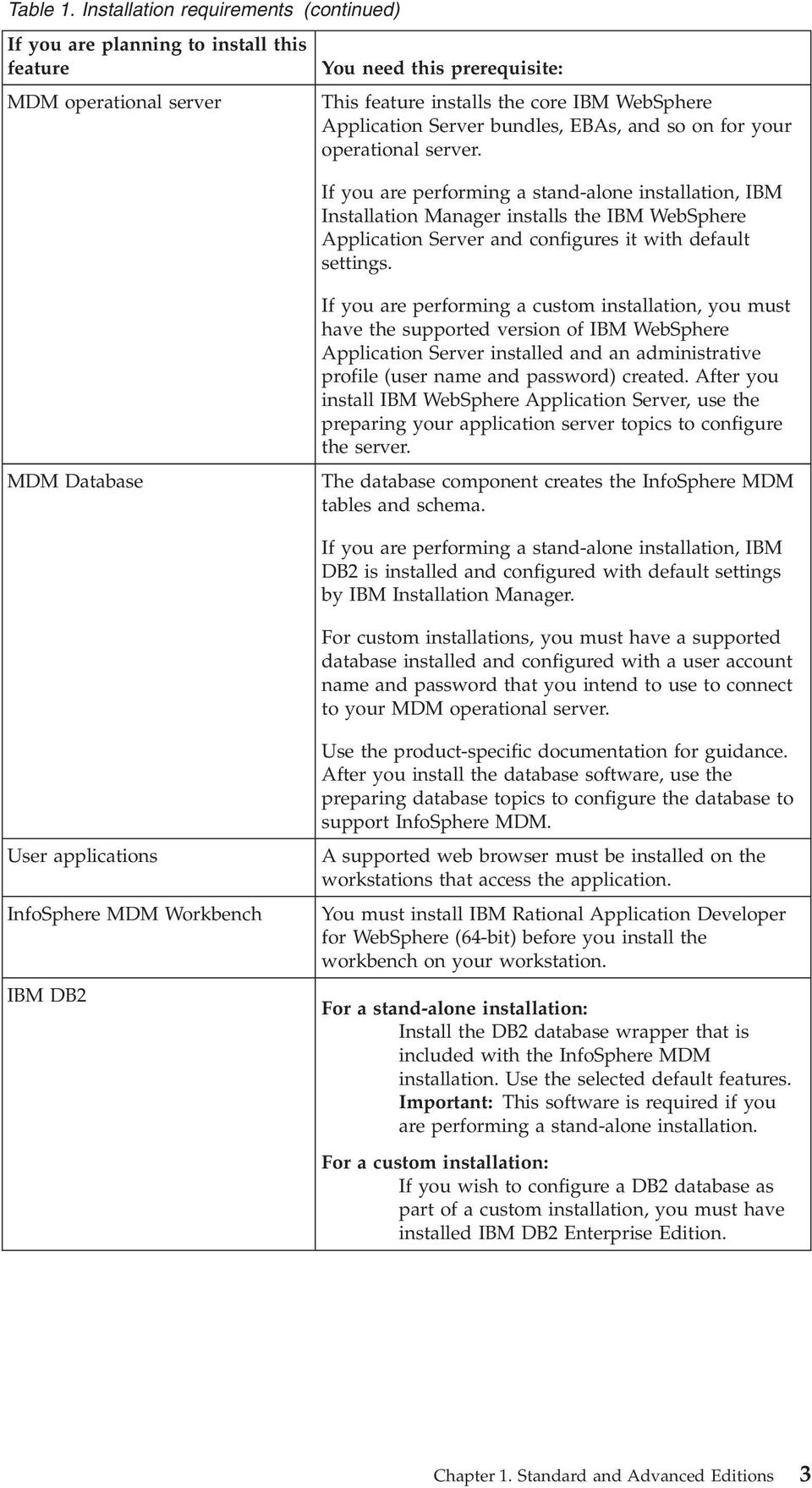
14 Table 1. Installation requirements (continued) If you are planning to install this feature IBM WebSphere Application Serer You need this prerequisite: Select these features to install for your application serer: IBM WebSphere Application Serer IBM WebSphere Application Serer Full Profile IBM WebSphere Application Serer SDK for Jaa Technology Edition 6 Always check the system requirements page for the supported ersion number. IBM Rational Application Deeloper When you install IBM Rational Application Deeloper, you must select, at a minimum, these additional required features in IBM Installation Manager: Web Deeloper Tools AJAX, Dojo, and HTML JSF JSP and serlet Enterprise Deeloper Tools Data access OSGi application IBM WebSphere Application Serer Deelopment tools Remote serer stub You must also make sure that the required 32-bit libraries are aailable on your 64-bit operating system. Related tasks: Installing InfoSphere MDM Workbench on page 155 Preparing for a custom deployment on page 71 Acquiring and extracting the installation files on page 56 Related reference: User applications and operational serer associations on page bit libraries needed on 64-bit operating systems When you install InfoSphere MDM Workbench and IBM Rational Application Deeloper on a 64-bit workstation, you must hae certain 32-bit libraries aailable on the workstation for a successful installation. You must either install the 32-bit libraries that are listed here or install IBM Rational Application Deeloper in 64-bit mode before you install InfoSphere MDM features. The required 32-bit libraries are: libatk-1.0.so.0 libfontconfig.so.1 libfreetype.so.6 libgdk_pixbuf-2.0.so.0 libgdk-x so.0 4 Installation Guide

15 libglib-2.0.so.0 libgmodule-2.0.so.0 libgobject-2.0.so.0 libgthread-2.0.so.0 libgtk-x so.0 libpango-1.0.so.0 libpangoft2-1.0.so.0 libpng12.so.0 libselinux.so.1 libx11.so.6 libxcomposite.so.1 libxcursor.so.1 libxdamage.so.1 libxext.so.6 libxfixes.so.3 libxft.so.2 libxinerama.so.1 libxi.so.6 libxrandr.so.2 libxrender.so.1 libxtst.so.6 libz.so.1 Related tasks: Installing a stand-alone workstation installation with DB2 on page 65 Installing InfoSphere MDM Workbench on page 155 Chapter 1. Standard and Adanced Editions 5

16 6 Installation Guide

17 Chapter 2. Installation oeriew Most IBM InfoSphere Master Data Management components can be installed on a serer or workstation, a combination of the two, or across multiple serers to support clustered enironments. Important: Before you begin the process of installing InfoSphere MDM, reiew the known problems. Some of the known installation problems require you to complete specific preinstallation configuration tasks. Failure to complete these configuration tasks can result in a failed installation. Tip: Use the Download IBM InfoSphere Master Data Management page to help determine the parts that you need for your licensed edition and ersion. You must set up both a client system and one or more serer systems. The application serer, database serer, and HTTP serer can all be on the same serer, or they can each be on their own serer. The HTTP serer is recommended, but is optional. The time that is required to install InfoSphere MDM depends on a number of factors and, as such, time estimates cannot be proided. Some factors that influence the amount of time to prepare and install can include: The number of components that are being installed. The number of serers or workstations in your enironment. Your network load capacity if you are installing in a clustered enironment. Whether IBM WebSphere Application Serer is already installed. Whether your database software is already installed. The first step in the installation process is to determine the best deployment type for your requirements: one of the stand-alone with DB2 installation types (serer or workstation) or the custom installation type. Most production implementations require a custom deployment. Optionally, you can use the LaunchPad to start either a stand-alone with DB2 or custom installation. LaunchPad enables you to choose the installation type, and then it configures IBM Installation Manager to use the installation files appropriate to your selection. For custom installations, you hae the opportunity to change the selected offerings to install after Installation Manager starts. Tip: LaunchPad is a browser-based application that is used as the starting point for a stand alone serer or workstation installation. LaunchPad requires the Mozilla Firefox browser. If Firefox is unaailable, you might be unable to use LaunchPad. If you cannot use LaunchPad: 1. Log in as the root user. 2. Install IBM Installation Manager in admin mode. 3. Manually configure the InfoSphere MDM installation repositories. After IBM Installation Manager is started, the basic order in which it works is described in these steps. 1. Select the features of InfoSphere MDM that you want to install. Copyright IBM Corp. 1996,

18 Important: The MDM Database and MDM operational serer are both required components. The MDM Database includes the core database tables for the edition that you are installing. The MDM Operational Serer proides critical processing functionality. 2. After you select the features and installation directory location, the installer does some basic checks on the operating system, disk space, and supporting software before continuing with the installation. If the installation directory specified is an existing directory, IBM Installation Manager erifies whether there is an existing installation and, if found, warns you about oerwriting the installation. 3. You are then prompted to enter information in a series of configuration panels. This information is used to automatically configure the MDM database and application serer with specific connection information and to identify the cell, node, and serers on which the InfoSphere MDM artifacts are deployed. If you are using a stand alone installation, the configuration panels do not display. Default alues are used to automatically configure the database, application serer, and operational serer settings. 4. Static data is extracted into the MDM_INSTALL_HOME directory that you selected at the beginning of the process. Static data includes items like the Batch Processor, Management Agent, Management Console, and the madconfig utility scripts among other items. 5. Database tables and indexes are created. 6. Next, the natie components and web serices are deployed to the application serer. That means that all artifacts are deployed in all specified nodes. 7. User interfaces and web applications that are selected for installation are also deployed to the application serer. The installer packages web-based application WAR files into an EAR file and deploys the EAR file to the application serer. During deployment, the application serer unpacks the content of the EAR files. 8. Natie configuration files.cfg are created. 9. After deployment, the database is bootstrapped. 10. Before the installation is complete, the installer completes a erification process by running transactions through the operational serer. In addition to the erification tests that the installation application runs, you can use the Test Client to run test transactions to ensure a successful installation. Related concepts: Verifying the base installation on page 159 Related information: Download IBM InfoSphere Master Data Management Features installed by IBM Installation Manager The features that you can install are dependent upon the InfoSphere MDM edition that you choose. This table shows the features that you can install with IBM Installation Manager. In this table, an asterisk * indicates that the feature can be installed only on a workstation. Two asterisks ** indicate that the product is not supported for use with a Microsoft SQL Serer database. 8 Installation Guide

19 Table 2. Installed InfoSphere MDM features If you install: InfoSphere MDM Standard Edition These features are aailable: MDM Database MDM Operational Serer (includes Enterprise Serice Oriented Architecture (ESOA) Toolkit, Jaa, and Web Serices SDKs) User applications: Inspector Enterprise Viewer Web Reports Proider Direct Pair Manager* Samples Patient - Adanced edition component (this item is automatically installed with Standard Edition and is not listed as an option on IBM Installation Manager) InfoSphere MDM Adanced Edition InfoSphere MDM Enterprise Edition InfoSphere MDM Workbench IBM DB2 Adanced Edition includes all features that are listed for Standard Edition plus these applications: Business Administration UI** Data Stewardship UI** Product Maintenance UI** Includes all of the Adanced Edition features, plus Collaboratie Edition, and InfoSphere MDM Extension for Unstructured Text Correlation MDM Workbench* (supports irtual, physical, and hybrid implementations). IBM Rational Application Deeloper is also bundled with InfoSphere MDM and must be installed before you install InfoSphere MDM Workbench. If you are planning to perform a stand alone installation, you can elect to install a DB2 database wrapper. The wrapper contains the natie DB2 database installer and runs in silent mode through IBM Installation Manager. If you plan to use a custom installation, then you must install DB2 on your own by using the natie DB2 installer. IBM WebSphere Application Serer IBM WebSphere Application Serer is required for the implementation of InfoSphere MDM. If you do not hae this application serer installed, you can elect to install it when you install InfoSphere MDM. This feature is installed when you perform a stand alone installation. In addition to InfoSphere MDM Standard Edition and Adanced Edition, other IBM MDM components, editions, and products are also installed using IBM Installation Manager. Those components are listed here and their installation instructions are proided in their online documentation. IBM Stewardship Center Chapter 2. Installation oeriew 9

20 InfoSphere MDM Application Toolkit Master Data Policy Monitoring InfoSphere MDM Collaboration Serer InfoSphere MDM Custom Domain Hub and InfoSphere MDM Reference Data Management Hub Related concepts: Stand-alone installation deployment types on page 21 Stand-alone serer installation with DB2 on page 22 Stand-alone workstation installation with DB2 on page 23 Related reference: User applications and operational serer associations on page 40 Installation Startup Kit for custom installations The Installation Startup Kit includes files and scripts to help you prepare your enironment before you install InfoSphere MDM. The files and scripts for the Installation Startup Kit are deployed to the folder that you define as the STARTUPKIT_INSTALL_HOME. These items can be used to help you to complete a custom installation. Database creation and configuration Tip: The database scripts in the Installation Startup Kit must be run before you begin the InfoSphere MDM installation. The scripts automatically create the appropriate tables, tablespaces, buffer pools, encoding specifications, and triggers that are required for your edition. The installation application can create the necessary tablespaces for your deployment. Alternatiely, you can create them prior to installing InfoSphere MDM using the proided scripts. Tip: Create one temporary tablespace for each blocksize. For example, if you hae 16K tablespaces, then create a 16K temporary tablespace. The scripts to create IBM DB2 databases and tablespaces are located in STARTUPKIT_INSTALL_HOME/CoreData/Full/DB2/Standard/ddl/ CreateDB.sql CreateTS.sql The scripts to create a DB2 for z/os database and install core and domain data: STARTUPKIT_INSTALL_HOME/CoreData/Full/DB2/ZOS/pds/ STARTUPKIT_INSTALL_HOME/Full/DB2/ZOS/pds/ The scripts are configured to run from a TSO session using JCL scripts in the mainframe. Script to create an Oracle database: STARTUPKIT_INSTALL_HOME/CoreData/ Full/Oracle/Standard/ddl/create_schema_ora.sql Script to create a Microsoft SQL Serer database: STARTUPKIT_INSTALL_HOME/CoreData/Full/SQLSerer/ddl/CreateDB.sql Microsoft SQL Serer files that are used for XA transactions are located in STARTUPKIT_INSTALL_HOME/SQLSerer JTA: 10 Installation Guide

21 Multiple instance support sqljdbc.dll files to support either 32-bit or 64-bit SQL Serer are in win32 and win64_amd64 instjdbc.sql Messaging component setup The Installation Startup Kit includes scripts that you can use to install the InfoSphere MDM messaging component when WebSphere MQ is on a machine that is different than the one where IBM Installation Manager is running, use the scripts custsetupmqserer.mqsc and ChannelAuth.mqsc. Prerequisite checking tool The prerequisite checking command line tool helps to preent you from beginning an installation that will be unable to successfully complete due to missing prerequisites. This tool has the following capabilities: Runs prerequisite checks for InfoSphere MDM installation. Performs basic data collection Collects logs and configuration files. Performs extended data collection Collects logs, configuration files, and metadata stored in the database The prerequisite checking tool's data collection capabilities can be useful after an InfoSphere MDM has completed or if you need to troubleshoot an installation. The results of these collections are stored in a compressed file. Silent installation response files The Installation Startup Kit includes sample response files (.res). These files are samples that can be used as templates for running silent installations. The sample response files are located in STARTUPKIT_INSTALL_HOME at the root leel. Related tasks: Installing silently by using a response file on page 142 Installing the Installation Startup Kit on page 73 Installing and setting up the database on page 81 Checking prerequisites using the command line tool on page 112 Related reference: Silent installation on page 132 Multiple instances of InfoSphere MDM is supported by installing the application in a clustered enironment. All InfoSphere MDM application instances in the clustered nodes within a WebSphere Application Serer cell must be deployed with the same ersion of InfoSphere MDM product code and must hae the same ersion of the InfoSphere MDM customization code. If you want to use the same physical machine (or LPAR) to deploy a second InfoSphere MDM application instance that is running a different ersion of InfoSphere MDM product code, you must create a second WebSphere Application Serer cell, deployment manager, and node profile. If you want to configure a simple functional test enironment, you can use the same WebSphere Application Serer cell and node to deploy multiple instances of InfoSphere MDM with the same ersion of InfoSphere MDM product code and different ersion of the InfoSphere MDM customization code. Howeer, some Chapter 2. Installation oeriew 11
22 limitations do apply. Once you uninstall any one of InfoSphere MDM instances in the WebSphere Application Serercell, the other InfoSphere MDM instances are no longer functional. Do not attempt this configuration in a production enironment. Related tasks: Installing InfoSphere MDM into a clustered enironment on page 124 Preparing for a custom deployment on page 71 User accounts, groups, and defaults used by the installation application When InfoSphere MDM is installed, default users and user groups are created on the application serer. Users (stand-alone with DB2 installations only) The following table lists the default user accounts and passwords created by the installation application during a stand-alone with DB2 installation. During a custom installation, you can define whateer user name and password alues you would like. Table 3. InfoSphere MDM user accounts User name Password Description mdmins11 mdmins11 If you perform a stand-alone installation on a Linux or UNIX operating system, this user name and password combination is created for your IBM DB2 database. Important: For security purposes, if you use the default mdmadmin password, you are encouraged to change the user password after installation. db2admin db3admin If you perform a stand-alone installation on a Microsoft Windows operating system, this user name and password combination is created for your IBM DB2 database. Important: For security purposes, if you use the default db2admin password, you are encouraged to change the database password after installation. Before you begin a custom installation of InfoSphere MDM, create a IBM WebSphere Application Serer profile with security enabled. The user name and password can be anything that you want. Groups The following table lists the groups and roles that are created by the installation application. You can add users to these groups through the IBM WebSphere Application Serer Integrated Solutions Console (admin console). Table 4. InfoSphere MDM user groups InfoSphere MDM group mdm_admin Description Administratie role that is equialent to a super user. 12 Installation Guide
23 Table 4. InfoSphere MDM user groups (continued) InfoSphere MDM group DataSteward mdm_default mdm_all_ops mdm_all_cws mdm_all_ixns mdm_all_segs_rw mdm_all_segs_ro SericeConsumer SericeProider Description This role is aailable only if user interface components are installed. This role allows user access to the application serer container without granting the user-specific permissions. This role allows user access to all InfoSphere MDM operations. This role allows user access to all composite iews. This role allows user access to all InfoSphere MDM interactions. This role allows read and write access to all segments. This role allows read only access to all segments. This role maps to all authenticated users and is associated with all entry point modules. This role maps to one default user: mdm. This role is associated with all modules that are not considered entry points. Other defaults used for stand-alone with DB2 installations If you use a stand-alone with DB2 installation type, the installer uses a number of default alues. If you are installing on Linux or UNIX (for serer deployments), the following defaults are used: DB2 database name: MDM11DB DB2 home directory: /home/mdmins11 If you are installing on Microsoft Windows (for workstation deployments), the following defaults are used: DB2 database name: MDM11DB Tip: For security reasons, after the installation is complete, ensure that the passwords of these default accounts are unique and different from the default alues. For information about changing the passwords, refer to the releant WebSphere Application Serer and DB2 documentation. Related concepts: Account prerequisites for custom installations on page 74 Verifying the base installation on page 159 Related tasks: Installing a stand-alone serer with DB2 on page 58 Installing a stand-alone workstation installation with DB2 on page 65 Preparing for a stand-alone installation with DB2 on page 57 Creating a new user and adding the user to an MDM group on page 79 Related reference: Database user accounts and connections on page 82 Related information: Managing users Chapter 2. Installation oeriew 13
24 Password storage and exposure Enabling user security for the operational serer Configuring users and user groups for irtual MDM During installation, passwords are encrypted by using WebSphere Application Serer encryption. All user interface applications and client applications hae a user name and password to connect to the MDM operational serer. These passwords are also encrypted by using the WebSphere Application Serer encryption mechanism. If any of the passwords are changed on the application serer, then you must also apply the change in the respectie component properties file as well. Be aware that when the installer generates response files that can be used for silent installations, these files contain user passwords in plain text. If plain text passwords stored in the files are against your organizational policies, use the graphical installation mode. Related information: Configuring secure MDM enironments Encrypting passwords with WebSphere Application Serer If you must change a user name and password in a properties file after installation, you can use this task to encrypt the new password. Directory structures About this task To preent the password from being stored in clear text in your properties file, you can use WebSphere Application Serer to encrypt the password. Procedure 1. Create a text file called mypassword.txt. 2. Add this line to the file: mypassword=user_password and sae the file. 3. Run the following command to encode the password alue: For Microsoft Windows: $NODE_HOME\bin\PropFilePasswordEncoder.bat path\mypassword.txt mypassword For Linux and UNIX: $NODE_HOME/bin/PropFilePasswordEncoder.sh path/mypassword.txt mypassword Where $NODE_HOME represents the home directory of the WebSphere Application Serer node and path represents the directory location of the mypassword.txt file. 4. Open the mypassword.txt file and copy the encrypted password alue to the password field in your properties file. Related information: Configuring secure MDM enironments There are three directories you want to understand when you install and use InfoSphere MDM: the installation directory, the shared directory, and the application serer directory. 14 Installation Guide
25 When you run IBM Installation Manager, you choose an installation path. This path and root directory are defined in the installation topics as MDM_INSTALL_HOME. MDM_INSTALL_HOME contains resources that are unique to the installed package. Within this directory are subdirectories for each of the components that you selected for installation. It also has directories that are specific to the operating system on which you install. The MDMShared directory contains resource files that are shared by multiple installed package groups. The contents can include resources that are needed to run IBM Installation Manager scripts, Jaa custom code libraries, and IBM Rational Application Deeloper for example. For more information about this directory, see the online documentation for IBM Installation Manager. The application serer path to which the installed components are deployed is defined in the installation topics as WAS_PROFILE_HOME. MDM_INSTALL_HOME Contents of the installation directory includes, but is not limited to, the subdirectories that are listed in the following table. The specific directories that you see depends on the features that you install. Table 5. MDM_INSTALL_HOME directories Directory Description aix, linux, solaris, win32, win64, zlinux BatchProcessor com.ibm.mdm.tools database documentation EnterpriseIntegrator eentmanagmentclient InstallableApps IVT logs These directories contain operating system-specific files. Contains subdirectories and files that are required to run the Batch Processor tool. The Batch Processor is designed primarily to work with physical MDM data. Contains OSGi bundles. An MDM Workbench workspace can be configured to use these bundles so that reference models and Jaa class references can be resoled. Contains static schema files. Contains a messages.properties file in the /nl/ subdirectory, which is used by the installer during run time. For example, it contains messages that are used by the installer progress monitor. Contains subdirectories and files that are required to configure and use the InfoSphere MDM Healthcare Point of Serice Integrator search application. Contains subdirectories and files to support the Eent Manager component. The Eent Manager is a triggering component that can detect eents and actiities in MDM. Contains subdirectories and files for any installed user applications. Applications include, but are not limited to, Data Stewardship UI, Product Maintenance UI, Inspector, and Web Reports. Contains subdirectories and scripts that are used to run the installation erification tests. Contains the logs that are recorded during the installation process. Chapter 2. Installation oeriew 15
26 Table 5. MDM_INSTALL_HOME directories (continued) Directory ManagementAgent ManagementConsole MDMCollector mds Description Contains subdirectories and files that are used to run the configuration management agent, which is used to configure and manage seeral MDM features. Contains subdirectories and files that are used by the Management Console. The Management Console is the user interface that supports the management agent. Contains subdirectories and files that are used to run IBM Support Assistant Data Collector. This directory contains files for irtual MDM (formerly IBM Initiate Master Data Serice ). Jaa and Web Serice SDK examples are installed in the /lib/sdk/examples directory. It also contains utilities in the /scripts directory, like the madconfig utility. MessageBrokerSuite PCDS properties Samples temp tmp Uninstall utils Contains subdirectories and configuration files that are used to implement and manage the Message Broker components. Message Broker components are typically used in irtual implementations to support messaging between source systems and the operational serer and MDM database. Contains subdirectories and files that support the Patient Clinical Data Search user interface. Contents in this directory proide input parameters that are used when you reset the MDM database and serer from MDM Workbench. Contains mappings and source code files that can be used in deelopment enironments. Contains all database logs. After installation, if you reset the database, this directory is used to copy all temporary SQL files. Contains temporary files that are used during the installation process. This directory contains the scripts that are needed to uninstall the MDM components. Contains common entity name instance priate key generator assets. Related concepts: Installing client applications and indiidual components on page 149 MAD_ROOTDIR and MAD_HOMEDIR use MAD_ROOTDIR and MAD_HOMEDIR are both terms and ariables that are familiar to users of IBM Initiate Master Data Serice. The definitions of these terms with regards to InfoSphere MDM installation and operational serer changes. In earlier ersions of the product (before ersion 11.0), the MAD_ROOTDIR contained the installed files, including all binary files. MAD_HOMEDIR contained all instance configuration information. Now, howeer, the contents of the two directories are 16 Installation Guide
27 combined in a sense. MAD_ROOTDIR contains both the installed binary files and the operational serer configuration information. The concept of a pure MAD_HOMEDIR is no longer alid. In the documentation, the term MDM_INSTALL_HOME represents the root path where all InfoSphere MDM features are installed. During the installation process, a working MAD_ROOTDIR path is created in the MDM_INSTALL_HOME directory. The path is noted in documentation as MDM_INSTALL_HOME/mds. This path contains the configuration for the operational serer installation and is the location from which all irtual MDM-related tools and utilities are run. During deployment to the WAS_PROFILE_HOME, releant binary files and a copy of the configuration are created in a runtime MAD_ROOTDIR. In a sense, this location becomes your instance directory. The path to this runtime configuration is noted in the WebSphere Application Serer JVM custom properties file as the mad.root.dir property. The configuration in MDM_INSTALL_HOME is primarily there to support the command-line tools. The configuration in WAS_PROFILE_HOME is used by the operational serer during run time. Editing the deployed files in WAS_PROFILE_HOME affects changes on the running operational serer. Important: Users of IBM Initiate Master Data Serice must also understand that the concept of a single installation directory supporting multiple instances is no longer alid. You must hae a separate installation for eery instance of InfoSphere MDM that you require. For example, if you need instances for production, testing, and training, then you must hae three separate installation directories and three separate deployments of the MDM operational serer and database in your WAS_HOME_PROFILE. In the Message Broker component topics, both MAD_ROOTDIR and MAD_HOMEDIR terms and ariables are still used. Chapter 2. Installation oeriew 17
28 18 Installation Guide
29 Chapter 3. Installing the product There are two main paths to install InfoSphere MDM: custom or stand-alone with IBM DB2. The instructions for each deployment style are the same for all InfoSphere MDM editions. Before you begin Figure 2. InfoSphere MDM Installation Oeriew Important: Before you begin the process of installing InfoSphere MDM, reiew the known problems. Some of the known installation problems require you to complete specific preinstallation configuration tasks. Failure to complete these configuration tasks can result in a failed installation. Make sure that you meet these prerequisites: You hae reiewed the known problems for InfoSphere MDM. Your enironment meets the hardware and software requirements for components you plan to install. You hae completed the installation worksheets. You hae access to the InfoSphere MDM offering. You hae completed the preparation steps. Copyright IBM Corp. 1996,
30 About this task The decision to deploy using either the custom deployment style or one of the stand-alone with DB2 deployment styles depends largely on the goals of your installation: Use the custom deployment style if you wish to deploy into an enironment that uses a database other than DB2, uses a pre-installed database, or uses a clustered enironment. Use the stand-alone serer with DB2 deployment style if you wish to install InfoSphere MDM deployed on IBM WebSphere Application Serer and DB2 using all of the default installation alues. Use the stand-alone workstation with DB2 deployment style if you wish to install a new InfoSphere MDM deelopment enironment on a Microsoft Windows workstation. Regardless of your enironment and deployment style, you can perform anyinfosphere MDM installation in either graphical or silent mode. Procedure If you plan to install using the custom deployment style: 1. Add the necessary repositories to IBM Installation Manager. 2. Install your application and components. If you plan to install using a stand-alone with DB2 deployment style: 3. Determine whether you are installing a stand-alone serer or stand-alone workstation. 4. Use the procedure specific to your deployment type. What to do next Planning an installation A success message on the final installer panel indicates that the erification tests were automatically run as part of the installation process. You can also iew the log files to erify a successful installation. If the installation is not successful, iew the log files and use the information in the troubleshooting topics to assist you. After installation, if you want to add or remoe a feature (for example, add an application or another language translation), or modify any of your configuration settings, you can run IBM Installation Manager again and select Modify. Related concepts: Stand-alone or custom installation deployment types on page 21 Verifying the base installation on page 159 Related tasks: Preparing for a custom deployment on page 71 Viewing the InfoSphere MDM installation logs Troubleshooting an installation Before you begin installing, you must make important decisions about your InfoSphere MDM deployment style. There are also seeral installation and configuration worksheets that can help you to plan and gather critical installation information. 20 Installation Guide
31 Stand-alone or custom installation deployment types Installation of IBM InfoSphere Master Data Management can be accomplished by using either a stand-alone installation with DB2 or a custom installation. The InfoSphere MDM editions bundle the master data capabilities and are installed by using IBM Installation Manager. Additional software, such as IBM WebSphere Application Serer, IBM DB2 (if you are using a DB2 database), and IBM Rational Application Deeloper (if you are using InfoSphere MDM Workbench) are also installed by IBM Installation Manager. The type of installation you choose depends on a number of considerations: Whether you are installing on a clean serer or workstation Whether you hae an existing database and application serer installed The number of serers or workstations on which you want to deploy the components What messaging serers you install The degree of automation you want to employ in the installation process Related tasks: Chapter 3, Installing the product, on page 19 Stand-alone installation deployment types A stand-alone installation installs InfoSphere MDM, IBM WebSphere Application Serer, and IBM DB2 in a single run of IBM Installation Manager. Stand-alone workstation installations additionally include InfoSphere MDM Workbench and IBM Rational Application Deeloper. The stand-alone installation deployment type offers the quickest time between completing the installation and running your first transaction. Stand-alone installations for serers or workstations are supported for InfoSphere MDM Standard, Adanced, and Enterprise Editions. Important: Stand-alone installation deployments must be performed on a clean serer or a clean workstation. Your serer or workstation machine must not hae any preexisting InfoSphere MDM components, IBM WebSphere Application Serer, or IBM DB2 already installed. This means that you cannot run both the workstation and serer stand-alone installations on the same machine, as they will each try to install similar pieces, causing a conflict. Use a stand-alone installation for serer or workstation when you: Must be up and running in a short amount of time. Plan to use a new IBM DB2 for Linux, UNIX, and Windows database. Are installing IBM WebSphere Application Serer for the first time. Are installing on Microsoft Windows (workstation only), IBM AIX (serer only), Linux (serer only), or Solaris (serer only) operating systems. Stand-alone installations install all InfoSphere MDM operational serer and database capabilities on a single target computer and can be run in graphical or silent mode. Chapter 3. Installing the product 21
32 Stand-alone installations are started using LaunchPad. When LaunchPad opens, you can select to use a stand-alone serer installation or a stand-alone workstation installation. That selection then does one of two actions: Installs IBM Installation Manager if it is not already installed. Starts IBM Installation Manager if it is installed. If you do not hae the current ersion of IBM Installation Manager, an update automatically begins. After the installation is complete, you can opt to return and install any additional components using the Modify installation option. Related reference: Features installed by IBM Installation Manager on page 8 Stand-alone serer installation with DB2: A stand-alone serer installation implies that you are selecting to install an InfoSphere MDM edition, IBM WebSphere Application Serer, and IBM DB2 for Linux, UNIX, and Windows on a serer. This illustration shows a stand-alone serer installation with DB2. Download IBM WebSphere Application Serer, IBM DB2, MDM offering (includes operation serer, database component and data stewardship applications) Software repository/ Local media Box A Application Serer Installer MDM operational serer Data Stewardship Applications Data Stewardship UI Inspector MDM static content Database Serer MDM data Figure 3. Stand-alone serer installation with DB2 For a stand-alone serer installation with DB2, IBM Installation Manager completes the following process. 1. Installs IBM WebSphere Application Serer (network deployment) with default messaging and IBM DB2 for Linux, UNIX, and Windows. 2. Installs the InfoSphere MDM operational serer, database component, and the two data stewardship applications (InfoSphere MDM Data Steward UI and InfoSphere MDM Inspector). The MDM static content is content that the installer extracts into the installation directory (MDM_INSTALL_HOME). Static content can include client applications like Batch Processor, Management Agent, Management Console, MDM Collector, MDM configuration scripts (madconfig utility scripts), and other applications using default settings. 3. Automatically creates your IBM WebSphere Application Serer profile and configures your database, application serer, and data stewardship applications. 4. The installation process finally deploys the MDM components to the application serer. 22 Installation Guide
33 You can install more components by using the modify option after the stand-alone serer installation with DB2 is complete. Related tasks: Installing a stand-alone serer with DB2 on page 58 Related reference: Features installed by IBM Installation Manager on page 8 Stand-alone workstation installation with DB2: A stand-alone workstation installation with DB2 implies that you are selecting to install an InfoSphere MDM edition, IBM WebSphere Application Serer, IBM DB2 for Linux, UNIX, and Windows, IBM Rational Application Deeloper, and InfoSphere MDM Workbench on a Microsoft Windows or Linux workstation. This illustration shows a stand-alone workstation installation with DB2. Like the serer scenario, you download IBM WebSphere Application Serer (base deployment), IBM DB2, your InfoSphere MDM edition, and InfoSphere MDM Workbench. Download IBM WebSphere Application Serer, IBM DB2, MDM offering (includes operation serer, database component), IBM Rational Application Deeoper, MDM Workbench Box A Software repository/ Local media Application Serer MDM operational serer Installer Database Serer MDM data MDM static content IBM Rational Application Deeloper MDM Workbench Figure 4. Stand-alone workstation installation with DB2 For a stand-alone workstation installation with DB2, IBM Installation Manager completes the following actions: 1. Installs IBM WebSphere Application Serer (base deployment) with default messaging, IBM DB2 for Linux, UNIX, and Windows, and IBM Rational Application Deeloper. Chapter 3. Installing the product 23
34 2. Installs InfoSphere MDM Workbench in IBM Rational Application Deeloper. 3. Installs the MDM operational serer and database components. The MDM static content is content that the installer extracts into the installation directory (MDM_INSTALL_HOME). Static content can include client applications like Batch Processor, Management Agent, Management Console, MDM Collector, MDM configuration scripts (madconfig utility scripts) and other applications. 4. Automatically creates your IBM WebSphere Application Serer profile and configures your database, application serer, and data stewardship applications using default settings. 5. Deploys the InfoSphere MDM components to the application serer. Related tasks: Installing a stand-alone workstation installation with DB2 on page 65 Related reference: Features installed by IBM Installation Manager on page 8 Custom installation deployment type Custom installations deploy InfoSphere MDM to almost any possible deployment scenario. Most InfoSphere MDM deployments require the custom installation deployment type. A custom installation is used to deploy InfoSphere MDM under any of the following conditions: Your deployment uses an IBM DB2 for z/os, Microsoft SQL Serer, or Oracle database. You plan to use a database that is already installed and configured. You are installing in a clustered enironment. You are installing on a serer or workstation that has IBM WebSphere Application Serer installed and Deployment Manager (DMgr) is running. You are installing on a configured IBM WebSphere Application Serer cluster and all node agents are running. WebSphere MQ is installed and the listener is running. You are installing only one InfoSphere MDM offering (such as Standard Edition, Adanced Edition, or Enterprise Edition). When you perform a custom installation, you can select multiple target serers for the InfoSphere MDM application and the user interface applications, or you can install eerything on a single target serer. A custom installation can be run in graphical or silent mode. This illustration shows a custom deployment in a clustered enironment. 24 Installation Guide
35 Download MDM offering Software repository/ Local media Box C WAS Node C Application Serer Box B MDM operational serer Install Manager wsadmin.sh Database client Application Serer Dmgr Cluster Box D WAS Node C MDM operational serer Database Serer Figure 5. Custom installation in a clustered enironment After the InfoSphere MDM installation is complete, you can opt to return and install any additional component by using the modify installation option. Related concepts: Support for high aailability enironments on page 26 Related tasks: Preparing for a custom deployment on page 71 Installing a custom deployment of InfoSphere MDM on page 113 Graphical or silent installation You can install InfoSphere MDM in graphical mode or silent mode. Consider which installation method works best for your enironment. Graphical mode If the computer on which you are running IBM Installation Manager can render a graphical user interface, then graphical mode is the preferred option. IBM Installation Manager displays a series of screens that walk you through the selection of features, basic parameter configuration, and proides a summary of the options that you selected before the installation began. Silent mode If you are planning identical installations on multiple computers, you might consider the silent option. A silent installation is started from the command line and uses a response file. This option does not require you to specify the installation options. Instead, the installation options are read from a response file. You can create a response file manually or by using the graphical installation wizard. A response file can be created without installing any software or during an installation. The steps that are taken in the installation process and errors that are encountered are logged to a file. Related reference: Silent installation on page 132 Chapter 3. Installing the product 25
36 Support for high aailability enironments To support installation of InfoSphere MDM in high aailability enironments, you can configure multiple instances on multiple host seers. By doing so, if one serer or instance goes down, the others can continue to process traffic. Tip: To deploy InfoSphere MDM to a high aailability enironment, you must deploy using the custom installation path. The MDM operational serer uses an IBM WebSphere Application Serer container and can be deployed on single serer or on a cluster as configured in the container. The cluster can be pre-configured on the serer. The installer can detect a clustered enironment and deploy to that enironment by using a custom installation. Reiew the installation scenarios before you begin the installation to better understand how to support high aailability and clustered enironment requirements. Related concepts: Installation scenarios on page 43 Custom installation deployment type on page 24 Related tasks: Installing a custom deployment on page 70 Worksheets for installation and configuration The installation worksheets list all of the alues that you must specify during an InfoSphere MDM installation process. Completing the installation worksheets before you install the components can help you plan your installation, sae time, and enforce consistency during the installation and configuration process. If you are performing a stand-alone installation with DB2, the installation application uses seeral default configurations. This limits the amount of input that you are required to proide. Reuse the worksheets for each runtime enironment that you plan to implement. For example, you might hae a production enironment, a test enironment, and a training enironment. Use the worksheets for gathering key details about applications and components, including their base configuration settings that are defined within IBM Installation Manager. Any operational serer, user application, or component configuration steps that are required outside of IBM Installation Manager are described in separate indiidual application or component topics. Related tasks: Installing a stand-alone serer with DB2 on page 58 Installing a stand-alone workstation installation with DB2 on page 65 Installing a custom deployment of InfoSphere MDM on page 113 Installing InfoSphere MDM into a clustered enironment on page 124 Installation directory worksheet Use this worksheet to record the root directory of the host on which you want to install InfoSphere MDM. 26 Installation Guide
37 If you install more runtime enironments later, they might not point to the same database as the one used for the initial enironment. If you are installing multiple runtime enironments, reuse the installation worksheet to define the unique directory alues for each enironment. If you are installing on Microsoft Windows: You must be running in Administrator mode for IBM Installation Manager to write to the Windows registry. Administrator mode is not used for IBM AIX, Linux, or Solaris. On a Microsoft Windows 7 operating system, you must install MDM into a directory that is not irtualized. The parameters that are listed in the following table equate to prompts or fields that you see in IBM Installation Manager. Table 6. InfoSphere MDM installation directory worksheet Parameter Description Your alue Use the existing package group Choose this option if you want the InfoSphere MDM components to be installed into an existing Eclipse shell or directory. You cannot modify the directory name if you choose this option. Do not choose this option if you preiously installed other products by using IBM Installation Manager, such as IBM Rational Application Deeloper. InfoSphere MDM Workbench must be installed into the same package group as IBM Rational Application Deeloper. Create a new package group This option is the default setting. IBM Installation Manager creates a default IBM/MDM directory under the root directory that you choose. Or, you can name the directory as you want. For example MDM_INSTALL_HOME/IBM/MDM_test or MDM_INSTALL_HOME/IBM/ MDM_prod DB2 or DB2 for z/os data source worksheet Use this data source worksheet to identify parameters for the IBM DB2 for Linux, UNIX, and Windows or IBM DB2 for z/os data source to which your MDM operational serer is connecting. For irtual MDM, all IBM AIX, Linux, or Solaris data source information is stored in an odbc.ini file in the MDM_INSTALL_HOME/conf directory. The physical MDM does not require data source information to be stored. Chapter 3. Installing the product 27
38 When you define the names for your databases and user accounts, consider giing the associated database instance, user account, and data source configuration the same name. You might also want to include the InfoSphere MDM ersion in your name. Using this naming conention can help other members of your organization and IBM Software Support understand the mapping between instances, accounts, and databases. The parameters that are listed in the following table equate to prompts or fields that you see in IBM Installation Manager. Table 7. IBM DB2 or DB2 for z/os data source worksheet Parameter Description Your alue Database type Both DB2 for Linux, UNIX, and Windows and DB2 for z/os are supported for all InfoSphere MDM editions. Database host name Identify the fully qualified address of the host on which the database is installed. The default is localhost. Database port Identify the database port or use the default port number proided. The DB2 default is Database user name The database user name must hae DBA priileges. Restrictions on length and supported characters for user names and passwords are dependent upon any restrictions that might be imposed by your operating system. Database password Database name If you install InfoSphere MDM using a stand-alone installation, the DB2 database user name and password defaults to mdminst11 on Linux and UNIX and to db2admin on Microsoft Windows. Proide a password for the database user name. Proide a name that identifies the InfoSphere MDM database. The default is MDMDB. The name must consist of 12 or fewer alphanumeric characters. Underscore ( _ ) characters can be used in the name. Other characters are not supported. 28 Installation Guide
39 Table 7. IBM DB2 or DB2 for z/os data source worksheet (continued) Parameter Description Your alue Database home For custom installations, proide the fully qualified directory where the database is installed. Proide the parent directory of SQLLIB. For example: Windows: C:\Program Files\IBM\SQLLIB Database schema Installing MDM Database manually IBM AIX, Linux, or Solaris: /home/db2inst1/sqllib Specify the database schema name. By default the schema name is the same as the database application user. If you are planning to install the physical MDM database manually, you can select the Extract scripts for manual database installation option. The installation application will extract the scripts that enable you to complete manual installation. Virtual MDM tables are installed een if this option is selected. Tablespace names This parameter is only aailable when the MDM database is being installed alone, without any other components. If you hae created your tablespaces ahead of time, then you must take note of their names so that you can specify them in the installation application. The following tablespaces are required (default names are in parentheses): 4K tablespace (TBS4K) 8K tablespace (TBS8K) 16K tablespace (TBS16K) IndexSpace (INDEXSPACE) EME tablespace (EMESPACE1) PME tablespace (EMESPACE2) LongSpace (LONGSPACE) Chapter 3. Installing the product 29
40 Related tasks: Installing and setting up the database on page 81 Preparing a DB2 database on page 82 Microsoft SQL Serer data source worksheet Use the Microsoft SQL Serer data source worksheet to identify parameters for the data source to which your MDM operational serer is connecting. For InfoSphere MDM Standard Edition, all IBM AIX, Linux, or Solaris data source information is stored in an odbc.ini file in the MDM_INSTALL_HOME/conf directory. When you define the names for your databases and user accounts, consider giing the associated database instance, user account, and data source configuration the same name. You might also want to include the InfoSphere MDM ersion in your name. Using this naming conention can help other members of your organization and IBM Software Support understand the mapping between instances, accounts, and databases. Attention: The Business Administration, Data Stewardship, and Product Management user applications are not supported for use with a Microsoft SQL Serer database. The parameters that are listed in the following table equate to prompts or fields that you see in IBM Installation Manager. Table 8. Microsoft SQL Serer data source worksheet Parameter Description Your alue Database type Microsoft SQL Serer is supported for InfoSphere MDM Standard Edition only. The type must be MSSQLU. Database host name Identify the fully qualified address of the host on which the database is installed. The default is localhost. Database port Identify the database port or use the default port number proided. The Microsoft SQL Serer default is Database user name The database user name must hae DBA priileges. Database password Database name Restrictions on length and supported characters for user names and passwords are dependent upon any restrictions that might be imposed by your operating system. Proide a password for the database user name. Proide a name that identifies the MDM database. The default is MDMDB. 30 Installation Guide
41 Table 8. Microsoft SQL Serer data source worksheet (continued) Parameter Description Your alue Database serer name Database file group Use Windows Natie Authentication Specify the name of the database serer to which the MDM database instance connects. Specify the name of a file group for the database. A file group is a logical structure to group objects (collections of files) in a database. In Microsoft SQL Serer, file groups are used to help with data placement and administratie tasks such as backup and restore operations. Choose whether you want the operational serer to authenticate to the database by using Microsoft Windows credentials. The default is to use SQL Serer credentials. If you plan to use Windows authentication, your DBA must set the default schema of the login user to the schema that will be used by IBM Installation Manager. Installing MDM Database manually If you are planning to install the physical MDM database manually, select this option to extract the scripts that are used for manual installation. Virtual MDM tables are installed een if this option is selected. Related tasks: Installing and setting up the database on page 81 Preparing a Microsoft SQL Serer database on page 85 Oracle data source worksheet Use the Oracle data source worksheet to identify parameters for the data source to which your MDM operational serer is connecting. For InfoSphere MDM Standard Edition, all IBM AIX, Linux, or Solaris data source information is stored in an odbc.ini file in the MDM_INSTALL_HOME/conf directory. When you define the names for your databases and user accounts, consider giing the associated database instance, user account, and data source configuration the same name. You might also want to include the InfoSphere MDM ersion in your name. Using this naming conention can help other members of your organization and IBM Software Support understand the mapping between instances, accounts, and databases. Chapter 3. Installing the product 31
42 The parameters that are listed in the following table equate to prompts or fields that you see in IBM Installation Manager. Table 9. Oracle data source worksheet Parameter Description Your alue Database type Oracle is supported for all InfoSphere MDM editions. Database host name Identify the fully qualified address of the host on which the database is installed. The default is localhost. Database port Identify the database port or use the default port number proided. The Oracle default is Database user name The database user name must hae DBA priileges. For Oracle, the DB user name and schema name must be the same. Database password Database name Database home Restrictions on length and supported characters for user names and passwords are dependent upon any restrictions that might be imposed by your operating system. Proide a password for the database user name. Proide the database name. Proide the fully qualified directory where the database is installed. For example: Windows: C:\App\oracle\product\ \db_1 IBM AIX, Linux, or Solaris: /home/mdm/oracle/product/ /db_1 32 Installation Guide
43 Table 9. Oracle data source worksheet (continued) Parameter Description Your alue Installing MDM Database manually If you are planning to install the physical MDM database manually, you can select the Extract scripts for manual database installation option. The installation application will extract the scripts that enable you to complete manual installation. Virtual MDM tables are installed een if this option is selected. This option is only aailable when the MDM database is being installed alone, without any other components. Tablespace names If you hae created your tablespaces ahead of time, then you must take note of their names so that you can specify them in the installation application. The following tablespaces are required (default names are in parentheses): 4K tablespace (TBS4K) 8K tablespace (TBS8K) 16K tablespace (TBS16K) IndexSpace (INDEXSPACE) EME tablespace (EMESPACE1) PME tablespace (EMESPACE2) LongSpace (LONGSPACE) Related tasks: Installing and setting up the database on page 81 Preparing an Oracle database on page 87 WebSphere Application Serer installation worksheet Use the IBM WebSphere Application Serer configuration worksheet to identify parameters for the application serer that is used to host your MDM operational serer. The parameters that are listed in the following table equate to prompts or fields that you see in IBM Installation Manager. Chapter 3. Installing the product 33
44 Table 10. IBM WebSphere Application Serer installation worksheet Parameter Description Your alue Deployment type Specify the deployment type and note the IBM WebSphere Application Serer profile name. Your options are Network Deployment Edition or Base Edition (unmanaged). Network Deployment is used for serer or cluster installations. A base deployment is typically used in workstation or demonstration installations. If you choose Network Deployment, the installer runs a sequence of commands against the IBM WebSphere Application Serer deployment manager process to configure application serers and deploy applications. The deployment manager and node agents must be configured and running before the deployment can proceed. For example, use a profile name of Dmgr01. If you select Network Deployment, the installer can also run against an IBM WebSphere Application Serer cluster. The installation program automatically detects the cluster. If the cluster is configured, the default is to deploy the applications on a cluster. You can select to deploy the applications on a single serer instead. IBM WebSphere Application Serer home If you choose Base, then the operational serer is deployed on serer1 of the IBM WebSphere Application Serer Base. The installer runs a sequence of commands against serer1 to configure the application serer and deploy applications. Make sure that serer1 is running before you proceed with the deployment. For example, use a profile name of AppSr1. Specify the fully qualified directory in which IBM WebSphere Application Serer is installed. The default on Linux and UNIX is /opt/ibm/websphere/appserer. The default on Microsoft Windows is C:\Program Files (x86)\ibm\ WebSphere\AppSerer. 34 Installation Guide
45 Table 10. IBM WebSphere Application Serer installation worksheet (continued) Parameter Description Your alue IBM WebSphere Application Serer profile home Federate into an existing Deployment Manager Deployment Manager profile name Deployment Manager profile home Host name SOAP port User name Password Cell If you are using a base deployment, specify the fully qualified path of the application serer profile home directory. The default on Linux and UNIX is /opt/ibm/websphere/ AppSerer/profiles. The default on Microsoft Windows is C:\Program Files (x86)\ibm\websphere\ AppSerer\profiles. If you want to federate a newly created managed node into an existing deployment manager, select the Federate into an existing Deployment Manager option. Proide the deployment manager profile name. Ensure that the name is not already in use. This is only applicable if the deployment type is Network Deployment and the Federate into an existing Deployment Manager option is selected. Specify the fully qualified path of the deployment manager profile home directory. Identify the fully qualified address of the host on which IBM WebSphere Application Serer is installed. The default is localhost. Identify the SOAP port of the deployment manager on the remote computer, if you are using remote deployment. The default is Identify the IBM WebSphere Application Serer user name. The user must hae administratie priileges. The IBM WebSphere Application Serer user password. Specify the IBM WebSphere Application Serer cell where you want to deploy InfoSphere MDM. If you hae IBM WebSphere Application Serer already installed and configured, you can click Retriee Host Details during the installation process and hae IBM Installation Manager retriee the information for Cell, Node, and Serer. Chapter 3. Installing the product 35
46 Table 10. IBM WebSphere Application Serer installation worksheet (continued) Parameter Description Your alue Node Specify the IBM WebSphere Application Serer cell where you want to deploy InfoSphere MDM. After you select the cell in IBM Installation Manager, all of the nodes within that cell are aailable in the list. Serer Specify the serer where you want to deploy InfoSphere MDM. After you select the node in IBM Installation Manager, all of the serers that are aailable for that node show in the list. If you want to create a new serer for deployment, you can specify the new name on the configuration panel and it is created in IBM WebSphere Application Serer during the installation process. Managed node profile name Managed node profile home Install MDM application on cluster Cluster Proide the managed node profile name. Ensure that the name is not already in use. This is only applicable if the deployment type is Network Deployment. Specify the fully qualified path of the managed node profile home directory. If you hae an existing WebSphere Application Serer cluster, this option is aailable on the configuration panel. Select this option if you want to install the InfoSphere MDM application in a clustered enironment. If you are installing in a clustered enironment, select the cluster where you want to deploy your applications. Related concepts: Installing and setting up the application serer on page 75 InfoSphere MDM application configuration worksheet Use the application configuration worksheet to identify parameters for the MDM operational serer. The parameters that are listed in the following table equate to prompts or fields that you see in IBM Installation Manager on the Application Configuration panel. 36 Installation Guide
47 Table 11. MDM application installation worksheet Parameter Description Your alue MDM application name Specify the name of the MDM operational serer. This name is used in IBM WebSphere Application Serer. The default is E001. MDM user name Specify the user name that this instance of InfoSphere MDM will use to log into the MDM client applications and user interfaces. Note: This user is not the WebSphere Application Serer admin user who administers the InfoSphere MDM instance, and does not need to match that user name. MDM user password Specify the password for the MDM user. RMI port Specify the port on which the Remote Method Inocation (RMI) registry serice listens for connections from other serices. In a clustered enironment, all nodes must use the same RMI port to communicate. The default is Note: The MDM operational serer uses RMI to receie and send transaction requests and responses. Matching style Specify whether you want to use a probabilistic or deterministic matching style. Enable multiple time zone deployment Default time zone Select this option if your application is running across different time zones, or your data has time-sensitie alues under different time zones. Select the client default time zone from the list. If a time zone is not specified, the application serer time zone is used. Chapter 3. Installing the product 37
48 Table 11. MDM application installation worksheet (continued) Parameter Description Your alue Messaging Specify the messaging type for your implementation. If you want to use the internal WebSphere messaging, select IBM WebSphere Default Messaging. Most irtual MDM configurations will select IBM WebSphere Default Messaging and install the Message Brokers feature. Message queue home Queue manager name MQ host name MQ port Channel name User name Password Configure Messaging Serer IBM WebSphere MQ is a separate enterprise product and must be installed before you install InfoSphere MDM. If you opt for IBM WebSphere MQ, specify alues for the following parameters. Specify the fully qualified directory of the messaging queue home. The default on Linux and UNIX is /usr/mqm. The default on Microsoft Windows is C:\Program Files (x86)\ibm\websphere\ MQ. Specify the name for the queue manager. For example, CUSTOMER.QUEUE.MANAGER. Specify the name of the serer that is hosting WebSphere MQ. Specify the WebSphere MQ listening port number. Specify the channel name. Channels are used to transmit messages between queue managers. Specify the WebSphere MQ user name. Specify the password. Select this option to deploy your parameters and configure your messaging serer. Related information: Multi-time-zone support 38 Installation Guide
49 Probabilistic s. deterministic matching styles User applications installation worksheet Use this worksheet to record parameters for the user applications that you are planning to install. Reuse this worksheet for each user application or note any differences between applications in the worksheet. The parameters that are listed in the following table equate to prompts or fields that you see in IBM Installation Manager. Table 12. User application installation worksheet Parameter Description Your alue Deployment type Specify whether your IBM WebSphere Application Serer deployment is Base or Network. Network deployment is used for serer or cluster installations. A base deployment is typically used in workstation or demonstration installations. IBM WebSphere Application Serer profile home Host name SOAP port User name Password Cell If you are using a base deployment, specify the fully qualified path of the application serer profile home directory. The default is /opt/ibm/websphere/ AppSerer/profiles Specify the name of the IBM WebSphere Application Serer where the MDM operational serer serer is deployed. Specify the port number for the MDM operational serer or use the default of Specify the administratie user name for this application. Specify the administratie user password. Specify the IBM WebSphere Application Serer cell where you want to deploy the application. If you hae IBM WebSphere Application Serer already installed and configured, click Retriee Host Details during the installation process to retriee the information for Cell, Node, and Serer. Chapter 3. Installing the product 39
50 Table 12. User application installation worksheet (continued) Parameter Description Your alue Node Serer Install MDM application on cluster Cluster Specify the IBM WebSphere Application Serer node where you want to deploy the application. Specify the IBM WebSphere Application Serer serer or serers where you want to deploy the application. If you hae an existing WebSphere Application Serer cluster, this option is aailable on the configuration panel. Select this option if you want to install InfoSphere MDM application in a clustered enironment. If you are installing in a clustered enironment, select the cluster where you want to deploy your applications. Related tasks: Installing the Business Administration UI on page 150 Installing Data Stewardship UI on page 151 Installing the Product Maintenance UI on page 153 Related information: Installing Inspector Installing Enterprise Viewer Installing Web Reports Installing Proider Direct User applications and operational serer associations: Certain user applications are designed to support either a irtual or physical MDM configuration. The following table associates user applications with the InfoSphere MDM configuration that they support. Table 13. InfoSphere MDM user applications Virtual MDM applications InfoSphere MDM Inspector InfoSphere MDM Enterprise Viewer InfoSphere MDM Web Reports Physical MDM Applications InfoSphere MDM Business Administration InfoSphere MDM Data Stewardship InfoSphere MDM Product Maintenance InfoSphere MDM Proider Direct InfoSphere MDM Pair Manager 40 Installation Guide
51 Note: Not all of the user applications are installed through IBM Installation Manager panels. Related reference: Features installed by IBM Installation Manager on page 8 Installation requirements on page 2 History installation worksheet Use this worksheet to record parameters for your history trigger configuration. History triggers are used by physical MDM operational serers. There are two sets of triggers that generate data for physical MDM database history tables. The first set is for the core and domain tables. The second set is for the configuration management tables. Each set consists of history triggers and delete triggers. The parameters that are listed in the following table equate to prompts or fields that you see in IBM Installation Manager. Table 14. History installation worksheet Parameter Description Your alue Industry Specify the industry type that is supported in this implementation. You can specify only one type. There are four supported industry types. Each option installs the code tables and data for that industry type. Insurance - Choose this option for lines of business such as Life, Health, Annuities, Pensions, Property and Casualty, and others. Banking - Choose this option for lines of business such as Retail Banking, Commercial Banking, Credit Cards, Loans, and others. Telecommunication - Choose this option for lines of business such as Wireless, Cable Teleision, Satellite Teleision, Internet, Telephone Serices, and others. Manufacturing - Choose this option for lines of business such as Precision Tools, Aerospace, Electrical, Heating, Mechanical, and others. Chapter 3. Installing the product 41
52 Table 14. History installation worksheet (continued) Parameter Description Your alue History triggers There are three history trigger options. You can specify only one. None. Choose this option if you do not want to install any triggers. Choosing this option preents history from being stored in the database. Simple. Choose this option to install only the update triggers. When a record is updated in the database, a copy of that record (before the update) is added to the history table. Past ersions of the record are stored in the history table. Compound. Choose this option if you want to install both insert and update triggers. When a record is added to the database, or when a record is updated in the database, a copy of the record is added to the history table. Copies of both the current and past ersions of the record are stored in the history table. Case sensitie searches By default, name searches for contracts, products, and categories are not case-sensitie. Check the Enable case-sensitie searches check box only if you want to place case-sensitie restrictions on your searches. Code table languages Once this feature is actiated, database objects are created and you cannot deactiate the option. Translated code table alues used for predefined lists and error messages are included with the physical MDM operational serer. English is the default language. 42 Installation Guide
53 Table 14. History installation worksheet (continued) Parameter Description Your alue Application resource language Specify the corresponding language translations for the user interface to install. Related information: Non-case-sensitie search Installation scenarios There are some common installation scenarios, which you can use as guidelines when installing InfoSphere MDM in similar enironments. The scenarios are not meant to address eery possible configuration or enironment, but show the basic steps inoled in a custom installation inoling multiple products and machines. Before you install, ensure that the system or systems that you choose meet the necessary operating system, hardware, software, communications, disk, and memory requirements. These scenarios assume that you hae completed the following tasks: Acquiring and extracting the installation files on page 56 Prepare IBM Installation Manager on page 72 Installing the Installation Startup Kit on page 73 Before you begin any installation, ensure that these conditions are met: Ensure any Dmgr node agents are deployed and running. Ensure any AppSr node agents are deployed and running. For some installation scenarios, the WebSphere Application Serer AppSr profile is called serer1. Ensure the JAVA_HOME and PATH enironment ariables are set correctly on each machine. For WebSphere Application SererNetwork Deployment, ensure the DB2_JDBC_DRIVER_PATH application serer ariables are targeted to the respectie nodes containing the DB2 JDBC driers for the machines. This is not applicable if you are using WebSphere Application Serer base. Know your machine host names and SOAP port numbers for Dmgr processing. Know your host name and bootstrap port number of the application serer, where the InfoSphere MDM application was preiously installed as a result of running the IBM Installation Manager. Related concepts: Support for high aailability enironments on page 26 Related tasks: Installing InfoSphere MDM into a clustered enironment on page 124 Preparing for a custom deployment on page 71 Scenario: Installing InfoSphere MDM on a WebSphere Application Serer cluster, using an IBM DB2 database and IBM WebSphere MQ messaging Use this scenario as a reference when planning and installing InfoSphere MDM on a WebSphere Application Serer cluster with a DB2 database and IBM WebSphere MQ messaging. This scenario is applicable for DB2 on Microsoft Windows, Linux, or UNIX operating systems. Chapter 3. Installing the product 43
54 This scenario is accomplished through four procedures. 1. Prepare your application serer. 2. Prepare your DB2 database. 3. Prepare IBM WebSphere MQ messaging. 4. Install InfoSphere MDM. In this scenario, the topology is: Machine A: WebSphere Application Serer Deployment Manager DB2 client software IBM Installation Manager and InfoSphere MDM Machines B, C, and D: WebSphere Application Serer managed nodes DB2 client software Machine E: DB2 database Machine F: IBM WebSphere MQ Preparing the IBM DB2 database: Use this procedure to install and prepare your DB2 database as a second step in completing this scenario. About this task The resulting topology from this procedure is that machine E hosts the DB2 software and database, and machines A, B, C, and D hae the DB2 client software. Procedure 1. Install DB2 database. Use the IBM DB2 installation documentation as a guide. a. Install DB2 on machine E. b. Install DB2 client software on machines A, B, C, and D. c. Catalog DB2 client on machine A to connect to the DB2 database serer on machine E. Repeat this step for machines B, C, and D. 2. Create the database and table spaces by using the scripts that are proided in the Installation Startup Kit. 3. Make sure that DB2 Client $HOME/sqllib/bin is included in the PATH on machine A. This step is required for IBM Installation Manager to implement the $HOME/sqllib/bin/db2 utility when running the SQL scripts. Related tasks: Installing and setting up the database on page 81 Preparing a DB2 database on page 82 Installing the Installation Startup Kit on page 73 Related reference: DB2 or DB2 for z/os data source worksheet on page Installation Guide
55 Preparing WebSphere Application Serer Network Deployment: For the first step in completing this installation scenario, install and prepare your application serer. About this task The resulting topology from this procedure is that machine A has WebSphere Application Serer Deployment Manager and machines B, C, and D hae WebSphere Application Serer managed nodes. Procedure 1. Install and configure WebSphere Application Serer on machines A, B, C, and D. Use the WebSphere Application Serer Network Deployment documentation as a guide. 2. Create two WebSphere Application Serer clusters. CLUSTER1 for the MDM operational serer and CLUSTER2 for the user applications. 3. Create a DB2_JDBC_DRIVER_PATH WebSphere Application Serer enironment ariable for each node in the cluster. The path must point to the JDBC driers for each machine. For example, if the DB2 client and JDBC driers are installed at $USER_HOME/sqllib/jaa, specify the DB2_JDBC_DRIVER_PATH equal to $USER_HOME. 4. Make sure that all managed nodes are properly synchronized before you begin installing InfoSphere MDM. 5. Make sure that you know the WebSphere Application Serer Deployment Manager host name and SOAP port before you start the InfoSphere MDM installation. Use the WebSphere Application Serer configuration worksheet to record your alues. 6. Make sure your cluster is started before you begin the InfoSphere MDM installation. Related concepts: Installing and setting up the application serer on page 75 Related tasks: Preparing WebSphere Application Serer Network Deployment for a managed serer deployment on page 76 Preparing your DB2 database to use InfoSphere MDM in a clustered enironment on page 84 Related reference: WebSphere Application Serer installation worksheet on page 33 Preparing IBM WebSphere MQ: Use this procedure to install and prepare IBM WebSphere MQ as a third step in completing this scenario. Procedure 1. Install IBM WebSphere MQ on machine F. Use the IBM WebSphere MQ installation documentation as a guide. 2. Create the WebSphere MQ queue manager, channel, and queues by using the custsetupmqserer.mqsc and ChannelAuth.mqsc scripts. These scripts are included in the Installation Startup Kit. Related tasks: Chapter 3. Installing the product 45
56 Installing the Installation Startup Kit on page 73 Related reference: InfoSphere MDM application configuration worksheet on page 36 Installation Startup Kit for custom installations on page 10 Installing InfoSphere MDM: Use this procedure to install InfoSphere MDM and any selected user applications as the final step in completing this scenario. About this task Make sure that your application serer and database are started before you begin the InfoSphere MDM installation. Procedure 1. Start IBM Installation Manager on machine A and choose your InfoSphere MDM offering. Continue through the prompts. 2. Specify the InfoSphere MDM installation home and shared directories. For example, MDM_INSTALL home - /usr/ibm/mdm/e001/mdm and Shared - /usr/ibm/mdm/e001/shared 3. Choose the MDM Database, MDM Operational Serer, and any user applications or other features you want to install. For example: select the Applications feature to install all user applications, or select specific applications. 4. On the Database Configuration panel, specify the database type and database parameters. You can choose whether you want to test the database connection by selecting Test Connection or select No connection test required. 5. On the WebSphere Application Serer Configuration panel, specify the application serer parameters. Select Retriee Host Details to obtain your Cell, Node, and Serer information. Select Install MDM application on cluster. Choose CLUSTER1 from the Cluster list. 6. On the Application Configuration panel, select IBM WebSphere MQ messaging and enter the parameters. Clear the Configure messaging serer option to preent IBM Installation Manager from creating a queue manager on machine A (because the queue manager is enabled on machine F). 7. On each indiidual user application configuration panel, proide the parameters. Select Install MDM application on cluster. Choose CLUSTER2 from the Cluster list. 8. Click Verify Installation Requirements to run the prerequisite checks. Reiew and correct any errors or warnings, then click Recheck. 9. When the erification checks pass successfully, click Install. 10. When the installation is complete, iew the logs and use the installation erification tools. Related concepts: Prepare IBM Installation Manager on page 72 Worksheets for installation and configuration on page 26 Verifying the base installation on page 159 Related tasks: Installing a custom deployment of InfoSphere MDM on page 113 Troubleshooting an installation 46 Installation Guide
57 Scenario: Installing InfoSphere MDM on a WebSphere Application Serer cluster, using an Oracle database and WebSphere Default Messaging Use this scenario as a reference when planning and processing an InfoSphere MDM installation on a WebSphere Application Serer cluster. This scenario uses an Oracle database and WebSphere Default Messaging. This scenario is accomplished through three procedures. 1. Prepare your application serer. 2. Prepare your Oracle database. 3. Install InfoSphere MDM. In this scenario, the topology is: Machine A: WebSphere Application Serer Deployment Manager Oracle client software IBM Installation Manager and InfoSphere MDM Machines B, C, and D: WebSphere Application Serer managed nodes Oracle client software Machine E: Oracle database Preparing the Oracle database: Use this procedure to install and prepare your Oracle database as a second step in completing this scenario. About this task The resulting topology from this procedure is that machine E hosts the Oracle software and database, and machines A,B,C, and D hae the Oracle client software. Procedure 1. Install Oracle database. Use the Oracle installation documentation as a guide. a. Install Oracle on machine E. b. Install the Oracle client software on machines A, B, C, and D. c. Point the TNS name on machine A to connect to the remote Oracle database serer on machine E. 2. Create the database and table spaces by using the scripts that are proided in the Installation Startup Kit. To install MDM with Oracle, your DB user name and schema name must be the same. 3. Make sure Oracle Client sqlplus is included in the PATH on machine A. This step is required for IBM Installation Manager to implement the sqlplus utility when running the SQL scripts. Related tasks: Installing and setting up the database on page 81 Preparing an Oracle database on page 87 Installing the Installation Startup Kit on page 73 Chapter 3. Installing the product 47
58 Related reference: Oracle data source worksheet on page 31 Preparing WebSphere Application Serer Network Deployment: Use this procedure to install and prepare your application serer as a first step in completing this scenario. About this task The resulting topology from this procedure is that machine A has WebSphere Application Serer Deployment Manager, and machines B, C, and D hae WebSphere Application Serer managed nodes. Procedure 1. Install and configure WebSphere Application Serer on machines A, B, C, and D. Use the WebSphere Application Serer Network Deployment documentation as a guide. 2. Create a WebSphere Application Serer cluster named CLUSTER1 for the MDM operational serer. 3. Create an ORACLE_JDBC_DRIVER_PATH WebSphere Application Serer enironment ariable for each node in the cluster. The path must point to the JDBC driers for each machine. For example, if the Oracle client and JDBC driers are installed at $USER_HOME/jdbc/lib/ojdbc6.jar, specify the ORACLE_JDBC_DRIVER_PATH equal to $USER_HOME. 4. Make sure that all managed nodes are properly synchronized before you begin installing InfoSphere MDM. 5. Make sure that you know the WebSphere Application Serer Deployment Manager host name and SOAP port before you start the InfoSphere MDM installation. Use the WebSphere Application Serer configuration worksheet to record your alues. 6. Make sure your cluster is started before you begin the InfoSphere MDM installation. Related concepts: Installing and setting up the application serer on page 75 Related tasks: Preparing WebSphere Application Serer Network Deployment for a managed serer deployment on page 76 Preparing your Oracle database to use InfoSphere MDM in a clustered enironment on page 89 Related reference: WebSphere Application Serer installation worksheet on page 33 Installing InfoSphere MDM: Use this procedure to install InfoSphere MDM and any selected user applications as the final step in completing this scenario. About this task Make sure that your application serer and database are started before you begin the InfoSphere MDM installation. 48 Installation Guide
59 Procedure 1. Start IBM Installation Manager on machine A and choose your InfoSphere MDM offering. Continue through the prompts. 2. Specify the InfoSphere MDM installation home and shared directories. For example, MDM_INSTALL Home - /usr/ibm/mdm/e001/mdm and Shared - /usr/ibm/mdm/e001/shared 3. Choose the MDM Database, MDM Operational Serer, and any user applications or other features you want to install. For example: select the Applications feature to install all user applications, or select specific applications. 4. On the Database Configuration panel, specify the database type and database parameters. You can choose whether you want to test the database connection by selecting Test Connection or select No connection test required. 5. On the WebSphere Application Serer Configuration panel, specify the application serer parameters. Select Retriee Host Details to obtain your Cell, Node, and Serer information. Select Install MDM application on cluster. Choose CLUSTER1 from the Cluster list. 6. On the Application Configuration panel, select IBM WebSphere Default Messaging. 7. On each indiidual user application configuration panel, proide the parameters. Select Install MDM application on cluster. Choose CLUSTER1 from the Cluster list. 8. Click Verify Installation Requirements to run the prerequisite checks. Reiew and correct any errors or warnings, then click Recheck. 9. When the erification checks pass successfully, click Install. 10. When the installation is complete, iew the logs and use the installation erification tools. Related concepts: Prepare IBM Installation Manager on page 72 Worksheets for installation and configuration on page 26 Verifying the base installation on page 159 Related tasks: Installing a custom deployment of InfoSphere MDM on page 113 Troubleshooting an installation Scenario: Installing InfoSphere MDM on a WebSphere Application Serer Network Deployment on Windows with an SQL Serer database Use this scenario as a reference when planning and processing a irtual MDM deployment of InfoSphere MDM on a WebSphere Application Serer Network Deployment. This scenario uses a Microsoft SQL Serer database and IBM WebSphere MQ messaging. This scenario is applicable for a Microsoft Windows operating system. Restriction: Since this scenario is on a Windows system with SQL Serer, only irtual MDM features are supported. Physical MDM is not supported in this scenario. This scenario is accomplished through four procedures. 1. Prepare your application serer. 2. Prepare your SQL Serer database. Chapter 3. Installing the product 49
60 3. Prepare IBM WebSphere MQ messaging. 4. Install InfoSphere MDM. In this scenario, the topology is: Machine A: WebSphere Application Serer Deployment Manager and WebSphere Application Serer managed node IBM WebSphere MQ IBM Installation Manager and InfoSphere MDM Machine B: SQL Serer database Prepare Microsoft SQL Serer database: For the second step in completing this scenario, install and prepare your SQL Serer database. Procedure 1. Install SQL Serer database on machine B. Use the Microsoft SQL Serer installation documentation as a guide. 2. Create the database and table spaces by using the scripts that are proided in the InfoSphere MDM Installation Startup Kit. Related tasks: Installing and setting up the database on page 81 Preparing a Microsoft SQL Serer database on page 85 Installing the Installation Startup Kit on page 73 Related reference: Microsoft SQL Serer data source worksheet on page 30 Prepare WebSphere Application Serer Network Deployment: As the first step in completing this scenario, install and prepare your application serer. About this task The resulting topology from this procedure is that machine A has WebSphere Application Serer Deployment Manager and a managed node. Procedure 1. Install and configure WebSphere Application Serer on machine A. Use the WebSphere Application Serer Network Deployment documentation as a guide. 2. Make sure that your managed node is properly synchronized before you begin installing InfoSphere MDM. 3. Make sure that you know the WebSphere Application Serer Deployment Manager host name and SOAP port before you start the InfoSphere MDM installation. Use the WebSphere Application Serer configuration worksheet to record your alues. 4. Make sure your application serer is started before you begin the InfoSphere MDM installation. Related concepts: 50 Installation Guide
61 Installing and setting up the application serer on page 75 Related tasks: Preparing WebSphere Application Serer Network Deployment for a managed serer deployment on page 76 Related reference: WebSphere Application Serer installation worksheet on page 33 Preparing IBM WebSphere MQ: Use this procedure to install and prepare IBM WebSphere MQ as a third step in completing this scenario. Procedure 1. Install IBM WebSphere MQ on machine A. Use the IBM WebSphere MQ installation documentation as a guide. 2. Create the WebSphere MQ queue manager, channel, and queues by using the custsetupmqserer.mqsc and ChannelAuth.mqsc scripts. These scripts are included in the Installation Startup Kit. Installing InfoSphere MDM: Use this procedure to install InfoSphere MDM and any selected user applications as the final step in completing this scenario. About this task Make sure that your application serer and database are started before you begin the InfoSphere MDM installation. Procedure 1. Start IBM Installation Manager on machine A and choose your InfoSphere MDM offering. Continue through the prompts. 2. Specify the InfoSphere MDM installation home and shared directories. For example, MDM_INSTALL home - c:\program Files\IBM\MDM\E001\mdm and Shared - c:\program Files\IBM\MDM\E001\Shared 3. Choose the MDM Database, MDM Operational Serer, and any user applications or other features you want to install. For example: select the Applications feature to install all user applications, or select specific applications. Tip: Since this scenario is on a Windows system with SQL Serer, you can only select irtual MDM user applications. Physical MDM is not supported in this scenario. 4. On the Database Configuration panel, specify the database type and database parameters. You can choose whether you want to test the database connection by selecting Test Connection or select No connection test required. 5. On the WebSphere Application Serer Configuration panel, specify the application serer parameters. Select Retriee Host Details to obtain your Cell, Node, and Serer information. Click Verify MDM Instance on Serer to ensure that an InfoSphere MDM instance does not already exist. Chapter 3. Installing the product 51
62 6. On the Application Configuration panel, select IBM WebSphere MQ messaging and enter the parameters. Keep the Configure messaging serer option selected to instruct IBM Installation Manager to create a queue manager on machine A. 7. On each indiidual user application configuration panel, proide the parameters. 8. Click Verify Installation Requirements to run the prerequisite checks. Reiew and correct any errors or warnings, then click Recheck. 9. When the erification checks pass successfully, click Install. 10. When the installation is complete, iew the logs and use the installation erification tools. Related concepts: Prepare IBM Installation Manager on page 72 Worksheets for installation and configuration on page 26 Verifying the base installation on page 159 Related tasks: Installing a custom deployment of InfoSphere MDM on page 113 Troubleshooting an installation Scenario: Installing InfoSphere MDM Workbench on Windows, then connecting to a remote operational serer Use this scenario as a reference when planning and deploying an InfoSphere MDM deelopment enironment (MDM Workbench) installation on Microsoft Windows that connects to a remote InfoSphere MDM operational serer and a remote database instance. The steps outlined in this scenario are focused on the physical MDM aspect of InfoSphere MDM Workbench configuration and deployment. Important: This scenario assumes that an operational serer has already been installed on a remote machine. This scenario is accomplished through the following procedures: 1. On a local machine, install the MDM Workbench. 2. Configure your local MDM Workbench instance to connect to the remote application serer. 3. Configure your local MDM Workbench instance to connect to the remote database. 4. After completing deelopment work, deploy your changes from MDM Workbench to the remote InfoSphere MDM instance. In this scenario, the topology is: Machine A (local Microsoft Windows machine): IBM Installation Manager and InfoSphere MDM Workbench IBM Rational Application Deeloper Machine B (AIX serer machine): WebSphere Application Serer Deployment Manager and WebSphere Application Serer managed node IBM Installation Manager and InfoSphere MDM operational serer IBM DB2 database 52 Installation Guide
63 Related tasks: Installing a custom deployment of InfoSphere MDM on page 113 Installing the local InfoSphere MDM deelopment enironment: Prepare your local InfoSphere MDM deelopment enironment by installing MDM Workbench and IBM Rational Application Deeloper (RAD). Before you begin If you hae already installed Rational Application Deeloper, ensure that you install MDM Workbench and Rational Application Deeloper into the same package group. Tip: To iew a ideo demonstration of the steps described in this procedure, see Procedure 1. Start IBM Installation Manager. 2. Add the MDM Workbench and Rational Application Deeloper repositories to IBM Installation Manager: a. Click File > Preferences. The Preferences dialog opens. b. Click Add Repository... c. Select the MDM Workbench.inf file from the directory that contains the InfoSphere MDM installation images. d. Click Add Repository... e. Select the Rational Application Deeloper.inf file from the directory that contains the InfoSphere MDM installation images. f. Click OK. 3. On the IBM Installation Manager home screen, click Install. 4. On the second Install Packages panel, select the Installation Directory into which you want to install the MDM Workbench. If you want to install in a directory other than the default, select the MDM Workbench and click Browse in the Installation Directory field. Note: On Microsoft Windows 7 operating systems, install MDM Workbench into a directory that is not irtualized. 5. Click Next. 6. On the language panel, English is selected by default. If you want any languages other than English, select the languages and click Next. 7. Select the IBM Rational Application Deeloper for WebSphere Software and IBM InfoSphere Master Data Management Workbench packages to install and click Next. 8. Click Next again to iew the License panel. Read and accept the license, then click Next. 9. Complete the remaining Installation Manager panels and reiew the installation summary information, then click Verify Installation Requirements to run the prerequisite checks. Reiew and correct any errors or warnings, then click Recheck. 10. When the erification checks pass successfully, click Install. Chapter 3. Installing the product 53
64 11. Click Finish to close IBM Installation Manager. Related tasks: Installing a custom deployment of InfoSphere MDM on page 113 Configuring the remote serer connection: Create a new entry in the MDM Workbench Serers iew to connect to the remote application serer. Procedure 1. Open the MDM Workbench on your local machine. 2. Open the Serers iew. 3. Right-click in the Serers iew and choose New > Serer. The Define a New Serer dialog opens. 4. Select the serer type and ersion, such as IBM > WebSphere Application Serer Enter the host name of your remote serer. 6. Type the serer name. 7. Select the serer runtime enironment and click Next. 8. Select Manually proide connection settings (always selected for remote serers) and configure the connection settings with the correct port numbers. You must select at least one connection type and ensure that the correct port is specified. 9. Select Security is enabled on this serer, then proide the user ID and password. 10. Type the application serer name. 11. Click Test Connection to confirm that all of your connection settings are accurate, then click Finish. Related concepts: Installing and setting up the application serer on page 75 Configuring the remote database connection: Configure a connection to the remote database so that you can test your InfoSphere MDM deelopment and run any generated SQL. Procedure 1. In the MDM Workbench, open the Data perspectie. 2. In the Data Source Explorer iew, right-click on Database Connections. 3. Click New... The New Connection dialog opens. 4. On the Connection Parameters screen, proide the details of your remote database instance: a. Select the database manager type. b. Select the JDBC drier. c. Type the database name. d. Type the host address and port number. e. Proide the client authentication user name and password. f. Type the default schema name. g. Confirm the connection URL. 54 Installation Guide
65 5. After configuring the remote database instance, click Test Connection to confirm that your settings are correct. 6. Click Finish. Related tasks: Installing and setting up the database on page 81 Related information: Running the SQL scripts to prepare for deployment Deploying local changes to the remote InfoSphere MDM instance: In this scenario, the MDM Workbench deelopment process is identical to the normal process, but you must deploy your CBA to the remote operational seer using the WebSphere Application Serer Integrated Solutions Console (admin console). Procedure 1. Complete your MDM Workbench deelopment tasks. 2. Ensure that you hae generated the code for your project after adding it to the CBA. 3. Run the SQL scripts in the MDMSharedResources/sql directory that corresponds to your remote database instance. 4. In the MDM Workbench, right-click the CBA project and click Export. 5. Select the export destination OSGi > OSGi Composite Bundle (CBA). Verify that the bundles that you are exporting include your operational serer module bundle. Important: Ensure that you are only exporting the customization bundles, and not the core referenced bundles from InfoSphere MDM. If you select all of the bundles when exporting the CBA, then you will hae duplicates of the core bundles. 6. Click Browse and choose a location to sae the CBA file, then click Finish. 7. Open the remote WebSphere Application Serer Integrated Solutions Console and, in the naigation frame, click Enironment > OSGi bundle repositories > Internal bundle repository and, at the top of the table, click New 8. Select the local file system and browse to where you saed the CBA you exported from the MDM Workbench, then click OK, then click Sae directly to the master configuration. 9. In the naigation frame, click Applications > Application Types > Business-leel applications 10. Click on the InfoSphere MDM application and select the EBA deployed asset (for example, com.ibm.mdm.serer.app_0001.eba). This step can take seeral minutes. 11. From the right-hand column, click Extensions for this composition unit, then at the top of the table, click Add. 12. Select the check box next to the imported CBA, then click Add at the top of the table. It can take a few minutes to load the next page. 13. Click Sae directly to the master configuration. This returns you to the composition unit page. 14. Near the bottom of the page, click the Update to latest deployment, examine the preiew of changes, and then click OK. For your extension CBA, it should show a change from Not deployed to a ersion number. Chapter 3. Installing the product 55
66 15. Click Next through the options wizard, accepting the default options on each page, then click Finish. 16. Click Sae directly to the master configuration. 17. Restart the remote InfoSphere MDM business leel application (BLA). Related information: Addition and extension deployment Running the SQL scripts to prepare for deployment Deploying a CBA to the operational serer from admin console Installing a stand-alone serer with DB2 Complete the tasks in this section to install a stand-alone InfoSphere MDM serer with IBM DB2. About this task A stand-alone serer installation with DB2 enables you to deploy an InfoSphere MDM edition, IBM WebSphere Application Serer, and IBM DB2 for Linux, UNIX, and Windows on a serer. Stand-alone installations with DB2 must be run as a root user on UNIX and Linux, or an administrator user on Microsoft Windows. Important: Before you begin the process of installing InfoSphere MDM, reiew the known problems. Some of the known installation problems require you to complete specific preinstallation configuration tasks. Failure to complete these configuration tasks can result in a failed installation. Acquiring and extracting the installation files The installation media for installing InfoSphere MDM is aailable as downloadable installation image files. About this task Use the Download IBM InfoSphere Master Data Management page to help determine the parts that you need for your licensed edition and ersion. Use the information in the system requirements topic to determine the supported ersions for WebSphere Application Serer and fix packs. Important: Before you begin installing InfoSphere MDM, ensure that you hae downloaded all of the latest installation packages and fix packs required for your licensed edition and ersion. Procedure To obtain installation image files from IBM Passport Adantage, download and extract the files into a directory called MDM. When you extract the files, they will be placed into a folder structure that reflects the parts that you hae downloaded. Related tasks: Starting a stand-alone with DB2 installation using LaunchPad on page 58 Related reference: Installation requirements on page 2 56 Installation Guide
67 Related information: System requirements for InfoSphere MDM Download IBM InfoSphere Master Data Management Preparing for a stand-alone installation with DB2 Before you begin a stand-alone serer installation with DB2 or stand-alone workstation installation with DB2, make sure that you complete the planning steps and meet the prerequisites. These steps are applicable only to stand-alone installations with DB2. About this task A stand-alone installation with DB2 deployment type must be done on a clean serer or a clean workstation. Procedure Reiew the readme file for system requirements and potential issues that might affect your installation. Read the release notes for information about supported product features or enhancements to the release. Reiew and complete the installation worksheets. Complete the Acquiring and extracting the installation files on page 56 task. Reiew Installation requirements on page 2. Reiew Stand-alone installation deployment types on page 21. If you are installing in a Dynamic Host Configuration Protocol (DHCP) enironment, you must set the host IP in the /etc/hosts file. This setting is not required if your host uses a static IP. This setting is not required for custom installations either. For stand-alone installations with DB2, ensure that you are logged in as the root user, assuming that IBM DB2, InfoSphere MDM, and IBM WebSphere Application Serer will all be installed using root. Important: To perform installations as a root user, you must install IBM Installation Manager in admin mode. To install IBM Installation Manager in admin mode, log in as the root user, then run the install command. What to do next Continue with starting your installation with LaunchPad and use the installation instructions for your stand-alone with DB2 deployment type. Related concepts: Worksheets for installation and configuration on page 26 Related tasks: Starting a stand-alone with DB2 installation using LaunchPad on page 58 Installing a stand-alone serer with DB2 on page 58 Installing a stand-alone workstation installation with DB2 on page 65 Related reference: User accounts, groups, and defaults used by the installation application on page 12 Chapter 3. Installing the product 57
68 Starting a stand-alone with DB2 installation using LaunchPad Use LaunchPad to start the stand-alone with DB2 installation process. This method is the only way to begin a stand-alone serer with DB2 or stand-alone workstation with DB2 installation. Before you begin LaunchPad is a browser-based application that is used as the starting point for a stand-alone serer installation with DB2 or stand-alone workstation installation with DB2. LaunchPad requires the Mozilla Firefox browser. Tip: If Firefox is unaailable, you might be unable to use LaunchPad. If you cannot use LaunchPad: 1. Log in as the root user. 2. Install IBM Installation Manager in admin mode. 3. Manually configure all of the stand-alone with DB2 InfoSphere MDM installation repositories. From LaunchPad you can: Start the installation process Exit the installation process Attention: Your installation media must be in the correct locations for LaunchPad to start. See Acquiring and extracting the installation files on page 56. Procedure 1. Go to the directory in which you downloaded the InfoSphere MDM media and open Disk1. For example. download_path/mdm/disk1 2. From the download_path/mdm/disk1, start LaunchPad using one of these scripts: Microsoft Windows: launchpad.exe - On Microsoft Windows, right-click on the script and choose Run as Administrator. Linux and UNIX: launchpad.sh - Run as root user Related tasks: Installing InfoSphere MDM Workbench on page 155 Acquiring and extracting the installation files on page 56 Preparing for a stand-alone installation with DB2 on page 57 Installing a stand-alone serer with DB2 Use this procedure to run a stand-alone serer installation with DB2 for Linux, UNIX, or Windows. A stand-alone serer installation implies that you are selecting to install an IBM InfoSphere Master Data Management edition, IBM WebSphere Application Serer, and IBM DB2 for Linux, UNIX, or Windows on a clean serer. Before you begin Make sure that you meet these prerequisites: The serer on which you are installing does not hae any existing instances of MDM, IBM WebSphere Application Serer, or IBM DB2. You hae access to InfoSphere MDM, IBM WebSphere Application Serer, and IBM DB2 offerings. 58 Installation Guide
69 If you are installing on Microsoft Windows: You must be running in Administrator mode for IBM Installation Manager to write to the Windows registry. Administrator mode is not used for IBM AIX, Linux, or Solaris. On a Microsoft Windows 7 operating system, you must install MDM into a directory that is not irtualized. Your installation media must be in the correct locations for LaunchPad to start. See Acquiring and extracting the installation files on page 56. During a stand-alone installation, the default configuration alues are automatically used by the installation application. You can reiew the configuration worksheets if you want to know what the defaults are before you begin the installation. For serer installations, you must use IBM WebSphere Application Serer network deployment. Attention: The stand-alone installation is configured to use specific TCP or SOAP ports for the application serer. For a successful installation, first erify that the following TCP or SOAP ports are not in use: and Procedure 1. From the download_path/mdm/disk1, start LaunchPad using one of these scripts: Microsoft Windows: launchpad.exe - On Microsoft Windows, right-click on the script and choose Run as Administrator. Linux and UNIX: launchpad.sh - Run as root user 2. On the Install Packages panel, erify that the following items are selected: IBM WebSphere Application Serer network deployment IBM DB2 InfoSphere MDM Standard or Adanced Edition Attention: Clearing any of the preselected components automatically changes the installation mode from a stand-alone installation to a custom installation. 3. Click Next. 4. Reiew and accept the license agreement, then click Next. 5. Choose whether to install into an existing package group or create a new package group. Tip: If you are unsure of what to choose, then accept the default. Most installations should create a new package group. Important: If you hae IBM Rational Application Deeloper installed, make sure that you do not install InfoSphere MDM into the same package group. Select Create a new package group. 6. On the same panel, define the Installation Directory into which you want to install each component. If you choose to install a component in a directory other than the default, select that component and click Browse in the Installation Directory field. Reiew the disk space information, then click Next. Chapter 3. Installing the product 59
70 7. On the language panel, English is always selected. a. If you want to support any languages in addition to English, select them. b. Some packages support more languages than others. If you want more languages, click the twistie for Translations Supported by Only Some Packages and select each additional language that you want. c. Click Next. 8. On the Features panel, select Data Stewardship UI or Inspector if you want to install one or both of the user applications. 9. Reiew the installation summary information to ensure that the details are accurate, then click Verify Installation Requirements to run the prerequisite checks. The checks will help to ensure that your enironment and configuration is sufficient to successfully complete the installation. Click Show details to iew more details for each result. 10. Take correctie action to address any warnings or errors in the prerequisite checks, then click Install. 11. When the installation is complete, click None in the Which program do you want to start pane. 12. On the final IBM Installation Manager panel, click View Log Files if you want to open the log file iewer. 13. Click Finish, then close IBM Installation Manager. Results A success message on the final installer panel indicates that the erification tests were automatically run as part of the installation process. You can also iew the log files to erify a successful installation. If the installation is not successful, iew the log files and use the information in the troubleshooting topics to assist you. What to do next After installation, if you want to add or remoe a feature (for example, add an application or another language translation), or modify any of your configuration settings, you can run IBM Installation Manager again and select Modify. For a list of user names and passwords that are created by the installer, see the topic about default user accounts created during a stand-alone installation deployment (see related reference topics). Related concepts: Stand-alone serer installation with DB2 on page 22 Worksheets for installation and configuration on page 26 Verifying the base installation on page 159 Related tasks: Uninstalling a stand-alone serer installation with DB2 on page 186 Troubleshooting an installation Preparing for a stand-alone installation with DB2 on page 57 Related reference: User accounts, groups, and defaults used by the installation application on page Installation Guide
71 Prerequisite checks for stand-alone installations with DB2 The InfoSphere MDM installer application runs tests to ensure that certain prerequisites are in place before each stand-alone installation with DB2 begins. The prerequisite checking tool helps to preent you from beginning an installation that will be unable to successfully complete due to any missing prerequisites. Tip: Run the prerequisite checks from within Installation Manager from the Installation Configuration Reiew panel by clicking Verify Installation Requirements. When running a stand-alone installation with DB2, the installation application runs the following prerequisite checks. Table 15. System checks Prerequisite check Description Resolution Installation disk space erification Memory erification for running the installation application This check alidates that there is sufficient disk space to install InfoSphere MDM and all required software for a stand-alone with DB2 deployment, including the WebSphere Application Serer profile and the database. This check alidates that there is sufficient memory to run the installation. This message is a warning only. Ensure that there is at least 32 GB of disk space aailable on the installation target machine. Ensure that the system that you are installing on has at least 8 GB of RAM. Note: You can choose to ignore this warning, but the installation may fail. Table 16. Database checks Prerequisite check Description Resolution Database instance erification Database name erification Database user erification The check alidates that the database does not already exist. Stand-alone installations with DB2 require an enironment without a preexisting database. The check alidates that the database name is alid. This check determines if the database user specified in the installation panels exists. This user should not already be present in the system. This message is a warning only. If your installation enironment has a preexisting database, remoe it before attempting to complete the installation. The database name must consist of 12 or fewer alphanumeric characters. Underscore ( _ ) characters can be used in the name. Other characters are not supported. Delete the database user if it already exists. The stand-alone installation with DB2 will create the user during installation. Alternately, ensure that the db2admin database user has the same default password. Note: You can choose to ignore this warning, but the installation may fail. Chapter 3. Installing the product 61
72 Table 16. Database checks (continued) Prerequisite check Description Resolution Global Security Kit 8 erification ODBC datasource erification This check determines if the Global Security Kit library is present from a preious DB2 installation. If the Global Security Kit library is present and the installed ersion is below the minimum requirement for InfoSphere MDM, then the check will fail. If the Global Security Kit library is the wrong ersion, then the DB2 database manager is unable to start. This check determines whether an ODBC datasource exists in a Microsoft Windows registry. This check will fail with an error if an ODBC datasource already exists. Note: For non-windows systems, this check will always pass. Delete the Global Security Kit library folder (GSK8\lib64), then continue with the installation. Tip: On Microsoft Windows, You can locate the GSK8 folder by checking the Path in your System ariables and looking for a directory path similar to C:\Program Files\IBM\GSK8\ lib64 If an ODBC datasource exists in your Windows registry, remoe the datasource: 1. Open the Windows Registry Editor by running the command regedit. 2. Find the entry HKEY_LOCAL_MACHINE\ SOFTWARE\ODBC\ ODBC.INI. 3. Expand ODBC.INI, locate the ODBC datasource entry, then right-click it and select Delete. 4. Under ODBC.INI, select the ODBC Data Sources entry. In the display pane, all of the subentries are shown. 5. Locate the ODBC datasource entry in the list of subentries. Right-click the entry and select Delete. Table 17. Operational serer checks Prerequisite check Description Resolution SOAP port erification This check determines if the required port numbers for SOAP are aailable. Both of the required port numbers, 8879 and 8880, must be aailable. Ensure that both ports 8879 and 8880 are aailable for use by SOAP. Related reference: Database user accounts and connections on page 82 Related information: InfoSphere MDM system requirements 62 Installation Guide
73 Installing a stand-alone workstation with DB2 Complete the tasks in this section to install a stand-alone InfoSphere MDM workstation with IBM DB2. About this task A stand-alone workstation installation with DB2 enables you to deploy an InfoSphere MDM edition, IBM WebSphere Application Serer, IBM DB2 for Linux, UNIX, and Windows, IBM Rational Application Deeloper, and InfoSphere MDM Workbench on a Microsoft Windows workstation. Your workstation must be a Microsoft Windows or Linux operating system. Other operating systems are not supported for stand-alone workstation installations. Stand-alone installations with DB2 must be run as a root user on Linux or an administrator user on Microsoft Windows. Important: Before you begin the process of installing InfoSphere MDM, reiew the known problems. Some of the known installation problems require you to complete specific preinstallation configuration tasks. Failure to complete these configuration tasks can result in a failed installation. Acquiring and extracting the installation files The installation media for installing InfoSphere MDM is aailable as downloadable installation image files. About this task Use the Download IBM InfoSphere Master Data Management page to help determine the parts that you need for your licensed edition and ersion. Use the information in the system requirements topic to determine the supported ersions for WebSphere Application Serer and fix packs. Important: Before you begin installing InfoSphere MDM, ensure that you hae downloaded all of the latest installation packages and fix packs required for your licensed edition and ersion. Procedure To obtain installation image files from IBM Passport Adantage, download and extract the files into a directory called MDM. When you extract the files, they will be placed into a folder structure that reflects the parts that you hae downloaded. Related tasks: Starting a stand-alone with DB2 installation using LaunchPad on page 58 Related reference: Installation requirements on page 2 Related information: System requirements for InfoSphere MDM Download IBM InfoSphere Master Data Management Chapter 3. Installing the product 63
74 Preparing for a stand-alone installation with DB2 Before you begin a stand-alone serer installation with DB2 or stand-alone workstation installation with DB2, make sure that you complete the planning steps and meet the prerequisites. These steps are applicable only to stand-alone installations with DB2. About this task A stand-alone installation with DB2 deployment type must be done on a clean serer or a clean workstation. Procedure Reiew the readme file for system requirements and potential issues that might affect your installation. Read the release notes for information about supported product features or enhancements to the release. Reiew and complete the installation worksheets. Complete the Acquiring and extracting the installation files on page 56 task. Reiew Installation requirements on page 2. Reiew Stand-alone installation deployment types on page 21. If you are installing in a Dynamic Host Configuration Protocol (DHCP) enironment, you must set the host IP in the /etc/hosts file. This setting is not required if your host uses a static IP. This setting is not required for custom installations either. For stand-alone installations with DB2, ensure that you are logged in as the root user, assuming that IBM DB2, InfoSphere MDM, and IBM WebSphere Application Serer will all be installed using root. Important: To perform installations as a root user, you must install IBM Installation Manager in admin mode. To install IBM Installation Manager in admin mode, log in as the root user, then run the install command. What to do next Continue with starting your installation with LaunchPad and use the installation instructions for your stand-alone with DB2 deployment type. Related concepts: Worksheets for installation and configuration on page 26 Related tasks: Starting a stand-alone with DB2 installation using LaunchPad on page 58 Installing a stand-alone serer with DB2 on page 58 Installing a stand-alone workstation installation with DB2 on page 65 Related reference: User accounts, groups, and defaults used by the installation application on page 12 Starting a stand-alone with DB2 installation using LaunchPad Use LaunchPad to start the stand-alone with DB2 installation process. This method is the only way to begin a stand-alone serer with DB2 or stand-alone workstation with DB2 installation. 64 Installation Guide
75 Before you begin LaunchPad is a browser-based application that is used as the starting point for a stand-alone serer installation with DB2 or stand-alone workstation installation with DB2. LaunchPad requires the Mozilla Firefox browser. Tip: If Firefox is unaailable, you might be unable to use LaunchPad. If you cannot use LaunchPad: 1. Log in as the root user. 2. Install IBM Installation Manager in admin mode. 3. Manually configure all of the stand-alone with DB2 InfoSphere MDM installation repositories. From LaunchPad you can: Start the installation process Exit the installation process Attention: Your installation media must be in the correct locations for LaunchPad to start. See Acquiring and extracting the installation files on page 56. Procedure 1. Go to the directory in which you downloaded the InfoSphere MDM media and open Disk1. For example. download_path/mdm/disk1 2. From the download_path/mdm/disk1, start LaunchPad using one of these scripts: Microsoft Windows: launchpad.exe - On Microsoft Windows, right-click on the script and choose Run as Administrator. Linux and UNIX: launchpad.sh - Run as root user Related tasks: Installing InfoSphere MDM Workbench on page 155 Acquiring and extracting the installation files on page 56 Preparing for a stand-alone installation with DB2 on page 57 Installing a stand-alone workstation installation with DB2 Use this procedure to run a stand-alone workstation installation with DB2. Stand-alone workstation installations are supported on Microsoft Windows or Linux operating systems only. A stand-alone workstation installation implies that you are selecting to install an IBM InfoSphere Master Data Management edition, IBM WebSphere Application Serer, IBM DB2 for Linux, UNIX, or Windows, InfoSphere MDM Workbench, and IBM Rational Application Deeloper (RAD) on a clean workstation. Before you begin Make sure that you meet these prerequisites: The serer on which you are installing does not hae any existing instances of MDM, IBM WebSphere Application Serer, or IBM DB2. You hae access to InfoSphere MDM, IBM WebSphere Application Serer, IBM DB2, IBM Rational Application Deeloper (RAD), and MDM Workbench offerings. If you are installing on Microsoft Windows: Chapter 3. Installing the product 65
76 You must be running in Administrator mode for IBM Installation Manager to write to the Windows registry. Administrator mode is not used for IBM AIX, Linux, or Solaris. On a Microsoft Windows 7 operating system, you must install MDM into a directory that is not irtualized. Make sure that the required 32-bit libraries are aailable on your 64-bit operating system. Your installation media must be in the correct locations for LaunchPad to start. See Acquiring and extracting the installation files on page 56. About this task During a stand-alone installation with DB2, default configuration alues are used automatically by the installation application. You can reiew the configuration worksheets if you want to know what the defaults are before you begin the installation. For workstation installations, you must use IBM WebSphere Application Serer base deployment. Attention: The stand-alone installation with DB2 is configured to use specific TCP or SOAP ports for the application serer. For a successful installation, first erify that the following TCP or SOAP ports are not in use: and Procedure 1. Reiew and ensure that your system meets the prerequisites listed in the preceding sections of this topic. 2. From the download_path/mdm/disk1, start LaunchPad using one of these scripts: Microsoft Windows: launchpad.exe - On Microsoft Windows, right-click on the script and choose Run as Administrator. Linux and UNIX: launchpad.sh - Run as root user 3. On the Install Packages panel, erify that the following items are selected: IBM WebSphere Application Serer IBM DB2 IBM Rational Application Deeloper (RAD) InfoSphere MDM Standard or Adanced Edition InfoSphere MDM Workbench Attention: Clearing any of the preselected components automatically changes the installation mode from a stand-alone installation to a custom installation. 4. Click Next. 5. On the extend eclipse panel, define whether you wish to extend an existing installation of Eclipse, then click Next. 6. Reiew and accept the license agreement, then click Next. 7. Choose whether to install into an existing package group or create a new package group. 66 Installation Guide
77 Tip: If you are unsure of what to choose, then accept the default. Most installations should create a new package group. Important: If you hae IBM Rational Application Deeloper installed, make sure that you do not install InfoSphere MDM into the same package group. Select Create a new package group. 8. On the same panel, define the Installation Directory into which you want to install each component. If you choose to install a component in a directory other than the default, select that component and click Browse in the Installation Directory field. Reiew the disk space information, then click Next. 9. On the language panel, English is always selected. a. If you want to support any languages in addition to English, select them. b. Some packages support more languages than others. If you want more languages, click the twistie for Translations Supported by Only Some Packages and select each additional language that you want. c. Click Next. 10. On the features panel, select the InfoSphere MDM features, applications, and optional components to install and click Next. 11. On the user credentials panel, proide the connection credentials for your WebSphere Application Serer and database instances. 12. Reiew the installation summary information to ensure that the details are accurate, then click Verify Installation Requirements to run the prerequisite checks. Click Show details to iew more details for each result. The checks will help to ensure that your enironment and configuration is sufficient to successfully complete the installation. 13. Take correctie action to address any warnings or errors in the prerequisite checks, then click Install. 14. On the Help System Common Configurations panel, select one of the options for how you want to access IBM Rational Application Deeloper (RAD) help and click Next. 15. Click Install. 16. On the final IBM Installation Manager panel, click View Log Files if you want to open the log file iewer. 17. Click Finish, then close IBM Installation Manager. What to do next A success message on the final installer panel indicates that the erification tests were automatically run as part of the installation process. You can also iew the log files to erify a successful installation. If the installation is not successful, iew the log files and use the information in the troubleshooting topics to assist you. After installation, if you want to add or remoe a feature (for example, add an application or another language translation), or modify any of your configuration settings, you can run IBM Installation Manager again and select Modify. For a list of user names and passwords that are created by the installer, see the topic about default user accounts created during a stand-alone installation deployment (see related reference topics). Related concepts: Stand-alone workstation installation with DB2 on page 23 Chapter 3. Installing the product 67
78 Worksheets for installation and configuration on page 26 Verifying the base installation on page 159 Related tasks: Uninstalling a stand-alone workstation installation with DB2 on page 186 Troubleshooting an installation Preparing for a stand-alone installation with DB2 on page 57 Related reference: User accounts, groups, and defaults used by the installation application on page bit libraries needed on 64-bit operating systems on page 4 Prerequisite checks for stand-alone installations with DB2 The InfoSphere MDM installer application runs tests to ensure that certain prerequisites are in place before each stand-alone installation with DB2 begins. The prerequisite checking tool helps to preent you from beginning an installation that will be unable to successfully complete due to any missing prerequisites. Tip: Run the prerequisite checks from within Installation Manager from the Installation Configuration Reiew panel by clicking Verify Installation Requirements. When running a stand-alone installation with DB2, the installation application runs the following prerequisite checks. Table 18. System checks Prerequisite check Description Resolution Installation disk space erification Memory erification for running the installation application This check alidates that there is sufficient disk space to install InfoSphere MDM and all required software for a stand-alone with DB2 deployment, including the WebSphere Application Serer profile and the database. This check alidates that there is sufficient memory to run the installation. This message is a warning only. Ensure that there is at least 32 GB of disk space aailable on the installation target machine. Ensure that the system that you are installing on has at least 8 GB of RAM. Note: You can choose to ignore this warning, but the installation may fail. Table 19. Database checks Prerequisite check Description Resolution Database instance erification The check alidates that the database does not already exist. Stand-alone installations with DB2 require an enironment without a preexisting database. If your installation enironment has a preexisting database, remoe it before attempting to complete the installation. 68 Installation Guide
79 Table 19. Database checks (continued) Prerequisite check Description Resolution Database name erification Database user erification Global Security Kit 8 erification ODBC datasource erification The check alidates that the database name is alid. This check determines if the database user specified in the installation panels exists. This user should not already be present in the system. This message is a warning only. This check determines if the Global Security Kit library is present from a preious DB2 installation. If the Global Security Kit library is present and the installed ersion is below the minimum requirement for InfoSphere MDM, then the check will fail. If the Global Security Kit library is the wrong ersion, then the DB2 database manager is unable to start. This check determines whether an ODBC datasource exists in a Microsoft Windows registry. This check will fail with an error if an ODBC datasource already exists. Note: For non-windows systems, this check will always pass. The database name must consist of 12 or fewer alphanumeric characters. Underscore ( _ ) characters can be used in the name. Other characters are not supported. Delete the database user if it already exists. The stand-alone installation with DB2 will create the user during installation. Alternately, ensure that the db2admin database user has the same default password. Note: You can choose to ignore this warning, but the installation may fail. Delete the Global Security Kit library folder (GSK8\lib64), then continue with the installation. Tip: On Microsoft Windows, You can locate the GSK8 folder by checking the Path in your System ariables and looking for a directory path similar to C:\Program Files\IBM\GSK8\ lib64 If an ODBC datasource exists in your Windows registry, remoe the datasource: 1. Open the Windows Registry Editor by running the command regedit. 2. Find the entry HKEY_LOCAL_MACHINE\ SOFTWARE\ODBC\ ODBC.INI. 3. Expand ODBC.INI, locate the ODBC datasource entry, then right-click it and select Delete. 4. Under ODBC.INI, select the ODBC Data Sources entry. In the display pane, all of the subentries are shown. 5. Locate the ODBC datasource entry in the list of subentries. Right-click the entry and select Delete. Chapter 3. Installing the product 69
80 Table 20. Operational serer checks Prerequisite check Description Resolution SOAP port erification This check determines if the required port numbers for SOAP are aailable. Both of the required port numbers, 8879 and 8880, must be aailable. Ensure that both ports 8879 and 8880 are aailable for use by SOAP. Related reference: Database user accounts and connections on page 82 Related information: InfoSphere MDM system requirements Installing a custom deployment Complete the tasks in this section to install a custom deployment of InfoSphere MDM. About this task Custom installations deploy InfoSphere MDM to almost any possible deployment scenario. Most InfoSphere MDM deployments require the custom installation deployment type. Custom installations are the required method if you are using an Oracle or Microsoft SQL Serer database or if you are installing in a clustered enironment. Custom installations also support IBM DB2 databases. Custom installations must be run as a non-root user on UNIX and Linux. Important: Before you begin the process of installing InfoSphere MDM, reiew the known problems. Some of the known installation problems require you to complete specific preinstallation configuration tasks. Failure to complete these configuration tasks can result in a failed installation. Related concepts: Support for high aailability enironments on page 26 Acquiring and extracting the installation files The installation media for installing InfoSphere MDM is aailable as downloadable installation image files. About this task Use the Download IBM InfoSphere Master Data Management page to help determine the parts that you need for your licensed edition and ersion. Use the information in the system requirements topic to determine the supported ersions for WebSphere Application Serer and fix packs. Important: Before you begin installing InfoSphere MDM, ensure that you hae downloaded all of the latest installation packages and fix packs required for your licensed edition and ersion. 70 Installation Guide
81 Procedure To obtain installation image files from IBM Passport Adantage, download and extract the files into a directory called MDM. When you extract the files, they will be placed into a folder structure that reflects the parts that you hae downloaded. Related tasks: Starting a stand-alone with DB2 installation using LaunchPad on page 58 Related reference: Installation requirements on page 2 Related information: System requirements for InfoSphere MDM Download IBM InfoSphere Master Data Management Preparing for a custom deployment Before you install InfoSphere MDM, make sure that you complete the planning steps and meet the prerequisites. These steps are applicable to custom installations only. About this task Important: These steps are not required if you plan to perform a stand-alone serer with DB2 or stand-alone workstation with DB2 installation. Refer to the section about preparing for stand-alone installations. Reiew the readme file for system requirements and potential issues that might affect your installation. Read the release notes for information about supported product features or enhancements to the release. Reiew the installation scenarios section, and determine the installation topology that you are going to use. Reiew and complete the installation worksheets. Set up your installation media. Use a different database user for each deployment of the offering. Note the following items if you plan on using an IBM DB2 database: For installation purposes, set up one or more restricted users on a system for database schema users. Because DB2 uses the operating system to authenticate a new user, use a user ID such as mdmdb1 with a restricted shell. This user is not required to be a member of any of the DB2 groups. You can also do a simple installation by using a single ID for both the DB2 installation ID and the schema ID. The default ID is db2inst1. For more information, see your DB2 documentation. In addition to these general prerequisites, there are other specific prerequisite tasks for installing InfoSphere MDM. These tasks are outlined in the following topics. Related concepts: Custom installation deployment type on page 24 Installation scenarios on page 43 Multiple instance support on page 11 Worksheets for installation and configuration on page 26 Related tasks: Chapter 3. Installing the product 71
82 Chapter 3, Installing the product, on page 19 Installing a custom deployment of InfoSphere MDM on page 113 Related reference: Installation requirements on page 2 Prepare IBM Installation Manager All components of the InfoSphere MDM editions are installed by using IBM Installation Manager. IBM Installation Manager uses defined repositories to determine what packages are aailable for you to install. These repositories point to your installation media. Offerings must be manually added to the IBM Installation Manager repositories. Launchpad is included in the InfoSphere MDM download and can be used to start IBM Installation Manager for stand alone serer and workstation installations. If you hae IBM Installation Manager already installed, LaunchPad checks the ersion number. If you do not hae the current ersion, it is automatically updated. If you do not hae IBM Installation Manager installed, Launchpad initiates the installation. If you are planning a custom installation, continue with the tasks for installing IBM Installation Manager and adding your repositories. If you are planning a stand alone serer or stand alone workstation installation, these tasks are not required. Related tasks: Installing InfoSphere MDM into a clustered enironment on page 124 Installing IBM Installation Manager: Use this procedure if IBM Installation Manager is not installed. About this task If you use the LaunchPad to initiate your installation, the Launchpad installs IBM Installation Manager automatically. In this case, completing this task is not necessary. Do not install IBM Installation Manager in admin mode. Procedure 1. From the Passport Adantage page for your InfoSphere MDM ersion and edition, download the IBM Installation Manager package. 2. Extract the compressed file. 3. From a command prompt, run the command to install in non-admin mode: On Microsoft Windows systems: userinst.exe On Linux, AIX, or Solaris systems: userinst 4. Complete the installation wizard. What to do next Continue with adding offerings to IBM Installation Manager. 72 Installation Guide
83 Adding offerings to IBM Installation Manager: Use this procedure to add InfoSphere MDM to the list of offerings that are installed by IBM Installation Manager. Before you begin Perform this task if you are performing a custom installation. If you are performing a stand-alone serer installation or stand-alone workstation installation, this task is not necessary. Make sure that you installed IBM Installation Manager and that you did not install it in admin mode. Procedure 1. Start IBM Installation Manager. 2. Click File > Preferences. 3. On the Preferences dialog, select Repositories > Add Repository. 4. On the Add Repository dialog, click Browse. 5. Locate and select the InfoSphere MDM packages that you want to install. For example, download_path/mdm/disk1/disktag.ini. 6. Add any additional offerings, such as the Installation Startup Kit, IBM WebSphere Application Serer, IBM DB2, or InfoSphere MDM Workbench. 7. On the Add Repository dialog, click OK. 8. On the Preferences dialog, click OK. What to do next Continue with preparing for and installing the MDM operational serer and applications. Installing the Installation Startup Kit Install the Installation Startup Kit before you begin preparing your enironment for installation. About this task The Installation Startup Kit contains scripts that are used to create databases and profiles that are needed to prepare your installation enironment. The kit also includes a command line prerequisite checking tool that can help you to know when your enironment is ready to begin the installation. Procedure 1. Start IBM Installation Manager. 2. Add the Installation Startup Kit offering to the IBM Installation Manager repositories a. Open IBM Installation Manager. b. Select File > Preferences... c. From the Repositories panel, choose Add Repository. d. Click Browse and naigate to the location of the Installation Startup Kit package directory (MDM_INSTALL_HOME\StartupToolkit. Select disk1.inf and click OK. Chapter 3. Installing the product 73
84 3. On the IBM Installation Manager home screen, click Install. 4. On the Install Packages panel, select IBM MDM Operational Serer Installation Startup Kit and click Next. 5. Continue through the panels, selecting the default package group and installation packages. 6. Click Install. 7. Click Finish when the installation is complete and close IBM Installation Manager. Results The Installation Startup Kit scripts and files are extracted to the directory that you define as the STARTUPKIT_INSTALL_HOME. What to do next You can use the Installation Startup Kit scripts and files to help you to prepare your database and application serer. Related concepts: Prepare IBM Installation Manager on page 72 Related tasks: Installing silently by using a response file on page 142 Installing and setting up the database on page 81 Manually installing the InfoSphere MDM messaging serer component Preparing a DB2 database on page 82 Preparing an Oracle database on page 87 Preparing a Microsoft SQL Serer database on page 85 Checking prerequisites using the command line tool on page 112 Related reference: Installation Startup Kit for custom installations on page 10 Account prerequisites for custom installations Before you begin a custom installation, you must hae certain account prerequisites in place. You must be logged on with an account that owns the IBM WebSphere Application Serer directories and binary files. The database JDBC driers must be accessible by this account. The instructions in the preparation topics assume that you are doing the installation locally on the serer. Install InfoSphere MDM as a non-root user: For IBM WebSphere Application Serer, use the wasadmin ID. This ID must own a DB2 client or a DB2 instance and be a member of the mqm management group. For DB2: - The suggested installation method is to set up one or more restricted users on a system for database schema users. Because DB2 uses the operating system to authenticate to a new user, a user ID such as mdmdb1 with a restricted shell is the best choice. This user is not required to be a member of any of the DB2 groups. 74 Installation Guide
85 - You can also do a simple installation by using a single ID for both the DB2 installation ID and the schema ID. The default ID is db2inst1. For more information about IBM DB2, see the product documentation. A different database user and schema must exist for each deployment of InfoSphere MDM. Different databases for each deployment are not required. When you install on IBM WebSphere Application Serer, ensure that no serer named serer or cluster named cluster is being used on IBM WebSphere Application Serer. The names serer and cluster are used by the InfoSphere MDM installation. Related tasks: Checking prerequisites using the command line tool on page 112 Related reference: Database user accounts and connections on page 82 User accounts, groups, and defaults used by the installation application on page 12 Installing and setting up the application serer If you are planning to install InfoSphere MDM by performing a custom installation, you must prepare an application serer before you begin the installation process. InfoSphere MDM components run inside WebSphere Application Serer. The application serer proides infrastructure for component-to-component communication, authentication, and logging. Note: If you are planning to perform a stand alone installation, your application serer is automatically installed and configured. You can choose to prepare a new application serer or reuse an existing application serer. Reiew these prerequisites before you prepare the application serer for InfoSphere MDM installation. Ensure that you installed any prerequisite software and that the correct enironment is set up. Set the database utility for DB2 or Oracle to your system path. Microsoft SQL Serer does not require this step. Reiew the application serer configuration worksheet to understand the basic parameters that are requested during the installation process. Completing the worksheet ensures that you hae the basic information necessary to complete the installation. For multiple instances, copy the worksheet and prepare a separate worksheet for each deployment. Use the wasadmin ID when you prepare the application serer. If you are using DB2, this ID must own a DB2 client or a DB2 instance. The ID must be a member of the WebSphere MQ mqm group if you are using WebSphere MQ for messaging. This group is used to administer WebSphere MQ. Ensure that you set up the WAS_HOME and the JAVA_HOME Jaa path for IBM WebSphere Application Serer. Ensure that there is no serer named serer or cluster named cluster. Chapter 3. Installing the product 75
86 Important: For custom installations, you must hae the WebSphere Application Serer deployment manager (Dmgr) JVM Heap size arguments set to 512MB and 1024MB. This is especially important if you plan to install the Product Maintenance UI. To increase the heap size: 1. Open the WebSphere Application Serer Integrated Solutions Console and go to System Administration > Deployment Manager. 2. Under Serer Infrastructure, expand Jaa and Process Management, then click Process definition. 3. Under Additional Properties, click Jaa Virtual Machine. 4. Set the Initial heap size to 512 MB and the Maximum heap size to 1024 MB. 5. Click OK, sae your changes, and synchronize your changes with the nodes. Related tasks: Installing InfoSphere MDM into a clustered enironment on page 124 Related reference: WebSphere Application Serer installation worksheet on page 33 Preparing WebSphere Application Serer Network Deployment for a managed serer deployment: Set up IBM WebSphere Application Serer Network Deployment for a managed serer deployment. About this task Use this procedure for custom InfoSphere MDM installations only. Note: If you are planning a stand-alone installation, this procedure is not required. This procedure assumes that you hae IBM WebSphere Application Serer already installed. Procedure 1. Create a deployment manager (dmgr). a. Open a command prompt and browse to your IBM WebSphere Application Serer installation directory. b. At the command-line prompt, run this command from the WAS_HOME\bin directory: For Microsoft Windows: manageprofiles.bat -create -profilename dgmrname -profilepath WAS_PROFILE_HOME\dmgrName -templatepath WAS_HOME\profileTemplates\management -serertype DEPLOYMENT_MANAGER -enableadminsecurity true -adminusername username -adminpassword password For Linux or UNIX: manageprofiles.sh -create -profilename dgmrname -profilepath WAS_PROFILE_HOME/dmgrName -templatepath WAS_HOME/profileTemplates/management -serertype DEPLOYMENT_MANAGER -enableadminsecurity true -adminusername username -adminpassword password 2. Start the deployment manager by running this command from the WAS_HOME\bin directory: Microsoft Windows: startmanager.bat -profilename dmgrprofilename or Linux and UNIX: startmanager.sh -profilename dmgrprofilename 3. Find out which ports are assigned for the deployment manager. 76 Installation Guide
87 a. Open the profiles/dmgrprofilename/logs/aboutthisprofile.txt file. b. Find the entry for the Management SOAP connector port and make note of this number. c. Find the entry for the Integrated Solutions Console (admin console) port and make note of this number. 4. Create a node that is attached to the deployment manager by running this command from the WAS_HOME\bin directory: For Microsoft Windows: manageprofiles.bat -create -profilename profilename -profilepath WAS_PROFILE_HOME\profileName -templatepath WAS_HOME\profileTemplates\managed -hostname hostname -nodename NodeName -cellname cellname -dmgrhost dmgrhost -dmgrport dmgrport -dmgradminusername username -dmgradminpassword password For Linux or UNIX: manageprofiles.sh -create -profilename profilename -profilepath WAS_PROFILE_HOME/profileName -templatepath WAS_HOME/profileTemplates/managed -hostname hostname -nodename NodeName -cellname cellname -dmgrhost dmgrhost -dmgrport dmgrport -dmgradminusername username -dmgradminpassword password Where: nodeprofilename - is name of the node. username - is the user you specified in step 1. password - is the password you specified in step 1. dmgrport - is the management SOAP connector port number from step 3b. 5. Start the node by running this command from the WAS_HOME\bin directory: Microsoft Windows: startnode.bat -profilename nodeprofilename or Linux and UNIX: startnode.sh -profilename nodeprofilename 6. Open IBM WebSphere Application Serer Integrated Solutions Console and enable node synchronization. a. Open a browser and go to The port number is the Integrated Solutions Console port number from step 3c. b. If you encounter a warning that states that the connection is not trusted, you can ignore the message or add an exception as necessary for your browser. c. Log in using the credentials from step 1. d. Browse to System administration > Console Preferences. e. Select Synchronize changes with Nodes and click Apply. 7. Set the database drier path in the Integrated Solutions Console. a. Go to Enironment > WebSphere ariables. b. For each of the drier path entries that are named for your database type, click the entry. For example: DB2_JDBC_DRIVER_PATH, ORACLE_JDBC_DRIVER_PATH, ormicrosoft_jdbc_driver_path. c. Enter the path to the parent directory of your database client installation directory and click OK. Tip: Replace single slashes with double slashes. For example, if the path is C:\IBM\SQLLIB, then enter C:\\IBM\\SQLLIB. For DB2, use DB2_HOME/SQLLIB. For Microsoft SQL Serer, use SQL_PLUS_HOME. For Oracle, use use ORACLE_HOME/jdbc/lib. d. Select Sae directly to the master configuration. Chapter 3. Installing the product 77
88 Preparing WebSphere Application Serer Network Deployment for an unmanaged serer: Set up IBM WebSphere Application Serer Network Deployment for an unmanaged serer deployment. About this task Use this procedure for custom InfoSphere MDM installations only. If you are planning a stand-alone installation, this procedure is not required. This procedure assumes that you hae IBM WebSphere Application Serer already installed. Procedure 1. Create an unmanaged node on the application serer that creates a serer named serer1 on the node. Use this command from the WAS_HOME\bin directory: For Microsoft Windows: manageprofiles.bat -create -profilename nodeprofilename -templatepath profiletemplates\default -federatelater false -dmgradminusername username -enableadminsecurity true -adminusername username -adminpassword password For Linux or UNIX: manageprofiles.sh -create -profilename nodeprofilename -templatepath profiletemplates/default -federatelater false -dmgradminusername username -enableadminsecurity true -adminusername username -adminpassword password When you use an unmanaged serer, the name of the node serer is serer1. 2. Start the node with this command from the WAS_HOME\bin directory: Microsoft Windows: startserer.bat -serer1 or Linux and UNIX: startserer.sh -serer1 3. Open the IBM WebSphere Application Serer Integrated Solutions Console (admin console) and set the database drier path: a. Go to Enironment > WebSphere ariables. b. For each of the drier path entries that are named for your database type, click the entry. For example: DB2_JDBC_DRIVER_PATH, ORACLE_JDBC_DRIVER_PATH, ormssqlserver_jdbc_driver_path. c. Enter the path to the parent directory of your database installation directory and click OK. Replace single backslashes with double backslashes. For example, if the path is C:\IBM\SQLLIB, then enter C:\\IBM. d. Select Sae directly to the master configuration. Preparing WebSphere Application Serer for base deployment: Set up IBM WebSphere Application Serer for base deployment. About this task If you are planning to use a base deployment, IBM Installation Manager creates a IBM WebSphere Application Serer profile named serer1. If you choose to use this profile, you do not hae to create one before installation. 78 Installation Guide
89 Important: Do not register serer1 as a Microsoft Windows serice. If you do, then IBM Installation Manager cannot restart serer1 during the process of installing the InfoSphere MDM deployment modules. Use this procedure for custom InfoSphere MDM installations only. If you are planning a stand-alone installation, this procedure is not required. This procedure assumes that you hae the application serer already installed. Procedure 1. Create the IBM WebSphere Application Serer base profile: To create the base profile using the profile management tool: a. Go to the WAS_HOME/bin/ProfileManagement directory and run the profile management tool. For Microsoft Windows, run pmt.bat For Linux and UNIX, run pmt.sh b. On the Enironment Selection panel, click Application Serer and click Next. c. On the Profile Creation Options panel, select Typical profile creation and click Next. Tip: Optionally, if you do not want to use the default configuration, select Adanced profile creation and proide your configuration details. This procedure assumes a typical profile creation. d. On the Administratie Security panel, make sure the Enable administratie security option is selected. Add a user name and password, and then click Next. e. Reiew the summary and click Create. The profile management tool will create a base profile. To create the base profile using the command line, run the following command: Note: Substitute the correct alues for WAS_HOME, was_user, and was_password. WAS_HOME/bin/manageprofiles.sh -create -templatepath WAS_HOME/profileTemplates/default -enableadminsecurity true -adminusername was_user -adminpassword was_password Note: The following optional parameters enable you to proide more detail in the profile creation command: If you do not want to use the default profile path, you can add -profilepath profile_path into the command. If you do not want to use the default profile name, you can add -profilename profile_name into the command. 2. After the base profile is created, start the serer. You can use the First Steps console or a command line. For example: /opt/ibm/websphere/appsererbase/ profiles/appsr01/bin/startserer.sh serer1 Creating a new user and adding the user to an MDM group: Use this procedure to create a IBM WebSphere Application Serer user and then add that user to an InfoSphere MDM group. Chapter 3. Installing the product 79
90 About this task IBM Installation Manager creates all of the groups and an MDM admin user (mdmadmin) with the required rights and priileges. Use this procedure to add new users. Restriction: In the eent that the mdmadmin user has to be created before the installation (such as if the application serer is set up and controlled by a third party and inherits all user accounts from a Federated Repository), then ensure that the mdmadmin password is 16 characters or less. Passwords longer than this will be truncated to 16 characters in the irtual MDM API before being passed to the application serer for authentication. As a result, authentication will fail for irtual MDM clients. Reiew the user accounts and groups topic for information about aailable groups. Procedure 1. In the IBM WebSphere Application Serer Integrated Solutions Console (admin console), go to Users and Groups > Manage Users and click Create. 2. On the Create a User page, type a user ID, name, and password. 3. Click Group Membership. 4. On the Group Membership page, search for groups with search key of * and click Search. 5. In the Aailable column, highlight the groups to which you want the user to belong and click Add to moe the group to the Mapped To column. 6. On the Group Membership page, click Close. 7. On the Create a User page, click Create. Related reference: User accounts, groups, and defaults used by the installation application on page 12 Related information: Managing users Enabling user security for the operational serer Configuring users and user groups for irtual MDM Change the security roles for the channels in MDM: The security mechanism in MDM has some channel role configurations. MDM accepts requests from these channels only if the role of the caller is configured in the respectie product configurations: /IBM/DWLCommonSerices/Security/TrustedClientMode/Batch/roles /IBM/DWLCommonSerices/Security/TrustedClientMode/EentManager/roles /IBM/DWLCommonSerices/Security/TrustedClientMode/OtherChannels/roles By default these configurations hae the default alue mdm_admin. If the new user is created and is not assigned to the mdm_admin role, then a alid role of the created user must be configured by updating these configurations. For more information, see the Defining security serices topic. 80 Installation Guide
91 Installing and setting up the database Prepare your database to support a custom installation of InfoSphere MDM. You must complete this procedure if you are running a custom installation. About this task Note: If you are planning to perform a stand-alone installation, this task is not required because the database is created automatically. When you define names for your databases and user accounts, consider giing the associated database instance, user account, and data source configuration the same name. You might also want to include the InfoSphere MDM ersion in the name. For example, you might name each of these elements mdmprod_113 for the production database. Using this naming conention can help other members of your organization and IBM Software Support understand the mapping between instances, accounts, and databases. Procedure 1. Complete the applicable database worksheets that are listed as related reference. 2. Install the database software and create database user accounts with appropriate permissions. Use the documentation proided by the database endor to complete your installation. Reiew the database user accounts topic before installing the database software. Note: Stand-alone serer and stand-alone workstation installations install an IBM DB2 wrapper. For custom installations, use the standard DB2 installation media. 3. Optionally, install the Installation Startup Kit. This toolkit proides scripts that you can use to create the MDM database, but is not mandatory. Note: If you do not install the Installation Startup Kit, then the installation application will display a warning during InfoSphere MDM installation. 4. Create the MDM database using one of the following methods: Run the Installation Startup Kit script that is applicable to your database type. The scripts automatically create the appropriate table spaces, buffer pools, and encoding specifications that are required for your InfoSphere MDM edition. For details about some of these settings, see the related reference topics. Manually create the database using another method. Note: For details about the required database configuration and settings, see the related reference topics. Related tasks: Installing InfoSphere MDM into a clustered enironment on page 124 Installing the Installation Startup Kit on page 73 Related reference: DB2 or DB2 for z/os data source worksheet on page 27 Oracle data source worksheet on page 31 Microsoft SQL Serer data source worksheet on page 30 Installation Startup Kit for custom installations on page 10 Chapter 3. Installing the product 81
92 Database user accounts and connections: All installations require at least one database user account. To bootstrap the database (which is typically done during installation), process an upgrade, define new entity types, or create implementation-defined segments, the database user account must hae certain permissions. This primary user account must hae permission to: Create table and drop table Create index and drop index Select, insert, update, and delete After the database is bootstrapped and entity types and implementation-defined segments are configured, you can opt to restrict the user account if required. A restricted user account has only select, insert, update, and delete permissions. Consider configuring a one-to-one relationship between the database user and the database so that users do not hae access to multiple databases. This model proides a security layer that can preent one database user from dropping the tables of another. Record the database user account credentials; you need this information to complete the installation. The database connection count is the sum of connections that are used by the operational serer and by any entity managers that you plan to use. Some operational serer or InfoSphere MDM Workbench processes also require more database connections, which are closed when the process is completed. Allow more connections for these processes in your configuration. Related concepts: Account prerequisites for custom installations on page 74 Related reference: User accounts, groups, and defaults used by the installation application on page 12 Prerequisite checks for custom installations on page 116 Prerequisite checks for stand-alone installations with DB2 on page 61 Preparing a DB2 database: Use this procedure to set up an IBM DB2 database for an installation of InfoSphere MDM. Before you begin These steps assume that the database has already been installed. To create the MDM database, you must be logged in to DB2 with the admin user account that you created when you installed DB2. You must hae the IBM DB2 Enterprise Serer edition installed. You must hae the Installation Startup Kit installed. About this task Attention: If you are installing InfoSphere MDM on z/os, skip the database preparation steps and go to Installing on z/os on page Installation Guide
93 Procedure 1. Go to the STARTUPKIT_INSTALL_HOME/CoreData/Full/DB2/Standard/ddl/ directory (where STARTUPKIT_INSTALL_HOME is the location of the installed kit). 2. Modify the CreateDB.sql script. a. Open the CreateDB.sql file in a text editor. b. Replace the ariables in the script with alues as described at the beginning of the script. Variables are enclosed in <>, such as <DBNAME>. For example, the <TERRITORY> ariable in CreateDB.sql must be replaced with the appropriate country code. In the case of installations in the United States, replace <TERRITORY> with US. 3. Change to the DB2 admin user account. For Microsoft Windows: a. Open the Start menu and go to All Programs > IBM DB2 > DB2COPY1 (default). b. Press Shift and right-click on Command Window and the select Run as different user... c. Enter the DB2 admin user name and password. For Linux and UNIX: a. Open the Linux or UNIX terminal. b. At the command-line prompt, type su - user where user is the DB2 admin user. 4. Run the CreateDB.sql script to create the database. a. Go to the directory where your CreateDB.sql file is located. b. Run the applicable command. For Microsoft Windows: db2 -td; -f CreateDB.sql For Linux and UNIX: db2 -tf STARTUPKIT_INSTALL_HOME/database/ CoreData/Full/DB2/Standard/ddl/CreateDB.sql Important: The remaining steps in this procedure are optional. If you do not wish to manually create the tablespaces, then you can skip the following steps, in which case the installation application will automatically create the tablespaces during installation. 5. Modify the CreateTS.sql script. a. Open the CreateTS.sql file in a text editor. b. Replace the ariables in the script with alues as described at the beginning of the script. Variables are enclosed in <>, such as <DBNAME> or <TABLE_MDS4K>. Attention: The alues substituted for ariables in this file must match how your database is set up, or the installer will not be able to complete successfully. 6. Run the CreateTS.sql to create your table spaces. a. Run the applicable command. For Microsoft Windows: db2 -td; -f CreateTS.sql For Linux and UNIX: db2 -tf STARTUPKIT_INSTALL_HOME/database/ CoreData/Full/DB2/Standard/ddl/CreateTS.sql 7. After you run CreateTS.sql, erify that your table space settings are as you expect. For Microsoft Windows: Chapter 3. Installing the product 83
94 Open a command prompt and type db2cmd Connect to database using this command: db2 connect to MDMDB user DBUSER using DB2PWD When you are connected, type: db2 list tablespaces For Linux and UNIX: Open new terminal and type db2 Connect to database using this command: db2 connect to MDMDB user DBUSER using DB2PWD When you are connected, type: db2 list tablespaces Related tasks: Installing the Installation Startup Kit on page 73 Related reference: DB2 or DB2 for z/os data source worksheet on page 27 Preparing your DB2 database on a separate serer from InfoSphere MDM: Set up the IBM DB2 database for deployments where the database and InfoSphere MDM installations are on different serers. Procedure 1. On the machine where you plan to install InfoSphere MDM, you must do the following: a. Install the DB2 client software. b. Catalog the remote database to the local serer. Use the following commands, replacing the placeholders with appropriate alues: db2 catalog tcpip node <NODE_NAME> remote <DB_SERVER> serer <PORT_NUMBER> db2 catalog db <DB_NAME> as <DB_NAME> at node <NODE_NAME> authentication serer 2. Use the WebSphere Application Serer Integrated Solutions Console to create a DB2_JDBC_DRIVER_PATH WebSphere Application Serer enironment ariable, pointing to the DB2 instance home on the local machine and targeting the node leel. Preparing your DB2 database to use InfoSphere MDM in a clustered enironment: Set up your DB2 database for deployments with InfoSphere MDM in a clustered enironment. Procedure 1. Install the DB2 client software. 2. Catalog the database for eery machine in the cluster. 3. Create a DB2_JDBC_DRIVER_PATH WebSphere Application Serer enironment ariable that points to the DB2 home that is present locally on that machine for eery node in the cluster. Related tasks: Adding a new node to an existing cluster on page 164 Configuring database user permissions for DB2 for z/os: If your deployment of InfoSphere MDM uses IBM DB2 for z/os, you must ensure that your database user ID has BINDADD priileges on the MDM database. 84 Installation Guide
95 About this task The DB2 Wire Protocol drier does not work properly unless the appropriate packages exist on eery serer to which you intend to connect. Your database user ID must hae BINDADD priileges so that the drier can create and bind packages. Note: By default, the packages contain 200 dynamic sections and are created in the collection named NULLID. If the bind packages are not in place, then the following message appears while testing connections for the InfoSphere MDM datasource on the operational serer: jaa.sql.sqlexception: [IBM][DB2 JDBC Drier]Bind process is not actie. Please ensure that the user has permissions to create packages. Packages cannot be created in an XA Connection. DSRA0010E: SQL State = HY000, Error Code = 0. Procedure 1. Log in as the database administrator (DBA) user. 2. Connect to the MDM database. 3. Grant BINDADD priileges to the database user (dbuser). 4. Log out from the DBA user account. 5. Log in with the database user account. When the database user account connects to the database with the DB2 Wire Protocol drier, the correct package is created automatically. Related information: The DB2 Wire Protocol Drier and Packages Bind process is not actie Setting a DB2 utility path: If you are using an IBM DB2 database, you must set the database utility to your system path. Procedure At a command line, add the DB2 database utilities to the PATH ariable on your system. For example: export PATH=DB2_HOME/sqllib/bin:$PATH What to do next You can also add the export line to your user profile. Preparing a Microsoft SQL Serer database: Set up a Microsoft SQL Serer database before beginning an installation of InfoSphere MDM. About this task To create the MDM database, you must be logged in to Microsoft SQL Serer either with Windows Authentication or with the admin user account that you created when you installed Microsoft SQL Serer. Chapter 3. Installing the product 85
96 If you plan to use Windows authentication, your DBA must set the default schema of the login user to the schema that will be used by IBM Installation Manager. You must also hae the Installation Startup Kit installed before you begin database preparation. Procedure 1. Modify the CreateDB.sql script that is proided in the Installation Startup Kit. a. Go to the STARTUPKIT_INSTALL_HOME/CoreData/Full/SQLSerer/ddl/directory (where STARTUPKIT_INSTALL_HOME is the location of the installed kit). b. Open the CreateDB.sql file in a text editor. c. Replace the ariables in the script with alues as described at the beginning of the script. Variables are enclosed in <>, such as <DBNAME>. 2. Run the CreateDB.sql script by using sa user to create the database. When you use Windows authentication rather than SQL authentication to access database, you must do one of the following options: If the client and SQL Serer are in same domain, the login user that the client uses must be added into the SQL Serer Security logins If the client and SQL Serer are in different domains, then the two domains must be trusted 3. Copy the sqljdbc.dll file to the /Binn directory for the instance of SQL Serer that is running. If you are using SQL Serer 32-bit, the sqljdbc.dll file is in STARTUPKIT_INSTALL_HOME/SQLSerer JTA/win32 If you are using SQL Serer 64-bit, the file is in STARTUPKIT_INSTALL_HOME/ SQLSerer JTA/win64_amd64 4. Install the XA stored procedures that are used by the JDBC drier. From the STARTUPKIT_INSTALL_HOME/SQLSerer JTA directory, run the instjdbc.sql script as the sa user. 5. Enable MS DTC for XA transactions. For Windows 7 and Windows 2008 a. From the desktop, click the Start icon and open Component Serices using one of these options. Type dcomcnfg in the Start Search box. Type %windir%/system32/comexp.msc in the Start Search box. b. Go to Computers > My Computer > Distributed Transaction Cooridinator. c. Right-click on Local DTC and select Properties. d. On the Local DTC Properties dialog, open the Security tab. e. Select Enable XA Transactions and click OK. This step restarts the MS DTC serice. f. Click OK on the Local DTC Properties dialog and close Component Serices. g. Restart Microsoft SQL Serer to ensure that it syncs up with the MS DTC changes. Verify that XATransactions=1 in Microsoft operating system registry. Related tasks: Installing the Installation Startup Kit on page 73 Related reference: Microsoft SQL Serer data source worksheet on page Installation Guide
97 Preparing your Microsoft SQL Serer database on a different serer than InfoSphere MDM: Set up your Microsoft SQL Serer database when it is on a different serer than your InfoSphere MDM installation. Procedure Install a Microsoft SQL Serer client on the machine where you plan to install MDM. After you install the client, the client account is automatically added into the database user account. You are not required to set the MSSQLSERVER_JDBC_DRIVER_PATH in your IBM WebSphere Application Serer enironment. Preparing your Microsoft SQL Serer database to use InfoSphere MDM in a clustered enironment: Set up your Microsoft SQL Serer database when you are installing InfoSphere MDM in a clustered enironment. Procedure Install a Microsoft SQL Serer client on eery machine on which you plan to install InfoSphere MDM components. After you install the client, the client account is automatically added into the database user account. You are not required to set the MSSQLSERVER_JDBC_DRIVER_PATH in your IBM WebSphere Application Serer enironment. Preparing an Oracle database: Set up an Oracle database before beginning an installation of InfoSphere MDM. Before you begin These steps assume that the database has already been installed. Optionally, install the Installation Startup Kit. To create the MDM database, you must be logged in to Oracle with the database administrator user account that you created when you installed Oracle. To install InfoSphere MDM with Oracle, your database user name and schema name must be the same. Procedure 1. Verify that your character set is UTF-8. If it is not, create your database by using this command: CREATE DATABASEdname...CHARACTER SET AL32UTF8 2. Set the character length semantics for Unicode. The ariable NLS_LANG_SEMANTICS must be set to CHAR (the default setting is BYTE). Run this command: ALTER SYSTEM SET NLS_LENGTH_SEMANTICS=CHAR SCOPE=BOTH 3. If you are using a non-wire connect drier with an Oracle client, you must set the NLS_LANG ariable for the user that is connecting to the operational serer. Set the ariable to NLS_LANG=AMERICAN_AMERICA.AL32UTF8 Chapter 3. Installing the product 87
98 Important: The remaining steps in this procedure are optional. If you do not wish to manually create the tablespaces, then you can skip the following steps, in which case the installation application will automatically create the tablespaces during installation. 4. Modify the create_schema_ora.sql script that is proided in the Installation Startup Kit. a. Go to STARTUPKIT_INSTALL_HOME/CoreData/Full/Oracle/Standard/ddl/ directory (where STARTUPKIT_INSTALL_HOME is the location of the installed kit). b. Open the create_schema_ora.sql file in a text editor. The file contains the following ariables that must be replaced with appropriate alues: c. If the database is being created on Microsoft Windows, replace the <TABLESPACE_LOCATION> ariable with the location of the table spaces. The location alue should follow the syntax <ORACLE_HOME>\ <DBNAME> Attention: If you are creating a database on Microsoft Windows, you must also change all forward slash characters (/) in file paths to backslash characters (\). d. In the <ORACLE_HOME>/oradata folder, create an empty subfolder with a name that matches your <DBNAME> alue. e. Set up the table space names: To use the default table space alues, replace the ariables in the create_schema_ora.sql script with alues as described at the top of the script. Variables are enclosed in angle brackets < >: <DBNAME> - The database name. <NEWPASSWORD> - The password for the database. <INDEX_SPACE> - The table space name for index data. The installation application expects the alue to be IDXSPACE. <LONG_SPACE> - The table space name for CLOB and XML data types. The installation application expects the alue to be LOBSPACE. <TABLE_SPPMD> - The table space name for Probabilistic Matching Engine user table data. The installation application expects the alue to be EMESPACE1. <TABLE_SPPMI> - The table space name for Probabilistic Matching Engine index data. The installation application expects the alue to be EMESPACE2. <TABLE_MDS4K> - The table space name for 4K user table data. The installation application expects the alue to be TBS4K. <TABLE_SPACE> - The table space name for 8K user table data. The installation application expects the alue to be TBS8K. <TABLE_SPMDS> - The table space name for 16K irtual MDM user table data. The installation application expects the alue to be TBS16K. To use customized table space names: 1) Create a database that uses your custom table space names. 2) Create or edit an InfoSphere MDM installation input response file and modify the table space name ariables so that your custom table space names are mapped to the InfoSphere MDM installer: <data key= user.l2.long.space.ora,com.ibm.mdm.adanced alue= LOBSPACE /> <data key= user.l2.index.space.ora,com.ibm.mdm.adanced alue= IDXSPACE /> <data key= user.l2.eme.sppmd.space,com.ibm.mdm.adanced alue= EMESPACE1 /> <data key= user.l2.eme.sppmi.space,com.ibm.mdm.adanced alue= EMESPACE2 /> 88 Installation Guide
99 Attention: InfoSphere MDM proides sample installation input response files that you can modify to define customized table spaces. For more information about the sample input response files, see Silent installation on page ) Start the InfoSphere MDM installer in either GUI mode or silent mode, including the following argument in the startup command so that the installer uses parameters from your modified input response file: IBMIM -input./mdm_input.res (where mdm_input.res is the name of the silent input response file). 5. Run the script create_schema_ora.sql to create the Oracle schema. What to do next If you omit the execution of the create_schema_ora.sql script, then you must alter the Oracle database system: Inside the create_schema_ora.sql script, make sure that the ALTER SYSTEM SET open_cursors statement is set as ALTER SYSTEM SET open_cursors = 1500 SCOPE=BOTH; Verify that the grants are done specifically as GRANT CREATE SEQUENCE TO SCHEMA;, replacing SCHEMA with the schema name. Configure the Oracle CURSOR_SHARING property to CURSOR_SHARING=FORCE. Related tasks: Installing the Installation Startup Kit on page 73 Related reference: Oracle data source worksheet on page 31 Preparing your Oracle database on a different serer than InfoSphere MDM: Set up your Oracle database for deployments where the database and InfoSphere MDM installations are on different serers. Procedure 1. Install an Oracle client on the machine where you plan to install InfoSphere MDM. 2. Point the TNS entry in the client machine to the database serer. 3. Use the WebSphere Application Serer Integrated Solutions Console to create an ORACLE_JDBC_DRIVER_PATH enironment ariable that points to the Oracle database home on the local machine and targets the node leel. Preparing your Oracle database to use InfoSphere MDM in a clustered enironment: Set up your Oracle database to support installing InfoSphere MDM in a clustered enironment. Procedure 1. Install the Oracle client on eery machine. 2. Point the TNS entry to the database serer machine. 3. Create an ORACLE_JDBC_DRIVER_PATH WebSphere Application Serer enironment ariable that points to the Oracle database home that is present locally on that machine for eery node in the cluster. Related tasks: Adding a new node to an existing cluster on page 164 Chapter 3. Installing the product 89
100 Setting an Oracle utility path: If you are using an Oracle database, you must set the database utility to your system path. Procedure At the command line, add the Oracle database utilities to the PATH ariable on your system. For example: export ORACLE_HOME=ORACLE_HOME export PATH=$ORACLE_HOME/bin:$PATH What to do next You can also add the export lines to your user profile. ODBC driers installed with Standard Edition: The ODBC driers that are applied by the installation application when installing InfoSphere MDM Standard Edition are determined by the database type that you define. A wire drier enables an operational serer that supports a irtual MDM configuration to communicate with the database and write data to the schema. In this case, the operational serer host requires installation of the applicable database client to enable bulk load operations. The operational serer includes the following ODBC driers. Other driers are not supported. Oracle Wire Oracle Net IBM DB2 Wire (DB2 and DB2 for z/os) Microsoft SQL Serer Wire For Oracle databases, the properties passed to the madconfig utility during the installation process determine whether to install the Oracle Wire or Oracle Net drier. If empty alues are passed for the database host, the Oracle Net drier is installed, which requires installation of the Oracle client on the operational serer host. Tip: When installing on a Microsoft Windows platform, if you want to manually create a separated ODBC data source rather than creating it through the installation application, you must inoke the command madconfig.bat register_odbc to ensure that the ODBC drier is registered successfully. Related tasks: Enabling support for Oracle non-wired drier on page 131 Manually installing the physical MDM database: You can manually install the physical MDM database on DB2 for UNIX or Linux, DB2 for z/os, and Oracle. 90 Installation Guide
101 About this task You can always use IBM Installation Manager to create the physical MDM database. Howeer, you also hae the option to install it manually. The irtual MDM database is always installed by using IBM Installation Manager. Attention: The core database is required for InfoSphere MDM Adanced Edition (physical MDM). It is also required for some InfoSphere MDM Standard Edition (irtual MDM) transactions to process correctly. If you use IBM Installation Manager to install InfoSphere MDM, the required core database components are automatically installed. If you are using a Microsoft SQL Serer database, be aware that InfoSphere MDM Standard Edition (irtual MDM implementations) is the only edition that is supported for SQL Serer. Before you begin the manual installation, read the following details and make any necessary decisions about creating table spaces and installing triggers. Table spaces For DB2 databases on UNIX or Linux and Oracle databases, you can create table spaces for user data, user indexes, and user large objects to improe database performance. Placeholder alues are proided in releant scripts as TABLE_SPACE, INDEX_SPACE, and LONG_SPACE. You can adjust the table space sizes in the proided scripts to the appropriate size for your production enironment. There are two separate table spaces for the InfoSphere MDM Probabilistic Matching Engine, requiring that the InfoSphere MDM Probabilistic Matching Engine table spaces hae the same names as TABLE_SPACE and INDEX_SPACE, but with an additional letter E at the end of the table space name. Triggers Two types of triggers are proided with the InfoSphere MDM installation: simple triggers and compound triggers. Select one of these types of triggers to install: Simple triggers: Create a copy of the before image of the current data to the HISTORY table when a base table is created, updated, or deleted. The HISTORY table contains only old records; it does not contain the current record in base table. If you choose to install simple triggers, you must install the simple update triggers. You can also install the simple delete triggers, which are optional. Compound triggers: Create a copy of the before and after images of the current data from the base table to the HISTORY table when a base table is inserted, updated, or deleted. The HISTORY table contains all old records and the current record in base table. If you choose to install compound triggers, you must install the insert and update triggers. You can also install the compound delete triggers, which are optional. None: No history triggers will be installed. Multi-time Zone (UTC) If your application is running across different time zones, or your data has time alues under different time zones, you must enable the multi-time zone feature. Once this feature is actiated, you cannot deactiate it. Chapter 3. Installing the product 91
102 If you do not require the multi-time zone feature, you must disable it when you install InfoSphere MDM. Case sensitie or non-case sensitie search capability You can add the capability to search for contracts, products, and categories by name, but without case sensitiity restrictions. Once the non-case sensitie feature is actiated, you cannot deactiate it. It is aailable on DB2 UDB, DB2 for z/os ersion 9 and later, and Oracle. Procedure 1. Open IBM Installation Manager and click Install. 2. In the Installation Packages list, select InfoSphere MDM Standard Edition or Adanced Edition and click Next. 3. In the Features list, expand InfoSphere MDM Standard Edition or Adanced Edition and ensure that only MDM Database is selected. Click Next. 4. Complete the Database Configuration fields to proide the database type, location, and connection details, then select Extract scripts for manual database installation. Click Install. IBM Installation Manager will install irtual MDM data and extract SQL scripts that you can use to install physical MDM data. 5. Run the SQL scripts to install physical MDM data. 6. After the scripts hae completed and the physical MDM data is installed, open IBM Installation Manager again and click Modify. 7. In the Features list, select MDM Operational Serer, in addition to the already selected MDM Database feature, then click Next. 8. Click Install to complete the installation of the physical MDM database. Setting the XA configuration in WebSphere Application Serer to connect with DB2 for z/os: When manually installing the MDM database on DB2 for z/os, use this procedure to set the XA configuration in IBM WebSphere Application Serer. About this task Note: You must change the sample alues in this procedure to match your serer enironment. Procedure 1. Log in to the UNIX system as the root user and go to the DB2 instance directory. For example: cd /usr/opt/db2_10_01/instance 2. Run the following command from the instance directory to create an instance: db2icrt -s client db2inst 3. Log in as the instance user (db2inst1 in this example) after the instance is created and catalog the z/os database. 4. Copy db2jcc_license_cisuz.jar from DB2 for z/os to the client <DB2_HOME>/sqllib/jaa folder. 5. Add the following line to your CLASSPATH: <DB2_HOME>/sqllib/jaa/db2jcc.jar:<DB2_HOME>/sqllib/jaa/db2jcc_license_cisuz.jar Related tasks: Installing the core database manually on DB2 for z/os by using TSO and JCLs on page Installation Guide
103 z/os database creation and installation: When you are creating the subsystem and associating databases to it, keep in mind that InfoSphere MDM is deeloped on DB2 for z/os with Unicode data and more than one language. You also need to set XA configuration. To address Unicode, there are two setup options for you to choose from: 1. Set up one DB2 for z/os subsystem with UNICODE parameter in the DSNZPARM, for example: Unicode CCSID = 1208 CCSID of Unicode UTF-8 data. DEF ENCODING SCHEME = UNICODE LOCALE LC_CTYPE = UNI APPLICATION ENCODING = UNICODE 2. Work with the default DB2 for z/os subsystem and rebind all MDM packages with Unicode by using LOCALE LC_CTYPE = UNI., which is required for aggregate functions like UPPER and LOWER. If you are using a new DB2 subsystem, set all DSNZPARM to Unicode, including the DSNHDECP macro parameter LC_TYPE. Unicode databases and access plans are required for full functionality. Space allocation: before physical objects are created, it is necessary to proide space on DASD. To simplify storage allocation, the recommendation is to use storage groups under SMS. Create HLQ MDMIBM for all z data files. Table spaces and index spaces: for easier maintenance and to aoid performance issues, separate tables and their related indexes into different table spaces and index spaces. For small tables, use segmented table spaces; for large tables, use simple table spaces. You can also use partitioned table spaces. Authorization and qualifier: Create and access all objects by using one authorization ID. Buffer pools: if buffer pools do not exist, you must create them. A minimum size of 1000 if good. A sample SQL statement to create buffer pools is: ALTER BUFFERPOOL (bp3) VPSIZE (1000); XA configuration for DB2 for z/os Make sure that you complete the procedure for the WebSphere Application Serer JDBC proider and data source. This procedure is necessary for WebSphere Application Serer to work properly against DB2 for z/os. Granting connection priileges on DB2 for z/os: If you are manually installing a physical MDM database on DB2 for z/os, use this procedure to grant the necessary connection priileges. Procedure 1. Ensure SYSADM is granted to the installation user for table spaces and initial database creation. 2. Ensure that the following list of priileges is granted to the installation user: Attention: You must change the sample alues in the procedure to match your serer enironment. GRANT CREATETAB, CREATETS ON DATABASE DSNDB04 TO <USER_ID>; GRANT USE OF BUFFERPOOL BP0 TO <USER_ID>; GRANT USE OF STOGROUP SYSDEFLT TO <USER_ID>; Chapter 3. Installing the product 93
104 GRANT USE OF TABLESPACE DSNDB04.SYSDEFLT TO <USER_ID>; GRANT EXECUTE ON PLAN DSNESPCS TO <USER_ID>; GRANT EXECUTE ON PLAN DSNESPRR TO <USER_ID>; GRANT EXECUTE ON PLAN DSNEDCL TO <USER_ID>; GRANT EXECUTE ON PLAN DSNHYCRD TO <USER_ID>; GRANT SELECT ON SYSIBM.SYSDUMMY1 TO <USER_ID>; GRANT EXECUTE ON PLAN DSNTIA<DB2 VERSION> TO <USER_ID>; GRANT EXECUTE ON PROCEDURE SYSPROC.DSNWZP TO <USER_ID>; GRANT EXECUTE ON PROCEDURE SYSPROC.DSNWSPM TO <USER_ID>; GRANT EXECUTE ON PACKAGE DSNUTILS.DSNUTILS TO <USER_ID>; GRANT EXECUTE ON PROCEDURE SYSPROC.DSNUTILS TO <USER_ID>; GRANT EXECUTE ON PACKAGE DSNUTILU.DSNUTILU TO <USER_ID>; GRANT EXECUTE ON PROCEDURE SYSPROC.DSNUTILU TO <USER_ID>; Related tasks: Installing the core database manually on DB2 for z/os by using TSO and JCLs on page 99 Oracle database setting: When manually installing the physical MDM database on Oracle, if you omit the execution of the create_schema_ora.sql script then you must alter the Oracle database system. Inside the create_schema_ora.sql script, make sure that the ALTER SYSTEM SET open_cursors statement is set as: ALTER SYSTEM SET open_cursors = 1500 SCOPE=BOTH; Also erify that the grants are done specially as GRANT CREATE SEQUENCE TO <SCHEMA>; Manual installation of the physical MDM database on DB2 for Linux or UNIX: You can manually install the physical MDM database on DB2 for Linux or UNIX. There are separate instructions for installing the configuration and management database, and the core domain database. Before you start the installation, read about manual installation of the database. Installing the core database manually on DB2 for UNIX or Linux: Install the core physical MDM database on DB2 for UNIX or Linux. Procedure 1. Go to the MDM_INSTALL_HOME/database/CoreData/Full/DB2/Standard/ddl directory. 2. Edit the scripts in this directory by replacing the placeholder alues with the alues to use in your database. Remember: To run most scripts, use the command syntax db2 -tf SCRIPT_NAME -l LOG_FILE_NAME 94 Installation Guide
105 where SCRIPT_NAME is the name of the script you are running, and LOG_FILE_NAME is the name of the history file where the commands are logged. If you must use a different command syntax, the syntax is shown in the procedure. Change the placeholder alues: a. Replace DBNAME with the database name you want to use. b. Replace TERRITORY with the territory. c. Replace the following tablespace placeholders: <INDEX_SPACE> - The tablespace name for index data. The installation application expects the alue to be IDXSPACE. <LONG_SPACE> - The tablespace name for CLOB and XML data types. The installation application expects the alue to be LOBSPACE. <TABLE_SPPMD> - The tablespace name for Probabilistic Matching Engine user table data. The installation application expects the alue to be EMESPACE1. <TABLE_SPPMI> - The tablespace name for Probabilistic Matching Engine index data. The installation application expects the alue to be EMESPACE2. <TABLE_MDS4K> - The tablespace name for 4K user table data. The installation application expects the alue to be TBS4K. <TABLE_SPACE> - The tablespace name for 8K user table data. The installation application expects the alue to be TBS8K. <TABLE_SPMDS> - The tablespace name for 16K irtual MDM user table data. The installation application expects the alue to be TBS16K. d. Replace SCHEMA with the schema name assigned to hold the database assets. e. Replace DBUSER with the database user ID that owns the schema. f. Change the DTYPE placeholder alue to one of the following alues in lowercase: banking insurance telco manufacturing g. CONFIG_LANG to the configuration language to be used. For example, for English, use en; for French, use fr. h. CODE_LANG to the language of any additional code table data to be loaded. For example, for Japanese, use ja; for French, use fr. 3. Ensure that you hae DBA priileges to run the CreateDB.sql script. 4. Create the database and tablespaces, and grant required priileges to authorized users and schemas by running the CreateDB.sql file. 5. Create the tablespaces, and grant required priileges to authorized users and schemas by running the CreateTS.sql file. In this script, four extra tablespaces for InfoSphere MDM Probabilistic Matching Engine database objects are created. The names of the two tablespaces are created based on TABLE MDS4K, TABLE_SPACE, TABLE SPMDS, TABLE SPPMI, LONG SPACE and INDEX_SPACE. You can change them if you want. 6. Connect to the database you just created. Chapter 3. Installing the product 95
106 7. From the command line in MDM_INSTALL_HOME/database/CoreData/Full/DB2/ Standard/ddl, run the scripts in the order listed: a. CreateTables.sql: Creates all base tables and primary key definitions. b. CreateTables_H.sql: Creates all history tables and primary key definitions. c. CreateIndexes.sql: Creates all indexes, including unique index constraints. d. CreateFK.sql: Creates all foreign keys. e. CreateCHK.sql: Creates all check constraints. 8. Determine whether you must enable the multi-time zone feature: If your application is running across different time zones, or your data has time alues under different time zones, you must enable the multi-time zone feature. If you do not require the multi-time zone feature, you must disable it when you install InfoSphere MDM. To enable the multi-time zone feature: a. Go to the.ddl subdirectory. b. From the command line, run the script: Create_function_utc_enabled.sql To disable the multi-time-zone feature: a. Go to the.ddl subdirectory. b. From the command line, run the script: Create_function_utc_disabled.sql 9. Run the scripts for either compound triggers or simple triggers. Remember: To run scripts to create triggers, use the command syntax db2 - -td@ -f SCRIPT_NAME -l LOG_FILE_NAME where SCRIPT_NAME is the name of the script you are running, and LOG_FILE_NAME is the name of the history file where the commands are logged. If you must use a different command syntax, the syntax is shown in the procedure. To install simple triggers, run the script: a. CreateTriggers_simple.sql: Installs simple triggers. b. Optional: CreateTriggers_delete_simple.sql: Installs simple triggers for deletes. To install compound triggers, run the script: a. CreateTriggers_compound.sql: Installs compound triggers for inserts and updates. b. Optional: CreateTriggers_delete_compound.sql: Installs compound triggers for deletes. 10. To populate the code tables with English language data for the industry that is entered in the DTYPE placeholder and the configuration data in the language that is entered in the CONFIG_LANG placeholder. Run the ImpReqData.sql script. 11. To populate the configuration manager table with English language data, the data path is entered in the DEL_DATA_PATH placeholder (if you did not modify the directory location, the path is data ) and the logs are entered in the DEL_DATA_LOGS placeholder. Run the ImpReqDataCfgMgr.sql script. 96 Installation Guide
107 12. Install supplemental sets of code table data. For the industry entered in the DTYPE placeholder and for language code that is entered in the CODE_LANG placeholder, run the script: ImpCodeTableData.sql Repeat this step for eery language you are installing, including English. 13. Optional: To enable non-case sensitie searching, run the following script: Insensitie_search_enabled.sql Installing the domain database manually on DB2 for Linux or UNIX: Manually install the domain database on DB2. Before you begin Before you start the installation: Make sure that you created the core database, and that you hae the correct leel of access to it. The domain database assets are added to the same database. Read the manual installation of the physical MDM database topic, and make the same decisions on the optional steps as you made when you install the core database. Procedure 1. Go to the MDM_INSTALL_HOME/database/Full/DB2/Standard/ddl directory. 2. Edit all of the scripts in this directory by replacing the placeholder alues with the alues you want to use in your database as follows: a. Replace DBNAME with the database name you want to use. b. Replace SCHEMA with the schema name assigned to hold the database assets. c. Replace TABLE_SPACE with the table space name where base and history table data are to be stored. d. Replace INDEX_SPACE with the table space name where indexed data is stored. e. Replace LONG_SPACE with the table space name where long user column data like CLOB and XML is stored. f. Replace DBUSER with the database user ID that owns the schema. g. Change the DTYPE placeholder alue to one of the following alues in lowercase: banking insurance telco manufacturing h. CONFIG_LANG to the configuration language to be used. For example, for English, use en; for French, use fr. i. CODE_LANG to the language of any additional code table data to be loaded. For example, for Japanese, use ja; for French, use fr. Attention: The CreateDB.sql statement creates two separate table spaces for the InfoSphere MDM Probabilistic Matching Engine, as follows: TABLE_SPACE and INDEX_SPACE. 3. Connect to the core database that you created. Chapter 3. Installing the product 97
108 Remember: To run most scripts, use the command syntax db2 -tf SCRIPT_NAME -l LOG_FILE_NAME where SCRIPT_NAME is the name of the script you are running, and LOG_FILE_NAME is the name of the history file where the commands are logged. If you must use a different command syntax, the syntax is shown in the procedure. 4. Run the following scripts in the order that they are listed from the command line in MDM_INSTALL_HOME/database/Full/DB2/Standard/ddl CreateTables.sql: Creates all base tables and primary key definitions. CreateTables_H.sql: Creates all history tables and primary key definitions. CreateIndexes.sql: Creates all indexes, including unique index constraints. CreateFK.sql: Creates all foreign keys. CreateCHK.sql: Creates all check constraints. Create_eME.sql: Creates all InfoSphere MDM Probabilistic Matching Engine objects. In this script, you must replace the two place holder for real table spaces and the index space name. 5. Run the scripts for either compound triggers or simple triggers: Remember: To run scripts to create triggers, use the command syntax db2 - -td@ -f SCRIPT_NAME -l LOG_FILE_NAME where SCRIPT_NAME is the name of the script you are running, and LOG_FILE_NAME is the name of the history file where the commands are logged. If you must use a different command syntax, the syntax is shown in the procedure. To install simple triggers: CreateTriggers_simple.sql installs simple triggers Optional: CreateTriggers_delete_simple.sql installs simple triggers for deletes. To install compound triggers, run the scripts: CreateTriggers_compound.sql installs compound triggers for inserts and updates. Optional: CreateTriggers_delete_compound.sql installs compound triggers for deletes. 6. To populate the code tables with English language data for the industry that is entered in the DTYPE placeholder and the configuration data in the language that is entered in the CONFIG_LANG placeholder, run the script: ImpReqData.sql 7. To populate the configuration manager table with English language data, the data path is entered in the DEL_DATA_PATH placeholder (if you did not modify the directory location, the path is data ) and the logs are entered in the DEL_DATA_LOGS placeholder. Run the ImpReqDataCfgMgr.sql script. 8. Install supplemental sets of code table data. For the industry entered in the DTYPE placeholder and for language code that is entered in the CODE_LANG placeholder, run the script: ImpCodeTableData.sql Repeat this step for eery language you are installing, including English. 9. If non-case sensitie searching is enabled in the core database, you must run the following script: Insensitie_search_enabled.sql. 98 Installation Guide
109 10. Check the installation log files to erify that the installation is complete. Manual installation of the physical MDM database on DB2 for z/os: You can manually install the physical MDM database on DB2 for z/os. Note: The following tasks assume you are installing on AIX client application serers. Before you start the installation, read the Manually installing the physical MDM database topic, including the notes and the information about z/os database creation and installation, and make you consider all the issues presented. Installing the core database manually on DB2 for z/os by using TSO and JCLs : You can use Job Control Language (JCL) to manually install the InfoSphere MDM core database on DB2 for z/os. Before you begin This task contains a number of placeholder alues. Make sure that you hae the necessary system information before you begin. Contact your system administrator or deeloper for this information as necessary. Create, or ensure that your system administrator or deeloper has created, a mainframe High Leel Qualifier (HLQ) called MDMHLQ with 3 GB of space that is allocated to store all files and libraries for InfoSphere MDM. The HLQ is needed only for installation and can be dropped after you complete the install. About this task These steps assume that you are using an AIX client application serer. Tip: The FTP commands defined in the following procedure assume an AIX to z/os ISPF enironment. To work from a different enironment, you must conert the commands accordingly. Procedure 1. Go to the MDM_INSTALL_HOME/database/CoreData/Full/DB2/ZOS/pds/ddllib directory and take the following steps: a. Modify the script.netrc to create and transfer the DDLs to the mainframe. b. Replace USER with an authorized name to FTP to the mainframe. c. Replace PASSWORD with the password for the authorized user. d. Replace HOSTNAME with the host name of the mainframe. e. Replace MDMHLQ with the HLQ that you created for installation on the mainframe. f. Make sure that the permission of the file is 600. If it is not, run the command chmod 600.netrc. This.netrc file must be inside the $HOME directory. g. Run the following command: echo "\$ transferddl" ftp hostname The MDMHLQ.MIHDDL.LIB library is added to your system on the mainframe. Chapter 3. Installing the product 99
110 2. Go to the MDM_INSTALL_HOME/database/CoreData/Full/DB2/ZOS/pds/jcllib directory and take the following steps: a. Modify the script.netrc to create and transfer the DDLs to the mainframe. b. Replace USER with an authorized name to FTP to the mainframe. c. Replace PASSWORD with the password for the authorized user. d. Replace HOSTNAME with the host name of the mainframe. e. Replace MDMHLQ with the HLQ that you created for installation on the mainframe. f. Ensure that the permission of the file is 600. If it is not, run the command chmod 600.netrc. This.netrc file must be inside the $HOME directory. g. Run the following command: echo "\$ transferjcl" ftp hostname The MDMHLQ.MIHJCL.LIB library is added to your system on the mainframe. 3. Go to the MDM_INSTALL_HOME/database/CoreData/Full/DB2/ZOS/pds directory and take the following steps: a. Modify the script.netrc to create and transfer the DDLs to the mainframe. b. Replace USER with an authorized name to FTP to the mainframe. c. Replace PASSWORD with the password for the authorized user. d. Replace HOSTNAME with the host name of the mainframe. e. Make sure that the permission of the file is 600. If it is not, run the command chmod 600.netrc. This.netrc file must be inside the $HOME directory. f. Run the following command: echo "\$ transferbins" ftp hostname 4. Log in to TSO on the database serer. 5. Using TSO/ISPF, go to MDMHLQ.MIHDDL.LIB and edit each of the scripts in the data sets one at a time as follows: a. Replace DBA ACCOUNT with a DB account with DBADM authority. b. Replace USER ACCOUNT with a user account with the appropriate authority leel. c. Replace STOGROUP_NAME with the storage group name. d. Replace db_prefix with the three-character database prefix assigned by the database administratie authority. e. Replace VCATNAME with the actual VCAT name. For more information, see the CREATE STOGROUP statement in the MDMHLQ.MIHDDL.LIB library data set member. 6. Using TSO/ISPF, browse to MDMHLQ.MIHJCL.LIB and modify the data set member MDMICOR to replace the following placeholder alues with appropriate alues for use in your database: a. Replace JOB NAME with the name of the job. b. Replace db-hlq with a alid DSN High Leel Qualifier alue. c. Replace SYSTEM with a alid DB2 Subsystem ID. d. Replace USRQ with the High Leel Qualifier of the user account. e. Replace MDMHLQ with the HLQ that you created for installation on the mainframe. f. Replace PLANNAME with DB2 plan for the utility DSNTEP Installation Guide
111 g. Multiple time zone (MTZ) is disabled by default. If you want to ENABLE MTZ, then comment out the line //SYSIN DD DSN=MDMHLQ.MIHDDL.LIB(Z08CRUTE),DISP=SHR inside the JCL MDMICOR (see step 8). For MDMICOR job, return codes of 0 or 4 indicate that the JCL ran successfully. h. Submit the MDMICOR JCL by using the sub command. Return codes of 0 or 4 indicate that the JCL ran successfully. Related tasks: Setting the XA configuration in WebSphere Application Serer to connect with DB2 for z/os on page 92 Granting connection priileges on DB2 for z/os on page 93 Installing the domain database manually on DB2 for z/os: Manually install the domain database on DB2 for z/os by editing seeral placeholder alues. Before you begin Before you start the installation: Make sure that you created the core database, and that you hae the correct leel of access to it. The domain database assets are added to the same database. Read the manual installation of the physical MDM database topic, and make the same decisions on the optional steps as you made when you install the core database. This task contains a number of placeholder alues. Make sure that you hae the necessary system information before you begin. Contact your system administrator or deeloper for this information as necessary. In the mainframe, the High Leel Qualifier (HLQ) called MDMHLQ, has 3 GB of space that is allocated to store all files and libraries for InfoSphere MDM. About this task Tip: The FTP commands defined in the following procedure assume an AIX to z/os ISPF enironment. To work from a different enironment, you must conert the commands accordingly. Procedure 1. Go to the MDM/database/Full/DB2/ZOS/pds/ddllib directory where the WAS.jar was expanded. 2. Modify the script.netrc to create and transfer the DDLs to the mainframe by taking the following steps. a. Change USER with an authorized user name to FTP to the mainframe. b. Change PASSWORD with the password for that user. Before you run the command, make sure that the permission of the file is 600. If it is not, run the command chmod 600.netrc. This.netrc file must be inside the $HOME directory. c. Replace MDMHLQ with the name of the HLQ that you created for installation on the mainframe. d. Run the following command: echo "\$ transferddl" ftp host-name Chapter 3. Installing the product 101
112 The library MDMHLQ.MDMJCL.LIB is added to your system on the mainframe. 3. Go to the MDM/database/Full/DB2/ZOS/pds/jcllib directory and modify the script.netrc to create and transfer the DDLs to the mainframe by taking the following steps. a. Replace USER with an authorized user name to FTP to the mainframe b. Replace PASSWORD with the password for that user. c. Change HOSTNAME with the host name of the mainframe. d. Replace MDMHLQ with the name of the HLQ that you created for installation on the mainframe. e. Make sure that the permission of the file is 600. If it is not, run the command chmod 600.netrc. This.netrc file must be inside the $HOME directory. f. Run the following command: echo "\$ transferjcl" ftp host-name The library MDMHLQ.MDMJCL.LIB is added to your system on the mainframe. 4. Log on to TSO on the database serer. 5. Using TSO/ISPF, browse to MDMHLQ.MDMDDL.LIB and edit each of the scripts in the data sets one at a time to replace the following placeholder alues with appropriate alues for use in your database: a. Replace DBA ACCOUNT with a DB account with DBADM authority. For example, run the CHG command: CHG 'DBA ACCOUNT' 'DB2OPER' all b. Replace USER ACCOUNT with a user account with the appropriate authority leel. c. Replace STOGROUP_NAME with the storage group name. d. Replace db_prefix with the three-character database prefix assigned by the database administratie authority. e. Replace MDMHLQ with the name of the HLQ that you created for installation on the mainframe. f. Replace VCATNAME with the actual VCAT name. For more information, see the CREATE STOGROUP statement in the data set of the MDMHLQ.MDMDDL.LIB library. 6. Using TSO/ISPF, go to MDMHLQ.MDMJCL.LIB and edit the data set member MDMIDOM to replace the following placeholder alues with alues appropriate to your database: a. Replace JOB NAME with the name of the job. b. Replace db-hlq with a alid DSN High Leel Qualifier alue. c. Replace SYSTEM with a alid DB2 Subsystem ID. d. Replace USRQ with the High Leel Qualifier of the user account. e. Replace PLANNAME with DB2 plan for the utility DSNTEP2. f. Replace MDMHLQ with the name of the HLQ that you created for installation on the mainframe. g. Submit the MDMIDOM JCL by using the sub command. Return codes of 0 or 4 indicate that the JCL ran successfully. Installing the core database manually on Microsoft SQL Serer: Use this procedure to install the full core database manually on Microsoft SQL Serer. 102 Installation Guide
113 About this task Before you start the installation, read about manual installation of the physical MDM database. Procedure 1. Go to the MDM_INSTALL_HOME/database/CoreData/Full/SQL Serer/ddl directory. 2. Edit all of the scripts in this directory by replacing the placeholder alues with the alues you want to use in your database. Change the following placeholders: db_name to the name of the database MDMSEFG to the name of the filegroup Logical_FG_Namex to the name of the new file to be added to the filegroup and where x is a number starting from 1 if more than one filegroup must be created or added location to the location of the filegroup file ; for example: Microsoft SQL Serer 2008R2: C:/Program Files/Microsoft SQL Serer/MSSQL10_50.MSSQLSERVER/MSSQL/DATA Microsoft SQL Serer 2012: C:/Program Files/Microsoft SQL Serer/MSSQL11.DBSQL2/MSSQL/DATA dbuser to a database object owner password to the dbuser password schema to the object owner CODE_LANG to the language of any additional code table data to be loaded, for example: for Japanese, use ja or for French, use fr CONFIG_LANG to the configuration language to be used; for example, for English, use en or for French, use fr DTYPE to the type of data to be loaded; specify one of the following alues in lowercase: banking; insurance, manufacturing, telco mds_home to the location of your irtual MDM operational serer datasource_name to the name of your database dbadmin user to the name of the database user dbadmin password to the password for your database user 3. From the command line in the MDM_INSTALL_HOME/database/CoreData/Full/SQL Serer/ddl directory, run the commands in the order that they are listed. a. Sqlcmd S Serer Name-U dbadmin user-p dbadmin password-i Create_DB.sql > logfile name b. Sqlcmd S Serer Name -U dbuser -P password -d db_name -i CreateTables.sql > logfile name c. Sqlcmd S Serer Name -U dbuser -P password -d db_name -i CreateFK.sql > logfile name d. Sqlcmd S Serer Name -U dbuser -P password-d db_name -i CreateIndexes.sql > logfile name e. Sqlcmd S Serer Name -U dbuser -P password -d db_name -i CreateCHK.sql > logfile name 4. Use IBM Installation Manager to load the data. On the features to install panel, select MDM database. Chapter 3. Installing the product 103
114 Manual installation of the physical MDM database on Oracle: You can manually install the physical MDM database on Oracle. Before you start the installation, read manual installation of the physical MDM database topic. Installing the core database manually on Oracle: Manually install the core database on Oracle. Procedure 1. Go to the MDM_INSTALL_HOME/database/CoreData/Full/Oracle/Standard/ddl directory. 2. Edit all of the scripts in this directory by replacing the placeholder alues with the alues you want to use in your database. Change the following placeholders: a. DBNAME to the name of the database. b. SCHEMA to a database user with the required priileges. c. NEWPASSWORD to the password of the schema user. d. Replace the following tablespace placeholders: <INDEX_SPACE> - The tablespace name for index data. The installation application expects the alue to be IDXSPACE. <LONG_SPACE> - The tablespace name for CLOB and XML data types. The installation application expects the alue to be LOBSPACE. <TABLE_SPPMD> - The tablespace name for Probabilistic Matching Engine user table data. The installation application expects the alue to be EMESPACE1. <TABLE_SPPMI> - The tablespace name for Probabilistic Matching Engine index data. The installation application expects the alue to be EMESPACE2. <TABLE_MDS4K> - The tablespace name for 4K user table data. The installation application expects the alue to be TBS4K. <TABLE_SPACE> - The tablespace name for 8K user table data. The installation application expects the alue to be TBS8K. <TABLE_SPMDS> - The tablespace name for 16K irtual MDM user table data. The installation application expects the alue to be TBS16K. e. TABLESPACE_LOCATION to the location where the table space is created. This is usually in the database directory that is in ORACLE_HOME. For example, D:/Oracle/product/10.2.0/oradata/MDMDB where MDMDB is the name of the database and is the ersion of Oracle that is being used. f. DTYPE to the type of data to be loaded. Specify one of the following alues in lowercase: banking insurance telco manufacturing g. CONFIG_LANG to the configuration language to be used. For example, for English use en; for French use fr h. CODE_LANG to the language of any additional code table data to be loaded. For example, for Japanese use ja; for French use fr 104 Installation Guide
115 i. DBUSER to a database user with DBA Authority j. DBPASSWORD to the password of the dbuser 3. From the command line in MDM_INSTALL_HOME/database/CoreData/Full/Oracle/ Standard/ddl, run the commands in the order that they are listed: a. sqlplus LOG_FILE_NAME creates the database schema. b. sqlplus LOG_FILE_NAME creates the base tables and primary key definitions. c. sqlplus LOG_FILE_NAME creates the history tables and primary key definitions. d. sqlplus LOG_FILE_NAME creates all indexes, including unique index constraints. e. sqlplus LOG_FILE_NAME creates the foreign keys. f. sqlplus LOG_FILE_NAME creates the check constraints. g. sqlplus LOG_FILE_NAME creates the InfoSphere MDM Probabilistic Matching Engine objects 4. If your application is running across different time zones, or your data has time alues under different time zones, you must enable the multi-time zone feature. If the multi-time zone feature is not required, you must disable it when you install the database To enable the multi-time zone feature: a. Go to the.ddl subdirectory. b. From the command line, run the script: sqlplus >> LOG_FILE_NAME To disable the multi-time-zone feature: a. Go to the.ddl subdirectory. b. From the command line, run the script: sqlplus >> LOG_FILE_NAME 5. Run the commands for either compound triggers or simple triggers. To install simple triggers, run the scripts: sqlplus LOG_FILE_NAME installs simple triggers Optional: sqlplus LOG_FILE_NAME installs simple triggers for deletes. To install compound triggers, run the scripts: sqlplus LOG_FILE_NAME installs compound triggers for inserts and updates. Optional: sqlplus LOG_FILE_NAME installs compound triggers for deletes. 6. Conert the ImpReqData.script file to a shell script, and run the shell script from the command line. This script populates the required code tables and required system configuration tables with English code table data for the Chapter 3. Installing the product 105
116 industry that is entered in the DTYPE placeholder, and the configuration data in the language that is entered in the CONFIG_LANG placeholder. 7. Choose whether to install code table date for languages other than English. If you are installing the product in English only, skip this step. To install code table data for languages other than English for the industry that is entered in the DTYPE placeholder and the language code that is entered in the CODE_LANG placeholder, conert the Imp_CodeTables_Data.script file to a shell script, and run the shell script from the command line. Repeat this step for each language you want to install. 8. Optional: To enable non-case sensitie searching, run the script: sqlplus >> LOG_FILE_NAME Attention: The create_schema_ora.sql statement creates two separate table spaces for the InfoSphere MDM Probabilistic Matching Engine, as follows: TABLE_SPACE>E and INDEX_SPACE>E Installing the domain database manually on Oracle: Manually install the domain database on Oracle by replacing seeral placeholder alues and running a number of commands. Before you begin Before you start the installation: Make sure that you created the core database, and that you hae the correct leel of access to it. The domain database assets are added to the same database. Read the manual installation of the physical MDM database topic, and make the same decisions on the optional steps as you made when you install the core database. Procedure 1. Go to the MDM_INSTALL_HOME/database/Full/Oracle/Standard/ddl directory: 2. Edit all of the scripts in this directory by replacing the placeholder alues with the alues you want to use in your database as follows: a. Replace DBNAME with the name of the database. b. Replace SCHEMA with the schema name assigned to hold the database assets. c. NEWPASSWORD to the password of the schema user. d. TABLE_SPACE to the table space name where base and history table data will be stored. e. INDEX_SPACE to a table space name where indexed data will be stored. f. LONG_SPACE to a table space where long user column data like CLOB and XML will be stored g. TABLESPACE_LOCATION to the location where the table space will be created. This is usually in the database directory that is in ORACLE_HOME. For example, D:/Oracle/product/10.2.0/oradata/MDMDB where MDMDB is the name of the database and is the ersion of Oracle being used. h. DTYPE to the type of data to be loaded. Specify one of the following alues in lowercase: banking 106 Installation Guide
117 insurance telco manufacturing i. CONFIG_LANG to the language to be used. For example, for English use en; for French use fr. j. CODE_LANG to the language of any additional code table data to be loaded. For example, for Japanese use ja; for French use fr. 3. From the command line in MDM_INSTALL_HOME/database/Full/Oracle/Standard/ ddl, run these commands in the order that they are listed: a. LOG_FILE_NAME creates the base tables and primary key definitions b. LOG_FILE_NAME creates the history tables and primary key definitions c. LOG_FILE_NAME creates all indexes, including unique index constraints d. LOG_FILE_NAME creates the foreign keys e. LOG_FILE_NAME creates the check constraints f. LOG_FILE_NAME creates the InfoSphere MDM Probabilistic Matching Engine objects. Important: Before you run the create_eme_ora.sql script in the next step, edit the script and replace the place holders TABLE_SPACE and INDEX_SPACE with the table space and index space names created for the InfoSphere MDM Probabilistic Matching Engine database objects. 4. Run the scripts for either compound triggers or simple triggers: To install simple triggers: LOG_FILE_NAME installs simple triggers Optional: LOG_FILE_NAME installs simple triggers for deletes To install compound triggers, run the scripts: LOG_FILE_NAME installs compound triggers for inserts and updates. Optional: LOG_FILE_NAME installs compound triggers for deletes. 5. Conert the ImpReqData.script file to a shell script, and run the shell script from the command line. This script populates the required code tables and required system configuration tables with English code table data for the industry that is entered in the DTYPE placeholder, and the configuration data in the language that is entered in the CONFIG_LANG placeholder. 6. Choose whether to install code table date for languages other than English. If you are installing the product in English only, skip this step. To install code table data for languages other than English for the industry that is entered in the DTYPE placeholder and the language code that is entered in the CODE_LANG placeholder, conert the Chapter 3. Installing the product 107
118 Imp_CodeTables_Data.script file to a shell script, and run the shell script from the command line. Repeat this step for each language you want to install. 7. To populate the configuration manager table with English language data, the data path is entered in the DEL_DATA_PATH placeholder (if you did not modify the directory location, the path is /data) and the logs are entered in the DEL_DATA_LOGS placeholder. Conert the ImpReqDataCfgMgr.script file to a shell script, and run the shell script from the command line. This script populates the required system configuration tables with English data. 8. If you enabled non-case sensitie searching in the core database, you must run the following script: Sqlplus >> LOG_FILE_NAME Preparing a Solaris system for InfoSphere MDM installation If you are installing on a Solaris operating system, you must complete this procedure before you begin the installation. About this task If you do not complete these steps, your InfoSphere MDM installation can potentially take more than 8 hours to complete. The result is that the installation either times out or completes with a corrupted installation. Procedure Set the Jaa irtual machine argument for your deployment manager: 1. Create a WebSphere Application Serer profile (Deployment Manager and node). 2. Open the WebSphere Application Serer Integrated Solutions Console (admin console) and go to System Administration > Deployment Manager > Jaa and Process Management > Process Definition > Jaa Virtual Machine. 3. In the Generic JVM Arguments field on the Configuration tab, enter the following argument: -XX:MaxpermSize=384m. Click Apply and Sae directly to the master configuration. 4. Restart the node and the deployment manager. On a T-series, complete these steps: 5. Go to WAS_PROFILE_HOME/deployment manager properties directory and open the soap.client.props file. 6. Change the alue of com.ibm.soap.requesttimeout from 180 to 1800: com.ibm.soap.requesttimeout= Restart the node and deployment manager. WebSphere Application Serer embedded messaging configuration The InfoSphere MDM application uses Message Drien Beans (MDBs) that, on startup of the enterprise bundle archie (EBA), look for their associated actiation specifications and a JMS proider. If a JMS proider does not exist, the MDBs timeout and fail to start. To simplify the installation and configuration process, the InfoSphere MDM installation automatically configures a JMS proider and engine. 108 Installation Guide
119 If you hae an existing WebSphere Application Serer embedded messaging (message bus) already configured, or if you are installing InfoSphere MDM on z/os, there are some steps that you must complete before you begin the installation. If you are installing on z/os and you do not hae an existing messaging bus, then there are steps that you must complete after you install InfoSphere MDM. Post installation configuration is not required for non-z/os operating systems. Related tasks: Configuring your message bus on z/os after installation on page 129 Preparing an existing WebSphere Application Serer messaging bus for InfoSphere MDM installation on z/os: If you are installing InfoSphere MDM on z/os, the database user for the InfoSphere MDM installation must hae permission to create tables and table spaces. If they do not, the WebSphere Application Serer might not successfully create the Serice Integration Bus (SIB) tables. About this task If you hae an existing WebSphere Application Serer messaging bus and you are installing with a user that does not hae table and table space creation permissions, you must complete these steps before you begin the InfoSphere MDM installation. If you do not hae an existing messaging bus, then proceed with first installing InfoSphere MDM and then completing the steps in Configuring your message bus on z/os after installation on page 129. Procedure 1. Open WebSphere Application Serer Integrated Solutions Console (admin console). 2. Go to Serice Integration > Buses > your application bus > Bus Members. 3. On the bus members page, click your application bus member > your application SIB serer > Message Store. 4. Clear the Create tables option to preent WebSphere Application Serer from attempting to create the SIB tables. 5. Verify that the Schema Name points to your InfoSphere MDM schema. If not, change the schema name. 6. Click Apply and then click Sae directly to the master configuration. 7. Stop the application serer. 8. Create the SIB tables for your instance by modifying the ZSIB.sql file for your schema, prefix, and database owner. In the file, replace <SCHEMA> with your schema name, <PREFIX> with your three character prefix, and <DBA ACCOUNT> with your database owner. Run the SQL as DB Owner. 9. Synchronize your nodes and start the application serer. Related tasks: Installing on z/os on page 127 Chapter 3. Installing the product 109
120 Preparing an existing WebSphere Application Serer messaging bus for InfoSphere MDM installation: If you are installing on an operating system other than z/os, the installer can successfully create the SIB tables because special permission is not required. If you are pointing your existing messaging bus to an instance of InfoSphere MDM, ensure that the messaging data source and the schema name in the message store are pointing to the InfoSphere MDM schema. About this task Use this procedure to point the messaging schema to the InfoSphere MDM schema before you begin installation. Procedure 1. Open the WebSphere Application Serer Integrated Solutions Console (admin console). 2. Go to Serice Integration > Buses > your application bus > Bus Members. 3. On the bus members page, click your application bus member > your application SIB serer > Message Store. 4. Verify that the Schema Name points to your InfoSphere MDM schema. If not, change the schema name. 5. Click Apply and then click Sae directly to the master configuration. 6. Synchronize your nodes and restart the application serer. Manually installing the InfoSphere MDM messaging serer component You can use IBM Installation Manager to create the InfoSphere MDM messaging serer component, or you can install it manually. Before you begin Ensure that you hae installed the Installation Startup Kit before you start manually installing the InfoSphere MDM messaging serer component. About this task Use IBM Installation Manager to install the InfoSphere MDM messaging component if IBM WebSphere MQ is on the same machine as the one on which you plan to run the installer to install the MDM operational serer component. The InfoSphere MDM messaging serer component is installed by IBM Installation Manager by default when you choose WebSphere MQ messaging proider rather than WebSphere Application Serer default messaging proider on the MDM application configuration panel. Procedure 1. Obtain the custsetupmqserer.mqsc script from the STARTUPKIT_INSTALL_HOME directory. 2. Create and start the queue manager to be used by the InfoSphere MDM messaging serer component (replace MDM1011.QMANAGER with whateer name you choose) by running the script: /usr/mqm/crtmqm MDM1011.QMANAGER 110 Installation Guide
121 Skip this step if you intend to use an existing queue manager. 3. Start the queue manager by running the script: /usr/mqm/strmqm MDM1011.QMANAGER 4. Prepare custsetupmqserer.mqsc by replacing the CHANNEL_NAME placeholder in the custsetupmqserer.mqsc script with the actual alue of the WebSphere MQ channel to be used. 5. Create the InfoSphere MDM messaging serer component configuration objects by running the script: /usr/mqm/runmqsc < $HOME/custSetupMQSerer.mqsc MDM1011.QMANAGER Replace the CHANNEL_NAME placeholder in the custsetupmqserer.mqsc script with the actual alue of the WebSphere MQ channel to be used. 6. Enable support for the eent broker by running the script: /usr/mqm/runmqsc < /usr/mqm/jaa/bin/mqjms PSQ.mqsc MDM1011.QMANAGER 7. Start the eent broker by running the script: /usr/mqm/strmqbrk m MDM1011.QMANAGER 8. Start the queue listener by running the script: /usr/mqm/runmlsr m MDM1011.QMANAGER t TCP p 1414& You can use any alid port number for the WebSphere MQ listener port. Related tasks: Installing the Installation Startup Kit on page 73 Set the locale and character encoding on target computers Globalization settings are automatically set for physical operational serers during installation. For operational serers with irtual configurations, there are some settings that you must manually make after installation. Unicode settings are made when you run the create database script applicable for your database type. Language settings are made during the installation. Use this procedure to set any additional settings for operational serers if you plan to implement a language other than US English. Log files that are created by the operational serer are in ASCII encoding. Code points that are not encompassed by ASCII are in the standard Unicode form of U+XXXX. Ensure that the following Unicode items were set by the create database script: Microsoft SQL Serer: new MAD_DBTYPE is mssqlu Oracle: CREATE DATABASE dname...character SET AL32UTF8. You must also set the character length semantics for Unicode. Set the ariable NLS_LANG_SEMANTICS to CHAR (the default setting is BYTE). Use the command: ALTER SYSTEM SET NLS_LENGTH_SEMANTICS=CHAR SCOPE=BOTH If you are using a non-wire connect drier with an Oracle client, you must also set this ariable for the user who is connecting to the operational serer. (A non-wire connect drier uses Oracle client libraries.) NLS_LANG=AMERICAN_AMERICA.AL32UTF8 IBM DB2: CREATE DATABASE dname USING CODESET UTF-8 TERRITORY territory code. For example: create database prod using codeset UTF-8 territory us, where prod is the database name and us is the territory. Chapter 3. Installing the product 111
122 After you install the MDM operational serer, you must manually set the MAD_ENCODING ariable for your irtual MDM configuration. This ariable is set in the com.ibm.mdm.mds.jni.cfg configuration file. Translated strings are stored in the /smt directory. These files, such as fr_fr.smt or en_us.smt, contain the interaction messages that are returned to clients. To set the language for the translated strings, you must also set the MAD_SMTLIST enironment ariable in the com.initiate.serer.system.cfg configuration file. This ariable points to the appropriate *.smt file. If you use multiple languages, you can separate the languages with a comma in the ariable property. When the MAD_SMTLIST option is set to multiple languages (smtcode), the operational serer can potentially load multiple languages (strings) at one time. Howeer, the InfoSphere MDM components display the strings for only one language at a time. For example, the same operational serer is configured to send a French client French messages and an English client English messages. If client software is not configured to use an alternatie language, only operational serer leel information is returned in the chosen language. Translation or globalization of the data that is stored in the MDM database, such as dates, are not conerted when displayed in user applications. Rather, this information displays in the locale in which it was receied from the source. Checking prerequisites using the command line tool Before installing a custom InfoSphere MDM deployment, run the prerequisite checking command line tool that is included with the Installation Startup Kit. Before you begin You must install the Installation Startup Kit before you can run the prerequisite checking command line tool. About this task The prerequisite checking command line tool helps to preent you from beginning an installation that will be unable to successfully complete due to missing prerequisites. This tool has the ability to test your enironment to ensure that the expected prerequisites are in place, and also to collect basic and extended data from logs, configuration files, and metadata stored in the database. Note: The prerequisite checking command line tool includes functionality proided by the IBM Support Assistant Data Collector. Procedure 1. Naigate to the Installation Startup Kit prerequisite checker directory, STARTUPKIT_INSTALL_HOME\MDMStartupKit\prereq_checker\MDMCollector\isadc. 2. Run the prerequisite checking script: On Microsoft Windows, run isadc.bat. On Linux or UNIX, run isadc.sh. The prerequisite checking command line tool will guide you through the steps to: Check for installation prerequisites. Collect basic data. Collect extended data. 112 Installation Guide
123 Related concepts: Account prerequisites for custom installations on page 74 Related tasks: Installing the Installation Startup Kit on page 73 Related reference: Installation Startup Kit for custom installations on page 10 Prerequisite checks for custom installations on page 116 Installing a custom deployment of InfoSphere MDM Use this procedure to run a custom installation. A custom installation is the required method if you are using an Oracle or Microsoft SQL Serer database or if you are installing in a clustered enironment. You can also use a custom installation if you are using IBM DB2 database. Before you begin Make sure that you meet these prerequisites: You hae completed all of the installation preparation tasks, including preparing your IBM WebSphere Application Serer and database. You hae installed IBM Installation Manager and added the necessary repositories. Your IBM WebSphere Application Serer deployment manager and node are started. Your database is started. You hae installed IBM Rational Application Deeloper if you are installing InfoSphere MDM Workbench on a workstation. Optionally, you hae installed the Installation Startup Kit, which includes scripts and other tools to help with your installation and configuration. If the Installation Startup Kit is not installed, then the installation application will display a warning. If you are installing on Microsoft Windows: You must be running in Administrator mode for IBM Installation Manager to write to the Windows registry. Administrator mode is not used for IBM AIX, Linux, or Solaris. On a Microsoft Windows 7 operating system, you must install MDM into a directory that is not irtualized. Important: For custom installations, you must hae the WebSphere Application Serer deployment manager (Dmgr) JVM Heap size arguments set to 512MB and 1024MB. This is especially important if you plan to install the Product Maintenance UI. To increase the heap size: 1. Open the WebSphere Application Serer Integrated Solutions Console and go to System Administration > Deployment Manager. 2. Under Serer Infrastructure, expand Jaa and Process Management, then click Process definition. 3. Under Additional Properties, click Jaa Virtual Machine. 4. Set the Initial heap size to 512 MB and the Maximum heap size to 1024 MB. 5. Click OK, sae your changes, and synchronize your changes with the nodes. Chapter 3. Installing the product 113
124 About this task Note: If you are installing a clustered deployment, skip directly to Installing in a clustered enironment. Note: If you are installing on a z/os system, skip directly to Installing on z/os on page 127. If you hae IBM Rational Application Deeloper installed, make sure that you do not install InfoSphere MDM into the same package group. Procedure 1. Reiew the prerequisites listed earlier in this topic and ensure that you hae completed all of the necessary preparation steps. These steps are not optional. 2. Start IBM Installation Manager. 3. On the IBM Installation Manager home screen, click Install. 4. On the Install Packages panel, select the InfoSphere MDM edition and any additional packages that you may require (such as Workbench, if you are installing a workstation). Click Next. Tip: If you do not select the Installation Startup Kit, or hae not preiously installed it, then the installation application will display a warning. Howeer, you can still proceed with the installation. 5. Reiew and accept the license agreement, then click Next. 6. Choose whether to install into an existing package group or create a new package group. Tip: If you are unsure of what to choose, then accept the default. Most installations should create a new package group. Important: If you hae IBM Rational Application Deeloper installed, make sure that you do not install InfoSphere MDM into the same package group. Select Create a new package group. 7. On the same panel, define the Installation Directory into which you want to install each component. If you choose to install a component in a directory other than the default, select that component and click Browse in the Installation Directory field. Reiew the disk space information, then click Next. 8. On the language panel, English is always selected. a. If you want to support any languages in addition to English, select them. b. Some packages support more languages than others. If you want more languages, click the twistie for Translations Supported by Only Some Packages and select each additional language that you want. c. Click Next. 9. On the features panel, select the InfoSphere MDM features, applications, and optional components to install and click Next. 10. On the next set of panels, enter the configuration information: Tip: Use your completed installation worksheets for guidance. As you moe through each of these configuration panels, the screen displays a green checkmark or red x to indicate whether the panel has been completed successfully. 114 Installation Guide
125 a. On the Database Configuration panel: Enter the database details. If your database home alue is alid, then the Test Connection button becomes actie. Click Test Connection. The database must be accessible and running for the test to be successful. After a successful connection test, you can set up tablespaces. Select either Use existing tablespaces or Create new tablespaces. Ifyou choose to create new tablespaces, then you must define the new names. b. On the History Configuration panel, select the industry, triggers, and language options necessary for your business requirements. c. On the WebSphere Application Serer Configuration panel: Enter the information that you used to set up your application serer. Select Retriee Host Details to obtain your cell, node, and serer information. Use each drop down list to select the retrieed cell, node, and serer. If you need to proide a different alue, you can type it in the field. Click Verify MDM Instance on Serer. d. On the Application Configuration panel: Proide the new application name, user password, and RMI port. The installation application will use these details to set up InfoSphere MDM. Select either Probabilistic matching or Deterministic matching for your matching style. If your application is running across different time zones or your data has time-sensitie alues under different time zones, select Enable multiple time zone deployment and select a Default time zone. Select the messaging type to use for this installation. If you select IBM WebSphere MQ, then you will be asked to proide the details of your WebSphere MQ instance. Tip: If you installed WebSphere MQ on a different machine than the one where you are running IBM Installation Manager, make sure that you clear the Configure messaging serer option to preent the installer from creating a queue manager. Keep the option selected if you do want to create a queue manager. e. On the Install Configuration Reiew panel: Select the install type. You can either choose to automatically configure the application components as part of the main installation process or run scripts after the main installation to configure them later. Note: See the related topics at the end of this page for more information about separating the configuration from the installation. Expand the Properties headings to reiew the details that you hae configured for this installation. Click Verify Installation Requirements to run a number of prerequisite checks. The checks will help you to confirm that your enironment and configuration is sufficient to successfully complete the installation. Reiew the prerequisite alidation test results. Click Show details to see more information of for each test, and follow the proided links to iew the log file and help for each result. Chapter 3. Installing the product 115
126 Tip: You can ignore warnings by clicking Show details, then selecting Ignore the warning. I understand the risks. Errors cannot be ignored. If necessary, take any correctie action to address any warnings or errors, then click Recheck Status. When the checks pass successfully, click Install. The installation application will install InfoSphere MDM. Depending on your configuration, the installation process can take a significant amount of time. 11. On the final IBM Installation Manager panel, click View Log Files if you want to open the log file iewer. 12. Click Finish, then close IBM Installation Manager. Results A success message on the final installer panel indicates that the erification tests were automatically run as part of the installation process. You can also iew the log files to erify a successful installation. If the installation is not successful, iew the log files and use the information in the troubleshooting topics to assist you. What to do next After installation, if you want to add or remoe a feature (for example, add an application or another language translation), or modify any of your configuration settings, you can run IBM Installation Manager again and select Modify. Related concepts: Custom installation deployment type on page 24 Worksheets for installation and configuration on page 26 Verifying the base installation on page 159 Related tasks: Preparing for a custom deployment on page 71 Installing on z/os on page 127 Troubleshooting an installation Prerequisite checks for custom installations The InfoSphere MDM installer application runs tests to ensure that certain prerequisites are in place before each custom installation begins. The prerequisite checking tool helps to preent you from beginning an installation that will be unable to successfully complete due to any missing prerequisites. Tip: Run the prerequisite checks from within Installation Manager from the Installation Configuration Reiew panel by clicking Verify Installation Requirements. When running a custom installation, the installation application runs the following prerequisite checks. Table 21. System checks Prerequisite check Description Resolution Installation disk space erification This check alidates that there is sufficient disk space to install InfoSphere MDM in the MDM_INSTALL_HOME directory. Ensure that there is at least 2 GB of disk space aailable in the MDM_INSTALL_HOME location. 116 Installation Guide
127 Table 21. System checks (continued) Prerequisite check Description Resolution Memory erification for running the installation application This check alidates that there is sufficient memory to run the installation. This message is a warning only. Ensure that the system that you are installing on has at least 8 GB of RAM. Note: You can choose to ignore this warning, but the installation may fail. Table 22. Database checks Prerequisite check Description Resolution Database ersion erification Disk space erification for the database Database parameters erification This check alidates that the database ersion is supported. This check alidates that there is sufficient disk space aailable for the MDM database in the default database location (the database home folder). This check alidates that all of your database connection credentials (such as host, port, user, and password) are correct by attempting to connect to the database. This check also alidates that the character set for the database is Unicode (UTF-8). Ensure that the database for this installation is one of the database ersions listed in the InfoSphere MDM system requirements. Ensure that there is at least 6 GB of disk space for the database. Note: This requirement only considers the basic disk space requirements for database creation. Ensure that the specified database user can connect to the database using the host name, port, and specified database credentials. Each of these parameters must be correct, and the required JARs must be aailable to connect the client to the database serer. For DB2 databases, ensure that your codeset is UTF-8. For Oracle databases, ensure that the alue of NLS_CHARACTERSET is AL32UTF8. Database buffer pools erification This check determines whether the database buffer pools meet the InfoSphere MDM system requirements. For details about the specific reasons that this check failed, refer to the log file. Ensure that the database buffer pools meet the InfoSphere MDM system requirements. For details about the specific reasons that this check failed, refer to the log file. Chapter 3. Installing the product 117
128 Table 22. Database checks (continued) Prerequisite check Description Resolution Database user permission erification This check alidates that the specified database user exists and has the required permissions. Ensure that the database user being used for the installation has all of the required permissions. For details about the specific reasons that this check failed, refer to the log file. Tablespace definition erification This check alidates that the required database tablespaces are present in the database. MDM database users must hae the ability to create and edit tablespaces, tables, triggers, functions, iews, procedures, and sequences. For details about the required database permissions, install the InfoSphere MDM Startup Toolkit and refer to the operations run by the database setup scripts: DB2: STARTUP_TOOLKIT_HOME\ database\coredata\full\db2\ Standard\ddl\CreateTS.sql Oracle: STARTUP_TOOLKIT_HOME\ database\coredata\full\ Oracle\Standard\ddl\ create_schema_ora.sql Note: Permissions are specific to DB2 and Oracle. Ensure that the tablespaces are correct. Refer to the log file for information about the missing tablespaces. Note: Tablespaces are specific to DB2 and Oracle. 118 Installation Guide
129 Table 22. Database checks (continued) Prerequisite check Description Resolution ODBC datasource erification Database state erification This check determines whether an ODBC datasource exists in a Microsoft Windows registry. This check will fail with an error if an ODBC datasource already exists. Note: For non-windows systems, this check will always pass. This check alidates that there are no preexisting MDM data tables in the database schema. If the schema is already populated, then a warning message is displayed. Tip: Do not attempt to install InfoSphere MDM into a database that is already populated with MDM data. Installing oer an existing database can result in the data being lost if there is an installation failure. If an ODBC datasource exists in your Windows registry, remoe the datasource: 1. Open the Windows Registry Editor by running the command regedit. 2. Find the entry HKEY_LOCAL_MACHINE\ SOFTWARE\ODBC\ ODBC.INI. 3. Expand ODBC.INI, locate the ODBC datasource entry, then right-click it and select Delete. 4. Under ODBC.INI, select the ODBC Data Sources entry. In the display pane, all of the subentries are shown. 5. Locate the ODBC datasource entry in the list of subentries. Right-click the entry and select Delete. Ensure that your database starts with an empty schema before installing InfoSphere MDM. The installation will create the MDM tables. If you intend to perform an upgrade installation, refer to the Upgrading from a preious ersion topic (see the related links at the end of this topic). Note: You can choose to ignore this warning, but data may be lost if the installation fails. Table 23. Operational serer checks Prerequisite check Description Resolution WebSphere Application Serer ersion erification This check alidates that the correct ersion of WebSphere Application Serer is installed and aailable. There are two potential failure scenarios for this alidation: Not connected - The installation erification tool cannot connect to WebSphere Application Serer. Old ersion - The WebSphere Application Serer ersion is not supported. If the failure message indicates that the alidation check cannot connect, double-check the connection details that you specified. The log file indicates the reasons that the connection failed. If the failure message indicates that the ersion is not supported, then you must install the correct ersion of WebSphere Application Serer. The log file indicates both the detected ersion and the required ersion. Chapter 3. Installing the product 119
130 Table 23. Operational serer checks (continued) Prerequisite check Description Resolution Disk space erification for the profile SOAP connection timeout erification This check alidates that there is sufficient disk space to install the InfoSphere MDM operational serer in the MDM_INSTALL_HOME location. A failure of this alidation prompts a warning. This check alidates that the soap.client.props file is present and that the SOAP connection timeout alue (com.ibm.soap.requesttimeout) is sufficient. A failure of this alidation prompts a warning. Ensure that there is enough disk space aailable in the MDM_INSTALL_HOME location. The required amount of disk space aries depending on the features that you choose to install. For details about the specific requirements for your installation, refer to the log file. Note: You can choose to ignore this warning, but the installation may fail. If the warning message indicates that the soap.client.props file is not found, then refer to the log file for details. If the warning message indicates that the SOAP connection timeout alue is not long enough, set the alue of com.ibm.soap.requesttimeout to one of the following alues: a number greater than or equal to , which indicates that there will be no timeout WebSphere Application Serer status erification This check alidates that WebSphere Application Serer is running. Note: You can choose to ignore this warning, but the installation may fail. Ensure that WebSphere Application Serer is running. Refer to the log file for details about the reason that this check failed. Related tasks: Checking prerequisites using the command line tool on page 112 Related reference: Database user accounts and connections on page 82 Related information: InfoSphere MDM system requirements Upgrading from a preious ersion Separating configuration from installation The InfoSphere MDM installation application enables you to install or modify the product while generating configuration properties files that you can use to configure the product at a later point in time. 120 Installation Guide
131 About this task The standard InfoSphere MDM installation process inoles configuring key properties of the deployment at the same time as the installation occurs. Howeer, with the separation feature, you can separate the installation from the configuration of application properties, the database, user interfaces, and other key properties and ariables. Restriction: The configuration separation capability is only aailable if you are using the custom installation type. Stand-alone installations with DB2 do not support separating configuration from installation. When you select the option to separate the configuration from installation, the installation application will generate a number of properties files that track the selections you hae made in the IBM Installation Manager session. These properties files are stored in MDM_INSTALL_HOME/properties. You can manually edit these generated properties files to change the product configuration, and then use scripts to apply the new configuration to an existing instance without haing to complete a full reinstallation. The configuration separation capability can also be used when you modify an installed product to include new components. Once the separation option is selected, you must always follow an IBM Installation Manager Modify session by running the madconfig script to complete the modification. Procedure 1. Start the Launchpad or IBM Installation Manager to start the custom installation. Complete the installation application panels to proide the details of your deployment as normal. 2. On the Install Configuration Reiew panel, under Install Type, select the option to Manually run the scripts to configure InfoSphere MDM components after installation. 3. Click Verify Installation Requirements to run the installation erification checks. 4. Correct any erification check errors, and then click Install to run the installation. When the installation completes, InfoSphere MDM will be installed and the installation application will hae generated some or all of the following properties files, depending on the features that you selected to install, in MDM_INSTALL_HOME/properties: db.properties When the MDM Database feature is installed through IBM Installation Manager, this properties file is created. It contains the configuration details of your database instance. app.properties When the MDM Application feature is installed through IBM Installation Manager, this properties file is created. It contains the configuration details of your InfoSphere MDM operational serer instance. <user interface>.properties Depending on the user interface application components that you selected in IBM Installation Manager, a number of properties files are created. These files contain the configuration details of your InfoSphere MDM user interface application components. Chapter 3. Installing the product 121
132 MDM_isInstalled.properties This property file stores configuration information about what InfoSphere MDM components are installed. This file has a key/alue pair for each component that tracks whether each feature is installed (YES) or not (NO). MDM_Rollback.properties This property file is used in case of serious errors that cause the installation to be rolled back. It stores details about each InfoSphere MDM component and the state of that feature. This file has a key/alue pair for each component that tracks whether each feature is successfully installed (YES), partially installed (PARTIAL), or not installed (NO). If the status of any component is PARTIAL due to an error that the installation application encountered, then after the error has been corrected and the installation is rerun, the installation application will roll back only the partially installed component and rerun the installation for that and any other failed components. This file also maintains the set of targets that are run while installing each component. These targets help to manage the rollback process. MDM_Variables.properties This property file is the default property file created during any InfoSphere MDM installation. The alue of the property user.l2.mdm.feature.list contains a list of features that were selected in IBM Installation Manager. 5. If a configuration change is required, edit one or more of the properties files in MDM_INSTALL_HOME/properties to reflect the needed change. 6. Run the following madconfig script to apply the new configuration defined in the properties files: On Microsoft Windows systems, run madconfig.bat Configure_MasterDataManagement On Linux or UNIX systems, run madconfig.sh Configure_MasterDataManagement Tip: If you encounter any issues while running the configuration script, reiew the log files and take steps to correct the problem, then rerun the script. The InfoSphere MDM product is reconfigured by the madconfig script based on the alues in the properties files. 7. Optional: To remoe an entire product configuration that was applied using the Configure_MasterDataManagement madconfig script, run the following madconfig script to remoe all configuration files. On Microsoft Windows systems, run madconfig.bat Uninstall_MDM On Linux or UNIX systems, run madconfig.sh Uninstall_MDM Important: Be careful about running the Uninstall_MDM madconfig script. Running Uninstall_MDM remoes the configuration of all features, and not just the configuration of a particular component. 8. Optional: To remoe an indiidual feature configuration that was applied using the Configure_MasterDataManagement madconfig script: a. Open IBM Installation Manager and select Modify. 122 Installation Guide
133 b. Remoe the feature on the feature selection panel. c. Run the madconfig script to configure the new product configuration: On Microsoft Windows systems, run madconfig.bat Configure_MasterDataManagement On Linux or UNIX systems, run madconfig.sh Configure_MasterDataManagement Related concepts: Installing client applications and indiidual components on page 149 Related tasks: Modifying your installation on page 163 Configuration separation scenarios: The scenarios in this topic are a few examples of instances when the configuration separation scripts are useful. Modifying the installation to add components Scenario Remedy During the initial IBM Installation Manager session, the MDM Database and MDM Application features were installed and configured. At a later time, the installer decides that this InfoSphere MDM instance additionally requires the Business Administration UI application and the Data Stewardship UI application. Run IBM Installation Manager in Modify mode and complete the panels to add the Business Administration and Data Stewardship features. Run the Configure_MasterDataManagement madconfig script. Result The InfoSphere MDM instance is configured by the script to use the additional user interface applications. Fixing an installation after a failure leaes a partially installed component Scenario During the initial IBM Installation Manager session, the MDM Database and MDM Application features were installed and the Manually run the scripts to configure InfoSphere MDM components after installation option was selected. To configure the components, the Configure_MasterDataManagement madconfig script was run. While configuring the MDM database, an error occurred and the installation stopped, leaing the MDM Database partially installed. Remedy Reiew the logs and fix the issue, then rerun the Configure_MasterDataManagement madconfig script. Result When the script is rerun, the partially installed MDM Database component is uninstalled and then reinstalled with the fresh configuration. The MDM Application is also configured. Rolling back a failed component installation and reconfiguring the component Scenario Chapter 3. Installing the product 123
134 During the initial IBM Installation Manager session, the MDM Database and MDM Application features were installed and the Manually run the scripts to configure InfoSphere MDM components after installation option was selected. To configure the components, the Configure_MasterDataManagement madconfig script was run. The MDM Database installed successfully, but an error occurred while installing the MDM Application component and the installation stopped, leaing the MDM Application partially installed. Remedy Reiew the logs and fix the issue, then rerun the Configure_MasterDataManagement madconfig script. Result When the script is rerun, the partially installed MDM Application component is rolled back and then reinstalled with the fresh configuration. The MDM Database component is left untouched, since it was correctly configured during the first attempt. Installing InfoSphere MDM into a clustered enironment Use this procedure to run a custom installation of InfoSphere MDM into a clustered enironment. Before you begin Make sure that you meet these prerequisites: You hae completed all of the installation preparation tasks, including preparing your IBM WebSphere Application Serer and database. You hae installed IBM Installation Manager and added the necessary repositories. Your IBM WebSphere Application Serer deployment manager and node are started. Your database is started. You hae installed IBM Rational Application Deeloper if you are installing InfoSphere MDM Workbench on a workstation. Optionally, you hae installed the Installation Startup Kit, which includes scripts and other tools to help with your installation and configuration. If the Installation Startup Kit is not installed, then the installation application will display a warning. If you are installing on Microsoft Windows: You must be running in Administrator mode for IBM Installation Manager to write to the Windows registry. Administrator mode is not used for IBM AIX, Linux, or Solaris. On a Microsoft Windows 7 operating system, you must install MDM into a directory that is not irtualized. Important: For custom installations, you must hae the WebSphere Application Serer deployment manager (Dmgr) JVM Heap size arguments set to 512MB and 1024MB. This is especially important if you plan to install the Product Maintenance UI. To increase the heap size: 1. Open the WebSphere Application Serer Integrated Solutions Console and go to System Administration > Deployment Manager. 124 Installation Guide
135 2. Under Serer Infrastructure, expand Jaa and Process Management, then click Process definition. 3. Under Additional Properties, click Jaa Virtual Machine. 4. Set the Initial heap size to 512 MB and the Maximum heap size to 1024 MB. 5. Click OK, sae your changes, and synchronize your changes with the nodes. About this task Tip: Reiew the installation scenarios before you begin a clustered installation. While the scenarios might not exactly fit your enironment, they can offer a guideline for installation. Procedure 1. Reiew the prerequisites listed earlier in this topic and ensure that you hae completed all of the necessary preparation steps. These steps are not optional. 2. Verify that these items are completed for your application serer: a. WebSphere Application Serer is installed on each required machine in your cluster. b. The necessary clusters are created in WebSphere Application Serer. c. If you are using a DB2 or Oracle database, you must set the JDBC_DRIVER_PATH enironment ariable. d. Synchronize all managed nodes. e. Note the WebSphere Application Serer host name and port in your installation worksheet. 3. Verify that your database and database client software are installed on the necessary machines, and that the database is started. 4. If you are using IBM WebSphere MQ messaging, complete these steps for each machine in the cluster. If you are using IBM WebSphere Default Messaging, continue to the next step. a. Verify that WebSphere MQ is installed. b. Run the custsetupmqserer.mqsc and ChannelAuth.mqsc scripts to create the WebSphere MQ queue manager, channel, and queues. These scripts are part of the Installation Startup Kit. 5. Open IBM Installation Manager and click Install. 6. On the Install Packages panel, select the edition and click Next. 7. Continue through the prompts to accept the license agreement, select an installation location, and select languages. 8. Configure your InfoSphere MDM installation details: Tip: Use your completed installation worksheets for guidance. As you moe through each of these configuration panels, the screen displays a green checkmark or red x to indicate whether the panel has been completed successfully. a. On the Database Configuration panel: Enter the database details. If your database home alue is alid, then the Test Connection button becomes actie. Click Test Connection. The database must be accessible and running for the test to be successful. Chapter 3. Installing the product 125
136 After a successful connection test, you can set up tablespaces. Select either Use existing tablespaces or Create new tablespaces. Ifyou choose to create new tablespaces, then you must define the new names. b. On the History Configuration panel, select the industry, triggers, and language options necessary for your business requirements. c. On the WebSphere Application Serer Configuration panel: Enter the information that you used to set up your application serer. Select Retriee Host Details to obtain your cell, node, and serer information. Use each drop down list to select the retrieed cell, node, and serer. If you need to proide a different alue, you can type it in the field. Click Verify MDM Instance on Serer. d. On the Application Configuration panel: Proide the new application name, user password, and RMI port. The installation application will use these details to set up InfoSphere MDM. Select either Probabilistic matching or Deterministic matching for your matching style. If your application is running across different time zones or your data has time-sensitie alues under different time zones, select Enable multiple time zone deployment and select a Default time zone. Select the messaging type to use for this installation. If you select IBM WebSphere MQ, then you will be asked to proide the details of your WebSphere MQ instance. Tip: If you installed WebSphere MQ on a different machine than the one where you are running IBM Installation Manager, make sure that you clear the Configure messaging serer option to preent the installer from creating a queue manager. Keep the option selected if you do want to create a queue manager. e. On the Install Configuration Reiew panel: Select the install type. You can either choose to automatically configure the application components as part of the main installation process or run scripts after the main installation to configure them later. Expand the Properties headings to reiew the details that you hae configured for this installation. Click Verify Installation Requirements to run a number of prerequisite checks. The checks will help you to confirm that your enironment and configuration is sufficient to successfully complete the installation. Reiew the prerequisite alidation test results. Click Show details to see more information of for each test, and follow the proided links to iew the log file and help for each result. Tip: You can ignore warnings by clicking Show details, then selecting Ignore the warning. I understand the risks. Errors cannot be ignored. If necessary, take any correctie action to address any warnings or errors, then click Recheck Status. When the checks pass successfully, click Install. The installation application will install InfoSphere MDM. Depending on your configuration, the installation process can take a significant amount of time. 9. On the final IBM Installation Manager panel, click View Log Files if you want to open the log file iewer. 126 Installation Guide
137 10. Click Finish, then close IBM Installation Manager. Results A success message on the final installer panel indicates that the erification tests were automatically run as part of the installation process. You can also iew the log files to erify a successful installation. If the installation is not successful, iew the log files and use the information in the troubleshooting topics to assist you. What to do next After installation, if you want to add or remoe a feature (for example, add an application or another language translation), or modify any of your configuration settings, you can run IBM Installation Manager again and select Modify. Related concepts: Worksheets for installation and configuration on page 26 Prepare IBM Installation Manager on page 72 Installing and setting up the application serer on page 75 Installation scenarios on page 43 Verifying the base installation on page 159 Multiple instance support on page 11 Related tasks: Installing and setting up the database on page 81 Installing on z/os Modifying your installation on page 163 Troubleshooting an installation Adding a new node to an existing cluster on page 164 Installing on z/os Use this procedure if you are installing with IBM DB2 for z/os. Before you begin Make sure that you meet these prerequisites: You added the InfoSphere MDM offering to IBM Installation Manager. You completed the preparation tasks for creating the database and application serer. You completed the Preparing an existing WebSphere Application Serer messaging bus for InfoSphere MDM installation on z/os on page 109. The IBM WebSphere Application Serer (deployment manager and node) and database are started. About this task This process requires three distinct steps or sessions. During two of those sessions, you must run the installer process. In the first session, the installer extracts the JCLs that are used to manually install the physical MDM database. After the physical database load is complete, the third installation session installs the irtual part of the MDM database, the operational serer, and any other features you select. Chapter 3. Installing the product 127
138 Procedure For the first session, extract the physical MDM JCLs. Install the Installation Startup Kit to extract the InfoSphere MDM DB2 for z/os assets to the STARTUPKIT_INSTALL_HOME directory. 1. Start IBM Installation Manager and click Install on the home panel. 2. On the Install Packages panel, select Installation Startup Kit and click Next. 3. Continue through the prompts to accept the license agreement, select an installation location, and select languages. 4. Reiew the installation summary information and click Install. 5. Click Finish when the installation is complete. For the second session, transfer DB2 assets and load the physical MDM data manually. 6. Go to STARTUPKIT_INSTALL_HOME. 7. Copy the MDM Operational Serer z/os assets from the STARTUPKIT_INSTALL_HOME/CoreData/Full/DB2/ZOS/pds and STARTUPKIT_INSTALL_HOME/Full/DB2/ZOS/pds directories to the z/os system. For the third session, install the MDM Operational Serer and other features: 8. Start IBM Installation Manager and click Install on the home panel. 9. On the Install Packages panel, select the edition and click Next. 10. Continue through the prompts to accept the license agreement, select an installation location, and select a language. Attention: If you hae IBM Rational Application Deeloper installed, make sure that you do not install InfoSphere MDM into the same package group. On the Install Packages panel, select Create a new package group. 11. Select the MDM Operational Serer, MDM Database, and any other features you want to install. 12. Enter the configuration information: On the database configuration panel, select DB2 Z/OS. For IBM WebSphere Application Serer configuration, make sure that you enter the information that you used during application serer preparation. Use the mdmadmin user and password. Click Verify MDM Instance on Serer before you exist the panel. On the Messaging Serer panel, select IBM WebSphere Default Messaging or MQ Messaging Proider. For information about manually installing SIB tables on WebSphere Application Serer, see the Creating data store tables topic in the WebSphere Application Serer online documentation. 13. Reiew the installation summary information to ensure that the details are accurate, then click Verify Installation Requirements to run the prerequisite checks. The checks will help to ensure that your enironment and configuration is sufficient to successfully complete the installation. 14. Take correctie action to address any warnings or errors in the prerequisite checks, then click Install. 15. On the final IBM Installation Manager panel, click View Log Files if you want to open the log file iewer. 16. Click Finish and close IBM Installation Manager. What to do next A success message on the final installer panel indicates that the erification tests were automatically run as part of the installation process. You can also iew the 128 Installation Guide
139 log files to erify a successful installation. If the installation is not successful, iew the log files and use the information in the troubleshooting topics to assist you. Related tasks: Installing a custom deployment of InfoSphere MDM on page 113 Installing InfoSphere MDM into a clustered enironment on page 124 Preparing an existing WebSphere Application Serer messaging bus for InfoSphere MDM installation on z/os on page 109 Configuring your message bus on z/os after installation If you did not hae an existing WebSphere embedded messaging (message bus) created before installation, then you must complete this procedure after you install InfoSphere MDM on z/os. About this task After the installation completes, an error displays stating that the Install Verification Test did not pass. You can ignore this error if you complete these steps. Procedure 1. Open the WebSphere Application Serer Integrated Solutions Console (admin console). 2. Go to Serice Integration > Buses > your application bus > Bus Members. 3. On the bus members page, click your application bus member > your application SIB serer > Message Store. 4. Clear the Create tables option. 5. Click Apply and then click Sae directly to the master configuration. 6. Synchronize your nodes and restart the application serer. Stopping the serer preents WebSphere Application Serer from attempting to create and connect to the SIB tables. 7. Create the SIB tables for your instance by modifying the ZSIB.sql file for your schema, prefix, and database owner. In the file, replace <SCHEMA> with your schema name, <PREFIX> with your three character prefix, and <DBA ACCOUNT> with your database owner. Run the SQL as DB Owner. Note: The alue of <PREFIX> is typically the last three characters of the schema name. 8. Restart your application serer. 9. From the MDM_INSTALL_HOME/IVT directory, run the Verify.sh script. For example, use the command: erify.sh DB_Schema DB_Password WAS_user WAS_password 10. View the installation response files to ensure that the IVT was successful. Response files are in the MDM_INSTALL_HOME/IVT/testCases/xml/response and MDM_INSTALL_HOME/IVT/testCases/xml_irtual/response directories. Related concepts: WebSphere Application Serer embedded messaging configuration on page 108 Installing on Oracle RAC Use this procedure if you are using irtual MDM and installing on Oracle Real Application Clusters (RAC). Chapter 3. Installing the product 129
140 Before you begin Make sure that you meet these prerequisites: You hae completed all of the installation preparation tasks, including installing and preparing your IBM WebSphere Application Serer and database. You hae installed IBM Installation Manager and added the necessary repositories. The IBM WebSphere Application Serer (deployment manager and node) and database are started. Procedure 1. Start IBM Installation Manager and click Install. a. On the Install Packages panel, select the edition and click Next. b. Continue through the prompts to accept the license agreement, select an installation location, and select languages. c. Select the MDM Database and MDM Operational Serer features and click Next. d. Complete the configuration panels and click Next. e. Click Install. The installation application creates the ODBC data source with the SID, and runs the madconfig bootstrap_datasource target to create all irtual MDM tables. Tip: Refer to the parent topic of this task for details about completing the preceding substeps. 2. Open the WebSphere Application Serer Integrated Solutions Console (admin console) and select Resources > JDBC > Data sources. a. On the Data sources page, click the name of your MDM data source. b. On the next Data sources page, click Custom properties. c. Remoe the SID by selecting it and clicking Delete. d. Click New and add a new custom property Name for sericename and the Value. e. Click OK. 3. Run the following commands from the natie.war/scripts directory. For a clustered deployment of InfoSphere MDM, you must run these commands on each machine in the cluster. madconfig remoe_datasource -Dmad.db.dsn=DB_NAME_MDM_INSTANCE_ID madconfig create_datasource -Dmad.db.type=oracle -Dmad.db.host=DB_HOST -Dmad.db.port=DB_PORT -Dmad.db.serice=SERVICE_NAME -Dmad.db.dsn=DB_NAME_MDM_INSTANCE_ID When running this command, you are prompted to enter the SID. Leae the prompt blank and press Enter. What to do next Always reiew the installation logs to erify that the process completed successfully. If you determine that the irtual data did not load successfully after you reiew the logs, you can use the madconfig utility to either reload the data or run a bootstrap. 130 Installation Guide
141 Enabling support for Oracle non-wired drier If you are using a irtual MDM and plan to use a non-wired Oracle database drier, complete these steps after you install the InfoSphere MDM database and features. Before you begin Complete the steps in Deploying the MDM Natie Component feature on remote Windows serer. Procedure 1. On the machine where you installed the natie Oracle client and driers and deployed the natie EAR file: a. Configure the operating system enironment ariable as: ORACLE_HOME=PATH_TO_ORACLE_HOME. b. Configure the operating system enironment ariable as: For Microsoft Windows: LIB=PATH_TO_ORACLE_HOME/lib For IBM AIX: LIBPATH=PATH_TO_ORACLE_HOME/lib For other operating systems: LD_LIBRARY_PATH=PATH_TO_ORACLE_HOME/lib 2. Go to the natie.war/scripts directory and run these commands: a. madconfig remoe_datasource -Dmad.db.dsn=DB_NAME_MDM_INSTANCE_ID b. madconfig create_datasource -Dmad.db.type=oracle -Dmad.db.dsn=DB_NAME_MDM_INSTANCE_ID-Dmad.db.serer=TNS_NAME The create_datasource command prompts you to enter a database host. You can leae that prompt blank and press Enter. 3. If you hae a clustered enironment, repeat the steps on each cluster member. Related reference: ODBC driers installed with Standard Edition on page 90 Deploying the MDM Natie Component feature on remote Windows serer The Master Data Management Natie Component feature is the ODBC data source that irtual MDM configurations require to operate successfully. If you are planning to install the MDM operational serer and implement a irtual MDM configuration on a WebSphere Application Serer cluster and a Microsoft Windows operating system, there are steps that you must take after you install your operational serer. About this task The installer automatically runs the madconfig create_datasource target to create an ODBC data source on a remote serer by using an Ant agent. Howeer, the Ant agent does not hae permission to modify the Windows registry. If you are running IBM Installation Manager and WebSphere Application Serer deployment manager on machine A and must deploy your operational serer and irtual configuration to managed nodes on other machines (for example B, C, and D), use this procedure. This procedure manually creates the ODBC data source on each of the remote Windows serers after you first run IBM Installation Manager to install your operational serer. Chapter 3. Installing the product 131
142 Procedure 1. Run IBM Installation Manager on machine A and install the MDM operational serer. 2. On machine B, go to your WAS_PROFILE_HOME\installedApps\YOUR_CELL_NAME\ MDM-natie-IDENTIFIER.ear\natie.war\scripts directory. 3. Open a command-line prompt. 4. Type this command: madconfig.bat register_odbc. 5. Type this command: madconfig.bat create_datasource -Dmad.db.type=DBTYPE -Dmad.db.name=DBNAME -Dmad.db.port=DBPORT -Dmad.db.host=DBHOST -Dmad.db.dsn=DSN Where: DBTYPE: is your database type; specify DB2, ORACLE, or MSSQLU on machine B DBHOST: is your database host name or IP address on machine B DBPORT: is your database port on machine B DBNAME: is your database name on machine B, for example mdmins11 DSN: the data source name; DSN naming conention is DB_NAME_MDM_INSTANCE_IDENTIFIER. MDM_INSTANCE_IDENTIFIER. must match the MDM application name alue that you entered on the Application Configuration panel during installation on machine A. 6. Repeat steps 2-5 for each additional machine in your cluster (for example, C and D). Silent installation IBM Installation Manager can generate a properties file when you are running the interactie installation program. To run silent installations, you can edit this file or create your own file. Sample silent mode response files are proided in the STARTUP_INSTALL_HOME/ StartupKit directory. Operating system-specific files are aailable for supported systems. The following sample silent mode response files for IBM WebSphere Application Serer are aailable: standalone_install_serer.res use this response file to install the MDM operational serer, MDM database, IBM DB2 database serer, and WebSphere Application Serer Network Deployment standalone_install_workstation.res use this response file to install the MDM operational serer, MDM database, IBM DB2 database serer, WebSphere Application Serer, IBM Rational Application Deeloper (RAD), and InfoSphere MDM Workbench install_single_serers_aix.res use this response file to install the operational serer with a custom installation deployment type that uses the following parameters: Platform: AIX Messaging proider: WebSphere Application Serer default messaging proider MDM Operational Serer deployment target (single serer): mdm-s1-e001 Business Administration UI deployment target (single serer): mdm-s2-e Installation Guide
143 Data Stewardship UI deployment target (single serer): mdm-s2-e001 Product Maintenance UI deployment target (single serer): mdm-s2-e001 Inspector deployment target (single serer): mdm-s3-e001 Enterprise Viewer deployment target (single serer): mdm-s3-e001 Web Reports deployment target (single serer): mdm-s3-e001 install_cluster_aix_mq.res use this response file to install the Operational Serer with a custom installation deployment type that uses the following parameters: Platform: AIX Messaging proider: WebSphere MQ messaging proider MDM Operational Serer deployment target (cluster): mdm-cl01 Business Administration UI deployment target (cluster): mdm-cl02 Data Stewardship UI deployment target (cluster): mdm-cl02 Product Maintenance UI deployment target (cluster): mdm-cl02 Inspector deployment target (cluster): mdm-cl02 Enterprise Viewer deployment target (cluster): mdm-cl02 Web Reports deployment target (cluster): mdm-cl02 install_single_serers_linux.res use this response file is to install the Operational Serer with a custom installation deployment type that uses the following parameters: Platform: Linux Messaging proider: WebSphere Application Serer default messaging proider MDM Operational Serer deployment target (single serer): mdm-s1-e001 Business Administration UI deployment target (single serer): mdm-s2-e001 Data Stewardship UI deployment target (single serer): mdm-s2-e001 Product Maintenance UI deployment target (single serer): mdm-s2-e001 Inspector deployment target (single serer): mdm-s3-e001 Enterprise Viewer deployment target (single serer): mdm-s3-e001 Web Reports deployment target (single serer): mdm-s3-e001 install_cluster_linux_mq.res use this response file to install the MDM Operational Serer with a custom installation deployment type that uses the following parameters: Platform: Linux Messaging proider: WebSphere MQ messaging proider MDM Operational Serer deployment target (cluster): mdm-cl01 Business Administration UI deployment target (cluster): mdm-cl02 Data Stewardship UI deployment target (cluster): mdm-cl02 Product Maintenance UI deployment target (cluster): mdm-cl02 Inspector deployment target (cluster): mdm-cl02 Enterprise Viewer deployment target (cluster): mdm-cl02 Web Reports deployment target (cluster): mdm-cl02 install_single_serers_win.res use this response file to install the MDM Operational Serer with a custom installation deployment type that uses the following parameters. If there is a alidation error in the response file, silent installations on Windows might shut down without displaying any indication of why. If your installation shuts down, reiew the log files to locate the reason. Chapter 3. Installing the product 133
144 Platform: Microsoft Windows 7 Messaging proider: WebSphere Application Serer default messaging proider MDM Operational Serer deployment target (single serer): mdm-s1-e001 Business Administration UI deployment target (single serer): mdm-s2-e001 Data Stewardship UI deployment target (single serer): mdm-s2-e001 Product Maintenance UI deployment target (single serer): mdm-s2-e001 Inspector deployment target (single serer): mdm-s3-e001 Enterprise Viewer deployment target (single serer): mdm-s3-e001 Web Reports deployment target (single serer): mdm-s3-e001 install_cluster_win_mq.res use this response file to install the MDM Operational Serer with a custom installation deployment type that uses the following parameters: Platform: Microsoft Windows 7 Messaging proider: WebSphere MQ messaging proider MDM Operational Serer deployment target (cluster): mdm-cl01 Business Administration UI deployment target (cluster): mdm-cl02 Data Stewardship UI deployment target (cluster): mdm-cl02 Product Maintenance UI deployment target (cluster): mdm-cl02 Inspector deployment target (cluster): mdm-cl02 Enterprise Viewer deployment target (cluster): mdm-cl02 Web Reports deployment target (cluster): mdm-cl02 install_single_serers_solaris.res use this response file to install the MDM Operational Serer with a custom installation deployment type that uses the following parameters: Platform: Solaris Messaging proider: WebSphere Application Serer default messaging proider MDM Operational Serer deployment target (single serer): mdm-s1-e001 Business Administration UI deployment target (single serer): mdm-s2-e001 Data Stewardship UI deployment target (single serer): mdm-s2-e001 Product Maintenance UI deployment target (single serer): mdm-s2-e001 Inspector deployment target (single serer): mdm-s3-e001 Enterprise Viewer deployment target (single serer): mdm-s3-e001 Web Reports deployment target (single serer): mdm-s3-e001 install_cluster_solaris_mq.res use this response file to install the MDM Operational Serer with a custom installation deployment type that uses the following parameters: Platform: Solaris Messaging proider: WebSphere MQ messaging proider MDM Operational Serer deployment target (cluster): mdm-cl01 Business Administration UI deployment target (cluster): mdm-cl02 Data Stewardship UI deployment target (cluster): mdm-cl02 Product Maintenance UI deployment target (cluster): mdm-cl02 Inspector deployment target (cluster): mdm-cl02 Enterprise Viewer deployment target (cluster): mdm-cl Installation Guide
145 Web Reports deployment target (cluster): mdm-cl02 Related concepts: Graphical or silent installation on page 25 Related tasks: Viewing the InfoSphere MDM installation logs on page 163 Troubleshooting an installation Uninstalling in silent mode on page 188 Related reference: Installation Startup Kit for custom installations on page 10 Customizing the silent mode response file Use this procedure to customize your silent mode installation response file. About this task Attention: Although code examples might show with line breaks in the following content, the text between <.../> must be entered in the response file as one line without breaks. For more information about working in silent mode and using response files, see the online documentation for IBM Installation Manager. Procedure 1. Open your response file. 2. Specify the home and shared resource directories. a. To specify the MDM_INSTALL_HOME directory, add these lines to your response file: <profile id= IBM InfoSphere Master Data Management installlocation= /usr/ibm/mdm/h087/mdm /> <data key= eclipselocation alue= /usr/ibm/mdm/h087/mdm /> Where usr/ibm/mdm/h087/mdm is the installation home directory. b. To specify the Installation Manager Shared Resource directory. <preference name= com.ibm.cic.common.core.preferences.eclipsecache alue= /usr/ibm/mdm/h087/ Shared /> Where usr/ibm/mdm/h087/shared is the Installation Manager Shared Resource directory. 3. Specify the InfoSphere MDM offering ersion and the features that you want to install by adding this line: <offering id= com.ibm.mdm.adanced ersion= <offering_ersion> profile= IBM InfoSphere Master Data Management features= com.ibm.mdm.install.iu.localization.feature,com.ibm.im.mdm.db.feature, com.ibm.im.mdm.app.feature installfixes= none /> Where <offering_ersion> is the ersion number of InfoSphere MDM. You can find the ersion number by looking in your installation media folder (download_path/mdm/disk1/) and locating the disktag.inf file. Open disk1/disktag.inf and copy the alue of the disksetofferingversion alue to use as your replacement for the <offering_ersion> placeholder. 4. Specify the feature to install during the single IBM Installation Manager session by adding this line: <offering id= com.ibm.mdm.adanced ersion= <offering_ersion> profile= IBM InfoSphere Master Data Management features= com.ibm.mdm.install.iu.localization.feature,com.ibm.im.mdm.db. feature, com.ibm.im.mdm.app.feature installfixes= none > Chapter 3. Installing the product 135
146 Where features= com.ibm.mdm.install.iu.localization.feature,com.ibm.im.mdm.db.feature,com.ibm.im.mdm.app. feature is the specific feature to install. For guidance, see Examples for specifying features for a silent installation on page 137. com.ibm.mdm.install.iu.localization.feature must always be included in a feature list. This feature is an internal feature that proides multi-language support for the installer logging system. 5. Specify your database parameters. For guidance, use the applicable database parameters topic for your database. The topics are listed in the related reference links. The following parameters must not be modified in your response file: <data key= user.l2.db.ertype,com.ibm.mdm.adanced alue= DB2UDBNT_V82_1 /> <data key= user.l2.mdm.mad.type.db2,com.ibm.mdm.adanced alue= DB2 /> <data key= user.l2.mdm.mad.type.db2z,com.ibm.mdm.adanced alue= DB2Z / > <data key= user.l2.mdm.mad.type.oracle,com.ibm.mdm.adanced alue= ORACLE /> 6. Specify your WebSphere Application Serer parameters. For guidance, use the application serer parameters topic that is listed at the end of this procedure. 7. Specify your messaging serer parameters: a. Specify the type of messaging serer: If installing with WebSphere Application Serer default messaging, specify: <data key= user.l2.messaging.type,com.ibm.mdm.adanced alue= WEM /> If installing with IBM WebSphere Message Queue, specify: <data key= user.l2.messaging.type,com.ibm.mdm.adanced alue= WMQ /> b. If WebSphere MQ is on the same machine where Installation Manager is running the silent installation of InfoSphere MDM, or to allow the installation application to create message queues and topics: <data key= user.config.messaging.serer,com.ibm.mdm.adanced alue= true /> c. If WebSphere MQ is on a remote machine or to disable the installation application from creating message queues and topics: <data key= user.config.messaging.serer,com.ibm.mdm.adanced alue= false /> Tip: Before running a silent installation with the message queue creation disabled (alue= false ), ensure that you hae already created the message queues and topics ahead of time. You can manually create these queues and topics by running the custsetupmqserer.mqsc script. 8. Specify the search and matching engine that this installation of InfoSphere MDM will use: For the Probabilistic Matching Engine: <data key="user.l2.engine.type,com.ibm.mdm.adanced" alue="pme"/> For the Deterministic Matching Engine (MDM Classic Matching Engine): <data key="user.l2.engine.type,com.ibm.mdm.adanced" alue="dme"/> What to do next Continue with disabling the installer splash screen and running the silent installation. Related tasks: Uninstalling in silent mode on page 188 Installing silently by using a response file on page Installation Guide
147 Examples for specifying features for a silent installation: You must edit your response file and specify the exact features that you want to install during a silent installation. Attention: Although code examples might show with line breaks in the following content, the text between <.../> must be entered in the response file as one line without breaks. Specify the features in the following line in the <offering id.../> section of your response file: features= com.ibm.mdm.install.iu.localization.feature,com.ibm.im.mdm.db.feature, com.ibm.im.mdm.app. feature For example: <offering id= com.ibm.mdm.adanced ersion= profile= IBM InfoSphere Master Data Management features= com.ibm.mdm.install.iu.localization.feature,com.ibm.im.mdm.db.feature, com.ibm.im.mdm.app.feature installfixes= none > Example 1: Installing MDM Database and InfoSphere MDM Operational Serer To install only the database and operational serer, add this line: features= com.ibm.mdm.install.iu.localization.feature,com.ibm.im.mdm.db.feature, com.ibm.im.mdm.app.feature Example 2: Installing MDM Database, InfoSphere MDM Operational Serer, and user applications To install the database, operational serer, and all of the user applications and features, include this line: features= com.ibm.mdm.install.iu.localization.feature,com.ibm.im.mdm.db.feature, com.ibm.im.mdm.app.feature,com.ibm.mdm.ba.webapp.feature, com.ibm.mdm.ds.webapp.feature,com.ibm.mdm.pui.webapp.feature, com.ibm.mdm.inspector.webapp.feature,com.ibm.mdm.e.webapp.feature, com.ibm.mdm.wb.webapp.feature,com.ibm.mdm.pd.webapp.feature, com.ibm.im.mdm.message.broker.feature,com.ibm.im.mdm.ei.feature,com.ibm.im.mdm.eutc, com.ibm.mdm.ba.webapp.sample.feature Silent installation database parameters for DB2: You must specify parameters for your IBM DB2 database in your silent installation response file. Enter the following lines in your response file if you are using a DB2 database. Change alue= to the specific alue used by your database. Attention: Although code examples might show with line breaks in the following content, the text between <.../> must be entered in the response file as one line without breaks. Database type <data key= user.db.type,com.ibm.mdm.adanced alue= DB2 /> <data key= user.db.type.cm,com.ibm.mdm.adanced alue= DB2 /> Database alias in a database catalog for the DB2 Client <data key= user.db.name,com.ibm.mdm.adanced alue= MDM11E /> <data key= user.db.name.cm,com.ibm.mdm.adanced alue= MDM11E /> Database name <data key= user.db.name.remote,com.ibm.mdm.adanced alue= YOURDBASENAME /> <data key= user.db.name.remote.cm,com.ibm.mdm.adanced alue= YOURDBASENAME /> Chapter 3. Installing the product 137
148 Database schema name <data key= user.db.schema,com.ibm.mdm.adanced alue= SCHEMANAME /> <data key= user.db.schema.cm,com.ibm.mdm.adanced alue= SCHEMANAME /> Database serer host name <data key= user.db.host,com.ibm.mdm.adanced alue= your.host.com /> <data key= user.db.host,com.ibm.mdm.adanced alue= your.host.com /> Database serer port number <data key= user.db.port,com.ibm.mdm.adanced alue= /> <data key= user.db.port.cm,com.ibm.mdm.adanced alue= /> Database user name (should be the same as the schema name) <data key= user.db.user,com.ibm.mdm.adanced alue= USERNAME /> <data key= user.db.user.cm,com.ibm.mdm.adanced alue= USERNAME /> Database password <data key= user.db.password,com.ibm.mdm.adanced alue= /> <data key= user.db.password.cm,com.ibm.mdm.adanced alue= /> DB2 Client home directory <data key= user.db2.home,com.ibm.mdm.adanced alue= /home/ws8admin /> <data key= user.db2.home.cm,com.ibm.mdm.adanced alue= /home/ws8admin /> Database JDBC URL <data key= user.user.db.url,com.ibm.mdm.adanced alue= jdbc:db2://hostname:port/ DBASENAME /> <data key= user.user.db.url.cm,com.ibm.mdm.adanced alue= jdbc:db2://hostname:port/ DBASENAME /> The following parameters must not be modified in your response file: <data key= user.l2.db.ertype,com.ibm.mdm.adanced alue= DB2UDBNT_V82_1 /> <data key= user.l2.mdm.mad.type.db2,com.ibm.mdm.adanced alue= DB2 /> <data key= user.l2.mdm.mad.type.db2z,com.ibm.mdm.adanced alue= DB2Z / > Silent installation database parameters for Microsoft SQL Serer: You must specify parameters for your Microsoft SQL Serer database in your silent installation response file. Enter the following lines in your response file if you are using an SQL Serer database. Change alue= to the specific alue used by your database. Attention: Although code examples might show with line breaks in the following content, the text between <.../> must be entered in the response file as one line without breaks. Database type <data key= user.db.type,com.ibm.mdm.adanced alue= MSSQLU /> <data key= user.db.type.cm,com.ibm.mdm.adanced alue= MSSQLU /> Database name <data key= user.db.name,com.ibm.mdm.adanced alue= YOURDBASENAME /> <data key= user.db.name.cm,com.ibm.mdm.adanced alue= YOURDBASENAME /> <data key= user.db.name.remote,com.ibm.mdm.adanced alue= YOURDBASENAME /> <data key= user.db.name.remote.cm,com.ibm.mdm.adanced alue= YOURDBASENAME /> Database user name (should be the same as the schema name) <data key= user.db.user,com.ibm.mdm.adanced alue= USERNAME /> <data key= user.db.user.cm,com.ibm.mdm.adanced alue= USERNAME /> Database password <data key= user.db.password,com.ibm.mdm.adanced alue= /> <data key= user.db.password.cm,com.ibm.mdm.adanced alue= /> 138 Installation Guide
149 Database JDBC URL <data key= user.user.db.url,com.ibm.mdm.adanced alue= jdbc:ibm:sqlserer://hostname:port/ DBASENAME /> <data key= user.user.db.url.cm,com.ibm.mdm.adanced alue= jdbc:ibm:sqlserer://hostname:port/ DBASENAME /> Database host name <data key= user.db.host,com.ibm.mdm.adanced alue= DBHOSTNAME /> <data key= user.db.host.cm,com.ibm.mdm.adanced alue= DBHOSTNAME /> Database port <data key= user.db.port,com.ibm.mdm.adanced alue= 1433 /> <data key= user.db.port.cm,com.ibm.mdm.adanced alue= 1433 /> Database schema name <data key= user.db.schema,com.ibm.mdm.adanced alue= SCHEMANAME /> <data key= user.db.schema.cm,com.ibm.mdm.adanced alue= SCHEMANAME /> Database home directory <data key= user.l2.db.home,com.ibm.mdm.adanced alue= DBHOMEDIR /> Additional parameters <data key= user.db.serername,com.ibm.mdm.adanced alue= SERVERNAME /> <data key= user.db.filegroup,com.ibm.mdm.adanced alue= FILEGROUPNAME_FG /> <data key= user.db.auth.natie,com.ibm.mdm.adanced alue= false /> Set user.db.auth.natie to true if you use Windows Natie Authentication. Silent installation database parameters for Oracle: You must specify parameters for your Oracle database in your silent installation response file. Enter the following lines in your response file if you are using an Oracle database. Change alue= to the specific alue used by your database. Attention: Although code examples might show with line breaks in the following content, the text between <.../> must be entered in the response file as one line without breaks. Database type <data key= user.db.type.cm,com.ibm.mdm.adanced alue= ORACLE /> <data key="user.db.type,com.ibm.mdm.adanced alue= ORACLE /> Oracle client TNS name <data key= user.db.name.cm,com.ibm.mdm.adanced alue= TNSNAME /> <data key= user.db.name,com.ibm.mdm.adanced alue= TNSNAME /> Oracle serer database name <data key= user.db.name.remote,com.ibm.mdm.adanced alue= DBASENAME /> <data key= user.db.name.remote.cm,com.ibm.mdm.adanced alue= DBASENAME /> Database user name (should be the same as the schema name) <data key= user.db.user.cm,com.ibm.mdm.adanced alue= USERNAME /> <data key= user.db.user,com.ibm.mdm.adanced alue= USERNAME /> Database user password <data key= user.db.password.cm,com.ibm.mdm.adanced alue= DBPASSWORD /> <data key= user.db.password,com.ibm.mdm.adanced alue= DBPASSWORD /> Chapter 3. Installing the product 139
150 Database JDBC URL <data key= user.user.db.url,com.ibm.mdm.adanced alue= /> <data key= user.user.db.url.cm,com.ibm.mdm.adanced alue= /> Database serer host name <data key= user.db.host,com.ibm.mdm.adanced alue= DBHOSTNAME /> <data key= user.db.host.cm,com.ibm.mdm.adanced alue= DBHOSTNAME /> Database serer port <data key= user.db.port,com.ibm.mdm.adanced alue= 1521 /> <data key= user.db.port.cm,com.ibm.mdm.adanced alue= 1521 /> Database schema name <data key= user.db.schema,com.ibm.mdm.adanced alue= SCHEMANAME /> <data key= user.db.schema.cm,com.ibm.mdm.adanced alue= SCHEMANAME /> Oracle client home directory <data key= user.l2.db.home,com.ibm.mdm.adanced alue= ORACLEHOMEPATH /> The following parameter must not be modified in your response file: <data key= user.l2.mdm.mad.type.oracle,com.ibm.mdm.adanced alue= ORACLE /> Silent installation WebSphere Application Serer parameters: You must specify parameters for WebSphere Application Serer in your silent installation response file. Enter the following lines in your response file. Change the placeholders following alue= to the specific alues used by your application serer instance. Attention: Although code examples might show with line breaks in the following content, the text between <.../> must be entered in the response file as one line without breaks. WebSphere Application Serer installation home directory <data key= user.l1.was.home,com.ibm.mdm.adanced alue= /WAS_INSTALL_HOME /> WebSphere Application Serer type, either Network Deployment or Base <data key= user.was.type,com.ibm.mdm.adanced alue= ND /> Profile Home (required if installing the MDM database only using INSTALL mode) <data key= user.was.profile.home,com.ibm.mdm.adanced alue= /opt/ibm/websphere/appserer/profiles/appsr01 /> WebSphere Application Serer Network Deployment Manager or WebSphere Application Serer Base serer1 SOAP port <data key= user.deploy.port,com.ibm.mdm.adanced alue= 8880 /> WebSphere Application Serer Deployment Manager or WebSphere Application Serer Base serer1 host name <data key= user.deploy.host,com.ibm.mdm.adanced alue= HOSTNAME /> WebSphere Application Serer deployment target (single serer) <data key= user.was.cell,com.ibm.mdm.adanced alue= CELLNAME /> <data key= user.was.node,com.ibm.mdm.adanced alue= NODENAME /> <data key= user.was.serer,com.ibm.mdm.adanced alue= SERVERNAME /> <data key= user.was.cluster,com.ibm.mdm.adanced alue= None /> <data key= user.was.cluster.flag,com.ibm.mdm.adanced alue= false /> WebSphere Application Serer deployment target (cluster) <data key= user.was.cell,com.ibm.mdm.adanced alue= CELLNAME /> <data key= user.was.node,com.ibm.mdm.adanced alue= None /> <data key= user.was.serer,com.ibm.mdm.adanced alue= None /> <data key= user.was.cluster,com.ibm.mdm.adanced alue= CLUSTERNAME /> <data key= user.was.cluster.flag,com.ibm.mdm.adanced alue= true /> 140 Installation Guide
151 WebSphere Application Serer security parameters - WebSphere administration security user <data key= user.was.user,com.ibm.mdm.adanced alue= USERNAME /> <data key= user.was.password,com.ibm.mdm.adanced alue= /> <data key= user.security.user.name,com.ibm.mdm.adanced alue= USERNAME /> <data key= user.security.user.password,com.ibm.mdm.adanced alue= /> <data key= user.was.user.ba,com.ibm.mdm.adanced alue= USERNAME /> <data key= user.was.password.ba,com.ibm.mdm.adanced alue= /> <data key= user.was.user.ds,com.ibm.mdm.adanced alue= USERNAME /> <data key= user.was.password.ds,com.ibm.mdm.adanced alue= /> <data key= user.was.user.pui,com.ibm.mdm.adanced alue= USERNAME /> <data key= user.was.password.pui,com.ibm.mdm.adanced alue= /> <data key= user.was.user.inspector,com.ibm.mdm.adanced alue= USERNAME /> <data key= user.was.password.inspector,com.ibm.mdm.adanced alue= /> <data key= user.was.user.e,com.ibm.mdm.adanced alue= USERNAME /> <data key= user.was.password.e,com.ibm.mdm.adanced alue= /> <data key= user.was.user.wb,com.ibm.mdm.adanced alue= USERNAME /> <data key= user.was.password.wb,com.ibm.mdm.adanced alue= /> Important: The following security parameters cannot be changed: <data key= user.was.security,com.ibm.mdm.adanced alue= 1 /> <data key= user.was.security.on.off,com.ibm.mdm.adanced alue= on /> WebSphere Application Serer security parameters - WebSphere application security role mapping user for securing OSGI and web serices <data key= user.l2.was.admin.user,com.ibm.mdm.adanced alue= USERNAME /> <data key= user.l2.was.admin.password,com.ibm.mdm.adanced alue= /> Disabling the installer splash screen during silent installation Use this procedure to disable the IBM Installation Manager splash screen for silent installations. This task must be completed for the silent installation to run successfully. About this task Follow these steps to add the -nosplash parameter in the IBMIM.ini file. Procedure 1. Go to the INSTALLATIONMANAGER_INSTALL_HOME/eclipse directory. 2. Open the IBMIM.ini file. 3. Add the -nosplash parameter. For example: Microsoft Windows: -toolid ibmim -accessrights nonadmin -m /home/ws7admin/ibm/installationmanager/eclipse/jre_5.0.1.sr8a_ c/jre/bin/jaa -nosplash -margs -Xms40m -Xmx512m -Xquickstart -Xgcpolicy:gencon Linux and UNIX: i IBMIN.ini /opt/ibm/installationmanager/eclipse/jre_6.0.0.sr9_ _03/jre/bin/jaa -nosplash -margs -Xquickstart -Xgcpolicy:gencon Chapter 3. Installing the product 141
152 4. Sae and close the file. Installing silently by using a response file You can install InfoSphere MDM silently, where the installation choices are proided in an options file instead of in the interactie IBM Installation Manager panels. This type of installation is helpful when you are doing multiple identical installations. Before you begin Verify that the installation startup kit is installed. The response files in the kit can be used for a silent installation. Make sure that you complete the steps in Disabling the installer splash screen during silent installation on page 141. About this task A properties file is generated when you run the interactie installation program. To use a silent installation, you must edit the properties file or create your own file by editing one of the sample response files. Procedure 1. To use a sample response file, go to STARTUPKIT_INSTALL_HOME. Response files hae a.res extension. Use the file that is applicable to your operating system. 2. Edit the response file and make any necessary changes before you start the installation. 3. Start the installation with the applicable command: Use this command to run IBM Installation Manager and then generate the corresponding response file: IBMIM -record recordedfile Use this command to run IBM Installation Manager in silent mode: IBMIM -acceptlicense -silent -input inputfile 4. If an unrecoerable problem occurs during the silent installation, look for the cause of the problem in the log files in the MDM_INSTALL_HOME/logs/logs directory. After you correct the issue, run the silent installation again. Related tasks: Installing the Installation Startup Kit on page 73 Customizing the silent mode response file on page 135 Troubleshooting an installation Uninstalling in silent mode on page 188 Related reference: Installation Startup Kit for custom installations on page 10 Creating a response file while you are running a graphical installation Use this procedure to capture responses and create a response file when you are running IBM Installation Manager in graphical mode. Before you begin The password alues in the file are encrypted. If the password alue is changed in the system, you must input the correct password alue to the response file before 142 Installation Guide
153 you use it for a silent installation. You can enter a new unencrypted alue for the password, and the system encrypts it when the file is used during installation. Procedure Create the response file by starting the installation with the following command:../ibmim -record $YOUR_PATH/mysilent.res Modifying an installation silently Use this procedure to modify an existing silent installation. About this task To use a silent installation to modify an existing installation, you must edit your installation response file. Attention: Although code examples might show with line breaks in the following content, the text between <.../> must be entered in the response file as one line without breaks. Procedure To modify your installation, set the modify parameter to true and list the features that you want to add. For example: <install modify= true > <offering id= com.ibm.mdm.adanced ersion= profile= IBM InfoSphere Master Data Management features= com.ibm.mdm.install.iu.localization.feature,com.ibm.im.mdm.db.feature, com.ibm.im.mdm.app.feature,com.ibm.mdm.ba.webapp.feature,com.ibm.mdm.ds.webapp.feature, com.ibm.mdm.pui.webapp.feature,com.ibm.mdm.pd.webapp.feature, com.ibm.mdm.wb.webapp.feature,com.ibm.mdm.e.webapp.feature, com.ibm.mdm.inspector.webapp.feature,com.ibm.mdm.ba.webapp.sample.feature installfixes= none /> </install> Manual installation using the madconfig utility The madconfig utility can be used to manually install MDM operational serer and database components. IBM Installation Manager uses the utility targets during installation. To run any madconfig target, you must open a command-line prompt from the MDM_INSTALL_HOME/mds/scripts directory. The targets listed in the following table are the basic utility targets. There are more madconfig utility targets that are specific to InfoSphere MDM and are described in a separate topic. Table 24. Basic madconfig utility targets Command Description -projecthelp Lists all alid options and usage information for this utility -propertyfile Loads properties from a recorded file -recordfile Record response properties to file When commands are run, you are prompted to proide more information. For example, to configure the serer on which your MDM operational serer is Chapter 3. Installing the product 143
154 installed, you are prompted to proide certain configuration parameters. This example shows a partial output of a madconfig install_serer_config target (where user input is a blank line where you enter your response). C:/MDM/mds/scripts:madconfig install_serer_config Buildfile: build.xml install_serer_config: # # Enter WAS home: # WAS_INSTALL_HOME/IBM/WebSphere/AppSerer # # Enter WAS host: # localhost # # Enter WAS port: # 8879 The utility further prompts for more WebSphere Application Serer parameters, database parameters (JDBC proiders and data source in the application serer), application name, messaging types to use (connection factories, queues, and topics), and JVM heap size. An alternatie way to run a target is by using the propertyfile option. The following example shows how to use propertyfile to run the install_mdm_eba target. This target installs the MDM Enterprise Bundle Archie (.eba) file onto an application serer. The properties that are required for deployment include details of the serer, the ebaid, the ebaname, the blaname (business leel application name), and blades (business leel application description). C:/MDM/mds/scripts:madconfig propertyfile install_mdm_eba.properties install_mdm_eba The properties that are required by the target are read from the property file. When this option is being used, the alues are proided with the exact property names as expected by the target because it can be run only when the property names are known. madconfig utility targets for InfoSphere MDM Use the madconfig utility to manually install the MDM operational serer and database components for physical and irtual implementations. IBM Installation Manager uses the utility targets during InfoSphere MDM installation. This utility is run from the operational serer installation MDM_INSTALL_HOME/mds/ scripts directory. This following tables list the madconfig targets for InfoSphere MDM and their usage. Operational serer installation The following table lists the targets that are related to installing the operational serer. Each target requests alues for parameters that pertain to the serer and database. The serer targets are used to configure the serer on which InfoSphere MDM is installed. 144 Installation Guide
155 Table 25. madconfig utility targets for operational serer installation Command Description -install_natie_engine_ear Installs the natie operational serer (engine) for a irtual MDM implementation. -install_serer_config Configures the application serer for physical and irtual components; including JDBC, class path, and enironment ariables. -stop_serer Stops an operational serer in WebSphere Application Serer Network Deployment. Stopping and starting the serer is required after you install an operational serer configuration. The option -stop_base_serer must be used when the serer is unmanaged (Base serer). -start_serer Starts an operational serer in a managed application serer deployment. Use the option -start_base_serer when the application serer is unmanaged. -install_mdm_old_ws_ear Installs the physical MDM web serices JAR in the application serer. -install_mdm_eba Installs the InfoSphere MDM OSGi. -install_prop_file_jar Installs the property file JAR required by InfoSphere MDM applications. -install_mdm_ws_ear Installs the InfoSphere MDM web serices enterprise archie. -install_mds_ws_api Installs the API for irtual MDM. -enable_app_security Creates users, creates groups, adds users to groups, creates policy set, and creates policy set binding for web serices EAR file. -map_roles_to_users Creates the Security role mapping and RunAs role mapping for the EBA and web serices EAR file. -full_sync Synchronizes nodes in a managed serer deployment to reflect the user security for InfoSphere MDM. This target must be run after you run the map_roles_to_users target. -enable_deployment_target Checks the status of the operational serer; if the serer is stopped you can use this target to restart the serer. InfoSphere MDM database installation The following table lists the targets that are used to install and configure physical and irtual schemas for the MDM database. Table 26. madconfig utility targets for database installation Command Description -install_core_db_db2 Creates tables, triggers, constraints, and functions for the InfoSphere MDM core database that is installed on IBM DB2. -install_domain_db_db2 Creates tables, triggers, constraints, and functions for InfoSphere MDM domains on a DB2 database. -install_core_db_ora Creates tables, triggers, constraints, and functions for an InfoSphere MDM core database on Oracle. -install_domain_db_ora Creates tables, triggers, constraints, and functions for InfoSphere MDM domains on an Oracle database. Chapter 3. Installing the product 145
156 Table 26. madconfig utility targets for database installation (continued) Command Description -install_core_db_sql Creates tables, triggers, constraints, and functions for the InfoSphere MDM core database on Microsoft SQL Serer. -Update_configelement_matchingUpdates the Configelement table for the selected matching type. -Update_appsoftware_eba Updates the appsoftware table by proiding the appropriate name of the EBA in the software name column. -create_datasource Creates the data source that is used by a irtual MDM. -create_odbc Creates an ODBC for use by irtual MDM. -register_odbc Registers ODBC for irtual MDM. -bootstrap_datasource Creates the tables for irtual MDM. -test_datasource To test your data source, you must proide the database name and DSN name. The DSN name can be found in the odbc.ini file in the mds/conf directory, or you can use the./madconfig.sh list_datasources command. Proide the database name and DSN name as follows:./madconfig.sh test_datasource -Dmad.db.name=dbname -Dmad.db.dsn=DSNname InfoSphere MDM web UI installations The madconfig utility supports the installation of the InfoSphere MDM web-based user interfaces. Important: Before running any of the web UI installation targets, you must first run the appropriate target to create and start the application serer: For WebSphere Application Serer Network Deployment Edition, run -enable_deployment_target. For WebSphere Application Serer Base Edition, run -start_base_serer. The following table describes the targets that are used to install and configure the web interfaces. Table 27. madconfig utility targets for web-based user interfaces Command -config_mdm_web_app -mds_ui_prop_config -mdm_ui_prop_config Description Configures the following: Adds the port defined by WC_defaulthost_secure into the default_host as the host alias. Adds the custom property com.ibm.corba.requesttimeout into the ORB Serice. Sets Requires SSL to true in the Global Security > Single sign-on settings. Configures the properties files for the irtual MDM web applications, including Inspector, Web Reports, and Enterprise Viewer. Configures the properties files for the physical MDM web applications, including Data Stewardship UI, Business Administration UI, and Product Maintenance UI. 146 Installation Guide
157 Table 27. madconfig utility targets for web-based user interfaces (continued) Command -install_mds_web_app -install_mdm_web_app -import_ssl_certificate Description Deploys the irtual MDM web applications. For Inspector and Web Reports, this target sets the class loader mode to PARENT_LAST and the policy to SINGLE. Deploys the physical MDM web applications. Imports the SSL certificate. This target is required when: Installing the irtual MDM web interfaces. Enabling SSL for the irtual MDM web interfaces. Deploying the irtual MDM web interfaces and operational serer are deployed to different application serer cells. To install the physical MDM web interfaces, run the following madconfig targets in sequence: 1. mdm_ui_prop_config 2. config_mdm_web_app 3. install_mdm_web_app To install the irtual MDM web interfaces, run the following madconfig targets in sequence: 1. mds_ui_prop_config 2. config_mdm_web_app 3. install_mds_web_app Flexible Search configuration The madconfig utility supports the configuration and management of Flexible Search. The following table describes the targets that are used to configure and manage Flexible Search. Table 28. madconfig utility targets for Flexible Search Command Description -flexsearch_config Configures Flexible Search to index InfoSphere MDM attributes in Data Explorer as entities that are composed of these attributes are created/updated/deleted. -flexsearch_syncdb Indexes entities to Data Explorer by specifying entrecno (entity id) range alues to index from the operational serer database. -flexsearch_sync_sc_enable Enables the Flexible Search index synchronization serice. -flexsearch_sync_sc_disable Disables the Flexible Search index synchronization serice. InfoSphere MDM uninstall The madconfig utility also supports uninstalling the application serer and database. Chapter 3. Installing the product 147
158 Attention: Reset of the MDM operational serer and database components is supported by the Test Enironment tool in InfoSphere MDM Workbench. Een though madconfig targets are aailable for reset, the best practice is to always use the workbench tool. Table 29. madconfig utility targets for uninstall Command Description -uninstall_mds_ws_api Uninstalls the API for irtual MDM. -uninstall_mdm_ws_ear Uninstalls the InfoSphere MDM web serices enterprise archie. -uninstall_mdm_web_app Uninstalls the InfoSphere MDM web interfaces: Business Administration UI Data Stewardship UI Product Maintenance UI Inspector Web Reports Enterprise Viewer -uninstall_prop_file_jar Uninstalls the property file JAR required by an InfoSphere MDM application. -uninstall_mdm_eba Uninstalls the InfoSphere MDM OSGi. -uninstall_mdm_old_ws_ear Uninstalls the physical MDM web serices JAR in the application serer. -uninstall_serer_config Remoes the InfoSphere MDM-related configuration changes made to the application serer. -uninstall_natie_engine_ear Uninstalls the natie operational serer (engine) for irtual MDM. -remoe_datasource Remoes the data source that is used by a irtual MDM. -unregister_odbc Unregisters ODBC used by irtual MDM. Related information: Installing a hybrid MDM solution Creating an automated madconfig utility script Oeriew of setting Test Enironment preferences If you plan to use InfoSphere MDM as a hybrid MDM solution, you must install InfoSphere MDM Adanced Edition, and then complete some post-installation tasks to set up the hybrid deployment. About this task The hybrid MDM deployment style of InfoSphere MDM is installed using the same process as the Adanced Edition (which includes both irtual MDM and physical MDM deployment styles). The hybrid MDM features must be configured after installing the application. Procedure 1. Complete the installation procedures to deploy InfoSphere MDM Standard and Adanced Editions. 148 Installation Guide
159 2. Enable hybrid MDM features by completing the procedures documented in the Post installation configuration section of the documentation. 3. Configure your hybrid MDM solution using the procedures documented in the Deeloping for Standard and Adanced Editions > Hybrid MDM section of the of the documentation. Related information: Hybrid configuration Hybrid MDM Installing client applications and indiidual components IBM Installation Manager gies you the option of selecting to install indiidual components. This option is used when you want to install components on workstations or on a serer that is different from the serer on which you install the operational serer and MDM database. If you are electing to install an indiidual component on a machine with other InfoSphere MDM components that are already installed, use the Modify option rather than the Install option. Use IBM Installation Manager to uninstall client applications. If you are installing on Microsoft Windows: You must be running in Administrator mode for IBM Installation Manager to write to the Windows registry. Administrator mode is not used for IBM AIX, Linux, or Solaris. On a Microsoft Windows 7 operating system, you must install MDM into a directory that is not irtualized. After installing your feature, erify a successful installation by iewing the log files. When the InfoSphere MDM web interfaces are installed and running, you can access them with a web browser at the following URLs: Business Administration UI Data Stewardship UI Product Maintenance UI Inspector Enterprise Viewer Web Reports Note: The <hostname> and <port> alues differ depending on the details of each installation. By default, the typical workstation installation uses port 9443 in each Chapter 3. Installing the product 149
160 URL, but other types of installations can use different ports. Use the WebSphere Application Serer Integrated Solutions Console (admin console) to look up each actual port alue. Related tasks: Modifying your installation on page 163 Uninstalling a single component on page 187 Viewing the InfoSphere MDM installation logs on page 163 Troubleshooting an installation Separating configuration from installation on page 120 Related reference: Directory structures on page 14 Related information: Configuring application security for web applications Installing the Business Administration UI Use this procedure to install the Business Administration UI. Administrators can use the Business Administration UI to manage certain elements of the MDM operational serer without haing to manually modify properties files or database tables. Before you begin Before installing the Business Administration UI, ensure that you meet these prerequisites: Your enironment meets the hardware and software requirements for this component. You completed the IBM Installation Manager preparation steps. You reiewed and completed the user applications installation worksheet. You hae IBM WebSphere Application Serer installed and running. If you are upgrading from an earlier ersion of the application and hae custom settings in your property files, make a copy of the files. About this task The Business Administration application can be installed on either a serer or workstation. It can also be installed on a remote machine by choosing a remote WebSphere Application profile. This application is not supported for use with a Microsoft SQL Serer database. You hae two options aailable for installation: Install or Modify. The Install option assumes that you are installing the application on a clean serer or workstation. That means that the serer or workstation does not hae any InfoSphere MDM components that are already installed (for example the MDM operational serer, database component, or another user application). If any InfoSphere MDM components are present on the machine on which you are installing the application, you must use the Modify option. Procedure 1. Start IBM Installation Manager. 2. On the IBM Installation Manager home panel, select Install or Modify. 150 Installation Guide
161 3. If you selected Install, complete these steps. a. On the Install Packages panel, select the InfoSphere MDM offering and click Next. b. Continue through the panels to accept the license agreement, select the installation directory, and the language. c. On the Install Packages panel, select Business Administration UI. Click Next. d. Enter the configuration information for the application. e. Reiew the installation summary information and click Install. 4. If you selected Modify, complete these steps. a. On the Modify Packages panel, select the InfoSphere MDM package and click Next. b. Select the language and click Next. c. On the Modify Packages panel, select Business Administration UI. Preiously installed components are automatically selected. Make sure that they remain selected, otherwise IBM Installation Manager remoes them. Click Next. d. Enter the configuration information for the application. Use the MDM user applications worksheet as a guideline. Click Next. e. Reiew the summary information and erify that the component that you want to install is listed in the Adding Features box and that no components are listed in the Remoing Features box. Click Modify. 5. Click Finish when the installation is complete and close IBM Installation Manager. 6. Open the IBM WebSphere Application Serer Integrated Solutions Console (admin console) and erify that the application is deployed to the serer specified during installation. What to do next To access the Business Administration UI after it has been installed and started, naigate your web browser to the following URL (replacing <hostname> and <port> with the appropriate alues): CustomerBusinessAdminWeb/faces/login.jsp Learn more about using Business Administration UI by reiewing the related concept. Related reference: User applications installation worksheet on page 39 Related information: Configuring application security for web applications Installing Data Stewardship UI Use this procedure to install the Data Stewardship UI. The Data Stewardship UI application supports data goernance for physical MDM data. Before you begin Make sure that you meet these prerequisites: Your enironment meets the hardware and software requirements for this component Chapter 3. Installing the product 151
162 You completed the IBM Installation Manager preparation steps You reiewed and completed the MDM user applications installation worksheet You hae IBM WebSphere Application Serer installed and running If you are upgrading from an earlier ersion of the application and hae custom settings in your property files, make a copy of the files. About this task Data Stewardship UI is used for maintaining data quality within the core physical MDM application. This application can be installed on either a serer or workstation. It can also be installed on a remote machine by choosing a remote WebSphere Application Profile. This application is not supported for use with a Microsoft SQL Serer database. You hae two options aailable for installation: Install or Modify. The Install option assumes that you are installing the application on a clean serer or workstation. That means that the serer or workstation does not hae any InfoSphere MDM components that are already installed (for example the MDM operational serer, database component, or another user application). If any MDM components are present on the machine on which you are installing the application, you must use the Modify option. Procedure 1. Start IBM Installation Manager. 2. On the IBM Installation Manager home panel, select Install or Modify. 3. If you selected Install, complete these steps. a. On the Install Packages panel, select the InfoSphere MDM offering and click Next. b. Continue through the panels to accept the license agreement, select the installation directory, and the language. c. On the Install Packages panel, select Data Stewardship UI. Click Next. d. Enter the configuration information for the application. Use the MDM user applications worksheet as a guideline. e. Reiew the installation summary information and click Install. 4. If you selected Modify, complete these steps. a. On the Modify Packages panel, select the InfoSphere MDM package and click Next. b. Select the language and click Next. c. On the Modify Packages panel, select Data Stewardship UI. Preiously installed components are automatically selected. Make sure that they remain selected, otherwise IBM Installation Manager remoes them. Click Next. d. Enter the configuration information for the application. Use the MDM user applications worksheet as a guideline. Click Next. e. Reiew the summary information and erify that the component that you want to install is listed in the Adding Features box and that no components are listed in the Remoing Features box. Click Modify. 5. Click Finish when the installation is complete and close IBM Installation Manager. 152 Installation Guide
163 6. Go to IBM WebSphere Application Serer Integrated Solutions Console (admin console) and erify that the application is deployed to the serer specified during installation. What to do next To access the Data Stewardship UI after it has been installed and started, naigate your web browser to the following URL (replacing <hostname> and <port> with the appropriate alues): faces/login.jsp Learn more about using Data Stewardship UI by reiewing the related concept. Related reference: User applications installation worksheet on page 39 Related information: Getting started with Data Stewardship Configuring application security for web applications Manually creating a Task Management user for the Data Stewardship UI In certain circumstances, you must manually create a Task Management user for the Data Stewardship UI. About this task When you install MDM operational serer and database component, the component and Configuration Repository are included in the installation set, and the installer automatically creates the Task Management user. If the MDM database component and Configuration Repository are not included in the installation set, for example because of being installed manually, you must manually create the Task Management User to properly run the Data Stewardship UI. Procedure Choose the appropriate option for creating the Task Management user for the Data Stewardship UI according to how the WebSphere Application Serer global security is configured in your enironment: To create a Task Management User when WebSphere Application Serer global security is disabled, configure and run the following SQL statement: MDM_INSTALL_HOME/ TaskManagement/TaskManagementGSOFF.sql To create a Task Management User when WebSphere Application Serer global security is enabled, configure and run the following SQL statement: MDM_INSTALL_HOME/ TaskManagement/TaskManagementGSON.sql Installing the Product Maintenance UI Use this procedure to install the Product Maintenance UI. The Product Maintenance UI is used to maintain product data quality. Before you begin Make sure that you meet these prerequisites: Your enironment meets the hardware and software requirements for this component. Chapter 3. Installing the product 153
164 You completed the IBM Installation Manager preparation steps. You reiewed and completed the MDM user applications installation worksheet. You hae IBM WebSphere Application Serer installed and running. If you are upgrading from an earlier ersion of the application and hae custom settings in your property files, make a copy of the files. Before installing this application, ensure that you hae the WebSphere Application Serer deployment manager (Dmgr) JVM Heap size arguments set to 512MB and 1024MB. About this task Administrators are responsible for installing, deploying, and supporting users of the Product Maintenance UI application. This application can be installed on either a serer or workstation. It can also be installed on a remote machine by choosing a remote WebSphere Application Profile. This application is not supported for use with a Microsoft SQL Serer database. You hae two options aailable for installation: Install or Modify. The Install option assumes that you are installing the application on a clean serer or workstation. That means that the serer or workstation does not hae any InfoSphere MDM components that are already installed (for example the MDM operational serer, database component, or another user application). If any MDM components are present on the machine on which you are installing the application, you must use the Modify option. Procedure 1. Start IBM Installation Manager. 2. On the IBM Installation Manager home panel, select Install or Modify. 3. If you selected Install, complete these steps. a. On the Install Packages panel, select the InfoSphere MDM offering and click Next. b. Continue through the panels to accept the license agreement, select the installation directory, and the language. c. On the Install Packages panel, select Product Maintenance UI. Click Next. d. Enter the configuration information for the application. Use the MDM user applications worksheet as a guideline. e. Reiew the installation summary information and click Install. 4. If you selected Modify, complete these steps. a. On the Modify Packages panel, select the InfoSphere MDM package and click Next. b. Select the language and click Next. c. On the Modify Packages panel, select Product Maintenance UI. Preiously installed components are automatically selected. Make sure that they remain selected, otherwise IBM Installation Manager remoes them. Click Next. d. Enter the configuration information for the application. Use the MDM user applications worksheet as a guideline. Click Next. 154 Installation Guide
165 e. Reiew the summary information and erify that the component that you want to install is listed in the Adding Features box and that no components are listed in the Remoing Features box. Click Modify. 5. Click Finish when the installation is complete and close IBM Installation Manager. 6. Open the IBM WebSphere Application Serer Integrated Solutions Console (admin console) and erify that the application is deployed to the serer specified during installation. What to do next To access the Product Maintenance UI after it has been installed and started, naigate your web browser to the following URL (replacing <hostname> and <port> with the appropriate alues): login.jsp Learn more about using Product Maintenance UI by reiewing the related concept. Related reference: User applications installation worksheet on page 39 Related information: Getting started with Product Maintenance UI Configuring application security for web applications Installing InfoSphere MDM Workbench Install InfoSphere MDM Workbench using these steps if you are using a custom installation deployment type and are installing only the Workbench. Before you begin Make sure that you meet these prerequisites: Your enironment meets the hardware and software requirements You completed the IBM Installation Manager preparation steps if this is a custom installation You installed IBM Rational Application Deeloper You installed InfoSphere MDM The login that you use on the computer must hae permission to write to the registry. If you plan to install Workbench as part of a stand-alone workstation installation for DB2 deployment, see the instructions for starting a stand alone installation (see the related tasks). About this task InfoSphere MDM Workbench is used by implementers and administrators to manage the InfoSphere MDM enironment. By using this application, you can manage algorithms, create composite iews, edit data dictionary tables, and deelop member logical models, flows, and mappings to data sources. InfoSphere MDM Workbench is an Eclipse-based technology and runs on computers that use Microsoft Windows. Chapter 3. Installing the product 155
166 You must hae IBM Rational Application Deeloper installed to use the workbench. Procedure 1. Shut down IBM Rational Application Deeloper if it is running. 2. Start IBM Installation Manager. 3. On the IBM Installation Manager home screen, click Install. 4. On the Install Packages panel, select IBM InfoSphere Master Data Management Workbench and click Next. 5. Accept the license agreement. 6. Select the package group where IBM Rational Application Deeloper is installed and click Next. 7. Click Install. 8. Click Finish when complete. What to do next You can now use InfoSphere MDM Workbench to configure your operational serer. Related tasks: Starting a stand-alone with DB2 installation using LaunchPad on page 58 Viewing the installation logs Related reference: 32-bit libraries needed on 64-bit operating systems on page 4 Installation requirements on page 2 Setting Workbench serer definitions Within the InfoSphere MDM Workbench, configure parameters for your WebSphere Application Serer to ensure that your installation runs smoothly. About this task Set certain parameters within MDM Workbench to reflect the underlying function of the application and its configuration. Begin by choosing the option to Run serer with resources on Serer. This option installs and copies the full application and its serer-specific configuration from the Workbench into the directories of the serer. This option reflects the way that the application and configuration are deployed to the production enironment. In particular, a CBA is physically built, packaged, and deployed in the internal bundle repository of the WebSphere Application Serer. Second, choose the option to Neer publish automatically. If you do not choose this option, a time-consuming publishing operation occurs eery time a simple change occurs in the workspace. Third, unchecking the option to Start serer with a generated script allows MDM logging to occur without issues. Procedure 1. In the Serers iew, double-click your WebSphere Application Serer to open the serer editor. 156 Installation Guide
167 2. On the Publishing settings for WebSphere Application Serer page, naigate to the Modify the publishing settings list. 3. Choose the option for Run serer with resources on Serer. 4. On the Publishing page, naigate to the Modify settings for publishing list. 5. Choose the option for Neer publish automatically. 6. On the Oeriew page, naigate to the Optimize serer start for deelopment list. 7. Uncheck the check box for Start serer with a generated script. 8. Type Ctrl+S to sae the serer configuration settings. 9. Close the editor. 10. Start the serer: a. In the Serers iew, right-click the serer. b. Select Start. Samples installation The samples include mappings and source code files that demonstrate the consumption of InfoSphere MDM. Install these samples only on deelopment enironments. Samples are aailable from the following locations: Code snippets in the documentation Package within IBM Installation Manager Samples and Assets site for InfoSphere MDM Related information: Sample list Installing the samples with IBM Installation Manager Use this procedure to install the Samples feature that is part of IBM Installation Manager. About this task Other samples are aailable in the documentation, or you download them from the Samples and Assets site. You hae two options aailable for installation: Install or Modify. The Install option assumes that you are installing the application on a clean serer or workstation. That means that the serer or workstation does not hae any InfoSphere MDM components that are already installed (for example the MDM operational serer, database component, or another user application). If any MDM components are present on the machine on which you are installing the application, you must use the Modify option. Procedure 1. Start IBM Installation Manager. 2. On the IBM Installation Manager home panel, select Install or Modify. 3. If you selected Install, complete these steps. a. On the Install Packages panel, select the InfoSphere MDM offering and click Next. Chapter 3. Installing the product 157
168 b. Continue through the panels to accept the license agreement, select the installation directory, and the language. c. On the Install Packages panel, select Samples. Click Next. d. Reiew the installation summary information and click Install. 4. If you selected Modify, complete these steps. a. On the Modify Packages panel, select the InfoSphere MDM package and click Next. b. Select the language and click Next. c. On the Modify Packages panel, select Samples. Preiously installed components are automatically selected. Make sure that they remain selected, otherwise IBM Installation Manager remoes them. Click Next. d. Enter the configuration information for the application. Use the MDM user applications worksheet as a guideline. Click Next. e. Reiew the summary information and erify that the component that you want to install is listed in the Adding Features box and that no components are listed in the Remoing Features box. Click Modify. 5. Click Finish when the installation is complete and close IBM Installation Manager. 6. Verify that the sample files hae been created in the MDM_INSTALL_HOME directory. Installing the samples from the Samples and Assets site for InfoSphere MDM An access key in a text file on IBM Passport Adantage is required to download samples. Then to install them, you decompress the downloaded file on your local computer. About this task Other samples are aailable in the documentation, or you install them along with the editions, by using IBM Installation Manager. Procedure 1. Obtain the access key for the samples: a. Log in to IBM Passport Adantage and search for the samples eassembly. Tip: Expand the eassembly listing to select the item to download. b. Download the eassembly and decompress the downloaded file. The access key is in a text file that is inside the downloaded file. 2. Download the samples: a. Log in to the Samples and Assets site, select the package, and click Continue. b. Enter the access key for the samples and other information to complete the download process. 3. Install the samples, by decompressing the files on your local computer. What to do next For some samples, you complete extra setup steps. Related reference: IBM Passport Adantage 158 Installation Guide
169 Samples and Assets site Verifying the base installation The IBM Installation Manager automatically runs a erification routine to test the installation by running three physical transactions to add a person, an organization, and a contract, and one irtual transaction. If these transactions are successful, then the installation completes successfully. Additionally, you can use the Test Client to run test transactions to ensure that InfoSphere MDM is installed correctly. Related tasks: Chapter 3, Installing the product, on page 19 Installing a stand-alone serer with DB2 on page 58 Installing a stand-alone workstation installation with DB2 on page 65 Installing a custom deployment of InfoSphere MDM on page 113 Installing InfoSphere MDM into a clustered enironment on page 124 Troubleshooting an installation Related reference: Chapter 2, Installation oeriew, on page 7 User accounts, groups, and defaults used by the installation application on page 12 Verifying the installation with the Test Client on WebSphere Application Serer Verify your installation with the application serer Test Client, which completes a number of preset test cases. About this task The Test Client only supports DB2 and Oracle databases. Procedure 1. In the TestClient.properties file in the MDM_INSTALL_HOME/IVT/properties folder, enter the user name at user= and the password at password= if application security is enabled. 2. Edit any other required properties to create the parameters for the test you want to run. For information about the properties you can edit, see the test client properties topic. 3. Go to the MDM_INSTALL_HOME/IVT directory: 4. Clear the data by following the steps for your installation type: Run the following script at the command line to clear the data if you installed InfoSphere MDM on Oracle: sqlplus <DB_USER>/<DB_PASSWORD>@TNS@./sql/clearOperationData.sql Take these steps to clear the data if you installed InfoSphere MDM on DB2: a. Connect to the DB2 database. b. Clear the DB2 data by running the following script at the command line: db2 -tf./sql/deleteivtdata 5. From the command line, to run the test cases, run the script: Chapter 3. Installing the product 159
170 TestClient.sh TEST_CHANNEL XML_FOLDER [USER_NAME PASSWORD] where: TEST_CHANNEL is the method to send the test cases to the serer, either: For RMI, enter rmi For HTTP, enter soap For JMS, enter jms XML_FOLDER is the folder that contains the XML test cases that you want to run, either: For TCRM test cases, enter./testcases/xml For irtual MDM test cases, enter./testcases/xml_irtual For admin test cases, enter./testcases/xml_admin For TCRM composite test cases, enter./testcases/xml_composite For a messaging test case, enter./testcases/xml_msg If security is enabled, enter the user name to log on to the system at USER_NAME If security is enabled, enter the password for the user name at PASSWORD For example, to run the admin test cases on WebSphere Application Serer through HTTP with security not enabled, enter TestClient.sh soap testcases/xml_admin 6. When the test is complete, you can see the results in the following directories: To see the responses that were created by the tests, check the./response folder for each test case (such as./testcases/xml/response). To see the logs, the list of test cases run, and their statuses, check the log files in MDM_INSTALL_HOME/IVT/logs. Example The following table shows the tests, with corresponding command lines, that you can run: Table 30. Installation erification tests To run the test: To proide a request file to run single TCRM test case To run JMS test cases Use the command: TestClient.sh rmi./testcases/xml/ TCRMaddPerson.xml Proide the queue connection factory, request queue name, and response queue name in the TestClientJMS.properties file, then run TestClient.sh jms./testcases/xml To run messaging test cases For Oracle: 1. update_eent_actie.sql to actiate an eent 2. Restart WebSphere Application Serer 3. Run TestClientWL.sh rmi./testcases/xml_msg For DB2: 1. Run IVT/sql/db2/update_eent_actie.sql to actiate an eent 2. Restart the WebSphere Application Serer 3. Run TestClientWL.sh rmi./testcases/xml_msg 160 Installation Guide
171 Table 30. Installation erification tests (continued) To run the test: Use the command: To run the admin test cases TestClient.sh rmi./testcases/xml_admin Test Client properties You can edit the entries in the TestClient.properties file in the MDM_INSTALL_HOME/IVT/properties folder to set the parameters for the test. Table 31. Properties that can be set in the Test Client properties file To set the parameter for: Set the following parameter to: To run test cases without sorting sort= To sort the test cases by directory. See sort=d regex=for sort criteria To sort the test cases. See regex=for sort sort=f criteria To sort directories and test cases. See regex=for sort=d f sort criteria To extract the first match as sorting regex= [0-9]*[0-9]$ comparison key. The sort order is based on the key. The default is to extract the last digital number from request file. To sort by string order To add a user name To add a password To test the extracted alue by using a regular expression For information about using Jaa to run test cases To use the MDM JMS adapter, enter the queue connection factory name Enter the request queue destination name Enter the response queue destination name regex= user= password= jaa -cp./lib/testclient.jar -regex tcrmtest_001 jaa -cp./lib/testclient.jar? QueueConnectionFactory= RequestQueue= ResponseQueue= Installation logs There are two types of logs that are created during the installation process. One set logs IBM Installation Manager related information and the other logs InfoSphere MDM related information. The location of IBM Installation Manager logs depends on how the application was installed. If IBM Installation Manager was installed in admin mode (root user on UNIX), the logs are in /ar/ibm/installationmanager/logs. If the application was not installed in admin mode, the logs are in $HOME/ar/ibm/InstallationManager/ logs. Chapter 3. Installing the product 161
172 You can also specify a location for the IBM Installation Manager logs by updating the Agent Location ariable (cic.appdatalocation) in the config.ini file. The config.ini is in the InstallationManager_INSTALL_HOME/eclipse/configuration directory. InfoSphere MDM logs are in the MDM_INSTALL_HOME/logs/database directory. The following directories contain logs that are created when the physical MDM database SQL scripts are run (by manual installation and by the installer): MDM_INSTALL_HOME/logs/database/DomainData MDM_INSTALL_HOME/logs/database/CoreData MDM_INSTALL_HOME/logs/database/CMData Log files that are created by bootstrapping a irtual MDM database that uses ODBC are in MDM_INSTALL_HOME/logs/database/Virtual Viewing Installation Manager log files The IBM Installation Manager application creates log files during the installation process. These logs can be iewed through a browser. Before you begin You must hae a browser aailable in which to iew the log files. If you are on a serer that does not hae a browser, copy the logs to a workstation. About this task The logs contain messages with INFO, DEBUG, WARNING, or ERROR labels. If the installation is successful, all messages hae an INFO or DEBUG label. Messages that are identified as WARNING or ERROR must be reiewed. Procedure 1. Go to the./installationmanager/logs directory. 2. Open the index.xml file. 3. From the All Log Files table, click a link that corresponds to the IBM Installation Manager session that installed InfoSphere MDM. 4. Locate the following link: Custom operation MDM Operational Serer, erifying install location in unit mdm.app.set.install.location. That link, and subsequent links, show installation process messages. 5. Look for messages that are identified as WARNING or ERROR. The messages must be reiewed to identify potential problems with your installation. 6. Click a link to iew natie log file representations of an installation process segment. Such processes can include running custom Jaa code to manage InfoSphere MDMfiles, to run the madconfig utility Ant-based tool that in turn runs SQL scripts, and to implement the WebSphere Application Serer MBean API that deploys InfoSphere MDM deployment archies like EBA and EAR files, and other actions. Results If you hae messages that are identified as WARNING or ERROR, try to determine the cause of the issue by searching for Jaa or Ant exception errors. If you locate a 162 Installation Guide
173 workaround for the WARNING or ERROR, attempt to fix the installation or contact IBM Software Support. Related tasks: Troubleshooting an installation Viewing the InfoSphere MDM installation logs During the installation process, logs are created in the MDM_INSTALL_HOME/logs/ database directory. Use these logs to help you when troubleshooting or erifying your installation. About this task Modifying your installation Logs are stored in.xml files with the date and time of the installation as the file name. For example, a file with the name _1101.xml, indicates the installation occurred on March 12, 2013 at 11:01. You can access the logs in two different ways. Procedure On the final IBM Installation Manager panel after the installation is complete, click View Log File. Go to the MDM_INSTALL_HOME/logs/database directory and open the.xml file. Related concepts: Installing client applications and indiidual components on page 149 Related tasks: Chapter 3, Installing the product, on page 19 Troubleshooting an installation Related reference: Silent installation on page 132 Use this procedure to install other InfoSphere MDM components on a workstation or serer that already has components of the same ersion installed. Procedure 1. Start IBM Installation Manager and click Modify. 2. Select the InfoSphere MDM package and click Next. 3. Select the language and click Next. 4. On the Modify Packages panel, select the component that you want to install. Preiously installed components are automatically selected. Make sure that they remain selected, otherwise IBM Installation Manager remoes them. Click Next. 5. Reiew the summary information and erify that the component that you want to install is listed in the Adding Features box and that no components are listed in the Remoing Features box. Click Modify. 6. On the final IBM Installation Manager panel, click View Log Files if you want to open the log file iewer. 7. Click Finish and close IBM Installation Manager. Chapter 3. Installing the product 163
174 What to do next A message on the final installer panel indicates whether the installation modification was successful or not. If the modification was unsuccessful, then there will be an error message and a log file that you can reiew. You can also iew the log files after a successful modification. Use the troubleshooting topics to assist you with errors. Related concepts: Installing client applications and indiidual components on page 149 Related tasks: Installing InfoSphere MDM into a clustered enironment on page 124 Troubleshooting an installation Separating configuration from installation on page 120 Adding a new node to an existing cluster To add a new InfoSphere MDM node member to an existing IBM WebSphere Application Serer cluster, you must create the node, attach it to the cluster, and then configure the node-cluster relationship. About this task A node in a WebSphere Application Serer cluster is defined as a profile. It can exist on a separate machine or on a machine that already has one or more existing profiles configured. Procedure 1. Create a new InfoSphere MDM node and attach it to an existing WebSphere Application Serer cluster by running the following command from a command line on the application serer: cd /opt/ibm/websphere/appserer/bin./manageprofiles.sh -create -profilename profile_name profilepath /opt/ibm/websphere/appserer/profiles/profile_name templatepath /opt/ibm/websphere/appserer/ profiletemplates/managed federatelater false -dmgradminusername username -dmgradminpassword password dmgrhost dmgr_host -dmgrport dmgr_port Replace the ariables in the command with the appropriate profile name, path, user name, password, DMgr host, and DMgr port with the alues appropriate for your deployment. For example: cd /opt/ibm/websphere/appserer/bin./manageprofiles.sh -create -profilename AppSr03 profilepath /opt/ibm/websphere/appserer/profiles/appsr03 templatepath /opt/ibm/websphere/appserer/profiletemplates/managed federatelater false -dmgradminusername perf01 -dmgradminpassword perf01 dmgrhost warhol-10ge -dmgrport 8879 When the command completes, an additional node will appear in the WebSphere Application Serer Integrated Solutions Console (admin console). 2. Naigate to System administration > Nodes to confirm that the new node is present. 3. Add a new serer instance to the cluster on the new node: a. In the WebSphere Application Serer Integrated Solutions Console, naigate to WebSphere application serer clusters > SECluster > Cluster members and click New. b. Gie a name to the new member, select the new node from the drop down list, then sae and synchronize the settings. 164 Installation Guide
175 c. Naigate to WebSphere application serer clusters > SECluster > Cluster members to confirm that the new member is present in the list of nodes. 4. Add a new row in the APPINSTANCE table to represent your new node: id 1000 serer_name current_timestamp installer Replace the ariables in the row with the appropriate details of your node. 5. Run madconfig tasks to configure the new node: a. Copy the file MDM_INSTALL_HOME/properties/ install_natie_engine.ear.properties to the folder MDM_INSTALL_HOME/ mds/scripts, and rename the copied file install_natie_engine.ear.local.properties. b. In install_natie_engine.ear.local.properties, modify all of the encrypted passwords to plain text passwords. Tip: The alue of the trustfilepwd property is WebAS. c. In addition to the passwords, modify or add the following properties: cluster.flag=false cluster=none node=node_name serer=serer_name configfornewnode=true d. Run the install_natie_engine madconfig script using the following command: MDM_INSTALL_HOME/mds/scripts/madconfig.sh install_natie_engine.ear e. Copy the file MDM_INSTALL_HOME/properties/ install_serer_config.properties to the folder MDM_INSTALL_HOME/mds/ scripts, and rename the copied file install_serer_config.local.properties. f. In install_serer_config.local.properties, modify all of the encrypted passwords to plain text passwords. Tip: The alue of the trustfilepwd property is WebAS. g. In addition to the passwords, modify or add the following properties: cluster.flag=false cluster=none node=node_name serer=serer_name configfornewnode=true h. Run the install_serer_config madconfig script using the following command: MDM_INSTALL_HOME/mds/scripts/madconfig.sh install_serer_config i. Run the map_roles_to_users madconfig script using the following command: MDM_INSTALL_HOME/mds/scripts/madconfig.sh map_roles_to_users j. Proide the following details for the map_roles_to_users script: EBA prefix: com.ibm.mdm.hub.serer.app WAS application name: MDM-web-serices-instance_id. Note: You can find the application name in the Integrated Solutions Console. BLA user: the admin user of InfoSphere MDM, such as mdmadmin. BLA password: the password of the InfoSphere MDM admin user k. Run the full_sync madconfig script using the following command: Chapter 3. Installing the product 165
176 MDM_INSTALL_HOME/mds/scripts/madconfig.sh full_sync l. Delete the local.properties files that you created in MDM_INSTALL_HOME/mds/ scripts. Important: These files must be deleted as soon as possible. They represent a potential security issue because they contain plain text passwords. 6. Restart the WebSphere Application Serer cluster. Related tasks: Preparing your DB2 database to use InfoSphere MDM in a clustered enironment Preparing your Oracle database to use InfoSphere MDM in a clustered enironment on page 89 Installing InfoSphere MDM into a clustered enironment on page 124 Updating the deployed properties files for physical MDM After you install or upgrade InfoSphere MDM, you might need to update the deployed properties files if they require changes that cannot be made by using the Configuration Manager. Use this procedure to update deployed properties files. About this task Attention: Updating properties dynamically is not ideal. Wheneer possible, port your custom properties to the Configuration Manager. Because the properties files are packaged in a.jar and deployed as a business leel application (BLA) shared library asset, they cannot be changed by only altering a property alue. When installed, a duplicated properties.jar file is extracted to a deployment subdirectory of the BLA composition unit. This extraction allows updates to be done in near real time without haing to reinstall the enterprise bundle application (EBA). For example, if the name of the application deployment is E001 and the WebSphere Application Serer installation home directory is opt/ibm/websphere/appserer/, then the location of deployed property files is in the installed asset directory of the application profile. In this case, opt/ibm/websphere/appserer/profiles/node01/installedassets/ com.ibm.mdm.serer.resources.properties-e001.jar/base You can modify the content of the JAR file directly on the node. In a multinode or cluster topology, the changes must be manually replicated to all nodes and serers. The best way to update the properties is by using the WebSphere Application Serer Integrated Solutions Console (admin console), which handles the propagation for you. Procedure 1. Start the WebSphere Application Serer Integrated Solutions Console and go to Applications > Application Types > Assets. a. Select the com.ibm.mdm.serer.resources.propertiesdeployment_name_used_for_install.jar file. b. Click Export to export the currently deployed properties. From here, you can download the library to your local system for updating. 2. Edit the alues and files by using the expanded properties files of the com.ibm.mdm.serer.resources.propertiesdeployment_name_used_for_install.jar package that you downloaded in step Installation Guide
177 3. Repackage the changed properties into a new com.ibm.mdm.serer.resources.propertiesdeployment_name_used_for_install.jar file. Ensure that you keep the same name as the original library. 4. In the WebSphere Application Serer Integrated Solutions Console, select the com.ibm.mdm.serer.resources.propertiesdeployment_name_used_for_install.jar file again. a. Click Update. b. On the next screen, choose the type of update you want and select the new properties JAR. For example: select the Replace entire asset option along with the new or updated properties JAR. Updating the properties asset by using this option automatically propagates the changes to all nodes and serers. 5. After the update is complete, you must restart the BLA application. Chapter 3. Installing the product 167
178 168 Installation Guide
179 Chapter 4. Applying fix packs When IBM releases a fix pack for InfoSphere MDM, you can apply it using IBM Installation Manager. About this task To apply a fix pack, you must download and extract the fix pack artifacts, then run a command line tool to configure the fix pack. Optionally, you can configure the fix pack to skip specified components if you do not wish to apply the fixes for any reason. If necessary, you can use IBM Installation Manager to roll back an applied fix pack. Downloading and installing a fix pack Use IBM Installation Manager to download and extract the fix pack artifacts, then run a script to install the fix pack files. Before you begin Ensure that you hae updated the installation application, if applicable. Reiew the Installation Manager documentation to learn about using Update mode to locate and download fix packs. See the related links for details. If you are behind a firewall, configure your proxy to ensure that Installation Manager can connect to the predefined fix pack repository. See the related links for details. About this task Restriction: You cannot install both the full InfoSphere MDM product and a fix pack in a single Installation Manager session. You must fully install InfoSphere MDM first in Installation Manager Install mode, and then apply the fix pack in a second Installation Manager session in Update mode. Procedure 1. Start IBM Installation Manager. 2. Click Update. 3. Select Update all, then click Next. 4. Read and accept the license terms. 5. On the Upgrade Summary page, read about the fix pack and the issues that it resoles, then click Upgrade. Installation Manager downloads and extracts the fix pack artifacts into the file system. You will find the extracted fix pack files in <MDM_INSTALL_HOME>/updates/<fix_pack_ersion>. Important: If you wish to exclude any InfoSphere MDM components from being updated by the fix pack, you must modify the extracted FeatureFixpackApplied.properties file before completing this procedure. See the related links for details. 6. Open a command prompt and naigate to <MDM_INSTALL_HOME>/mds/scripts. 7. Run the script to apply the fix pack:./madconfig.sh Apply_Fixpack Copyright IBM Corp. 1996,
180 Related tasks: Excluding specified components from a fix pack Related information: IBM Installation Manager: Updating packages using wizard mode IBM Installation Manager: Internet preferences Excluding specified components from a fix pack If you wish to exclude any InfoSphere MDM components from being updated by a fix pack, you must modify the extracted FeatureFixpackApplied.properties file before running the script that installs the fix pack. Before you begin You must already hae downloaded and extracted the fix pack artifacts before you can complete this procedure. See the related links for details. About this task If your InfoSphere MDM instance includes components that hae been modified or extended, then you may wish to exclude those components from being updated by a fix pack. For example, if you hae made changes to a specific InfoSphere MDM user interface, then you can choose to exclude that user interface from the fix pack update to presere your customizations. Procedure 1. Naigate to <MDM_INSTALL_HOME>/backup/<fix_pack_ersion>. 2. Open FeatureFixpackApplied.properties. This properties file contains a list of properties, with each property corresponding to an InfoSphere MDM component. You can choose to include or exclude each component in the fix pack update. By default, all of the component properties hae a alue of NO, meaning that the component is not excluded, and will be updated. 3. To exclude a component from being updated by the fix pack, change its corresponding alue to YES. 4. Sae any changes in the file. When you run the fix pack installation script, components that you marked YES will not be updated. Related tasks: Downloading and installing a fix pack on page 169 Rolling back an applied fix pack 170 Installation Guide If you hae applied a fix pack, but later determine that you wish to remoe it, you can roll back the updates. Procedure 1. Refer to the readme file that was included with the fix pack (IBM InfoSphere Master Data Management Readme for <fix_pack_ersion>.htm) for details about how to manually roll back the fix pack. Manual rollback is the first step in the rollback process. 2. Remoe the fix pack from IBM Installation Manager. 3. Start Installation Manager and select Roll Back, then click Next.
181 4. Select the ersion that you want to roll back, then click Next. 5. Click Roll Back. Installation Manager will complete the rollback process. Chapter 4. Applying fix packs 171
182 172 Installation Guide
183 Chapter 5. Troubleshooting installations of Standard or Adanced Editions Installation errors If the installation of the Standard or Adanced Editions fails, you can try troubleshooting steps and reiew the known errors. Symptoms After the installation is complete, you might see error messages in IBM Installation Manager on the Installation Complete panel. You might also see errors in the installation logs or from the installation erification tests. A success message on the final installer panel indicates that the erification tests were automatically run as part of the installation process. For database, application serer, or IBM Installation Manager problems, use their tools to diagnose and correct indiidual error conditions. Resoling the problem 1. Reiew the messages in the installation logs to locate error conditions. 2. Reiew the error conditions that are described in the error topics for solutions or workarounds. The documented errors are not a comprehensie list of all the errors that you might encounter. If the error that you are seeing in your logs is not listed, contact IBM Software Support. 3. After you correct the errors, rerun the installation program. Related tasks Verifying the installation with the Test Client on WebSphere Application Serer Viewing the InfoSphere MDM installation logs The errors that are listed are a sampling of the errors that you might encounter during MDM installation. This list is not a comprehensie list of all the errors. If the error that you are seeing in your logs is not listed, contact IBM Software Support. Attention: The log content that you see in the error topics are only examples. Actual log file names, paths, time stamps, and so on that you see in your implementation are different from what is shown in the examples. Related information IBM Installation Manager documentation Installation error: Access is denied for the checkifappexists operation on AppManagement MBean Access is denied for the checkifappexists operation on AppManagement MBean. Description During an uninstall, if the wrong SOAP password is entered on the uninstall panel, the uninstall can fail. If this problem occurs, the installer interrupts the uninstall session and shown an error message. Copyright IBM Corp. 1996,
184 The error message is similar to this IBM Installation Manager log file example message: Error uninstalling. CRIMA1076E: Error executing "/opt/ibm/mdm/e455/mdm/mds/scripts/madconfig.sh" operation (status=255). See agent output log for more information: /home/ar/ibm/installationmanager_localtesting_ae007/logs/natie/time_stamp.log CRIMA1076E: Error executing "/opt/ibm/mdm/e455/mdm/mds/scripts/madconfig.sh" operation (status=255). See agent output log for more information: /home/ar/ibm/installationmanager_localtesting_ae007/logs/natie/time_stampa.log CRIMA1076E: Error executing "/opt/ibm/mdm/e455/mdm/mds/scripts/madconfig.sh" operation (status=1). See agent output log for more information: /home/ar/ibm/installationmanager_localtesting_ae007/logs/natie/ _1551b.log CRIMA1076E: Error executing "/opt/ibm/mdm/e455/mdm/mds/scripts/madconfig.sh" operation (status=1). See agent output log for more information: /home/ar/ibm/installationmanager_localtesting_ae007/logs/natie/time_stampc.log CRIMA1076E: Error executing "/opt/ibm/mdm/e455/mdm/mds/scripts/madconfig.sh" operation (status=255). See agent output log for more information: /home/ar/ibm/installationmanager_localtesting_ae007/logs/natie/time_stamp.log CRIMA1076E: Error executing "/opt/ibm/mdm/e455/mdm/mds/scripts/madconfig.sh" operation (status=255). See agent output log for more information: /home/ar/ibm/installationmanager_localtesting_ae007/logs/natie/time_stamp.log Buildfile: build.xml uninstall_mds_ws_api:... trustfilepwd is ***** com.ibm.websphere.management.exception.adminexception: at com.ibm.websphere.management.application.appmanagementproxy.proxyinoke (AppManagementProxy.jaa:192) at com.ibm.websphere.management.application.appmanagementproxy.checkifappexists (AppManagementProxy.jaa:269) at com.ibm.mdm.de.config.appserer.core.mdsappdeploy.checkifappexists (MDSAppDeploy.jaa:165) at com.ibm.mds.de.config.appserer.configurator.mdsdeployappconfigurator.configure (MDSDeployAppConfigurator.jaa:24) at com.ibm.mdm.de.config.appserer.remoteclient.command.mdsdeployappremotecommand.performuninstall (MDSDeployAppRemoteCommand.jaa:36) at com.ibm.mdm.de.config.appserer.remoteclient.command.mdsdeployappremotecommand.execute (MDSDeployAppRemoteCommand.jaa:22) at com.ibm.mdm.de.config.appserer.remoteclient.mdsremoteclient.execute (MDSRemoteClient.jaa:26) at com.ibm.mdm.de.ant.task.uninstallmdswsapitask.execute(uninstallmdswsapitask.jaa:84) at org.apache.tools.ant.unknownelement.execute(unknownelement.jaa:275) at org.apache.tools.ant.task.perform(task.jaa:364) Solution If the uninstallation of the MDM database was successful, but the uninstall of the InfoSphere MDM operational serer failed, then you must uninstall the operational serer manually. 1. Uninstall the InfoSphere MDM deployment modules, business-leel applications, by using IBM WebSphere Application Serer Integrated Solutions Console. 2. Uninstall the com.ibm.mdm.hub.serer.app-<>.eba and com.ibm.mdm.serer.resources.properties-<>.jar assets by using IBM WebSphere Application Serer Integrated Solutions Console. 3. Uninstall the local repository bundles: com.ibm.mdm.mds.api.app, com.ibm.mdm.mds.jni.app, com.ibm.mdm.serer.jaxrpcws.cba, and com.ibm.mdm.thirdparty.cba by using IBM WebSphere Application Serer Integrated Solutions Console. 4. Delete the deployment target (serer or cluster) to drop InfoSphere MDM configuration objects such as JDBC Proiders, data sources, and messaging proider. Installation error: AdminTask An AdminTask error can cause an installation failure. 174 Installation Guide
185 Description This problem might cause the InfoSphere MDM installation to fail and trigger a complete installation rollback. This issue might happen when you are installing the Business Administration UI, Data Stewardship UI, or Product Maintenance UI applications as part of the InfoSphere MDM installation. The issue is related to the ability of the IBM WebSphere Application Serer Deployment Manager to interact with the InfoSphere MDM installation application. If encountered, the installation session is stopped, an error message is issued, and the installation rollback is triggered. The warning message is similar to this IBM Installation Manager log file example message: Error occurred in phase: install SU: com.ibm.mdm.ba.webapp IU: com.ibm.mdm.ui.ba.config.serer_create.config.objects.on.serer null-> Message: Error executing the /usr/ibm/websphere/appserer8502nd/bin/wsadmin.sh command: status=105. For more information, see the agent log file: /home/ws8admin/ar/ibm/installationmanager_h001/logs/natie/time_stamp.log WASX7209I: Connected to process "dmgr" on node mycellmanager01 using SOAP connector; The type of process is: DeploymentManager WASX8011W: AdminTask object is not aailable. WASX7303I: The following options are passed to the scripting enironment and are aailable as arguments that are stored in the arg ariable: "[mycell01, None, mynode01, mdm-s3-h080, default_host]" Setting up application serer and VirtualHost for WCC UIs... Cell name :mycell01 Cluster name :None Node name :mynode01 Serer name :mdm-s3-h080 VirtualHost Name :default_host Setting up serer mdm-s3-h080 at node mynode01 in cell mycell01... Serer mdm-s3-h080 does not exist. Creating new serer from template default... serer is mdm-s3-h080 Adding new alias with ports to irtual host... WC_defaulthost Port to be added : 9080 WC_defaulthost_secure Port to be added : 9443 Added new alias with ports to irtual host!! Added ORB timeout for serer:mdm-s3-h080 modify cookie security create property com.ibm.ws.webcontainer.httponlycookies WASX7017E: Exception receied while running file "/usr/ibm/mdm/h080/shared/tmp/script/wccuisetupappserer.py"; exception information: com.ibm.bsf.bsfexception: exception from Jython: Traceback (innermost last): File "<string>", line 198, in? File "<string>", line 131, in createproperty NameError: AdminTask WASX7341W: No "sae" was performed before the interactie scripting session exited; configuration changes will not be saed. Solution 1. Increase the IBM WebSphere Application Serer Deployment Manager JVM heap size to 1024/ Run the MDM installation again. 3. Aoid use of the IBM WebSphere Application Serer Integrated Solutions Console during the MDM installation. Installation error: AdminTask object is not aailable AdminTask object is not aailable. Chapter 5. Troubleshooting an installation 175
186 Description This error can cause the IVT response file to show a failure because of a problem that occurred when the installer attempt to process Role Mapping settings. This problem is related to the ability of IBM WebSphere Application Serer Deployment Manager to interact with the InfoSphere MDM installation application. If this problem occurs, the installer can reach the end of the installation, but indicates that IVT (Installation Verification Tool) is not successful. IVT shows the following exception: CORBA NO_PERMISSION 0x0 No; nested exception is: org.omg.corba.no_permission: >> SERVER (id=5b5ab1aa, host=eg01.torolab.ibm.com) TRACE START: >> org.omg.corba.no_permission: jaa.rmi.accessexception: ; nested exception is: com.ibm.websphere.csi.csiaccessexception: SECJ0053E: Authorization failed for defaultwimfilebasedrealm/mdmadmin while inoking (Home)com.ibm.mdm.hub.serer- E com.ibm.mdm.serer.dwlcommonserices.ejb FP00IF000_ war #com.ibm.mdm.serer.dwlcommonserices.ejb fp00if000_ war #DWLSericeController create::2 is not granted any of the required roles: SericeConsumer SericeProider mcid: 0x0 minor code: 0 completed: No >> at com.ibm.ws.security.core.securitycollaborator.performauthorization(securitycollaborator.jaa:626) >> at com.ibm.ws.security.core.ejssecuritycollaborator.preinoke(ejssecuritycollaborator.jaa:265) >> at com.ibm.ejs.container.ejscontainer.ejbpreinokeforstatelesscreate(ejscontainer.jaa:4561) >> at com.dwl.base.requesthandler.beans.ejsremotecsldwlsericecontrollerhome_2c54996d.create (EJSRemoteCSLDWLSericeControllerHome_2c54996d.jaa) >> at com.dwl.base.requesthandler.beans._ejsremotecsldwlsericecontrollerhome_2c54996d_tie.create (_EJSRemoteCSLDWLSericeControllerHome_2c54996d_Tie.jaa:1) >> at com.dwl.base.requesthandler.beans._ejsremotecsldwlsericecontrollerhome_2c54996d_tie._inoke (_EJSRemoteCSLDWLSericeControllerHome_2c54996d_Tie.jaa) >> at com.ibm.corba.iiop.sererdelegate.dispatchinokehandler(sererdelegate.jaa:669) >> at com.ibm.corba.iiop.sererdelegate.dispatch(sererdelegate.jaa:523) >> at com.ibm.rmi.iiop.orb.process(orb.jaa:523) >> at com.ibm.corba.iiop.orb.process(orb.jaa:1575) >> at com.ibm.rmi.iiop.connection.dorequestwork(connection.jaa:3039) >> at com.ibm.rmi.iiop.connection.dowork(connection.jaa:2922) >> at com.ibm.rmi.iiop.workunitimpl.dowork(workunitimpl.jaa:64) >> at com.ibm.ws.giop.threadpool.workqueueelement.dispatch(workqueueelement.jaa:165) >> at com.ibm.ws.giop.filter.giopfilterchain.processmessage(giopfilterchain.jaa:203) >> at com.ibm.ws.giop.threadpool.pooledthread.handlerequest(pooledthread.jaa:81) >> at com.ibm.ws.giop.threadpool.pooledthread.run(pooledthread.jaa:102) >> at com.ibm.ws.util.threadpool$worker.run(threadpool.jaa:1814) >> SERVER (id=5b5ab1aa, host=eg01.torolab.ibm.com) TRACE END. mcid: 0x0 minor code: 0 completed: No The warning message is similar to this IBM Installation Manager log file example message: Problem with executing "/usr/ibm/websphere/appserer8502nd/bin/wsadmin.sh" operation (status=105). See agent output log for more information: /home/ws8admin/ar/ibm/installationmanager_h001/logs/natie/time_stamp.log /home/ws8admin/ar/ibm/installationmanager_h001/logs/natie/time_stamp.log shows message similar to following WASX7209I: Connected to process "dmgr" on node mycellmanager01 using SOAP connector; The type of process is: DeploymentManager WASX8011W: AdminTask object is not aailable. WASX7303I: The following options are passed to the scripting enironment and are aailable as arguments that are stored in the arg ariable: "[--blaname, MDM-operational-serer-EBA-H085, --ebaprefix, com.ibm.mdm.hub.serer.app, --blauser, mdmadmin, --wsname, MDM-web-serices-H085, --blapwd, mdmadmin]" Configuring application security AdminBLA: List composition units in a BLA BLA ID (or BLA name): MDM-operational-serer-EBA-H085 Optional parameter: Display description: Usage: AdminBLA.listCompUnits("MDM-operational-serer-EBA-H085", "") Return: List the composition units within the specified business-leel application Exception: exceptions.nameerror AdminTask WASX7017E: Exception receied while running file 176 Installation Guide
187 "/usr/ibm/mdm/h085/shared/tmp/script/rolemapping.py"; exception information: com.ibm.bsf.bsfexception: exception from Jython: Traceback (innermost last): File "<string>", line 144, in? File "<string>", line 28, in retrieecompunitid File "/usr/ibm/websphere/appserer8502nd/scriptlibraries/application/v70/adminbla.py", line 763, in listcompunits ScriptLibraryException: : exceptions.nameerror AdminTask Solution 1. Increase the IBM WebSphere Application Serer Deployment Manager JVM heap size to 1024/ Run the InfoSphere MDM installation again. 3. Aoid use of the IBM WebSphere Application Serer Integrated Solutions Console during the InfoSphere MDM installation. Installation error: Bind process is not actie [DB2 JDBC Drier]Bind process is not actie. Description On IBM DB2 for z/os, the DB2 Wire Protocol drier does not work properly unless the appropriate packages exist on eery serer to which you intend to connect. Your user ID must hae BINDADD priileges so that the drier can create and bind packages. If the bind packages are not in place, then the following message is shown when testing connections for the InfoSphere MDM datasource on the operational serer: jaa.sql.sqlexception: [IBM][DB2 JDBC Drier]Bind process is not actie. Please ensure that the user has permissions to create packages. Packages cannot be created in an XA Connection. DSRA0010E: SQL State = HY000, Error Code = 0. Solution Ensure that your database user ID has BINDADD priileges on the MDM database: 1. Log in as the database administrator (DBA) user. 2. Connect to the MDM database. 3. Grant BINDADD priileges to the database user (dbuser). 4. Log out from the DBA user account. 5. Log in with the database user account. When the database user account connects to the database with the DB2 Wire Protocol drier, the correct package is created automatically. Note: By default, the packages contain 200 dynamic sections and are created in the collection named NULLID. For additional details on this issue, see the related links. Related information The DB2 Wire Protocol Drier and Packages Installation error: Blank page displays after logging in to UI After you log in to the Business Administration UI, Data Stewardship UI or Product Maintenance UI, you might encounter a blank page. Chapter 5. Troubleshooting an installation 177
188 178 Installation Guide Description Authentication error message can be found in the IBM WebSphere Application Serer SystemOut.log file. The blank page can be caused by a security role to user/group mapping for the application. To erify whether the blank page is a role mapping issue: 1. Open the IBM WebSphere Application Serer Integrated Solutions Console. 2. From Applications > Application Types > WebSphere enterprise applications, select the UI application. 3. Click Security role to user/group mapping and erify that all roles are set to None. Solution 1. On the UI application page, select the role. 2. Click Map Special subjects and then select All Authenticated in Application's Realm. 3. Click OK to sae. 4. Restart the serer. Installation error: Cannot add asset com.ibm.mdm.hub.serer.app.eba Cannot add the asset com.ibm.mdm.hub.serer.app-name.eba. Description This error means the IVT response file is not aailable because there was a problem in deploying the Enterprise Bundle Archie (EBA). During InfoSphere MDM installation, if the IBM WebSphere Application Serer is unable to deploy the com.ibm.mdm.hub.serer.app-name.eba file, this error is logged. The EBA file is one of the InfoSphere MDM installation deployment archies. If this issue occurs, the installer can process to the end of the installation tasks and install InfoSphere MDM, but an indication that the IVT (Installation Verification Tool) is not successful is gien. The error message can be seen in the IBM Installation Manager log file. The error message is similar to this IBM Installation Manager log file example message: Custom operation MDM Operational Serer, deploying enterprise business application (EBA) on target serer1 in unit com.ibm.mdm.mdm_config.install.eba.win completed: output in TIME_STAMP.log Buildfile: build.xml install_mdm_eba: Creating new property file: C:\IBM\E443\MDM\properties\install_mdm_eba.properties Updating property file: C:\IBM\E443\MDM\properties\install_mdm_eba.properties Updating property file: C:\IBM\E443\MDM\properties\install_mdm_eba.properties Updating property file: C:\IBM\E443\MDM\properties\install_mdm_eba.properties Updating property file: C:\IBM\E443\MDM\properties\install_mdm_eba.properties Updating property file: C:\IBM\E443\MDM\properties\install_mdm_eba.properties Updating property file: C:\IBM\E443\MDM\properties\install_mdm_eba.properties Updating property file: C:\IBM\E443\MDM\properties\install_mdm_eba.properties Updating property file: C:\IBM\E443\MDM\properties\install_mdm_eba.properties Updating property file: C:\IBM\E443\MDM\properties\install_mdm_eba.properties Updating property file: C:\IBM\E443\MDM\properties\install_mdm_eba.properties Updating property file: C:\IBM\E443\MDM\properties\install_mdm_eba.properties Updating property file: C:\IBM\E443\MDM\properties\install_mdm_eba.properties Updating property file: C:\IBM\E443\MDM\properties\install_mdm_eba.properties Updating property file: C:\IBM\E443\MDM\properties\install_mdm_eba.properties Expanding: C:\IBM\E443\MDM\InstallableApps\com.ibm.mdm.hub.serer.app.eba into C:\IBM\E443\MDM\tmp\mdm_eba_temp_TIME_STAMP
189 ########################### entering ConfigEBATask ########################### basedir is../../tmp//mdm_eba_temp_time_stamp/ ebaid is E443 ersionfilepath is./mdm_version Begin to modify the file. Begin to read the File. Read the file successfully. Begin to write the modified file. Write the modified file successfully. Modify the file sucessfully. Begin to read ersion. Read the file sucessfully: Begin to record ersion. Record ersion sucessfully: C:\IBM\E443\MDM\mds\scripts\.\MDM_VERSION... Set cusourceid parameter to assetname=com.ibm.mdm.hub.serer.app-e443.eba Failed from asynccmdclienthelper.processcommandparameters(cmd). com.ibm.wsspi.management.bla.op.opexecutionexception: CWSAL0022E: Cannot add asset com.ibm.mdm.hub.serer.app-e443.eba because bundles that it requires are not downloaded. To start the bundle download, sae changes to the master configuration after importing the asset. at com.ibm.ws.management.bla.commands.adtcommand.finishop(adtcommand.jaa:320) at com.ibm.ws.management.bla.commands.adtcommand.opcompleted(adtcommand.jaa:428) at com.ibm.wsspi.management.bla.op.operation.notifylisteners(operation.jaa:170) at com.ibm.wsspi.management.bla.op.operation.execute(operation.jaa:242) at com.ibm.wsspi.management.bla.op.compound.compoundoperation.execute(compoundoperation.jaa:83) at com.ibm.ws.management.bla.commands.adtcommand$operationscheduler.run(adtcommand.jaa:672) at jaa.lang.thread.run(thread.jaa:773)... Solution 1. Make sure that the machine where you are deploying InfoSphere MDM meets the hardware requirements and has at least 8G of RAM. 2. Shutdown other none-essential applications, especially applications that are running JVMs. 3. Uninstall InfoSphere MDM and install it again. Installation error: httpport property cannot be blank The httpport property cannot be blank Description This issue might cause the InfoSphere MDM installation to fail and trigger a complete installation rollback. There are two possible cases that can cause this issue to arise: During InfoSphere MDM installation, the IBM WebSphere Application Serer node agent is unable to process interactions with the InfoSphere MDM installation application. The HTTP transport chain has been disabled for the serer to use as a deployment target while installing InfoSphere MDM deployment modules. If these situations occur, the installation session is interrupted and the installation application gies an error message before the installation rollback is triggered. The warning message is similar to this IBM Installation Manager log file example message: Error occurred in phase: install SU: com.ibm.mdm.application.serer.component.config.serer FP00IF000_ IU: com.ibm.mdm.mdm_config.install.ws.api.unix null-> Message: Error executing "/opt/ibm/mdm/e453/mdm/mds/scripts/madconfig.sh" operation (status=1). See agent output log for more information: /home/ar/ibm/installationmanager_localtesting_ae007/logs/natie/time_stamp.log Chapter 5. Troubleshooting an installation 179
190 Buildfile: build.xml install_mds_ws_api: Creating new property file: /opt/ibm/mdm/e453/mdm/properties/install_mds_ws_api.properties Updating property file: /opt/ibm/mdm/e453/mdm/properties/install_mds_ws_api.properties Updating property file: /opt/ibm/mdm/e453/mdm/properties/install_mds_ws_api.properties Updating property file: /opt/ibm/mdm/e453/mdm/properties/install_mds_ws_api.properties Updating property file: /opt/ibm/mdm/e453/mdm/properties/install_mds_ws_api.properties Updating property file: /opt/ibm/mdm/e453/mdm/properties/install_mds_ws_api.properties Updating property file: /opt/ibm/mdm/e453/mdm/properties/install_mds_ws_api.properties Updating property file: /opt/ibm/mdm/e453/mdm/properties/install_mds_ws_api.properties Updating property file: /opt/ibm/mdm/e453/mdm/properties/install_mds_ws_api.properties Updating property file: /opt/ibm/mdm/e453/mdm/properties/install_mds_ws_api.properties Updating property file: /opt/ibm/mdm/e453/mdm/properties/install_mds_ws_api.properties Updating property file: /opt/ibm/mdm/e453/mdm/properties/install_mds_ws_api.properties BUILD FAILED /opt/ibm/mdm/e453/mdm/mds/scripts/build-utils-app.xml:1508: The following error occurred while executing this line: /opt/ibm/mdm/e453/mdm/mds/scripts/build-utils-config.xml:618: ERROR: httpport property cannot be blank. Total time: 1 second Solution 1. Make sure that the IBM WebSphere Application Serer node agent is up and running. Start the node agent and run the InfoSphere MDM installation again. If you are deploying in a clustered enironment, start all nodes in the cluster. 2. Make sure that the IBM WebSphere Application Serer node agent is properly synchronized with the Deployment Manager. Synchronize the node agent and run the InfoSphere MDM installation again. If you are deploying in a clustered enironment, synchronize all nodes in the cluster. 3. Make sure that the HTTP transport chain has not been disabled for the serer to use as a deployment target: a. In the WebSphere Application Serer Integrated Solutions Console, go to Serers > Serer Types > WebSphere application serers > <cluster member name> > Ports. b. In the list of aailable ports, locate WC_defaulthost and click View associated transports. c. Go into HttpQueueInboundDefault, select Enable, then click OK and sae your changes. d. Go into WCInboundDefault, select Enable, then click OK and sae your changes. e. Compete the preceding steps for each cluster member, then restart the whole cluster. Tip: Restarting cluster members will not work. You must restart the whole cluster. Unnstallation error: Installer does not drop irtual MDM tables When uninstalling InfoSphere MDM with an IBM DB2 for z/os, the installer does not drop the irtual MDM tables. Solution You must manually drop the tables. A full list of the irtual MDM tables can be found in the MDM_INSTALL_HOME/mds/sql/mpihub.db2z.sto file. 180 Installation Guide
191 Installation error: 'jaa.lang.runtimeexception: Application could not be initialized jaa.lang.runtimeexception: Application could not be initialized. Application Name and Version could not be resoled. Description This issue might cause the IVT (Installation Verification Tool) response file to show null because the InfoSphere MDM configuration repository data is missing after the InfoSphere MDM installation is complete. This issue is related to a failure during the database table creation and data population process. If this problem occurs, the installer can complete the InfoSphere MDM installation and indicate that the IVT response file is null. The error message is similar to this example message from the IBM WebSphere Application Serer SystemOut.log file. TIME_STAMP] f TopologySessi E jaa.lang.runtimeexception: Application could not be initialized. Application Name and Version could not be resoled. at com.dwl.management.config.cache.cachingloaderhelperimpl.initapplication (CachingLoaderHelperImpl.jaa:171) at com.dwl.management.config.cache.cachingloaderhelperimpl.getapplicationname (CachingLoaderHelperImpl.jaa:185) Solution 1. Search the installation log files, stored in MDM_INSTALL_HOME/logs/database, for a possible cause of this error. Search for the following text to locate the messages that are known to be related to this error: Custom operation MDM Operational Serer, updating data in Configuration Repository tables in unit com.ibm.mdm.mdm_config.update.appsoftware.table.unix completed: Custom operation MDM Operational Serer, Updating Configuration Repository to setup matching type in unit com.ibm.mdm.mdm_config.update.pme.tables completed: 2. Fix any database connection problems. 3. Uninstall InfoSphere MDM and install it again. Installation error: OutOfMemoryError - PermGen space When there is not enough memory for the PermGen space in the default WebSphere Application Serer ws_ant.sh process, this error occurs. Description This issue affects Solaris enironments. Any InfoSphere MDM installation that includes one or more user interface applications can fail with the following error in the IBM Installation Manager natie log file: [timestamp] [main] INFO com.ibm.mdm.de.config.appserer.core.mdmwebappdeploy.rolemapping(line:214) - ========== jaa.lang.outofmemoryerror: PermGen space PermGen space Solution Prior to installing InfoSphere MDM, increase the memory size for the PermGen space: 1. Open $WAS_HOME/bin/ws_ant.sh. Chapter 5. Troubleshooting an installation 181
192 182 Installation Guide 2. Add "-XX:MaxPermSize=256m" as a Jaa command line argument in the ws_ant.sh file: eal "$JAVA_EXE" "-XX:MaxPermSize=256m" Installation error: SSL handshake failure When installing InfoSphere MDM in silent installation mode on a machine that does not support graphical user interfaces, the SSL handshake failure message can appear, causing the installation to fail. Description During InfoSphere MDM installation, if the IBM WebSphere Application Serer SSL handshake popup window cannot open as expected, then the node agent cannot process interactions with the InfoSphere MDM installation application. This issue causes the InfoSphere MDM installation to fail and trigger a complete installation rollback. The warning message is similar to this IBM Installation Manager log file example message: Updating property file: /app_2/ibm/mdm/km1de05/mdm/properties/sync_nodes.properties Updating property file: /app_2/ibm/mdm/km1de05/mdm/properties/sync_nodes.properties Updating property file: /app_2/ibm/mdm/km1de05/mdm/properties/sync_nodes.properties Updating property file: /app_2/ibm/mdm/km1de05/mdm/properties/sync_nodes.properties Updating property file: /app_2/ibm/mdm/km1de05/mdm/properties/sync_nodes.properties ########################### entering SyncNodesTask ########################### wasuser is mdmadmin waspwd is ******** hostname is M2848 port is trustfile is /m1/mdm/websphere85de/appserer/etc/dummyclienttrustfile.jks trustfilepwd is ***** node is None CWPKI0308I: Adding signer alias "CN=M2848, OU=Root Certifica" to local keystore "null" with the following SHA digest: 33:1A:02:2A:C1:10:77:AD:09:3F:FF:CB:F8:8B:49:53:22:3F:5A:89 CWPKI0022E: SSL HANDSHAKE FAILURE: A signer with SubjectDN "CN=M2848, OU=c1_mdm_de, OU=dm_c1_mdm_de, O=ACME5, C=US" was sent from target host:port " :28879". The signer may need to be added to local trust store "/m1/mdm/websphere85de/appserer/etc/ DummyClientTrustFile.jks" located in SSL configuration alias "null" loaded from SSL configuration file "null". The extended error message from the SSL handshake exception is: "PKIX path building failed: jaa.security.cert.certpathbuilderexception: PKIXCertPathBuilderImpl could not build a alid CertPath.; internal cause is: jaa.security.cert.certpathvalidatorexception: The certificate issued by CN=M2848, OU=Root Certificate, OU=O1_mdm_de, OU=dm_c1_mdm_de, O=ACME5, C=US is not trusted; internal cause is: jaa.security.cert.certpathvalidatorexception: Certificate chaining error". CWPKI0040I: An SSL handshake failure occurred from a secure client. The serer s SSL signer has to be added to the client s trust store. A retrieesigners utility is proided to download signers from the serer but requires administratie permission. Check with your administrator to hae this utility run to setup the secure enironment before running the client. Alternatiely, the com.ibm.ssl.enablesignerexchangeprompt can be enabled in ssl.client.props for "DefaultSSLSettings" in order to allow acceptance of the signer during the connection attempt. Exception in com.ibm.mdm.de.ant.task.syncnodestask com.ibm.websphere.management.exception.connectorexception: ADMC0016E: The system cannot create a SOAP connector to connect to host M2848 at port ADMC0016E: The system cannot create a SOAP connector to connect to host M2848 at port ########################### existing SyncNodesTask ########################### Solution 1. Apply one of the following workarounds: Add the serer's SSL signer to the client's trust store: a. Use the retrieesigners utility to download the signers from the serer. b. Add the signer to the client's trust store.
193 Note: The retrieesigners utility requires administratie permissions. Check with your administrator to run this utility to set up the secure enironment before running the client. Allow acceptance of the signer during connection attempts: In the ssl.client.props file for DefaultSSLSettings, enable the com.ibm.ssl.enablesignerexchangeprompt property to allow acceptance of the signer during the connection attempt. 2. Run the InfoSphere MDM installation again. Uninstallation error: The system cannot create a SOAP connector to connect to host localhost at port 88xx The system cannot create a SOAP connector to connect to host localhost at port 88xx. Description The uninstall function does not erify whether the IBM WebSphere Application Serer Dmgr (for Network Deployment) or Serer (for Base Deployment) is running before processing the uninstall. If they are not running when you uninstall InfoSphere MDM, the installer cannot create a SOAP connector to connect to the host. The uninstall process can proceed with success, but none of the IBM WebSphere Application Serer related resources are deleted. The error message is similar to this IBM Installation Manager log file example message: com.ibm.websphere.management.exception.connectorexception: ADMC0016E: The system cannot create a SOAP connector to connect to host localhost at port at com.ibm.websphere.management.adminclientfactory.createadminclientpriileged (AdminClientFactory.jaa:634) at com.ibm.websphere.management.adminclientfactory.access$000(adminclientfactory.jaa:126) at com.ibm.websphere.management.adminclientfactory$1.run(adminclientfactory.jaa:209) at com.ibm.ws.security.util.accesscontroller.dopriileged(accesscontroller.jaa:63) at com.ibm.websphere.management.adminclientfactory.createadminclient(adminclientfactory.jaa:205) at com.ibm.mdm.de.config.appserer.remoteclient.mdsremoteclient.init(mdsremoteclient.jaa:43) at com.ibm.mdm.de.config.appserer.remoteclient.mdsremoteclient.execute(mdsremoteclient.jaa:21) at com.ibm.mdm.de.ant.task.uninstallmdswsapitask.execute(uninstallmdswsapitask.jaa:84) at org.apache.tools.ant.unknownelement.execute(unknownelement.jaa:275) at org.apache.tools.ant.task.perform(task.jaa:364) at org.apache.tools.ant.target.execute(target.jaa:341) at org.apache.tools.ant.target.performtasks(target.jaa:369) at org.apache.tools.ant.project.executesortedtargets(project.jaa:1216) at org.apache.tools.ant.project.executetarget(project.jaa:1185) at org.apache.tools.ant.helper.defaultexecutor.executetargets(defaultexecutor.jaa:40) at org.apache.tools.ant.project.executetargets(project.jaa:1068) at org.apache.tools.ant.main.runbuild(main.jaa:668) at org.apache.tools.ant.main.startant(main.jaa:187) at org.apache.tools.ant.main.start(main.jaa:150) at org.apache.tools.ant.main.main(main.jaa:240) at sun.reflect.natiemethodaccessorimpl.inoke0(natie Method) at sun.reflect.natiemethodaccessorimpl.inoke(natiemethodaccessorimpl.jaa:60) at sun.reflect.delegatingmethodaccessorimpl.inoke(delegatingmethodaccessorimpl.jaa:37) at jaa.lang.reflect.method.inoke(method.jaa:611) at com.ibm.ws.bootstrap.wslauncher.main(wslauncher.jaa:277) Caused by: jaa.lang.reflect.inocationtargetexception at sun.reflect.natieconstructoraccessorimpl.newinstance0(natie Method) at sun.reflect.natieconstructoraccessorimpl.newinstance(natieconstructoraccessorimpl.jaa:56) at sun.reflect.delegatingconstructoraccessorimpl.newinstance(delegatingconstructoraccessorimpl.jaa:39) at jaa.lang.reflect.constructor.newinstance(constructor.jaa:527) at com.ibm.websphere.management.adminclientfactory.createadminclientpriileged(adminclientfactory.jaa:456) more Caused by: com.ibm.websphere.management.exception.connectornotaailableexception: [SOAPException: faultcode=soap-env:protocol; msg=; targetexception=jaa.net.malformedurlexception] at com.ibm.ws.management.connector.soap.soapconnectorclient.reconnect(soapconnectorclient.jaa:422) at com.ibm.ws.management.connector.soap.soapconnectorclient.<init>(soapconnectorclient.jaa:222) more Caused by: [SOAPException: faultcode=soap-env:protocol; msg=; targetexception=jaa.net.malformedurlexception] at org.apache.soap.rpc.call.wasinoke(call.jaa:529) Chapter 5. Troubleshooting an installation 183
194 at com.ibm.ws.management.connector.soap.soapconnectorclient$4.run(soapconnectorclient.jaa:380) at com.ibm.ws.security.util.accesscontroller.dopriileged(accesscontroller.jaa:118) at com.ibm.ws.management.connector.soap.soapconnectorclient.reconnect(soapconnectorclient.jaa:365) more Solution When uninstalling InfoSphere MDM, make sure that the IBM WebSphere Application Serer Dmgr and AppSr (Network Deployment) or Serer (Base Deployment) are running. Installation error: Virtual MDM IVT failure When running Installation Verification Tests (IVT) on irtual MDM, the tests can fail with the following message if the application serer has not been properly started: com.dwl.base.exception.dwlbaseexception: Could not locate business object: VirtualMDMBObj Description After the installation of InfoSphere MDM has completed, the IVT of irtual MDM can fail if the application serer did not start correctly. This issue affects InfoSphere MDM installations on Microsoft Windows with WebSphere Application Serer Base edition. It can arise after either a stand-alone installation with DB2 or a custom installation. Solution 1. Manually start the application serer (serer1). 2. Rerun the Installation Verification Tests by running the IVT script MDM_INSTALL_HOME\IVT\erify.bat. 184 Installation Guide
195 Chapter 6. Uninstalling InfoSphere MDM Use IBM Installation Manager to uninstall your edition or remoe indiidual components. If you want to remoe the entire edition (operational serer, database, and components), use the IBM Installation Manager uninstall option. If you want to remoe only selected components, use the modify option. Uninstalling your InfoSphere MDM instance Use this procedure to uninstall the full InfoSphere MDM product instance. Before you begin If you are planning to later reinstall this InfoSphere MDM runtime enironment and use the same database instance that it uses, make sure that you create a backup image of the database as a precaution. In the enironment that you want to uninstall, stop each runtime InfoSphere MDM instance (operational serer, entity manager instance, client application, and so on). About this task Using the IBM Installation Manager uninstall option remoes the entire offering. If you want to remoe only selected components (for example, Inspector or Data Steward UI), use the modify option. Procedure 1. Optional: If you used the Configure_MasterDataManagement madconfig script to separate the installation and configuration, then you must run another madconfig script to clean up the configuration files: On Microsoft Windows systems, run madconfig.bat Uninstall_MDM On Linux or UNIX systems, run madconfig.sh Uninstall_MDM Important: Be careful when running the Uninstall_MDM madconfig script. Running Uninstall_MDM remoes the configuration of all features, and not just the configuration of a particular component. 2. Start IBM Installation Manager and click Uninstall. 3. Select the InfoSphere MDM package and click Next. 4. Reiew the summary information and click Uninstall. 5. Click Finish. What to do next The uninstall process does not remoe the composite bundle archie (CBA) from the internal bundle repository. You must manually remoe the CBA in IBM WebSphere Application Serer Integrated Solutions Console (admin console). Copyright IBM Corp. 1996,
196 Related tasks: Remoing the CBA from internal bundle repository on page 189 Troubleshooting an installation Uninstalling a stand-alone serer installation with DB2 If you installed InfoSphere MDM using a stand-alone serer installation with DB2, use this procedure to uninstall the features. About this task A stand-alone installation creates a database called MDM11DB. On Microsoft Windows, uninstalling InfoSphere MDM remoes your MDM11DB database entirely. On Linux or UNIX, the database is not deleted (you must manually delete the MDM11DB database). In the enironment that you want to uninstall, stop each runtime InfoSphere MDM instance (operational serer, entity manager instance, client application, and so on). If you want to uninstall only the InfoSphere MDM features, use this procedure: Uninstalling your InfoSphere MDM instance on page 185. IBM Installation Manager does support the selection of multiple offerings for uninstall at one time. Howeer, you might choose to uninstall the offerings separately as described in this procedure. Procedure 1. Start IBM Installation Manager and click Uninstall. 2. Uninstall InfoSphere MDM. a. Select the InfoSphere MDM package and click Next. b. Continue through the prompts and click Uninstall. c. Click Finish and return to the IBM Installation Manager home panel. 3. Uninstall IBM DB2. a. Select the IBM DB2 package and click Next. b. Continue through the prompts and click Uninstall. c. Click Finish and return to the IBM Installation Manager home panel. 4. Uninstall WebSphere Application Serer. a. Ensure that both your WebSphere Application Serer and Deployment Manager are stopped. WebSphere Application Serer cannot be uninstalled if these processes are running. b. On the IBM Installation Manager home panel, select Uninstall. c. Select the WebSphere Application Serer package and click Next. d. Continue through the prompts and click Uninstall. e. Click Finish and close IBM Installation Manager. Related tasks: Installing a stand-alone serer with DB2 on page 58 Uninstalling a stand-alone workstation installation with DB2 If you installed InfoSphere MDM using a stand-alone workstation installation with DB2, use this procedure to uninstall the features. 186 Installation Guide
197 About this task A stand-alone installation creates a database called MDM11DB. On Microsoft Windows, uninstalling InfoSphere MDM remoes your MDM11DB database entirely. On Linux or UNIX, the database is not deleted (you must manually delete the MDM11DB database). In the enironment that you want to uninstall, stop each runtime InfoSphere MDM instance (operational serer, entity manager instance, client application, and so on). If you want to uninstall only the InfoSphere MDM features, use this procedure: Uninstalling your InfoSphere MDM instance. IBM Installation Manager does support the selection of multiple offerings for uninstall at one time. Howeer, you might choose to uninstall the offerings separately as described in this procedure. Procedure 1. Start IBM Installation Manager and click Uninstall. 2. Uninstall InfoSphere MDM. a. Select the InfoSphere MDM package and click Next. b. Continue through the prompts and click Uninstall. c. Click Finish and return to the IBM Installation Manager home panel. 3. Uninstall IBM DB2. a. Select the IBM DB2 package and click Next. b. Continue through the prompts and click Uninstall. c. Click Finish and return to the IBM Installation Manager home panel. 4. Uninstall InfoSphere MDM Workbench and IBM Rational Application Deeloper (RAD) at the same time. a. Select the MDM Workbench and IBM Rational Application Deeloper packages and click Next. b. Continue through the prompts and click Uninstall. c. Click Finish and close IBM Installation Manager. 5. Uninstall WebSphere Application Serer. a. Ensure that both your WebSphere Application Serer and Deployment Manager are stopped. WebSphere Application Serer cannot be uninstalled if these processes are running. b. On the IBM Installation Manager home panel, select Uninstall. c. Select the WebSphere Application Serer package and click Next. d. Continue through the prompts and click Uninstall. e. Click Finish and return to the IBM Installation Manager home panel. Related tasks: Installing a stand-alone workstation installation with DB2 on page 65 Uninstalling a single component Use this procedure to uninstall an InfoSphere MDM application or component. Chapter 6. Uninstalling InfoSphere MDM 187
198 About this task This procedure remoes only the selected application or component. If you want to remoe the entire InfoSphere MDM edition, use the IBM Installation Manager uninstall option. Procedure 1. Start IBM Installation Manager and click Modify. 2. Select the InfoSphere MDM package and click Next. 3. Select the language and click Next. 4. On the Modify Packages panel, all preiously installed components are automatically selected. Make sure that only the component that you want to remoe is cleared. Click Next. 5. Reiew the summary information and erify that only the component you want to remoe is listed in the Remoing Features box. Click Modify. 6. Click Finish. What to do next Uninstalling in silent mode The uninstall process does not remoe the composite bundle archie (CBA) from the internal bundle repository. You must manually remoe the CBA in IBM WebSphere Application Serer Integrated Solutions Console (admin console). Related concepts: Installing client applications and indiidual components on page 149 Related tasks: Remoing the CBA from internal bundle repository on page 189 Troubleshooting an installation Use this procedure to uninstall InfoSphere MDM components in silent mode. About this task A properties file is generated when you are running an interactie uninstall. To use a silent uninstall, you must edit this file or create your own file. Attention: Although code examples might show with line breaks in the following content, the text between <.../> must be entered in the response file as one line without breaks. Procedure 1. To uninstall, replace the <install modify= false > and </install> tags in your response file with uninstall. For example: <uninstall modify= false > <offering id= com.ibm.mdm.adanced ersion= ersionnumber profile= IBM InfoSphere Master Data Management features= com.ibm.mdm.install.iu.localization.feature, com.ibm.im.mdm.db.feature,com.ibm.im.mdm.app.feature, com.ibm.im.mdm.natie.feature,com.ibm.mdm.ba.webapp.feature,com.ibm.mdm.ds.webapp.feature, com.ibm.mdm.pui.webapp.feature,com.ibm.mdm.inspector.webapp.feature, com.ibm.mdm.e.webapp.feature,com.ibm.mdm.wb.webapp.feature,com.ibm.mdm.pd.webapp.feature, com.ibm.im.mdm.pair.manager.feature,com.ibm.im.mdm.message.broker.feature,com.ibm.im.mdm.ei.feature, com.ibm.mdm.ba.webapp.sample.feature,com.ibm.im.mdm.eutc /> </uninstall> 2. Replace the default profile alue with real profile alues. For example: 188 Installation Guide
199 Before the change: <data key= user.was.profile.home,com.ibm.mdm.adanced alue= /opt/ibm/websphere/appserer/profiles/appsr01 /> <data key= user.was.profile.home.ba,com.ibm.mdm.adanced alue= /opt/ibm/websphere/appserer/profiles/appsr01 /> <data key= user.was.profile.home.ds,com.ibm.mdm.adanced alue= /opt/ibm/websphere/appserer/profiles/appsr01 /> <data key= user.was.profile.home.pui,com.ibm.mdm.adanced alue= /opt/ibm/websphere/appserer/profiles/appsr01 /> <data key= user.was.profile.home.inspector,com.ibm.mdm.adanced alue= /opt/ibm/websphere/appserer/profiles/appsr01 /> <data key= user.was.profile.home.wb,com.ibm.mdm.adanced alue= /opt/ibm/websphere/appserer/profiles/appsr01 /> <data key= user.was.profile.home.e,com.ibm.mdm.adanced alue= /opt/ibm/websphere/appserer/profiles/appsr01 /> <data key= user.was.profile.home.pd,com.ibm.mdm.adanced alue= /opt/ibm/websphere/appserer/profiles/appsr01 /> After the change: <data key= user.was.profile.home,com.ibm.mdm.adanced alue= /home/wsadmin/was8502ndclusterprofiles/dmgrcl1 /> <data key= user.was.profile.home.ba,com.ibm.mdm.adanced alue= /home/wsadmin/was8502ndclusterprofiles/dmgrcl1 /> <data key= user.was.profile.home.ds,com.ibm.mdm.adanced alue= /home/wsadmin/was8502ndclusterprofiles/dmgrcl1 /> <data key= user.was.profile.home.pui,com.ibm.mdm.adanced alue= /home/wsadmin/was8502ndclusterprofiles/dmgrcl1 /> <data key= user.was.profile.home.inspector,com.ibm.mdm.adanced alue= /home/wsadmin/was8502ndclusterprofiles/dmgrcl1 /> <data key= user.was.profile.home.wb,com.ibm.mdm.adanced alue= /home/wsadmin/was8502ndclusterprofiles/dmgrcl1 /> <data key= user.was.profile.home.e,com.ibm.mdm.adanced alue= /home/wsadmin/was8502ndclusterprofiles/dmgrcl1 /> <data key= user.was.profile.home.pd,com.ibm.mdm.adanced alue= /home/wsadmin/was8502ndclusterprofiles/dmgrcl1 /> 3. Make sure that the following three features are always included in the response when you run a silent uninstall: com.ibm.mdm.install.iu.localization.feature,com.ibm.mdm.serer.swtag.feature, com.ibm.mdm.serer.bundles.feature 4. If you use a sample response file from the Installation Startup Kit and want to modify it for a silent uninstall, add: com.ibm.mdm.serer.swtag.feature,com.ibm.mdm.serer.bundles.feature featues For example: <uninstall modify= false > <offering id= com.ibm.mdm.adanced ersion= ersionnumberprofile= IBM InfoSphere Master Data Management features= com.ibm.mdm.install.iu.localization.feature,com.ibm.mdm.serer.swtag.feature,com.ibm.mdm.serer.bundles.feature, com.ibm.im.mdm.db.feature,com.ibm.im.mdm.app.feature,com.ibm.mdm.ba.webapp.feature installfixes= none /> </uninstall> What to do next The uninstall process does not remoe the composite bundle archie (CBA) from the internal bundle repository. You must manually remoe the CBA in IBM WebSphere Application Serer Integrated Solutions Console. Related tasks: Customizing the silent mode response file on page 135 Installing silently by using a response file on page 142 Related reference: Silent installation on page 132 Remoing the CBA from internal bundle repository Uninstalling InfoSphere MDM does not remoe the composite bundle archie (CBA) from the internal bundle repository. You must manually remoe it after you finish running the uninstall process. Chapter 6. Uninstalling InfoSphere MDM 189
200 Procedure 1. Log in to the IBM WebSphere Application Serer Integrated Solutions Console (admin console). 2. Go to Enironment > OSGI bundle repositories > Internal bundle repository. 3. Select the MDM.ear CBAs and click Delete. Related tasks: Uninstalling your InfoSphere MDM instance on page 185 Uninstalling a single component on page Installation Guide
201 Notices and trademarks This information was deeloped for products and serices offered in the U.S.A. Notices This information was deeloped for products and serices offered in the U.S.A. This material may be aailable from IBM in other languages. Howeer, you may be required to own a copy of the product or product ersion in that language in order to access it. IBM may not offer the products, serices, or features discussed in this document in other countries. Consult your local IBM representatie for information on the products and serices currently aailable in your area. Any reference to an IBM product, program, or serice is not intended to state or imply that only that IBM product, program, or serice may be used. Any functionally equialent product, program, or serice that does not infringe any IBM intellectual property right may be used instead. Howeer, it is the user's responsibility to ealuate and erify the operation of any non-ibm product, program, or serice. IBM may hae patents or pending patent applications coering subject matter described in this document. The furnishing of this document does not grant you any license to these patents. You can send license inquiries, in writing, to: IBM Director of Licensing IBM Corporation North Castle Drie Armonk, NY U.S.A. For license inquiries regarding double-byte character set (DBCS) information, contact the IBM Intellectual Property Department in your country or send inquiries, in writing, to: Intellectual Property Licensing Legal and Intellectual Property Law IBM Japan Ltd , Nihonbashi-Hakozakicho, Chuo-ku Tokyo , Japan The following paragraph does not apply to the United Kingdom or any other country where such proisions are inconsistent with local law: INTERNATIONAL BUSINESS MACHINES CORPORATION PROVIDES THIS PUBLICATION "AS IS" WITHOUT WARRANTY OF ANY KIND, EITHER EXPRESS OR IMPLIED, INCLUDING, BUT NOT LIMITED TO, THE IMPLIED WARRANTIES OF NON-INFRINGEMENT, MERCHANTABILITY OR FITNESS FOR A PARTICULAR PURPOSE. Some states do not allow disclaimer of express or implied warranties in certain transactions, therefore, this statement may not apply to you. This information could include technical inaccuracies or typographical errors. Changes are periodically made to the information herein; these changes will be Copyright IBM Corp. 1996,
202 incorporated in new editions of the publication. IBM may make improements and/or changes in the product(s) and/or the program(s) described in this publication at any time without notice. Any references in this information to non-ibm Web sites are proided for conenience only and do not in any manner sere as an endorsement of those Web sites. The materials at those Web sites are not part of the materials for this IBM product and use of those Web sites is at your own risk. IBM may use or distribute any of the information you supply in any way it beliees appropriate without incurring any obligation to you. Licensees of this program who wish to hae information about it for the purpose of enabling: (i) the exchange of information between independently created programs and other programs (including this one) and (ii) the mutual use of the information which has been exchanged, should contact: IBM Corporation J46A/G4 555 Bailey Aenue San Jose, CA U.S.A. Such information may be aailable, subject to appropriate terms and conditions, including in some cases, payment of a fee. The licensed program described in this document and all licensed material aailable for it are proided by IBM under terms of the IBM Customer Agreement, IBM International Program License Agreement or any equialent agreement between us. Any performance data contained herein was determined in a controlled enironment. Therefore, the results obtained in other operating enironments may ary significantly. Some measurements may hae been made on deelopment-leel systems and there is no guarantee that these measurements will be the same on generally aailable systems. Furthermore, some measurements may hae been estimated through extrapolation. Actual results may ary. Users of this document should erify the applicable data for their specific enironment. Information concerning non-ibm products was obtained from the suppliers of those products, their published announcements or other publicly aailable sources. IBM has not tested those products and cannot confirm the accuracy of performance, compatibility or any other claims related to non-ibm products. Questions on the capabilities of non-ibm products should be addressed to the suppliers of those products. All statements regarding IBM's future direction or intent are subject to change or withdrawal without notice, and represent goals and objecties only. This information contains examples of data and reports used in daily business operations. To illustrate them as completely as possible, the examples include the names of indiiduals, companies, brands, and products. All of these names are fictitious and any similarity to the names and addresses used by an actual business enterprise is entirely coincidental. COPYRIGHT LICENSE: 192 Installation Guide
203 This information contains sample application programs in source language, which illustrate programming techniques on arious operating platforms. You may copy, modify, and distribute these sample programs in any form without payment to IBM, for the purposes of deeloping, using, marketing or distributing application programs conforming to the application programming interface for the operating platform for which the sample programs are written. These examples hae not been thoroughly tested under all conditions. IBM, therefore, cannot guarantee or imply reliability, sericeability, or function of these programs. The sample programs are proided "AS IS", without warranty of any kind. IBM shall not be liable for any damages arising out of your use of the sample programs. Each copy or any portion of these sample programs or any deriatie work, must include a copyright notice as follows: (your company name) (year). Portions of this code are deried from IBM Corp. Sample Programs. Copyright IBM Corp. _enter the year or years_. All rights resered. If you are iewing this information softcopy, the photographs and color illustrations may not appear. Priacy Policy Considerations IBM Software products, including software as a serice solutions, ("Software Offerings") may use cookies or other technologies to collect product usage information, to help improe the end user experience, to tailor interactions with the end user or for other purposes. In many cases no personally identifiable information is collected by the Software Offerings. Some of our Software Offerings can help enable you to collect personally identifiable information. If this Software Offering uses cookies to collect personally identifiable information, specific information about this offering s use of cookies is set forth below. Depending upon the configurations deployed, this Software Offering may use session and persistent cookies that collect each user s name, user name, password, profile name, or other personally identifiable information for purposes of session management, authentication, enhanced user usability, single sign-on configuration, or web page identification that the user tried to load prior to login. These cookies can be disabled, but disabling them will also likely eliminate the functionality they enable. If the configurations deployed for this Software Offering proide you as customer the ability to collect personally identifiable information from end users ia cookies and other technologies, you should seek your own legal adice about any laws applicable to such data collection, including any requirements for notice and consent. For more information about the use of arious technologies, including cookies, for these purposes, see IBM s Priacy Policy at and IBM s Online Priacy Statement at the section entitled "Cookies, Web Beacons and Other Technologies" and the "IBM Software Products and Software-as-a-Serice Priacy Statement" at product-priacy. Notices and trademarks 193
204 General statement regarding product security IBM systems and products are designed to be implemented as part of a comprehensie security approach that might require the use of other systems, products, or serices to be most effectie. A comprehensie security approach must be reiewed wheneer systems and products are added to your enironment. No IT system or product can be made completely secure, and no single product or security measure can be completely effectie in preenting improper access. IT system security inoles protecting systems and information through preention, detection, and response to improper access from within and outside your enterprise. Improper access can result in information that is altered, destroyed, or misappropriated, or can result in misuse of your systems to attack others. IBM does not warrant that systems and products are immune from the malicious or illegal conduct of any party. IBM does not beliee that any single process can be completely effectie in helping identify and address security ulnerabilities. IBM has a multilayered approach: An ongoing, internal initiatie promotes consistent adoption of security practices in deelopment of products and serices, with the goal of continually improing the quality and security characteristics of all IBM products and serices. This initiatie is described in the IBM Redguide Security in Deelopment: The IBM Secure Engineering Framework, which contains public information about software deelopment practices from IBM. Tests and scans of IBM products use arious IBM technologies to proactiely identify and remediate defects and ulnerabilities, including high or greater criticality ulnerabilities. Remediation takes place within IBM-defined response target timeframes for analysis, impact assessment, and fix deliery. The IBM Product Security Incident Response Team (PSIRT) manages the receipt, inestigation, and internal coordination of security ulnerability information that is related to IBM offerings. The IBM PSIRT team acts as a focal point that security researchers, industry groups, goernment organizations, endors, and customers can contact through the IBM PSIRT portal to report potential IBM product security ulnerabilities. This team coordinates with IBM product and solutions teams to inestigate and identify the appropriate response plan. A global supply-chain integrity program and framework proide buyers of IT products with a choice of accredited technology partners and endors in the Open Group Trusted Technology Forum (OTTF). Because security of computer systems and computer software is a ery complex issue, IBM does not proide information about deelopment practices for indiidual products other than what is found in standard product documentation or as published though IBM's public actiities. Public information about software deelopment practices recommended by IBM is documented in the IBM Secure Engineering Framework. This information is a compilation of practices from across IBM business units and deelopment teams. In most cases, published ulnerabilities are documented at timely interals through IBM Security Bulletins that include the associated Common Vulnerability Scoring System (CVSS) base score. In some cases, IBM might contact customers directly and discreetly regarding specific ulnerabilities. 194 Installation Guide
205 Customers who want to further alidate the ulnerability of IBM Software beyond the assessments that are performed internally by IBM are welcome to conduct their own scans against licensed software. They may use the tool of their choice within the existing software licensing terms. For example, scanning is acceptable, but reerse compiling or reerse engineering IBM Software is not authorized except as expressly permitted by law without the possibility of contractual waier. Trademarks IBM, the IBM logo, and ibm.com are trademarks or registered trademarks of International Business Machines Corp., registered in many jurisdictions worldwide. Other product and serice names might be trademarks of IBM or other companies. A current list of IBM trademarks is aailable on the web at "Copyright and trademark information" at The following terms are trademarks or registered trademarks of other companies: Adobe, the Adobe logo, PostScript, and the PostScript logo are either registered trademarks or trademarks of Adobe Systems Incorporated in the United States, and/or other countries. IT Infrastructure Library is a registered trademark of the Central Computer and Telecommunications Agency which is now part of the Office of Goernment Commerce. Linear Tape-Open, LTO, the LTO Logo, Ultrium, and the Ultrium logo are trademarks of HP, IBM Corp. and Quantum in the U.S. and other countries. Intel, Intel logo, Intel Inside, Intel Inside logo, Intel Centrino, Intel Centrino logo, Celeron, Intel Xeon, Intel SpeedStep, Itanium, and Pentium are trademarks or registered trademarks of Intel Corporation or its subsidiaries in the United States and other countries. Linux is a registered trademark of Linus Toralds in the United States, other countries, or both. Microsoft, Windows, Windows NT, and the Windows logo are trademarks of Microsoft Corporation in the United States, other countries, or both. Jaa and all Jaa-based trademarks and logos are trademarks or registered trademarks of Oracle and/or its affiliates. Cell Broadband Engine is a trademark of Sony Computer Entertainment, Inc. in the United States, other countries, or both and is used under license therefrom. ITIL is a registered trademark, and a registered community trademark of The Minister for the Cabinet Office, and is registered in the U.S. Patent and Trademark Office. UNIX is a registered trademark of The Open Group in the United States and other countries. Notices and trademarks 195
206 196 Installation Guide
207 Index A access key, samples 158 account prerequisites 74 adding a node to a cluster 164 adding a user 80 application installation 149 application name 36 application resource language 41 application serer preparing 75 preparing dmgr 76 preparing for base deployment 78 preparing unmanaged serer 78 B Business Administration UI installing 150 C case sensitie searches 41 cell WebSphere Application Serer 33, 39 character encoding setting on target computers 111 checklist 26 checklists 26, 27, 30, 31, 33, 36, 39, 40, 41 cluster 33, 36, 39 adding an InfoSphere MDM node 164 installation 124 installation scenarios 44, 47 code table language 41 configuration configuration separation 121, 123 properties files 121 scenarios 123 separating from installation 121, 123 worksheets 26 DB2 data source 27 history triggers 41 installation directory 27 MDM application 36 Microsoft SQL Serer data source 30 Oracle data source 31 user applications 39 WebSphere Application Serer 33 connections database 82 create database scripts 10 custom installation 113 custom installation deployment type 24 customer support contacting 199 D Data Stewardship UI installing 151 database connections 82 home 27, 30, 31 host name 27, 30, 31 manual install 27, 30, 31 port 27, 30, 31 preparing DB2 82 preparing Oracle 87 preparing SQL Serer 85 schema 27, 30, 31 type 27, 30, 31 user accounts 82 user name and password 27, 30, 31 DB2 database installation scenarios 44 preparing for installation 82 defaults user account settings 12 deployment multiple time zone 36 deployment type custom 24 stand-alone 21, 22, 23 WebSphere Application Serer 33, 39 directory structure 15 disable splash screen silent installation 141 downloading samples 158 E error message erification test 129 G globalization 111 graphical installation 25 groups 12 H high aailability 26, 44, 47, 164 host name 33, 39 I IBM Support Assistant Data Collector 112 industry 41 install directory structure and names 15 installation graphical 25 modify 163 Copyright IBM Corp. 1996,
208 installation (continued) oeriew 7 silent 25 iewing logs 163 Installation Manager 162 worksheets 26 installation enironment 112 Installation Manager adding MDM offerings 73 installing 72 installation requirements testing 61, 68, 116 erifying 61, 68, 116 installation scenarios 43 Installation Startup Kit 112 installing applications 149 Business Administration UI 150 custom 113 custom deployment type 24 Data Stewardship UI 151 deployment types stand-alone or custom 21 features 8 in a cluster 124 Installation Manager 72 manually installing Oracle database setting 94 manually installing the application 91 manually installing the application on DB2 for Linux or UNIX 94, 97 manually installing the application on DB2 for z/os 92, 93, 99, 101 manually installing the application on Oracle 104 on z/os 127 Product Maintenance UI 153 samples 157, 158 silent application serer parameters 140 creating response file 142 customize response file 135 DB2 parameters 137, 138 disable splash screen 141 Oracle parameters 139 specify features 137 using response file 142 silent installations 132 silent modify 143 stand-alone deployment type 21, 22, 23 stand-alone serer 58 stand-alone workstation 65 uninstall silent 188 using LaunchPad 58, 65 erifying 159, 161 installing Data Stewardship to manually create a Task Management User 153 K key, access for samples 158 L language application resource 41 code table 41 LaunchPad starting the stand-alone with DB2 installation 58, 65 legal notices 191 local deelopment enironment installation scenarios 52 locale setting on target computers 111 logs iewing 163 Installation Manager 162 M MAD_HOMEDIR 16 MAD_ROOTDIR 16 manually installing domain database on Oracle 106 manually installing physical MDM database 94 manually installing the application 91 manually installing the application on DB2 for Linux or UNIX 94, 97 manually installing the application on DB2 for z/os 92, 93, 99, 101 manually installing the application on Oracle 104 matching style 36 MDM groups adding a user 80 MDM_INSTALL_HOME 16 message bus configuration 129 messaging Message Brokers 36 WebSphere Default Messaging 36 WebSphere MQ 36 messaging component installing manually 110 modify installation 163 silent modify 143 multiple instances installing and configuring 11 multiple time zone deployment 36 N node WebSphere Application Serer 33, 39 O ODBC driers 90 operational serer user application association 40 Oracle manually installing the domain database 106 Oracle database installation scenarios 47 preparing for installation 87 P package group existing 27 new 27 password 33, 36, Installation Guide
209 prepare DB2 database for installation 82 Oracle database for installation 87 SQL Serer database for installation 85 preparing high aailability 26 preparing to install 71 account prerequisites 74 adding MDM offerings to installer 73 application serer dmgr 76 application serer for base deployment 78 application serer unmanaged serer 78 database 81 DB2 database in a clustered enironment 84 DB2 database on a different serer 84 Installation Startup Kit 73 Oracle database in a clustered enironment 89 Oracle database on a different serer 89 set Oracle utility path 90 setting DB2 utility path 85 setting up installation media 56, 63, 70 SQL Serer database in a clustered enironment 87 SQL Serer database on a different serer 87 stand-alone installation with DB2 57, 64 startup kit 10 Startup Toolkit 73 WebSphere Application Serer 75 prerequisite check 61, 68, 116 prerequisite checking tool 112 Product Maintenance UI installing 153 profile WebSphere Application Serer 39 R remote database installation scenarios 52 remote serer installation scenarios 52 response file application serer parameters 140 customize 135 DB2 parameters 137, 138 graphical creation 142 Oracle parameters 139 silent installation 143 silent installations 132 specify features 137 using 142 RMI port 36 S samples install oeriew 157 installing 157 security channel roles 80 separating installation from configuration 121 scenarios 123 serer WebSphere Application Serer 33, 39 set Oracle utility path 90 setting DB2 utility path 85 silent installation 25 silent installation application serer parameters 140 creating response file 142 customizing response file 135 DB2 parameters 137, 138 disable splash screen 141 modify 143 Oracle parameters 139 specify features 137 uninstall 188 using response file 142 silent installations 132 SOAP port 33, 39 software serices contacting 199 SQL Serer database installation scenarios 49 preparing for installation 85 stand-alone installation 65 serer installation 58 stand-alone installation deployment type 21 for serer 22 for workstation 23 startup kit 10 support customer 199 system requirements 112 T Task Management to manually create a user 153 trademarks list of 191 U uninstall 185 full product 185 indiidual applications/components 188 silent 188 updating deployed properties files 166 user accounts 12 database 82 user application operational serer association 40 user name 33, 39 users adding user to a group 80 V erification test 61, 68, 116 error message 129 erifying installation requirements 61, 68, 116 erifying the installation 159, 161 W WebSphere Application Serer cell 33 Index 199
210 WebSphere Application Serer (continued) deployment type 33 home 33 node 33 profile 33 serer 33 WebSphere default messaging 36 WebSphere MQ messaging 36 Windows natie authentication 30 worksheets 26 DB2 or DB2 for z/os data source 27 history triggers 41 installation directory 27 MDM application 36 Microsoft SQL Serer data source 30 Oracle data source 31 user applications 39 WebSphere Application Serer 33 X XA configuration for DB2 for z/os 91 Z z/os configure message bus 129 installing on 127 z/os database creation and installation Installation Guide
211 Contacting IBM You can contact IBM for customer support, software serices, product information, and general information. You also can proide feedback to IBM about products and documentation. The following table lists resources for customer support, software serices, training, and product and solutions information. Table 32. IBM resources Resource Description and location Product documentation for InfoSphere MDM You can search and browse across all the InfoSphere MDM documents at knowledgecenter/sswsr9_ Product documentation for InfoSphere MDM Custom Domain Hub, including InfoSphere MDM Reference Data Management IBM Support Portal Software serices My IBM Training and certification IBM representaties You can search and browse across all the InfoSphere MDM Custom Domain Hub documents at support/knowledgecenter/sslsqh_ You can customize support information by choosing the products and the topics that interest you at You can find information about software, IT, and business consulting serices, on the solutions site at businesssolutions/. You can manage links to IBM web sites and information that meet your specific technical support needs by creating an account on the My IBM site at You can learn about technical training and education serices designed for indiiduals, companies, and public organizations to acquire, maintain, and optimize their IT skills at You can contact an IBM representatie to learn about solutions at Proiding feedback The following table describes how to proide feedback to IBM about products and product documentation. Table 33. Proiding feedback to IBM Type of feedback Product feedback Action You can proide general product feedback through the Consumability Surey at studies/consumabilitywebform.htm. Copyright IBM Corp. 1996,
212 Table 33. Proiding feedback to IBM (continued) Type of feedback Action Documentation feedback To comment on the product documentation: Click the Feedback link on the bottom of any topic in IBM Knowledge Center Online reader comment form: Installation Guide
213
214 Printed in USA GI
Tivoli Identity Manager Server
 Tioli Identity Manager Serer Version 5.1 Installation and Configuration Guide SC27-2410-01 Tioli Identity Manager Serer Version 5.1 Installation and Configuration Guide SC27-2410-01 Note: Before using
IBM EMM Reports Version 9 Release 1.1 November 26, 2014. Installation and Configuration Guide
 IBM EMM Reports Version 9 Release 1.1 Noember 26, 2014 Installation and Configuration Guide Note Before using this information and the product it supports, read the information in Notices on page 161.
WebSphere Message Broker. Installation Guide. Version7Release0
 WebSphere Message Broker Installation Guide Version7Release0 WebSphere Message Broker Installation Guide Version7Release0 About this book This book explains how to install WebSphere Message Broker Version
Version 9 Release 1.2 September 23, 2015. IBM Campaign Installation Guide IBM
 Version 9 Release 1.2 September 23, 2015 IBM Campaign Installation Guide IBM Note Before using this information and the product it supports, read the information in Notices on page 115. This edition applies
Installing IBM WDT with Web Development Extension for Power Systems Software
 Installing IBM WDT with Web Deelopment Extension for Power Systems Software ii Installing IBM WDT with Web Deelopment Extension for Power Systems Software Contents Installing IBM WDT with Web Deelopment
IBM Unica Campaign Version 8 Release 6 May 25, 2012. Data Migration Guide
 IBM Unica Campaign Version 8 Release 6 May 25, 2012 Data Migration Guide Note Before using this information and the product it supports, read the information in Notices on page 49. This edition applies
IBM Unica Leads Version 8 Release 5 December 2, 2011. Installation Guide
 IBM Unica Leads Version 8 Release 5 December 2, 2011 Installation Guide Note Before using this information and the product it supports, read the information in Notices on page 61. This edition applies
Readme File for IBM Tivoli Service Automation Manager Extension for Workload Automation. Version 8.6
 Readme File for IBM Tioli Serice Automation Manager Extension for Workload Automation Version 8.6 ii Readme File for IBM Tioli Serice Automation Manager Extension for Workload Automation Contents Chapter
Tivoli Storage Manager for Windows
 Tioli Storage Manager for Windows Version 6.1 Installation Guide GC23-9785-01 Tioli Storage Manager for Windows Version 6.1 Installation Guide GC23-9785-01 Note Before using this information and the product
Tivoli Integrated Portal Administration and configuration guide. Version 1.0 Tivoli Integrated Portal 2.2
 Tioli Integrated Portal Administration and configuration guide Version 1.0 Tioli Integrated Portal 2.2 Tioli Integrated Portal Administration and configuration guide Version 1.0 Tioli Integrated Portal
Password Synchronization for Active Directory Plug-in Installation and Configuration Guide
 Tioli Identity Manager Version 5.1 Password Synchronization for Actie Directory Plug-in Installation and Configuration Guide SC23-9622-00 Tioli Identity Manager Version 5.1 Password Synchronization for
Renewing default certificates for Tivoli Workload Scheduler
 IBM Tioli Workload Scheduler Renewing default certificates for Tioli Workload Scheduler Version 8.3.0 8.4.0 8.5.0 8.5.1 8.6.0 IBM Tioli Workload Scheduler Renewing default certificates for Tioli Workload
IBM Tivoli Netcool Performance Manager Wireline Component January 2012 Document Revision R2E1. Pack Upgrade Guide
 IBM Tioli Netcool Performance Manager Wireline Component January 2012 Document Reision R2E1 Pack Upgrade Guide Note Before using this information and the product it supports, read the information in Notices
IBM Maximo for Aviation MRO Version 7 Release 6. Guide
 IBM Maximo for Aiation MRO Version 7 Release 6 Guide Note Before using this information and the product it supports, read the information in Notices on page 185. This edition applies to ersion 7, release
IBM Universal Behavior Exchange Toolkit Release 16.1.2 April 8, 2016. User's Guide IBM
 IBM Uniersal Behaior Exchange Toolkit Release 16.1.2 April 8, 2016 User's Guide IBM Note Before using this information and the product it supports, read the information in Notices on page 39. This document
IBM Tivoli Monitoring Version 6.3 Fix Pack 2. Windows OS Agent Reference
 IBM Tioli Monitoring Version 6.3 Fix Pack 2 Windows OS Agent Reference IBM Tioli Monitoring Version 6.3 Fix Pack 2 Windows OS Agent Reference Note Before using this information and the product it supports,
ERserver. Single signon. iseries. Version 5 Release 3
 ERserer iseries Single signon Version 5 Release 3 ERserer iseries Single signon Version 5 Release 3 Note Before using this information and the product it supports, be sure to read the information in Notices,
IBM Unica Marketing Platform Version 8 Release 5 June 1, 2012. Administrator's Guide
 IBM Unica Marketing Platform Version 8 Release 5 June 1, 2012 Administrator's Guide Note Before using this information and the product it supports, read the information in Notices on page 449. This edition
Reverse Proxy Scenarios for Single Sign-On
 Sterling Secure Proxy Reerse Proxy Scenarios for Single Sign-On Version 3.4 Sterling Secure Proxy Reerse Proxy Scenarios for Single Sign-On Version 3.4 Note Before using this information and the product
Product Overview Guide
 IBM Security Identity Manager Version 6.0 Product Oeriew Guide GC14-7692-01 IBM Security Identity Manager Version 6.0 Product Oeriew Guide GC14-7692-01 Note Before using this information and the product
Installation and Configuration Guide
 IBM Tioli Storage Productiity Center Version 5.2 Installation and Configuration Guide SC27-4058-01 IBM Tioli Storage Productiity Center Version 5.2 Installation and Configuration Guide SC27-4058-01 Note:
Configuring the Tivoli Enterprise Monitoring Server on z/os
 IBM Tioli Management Serices on z/os Version 6.2.3 Fix Pack 1 Configuring the Tioli Enterprise Monitoring Serer on z/os SC27-2313-03 IBM Tioli Management Serices on z/os Version 6.2.3 Fix Pack 1 Configuring
IBM Sterling Gentran Server for Windows. Quick Start Guide. Version 5.3.1
 IBM Sterling Gentran Serer for Windows Quick Start Guide Version 5.3.1 IBM Sterling Gentran Serer for Windows Quick Start Guide Version 5.3.1 This edition applies to the 5.3.1 ersion of IBM Sterling Gentran:Serer
IBM WebSphere Application Server Version 7.0
 IBM WebSphere Application Server Version 7.0 Centralized Installation Manager for IBM WebSphere Application Server Network Deployment Version 7.0 Note: Before using this information, be sure to read the
Planning an Installation
 IBM Tioli Composite Application Manager for Application Diagnostics Version 7.1.0.2 Planning an Installation GC27-2827-00 IBM Tioli Composite Application Manager for Application Diagnostics Version 7.1.0.2
Tivoli Security Compliance Manager
 Tioli Security Compliance Manager Version 5.1 Tioli Risk Manager Adapter Guide Tioli Security Compliance Manager Version 5.1 Tioli Risk Manager Adapter Guide Note Before using this information and the
IBM Informix Dynamic Server Installation Guide for UNIX, Linux, and Mac OS X
 IBM Informix Version 11.50 IBM Informix Dynamic Serer Installation Guide for UNIX, Linux, and Mac OS X GC27-3620-00 IBM Informix Version 11.50 IBM Informix Dynamic Serer Installation Guide for UNIX, Linux,
Automated Process Center Installation and Configuration Guide for UNIX
 Automated Process Center Installation and Configuration Guide for UNIX Table of Contents Introduction... 1 Lombardi product components... 1 Lombardi architecture... 1 Lombardi installation options... 4
ERserver. iseries. Service tools
 ERserer iseries Serice tools ERserer iseries Serice tools Copyright International Business Machines Corporation 2002. All rights resered. US Goernment Users Restricted Rights Use, duplication or disclosure
Adapter for Clarify CRM User Guide
 IBM WebSphere Business Integration Adapters Adapter for Clarify CRM User Guide Adapter Version 4.5.x IBM WebSphere Business Integration Adapters Adapter for Clarify CRM User Guide Adapter Version 4.5.x
Remote Supervisor Adapter II. Installation Instructions for Linux Users
 Remote Superisor Adapter II Installation Instructions for Linux Users Remote Superisor Adapter II Installation Instructions for Linux Users Third Edition (October 2003) Copyright International Business
IBM Storage Management Pack for Microsoft System Center Operations Manager (SCOM) Version 2.4.0. User Guide GC27-3909-11
 IBM Storage Management Pack for Microsoft System Center Operations Manager (SCOM) Version 2.4.0 User Guide GC27-3909-11 Note Before using this document and the product it supports, read the information
Lotus. Notes Version 8.5.2. Lotus Notes Traveler
 Lotus Notes Version 8.5.2 Lotus Notes Traeler Lotus Notes Version 8.5.2 Lotus Notes Traeler Note Before using this information and the product it supports, read the information in the Notices section.
IBM Tealeaf CX Version 9 Release 0.2 June 18, 2015. Tealeaf Databases Guide
 IBM Tealeaf CX Version 9 Release 0.2 June 18, 2015 Tealeaf Databases Guide Note Before using this information and the product it supports, read the information in Notices on page 111. This edition applies
User's Guide - Beta 1 Draft
 IBM Tivoli Composite Application Manager for Microsoft Applications: Microsoft Hyper-V Server Agent vnext User's Guide - Beta 1 Draft SC27-2319-05 IBM Tivoli Composite Application Manager for Microsoft
User s Guide: Beta 1 draft
 IBM Tioli Composite Application Manager for Microsoft Applications: Microsoft SQL Serer Agent Next User s Guide: Beta 1 draft SC23-8880-07 IBM Tioli Composite Application Manager for Microsoft Applications:
Business Intelligence Guide
 Sterling Call Center and Sterling Store Business Intelligence Guide Release 9.1.0.10 Sterling Call Center and Sterling Store Business Intelligence Guide Release 9.1.0.10 Note Before using this information
ERserver. iseries. Digital certificate management
 ERserer iseries Digital certificate management ERserer iseries Digital certificate management ii iseries: Digital certificate management Contents Part 1. Digital certificate management.....................
How To Set Up An Ops Console On A Pc Or Mac Or Macbook
 ERserer iseries iseries Access for Windows Operations Console ERserer iseries iseries Access for Windows Operations Console Copyright International Business Machines Corporation 2002, 2003. All rights
IBM Rapid Restore Ultra Version 4.0. User s Guide
 IBM Rapid Restore Ultra Version 4.0 User s Guide IBM Rapid Restore Ultra Version 4.0 User s Guide Notice: Before using this information and the product it supports, be sure to read Notices and Trademarks,
Sametime Gateway Version 9. Deploying DMZ Secure Proxy Server
 Sametime Gateway Version 9 Deploying DMZ Secure Proxy Server November 2013 Edition Notice Note: Before using this information and the product it supports, read the information in "Notices." This edition
IBM InfoSphere Master Data Management Version 11.4. Overview SC27-6718-00
 IBM InfoSphere Master Data Management Version 11.4 Oeriew SC27-6718-00 IBM InfoSphere Master Data Management Version 11.4 Oeriew SC27-6718-00 Note Before using this information and the product that it
Software Installation
 iseries Software Installation Version 5 SC41-5120-05 iseries Software Installation Version 5 SC41-5120-05 Note Before using this information and the product it supports, be sure to read the information
WebSphere Business Monitor V7.0: Clustering Single cluster deployment environment pattern
 Copyright IBM Corporation 2010 All rights reserved WebSphere Business Monitor V7.0: Clustering Single cluster deployment environment pattern What this exercise is about... 2 Exercise requirements... 2
ITG Software Engineering
 IBM WebSphere Administration 8.5 Course ID: Page 1 Last Updated 12/15/2014 WebSphere Administration 8.5 Course Overview: This 5 Day course will cover the administration and configuration of WebSphere 8.5.
IBM Campaign Version 9 Release 1.1 February 18, 2015. User's Guide
 IBM Campaign Version 9 Release 1.1 February 18, 2015 User's Guide Note Before using this information and the product it supports, read the information in Notices on page 245. This edition applies to ersion
Lightweight Directory Access Protocol. BladeCenter Management Module and IBM Remote Supervisor Adapters
 Lightweight Directory Access Protocol User s Guide for IBM ERserer BladeCenter Management Module and IBM Remote Superisor Adapters Lightweight Directory Access Protocol User s Guide for IBM ERserer BladeCenter
IBM Directory Server Version 4.1 Installation and Configuration Guide for Multiplatforms
 IBM Directory Serer Version 4.1 Installation and Configuration Guide for Multiplatforms IBM Directory Serer Version 4.1 Installation and Configuration Guide for Multiplatforms Note Before using this information
Integrating the Healthcare Enterprise (IHE) Accelerator Reference
 IBM Initiate Master Data Serice Integrating the Healthcare Enterprise (IHE) Accelerator Reference Version9Release7 SC19-3153-02 IBM Initiate Master Data Serice Integrating the Healthcare Enterprise (IHE)
IBM Unica Marketing Operations and Campaign Version 8 Release 6 May 25, 2012. Integration Guide
 IBM Unica Marketing Operations and Campaign Version 8 Release 6 May 25, 2012 Integration Guide Note Before using this information and the product it supports, read the information in Notices on page 51.
Data Protection for SAP Installation and User's Guide for Oracle
 IBM Tioli Storage Manager for Enterprise Resource Planning Version 6.3 Data Protection for SAP Installation and User's Guide for Oracle SC33-6340-12 IBM Tioli Storage Manager for Enterprise Resource Planning
Developer's Guide: Extending Tivoli Workload Automation
 IBM Tioli Workload Automation Deeloper's Guide: Extending Tioli Workload Automation Version 9 Release 2 SC14-7623-03 IBM Tioli Workload Automation Deeloper's Guide: Extending Tioli Workload Automation
Monitoring: Linux OS Agent Version 6.2.2 Fix Pack 2 (Revised May 2010) User s Guide SC32-9447-03
 Tioli Monitoring: Linux OS Agent Version 6.2.2 Fix Pack 2 (Reised May 2010) User s Guide SC32-9447-03 Tioli Monitoring: Linux OS Agent Version 6.2.2 Fix Pack 2 (Reised May 2010) User s Guide SC32-9447-03
IBM WebSphere Application Server Introduction for Lotus
 Lotus IBM WebSphere Application Serer Introduction for Lotus Ellen Tiberi and Jessica Piziak, IBM Lotus Support Education Team IBM WebSphere Application Serer Introduction for Lotus This course is designed
WebSphere MQ for AIX. Quick Beginnings GC34-6076-02
 WebSphere MQ for AIX Quick Beginnings Version 5.3 GC34-6076-02 WebSphere MQ for AIX Quick Beginnings Version 5.3 GC34-6076-02 Note! Before using this information and the product it supports, be sure to
AS/400e. Digital Certificate Management
 AS/400e Digital Certificate Management AS/400e Digital Certificate Management ii AS/400e: Digital Certificate Management Contents Part 1. Digital Certificate Management............ 1 Chapter 1. Print
Siebel Installation Guide for UNIX. Siebel Innovation Pack 2013 Version 8.1/8.2, Rev. A April 2014
 Siebel Installation Guide for UNIX Siebel Innovation Pack 2013 Version 8.1/8.2, Rev. A April 2014 Copyright 2005, 2014 Oracle and/or its affiliates. All rights reserved. This software and related documentation
Rational Build Forge. AutoExpurge System. Version7.1.2andlater
 Rational Build Forge AutoExpurge System Version7.1.2andlater Note Before using this information and the product it supports, read the information in Notices, on page 11. This edition applies to ersion
IBM ServerGuide Scripting Toolkit, Windows Edition. User's Reference
 IBM SererGuide Scripting Toolkit, Windows Edition ser's Reference Version 9.00 IBM SererGuide Scripting Toolkit, Windows Edition ser's Reference Version 9.00 Note: Before using this information and the
Enhanced Connector Applications SupportPac VP01 for IBM WebSphere Business Events 3.0.0
 Enhanced Connector Applications SupportPac VP01 for IBM WebSphere Business Events 3.0.0 Third edition (May 2012). Copyright International Business Machines Corporation 2012. US Government Users Restricted
IBM Tivoli Storage Manager for Linux. Quick Start. Version 5 Release 1 GC23-4692-00
 IBM Tioli Storage Manager for Linux Quick Start Version 5 Release 1 GC23-4692-00 IBM Tioli Storage Manager for Linux Quick Start Version 5 Release 1 GC23-4692-00 Note! Before using this information and
EVALUATION ONLY. WA2088 WebSphere Application Server 8.5 Administration on Windows. Student Labs. Web Age Solutions Inc.
 WA2088 WebSphere Application Server 8.5 Administration on Windows Student Labs Web Age Solutions Inc. Copyright 2013 Web Age Solutions Inc. 1 Table of Contents Directory Paths Used in Labs...3 Lab Notes...4
IBM License Metric Tool Version 9.0 (includes version 9.0.1, 9.0.1.1 and 9.0.1.2 ) Managing the Software Inventory Guide
 IBM License Metric Tool Version 9.0 (includes ersion 9.0.1, 9.0.1.1 and 9.0.1.2 ) Managing the Software Inentory Guide IBM License Metric Tool Version 9.0 (includes ersion 9.0.1, 9.0.1.1 and 9.0.1.2 )
WebSphere Server Administration Course
 WebSphere Server Administration Course Chapter 1. Java EE and WebSphere Overview Goals of Enterprise Applications What is Java? What is Java EE? The Java EE Specifications Role of Application Server What
IBM Security Role and Policy Modeler Version 1 Release 1. Glossary SC27-2800-00
 IBM Security Role and Policy Modeler Version 1 Release 1 Glossary SC27-2800-00 IBM Security Role and Policy Modeler Version 1 Release 1 Glossary SC27-2800-00 March 2012 This edition applies to ersion
bbc Installing and Deploying LiveCycle ES2 Using JBoss Turnkey Adobe LiveCycle ES2 November 30, 2011 Version 9
 bbc Installing and Deploying LiveCycle ES2 Using JBoss Turnkey Adobe LiveCycle ES2 November 30, 2011 Version 9 2011 Adobe Systems Incorporated and its licensors. All rights reserved. Installing and Deploying
AS/400e. Networking PPP connections
 AS/400e Networking PPP connections AS/400e Networking PPP connections Copyright International Business Machines Corporation 1998, 2000. All rights resered. US Goernment Users Restricted Rights Use, duplication
CA Identity Manager. Installation Guide (WebLogic) r12.5 SP8
 CA Identity Manager Installation Guide (WebLogic) r12.5 SP8 This documentation, which includes embedded help systems and electronically distributed materials, (hereinafter referred to as the Documentation
WebSphere Business Monitor V7.0 Installation and stand-alone server profile creation
 Copyright IBM Corporation 2010 All rights reserved WebSphere Business Monitor V7.0 Installation and stand-alone server profile creation What this exercise is about... 2 Exercise requirements... 2 What
Tivoli Endpoint Manager for Remote Control Version 8 Release 2. User s Guide
 Tivoli Endpoint Manager for Remote Control Version 8 Release 2 User s Guide Tivoli Endpoint Manager for Remote Control Version 8 Release 2 User s Guide Note Before using this information and the product
User's Guide - Beta 1 Draft
 IBM Tivoli Composite Application Manager for Microsoft Applications: Microsoft Cluster Server Agent vnext User's Guide - Beta 1 Draft SC27-2316-05 IBM Tivoli Composite Application Manager for Microsoft
IBM SmartCloud Monitoring - Application Insight. User Interface Help SC27-5618-01
 IBM SmartCloud Monitoring - Application Insight User Interface Help SC27-5618-01 IBM SmartCloud Monitoring - Application Insight User Interface Help SC27-5618-01 ii IBM SmartCloud Monitoring - Application
Siebel Installation Guide for Microsoft Windows. Siebel Innovation Pack 2013 Version 8.1/8.2, Rev. A April 2014
 Siebel Installation Guide for Microsoft Windows Siebel Innovation Pack 2013 Version 8.1/8.2, Rev. A April 2014 Copyright 2005, 2014 Oracle and/or its affiliates. All rights reserved. This software and
IBM Sterling Connect:Direct Secure Plus for UNIX. Implementation Guide. Version 4.1
 IBM Sterling Connect:Direct Secure Plus for UNIX Implementation Guide Version 4.1 IBM Sterling Connect:Direct Secure Plus for UNIX Implementation Guide Version 4.1 Note Before using this information and
IBM WebSphere Server Administration
 IBM WebSphere Server Administration This course teaches the administration and deployment of web applications in the IBM WebSphere Application Server. Duration 24 hours Course Objectives Upon completion
IBM Cognos Business Intelligence Version 10.2.1. Samples for IBM Cognos Business Intelligence
 IBM Cognos Business Intelligence Version 10.2.1 Samples for IBM Cognos Business Intelligence Note Before using this information and the product it supports, read the information in Notices on page 93.
IBM License Metric Tool Version 7.2.2. Installing with embedded WebSphere Application Server
 IBM License Metric Tool Version 7.2.2 Installing with embedded WebSphere Application Server IBM License Metric Tool Version 7.2.2 Installing with embedded WebSphere Application Server Installation Guide
StreamServe Persuasion SP4
 StreamServe Persuasion SP4 Installation Guide Rev B StreamServe Persuasion SP4 Installation Guide Rev B 2001-2009 STREAMSERVE, INC. ALL RIGHTS RESERVED United States patent #7,127,520 No part of this document
Data Protection for Microsoft Exchange Server Installation and User's Guide
 IBM Tioli Storage Manager for Mail Version 6.4 Data Protection for Microsoft Exchange Serer Installation and User's Guide GC27-4009-01 IBM Tioli Storage Manager for Mail Version 6.4 Data Protection for
Scheduler Job Scheduling Console
 Tivoli IBM Tivoli Workload Scheduler Job Scheduling Console Feature Level 1.3 (Revised December 2004) User s Guide SC32-1257-02 Tivoli IBM Tivoli Workload Scheduler Job Scheduling Console Feature Level
IBM Business Monitor Version 7.5.0. IBM Business Monitor Installation Guide
 IBM Business Monitor Version 7.5.0 IBM Business Monitor Installation Guide ii Installing Contents Chapter 1. Installing IBM Business Monitor............... 1 Chapter 2. Planning to install IBM Business
Operations Console Setup
 iseries Operations Console Setup SC41-5508-02 iseries Operations Console Setup SC41-5508-02 Note Before using this information and the product it supports, be sure to read the information in Safety and
Load Balancer Administration Guide
 Load Balancer Administration Guide ii Load Balancer Administration Guide Contents Chapter 3. Product oeriew...... 9 What is new in this release......... 10 Components of Load Balancer that are aailable
IBM Tivoli Storage Manager for Databases Version 7.1. Data Protection for Microsoft SQL Server Installation and User's Guide
 IBM Tioli Storage Manager for Databases Version 7.1 Data Protection for Microsoft SQL Serer Installation and User's Guide IBM Tioli Storage Manager for Databases Version 7.1 Data Protection for Microsoft
IBM InfoSphere MDM Web Reports User's Guide
 IBM InfoSphere Master Data Management IBM InfoSphere MDM Web Reports User's Guide Version 11 Release 3 GI13-2652-01 IBM InfoSphere Master Data Management IBM InfoSphere MDM Web Reports User's Guide Version
Installation and Configuration Guide for Windows and Linux
 Installation and Configuration Guide for Windows and Linux vcenter Operations Manager 5.0.3 This document supports the version of each product listed and supports all subsequent versions until the document
Course Description. Course Audience. Course Outline. Course Page - Page 1 of 5
 Course Page - Page 1 of 5 WebSphere Application Server 7.0 Administration on Windows BSP-1700 Length: 5 days Price: $ 2,895.00 Course Description This course teaches the basics of the administration and
Tivoli Access Manager Agent for Windows Installation Guide
 IBM Tivoli Identity Manager Tivoli Access Manager Agent for Windows Installation Guide Version 4.5.0 SC32-1165-03 IBM Tivoli Identity Manager Tivoli Access Manager Agent for Windows Installation Guide
Linux OS Agent User s Guide
 IBM Tioli Monitoring Version 6.2.3 Fix Pack 1 Linux OS Agent User s Guide SC32-9447-05 IBM Tioli Monitoring Version 6.2.3 Fix Pack 1 Linux OS Agent User s Guide SC32-9447-05 Note Before using this information
Installation and Configuration Guide for Windows and Linux
 Installation and Configuration Guide for Windows and Linux vcenter Operations Manager 5.7 This document supports the version of each product listed and supports all subsequent versions until the document
SIEMENS. Teamcenter 11.2. Windows Server Installation PLM00013 11.2
 SIEMENS Teamcenter 11.2 Windows Server Installation PLM00013 11.2 Contents Part I: Getting started with Teamcenter server installation Requirements and overview.............................................
ERserver. iseries. Backup, Recovery and Media Services (BRMS)
 ERserer iseries Backup, Recoery and Media Serices (BRMS) ERserer iseries Backup, Recoery and Media Serices (BRMS) Copyright International Business Machines Corporation 1998, 2002. All rights resered.
CA SiteMinder. Web Agent Installation Guide for IIS 12.51
 CA SiteMinder Web Agent Installation Guide for IIS 12.51 This Documentation, which includes embedded help systems and electronically distributed materials (hereinafter referred to as the Documentation
Active Directory Adapter with 64-bit Support Installation and Configuration Guide
 IBM Security Identity Manager Version 6.0 Active Directory Adapter with 64-bit Support Installation and Configuration Guide SC27-4384-02 IBM Security Identity Manager Version 6.0 Active Directory Adapter
Deploying Physical Solutions to InfoSphere Master Data Management Server Advanced Edition v11
 Deploying Physical Solutions to InfoSphere Master Data Management Server Advanced Edition v11 How to deploy Composite Business Archives (CBA) to WebSphere John Beaven IBM, Hursley 2013 1 Contents Overview...3
CA SiteMinder. Web Agent Installation Guide for IIS. r12.5
 CA SiteMinder Web Agent Installation Guide for IIS r12.5 This Documentation, which includes embedded help systems and electronically distributed materials, (hereinafter referred to as the Documentation
CA SiteMinder. Web Agent Installation Guide for Apache-based Servers 12.51
 CA SiteMinder Web Agent Installation Guide for Apache-based Servers 12.51 This Documentation, which includes embedded help systems and electronically distributed materials (hereinafter referred to as the
WebSphere Business Monitor V7.0 Configuring a remote CEI server
 Copyright IBM Corporation 2010 All rights reserved WebSphere Business Monitor V7.0 What this exercise is about... 2 Lab requirements... 2 What you should be able to do... 2 Introduction... 3 Part 1: Install