
DIRECT JOURNAL DEPOSITS
|
|
|
- Dinah Hunter
- 10 years ago
- Views:
Transcription
1 DIRECT JOURNAL DEPOSITS This guide walks you through entering Direct Journal Deposits, Inquiries/Reviews, Budget Checking Errors, Correcting Journal Entries, Speed Types, Debit/Credit Memos and Reports or Queries related to these functions. State of Vermont Department of Finance & Management Direct Journal Deposits Direct Journal Deposits Page 1 of 102
2 Table of Contents Revisions to Manual... 4 Introduction to Direct Journal Deposits... 5 Frequently asked Questions... 6 Deposit Preparation... 9 Deposits Business Process, Reminders, Hints...11 Deposit ID Number Format for ACH & Wires...13 Debit/Credit Memo Business Process...14 Refund of Expenditures...15 Void Check Procedure...16 Direct Journal Deposits Flowchart...17 Regular Deposit Entry Total Page / Field Descriptions...18 Regular Deposit Entry Payments Page/Field Descriptions...19 Direct Journal Acctng Entries Page/Field Descriptions...20 Valid Value Selections/Regular Deposit Entry Page:...22 Deposit Ticket & Bank Accounts...24 Enter a Direct Journal Deposit...25 Enter a Refund of Expenditure Direct Journal Deposit...37 Budget Check a Direct Journal Deposit that is Complete...45 Delete Direct Journal Deposits (instructions for each of the possible stages are shown below)...47 Entering a SpeedType...57 Update an Existing SpeedType...60 Enter a Direct Journal Deposit Using a SpeedType Run the Process to Budget Check Direct Journal Deposits...72 Enter a Journal Entry to Correct Chartfield Info For a Posted Direct Journal Deposit...76 Inquiring on a Budget Check Error for a Direct Journal Deposit...81 Direct Journal Deposits Page 2 of 102
3 Inquire/Review All Deposits...86 Inquire/Review All Payments...88 Inquire/Review Direct Journal Deposit that has been Budget Checked and/or Journal Generated 90 Report Deposit Control By Entry Date...92 Report Payment Detail...96 Query - VT_AR_DIRECT_JRNLS_DEPOSIT Direct Journal Deposits Page 3 of 102

4 Revisions to Manual June 2010 Refund of Expenditures Added additional information on processing VISION checks returned by the vendor. November 2010 VISION Procedure #8: Void Check Void check procedure has been added to the Business Process Section of the manual. Direct Journal Deposits Page 4 of 102

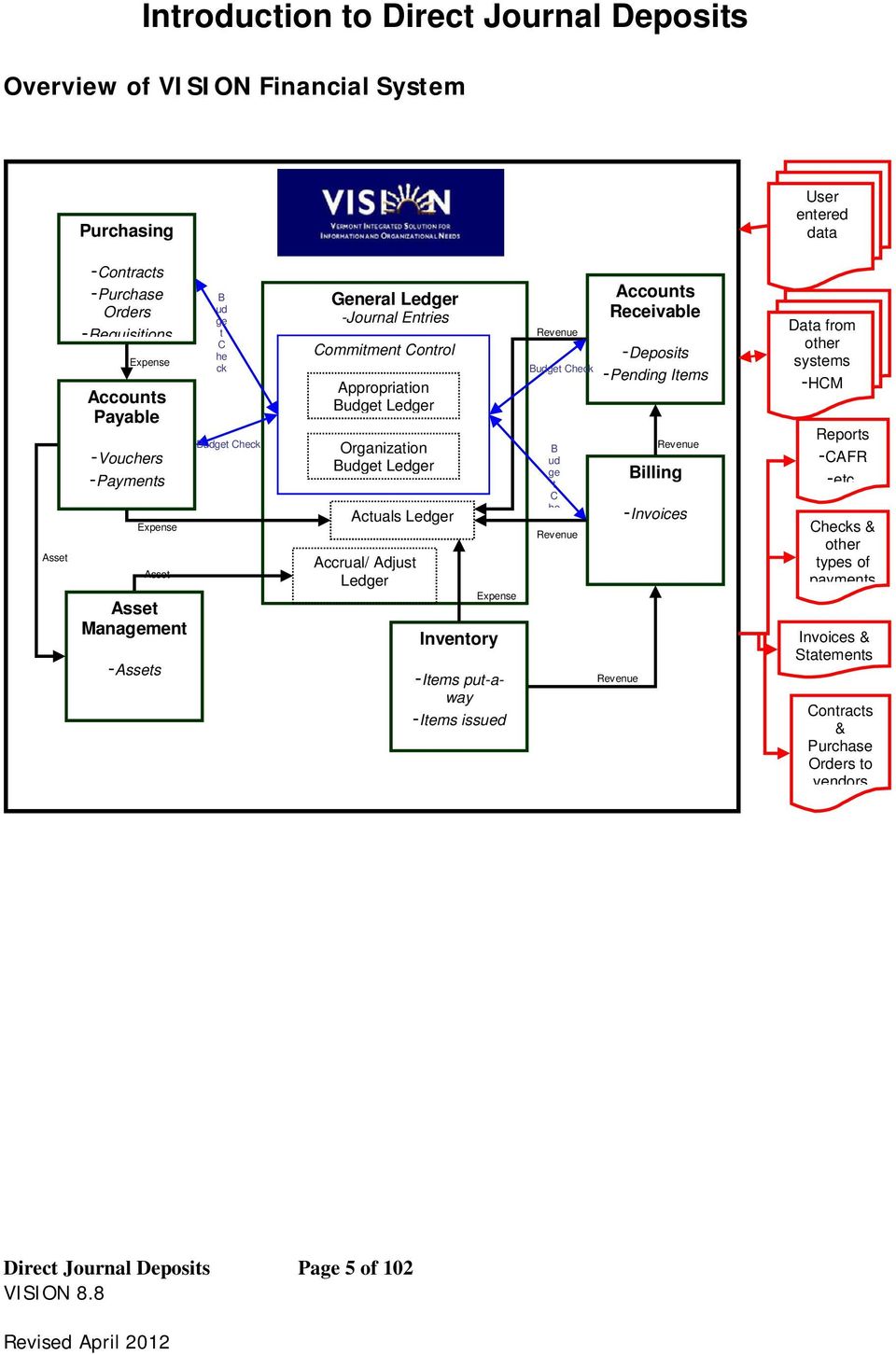
5 Introduction to Direct Journal Deposits Overview of VISION Financial System Purchasing User entered data Asset -Contracts -Purchase Orders -Requisitions Expense Accounts Payable -Vouchers -Payments Expense Asset Asset Management -Assets B ud ge t C he ck Budget Check General Ledger -Journal Entries Commitment Control Appropriation Budget Ledger Organization Budget Ledger Actuals Ledger Accrual/ Adjust Ledger Expense Inventory -Items put-away -Items issued Revenue Budget Check B ud ge t C he Revenue Accounts Receivable -Deposits -Pending Items Revenue Revenue Billing -Invoices Data from other systems -HCM Reports -CAFR -etc Checks & other types of payments Invoices & Statements Contracts & Purchase Orders to vendors Direct Journal Deposits Page 5 of 102
6 Frequently asked Questions What are some basic things I should know about entering a deposit? 1) Use separate deposit slips for checks and refunds. 2) Deposits should be entered into VISION within 24 hours of depositing money at the bank. 3) The deposit number used in VISION is the 10-digit number at the bottom left hand side of your deposit ticket. 4) When entering your deposit do not change the Accounting Date, accept the defaulted date (current date). 5) The Received Date should be the process date on your deposit ticket. 6) Make sure when processing a Refund of Expenditure the Deposit Type selected is "R". Why do I get an error message: No matching values were found? When inquiring on a deposit that has been complete and/or budget checked? Once you Complete and/or budget check a deposit you can no longer navigate to the deposit using the navigation for entering a regular deposit: Accounts Receivable> Payments> Online Payments> Regular Deposit. For a deposit that has been completed and/or budget checked you would use the following navigation: Accounts Receivable> Payments> Direct Journal Payments> Modify Accounting Entries. Why aren t my payment line(s) available to create accounting entries? Payment lines will not be available if the Journal Directly box is not selected. If you have payments lines missing, Navigate back to the regular deposit: Accounts Receivable> Payments> Online Payments> Regular Deposit. Once in the deposit click on the payments tab, view all link to view all lines. Scroll till you find the line(s) that the Journal Directly box was not selected. Click on the Journal Directly box and save the deposit. Now navigate back to accounting entries: Accounts Receivable> Payments> Direct Journal Payments> Create Accounting Entries. Missing line(s) should now be available to create the accounting entries. Direct Journal Deposits Page 6 of 102
7 What am I doing wrong to receive this error message? Credits do not equal the payment amount. The revenue lines must offset the payment amount before you can create the cash line. When entering the accounting entries the Line Amount field needs to be entered as a credit. If you enter the line amount as a debit you will receive the above message. Click the ok button and enter the line amount as a credit. Click on the lightning bolt and the cash side of you accounting entries will be created. Why can t I delete a deposit where only one line of the deposit has been budget checked? Once you budget check one line of a deposit you cannot delete the deposit or add additional payment lines. If the Deposit ID was entered incorrectly, continue with your deposit and let the Treasurer s office know that you entered a deposit with the incorrect Deposit ID. The Treasurer s office will need to know the incorrect deposit Id as well the correct deposit id. Why is the delete button grayed out when I try to delete a deposit? Once you create accounting entries for at least one of the payment lines in a deposit the delete button will gray out. If no lines have been budget checked within the deposit and you did want to delete the deposit because you noticed that the Deposit Id was entered incorrectly. Delete the accounting entries created and go back to the regular deposit and the delete button will now be available. You can find how to delete deposit instructions within this manual. How do I correct a deposit where I entered an incorrect account # and deposit is budget checked and posted to General Ledger? Once a deposit has been budget checked you cannot go back to the deposit to correct an incorrect account. To correct accounting entries you will create an ONL journal by debiting the incorrect account and crediting the correct account. Remember the fund and dept Id and any other chartfield information will need to be entered in the journal. When you enter the long description add as much information as to why you are processing the ONL. Add the deposit ID, date of deposit, and a brief explanation on why. Direct Journal Deposits Page 7 of 102
8 How do I delete a deposit once I have partially entered the deposit? Depending on where you are in the deposit determines the steps you take to delete. You cannot delete a deposit that has been budget checked, even if only one line of the deposit was budget checked. Below are the different stages of a deposit. Stage 1: Only the Regular Deposit portion of the deposit has been entered; no accounting lines have been created. Stage 2: The Revenue Side (first side) of Direct Journal Line accounting entry has been created. Stage 3: Cash Side (second side) of Direct Journal Line accounting entry has been created. Stage 4: Direct Journal deposit line is Complete. Navigation and directions are in the Manual listed under table of contents: Delete Direct journal Deposits (instructions for each of the possible stages). Direct Journal Deposits Page 8 of 102
9 Deposit Preparation Order of Deposit Documents 1. The Deposit ticket should always be the first document. 2. Checks should be placed after the deposit ticket. 3. Cash and/or coin should be placed last. Maximum Number of Checks 1. The number of checks allowed in a single deposit is 250. Adding Machine Tapes and/ or Reports 1. All deposits should include an adding machine tape listing of the checks included in the deposit. 2. The adding machine tape listing should be placed directly after the deposit ticket. 3. Computer generated check listings should be folded and placed directly after the Deposit ticket. Foreign Check Deposits 1. Do not mingle Canadian checks with regular checks. Canadian checks should be deposited separately with their own deposit ticket. 2. Do not mingle foreign checks with regular or Canadian checks. Checks drawn on Foreign funds should be deposited separately with their own deposit ticket. 3. To help expedite the processing of Canadian and foreign checks, please write CANADIAN and/or FOREIGN CHECKS on the front of the deposit ticket. Direct Journal Deposits Page 9 of 102

10 Food Stamp Deposits 1. Food stamp coupons should not be mingled with any other deposited items. 2. A Merchant Redemption Certificate should accompany all food stamp deposits. 3. All food stamp coupons should be properly endorsed with the merchant s endorsement stamp. Direct Journal Deposits Page 10 of 102
11 Deposits Business Process, Reminders, Hints All Deposits Dates- Acctg Date = Leave Current Date default, Received Date = Change to match bank receipt date if necessary, Entered Date = Current Date, not available to change Enter deposit in VISION within 24 hours of making bank deposit Bank Errors on Deposits: If you think the bank may have made a mistake on your deposit, you should contact the Treasurer s or [email protected] to see what actually happened on the bank statement. Make your VISION entry for the correct amount of the deposit. This will eliminate having to process the DR/CR Memo. However, any other corrections made by the Bank will be processed as a DR/CR Memo. For detail information on Debit/Credit memos you can visit the Finance and Management Web site. B_CR_Memo.pdf VISION Errors on Deposits: If a deposit is entered in VISION incorrectly from what was deposited at the bank the following will need to occur to correct: 1. If your entry is made in VISION for more than the deposited amount at the bank, enter an ONL journal entry for the difference to correct. Debit the revenue account and credit the cash account. Instructions in manual. Also contact Treasurer s , or [email protected] 2. If your entry is made in VISION for less than the deposited amount at the bank, enter a new deposit in VISION for the difference using the same original deposit # with an A at the end to make it unique. Also contact Treasurer s or [email protected] If a deposit posts in VISION with an incorrect Deposit ID, contact the Treasurer s office to let them know the correct ID this helps with their reconciliation. When the Treasurer s Office reconciles the bank records to VISION the key fields to reconciling are the Deposit ID and deposit amount. Direct Journal Deposits Page 11 of 102
12 MER Queries Run month end queries (anytime throughout the month) to check for open items that need to post or may be in error. (See Month End Closing Instructions Document) onthend_closing_actuals.pdf or On the Web page click on the following link for reports and queries: anual/ar_reports Direct Journal Deposits Types- C= Cash/Check, R= Refund of Expenditure, D= Credit Card, L= Lockbox (do not mix different types of deposits) A deposit does not journal generate to the general ledger until it is budget checked. Deposits that are budget checked the same day they re entered into VISION will journal generate with the same accounting date. This is important when you approach the end of the month to make sure all deposits entered in that month have been budget checked, to avoid a deposit entered in one month and journal generated in the next month. You can budget check direct journal deposits by a batch process. The Budget check process is run by Business Unit. If you are a department or agency that has several locations where deposits are entered within your Business Unit, you need to be careful when running the batch process as it will pick up any deposit that has been saved as complete. Account, Fund and Dept ID are required fields, make sure you have entered them all before budget checking your deposit line. Once a deposit has been checked complete and saved, the next step is to budget check. if you are not in the deposit, navigate to: Accounts Receivable> Payments> Direct Journal Payments> Modify Accounting Entries> Find an Existing Value Make sure to check all lines of deposit for accuracy before budget checking. Once you budget check one line of a deposit you cannot go back to the regular deposit and add any additional lines nor delete any lines. Example if you have three lines and for some reason one line had a dollar amount of.00 you cannot delete that line if one other line in the deposit is budget checked. Therefore it is important before you budget check to verify that all data in deposit is correct. Direct Journal Deposits Page 12 of 102

13 Deposit ID Number Format for ACH & Wires This format only applies to departments where there is no deposit ticket involved. This numbering scheme is for departments who receive money via Wires and ACH. If you re a department that uses a deposit ticket always use the 10 digit Deposit Id number assigned on the bottom left of deposit ticket. Note: Do not enter the word NEXT in the deposit Id field. Use the numbering scheme listed below. Departments are to use the following numbering scheme: First 4 numbers are BU (no leading zero) A variable (see below) The date the money was deposited at the bank (MMDDYY) This produces an 11 digit Deposit ID. If there are more than one of a particular type of deposit in a day, add an A, B, etc at the end of the ID. Deposit ID Variable Codes D = Depository Account Back Acct# (Wire) F = Fed Fund Account Bank Acct # C = Office of Child Support-Incoming Account S = Credit Card Settlement Account Bank Acct# W = Credit Card Online Account Bank Acct# Example: Deposit for Business Unit 01110, a wire received into the depository account on March 7, 2007 and it is the second one for that day. 1110D030707A If you have any questions, contact the State Treasurer s Office at or via at [email protected] Direct Journal Deposits Page 13 of 102

14 Debit/Credit Memo Business Process Situation when this function is used: A debit/credit memo is received from the bank each time an adjustment is made to the State s bank accounts. Usually these changes result from an incorrect deposit or a returned check. You should refer to the Finance & Management Web Site - Debit/Credit Memo Procedure mo.pdf As of 02/01/04 updated 04/30/2007 with detailed instructions. A summary of the procedure is outlined below. Chartfields: Account DR/CR Memo Cash Clearing Fund (Agency) DR/CR Memo Cash Clearing Process Flow: Treasurer s Office receives debit/credit memo from bank They process a CAJ journal entry adjusting depository cash account to using Fund They send document copies to the appropriate Department The Department processes a TSF journal entry within 5 days of receipt of the debit/credit memo, using affiliate 00005, appropriate Fund, Dept ID, etc and account and the appropriate offset (revenue) account based on the original deposit. Financial Operations enters a responding TSF journal entry in BU using appropriate affiliate, Fund 63096, appropriate Dept ID and accounts and (this clears both cash accounts and ). Direct Journal Deposits Page 14 of 102

15 Refund of Expenditures A refund of expenditure is a reimbursement of: an overpayment or payment made in error, a payment made on behalf of another entity, a payment for goods returned to the vendor, or a payment for goods or services never received. A refund of expenditure is processed by depositing the refund check into the bank and entering a direct journal deposit in VISION. In the direct journal accounting entries, departments must use the expenditure account, fund, Deptid and other chartfields that were used on the original transaction. VISION allows refund of expenditures to be processed only when there are sufficient current year expenditures to offset the refund. When departments receive monies for a refund of prior year expenditures, the refund must be processed against the current year s expenditures in VISION. If there are not sufficient current year expenditures to offset the prior year refund, the system will not allow the direct journal to budget check. The system will return the budget check error Spending authority over budget. In this case only, departments must change the expense account to revenue account Prior Year Refund of Expenditures. For more information on prior year refund of expenditures please refer to VISION Procedure #6 Prior Year Refund of Expenditure Procedure which can be found on the Finance & Management Web Site at the following URL. efund_of_exp.pdf NOTE: VISION Accounts Payable checks that are returned by the vendor or have printed and then found to be invalid ARE NOT considered a Refund of Expenditure. Do not deposit a VISION Accounts Payable check. Returned or invalid Accounts Payable checks processed in VISION must be sent to the Treasurer s Office requesting them to be voided. VISION Procedure# 8 explains what to do when you receive a returned VISION Accounts Payable check and the procedure can be found on the Finance and Management website at: df Direct Journal Deposits Page 15 of 102

16 Direct Journal Deposits Page 16 of 102 Void Check Procedure Void Check Procedure: VISION Procedure # 8: Void check establishes the criteria and procedures for voiding VISION vendor checks. This procedure can be found on the Finance and Management website at: Check.pdf Departments are prohibited from depositing VISION vendor checks and processing them as a refund of expenditure. The erroneous depositing of a VISION vendor check obscures the audit trail in VISION by creating a record that indicates the check was issued to and cashed by the vendor; this improper handling impairs the integrity and accuracy of vendor payment reports and potentially 1099-MISC forms issued to vendors and the IRS. CRITERIA A check can be voided in VISION when the following two conditions exist: 1. The check was issued and recorded in the VISION financial system. 2. The department (custodian) is in possession of the original check. A VISION vendor check shall be determined invalid and voided in VISION when there is a/an: error in the payee; error in the payment amount; printing error or damaged/spoiled check; duplicate payment; cancellation of the payment request; unavailability of the goods/services being purchased; or any other reason the check is no longer needed for its intended purpose. Note: VISION vendor checks that are valid and not in error but are undeliverable to the vendor (e.g., unknown address) shall not be voided, and are subject to Vermont s unclaimed property laws. Contact the Office of the State Treasurer s Unclaimed Property Division for more information. Please contact the Office of the State Treasurer s Treasury Operations Division or the Dept. of Finance & Management s VISION Finance Support Team with any questions about this procedure. For copies of cancelled checks or checks to pull please contact the Treasurer s Office by at: [email protected].
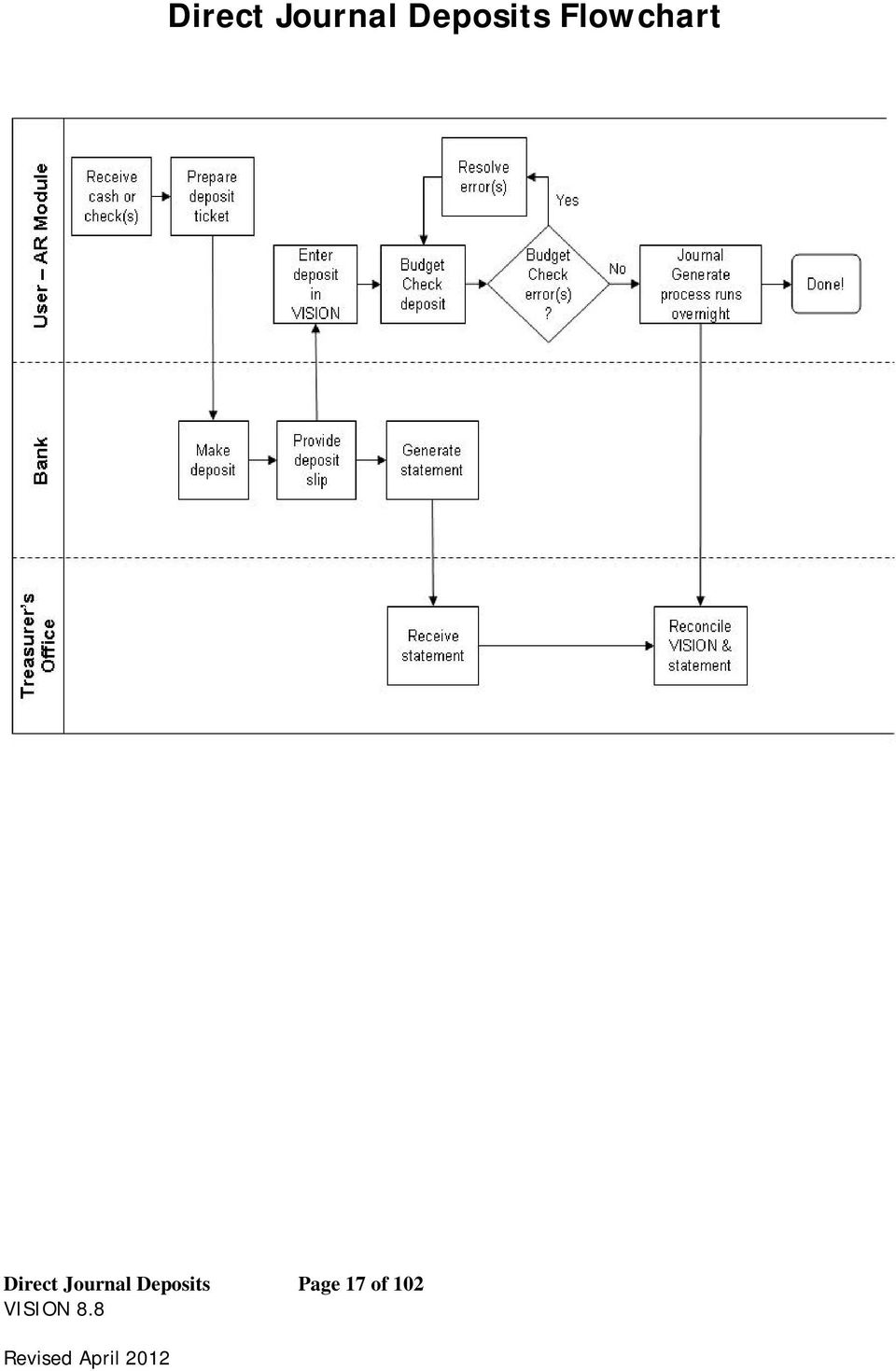
17 Direct Journal Deposits Flowchart Direct Journal Deposits Page 17 of 102
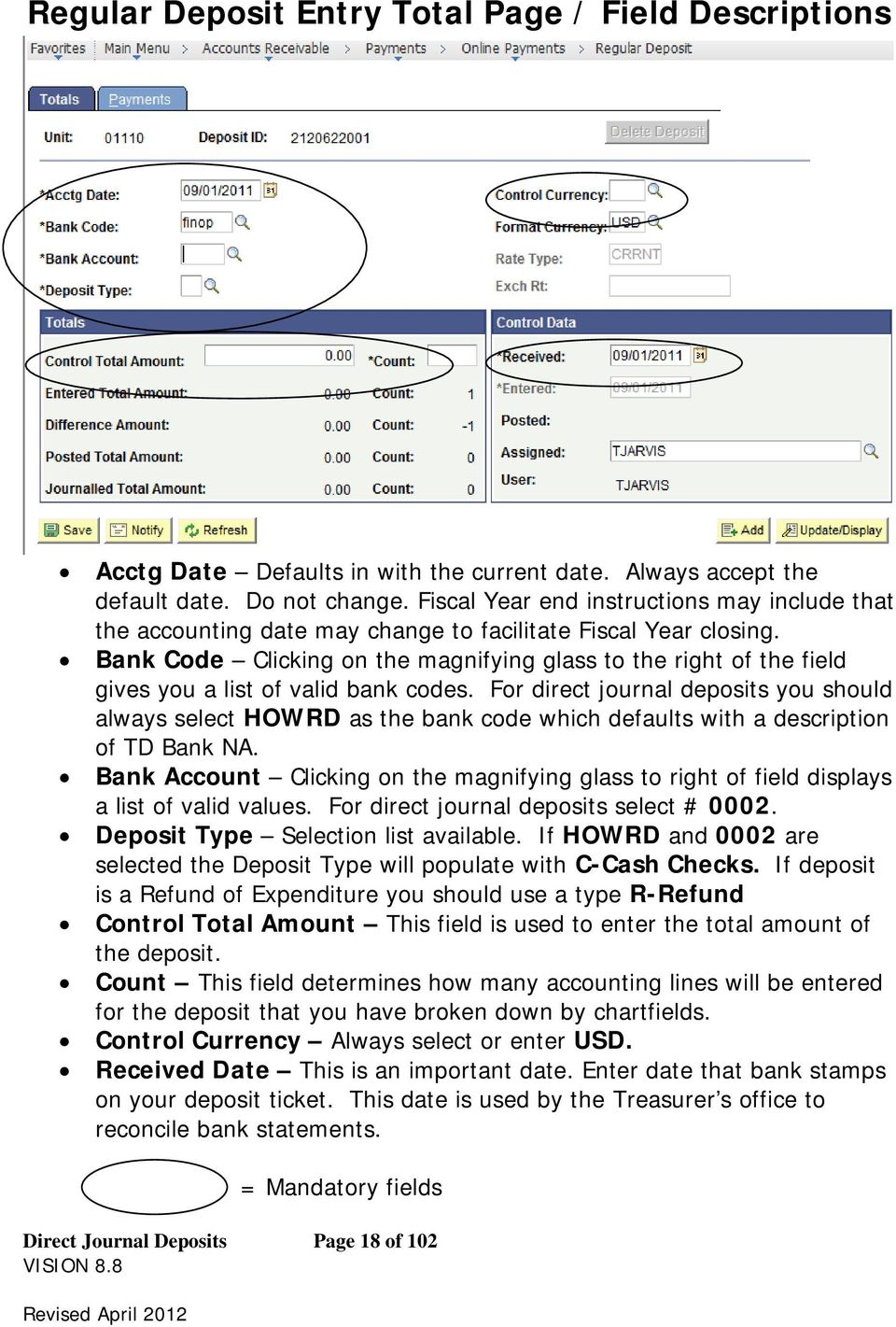
18 Regular Deposit Entry Total Page / Field Descriptions Acctg Date Defaults in with the current date. Always accept the default date. Do not change. Fiscal Year end instructions may include that the accounting date may change to facilitate Fiscal Year closing. Bank Code Clicking on the magnifying glass to the right of the field gives you a list of valid bank codes. For direct journal deposits you should always select HOWRD as the bank code which defaults with a description of TD Bank NA. Bank Account Clicking on the magnifying glass to right of field displays a list of valid values. For direct journal deposits select # Deposit Type Selection list available. If HOWRD and 0002 are selected the Deposit Type will populate with C-Cash Checks. If deposit is a Refund of Expenditure you should use a type R-Refund Control Total Amount This field is used to enter the total amount of the deposit. Count This field determines how many accounting lines will be entered for the deposit that you have broken down by chartfields. Control Currency Always select or enter USD. Received Date This is an important date. Enter date that bank stamps on your deposit ticket. This date is used by the Treasurer s office to reconcile bank statements. Direct Journal Deposits Page 18 of 102 = Mandatory fields
19 Regular Deposit Entry Payments Page/Field Descriptions Payment ID Is an alphanumeric field that allows you to type in a brief description to what has been deposited. It is a limited field that allows only 14 characters. Acctg Date Defaults from the Total page. Amount Enter dollar amount for the particular set of Chartfields. Currency Automatically populates from the Total page. If the field is blank go back to the total page and select USD. Journal Directly Important field which needs to be selected when entering a direct journal deposit. If not selected when you go to enter the accounting entries you will find that the line will not display to enter the accounting entries. To correct, go back to the regular deposit Find an Existing Value and select the journal Directly box and save. Now when you navigate to enter your accounting entries the line(s) will be available. - This page is broken in three sections. To insert a new row you need to click on the button that is located on the Payment Information portion of the page. Direct Journal Deposits Page 19 of 102 = Mandatory fields

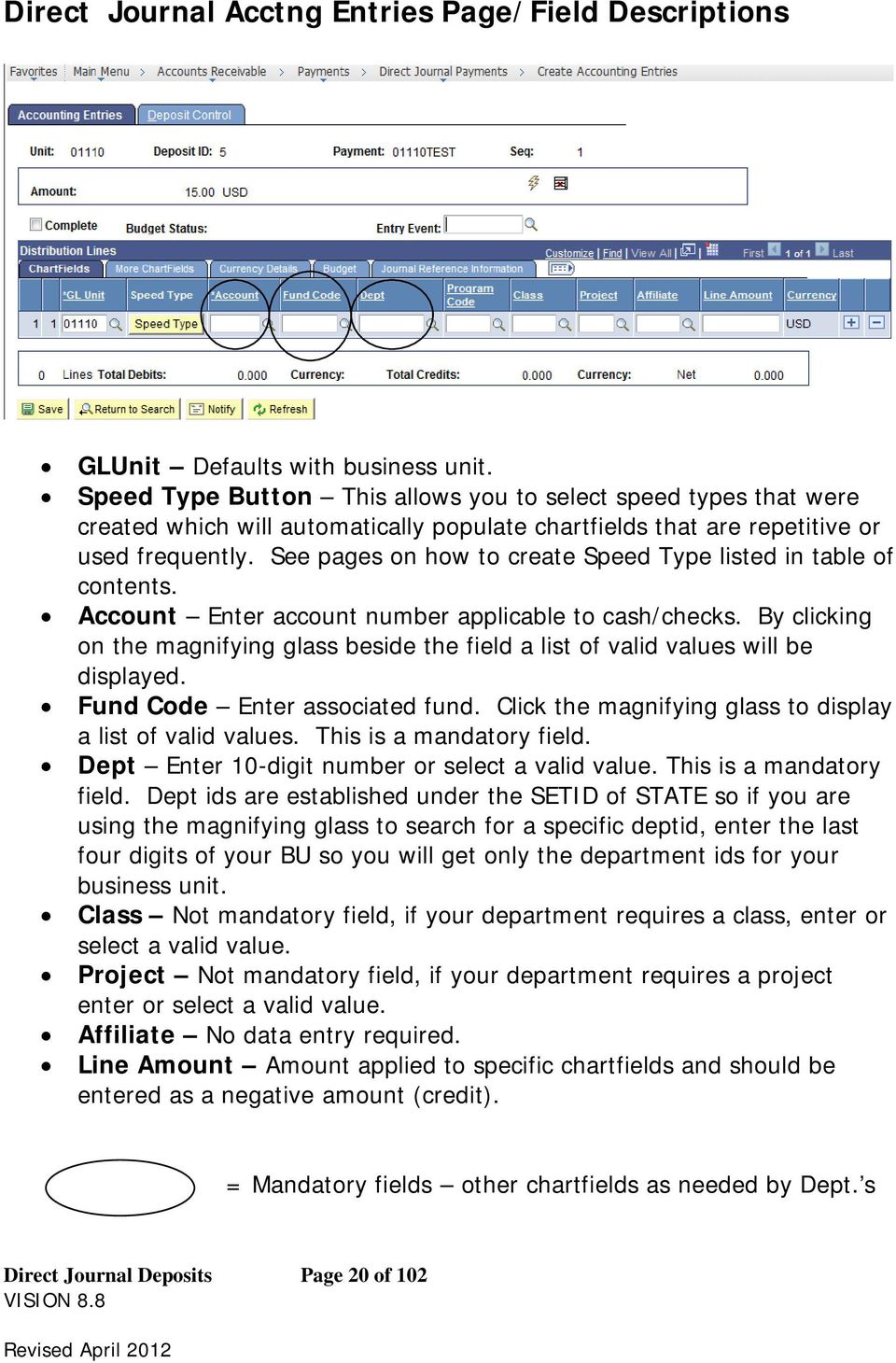
20 Direct Journal Acctng Entries Page/Field Descriptions GLUnit Defaults with business unit. Speed Type Button This allows you to select speed types that were created which will automatically populate chartfields that are repetitive or used frequently. See pages on how to create Speed Type listed in table of contents. Account Enter account number applicable to cash/checks. By clicking on the magnifying glass beside the field a list of valid values will be displayed. Fund Code Enter associated fund. Click the magnifying glass to display a list of valid values. This is a mandatory field. Dept Enter 10-digit number or select a valid value. This is a mandatory field. Dept ids are established under the SETID of STATE so if you are using the magnifying glass to search for a specific deptid, enter the last four digits of your BU so you will get only the department ids for your business unit. Class Not mandatory field, if your department requires a class, enter or select a valid value. Project Not mandatory field, if your department requires a project enter or select a valid value. Affiliate No data entry required. Line Amount Amount applied to specific chartfields and should be entered as a negative amount (credit). = Mandatory fields other chartfields as needed by Dept. s Direct Journal Deposits Page 20 of 102
21 Line Description - Click on Currency Details tab shown in screen shot below. Line description is not a mandatory field. Field is used to add additional information. This field also appears in some of the journal queries. Ex: VT_AR_DIRECT_JRNLS_QUERY Direct Journal Deposits Page 21 of 102
22 Valid Value Selections/Regular Deposit Entry Page: Bank Codes: AHS AHS Transfers Bank ANR Agency of natural Resources AUDIT Auditor-Single Audit Bank BGS BGS-Transfers Bank CAT Catamount Health Assessment added FY 2008 CGARA- AOT-Central Garage CHITT Chittenden Bank DMV AOT-Dept of Motor Vehicles FINOP FinOps Bank GOVNT GovNet Transfers HOWRD TD Bank NA LIBTF Libraries Payment Transfers PERTR Personnel Payment Tranfers PUBSA Public Safety Transfers Bank SOS Sec of State Transfers Bank TAX Tax Dept Transfers VCI VCI Transfers Bank Bank Accounts: Concentration Account Depository Account Federal Funds Account Tax ACH Account Credit Card Settlement Office of Child Supp-Incoming PATH-Lockbox Account Deferred Compensation Plan Credit Card-Online PATH-ASD Rebate PATH- incoming ACH DLC Merchant Account State employees Retirement Teachers Retirement System Municipal Retirement System State Emp Defined Contrib Muni Emp Defined Contrib OPEB (Treasurer s Office Only) Direct Journal Deposits Page 22 of 102
23 Deposit Types C Cash/Checks D - Credit Card F Federal Grants L Lockbox R Refund of Expenditure W Wire Transfer Control Currency USD US Dollar If field is left blank you will receive the following ERROR: Control Currency must be USD The peoplesoft program executed an error statement, which has produced this message. Click Ok and enter USD. Note: These are the existing selections available as of 10/09/2010 subject to changes and additions. Direct Journal Deposits Page 23 of 102
24 Deposit Ticket & Bank Accounts Deposit ID# Deposit ID# This number is found on the far left of the deposit ticket. There are three sets of numbers on the bottom of each deposit ticket. Deposit # is derived as follows, first four digits are the last four numbers of your business unit and the next six digits are sequential. A Deposit ID number MUST be used in VISION to identify each deposit. The Bank sends a file to the Treasurer s Office and with that file the Treasurer s Office reconciles to what was entered in VISION. Key fields for reconciling are the deposit Id number and the total dollar amount. Bank and Bank Accounts Bank Code HOWRD TD Bank NA for ALL cash/check DJ deposits. Bank Account Depository cash account Direct Journal Deposits Page 24 of 102
25 Enter a Direct Journal Deposit Possible situations when this function is used: Direct Journal deposits are regular deposits that are directly journalled to the general ledger (not customer related deposits). Navigation: Accounts Receivable > Payments > Online Payments > Regular Deposit Click on the Add a New Value Tab Enter Deposit Unit leave as default or enter business unit Enter Deposit ID Enter New Deposit ID or Enter the correct numbering scheme. Follow instructions Auto- Numbering Deposit Change. Click the ADD button Direct Journal Deposits Page 25 of 102
26 The Totals Page opens. Enter Information on Totals tab Three dates default in: Accounting date leave current date default (do not change) Entered date current date default (grayed out field) Received date change if necessary (date bank stamps on deposit ticket) Enter Bank Code - Enter Valid Value Enter Bank Account - Enter Valid Value Enter Deposit Type - Enter Valid Value Enter Control Currency USD - If left blank it will result in a Error message: Control Currency must be USD Enter Control Total - Enter Control Total (This is the total you have deposited in the bank) Enter Count - This number is determined by how many different accounting lines you will enter in the deposit. Direct Journal Deposits Page 26 of 102
27 Click on the Payments Tab The Payments Page opens. Enter Payment Id and Amount for the first payment line Enter Payment Id - Enter Payment Id for first payment line Enter Amount Enter Amount for first payment line Check the Journal Directly box Payment Method: defaults as Check accept default Insert a New Row by Clicking on the page) icon (Payment Information section of Enter Payment Id and Amount for the second payment line Enter Payment Id - Enter Payment Id for second payment line Enter Amount Enter Amount for second payment line Check the Journal Directly box Click on the Save Button at the bottom left side of the page Direct Journal Deposits Page 27 of 102
28 NOTE: The deposit is Balanced (see the upper right corner of the Payments Tab) Click on the Totals Tab The Totals page opens. NOTE: The Control Total Amount and Count and the Entered Total Amount and Count are the same. If there is a difference, review totals and payment lines to find the difference and correct it. Direct Journal Deposits Page 28 of 102
29 Navigation: Accounts Receivable > Payments > Direct Journal Payments > Create Accounting Entries Direct Journal Entry Page Opens Enter Deposit Unit (or accept the default) Enter Deposit ID Click on Yellow Search Button Direct Journal Deposits Page 29 of 102
30 Search Results will return all payment lines of the deposit. Select line by clicking in any of the column(s) within that line. Direct Journal Deposits Page 30 of 102
31 The Accounting Entries Page opens. Enter Appropriate Chartfield Information and Line Amount for the first line: Enter Account Enter valid account. Enter Fund Code Enter valid fund Enter Dept Enter valid dept If required enter Program Code, Class or Project Enter Line Amount Enter Amount for first line o NOTE: The line amount must use the opposite sign of the payment. If the payment is a positive amount then the line amount must be negative. Click on the Currency Details tab to enter a Line Description. Not a required field. Currency Details page is displayed to enter additional information. Direct Journal Deposits Page 31 of 102
32 Note: Line description needs to be added before clicking the lightning bolt to create cash side accounting entries. Line notes appear in some of the queries. For example: VT_AR_DIRECT_JRNLS_DEPOSITS Query Note: If you created the cash side of the accounting lines and need to add a line description you will need to delete the cash side by clicking in the icon deleting the cash accounting lines then add line description and click the lightning bolt to create cash lines. A line Description can be added to each line of deposit. Click on the Lightning Bolt Icon to create the Cash Account Side of the transaction line. Once the Cash lines are created you should verify that the depository account populates as well as the cash clearing account The cash account populates from your selection on the Total page of the regular deposit, Bank Code and Bank Account. Four lines are generated balancing the transaction for your business unit and the treasury account business unit. NOTES: You will not see the cash account on the trial balance only Impact as an example you will only be able to distinguish federal receipts from regular receipts by the revenue account no longer by the cash account. Check the Complete Box (located on the upper left side of page) Click the Save Button (bottom left of the page) Direct Journal Deposits Page 32 of 102
33 The Budget Check Icon appears (top right of the page) Click on the Budget Check Icon to budget check the first line. Remember verify that your deposit is correct before you budget check, because once you budget check one line of the deposit you cannot go back to the regular deposit to make changes. The Budget Check Icon disappears and Budget Status: Valid. Once you budget check a line the icon disappears and allows you to go to the next line to complete and budget check. Go to the second line by clicking on the Next in List Icon at the bottom of the screen. Direct Journal Deposits Page 33 of 102
34 The Accounting Entries Page opens for second line. Enter Appropriate Chartfield Information and Line Amount for each additional line in your deposit: Enter Account Enter valid value Enter Fund Code Enter valid value Enter Dept Enter valid value If required enter Program Code, Class or Project Enter Line Amount Enter appropriate Amount for second line o NOTE: The line amount must use the opposite sign of the payment. If the payment is a positive amount then the line amount must be negative. Click on the Lightning Bolt Icon to create the Cash Line and Clearing accounts for the second line of the transaction. Check the Complete Box (located on the upper left side of page) Click the Save Button (bottom left of the page) Direct Journal Deposits Page 34 of 102
35 The Budget Check Icon appears (top right of the page) Click on the Budget Check Icon to budget check the second line. The Budget Check Icon disappears. And the Budget Status located by the complete box is Valid. Direct Journal Deposits Page 35 of 102
36 Click on the Deposit Control Tab. The Deposit Control page opens. Confirm that the Journalled Total Amount and Count are now equal to the Control and Entered Total Amount and Counts, and that there is no Difference Amount or Count. If there is a difference, review the deposit and make corrections as necessary. A Batch process (Journal Generator) will run overnight and post the deposit to General Ledger. DIRECT JOURNAL DEPOSIT ADD IS COMPLETE Direct Journal Deposits Page 36 of 102
37 Enter a Refund of Expenditure Direct Journal Deposit Possible situations when this function is used: Direct Journal Refund of Expenditure (ROE) deposits are directly journalled to the general ledger (they are not customer related deposits). Refund of Expenditures decrease expenses due to a reimbursement. An example is personal phone call reimbursements from employees. Navigation: Accounts Receivable > Payments > Online Payments > Regular Deposit Regular Deposit Entry page opens. Click on the Add a New Value Tab Your default BU will appear in the Business Unit field. Enter Deposit Unit leave as default or enter the deposit unit Enter Deposit ID Enter Deposit ID (10 digit number located at the bottom left of the deposit ticket.) Click the ADD button Direct Journal Deposits Page 37 of 102
38 The Totals Page opens. Enter Information on Totals tab Three dates default in: Accounting date current date defaults (do not change) Entered date Defaults as current date(field is grayed out) Received date change when necessary (Date stamped on deposit ticket) Enter Bank Code - Enter Valid Value (HOWRD) Enter Bank Account - Enter Bank Account (0002) Enter Deposit Type R = Deposit Type for Refund of Expenditures Note: If you do not select R for Refund of Expenditures and you budget check the deposit, you cannot go back in the deposit to correct. If this does happen you need to make a note for auditing purposes. This will only affect reports if you run a report that calls for a specific Deposit Type. Enter Control Currency - USD Enter Control Total - Enter Control Total (This is the total you have deposited in the bank) Enter Count - Enter Count (This is the number of accounting lines you will enter in the deposit) Click on the Payments Tab Direct Journal Deposits Page 38 of 102
39 The Payments Tab opens Enter Payment Id and Amount for the payment line Payment Id - Enter Payment Id for payment line Amount Enter Amount for payment line Payment Method defaults with Check, accept default Check the Journal Directly box Click on the Save Button at the bottom left side of the page NOTE: The deposit should be Balanced (see the upper right corner of the Payments Tab) Click on the Totals Tab Direct Journal Deposits Page 39 of 102
40 The Totals page opens Note: The Control Total Amount, Count, Entered Total Amount, Count should be the same. The Difference Amount or Count will show a discrepancy between the Control amount and entered total. Review totals and payment lines to find the difference and correct it. Direct Journal Deposits Page 40 of 102
41 Navigation: Accounts Receivable > Payments > Direct Journal Payments > Create Accounting Entries The Direct Journal Entry Page Opens Your BU will appear in the Deposit Unit field Deposit ID Enter deposit ID Click on Yellow Search Button Search Results will return all lines of the deposit. Note: If there is only one accounting line in the deposit, the Accounting Entries Page (above) will open automatically for you. If search does not return any lines or you are missing a line, it is because you did not select the journal directly box on the payment page of the regular deposit. Navigate back to the regular deposit. Click on the payment tab, then click the view all link, then click the journal directly box for the line or lines that journal directly was not selected. Click the save button and navigate back to Create accounting entries page and click search button. The line or lines will be available to create the accounting entries. Direct Journal Deposits Page 41 of 102
42 Enter Appropriate Chartfield Information and Line Amount for the line. Remember Account, Fund and Dept Id are mandatory fields: Account Enter appropriate Expense account Fund Code Enter fund Dept Enter Dept ID Program, Class, and Project If required by your department. Line Amount Enter Amount o NOTE: The line amount must use the opposite sign of the payment. If the payment is a positive amount then the line amount must be negative. Click on the Lightning Bolt Icon to create the Cash Line Side for the transaction line. Once the Cash lines are created, verify that the depository account that populates is (Depository Cash Account). The cash account (101002) populates from the selection on the Total page of the regular deposit, Bank Code and Bank Account. Direct Journal Deposits Page 42 of 102
43 Check the Complete Box Click the Save Button (bottom left of the page) The Budget Check Icon appears (top right of the page) Click on the Budget Check Icon to budget check the first line. The Budget Check Icon disappears and Budget Status is now Valid Direct Journal Deposits Page 43 of 102
44 Click on the Deposit Control Tab. The Deposit Control page opens. Confirm that the Journalled Total Amount and Count are equal to the Control and Entered Total Amount and Counts, and that there is no Difference Amount or Count. If there is a difference, review the deposit and make corrections as necessary. DIRECT JOURNAL REFUND OF EXPENDITUE ADD IS COMPLETE Direct Journal Deposits Page 44 of 102
45 Budget Check a Direct Journal Deposit that is Complete Possible situations when this function is used: Lines of a direct journal deposit that are in a complete status must be budget checked. The navigation to budget check a DJ deposits once complete is different than creating the accounting entries. Navigation: Accounts Receivable > Payments > Direct Journal Payments > Modify Accounting Entries The Direct Journal Review Page opens. Your default Deposit Unit will appear in the Business Unit field OR Enter Deposit Unit Leave as default or Enter the appropriate deposit Unit Enter Deposit ID Enter appropriate Deposit ID Click the Search button Direct Journal Deposits Page 45 of 102
46 The Directly Journalled Payments page opens Click on the Budget Check button Budget Status is now Valid. BUDGET CHECK A DIRECT JOURNAL DEPOSIT THAT IS COMPLETE Direct Journal Deposits Page 46 of 102
47 Delete Direct Journal Deposits (instructions for each of the possible stages are shown below) Possible situations when this function is used: Direct Journal deposits (not customer related) can be deleted as long as no lines have been budget checked. You must work backwards from the last stage of completion. The four stages are: Stage 1: Only the Regular Deposit portion of the deposit has been entered; no accounting lines have been created. Stage 2: The Revenue Side (first side) of Direct Journal Line accounting entry has been created. Stage 3: Cash Side (second side) of Direct Journal Line accounting entry has been created. Stage 4: Direct Journal deposit line is Complete. STAGE 4: Direct Journal deposit line is Complete. Navigation: Accounts Receivable > Payments > Direct Journal Payments > Modify Accounting Entries Direct Journal Deposits Page 47 of 102
48 The Direct Journal Review Page opens. Your default Deposit Unit will appear in the Deposit Unit field OR Enter Deposit Unit leave as default or enter the appropriate deposit unit Enter Deposit ID Enter appropriate Deposit ID Click the Search button The Directly Journalled Payments page opens. Uncheck the Complete box NOTE: A warning will appear Please Use Direct Journal Entry Page to Update Accounting Entries Click OK and Save Direct Journal Deposits Page 48 of 102
49 Deposit Line is no longer Complete. Direct Journal Deposits Page 49 of 102
50 STAGE 3: Delete from Cash Side (second side) of Direct Journal Line accounting entry has been created. Navigation: Accounts Receivable > Payments > Direct Journal Payments > Create Accounting Entries The Direct Journal Entry Page opens. Your default Deposit Unit will appear in the Deposit Unit field. Enter Deposit Unit leave as default or enter the appropriate Deposit Unit Enter Deposit ID Enter appropriate Deposit ID Click the Search button The Accounting Entries Page opens. Click on Delete button (top right corner of page) Direct Journal Deposits Page 50 of 102
51 The Cash Side of the accounting entry is now deleted. (The revenue side of the entry remains.) Direct Journal Deposits Page 51 of 102
52 STAGE 2: The Revenue Side (first side) of Direct Journal Line accounting entry has been entered. Navigation: Accounts Receivable > Payments > Direct Journal Payments > Create Accounting Entries The Direct Journal Entry Page opens. Enter Deposit Unit leave as default or enter the appropriate Deposit Unit Enter Deposit ID Enter appropriate Deposit ID Click the Search button Direct Journal Deposits Page 52 of 102
53 The Accounting Entries Page opens. Click the Delete Row button (right side of page) NOTE: A warning message will appear Delete Current/Selected rows from the page? The delete will occur when the transaction is saved. Click OK (this deletes the chartfields) Click the Save Button to accept delete a row function. If you do not save, the revenue line will re-appear. Direct Journal Deposits Page 53 of 102
54 STAGE 1: Only the Regular Deposit portion of the deposit has been entered; no accounting lines have been created. Navigation: Accounts Receivable > Payments > Online Payments > Regular Deposit The Regular Deposit Entry Page opens. Enter Deposit Unit leave as default or enter the appropriate Deposit Unit Enter Deposit ID Enter appropriate Deposit ID Click the Search button Direct Journal Deposits Page 54 of 102
55 The Totals Page of the Deposit opens. Click the Delete Deposit button (top right section of page) NOTE: You will receive the message Delete this deposit? If you delete the deposit, all deposit and payment information entered in this page group will be deleted. Click Yes Direct Journal Deposits Page 55 of 102
56 The Deposit is deleted. Note that the Delete Deposit Button is grayed out and no longer available to select. If you were to try to view this deposit again, under Find an Existing Value, you will get the message No matching values were found. See Below. The most frequent reason for deleting a deposit is a wrong deposit number was entered and discovered before budget checked. DELETE DIRECT JOURNAL FOUR STAGES IS COMPLETE Direct Journal Deposits Page 56 of 102
57 Entering a SpeedType Possible situations when this function is used: This function will default chartfield information associated with the specified SpeedType key entered. A SpeedType will save time when entering transactions within Deposits and Journals. You can create SpeedTypes, maintain SpeedTypes, but you cannot delete or inactivate them. Navigation: Set Up Financials/ Supply Chain > Common Definitions > Design Chartfields > Define Value > SpeedTypes The SpeedTypes page displays with Find an Existing Value. Click Add a New Value Tab Direct Journal Deposits Page 57 of 102
58 Enter Set ID Enter business unit (Do not create speedtypes under the setid of STATE) Enter SpeedType Key Enter new (unique) SpeedType Key Enter User ID Enter your User ID Or UserId left blank will make the speedtype universal. Primary Permission List Leave blank Click the ADD button The SpeedType page is displayed. Direct Journal Deposits Page 58 of 102
59 Enter Description Enter SpeedType description Fill In Desired Chartfields: Fill in as little or as many chartfields for the specific SpeedType; it can be as few as one chartfield (such as an account) or all chartfields, depending on the purpose of the SpeedType. Click Save at the bottom left side of the page. The SpeedType is saved. It is now available when entering transactions such as a deposit, or journal entry. Note: It is not suggested to create a speedtype of UNIVERSAL. Universal speedtypes once created can be used by everyone. The downside is that someone would need to monitor, update/maintain to assure that the correct chartfields are populating. To make a speedtype universal you leave the User ID field blank on the Add a New Value page. ENTERING A SPEEDTYPE IS COMPLETE Direct Journal Deposits Page 59 of 102
60 Update an Existing SpeedType Possible situations when this function is used: Existing SpeedTypes cannot be deleted; however they can be updated as necessary. Navigation: Set Up Financials/ Supply Chain > Common Definitions > Design Chartfields > Define Value > SpeedTypes The SpeedTypes page displays. Enter Set ID Enter Business Unit Enter SpeedType Key Enter SpeedType Key Enter User ID Enter your User ID Primary Permission List Leave blank Type of SpeedType One User Click the Search button Direct Journal Deposits Page 60 of 102
61 The SpeedType information page loads for the SpeedType Key, as previously created. Make Desired Chartfield changes: You can fill in as many chartfields as desired for the specific SpeedType; it can be as few as one chartfield (such as an account) or all chartfields, depending on the purpose of the SpeedType. For this example an Account is being added to an existing SpeedType that had only Fund and Department previously. Click Save at the bottom left side of the page. The SpeedType is saved with an account entered. It is now available to use when entering transactions such as deposits, or journals. Direct Journal Deposits Page 61 of 102 UPDATE SPEEDTYPE IS COMPLETE
62 Enter a Direct Journal Deposit Using a SpeedType. Possible situations when this function is used: Direct Journal deposits are regular deposits that are directly journalled to the general ledger (not related to customer deposits). The SpeedType function will default chartfield information (fund, dept ID, etc). Navigation: Accounts Receivable > Payments > Online Payments > Regular Deposit Click on the Add a New Value Tab Your default BU will appear in the Business Unit field. Enter Deposit Unit leave as default or enter Deposit Unit Enter Deposit ID Enter Deposit ID Click the ADD button Direct Journal Deposits Page 62 of 102
63 The Totals Page opens Enter Information on Totals tab Three dates default in: Accounting Date current date defaults (do not change) Entered date current date defaults (field is grayed out) Received date change when necessary (should be equal to bank deposit date) Enter Bank Code - Enter Bank Code (HOWRD) Enter Bank Account - Enter Bank Account (0002) Enter Deposit Type - Enter Deposit Type Enter Control Currency - USD Enter Control Total - Enter Control Total (This is the total you have deposited in the bank) Enter Count - Enter Count (This is the number of payment lines you will enter in the deposit) Click on the Payments Tab Direct Journal Deposits Page 63 of 102
64 The Payments Page opens Enter Payment Id and Amount for the payment line Enter Payment Id - Enter appropriate Payment Id for payment line Enter Amount Enter appropriate Amount for payment line Check the Journal Directly box Click on the Save Button at the bottom left side of the page NOTE: The deposit is Balanced (see the upper right corner of the Payments Tab) If not balanced click on the Totals tab and check the control amount and entered amount they should be the same. If the control amount is incorrect change it to correct amount. If the entered amount is wrong click on the payment tab and verify that the line amount(s) were entered correctly. Then refresh and save the page to accept changes. Direct Journal Deposits Page 64 of 102
65 Click on the Totals Tab The Totals Page opens NOTE: The Control Total Amount and Count and the Entered Total Amount and Count are the same. There should be no Difference in Amount or Count. If there is, review totals and payment lines to find the difference and correct it. Direct Journal Deposits Page 65 of 102
66 Navigation: Accounts Receivable > Payments > Direct Journal Payments > Create Accounting Entries The Direct Journal Entry Page Opens. Your BU will appear in the Deposit Unit field and your Deposit ID will appear in the Deposit ID field. OR Deposit Unit Enter appropriate deposit unit Deposit ID Enter appropriate deposit ID Click on Search Button Direct Journal Deposits Page 66 of 102
67 Search Results will return all lines of the deposit. Click on the first line, or NOTE: If there is only one accounting line for your deposit, the Accounting Entries Page (shown above) will open automatically for you. The Accounting Entries Page opens. Click the SpeedType button. The SpeedType Key field opens. Enter Appropriate SpeedType Key for the line or Click on the magnifying glass to the right of the SpeedType Key to look up valid SpeedType Keys and choose from the list. Direct Journal Deposits Page 67 of 102
68 Select the SpeedType Key by clicking, for this example: EXAMPLE1. The Accounting Entries Page opens with the chartfield info associated with the SpeedType Key selected already defaulted in. Note: Even though the fund and Deptid are populated from the speedtype they can be overridden. Direct Journal Deposits Page 68 of 102
69 Enter any remaining appropriate chartfield info. Enter Line Amount Enter Amount for first line o NOTE: The line amount must use the opposite sign of the payment. If the payment is a positive amount then the line amount must be negative. Click on the Lightning Bolt Icon to create the Cash Line Side for the transaction line. Cash lines are created. Check the Complete Box Click the Save Button (bottom left of the page) Direct Journal Deposits Page 69 of 102
70 The Budget Check Icon appears (top right of the page) Click on the Budget Check Icon to budget check the line. The Budget Check Icon disappears, and Budget Status = Valid. Click on the Deposit Control Tab. Direct Journal Deposits Page 70 of 102
71 The Deposit Control page opens. Confirm that the Journalled Total Amount and Count are now equal to the Control and Entered Total Amount and Counts, and that there is no Difference Amount or Count. If there is a difference, review the deposit and make corrections as necessary. ENTER DIRECT JOURNAL DEPOSIT USING SPEEDTYPE IS COMPLETE Direct Journal Deposits Page 71 of 102
72 Run the Process to Budget Check Direct Journal Deposits Possible situations when this function is used: You can run the process to budget check direct journal deposits so that each line does not have to be budget checked individually. This process is helpful if you have a lot of direct journal deposits to budget check and/or direct journal deposits with multiple lines. Each line of the deposit needs to be in Complete status before you run this process. NOTE: This process is run by Business Unit. You will need to be aware of additional deposits that other users may have entered and may not want budget checked. Navigation: Accounts Receivable > Receivables Update > Revenue Estimates > Budget Check Transactions The Budget Processor Page opens. Click the Add a New Value tab. Enter the name of your Direct Journal Budget Check Run Control DIR_JRNL_BC Click the ADD button Direct Journal Deposits Page 72 of 102
73 The Budget Processor page loads Select Transaction Type AR_MISCPAY Enter BU Enter appropriate Business Unit Enter From Date Enter appropriate From Date (Earliest Accounting date of DJ deposits you are budget checking) Enter To Date - Enter appropriate To Date (Latest Accounting date of DJ deposits you are budget checking) Select Process Frequency Always Click the Save Button Click the Run Button The Process Scheduler Request page opens. Click the OK Button Direct Journal Deposits Page 73 of 102
74 You are returned to the Budget Processor page. Click on the Process Monitor link. The Process List page displays. Click the Refresh button until Run Status = Success and Distribution Status = Posted. Your direct journal deposit(s) are budget checked. You can confirm this by doing the following: Navigation: Accounts Receivable > Payments > Direct Journal Payments > Modify Accounting Entries The Direct Journal Review page opens. Direct Journal Deposits Page 74 of 102
75 Enter Deposit Unit Enter appropriate Deposit Unit. Enter Deposit ID Enter appropriate Deposit ID. Click the Search button. The Directly Journalled Payments page opens. The Budget Status is now Valid. BUDGET CHECK PROCESS IS COMPLETE Direct Journal Deposits Page 75 of 102
76 Enter a Journal Entry to Correct Chartfield Info For a Posted Direct Journal Deposit Situations when this function is used: A line of a direct journal deposit that has been budget checked must be corrected with an ONL journal entry to the general ledger. NOTE: This example will correct an incorrect revenue account. Navigation: General Ledger > Journals > Journal Entry > Create Journal Entries Add a New Value tab is already selected. Enter Business Unit Leave as default or Enter business unit Enter Journal ID leave as NEXT Enter Journal Date leave as current date or change to appropriate date Click the ADD button The Header Page loads. Direct Journal Deposits Page 76 of 102
77 The ledger Group will default as ACTUALS. The Source defaults as ONL. Adjusting Entry defaults to Non-Adjusting Entry. The Transaction Code defaults to GENERAL. The fiscal year and period default with current date. Save Journal Incomplete Status defaults as unchecked. Enter a Long Description Include a detailed description for what you are correcting, including dates, deposit Id and or AR Journal ID number. Click the Lines tab Direct Journal Deposits Page 77 of 102
78 The Lines page opens. Account Enter appropriate account (in this case you will debit the incorrect revenue account used) Fund Enter appropriate Fund Dept Enter appropriate Dept ID Amount Enter appropriate Amount Click the Insert Lines button to add the credit side of the journal. The accounting chartfields carry over from the debit side of the entry. Account Change the Account to the appropriate revenue account. Save the Journal You will receive a message telling you the journal is saved and the Journal ID Click OK Click the Yellow Process button to Edit the journal Direct Journal Deposits Page 78 of 102
79 Journal Status is Valid Select Budget Check Journal in the Process field, and Click the Yellow Process button again. The Budget Status is now valid The journal is ready to Post the next time the overnight batch process Journal Generator runs. Direct Journal Deposits Page 79 of 102
80 For more information on entering journal entries visit the Finance & Management Web Site. Click on Training Info and Documentation, Documentation, General Ledger Manual CORRECTING JOURNAL ENTRY FOR A POSTED DIRECT JOURNAL IS COMPLETE Direct Journal Deposits Page 80 of 102
81 Inquiring on a Budget Check Error for a Direct Journal Deposit Possible situations when this function is used: Accounting entries are created on the deposit and complete box has been selected and you saved. The budget check icon is now available and by clicking on it you received a budget status of error. See example below: Click on the budget check options icon Commitment Control page is displayed Click Go to Transaction Exceptions link Direct Journal Deposits Page 81 of 102
82 Misc. Payment Exceptions page is displayed In this example the budget check error is referring to No Budgets Exists. Before this deposit can post you would need to either add a budget or change the chartfield(s) you are using that have a budget. For more information on Budget Check Exceptions Errors visit the Finance & Management Web Site - Commitment Control manual. There are several other messages that can occur if you are uncertain of the message call the VISION Finance Support Option 2, Option 2 or send an [email protected] Below is the navigation to check for Budget Check errors through Commitment control. Direct Journal Deposits Page 82 of 102
83 Navigation: Commitment Control > Review Budget Check Exceptions > Revenues > Direct Journal Enter Business Unit or leave as default Enter Deposit Id or Click on Search for a list of deposits. Note: If the Search button is clicked and there is only one deposit with a budget check error the deposit will automatically open. Direct Journal Deposits Page 83 of 102
84 The Exception message is No Budget Exists. Click on the Magnifying glass next to line 2. The chartfield information that was used in the deposit is listed above. Click OK Click on Go To icon. Direct Journal Deposits Page 84 of 102
85 Click on Go to Budget Inquiry link to see the budget details. Commitment Control Budget Details opens. There is no budget set up for this fund and dept id combination. INQUIRING ON A BUDGET CHECK ERROR FOR A DIRECT JOURNAL DEPOSIT IS COMPLETE Direct Journal Deposits Page 85 of 102
86 Inquire/Review All Deposits Situations when this function is used: View details about a specific deposit ID (including control totals and status) or scan all deposits, one at a time. Navigation: Accounts Receivable> Payments> Review Payments> All Deposits All Deposits page opens Find an Existing Value Leave as default or Enter deposit unit Deposit ID Enter deposit unit User ID Enter appropriate data or Leave blank Assigned Operator ID Enter appropriate data or Leave blank Deposit Balance Enter appropriate data or Leave blank Posting Status Enter appropriate data or Direct Journal Deposits Page 86 of 102
87 Leave blank Entered Date Enter appropriate data or Leave blank Click the Search Button All Deposits page is displayed review information. All DEPOSITS REVIEW IS COMPLETE Direct Journal Deposits Page 87 of 102
88 Inquire/Review All Payments Situations when this function is used: View status of a specific payment. Navigation: Accounts Receivable> Payments> Review Payments> All Payments All Payments Page is opens to Find an Existing Value Deposit Unit Leave as default or Enter deposit unit Deposit ID Enter appropriate Deposit number Payment ID Enter appropriate data or Leave blank User ID Enter appropriate data or Leave blank Assigned Operator ID Enter appropriate data or Leave blank Direct Journal Deposits Page 88 of 102
89 Payment Status Select from list of valid values Accounting Date Enter appropriate data or Leave blank Entered Date Enter appropriate data or Leave blank Click the Search Button Payment Status page is displayed review information. Note: Reviewing a customer payment will show you information on the Posting Status and Posted Date. This review does not show you the posted date of your direct journal deposit to the general ledger. However, once a deposit is budget checked, journal generator will run overnight and post the deposit to the general ledger. Direct Journal Deposits Page 89 of 102 All PAYMENTS REVIEW IS COMPLETE
90 Inquire/Review Direct Journal Deposit that has been Budget Checked and/or Journal Generated Situations when this function is used: Review directly journalled payments that have been marked Complete, Budget Checked and Journal Generated. Navigation: Accounts Receivable> Payments> Direct Journal Payments> Modify Accounting Entries Direct Journal Review Page opens to Find an Existing Value Deposit Unit Leave as default or Enter deposit unit Deposit ID Enter appropriate Deposit number Payment Sequence Enter appropriate data or Leave blank Payment ID Enter appropriate data or Leave blank User ID Enter appropriate data or Leave blank Assigned Operator ID Enter appropriate data or Leave blank Direct Journal Deposits Page 90 of 102
91 Click on the Search Button Directly Journalled Payments page is displayed Click the More Chartfield tab More Charfields page is displayed This view shows the deposit has journal generated and assigned journal# s. It does not show if the journal is in error. To determine if a journal has posted with no errors you can look up each journal or run the Query VT_MER_DJ_NOT_POSTED_TO_GL. Direct Journal Deposits Page 91 of 102 DJ JOURNAL GENERATED REVIEW IS COMPLETE
92 Report Deposit Control By Entry Date Situations when this function is used: Lists detailed information for deposits. Report can be run at any time. Navigation: Accounts Receivable> Payments> Reports> Deposit Control By Entry Date Deposit Control by Entry Date page is displayed Click on Add a New Value Tab Enter Run Control ID Name the run control something that makes sense to you. It must be a single parameter, so link multiple words with an underscore. Click on the Add Button Direct Journal Deposits Page 92 of 102
93 Deposit Control By Entry Date page is displayed From Date Enter Beginning Date To Date Enter Ending Date Unit Accept default BU or Enter valid value Amount Type Accept default of Base Curr User ID Enter valid User ID or Leave blank Deposit Type Enter or select valid value or Leave blank Bank Code Enter or select valid value or Leave blank Posting Status Accept default or Select valid value Click Run Button Direct Journal Deposits Page 93 of 102
94 Process Scheduler Request page opens Click OK Deposit control By Entry Date page displays Click on Report Manager link Direct Journal Deposits Page 94 of 102
95 Click on the Administration Tab Click the refresh button till Status is posted. Click on link to print report. To print report, click on printer icon. A complete listing of reports is available for the Accounts Receivable module and can be found on the Finance & Management Web Site. manual Direct Journal Deposits Page 95 of 102
96 Report Payment Detail Situations when this function is used: Lists detailed information for all payments within a deposit. The payment details are unavailable if the posting status is Not Posted. Navigation: Accounts Receivable> Payments> Reports> Payment Detail Payment Detail page is displayed. Click on add a New Value tab Enter Run Control ID Name the run control something that makes sense to you. It must be a single parameter, so link multiple words with an underscore. Click on the Add Button Direct Journal Deposits Page 96 of 102
97 Payment Detail page is displayed enter criteria. From Date Enter Beginning Date To Date Enter Ending Date Unit Accept default BU or Enter valid value Amount Type Accept default of Base Curr User ID Enter valid User ID or Leave blank Deposit ID Enter or select valid value or Leave blank Posting Status Accept default or Select valid value Click Run Button Direct Journal Deposits Page 97 of 102
98 The Process Scheduler Request page displays Click OK Payment Detail page is displayed Click on the Report Manager link Direct Journal Deposits Page 98 of 102
99 Click on the Administration Tab Click the refresh button till Status is posted. Click on Payment Detail link to print report. Click on Print Icon to Print Report A complete listing of reports is available for the Accounts Receivable module and can be found on the Finance & Management website with the following URL. Direct Journal Deposits Page 99 of 102
100 Query - VT_AR_DIRECT_JRNLS_DEPOSIT Situations when this function is used: AR direct journal deposits. Prompts for BU, DeptID, Fund, Account and a range of dates. Lists direct journal deposits and all associated chartfields. Includes both the Revenue/Expense and cash sides of the transactions. Navigation: Reporting Tools> Query> Query Viewer Query Viewer page is displayed Enter Query VT_AR_DIRECT_JRNLS_DEPOSIT Click Search button Click Run to Excel link Direct Journal Deposits Page 100 of 102
101 Fields display to enter appropriate data Enter appropriate data and click the View Results button Click Open. This will open up the Excel spreadsheet. Direct Journal Deposits Page 101 of 102
102 Excel sheet displays with information you selected. For more information on AR queries, a listing of queries is available for the Accounts Receivable module and can be found on the Finance & Management Website under the following URL: #Reporting Direct Journal Deposits Page 102 of 102
Accounts Receivable Processing
 Accounts Receivable Processing This guide walks you through steps for Entering and Maintaining Customers, Pending Items, Applying Payments, Maintenance Worksheets, Statements, Inquiries/Reviews, Queries
How To Manage A Pom.Net Account Book
 ACCOUNTS PAYABLE This manual walks you through entering different types of vouchers, approving, budget checking, closing, deleting and finalizing PO vouchers as well as inquiring on payment information
BILLING. State of Vermont Department of Finance & Management As of 08/01/2008
 BILLING Manual walks you through adding and Maintaining Customers, entering and maintaining Standard Bill, Recurring Bill Templates, Charge Codes, Reviewing, Errors, Reports, and Generate Invoices processes.
AR326: Accounts Receivable - Funds Receipts. Instructor Led Training
 AR326: Accounts Receivable - Funds Receipts Instructor Led Training Rev 1/21/2015 Welcome This training provides employees with the skills and information necessary to use Cardinal. It is not intended
Course Code AR/BI3. Accounts Receivable Advanced
 Course Code AR/BI3 Accounts Receivable Advanced User Guide February 3, 2015 Version # 4 Minnesota Management & Budget Copyright 2015 All Rights Reserved AR/BI3 Accounts Receivables Advanced To jump to
State of Connecticut Core-CT Continuing Education Initiative. Introduction to Accounts Receivable
 State of Connecticut Core-CT Continuing Education Initiative Introduction to Accounts Receivable 1 Course Goals To give students a greater understanding of their place in Core- CT, an integrated system.
State of North Dakota. Module 5 Accounts Receivable PeopleSoft Financials 9.0
 State of North Dakota Module 5 Accounts Receivable PeopleSoft Financials 9.0 Office of Management & Budget - Fiscal Management 01/01/2011 Introduction The PeopleSoft Financials Training Guide was produced
ASSET MANAGEMENT. State of Vermont. Department of Finance & Management
 ASSET MANAGEMENT This guide walks you through Policies and Procedures, Searching for Assets, Adding Assets, Adjusting Assets, Transferring Assets, Retiring and Reinstating Assets and Running an Asset Query.
State of Wisconsin Department of Administration. Regular Deposit aka Direct Journal Payment Job Aid. Version 3.0 (9/29/2015)
 State of Wisconsin Department of Administration Regular Deposit aka Direct Journal Payment Job Aid Version 3.0 (9/29/2015) TABLE OF CONTENTS TABLE OF CONTENTS... 1 PURPOSE... 2 STEP 1 Create the Deposit
Oracle Internal Accounts Management System Manual
 Oracle Internal Accounts Management System Manual School Financial Services Phone: 773-553-2750 Fax: 773-553-2711 Email: [email protected] IAMS Website: https://dev.ocs.cps.k12.il.us/sites/finance/iams/
JOURNAL ENTRY GENERAL LEDGER USER MANUAL. The Spectrum+ System Georgia State University. PeopleSoft Financials Version 8.9
 JOURNAL ENTRY GENERAL LEDGER USER MANUAL The Spectrum+ System PeopleSoft Financials Version 8.9 1. INTRODUCTION 3 1.1. USE OF THE GENERAL LEDGER JOURNAL ENTRIES 3 2. HOW TO ENTER A JOURNAL ENTRY 4 2.1.
Pitt County Schools Individual School Accounting. Internal Controls and Responsibilities Fiscal Year 2009-10
 Individual School Accounting Internal Controls and Responsibilities Fiscal Year 2009-10 Individual School Accounting Internal Controls and Responsibilities Fiscal Year 2009-10 Contents Page Principal Statement
PSFIN v9.2 Expenses Administrator Participant Guide
 PSFIN v9.2 Expenses Administrator Participant Guide Version 1.0 March 2015 This page left blank to facilitate front/back printing. Table of Contents Table of Contents Table of Contents... 3 Introduction...
AR Part 1: An Introduction to Accounts Receivable
 AR Part 1: An Introduction to Accounts Receivable Table of Contents 1. Overview... 3 2. Searching for a Customer... 4 3. Transactions... 6 4. Raising a sales invoice... 7 5. Completing a Transaction...
ACCOUNTING FOR REVENUE
 CHAPTER 4 ACCOUNTING FOR REVENUE SCOPE This chapter provides information on the laws, approved forms, reports, and procedures used in the accounting for revenue received by state agencies. Specific instructions
AP316: Travel and Expense Administration. Instructor Led Training
 AP316: Travel and Expense Administration Instructor Led Training Lesson 1: Understanding Travel and Expenses Introduction Welcome Welcome to Cardinal Training! This training provides employees with the
Chapter 11 - Banking and Reconciliation
 Chapter 11 - Banking and Reconciliation This Section Includes: 11.1 Banks and GL Accounts 11.2 Adding Banks, Branches and Bank Accounts 11.2.1 Adding a new Bank 11.2.2 Adding a New Branch 11.2.3 Adding
IMAGIS Accounts Payable Manual
 IMAGIS Accounts Payable Manual Date: January, 2011 IMAGIS Accounts Payable Manual Introduction... 4 Section 1: Desk Procedures... 5 Section 2: IMAGIS Batch Processing... 6 Voucher Cycle... 6 Reconciliation...
DIRECT PAYMENTS (ACH TRANSFER MODULE)
 DIRECT PAYMENTS (ACH TRANSFER MODULE) Direct payments is an add on module to utility billing that allows customers to pay their utility bill by a recur ACH payment. Please note that the term ACH (Automatic
Getting Started Using CC Merchant for Trams Back Office
 Getting Started Using CC Merchant for Trams Back Office System Requirements Trams Back Office - Version 3.01 or higher Microsoft Internet Explorer 6.0 or higher Internet Connection The CC Merchant feature
Vance County Schools Individual School Accounting
 Individual School Accounting Internal Controls and Responsibilities Individual School Accounting Internal Controls and Responsibilities Contents Page Principal Statement of Understanding 3 Treasurer Statement
Oracle RIFANS. Rhode Island Financial/Accounting System. Agency Payables Version 12 Training Guide
 Oracle RIFANS Rhode Island Financial/Accounting System Agency Payables Version 12 Training Guide TABLE OF CONTENTS 1 Navigation... 3 1.1 Keyboard Shortcuts... 3 1.2 Toolbar Icons... 5 1.3 Navigation Notations...
Accounts Payable System Administration Manual
 Accounts Payable System Administration Manual Confidential Information This document contains proprietary and valuable, confidential trade secret information of APPX Software, Inc., Richmond, Virginia
Accounting for Credit Card Transactions. Tips and Tools for Reconciling Credit Card Terminals and IU Pay Plus
 Accounting for Credit Card Transactions Tips and Tools for Reconciling Credit Card Terminals and IU Pay Plus 1 Quick Reference Flow Chart for Daily Reconciliation Process Use this quick reference guide
Quick Reference Guide Payment Processing: How to Use the Payment Request Form for Suppliers
 Payment Processing: How to Use the Payment Request Form for Suppliers Overview: The Payment Request Form (PRF, formerly NEPF) can be used to pay low dollar invoices
Cash Operations Manual - Cash Receipts
 A. DEFINITION OF CASH Cash Operations Manual - Cash Receipts The term "cash" as used in this manual, refers to U.S. currency and coin, checks drawn on U.S. banks and written in U.S. dollar values (including
Click the Entries tab to enter transactions that originated at the bank.
 Reconciling Bank Statements If this is the first time you have reconciled a bank statement for this company, you must prepare your bank accounts. See Chapter 4, Setting Up Bank Services, in the Tax and
Welcome to COA-111. Online Journals Training COA-111
 Welcome to Online Journals Training Introduction Welcome to the Online Journal Processing course. This course has been developed to provide you with the information you need to understand the flow of an
ACCRUAL ACCOUNTING WORKFLOW
 ACCRUAL ACCOUNTING WORKFLOW TABLE OF CONTENTS COMPANY ACCOUNT NUMBERS... 2 POLICY ENTRY... 2 Agency Bill... 2 Direct Bill... 3 Transaction Detail... 3 CLIENT PAYMENTS... 4 Agency Billed Payment... 4 Direct
North Dakota University System
 PO Vouchers Training Manual 3130 Kilgore Road, Suite 400 Rancho Cordova, CA 95670 916.669.3720 www.maximus.com PO VOUCHERS OVERVIEW...3 PO VOUCHER CREATION...5 Step 1 Copy PO/Receiver Data to Voucher...5
Accounts Payable User Manual
 Accounts Payable User Manual Confidential Information This document contains proprietary and valuable, confidential trade secret information of APPX Software, Inc., Richmond, Virginia Notice of Authorship
Table of Contents. OTC AP Revenue Refund Process
 Table of Contents INTRODUCTION:... 2 PART 1 Submitting a Refund Request in Accounts Payable... 3 STEP 1: Create a Voucher in Accounts Payable... 3 STEP 2: Single Payment Voucher Entry (Skip This Step for
Step 3. Clear Withdrawals, Data Entry Errors, and Bank Errors
 Reconciling Bank Statements If this is the first time you have reconciled a bank statement for this company, you must prepare your bank accounts. See Chapter 4, Setting Up Bank Services, for the procedure.
North Dakota University System Accounts Payable Processes
 Accounts Payable Processes Voucher Post Pay Cycle Payment Post Training Manual 3130 Kilgore Road, Suite 400 Rancho Cordova, CA 95670 916.669.3720 www.maximus.com ACCOUNTS PAYABLE BATCH PROCESSES OVERVIEW...3
OSP User Guide. 1 P a g e
 Online School Payments (OSP) User Guide February, 2014 OSP User Guide Table of Contents Overview...3 Site Information...3 Login to Portal...4 Activity Setup...6 OSP Activity Setup Form...6 Add Activity...7
FINANCIAL INFORMATION SYSTEM. Managing Cash Receipts
 FINANCIAL INFORMATION SYSTEM Managing Cash Receipts August 2007 Agenda Definition of Cash Receipts Responsibility for Processing Processing Departments Maintaining Cash Security Making Timely Deposit General
Sage 300 ERP 2012. Bank Services User's Guide
 Sage 300 ERP 2012 Bank Services User's Guide This is a publication of Sage Software, Inc. Copyright 2014. Sage Software, Inc. All rights reserved. Sage, the Sage logos, and the Sage product and service
TIPS AND TRICKS for the CORE ACCOUNTING MODULES REMINDER:
 REMINDER: Please remember that this document is meant to be a guideline with some ideas of ways you can use MAS 90 / 200 core accounting modules more fully. However, your settings or process may not work
How Dynamics GP Receivables and Collections Can Save you Money
 Aspire 2009 How Dynamics GP Receivables and Collections Can Save you Money Together driving your business to a new level and Accelerating your growth and profitability Objectives Automate /Streamline Routine
State of Connecticut Core-CT Continuing Education Initiative. Introduction to Accounts Payable
 State of Connecticut Core-CT Continuing Education Initiative Introduction to Accounts Payable 1 Course Goals To give students a greater understanding of their place in Core- CT, an integrated financial
State of Connecticut Core-CT Continuing Education Initiative. Introduction to eprocurement
 State of Connecticut Core-CT Continuing Education Initiative Introduction to eprocurement 1 Handout The handout has the same screen shots as the in-class presentation, but has been designed as a Step by
How To Use A Bank Service On A Bank System
 Sage 300 ERP 2014 Bank Services User's Guide This is a publication of Sage Software, Inc. Copyright 2014. Sage Software, Inc. All rights reserved. Sage, the Sage logos, and the Sage product and service
AgencyPro. Cash Accounting Workflow
 AgencyPro Cash Accounting Workflow This document is a supplemental accounting guide to reiterate the general processes outlined during the first accounting training. Some of the outlined processes differ
CORE Oklahoma. State of Oklahoma COR118 Accounts Payable Inquiry and Reporting Manual. Revised: October 1, 2007
 State of Oklahoma COR118 Accounts Payable Inquiry and Reporting Manual COR118 Accounts Payable Inquiry and Reporting Page 1 of 48 Authorized by: [_CORE_] Original Issue: [11/17/2003] Maintained by: [ Accounts
State of Connecticut Core-CT Continuing Education Initiative. Advanced Billing
 State of Connecticut Core-CT Continuing Education Initiative Advanced Billing 1 Course Goals To give students a greater understanding of their place in Core- CT, an integrated system. To instruct students
Sage Payroll Services
 SAGE ACCPAC Sage Accpac ERP Sage Payroll Services Integration Guide 2006 Sage Accpac International, Inc. All rights reserved. Sage Software, Sage Software logos, and all Sage Accpac product and service
Dynamics GP 50 More Tips in 50 Minutes
 Financial Tip #1 Use Keyboard Shortcuts for Marking Cleared Transactions in Bank Rec Transactions >> Financial >> Reconcile Bank Statement Select the first transaction, then type CTRL+B (Begin Range).
Amicus Small Firm Accounting: Frequently Asked Questions
 Amicus Small Firm Accounting: Frequently Asked Questions Questions Administration... 3 1 How do I add another user account? 3 2 How are passwords set up and how are they used? 3 3 What does "Reset User
PEOPLESOFT ENTERPRISE PAYABLES
 PEOPLESOFT ENTERPRISE PAYABLES Oracle s PeopleSoft Enterprise Payables provides automated invoice and payment processing to ensure timely and accurate payment for KEY FEATURES Support shared service centers
TRAVEL AND EXPENSE CENTER REPORTS
 TRAVEL AND EXPENSE CENTER REPORTS NOTE: This document is designed to be used online and has a number of embedded links to processes and additional information. We discourage the printing of manuals as
County of Henrico ACCOUNTS PAYABLE ORACLE UPGRADE R12
 County of Henrico ACCOUNTS PAYABLE ORACLE UPGRADE R12 08/01/2014 ACCOUNTS PAYABLE Oracle Payables Invoice Types... 3 Query Invoice Records... 4 Create Invoice Batches... 6 Enter a Direct Pay Invoice...
efunds User Guide For School Office Employees
 efunds User Guide For School Office Employees Table of Contents Introduction & Login Procedure... 1 Welcome to efunds: Main Screen... 3 General Ledger... 3 Receive Money... 3 Pay Bills... 3 Bank Reconciliation...
CALCASIEU PARISH SCHOOL BOARD SCHOOL ACTIVITY FUNDS EPES ACCOUNTING PROCEDURES MANUAL
 CALCASIEU PARISH SCHOOL BOARD SCHOOL ACTIVITY FUNDS EPES ACCOUNTING PROCEDURES MANUAL TABLE OF CONTENTS CPSB SAF EPES Procedures Manual START UP 4 Log in 4 Main Screen 5 Exit 5 UTILITIES 5 Preferences
UNIVERSITY OF SOUTH FLORIDA FAST FINANCIALS BILLING AND ACCOUNTS RECEIVABLE TRAINING SECTION 1 CUSTOMER SETUP AND BILLING
 UNIVERSITY OF SOUTH FLORIDA FAST FINANCIALS BILLING AND ACCOUNTS RECEIVABLE TRAINING SECTION 1 CUSTOMER SETUP AND BILLING 1 Table of Contents Customer Information Page Numbers Customers Setup 3 Copy Customer
Accounts Payable. Vendors and Vouchers
 Accounts Payable Vendors and Vouchers 1 Agenda Searching for Vendors Entering Vouchers Budget Checking Submitting for Approval Viewing Workflow Viewing Voucher Status Approving Vouchers Denying (returning)
ACCOUNTS PAYABLE VOUCHER ADJUSTMENT
 ACCOUNTS PAYABLE VOUCHER ADJUSTMENT TRANSACTION ENTRY OVERVIEW Use Vision Transaction Center to enter and maintain data on various types of transactions, such as disbursements, expenses, invoices, and
Epicor 9 Accounts Receivable Course 9.05.600
 Epicor 9 Accounts Receivable Course 9.05.600 Disclaimer Copyright 2010 by Epicor Software Corporation. All rights reserved. Printed in the United States of America. No part of this publication may be reproduced
to Create an Item How to Create an Item School Cash Suite Frequently Asked Questions
 to Create an Item How to Create an Item School Cash Suite Frequently Asked Questions Update: August 2014 Version 4.7.0 Table of Contents General Activities... 5 1 How can I access help within the program?:...
Accounts Receivable. Chapter
 Chapter 7 Accounts Receivable The Accounts Receivable module displays information about individual outstanding income sources. Use this screen to verify that invoice receipts, cash receipts, and other
The End of Month Closing process cuts off all sub-journal postings for the month and should be performed at the conclusion of each month.
 End of Month Closing The End of Month Closing process cuts off all sub-journal postings for the month and should be performed at the conclusion of each month. Closing the month involves up to five steps:
Updated 08/2015. Wire Transfer User Guide
 Updated 08/2015 Wire Transfer User Guide Wire Transfers The Wire section provides you with the ability to create one-time wires or set up template-based wires for ongoing use. Wiring Funds The tasks you
Cashiering. Reference and Training Guide. Kuali Financial Systems. Belongs to: Version 20121024
 Cashiering Reference and Training Guide Kuali Financial Systems Belongs to: Version 20121024 Table of Contents Fundamentals...1 Business Rules for Cashier Deposits... 1 Requirements for Submitting Deposits...
6 Managing Bank Accounts
 6 Managing Bank Accounts The Bank Account Screen allows you to add and maintain information for WinCruise bank accounts, including bank contact and account information, General Ledger accounts, checks,
CASH RECONCILIATION & INTERNAL CONTROLS
 CASH RECONCILIATION & INTERNAL CONTROLS Montana Clerks, Treasurers & Finance Officers Institute ~ May 2011 Presented by: Brenda Schneider, Superior; Doris Pinkerton, Forsyth & Darla Erickson, Local Government
SAO Cash Management Group To Be Process Flow
 Centralized Accounts Payable (AP) Disbursement Generate Checks and Positive Pay file Distribute Checks Review AP Reports Exception Processing Create Control Group in Peoplesoft Accounts Payable (HIGHLY
Accounts Receivable Reference Guide
 Last Updated: March 7, 2009 About this Guide This Guide is for use by SedonaOffice customers only. This guide is not meant to serve as an operating or training manual, its purpose is to provide an overview
Knowledge Base. Table of Contents. Customers How Do I?
 Knowledge Base Table of Contents Customers How Do I? Set up a Customer?...2 Record a payment received from a customer?...5 Allocate the customer s payment to an order?...6 Deposit the customers payments?...8
Western PeopleSoft Financials Expense Reports, Cash Advances and Manager Approval
 Content 1. Create a Cash Advance 2. Create an Expense Report 3. View Expense Reports 4. Manager Approvals 5. My System Profile 6. Delegate Entry Authority by Individual 7. View Payment History To access
TheFinancialEdge. Configuration Guide for Accounts Payable
 TheFinancialEdge Configuration Guide for Accounts Payable 102312 2012 Blackbaud, Inc. This publication, or any part thereof, may not be reproduced or transmitted in any form or by any means, electronic,
Computer Helper Publishing, Inc. 800-533-5227 www.churchwindows.com
 Training 2010 Financial to Accounting Transition Book 3: Transactions & Corrections Computer Helper Publishing, Inc. 800-533-5227 www.churchwindows.com Book 3 Transactions & Corrections Basic Transactions...
Rochester Institute of Technology. Oracle Training: Advanced Financial Application Training
 Rochester Institute of Technology Oracle Training: Advanced Financial Application Training Table of Contents Introduction Lesson 1: Lesson 2: Lesson 3: Lesson 4: Creating Journal Entries using Excel Account
TheFinancialEdge. Records Guide for Accounts Payable
 TheFinancialEdge Records Guide for Accounts Payable 101212 2012 Blackbaud, Inc. This publication, or any part thereof, may not be reproduced or transmitted in any form or by any means, electronic, or mechanical,
NEXTGEN BUDGETARY ACCOUNTING TRAINING
 NEXTGEN BUDGETARY ACCOUNTING TRAINING TRANSACTIONS I. Vendor Maintenance II. III. IV. Requisition Entry - Routing Purchase Order Entry Accounts Payable - Invoice Entry V. Accounts Payable - Cash Disbursements
Version 10 ACCOUNTS RECEIVABLE
 Version 10 ACCOUNTS RECEIVABLE Accounts Receivable Manual Version 10 ACCOUNTS PAYABLE ACCOUNTS RECEIVABLE BILLING CONTROL FILES FIXED ASSETS GENERAL LEDGER INVENTORY PAYROLL PERSONNEL ii N/Compass Hotline
ADMINISTRATIVE PRACTICE LETTER
 ADMINISTRATIVE PRACTICE LETTER SUBJECT: PETTY CASH Section I - E Issue 6 Page 1 of 2 Effective 7/10/07 GENERAL Each petty cash fund is in the sole custody of a business manager who is responsible to the
CHAPTER 4: CASH MANAGEMENT
 Chapter 4: Cash Management CHAPTER 4: CASH MANAGEMENT Objectives Introduction The objectives are: Describe the Bank Account Card. Demonstrate the process for entering and posting payments received from
OFFICIAL CASH HANDLING PROCEDURES FOR DEPARTMENTS, STUDENT FINANCIAL SERVICES, AND ACCOUNTING
 Last Updated 7/15/15 OFFICIAL CASH HANDLING PROCEDURES FOR DEPARTMENTS, STUDENT FINANCIAL SERVICES, AND ACCOUNTING To be in compliance with the Cash Handling and Deposits Policy, Departments must also
Payco, Inc. Evolution and Employee Portal. Payco Services, Inc.., 2013. 1 Home
 Payco, Inc. Evolution and Employee Portal Payco Services, Inc.., 2013 1 Table of Contents Payco Services, Inc.., 2013 Table of Contents Installing Evolution... 4 Commonly Used Buttons... 5 Employee Information...
Cash Handling Procedures
 Introduction Cash Handling Procedures The state of Texas and the University of Houston require that all employees (student employees included) who handle cash for the university complete a cash handling
Accounting for Credit Card Transactions
 Accounting for Credit Card Transactions Essential Tools for Reconciling Stand Alone Credit Card Terminals and IU Pay Plus Page 1 of 17 Quick Reference Flow Chart for Daily Reconciliation Process Use this
Quick Reference Guide Travel & Expense Claim: Using Create Expense Report (The Wizard) What is a travel and expense claim used for?
 (The Wizard) This Quick Reference Guide shows you how to submit a travel and expense claim using Create Expense Report known as The Wizard, for expenses paid with personal funds. What is a travel and expense
Chapter 12 - Accounts Payable
 Chapter 12 - Accounts Payable This Section Includes: 12.1 Vendors 12.1.1 Find an Existing Vendor 12.1.2 Adding Vendors 12.1.3 Inactivating Vendors 12.2 Vendor Reports 12.2.1 Vendor Summary Listing 12.2.2
Online Bill Payment & Presentment User Guide
 Table of Contents Alerts and Notifications... 4 Add an email Notification...4 Cancel an email Notification...5 Automatic Payments... 6 Add a Standard Automatic Payment Rule...6 Add an Automatic Payment
PARITY SOFTWARE S SAGE ERP X3 CASHBOOK USER MANUAL
 PARITY SOFTWARE S SAGE ERP X3 CASHBOOK USER MANUAL Introduction Parity s Cashbook allows for the efficient reconciliation of Bank Statements to Bank Entry transactions within Sage ERP X3. Parity s Cashbook
Microsoft Dynamics GP. Cashbook Bank Management
 Microsoft Dynamics GP Cashbook Bank Management Copyright Copyright 2010 Microsoft. All rights reserved. Limitation of liability This document is provided as-is. Information and views expressed in this
for Sage 100 ERP Accounts Payable Overview Document
 for Sage 100 ERP Accounts Payable Document 2012 Sage Software, Inc. All rights reserved. Sage Software, Sage Software logos, and the Sage Software product and service names mentioned herein are registered
Online School Payments (OSP) User Guide
 Online School Payments (OSP) User Guide November, 2013 OSP User Guide Table of Contents Overview...3 Site Information...3 Login to Portal...4 Activity Setup...6 OSP Activity Setup Form...6 Add Activity...7
Accounts Payable Expense Distribution Tables
 Accounts Payable Expense Distribution Tables Use Expense Distribution Table Maintenance to set up tables with general ledger accounts and distribution percentages. The tables can then be selected in Invoice
EUT Course - 300 Asset Management
 - 300 Asset Management PeopleSoft Version 9.2 Version 1 September 2015 Table of Contents CAPPS Financials Asset Management... 1 Section 2 Adding and Viewing Asset Transactions... 1 Adding an Asset Using
Processing an Actual Journal Entry UCD Campuses
 UCD Campuses Table of Contents Topic Page Number Introduction 1 Creating a Journal Entry 3 Creating a Sponsored Project Journal Entry 8 Validating a Journal Entry 10 Approving a Journal Entry (Finance
NEXTGEN TRAINING TRANSACTIONS. I. Vendor Maintenance. Purchase Order Entry. Invoice Entry. Cash Disbursements. V. Journal Entry Cash Receipts
 TRANSACTIONS I. Vendor Maintenance II. Purchase Order Entry III. Invoice Entry NEXTGEN TRAINING IV. Cash Disbursements V. Journal Entry Cash Receipts Janet Cowart VI. VII. Queries/Reports Bank Statement
Accounts Receivable User Procedures
 User Procedures Accounts Receivable User Procedures Table of Contents Chapter 4 User Procedures... 3 4.0 Transaction Screens...3 4.1 Receivable List Screen (AR000)...3 4.1.1 Receivable Radio Button...3
When the registration process begins, we highly the preparation of an enrollment spreadsheet with columns for:
 ACCOUNTS RECEIVABLE While the billing and collection of tuition is decided at the local parish level, it is necessary that the accounting for such tuition be standardized in order to simplify Archdiocesan
Accounts Payable Job Aid
 About Unposting, Deleting or Closing a Voucher In Cardinal you can unpost, delete or close vouchers that have not been paid. Unposting is typically used when you want to make a correction to the voucher
Payments & Transfers ACH
 Payments & Transfers ACH Online Banking Payments & Transfers ACH Online Banking / 2 Module Outline Introduction... 1 Slide 1: Module Overview... 3 Payments & Transfers - ACH... 4 Slide 2: ACH General Information...
AP - ISTV Vouchers. *See "The FIN SOURCE" for Ohio for the most recent version of this process.*
 AP - ISTV Vouchers Table of Contents Steps for ISTV Vouchers... 3 ISTV Vouchers Process... 3 Processing ISTV Vouchers... 4 Reviewing ISTV Viewer Page...10 Resolving ISTV in Dispute...14 Approving a ISTV
Microsoft Dynamics GP. Bank Reconciliation
 Microsoft Dynamics GP Bank Reconciliation Copyright Copyright 2007 Microsoft Corporation. All rights reserved. Complying with all applicable copyright laws is the responsibility of the user. Without limiting
Add a New ChartField Job Aid
 Add a New ChartField Job Aid A The purpose of this job aid is to provide instructions to ChartField Request preparers on how to initiate a request in EFS to create a brand new value for any of the following