
DESCW: PC Software Supporting Remote Sensing Data
|
|
|
- Dortha West
- 10 years ago
- Views:
Transcription
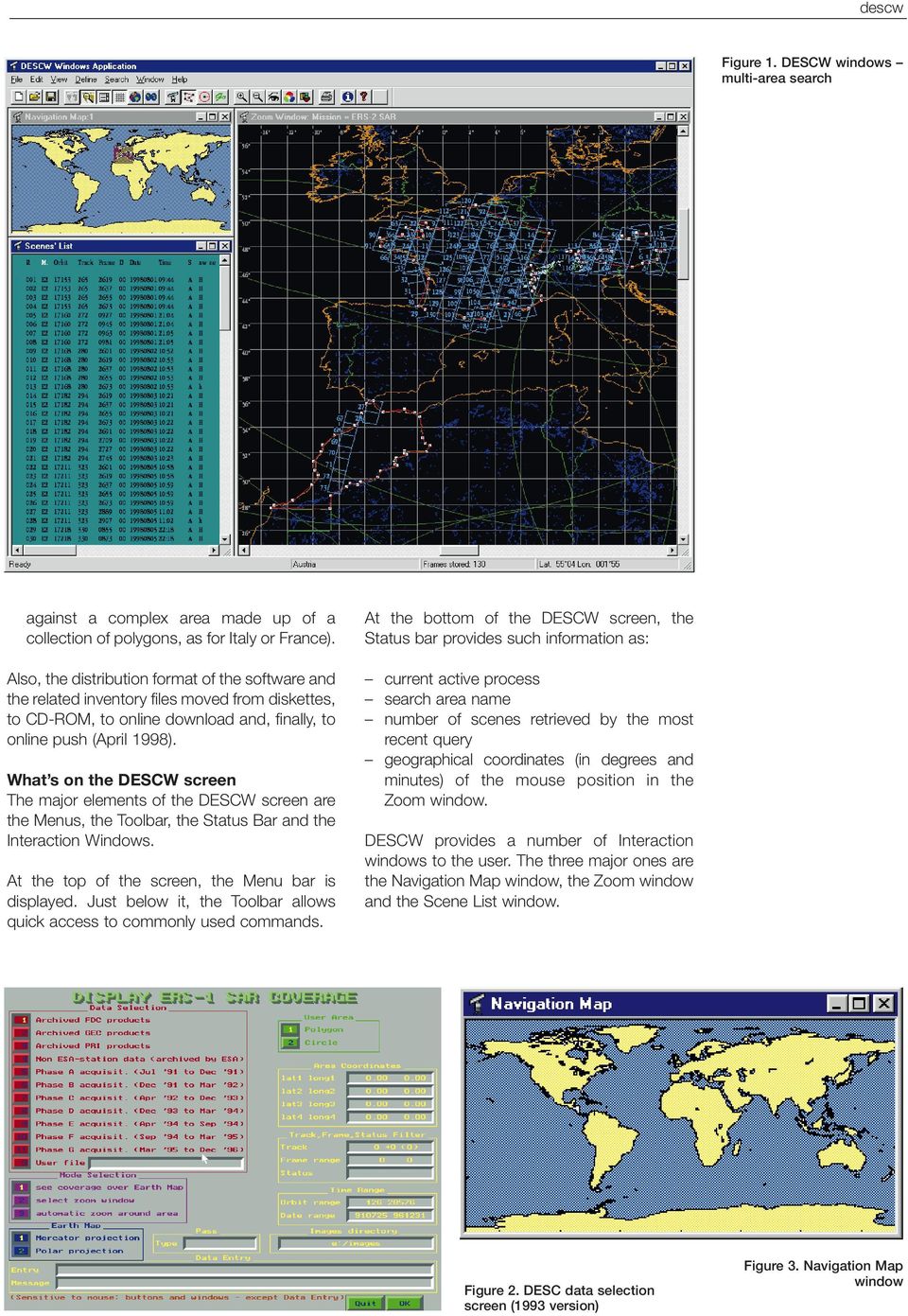
1 r bulletin 97 march 1999 DESCW: PC Software Supporting Remote Sensing Data S. D Elia Earth Remote Sensing Exploitation Division, ESA Directorate for Application Programmes, ESRIN, Frascati, Italy R. Biasutti Earth Observation Satellite Services Division, Eurimage, Rome, Italy What is DESCW? DESCW (Display Earth remote sensing Swath Coverage for Windows) is a software tool for personal computers developed by Eurimage in collaboration with ESA/ESRIN in 1992 and improved over time in response to user requirements, comments and suggestions. DESCW software performs multi-mission inventory searches for the major ESA-supported remote-sensing missions (ERS-1, ERS-2, JERS- 1, Landsat and Envisat) by displaying the satellites coverage over an Earth map. It features Quick Looks for the Landsat-5 TM, ERS SAR and JERS-1 VNIR missions and prepares orders for selected scenes. In version 4.0, special functions were added in order to simplify the selection of image pairs suitable for interferometric applications. In the latest version of the software (v. 4.1), Interferometric Pairs Selection is assisted by a new feature, Tandem Pairs Selection, specifically tuned for speedy identification of ERS-1 and ERS-2 scenes acquired as tandem pairs. With this feature, it is also possible to identify those pairs best suited for specific interferometric applications. Weekly updates to inventory files ensure the provision of scene locations, whether available (already acquired), planned (future passes) or visible (technically acquirable). The most important features of DESCW are a user-friendly graphical interface, a powerful multi-area search mechanism and missionspecific filtering tools (Fig. 1). Background The first version (1.xx), called DESC (Display ERS-1 SAR Coverage), was limited to ERS-1 satellite data and ran under DOS (Figure 2 shows the Data Selection screen of this early version). The software followed the evolution of the ERS-1 Mission Phases and was complemented by a separate package to view the ERS-1 Quick Looks. Related manuals were printed in three issues until September In version 2.00, the software progressed into DESCW (Display Earth remote sensing Swath Coverage for Windows), a multi-mission tool supporting ERS-1, ERS-2, JERS-1 and Landsat-5 (also with Quick Look display), redesigned to run under MS Windows 3.1x. The first release, issued in March 1995, was enhanced over time with many new features, the most important of which were the addition of a layered and tiled map in three levels of resolution, and the polar projection view (June 1996). In May 1997 version 3.00, running in both the Windows 3.1x and Windows 95 environments, was completed and included: a new combined Mission/Filter window an improved Frame List window (with sort, selection and undelete) geographic/graphic definitions of Landsat TM full-, quarter- and mini- floating scenes an improved Quick Look viewer for Landsat TM and JERS-1 VNIR area definitions by town or country name a new, simplified installation procedure the possibility to select Scene List columns for printing or saving in a file. In February 1998, version 4.00 was released (the related manual was printed in May 1998) with: binary inventory files for ERS-1 and ERS-2 providing additional details per frame on acquisition stations, Processing and Archiving Facilities (PAFs) and quality the possibility to select interferometric pairs through a graphical and user-friendly interface the display of main Envisat swaths (for the ASAR, AATSR and MERIS instruments) multi-area support (single search performed
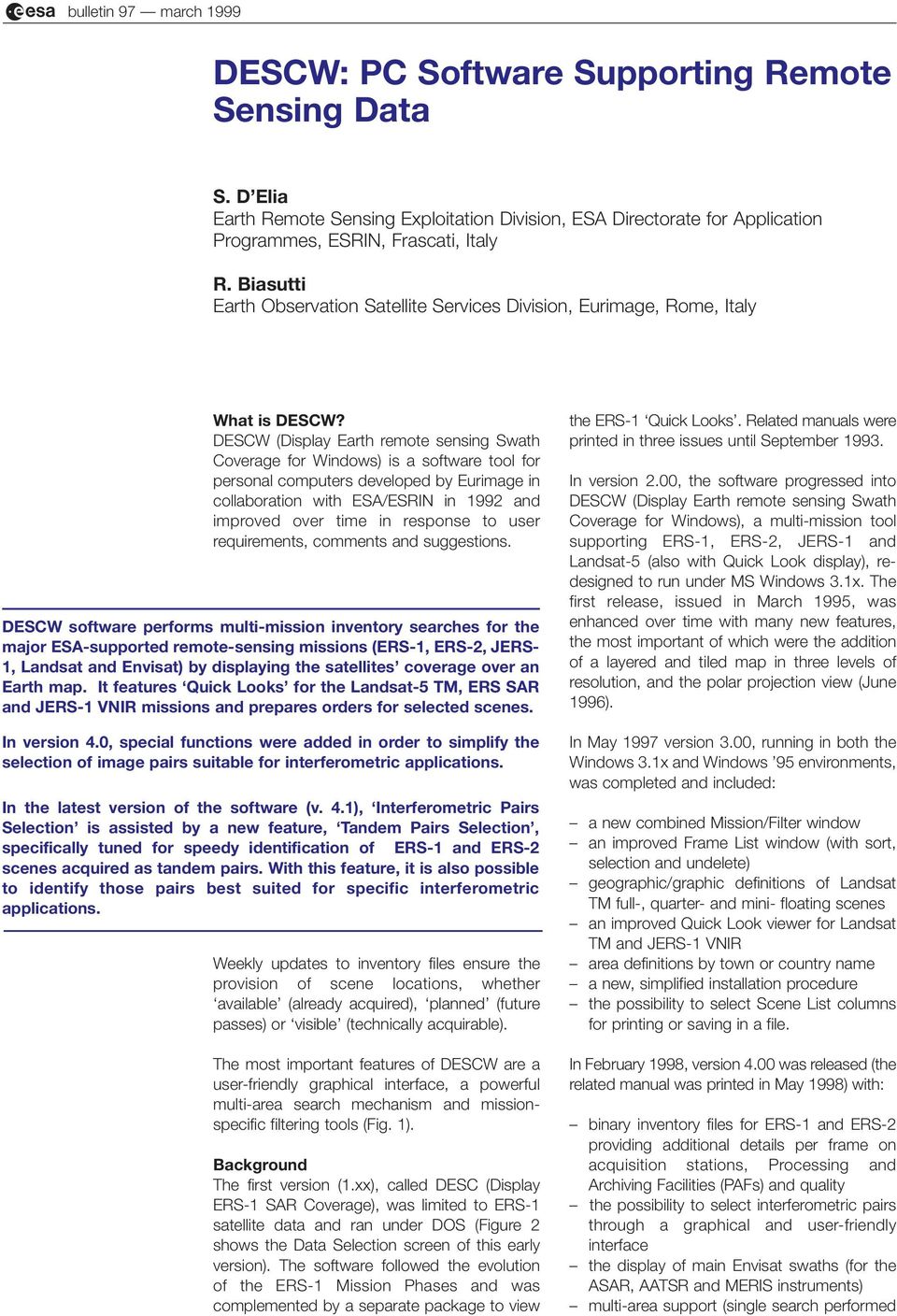
2 descw Figure 1. DESCW windows multi-area search against a complex area made up of a collection of polygons, as for Italy or France). Also, the distribution format of the software and the related inventory files moved from diskettes, to CD-ROM, to online download and, finally, to online push (April 1998). What s on the DESCW screen The major elements of the DESCW screen are the Menus, the Toolbar, the Status Bar and the Interaction Windows. At the top of the screen, the Menu bar is displayed. Just below it, the Toolbar allows quick access to commonly used commands. At the bottom of the DESCW screen, the Status bar provides such information as: current active process search area name number of scenes retrieved by the most recent query geographical coordinates (in degrees and minutes) of the mouse position in the Zoom window. DESCW provides a number of Interaction windows to the user. The three major ones are the Navigation Map window, the Zoom window and the Scene List window. Figure 2. DESC data selection screen (1993 version) Figure 3. Navigation Map window
3 r bulletin 97 march 1999 bull Figure 4. Zoom window one-day acquisition of Landsat-5 (green) and ERS-2 (blue) data over Germany Figure 5. Scene List window Navigation Map window The Navigation Map window (Fig. 3) is a small map of the Earth from where it is possible to choose an area of interest the Focus Rectangle to be displayed in the Zoom Window. By moving the Focus Rectangle, the area enlarged in the Zoom Window moves accordingly. Conversely, by changing the area in the Zoom window (through the scroll bars), the Focus Rectangle moves. Zoom window The Zoom window (Fig. 4) is displayed either by selecting the Zoom window option on the View menu or by clicking, or dragging, on the Navigation Map window. It expands the area contained in the Focus Rectangle from the Navigation Map window, at a level of detail determined by the Map Layers option. It is possible to zoom in and out using the Zoom options on the View menu. Search area polygons can be drawn in this window. When a search has been completed, frames outlining each of the scenes found are displayed in the window. Scene List window When a search has been completed, this window (Fig. 5) will list the scenes found. Moving the cursor over a column in the window will highlight all scenes with the same value in that column. For example, if the cursor is over a number in the Track column, DESCW will highlight all scenes with the same Track Number; the same scenes will also be highlighted in the Zoom window. Full details about other windows and related functions can be found in the manual and the online help. How it Works A high-level view of the DESCW structure and possible sequence of operations is shown in Figure 6. After having broadly selected the region of interest through the Navigation Map window, it is possible to graphically draw the polygon detailing the area of interest. The next step is to identify the missions and date ranges of interest, as well as other specific filtering parameters (Fig. 7). The search can now start using the data of the Inventory files (updated weekly from the Internet). The search result is stored in the Working Set and displayed on the Scene List window. Unwanted scenes can be removed from the Working Set by selecting them and clicking with the right mouse button (all selected scenes will be removed from the list and the Zoom Window). Other functions can be activated for the selected scenes. For example, double-clicking on the Status column of a scene will display its Quick Look (if generated and the related CD- ROM is available), permitting also limited image manipulation. Additional support functions (e.g. show full coverage, show sub-satellite track,show current satellite position show scene details, compute shifted scenes, change map layers/colours, save/load areas, parameters or user requests, etc.) can be activated through other specific interaction windows.

4 descw Interferometric Pairs Selection Interferometry is being successfully used for: Digital Elevation Model (DEM) generation movement detection (differential interferometry): ice surface displacements landslides subsidence earthquakes volcanoes land-cover mapping through coherency maps. A special function has been added in order simplify the selection of image pairs suitable for interferometric applications. Clicking on one specific column of the selected scene, in the Scene List window, will open the Interferometric Baselines window, showing all the scenes with the same track and frame number. For each scene, the orbit number, the acquisition date, the values of the parallel and perpendicular baselines and the time interval between the acquisitions, are shown. Double-clicking on the orbit will re-compute all the baseline values and the day interval with respect to this orbit. It is also possible to delete the orbits that are not of interest and to print the dialogue box. The tool is also able to compute the baselines between ERS-1 and ERS-2 acquisitions. The sole constraint is that only ERS-1 s phase C or G can be selected (35 day cycles). Baseline values over 1024 m (parallel) and 4096 m (perpendicular) are set to these limits. ERS-1 & 2 Tandem Pairs Selection In version 4.1, the Interferometric Pairs Selection is assisted by a new function, which is specifically setup for fast identification of ERS-1 and ERS-2 scenes acquired as tandem pairs (i.e. acquired at one-day interval), with perpendicular baseline values falling within a pre-defined range and, therefore, best suited for specific interferometric applications (Fig. 8). For this function, a new set of ERS-1 and ERS- 2 inventory files were generated, separating the scene pairs into a number of different files according to the difference in the perpendicular baseline values as follows: below 30 m m m m m m above 1000 m. This is a preliminary list; the final set of ranges will be selected after the completion of more tests. Practical experience indicates that certain ranges of perpendicular baseline values are preferred for different application types. As a very broad guideline for DEM generation and land-cover mapping, values between 50 to 400 m are normally used, while for movement detection a value below 50 m is suggested. Figure 6. DESCW structure Figure 7. DESCW baseline tool Figure 8. DESCW mission selection tandem mission

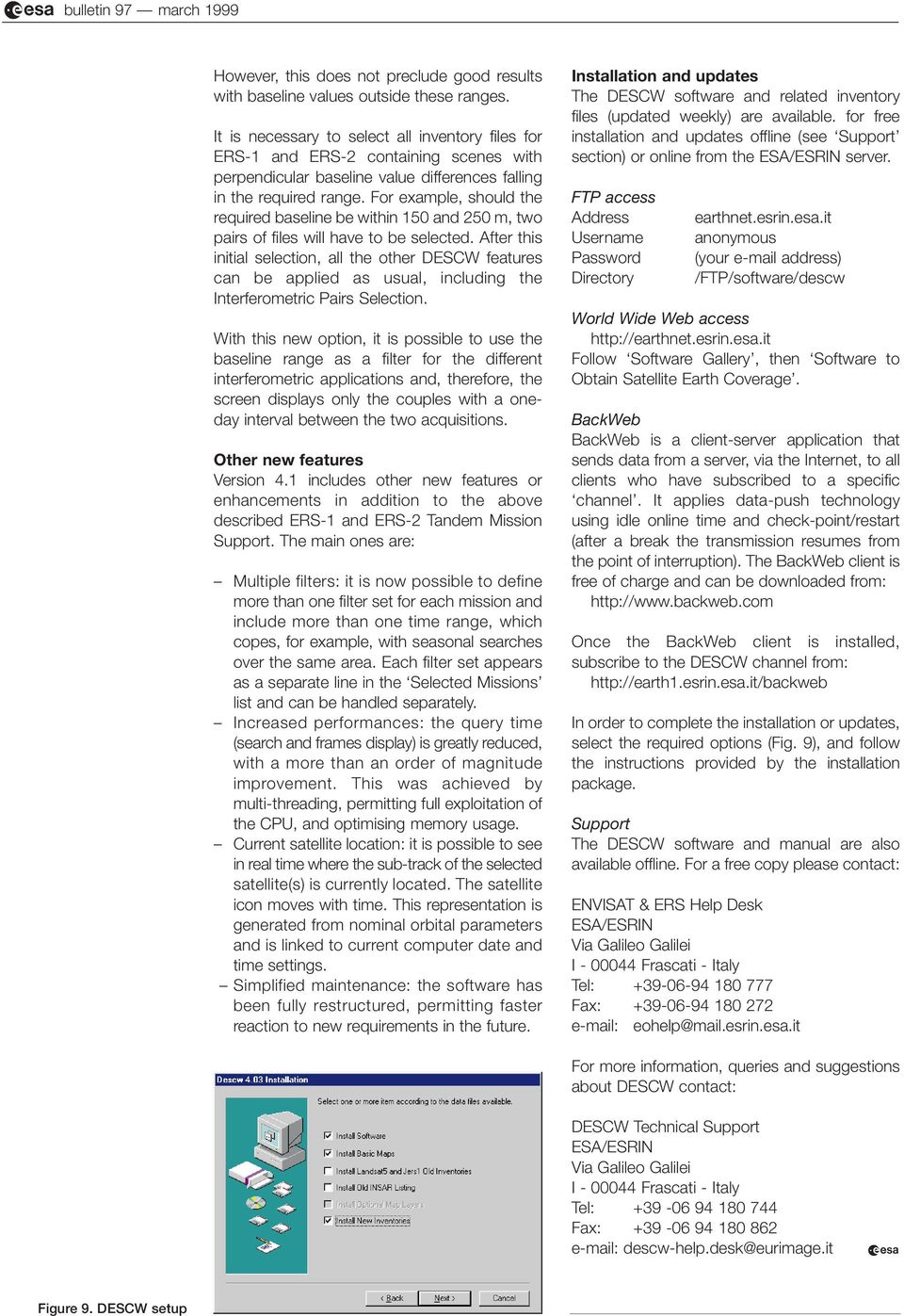
5 r bulletin 97 march 1999 bull However, this does not preclude good results with baseline values outside these ranges. It is necessary to select all inventory files for ERS-1 and ERS-2 containing scenes with perpendicular baseline value differences falling in the required range. For example, should the required baseline be within 150 and 250 m, two pairs of files will have to be selected. After this initial selection, all the other DESCW features can be applied as usual, including the Interferometric Pairs Selection. With this new option, it is possible to use the baseline range as a filter for the different interferometric applications and, therefore, the screen displays only the couples with a oneday interval between the two acquisitions. Other new features Version 4.1 includes other new features or enhancements in addition to the above described ERS-1 and ERS-2 Tandem Mission Support. The main ones are: Multiple filters: it is now possible to define more than one filter set for each mission and include more than one time range, which copes, for example, with seasonal searches over the same area. Each filter set appears as a separate line in the Selected Missions list and can be handled separately. Increased performances: the query time (search and frames display) is greatly reduced, with a more than an order of magnitude improvement. This was achieved by multi-threading, permitting full exploitation of the CPU, and optimising memory usage. Current satellite location: it is possible to see in real time where the sub-track of the selected satellite(s) is currently located. The satellite icon moves with time. This representation is generated from nominal orbital parameters and is linked to current computer date and time settings. Simplified maintenance: the software has been fully restructured, permitting faster reaction to new requirements in the future. Installation and updates The DESCW software and related inventory files (updated weekly) are available. for free installation and updates offline (see Support section) or online from the ESA/ESRIN server. FTP access Address Username Password Directory earthnet.esrin.esa.it anonymous (your address) /FTP/software/descw World Wide Web access Follow Software Gallery, then Software to Obtain Satellite Earth Coverage. BackWeb BackWeb is a client-server application that sends data from a server, via the Internet, to all clients who have subscribed to a specific channel. It applies data-push technology using idle online time and check-point/restart (after a break the transmission resumes from the point of interruption). The BackWeb client is free of charge and can be downloaded from: Once the BackWeb client is installed, subscribe to the DESCW channel from: In order to complete the installation or updates, select the required options (Fig. 9), and follow the instructions provided by the installation package. Support The DESCW software and manual are also available offline. For a free copy please contact: ENVISAT & ERS Help Desk ESA/ESRIN Via Galileo Galilei I Frascati - Italy Tel: Fax: [email protected] For more information, queries and suggestions about DESCW contact: DESCW Technical Support ESA/ESRIN Via Galileo Galilei I Frascati - Italy Tel: Fax: [email protected] r Figure 9. DESCW setup
SMS (Server Management Software) Digital Video Recorder. User s Manual
 SMS (Server Management Software) Digital Video Recorder User s Manual Contents 1 - Introduction 2 1.1 About this manual 2 1.2 Configuration 2 1.3 SMS Functions 2 1.4 Product Information 2 1.5 System Requirements
earthnet online The ESA Earth Observation Multi-Mission User Information Services
 r bulletin 93 february 1998 earthnet online The ESA Earth Observation Multi-Mission User Information Services G. Landgraf & L. Fusco Remote Sensing Exploitation Department, ESA Directorate of Application
LogMeIn Network Console Version 8 Getting Started Guide
 LogMeIn Network Console Version 8 Getting Started Guide April 2007 1. About the Network Console... 2 2. User Interface...2 3. Quick Start... 2 4. Network & Subnet Scans...3 5. Quick Connect...3 6. Operations...
SWAN 15.1 Advance user information What s new in SWAN? Introduction of the new user interface. Last update: 28th April 2015
 SWAN 15.1 Advance user information What s new in SWAN? Introduction of the new user interface Last update: 28th April 2015 Daimler SWAN 15.1 - New GUI - Version April 28th, 2015 2 Content Highlights of
Central Management Software CV3-M1024
 Table of Contents Chapter 1. User Interface Overview...5 Chapter 2. Installation...6 2.1 Beginning Installation...6 2.2 Starting the CMS software...10 2.3 Starting it from the Start menu...10 2.4 Starting
AN OPENGIS WEB MAP SERVER FOR THE ESA MULTI-MISSION CATALOGUE
 AN OPENGIS WEB MAP SERVER FOR THE ESA MULTI-MISSION CATALOGUE T. Westin a, *, C. Caspar b, L. Edgardh a, L. Schylberg c a Spacemetric AB, Tingsv 19, 19161 Sollentuna, Sweden - [email protected] b ESA Esrin,
ACS CLIENT SOFTWARE USER MANUAL
 ACS CLIENT SOFTWARE USER MANUAL 1 ACS USER GUIDE 1.1 System Requirement Recommended System Requirement OS CPU VGA RAM HDD WindowXP, Vista Pentium 4, 2Ghz 1024*768, 64MB 24bit color graphic card 1GB 20MB
The European Space Agency s Synthetic Aperture Radar Programme From Experiment to Service Provision
 The European Space Agency s Synthetic Aperture Radar Programme From Experiment to Service Provision Evert Attema ESA, Directorate of Earth Observation Programme! The idea of an independent European space
ACCESS TO ERS AND ENVISAT DATA. CGMS is informed about the ESA Earth Observation data policy and data access, in particular in Near Real Time.
 Prepared by ESA Agenda Item: III.3 Discussed in WG3 ACCESS TO ERS AND ENVISAT DATA CGMS is informed about the ESA Earth Observation data policy and data access, in particular in Near Real Time. ACCESS
Using SQL Server Management Studio
 Using SQL Server Management Studio Microsoft SQL Server Management Studio 2005 is a graphical tool for database designer or programmer. With SQL Server Management Studio 2005 you can: Create databases
CompleteView Admin Console Users Guide. Version 3.0.0 Revised: 02/15/2008
 CompleteView Admin Console Users Guide Version 3.0.0 Revised: 02/15/2008 Table Of Contents Configuration... 3 Starting the Admin Console... 3 Adding a Server... 4 Monitoring Server Status... 6 Menus...
3D-GIS in the Cloud USER MANUAL. August, 2014
 3D-GIS in the Cloud USER MANUAL August, 2014 3D GIS in the Cloud User Manual August, 2014 Table of Contents 1. Quick Reference: Navigating and Exploring in the 3D GIS in the Cloud... 2 1.1 Using the Mouse...
Creating a Website with MS Publisher
 Creating a Website with MS Publisher Getting Started with the Wizard...1 Editing the Home Page...3 Editing Text...3 Editing and Inserting Graphics...4 Inserting Pictures...6 Inserting a Table...6 Inserting
Attix5 Pro Server Edition
 Attix5 Pro Server Edition V7.0.2 User Manual for Mac OS X Your guide to protecting data with Attix5 Pro Server Edition. Copyright notice and proprietary information All rights reserved. Attix5, 2013 Trademarks
DVR4C Remote Viewer Operation Manual Table of Contents EN 3 1. OVERVIEW...5 1.1 MINIMUM PC REQUIREMENTS...5 2. INSTALLING THE PROGRAM...
 DVR4x4RemoteViewer.book Page 3 Tuesday, February 15, 2005 9:19 AM DVR4C Remote Viewer Operation Manual Table of Contents EN 3 1. OVERVIEW...5 1.1 MINIMUM PC REQUIREMENTS...5 2. INSTALLING THE PROGRAM...5
How To Use Textbuster On Android (For Free) On A Cell Phone
 www.textbuster.com 1 Applications and Account Manager Dashboard User Guide For Android phones www.textbuster.com 2 Downloading the TextBuster applications After the TextBuster device is installed into
Lesson 1: How to Download and Decompress USGS GloVis Landsat Data
 Created By: Lane Carter Advisors: Paul Evangelista, Jim Graham Date: October 2010 Software: Internet Explorer, Windows Explorer, WinZip Lesson 1: How to Download and Decompress USGS GloVis Landsat Data
BIGPOND ONLINE STORAGE USER GUIDE Issue 1.1.0-18 August 2005
 BIGPOND ONLINE STORAGE USER GUIDE Issue 1.1.0-18 August 2005 PLEASE NOTE: The contents of this publication, and any associated documentation provided to you, must not be disclosed to any third party without
After going through this lesson you would be able to:
 18 :: Data Entry Operations 2 Operating System 2.1 INTRODUCTION The operating system in these days uses a graphical user interface (GUI). Here you do not have to remember all the commands by heart. The
Ofgem Carbon Savings Community Obligation (CSCO) Eligibility System
 Ofgem Carbon Savings Community Obligation (CSCO) Eligibility System User Guide 2015 Page 1 Table of Contents Carbon Savings Community Obligation... 3 Carbon Savings Community Obligation (CSCO) System...
How to use PGS: Basic Services Provision Map App
 How to use PGS: Basic Services Provision Map App The PGS: Basic Services Provision Map App The main features of the PGP Basic Services web application includes: Navigation Tools Map Tools Main Map Links
Survey Processing Software (SPS) USER MANUAL
 FLORIDA DEPARTMENT OF TRANSPORTATION Survey Processing Software (SPS) USER MANUAL Prepared for: October 2009 TABLE OF CONTENTS I. Introduction... 1 II. SPS Installation Requirements... 2 III. Main System
NDA-30141 ISSUE 1 STOCK # 200893. CallCenterWorX-Enterprise IMX MAT Quick Reference Guide MAY, 2000. NEC America, Inc.
 NDA-30141 ISSUE 1 STOCK # 200893 CallCenterWorX-Enterprise IMX MAT Quick Reference Guide MAY, 2000 NEC America, Inc. LIABILITY DISCLAIMER NEC America, Inc. reserves the right to change the specifications,
Automation License Manager
 s Contents Product Overview 1 Installation 2 Working with the Automation License Manager 3 Glossary Manual Index 12/2008 A5E02389428-01 Legal information Warning notice system This manual contains notices
SMS (Server Management Software) Digital Video Recorder. User s Manual
 SMS (Server Management Software) Digital Video Recorder User s Manual 1 Table of Contents Chapter 1 Overview.....03 1.1 In This Manual..03 1.2 Overview 03 1.3 SMS Features...03 1.4 Product Information..03
Exclaimer Mail Archiver User Manual
 User Manual www.exclaimer.com Contents GETTING STARTED... 8 Mail Archiver Overview... 9 Exchange Journaling... 9 Archive Stores... 9 Archiving Policies... 10 Search... 10 Managing Archived Messages...
Lesson 07: MS ACCESS - Handout. Introduction to database (30 mins)
 Lesson 07: MS ACCESS - Handout Handout Introduction to database (30 mins) Microsoft Access is a database application. A database is a collection of related information put together in database objects.
Call Recorder Quick CD Access System
 Call Recorder Quick CD Access System V4.0 VC2010 Contents 1 Call Recorder Quick CD Access System... 3 1.1 Install the software...4 1.2 Start...4 1.3 View recordings on CD...5 1.4 Create an archive on Hard
Working with SQL Server Integration Services
 SQL Server Integration Services (SSIS) is a set of tools that let you transfer data to and from SQL Server 2005. In this lab, you ll work with the SQL Server Business Intelligence Development Studio to
How to Login Username Password:
 How to Login After navigating to the SelecTrucks ATTS Call Tracking & Support Site: www.selectrucksatts.com Select Corporate Link to login for Corporate owned Centers/Locations. Username: Your Email Address
Hamline University Administrative Computing Page 1
 User Guide Banner Handout: BUSINESS OBJECTS ENTERPRISE (InfoView) Document: boxi31sp3-infoview.docx Created: 5/11/2011 1:24 PM by Chris Berry; Last Modified: 8/31/2011 1:53 PM Purpose:... 2 Introduction:...
Getting Started With LP360
 Getting Started With LP360 10/30/2014 1 Contents What is LP360?... 3 System Requirements... 3 Installing LP360... 4 How to Enable the LP360 Extension... 4 How to Display the LP360 Toolbar... 4 How to Import
LOREX CLIENT Remote Software 4.0
 LOREX CLIENT Remote Software 4.0 Instruction Manual English Version 2.0 MODEL: L20WD800 Series www.lorexcctv.com Copyright 2008 LOREX Technology Inc. Table of Contents Table of Contents Software Installation...
ArcGIS Mobile Application User s Guide
 ArcGIS Mobile Application User s Guide 1 Contents Chapter 1 Chapter 2 Chapter 3 Chapter 4 2 5 5 6 7 7 8 8 11 12 14 15 19 21 22 23 37 38 ArcGIS Mobile User Interface Essentials Title Bar Menu Bar Hardware
Business Objects Version 5 : Introduction
 Business Objects Version 5 : Introduction Page 1 TABLE OF CONTENTS Introduction About Business Objects Changing Your Password Retrieving Pre-Defined Reports Formatting Your Report Using the Slice and Dice
Service Level Agreement for. Reconditioned Landsat Cat-1 Images Service
 Service Level Agreement for Reconditioned Landsat Cat-1 Images Service Table of Contents 1 INTRODUCTION... 2 1.1 Service Description / Abstract... 2 1.2 EO Help Desk... 2 1.3 Definitions and Acronyms...
START YOUR INVENTORY WITH SCANFRE
 START YOUR INVENTORY WITH SCANFRE April 2014 LANDPARK SCANFREE «Quickly estimate your data processing systems before considering their evolution. Landpark Scanfree, solution for your IT asset tracking
Lab 2: MS ACCESS Tables
 Lab 2: MS ACCESS Tables Summary Introduction to Tables and How to Build a New Database Creating Tables in Datasheet View and Design View Working with Data on Sorting and Filtering 1. Introduction Creating
Mikogo Web Conferencing & Remote Support. User Guide (Windows Version)
 Mikogo Web Conferencing & Remote Support User Guide (Windows Version) Table of Contents Register an Account... 3 Download the Software... 3 Start a Session... 4 Informing your Participants to Join the
Moxa Device Manager 2.0 User s Guide
 First Edition, March 2009 www.moxa.com/product 2009 Moxa Inc. All rights reserved. Reproduction without permission is prohibited. Moxa Device Manager 2.0 User Guide The software described in this manual
FXCC MetaTrader 4 user guide
 Installing MetaTrader 4 Once you have downloaded the MT4 executable program and saved this to your desktop, installation is fast and simple. 1. Double-click the Metatrader exe file to install. This follows
TUTORIAL - Locations & Mapping. Using the ESdat Environmental Database System. For use with ESDAT version 5
 TUTORIAL - Locations & Mapping Using the ESdat Environmental Database System For use with ESDAT version 5 (version 5 software updates available from ) Function Tutorial - Locations and Mapping Table of
Kodiak Island Borough GIS Online Tools
 Kodiak Island Borough GIS Online Tools The Kodiak Island Borough website is located at http://www.kodiakak.us/ You can access the GIS resources by clicking on the MAP CENTER icon in the middle of the page,
Cloud Storage Service
 Cloud Storage Service User Guide (Web Interface, Android App) Table of Content System Requirements...4 1.1Web Browser... 4 1.2Mobile Apps... 4 Accessing Cloud Storage using a Web Browser... 4 The Web Home
SMS Remote Software User Manual. Pro Series & Contender Series DVRs
 SMS Remote Software User Manual Pro Series & Contender Series DVRs Table of Contents Chapter 1 Overview 1 1.1 In This Manual 1 1.2 Overview 1 1.3 SMS Features 1 1.4 Product Information 1 1.5 System Requirements
MicroStrategy Desktop
 MicroStrategy Desktop Quick Start Guide MicroStrategy Desktop is designed to enable business professionals like you to explore data, simply and without needing direct support from IT. 1 Import data from
Avaya Network Configuration Manager User Guide
 Avaya Network Configuration Manager User Guide May 2004 Avaya Network Configuration Manager User Guide Copyright Avaya Inc. 2004 ALL RIGHTS RESERVED The products, specifications, and other technical information
Connecting to the Hospira FTP Server
 Connecting to Hospira s FTP Server To transfer files to and from Hospira s FTP Server requires a connection to ftp.hospira-transfer.com. Several commercial and shareware File Transfer Protocol (FTP) software
Basic Introduction. GMFX MetaTrader 4.0. Basic Introduction
 GMFX GMFX About Got Money FX Got Money FX is an Australian owned and operated foreign exchange brokerage firm. We pride ourselves in offering our clients an honest and ethical trading environment. Clients
TimeValue Software Due Date Tracking and Task Management Software
 User s Guide TM TimeValue Software Due Date Tracking and Task Management Software File In Time Software User s Guide Copyright TimeValue Software, Inc. (a California Corporation) 1992-2010. All rights
Install FileZilla Client. Connecting to an FTP server
 Install FileZilla Client Secure FTP is Middle Georgia State College s supported sftp client for accessing your Web folder on Webdav howeve you may use FileZilla or other FTP clients so long as they support
Information & Communication Technologies FTP and GroupWise Archives Wilfrid Laurier University
 Instructions for MAC users MAC users have not been joined to the Active Directory Domain. ICT is unable to capture GroupWise archives you may have on your computer automatically or confirm if you have
Activity: Using ArcGIS Explorer
 Activity: Using ArcGIS Explorer Requirements You must have ArcGIS Explorer for this activity. Preparation: Download ArcGIS Explorer. The link below will bring you to the ESRI ArcGIS Explorer download page.
Microsoft FrontPage 2003
 Information Technology Services Kennesaw State University Microsoft FrontPage 2003 Information Technology Services Microsoft FrontPage Table of Contents Information Technology Services...1 Kennesaw State
Quick Help Guide (via SRX-Pro Remote)
 Quick Help Guide (via SRX-Pro Remote) 2012 i³ International Inc. The contents of this user manual are protected under copyright and computer program laws. Page 2 SRX-Pro Remote - Quick Help Guide Logging
Steps for using MagicConnect
 Getting Started Getting Started MagicConnect is a remote access service that allows you safe remote access to a target device from your remote device. What is a remote device? It is a Windows device, iphone/ipad,
History Explorer. View and Export Logged Print Job Information WHITE PAPER
 History Explorer View and Export Logged Print Job Information WHITE PAPER Contents Overview 3 Logging Information to the System Database 4 Logging Print Job Information from BarTender Designer 4 Logging
DiskPulse DISK CHANGE MONITOR
 DiskPulse DISK CHANGE MONITOR User Manual Version 7.9 Oct 2015 www.diskpulse.com [email protected] 1 1 DiskPulse Overview...3 2 DiskPulse Product Versions...5 3 Using Desktop Product Version...6 3.1 Product
Client Ordering and Report Retrieval Website
 1165 S. Stemmons Frwy. Suite 233 Lewisville, TX 75067 800-460-0723 Client Ordering and Report Retrieval Website The Reliable Reports Client Ordering Website allows client users to submit, view, and retrieve
ImagineWorldClient Client Management Software. User s Manual. (Revision-2)
 ImagineWorldClient Client Management Software User s Manual (Revision-2) (888) 379-2666 US Toll Free (905) 336-9665 Phone (905) 336-9662 Fax www.videotransmitters.com 1 Contents 1. CMS SOFTWARE FEATURES...4
InfoView User s Guide. BusinessObjects Enterprise XI Release 2
 BusinessObjects Enterprise XI Release 2 InfoView User s Guide BusinessObjects Enterprise XI Release 2 Patents Trademarks Copyright Third-party contributors Business Objects owns the following U.S. patents,
14.1. bs^ir^qfkd=obcib`qflk= Ñçê=emI=rkfuI=~åÇ=léÉåsjp=eçëíë
 14.1 bs^ir^qfkd=obcib`qflk= Ñçê=emI=rkfuI=~åÇ=léÉåsjp=eçëíë bî~äì~íáåö=oéñäéåíáçå=ñçê=emi=rkfui=~åç=lééåsjp=eçëíë This guide walks you quickly through key Reflection features. It covers: Getting Connected
Basic Mercury Powered NXT Configuration in Doors.NET TM Application Note. 1.0 Adding an NXT-MSC Controller to the NXT Gateway
 Doors.NET installation and controller configuration is a three step process. Each of these steps has its own document, with controller configuration broken into separate documents per hardware type. software
Introduction... 2. Download and Install Mobile Application... 2. About Logging In... 4. Springboard... 4. Navigation... 6. List Pages...
 Contents Introduction... 2 Download and Install Mobile Application... 2 About Logging In... 4 Springboard... 4 Navigation... 6 List Pages... 6 Example: Edit Contact... 7 View Pages... 12 Example: Companies...
Manual Client Management Software HDR50-CMS
 Manual Client Management Software HDR50-CMS HDR50-CMS (Client Management Software) A-1. Install HDR50-CMS for Windows PC HDR50-CMS is a program for communication between DVR and PC to control signal and
Summer 2013 Cloud Initiative. Release Bulletin
 Summer 2013 Cloud Initiative In this bulletin... July 2013 Summer 2013 Cloud Initiative 1 Getting started with the new Cloud... 2 Cloud Enhancements 3 How To Save Files 7 How to Set Up ipad Access 9 How
Quick Start Guide. Microinvest Warehouse Pro Light Restaurant
 Quick Start Guide Warehouse Pro Light Restaurant 2013 I. Application Installation During the initial installation of the product, the application gets to know the computer system, on which it shall work
Password Memory 6 User s Guide
 C O D E : A E R O T E C H N O L O G I E S Password Memory 6 User s Guide 2007-2015 by code:aero technologies Phone: +1 (321) 285.7447 E-mail: [email protected] Table of Contents Password Memory 6... 1
Welcome to PowerClaim Net Services!
 Welcome to PowerClaim Net Services! PowerClaim Net Services provides a convenient means to manage your claims over the internet and provides detailed reporting services. You can access PowerClaim Net Services
Visualization with Excel Tools and Microsoft Azure
 Visualization with Excel Tools and Microsoft Azure Introduction Power Query and Power Map are add-ins that are available as free downloads from Microsoft to enhance the data access and data visualization
FACILITIES INVENTORY MANAGEMENT SYSTEM:
 FACILITIES INVENTORY MANAGEMENT SYSTEM: FM:INTERACT USER S GUIDE University of North Texas Office of Facilities Management and Construction P.O. Box 311040 Denton, TX 76203-1040 TEL: (940)565.4974 FAX:
Air Resources Board File Transfer Protocol (FTP)
 Air Resources Board File Transfer Protocol (FTP) A Handbook for External Users (those not connected to the ARB network) July 2006 How do I use ARB FTP? What is the FTP server and who can use it? What software
1. Central Monitoring System Software
 1. Central Monitoring System Software 1-1. General information CMS program is an application with which users not only watch and control remote DVRs, but also receive video/audio data or alarm signals
Welcome to CUT. Diagram 1. CUT screen shot. Cryosat User Tool - ESA All rights reserved - info: [email protected]
 Welcome to CUT The Cryosat User Tool (CUT) is a Windows stand-alone application for the display of Cryosat-2 product locations and zones with an integrated product archive browser and downloader. Connection
Trader Manual. NatureForex.com
 Trader Manual NatureForex.com Welcome to the exciting world of FX/CFD trading! This manual will explain how to trade FX/CFD with NatureForex platform. For any further questions, please feel free to contact
Remote Client Program... 3. Web Client... 39
 Remote Client / Web Client USER MANUAL T Series Digital Video Recorder Remote Client Program... 3 Remote Client Program Installation... 4 Remote Client... 6 Main Window... 6 Site Registration... 7 Group
Creating Reports with Microsoft Dynamics AX SQL Reporting Services
 Creating Reports with Microsoft Dynamics AX SQL Reporting Services. Table of Contents Lab 1: Building a Report... 1 Lab Objective... 1 Pre-Lab Setup... 1 Exercise 1: Familiarize Yourself with the Setup...
Software Architecture Document (SAD) for the Interferometric Modules of the Next ESA SAR Toolbox (NEST)
 Software Architecture Document (SAD) for the Interferometric Modules of the Next ESA SAR Toolbox (NEST) Contract number: 20809/07/I-LG Prepared by: PPO.labs Prepared for: The European Space Agency Revision
You must have at least Editor access to your own mail database to run archiving.
 Archiving An archive is a copy of a database you can create to store information no longer in use. Like a replica, an archive contains all documents and design elements in the original database, but unlike
testo EasyClimate Software Instruction manual
 testo EasyClimate Software Instruction manual 2 1 Contents 1 Contents 1 Contents... 3 1.1. About this document... 5 2 Specifications... 5 2.1. Use... 5 2.2. System requirements... 6 3 First steps... 6
INDEX. Google Android Phone OS application and operation 2. Blackberry Operation System(Software Installation and Operation) 13
 DVR4rt-H264 Mobile User Guide INDEX DATE: 2011/03/02 VER 1.0 Google Android Phone OS application and operation 2 Blackberry Operation System(Software Installation and Operation) 13 iphone Software installation
DSI File Server Client Documentation
 Updated 11/23/2009 Page 1 of 10 Table Of Contents 1.0 OVERVIEW... 3 1.0.1 CONNECTING USING AN FTP CLIENT... 3 1.0.2 CONNECTING USING THE WEB INTERFACE... 3 1.0.3 GETTING AN ACCOUNT... 3 2.0 TRANSFERRING
KViewCenter Software User Manual 2012 / 04 / 20 Version 2.2.1.0
 KViewCenter Software User Manual 2012 / 04 / 20 Version 2.2.1.0 Table of Contents Chapter 1. KViewCenter Interface... 5 1.1. Log in.... 5 1.2. Log out... 5 1.3. Control Panel... 6 1.4. Control Panel (Preview
BusinessObjects Enterprise InfoView User's Guide
 BusinessObjects Enterprise InfoView User's Guide BusinessObjects Enterprise XI 3.1 Copyright 2009 SAP BusinessObjects. All rights reserved. SAP BusinessObjects and its logos, BusinessObjects, Crystal Reports,
Reading Wonders Training Resource Guide
 Reading Wonders Training Resource Guide Table of Contents Page Register for Your Teacher Access 2 Redeem Master Codes 4 Enroll Students Teacher / District Import (Single or Multiple Students) 7 Individual
When upgrading your TAPIT software make sure that all call accounting data has been exported before you begin the installation process.
 When upgrading your TAPIT software make sure that all call accounting data has been exported before you begin the installation process. Registration Settings: SERIAL NUMBER: COMPUTER ID: REGISTRATION NUMBER:
Information Server Documentation SIMATIC. Information Server V8.0 Update 1 Information Server Documentation. Introduction 1. Web application basics 2
 Introduction 1 Web application basics 2 SIMATIC Information Server V8.0 Update 1 System Manual Office add-ins basics 3 Time specifications 4 Report templates 5 Working with the Web application 6 Working
Version 3.0, April 16, 2012, updated for ArcGIS 10.0 Produced by the Geographic Information Network of Alaska http://www.gina.alaska.
 Using the AlaskaMapped Web Services in ESRI ArcGIS Version 3.0, April 16, 2012, updated for ArcGIS 10.0 Produced by the Geographic Information Network of Alaska http://www.gina.alaska.edu AlaskaMapped
SeeVogh User Guide. Date: March 26 th, 2012
 SeeVogh User Guide Date: March 26 th, 2012 About This Guide This guide provides users an overview of the features found in the SeeVogh PC client software. This guide does not discuss the use of the web
Building a Personal Website (Adapted from the Building a Town Website Student Guide 2003 Macromedia, Inc.)
 Building a Personal Website (Adapted from the Building a Town Website Student Guide 2003 Macromedia, Inc.) In this project, you will learn the web publishing skills you need to: Plan a website Define a
Manual. Danfoss Central Station Communications Software Version 3
 Manual Danfoss Central Station Communications Software Version 3 RS.8A.Q1.02 1-2001 Contents Introduction 4 System Overview 4 Minimum and Recommended Hardware Requirements 4 Using the Keyboard to Select
FileZilla: Uploading/Downloading Files to SBI FTP
 FileZilla Download and Installation Instructions FileZilla is a free software that uses SourceForge as an installation provider. SourceForge is bundling the FileZilla software with other products that
1. Central Monitoring System Software
 1. Central Monitoring System Software 1-1. General information CMS program is an application with which users not only watch and control remote DVRs, but also receive video/audio data or alarm signals
FaxFinder Fax Servers
 FaxFinder Fax Servers Models: FF130 FF230 FF430 FF830 Client User Guide FaxFinder Client User Guide Fax Client Software for FaxFinder Series PN S000460B, Version B Copyright This publication may not be
6 USING WINDOWS XP 6.1 INTRODUCTION
 6 USING WINDOWS XP 6.1 INTRODUCTION The windows operating system started with the introduction of Windows OS and Windows for work group for networking. Since then it has come a long way and Windows 95,
Monitoring Network DMN
 Monitoring Network DMN User Manual Table of contents Table of contents... 2 1. Product features and capabilities... 3 2. System requirements... 5 3. Getting started with the software... 5 3-1 Installation...
MyOra 3.0. User Guide. SQL Tool for Oracle. Jayam Systems, LLC
 MyOra 3.0 SQL Tool for Oracle User Guide Jayam Systems, LLC Contents Features... 4 Connecting to the Database... 5 Login... 5 Login History... 6 Connection Indicator... 6 Closing the Connection... 7 SQL