
Users Guide written by André Benedix Version: 1.0 (10/2008)
|
|
|
- Lillian Craig
- 9 years ago
- Views:
Transcription
1 USER S MANUAL

2 The information in this document is subject to change without notice and does not represent a commitment on the part of NATIVE INSTRUMENTS GmbH. The software described by this document is subject to a License Agreement and may not be copied to other media. No part of this publication may be copied, reproduced or otherwise transmitted or recorded, for any purpose, without prior written permission by NATIVE INSTRUMENTS GmbH, hereinafter referred to as NATIVE INSTRUMENTS. All product and company names are or trademarks of their respective owners. Users Guide written by André Benedix Version: 1.0 (10/2008) Special thanks to the Beta Test Team, who were invaluable not just in tracking down bugs, but in making this a better product.

3 Germany NATIVE INSTRUMENTS GmbH Schlesische Str. 28 D Berlin Germany USA NATIVE INSTRUMENTS North America, Inc Hollywood Boulevard Los Angeles, CA USA MASSIVE was designed and developed entirely by Native Instruments GmbH. Solely the name Massive is a registered trademark of Massive Audio Inc, USA. Native Instruments GmbH, All rights reserved.

4 1. Welcome to the AUDIO 4 DJ! Thank you for purchasing the AUDIO 4 DJ! With its set of professional features, the AUDIO 4 DJ is the perfect match for your DJ and recording applications: Robust and portable design for the harshest traveling and live stage conditions 4 inputs and 4 outputs integrate the AUDIO 4 DJ into most DJ and recording setups 2 phono preamps let you connect turntables directly Low-latency drivers provide natural analog feel for your DJ software 24 bit converters for crystal-clear audio quality High output levels let you feed any external mixer or effects device Monitoring LEDs let you check the status of your system at a glance Have fun with your AUDIO 4 DJ! The team at NATIVE INSTRUMENTS AUDIO 4 DJ 4

5 2. Safety Considerations The following sections contain important information regarding the use of the AUDIO 4 DJ hardware. Please read them thoroughly before you start to use the AUDIO 4 DJ! 2.1 Warning The AUDIO 4 DJ hardware contains no user-serviceable parts. Do not open it or attempt to disassemble or modify any internal hardware. If there appears to be a hardware malfunction, immediately stop using the hardware and contact NATIVE INSTRUMENTS. Do not expose the AUDIO 4 DJ to rain, and do not use it near water or in damp or wet conditions. Also, never place anything on top of the controller, and be very careful that no objects or liquids of any kind enter the unit. The AUDIO 4 DJ, in combination with an amplifier, headphones or speakers, can produce sound levels capable of damaging your ears. Do not use it for long periods of time at high volume levels. If you experience any hearing problems or ringing in the ears, consult a hearing specialist immediately. The AUDIO 4 DJ hardware is powered via USB. Operation can be guaranteed only as a single device with a USB 2 controller or with a self-powered USB 2.0 hub. 2.2 Caution Before connecting the AUDIO 4 DJ hardware to other electronic components, turn off the power for all devices. Before powering your system up or down, set all volume levels to minimum. Gradually raise the volume controls while playing your instruments to set the desired listening level. AUDIO 4 DJ 5

6 Do not place the AUDIO 4 DJ hardware in an unstable position where it might accidentally fall to the ground. Before moving the AUDIO 4 DJ hardware, remove all connected cables. Never subject the unit to extreme temperatures (e.g. direct sunlight in an enclosed vehicle or near a heat source), or high levels of vibration. Do not use excessive force on the buttons, knobs, switches or connectors. When cleaning the AUDIO 4 DJ hardware, use a soft, dry cloth. Do not use paint thinner, solvents, cleaning fluids, or chemically-impregnated wiping cloths. 2.3 Important Notes Disclaimer: Native Instruments GmbH cannot be held responsible for damage or data loss caused by improper use of, or modification to, the AUDIO 4 DJ hardware or software. It is your responsibility to back up data you don t want to lose. Specifications subject to change: The information contained in this manual is believed to be correct at the time of printing. However, Native Instruments reserves the right to make changes to the specifications of software and hardware at any time without notice or obligation to update existing units. Nameplate location: The nameplate is located on the bottom of the AUDIO 4 DJ hardware and lists the Production ID. Disposal notice: Should this product become damaged beyond repair, or for some other reason come to the end of its useful life, please observe all regulations of your country that relate to the disposal of electronic products. Copyright: Native Instruments GmbH All rights reserved. This publication may not be reproduced in whole or in part, summarized, transmitted, transcribed, stored in a retrieval system, or translated into any language, in any form or by any means without the prior written permission of Native Instruments GmbH. All product and company names are trademarks or registered trademarks of their respective owners. AUDIO 4 DJ 6

7 3. System requirements For latest system requirements, compatibility and support of the latest operating systems please see our website at: AUDIO 4 DJ 7

8 4. Installation This chapter explains how to connect the AUDIO 4 DJ hardware to your computer and how to install the drivers and software required to use it. 4.1 Installation of the AUDIO 4 DJ To make use of the AUDIO 4 DJ, you need to install its driver first. The driver handles communication between the AUDIO 4 DJ hardware and your computer. The driver itself is not accessible: like any other driver on your operating system, it is a piece of software loaded in the background when your system starts up. The driver takes care of all audio and MIDI signals coming from or going to the AUDIO 4 DJ hardware through the USB2 connection. Although the driver itself is inaccessible, you can edit some of its settings to modify its behavior for your audio setup. These settings can be edited. How to achieve this will be explained in detail in chapter 7 AUDIO 4 DJ Software.! Do not connect the AUDIO 4 DJ hardware until the driver installer prompts you as the operating system may install the wrong drivers. AUDIO 4 DJ 8

9 4.1.1 Installing the AUDIO 4 DJ Driver on Windows XP and Windows Vista 1. Place the installation CD-ROM in your computer s CD/DVD-ROM drive. 2. Use the Windows Explorer to browse the content of the CD. 3. Double-click the installer file named AUDIO 4 DJ Driver Setup. 4. Click Next. 5. To continue, you need to accept the license agreement first. After you have read the license agreement, check the according checkbox and click Next. AUDIO 4 DJ 9

10 6. In the next dialog, choose the destination folder for the driver installation. To use the default path, just click Next. If you wish to select a custom path, click Change, browse to the folder where you want to install the Audio 4 DJ Driver and click Next. 7. Now select the folder in the Windows Start dialog to place the Audio 4 DJ Driver Setup. To use the default path, just click Next. To set a custom folder, type in a name for it, then click Next. AUDIO 4 DJ 10

11 8. On the next dialog page, the Install Wizard will prompt you to start the installation by clicking Next. To return to the previous dialog page, click Back. To abort the installation procedure, click Cancel. 9. During the driver installation, a screen will appear with a message that the driver has not passed Windows Logo Testing; this does not indicate a problem, simply click on Continue Anyway to proceed with the installation. 10. After the installation has been performed successfully, click Finish. 11. After the TRAKTOR installer has finished running, please connect the AUDIO 4 DJ to any available USB port on your computer, using the USB cable included in delivery. Windows will identify the AUDIO 4 DJ and begin the final installation process. Choose No if Windows asks you to search the Internet for a driver. Please note that as multiple driver components are installed, you will see the whole sequence of installer screens repeated twice; this is not an error, just follow along and make the appropriate choices to finish the installation.! USB 2.0 port is required. You cannot install the AUDIO 4 DJ on a USB 1.1 port a AUDIO 4 DJ 11

12 Accessing the AUDIO 4 DJ Software Tools on Windows To access the AUDIO 4 DJ software tools on Windows, select Windows Start > All Programs > Native Instruments > Audio 4 DJ Driver. In this folder you will find the Settings Tool (explained in chapter 7.1 Understanding the Settings Tool ) and the Control Panel (explained in chapter 7.2 Understanding the Control Panel ). Uninstalling the AUDIO 4 DJ Drivers on Windows To uninstall the AUDIO 4 DJ drivers from your computer: Open C:\Program Files\Native Instruments\Audio 4 DJ Driver. Double-click the Unwise Tool to begin un-installation. Choose Automatic from the following dialog Installing the AUDIO 4 DJ Drivers on Mac OS X Place the installation CD-ROM in your computer s CD/DVD-ROM drive. Its icon will appear in the Mac OS X Finder. Double-click the AUDIO 4 DJ CD icon to display the content of the CD. Double-click the installer file.! Do not connect the AUDIO 4 DJ hardware until the driver installer prompts you, as the operating system may install the wrong drivers! 4. In the appearing dialog click Continue to proceed. AUDIO 4 DJ 12

13 5. Select a destination volume, then click Continue to proceed. 6. Click Install to install the driver in the default path or browse to select a custom installation path by clicking Change Install Location. Then click Install. 7. The next screen informs you that your computer needs to be restarted when the installation is done. If you have any other applications running, you should close them now. To continue, click Continue Installation. AUDIO 4 DJ 13

14 8. After a successful installation you will be prompted to restart your Mac. Click Restart to restart your computer. 9. After restarting your computer, connect the AUDIO 4 DJ to a free USB 2.0 port of your Mac, using the USB cable included in delivery. Accessing the AUDIO 4 DJ Software Tools on Mac OS X To access the AUDIO 4 DJ software tools, double-click Applications/Audio 4 DJ Driver. In this folder you will find the Settings Tool. Read more about the Settings Tool in chapter 7.1 Understanding the Settings Tool.! USB 2.0 port is required.! You cannot install the AUDIO 4 DJ on a USB 1.1 port a Please always refer to the Readme file on the installation CD, as it contains last minute information that may not be available in the printed manual. Uninstalling the AUDIO 4 DJ Drivers on Mac OS X To uninstall the AUDIO 4 DJ drivers from your computer, please delete the following files manually: /System/Library/PreferencePanes/NIUSBAudio.prefPane /Library/Audio/MIDI Drivers/NIUSBMIDIDriver.plugin /Library/Preferences/de.caiaq.NIUSBAudio.hwsettings.plist /System/Library/Extensions/NIUSBAudioDriver.kext /Library/StartupItems/NIUSBAudioDaemon AUDIO 4 DJ 14

15 4.2 Installation of the Settings Tool This section describes the installation and the uninstall process of the Settings Tool. Information on how to use the Settings Tool can be found in chapter 7.1 Understanding the Settings Tool Installing the Settings Tool on Windows This section describes the installation and the uninstall process of the Settings Tool on a Windows PC. Installing the Settings Tool The Settings Tool will be installed along with the driver of the AUDIO 4 DJ. Please follow the instructions on installing the AUDIO 4 DJ driver given in chapter Installing the AUDIO 4 DJ Drivers on Windows. There is no interaction required. Uninstalling the Settings Tool The Settings Tool can be uninstalled along with the driver of the AUDIO 4 DJ. Please follow the instructions on uninstalling the AUDIO 4 DJ driver given in chapter Installing the AUDIO 4 DJ Drivers on Windows. There is no interaction required Installing the Settings Tool on Mac OS X This section describes the installation and the uninstall process of the Settings Tool on a Macintosh computer. Installing the Settings Tool The Settings Tool will be installed along with the driver of the AUDIO 4 DJ. Please follow the instructions on installing the AUDIO 4 DJ driver given in chapter Installing the AUDIO 4 DJ Drivers on Mac OS X. There is no interaction required. AUDIO 4 DJ 15

16 Uninstalling the Settings Tool To uninstall the Settings Tool from a Macintosh computer, please delete the file Applications/ Audio 4 DJ Driver/Settings Tool. 4.3 Installation of the Control Panel This section describes the installation and the uninstall process of the Control Panel. Information on how to use the Control Panel can be found in chapter 7.2 Understanding the Control Panel Installing the Control Panel on Windows This section describes the installation and the uninstall process of the Control Panel on a Windows PC. Installing the Control Panel The Control Panel will be installed along with the driver of the AUDIO 4 DJ. Please follow the instructions on installing the AUDIO 4 DJ driver given in chapter Installing the AUDIO 4 DJ Drivers on Windows. There is no interaction required. Uninstalling the Control Panel The Control Panel can be uninstalled along with the driver of the AUDIO 4 DJ. Please follow the instructions on uninstalling the AUDIO 4 DJ driver given in chapter Installing the AUDIO 4 DJ Drivers on Windows. There is no interaction required Installing the Control Panel on Mac OS X This section describes the installation and the uninstall process of the Control Panel on Mac OS X. AUDIO 4 DJ 16

17 Installing the Control Panel The Control Panel will be installed along with the driver of the AUDIO 4 DJ. Please follow the instructions on installing the AUDIO 4 DJ driver given in chapter Installing the AUDIO 4 DJ Drivers on Mac OS X. There is no interaction required. Uninstalling the Control Panel There is no option to uninstall the Control Panel on Mac OS X automatically. AUDIO 4 DJ 17

18 5. Registration and Product Authorization Registering the AUDIO 4 DJ is not mandatory. Nevertheless, registration is recommended, as it can be helpful in case of a support inquiry or a theft. To register your AUDIO 4 DJ on the NATIVE INSTRUMENTS website, use the serial number from the product activation sticker inside your AUDIO 4 DJ product package. To register your AUDIO 4 DJ: Open your standard internet browser Open the NATIVE INSTRUMENTS website: In the headline navigation, click on Support On the next page, click on Product Activation Since you only need to register the serial number, please read further in section B) Serial Number Registration and click on the link labeled Register the serial number here If you never registered a NATIVE INSTRUMENTS product, choose Create User Account. Choose Additional Product Registration if you already are a registered user of a NATIVE INSTRUMENTS product. In any case, the following web pages will guide you step-by-step through the registration. AUDIO 4 DJ 18

19 6. AUDIO 4 DJ Hardware The AUDIO 4 DJ provides the following features: 24 Bit/96 khz Analog-Digital/Digital-Analog converters Low-latency drivers Hi-gain output levels on all channels. 4 audio inputs 4 audio outputs 1/4 headphone connector Status LEDs displaying the AUDIO 4 DJ s settings and input/output activity Read more about the AUDIO 4 DJ s controls and connectors on the following pages. 6.1 Front Panel 1 - Headphone Volume 2 - Headphone Output 1 - Headphone Volume Use this knob to adjust the level of the Headphone Output. 2 - Headphone Output Connect your headphones to this ¼ socket. AUDIO 4 DJ 19

20 6.2 Rear Panel 1 - USB 2.0 Port 2 - Inputs A & B 3 - Outputs A & B 4 - Ground Screw 1 - USB 2.0 Port Connects the AUDIO 4 DJ to your computer. The USB 2.0 connection handles data transmission and provides bus power to your AUDIO 4 DJ. This means you do not need an external power supply. 2 - Inputs A & B You can configure these inputs as 2 stereo pairs or 4 mono input channels. 3 - Outputs A & B You can configure these outputs as 2 stereo pairs or 4 mono output channels. 4 - Ground Screw Attach your turntable s grounding wire to this screw to eliminate hum induced by ground loops from the audio signal. AUDIO 4 DJ 20

21 6.3 Status LEDs 1 - CHANNEL A and CHANNEL B 2 - USB 3 - INPUT MODE (Channel A and Channel B) 1 - CHANNEL A and CHANNEL B: These LEDs provide information about the AUDIO 4 DJ s audio inputs and outputs: they light up green to indicate that an audio signal is present. If the input signal is too loud and causes clipping, the LEDs turn red. 2 - USB: When the AUDIO 4 DJ is connected, this LED is lit green. If the USB status LED remains black although you have connected the AUDIO 4 DJ to your computer, please refer to chapter 10 Troubleshooting in this manual. AUDIO 4 DJ 21
22 3 - INPUT MODE (Channel A and Channel B): Colored LEDs help you to identify the currently selected Input Mode. Select one of the following Input Modes in the Audio 4 DJ Settings Tool, as explained in chapter 7.1.2: Line Mode, applicable to line-level audio sources like CD/DVD Players, Keyboards or other audio interfaces Phono Mode, applicable for turntables 6.4 AUDIO 4 DJ Technical Specifications GENERAL INTERFACE SPECIFICATIONS Input (A/D) Output (D/A) Channels 4 4 Sampling Rate 44.1, 48, 96 khz 44.1, 48, 96 khz Bit Resolution Converter Cirrus Logic Cirrus Logic Computer Connection Dimensions Weight USB 2.0, Bus-Powered 45 x 121 x 103 mm 521 g AUDIO 4 DJ 22
23 INPUT SPECIFICATIONS Line Phono Cross Talk 87 dbu 87 dbu Impedance 1 MOhm (unbalanced) 47 kohm (unbalanced) Full Scale Level (max.gain) 11,9 dbu -29 dbu THD+N 0.009% 0.062% SNR > 100 dba (weighted) > 91 dba (weighted) Frequency Response khz khz ±0.5 db ±0.5 db OUTPUT SPECIFICATIONS Line Cross Talk Impedance Maximum Output Level 87 dbu 82 Ohms (Unbalanced) + 9,7 dbu THD+N 0.008% SNR Frequency Response > 100 db (weighted) khz (±0.5 db) AUDIO 4 DJ 23
24 7. AUDIO 4 DJ Software This chapter shows you all features of the Settings Tool and Control Panel utilities that are part of the AUDIO 4 DJ software installation. 7.1 Understanding the Settings Tool The Settings Tool is a graphical representation of the AUDIO 4 DJ and allows you to change its general settings Open the Settings Tool On Mac OS X, double-click on Applications/Audio 4 DJ Driver/Settings Tool to open the Settings Tool. On Windows XP, click on Start > All Programs > Native Instruments > Audio 4 DJ Driver > Settings Tool to open the Settings Tool. On Windows Vista, click on Start > All Programs > Native Instruments > Audio 4 DJ Driver > Audio 4 DJ Settings to open the Settings Tool. % It might be a good idea to create a dock element (Mac OS X) or desktop shortcut (PC) for better accessibility. AUDIO 4 DJ 24
25 7.1.2 Overview 1 - AUDIO 4 DJ Logo 2 - Control Panel 3 - USB Connection Monitor 4 - NI Logo 5 - Info Window 6 - Input Mode Selector 7 - Input Gain Selector 1 - AUDIO 4 DJ Logo Click on the AUDIO 4 DJ logo to open the About Screen. The About Screen displays the driver version number, the firmware version number, the settings tool version number as well as the credits. In case of a support inquiry you may be asked for one or more of these details. Click on the About Screen to close it. 2 - Control Panel Click on the Control Panel button to open the Control Panel. The Control Panel is explained in detail in chapter 7.2 Understanding the Control Panel. 3 - USB Connection Monitor This is a status LED, showing you whether the AUDIO 4 DJ is connected to your computer or not. To change any settings, the AUDIO 4 DJ must be connected to your computer via USB 2.0. AUDIO 4 DJ 25
26 The USB Connection Monitor LED is black if the AUDIO 4 DJ is not connected to your computer. The USB Connection Monitor LED is lit green if the AUDIO 4 DJ is connected to your computer. 4 - NI Logo Click on the NI logo to open the About Screen. The About Screen displays the driver version number, the firmware version number, the settings tool version number as well as the credits. In case of a support inquiry you may be asked for one or more of these details. Click on the About Screen to close it. 5 - Info Window The Info Window displays helpful information about the different settings and features. Hover over one of the features and you will see a description of the respective setting or feature. 6 - Input Mode Selector The Input Mode Selector lets you adapt input channel A and B to different signal sources (see below). To select an Input Mode, click on its label. If Phono is selected, you can adjust input gain using the Input Gain Selector. Depending on what kind of signal source you want to use, choose one of the following options: Line: Choose this if you use a digital vinyl system with control CDs. Phono: Use this if you want to record normal vinyl records, because this mode is optimized for best sound at the AUDIO 4 DJ. 7 - Input Gain Selector In Phono Input Mode, use the Input Gain Selector to select the amount of pre-amplification applied to the audio input signals. Use this for adjusting recording levels and for DVS systems without automatic input amplification. To select an Input Gain value, click its label.! Input Mode! This control is inactive in Line AUDIO 4 DJ 26
27 7.2 Understanding the Control Panel This chapter will introduce you to the Control Panel and its settings The Control Panel on Windows On Windows operating systems, the Control Panel allows you to change the performance settings of the AUDIO 4 DJ. To open the Control Panel, click on Start > All Programs > Native Instruments > Audio 4 DJ Driver > Control Panel. AUDIO 4 DJ 27
28 7.2.2 Soundcard Latency Settings Any signal going into the computer has to go through two buffers: once through the USB bus and once through the ASIO driver. On every path, latency is created. Presets: Select a preset that has already preconfigured values for the USB and the Audio Buffer Size. Choosing User defined Settings allows you to choose an USB Buffer Size independently from the Audio Buffer Size. USB Buffer Size: If you have chosen User defined Settings, you can choose here an USB Buffer Size value. Available values are 1, 2, 3, 4, 8 and 16 ms. Audio Buffer Size: If you have chosen User defined Settings, you can choose here and Audio Buffer Size value. The values depend on the chosen USB Buffer Size value. If you have chosen a high USB Buffer Size, the lower Audio Buffer Size values are not available. If you have chosen the lowest USB Buffer Size value (1 ms), all options are available: 2, 3, 4, 5, 6, 7, 8, 9, 10, 12, 16, 32 and 64 ms. Click on OK to confirm your changes and to close the Control Panel Buffer Format In this area of the Control Panel, you can select the sample rate that the AUDIO 4 DJ handles audio streams at. The value selected here always applies to all audio input and output streams. To select a sample rate: Choose a sample rate from the Sample Rate menu Hz is the most common setting. Other available options are Hz and Hz. Click on OK to confirm your changes and to close the Control Panel.! Small USB and Audio Buffer settings stress your computer more. Read more on latency in chapter 10.5 What is Latency?! handling audio. The higher the chosen value, the more CPU power is required for About Click on the About button to open the About Screen. The About Screen displays the driver version number and the interface version number. In case of a support enquiry you may be asked for one of these details. Click on OK to close the About Screen. AUDIO 4 DJ 28
29 7.2.5 The Control Panel on Mac OS X On Mac OS X, the Control Panel displays the firmware version, the driver version and the number of USB streaming errors. It does not provide any options or settings, as these can be configured from within the audio software you want to use the AUDIO 4 DJ with. You can access the Control Panel by selecting it from the Mac OS X system preferences. AUDIO 4 DJ 29
30 8. Basic Setups Learn more about how to connect and configure the AUDIO 4 DJ by having a look at the typical setups described in the following. 8.1 Using the AUDIO 4 DJ as Default Audio Device Using the AUDIO 4 DJ as standard sound card (Default Audio Device) of your operating system will bring brilliance in your living room when listening to music or watching DVDs via your computer Using the AUDIO 4 DJ in Windows Make sure the volume controls of the amplifier are completely turned down! Open Start > Control Panel > Sounds & Audio Devices. Click on the Audio tab. As Default Device for Sound Playback, choose one of the available channel pairs of the AUDIO 4 DJ, e.g. AUDIO 4 DJ (CH. B, Out 3 4). Plug a RCA cable into Out 3/4 of the AUDIO 4 DJ and connect it to a free input pair of your amplifier. Open an available music file or sound on your computer. It should get played back via the AUDIO 4 DJ now. AUDIO 4 DJ 30
31 8.1.2 Using the AUDIO 4 DJ in Mac OS X Make sure the volume controls of the amplifier are completely turned down! Click on Applications/Utilities/Audio MIDI Setup or open the Audio MIDI Setup from the Dock. In Audio Devices, choose Audio 4 DJ as Default Output. Click on Configure Speakers. Choose Stream 2 (Channel 3 & 4) as output. 8.2 Using the AUDIO 4 DJ with a CD Player Make sure the volume controls of the amplifier are completely turned down! In the Settings Tool, choose Line as Input Mode. Connect the RCA cable of your CD player to a free input pair of the AUDIO 4 DJ, e.g. AUDIO 4 DJ (CH. A, In 1 2). Put a CD in your CD-Player and start playing it. 8.3 Using the AUDIO 4 DJ with a Turntable Make sure the volume controls of the amplifier are completely turned down! In the Settings Tool, choose Phono as Input Mode. Connect the RCA cable of your turntable to the input pair of channel A or B of the AUDIO 4 DJ, e.g. AUDIO 4 DJ (CH. A, In 1 2). Connect your turntable s ground wire to the AUDIO 4 DJ s ground screw. Put a record on your turntable and start playing it. AUDIO 4 DJ 31
32 8.4 Using the AUDIO 4 DJ in a Recording Setup Using the AUDIO 4 DJ as recording device, you can transfer your beloved vinyl records to the digital era as well as capture your own vocal or instrument performance Using the AUDIO 4 DJ as Recording Device on a PC Open Start > Control Panel > Sounds & Audio Devices. Click on the Audio tab. As Default Device for Sound Recording, choose one of the available channel pairs of the AUDIO 4 DJ you want to record from, e.g. AUDIO 4 DJ (CH. A, In 1 2). In your recording software s Options dialog, choose the respective input. Adjust the recording level in your recording software and start recording Using the AUDIO 4 DJ as Recording Device on a Mac Click on Applications/Utilities/Audio MIDI Setup or open the Audio MIDI Setup from the Dock. In Audio Devices, choose Audio 4 DJ as Default Input. Adjust the recording level in your recording software and start recording. AUDIO 4 DJ 32
33 9. Using the AUDIO 4 DJ in TRAKTOR In the following sections you will learn how to set up and use the AUDIO 4 DJ for DJ ing with a software from NATIVE INSTRUMENTS TRAKTOR product line. Please note that we will refer to all products from the TRAKTOR product line simply as TRAKTOR, because the functionalities described here are identical in all current TRAKTOR products. 9.1 Using the AUDIO 4 DJ in TRAKTOR with the internal Mixer Open TRAKTOR. Open Preferences > Audio Setup > Soundcard. From the dropdown menu, choose the entry AUDIO 4 DJ. Now open Preferences > Audio Setup > Output Routing. Choose a channel pair for the Master output. Connect this output pair to your amplifier or powered speakers. For the Monitor output, choose channel pair Out 3 4, so that you can pre-listen to tracks. Turn down the headphones volume on the AUDIO 4 DJ to a low level. Connect your headphones to the headphones output on the AUDIO 4 DJ. In TRAKTOR, turn down the Mix Knob to 0%. In TRAKTOR, adjust the headphones volume with the Vol Knob to a comfortable level. From the Browser List, drag tracks in both decks and hit the Play button. Drag the Crossfader all the way to the left (Deck A). Click on the Cue button of Deck B. You should hear the track playing on Deck B only in your headphones, while the track in Deck A is playing over your speakers. % You can find more and detailed descriptions about the TRAKTOR software in your TRAKTOR product s user manual. AUDIO 4 DJ 33
34 9.2 Using the AUDIO 4 DJ in TRAKTOR with an External Mixer Open TRAKTOR. Open Preferences > Audio Setup > Soundcard. From the Device menu, select the AUDIO 4 DJ entry. Now open Preferences > Audio Setup > Output Routing. Choose External as Mixer Mode. The options below change accordingly. For Out Channel A, choose an output pair from the dropdown menu, e.g. Out 1 and Out 2. Connect these outputs of the AUDIO 4 DJ to a free channel of your DJ mixer, e.g. channel 1, using a RCA cable. For Out Channel B, choose another output pair from the dropdown menu, e.g. Out 3 and Out 4. Connect these outputs of the AUDIO 4 DJ to a free channel of your DJ mixer, e.g. channel 2, using a RCA cable. Connect the master output of your DJ mixer to your amplifier or powered speakers. From the Browser List, drag tracks in both decks and hit the Play button. Drag the Crossfader of your DJ mixer all the way to the left (Deck A or Channel 1). Set the headphones mix knob/fader of your DJ mixer to 0%. If you do not find a headphones mix knob/fader, please consult the manual of your hardware mixer. Use the cue button/switch/fader of Deck B (Channel 2) of your DJ mixer. If you do not find a cue button/switch/fader, please consult the manual of your hardware mixer. You should hear the track playing on Deck B only in your headphones, while the track in Deck A is playing over your speakers. If you do not want to pre-listen via the opposite deck, you can also utilize another channel pair for the preview deck of TRAKTOR. % You can find more and detailed descriptions about the TRAKTOR software in your TRAKTOR product s user manual. AUDIO 4 DJ 34
35 10. Troubleshooting The information provided in this chapter should help you to solve most of the problems that you may encounter while you are using the AUDIO 4 DJ USB 2.0 audio interface Solving Hardware-related Problems Native Instruments hardware products meet the highest professional standards. All products are tested extensively in real life situations during the development phase. However, if you encounter any problems with your hardware, please follow these steps for troubleshooting: Verify that you have installed the latest driver and the latest software update. Check the Native Instruments website for information. Make sure that the AUDIO 4 DJ hardware is connected to an USB 2.0 port of your computer. Make sure you are connecting directly to an USB port of the computer and not through an USB hub. Try another USB cable. Disconnect any other USB devices from the computer (except keyboard/mouse). Try using any other USB ports on your computer. If none of these tips helps, please contact our Technical Support team. The contact information is available under the following URL: In case the AUDIO 4 DJ needs to be returned, the Technical Support team at Native Instruments will assign you an RA (Return Authorization) number that is required to handle your return. Packages returned without this RA number will not be correctly identified and as such might not be processed properly.! any item. Please contact our Technical Support team prior to returning AUDIO 4 DJ 35
36 10.2 How to check if the AUDIO 4 DJ Driver is installed correctly How to check if the AUDIO 4 DJ driver is installed correctly in Windows Open Start > All Programs > Native Instruments > Audio 4 DJ Driver. There you will find the helper applications Audio Statistics, Control Panel and the Settings Tool. Make sure that the device is connected to the computer and open the Control Panel. If all the drop-down menus are grayed out (i.e., there are no presets in the preset dropdown list, no sample rate values to choose from) there must be something wrong with the connection. If the AUDIO 4 DJ Driver entry in the Native Instruments folder of the Start Menu is missing, the driver is most probably not installed at all. If the driver is not installed, you can install it using the setup program as described in chapter 4.1 Installation of the AUDIO 4 DJ. If the driver is not recognized, check your USB 2.0 connection as described in chapter 10.3 USB Troubleshooting. As any other USB device, the driver installs exactly for one USB port. If you connect the AUDIO 4 DJ to another port, a standard Windows dialog opens in which you can install the driver to that port. If you have previously installed the driver on your computer once, Windows will find the right drivers itself. If you did not install the drivers on your computer, Windows will install the wrong drivers. If you do not know whether or not you have previously installed the drivers of the AUDIO 4 DJ to your computer, it is advisable, to start the setup program of the AUDIO 4 DJ. If the setup program states that it will first uninstall the drivers, you already have installed the drivers on your computer. In this case you can connect the device to any other USB port, and Windows will find the right driver when it installs the AUDIO 4 DJ on another USB port. AUDIO 4 DJ 36
37 How to check if the AUDIO 4 DJ Driver is installed correctly in Mac OS X In Mac OS X, look into the System Preferences for the NATIVE INSTRUMENTS USB Audio Control Panel icon. Open this control panel to see if the device is found. If no device is found, values will appear grayed out. If the NATIVE INSTRUMENTS USB Audio Control Panel icon is missing here, the driver is probably not installed at all. If the driver is not installed, you can install it using the setup program described in chapter 4.1 Installation of the AUDIO 4 DJ. If the driver is not recognized, check your USB 2.0 connection as described in chapter 10.3 USB Troubleshooting USB Troubleshooting If you experience problems that may be caused by the USB connection between the Audio 4 DJ and your computer, check the following chapters first; several possible sources for USB issues are covered here USB 2.0 required The AUDIO 4 DJ is an USB 2.0 interface and will not work at all on an USB 1.0/1.1 port. In addition, although the minimum power specified for a USB 2.0 port is 500 ma, we have seen a few cases where the USB 2.0 ports on certain computers do not fulfill the minimum requirements and therefore do not meet the official USB 2.0 specification. In this case you may see a message saying that there is not enough power available to operate your device. In this case you might encounter crackles or it may not work at all Try another USB cable A bad USB cable can be responsible for audio dropouts and other connectivity problems. It is highly recommended that you try using a different cable if you are experiencing difficulties; make sure to use a cable bearing the official USB logo. AUDIO 4 DJ 37
38 Using a powered USB 2.0 hub It is best to connect the AUDIO 4 DJ directly to a USB 2.0 port on your computer. However, in certain situations a powered USB hub can also be a solution if you are having problems connecting your AUDIO 4 DJ to an onboard USB port. In this case you should avoid connecting other devices to the hub if possible, as each bus-powered device takes its share from the total amount of power available Recommended USB-ports (MacBook Only) As general rule of thumb, do not use the right hand USB port on a MacBook Pro: This port is connected to the same root hub as the trackpad. With the AUDIO 4 DJ plugged into the right port, you can encounter audio problems like clicks or dropouts whenever the trackpad is reactivated from standby mode. MacBook Pro recommended USB port(s) For the following laptops the use of USB audio devices on the right-hand USB port is not recommended: MacBook Pro GHz Intel Core Duo and Core 2 Duo MacBook Pro GHz Intel Core Duo and Core 2 Duo MacBook Pro GHz Intel Core Duo and Core 2 Duo MacBook Pro GHz Intel Core Duo and Core 2 Duo MacBook Pro GHz Intel Core 2 Duo MacBook Pro GHz Intel Core Duo and Core 2 Duo MacBook Pro GHz Intel Core 2 Duo The 15 MacBook Pro models have 1 USB port on the left side, and one USB port on the right side. The 17 MacBook Pro models have 2 USB ports on the left side, and one USB port on the right side. AUDIO 4 DJ 38
39 Due to the current USB configuration of the MacBook Pro under OS X, use of USB audio devices is supported on the left-hand USB ports only (the port or ports next to the power adapter cable). Use of audio devices on the right-hand USB port is not advised because it may cause audio interrupts and/or dropped samples. However, the use of an ilok dongle on the right-hand port has been qualified and is fully supported.! These USB port recommendations are specific to USB audio devices only. USB keyboard and control surface products do not have a recommended USB port at this time. MacBook 13.3 recommended USB port For the following laptops the use of USB audio devices on the USB port closest to the screen is not recommended: MacBook 13 White 1.83 GHz Intel Core Duo and Core 2 Duo MacBook 13 White 2.0 GHz Intel Core Duo and Core 2 Duo MacBook 13 White 2.16 GHz Intel Core 2 Duo MacBook 13 Black 2.0 GHz Intel Core Duo and Core 2 Duo MacBook 13 Black 2.16 GHz Intel Core 2 Duo There are 2 USB ports on the left side of the MacBook models listed above. Due to the current USB configuration of the MacBook under OS X, the use of USB audio devices is supported on the front USB port only (the port farthest away from the screen). Use of audio devices on the rear USB port is not recommended, because it may cause audio interrupts and/or dropped samples. However, the use of an ilok dongle on the rear port has been qualified and is fully supported.! These USB port recommendations are specific to USB audio devices only. USB keyboard and control surface products do not have a recommended USB port at this time. AUDIO 4 DJ 39
40 Disable USB Energy Saving Mode (Windows only) If the AUDIO 4 DJ is causing crashes or performing badly on a Windows machine, disable power management to the USB hubs first; XP turns this on by default. To disable power management for USB hubs, open the device manager (Control Panel > System > Hardware) and right-click a USB hub to bring up its properties. On the power management page, uncheck all boxes. Repeat for each hub and reboot Update the Driver Click on the AUDIO 4 DJ logo in the Settings Tool to check the driver version number and verify that you are using the latest driver. Check the Native Instruments website regularly for updates of the AUDIO 4 DJ driver How to avoid Ground Loops Ground loops are a common problem within any environment where multiple electrical devices are connected to the same power circuit. In complex setups the cause(s) of the noise can be difficult to find. Ground loops are perceived usually as a hum or buzz in your audio signal, but this can also transmit and amplify other sounds from the devices connected to the circuit. For example, one very common problem is that you hear internal clicking sounds created by your computer. The cause of the noise is usually the computer and its internal devices, or devices connected to the computer like external hard drives. (Note that even if the power supply of your notebook computer is not connected, your setup may still be vulnerable to ground noise from an external device with its own power supply.) The cause can also be any other device (such as a radio or television). The reason why this noise is present at the monitor speakers input has to do with a loop in the setup of your electrical and audio cable connections. Most likely this loop occurs through the ground of one or more of these cables. With this in mind, the following points should help to eliminate the ground loop. AUDIO 4 DJ 40
41 Try to eliminate the loop As a first step, always connect your devices to the same power outlet (e.g. with a multi-outlet power strip). Assuming that you have connected your audio interface, the next troubleshooting step is to disconnect all devices that you are not currently using, but not the amplifier and/ or speakers. This also applies to other peripheral devices you may have connected to your computer (external data storage, CD burners and especially radio or television cables). In case the ground loop disappeared, you can add the devices one after the other to see with the connection of which device it reappears. Another check is to see if the amplifier or active monitors create the ground loop. Monitor your audio signal from the headphones output of the AUDIO 4 DJ via a headphone. Therefore the amplifier or the active monitors need to be physically disconnected from the AUDIO 4 DJ. In case the ground loop disappears, you need to lift the ground on your amplifier or the active monitors. Contact the manufacturer of your amplifier/speakers before lifting the ground to find out if ground lifting is supported on your device. On laptops, low quality power supplies often lead to ground loop noise. Run your laptop on its battery, only to see if the ground loop disappears. In case the ground loop disappears, you need to lift the ground on your laptop. Contact the manufacturer of your laptop before lifting the ground to find out if ground lifting is supported on your device. On desktop computers, the computer monitor (screen) might cause the ground loop. Turn your monitor off and disconnect its power supply while you hear the ground loop. In case the ground loop disappears, you need to lift the ground on your monitor. Contact the manufacturer of your monitor before lifting the ground to find out if ground lifting is supported on your device. AUDIO 4 DJ 41
42 Break the loop with a DI box (AUDIO 4 DJ only) If you cannot fix the ground noise problem by disconnecting equipment, you still have the possibility of using a DI (direct input) box after the AUDIO 4 DJ outputs. Most of these boxes have a ground lift switch on them. This can be used to break the ground loop and eliminate the noise What is Latency? As with any digital device (including hardware signal processors) that converts audio to data and back again, a computer adds a certain amount of delay ( latency ) when processing audio signals. Fortunately, with today s computers and low-latency sound card drivers, this delay can be so small that you cannot hear it (as example: 3 milliseconds is about the same delay caused by moving your head one meter further away from a speaker). However, typical computers are generally not set up for low latency; attempting to play in real time with the AUDIO 4 DJ will probably prove unsatisfying due to the delay. Any computer-based audio system has some delay between the audio input and output. As a result, if you are playing a MIDI keyboard through the AUDIO 4 DJ, you may hear an annoying delay between the time you hit a key and the time you hear the sound. It is easy to understand that this latency has be kept to a minimum in order to make instruments and DJ applications playable. Even the most powerful computer can only do a certain number of calculations per second; generating and processing sounds demands a lot from a computer. On the other hand, it is important to minimize any computer-based delays in order to achieve a playing experience without annoying delays in sound playback. Fortunately, three main factors make delays virtually insignificant, assuming you have a suitable computer setup. Today s multi-gigahertz computers allow for very low latencies. The AUDIO 4 DJ includes drivers optimized for low latency. The AUDIO 4 DJ has been optimized to work as efficiently as possible. AUDIO 4 DJ 42
43 How low can you go? 1.5 ms of latency approaches the theoretical minimum, because it will always take some time to convert a human action into something digital and then to convert the digital action back to analog sound. However, note that ultra-low latency settings (or higher sampling rates) make your computer work harder, which can affect the performance. So, here are some tips on living with latency About Samples and Buffers Audio cannot be handled continuously by a computer, but has to wait its turn while other operations are being carried out. As a result, sound cards create a buffer, which can hold a certain number of samples, where data can be stored and released as needed to create a smooth flow of data. An analogy would be if you had a hose that does not deliver water continuously, but in bursts. So you use a holding tank to store the water coming in from the hose and have a valve in the tank that releases a steady amount of water in a smooth, continuous flow. If the tank (buffer) is large, then you can store more water in case the hose goes dry for a bit. But it will take longer to fill the bucket, which is equivalent to latency. A smaller tank takes less time to fill, but the hose needs to deliver water on a pretty continuous basis. All ASIO audio interfaces and sound cards include a Control Panel in which you can adjust latency. This may be given as the number of samples per buffer or just milliseconds. The AUDIO 4 DJ provides you with six predefined settings (in milliseconds) to choose from and the option to user-define the values. Open Start > All Programs > Native Instruments > Audio 4 DJ Driver > Control Panel. Read more about the Control Panel of the AUDIO 4 DJ in chapter 7.2 Understanding the Control Panel. AUDIO 4 DJ 43
44 Warning: Different Types of ASIO It is extremely important to use the ASIO driver written for the AUDIO 4 DJ. There are also generic ASIO drivers, typically called (for Windows) ASIO DirectX Full Duplex Driver or ASIO Multimedia Driver. If you re not sure which one to use, try them all, and choose the one with the lowest latency. There should be an obvious difference when you use the correct AUDIO 4 DJ driver Using the AUDIO 4 DJ with a Laptop Check the Laptop s Latency First you should check if your computer can handle real-time audio processing without audio dropouts. Dropouts can be caused by certain components in your computer. A software utility that can check your computer s suitability for audio processing is available at: There is no software installation required, just launch the tool after downloading. With your audio interface disconnected, the tool will report if your laptop can handle realtime audio streaming without audio dropouts. In case your computer is unable to handle glitch free audio processing, the tool will show you red latency bars and report this in the box on the bottom. Run it with both settings audio interface connected and disconnected to find out about your computer s capacities Avoid Shared Memory In general it is not recommended to use laptops with shared-memory graphic cards for audio applications. A shared-memory graphic card accesses the same memory as the CPU. Other graphic cards have their own, dedicated memory, so that the main memory is reserved for other tasks (like audio processing). You will need memory and processing power available for your audio project. AUDIO 4 DJ 44
45 Avoid battery usage It is not recommended to run the laptop on its battery, as the computer might slow the clock rate of the CPU down Disable devices First, disconnect additional hardware (printers, scanners etc.) that you do not need while you are working with your audio interface. Thus, the computer does not need to handle devices that are currently not being used. Additionally, laptops often are equipped with built-in devices that tend to disturb audio processing. An example is a wireless LAN card. In case you experience serious dropouts, you might need to disable these devices while working with your audio interface. Disable devices in Windows XP Right-click on My Computer > Properties > Hardware > Device Manager to open the device manager. Double-click on a device to bring up its properties dialog. On the bottom of this pane you can disable the device via the drop-down menu. Deactivate it and hit OK. You should see a red cross over the device, which means that it has been deactivated. Common built-in devices are: network adapters, wireless LAN cards, Bluetooth ports, infrared ports, printer ports etc. Try to disable the network adapter and wireless LAN card first, as they are the most common problem causing devices in audio processing. Make sure that you do not disable devices that are indispensable for your laptop to work properly! Here is a list of devices that you should not deactivate: System timer, Keyboard, System CMOS/real time clock, Microsoft ACPI-Compliant System, Numeric data processor, Primary IDE Channel, Secondary IDE Channel, Graphics Controller, Ultra ATA Storage Controllers. Disable devices on Macintosh OS X If you have a wireless LAN card installed and Bluetooth running, turn them off while you are using the AUDIO 4 DJ (you can turn this off in the Mac OS X Finder s menu bar). AUDIO 4 DJ 45
46 10.7 Clicks, Distortion and other audio interferences Check your system specifications If your system does not meet the requirements, you may experience pops, clicks and/or distortion in audio playback. For latest system requirements, compatibility and support of the latest operating systems please see our website at: Raise the audio latency Open the Control Panel of the AUDIO 4 DJ (PC) or the control panel of your audio application (Mac OS X). Choose a preset with higher latency or, if using user defined settings, raise the USB and Audio latency. Keep raising the latency until you do not encounter any more pops/ clicks and/or distortion Test with the built-in soundcard Disconnect the AUDIO 4 DJ. Connect your speaker setup to the built-in (onboard) sound card of your computer. Play back a track in your standard playback application, e.g. itunes or Windows Media Player. If playback is fine with your built-in (onboard) sound card, there may be an IRQ conflict (Windows only) present on the slot or port the AUDIO 4 DJ is connected to. Attach the AUDIO 4 DJ to another USB port. AUDIO 4 DJ 46
47 Physically re-configure the AUDIO 4 DJ Try different USB ports Connect the AUDIO 4 DJ to another USB port on your computer. Try all USB ports on your computer until you find one that works best. Check your IRQs (Windows only) IRQ stands for Interrupt Request. This is the way in which Windows allocates resources to the various devices and ports in your system. If your AUDIO 4 DJ is on a port that shares an IRQ with other devices, you may have an IRQ conflict. This means your sound card is not receiving the resources it needs to function properly. Here is how you detect an IRQ conflict. Open Start > Run and type the word msinfo32 and press OK. Your system information window will appear. Click the Plus (+) sign next to Hardware. Click on IRQs. Your IRQs will be displayed in the window to the right. Your USB port will show up as USB universal host controller in the list. If the IRQ number listed next to any of these ports is sharing with other devices in your system, you may have an IRQ conflict. Attach the AUDIO 4 DJ to another USB port. If this does not work, and your computer is a desktop, you may be able to change the IRQ allocation from within the system BIOS (depending on your motherboard). However, with most laptops it is not possible to change IRQ allocation. You may need to reinstall your operating system for a better IRQ configuration. AUDIO 4 DJ 47
48 11. Optimizing your Computer The following chapter collects some tuning tips that may help to improve your computer s performance. While faster computers may not need any of these tips, they can be essential for getting good results on a computer with technical specifications on the lower end of the system requirements Windows XP Optimization This chapter collects tips for tweaking the performance of a Windows PC Processor Scheduling Open Start > Control Panel and double-click System. Choose Advanced. Under Performance, choose Settings. Choose the Advanced tab. Under Processor Scheduling, select Background Services Visual effects Open Start > Settings > Control Panel and double-click System. Choose Advanced > Visual Effects tab. Choose Adjust for best performance Turn off desktop background image Right-/ Ctrl-Click Desktop > Properties > Desktop. At the top of the list under Background, choose None. AUDIO 4 DJ 48
49 Disable screen saver Right-/ Ctrl-Click Desktop > Properties > Screen Saver tab. Drop down the screen saver menu and choose None Disable Fast User Switching Choose Start > Settings > Control Panel > User Accounts. Click on Change the Way Users log On or Off and unselect Use Fast User Switching Switch off Power Schemes Choose Start > Control Panel > Power Options. Set Power Schemes to Always On. Drop down the menu for Turn off Monitor and select Never. Drop down the menu for Turn off hard discs and select Never Turn off Hibernation Open Start > Control Panel and double-click Power Options. Choose the Hibernate tab and unselect Enable Hibernation Disable system sounds Open Start > Control Panel and double-click Sounds and Audio Devices. Choose the Sounds tab. Drop down the sound scheme menu and select None Disable System Restore Open Start > Control Panel > System. Click on the System Restore tab. Select Turn off System Restore on all Drives. AUDIO 4 DJ 49
50 11.2 Macintosh Optimization This chapter collects tips for tweaking the performance of a Macintosh computer Log off additional users If you have set up multiple user accounts on your computer, make sure your user account is the only one logged in by logging off any additional users Turn off the screen saver Open System Preferences > Energy Saver. Click on Show Details to display the energy saver details. Click on Sleep. Set the slider for Put the computer to sleep when inactive to Never. Set the slider for Put the display to sleep when inactive to Never Do NOT put hard drive(s) to sleep Open System Preferences > Energy Saver. Click on Show Details to display the energy saver details. Click on Sleep. Uncheck Put the hard disk(s) to sleep when possible Make the desktop static Open System Preferences > Desktop & Screen Saver. Choose the Desktop tab. Choose an image for your background. Unselect Change Picture. AUDIO 4 DJ 50
51 Lock the Dock Open System Preferences > Dock. Drop down the menu next to Minimizing Using and select Scale Effect. Unselect Animate opening applications and Automatically hide and show the Dock Dismantle Dashboard (10.4 Tiger and above) Search the internet for OS X Dashboard kill applications. There are several to choose from. Some are simple applications that you double-click to stop and start the Dashboard, others are lines of code to be pasted into the Terminal Turn off Sharing Open System Preferences > Sharing. Click on the Services tab. Unselect Personal File Sharing and Internet Sharing (or Personal Web Sharing) Shut down all other applications If you have any other applications running, shut them down while using your audio application. More tips on optimizing your operating system can be found on: AUDIO 4 DJ 51
52 12. Getting Help Native Instruments provides various sources of support and information to registered users Readme/Knowledge Base/Online Support Readme Always read the Readme file found on the installation CD. It contains important information and all last minute changes that could not be included in this manual Knowledge Base You can access the Knowledge Base at To search the Knowledge Base you have to log into your user account first. For more information about registering products please see chapter 5 Registration and Product Authorization Online Support You can reach the Online Support via The following form will ask you for all information about your hardware and software environment, to better facilitate the information to our support team. The entries you make are furnished with cookies, so they should automatically be reproduced when you enter a second support request. AUDIO 4 DJ 52
53 In your communication with the support team keep in mind that you should offer as much information as possible about your hardware, your operating system and the software you are running to give the possibility to help you. In your description, you should mention: How to reproduce the problem What you have already done to try to fix the problem A description of your setup, including all hardware and software involved The exact model and technical specifications of your computer 12.2 Forum In the Native Instruments User Forum you can discuss directly with other users and with experts from Native Instruments that moderate the forum. The AUDIO 4 DJ Forum s address is: Updates Whenever you encounter problems, you should also check if you have the latest software installed. Click on the AUDIO 4 DJ logo in the Control Panel to display the version number. Updates are released regularly to fix known problems and to constantly improve the software. AUDIO 4 DJ 53
Document authored by: Native Instruments. Document version: 1.1 (07/2011)
 Setup Guide Disclaimer The information in this document is subject to change without notice and does not represent a commitment on the part of Native Instruments GmbH. The software described by this document
Document authored by: Native Instruments GmbH Software version: 2.7 (01/2015)
 Setup Guide Disclaimer The information in this document is subject to change without notice and does not represent a commitment on the part of Native Instruments GmbH. The software described by this document
Document authored by: Native Instruments GmbH Hardware version: Traktor Kontrol X1 MK2 (01/2013)
 Setup Guide Disclaimer The information in this document is subject to change without notice and does not represent a commitment on the part of Native Instruments GmbH. The software described by this document
Document authored by: Native Instruments GmbH Software version: 2.6.4 (09/2013)
 Setup Guide Disclaimer The information in this document is subject to change without notice and does not represent a commitment on the part of Native Instruments GmbH. The software described by this document
How to Install TRAKTOR KONTROL S8
 Setup Guide Disclaimer The information in this document is subject to change without notice and does not represent a commitment on the part of Native Instruments GmbH. The software described by this document
Document authored by: Christian Schulz Software version: 2.8 (04/2015)
 Setup Guide Disclaimer The information in this document is subject to change without notice and does not represent a commitment on the part of Native Instruments GmbH. The software described by this document
Document authored by: Native Instruments GmbH TRAKTOR software version: 2.6 (10/2012)
 Setup Guide Disclaimer The information in this document is subject to change without notice and does not represent a commitment on the part of Native Instruments GmbH. The software described by this document
Document authored by: Gustav Santo Tomas Software version: 1.0 (09/2014)
 Setup Guide Disclaimer The information in this document is subject to change without notice and does not represent a commitment on the part of Native Instruments GmbH. The software described by this document
DCT-16 USB HD Audio Converter
 DCT-16 USB HD Audio Converter Operation Manual DISCLAIMERS The information in this manual has been carefully checked and is believed to be accurate. Cypress Technology assumes no responsibility for any
2.0 AUDIO RECORDING INTERFACE
 24-Bit/96kHz USB 2.0 AUDIO RECORDING INTERFACE USER MANUAL 1 of 13 Contents: 1. Instruction 03 2. Key Features 03 3. Front Panel 03 4. Rear Panel 04 5. Minimum System Requirements 04 6. Installation Process
Document authored by: David Gover Software version: 2.0 (09/2013)
 Setup Guide Disclaimer The information in this document is subject to change without notice and does not represent a commitment on the part of Native Instruments GmbH. The software described by this document
Audiomedia III Installation Guide
 Audiomedia III Installation Guide Digidesign Inc. 3401-A Hillview Avenue Palo Alto, CA 94304 USA tel: 650 842 7900 fax: 650 842 7999 Technical Support (USA) 650 842 6699 650 856 4275 Product Information
Mbox Basics Guide. Version 6.7 for LE Systems on Windows XP or Mac OS X. Digidesign
 Mbox Basics Guide Version 6.7 for LE Systems on Windows XP or Mac OS X Digidesign 2001 Junipero Serra Boulevard Daly City, CA 94014-3886 USA tel: 650 731 6300 fax: 650 731 6399 Technical Support (USA)
Professional 24-bit USB Audio Interface. User s Guide
 Professional 24-bit USB Audio Interface User s Guide - Copyright 2016 Revision 1, January 2016 www.esi-audio.com INDEX 1. Introduction... 4 1.1 Features... 4 2. Installation... 5 2.1 System Recommendation...
USER GUIDE ENGLISH ( 3 6 )
 USER GUIDE ENGLISH ( 3 6 ) GUÍA DEL USUARIO ESPAÑOL ( 7 10 ) GUIDE D'UTILISATION FRANÇAIS ( 11 14 ) GUIDA PER L'USO ITALIANO ( 15 18 ) BENUTZERHANDBUCH DEUTSCH ( 19 22 ) USER GUIDE (ENGLISH) Box Contents
Document authored by: Native Instruments GmbH GUITAR RIG software version: 5.0 (07/2011) Controller version: 3
 Manual Disclaimer The information in this document is subject to change without notice and does not represent a commitment on the part of Native Instruments GmbH. The software described by this document
MixMeister EZ Converter Setup & Troubleshooting Contents:
 MixMeister EZ Converter Setup & Troubleshooting Contents: Windows Vista and Windows 7 Setup Instructions... 2 Windows XP Setup Instructions... 4 Macintosh OSX - Setup Instructions... 6 Troubleshooting...
Focusrite Saffire 6 USB. User Guide
 Focusrite Saffire 6 USB User Guide 1 IMPORTANT SAFETY INSTRUCTIONS 1. Read these instructions. 2. Keep these instructions. 3. Heed all warnings. 4. Follow all instructions. 5. Do not use this apparatus
Berkeley Audio Design Alpha USB
 QUICK USER GUIDE v1.2.2 Berkeley Audio Design Alpha USB The Alpha USB is an asynchronous High Speed USB to digital audio interface designed to provide the highest possible audio quality from computer audio
Soundcraft Signature MTK Recording Guide
 Soundcraft Signature MTK Recording Guide S O U N D C R A F T S I G N AT U R E M T K R E C O R D I N G G U I D E 2 Table of Contents USB Overview... 04 Installing the Drivers (PC Only)... 04 Finding the
23425 USB DAC FAQ. My 23425 DAC is plugged into my PC but I get no audio or I get sound out of my laptop speakers. What gives? Windows Vista / 7:
 23425 USB DAC FAQ My 23425 DAC is plugged into my PC but I get no audio or I get sound out of my laptop speakers. What gives? It is possible that the DAC is not the default sound playback device, and thus
miditech Audiolink II
 miditech Audiolink II "Class Compliant" USB Audio Interface (WinXP/Vista/Win7/Mac OSX no drivers necessary) 16 Bit/ 48 khz resolution line stereo interface XLR Mic preamp with 48 V Phantom Power and gain
A6210 WiFi USB Adapter 802.11ac USB 3.0 Dual Band User Manual
 802.11ac USB 3.0 Dual Band User Manual August 2014 202-11373-01 350 East Plumeria Drive San Jose, CA 95134 USA Support Thank you for selecting NETGEAR products. After installing your device, locate the
SESSION MUSIC PRODUCER The Make-Music-Now Vocal Recording Studio
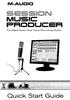 SESSION MUSIC PRODUCER The Make-Music-Now Vocal Recording Studio Quick Start Guide Session Music Producer Quick Start Guide 1 Introduction Congratulations on your purchase of M-Audio Session Music Producer:
User Guide FFFA001106. www.focusrite.com
 User Guide FFFA001106 www.focusrite.com TABLE OF CONTENTS OVERVIEW.... 3 Introduction...3 Features.................................................................... 3 Box Contents...3 System Requirements....4
QUICK SETUP GUIDE SETUP FOR ICONNEX SOUNDCARD AND AUDACITY RECORDING SOFTWARE
 QUICK SETUP GUIDE SETUP FOR ICONNEX SOUNDCARD AND AUDACITY RECORDING SOFTWARE SETUP GUIDE Congratulations on your purchase of the ikey Audio iconnex soundcard. This guide will help you setup the iconnex
USER GUIDE WIRELESS USB TO AUDIO KIT. Model: 29594
 USER GUIDE WIRELESS USB TO AUDIO KIT Model: 29594 1 TABLE OF CONTENTS Introduction...2 Features...3 System Requirements...4 Package Contents...5 Device Overview Wireless USB Host Adapter...6 Wireless Audio
USB 2.0 VGA ADAPTER USER MANUAL
 USB 2.0 VGA ADAPTER USER MANUAL CONTENTS INTRODUCTION... 3 FEATURES... 3 SYSTEM REQUIREMENTS... 3 PACKAGE CONTENTS... 3 SUPPORTED COMMON DISPLAY RESOLUTION... 4 TECHNICAL SPECIFICATIONS... 4 INSTALLATION
USER GUIDE ENGLISH ( 3 6 )
 USER GUIDE ENGLISH ( 3 6 ) GUÍA DEL USUARIO ESPAÑOL ( 7 10 ) GUIDE D'UTILISATION FRANÇAIS ( 11 14 ) GUIDA PER L'USO ITALIANO ( 15 18 ) BENUTZERHANDBUCH DEUTSCH ( 19 22 ) USER GUIDE (ENGLISH) Box Contents
SETUP GUIDE GUITAR RIG SETUP GUIDE
 SETUP GUIDE GUITAR RIG SETUP GUIDE The information in this document is subject to change without notice and does not represent a commitment on the part of Native Instruments GmbH. The software described
Bluetooth Installation
 Overview Why Bluetooth? There were good reasons to use Bluetooth for this application. First, we've had customer requests for a way to locate the computer farther from the firearm, on the other side of
AUDIO KONTROL 1. Operation Manual
 AUDIO KONTROL 1 Operation Manual The information in this document is subject to change without notice and does not represent a commitment on the part of NATIVE INSTRUMENTS GmbH. The software described
Contents. Hardware Configuration... 27 Uninstalling Shortcuts Black...29
 Contents Getting Started...1 Check your Computer meets the Minimum Requirements... 1 Ensure your Computer is Running in Normal Sized Fonts... 7 Ensure your Regional Settings are Correct... 9 Reboot your
Basics. Mbox 2. Version 7.0
 Basics Mbox 2 Version 7.0 Copyright 2005 Digidesign, a division of Avid Technology, Inc. All rights reserved. This guide may not be duplicated in whole or in part without the express written consent of
Features Reference. About Unified Communication System. Before Using This Machine. Starting a Meeting. What You Can Do During the Meeting
 Features Reference About Unified Communication System Before Using This Machine Starting a Meeting What You Can Do During the Meeting Leaving a Meeting Managing Address Book Changing Network Configuration
USB2VGA. Instruction Manual. USB to VGA Adapter. USB 2.0 to VGA External Multi Monitor Video Adapter
 USB to VGA Adapter USB2VGA Instruction Manual USB 2.0 to VGA External Multi Monitor Video Adapter FCC Compliance Statement This equipment has been tested and found to comply with the limits for a Class
User Guide USB 2.0 LAPTOP DOCKING STATION WITH VIDEO N2953
 USB 2.0 LAPTOP DOCKING STATION WITH VIDEO 410-1864-001B / ACP51US 1 YEAR LIMITED WARRANTY: We pride ourselves on the quality of our products. For complete warranty details and a list of our worldwide offices,
Live Recording with M7CL-48ES & AuviTran Network ASIO Streamer. Using Steinberg Cubase 5 or Nuendo 5.
 & AuviTran Network ASIO Streamer Using Steinberg Cubase 5 or Nuendo 5. Summary: This guide shows how quick and easy it is to achieve a high quality, live multitrack recording using Yamaha M7CL-48ES, stage-boxes
HP Advanced Wireless Docking Station. User Guide
 HP Advanced Wireless Docking Station User Guide Copyright 2014, 2015 Hewlett-Packard Development Company, L.P. Intel is a trademark of Intel Corporation in the U.S. and other countries. Windows and Windows
GETTING STARTED WITH STUDIO ONE ARTIST
 GETTING STARTED WITH STUDIO ONE ARTIST 2009, PreSonus Audio Electronics, Inc. All Rights Reserved. TABLE OF CONTENTS Studio One Artist Features...3 System Requirements...4 Installation and Authorization...5
Roxio Easy LP to MP3 Getting Started Guide
 Roxio Easy LP to MP3 Getting Started Guide Corel Corporation or its subsidiaries. All rights reserved. 2 Getting started with Roxio Easy LP to MP3 In this guide Welcome to Roxio Easy LP to MP3 3 System
Connecting to the Internet
 Connecting to the Internet Connecting the Gateway to the Internet Configuration of TCP/IP Protocol Installing the USB Drivers Connecting Ethernet Network Devices Connecting USB Network Devices Connecting
US-122L/US-144 Release Notes
 US-122L/US-144 Release Notes Updates Always ensure that you are running the latest driver software and US-122L or US-144 firmware by visiting TASCAM s web site (http://www.tascam.com). Important Notice
Universal Push2TV HD Adapter PTVU1000 Installation Guide
 Universal Push2TV HD Adapter PTVU1000 Installation Guide 2011 NETGEAR, Inc. All rights reserved. No part of this publication may be reproduced, transmitted, transcribed, stored in a retrieval system, or
SOFTWARE INSTALLATION AND USB/i.LINK CONNECTION GUIDE
 SOFTWARE INSTALLATION AND USB/i.LINK CONNECTION GUIDE ENGLISH LYT1155-001A COPYRIGHT 2003 VICTOR COMPANY OF JAPAN, LTD. M3D8 Printed in Japan 0403-FO-ID-VP This document explains the basic information
User Guide. VT1708A VIA HD Audio Adeck For Windows 2000, Windows XP & Server 2003. Jun 13 2007 Revision 1.1e
 VT1708A VIA HD Audio Adeck For Windows 2000, Windows XP & Server 2003 Jun 13 2007 Revision 1.1e VT1708A VIA HD Audio Adeck For Windows 2000, Windows XP & Server 2003 Revision History Rev Date Initial Note
Vodafone PC SMS 2010. (Software version 4.7.1) User Manual
 Vodafone PC SMS 2010 (Software version 4.7.1) User Manual July 19, 2010 Table of contents 1. Introduction...4 1.1 System Requirements... 4 1.2 Reply-to-Inbox... 4 1.3 What s new?... 4 2. Installation...6
Cubase LE 5. Installing Cubase LE 5. Trademarks. Quick Start Guide
 Cubase LE 5 Quick Start Guide This chapter explains basic operations for using the unit with Cubase LE 5. This explanation is not intended to replace the user s manual for Cubase LE 5. Also, since Cubase
BTH240 Wireless Bluetooth Headphone
 BTH240 Wireless Bluetooth Headphone User Manual 2012 Kinivo LLC. All rights reserved. Kinivo is a trademark of Kinivo LLC. Bluetooth word mark and the Bluetooth logo are registered trademarks of Bluetooth
How To Use An Easymp Network Projector On A Computer Or Network Projection On A Network Or Network On A Pc Or Mac Or Ipnet On A Laptop Or Ipro Or Ipo On A Powerbook On A Microsoft Computer On A Mini
 EasyMP Network Projection Operation Guide Contents 2 Before Use Functions of EasyMP Network Projection....................... 5 Sharing the Projector....................................................
Using the US-122 with GigaStudio and Cubasis
 Using the US-122 with GigaStudio and Cubasis To use the US-122 with the supplied GigaStudio 24 and Cubasis applications together on Windows, you will need to carry out the following steps after installing
Audio-Technica AT-LP60-USB, AT-LP120-USB, AT-LP240-USB & AT-LP1240-USB Turntables. Software Guide
 Audio-Technica AT-LP60-USB, AT-LP120-USB, AT-LP240-USB & AT-LP1240-USB Turntables Software Guide Audio-Technica USB Turntables Contents A note about software... 2 System requirements... 2 Installing Audacity
genie app and genie mobile app
 genie app and genie mobile app User Manual 350 East Plumeria Drive San Jose, CA 95134 USA June 2012 202-10933-02 v1.0 2012 NETGEAR, Inc. All rights reserved No part of this publication may be reproduced,
Chord Limited. Mojo Dac Headphone Amplifier OPERATING INSTRUCTIONS
 Chord Limited Mojo Dac Headphone Amplifier OPERATING INSTRUCTIONS -!1 - Cleaning and care instructions: Mojo requires no special care other than common sense. Spray window cleaner (clear type) may be used
M2TECH HIFACE Two 192KHZ/24BIT DIGITAL AUDIO INTERFACE USER MANUAL
 M2TECH HIFACE Two 192KHZ/24BIT DIGITAL AUDIO INTERFACE USER MANUAL REV. PrA 3/2012 Warning! Changes or modifications not authorized by the manufacturer can invalidate the compliance to CE regulations and
Point of view HDMI Smart TV dongle Mini RF Keyboard
 Point of view HDMI Smart TV dongle Mini RF Keyboard English Contents Contents... 1 General notices for use... 2 Disclaimer... 2 Box Contents... 2 1. HDMI TV dongle... 3 1.1. Product display... 3 1.2. Instructions
Nero MediaStreaming for MCE Manual
 Nero MediaStreaming for MCE Manual Nero AG Copyright and Trademark Information This manual and all its contents are protected by copyright and are the property of Nero AG. All rights reserved. This manual
SA-9600 Surface Area Software Manual
 SA-9600 Surface Area Software Manual Version 4.0 Introduction The operation and data Presentation of the SA-9600 Surface Area analyzer is performed using a Microsoft Windows based software package. The
OPERATION MANUAL. MV-410RGB Layout Editor. Version 2.1- higher
 OPERATION MANUAL MV-410RGB Layout Editor Version 2.1- higher Table of Contents 1. Setup... 1 1-1. Overview... 1 1-2. System Requirements... 1 1-3. Operation Flow... 1 1-4. Installing MV-410RGB Layout
USB VoIP Phone Adapter. User s Manual
 USB VoIP Phone Adapter User s Manual FCC Certifications This Equipment has been tested and found to comply with the limits for a Class B digital device, pursuant to part 15 and part 68 of the FCC Rules.
VMware Horizon FLEX User Guide
 Horizon FLEX 1.5 This document supports the version of each product listed and supports all subsequent versions until the document is replaced by a new edition. To check for more recent editions of this
Easy VHS to DVD 3 & Easy VHS to DVD 3 Plus. Getting Started Guide
 Easy VHS to DVD 3 & Easy VHS to DVD 3 Plus Getting Started Guide ii Roxio Easy VHS to DVD Getting Started Guide www.roxio.com Get Started with Roxio Easy VHS to DVD 3 In this guide Welcome to Roxio Easy
Point of View SmartTV-500 Center - Android 4.2. General notices for use...2 Disclaimer...2 Box Contents...2
 Point of View SmartTV-500 Center - Android 4.2 English Table of Contents General notices for use...2 Disclaimer...2 Box Contents...2 1.0 Product basics...3 1.1 Buttons and connections... 3 1.2 Connecting
Editor / Plug-In Editor Manual
 Editor / Plug-In Editor Manual E 3 Table of Contents Introduction................................................. Main features...................................................................... Please
USB 3.0 to HDMI/DVI Dual Display Adapter Installation Guide
 USB 3.0 to HDMI/DVI Dual Display Adapter Installation Guide Introduction The USB 3.0 to HDMI/DVI Dual Display Adapter lets you easily and quickly add dual displays to your USB 3.0 enabled system. Key Features
Dazzle. Digital Video Creator 100 User s Guide
 Dazzle Digital Video Creator 100 User s Guide Copyright SCM Microsystems. All rights reserved. Trademarks are used for informational purposes, and remain the property of their owners. Part number 401737
USB 2.0 4-PORT NETWORK HUB. User Manual DA-70251 DA-70252 1
 USB 2.0 4-PORT NETWORK HUB User Manual DA-70251 DA-70252 1 Copyright Notice Copyright DIGITUS 2010. All rights reserved. Disclaimer DIGITUS shall not be liable for technical or editorial errors or omissions
Safety Precautions WARNINGS
 Safety Precautions This guide contains a variety of safety markings related to the safe and correct operation of the USB Data Transfer Cable. Be sure to read this guide and any related manuals carefully
Copyright DECLARATION OF CONFORMITY. Canadian Compliance Statement: Australian Compliance. European Compliance
 MIDI I/O Guide Copyright This guide is copyrighted 2006 by Digidesign, a division of Avid Technology, Inc. (hereafter Digidesign ), with all rights reserved. Under copyright laws, this guide may not be
QUALITY AV PRODUCTS INMATE/INMATE USB PROFESSIONAL 19" MIXER. User Guide and Reference Manual
 INMATE/INMATE USB PROFESSIONAL " MIXER User Guide and Reference Manual INTRODUCTION Welcome to the NEWHANK INMATE and INMATE USB professional " mixers series user manual. INMATE and INMATE USB both offer
Wireless Keyboard & Optical Mouse. User Manual
 Wireless Keyboard & Optical Mouse User Manual Table of Contents Introduction... 1 Software Compatibility... 1 Product Features... 2 Quick Installation Setup for PS/2 Connections (PC-only)... 5 Quick Installation
XONE:23C QUICK START GUIDE
 XONE:23C QUICK START GUIDE Download Software Download Device Drivers Mac OS X The XONE:23C is class compliant and will work on a Mac without drivers, but for optimal performance we recommend you install
Bluetooth Wireless USB Adapter. User Manual (GBU211 / GBU311)
 Bluetooth Wireless USB Adapter User Manual (GBU211 / GBU311) Welcome Thank you for purchasing one of the most feature-rich Bluetooth to USB adapters available. IOGEAR s Bluetooth to USB adapters are first-rate
SOFTWARE MANUAL. Please ensure that you read the instruction manual carefully before use. About software
 SOFTWARE MANUAL Please ensure that you read the instruction manual carefully before use Software Notes The attached software is a camera driver and image editing software tool for Windows. Under no circumstances
Roxio Easy LP to MP3
 Roxio Easy LP to MP3 Getting Started Guide About Corel Corel is one of the world's top software companies providing some of the industry's best-known brands, including Roxio, Pinnacle and WinZip. Boasting
Digital Persona Fingerprint Reader Installation
 Digital Persona Fingerprint Reader Installation The link to download the Fingerprint Reader Software for AXIS-ACH is http://corpcu.com/fingerprint-reader-software This will begin the download for the drivers.
USB AUDIO INTERFACE. UR22 Operation Manual 1
 USB AUDIO INTERFACE EN DE FR ES IT ZH JA UR22 Operation Manual 1 Contents Contents Contents...2 A Message From the Development Team...3 Accessory disk...3 Power supply...3 Cubase AI Download...3 How to
Important HP Media Center PC Updates
 Important HP Media Center PC Updates Your system uses Microsoft Windows XP Media Center Edition 2005. Before starting the system and using the Media Center setup wizard, please read this updated information
Chapter 1 Downloading Images to Your Computer (Windows)
 Software User Guide For the safe use of your camera, be sure to read the Safety Precautions thoroughly before use. Types of software installed on your computer varies depending on the method of installation
ReSound Unite TV FREQUENTLY ASKED QUESTIONS. Setup & Configuration. Use & Operation. Troubleshooting
 Tip for use of FAQ: Click on questions to go to answer. Setup & Configuration How do I pair the hearing aids to the Unite TV?... 2 What is the latency of the streamed signal?... 2 Does the Unite TV use
Laptop Recorder OPERATION GUIDE. Laptop Serial Number (System ID): Original Seneca Data Order Number: SoniClear Order Number:
 Laptop Recorder OPERATION GUIDE Laptop Serial Number (System ID): Original Seneca Data Order Number: SoniClear Order Number: SoniClear Purchase Date: About This Manual This manual covers the installation
AK10 INSTRUCTION BOOK INSTRUCTION MANUAL
 AK10 INSTRUCTION BOOK INSTRUCTION MANUAL CONTENTS Getting started _01 Components Names of parts Power supply management 02 03 04 Using _02 Connecting iphone/ipod and listening to music Using the USB DAC
Install Device Drivers and Toolkit for Windows 7
 Install Device Drivers and Toolkit for Windows 7 The USB driver is required for all installations to assure that the computer communicates with the digitizer. Note: Installation instructions for Windows
Caplio Utility for Windows
 Caplio Utility for Windows Operation Manual English To ensure correct use of the product, read this manual carefully before use. Keep the manual handy for future use. Introduction Thank you for purchasing
User s Manual Model KB990W
 Wireless Internet Keyboard & Optical Mouse User s Manual Model KB990W FCC Statement This device complies with part 15 of FCC Rules. Operation is subject to the following two conditions: (1) this device
13 Managing Devices. Your computer is an assembly of many components from different manufacturers. LESSON OBJECTIVES
 LESSON 13 Managing Devices OBJECTIVES After completing this lesson, you will be able to: 1. Open System Properties. 2. Use Device Manager. 3. Understand hardware profiles. 4. Set performance options. Estimated
Message from the Development Team. Contents. Message from the Development Team..2. Panel Controls and Terminals...3. Using the UR22mkII...
 EN Contents Contents Message from the Development Team..2 Panel Controls and Terminals...3 Front Panel...3 Rear Panel...5 Software...7 Using the UR22mkII...10 Connections...10 Configuring Audio Driver
Important. Please read this User s Manual carefully to familiarize yourself with safe and effective usage.
 Important Please read this User s Manual carefully to familiarize yourself with safe and effective usage. About ScreenManager Pro for LCD... 3 1. Setting Up... 4 1-1. System Requirements...4 1-2. Installing
D i g i g r a m. sound card range. Professional stereo and multichannel sound cards. Installation and set-up
 D i g i g r a m VX sound card range Professional stereo and multichannel sound cards Table of contents VX Cards General information...4 Supported cards...4 System requirements...4 MacIntosh...4 System
N600 WiFi USB Adapter
 Model WNDA3100v3 User Manual December 2014 202-11470-01 350 East Plumeria Drive San Jose, CA 95134 USA Support Thank you for selecting NETGEAR products. After installing your device, locate the serial
Test Center Enterprise. ios Device Onboarding Guide
 Test Center Enterprise ios Device Onboarding Guide Copyright Copyright 2012 Keynote DeviceAnywhere. All Rights Reserved. March 2012. Notice 2012 Keynote DeviceAnywhere. All rights reserved. THE INFORMATION
Getting Started with VMware Fusion
 Getting Started with VMware Fusion VMware Fusion for Mac OS X 2008 2012 EN-000933-00 2 Getting Started with VMware Fusion You can find the most up-to-date technical documentation on the VMware Web site
InventoryControl for use with QuoteWerks Quick Start Guide
 InventoryControl for use with QuoteWerks Quick Start Guide Copyright 2013 Wasp Barcode Technologies 1400 10 th St. Plano, TX 75074 All Rights Reserved STATEMENTS IN THIS DOCUMENT REGARDING THIRD PARTY
How To Use An Easymp Network Projection Software On A Projector On A Computer Or Computer
 EasyMP Network Projection Operation Guide Contents 2 Before Use Functions of EasyMP Network Projection....................... 5 Sharing the Projector....................................................
Logic Pro 9. TDM Guide
 Logic Pro 9 TDM Guide Copyright 2009 Apple Inc. All rights reserved. Your rights to the software are governed by the accompanying software license agreement. The owner or authorized user of a valid copy
STB- 2. Installation and Operation Manual
 STB- 2 Installation and Operation Manual Index 1 Unpacking your STB- 2 2 Installation 3 WIFI connectivity 4 Remote Control 5 Selecting Video Mode 6 Start Page 7 Watching TV / TV Guide 8 Recording & Playing
STEREO BLUETOOTH WIRELESS HEADPHONES
 STEREO BLUETOOTH WIRELESS HEADPHONES model: AF32 USER MANUAL part of the series PACKAGE CONTENTS Runaway AF32 Stereo Bluetooth Wireless Headphones Charging cable (USB 3.5mm) Stereo audio cable (3.5mm 3.5mm)
BTX180 Wireless Bluetooth Speaker
 BTX180 Wireless Bluetooth Speaker User Manual 2012 Kinivo LLC. All rights reserved. Kinivo is a trademark of Kinivo LLC. Bluetooth word mark and the Bluetooth logo are registered trademarks of Bluetooth
KPN SMS mail. Send SMS as fast as e-mail!
 KPN SMS mail Send SMS as fast as e-mail! Quick start Start using KPN SMS mail in 5 steps If you want to install and use KPN SMS mail quickly, without reading the user guide, follow the next five steps.
DDJ-SB. DJ Controller. Operating Instructions
 DJ Controller DDJ-SB http://pioneerdj.com/support/ The Pioneer DJ support site shown above offers FAQs, information on software and various other types of information and services to allow you to use your