
Soundcraft Signature MTK Recording Guide
|
|
|
- Sharlene Hudson
- 9 years ago
- Views:
Transcription
1 Soundcraft Signature MTK Recording Guide

2 S O U N D C R A F T S I G N AT U R E M T K R E C O R D I N G G U I D E 2

3 Table of Contents USB Overview Installing the Drivers (PC Only) Finding the Correct Cable Navigating the Control Panel USB Send and Return Channels M/L: Mic/Line Recording to the LR Stereo Playback Stereo Playback Using a PC Stereo Playback Using a MAC REAPER Multi-track Recording Using REAPER Multichannel Playback Using REAPER Inserting Plug-ins on REAPER LOGIC Multi-track Recording Using LOGIC Multichannel Playback Using LOGIC Inserting Plug-in on LOGIC ABLETON LIVE LITE Stereo Recording Using ABLETON LIVE LITE Inserting Plug-Ins on ABLETON LIVE LITE

4 Soundcraft Signature MTK Recording Guide This Soundcraft Signature MTK Recording Guide is designed to give an overview on the Signature MTK s multi-track USB functionality and how it can be used for various recording and playback applications. This guide walks through various recording and playback scenarios with different DAWs and explains how to setup your Signature MTK console, your audio drivers, and your DAW. USB Overview The Soundcraft Signature MTK consoles feature a USB class compliant ASIO audio interface that records multiple channels up to 48khz, 24-bit audio resolution to any DAW. The USB port is a standard USB 2.0 connection that is compatible with any MAC or PC as well as an ipad (using a Camera Connectivity Kit). The Signature 12 MTK features a 14-in/12-out audio interface whilst the larger 22MTK features a 24-in/22-out audio interface. For PCs, Soundcraft multichannel USB ASIO/WDM drivers are required (available for download on the Soundcraft website) and are used to adjust settings such as buffer depth and streaming mode. MAC computers do not require these drivers as the Signature MTK USB audio interface uses Apple Core Audio drivers. Installing The Drivers (PC Only) Soundcraft Multichannel Audio Drivers can be found on the Soundcraft website ( under the respective product page downloads section. The install package includes WDM and ASIO drivers for low-latency operation. The ASIO drivers include a control panel which is used to configure driver settings for best performance. Before you install the PC drivers, connect the PC to the chosen console via USB and power up the console. Once the drivers are installed, shortcuts for the control panel are available on the desktop or under all programs- >Harman Pro->Soundcraft->Multichannel USB Audio as well as available in Windows System Tray. When the console is connected to the computer, taskbar icons will indicate a device has been detected; clicking the icon will open the appropriate control panel. When the drivers are installed on your PC, you will need to restart your machine for the install process to complete. NOTE: Additional drivers are not needed for Mac as the Signature MTK uses Apple s Core Audio drivers for USB recording and playback. 4

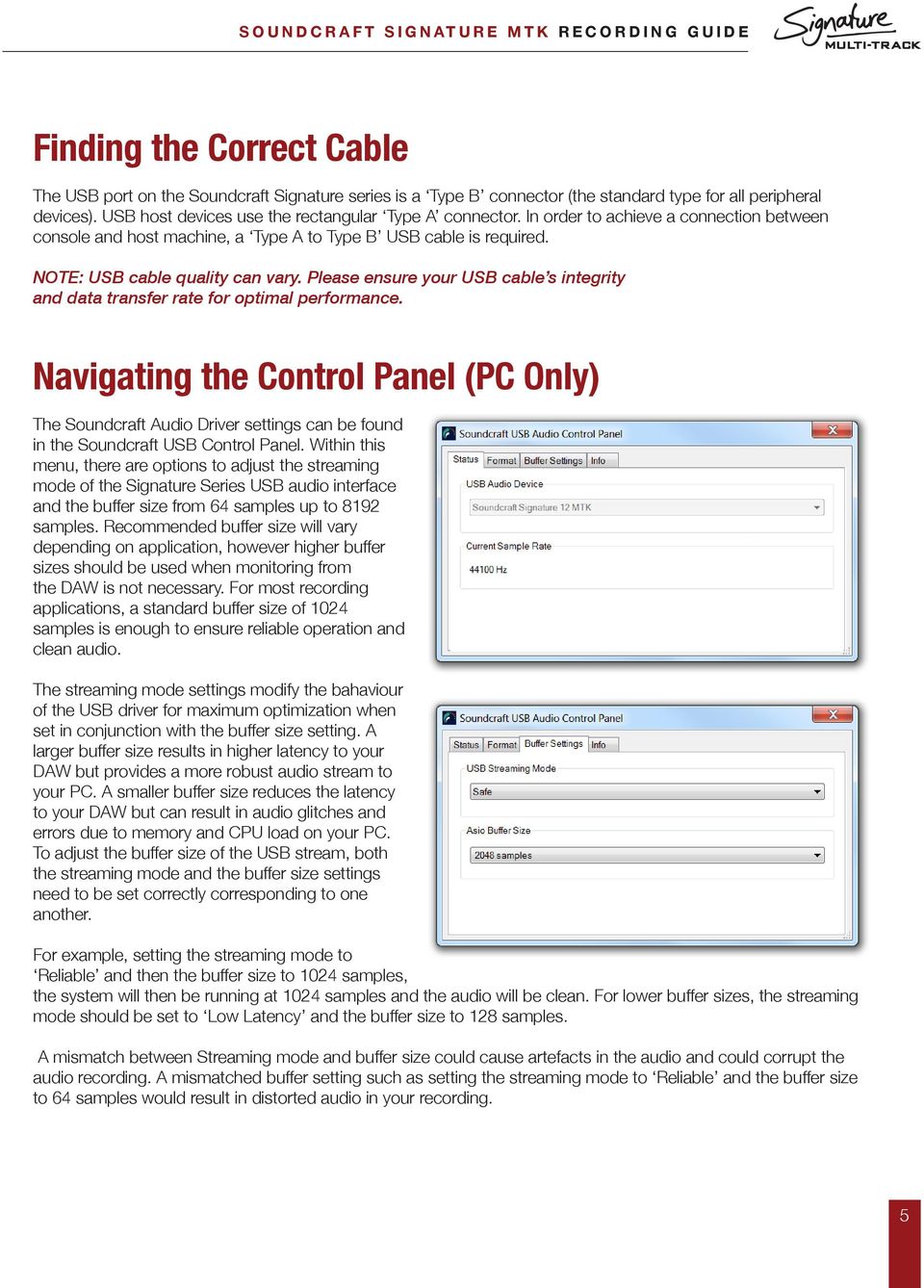
5 Finding the Correct Cable The USB port on the Soundcraft Signature series is a Type B connector (the standard type for all peripheral devices). USB host devices use the rectangular Type A connector. In order to achieve a connection between console and host machine, a Type A to Type B USB cable is required. NOTE: USB cable quality can vary. Please ensure your USB cable s integrity and data transfer rate for optimal performance. Navigating the Control Panel (PC Only) The Soundcraft Audio Driver settings can be found in the Soundcraft USB Control Panel. Within this menu, there are options to adjust the streaming mode of the Signature Series USB audio interface and the buffer size from 64 samples up to 8192 samples. Recommended buffer size will vary depending on application, however higher buffer sizes should be used when monitoring from the DAW is not necessary. For most recording applications, a standard buffer size of 1024 samples is enough to ensure reliable operation and clean audio. The streaming mode settings modify the bahaviour of the USB driver for maximum optimization when set in conjunction with the buffer size setting. A larger buffer size results in higher latency to your DAW but provides a more robust audio stream to your PC. A smaller buffer size reduces the latency to your DAW but can result in audio glitches and errors due to memory and CPU load on your PC. To adjust the buffer size of the USB stream, both the streaming mode and the buffer size settings need to be set correctly corresponding to one another. For example, setting the streaming mode to Reliable and then the buffer size to 1024 samples, the system will then be running at 1024 samples and the audio will be clean. For lower buffer sizes, the streaming mode should be set to Low Latency and the buffer size to 128 samples. A mismatch between Streaming mode and buffer size could cause artefacts in the audio and could corrupt the audio recording. A mismatched buffer setting such as setting the streaming mode to Reliable and the buffer size to 64 samples would result in distorted audio in your recording. 5

6 To avoid artefacts and to produce a reliable recording you should select the appropriate buffer size for the streaming mode. When a mismatch occurs, a dialogue will appear at the bottom of the control panel menu with instructions of where to go from the current setting to make a compatible setup. USB Send and Return Channels USB Send and Return channels are numbered according to console channel ledgering, so Signature 12MTK s input channels 1-12 for example are patched to USB audio channels 1-12 and Signature 22MTK s input channels are patched to USB audio channels Console channels always send their post-gain, pre-eq signal to their respective USB channel to be picked up and recorded by the PC/MAC Via USB. The 2-track (Master Left/Right) output uses the last 2 USB channels on each console and is always actively sending post fader level down the USB stream. Console channels can be set up to receive USB Input and can be engaged per-channel with the USB RTN button located on each channel strip. This means that channels that have been sent to the DAW for recording can then be returned from the DAW, back through the console, converted to analogue and mixed as a standard input source. This makes things like Virtual soundcheck and playback as easy as hitting the USB return button on the desired console channels. Graphs 1 and 2 show the relationship between the input channels coming from the Mic pre, the USB Send number and subsequently the USB return number for multichannel USB playback. USB Send Channels (to DAW) Channel 01 M / L Channel 02 M / L Channel 03 M / L Channel 04 M / L Channel 05 M / L Channel 06 M / L Channel 07/08 M / L L Channel 09/10 M / L L Channel 11/12 L L Mix LR GRAPH 1 6

7 M/L: Mic/Line Input sources on the console are split into Mic and Line input sources. Channel 1 for example features an XLR Mic and ¼ Jack line input and so the check box in Graph 1 is labeled M/L. On channel 9/10 however, the channel strip features a Mic input and a set of stereo line input jacks (split into Left and Right). Mic and L/ Mono line input jack are connected to USB channel 9 but the other jack (input 10/Right) is sent down USB channel 10. This needs to be taken into consideration when sending inputs to and from the DAW as a USB send from USB out 9 will be received by the left side of channel 9/10 on the console and USB channel 10 will send down the right side of the stereo channel. Recording the LR As you can also see in Graph 1, the USB channels 13 and 14 (23 and 24 on 22MTK) are reserved for the LR stereo signal. This allows the user to record the final mix on the console back into the DAW for an audio mix down or analogue summing purpose. The A/D conversion (the process of converting the analogue LR signal to digital) takes place after the analogue summing of the input channel allowing for true analogue summing of the input signals. The signal is sent POST-FADER to the USB and so adequate fader level must be achieved in order to record a reasonable level for processing further. Graph 2 displays the relationship between the input channels and their corresponding USB channel coming into the console from the DAW. For example, to receive a USB input to channel 6 of the mixer, you must assign the DAW track output to USB channel 6, switch the USB RTN switch ON for channel 6 and then you will be receiving USB audio. Repeat across the console for Multi-track playback. Channel 01 Channel 02 Channel 03 Channel 04 Channel 05 Channel 06 Channel 07/08 Channel 09/10 Channel 11/12 USB Send Channels (to DAW) GRAPH 2 7


8 Stereo Playback Stereo playback using PC In order to use the USB port to play standard MP3 s or WAV files from your PC, there is a small amount of setup required from the control panel in order to send the stereo file to the appropriate channel on the console. On the Signature 12 and 22MTK respectively, channels 11/12 and 21/22 are stereo channels that are best suited for stereo playback of things such as interval music or backing tracks from the PC. These channels are excluded from the interval mute function and so will playback even when interval mute is engaged. To assign stereo playback out of the desired USB channel: 1. Firstly enter the control panel and select Hardware and Sound (Or just sound depending on your view settings) 2. Select Manage Audio Devices 3. You will then be presented with a list of output options a. From this list, you can select the output that corresponds with the desired playback channel on the console. Ch 11/12 on Signature 12MTK and channel 21/22 on Signature 22MTK. 4. Finally you must enable the USB return option on the consoles playback channel (or the channel number that has just setup). NOTE: All system sounds will also play through the USB audio interface so caution must be taken when navigating the operating system during a performance. These sounds can be turned off in the sounds menu if desired. 8

9 Stereo playback using MAC: To assign stereo playback out of USB channels 11/12 (21/22 on 22MTK): 1. Firstly enter the Audio MIDI setup control panel that can be found by the Mac search bar or in the launch pad > other folder. 2. When Audio MIDI Setup has opened, you will notice a Soundcraft x -channel audio driver selection on the left column. 3. To assign this device as the default output, right click the selection and click use this device for sound output. 4. You then need to set the output to USB channels 11/12 (21/22 on 22MTK). a. To do this, you need to right click the Soundcraft x -channel audio driver and select configure speakers. b. From this dialogue, you can assign a Left and Right output from the Mac to playback through channels 11 and 12 respectively on the console (21/22 on 22MTK). 5. Finally you must enable the USB return option on the consoles playback channel (or the channel number that has just setup). NOTE: All system sounds will also play through the USB audio interface so caution must be taken when navigating the operating system during a performance. These sounds can be turned off in the sounds menu if desired. 9

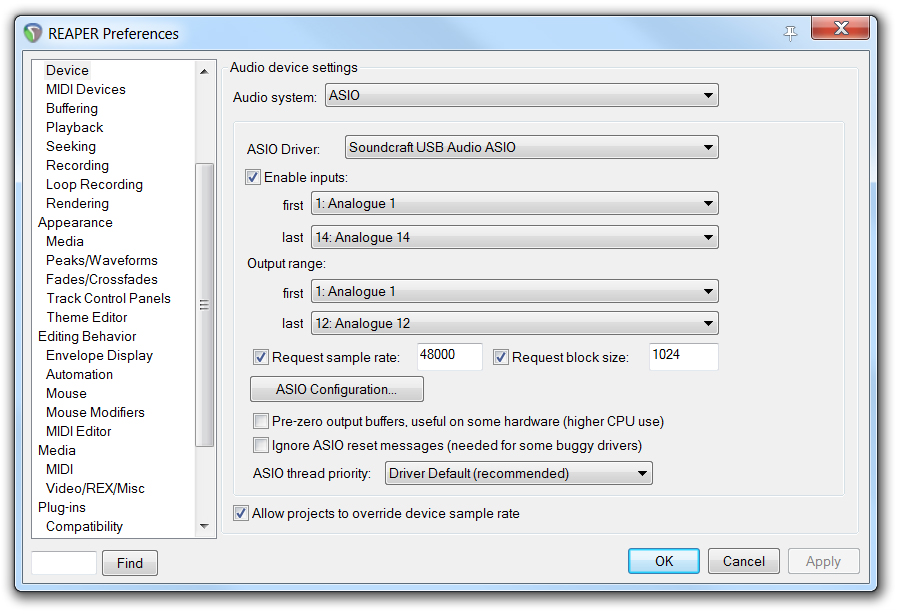
10 REAPER Multi-track recording using REAPER After the drivers have been installed on the PC and the console is connected to your chosen machine (PC or MAC) we can begin to setup a project and start recording. The following steps walk through DAW specific instructions for setting up the recording interface, patching inputs, outputs, enabling record and adjusting sample rate settings from the DAW. In this example, we will be covering REAPER however we will look into other DAWs in proceeding sections. After you have installed REAPER following the detailed steps from the on screen procedure, you can then start the program. Once it has loaded, you will be presented with an empty project. Before tracks can be added and recording can begin, you must first assign REAPER to use the Soundcraft Multichannel audio interface. 1. Firstly, go into the options tab at the top of the screen and scroll down to preferences. 2. On the left menu, scroll down to device under the audio heading. 3. Select the Audio system drop down and select ASIO a. If you have more than one ASIO driver installed on your machine, ensure that Soundcraft USB Audio ASIO is selected on the ASIO Driver drop down menu. 4. Select the desired range of inputs and outputs under the appropriate drop down menus. a. For maximum record and playback facilities on the Soundcraft Signature 12, engage inputs Analogue 1 - Analogue 14 and outputs Analogue 1 - Analogue 12. b. Signature 22MTK will require a larger range of inputs such as Analogue 1- Analogue 24 and outputs Analogue 1 Analogue Check the request sample rate box and enter your desired sample rate. a khz recording should be entered as and 48 khz recording should be entered as NOTE: higher sample rates are not compatible with the Signature series Multi-track consoles. 10


11 6. Close the REAPER preferences screen and return to the blank project. 7. Go into insert at the top of the screen and select multiple tracks 8. Enter your desired amount of record tracks in the insert how many tracks box. The maximum is 14 for the Signature 12MTK so for this example we will insert 14 tracks. a. The maximum recording channels on the 22MTK is 24, so to record all available input signals, add 24 tracks into REAPER. 9. Next we must assign the channels within REAPER to receive signals incoming via USB FROM the console into the appropriate tracks in REAPER. Go into View at the top of the screen and open up the Routing Matrix. a. You will be presented with a Matrix that has Sources down the left column and destinations across the top. b. In order to patch 1:1 the console USB sends and REAPER channels we must engage the connection between the source and destination. c. Engaging a connection is done simply by clicking in the appropriate box in the grid. 10. Scroll across the top through all of the track names and assign the patches to the desired analogue input. a. Track 1 to Analogue 1, Track 2 to analogue 2, Track 3 to analogue 3... b. When a patch is made you will see a red circle appear in the desired patch. c. You will end up with a diagonal line running from track 1 input 1 to track 14 input 14. (Track 24 to input 24 on signature 22MTK) d. After all the patches have been made, exit out of the routing matrix. 11. Open up the mixer view from the View tab by entering View at the top of the screen and selecting Mixer. (It may already be open at the bottom of the screen). 12. Record enable all of your input tracks by engaging the record arm key on each channel fader. 13. At this point, if any input sources are coming into the desk, you will see the channel meters on REAPER begin to show level. 11


12 14. When you are ready to record the show, select the master record button by the transport control to begin recording! You will see waveforms starting to appear in the transport window indicating tracks are being recorded and audio is being written to the hard disk. 15. Once you have finished recording, simply press the space bar on your keyboard or press the STOP key on REAPER s transport section. You will then be prompted with a dialogue requesting an action with your recently recorded audio files. Press SAVE ALL if you wish to keep the audio or DELETE ALL if you wish to try again. TIP: You can always delete unnecessary audio; you can t make it up the event! We always suggest you keep all takes and audio files until after everything can be reviewed in a different location with a fresh pair of ears. You may have missed the magic take! Multichannel playback using REAPER Once your project has been created and tracks have been recorded, you can then follow a few more steps to playback the channels from the DAW back through the console. To do this, we must assign the outputs of each channel to the corresponding USB output. In REAPER, this can be done via the convenient routing matrix screen. 1. Firstly, open up the routing matrix via the view menu at the top of the screen. 2. Along the top of the grid you can see the possible destinations (USB Outputs) and down the left of the grid you can see the input channels laid out consecutively. a. We must first unassign the master output by deselecting the patch that is made by default connecting master output to Analogue 1 (stereo). 3. Next, find channel 1 on the left hand column and follow across the rows until you can see analogue output 1. Connect this patch by clicking on the grid in the resulting box. a. Then we must repeat the same steps for channel 2 by connecting channel 2 to analogue output 2. b. When all of the channels are patched, you will be left with a diagonal line of patches indicating that the channels within the DAW are patched to their respective USB outputs. 4. Moving back to the console, next we must engage the USB RTN switch located below the input gain control on the console channels. a. Once switched, the console channels are ready to receive audio via USB. 5. Before pressing play on REAPER, you must first deactivate the record enable switches located in the DAW channel strips. a. This is for safety to avoid recording over your recorded show and also to avoid any chance of feedback loops occurring etc. 6. Once the above steps are complete, you can press play on the transport controls within REAPER and begin mixing the USB signals with the powerful mixing capabilities of the console. 12

13 Inserting plug-ins on REAPER Once the project has been created and the tracks have been setup to send and receive out of the corresponding USB channels of the mixer, you are able to follow a few extra steps in order to use plug-ins inserted into the input channels. On REAPER, the process is quick and easy. 1. Once your tracks are setup to receive and send out of the corresponding USB channels, you then need to enable monitoring on each channel. a. This allows the audio to pass through the audio tracks channel strip and back out of the USB channel. 2. On each audio channel you need to select the small speaker icon beneath the solo button on each track. a. Engaging this button allows for Input record monitoring. You will not notice any audio going through the channel strip until you follow the next step. 3. Finally, on each audio track you need to engage the record enable button in order for the audio to pass through the input channels. a. After engaging this button on each track, you should notice an input meter on channel begin to show level. 4. You can now click on the rectangular insert points above the fader and the outputs/sends section to select your desired plug in insert and effect the input channel. You can use the DAW fader as a return level back into your console if you need to make any adjustments to the gain structure. LOGIC Multi-track recording using LOGIC Once LOGIC has loaded, you will be presented the LOGIC toolbar at the top of the screen. Before tracks can be added and recording can begin, you must first create a new project. 1. Go into the File menu at the top of the screen and select the New option. a. You will then be presented with a dialogue to select the preferred new project template based on preference. b. We suggest using an Empty project. 2. Once the project has loaded up, you may be prompted to add an audio track. For now, select Create to add a track and get the project started. We will delete this track later. 3. Now we must assign our desired audio interface into LOGIC. To do this, select the preferences icon located on the top toolbar of logic and select Audio. 13


14 4. Select the output device drop-down and scroll down to select Soundcraft Signature 12 MTK (22 MTK if you are using the larger model). a. Once the output device has been selected, you can then do the same for the Input device drop-down. b. Once both the input and output device has been set to the Soundcraft Signature 12MTK, press Apply Settings and can exit this dialogue and return to the blank project arrange screen. 5. Next, enter the Settings tab located in Logic s toolbar section and select the sub heading Audio. a. From here, it is possible to select your desired project sample rate under the Sample rate drop-down menu. b. On a Signature MTK console there will only be options for either 44.1kHz or 48kHz. c. Select your desired sample rate and exit the Settings tab returning to the arrange page with your blank project. NOTE: higher sample rates are not compatible with the Signature series Multitrack consoles. 6. Now it is time to add the audio tracks for recording. Above the temporary audio track we created earlier, there is a small + icon. Select this button and you will be presented with the new tracks menu screen. a. In the number dialogue, we need to type in our desired number of recording channels. For this example, we ll type in 14. b. Make sure that the format is set to mono and the Input is set to input 1. Select the ascending box to ensure Logic creates consecutive input patches for the following channels. c. Next, we must assign the output range. Select the output drop down box, hold the cursor over output, then over mono and finally, select output 1. d. Select the ascending box by the output drop down to ensure Logic creates consecutive output patches for the following channels. e. Finally, we must select record enable on the final check box to automatically record enable all of the DAW tracks. f. After the above steps have been followed, you can then select Create to add these tracks into the project. 14 NOTE: If any input sources are coming into the desk at this point, you will see the channel meters on LOGIC begin to indicate level.

15 7. When you are ready to record the show, select the master record button by the transport control section to begin recording! You will see waveforms starting to appear in the transport window indicating tracks are being recorded and audio is being written to the hard disk. 8. Once you have finished recording, simply press the space bar on your keyboard or press the STOP key on LOGIC s transport section. Multichannel playback using Logic Once your project has been created and tracks have been recorded, you can then follow a few more steps to playback the channels from the DAW back through the console for an analogue style mixing session. To do this, you must assign the outputs of each channel to the corresponding USB channel of the console. If you followed all of the above steps from the previous procedure, you will already be setup and ready for playback through the console. If you DID follow the steps above: All that is required by the user is to disable the record enable icon on each DAW track, enable the USB RTN switch on the console channels and to press play on the DAW s transport controls. If you did NOT follow the steps above: You can follow the below steps to patch the DAW channels to the correct USB outputs following steps: 1. Open up the Mixer view by pressing either COMMAND+2 on the keyboard or via the view tab at the top of the screen. a. You will then be presented with the Mixer interface; All of the DAW channels are laid out from left to right and above each channel fader and pan control there are 2 dialogue boxes that contain the input and output patch of each channel. 2. Click and Hold the bottom of the two I/O boxes to open up the output selection pop up. 3. Scroll down to outputs, mono and select output 1 (Or the first part of stereo dialogue). 4. Then assign the next tracks output to be mono output 2. Repeat across all recorded channel either to assign the Daw outputs to the mixers USB interface. 5. Once all of the tracks have been patched to their respective outputs, you then need to disable record enable on each input tracks and then press play on Logic s transport bar. 15

16 Inserting plug-ins on LOGIC Once the project has been created and the tracks have been setup to send and receive out of the corresponding USB channels of the mixer, you are able to follow a few extra steps in order to use plug-ins inserted into the input channels. On Logic, the process is quick and easy. 1. Select the preferences icon located on the top toolbar of logic and select Audio. 2. Check the box that is labeled software monitoring. a. This setting allows audio to pass through the DAW from input to output and will allow the DAW channel to be inserted into the mixer. 3. The next setting we need to adjust is the Buffer Size located in the drop down menu. a. In order to achieve minimal latency, we must engage the lowest buffer setting possible. We recommend a buffer size of 64 or 128 samples to retain reliability and achieve lowest latency. Note: Buffer size determines the amount of latency you will hear in and out of your DAW. When you are recording, you should set the buffer size to a lower amount to reduce the amount of latency for more accurate monitoring. The downside to lowering the buffer size is that it puts more pressure on your computer s processors and forces them to work harder. The lowest buffer size that can be achieved is dependent on the performance of your computer and the amount of processing employed in your DAW. b. Once the buffer size has been set, press Apply and close the dialogue. 4. Next, select record enable on all of the input channels, at this point you should notice the meters begin to show level. 5. Engage USB RTN on the console for all of the input channels you wish to insert plug-ins, you should now notice signal being returned back into the console via the DAW. 6. The signal path is now being sent post gain, through the DAW and back into the console for further processing. You are now able to insert plug-ins into the incoming channels for extra processing via LOGIC. a. LOGIC has another setting for even lower latency when monitoring through the DAW. This setting disables all high power plug-ins that may be active and be causing extreme latency to achieve the lowest possible delay from input to output. To enable this setting, right click the logic transport bar and check the box that allows for Ultra-low latency operation. This setting can then be enabled/disabled from the transport panel using the speedo icon. 16

17 ABLETON LIVE LITE Stereo recording using ABLETON LIVE LITE After the drivers have been installed on the PC and the console is connected to your chosen machine (PC or MAC) we can begin to setup a project and start recording! The following steps walk through DAW specific instructions for setting up the recording interface, patching inputs, outputs, enabling record and adjusting sample rate settings from the DAW. In this example, we will be covering ABLETON LIVE LITE, however the setup also covers ABLETON LIVE and ABLETON SUITE. After you have installed ABLETON LIVE LITE and followed the detailed steps during the install procedure, start ABLETON LIVE LITE. Once it has loaded, you will be presented with an empty project (or your previously loaded project depending on your settings). Before tracks can be added and recording can begin, you must first assign ABLETON LIVE LITE to use the Soundcraft Multichannel audio interface. 1. First, you must open up the preferences menu On a Mac this is under the live tab at the top of the screen. a. From here you will need to assign an Audio Input Device As well as an Audio Output Device. Select the drop down menus and select the Soundcraft Digital option under each drop-down. b. Once the audio driver is selected, you will then see the options for sample rate, and buffer sizes appear below. Beneath Audio Output Device, you will see an option for Input Config and Output Config. c. Select Input Config and engage the correct stereo pair for the console you have (11/12 or 21/22). You can then select Output config and assign the USB return to one of the available USB outputs. Setting these channels to the corresponding Stereo return channels on the mixer would mean that you can playback your recorded files with a simple button press on the consoles USB return. 17

18 d. Once these are selected, you can close the window and return to the arrange page. Note: For familiarity with other DAWs, consider using the Arrangement View of ABLETON LIVE LITE over the Session View using the view type in the top right of the screen. e. Once you are in the arrange page, you can then assign an audio track to receive audio from the console. This can be done using the drop down located in the audio track. f. Turn on input monitoring by engaging the IN beneath the input selection drop down. After doing this, you will then notice input signal appearing on the track meter. g. Then finally, record enable the track by engaging the record arm button and then select Record on the top navigation bar to begin recording the audio; you will see a waveform appear on arrange page when the audio is recording correctly and the inputs are setup. Finally, press the record button on the navigation bar again to stop the recording process. 18

19 Inserting plug-ins on ABLETON LIVE LITE Once the project has been created and the tracks have been setup to send and receive out of the corresponding USB channels of the mixer, you are able to follow a few extra steps in order to use plug-ins inserted into the input channels. On ABLETON LIVE LITE, the process is quick and easy. 1. Once your tracks are setup to receive and send out of the corresponding USB channels, you then need to enable monitoring on each channel. a. This allows the audio to pass through the audio tracks channel strip and back out of the USB channel. 2. On each audio channel you need to select ON which is located just beneath the input source selection. a. After engaging this button on each track, you should notice an input meter on channel begin to show level. 3. You can now click on Audio effects on the left hand side column and begin to drag and drop Audio effects into the track space at the bottom of the arrange page. a. Once a plug in is dropped into position, the audio will begin to be affected by the selected plug in. You can use the DAW fader as a return level back into your console if you need to make any adjustments to the gain structure. 19

20 Soundcraft, Harman International Industries Ltd., Cranborne House, Cranborne Road, Potters Bar, Hertfordshire EN6 3JN, UK T: +44 (0) F: +44 (0) E: Soundcraft USA, 8500 Balboa Boulevard, Northridge, CA 91329, USA T: F: E:

Mbox Basics Guide. Version 6.7 for LE Systems on Windows XP or Mac OS X. Digidesign
 Mbox Basics Guide Version 6.7 for LE Systems on Windows XP or Mac OS X Digidesign 2001 Junipero Serra Boulevard Daly City, CA 94014-3886 USA tel: 650 731 6300 fax: 650 731 6399 Technical Support (USA)
Live Recording with M7CL-48ES & AuviTran Network ASIO Streamer. Using Steinberg Cubase 5 or Nuendo 5.
 & AuviTran Network ASIO Streamer Using Steinberg Cubase 5 or Nuendo 5. Summary: This guide shows how quick and easy it is to achieve a high quality, live multitrack recording using Yamaha M7CL-48ES, stage-boxes
Live Recording with AuviTran AV3rd-ES100 & Network ASIO Streamer
 Live Recording with AuviTran AV3rd-ES100 & Network ASIO Streamer Using Steinberg Nuendo 5. 1 Summary: This guide shows how quick and easy it is to achieve a high quality, live multitrack recording using
Live Recording with M7CL or PM5D Via EtherSound. Using Steinberg Cubase 4 or Nuendo 4
 Live Recording with M7CL or PM5D Via EtherSound Using Steinberg Cubase 4 or Nuendo 4 Summary: This guide will show how quick and easy it is to achieve a high quality, live multi-track recording using a
Editor / Plug-In Editor Manual
 Editor / Plug-In Editor Manual E 3 Table of Contents Introduction................................................. Main features...................................................................... Please
Using the US-122 with GigaStudio and Cubasis
 Using the US-122 with GigaStudio and Cubasis To use the US-122 with the supplied GigaStudio 24 and Cubasis applications together on Windows, you will need to carry out the following steps after installing
Basics. Mbox 2. Version 7.0
 Basics Mbox 2 Version 7.0 Copyright 2005 Digidesign, a division of Avid Technology, Inc. All rights reserved. This guide may not be duplicated in whole or in part without the express written consent of
Professional 24-bit USB Audio Interface. User s Guide
 Professional 24-bit USB Audio Interface User s Guide - Copyright 2016 Revision 1, January 2016 www.esi-audio.com INDEX 1. Introduction... 4 1.1 Features... 4 2. Installation... 5 2.1 System Recommendation...
Message from the Development Team. Contents. Message from the Development Team..2. Panel Controls and Terminals...3. Using the UR22mkII...
 EN Contents Contents Message from the Development Team..2 Panel Controls and Terminals...3 Front Panel...3 Rear Panel...5 Software...7 Using the UR22mkII...10 Connections...10 Configuring Audio Driver
Getting Started with a blank desk...3. Understanding the Rear Panel and Top Connectors...3. Understanding the Front Panel...5
 2nd Edition Table of contents Getting Started with a blank desk...3 Understanding the Rear Panel and Top Connectors...3 Understanding the Front Panel...5 Controlling Channel Faders...6 Changing INPUT PATCH...7
GETTING STARTED WITH STUDIO ONE ARTIST
 GETTING STARTED WITH STUDIO ONE ARTIST 2009, PreSonus Audio Electronics, Inc. All Rights Reserved. TABLE OF CONTENTS Studio One Artist Features...3 System Requirements...4 Installation and Authorization...5
User Guide FFFA001106. www.focusrite.com
 User Guide FFFA001106 www.focusrite.com TABLE OF CONTENTS OVERVIEW.... 3 Introduction...3 Features.................................................................... 3 Box Contents...3 System Requirements....4
USER GUIDE ENGLISH ( 3 6 )
 USER GUIDE ENGLISH ( 3 6 ) GUÍA DEL USUARIO ESPAÑOL ( 7 10 ) GUIDE D'UTILISATION FRANÇAIS ( 11 14 ) GUIDA PER L'USO ITALIANO ( 15 18 ) BENUTZERHANDBUCH DEUTSCH ( 19 22 ) USER GUIDE (ENGLISH) Box Contents
2. Download, save and unzip the Cambridge Audio USB 2.0 driver from the Cambridge Audio website
 ASIO (Audio Stream Input/Output) is another method of audio transport which is superior to WASAPI as it bypasses the Windows Kernel Mixer (and the distortion this adds). Just like WASAPI, to use ASIO the
Recording using Cubase LE 6
 PowerMate 3 /CMS 3 Application Note 1 Recording using Cubase LE 6 This document describes how to record a live event using the DIGITAL AUDIO INTERFACE of the PowerMate 3 / CMS 3. In preparation for the
Soundcraft Multi Digital Card
 APPLICATION NOTE Soundcraft Multi Digital Card The Soundcraft Multi Digital Card for the Si consoles provides USB, FireWire and ADAT interfaces to external equipment. The USB and FireWire connectors provide
Logic Pro 9. TDM Guide
 Logic Pro 9 TDM Guide Copyright 2009 Apple Inc. All rights reserved. Your rights to the software are governed by the accompanying software license agreement. The owner or authorized user of a valid copy
Table of Contents Getting Started... Recording...11 Playing Back...14
 USER GUIDE Table of Contents Getting Started...4 Main Window Essentials...5 Operation Modes...7 Setup...8 Recording...11 Tracks... 11 > Track Names... 11 > Adding Tracks... 11 > Master Bus... 11 > Track
2.0 AUDIO RECORDING INTERFACE
 24-Bit/96kHz USB 2.0 AUDIO RECORDING INTERFACE USER MANUAL 1 of 13 Contents: 1. Instruction 03 2. Key Features 03 3. Front Panel 03 4. Rear Panel 04 5. Minimum System Requirements 04 6. Installation Process
328 XD SONORUS STUDI/O STEREO INPUTS. 0dBFS = 18dBu. MIX dbfs RIGHT SELECT MUTE AES/EBU SOLO EXIT FUNCTION S/PDIF PARAMETER CLOCK CLOCK IN OUT IN MIDI
 0dBFS = 18dBu 0 2 4 6 8 10 12 14 16 18 21 24 27 30 35 40 MIX dbfs RIGHT STE-1 STE-2 STEREO INPUTS SELECT MUTE EXIT FUNCTION AES/EBU OUT IN SOLO PARAMETER WORD WORD/SUPER CLOCK CLOCK IN OUT IN IN S/PDIF
by HARMAN MADI-USB Combo Card User Guide
 by HARMAN MADI-USB Combo Card User Guide IMPORTANT Please read this manual carefully before using your card for the first time. This This equipment equipment complies complies with the EMC directive 2004/108/EC
PATCH SYSTEM SIGNAL FLOW. Figure 10-1: Patch Signal Flow. Soundcraft Vi Series User Guide 1112 Page 10-1
 PATCH SYSTEM SIGNAL FLOW Figure 10-1: Patch Signal Flow. Soundcraft Vi Series User Guide 1112 Page 10-1 OVERVIEW The patch system of the Soundcraft Vi Series is divided into functional groups allowing
Audio-Technica AT-LP60-USB, AT-LP120-USB, AT-LP240-USB & AT-LP1240-USB Turntables. Software Guide
 Audio-Technica AT-LP60-USB, AT-LP120-USB, AT-LP240-USB & AT-LP1240-USB Turntables Software Guide Audio-Technica USB Turntables Contents A note about software... 2 System requirements... 2 Installing Audacity
PART 1. Using USB Mixer with a Computer
 PART 1. Using USB Mixer with a Computer Universal Serial Bus Mixers The USB mixer is equipped with either one or two USB ports that allow you to play and record audio directly from your computer! Just
US-122L/US-144 Release Notes
 US-122L/US-144 Release Notes Updates Always ensure that you are running the latest driver software and US-122L or US-144 firmware by visiting TASCAM s web site (http://www.tascam.com). Important Notice
SESSION MUSIC PRODUCER The Make-Music-Now Vocal Recording Studio
 SESSION MUSIC PRODUCER The Make-Music-Now Vocal Recording Studio Quick Start Guide Session Music Producer Quick Start Guide 1 Introduction Congratulations on your purchase of M-Audio Session Music Producer:
USER GUIDE ENGLISH ( 3 6 )
 USER GUIDE ENGLISH ( 3 6 ) GUÍA DEL USUARIO ESPAÑOL ( 7 10 ) GUIDE D'UTILISATION FRANÇAIS ( 11 14 ) GUIDA PER L'USO ITALIANO ( 15 18 ) BENUTZERHANDBUCH DEUTSCH ( 19 22 ) USER GUIDE (ENGLISH) Box Contents
Editor / Plug-In Editor Manual
 Editor / Plug-In Editor Manual E 4 Table of Contents Introduction................................................. 1 Main features......................................................................
WAVES. MultiRack SETUP GUIDE V9.80
 WAVES MultiRack SETUP GUIDE V9.80 1 Table of Contents 1. Overview... 3 2. Basic Requirements... 3 3. Software... 4 4. Required Waves Licenses... 4 5. Installing MultiRack... 5 6. MultiRack Native... 6
Tutorials. Digital Audio System. E-MU Proteus X LE Steinberg Cubase LE Steinberg WaveLab Lite Cakewalk Sonar LE Ableton Live Lite 4 for E-MU
 Digital Audio System Tutorials E-MU Proteus X LE Steinberg Cubase LE Steinberg WaveLab Lite Cakewalk Sonar LE Ableton Live Lite 4 for E-MU E-MU 1212 m /1820/1820 m PCI Digital Audio System 1 E-MU 1212
Getting Started Guide
 Getting Started Guide Overview Launchpad Mini Thank you for buying our most compact Launchpad grid instrument. It may be small, but its 64 pads will let you trigger clips, play drum racks, control your
Calrec SoundGrid I/O. User Guide
 Calrec SoundGrid I/O User Guide 1 TABLE OF CONTENTS 1. Introduction... 3 1.1 About SoundGrid and the Calrec Audio Interface... 3 1.2 Typical Uses... 4 1.3 Native/SoundGrid Comparison Table... 6 2. Hardware
D i g i g r a m. sound card range. Professional stereo and multichannel sound cards. Installation and set-up
 D i g i g r a m VX sound card range Professional stereo and multichannel sound cards Table of contents VX Cards General information...4 Supported cards...4 System requirements...4 MacIntosh...4 System
QUALITY AV PRODUCTS INMATE/INMATE USB PROFESSIONAL 19" MIXER. User Guide and Reference Manual
 INMATE/INMATE USB PROFESSIONAL " MIXER User Guide and Reference Manual INTRODUCTION Welcome to the NEWHANK INMATE and INMATE USB professional " mixers series user manual. INMATE and INMATE USB both offer
Appendix A. CMS(Client Management Software)
 Appendix A. CMS(Client Management Software) A-1. Install CMS for Windows PC CMS is a program for communication between DVR and PC to control signal and video. Insert the enclosed CD, and go to CD-ROM Drive
Document authored by: Native Instruments GmbH Software version: 2.7 (01/2015)
 Setup Guide Disclaimer The information in this document is subject to change without notice and does not represent a commitment on the part of Native Instruments GmbH. The software described by this document
OVERVIEW HARDWARE. Mode buttons. USB Micro socket. Kensington Security Slot. 8x8 playable grid. Mode buttons
 OVERVIEW Launchpad Mini is a compact version of the celebrated Novation Launchpad for the ipad generation. 64 three-colour pads enable you to produce and perform music with your ipad by triggering samples
MixMeister EZ Converter Setup & Troubleshooting Contents:
 MixMeister EZ Converter Setup & Troubleshooting Contents: Windows Vista and Windows 7 Setup Instructions... 2 Windows XP Setup Instructions... 4 Macintosh OSX - Setup Instructions... 6 Troubleshooting...
AUDIO INTERFACE MANUAL
 AUDIO INTERFACE MANUAL ZOOM Corporation Reproduction of this manual, in whole or in part, by any means, is prohibited. Contents Contents 2 Audio interface and control surface 4 Cubase LE Installation overview
How To Set Up The 328I From A Usb To A Usb (Ios) With A Powerline (I2) And A Powerstation (I3) (I4) (Powerline) (Mp3) And An Ipa
 V 2.0 Setup Guide Revised: 04-12-00 Digital 328 v2 and Guillemot Maxi Studio ISIS Contents: 1 Connecting The System 2 2 Digital 328 Setup 3 3 Maxi Studio ISIS Setup 5 Guillemot Maxi Studio ISIS Setup Guide
Cubase LE 5. Installing Cubase LE 5. Trademarks. Quick Start Guide
 Cubase LE 5 Quick Start Guide This chapter explains basic operations for using the unit with Cubase LE 5. This explanation is not intended to replace the user s manual for Cubase LE 5. Also, since Cubase
Co-designed by TASCAM and
 Page 1 of 6 FW-1884 Control Surface and Audio/MIDI Interface Up to 18 simultaneous inputs Comprehensive mixing, automation, editing and navigation tools for DAWs Eight 100mm motorized touchsensitive channel
Getting Started on the PC and MAC
 Getting Started on the PC and MAC Click on the topic you want to view. Download the Desktop App Download the ios or Android App Desktop App Home Screen Home Screen Drop Down Menu Home Screen: Upcoming
Audio Only Broadcast through Flash Media Live Encoder On Windows
 Audio Only Broadcast through Flash Media Live Encoder On Windows This user guide will take you through the steps of setting up an audio-only broadcast on a Windows PC. Other user-guides are available at
Apogee ONE. QuickStart Guide. V3, March, 2013
 Apogee ONE QuickStart Guide V3, March, 2013 Contents Overview!... 5 Introduction! 5 Package contents! 6 ONE Panel Tour! 8 Optional Battery Power! 9 Connecting to your Mac!... 10 System Requirements! 10
Focusrite Saffire 6 USB. User Guide
 Focusrite Saffire 6 USB User Guide 1 IMPORTANT SAFETY INSTRUCTIONS 1. Read these instructions. 2. Keep these instructions. 3. Heed all warnings. 4. Follow all instructions. 5. Do not use this apparatus
MXL 990 Virtual Preamp Installation
 MXL 990 Virtual Preamp Installation The MXL 990 USB will operate without MXL s Virtual Preamp software using the standard drivers included in your computer's operating system. However, the MXL 990 USB
How To Adjust Your Levels On A Pd Farm On A Guitar Or Guitar
 Recording Setup Guide Using Line 6 Hardware & POD Farm with Popular Recording Applications Table of Contents Getting Started...1 1 Installing Line 6 Audio Drivers and POD Farm Software... 1 1 About POD
miditech Audiolink II
 miditech Audiolink II "Class Compliant" USB Audio Interface (WinXP/Vista/Win7/Mac OSX no drivers necessary) 16 Bit/ 48 khz resolution line stereo interface XLR Mic preamp with 48 V Phantom Power and gain
Contents. Latest versions and updates
 Contents Latest versions and updates... 1 Important Notice about the driver installation... 2 Selection of the Mac OS X driver... 2 Using digital input (US-366)... 2 New functions... 3 For Mac Driver...
QUICK SETUP GUIDE SETUP FOR ICONNEX SOUNDCARD AND AUDACITY RECORDING SOFTWARE
 QUICK SETUP GUIDE SETUP FOR ICONNEX SOUNDCARD AND AUDACITY RECORDING SOFTWARE SETUP GUIDE Congratulations on your purchase of the ikey Audio iconnex soundcard. This guide will help you setup the iconnex
User Guide. VT1708A VIA HD Audio Adeck For Windows 2000, Windows XP & Server 2003. Jun 13 2007 Revision 1.1e
 VT1708A VIA HD Audio Adeck For Windows 2000, Windows XP & Server 2003 Jun 13 2007 Revision 1.1e VT1708A VIA HD Audio Adeck For Windows 2000, Windows XP & Server 2003 Revision History Rev Date Initial Note
1. Introduction. 2. What s in the Box
 Table of Contents 1. Introduction.............................................................................................2 2. What s in the Box........................................................................................2
BIGPOND ONLINE STORAGE USER GUIDE Issue 1.1.0-18 August 2005
 BIGPOND ONLINE STORAGE USER GUIDE Issue 1.1.0-18 August 2005 PLEASE NOTE: The contents of this publication, and any associated documentation provided to you, must not be disclosed to any third party without
LOREX CLIENT Remote Software 4.0
 LOREX CLIENT Remote Software 4.0 Instruction Manual English Version 2.0 MODEL: L20WD800 Series www.lorexcctv.com Copyright 2008 LOREX Technology Inc. Table of Contents Table of Contents Software Installation...
Chord Limited. Mojo Dac Headphone Amplifier OPERATING INSTRUCTIONS
 Chord Limited Mojo Dac Headphone Amplifier OPERATING INSTRUCTIONS -!1 - Cleaning and care instructions: Mojo requires no special care other than common sense. Spray window cleaner (clear type) may be used
Using WaveCenter/PCI with Cakewalk Pro Audio
 Using WaveCenter/PCI with Cakewalk Pro Audio Released 000528 This application note was created based on: Cakewalk Pro Audio version 9.02 WaveCenter/PCI driver v2.06 (WCPCI in this document) Cakewalk includes
Document authored by: Native Instruments GmbH Hardware version: Traktor Kontrol X1 MK2 (01/2013)
 Setup Guide Disclaimer The information in this document is subject to change without notice and does not represent a commitment on the part of Native Instruments GmbH. The software described by this document
How to Start Making Music in Pro Tools
 How to Start Making Music in Pro Tools Read this guide if you are new to Pro Tools or are just starting out making your own music. Inside, you ll find quick examples of how to record, compose, mix, and
Table of Contents. 1. Overview... 3. 1.1 Materials Required. 3 1.2 System Requirements. 3 1.3 User Mode 3. 2. Installation Instructions..
 Table of Contents 1. Overview..... 3 1.1 Materials Required. 3 1.2 System Requirements. 3 1.3 User Mode 3 2. Installation Instructions.. 4 2.1 Installing the On Call Diabetes Management Software. 4 2.2
VX cards installation and set-up
 VX cards installation and set-up Table of contents General information 1 Supported cards...1 System requirements...1 MacIntosh...1 PC...1 Included drivers...2 VX kit 3.1c (recommended for VXpocket v2 and
Berkeley Audio Design Alpha USB
 QUICK USER GUIDE v1.2.2 Berkeley Audio Design Alpha USB The Alpha USB is an asynchronous High Speed USB to digital audio interface designed to provide the highest possible audio quality from computer audio
D01167420A. TASCAM PCM Recorder. iphone/ipad/ipod touch Application USER'S GUIDE
 D01167420A TASCAM PCM Recorder iphone/ipad/ipod touch Application USER'S GUIDE Contents Introduction...3 Trademarks... 3 What's in the Main Window...4 What's in the Settings Window...6 The Sharing Window...7
Flexibility and Expansion. Option Cards, I/O Solutions, and Accessories for. Soundcraft Si Series consoles
 Flexibility and Expansion Option Cards, I/O Solutions, and Accessories for Soundcraft Si Series consoles Stageboxes COST-EFFECTIVE EXPANSION OPTIONS FOR SOUNDCRAFT DIGITAL MIXING CONSOLES. MINI STAGEBOX
Software Sequencing Basics
 October 12, 1998 software sequencing basics Software Sequencing Basics Supplemental Notes Roland gear is often used in conjunction with a variety of software sequencer programs. The purpose of this document
USB AUDIO INTERFACE. UR22 Operation Manual 1
 USB AUDIO INTERFACE EN DE FR ES IT ZH JA UR22 Operation Manual 1 Contents Contents Contents...2 A Message From the Development Team...3 Accessory disk...3 Power supply...3 Cubase AI Download...3 How to
How To Use An Apple Macbook With A Dock On Itunes Macbook V.Xo (Mac) And The Powerbar On A Pc Or Macbook (Apple) With A Powerbar (Apple Mac) On A Macbook
 QNS OSX instructions. CONTENTS 1 The Apple and Finder 2 The Dock 3 Navigating OS X 4 System Preferences 1 OS X tutorial: the apple The apple menu The apple menu is hidden under the apple at the top left
OMEGA STUDIO SOFTWARE INSTALLATION GUIDE
 OMEGA STUDIO SOFTWARE INSTALLATION GUIDE USB Device Drivers, Cubase LE Setup, and Pantheon Reverb Plug-in for Windows XP Cubase LE Setup and Pantheon Reverb Plug-in for Mac OS X Congratulations on your
13 Managing Devices. Your computer is an assembly of many components from different manufacturers. LESSON OBJECTIVES
 LESSON 13 Managing Devices OBJECTIVES After completing this lesson, you will be able to: 1. Open System Properties. 2. Use Device Manager. 3. Understand hardware profiles. 4. Set performance options. Estimated
USER GUIDE. Publication AP8509. Allen & Heath 1 XONE:K2 User Guide
 USER GUIDE Publication AP8509 Allen & Heath 1 XONE:K2 User Guide Limited One Year Warranty This product is warranted to be free from defects in materials or workmanship for period of one year from the
Central Management Software CV3-M1024
 Table of Contents Chapter 1. User Interface Overview...5 Chapter 2. Installation...6 2.1 Beginning Installation...6 2.2 Starting the CMS software...10 2.3 Starting it from the Start menu...10 2.4 Starting
MIDI Setup with TonePort UX2 and KB37
 MIDI Setup with TonePort UX2 and KB37 Table of Contents FOOTSWITCH CONNECTIONS... 2 TONEPORT KB37 CONTROLLER LAYOUT... 3 TONEPORT KB37 DEFAULT MESSAGES... 4 Default message map for GearBox 3.0... 4 Default
Pro Surveillance System 4.0. Quick Start Reference Guide
 Pro Surveillance System 4.0 Quick Start Reference Guide 1 Table of Contents 1) Overview 3 2) Initial Setup Adding a Connection..4 3) Viewing Live Cameras...6 4) Single or Multi Channel Playback..8 5) Predetermined
23425 USB DAC FAQ. My 23425 DAC is plugged into my PC but I get no audio or I get sound out of my laptop speakers. What gives? Windows Vista / 7:
 23425 USB DAC FAQ My 23425 DAC is plugged into my PC but I get no audio or I get sound out of my laptop speakers. What gives? It is possible that the DAC is not the default sound playback device, and thus
DIGICLIENT 8.0 Remote Agent Software
 DIGICLIENT 8.0 Remote Agent Software MODEL: D17800 Series Instruction Manual English Version 1.0 Copyright 2007 Digimerge Technologies Inc Table of Contents Table of Contents About the DigiClient 8.0...
Tutorial. Part One -----Class1, 02/05/2015
 2.1.1 Tutorial Part One -----Class1, 02/05/2015 Download Audacity and LAME Encoder Audacity is an open source cross-platform (It can be used in Windows, Macs, and Linux) audio editor. You can download
GETTING STARTED GUIDE
 GETTING STARTED GUIDE CONTENTS Introduction... 1 Impulse Features... 2 Box Contents... 2 About this Guide... 2 Minimum System Requirements... 2 Connecting the Impulse... 3 Impulse Basic Operation... 3
Getting Started Using AudibleManager. AudibleManager 5.0
 Getting Started Using AudibleManager AudibleManager 5.0 Overview of AudibleManager... 5 AUDIBLE FOLDERS... 5 FOLDERS CONTENT WINDOW... 5 MOBILE DEVICES... 5 DEVICE VIEW... 5 DETAILS VIEW... 5 Functions
TR-3 Channel Editor. Software Manual
 TR-3 Channel Editor Software Manual Trilithic Company Profile Trilithic is a privately held manufacturer founded in 1986 as an engineering and assembly company that built and designed customer-directed
TF5 / TF3 / TF1 DIGITAL MIXING CONSOLE
 TF5 / TF3 / TF1 DIGITAL MIXING CONSOLE Reference Manual EN Table of contents Table of contents Overview... 4 Using this document... 4 The display... 4 Universal operations... 8 Library screen... 8 Keyboard
Manual Client Management Software HDR50-CMS
 Manual Client Management Software HDR50-CMS HDR50-CMS (Client Management Software) A-1. Install HDR50-CMS for Windows PC HDR50-CMS is a program for communication between DVR and PC to control signal and
Roxio Easy LP to MP3 Getting Started Guide
 Roxio Easy LP to MP3 Getting Started Guide Corel Corporation or its subsidiaries. All rights reserved. 2 Getting started with Roxio Easy LP to MP3 In this guide Welcome to Roxio Easy LP to MP3 3 System
USING THE RECORDING KIT By [email protected] Version: 23 January 2015
 USING THE RECORDING KIT By [email protected] Version: 23 January 2015 This document is a short introduction on how to use the recording kit. Reading thru this document will save you valuable time and
Operating Systems. and Windows
 Operating Systems and Windows What is an Operating System? The most important program that runs on your computer. It manages all other programs on the machine. Every PC has to have one to run other applications
SMART Board User Guide for PC
 SMART Board User Guide for PC What is it? The SMART Board is an interactive whiteboard available in an increasing number of classrooms at the University of Tennessee. While your laptop image is projected
Document authored by: Native Instruments GmbH Software version: 2.6.4 (09/2013)
 Setup Guide Disclaimer The information in this document is subject to change without notice and does not represent a commitment on the part of Native Instruments GmbH. The software described by this document
Call Recorder Oygo Manual. Version 1.001.11
 Call Recorder Oygo Manual Version 1.001.11 Contents 1 Introduction...4 2 Getting started...5 2.1 Hardware installation...5 2.2 Software installation...6 2.2.1 Software configuration... 7 3 Options menu...8
Playing Audio through the Zodiac DAC using S/PDIF (electrical or optical input cable) Source. Playing Audio through the Zodiac DAC using USB Sources
 Using the Zodiac DAC with Mac OS X (Screenshots taken using OS X Version 10.6.6) Playing Audio through the Zodiac DAC using S/PDIF (electrical or optical input cable) Source Playing Audio through the Zodiac
KPN SMS mail. Send SMS as fast as e-mail!
 KPN SMS mail Send SMS as fast as e-mail! Quick start Start using KPN SMS mail in 5 steps If you want to install and use KPN SMS mail quickly, without reading the user guide, follow the next five steps.
Document authored by: Gustav Santo Tomas Software version: 1.0 (09/2014)
 Setup Guide Disclaimer The information in this document is subject to change without notice and does not represent a commitment on the part of Native Instruments GmbH. The software described by this document
ivms-4200 Client Software Quick Start Guide
 ivms-4200 Client Software Quick Start Guide Notices The information in this documentation is subject to change without notice and does not represent any commitment on behalf of HIKVISION. HIKVISION disclaims
Laptop Recorder OPERATION GUIDE. Laptop Serial Number (System ID): Original Seneca Data Order Number: SoniClear Order Number:
 Laptop Recorder OPERATION GUIDE Laptop Serial Number (System ID): Original Seneca Data Order Number: SoniClear Order Number: SoniClear Purchase Date: About This Manual This manual covers the installation
Vodafone PC SMS 2010. (Software version 4.7.1) User Manual
 Vodafone PC SMS 2010 (Software version 4.7.1) User Manual July 19, 2010 Table of contents 1. Introduction...4 1.1 System Requirements... 4 1.2 Reply-to-Inbox... 4 1.3 What s new?... 4 2. Installation...6
itunes Basics Website: http://etc.usf.edu/te/
 Website: http://etc.usf.edu/te/ itunes is the digital media management program included in ilife. With itunes you can easily import songs from your favorite CDs or purchase them from the itunes Store.
Audiomedia III Installation Guide
 Audiomedia III Installation Guide Digidesign Inc. 3401-A Hillview Avenue Palo Alto, CA 94304 USA tel: 650 842 7900 fax: 650 842 7999 Technical Support (USA) 650 842 6699 650 856 4275 Product Information
USING WINDOWS MOVIE MAKER TO CREATE THE MOMENT BEHIND THE PHOTO STORY PART 1
 PART 1 Windows Movie Maker lets you assemble a range of video, pictures, and sound elements to create a story. It is an application that comes with most PC computers. This tip sheet was created using Windows
If this PDF has opened in Full Screen mode, you can quit by pressing Alt and F4, or press escape to view in normal mode. Click here to start.
 You are reading an interactive PDF. If you are reading it in Adobe s Acrobat reader, you will be able to take advantage of links: where text is blue, you can jump to the next instruction. In addition you
How To Set Up Flir Cloud Client For Pc Or Mac Or Mac (For Pc Or Ipad) On A Pc Or Pc Or Mouse (For Mac) On An Iphone Or Ipa) On Pc Or Tv (For Ipa
 Instruction Manual FLIR Cloud Services Client Instruction Manual FLIR Cloud Services Client #LX400018; r. 2.0/14567/14568; en-us iii Table of contents 1 Setting up FLIR Cloud Client for PC or Mac...1
Guide to Installing BBL Crystal MIND on Windows 7
 Guide to Installing BBL Crystal MIND on Windows 7 Introduction The BBL Crystal MIND software can not be directly installed on the Microsoft Windows 7 platform, however it can be installed and run via XP