
SERVICE MANUAL EXPLORER BALANCES EXPLORER PRO BALANCES VOYAGER BALANCES
|
|
|
- Oswin Boyd
- 9 years ago
- Views:
Transcription
1 SERVICE MANUAL EXPLORER BALANCES EXPLORER PRO BALANCES VOYAGER BALANCES Ohaus Corporation 19A Chapin Road, P.O. Box 2033, Pine Brook, NJ (973)

2

3 >O/T< >O/T< >O/T< Setup Mode Units Stable OHAUS Enter Print Go Back Heip Print >O/T< Enter *R%DFN +HOS CONTRAST 2Q2II WEIGHT >O/T< Units Setup Mode >O/T< Go Back Print Help Stable OHAUS g >O/T< Enter OHAUS >O/T< Print Enter SERVICE MANUAL EXPLORER BALANCES EXPLORER PRO BALANCES VOYAGER BALANCES Explorer g PRECISION HIGH CAPACITY ANALYTICAL Explorer Pro 0% 100% 3ULQW (QWHU CONTRAST MAIN MENU MOVE HIGHLIGHT 0.0 GRAMS STABLE PRECISION HIGH CAPACITY ANALYTICAL Voyager 0% 100% BASIC WEIGHING 0.00 PRESS <ENTER> FOR MENU GRAMS STABLE 0% 100% BASIC WEIGHING PRESS <ENTER> FOR MENU GRAMS STABLE PRECISION HIGH CAPACITY ANALYTICAL The information contained in this manual is believed to be accurate at the time of publication, but Ohaus Corporation assumes no liability arising from the use or misuse of this material. Reproduction of this material is strictly prohibited. Material in this manual is subject to change. Copyright 2003 Ohaus Corporation, all rights reserved. Registered trademark of Ohaus Corporation.

4

5 TABLE OF CONTENTS CHAPTER 1 INTRODUCTION Page No. 1.1 Introduction Service Facilities Tools and Test Equipment Required Special Tools Standard Tools and Test Equipment Test Masses Required Specifications CHAPTER 2 DIAGNOSIS 2.1 Troubleshooting Diagnostic Guide Diagnosis Explorer / Voyager Error Code Table Explorer Pro Error Code Table CHAPTER 3 REPAIR PROCEDURES 3.1 Repair Procedures Analytical Load Cell Removal Analytical Load Cell Replacement Analytical Load Cell Position Sensor Adjustment Analytical Load Cell Position Sensor Adustment Without Test Points Analytical Load Cell Load Flexure (Vertical Link) Removal Analytical Load Cell Load Flexure (Vertical Link) Installation Analytical Load Cell Upper Flexure Arm and Lower Flexure Arm Removal/ Installation Removing the Lever and Coil Replacing the Vertical Flexures (Pillow Block Bearings) Replacing the Lever and Coil Monoblock Load Cell Removal Precision Top Loader Balance and Analytical Monoblock Load Cell Replacement for Precision Top Loader and Analytical Balances Position Sensor Assembly Removal from Monoblock in Precision... Top Loader Balance Installing the Position Sensor Assembly for Monoblock Precision Top Loader Balance Changing the Load Cell Board Precision Top Loader Balance Removing the Force Coil Lever from Monoblock in Precision Top Loader Balance Installing the Force Coil Lever Assembly in Monoblock for Precision.. Top Loader Balance Vertical Stop Adjustment for Monoblock in Precision Top Loader Balance i

6 TABLE OF CONTENTS (Cont.) Monoblock Load Cell Removal from High Capacity Top Loader Balance Calibration Motor Removal from High Capacity Top Loader Balance Position Sensor Assembly Removal from Monoblock in High Capacity Top Loader Balance Installing the Position Sensor Assembly for Monoblock High Capacity High Capacity Top Loader Balance Removing the Force Coil Lever assembly from Monoblock in High Capacity Top Loader Balance Installing the Force Coil Lever Assembly in Monoblock in High Capacity Top Loader Balance Installing Monoblock and Assembling Position Sensor for High Capacity Top Loader Balance Changing Servomotor on High Capacity Top Loader Balance Vertical Stop Adjustment for Monoblock in High Capacity Top Loader Balance Replacement of Major Components Analytical Balances Main Printed Circuit Board (PCB) Analytical Balance Position Sensor PC Board Precision Top Loader Balances Main Printed Circuit board (PCB) High Capacity Top Loader Balance Main Printed Circuit Board (PCB) and Power Supply (PCB) High Capacity Top Loader Balance Connector Printed Circuit Board (PCB) Removing the Display Module on Explorer Precision Top Loader Balances Removing the Display Module on Explorer High Capacity Top Loader Balances Display Printed Circuit Board Membrane Switch Replacement Replacing the Display Removing the Display Module Voyager and Explorer Pro Models Display PCB/LCD Assembly Replacement Bulb Replacement CHAPTER 4 TESTING 4.1 Testing Operational Test Segment Display Test Performance Tests All Balances Precision/Repeatability Test Off-Center Load Test Linearity Test RS232 Communication Test ii

7 TABLE OF CONTENTS (Cont.) CHAPTER 5 DRAWINGS AND PARTS LISTS 5-1 Drawings and Parts Lists Parts Lists Precision Top Loader Base Parts List Analytical Base Parts List Precision Top Loader Base Parts List Analytical Load Cell Parts List Precision Top Loader Monoblock Load Cell Parts List High Capacity Top Loader Balance Parts List High Capacity Top Loader Balance Parts List Monoblock High Capacity Top Loader Balance Parts List Explorer Display Parts List Explorer High Capacity Parts list Explorer Pro, Voyager Display Parts List Voyager, Explorer Pro, High Capacity Parts List APPENDIX A - EXPLORER EP LOADER A.1 Requirements for EP Loader... A-1 A.2 Limitations... A-1 A.3 Installing EP Loader Software... A-1 A.4 Run EP Loader Software... A-1 A.5 Setup the Balance in Manufacturing Mode... A-2 A.6 Connect the Balance to a PC... A-2 A.7 Personality Data Label Entry... A-3 A.8 Temperature Compensation (TC) Data Entry... A-5 A.9 Downloading Personality Data and/or TC Data into the Balance... A-7 A.10 Saving Personality Data and TC Data... A-7 A.11 Opening Data Files... A-7 A.12 Clear EP Loader... A-7 A.13 Confirm TC Download... A-7 APPENDIX B - EXPLORER PRO EP LOADER B.1 Requirements for EP Loader... B-1 B.2 Installing EP Loader Software... B-1 B.3 Run EP Loader Software... B-1 B.4 Setup the Balance in Manufacturing Mode... B-2 B.5 Connect the Balance to a PC... B-3 B.6 Temperature Compensation (TC) Data Entry... B-3 B.7 Personality Data label Entry... B-6 B.8 Downloading Personality Data and/or TC Data into the Balance... B-8 B.9 Saving Personality Data and TC Data... B-8 B.10 Opening Data Files... B-8 B.11 Clear EP Loader... B-8 B.12 Confirm TC Download... B-8 iii

8 TABLE OF CONTENTS (Cont.) APPENDIX C - PRODUCTION MODE CALIBRATION C.1 Preparation... C-1 C.2 Manufacturing Calibration (MFg) Procedure... C-1 C.3 Manufacturing Weight Calibration (MFgWt) Procedure... C-2 APPENDIX D - REPLACING BOTTOM DISPLAY BOARD D.1 Replacing the Bottom Display Board on Voyager, Explorer Pro and Voyager Pro Balance... D-1 D.2 Explorer Pro, Voyager and Voyager Pro flash Instructions... D-1 LIST OF TABLES TABLE NO. TITLE PAGE NO. 1-1 Calibration Points Analytical Specifications Precision Top Loader Specifications High Capacity Top Loader Specifications Diagnostic Guide Explorer Voyager Error Codes Information Messages Explorer Pro Error codes Types of Performance Tests Center Load Test Masses Precision Top Loader Base Parts List Analytical Base Parts List Precision Top Loader Base Parts List Analytical Load Cell Parts List Precision Top Loader Monoblock Load Cell Parts List High Capacity Top Loader Balance Parts List (Sheet 1) High Capacity Top Loader Balance Parts List (Sheet 2) Monoblock High Capacity Top Loader Parts List Explorer Display Parts List Explorer High Capacity Parts List Explorer Pro, Voyager Display Parts List Voyager, Explorer Pro, High Capacity Parts List iv

9 TABLE OF CONTENTS (Cont.) LIST OF ILLUSTRATIONS FIGURE NO. TITLE PAGE NO. 3-1 Analytical Sensor Board Adjustment Locations and Connections Analytical Sensor Board Adjustment Removing the Vertical Flexure Installing Vertical Flexure Installing the Shims Hanger Positioning Lever Removal/IInstallation Vertical Guide (Pillow Block Bearing) Installation Installing Lever and Coil Removing Position Sensor Assembly from Monoblock Position Sensor Assembly Mounting Changing Load Cell Board Monoblock Assembly Contact Board Removal Force Coil Removal Force Coil Lever Installation Monoblock Mounting Position Sensor Connections Calibration Motor Removal Position Sensor Assembly Mounting Force Coil Removal Force Coil Lever Installation Installation Monoblock and Position Sensor Servomotor Installation Position Sensor Connections Display Removal/Installation for Explorer Precision Top Loader Balance Display Removal/Installation for Explorer High Capacity Top Loader Balance Rear View of Display PCB Assembly Membrane Switch Cable Routing Display Removal/Installation Rear View of Display PCB Assembly LCD Assembly Bulb Replacement Segment Display LFT Displays Countdown Display Analytical Off-Center Load Adjustments Diagram Monoblock Off-Center Load Monoblock Adjustments v

10 TABLE OF CONTENTS (Cont.) LIST OF ILLUSTRATIONS FIGURE NO. TITLE PAGE NO. 5-1 Overall Exploded View of Precision Top Loader Balance Overall Exploded View of Analytical Balance Exploded View of Precision Top Loader Base Assembly Exploded View of Analytical Load Cell Exploded View of Monoblock Load Cell for Precision Top Loader Overall Exploded of High Capacity Top Loader Balance (Sht 1) Overall Exploded of High Capacity Top Loader Balance (Sht 2) Exploded View of Monoblock Load Cell for High Capacity Top Loader Balance Exploded View of Explorer Display Exploded View of Explorer High Capacity Display Exploded View of Explorer Pro, Voyager Display Exploded View of Voyager, Explorer Pro High Capacity Display A-1 RF Shield... A-3 A-2 Personality Data... A-3 A-3 TC Data... A-5 B-1 RF Shield... B-2 B-2 TC Data... B-3 B-3 Personality Data... B-6 vi

11 >O/T< Setup Mode Units Stable OHAUS >O/T< Enter Print *R%DFN +HOS CONTRAST 2Q2II WEIGHT >O/T< Go Back Heip Print >O/T< Go Back Print Help OHAUS >O/T< Enter Enter CHAPTER 1 INTRODUCTION 1.1 INTRODUCTION This service manual contains the information needed to perform routine maintenance and service on the Ohaus Explorer, Explorer Pro and Voyager balances. There are three basic configurations of balances: Analytical, Precision Top Loader and High Capacity Top Loader. The High Capacity Top Loader balances are rated from 12,000 grams to 32,000 grams capacity and contain different components than the lower capacity Precision Top Loader balances. The procedures in this manual assume the technician performing them has a working knowledge of the use of standard hand tools and the repair and use of precision instruments. The service strategy for Explorer balances is the replacement of PC boards, membrane switches and most case parts. The transducers are to be repaired. Only parts listed in the parts list are replaceable. To service an Explorer Pro or Voyager balance, the display module must be removed and an Explorer display module substituted. This is required in order to use the service software that is in the processor that is located on the Main PCB. See illustration below. Explorer Explorer Pro Voyager g 0% 100% BASIC WEIGHING 0.00 PRESS <ENTER> FOR MENU GRAMS STABLE Display Module >O/T< PRECISION PRECISION PRECISION 0% 100% BASIC WEIGHING PRESS <ENTER> FOR MENU GRAMS STABLE ANALYTICAL ANALYTICAL 0% 100% 3ULQW (QWHU CONTRAST MAIN MENU MOVE HIGHLIGHT 0.0 GRAMS STABLE Display Module HIGH CAPACITY HIGH CAPACITY HIGH CAPACITY 1-1

12 >O/T< Go Back Heip Print CONTRAST WEIGHT MOVE HIGHLIGHT OHAUS 0.00 >O/T< Enter >O/T< Go Back Heip Print CONTRAST WEIGHT MOVE HIGHLIGHT OHAUS 0.00 >O/T< Enter >O/T< Go Back Heip Print CONTRAST WEIGHT MOVE HIGHLIGHT OHAUS 0.00 >O/T< Enter CHAPTER 1 INTRODUCTION 1.1 INTRODUCTION (Cont.) The contents of this manual is contained in five chapters with three appendices. Chapter 1 Introduction - Contains information regarding service facilities, tools, test equipment, calibration masses and specifications. Chapter 2 Diagnosis - Contains a diagnostic guide for troubleshooting problems and error code tables. Chapter 3 Repair Procedures - Contains disassembly/assembly and replacement procedures. Chapter 4 Testing - Contains an operational test, a segment display test and performance tests. Chapter 5 Drawings and Parts Lists - Contains exploded view drawings with associated parts lists. Appendix A Explorer EP Loader-Contains information on loading software to place the Explorer balance in a manufacturing mode to download temperature and personality data. Appendix B Explorer Pro EP Loader-Contains information on loading software to place the Explorer Pro balance in a manufacturing mode to download temperature and personality data. Appendix C Production Mode Calibration-Contains calibration information in a production mode. Before servicing the balance, you should be familiar with the Instruction Manual which is packed with every balance. 1.2 SERVICE FACILITIES DO NOT SERVICE the balance: Next to open windows or doors causing drafts or rapid temperature changes. Near air conditioning or heat vents. Near vibrating, rotating or reciprocating equipment. Near magnetic fields or equipment that generates magnetic fields. On an unlevel work surface. Allow sufficient space around the instrument for ease of operation and keep away from radiating heat sources. 0% 100% CONTRAST MAIN MENU GRAMS STABLE 0% 100% 0% 100% CONTRAST MAIN MENU CONTRAST MAIN MENU GRAMS STABLE GRAMS STABLE 1-2

13 CHAPTER 1 INTRODUCTION 1.3 TOOLS AND TEST EQUIPMENT REQUIRED In order to properly service the Ohaus Explorer balances, certain Ohaus special tools and test items are required in addition to standard electronic tool kits. These items are listed as follows: Special Tools Monoblock service tool kit Analytical service tool kit Explorer Display Module, Capacities to 8kg Explorer Display Module, Capacities over 12kg 5. AS Interface cable 9 Pin or AS Interface cable 25 Pin Standard Tools and Test Equipment 1. Digital Voltmeter (DVM) - Input impedance of at least 10 megohms in the 1 Volt dc position. 2. Torx driver Set 3. Torque wrench (optional) with a Phillips head bit, Tork bits, Allen bits, SAE and Metric 4. Box wrench, 7mm 5. Nutdriver, 3/16" 6. Hex or Allen key wrenches, 7/16", 9/64" or 3/32", M3 SAE and Metric Set 7. Other assorted hand tools, tweezers, adjustable open wrenches, etc. 8. Soldering iron (50 watt) and solder (rosin core solder, not acid core). 9. Solder remover. 10. Computer with at least 1 com port. 11. A communications program similiar to Hyper Terminal (supplied with Windows). 1.4 TEST MASSES REQUIRED The masses required to test the Ohaus Explorer balances must meet the requirements of ASTM Class 1 Tolerance. The calibration points are listed in Table 1-1. Use the least number of masses to reach the total. TABLE 1-1. CALIBRATION POINTS LINEARITY SPAN CAPACITY MASSES TOTALING MASSES TOTALING 62g 20g/50g 50g 110g 50g/100g 100g 210g 100g/200g 200g 410g 200g/400g 400g 610g 200g/500g 500g 2100g 1000g/2000g 2000g 4100g 2000g/4000g 4000g 6100g 2000g/5000g 5000g 8100g 4000g/8000g 8000g 12000g 5000g/10000g 10000g 22000g 10000g/20000g 20000g 32000g 15000g/30000g 30000g 1-3

14 CHAPTER 1 INTRODUCTION 1.5 SPECIFICATIONS Complete specificatons for the Ohaus Explorer balances are listed in Tables 1-2, 1-3 and 1-4. When a balance has been serviced, it must meet the specifications listed in the table. Before servicing the balance, determine what specifications are not met. Capacity (g) /210 Readability (mg) /1 Repeatability (Std. dev.) (mg) /0.5 Linearity (mg) (+) /0.5 Tare range Safe overload capacity TABLE 1-2. ANALYTICAL SPECIFICATIONS Full capacity by subtraction 150% of capacity Stabilization time <4 seconds Sensitivity drift PPM/ C 3... (10 C - 30 C) Operating temperature range:... w/internal calibration 10 to 40 C/ 50 to 104 F... w/o internal calibration 10 to 30 C/50 to 86 F Power requirements External Adapter, V ac, 220 V ac, 50/60 Hz Plug configuration for US, Euro, UK & Australia Capacity (g) / / Readability (g) / / Repeatability (Std. dev.) (g) / / Linearity (g) (+) / / Tare range TABLE 1-3. PRECISION TOP LOADER SPECIFICATIONS Full capacity by subtraction Stabilization time <3 seconds Sensitivity drift PPM/ C (10 C - 30 C) Operating temperature range:... w/internal calibration 10 to 40 C/50 to 104 F... w/o internal calibration 10 to 30 C/50 to 86 F... Power requirements External Adapter, V ac, 220 V ac, 50/60 Hz Plug configuration for US, Euro, UK & Australia Capacity (g) 12,000 22,000 32,0000 Readability (g) 0.1 Repeatability (Std. dev.) (g) 0.1 Linearity (g) (+) 0.4 Tare range Full capacity by subtraction Safe overload capacity TABLE 1-4. HIGH CAPACITY TOP LOADER SPECIFICATIONS 150% of capacity Stabilization time <4 seconds Sensitivity drift PPM/ C 3... (10 C - 30 C) Operating temperature range:... w/internal calibration 10 to 40 C/ 50 to 104 F... w/o internal calibration 10 to 30 C/50 to 86 F Power requirements External Adapter, V ac, 220 V ac, 50/60 Hz Plug configuration for US, Euro, UK, Japan & Australia 1-4

15 CHAPTER 2 DIAGNOSIS 2.1 TROUBLESHOOTING This section of the manual specifies problem areas of the balance which can occur. Information is contained to isolate specific problems using Table 2-1, Diagnostic Guide, and Error Codes, Tables 2-2 through 2-4. Follow all directions step by step. Make certain that the work area is clean and use care when handling components of the balance. 2.2 DIAGNOSTIC GUIDE Table 2-1 is a diagnostic guide designed to help locate the problem area quickly and easily. To use the table, first locate the symptom that you are observing. Follow the symptom column and review the probable cause column and remedy column. The probable causes are listed with the most common cause first. If the first remedy does not fix the problem, proceed on to the next remedy. Before attempting to repair the balance, read all chapters of this manual to familiarize yourself with the balance components and operation. Do not attempt repairs unless you fully understand the operation of the balance Diagnosis 1.Isolate and identify the symptom. 2.Refer to Table 2-1 Diagnostic guide and locate the symptom. 3.Follow the suggested remedies in the order that they appear. 4.Perform the indicated checks, or see the appropriate section of the manual. 5.Repair or replace the defective section of the balance. NOTE: If more than one symptom is observed, it is necessary to approach one area at a time, and also remember, that the symptoms may be interrelated. In the event that erratic or fluctuating weight readings are observed, it is necessary to isolate the problem to either the mechanical area or the electronic area of the balance. If a problem arises that is not covered in this manual, contact: Ohaus Corporation 19A Chapin Road P.O. Box 2033 Pine Brook, NJ USA Tel: Fax: In the United States call toll free, between 8:00 a.m. and 5:30 p.m. EST. 2-1

16 CHAPTER 2 DIAGNOSIS SYMPTOM Unit will not turn on. Balance drifts. When balance is turned ON, "CAL" shows on the display. Error 3.0 on a high capacity (12000g g) balance. High capacity (12000g-32000g) balance will not turn on. Voyager Low and High capacity units start in Print menu. Incorrect weight reading. RS232 interface not working. Random segments displayed or display locks up. TABLE 2-1. DIAGNOSTIC GUIDE PROBABLE CAUSE(S) Power cord not plugged in or properly connected to balance or defective. Display module not connected properly. Defective display PC Board. Defective membrane switch. IC U11 defective. Display module cable defective. Internal cables may be touching a moving part of the transducer. Weigh below cover may have collected debris and is touching internal hook. Defective membrane switch. Zero has changed. Defective power supply board. Defective membrane switch. Defective power supply board. Defective cable. Defective membrane switch. Balance was not re-zeroed before weighing. Balance not properly calibrated. Defective/damaged Transducer. Print menu settings not properly set up. Cable connections. Defective main PC Board. Microprocessor locks up. Defective main PC Board. Defective Display PC Board. REMEDY Check/replace power cord connections. Check display module connections. Replace display PC Board. Replace membrane switch. Replace IC U11. Replace cable. Re-route cables. Clean or replace cover. Replace membrane switch. Perform manufacturing calibration. Replace power supply board. Replace membrane switch. Replace power supply board. Replace cable. Replace membrane switch. Press O/T with no weight on the pan, then weigh item. Recalibrate correctly. Troubleshoot & repair Transducer. Verify interface settings in RS232 menu correspond to those of peripheral device. Check cable connections. Replace main PC Board. Turn power off, then turn on again. If condition persists, unit must be serviced. Replace main PC board. Replace Display PC Board. 2-2

17 CHAPTER 2 DIAGNOSIS TABLE 2-1. DIAGNOSTIC GUIDE (Cont.) SYMPTOM Unstable readings. Error message display. PROBABLE CAUSE(S) Excessive air currents. Vibration on table surface. Defective/damaged Transducer. Defective main PC Board. REMEDY Check environmental conditions. Place balance on a stable surface or change averaging level. Troubleshoot & replace Transducer. Replace main PC Board. See Error Codes list. 2.3 EXPLORER / VOYAGER ERROR CODE TABLE The Explorer and Voyager balances are equipped with software which will display an error condition when it occurs. Table 2-2 Explorer/Voyager Error Codes, describes the various error codes which can appear on the display and specifies the probable reason and remedy. Table 2-3 lists the error messages that can appear on the display. Table 2-4 lists the error codes for the Explorer Pro balance. TABLE 2-2. EXPLORER VOYAGER ERROR CODES Displays Error 1.0 Usually caused by static discharge. If the error persists replace the PCB. Displays Error 1.1 Temperature channel duty cycle out of range. Failed temperature sensor or broken wire between the temperature sensor and the PCB. Displays Error 2.0 Unable to stabilize within time limit after pressing the tare button. Look for something touching any moving part of the transducer. Could be a problem with the transducer itself. Displays Err 3.0 The zero has changed enough to make the internal calibration data incorrect - perform MFG and MFGWT if the unit has internal calibration (AutoCal). Displays Error 3.1 Unable to get stable data during an internal calibration. 1. Was the balance warmed up? 2. Does the balance repeat? This would indicate a problem with the transducer. Place a draft shield over the balance Displays Err 3.2 Incal motor has not stopped in time. Check motor, motor control and weight positioning setup. Displays Error 8.0 & Error 8.1 This is a hardware error. It could be caused by the PCB, Transducer or the inter-connections. Displays Err 8.3 Power on load out of range Overload, extra weight on pan. Displays Err 8.4 Power on load out of range - Pan missing or wrong pan that is too light. 2-3

18 CHAPTER 2 DIAGNOSIS 2.3 EXPLORER / VOYAGER ERROR CODE TABLE (Cont.) TABLE 2-2. EXPLORER VOYAGER ERROR CODES (Cont.) Displays Err 8.5 Internal calibration weight sensor indicates the weight is on the pan, Check the connection between the calibration unit and the main PCB. Could be a problem with the calibration mechanism or the main PCB. Displays Err 9.1 Personality data corrupt. Reload using EP Loader. Displays Err 9.2 Serial number does not match. The serial number chip U10 was not transferred to a new PCB. If the correct U10 can not be found the main PCB must be replaced with a configured PCB. Displays Err 9.3 Serial number does not match. Unplug and try again. If that fails reload personality data using EP Loader. Displays Err 9.4 Factory internal calibration data failed checksum. Perform MFG and MFGWT. If the problem persists reload the TC data. If the problem still persists the main PCB must be reconfigured at Ohaus. Displays Err 9.5 Factory calibration data failed checksum. Perform MFG and MFGWT. If the problem persists reload the TC data. If the problem still persists the main PCB must be reconfigured at Ohaus. Displays Err 9.8 User calibration data failed checksum. Perform MFG Calibration. For units with internal calibration also perform MFGWT. Displays Err 9.9 Can not be fixed in the field, the unit has to be temperature compensated. TABLE 2-3. INFORMATION MESSAGES CAL NOW If InCAL TM (internal calibration) is installed. Message to recalibrate the balance. The message will remain until calibrated. WARM UP The user tried to perform an internal calibration and this message will be flashed in the 14 segment field. The balance requires a 7 minute warm-up period. During warm-up, the user cannot select InCAL TM from the menu. SAVED LOCKED LOW REF This message is flashed when an item is changed in the menu and the new value is written to the EEPROM. This message is flashed when an item cannot be changed in the menu, because the menu is locked and the Lock Switch is set locked. The message is flashed in parts counting or percent when the calculated reference weight is very low. 2-4

19 CHAPTER 2 DIAGNOSIS 2.4 EXPLORER PRO ERROR CODE TABLE TABLE 2-4. EXPLORER PRO ERROR CODES Displays Error 1.0 Usually caused by static discharge. If the error persists replace the PCB Displays Error 1.1 Temperature channel duty cycle out of range. Failed temperature sensor or broken wire between the temperature sensor and the PCB Displays Error 2.0 Unable to stabilize within time limit after pressing the tare button. Look for something touching any moving part of the transducer. Could be a problem with the transducer itself. Displays Err 3.0 The zero has changed enough to make the internal calibration data incorrect - perform MFG and MFGWT if the unit has internal calibration (AutoCal). Displays Error 3.1 Unable to get stable data during an internal calibration. 1. Was the balance warmed up? 2. Does the balance repeat? This would indicate a problem with the transducer. Place a draft shield over the balance Displays Err 3.2 Incal motor has not stopped in time. Check motor, motor control and weight positioning setup. Displays Error 8.0 & Error 8.1 This is a hardware error. It could be caused by the PCB, Transducer or the inter-connections. Displays Err 8.3 Power on load out of range Overload, extra weight on pan. Displays Err 8.4 Power on load out of range - Pan missing or wrong pan that is too light. Displays Err 8.5 Internal calibration weight sensor indicates the weight is on the pan, Check the connection between the calibration unit and the main PCB. Could be a problem with the calibration mechanism or the main PCB. Displays Err 9.1 Personality data corrupt. Reload using EP Loader. Displays Err 9.2 Serial number does not match. The serial number chip U10 was not transferred to a new PCB. If the correct U10 can not be found the main PCB must be replaced with a configured PCB. Displays Err 9.3 Serial number does not match. Unplug and try again. If that fails reload personality data using EP Loader. 2-5

20 CHAPTER 2 DIAGNOSIS 2.4 EXPLORER PRO ERROR CODE TABLE (Cont.) TABLE 2-4. EXPLORER PRO ERROR CODES (Cont.) Displays Err 9.4 Factory internal calibration data failed checksum. Perform MFG and MFGWT. If the problem persists reload the TC data. If the problem still persists the main PCB must be reconfigured at Ohaus. Displays Err 9.5 Factory calibration data failed checksum. Perform MFG and MFGWT. If the problem persists reload the TC data. If the problem still persists the main PCB must be reconfigured at Ohaus. Displays Err 9.8 User calibration data failed checksum. Perform MFG Calibration. For units with internal calibration also perform MFGWT. Displays Err 9.9 Can not be fixed in the field the unit has to be temperature compensated. 2-6

21 CHAPTER 3 REPAIR PROCEDURES 3.1 REPAIR PROCEDURES Depending upon the capacity of the balance, one of three different types of load cells are used. The analytical balances contain an analytical load cell or a Monoblock load cell and the top loader balances contain one of two styles of Monoblock load cells. This section of the manual contains detailed disassembly and assembly procedures on each of three types of load cells. The removal of the load cell should only be attempted when it is determined that it requires parts replacement Analytical Load Cell (9) Removal Refer to Figures 5-2 and 5-3 in Chapter 5 for location of components called out in this procedure. To remove the Analytical Load Cell, proceed as follows: See Figure 5-2 for steps 1 through 4. 1.With the balance turned OFF and unplugged, open the Draft Shield door and remove the Pan (5). 2.Remove Cover Plate (6). 3.Inside of the Draft shield, remove two Screws (2) and Lockswitch Cover Seal (1). 4.Carefully lift the Draft Shield from the balance Base and set aside. See Figure 5-3 for remaining steps. 5.Remove two Screws (3) which secure Shield (4) in place. 6.Remove Shield (4) from the balance. 7.Remove the two Screws (3) on top of the PC Board (11). 8.Remove the Hex Screws (14) and Washers (25) at the rear of the balance which secure the connectors on the PC Board (11). 9.Disconnect the two cable connectors from the Load Cell going to J3 and J6 on the PC board as shown on Figure 5-3.The Load Cell (9). If internal calibration option is installed, disconnect cable to J Carefully lift the PC Board (11) from the Base (18) there is a small cable from the Sensor Board which should also be disconnected from the PC Board (not shown on Figure 5-3). 11. Remove the four screws (8) holding the Internal Calibration Mechanism (10) and lift out the Internal Calibration Mechanism. Avoid touching the internal calibration mass. 12. Turn the balance over on its side and while holding the Analytical Load Cell with one hand, remove the three Screws (24) and Washers (23) from the bottom of the balance. The Load Cell can now be removed. CAUTION EXTREME CARE MUST BE EXERCISED SO AS NOT TO DAMAGE THE FLEXURE ARMS FLEXURES, THE RATIO BEAM FLEXURES, THE LOAD FLEXURE, OR ANY OTHER SUPPORT MEMBER. DAM- AGE TO ANY ONE OR MORE OF THESE COMPONENTS WILL DESTROY THE ACCURACY OF THE BALANCE. NOTE: Visually inspect the Load Cell Assembly for bent, cracked, or distorted Flexures. Each Flexure should be perfectly straight. If it is determined that a Flexure requires replacement, refer to paragraph for the Upper Flexure Arm and Lower Flexure Arm removal procedure. 3-1
22 CHAPTER 3 REPAIR PROCEDURES Analytical Load Cell (9) Replacement After the Load Cell Assembly has been repaired, it is installed as follows: 1.Carefully align the Analytical Load Cell (9) in the Base (18) (Figure 5-3) so that there is equal space on both sides of the Analytical load Cell to the base sides. This is very important as the Balance will not function properly and may drift. 2.Secure the Load Cell (9) to the Base (18) with the three Screws (24), Washers (23) previously removed at the bottom of the Base (18). Make sure the Load Cell is properly aligned before tightening the screws. 3.Install the Internal Calibration Mechanism back to the Base and secure using 4 screws previously removed. 4.Connect the two cable connectors from the Analytical Load Cell (9) to the Main PC Board edge connectors J3, J6 and the Sensor Cable. The Sensor Board Cable is located at the rear of the balance and may interfere with the operation of the balance if it is not positioned away from the Load Cell. Dress the cables and make sure that the cables do not interfere with the Load Cell. If calibration option is installed, connect cable to J4. CAUTION Do not touch any connectors on Main or Position Sensor board. Electrostatic discharge could damage components on the PCB's. 5.Secure the PC Board (11) to the Base (18) with the two Screws (3). 6.Install the Hex Screws (14) and Washers (25) at the rear of the balance into the connectors. 7.Install the Shield (4) back on the balance and secure with two Screws (3) (Figure 5-3). 8.Install the Draft Shield and secure with two Screws (2) making sure Lockswitch Cover Seal (1) (Figure 5-2) is in place. 9.Replace the Cover Plate (6) and Pan (5) inside of the Draft Shield (Figure 5-2). 10. After assembly, verify that the balance meets all specifications. Perform all tests. 3-2
23 CHAPTER 3 REPAIR PROCEDURES Analytical Load Cell Position Sensor Adjustment With Test Points When the Analytical Load Cell Assembly (9) has been repaired either an Upper or lower Flexure Arm Assembly or Vertical Flexure has been replaced, it may be necessary to adjust the Position Sensor. Refer to Figures 3-1, 5-3 and Remove the Analytical Load Cell from the balance, see paragraph Plug the Position Sensor PCB Assembly Cable into the Main PC Board (11). DO NOT CONNECT THE LOAD CELL CABLE. 3.Apply power to the balance. 4.Refer to Figure 3-1 and using a Digital Voltmeter set to measure dc voltage, connect the (DVM) to the two terminal contacts located on the right hand side of the Sensor Board (51C) (See Figure 5-4) as follows: Black or ground test lead to the negative terminal on the Sensor PC Board. Red or positive test lead to the positive terminal on the Sensor PC Board. ADJUSTMENT SCREWS + - PRECISION RESISTOR CONNECTIONS SENSOR PC BOARD SENSOR CABLE CONNECTIONS Figure 3-1. Analytical Sensor Board Adjustment Locations and Connections. 5.Push down on the Pan Support which is located on top of the Transducer (brass fitting), the reading on the DVM will be approximately +2.xxx volts dc. 6.Pull up on the Pan Support, the reading on the DVM will be approximately 2.xxx volts dc. 7.Adjust up stop for equal swing between readings in steps 5 and 6. See Figure 5-4 for location of stop screw. 8.Reassemble the balance, follow the procedure in paragraph
24 CHAPTER 3 REPAIR PROCEDURES Analytical Load Cell Position Sensor Adjustment Without Test Points When the Analytical Load Cell Assembly (9) has been repaired either an Upper or lower Flexure Arm Assembly or Vertical Flexure has been replaced, it may be necessary to adjust the Position Sensor. Refer to Figures 3-2, 5-3 and 5-4. ADJUSTMENT SCREWS 1.Remove the Analytical Load Cell from the balance, see paragraph Plug the Position Sensor PCB Assembly Cable into the Main PC Board (11). Connect all cables and ensure the Pan is in place. 3.Apply power to the balance. 4.Observe the weight display. Move the Position Sensor PCB until the display shows numbers. Carefully tighten the adjustment screws. PRECISION RESISTOR CONNECTIONS SENSOR PC BOARD SENSOR CABLE CONNECTIONS Figure 3-2. Analytical Sensor Board Adjustment Locations and Connections. 5.Reassemble the balance, follow the procedure in paragraph Analytical Load Cell Load Flexure (Vertical Link) Removal Refer to Figure To protect the Flexure at the Hanger, loosely insert two mounting screws (a). Do not tighten. 2.Loosen the lower flexure screw while holding the Torsion Protector (b). 3.Unscrew the upper screw (c). 4.Unscrew the lower screw and remove the flexure and spacers. Figure 3-3. Removing the Vertical Flexure Analytical Load Cell Load Flexure (Vertical Link) Installation Refer to Figure Set the Load Cell on the sensor board. 2.Place the large Spacer (l) on the lever 3.Place the small Spacer (m) on the Hanger. 4.Lay the Flexure on the Spacers with the round hole at the top. The flexure should be aligned vertically 5.Tighten the upper screw. 6.Insert the lower flexure screw but do not tighten. Make sure the Torsion Protector is installed. 7.Loosen screws (a) Fig 3-3 and remove the shims. 8.Adjust the height of the hanger to 8 mm / in. 9.Tighten the lower flexure screw insuring that the torsion protector in touching the side of the hanger. 3-4 Figure 3-4. Installing Vertical Flexure.
25 CHAPTER 3 REPAIR PROCEDURES Analytical Load Cell Upper Flexure Arm and Lower Flexure Arm Removal/Installation Refer to Figures 3-5, 3-6 and 5-4 for the following procedure. CAUTION Before the Upper or Lower Flexure Arms can be removed, the the Load Flexure must be removed and the Hanger secured to the base of the Transducer with two screws removed from the Bottom Mounting Plate (a). This is necessary to prevent further damage from occuring when trying to remove and replace individual Flexures. 1.At the top of the Load Cell Assembly (51), remove the two Screws and Washers which secure the Pan Support to the Hanger. 2.Remove the three screws which secure Bottom Mounting Plate to Load Cell Base. 3.Remove Vertical Flexure per paragraph Figure 3-5. Installing the Shims. 4.Carefully loosen the two Screws located at the rear of the Upper Flexure Arm and the rear of the Lower Flexure Arm (d). These are the screws which hold the Flexures in place. Do not touch the two rear most screws with the nuts on top as these are the adjustment screws. 5.At the front of the Load Cell Assembly (51), insert the two Shims included in kit between the Hanger and the Load Cell Base with the open slotted end in first, see Figure 3-5. The slots should be aligned so that the screw holes in the Center post to the Load Cell Base are visible. 6.Take the two Screws removed from the Platform Mounting Assembly and install them in the Center Post through the slots in the Shims. Finger tighten the screws. 7.Fully tighten the two screws which hold the Shims in place. NOTE: Do not remove the Upper or Lower Flexure Arms unless there is evidence of damage to one or more of the Flexure Links. 8.To remove the Upper Flexure Arm from the Load Cell Assembly (51), remove the four Screws and Washers, one at each Flexure point. 9.To remove the Lower Flexure Arm from the Load Cell Assembly (51), remove the four Screws and Washers, one at each Flexure point. Figure 3-6. Hanger Positioning. 10. Examine each Flexure. Each one must be perfectly straight. Replace any Flexure which is bent, twisted, cracked or deformed in any manner. 11. To replace a defective Flexure, remove the Screw and Washer which secures the Flexure to the Upper or Lower Flexure Arm. Replace as required. 12. To install Upper and or Lower Flexure Arms, perform steps 8 and 9 in reverse order. 13. Install Vertical Flexure per Paragraph Remove screws holding Shims and remove Shims. 15. Secure Pan Support to Center Post with two screws 16. Install Bottom Mouting Plate with three screws. 3-5
26 CHAPTER 3 REPAIR PROCEDURES Removing the Lever and Coil. 1.Remove the Hanger and shims. 2.Remove the Vane (e) from the Lever. 3.Remove the 4 screws (f) holding the magnet holder. 4.Remove the magnet holder. CAUTION: The magnet is made of brittle material, care should be taken not to break off pieces. 5.Note the original position of the vertical stop and turn it so that the ear on the Lever aligns with the slot. 6.Remove the Lateral Stop (g). 7.Unsolder the contact strips at the Lever board. 8.Remove the screws from the vertical guides (pil low block bearings) from the chassis. And lift the Lever out. Figure 3-7. Lever Removal/Installation Replacing the Vertical Flexures (Pillow Block Bearings) 1.Place the Lever on a flat surface and remove the bad Flexures. 2.The round hole of the Flexure goes to the Lever side. 3.Make sure the tops of the Flexures are flush with the top of the Lever. 4.The distance from Flexure to Flexure is 46mm (1.81in) Figure 3-8. Vertical Guide (Pillow Block Bearing) Installation. 3-6
27 CHAPTER 3 REPAIR PROCEDURES Replacing the Lever and Coil. 1.Before replacing the Lever make sure the guides have been checked or replaced in necessary, and the magnet system is cleaned. 2.Place the lever in the chassis and lock by turning the up/down stop to the original position. 3.Install the Ohaus fixture included in part number This will give all the proper distances. 4.Install the lateral stop. Make sure the post is centered in the hole. 5.Solder the contact strips. Make sure the strips are parallel. 6.Install the magnet holder. 7.Install the Vane and center it in the detector housing. 8.Remove the fixture. 3-7 Figure 3-9. Installing Lever and Coil Monoblock Load Cell Removal Precision Top Loader Balance and Analytical Refer to Figures 5-1 and 5-3 in Chapter 5 for location of components called out in this procedure. To remove the Monoblock Load Cell, proceed as follows: See Figure 5-1 for steps 1 through 5. 1.With the balance turned OFF and unplugged, remove the Pan (1). 2.Remove Wind Shield (2) if applicable or Draft Shield. 3.Remove the four Corner Spacers (5) if required. 4.Remove two Screws (2) and Lockswitch Cover Seal (4). 5.Remove the Cover (6) from the Base. See Figure 5-3 for remaining steps. 6.Remove the two Hex Screws (1) from the Subplatform (2) if required. 7.Remove the Subplatform (2) if required. 8.Remove two Screws (3) which secure Shield (4) in place. 9.Remove Shield (4) from the balance.
28 CHAPTER 3 REPAIR PROCEDURES Monoblock Load Cell Removal Precision Top Loader Balance and Analytical (Cont.) 10. Remove the two Screws (3) on top of the PC Board (11). 11. Remove the Hex Screws (14) and Washers (25) at the rear of the balance which secure the connectors on the PC Board (11). 12. Disconnect the two cable connectors from the Load Cell going to J2 and J6 on the PC board as shown on Figure 5-3.The Load Cell (9). If internal calibration option is installed, disconnect cable to J Carefully lift the PC Board (11) from the Base (18) there is a small cable from the Sensor Board which should also be disconnected from the PC Board (not shown on Figure 5-3). 14. Remove four screws holding Internal Calibration Mechanism and lift out the Internal Calibration Mechanism. Avoid touching the internal calibration mass. 15. Turn the balance over on its side and while holding the Monoblock Load Cell with one hand, remove the three Screws (24) and Washers (23) from the bottom of the balance. The Load Cell (9) can now be removed Monoblock Load Cell Replacement for Precision Top Loader and Analytical Balances After the Monoblock Load Cell Assembly has been repaired, it is installed as follows: 1.Carefully align the Monoblock Load Cell (9) in the Base (18) (Figure 5-3) so that there is equal space on both sides of the Monoblock load Cell to the base sides. This is very important as the Balance will not function properly and may drift. 2.Secure the Monoblock Load Cell to the Base (9) with the three Screws (24), Washers (23) previously removed at the bottom of the Base (18). Make sure the Monoblock Load Cell is properly aligned before tightening the screws. 3.Install the Internal Calibration Machanism to the Base and secure using 4 screws previously removed if required. 4.Connect the two cable connectors from the Monoblock Load Cell (9) to the Main PC Board edge connectors J2, and J6. Dress the cables and make sure that the cables do not interfere with the Load Cell operation. If internal calibration option is installed, connect cable to J4. 5.Secure the PC Board (11) to the Base (18) with the two Screws (3). 6.Install the Hex Screws (14) and Washers (25) at the rear of the balance into the connectors. 7.Install the Shield (4) back on the balance and secure with two Screws (3) (Figure 5-3). 8.Install the Subplatform (2) and secure with two Screws (1) (Figure 5-3) if required. 9.Replace the Cover (6) and and secure with two Screws (3) making sure that the Lockswitch Cover Seal (4) is in place (Figure 5-1). 10. Replace the four Corner Spacers (5) with the open ends facing out (Figure 5-1) if required. 11. Replace the Pan (1) and Windshield (2) (Figure 5-1) or Draft Shield. 12. After assembly, verify that the balance meets all specifications. Perform all tests. 3-8
29 CHAPTER 3 REPAIR PROCEDURES Position Sensor Assembly Removal from Monoblock in Precision Top Loader Balance 1.Remove four screws which secure the overload protection to the Monoblock and remove the overload protection. 2.Unscrew the three fastener screws of the Position Sensor Assembly. 3.Raise the Position Sensor Assembly, which is held by the magnetic field. 4.If the Position Sensor Assembly has to be changed: unsolder Flexible Board (1), see Figure POSITION SENSOR ASSEMBLY Figure Removing Position Sensor Assembly from Monoblock. 3-9
30 CHAPTER 3 REPAIR PROCEDURES Installing the Position Sensor Assembly for Monoblock Precision Top Loader Balance 1.Mount Position Sensor Assembly, align centrally on the lateral stop pin (1), (Figure 3-11) of the lever and fasten with the three screws. Please note: The flange of the Position Sensor Assembly is prebent to ensure its precise positioning after screwing on. Please do not attempt to bend it straight! Figure Position Sensor Assembly Mounting Changing the Load Cell Board for Precision Top Loader Balance 1.Unsolder Temperature Sensor board cable (1) (Figure 3-12). 2.Unsolder position Sensor Assembly from cell board (2). 3.Disconnect main PC board cable connector (3). 4.Remove Load Cell Board screw and change board. CAUTION: When screwing in, first turn the self-tapping cell board screw in a counterclockwise direction until the first screw thread engages and then tighten it Figure Changing Load Cell Board. 3-10
31 CHAPTER 3 REPAIR PROCEDURES Removing the Force Coil Lever Assembly from Monoblock in Precision Top Loader FORMED CHASSIS 1.Remove four screws which secure the overload protection to the Monoblock. See Figure Unscrew fastener screws at formed chassis and remove Monoblock with lever from formed chassis. Some Monoblocks have 4 screws. Note: Hold Monoblock only at the front next to formed chassis or at the rear. Figure Monoblock Assembly Unscrew and remove three fastener screws (4) of the Position Sensor assembly. (See Figure 3-15). 4.Hold Contact Board (1) to ensure the fine coil wires cannot tear off, then remove Screw (2), Figure Remove Contact Board from holder and screw onto Lever (3), Figure Remove one screw (T8) attaching Temperature Board to underside of Monoblock magnet assembly and remove Temperature Board from the magnet assembly. 7.Insert the centering pins (1Aand 1B) from the service tool set in the holes provided. See Figure Figure Contact Board Removal. 4 1A 2 1B 108 NOTE: A screw may be installed in the hole (1A), this is additional overload protection. Turn it 1/4 turn and remove it. 8.Remove screw (4) from Load Cell Board and remove Load Cell Board Temperature Board Assembly and Position Sensor Assembly. 9.Carefully undo Nuts (2) in the direction shown by the arrow while holding the SCREW HEADS to prevent movement. CAUTION: Load Force Coil Lever only in the direction shown by the arrow to ensure the Flexible Bearings are not compressed. 3 Figure Force Coil Lever Removal Note the position of the Vertical Adjustment Screw (3). Turn Vertical Adjustment Screw so that the Lever can be withdrawn. 11. Take out Centering Pin (1A) and (1B). 12. Carefully withdraw Force Coil Lever. 3-11
32 CHAPTER 3 REPAIR PROCEDURES Installing the Force Coil Lever Assembly in Monoblock for Precision Top Loader Balance 1.Place Force Coil Lever assembly in the designated position; check whether the aluminum sleeves are correctly positioned. See Figure Turn back vertical adjustment screw (3) to the original position. (See Figure 3-16). 3.Insert centring pins in the holes provided Insert the Force Coil Lever assembly fastener screws and carefully tighten in the di rection shown by the arrow (2.5 Nm) securing the NUTS to prevent movement. Ensure that the Force Coil Lever remains in the middle at the front. Figure Force Coil Lever Installation. CAUTION: Load lever only in the direction shown by the arrow to ensure the flexible bearings are not compressed! 5.Attach Load Cell Board Temperature Sensor Board and Position Sensor Assembly and tighten screws. 6.Hold contact board to ensure the fine coil wires can not tear off. Then, as described in paragraph , remove the screw (2) from the lever and screw to holder. (See Figure 3-14). 7.Take out centering pins. 109 Figure Monoblock Mounting. 8.Screw Monoblock to formed chassis. Ensure top edge of formed chassis is flush with the top of the Monovblock. See Figure Mount overload protection on the Monoblock. 3-12
33 CHAPTER 3 REPAIR PROCEDURES Vertical Stop Adjustment for Monoblock in Precision Top Loader Balance Note: If the Position Sensor Assembly is changed, it may be necessary to readjust the vertical stop. Adjusting Vertical Stop 1.Attach voltmeter to 2 pin connector located at the top left corner of the Load Cell Board. Apply power and turn on. Note voltage value. 2.Push down on overload protection until Lever is at the top of the vertical stop and then release overload protection. Voltage value should be equal and opposite. 3.If the two voltage values either side of zero are not of the same magnitude but, e.g. +2 Volts and -1.6 Volts, the vertical stop must be adjusted until the values are symmetrical. Voltage range: ± Volts. Asymmetry: max. 0.2 Volts. 4.To adjust vertical stop, turn vertical adjustment screw ( Figure 3-15, item 3) and repeat step 2 until readings are symetrical. 101 Figure Position Sensor Connections. 3-13
34 CHAPTER 3 REPAIR PROCEDURES Monoblock Load Cell Removal from High Capacity Top Loader Balance Refer to Figure 5-6 in Chapter 5 for location of components called out in this procedure and Figure To remove the Monoblock Load Cell, proceed as follows: 1.With the balance turned OFF and unplugged, remove the Pan (1). 2.Remove four Pan Mounts (2). 3.Remove four Cover Housing Screws (3) which secures the Housing Cover (4) to Base (19). 4.Loosen the four Screws (17) which secures the Overload Protection (18) from Base (19). 5.Carefully lift the Overload Protection up from the Weigh Assembly (20) and out of the Base (19). 6.Disconnect the Coil Cable Connector (8) and the Cell Cable Connector (9) from the Main PCB (6). 7.Remove the two Protective Plate Screws (5) holding the Main PCB (6) and Power Supply PCB (7). 8.Carefully lift both PC boards upwards and disconnect Connector PCB Cable (10) from the Power Supply PCB (7). 9.Remove the Cable Guide (26) from inside of the Base (19). 10.Turn the Balance on it's side exposing the bottom and while holding the Weigh Assembly (20) inside of the Base (19), then, remove the three Base Screws (12) from the Base (19). 11. Remove the Weigh Assembly (20) from the Base (19). To remove the Monoblock (23) from the Weigh Assembly (20), continue as follows: 12. Loosen the four Hex Head Screws (22) (7.5 mm) on the Weigh Assembly (20). These screws secure the Weigh Assembly to the Monoblock (23). 13. Loosen the four Screws (24) which secures the U-Block (25) to the Monoblock (23). 14. Remove the Monoblock (23) Calibration Motor Removal from High Capacity Top Loader Balance Refer to Figure 5-6 in Chapter 5 for location of components called out in this procedure and Figure To remove the calibration motor, proceed as follows: 1.Perform procedure as described in paragraph and remove the Monoblock (23) and PC boards. CAUTION Remove Monoblock carefully so that the two calibration weight spindles are not subject to stress and never touch anything during removal. Careless removal could damage the calibration mechanism. Hold the Monoblock only right at the front or the back by the section fastening. 2.Remove two screws (6) which secure the Calibration Weight Holders (1) both sides. and remove Calibration Weights Holders 3.Remove two Calibration weights (2). 4 Remove the Motor Cable (38) (See Figure 5-6) from Internal Calibration Motor Board (5). Cable may have to be redressed behind PC board when reassembling Figure Calibration Motor Removal.
35 CHAPTER 3 REPAIR PROCEDURES Calibration Motor Removal from High Capacity Top Loader Balance (Cont.) 5.Unscrew two fastener screws (3) of the Calibration Bracket (4) and carefully remove Bracket. 6.Unscrew two fasteners screws (6) of the Calibration Motor and remove the Motor Position Sensor Assembly Removal from Monoblock in High Capacity Top Loader Balance 1.Unscrew the three fastener screws ( a ) of the Position Sensor Assembly. See Figure Lever Position Sensor 2.Remove the Position Sensor Assembly. a Figure Position Sensor Assembly Mounting Installing the Position Sensor Assembly for Monoblock High Capacity Top Loader Balance 1.When replacing the Position Sensor, solder in the reference resistor. 2.Place the Position Sensor on the coil housing. 3.Insert the three screws (a) and tighten. See Figure Adjust the Position Sensor as described in paragraph NOTE: Adjustment is possible only when the Monoblock is not yet screwed to the formed chassis Removing the Force Coil Lever Assembly from Monoblock in High Capacity Top Loader Balance 1.Unscrew Contact Board (b) at the side. Use care as the coil wires could break. 2.Insert the Centering Pins (c) in the holes provided. d 3.Lift the Cover Plate (d) held in place by a magnetic field over the coil form. 4.Carefully unscrew Lever Screws (a) while securing the Locking Nuts on the opposite side. Remove screws. 5.Take out Centering Pins (c). b a f 6.Note the position of the height adjustment screw (f). Turn the height adjustment screw (f) so that the Lever can be withdrawn. 7.Carefully withdraw Lever c Figure Force Coil Removal.
36 CHAPTER 3 REPAIR PROCEDURES Installing the Force Coil Lever Assembly in Monoblock for High Capacity Top Loader Balance 1.Place Lever in designated position: check that the aluminum sleeves are properly positioned. 2.Turn back height adjustment screw to original position. 3.Insert Centering Pins in holes provided. g 4.Insert Lever fastener screws and tighten carefully. Ensure that the Lever remains in the middle at the front. 5.Mount Cover Plate (align at centering pin (g)). 6. Place Position Sensor on the Coil housing. 7.Insert the three screws and tighten with the nuts. Figure Force Coil Lever Installation. 8.Adjust Position Sensor as described in Installing Monoblock and Assembling Position Sensor for High Capacity Top Loader Balance 1.Place Monoblock and formed chassis turned by 180 degrees on a flat and clean bench surface. 2.Screw Monoblock to formed chassis. Ensure top edge of formed chassis is flush with the top of the Monoblock. See Figure NOTE: Tightening torque: 4.0 Nm. 0.5 mm 3.Install Calibration Motor (eccentric in top position) and Calibration Bracket. During installation, ensure that there is sufficient play between the eccentric of the Motor and the Calibration Bracket. 4.Ensure that the Calibration Motor is in the top position, then insert Calibration weights. Align Calibration Weight Holders parallel with the edge of the frame profile and screw firmly so that a slight pressure causes the Holders to rest on the Weights. i h Figure Installation Monoblock and Position Sensor. 3-16
37 Changing Servomotor on High Capacity Top Loader Balance NOTE: The replacement motor is supplied without eccentric and without motor holder, the corresponding parts of the old motor should be used. 1.Refer to paragraph and remove Servomotor. 2.Detach eccentric and motor holder from the motor (needed for the new motor). 3.Unscrew fastener screw of the eccentric from the new motor. 4.Attach eccentric to new motor loosely. CHAPTER 3 REPAIR PROCEDURES 5.Carefully by hand, turn motor shaft to top position. 6.Position eccentric on the motor spindle so that it is shifted one lock-in position counterclockwise (a). Screw eccentric firmly in place and then fasten motor holder. See Figure TOP POSITION a 7.Install motor and calibration bracket. During installation, ensure there is sufficient play between the eccentric of the motor and the calibration bracket. 8.Insert calibration weights. Align calibration weight holder parallel with the edge of the frame profile and screw firmly so that a slight pressure causes the holders to rest on the weights. Figure Servomotor Installation. 3-17
38 CHAPTER 3 REPAIR PROCEDURES Vertical Stop Adjustment for Monoblock in High Capacity Top Loader Balance Note: The Position Sensor can be aligned by eye with the mounting holes. - If the Sensor Board has been replaced, it may be necessary to adjust the vertical stop. - The vertical stop setting is the reference for the lever height (horizontal position). Preparation 1.The measuring cell remains in the balance housing. 2. The ribbon cable from the Position Sensor assembly is plugged into the Main PC board, the coil cable remains disconnected. 3. Attach voltmeter (DC range) to pin 2 connector located at the top left corner of the Position Sensor assembly. 4.Turn on the balance. Setting vertical stop Figure Position Sensor Connections. 1.Note down 1st voltage as soon as the balance has been switched on, here the lever is at the bottom of the vertical stop. 2.Determine 2nd voltage value by carefully raising lever with thumb and forefinger until it is at the top of the vertical stop. Note down the value. 3.If the two voltage values and are not the same, (+ or V, difference max. 0.1V), the voltage must be set by adjusting the vertical stop. 4.To adjust the vertical stop, turn the vertical adjustment screw and repeat steps 1 and 2 until the readings are within specifications (step 3). 3-18
39 CHAPTER 3 REPAIR PROCEDURES 3.2 REPLACEMENT OF MAJOR COMPONENTS When using this section of the Service Manual, you will find it necessary to refer to other sections. References are made to the Exploded Views which are located and identified in Chapter 5, Drawings and Parts Lists. The decision to replace any component should only be made after thoroughly diagnosing the problem. If, after the replacement of any component, the balance is still nonfunctional and no other information on the subject is available in the manual, contact: Ohaus Corporation 19A Chapin Road P.O. Box 2033 Pine Brook, NJ USA Tel: Fax: In the United States call toll free, between 8:00 a.m. and 5:30 p.m. EST Analytical Balances Main Printed Circuit Board (PCB) See Figure 5-2 for steps 1 through 4. 1.With the balance turned OFF and unplugged, open the Draft Shield door and remove the Pan (5). 2.Remove Cover Plate (6). 3.Inside of the Draft shield, remove two Screws (2) and Lockswitch Cover Seal (1). 4.Carefully lift the Draft Shield from the balance Base and set aside. See Figure 5-3 for remaining steps. 5.Remove two Screws (3) which secure Shield (4) in place. 6.Remove Shield (4) from the balance. 7.Remove the two Screws (3) on top of the PC Board (11). 8.Remove the Hex Screws (14) and Washers (25) at the rear of the balance which secure the connectors on the PC Board (11). 9.Disconnect the two cable connectors from the Load Cell going to J3 and J6 on the PC board as shown on Figure 5-3.The Load Cell (9). If internal calibration option is installed, disconnect cable to J Carefully lift the PC Board (11) from the Base (18) there is a small cable from the Sensor Board which should also be disconnected from the PC Board (not shown on Figure 5-3). 3-19
40 CHAPTER 3 REPAIR PROCEDURES Analytical Balances Main Printed Circuit Board (PCB) (Cont.) CAUTION WHEN HANDLING THE P.C. BOARD, HANDLE BY EDGES ONLY! DO NOT TOUCH FOIL SIDE OF BOARD. STATIC DISCHARGE MAY DAMAGE SOME COMPONENTS. 11. Switch the following components from the defective Main PC Board to the replacement: 12. Install the replacement PC Board. U5 EEPROM U10 - IC U11 - PSD 13. Connect the two cable connectors from the Analytical Load Cell (9) to the Main PC Board edge connectors J3, J6 and the Sensor Cable. The Sensor Board Cable is located at the rear of the balance and may interfere with the operation of the balance if it is not positioned away from the Load Cell. Dress the cables and make sure that the cables do not interfere with the Load Cell. If internal calibration option is installed, connect cable to J Reinstall the PC Board and secure with two screws (3). 15. Install the Hex Screws (14) and Washers (25) at the rear of the balance which secure the connectors on the PC Board (11). 16. Install the Shield (4) back on the balance and secure with two Screws (3) (Figure 5-3). 17. Install the Draft Shield and secure with two Screws (2) making sure Lockswitch Cover Seal (1) (Figure 5-2) is in place. 18. Replace the Cover Plate (6) and Pan (5) inside of the Draft Shield (Figure 5-2). 19. Connect the AC Adapter to an outlet and the Balance. Turn the balance ON. 20. Allow the balance to warm up for at least one hour. 21. If the balance appears to be functional, refer to paragraph 4.1 and retest the balance. 22. If the balance does not appear to function properly and the Main PC Board is being replaced in an effort to isolate the problem, the problem may still be in the Load Cell. 3-20
41 CHAPTER 3 REPAIR PROCEDURES Analytical Balance - Position Sensor PC Board When the Position Sensor PC Board (51C) (See Figure 5-4) has been determined that it is defective and requires replacement, proceed as follows: 1.Remove power from the balance. 2.Proceed to paragraph Load Cell Removal and remove the Load Cell (51)from the balance. 3.With the Load Cell (51) out of the Base (18), position the Load Cell with the Sensor board facing towards you. 4.Mark the position of Sensor Bracket on Transducer Base. Unsolder precision resistor and cable assembly (See Figure 3-1). Remove the 2 Hex head screws which secure Sensor PC board Bracket to Load Cell Base and remove Sensor PCB assembly. 5.Install the new Sensor PC Board in the reverse manner from which it was removed. Ensure assembly is mounted in marked position (step 4) and Ratio Beam does not touch the Sensor PC Board Assembly Bracket. 6.Proceed to paragraph Load Cell Replacement and install the Load Cell back in to the balance. Perform the Up/Down Adjustment, paragraph or Precision Top Loader Balances Main Printed Circuit Board (PCB) The circuitry used on the Main PCB is very complex. Troubleshooting the Main PCB requires an Oscilloscope, DVM, hand tools, and the services of a trained electronics technician. In an effort to keep service costs down, it is suggested that if the Main PCB is suspected of being faulty, it should be replaced to verify the defect. In the case of common power supply problems, conventional troubleshooting techniques should be employed. Refer to Figures 5-1 and 5-3 in Chapter 5 for location of components called out in this procedure. See Figure 5-1 for steps 1 through 5. 1.With the balance turned OFF and unplugged, remove the Pan (1). 2.Remove Wind Shield (2). 3.Remove the four Corner Spacers (5). 4.Remove two Screws (3) and Lockswitch Cover Seal (4). 5.Remove the Cover (6) from the Base. 3-21
42 CHAPTER 3 REPAIR PROCEDURES Precision Top Loader Balances Main Printed Circuit Board (PCB) (Cont.) See Figure 5-3 for remaining steps. 6.Remove the two Hex Screws (1) from the Subplatform (2). 7.Remove the Subplatform (2). 8.Remove two Screws (3) which secure Shield (4) in place. 9.Remove Shield (4) from the balance. 10. Remove the Hex Screws (14) and Washers (25) at the rear of the balance which secure the connectors on the PC Board (11). 11. Disconnect the two cable connectors from the Load Cell going to J2 and J6 on the PC board as shown on Figure 5-3.The Load Cell (9). Use cable extenders. If internal calibration option is installed, disconnect cable to J Carefully lift the PC Board (11) from the Base (18) there is a small cable from the Sensor Board which should also be disconnected from the PC Board (not shown on Figure 5-3). 13. Switch the following components from the defective Main PC Board to the replacement: 14. Install a replacement PC Board. U5 EEPROM U10 - IC U11 - PSD 15. Secure the PC Board (11) to the Base (18) with the two Screws (3). 16. Connect the two cable connectors from the Load Cell (9) to the Main PC Board edge connectors J2, J6 and the Sensor Cable. The Sensor Board Cable is located at the rear of the balance and may interfere with the operation of the balance if it is not positioned away from the Load Cell. Dress the cables and make sure that the cables do not interfere with the Load Cell. If internal calibration option is installed, connect cable to J Install the Hex Screws (14) and Washers (25) at the rear of the balance into the connectors. 18. Install the Shield (4) back on the balance and secure with two Screws (3) (Figure 5-3). 19. Install the Subplatform (2) and secure with two Screws (1). 20. Replace the Cover (14) and and secure with two Screws (2) making sure that the Lockswitch Cover Seal is in place (Figure 5-1). 21. Replace the four Corner Spacers (13) with the open ends facing out. 22.Replace the Pan (5) and Windshield (12). 3-22
43 CHAPTER 3 REPAIR PROCEDURES High Capacity Top Loader Balances Main Printed Circuit Board (PCB) and Power Supply ( PCB) Refer to Figure 5-6 in Chapter 5 for location of components called out in this procedure. There are two printed circuit boards; one is the Main PCB and the other is a Power Supply PCB. To remove the boards, proceed as follows: 1.With the balance turned OFF and unplugged, remove the Pan (1). 2.Remove four Pan Mounts (2). 3.Remove three Cover Housing Screws (3) and one screw (37) which secures the Housing Cover (4) to Base (19). 4.Disconnect the Coil Cable Connector (8), the Internal Calibration Cable (38) (if supplied) and the Cell Cable Connector (9) from the Main PCB (6). 5.Remove the two Protective Plate Screws (5) holding the Main PCB (6) and Power Supply PCB (7). 6.Carefully lift both PC boards upwards and disconnect Connector PCB Cable (10) from the Power Supply PCB (7). 7.To separate the PC boards, diconnect the short Main PCB Cable (11) from the Main PCB (6). 8.If the Main PCB is being replaced, the following components must be removed from the defective PCB and installed on the replacement PCB. IC1 EPROM IC16 EPROM If the Power Supply PCB is being replaced, replace the following components: IC8 EPROM IC3 EEPROM IC12 IC NOTE: When replacing the PC boards, you will notice two grooves in the Base (19). The PC boards must be properly seated in these grooves when being replaced. 9.Connect Connector PCB Cable (10) located in the Base (19) to the Power Supply PCB (7). 10. Facing the front of the balance, insert the Power Supply PCB (7) into the slot closest to the left side of the balance. The holes on the metal shield on the Power Supply PCB (7) should line up with the mounting holes on the Base (19). 11. Still facing the front of the balance, insert the replacement Main PCB in the remaining groove in the Base (19). Make sure the short Main PCB Cable (11) from the Power Supply PCB (7) passes through the access hole on the Main PCB. The holes on the shield on the Main PCB should line up over the holes on the Power Supply PCB. 12. Install the two Protective Plate Screws (5) holding the Main PCB (6) and Power Supply PCB (7). 13. Connect the Coil Cable Connector (8), Internal Calibration Assembly Cable (38) (if supplied) and the Cell Cable Connector (9) to the Main PCB (6). 14. Replace three Cover Housing Screws (3) and one screw (37) which secures the Housing Cover (4) to Base (19). 15. Install four Pan Mounts (2). 16. Install the Pan (1) and apply power to the balance. 3-23
44 CHAPTER 3 REPAIR PROCEDURES High Capacity Top Loader Balances Connector Printed Circuit Board (PCB) Refer to Figure 5-6 in Chapter 5 for location of components called out in this procedure. The Connector PCB is located on the left side of the balance. To remove the board, proceed as follows: 1.Unplug the balance. 2.Remove Platform(1). and turn the balance so it stands on the rear portion. 3.Remove the two screws (12) holding the Connector Plate (13) and Connector PCB (14). 4.Remove the four Hex Nut screws (15) which secures the Connector Plate (13) to the Connector PCB (14). 5.Disconnect Connector Board Cable (10) from Connector PCB (14). 6.Disconnect Display Module Cable (16) from the Connector PCB. 7.Replace Connector PCB and connect Display Module cable (16). 8.Connect Connector Board Cable (10) to the Connector PCB. 9.Install the four Hex Nut screws (15) which secures the Connector Plate (13) to the Connector PCB (14). 10. Position the Connector Plate (13) over the holes on the side of the balance and install the two screws (12). 11. Turn the balance in it's proper operating position and install the pan (1). 12. Apply power to the balance Removing the Display Module on Explorer Precision Top Loader Balances (See Figure 3-26) 1.Remove power from the balance. 2.Underneath the front of the balance, press the two tabs (1) towards the rear of the balance, this will release the display. 3.Carefully lift the display (2) up from the balance and swing towards the rear. You will notice a grounding strap which is screwed into the base of the balance. 4.Remove screw (3) and flat washer (4) from the grounding strap. 5.Carefully unplug the Main PCB Assembly Ribbon Cable (5) from the connector on the Display PCB Assembly of the display module. Refer to paragraph for Display PCB replacement. CAUTION: BE CAREFUL NOT TO PULL THE RIBBON CABLE OUT OF THE CONNECTOR ON THE MAIN PCB ASSEMBLY INSIDE THE BALANCE. 3-24
45 >O/T< CHAPTER 3 REPAIR PROCEDURES Removing the Display Module on Explorer Precision Top Loader Balances (Cont.) 2 >O/T< Figure Display Removal/Installation for Explorer Precision Top Loader Balance Removing the Display Module on Explorer High Capacity Top Loader Balances (See Figure 3-20) 1.Remove power from the balance. 2.Remove Pan (1) and place balance with bottom facing you. 3.Remove two screws from underneath the display. 4.Underneath the front of the balance, press the two tabs (1) towards the rear of the balance, this will release the display. 5.Carefully lift the display (2) up from the balance and swing towards the rear. You will notice a grounding strap which is screwed into the base of the balance. 6.Remove screw (3) and flat washer (4) from the grounding strap. 7.Carefully unplug the Main PCB Assembly Ribbon Cable (5) from the connector on the Display PCB Assembly of the display module. 3-25
46 >O/T< CHAPTER 3 REPAIR PROCEDURES Removing the Display Module on Explorer High Capacity Top Loader Balances (Cont.) 2 5 >O/T< Figure Display Removal/Installation for Explorer High Capacity Top Loader Balance Display Printed Circuit Board 1.Remove the Display Module as per paragraph or depending upon type of balance. 2.Turn Display Module over exposing Display PCB Assembly. See Figure Carefully unplug the Membrane Panel Switch Ribbon Cable from the Display PCB Assembly Connector. 4.Press the two plastic Clips which hold the Display PCB Assembly in place outward to release the Display PCB Assembly and remove the PCB Assembly. 5.Position the replacement Display PCB Assembly in place, make sure the Membrane Switch Ribbon Cable passes through the hole on the Display PCB Assembly, then press the Display PCB Assembly in place. The Clips should grasp the Board. 6.Grasp the loose end of the Membrane Switch Ribbon Cable on the Display PCB Assembly and insert into the connector on the Display PCB Assembly. 7.Plug the ribbon cable from the balance Main PCB Assembly into the connector on the end of the Display PCB Assembly. 3-26
47 CHAPTER 3 REPAIR PROCEDURES Display Printed Circuit Board (Cont.) 8.Secure the grounding strap using the hardware previously removed. 9.Carefully position the display flush with the top of the balance and press into position. The tabs underneath the balance should lock into place. 10. Reconnect power to the balance. GROUNDING STRAP RIBBON CABLE CONNECTOR END INSERT RIBBON CABLE FROM MAIN PCB ASSEMBLY MEMBRANE SWITCH RIBBON CABLE LOCATING PIN MOUNTING CLIP BOTTOM OF DISPLAY PCB ASSEMBLY MOUNTING CLIP COVER COVER CLIP COVER CLIP Figure Rear View of the Display PCB Assembly Membrane Switch Replacement 1.Follow the procedure in paragraph or and remove the display module from the balance. 2.Remove the membrane switch ribbon cable from the PC Board, see Figure On the front of the display, carefully remove the existing membrane switch from the display panel. Lift the membrane switch off starting at one corner. 4. Remove all adhesive residue from the display panel. 5. At the back of the new membrane switch, remove the protective covering from the window area first. 6. Remove the adhesive backing from the membrane switch. Be very careful at this point. You want to make sure the membrane switch is properly placed as you cannot remove it to reposition it on the display panel. 3-27
48 >O/T< >O/T< CHAPTER 3 REPAIR PROCEDURES Membrane Switch Replacement (Cont.) 7.Insert the flat cable from the membrane switch and ground cable through the holes on the display panel. See Figure CAUTION BE CAREFUL NOT TO BEND THE RIBBON CABLE SHARPLY. IF IT IS CREASED, USE ANOTHER MEMBRANE SWITCH. Figure Membrane Switch Cable Routing. 8.Carefully align the membrane switch top edge with the top edge of the display panel. 9.Using a rolling motion, press the membrane switch into position. Smooth the membrane switch down to make sure it is securly fastened. 10. Replace the membrane switch ribbon cable, see Figure Replacing the Display 1.Secure the ground strap using the hardware previously removed. 2.Plug the cable into the connector (5) on the PC board of the Voyager Display module. See Figures 3-26 or Carefully position the display flush with the top of the balance and press into position. The tabs underneath the balance should lock into place. 5. Replace the two screws underneath the balance (if previously removed) to secure the display in place. 6.Reconnect power to the balance and check operation. 3-28
49 >O/T< CHAPTER 3 REPAIR PROCEDURES Removing the Display Module Voyager and Explorer Pro Models (See Figure 3-23) 1.Remove power from the balance. 2.Underneath the front of the balance, press the two tabs (1) towards the rear of the balance, this will release the display. 3.Carefully lift the display (2) up from the balance and swing towards the rear. You will notice a grounding strap which is screwed into the base of the balance. 4.Remove screw (3) and flat washer (4) from the grounding strap. 5.Carefully unplug the Main PCB Assembly Ribbon Cable (5) from the connector on the Display PCB Assembly of the display module. CAUTION: Be careful not to pull the RIBBON cable out of the connector on the main PCb assembly inside the balance. 2 >O/T< Figure Display Removal/Installation. 3-29
50 CHAPTER 3 REPAIR PROCEDURES Display PCB/LCD Assembly Replacement This procedure describes the replacement of either the PCB Assembly or LCD Assembly. 1.Remove the Display module as per paragraph Turn Display Module over exposing Display PCB Assembly. See Figures 3-31 and Carefully unplug the Membrane Panel Switch Ribbon Cable from the Display PCB Assembly Connector. 4.Remove the four, 4 Mounting Screws from Display PCB Assembly and remove the Display PCB Assembly. The LCD Assembly Board is attached to the Display PCB Assembly with four screws. See Figure Turn the Display PCB Assembly over and remove the four screws which mount the LCD Assembly Board to the Display PCB. Both boards should now be separated. Disconnect the Bulb Connector cable from the Display PCB Assembly. Either board can now be replaced. See Appendix D for Bottom Board replacement. 6.See paragraph for Bulb replacement. If the Bulb is not going to be replaced, continue with this procedure. 7.Assembly both boards together using the four Screws previously removed and reconnect the Bulb Connector. 8.Place the PC boards into position over the four plastic guide posts which are slotted. 9.Screw the four 4-40 x 3/16" Mounting Screws into the raised guides and secure both boards. 10. Grasp the loose end of the Membrane Switch Ribbon Cable and insert into the connector on the Display PCB Assembly. 11. Secure the grounding strap using the hardware previously removed. 12. Plug the ribbon cable from the balance Main PCB Assembly into the connector on the end of the Display PCB Assembly. 13. Carefully position the display flush with the top of the balance and press into position. The tabs underneath the balance should lock into place. 14. Reconnect power to the balance. GROUNDING STRAP RIBBON CABLE CONNECTOR END INSERT RIBBON CABLE FROM MAIN PCB ASSEMBLY MEMBRANE SWITCH RIBBON CABLE MOUNTING SCREWS BOTTOM OF DISPLAY PCB ASSEMBLY COVER COVER CLIP WIRES TO BULB ON LCD ASSEMBLY BULB CONNECTOR COVER CLIP Figure Rear View of Display PCB Assembly. 3-30
51 CHAPTER 3 REPAIR PROCEDURES Bulb Replacement This procedure describes the replacement of the Bulb on the LCD Display Assembly. See Figure NOTE: This procedure requires that all hardware items that are removed be saved as they are not available as spare parts. 1.Remove the Display module as per paragraph Proceed with paragraph and perform steps 1 through 6. 3.Remove the two Plastic Push-In Fasteners from the Bracket on the LCD Assembly. These can be removed easily by turning the LCD Assembly over and pushing the on center portion of the Fasteners. Turn the LCD Assembly back over and remove both pieces of the Fastener. 4.Remove the Bracket from the LCD Assembly. 5.Slide the Diffusion Panel out from the LCD Assembly. 6.The Bulb has two End Caps, slide both End Caps off of the Bulb. See Figure Using a low wattage soldering iron, unsolder wire at each end of the Bulb. 8.Slide the Bulb out from the Diffusion Panel. 9.Insert the replacement Bulb in the Diffusion Panel. 10. Solder the wires back to the Bulb, and replace the End caps. 11. Reassemble the Diffusion Panel back into the LCD Display Assembly. 12. Continue with step 7 of paragraph and reassemble the LCD Assembly and PCB Assembly. 3-31
52 CHAPTER 3 REPAIR PROCEDURES LCD ASSEMBLY PLASTIC PUSH IN FASTENER BRACKET DIFFUSER PANEL BULB BULB WIRE END CAP Figure LCD Assembly Bulb Replacement. 3-32
53 CHAPTER 4 TESTING 4.1 TESTING Before servicing the Explorer balance, an operational test and various performance tests should be made to ascertain whether or not the balance meets specifications. Turn the balance on and allow it warm up for at least one hour before performing these tests. Make sure the test area is free from drafts and the surface that the balance rests on is level and vibration free. The masses used for final calibration must meet or exceed ASTM Class 1 Tolerance Operational Test 1.Connect a functioning Power Adapter to the balance power receptacle assembly located at the rear of the balance. 2.Plug the Power Cord into a suitable power source Segment Display Test 1.Turn the balance on, With LFT OFF, all segments are enabled and displayed breifly, then the model number of the balance followed by a software revision number. This is a segment display test. Figure 4-1 is a full display test. Stable Change Mode Units Setup P T B/G NET Center Custom of Zero Use keys to change, press Enter % PG N lb ozcti kgdwt mg press - O/T - The display check countdown appears only in the first 60 seconds after plugging it in and only when the balance has been previously set with Type Approved/Legal for Trade set ON. Figure 4-1. Segment Display When the balance is first turned ON and LFT has been previously set ON, the following display will appear if LFT is set in the menu and the Lock Switch is set ON. When the balance is first turned ON and LFT has been previously set ON, the following display will appear if LFT is set in the menu and Calibration menu is locked, and the Lock Switch is set ON. Figure 4-3. Countdown Display Figure 4-2. LFT Displays 4-1
54 CHAPTER 4 TESTING 4.2 PERFORMANCE TESTS ALL BALANCES Accurate performance of the Explorer balance is determined by a series of four performance tests. The displayed readings are compared with the tolerances listed in Table 4-1. Tolerance values are expressed in counts. A one count change is equal to the last digit shown on the balance display. TABLE 4-1. TYPES OF PERFORMANCE TESTS PERFORMANCE TEST ANALYTICAL TOP LOADER TOLERANCE TOLERANCE 210, 410/100, 610, 4100, 6100, , 22000, , 4100/1000 Repeatability + 1 Count + 1 Count + 1 Count + 1 Count Off Center Load + 3 Counts + 2 Counts + 1 Count + 2 Counts Linearity + 2 Counts + 2 Counts + 1 Count + 4 Counts The following performance tests are used to evaluate the balance operation before and after repairs. Each balance tested must meet the requirements specified in each test as well as the specifications listed in Table 1-2 depending upon the model. Before proceeding with the following tests, all the procedures starting with paragraph 4.1 must have been accomplished on the Balance first Precision/Repeatability Test Precision is a term used in balance specifications which means the standard deviation of a set of similar weight readings. To conduct a Repeatability Test, proceed as follows: 1.With the balance calibrated, place a mass on the Pan equal to the capacity of the balance. Record the reading. 2.Remove the mass from the Pan, the balance should return to 0g. Record the reading. 3.Repeat steps 1 and 2 ten more times. Subtract the lowest from the highest reading to determine the difference. Maximum allowable difference is as listed in Table If the balance does not meet specifications, refer to Table 2-1 to determine the problem Off-Center Load Test The Off-Center Load Test is used to determine whether displayed weight values will be affected by moving the sample to different areas of the Pan. Test for Analytical Balances Place 1/2 of the balance capacity in the center of the Pan (1). Press the >O/T< button to return the reading to zero. Move the mass halfway (between the center and the edge) to the front of the Pan. Note any differences in the displayed weight reading. Repeat this test for the back, left, and right positions. Maximum allowable change is per Table 4-3 for each of the listed balances four positions. To correct an off-center load error, proceed as follows: Adjustment for Analytical Balances This adjustment requires that the balance be partially disassembled to gain access to the Load Cell for adjustments. Refer to Figures 5-2 and 5-3 in Chapter 5 for location of components called out in this procedure. Cable extenders are required for the Main PC Board which must be operational for Load Cell adjustments. See Figure 5-2 for steps 1 through 4. 1.With the balance turned OFF and unplugged, open the Draft Shield door and remove the Pan (5). 2.Remove Cover Plate (6). 3.Inside of the Draft shield, remove two Screws (2) and Lockswitch Cover Seal (1). 4.Carefully lift the Draft Shield from the balance Base and set aside. 4-2
55 CHAPTER 4 TESTING Off-Center Load Test (Cont.) Adjustment for Analytical Balances (Cont.) See Figure 5-3 for remaining steps. 5.Remove two Screws (3) which secure Shield (4) in place. 6.Remove Shield (4) from the balance. 7.Remove the two Screws (3) on top of the PC Board (11). 8.Remove the Hex Screws (14) and Washers (25) at the rear of the balance which secure the connectors on the PC Board (11). 9.Disconnect the two cable connectors from the Load Cell going to J3 and J6 on the PC board as shown on Figure 5-3.The Load Cell (9). Use cable extenders. If internal calibration option is installed, disconnect cable to J Carefully lift the PC Board (11) from the Base (18) there is a small cable from the Sensor Board which should also be disconnected from the PC Board (not shown on Figure 5-3). The Load Cell (9) should now be exposed for adjustments. 11. Reinstall the Pan (5) (Figure 5-2) into the exposed Load Cell. NOTE: Do not attempt these adjustments on the balance unless the balance is free from drafts and is level. The balance is very sensitive and adjustments will be affected. 12. Plug the power cord into the balance and turn the balance on. 13. Place 1/2 of the balance capacity on the center of the Pan (5) (Figure 5-2). 14. Press the >O/T< button to return the displayed weight to 0g. Slide mass front, back, left and right to Pan edge. Note displayed values. Correct any errors by turning Cornerload Adjusting Screws shown in Figure 4-4 (adjust the Hex Nut portion and ensure center screw does not turn). ADJUSTMENT SCREWS A + B ADJUSTMENT SCREWS C D Figure 4-4. Analytical Off-Center Load Adjustments Diagram. 4-3
56 CHAPTER 4 TESTING Off-Center Load Test (Cont.) Adjustment for Analytical Balances (Cont.) 15. Repeat the Off-Center Load Test. 16. Turn the balance OFF and unplug power cord. 17. Remove the Pan (5). 18. Remove cable extenders, connect the two cable connectors from the Analytical Load Cell (9) to the Main PC Board edge connectors J3, J6 and the Sensor Cable. The Sensor Board Cable is located at the rear of the balance and may interfere with the operation of the balance if it is not positioned away from the Load Cell. Dress the cables and make sure that the cables do not interfere with the Load Cell. If calibration option is installed, connect cable to J Reinstall the PC Board and secure with two screws (3). 20. Install the Hex Screws (14) and Washers (25) at the rear of the balance which secure the connectors on the PC Board (11). 21. Install the Shield (4) back on the balance and secure with two Screws (3) (Figure 5-3). 22. Install the Draft Shield and secure with two Screws (2) making sure Lockswitch Cover Seal (3) (Figure 5-2) is in place. 23. Replace the Cover Plate (6) and Pan (5) inside of the Draft Shield (Figure 5-2). NOTE: If the Off-Center Load Adjustment cannot be completed, refer to the Precision Test/Adjustment. Test for Monoblock Balances Checking the Off-Center Load 1.Level the balance. 2.Place test weight in the middle of the weighing pan and tare. 3.Move test weight half way to the weighing pan edge and note down the print out display values which differ from zero with sign (see examples). 4.Compare display values with off center load tolerance as listed in Table Figure 4-5. Monoblock Off-Center Load. 4-4
57 CHAPTER 4 TESTING Off-Center Load Test (Cont.) Adjustment for Monoblock used in Precision Top Loader Balances (210g to 8100g) This adjustment requires that the balance be partially disassembled to gain access to the Load Cell for adjustments. Refer to Figures 5-1 and 5-3 in Chapter 5 for location of components called out in this procedure. See Figure 5-1 for steps 1 through 5. 1.With the balance turned OFF and unplugged, remove the Pan (1). 2.If applicable, remove Wind Shield (2). 3.Remove the four Corner Spacers (5). 4. Remove two Screws (3) and Lockswitch Cover Seal (4). 5.Remove the Cover (6) from the Base. See Figure 5-3 for remaining steps. 6.Remove the two Hex Screws (1) from the Subplatform (2). 7.Remove the Subplatform (2). 8.Remove two Screws (3) which secure Shield (4) in place. 9.Remove Shield (4) from the balance. 10.Remove two Screws (3) from the PC Board (11). 11.Remove the Hex Screws (14) and Washers (25) at the rear of the balance which secure the connectors on the PC Board (11). 12. Disconnect the two cable connectors from the Load Cell going to J2 and J6 on the PC board as shown on Figure 5-3.The Load Cell (9). Use cable extenders for all connectors. If internal calibration option is installed, disconnect cable to J Carefully lift the PC Board (11) from the Base (18) there is a small cable from the Sensor Board which should also be disconnected from the PC Board (not shown on Figure 5-3). The Load Cell (9) should now be exposed for adjustments. 4-5
58 CHAPTER 4 TESTING Off-Center Load Test (Cont.) Adjusting the Cornerload on Precision Top Loader Balances The Monobloc measuring cell is not adjusted by means of the cornerload screws, but by removing material from its top. This is achieved by a few strokes with a nibler file exerting slight pressure as you pull the file towards you. CAUTION: Do not attempt to adjust if more than 5 counts out. File only in positions shown in Figure 4-6. On completion of the adjustments, clean filing sites by removing residue with adhesive tape. See Figure 5-3 for following steps. 1.With power removed, install Pan Support (2), and weighing Pan then apply power. 2.Perform off center load test and determine error. Position of the test weight Filling position with + display 3.Remove Pan and Pan Support Determine associated filing position per Figure Perform adjustment as required. 5.Repeat above steps until balance is within tolerance as per table Turn the balance OFF and remove power 7.Remove the Pan and Pan Support (2). 8.Remove cable extenders, connect the two cable connectors from the Load Cell (9) to the Main PC Board edge connectors J2, J6 and the Sensor Cable. The Sensor Board Cable is located at the rear of the balance and may interfere with the operation of the balance if it is not positioned away from the Load Cell. Dress the cables and make sure that the cables do not interfere with the Load Cell. If calibration option is installed, connect cable to J4. Eckenlast abgleichen Viewed From Front of Balance Figure 4-6. Monoblock Adjustments Reinstall the PC Board and secure with two screws (3). 10.Install the Hex Screws (14) and Washers (25) at the rear of the balance which secure the connectors on the PC Board (11). 11.Install the Shield (4) back on the balance and secure with two Screws (3) (Figure 5-3). 12.Install the Pan Support (2) and secure with two Screws (1). 13.Replace the Cover (6) and and secure with two Cover Seal (4) is in place (Figure 5-1). Screws (3) making sure that the Lockswitch 14.Replace the four corner pan Spacers (5). 15.Replace the Pan (1) and Windshield (2) if applicable. 4-6
59 CHAPTER 4 TESTING Off-Center Load Test (Cont.) Adjustment for Monoblock used in High Capacity Top Loader Balances (12000g to 32000g) This adjustment requires that the balance be partially disassembled to gain access to the Load Cell for adjustments. Refer to Figure 5-6 in Chapter 5 for location of components called out in this procedure. 1.With the balance turned OFF and unplugged, remove the Pan (1). 2.Remove the four Pan Mounts (2). 3.Remove the three Cover Housing Screws (3) and one Flat Head Screw (37) which secure Housing Cover (4) to Base (19). 4.Remove the Housing Cover (4). The large monoblock is now visable. Adjusting the Cornerload on High Capacity Top Loader Balances The Monobloc measuring cell is not adjusted by means of the cornerload screws, but by removing material from its top. This is achieved by a few strokes with a nibler file exerting slight pressure as you pull the file towards you. CAUTION: Do not attempt to adjust if more than 5 counts out. If more than 5 counts, return to factory for repair. File only in positions shown in Figure 4-6. On completion of the adjustments, clean filing sites by removing residue with adhesive tape. See Figure 5-6 for following steps. 1.With power removed, temporarily install the four Pan Mounts (2), and weighing Pan (1), level the balance, then apply power. 2.Perform off center load test and determine error. 3.Remove Pan (1). 4.Determine associated filing position per Figure 4-8. Perform adjustment as required. 5.Repeat above steps until balance is within tolerance as per table Turn the balance OFF and remove power. 7.Remove the Pan (1) and Pan Mounts (2). 8.Install the Housing Cover (4) into place on the Base (19) and secure with the three Cover Housing Screws (3) and one Flat head Screw (37). 9.Install the four Pan Mounts (2) onto the posts of the Overload Protection (18). 10.Replace the Pan (1). 4-7
60 CHAPTER 4 TESTING Linearity Test The Linearity test is used to determine the span and linearity of the balance throughout its operating range and is in accordance with the specifications listed in Tables 1-2, 1-3 and 1-4. The masses used to perform this test must meet or exceed ASTM Class 1 Tolerance. NOTE: The balance must pass the Off-Center Load test before the Linearity Test is performed. This test is used to determine the linearity of the balance throughout its operating range. Table 4-2 lists the suggested masses to be used for checking linearity on each balance model. TABLE 4-2. CENTER LOAD TEST MASSES ANALYTICAL PRECISION TOP LOADER CAPACITY 62g 110g 210g 210/100g 210g 410g 410/100g 610g 2100g 4100g 4100/1000g 4100g 6100g 8100g Ref. Mass 1g 1g 1g 1g/1g 1g 1g 1g 1g 1g 1g 1g 1g 1g 1g Load 1 10g 10g 10g 10g/10g 10g 10g 10g/10g 10g 100g 1000g 1000g/10g 1000g 500g 1000g Load 2 20g 25g 100g 20g/20g 50g 100g 50g/50g 200g 500g 1000g 1000g/100g 1000g 2000g 4000g Load 3 40g 50g 150g 30g/30g 100g 200g 200g/75g 400g 1000g 2000g 2000g/200g 2000g 4000g 6000g Load 4 50g 100g 200g 40g/40g 150g 400g 400g/100g 600g 2000g 4000g 4000g/500g 4000g 6000g 8000g HIGH CAPACITY TOP LOADER CAPACITY 12000g 22000g 32000g Ref. Mass 1g 1g 1g Load g 4000g 6000g Load g 8000g 12000g Load g 16000g 22000g Load g 22000g 32000g A 1g calibration mass is recommended for the reference mass. All masses are nominal values. HOWEVER, BE CERTAIN TO USE THE SAME REFERENCE MASS THROUGHOUT THE PROCEDURE. 1. Perform a linearity calibration, see the calibration section of the instruction manual. ASTM Class 1 Masses must be used for the calibration only. The test can be performed using utility masses. 2. Place the test mass on the pan and record the weight. 3. Remove the test mass and place Load 1 on the pan. 4. Zero the balance. 5. Place the test mass on the pan and record the weight. 6. Remove the test mass and place Load 2 on the pan. 7. Zero the balance. 8. Place the test mass on the pan and record the weight. 9. Remove the test mass and place Load 3 on the pan. 10.Zero the balance. 11.Place the test mass on the pan and record the weight. 12.Remove the test mass and place Load 4 on the pan 13. Zero the balance. 14. Place the test mass on the pan and record the weight. 15. All of the recorded weights must be within the tolerance of Table
61 CHAPTER 4 TESTING RS232 Communication Test The RS232 Interface in the Explorer balance can have its performance monitored using an external printer or computer connected to the balance. The RS232 Interface is a bi-directional interface which enables the balance to communicate with a printer or computer equipped with an RS232 serial port. An RS232 menu is in the balance. This menu enables various parameters such as Baud rate, Data bits, Stop Bits and Parity to be set in the balance. 1.Connect the balance to a computer that can run Hyperterminal or a similiar terminal program. Using either the AS or AS cable. Make sure the end of the cable marked balance is connected to the balance. 2.Make sure the communication parameters (Baud, Data Bits, parity, stop bits) are matched. refer to the instruction manual. 3.Press the PRINT button on the balance. 4.The terminal program should display whatever was on the display of the balance. 5.Send an Upper case V from the terminal program to the balance. 6.The balance should respond with the software version it has installed. 7.If both tests were sucessful, the balance will communicate. 4-9
62 CHAPTER 4 TESTING 4-10
63 CHAPTER 5 DRAWINGS AND PARTS LISTS 5.1 DRAWINGS AND PARTS LISTS This section of the manual contains exploded views for the Explorer Balances with associated parts lists.. The exploded view drawings are designed to identify the parts which can be serviced on the balance in the field. To facilitate this, the following coding system is used: When a key number is enclosed by an circle, it indicates that this part is stocked by Ohaus and can be ordered. When a key number is enclosed by a four sided box, it indicates that this part is NOT stocked by Ohaus and cannot be ordered. The parts are shown for clarity only. NOTE: In all cases where a part is replaced, the balance must be thoroughly checked after the replacement is made. The balance MUST meet the parameters of all applicable specifications in this manual. If further technical information is needed, please contact: Ohaus Corporation 19A Chapin Road P.O. Box 2033, Pine Brook, NJ USA Tel: Fax: In the United States call toll free, between 8:00 a.m. and 5:30 p.m. EST. 5-1
64 >O/T< CHAPTER 5 DRAWINGS AND PARTS LISTS See Figure >O/T< NOTE: Boxed items are not available for sale. Figure 5-1. Overall Exploded View of Precision Top Loader Balance. 5-2
65 CHAPTER 5 DRAWINGS AND PARTS LISTS 5.2 PARTS LISTS This section of the manual contains the replaceable parts for all models of the the Explorer / Voyager / Explorer Pro balances Precision Top Loader Base Parts List TABLE 5-1. PRECISION TOP LOADER BASE PARTS LIST (See Figure 5-1) KEY NO. PART NO. DESCRIPTION Pan, 6.8" x 6.8", Explorer, Voyager, Explorer Pro Pan Assy, 8" x 8", Explorer, Voyager, Explorer Pro Wind Shield, Explorer, Voyager, Explorer Pro Spacer, Explorer, Voyager, Explorer Pro Cover, Top Loader, Explorer, Voyager, Explorer Pro Power Adapter, 100V - 120V, Explorer, Voyager, Explorer Pro Power Adapter, 220V - 240V, Explorer, Voyager, Explorer Pro Note: (Requires Line Cord) Line Cord, UK Style Plug, Explorer, Voyager, Explorer Pro Line Cord, Australian Style Plug, Explorer, Voyager, Explorer Pro Power Cord, 220V, E. European NOTES: 1. In all cases where a part is replaced, the balance shall be thoroughly checked after the replacement is made. The balance must meet the parameters of all applicable specifications in this manual. 2. Ohaus replacement parts warranty only applies to parts purchased from Ohaus Corporation. 5-3
66 >O/T< CHAPTER 5 DRAWINGS AND PARTS LISTS >O/T< 8 NOTE: Boxed items are not available for sale. Figure 5-2. Overall Exploded View of Analytical Balance. 5-4
67 CHAPTER 5 DRAWINGS AND PARTS LISTS Analytical Base Parts List TABLE 5-2. ANALYTICAL BASE PARTS LIST (See Figure 5-2) KEY NO. PART NO. DESCRIPTION Seal, LFT Cover, Explorer, Voyager, Explorer Pro Top Door Assembly, Explorer, Voyager Right Door Assembly, Explorer, Voyager Pan Assembly, 3.5", Explorer, Voyager, Explorer Pro Pan Assembly, 4.75" dia., Explorer, Voyager, Explorer Pro Plate, Cover, Explorer, Voyager Clamp, Explorer, Voyager, Explorer Pro Left Door Assembly, Explorer, Voyager Window, Front, Explorer, Voyager Draft Shield Column Assembly, Right, Explorer, Voyager, Explorer Pro Draft Shield Column Assembly, Left, Explorer, Voyager, Explorer Pro Top Door Assembly, Explorer Pro Left Door Assembly, Explorer Pro Right Door Assembly, Explorer Pro Window, Front, Explorer Pro Plate, Draft Shield, Explorer Pro Draft Shield assembly, complete, Explorer, Voyager, Explorer Pro NOTES: 1. In all cases where a part is replaced, the balance shall be thoroughly checked after the replacement is made. The balance must meet the parameters of all applicable specifications in this manual. 2. Ohaus replacement parts warranty only applies to parts purchased from Ohaus Corporation. 5-5
68 CHAPTER 5 DRAWINGS AND PARTS LISTS TO J TO J6 CABLE TO DISPLAY MODULE 7 SWITCH POSITION J1 J2 J5 J6 J7 8 TO J6 J3 J4 J8 TO J TO J TO J TO J NOTE: Boxed items are not available for sale. Figure 5-3. Exploded View of Precision Top Loader Base Assembly. 5-6
69 5.2.3 Precision Top Loader Base Parts List CHAPTER 5 DRAWINGS AND PARTS LISTS TABLE 5-3. PRECISION TOP LOADER BASE PARTS LIST (See Figure 5-3) KEY NO. PART NO. DESCRIPTION Pan Support, 6.8" x 6.8" & 8" x 8", Explorer, Voyager, Explorer Pro Cable, Display, Explorer, Voyager, Explorer Pro Calibration Mechanism, Explorer, Voyager, Explorer Pro Main PCB Assembly, Explorer, Voyager, Explorer Pro IC, PSD, U11, Explorer, Voyager, Explorer Pro Calibration Weight, 610g, 800g, 2100g, 4100g, 4100g/1000g, 6100g, 8100g, Explorer, Voyager, Explorer Pro Calibration Weight, 210g, 410g, 500g, 410g/100g, Explorer, Voyager, Explorer Pro Calibration Weight, 62g, 110g, 200g, 210g, 210g/100g, Explorer, Voyager, Explorer Pro Standoff, Explorer, Voyager, Explorer Pro Weight Arm, Explorer, Voyager Base, Machined, Explorer, Voyager, Explorer Pro Base, Machined (Analytical) Explorer, Voyager Foot, Explorer, Voyager, Explorer Pro Level, Explorer, Voyager, Explorer Pro Label, FCC, Explorer, Voyager, Explorer Pro Knob Plate, Explorer, Voyager, Explorer Pro NOTES: 1. In all cases where a part is replaced, the balance shall be thoroughly checked after the replacement is made. The balance must meet the parameters of all applicable specifications in this manual. 2. Ohaus replacement parts warranty only applies to parts purchased from Ohaus Corporation. 5-7
70 CHAPTER 5 DRAWINGS AND PARTS LISTS 51E Lever (Ratio Beam) 51C 51F Gold Wires 51D NOTE: Boxed items are not available for sale. Figure 5-4. Exploded View of Analytical Load Cell. 5-8
71 5.2.4 Analytical Load Cell Parts List CHAPTER 5 DRAWINGS AND PARTS LISTS TABLE 5-4. ANALYTICAL LOAD CELL PARTS LIST (See Figure 5-4) KEY NO. PART NO. DESCRIPTION 51A Flexure, Load, Kit of 3, Explorer, Voyager 51B Guide Assembly, Top, Explorer, Voyager Analytical 51C Position Sensor Assembly, Explorer, Voyager 51D Guide Assembly, Bottom, Explorer, Voyager 51E Lever, (Ratio Beam with coil). Older Explorer, Voyager Analytical 51F Contact Strips, Kit of 10, Explorer, Voyager Analytical Ratio Beam Flexure, Explorer, Voyager Kit of 6 NOTES: 1. In all cases where a part is replaced, the balance shall be thoroughly checked after the replacement is made. The balance must meet the parameters of all applicable specifications in this manual. 2. Ohaus replacement parts warranty only applies to parts purchased from Ohaus Corporation. 5-9
72 CHAPTER 5 DRAWINGS AND PARTS LISTS PR-Zelle Explo Figure 5-5. Exploded View of Monoblock Load Cell for Precision Top Loader
73 5.2.5 Precision Top Loader Monoblock Load Cell Parts List CHAPTER 5 DRAWINGS AND PARTS LISTS TABLE 5-5. PRECISION TOP LOADER MONOBLOCK LOAD CELL PARTS LIST (See figure 5-5) KEY NO. PART NO. DESCRIPTION Position Sensor Assembly Monoblock, Explorer, Voyager, Explorer Pro, Hi Capacity Force Coil Lever Assembly Monoblock, Explorer, Voyager, Explorer Pro, Hi Capacity Board, Load Cell, Monoblock, Explorer, Voyager, Explorer Pro, Hi Capacity Reference Resistor, 1.5k, Explorer, Voyager, Explorer Pro Reference Resistor, 760 ohms, Explorer, Voyager, Explorer Pro, NOTES: 1. In all cases where a part is replaced, the balance shall be thoroughly checked after the replacement is made. The balance must meet the parameters of all applicable specifications in this manual. 2. Ohaus replacement parts warranty only applies to parts purchased from Ohaus Corporation. 5-11
74 CHAPTER 5 DRAWINGS AND PARTS LISTS NOTE: Boxed items are not available for sale. Figure 5-6. Exploded View of High Capacity Top Loader Balance (Sheet 1 of 2). 5-12
75 CHAPTER 5 DRAWINGS AND PARTS LISTS High Capacity Top Loader Balance Parts List TABLE 5-6. HIGH CAPACITY TOP LOADER BALANCE PARTS LIST (See Figure 5-6, Sheet 1) KEY NO. PART NO. DESCRIPTION Platform, High Capacity Weigh Below Hook, Voyager, Explorer High Capacity Cover, Connector Board, (High Capacity) Connector PCB, (High Capacity) Display Cable, Explorer / Voyager High Capacity Base, Approved, (High Capacity) Level Support, (High Capacity) Level, (High Capacity) Security Screw, (High Capacity) Foot, Set of 4 (High Capacity) Display Lower Housing, Explorer / Voyager High Capacity NOTES: 1. In all cases where a part is replaced, the balance shall be thoroughly checked after the replacement is made. The balance must meet the parameters of all applicable specifications in this manual. 2. Ohaus replacement parts warranty only applies to parts purchased from Ohaus Corporation. 5-13
76 CHAPTER 5 DRAWINGS AND PARTS LISTS NOTE: Boxed items are not available for sale. Figure 5-6. Exploded View of High Capacity Top Loader Balance (Sheet 2 of 2). 5-14
77 CHAPTER 5 DRAWINGS AND PARTS LISTS High Capacity Top Loader Balance Parts List TABLE 5-6. HIGH CAPACITY TOP LOADER BALANCE PARTS LIST (See Figure 5-6, Sheet 2) KEY NO. PART NO. DESCRIPTION Pan Mount, (High Capacity) Cover, Housing, (High Capacity) Main PCB, (High Capacity) Power Supply PCB, (High Capacity) Cable, Coil, 4 Position, (High Capacity) Cable Cell, 8 Position, (High Capacity) Cable, Main PCB to Power Supply PCB, (High Capacity) Overload Protection, (High Capacity) Cable Guide, (High Capacity) Plate, Protective, (High Capacity) Plate, Insulating, (High Capacity) Plate Shielding, (High Capacity) NOTES: 1. In all cases where a part is replaced, the balance shall be thoroughly checked after the replacement is made. The balance must meet the parameters of all applicable specifications in this manual. 2. Ohaus replacement parts warranty only applies to parts purchased from Ohaus Corporation. 5-15
78 CHAPTER 5 DRAWINGS AND PARTS LISTS NOTE: Boxed items are not available for sale. Figure 5-7. Exploded View of Monoblock Load Cell for High Capacity Top Loader Balance 5-16
79 CHAPTER 5 DRAWINGS AND PARTS LISTS Monoblock High Capacity Top Loader Balance Parts List TABLE 5-7. MONOBLOCK HIGH CAPACITY TOP LOADER PARTS LIST (See Figure 5-7) KEY NO. PART NO. DESCRIPTION Position Sensor PCB, (High Capacity) Force Coil Lever Assembly Monoblock, Explorer, Voyager Servomotor, (High Capacity) NOTES: 1. In all cases where a part is replaced, the balance shall be thoroughly checked after the replacement is made. The balance must meet the parameters of all applicable specifications in this manual. 2. Ohaus replacement parts warranty only applies to parts purchased from Ohaus Corporation. 5-17
80 >O/T< >O/T< CHAPTER 5 DRAWINGS AND PARTS LISTS Figure 5-8. Exploded View of Explorer Display. 5-18
81 CHAPTER 5 DRAWINGS AND PARTS LISTS Explorer Display Parts List TABLE 5-8. EXPLORER DISPLAY PARTS LIST (See Figure 5-8) KEY NO. PART NO. DESCRIPTION Switch, Membrane, Explorer Cover, Display, Coated, Explorer, Voyager, Explorer Pro, High Capacity Display PCB Assembly, Explorer Display Module complete, Explorer NOTES: 1. In all cases where a part is replaced, the balance shall be thoroughly checked after the replacement is made. The balance must meet the parameters of all applicable specifications in this manual. 2. Ohaus replacement parts warranty only applies to parts purchased from Ohaus Corporation. 5-19
82 >O/T< >O/T< CHAPTER 5 DRAWINGS AND PARTS LISTS Figure 5-9. Exploded View of Explorer High Capacity Display. 5-20
83 CHAPTER 5 DRAWINGS AND PARTS LISTS Explorer High Capacity Display Parts List TABLE 5-9. EXPLORER HIGH CAPACITY DISPLAY PARTS LIST (See Figure 5-9) KEY NO. PART NO. DESCRIPTION Membrane Switch, Explorer, High Capacity Cover, Display, Coated, Explorer, Voyager, High Capacity Display Assembly Complete, Explorer, High Capacity NOTES: 1. In all cases where a part is replaced, the balance shall be thoroughly checked after the replacement is made. The balance must meet the parameters of all applicable specifications in this manual. 2. Ohaus replacement parts warranty only applies to parts purchased from Ohaus Corporation. 5-21
84 >O/T< >O/T< CHAPTER 5 DRAWINGS AND PARTS LISTS Figure Exploded View of Explorer Pro, Voyager Display. 5-22
85 Explorer Pro, Voyager Display Parts List CHAPTER 5 DRAWINGS AND PARTS LISTS TABLE EXPLORER PRO, VOYAGER DISPLAY PARTS LIST (See Figure 5-10) KEY NO. PART NO. DESCRIPTION Switch, Membrane, Voyager Switch, Membrane, Explorer Pro, LCD Display PCB (Top), Explorer Pro, Voyager Bulb, Replacement, Explorer Pro, Voyager In use cover, Explorer, Explorer Pro, Voyager (Not shown) LCD Display PCB (Bottom), Explorer pro, Voyager, Voyager Pro, no PSD or software LCD Display PCB (Bottom), Explorer Pro w/psd LCD Display PCB (Bottom), Voyager Pro w/psd NOTES: 1. In all cases where a part is replaced, the balance shall be thoroughly checked after the replacement is made. The balance must meet the parameters of all applicable specifications in this manual. 2. Ohaus replacement parts warranty only applies to parts purchased from Ohaus Corporation. 5-23
86 >O/T< >O/T< CHAPTER 5 DRAWINGS AND PARTS LISTS Figure Exploded View of Voyager, Explorer Pro High Capacity Display. 5-24
87 Voyager, Explorer Pro, High Capacity, Display Parts List CHAPTER 5 DRAWINGS AND PARTS LISTS TABLE VOYAGER, EXPLORER PRO, HIGH CAPACITY DISPLAY PARTS LIST (See Figure 5-11) KEY NO. PART NO. DESCRIPTION Membrane Switch, Explorer Pro, High Capacity Membrane Switch, Voyager, High Capacity LCD Display PCB (Top), Explorer Pro, Voyager, High Capacity Bulb, Replacement, Explorer Pro, Voyager and High capacity LCD Display PCB (Bottom), Voyager, High Capacity, no PSD or software LCD Display PCB (Bottom), Explorer Pro, High Capacity w/psd NOTES: 1. In all cases where a part is replaced, the balance shall be thoroughly checked after the replacement is made. The balance must meet the parameters of all applicable specifications in this manual. 2. Ohaus replacement parts warranty only applies to parts purchased from Ohaus Corporation. 5-25
88 CHAPTER 5 DRAWINGS AND PARTS LISTS 5-26
89 APPENDIX A - EXPLORER EP LOADER A.1 Requirements for EP Loader Pentium 90MHz or higher microprocessor VGA 640x480 or higher resolution screen Microsoft Windows NT 4.0 or later, or Microsoft Windows 95 or later Minimum 24 MB RAM for Windows 95/98, 32 MB for Windows NT Minimum 10 MB free space CD-ROM RS232 cable, Ohaus part number AS (9 pin) or AS (25 pin) HyperTerminal or another communications program to verify the data. If the balance is a Voyager an Explorer display module will be needed. A.2 Limitations The EP Loader software can not be used to restore the personality data in an Explorer that has the internal calibration option. A.3 Installing EP Loader Software 1. Insert the EP Loader CD into the CD-ROM. 2. Run the setup executable found on the EP Loader CD to start the installation wizard. 3. Follow the instructions in the installation wizard. 4. If the CD is not available the software can be downloaded at the following URL. fileshare.ohaus.com/docushare/. a. Click on Login. b. Login = ServiceA Password = aservice Both are case sensitive c. Click on the Xerox logo at the upper left. d. Click on Technical Support. e. Click on Service Notes. f. Click on Authorized Service Centers. g. Click on Explorer Pro Tools. h. Download all 5 files. A-1
90 APPENDIX A - EXPLORER EP LOADER A.4 Run EP Loader Software 1. Click on EP Loader icon located in Start>Programs>EP Loader 2. The following screen will be displayed: A-2
91 A.5 Setup the Balance in Manufacturing Mode 1. Remove power from the balance APPENDIX A - EXPLORER EP LOADER 2. Remove the pan. a. It may be necessary to remove two screws holding the display assembly in place under the balance. 3. Unclip the display module and ease it forward until the module is clear of the edge of the draft shield or the edge of the top balance cover on 0.01g and 0.1g resolution balances. a. If the balance is a Voyager install an Explorer display module. b. Ensure that the display PCB cannot short to the balance casing. 4. Remove the 2 screws securing the draft shield or top balance cover in place. 5. Remove the plastic pan support clips, if fitted. 6. Remove the draft shield or top balance cover. 7. Install the manufacturing link in the position shown in Figure A-1. a. Install the link by pushing down on the top and then rotating it 90 to lock it in position. b. If a manufacturing link is not available remove the RF shield and locate the hole through the printed circuit board that was under the manufacturing link access hole. Short the two pads just to the front of this hole. 8. Apply power to the balance 9. The balance will come on by itself and display MFG before the normal turn on cycle. A.6 Connect the Balance to a PC 1. Connect the RS232 interface cable between the balance and the PC. a. Note that for a 9-pin to 9-pin cable; ensure the connector marked BAL is connected to the balance. 2. Check communication between the balance and the PC. a. In the EP Loader, single-click on the Comm Setup button. The following pop-up screen will be displayed: b. Modify the communication parameters of the EP Loader to match the balance, then single click the Comm Test button. A pop-up screen will be displayed to indicate that the communication has failed or passed. A-3
92 APPENDIX A - EXPLORER EP LOADER A.7 Personality Data Label Entry 1. Locate the Personality Data Label on the balance. Refer to Figure A-1. a. The data will be located on the RF shield. CAUTION This software cannot be used to download personality data for models having internal calibration (AutoCal). Only the TC data can be downloaded. Figure A-1. RF Shield 2. In the same order as listed on the label, input the Personality Data Label information into the Personality Data grid of the EP Loader. After entering the data in Figure A-2 the loader willlook like the picture below. See next page for display. 610 x 1 mg C1A C1 03E4 F92F 1C C 42CF 17E7 CF8F 8E5F AB2F E3AD B70F 0F3B 74D3 4FB4 01B0 9A06 B92F 1C F38 475A 4C5F CB83 8C1A F8DB 1DA F50 408A 486D B1E7 DD32 F92F 1C F38 408A 4EB6 81E1 Figure A-2. Personality Data A-4
93 A.7 Personality Data Label Entry (Cont.) APPENDIX A - EXPLORER EP LOADER 3. Confirm that the Balance Personality Data from the label matches the data that was inputted into the Personality Data section of the EP Loader. If not edit the data. If only the personality data is to be loaded uncheck the TC Data box in the Data Type box see below. A-5
94 APPENDIX A - EXPLORER EP LOADER A.8 Temperature Compensation (TC) Data Entry 1. Locate the TC Data Label on the balance. For the location see Figure A-1. a. There are 2 major styles of label currently in use, please refer to Figure A-3. Figure A-3. TC Data 2. Identify the values labeled in the diagram as A to J, If the balance does not have internal calibration there will only be values A to :G. Then input into the TC Data location of the EP Loader accordingly. The Loader will look like the picture below. A-6
95 APPENDIX A - EXPLORER EP LOADER A.8 Temperature Compensation (TC) Data Entry (Cont.) 2.(Cont.) a. When the first entry of the AutoCal TC data H is entered the main screen will change. See below. The added grid is for loading the AutoCal Data in Explorer Pro balances. It is not used for Explorer balances. / 3. Confirm that the TC Data from the label was correctly inputted into the TC Data of the EP Loader A-7
96 APPENDIX A - EXPLORER EP LOADER A.9 Downloading Personality Data and/or TC Data into the Balance 1. In the Data Type box of the EP Loader, there are two check fields to allow selections of Personality Data and/or TC Data to be downloaded into the balance. If both types of data need to be downloaded it can be done at one time. 2. To initiate download process, single-click the Download button on the EP Loader. 3. In the lower right-hand corner of the EP Loader, a status bar will appear to display the progress of the download. 4. After the data is downloaded an error message may be displayed. Turn the balance off, unplug it, plug it back in and perform the MFG and if necessary the MFG WT calibrations. 5. If the error persists, recheck the personality data and edit it as necessary. A.10 Saving Personality Data and TC Data 1. The Personality Data and TC Data should be saved at this time as a complete file, press Ctrl+S on the keyboard or select File>Save in the menu of the EP Loader. 2. For a new Data file created, a Save As pop-up screen will appear to allow the Data file to be saved under the desired filename. 3. To save an existing Data file under a different filename, press Ctrl+A on the keyboard or select File> Save As in the menu of the EP Loader. A.11 Opening Data Files 1. To open an existing Data file, press Ctrl+O on the keyboard or select File>Open in the menu of the EP Loader. 2. To open a recently used Data file, select the desired file under the File menu of the EP Loader. A.12 Clear EP Loader 1. To clear data displayed in the EP Loader, single click the Clear button. A.13 Confirm TC Data Download 1. Open and configure HyperTerminal to match the balance communication parameters. 2. With the balance still in manufacturing mode send the command XDTC to the balance. 3. The balance will respond with the TC data, this response should agree with the TC data loaded. A-8
97 APPENDIX B - EXPLORER PRO EP LOADER B.1 Requirements for EP Loader Pentium 90MHz or higher microprocessor VGA 640x480 or higher resolution screen Microsoft Windows NT 4.0 or later, or Microsoft Windows 95 or later Minimum 24 MB RAM for Windows 95/98, 32 MB for Windows NT Minimum 10 MB free space CD-ROM RS232 cable, Ohaus part number AS (9 pin) or AS (25 pin) HyperTerminal or another communications program to verify the data. Explorer display B.2 Installing EP Loader Software 1. Insert the EP Loader CD into the CD-ROM. 2. Run the setup executable found on the EP Loader CD to start the installation wizard. 3. Follow the instructions in the installation wizard. 4. If the CD is not available the software can be downloaded at the following URL. a. Click on Login. b. Login = ServiceA Password = aservice Both are case sensitive c. Click on the Xerox logo at the upper left. d. Click on Technical Support. e. Click on Service Notes. f. Click on Authorized Service Centers. g. Click on Explorer Pro Tools. h. Download all 5 files. B-1
98 APPENDIX B - EXPLORER PRO EP LOADER B.3 Run EP Loader Software 1. Click on EP Loader icon located in Start>Programs>EP Loader 2. The following screen will be displayed: B-2
99 APPENDIX B - EXPLORER PRO EP LOADER B.4 Setup the Balance in Manufacturing Mode 1. Remove power from the balance. 2. Remove the pan. a. It may be necessary to remove two screws holding the display assembly in place under the balance. 3. Unclip the display module and ease it forward until the module is clear of the edge of the draft shield or the edge of the top balance cover on 0.01g and 0.1g resolution balances. a. Remove the Explorer Pro display module and install an Explorer display. b. Ensure that the display PCB cannot short to the balance casing. 4. Remove the 2 screws securing the draft shield or top balance cover in place. 5. Remove the plastic pan support clips, if fitted. 6. Remove the draft shield or top balance cover. 7. Install the manufacturing link in the position shown in Figure B-1. a. Install the link by pushing down on the top and then rotating it 90 to lock it in position. b. If a manufacturing link is not available remove the RF shield and locate the hole through the printed circuit board that was under the manufacturing link access hole. Short the two pads just to the front of this hole. 8. Apply power to the balance. Figure B-1. RF Shield. 9. The balance will come on by itself and display MFG before the normal turn on cycle. B-3
100 APPENDIX B - EXPLORER PRO EP LOADER B.5 Connect the Balance to a PC 1. Connect the RS232 interface cable between the balance and the PC. a. Note that for a 9-pin to 9-pin cable; ensure the connector marked BAL is connected to the balance. 2. Check communication between the balance and the PC. a. In the EP Loader, single-click on the Comm Setup button. The following pop-up screen will be displayed: b. Modify the communication parameters of the EP Loader to match the balance, then single click the Comm Test button. A pop-up screen will be displayed to indicate that the communication has failed or passed. B.6 Temperature Compensation (TC) Data Entry 1. Locate the TC Data Label on the balance. It will be under the display module. Refer to Figure B-2. Figure B-2. TC Data. 2. Identify the values labeled in the diagram as A to J, if the balance does not have internal calibration only A to G will be on the label. Then input into the TC Data location of the EP Loader accordingly. The Loader will look like the picture on the next page. B-4
101 APPENDIX B - EXPLORER PRO EP LOADER B.6 Temperature Compensation (TC) Data Entry (Cont.) a. When the first entry of the AutoCal TC data H is entered the main screen will change. See next page. The added grid is for loading the AutoCal data. B-5
102 APPENDIX B - EXPLORER PRO EP LOADER B.6 Temperature Compensation (TC) Data Entry (Cont.) 1. Confirm that the TC Data from the label was correctly inputted into the TC Data of the EP Loader B-6
103 APPENDIX B - EXPLORER PRO EP LOADER B.7 Personality Data Label Entry 1. Locate the Personality Data label and the AutoCal Data label on the balance. They will be located on the base under the display module There will be one for standard units and two for units with internal calibration. 2. In the same order as listed on the label, input the Personality Data Label information into the Personality Data grid of the EP Loader. If required also load the AutoCal data into the AutoCal grid of the loader. After entering the data in Figures. B-3 and B-4 the loader will look like the picture on the next page. 610 x 1 mg C1A C1 03E4 F92F 1C C 42CF 17E7 CF8F 8E5F AB2F E3AD B70F 0F3B 74D3 4FB4 01B0 9A06 B92F 1C F38 475A 4C5F CB83 8C1A F8DB 1DA F50 408A 486D B1E7 DD32 F92F 1C F38 408A 4EB6 81E1 Figure B-3. Personality Data. 04/08/2003 ID: C1A2 03E4 F92F 1C C 42CF 17E7 CF8F 8E5F AB2F E3AD B70F 0F3B 74D3 4FB4 01B0 Figure B-4. AutoCal Data. B-7
104 APPENDIX B - EXPLORER PRO EP LOADER B.7 Personality Data Label Entry (Cont.) 4. Confirm that the Balance Personality Data from the label matches the data that was inputted into the Personality Data section of the EP Loader. If not, edit the data. B-8
105 APPENDIX B - EXPLORER PRO EP LOADER B.8 Downloading Personality Data and/or TC Data Into the Balance 1. In the Data Type box of the EP Loader, there are two check fields to allow selections of Personality Data and/or TC Data to be downloaded into the balance. If both types of data need to be downloaded it can be done at one time. 2. To initiate download process, single-click the Download button on the EP Loader. 3.1 In the lower right-hand corner of the EP Loader, a status bar will appear to display the progress of the download. 4. After the data is downloaded an error message may be displayed. Turn the balance off, unplug it, plug it back in and perform the MFG and if necessary the MFG WT calibrations. 5. If the error persists, recheck the personality data and edit it as necessary. B.9 Saving Personality Data and TC Data 1. The Personality Data and TC Data should be saved at this time as a complete file, press Ctrl+S on the keyboard or select File>Save in the menu of the EP Loader. 2. For a new Data file created, a Save As pop-up screen will appear to allow the Data file to be saved under the desired filename. 3. To save an existing Data file under a different filename, press Ctrl+A on the keyboard or select File> Save As in the menu of the EP Loader. B.10 Opening Data files 1. To open an existing Data file, press Ctrl+O on the keyboard or select File>Open in the menu of the EP Loader. 2. To open a recently used Data file, select the desired file under the File menu of the EP Loader. B.11 Clear EP Loader 1. To clear data displayed in the EP Loader, single click the Clear button. B.12 Confirm TC Data Download 1. Open and config. HyperTerminal 2. With the balance still in manufacturing mode send the command XDTC to the balance. 3. The balance will respond with the TC data, this response should agree with the TC data loaded. B-9
106 APPENDIX B - EXPLORER PRO EP LOADER B-10
107 APPENDIX C - PRODUCTION MODE CALIBRATION C.1 Preparation 1. Remove power from the balance. 2. Remove the pan. It may be necessary to remove two screws holding the display assembly in place under the balance. 3. Unclip the display module and ease it forward until the module is clear of the edge of the draft shield or the edge of the top balance cover on 0.01g and 0.1g resolution balances. If the balance is a Voyager or Explorer Pro install an Explorer display module. Ensure that the display PCB cannot short to the balance casing. 4. Remove the 2 screws securing the draft shield or top balance cover in place. 5. Remove the plastic pan support clips, if required. 6. Remove the draft shield or top balance cover. 7. Install the manufacturing link in the position shown in (refer to fig in eploader Instructions). Install the link by pushing down on the top and then rotating it 90 to lock it in position. If a manufacturing link is not available remove the RF shield and locate the hole through the printed circuit board that was under the manufacturing link access hole. Short the two pads just to the front of this hole. 8. Insure that the pan, pan support and any hardware that makes up the dead load is on the balance. The turn on zero will be written to memory during the calibration. 9. Apply power to the balance. The balance will come on by itself and display MFG before the normal turn on cycle. This indicates the balance is in manufacturing mode. C.2 Manufacturing Calibration (MFg) Procedure 1. Press and release Setup. The balance will display MFGTEST. 2. Press and release the right arrow once. The balance will display CAL. 3. Press and release Enter/Print. The balance will display CAL TYPE. 4. Press and release Enter/Print. The balance will display MFg. 5. Press and release Enter/Print. The balance will display WORKING and a changing number. 6. The balance will then display PUT WT and a mass value. Place masses totaling that value on the pan. 7. Press and release the Enter/Print. The balance will display WORKING and a changing number. 8. The balance will then display PUT WT and another mass value. Place masses totaling that value on the pan. 9. Press and release the Enter/Print. The balance will display WORKING and a changing number. 10. The balance will display CAL SET and return to the Weigh mode. C-1
108 APPENDIX C - PRODUCTION MODE CALIBRATION C.3 Manufacturing Weight Calibration (MFgWt) Procedure This calibration is required if the balance has internal calibration. This procedure restores the internal weight calibration factor that is erased by the MFg calibration. 1. Press and release Setup. The balance will display MFGTEST. 2. Press and release the right arrow once. The balance will display CAL. 3. Press and release Enter/Print. The balance will display CAL TYPE. 4. Press and release Enter/Print. The balance will display MFg. 5. Press and release the up arrow. The balance will display MFgWt. 6. Press and release Enter/Print. The balance will display INCAL. The balance may also display Clr Pan briefly. If this happens clear the pan or just press and release Enter/Print if the pan is clear. 7. You will hear the calibration drive motor turning. The balance may go through a few repeat cycles. This is normal if the environment is unstable. You may see UNSTBLE., this is also an indication that the environment is unstable. Under these conditions the balance may not calibrate. 8. The balance will then display PUT WT and a mass value. Place masses totaling the requested value on the pan. 9. Press and release Enter/Print. The balance will display WORKING and a changing number. 10. The balance will then return to the weigh mode. C-2
109 APPENDIX D - REPLACING BOTTOM DISPLAY BOARD This procedure is used when replacing the bottom display board on the Voager, explorer Pro and Voyager pro balances. D.1 Replacing the Bottom Display Board on Voyager, Explorer Pro and Voyager Pro Balances The bottom board of the display can be replaced using the following steps. 1. Unplug the Balance 2. Remove the complete display from the balance. 3. Disconnect the membrane switch ribbon cable from the bottom board. 4. Remove the 4 screws that hold the circuit board assembly into the housing and lift the assembly from the housing. 5. Disconnect the wire connector for the display back lighting from the bottom board 6. Remove the 4 screws that hold the two circuit boards together. 7. Gently separate the two boards. 8. Remove the microprocessor chip from the old board using a PLCC extractor. Note the software version on the chip. 9. Install the chip into the new bottom board. 10. If necessary gently break away the excess pieces of the circuit board so that the board is the same shape and size as the old board and looks like the photo below. 11. Short the two pins shown below. 12. Remove the paper tab from between the battery and the positive terminal. 13. Reassemble the complete display assembly. 14. Reinstall the display assembly on the balance. 15. Reconnect the power to the balance. 16. Follow the Flash instructions below. D.2 Explorer Pro, Voyager and Voyager Pro Display Flash Instructions This software tool is used to load the flash bank files into the bottom board of the display after replacement of the bottom board. After reassembling the balance follow these steps to load the flash bank files. 1. Using an internet browser access the Docushare website at 2. Download the following files from the Explorer & Voyager Display Flash folder, Setup.exe and the bank files matching the version of software marked on the microprocessor noted above. D-1
110 APPENDIX D - REPLACING BOTTOM DISPLAY BOARD D.2 Explorer Pro, Voyager and Voyager Pro Display Flash Instructions (Cont.) 3. Install the flash loader program by running the Setup.exe file and following the prompts of the install shield wizard. 4. Unzip the required bank files into their own individual folder. This folder will contain bank files with the extension.h00,.h01 H0X. There will also be at least 1 text file named nlogo.txt. Additional files may be present but are not essential 5. Connect your computer to the balance 6. Turn the balance on. The display will read Verify flash bank checksum followed by individual lines for each bank and the status failed. 7. Use a program such as Hyper Terminal to test the communications from your computer to the balance. The settings while the service pins are shorted are 9600 baud, Parity None, Data Bits 8, Stop Bits 1, Handshake None. Send the balance a V command to test communications. The balance will respond with the software version. 8. Start the Flash Programmer from your programs menu. Note the communication settings and if necessary change to match the communications port you are using. You should not have to change the other parameters. 9. The communications port settings are displayed at the top of the screen and can be changed by clicking the comm. setup button and selecting the appropriate settings from the pick list. PLEASE NOTE: THE TEST COMM! Button does not function in this software. If you need to test the communications use Hyper terminal or another program. D-2
111 APPENDIX D - REPLACING BOTTOM DISPLAY BOARD D.2 Explorer Pro, Voyager and Voyager Pro Display Flash Instructions (Cont.) 10. Select the balance you are downloading to then click on browse and select the location of the bank files to be installed. 11. Click on the download button to start the download process. A progress bar will be shown on your computer and a message on the balance display showing the progress of the download. 12. When complete. Remove and reapply power to the balance. The balance will then display Verify Flash Bank Checksum across the top of the display. The following lines will show each bank followed by OK!. At the bottom of the display it will show KEY= This allows you to test the keys individually. The display will be as shown in the table below. Explorer Models On/Off Menu Print Mode O/T Up ArrowDown Arrow Right Arrow Left Arrow Enter Voyager Models On/Off Go back Help Print O/T Up Arrow Down Arrow Right Arrow Left Arrow Enter Display Key = ON/OFF GO BACK HELP PRINT TARE UP DOWN RIGHT LEFT ENTER 13. The procedure is complete. Remove power from the balance and remove the short across the two pins. SHORT THESE PINS D-3
112 APPENDIX D - REPLACING BOTTOM DISPLAY BOARD D-4
113
114 * * PN SERVICE MANUAL - EXPLORER, EXPLORER PRO AND VOYAGER BALANCES
Express5800/120Ed. Rack Mount Kit Installation Procedures PN: 455-01607-001
 Express5800/120Ed Rack Mount Kit Installation Procedures PN: 455-01607-001 Proprietary Notice and Liability Disclaimer The information disclosed in this document, including all designs and related materials,
5800 Temperature Sensor Cable Assembly
 5800 Temperature Sensor Cable Assembly Removal and Replacement Instruction Sheet #60-4702-070 Revision D, January 14, 2013 Overview The 5800 has two refrigeration temperature sensors, one attached to the
Trillium 40 Axis Spring Tensioner Wire Replacement Instructions
 Trillium 40 Axis Spring Tensioner Wire Replacement Instructions 1 Overview The objective is to replace the broken axis spring tensioner wire. This requires the following tasks: 1. Remove the seismometer
OEM Manual MODEL 2350 ELECTRONIC DUAL CYLINDER SCALE
 OEM Manual MODEL 2350 ELECTRONIC DUAL CYLINDER SCALE Scaletron Industries, Ltd. Bedminster Industrial Park 53 Apple Tree Lane P.O. Box 365 Plumsteadville, PA 18949 USA Toll Free: 1-800-257-5911 (USA &
430 Power/Electronics Replacement
 Replacing the main board WARNING Before proceeding, turn off the main power switch and unplug the power cord. Caution Make sure you are properly grounded with an ESD strap before continuing. The main printed
PRODUCT: WASHER / WASHER-DRYER COMBO MODEL: AW 120 / AW 122 / AW 125 AWD 120 / AWD 121 / AWD 129
 PRODUCT: WASHER / WASHER-DRYER COMBO MODEL: The information included in this Splendide Repair Manual may change without notice. Please see our web site www.splendide.com/service/docs.html for updates,
SERVICE PARTS LIST PAGE 1 OF 6 BASE ASSEMBLY SPECIFY CATALOG NO. AND SERIAL NO. WHEN ORDERING PARTS 12" DUAL BEVEL COMPOUND MITER SAW B27A
 PAGE 1 OF 6 BASE ASSEMBLY 00 0 EXAMPLE: Component Parts (Small #) Are Included When Ordering The Assembly (Large #). SPECIFY CATALOG NO. AND NO. WHEN ORDERING PARTS 1 02-80-0050 Thrust Bearing (1) 2 05-80-0510
Precision Miniature Load Cell. Models 8431, 8432 with Overload Protection
 w Technical Product Information Precision Miniature Load Cell with Overload Protection 1. Introduction The load cells in the model 8431 and 8432 series are primarily designed for the measurement of force
PREPARATION. INTERNAL CALIBRATION (No external weight needed.) SPAN CALIBRATION
 Calibration Guide PREPARATION Adventurer Pro Adventurer Pro balances have two calibration methods: Span and Linearity. Some models have Internal Calibration (InCal ) for Span calibration. Ensure that the
EVANS ELECTRONIC TEMPERATURE CONTROL TROUBLESHOOTING GUIDE for systems equipped with electric coolant valve and external PC board.
 EVANS ELECTRONIC TEMPERATURE CONTROL TROUBLESHOOTING GUIDE for systems equipped with electric coolant valve and external PC board. This Troubleshooting Guide covers the electric coolant valve and control
INSTALLATION AND OPERATING INSTRUCTIONS For Model GL1 Gate Locks
 Securitron Magnalock Corp. www.securitron.com ASSA ABLOY, the global leader Tel 800.624.5625 [email protected] in door opening solutions INSTALLATION AND OPERATING INSTRUCTIONS For Model GL1 Gate
http://waterheatertimer.org/troubleshoot-rheem-tankless-water-heater.html
 http://waterheatertimer.org/troubleshoot-rheem-tankless-water-heater.html TECHNICAL SERVICE DEPARTMENT Removal, Cleaning, & Reinstallation of the Burner Assembly For models 74 & GT199 Required tools -
4.3-inch Back-Up Camera
 TM 4.-inch Back-Up Camera Model No.: PKC0BU4 Owner s Manual and Warranty Information Read these instructions completely before using this product. Retain this Owner s Manual for future reference. INTRODUCTION
PS6500 Storage Arrays Rack Mount Instructions
 PS6500 Storage Arrays Rack Mount Instructions Part Number: R724M Rev. A01 Copyright 2010 Dell, Inc. All rights reserved. Dell is a trademark of Dell, Inc. EqualLogic is a registered trademark. All trademarks
Micrio WS1 Replacement Wind Speed Sensor and WC1 Replacement Wind Compass Sensor for Raymarine ST50 and ST60 Wind Instruments. Rev 4.
 Micrio WS1 Replacement Wind Speed Sensor and WC1 Replacement Wind Compass Sensor for Raymarine ST50 and ST60 Wind Instruments. Rev 4.1 The Micrio WS1 Wind Speed Sensor and WC1 Compass Sensor are direct
OWNER S MANUAL. Permolock C3. Docking system for Power wheelchair in vehicle
 OWNER S MANUAL US Permolock C3 Docking system for Power wheelchair in vehicle How to contact Permobil Head Office of the Permobil group Permolock C3 Docking system for electric wheelchair in vehicle Produced
SECTION G2: CABLE PROCESSOR MODULE MAINTENANCE
 SECTION G2: CABLE PROCESSOR MODULE MAINTENANCE Cable Processor Module overview WARNING! When tipping the Cable Processor Module back, (after removing the toggle arm pin), use extreme caution not to drop
R O A D M A S T E R, I N C.
 R O A D M A S T E R, I N C. 6 28 1 2 "ā 1 2 " 4 8 ITEM QTY NAME PART # 1...4...1/2 x 1 1/4 BOLTS... 350094-00 2...4...1/2 LOCK WASHER... 350309-00 3...4...1/2 HEX NUT... 350258-00 4...2...SPACER PLATE...
Navico-Northstar 2kW JRC Radar Package, Scanner Cable Removal and Replacement
 Navico-Northstar 2kW JRC Radar Package, Scanner Cable Removal and Replacement This work instruction describes the methods and means for which to remove and reinstall optional scanner cable configurations
R O A D M A S T E R, I N C.
 R O A D M A S T E R, I N C. ROADMASTER, Inc. 6110 NE 127th Ave. Vancouver, WA 98682 6 13 11 MOUNTING BRACKET KIT Cable Tab 14 12 7 15 9 Cable Tab 360-896-0407 fax 360-735-9300 www.roadmasterinc.com ITEM
3. SEISCO PARTS & SERVICE REMOVAL AND REPAIR GUIDE
 4 3. SEISCO PARTS & SERVICE REMOVAL AND REPAIR GUIDE A. Changing the Control Board B. Replacing a Heating Element C. Thermistor Replacement D. High Limit Switch Replacement E. Level Detector Replacement
GPS AutoSteer System Installation Manual
 GPS AutoSteer System Installation Manual Supported Vehicles John Deere Sprayers 4720 4630 4730 4830 AutoTrac Ready PN: 602-0227-01-A LEGAL DISCLAIMER Note: Read and follow ALL instructions in this manual
Vantage Pro2 Temperature/Humidity Sensor Replacement Kit
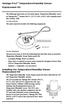 Vantage Pro2 Temperature/Humidity Sensor Replacement Kit The following instructions are for replacing the Temperature/Humidity sensor on Vantage Pro2 stations (# 6152, 6152C, 6162, 6162C, 6382) manufactured
TraceTek TTDM Series Leak Detection and Location Modules Replacement Parts Installation Instructions
 TraceTek TTDM Series Leak Detection and Location Modules Replacement Parts Installation Instructions TRACETEK TraceTek TTDM Replacement Parts General Information These instructions detail the steps to
The Fan-Aspirated ISS includes these components: Metric Rain Adapter. The hardware shown here is provided for assembly and mounting:
 Integrated Sensor Suite with Fan-Aspirated Radiation Shield Installation Instructions Addendum For Vantage Pro2 and Vantage Pro2 Plus The Vantage Pro2 Integrated Sensor Suite (ISS) with the Fan-Aspirated
SERVICE MANUAL Valor 3000 SCALES
 SERVICE MANUAL Valor 3000 SCALES Ohaus Corporation, 7 Campus Drive, Suite 310, Parsippany, NJ 07054 (973) 377-9000 SERVICE MANUAL Valor 3000 SCALES The information contained in this manual is believed
Original Assembly Guide
 TCT Multipurpose Single Bevel Sliding Compound Mitre Saw Original Assembly Guide Read instructions before assembling this tool. Table of Contents GB Assembly Guide Read instructions before assembling this
LS-1 Series Tungsten Halogen Light Sources Installation and Operation Instructions
 LS-1 Series Tungsten Halogen Light Sources Installation and Operation Instructions Description The LS-1 Series of tungsten halogen light sources are versatile, white-light lamps optimized for use in the
DANGER DANGER. General Information. Safety Is Your Responsibility. Ordering Parts. Contact Information
 Safety Safety Is Your Responsibility DANGER To avoid personal injury or death, carefully read and understand all instructions pertaining to the Anthony Liftgates product. Do not attempt to install, operate,
Service Guide. Gateway M275
 Service Guide Gateway M275 Contents Replacing Gateway M275 Components.................................... 1 Identifying the convertible tablet PC model...................................... 2 Identifying
RI-215A Operator s Manual. Part Number: 71-0045RK Revision 0 Released: 10/3/05
 RI-215A Operator s Manual Part Number: 71-0045RK Revision 0 Released: 10/3/05 Warranty RKI Instruments, Inc., warrants gas alarm equipment sold by us to be free from defects in materials and workmanship,
R O A D M A S T E R, I N C.
 R O A D M A S T E R, I N C. 11 10 20 12 4 18 19 1 2 13 16 ITEM QTY NAME MATERIAL 1...2... 1/2" x 3 1/2" BOLT... 350103-00 2...2... 1/2" x 2" BOLT... 350097-00 3...6... 1/2" x 1 1/2" BOLT... 350095-00 4...2...
StorTrends 3400 Hardware Guide for Onsite Support
 StorTrends 3400 Hardware Guide for Onsite Support MAN-3400-SS 11/21/2012 Copyright 1985-2012 American Megatrends, Inc. All rights reserved. American Megatrends, Inc. 5555 Oakbrook Parkway, Building 200
Written By: Walter Galan
 Installing iphone 4S Display Assembly Written By: Walter Galan TOOLS: Phillips 00 Screwdriver (1) Plastic Opening Tools (1) PARTS: iphone 4S Display Assembly (1) iphone 4 and 4S Screen Protector (1) Small
Troubleshooting and Diagnostics
 Troubleshooting and Diagnostics The troubleshooting and diagnostics guide provides instructions to assist in tracking down the source of many basic controller installation problems. If there is a problem
EXPLORE 4-Leg Teaming Table with Screen Share Assembly Instructions
 EXPLORE 4-Leg Teaming Table with Screen Share Monitor Display Requirements: your flat panel display must confirm to the following requirements. y With the stand removed, the monitor must not exceed 40
GUTTER MACHINE CONTROLS STANDARD
 GUTTER MACHINE CONTROLS STANDARD Note: determine what type of control package is installed on the machine. --more-- All operators should familiarize themselves with the appropriate controls prior to any
Kurzweil KORE 64. ROM Expansion Board for the PC3 and PC3K
 Kurzweil KORE 64 ROM Expansion Board for the PC3 and PC3K Installation Instructions August 1, 2012 2012 Young Chang Co., Ltd. All rights reserved. Kurzweil is a product line of Young Chang Co., Ltd. Kurzweil,
BW-500 BED WEIGHER USER MANUAL
 BW-500 BED WEIGHER USER MANUAL 0 1 TABLE OF CONTENTS SPECIFICATION... 3 Equipment... 4 INSTALLING WEIGH BEAM... 5 PREPARATION FOR MEASUREMENT... 6 DP3800 Indicator... 8 POWER SUPPLY... 8 PANEL... 9 KEY
OWNER S MANUAL Table Tennis Table Patent Pending
 OWNER S MANUAL Table Tennis Table Patent Pending Be sure to write your model number and serial number here for future reference. You can find these numbers printed on the bottom of the table. MODEL # T8179
Replacing N-300 PCB. 2014 YZ Systems for use by YZ s distribution network and end-users. www.yzsystems.com
 Replacing N-300 PCB Replacing N-300 PCB Record all Parameters and other operational information from The N-300 if Possible for Use in Programing The new PCB. If Parameters are not Obtainable from The Old
WSD130 SOLDERING STATION
 NOTES S2032ACH 8/98 Rev. 11/01 WSD130 SOLDERING STATION 1. Power Switch 2. Digital Display 3. UP Button 4. DOWN Button 5. Optical Regulator, Right 6. Connection for Soldering Iron, Right 7. Selection Switch
SELF-STEERING AXLE TABLE OF CONTENTS
 SELF-STEERING AXLE TABLE OF CONTENTS Section 1 - Introduction Section 2 - Pre-Installation Check List Section 3 - Ride Height Adjustments Section 4 - Suspension Mount Section 5 - Axle Mount Section 6 -
SC 7000 and SC 9000XL Patient Monitors SC 9000XL Monitor 12in (30.5cm) Display Service Manual Supplement Two
 s SC 7000 and SC 9000XL Patient Monitors SC 9000XL Monitor 12in (30.5cm) Display Service Manual Supplement Two EM Guidelines, 1997-04-02 E331.E539U.640.10.03.02 ASK-A898-03-7600 Page 1 of 16 Service Manual
R O A D M A S T E R, I N C.
 R O A D M A S T E R, I N C. ROADMASTER, Inc. 6110 NE 127th Ave. Vancouver, WA 98682 4 MOUNTING BRACKET KIT 1 2 3 360-896-0407 fax 360-735-9300 www.roadmasterinc.com ITEM QTY NAME PART # 1...2... #10 x
PTU Series Ultrahigh-Purity Pressure Transducers
 PTU Series UltrahighPurity Pressure Transducers User s Manual The Swagelok PTU series pressure transducer provides electronic monitoring of system pressure for ultrahighpurity applications. The PTU series
Quickie Rhapsody Service Manual
 Quickie Rhapsody Service Manual 2006 Sunrise Medical Inc. 101976 Rev A Quickie Rhapsody Service Manual Contents Introduction... 0.1 VR2 Controller... 0.2 Plugs/Connectors... 0.3 Basic Tool List & Main
1. SAFETY RULES. 8. Avoid placing objects in the path of the blades.
 1 1. SAFETY RULES 1. To reduce the risk of electric shock, insure electricity has been turned off at the circuit breaker or fuse box before beginning. 2. All wiring must be in accordance with the National
12-Volt Negative Ground Installation Instructions
 12-Volt Negative Ground Installation Instructions For Part Number: 1141, 1164, 1165, 1181 CAUTION!!! Before installing, please read the following important information... 1. The Ignitor is designed for
UPGRADING AND SERVICING GUIDE
 UPGRADING AND SERVICING GUIDE HPTouchSmart 610 PC Computer features may vary by model. Removing and Replacing a CD/DVD Drive...2 Removing the CD/DVD Drive... 2 Installing a New CD/DVD Drive... 5 Removing
MGB Chrome Bumper Conversion
 MGB Chrome Bumper Conversion Installation Instructions For 1974 1/2-1980 MGB This kit requires cutting, welding, and painting. Professional installation recommended. Note: Every MGB body is slightly different
R O A D M A S T E R, I N C.
 R O A D M A S T E R, I N C. MOUNTING BRACKET KIT 14 8 7 4 13 5 6 ITEM QTY NAME MATERIAL 1...6...1/2" x 2 1/2" BOLT... 350099-00 2...2...1/2" x 1 1/2" BOLT... 350095-00 3...8...1/2" LOCK WASHER... 350309-00
HT-0095 Mini PV Receptacles 22-32 AWG Crimping Hand Tool. Tool P/N HT-0095
 HT-0095 Mini PV Receptacles 22-32 AWG Crimping Hand Tool Tool P/N HT-0095 FCI MANUAL P/N 415988-001 Issued: Date (03/12/99) Page 1 of 18 HT-0095 Issued: Date (03/12/99) Page 2 of 18 Introduction Table
Polaris 9300 & 9400 Series Robotic Cleaner
 Polaris 9300 & 9400 Series Robotic Cleaner Zodiac Pool Systems, Inc. 1-800-822-7933 www.zodiacpoolsystems.com Regional Extension Instructor ext. Sales Representatives ext. ext. Service Manager ext. ext.
R O A D M A S T E R, I N C.
 R O A D M A S T E R, I N C. ROADMASTER, Inc. 6110 NE 127th Ave. Vancouver, WA 98682 12 10 3 11 4 5 13 7 8 360-896-0407 fax 360-735-9300 www.roadmasterinc.com ITEM QTY NAME MATERIAL 1... 4...1/2 x 1 1/2
R&S ZVA-Z75, -Z110, -Z140, -Z170, -Z220, -Z325, -Z500 Converters Quick Start Guide
 R&S ZVA-Z75, -Z110, -Z140, -Z170, -Z220, -Z325, -Z500 Converters Quick Start Guide (=7ÔWÌ) 1307.7039.62 06 Test & Measurement Quick Start Guide This Quick Start Guide describes the following converter
SERVICE GUIDE For WARN PULLZALL 120v AC &100v AC P/N 685000 & 685001
 SERVICE GUIDE For WARN PULLZALL 120v AC &100v AC P/N 685000 & 685001 REPAIR / REPLACEMENT INSTRUCTIONS TROUBLE SHOOTING GUIDE 986765A2.doc Page 1 of 50 WARNING This guide identifies potential hazards and
REMOTE AUXILIARY AIR CONDITIONING SYSTEM AND AIR DISTRIBUTION
 ENGLISH REMOTE AUXILIARY AIR CONDITIONING SYSTEM AND AIR DISTRIBUTION INSTALLATION GUIDELINES For International Prostar ISO 9001:2000 L 2647 Rev. 20090130 WARNING: Only trained technicians should perform
GAERTNER SCIENTIFIC CORPORATION 3650 Jarvis Ave. Skokie, Illinois 60076 U.S.A. tel: 1 847 673-5006 fax: 1 847 673-5009 email@gaertnerscientific.
 7109-C-244E-R1 Field Installation of HeNe Laser in B, C, and D-Type Auto Gain Ellipsometers GAERTNER SCIENTIFIC CORPORATION 3650 Jarvis Ave. Skokie, Illinois 60076 U.S.A. tel: 1 847 673-5006 fax: 1 847
758 Heavy-duty Ratchet Guy Wire Cutter
 INSTRUCTION MANUAL 758 Heavy-duty Ratchet Guy Wire Cutter Read and understand all of the instructions and safety information in this manual before operating or servicing this tool. Register this product
Depending on which elastic support you have you can secure the V2 power unit to the following seat bracket tubes: EXTERNAL DIAMETER 27.
 ASSEMBLY 1 - EPS V2 POWER UNIT (SOLUTION 5) 1.1 - POSITIONING INSIDE THE SEAT TUBE WITH ELASTIC SUPPORT IN THE SEAT BRACKET TUBE Depending on which elastic support you have you can secure the V2 power
Gripper Kit for the Boe-Bot Robot (#28202)
 599 Menlo Drive, Suite 100 Rocklin, California 95765, USA Office: (916) 624-8333 Fax: (916) 624-8003 General: [email protected] Technical: [email protected] Web Site: www.parallax.com Educational: www.stampsinclass.com
DIY QUAD. Build Manual V.A 2014
 DIY QUAD Build Manual V.A 2014 1 Contents Thanks for purchasing a DIY Quad! These instructions will show you how to assemble a Quad using the Pixhawk autopilot system and ArduCopter/APM:Copter firmware.
ScreenLogic Wireless Connection Kit. Installation Guide. pool/spa control system
 pool/spa control system ScreenLogic Wireless Connection Kit Installation Guide P/N 520663 - Rev B 8 Technical Support Contact Technical Support at: Sanford, North Carolina (8 A.M. to 5 P.M.) Phone: (800)
SERVICE GUIDE. Gateway Notebook
 SERVICE GUIDE Gateway Notebook Contents Replacing Gateway Notebook Components...................................1 Identifying the notebook model......................................... 2 Identifying
Manual for GlobePharma Mini-Press II Rotary Tablet Press
 1 of 13 Preparing the Rotary Press 1. Make sure the rotary press is unplugged. 2. Open the bottom cabinet of the rotary press and take out the grey tool kit, and the beige box of punches and dies. 3. Take
EZ-Steer Assisted Steering System
 EZ-Steer Assisted Steering System Installation Instructions Platform Kit P/N 53059-21 Case IH Puma 165 Puma 180 Puma 195 Puma 210 New Holland T7030 T7040 T7050 T7060 Revision A June 2007 Part Number 53345-21-EU2
R02GA. July 31, 2002. Dear Blue Bird Owner:
 R02GA July 31, 2002 Dear Blue Bird Owner: This notice is sent to you in accordance with the requirements of the National Traffic and Motor Vehicle Safety Act. Blue Bird Body Company has determined that
EZ-Steer Assisted Steering System
 EZ-Steer Assisted Steering System Installation Instructions Platform Kit P/N 53059-54 Case IH CVX 1135 CVX 1145 CVX 1155 CVX 1170 CVX 1190 CVX 1195 CVX 135 CVX 145 CVX 155 CVX 175 CVX 195 New Holland TVT
POSEIDON 2-29, 2-25 & 2-22 POSEIDON 2-29, 2-25 & 2-22 XT
 POSEION 2-29, 2-25 & 2-22 POSEION 2-29, 2-25 & 2-22 XT Repair Manual Index A. Safety precautions 3 B. Technical data 4 C. Structure 5-6. Service / Repair 7-23 E. Tools 24 F. Function 25-26 G. Electric
AMPSEAL* Automotive Plug Connector and Header Assembly
 AMPSEAL* Automotive Plug Connector and Header Assembly Application Specification 24 SEP 97 Rev E All dimensions are given in millimeters unless otherwise specified. All dimensional tolerances are +0.2
Triac Printed Circuit Board Replacement
 Technical Service Bulletin: Triac Printed Circuit Board Replacement TRONIC 5000C Pro Models: WH17, WH27, WH36 Introduction Fig. 1 ELECTRICITY IS EXTREMELY DANGEROUS. TAKE EXTRA PRECAUTIONS AND ENSURE ALL
Installation instruction do88 Intercooler for Volvo S40 / V50 / C30
 Installation instruction do88 Intercooler for Volvo S40 / V50 / C30 This instruction shows how to replace the OEM intercooler with our performance intercooler. 2. 3. 1. 4. 5. Part number: ICM-170 6. At
XP Series Balances Operation Manual
 XP Series Balances Operation Manual North and South America: 6542 Fig Street Arvada, Colorado 84 1-8-321-1135 Tel: 33-431-7255 Fax: 33-423-4831 U.K. and Ireland: Denver House, Sovereign Way Trafalgar Business
Installation Guide. Wyse D Class 4-GB RAM Upgrade Option Kit. Products: D90D7, D90DW. Issue: 121312 PN: 883884-35L Rev. A
 Installation Guide Wyse D Class 4-GB RAM Upgrade Option Kit Products: D90D7, D90DW Issue: 121312 PN: 883884-35L Rev. A Copyright Notices 2012, Wyse Technology Inc. All rights reserved. This manual and
HP 16/18-Port Cable Management Kit Installation Guide
 HP 16/18-Port Cable Management Kit Installation Guide Abstract This document describes how to attach the HP 16 Port or 18 Port Cable Management Kit to an HP rack. The cable management bracket is designed
R O A D M A S T E R, I N C.
 R O A D M A S T E R, I N C. 11 7 6 1 2 10 13 8 ITEM QTY NAME PART # 1...2...1/2 x 5 1/2 BOLT...350108-00 2...4...1/2 x 1 3/4 BOLT...350096-00 3...6...1/2 LOCK WASHER...350309-00 4...6...1/2 HEX NUT...350258-00
Operating Precautions: User configuration options:
 A Division of Lippert Components, Inc. PNP BED-LIFT USERS MANUAL Product Usage: This product is designed and intended ONLY to be used as a Bed-Lift mechanism. Any other use of this system will void any
PRODUCTIVITY THROUGH INNOVATION 600 CONTROL DIRECT DRIVE TECHNICAL/OPERATION MANUAL
 Rev. D PRODUCTIVITY THROUGH INNOVATION 600 CONTROL DIRECT DRIVE TECHNICAL/OPERATION MANUAL 10 BORIGHT AVENUE, KENILWORTH NEW JERSEY 07033 TELEPHONE: 800-524-0273 FAX: 908-686-9317 TABLE OF CONTENTS Page
Subminiature Load Cell Model 8417
 w Technical Product Information Subminiature Load Cell 1. Introduction... 2 2. Preparing for use... 2 2.1 Unpacking... 2 2.2 Using the instrument for the first time... 2 2.3 Grounding and potential connection...
Replacing the Gateway M320 Keyboard
 Replacing the Gateway M320 Keyboard This package includes a replacement keyboard for your Gateway M320 notebook and these printed instructions. Tools you need You need a small Phillips and a small flat-blade
MIGRATION HEIGHT-ADJUSTABLE DESKS. Troubleshooting Guide
 Troubleshooting Guide Control Box Power Cable Wire Manager Controller Lifting Column Foot Low-Voltage Cable MIGRATION HEIGHT-ADJUSTABLE DESKS HOW THEY WORK Each Lifting Column contains an individual motorized
Front brakes (FN- 3), servicing
 j a t Front brakes (FN- 3), servicing 46-1 Front brakes, servicing Note: Install complete repair kit. After replacing brake pads and before moving vehicle, depress brake pedal several times firmly to properly
HP ProLiant DL380 G6 Carrier-Grade Server Read Before Install
 HP ProLiant DL380 G6 Carrier-Grade Server Read Before Install Carrier-Grade Instructions HP Part Number: AM275-9001A Published: July 2012 Edition: 3 Copyright 2009, 2012 Hewlett-Packard Development Company,
Control Box Wiring For PRSstandard Tool
 888-680-4466 ShopBotTools.com Control Box Wiring For PRSstandard Tool Copyright 2016 ShopBot Tools, Inc. page 1 Copyright 2016 ShopBot Tools, Inc. page 2 Table of Contents Introduction:...5 Installation:...5
Installation Instructions 4508 4508S
 SYMPHONY Spread Lavatory Faucet with Speed Connect Drain Congratulations on purchasing your American Standard faucet with Speed Connect drain, a feature found only on American Standard faucets. Speed Connect
Installation instructions, accessories - Handsfree for cellular phone, system B, entry level
 XC90 Section Group Weight(Kg/Pounds) Year Month 3 39 0.5/1.1 2006 07 XC90 2003, XC90 2004 IMG-249663 Page 1 of 18 Required tools A0000162 A0000163 IMG-239664 M0000232 IMG-253123 IMG-252223 Page 2 of 18
SERVICE MANUAL. Corpus 3G. Seat system for electric wheelchair
 SERVICE MANUAL US Corpus 3G Seat system for electric wheelchair How to contact Permobil Head Office of the Permobil group Produced and published by Permobil AB, Sweden Version 4, 2014-07 Item No.: 205260-US-0
Model 5511 Filler Controller User s Manual Version 1.1 October 2011
 Thompson Scale Company WEIGHING SYSTEMS & PACKAGING MACHINERY CONTROLS 2758 Bingle Road Houston, Texas 77055 Phone: 713/932-9071 Fax: 713/932-9379 www.thompsonscale.com Model 5511 Filler Controller User
2008 ACCORD - Front Knuckle/Hub/Wheel Bearing Replacement (page 18-13)
 2008 ACCORD - Front Knuckle/Hub/Wheel Bearing Replacement (page 18-13) Exploded View Special Tools Required Ball joint remover, 28 mm 07MAC-SL0A202 Hub dis/assembly tool 07GAF-SD40100 Bearing driver attachment,
MAINTENANCE & TROUBLESHOOTING
 MAINTENANCE & TROUBLESHOOTING This section describes how to: clean the lens replace the projection lamp replace the batteries in the remote use the security lock feature troubleshoot the projector Cleaning
ATS Overhead Table Shelf System INSTRUCTION MANUAL
 ATS Overhead Table Shelf System INSTRUCTION MANUAL ATS Overhead Table Shelf System Instruction Manual Warranty Newport Corporation warrants this product to be free of defects in material and workmanship
BBWX1 Satellite Weather Receiver. Installation and Maintenance Guide
 BBWX1 Satellite Weather Receiver Installation and Maintenance Guide Rev FUSA 15JUL2007 Table of Contents Safety Precautions 3 Disclaimer. 3 Contents of Package. 4 Tools Required..4 Installation General
HP UPS R1500 Generation 3
 HP UPS R1500 Generation 3 Installation Instructions Part Number 650952-001 NOTE: The rating label on the device provides the class (A or B) of the equipment. Class B devices have a Federal Communications
User Manual. Instructions for installing the Sure Stitch on the Next Generation Quilting Frame. Parts Included:
 User Manual Instructions for installing the Sure Stitch on the Next Generation Quilting Frame. Parts Included: 1: Display Console 1: Control Box 2: Encoder (Wires attached) (Not Shown) 1: 5v Power Supply
TOYOTA Tundra 2007 - BACK-UP CAMERA SYSTEM Preparation
 Preparation Part Number(s): PT233-34070, PT923-35070-11, PT923-35070-43 NOTE: Part number of this accessory may not be the same as part number shown. Back Up Monitor Kit Contents PT923-35070-11 / PT923-35070-43
Solstice/Sky Water Pump Replacement
 Solstice/Sky Water Pump Replacement The water pump on the Solstice/Sky is starting to need replacement on some vehicles. This guide will help in replacing the water pump while the engine is still in the
Electronically Controlled Air Suspension (ECAS) for Trucks
 $2.50 Electronically Controlled Air Suspension (ECAS) for Trucks Maintenance Manual No. 36 Issued 7-99 ECAS System for 6 x 2 and 6 x 4 Vehicles with Rear Air Suspensions Service Notes Service Notes This
R O A D M A S T E R, I N C.
 R O A D M A S T E R, I N C. MOUNTING BRACKET KIT 12 3 6 9 5 11 ITEM QTY NAME MATERIAL 1...4...1/2" x 1 1/2" BOLT... 350095-00 2...4...1/2" x 1 1/2" CARRIAGE BOLT... 350362-00 3...8...1/2" NUT... 350258-00