
TraceTek TTDM Series Leak Detection and Location Modules Replacement Parts Installation Instructions
|
|
|
- Audra Osborne
- 9 years ago
- Views:
Transcription
1 TraceTek TTDM Series Leak Detection and Location Modules Replacement Parts Installation Instructions TRACETEK TraceTek TTDM Replacement Parts General Information These instructions detail the steps to replace parts in the TraceTek TTDM series leak detection and location modules (catalog numbers TTDM, TTDM-NMM, and TTDM-SIM). The modular design of the TTDM makes it possible to replace individual boards rather than the entire unit if part of the module is damaged or malfunctioning. These instructions explain how to install the replacement parts detailed below, except for the TTDM- UI-EPROM. Instructions for replacing the EPROM are covered in a separate document (H55875) which is shipped with the EPROM. These instructions for replacing parts are complemented by instructions for installing the modules (document H5547 for the TTDM and TTDM-NMM; H5634 for the TTDM-SIM). The TTDM is an electronic unit. Its circuit boards should be replaced only by a person qualified for work on electronic instrumentation and controls. Catalog number Description TTDM-4/20 TTDM 4-20 ma current transmitter board TTDM-SI TTDM Sensor Interface board TTDM-Relay TTDM relay TTDM-PS TTDM power supply board, 5 Vac TTDM-PS2 TTDM power supply board, 230 Vac TTDM-PS24 TTDM power supply board, 24 Vdc TTDM-fuse 200 ma, 250 V, quick-acting microfuses for TTDM-PS (bag of 5) TTDM-MB TTDM motherboard TTDM-RC TTDM ribbon cable, 6 inches long, with connectors installed TTDM-UI TTDM User Interface assembly TTDM-UI-EPROM-x TTDM-UI EPROM replacement; upgrades User Interface software to version indicated by x suffix. For new features, see TTDM Software Release Bulletin H55874; instructions for replacing the EPROM are covered in a separate document (H55875) shipped with the EPROM. Storage Keep replacement parts in a dry place prior to installation to avoid possible damage to electronic components User Interface board (not in TTDM-SIM) ma board (not in TTDM-SIM) 9 Sensor Interface board 0 Motherboard Power supply board 2 Fuse (200 ma, 250 V) 3 Power cable terminal block 4 Ground/earth stud 5 Fault relay cable plug and 6 Leak relay cable plug and 7 Service relay cable plug and ma port plug and 9 RS-232/485 port plug and 20 Sensor Interface plug and socket 2 RS-485 plug and socket for SIM network (only for use in TTDM-NMM and TTDM- SIM) 22 Ribbon cable (not in TTDM- SIM) 25 Relays / 8

2 Tools Required Phillips (cross-head) screwdriver (for power supply boards, motherboard, and User Interface assembly) Small flat-head screwdriver (for power supply and other terminal blocks) 9/32 in nut driver (for User Interface assembly) 7 mm nut driver or wrench (if removing enclosure door to replace User Interface assembly) Precautions Important: The TTDM is an electronic unit. When replacing parts, take the following precautions to avoid damage to its electronic components: Handle with care, avoid mechanical damage. Keep the electronics dry. If handling circuit boards, hold them by their edges to avoid physical contact with electronic components. Avoid contamination with metal filings, liquids, or other foreign matter. CAUTION: Before disconnecting power to the TTDM and replacing parts, alert any groups that must respond to alarms signaled by the TTDM (an emergency response team, for example) that you will be working on the unit. WARNING: SHOCK Hazard: Disconnect power to the TTDM before opening enclosure door. Important: After replacing one or more parts following these instructions, test the module in accordance with the module s installation instructions (H5547 for a TTDM or TTDM-NMM, H5634 for a TTDM-SIM). TABLE OF CONTENTS Instructions for Replacement Parts 4-20 ma current transmitter board A Sensor Interface board B Relays C Power supply boards and fuse D Ribbon cable Motherboard User Interface assembly References for other parts E F G H A. Replacing the TTDM 4-20 ma current transmitter board (not in TTDM-SIM). Remove old 4-20 ma board from the TTDM. Remove the 4-20 ma current transmitter board. Grasp the cir-cuit board by its edges and pull up from the motherboard. Gently rocking the board left to right 5 to 0 may help release the connection. 2. Install the new 4-20 ma board. Position the new 4-20 ma current transmitter board; orient the board so its markings are right side up. Before applying pres-sure to seat the board, take care to align the connectors along the top and bottom edges of the 4-20 ma board with their mating connectors on the motherboard Remove 4-20 ma board Top view of 4-20 ma board Connectors 2 / 8

3 B. Replacing the TTDM Sensor Interface board. Remove Sensor Interface (SI) plug from socket on SI board. Pull out SI plug (feature 20) from its socket on the old SI board. 2. Remove old SI board. Remove old SI board. If SI board is secured with holddown screws, remove the screws (2 places) and store them. Grasp the circuit board by its edges and pull up from the motherboard. Gently rocking the board top to bottom 5 to 0 may help release the connection. 3. Install new SI board. Position the new SI board; orient the board so its markings are right side up. Before applying pressure to seat the board, take care to align the connectors along the left and right edges of the SI board with their mating connectors on the motherboard. Gently rocking the board top to bottom 5 to 0 may help seat the board, which snaps into place when fully seated. If SI board was secured with hold-down screws, insert and align the screws, and use Phillips (cross-head) screwdriver to tighten them hand tight. 4. If TTDM-NMM or TTDM-SIM, assign SIM address to the new SI board. If the module is a TTDM-NMM or TTDM-SIM (part of a TraceTek leak detection network), the new SI board must be assigned a SIM address following the instructions on page 28 of the TraceTek TTDM-NMM and TTDM-SIM System Operation and Maintenance Manual (H5633), and on page 5 of the TraceTek TTDM-SIM Installation Instructions (H5634). Note that address 0 is the factory default of the SI board in the TTDM-NMM, but this address must be assigned (following the procedure referenced above) when a new SI board is installed. 5. Insert sensing cable plug into socket. Insert SI plug into the SI socket on the new SI board Hold-down screw (some units) Sensor interface board Top view of SI board Sensor interface plug and socket Connectors Sensor interface plug and socket Hold-down screw (some units) C. Replacing a TTDM relay (not in TTDM-SIM). Remove old relay. Rotate relay hold-down spring to the side, then pull relay out of its socket in the motherboard. 2. Install new relay. Carefully align leads from the relay with the sockets on moth-erboard, then insert the relay leads into motherboard. Rotate hold-down spring back into position to retain the relay in place 25 TTDM relays Hold-down spring rotated to release relay 3 / 8

4 D. Replacing the TTDM power supply board Warning: SHOCK HAZARD. Confirm power to the TTDM has been disconnected before opening enclosure door and re-placing the power supply board.. Disconnect the power wiring. Use a small flat-blade screwdriver to disconnect the power supply wires from the two-pin terminal block on the power supply board (feature 3). 2. Remove the hold-down screws. Use a Phillips (cross-head) screwdriver to remove the hold-down screws at the top left and bottom right corners of the power supply board. 3. Remove the old power supply board. Grasp the circuit board by its edges and pull up from the motherboard. Gently rocking the board top to bottom a maximum 5 to 0 may help release the connection. 4. Install new power supply board. Position the new power supply board; terminal block on TTDM-PS or TTDM-PS2 should be in lower right corner. Before applying pressure to seat the board, take care to align the connectors along the left and right edges of the SI board with their mating connectors on the motherboard. Gently rocking the board top to bottom 5 to 0 may help seat the board, which snaps into place when fully seated. Important: Confirm that the new power supply board has the correct voltage rating for the supply voltage to be used; do not exceed the maximum voltage rating of the power supply board. 5. Reinstall hold-down screws. Insert and align hold-down screws, and use Phillips (cross-head) screwdriver to fasten them hand tight. Important: Do not over tighten as this could damage motherboard. 6. Reconnect the power wiring. Connect the power supply wires to the two-pin terminal block on the power supply board. Use L2 for neutral, if present. Note: In the TTDM-PS24 board (which operates at 24 Vdc or Vac), the terminal block for the power supply wires is in the center of the board, rather than at the lower right. For DC operation, polarity does not matter. Hold-down screw Top view of power supply board Connectors Terminal block on TTDM-PS24 Power supply board 3 Terminal block Terminal block on TTDM-PS or TTDM-PS2 board Hold-down screw 4 / 8

5 Instructions for Replacement Parts (Continued) E. Replacing the TTDM ribbon cable (not in TTDM-SIM). Disconnect ribbon cable from motherboard and User Interface (UI) assembly. Release the fastening ears of the ribbon cable connectors (as illustrated in Figure at right), and pull the ribbon cable away from the motherboard and the UI assembly. 2. Connect new ribbon cable to motherboard. Orient the new cable so the single wide key protrusion of a connector and the ribbon cable coming from that connector both face up as illustrated in Figure 2 (a connector cannot be inserted unless the key is oriented correctly; the direction of the cable from the connector can affect the stress to which the cable may be subjected). Align the ribbon cable connector and insert it into the motherboard connector (taking care not to bend any pins). Press the ribbon cable connector into the motherboard until the locking ears latch in place (as illustrated in Figure 3). 3. Connect new ribbon cable to user interface assembly. Align the ribbon cable connector and insert it into the UI as-sembly (taking care not to bend any pins). Press the ribbon cable connector into the UI assembly until the locking ears latch in place. Figure RS-485 EXT XMTRS RS-232/485 EXT COM PORT 4-20mA OUT PORT J0 J3 J2 +5SO ICOM RX/A TX/B RTS CTS +5V GND IRNT IOUT Figure Key Slot Figure 3 RS-485 EXT XMTRS J0 RS-232/485 EXT COM PORT 4-20mA OUT PORT J3 J2 +5SO ICOM RX/A TX/B RTS CTS +5V GND IRNT IOUT / 8

6 F. Replacing the TTDM motherboard. Disconnect ribbon cable from old motherboard. Release the fastening ears of the ribbon cable connector, and pull the ribbon cable from the motherboard. See Figure in Section E (page 6). 2. Disconnect the power wiring. Warning: SHOCK HAZARD. Use a small flat-blade screwdriver to disconnect the power supply wires from the two-pin terminal block on the power supply board (feature 3). 3. Remove plugs for external connections from sockets at bottom of motherboard and sensor interface board. Mark each of the plugs for external connections so you can readily plug them into the correct sockets on the new motherboard. Remove each of the plugs for external connections from its socket on the motherboard. The external connections available in the TTDM are listed in the table at right. 4. Remove 4-20 ma board from motherboard. Remove 4-20 ma current transmitter board from old mother-board (see step, Section A) and put it out of harm s way. 5. Remove old motherboard. Unscrew the four Phillips (cross-head) screws that hold the motherboard to the enclosure. Remove the motherboard. 6. Remove daughterboards from old motherboard and install them on new motherboard. Remove SI board from old motherboard and install on new motherboard following instructions in Section B (page 3). Remove relays from old motherboard and install on new motherboard following instructions in Section C (page 4). Remove power supply board from old motherboard and install on new motherboard following instructions in Section D (page 5). 7. Install new motherboard. Position the new motherboard and fasten it in place with the Phillips (cross-head) screws. 8. Install 4-20 ma board on new motherboard. Install 4-20 ma current transmitter board on new motherboard; see step 2 of Section A (page 2). 9. Insert plugs for external connections into sockets on new motherboard. Insert the plugs for the external connections into their corre-sponding sockets on the new motherboard. 0. Reconnect the power supply wires. Reconnect the power supply wires to the two-pin terminal block on the power supply board. Use L2 for neutral, if present (however, if using TTDM-24 at 24 Vdc, polarity does not matter) Feature no. Description of external connection 5 Fault relay 6 Leak relay 7 Service Required relay ma port 9 RS-232/485 external communications serial port 20 Sensor Interface 2 Leak detection network (TTDM-NMM and TTDM-SIM only) Remove screws attaching motherboard (four places). Connect ribbon cable to new motherboard. Reconnect the ribbon cable, taking care not to bend any pins in the connection. Press the connector into the motherboard until the locking ears latch in place. See Figure 2 in Section E (page 5) / 8

7 G. Replacing the TTDM UI assembly (not in TTDM-SIM) Note: If the old UI is functioning, it is recommended that the events history be printed out or downloaded through the serial port (or recorded in some other manner) before the UI assembly is replaced. All user-defined settings should also be recorded in some manner, as a new UI assembly comes with the factory defaults. If the UI is not functioning, save the old UI assembly and return it to Raychem for diagnostic testing and/or download of events and settings.. Disconnect ribbon cable. Release the fastening ears of the ribbon cable connectors, and pull the ribbon cable away from the UI assembly. See Figure. 2. Place enclosure or enclosure door on horizontal surface. It is much easier to replace the user interface assembly if the unit is on a horizontal surface. The easiest approach may be to remove the TTDM enclosure from the location where it is mounted, and place the complete unit on the horizontal surface; for guidance on how to install or remove the TTDM module, see the Installation Instructions for TTDM Alarm and Locating Module, H5547. If it is not practical to move the entire TTDM unit, the door can be removed from the enclosure. To remove the door of the enclosure: Disconnect the ground/earth wire from the UI assembly to the ground/earth stud inside the enclosure; use 9/32 nut driver to remove locknut that holds it in place. Use a 7 mm nut driver or wrench to remove the nuts which hold the hinge (the hinge nuts are inside the enclosure, as shown in Figure 2). After removing the nuts and nylon sealing washers, put them in a safe place while you are replacing the UI assembly. 3. Remove old UI assembly. Use 9/32 inch nut driver to remove the eight nuts which secure the assembly to the enclosure door (see Figure 3). Remove the eight flat washers and keep them with the nuts. Lift the UI assembly off the enclosure door. Take care not to damage the sealing gasket when doing so; pull the assembly away gently, and then handle the gaskets with care. 4. Position the gaskets on the inside of the panel door. Place the two spacer gaskets (of fiber construction resem-bling paper) in position around the eight mounting studs (see Figure 4). Place the foam sealing gasket in position inside the eight mounting studs. Figure UI assembly Figure 2 Figure 3 Figure 4 Flat washer and lock nut Ribbon cable Hinge nuts Ground/earth stud Fiber gasket spacers (2) Foam sealing gasket Mounting studs (8) 7 / 8

8 G. Replacing the TTDM UI assembly (not in TTDM-SIM) (Continued) 5. Mount the UI assembly inside enclosure door. Place the TTDM UI assembly in position; the eight mounting studs go through the eight slots on the UI assembly mounting plate. Place flat washers (eight) on mounting studs. Position the ring tongue terminal of the UI ground (earth) wire and the wire to the enclosure ground/earth over a mounting screw as illustrated. Place a 8-32 locknut (with attached star lock washer) on each of the eight mounting screws; fasten only hand tight. Look at the front of the panel, and align the UI assembly so it is level (loosen nuts if necessary to reposition the UI assembly). For the most attractive appearance, position the sealing gasket so it is not visible inside the display opening; the gasket can be tamped into place with a matchbook or something similar, but take care not to damage it. Tighten the nuts after the display and gasket are properly positioned. Use 9/32 inch nut driver to snug the nuts; do so by hand; do not overtighten and risk damage to hardware. 6. Reconnect the ribbon cable. Align the ribbon cable connector and insert it into the new UI assembly (taking care not to bend any pins). Press the ribbon cable connector into the UI assembly until the locking ears latch in place. 7. Remount enclosure or enclosure door. Remount the TTDM enclosure or the enclosure door (remounting or reassembling, based on action taken at step 2). Important: If enclosure door was removed, be sure to reconnect ground/earth wire from UI assembly. Slot for mounting stud Washer Locknut Ground wires Washer Mounting stud Enclosure door UI assembly H. References for Replacing other TTDM Parts TDM-UI-EPROM-x TTDM UI software can be upgraded by replacing the EPROM on the UI assembly. The TTDM Software Release Bulletin (document H55874) summarizes the features provided by new software ver-sions. Software upgrades are made available in the form of an EPROM, together with the instructions for replacing the EPROM (document H55875). Terminal block connections The TraceTek TTDM Leak Detection and Location Module Installation Instructions (document H5547) describes how to connect power wiring, relay wiring, and sensing cable to the TTDM unit. The TTDM Installation and Operation Manual (document H55472) provides connection details for the 4-20 ma port and the RS-232/485 serial port. NORTH AMERICA Europe, Middle East, Africa Tel: Fax: [email protected] Asia Pacific Tel: Fax: [email protected] Latin America Tel: Fax: [email protected] Tel: Fax: Tel: Fax: [email protected] Pentair and TraceTek are owned by Pentair or its global affiliates. All other trademarks are the property of their respective owners. Pentair reserves the right to change specifications without prior notice Pentair. PN / 8

5800 Temperature Sensor Cable Assembly
 5800 Temperature Sensor Cable Assembly Removal and Replacement Instruction Sheet #60-4702-070 Revision D, January 14, 2013 Overview The 5800 has two refrigeration temperature sensors, one attached to the
430 Power/Electronics Replacement
 Replacing the main board WARNING Before proceeding, turn off the main power switch and unplug the power cord. Caution Make sure you are properly grounded with an ESD strap before continuing. The main printed
Service Guide. Gateway M275
 Service Guide Gateway M275 Contents Replacing Gateway M275 Components.................................... 1 Identifying the convertible tablet PC model...................................... 2 Identifying
PRODUCT: WASHER / WASHER-DRYER COMBO MODEL: AW 120 / AW 122 / AW 125 AWD 120 / AWD 121 / AWD 129
 PRODUCT: WASHER / WASHER-DRYER COMBO MODEL: The information included in this Splendide Repair Manual may change without notice. Please see our web site www.splendide.com/service/docs.html for updates,
UPGRADING AND SERVICING GUIDE
 UPGRADING AND SERVICING GUIDE HPTouchSmart 610 PC Computer features may vary by model. Removing and Replacing a CD/DVD Drive...2 Removing the CD/DVD Drive... 2 Installing a New CD/DVD Drive... 5 Removing
Front Panel Board Cable Replacement Instructions
 apple Mac Pro Front Panel Board Cable Replacement Instructions First Steps 1 Shut down computer. Note: Follow these instructions carefully. Failure to do so could damage your equipment and void its warranty.
GPS AutoSteer System Installation Manual
 GPS AutoSteer System Installation Manual Supported Vehicles John Deere Sprayers 4720 4630 4730 4830 AutoTrac Ready PN: 602-0227-01-A LEGAL DISCLAIMER Note: Read and follow ALL instructions in this manual
SCREENLOGIC INTERFACE WIRELESS CONNECTION KIT
 SCREENLOGIC INTERFACE WIRELESS CONNECTION KIT FOR INTELLITOUCH AND EASYTOUCH CONTROL SYSTEMS INSTALLATION GUIDE IMPORTANT SAFETY INSTRUCTIONS READ AND FOLLOW ALL INSTRUCTIONS SAVE THESE INSTRUCTIONS Technical
Replacing N-300 PCB. 2014 YZ Systems for use by YZ s distribution network and end-users. www.yzsystems.com
 Replacing N-300 PCB Replacing N-300 PCB Record all Parameters and other operational information from The N-300 if Possible for Use in Programing The new PCB. If Parameters are not Obtainable from The Old
Upgrading and Servicing Guide
 Upgrading and Servicing Guide The only warranties for Hewlett-Packard products and services are set forth in the express statements accompanying such products and services. Nothing herein should be construed
Changing the SIM in a BANDIT Product s GSM Card
 encor! enetworks TM Version A.2, January 2013 2013 Encore Networks, Inc. All rights reserved. Changing the SIM in a BANDIT Product s GSM Card Wireless connections use radiofrequencies (RFs) through airwaves
RayClic Connection System Installation Instructions
 RayClic Connection System Installation Instructions Description RayClic-S Splice Kit RayClic-T Tee and End Seal Kit RayClic-X Cross and End Seal Kit These kits are for use with Raychem IceStop, XL-Trace
RMM2 Heat-Tracing Remote Monitoring Module for the Raychem NGC Control System Installation Instructions
 Heat-Tracing Remote Monitoring Module for the NGC Control System Installation Instructions Tools Required 3 mm slotted screwdriver 3/8 hex key (for -4X only) Approvals Nonhazardous locations Type NM LISTED
RayClic Connection System Installation Instructions
 F M -W RayClic Connection System Installation Instructions RayClic WARNING: Shock Hazard 718K Pipe Heating Cable with HWAT, IceStop, also Listed De-icing and and XL-Trace heating Snow Melting Equipment
PowerFlex 700H and 700S AC Drives Frame 11 Main Fan Capacitor Replacement Kit
 Installation Instructions PowerFlex 700H and 700S AC Drives Frame 11 Main Fan Capacitor Replacement Kit ATTENTION: The sheet metal cover and mounting screws on the ASIC Board located on the power structure
Trillium 40 Axis Spring Tensioner Wire Replacement Instructions
 Trillium 40 Axis Spring Tensioner Wire Replacement Instructions 1 Overview The objective is to replace the broken axis spring tensioner wire. This requires the following tasks: 1. Remove the seismometer
SERVICE GUIDE. Gateway Notebook
 SERVICE GUIDE Gateway Notebook Contents Replacing Gateway Notebook Components...................................1 Identifying the notebook model......................................... 2 Identifying
Navico-Northstar 2kW JRC Radar Package, Scanner Cable Removal and Replacement
 Navico-Northstar 2kW JRC Radar Package, Scanner Cable Removal and Replacement This work instruction describes the methods and means for which to remove and reinstall optional scanner cable configurations
Compaq Presario Desktop Products. Upgrading and Servicing Guide
 Compaq Presario Desktop Products Upgrading and Servicing Guide The information in this document is subject to change without notice. Hewlett-Packard Company makes no warranty of any kind with regard to
ScreenLogic Wireless Connection Kit. Installation Guide. pool/spa control system
 pool/spa control system ScreenLogic Wireless Connection Kit Installation Guide P/N 520663 - Rev B 8 Technical Support Contact Technical Support at: Sanford, North Carolina (8 A.M. to 5 P.M.) Phone: (800)
POWER LOCK KIT GENERAL INSTALLATION -J04427 REV. 2007-12-04. Kit Number. Models. Additional Parts Required. Kit Contents
 -J0 REV. 00--0 POWER LOCK KIT GENERAL Kit Number -0, 0-0 Models For model fitment information, please see the P&A Retail Catalog or the Parts and Accessories section of www.harleydavidson.com (English
Dial Backup Module (DBM) Two standoff posts, four washers, and four Phillips-head screws 14 RJ49C ISDN-U cable Warranty card
 TM ISDN BRI Dial Backup Module (DBM) Installation Instructions Document Number 9000-A2-GN19-30 Feature Number 9098-F1-870 February 1998 Before You Begin Make sure you have: Ordered ISDN service, and it
Express5800/120Ed. Rack Mount Kit Installation Procedures PN: 455-01607-001
 Express5800/120Ed Rack Mount Kit Installation Procedures PN: 455-01607-001 Proprietary Notice and Liability Disclaimer The information disclosed in this document, including all designs and related materials,
Installation. Smart-UPS VT and MGE Galaxy 3500. Maintenance Bypass Panel with Power Distribution (wall-mount) 10-30 kva 208 V
 Installation Smart-UPS VT and MGE Galaxy 3500 Maintenance Bypass Panel with Power Distribution (wall-mount) 10-30 kva 208 V Contents Safety... 1 SAVE THESE INSTRUCTIONS...............................
Replacing the Gateway M320 Keyboard
 Replacing the Gateway M320 Keyboard This package includes a replacement keyboard for your Gateway M320 notebook and these printed instructions. Tools you need You need a small Phillips and a small flat-blade
Removing memory and option cards
 These instructions can help you remove memory or option cards. Use the following illustration to locate the connector for the card you want to remove. Hard disk connector 1 Option card connector Firmware
Processor Cage Fans, Front and Rear Replacement Instructions
 apple Mac Pro Processor Cage Fans, Front and Rear Replacement Instructions First Steps 1 Shut down computer. Note: Follow these instructions carefully. Failure to do so could damage your equipment and
OWNER S MANUAL Table Tennis Table Patent Pending
 OWNER S MANUAL Table Tennis Table Patent Pending Be sure to write your model number and serial number here for future reference. You can find these numbers printed on the bottom of the table. MODEL # T8179
Contents. Installing the upgrade memory kit in the G450 and G430 Media Gateway May 2014 1
 Contents Installing the upgrade memory kit in the G450 / G430 Media Gateway... 3 Equipment ordering... 3 Inserting or replacing a RAM card... 4 Inserting or replacing a RAM card in the G450... 4 Replacing
MEDIUM FLAT PANEL DISPLAY STATIC MOUNT MSR Series
 INSTALLATION INSTRUCTIONS MEDIUM FLAT PANEL DISPLAY STATIC MOUNT The static mount accommodates medium flat panel displays weighing up to 125 lbs (57 kgs). The teardrop holes in the mount allow for quick
INSTALLATION AND OPERATING INSTRUCTIONS For Model GL1 Gate Locks
 Securitron Magnalock Corp. www.securitron.com ASSA ABLOY, the global leader Tel 800.624.5625 [email protected] in door opening solutions INSTALLATION AND OPERATING INSTRUCTIONS For Model GL1 Gate
Part Name/Description Part Number Quantity. Power Cable 4000950-5 1
 Note: Indented items indicate parts included in an assembly listed above Part Name/Description Part Number Quantity Power Cable 4000950-5 1 Raven Harness Adapter Kit 4100525 1 Installation Instructions
Kurzweil KORE 64. ROM Expansion Board for the PC3 and PC3K
 Kurzweil KORE 64 ROM Expansion Board for the PC3 and PC3K Installation Instructions August 1, 2012 2012 Young Chang Co., Ltd. All rights reserved. Kurzweil is a product line of Young Chang Co., Ltd. Kurzweil,
CoolWave r 2 Phase Control Board and Cable Replacement Kits
 Instruction Sheet P/N 1102452A CoolWave r 2 Phase Control Board and Cable Replacement Kits Two kits are available to replace the CoolWave 2 phase control board: S S Phase Control Board and Cable Kit (required
HP SATA/SAS hard drive and Solid State Drive installation
 HP SATA/SAS hard drive and Solid State Drive installation This document describes how to install Serial ATA (SATA) and Serial Attached SCSI (SAS) hard drives or Solid State Drives (SSD) in an internal
Vantage Pro2 Temperature/Humidity Sensor Replacement Kit
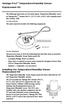 Vantage Pro2 Temperature/Humidity Sensor Replacement Kit The following instructions are for replacing the Temperature/Humidity sensor on Vantage Pro2 stations (# 6152, 6152C, 6162, 6162C, 6382) manufactured
Triac Printed Circuit Board Replacement
 Technical Service Bulletin: Triac Printed Circuit Board Replacement TRONIC 5000C Pro Models: WH17, WH27, WH36 Introduction Fig. 1 ELECTRICITY IS EXTREMELY DANGEROUS. TAKE EXTRA PRECAUTIONS AND ENSURE ALL
Installation. Smart-UPS VT MGE Galaxy 3500. Maintenance Bypass Panel. 10-40 kva 400 V
 Installation Smart-UPS VT MGE Galaxy 3500 Maintenance Bypass Panel 10-40 kva 400 V Contents Safety.................................................. 1 Save these instructions...................................
BODY-12, Door Handle - Removal, Installation, and Adjustment
 Introduction BODY-12, Door Handle - Removal, Installation, and Adjustment There are many different procedures floating around describing how to replace the door handles on a 944 and every one of them will
INSTALLATION INSTRUCTIONS
 LIGHTING CONTROL PANELS 4 AND 8 RELAYS INSTALLATION INSTRUCTIONS INSTALLATION OVERVIEW The installation instructions contained in this document are provided as a guide for proper and reliable installation.
Power Supply Guide Version 1.0 for D-Show
 Power Supply Guide Version 1.0 for D-Show Digidesign 2001 Junipero Serra Boulevard Daly City, CA 94014-3886 USA tel: 650 731 6300 fax: 650 731 6399 Technical Support (USA) tel: 650 731 6100 fax: 650 731
Rosemount 5300 and 5400 Series Terminal Compartment Spare Part Instruction
 Manual Supplement Rosemount 5300 and 5400 Series Rosemount 5300 and 5400 Series Terminal Compartment Spare Part Instruction Introduction..................................... page S-1 Safety Messages.................................
Wash Select II to WashPay Integration Field Retrofit Installation Guide
 Wash Select II to WashPay Integration Field Retrofit Installation Guide Wash Select II Software Version 6.00 and above POS4000 Software Version 8.25 Unitec www.startwithunitec.com WASH SELECT II TO WASHPAY
Installation Instructions 4508 4508S
 SYMPHONY Spread Lavatory Faucet with Speed Connect Drain Congratulations on purchasing your American Standard faucet with Speed Connect drain, a feature found only on American Standard faucets. Speed Connect
Replacing the Gateway M675 Keyboard
 Replacing the Gateway M675 Keyboard This package includes a replacement keyboard for your Gateway M675 notebook and these printed instructions. Tools you need You need a small Phillips screwdriver and
P150SC15. Designed for 2015 Ford F150 Super-Cab and Super-Crew vehicles without Sony System. 2015 Stillwater Designs P150SC15-A2-20150813
 P150SC15 Designed for 2015 Ford F150 Super-Cab and Super-Crew vehicles without Sony System Subwoofer Assembly Amplifier Assembly Amplifier Harness 2015 Stillwater Designs P150SC15-A2-20150813 M6 Bolt M6
SC 7000 and SC 9000XL Patient Monitors SC 9000XL Monitor 12in (30.5cm) Display Service Manual Supplement Two
 s SC 7000 and SC 9000XL Patient Monitors SC 9000XL Monitor 12in (30.5cm) Display Service Manual Supplement Two EM Guidelines, 1997-04-02 E331.E539U.640.10.03.02 ASK-A898-03-7600 Page 1 of 16 Service Manual
GE Wireless Devices Battery Replacement
 60-506-319.5 Crystal Smoke Detector Two 9V Duracell 9V 1. Twist counter-clockwise until detector become loose from base. 2. Replace batteries observing correct polarity. 3. Replace detector by twisting
TOYOTA Tundra 2007 - BACK-UP CAMERA SYSTEM Preparation
 Preparation Part Number(s): PT233-34070, PT923-35070-11, PT923-35070-43 NOTE: Part number of this accessory may not be the same as part number shown. Back Up Monitor Kit Contents PT923-35070-11 / PT923-35070-43
GENUINE PARTS INSTALLATION INSTRUCTIONS
 GENUINE PARTS INSTALLATION INSTRUCTIONS 1. DESCRIPTION: Auto-Dimming Mirror Kit with Compass and HomeLink 2. APPLICATION: Titan 3. PART NUMBER: 999L1 WS000 4. KIT CONTENTS: Item Qty Description Service
apple Service Source Power Mac G4 Cube Updated June 2, 2003 2002 Apple Computer, Inc. All rights reserved.
 apple Service Source Power Mac G4 Cube Updated June 2, 2003 2002 Apple Computer, Inc. All rights reserved. apple Service Source Take Apart Power Mac G4 Cube 2002 Apple Computer, Inc. All rights reserved.
Overview PARTS LIST. B. Lever mounting base C. Flush handle assembly D. Grey/Blue float stop E. Grey float (Full Flush) F. Flush valve washer
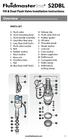 Overview READ ENTIRE INSTRUCTIONS BEFORE STARTING INSTALLATION PARTS LIST A. Flush valve B. Lever mounting base C. Flush handle assembly D. Grey/Blue float stop E. Grey float (Full Flush) F. Flush valve
EasyNote TJ Series. Disassembly Manual
 EasyNote TJ Series Disassembly Manual CHAPTER3 Replacing notebook components Preventing static electricity discharge Preparing the work space Required tools Preparing the notebook Adding or replacing memory
Hard Disk Drive (HDD)
 Installation Instructions Hard Disk Drive (HDD) Catalog Number 6189V-35HDDST80, 6189V-35HDDST160 Topic Page About This Publication 1 Important User Information 2 Electrostatic Discharge (ESD) Precautions
Installation Guide. Wyse D Class 4-GB RAM Upgrade Option Kit. Products: D90D7, D90DW. Issue: 121312 PN: 883884-35L Rev. A
 Installation Guide Wyse D Class 4-GB RAM Upgrade Option Kit Products: D90D7, D90DW Issue: 121312 PN: 883884-35L Rev. A Copyright Notices 2012, Wyse Technology Inc. All rights reserved. This manual and
MCR1900 Media Converter 19-Slot Chassis
 MCR1900 Media Converter 19-Slot Chassis Installation Guide Part #5500304-11 Copyright Statement This document must not be reproduced in any way whatsoever, either printed or electronically, without the
Elo Touch Solutions Wall-mounting Kit for the 5501L IDS Touchmonitors
 Installation Manual Elo Touch Solutions Wall-mounting Kit for the 5501L IDS Touchmonitors SW602206 Rev B Table of Contents Chapter 1: Safety Warning... 3 Chapter 2: Kit Contents... 4 Included in Kit...
AMERBRITE UNDERWATER WHITE LED POOL LAMP
 AMERBRITE UNDERWATER WHITE LED POOL LAMP FOR USE ONLY WITH PENTAIR AMERLITE LUMINAIRE INSTALLATION AND USER S GUIDE IMPORTANT SAFETY INSTRUCTIONS READ AND FOLLOW ALL INSTRUCTIONS SAVE THESE INSTRUCTIONS
Memory Modules User Guide
 Memory Modules User Guide Copyright 2008 Hewlett-Packard Development Company, L.P. The information contained herein is subject to change without notice. The only warranties for HP products and services
Retrofit Instructions Installing a Sport Heated Steering Wheel - Leather, Multifunction BMW X5, E53, 2001 2006
 Retrofit Instructions Installing a Sport Heated Steering Wheel - Leather, Multifunction BMW X5, E53, 2001 2006 Disclaimer: This set of instructions is simply a guide on how I installed my own heated steering
omega.com ΩOMEGA RS232 Multi-Drop www.omega.com FMA1600-MDB Multi-Drop Box
 omega.com ΩOMEGA RS232 Multi-Drop www.omega.com FMA1600-MDB Multi-Drop Box 1 3/29/2010 Rev.0 DOC-OMEGABB9MAN 2 Introduction FMA1600-MDB Multi-Drop Box Operating Bulletin The FMA1600-MDB Multi-Drop Box
GEH6290. Mechanism Circuit Breaker. Handle Operating Mechanism Cat. No. Type NEMA 1, 3R, 12, 13 NEMA 4/4X Cat. No. Cat. No. Series Instruction
 GEH6290 g Cable Operator Mechanisms for E150, SE150, SF250, and SG600 Spectra RMS Circuit Breakers Type SCH1/1X, SCH2/2X Flange-Mounted Handle Assemblies, Cable Series SC3L SC10L and Type SC0M1A, SCOM1EF,
3. SEISCO PARTS & SERVICE REMOVAL AND REPAIR GUIDE
 4 3. SEISCO PARTS & SERVICE REMOVAL AND REPAIR GUIDE A. Changing the Control Board B. Replacing a Heating Element C. Thermistor Replacement D. High Limit Switch Replacement E. Level Detector Replacement
KEYPAD LOCK RETROFIT KIT
 KEYPAD LOCK RETROFIT KIT INSTRUCTIONS FOR ASSEMBLY IMPORTANT READ & SAVE THESE INSTRUCTIONS Tools Required for Assembly 5/32 hex (Allen) wrench #2 Phillips screwdriver Isopropyl alcohol or alcohol wipes
Acer Aspire One AOA150-1570 Disassembly
 Acer Aspire One AOA150-1570 Disassembly Model The Acer Aspire One AOA150-1570 is the model with the 120GB hard drive (not the Flash drive) and 1GB RAM with Windows XP. Disassembly Beware of the ESD (ElectroStatic
INSTALLATION INSTRUCTIONS. 6108 Air Spring Kit 2011+ Ford F250 Single Wheel 4WD 2011+ Ford F350 Dually 4WD (2011 F350 Single Wheel 4WD use p/n 6113)
 INSTALLATION INSTRUCTIONS 6108 Air Spring Kit 2011+ Ford F250 Single Wheel 4WD 2011+ Ford F350 Dually 4WD (2011 F350 Single Wheel 4WD use p/n 6113) Thank you for purchasing a quality Hellwig Product. PLEASE
Upgrading or Replacing a Host Interface Card in a Xanadu-230 Controller-Drive Tray
 Upgrading or Replacing a Host Interface Card in a Xanadu-230 Controller-Drive Tray ATTENTION Possible equipment damage Only a qualified service technician should perform this procedure, or equipment damage
TS93 EMR T/PT/TDE. Surface applied door closer
 TS EMR T/PT/TDE Surface applied door closer Installation instructions: Pull side track mount door closer with smoke detector (EMR T) Push side track mount door closer with smoke detector (EMR PT) Double
HP Pavilion All-in-One MS200 series PC. Upgrading and Servicing Guide. Printed in
 HP Pavilion All-in-One MS200 series PC *579907-001* *579907-001* Printed in Upgrading and Servicing Guide Replacing a Wireless Keyboard or Mouse...2 Before You Begin... 2 Replacing the Keyboard or Mouse...
HP 16/18-Port Cable Management Kit Installation Guide
 HP 16/18-Port Cable Management Kit Installation Guide Abstract This document describes how to attach the HP 16 Port or 18 Port Cable Management Kit to an HP rack. The cable management bracket is designed
Wall-Mounting your HP computer. User Guide
 Wall-Mounting your HP computer User Guide The only warranties for Hewlett-Packard products and services are set forth in the express statements accompanying such products and services. Nothing herein should
Uninterruptible Power Supply. 500 kva - 750 kva
 9 315 Uninterruptible Power Supply 500 kva - 750 kva T1 and T3 Installation Addendum 164201244-001 Rev. A ------------------------------------------------------------------------ ------------------------------------------------------------------------
VOIP-500 Series Phone Quick Installation Guide
 I. Introduction This provides instructions for installation of the VOIP-500 Series Phone. It is recommended to read this instruction set completely before starting any installation. II. Contents Please
Replacing a Vantage Vue Transmitter
 Replacing a Vantage Vue Transmitter Included in this replacement transmitter kit: SIM transmitter Cable tray Instructions Tools Required Phillips head screwdriver Small pliers To replace the transmitter
Tyan Computer. Transport PX22. Service Engineer s Manual
 Tyan Computer Transport PX22 Service Engineer s Manual 1 Precaution To read through the user manual, check all assembly and follow setup process before any operation on this server To keep paper clips,
CETAC Z-Drive Assembly
 CETAC Z-Drive Assembly Replacement Guide Manual Part Number 610144 Rev 1, 2012 CETAC Technologies, Printed in USA Overview This guide describes the necessary steps to replace the Z-drive assembly on your
E-PDD Duct Smoke Detector Installation Sheet
 E-PDD Duct Smoke Installation Sheet Operation The duct smoke detector's primary purpose is to provide early warning of an impending fire and shut down the HVAC unit in order to prevent smoke from circulating
Dive Rite 200 & 300 Bar Isolator Manifold Service Manual
 Dive Rite 200 & 300 Bar Isolator Manifold Service Manual Principal Photography and Text by Pete Nawrocky Copyright 2003 Lamartek Inc. D/B/A Dive Rite 0 Warning This manual is only to be used as a guide
FRONT BUMPER INSTALLATION INSTRUCTIONS 2007-2011 DODGE / MERCEDES SPRINTER
 Aluminess Products Inc 9402 Wheatlands Ct. #A Santee, CA 92071 619-449-9930 FRONT BUMPER INSTALLATION INSTRUCTIONS 2007-2011 DODGE / MERCEDES SPRINTER Please read before beginning Stainless steel hardware
OEM Manual MODEL 2350 ELECTRONIC DUAL CYLINDER SCALE
 OEM Manual MODEL 2350 ELECTRONIC DUAL CYLINDER SCALE Scaletron Industries, Ltd. Bedminster Industrial Park 53 Apple Tree Lane P.O. Box 365 Plumsteadville, PA 18949 USA Toll Free: 1-800-257-5911 (USA &
Small form factor bay converter and hard drive installation
 Small form factor bay converter and hard drive installation HP xw6600 and HP xw8600 Workstations This document describes how to convert HP xw6600 and HP xw8600 Workstation 3.5-inch hard drive bays to hold
FX Circuit Board Replacement Instructions
 FX Circuit Board Replacement Instructions There are three circuit boards inside the FX inverter. Normally, only two of these boards are candidates for replacement; the FET board (large board that includes
Written By: Walter Galan
 Installing iphone 4S Display Assembly Written By: Walter Galan TOOLS: Phillips 00 Screwdriver (1) Plastic Opening Tools (1) PARTS: iphone 4S Display Assembly (1) iphone 4 and 4S Screen Protector (1) Small
Z-Truck (Vertical Moving) Z-truck Flag. Y-Truck (Horizontal Moving) FIGURE 1: VIEW OF THE Z-TRUCK. Flexshaft Assembly
 Replacing the Cover Micro-Switch To remove and replace the Cover Micro-Switch you will need the following tools: #2 Phillips screwdriver (magnetic tip preferred) #1 Phillips screwdriver (magnetic tip preferred)
Replacement Instructions. Warning: During this procedure, keep small parts away from children.
 apple ibook G4 Memory Card Replacement Instructions Follow the instructions in this sheet carefully. Failure to follow these instructions could damage your equipment and void its warranty. Note: Written
Gripper Kit for the Boe-Bot Robot (#28202)
 599 Menlo Drive, Suite 100 Rocklin, California 95765, USA Office: (916) 624-8333 Fax: (916) 624-8003 General: [email protected] Technical: [email protected] Web Site: www.parallax.com Educational: www.stampsinclass.com
Step 1. Item 6. Item 1
 Voltage Regulators QD3/T350 Motor Replacement Kit Kit Number 57A63675100B Service Information S225-50-35 Contents General..................................... 1 Parts Supplied...............................
R02GA. July 31, 2002. Dear Blue Bird Owner:
 R02GA July 31, 2002 Dear Blue Bird Owner: This notice is sent to you in accordance with the requirements of the National Traffic and Motor Vehicle Safety Act. Blue Bird Body Company has determined that
apple Service Source PowerBook G4 (DVI) Updated 4 December 2003 2003 Apple Computer, Inc. All rights reserved.
 apple Service Source PowerBook G4 (DVI) Updated 4 December 2003 2003 Apple Computer, Inc. All rights reserved. apple Service Source Upgrades PowerBook G4 (DVI) 2003 Apple Computer, Inc. All rights reserved.
Your Simple Guide to Battery. www.firstalertpro.com. Replacement. Customer Care: 1-800-852-0086. www.firstalertpro.
 Previous Menu Your Simple Guide to Battery www.firstalertpro.com Replacement p e t s ts ep -by Customer Care: 1-800-852-0086 FA/1565 9/00 www.firstalertpro.com Table of Contents: page Introduction...............................
DTM04 TANK MONITOR DTM08 TANK MONITOR Dtm12 TANK MONITOR. Installation and Operation Manual
 DTM04 TANK MONITOR DTM08 TANK MONITOR Dtm12 TANK MONITOR Installation and Operation Manual 1 ENGLISH Safety Instructions 2 Features 2-3 Specifications 3 Installation 4-5 Wiring Diagrams 6-7 Warranty 8
758 Heavy-duty Ratchet Guy Wire Cutter
 INSTRUCTION MANUAL 758 Heavy-duty Ratchet Guy Wire Cutter Read and understand all of the instructions and safety information in this manual before operating or servicing this tool. Register this product
INSTALLATION INSTRUCTIONS FOR 2006-2009 VW MK5
 CI100018 INSTALLATION INSTRUCTIONS FOR 2006-2009 VW MK5 Rabbit, Jetta 2.5L These instructions are applicable to vehicles equipped with either manual or automatic transmissions Thank you for choosing to
BUILT-IN DISHWASHER INSTALLATION INSTRUCTIONS
 BUILT-IN DISHWASHER INSTALLATION INSTRUCTIONS PLEASE READ COMPLETE INSTRUCTIONS BEFORE YOU BEGIN LEAVE INSTALLATION INSTRUCTIONS AND USER'S GUIDE WITH OWNER ALL ELECTRIC WIRING AND PLUMBING MUST BE DONE
THERMAL MANAGEMENT SOLUTIONS
 t2000 Series Electronic heat-tracing controller Product Overview /COMMUNICATIONS INTERACE CARRIER REQ TO SEND The DigiTrace heat trace controller is designed to provide the benefits associated with single
Wiper Motor Marinco 2.5. Installation Instructions
 Wiper Motor Marinco 2.5 Installation Instructions Wiper Motor Marinco-2.5 The Marinco 2.5 Wiper Motor Offers the Following Features: Fully sealed base and housing which allows installation in outdoor wet
Model 201 Wiegand Touchpad Reader Installation Guide
 Model 201 Wiegand Touchpad Reader Installation Guide P/N 460353001C 15AUG11 2011 UTC Fire & Security. All rights reserved. This document may not be copied in whole or in part or otherwise reproduced without
GAERTNER SCIENTIFIC CORPORATION 3650 Jarvis Ave. Skokie, Illinois 60076 U.S.A. tel: 1 847 673-5006 fax: 1 847 673-5009 email@gaertnerscientific.
 7109-C-244E-R1 Field Installation of HeNe Laser in B, C, and D-Type Auto Gain Ellipsometers GAERTNER SCIENTIFIC CORPORATION 3650 Jarvis Ave. Skokie, Illinois 60076 U.S.A. tel: 1 847 673-5006 fax: 1 847
The power module is Feature Number 8800-F2-901.
 Hotwire 8820 GranDSLAM AC to DC Power Supply Installation Instructions Document Number 8800-A2-GZ41-00 AC to DC Power Supply The AC to DC Power Supply consists of a power supply chassis and one or two