
Xerox WorkCentre User Guide Guide d'utilisation. Xerox WorkCentre Multifunction Printer Imprimante multifonction
|
|
|
- Linette Conley
- 9 years ago
- Views:
Transcription
1 Xerox WorkCentre 3045 Multifunction Printer Imprimante multifonction Xerox WorkCentre 3045 Guide d'utilisation Italiano Guida per l utente Deutsch Benutzerhandbuch Español Guía del usuario Português Guia do usuário Nederlands Gebruikershandleiding Svenska Dansk Čeština Polski Magyar Användarhandbok Betjeningsvejledning Uživatelská příručka Przewodnik użytkownika Felhasználói útmutató Русский Türkçe Ελληνικά Руководство пользователя Kullanıcı Kılavuzu Εγχειρίδιο χρήστη

2 2012 Xerox Corporation. All rights reserved. Unpublished rights reserved under the copyright laws of the United States. Contents of this publication may not be reproduced in any form without permission of Xerox Corporation. Copyright protection claimed includes all forms of matters of copyrightable materials and information now allowed by statutory or judicial law or hereinafter granted, including without limitation, material generated from the software programs which are displayed on the screen such as styles, templates, icons, screen displays, looks, and so on. XEROX and XEROX and Design, Phaser, PhaserSMART, PhaserMatch, PhaserCal, PhaserMeter, CentreWare, PagePack, eclick, PrintingScout, Walk-Up, WorkCentre, FreeFlow, SMARTsend, Scan to PC Desktop, MeterAssistant, SuppliesAssistant, Xerox Secure Access Unified ID System, Xerox Extensible Interface Platform, ColorQube, Global Print Driver, and Mobile Express Driver are trademarks of Xerox Corporation in the United States and/or other countries. Adobe Reader, Adobe Type Manager, ATM, Flash, Macromedia, Photoshop, and PostScript are trademarks of Adobe Systems Incorporated in the United States and/or other countries. Apple, AppleTalk, Bonjour, EtherTalk, Macintosh, Mac OS, and TrueType are trademarks of Apple Inc., registered in the U.S. and other countries. HP-GL, HP-UX, and PCL are trademarks of Hewlett-Packard Corporation in the United States and/or other countries. IBM and AIX are trademarks of International Business Machines Corporation in the United States and/or other countries. Microsoft, Windows Vista, Windows, and Windows Server are trademarks of Microsoft Corporation in the United States and other countries. Novell, NetWare, NDPS, NDS, IPX, and Novell Distributed Print Services are trademarks of Novell, Inc. in the United States and other countries. SGI and IRIX are trademarks of Silicon Graphics International Corp. or its subsidiaries in the United States and/or other countries. Sun, Sun Microsystems, and Solaris are trademarks or registered trademarks of Oracle and/or its affiliates in the United States and other countries. UNIX is a trademark in the United States and other countries, licensed exclusively through X/ Open Company Limited. PANTONE and other Pantone, Inc. trademarks are the property of Pantone, Inc. Document version 1.1: April 2012

3 Contents 1 Safety 11 Electrical Safety General Guidelines Power Cord Telephone Line Cord Operational Safety Operational Guidelines Ozone Release Printer Location Printer Supplies Maintenance Safety Printer Symbols Environmental, Health, and Safety Contact Information Features 19 Parts of the Printer Front View Rear View Control Panel System Menus Information Pages Billing Meters Admin Menu Default Settings Menu Tray Settings Panel Language Energy Saver Mode Setting the Power Saver Timer Exiting Energy Saver Mode Administration Features Information Pages CentreWare Internet Services More Information Xerox Welcome Center Installation and Setup 43 Installation and Setup Overview Selecting a Location for the Printer Connecting the Printer Selecting a Connection Method WorkCentre 3045 Multifunction Printer 3

4 Contents Connecting to a Wired Network Connecting to a Wireless Network Connecting to a Computer Using USB Connecting to a Telephone Line Configuring Network Settings About TCP/IP and IP Addresses Assigning the IP Address of the Printer Setting Up the Fax Header Enabling the Printer for Scanning Setting the Date and Time Installing the Software Operating System Requirements Available Print Drivers Installing the Print Drivers for a Windows Network Printer Installing the Print Drivers for a Windows USB Printer Installing the Drivers and Utilities for Macintosh OS X Version 10.5 and Later Setting Up Scanning Scanning Setup Overview Setting Up Scanning to a Shared Folder on Your Computer Setting Up Scanning to an FTP Server Setting Up Scanning to an Address Setting Up Scanning With USB Printing 71 Supported Paper Recommended Media Ordering Paper General Paper Loading Guidelines Paper That Can Damage Your Printer Paper Storage Guidelines Supported Standard Paper Sizes Custom Paper Sizes Supported Types and Weights Loading Paper Loading Paper in the Main Tray Loading Paper in the Bypass Tray Setting Paper Types and Paper Sizes Selecting Printing Options Selecting Printing Defaults in Windows Selecting Printing Defaults in Windows for a Shared Network Printer Selecting Printing Options for an Individual Job in Windows Selecting Printing Options for Macintosh Printing Envelopes Guidelines for Printing Envelopes Loading Envelopes in the Trays Specifying the Main Tray Settings for Printing Envelopes WorkCentre 3045 Multifunction Printer

5 Contents Printing Envelopes From an Application Using Custom Paper Sizes Defining Custom Paper Sizes Printing on Custom Paper Sizes Printing on Both Sides of the Paper Setting Up 2-Sided Printing Loading Paper for Manual 2-Sided Printing Printing From a USB Flash Drive Copying 93 Making Copies Automatic Document Feeder Guidelines Document Glass Guidelines Adjusting Copying Options Basic Settings Image-Quality Settings Image Layout Adjustments Output Adjustments Changing the Default Copy Settings Limiting Access to Copying Scanning 103 Loading Documents for Scanning Automatic Document Feeder Guidelines Document Glass Guidelines Scanning to a USB Flash Drive Scanning to a Folder on a USB Connected Computer Scanning to a Shared Folder on a Network Computer Sharing a Folder on a Windows Computer Sharing a Folder Using Macintosh OS X Version 10.5 and Later Adding a Folder as an Address Book Entry Using CentreWare Internet Services Adding a Folder as an Address Book Entry Using the Address Book Editor Scanning to a Folder on a Network Computer Scanning to an Address Scanning to an FTP Server Scanning Images into an Application on a USB Connected Computer Scanning an Image into an Application Scanning an Image Using Windows XP Scanning an Image Using Widows Vista or Windows Adjusting Scanning Settings Setting the File Format Setting the Color Mode Setting the Scan Resolution Specifying the Original Size Making the Image Lighter or Darker WorkCentre 3045 Multifunction Printer 5

6 Contents Adjusting the Sharpness Changing the Auto Exposure Level Setting the Margins Changing the Default Scan Settings Setting the Scan to Network Option Setting the File Format Changing the Color Mode Setting the Scan Resolution Specifying the Original Size Making the Image Lighter or Darker Adjusting the Sharpness Changing the Auto Exposure Level Setting the Margins Setting the TIFF File Format Setting the Image Compression Setting the Maximum Size Limiting Access to Scanning Faxing 125 Loading Documents for Faxing Basic Faxing Sending a Fax From the Printer Sending a Fax From Your Computer Using the Fax Book Faxing to an Individual Faxing to a Group Selecting Fax Options for Single Jobs Setting the Fax Resolution Making the Image Lighter or Darker Turning OnHook On or Off Sending a Delayed Fax Including a Fax Cover Page Setting Up Polling Configuring the Printer for Faxing Changing the Default Fax Settings Managing Fax Functions Printing Monitor Reports Printing a Monitor Report for a Group Fax Turning Secure Fax Receive On or Off Limiting Access to Faxing Printing Fax Reports Inserting Pauses in Fax Numbers Maintenance 143 Cleaning the Printer General Precautions WorkCentre 3045 Multifunction Printer

7 Contents Cleaning the Exterior Cleaning the Scanner Cleaning the Interior Adjustments and Maintenance Procedures Adjusting the Bias Transfer Roller Adjusting the Fusing Unit Adjusting the Density Adjusting the Altitude Ordering Supplies Consumables When to Order Supplies Toner Cartridges Recycling Supplies Managing the Printer Checking Page Counts Changing the Panel Lock Password Moving the Printer Troubleshooting 159 General Troubleshooting Printer Does Not Turn On Printer Resets or Turns Off Frequently The Printer Does Not Print Printer is Making Unusual Noises Condensation has Formed Inside the Printer Paper Jams Locating Paper Jams Minimizing Paper Jams Clearing Paper Jams Troubleshooting Paper Jams Print-Quality Problems Controlling Print Quality Controlling Print Quality Solving Print-Quality Problems Getting Help Error and Status Messages PrintingScout Alerts Online Support Assistant Information Pages More Information A Specifications 181 Printer Configurations and Options Available Configurations Standard Features Physical Specifications WorkCentre 3045 Multifunction Printer 7

8 Contents Weights and Dimensions Total Space Requirements Clearance Requirements Environmental Specifications Temperature Relative Humidity Elevation Electrical Specifications Power Supply Voltage and Frequency Power Consumption ENERGY STAR Qualified Product Performance Specifications Controller Specifications Processor Memory Interfaces B Regulatory Information 189 Basic Regulations United States FCC Regulations Canada European Union Regulatory Information for 2.4 Ghz Wireless LAN Module Turkey RoHS Regulation Copy Regulations United States Canada Other Countries Fax Regulations United States Canada European Union South Africa New Zealand Material Safety Data Sheets C Recycling and Disposal 201 All Countries North America European Union Domestic/Household Environment Professional/Business Environment Collection and Disposal of Equipment and Batteries Battery Symbol Note Battery Removal WorkCentre 3045 Multifunction Printer

9 Contents Other Countries WorkCentre 3045 Multifunction Printer 9

10

11 Safety 1 This chapter includes: Electrical Safety Operational Safety Maintenance Safety Printer Symbols Environmental, Health, and Safety Contact Information Your printer and the recommended supplies have been designed and tested to meet strict safety requirements. Attention to the following information ensures the continued safe operation of your Xerox printer. WorkCentre 3045 Multifunction Printer 11

12 Safety Electrical Safety This section includes: General Guidelines Power Cord Telephone Line Cord General Guidelines WARNINGS: Do not push objects into slots or openings on the printer. Touching a voltage point or shorting out a part could result in fire or electrical shock. Do not remove the covers or guards that are fastened with screws unless you are installing optional equipment and are instructed to do so. Turn off the printer when performing these installations. Disconnect the power cord when removing covers and guards for installing optional equipment. Except for user-installable options, there are no parts that you can maintain or service behind these covers. The following are hazards to your safety: The power cord is damaged or frayed. Liquid is spilled into the printer. The printer is exposed to water. The printer emits smoke, or the surface is unusually hot. The printer emits unusual noise or odors. The printer causes a circuit breaker, fuse, or other safety device to activate. If any of these conditions occur, do the following: 1. Turn off the printer immediately. 2. Disconnect the power cord from the electrical outlet. 3. Call an authorized service representative. Power Cord Use the power cord supplied with your printer. Plug the power cord directly into a properly grounded electrical outlet. Ensure that each end of the cord is connected securely. If you do not know if an outlet is grounded, ask an electrician to check the outlet. Do not use a ground adapter plug to connect the printer to an electrical outlet that does not have a ground connection terminal. 12 WorkCentre 3045 Multifunction Printer

13 Safety WARNING: Avoid the potential of electrical shock by ensuring that the printer is grounded properly. Electrical products can be hazardous if misused. Only use an extension cord or power strip designed to handle the electrical current capacity of the printer. Verify that the printer is plugged into an outlet that is providing the correct voltage and power. Review the electrical specification of the printer with an electrician if necessary. Do not place the printer in an area where people can step on the power cord. Do not place objects on the power cord. Do not plug or unplug the power cord while the power switch is in the On position. If the power cord becomes frayed or worn, replace it. To avoid electrical shock and damage to the cord, grasp the plug when unplugging the power cord. The power cord is attached to the printer as a plug-in device on the back of the printer. If it is necessary to disconnect all electrical power from the printer, disconnect the power cord from the electrical outlet. Telephone Line Cord WARNING: To reduce the risk of fire, use only No. 26 American Wire Gauge (AWG) or larger telecommunication line cord. WorkCentre 3045 Multifunction Printer 13

14 Safety Operational Safety Your printer and supplies were designed and tested to meet strict safety requirements. These include safety agency examination, approval, and compliance with established environmental standards. Your attention to the following safety guidelines helps to ensure the continued, safe operation of your printer. Operational Guidelines Do not remove the paper source tray that you selected in either the print driver or control panel while the printer is printing. Do not open the doors when the printer is printing. Do not move the printer when it is printing. Keep hands, hair, neckties, and so on away from the exit and feed rollers. Covers, which require tools for removal, protect the hazard areas within the printer. Do not remove the protective covers. Ozone Release This printer produces ozone during normal operation. The amount of ozone produced is dependent on copy volume. Ozone is heavier than air and is not produced in amounts large enough to harm anyone. Install the printer in a well-ventilated room. For more information in the United States and Canada, go to In other markets, please contact your local Xerox representative or go to Printer Location Place the printer on a level, solid, non-vibrating surface with adequate strength to hold its weight. To find the weight for your printer configuration, see Physical Specifications on page 183. Do not block or cover the slots or openings on the printer. These openings are provided for ventilation and to prevent overheating of the printer. Place the printer in an area where there is adequate space for operation and servicing. Place the printer in a dust-free area. Do not store or operate the printer in an extremely hot, cold, or humid environment. Do not place the printer near a heat source. Do not place the printer in direct sunlight to avoid exposure to light-sensitive components. Do not place the printer where it is directly exposed to the cold air flow from an air conditioning system. Do not place the printer in locations susceptible to vibrations. For optimum performance, use the printer at elevations below 3100 m (10,170 ft.). 14 WorkCentre 3045 Multifunction Printer

15 Safety Printer Supplies Use the supplies designed for your printer. The use of unsuitable materials can cause poor performance and a possible safety hazard. Follow all warnings and instructions marked on, or supplied with, the product, options, and supplies. Store all consumable supplies in accordance with the instructions given on the package or container. Keep all consumable supplies away from the reach of children. Never throw toner cartridges into an open flame. When handling toner cartridges, avoid skin or eye contact. Eye contact can cause irritation and inflammation. Do not attempt to disassemble the cartridge, which can increase the risk of skin or eye contact. CAUTION: Use of non-xerox supplies is not recommended. The Xerox Warranty, Service Agreement, and Total Satisfaction Guarantee do not cover damage, malfunction, or degradation of performance caused by use of non-xerox supplies, or the use of Xerox supplies not specified for this printer. The Total Satisfaction Guarantee is available in the United States and Canada. Coverage could vary outside these areas. Please contact your Xerox representative for details. WorkCentre 3045 Multifunction Printer 15

16 Safety Maintenance Safety Do not attempt any maintenance procedure that is not described in the documentation supplied with your printer. Do not use aerosol cleaners. Clean with a dry lint-free cloth only. For more information on the Xerox supplies recycling program, go to: 16 WorkCentre 3045 Multifunction Printer

17 Safety Printer Symbols The following safety symbols appear on the printer. Symbol Description Warning or Caution: Ignoring this warning could cause serious injury or even death. Ignoring this caution could damage property. Hot surface on or in the printer. Use caution to avoid personal injury. Do not burn the item. Do not touch components with this symbol. Personal injury could result. Hot surface. Wait the indicated time before handling. WorkCentre 3045 Multifunction Printer 17

18 Safety Environmental, Health, and Safety Contact Information For more information on Environment, Health, and Safety in relation to this Xerox product and supplies, contact the following customer help lines: United States: Canada: Europe: For product safety information in the United States, go to For product safety information in Europe, go to 18 WorkCentre 3045 Multifunction Printer

19 Features 2 This chapter includes: Parts of the Printer System Menus Energy Saver Mode Administration Features More Information WorkCentre 3045 Multifunction Printer 19

20 Features Parts of the Printer This section includes: Front View Rear View Control Panel Front View 1. Main Tray 1. Paper Cover 2. USB Memory Port 3. Control Panel 4. Output Tray 5. Output Tray Extension 6. Automatic Document Feeder Available on WorkCentre 3045NI Multifunction Printer only. 7. Document Glass 8. Width Guides 9. Power Switch 10. Front Cover 11. Bypass Tray 12. Length Guide 13. Slide Bar 20 WorkCentre 3045 Multifunction Printer

21 Features Rear View 1. Rear Cover 2. Transfer Roller 3. Paper Chute 4. Registration Roller 5. Transfer Belt 6. Fuser Roller Release Levers 7. Rear Cover Release Lever 8. Ethernet Connection Available on WorkCentre 3045NI Multifunction Printer only. 9. USB Port 10. Line In/Out (fax/telephone) Available on WorkCentre 3045NI Multifunction Printer only. 11. Power Connector Control Panel The control panel consists of a display, a keypad, and buttons you press to control the functions available on the printer. The control panel: Displays the current operating status of the printer. Provides access to copy, print, scan, and fax features. Provides access to information pages. Prompts you to load paper, replace supplies, and clear jams. Displays errors and warnings. Control Panel Buttons and Indicators WorkCentre 3045 Multifunction Printer 21
22 Features 1. One Touch keypad: Use to speed dial a phone number. Available on WorkCentre 3045NI Multifunction Printer only. 2. Copy, Scan, Print, and Fax buttons: Press to use the Copy, Scan, Print, and Fax menus on the display screen. Fax available on WorkCentre 3045NI Multifunction Printer only. 3. Arrow Buttons: Press to move up, down, forward, and back through the menus. 4. Job Status button: Displays lists of the active or completed jobs on the touch screen. 5. System button: Switches the display to the System menus. 6. Alphanumeric keypad: Use to enter letters and numbers for names and phone numbers. 7. Redial/Pause button: Press to recall the last fax number used or to insert pauses in fax numbers. Available on WorkCentre 3045NI Multifunction Printer only. 8. Speed Dial button: Press to access directories of group or individual fax telephone numbers. Available on WorkCentre 3045NI Multifunction Printer only. 9. Wake Up/Power Saver button: This button is illuminated in Energy Saver mode. Push the button to exit Energy Saver mode. 10. Clear All button: Clears all current settings for print, copy, scan, or fax back to default settings. 11. Stop button: Cancels the current job. 12. Start button: Press to start a copy, scan, or fax job. 13. Status indicator: The green or red light indicates printer status: Lights green when the printer is ready to receive data. Blinks green when the printer is busy receiving data. Lights red to indicate an error condition or warning that requires your attention. Blinks red when an error occurs that requires technical support. Off when the printer is in Energy Saver mode. 14. Cancel/Clear button: In menus, deletes a single character each time the button is pressed. 15. Address Book button: Press to access the fax and address books. Available on WorkCentre 3045NI Multifunction Printer only. 16. OK button: Press to accept the selected setting. 17. Back/Return button: Press to navigate up one level in the menu. 18. Display Screen: Shows status messages, menus, and toner levels. Control Panel Symbols Symbol Name Description Copy Allows you to change job settings for copy jobs. Scan Allows you to change job settings for scan jobs. Print Prints from USB memory. 22 WorkCentre 3045 Multifunction Printer
23 Features Symbol Name Description Fax Available on WorkCentre 3045NI Multifunction Printer only. Job Status Allows you to change job settings for fax jobs. Displays active jobs. System Displays or closes the System Menu screen. Address Book Available on WorkCentre 3045NI Multifunction Printer only. Forward Arrow Allows you to access the printer address book. Moves one level down in menu selections or moves the cursor to the right when setting a value. Back Arrow Moves one level up in menu selections or moves the cursor to the left when setting a value. Up Arrow Displays the previous menu or item. Down Arrow Displays the next menu or item. OK Selects or executes the option or function displayed on the screen. Return Navigates up one menu level. Power Saver Indicates the Energy Saver status. Controls exit from Energy Saver Mode. Stop Stops the current operation. Clear All Clears the current settings for print, copy, scan, or fax job to the default settings. WorkCentre 3045 Multifunction Printer 23
24 Features Symbol Name Description Redial/Pause Available on WorkCentre 3045NI Multifunction Printer only. Speed Dial Available on WorkCentre 3045NI Multifunction Printer only. Recalls the last fax number used or inserts pauses in fax numbers. Allows you to access directories of group or individual fax telephone numbers. 24 WorkCentre 3045 Multifunction Printer
25 Features System Menus This section includes: Information Pages Billing Meters Admin Menu Default Settings Menu Tray Settings Panel Language To access the control panel system menus, press the System button. Menu Information Pages Billing Meters Admin Menu Functions Allows you to print various reports and lists. For details, see Information Pages on page 26. Displays the printed paper counts on the control panel. For details, see Billing Meters on page 26. Set up administrative options: Fax Book: Create or delete address book entries. Network: Configure the network settings for the printer. Available on WorkCentre 3045NI Multifunction Printer only. Fax Settings: Configure default fax settings. Available on WorkCentre 3045NI Multifunction Printer only. System Setup: Configure system settings, such as the Alarm and Power Saver Timer. Maintenance: Reset default settings or adjust paper type, bias transfer roller, and fuser temperature. Secure Settings: Set printer security settings. Scan to Enables and disables the ability to edit the From field. USB Setup: Enable or disable the USB port. Note: For details, see Admin Menu on page 27. Defaults Settings Tray Settings Panel Language Allows you to define default settings. For details, see: Copy Defaults on page 34 Scan Defaults on page 35 Fax Defaults on page 35 Print from USB Defaults on page 35 Allows you to define the size and type of paper loaded in each tray. Allows you to select the language that appears on the control panel. WorkCentre 3045 Multifunction Printer 25
26 Features Information Pages Use the Information Pages to print various reports and lists. Report or List System Settings Page Panel Settings Job History Error History Demo Page Protocol Monitor Available on WorkCentre 3045NI Multifunction Printer only. Address Book Available on WorkCentre 3045NI Multifunction Printer only. Fax Activity Available on WorkCentre 3045NI Multifunction Printer only. Contents Printer status, including hardware configuration and network information. Print this report to verify network information and to check page count. Prints settings results for the printer, including default settings, tray settings, network setup, fax settings, and system settings. Information on previous printing jobs, including the date, time, job type, input port, document name, paper size, number of pages, number of sheets, and results. The status of a maximum of 20 jobs can be printed on the Job History Report. Information about System Fail and Paper Jam errors. A sample document for checking the printer performance. Information about the previous fax job to help you determine fax protocol problems. A list of individual and group entries. A list of faxes sent and received by job number, remote station, start time, duration, pages, mode, contents, and results. Billing Meters The Billing Meters menu shows the total number of impressions. You cannot reset the meter readings, which track the total number of pages printed for the life of the printer. A page is one side of a sheet of paper that can be printed on one or two sides. A sheet printed on two sides counts as two impressions. Item Total Impressions Description The total number of pages printed. See also: Checking Page Counts on page WorkCentre 3045 Multifunction Printer
27 Features Admin Menu This section includes: Fax Book Network Fax Settings System Setup Maintenance Secure Settings Scan to USB Settings Use the Admin Menu to access the configuration settings of the printer. Fax Book Use this menu to create, edit, and delete speed dial and group dial numbers. Note: Available on WorkCentre 3045NI Multifunction Printer only. Item Speed Dial Group Dial Description Create, edit, and delete speed dial address book entries. Create, edit, and delete speed dial group entries. Network Use this menu to configure printer settings for jobs sent to the printer through a network port. Notes: Available on WorkCentre 3045NI Multifunction Printer only. You cannot select this setting during printing. To activate menu setting changes, restart the printer. After changing settings, turn Off the printer, then turn it On again. Wired Network Setup This menu provides the selections for setting up the printer for wired Ethernet network connections. WorkCentre 3045 Multifunction Printer 27
28 Features Note: This menu appears on the WorkCentre 3045NI Multifunction Printer only when the printer is connected to a wired network connection. Item Ethernet TCP/IP Protocol Initialize NVM Description Specifies the Ethernet communication speed and the modes. Specifies the TCP/IP settings for the network. IP Mode: Dual Stack or IPv4 Mode. IPv4: Get IP Address, IP Address, Subnet Mask, or Gateway Address Select Enable when using the protocol. Select Disable to make the protocol unavailable. LPD: The default setting is Enable. Port9100: The default setting is Enable. WSD: The default setting is Enable. SNMP: The default setting is Enable. Status Messenger: The default setting is Enable. CentreWare Internet Services: The default setting is Enable. LLTD: The default setting is Enable. Bonjour (mdns): The default setting is Enable. Initializes network data stored in non-volatile memory. After executing this function and restarting the printer, all network settings are reset to their default values. Wireless Network Setup This menu provides the selections for setting up the printer for wireless network connections. Note: This menu appears on the WorkCentre 3045NI Multifunction Printer when the printer is not connected to a wired network connection. Item Status Wireless Setup Reset Wireless TCP/IP Description Displays the status of the wireless connection. Specifies the method used for setting up the wireless connection: Manual Setup WPS Resets the wireless network settings to the default settings. Specifies the TCP/IP settings for the network. IP Mode: Dual Stack or IPv4 Mode. IPv4: Get IP Address, IP Address, Subnet Mask, or Gateway Address 28 WorkCentre 3045 Multifunction Printer
29 Features Item Protocol Initialize NVM Description Select Enable when using the protocol. Select Disable to make the protocol unavailable. LPD: The default setting is Enable. Port9100: The default setting is Enable. WSD: The default setting is Enable. SNMP: The default setting is Enable. Status Messenger: The default setting is Enable. CentreWare Internet Services: The default setting is Enable. LLTD: The default setting is Enable. Bonjour (mdns): The default setting is Enable. Initializes network data stored in non-volatile memory. After executing this function and restarting the printer, all network settings are reset to their default values. Fax Settings Use this menu to specify fax settings. Note: Available on WorkCentre 3045NI Multifunction Printer only. Item Ans Select Auto Answer Fax Auto Ans. TEL/FAX Auto Ans. Ans/FAX Line Monitor Description Specifies the receiving mode: TEL Mode: Automatic fax reception is turned Off. You can receive a fax by picking up the handset of the external phone, then pressing the remote receive code. You can also set OnHook to On to start the Fax after you hear fax tones from the remote device. FAX Mode: Automatically receives faxes. TEL/FAX Mode: When the printer receives an incoming fax, the external telephone rings for the time specified by Auto Ans, then the printer automatically receives the fax. If the incoming data is not a fax, the printer beeps. Ans/FAX Mode: The printer can share one telephone line with an answering machine. In this mode, the printer monitors the fax signal and picks up the line if there are fax tones. If the phone communication in your country is serial, this mode is not available. DRPD Mode: Before using the Distinctive Ring Pattern Detection (DRPD) option, distinctive ring service must be installed on your telephone line by the telephone company. After the telephone company provides a separate number with a distinctive ring pattern, configure the fax setup to monitor for that specific ring pattern. When FAX Mode is enabled, specifies how long the printer waits before answering an incoming call. Specify values from seconds. When TEL/FAX Mode is enabled, specifies how long the printer waits before answering an incoming call. Specify values from seconds. When Ans/FAX Mode is enabled, specifies how long the printer waits before answering an incoming call. Specify values from seconds. Specifies the volume of the external phone. WorkCentre 3045 Multifunction Printer 29
30 Features Item Description Ring Tone Volume Line Type Dialing Type Interval Timer Specifies the ring volume for incoming faxes. Specifies the default line type: PSTN or PBX. Specifies the dialing type. Specifies the interval timer from seconds. Number of Redial Specifies the number of attempts made to redial a fax number from 0 9. Redial Delay Junk Fax Filter Remote Receive Remote Rcv Tone Send Header Specifies the interval between redial attempts from 1 15 minutes. When set to On, accepts incoming faxes only from numbers registered in the Address Book. When set to On, you can elect to receive a fax by pressing the remote receive code on the external telephone. Press the remote receive code after you pick up the telephone handset. Specifies the tone in two digits from 00 99, when Remote Receive is set to On. When set to On, each outgoing fax includes a header, including the company name, fax number, and the date and time the fax was sent. When set to Off, no header information is included in the outgoing faxes. Note: Many countries have fax regulations that require Send Headers in each outgoing fax. The regulations specify the information that must be included in the header. Company Name Your Fax Number Fax Cover Page DRPD Pattern Prefix Dial Prefix Dial Num Discard Size ECM Extel Hook Threshold Modem Speed Fax Activity Fax Transmit Fax Broadcast Country Specifies the sender name that is recorded in the sender report. Specifies your telephone number, which is printed at the top of each page sent from your printer. When set to On, automatically prints a fax cover page. When set to Off, does not print a fax cover page. Specifies a distinctive ring pattern for use with DRPD service. Your telephone company specifies the DRPD Patterns. Specifies if you want to add the prefix number when you send a fax. Specifies the prefix dial number, up to five digits. This number dials before any auto dial number is started. Specifies if the printer discards any excess data at the bottom of the page. If Error Correction Mode (ECM) is set to On, it attempts to correct errors in the fax transmission from problems, such as a noisy telephone line. The default setting is On. Specifies the threshold value for the external telephone. Specifies the fax modem speed. Turns Auto Print On or Off. Specifies the fax transmit mode. Specifies the fax broadcast mode. Specifies the country in which the fax is installed. 30 WorkCentre 3045 Multifunction Printer
31 Features System Setup Use this menu to configure general settings of the printer. For example, time to Energy Saver mode, alarm settings, and so on. Item Description Power Saver Timer Specifies the transitional time for Energy Saver Modes 1 and 2. Energy Saver Mode 1 (Low Power): 5 60 min. The default setting is 60 minutes. Energy Saver Mode 2 (Sleep): 1 60 min. The default setting is 1 minute. For details, see Energy Saver Mode on page 37. Auto Reset Fault Timeout Job Timeout Clock Settings Alert Tone mm/inch Low Toner Alert Msg Power On Wizard Specifies the time the printer waits for further control panel input before resetting the Copy, Scan, or Fax settings and returning to standby mode. You can cancel a printing process when a fault occurs while printing. Set the time until the print job is canceled: On: Specifies the amount of time that the printer waits for additional data before it cancels the job. The default setting is 60 seconds. Off: Cannot cancel. You can cancel a printing process when it fails to print after a specified amount of time. Set the time until the print job is canceled: On: Specifies the amount of time that the printer waits before it cancels the job. The default setting is 30 seconds. Off: Cannot cancel. Specifies the date and time, and the format of the settings: Set Date and Time. Date Format: Select yy/mm/dd, mm/dd/yy, or dd/mm/yy. Time Format: Select 12H or 24H format. Time Zone: Allows you to set your time zone by geographic region. Specifies what prompts an alarm when an error occurs in the printer, and sets the sound volume to Off, Min, Middle, or Max: Panel Select Tone: The default setting is Off. Panel Alert Tone: The default setting is Off. Auto Clear Alert: The default setting is Off. Job Tone: The default setting is Middle. Alert Tone: The default setting is Middle. All Tones: The default setting is Off. Set the units for the custom paper size to millimeters or inches. Millimeter (mm): The paper size is displayed in millimeters. The default setting is mm. Inch ("): The paper size is displayed in inches. Turns the Low Toner alert message On or Off. Turns the Power On Wizard On or Off. Maintenance Use this menu to find firmware information, make adjustments, and reset defaults. WorkCentre 3045 Multifunction Printer 31
32 Features Item F/W Version Adjust BTR Adjust Fusing Unit Density Adjustment Clean Developer Toner Refresh Initialize NVM Description Displays the latest firmware version. Specifies the bias transfer roller (BTR) voltage for printing on the selected paper type. Specifies the optimum Fusing Unit voltage for printing on the selected paper type. Compensates for the changes in toner intensity that can occur as toner cartridges or the imaging unit age. Rotates the developer motors and stirs the toner cartridges to clear old toner from the developers. Rotates the developer and stirs the toner in the developer. Initializes the settings stored in the non-volatile memory (NVM) except for the network settings. The NVM stores the printer settings even after the power is turned off. After executing this function and restarting the printer, all the menu settings are reset to their default values. Note: You cannot select this setting during printing. Adjust Altitude Counter Reset Adjusts the altitude of the printer to obtain optimal printing results. Resets the toner counter for accurate reporting of the toner status. Secure Settings Use this menu for controlling access to printer features. Item Panel Lock Service Lock Description When enabled, access to the Admin Menu requires a password. For details, see Changing the Panel Lock Password on page 141. Specifies if a function is unlocked and available to everyone, locked from everyone, or password locked, requiring a password for access: Copy Fax Available on WorkCentre 3045NI Multifunction Printer only. Scan Print from USB Note: Panel Lock must be enabled before setting the service locks. Secure Receive Turns Secure Receive Set On or Off. Scan to Use this menu to enable and disable the ability to edit the From field when an image is scanned to an address. Item Edit From Field Description Enables or disables the edit From field function. 32 WorkCentre 3045 Multifunction Printer
33 Features USB Settings Use this menu to configure the USB port. Item Port Status Description Enables or disables the USB port. WorkCentre 3045 Multifunction Printer 33
34 Features Default Settings Menu This section includes: Copy Defaults Scan Defaults Fax Defaults Print from USB Defaults Use the Default Settings menu to set default behaviors for Copy, Scan, Fax, and Print from USB functions. Copy Defaults Use this menu to set default copying behaviors. For details, see Selecting the Default Copy Settings on page 101. Item Collated Reduce/Enlarge Document Size Document Type Lighten/Darken Sharpness Auto Exposure Gray Balance N-up Margin Top/Bottom Margin Left/Right Margin Middle Description Turns collation On or Off. Reduces or enlarges the copies. Specifies the size of the original. Specifies the type of the original. Lightens or darkens the output. Specifies the sharpness of the copies. Turns Auto Exposure On or Off when copying. Auto Exposure suppresses the document background of off-white colored paper and show-through when copying 2-sided thin paper. Adjusts the gray balance of the copies to neutral gray. Use to copy two original page images onto one side of a sheet of paper: Off Auto (Autoscale) ID Card Copy Manual (Manual Scale) Turns On or Off the copy margins for the top and bottom of the page. Turns On or Off the copy margins for the left and right of the page. Turns On or Off the copy margins for the middle of the page. Use to create a gutter in the middle of the page when you print using the N-up feature. 34 WorkCentre 3045 Multifunction Printer
35 Features Scan Defaults Use this menu to set default scanning behaviors. For details, see Adjusting Scanning Settings on page 117. Item Scan to Network File Format Color Resolution Document Size Lighten/Darken Sharpness Auto Exposure Margin Top/Bottom Margin Left/Right Margin Middle TIFF File Format Image Compression Max Size Description Selects the scan destination: Computer (Network) or Server (FTP). Selects the file type of the scanned image. Specifies Black and White or Color output. Selects the scan resolution. Specifies the size of the original. Lightens or darkens the output. Specifies the sharpness of the scanned images. Turns Auto Exposure On or Off when copying. Auto Exposure suppresses the document background of off-white colored paper and show-through when copying 2-sided thin paper. Turns On or Off the copy margins for the top and bottom of the page. Turns On or Off the copy margins for the left and right of the page. Turns On or Off the copy margins for the middle of the page. Use to create a gutter in the middle of the page when you print using the N-up feature. Sets the TIFF file format: TIFF V6 or TTN2. Specifies the amount of image compression: Lower, Normal, or Higher. Sets limits on the size of attachments that can be ed from KB. Fax Defaults Use this menu to set default faxing behaviors. For details, see Changing the Default Fax Job Settings on page 138. Note: Available on WorkCentre 3045NI Multifunction Printer only. Item Resolution Document Type Lighten/Darken Delayed Start Description Specifies the resolution of the fax. Specifies if the document is a text or photo document. Lightens or darkens the output. Specifies the time delay before sending a fax job, up to 23 hours and 59 minutes. Print from USB Defaults Use this menu to set default behaviors for printing from USB. WorkCentre 3045 Multifunction Printer 35
36 Features Item Layout Description Specifies the layout options. Tray Settings Tray Settings configures the paper size and paper type settings for the main paper tray. If the type of paper that is loaded is different from the setting, print quality can be reduced or paper jams can occur. If the size of the paper that is loaded is different from the tray setting, it can cause a mismatch error. Specify the correct paper type and size. Item Paper Size Paper Type Description Specifies the paper size and orientation for the main tray. For details, see Supported Paper on page 72, and Setting Paper Types and Sizes on page 80. Specifies the type of paper loaded in the main tray. For details, see Supported Paper on page 72, and Setting Paper Types and Sizes on page 80. Panel Language Panel Language allows you to set the language that appears on the control panel display. 36 WorkCentre 3045 Multifunction Printer
37 Features Energy Saver Mode This section includes: Setting the Power Saver Timer Exiting Energy Saver Mode You can set the time the printer spends idle in ready mode before it automatically transitions to a lower power level. You can also turn off the automatic transition. Setting the Power Saver Timer 1. On the printer control panel, press the System button. 2. To select Admin Menu, press the arrow buttons, then press OK. 3. To select System Setup, press the arrow buttons, then press OK. 4. At Power Saver Timer, press OK. 5. Press the arrow buttons to select one of the following: Power Saver Mode 1: Reduces power consumption to 15 W or less when the printer is left idle. Set the timer from 5 60 minutes. The default setting is 1. Power Saver Mode 2: Disables control panel and all sensors after the printer enters Mode 1. Reduces power consumption to 7 W or less. Set the timer from 1 60 minutes. The default setting is Press OK. 7. To select the desired time, press the arrow buttons, then press OK to save the changes. 8. To return to Ready, press the Return button four times. Exiting Energy Saver Mode The printer automatically cancels Energy Saver mode when it receives data from a connected computer. To exit Energy Saver mode manually, press the Power Saver button on the control panel. WorkCentre 3045 Multifunction Printer 37
38 Features Administration Features This section includes: Information Pages CentreWare Internet Services Information Pages Your printer has a printable set of information pages. These include configuration and font information, demonstration pages, and more. System Settings Page The System Settings page lists printer information such as default settings, installed options, network settings including IP address, and font settings. Use the information on this page to help you configure network settings for your printer, and to view page counts and system settings. To print the System Settings Page: 1. On the printer control panel, press the System button. 2. At Information Pages, press OK. 3. Select System Settings using the arrow buttons. 4. Press OK. CentreWare Internet Services CentreWare Internet Services is the administration and configuration software installed on the embedded Web server in the printer. It allows you to configure and administer the printer from a Web browser. Note: Available on WorkCentre 3045NI Multifunction Printer only. CentreWare Internet Services requires: A TCP/IP connection between the printer and the network in Windows, Macintosh, UNIX, or Linux environments. TCP/IP and CentreWare Internet Services enabled on the printer. A network-connected computer with a Web browser that supports JavaScript. 38 WorkCentre 3045 Multifunction Printer
39 Features Accessing CentreWare Internet Services At your computer, open a Web browser, type the IP address of the printer in the address field, then press Enter or Return. If you do not know the IP address of your printer, see Finding the IP Address of Your Printer on page 55. WorkCentre 3045 Multifunction Printer 39
40 Features More Information You can obtain more information about your printer from these sources: Resource Installation Guide Quick Use Guide Video Tutorials Recommended Media List Technical support information for your printer; includes online Technical Support, Online Support Assistant, and driver downloads. Information Pages Order supplies for your printer A resource for tools and information, including interactive tutorials, printing templates, helpful tips, and customized features to meet your individual needs. Local sales and support center Printer Registration Xerox Direct online store Location Packaged with the printer. Packaged with the printer. United States: Europe: Print from the control panel menu Xerox Welcome Center If you need assistance during or after printer installation, visit the Xerox website for online solutions and support at If you require further assistance, contact the experts at the Xerox Welcome Center. If a local representative telephone number was provided during printer installation, record the telephone number in the following space. # Xerox Canada Welcome Center: XEROX ( ) If you need additional help using your printer: 1. Refer to this. 2. Contact the Key Operator. 3. Visit our customer website at The Welcome Center wants to know the following information: The nature of the problem. 40 WorkCentre 3045 Multifunction Printer
41 Features The serial number of the printer. The fault code. The name and location of your company. Locating the Serial Number You need the printer serial number to order supplies or to contact Xerox for assistance. The serial number is located on a tag on the rear door of the printer. The serial number also appears in the System Settings Page. To print the System Settings Page: 1. On the printer control panel, press the System button. 2. At Information Pages, press the OK button. 3. To select System Settings, press the arrow buttons, then press OK to print the page. 4. The IP address of the printer is listed in the Wired Network section of the page. WorkCentre 3045 Multifunction Printer 41
42
43 Installation and Setup 3 This chapter includes: Installation and Setup Overview Selecting a Location for the Printer Connecting the Printer Configuring Network Settings Setting the Date and Time Installing the Software Setting Up Scanning See also: Installation Guide packaged with your printer. Online Support Assistant at WorkCentre 3045 Multifunction Printer 43
44 Installation and Setup Installation and Setup Overview Before printing, your computer and the printer must be plugged in, turned on, and connected. Configure the initial settings of the printer, then install the driver software and utilities on your computer. You can connect to your printer directly from your computer using USB, or connect over a network using an Ethernet cable or wireless connection. Hardware and cabling requirements vary for the different connection methods. Routers, network hubs, network switches, modems, Ethernet cables, and USB cables are not included with your printer and must be purchased separately. Xerox recommends an Ethernet connection because it is typically faster than a USB connection, and it provides access to CentreWare Internet Services. Note: If the Software and Documentation disc is not available, you can download the latest drivers from See also: Selecting a Location for the Printer on page 45 Choosing a Connection Method on page 46 Connecting the Printer on page 46 Configuring Network Settings on page 52 Installing the Software on page WorkCentre 3045 Multifunction Printer
45 Installation and Setup Selecting a Location for the Printer 1. Select a dust-free area with temperatures from C (50 90 F), and relative humidity 15 85%. Note: Sudden temperature fluctuations can affect print quality. Rapid heating of a cold room can cause condensation inside the printer, directly interfering with image transfer. 2. Place the printer on a level, solid, non-vibrating surface with adequate strength for the weight of the printer. The printer must be horizontal with all four feet in solid contact with the surface. To find the weight for your printer configuration, see Physical Specifications on page 183. After positioning the printer, you are ready to connect it to the power source and computer or network. See also: Total Space Requirements on page 183 Clearance Requirements on page 183 WorkCentre 3045 Multifunction Printer 45
46 Installation and Setup Connecting the Printer This section includes: Selecting a Connection Method Connecting to a Wired Network Connecting to a Wireless Network Connecting to a Computer Using USB Connecting to a Telephone Line Selecting a Connection Method The printer can be connected to your computer using a USB cable or an Ethernet cable. The method you select depends on how your computer is connected to the network. A USB connection is a direct connection and is the easiest to set up. An Ethernet connection is used for networking. If you are using a network connection, it is important to understand how your computer is connected to the network. For details, see About TCP/IP and IP Addresses on page 52. Note: Hardware and cabling requirements vary for the different connection methods. Routers, network hubs, network switches, modems, Ethernet cables, and USB cables are not included with your printer and must be purchased separately. Network: If your computer is connected to an office network or home network, use an Ethernet cable to connect the printer to the network. You cannot connect the printer directly to the computer. It must be connected through a router or hub. An Ethernet network can be used for one or more computers and supports many printers and systems simultaneously. Ethernet connection is typically faster than USB and allows you direct access to the settings of the printer using CentreWare Internet Services. Wireless Network: If your computer includes a wireless router or wireless access point, you can connect the printer to the network with a wireless connection. A wireless network connection provides the same access and services as a wired connection provides. A wireless network connection is typically faster than USB and allows direct access to the setting of the printer using CentreWare Internet Services. USB: If you connect the printer to one computer and do not have a network, use a USB connection. A USB connection offers fast data speeds, but typically not as fast as an Ethernet connection. In addition, a USB connection does not provide access to CentreWare Internet Services. Telephone: To send and receive faxes, the multifunction printer must be connected to a dedicated telephone line. 46 WorkCentre 3045 Multifunction Printer
47 Installation and Setup Connecting to a Wired Network Note: Available on WorkCentre 3045NI Multifunction Printer only. To connect the printer to a wired network: 1. Ensure that the printer is turned off. 2. Attach a Category 5 or better Ethernet cable from the printer to the network or router socket. Use an Ethernet hub or router, and two or more Ethernet cables. Connect the computer to the hub or router with one cable, then connect the printer to the hub or router with the second cable. Connect to any port on the hub or router except the uplink port. 3. Attach the power cord, then plug in the printer and turn it on. 4. Set or automatically discover the network IP address of the printer. For details, see Assigning the IP Address of the Printer on page 53. Connecting to a Wireless Network Note: Available on WorkCentre 3045NI Multifunction Printer only. A wireless local area network (LAN) provides the means to connect two or more devices in a LAN without a physical connection. The printer can connect to a wireless LAN that includes a wireless router or wireless access point. Before connecting the printer to a wireless network, the wireless router must be configured with a service set identifier (SSID), a passphrase, and security protocols. Resetting Wireless Settings If the printer was previously installed in a wireless network environment, it could retain setup and configuration information. To prevent the printer from trying to connect to the previous network, perform the following steps: 1. On the printer control panel, press the System button. 2. To select Admin Menu, press the arrow buttons, then press OK. 3. To select Network, press the arrow buttons, then press OK. 4. To select Reset Wireless, press the arrow buttons, then press OK. 5. To select Yes, press the arrow buttons, then press OK. Connecting to a Network With a Wi-Fi Protected Setup-Compliant Router Wi-Fi Protected Setup (WPS) is a network standard for setting up a wireless network. The WPS protocols allow you with no wireless network experience to set up devices in a secure wireless network. With a WPS-certified router, you can use tools in the router and the printer to connect the printer to the network. In order to use the tools, the wireless router must be configured properly and must be compliant with the WPS. Push Button Connection (PBC) is the easiest way to connect the printer to a wireless network. It automatically connects when you push a button on the router and on the printer. After the router and printer exchange information, the printer accepts the security and configuration information WorkCentre 3045 Multifunction Printer 47
48 Installation and Setup from the router and connects to the network. The PBC is a moderately secure way to connect the printer to the network. You do not need to enter any information to make the network connection. PIN (Personal Identification Number) automatically connects the printer to wireless router by using a common PIN. The printer generates and prints a PIN for use in the setup process. When you enter the PIN into the router, the router broadcasts network information using the PIN. When both devices recognize the PIN, the router provides the security and configuration information to the printer, which uses it to connect to the network. To connect to a WPS wireless network using the PBC method: Note: The wireless router must be connected and properly configured for the network before you install the printer. 1. Push the PBC button on the wireless router. The router begins broadcasting setup information for 120 seconds. Note: If the wireless router does not have a physical PBC button, use your computer to push the virtual button in the router control panel. For details, see your router documentation. 2. On the printer control panel, press the System button. 3. To select Network, press the arrow buttons, then press OK. 4. To select Wireless Setup, press the arrow buttons, then press OK. 5. To select WPS, press the arrow buttons, then press OK. 6. To select Push Button Control, press the arrow buttons, then press OK. 7. To select Yes, press the arrow buttons, then press OK. The printer communicates with the router to resolve setup and configuration information. The counter starts counting down from 100. When the printer has the correct information, it connects to the router and restarts with the proper setup and configuration information. To connect to a WPS wireless network using the PIN method: Note: The wireless router must be connected and properly configured for the network before you install the printer. 1. On the printer control panel, press the System button. 2. To select Admin Menu, press the arrow buttons, then press OK. 3. To select Network, press the arrow buttons, then press OK. 4. To select Wireless Setup, press the arrow buttons, then press OK. 5. To select WPS, press the arrow buttons, then press OK. 6. To select PIN Code, press the arrow buttons, then press OK. 7. To select Print PIN, press the arrow buttons, then Press OK. The PIN is printed at the top of the PIN Code Print. 48 WorkCentre 3045 Multifunction Printer
49 Installation and Setup 8. At your computer, open the router control panel and select Add WPS Client. Note: For details, see your router documentation. 9. Select PIN Method. Note: The following steps can vary with different router manufacturers. 10. Enter the PIN from the PIN Code Print into the Client PIN field, then click Next. 11. On the printer control panel, press the System button. 12. To select Admin Menu, press the arrow buttons, then press OK. 13. To select Network, press the arrow buttons, then press OK. 14. To select Wireless Setup, press the arrow buttons, then press OK. 15. To select WPS, press the arrow buttons, then press OK. 16. To select PIN Code, press the arrow buttons, then press OK. 17. To select Start Configuration, press the arrow buttons, then press OK. The printer communicates with the router to resolve setup and configuration information. The counter starts counting down from 100. When the printer has the correct information, it connects to the router and restarts with the proper setup and configuration information. Connecting to a Wireless Network Manually When connecting to a wireless network that does not include a WPS-compliant router, set up and configure the printer manually. Before starting, you must get the setup and configuration information, such as name and passphrase, from the router. After you collect the network information, you can set up the printer from the control panel or from CentreWare Internet Services. The easiest manual connection is by using CentreWare Internet Services. To record the network information from the wireless router: 1. On your computer, use your Web browser to open the control panel for the wireless router. 2. Click Wireless Settings. 3. Record the following information. The network name and passphrase are case sensitive. Ensure that you record them exactly as they appear in the wireless router control panel. Name (SSID) Security Options (Encryption Type) Passphrase Note: The wireless router must be connected and properly configured for the network before you install the printer. For details, see your router documentation. To connect to a wireless network manually from the printer control panel: WorkCentre 3045 Multifunction Printer 49
50 Installation and Setup 1. On the printer control panel, press the System button. 2. To select Admin Menu, press the arrow buttons, then press OK. 3. To select Network, press the arrow buttons, then press OK. 4. To select Wireless Setup, press the arrow buttons, then press OK. 5. To select Manual Setup, press the arrow buttons, then press OK. 6. At Enter Network (SSID), enter the name (SSID) of the network, then press OK. 7. To select Infrastructure or AdHoc, press the arrow buttons, then press OK. Note: Infrastructure provides the greatest selection of security options. AdHoc provides only WEP encryption in most networks. 8. To select the Encryption Type, use the arrow buttons, then press OK. 9. Enter the passphrase using the keypad. Use multiple keystrokes to select each character and character case or number. To erase a character, press the Clear button for each character starting from the right. 10. Press OK. If the printer does not connect to the network within 90 seconds, check the network information and try again. To connect to a wireless network manually using CentreWare Internet Services: 1. At your computer, open a Web browser, type the IP address of the printer in the address field, then press Enter or Return. Note: If you do not know the IP address of your printer, see Finding the IP Address of Your Printer on page Click the Properties button. 3. In the Properties pane at the left of the window, click Wireless Lan. 4. In the SSID field, enter the network name (SSID). 5. To select the Network Type, use the drop-down menu to select Infrastructure or AdHoc. Note: Infrastructure provides the greatest selection of security options. AdHoc provides only WEP encryption in most networks. 6. To select Encryption, use the drop-down list to select the match the security option of the router. 7. To remove the five dots in the Passphrase field, select them, then press Backspace. 8. Enter the network passphrase in the Passphrase field. 9. To remove the five dots in the Re-enter Passphrase field, select them, then press Backspace. 10. Enter the network passphrase in the Re-enter Passphrase field. 11. Click Save Changes. 12. Disconnect the Ethernet cable from the printer. 13. Turn off the printer, then turn it on again. When the printer restarts, it uses the information from CentreWare Internet Services to connect with the wireless router. Print a System Settings Page to check the connection information. If the printer does not successfully connect with the wireless network, check your network information and try again. 50 WorkCentre 3045 Multifunction Printer
51 Installation and Setup Connecting to a Computer Using USB To use USB, you must have Windows XP SP1 and later, Windows Server 2003 and later, or Macintosh OS X version 10.5 and later. To connect the printer to the computer using a USB cable: 1. Ensure that the printer is turned off. 2. Connect the B end of a standard A/B USB 2.0 cable to the USB Port on the back of the printer. 3. Attach the power cord and then plug in the printer and turn it on. 4. Connect the A end of the USB cable to the USB Port on the computer. 5. When the Windows Found New Hardware Wizard appears, cancel it. 6. You are ready to install the print drivers. For details, see Installing the Software on page 60. Connecting to a Telephone Line 1. Ensure that the printer is turned off. 2. Connect a standard RJ11 cable, No. 26 American Wire Gauge (AWG) or larger, to the Line port on the back of the printer. 3. Connect the other end of the RJ11 cable to an operating telephone line. 4. Enable and configure the Fax functions. For details, see Changing the Default Fax Job Settings on page 138. WorkCentre 3045 Multifunction Printer 51
52 Installation and Setup Configuring Network Settings This section includes: About TCP/IP and IP Addresses Assigning the IP Address of the Printer Setting Up the Fax Header Enabling the Printer for Scanning Note: Available on WorkCentre 3045NI Multifunction Printer only. About TCP/IP and IP Addresses Computers and printers primarily use TCP/IP protocols to communicate over an Ethernet network. Generally, Macintosh computers use either TCP/IP or the Bonjour protocol to communicate with a network printer. For Macintosh OS X systems, TCP/IP is preferred. Unlike TCP/IP, however, Bonjour does not require printers or computers to have IP addresses. With TCP/IP protocols, each printer and computer must have a unique IP address. Many networks and cable and DSL routers have a Dynamic Host Configuration Protocol (DHCP) server. A DHCP server automatically assigns an IP address to every computer and printer on the network that is configured to use DHCP. If you use a Cable or DSL router, see the documentation for your router for information on IP addressing. 52 WorkCentre 3045 Multifunction Printer
53 Installation and Setup Assigning the IP Address of the Printer This section includes: Assigning the IP Address Automatically Assigning the IP Address Manually Finding the IP Address of the Printer Changing the IP Address Using CentreWare Internet Services By default, the printer is set to acquire an IP address from the network server using DHCP. Network addresses assigned by DHCP are temporary, however. After a specified time, the network could assign a new IP address to the printer. If the print driver is set to an IP address that changes periodically, you can experience connectivity issues. To avoid problems, or if your network administrator requires a static IP address for the printer, you can assign the IP address to the printer. Note: You can view the IP address of your printer from the the System Settings Page, the printer control panel, or CentreWare Internet Services. See also: Assigning the IP Address Manually on page 53 Finding the IP Address of Your Printer on page 55 Assigning the IP Address Automatically 1. On the printer control panel, press the System button. 2. To select Admin Menu, press the arrow buttons, then press OK. 3. At Network, press OK. 4. To select TCP/IP, press the Down Arrow button, then press OK. 5. To select IPv4, press the arrow buttons, then press OK. 6. At Get IP Address, press OK. 7. To select DHCP/AutoIP, press the arrow buttons, then press OK. 8. To return to the Ready screen, press Return. Assigning the IP Address Manually You can assign a static IP address to your printer from the printer control panel. Once an IP address is assigned, you can change it using CentreWare Internet Services. To assign a static IP address to the printer, you need the following information: An IP address properly configured for your network The Network Mask address The default Router/Gateway address WorkCentre 3045 Multifunction Printer 53
54 Installation and Setup If you are on a network managed by a network administrator, contact your network administrator to obtain the network information. For a home network using routers or other devices to connect the printer to the network, refer to the device instructions on assigning network addresses. The router or device documentation can give you a range of acceptable address numbers you can use. It is important that the addresses be similar to the IP addresses used by other printers and computers on the network, but not the same. Only the last digit must be different. For example, your printer can have the IPv4 address while your computer has the IP address Another device can have the IP address The router could assign the static IP address of the printer to another computer that obtains its IP address dynamically. To avoid having the IP address reassigned, give the printer an address at the higher end of the range allowed by the router or device. For example, if your computer has IP address , and your device allows IP addresses to , select an address between and In IPv6 network configurations, the IPv6 address is assigned automatically. To assign a static IP address to the printer: 1. On the printer control panel, press the System button. 2. To select Admin Menu, press the arrow buttons, then press OK. 3. To select Network, press the arrow buttons, then press OK. 4. To select TCP/IP, press the Down Arrow button, then press OK. 5. To select IPv4, press the arrow buttons, then press OK. 6. At Get IP Address, press OK. 7. To select Panel, press the arrow buttons, then press OK to enable this option. 8. To return to the IPv4 menu, press Return once. 9. To select IP Address, press the arrow buttons, then press OK. When undefined, the address is WorkCentre 3045 Multifunction Printer
55 Installation and Setup 10. Set the IP address: a. In the first field, press the arrow buttons, or use the alphanumeric keypad, to enter the desired number. b. To move to the next field, press the Forward Arrow, then enter the desired number. c. Move to the next two fields and enter the desired numbers. Note: To scroll quickly to a number, press the Up or Down Arrow. To return to a field, press the Back Arrow. d. When finished, press OK to confirm the address. 11. To return to IP Address, press the Back Arrow once. 12. To select Network Mask, press the Down Arrow, then press OK. Repeat step 10 to set the Network Mask address. 13. To return to Network Mask, press the Back Arrow once. 14. To select Gateway Address, press the Down Arrow, then press OK. Repeat step 10 to set the Gateway Address. 15. To return to the Ready screen, press Return. 16. Print the System Settings Page to verify the new settings. You are ready to install software. See also: Online Support Assistant at: Finding the IP Address of the Printer To install the print drivers for a network-connected printer, you need the IP address of your printer. You also need the IP address to access the settings of your printer through CentreWare Internet Services. You can view the IP address of your printer from the System Settings Page or on the printer control panel. To print the System Settings Page: 1. On the printer control panel, press the System button. 2. At Information Pages, press the OK button. 3. To select System Settings, press the arrow buttons, then press OK to print the page. The IP address of the printer is listed in the Wired Network section of the page. Note: After the printer has been on for two minutes, print the System Settings Page. The TCP/IP address appears in the Network section of the page. If the IP address listed on the page is , the printer needs more time to acquire an IP address from the DHCP server. Wait two minutes, then print the System Settings Page again. To view the IP address of the printer on the control panel: WorkCentre 3045 Multifunction Printer 55
56 Installation and Setup 1. On the printer control panel, press the System button. 2. To select Admin Menu, press the arrow buttons, then press OK. 3. To select Network, press the arrow buttons, then press OK. 4. To select TCP/IP, press the arrow buttons, then press OK. 5. To select IPv4, press the arrow buttons, then press OK. 6. To select IP Address, press the arrow buttons, then press OK. The IP address of the printer appears on the IP Address screen. Changing the IP Address Using CentreWare Internet Services To change the IP address of the printer using CentreWare Internet Services: 1. At your computer, open a Web browser, type the IP address of the printer in the address field, then press Enter or Return. Note: If you do not know the IP address of your printer, see Finding the IP Address of Your Printer on page Click the Properties link. If the Protocols link is not expanded under Properties, scroll to the Protocols link and expand it. 3. Click TCP/IP. 4. In the IPv4 section of the page, make the desired changes. For example, to change the way the printer acquires the IP address, in the Get IP Address field, select a method from the drop-down list. 5. After changing the address information, scroll to the bottom of the page and click Save Changes. Setting Up the Fax Header It is unlawful to send a message from a fax machine without the proper Fax Send Header information. The following information must appear on the first transmitted page, or in the top or bottom margin of each transmitted page: Identity of the business or individual sending the fax Telephone number of the sending machine Date and time of the transmission To set the required Fax Send Header information at the control panel: 56 WorkCentre 3045 Multifunction Printer
57 Installation and Setup 1. On the printer control panel, press the System button. 2. To select Admin Menu, press the arrow buttons, then press OK. 3. To select Fax Setting, press the arrow buttons, then press OK. 4. Identify the business or individual sending the fax: a. To select Company Name, press the arrow button, then press OK. b. Use the alphanumeric keypad to enter the name of your company, then press OK. 5. Identify the telephone number of the sending fax machine: a. To select Your Fax Number, press the arrow button, then press OK. b. Use the alphanumeric keypad to enter the telephone number of the printer, then press OK. 6. Identify the country: a. To select Country, press the arrow button, then press OK. b. To select your country name, press the arrow button, then press OK. c. At the Restart System (Are You Sure?) prompt, press the Down Arrow to select Yes, then press OK. 7. To return to the Ready screen, press Return. See also: Setting the Date and Time on page 59 CentreWare Internet Services on page 38 Faxing on page 125 Adding Fax Numbers and Addresses to the Address Book If the printer is connected to a network, you can add fax numbers and addresses to the printer address book using CentreWare Internet Services. If the printer is connected with a USB cable, you can add fax numbers and addresses to the printer address book using the Address Book Editor. For details, see Adding an Individual Fax Address Book Entry on page 131, Creating a Fax Group on page 133, and Editing Address Book Fax Groups on page 134. For more information, see Faxing on page 125. Enabling the Printer for Scanning If the printer is connected to a network, you can scan to an FTP address, an address, or a shared folder on your computer. First you must set up scanning in CentreWare Internet Services. For details, see CentreWare Internet Services on page 38. If the printer is connected with a USB cable, you can scan to a folder on your computer, or scan into an application. First you must install the scan drivers and the Express Scan Manager utility. WorkCentre 3045 Multifunction Printer 57
58 Installation and Setup Note: If your printer is connected using the USB cable, you cannot scan to an address or a network location, such as a shared folder on your computer. For details, see Scanning Setup Overview on page WorkCentre 3045 Multifunction Printer
59 Installation and Setup Setting the Date and Time Set the date and time on the printer before using it to send fax transmissions. It is unlawful to send a fax without the proper Fax Send Header information. For details, see Enabling the Printer for Faxing on page 56. To set the date and time: 1. On the printer control panel, press the System button. 2. To select Admin Menu, press the arrow buttons, then press OK. 3. To select System Setup, press the arrow buttons, then press OK. 4. To select Clock Settings, press the arrow buttons, then press OK. 5. To select Set Date, press the arrow buttons, then press OK. 6. To set the month, press the arrow buttons, then press the Right Arrow button. 7. To set the day, press the arrow buttons, then press the Right Arrow button. 8. To set the year, press the arrow buttons, then press OK. 9. To select Set Time, press the arrow buttons, then press OK. 10. To set the hour, press the arrow buttons, then press the Right Arrow button. If the time format is set to 12H, ensure that you set the hour correctly for AM or PM. 11. To set the minutes, press the arrow buttons, then press OK. 12. To select Date Format, press the arrow buttons, then press OK. 13. To select the date format to use, press the arrow buttons, then press OK. 14. To select Time Format, press the arrow buttons, then press OK. 15. To select 12H or 24H, press the arrow buttons, then press OK. 16. To select Time Zone, press the arrow buttons, then press OK. 17. To select the UTC (Coordinated Universal Time) offset for your time zone, press the arrow buttons, then press OK. For example, the GMT offset for Pacific Standard time is To return to the Ready screen, press Return. Note: You can also set the date and time using CentreWare Internet Services. WorkCentre 3045 Multifunction Printer 59
60 Installation and Setup Installing the Software This section includes: Operating System Requirements Available Print Drivers Installing the Print Drivers for a Windows Network Printer Installing the Print Drivers for a Windows USB Printer Installing the Drivers and Utilities for Macintosh OS X Version 10.5 and Later Before installing driver software, verify that the printer is plugged in, turned on, connected correctly, and has a valid IP address. The IP address usually appears in the upper right corner of the control panel. If you cannot find the IP address, see Finding the IP Address of the Printer on page 55. If the Software and Documentation disc is not available, download the latest drivers from Operating System Requirements Windows XP SP1 and later, or Windows Server 2003 and later Macintosh OS X version 10.4 or later Available Print Drivers To access special printing options, use a Xerox print driver. The following print drivers are available for various operating systems. To download the latest drivers, go to Print Driver Source Description Windows GDI Driver Mac OS X version 10.5 and later Driver Software and Documentation disc and Web Software and Documentation disc and Web The GDI, or raster, driver is recommended to take full advantage of the custom features of your printer. This GDI driver enables printing from a Macintosh OS X version 10.5 and later operating system. Installing the Print Drivers for a Windows Network Printer 1. Insert the Software and Documentation disc into the appropriate drive on your computer. If the installer does not start automatically, navigate to the drive, and double-click the Setup.exe installer file. 60 WorkCentre 3045 Multifunction Printer
61 Installation and Setup 2. Click Network Installation. 3. At the bottom of the Driver Installation window, click Language. 4. Select your language, then click OK. 5. Click Next. 6. Click I accept the terms to accept the agreement, then click Next. 7. In the Discovered Printers list, select your WorkCentre 3045 printer, then click Next. Note: When installing drivers for a network printer, if you do not see your printer in the list, click the IP Address or DNS Name button. In the IP Address or DNS Name field, type the IP address of your printer, then click Search to locate your printer. If you do not know the IP address of the printer, see Finding the IP Address of Your Printer on page Click Next to start the installation. 9. When the installation is complete, at the Enter Printer Settings screen, select an option: Share this printer with other computers on the network Set this printer as default for printing Set this printer as default for scanning to ensure that the scanner works properly with your computer. Note: If Set this printer as default for scanning is not selected when the drivers are installed, the scanner will be unavailable for network scanning. FAX Driver to ensure that the fax works properly with your computer. 10. Click Next. 11. In the Software and Documentation window, clear the check box for any undesired options. 12. Click Install. 13. At the InstallShield Wizard, click Yes to restart your computer, then click Finish. 14. At the Product Registration screen, select your country from the list, then click Next. 15. Complete the registration form, then click Submit. Notes: The following applications are installed on your computer with the print driver: PrintingScout Launcher Express Scan Manager Address Book Editor: Available on WorkCentre 3045NI Multifunction Printer only. See also: Online Support Assistant at: WorkCentre 3045 Multifunction Printer 61
62 Installation and Setup Installing the Print Drivers for a Windows USB Printer 1. Insert the Software and Documentation disc into the appropriate drive on your computer. If the installer does not start automatically, navigate to the drive, and double-click the Setup.exe installer file. 2. Click Personal Installation (USB). 3. At the bottom of the Driver Installation window, click Language. 4. Select your language, then click OK. 5. Click Next. 6. Click I accept the terms to accept the agreement, then click Next. 7. At the InstallShield Wizard, click Yes to restart your computer, then click Finish. 8. At the Product Registration screen, select your country from the list, then click Next. 9. Complete the registration form, then click Submit. Notes: The following applications are installed on your computer with the print driver: PrintingScout Launcher Express Scan Manager Address Book Editor: Available on WorkCentre 3045NI Multifunction Printer only. See also: Online Support Assistant at: 62 WorkCentre 3045 Multifunction Printer
63 Installation and Setup Installing the Drivers and Utilities for Macintosh OS X Version 10.5 and Later This section includes: Installing the Print Driver Adding the Printer Utilities To access all features of the printer, you must: 1. Install the print driver. 2. Add the printer. Note: Before installing drivers, verify that the printer is plugged in, turned on, and connected to an active network or by USB. Ensure that the printer is receiving network information by monitoring the LEDs on the back of the printer near the Ethernet cable connection. When the printer is connected to a functioning network and receiving traffic, the link LED is green, and its amber traffic LED flashes rapidly. Installing the Print Driver 1. Insert the Software and Documentation disc into the appropriate drive on your computer. Note: If the Software and Documentation disc is not available, you can download the latest drivers from 2. Double-click WorkCentre 3045 Installer. 3. At the Introduction installer window, click Continue. 4. Read the warning notice, then click Continue. 5. Read the license agreement, click Continue, then click Agree. 6. Click Install. 7. If prompted, enter your password, then click OK. 8. Click Continue Installation. When the driver is finished installing, click Logout to complete the installation and restart your computer. Adding the Printer For networking, set up your printer using Bonjour (Rendezvous), or connect using the IP address of your printer for an LPD/LPR connection. For a non-network printer, create a desktop USB connection. To add the printer using Bonjour: 1. From the computer Applications folder or from the dock, open System Preferences. 2. Click Print & Fax. The list of printers appears on the left of the window. WorkCentre 3045 Multifunction Printer 63
64 Installation and Setup 3. Click the plus button (+) under the list of printers. 4. Click the Default icon at the top of the window. 5. Select your printer from the list and click Add. Note: If your printer was not detected, verify that the printer is on and that the Ethernet or USB cable is connected properly. To add the printer by specifying the IP address: 1. From the computer Applications folder or from the dock, open System Preferences. 2. Click Print & Fax. The list of printers appears on the left of the window. 3. Click the plus button (+) under the list of printers. 4. Click IP. 5. From the Protocol drop-down menu, select the protocol. 6. In the Address field, enter the IP address of the printer. 7. In the Name field, enter a name for the printer. 8. From the Print Using drop-down list, choose Select a driver to use. 9. Select the print driver for your printer model from the list. 10. Click Add. Now you can print and scan. For details, see Printing on page 71 and Scanning on page 103. See also: Online Support Assistant at: Utilities The Address Book Editor and Express Scan Manager are installed automatically when you install the scan driver. For details, see Installing the Drivers and Utilities for Macintosh OS X Version 10.5 and Later on page WorkCentre 3045 Multifunction Printer
65 Installation and Setup Setting Up Scanning This section includes: Scanning Setup Overview Setting Up Scanning to a Shared Folder on Your Computer Setting Up Scanning to an FTP Server Setting Up Scanning to an Address Setting Up Scanning With USB See also: Scanning on page 103 Scanning Setup Overview If the printer is connected to a network, it is enabled for scanning. Before you can scan, you must do the following: If you are scanning to a shared folder on your computer, share the folder, set the correct permissions, and add the folder as an Address Book entry in CentreWare Internet Services. If you are scanning to an FTP server, add the FTP server and set the correct folder permissions as an Address Book entry in CentreWare Internet Services. If you are scanning to an address, configure the server in CentreWare Internet Services. If the printer is connected using a USB cable, you cannot scan to an address or a network location. You can scan to a folder on your computer, or scan into an application after installing the scan drivers and the Express Scan Manager utility. For details, see Installing the Software on page 60. WorkCentre 3045 Multifunction Printer 65
66 Installation and Setup Setting Up Scanning to a Shared Folder on Your Computer This section includes: Sharing a Folder Using Windows Sharing the Folder Using Macintosh OS X Version 10.5 and Later Adding the Folder as an Address Book Entry Using the Address Book Editor Adding the Folder as an Address Book Entry Using CentreWare Internet Services Before you can scan to a shared folder, you must share the folder, then add the folder as an Address Book entry in CentreWare Internet Services. For details, see CentreWare Internet Services on page 38. Sharing a Folder Using Windows 1. Open Windows Explorer. 2. Right-click the folder you want to share and select Properties. 3. Click the Sharing tab, then click Share this folder. 4. Click the Permissions button. 5. Select the Everyone group, and verify that all permissions are enabled. 6. Click OK. Note: Remember the Share name for later use. 7. Click OK again. 8. Open a DOS Command Prompt window: a. On the Start menu, select Run. b. In the Open field, type cmd and click OK. 9. Type ipconfig, then press Enter. 10. Record the IP address. 11. Close the DOS Command Prompt window. The folder is ready. Now add the folder as an Address Book entry. For details, see Adding the Folder as an Address Book Entry Using CentreWare Internet Services on page 68. Sharing the Folder Using Macintosh OS X Version 10.5 and Later To enable a folder on your Macintosh computer for network sharing: 66 WorkCentre 3045 Multifunction Printer
67 Installation and Setup 1. From the Apple menu, select System Preferences. 2. From the View menu, select Sharing. 3. From the Services list, select File Sharing. 4. Click the plus icon (+) below the Shared Folders field. A folder list appears. 5. Select the folder you want to share on the network, then click Add. 6. Select the folder you want to share from the Shared Folders window. 7. From the Users list, click Everyone. 8. From the list to the right of the Users window, use the arrow buttons to select user privileges for the shared folder. 9. Click the Options button. 10. Do one or more of the following: Select Share files and folders using AFP to share this folder with other Macintosh computers. Select Share files and folders using FTP to share this folder with computer connected to an FTP server. Select Share files and folders using SMB to share this folder with Windows computers. 11. Select the On check box to the left of File Sharing in the Service pane. The folder and its contents are shared with network users. 12. Close the Sharing window. Note: When you open a shared folder, a Shared Folder banner appears in the Finder for the folder and its subfolders. The folder is ready. Now add the folder as an Address Book entry. For details, see Adding the Folder as an Address Book Entry Using CentreWare Internet Services on page 68. Adding the Folder as an Address Book Entry Using the Address Book Editor 1. On your computer select Start > All Programs > Xerox Office Printing > WorkCentre 3045NI > Address Book Editor. 2. In the left navigation panel, under the Printer Address Book, double-click the Server icon. 3. Enter a name in the Name field to identify this access to the shared file on your computer. 4. Select Computer (SMB) as the Server Type. 5. Click the Computer Settings Wizard button. 6. Click Browse. 7. Browse to the shared folder that you created on your computer. 8. Click OK, then click Next. 9. Enter a Login Name, which is your computer user name, for the printer to use to access the shared folder. 10. Enter the computer login password for the printer to use to access the shared folder, then confirm it. 11. Click Next, then click Finish. 12. At the Server Address window, click OK. The new server appears in the Server pane at the top of the window. WorkCentre 3045 Multifunction Printer 67
68 Installation and Setup For details, see Setting Up Scanning to a Shared Folder on Your Computer on page 66. Adding the Folder as an Address Book Entry Using CentreWare Internet Services 1. At your computer, open a Web browser, type the IP address of the printer in the address field, then press Enter or Return. Note: If you do not know the IP address of your printer, see Finding the IP Address of Your Printer on page Click Address Book. 3. Under Network Scan (Comp./Serv.), click Computer/Server Address Book. 4. Click Add next to any empty field, and enter the following information: Name: Enter the name that you want to appear in the Address Book. Network Type: Select Computer (SMB). Host Address: Enter the IP address of your computer. Port Number: Enter the default port number for SMB, 139, or select a number from the range provided. Login Name: Enter your computer user name. Login Password: Enter your computer login password. Re-enter Password: Enter your login password again. Name of Shared Directory: Enter a name for the directory or folder. For example, if you want the scanned files to go in a folder named scans type /scans. Subdirectory Path: Enter the path of the folder on the FTP server. For example, if you want the scanned files to go in a folder named colorscans inside the scans folder, type /colorscans. 5. Click Save Changes. Now you can scan to a folder on your computer. For details, see Setting Up Scanning to a Shared Folder on Your Computer on page 66. Setting Up Scanning to an FTP Server Note: Before setting up scanning to an FTP Server, it must have the proper software installed and be configured with shared folders for each user. 1. At your computer, open a Web browser, type the IP address of the printer in the address field, then press Enter or Return. Note: If you do not know the IP address of your printer, see Finding the IP Address of Your Printer on page In CentreWare Internet Services, click Address Book. 3. Under Network Scan (Comp./Serv.), click Computer/Server Address Book. 4. Click Add next to any blank field, and enter the following information: Name: Enter the name that you want to appear in the Address Book. Network Type: Select Server (FTP). 68 WorkCentre 3045 Multifunction Printer
69 Installation and Setup Host Address: Enter the IP address or DNS name of the FTP server. Port Number: Enter the default port number for FTP, 21, or select a number from the range provided. Login Name: Enter a valid login name for your FTP server. Password: Enter a valid password for your FTP server. Re-enter Password: Enter the password again. Name of Shared Directory: Enter a name for the directory or folder. For example, if you want the scanned files to go in a folder named scans type /scans. Subdirectory Path: Enter the path of the folder on the FTP server. For example, if you want the scanned files to go in a folder named colorscans inside the scans folder, type /colorscans. 5. Click Save Changes. A new address book entry is created. Now you can scan to the FTP server. Setting Up Scanning to an Address Before you can scan to an address, you must configure the printer to communicate with your SMTP server. To configure the SMTP server settings: 1. At your computer, open a Web browser, type the IP address of the printer in the address field, then press Enter or Return. Note: If you do not know the IP address of your printer, see Finding the IP Address of Your Printer on page Click Properties. 3. Under Protocols in the left pane, click Server. 4. Enter the following information: SMTP Server (IP Address or DNS Name): Enter the IP address or DNS name of the SMTP server. SMTP Port: Enter the default port number for SMTP, 25, or select a number from the range provided. WorkCentre 3045 Multifunction Printer 69
70 Installation and Setup 5. Select an Authentication Type. Note: The authentication type needs to be compatible with your SMTP server. 6. Enter a valid SMTP Login Name for the SMTP Server. 7. Enter a valid password for the SMTP server. 8. Re-enter the password. 9. Scroll down and click Save Changes. Note: Contact your Internet service provider or system administrator to obtain your SMTP server name or IP address. Some Internet service providers require authentication. Ensure that you confirm the authentication type, login, and password. Now you can scan to an address. For details, see Setting Up Scanning to an Address on page 69. Setting Up Scanning With USB If the printer is connected using a USB cable, you cannot scan to an address or a network location. You can scan to a folder on your computer, or scan into an application after installing the scan drivers and the Express Scan Manager utility. For details, see Installing the Software on page 60. Setting Up Scanning to a Folder on Your Computer With USB 1. Start Express Scan Manager: Windows: Click Start > Programs > Xerox. Select your printer from the list. Double-click Express Scan Manager. Macintosh: Navigate to Applications > Xerox. Select your printer from the list. Double-click Express Scan Manager. 2. Click OK to accept the default Destination Path folder, or click Browse to navigate to another folder. 3. Press OK. Now you can scan to a folder on your computer. For details, see Scanning to a Folder on USB Connected Computer on page WorkCentre 3045 Multifunction Printer
71 Printing 4 This chapter includes: Supported Paper Loading Paper Selecting Printing Options Printing Envelopes Using Custom Paper Sizes Printing on Both Sides of the Paper Printing From a USB Flash Drive WorkCentre 3045 Multifunction Printer 71
72 Printing Supported Paper This section includes: Recommended Media Ordering Paper General Paper Loading Guidelines Paper That Can Damage Your Printer Paper Storage Guidelines Supported Standard Paper Sizes Custom Paper Sizes Supported Types and Weights Your printer is designed to use various paper and other media types. Follow the guidelines in this section to ensure the best print quality and to avoid jams. For best results, use Xerox paper and media recommended for your printer. Recommended Media A list of paper and media recommended for your printer is available at: Recommended Media List (United States) Recommended Media List (Europe) Ordering Paper To order paper, transparencies, or other media, contact your local reseller or go to General Paper Loading Guidelines Do not overfill the paper trays. Do not load paper above the maximum fill line in the tray. Adjust the paper guides to fit the paper size. Fan paper before loading it in the paper tray. If excessive jams occur, use paper or other approved media from a new package. Use only recommended Xerox transparencies. Print quality could vary with other transparencies. Do not print on label media once a label has been removed from a sheet. Use only paper envelopes. Print envelopes 1-sided only. 72 WorkCentre 3045 Multifunction Printer
73 Printing Paper That Can Damage Your Printer Some paper and other media types can cause poor output quality, increased paper jams, or damage your printer. Do not use the following: Rough or porous paper Inkjet paper Non-laser glossy or coated paper Paper that has been photocopied Paper that has been folded or wrinkled Paper with cutouts or perforations Stapled paper Envelopes with windows, metal clasps, side seams, or adhesives with release strips Padded envelopes Plastic media CAUTION: The Xerox Warranty, Service Agreement, or Xerox Total Satisfaction Guarantee does not cover damage caused by using unsupported paper or specialty media. The Xerox Total Satisfaction Guarantee is available in the United States and Canada. Coverage could vary outside these areas. Please contact your local representative for details. Paper Storage Guidelines Storing your paper and other media properly contributes to optimum print quality. Store paper in dark, cool, relatively dry locations. Most paper is susceptible to damage from ultraviolet and visible light. Ultraviolet light, from the sun and fluorescent bulbs, is particularly damaging to paper. Reduce the exposure of paper to strong lights for long periods of time. Maintain constant temperatures and relative humidity. Avoid storing paper in attics, kitchens, garages, or basements. These spaces are more likely to collect moisture. Store paper flat, either on pallets, cartons, shelves, or in cabinets. Avoid food or drinks in the area where paper is stored or handled. Do not open sealed packages of paper until you are ready to load them into the printer. Leave stored paper in the original packaging. The paper wrapper protects the paper from moisture loss or gain. Some special media is packaged inside resealable plastic bags. Store the media inside the bag until you are ready to use it. Keep unused media in the bag and reseal it for protection. WorkCentre 3045 Multifunction Printer 73
74 Printing Supported Standard Paper Sizes European Standard Sizes A4 (210 x 297 mm, 8.3 x 11.7 in.) A5 (148 x 210 mm, 8.3 x 5.8 in.) JIS B5 (182 x 257 mm, 7.2 x 10.1 in.) C5 envelope (162 x 229 mm, 6.4 x 9 in.) DL envelope (110 x 220 mm, 4.33 x 8.66 in.) North American Standard Sizes Executive (184 x 267 mm, 7.25 x 10.5 in.) Letter (216 x 279 mm, 8.5 x 11 in.) Legal (216 x 356 mm, 8.5 x 14 in.) Statement (140 x 216 mm, 5.5 x 8.5 in.) 216 x 330 mm, 8.5 x 13 in. Monarch envelope (98 x 190 mm, 3.9 x 7.5 in.) No. 10 envelope (241 x 105 mm, 4.1 x 9.5 in.) Custom Paper Sizes Width: mm (3 8.5 in.) Length: mm (5 14 in.) Supported Types and Weights The printer supports the following paper types with paper weights from g/m² (16 lb. Plain 60 lb. Cover): Plain Lightweight Cardstock Labels Envelope Recycled 74 WorkCentre 3045 Multifunction Printer
75 Printing Loading Paper This section includes: Loading Paper in the Main Tray Loading Paper in the Bypass Tray Setting Paper Types and Paper Sizes Loading Paper in the Main Tray The main tray holds up to 150 sheets of paper. Note: To avoid paper jams, do not remove the paper cover while printing is in progress. 1. Open the front cover. 2. Pull the slide bar forward until it stops. WorkCentre 3045 Multifunction Printer 75
76 Printing 3. Pull the length guide forward until it stops. 4. Move the width guides to the edges of the tray. 5. Flex the sheets back and forth and fan them, then align the edges of the stack on a level surface. This procedure separates any sheets that are stuck together and reduces the possibility of jams. 6. Load the paper into the tray with the top edge going into the printer and the print side up. 76 WorkCentre 3045 Multifunction Printer
77 Printing 7. Adjust the width guides until they touch the edges of the paper. 8. Push in the length guides and slide bar until they stop. Note: Depending on the size of the paper, first push the slide bar toward the printer until it stops. Pinch the length guide and slide it in until it touches the paper edge. WorkCentre 3045 Multifunction Printer 77
78 Printing 9. Place the paper cover on the main tray and align the tabs with the marks on the tray. 10. If the paper you loaded is not plain, set the correct paper type and size at the control panel and in your print driver. For details, see Setting Paper Types and Paper Sizes on page 80. Note: If you are printing on custom size paper, define the custom size in the printer properties before printing. Loading Paper in the Bypass Tray The bypass tray holds up to 10 pages of paper. Paper loaded in the bypass tray is used before paper loaded in the main tray. Note: To avoid paper jams, do not remove the paper cover while printing is in progress. 1. Open the front cover. 78 WorkCentre 3045 Multifunction Printer
79 Printing 2. Place the paper cover on the main tray and align the tabs with the marks on the tray. 3. Move the width guides to the edges of the tray. 4. Flex the sheets back and forth and fan them, then align the edges of the stack on a level surface. This procedure separates any sheets that are stuck together and reduces the possibility of jams. 5. Load the paper into the tray with the top edge going into the printer and the print side up. WorkCentre 3045 Multifunction Printer 79
80 Printing 6. Adjust the width guides until they touch the edges of the paper. 7. If the paper you loaded is different from the paper in the main tray, set the correct paper type and size. Ensure that you change the paper type and size at the control panel and in your print driver software. For details, see Setting Paper Types and Paper Sizes on page 80. Note: If you are printing on custom size paper, define the custom size in the printer properties before printing. For details, see Defining Custom Paper Sizes on page 86. Setting Paper Types and Paper Sizes CAUTION: To prevent print-quality problems, ensure that paper type settings match the paper type loaded in the tray. To set the paper size or type for paper in a tray: 1. On the printer control panel, press the System button. 2. To select Tray Settings, press the arrow buttons, then press OK. 3. At Main Tray, press OK. 4. To select Paper Size or Paper Type, press the arrow buttons, then press OK. 5. To select the desired paper setting, press the arrow buttons, then press OK. 6. To return to the Ready screen, press Return. 80 WorkCentre 3045 Multifunction Printer
81 Printing Selecting Printing Options This section includes: Selecting Printing Defaults in Windows Selecting Printing Defaults in Windows for a Shared Network Printer Selecting Printing Options for an Individual Job in Windows Selecting Printing Options for Macintosh Print driver settings override control panel settings when you print using the print driver software on your computer. Selecting Printing Defaults in Windows Use these instructions to set print driver defaults for the print driver software installed on your computer. You can override the default settings for an individual print job when printing from an application. You can set default settings for a network printer that apply to that printer for anyone who accesses it over the network. For details, see Selecting Printing Defaults in Windows for a Shared Network Printer on page 81. To set the default settings: 1. Navigate to the list of printers on your computer: For Windows XP SP1 and later, click Start > Settings > Printers and Faxes. For Windows Vista, click Start > Control Panel > Hardware and Sound > Printers. For Windows Server 2003 and later, click Start > Settings > Printers. For Windows 7, click Start > Devices and Printers. 2. In the Printers folder, right-click the name of your print driver and select Printing Preferences. 3. Make selections on the print driver tabs as desired, then click OK. Note: For more information about Windows print driver options, click Help in the Printing Preferences dialog box. Selecting Printing Defaults in Windows for a Shared Network Printer If the printer is shared on a network, you can set printing defaults that apply to anyone who accesses it from the network. You can override network-level defaults through the driver settings on your computer. 1. Navigate to the list of printers on your computer: For Windows XP SP1 and later, click Start > Settings > Printers and Faxes. For Windows Vista, click Start > Control Panel > Hardware and Sound > Printers. For Windows Server 2003 and later, click Start > Settings > Printers. For Windows 7, click Start > Devices and Printers. WorkCentre 3045 Multifunction Printer 81
82 Printing 2. In the Printers folder, right-click the name of your print driver and select Properties. 3. In the printer Properties dialog box, click the Advanced tab. 4. On the Advanced tab, click Printing Defaults. 5. Make your selections on the driver tabs as desired, then click Apply. 6. Click OK to save your selections. Selecting Printing Options for an Individual Job in Windows To use special printing options for a particular job, change the print driver settings in the application before sending the job to the printer. Note: The print driver includes online help with more information on selecting printing options. To access help from any print driver dialog box, click Help. To select printing options: 1. With the desired document or graphic open in your application, open the Print dialog box. For most software applications, click File > Print or press CTRL+P. 2. Select your printer, then click Properties to open the print driver dialog box. 3. Make selections from the driver tabs as desired, beginning with settings in the Paper/Output tab. 4. Click OK in the Properties window, then click OK in the Print window. Selecting Printing Options for Macintosh To use specific printing options, change the settings before sending the job to the printer. 1. With the document open in your application, click File > Print. 2. Select your printer from the list. 3. Select Xerox Features from the Copies & Pages menu. 4. Select the desired printing options from the drop-down lists. 5. Click Print to send the job to the printer. 82 WorkCentre 3045 Multifunction Printer
83 Printing Printing Envelopes This section includes: Guidelines for Printing Envelopes Loading Envelopes in the Trays Specifying the Main Tray Settings for Printing Envelopes Printing Envelopes From an Application You can print envelopes from either the main tray or the bypass tray. To print from either tray, select the correct envelope size in the control panel Main Tray settings and in the print driver. Print driver settings override control panel settings when you print using the print driver software on your computer. CAUTION: Never use self-stick envelopes or envelopes with windows. They can damage the printer and cause jams. CAUTION: The Xerox Warranty, Service Agreement, or Xerox Total Satisfaction Guarantee does not cover damage caused by using unsupported paper or specialty media. The Xerox Total Satisfaction Guarantee is available in the United States and Canada. Coverage could vary outside these areas. Please contact your local representative for details. Guidelines for Printing Envelopes Print quality depends on the quality and construction of the envelopes. Try another envelope brand if you do not get desired results. Maintain constant temperatures and relative humidity. Store unused envelopes in their packaging to avoid the excess moisture and dryness which can affect print quality and cause wrinkling. Excessive moisture can cause the envelopes to seal before or during printing. Remove air bubbles from the envelopes before loading them into the tray by setting a heavy book on top of them. In the print driver software, select Envelope as the paper type. Do not use padded envelopes. Use envelopes that lie flat on a surface. Do not use envelopes with heat activated glue. Do not use envelopes with press and seal flaps. Use only paper envelopes. Do not use envelopes with windows or metal clasps. Loading Envelopes in the Trays Use the following procedure to load envelopes in the main tray and bypass tray: WorkCentre 3045 Multifunction Printer 83
84 Printing 1. Slide open the paper guides. 2. Do one of the following: Insert No. 10, DL, or Monarch envelopes with the print side up, flaps closed and facing down, and the flap side to the right. Note: To prevent wrinkling on No. 10, DL, or Monarch envelopes, load them with the print side up, flaps open and facing away from the printer. Note: When you load envelopes long-edge feed, ensure that you specify landscape orientation in the print driver. Insert C5 envelopes with the print side up, flaps open and facing away from the printer. 3. Adjust the paper guides so they rest lightly against the edges of the envelopes. 84 WorkCentre 3045 Multifunction Printer
85 Printing Specifying the Main Tray Settings for Printing Envelopes 1. On the printer control panel, press the System button. 2. To select Tray Settings, press the arrow buttons, then press OK. 3. At Main Tray, press OK. 4. Select Paper Type using the arrow buttons, then press OK. 5. Select Envelope using the arrow buttons, then press OK. 6. Press the Return button once. 7. Select Paper Size using the arrow buttons, then press OK. 8. Select the desired envelope size using the arrow buttons, then press OK. 9. To return to the Ready screen, press Return. Printing Envelopes From an Application 1. With the desired document or graphic open in your application, open the Print dialog box. For most software applications, click File > Print or press CTRL+P. 2. Select your printer, then click Properties to open the print driver dialog box. 3. Make selections from the driver tabs as desired, beginning with settings in the Paper/Output tab. 4. Click OK in the Properties window, then click OK in the Print window. Note: For illustrated instructions for printing on envelopes, refer to the Envelope/Paper Setup Navigator on the Paper/Output tab of the print driver. WorkCentre 3045 Multifunction Printer 85
86 Printing Using Custom Paper Sizes This section includes: Defining Custom Paper Sizes Printing on Custom Paper Sizes The WorkCentre 3045 Multifunction Printer prints on custom paper sizes that are within the minimum and maximum size range supported by the printer. Defining Custom Paper Sizes To print custom paper sizes, define the custom width and length of the paper in the print driver software and on the printer control panel. When setting the paper size, ensure that you specify the same size as the paper in the tray. Setting the wrong size can cause a printer error. Print driver settings override control panel settings when you print using the print driver software on your computer. Defining a Custom Paper Size for Windows You can save up to 20 custom paper sizes in the Windows print driver. Save each custom size with a unique name and the dimensions are retained until you change them. 1. Navigate to the list of printers on your computer: For Windows XP SP1 and later, click Start > Settings > Printers and Faxes. For Windows Vista, click Start > Control Panel > Hardware and Sound > Printers. For Windows Server 2003 and later, click Start > Settings > Printers. For Windows 7, click Start > Devices and Printers. 2. From the Printers and Faxes window, select a printer, right-click the printer, and select Properties. Notes: For Windows 7, in the Devices and Printers window, right click the printer, and select Printer Properties from the middle of the drop-down list. For Windows 7, you must have an Administrator Account to select Custom Settings in the print driver. 3. In the Properties dialog box, click the Configuration tab, then click Custom Paper Size. 4. In the Custom Paper Size Settings dialog box, select the units of measurement to use. 5. In the Custom Size Settings section, specify the size for the short edge and the long edge of the paper. 6. Select the Name the Paper Size check box, type a name in the Paper Name dialog box, then click OK. 7. In the Properties dialog box, click OK. The custom size appears in the Paper Size list in the print driver Properties window. 86 WorkCentre 3045 Multifunction Printer
87 Printing Defining a Custom Paper Size for Macintosh 1. In the application you are printing from, select File > Page Setup. 2. From the Format For drop-down list, select the printer. 3. From the Paper Size drop-down list, select Manage Custom Sizes. 4. In the Custom Paper Sizes window, click plus (+) to add the new custom size. 5. For the custom paper size, enter the width and height. 6. In the Non-Printable Area drop-down list, select the printer. 7. Double-click untitled, then type a name for the new custom size. 8. Click OK to close the Custom Paper Sizes window. 9. Click OK to close the Page Setup window. The new custom size is available in the Paper Size drop-down list of the print driver and in Page Setup. Note: To use the custom paper size, select Page Setup, and select the custom size that you created from the Paper Size drop-down list. Printing on Custom Paper Sizes Note: Before printing on a custom paper size, use the Custom Paper Sizes feature in printer properties to define the custom size. For details, see Defining Custom Paper Sizes on page 86. Printing on Custom Paper Size Using Windows 1. Load the custom-size paper in the tray. For details, see Loading Paper on page In the application, click File > Print and select your printer. 3. In the Print dialog box, click Properties. 4. On the Paper/Output tab, use the Paper Size drop-down list to select the desired custom size. Note: If you are printing on custom size paper, define the custom size in the printer properties before printing. 5. From the Paper Type drop-down list, select the paper type. 6. Select any other desired options, then click OK. 7. In the Print dialog box, click OK to start printing. WorkCentre 3045 Multifunction Printer 87
88 Printing Printing on Custom Paper Size Using Macintosh 1. Load the custom-size paper. For details, see Loading Paper on page In the application, click Page Setup. 3. From the Paper Size drop-down list, select the custom paper size. 4. Click OK. 5. In the application, click Print. 6. Click OK. 88 WorkCentre 3045 Multifunction Printer
89 Printing Printing on Both Sides of the Paper This section includes: Setting Up 2-Sided Printing Loading Paper for Manual 2-Sided Printing The WorkCentre 3045 Multifunction Printer supports manual 2-sided printing. You can set printing preferences to print your jobs on both sides of the paper. Use 2-Sided Printing to specify the page orientation for the printed output. You can specify the page layout for 2-sided printing, which determines how the printed pages turn. These settings override the application page orientation settings. Portrait Landscape Portrait 2-Sided Print Portrait 2-Sided Print, Flip on Short Edge Landscape 2-Sided Print Landscape 2-Sided Print, Flip on Short Edge Setting Up 2-Sided Printing To set up manual 2-sided printing: 1. From the File menu, select Print. 2. Select the printer from the Select Printer list, then click Properties. 3. From the Duplex window on the Paper/Output tab, select Flip on Long Edge or Flip on Short Edge. 4. Select the Paper Size and Paper Type to match the paper you are using. 5. To close the Printing Preferences dialog box, click OK. 6. To start printing, click Print. Note: When you start manual 2-sided printing, the Manual Duplex Setup window appears. Do not close the window until you have completed the 2-sided printing. Once the window is closed, it cannot be reopened. WorkCentre 3045 Multifunction Printer 89
90 Printing Loading Paper for Manual 2-Sided Printing For manual 2-sided printing, the back sides of the pages are printed first in reverse order. For a six-page document, the pages are printed page 6, page 4, and then page 2. Once the even pages are printed, the paper is reloaded. The odd pages are printed page 1, page 3, and then page Load the paper to print the even pages. Note: Load letterhead into the main tray with the printed side down and the top going into the printer. Once the even pages have printed, the Error indicator lights and the Ready indicator flashes. 2. Remove the printed pages from the output tray and reload them into the main tray without rotating or flipping the pages. The unprinted sides of the pages are facing up. 3. Press OK. The odd pages are printed, page 1, page 3, then page WorkCentre 3045 Multifunction Printer
91 Printing Printing From a USB Flash Drive You can print a file stored on a USB Flash drive. The USB port is on the front of the printer. The print from USB function supports.jpg,.pdf, and.tiff file formats. Notes: Before pressing the Print button or inserting the USB Flash drive, press the Power Saver button, then wait until the Power Saver indicator turns off. You can print files stored using the Scan to USB Memory feature. File types created from other sources can fail to print properly. To print from the USB Flash drive: 1. Insert the USB Flash Drive into the USB memory port on the printer. 2. To select Print From, press the arrow buttons then press the OK button. Note: If the USB Flash drive was already in the USB memory port, press the Print button. 3. To select a file, press the arrow buttons, then press OK. 4. Do one of the following: To print the file page-size, press the arrow buttons to select Auto On. To print the file the original size, press the arrow buttons to select Auto Off. If necessary, press the arrow buttons to highlight the file name. 5. Press the green Start button on the control panel. Note: For best results, save files in.jpg format. WorkCentre 3045 Multifunction Printer 91
92
93 Copying 5 This chapter includes: Making Copies Adjusting Copying Options WorkCentre 3045 Multifunction Printer 93
94 Copying Making Copies 1. To clear previous control panel copy settings, press the Clear All button. 2. Load your original documents: Use the document glass for single pages or paper that cannot be fed using the automatic document feeder. Lift the automatic document feeder or the document glass cover, then place the original face down in the upper left corner of the document glass. Use the automatic document feeder for multiple or single pages. Remove any staples and paper clips from the pages, then place them face up in the document feeder. Insert originals face up with the top of the page entering the feeder first. Adjust the paper guides so they fit against the originals. 3. On the control panel, press the Copy button. 4. Using the control panel keypad, enter the desired number of copies. The number of copies appears on the upper right corner of the display. To reset the number of copies to 1, press the Clear All button. 5. To select the copying option you want to change, press the arrow buttons. For details, see Adjusting Copying Options on page Press the Start button. One set of copies prints. If you place originals in the automatic document feeder, copying continues until the automatic document feeder is empty. 94 WorkCentre 3045 Multifunction Printer
95 Copying Automatic Document Feeder Guidelines Note: Available on WorkCentre 3045NI Multifunction Printer only. The automatic document feeder accommodates the following originals: Width: mm ( in.) Length: mm ( in.) Weight: g/m² (16 28 lb. Bond) Follow these guidelines when loading originals into the automatic document feeder: Load originals face up so that the top of the document enters the feeder first. Place only loose sheets of paper in the automatic document feeder. Adjust the paper guides so that they fit against the originals. Insert paper in the automatic document feeder only when ink on the paper is dry. Do not load originals above the MAX fill line. Document Glass Guidelines The document glass accommodates original sizes up to 216 x 297 mm (8.5 x 11.7 in.). Use the document glass rather than the automatic document feeder to copy or scan the following types of originals: Paper with paper clips or staples attached Paper with wrinkles, curls, folds, tears, or notches Coated or carbonless paper or items other than paper such as cloth or metal Envelopes Books WorkCentre 3045 Multifunction Printer 95
96 Copying Adjusting Copying Options This section includes: Basic Settings Image-Quality Settings Image Layout Adjustments Output Adjustments Changing the Default Copy Settings Limiting Access to Copying You can adjust numerous options for your copy jobs, specify characteristics of the original documents, and customize the output. For details, see Basic Copying on page 94. You can also modify the default settings for many options. For details, see Selecting Default Copy Settings on page WorkCentre 3045 Multifunction Printer
97 Copying Basic Settings This section includes: Specifying the Original Size Specifying the Original Document Type Specifying the Original Size 1. To select Document Size, press the arrow buttons, then press OK. 2. Select the document size. 3. Press OK. Specifying the Original Document Type The scanner optimizes the appearance of the output based on the contents of the original document. To specify the type of the original document: 1. To select Document Type, press the arrow buttons, then press OK. 2. Select the document type: Text for black and white or colored text. Mixed for both text and photographs, such as magazines or newspapers. This is the default setting. Photo for photographs. 3. Press OK. WorkCentre 3045 Multifunction Printer 97
98 Copying Image-Quality Settings This section includes: Reducing or Enlarging the Image Making the Image Lighter or Darker Adjusting the Sharpness Setting Auto Exposure Reducing or Enlarging the Image You can reduce the image to as little as 25% of its original size or enlarge it as much as 400%. To reduce or enlarge the copied image: 1. To select Reduce/Enlarge, press the arrow buttons, then press OK. 2. Do one of the following: To select a preset image size, press the arrow buttons. To set the copy size in increments of 1%, press the arrow buttons or use the keypad to set the percentage. The default setting is 100%. 3. Press OK. Making the Image Lighter or Darker 1. To select Lighten/Darken, press the arrow buttons, then press OK. 2. To lighten or darken the image, press the arrow buttons to move the slider. 3. Press OK. Adjusting the Sharpness 1. To select Sharpness, press the arrow buttons, then press OK. 2. Select a sharpness setting: Sharpest Sharper Normal Softer Softest The default setting is Normal. 3. Press OK. 98 WorkCentre 3045 Multifunction Printer
99 Copying Setting Auto Exposure Paper that is close to white, such as newsprint or parchment, can cause the printer to put toner on the entire page. The Auto Exposure setting removes the light background and only prints the image. To turn Auto Exposure on or off: 1. To select Auto Exposure, press the arrow buttons, then press OK. 2. Select an option: Off On The default setting is On. 3. Press OK. Image Layout Adjustments You can change the following image layout adjustment settings. For details, see: Printing Multiple Pages per Side on page 99 Setting the Copy Margins on page 99 Printing Multiple Pages per Side You can copy a single page and have it print multiple times onto one or both sides of the paper. The printer reduces the pages proportionally to fit. To print multiple pages per side: 1. To select N-Up, press the arrow buttons, then press OK. 2. Select an option: Off copies one original image onto one side of a page. This is the default setting. Auto copies two original pages, reduces the images, and prints them onto one side of a page. ID Card Copy copies two original size images onto one side of a page. The images are not reduced. Manual reduces the two original images as specified in Reduce/Enlarge, and prints them onto one side of a page. 3. Press OK. Setting Copy Margins 1. To select the margin you want to change, press the arrow buttons for: Margin Top/Bottom Margin Left/Right Margin Middle WorkCentre 3045 Multifunction Printer 99
100 Copying 2. Press OK. 3. Adjust the margins from in. using the arrow buttons. 4. Press OK. 5. Repeat the steps for other margins, then press the Return button. Note: The margin left/right settings only apply when copying from the document glass. Output Adjustments Collating Copies You can automatically collate multi-page copy jobs. For example, when making three 1-sided copies of a six-page document, the copies are printed in this order: 1, 2, 3, 4, 5, 6; 1, 2, 3, 4, 5, 6; 1, 2, 3, 4, 5, 6 Uncollated copies print in the following order: 1, 1, 1, 2, 2, 2, 3, 3, 3, 4, 4, 4, 5, 5, 5, 6, 6, 6 To select a collating option: 1. To select Collated, press the arrow buttons, then press OK. 2. Select an option: Off turns collation off. On turns collation on. Auto turns collation on. This is the default setting. 3. Press OK. 100 WorkCentre 3045 Multifunction Printer
101 Copying Changing the Default Copy Settings This section includes: Changing the Auto Exposure Level Changing the Gray Balance The printer uses the default copy settings on all copy jobs unless you change them for an individual job. You can modify the default copy settings. To change the default copy settings: 1. On the control panel, press the System button. 2. To select Default Settings, press the arrow buttons, then pressok. 3. Select Copy Defaults, then press OK. 4. To select the option you want to change, press the Down Arrow button, then press OK. 5. Select the desired setting, then press OK to confirm the new setting. 6. Repeat steps 4 and 5 as needed to change the defaults. 7. To return to the Ready screen, press Return. Changing the Auto Exposure Level 1. To select Auto Exposure Level, press the arrow buttons, then press OK. 2. Select an auto exposure setting: Off On The default setting is On. 3. Press OK. Changing the Gray Balance The Gray Balance setting allows you to adjust the toner density of the printer. Gray Balance has five density settings. The density settings adjust the output based on the level of toner saturation. Adjusting the setting negatively lowers the density and lightens the output. Adjusting the setting positively increases the density and darkens the output. Examples of low density areas include faces and sky. To change the gray balance: 1. To select Gray Balance, press the arrow buttons, then press OK. 2. To adjust the density setting from -2 through +2, press the arrow buttons. 3. Press OK. Limiting Access to Copying The Copy Lock options limit access to copying by requiring a password to use the Copy function. You can also turn off copying. WorkCentre 3045 Multifunction Printer 101
102 Copying To set the copy lock: 1. On the printer control panel, press the System button. 2. To select Admin Menu, press the arrow buttons, then press OK. If prompted, enter the four-digit password, then press OK. 3. Select Secure Settings, then press OK. 4. Select Service Lock, then press OK. Note: Panel Lock must be enabled before setting the service locks. For details, see Changing the Panel Lock Password on page Select Copy, then press OK. 6. Select an option: Unlocked turns off the service lock. Locked turns on the service lock, and turns off the copy function. Password Locked requires a password to use the copy function. Enter a new 4-digit password, then press OK. 7. Press OK. 102 WorkCentre 3045 Multifunction Printer
103 Scanning 6 This chapter includes: Loading Documents for Scanning Scanning to a USB Flash Drive Scanning to a Folder on a USB Connected Computer Scanning to a Shared Folder on a Network Computer Scanning to an Address Scanning to an FTP Server Scanning Images into an Application on a USB Connected Computer Adjusting Scanning Settings Changing the Default Scan Settings Limiting Access to Scanning See also: Installation and Setup Overview on page 44 WorkCentre 3045 Multifunction Printer 103
104 Scanning Loading Documents for Scanning Position the original document as shown. Document Glass Lift the automatic document feeder or the document glass cover, then place the original face down in the upper left corner of the document glass. Automatic Document Feeder Insert originals face up with the top of the page entering the feeder first. Adjust the paper guides so they fit against the originals. Automatic Document Feeder Guidelines Note: Available on WorkCentre 3045NI Multifunction Printer only. The automatic document feeder accommodates the following originals: Width: mm ( in.) Length: mm ( in.) Weight: g/m² (16 28 lb. Bond) Follow these guidelines when loading originals into the automatic document feeder: Load originals face up so that the top of the document enters the feeder first. Place only loose sheets of paper in the automatic document feeder. Adjust the paper guides so that they fit against the originals. Insert paper in the automatic document feeder only when ink on the paper is dry. Do not load originals above the MAX fill line. Document Glass Guidelines The document glass accommodates original sizes up to 216 x 297 mm (8.5 x 11.7 in.). Use the document glass rather than the automatic document feeder to copy or scan the following types of originals: Paper with paper clips or staples attached 104 WorkCentre 3045 Multifunction Printer
105 Scanning Paper with wrinkles, curls, folds, tears, or notches Coated or carbonless paper or items other than paper such as cloth or metal Envelopes Books WorkCentre 3045 Multifunction Printer 105
106 Scanning Scanning to a USB Flash Drive You can scan a document and store the scanned file on a USB Flash drive. The Scan to USB function supports.jpg,.pdf, and.tiff file formats. Note: Before pressing the Scan button or inserting the USB Flash drive, press the Power Saver button, then wait until the Power Saver indicator turns off. 1. Load the original on the document glass or in the automatic document feeder. 2. Do one of the following: Insert your USB Flash drive in the USB port on the front of the printer, then select Scan to using the arrow buttons. Press the Scan button, press the arrow buttons to select Scan to USB Memory, then press OK. 3. Press OK. 4. Do one of the following: To save the scanned file directly to the USB Flash drive, select Save to USB Drive, then press OK. To save the scanned file to a folder on the USB Flash drive, press the arrow buttons to navigate to the folder, then press OK. 5. At Save to USB Drive or Save to this folder, press OK. 6. To select any scanning options you want to change, press the arrow buttons. 7. To select Scan to, press the arrow buttons. 8. Press Start to begin the scan. 9. If the Another Page? prompt appears, select an option: No completes the scanning process. Yes prompts you to place the next page on the document glass. 10. Select Continue or Cancel the Action. 11. Press OK. The printer scans your images to the folder you specified. 106 WorkCentre 3045 Multifunction Printer
107 Scanning Scanning to a Folder on a USB Connected Computer 1. Start Express Scan Manager: Windows: Click Start > Programs > Xerox. Select your printer from the list. Double-click Express Scan Manager. Macintosh: Navigate to Applications > Xerox. Select your printer from the list. Double-click Express Scan Manager. 2. Click OK to accept the default Destination Path folder, or click Browse to navigate to another folder. 3. Press OK. 4. Load the original on the document glass or in the automatic document feeder. 5. On the printer control panel, press the Scan button. 6. To select Scan to Computer (USB), press the arrow buttons, then press OK. 7. To change any of the options, press the arrow buttons to select the option, then press OK. 8. To begin the scan, press the arrow buttons to select Scan to, then press Start. An Express Scan Manager dialog box opens on your computer to indicate the progress. The printer scans your documents to the output destination specified in Express Scan Manager. WorkCentre 3045 Multifunction Printer 107
108 Scanning Scanning to a Shared Folder on a Network Computer This section includes: Sharing a Folder on a Windows Computer Sharing a Folder Using Macintosh OS X Version 10.5 and Later Adding a Folder as an Address Book Entry Using CentreWare Internet Services Adding a Folder as an Address Book Entry Using the Address Book Editor Scanning to a Folder on a Network Computer Before using the printer as a scanner on a network, you must: 1. Create a shared folder on your computer hard drive. 2. Create an address using CentreWare Internet Services or the Address Book Editor pointing the scanner to the computer. Note: For more information, see Connecting the Printer on page 46. Sharing a Folder on a Windows Computer 1. Open Windows Explorer. 2. Right-click the folder you want to share and select Properties. 3. Click the Sharing tab, then click Share this folder. 4. Click the Permissions button. 5. Select the Everyone group, and verify that all permissions are enabled. 6. Click OK. Note: Remember the Share name for later use. 7. Click OK again. 108 WorkCentre 3045 Multifunction Printer
109 Scanning Sharing a Folder Using Macintosh OS X Version 10.5 and Later 1. From the Apple menu, select System Preferences. 2. From the View menu, select Sharing. 3. From the Services list, select File Sharing. 4. Click the plus icon (+) below the Shared Folders field. A folder list appears. 5. Select the folder you want to share on the network, then click Add. 6. Select the folder you want to share from the Shared Folders window. 7. From the Users list, click Everyone. 8. From the list to the right of the Users window, use the arrow buttons to select user privileges for the shared folder. 9. Click the Options button. 10. Do one or more of the following: Select Share files and folders using AFP to share this folder with other Macintosh computers. Select Share files and folders using FTP to share this folder with computer connected to an FTP server. Select Share files and folders using SMB to share this folder with Windows computers. 11. Select the On check box to the left of File Sharing in the Service pane. The folder and its contents are shared with network users. 12. Close the Sharing window. Note: When you open a shared folder, a Shared Folder banner appears in the Finder for the folder and its subfolders. Adding a Folder as an Address Book Entry Using CentreWare Internet Services 1. At your computer, open a Web browser, type the IP address of the printer in the address field, then press Enter or Return. Note: If you do not know the IP address of your printer, see Finding the IP Address of Your Printer on page Click Address Book. 3. Under Network Scan (Comp./Serv.), click Computer/Server Address Book. 4. Click Add next to any empty field, and enter the following information: Name: Enter the name that you want to appear in the Address Book. Network Type: Select Computer (SMB). Host Address: Enter the IP address of your computer. Port Number: Enter the default port number for SMB, 139, or select a number from the range provided. Login Name: Enter your computer user name. Login Password: Enter your computer login password. Re-enter Password: Enter your login password again. WorkCentre 3045 Multifunction Printer 109
110 Scanning Name of Shared Directory: Enter a name for the directory or folder. For example, if you want the scanned files to go in a folder named scans type /scans. Subdirectory Path: Enter the path of the folder on the FTP server. For example, if you want the scanned files to go in a folder named colorscans inside the scans folder, type /colorscans. 5. Click Save Changes. Adding a Folder as an Address Book Entry Using the Address Book Editor 1. On your computer select Start > All Programs > Xerox. 2. Select your printer from the list. 3. Click Address Book Editor. 4. Double-click the Server icon under the Printer Address Book in the left navigation pane. 5. Enter the following information: Name: Enter the name that you want to appear in the Address Book. Server Type: Select Computer (SMB). Server Name/IP Address: Enter the IP address of your computer. Share Name: Enter a name for the directory or folder. Subdirectory Path: Enter the path of the folder on the FTP server. For example, if you want the scanned files to go in a folder named colorscans inside the scans folder, type /colorscans. Login Name: Enter your computer user name. Login Password: Enter your computer login password. Re-enter Password: Enter your login password again. Port Number: Enter the default port number for SMB, 139, or select a number from the range provided. 6. Click OK. The new server appears in the Server pane. 7. Click File > Save All. Scanning to a Folder on a Network Computer 1. On the printer control panel, press the Scan button. 2. To select Scan to Network, press the arrow buttons, then press the OK button. 3. At Scan to, press OK. 4. At Computer (Network), press OK. 5. To select the shared folder on your computer, press the arrow buttons, then press OK. 6. To change any other scan settings, press the arrow buttons to select the setting, and make the desired changes. For details, see Adjusting Scanning Settings on page To begin the scan, press the Start button. 8. If the Another Page? prompt appears, select an option: No completes the scanning process. Yes prompts you to place the next page on the document glass. 110 WorkCentre 3045 Multifunction Printer
111 Scanning 9. Select Continue or Cancel the Action. 10. Press OK. The printer scans the documents to the shared folder on your computer. WorkCentre 3045 Multifunction Printer 111
112 Scanning Scanning to an Address Before scanning to an address, you must set up the printer up with the server information. For details, see Setting Up Scanning to an Address on page 69. To scan an image and send it to an address: 1. On the printer control panel, press the Scan button. 2. To select Scan to , press the arrow buttons, then press OK. 3. At to, press OK. 4. Select the method for selecting the recipient: Keypad allows you to enter the address manually. Use the keypad to enter the address. Address Book allows you to select an address from the Address Book. Group allows you to select a group address from the Address Book. Note: When using the Address Book, press the arrow buttons to select the address for the desired recipient. Press the Forward Arrow button to select TO or BCC. When finished selecting addresses, press OK. 5. To begin the scan, press the Start button. 6. If the Another Page? prompt appears, select an option: No completes the scanning process. Yes prompts you to place the next page on the document glass. 7. Select Continue or Cancel the Action. 8. Press OK. The printer sends the scanned image as attachments of the default file type. See also: Adjusting Scanning Settings on page WorkCentre 3045 Multifunction Printer
113 Scanning Scanning to an FTP Server Before using this feature, you must: 1. Set up an FTP server. 2. Create an address for the printer to use. You can use CentreWare Internet Services or the Address Book Editor. To scan to an FTP server: 1. Load the original on the document glass or in the automatic document feeder. 2. On the printer control panel, press the Scan button. 3. To select Scan to Network, press the arrow buttons, then press OK. 4. At Scan to, press OK. 5. To select Server (FTP), press the arrow buttons, then press OK. 6. To select the FTP address, press the arrow buttons, then press OK. 7. To begin the scan, press the Start button. The printer scans the document and places the image on the FTP server. See also: Adjusting Scanning Settings on page 117 WorkCentre 3045 Multifunction Printer 113
114 Scanning Scanning Images into an Application on a USB Connected Computer This section includes: Scanning an Image into an Application Scanning an Image Using Windows XP Scanning an Image Using Widows Vista or Windows You can import images directly from the scanner into a folder on your computer. With a Macintosh computer, and some Windows applications, you can import the images directly into an application. Scanning an Image into an Application Notes: To use this feature, the printer must be connected to the computer with a USB cable. Some Windows applications, including Office 2007, do not support this feature. To import images into an application: 1. Open the file in which you want to place the image. 2. In the application, select the menu item to acquire the image. 3. From the Paper Source menu in Windows, or from the Scan From menu on a Macintosh computer, select: Document Glass Document Feeder 4. Specify the other scan driver settings as desired. Note: For more information, click the Help button to view the online help. 5. To begin the scan, press the Start button. The printer scans the document and places the image in your application. 114 WorkCentre 3045 Multifunction Printer
115 Scanning Scanning an Image Using Windows XP Note: To use this feature, the printer must be connected to the computer with a USB cable. 1. On your computer, select Start > Control Panel. 2. Double-click Scanners and Cameras. 3. Double-click Xerox WC Select an option: Color picture Grayscale picture Black and white picture or text Custom 5. Select the paper source: Document Glass Document Feeder 6. To preview the document or select a portion of the document to scan, select Preview. The printer scans a preview copy of the image. 7. To select a portion of the document to scan, click and drag the corner points to resize the frame. 8. Click Next. 9. Type a name for this group of pictures. 10. Select a file format: BMP TIF JPG PNG 11. Type a path name or browse to a location for the scanned images. 12. To save the image to the folder, select Nothing. 13. Click Next. 14. To view the scanned image, click the folder link in the window. 15. Click Finish. The image is stored in the folder and ready for use in your applications. WorkCentre 3045 Multifunction Printer 115
116 Scanning Scanning an Image Using Widows Vista or Windows 7 Note: To use this feature, the printer must be connected to the computer with a USB cable. 1. On your computer, select Start > All Programs > Windows Fax and Scan. 2. Click New Scan. 3. If the WorkCentre 3045 Multifunction Printer is not already selected, click Change, then double-click Xerox WC Select an option: Add Profile Documents Photo (Default) 5. Select the paper source: Document Glass Document Feeder 6. Select Color format. 7. Select a file format: BMP TIF JPG PNG 8. Select a resolution for the scanned image. 9. To adjust Brightness and Contrast, use the sliders. 10. To preview the document or select a portion of the document to scan, select Preview. The printer scans a preview copy of the image. 11. To select a portion of the document, clear the Preview or scan images as separate files check box, then click and drag the corner points to resize the frame. 12. Click Scan. The scanned image is stored in the default Scanned Documents folder or in a folder that you selected. 116 WorkCentre 3045 Multifunction Printer
117 Scanning Adjusting Scanning Settings This section includes: Setting the File Format Setting the Color Mode Setting the Scan Resolution Specifying the Original Size Making the Image Lighter or Darker Adjusting the Sharpness Changing the Auto Exposure Level Setting the Margins You can modify the scan settings for individual jobs, once you select the scan mode. You can also change the default values of some settings. For details, see Changing the Default Scan Settings on page 120. Setting the File Format 1. To select File Format, press the arrow buttons, then press OK. 2. Select a setting. 3. Press OK. Setting the Color Mode If the original image contains color, you can scan the image in color or in black and white. Selecting black and white significantly reduces the file size of the scanned images. To set the color mode: 1. To select Color Mode, press the arrow buttons, then press OK. 2. Select a color mode. 3. Press OK. Setting the Scan Resolution The scan resolution depends on how you plan to use the scanned image. Scan resolution affects both the size and image quality of the scanned image file. Higher scan resolution produces better image quality and a larger file size. To set the scan resolution: WorkCentre 3045 Multifunction Printer 117
118 Scanning 1. To select Resolution, press the arrow buttons, then press OK. 2. Select an option. 3. Press OK. Specifying the Original Size 1. To select Document Size, press the arrow buttons, then press OK. 2. Select the document size. 3. Press OK. Making the Image Lighter or Darker 1. To select Lighten/Darken, press the arrow buttons, then press OK. 2. To lighten or darken the image, press the arrow buttons to move the slider. 3. Press OK. Adjusting the Sharpness 1. To select Sharpness, press the arrow buttons, then press OK. 2. Select a sharpness setting: Sharpest Sharper Normal Softer Softest The default setting is Normal. 3. Press OK. Changing the Auto Exposure Level 1. To select Auto Exposure Level, press the arrow buttons, then press OK. 2. Select an auto exposure setting: Off On The default setting is On. 3. Press OK. Setting the Margins 1. To select the margin you want to change, press the arrow buttons for: Margin Top/Bottom Margin Left/Right Margin Middle 118 WorkCentre 3045 Multifunction Printer
119 Scanning 2. Press OK. 3. Adjust the margins from in. using the arrow buttons. 4. Press OK. 5. Repeat the steps for other margins, then press the Return button. WorkCentre 3045 Multifunction Printer 119
120 Scanning Changing the Default Scan Settings This section includes: Setting the Scan to Network Option Setting the File Format Changing the Color Mode Setting the Scan Resolution Specifying the Original Size Making the Image Lighter or Darker Adjusting the Sharpness Changing the Auto Exposure Level Setting the Margins Setting the TIFF File Format Setting the Image Compression Setting the Maximum Size The printer uses the default scan settings on all scan jobs unless you change them for an individual job. You can modify the default scan settings. To change the default scan settings: 1. On the printer control panel, press the System button. 2. To select Default Settings, press the arrow buttons, then press OK. 3. Select Scan Defaults, then press OK. 4. To select the option that you want to modify, press the arrow buttons, then press OK. 5. To select the new setting, press the arrow buttons, then press OK. Press Return at any time to return to the previous selection. Setting the Scan to Network Option 1. To select Scan to Network, press the arrow buttons, then press OK. 2. To select a setting, press the arrow buttons: Computer (Network) Server (FTP) 3. Press OK. 120 WorkCentre 3045 Multifunction Printer
121 Scanning Setting the File Format 1. To select File Format, press the arrow buttons, then press OK. 2. Select a setting. 3. Press OK. Changing the Color Mode 1. To select Color, press the arrow buttons, then press OK. 2. Select a color setting: Black & White Color 3. Press OK. Setting the Scan Resolution The scan resolution depends on how you plan to use the scanned image. Scan resolution affects both the size and image quality of the scanned image file. Higher scan resolution produces better image quality and a larger file size. To set the scan resolution: 1. To select Resolution, press the arrow buttons, then press OK. 2. Select an option. 3. Press OK. Specifying the Original Size 1. To select Document Size, press the arrow buttons, then press OK. 2. Select the document size. 3. Press OK. Making the Image Lighter or Darker 1. To select Lighten/Darken, press the arrow buttons, then press OK. 2. To lighten or darken the image, press the arrow buttons to move the slider. 3. Press OK. Adjusting the Sharpness 1. To select Sharpness, press the arrow buttons, then press OK. 2. Select a sharpness setting: Sharpest Sharper Normal WorkCentre 3045 Multifunction Printer 121
122 Scanning Softer Softest The default setting is Normal. 3. Press OK. Changing the Auto Exposure Level 1. To select Auto Exposure Level, press the arrow buttons, then press OK. 2. Select an auto exposure setting: Off On The default setting is On. 3. Press OK. Setting the Margins 1. To select the margin you want to change, press the arrow buttons for: Margin Top/Bottom Margin Left/Right Margin Middle 2. Press OK. 3. Adjust the margins from in. using the arrow buttons. 4. Press OK. 5. Repeat the steps for other margins, then press the Return button. Setting the TIFF File Format Note: TIFF files created by this printer can fail to open properly in some computer applications. 1. To select TIFF File Format, press the arrow buttons, then press OK. 2. Select a setting: TIFF V6 TTN2 3. Press OK. Setting the Image Compression 1. To select Image Compression, press the arrow buttons, then press OK. 2. Select a setting: Higher Normal Lower 122 WorkCentre 3045 Multifunction Printer
123 Scanning 3. Press OK. Setting the Maximum Size 1. To select Max Size, press the arrow buttons, then press OK. 2. To set a size from KB, press the arrow buttons, or use the alphanumeric keypad. The default setting is 2048 KB. 3. Press OK. WorkCentre 3045 Multifunction Printer 123
124 Scanning Limiting Access to Scanning The Scan Lock options limit access to scanning by requiring a password to use the Scan function. You can also turn off scanning. To set the Scan Lock: 1. On the printer control panel, press the System button. 2. To select Admin Menu, press the arrow buttons, then press OK. 3. If prompted, enter the four-digit password, then press OK. 4. Select Secure Settings, then press OK. Note: Panel Lock must be enabled before setting the service locks. For more information, see Changing the Panel Lock Password on page Select Service Lock, then press OK. 6. Select an option: Scan to Computer PC Scan Scan to Scan to Network Scan to USB Memory 7. Press OK. 8. Select an option: Unlocked turns off the service lock. Locked turns on the service lock, and turns off the scan function. Password Locked requires a password to use the scan function. Enter a new password, then press OK. 9. Press OK. 124 WorkCentre 3045 Multifunction Printer
125 Faxing 7 This chapter includes: Loading Documents for Faxing Basic Faxing Using the Fax Book Selecting Fax Options for Single Jobs Configuring the Printer for Faxing Managing Fax Functions See also: Installation and Setup Overview on page 44 WorkCentre 3045 Multifunction Printer 125
126 Faxing Loading Documents for Faxing Position the original document as shown. Document Glass Lift the automatic document feeder or the document glass cover, then place the original face down in the upper left corner of the document glass. Automatic Document Feeder Insert originals face up with the top of the page entering the feeder first. Adjust the paper guides so they fit against the originals. Note: For details, see Automatic Document Feeder Guidelines on page WorkCentre 3045 Multifunction Printer
127 Faxing Basic Faxing This section includes: Sending a Fax From the Printer Sending a Fax From Your Computer Note: Before faxing, you must set the country code and fax number for the printer. For details, see Setting Up the Fax Header on page 56. Sending a Fax From the Printer To send a fax from the printer to a single recipient using the default settings: 1. Load the original on the document glass or in the automatic document feeder. 2. On the printer control panel, press the Fax button. 3. At Fax to, press the OK button. 4. To address the fax, press the arrow buttons to select an option: Keypad allows you to enter the fax number manually using the alphanumeric keypad. Speed Dial allows you to select a previously programmed speed dial. Use the alphanumeric keypad to enter a three-digit speed dial number. Fax Book allows you to select a number from the Fax Address Book. For details, see Faxing to an Individual in the Address Book on page 132. Group Dial allows you to send the fax to numerous recipients. For details, see Faxing to an Address Book Group on page Press OK. 6. To select the fax options you want to change, press the arrow buttons, then press OK. For details, see Selecting Fax Options for Single Jobs on page Press the green Start button. 8. If the Another Page? prompt appears, select an option: No completes the scanning process. Yes prompts you to place the next page on the document glass. 9. Select Continue or Cancel the Action. 10. Press OK. 11. The printer scans the pages and transmits the fax. Note: If monitor reports are set to print, the report shows the fax transmission status. For details, see Printing Monitor Reports on page 139. See also: WorkCentre 3045 Multifunction Printer 127
128 Faxing Using the Fax Address Book on page 130 Managing Fax Functions on page 139 Printing Monitor Reports on page 139 Inserting Pauses in Fax Numbers on page WorkCentre 3045 Multifunction Printer
129 Faxing Sending a Fax From Your Computer This section includes: Sending a Fax Using Windows Applications Sending a Fax Using Macintosh Applications You can send a fax to the printer from an application on your computer. Sending a Fax Using Windows Applications You can send a fax from many Windows applications by using the fax driver. To send a fax from a Windows XP SP1 and later, or Windows Server 2003 and later computer: 1. In the application, access the Print dialog box. 2. To select your WorkCentre 3045-xxxx Fax printer, click the printer name once, then click Properties or Preferences to open the Fax Properties or Printing Preferences window. 3. Select options for the following: Quality Paper Size Image Orientation 4. Click OK. 5. To open the Recipient Setting window, do one of the following: For Windows Vista and Windows 7, click OK. For earlier versions of Windows, click Print. 6. Add recipients to the Recipient List. For more information, click the Help button to view the online help. 7. To delay sending the fax, select the Delayed Send check box, then adjust the delay time. 8. To send the fax, click Start Sending. To stop a fax from sending, click the Stop Sending button. Sending a Fax Using Macintosh Applications To send a fax from a Macintosh OS X version 10.5 and later computer, download the latest driver from WorkCentre 3045 Multifunction Printer 129
130 Faxing Using the Fax Book This section includes: Faxing to an Individual Faxing to a Group You can create and save fax information for individuals or groups. You can select saved names and numbers without re-entering them each time you want to send a fax. 130 WorkCentre 3045 Multifunction Printer
131 Faxing Faxing to an Individual This section includes: Adding an Individual Fax Address Book Entry Faxing to an Individual in the Address Book You can set up and save individual names and fax numbers to use when you want to send a fax. Adding an Individual Fax Address Book Entry You can create individual address book entries using CentreWare Internet Services or the Address Book Editor. Use the book entries when sending faxes from the printer or from your computer. To add an individual entry using CentreWare Internet Services: 1. At your computer, open a Web browser, type the IP address of the printer in the address field, then press Enter or Return. Note: If you do not know the IP address of your printer, see Finding the IP Address of Your Printer on page In CentreWare Internet Services, click Address Book. 3. Under Address Book in the left navigation pane, click FAX Address Book. 4. In the Directory Listing, click the Add button for an entry that is not in use. Note: The first eight entries in the Address Book correspond to the eight one-touch buttons on the left side of the printer control panel. 5. Type the name, phone number, and address for the individual. 6. Click the Save Changes button to create the address. The address book is saved in the printer with the entries. Note: Three-digit speed dial entries are assigned automatically in CentreWare Internet Services. To add an individual entry using the Address Book Editor: 1. To access the Address Book Editor, do one of the following: For Windows computers, select Start > Programs > Xerox > WorkCentre 3045 > Address Book Editor. For Macintosh computers, open the Applications folder, select Xerox > WorkCentre 3045 > Address Book Editor, then click OK. 2. If an Address Book Editor Select Device window opens, click the link for the WorkCentre 3045 Fax. 3. In the left pane, right-click the Fax/ icon, then select New > New Entry. The Personal Address dialog box appears. The Address Book Editor automatically assigns the speed dial number to the first empty entry. WorkCentre 3045 Multifunction Printer 131
132 Faxing 4. To assign the speed dial number manually, select the Specify an Address Number check box, then enter a value from Note: The first eight entries in the Address Book correspond to the eight one-touch buttons on the left side of the printer control panel. 5. Type the name, phone number, and address for the individual. To insert a pause, type a hyphen. 6. To add this entry to an existing group: a. Click Group Membership. b. Select the groups to add this entry to, then click Add. c. Confirm the group members, then click OK to save the group. 7. Click OK. 8. Click the File menu, then select Save All. The address book is saved in the printer with the entries. Faxing to an Individual in the Address Book 1. On the printer control panel, press the Fax button. 2. At Fax to, press the Address Book button. 3. At All Entries, press the OK button. 4. To scroll through the address book list, press the arrow buttons, then press OK to select the recipient. You can select more than one recipient. 5. After selecting the recipients, press OK. 6. Press the green Start button. To stop a fax from sending, click the Stop Sending button. 132 WorkCentre 3045 Multifunction Printer
133 Faxing Faxing to a Group This section includes: Creating a Fax Group Editing Address Book Fax Groups Faxing to an Address Book Group Searching the Local Phone Book To send a fax to multiple individuals, create a group speed dial entry. Groups can include both previously stored individual and group entries. Note: Individual entries must be set up before groups can be defined. For details, see Adding an Individual Fax Address Book Entry on page 131. Creating a Fax Group You can create group address book entries using CentreWare Internet Services or the Address Book Editor. To create a fax group using CentreWare Internet Services: 1. At your computer, open a Web browser, type the IP address of the printer in the address field, then press Enter or Return. Note: If you do not know the IP address of your printer, see Finding the IP Address of Your Printer on page In CentreWare Internet Services, click Address Book. 3. In the left navigation pane, under Address Book, click FAX Groups. 4. In Directory Listing, click the Add link of any group that is not in use. 5. Type a group name, then click Save Changes. 6. When the Request Acknowledged message appears, click Return. 7. Click the Edit link for the group you created. 8. Select the check boxes of the individuals that you want in the group. 9. To see additional Fax Address entries, at the bottom of the Group Members column, click the Additional Entries links. You can also add existing groups to this group. 10. When you have finished selecting group members, click Save Changes. The address book is saved in the printer with the entries. To create a fax group using the Address Book Editor: 1. To access the Address Book Editor, do one of the following: For Windows computers, select Start > Programs > Xerox > WorkCentre 3045 > Address Book Editor. WorkCentre 3045 Multifunction Printer 133
134 Faxing For Macintosh computers, open the Applications folder, select Xerox > WorkCentre 3045 > Address Book Editor, then click OK. 2. In the left pane, right-click the Fax/ icon, then select New > New Group. The Group Dial dialog box opens. The Address Book Editor automatically assigns the Group ID to the first empty entry. 3. To specify the Group ID manually, select the Specify an Address Number check box, then enter a value from Type a group name in the Group Name field. 5. Click Add or Delete. 6. Select group members from the list on the left side of the screen, then click Add to add them to the group. To select multiple group members, press and hold the Ctrl key while making selections. 7. When you have finished adding group members, click OK. 8. Click OK a second time to create the group. 9. Confirm the group members, then click OK to save the group. 10. Click the File menu, then select Save All. The address book is saved in the printer with the entries. Editing Address Book Fax Groups You can edit address book entries using CentreWare Internet Services, or use the Address Book Editor to add or delete individuals from the groups. To edit an existing fax group using CentreWare Internet Services: 1. At your computer, open a Web browser, type the IP address of the printer in the address field, then press Enter or Return. Note: If you do not know the IP address of your printer, see Finding the IP Address of Your Printer on page In CentreWare Internet Services, click Address Book. 3. Under Address Book in the left navigation pane, click FAX Groups. 4. In the Directory Listing, click Edit to the right of the group you want to edit. 5. Click the Add or Delete button. 6. Select the check boxes of the individuals that you want in the group. 7. Clear the check boxes of the individuals that you want to remove from the group. 8. To see additional Fax Address Book entries, click the Additional Entries links at the bottom of the Group Members column. 9. When you have finished editing the group, click Save Changes. The address book is saved in the printer with the entries. To edit an existing fax group using the Address Book Editor: 1. To access the Address Book Editor, do one of the following: For Windows computers, select Start > Programs > Xerox > WorkCentre 3045 > Address Book Editor. 134 WorkCentre 3045 Multifunction Printer
135 Faxing For Macintosh computers, open the Applications folder, select Xerox > WorkCentre 3045 > Address Book Editor, then click OK. 2. In the left pane, click the Fax icon. 3. In the upper right pane, right-click the group you want to edit, then select Edit. 4. Click Group Membership. 5. To add individuals, select entries from the list on the left side of the screen, then click Add. 6. To remove individuals, select entries from the list on the right side of the screen, then click Delete. 7. Click OK. 8. Confirm the group members, then click OK to save the group. 9. Click the File menu, then select Save All. The address book is saved in the printer with the entries. Faxing to an Address Book Group 1. On the printer control panel, press the Fax button. 2. At Fax to, press the Address Book button. 3. To select Group Dial, press the arrow buttons, then press OK. 4. To select the group, press the arrow buttons to scroll through the address book list, then press OK. You can select more than one group. 5. After selecting the groups, press OK. 6. Press the green Start button. Searching the Local Phone Book You can search for an individual or group in the local Fax Book by using a partial name. To search the Fax Book for an individual or group: 1. On the printer control panel, press the Fax button. 2. At Fax to, press the OK button. 3. To select Search Fax Book, press the arrow buttons, then press OK. 4. Use the alphanumeric keypad to enter the search text, then press OK. The search is case-sensitive. 5. To scroll through the local address book results, press the arrow buttons. 6. To select the entry, press OK. 7. Press OK. WorkCentre 3045 Multifunction Printer 135
136 Faxing Selecting Fax Options for Single Jobs This section includes: Setting the Fax Resolution Making the Image Lighter or Darker Turning OnHook On or Off Sending a Delayed Fax Including a Fax Cover Page Setting Up Polling Setting the Fax Resolution 1. On the printer control panel, press the Fax button. 2. To select Resolution, press the arrow buttons, then press OK. 3. Select an option. The default setting is Standard. 4. Press OK. Making the Image Lighter or Darker 1. On the printer control panel, press the Fax button. 2. To select Lighten/Darken, press the arrow buttons, then press OK. 3. To move the slider to lighten or darken the fax, press the arrow buttons. The default setting is Normal. 4. Press OK. Turning OnHook On or Off When you turn on the OnHook option, the telephone line is ready to dial out when you enter a phone number. You cannot receive incoming faxes while OnHook is turned on. To turn OnHook on or off: 1. On the printer control panel, press the Fax button. 2. To select OnHook, press the arrow buttons, then press OK. 3. Select Off or On, then press OK. Sending a Delayed Fax You can set a time in the future for the printer to send your fax job. The time delay can be from 15 minutes to 24 hours from the current time. 136 WorkCentre 3045 Multifunction Printer
137 Faxing Note: The printer must be set to the current time before you can use this feature. To send a fax at a specified time: 1. On the printer control panel, press the Fax button. 2. To select Delayed Start, press the arrow buttons, then press OK. 3. Select On, then press OK. 4. Select the time to send the fax: a. To select a number from 0 23 for the hour, press the arrow buttons. b. To select Minutes, press the Forward or Back Arrow buttons. c. To select a number from 0 59 for minutes, press the Up or Down Arrow buttons, then press OK. 5. Press the green Start button. The fax is scanned and saved, and sent at the time you specified. Including a Fax Cover Page 1. On the printer control panel, press the Fax button. 2. To select Fax Cover Page, press the arrow buttons, then press OK. 3. Select On, then press OK. Setting Up Polling Fax Polling allows you to store a fax document on the printer and make it available for other fax machines to poll. You can also retrieve faxes stored on other fax machines. Note: Both printers must have the Fax Polling feature. To turn on Polling: 1. On the printer control panel, press the Fax button. 2. To select Polling, press the arrow buttons, then press OK. 3. Select On, then press OK. WorkCentre 3045 Multifunction Printer 137
138 Faxing Configuring the Printer for Faxing Before you use the fax, you must configure the Fax Settings to make it compatible with your local connection and regulations. The Fax Settings include optional features you can use to configure the printer for faxing. To configure the printer for faxing: 1. On the printer control panel, press the System button. 2. To select Admin Menu, press the arrow buttons, then press OK. If prompted, enter the password, then press OK. 3. Select Fax Settings, then press OK. 4. Change the fax settings as desired. 5. Press OK. For details on the Fax Settings menu items, see Fax Settings on page 29. Changing the Default Fax Settings 1. On the printer control panel, press the System button. 2. To select Default Settings, press the arrow buttons, then press OK. 3. Select Fax Defaults, then press OK. 4. To select the option that you want to modify, press the arrow buttons, then press OK. 5. To select the new setting, press the arrow buttons, then press OK. For details on Fax Default menu items, see Fax Defaults on page WorkCentre 3045 Multifunction Printer
139 Faxing Managing Fax Functions This section includes: Printing Monitor Reports Printing a Monitor Report for a Group Fax Turning Secure Fax Receive On or Off Limiting Access to Faxing Printing Fax Reports Inserting Pauses in Fax Numbers Printing Monitor Reports 1. On the printer control panel, press the System button. 2. To select Admin Menu, press the arrow buttons, then press OK. 3. If prompted, enter the password, then press OK. 4. Select Fax Settings, then press OK. 5. To select Fax Transmit, press the arrow buttons, then press OK. 6. Select an option: Print Always prints a monitor report for every fax. This is the default setting. Print on Error prints a monitor report when an error occurs with the fax transmission. Print Disabled does not print a monitor report. 7. Press OK. Printing a Monitor Report for a Group Fax 1. On the printer control panel, press the System button. 2. To select Admin Menu, press the arrow buttons, then press OK. 3. If prompted, enter the password, then press OK. 4. Select Fax Settings, then press OK. 5. Select Fax Broadcast, then press OK. 6. Select an option: Print Always prints a monitor report for every fax. This is the default setting. Print on Error prints a monitor report when an error occurs with the fax transmission. Print Disabled does not print a monitor report. 7. Press OK. WorkCentre 3045 Multifunction Printer 139
140 Faxing Turning Secure Fax Receive On or Off When the Secure Receive setting is enabled, you must enter a password before faxes can be printed. To turn Secure Receive Lock on or off: 1. On the printer control panel, press the System button. 2. To select Admin Menu, press the arrow buttons, then press OK. 3. If prompted, enter the password, then press OK. 4. Select Secure Settings, then press OK. 5. Select Secure Receive, then press OK. 6. At Secure Receive Set, press OK. 7. Select Enable or Disable, then press OK. 8. To change your password: a. Select Change Password, then press OK. b. Enter the current password, then press OK. c. Enter a new four-digit password, then press OK. The default password is Printing Secure Faxes When the Secure Receive setting is enabled, you must enter a password before faxes can be printed. To print all secure faxes: 1. On the printer control panel, press the Fax button. 2. At Secure Receive, press OK. When prompted, enter your four-digit password, then press OK. Limiting Access to Faxing The Fax Lock options limit access to faxing by requiring a password to use the Fax function. You can also turn off faxing. To set the Fax Lock: 1. On the printer control panel, press the System button. 2. To select Admin Menu, press the arrow buttons, then press OK. 3. If prompted, enter the password, then press OK. 4. Select Secure Settings, then press OK. 5. Select Service Lock, then press OK. 6. Select Fax, then press OK. 7. Select an option: Unlocked turns off the service lock. Locked turns on the service lock, and turns off the fax function. 140 WorkCentre 3045 Multifunction Printer
141 Faxing Password Locked requires a password to use the fax function. Enter a new password, then press OK. 8. Press OK. Changing the Panel Lock Password The Panel Lock password limits access to the Admin menu. 1. On the printer control panel, press the System button. 2. To select Admin Menu, press the arrow buttons, then press OK. 3. Enter the current four-digit password, then press OK. 4. Select Secure Settings, then press OK. 5. At Panel Lock, press OK. 6. Select Change Password, then press OK. 7. Enter a new four-digit password, then press OK. The default password is Limiting Who Can Send Faxes to the Printer When the Junk Fax Filter setting is On, the printer only receives faxes from phone numbers in the address book. To turn the Junk Fax Filter on or off: 1. On the printer control panel, press the System button. 2. To select Admin Menu, press the arrow buttons, then press OK. 3. If prompted, enter the password, then press OK. 4. Select Fax Settings, then press OK. 5. Select Junk Fax Filter, then press OK. 6. Select an option: Off allows anyone to send you a fax. On only receives faxes from phone numbers in the printer address book. 7. Press OK. Printing Fax Reports Fax reports provide information about faxing activities, directories, and pending jobs. To print a fax report: 1. On the printer control panel, press the System button. 2. At Information Pages, press OK. 3. If prompted, enter the password, then press OK. 4. To select Fax Activity, press the arrow buttons, then press OK. 5. Press OK to print the report. WorkCentre 3045 Multifunction Printer 141
142 Faxing Inserting Pauses in Fax Numbers Some fax numbers require one or more pauses during the dialing sequence. To insert pauses in a fax number: 1. On the printer control panel, press the Fax button. 2. Select Fax To, then press OK. 3. To select Keypad, press the arrow buttons, then press OK. 4. Use the alphanumeric keypad to enter the fax number. If necessary, press the Redial/Pause button to insert a pause, represented by a hyphen. Press the Redial/Pause button multiple times to add additional pauses. 5. Press the green Start button. 142 WorkCentre 3045 Multifunction Printer
143 Maintenance 8 This chapter includes: Cleaning the Printer Adjustments and Maintenance Procedures Ordering Supplies Managing the Printer Moving the Printer WorkCentre 3045 Multifunction Printer 143
144 Maintenance Cleaning the Printer This section includes: General Precautions Cleaning the Exterior Cleaning the Scanner Cleaning the Interior General Precautions CAUTION: When cleaning your printer do not use organic or strong chemical solvents or aerosol cleaners. Do not pour fluids directly into any area. Use supplies and cleaning materials only as directed in this documentation. WARNING: Keep all cleaning materials out of the reach of children. WARNING: Do not use pressurized spray cleaning aids on or in the printer. Some pressurized sprays contain explosive mixtures and are not suitable for use in electrical applications. Use of such cleaners increase the risk of fire and explosion. WARNING: Do not remove the covers or guards that are fastened with screws. You cannot maintain or service any parts that are behind these covers and guards. Do not attempt any maintenance procedure that is not described in the documentation supplied with your printer. WARNING: Internal parts of the printer can be hot. Use caution when doors and covers are open. Do not place anything on top of the printer. Do not leave the covers and doors open for any length of time, especially in well-lit places. Light exposure can damage the imaging units. Do not open covers and doors during printing. Do not tilt the printer while it is in use. Do not touch the electrical contacts or gears. Doing so could damage the printer and cause the print quality to deteriorate. Ensure any parts removed during cleaning are replaced before you plug in the printer. Cleaning the Exterior Clean the exterior of the printer once a month. Wipe the paper tray, output tray, control panel, and other parts with a damp, soft cloth. 144 WorkCentre 3045 Multifunction Printer
145 Maintenance After cleaning, wipe with a dry, soft cloth. For stubborn stains, apply a small amount of mild detergent to the cloth and gently wipe the stain off. CAUTION: Do not spray detergent directly on the printer. Liquid detergent could enter the printer through a gap and cause problems. Never use cleaning agents other than water or mild detergent. Cleaning the Scanner 1. Slightly dampen a soft, lint-free cloth with water. 2. Lift and open the scanner. 3. Remove any paper or other media from the output tray. 4. Wipe the area under the scanner until it is clean. 5. Lower the scanner and close it. WorkCentre 3045 Multifunction Printer 145
146 Maintenance 6. Open the document cover. 7. Wipe the surface of the document glass until it is clean and dry. Note: For best results, use Xerox Glass Cleaner to remove marks and streaks. 8. Wipe the white underside of the document cover until it is clean and dry. 146 WorkCentre 3045 Multifunction Printer
147 Maintenance 9. Close the document cover. Cleaning the Interior After clearing paper jams or replacing a toner cartridge, inspect the inside of the printer before closing the printer covers. Remove any remaining pieces of paper or debris. For details, see Clearing Paper Jams on page 166. Remove any dust or stains with a dry, clean cloth. WARNING: Never touch a labeled area on or near the heat roller in the fuser. You can get burned. If a sheet of paper is wrapped around the heat roller, do not try to remove it immediately. Switch off the printer immediately and wait 20 minutes for the fuser to cool. Try to remove the jam after the printer has cooled. WorkCentre 3045 Multifunction Printer 147
148 Maintenance Adjustments and Maintenance Procedures This section includes: Adjusting the Bias Transfer Roller Adjusting the Fusing Unit Adjusting the Density Adjusting the Altitude Adjusting the Bias Transfer Roller Use Adjust BTR to specify the bias transfer roller (BTR) voltage for printing on the selected paper type. If the printed image is too light, increase the offset for the paper you are using. If the printed image is mottled or blotchy-looking, decrease the offset for the paper you are using. To adjust the bias transfer roller: 1. On the printer control panel, press the System button. 2. To select Admin Menu, press the arrow buttons, then press OK. 3. Select Maintenance, then press OK. 4. Select Adjust BTR, then press OK. 5. Press the arrow buttons to select the paper type for the adjustment, then press OK. 6. Press the arrow buttons to increase or decrease the amount of offset, then press OK. 7. Repeat this procedure for each paper type you need to adjust. 8. To return to the Ready screen, press Return. Adjusting the Fusing Unit Use Adjust Fusing Unit for optimum print quality across a wide range of paper types. If the toner on a print is smearing or can be rubbed off the paper, increase the offset for the paper you are using. If the toner is blistered or mottled, decrease the offset for the paper you are using. To adjust the fusing unit: 1. On the printer control panel, press the System button. 2. To select Admin Menu, press the arrow buttons, then press OK. 3. Select Maintenance, then press OK. 4. Select Adjust Fusing Unit, then press OK. 5. To select the paper type for the adjustment, press the arrow buttons, then press OK. 6. To increase or decrease the amount of offset, press the arrow buttons, then press OK. 7. Repeat this procedure for each paper type you need to adjust. 8. To return to the Ready screen, press Return. 148 WorkCentre 3045 Multifunction Printer
149 Maintenance Adjusting the Density The Density Adjustment controls how much toner is used to print and copy. Adjust the density for lighter toner use for saving toner or heavier for making prints bolder. A positive adjustment makes the prints darker, while a negative adjustment makes the prints lighter. It can also be used to compensate for different paper types and thicknesses. To adjust the density: 1. On the printer control panel, press the System button. 2. To select Admin Menu, press the arrow buttons, then press OK. 3. Select Maintenance, then press OK. 4. Select Density Adjustment, then press OK. 5. To increase or decrease the amount of offset, use the arrow buttons, then press OK. 6. To return to the Ready screen, press Return. Adjusting the Altitude Use Adjust Altitude to adjust the altitude to match that of the location where the printer is installed. If the altitude setting is incorrect, it can cause print-quality problems. To adjust the altitude: 1. On the printer control panel, press the System button. 2. To select Admin Menu, press the arrow buttons, then press OK. 3. Select Maintenance, then press OK. 4. Select Adjust Altitude, then press OK. 5. Press the arrow buttons to select the altitude of the location of the printer, then press OK. 6. To return to the Ready screen, press Return. WorkCentre 3045 Multifunction Printer 149
150 Maintenance Ordering Supplies This section includes: Consumables When to Order Supplies Toner Cartridges Recycling Supplies Consumables Consumables are printer supplies that get depleted during the operation of the printer. The consumable supply for this printer is the genuine Xerox Black Toner Cartridge. Notes: Each consumable includes installation instructions. Install only new cartridges in your printer. If a used toner cartridge is installed, then the toner remaining amount displayed could be inaccurate. To ensure print quality, the toner cartridge has been designed to cease functioning at a predetermined point. CAUTION: Use of toner other than genuine Xerox Toner can affect print quality and printer reliability. Xerox Toner is the only toner designed and manufactured under strict quality controls by Xerox for specific use with this printer. When to Order Supplies A warning appears on the control panel when supplies near their replacement time. Verify that you have replacements on hand. It is important to order these items when the messages first appear to avoid interruptions to your printing. An error message appears on the control panel when supplies must be replaced. Order supplies from your local reseller or go to CAUTION: Use of non-xerox supplies is not recommended. The Xerox Warranty, Service Agreement, and Total Satisfaction Guarantee do not cover damage, malfunction, or degradation of performance caused by use of non-xerox supplies, or the use of Xerox supplies not specified for this printer. The Total Satisfaction Guarantee is available in the United States and Canada. Coverage could vary outside these areas. Please contact your Xerox representative for details. 150 WorkCentre 3045 Multifunction Printer
151 Maintenance Toner Cartridges This section includes: General Precautions Replacing a Toner Cartridge Refreshing the Toner Cleaning the Developer General Precautions WARNINGS: When replacing a toner cartridge, be careful not to spill the toner. If any toner spills, avoid contact with clothes, skin, eyes, and mouth. Do not inhale the toner dust. Keep toner cartridges out of the reach of children. If a child accidentally swallows toner, have the child spit out the toner, and rinse out their mouth with water. Consult a physician immediately. Use a damp cloth to wipe off spilled toner. Never use a vacuum cleaner to remove spills. Electric sparks inside the vacuum cleaner can cause a fire or explosion. If you spill a large volume of toner, contact your local Xerox representative. Never throw a toner cartridge into an open flame. Remaining toner in the cartridge can catch fire and cause burn injuries or an explosion. WARNING: Do not remove the covers or guards that are fastened with screws. You cannot maintain or service any parts that are behind these covers and guards. Do not attempt any maintenance procedure that is not described in the documentation supplied with your printer. To avoid damaging the printer, follow these guidelines: Do not place anything on top of the printer. Do not leave the covers and doors open for any length of time, especially in well-lit places. Light exposure can damage the imaging units. Do not open covers and doors during printing. Do not tilt the printer while in use. Do not touch the electrical contacts or gears. Doing so could damage the printer and cause the print quality to deteriorate. Ensure that any parts removed during cleaning are reinstalled before you plug in the printer. Replacing a Toner Cartridge When a toner cartridge reaches its usable life span, the control panel displays a message. PrintingScout displays the toner status in the Printer Status window. When a toner cartridge is empty, the printer stops and displays messages on the control panel and in the PrintingScout Printer Status window. WorkCentre 3045 Multifunction Printer 151
152 Maintenance Install only new cartridges in your printer. If a used toner cartridge is installed, then the toner remaining amount displayed could be inaccurate. Note: Each toner cartridge includes installation instructions. Printer Status Message Printer Toner Cartridge is Close to Life. Replace the toner cartridge or check that the toner cartridge is properly seated. Cause and Solution The toner cartridge is low. Order a new toner cartridge. The toner cartridge is empty. Replace the toner cartridge with a new one. Refreshing the Toner Use Toner Refresh to use the last of the toner in a cartridge before you replace it, or to stir toner in a new cartridge. To refresh the toner: 1. On the printer control panel, press the System button. 2. To select Admin Menu, press the arrow buttons, then press OK. 3. Select Maintenance, then press OK. 4. Select Toner Refresh, then press OK. 5. At Black, press OK. 6. To select Yes, press the arrow buttons, then press OK. The process runs automatically. Wait three minutes for the process to complete and the printer to return to Ready. Note: Do not use this procedure repeatedly. Running the procedure repeatedly uses the toner supply more quickly. Cleaning the Developer Clean Developer runs the developer motor and stirs the toner in the toner cartridge. Use Clean Developer to clean toner from a cartridge just before changing it or to refresh the toner after replacing a toner cartridge. To clean the developers: 1. On the printer control panel, press the System button. 2. To select Admin Menu, press the arrow buttons, then press OK. 3. Select Maintenance, then press OK. 4. Select Clean Developers, then press OK. 5. Select Yes, then press OK. The process runs automatically. Wait three minutes for the process to complete and the printer to return to Ready. 152 WorkCentre 3045 Multifunction Printer
153 Maintenance Recycling Supplies For more information on the Xerox supplies recycling program, go to: WorkCentre 3045 Multifunction Printer 153
154 Maintenance Managing the Printer This section includes: Checking Page Counts Changing the Panel Lock Password Checking Page Counts You can check the total number of printed pages on the System Settings page. It lists the print volume by the total number of pages printed on each paper size. Use Billing Meters to view impression count details for the printer. The current total count of impressions appear on the Billing Meters screen. The impression counts shown are used for billing. Printing the System Settings Page 1. On the printer control panel, press the System button. 2. At Information Pages, press OK. 3. Select System Settings using the arrow buttons. 4. Press OK. Viewing the Billing Meters 1. On the printer control panel, press the System button. 2. Press the arrow buttons to select Billing Meters. 3. Press OK. Changing the Panel Lock Password The Panel Lock password limits access to the Admin menu. 1. On the printer control panel, press the System button. 2. To select Admin Menu, press the arrow buttons, then press OK. 3. Enter the current four-digit password, then press OK. 4. Select Secure Settings, then press OK. 5. At Panel Lock, press OK. 6. Select Change Password, then press OK. 7. Enter a new four-digit password, then press OK. The default password is WorkCentre 3045 Multifunction Printer
155 Maintenance Moving the Printer Follow these instructions when moving the printer: 1. Turn off the printer and disconnect the power cord and other cables from the back of the printer. WARNING: To prevent electric shock, never touch the power plug with wet hands. When removing the power cord, ensure that you pull the plug and not the cord. Pulling the cord can damage it, which can lead to fire or electric shock. 2. Remove any paper or other media from the output tray. If the output tray extension is extended, close it. WorkCentre 3045 Multifunction Printer 155
156 Maintenance 3. Remove any paper from the bypass tray. Keep the paper wrapped and away from humidity and dirt. 4. Remove the paper cover. Keep the paper cover, power cord, and USB cable together for reuse. 5. Remove the paper from the paper tray. 156 WorkCentre 3045 Multifunction Printer
157 Maintenance 6. Push in the length guides and slide bar until they stop. 7. Fold up the main tray to cover the paper feed. 8. Lift and carry the printer as shown in the illustration. Note: To find the weight for your printer configuration, see Physical Specifications on page 183. CAUTION: Failure to repackage the printer properly for shipment can result in damage not covered by the Xerox Warranty, Service Agreement, or Total Satisfaction Guarantee. The Xerox Warranty, Service Agreement, or Total Satisfaction Guarantee do not cover damage to the printer caused by improper moving. When moving the printer, do not tilt it more than 10 degrees to the front, back, left, or right. Tilting the printer more than 10 degrees can cause toner spillage. After moving the printer: WorkCentre 3045 Multifunction Printer 157
158 Maintenance 1. Reinstall any parts you removed. 2. Reconnect the printer to the cables and power cord. 3. Plug in and turn on the printer. 158 WorkCentre 3045 Multifunction Printer
159 Troubleshooting 9 This chapter includes: General Troubleshooting Paper Jams Print-Quality Problems Getting Help WorkCentre 3045 Multifunction Printer 159
160 Troubleshooting General Troubleshooting This section includes: Printer Does Not Turn On Printer Resets or Turns Off Frequently The Printer Does Not Print Printer is Making Unusual Noises Condensation has Formed Inside the Printer This section contains procedures to help you locate and resolve problems. Resolve some problems by simply restarting the printer. Printer Does Not Turn On Probable Causes The power switch is not turned on. Solutions Turn on the switch. The power cord is not correctly plugged into the outlet. Something is wrong with the outlet connected to the printer. The printer is connected to an outlet with a voltage or frequency that does not match the printer specifications. Turn off the printer power switch, and plug the power cord securely into the outlet. Plug another electrical appliance into the outlet and see if it operates properly. Try a different outlet. Use a power source with the specifications listed in the Electrical Specifications on page 186. CAUTION: Plug the three-wire cord with grounding prong directly into a grounded AC outlet. Printer Resets or Turns Off Frequently Probable Causes The power cord is not plugged into the outlet correctly. A system error occurred. The printer is connected to an uninterruptible power supply. Solutions Turn off the printer, confirm that the power cord is plugged in correctly to the printer and the outlet, then turn on the printer. Turn off the printer, then turn it on again. Print the Error History report from the Information Pages menu. If the error persists, contact your Xerox representative. Turn off the printer, then connect the power cord to a suitable outlet. 160 WorkCentre 3045 Multifunction Printer
161 Troubleshooting Probable Causes The printer is connected to a power strip shared with other high-power devices. Solutions Plug the printer directly into the outlet or into a power strip that is not shared with other high-power devices. The Printer Does Not Print Probable Causes The printer is in Energy Saver mode. PrintingScout displays an error message. Solutions Push the control panel button. Follow the instructions in the PrintingScout message to correct the problem. If the error persists, contact your Xerox representative. The printer is out of paper. A toner cartridge is empty. The Error Indicator is blinking. Load paper into the tray. Replace the empty toner cartridge. Turn off the printer, then turn it on again. If the error persists, contact your Xerox representative. No control panel indicators are lit. Turn off the printer, confirm that the power cord is plugged in correctly to the printer and the outlet, then turn on the printer. If the error persists, contact your Xerox representative. The printer is busy. The printer cable is disconnected. If the Status Indicator is flashing green, it is normal. A previous print job could be the problem. Use PrintingScout to delete all print jobs in the print queue. Load the paper in the tray. If the Status Indicator is not flashing after you send a print job, check the USB connection between the printer and the computer. If the USB cable is properly connected, turn off the printer, then turn it on again. If the Status Indicator is not flashing after you send a print job, check the USB connection between the printer and the computer. For the WorkCentre 3045NI Multifunction Printer: If the Status Indicator is green, but not flashing, after you send a print job, check the Ethernet connection between the printer and the computer. Printer is Making Unusual Noises Probable Causes There is an obstruction or debris inside the printer. Solutions Turn off the printer and remove the obstruction or debris. If you cannot remove it, contact your Xerox representative. WorkCentre 3045 Multifunction Printer 161
162 Troubleshooting Condensation has Formed Inside the Printer Moisture can condense inside a printer where the humidity is above 85% or when a cold printer is located in a warm room. Condensation can form in a printer after it has been sitting in a cold room that is heated quickly. Probable Causes Solutions The printer has been sitting in a cold room. Allow the printer to operate for several hours at room temperature. The relative humidity of the room is too high. Reduce the humidity in the room. Move the printer to a location where the temperature and relative humidity are within the operating specifications. 162 WorkCentre 3045 Multifunction Printer
163 Troubleshooting Paper Jams This section includes: Locating Paper Jams Minimizing Paper Jams Clearing Paper Jams Troubleshooting Paper Jams Locating Paper Jams WARNING: Never touch a labeled area on or near the heat roller in the fuser. You can get burned. If a sheet of paper is wrapped around the heat roller, do not try to remove it immediately. Switch off the printer immediately and wait 20 minutes for the fuser to cool. Try to remove the jam after the printer has cooled. If the error persists, contact your Xerox representative. CAUTION: Do not attempt to clear any paper jams using tools or instruments. This can permanently damage the printer. The following illustration shows where paper jams can occur along the paper path: WorkCentre 3045 Multifunction Printer 163
164 Troubleshooting 1. Output Tray 2. Release Levers 3. Transfer Belt 4. Rear Cover 5. Front Cover 6. Main Tray 7. Bypass Tray The following illustration shows where paper jams can occur in the automatic document feeder: 1. Document Glass 2. Automatic Document Feeder Top Cover 3. Automatic Document Feeder Output Tray Minimizing Paper Jams The printer is designed to function with minimal paper jams using Xerox supported paper. Other paper types can cause jams. If supported paper is jamming frequently in one area, clean that area of the paper path. The following can cause paper jams: Selecting the incorrect paper type in the print driver. Using damaged paper. Using unsupported paper. Loading paper incorrectly. Overfilling the tray. Adjusting the paper guides improperly. Most jams can be prevented by following a simple set of rules: Use only supported paper. For details, see Supported Paper on page 72. Follow proper paper handling and loading techniques. Always use clean, undamaged paper. Avoid paper that is curled, torn, moist, creased, or folded. To separate the sheets before loading into the tray, fan the paper. 164 WorkCentre 3045 Multifunction Printer
165 Troubleshooting Observe the paper tray fill line; never overfill the tray. Adjust the paper guides in all trays after inserting the paper. A guide that is not properly adjusted can cause poor print quality, misfeeds, skewed prints, and printer damage. After loading the trays, select the correct paper type and size on the control panel. When printing, select the correct type and size in the print driver. Store paper in a dry location. Use only Xerox paper and transparencies designed for the printer. Avoid the following: Polyester coated paper that is specially designed for inkjet printers. Paper that is folded, wrinkled, or excessively curled. Loading more than one type, size, or weight of paper in a tray at the same time. Overfilling the trays. Allowing the output tray to overfill. For a detailed list of supported paper, go to WorkCentre 3045 Multifunction Printer 165
166 Troubleshooting Clearing Paper Jams This section includes: Clearing Paper Jams from the Front of the Printer Clearing Paper Jams from the Back of the Printer Clearing Paper Jams from the Output Tray Clearing Paper Jams from the Front of the Printer Note: To resolve the error displayed on the control panel you must clear all paper from the paper path. 1. Remove any paper from the bypass tray. 2. Remove the paper cover. 3. Remove any paper jammed at the front of the printer. 166 WorkCentre 3045 Multifunction Printer
167 Troubleshooting 4. Place the bypass tray on the main tray, then align the tabs with the marks. 5. Follow the instructions on the control panel display and in the Printer Status window of PrintingScout. Press OK. Clearing Paper Jams from the Back of the Printer Note: To resolve the error displayed on the control panel you must clear all paper from the paper path. 1. Push down on the rear cover release and pull the cover open. 2. Lift the levers as shown. WorkCentre 3045 Multifunction Printer 167
168 Troubleshooting 3. Remove any jammed paper from the back of the printer. 4. Lower the levers to their original position. 5. Close the rear cover. 6. Follow the instructions on the control panel display and in the Printer Status window of PrintingScout. Press OK. 168 WorkCentre 3045 Multifunction Printer
169 Troubleshooting Clearing Paper Jams from the Output Tray Note: To resolve the error displayed on the control panel you must clear all paper from the paper path. 1. Push down on the rear cover release and pull the cover open. 2. Lift the levers as shown. 3. Remove any jammed paper from the back of the printer. 4. Lift and open the scanner. WorkCentre 3045 Multifunction Printer 169
170 Troubleshooting 5. Remove any paper or other media from the output tray. 6. Lower the scanner and close it. 7. Lower the levers to their original position. 8. Close the rear cover. 9. Follow the instructions on the control panel display and in the Printer Status window of PrintingScout. Press OK. 170 WorkCentre 3045 Multifunction Printer
171 Troubleshooting Troubleshooting Paper Jams This section includes: Multiple Sheets Pulled Together Paper Misfeeds Label and Envelope Misfeeds Paper Jam Message Stays On Multiple Sheets Pulled Together Probable Causes The paper tray is too full. The edges of the paper are not even. The paper is moist from humidity. Too much static electricity is present. Using unsupported paper. Humidity is too high for coated paper. Solutions Remove some of the paper. Do not load paper past fill line. Remove the paper, align the edges, and then reload it. Remove the paper from the tray, and replace it with new dry paper. Try a new ream of paper. Do not fan transparencies before loading in tray. Use only Xerox -approved paper. For details, see Supported Paper on page 72. Feed paper one sheet at a time. Paper Misfeeds Probable Causes The paper is not correctly positioned in the tray. The paper tray is too full. The paper guides are not correctly adjusted to the paper size. The tray contains warped or wrinkled paper. The paper is moist from humidity. Using paper of the wrong size, thickness, or type. Solutions Remove the misfed paper and reposition it properly in the tray. Adjust the paper guides in the tray to match the size of the paper. Remove some of the paper. Do not load paper past the fill line. Adjust the paper guides in the tray to match the size of the paper. Remove the paper, smooth it out, and reload it. If it still misfeeds, do not use that paper. Remove the moist paper and replace it with new, dry paper. Use only Xerox approved paper. For details, see Supported Paper on page 72. WorkCentre 3045 Multifunction Printer 171
172 Troubleshooting Label and Envelope Misfeeds Probable Causes The label sheet is facing the wrong way in the tray. Envelopes are loaded incorrectly. No. 10, DL, and Monarch envelopes are wrinkling. Solutions Load label sheets according to the instructions from the manufacturer. Load labels face up in either tray. Load No. 10, DL, and Monarch envelopes in the trays with the print side up, flaps closed, flap-side down, and the short edge leading into the printer. Load C5 envelopes with the print side up, flaps open and facing away from the printer. To prevent wrinkling on No. 10, DL, or Monarch envelopes, load them with the print side up, flaps open and facing away from the printer. Note: When you load envelopes long-edge feed, ensure that you specify landscape orientation in the print driver. Paper Jam Message Stays On Probable Causes Some paper remains jammed in the printer. One of the printer doors is open. Solutions Recheck the media path and make sure that you have removed all of the jammed paper. Check the doors on the printer. Close any door that is open. Note: Check for, and remove, torn pieces of paper in the paper path. 172 WorkCentre 3045 Multifunction Printer
173 Troubleshooting Print-Quality Problems This section includes: Controlling Print Quality Controlling Print Quality Solving Print-Quality Problems Your printer is designed to produce consistently high-quality prints. If you observe print-quality problems, use the information in this section to troubleshoot the problem. For more information, go to CAUTION: The Xerox Warranty, Service Agreement, or Xerox Total Satisfaction Guarantee does not cover damage caused by using unsupported paper or specialty media. The Xerox Total Satisfaction Guarantee is available in the United States and Canada. Coverage could vary outside these areas. Please contact your local representative for details. Note: To ensure print quality, the toner cartridge has been designed to cease functioning at a predetermined point. Controlling Print Quality Various factors can affect the quality of the output of your printer. For consistent and optimum print quality, use paper designed for your printer and set the paper type correctly. Adjust the bias transfer roller and fuser for the paper type and weight you are using. Follow the guidelines in this section to maintain optimum print quality from your printer. Temperature and humidity affect the quality of the printed output. The guaranteed range for optimal print quality is: 15 28ºC (59 82ºF) and 20 70% relative humidity. Controlling Print Quality Various factors can affect the quality of the output of your printer. For consistent and optimum print quality, use paper designed for your printer and set the paper type correctly. Adjust the bias transfer roller and fuser for the paper type and weight you are using. Follow the guidelines in this section to maintain optimum print quality from your printer. Temperature and humidity affect the quality of the printed output. The guaranteed range for optimal print quality is: 10 32ºC (50 90ºF) and 20 70% relative humidity. Paper and Media Your printer is designed to use various paper and other media types. Follow the guidelines in this section for the best print quality and to avoid jams: WorkCentre 3045 Multifunction Printer 173
174 Troubleshooting Use only Xerox supported paper types and sizes. For details, see Supported Paper on page 72. Use only dry, undamaged paper. CAUTION: Some paper and other media types can cause poor output quality, increased paper jams, or damage your printer. Do not use the following: Rough or porous paper. Inkjet paper. Non-laser glossy or coated paper. Paper that has been photocopied. Paper that has been folded or wrinkled. Paper with cutouts or perforations. Stapled paper. Envelopes with windows, metal clasps, side seams, or adhesives with release strips. Padded envelopes. Plastic media. Make sure the paper type selected in your print driver matches the paper type on which you are printing. Store your paper and other media properly for optimum print quality. For details, see Paper Storage Guidelines on page 73. Solving Print-Quality Problems When the print quality is poor, select the closest symptom from the following table and see the corresponding solution to correct the problem. You can also print a Demo Page to more precisely determine the print-quality problem. If the print quality does not improve after carrying out the appropriate action, contact your Xerox representative. 174 WorkCentre 3045 Multifunction Printer
175 Troubleshooting Symptom The output is too light. Toner smears or print comes off. The output has stains on the back side. Solutions Use PrintingScout to check the toner level. If the toner cartridge is near empty, replace it. Verify that the toner cartridge is approved for use in this printer, and replace it as needed. For best results, use a genuine Xerox toner cartridge. Replace the paper with a recommended size and type, and confirm that your printer and print driver settings are correct. Verify that the paper is dry and that supported paper is used. If not, change the paper. Change the Paper Type settings in the print driver. In the Printing Preferences of the print driver, on the Paper/Output tab, change the Paper Type setting. Increase the Density Adjustment. For details, see Adjusting the Density on page 149. Adjust the bias transfer roller. For details, see Adjusting the Bias Transfer Roller on page 148. Change the Paper Type settings in the print driver. For example, change Plain to Lightweight Cardstock. In the Printing Preferences of the print driver, on the Paper/Output tab, change the Paper Type setting. Verify that the paper is the correct size, type, and weight. If not, change the paper settings. Adjust the fuser. For details, see Adjusting the Fusing Unit on page 148. Random spots on the output, or the image is blurry. Ensure that the toner cartridge is installed correctly. If you used a non-genuine brand toner cartridge, install a genuine Xerox toner cartridge. WorkCentre 3045 Multifunction Printer 175
176 Troubleshooting Symptom The output is blank. Solutions Turn off the printer, then turn it on again. If the error persists, contact your Xerox representative. Streaks appear in the output. Contact your Xerox representative. The output has a mottled appearance. Verify that the paper is the correct size, type, and weight. If not, change the paper settings. Adjust the bias transfer roller. For details, see Adjusting the Bias Transfer Roller on page 148. Ghosting appears in the printed output. Verify that the paper is the correct size, type, and weight. If not, change the paper settings. Change the Paper Type settings in the print driver. In the Printing Preferences of the print driver, on the Paper/Output tab, change the Paper Type setting. Adjust the bias transfer roller. For details, see Adjusting the Bias Transfer Roller on page 148. Adjust the fuser. For details, see Adjusting the Fusing Unit on page WorkCentre 3045 Multifunction Printer
177 Troubleshooting Symptom Solutions The printed output is foggy. Clean the developer. For details, see Cleaning the Developer on page 152. Auger marks appear on the printed output. Use PrintingScout to check the toner level. If the toner cartridge is near empty, replace it. Verify that the toner cartridge is approved for use in this printer, and replace it as needed. For best results, use a genuine Xerox toner cartridge. Clean the developer. For details, see Cleaning the Developer on page 152. The output print is wrinkled or stained. Verify that the paper is the correct size, type, and weight for the printer and that it is loaded properly. If not, change the paper. Change the Paper Type settings in the print driver. In the Printing Preferences of the print driver, on the Paper/Output tab, change the Paper Type setting. Envelopes are wrinkled or creased when printed. Check if the crease is within 30 mm of the four edges of the envelope. If yes, it is printing as expected. Your printer is not faulty. If not, take the following actions: For Number 10 envelopes, which are 220 mm or longer and have a flap along the long edge, rotate the envelope 180 degrees. For C5 envelopes, which are 220 mm or longer and have a flap along the short edge, load them with the flaps open, facing up. For Monarch or DL envelopes, which are shorter than 220 mm, load them long-edge feed with the flaps open and facing up. If the problem persists, use a different size envelope. WorkCentre 3045 Multifunction Printer 177
178 Troubleshooting Symptom The top margin is incorrect. Solutions Ensure that the paper is loaded properly. Ensure that the margins are set correctly in the application you are using. The printed surface of the paper is bumpy. 1. Print a solid image over the entire surface of one sheet of paper. 2. Load the printed sheet into the tray with the printed side face down. 3. Print five blank pages to remove debris from the fuser rollers. 178 WorkCentre 3045 Multifunction Printer
179 Troubleshooting Getting Help This section includes: Error and Status Messages PrintingScout Alerts Online Support Assistant Information Pages More Information Your printer comes with utilities and resources to help you troubleshoot printing problems. Error and Status Messages The printer control panel provides information and troubleshooting help. When an error or warning condition occurs, the control panel informs you of the problem. Error messages warn you about printer conditions, such as low supplies or doors open, that require your attention. PrintingScout Alerts PrintingScout is a utility installed with your Xerox print driver. It automatically checks the printer status when you send a print job. If the printer is unable to print, a PrintingScout alert appears on your computer screen to let you know that the printer needs attention. In the PrintingScout dialog box, click the alert to view instructions explaining how to fix the problem. Note: PrintingScout is a Windows-only application. Online Support Assistant Online Support Assistant is a knowledge base that provides instructions and troubleshooting help to solve your printer problems. You can find solutions for print-quality problems, paper jams, software installation issues, and more. To access the Online Support Assistant, go to Information Pages Your printer has a printable set of information pages. These include configuration and font information, demonstration pages, and more. WorkCentre 3045 Multifunction Printer 179
180 Troubleshooting More Information You can obtain more information about your printer from these sources: Resource Installation Guide Quick Use Guide Video Tutorials Recommended Media List Technical support information for your printer; includes online Technical Support, Online Support Assistant, and driver downloads. Information Pages Order supplies for your printer A resource for tools and information, including interactive tutorials, printing templates, helpful tips, and customized features to meet your individual needs. Local sales and support center Printer Registration Xerox Direct online store Location Packaged with the printer. Packaged with the printer. United States: Europe: Print from the control panel menu WorkCentre 3045 Multifunction Printer
181 Specifications A This appendix includes: Printer Configurations and Options Physical Specifications Environmental Specifications Electrical Specifications Performance Specifications Controller Specifications WorkCentre 3045 Multifunction Printer 181
182 Specifications Printer Configurations and Options Available Configurations The WorkCentre 3045 Multifunction Printer is available in two configurations: WorkCentre 3045B Multifunction Printer: Printer with copy, print, and scan functions, and USB connectivity. WorkCentre 3045NI Multifunction Printer: Wireless network printer with copy, print, scan, and fax functions and USB, Ethernet, or wireless network connectivity. Standard Features The WorkCentre 3045 Multifunction Printer provides the following features: Feature WorkCentre 3045B Multifunction Printer WorkCentre 3045NI Multifunction Printer Print and Copy speed 24 ppm 24 ppm Functions Copy, scan, and print Copy, scan, print, and fax Print resolution 1200 x 1200 dpi 1200 x 1200 dpi Paper capacity 150-sheet main tray 10-sheet bypass tray 100-sheet output tray 150-sheet main tray 10-sheet bypass tray 100-sheet output tray 2-Sided Printing Manual only Manual only Maximum copy size 216 x 297 mm (8.5 x 11.6 in.) 216 x 297 mm (8.5 x 11.6 in.) Maximum print size Legal (216 x 356 mm, 8.5 x 14 in.) Legal (216 x 356 mm, 8.5 x 14 in.) Document feeder None Automatic Document Feeder Control panel Button-navigated menu with four-line display Button-navigated menu with a four-line display and eight short address book keys Connectivity Universal Serial Bus (USB 2.0) Universal Serial Bus (USB 2.0) Ethernet 10/100 Base-T Wireless network connectivity Scan functions Scan to USB Memory Scan to Computer Scan to USB Memory Scan to Scan to Network Scan to Computer (USB) Scan resolution 600 x 600 dpi 600 x 600 dpi Remote access None CentreWare Internet Services 182 WorkCentre 3045 Multifunction Printer
183 Specifications Physical Specifications Weights and Dimensions WorkCentre 3045B Multifunction Printer WorkCentre 3045NI Multifunction Printer Width 410 mm (16.1 in.) 410 mm (16.1 in.) Depth 389 mm (15.3 in.) 389 mm (15.3 in.) Height 299 mm (11.7 in.) 318 mm (12.5 in.) Weight 8.9 kg (19.6 lb.) 9.9 kg (21.8 lb.) Total Space Requirements WorkCentre 3045B Multifunction Printer WorkCentre 3045NI Multifunction Printer Width 610 mm (24 in.) 642 mm (25.3 in.) Depth 905 mm (35.6 in.) 905 mm (35.6 in.) Height 673 mm (26.5 in.) 682 mm (26.9 in.) Clearance Requirements WorkCentre 3045B Multifunction Printer WorkCentre 3045 Multifunction Printer 183
184 Specifications WorkCentre 3045NI Multifunction Printer 184 WorkCentre 3045 Multifunction Printer
185 Specifications Environmental Specifications Temperature Operating temperature: C (50 90 F) Optimum temperature: C (59 82 F) Relative Humidity Minimum Maximum Humidity Range: 15 85% relative humidity at 28 C (82 F) Optimal Humidity Range: 20 70% relative humidity at 28 C (82 F) Note: Under extreme environmental conditions, such as 10 C and 85% relative humidity, defects can occur due to condensation. Elevation For optimum performance, use the printer at elevations below 3100 m (10,170 ft.). WorkCentre 3045 Multifunction Printer 185
186 Specifications Electrical Specifications Power Supply Voltage and Frequency Power Supply Voltage Power Supply Frequency VAC +/-10%, ( VAC) 50 Hz +/- 3 Hz 60 Hz +/- 3 Hz VAC +/-10%, ( VAC) 50 Hz +/- 3 Hz 60 Hz +/- 3 Hz Power Consumption Energy Saver Mode 2 (Sleep): 8 W or less Energy Saver Mode 1 (Low Power): 15 W or less Ready: 58 W or less with fuser on Continuous printing: 380 W or less This printer does not consume electric power when the power switch is turned off even if the printer is connected to an AC outlet. ENERGY STAR Qualified Product The WorkCentre 3045 Multifunction Printer is ENERGY STAR qualified under the ENERGY STAR Program Requirements for Imaging Equipment. The ENERGY STAR and ENERGY STAR mark are registered United States trademarks. The ENERGY STAR Imaging Equipment Program is a team effort between United States, European Union, and Japanese governments and the office equipment industry to promote energy-efficient copiers, printers, fax, multifunction printers, personal computers, and monitors. Reducing product energy consumption helps combat smog, acid rain, and long-term changes to the climate by decreasing the emissions that result from generating electricity. Xerox ENERGY STAR equipment is preset at the factory to switch to Energy Saver Modes after 1 minute and 10 minutes from the last copy or print. 186 WorkCentre 3045 Multifunction Printer
187 Specifications Performance Specifications Item Printer warm up time Specifications Power on: 25 seconds or less. Recovery from sleep mode: 25 seconds or less. Note: Warm up time assumes an ambient temperature of 22ºC (71.6 F). WorkCentre 3045 Multifunction Printer 187
188 Specifications Controller Specifications Processor 300 MHz Zoran 4310 processor Memory Memory WorkCentre 3045B Multifunction Printer WorkCentre 3045NI Multifunction Printer Standard memory 128 MB RAM 128 MB RAM Flash memory 16 MB NVRAM 16 MB NVRAM Fax memory None 2 MB RAM Interfaces WorkCentre 3045B Multifunction Printer WorkCentre 3045NI Multifunction Printer Universal Serial Bus (USB 2.0) Universal Serial Bus (USB 2.0) Ethernet 10/100/1000Base-TX Wireless network connectivity 188 WorkCentre 3045 Multifunction Printer
189 Regulatory Information B This appendix includes: Basic Regulations Copy Regulations Fax Regulations Material Safety Data Sheets WorkCentre 3045 Multifunction Printer 189
190 Regulatory Information Basic Regulations Xerox has tested this printer to electromagnetic emission and immunity standards. These standards are designed to mitigate interference caused or received by this printer in a typical office environment. United States FCC Regulations This equipment has been tested and found to comply with the limits for a Class B digital device, pursuant to Part 15 of the FCC Rules. These limits are designed to provide reasonable protection against harmful interference when the equipment is operated in a residential environment. This equipment generates, uses, and can radiate radio frequency energy. If it is not installed and used in accordance with these instructions, it may cause harmful interference to radio communications. However, there is no guarantee that interference will not occur in a particular installation. If this equipment does cause harmful interference to radio or television reception, which can be determined by turning the equipment off and on, the user is encouraged to try to correct the interference by one or more of the following measures: Reorient or relocate the receiving antenna. Increase the separation between the equipment and receiver. Connect the equipment into an outlet on a circuit different from that to which the receiver is connected. Consult the dealer or an experienced radio/tv technician for help. Changes or modifications to this equipment not approved by Xerox can void the authority of the user to operate this equipment. Note: To ensure compliance with Part 15 of the FCC rules, use shielded interface cables. Canada This Class B digital apparatus complies with Canadian ICES-003. Cet appareil numérique de la classe B est conforme à la norme NMB-003 du Canada. European Union The CE mark applied to this product symbolizes a declaration of conformity by Xerox with the following applicable Directives of the European Union as of the dates indicated: December 12, 2006: Low Voltage Directive 2006/95/EC December 15, 2004: Electromagnetic Compatibility Directive 2004/108/EC March 9, 1999: Radio & Telecommunications Terminal Equipment Directive 1999/5/EC 190 WorkCentre 3045 Multifunction Printer
191 Regulatory Information This printer, if used properly in accordance with the instructions, is not dangerous for the consumer or for the environment. To ensure compliance with European Union regulations, use shielded interface cables. A signed copy of the Declaration of Conformity for this printer can be obtained from Xerox. Regulatory Information for 2.4 Ghz Wireless LAN Module This product contains a 2.4 Ghz Wireless LAN radio transmitter module which complies with the requirements specified in FCC Part 15, Industry Canada RSS-210 and European Council Directive 1999/5/EC. Operation of this device is subject to the following two conditions: (1) this device may not cause harmful interference, and (2) this device must accept any interference received, including interference that may cause undesired operation. Changes or modifications to this device not specifically approved by the Xerox Corporation may void your authority to operate this equipment. Turkey RoHS Regulation In compliance with Article 7 (d), we hereby certify it is in compliance with the EEE regulation. EEE yönetmeliğine uygundur. WorkCentre 3045 Multifunction Printer 191
192 Regulatory Information Copy Regulations United States Congress, by statute, has forbidden the reproduction of the following subjects under certain circumstances. Penalties of fine or imprisonment may be imposed on those guilty of making such reproductions. 1. Obligations or Securities of the United States Government, such as: Certificates of Indebtedness. National Bank Currency. Coupons from Bonds. Federal Reserve Bank Notes. Silver Certificates. Gold Certificates. United States Bonds. Treasury Notes. Federal Reserve Notes. Fractional Notes. Certificates of Deposit. Paper Money. Bonds and Obligations of certain agencies of the government, such as FHA and so on. Bonds. United States Savings Bonds may be photographed only for publicity purposes in connection with the campaign for the sale of such bonds. Internal Revenue Stamps. If it is necessary to reproduce a legal document on which there is a canceled revenue stamp, this may be done provided the reproduction of the document is performed for lawful purposes. Postage Stamps, canceled or uncanceled. For philatelic purposes, Postage Stamps may be photographed, provided the reproduction is in black and white and is less than 75% or more than 150% of the linear dimensions of the original. Postal Money Orders. Bills, Checks, or Drafts of money drawn by or upon authorized officers of the United States. Stamps and other representatives of value, of whatever denomination, which have been or may be issued under any Act of Congress. Adjusted Compensation Certificates for Veterans of the World Wars. 192 WorkCentre 3045 Multifunction Printer
193 Regulatory Information 2. Obligations or Securities of any Foreign Government, Bank, or Corporation. 3. Copyrighted materials, unless permission of the copyright owner has been obtained or the reproduction falls within the fair use or library reproduction rights provisions of the copyright law. Further information of these provisions may be obtained from the Copyright Office, Library of Congress, Washington, D.C Ask for Circular R Certificate of Citizenship or Naturalization. Foreign Naturalization Certificates may be photographed. 5. Passports. Foreign Passports may be photographed. 6. Immigration papers. 7. Draft Registration Cards. 8. Selective Service Induction papers that bear any of the following Registrant s information: Earnings or Income. Court Record. Physical or mental condition. Dependency Status. Previous military service. Exception: United States military discharge certificates may be photographed. 9. Badges, Identification Cards, Passes, or Insignia carried by military personnel, or by members of the various Federal Departments, such as FBI, Treasure, and so on (unless photograph is ordered by the head of such department or bureau). Reproducing the following is also prohibited in certain states: Automobile Licenses. Drivers Licenses. Automobile Certificates of Title. The preceding list is not all inclusive, and no liability is assumed for its completeness or accuracy. In case of doubt, consult your attorney. For more information about these provisions contact the Copyright Office, Library of Congress, Washington, D.C Ask for Circular R21. Canada Parliament, by stature, has forbidden the reproduction of the following subjects under certain circumstances. Penalties of fine or imprisonment may be imposed on those guilty of making such reproductions. Current bank notes or current paper money Obligations or securities of a government or bank Exchequer bill paper or revenue paper The public seal of Canada or of a province, or the seal of a public body or authority in Canada, or of a court of law Proclamations, orders, regulations, or appointments, or notices thereof (with intent to falsely cause same to purport to have been printed by the Queens Printer for Canada, or the equivalent printer for a province) WorkCentre 3045 Multifunction Printer 193
194 Regulatory Information Marks, brands, seals, wrappers, or designs used by or on behalf of the Government of Canada or of a province, the government of a state other than Canada or a department, board, Commission, or agency established by the Government of Canada or of a province or of a government of a state other than Canada Impressed or adhesive stamps used for the purpose of revenue by the Government of Canada or of a province or by the government of a state other than Canada Documents, registers, or records kept by public officials charged with the duty of making or issuing certified copies thereof, where the copy falsely purports to be a certified copy thereof Copyrighted material or trademarks of any manner or kind without the consent of the copyright or trademark owner This list is provided for your convenience and assistance, but it is not all-inclusive, and no liability is assumed for its completeness or accuracy. In case of doubt, consult your solicitor. Other Countries Copying certain documents may be illegal in your country. Penalties of fine or imprisonment may be imposed on those found guilty of making such reproductions. Currency notes Bank notes and checks Bank and government bonds and securities Passports and identification cards Copyright material or trademarks without the consent of the owner Postage stamps and other negotiable instruments This list is not inclusive and no liability is assumed for either its completeness or accuracy. In case of doubt, contact your legal counsel. 194 WorkCentre 3045 Multifunction Printer
195 Regulatory Information Fax Regulations United States Fax Send Header Requirements The Telephone Consumer Protection Act of 1991 makes it unlawful for any person to use a computer or other electronic device, including a fax machine, to send any message unless such message clearly contains in a margin at the top or bottom of each transmitted page or on the first page of the transmission, the date and time it is sent and an identification of the business or other entity, or other individual sending the message and the telephone number of the sending machine or such business, other entity, or individual. The telephone number provided may not be a 900 number or any other number for which charges exceed local or long-distance transmission charges. Data Coupler Information This equipment complies with Part 68 of the FCC rules and the requirements adopted by the Administrative Council for Terminal Attachments (ACTA). On the cover of this equipment is a label that contains, among other information, a product identifier in the format US:AAAEQ##TXXXX. If requested, this number must be provided to the Telephone Company. A plug and jack used to connect this equipment to the premises wiring and telephone network must comply with the applicable FCC Part 68 rules and requirements adopted by the ACTA. A compliant telephone cord and modular plug is provided with this product. It connects to a compatible modular jack that is also compliant. See installation instructions for details. You can safely connect the printer to the following standard modular jack: USOC RJ-11C using the compliant telephone line cord (with modular plugs) provided with the installation kit. See installation instructions for details. The Ringer Equivalence Number (REN) is used to determine the number of devices that can be connected to a telephone line. Excessive RENs on a telephone line could result in the devices not ringing in response to an incoming call. In most but not all areas, the sum of RENs should not exceed five (5.0). To be certain of the number of devices that can be connected to a line, as determined by the RENs, contact the local Telephone Company. For products approved after July 23, 2001, the REN is part of the product identifier that has the format US:AAAEQ##TXXXX. The digits represented by ## are the REN without a decimal point (for example, 03 is a REN of 0.3). For earlier products, the REN is separately shown on the label. To order the correct service from the local Telephone Company, you could also have to quote the codes in the following list: Facility Interface Code (FIC) = 02LS2 Service Order Code (SOC) = 9.0Y WorkCentre 3045 Multifunction Printer 195
196 Regulatory Information CAUTION: Ask your local Telephone Company for the modular jack type installed on your line. Connecting this machine to an unauthorized jack can damage telephone company equipment. You, not Xerox, assume all responsibility and/or liability for any damage caused by the connection of this machine to an unauthorized jack. If this Xerox equipment causes harm to the telephone network, the Telephone Company could temporarily discontinue service to the telephone line to which it is connected. If advance notice is not practical, the Telephone Company notifies you of the disconnection as soon as possible. If the Telephone Company interrupts your service, they can advise you of your right to file a complaint with the FCC if you believe that it is necessary. The Telephone Company could change its facilities, equipment, operations, or procedures which could affect the operation of the equipment. If the Telephone Company changes something that affects the operation of the equipment, they should notify you in order for you to make necessary modifications to maintain uninterrupted service. If you experience trouble with this Xerox equipment, please contact the appropriate service center for repair or warranty information. Contact information is contained in the Machine Status menu on the printer and in the back of the Troubleshooting section of the. If the equipment is causing harm to the telephone network, the Telephone Company may request you to disconnect the equipment until the problem is resolved. Only a Xerox Service Representative or an authorized Xerox Service provider are authorized to make repairs to the printer. This applies at any time during or after the service warranty period. If unauthorized repair is performed, the remainder of the warranty period is null and void. This equipment must not be used on party lines. Connection to party line service is subject to state tariffs. Contact the state public utility commission, public service commission, or corporation commission for information. Your office could have specially wired alarm equipment connected to the telephone line. Make sure that the installation of this Xerox equipment does not disable your alarm equipment. If you have questions about what could disable alarm equipment, consult your Telephone Company or a qualified installer. Canada This product meets the applicable Industry Canada technical specifications. A representative designated by the supplier should coordinate repairs to certified equipment. Repairs or alterations made by the user to this device, or device malfunctions, could cause the telecommunications company to request you to disconnect the equipment. For user protection, make sure that the printer is properly grounded. The electrical ground connections of the power utility, telephone lines, and internal metallic water pipe systems, if present, must be connected together. This precaution could be vital in rural areas. 196 WorkCentre 3045 Multifunction Printer
197 Regulatory Information WARNING: Do not attempt to make such connections yourself. Contact the appropriate electric inspection authority, or electrician, to make the ground connection. The REN assigned to each terminal device provides an indication of the maximum number of terminals allowed to be connected to a telephone interface. The termination on an interface could consist of any combination of devices. The only limitation to the number of devices is the requirement that the sum of the RENs of the devices does not exceed 5. For the Canadian REN value, please see the label on the equipment. European Union Radio Equipment and Telecommunications Terminal Equipment Directive The Facsimile has been approved in accordance with the Council Decision 1999/5/EC for pan-european single terminal connection to the public switched telephone network (PSTN). However, due to differences between the individual PSTNs provided in different countries, the approval does not give an unconditional assurance of successful operation on every PSTN network terminal point. In the event of a problem you should contact your authorized local dealer. This product has been tested to and is compliant with ES , -2, -3, a specification for terminal equipment for use on analog-switched telephone networks in the European Economic Area. This product provides a user-adjustable setting of the country code. The country code should be set prior to connecting this product to the network. Refer to the customer documentation for the procedure for setting the country code. Note: Although this product can use either loop disconnect (pulse) or DTMF (tone) signaling, we recommend that you set it to use DTMF signaling for more reliable and faster call setup. Modification of this product, connection to external control software, or connection to an external control apparatus not authorized by Xerox will invalidate its certification. South Africa This modem must be used in conjunction with an approved surge protection device. New Zealand 1. The grant of a Telepermit for any item of terminal equipment indicates only that Telecom has accepted that the item complies with minimum conditions for connection to its network. It indicates no endorsement of the product by Telecom, it does not provide any sort of warranty, and it does not imply that any Telepermitted product is compatible with all Telecom network services. Above all, it provides no assurance that any item will work correctly in all respects with another item of Telepermitted equipment of a different make or model. The equipment may not be capable of correct operation at the higher data speeds designated kbps and 56 kbps connections are likely to be restricted to lower bit rates when connected to some PSTN implementations. Telecom will accept no responsibility for difficulties that arise in such circumstances. WorkCentre 3045 Multifunction Printer 197
198 Regulatory Information 2. Immediately disconnect this equipment should it become physically damaged, then arrange for its disposal or repair. 3. This modem shall not be used in any manner which could constitute a nuisance to other Telecom customers. 4. This device is equipped with pulse dialing, while the Telecom standard is DTMF tone dialing. There is no guarantee that Telecom lines will always continue to support pulse dialing. 5. Use of pulse dialing, when this equipment is connected to the same line as other equipment, may give rise to 'bell tinkle' or noise and cause a false answer condition. If you encounter such problems, do not contact the Telecom Faults Service. 6. DTMF tones dialing is the preferred method because it is faster than pulse (decadic) dialing and is readily available on almost all New Zealand telephone exchanges. WARNING: No '111' or other calls can be made from this device during a mains power failure. 7. This equipment may not provide for the effective hand-over of a call to another device connected to the same line. 8. Some parameters required for compliance with Telecom Telepermit requirements are dependent on the equipment (computer) associated with this device. The associated equipment shall be set to operate within the following limits for compliance with Telecom Specifications: For repeat calls to the same number: There shall be no more than 10 call attempts to the same number within any 30 minute period for any single manual call initiation, and The equipment shall go on-hook for a period of not less than 30 seconds between the end of one attempt and the beginning of the next attempt. For automatic calls to different numbers: The equipment shall be set to ensure that automatic calls to different numbers are spaced such that there is no less than five seconds between the end of one call attempt and the beginning of another. 9. For correct operation, total of the RNs of all devices connected to a single line at any time should not exceed five. 198 WorkCentre 3045 Multifunction Printer
199 Regulatory Information Material Safety Data Sheets For Material Safety Data information regarding your printer, go to: North America: European Union: For the Customer Support Center phone numbers, go to WorkCentre 3045 Multifunction Printer 199
200
201 Recycling and Disposal C This appendix includes: All Countries North America European Union Other Countries WorkCentre 3045 Multifunction Printer 201
202 Recycling and Disposal All Countries If you are managing the disposal of your Xerox product, please note that the printer may contain lead, mercury, perchlorate, and other materials whose disposal may be regulated due to environmental considerations. The presence of these materials is fully consistent with global regulations applicable at the time that the product was placed on the market. For recycling and disposal information, contact your local authorities. Perchlorate Material: This product may contain one or more Perchlorate-containing devices, such as batteries. Special handling may apply, please see WorkCentre 3045 Multifunction Printer
203 Recycling and Disposal North America Xerox operates an equipment take-back and reuse/recycle program. Contact your Xerox representative (1-800-ASK-XEROX) to determine if this Xerox product is part of the program. For more information about Xerox environmental programs, visit or for recycling and disposal information, contact your local authorities. WorkCentre 3045 Multifunction Printer 203
204 Recycling and Disposal European Union Some equipment may be used in both a domestic/household and a professional/business application. Domestic/Household Environment Application of this symbol on your equipment is confirmation that you should not dispose of the equipment in the normal household waste stream. In accordance with European legislation, end of life electrical and electronic equipment subject to disposal must be segregated from household waste. Private households within EU member states may return used electrical and electronic equipment to designated collection facilities free of charge. Please contact your local disposal authority for information. In some member states, when you purchase new equipment, your local retailer may be required to take back your old equipment free of charge. Please ask your retailer for information. Professional/Business Environment Application of this symbol on your equipment is confirmation that you must dispose of this equipment in compliance with agreed national procedures. In accordance with European legislation, end of life electrical and electronic equipment subject to disposal must be managed within agreed procedures. Prior to disposal, please contact your local reseller or Xerox representative for end of life take-back information. 204 WorkCentre 3045 Multifunction Printer
205 Recycling and Disposal Collection and Disposal of Equipment and Batteries These symbols on the products and/or accompanying documents mean that used electrical and electronic products and batteries should not be mixed with general household waste. For proper treatment, recovery, and recycling of old products and used batteries, please take them to applicable collection points, in accordance with your national legislation and the Directive 2002/96/EC and 2006/66/EC. By disposing of these products and batteries correctly, you will help to save valuable resources and prevent any potential negative effects on human health and the environment which could otherwise arise from inappropriate waste handling. For more information about collection and recycling of old products and batteries, please contact your local municipality, your waste disposal service or the point of sale where you purchased the items. Penalties may be applicable for incorrect disposal of this waste, in accordance with national legislation. Business Users in the European Union If you wish to discard electrical and electronic equipment, please contact your dealer or supplier for further information. Disposal Outside of the European Union These symbols are only valid in the European Union. If you wish to discard these items, please contact your local authorities or dealer and ask for the correct method of disposal. Battery Symbol Note Hg This wheeled bin symbol may be used in combination with a chemical symbol. This establishes compliance with the requirements set out by the Directive. Battery Removal Batteries should only be replaced by a MANUFACTURER-approved service facility. WorkCentre 3045 Multifunction Printer 205
206 Recycling and Disposal Other Countries Please contact your local waste management authority to request disposal guidance. 206 WorkCentre 3045 Multifunction Printer
Xerox WorkCentre 6015 Italiano Svenska Русский Deutsch Dansk Türkçe Español Čeština Ελληνικά Português Polski Nederlands Magyar
 Xerox WorkCentre 6015 Color Multifunction Printer Imprimante multifonction couleur Xerox WorkCentre 6015 Guide d'utilisation Italiano Guida per l utente Deutsch Benutzerhandbuch Español Guía del usuario
Xerox. Xerox Phaser 6500 Color Laser Printer. Svenska Dansk Čeština Polski. Magyar Русский Türkçe Ελληνικά
 Xerox Phaser 6500 Color Laser Printer Xerox Phaser 6500 Guide d'utilisation Italiano Guida per l utente Deutsch Benutzerhandbuch Español Guía del usuario Português Guia do usuário Nederlands Gebruikershandleiding
Xerox WorkCentre 6027 Color Multifunction Printer User Guide
 Xerox WorkCentre 6027 Color Multifunction Printer 2015 Xerox Corporation. All rights reserved. Unpublished rights reserved under the copyright laws of the United States. Contents of this publication may
Xerox. Xerox WorkCentre 6505 Multifunction Printer. Svenska Dansk Čeština Polski. Magyar Русский Türkçe Ελληνικά
 Xerox WorkCentre 6505 Multifunction Printer Xerox WorkCentre 6505 Guide d'utilisation Italiano Guida per l utente Deutsch Benutzerhandbuch Español Guía del usuario Português Guia do usuário Nederlands
Xerox WorkCentre 5325 / 5330 / 5335
 Xerox WorkCentre 5325 / 5330 / 5335 Multifunction Printer Imprimante multifonction Xerox WorkCentre 5325 / 5330 / 5335 Guide d'utilisation Italiano Guida per l utente Deutsch Benutzerhandbuch Español Guía
July 2014. Xerox WorkCentre 3215NI Xerox WorkCentre 3225DN/ 3225DNI User Guide
 July 2014 Xerox WorkCentre 3215NI Xerox WorkCentre 3225DN/ 3225DNI 2014 Xerox Corporation. All Rights Reserved. Xerox and Xerox and Design are registered trademarks of Xerox Corporation in the United States
WorkCentre 7120. Xerox WorkCentre 7120 Multifunction Printer. Dansk Norsk Suomi Čeština Polski. Magyar Русский Türkçe Ελληνικά Română
 Xerox WorkCentre 7120 Multifunction Printer Xerox WorkCentre 7120 Guide d'utilisation Italiano Guida per l utente Deutsch Benutzerhandbuch Español Guía del usuario Português Guia do usuário Nederlands
User Guide Guide d'utilisation. Xerox Phaser 6600 Color Printer Imprimante couleur. Svenska Dansk Suomi Norsk Русский
 Xerox Phaser 6600 Color Printer Imprimante couleur Xerox Phaser 6600 Guide d'utilisation Italiano Guida per l utente Deutsch Benutzerhandbuch Español Guía del usuario Português Guia do usuário Nederlands
Xerox WorkCentre 7220/7225 Color Multifunction Printer Xerox ConnectKey 1.5 Technology User Guide
 Xerox WorkCentre 7220/7225 Color Multifunction Printer Xerox ConnectKey 1.5 Technology 2013 Xerox Corporation. All rights reserved. Unpublished rights reserved under the copyright laws of the United States.
How To Set Up A Printer On A Pc Or Mac Or Mac (For A Powerbook) With A Powercard (For Mac) With An Ipad Or Ipad (For Pc Or Ipa) With Your Computer Or Ipac (For
 Xerox WorkCentre 6027 Color Multifunction Printer Imprimante multifonction couleur Guide d'utilisation Italiano Guida per l utente Deutsch Benutzerhandbuch Español Guía del usuario Português Guia do usuário
Xerox WorkCentre 7970 Color Multifunction Printer Xerox ConnectKey 1.5 Technology User Guide
 Xerox WorkCentre 7970 Color Multifunction Printer Xerox ConnectKey 1.5 Technology 2014 Xerox Corporation. All rights reserved. Unpublished rights reserved under the copyright laws of the United States.
Phaser 7500. User Guide. Color Printer. English Français Italiano Deutsch Español Português. Magyar Русский Türkçe Ελληνικά
 Phaser 7500 Color Printer Phaser 7500 English Français Italiano Deutsch Español Português Guide d'utilisation Guida dell'utente Benutzerhandbuch Guía del usuario Guia do usuário Nederlands Gebruikershandleiding
Xerox. Xerox WorkCentre 7755 / 7765 / 7775 Multifunction Printer. Dansk Norsk Suomi Čeština Polski. Magyar Русский Türkçe Ελληνικά Română
 Xerox WorkCentre 7755 / 7765 / 7775 Multifunction Printer Xerox WorkCentre 7755 / 7765 / 7775 Guide d'utilisation Italiano Guida per l utente Deutsch Benutzerhandbuch Español Guía del usuario Português
Xerox Phaser 6022 Color Printer Imprimante couleur User Guide Guide d'utilisation
 Xerox Phaser 6022 Color Printer Imprimante couleur Guide d'utilisation Italiano Guida per l utente Deutsch Benutzerhandbuch Español Guía del usuario Português Guia do usuário Nederlands Gebruikershandleiding
Xerox WorkCentre 6605 Color Multifunction Printer Imprimante multifonction couleur User Guide Guide d'utilisation
 Xerox WorkCentre 6605 Color Multifunction Printer Imprimante multifonction couleur Guide d'utilisation Italiano Guida per l utente Deutsch Benutzerhandbuch Español Guía del usuario Português Guia do usuário
Xerox WorkCentre 3615. System Administrator Guide Guide de l administrateur système
 Xerox WorkCentre 3615 Black and White Multifunction Printer Imprimante multifonctions noir et blanc Xerox WorkCentre 3615 Guide de l administrateur système Español Português Guía del administrador del
Copyright 2009 Xerox Corporation. All Rights Reserved. Unpublished rights reserved under the copyright laws of the United States.
 Copyright 2009 Xerox Corporation. All Rights Reserved. Unpublished rights reserved under the copyright laws of the United States. Contents of this publication may not be reproduced in any form without
Xerox Global Print Driver. Installation Guide
 Xerox 2010 Xerox Corporation. All Rights Reserved. Unpublished rights reserved under the copyright laws of the United States. Contents of this publication may not be reproduced in any form without permission
WorkCentre 6400. Color Multifunction Printer. Polski Magyar Русский Türkçe Ελληνικά
 WorkCentre 6400 Color Multifunction Printer WorkCentre 6400 English Français Guide d'utilisation Italiano Guida dell'utente Deutsch Benutzerhandbuch Español Guía del usuario Português Guia do usuário Nederlands
Xerox. Xerox Phaser 6000 / 6010 Color Printer. Руководство пользователя Kullanıcı Kılavuzu. Dansk Čeština Polski Magyar
 Xerox Phaser 6000 / 6010 Color Printer Xerox Phaser 6000 / 6010 Guide d'utilisation Italiano Guida per l utente Deutsch Benutzerhandbuch Español Guía del usuario Português Guia do usuário Nederlands Gebruikershandleiding
WorkCentre 5845/5855/5865/5875/5890 System Administrator Guide Guide de l administrateur système
 Xerox WorkCentre 5845/5855/5865/5875/5890 Multifunction Printer Imprimante multifonction Xerox Español Português Guía del administrador del sistema Guia de Administração do Sistema WorkCentre 5845/5855/5865/5875/5890
Xerox WorkCentre 7220/7225 Color Multifunction Printer Xerox ConnectKey 1.5 Technology System Administrator Guide
 Xerox WorkCentre 7220/7225 Color Multifunction Printer Xerox ConnectKey 1.5 Technology 2013 Xerox Corporation. All rights reserved. Unpublished rights reserved under the copyright laws of the United States.
Xerox WorkCentre 5945/5955 Multifunction Printer Xerox ConnectKey 1.5 Technology System Administrator Guide
 Xerox WorkCentre 5945/5955 Multifunction Printer Xerox ConnectKey 1.5 Technology 2014 Xerox Corporation. All rights reserved. Unpublished rights reserved under the copyright laws of the United States.
Xerox WorkCentre 5325 / 5330 / 5335. System Administrator Guide Guide de l administrateur système Español Português
 Xerox WorkCentre 5325 / 5330 / 5335 Multifunction Printer Imprimante multifonction Xerox WorkCentre 5325 / 5330 / 5335 Guide de l administrateur système Español Português Guía del administrador del sistema
V1.0 April 2010. Xerox WorkCentre 3550 User Guide
 V1.0 April 2010 Xerox WorkCentre 3550 2010 Xerox Corporation. All Rights Reserved. Unpublished rights reserved under the copyright laws of the United States. Contents of this publication may not be reproduced
Xerox WorkCentre 3655/3655i Multifunction Printer 2016 Xerox ConnectKey Technology System Administrator Guide
 Xerox WorkCentre 3655/3655i Multifunction Printer 2016 Xerox ConnectKey Technology 2016 Xerox Corporation. All rights reserved. Unpublished rights reserved under the copyright laws of the United States.
Xerox WorkCentre 6655 Color Multifunction Printer Xerox ConnectKey 1.5 Technology System Administrator Guide
 Xerox WorkCentre 6655 Color Multifunction Printer Xerox ConnectKey 1.5 Technology 2014 Xerox Corporation. All rights reserved. Unpublished rights reserved under the copyright laws of the United States.
Xerox WorkCentre 6655 Color Multifunction Printer Control Panel
 Control Panel Available services can vary on your printer setup. For details about services and settings, see the User Guide. 3 4 5 Touch screen Menus 6 6 Alphanumeric keypad 7 Job controls 7 Services
WorkCentre 7120. System Administrator Guide Guide de l administrateur système Español Português. Xerox WorkCentre 7120 Multifunction Printer
 Xerox WorkCentre 7120 Multifunction Printer Xerox WorkCentre 7120 Guide de l administrateur système Español Português Guía del administrador del sistema Guia de Administração do Sistema 2010 Xerox Corporation.
Phaser 5550. printer. User Guide
 Phaser 5550 printer User Guide Guide d utilisation Guida dell'utente Benutzerhandbuch Guía del usuario Guia do Usuário Gebruikershandleiding Användarhandbok Betjeningsvejledning www.xerox.com/support Copyright
Network Interface Panel User s Guide NPD4747-01 EN
 User s Guide NPD4747-01 EN Contents Contents Copyright and Trademarks Safety Instructions Important Safety Instructions... 4 Cautions and Notes... 4 Getting to Know Your Network Interface Panel Package
System Administrator Guide Guide de l administrateur système
 Xerox WorkCentre 7500 Series Multifunction Printer Xerox WorkCentre 7500 Series Guide de l administrateur système Español Guía del administrador del sistema Português Guia de Administração do Sistema 2011
Version 1.0 09/10. Xerox ColorQube 9301/9302/9303 Administration and Accounting
 Version 1.0 09/10 Xerox ColorQube 9301/9302/9303 2010 Xerox Corporation. All Rights Reserved. Unpublished rights reserved under the copyright laws of the United States. Contents of this publication may
Xerox ColorQube 8570 / 8870 Color Printer. Xerox. ColorQube TM 8570 / 8870 System Administrator Guide Guide de l administrateur système
 Xerox ColorQube 8570 / 8870 Color Printer Xerox ColorQube TM 8570 / 8870 Guide de l administrateur système 2010 Xerox Corporation. All Rights Reserved. Unpublished rights reserved under the copyright laws
7130cdn Professional Color Printer User Guide Guide d'utilisation Guida dell'utente Benutzerhandbuch Guía del usuario
 7130cdn Professional Color Printer Guide d'utilisation Guida dell'utente Benutzerhandbuch Guía del usuario www.support.dell.com Copyright protection claimed includes all forms of matters of copyrightable
MULTIFUNCTIONAL DIGITAL SYSTEMS. MFP Management Guide
 MULTIFUNCTIONAL DIGITAL SYSTEMS MFP Management Guide 009 KYOCERA MITA Corporation All rights reserved Preface Thank you for purchasing Multifunctional Digital Color Systems. This manual explains the instructions
Version 1.0 November 2010. Xerox Phaser 4600/4620 User Guide
 Version 1.0 November 2010 Xerox Phaser 4600/4620 2010 Xerox Corporation. XEROX and XEROX and Design are trademarks of Xerox Corporation in the United States and/or other countries. Changes are periodically
System Administration Guide Xerox WorkCentre 4250/4260 Series
 System Administration Guide Xerox WorkCentre 4250/4260 Series Xerox WorkCentre 4260 Series System Administration Guide i Prepare and Translated by: Xerox GKLS Europe Operations Bessemer Road Welwyn Garden
Xerox ColorQube 9201/9202/9203 Quick Use Guide
 Xerox ColorQube 9201/9202/9203 2009 Xerox Corporation. All Rights Reserved. Unpublished rights reserved under the copyright laws of the United States. Contents of this publication may not be reproduced
XEROX. WorkCentre Pro 665, 685, 765, 785 System Administrator s Guide
 XEROX WorkCentre Pro 665, 685, 765, 785 System Administrator s Guide Xerox Limited, Global knowledge and Language Services, Enterprise Centre, Bessemer Road, WELWYN GARDEN CITY, AL7 1HL United Kingdom
MULTIFUNCTIONAL DIGITAL SYSTEMS. TopAccess Guide
 MULTIFUNCTIONAL DIGITAL SYSTEMS TopAccess Guide 0 TOSHIBA TEC CORPORATION All rights reserved Under the copyright laws, this manual cannot be reproduced in any form without prior written permission of
July 2014. Xerox WorkCentre 3025BI Xerox WorkCentre 3025NI User Guide
 July 2014 Xerox WorkCentre 3025BI Xerox WorkCentre 3025NI 2014 Xerox Corporation. All Rights Reserved. Xerox and Xerox and Design are registered trademarks of Xerox Corporation in the United States and/or
PostScript User Guide 604P17454_EN
 CopyCentre C118 WorkCentre M118/M118i PostScript User Guide 604P17454_EN Prepared by: The Document Company Xerox GKLS European Operations Bessemer Road Welwyn Garden City Hertfordshire AL7 1HE ENGLAND
Phaser 6280 Color Printer. User Guide
 Phaser 6280 Color Printer Phaser 6280 User Guide Unpublished rights reserved under the copyright laws of the United States. Contents of this publication may not be reproduced in any form without permission
Faxing. Fax Overview
 Fax Overview Faxing is an optional printer feature providing several methods for faxing an original document. Embedded Fax: Document is scanned and sent directly to a fax machine. Server Fax: Document
ES3452 MFP, ES5462 MFP,
 Configuration Guide This guide supports the following models: MC332dn, MC342dn, MC342dw, MC352dn, MC362dn, MC362dw, MC562dn, MC562dw, ES3452 MFP, ES5462 MFP, MPS2731mc PREFACE Every effort has been made
Xerox WorkCentre 7755 / 7765 / 7775. System Administrator Guide Guide de l administrateur système Español Português 7755 / 7765 / 7775
 Xerox WorkCentre 7755 / 7765 / 7775 Multifunction Printer Xerox WorkCentre 7755 / 7765 / 7775 Guide de l administrateur système Español Português Guía del administrador del sistema Guia de Administração
CONTENTS. Contents > 3
 PREFACE Every effort has been made to ensure that the information in this document is complete, accurate, and up-to-date. The manufacturer assumes no responsibility for the results of errors beyond its
OPERATION GUIDE. TASKalfa 181/221 FS-1300D
 OPERATION GUIDE FS-1100 FAX SYSTEM R TASKalfa 181/221 FS-1300D NOTICE This Operation Guide contains information for using this FAX System that relates to both the inch and metric versions of this machine.
DocuPrint C3290 FS Features Setup Guide
 DocuPrint C3290 FS Features Setup Guide Adobe and PostScript are trademarks of Adobe Systems Incorporated in the United States and/or other countries. Apple, Bonjour, ColorSync, EtherTalk, Macintosh, and
MULTIFUNCTIONAL DIGITAL SYSTEMS. Scanning Guide
 MULTIFUNCTIONAL DIGITAL SYSTEMS Scanning Guide 2009 KYOCERA MITA Corporation All rights reserved Preface Thank you for purchasing Multifunctional Digital Color Systems. This manual provides instructions
WorkCentre 4260 Black-and-White Multifunction Printer
 WorkCentre 4260 Black-and-White Multifunction Printer WorkCentre 4260S A powerful multifunction device with automatic two-sided copy/print/scan, 600-sheet input capacity and Color Scan to Email, Scan to
Xerox WorkCentre 7800 Series Control Panel
 Control Panel Available services can vary on your printer setup. For details about services and settings, see the User Guide. ABC DEF Menus GHI PQRS 7 JKL TUV 8 MNO 6 WXYZ 9 7 Job controls 0 # C Touch
Phaser 5550N Adds 10/100/1000 Ethernet
 Phaser 5550 Phaser 5550B 3-Tray, 1,100-sheet paper capacity Phaser 5550N Adds 10/100/1000 Ethernet Phaser 5550DN Adds Automatic two-sided printing Phaser 5550DT Adds 1,000-sheet feeder for 2,100-sheet
MULTIFUNCTIONAL DIGITAL SYSTEMS. Network Fax Guide
 MULTIFUNCTIONAL DIGITAL SYSTEMS Network Fax Guide 2009 KYOCERA MITA Corporation All rights reserved Preface Thank you for purchasing Multifunctional Digital Color Systems. This manual explains the instructions
MULTIFUNCTIONAL DIGITAL SYSTEMS. Scanning Guide
 MULTIFUNCTIONAL DIGITAL SYSTEMS Scanning Guide 2008, 2009 TOSHIBA TEC CORPORATION All rights reserved Under the copyright laws, this manual cannot be reproduced in any form without prior written permission
MULTIFUNCTIONAL DIGITAL SYSTEMS. Scanning Guide
 MULTIFUNCTIONAL DIGITAL SYSTEMS Scanning Guide 2011 TOSHIBA TEC CORPORATION All rights reserved Under the copyright laws, this manual cannot be reproduced in any form without prior written permission of
How To Use A Powerpoint 3D Printer On A Pc Or Mac Or Mac (For Pc Or Ipad) On A Mac Or Ipod (For Mac) On An Ipod Or Ipo (For Ipo) On Pc Or Pc
 Xerox ColorQube 90 / 90 / 90 Control Panel Available services can vary on your printer setup. For details about services and settings, see the User Guide.? Menus GHI PRS 7 * ABC JKL TUV 8 0 DEF MNO 6 WXY
MULTIFUNCTIONAL DIGITAL SYSTEMS. Operator's Manual for Remote Scan Driver
 MULTIFUNCTIONAL DIGITAL SYSTEMS Operator's Manual for Remote Scan Driver 2008, 2009 TOSHIBA TEC CORPORATION All rights reserved Under the copyright laws, this manual cannot be reproduced in any form without
Phaser 3635MFP Quick Use Guide
 Phaser 3635MFP Quick Use Guide Version 3.2 25.01.08 Quick Use Guide Phaser 3635MFP Xerox Phaser 3635MFP Quick Use Guide Thank you for choosing the Phaser 3635MFP. If you work through the procedures in
Version 1.0 October 2009. Xerox ColorQube 9201/9202/9203 System Administrator Guide
 Version 1.0 October 2009 2009 Xerox Corporation. All rights reserved. Xerox and the sphere of connectivity design are trademarks of Xerox Corporation in the US and/or other countries. Product names and
Network Installation Guide. Artisan 810 Series
 Network Installation Guide Artisan 810 Series Before You Begin Make sure you installed ink cartridges and loaded paper as described on the Start Here sheet. Then follow the instructions in this guide to
MULTIFUNCTIONAL DIGITAL COLOR SYSTEMS / MULTIFUNCTIONAL DIGITAL SYSTEMS. Scanning Guide
 MULTIFUNCTIONAL DIGITAL COLOR SYSTEMS / MULTIFUNCTIONAL DIGITAL SYSTEMS Scanning Guide 2012-2015 TOSHIBA TEC CORPORATION All rights reserved Under the copyright laws, this manual cannot be reproduced in
July 2014. Xerox Phaser 3052NI Xerox Phaser 3260DI/3260DNI User Guide
 July 2014 Xerox Phaser 3052NI Xerox Phaser 3260DI/3260DNI 2014 Xerox Corporation. All Rights Reserved. Xerox and Xerox and Design are registered trademarks of Xerox Corporation in the United States and/or
Learning about your All-In-One on page 9. Information about the printer parts and software. How to use your All-In-One in a network environment.
 X6100 Series User s Guide for Windows Learning about your All-In-One on page 9 Information about the printer parts and software. Networking on page 75 How to use your All-In-One in a network environment.
MULTIFUNCTIONAL DIGITAL SYSTEMS. Operator s Manual for AddressBook Viewer
 MULTIFUNCTIONAL DIGITAL SYSTEMS Operator s Manual for AddressBook Viewer 2008, 2009 TOSHIBA TEC CORPORATION All rights reserved Under the copyright laws, this manual cannot be reproduced in any form without
ADVANCED USER S GUIDE
 ADVANCED USER S GUIDE MFC-7360N MFC-7460DN MFC-7860DW Not all models are available in all countries. Version 0 USA/CAN User's Guides and where do I find it? Which manual? What's in it? Where is it? Safety
Xerox. Phaser 7100. System Administrator Guide Guide de l administrateur système Italiano Deutsch Español Português
 Xerox Phaser 7100 Color Printer Imprimante couleur Xerox Phaser 7100 Guide de l administrateur système Italiano Deutsch Español Português Русский Guida per l'amministratore del sistema Systemhandbuch Guía
Message Meaning Suggested Solutions
 BOOTP problem BOOTP has a problem. Reconfigure DHCP/static IP BOOTP problem BOOTP has a problem. Switching to Auto IP There is a problem with network. There is a problem with network. Check your network
Version 1.0 09/10. Xerox ColorQube 9301/9302/9303 Internet Services
 Version 1.0 09/10 Xerox ColorQube 9301/9302/9303 2010 Xerox Corporation. All Rights Reserved. Unpublished rights reserved under the copyright laws of the United States. Contents of this publication may
Quick Scan Features Setup Guide. Scan to E-mail Setup. See also: System Administration Guide: Contains details about E-mail setup.
 Quick Scan Features Setup Guide XE3024EN0-2 This guide includes instructions for: Scan to E-mail Setup on page 1 Scan to Mailbox Setup on page 6 Network Scanning Setup on page 9 Scan to PC Setup on page
Wireless-N. User Guide. PCI Adapter WMP300N (EU) WIRELESS. Model No.
 2,4 GHz WIRELESS Wireless-N PCI Adapter User Guide Model No. WMP300N (EU) Copyright and Trademarks Specifications are subject to change without notice. Linksys is a registered trademark or trademark of
Version 1.1 December 2013. Xerox Phaser 3320DN/3320DNI User Guide
 Version 1.1 December 2013 Xerox Phaser 3320DN/3320DNI 2013 Xerox Corporation. All rights reserved, Xerox and Xerox and Design are trademarks of Xerox Corporation in the United States and/or other countries.
Quick Start Guide. Cisco SPA232D Mobility Enhanced ATA
 Quick Start Guide Cisco SPA232D Mobility Enhanced ATA Package Contents Analog Telephone Adapter Ethernet Cable Phone Cable Power Adapter Quick Start Guide Product CD-ROM Welcome Thank you for choosing
Xerox Phaser 7800 Color Printer Imprimante couleur. System Administrator Guide Guide de l administrateur système
 Xerox Phaser 7800 Color Printer Imprimante couleur Xerox Phaser 7800 Guide de l administrateur système 2011 Xerox Corporation. All Rights Reserved. Unpublished rights reserved under the copyright laws
Network Installation Guide. WorkForce 610 Series Artisan 710 Series
 Network Installation Guide WorkForce 610 Series Artisan 710 Series Contents Before You Begin.......................................... 3 Choose Your Connection Type................................ 4 Wireless.............................................
PostScript 3 Supplement
 PostScript 3 Supplement 1 2 3 4 Windows Configuration Mac OS Configuration Using PostScript 3 Printer Utility for Mac Read this manual carefully before you use this machine and keep it handy for future
Xerox 700 Digital Color Press with Integrated Fiery Color Server. Printing from Mac OS
 Xerox 700 Digital Color Press with Integrated Fiery Color Server Printing from Mac OS 2008 Electronics for Imaging, Inc. The information in this publication is covered under Legal Notices for this product.
Features Reference. About Unified Communication System. Before Using This Machine. Starting a Meeting. What You Can Do During the Meeting
 Features Reference About Unified Communication System Before Using This Machine Starting a Meeting What You Can Do During the Meeting Leaving a Meeting Managing Address Book Changing Network Configuration
Designjet T2500 emultifunction Series
 Designjet T2500 emultifunction Series What is it? Your printer is a color inkjet multifunction printer designed for printing, scanning, and copying large, high-quality images. This introductory document
RouteFinder SOHO. Quick Start Guide. SOHO Security Appliance. EDGE Models RF825-E, RF825-E-AP CDMA Models RF825-C-Nx, RF825-C-Nx-AP
 RouteFinder SOHO SOHO Security Appliance EDGE Models RF825-E, RF825-E-AP CDMA Models RF825-C-Nx, RF825-C-Nx-AP Quick Start Guide RouteFinder RF825 Series Quick Start Guide RouteFinder SOHO Security Appliance
ADVANCED USER S GUIDE
 ADVANCED USER S GUIDE MFC-9970CDW Version A USA/CAN User's Guides and where do I find it? Which manual? What's in it? Where is it? Safety and Legal Quick Setup Guide Basic User's Guide Advanced User's
Xerox Phaser 3610 Black-and-white Printer
 Black-and-white Printer Output Speed Automatic Two-sided Paper Handling Input Multipurpose Tray Tray 1 Phaser 3610N Up to 47 ppm 8.5 x 11 in. Up to 45 ppm A4 / 210 x 297 mm Up to 38 ppm 8.5 x 14 in. /
Xerox WorkCentre 4265 Multifunction Printer Imprimante multifonction System Administrator Guide Guide de l administrateur système
 Xerox WorkCentre 4265 Multifunction Printer Imprimante multifonction Guide de l administrateur système Español Português Guía del administrador del sistema Guia de Administração do Sistema 2014 Xerox Corporation.
HP Color LaserJet CM6040/CM6030 MFP Series Analog Fax Accessory 300 Fax Guide
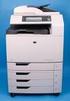 HP Color LaserJet CM6040/CM6030 MFP Series Analog Fax Accessory 300 Fax Guide Copyright and License 2008 Copyright Hewlett-Packard Development Company, L.P. Reproduction, adaptation, or translation without
Xerox Multifunction Devices. Verify Device Settings via the Configuration Report
 Xerox Multifunction Devices Customer Tips March 15, 2007 This document applies to these Xerox products: X WC 4150 X WCP 32/40 X WCP 35/45/55 X WCP 65/75/90 X WCP 165/175 X WCP 232/238 X WCP 245/255 X WCP
A6210 WiFi USB Adapter 802.11ac USB 3.0 Dual Band User Manual
 802.11ac USB 3.0 Dual Band User Manual August 2014 202-11373-01 350 East Plumeria Drive San Jose, CA 95134 USA Support Thank you for selecting NETGEAR products. After installing your device, locate the
April 2014. Xerox WorkCentre 3315DN/3325DN/3325DNI System Administrator Guide
 April 2014 Xerox WorkCentre 3315DN/3325DN/3325DNI 2014 Xerox Corporation. XEROX and XEROX and Design are trademarks of Xerox Corporation in the United States and/or other countries. Document version 1.0:
Printer / Scanner Reference
 Operating Instructions Printer / Scanner Reference 1 2 3 4 5 6 Getting Started Installing the Software Using the Printer Function Using the TWAIN Scanner Function Troubleshooting Appendix Read this manual
Scanner Reference. Operating Instructions
 Operating Instructions Scanner Reference 1 2 3 4 5 6 7 Sending Scan Files by E-mail Sending Scan Files by Scan to Folder Storing Files Using the Scanner Function Delivering Scan Files Scanning Originals
KM-2810/KM-2820 SETUP GUIDE. Please read this Setup Guide before using this machine. Keep it close to the machine for easy reference.
 KM-80/KM-80 SETUP GUIDE Please read this Setup Guide before using this machine. Keep it close to the machine for easy reference. Introduction About this Guide This guide explains the following setting
W850. Maintenance Guide
 W850 Maintenance Guide August 2011 www.lexmark.com Contents...3 Cleaning the exterior of the printer...3 Storing supplies...3 Conserving supplies...3 Checking the status of supplies...4 Checking the status
Fiery E100 Color Server. Welcome
 Fiery E100 Color Server Welcome 2011 Electronics For Imaging, Inc. The information in this publication is covered under Legal Notices for this product. 45098226 27 June 2011 WELCOME 3 WELCOME This Welcome
WorkCentre 5632/5638/5645/5655/5665/5675/5687. Quick Use Guide MAXIMISE YOUR PRODUCTIVITY...
 WorkCentre 563/5638/5645/5655/5665/5675/5687 Quick Use Guide 604P90C MAXIMISE YOUR PRODUCTIVITY......by taking advantage of all the capabilities of your device. An Interactive User Guide CD is supplied
Understanding the home screen
 Quick Reference Learning about the printer Using the printer control panel 1 2 3 4 5 6 Understanding the home screen When the printer is turned on, the display shows a basic screen, referred to as the