
Version 1.1 December Xerox Phaser 3320DN/3320DNI User Guide
|
|
|
- Barnard Dorsey
- 9 years ago
- Views:
Transcription
1 Version 1.1 December 2013 Xerox Phaser 3320DN/3320DNI

2 2013 Xerox Corporation. All rights reserved, Xerox and Xerox and Design are trademarks of Xerox Corporation in the United States and/or other countries. Document version 1.1: December 2013

3 Table of Contents 1 Getting Started Machine Overview Powering on the Machine Control Panel Overview Menu Overview Reports Software Loading Paper Media Output Locations General Care and Consumables Further Assistance Print Printing using Windows Xerox Easy Printer Manager (EPM) Wireless Setting Program (Phaser 3320DNI) SetIP Printing using Macintosh Printing using Linux Printing using Unix CentreWare Internet Services Using CentreWare Internet Services Status Jobs Print Properties Support Paper and Media Loading Paper Setting Paper Size and Type Media Guidelines and Specifications Machine Features and Setups Accessing the Feature and Setup Options Feature Options Setup Options

4 6 General Care and Troubleshooting General Care Troubleshooting Further Assistance Specifications Machine Specifications Electrical Specifications Print Specifications System Requirements Network Environment Safety Index Notices and Safety Safety Labels and Symbols Operational Safety Information Basic Regulations Material Safety Data Product Recycling and Disposal Energy Program Compliance Environment, Health and Safety (EH&S) Contact Information

5 Getting Started 1 This chapter includes: Machine Overview on page 6 Powering on the Machine on page 8 Control Panel Overview on page 9 Menu Overview on page 10 Reports on page 12 Software on page 13 Loading Paper on page 14 Media Output Locations on page 18 General Care and Consumables on page 20 Further Assistance on page 21 5

6 Machine Overview Machine Overview Before you use your machine, take some time to familiarize yourself with the various features and options. Front View Output Tray Paper Tray Control Panel 8 3 Control Board Cover 9 4 Front Cover 10 5 Paper Level Indicator 11 Bypass Tray Bypass Tray Extension Bypass Tray Width Guides Output Tray Support 6 Paper Tray 2 (Optional) 6

7 Machine Overview Rear View Network Port 5 2 USB Port 6 3 Power Switch 7 Duplex Unit Rear Door Paper Tray Rear Cover 4 Power Receptacle Product Configurations Component Phaser 3320DNI Phaser 3320DN Paper Tray 1 (250 sheets) Standard Standard Bypass Tray (50 sheets) Standard Standard Paper Tray 2 (520 sheets) Optional Optional Network Printing Standard Standard USB Port Standard Standard 128MB Memory Standard Standard 256MB Additional Memory Expansion Optional Optional Wireless Enabled Standard Not Applicable 7

8 Powering on the Machine Powering on the Machine The On/Off switch and the power cable socket are at the rear of the machine. 1. Connect the AC Power Cord 1 to the machine and a power outlet. The power cord must be plugged into a grounded power socket. 2. Press the ON/OFF 2 switch to the ON (I) position. Power Save 2 1 This machine contains advanced energy conservation technology that reduces power consumption when it is not in active use. When the printer does not receive data for an extended period of time, the Power Save mode becomes active and power consumption is automatically lowered. Press the Power Save button to select the Power Save mode immediately. To restore the machine to a normal state, press the Power Save button. Powering off the Machine There are two ways to switch the machine off: Press the ON/OFF switch to the (O) position. Press the Power Save button and use the arrow buttons on the control panel to select Power Down and then press OK. 8

9 Control Panel Overview Control Panel Overview Display Screen: Displays the current machine status and prompts during an operation. Arrows: The up/down and left/right arrows are used to scroll through the options available in the selected menu, and to increase or decrease values. OK: Confirms the selection on the screen. 1 4 Menu: Enters Menu Mode and enables you to access options and settings Back: Used to go back one level in the menu. 6 7 Power Save: Sends the machine into Power Save mode or Power Down. Press the button again to restart the machine. Stop: Pressing the Stop button stops an operation at any time Status / Wireless LED: The color of the LEDs indicates the machine s current status. For more information refer to Status / Wireless LED on page Note: The Wireless LED applies to the Phaser 3320DNI only. 9

10 Menu Overview Menu Overview The control panel provides access to various menus. These menus can be accessed by pressing the Menu button and using the arrow buttons to navigate to the menu item you require and pressing OK. Selecting Menu Items Press the Menu Button on the control panel. Press the Up/Down arrow buttons to scroll through the menu items. Press OK to select the menu item. Press the Right/Left arrow buttons to scroll to a menu option in the selected menu item. Press OK to select the menu option. Entering Alphanumeric Characters As you perform various tasks, you may need to enter alphanumeric characters. For example, when entering a margin measurement. When this is required, the arrow keys are used as follows: UP Key: Increases the character code (A -> B -> C ) Down Key: Decreases the character code (C -> B -> A ) Right Key: Moves to the next input field Left Key: Deletes the last character OK Key: Enters the current input Feature Menu You can change the settings for various feature options within the print environment to meet your preferences and needs. A password may be required to access and change these settings. The following table shows the available options for each menu item. For more detailed information refer to Machine Features and Setups on page 75. Information Layout Paper Graphic Job Manage Menu Map Configuration Supplies info. Demo Page PCL Font PS Font EPSON Font Stored Job Usage Counters Orientation Common Margin: - Simplex Margin - Duplex Margin - Binding Margin Bypass Tray Tray X Emulation Margin Duplex Quantity Bypass Tray/Tray 1 & 2: Paper Size and Type Paper Source Bypass Mode Resolution Darken Text Active Job Stored Job File Policy Note: Some menu options may be unavailable depending on your machine configuration and whether the machine is in the Ready state. 10

11 Menu Overview Setup Menu The Setup menu enables you to customize options which are specific to the machine, such as Language and Power Save and Emulation settings. A password may be required to access and change these Setup settings. You may also set up the network using the machine's display screen. Before doing that, you must have the relevant information concerning the type of network protocols and computer system you use. If you are not sure which setting to use, contact your System Administrator to configure this machine on the network. A password may be required to access and change the Network Setups. The following table shows the available options for each menu item. For more detailed information refer to Machine Features and Setups on page 75. System Setup Emulation Network Setup Language Power Save Wakeup Event Auto Continue Paper Subst. Paper Mismatch Tray Chaining Default Paper Metric Default Altitude Adj. Line Term. Job Timeout Config. Page Maintenance - Supplies Info - Toner Low Alert Toner Save Earth Smart Clear Setting Emulation Type Setup: Setup-PCL - Typeface - Symbol - Courier - Pitch - Lines - Wide A4 Setup-Postscript Setup-EPSON/IBM - Font - Character Set - Character Tab - Pitch - LPI - Autowrap TCP/IP(IPv4) TCP/IP(IPv6) Ethernet Speed 802.1x - Off - On Wireless (Phaser 3320DNI only) Clear Setting Network Conf. Net. Activate HTTP Activate Note: Some menu options may be unavailable depending on your machine configuration. You may be required to enter a password before making setup changes. 11

12 Reports Reports Various reports can be printed to provide information about your machine. 1. Select the Menu button on the control panel. 2. Use the up/down arrows to scroll to the Information menu and select OK. 3. Use the up/down arrows until the report you require displays and select OK. 4. Select OK to print the report. The following reports can be printed: Report Description Menu Map Configuration Supplies Info Demo Page PCL Font PS Font EPSON Font Stored Job Usage Counters Prints the menu map which shows the layout and current settings of this machine. This report provides information about your machine setup, including the serial number, IP Address, installed options and the software version. Prints the supplies information page. The demo page is printed to check the quality of the print. Prints the PCL font list. Prints the PS font list. Prints the EPSON font list. Prints the stored job list. This list shows the number of impressions made on the machine. The list includes: Total Impressions Black Impressions Black Printed Impressions Sheets 2 Sided Sheets Printed Sheets Printed 2 Sided Sheets Black Printed Sheets Black Printed 2 Sided Sheets Maintenance Impressions Black Maintenance Impressions Note: Some options may be unavailable depending on your machine configuration. 12

13 Software Software After you have set up your machine and connected it to your computer, you must install the printer software. The software is supplied on the CD delivered with your machine, or can be downloaded from The following software is provided: CD OS Contents Printer Software CD Printer Software Printer Software Printer Software CD Windows Printer Driver: Use the printer driver to take full advantage of your printer s features. PCL6, Postscript and XPS drivers are provided. Xerox Easy Printer Manager (EPM): Conveniently combines access to device settings, printing environments and the launch of applications such as Xerox CentreWare Internet Services into one location. Note: Login is required to change Printer Settings. Wireless Setting Program: When installing the Phaser 3320DNI you can use the Wireless Setting program that was automatically installed with the printer driver to configure the wireless settings. SetIP program: A utility program allowing you to select a network interface and manually configure the addresses for use with the TCP/IP protocol. Linux Printer Driver: Use this driver to take full advantage of your printer s features. Note: Linux software is available on xerox.com only. Unix Printer Driver: Use this driver to take full advantage of your printer s features. Note: Unix software is available on xerox.com only. Macintosh Printer Driver: Use this driver to take full advantage of your printer s features. SetIP program: A utility program allowing you to select a network interface and manually configure the addresses for use with the TCP/IP protocol. Smart Panel: This utility enables remote management, displaying toner levels, printer status and problem alerts. 13

14 Loading Paper Loading Paper Paper Tray 1 and Paper Tray 2 (optional) The paper level indicator on the front of trays 1 and 2 shows the amount of paper currently left in the tray. When the tray is empty, the indicator is completely lowered as shown in the illustration: 1 shows full, 2 shows empty. Paper tray 1 can hold up to 250 sheets and paper tray 2 (optional) can hold up to 520 sheets of 20 lb (80 g/m 2 ) paper. For more media specifications, refer to Media Specifications on page To load the paper: 1. Pull out the paper tray and load paper into the tray, print side down. Do not fill above the Maximum Fill line indicated by the symbol. 2. Slide the paper length guide until it lightly touches the end of the paper stack. 14

15 Loading Paper 3. Position the side guide by squeezing the lever and sliding it towards the stack of paper, until it gently touches the side of the stack. 4. Insert the paper tray into the machine. 5. After loading paper in the paper tray, set the paper size and type using the control panel. For information about setting the paper size and type on the control panel, refer to Setting Paper Size and Type on page When printing from your computer, ensure you select Size on the driver Paper tab to specify the correct paper size and type. Not confirming the paper details may result in printing delays. For information about setting the paper size and type in the printer driver, refer to Paper Tab on page 38. Note: The settings made from the printer driver on your computer override the settings on the control panel. For more information on loading paper, refer to Paper and Media on page 65. Bypass Tray The bypass tray is located on the front of your machine. It can be closed when not in use, making the product more compact. Use the bypass tray to print transparencies, labels, envelopes or postcards in addition to making quick runs of paper types or sizes that are not currently loaded in the main paper tray. The bypass tray can hold a maximum of 50 sheets of 20 lb (80 g/m²) bond paper, 5 transparency sheets or 5 envelopes. 1. Lower the bypass tray 1 and unfold the paper support extension Prepare a stack of paper for loading by flexing or fanning it back and forth. Straighten the edges on a level surface. 2 Remove any curl on postcards, envelopes and labels before loading them into the bypass tray. When using the bypass tray for special media it may be 1 necessary to use the rear door for the output. For further information refer to Media Output Locations on page 18. Note: The rear door output can only be used for simplex jobs. Duplex printing with the rear door open will cause paper jams. 15

16 Loading Paper 3. Load the print material between the width guides with the print side facing up. Note: Hold transparencies by the edges and avoid touching the print side. 4. Adjust the paper guide to the width of the stack of print material. Ensure you have not loaded too much print media. The stack should be below the Maximum Fill line indicated by the symbol. 5. When printing from your computer, ensure you select Size on the driver Paper tab to specify the correct paper size and type. Not confirming the paper details may result in printing delays. For information about setting the paper size and type in the printer driver, refer to Paper Tab on page 38. Note: The settings made from the printer driver on your computer override the settings on the control panel. 6. After printing, remove any unfed paper and close the bypass tray. Duplex Unit The duplex unit is preset to either Letter size or A4 depending on your country. To change the size of the duplex unit, follow the instructions below. 1. Pull the duplex unit out of the machine. 2. Adjust the guides to match the size of paper you will be using. 16

17 Loading Paper 3. Insert the duplex unit back into the machine, aligning the edges of the unit with the feed grooves on the inside of the machine. Make sure the duplex unit is fully pushed in. 17

18 Media Output Locations Media Output Locations The machine has two output locations: Output tray (face down) 1 up to a maximum of 150 sheets of 20 lb (80 g/m²) paper. 1 Rear door (face up) 2 one sheet at a time for 1-sided output only. 2 The machine sends output to the output tray by default. If special media such as envelopes print out with wrinkles, curl, creases or black bold lines, the rear door should be used for the output. Open the rear door and keep it open while printing one sheet at a time. Note: The rear door output can only be used for simplex jobs. Duplex printing with the rear door open will cause paper jams. Using the Output Tray The output tray collects printed paper face down, in the order in which the sheets were printed. The output tray should be used for most jobs. When the output tray is full, a message displays on the control panel. 18

19 Media Output Locations To use the output tray, make sure that the rear door is closed. Notes: To reduce paper jams, do not open or close the rear door while the printer is printing. If paper coming out of the output tray has problems, such as excessive curl, try printing to the rear door. The rear door output can only be used for simplex jobs. Duplex printing with the rear door open will cause paper jams. Using the Rear Door When using the rear door, paper comes out of the machine face up. Printing from the bypass tray to the rear door provides a straight paper path and might improve the output quality when printing on special media. Whenever the rear door is open, the output is delivered there. Note: The rear door output can only be used for simplex jobs. Duplex printing with the rear door open will cause paper jams. CAUTION: The fuser area inside the rear door of your machine becomes very hot when in use. Take care when you access this area. 19

20 General Care and Consumables General Care and Consumables There is only one customer replaceable consumable in the machine, the print cartridge. To place an order for Xerox consumables, please contact your local Xerox Representative giving your Company Name, product number and the machine serial number. Supplies can also be ordered from refer to Support on page 64 for further information. The machine s serial number is located on the inside of the front door on the machine and is printed on the configuration report. For further information about locating the serial number, please refer to Locating the Serial Number on page 116. Print Cartridge To avoid print quality problems resulting from worn parts and to maintain your machine in top working condition, the print cartridge will need to be replaced after printing the specified number of pages or when the life span of the cartridge has expired. The machine will display a message when the print cartridge needs to be replaced. Only replace the cartridge when a message instructs you to do so or when instructed by a Xerox representative. To replace the print cartridge, follow the instructions provided within this guide or with the consumable. To replace the print cartridge, refer to General Care and Troubleshooting on page 87. To purchase a new print cartridge, contact your local Xerox representative or authorized dealer. Supplies can also be ordered from refer to Support on page 64 for further information. Cleaning Tasks Performing regular cleaning activities ensures the machine is kept free of dust and debris. The machine covers and control panel should all be cleaned using a soft lint-free cloth, lightly dampened with water. Remove any residue with a clean cloth or paper towel. For further information on maintenance tasks, refer to General Care and Troubleshooting on page

21 Further Assistance Further Assistance For any additional help visit our customer web site at or contact the Xerox Support Center quoting the machine serial number. The machine s serial number is located on the inside of the front door on the machine and is printed on the configuration report. For further information about locating the serial number, please refer to Locating the Serial Number on page 116. Xerox Support Center If a fault cannot be resolved by following the display instructions, check Error Messages on page 101. If the difficulty persists, contact the Xerox Support Center. The Xerox Support Center will want to know the nature of the problem, the machine serial number, the fault code (if any) plus the name and location of your company. Documentation Most answers to your questions will be provided by the documentation that is supplied with your machine or on the Software and Documentation CD supplied with your machine. Alternatively you can access the documents from Installation Guide - contains information about installing the machine. (this document) - contains instructions and information about all the features on the machine. System Administration Guide - provides detailed instructions and information about connecting your machine to the network and installing optional features. 21
22 Further Assistance 22
23 Print 2 The Xerox Phaser 3320DN/DNI produces high quality prints from electronic documents. You can access the printer from your computer by installing the appropriate printer driver. To access the many printer drivers which can be used with your machine, refer to the Drivers CD or download the latest versions from the Xerox website at This chapter includes: Printing using Windows on page 24 Xerox Easy Printer Manager (EPM) on page 45 Wireless Setting Program (Phaser 3320DNI) on page 46 SetIP on page 48 Printing using Macintosh on page 49 Printing using Linux on page 52 Printing using Unix on page 54 Xerox Phaser 3320DN/DNI 23
24 Printing using Windows Printing using Windows The following provides an overview of the print procedure and features available when printing using Windows. Install Printer Software You can install the printer software for local printing and network printing. To install the printer software on the computer, perform the appropriate installation procedure depending on the printer in use. A printer driver is software that lets your computer communicate with your printer. The procedure to install drivers may differ depending on the operating system you are using. All applications should be closed on your PC before beginning installation. You can install the printer software for a local, networked or wireless printer using the typical or custom method. For further information refer to the System Administrator Guide. Local Printer A local printer is a printer directly attached to your computer using a printer cable, such as a USB cable. If your printer is attached to a network, refer to Networked Printer on page 26. Note: If the New Hardware Wizard window appears during the installation procedure, select Close or Cancel. 1. Make sure that the printer is connected to your computer and powered on. 2. Insert the supplied CD-ROM into your CD-ROM drive. The CD-ROM should automatically run, and an installation window appear. If the installation window does not appear, select the Start button and then Run. Type X:\Setup.exe, replacing X with the letter which represents your drive and select OK. If you use Windows Vista, select Start > All programs > Accessories > Run, and type X:\Setup.exe. If the AutoPlay window appears in Windows Vista, select Run Setup.exe in the Install or run program field, and select Continue in the User Account Control window. 3. Select Install Software. 24 Xerox Phaser 3320DN/DNI
25 Printing using Windows 4. Select Typical installation for a local printer and follow the wizard instructions to install the local printer. If your printer is not already connected to the computer, the Connect Device screen will appear. After connecting the printer, select Next. Note: If you don t want to connect the printer at this time, select Next and then No on the following screen. Then the installation will start and a test page will not be printed at the end of the installation. Xerox Phaser 3320DN/DNI 25
26 Printing using Windows 5. After the installation is finished, select Finish. If your printer is connected to the computer, a Test Print page will be printed. If the Test Print operation is successful, continue on to Print Procedure on page 34 in this document. If the print operation failed, refer to Troubleshooting on page 93. Networked Printer When you connect your printer to a network, you must first configure the TCP/IP settings for the printer. After you have assigned and verified the TCP/IP settings, you are ready to install the software on each computer on the network. 1. Make sure that the printer is connected to your network and powered on. For details about connecting to the network, refer to the System Administrator Guide. 2. Insert the supplied CD-ROM into your CD-ROM drive. The CD-ROM should automatically run, and an installation window appears. If the installation window does not appear, select the Start button and then Run. Type X:\Setup.exe, replacing X with the letter which represents your drive and select OK. If you use Windows Vista, select Start > All programs > Accessories > Run, and type X:\Setup.exe. If the AutoPlay window appears in Windows Vista, select Run Setup.exe in the Install or run program field, and select Continue in the User Account Control window. 3. Select Install Software. 26 Xerox Phaser 3320DN/DNI
27 Printing using Windows 4. Select Typical installation for a network printer and click Next. Note: For custom install instructions, see Custom Installation on page Select the required Printer Port. If TCP/IP Port is selected, select your printer from the list and click Next. Click Update to refresh the list.to select a different port go to the next step, otherwise follow the wizard instructions to install the printer. Xerox Phaser 3320DN/DNI 27
28 Printing using Windows 6. Select the required Printer Port. If Shared Printer (UNC) is selected, type in the name of the shared network printer and select Next.To select a different port go to the next step, otherwise follow the wizard instructions to install the printer. 7. If Add TCP/IP Port is selected, enter the Printer Name or the assigned IP address and a port name for the desired device. Click Next and follow the wizard instructions to install the printer. 28 Xerox Phaser 3320DN/DNI
29 Printing using Windows 8. After the installation is finished, select Finish. If your printer is connected to the network, a Test Print page will be printed. If the Test Print operation is successful, continue on to Print Procedure on page 34 in this document. If the print operation failed, refer to Troubleshooting on page 93. Custom Installation With the custom installation, you can choose individual components to install. 1. Make sure that the printer is connected to your computer and powered on. 2. Insert the supplied CD-ROM into your CD-ROM drive.the CD-ROM should automatically run, and an installation window appears. If the installation window does not appear, select the Start button and then Run. Type X:\Setup.exe, replacing X with the letter which represents your drive and select OK. If you use Windows Vista, select Start > All programs > Accessories > Run, and type X:\Setup.exe. If the AutoPlay window appears in Windows Vista, select Run Setup.exe in the Install or run program field, and select Continue in the User Account Control window. 3. Select Install Software. Xerox Phaser 3320DN/DNI 29
30 Printing using Windows 4. Select Custom installation. 5. Select Next. 6. Select the desired Printer Port and follow the instructions to select your printer or enter your printer details. Click Next. Note: If your printer is not already connected to the computer, the Connect Device window will display, refer to the next step. 30 Xerox Phaser 3320DN/DNI
31 Printing using Windows 7. Connect the printer and select Next. If you don't want to connect the printer at this time, select Next, and then No on the following screen. Then the installation will start and a test page will not be printed at the end of the installation. Note: The installation window that appears in this may differ depending on the printer and interface in use. 8. Select the components to be installed and select Next. You can change the desired installation folder by selecting Browse. 9. After the installation is finished, a window asking you to print a test page appears. If you choose to print a test page, select the checkbox and select Next. Otherwise, just select Next. 10. If the test page prints out correctly, select Yes. If not, select No to reprint it. Xerox Phaser 3320DN/DNI 31
32 Printing using Windows 11. Select Finish. Wireless Printer (Phaser 3320DNI) When you connect your printer to a network, you must first configure the TCP/IP settings for the printer. After you have assigned and verified the TCP/IP settings, you are ready to install the software on each computer on the network. Note: If you choose a wireless connection for your printer, you cannot use a wired connection at the same time. 1. Make sure that the printer is connected to your computer with a usb cable and powered on. For details about connecting to the network, refer to the System Administrator Guide. 2. Insert the supplied CD-ROM into your CD-ROM drive. The CD-ROM should automatically run, and an installation window appears. If the installation window does not appear, select the Start button and then Run. Type X:\Setup.exe, replacing X with the letter which represents your drive and select OK. If you use Windows Vista, select Start > All programs > Accessories > Run, and type X:\Setup.exe. If the AutoPlay window appears in Windows Vista, select Run Setup.exe in Install or run program field, and select Continue in the User Account Control window. 3. Select Install Software. 32 Xerox Phaser 3320DN/DNI
33 Printing using Windows 4. Select Wireless Setup and follow the wizard instruction to select and install the printer. If your printer is not already connected to the computer, the Connect Device screen will appear. After connecting the printer, select Next and follow the wizard instruction to install the printer. 5. After the installation is finished, select Finish. If your printer is connected to the network, a Test Print page will be printed. If the Test Print operation is successful, continue on to Print Procedure on page 34 in this document. If the print operation failed, refer to Troubleshooting on page 93. For more information refer to the System Administrator Guide. Xerox Phaser 3320DN/DNI 33
34 Printing using Windows Print Procedure Documents can be printed from your computer using the printer drivers supplied. The printer driver must be loaded on each PC which uses the machine for printing. Note: Some options may be unavailable depending on your machine configuration. 1. Select Print in your application. 2. From the Printer: Name drop down menu, select your machine. 3. Select Properties or Preferences to make your print selections on the individual tabs. For more information refer to the following: Basic Tab on page 35 Paper Tab on page 38 Graphics Tab on page 39 Advanced Tab on page 40 Earth Smart Tab on page 43 Xerox Tab on page Select OK to confirm your selections. 5. Select OK to print your document. 34 Xerox Phaser 3320DN/DNI
35 Printing using Windows Basic Tab The Basic tab provides selections for the print mode to use and options to adjust how the document appears on the printed page. These options include orientation settings, quality settings, layout options and doublesided printing settings. Note: Some options may be unavailable depending on your printer model and configuration. Print Mode The Print Mode drop down menu enables selection of various job types. Note: Not all job types are available, depending on your model and machine configuration. Normal: This is the default print mode and is used for printing without saving the print file in memory. Sample: Useful when printing more than one copy. Allows you to print one copy first, and the rest of the copies later when they have been checked. Secure: This mode is used for printing confidential documents. A pop-up screen enables you to enter a job name, user ID and a 4-digit password. At the machine, re-enter the password to release the job for print. Printing a Secure Job At the machine: 1. Select the Menu button on the control panel. 2. Press the down arrow button to scroll to Job Manage. and press OK. 3. Press the down arrow button to scroll to Stored Job and press OK. 4. Press the down arrow button to scroll to your job and press OK to select the job. 5. Enter your 4 digit pin by pressing the up arrow button to select the required number, then select the right arrow button to get to the second number in your pin. 6. Continue pressing the up arrow to select the number and the right arrow to move across until you have entered all 4 numbers. 7. Select OK. 8. The Print option appears. If you select the down arrow you have the option to Delete the job if you wish. Xerox Phaser 3320DN/DNI 35
36 Printing using Windows 9. To print the job, select Print and press OK. 10. The Copies menu appears. Press the up arrow to enter the required number of copies and press OK. 11. The Print menu appears with No as the option - press the down arrow to select Yes. 12. Press OK. Your document prints. Orientation Orientation allows you to select the direction in which information is printed on a page. Portrait: Prints across the width of the page, letter style. Landscape: Prints across the length of the page, spreadsheet style. Rotate 180 Degrees: This allows you to rotate the page 180 degrees. Layout Options Layout Options allow you to select a different layout for your output and a page border. Type: You can select the number of pages to print on a single sheet of paper. To print more than one page per sheet, the pages will be reduced in size and arranged in the order you specify. Single Page Per Side: Use this option if the layout does not require changing. Multiple Pages Per Side: Use this option to print multiple pages on each page. You can print up to 16 pages on one sheet. Select the number of images required on each side, the page order and if borders are required. Poster Printing: Use this option to divide a single-page document onto 4, 9 or 16 segments. Each segment will be printed on a single sheet of paper for the purpose of pasting the sheets together to form one poster-size document. Select Poster 2x2 for 4 pages, Poster 3x3 for 9 pages or Poster 4x4 for 16 pages. Then choose the overlap amount in mm or inches. 36 Xerox Phaser 3320DN/DNI
37 Printing using Windows Booklet Printing: This allows you to print your document on both sides of the paper and arrange the pages so that the paper can be folded in half after printing to produce a booklet. Page Border You can select to have a border printed around each page. Various line styles are available from the drop down menu, together with corner marks or crop marks. 2 sided Printing You can print on both sides of a sheet of paper. Before printing, decide how you want your document oriented. Printer Default: If you select this option, this feature is determined by the settings made on the control panel of the printer. None: The document is printed single-sided. Long Edge: This is the conventional layout used in book binding. Short Edge: This is the type often used with calendars. Reverse Double-Sided Printing: The document is printed two sided and the second side images are rotated 180 degrees. Xerox Phaser 3320DN/DNI 37
38 Printing using Windows Paper Tab Use the Paper tab options to set the basic paper handling specifications when you access the printer properties. Copies This allows you to choose the number of copies to be printed. You can select 1 to 999 copies. Paper Options Size: This allows you to set the size of paper required for printing. If the required size is not listed in the Size box, select Edit. When the Custom Paper Setting window appears, set the paper size and select OK. The setting appears in the list so that you can select it. Source: Use this option to select the paper tray required. Use the bypass tray when printing on special materials like envelopes and transparencies. If the paper source is set to Auto Select, the printer automatically selects the paper source based on the requested size. Type: Set Type to correspond to the paper loaded in the tray selected. This will provide the best quality printout. If printing envelopes, ensure the Envelope tab is selected and the envelopes loaded into the bypass tray. Advanced: The advanced paper options allow you to select a different paper source for the first page of your document. From the drop-down menu, select the paper tray containing the paper required. Scaling Options This allows you to automatically or manually scale your print job on a page. Fit to Page: This allows you to scale your print job to any selected paper size, regardless of the digital document size. Percentage: Use this option to change the contents of a page to appear larger or smaller on the printed page. Enter the scaling rate in the Percentage input box. 38 Xerox Phaser 3320DN/DNI
39 Printing using Windows Graphics Tab Use the following options to adjust the print quality for your specific printing needs. Quality Use this option to select the image quality setting required. Best: Use this option if printing graphics or photographs. Normal: Use this option for text or line art. Font/Text Darken Text: Use this option to select the level of darkness to apply to the text in your document. All Text Black: Select this checkbox to have all text in your document print in solid black, regardless of the color it appears on the screen. Advanced: Use this option to set font options. True Type fonts can be downloaded as Outline or Bitmap Images or printed as Graphics. Select the Use Printer Fonts option if the fonts do not require downloading and the printer fonts should be used. Toner Save Selecting this option extends the life of your print cartridge and reduces your cost per page without a significant reduction in print quality. Xerox Phaser 3320DN/DNI 39
40 Printing using Windows Advanced Tab You can select Advanced output options for your document, such as Watermarks or Overlay Text. 40 Xerox Phaser 3320DN/DNI
41 Printing using Windows Watermark. This option allows you to print text over an existing document. There are several predefined watermarks that come with the printer which can be modified, or you can add new ones to the list. Using an Existing Watermark Select the required watermark from the Watermark drop-down list. You will see the selected watermark in the preview image. Creating a Watermark 1. Select Edit from the Watermark drop-down list. The Edit Watermark window appears. 2. Enter a text message in the Watermark Message box. You can enter up to 40 characters. The message displays in the preview window. When the First Page Only box is checked, the watermark prints on the first page only. 3. Select the watermark options. You can select the font name, style, size or shade from the Font Attributes section and set the angle of the watermark from the Message Angle section. 4. Select Add to add the new watermark to the list. 5. When you have finished editing, select OK. Editing a Watermark 1. Select Edit from the Watermark drop-down list. The Edit Watermark window appears. 2. Select the watermark you want to edit from the Current Watermarks list and change the watermark message options. 3. Select Update to save the changes. 4. When you have finished editing, select OK. Deleting a Watermark 1. Select Edit from the Watermark drop-down list. The Edit Watermark window appears. 2. Select the watermark you want to delete from the Current Watermarks list and select Delete. 3. Select OK. Xerox Phaser 3320DN/DNI 41
42 Printing using Windows Overlay An Overlay is text and/or images stored on the computer hard disk drive as a special file format that can be printed on any document. Overlays are often used to take the place of preprinted forms and letterhead paper. Note: This option is only available when you use the PCL6 Printer Driver. Creating a New Page Overlay To use a page overlay, you must first create one containing your logo or another image. 1. Create or open a document containing text or an image for use in a new page overlay. Position the items exactly as you want them to appear when printed as an overlay. 2. Select Edit from the Overlay drop-down list. The Edit Overlay window appears. 3. Select Create and type a name in the File name box. Select the destination path, if necessary. 4. Select Save. The name appears in the Overlay List box. 5. Select OK. Note: The overlay document size must be the same as the documents you print with the overlay. Do not create an overlay with a watermark. 6. Select OK on the Advanced tab page. 7. Select OK in the main Print window. 8. An Are you Sure? message displays. Select Yes to confirm. Using a Page Overlay 1. Select the required overlay from the Overlay drop-down list box. If the overlay file you want does not appear in the overlay list, select the Edit button and Load Overlay, and select the Overlay file. If you have stored the overlay file you want to use in an external source, you can also load the file when you access the Load Overlay window. After you select the file, select Open. The file appears in the Overlay List box and is available for printing. Select the overlay from the Overlay List box. 2. If necessary, select Confirm Page Overlay When Printing. If this box is checked, a message window appears each time you submit a document for printing, asking you to confirm your wish to print an overlay on your document. If this box is not checked and an overlay has been selected, the overlay automatically prints with your document. 3. Select OK. Deleting a Page Overlay 1. Select Edit from the Overlay drop-down list. The Edit Overlay window appears. 2. Select the Overlay you want to delete from the Overlay List box. 3. Select Delete Overlay. When a confirming message window appears, select Yes. 4. Select OK. 42 Xerox Phaser 3320DN/DNI
43 Printing using Windows Output Options Select the required Print order from the drop-down list box: Normal: All pages are printed. Reverse All Pages: Your printer prints all pages from the last page to the first page. Print Odd Pages: Your printer prints only the odd numbered pages of the document. Print Even Pages: Your printer prints only the even numbered pages of the document. Tick the Skip Blank Pages checkbox if you do not want blank pages to be printed. To add a binding margin, tick the Manual Margin checkbox and select Details to select the margin position and width. Earth Smart Tab The Earth Smart tab provides options to decrease the amount of energy and paper used in the printing process and displays a visual representation of the savings made. Type The Type drop-down list is used to select the main Earth Smart option for the printer. None: No energy or paper saving options are automatically selected. Earth Smart Printing: When this option is selected, 2 Sided Printing, Layout, Skip Blank Pages and Toner Save can be customized to suit requirements. Printer Default. This option automatically selects the printer default settings. Result Simulator This area of the Earth Smart tab shows a visual representation of the estimated energy and paper savings based on the selections made. Xerox Phaser 3320DN/DNI 43
44 Printing using Windows Xerox Tab This tab provides version and copyright information as well as links to drivers and downloads, supplies ordering and the Xerox website. 44 Xerox Phaser 3320DN/DNI
45 Xerox Easy Printer Manager (EPM) Xerox Easy Printer Manager (EPM) Xerox Easy Printer Manager is a Windows-based application that combines Xerox machine settings into one location. Xerox Easy Printer Manager conveniently combines access to device settings, printing environments and the launch of applications such as Xerox CentreWare Internet Services into one location. All of these features provide a gateway to conveniently use Xerox devices. For information about using the Easy Printer Manager, refer to the Xerox Phaser 3320DN/DNI Utilities Guide available on Xerox.com. Xerox Phaser 3320DN/DNI 45
46 Wireless Setting Program (Phaser 3320DNI) Wireless Setting Program (Phaser 3320DNI) When installing the Phaser 3320DNI you can use the Wireless Setting program that was automatically installed with the printer driver to configure the wireless settings. Note: If you choose a wireless connection for your printer, you cannot use a wired connection at the same time. To open the program: Select Start > Programs or All Programs > Xerox Printers > Xerox Phaser 3320DNI > Wireless Setting Program 1. Connect the machine to your computer using the USB cable Note: During installation, the printer needs to be temporarily connected using the USB cable. 2. Select Next 46 Xerox Phaser 3320DN/DNI
47 Wireless Setting Program (Phaser 3320DNI) 3. Once the machine is connected to the computer with the USB cable, the program searches for WLAN data. Note: It may be necessary to select the program again before this screen appears. 4. When the search is complete, the wireless Network Setting Information is displayed. 5. If you want to configure the settings, select Next. Xerox Phaser 3320DN/DNI 47
48 SetIP SetIP The SetIP program is a utility program allowing you to select a network interface and manually configure the addresses for use with the TCP/IP protocol. This program is on the software CD that comes with your printer. For information on using the SetIP program, refer to refer to the Xerox Phaser 3320DN/DNI Utilities Guide available on Xerox.com. 48 Xerox Phaser 3320DN/DNI
49 Printing using Macintosh Printing using Macintosh This section explains how to print using a Macintosh. You need to set the print environment before printing. Refer to the System Administrator Guide. Smart Panel is a program that monitors and informs you of the machine s status, and allows you to customize the machine s settings. Smart Panel is installed automatically when you install the machine software. Printing a Document When you print with a Macintosh, you need to check the printer driver setting in each application you use. Follow the steps below to print from a Macintosh. 1. Open the document you want to print. 2. Open the File menu and select Page Setup (Document Setup in some applications). 3. Choose your paper size, orientation, scaling and other options. Make sure that your machine is selected and select OK. 4. Open the File menu and select Print. 5. Choose the number of copies you want and indicate which pages you want to print. 6. Select Print. Changing Printer Settings You can use advanced printing features provided by your machine. Open an application and select Print from the File menu. The machine name, which appears in the printer properties window may differ depending on the machine in use. Except for the name, the composition of the printer properties window is similar to the following. Note: The setting options may differ depending on the printer and the Macintosh OS version. Layout The Layout tab provides options to adjust how the document appears on the printed page. You can print multiple pages on one sheet of paper. Graphics The Graphics tab provides options for selecting Resolution. Select Graphics from the drop-down list under Orientation to access the graphic features. Resolution This option allows you to select the printing resolution. The higher the setting, the sharper the clarity of printed characters and graphics. The higher setting also may increase the time it takes to print a document. Xerox Phaser 3320DN/DNI 49
50 Printing using Macintosh Paper Set Paper Type to correspond to the paper loaded in the tray from which you want to print. This will let you get the best quality printout. If you load a different type of print material, select the corresponding paper type. Printer Features The Printer Features tab provides Reverse Duplex Printing. Select Printer Features from the dropdown list under Orientation to access the following features. Reverse Duplex Printing: The document is printed 2 sided and the second side images are rotated 180 degrees. Toner Save Mode Selecting this option extends the life of your print cartridge and reduces your cost per page without a significant reduction in print quality. On: Select this option to allow the printer to use less toner on each page. Off: If you do not need to save toner when printing a document, select this option. Printing Multiple Pages on one Sheet You can print more than one page on a single sheet of paper. This feature provides a cost-effective way to print draft pages. 1. Open an application, and select Print from the File menu. 2. Select Layout from the drop-down list under Orientation. In the Pages per Sheet drop-down list, select the number of pages you want to print on one sheet of paper. 3. Select the other options you want to use. 4. Select Print. The machine prints the selected number of pages you want to print on one sheet of paper. Two Sided Printing You can print on both sides of the paper. Before printing in the duplex mode, decide on which edge you will be binding your finished document. 1. From your Macintosh application, select Print from the File menu. 2. Select Layout from the drop-down list under Orientation. 3. Select a binding orientation from the Two Sided Printing option: Long-Edge Binding: This option is the conventional layout used in book binding. Short-Edge Binding: This option is the type often used with calendars. 4. Select the other options you want to use and select Print. 50 Xerox Phaser 3320DN/DNI
51 Printing using Macintosh Using Smart Panel If an error occurs while operating, you can check the error from the Smart Panel. You can also launch Smart Panel manually: For Mac OS 10.5: Select Print & Fax from System Preferences > Open Printer Queue... of a printer > Utility. For Mac OS 10.6: Select Print & Fax from System Preferences > Open Printer Queue... of a printer > Printer Setup > Utility > Open Printer Utility. Xerox Phaser 3320DN/DNI 51
52 Printing using Linux Printing using Linux Printing from Applications There are a lot of Linux applications that allow you to print using Common UNIX Printing System (CUPS). You can print on your machine from any such application. 1. Open an application, and select Print from the File menu. 2. Select Print directly using lpr. 3. In the LPR GUI window, select the machine from the printer list and select Properties. 4. Change the print job properties using the following four tabs displayed at the top of the window. General: This option allows you to change the paper size, the paper type, and the orientation of the documents. It enables the duplex feature, adds start and end banners, and changes the number of pages per sheet. Text: This option allows you to specify the page margins and set the text options, such as spacing or columns. Graphics: This option allows you to set image options that are used when printing image files, such as color options, image size, or image position. Advanced: This option allows you to set the print resolution, paper source, and destination. 5. Select Apply to apply the changes and close the Properties window. 6. Select OK in the LPR GUI window to start printing. The Printing window appears, allowing you to monitor the status of your print job. Printing Files You can print many different file types on your machine using the standard CUPS utility, directly from the command line interface. However, the drivers package replaces the standard lpr tool with a much more user-friendly LPR GUI program. To print any document file: 1. Type lpr <file_name> from the Linux shell command line and press Enter. The LPR GUI window appears. 2. When you type only lpr and press Enter, the Select file(s) to print window appears first. Just select any files you want to print and select Open. 3. In the LPR GUI window, select your machine from the list, and change the print job properties. 4. Select OK to start printing. Configuring Printer Properties Using the Printer Properties window provided by the Printers configuration, you can change the various properties for your machine as a printer. 1. Open the Unified Driver Configurator. If necessary, switch to Printers configuration. 2. Select your machine on the available printers list and select Properties. 52 Xerox Phaser 3320DN/DNI
53 Printing using Linux 3. The Printer Properties window opens. The following five tabs display at the top of the window: General: This option allows you to change the printer location and name. The name entered in this tab displays on the printer list in Printers configuration. Connection: This option allows you to view or select another port. If you change the machine port from USB to parallel or vice versa while in use, you must re-configure the machine port in this tab. Driver: This option allows you to view or select another machine driver. By selecting Options, you can set the default device options. Jobs: This option shows the list of Print jobs. Select Cancel job to cancel the selected job and select the Show completed jobs check box to see previous jobs on the job list. Classes: This option shows the class that your machine is in. Select Add to Class to add your machine to a specific class or select Remove from Class to remove the machine from the selected class. 4. Select OK to apply the changes and close the Printer Properties window. Xerox Phaser 3320DN/DNI 53
54 Printing using Unix Printing using Unix Printing Files After installing the printer, choose any of the image, text, PS to print. 1. Execute printui <file_name_to_print> command. For example, if you are printing document1 use printui document1 command. This will open the UNIX Printer Driver Print Job Manager in which the user can select various print options. 2. Select a printer that has already been added. 3. Select the printing options from the window such as Page Selection. 4. Select how many copies are needed in Number of Copies. 5. Press OK to start the print job. Configuring Printer Properties The UNIX printer driver Print Job Manager allows you to configure various print options using the printer Properties option. The following hot keys may also be used: H for Help, O for OK, A for Apply, and C for Cancel. General Tab Paper Size: Set the paper size as A4, Letter, or other paper sizes, according to your requirements. Paper Type: Choose the type of the paper. Options available in the list box are Printer Default, Plain, and Thick. Paper Source: Select from which tray the paper is used. By default, it is Auto Selection. Orientation: Select the direction in which information is printed on a page. Duplex: Print on both sides of paper to save paper. Multiple pages: Print several pages on one side of the paper. Page Border: Choose any of the border styles (e.g., Single-line hairline, Double-line hairline) Image Tab In this tab, you can change the brightness, resolution, or image position of your document. Text Tab Use this tab to set the character margin, line space, or the columns of the actual print output. Margins Tab Use Margins: Set the margins for the document. By default, margins are not enabled. The user can change the margin settings by changing the values in the respective fields. Set by default, these values depend on the page size selected. 54 Xerox Phaser 3320DN/DNI
55 Printing using Unix Unit: Change the units to points, inches, or centimeters. Printer-Specific Settings Tab Select various options in the JCL and General frames to customize various settings. These options are specific to the printer and depend on the PPD file. Xerox Phaser 3320DN/DNI 55
56 Printing using Unix 56 Xerox Phaser 3320DN/DNI
57 CentreWare Internet 3 Services CentreWare Internet Services uses the embedded HTTP Server on the machine. This allows you to communicate with your machine through a web browser. Entering the IP Address of the machine as the URL (Universal Resource Locator) in the browser provides direct access to the machine over the internet or intranet. For detailed setup information refer to the System Administrator Guide. This chapter includes: Using CentreWare Internet Services on page 58 Status on page 59 Jobs on page 60 Print on page 62 Properties on page 63 Support on page 64 57
58 Using CentreWare Internet Services Using CentreWare Internet Services Prior to connecting to CentreWare Internet Services the machine must be connected to the network either physically (all models) or wirelessly (Phaser 3320DNI only) and have TCP/IP and HTTP enabled. An operational workstation with TCP/IP Internet or Intranet accessibility is also required. Note: Some options may be unavailable depending on your machine configuration. To access CentreWare Internet Services: 1. Open the web browser from your workstation. 2. In the URL field, enter followed by the IP Address of the machine. For example: if the IP Address is , enter the following into the URL field: 3. Press Enter to view the Home page. The CentreWare Internet Services options for your machine are displayed. Note: To find the IP Address of your machine, print a configuration report. For instructions, refer to Information on page 77. Home Page The Internet Services Home page provides information about your machine and access to the CentreWare Internet Services options. The Home Page provides information about the machine name and address details. Use the Refresh Status button to update the machine status information. The Earth Smart option available at the top of the screen enables this feature to be turned On or Off. Note: You must be logged in as Administrator to enable this feature. If a different language is required, select the language drop-down menu and change to the language required. Use the Index option to navigate to specific topics. Note: Some options may be unavailable depending on your machine configuration. 58
59 Status Status Use this option to review status information about your machine. The Status page allows you to view any active alerts being displayed by the machine, and see the status of the print cartridge. The Usage Counters page allows you to view the number of impressions made by the machine. This page also displays the machine serial number and in the Current Settings menu, information about the machine setup and network information can also be viewed. The Print Information page allows you to print the configuration report and other documents about the machine. 59
60 Jobs Jobs The Job Management page provides information about active, stored and secure jobs. Click the links in the left hand menu to see your jobs. The options are: Active Jobs Stored Print Secure Job Stored Print allows you to save your job on the device to print at a later date. To use the Stored Print feature: 1. Select a document to store and select file > print. 2. Select the 3320 printer driver and click Properties. 3. Select Sample from the Print Mode menu. Print your document: 1. At the Internet Services Jobs screen select Stored Print. 2. Select your job. To print your document select Print. Your document will be printed at the device. To delete your document select Delete. You can also print your document at the machine: 1. Select the Menu button on the control panel. 2. Press the down arrow to scroll to Job Manage. and press OK. 3. Select the down arrow to scroll to Stored Job and select OK. 4. Select your document and press OK to print. To use the Secure Print feature: 1. Open a document to print and select file > print. 2. Select the 3320 printer driver and click Properties. 3. Select Secure from the Print Mode menu and enter a 4-digit pin number for your job. Select OK. 4. At the Internet Services Jobs page, select Secure Print. 5. Select your job in the list and click Print. 6. Enter your 4-digit pin number in the Password box and Confirm Password box to release your job. You can also print your secure document at the machine: 1. Select the Menu button on the control panel. 2. Press the down arrow to scroll to Job Manage. and press OK. 60
61 Jobs 3. Select the down arrow to scroll to Stored Job and select OK. 4. Select your document and press OK. 5. Enter your 4-digit password and press OK. 6. Select Print and press OK to print your document. 61
62 Print Print The Print option enables you to send a print ready job to the printer over the internet. You can send the job from your desktop or from a remote location. File Download Print-ready documents can be quickly and easily submitted for printing using the File Download page. A printready document is a file that has been formatted and saved for printing from the application that created it, or the Print to File check box was checked in the printer driver screen. The following file formats can be printed from the Job Submission page: PCL PostScript Plain Text PRN files 1. At your Workstation, open the web browser and enter the IP Address of the machine in the Address Bar. 2. Press Enter. 3. Select the Print icon. The Print Options page displays. 4. Select the number of copies required in the Quantity menu. 5. Select the required orientation of your print from the Orientation menu. 6. Select the required option for 2-Sided printing. 7. In the Print-Ready File area, select the Browse button. The File Download page displays. 8. Select the print-ready document and select OK. 9. Select Apply to print the document. 62
63 Properties Properties The Properties option contains all the settings, setups and default values for installing and setting up the machine. These are usually protected by a user name and password and should only be changed by your System Administrator. For information about all the Properties options, refer to the System Administrator Guide. Note: The Properties tab only appears when the administrator is logged in or when the CWIS Access Control has been disabled. 63
64 Support Support The Support option contains information about the firmware version of your product and contact information for your System Administrator. Links are also provided to the Xerox website for downloading the Printer Drivers and s, ordering supplies, accessing Technical Support or registering your machine. 64
65 Paper and Media 4 This chapter contains information about the different types of stock and stock sizes that can be used on your machine, available paper trays and the types of stock and sizes supported by each tray. This chapter includes: Loading Paper on page 66 Setting Paper Size and Type on page 70 Media Guidelines and Specifications on page 71 65
66 Loading Paper Loading Paper One paper tray and a bypass tray are standard on your machine. Paper tray 2 is available to purchase as an option. Various media sizes and types can be used in the trays. For more media specifications, refer to Media Guidelines and Specifications on page 71 and Media Specifications on page 119. Preparing Paper for Loading Before loading paper into the paper trays, flex or fan the edges of the paper stack. This procedure separates any sheets of paper that are stuck together and reduces the possibility of paper jams. Note: To avoid unnecessary paper jams and misfeeds do not remove paper from its packaging until required. Loading Paper Tray 1 and Paper Tray 2 (optional) The paper level indicator on the front of tray 1 and the optional tray 2 shows the amount of paper currently left in the tray. When the tray is empty, the indicator is completely lowered as shown in the illustration: 1 shows full, 2 shows empty. Using the instructions provided below, load paper into the machine. Paper tray 1 can hold up to 250 sheets and paper tray 2 (optional) can hold up to 520 sheets of 20 lb (80 g/m²) paper. For more media specifications, refer to Media Guidelines and Specifications on page 71 and Media Specifications on page Pull out the paper tray and load paper into the tray, print side down. Do not fill above the Maximum Fill line indicated by the symbol. 66
67 Loading Paper 2. Slide the paper length guide until it lightly touches the end of the paper stack. 3. Position the side guide by squeezing the lever and sliding it towards the stack of paper, until it gently touches the side of the stack. 4. Insert the paper tray into the machine. 5. After loading paper in the paper tray, set the paper size and type using the control panel. For information about setting the paper size and type on the control panel, refer to Setting Paper Size and Type on page When printing from your computer, ensure you select Size on the driver Paper tab to specify the correct paper size and type. Not confirming the paper details may result in printing delays. For information about setting the paper size and type in the printer driver, refer to Paper Tab on page 38. Note: The settings made from the printer driver on your computer override the settings on the control panel. Using the Bypass Tray The bypass tray is located on the front of your machine. It can be closed when not in use, making the product more compact. Use the bypass tray to print transparencies, labels, envelopes or postcards in addition to making quick runs of paper types or sizes that are not currently loaded in the paper tray. When using the bypass tray for special media it may be necessary to use the rear door for the output. For further information refer to Media Output Locations on page 18. Note: The rear door output can only be used for simplex jobs. Duplex printing with the rear door open will cause paper jams. Acceptable print media is plain paper from 3.0 x 5.0 inches to 8.5 x 14 inches Legal (76 mm x 127 mm to 216 mm x 356 mm) and weighing between 16 lb and 58 lb (60 g/m² and 220 g/m²). For more media specifications, refer to Media Guidelines and Specifications on page 71 and Media Specifications on page
68 Loading Paper Loading the Bypass Tray 1. Lower the bypass tray 1, located on the front of the machine and unfold the paper support extension Prepare a stack of paper for loading by flexing or fanning it back and forth. Straighten the edges on a level surface. Remove any curl on postcards, envelopes and labels 2 before loading them into the bypass tray. Note: The bypass tray can hold a maximum of 50 sheets of 20 lb (80 g/m²) bond paper, 5 transparency sheets or 5 envelopes. 3. Load the print material between the width guides with the print side facing up. Note: Hold transparencies by the edges and avoid touching the print side. 4. Adjust the paper guide to the width of the stack of print material. Ensure you have not loaded too much print media. The stack should be under the Maximum Fill line indicated by the symbol. 5. When printing from your computer, ensure you select Size on the driver Paper tab to specify the correct paper size and type. Not confirming the paper details may result in printing delays. For information about setting the paper size and type in the printer driver, refer to Paper Tab on page 38. Note: The settings made from the printer driver on your computer override the settings on the control panel. 6. After printing, remove any unfed paper and close the bypass tray. 1 Envelope Mode 1. Lower the bypass tray, located on the front of the machine and unfold the paper support extension. 2. Remove any curl on envelopes before loading them into the bypass tray. Prepare a stack of envelopes for loading by flexing or fanning them back and forth. A maximum of 5 envelopes can be loaded. Straighten the edges on a level surface. Note: For more information on media specifications, refer to Media Guidelines and Specifications on page 71 and Media Specifications on page
69 Loading Paper 3. Load envelopes short edge feed and with the flaps facing down as shown in the illustration. 4. Adjust the paper guide to the width of the stack of print material. Ensure you have not loaded too much print media. The stack should be under the Maximum Fill line indicated by the symbol. 5. Open the rear door and leave the door open during printing. 6. When printing from your computer, ensure you select Size on the driver Paper tab to specify the correct paper size and type. Not confirming the paper details may result in printing delays. For information about setting the paper size and type in the printer driver, refer to Paper Tab on page 38. Note: The settings made from the printer driver on your computer override the settings on the control panel. 7. After printing, close the bypass tray. 69
70 Setting Paper Size and Type Setting Paper Size and Type After loading paper in the paper tray, set the paper size and type using the control panel. For computer printing, select the paper size and type in the application program you use on your computer. Note: The settings made from the printer driver on your computer override the settings on the control panel. After closing the paper tray the Paper Size and Type settings are automatically displayed. If correct, use the settings displayed or follow the steps below to change the settings to match the Paper Size and Type of paper loaded. Setting the Paper Size 1. Press Menu on the control panel. 2. Press the up/down arrows to scroll to Paper and press OK. If necessary, enter the Administrator s Password using the keypad. Refer to Accessing the Feature and Setup Options on page 76 for instructions. 3. Press the arrow buttons to scroll to the required Paper Tray and press OK. 4. Press the arrow buttons to scroll to Paper Size and press OK. 5. Press the arrow buttons to scroll to the paper size you want and press OK. 6. Press OK to save the selection. Note: If you want to use special sized paper, select a custom paper size in the Printer Driver. Refer to Paper Options on page 38 for instructions. Setting the Paper Type 1. Press Menu on the control panel. 2. Press the up/down arrows to scroll to Paper and press OK. If necessary, enter the Administrator s Password using the keypad. Refer to Accessing the Feature and Setup Options on page 76 for instructions. 3. Press the arrow buttons to scroll to the required Paper Tray and press OK. 4. Press the arrow buttons to scroll to Paper Type and press OK. 5. Press the arrow buttons to scroll to the paper type you want and press OK. 6. Press OK to save the selection. Note: If you want to use special sized paper, select a custom paper size in the Printer Driver. Refer to Paper Options on page 38 for instructions. 70
71 Media Guidelines and Specifications Media Guidelines and Specifications Media Guidelines When selecting or loading paper, envelopes or other special media please adhere to these guidelines: Attempting to print on damp, curled, wrinkled or torn paper can cause paper jams and poor print quality. Use only high quality copier grade paper. Avoid paper with embossed lettering, perforations or texture that is too smooth or too rough. Store paper in its ream wrapper until ready to use. Place cartons on pallets or shelves, not on the floor. Do not place heavy objects on top of the paper, whether it is packaged or unpackaged. Keep it away from moisture or other conditions that can cause it to wrinkle or curl. During storage, moisture-proof wrap (any plastic container or bag) should be used to prevent dust and moisture from contaminating your paper. Always use paper and other media that conforms to the specifications. Use only well-constructed envelopes with sharp, well creased folds: DO NOT use envelopes with clasps and snaps. DO NOT use envelopes with windows, coated lining, self-adhesive seals, or other synthetic materials. DO NOT use damaged or poorly made envelopes. Only use the special media recommended for use in laser printers. To prevent special media such as transparencies and label sheets from sticking together, remove them from the exit tray as they are printed. Place transparencies on a flat surface after removing them from the machine. Do not leave the special media in the bypass tray for long periods of time. Dust and dirt may accumulate on them resulting in spotty printing. To avoid smudging caused by fingerprints, handle transparencies and coated paper carefully. To avoid fading, do not expose the printed transparencies to prolonged sunlight. Store unused media at temperatures between 59 F and 86 F (15 C to 30 C). The relative humidity should be between 10% and 70%. When loading paper, do not fill above the Maximum Fill line indicated by the symbol. Verify that your labels adhesive material can tolerate fusing temperature of 200 o C (392 o F) for 0.1 second. Ensure that there is no exposed adhesive material between labels. CAUTION: Exposed areas can cause labels to peel off during printing, which can cause paper jams. Exposed adhesive can also cause damage to machine components. Do not feed a sheet of labels through the machine more than once. The adhesive backing is designed for one pass only through the machine. Do not use labels that are separating from the backing sheet or are wrinkled, bubbled, or otherwise damaged. 71
72 Media Guidelines and Specifications Media Types The table below shows the media types supported for each tray for the following paper sizes: A x inches (210 x 297 mm) Letter 8.5 x 11.0 inches (216 x 279 mm) Legal 8.5 x 14.0 inches (216 x 355. mm) Oficio 8.5 x 13.5 inches (216 x 343 mm) Folio 8.5 x 13.0 inches (216 x 330 mm Key: O Supported X Not Supported Types Supported Weights Tray 1 Tray 2 Bypass Tray Duplex Unit Plain 19 to 24 lb (70 to 90 g/m²) O O O O Thick 24 to 28 lb (91 to 105 g/m²) O O O O Thicker 43 to 58 lb (164 to 220 g/m²) X X O X Thin 16 to 18 lb (60 to 70 g/m²) O O O O Cotton 20 to 24 lb (75 to 90 g/m²) X X O X Colored 20 to 24 lb (75 to 90 g/m²) X X O X Preprinted 20 to 24 lb (75 to 90 g/m²) X X O X Recycled 19 to 24 lb (70 to 90 g/m²) O O O O Transparency (A4 / Letter only) 37 to 39 lb (138 to 146 g/m²) X X O X Labels 32 to 40 lb (120 to 150 g/m²) X X O X Card Stock 32 to 43 lb (121 to 163 g/m²) O O O X Bond 28 to 32 lb (105 to 120 g/m²) O O O O Archival 28 to 32 lb (105 to 120 g/m²) if you need to keep the print-out for a long period time, such as archives, select this option O O O X 72
73 Media Guidelines and Specifications The table below shows the media types supported for Print for each tray for the following paper sizes: JIS B x inches (182 x 257 mm) ISO B x 9.84 inches (176 x 250 mm) Executive 7.25 x inches (184.2 x mm) A x 8.27 inches (148.5 x 210 mm) A x 5.85 inches (105 x mm) Postcard 4x6inches (101.6x152.4mm) Monarch Envelopes 3.88 x 7.5 inches (98.4 x mm) DL Envelopes 4.33 x 8.66 inches (110 x 220 mm) C5 Envelopes 6.38 x 9.02 inches (162.0 x 229 mm) C6 Envelopes 4.49 x 6.38 inches (114 x 162 mm) No.10 Envelopes 4.12 x 9.5 inches (105 x 241 mm) Key: O Supported X Not Supported Types Supported Weights Tray 1 Tray 2 Bypass Tray Duplex Unit Plain 19 to 24 lb (70 to 90 g/m²) O O O X Thick 24 to 28 lb (91 to 105 g/m²) O O O X Thicker 43 to 58 lb (164 to 220 g/m²) X X O X Thin 16 to 18 lb (60 to 70 g/m²) O O O X Cotton 20 to 24 lb (75 to 90 g/m²) X X O X Colored 20 to 24 lb (75 to 90 g/m²) X X O X Preprinted 20 to 24 lb (75 to 90 g/m²) X X O X Recycled 19 to 24 lb (70 to 90 g/m²) O O O X Postcard 32 to 43 lb (121 to 163 g/m²) card stock X X O X Envelopes 20 to 24 lb (75 to 90 g/m²) X X O X For more information on supported paper sizes and weights, refer to Media Specifications on page
74 Media Guidelines and Specifications 74
75 Machine Features and 5 Setups This chapter identifies the key settings that you can customize to meet your requirements. Changing these settings is easy and will save you time when using the machine. Note: Some options may be unavailable depending on your machine configuration. This chapter includes: Accessing the Feature and Setup Options on page 76 Feature Options on page 77 Setup Options on page 81 75
76 Accessing the Feature and Setup Options Accessing the Feature and Setup Options The machine feature and setup options are accessed through the Menu button on the control panel. The setup options should be set up and customized by the System Administrator. Access to these options is sometimes password protected. Entering a password: 1. Press the Menu button on the control panel. 2. Press the down arrow button to scroll to Network Setup and press OK. The Enter Password screen displays. 3. Enter the machine password, the default is 1111: Press the up arrow button to get number 1 on the screen. Press the right arrow button to get the second number in the password. Continue pressing the up arrow to select the required number and the right arrow to move across until you have entered the whole password. 4. Select OK. Access the menu options: 1. Press the Menu button on the control panel. 2. Press the Up/Down arrow buttons to scroll through the menu items. Press OK to select the menu item. 3. Press the Right/Left arrow buttons to scroll to a menu option in the selected menu item. Press OK to select the menu option. 4. Customize the options required using the instructions on the following pages. 5. Settings can also be customized using CentreWare Internet Services. Refer to the System Administrator Guide for more information. 76
77 Feature Options Feature Options The feature menu items fall into the following groups: Information Layout Paper Graphics A description of the options available for each follows. Information The following Information Pages are available to print: Report Description Setting Menu Map Configuration This option enables you to print all the reports and information pages. This report provides information about your machine setup, including the serial number, IP Address, installed options and the software version. Print? Yes / No Print? Yes / No Supplies Info Prints the supplies information page. Print? Yes / No Demo Page The demo page is printed to check the quality of the print. Print? Yes / No PCL Font Prints the PCL font list Print? Yes / No PS Font Prints the PS font list. Print? Yes / No EPSON Font Prints the EPSON font list. Print? Yes / No Stored Job Prints a list of the stored jobs Print? Yes / No Usage Counter This report shows the number of impressions made on the machine. The list includes: Total Impressions Black Impressions Black Printed Impressions Sheets 2 Sided Sheets Printed Sheets Printed 2 Sided Sheets Black Printed Sheets Black Printed 2 Sided Sheets Maintenance Impressions Black Maintenance Impressions Print? Yes / No 77
78 Feature Options Layout The following Layout feature options are available. Orientation Option Description Selects the direction in which information is printed on the page. Portrait is printed on the long edge vertically and Landscape horizontally. Settings * denotes factory default Portrait* Landscape Common Margin Simplex Margin: Sets the margin for one-sided printing. Duplex: Sets the margin for double-sided printing. Binding: When printing on both sides of the paper, the side A margin closest to the binding will be the same as the side B margin closest to the binding. Likewise, the side margins farthest from the binding will be the same. Top Margin: -5 to 5mm (0*) Left Margin: -5 to 5mm (0*) Side 1: Top Margin: -5 to 5mm (0*) Left Margin: -5 to 5mm (0*) Side 2: Top Margin: -5 to 5mm (0*) Left Margin: -5 to 5mm (0*) Short Binding: 0* to 22mm Long Binding: 0* to 22mm Bypass Tray Sets the paper margins when the Bypass Tray is used: Simplex Margin: Sets the margin for one sided printing. Duplex: Sets the margin for double-sided printing. Top Margin: -5 to 5mm (0*) Left Margin: -5 to 5mm (0*) Side 1: Top Margin: -5 to 5mm (0*) Left Margin: -5 to 5mm (0*) Side 2: Top Margin: -5 to 5mm (0*) Left Margin: -5 to 5mm (0*) Tray X Sets the paper margins when Tray 1 or Tray 2 is used: Simplex Margin: Sets the margin for one-sided printing. Duplex: Sets the margin for double-sided printing. Top Margin: -5 to 5mm (0*) Left Margin: -5 to 5mm (0*) Side 1: Top Margin: -5 to 5mm (0*) Left Margin: -5 to 5mm (0*) Side 2: Top Margin: -5 to 5mm (0*) Left Margin: -5 to 5mm (0*) 78
79 Feature Options Emulation Margin Duplex Option Description Sets the paper margins for emulation printed pages. Selects the binding edge when printing on both sides of the paper: Off: Disables this option. Long Edge: This binding is the conventional layout used in book binding. Settings * denotes factory default Top Margin: 0* to 250mm Left Margin 0* to 186mm Off* Long Edge Short Edge Short Edge: This binding is the conventional layout used in calendars. Paper The following Paper feature options are available: Option Description Settings * denotes factory default Quantity Selects the number of copies. 1* to 999 Bypass Tray and Tray X Paper Size: Sets the default paper size. Paper Size selection - refer to Media Specifications on page 119 for available sizes for each tray. (A4/Letter*) Custom: - Width: 76 to 216mm (210*) - Height: 127 to 356mm (297*) Paper Type: Selects the paper type currently loaded in the tray. Paper Type selection - refer to Media Specifications on page 119 for available paper types for each tray. (Plain Paper*) Paper Source Selects the default paper tray. Tray 1 Tray 2 (if installed) Bypass Tray Auto* Bypass Mode Allows for printing from the Bypass Tray regardless of the media loaded or the job attributes. Off* On 79
80 Feature Options Graphics The following Graphics feature options are available Resolution Darken Text: Resolution Option Description Specifies the number of dots printed per inch (dpi). The higher the setting, the sharper printed characters and graphics. Settings * denotes factory default 600dpi - Normal* 1200dpi - Best Darken Text Lightens or darkens the print on the page. The Normal setting usually produces the best result. Off Lighter Normal* Darker Job Manage (Optional) If your machine has the optional memory fitted, the following Job Management feature options are available: Active Job Stored Job File Policy: Option Description Settings Active Job All of the print jobs waiting to be printed are listed in the active job queue in the order you sent them to the printer. Print Cancel Stored Job Accesses the stored jobs. Print: Yes / No Delete File Policy You can choose the file policy for generating the file name before you proceed with the job Image Overwrite is a security measure to prevent unauthorized access and duplication of classified or private documents. When Image Overwrite is selected after a job is printed, all the data stored in the optional memory for that job is deleted. Rename Overwrite 80
81 Setup Options Setup Options The Setup menu enables you to customize options which are specific to the machine, such as Language and Power Save and Emulation settings. A password may be required to access and change these Setup settings. You may also set up the network using the machine's display screen. Before doing that, you must have the relevant information concerning the type of network protocols and computer system you use. If you are not sure which setting to use, contact your System Administrator to configure this machine on the network. A password may be required to access and change the Network Setups. The Setup menu items fall into the following groups: System Setup Emulation Network Setup A description of the options available for each follows. System Setup The following System Setup feature options are available: Option Language Power Save Wakeup Event Description Use this option to set the message display language. Use this option to set the time the machine waits before entering power save mode. When the machine does not receive data for an extended period of time, power consumption is automatically lowered. Use this option to determine what wakes the machine up from power save mode. Button Press: When you press any button the machine will wake up from the power save mode. Printer: When you open or close the paper tray, the machine will wake up from the power save mode. Settings * denotes factory default English * List of Available Languages 1 Min* 5 Min 10 Min 15 Min 20 Min 30 Min 45 Min 60 Min 120 Min Button Press: On / Off* Printer: On / Off* 81
82 Setup Options Auto Continue Paper Subst. Paper Mismatch Tray Chaining (Auto Tray Switch) Default Paper Metric Default Altitude Adj. Line Term. Option Description Determines whether or not the machine continues printing when it detects the paper does not match the paper settings. Off: If a paper mismatch occurs, the machine waits until you insert the correct paper. On: If a paper mismatch occurs, an error message will display. The machine waits for about 30 seconds, then automatically clear the message and continues printing. Automatically substitutes the printer driver s paper size to prevent the paper mismatch between Letter and A4. For example, if you have A4 paper in the tray and you select Letter in the printer driver, the machine prints on A4 paper and vice versa. Determines whether to disregard the paper mismatch error or not. If Off is selected, the machine continues to print even if the paper mismatches. Determines whether or not the machine continues printing when a tray runs out of paper. When On is selected, the paper supply will be switched to an alternative tray if possible and printing will continue. Option not available if Paper Source is set to Auto. Use this option to set the default size of paper. Use to set the machine to display measurements in millimeters or inches. The xerographic process used in your machine to make prints is affected by air pressure. Air pressure is determined by the height of the machine above sea level. The machine will automatically compensate for differences in air pressure if you enable the feature. Allows you to append the required carriage return to each line feed, which is useful for Unix or DOS users. On* Off On Off* On* Off On* Off Settings * denotes factory default Letter* A4 Inches* Millimeters Normal* High1 High2 High3 LF* LF+CR 82
83 Setup Options Option Job Timeout Config. Page Maintenance Toner Save Earth Smart Clear Setting Description When there is no input for a certain period of time, the machine cancels the current job. You can set the amount of time the machine will wait before canceling the job. This report provides information about your machine setup, including the serial number, IP Address, installed options and the software version. Select On to enable this feature. Supplies Info.: Allows you to check how many pages are printed and how much toner is left in the cartridge. Toner Low Alert: If toner in the cartridge has run out, a message informing the user to change the toner cartridge appears. You can set the option for this message to appear or not. Activating this mode extends the life of your toner cartridge and reduces your cost per page beyond what one would experience in the normal mode, but it reduces print quality. Enables you to save print resources and enables eco-friendly printing. The Onforce setting requires a password to turn Earth Smart off. Default Mode: Choose Off, On or Onforce. Onforce Sets the Earth Smart mode On with a password. If a user wants to turn the Earth Smart mode On or Off, the user needs to enter a password. Change Template: Selects the Earth Smart template set from the CentreWare Internet Services. Restores the machine s factory default settings. 15 to 300 sec. (16 sec.*) On* Off Printed Pages displays On* Off On Off * Settings * denotes factory default Off* On Onforce Default* Custom Yes / No 83
84 Setup Options Emulation The following Emulation feature options are available: Option Emulation Type Emulation Setup Description The machine language defines how the computer communicates with the machine. Sets the detailed settings for the selected emulation type: Settings * denotes factory default Auto* PCL PostScript EPSON IBM PCL Typeface Symbol Courier Pitch Lines Wide A4 PostScript Print PS Error: On / Off* EPSON/IBM Font Character Set Character Tab Pitch LPI Auto Wrap Network Setup The following Network Setup feature options are available: 84
85 Setup Options For more detailed information refer to the System Administrator Guide. Option TCP/IP(IPv4) TCP/IP(IPv6) Description Selects the appropriate protocol and configures parameters to use the network environment. Note: There are lots of parameters to be set. If you are not sure, leave as is, or consult the network administrator. Selects this option to use the network through IPv6. Settings * denotes factory default DHCP* BOOTP Static IPv6 Activate: On*/ Off DHCPV6 Config: Router* DHCPv6 Address DHCPv6 Off Ethernet Speed Configure the network transmission speed. Auto* 10M Half 10M Full 100M Half 100M Full Giga Full 802.1x Use to enable 802.1x and CentreWare Internet Services. Off* / On: EAP-MD5 EAP-MSCHAPv2 PEAP EAP-TLS Wireless (Phaser 3320DNI only) Clear Setting Network Conf. Use to enable the machine to be configured on a wireless network connection. Note: If you choose a wireless connection for your printer, you cannot use a wired connection at the same time. Reverts the network settings to the default values. Enables printing of the Network Configuration report. Wi-Fi: On / Off WPS Setting: PBC* PIN WLAN Default: Restore WLAN Signal: Excellent Very Good Good Low Very Low No Signal Clear? Yes / No Print? Yes / No 85
86 Setup Options Option Net. Activate HTTP Activate Description Turns access to the Ethernet network on or off. Enables Http on the machine giving access to the embedded web page. Settings * denotes factory default On* / Off On* / Off 86
87 General Care and 6 Troubleshooting This chapter includes: General Care on page 88 Troubleshooting on page 93 Further Assistance on page
88 General Care General Care There is only one customer replaceable consumable in the machine, the print cartridge.to place an order for Xerox consumables, please contact your local Xerox Representative giving your Company Name, product number and the machine serial number. Supplies can also be ordered from refer to Support on page 64 for further information. The machine s serial number is located on the inside of the front door on the machine and is printed on the configuration report. For further information about locating the serial number, please refer to Locating the Serial Number on page 116. Print Cartridge To avoid print quality problems resulting from worn parts and to maintain your machine in top working condition, the print cartridge will need to be replaced after printing the specified number of pages or when the life span of the cartridge has expired. The machine will display a message when the print cartridge needs to be replaced. Only replace the cartridge when a message instructs you to do so or when instructed by a Xerox representative. To replace the print cartridge follow the instructions provided within this guide or with the consumable. WARNING: When replacing consumables, DO NOT remove the covers or guards that are fastened with screws. You cannot maintain or service any of the parts that are behind these covers and guards. Do NOT attempt any maintenance procedure that is NOT specifically described in the documentation supplied with your machine. Storage and Handling Follow the guidelines below for storing and handling consumables: Always store print cartridges unopened and inside their original package. Store the correct side up in a horizontal position (not standing on end). Do not store consumables in: Temperatures greater than 40 C (104 F). Humidity range less than 20% and not greater than 80%. An environment with extreme changes in humidity or temperature. Direct sunlight or room light. Dusty places. A vehicle for a long period of time. An environment where corrosive gases are present. 88
89 General Care An environment with salty air. Do not store consumables directly on the floor. Do not touch the surface of the photosensitive drum in the print cartridge. Do not expose the print cartridge to unnecessary vibrations or shock. Never manually rotate the drum in the print cartridge, especially in the reverse direction; this can cause internal damage and toner spillage. Replacing the Print Cartridge The print cartridge contains components that are sensitive to light, temperature, and humidity. Follow the recommendations provided to ensure the optimum performance, highest quality, and longest life from your new print cartridge. Store the cartridge in the same environment as the printer it will be used in; this should be in controlled office temperature and humidity conditions. The print cartridge should remain in its original, unopened package until installation. If the original packaging is not available, cover the top opening of the cartridge with paper and store in a dark cabinet. Opening the cartridge package prior to use dramatically shortens its operating life. When the print cartridge is empty the Replace new cartridge message appears on the display screen. At this stage the print cartridge needs to be replaced. If not replaced, the machine will stop printing. Replace the print cartridge using the following instructions. 1. Press the release latch on the left side of the machine. 2. Open the front door. 3. Pull the print cartridge out
90 General Care 4. Remove the new print cartridge from the packaging. 5. Remove the protective sheet from the cartridge and the plastic handle that is attached to the protective sheet. Carefully remove all the remaining tape and packaging from the cartridge. 6. Slowly shake the cartridge five or six times to distribute the toner evenly inside the cartridge. Note: If toner gets on your clothing, wipe it off with a dry cloth and wash clothing in cold water. Hot water sets toner into fabric. CAUTION: Do not touch the green underside of the print cartridge. Use the handle on the cartridge to avoid touching this area. 7. Hold the print cartridge by the handle and slowly insert the cartridge into the opening in the machine. 8. Tabs on the sides of the cartridge and corresponding grooves within the machine will guide the cartridge into the correct position until it locks into place. 9. Close the front door. Make sure that the door is securely closed. Checking the Supplies Life 1. Press Menu on the control panel. 2. Use the arrow buttons to scroll to Maintenance and press OK. 3. Use the arrow buttons to scroll to Supplies Info. and press OK. 90
91 General Care Toner information and the number of pages printed is displayed. Cleaning the Machine WARNING: When cleaning the machine do NOT use organic or strong chemical solvents or aerosol cleaners. Do NOT pour fluids directly onto any area. Use supplies and cleaning materials only as directed in this documentation. Keep all cleaning materials out of the reach of children. WARNING: Do not use pressurized air-spray cleaning aids on or in this equipment. Some pressurized air-spray containers contain explosive mixtures and are not suitable for use in electrical applications. Use of such cleaners can result in a risk of explosion and fire. Control Panel, Paper Trays and Output Tray Regular cleaning keeps the display, control panel and other machine areas free from dust and dirt. 1. Use a soft, lint-free cloth, lightly dampened with water. 2. Wipe clean the entire area of the control panel, including the display. 3. Wipe clean the output tray, paper trays and other outside areas of your machine. 4. Remove any residue with a clean cloth or paper towel. Internal Areas During the printing process, paper, toner, and dust particles can accumulate inside the machine. This can cause print quality problems, such as toner specks or smearing. Cleaning inside the machine clears and reduces these problems. 1. Turn the machine off and unplug the power cord. Wait for the machine to cool down. 2. Press the release latch on the left side of the machine and open the front door. 3. Pull the print cartridge out and place it on a clean flat surface. 1 3 CAUTIONS: To prevent damage to the print cartridge, do not expose it to light for more than a few minutes. Cover 2 it with a piece of paper, if necessary. Do not touch the green surface on the underside of the print cartridge. Use the handle on the cartridge to avoid touching this area. 91
92 General Care 4. With a dry, lint-free cloth, wipe away any dust and spilled toner from the print cartridge area. CAUTION: While cleaning the inside of the machine, be careful not to damage the transfer roller or any other inside parts. Do not use solvents such as benzene or thinner to clean. Printing quality problems can occur and damage can be caused to the machine. 5. Re-install the print cartridge. Tabs on the sides of the cartridge and corresponding grooves within the machine will guide the cartridge into the correct position until it locks into place. Close the front door. 6. Plug in the power cord and turn the machine on. Moving the Machine When moving the machine, do not tilt or turn it upside down as the inside of the machine may become contaminated with toner, which can cause damage to the machine or adversely affect print quality. When moving the machine, make sure at least two people are holding the machine securely. 92
93 Troubleshooting Troubleshooting If a problem occurs, messages appear on the control panel display to indicate the error. Perform the following problem solving procedure: 1. When errors occur, a message appears on the display. Press OK. 2. Check the display message to see what kind of error has occurred. If several messages appear, press the up/down arrows to highlight the message you want solve. 3. Use the following information to resolve the problem: Redistributing Toner on page 94 Paper Jams on page 95 Error Messages on page 101 Paper Feeding Problems on page 104 Printing Problems on page Press OK on the control panel. If the error message still appears, repeat the procedure. 5. If the problem cannot be resolved, power off and on, and try the job again. If the problem persists, call for service. When you call for service, provide the service representative with the contents of the display message. Status / Wireless LED The color of the Status / Wireless LED located on the control panel indicate s the machine s current status. The table below describes the various indicators. Note: Some LEDs may not be available, depending on machine configuration. LED Color Status Description Status LED None Off Machine is offline Green On The machine is on-line and can be used. Green Blinking When the backlight blinks. the machine is receiving and printing data. Orange On A cover is open. Close the cover. There is no paper in the tray. Load paper in the tray. The machine has stopped due to a fault. Check the display message to resolve. The print cartridge has reached its estimated end of life. Replace the print cartridge - see Replacing the Print Cartridge on page 89 93
94 Troubleshooting LED Color Status Description Orange Blinking A minor error has occurred and the machine is waiting for the error to be corrected. Check the display message. When the problem is resolved, the machine resumes. The print cartridge is near its estimated end of life. Prepare a new cartridge for replacement. You may temporarily increase the printing quality by redistributing the toner - see Redistributing Toner on page 94. Wireless LED (Phaser 3320DNI only) Blue On This is the default setting. Also shows blue when the machine is connected to a wireless network. (Phaser 3320 DNI only.) Redistributing Toner When the print cartridge is near the end of its life: White streaks or light printing occurs. Prepare new cartridge or Replace new cartridge message appears on the display. If this happens, you can temporarily improve print quality by redistributing the remaining toner in the cartridge. In some cases, white streaks or light printing will still occur even after you have redistributed the toner. 1. Press the release latch on the left side of the machine. 2. Open the front door. 3. Pull the print cartridge out Slowly shake the cartridge five or six times to distribute the toner evenly inside the cartridge. Note: If toner gets on your clothing, wipe it off with a dry cloth and wash clothing in cold water. Hot water sets toner into fabric. CAUTION: Do not touch the green underside of the print cartridge. Use the handle on the cartridge to avoid touching this area. 94
95 Troubleshooting 5. Hold the print cartridge by the handle and slowly insert the cartridge into the opening in the machine. 6. Tabs on the sides of the cartridge and corresponding grooves within the machine will guide the cartridge into the correct position until it is fully pushed into place. 7. Close the front door. Ensure that the door is securely closed. Paper Jams Tips for Avoiding Paper Curls 1. Open the rear door. 2. Leave the rear door open. Prints will be delivered face up. Note: The rear door output can only be used for simplex jobs one sheet at a time. Duplex printing with the rear door open will cause paper jams. Note: Only use when the printout has more than 20mm curl. Tips for Avoiding Paper Jams By selecting the correct media types, most paper jams can be avoided. When a paper jam occurs, refer to Paper Jams on page 95. Ensure that the adjustable guides on the paper tray are positioned correctly. (See Loading Paper Tray 1 and Paper Tray 2 (optional) on page 66.) 95
96 Troubleshooting Do not overload the tray. Ensure that the paper level is below the paper capacity mark on the inside of the tray. Do not remove paper from the tray while your machine is printing. Flex, fan, and straighten paper before loading. Do not use creased, damp, or highly curled paper. Do not mix paper types in a tray. Use only recommended print media. (See Media Types on page 72.) Ensure that the recommended side of the print media is facing down in the tray, or facing up in the bypass tray. Do not print duplex output with the rear door open. When a paper jam occurs, a warning message appears on the display screen. CAUTION: To avoid tearing the paper, pull the jammed paper out slowly and gently. Follow the instructions in the following sections to clear the jam. Paper Tray 1 1. Press the release latch on the left side of the machine and open then close the front door. The jammed paper is automatically ejected from the machine. If the paper does not exit, go to the next step. 2. Pull out paper tray Remove the jammed paper by gently pulling it straight out. 4. If the paper does not move when you pull, or if you do not see the paper in this area, check the area around the print cartridge. Refer to Inside the Machine on page Insert tray 1 back into the machine until it snaps into place. Printing automatically resumes. 96
97 Troubleshooting Paper Tray 2 1. Pull out paper tray Remove the jammed paper from the machine. If the paper does not move when you pull it or if you do not see the paper in this area, stop and go to the next step. If the paper has been removed, insert tray 2 back into the machine until it snaps into place. Printing automatically resumes. 3. Pull tray 1 half-way out. 4. Pull the paper straight up and out. 5. Insert the trays back into the machine. Printing automatically resumes. 97
98 Troubleshooting Bypass Tray 1. If the paper is not feeding properly, pull the paper out of the machine. 2. Press the release latch on the left side of the machine and open then close the front door. 3. Re-load the bypass tray to resume printing. Inside the Machine CAUTION: The fuser area is hot. Take care when removing paper from the machine. 1. Press the release latch on the left side of the machine. 2. Open the front door. 3. Pull the print cartridge out, lifting it up slightly at the front
99 Troubleshooting 4. Remove the jammed paper by gently pulling it straight out. 5. Replace the print cartridge. Tabs on the sides of the cartridge and corresponding grooves within the machine will guide the cartridge into the correct position until it locks into place. Close the front door. Printing automatically resumes. Output Area 1. Press the release latch on the left side of the machine and open then close the front door. The jammed paper is automatically ejected from the machine. If no paper is automatically ejected and you do not see the jammed paper, go to the next step. 2. Gently pull the paper out of the output tray. If you do not see the jammed paper or if there is any resistance when you pull, stop and go to the next step. 3. Press the release button 1 and open the rear door If you see the jammed paper, pull down the pressure levers on each side about 90 degrees and remove the paper 3. If you still do not see the paper, go to step 1 in the next section, otherwise close the rear cover. Printing automatically resumes
100 Troubleshooting Duplex Unit Area If the duplex unit is not inserted correctly, a paper jam may occur. To avoid paper jams, make sure that the duplex unit is inserted correctly with the edges of the unit aligned with the feed grooves on the inside of the machine. The duplex unit is located at the rear of the machine. 1. Pull the duplex unit out of the machine. 2. Remove the jammed paper from the duplex unit If the paper does not come out with the duplex unit, go to the next step. 3. Remove the paper from the bottom of the machine. 4. Insert the duplex unit back into the machine, aligning the edges of the unit with the feed grooves on the inside of the machine. Make sure the duplex unit is fully pushed in. 5. If paper is still jammed, go to the next step. 100
101 Troubleshooting 6. Open the rear door. If you see the jammed paper, pull down the pressure levers 1 on each side about 90 degrees and remove the paper. 7. Close the rear door. Printing automatically resumes. 1 Error Messages Messages appear on the control panel display to indicate the machine s status or errors. Refer to the tables below to understand the messages and their meaning, and correct the problem, if necessary. Notes: If a message is not in the table, reboot the power and try the printing job again. If the problem persists, call a service representative. When you call for service, provide the service representative with the contents of the display message. Some messages may not appear on the display depending on the options or models. 101
102 Troubleshooting Paper Jam Messages Message Meaning Suggested solutions Paper Jam in Tray 1 Paper Jam in Tray 2 Paper Jam in Bypass Jam inside machine Jam in exit area Jam bottom of duplex Paper has jammed in the paper feed area. Paper has jammed in the optional tray. Paper has jammed in the multi-purpose tray. Paper has jammed in the inside machine. Paper has jammed in the paper exit area. Paper has jammed in the duplex area. Clear the jam (see Paper Tray 1 on page 96). Clear the jam (see Paper Tray 2 on page 97). Clear the jam (see Bypass Tray on page 98). Clear the jam (see Inside the Machine on page 98). Clear the jam (see Output Area on page 99). Clear the jam (see Duplex Unit Area on page 100). Print Cartridge Messages Message Meaning Suggested solutions Install Print Cartridge Invalid Print Cartridge Replace Print Cartridge Order Print Cartridge A print cartridge is not installed. The print cartridge you have installed is not for your machine. The print cartridge has almost reached its estimated life. The machine might stop printing. Small amount of toner is left in the print cartridge. Install a print cartridge. Install a Xerox-genuine print cartridge, designed for your machine. You can choose Stop or Continue as shown on the control panel. If you select Stop, the printer stops printing and you cannot print any more without changing the cartridge. If you select Continue, the printer keeps printing but the printing quality cannot be guaranteed. Replace the print cartridge for the best print quality when this message appears (see Replacing the Print Cartridge on page 89). If the machine stops printing, replace the print cartridge (see Replacing the Print Cartridge on page 89). Order a new cartridge for replacement. You may temporarily increase the printing quality by redistributing the toner (see Redistributing Toner on page 94). 102
103 Troubleshooting Paper Tray Messages Message Meaning Suggested solutions Tray 1 Empty There is no paper in tray 1. Load paper in tray 1 (see Loading Paper Tray 1 and Paper Tray 2 (optional) on page 66). Tray 2 Empty There is no paper in tray 2. Load paper in tray 2 (see Loading Paper Tray 1 and Paper Tray 2 (optional) on page 66). Bypass Tray Empty There is no paper in the bypass tray. Load paper in the bypass tray (see Using the Bypass Tray on page 67). Tray 2 is open Tray 2 has not been pushed in. Push Paper Tray 2 fully into the machine. OutputBin Full The output tray is full. Remove paper from the output tray, the printer resumes printing. Network Messages Message Meaning Suggested solutions Network Problem IP Conflict 802.1x Network Error The network IP address you have set is being used by someone else. Fail to authenticate. Check the IP address and reset it if necessary (see the System Administrator Guide). Check the network authentication protocol. If the problem persists, contact your network administrator. Miscellaneous Messages Message Meaning Suggested solutions Door Open Close it Error [error number] Call for service Error [error number] Turn Off then On The front cover or rear cover is not securely closed. A system error has occurred The machine unit cannot be controlled. Close the door until it locks into place. Reboot the power and try the printing job again. If the problem persists, please call for service. Reboot the power and try the printing job again. If the problem persists, please call for service. 103
104 Troubleshooting Common Problems The following chart lists some conditions that may occur and the recommended solutions. Follow the suggested solutions until the problem is corrected. If the problem persists, call for service. Paper Feeding Problems Condition Suggested Solutions Paper jams during printing. Clear the paper jam. (See Paper Jams on page 95.) Paper sticks together. Check the maximum paper capacity of the tray. (See Media Specifications on page 119.) Make sure that you are using the correct type of paper. (See Media Types on page 72.) Remove paper from the tray and flex or fan the paper. Humid conditions may cause some paper to stick together. Different types of paper may be stacked in the tray. Load paper of only one type, size, and weight. Paper does not feed into the machine. Remove any obstructions from inside the machine. Paper has not been loaded correctly. Remove paper from the tray and reload it correctly. There is too much paper in the tray. Remove excess paper from the tray. The paper is too thick. Use only paper that meets the specifications required by the machine. (See Media Specifications on page 119.) If you are printing on special media, use the bypass tray. The paper keeps jamming. There is too much paper in the tray. Remove excess paper from the tray. If you are printing on special media, use the bypass tray. An incorrect type of paper is being used. Use only paper that meets the specifications required by the machine. (See Media Types on page 72.) There may be debris inside the machine. Press the release latch on the left side of the machine and open the front door, remove the print cartridge and any debris. Reinsert the print cartridge. Transparencies stick together in the paper exit. Envelopes skew or fail to feed correctly. Use only transparencies specifically designed for laser printers. Remove each transparency as it exits from the machine. Ensure that the paper guides are against both sides of the envelopes. 104
105 Troubleshooting Printing Problems Condition Possible Cause Suggested Solutions The machine does not print. The machine is not receiving power. The machine is not selected as the default machine. Check the power cord connections. Check the power switch and the power source. Select your machine as your default machine in Windows. Check the machine for the following: The front door is not closed. Close the front door. Paper is jammed. Clear the paper jam. (See Paper Jams on page 95.) No paper is loaded. Load paper. (See Loading Paper Tray 1 and Paper Tray 2 (optional) on page 66.) The print cartridge is not installed. Install the print cartridge. If a system error occurs, contact your service representative. The connection cable between the computer and the machine is not connected properly. The connection cable between the computer and the machine is defective. Disconnect the machine cable and reconnect it. If possible, attach the cable to another computer that is working properly and print a job. You can also try using a different machine cable. The port setting is incorrect. Check the Windows printer setting to make sure that the print job is sent to the correct port. If the computer has more than one port, make sure that the machine is attached to the correct one. The machine may be configured incorrectly. The printer driver may be incorrectly installed. Check the printer driver options to ensure that all of the print settings are correct. (See Print Procedure on page 34.) Reinstall the printer software. (See Install Printer Software on page 24.) The machine is malfunctioning. Check the display message on the control panel to see if the machine is indicating a system error. Contact a service representative. The document size is so big that the hard disk space of the computer is insufficient to access the print job. Get more hard disk space and print the document again. 105
106 Troubleshooting Condition Possible Cause Suggested Solutions The machine selects print materials from the wrong paper source. The paper option that was selected in the printing options may be incorrect. For many software applications, the paper source selection is found under the Paper tab within the Printing Preferences. Select the correct paper source. (See Paper Options on page 38.) A print job is extremely slow. The job may be very complex. Reduce the complexity of the page or try adjusting the print quality settings. Half the page is blank. The machine prints, but the text is wrong, garbled, or incomplete. The page orientation setting may be incorrect. The paper size and the paper size settings do not match. The machine cable is loose or defective. The wrong printer driver was selected. The software application is malfunctioning. The operating system is malfunctioning. Change the page orientation in your application. See the printer driver help screen. Ensure that the paper size in the printer driver settings matches the paper in the tray. Or, ensure that the paper size in the printer driver settings matches the paper selection in the software application settings you use. Disconnect the machine cable and reconnect. Try a print job that you have already printed successfully. If possible, attach the cable and the machine to another computer that you know works and try a print job. Try a new machine cable. Check the application s printer selection menu to ensure that your machine is selected. Try printing a job from another application. Exit Windows and reboot the computer. Turn the machine off and back on again. 106
107 Troubleshooting Condition Possible Cause Suggested Solutions Pages print, but they are blank. The print cartridge is defective or out of toner. Redistribute the toner, if necessary (see Redistributing Toner on page 94). If necessary, replace the print cartridge (see Replacing the Print Cartridge on page 89). The file may have blank pages. Check the file to ensure that it does not contain blank pages. The machine does not print a PDF file correctly. Some parts of graphics, text, or illustrations are missing. The print quality of photos is not good. Images are not clear. Before printing, the machine emits vapor near the output tray. The machine does not print special- sized paper, such as billing paper. Some parts, such as the controller or the board, may be defective. Incompatibility between the PDF file and the Acrobat products. The resolution of the photo is very low. Using damp paper can cause vapor during printing. Paper size and paper size setting do not match. Contact a service representative. Printing the PDF file as an image may enable the file to print. Turn on Print As Image from the Acrobat printing options. It will take longer to print when you print a PDF file as an image. Reduce the photo size. If you increase the photo size in the software application, the resolution will be reduced. Load a new batch of paper. To avoid the paper absorbing too much moisture, do not open packages of paper until required. Set the correct paper size in the Custom Paper Size Settings in the Paper tab in the Printing Preferences (see Paper Options on page 38.) 107
108 Troubleshooting Print Quality Problems If the inside of the machine is dirty or paper has been loaded improperly, there might be a reduction in print quality. See the table below to clear the problem. Condition Suggested Solutions Light or faded print If a vertical white streak or faded area appears on the page, the toner supply is low. You may be able to temporarily extend the print cartridge life. (See Redistributing Toner on page 94.) If this does not improve the print quality, install a new print cartridge. The paper may not meet paper specifications; for example, the paper may be too moist or rough. (See Media Guidelines on page 71.) If the entire page is light, the print resolution setting is too low or the Toner Save mode is on. Adjust the print resolution and turn the Toner Save mode off. See the help screen of the printer driver. A combination of faded or smeared defects may indicate that the print cartridge needs replacing. (See Replacing the Print Cartridge on page 89.) Toner specks The paper may not meet specifications; for example, the paper may be too moist or rough. (See Media Guidelines on page 71.) The transfer roller may be dirty. Clean the inside of your machine. (See Internal Areas on page 91.) The paper path may need cleaning. (See Internal Areas on page 91.) Dropouts AaBbC AaBbC AaBbC AaBbC AaBbC White Spots If faded areas, generally rounded, occur randomly on the page: A single sheet of paper may be defective. Try reprinting the job. The moisture content of the paper is uneven or the paper has moist spots on its surface. Try a different brand of paper. (See Media Guidelines on page 71.) The paper is damaged. The manufacturing processes can cause some areas to reject toner. Try a new ream or brand of paper. Change the printer option and try again. Go to Printing Preferences, click Paper tab, and set type to Thick. (See Paper Options on page 38.) If these steps do not correct the problem, contact a service representative. If white spots appear on the page: The paper is too rough and dirt from the paper falls to the inner areas of the machine on to the transfer roller. Clean the inside of your machine. (See Internal Areas on page 91.). The paper path may need cleaning. (See Internal Areas on page 91.) 108
109 Troubleshooting Condition Vertical lines Suggested Solutions If black vertical streaks appear on the page, the surface (drum part) of the print cartridge inside the machine has probably been scratched. Remove the print cartridge and install a new one. (See Replacing the Print Cartridge on page 89.) If white vertical streaks appear on the page the inside of the machine may be dirty. Clean the inside of your machine. (See Internal Areas on page 91.) If these steps do not correct the problem, contact a service representative. Background If the amount of background shading becomes unacceptable: Change to a lighter weight paper. (See Media Specifications on page 119 for specifications.) Check the environmental conditions: very dry conditions or a high level of humidity (higher than 80% RH) can increase the amount of background shading. Remove the old print cartridge and install a new one. (See Replacing the Print Cartridge on page 89.) Toner smear If toner smears on the page: Clean the inside of the machine. (See Internal Areas on page 91.) Check the paper type and quality. (See Media Guidelines on page 71.) Remove the print cartridge and install a new one. (See Replacing the Print Cartridge on page 89.) Vertical repetitive defects If marks repeatedly appear on the printed side of the page at even intervals: The print cartridge may be damaged, run a few prints through the machine and if you still have the problem, remove the print cartridge and install a new one. (See Replacing the Print Cartridge on page 89.) Parts of the machine may have toner on them. If the defects occur on the back of the page, the problem will likely correct itself after a few more pages. The fusing assembly may be damaged. Contact a service representative. Background scatter A Background scatter results from bits of toner randomly distributed on the printed page. The paper may be too damp. Load a new batch of paper. Do not open packages of paper until necessary so that the paper does not absorb too much moisture. If background scatter occurs on an envelope, change the printing layout to avoid printing over areas that have overlapping seams on the reverse side. Printing on seams can cause problems. If background scatter covers the entire surface area of a printed page, adjust the print resolution through your software application or using the printer driver options. (See Print Procedure on page 34.) 109
110 Troubleshooting Condition Misformed characters Suggested Solutions If characters are improperly formed and producing hollow images, the paper stock may be too slick. Try different paper. (See Media Guidelines on page 71.) Page skew Ensure that the paper is loaded properly. AaBbC AaBbC AaBbC AaBbCc AaBbCc Check the paper type and quality. (See Media Guidelines on page 71.) Ensure that the guides are not too tight or too loose against the paper stack. (See Loading Paper Tray 1 and Paper Tray 2 (optional) on page 66.) Curl or wave Ensure that the paper is loaded properly. Check the paper type and quality. Both high temperature and humidity can cause paper curl. (See Media Guidelines on page 71.) Turn the stack of paper over in the tray. Also try rotating the paper 180 degrees in the tray. If the job is simplex, use the rear door as the output location. For instructions, refer to Using the Rear Door on page 19. Wrinkles or creases Ensure that the paper is loaded properly. Check the paper type and quality. (See Media Guidelines on page 71.) Turn the stack of paper over in the tray. Also try rotating the paper 180 degrees in the tray. If the job is simplex, use the rear door as the output location. For instructions, refer to Using the Rear Door on page 19. Back of printouts are dirty Check for leaking toner. Clean the inside of the machine. (See Internal Areas on page 91.) 110
111 Troubleshooting Condition Suggested Solutions Solid Black pages The print cartridge may not be installed properly. Remove the cartridge and reinsert it. A The print cartridge may be defective. Remove the print cartridge and install a new one. (See Replacing the Print Cartridge on page 89.) The machine may require repair. Contact a service representative. Loose toner Clean the inside of the machine. (See Internal Areas on page 91.) Check the paper type and quality. (See Media Guidelines on page 71.) Remove the print cartridge and install a new one. (See Replacing the Print Cartridge on page 89.) The machine may require repair. Contact a service representative. Character Voids A Character voids are white areas within parts of characters that should be solid black: If you are using transparencies, try another type of transparency. Because of the composition of transparencies, some character voids are normal. You may be printing on the wrong surface of the paper. Remove the paper and turn it around. The paper may not meet paper specifications. (See Media Specifications on page 119.) Horizontal stripes AaBbC AaBbC AaBbC AaBbC AaBbC If horizontally aligned black lines, stripes, streaks or smears appear: The print cartridge may not be installed properly. Remove the cartridge and reinsert it. The print cartridge may be defective. Remove the print cartridge and install a new one. (See Replacing the Print Cartridge on page 89.) If the problem persists, the machine may require repair. Contact a service representative. 111
112 Troubleshooting Condition Suggested Solutions Curl If the printed paper is curled or paper does not feed into the machine: Turn the stack of paper over in the tray. Also try rotating the paper 180 in the tray. Change the printer option and try again. Go to Printing Preferences, click Paper tab, and set type to Thin. (See Print Procedure on page 34.) An unknown image repetitively appears on a few sheets, or loose toner, light print, or contamination occurs. Your machine is probably being used at an altitude of 1,500 m (4,921 ft) or above. The high altitude may affect the print quality, such as loose toner or light imaging. Change to the correct altitude setting for your machine. (See System Setup on page 81.) Common Windows Problems Condition Suggested Solutions File in Use message appears during installation. Exit all software applications. Remove all software from the printer s startup group, then restart Windows. Re-install the printer driver. General Protection Fault, Exception OE, Spool 32, or Illegal Operation messages appear. Fail To Print, A printer timeout error occurred messages appear. Close all other applications, reboot Windows and try printing again. These messages may appear during printing. Just keep waiting until the machine finishes printing. If the message appears in standby mode or after printing has been completed, check the connection and/or whether an error has occurred. Note: Refer to the Microsoft Windows supplied with your computer for further information on Windows error messages. 112
113 Troubleshooting Common Macintosh Problems Condition The machine does not print PDF files correctly. Some parts of graphics, text, or illustrations are missing. The document has printed, but the print job has not disappeared from the spooler in Mac OS X Some letters are not displayed normally during the cover page printing. When printing a document in Macintosh with Acrobat Reader 6.0 or higher, colors print incorrectly. Suggested Solutions Printing the PDF file as an image may enable the file to print. Turn on Print As Image from the Acrobat printing options. Note: It will take longer to print when you print a PDF file as an image. Update your MAC OS to OS X or higher. Mac OS cannot create the font during the cover page printing. The English alphabet and numbers are displayed normally on the cover page. Make sure that the resolution setting in your machine driver matches the one in Acrobat Reader. Note: Refer to the Macintosh supplied with your computer for further information on Macintosh error messages. 113
114 Troubleshooting Common Linux Problems Condition Suggested Solutions The machine does not print. Check if the printer driver is installed on your system. Open the Unified Driver Configurator and switch to the Printers tab in the Printers configuration window to look at the list of available machines. Make sure that your machine is displayed on the list. If not, open the Add new printer wizard to set up your machine. Check if the machine is started. Open the Printers configuration window and select your machine from the printer list. Look at the description in the Selected printer pane. If its status contains Stopped, press the Start button. Normal operation of the machine should be restored. The stopped status might be activated if problems in printing occurred. For instance, this could be an attempt to print a document when the port is being used by a scanning application. Ensure the port is not busy. Since functional components of the machine (printer and scanner) share the same I/O interface (port), simultaneous access of different consumer applications to the same port is possible. To avoid possible conflicts, only one of them at a time is allowed to gain control over the machine. The other consumer will encounter a device busy response. You should open the Ports Configuration window and select the port assigned to your machine. In the Selected port pane you can see if the port is occupied by some other application. If this is the case, you should either wait for completion of the current job or press the Release port button. Check if your application has a special print option such as -oraw. If - oraw is specified in the command line parameter, then remove it to print properly. For Gimp front-end, select the print -> Setup printer and edit command line parameters in the command item. The CUPS (Common Unix Printing System) version distributed with SuSE Linux 9.2 (cups ) has a problem with ipp (Internet Printing Protocol). Use the socket printing instead of ipp or install a later version of CUPS (cups or higher). The machine does not print whole pages, and output is printed on half the page. Error message Cannot open port device file displays when printing a document. It is a known problem that occurs on version 8.51 or earlier of Ghostscript, 64-bit Linux OS.The problem is solved in AFPL Ghostscript v or above. Download the latest version of AFPL Ghostscript from and install it to solve this problem. Avoid changing print job parameters (via LPR GUI, for example) while a print job is in progress. Known versions of CUPS server break the print job whenever print options are changed and then try to restart the job from the beginning. Since Unified Linux Driver locks the port while printing, the abrupt termination of the driver keeps the port locked and unavailable for subsequent Print jobs. If this situation occurs, try to release the port by selecting Release port in Port configuration window. Note: Refer to the Linux supplied with your computer for further information on Linux error messages. 114
115 Troubleshooting Common PostScript Problems The following situations are PS language specific and may occur when several printer languages are used. Problem Possible Cause Solution PostScript file cannot be printed. The PostScript driver may not be installed correctly. Install the PostScript driver. (See Install Printer Software on page 24.) Print a configuration page and verify that the PS version is available for printing. If the problem persists, contact a service representative. Limit Check Error report prints. The print job was too complex. You might need to reduce the complexity of the page or install more memory. (Refer to the System Administrator Guide.) A PostScript error page prints. The optional tray is not selected in the driver. The print job may not be PostScript. The printer driver has not been configured to recognize the optional tray. Make sure that the print job is a PostScript job. Check to see whether the software application expected a setup or PostScript header file to be sent to the machine. Open the PostScript driver properties, select the Device Settings tab, and set the tray option of the Installable Options section to Installed. 115
116 Further Assistance Further Assistance For any additional help visit our customer web site at or contact the Xerox Support Center quoting the machine serial number. Xerox Support Center If a fault cannot be resolved by following the display instructions, check Error Messages on page 101. If the difficulty persists, contact the Xerox Support Center. The Xerox Support Center will want to know the nature of the problem, the machine serial number, the fault code (if any) plus the name and location of your company. Locating the Serial Number The machine s serial number is located on the inside of the front door on the machine. The serial number is also printed on the Configuration report. See instructions below to print the report. Printing a Configuration Report You can print the machine's configuration report which provides information about your machine setup, including the serial number, IP Address, installed options and the software version. 1. Press the Menu button on the control panel. 2. Press the arrow buttons to scroll to Information and press OK. 3. Press the arrow buttons to scroll to Configuration and press OK. 4. Press the arrow buttons to highlight Yes at the Print? prompt and press OK. You can use CentreWare Internet Services to print the machine's configuration report or browse the status. Open a web browser at the networked computer and type the machine's IP address. When CentreWare Internet Services opens, select Print Information on the Status tab. Refer to Status on page
117 Specifications 7 This chapter includes: Machine Specifications on page 118 Electrical Specifications on page 121 Print Specifications on page 122 System Requirements on page 123 Network Environment on page
118 Machine Specifications Machine Specifications Machine Configurations Component Hardware Configuration Machine Size (without optional tray) (width x depth x height) Machine Weight Net (with consumables) Access First Print Out Time Warm Up Time Processor Paper Tray 1 and Bypass Tray Paper Tray 2 (Optional) x x 16.4 inches (366 x 368 x 9.96 mm) lbs (9.95 kg) From the front and back Phaser 3320DN/3320DNI As fast as 6.5 seconds from Ready As fast as 14.0 seconds from Power Save 15 seconds from Power Save 118
119 Machine Specifications Media Specifications Paper Trays 1 and 2 (Optional) Feature Capacity: Paper Tray 1 Capacity: Paper Tray 2 (Optional) Paper Weights Paper Sizes Paper Types Specification 250 sheets 20 lb (80 g/m²) bond paper 520 sheets 20 lb (80 g/m²) bond paper lb (60 to 163 g/m²) Length: min: 5.85 inches; max: 14 inches ( mm) Width: min: 4.13 inches; max: 8.5 inches ( mm) A4, A5, A6, Letter, Legal, Folio, Oficio, Executive, ISO B5, JIS B5, Custom Plain Paper, Thin, Thick, Recycled, Bond, Cardstock, Archive Bypass Tray Feature Specification Capacity Paper Weights Paper Sizes Paper Types 50 sheets 20 lb (80 g/m²) bond paper 5 sheets transparencies 5 envelopes lb (60 to 220 g/m²) Length min max 14 inches ( mm) Width min max 8.5 inches ( mm) A4, A5, A6, Letter, Legal, Folio, Oficio, Executive, ISO B5, JIS B5, 3 in x 5 in, Envelope (Monarch, No.10, DL, C5, C6), Custom Plain, Thin, Thick, Thicker, Cotton, Colored, Envelope, Transparency, Pre-Printed, Recycled, Labels, Bond, Card stock, Archive Note: The paper stack height must not exceed 0.4 inches (10 mm). Duplex Unit Feature Specification Paper Weights Paper Sizes Paper Types lb (60 to 120 g/m²) A4, Letter, Oficio, Folio, Legal Plain Paper, Thin, Thick, Recycled, Bond 119
120 Machine Specifications Output Tray Feature Output Tray - Face down Rear Door - Face up Specification 150 sheets of 20 lb (80 g/m²) bond paper 1 sheet 120
121 Electrical Specifications Electrical Specifications Feature Specification Frequency Electrical Voltage Average Power Consumption 50/60 Hz VAC & VAC Operating Average: Less than 600 Watts Power Save mode: Less than 3.5 Watts Power Off mode: Less than 0.4 Watts Stand By mode: Less than 60 Watts 121
122 Print Specifications Print Specifications Feature Specification Compatibility Speed: Simplex Speed: Duplex Maximum Print Area Print Resolution Average Print Cartridge Yield Maximum Resolution Standard Printer Memory Memory Expansion (Option) PDL / PCL Windows PC / MAC / Linux Up to 33 ppm on Letter Up to 31 ppm on A4 Up to 16 ppm on Letter Up to 15 ppm on A4 8.5 x 14 inches US Legal (216 mm x 356 mm) Up to 1200 x 1200 effective output prints Prints from the Print Cartridge supplied with the machine: x 300 dpi 128MB 256 MB PCL5e, PCL6, Postscript 3, PDF1.4, Single-TIFF 122
123 System Requirements System Requirements Microsoft Windows Operating System CPU RAM Free HDD Space Windows 2000 Intel Pentium II 400 MHz (Pentium III 933 MHz) 64 MB (128 MB) 600 MB Windows XP Intel Pentium III 933 MHz (Pentium IV 1 GHz) 128 MB (256 MB) 1.5 GB Windows Server 2003 Intel Pentium III 933 MHz (Pentium IV 1 GHz) 128 MB (512 MB) 1.25 GB to 2 GB Windows Server 2008 Intel Pentium IV 1 GHz (Pentium IV 2 GHz) 512 MB (2 GB) 10 GB Windows Vista Intel Pentium IV 3 GHz 512 MB (1 GB) 15 GB Windows 7 Intel Pentium IV 1 GHz 32-bit or 64-bit processor or higher 1 GB (2 GB) 16 GB Support for DirectX 9 graphics with 128 MB memory (to enable the Aero theme). DVD-R/W Drive Windows Server 2008 R2 Intel Pentium IV 1 GHz (x86) or 1.4 GHz (x64) processors (2 GHz or faster) 512 MB (2 GB) 10 GB Notes: Internet Explorer 6.0 or higher is the minimum requirement for all Windows operating systems. Users who have administrator rights can install the software. Windows Terminal Services is compatible with your machine. For Windows 2000, Services Pack 4 or higher is required. Macintosh Operating System CPU RAM Free HDD Space Mac OS X 10.3 ~ 10.7 Intel processors PowerPC G4/ G5 128 MB for a powerpc based Mac (512 MB) 512 MB for an Intelbased Mac (1 GB) 1 GB Mac OS X 10.5 Intel processors 867 MHz or faster PowerPC G4/ G5 512 MB (1 GB) 1 GB Mac OS X 10.6 Intel processors 1 GB (2 GB) 1 GB 123
124 System Requirements Linux Operating System CPU RAM Free HDD Space Fedora 5 ~ 13 (32/ 64 bit) OpenSuSE 10.2, 10.3, 11.0, 11.1, 11.2 (32/64 bit) SuSE 10.1 (32 bit) Ubuntu 6.10, 7.04, 7.10, 8.04, 8.10, 9.04, 9.10, (32/64 bit) Mandriva 2007, 2008, 2009, , 2010 (32/64 bit) Debian 4.0, 5.0 (32/64 bit) Redhat Enterprise Linux WS 4, 5 (32/64 bit) SuSE Linux Enterprise Desktop 10, 11 (32/64 bit Pentium IV 2.4GHz (Intel Core 2) 512 MB (1 GB) 1 GB (2 GB) Unix Operating System Sun Solaris 9, 10 (x86, SPARC) HP-UX 11.0, 11i v1, 11i v2, 11i v3 (PA-RISC, Itanium) IBM AIX 5.1, 5.2, 5,3, 5.4 Free HDD Space Up to 100 MB 124
125 Network Environment Network Environment Item Specification Network interface Ethernet 10/100/1000 Base-TX b/g/n Wireless LAN Network operating system Windows 2000/Server 2003 /Server 2008/XP/Vista/7/Server 2008 R2 Various Linux OS Mac OS X 10.3 ~ 10.7 Unix Network protocols TCP/IPv4 DHCP, BOOTP DNS, WINS, Bonjour, SLP, UPnP Standard TCP/IP Printing (RAW), LPR, IPP, WSD SNMPv 1/2/3, HTTP (S), IPSec TCP/IPv6 (DHCP, DNS, RAW, LPR, SNMPv 1/2/3, HTTP (S), IPSec) Wireless security (Phaser 3320DNI only) Authentication: Open System, Shared Key, WPA Personal, WPA2 Personal (PSK), WPA Enterprise, WPA2 Enterprise Encryption: WEP64, WEP128, TKIP, AES 125
126 Network Environment 126
127 Safety 8 This chapter includes: Notices and Safety on page 128 Safety Labels and Symbols on page 129 Operational Safety Information on page 130 Basic Regulations on page 134 Material Safety Data on page 138 Product Recycling and Disposal on page 139 Energy Program Compliance on page 141 Environment, Health and Safety (EH&S) Contact Information on page
128 Notices and Safety Notices and Safety Please read the following instructions carefully before operating the machine. Refer to them as needed to ensure the continued safe operation of your machine. Your Xerox machine and supplies have been designed and tested to meet strict safety requirements. These include safety agency evaluation and certification, and compliance with electromagnetic regulations and established environmental standards. The safety and environment testing and performance of this machine have been verified using Xerox materials only. WARNING: Unauthorized alterations, which may include the addition of new functions or connection of external machines, may impact the machine certification. Please contact your Xerox representative for more information. 128
129 Safety Labels and Symbols Safety Labels and Symbols All warnings and instructions marked on or supplied with the machine should be followed. This WARNING alerts users to areas of the machine where there is the possibility of personal injury. This WARNING alerts users to areas of the machine where there are heated surfaces, which should not be touched. This WARNING alerts users not to perform unauthorized actions that may result in hazardous light exposure. 129
130 Operational Safety Information Operational Safety Information Your Xerox machine and supplies have been designed and tested to meet strict safety requirements. These include safety agency examination, approval, and compliance with established environmental standards. To ensure the continued safe operation of your Xerox machine, follow these safety guidelines at all times: Electrical Supply This section provides important electrical supply safety information that you should read before installing or using the device. Read the information in the following sections: Power Outlet Electrical Safety on page 130 Power Cord Electrical Safety on page 130 Laser Safety Information on page 131 Device Safety on page 131 Emergency Power Off on page 132 Disconnect Device on page 132 Power Outlet Electrical Safety This device must be operated from the type of electrical supply indicated on the data plate label located on the rear cover of the device. If you are not sure that your electrical supply meets the requirements, please consult your local power company or a licensed electrician for advice. The electrical supply outlet should be installed near the device and should be easily accessible. WARNING: This device must be connected to a protective earth circuit. This device is supplied with a plug that has a protective earth pin. This plug will only fit into an earthed electrical outlet. This is a safety feature. If you are unable to insert the plug into the outlet, contact a licensed electrician to replace the outlet. Always connect the device to a correctly grounded power outlet. If in doubt, have the outlet checked by a qualified electrician. Improper connection of the devicegrounding conductor can result in electrical shock. Power Cord Electrical Safety Use only the power cord supplied with this device. Plug the power cord directly into a grounded electrical outlet. Do not use an extension cord. If you do not know whether or not an outlet is grounded, consult a qualified electrician. Do not place this device where people might step on or trip on the power cord. Do not place objects on the power cord. 130
131 Operational Safety Information Laser Safety Information WARNING: Use of controls, adjustments or performance of procedures other than those specified herein may result in hazardous light exposure. With specific regard to laser safety, the device complies with performance standards for laser products set by government, national and international agencies as a Class 1 laser product. It does not emit hazardous light, as the beam is totally enclosed during all phases of customer operation and maintenance. Device Safety This device has been designed to provide operator access to safe areas only. Operator access to hazardous areas is restricted using covers or guards, which require a tool to enable removal. Never remove the covers or guards that protect hazardous areas. Device Safety - Do These Always follow all warnings and instructions that are marked on or supplied with the device. Before cleaning this device, unplug the device from the electrical outlet. Always use materials specifically designated for this device, the use of other materials may result in poor performance and create a hazardous situation. Always exercise care when moving or relocating the device. Please contact your local Xerox dealer to arrange relocation of the device to a location outside of your building. Always locate the device on a solid support surface (not on plush carpet) that has adequate strength to support the weight of the machine. Always locate the device in an area that has adequate ventilation and room for servicing. Always unplug this device from the electrical outlet before cleaning. Note: Your Xerox device is equipped with an energy saving function to conserve power when the device is not in use. The device may be left on continuously. Device Safety - Do Not Do These WARNING: Do not use aerosol cleaners. Aerosol cleaners can be explosive or flammable when used on electromechanical equipment. Never use a ground adapter plug to connect the device to a power outlet that lacks a ground connection terminal. Never attempt any maintenance function that is not specifically described in this documentation. Never obstruct ventilation openings. They are provided to prevent overheating. Never remove covers or guards that are fastened with screws. There are no operator serviceable areas within these covers. Never locate the machine near a radiator or any other heat source. Never push objects of any kind into the ventilation openings. Never override or cheat any of the electrical or mechanical interlock devices. Never place this device where people might step on or trip on the power cord. 131
132 Operational Safety Information This device should not be placed in a room unless proper ventilation is provided. Please contact your local Authorized dealer for further information. Emergency Power Off If any of the following conditions occur, turn off the device immediately and disconnect the power cable(s) from the electrical outlet(s). Contact an authorized Xerox Service Representative to correct the problem: The device emits unusual odors or makes unusual noises. The power cable is damaged or frayed. A wall panel circuit breaker, fuse, or other safety device has been tripped. Liquid is spilled into the machine. The machine is exposed to water or another liquid Any part of the device is damaged. Disconnect Device The power cable is the disconnect device for this device. It is attached to the back of the machine as a plug-in device. To remove all electrical power from the device, disconnect the power cable from the electrical outlet. Ozone Safety Information This device will produce ozone during normal operation. The ozone produced is heavier than air and is dependent on copy volume. Providing the correct environmental parameters as specified in the Xerox installation procedure will ensure that the concentration levels meet safe limits. If you need additional information about ozone, please request the Xerox publication Ozone by calling in the United States and Canada. In other markets please contact your authorized local dealer or Service Provider. Maintenance Information WARNING: Do not use aerosol cleaners. Aerosol cleaners can be explosive or flammable when used on electromechanical equipment. Any operator device maintenance procedures will be described in the user documentation supplied with the device. Do not carry out any maintenance on this device which is not described in the customer documentation. Use supplies and cleaning materials only as directed in the user documentation. Do not remove covers or guards that are fastened with screws. There are no parts behind these covers that you can maintain or service. 132
133 Operational Safety Information Consumables Information Store all consumables in accordance with the instructions given on the package or container. Keep all consumables away from the reach of children. Never throw toner, print cartridges or toner containers into an open flame. Product Safety Certification This device is certified by the following Agency using the Safety standards listed. Agency Underwriters Laboratories Inc. Standard UL nd Edition (USA/Canada) IEC/EN nd Edition This device has been manufactured under a registered ISO9001 Quality system. 133
134 Basic Regulations Basic Regulations Xerox has tested this device to electromagnetic emission and immunity standards. These standards are designed to mitigate interference caused or received by this device in a typical office environment. United States (FCC Regulations) This device has been tested and found to comply with the limits for a Class A digital device, pursuant to Part 15 of the FCC Rules. These limits are designed to provide reasonable protection against harmful interference in a commercial environment. This device generates, uses, and can radiate radio frequency energy. If it is not installed and used in accordance with these instructions, it may cause harmful interference to radio communications. Operation of this device in a residential area is likely to cause harmful interference in which case the user will be required to correct the interference at his/her own expense. If this device does cause harmful interference to radio or television reception, which can be determined by turning the device off and on, the user is encouraged to try to correct the interference by one or more of the following measures: Reorient or relocate the receiver. Increase the separation between the device and receiver. Connect the device into an outlet on a circuit different from that to which the receiver is connected. Consult the dealer or an experienced radio/television technician for help. Any changes or modifications not expressly approved by Xerox could void the user's authority to operate the device. To ensure compliance with Part 15 of the FCC rules, use shielded interface cables. Regulatory information for 2.4 Ghz Wireless LAN Module This product contains a 2.4 Ghz Wireless LAN radio transmitter module which complies with the requirements specified in FCC Part 15, Industry Canada RSS-210 and European Council Directive 99/5/EC. Operation of this device is subject to the following two conditions: (1) this device may not cause harmful interference, and (2) this device must accept any interference received, including interference that may cause undesired operation. Changes or modifications to this device not specifically approved by the Xerox Corporation may void the user's authority to operate this equipment. Canada (Regulations) This Class A digital apparatus complies with Canadian ICES-003. Cet appareil numérique de la classe A est conforme à la norme NMB-003 du Canada. 134
135 Basic Regulations European Union WARNING: This is a Class A product. In a domestic environment this device may cause radio interference in which case the user may be required to take adequate measures. The CE mark applied to this device symbolizes Xerox s declaration of conformity with the following applicable Directives of the European Union as of the dates indicated: December 12, 2006: Low Voltage Directive 2006/95/EC. Approximation of the laws of the member states related to low voltage equipment. December 15, 2004: Electromagnetic Compatibility Directive 2004/108/EC. Approximation of the laws of the member states related to electromagnetic compatibility. March 9, 1999: Radio & Telecommunications Terminal Equipment Directive 1999/5/EC. This device, if used properly in accordance with the user's instructions, is neither dangerous for the consumer nor for the environment. To ensure compliance with European Union regulations, use shielded interface cables. A signed copy of the Declaration of Conformity for this device can be obtained from Xerox. European Union Lot 4 Imaging Equipment Agreement Environmental Information Environmental Information Providing Environmental Solutions and Reducing Cost Introduction The following information has been developed to assist users and has been issued in relation to the European Union (EU) Energy Related Products Directive, specifically the Lot 4 study on Imaging Equipment. This requires manufacturers to improve environmental performance of in scope products and supports the EU action plan on energy efficiency. In scope products are Household and Office equipment that meet the following criteria. Standard monochrome format products with a maximum speed less than 66 A4 images per minute Standard color format products with a maximum speed less than 51 A4 images per minute Environmental Benefits of Duplex Printing Most Xerox products have duplex printing, also known as 2-sided printing, capability. This enables you to print on both sides of the paper automatically, and therefore helps to reduce the use of valuable resources by reducing your paper consumption. The Lot 4 Imaging Equipment agreement requires that on models greater than or equal to 40 ppm color or greater than or equal to 45 ppm monochrome the duplex function has been auto enabled, during the setup and driver installation. Some Xerox models below these speed bands may also be enabled with 2-sided printing settings defaulted on at the time of install. Continuing to use the duplex function will reduce the environmental impact of your work. 135
136 Basic Regulations However, should you require simplex/1-sided printing, you may change the print settings in the printer driver. Paper Types This product can be used to print an both recycled and virgin paper, approved to an environmental stewardship scheme, which complies with EN or a similar quality standard. Lighter weight paper (60 g/m 2 ), which contains less raw material and thus save resources per print, may be used in certain applications. We encourage you to check if this is suitable for your printing needs. ENERGY STAR Power Consumption and Activation Time The amount of electricity a product consumes depends an the way the device is used. This product is designed and configured to enable you to reduce your electricity costs. After the last print it switches to Ready mode. In this mode it can print again immediately if required. If the product is not used for a period of time, the device switches to a Power Save Mode. In these modes, only essential functions remain active in order to enable reduced product power consumption. Upon exiting from Power Save Mode, the first print will take slightly longer than in Ready mode. This delay is the result of the system "waking up" from Power Save mode and is typical of most imaging products on the market. If you wish to set a longer Activation Time or would like to completely deactivate the Power Save Mode, please consider that this device may then only switch to a lower energy level after a longer period of time or not at all. To learn more about Xerox participation in sustainable initiatives, please visit our website at: Germany Blendschutz Das Gerät ist nicht für die Benutzung im unmittelbaren Gesichtsfeld am Bildschirmarbeitsplatz vorgesehen. Um störende Reflexionen am Bildschirmarbeitsplatz zu vermeiden, darf dieses Produkt nicht im unmittelbaren Gesichtsfeld platziert werden. Larmemission Maschinenlärminformatians-Verordnung3. GPSGV: Der höchste Schalldruckpegel beträgt 70 db(a) oder weniger gemäß EN I S
137 Basic Regulations Importeur Deutschland Xerox GmbH Hellersbergstraße Neuss Turkey RoHS Regulation In compliance with Article 7 (d). We hereby certify: "It is compliant with the EEE Regulation." "EEE yönetmeliğine uygundur" Canada This device has been tested to and is compliant with CS03 Issue 9 Amendments 1, 2, and 3. This product meets the applicable Industry Canada technical specifications. Repairs to certified equipment should be coordinated by a representative designated by the supplier. Any repairs or alterations made by the user to this device, or device malfunctions, may give the telecommunications company cause to request the user to disconnect the device. Users should make sure for their own protection that the electrical ground connections of the power utility, telephone lines and internal metallic water pipe systems, if present, are connected together. This precaution may be particularly important in rural areas. CAUTION: Users should not attempt to make such connections themselves, but should contact the appropriate electric inspection authority, or electrician, as appropriate. 137
138 Material Safety Data Material Safety Data For Material Safety Data information regarding your printer, go to: North America: European Union: For the Customer Support Center phone numbers, go to 138
139 Product Recycling and Disposal Product Recycling and Disposal USA & Canada Xerox operates a worldwide equipment take back and reuse/recycle program. Contact your Xerox sales representative (1-800-ASK-XEROX) to determine whether this Xerox device is part of the program. For more information about Xerox environmental programs, visit If you are managing the disposal of your Xerox device, please note that the device may contain lead, mercury, Perchlorate, and other materials whose disposal may be regulated due to environmental considerations. The presence of these materials is fully consistent with global regulations applicable at the time that the device was placed on the market. For recycling and disposal information, contact your local authorities. In the United States, you may also refer to the Electronic Industries Alliance web site: European Union WEEE Directive 2002/96/EC Product Recycling and Disposal (EU Professional/Business Environment) (EU Battery Directive) Application of this symbol on your equipment is confirmation that you must dispose of this equipment in compliance with agreed national procedures. In accordance with European legislation, end of life electrical and electronic equipment subject to disposal must be managed within agreed procedures. These symbols on the products, and/or accompanying documents mean that used electrical and electronic products and batteries should not be mixed with general household waste. For proper treatment, recovery and recycling of old products and used batteries, please take them to applicable collection points, in accordance with your national legislation and the Directive 2002/96/EC and 2006/66/EC. By disposing of these products and batteries correctly, you will help to save valuable resources and prevent any potential negative effects on human health and the environment which could otherwise arise from inappropriate waste handling. For more information about collection and recycling of old products and batteries, please contact your local municipality, your waste disposal service or the point of sale where you purchased the items. Penalties may be applicable for incorrect disposal of this waste, in accordance with national legislation. For Business Users in the European Union If you wish to discard electrical and electronic equipment, please contact your dealer or supplier for further information. 139
140 Product Recycling and Disposal Information on disposal in other countries outside the European Union These symbols are only valid in the European Union. If you wish to discard these items, please contact your local authorities or dealer and ask for the correct method of disposal. Note for the Battery Symbol This wheeled bin symbol may be used in combination with a chemical symbol. This establishes compliance with the requirements set out by the Directive. 140
141 Energy Program Compliance Energy Program Compliance All Markets ENERGY STAR The ENERGY STAR program is a voluntary scheme to promote the development and purchase of energy efficient models, which help to reduce environmental impact. Details on the ENERGY STAR program and models qualified to ENERGY STAR can be found at the following website: As an ENERGY STAR partner, Xerox Corporation has determined that this device meets the ENERGY STAR guidelines for energy efficiency. The ENERGY STAR and ENERGY STAR MARK are registered United States trademarks. The ENERGY STAR Office Equipment Program is a team effort between U.S., European Union and Japanese governments and the office equipment industry to promote energy-efficient copiers, printers, fax, multifunction machines, personal computers, and monitors. Reducing device energy consumption helps combat smog, acid rain and longterm changes to the climate by decreasing the emissions that result from generating electricity. Xerox ENERGY STAR equipment is preset at the factory, to switch to Power Save Mode after a preset time following the last copy/print out. The default time set for the is 30 minutes. A more detailed description of this feature can be found in the. Refer to System Setup on page 81 for instructions on how to change the Power Save setting. 141
142 Environment, Health and Safety (EH&S) Contact Information Environment, Health and Safety (EH&S) Contact Information For more information on Environment, Health, and Safety in relation to this Xerox device and supplies, please contact the following customer help lines: USA: Canada: Europe: Device safety information is also available on the Xerox website: 142
143 Index Numerics 2 Sided Printing, 37 2 Sided, Macintosh, 50 A Access the menu, 76 Accessing the Feature and Setup Options, 76 Active Job, 80 Administrator Password, 76 Advanced Tab, 40 Arrow buttons, 9 Assistance, 21, 116 B Back button, 9 Basic Regulations, 134 Basic Tab, 35 Billing Counters, 77 Bypass Tray, 6, 67, 98 Extension, 6 Loading Paper, 15 Width Guides, 6 C Calling for Service, 21, 116 Canada (Regulations), 134 Caring for your Machine, 88 CentreWare Internet Services, 57 File Download, 62 Home Page, 58 Jobs, 60 Print, 62 Properties, 63 Status, 59 Support, 64 Changing Printer Settings Macintosh, 49 Checking the Supplies Life, 90 Cleaning the Machine, 20, 91 Control Panel, 91 Internal Areas, 91 Output Tray, 91 Paper Trays, 91 Common Problems Linux, 114 Macintosh, 113 PostScript, 115 Windows, 112 Configuration Report, 12, 116 Consumables Safety Information, 133 Control Board Cover, 6 Control Panel, 6, 9 Counter, 77 Customer Replaceable Consumable, 20, 88 Print Cartridge, 89 Storage and Handling, 88 D Demo Page, 12 Device Safety, 131 Double Sided Printing, 37 Duplex Unit, 7, 16 Adjusting Size, 16 E Earth Smart Tab, 43 Electrical Specifications, 121 Electrical Supply, 130 Electrical Voltage, 121 Emulation Setup, 84 Energy Program Compliance, 141 ENERGY STAR, 141 Entering a password, 76 Envelope Mode, 68 EPSON Font List, 12 Error Messages, 101 European Union Regulations, 135 F Fault Messages, 101 Faults, 93 Bypass Tray, 98 Error Messages, 101 Inside the Machine, 98 Linux, 114 Macintosh, 113 Output Area,
144 Paper Feeding, 104 Paper Jams, 95 Paper Tray 1, 96 PostScript Problems, 115 Print Quality, 108 Printing, 105 Tray 1, 96 Windows Printing, 112 FCC Regulations, 134 Feature Information, 75 Feature Menu, 10 Feature Options, 77 File Download, CentreWare Internet Services, 62 File Policy, 80 First Copy Out Time, 118 Font/Text, 39 Front Cover, 6 Further Assistance, 21, 116 G General Care, 88 General Care and Troubleshooting, 87 Getting Started, 5 Graphics Options, 80 Graphics Tab, 39 H Health & Safety Contact Information, 142 Help, 21, 116 Home Page, CentreWare Internet Services, 58 I IEEE 1284 Parallel Connector (Optional), 7 Image Overwrite, 80 Information, 77 Inside the Machine, 98 Install Printer Software, 24 Internal Areas, 91 Internet Services, 57 Home Page, 58 Jobs, 60 Print, 62 Properties, 63 Status, 59 J Job Manage (Optional) Active Job, Stored Job, 80 Jobs, CentreWare Internet Services, 60 L Layout Options, 36, 78 Linux System Requirements, 124 Linux Printing, 52 Printer Properties, 52 Problems, 114 Loading Paper, 14, 65, 66 Bypass Tray, 15, 67 Envelopes, 68 Media Specifications, 71 Media Types, 72 Paper Size and Type, 70 Paper Trays 1 and 2, 14, 66 Loading the Paper Trays, 66 Local Printer, 24 Locating the Serial Number, 116 M Machine Cleaning, 91 Machine components, 7 Machine Configurations, 118 Hardware, 118 Speed, 122 Machine Features and Setups, 75 Machine Overview, 6 Machine Parts, 6 Machine Power, 8 Machine Report, 116 Machine Serial Number, 116 Machine Size, 118 Machine Specifications, 117, 118 Machine Weight, 118 Macintosh 2 Sided, 50 Features, 50 Graphics, 49 Layout, 49 N-up Printing, 50 Paper, 50 Printer Settings, 49 Resolution, 49 System Requirements, 123 Toner Save Mode, 50 Macintosh Problems,
145 Maintenance, 88, 132 Maintenance Safety Information, 132 Material Safety Data, 138 Media, 65 Media Output Locations Output Tray, 18 Rear Door, 18 Media Specifications, 71, 119 Media Types, 72 Menu Emulation, 84 Entering characters, 10 Feature options, 77 Features, 10 Graphics, 80 Information, 77 Layout, 78 Network Setup, 84 Paper, 79 Selecting items, 10 Setups, 11 System Setup, 81 Menu button, 9 Menu Map, 12 Menu Overview, 10 Messages, 101 Meter Reading, 77 Moving the Machine, 92 N Network Environment, 125 Network Port, 7 Network Setup, 84 Number of Prints, 38, 77 N-up printing Macintosh, 50 O OK button, 9 On/Off, 8 Operational Safety, 127 Operational Safety Information, 130 Orientation, 36 Output Area, 99 Output Options, 43 Output Tray, 6, 18 Output Tray Support, 6 Overlay, 42 Overview of your Machine, 6 Overwrite, 80 P Paper and Media, 65 Paper Feeding Problems, 104 Paper Jams, 95 Avoiding Paper Curls, 95 Paper Level Indicator, 6 Paper Loading, 14, 66 Bypass Tray, 67 Envelopes, 68 Media Specifications, 71 Media Types, 72 Paper Size and Type, 70 Paper Trays 1 and 2, 66 Preparation, 66 Paper Options, 38, 79 Paper Size and Type, 70 Paper Supply Specifications Bypass Tray, 119 Trays 1 & 2, 119 Paper Tab, 38 Paper Tray 1, 6, 96 Paper Tray 2 (Optional), 6 Paper Tray Rear Cover, 7 Paper Trays, 65 Password, 76 PCL Font List, 12 Power Consumption, 121 Power On/Off, 8 Power Outlet Electrical Safety, 130 Power Receptacle, 7 Power Save button, 9 Preparing Paper for Loading, 66 Print, 23 2 sided, 37 Advanced Tab, 40 Basic Tab, 35 Earth Smart Tab, 43 Easy Printer Manager, 45 Font/Text, 39 Graphics Tab, 39 Install Software, 24 Layout Options, 36 Linux Printing, 52 Local Printer, 24 Macintosh Printing, 49 Number of Copies,
146 Orientation, 36 Output Options, 43 Overlay, 42 Paper Options, 38 Paper Tab, 38 Scaling Options, 38 Toner Save, 39 Unix Printing, 54 Watermark, 41 Windows Printing, 24 Xerox Tab, 44 Print Cartridge, 20, 88 Storage and Handling, 88 Toner Level, 90 Print Cartridge Replacement, 89 Print Cartridge Toner Level, 90 Print Procedure, 34 Print Specifications, 122 Print, CentreWare Internet Services, 62 Printer Properties Linux, 52 Printer Settings Macintosh, 49 Printer Software, 24 Printing a Machine Report, 116 Printing Problems, 105 Printing Quality Problems, 108 Printing Reports, 116 Problem Solving, 93 Problems Bypass Tray, 98 Fault Messages, 101 Inside the Machine, 98 Linux, 114 Macintosh, 113 Output Area, 99 Paper Feeding, 104 Paper Tray 1, 96 PostScript, 115 Print Quality, 108 Printing, 105 Tray 1, 96 Windows Printing, 112 Product Configurations, 7 Product Recycling and Disposal, 139 Product Safety Certification, 133 Properties, CentreWare Internet Services, 63 PS Font List, 12 Q Quality Problems, 108 R Rear Door, 7, 19 Regulations, 127 Canada, 134 European Union, 135 FCC Regulations United States, 134 Turkey RoHS Regulation, 137 United States, 134 Relocating your Machine, 92 Rename file, 80 Replaceable Consumable, 20, 88 Replacing the Print Cartridge, 89 Reports, 12, 116 Configuration Report, 12, 116 Demo Page, 12 EPSON Font List, 12 Menu Map, 12 PCL Font List, 12 PS Font List, 12 Supplies Info., 12 Resolution Macintosh, 49 S Safety, 127 Basic Regulations, 134 Certification, 133 Consumables, 133 Contact Information, 142 Disconnect Device, 132 Electrical Supply, 130 Emergency Power Off, 132 Ozone Information, 132 Safety Contact Information, 142 Safety Labels and Symbols, 129 Scaling Options, 38 Sending a Print Job, 23, 34 Serial Number, 116 SetIP, 48 Setting Paper Size and Type, 70 Setup Menu, 11 Setup Options, 81 Setups, 75 Size of Machine, 118 Software,
147 Solving Problems, 93 Special Media, 72 Specifications, 117 Bypass Tray, 119 Electrical, 121 Electrical Voltage, 121 Machine, 118 Machine Configurations, 118 media, 119 Power Consumption, 121 Print Features, 122 Trays 1 & 2, 119 Speed of Machine, 122 Start button, 9 Status, CentreWare Internet Services, 59 Status/Wireless LED, 9 Stop button, 9 Stored Job, 80 Supplies Info., 12 Support, CentreWare Internet Services, 64 System Requirements, 123 Linux, 124 Macintosh, 123 Unix, 124 Windows, 123 System Setup, 81 Using the Machine, 5 W Warm Up Time, 118 Watermark, 41 WEEE Directive 2002/96/EC, 139 Weight of Machine, 118 Windows Printing, 24 System Requirements, 123 Windows Problems, 112 Wireless Setting Program, 46 X Xerox Easy Printer Manager (EPM), 45 Xerox Support Center, 21, 116 Xerox Tab, 44 T Technical Specifications, 117 Tips for Avoiding Paper Curls, 95 Tips for Avoiding Paper Jams, 95 Toner Level, 90 Toner Replacement, 20, 88 Toner Save, 39 Toner Save Mode, 50 Total Impressions, 77 Tray 1, 96 Troubleshooting, 87, 93 Turkey RoHS Regulation, 137 U United States (FCC Regulations), 134 Unix System Requirements, 124 Unix Printing, 54 Usage Counters, 77 USB Port, 7 Using the Bypass Tray,
148 148
Version 1.0 November 2010. Xerox Phaser 4600/4620 User Guide
 Version 1.0 November 2010 Xerox Phaser 4600/4620 2010 Xerox Corporation. XEROX and XEROX and Design are trademarks of Xerox Corporation in the United States and/or other countries. Changes are periodically
V1.0 April 2010. Xerox WorkCentre 3550 User Guide
 V1.0 April 2010 Xerox WorkCentre 3550 2010 Xerox Corporation. All Rights Reserved. Unpublished rights reserved under the copyright laws of the United States. Contents of this publication may not be reproduced
Xerox WorkCentre 6655 Color Multifunction Printer Control Panel
 Control Panel Available services can vary on your printer setup. For details about services and settings, see the User Guide. 3 4 5 Touch screen Menus 6 6 Alphanumeric keypad 7 Job controls 7 Services
Legal Notes. Regarding Trademarks. Model supported by the KX printer driver. 2010 KYOCERA MITA Corporation
 Legal Notes Unauthorized reproduction of all or part of this guide is prohibited. The information in this guide is subject to change for improvement without notice. We cannot be held liable for any problems
July 2014. Xerox WorkCentre 3215NI Xerox WorkCentre 3225DN/ 3225DNI User Guide
 July 2014 Xerox WorkCentre 3215NI Xerox WorkCentre 3225DN/ 3225DNI 2014 Xerox Corporation. All Rights Reserved. Xerox and Xerox and Design are registered trademarks of Xerox Corporation in the United States
Xerox DocuPrint P12 Print Driver User Guide
 Xerox DocuPrint P12 Print Driver User Guide Xerox Corporation 800 Phillips Road Webster, New York 14580 1998 Xerox Corporation. Xerox, The Document Company, the stylized X, and the identifying product
PostScript User Guide 604P17454_EN
 CopyCentre C118 WorkCentre M118/M118i PostScript User Guide 604P17454_EN Prepared by: The Document Company Xerox GKLS European Operations Bessemer Road Welwyn Garden City Hertfordshire AL7 1HE ENGLAND
Xerox ColorQube 9201/9202/9203 Quick Use Guide
 Xerox ColorQube 9201/9202/9203 2009 Xerox Corporation. All Rights Reserved. Unpublished rights reserved under the copyright laws of the United States. Contents of this publication may not be reproduced
Printer Reference. Operating Instructions
 Operating Instructions Printer Reference 1 2 3 4 5 Preparing the Machine Setting Up the Printer Driver Other Print Operations Direct Printing from a Digital Camera (PictBridge) Appendix Read this manual
Understanding the home screen
 Quick Reference Learning about the printer Using the printer control panel 1 2 3 4 5 6 Understanding the home screen When the printer is turned on, the display shows a basic screen, referred to as the
KX Driver Version 4.1. User Guide
 KX Driver Version 4. User Guide Legal Notes Unauthorized reproduction of all or part of this guide is prohibited. The information in this guide is subject to change for improvement without notice. We cannot
Understanding the home screen
 Quick Reference Learning about the printer Using the printer control panel 1 2 3 4 5 6 Understanding the home screen When the printer is turned on, the display shows a basic screen, referred to as the
TOSHIBA GA-1310. Printing from Windows
 TOSHIBA GA-1310 Printing from Windows 2009 Electronics for Imaging, Inc. The information in this publication is covered under Legal Notices for this product. 45081979 04 February 2009 CONTENTS 3 CONTENTS
For visually-impaired users. You can read this manual with Screen Reader text-to-speech software.
 User s Guide Brother Laser Printer HL-1110 HL-1111 For visually-impaired users You can read this manual with Screen Reader text-to-speech software. You must set up the hardware and install the driver before
Lexmark T64x Troubleshooting Guide
 Lexmark T64x Troubleshooting Guide Online technical support Technical support is available on our Lexmark Web site at www.lexmark.com. Checking an unresponsive printer If the printer is not responding,
Xerox WorkCentre 7800 Series Control Panel
 Control Panel Available services can vary on your printer setup. For details about services and settings, see the User Guide. ABC DEF Menus GHI PQRS 7 JKL TUV 8 MNO 6 WXYZ 9 7 Job controls 0 # C Touch
HP LaserJet P2050 Series Printer Print tasks
 Cancel a print job Stop the current print job from the control panel Press the Cancel button on the control panel. OK Stop the current print job from the software program When you send the print job, a
Version 6.x Generic. KYOCERA KX DRIVER 6.x USER GUIDE
 Version 6.x Generic KYOCERA KX DRIVER 6.x USER GUIDE Legal Notes Unauthorized reproduction of all or part of this guide is prohibited. The information in this guide is subject to change without notice.
Phaser 3635MFP Software Upgrade Process
 Overview Phaser 3635MFP Software Upgrade Process The Software Upgrade feature allows the customer to upgrade the machine software as requested by a Xerox Customer Support Center Representative, without
KX Driver User Guide
 KX Driver User Guide Legal Notes Unauthorized reproduction of all or part of this guide is prohibited. The information in this guide is subject to change for improvement without notice. We cannot be held
Printer / Scanner Reference
 Operating Instructions Printer / Scanner Reference 1 2 3 4 5 6 Getting Started Installing the Software Using the Printer Function Using the TWAIN Scanner Function Troubleshooting Appendix Read this manual
Legal Notes. Regarding Trademarks. Models supported by the KX printer driver. 2011 KYOCERA MITA Corporation
 Legal Notes Unauthorized reproduction of all or part of this guide is prohibited. The information in this guide is subject to change without notice. We cannot be held liable for any problems arising from
DocuPrint C3290 FS Features Setup Guide
 DocuPrint C3290 FS Features Setup Guide Adobe and PostScript are trademarks of Adobe Systems Incorporated in the United States and/or other countries. Apple, Bonjour, ColorSync, EtherTalk, Macintosh, and
How To Use A Powerpoint 3D Printer On A Pc Or Mac Or Mac (For Pc Or Ipad) On A Mac Or Ipod (For Mac) On An Ipod Or Ipo (For Ipo) On Pc Or Pc
 Xerox ColorQube 90 / 90 / 90 Control Panel Available services can vary on your printer setup. For details about services and settings, see the User Guide.? Menus GHI PRS 7 * ABC JKL TUV 8 0 DEF MNO 6 WXY
LASERJET PRO 400. User Guide M401
 LASERJET PRO 400 User Guide M401 HP LaserJet Pro 400 M401 Printer Series User Guide Copyright and License 2012 Copyright Hewlett-Packard Development Company, L.P. Reproduction, adaptation, or translation
PIGCHAMP MOBILE. PigCHAMP Knowledge Software. Installation Guide for Mobile Units
 PIGCHAMP MOBILE PigCHAMP Knowledge Software Installation Guide for Mobile Units Table of Contents: Important Note:... 4 Chapter 1: PC Setup... 5 A. Install PigCHAMP Mobile Manager on Windows XP...5 B.
UFR II Driver Guide. UFR II Driver Ver. 2.20 ENG
 UFR II Driver Guide UFR II Driver Ver. 2.20 Please read this guide before operating this product. After you finish reading this guide, store it in a safe place for future reference. ENG 0 Ot UFR II Driver
Solving printing problems 1
 Solving printing problems 1 Some printer problems are very easy to solve. If your printer is not responding, first make sure: The printer cable is securely attached to the printer and the host computer.
CentreWare Internet Services Setup and User Guide. Version 2.0
 CentreWare Internet Services Setup and User Guide Version 2.0 Xerox Corporation Copyright 1999 by Xerox Corporation. All rights reserved. XEROX, The Document Company, the digital X logo, CentreWare, and
For visually-impaired users. You can read this manual with Screen Reader text-to-speech software.
 User s Guide Brother Laser Printer HL-100(E) HL-10(E) HL-110W(E) HL-11W For visually-impaired users You can read this manual with Screen Reader text-to-speech software. You must set up the hardware and
Xerox 700 Digital Color Press with Integrated Fiery Color Server. Utilities
 Xerox 700 Digital Color Press with Integrated Fiery Color Server Utilities 2008 Electronics for Imaging, Inc. The information in this publication is covered under Legal Notices for this product. 45072726
Xerox 700 Digital Color Press with Integrated Fiery Color Server. Printing from Mac OS
 Xerox 700 Digital Color Press with Integrated Fiery Color Server Printing from Mac OS 2008 Electronics for Imaging, Inc. The information in this publication is covered under Legal Notices for this product.
DocuPrint P115 w User s Guide
 DocuPrint P115 w User s Guide Types of Manuals Which manual? Safety Guide Quick Setup Guide User s Guide Network User s Guide Mobile Printing Fuji Xerox Print & Scan Utility What's in it? Read this Guide
PostScript 3 Supplement
 PostScript 3 Supplement 1 2 3 4 Windows Configuration Mac OS Configuration Using PostScript 3 Printer Utility for Mac Read this manual carefully before you use this machine and keep it handy for future
Xerox EX Print Server, Powered by Fiery, for the Xerox 700 Digital Color Press. Printing from Windows
 Xerox EX Print Server, Powered by Fiery, for the Xerox 700 Digital Color Press Printing from Windows 2008 Electronics for Imaging, Inc. The information in this publication is covered under Legal Notices
SOFTWARE USER S GUIDE
 SOFTWARE USER S GUIDE MFC-7840W MFC-7440N MFC-7340 MFC-7345N DCP-7040 DCP-7030 Not all models are available in all countries. Version B USA Trademarks The Brother logo is a registered trademark of Brother
MFC7840W Windows Network Connection Repair Instructions
 Difficulty printing from your PC can occur for various reasons. The most common reason a networked Brother machine may stop printing, is because the connection between the computer and the Brother machine
User Guide HUAWEI UML397. Welcome to HUAWEI
 User Guide HUAWEI UML397 Welcome to HUAWEI 1 Huawei UML397 4G LTE Wireless Modem User Manual CHAPTER 1 BEFORE USING YOUR UML397 WIRELESS MODEM ABOUT THIS USER MANUAL...4 WHAT S INSIDE THE PRODUCT PACKAGE...4
Legal Notes. Regarding Trademarks. 2012 KYOCERA Document Solutions Inc.
 Legal Notes Unauthorized reproduction of all or part of this guide is prohibited. The information in this guide is subject to change without notice. We cannot be held liable for any problems arising from
EPSON Stylus. Start Here
 EPSON Stylus C84 EPSON Stylus Start Here C84 CPD-16675R1 4043482-00 XXX 1 Unpack 1 Remove everything from the box. Paper support Printer Manual Power cord Ink cartridges CD-ROM 2 Remove all the blue tape
Operating Instructions
 Operating Instructions (For Setting Up) Digital Imaging Systems Installation Overview Model No. DP-8060 / 8045 / 8035 Table of Contents Setting Your Machine Installation Overview General Installation Overview...
HP LaserJet 1160, 1320, 1320n, 1320tn, 1320nw. Use
 HP LaserJet 1160, 1320, 1320n, 1320tn, 1320nw Use hp LaserJet 1160 and hp LaserJet 1320 series printer User Guide Copyright information 2004 Copyright Hewlett-Packard Development Company, L.P. Reproduction,
Checking the Package Contents. Installing the Printer Software. Connecting. Unpacking the. the Printer. Printer. Attaching
 Installing the Printer Software Checking the Package Contents Connecting the Printer Unpacking the Printer Installing the Ink Cartridges Plugging in the Printer Attaching the Printer Parts 4032216-00 EUL
DDST Unit Type A / Type B. Printer / Scanner Reference. Operating Instructions
 DDST Unit Type A / Type B Operating Instructions Printer / Scanner Reference 1 2 3 4 5 6 Getting Started Installing the Software Using the Printer Function Using the TWAIN Scanner Function Troubleshooting
Network Scanner Tool R3.1. User s Guide Version 3.0.04
 Network Scanner Tool R3.1 User s Guide Version 3.0.04 Copyright 2000-2004 by Sharp Corporation. All rights reserved. Reproduction, adaptation or translation without prior written permission is prohibited,
Scanning. WorkCentre C2424 Copier-Printer
 Scanning This chapter includes: "Basic Scanning" on page 4-2 "Installing the Scan Driver" on page 4-4 "Adjusting Scanning Options" on page 4-5 "Retrieving Images" on page 4-11 "Managing Files and Controlling
PRINTER / PC-FAX USER S GUIDE. Intelli FAX-2820 Intelli FAX-2920
 PRINTER / PC-FAX USER S GUIDE Intelli FAX-2820 Intelli FAX-2920 Table of Contents 1 Using the machine as a printer Using the Brother printer driver...1-1 How to print your document...1-1 Printing from
Solving printing problems
 If the suggested corrective action does not fix the problem, call your service representative. 1 Job did not print or incorrect characters printed. Make sure Ready appears on the operator panel before
Start Here USB. (802.11) (Ethernet)
 Start Here 1 USB 802.11 Ethernet USB cable users: Do not connect the USB cable until Section A. USB A USB Wireless (802.11) or wired (Ethernet) network users : you must follow the instructions in this
In addition to information on preventing jams and what causes a paper jam, this section includes instructions for clearing the following jams:
 Phaser 4400 Laser Printer Paper Jams In addition to information on preventing jams and what causes a paper jam, this section includes instructions for clearing the following jams: Paper size jam see page
Version 1.0 09/10. Xerox ColorQube 9301/9302/9303 Internet Services
 Version 1.0 09/10 Xerox ColorQube 9301/9302/9303 2010 Xerox Corporation. All Rights Reserved. Unpublished rights reserved under the copyright laws of the United States. Contents of this publication may
Phaser 3635MFP Quick Use Guide
 Phaser 3635MFP Quick Use Guide Version 3.2 25.01.08 Quick Use Guide Phaser 3635MFP Xerox Phaser 3635MFP Quick Use Guide Thank you for choosing the Phaser 3635MFP. If you work through the procedures in
Lenovo Miix 2 8. User Guide. Read the safety notices and important tips in the included manuals before using your computer.
 Lenovo Miix 2 8 User Guide Read the safety notices and important tips in the included manuals before using your computer. Notes Before using the product, be sure to read Lenovo Safety and General Information
MS312, MS315, and MS415
 MS312, MS315, and MS415 User's Guide March 2014 www.lexmark.com Machine type(s): 4514 Model(s): 330, 335, 530 Contents 2 Contents Safety information...7 Learning about the printer...9 Using this guide...9
NOTE: A NOTE indicates important information that helps you make better use of your printer.
 Dell Laser Printer 1110 User's Guide Click the links to the left for information on the features, options, and operation of your printer. For information on other documentation included with your printer,
Fiery E100 Color Server. Welcome
 Fiery E100 Color Server Welcome 2011 Electronics For Imaging, Inc. The information in this publication is covered under Legal Notices for this product. 45098226 27 June 2011 WELCOME 3 WELCOME This Welcome
DIGICLIENT 8.0 Remote Agent Software
 DIGICLIENT 8.0 Remote Agent Software MODEL: D17800 Series Instruction Manual English Version 1.0 Copyright 2007 Digimerge Technologies Inc Table of Contents Table of Contents About the DigiClient 8.0...
A How To Guide for irc 1028 Printer
 A How To Guide for irc 1028 Printer 1. How to Login & Pull Print 2. How to copy 3. How to change your print job settings (PC) 4. How to scan and send to your email 5. How to delete your print job in the
Network FAX Driver. Operation Guide
 Network FAX Driver Operation Guide About this Operation Guide This Operation Guide explains the settings for the Network FAX driver as well as the procedures that are required in order to use the Network
Version 1.0 February 2012. Xerox Phaser 3320DN/3320DNI System Administrator Guide
 Version 1.0 February 2012 Xerox Phaser 3320DN/3320DNI 2012 Xerox Corporation. XEROX and XEROX and Design are trademarks of Xerox Corporation in the United States and/or other countries. Document version
Customer Release Notes for Xerox Integrated Fiery Color Server for the Xerox Color C75 Press, version 1.0
 Customer Release Notes for Xerox Integrated Fiery Color Server for the Xerox Color C75 Press, version 1.0 This document contains important information about this release. Be sure to provide this information
SOFTWARE USER S GUIDE
 SOFTWARE USER S GUIDE MFC-8220 Table of contents 1 Using the MFC as a printer...1-1 Using the Brother MFC printer driver...1-1 How to print your original document...1-2 Manual Duplex Printing... 1-2 Face-down
www.ricoh-usa.com Ricoh Product Line Segment 2 thru 6 MP/5000/5001, MP C5000/C6000/C6501, MP7000/8000, MP6001/7001, MP8001/9001, MP907EX
 www.ricoh-usa.com Ricoh Product Line Segment 2 thru 6 MP/5000/5001, MP C5000/C6000/C6501, MP7000/8000, MP6001/7001, MP8001/9001, MP907EX Understanding Your Ricoh Control Panel To access system administrator
Windows 2000/XP Network
 This section provides installation and troubleshooting steps for Windows 2000/XP: Preliminary steps see page 23. Quick CD-ROM install steps see page 23. Other methods of installation see page 24. Quick
CMP-102U. Quick Installation Guide
 CMP-102U Quick Installation Guide V1.0 http://www.cnet.com.tw 1 CMP-102U Supports One High-speed USB2.0 Port MFP Server Supports 10/100Mbps Fast Ethernet Network Quick Installation Guide 1 Package Contents:
WF-R5690 User's Guide
 WF-R5690 User's Guide Contents WF-R5690 User's Guide... 15 Product Basics... 16 Using the Control Panel... 16 Control Panel Buttons and Lights... 17 Status Icon Information... 18 Status Button Information...
Brady IP Printer Installation Instructions
 Brady IP Printer Installation Instructions Ensure the following are available before commencing installation: The IP Printer and accessories (Printer, power cable, Product CD including Windows printer
Artisan 1430 User's Guide
 Artisan 1430 User's Guide Contents Artisan 1430 User's Guide... 9 Product Basics... 10 Printer Parts Locations... 10 Printer Parts - Top... 10 Printer Parts - Back... 11 Printer Parts - Inside... 12 Printer
Fiery EX4112/4127. Printing from Windows
 Fiery EX4112/4127 Printing from Windows 2008 Electronics for Imaging, Inc. The information in this publication is covered under Legal Notices for this product. 45083884 01 April 2009 CONTENTS 3 CONTENTS
USER GUIDE. Ethernet Configuration Guide (Lantronix) P/N: 2900-300321 Rev 6
 KRAMER ELECTRONICS LTD. USER GUIDE Ethernet Configuration Guide (Lantronix) P/N: 2900-300321 Rev 6 Contents 1 Connecting to the Kramer Device via the Ethernet Port 1 1.1 Connecting the Ethernet Port Directly
Windows 98 and Windows Me
 Windows 98 and Windows Me This topic includes: "Preliminary Steps" on page 3-25 "Quick CD-ROM Install Steps" on page 3-26 "Other Methods of Installation" on page 3-26 "Windows 98 and Windows Me Troubleshooting"
SharpdeskTM R3.1. Installation Guide Version 3.1.01
 SharpdeskTM R3.1 Installation Guide Version 3.1.01 1 Copyright 2000-2004 by Sharp Corporation. All rights reserved. Reproduction, adaptation or translation without prior written permission is prohibited,
How do I monitor the ink levels on my EPSON Stylus printer using Windows 2000 or XP?
 Faulty analysis Error indicators Status Monitor PrintJet Doesn't Print Mats are not drawn in or transported Mats are not delivered correctly The statusmonitor caused an error message Maintenance of PrintJet
January 9, 2014. Xerox Global Print Driver Installation Guide
 January 9, 2014 Xerox Global Print Driver Installation Guide 2010-2014 Xerox Corporation. All Rights Reserved. Xerox, Xerox and Design, WorkCentre, Global Print Driver, and Mobile Express Driver are trademarks
1-Port Wireless USB 2.0 Print Server Model # APSUSB201W. Quick Installation Guide. Ver. 2A
 1-Port Wireless USB 2.0 Print Server Model # APSUSB201W Quick Installation Guide Ver. 2A Section 1 Step 1Connect one end of the Ethernet cable to the RJ-45 port of the Print Server and attach the other
SOFTWARE USER S GUIDE
 SOFTWARE USER S GUIDE Not all models are available in all countries. For DCP users; This documentation is for both MFC and DCP models. Where it says MFC in this user s guide, please read MFC as DCP. Version
hp embedded web server for hp LaserJet printers
 hp embedded web server for hp LaserJet printers user guide Trademark Credits Microsoft is a U.S. registered trademark of Microsoft Corporation. Netscape is a U.S. trademark of Netscape Communications Corporation.
Version 1.0 October 2009. Xerox ColorQube 9201/9202/9203 System Administrator Guide
 Version 1.0 October 2009 2009 Xerox Corporation. All rights reserved. Xerox and the sphere of connectivity design are trademarks of Xerox Corporation in the US and/or other countries. Product names and
How do I configure the wireless printer using a USB or Ethernet cable and install the printer driver in Windows?
 How do I configure the wireless printer using a USB or Ethernet cable and install the printer driver in Windows? STEP I: Gather the wireless network settings of your wireless access point or wireless router
QIAsymphony Management Console User Manual
 April 2012 QIAsymphony Management Console User Manual For use with software version 4.0 Sample & Assay Technologies Trademarks QIAGEN, QIAsymphony, Rotor-Gene (QIAGEN Group). InstallShield (Informer Technologies,
NETWORK PRINT MONITOR User Guide
 NETWORK PRINT MONITOR User Guide Legal Notes Unauthorized reproduction of all or part of this guide is prohibited. The information in this guide is subject to change without notice. We cannot be held liable
Instruction manual. testo easyheat Configuration and Analysis software
 Instruction manual testo easyheat Configuration and Analysis software en 2 General Information General Information This documentation includes important information about the features and application of
Additional Requirements for ARES-G2 / RSA-G2. One Ethernet 10 Base T/100 Base TX network card required for communication with the instrument.
 TA Instruments TRIOS Software Installation Instructions Installation Requirements Your TRIOS Instrument Control software includes all the components necessary to install or update the TRIOS software, as
PREFACE http://www.okiprintingsolutions.com 07108001 iss.01 -
 Network Guide PREFACE Every effort has been made to ensure that the information in this document is complete, accurate, and up-to-date. The manufacturer assumes no responsibility for the results of errors
Network Scanner Tool V3.5. User s Guide Version 3.5.01
 Network Scanner Tool V3.5 User s Guide Version 3.5.01 Copyright 2000-2016 by SHARP CORPORATION. All rights reserved. Reproduction, adaptation or translation without prior written permission is prohibited,
MULTIFUNCTIONAL DIGITAL COLOR SYSTEMS / MULTIFUNCTIONAL DIGITAL SYSTEMS. Remote Scan driver Help
 MULTIFUNCTIONAL DIGITAL COLOR SYSTEMS / MULTIFUNCTIONAL DIGITAL SYSTEMS Remote Scan driver Help 2012, 2013 TOSHIBA TEC CORPORATION All rights reserved Under the copyright laws, this manual cannot be reproduced
DIGITAL MULTIFUNCTIONAL SYSTEM
 MODEL: MX-M283N MX-M363N MX-M453N MX-M503N DIGITAL MULTIFUNCTIONAL SYSTEM Software Setup Guide BEFORE INSTALLING THE SOFTWARE SETUP IN A WINDOWS ENVIRONMENT SETUP IN A MACINTOSH ENVIRONMENT TROUBLESHOOTING
CentreWare Management Pack for System Center Operations Manager User Guide Version 1.8
 CentreWare Management Pack for System Center Operations Manager User Guide Version 1.8 CentreWare Management Pack for System Center Operations Manager 1 September 9, 2008 2008 XEROX CORPORATION. All rights
MULTIFUNCTIONAL DIGITAL COLOR SYSTEMS. Printing Guide
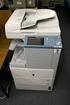 MULTIFUNCTIONAL DIGITAL COLOR SYSTEMS Printing Guide 009 KYOCERA MITA Corporation All rights reserved. Preface Thank you for purchasing Multifunctional Digital Color Systems. Also this guide describes
Quick Reference. Store this guide next to the machine for future reference. ENG
 Quick Reference Store this guide next to the machine for future reference. ENG Contents * Screen shots used in this manual may differ from the ones you actually see. Things You Can Do with This Device...........................................................................................................
READ ME FIRST. Installation Instructions for TROY Font DIMM Printer and Font DIMM Kit
 READ ME FIRST Installation Instructions for TROY Font DIMM Printer and Font DIMM Kit (For use with Hewlett-Packard LaserJet 1300, 1320, 2300, 4100, 4200, 4300, 8100, 8150, and 9000 Printers) Introduction
WorkForce Pro WP-4530 User's Guide
 WorkForce Pro WP-4530 User's Guide Contents WorkForce Pro WP-4530 User's Guide... 13 Product Basics... 14 Setting Up the Control Panel... 14 Printer Parts - Control Panel Buttons and Lights... 14 Changing
You can read this manual with Screen Reader text-to-speech software.
 User s Guide Brother Laser Printer HL-5440D HL-5450DN HL-5450DNT For visually-impaired users You can read this manual with Screen Reader text-to-speech software. You must set up the hardware and install
Software User s Guide
 Software User s Guide Not all models are available in all countries. (DCP-8110DN, DCP-8150DN and DCP-8155DN) In USA: Please go to the Brother Solutions Center at http://solutions.brother.com/ and click
WorkCentre 5632/5638/5645/5655/5665/5675/5687. Quick Use Guide MAXIMISE YOUR PRODUCTIVITY...
 WorkCentre 563/5638/5645/5655/5665/5675/5687 Quick Use Guide 604P90C MAXIMISE YOUR PRODUCTIVITY......by taking advantage of all the capabilities of your device. An Interactive User Guide CD is supplied
For visually-impaired users. You can read this manual with Screen Reader text-to-speech software.
 User s Guide Brother Color Printer HL-3140CW HL-3150CDN HL-3170CDW For visually-impaired users You can read this manual with Screen Reader text-to-speech software. You must set up the hardware and install