
Introducing the hard disc recorder and Beo4, Daily use, Advanced operation, Preference settings, Set up the hard disc recorder, On-screen menus,
|
|
|
- Coral Page
- 9 years ago
- Views:
Transcription
1 HDR 2 Guide
2

3 Contents 3 Introducing the hard disc recorder and Beo4, 4 Find out how to operate the hard disc recorder with the Beo4 remote control and bring up the menus on your television screen. Daily use, 9 Find out about how to use the hard disc recorder at the BASIC (default) feature level, including how to record programmes and play them back, how to view the content list and the list of timed recordings. This chapter also contains information about how to pause an on-going programme and replay it. Advanced operation, 23 Find out about additional functions available when you set the feature level to ADVANCED, such as how to activate parental lock and place your recordings in Groups. The chapter also contains information about how to operate a connected set-top box. Preference settings, 36 Find out how to set, for example, a standard duration for recordings, time and date, feature level and menu language. Set up the hard disc recorder, 38 Find out how to handle, place and set up your product. This chapter also contains an overview of the socket panel. On-screen menus, 42 Overview of the on-screen menus.

4 4 Introducing the hard disc recorder and Beo4 With the Bang & Olufsen hard disc recorder, you do not need to use video tapes any more. Instead, you can store recordings on the built-in hard disc. If the hard disc is full, the recorder automatically makes space available for new recordings. You can prevent deletion of your most important recordings, so they can only be deleted on your command. The hard disc recorder also makes it possible for you to pause an on-going programme for a short break and replay it later, so you do not miss anything. Record programmes The hard disc recorder gives you the opportunity to record and store TV, Satellite (DTV*) and set-top box (STB) programmes on the hard disc. HARD DISC CONTENT ALL THE SOPRANOS 12:14 17 JUN 1:34 CROCODILE HUNTER 9:12 17 JUN 1:00 WRC RALLY 12:00 14 JUN 1:12 AUSTRALIAN OPEN 9:00 13 JUN 3:25 SAT :00 29 MAY 2:55 TV 24 18:00 24 MAY 1:05 V.AUX 4 23:10 22 MAY 12:30 DAYS OF THUNDER 22:00 20 MAY 1:55 CASABLANCA 21:00 13 APR 2:15 With the hard disc recorder, you do not have to clutter up your home with piles of video tapes. You can store your recordings on the hard disc and bring up an overview of recordings on your television screen at any time. edit options Replay buffer group play GO HARD DISC CONTENT You decide whether to store them temporarily or permanently. The manual and timed recordings you make are stored in HARD DISC CONTENT, and the on-going programs you pause and replay are put temporarily in a three-hour replay buffer. If you wish, you can move saved programmes from the buffer to HARD DISC CONTENT. *NOTE! On some Beo4 remote controls, the DTV button is called SAT and the V MEM button is called V TAPE.

5 5 The Beo4 remote control included with your When switched on from standby, the hard television gives you access to all functions. When a function is in use, you are informed disc recorder takes up to 35 seconds to start up. During this time, you can use the menu via displays on Beo4, on the recorder or on system, but you can neither play recordings the television screen. nor make new recordings. Switch on the hard disc recorder and begin playback of a recording. V MEM TV LIGHT RADIO DTV DVD CD V.MEM V.TAPE The Beo4 display window shows the source you have selected On some Beo4 remote controls, the V MEM button is called V TAPE V MEM RECORD A MEM Cue backward during playback or replay Press twice to start a manual recording of the RECORD Cue forward during playback or replay selected source, such as TV Protect a recording from being deleted Enter data in on-screen menus, select a program number, and enter a point in time to step to in a recording TEXT 0 MENU Play a recording or replay an on-going programme slowly. Start recording a programme Move through menu options. During playback, skip forward or backward in a recording one minute at a time. Step between frames while GO EXIT Return to the recorder s main menu from any submenu. Remove playback information from the screen playback is paused Adjust sound volume; press in the middle to mute Enter data in on-screen menus. Step between recordings during playback Accept and store instructions and settings. Press GO LIST STOP EXIT the sound Switch the recorder and the television to standby and hold to view the recordings you have stored* Go back one menu level. Pause an on-going STOP program. Press to pause playback of a recording, and press again to stop playback completely *NOTE! This feature is not available with all televisions.

6 6 Displayed information and menus The display on the recorder informs you about the current status of the recorder. It tells you if you are replaying an on-going program, if there are timed recordings waiting to be executed, and if a recording is in progress. If two recordings overlap or if a recording can not be executed, this is indicated as well. Operation of the hard disc recorder is guided by on-screen menus accessible via the main menu. In the menus, move the cursor from item to item. For each item, information can be keyed in directly or you can browse through the options available. For further information, refer to the chapter On-screen menus on page 42. TIMER Indicates that a timed recording has been programmed into the recorder. TIMER remains on during standby, and flashes if a timer recording can not be executed. RECORD Recording in progress indication. RECORD flashes if a manual recording can not be executed for some reason for example, if there is a conflict with a timed recording. REPLAY The hard disc recorder allows you to pause the current programme if, for example, you wish to take a short break, and replay the programme later. REPLAY indicates that the current source, such as V.TUNER, is being replayed from the three-hour buffer on the hard drive. (Standby indicator) TIMER RECORD REPLAY The indicator shines red when you switch off the recorder. The indicator shines green when the recorder is in use. The indicator flashes red and green if the recorder is overheating. For further information about how to replay an on-going program, refer to the chapter Pause and replay an on-going program on page 20.

7 7 How to use the on-screen menus Press V MEM* then the green button to switch on the hard disc recorder and bring up the main menu. Press to move between the different menu options Press to reveal different settings Press to enter data in a menu Press to bring up a sub-menu or store a setting you have made Alternatively, press a coloured button to select an option listed in the information field V MEM 0 9 GO The first menu in the menu system is the main menu, where you can access the content of the hard disc, program a timed recording, view timers, change settings, switch on V.TUNER (the TV tuner built into the hard disc recorder*), switch on a connected set-top box or DVD player, and start or stop a recording. You can also bring up the hard disc recorder s menu system via the television s main menu. Press MENU, select V MEM or V TAPE with the arrow buttons, and press GO. *To be able to access V.TUNER, you must first set the REPLAY option in the SETUP menu to either BASIC or EXTENDED. For further information, refer to the chapter Preference setings on page 36. Menu name Menu options Information field MENU HARD DISC CONTENT TIMER PROGRAMMING TIMER INDEX SETUP V. TUNER STB RECORD menu stb v.tuner record Press to return to the previous menu STOP Press EXIT or V MEM to leave the menu system and return to the current source EXIT V MEM *NOTE! On some Beo4 remote controls, the V MEM button is called V TAPE.

8 8

9 Daily use 9 This chapter describes the features you might use on a daily basis. These features are available at the BASIC feature level, which is the default setting from the factory. The hard disc recorder has two sets of features a basic set and an advanced set. The content of the menu system depends on which set you choose. The features available at the BASIC feature level are available at the ADVANCED level as well. For further information about the FEATURE LEVEL menu, refer to the chapter Preference settings on page 36. Record a programme, 10 Timer recording Check the Timers already set Record here and now Timer recording via teletext Play a recording, 14 Automatic playback Select a recording Play a recording Pause and stop playback Browse through your recordings Edit recordings, 18 Protect a recording Delete a recording Pause and replay an on-going programme, 20 Pause a programme Replay a programme About recording About switching sources Copy from the buffer to the hard disc
10 10 Record a programme You can make the hard disc recorder record an available source or programme at any time you specify. The hard disc recorder starts and stops the recording automatically. You can make a Timer a timed recording which takes place once, or on certain days of the week. Enter as many as 15 Timers at one time. Your stored Timers are listed in the TIMER INDEX. Here, you can edit or delete your Timers. You can also record the current programme here and now. To ensure that your Timers are executed correctly, set the built-in clock to the correct time and date. For further information about the clock, refer to the chapter Preference settings on page 38. Timer recording Set a Timer in the TIMER PROGRAMMING menu. Here, you select the source to be recorded, the programme s start time, the stop time and the date or days of the week that the programme is shown. Program a Timer > Press V MEM* and then the green button to bring up the hard disc recorder s main menu > Press to highlight TIMER PROGRAMMING. > Press GO to bring up the menu for setting a timed recording. SOURCE is highlighted. > Press or to step from option to option. > Use the number buttons or or to enter information for your timed recording; source, program number, stop time, date, and so on. To program a daily or weekly Timer, highlight DATE and press the green button. DATE changes to WEEKDAYS. > Press EXIT to leave the menu, or > Press GO to store the recording. Note that you cannot record programs copy-protected by Macrovision. TIMER PROGRAMMING SOURCE V.TUNER PROGRAM 1 START TIME 14:41 STOP TIME 15:41 DATE THU 26 JUN PROTECTION OFF store GO The TIMER PROGRAMMING menu contains additional options when you set the FEATURE LEVEL to ADVANCED. For further information about the content of the TIMER PROGRAMMING menu, refer to the chapter On-screen menus on page 44. *NOTE! On some Beo4 remote controls, the V MEM button is called V TAPE.

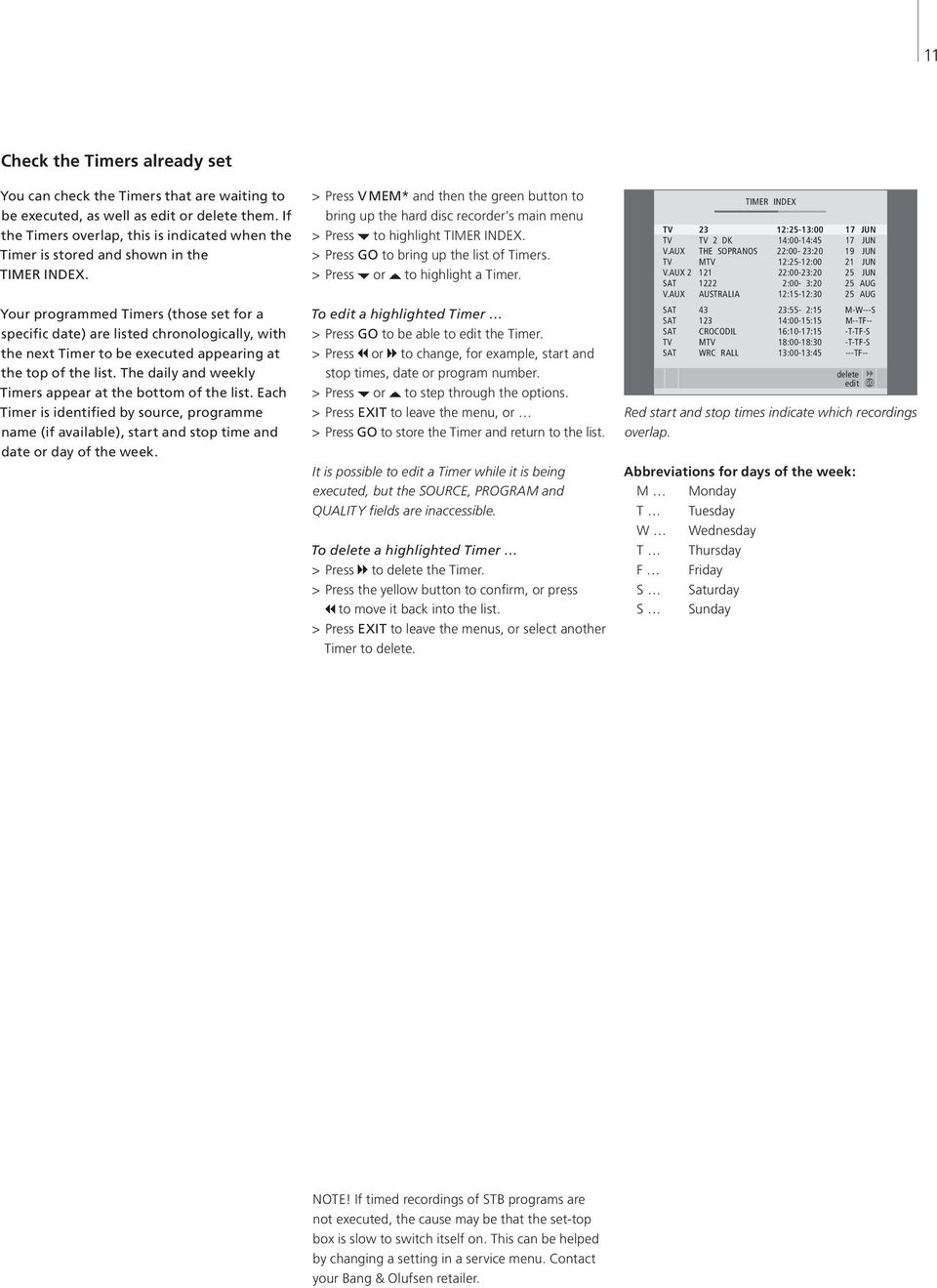
11 11 Check the Timers already set You can check the Timers that are waiting to be executed, as well as edit or delete them. If the Timers overlap, this is indicated when the Timer is stored and shown in the TIMER INDEX. Your programmed Timers (those set for a specific date) are listed chronologically, with the next Timer to be executed appearing at the top of the list. The daily and weekly Timers appear at the bottom of the list. Each Timer is identified by source, programme name (if available), start and stop time and date or day of the week. > Press V MEM* and then the green button to bring up the hard disc recorder s main menu > Press to highlight TIMER INDEX. > Press GO to bring up the list of Timers. > Press or to highlight a Timer. To edit a highlighted Timer > Press GO to be able to edit the Timer. > Press or to change, for example, start and stop times, date or program number. > Press or to step through the options. > Press EXIT to leave the menu, or > Press GO to store the Timer and return to the list. It is possible to edit a Timer while it is being executed, but the SOURCE, PROGRAM and QUALITY fields are inaccessible. To delete a highlighted Timer > Press to delete the Timer. > Press the yellow button to confirm, or press to move it back into the list. > Press EXIT to leave the menus, or select another Timer to delete. TIMER INDEX TV 23 12:25-13:00 17 JUN TV TV 2 DK 14:00-14:45 17 JUN V.AUX THE SOPRANOS 22:00-23:20 19 JUN TV MTV 12:25-12:00 21 JUN V.AUX :00-23:20 25 JUN SAT :00-3:20 25 AUG V.AUX AUSTRALIA 12:15-12:30 25 AUG SAT 43 23:55-2:15 M-W---S SAT :00-15:15 M--TF-- SAT CROCODIL 16:10-17:15 -T-TF-S TV MTV 18:00-18:30 -T-TF-S SAT WRC RALL 13:00-13:45 ---TF-- delete edit GO Red start and stop times indicate which recordings overlap. Abbreviations for days of the week: M Monday T Tuesday W Wednesday T Thursday F Friday S Saturday S Sunday NOTE! If timed recordings of STB programs are not executed, the cause may be that the set-top box is slow to switch itself on. This can be helped by changing a setting in a service menu. Contact your Bang & Olufsen retailer.
12 12 >> Record a programme Record here and now There are two ways to record a programme here and now. One allows you to watch a Record a source and watch another source at the same Make a recording and view a previous recording at the same time source, such as TV, while recording another time > Press V MEM*, then the green button to bring source, such as STB. The source you want to record must be built into your television (such Press RECORD twice. The hard disc recorder begins recording RECORD RECORD up the main menu. > Press to highlight a source, such as V.TUNER as TV) or connected directly to it (such as STB). If you start a recording this way, you can watch another source while recording is going on, the current programme To watch another source during DVD (for TV programmes) or STB (for programmes from a set-top box) and press GO to switch it on. but not a previous recording. A second way allows you to watch one recording while making another. If you start a manual recording from the hard disc recorder main menu, you can then watch recording, just select the desired source on Beo4, such as DVD Press V MEM* and then STOP twice to stop a recording V MEM STOP STOP > Select the program you wish to record. Press or to step between programs or use the number buttons to select a program directly. > Press V MEM*, then the green button to bring up the main menu once more. > Press to highlight RECORD and press GO to a second recording at the same time. Note that you can not start a new recording Press to switch the system to standby. start the recording. RECORD appears in the display. You can now play a recording stored in HARD DISC CONTENT. if there is a recording already in progress, or if the hard disc is full of protected recordings. You can not watch one STB programme while recording > Press V MEM*, then the green button to bring up the main menu. > Press GO to bring up the HARD DISC CONTENT V.TUNER is only accessible if you set the REPLAY option in the hard disc recorder SETUP menu to BASIC or EXTENDED. For further information, another. menu. > Press or to highlight a previous recording and press GO to start playback. refer to the chapter Preference settings on page 38. To stop a recording If you start a recording while the hard disc recorder > Press V MEM*, then the green button to bring up the main menu. is in standby, recording is delayed by the amount of time it takes for the hard drive to start up to > Press to highlight STOP RECORDING and press GO. 35 seconds. *NOTE! On some Beo4 remote controls, the V MEM button is called V TAPE.

13 13 With some Bang & Olufsen televisions, it is possible to start a recording by pressing RECORD twice, and then watch a second recording while the first is being made. The way to determine if your television supports this type of simultaneous playback and recording is to do the following: > Press RECORD twice to start a recording. > Select another source to watch, such as DVD. > Press V MEM. If playback begins automatically, your television supports simultaneous playback and recording. Timer recording via teletext Recordings can be programmed via the on-screen menu or directly via the relevant teletext page. > Press TV to switch on TV. > Press TEXT to switch on Teletext. With some televisions, you can press RECORD to bring up an on-screen menu, use or to move the cursor until TELETEXT is highlighted and press GO. > Find the teletext page you want. > Press RECORD or MENU to be able to select a programme to record, or use to move to REC on the teletext menu bar and press GO. > Press or to move to the start time. > Press GO to select the chosen start time. > Press GO to select the stop time, you can change the stop time by pressing and include two or three programmes in a row. > Check the status line for the recording, if necessary, use or or the number buttons to change and or to move between the entered data. > Press GO to store the Timer recording. PROGRAMMING STORED indicates that your Timer is stored. We recommend that you check the date of your Timers in the Timer Index after storing them. This is described on page 11. If you have selected V.TUNER or a connected settop box as your source, teletext services may either be severely limited for example, without number input or they may be inaccessible. Select TV as your source before programming a Timer recording via teletext.

14 14 Play a recording In playback situations, the hard disc recorder behaves exactly like a video tape recorder. If you switch on the hard disc recorder and wait a few seconds, playback of stored recordings begins automatically. If you switch it on from standby, the hard disc recorder takes up to 35 seconds to start up. During this time, you can use the menu system, but not play recordings. Browse through your stored recordings in an on-screen menu. Unless otherwise instructed, the hard disc recorder plays the selected recording through to the end. The recording is then paused. Select a recording When you select a recording to play, the hard disc recorder automatically resumes playback from where you left off the last time the same recording was played. If you have viewed the recording to its end, playback starts from the beginning. Select a recording > Press V MEM* then the green button to bring up the hard disc recorder s main menu. > Press GO to bring up the HARD DISC CONTENT menu. > Press or to highlight the recording you wish to play. A at the bottom of the list or a at the top of the list indicates that more recordings are available > Press GO to play the selected recording. Playback information the time elapsed and the total length of the recording appears briefly on the screen. Playback information can be brought up at any time during playback by pressing GO. To remove playback information, press EXIT or wait three seconds. HARD DISC CONTENT THE SOPRANOS 12:14 17 JUN 01:34 CROCODILE HUNTER 9:12 17 JUN 1:00 WRC RALLY 12:00 14 JUN 1:12 AUSTRALIAN OPEN 9:00 13 JUN 3:25 SAT :00 29 MAY 2:55 TV 24 18:00 24 MAY 1:05 V.AUX 4 23:10 22 MAY 12:30 DAYS OF THUNDER 22:00 20 MAY 1:55 CASABLANCA 21:00 13 APR 2:15 protection on delete play GO The HARD DISC CONTENT menu can be brought up during playback by pressing and holding GO. The bar at the top indicates how full the hard disc is. A red dot indicates if a recording is protected. For further information about protection, refer to Edit recordings on page 18. For automatic playback of recordings Press V MEM* to switch on the hard disc recorder. Playback of the last recording viewed begins automatically from where you left off. However, other recordings may be played back instead: If you have made timed recordings since the last time you viewed a recording, the newest timed recording is played from the beginning; If a timed recording is in progress, it is played from the beginning. This does not interrupt the recording process! *NOTE! On some Beo4 remote controls, the V MEM button is called V TAPE.

15 15 Play a recording During playback, you can cue through a recording forwards or backwards, play the recording in slow motion, and step frame-byframe or minute-by-minute through a recording. Play and change between recordings Press to play the selected recording Press or to switch to the previous or next recording GO Pause and stop playback of a recording Press to pause playback From pause mode, press or to step frame-by-frame forwards or backwards through a recording Press STOP again to stop playback completely. The HARD DISC CONTENT menu appears STOP STOP Use the number buttons to enter 0 9 Press to resume playback GO a specific point in time to go to in the recording When playback has been paused or the picture has remained Press or repeatedly to step unchanged for eight minutes, minute-by-minute forwards or backwards through a recording the hard disc recorder automatically dims the picture contrast and brightness. Press the green button to cue backwards during playback. Press again to change speed Press the yellow button to cue forwards during playback. Press again to change speed Press the blue button to start slow playback. Press again to change speed Backwards slow playback is not possible.

16 16 >> Play a recording Browse through your recordings During playback, you can see a short list of recordings. The recording being played is highlighted. To browse through your recordings > During playback, press GO twice. A menu appears on the lower half of the screen, and the current recording is highlighted. > Press or to browse through the other recordings. The highlighted recording plays in the background. THE SOPRANOS 12:14 17 JUN 1:34 CROCODILE HUNTER 9:12 17 JUN 1:00 WRC RALLY 12:00 14 JUN 1:12 AUSTRALIAN OPEN 9:00 13 JUN 3:25 SAT :00 29 MAY 2:55 > Press GO to select a recording for playback. The menu for browsing through recordings. The current recording is highlighted, and you can browse through recordings on the hard disc. Up to five recordings can be shown at one time. NOTE! You can browse through recordings in Groups if you have set FEATURE LEVEL to ADVANCED and have placed recordings in the predefined Groups. For information about how to adjust the feature level, refer to the chapter Preference settings on page 36. For information about how to place recordings in Groups, refer to the chapter Use Groups on page 24.

17 17

18 18 Edit recordings If the hard disc is full and you program a timed recording or initiate a manual recording, the hard disc recorder automatically makes room for the new recording by deleting old recordings. However, you can protect your most important recordings by excluding them from this feature. You can also delete recordings at any time if you wish to manage hard disc space yourself. Protect a recording Protected recordings are excluded from the space management function under all circumstances. If the hard disc is full and all recordings are protected, you cannot make timed recordings or manual recordings. In addition, any recording in process stops automatically when the capacity of the hard disc is reached. To protect your recordings > Press V MEM* then the green button to bring up the hard disc recorder s main menu. HARD DISC CONTENT is already highlighted. > Press GO to bring up the menu. > Press or to highlight the recording you wish to protect. > Press the red button to protect the recording. To cancel protection, press the red button again. > Press EXIT to leave the menu. HARD DISC CONTENT THE SOPRANOS 12:14 17 JUN 01:34 CROCODILE HUNTER 9:12 17 JUN 1:00 WRC RALLY 12:00 14 JUN 1:12 AUSTRALIAN OPEN 9:00 13 JUN 3:25 SAT :00 29 MAY 2:55 TV 24 18:00 24 MAY 1:05 V.AUX 4 23:10 22 MAY 12:30 DAYS OF THUNDER 22:00 20 MAY 1:55 CASABLANCA 21:00 13 APR 2:15 protection on delete play GO In the HARD DISC CONTENT menu you can select recordings you wish to protect, as well as delete unwanted recordings. *NOTE! On some Beo4 remote controls, the V MEM button is called V TAPE.

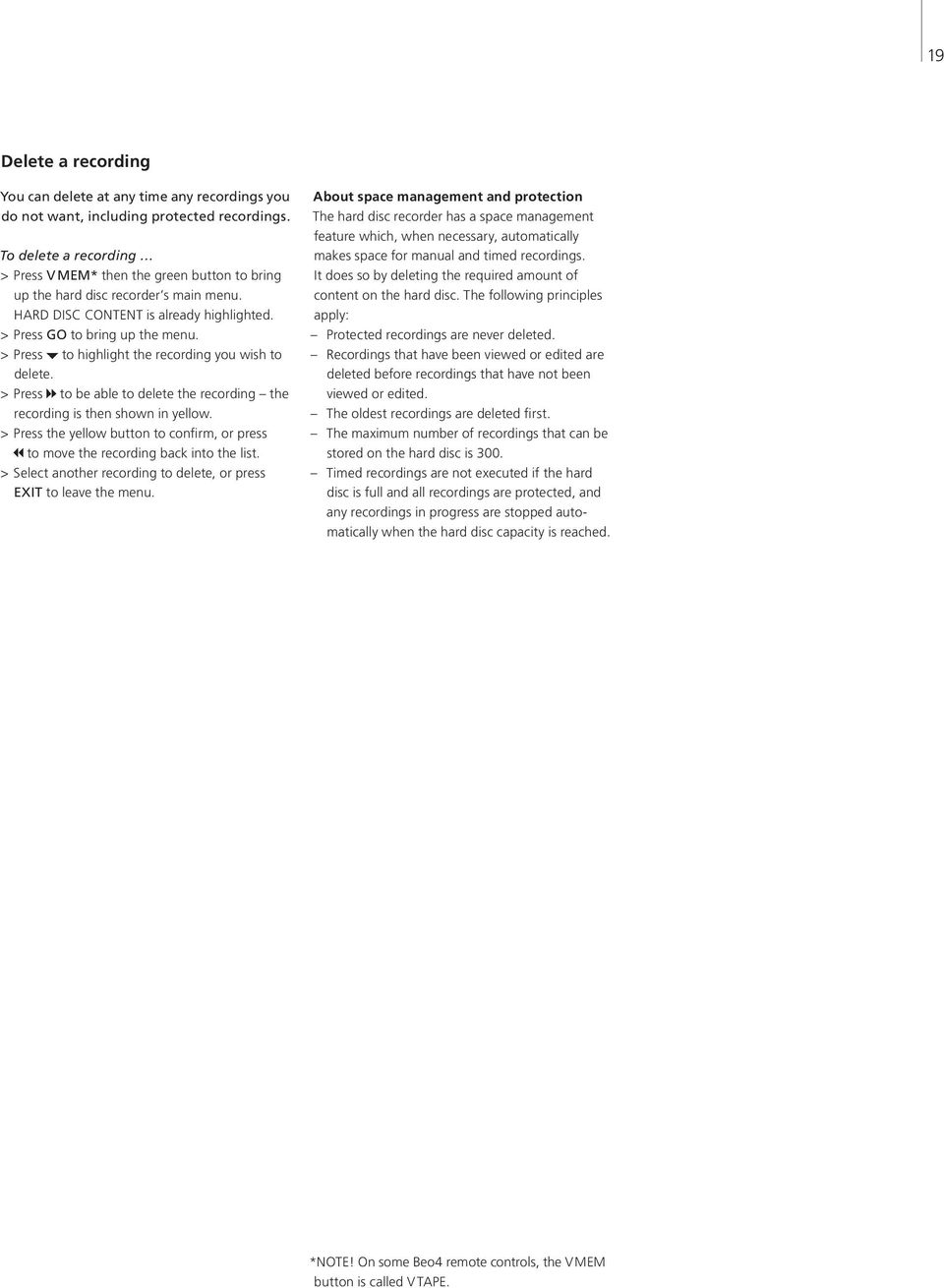
19 19 Delete a recording You can delete at any time any recordings you do not want, including protected recordings. To delete a recording > Press V MEM* then the green button to bring up the hard disc recorder s main menu. HARD DISC CONTENT is already highlighted. > Press GO to bring up the menu. > Press to highlight the recording you wish to delete. > Press to be able to delete the recording the recording is then shown in yellow. > Press the yellow button to confirm, or press to move the recording back into the list. > Select another recording to delete, or press EXIT to leave the menu. About space management and protection The hard disc recorder has a space management feature which, when necessary, automatically makes space for manual and timed recordings. It does so by deleting the required amount of content on the hard disc. The following principles apply: Protected recordings are never deleted. Recordings that have been viewed or edited are deleted before recordings that have not been viewed or edited. The oldest recordings are deleted first. The maximum number of recordings that can be stored on the hard disc is 300. Timed recordings are not executed if the hard disc is full and all recordings are protected, and any recordings in progress are stopped automatically when the hard disc capacity is reached. *NOTE! On some Beo4 remote controls, the V MEM button is called V TAPE.
20 20 Pause and replay an on-going programme The hard disc recorder lets you take a break in the middle of a TV or STB programme without missing any of it. Just pause the programme and resume it when you are ready. The hard disc recorder begins saving the current programme in a three-hour buffer the moment you switch on a source, so you can replay what you missed during the break. The hard disc recorder continues saving the programme during replay, so you are sure to see the entire programme. You can switch directly to the live signal at any time. Pause a programme To be able to pause and replay a programme, as well as access the built-in tuner (V.TUNER), you must first set the REPLAY option in the SETUP menu to BASIC or EXTENDED. These settings determine when the hard disc recorder starts saving a programme to the buffer. > Press V MEM*, then the green button to bring up the main menu. > Press to highlight V.TUNER or STB and press GO to switch it on. > The hard disc recorder begins saving the ongoing TV or STB programme to the buffer automatically. > Press or to select a program. Alternatively, use the number buttons to select a program directly. > To pause the on-going programme, press STOP. The status window appears on the screen. You can now replay the part of the programme saved in the buffer. > To return to the on-going programme at any time, press V MEM*, then the coloured button for the desired source. You can also jump temporarily to the on-going programme and back to replay by pressing and then. Menu v.tuner MENU HARD DISC CONTENT TIMER PROGRAMMING TIMER INDEX SETUP V.TUNER STB RECORD stb record If you wish to be able to pause and replay an ongoing TV programme, it is important that you select V.TUNER, instead of pressing the TV button on Beo4! - 0:19 REPLAY -0:05 An example of the status window. A programme is being replayed after a pause. The time to the left shows for how long you have been copying the ongoing programme to the buffer 19 minutes. The time to the right shows the time of the current picture is five minutes behind the live signal. Note that you cannot pause or replay a programme while the hard disc recorder is recording another programme or copying a recording, nor can you pause or replay programs copy-protected by Macrovision. If you pause a programme for two hours, the hard disc recorder automatically starts replay from the point at which you paused the programme. In addition to TV programmes, you can pause and replay set-top box programmes, provided you have connected a set-top box to the hard disc recorder. *NOTE! On some Beo4 remote controls, the V MEM button is called V TAPE.

21 21 Replay a programme During replay, you can cue through the Press to resume replaying the GO You can switch from one live source, such as replay buffer forwards or backwards, play in slow motion, and step frame-by-frame or minute-by-minute. programme from the buffer Press to jump temporarily V.TUNER, to another, such as STB, at any time, but the source you leave is no longer saved to the buffer after the switch. In this situation, the new source to the live signal, and to jump is saved. To replay a programme that you have paused back Switching to a non-live source, such as DVD, causes Press to replay the programme GO Press to pause replay STOP the hard disc recorder to stop saving to the buffer and ends replay. Use the number buttons to enter 0 9 While replay is paused, press a specific point in time to go to or repeatedly to step frame- Important! in the buffer by-frame forwards or backwards through the programme Content of the replay buffer is not protected. If the buffer is full and you continue to save programmes Press or repeatedly to step to it, the oldest content is deleted as the new minute-by-minute forwards or backwards during replay When you reach either end of the replay buffer, replay starts programmes are saved. from that end automatically. If you wish to be completely sure of keeping Press the green button to cue backwards during replay. Press It is not possible to view Teletext a programme, start a recording by selecting RECORD from the main menu. again to change speed during replay. Press the yellow button to cue forwards during replay. Press again to change speed Press the blue button to start slow replay Press again to change speed. Backwards slow replay is not possible
22 22 >> Pause and replay an on-going programme Copy from the replay buffer You can copy the content of the replay buffer to the HARD DISC CONTENT list at any time by making a manual recording. If you start a manual recording during replay, the recording starts when you select RECORD in the main menu. Replay buffer HARD DISC CONTENT > Press the green button to cue backwards to where you want your recording to begin. > Press STOP to pause replay. > Press V MEM, then the blue button to start the manual recording. The manual recording starts from the selected point in time in the replay buffer.
23 Advanced operation 23 This chapter describes the additional features available when you set the FEATURE LEVEL to ADVANCED. Features at the BASIC level are described in the chapter Daily use. These features are available at the ADVANCED level as well. For further information about the FEATURE LEVEL menu, refer to the chapter Preference settings on page 38. This chapter also describes the built-in Peripheral Unit Controller and how to use equipment connected to the hard disc recorder. Use Groups, 24 Place recordings in a Group View recordings in a Group Rename a Group Move a Group Edit recordings, 28 Delete an entire recording Split one recording into two Trim a recording Protect a recording Name a recording Copy to an external recording Limit access to recordings Parental lock, 32 Activate Parental lock Set a Parental Lock code Use connected video equipment with Beo4, 34 Peripheral Unit Controller menu Direct Beo4 operation Use equipment menus Use connected equipment in a link room Preference settings, 36 Adjust settings Set up the hard disc recorder, 38 Placement guidelines Connections Cleaning The socket panel
24 24 Use Groups If you have stored a lot of recordings and want to get to your favourites quickly without going through the list, place them in a Group. There are eight predefined Groups MOVIES, SPORTS, SCIENCE, NEWS, CHILDREN, TV DRAMA, NATURE and TRAVEL. Although the Groups have predefined names, you can still name the Groups yourself. When you have created and selected a particular Group, you only browse through the recordings belonging to this particular Group. Place recordings in a Group The contents of the hard disc is always shown sorted by date, with the newest recording on top. The name of the Group appears in the top right corner of the HARD DISC CONTENT menu. To place a recording in a Group > Press V MEM* then the green button to bring up the hard disc recorder s main menu. HARD DISC CONTENT is already highlighted. > Press GO to bring up the menu. The list of all recordings on the hard disc appears on the screen. ALL identifies the list as the list of all recordings. > Press or to highlight the recording you wish to place in a Group. > Press the red button to bring up the OPTIONS menu. > Press to highlight GROUP. > Press or to select the desired Group. > Press EXIT to leave the menu, or > Press GO to store the setting. HARD DISC CONTENT Place a recording in a Group via the OPTIONS menu. ALL THE SOPRANOS 12:14 17 JUN 1:34 CROCODILE HUNTER 9:12 17 JUN 1:00 WRC RALLY 12:00 14 JUN 1:12 AUSTRALIAN OPEN 9:00 13 JUN 3:25 SAT :00 29 MAY 2:55 TV 24 18:00 24 MAY 1:05 PROTECTION GROUP NAME PARENTAL LOCK back OPTIONS ON MOVIES THE SOPRANOS OFF store GO *NOTE! On some Beo4 remote controls, the V MEM button is called V TAPE.
25 25 View recordings in a Group At any time, you can view the content of the Groups. Groups with no recordings in them do not appear in the HARD DISC CONTENT menu. To view recordings in a Group > Press V MEM* then the green button to bring up the hard disc recorder s main menu. HARD DISC CONTENT is already highlighted. > Press GO to bring up the menu. The list of all recordings on the hard disc appears on the screen. > Press to view the next Group. > Press repeatedly to step between Groups. When you have found the desired Group > Press or to step between recordings. > Press GO to play the selected recording. HARD DISC CONTENT In the HARD DISC CONTENT menu, the Group name is visible in the top right corner of the menu. Press or to step between Groups. ALL identifies the list as the list of all recordings. ALL THE SOPRANOS 12:14 17 JUN 1:34 CROCODILE HUNTER 9:12 17 JUN 1:00 WRC RALLY 12:00 14 JUN 1:12 AUSTRALIAN OPEN 9:00 13 JUN 3:25 SAT :00 29 MAY 2:55 TV 24 18:00 24 MAY 1:05 V.AUX 4 23:10 22 MAY 12:30 DAYS OF THUNDER 22:00 20 MAY 1:55 CASABLANCA 21:00 13 APR 2:15 edit options group play GO *NOTE! On some Beo4 remote controls, the V MEM button is called V TAPE.
26 26 >> Use Groups Rename a Group You may find it helpful to name a Group after the type of recordings placed in it, or after the person who made the recordings. MOVIES SPORTS GROUPS To rename a Group > Press V MEM* then the green button to bring up the hard disc recorder s main menu. > Press to highlight SETUP and press GO to bring up the menu. > Press to highlight GROUPS and press GO to bring up the menu. > Press to highlight the Group you wish to rename. > Press the green button to be able to rename the Group. > Press or to find the individual characters in the name. > Press to move to the next character. > Press GO to store the name. If necessary, repeat the procedure and rename other Groups. > Press EXIT to leave the menu. SCIENCE NEWS CHILDREN TV DRAMA NATURE TRAVEL character next store GO *NOTE! On some Beo4 remote controls, the V MEM button is called V TAPE.
27 27 Move a Group You can rearrange the order in which Groups appear when you browse through Groups in the HARD DISC CONTENT menu. GROUPS... MOVIES SPORTS To move a Group > Press V MEM* then the green button to bring up the hard disc recorder s main menu. > Press to highlight SETUP and press GO to bring up the menu. > Press to highlight GROUPS and press GO to bring up the menu. > Press to highlight the Group you wish to move. > Press once to be able to move the Group. The Group is now moved out of the list. > Press or to move the Group to the desired place in the list. > Press to make the Group move back into the list or change places with the Group which occupies the desired place in the list. > Now, move the Group with which it changed places and repeat the procedure. > Press EXIT to leave the menu. SCIENCE NEWS CHILDREN TV DRAMA NATURE TRAVEL move move *NOTE! On some Beo4 remote controls, the V MEM button is called V TAPE.
28 28 Edit recordings When you have made a recording, you can delete it, shorten it, copy it to a connected recorder (such as a DVD recorder), or split it into two separate recordings. In addition, the OPTIONS menu allows you to activate, change or deactivate settings for the selected recording. You can change the name of the recording, assign the recording to a Group, and select settings for protection and Parental lock. Delete an entire recording You can delete any recordings you do not want, including protected recordings. To delete a recording > Press V MEM* then the green button to bring up the hard disc recorder s main menu. HARD DISC CONTENT is already highlighted. > Press GO to bring up the menu. > Press to highlight the recording you wish to delete. > Press the green button to bring up the EDIT menu. > Press GO to be able to delete the recording the recording is then shown in yellow. > Press the yellow button to confirm, or press to move the recording back into the list. > Select another recording to delete or press EXIT to leave the menu. Split one recording into two You can divide a single recording into two. This can make it easier for you to, for example, find a particular scene when browsing through a long recording. To split a recording into two > Press V MEM* then the green button to bring up the hard disc recorder s main menu. HARD DISC CONTENT is already highlighted. > Press GO to bring up the menu. > Press to highlight the recording you wish to split. > Press the green button to bring up the EDIT menu. > Press to highlight SPLIT and press GO. The selected recording is paused at the point where you left off last the time you viewed it. > Press the green or yellow button to cue through the recording to the point at which you wish to split it, and press STOP to pause playback at this point. > To split the recording at the chosen point, press the red button. SPLIT RECORDING? appears. > If you change your mind, press the red button to cancel the split function. Or > Press GO to confirm. The recording is split. Each of the two halves keeps the name of the original recording, but you can change the names at any time, as described on page 30. The times on the screen the start time and elapsed time are changed accordingly. You can also select a point in time to split the recording using the number buttons on Beo4. *NOTE! On some Beo4 remote controls, the V MEM button is called V TAPE.
29 29 Trim a recording You can trim away a section of a recording. Simply choose a point in the recording and specify whether you wish to delete the section of the recording before or after this point. You cannot delete a section in the middle of the recording. Split one recording into two at a point of your choice. Trim a recording. 0:12 PAUSE 1:34 split 0:12 PAUSE 1:34 trim to start trim to end To trim a recording > Press V MEM* then the green button to bring up the hard disc recorder s main menu. HARD DISC CONTENT is already highlighted. > Press GO to bring up the menu. > Press to highlight the recording you wish to trim. > Press the green button to bring up the EDIT menu. > Press to highlight TRIM and press GO. The selected recording is paused at the point where you left off last the time you viewed it. > Press the green or yellow button to cue through the recording to the point you wish to trim from, and press STOP to pause playback at this point. > To be able to trim away the beginning of the recording, up to the pause, press. To be able to trim away the end of the recording, from the pause, press. > If you change your mind, press or to cancel the trim function. Or > Press the yellow button to confirm. The recording is trimmed, and the times on the screen elapsed time and total time of the recording are changed accordingly. *NOTE! On some Beo4 remote controls, the V MEM button is called V TAPE.
30 30 >> Edit recordings Protect a recording Protected recordings are excluded from the space management function under all circumstances. If the hard disc is full and all recordings are protected, you cannot make timed recordings or manual recordings. In addition, any recording in process stops automatically when the capacity of the hard disc is reached. To protect a recording > Press V MEM* then the green button to bring up the hard disc recorder s main menu. HARD DISC CONTENT is already highlighted. > Press GO to bring up the menu. > Press or to highlight the recording you wish to protect. > Press the red button to bring up the OPTIONS menu. PROTECTION is already highlighted. > Press or to select ON. To deactivate protection for the selected recording, select OFF. > Press EXIT to leave the menu, or > Press GO to store the setting. Name a recording If a recorded TV programme is not given a name automatically, or you have made a manual recording, you can make this recording easier to find in the HARD DISC CONTENT menu by giving it a name. To name a recording > Press V MEM* then the green button to bring up the hard disc recorder s main menu. HARD DISC CONTENT is already highlighted. > Press GO to bring up the menu. > Press or to highlight the recording you wish to name. > Press the red button to bring up the OPTIONS menu. > Press to highlight NAME and press the green button on Beo4. You can then edit the name. > If you wish to delete the current name before entering a new one, press the yellow button on Beo4. The entire name is deleted. > Press or to find the individual characters in the name. > Press to move to the next character. > Press EXIT to leave the menu, or > Press GO to store the setting. HARD DISC CONTENT Protect recordings you wish to keep. Give a recording its own name. ALL THE SOPRANOS 12:14 17 JUN 1:34 CROCODILE HUNTER 9:12 17 JUN 1:00 WRC RALLY 12:00 14 JUN 1:12 AUSTRALIAN OPEN 9:00 13 JUN 3:25 SAT :00 29 MAY 2:55 TV 24 18:00 24 MAY 1:05 PROTECTION GROUP NAME PARENTAL LOCK back OPTIONS ON DEFAULT THE SOPRANOS OFF HARD DISC CONTENT store GO ALL THE SOPRANOS 12:14 17 JUN 1:34 CROCODILE HUNTER 9:12 17 JUN 1:00 WRC RALLY 12:00 14 JUN 1:12 AUSTRALIAN OPEN 9:00 13 JUN 3:25 SAT :00 29 MAY 2:55 TV 24 18:00 24 MAY 1:05 PROTECTION GROUP NAME PARENTAL LOCK character back OPTIONS OFF THE SOPRANOS next accept GO *NOTE! On some Beo4 remote controls, the V MEM button is called V TAPE.
31 31 Copy to an external recorder We recommend that you copy your most important recordings to a recorder connected to the hard disc recorder, such as a DVD recorder. To copy a recording > Press V MEM* then the green button to bring up the hard disc recorder s main menu. HARD DISC CONTENT is already highlighted. > Press GO to bring up the menu. > Press to highlight the recording you wish to copy. > Press the green button to bring up the EDIT menu. > Press to highlight EXTERNAL COPY and press GO. To stop copying to the external recorder > Press V MEM* then the green button to bring up the hard disc recorder s main menu. HARD DISC CONTENT is already highlighted. > The main menu appears on the screen, with the message EXTERNAL COPY IN PROGRESS and an indication of the time remaining. > Press the yellow button to stop the external copy. When copying is complete, the hard disc recorder switches both itself and the external recorder to standby. If your external recorder is not from Bang & Olufsen, or you do not have a Bang & Olufsen DVD Controller, you must switch the external recorder off manually. MENU HARD DISC CONTENT TIMER PROGRAMMING TIMER INDEX SETUP EXTERNAL COPY IN PROGRESS REMAINING TIME 1:35 stop Copy to an external recorder. While a recording is being copied to an external recorder, you cannot play recordings on the hard disc recorder. If the external recorder is from Bang & Olufsen, or if you have a Bang & Olufsen DVD Controller, the hard disc recorder starts the external recorder and plays the selected recording from the beginning. Otherwise, you must switch the external recorder on and start recording manually. The main menu appears briefly on the screen, with the message EXTERNAL COPY IN PROGRESS and an indication of the time remaining. After a few seconds, the current recording is shown. *NOTE! On some Beo4 remote controls, the V MEM button is called V TAPE.
32 32 Limit access to recordings Parental Lock You can prevent access to your recordings by activating the Parental Lock function. This requires that you first enter a Parental Lock code. The PARENTAL LOCK CODE menu allows you to set a code that limits access to your recordings. Activate Parental Lock Enter the Parental Lock code to view recordings protected by Parental Lock. If an incorrect code is entered three times, the main menu appears. > Press V MEM* then the green button to bring up the hard disc recorder s main menu. HARD DISC CONTENT is already highlighted. > Press GO to bring up the menu. > Press or to highlight the recording to which you wish to limit access. > Press the red button to bring up the OPTIONS menu. > Press to highlight PARENTAL LOCK. The current setting is shown. > Press. The hard disc recorder prompts you for the correct Parental Lock code. > Enter the code using the number buttons on Beo4. When you enter the last digit, the PARENTAL LOCK setting changes. You have access to all recordings until you switch the hard disc recorder to standby. > Press EXIT to leave the menu, or > Press GO to store the setting. HARD DISC CONTENT ALL THE SOPRANOS 12:14 17 JUN 1:34 CROCODILE HUNTER 9:12 17 JUN 1:00 WRC RALLY 12:00 14 JUN 1:12 AUSTRALIAN OPEN 9:00 13 JUN 3:25 SAT :00 29 MAY 2:55 TV 24 18:00 24 MAY 1:05 OPTIONS PROTECTION OFF GROUP DEFAULT NAME THE SOPRANOS ENTER CODE.... back *NOTE! On some Beo4 remote controls, the V MEM button is called V TAPE.
33 33 Set a Parental Lock code If, for some reason, you have forgotten your code, then you can key in 9999 three times when OLD CODE is highlighted. This sets the code to 0000 and allows you to enter a new code. PARENTAL LOCK CODE OLD CODE.... NEW CODE.... CONFIRM CODE.... > Press V MEM* then the green button to bring up the hard disc recorder s main menu. > Press to highlight SETUP and press GO to bring up the menu. > Press to highlight PARENTAL LOCK CODE and press GO to bring up the menu. > Enter the code with the number buttons. > Re-enter the code to confirm. > Press EXIT to leave the menu, or > Press GO to store the setting. *NOTE! On some Beo4 remote controls, the V MEM button is called V TAPE.
34 34 Use connected video equipment with Beo4 The built-in Peripheral Unit Controller acts as an interpreter between video equipment connected to the hard disc recorder, such as a set-top box, and the Beo4 remote control. You can use the Beo4 remote control to gain access to the channels and functions offered by your equipment. Some functions are available via Beo4 when you switch on the equipment. Additional functions are available through a Peripheral Unit Controller menu that you bring up on the screen. For instruction in the various functions offered by your equipment, please refer to the product s own user s guide. For further information about supported equipment, contact your Bang & Olufsen retailer. Peripheral Unit Controller menu Buttons on the remote controls included with your equipment may not match those on Beo4. To see which Beo4 buttons activate specific services or functions, bring up the Peripheral Unit Controller menu on the screen. Press V MEM and then the yellow button to switch on connected equipment Press MENU, then GO to bring up the Peripheral Unit Controller menu Press the number button that activates the function you want, or press one of the coloured buttons to activate a function V MEM MENU GO GUIDE MENU TEXT INFO WIDE Example of a Peripheral Unit Controller menu The Beo4 buttons are shown to the left on the menu, and the functions they control are shown to the right. The menu may also list buttons on the remote control included with your connected equipment GUIDE MENU TEXT INFO WIDE
35 35 Direct Beo4 operation If you know which Beo4 button activates the function you want, you can activate the function without bringing up the Peripheral Unit Controller menu first. While your equipment is on Press GO and then the number button that activates the function you want Press one of the coloured buttons to activate a function Press GO and then or to step up or down through, for example, set-top box channels Press and hold GO to bring up the Program guide or the Now/ Next banner on the screen if you are using a set-top box that supports these functions. GO 1 9 GO GO Use equipment menus Once you have activated connected equipment, you can operate its own menus with Beo4. While equipment menus are shown Moves the cursor up or down Moves the cursor left or right Selects and activates a function Press GO and then or to step between menu pages or step in channel lists Exits menus, or returns to a previous menu* Use the number keys to enter information in menus or services when relevant GO GO GO STOP 1 9 Use equipment in a link room If your set-top box is connected to the television in the main room via the hard disc recorder, or connected directly to the television, you can operate the set-top box from the link room television. However, the Peripheral Unit Controller menu cannot be displayed on the television screen in the link room. Press to switch on equipment in the main room Press GO and then the number button that activates the function you want Press one of the coloured buttons to activate a function V MEM GO 1 9 Exits menus, enters or exits different modes, such as radio EXIT Use the coloured buttons as indicated in the menus of your connected equipment *Depending on the source you have selected, you may have to press EXIT twice instead of STOP to return to a previous menu.
36 36 Preference settings You can activate, adjust and deactivate functions relating to day-to-day use of the hard disc recorder. This is done via the SETUP menu. In the SETUP menu, you can select settings for the following: Feature level, basic or advanced Parental Lock, which limits access to recordings Groups, in which you can place recordings Recording quality The duration of manual recordings Registration of products connected to the hard disc recorder, such as a set-top box Pause and replay of on-going programmes Menu language Fine-tuning of TV programs The built-in clock. Adjust settings The two settings for feature level BASIC and ADVANCED determine the content of the SETUP menu. Settings for Parental Lock, Groups, recording quality and replay are only available if you set the feature level to ADVANCED. To adjust settings > Press V MEM* then the green button to bring up the hard disc recorder s main menu. > Press to highlight SETUP and press GO to bring up the menu. > Press or to move between menu options. > Press GO to select an option. > Press or or the number buttons to change settings. > Press EXIT to leave the menu, or > Press GO to store the setting. SETUP FEATURE LEVEL PARENTAL LOCK CODE GROUPS RECORDING QUALITY RECORDING DURATION CONNECTIONS REPLAY MENU LANGUAGE EXTRA select GO Activate, adjust and deactivate the hard disc recorder functions via the SETUP menu. STB SETUP SELECTOR NOKIA 9800S/025 NOKIA 9602S NOKIA 9820T NOKIA 9200 NOKIA D-BOX II NOKIA D-BOX NOKIA 9850T PACE DTR730-IM PHILIPS DTX637x PACE DSR600 SKY DIGITAL CANALdig DK/S/N CANAL+ SAT r2 more store GO If you have connected a set-top box to the hard disc recorder and registered it in the hard disc recorder CONNECTIONS menu, you must select your particular set-top box in the above menu. *NOTE! On some Beo4 remote controls, the V MEM button is called V TAPE.
37 37 What s on the SETUP menu FEATURE LEVEL Options are BASIC and ADVANCED. The BASIC set of features allows you to operate the hard disc recorder like you would a video tape recorder, while ADVANCED also makes it possible for you to, for example, place recordings in Groups, and limit access to recordings via Parental Lock. (PARENTAL LOCK CODE) Allows you to enter an access code, which can then be used to limit access to recordings. Use the number buttons to enter the code. (GROUPS) Eight predefined Groups are available for you to place recordings in. You can move and rename these Groups in the GROUPS menu. Use the arrow buttons to rearrange the order in which Groups appear. Press the green button to be able to rename them. Press or to select characters, and or to move between characters in the name. Press GO when done. (RECORDING QUALITY) Indicates the quality of recording. Options are STANDARD and HIGH. Note that a recording occupies less space on the hard disc if you select STANDARD. RECORDING DURATION Sets a standard length of time for manual recordings. This means you do not have to switch off a manual recording yourself. CONNECTIONS Register any product you have connected to the hard disc recorder: a set-top box (STB), a video tape recorder (V.TAPE), a DVD player (DVD), a decoder (DECODER) or other equipment (V.AUX). Press to highlight the product you have connected, and press GO to store the setting. If you select STB, the STB SETUP menu appears. Find your set-top box in the list on the screen. (REPLAY) The REPLAY setting determines when the hard disc recorder starts copying an ongoing programme to the replay buffer. Options are OFF, BASIC and EXTENDED. Basic replay starts copying to the buffer when you pause an on-going program. Extended replay starts copying to the buffer as soon as you choose a source, such as V.TUNER. REPLAY is set to OFF from the factory. Note that this setting makes V.TUNER inaccessible! For further information about replay, refer to the chapter Pause and replay an on-going program on page 20. MENU LANGUAGE Choose between eight languages for the menu system. TUNING Fine-tune the programs stored on the hard disc recorder s own tuner. You can also adjust the sound setting mono or stereo. If you have registered a decoder in the CONNECTIONS menu, you can select the connected decoder as well. If you have set FEATURE LEVEL to ADVANCED, access the TUNING menu via the EXTRA menu. CLOCK Set the time and date. This is important for the correct execution of timed recordings. If you have set FEATURE LEVEL to ADVANCED, access the CLOCK menu via the EXTRA menu.
38 38 Set up the hard disc recorder Follow the guidelines and procedures on these pages when you set up the hard disc recorder. Placement guidelines Place the hard disc recorder on a solid, level surface. Do not place any items on top of the hard disc recorder. Place the hard disc recorder away from radiators, direct sunlight and other heat sources. Do not place the hard disc recorder on a carpeted surface, as carpet blocks the ventilation holes. When placing the hard disc recorder, leave space around it for adequate ventilation. The hard disc recorder is intended for indoor use in dry, domestic environments only, within a temperature range of C ( F). What to do if the hard disc recorder overheats If, for example, the ventilation holes are blocked, or if you have placed the hard disc recorder in direct sunlight, the recorder may overheat. If this happens, the standby indicator in the display flashes red and green and a warning appears on the screen. Switch the hard disc recorder off immediately and let it cool. Before switching it on again, ensure that you have placed it as described on this page. WARNING THE HARD DISC RECORDER IS OVERHEATING PLEASE SWITCH IT TO STANDBY If this warning appears on the screen and you do not switch off the hard disc recorder, it switches itself off automatically after a few minutes, and remains off until it has cooled sufficiently. You cannot operate the hard disc recorder during this time.
39 39 Connections The hard disc recorder is designed for connection to a Bang & Olufsen television via a 21-pin AV cable. For an overview of the socket panel, refer to page 43. Register all equipment connected to your television. This is done via your television s Setup menu. Refer to the Guide included with your Bang & Olufsen television to ensure proper connection and registration of extra equipment. To connect the hard disc recorder to your television > Connect the socket marked TV on the hard disc recorder to the socket marked V.TAPE (or V MEM) on your television using the 21-pin AV cable. > Connect the cable from your external aerial to the signal input socket marked on the rear panel of the hard disc recorder. > Direct the aerial signal to the television, using the aerial cable supplied with the hard disc recorder. > Plug one end into the aerial socket marked TV on the hard disc recorder and the other end into the aerial socket marked TV on the television s socket panel. > Connect any extra video equipment, such as a DVD recorder, set-top box, or video tape recorder, to the AUX socket on the hard disc recorder with a 21-pin AV cable. > Connect an IR-transmitter for extra video equipment to the DATA socket on the hard disc recorder. > Finally, connect the hard disc recorder and all connected equipment to the mains. The hard disc recorder is now in standby mode, indicated by the red light in the display panel. Any equipment you have connected to the AUX socket on the hard disc recorder must be registered in the hard disc recorder s CONNECTIONS menu not the television s! For further information about how to register connected equipment, refer to the chapter Preference settings on page 38. Set-top box connection You can connect a set-top box to the hard disc recorder, or to your television. Regardless of the setup you choose, you can still make manual and timed recordings of set-top box programmes. If you connect a set-top box to the television: You can not use the replay function in the hard disc recorder while watching a set-top box programme. For information about how to connect a set-top box to the television, refer to the television s own Guide. If you connect a set-top box to the hard disc recorder: You can use the replay function while watching set-top box programmes. To connect a set-top box to the hard disc recorder > Connect an IR transmitter to the DATA socket. > Fasten the IR transmitter to the IR receiver of the set-top box. > To be able to use the remote control included with your set-top box, do not cover its IR receiver entirely. HDR 2 AUX Connect any extra video equipment, such as a DVD recorder, set-top box, or video tape recorder, to the AUX socket on the hard disc recorder with a 21-pin AV cable.
40 40 >> Set up the hard disc recorder Cleaning Wipe dust off the surfaces using a dry, soft cloth. Remove grease stains or persistent dirt with a soft, lint-free, firmly wrung cloth, dipped in a solution of water containing only a few drops of mild detergent, such as washingup liquid. Do not attempt to open the hard disc recorder yourself. Leave such operations to qualified service personnel. Never use alcohol or other solvents to clean any part of the hard disc recorder!
41 The socket panel 41 You can connect the hard disc recorder to your television via the socket panel on the rear. AUX Consult the guide enclosed with DATA Y/C INPUT TV TV externally connected equipment to ensure that it is connected correctly. ~ (mains) Socket for connection to the mains. TV (21-pin) 21-pin socket for connection to your television. DATA For connection of an IR transmitter for use with a set-top box. AUX 21-pin socket for connection of extra video equipment, such as a set-top box. Y/C INPUT For connection of a set-top box or other equipment with Y/C output. Aerial input socket from your external aerial or cable TV network. If the product you wish to connect to the hard disc recorder offers both 21-pin AV connection and connection via the Y/C INPUT socket, we recommend that you make both connections. This ensures optimum picture quality. TV (aerial) Aerial output socket for connection to your television.
42 42 On-screen menus In order for you to easily find your way through the on-screen menus the system offers, this chapter illustrates the overall structure of the menu system. Note that the content of the menu hierarchy depends on the setting you have chosen for FEATURE LEVEL in the SETUP menu BASIC or ADVANCED. The default setting from the factory is BASIC. The chapter also gives you detailed information about the individual menus which offer numerous settingup and adjustment options. For further information about how to set the feature level, refer to the chapter Preference settings on page 36. The menu system at the BASIC feature level MENU HARD DISC CONTENT TIMER PROGRAMMING SOURCE PROGRAM START TIME STOP TIME DATE/WEEKDAYS PROTECTION TIMER INDEX SETUP FEATURE LEVEL BASIC ADVANCED RECORDING DURATION MANUAL RECORDING CONNECTIONS NONE STB V.TAPE DVD V.AUX MENU LANGUAGE DANSK DEUTSCH ENGLISH ESPAÑOL FRANÇAIS ITALIANO NEDERLANDS SVENSKA TUNING PROGRAM NUMBER FINE SOUND CLOCK TIME DATE MONTH YEAR V.TUNER STB/V.TAPE/DVD/V.AUX RECORD/STOP RECORDING Press V MEM*, then the green button to access the menu system. *NOTE! On some Beo4 remote controls, the V MEM button is called V TAPE.
43 43 The menu system at the ADVANCED feature level MENU HARD DISC CONTENT EDIT DELETE SPLIT TRIM EXTERNAL COPY OPTIONS PROTECTION GROUP NAME PARENTAL LOCK GROUP TIMER PROGRAMMING SOURCE PROGRAM START TIME STOP TIME DATE/WEEKDAYS PROTECTION QUALITY EXTRA GROUP NAME PARENTAL LOCK KEEP EPISODES TIMER INDEX SETUP FEATURE LEVEL BASIC ADVANCED PARENTAL LOCK CODE OLD CODE NEW CODE CONFIRM CODE GROUPS MOVIES SPORTS SCIENCE NEWS CHILDREN TV DRAMA NATURE TRAVEL RECORDING QUALITY STANDARD HIGH RECORDING DURATION MANUAL RECORDING CONNECTIONS NONE STB V.TAPE DVD V.AUX REPLAY OFF BASIC EXTENDED MENU LANGUAGE DANSK DEUTSCH ENGLISH ESPAÑOL FRANÇAIS ITALIANO NEDERLANDS SVENSKA EXTRA TUNING PROGRAM NUMBER FINE SOUND CLOCK TIME DATE MONTH YEAR V.TUNER STB/V.TAPE/DVD/V.AUX RECORD/STOP RECORDING The features available at the BASIC feature level are available at the ADVANCED level as well. Press V MEM*, then the green button to access the menu system. *NOTE! On some Beo4 remote controls, the V MEM button is called V TAPE.
44 44 >> On-screen menus HARD DISC CONTENT ALL HARD DISC CONTENT ALL TIMER PROGRAMMING THE SOPRANOS 12:14 17 JUN 1:34 CROCODILE HUNTER 9:12 17 JUN 1:00 WRC RALLY 12:00 14 JUN 1:12 AUSTRALIAN OPEN 9:00 13 JUN 3:25 SAT :00 29 MAY 2:55 TV 24 18:00 24 MAY 1:05 DELETE SPLIT TRIM EXTERNAL COPY EDIT THE SOPRANOS 12:14 17 JUN 1:34 CROCODILE HUNTER 9:12 17 JUN 1:00 WRC RALLY 12:00 14 JUN 1:12 AUSTRALIAN OPEN 9:00 13 JUN 3:25 SAT :00 29 MAY 2:55 TV 24 18:00 24 MAY 1:05 PROTECTION GROUP NAME PARENTAL LOCK OPTIONS ON DEFAULT THE SOPRANOS OFF SOURCE V.TUNER PROGRAM 1 START TIME 14:41 STOP TIME 15:41 DATE THU 26 JUN PROTECTION OFF back select GO back store GO store GO What s on the EDIT menu DELETE Delete the selected recording. SPLIT Split the selected recording into two. TRIM Trim, or delete, the beginning or the end of a selected recording. EXTERNAL COPY Copy a selected recording to a product connected to the hard disc recorder, such as a video recorder. This menu is only available if you have set FEATURE LEVEL to ADVANCED in the SETUP menu. What s on the OPTIONS menu PROTECTION Exclude the selected recording from the automatic space management function, which deletes the oldest recordings to make room for new ones. Options are ON and OFF. GROUP Place the selected recording in one of the eight predefined Groups: MOVIES, SPORTS, SCIENCE, NEWS, CHILDREN, TV DRAMA, NATURE and TRAVEL. Other recordings can be stored in the DEFAULT Group. NAME Give the selected recording the name of your choice. Press or to select a character and or to move between characters in the name. Press GO when done. PARENTAL LOCK Activate or deactivate the Parental Lock access code for the selected recording. Options are ON and OFF. This menu is only available if you have set FEATURE LEVEL to ADVANCED in the SETUP menu. What s on the TIMER PROGRAMMING menu SOURCE Options are: V.TUNER TV from the tuner in the hard disc recorder. This tuner is only accessible if you set the REPLAY option in the SETUP menu to BASIC or EXTENDED. STB A set-top box program via a set-top box connected to the hard disc recorder. DTV A Satellite or set-top box program on one of the following televisions: BeoVision 7, BeoVision 6*, BeoVision 5*, BeoVision 4*, BeoVision 3 32, BeoVision Avant, BeoSystem 1. V.AUX A Satellite or set-top box program on any other television. Select V.AUX as well for a source registered in the television s CONNECTIONS menu as V.AUX. V.AUX2 The source registered in the television s CONNECTIONS menu as V.AUX2. PROGRAM (Program number) Once your source is chosen, choose the program number. *NOTE! Select DTV if you wish to record a Satellite programme and your television has a built-in DVB- S module, or if you wish to record a set-top box programme via a set-top box connected to the television.
45 45 TIMER PROGRAMMING PARENTAL LOCK CODE GROUP DEFAULT OLD CODE.... NAME NEW CODE.... PARENTAL LOCK KEEP EPISODES OFF CONFIRM CODE.... back store GO START TIME and STOP TIME Key in when you want to start and stop recording. DATE The date you want your Timer executed. (WEEKDAYS) Appears when you highlight DATE and press the green button on Beo4. All the weekdays are shown starting with M for Monday. PROTECTION Select whether or not you want to protect the recording from the space management feature. Options are ON and OFF. If you activate protection for a daily or weekly Timer, all of the episodes of the programme are protected. For further information about space management, refer to page 19. If FEATURE LEVEL is set to ADVANCED, as described on page 36, the menu also contains the following options: QUALITY Indicates the quality of the recording. Options are STANDARD and HIGH. Note that a recording occupies less space on the hard disc if you select STANDARD. EXTRA Gives access to the following options: GROUP Indicates which Group of recordings to place the recording in. Select one of the eight existing Groups or DEFAULT. NAME Give the recording a name by using the arrow buttons to select characters. PARENTAL LOCK Limit access to the recording to those who know the correct fourdigit code. Enter the code using the number buttons on Beo4. For further information about the Parental Lock function, refer to the chapter Preference settings on page 36. KEEP EPISODES Select a number of episodes to keep when recording a programme on a daily or weekly basis, such as a news programme. This minimizes the use of hard disc space. Options are 1 7 and ALL. If you activate protection for a daily or weekly Timer, all of the episodes of the programme are protected. What s on the PARENTAL LOCK CODE menu Once you have entered a code in the menu, you can apply code protection to recordings in the HARD DISC CONTENT menu, as well as to timed recordings. It is then only possible to view these recordings after entering the correct code. Options are: OLD CODE Enter the current code. NEW CODE If you wish to change the code, enter the new code here. CONFIRM CODE Enter the new code one more time to confirm any change you have made to it.
46 46 >> On-screen menus TIMER INDEX TV 23 12:25-13:00 17 JUN TV TV 2 DK 14:00-14:45 17 JUN V.AUX THE SOPRANOS 22:00-23:20 19 JUN TV MTV 12:25-12:00 21 JUN V.AUX :00-23:20 25 JUN SAT :00-3:20 25 AUG V.AUX AUSTRALIA 12:15-12:30 25 AUG SAT 43 23:55-2:15 M-W---S SAT :00-15:15 M--TF-- SAT CROCODIL 16:10-17:15 -T-TF-S TV MTV 18:00-18:30 -T-TF-S SAT WRC RALL 13:00-13:45 ---TF-- BASIC ADVANCED FEATURE LEVEL PARENTAL LOCK CODE OLD CODE.... NEW CODE.... CONFIRM CODE.... delete edit GO store GO What s on the TIMER INDEX You can check the Timers that are waiting to be executed, as well as edit or delete them. If the Timers overlap, this is indicated when the Timer is stored and shown in the TIMER INDEX. What s on the FEATURE LEVEL menu The FEATURE LEVEL menu allows you to select a set of functions that match the way you wish to use the hard disc recorder: BASIC Gives access to recording and playback functions, including timer programming, but without the ability to place recordings in Groups, select recording quality or assign a Parental Lock code to recordings. ADVANCED The full set of hard disc recorder functions. What s on the PARENTAL LOCK CODE menu The PARENTAL LOCK CODE menu allows you to set a code that limits access to your recordings. Once you have entered a code in the menu, you can apply code protection to recordings in the HARD DISC CONTENT menu, as well as to timed recordings. It is then only possible to view these recordings after entering the correct code. Options are: OLD CODE Enter the current code. NEW CODE If you wish to change the code, enter the new code here. CONFIRM CODE Enter the new code one more time to confirm any change you have made to it. This menu is only available if you have set FEATURE LEVEL to ADVANCED in the SETUP menu.
47 47 GROUPS RECORDING QUALITY RECORDING DURATION MOVIES STANDARD MANUAL RECORDING 3:00 SPORTS HIGH SCIENCE NEWS CHILDREN TV DRAMA NATURE TRAVEL TOTAL RECORDING TIME XX HOURS rename move accept GO store GO store GO What s on the GROUPS menu There are eight predefined Groups: MOVIES, SPORTS, SCIENCE, NEWS, CHILDREN, TV DRAMA, NATURE and TRAVEL. These Group names are only suggestions. You can rename any of the eight Groups at any time, and place recordings in any Group you choose. Groups with no recordings in them do not appear in the HARD DISC CONTENT menu. This menu is only available if you have set FEATURE LEVEL to ADVANCED in the SETUP menu. What s on the RECORDING QUALITY menu The RECORDING QUALITY menu allows you to select the picture and sound quality of recordings. Options are STANDARD and HIGH. Note that the two settings affect how much hard disc space recordings use. The amount of available hard disc space is shown in the menu when you highlight a setting. This menu is only available if you have set FEATURE LEVEL to ADVANCED in the SETUP menu. What s on the RECORDING DURATION menu The RECORDING DURATION menu allows you to set a default length for manual recordings. This means that you do not have to be present to end a manual recording at the proper time. Use the number buttons to set the default recording duration. Press GO when done.
48 48 >> On-screen menus CONNECTIONS REPLAY MENU LANGUAGE NONE STB V.TAPE DVD V.AUX DECODER OFF BASIC EXTENDED DANSK DEUTSCH ENGLISH ESPAÑOL FRANÇAIS ITALIANO NEDERLANDS SVENSKA store GO store GO select accept GO What s on the CONNECTIONS menu Register any product you have connected to the hard disc recorder: a set-top box (STB), a video tape recorder (V.TAPE), a DVD player (DVD), a decoder (DECODER) or other equipment (V.AUX). Press to highlight the product you have connected, and press GO to store the setting. If you select STB, you must find your particular settop box in a list. Any equipment you have connected to the AUX socket on the hard disc recorder must be registered in the hard disc recorder s CONNECTIONS menu not the television s! For further information about how to register connected equipment, refer to the chapter Preference settings on page 36. What s on the REPLAY menu The REPLAY setting determines when the hard disc recorder starts copying an on-going programme to the replay buffer. Options are OFF, BASIC and EXTENDED. Basic replay starts copying to the buffer when you pause an on-going program. Extended replay starts copying to the buffer as soon as you choose a source, such as V.TUNER. REPLAY is set to OFF from the factory. Note that this setting makes V.TUNER inaccessible! For further information about replay, refer to the chapter Pause and replay an on-going program on page 20. This menu is only available if you have set FEATURE LEVEL to ADVANCED in the SETUP menu. What s on the MENU LANGUAGE menu Choose between the available languages.
49 49 TUNING PROGRAM NUMBER 1 FINE 0 CLOCK TIME 12:40 DATE 2 SOUND STEREO MONTH JUN YEAR 2004 store GO store GO What s on the TUNING menu PROGRAM NUMBER Select a program number. FINE Fine tune the frequency of a program. You can fine tune within the range of SOUND (mono, stereo or language) Several types of sound may be available for different programs, mono, stereo or different languages. On the relevant program or frequency select the options MONO (FM / NICAM mono sound) MONO1 (mono language 1) MONO2 (mono language 2) MONO3 (mono language 3) STEREO (NICAM/A2 stereo sound) STEREO2 (stereo language 2). What s on the CLOCK menu TIME Indicates the time. DATE Indicates the date. MONTH Indicates the month. YEAR Indicates the year. If program broadcasts are in two languages and you want both languages, you can store the program twice, once with each language.
50 50 Index Beo4 remote control Direct Beo4 operation of connected equipment, 35 The Beo4 remote control, 5 Clock Set the time and date, 37 What s on the CLOCK menu, 49 Connections Connect extra equipment, 39 Connect the hard disc recorder to your television, 39 The socket panel, 41 What s on the CONNECTIONS menu, 48 DVD Connect a DVD recorder, 39 The socket panel, 41 Edit Delete a recording ADVANCED, 28 Delete a recording BASIC, 19 Edit a Timer, 11 Limit access to recordings Parental Lock, 32 Move a Group, 27 Name a recording, 30 Protect a recording ADVANCED, 30 Protect a recording BASIC, 18 Rename a Group, 26 Split one recording into two, 28 Trim a recording, 29 Content Browse through your recordings, 16 The HARD DISC CONTENT menu, 18 Copy Copy from the replay buffer, 22 Copy to an external recorder, 31 Cue Cue in replay, 21 Cue through a recording, 15 The Beo4 remote control, 5 Decoder Connect a decoder, 39 The socket panel, 41 Groups Move a Group, 27 Place recordings in a Group, 24 Rename a Group, 26 View recordings in a Group, 25 Hard disc recorder Connect extra equipment to the hard disc recorder, 39 Connect to your television, 39 Placement, 38 The display, 6 The socket panel, 41 How to use the on-screen menus, 7 Language What s on the MENU LANGUAGE menu, 48 Delete Delete a recording ADVANCED, 28 Delete a recording BASIC, 19 Delete a Timer, 11 Displays and menus Browse through your recordings, 16 Peripheral Unit Controller menu, 34 The display on the recorder, 6 Use the on-screen menus, 7 Use equipment menus, 35 View recordings in a Group, 24 What s on the SETUP menu, 37 Maintenance Cleaning, 40 Placement guidelines, 38 Parental Lock Limit access to recordings, 32 Set a Parental Lock code, 33 Pause Pause and replay an on-going programme, 20 Pause and stop playback of a recording, 14 Pause replay, 21 The Beo4 remote control, 5
51 51 Placement Placement guidelines, 38 Place recordings in a Group, 24 Playback Automatic playback, 14 Cue through a recording, 15 Go to a specific point in time in playback, 15 Pause and stop playback of a recording, 15 Play a recording, 14 Select a recording, 14 Slow playback, 15 Step minute-by-minute through a recording, 15 The Beo4 remote control, 5 Set-top box Peripheral Unit Controller menu, 34 Direct Beo4 operation, 35 Use connected equipment in a link room, 35 Use equipment menus, 35 Socket panel Connect the hard disc recorder to your television, 39 The socket panel, 41 Space management Protect a recording ADVANCED, 30 Protect a recording BASIC, 18 Protection Protect a recording ADVANCED, 30 Protect a recording BASIC, 18 Record Check the Timers already set, 11 Copy from the replay buffer, 22 Copy to an external recorder, 31 Record here and now, 12 Stop a recording, 12 The Beo4 remote control, 5 Timer recording, 10 Timer recording via teletext, 13 Replay Copy from the replay buffer, 22 Cue in replay, 21 Go to a specific point in time in replay, 21 Pause a programme, 20 Pause replay, 21 Replay a programme, 21 Slow replay, 21 Step minute-by-minute in replay, 21 The Beo4 remote control, 5 Search Cue in replay, 21 Cue through a recording, 15 Go to a specific point in time in playback, 15 Go to a specific point in time in replay, 21 Slow playback, 15 Slow replay, 21 Step minute-by-minute in replay, 21 Step minute-by-minute through a recording, 15 The Beo4 remote control, 5 Stop Pause and stop playback of a recording, 15 Stop a recording, 12 Stop copying to the external recorder, 31 The Beo4 remote control, 5 Teletext Timer recording via teletext, 13 Timer recording Check the Timers already set, 11 Delete a Timer, 11 Edit a Timer, 11 Timer recording, 10 Timer recording via teletext, 13 Tune Fine-tune a TV program, 37 What s on the TUNING menu, 49 TV programs Fine-tune a TV program, 37 Pause and replay an on-going programme, Video tape recorder Connect a video tape recorder, 39 Copy to an external recorder, 31
52 52
53 Waste Electrical and Electronic Equipment (WEEE) Environmental protection The European Parliament and the Council of the European Union have issued the Waste Electrical and Electronic Equipment Directive. The purpose of the Directive is the prevention of waste of electrical and electronic equipment, and to promote the reuse and recycling and other forms of recovery of such waste. As such the Directive concerns producers, distributors and consumers. The WEEE directive requires that both manufacturers and end-consumers dispose of electrical and electronic equipment and parts in an environmentally safe manner, and that equipment and waste are reused or recovered for their materials or energy. Electrical and electronic equipment and parts must not be disposed of with ordinary household refuse; all electrical and electronic equipment and parts must be collected and disposed of separately. When disposing of electrical and electronic equipment by use of the collection systems available in your country, you protect the environment, human health and contribute to the prudent and rational use of natural resources. Collecting electrical and electronic equipment and waste prevents the potential contamination of nature with the hazardous substances which may be present in electrical and electronic products and equipment. Your Bang & Olufsen retailer will assist with and advise you of the correct way of disposal in your country. Small products may not always be marked with the pictogram in which case this is present in the instructions for use, on the guarantee certificate and printed on the packaging. Products and equipment which must be collected for reuse, recycling and other forms of recovery are marked with the pictogram shown. This product fulfils the conditions stated in the EEU directives 89/336 and 73/23. Bang & Olufsen cannot be held liable for any loss of data due to hard disc breakdown.
54 54 For your information Your needs as a user are given careful consideration during the design and development process of a Bang & Olufsen product and we strive to make our products easy and comfortable to operate. Therefore, we hope that you will take the time to tell us about your experiences with your Bang & Olufsen product. Anything which you consider important positive or negative may help us in our efforts to refine our products. Thank you! To contact us, visit our Web-site on or write to: Bang & Olufsen a/s BeoCare Peter Bangs Vej 15 DK 7600 Struer or fax: Bang & Olufsen BeoCare (fax) Technical specifications, features and the use thereof are subject to change without notice
55
56
Contents of the Guide
 BeoCenter 1 Guide Contents of the Guide 3 The following is an index to the contents of the separate Reference book with page references: How to set up BeoCenter 1, 4 Connect your TV cables, 5 Connect
The Guide and the Reference book
 BeoVision 7 Guide The Guide and the Reference book This Guide contains information about the daily use of your Bang & Olufsen product. The Reference book contains information about connecting and operating
An explanation of symbols in the Guide and Reference book TV LIST. Buttons on the Beo4 remote control. Display on the Beo4 remote control
 BeoVision 6 Guide The Guide and the Reference book This Guide contains information about the daily use of your Bang & Olufsen product. The Reference book contains information about more advanced operation
DVR GUIDE. Using your DVR/Multi-Room DVR. 1-866-WAVE-123 wavebroadband.com
 DVR GUIDE Using your DVR/Multi-Room DVR 1-866-WAVE-123 wavebroadband.com Table of Contents Control Live TV... 4 Playback Controls... 5 Remote Control Arrow Buttons... 5 Status Bar... 5 Pause... 6 Rewind...
How to use your music system, 4 Find out how to switch on and operate sources, such as CD, radio or DVD via the close-up operation panel
 BeoCenter 2 Guide Contents 3 This Guide explains how to operate your BeoCenter 2. It will guide you through the operations available for your system. All instructions regarding setting-up and the Socket
Getting Started With the Multi-Room DVR System
 CH+ CH + GUIDE POWER VOL Ñ VOL + INFO CH Ñ EXIT LIST L AUDIO R VIDEO SELECT Getting Started With the Multi-Room DVR System Multi-Room Digital Video Recording (MR-DVR) System Record all of your favorite
BEOPLAY V1. BeoPlay V1 32 BeoPlay V1 40
 BEOPLAY V1 BeoPlay V1 32 BeoPlay V1 40 Dear Customer This guide contains additional information about your product and describes some features and functions from the Getting Started in more detail. Among
Digital Cable TV. User Guide
 Digital Cable TV User Guide T a b l e o f C o n T e n T s DVR and Set-Top Box Basics............... 2 Remote Playback Controls................ 4 What s on TV.......................... 6 Using the OK Button..................
BeoVision 11. BeoVision 11 40 BeoVision 11 46 BeoVision 11 55
 BeoVision 11 BeoVision 11 40 BeoVision 11 46 BeoVision 11 55 Dear Customer This guide contains additional information about your product and describes some features and functions from the Getting Started
ABOUT YOUR SATELLITE RECEIVER
 2 Satellite Receiver ABOUT YOUR SATELLITE RECEIVER This chapter gives you an overview and a description of your satellite receiver. SATELLITE RECEIVER OVERVIEW SINGLE AND DUAL MODES REMOTE CONTROL SATELLITE
User Guide. Plaza HDR S freesat digital HD TV recorder
 User Guide Plaza HDR S freesat digital HD TV recorder CONGRATULATIONS on buying a Manhattan Plaza HDR S freesat receiver. This high performance unit lets you record and watch the best of digital TV and
Receiver and Remote Controls
 9242_4_Ch2_eng 6/11/07 9:29 AM Page 1 2 Receiver and Remote Controls ABOUT YOUR SATELLITE RECEIVER This chapter helps you get to know your remote control, which lets you use all the functions of your receiver.
Big Sandy Broadband DVR Guide
 Big Sandy Broadband DVR Guide Contents Big Sandy Broadband DVR Don t Miss a Thing 3 Control Live TV 3 Playback Controls Using the Video Control Buttons 4 Playback Controls Using the Remote Control Arrow
TechniSat HDFS Satellite HD Digital Receiver. USB Recorder Instructions
 TechniSat HDFS Satellite HD Digital Receiver USB Recorder Instructions 1 Contents 1 Contents...2 2 Introduction...3 3 Getting Started...4 3.1 Formatting...4 4 Scheduled Recording...6 4.1 Manual Timer...6
Set Top Box User Guide. Global Reach with a Local Touch
 Set Top Box User Guide Global Reach with a Local Touch Table of Contents REMOTE SET UP 3 SET TOP BOX DIAGRAM 4 SET TOP BOX SETTINGS 5 TURN ON/OFF 5 TV INPUT SETTINGS 5 ADJUSTING THE VOLUME 5 RESETTING
let us guide you Your Interactive Program Guide (IPG) will help you get the most out of all CentraCom Digital Cable has to offer.
 let us guide you Your Interactive Program Guide (IPG) will help you get the most out of all CentraCom Digital Cable has to offer. Using Your Remote Using Your Cable Set-Top Box Accessing Your IPG Menus
BeoVision 7. Supplement
 BeoVision 7 Supplement On-screen menus This supplement contains corrections to the Guide and Reference book. The main corrections refer to the Onscreen menus, the CONNECTIONS menu and the socket panels.
UNIVERSAL REMOTE CONTROL GUIDE
 UNIVERSAL REMOTE CONTROL GUIDE Service provided by We Keep You Connected Your new AT6400 AllTouch Infrared (IR) Universal Remote Control (remote) is a true universal remote, functioning as four remotes
DVB-T2 DIGITAL TV BOX
 DVB-T2 DIGITAL TV BOX QUALITY OF DIGITAL TELEVISION MT4159 User Manual EN 2 Index Index...2 Introduction...3 Front panel...3 Rear panel...3 Remote control...4 Hardware configuration...5 Connecting tuner
Using the System ORDER YOUR BELL EXPRESSVU PROGRAMMING. Page 3-1
 Using the System ORDER YOUR BELL EXPRESSVU PROGRAMMING This procedure notifies the Bell ExpressVu Customer Service Call Centre that your system is on-line and installed. You need to have your services
Getting to Know Xsight... 3. Home Screen and Everyday Use... 9. Settings... 11. PC Setup... 17. 2 www.oneforall.com
 User Manual English English Getting to Know Xsight........................................ 3 Unpacking and Setting Up Xsight............................................................. 3 Using Xsight
Moxi Whole Home HD DVR QUICK REFERENCE GUIDE
 Moxi Whole Home HD DVR QUICK REFERENCE GUIDE Let s get started with learning more about what your Moxi System can do. This is a quick reference guide to get you up and running. Contents: Menu Quick Look
The Parts of the System
 2 The Parts of the System THE RECEIVER THE RECEIVER FRONT PANEL Power Light This green light on the receiver front panel lights up when the receiver is turned ON. This light flashes when the receiver memory
DVR Guide. Dual Tuner HD-Capable DVR. You go get the popcorn. Your show waits for you.
 DVR Guide Dual Tuner HD-Capable DVR You go get the popcorn. Your show waits for you. USING YOUR REMOTE CONTROL TV: When programmed, enables control of your TV. Cable: Enables control of your digital cable
1. The FOXTEL iq remote control
 Quickstart Guide 1. The FOXTEL iq remote control FOXTEL Takes you from the TV Guide (or any FOXTEL screen) to the last channel you were watching. Takes you back to FOXTEL after you have been using AV mode
Transparent Video System. User s s Manual TVS-3000 TCC-6000 HD DVR
 Transparent Video System User s s Manual TVS-3000 TCC-6000 HD DVR CONTENTS Safety Instructions 1 Appearance 2 Remote Control Unit 4 How to Format the Hard Disk Drive 6 Inserting Smartcard 6 Receiver Connections
/&' 79 7; /% ) &RORU 7HOHYLVLRQ (QJOLVK
 245U Using the On Screen Displays Many features available on this TV can be accessed via the On Screen Display menu system. Use the remote control as shown below to access and adjust features as desired.
TechniSat HDFV Freesat HD Digital Receiver. Owner s Manual
 TechniSat HDFV Freesat HD Digital Receiver Owner s Manual Dear Customer, Welcome and thank you for choosing TechniSat Digital s HDFV Digital Freeview HD Receiver for your TV entertainment. This product
Hargray s. Digital Television. powered by Ericsson Mediaroom
 Hargray s Digital Television powered by Ericsson Mediaroom Hargray Digital Television powered by Ericsson Mediaroom Watch What Hargray Digital Television Service Can Do For Your Home Entertainment. Welcome
DIGITAL / HD GUIDE. Using Your Interactive Digital / HD Guide. 1-866-WAVE-123 wavebroadband.com
 DIGITAL / HD GUIDE Using Your Interactive Digital / HD Guide 1-866-WAVE-123 wavebroadband.com Using Your Interactive Digital/HD Guide Wave s Digital/HD Guide unlocks a world of greater choice, convenience
BeoLink Media Installation Guide
 Table of contents BeoLink Media Installation Guide 1. INTRODUCTION 2 2. THE BEOLINK MEDIA SOLUTION 2 3. INSTALLATION OVERVIEW 4 4. CONNECTING HOMECENTER MEDIA TO A TV 5 BEOVISION TV WITH SCART - Y/C INPUT
WHAT ELSE CAN YOUR HOME PHONE DO?
 visit a Telstra store 13 2200 telstra.com/home-phone WHAT ELSE CAN YOUR HOME PHONE DO? Everything you need to know about the features that make your home phone more helpful, flexible and useful C020 FEB16
Watching and Recording TV. User Guide
 Watching and Recording TV User Guide The only warranties for Hewlett-Packard products and services are set forth in the express statements accompanying such products and services. Nothing herein should
HubStation HD DCI82SHB. User Guide
 HubStation HD DCI82SHB User Guide Contents 1 Getting Started HubStation HD / 1 StarHub Universal Remote Control / 2 Smart Card / 3 2 Guide To High Definition TV Applications HDTV / 4 Resolution / 5 Surround
DIGITAL CABLE & DVR QUICK GUIDE. cable television made simple
 DIGITAL CABLE & DVR QUICK GUIDE Grande Communications cable television made simple Table of Contents TABLE OF CONTENTS Using Your Remote remote Control 1 programming the Remote 2 Interactive Program Guide
Welcome to the world of Sky±HD
 Using Sky±HD Welcome to the world of Sky±HD This is your essential guide to using your Sky±HD box What do you want to do? Learn about HD page 6 Get started page 10 See what s on page 16 Use your Planner
Digital Cable Your guide to home entertainment with a personal touch
 Your guide to home entertainment with a personal touch 1.888.345.1111 Sudbury 560.1565 eastlink.ca Exciting New Services Welcome to Home Entertainment Questions? We Have the Answers As one of EastLink
The phone key, which starts and ends a call. The phone number is prefaced by 1: or 2:, which indicates the line currently in use.
 BeoCom 1 Guide Before you start 3 This Guide contains instructions in how to use the BeoCom 1 handset with a BeoLine base on the Public Switched Telephone Network (PSTN). How to use this Guide The following
BeoVision 11. BeoVision 11 40 BeoVision 11 46 BeoVision 11 55
 BeoVision 11 BeoVision 11 40 BeoVision 11 46 BeoVision 11 55 Dear Customer This Getting Started contains information about the daily use of your Bang & Olufsen product and connected equipment. We expect
DVB-T VERTO. User Manual HD TERRESTRIAL DIGITAL TV STB & PLAYER MT4162
 DVB-T VERTO HD TERRESTRIAL DIGITAL TV STB & PLAYER MT4162 User Manual EN 2 Index Index...2 Overview...2 Remote Control...3 Battery installation in remote control...4 Using remote control...4 Connections...4
(2012 10 24) manual_tocomsat duo LITE.indd 20-1 2012-10-24 7:44:57
 (2012 10 24) manual_tocomsat duo LITE.indd 20-1 2012-10-24 7:44:57 TABLE OF CONTENTS Table of Contents Table of Contents Safety Warning General Information Package Contents & Features Front Panel Rear
VAST TV. Enjoy watching the channels you love.
 VAST TV Vast is committed to providing you with quality advanced broadband services at a great value. Choose from a variety of TV packages and enjoy more entertainment with Vast OnDemand, digital music
User s Reference Manual
 User s Reference Manual Welcome to i-guide. Introducing the all-new interactive program guide from TV Guide and your cable system. i-guide TM is intuitive, intelligent and inspiring. It unlocks a world
Fi TV Gold Quick Start Guide
 Quick Start Guide Fi TV Gold Quick Start Guide Welcome to Fi TV! We re happy that you chose EPB Fiber Optics to bring the best movies, sports, news and television programming into your business and we
SET-TOP USER GUIDE SET-TOP USER GUIDE
 SET-TOP USER GUIDE SET-TOP USER GUIDE If you have more questions about your service, go to ArmstrongOneWire.com or call Customer Support at 1.877.277.5711. Table of contents WELCOME TO ARMSTRONG TELEVISION
The Future of Television Entertainment has Arrived PRTC Digital TV
 The Future of Television Entertainment has Arrived PRTC Digital TV Your Guide to PRTC s Digital TV & Whole Home DVR Service P O W E R E D B Y M I C R O S O F T M E D I A R O O M TM P A L M E T T O R U
You have made a great decision in selecting Hotwire as your IPTV provider.
 IPTV USER S GUIDE WELCOME TO HOTWIRE COMMUNICATIONS You have made a great decision in selecting Hotwire as your IPTV provider. When it comes to Fiber Optic Technology, Hotwire is on the forefront. Hotwire
A25/CND. User s Reference Manual
 A25/CND. User s Reference Manual Welcome to i-guide. Introducing the new interactive program guide from Prevue and your cable system. i-guide TM is intuitive, intelligent and inspiring. It unlocks a world
User s Reference Manual
 A23 User s Reference Manual The Power of i. 1 5 6 6 6 7 9 11 11 12 12 12 12 12 14 14 15 15 15 15 16 17 18 18 18 19 19 19 20 21 21 Table of Contents Welcome Motorola DCT6412 (Set-Top Box) Recording Capacity
CABLE ONE ALL DIGITAL
 CABLE ONE ALL DIGITAL The world is going All Digital and so is Cable ONE. With the switch from analog to digital technology, Cable ONE will be able to add new channels, especially more HD channels, and
HD Digital Television Recorder. User s Manual HDR-7500T. The default password is 0000.
 HD Digital Television Recorder User s Manual HDR-7500T The default password is 0000. Notice English Thank you for purchasing a HUMAX product. Please read this user s manual carefully to be able to safely
This product may be protected by one or more of the following U.S. Patents: 6,418,556; 7,100,185; 5,809,204; 6,396,546; 5,940,073; and 6,239,794.
 DVR user manual Copyright 2010 Rovi Corporation. All rights reserved. Rovi and the Rovi logo are trademarks of Rovi Corporation. Passport is a registered trademark of Rovi Corporation and/or its subsidiaries.
Recorder. Controlling Live TV. Control a Live Program You Are Watching
 PVR Personal Video Recorder Green Area of Bar Indicates Stored or Recorded Programming Triangle Indicates Your Current Position in Program Red Area of Bar Indicates Missed Programming T11170 "Paused" Status
Mikogo User Guide Linux Version
 Mikogo User Guide Linux Version Table of Contents Registration 3 Downloading & Running the Application 3 Enter Your Account Details 4 Start a Session 5 Join a Session 6 Features 7 Participant List 7 Switch
Welcome to your new Sky±HD box
 Sky±HD User Guide Welcome to our handy guide designed to help you get the most from your Sky±HD box. Whether you need to make sure you re set up correctly, or simply want to learn more about all the great
Movie Maker 2 Beginning
 Movie Maker 2 Beginning Quick Overview...3 Preparing a Folder...3 Collecting Resources...3 Pictures...4 Screen Resolution...4 Starting Windows Movie Maker...4 Which Version?...4 Windows Movie Maker 2 Window...4
inside i-guidetm user reference manual
 inside i-guidetm user reference manual Copyright 2010 Rovi Corporation. All rights reserved. Rovi and the Rovi logo are trademarks of Rovi Corporation and/or its subsidiaries. This document contains confidential
HD Digital Recorder. User s Manual HDR-FOX T2. The default password is 0000.
 HD Digital Recorder User s Manual HDR-FOX T2 The default password is 0000. Notice Thank you for purchasing a Humax HDR-FOX T2 Freeview+ HD product. Freeview+ HD explained: Accurate recording The start
DVB-T 730. User s Manual
 EPG Program Reservation There are 10 program timers to bring up reminder for a reserved program. 20 seconds before the start of the reserved program, a pop-up window will remind viewer. If no further instruction,
DSTV DECODER SETUP MANUAL July 2013
 DSTV DECODER SETUP MANUAL July 2013 DSTV SINGLE VIEW AND SD PVR DECODER SETUP How to program your Single View and SD PVR DSTV Decoders STEP 1 Ensure that the DSTV decoder is connected correctly to the
Hard Disk Recorder SVR-S500. Operating Instructions
 2-689-634-11(1) Hard Disk Recorder SVR-S500 Operating Instructions To find out useful hints, tips and information about Sony products and services please visit: www.sony-europe.com/myproduct 2006 Sony
Quick Start Guide English
 Quick Start Guide 1. Checking Accessories Quick Start Guide User s Manual Remote Control & Batteries Manual & Quick Start Guide HUMAX Wi-Fi USB Adapter (Supplied with HDR-2000T/1TB/WD) HDMI Cable Ethernet
Before you start. This Guide contains instructions in how to set up and use the BeoCom 6000 handset with a BeoLine base.
 BeoCom 6000 Guide Before you start 3 This Guide contains instructions in how to set up and use the BeoCom 6000 handset with a BeoLine base. You can also use the handset with other bases, such as a BeoCom
Notice. Reverse engineering and disassembly are prohibited.
 Notice The information in this document is subject to change without notice. Every effort has been made in the preparation of this document to ensure accuracy of the contents, but all statements, information,
RCN DIGITAL CABLE USERS GUIDE
 RCN DIGITAL CABLE USERS GUIDE WELCOME Congratulations! Thanks to your new Digital Cable Service, you now have access to the most cutting-edge cable television services available, only from RCN. At RCN,
The only warranties for Hewlett-Packard products and services are set forth in the express statements accompanying such products and services.
 The only warranties for Hewlett-Packard products and services are set forth in the express statements accompanying such products and services. Nothing herein should be construed as constituting an additional
Windows XP Pro: Basics 1
 NORTHWEST MISSOURI STATE UNIVERSITY ONLINE USER S GUIDE 2004 Windows XP Pro: Basics 1 Getting on the Northwest Network Getting on the Northwest network is easy with a university-provided PC, which has
Powmascables. User manual. BOSSCOM Internet-Radio. For Bang & Olufsen Controlled 12818090. by B&O Remote Control. Powmascables
 User manual BOSSCOM Internet-Radio For Bang & Olufsen Controlled 12818090 by B&O Remote Control Everyday Control with Beo4, Beo5, Beo6 Everyday Control with BeoLink 1000 Select Maneuvering in menus Maneuvering
Welcome to XFINITY TV
 Welcome to XFINITY TV XFINITY on the X1 Entertainment Operating System delivers the simplest, fastest and most complete way to access all your entertainment on all your screens. This guide will help you
MVS - Mini Video Speaker
 MVS - Mini Video Speaker Mini Clock Radio Night Vision Hidden Camera User Manual Spy Tec www.spytecinc.com GETTING STARTED Components Features Powering Up the Device Micro SD Memory Card for Data Storage
BOSSCOM DAB/FM Tuner Compatible with B&O Remote Controls
 BOSSCOM DAB/FM Tuner Compatible with B&O Remote Controls User Manual Everyday control with Beo4, Beo5, Beo6 Everyday control with Beolink 1000 Special commands, used only by initial installation Special
Before you start. How to use this Guide Use this Key to identify what a button or status display looks like in an instruction sequence.
 BeoCom 6000 Guide Before you start 3 This Guide contains instructions in how to use the BeoCom 6000 handset with either a BeoLine ISDN, a BeoLine PSTN or a BeoCom 6000 base. ISDN or PSTN? ISDN and PSTN
2008 PVR Remote Functionality Guide V1.1
 2008 PVR Remote Functionality Guide V1.1 1. LED Indications 1 2. Basic Colour Button Functionality 1 3. Shift Functionality 1 4. Programming 2 4.1. Programming a Device onto your Remote Control 2 4.1.1.
Register your product and get support at www.philips.com/welcome. User Manual
 Register your product and get support at www.philips.com/welcome User Manual Contents 1 Your new TV 3 1.1 EasyLink 3 2 Setting up 4 2.1 Read safety 4 2.2 TV stand and wall mounting 4 2.3 Tips on placement
PERSONAL music center II
 PERSONAL music center II Owner s Guide Guía de usario Notice d utilisation Français English INTRODUCTION Thank you By choosing a Bose PERSONAL music center II, you have opened the door to a variety of
3-100-392-31(1) HDMI CONTROL Guide. Operating Instructions. 2007 Sony Corporation
 3-100-392-31(1) HDMI CONTROL Guide Operating Instructions 2007 Sony Corporation Using the HDMI CONTROL Function for BRAVIA Theatre Sync To use BRAVIA Theatre Sync, set the HDMI CONTROL function as explained
Quick user guide for the Vista Quantum 960H range of DVRs, models included
 Quantum 960H DVR range Quick User guide Quick user guide for the Vista Quantum 960H range of DVRs, models included QX960H08-xxx QX960H16-xxx QP960H04-xxx QP960H08-xxx QP960H16-xxx Full manual found on
VAST TV. Enjoy watching the channels you love.
 VAST TV Vast is committed to providing you with quality advanced broadband services at a great value. Choose from a variety of TV packages and enjoy more entertainment with Vast OnDemand, digital music
BeoVision Avant BeoVision Avant 55
 BeoVision Avant BeoVision Avant 55 Dear Customer This guide contains additional information about the daily use of your Bang & Olufsen product and connected equipment, and describes the features and functions
Part 2. Copyright 1998 Philips Consumer Communications L.P. All rights reserved. Printed in Mexico. Issue 1AT&T 848229506
 2 User's Manual for Two-Line Digital Answering System Telephone with Speakerphone 1872 Fold open this paper for information about this telephone's installation and operation. Please read Part 1 Important
BeoLab 5 Guide 3506377 GB V SØL GUIDE OMSLAG UDV d i P 5 BEOLAB
 BeoLab 5 Guide This product fulfils the conditions stated in the EEU directives 89/336 and 73/23. CAUTION: To reduce the risk of electric shock, do not remove cover (or back). No User-serviceable parts
BeoMedia 1. Installation Guide English
 BeoMedia 1 Installation Guide English Table of contents 1. Introduction... 2 2. The BeoMedia 1 solution... 2 3. Installation overview... 3 4. Connecting BeoMedia 1 to a TV... 3 BeoVision TV with SCART
Dear Customer. The Guides are found on www.bang-olufsen.com/guides
 BeoVision 10 Dear Customer This Getting Started contains information about the daily use of your Bang & Olufsen product and connected equipment. We expect your retailer to deliver, install and set up
22 LED Backlit LCD TV with DVD Player
 L22LDVB19 22 LED Backlit LCD TV with DVD Player INSTRUCTION MANUAL Congratulations on the purchase of your new LOGIK TV. Your new television has many features and incorporates the latest technology to
STB- 2. Installation and Operation Manual
 STB- 2 Installation and Operation Manual Index 1 Unpacking your STB- 2 2 Installation 3 WIFI connectivity 4 Remote Control 5 Selecting Video Mode 6 Start Page 7 Watching TV / TV Guide 8 Recording & Playing
SD Memory Card Recorder Instructions. ver 110516.01
 SD Memory Card Recorder Instructions ver 110516.01 Contents 1. SD CARD RECORDER MAIN UNIT 3 2. REMOTE CONTROL FOR SD CARD RECORDER 4 3. TURNING ON THE RECORDER: 5 4. HOW TO RECORD: 6 5. HOW TO TAKE A PICTURE:
Digital TV. Connected. ADB Set Top Box Instructional Manual. 328 W Main St New Auburn, WI 54757 Phone (715)237-2605 Web: www.citizens-tel.
 Digital ADB Set Top Box Instructional Manual Digital powered by Celect Communications Connected Your pathway to the world 328 W Main St New Auburn, WI 54757 Phone (715)237-2605 Web: www.citizens-tel.net
BeoCom 2. Get started
 BeoCom 2 Get started Before you start This Guide contains instructions in how to set up and use the BeoCom 2 handset with a BeoLine base. You can also use the handset with other bases, such as a BeoCom
Specifying General Settings
 The General Settings menu offers numerous options for tailoring Passport Echo to your requirements. This chapter explains how to use the General Settings menu. Passport Echo Customer Service Guide 79 ...
Table of Contents Function Keys of Your RF Remote Control Quick Setup Guide Advanced Features Setup Troubleshooting
 Congratulations on your purchase of the AT&T U-verse TV Point Anywhere RF Remote Control. This product has been designed to provide many unique and convenient features to enhance your AT&T U-verse experience.
19 HD Ready Digital LCD TV. Instruction Manual L19DIGB10
 19 HD Ready Digital LCD TV Instruction Manual L19DIGB10 Contents Preparation... 4 Unpacking the TV...4 Installing / Removing the Base Stand...5 Front / Top / Side View and Controls...6 Rear View and Sockets...7
User s Reference Manual
 A25 User s Reference Manual Welcome to i-guide. Introducing the new interactive program guide from TV Guide and your cable system. i-guide TM is intuitive, intelligent and inspiring. It unlocks a world
BOSSCOM DAB/Internet Radio. DAB+/FM/ Internet Radio & Media Player Modified for use with B&O remotes only. Installation Manual
 BOSSCOM DAB/Internet Radio DAB+/FM/ Internet Radio & Media Player Modified for use with B&O remotes only Installation Manual Getting Started 3 Control or Control... 3 Connection to Bang & Olufsen Equipment
How To Use Your Tv On A Tv On Tv On An Iphone Or Ipad (For Aiphone)
 Hargray s Voyager HD/DVR user guide Hargray s Voyager HD/DVR Hargray s Voyager HD/DVR Welcome Hargray s Voyager HD/DVR is the on-screen interface of your Set Top Box (STB) that you use to navigate, control
ILLUSION 500 OPERATING MANUAL
 ILLUSION 500 OPERATING MANUAL ILLUSION 500 OPERATING MANUAL If a portable or temporary three phase mains supply is used to power this desk, we recommend that the desk mains plug is removed before connecting
DVB-T STICK LT. User Manual. USB DVB-T dongle for receiving aerial TV channels MT4171
 DVB-T STICK LT USB DVB-T dongle for receiving aerial TV channels MT4171 User Manual EN Index Index 2 Introduction 2 Package content 2 System Requirements 2 Device installation 3 Software installation 3
THIS IS GOING TO BE EXCITING. AND EASY.
 FiOS TV USER GUIDE 2015 WELCOME TO FiOS TV. NOW YOU CAN Record More Shows. Watch In More Places. Store More Recordings. THIS IS GOING TO BE EXCITING. AND EASY. 1 ALL YOU NEED TO KNOW ABOUT FiOS TV Your
CISCO IP PHONE MODEL 7960 & UNITY VOICEMAIL INCLUDES CISCO CALLMANAGER ATTENDANT CONSOLE. Getting Started Manual
 CISCO IP PHONE MODEL 7960 & UNITY VOICEMAIL INCLUDES CISCO CALLMANAGER ATTENDANT CONSOLE Getting Started Manual... 3 Getting Started... 3 Using LCD Icons... 3 Using the IP Phone Configuration Utility...
Complete Control Mobile App for Android
 Complete Control Mobile App for Android for use with a Complete Control system from URC Android Tablet (Google Nexus 7 shown) Android Phone (Google Nexus 4 shown) Overview As with apps for Android devices,
Primare C31 Remote Control User Guide
 Primare C31 Remote Control User Guide i Preface COPYRIGHT AND ACKNOWLEDGMENTS Copyright 2001 Primare Systems AB. All rights reserved. Primare Systems AB Idavägen 17D SE-352 46 Växjö Sweden The information