
QUICK START GUIDE FOR TEACHERS
|
|
|
- Kenneth Hampton
- 9 years ago
- Views:
Transcription
1
2 QUICK START GUIDE FOR TEACHERS Hi there. Wanna code? Tips and advice for getting to grips with the BBC micro:bit Step-by-step coding challenges with clear solutions Guidance on creating and sharing your own programs and tutorials Supported by
3 Foreword Computational thinking is the thought processes involved in formulating a problem and expressing its solution(s) in a way that a computer human or machine can carry out effectively. In 2006, I began to advocate that everyone, regardless of profession, of career, or of age, can benefit from learning how to think computationally [1]. With the BBC micro:bit, the BBC and its partners, including Microsoft, catalyze our realization of this dream. Children can learn how to think computationally by first formulating a problem and conceptualizing a solution. Then, by expressing their solution using a code editor, such as Microsoft TouchDevelop, and by compiling and running their programme on the BBC micro:bit, they can see their code come alive! I commend the BBC and the UK for their leadership in the Make it Digital initiative. Teaching children at an early age the fundamentals of computing helps provide them with the programming skills and the computational thinking skills they will need to function in the 21st Century workforce. Programming the BBC micro:bit will teach children basic coding concepts, such as variables, types, procedures, iteration, and conditionals. Solving problems with the BBC micro:bit will expose children to computational thinking skills, such as abstraction, decomposition, pattern matching, algorithm design, and data representation. Students knowledgeable with these skills will be in high demand by all industrial, government, and academic sectors, not just information technology. Most importantly, the BBC micro:bit will introduce children to the joy of computing. Making one s personal device do whatever one wants is empowering. Programming the BBC micro:bit will tap into a child s imagination and creativity. The device and programming environment provide a playful way to explore a multitude of computational behaviors. I am thrilled to see this Quick Start Guide for Teachers, which is rich with examples that show how hands-on coding is easy and natural. Let s have fun together! Jeannette M. Wing Corporate Vice President, Microsoft Research 25 May 2015 [1] Jeannette M. Wing, Computational Thinking, Communications of the ACM 49 (3): 33, 2006.
4 Contents Introduction the Make It Digital initiative 02 The BBC micro:bit 04 The BBC micro:bit website 06 Getting started with the TouchDevelop editor 08 Uploading programs to the BBC micro:bit 10 Coding building blocks 11 Challenges and solutions 12 Creating your own tutorials 28 BBC micro:bit challenges and the curriculum 32 Acknowledgements Written by: Miles Berry and Ray Chambers Additional material written by: Ross Lowe Consultants: Roger Davies Project managed and developed by: Becca Law Cover and text design: me&him Design Typeset in GT Walsheim Regular, Bold and Helvetica TT Regular, Oblique, Bold by me&him Design. A catalogue record for this title is available from the British Library. ISBN: Printed in the UK by Ashford Colour Press Ltd Acknowledgements Thank you to the following people who contributed their ideas and support: Steve Connolly and Debbie Smith, Hodder Education; Ray Chambers, Uppingham Community College; Miles Berry, University of Roehampton; Roger Davies, Queen Elizabeth School; Clare Riley, Jeannette Wing, Thomas Ball, Peli de Halleux, Michal Moskal, Eric Anderson, Jonathan Protzenko, Steve Hodges, Deirdre Quarnstrom, Vardhani Mellacheruvu, Lori Ada Kilty, Darren Gehring and Judith Bishop from Microsoft and the BBC team. This content is licenced under Attribution-NonCommercial-ShareAlike CC BY-NC-SA This license lets others remix, tweak, and build upon your work non-commercially, as long as they credit you and license their new creations under the identical terms. See - Although every effort has been made to ensure that website addresses are correct at time of going to press, Microsoft cannot be held responsible for the content of any website mentioned. It is sometimes possible to find a relocated web page by typing in the address of the home page for a website in the URL window of your browser. The contents of this Preview copy are as accurate as possible at the time of printing. Updates and changes will be made prior to release of the final edition.
5 Quick Start Guide for Teachers The Make It Digital initiative In March 2015, the BBC launched Make it Digital a major UK-wide initiative to inspire a new generation to get creative with coding, programming and digital technology. The project aims to put digital creativity in the spotlight like never before, and to help build the nation s digital skills, through an ambitious range of new programmes, partnerships and projects. These include: A major partnership to develop and give a BBC micro:bit coding device to all year 7 children across the UK, for free, to inspire a future generation. A season of programmes and online activity involving the BBC s biggest and best-loved brands, including Doctor Who, EastEnders, Radio 1, The One Show, Children in Need, BBC Weather and many more, including a new factual drama about the development of Grand Theft Auto on BBC Two and a documentary on Bletchley Park. The Make it Digital Traineeship to create life-changing opportunities for up to 5,000 young unemployed people; the largest traineeship of its kind. Partnerships with around 50 major organisations across the UK. A range of formal education activities and events, including Bitesize, Live Lessons and School Report. The BBC micro:bit initiative Back in the 1980s, the BBC Micro was used extensively in primary and secondary schools and was instrumental in inspiring a generation of technology pioneers. Nowadays, computing and digital technology can be found everywhere, but the emphasis seems to have shifted from the creation of technology to the consumption of it. As part of the Make it Digital initiative, the BBC has collaborated with over 25 organisations to create the BBC micro:bit, a personal programmable device, which will be provided, free of charge, to every child in Year 7 across the UK. It provides an exciting and accessible introduction to coding on a simple hardware platform. Its purpose is to enthuse, excite and empower a new generation of digitally-creative young people. This is why the BBC micro:bits are specifically designed for young people themselves to own. 02
6 Coding options The micro:bit device The BBC micro:bit is a very simple computer. It is programmed by using another device (smart phone, tablet, PC, IPad etc.) to write the program, which is then compiled and downloaded onto the BBC micro:bit. The newly programmed BBC micro:bit can be disconnected and will run the program, just like other embedded devices, such as a digital watch, a GPS device or a pocket calculator. See section on Coding building blocks on page 11 and Challenges and Solutions on pages The device has a display made up of 25 LEDs and some simple input controls that can be used in a number of ways. It is small enough to slip into a pocket or even wear. The BBC micro:bit offers a gentle introduction to programming and making: switch on, program it to do something fun, wear it, customise it, and put new ideas into action. It can be programmed to show words or shapes, tell the time or play games. It is designed to be a starting point to get young people interested in coding so they can move on to other, more sophisticated devices in future. The BBC micro:bit has an accelerometer, which can detect movement, and it can connect and communicate with other devices, including Arduino, Galileo and Raspberry Pi. It offers a natural progression from screen-based programming using visual languages, and can lead on to more complex, text-based programming. The BBC micro:bit also has Bluetooth Low Energy, allowing it to be part of the Internet of Things the extension of the internet beyond computers and smartphones to include other embedded systems, from fridges to cars, and even home central heating systems. Supporting learning The BBC and its partners recognise that a hands-on learning experience can help young people to grasp the computing curricula in ways that on-screen coding activities and traditional classroom learning cannot. The BBC micro:bit can help learners to develop their understanding of physical technology and computing, offering the opportunity to apply complex thinking, analytical and problem-solving strategies. You can share links to tutorials and code with other microbit users via the dedicated BBC micro:bit CAS forum at: computingatschool.org.uk/ Inspirational content on BBC radio and television will raise awareness of the BBC micro:bit, while teachers, parents and young people will be encouraged and supported to get the most out of the device through a rich range of online resources and real-world events created by the BBC and partners. Partnerships More than 25 organisations have been involved in this pioneering partnership. See live.microbit.co.uk/start-guide/partnerships for more information. 03
7 Quick Start Guide for Teachers The BBC micro:bit: What is it designed to do? The BBC micro:bit is a very simple computer. A computer is a machine that accepts input, processes this according to stored instructions and then produces output. All three of these elements are present on the BBC micro:bit's printed circuit board. Front of board LED Coordinates start at (0,0) in top left hand corner. In computing, displays start at the top left hand corner so, in coding terms, this is (0,0). This is different from mathematics and graphs where (0,0) is the bottom left corner. It is important to note this is also relative, so if the screen rotates (0,0) is still the top left corner of the screen. See Challenge 3 for the use of coordinates in the Catch the egg game. LED MATRIX 5 5 array of light emitting diodes (LEDs), which can each be set to on / off. The brightness of the set of LEDs as a whole can also be controlled. BUTTON B See Button A HOLES Holes for sewing, mounting and hanging. BUTTON A A form of input. The BBC micro:bit detects when this button is being pressed. This is a push-to-make switch (pressing it completes an electrical circuit). PINS P0, P1, P2 Pins for attaching external sensors, like thermometers or moisture detectors, and actuators, like turning a motor on, so kids can build projects with them like a plant watering alarm. Can be either input or output and either digital or analogue. 3V AND GND Enable a user to power an external device, like a motor, using the battery or USB. They also enable capacitive touch (using an object as a switch). 04
8 Back of board B The BBC micro:bit V GND A BLUETOOTH LOW ENERGY USB PLUG ANTENNA Programs can be downloaded from Windows and Macs onto the micro:bit A messaging service, built for the via a USB data connection. The USB connects the micro:bit to a computer. Internet of Things, so devices can This means the micro:bit can send data to and receive data from the computer. talk to each other. The micro:bit will The USB will be used to flash new Bprogrammes onto the micro:bit and to be a peripheral device and it can talk allow the micro:bit to communicate with a computer or an Internet connection. to a central device like a smartphone or tablet (or a laptop that has BLE). This means 0 the micro:bit 1 can 2send 3V GND STATUS LED signals to and receive signals from BUTTON R Flashes yellow when the system a central device. BLE will be used System button, which has various wants to tell the user something to flash new programmes onto the uses. Has to be pressed to flash has happened. micro:bit and to allow the micro:bit to new code onto the device over BLE. communicate with a computer or an internet connection. A PROCESSOR All the BBC micro:bit's programs and any data are stored on the small silicon-chip micro-controller. This tiny chip designed by ARM has 128kB flash memory and 16kB RAM memory; a tiny fraction of the memory on a smart phone. BATTERY This socket connects the external battery pack (containing two AAA batteries) to the board. The battery pack is attached physically to the board with a Velcro patch. COMPASS A sensor to detect magnetic fields, like the Earth's, allowing the direction of the micro:bit to be determined and converted to a digital form that can be used in micro:bit programs. Output from the compass is degrees. ACCELEROMETER Converts analogue information about how quickly the BBC micro:bit s speed changes to a digital form that can be used in micro:bit programs. Output from the accelerometer is in milli-g. Allows the BBC micro:bit to be used to control movement of on-screen characters such as Kodu (see page 11). A note about ARM ARM designs the processors for most mobile phones and embedded systems (such as smart thermostats, car engine controllers and the processors inside digital cameras), and was founded by members of the original BBC Micro team! BBC micro:bit is based on ARM s mbed platform for embedded systems, but programming the BBC micro:bit is very straightforward. A note about machine code Machine code is the language the CPU (central processing unit) of a computer understands, but it isn't very readable by humans as it is made up of numbers. Machine Code is known as a low level language. High level languages, such as Blocks or TouchDevelop, are readable/understandable by humans. A program written in a high level language, like TouchDevelop, has to be compiled (translated) into machine code that the processor understands (see page 10). 05
9 Quick Start Guide for Teachers The BBC micro:bit website The BBC micro:bit website live.microbit.co.uk is the starting point for learning about and programming on the BBC micro:bit. There is extensive help available on the site, including scaffolded, step-by-step tutorials for programming the BBC micro:bit My Scripts Sign in to the BBC micro:bit website to: - save and retrieve scripts, - compile code and flash it to a micro:bit, - publish scripts to the micro:bit website - share code with other BBC micro:bit users - set up groups, with access codes, for your students to join To sign in: - Enter your facilitator code provided ( [email protected] if you don t have one). - Authenticate your account by entering a username and password from an existing account (Facebook, Google, Microsoft, Office 365) - Agree to the terms of use. For more information visit live.microbit.co.uk/help. 06
10 The BBC micro:bit website 02 Create Code Click here to choose and select an available code editor (see below) to start creating programs for the BBC micro:bit. All code editors come with a BBC micro:bit simulator, so you can test ideas and code on screen without having to have a BBC micro:bit plugged into the computer to run the code you write. Two key editors are currently available to program the BBC micro:bit. Blocks This is a graphical, drag and drop code editor, where coding blocks snap together. It s quite similar to Scratch, which many students may have encountered in primary school. There s support for the main input and output functions of the BBC micro:bit, as well as standard programming constructs such as sequence, selection, repetition and variables. It s easy to start a project in Blocks and then convert it to a TouchDevelop script. TouchDevelop The TouchDevelop editor sits between visual, block-based languages, such as Blockly, and traditional, text-based programming languages, such as Python. The editor is based on the TouchDevelop programming language and comes with a BBC micro:bit library of commands installed. Like other text-based programming languages, TouchDevelop provides a great deal of flexibility: as well as supporting input, output, sequence, selection, repetition and variables, there s also support for user-defined functions, making this a good choice for developing the ideas of decomposition and abstraction. Other code editors A number of other code editors will be available from the Autumn term See live.microbit.co.uk/ create-code for up-to-date information on which code editors are available. 03 Tutorials The BBC micro:bit site offers different types of coding tutorials. Some tutorials are interactive and lead you through the creation of a program step-by-step with on-screen tips. Others present guided challenges with fewer instructions. Here we provide support by signposting key instructions and routes through projects. 04 Projects This is a bank of BBC micro:bit projects created by other coders for you to explore, use and adapt. Some of these projects have been created by the BBC and BBC micro:bit partners, but most will be written by young people themselves and other BBC micro:bit users. These are a great starting point for seeing just what the BBC micro:bit can do, as well as learning how to program it. It s much easier to take someone else s program and edit it to make it work a little (or a lot) differently, than having to start programming from a blank screen. 05 Getting Started These are video and step-by-step guides for getting started with the BBC micro:bit. These videos and guides walk you through the process of starting to write some code, including switching between the different code editors available, saving projects, installing the loader software on your computer, connecting the BBC micro:bit and uploading code to it via the loader. This content will be continually updated. 06 Teachers and Parents This introduces the BBC micro:bit in the context of its use in the classroom and at home. It contains useful information for anyone supporting children on their BBC micro:bit journey. 07 Help Here you will find frequently asked questions and where to go for additional support. 07
11 Quick Start Guide for Teachers Getting started with the TouchDevelop editor Once you ve signed in to the BBC micro:bit website (see details on page 6), you can get started with coding! Type live.microbit.co.uk into your web browser. Click Create Code. In the TouchDevelop section, click the second link down. 04 Have a go at clicking some of the buttons on screen to see what they do. CODING AREA This is where all your coding takes place. RUN Click to run a program. The simulator on the right-hand side of the screen will show the code in action. UNDO Click to undo any changes to your code. MY SCRIPTS Click to return to any previous scripts you ve written in the TouchDevelop editor. COMPILE Click to compile your program to allow it to run on the BBC micro:bit (see page 10 for more information about the compilation process). SCRIPT Click to display all the functions you re working with, any libraries you re using as part of your code (these are sets of functions developed by other people that you can use in your script) and any global data. 08
12 Coding options 05 Click on the micro:bit->plot(2,2) instruction that s already in the script. A code keyboard will appear at the bottom of the screen. + Click to add instructions above or below the selected line. PASTE Click to paste in cut or copied code. CUT / COPY Click to cut or copy selected code. ALL APIS Search for appropriate code / functions to add to your programs. SIMULATOR All BBC micro:bit code editors include a simulator, which shows how your program will execute. This means you can: - start writing code for the BBC micro:bit even if you don t have the actual device. - test programs on the simulator to ensure they work before downloading the code to the BBC micro:bit. CODE KEYBOARD The keyboard makes it easy to edit your code on a touch screen device or just using a mouse. If you re working with a normal keyboard, you can enter language commands by just typing, and you ll see the possible command completions appear automatically. Where next? To try out some simple programs to use with the BBC micro:bit, see Coding building blocks on page 11. To start working through step-by step BBC micro:bit programming challenges, see pages Once you ve completed all three challenges, visit live.microbit.co.uk/start-guide/certificate to pick up your certificate! Learning more about TouchDevelop There s much more to TouchDevelop than the BBC micro:bit. Because of its touch-based interface, it s a great coding platform to use on tablets or even smartphones. Typically, it s used to produce web-based apps that can run online on any platform, so it s also a good tool to use when teaching students to develop apps for smartphones or tablets, without having to worry about platform-specific details. The main TouchDevelop website, touchdevelop.com/, has all the details, the online editor itself, plenty of shared examples and a number of interactive, step-by-step tutorials. 09
13 Quick Start Guide for Teachers Uploading programs to the BBC micro:bit How does my program get onto the BBC micro:bit? Getting your programs onto the BBC micro:bit For your program to work on the BBC micro:bit, first it has to be compiled. Compiling means to translate a program into a more efficient computer language. When you hit the compile button on the TouchDevelop editor interface, your program is actually compiled twice. First, your program is translated into a C++ program. C++ is a very popular language for programming software systems, both large (like Microsoft Windows) and small (like the BBC micro:bit). Second, the C++ program is translated into a binary file that contains the machine code in the instruction set used by the ARM processor that is on your BBC micro:bit. Compiling to C++ actually happens in the web browser itself, and then the C++ code is sent over the internet to a server (at developer.mbed.org) which compiles the C++ code to the ARM machine code (the hex file), which then gets sent back to your browser. When you drag the hex file over to the drive for your BBC micro:bit, your ARM binary program is installed and begins to run. The BBC micro:bit hardware is built using ARM s open source mbed platform. This means that as well as using TouchDevelop and the other editors on the BBC micro:bit site, it is possible for more confident coders to program the BBC micro:bit using industry-standard development tools, including ARM s online C++ compiler at developer. mbed.org. The last stage getting your program onto the micro:bit itself is quite easy. - Hit the compile button in the code editor. A.hex file will be created. - Assuming there aren t any error messages at this stage, download the.hex file. - Plug the BBC micro:bit in to your computer s USB port using a standard micro USB cable (supplied). The BBC micro:bit should show up as a USB storage device. 1 Web browser TouchDevelop script Client Computer USB User codes TouchDevelop program and presses compile bugon Compiler 1 TouchDevelop C++ C++ program Drive ARM binary 3 User drags ARM binary to drive for micro:bit - Drag the.hex file onto the drive that corresponds to the BBC micro:bit. Once the system LED has stopped flashing, press the reset button on the back of the BBC micro:bit to start the program. Once a program is uploaded to the BBC micro:bit, the device can be unplugged and will run independently, as long as the user has attached a battery pack. The BBC Micro:bit Compiling Process Compiler 2 mbed compile service C++ mbed C++ SDK ARM 2 User accepts download of ARM binary ARM binary program Azure 10
14 Coding options Coding building blocks It s easy to get started with coding on the BBC micro:bit. The images below show the code you need (both in the Blocks and TouchDevelop editors) to make your BBC micro:bit do simple things. These could be used to kick off your first BBC micro:bit coding sessions with your students and can also be used in more complex projects. Activity Code in Blocks Code in TouchDevelop Press a button to turn on a light Online tutorial: live.microbit.co.uk/td/ tutorials/button-light Scrolling text Online tutorial: live.microbit.co.uk/td/ tutorials/scroll-text Flashing heart image Online tutorial: live.microbit.co.uk/td/ tutorials/flashing-heart 11
15 Quick Start Guide for Teachers Challenge 1: Digital key chain Programming a Minecraft Creeper face using the image editor within TouchDevelop Outcome Display of a Creeper face (similar to the character seen in Minecraft) on the BBC micro:bit LED display: - By default, all of the lights are off. - There will be a single state (Minecraft Creeper face). - The image will turn off after 3 seconds. Tutorials Decomposing the problem This challenge can be decomposed into four parts: 1. Design how our single state will look (which LEDs will be switched on to display our Creeper face). 2. Use the image editor to turn on the required LEDs. 3. Create a timer to pause the image for 3 seconds. 4. Reset the display to its original state: OFF. For a video tutorial go to live.microbit.co.uk/ start-guide/video-tutorials/digital-key-chain For a guided coding tutorial go to live.microbit.co.uk/ td/tutorials/digital-key-chain Design how each state will look Before we start to code, we need to plan what our single state will look like. 01 Draw a 5 5 grid and colour in the boxes to show what the Minecraft Creeper face will look like. You don t have to program a Creeper face. The image could be anything you like. Key LED on = LED off = CREEPER FACE Why not try out different images? Use the image editor to turn on the required LEDs We need to specify which LEDs will be ON to display the Creeper face. 02 Start by opening a new browser window and typing live.microbit.co.uk in the address bar. Click on Create Code. In Blocks, click New project. Type in a name for your script, such as Creeper. Click on create. 12
16 Challenge 1: Digital key chain 03 A blank coding environment will appear (see screenshot). Select the Images button from the menu on the left. 04 The Images section includes blocks that control the creation and display of an image on the BBC micro:bit through LEDs. Select the show image block. 05 You will notice that an offset value of 0 is displayed. Changing this allows you to display your image in different positions on the BBC micro:bit display. 06 We now want to select which LEDs will be ON for our Creeper face. Select the Images button then the create image block. Tick the boxes in the block to make the shape of the Creeper face, as shown in the image. 07 Drag the create image block into the empty position on the show image block. This will make sure that the Creeper face appears when you press the run button. It s important that we test our programs regularly. This allows us to debug the program and fix any errors. 13
17 Quick Start Guide for Teachers 08 Press the run button to test your program. What does it look like on the simulator? If it doesn t work as expected, go back and try to find and correct the problem. Create a timer to pause for 3 seconds To display the Creeper face for a short period of time, we need to add a timer. 09 From the Basic menu, select the pause block. The BBC micro:bit uses milliseconds as input, so 1000 is equivalent to 1 second. We want to pause for 3 seconds, so change the number to Drag the block upwards so it snaps into place below the show image block. Reset the display to its original state: OFF To finish our program, we re going to turn all of the LEDs off. This will help to prolong the battery life of the BBC micro:bit. 10 Click on the LED menu. Select the clear screen block and snap it under the pause block. This will make sure that all of the LEDs are turned off after the Creeper face has displayed for 3 seconds. 11 You should now have a finished program which will display a Creeper face. Do your own thing! - Change the pattern in the create image block to show your own design. - Instead of clearing the display, add another show image and pause block to create a simple two-state animation. Can you experiment with the brightness of the Creeper image between face changes? A solution for the complete digital keyring code can be found on page 27. The working code can be found at live.microbit.co.uk/start-guide/solutions/digital-key-chain. 14
18 Challenge 2: Digital pet Challenge 2: Digital pet Programming an animated pet using variables and functions Outcome A digital pet (similar to Tamagotchis from the 90s) with different states that can be controlled by pressing buttons A and B (our input). The idea is that our digital pet has demands for attention. In this example our different states will represent some of these demands: - The default state of the pet is AWAKE. - Button A will stroke the pet, causing it to fall ASLEEP. - Button B will feed the pet, so it is EATING. Tutorials Decomposing the problem This challenge can be decomposed into four parts: 1. Design how each state will look (which LEDs will be switched on). 2. Create a function which tells our BBC micro:bit which LEDs to turn on for each state. 3. Create a while loop to continue showing a state until a different button is pressed. 4. Create conditional statements to specify which function to run if a particular button is pressed, e.g. if input A pressed then go to ASLEEP state. For a video tutorial go to live.microbit.co.uk/ start-guide/video-tutorials/digital-pet For a guided coding tutorial go to live.microbit.co.uk/ td/tutorials/digital-pet Design how each state will look Before we start to code, we need to plan out what our pet will look like for each state. 01 Draw a 5 5 grid and colour in the lights to show what your pet will look like at different times, for example: AWAKE, ASLEEP, EATING (as shown right). AWAKE SLEEPING EATING 02 Start by opening a new browser window and typing live.microbit.co.uk in the address bar. Click on Create Code. In TouchDevelop, click New project. Type in a name for your script, such as Digital pet. Click on create. Create a function for each state We re going to start by programming a function for the different states of our digital pet (e.g. which LEDs are ON and which are OFF for each state). We re going to do this first because we will want to call on these functions later, without having to leave the main process. 15
19 Quick Start Guide for Teachers 03 To create the first function (for our AWAKE face), select the script button from the top of the screen. Click on the + button to bring up your resources menu. 04 Select function from the menu. This will bring you to a coding area (as shown right). Notice that it will say do stuff at the top. This is the current name of the function. Click on do stuff and rename your function set awake. Click OK. 05 Now that we have named our function, we need to specify which LEDs should be turned on within the function. We can do this using the image editor. Click do nothing in the coding area. A keyboard will pop up at the bottom of the screen. Select micro:bit. Notice how the keyboard changes. Select create image. 06 Select the button on the code keyboard that looks like a grid. This will bring up your image editor. Each box represents one of the LEDS on the BBC micro:bit display. Select the appropriate boxes (to match your grid from step 1) to create your AWAKE face. Click off the editor to return to your code. Click store in var (to store this data in a variable). Press the + button to add a new line of code. In the code keyboard click img (this is the variable you have just created). Click show image. 07 You have now completed your first function. It should look something like this. Use what you've learnt so far to create the other two functions for the ASLEEP and EATING states of your digital pet. Name your A function set sleep and your EATING function set eat. 16
20 Challenge 2: Digital pet Creating a while loop We want each state of your digital pet to continue playing until a button is pressed. We therefore need to add a while loop. A while loop will continue running a piece of code until a certain condition is met. 08 Before you continue, click on script. Underneath code you will see your main program. Main is like your home code; all the other functions you create will run from this. You should see all the functions you have created underneath main. Click main to select it. 09 Select do nothing within the main function to start writing your code. Select while from the keyboard. 10 Your while loop will appear as shown right. This will make our program loop indefinitely. 11 Running this program at this stage would burn the battery. To fix this, add a pause instruction at the end of the loop. Click do nothing in the code, then on the code keyboard click micro:bit, more, then pause. Any pause duration will work; in this case, we can even pick 0. Test your program and debug It s important that we test our programs regularly. This allows us to debug the program and fix any errors. Emphasise this point with students. 17
21 Quick Start Guide for Teachers 12 Select the do nothing block within the while loop. Click the code button on the keyboard. 13 Select the set awake function that you created previously. Now press the run button. You should see your digital pet come to life in the simulator! Create conditional (if) statements to specify which functions to run When coding, we can use a conditional (if) statement to control the outcome of a program. In this program, we want to create conditional statements to specify which function to run if a particular button is pressed, e.g. if input A (Button A) is pressed, then go to ASLEEP state; if input B (Button) is pressed then go to EATING state. 14 Remove the set awake function you used to test your program in the previous step. Now select the if button from the keyboard. This will insert a piece of IF code. 15 You now need to specify the condition for your IF code (e.g. If button A is pressed, then ). Select micro:bit from the keyboard. Now click on button is pressed on the keyboard. This code allows the BBC micro:bit to detect when button A or B is pressed. Test your code Try testing your code at this point. If you press button A, you might notice that your digital pet only sleeps for one millisecond. This is because you haven t specified how long you want your pet to sleep for when you press button A. We will need to pause the state. 18
22 Challenge 2: Digital pet 16 Button A is always selected by default. Button A is what we want to press to activate the ASLEEP state so you don t need to change anything in the code here. 17 We now need to add our set sleep function inside the IF statement. Select do nothing within the IF code. On the keyboard press code and then select your function for sleep. 18 We now need to tell our pet what to do when we re not pressing button A. Select the else do nothing code. On the keyboard, click code and then your set awake function. 19 For the purpose of testing, let s include a pause for 5000 milliseconds (5 seconds). In your code, click on your set sleep function. Click on the + button below it. Now click on micro:bit on the keyboard and select the pause button. Replace 100 with Do your own thing! - Can you add in another IF condition which will feed your pet? - Try using the image editor to create key frames which make your digital pet s mouth move when it is EATING. Can you make use of the scrolling text so that you know when your digital pet is going to wake up? Try micro:bit->show string. Can you program your pet to say that he is hungry after 60 seconds? Can you use a variable to count how many times you ve fed your pet? Use the buttons to check your total. A solution for the complete digital keyring code can be found on page 27. The working code can be found at live.microbit.co.uk/start-guide/solutions/digital-pet. 19
23 Quick Start Guide for Teachers Challenge 3: Catch the egg game Programming a game of catch the egg using the accelerometer in TouchDevelop Outcome A catch the egg game in which an egg (represented by a single LED) falls from the top of the BBC micro:bit display and can be caught in a moveable basket at the bottom of the display. The script includes code for the accelerometer, which allows a user to control the position of the basket when the device is tilted: - By default, the first egg LED starts to drop from the centre of the top line of the display - The subsequent eggs will then fall from random positions at the top of the display. - The basket will be moved by tilting the BBC micro:bit. Decomposing the problem This challenge can be decomposed into six parts: 1. Create the global variables for the game. 2. Assign initial values to each of the global variables. 3. Plot the starting positions of the LEDs. 4. Create a forever loop to update the display regularly. 5. Get the egg to drop down the LED display. 6. Change the position of the basket using the accelerometer functionality. 7. Use IF conditions to check the final position of the egg. Tutorials For a video tutorial go to live.microbit.co.uk/ start-guide/video-tutorials/catch-the-egg For a guided coding tutorial go to live.microbit.co.uk/ td/tutorials/catch-the-egg Create the global variables for the game Global variables are different to local variables (which only work inside a single loop). Global variables are accessible from any part of our program. 01 Start by opening a new browser window and typing live.microbit.co.uk in the address bar. Click on Create Code. In TouchDevelop, click New project. Type in a name for your script, such as Catch the egg. Click on create. 02 We re going to start by creating a number of global variables that will be accessible from any part of our program. To begin, click on the script button in the top-right corner. 20
24 Challenge 3: Catch the egg game 03 A menu will pop up, which allows you to add other features to your program. In this case, we re going to add in a global variable by clicking on the + button. 04 Select the data button from the menu that appears. 05 Now it s time to select your data type. For this program we re going to use Number for our variables. This is because we re going to be using x and y coordinates (to designate the position of our falling eggs and the basket to catch them in), which are usually stored as numbers. 06 We re going to start by creating a score variable which will track how many times we catch our egg in the basket. Type in score, then click the ok button. You should see your score variable in vars. Naming variables Explain, or remind students, to be as descriptive as possible when naming variables (e.g. score, timer, etc.) rather than using generic names (e.g. variable 1, variable 2, etc.). It s much easier to find and fix problems with variables when you can easily work out which one isn t working. 21
25 Quick Start Guide for Teachers 07 Repeat steps 2 6 to create all the variables for your game. You will need to create four variables in total: score, x (to control the position of the basket), obstacle x (to control the horizontal position of the egg) and obstacle y (to control the vertical position of the egg.) Once you have finished setting up each of the variables, you should have something which looks like the following. Assign initial values to each of the global variables As with any programming language, when you declare your variables, you need to set them to a value. This value can be manipulated and changed later on. 08 Return to your main script. Click do nothing below the main function, then select the data button from the keyboard. 09 Select the variable x to begin with. Remember: x controls the position of the basket. 10 To assign a value to the x variable, select the assignment button (:=) from the keyboard. We want the basket to sit in the centre of the bottom row of the display, so type in 2. Click on the + button below the x variable to add lines for the other three variables. 11 Assign values to the remaining three variables by following the steps above. We want the egg to start falling from the top centre of the display at the beginning of our program, so set obstacle x to 2 (middle) and obstacle y to 0 (top). Set the score to 0 (because we haven t scored anything yet). 22
26 Challenge 3: Catch the egg game Plot the starting positions of the LEDs All LEDs on the BBC micro:bit display are OFF by default. We re going to set the BBC micro:bit to plot our first lights. 12 Click the + button to add another line of code below your assigned variables. Select the micro:bit library from the keyboard and then select the plot button (on screen 2 of the keyboard). You should now have something which looks like the image shown on the right. 13 The code shown above will only turn on a LED at position 0,0. We need to remove each of these values and replace them with our obstacle x and obstacle y value. Delete the first 0 and then select obstacle x. Repeat this process to enter obstacle y. 14 We now need to plot the starting position of the basket (x). Click the + button to add a new line of code. Then select the micro:bit library from the keyboard and then plot. Change the first 0 to the x variable and the second 0 to 4. Test your code It s important to test that our code is working correctly so we can debug any errors. Regularly remind students of the importance of testing. 15 At this point in the program we re going to run it by selecting the run button. You should see something similar when you run your program. 23
27 Quick Start Guide for Teachers Create a forever loop to update the display regularly Our next section of code requires you to get the display to update regularly. We do this by using a forever loop. This is to make sure that the program is always running. If we didn t use a forever loop, then we would have to write lots of lines of code to simulate our outcome. 16 Add a new line of code by pressing the + button. Select while. Running this program at this stage would burn the battery. To fix this, add a pause instruction at the end of the loop. Click do nothing in the code, then on the code keyboard click micro:bit, more, then pause. Any pause duration will work; in this case, we can even pick 0. Get the egg to drop down the LED display We now want to get the egg to look like it is dropping down the display. 17 Before we can light up the LED beneath the first LED, we need to unplot the original LED. This will ensure a smooth change from one lit LED to another, as if the egg is falling downwards. Select micro:bit from the keyboard and unplot. Unplot both your basket position (x) and your egg position (obstacle x, obstacle y), as shown in the picture. 18 To get the egg to move down the display, we need to change the vertical position of the egg (obstacle y). We can do this by adding 1 to the value of obstacle y, each second. Select obstacle y. Select the assignment (:=) button, data and obstacle y You now need to plot the new obstacle, using plot as previously. We will need to make sure that we slow down the board. Select micro:bit and pause for 300 milliseconds. This will allow you to see the lights fall down the screen at a slower pace. Preview your program, you should notice the 'egg' fall down the board. 24
28 Challenge 3: Catch the egg game Change the position of the basket using the accelerometer functionality It s now time to change the position of the basket. You can do this by using the accelerometer within the BBC micro:bit. You may have used an accelerometer in your smartphone when playing games previously. Have you ever had to play a maze game where you escort the ball into the hole? 20 We re going to add the next line of code above the pause. Select micro:bit from the keyboard. To use the accelerometer you will need to select the acceleration button. Now select store in var. The program sets the acceleration to left and right. This is the default position (x); you can also control up and down (y). You should have something like this: 21 We now need to work out the position of the accelerometer and then turn the LED on. Select the x variable from the data menu in the keyboard. Select the assignment (:=) button. 22 Type in number 2, + and then select the math library from the menu at the bottom. We need the math library in TouchDevelop so that we can do our rounding and work out the position of the accelerometer. 23 Select the min button. Replace the first number with 2 and then math and then max. This code is finding the highest and lowest values that the board could move to the left and right. You should have something like the picture, right. 24 To finish, we need to replace the maximum values with 2 and then the variable we created. In this case it s called millig. Divide it by
29 Quick Start Guide for Teachers 25 You now need to add a line above the pause line to plot the basket. To do this you need to select micro:bit and plot. Select data to use the x variable we have been using for our basket. Test your program on the device Before you run the program on your device, use the simulator to test that it works on screen. Use the mouse to simulate accelerometer input. You should now notice that the lights change when you move the BBC micro:bit left and right. You should also notice that the 'egg' falls from the top of the display. Use IF conditions to check the final position of the 'egg' We now want to make sure that the 'egg' moves back to the top of the screen when it gets to the bottom of the board. We will need to use an IF condition to do this. 26 Select IF from the menu and select the condition. Select obstacle y from the variables and say if it s greater than 4 (4 is the bottom of the board). 27 Inside this IF condition, we re going to tell the 'egg' to find a new position at the top of the screen. We re going to set the value to 1 so that the 'egg' is hidden just above the board before it appears at zero. We re then going to set the position of obstacle x using the math library to find a random value. Can you repeat the code shown? If you test your program now, you will notice that the 'egg' keeps falling down the screen in random positions. Do your own thing! - Now that the egg falls down the display, use an IF statement to detect if the egg and the basket are lined up (i.e. did you catch the egg in the basket). - You will need to detect the position of the basket first (you could store this position in a variable). Once you've detected the position of the basket, you will need to detect the position of the egg (IF it s reached the bottom of the screen). Store this information as a variable, too. You can use an IF statement to compare the two positions. - Try to work out what you need to do to finish the game. If you get stuck, take a look at the online video tutorial, guided coding tutorial, or the solution on page
30 Challenges and solutions Challenges and solutions Challenge 1 Challenge 3 Challenge 2 27
31 Quick Start Guide for Teachers Creating your own tutorials Using TouchDevelop to create an interactive tutorial for your students Once you ve tried out some of the BBC micro:bit challenges with your students, you ll probably be looking for ways to challenge them further. One way of doing this is to create guided coding tutorials using the tutorial editor. Once they ve worked through a tutorial, why not challenge them to adapt their programs to make them work differently, or to add new code to make them more complex? Decomposing the problem This challenge can be decomposed into three parts: 1. Create code for the function you wish the BBC micro:bit to perform. 2. Publish the script and convert it into a tutorial. 3. Check that the tutorial works. Outcome A tutorial that guides the user to create a script that scrolls text across the screen if button A is pressed. - By default, all of the lights are off. - There will be a single state. - The text will scroll to the left. Create code for the function you wish the BBC micro:bit to perform You will need to create the code you wish your students to reproduce before you can create your tutorial. 01 Start by opening a new browser window and typing live.microbit.co.uk in the address bar. Click on Create Code. In TouchDevelop, click New project. Type in a name for your script, such as Scrolling text. Click on create. You will notice an empty function named main. Click on the do nothing statement to position the edit cursor inside the function. 28
32 Creating your own tutorials 02 We re going to start by adding code that will check for the input of the buttons. Click on the while button in the on-screen keyboard, which will create a while true loop. 03 Click on the do nothing statement inside the while loop. Then click on the if button in the code keyboard to create an if-then-else statement. Select the condition (this is displayed in red). 04 Click micro:bit in the on-screen keyboard and select button is pressed. This will automatically default to button A. If you test your program at this point, nothing will happen. 05 Click the do nothing statement under if-then. Select micro:bit in the on-screen keyboard and then find the show string button. Click after the speech marks in the code, and then click edit in the code keyboard. Type in the scrolling text you wish to appear and click the tick button. 06 Your code should now scroll the text when you push button A. Test your program to see if it works. 29
33 Quick Start Guide for Teachers Publish the script and convert it to a tutorial Now that you ve created a script, you need to convert this into a tutorial. 07 Click my scripts to return to the script overview page. Publish your script by clicking on the publish button. Next press on the details tab then convert to tutorial button. This button will generate a tutorial that produces your script. 08 At this point, you will be editing a new script. Notice the TODO sections of your code. The TODOS allow you to describe each step in your program. Navigate to the function main (see right). 09 The example in the picture, right, shows how you might change the first line of text to act as an introduction to the tutorial for your students. 10 To edit the text which will support, or explain, individual steps of the tutorial, click on the script button at the top of the screen. 30
34 Creating your own tutorials 11 Select #0 main () from the list. Notice the TODOs for you to describe. It is important to explain the steps in this picture to your students. 12 You should aim to explain each of the TODO steps in as much detail as you can. It will help the students to understand the theory behind the step. Check the tutorial works 13 Click the my scripts button (left arrow) to return to the script overview page. Press the follow tutorial in editor button to check if your tutorial runs in the correct order. 14 The following image shows an example of what you might see on the screen. 15 Once you re happy with your tutorial, click my scripts and publish your tutorial. If you are interested in becoming more advanced in tutorial creation, visit touchdevelop.com/docs/creatinginteractivetutorials. This detailed guidance includes instructions for the addition of avatars, which can explain the step-by-step process to your students. 31
35 Quick Start Guide for Teachers The BBC micro:bit and the curriculum Although the BBC micro:bit has been designed with young people s own independent use in mind, for schools in England following the new computing curriculum, BBC micro:bit has the potential to be a really interesting platform for exploring lots of the required content. KS3 Computing PoS Subject content design, use and evaluate computational abstractions that model the state and behaviour of real-world problems and physical systems BBC micro:bit contexts Students can learn much about the idea of abstraction by thinking about the different layers of systems that have to operate together to make the BBC micro:bit work, as illustrated by the relationship of TouchDevelop or Blockly to C++ and to the ARM mbed machine code that runs on the chip itself. understand several key algorithms that reflect computational thinking [for example, ones for sorting and searching]; use logical reasoning to compare the utility of alternative algorithms for the same problem There s scope here to get students thinking algorithmically, carefully planning their programs before they write any code. Some key algorithms could be implemented on the BBC micro:bit too, from finite state machines (Challenge 2: Digital pet) to guess my number games using binary search. use two or more programming languages, at least one of which is textual, to solve a variety of computational problems; make appropriate use of data structures [for example, lists, tables or arrays]; design and develop modular programs that use procedures or functions Students could compare programming the same algorithm in both the Blocks and TouchDevelop code editors. They can also learn to design and develop modular programs using user-defined functions in TouchDevelop. understand simple Boolean logic [for example, AND, OR and NOT] and some of its uses in circuits and programming; understand how numbers can be represented in binary, and be able to carry out simple operations on binary numbers [for example, binary addition, and conversion between binary and decimal] There s chance to explore Boolean logic using the AND, OR and NOT operators built in to the language and the A and B input buttons on the BBC micro:bit. The 25-pixel display lends itself to investigating binary representation, both for images, creating simple bitmap sprites, and for numbers, using it to display numbers up to 2 25 using binary place value! Why not create a binary counter or even a clock using the BBC micro:bit? understand the hardware and software components that make up computer systems, and how they communicate with one another and with other systems As it s a simple system, the BBC micro:bit provides a more accessible way for students to grasp complex ideas of how hardware and software systems behave and communicate. understand how instructions are stored and executed within a computer system; understand how data of various types (including text, sounds and pictures) can be represented and manipulated digitally, in the form of binary digits The use of compiled machine code here might be part of a unit of work exploring how instructions are stored and executed in computers. undertake creative projects that involve selecting, using, and combining multiple applications, preferably across a range of devices, to achieve challenging goals, including collecting and analysing data and meeting the needs of known users create, re-use, revise and re-purpose digital artefacts for a given audience, with attention to trustworthiness, design and usability There s ample scope for creative projects here, achieving challenging goals and meeting the needs of known users. The limitations of the BBC micro:bit interface make it a great way to think creatively about design and usability. Remixing code via the BBC micro:bit site provides some great opportunities for working with digital artefacts produced by others. understand a range of ways to use technology safely, respectfully, responsibly and securely, including protecting their online identity and privacy; recognise inappropriate content, contact and conduct and know how to report concerns Participating in the BBC micro:bit online community provides an opportunity to emphasise the need for respect and responsibility when working online. 32
36
BBC micro:bit Cookbook Using the Code Kingdoms JavaScript editor
 codekingdoms BBC micro:bit Cookbook Using the Code Kingdoms JavaScript editor 0 1 2 3V GND for kids, with kids, by kids. Code Kingdoms Cookbook Contents Introduction 2 Accessing the editor 3 Tour of the
Kentico CMS 7.0 User s Guide. User s Guide. Kentico CMS 7.0. 1 www.kentico.com
 User s Guide Kentico CMS 7.0 1 www.kentico.com Table of Contents Introduction... 4 Kentico CMS overview... 4 Signing in... 4 User interface overview... 6 Managing my profile... 8 Changing my e-mail and
Sendspace Wizard Desktop Tool Step-By-Step Guide
 Sendspace Wizard Desktop Tool Step-By-Step Guide Copyright 2007 by sendspace.com This publication is designed to provide accurate and authoritative information for users of sendspace, the easy big file
Brock University Content Management System Training Guide
 Brock University Content Management System Training Guide Table of Contents Brock University Content Management System Training Guide...1 Logging In...2 User Permissions...3 Content Editors...3 Section
Point of View SmartTV-500 Center - Android 4.2. General notices for use...2 Disclaimer...2 Box Contents...2
 Point of View SmartTV-500 Center - Android 4.2 English Table of Contents General notices for use...2 Disclaimer...2 Box Contents...2 1.0 Product basics...3 1.1 Buttons and connections... 3 1.2 Connecting
SMART BOARD USER GUIDE FOR PC TABLE OF CONTENTS I. BEFORE YOU USE THE SMART BOARD. What is it?
 SMART BOARD USER GUIDE FOR PC What is it? SMART Board is an interactive whiteboard available in an increasing number of classrooms at the University of Tennessee. While your laptop image is projected on
How to test and debug an ASP.NET application
 Chapter 4 How to test and debug an ASP.NET application 113 4 How to test and debug an ASP.NET application If you ve done much programming, you know that testing and debugging are often the most difficult
Use fireworks and Bonfire night as a stimulus for programming
 Learn it: Scratch Programming Make fireworks in Scratch Use fireworks and Bonfire night as a stimulus for programming Create an animated bonfire Design and program a working Catherine wheel Design and
Getting Started... 1. What s included... 1. Setting up Fitbit One on a computer... 2. Mac & PC Requirements... 2
 User Manual Table of Contents Getting Started... 1 What s included... 1 Setting up Fitbit One on a computer... 2 Mac & PC Requirements... 2 Installing Fitbit Connect on a computer... 2 Installing Fitbit
Multi-Touch Ring Encoder Software Development Kit User s Guide
 Multi-Touch Ring Encoder Software Development Kit User s Guide v2.0 Bulletin #1198 561 Hillgrove Avenue LaGrange, IL 60525 Phone: (708) 354-1040 Fax: (708) 354-2820 E-mail: [email protected] On the
CATIA Basic Concepts TABLE OF CONTENTS
 TABLE OF CONTENTS Introduction...1 Manual Format...2 Log on/off procedures for Windows...3 To log on...3 To logoff...7 Assembly Design Screen...8 Part Design Screen...9 Pull-down Menus...10 Start...10
Hello Purr. What You ll Learn
 Chapter 1 Hello Purr This chapter gets you started building apps. It presents the key elements of App Inventor the Component Designer and the Blocks Editor and leads you through the basic steps of creating
Introduction to scripting with Unity
 Introduction to scripting with Unity Scripting is an essential part of Unity as it defines the behaviour of your game. This tutorial will introduce the fundamentals of scripting using Javascript. No prior
Point of View SmartTV HDMI 210 dongle - Android 4.2. General notices for use... 2 Disclaimer... 2 Box Contents... 2
 Table of Contents General notices for use... 2 Disclaimer... 2 Box Contents... 2 1.0 Product basics... 3 1.1 Connecting your device for the first time... 3 1.2 Connections... 4 1.3 Using the remote control
So you want to create an Email a Friend action
 So you want to create an Email a Friend action This help file will take you through all the steps on how to create a simple and effective email a friend action. It doesn t cover the advanced features;
Copyright 2006 TechSmith Corporation. All Rights Reserved.
 TechSmith Corporation provides this manual as is, makes no representations or warranties with respect to its contents or use, and specifically disclaims any expressed or implied warranties or merchantability
IT Quick Reference Guides Using Windows 7
 IT Quick Reference Guides Using Windows 7 Windows Guides This sheet covers many of the basic commands for using the Windows 7 operating system. WELCOME TO WINDOWS 7 After you log into your machine, the
About your Kobo ereader...5
 Kobo Mini User Guide Table of Contents About your Kobo ereader...5 Anatomy of your Kobo ereader...5 Charging your Kobo ereader...7 Charging your Kobo ereader with a wall adapter...8 Turning your Kobo ereader
Workshop on Android and Applications Development
 Workshop on Android and Applications Development Duration: 2 Days (8 hrs/day) Introduction: With over one billion devices activated, Android is an exciting space to make apps to help you communicate, organize,
Android Dongle. User Manual TL869
 Android Dongle User Manual TL869 2 User Manual Android TV Dongle Before using the product, please read this manual thoroughly. The specifications and software in this manual are subject to change without
Hypercosm. Studio. www.hypercosm.com
 Hypercosm Studio www.hypercosm.com Hypercosm Studio Guide 3 Revision: November 2005 Copyright 2005 Hypercosm LLC All rights reserved. Hypercosm, OMAR, Hypercosm 3D Player, and Hypercosm Studio are trademarks
Getting Started on the Computer With Mouseaerobics! Windows XP
 This handout was modified from materials supplied by the Bill and Melinda Gates Foundation through a grant to the Manchester City Library. Getting Started on the Computer With Mouseaerobics! Windows XP
SMART Board User Guide for PC
 SMART Board User Guide for PC What is it? The SMART Board is an interactive whiteboard available in an increasing number of classrooms at the University of Tennessee. While your laptop image is projected
S320. Contents. Page. Components 3. Quick Start Guide 4. Settings 6. Brightness. Volume. Language. Calibrate the screen. Power save.
 User manual S320 Contents Page S320 Components 3 Quick Start Guide 4 Settings 6 Brightness Volume Language Calibrate the screen Power save Information Picture Satellite Navigation & GPS Speed Trap locator
Using Microsoft Word. Working With Objects
 Using Microsoft Word Many Word documents will require elements that were created in programs other than Word, such as the picture to the right. Nontext elements in a document are referred to as Objects
The Richard Pate School. Draft Year 4 Scheme of Work for Scratch
 The Richard Pate School Draft Year 4 Scheme of Work for Scratch Marcus Gilvear July 2014 (Acknowledgements: Phil Bagge and Duncan Hooper) Re Scratch: This work is licensed under the Creative Commons Attribution-NonCommercial
Introduction to dobe Acrobat XI Pro
 Introduction to dobe Acrobat XI Pro Introduction to Adobe Acrobat XI Pro is licensed under the Creative Commons Attribution-NonCommercial-NoDerivatives 4.0 International License. To view a copy of this
How do you use word processing software (MS Word)?
 How do you use word processing software (MS Word)? Page 1 How do you use word processing software (MS Word)? Lesson Length: 2 hours Lesson Plan: The following text will lead you (the instructor) through
#include <Gamer.h> Gamer gamer; void setup() { gamer.begin(); } void loop() {
 #include Gamer gamer; void setup() { gamer.begin(); void loop() { Gamer Keywords Inputs Board Pin Out Library Instead of trying to find out which input is plugged into which pin, you can use
Microsoft PowerPoint Exercises 4
 Microsoft PowerPoint Exercises 4 In these exercises, you will be working with your Music Presentation file used in part 1 and 2. Open that file if you haven t already done so. Exercise 1. Slide Sorter
Kentico CMS 5.5 User s Guide
 Kentico CMS 5.5 User s Guide 2 Kentico CMS User s Guide 5.5 Table of Contents Part I Introduction 4 1 Kentico CMS overview... 4 2 Signing in... 5 3 User interface overview... 7 Part II Managing my profile
Your EdVenture into Robotics You re a Programmer
 Your EdVenture into Robotics You re a Programmer Introduction... 3 Getting started... 4 Meet EdWare... 8 EdWare icons... 9 EdVenture 1- Flash a LED... 10 EdVenture 2 Beep!! Beep!!... 12 EdVenture 3 Robots
Microsoft PowerPoint 2010
 Microsoft PowerPoint 2010 Starting PowerPoint... 2 PowerPoint Window Properties... 2 The Ribbon... 3 Default Tabs... 3 Contextual Tabs... 3 Minimizing and Restoring the Ribbon... 4 The Backstage View...
Set up your first free website
 How to Set up your first free website There are many websites available across the web that allow you to create a whole website for free, without any knowledge of scripts or coding. Think that sounds too
File Management Windows
 File Management Windows : Explorer Navigating the Windows File Structure 1. The Windows Explorer can be opened from the Start Button, Programs menu and clicking on the Windows Explorer application OR by
The Swivl Solution. Uses. Swivl User Guide. Swivl is more than just video capture, it is a 3-part solution.
 The Swivl Solution Swivl is more than just video capture, it is a 3-part solution. Swivl Robot Swivl Capture App Swivl Cloud The Swivl Robot works with any tablet device and follows the movement of the
Greetings Keyboard Mastery Keyboarding Students! Teacher: Mrs. Wright
 Greetings Keyboard Mastery Keyboarding Students! Teacher: Mrs. Wright You do NOT have to turn anything in I can see your scores and grades online in my Teacher Manager. Read this syllabus carefully! Step
Hello Modem. Today I would like
 Quick Setup Guide Hello Modem. Today I would like to Start from scratch 1 Plug Modem in 3 Connect a computer to Modem 7 Learn how to view Modem settings 21 Change my wireless network name 22 Change my
The easy way to accept EFTPOS, Visa and MasterCard payments on the spot. Mobile Users... 2. Charging your PayClip. 2. Downloading the PayClip app.
 PayClip User Guide The easy way to accept EFTPOS, Visa and MasterCard payments on the spot. Contents Getting started made easy 2 Information for Merchants....................................................2
ECDL. European Computer Driving Licence. Spreadsheet Software BCS ITQ Level 2. Syllabus Version 5.0
 European Computer Driving Licence Spreadsheet Software BCS ITQ Level 2 Using Microsoft Excel 2010 Syllabus Version 5.0 This training, which has been approved by BCS, The Chartered Institute for IT, includes
FAQ for Eee Pad TF201
 FAQ for Eee Pad TF201 Managing files... 2 How do I access my data stored in microsd, SD card and USB device?... 2 How do I move the selected file to another folder?... 2 How do I copy and paste the selected
RingCentral for Desktop. UK User Guide
 RingCentral for Desktop UK User Guide RingCentral for Desktop Table of Contents Table of Contents 3 Welcome 4 Download and install the app 5 Log in to RingCentral for Desktop 6 Getting Familiar with RingCentral
Lenovo Miix 2 8. User Guide. Read the safety notices and important tips in the included manuals before using your computer.
 Lenovo Miix 2 8 User Guide Read the safety notices and important tips in the included manuals before using your computer. Notes Before using the product, be sure to read Lenovo Safety and General Information
7 Mini Tablet User Guide
 7 Mini Tablet User Guide MODEL NUMBER: Powered by SYTABBL7 Wireless Mobile Internet Tablet Getting to Know Your New Tablet: Front View: Back View: Side Angle View: MENU MENU Power Key ON/OFF, Back Button
Excel macros made easy
 IT Training Excel macros made easy Jane Barrett, IT Training & Engagement Team Information System Services Version 1.1 Scope Learning outcomes Understand the concept of what a macro is and what it does.
Advanced Programming with LEGO NXT MindStorms
 Advanced Programming with LEGO NXT MindStorms Presented by Tom Bickford Executive Director Maine Robotics Advanced topics in MindStorms Loops Switches Nested Loops and Switches Data Wires Program view
INSTRUCTION MANUAL All-In-One GSM Home Alarm System SB-SP7200-GSM
 INSTRUCTION MANUAL All-In-One GSM Home Alarm System SB-SP7200-GSM Revised: August 28, 2014 PRODUCT REFERENCE MOUNTING ACCESSORIES PIR / MOTION DETECTION UNIT MAIN UNIT POWER ADAPTER MOUNTING ACCESSORIES
How to use a SMART Board
 1 How to use a SMART Board Basic instructions on how to set up the SMART Board and how to use the SMART Board with both PC and Mac laptops. Contents Page 2: SMART Board Set Up Instructions Page 3: SMART
5. Tutorial. Starting FlashCut CNC
 FlashCut CNC Section 5 Tutorial 259 5. Tutorial Starting FlashCut CNC To start FlashCut CNC, click on the Start button, select Programs, select FlashCut CNC 4, then select the FlashCut CNC 4 icon. A dialog
Contents Contents Contents Overview Charging your headset Wearing the headset Powering on the headset Connecting your headset for dictation
 1 Contents Contents Contents 2 Overview 3 Charging your headset 4 Wearing the headset 4 Powering on the headset 4 Connecting your headset for dictation 5 The adapter 5 Adjusting your computer's audio settings
FAQ for Transformer TF201
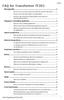 FAQ for Transformer TF201 Managing files... 2 How do I access my data stored in microsd, SD card and USB device?... 2 How do I move the selected file to another folder?... 2 How do I copy and paste the
Using. An excerpt from Smart Technology's getting started manual explaining the basics of the SmartBoard and how to use it.
 Using An excerpt from Smart Technology's getting started manual explaining the basics of the SmartBoard and how to use it. Quick Reference Hardware Basics for Front Projection SMART Board Interactive Whiteboards
GETTING STARTED TABLE OF CONTENTS
 Windows 7 Tutorial GETTING STARTED An operating system, sometimes called an OS, is the main program the computer uses to function properly. Operating systems act as a link between you, the user, and the
An Introduction to MPLAB Integrated Development Environment
 An Introduction to MPLAB Integrated Development Environment 2004 Microchip Technology Incorporated An introduction to MPLAB Integrated Development Environment Slide 1 This seminar is an introduction to
This guide describes features that are common to most models. Some features may not be available on your tablet.
 User Guide Copyright 2013 Hewlett-Packard Development Company, L.P. Bluetooth is a trademark owned by its proprietor and used by Hewlett-Packard Company under license. Google is a trademark of Google Inc.
Using WINK to create custom animated tutorials
 Using WINK to create custom animated tutorials A great way for students and teachers alike to learn how to use new software is to see it demonstrated and to reinforce the lesson by reviewing the demonstration.
Blender Notes. Introduction to Digital Modelling and Animation in Design Blender Tutorial - week 9 The Game Engine
 Blender Notes Introduction to Digital Modelling and Animation in Design Blender Tutorial - week 9 The Game Engine The Blender Game Engine This week we will have an introduction to the Game Engine build
Building A Computer: A Beginners Guide
 Building A Computer: A Beginners Guide Mr. Marty Brandl The following was written to help an individual setup a Pentium 133 system using an ASUS P/I- P55T2P4 motherboard. The tutorial includes the installation
Digital Learner MacBook Air Quick Start Student User Guide
 2014 2015 Digital Learner MacBook Air Quick Start Student User Guide Howell Township Public Schools Digital Learner MacBook Air Quick Start Student User Guide The Digital Learner MacBook Air Quick Start
Intro to the Art of Computer Science
 1 LESSON NAME: Intro to the Art of Computer Science Lesson time: 45 60 Minutes : Prep time: 15 Minutes Main Goal: Give the class a clear understanding of what computer science is and how it could be helpful
OneDrive for Business User Guide
 OneDrive for Business User Guide Contents About OneDrive for Business and Office 365... 2 Storing University Information in the Cloud... 2 Signing in... 2 The Office 365 Interface... 3 The OneDrive for
SMART Board Training Packet. Notebook Software 10.0
 SMART Board Training Packet Notebook Software 10.0 Chris de Treville [email protected] 6301 Benjamin Road Suite 101 Tampa, FL 33634 p: 813.884.7168 f: 813.882.9508 SMART Board Welcome Center
How To Program An Nxt Mindstorms On A Computer Or Tablet Computer
 NXT Generation Robotics Introductory Worksheets School of Computing University of Kent Copyright c 2010 University of Kent NXT Generation Robotics These worksheets are intended to provide an introduction
Getting Started in Tinkercad
 Getting Started in Tinkercad By Bonnie Roskes, 3DVinci Tinkercad is a fun, easy to use, web-based 3D design application. You don t need any design experience - Tinkercad can be used by anyone. In fact,
Getting to Know Xsight... 3. Home Screen and Everyday Use... 9. Settings... 11. PC Setup... 17. 2 www.oneforall.com
 User Manual English English Getting to Know Xsight........................................ 3 Unpacking and Setting Up Xsight............................................................. 3 Using Xsight
STB- 2. Installation and Operation Manual
 STB- 2 Installation and Operation Manual Index 1 Unpacking your STB- 2 2 Installation 3 WIFI connectivity 4 Remote Control 5 Selecting Video Mode 6 Start Page 7 Watching TV / TV Guide 8 Recording & Playing
Activity Builder TP-1908-V02
 Activity Builder TP-1908-V02 Copyright Information TP-1908-V02 2014 Promethean Limited. All rights reserved. All software, resources, drivers and documentation supplied with the product are copyright Promethean
DESIGN A WEB SITE USING PUBLISHER Before you begin, plan your Web site
 Page 1 of 22 DESIGN A WEB SITE USING PUBLISHER Before you begin, plan your Web site Before you create your Web site, ask yourself these questions: What do I want the site to do? Whom do I want to visit
Content Author's Reference and Cookbook
 Sitecore CMS 6.5 Content Author's Reference and Cookbook Rev. 110621 Sitecore CMS 6.5 Content Author's Reference and Cookbook A Conceptual Overview and Practical Guide to Using Sitecore Table of Contents
Introduction To Microsoft Office PowerPoint 2007. Bob Booth July 2008 AP-PPT5
 Introduction To Microsoft Office PowerPoint 2007. Bob Booth July 2008 AP-PPT5 University of Sheffield Contents 1. INTRODUCTION... 3 2. GETTING STARTED... 4 2.1 STARTING POWERPOINT... 4 3. THE USER INTERFACE...
Code Kingdoms Learning a Language
 codekingdoms Code Kingdoms Unit 2 Learning a Language for kids, with kids, by kids. Resources overview We have produced a number of resources designed to help people use Code Kingdoms. There are introductory
Mobile Apps with App Inventor
 Mobile Apps with App Inventor written for 91.113 Michael Penta Table of Contents Mobile Apps... 4 Designing Apps in App Inventor... 4 Getting Started... 5 App Inventor Layout... 5 Your First App... 7 Making
Set Top Box User Guide. Global Reach with a Local Touch
 Set Top Box User Guide Global Reach with a Local Touch Table of Contents REMOTE SET UP 3 SET TOP BOX DIAGRAM 4 SET TOP BOX SETTINGS 5 TURN ON/OFF 5 TV INPUT SETTINGS 5 ADJUSTING THE VOLUME 5 RESETTING
Hello. What s inside? Ready to build a website?
 Beginner s guide Hello Ready to build a website? Our easy-to-use software allows you to create and customise the style and layout of your site without having to understand any coding or HTML. In this guide
Google Drive: Access and organize your files
 Google Drive: Access and organize your files Use Google Drive to store and access your files, folders, and Google Docs, Sheets, and Slides anywhere. Change a file on the web, your computer, tablet, or
Hi! Let s get started.
 Hi! Let s get started. What s in the Box Roku player Remote control 2 x AAA batteries for remote A/V cable RCA Power adapter Get to know your roku A Front view B C F Back view D E A B C D E F Status light
QUIT MACSCHOOL AND DRAG YOUR SERVER ICONS TO THE TRASH OR HIT THE DISCONNECT BUTTON BESIDE THE SERVER ICON IN THE TOP SIDEBAR
 Macintosh Operating System OSX 10.3.x STARTING YOUR COMPUTER Logging in Whenever you start your computer, you will need to enter your computer password at the log in screen. When the log in screen appears,
itunes Basics Website: http://etc.usf.edu/te/
 Website: http://etc.usf.edu/te/ itunes is the digital media management program included in ilife. With itunes you can easily import songs from your favorite CDs or purchase them from the itunes Store.
Integrated Invoicing and Debt Management System for Mac OS X
 Integrated Invoicing and Debt Management System for Mac OS X Program version: 6.3 110401 2011 HansaWorld Ireland Limited, Dublin, Ireland Preface Standard Invoicing is a powerful invoicing and debt management
Single Property Website Quickstart Guide
 Single Property Website Quickstart Guide Win More Listings. Attract More Buyers. Sell More Homes. TABLE OF CONTENTS Getting Started... 3 First Time Registration...3 Existing Account...6 Administration
OPTAC Fleet Viewer. Instruction Manual
 OPTAC Fleet Viewer Instruction Manual Stoneridge Limited Claverhouse Industrial Park Dundee DD4 9UB Help-line Telephone Number: 0870 887 9256 E-Mail: [email protected] Document version 4.0 Part Number:
Embroidery Fonts Plus ( EFP ) Tutorial Guide Version 1.0505
 Embroidery Fonts Plus ( EFP ) Tutorial Guide Version 1.0505 1 Contents Chapter 1 System Requirements.................. 3 Chapter 2 Quick Start Installation.................. 4 System Requirements................
Point of View Mobii 10 Tegra Tablet. Notice... 2
 TABLE OF CONTENTS Notice... 2 1.0 Preface... 2 2.0 Getting to know the basics... 4 3.0 How to Start... 7 3.1 Home Shell... 7 3.1.1 Home Shell > Widgets (Search RSS Weather)... 8 3.1.2 Home Shell > Widgets,
About your Kobo ereader...5
 Kobo Touch User Guide Table of Contents About your Kobo ereader...5 Anatomy of your Kobo ereader...5 Charging your Kobo ereader...7 Charging your Kobo ereader with a wall adapter...8 Turning your Kobo
Microsoft PowerPoint 2011
 Microsoft PowerPoint 2011 Starting PowerPoint... 2 Creating Slides in Your Presentation... 3 Beginning with the Title Slide... 3 Inserting a New Slide... 3 Adding an Image to a Slide... 4 Downloading Images
E-Blocks Easy Internet Bundle
 Page 1 Cover Page Page 2 Flowcode Installing Flowcode Instruction for installing Flowcode can be found inside the installation booklet located inside the Flowcode DVD case. Before starting with the course
ASUS WebStorage Client-based for Windows [Advanced] User Manual
![ASUS WebStorage Client-based for Windows [Advanced] User Manual](/thumbs/40/21159954.jpg "ASUS WebStorage Client-based for Windows [Advanced] User Manual") ASUS WebStorage Client-based for Windows [Advanced] User Manual 1 Welcome to ASUS WebStorage, your personal cloud space Our function panel will help you better understand ASUS WebStorage services. The
ASUS WebStorage Client-based for Windows [Advanced] User Manual 1 Welcome to ASUS WebStorage, your personal cloud space Our function panel will help you better understand ASUS WebStorage services. The
Internet basics 2.1 Getting online. Beginner s guide to. www.bt.com/getittogetherresources. Basics. Get IT Together
 Beginner s guide to Internet basics 2.1 Getting online Use this document with the glossary A helper should take you through this guide This activity will help you get online for the first time. What will
Internet and Email Help. Table of Contents:
 Internet and Email Help The following tips are provided to assist you in troubleshooting and managing your Plex Internet and email services. For additional issues or concerns, you may also call our Product
BLU Vivo 4.3 User Manual
 BLU Vivo 4.3 User Manual 1 Table of Contents Phone Safety Information... 3 Appearance and Key Functions... 4 Installation and Charging... 5 Phone Operation... 7 Communication... 10 Camera... 11 Gallery...
Your EdVenture into Robotics You re a Programmer
 Your EdVenture into Robotics You re a Programmer meetedison.com Contents Introduction... 3 Getting started... 4 Meet EdWare... 8 EdWare icons... 9 EdVenture 1- Flash a LED... 10 EdVenture 2 Beep!! Beep!!...
How To Use A Magistrate Desktop Computer
 Windows 7 Tips and Tricks 2013 Fall Magistrates Conference (This page left blank) Magistrate Laptops Page 2 Purpose: Magistrates desktop computers are being replaced with a laptop, external monitor, docking
Deposit Direct. Getting Started Guide
 Deposit Direct Getting Started Guide Table of Contents Before You Start... 3 Installing the Deposit Direct application for use with Microsoft Windows Vista... 4 Running Programs in Microsoft Windows Vista...
SweetPea3R-200 User Guide Version 1.1
 SweetPea3R-200 User Guide Version 1.1 For safety and warranty information, please refer to the Quick Start Guide included in the box with your unit. Thank you for purchasing a SweetPea3. As this is a new
Mimio Interactive. Pad and Bar. Technology Integration Department. Last update: 2/15/2013
 Mimio Interactive Technology Integration Department Last update: 2/15/2013 Getting Started 1. Mimio Bars or Pads (MS Science, and HS) may be checked out from the library. 2. You must have mimio software
Chapter 14: Links. Types of Links. 1 Chapter 14: Links
 1 Unlike a word processor, the pages that you create for a website do not really have any order. You can create as many pages as you like, in any order that you like. The way your website is arranged and
REFERENCE GUIDE 1. INTRODUCTION
 1. INTRODUCTION Scratch is a new programming language that makes it easy to create interactive stories, games, and animations and share your creations with others on the web. This Reference Guide provides
Parts of a Computer. Preparation. Objectives. Standards. Materials. 1 1999 Micron Technology Foundation, Inc. All Rights Reserved
 Parts of a Computer Preparation Grade Level: 4-9 Group Size: 20-30 Time: 75-90 Minutes Presenters: 1-3 Objectives This lesson will enable students to: Identify parts of a computer Categorize parts of a
LEARNING RESOURCE CENTRE. Guide to Microsoft Office Online and One Drive
 LEARNING RESOURCE CENTRE Guide to Microsoft Office Online and One Drive LEARNING RESOURCE CENTRE JULY 2015 Table of Contents Microsoft Office Online... 3 How to create folders... 6 How to change the document
understand how image maps can enhance a design and make a site more interactive know how to create an image map easily with Dreamweaver
 LESSON 3: ADDING IMAGE MAPS, ANIMATION, AND FORMS CREATING AN IMAGE MAP OBJECTIVES By the end of this part of the lesson you will: understand how image maps can enhance a design and make a site more interactive