
Express Server User's Guide
|
|
|
- Morris Sanders
- 9 years ago
- Views:
Transcription
1 Express Server User's Guide

2 Manuals for the Product The manuals for this product are divided as follows. Please refer to them for detailed information. CD-ROM Guides with this symbol are manuals in PDF format included on the accompanying CD-ROM.* iw Secure Audit Manager Express Server Installation and Instructions. ir Agent Instructions. iw Secure Audit Manager Express Server Message and Countermeasure. Explains how to perform License Authentication for Express Server. Explains how to execute the virtual environment support tool necessary when you are using Express Server in the virtual environment. Express Server User's Guide (This Document) Express Server ir Agent User's Guide Express Server Message List Software License Registration Guide Procedure for Running Virtual Environment Support Tool CD-ROM CD-ROM CD-ROM CD-ROM CD-ROM * To view the manual in PDF format, Adobe Reader/Acrobat Reader/Acrobat is required. If Adobe Reader/Acrobat Reader/Acrobat is not installed on your system, please download it from the Adobe Systems Incorporated website (
3 How This Manual Is Organized Chapter 1 Overview of Express Server Chapter 2 Designing and Building Your System Environment Chapter 3 Installing Express Server Chapter 4 Installing ir Agent Chapter 5 Configuring File Server Chapter 6 Configuring the Use of System Manager Chapter 7 Upgrading Chapter 8 Appendix Considerable effort has been made to insure that this manual is free of inaccuracies and omissions. However, as we are constantly improving our products, if you need an exact specification, please contact Canon.

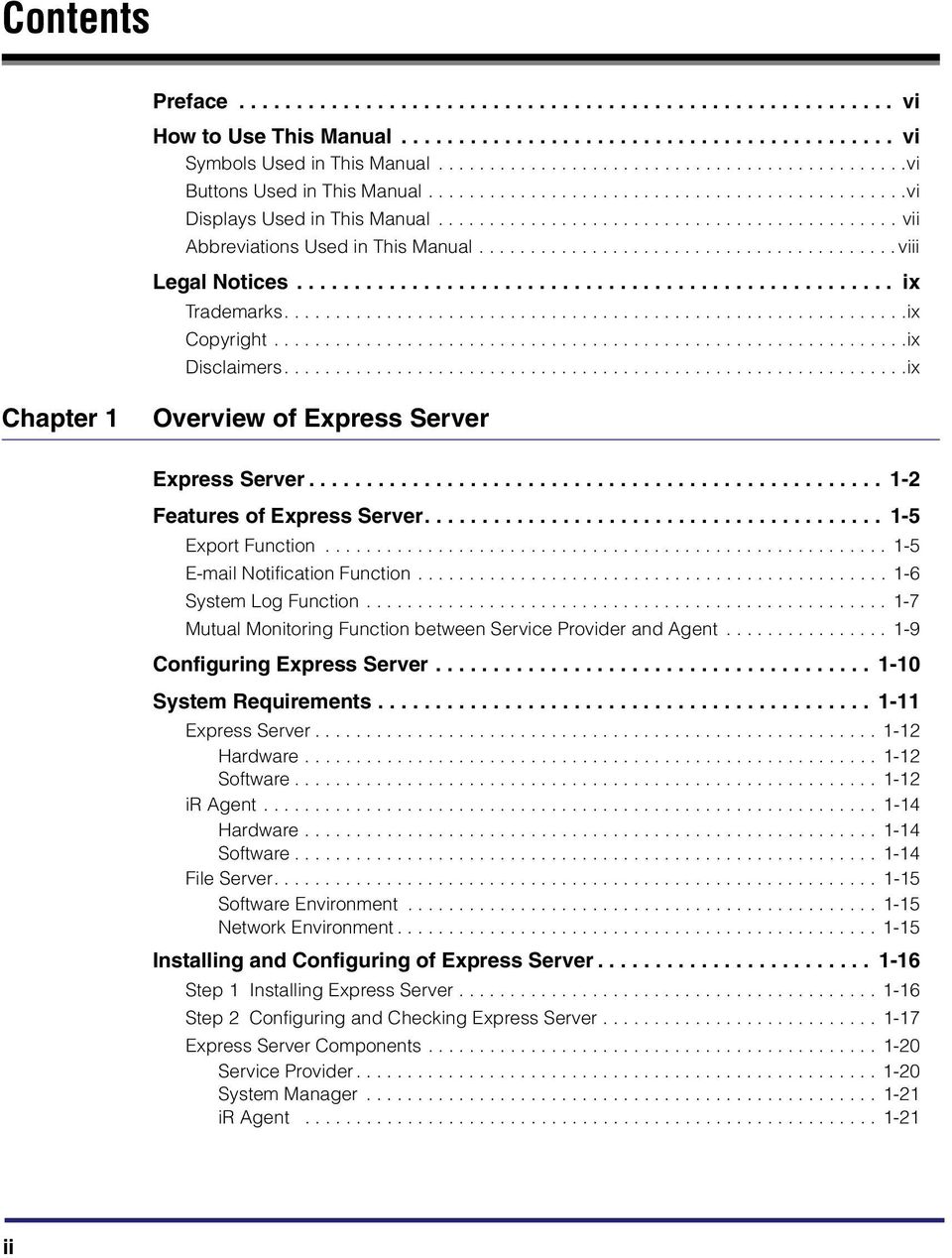
4 Contents Preface vi How to Use This Manual vi Symbols Used in This Manual vi Buttons Used in This Manual vi Displays Used in This Manual vii Abbreviations Used in This Manual viii Legal Notices ix Trademarks ix Copyright ix Disclaimers ix Chapter 1 Overview of Express Server Express Server Features of Express Server Export Function Notification Function System Log Function Mutual Monitoring Function between Service Provider and Agent Configuring Express Server System Requirements Express Server Hardware Software ir Agent Hardware Software File Server Software Environment Network Environment Installing and Configuring of Express Server Step 1 Installing Express Server Step 2 Configuring and Checking Express Server Express Server Components Service Provider System Manager ir Agent ii
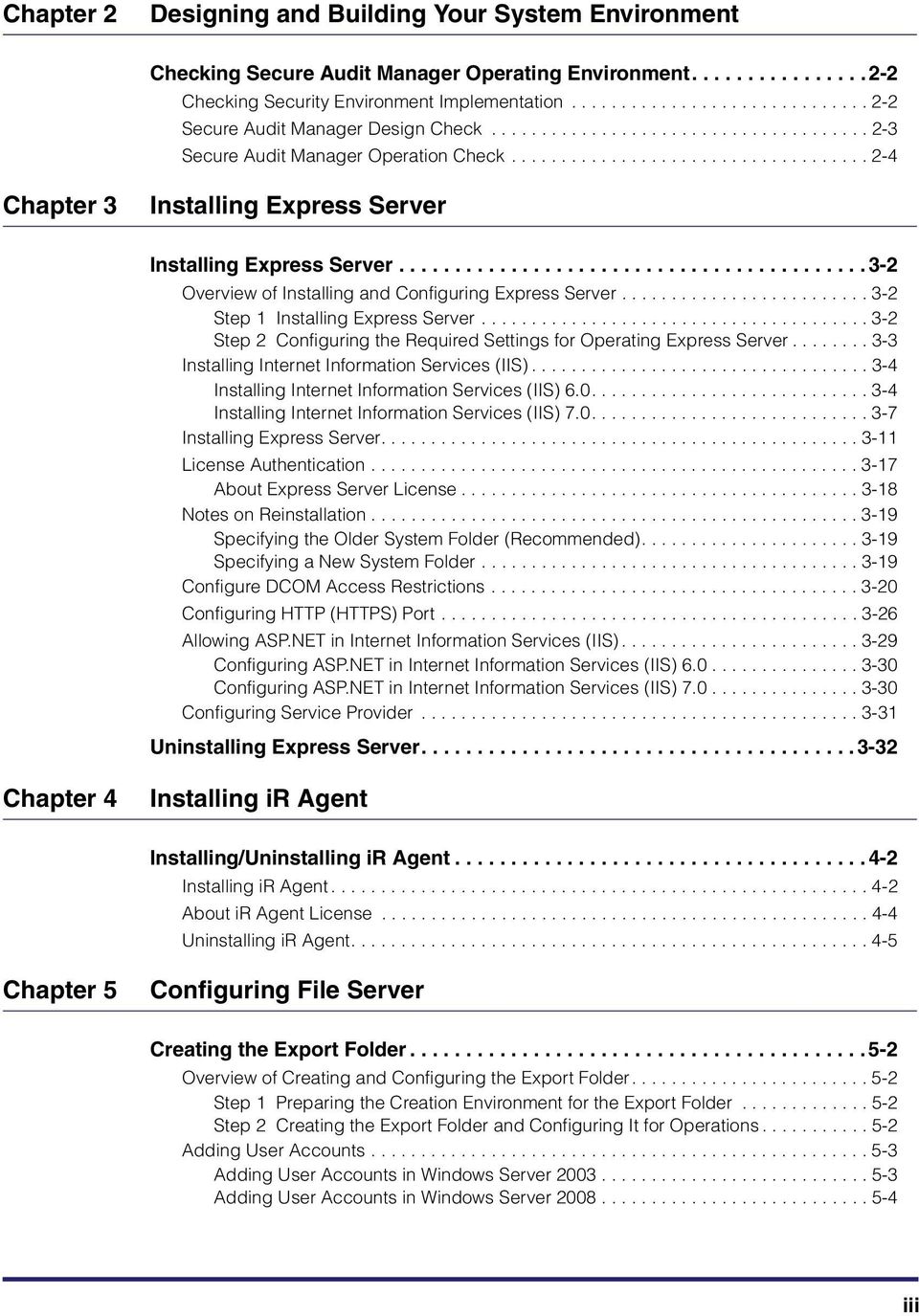
5 Chapter 2 Designing and Building Your System Environment Checking Secure Audit Manager Operating Environment Checking Security Environment Implementation Secure Audit Manager Design Check Secure Audit Manager Operation Check Chapter 3 Installing Express Server Installing Express Server Overview of Installing and Configuring Express Server Step 1 Installing Express Server Step 2 Configuring the Required Settings for Operating Express Server Installing Internet Information Services (IIS) Installing Internet Information Services (IIS) Installing Internet Information Services (IIS) Installing Express Server License Authentication About Express Server License Notes on Reinstallation Specifying the Older System Folder (Recommended) Specifying a New System Folder Configure DCOM Access Restrictions Configuring HTTP (HTTPS) Port Allowing ASP.NET in Internet Information Services (IIS) Configuring ASP.NET in Internet Information Services (IIS) Configuring ASP.NET in Internet Information Services (IIS) Configuring Service Provider Uninstalling Express Server Chapter 4 Installing ir Agent Installing/Uninstalling ir Agent Installing ir Agent About ir Agent License Uninstalling ir Agent Chapter 5 Configuring File Server Creating the Export Folder Overview of Creating and Configuring the Export Folder Step 1 Preparing the Creation Environment for the Export Folder Step 2 Creating the Export Folder and Configuring It for Operations Adding User Accounts Adding User Accounts in Windows Server Adding User Accounts in Windows Server iii
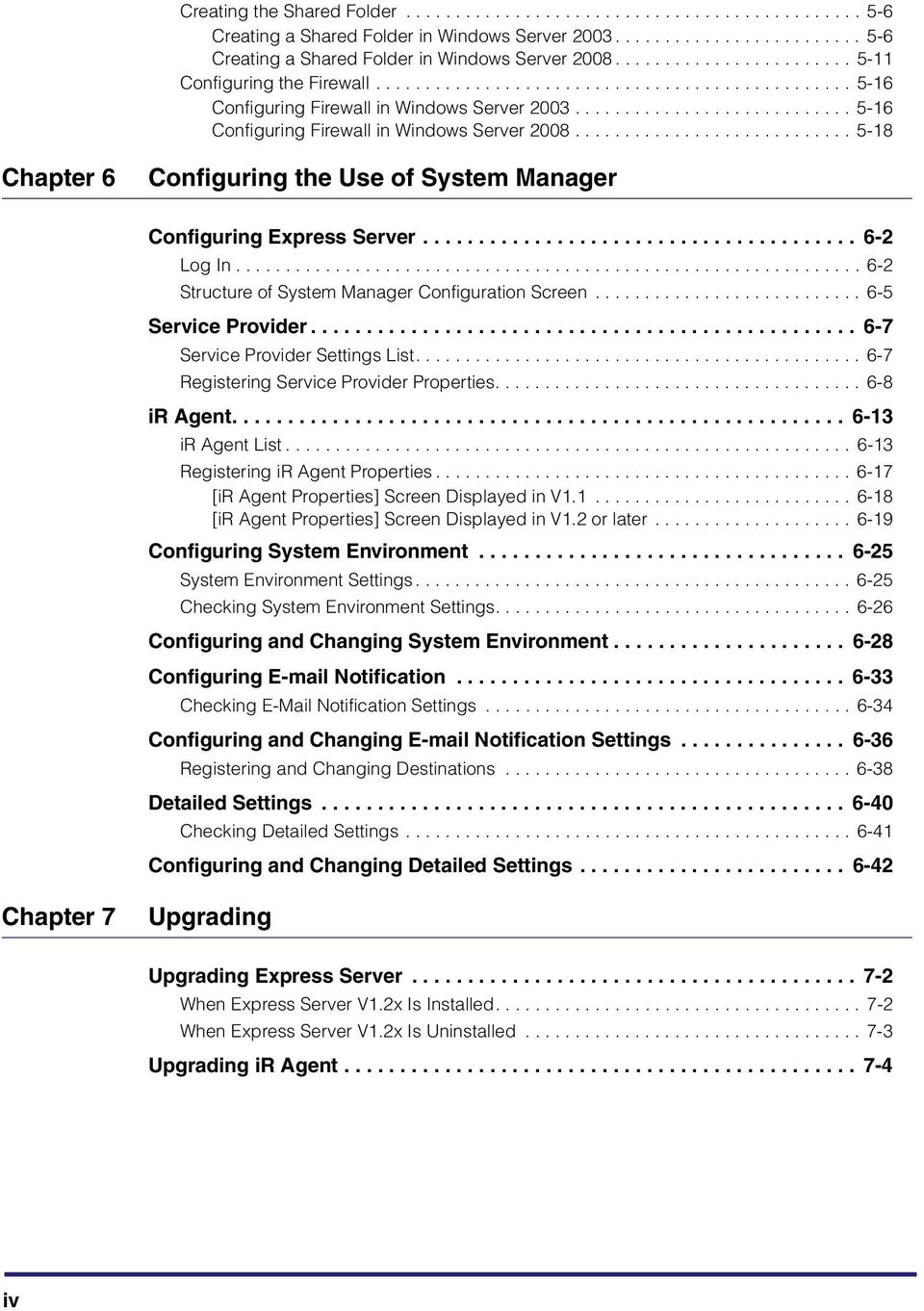
6 Creating the Shared Folder Creating a Shared Folder in Windows Server Creating a Shared Folder in Windows Server Configuring the Firewall Configuring Firewall in Windows Server Configuring Firewall in Windows Server Chapter 6 Configuring the Use of System Manager Configuring Express Server Log In Structure of System Manager Configuration Screen Service Provider Service Provider Settings List Registering Service Provider Properties ir Agent ir Agent List Registering ir Agent Properties [ir Agent Properties] Screen Displayed in V [ir Agent Properties] Screen Displayed in V1.2 or later Configuring System Environment System Environment Settings Checking System Environment Settings Configuring and Changing System Environment Configuring Notification Checking Notification Settings Configuring and Changing Notification Settings Registering and Changing Destinations Detailed Settings Checking Detailed Settings Configuring and Changing Detailed Settings Chapter 7 Upgrading Upgrading Express Server When Express Server V1.2x Is Installed When Express Server V1.2x Is Uninstalled Upgrading ir Agent iv
7 Chapter 8 Appendix Creating the System Administrator User Recommended Configuration for Different Use Cases When Saving Text Data Only Use Condition System Manager Settings When Saving Image Data Use Condition System Manager Settings When Saving Image Data of High Image Quality Use Condition System Manager Settings Notification Details Notification from Service Provider Notification of Errors and Disk Space Insufficiency in Service Provider Notification from Agent Notification of Unknown Agent Error Notification of Job Information Transmission Retry Error in the Agent Notification of Maximum Page Number Exceeded Notification of Disk Space Insufficiency in the Agent Error Notifications from License Authentication Notification of the Number of Remaining Days for the Valid License Order of Powering Off and On When Operating Express Server Uninstallation Steps for Express Server Restrictions Glossary Index v

8 Preface Thank you for purchasing iw Secure Audit Manager. Please read this manual thoroughly before operating the product to familiarize yourself with its capabilities, and to make the most of its many functions. After reading this manual, store it in a safe place for future reference. How to Use This Manual This manual is targeted for readers who have basic operational knowledge of Windows and Web browsers. Symbols Used in This Manual The following symbols are used in this manual to explain procedures, restrictions, handing precautions, and instructions that should be observed for safety. IMPORTANT Indicates operational requirements and restrictions. Be sure to read these items carefully to operate the product correctly. NOTE Indicates a clarification of an operation, or contains additional explanations for a procedure. Reading these notes is highly recommended. Buttons Used in This Manual The following symbols and button names are a few examples of how buttons to be pressed are represented in this manual: Buttons on Computer Operation Screens: [OK] Icons on Computer Operation Screens: (Properties) icon vi

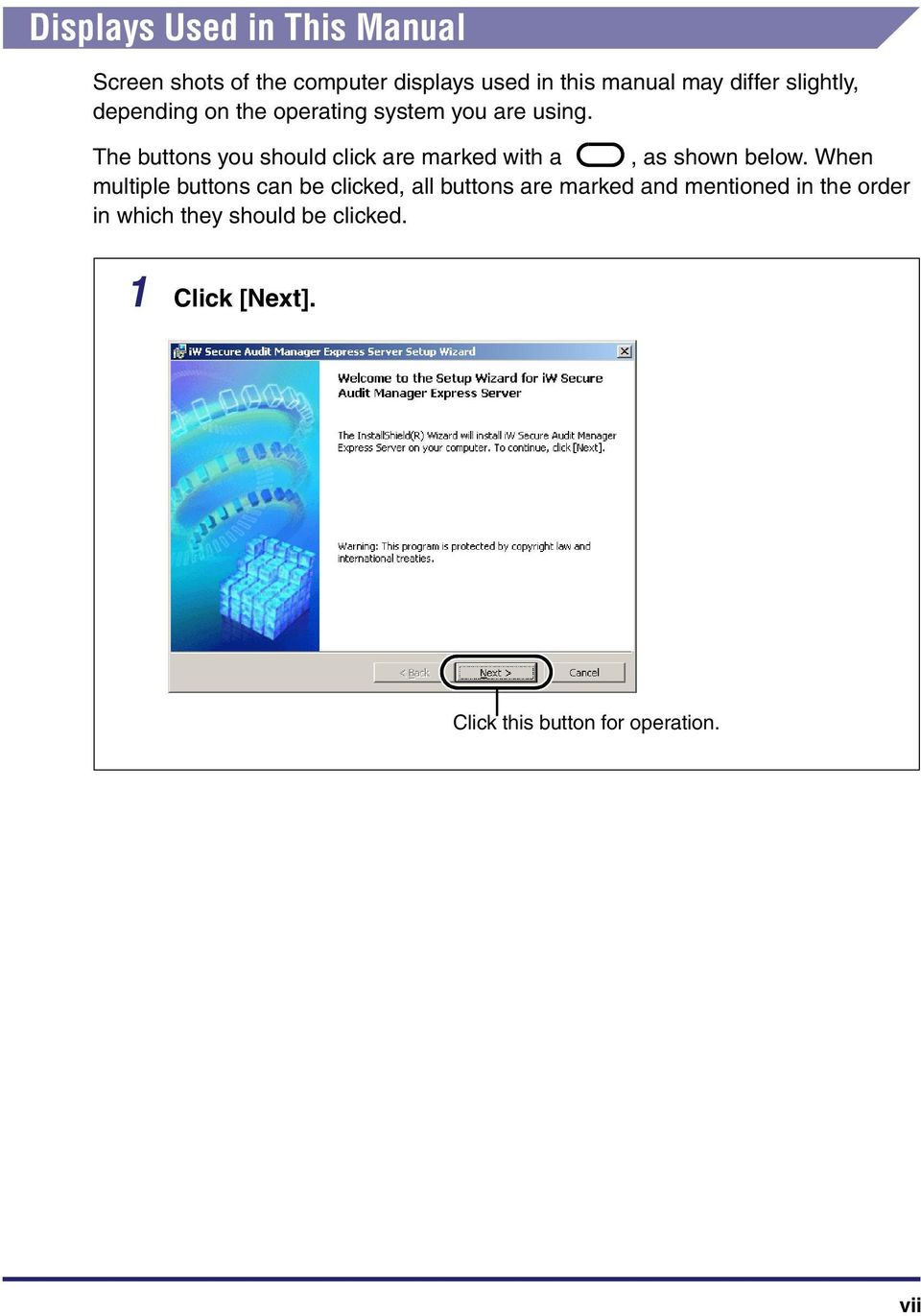
9 Displays Used in This Manual Screen shots of the computer displays used in this manual may differ slightly, depending on the operating system you are using. The buttons you should click are marked with a, as shown below. When multiple buttons can be clicked, all buttons are marked and mentioned in the order in which they should be clicked. 1 Click [Next]. Click this button for operation. vii
10 Abbreviations Used in This Manual In this manual, product names and model names are abbreviated as follows: Microsoft Windows XP operating system: Windows XP Microsoft Windows Vista operating system: Windows Vista Microsoft Windows 7 operating system: Windows 7 Microsoft Windows Server 2003 operating system: Windows Server 2003 Microsoft Windows Server 2008 operating system: Windows Server 2008 Microsoft Internet Explorer: Internet Explorer Microsoft.NET Framework:.NET Framework Microsoft Internet Information Services: Internet Information Services (IIS) iw Secure Audit Manager: Secure Audit Manager iw Secure Audit Manager Express Server: Express Server iw Secure Audit Manager Service Provider: Service Provider iw Secure Audit Manager System Manager: System Manager iw Secure Audit Manager ir Agent: ir Agent Canon SAM Data Process Service: Data Process Service Canon SAM Export Service: Export Service Canon SAM Management Service: Management Service Canon SAM Report Service: Report Service Canon multifunctional devices such as imagerunner ADVANCE Series: ir device viii
11 Legal Notices Trademarks MEAP is a trademark of Canon Inc. Adobe and Adobe Acrobat are trademarks of Adobe Systems Incorporated. Microsoft, Windows, Windows Server, Windows Vista, Windows 7, Internet Explorer, and Microsoft Internet Explorer logo are registered trademarks or trademarks of Microsoft Corporation in the United States and/or other countries. Other products and company names herein may be the trademarks of their respective owners. Copyright Copyright 2010 by Canon Inc. All rights reserved. No part of this publication may be reproduced or transmitted in any form or by any means, electronic or mechanical, including photocopying and recording, or by any information storage or retrieval system without the prior written permission of Canon Inc. Portions of this product copyright Nuance Communications, Inc. All rights reserved. Disclaimers The information in this document is subject to change without notice. CANON INC. MAKES NO WARRANTY OF ANY KIND WITH REGARD TO THIS MATERIAL, EITHER EXPRESS OR IMPLIED, EXCEPT AS PROVIDED HEREIN, INCLUDING WITHOUT LIMITATION, THEREOF, WARRANTIES AS TO MARKETABILITY, MERCHANTABILITY, FITNESS FOR A PARTICULAR PURPOSE OF USE OR NON-INFRINGEMENT. CANON INC. SHALL NOT BE LIABLE FOR ANY DIRECT, INCIDENTAL, OR CONSEQUENTIAL DAMAGES OF ANY NATURE, OR LOSSES OR EXPENSES RESULTING FROM THE USE OF THIS MATERIAL. ix

12 x

13 Overview of Express Server 1 This chapter introduces Express Server and describes the components required to set up your system. CHAPTER Express Server Features of Express Server Export Function Notification Function System Log Function Mutual Monitoring Function between Service Provider and Agent Configuring Express Server System Requirements Express Server ir Agent File Server Installing and Configuring of Express Server Step 1 Installing Express Server Step 2 Configuring and Checking Express Server Express Server Components

14 Express Server 1 Overview of Express Server Express Server is a system for extracting log information and content data (text data/image data) of jobs including printing, copying and faxing performed by users as job information, storing and managing it in the server according to preconfigured information. Managing job information makes it possible to track the content of user jobs, thus enabling document distribution oversight that prevents leaks or abuse of confidential or closely held information. Express Server consists of the following components: Express Server ir Agent File server (Export Folder) NOTE When installing Express Server, express edition Service Provider (hereafter referred to as "Service Provider") and express edition System Manager (hereafter referred to as "System Manager") are also installed. 1-2 Express Server

15 Computer for viewing documents/searching File Server Export Folder ir Device + ir Agent ir Agent Processing and Sending Job Information Express Server Sending Job Information System Administrator Computer Service Provider System Manager Sending to System Administrator 1 Overview of Express Server ir Agent Administrator Computer Sending to ir Agent Administrator Express Server 1-3

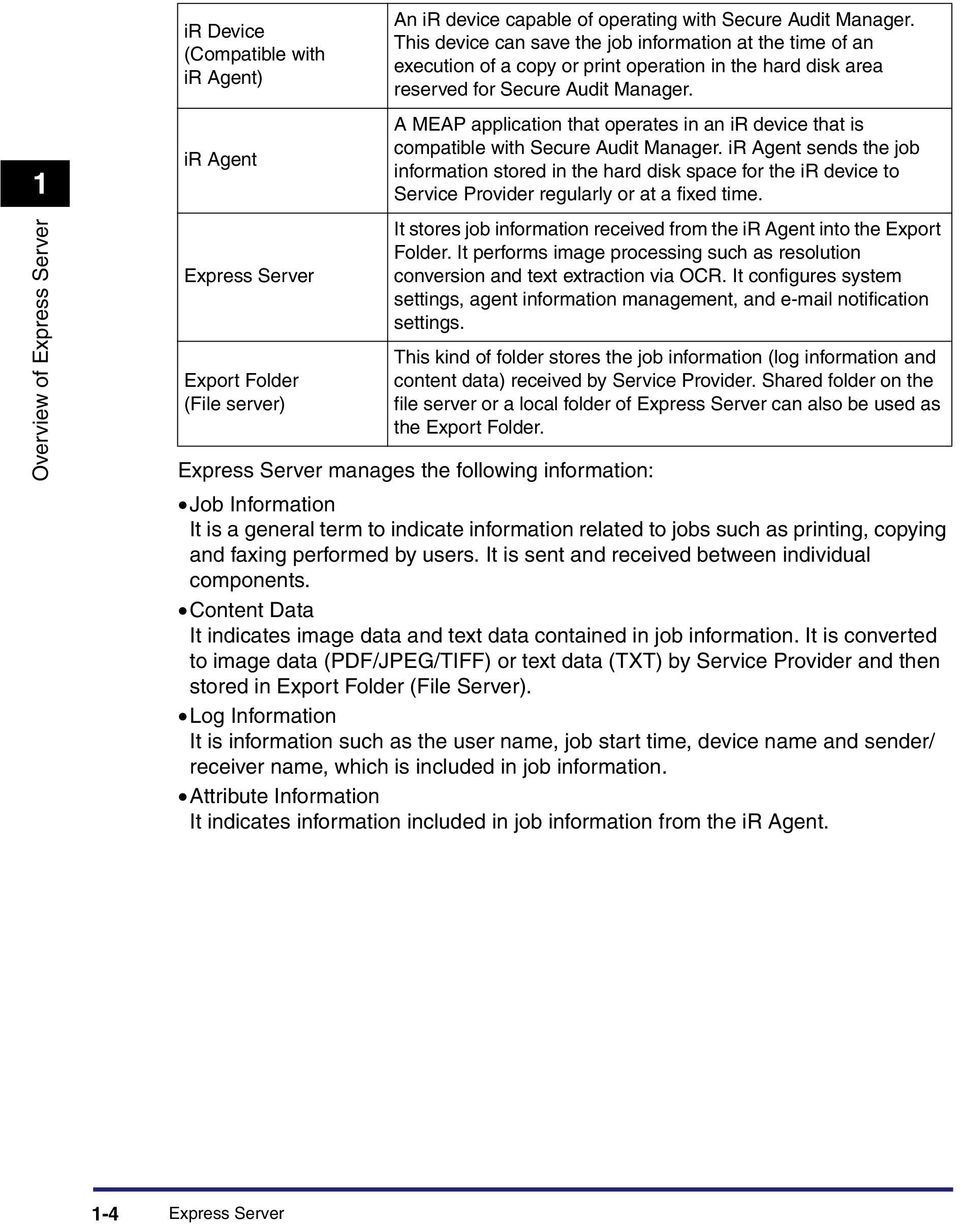
16 1 Overview of Express Server ir Device (Compatible with ir Agent) ir Agent Express Server Export Folder (File server) An ir device capable of operating with Secure Audit Manager. This device can save the job information at the time of an execution of a copy or print operation in the hard disk area reserved for Secure Audit Manager. A MEAP application that operates in an ir device that is compatible with Secure Audit Manager. ir Agent sends the job information stored in the hard disk space for the ir device to Service Provider regularly or at a fixed time. It stores job information received from the ir Agent into the Export Folder. It performs image processing such as resolution conversion and text extraction via OCR. It configures system settings, agent information management, and notification settings. This kind of folder stores the job information (log information and content data) received by Service Provider. Shared folder on the file server or a local folder of Express Server can also be used as the Export Folder. Express Server manages the following information: Job Information It is a general term to indicate information related to jobs such as printing, copying and faxing performed by users. It is sent and received between individual components. Content Data It indicates image data and text data contained in job information. It is converted to image data (PDF/JPEG/TIFF) or text data (TXT) by Service Provider and then stored in Export Folder (File Server). Log Information It is information such as the user name, job start time, device name and sender/ receiver name, which is included in job information. Attribute Information It indicates information included in job information from the ir Agent. 1-4 Express Server
17 Features of Express Server Express Server closely manages job information and print content of print jobs and fax transmissions in printers and multifunctional devices, providing a tool for preventing unauthorized acquisition and/or leakage of confidential information. Express Server possesses various functions for effective operation of the system. Export Function From the following components, Express Server extracts each job information such as log data and content data (text data and image data) from ir devices and then sends them to the Export Folder. The target job information varies as follows, depending on the ir Agent version, the system structure and system settings. For ir Agent V1.1 - Send and Receive Fax to and from ir devices only - All jobs of ir devices For ir Agent V1.2/V1.3 -Copy -Print - Send Fax -Receive Fax -Box -Scan/Send 1 Overview of Express Server Contents of Job Information The job information to be sent to the Export Folder is composed of the content data and the log information. The logs include the user name, job start time, device name, and sender/receiver name. Either texts or images can be selected as a format of the content data of the jobs. When the job is saved as images, the image resolution can be specified. When color or grayscale images are selected, the compression rate can also be specified. Features of Express Server 1-5
18 1 Overview of Express Server Schedule to send Job Information ir Agent The schedule to send the job information from ir Agent to the Export Folder can be set as follows. Sending according to the specified send interval Sending according on the starting time to send Manual Transmission by Clicking [Send Now] A time period when the job information transmission is disenabled can be specified in order to avoid occupying the network during working hours. Notification Function A feature to notify errors or abnormal statuses to the system administrator by if they occur in Express Server. The following types of notification are sent. The error details notified by are output to the event log. The event log is always output regardless of whether the notification is set or not. IMPORTANT This function can only be used by mail servers compatible with the authentication methods supported by Express Server. Use software that supports the character code UTF-8 because UTF-8 is used for the character code of . For details on how to set notification, see "Configuring Notification," on p Errors in Service Provider If an error occurs in a component of Service Provider (Archive Provider, Management Service, Data Process Service or Export Service), an notification is sent to the system administrator. Notification of unknown agent If the status of agent becomes unknown, notification is sent to the system administrator and the administrator of the ir Agent for which the status unknown. Notification of job information submission retry error in the agent If a job information submission retry error occurs in the ir Agent notification is sent to the system administrator and the administrator of the ir Agent in which the error occurred. Notification of maximum page number exceeded If the maximum number of pages to send per job is exceeded, notification is sent to the system administrator and the administrator of the ir Agent. 1-6 Features of Express Server

19 Notification of disk space insufficiency in the agent If disk space in the agent runs low in the ir Agent, notification is sent to the system administrator and the administrator of the ir Agent, in which the error occurred. Error notifications from license authentication When the license for Express Server cannot be confirmed or the trial license has been expired, the system administrator is notified of the situation via . Notification of the number of remaining days for the valid license When you are using the trial license, the system administrator is notified of the number of remaining days of the trial license. System Log Function In Express Server, job information received from ir Agent and the history of the job log information and content data that are stored in the Export Folder are stored as a system log. Errors are also recorded in this system log. For details on errors, see Secure Audit Manager Express Server Message List. One file of the system log is created by date and one line in CSV format is created for each job. In addition, the system log is set with a period for retaining it. After the specified period, the system log is automatically removed. The following rules apply to the system log file name. sys[dd][mm][yyyy].log (DD: day, MM: month, YYYY: year) Lines of CSV format to describe job content are recorded in the following format. [Date and Time], [Message ID], [Message] + (Job Information) The system log is saved in the system log folder in the system folder (created when Express Server was installed) and automatically deleted after the retention period specified in the system environment of System Manager. The maximum size of the ir Agent system log is 4 MB. When the log reaches the maximum size, 1 MB of the oldest records is deleted. 1 Overview of Express Server Features of Express Server 1-7

20 Items found in the system log and their descriptions are shown below. 1 Overview of Express Server Item Date and Time Message ID Message Description The local date and time in Express Server or the ir device are recorded in the following format. For Express Server: DD/MM/YYYY HH:mm:ss:SSS DD day, MM month, YYYY year, HH hour (24-hour notation), mm minute, ss second, SSS millisecond. For ir Agent: DD-MMM-YYYY HH:mm:ss.SSS zz DD day, MMM displays the month (three-letter abbreviation), YYYY year, HH hour (24-hour notation), mm minute, ss second, SSS millisecond, and zz time zone. The message ID is recorded in the following hexadecimal/8-digit format: Program ID (2 digits) + Function ID (2 digits) + Error ID (4 digits) The message content including the exception handling message is recorded. The following items are added in the system log only if job information is processed. Agent ID User Name Job Name Job Start Date & Time The agent ID of the job sender is recorded. The department ID that executed the printing is recorded. The job name is recorded. The start date and time of the job are recorded. Number of Logical Pages The number of pages in the printed document is recorded. Spool Folder Name The name of the hard disk area exclusively prepared for Secure Audit Manager in an ir device is recorded. For details on how to specify the retention period of the system logs, see "Configuring and Changing System Environment," on p NOTE The system logs of Express Server are saved in the following default location if they are installed using the default settings. Service Provider C:\Program Files\Canon\iW SAM\Express Server\System\SysLog The system log of the ir Agent can be downloaded using a Web browser. For more information on the setting, see Secure Audit Manager Express Server ir Agent User's Guide. 1-8 Features of Express Server

21 Mutual Monitoring Function between Service Provider and Agent The ir Agent regularly notifies the current status to the Service Provider (status notification). For example, the ir Agent determines that an error has occurred in the Service Provider if the Service Provider does not respond to the status notification sent from the ir Agent. In this case, the display in [Reception Service of Send Jobs] in [Information] screen in the ir Agent changes from [Operating] to [No Response]. You can receive from the agent via status notification the operation condition, the amount used for the hard disk of the agent, and error information. If necessary, you can also send notification to the system administrator and agent administrator. If there is no status notification from the agent to Service Provider for 30 minutes, it is determined that the status of the agent is unknown and the status is notified to the administrators of the system and agent. The items monitored by the agent that are included in status notification are shown below. Status of disk space insufficiency in ir Agent Data transmission condition including job submission retry errors Exceeding the maximum number of pages per job (5,000 pages) Internal errors of ir Agent 1 Overview of Express Server If any of the following conditions occur in an ir device, it is also detected as an internal error. When this occurs, the internal error can be released when ir device is restarted. If a Secure Audit Manager function does not operate normally If the internal information cannot be obtained Note that in some cases the following internal errors are not resolved only by restarting the ir device. If the MEAP authentication information is not configured You can resolve the internal errors by restarting the ir device after configuring the MEAP authentication information. If the hard disk drive of the ir device is damaged If the internal error cannot be resolved even by restarting the ir device, contact your Canon dealer. For more information on notification, see " Notification Function," on p Features of Express Server 1-9
22 Configuring Express Server 1 System for specified jobs Overview of Express Server Secure Audit Manager supported by ir Device ir Agent Express Server File Server (Export Folder) Auditor/Administrator Computer The target device of job recording in this system structure is ir devices on which ir Agent is operating. In this system structure, the information of jobs executed in an ir device by the ir Agent is sent to Service Provider and stored in Export Folder. IMPORTANT If targeting only fax jobs to record, you must set to record fax jobs only in System Manager. For more information on the setting, see "Configuring the Use of System Manager," on p. 6-1 and Secure Audit Manager Express Server ir Agent User's Guide Configuring Express Server
23 System Requirements This section describes the operation environment to use Express Server. IMPORTANT In the Express Server software environment, the combination of different languages is not supported. Any settings configured with multilanguage in Express Server is not supported. The name of the computer on which Express Server is installed must consist of less than or equal to 15 alphanumeric characters. The name more than 15 alphanumeric characters is not supported. If you use Express Server in a domain environment, you cannot use multibyte characters for the domain name. Once the configuration of Express Server is completed, do not change the name or the IP address of the computer on which Secure Audit Manager is installed. If you power off without following the regular procedure, this environment is not supported. In the computer on which Express Server is installed, the HTTP or HTTPS port should be opened. Use on a Guest OS such as Hyper-V is not supported. When a firewall is enabled, remove the port number used in this system from the firewall monitoring list. Operation in an environment where the domain controller and Express Server are used on the same computer is not supported. Operation in the OS compatibility mode is not supported. Operation in an environment in which a proxy server is used is not supported. This software is an application developed using.net Framework 1.1. This software works on.net Framework 1.1 even when.net Framework 2.0/3.0 is installed. Do not uninstall.net Framework 1.1. Do not manually restart the Data Process Service, Export Service, Management Service, or Report Service (including restarting after being stopped). If a service requires a restart, you must restart the computer. Do not install an application created by.net Frameworks other than.net Framework 1.1 that uses the Internet Information Services (IIS) 6.0 default application pool (DefaultAppPool) onto the computer on which Express Server is to be installed. In Secure Audit Manager, IPv6 is not supported. The following agent components are allowed to be connected to the Secure Audit Manager V1.3 system: - ir Agent: V1.1/V1.2/V1.3 If there is any agent of V1.3 among the agents configuring Secure Audit Manager, be sure to upgrade the versions of the Express Server to V Overview of Express Server System Requirements 1-11
24 Express Server Hardware 1 Overview of Express Server CPU Intel Pentium 4/Xeon 3 GHz equivalent or higher (recommended) Hard disk File system: NTFS (mandatory) 7 GB or more disk space in the drive in which the system folder exists. NOTE If you use the FAT file system, operations are not supported. Memory 1 GB or more (recommended) Screen resolution 1024 x 768 pixels or more Software IMPORTANT Operating systems not listed below are not supported. Express Server is available only on 32-bit Edition operating systems. Operating systems Windows Server 2003 Family (Standard, Enterprise) SP1 Windows Server 2003 Family (Standard, Enterprise) SP2 Windows Server 2003 Family (Standard, Enterprise) R2 Windows Server 2003 Family (Standard, Enterprise) R2 SP2 Windows Server 2008 Family (Standard, Enterprise) Windows Server 2008 Family (Standard, Enterprise) SP2 NOTE The Server Core/Hyper-V option available in Windows Server 2008 is not supported System Requirements
25 Components.NET Framework 1.1 Redistributable Package.NET Framework 1.1 SP1 ASP.NET 1.1 Web server Internet Information Services 6.0 Internet Information Services NOTE When you reinstall Internet Information Services (IIS) on Windows Server 2003 SP1/ SP2/R2/R2 SP2 after installing Express Server, you need to reinstall the OS before the reinstallation of Internet Information Services (IIS). When you reinstall Internet Information Services (IIS) on Windows Server 2008 after installing Express Server, you need to reinstall.net Framework 1.1 and Express Server before the reinstallation of Internet Information Services (IIS). Web browser Internet Explorer 6.0 SP1/SP2/SP3 Internet Explorer 7.0 Internet Explorer 8.0 Overview of Express Server Operating systems supporting the Web browser Windows XP Professional SP2 Windows XP Professional SP3 Windows XP Professional x64 Edition Windows XP Professional x64 Edition SP2 Windows Vista Family (Business, Enterprise) Windows Vista Family (Business, Enterprise) SP1 Windows Vista Family (Business, Enterprise) SP2 Windows Vista Family (Business, Enterprise) x64 Edition Windows Vista Family (Business, Enterprise) x64 Edition SP1 Windows Vista Family (Business, Enterprise) x64 Edition SP2 Windows 7 Family (Professional, Enterprise) Windows 7 Family (Professional, Enterprise) x64 Edition Windows Server 2003 Family (Standard, Enterprise) SP1 Windows Server 2003 Family (Standard, Enterprise) SP2 Windows Server 2003 Family (Standard, Enterprise) R2 Windows Server 2003 Family (Standard, Enterprise) R2 SP2 Windows Server 2008 Family (Standard, Enterprise) Windows Server 2008 Family (Standard, Enterprise) SP2 System Requirements 1-13
26 NOTE The XP mode in Windows 7 is not supported. ir Agent Secure Audit Manager ir Agent V1.1/V1.2/V1.3 1 ir Agent Overview of Express Server Hardware ir Device Canon ir devices supporting ir Agent Software Environmental resources for the MEAP application Hard Disk : 22,500 KB Memory : 6,000KB Threads : 7 Sockets : 10 File Descriptor : 8 Web Browsers Internet Explorer 6.0 SP1/SP2/SP3 Internet Explorer 7.0 Internet Explorer 8.0 NOTE Java Runtime Environment or later must be installed. Display Resolution: 1024 x 768 or more Colors: 256 or more Operating systems supporting the Web browser Windows XP Professional SP2 Windows XP Professional SP3 Windows XP Professional x64 Edition Windows XP Professional x64 Edition SP2 Windows Vista Family (Business, Enterprise) Windows Vista Family (Business, Enterprise) SP System Requirements
27 File Server Windows Vista Family (Business, Enterprise) SP2 Windows Vista Family (Business, Enterprise) x64 Edition Windows Vista Family (Business, Enterprise) x64 Edition SP1 Windows Vista Family (Business, Enterprise) x64 Edition SP2 Windows 7 Family (Professional, Enterprise) Windows 7 Family (Professional, Enterprise) x64 Edition Windows Server 2003 Family (Standard, Enterprise) SP1 Windows Server 2003 Family (Standard, Enterprise) SP2 Windows Server 2003 Family (Standard, Enterprise) R2 Windows Server 2003 Family (Standard, Enterprise) R2 SP2 Windows Server 2008 Family (Standard, Enterprise) Windows Server 2008 Family (Standard, Enterprise) SP2 NOTE The XP mode in Windows 7 is not supported. 1 Overview of Express Server The environment for the Export Folder is as follows. IMPORTANT Operating systems not listed below are not supported. File Server is available only on 32-bit Edition operating systems. Software Environment Operating systems Windows Server 2003 Family (Standard, Enterprise) SP1 Windows Server 2003 Family (Standard, Enterprise) SP2 Windows Server 2003 Family (Standard, Enterprise) R2 Windows Server 2003 Family (Standard, Enterprise) R2 SP2 Windows Server 2008 Family (Standard, Enterprise) Windows Server 2008 Family (Standard, Enterprise) SP2 NOTE The Server Core/Hyper-V option available in Windows Server 2008 is not supported. Network Environment Both the work group environment and the domain environment are supported. System Requirements 1-15
28 Installing and Configuring of Express Server 1 Overview of Express Server This section describes how to install and configure Express Server. You must install and configure in the following order: Step 1 Installing Express Server Step 2 Configuring and checking Express Server Step 1 Installing Express Server The following steps describe how to install Express Server. Select the check box corresponding to the procedure that you have finished to confirm your task progress. Express Server Status Operation Refer to 1. Install Internet Information Services (IIS) (See p. 3-4) 2. Install Express Server (See p. 3-11) 3. License Authentication (See p. 3-17) IMPORTANT If you are using Express Server in a virtual environment, be sure to run Virtual Environment Support Tool before launching the License Authentication Wizard. For the details on how to run it, refer to [Procedure for Running Virtual Environment Support Tool]. ir Agent Status Operation Refer to 1. Install ir Agent (See p. 4-2) NOTE The license for ir Agent is automatically installed when you install ir Agent Installing and Configuring of Express Server
29 Step 2 Configuring and Checking Express Server The following steps describe how to configure Express Server. Select the check box corresponding to the procedure that you have finished to confirm your task progress. Express Server Status Operation Refer to ir Agent 1. Configure DCOM access restrictions (See p. 3-20) 2. Configure HTTP (HTTPS) port (See p. 3-26) 3. Allowing ASP.NET in Internet Information Services (IIS) (See p. 3-29) Status Operation Refer to 1. Configure the authentication information For more information, see e-manual. 1 Overview of Express Server 2. Configure ir Agent and register to Service Provider - URL - Access ID - Agent name - Station ID - Station name 3. Confirm the start of job recording "Registering to Service Provider" in Secure Audit Manager Express Server ir Agent User's Guide "Starting/Stopping Job Recording" in Secure Audit Manager Express Server ir Agent User's Guide IMPORTANT Log on through any authentication method, such as Default Authentication, SDL (Simple Device Login), SSO (Single Sign-On), SSO-H (Single Sign-On H) or SSO-IC Card based on the optional IC Card Authentication Enhanced Kit, or any other method that uses one of the approved authentication applications. For details on the approved authentication applications, contact your local authorized Canon dealer. For [Access ID] in the ir Agent settings, enter the Agent Access ID specified in the [System Environment] screen of System Manager. Installing and Configuring of Express Server 1-17
30 When installing an ir Agent in an ir device for the first time, configure [Schedule to Send Jobs] in the [ir Agent Properties] screen in System Manager or [Settings] modification screen in the ir Agent after registering the ir Agent in Service Provider. After the schedule is applied to the ir Agent and the device is restarted, the job recording status becomes [Operating]. For more information on the [Settings] modification screen of ir Agents, see Secure Audit Manager Express Server ir Agent User's Guide. 1 Overview of Express Server System Manager Status Operation Refer to 1. Log in to System Manager (See p. 6-2) 2. Configure system environment (See p. 6-25) 3. Configure ir Agent properties - Agent name - Station ID - Station name - Format to store jobs - Schedule to send jobs - Status check interval (See p. 6-17) 4. Confirm data transmission after copying from ir devices (See p. 6-8) IMPORTANT Log on as a user with Administrator privileges. [ir Agent Properties] settings are not available if no ir Agent is registered. NOTE Agent Name, Station ID and Station Name shown in "3. Configure ir Agent properties" are configured at the time when the agent information is registered. In System Manager, you can reconfigure the settings. Confirm ir Agent Operations Status Operation Refer to Perform copy job with the ir device, send it immediately with ir Agent, and then confirm that the job information is stored in Export Folder (See p. 6-13) Confirm Export Folder Status Operation Refer to Confirm that the job record from Service Provider is stored in Export Folder (See p. 6-8) 1-18 Installing and Configuring of Express Server
31 Configuring the system environment according to the operation condition Customize the configurations related to the system environment, notification, agent connections, communication and port number settings according to your operation environment. Status Operation Refer to Configure the environment settings (See p. 6-25) Configure the notification settings (See p. 6-33) 1 Configure the agent connection, communications with agents, and port number to display (See p. 6-40) Overview of Express Server Installing and Configuring of Express Server 1-19
32 Express Server Components This section describes the components of Express Server. Service Provider 1 Overview of Express Server Service Provider stores job information from ir Agent documents the content data (image/text data) of the job by converting the image format or by formatting the text data, and stores the data in the Export Folder. The content data is converted to the following document file formats and stored in the Export Folder. Text data TXT file Image data (JPEG/TIFF) PDF file or JPEG/TIFF file Service Provider works in cooperation with multiple modules. The modules and their roles are shown below. Canon SAM Data Process Service Converts the format of the job information, text data and image data that are stored in the spool folder based on the settings, and creates document information. Canon SAM Export Service Stores the jobs in the Export Folder. Canon SAM Management Service Manages Service Provider status. It manages the following: Checking whether the agent is active Outputting system log files Monitoring communication disconnection Recovering at startup Updating system environment settings Deleting incorrect jobs Monitoring Data Process Service Shutting down Canon SAM Report Service Sends notification of the errors that have occurred in Agents or Service Provider to the system administrator and the administrator of each agent by . NOTE When you browse or operate the spool folder or the files in it during job processing, the folder may be left undeleted. To delete it, restart your computer. Service Provider is configured by System Manager. For details on the configuring procedures, see Chapter 6, "Configuring the Use of System Manager" Installing and Configuring of Express Server
33 System Manager You can use System Manager to configure the settings of Service Provider and ir Agent, which are components of Secure Audit Manager. In addition, you can also configure operation settings including system environment settings, notification settings and agent-communication settings and centrally manage the status of the entire system. System Manager is provided as a Web application that can be operated via a Web browser. ir Agent ir Agent is used in Express Server. ir Agent temporarily saves various job information including print/copy/fax data and the number of pages in the hard disk area exclusively prepared for Secure Audit Manager in an ir device and sent it to Service Provider according to the schedule settings. ir Agent is installed on ir devices as a MEAP application. The services provided with ir Agent are shown below. Collecting the information on jobs performed by ir device Obtaining the operation mode Sending job information to Service Provider It also displays screens for setting ir Agent operation or confirming status. These screens are used/configured by users. Registering to Service Provider Checking the Status of ir Agent The attribute information items are shown below. 1 Overview of Express Server Job Information Job Log ID / Job Type / Job Name / Job Start Date & Time / Content ID Send and Receive Information Communication Start Date & Time / Transmitted Page Number / Destination Number / Subaddress / Destination Address / Document Size for Transmission ir Device Information Device Name / Location / Serial Number / Department ID / User Name / Domain Name / Station ID Print Client Information Computer Name / IP Address / User Name / Domain Name Installing and Configuring of Express Server 1-21
34 1 Overview of Express Server 1-22 Installing and Configuring of Express Server
35 Designing and Building Your System Environment 2 This chapter describes how to design and build the system environment necessary for introducing Secure Audit Manager. CHAPTER Checking Secure Audit Manager Operating Environment Checking Security Environment Implementation Secure Audit Manager Design Check Secure Audit Manager Operation Check
36 Checking Secure Audit Manager Operating Environment 2 Designing and Building Your System Environment To introduce and operate Secure Audit Manager, review the following three items: Implementation of your security environment Design of Secure Audit Manager Operation of Secure Audit Manager To achieve the goal of effective security management using Secure Audit Manager, you should consider the following items when building your network environment. Checking Security Environment Implementation For security management with Secure Audit Manager to function effectively, a checking system must be built and operated for the target organization. This section reviews the implementation of your network security environment where Secure Audit Manager is installed. In this section, you will first review principles of implementation at the organization level and then review the eligibility of administrators. Clarifying the Responsibility and Authority for Security at the Organization Level Set up a specific group to continuously manage and monitor security. Appoint a security administrator in each department in the company. Create security policies for the entire company and for each department. Create rules that reflect the security policies for the entire company and for each department. Document the rules and make them known to employees through education and support. Revise the security rules to reflect changes in the environment. Appoint an internal or external person to deal with immediate problems as they arise. 2-2 Checking Secure Audit Manager Operating Environment
37 Checking Eligibility for Secure Audit Manager Administrators and Auditors (Administrators and Auditors) Check that the responsibility and authority of all administrators match their target business activities. Check that all administrators, auditors, and service engineers who deploy Secure Audit Manager are reliable. Check that all administrators and auditors have enough expertise and practical experience in operations with Secure Audit Manager. Check that no auditor has an interest in his or her target business. Check that all auditors have signed confidentiality agreements under which they may not disclose or use any confidential information obtained through their audit activities without authentication. Secure Audit Manager Design Check In the previous section, you reviewed principles of a security environment that has an effective checking system. In this section, you will check the system design when introducing Secure Audit Manager. In this section, you will review security policies for your network that eliminate security holes, and a data communication method that does not interfere with business activities. Reviewing Security Policies and Smooth Implementation of Business Processes Select either HTTP or HTTPS for your network communication protocol based on your security policies. HTTPS provides a higher level of security than HTTP although it slows down data transfer between Agent and Service Provider. Define the audit scope for Secure Audit Manager and configure the security domains. Consider how your network should be divided into security domains as follows: Partitioning physically or logically. Partitioning by access restriction to computers, printers, and multifunctional devices. Partitioning by operation of the network. Note that Secure Audit Manager is not designed to protect against external attacks or threats (including from the Internet). Configure a firewall to prevent such attacks. Ensure that Service Provider is connected through ir Agent to ir devices or printers/ multifunctional devices that support Secure Audit Manager. Secure Audit Manager does not log operations involving user data and destination tables accessed through User Mode of the touch-panel display of the ir device, such as the printing of lists and address books. To prevent unauthorized printing out of and modification of such lists, consider a security policy to protect them. Configure the ir device so that administrative users must provide a valid password when switching to Settings/Registration. Consult with the contracted distributor on the details of this setting. Restrict access to Express Server to administrators only. 2 Designing and Building Your System Environment Checking Secure Audit Manager Operating Environment 2-3
38 Secure Audit Manager Operation Check 2 Designing and Building Your System Environment In the previous section, you reviewed security and network design useful for your businesses. Finally, you will review important factors for managing Secure Audit Manager. In Secure Audit Manager, job information is sent and received among components. You should estimate the timing and amount of sending and receiving of the job information, and the load on the server, so that you can ensure correct sending and receiving of data. Checklist for Safe Sending and Receiving of Data An uninterruptible power supply (UPS) should be provided for the file server as well as other printers and multifunctional devices. Consider the following issues for when sending job information to the server on a regular basis: Estimate the volume of printing by departments and users. Estimate the number of agents and hard disk capacity required, taking into account possible Service Provider failures causing delays in sending accumulated data. Use LAN analyzer software or other tools to check the number of computers, printers and multifunctional devices connected to the network and data on the connections. Change any network terminal lines that may cause packet collisions to 100Base-TX or higher, or use a switching hub as the target port. Estimate the load on a server machine if it has multiple functions such as Express Server. Consider adding more memory and a faster CPU to the server. Consider encrypting hard disks on printers or multifunctional devices based on standard security protocols. Adjust the resolution of a Web browser on each computer to that of Express Server. For details, see "System Requirements," on p Adjust the time of each computer and printer within a Secure Audit Manager domain to that of an NTP server. Check the server hard disk capacity on a regular basis and upgrade or increase it as necessary. You must back up the data on a regular basis. The schedule of sending and receiving job information must be adjusted for this check because it needs to be performed when the server is not used. Secure Audit Manager manages job information on 24 hour a day basis. Periodically restart the system to ensure stable operation of job information collection. For details, contact your local authorized Canon dealer. Consider actions to be taken if the server fails, and use this analysis to create a failure recovery manual. Estimate the amount of job data stored in each agent and determine the schedule for sending data to the agent. 2-4 Checking Secure Audit Manager Operating Environment
39 Keep the password confidential. You must set and maintain the password as follows: Change the default password. The new password must consist of random alphanumeric characters (a minimum of seven characters is recommended). Set an expiry date and change the password periodically (every 60 days is recommended). Do not keep the password in an easy to access location. Define different passwords for each administrator. Restrict File Server users using user accounts and passwords. Manage accounts with access to the server, shared printer configurations, and administrator privileges. Do not install unnecessary applications into servers. Create an audit plan to obtain a good audit result. Consider conducting surprise audits in addition to the regularly scheduled audits. Security Check for Operation Checking installation of antivirus software The administrator checks that required security measures (including antivirus software) are applied to all nodes in Secure Audit Manager, in order to prevent information leakage, system failure, and system down due to a virus. Checking whether security patches are applied to the OS and Web server (IIS) The administrator needs to understand the platform environment where Secure Audit Manager is running and check the latest security information from the OS vendor and Web server (IIS) vendor. If any appropriate security patches are issued, they should be immediately applied to the system. Mutual Monitoring The administrator and auditor should check each other's work to ensure that system management and job information audit are properly performed. It is recommended that multiple administrators and auditors be registered with the system and check each other's work using the system log. 2 Designing and Building Your System Environment Checking Secure Audit Manager Operating Environment 2-5
40 Checking Job Information Transmission Use the following flow to check the transmission of job information executed from a printer or ir device. Export Folder Service Provider ir Agent 1. Sending to Service Provider 2 Designing and Building Your System Environment 1. Job Storage 1. Transmission Scheduling Express Server Operation Estimate a schedule for daily operation for Express Server. Take into account the network environment in which Express Server is deployed in order allocate sufficient time for operations. 2-6 Checking Secure Audit Manager Operating Environment
41 Installing Express Server 3 CHAPTER This chapter describes how to install and uninstall Express Server, how to install the required applications and components, and how to configure the initial settings. Installing Express Server Overview of Installing and Configuring Express Server Installing Internet Information Services (IIS) Installing Express Server License Authentication Notes on Reinstallation Configure DCOM Access Restrictions Configuring HTTP (HTTPS) Port Allowing ASP.NET in Internet Information Services (IIS) Configuring Service Provider Uninstalling Express Server
42 Installing Express Server 3 The following steps describe how to install Express Server. When you install Express Server, Windows services, Web services, and shared files are installed on the server. In addition, IIS (Internet Information Services) and system registry configurations are added, and configuration files are updated based on the settings configured during the installation. Installing Express Server Overview of Installing and Configuring Express Server This section provides an overview of the installation and configuration procedures for Express Server. Installing Express Server consists of the following steps: Step 1 Installing Express Server Step 2 Configuring the Required Settings for Operating Express Server The following sections describe the operations required in each step. Step 1 Installing Express Server 1 Installing Internet Information Services (IIS) For details, see "Installing Internet Information Services (IIS)" (See p. 3-4). 2 Installing Express Server For details, see "Installing Express Server" (See p. 3-11). 3 License Authentication For details, see "License Authentication" (See p. 3-17). 3-2 Installing Express Server
43 NOTE Express Server is installed with the following Windows services. These services are started automatically after Express Server is installed. Canon SAM Data Process Service: Converts content information and image files in a spool folder residing in the system folder into specified formats and generates document information. Canon SAM Export Service: Stores the job information in the Export Folder. Canon SAM Management Service: Manages Express Server status. It manages the following: Checking whether the agent is active Outputting system log files Monitoring communication disconnection Recovering at startup Shutting down Canon SAM Report Service: Sends notification of the errors that have occurred in Agents or Service Provider to the system administrator and the administrator of each agent by . 3 Installing Express Server Step 2 Configuring the Required Settings for Operating Express Server 1 Configuring DCOM Access Restrictions For details, see "Configure DCOM Access Restrictions" (See p. 3-20). 2 Configuring HTTP (HTTPS) port For details, see "Configuring HTTP (HTTPS) Port" (See p. 3-26). 3 Allowing ASP.NET in Internet Information Services (IIS) For details, see "Allowing ASP.NET in Internet Information Services (IIS)" (See p. 3-29). Installing Express Server 3-3
44 Installing Internet Information Services (IIS) To build an installation environment necessary to operate Express Server, follow these steps to install Internet Information Services (IIS). NOTE Install Internet Information Services (IIS) 6.0 (Windows Server 2003) or Internet Information Services (IIS) 7.0 (Windows Server 2008). The installation procedure varies depending on the Internet Information Services (IIS) version. 3 Installing Express Server IMPORTANT When you start the installation, you may be prompted to insert the installation CD-ROM. In this case, insert your Windows CD-ROM into the CD-ROM drive and click [Next]. When the [Choose an action to perform] dialog box is displayed, click [Finish] to continue the Internet Information Services (IIS) installation. Do not change computer name after installing Internet Information Services (IIS). If you change the name, you will be unable to build the system. When you reinstall Internet Information Services (IIS) on Windows Server 2003 SP1/ SP2/R2/R2 SP2 after installing Express Server, you need to reinstall the OS before the reinstallation of Internet Information Services (IIS). When you reinstall Internet Information Services (IIS) on Windows Server 2008/SP2 after installing Express Server, you need to reinstall the.net Framework 1.1 and Express Server before the reinstallation of Internet Information Services (IIS). Installing Internet Information Services (IIS) 6.0 Follow the steps below to install Internet Information Services (IIS) Click [Start] in the task bar and select [Control Panel]. Control Panel is displayed. 2 Double-click the [Add or Remove Programs] icon. The [Add or Remove Programs] dialog box is displayed. 3 Click [Add/Remove Windows Components]. The Windows Components Wizard appears. 3-4 Installing Express Server
45 4 Check [Application Server] and click [Details]. 3 5 Select [ASP.NET] and [Internet Information Services (IIS)], and then click [OK]. Installing Express Server NOTE When you check [Internet Information Services (IIS)] and click [Details], you can select subcomponents of Internet Information Services. Installing Express Server 3-5
46 6 In [Windows Components Wizard], click [Next]. 3 Installing Express Server The Internet Information Services (IIS) installation process is started. NOTE When you start installation you may be prompted to insert the installation CD-ROM. In this case, insert your Windows CD-ROM into the CD-ROM drive and click [OK]. 7 Click [Finish]. 3-6 Installing Express Server
47 Installing Internet Information Services (IIS) 7.0 Use the [Server Manager] screen to install Internet Information Services (IIS) Click [Start] in the task bar and select [Administrative Tools] [Server Manager]. The [Server Manager] is displayed. 2 Click [Add Roles] under [Roles Summary]. 3 Installing Express Server The [Before You Begin] page of Add Roles wizard is displayed. 3 Review the items in the page and click [Next]. The [Select Server Roles] is displayed. Installing Express Server 3-7
48 4 Select [Web Server(IIS)] and click [Next]. 3 The [Web Server(IIS)] is displayed. Installing Express Server NOTE When the [Add Roles Wizard] dialog box is displayed, click [Add Required Features] to continue the installation. 5 Click [Next]. The [Select Role Services] is displayed. 3-8 Installing Express Server
49 6 Click [ASP.NET] under [Application Development]. NOTE When the [Add Roles Wizard] dialog box is displayed, click [Add Required Role Services] to continue the installation. When you click [Add Required Role Services], [.NET Extensibility], [ISAPI Extensions] and [ISAPI Filters] are automatically selected. 3 Installing Express Server 7 Select [Basic Authentication] and [Windows Authentication] under [Security] and [IIS 6 Management Compatibility] under [Management Tools] and then click [Next]. The [Confirm Installation Selections] is displayed. Installing Express Server 3-9
50 8 Review the settings and click [Install]. 3 The [Installation Progress] is displayed. Installing Express Server When the installation is complete, the [Installation Results] is displayed. 9 Review the installation results and click [Close] Installing Express Server
51 Installing Express Server IMPORTANT You must log on to the system as a user with Administrator privileges to install Express Server. Exit all other applications before installing Express Server. If [Default Web Site] does not exist in Internet Information Services (IIS), the virtual directory is not created when installing Express Server. Before installation, open [Administrative Tools] [Internet Information Services (IIS) Manager] [Web Sites] to confirm whether [Default Web Site] exist or not. If it does not exists, reinstall the OS and then install Internet Information Services (IIS). Do not run the [Services] and [Registry Editor] administrative tools during the process of the installation or the uninstallation of components. If Windows SharePoint Services is already installed, Express Server does not operate. Uninstall Windows SharePoint Services from [Add/Remove Windows Components] in [Add or Remove Programs] and then install Express Server. Installation of Express Server is not guaranteed if "Setup.exe" is executed from a copy in the installation folder of a drive on the network. When installing or uninstalling Express Server after starting multiple set up screens or canceling the installation or uninstallation while the setup wizard screen is being activated, the computer operation is not guaranteed. 3 Installing Express Server 1 Insert the installation media into the disk drive and double-click "Setup.exe" in the installation media. IMPORTANT If.NET Framework 1.1 is not installed, a message regarding.net Framework 1.1 installation is displayed when you start installing Express Server. In this case, follow the wizard to install the following items. -.NET Framework 1.1 Redistributable Package -.NET Framework 1.1 SP1 Installing Express Server 3-11
52 2 Confirm the displayed information and click [Next]. 3 Installing Express Server Click [Cancel] to move to the setup cancel dialog box. NOTE If an older version of Express Server is installed on the computer, the [Remove the Older Version Program] dialog box is displayed. When you click [Remove] in the [Remove the Older Version Program] dialog box, the [Start Installation] dialog box is displayed. 3 Confirm the setting for the folder where the system folder is created and click [Next]. The initial path of the destination folder for the system folder is as follows. <Startup drive>: \Program Files\Canon\iW SAM\Express Server\System\ NOTE The system folder stores job information collected by Express Server Installing Express Server
53 If changing the destination folder for the system folder: 3 Click [Browse]. Select the destination folder for the system folder and click [OK]. IMPORTANT Do not specify a folder that contains any files or subfolders. This may result in abnormal operation of Service Provider. However, these requirements are applicable except if you specify, as the current system folder, the old system folder that was created during the previous installation. Installing Express Server NOTE If you select a network drive or removable disk for the destination folder for the system folder, the system operation cannot be guaranteed. You can use up to 190 alphanumeric characters as the path to the system folder. Do not use "&" in the path name. When entering characters that cannot be entered using the key input (such as Euro symbol) for the path name, the system operation cannot be guaranteed. If Express Server is uninstalled, system logs and agent information in the system folder remain intact. If you want to use the previous agent information, you must specify the previous system folder during reinstallation. If you specify a different folder to reinstall Express Server, the old system folder is not specified as the initial path. If you want to initialize Express Server during reinstallation, you must not specify the old system folder or you must delete it. Installing Express Server 3-13
54 4 Confirm the destination folder and click [Next]. 3 Installing Express Server The initial path of the installation destination folder is as follows: <Start drive>:\program Files\Canon\iW SAM\Express Server\ If changing the destination folder: Click [Browse]. Confirm the destination folder and then click [OK]. IMPORTANT Do not specify a folder that contains any files or subfolders. This may result in abnormal operation of Service Provider Installing Express Server
55 NOTE If you select a network drive or removable disk for the destination folder for the system folder, the system operation cannot be guaranteed. You can use up to 190 alphanumeric characters as the path to the installation folder. Do not use "&", ";" in the path name. If you enter a character that cannot be entered by using the key input (including the EURO symbol) into the path name, the system operation cannot be guaranteed. 5 Click [Start]. 3 Installing Express Server The Express Server installation process is started. When the installation is complete, a dialog box indicating Express Server has been successfully installed is displayed. Installing Express Server 3-15
56 NOTE If the target drive does not have enough space, the [Not Enough Free Disk Space] dialog box is displayed. Reserve sufficient free space for the installation or change the target drive to a drive with sufficient free space. 3 Installing Express Server 6 Click [Exit]. IMPORTANT If you are reinstalling Internet Information Services (IIS) after installing Express Server, you must reinstall the OS. Otherwise, there may be a case where the System Manager screen cannot be displayed Installing Express Server
57 7 Restart the computer. IMPORTANT Restart the computer immediately after the installation. Operations without restarting the computer cannot be guaranteed. License Authentication You need to perform License Authentication to use Express Server. The following explains how to perform License Authentication using the License Authentication Wizard. NOTE The license for ir Agent is automatically installed when you install ir Agent. IMPORTANT If you are using Express Server in a virtual environment, be sure to run Virtual Environment Support Tool before launching the License Authentication Wizard. For the details, refer to Procedure for Running Virtual Environment Support Tool. 1 Double-click "SPSCertificate.exe", which is the execution file of the License Authentication Wizard. The installation folder for the License Authentication Wizard is set as follows by default: <Start drive>: \Program Files\Canon\iW SAM\Express Server\SPS\SPSCertificate.exe The [License Authentication] screen appears. 3 Installing Express Server NOTE The License Authentication Wizard is automatically installed when Express Server is installed. If you changed the default installation folder of Express Server when it was installed, the default installation folder is also different from the default. 2 Authenticate the license for Express Server according to the instructions given by the License Authentication wizard. 3 Restart the computer. Installing Express Server 3-17
58 About Express Server License There are two types of licenses: Full license You can use Express Server without any restriction. NOTE License Authentication is required only once. 3 Installing Express Server Trial license You can use for up to 180 days. You are allowed to access all functionality as well in the full license. Express Server notifies the system administrator of the number of remaining days of the trial license once a day using the notification function and outputs the information to the event log. The number of remaining days of the trial license on the [License Authentication] screen. NOTE By installing the full license during or after the trial period, you will able to use Express Server without restriction on the expiration period of the license. When the trial period expires, be sure to uninstall Express Server. If one of the following cases occurs while Express Server is operating, the License Authentication Error screen is displayed on the log in screen of System Manager. In this case, Express Server will not be able to communicate with ir Agent. 1. License Authentication has not been performed. 2. Availability of Express Server cannot be confirmed. 3. The expiration date of the trial license has passed. - In case of (2) or (3) above, Express Server will notify the system administrator of the License Authentication error via once a day and output it to the event log. If you restart the computer where Express Server is installed after the error notification for License Notification has already been received via on that computer, the notification will be received again after restart. Refer to " Notification Details" (See p. 8-7) for the details of the notification. IMPORTANT When the trial license for Express Server expires, communication with ir Agent will be unavailable and ir Agent will not detect expiration of the trial license. If ir Agent continues job recording in this state, job information which cannot be sent to Express Server will be continuously stored on the hard disk area for Secure Audit Manager of the ir device. When this hard disk area overflows, an error will be reported and jobs will not be executed on the ir device. When the trial license of Express Server has expired, be sure to stop job recording by ir Agent and restart the ir device. If the ir device is configured to be manually restarted, see e-manual included with your ir device Installing Express Server
59 Notes on Reinstallation This section describes how to use the old system folder or different system folder to reinstall Express Server. If you are reinstalling Express Server, you can use some configurations and data from the previous installation to simplify the reinstallation process. You can use registered agent information to eliminate the need for reregistering. When the service starts, system logging resumes from the previously created log. IMPORTANT The previous Express Server system configurations and registered destinations are cleared. Re-configure these settings from System Manager. 3 NOTE In the case of reinstallation, you can specify the system folder that was created during the previous installation. You can also specify another folder. Specifying the Older System Folder (Recommended) If you reinstall over the old system folder, its previous subfolders and files will be left intact. If you format the drive containing the old system folder before reinstalling, you must copy the system folder and its subfolders and files into another location. Installing Express Server Specifying a New System Folder If you specify a different system folder and want to use the previous configurations and data, you must copy in advance all folders and files in the previous system folder into the one currently being specified. IMPORTANT Do not copy these folders and files to another path, unless you are reinstalling Express Server. The system will not work properly due to consistency errors. Before reinstalling the Express Server, copy all the folders and files in the old system folder into the folder newly specified as the system folder. Installing Express Server 3-19
60 Configure DCOM Access Restrictions The following steps describe how to configure access permissions. 1 Click [Start] in the task bar and select [Administrative Tools] [Component Services]. The [Component Services] dialog box is displayed. 3 2 Click [Component Services] [Computers] [My Computer], and select the [Action] menu [Properties]. Installing Express Server The [My Computer Properties] dialog box is displayed Installing Express Server
61 3 Select the [COM Security] tab and click [Edit Limits] in [Access Permissions]. 3 The [Access Permission] dialog box is displayed. Installing Express Server Installing Express Server 3-21
62 4 Make sure that [ANONYMOUS LOGON] of the local computer is selected in [Group or user names] and the [Allow] check box for [Remote Access] of [Permissions for ANONYMOUS LOGON] is selected, and then click [OK]. When the [Allow] check box for [Remote Access] is not selected Select the check box and click [OK]. 3 Installing Express Server 3-22 Installing Express Server
63 5 Click [Edit Limits] for [Launch and Activation Permissions]. 3 The [Launch Permission] dialog box is displayed. Installing Express Server Installing Express Server 3-23
64 6 Make sure that [ANONYMOUS LOGON] is added to [Group or user names] in [Security Limits]. When [ANONYMOUS LOGON] is not added Click [Add] to add [ANONYMOUS LOGON] to the local computer. Select [ANONYMOUS LOGON] for the local computer in [Group or user names] and select the [Allow] checkbox for [Remote Activation] of [Permissions for ANONYMOUS LOGON], click [OK]. 3 Installing Express Server 3-24 Installing Express Server
65 Select [Everyone] for the local computer in [Group or user names] and select the [Allow] checkbox for [Remote Activation] of [Permissions for Everyone], click [OK]. 3 7 Click [OK] to close the [My Computer Properties] dialog box. Installing Express Server Installing Express Server 3-25
66 Configuring HTTP (HTTPS) Port If Windows Firewall is enabled, you must register applications with Windows Firewall. 1 Click [Start] in the task bar and select [Control Panel] [Windows Firewall]. 3 Installing Express Server If Windows Firewall is disabled, a dialog box is displayed prompting you to enable Windows Firewall and Internet Connection Sharing (ICS). Click [Yes] to start the Windows Firewall function Installing Express Server
67 2 On the [Exceptions] tab, click [Add Port]. 3 The [Add Port] dialog box is displayed. 3 Add the following port name, port number and protocol. Installing Express Server Name Protocol Port number (Default) HTTP (HTTPS) TCP 80 (443) 4 Click [OK]. Installing Express Server 3-27
68 5 Click [Add Program]. 3 Installing Express Server The [Add a Program] dialog box is displayed. 6 Click [Browse] and specify the execution file of the installed services "JAManagementService.exe." The default installation directory for services is as follows. <Startup drive>: \Program Files\Canon\iW SAM\Express Server\JAManagementService.exe 7 In the [Add a Program] dialog box, select JAManagementService.exe that has been added to the dialog box, and click [OK] to close the dialog box. 8 Restart the computer Installing Express Server
69 Allowing ASP.NET in Internet Information Services (IIS) Configure the settings of ASP.NET to enable the ASP.NET service that is used by the Express Server. NOTE When multiple versions of.net Framework have been installed on your computer, the version of ASP.NET that Service Provider uses may not be set to 1.1. In that case, follow the steps below to check the version of ASP.NET and configure the settings so that Service Provider may use ASP.NET 1.1. For Windows Server Click [Start] in the task bar and select [Administrative Tools] [Internet Information Services (IIS) Manager]. 2. Select each of the following items from [Web Sites] [Default Web Sites] and then right-click on it to select [Properties]. - [SAMSystemManager] - When ir Agent is connected: [JAService4iR] The properties dialog box of the selected item is displayed. 3. Click the [ASP.NET] tab. 4. Select [ ] from [ASP.NET version] and then click [Apply]. 5. Confirm that [ASP.NET version] is set to [ ] and then click [OK]. The version of ASP.NET to be used is set to 1.1. For Windows Server Click [Start] in the task bar and select [Administrative Tools] [Internet Information Services (IIS) Manager]. 2. Expand the computer name and select each of the following items. Then, select [Advanced Settings] in the right side bar. - [SAMSystemManager] - When ir Agent is connected: [JAService4iR] The [Advanced Settings] dialog box is displayed. 3. Click [Browse] in the [Application Pools] line. The [Select Application Pools] dialog box is displayed. 4. Select [ASP.NET 1.1] from the pull down list of [Application Pools] and then click [OK]. 5. Confirm that [ASP.NET 1.1] is displayed in [Application Pools] in the [Advanced Settings] dialog box and then click [OK]. The version of ASP.NET to be used is set to Installing Express Server Installing Express Server 3-29
70 Configuring ASP.NET in Internet Information Services (IIS) Click [Start] in the task bar and select [Administrative Tools] [Internet Information Services (IIS) Manager]. The [Internet Information Services (IIS) Manager] window is displayed. 2 In [Web Service Extensions], select [ASP.NET v1.1] and then select [Allow] in [Status] (if [Status] is not set to [Allow]). 3 Installing Express Server 3 Close the [Internet Information Services (IIS) Manager] window. 4 Restart the computer. Configuring ASP.NET in Internet Information Services (IIS) Click [Start] in the task bar and select [Administrative Tools] [Internet Information Services (IIS) Manager]. The [Internet Information Services (IIS) Manager] window is displayed Installing Express Server
71 2 Select the computer name and then double-click [ISAPI and CGI Restrictions]. 3 The [ISAPI and CGI Restrictions] page is displayed. 3 Select [ASP.NET v1.1] and then select [Allow] in [Status] (if [Status] is not set to [Allow]). Installing Express Server 4 Close the [Internet Information Services (IIS) Manager] window. 5 Restart the computer. Configuring Service Provider Service Provider is configured by System Manager. For details on the configuring procedures, see Chapter 6, "Configuring the Use of System Manager". Installing Express Server 3-31
72 Uninstalling Express Server The following steps describe how to uninstall Express Server. To start the uninstallation process, use the [Add or Remove Programs] dialog box. 3 Installing Express Server IMPORTANT You must log on to the system as a user with Administrator privileges to uninstall Express Server. If there are any unstored jobs in the system folder, you must store these unstored jobs in Express Server before uninstalling. NOTE Note that uninstalling Service Provider does not uninstall the following components. -.NET Framework 1.1 Redistributable Package -.NET Framework 1.1 SP1 Even if you uninstall Express Server, any files or subfolders in the system folder will not be deleted. 1 Click [Start] in the task bar and select [Control Panel]. The Control Panel is displayed. 2 Double-click the [Add or Remove Programs] icon. The [Add or Remove Programs] dialog box is displayed. For Windows Server 2008 Double-click the [Programs and Features] icon. 3 Select Express Server from the [Currently installed programs] list. 4 Click [Change]. The setup wizard for Express Server is displayed Uninstalling Express Server
73 5 Confirm the displayed information and click [Next]. 3 If you click [Cancel], a confirmation message is displayed. Click [Yes] to display the uninstallation cancel dialog box. 6 Click [Next]. Installing Express Server Uninstalling Express Server 3-33
74 7 Confirm the displayed information and click [Remove]. 3 Installing Express Server The program uninstallation process is started. When the uninstallation is completed, a dialog box notifying the completion is displayed. NOTE You cannot cancel uninstallation during the uninstallation process. 8 Click [Exit]. The uninstallation is completed Uninstalling Express Server
75 NOTE When the following folders are not deleted, Express Server may not be reinstalled. Check and manually delete them. These folders are generated in the disk drive on which the operating system is installed. - \Inetpub\wwwroot\SAMSystemManager - \Inetpub\wwwroot\active\JobArchiveSystem In order to uninstall Express Server more safely, check the following: 1. Stop [Reception Service of Send Jobs] in the [System Environment] screen. 2. Check that there are any Unstored Jobs in the [Service Provider Settings] screen. If there are any unstored jobs, wait until all the unstored jobs are stored completely. 3. Select [Administrative Tools] [Internet Information Services (IIS) Manager] and stop the [Default Web Site]. 4. Open [Administrative Tools] of the PC on which Express Server is installed, and then stop the following five Windows services: - Canon SAM Management Service - Canon SAM Data Process Service - Canon SAM Export Service - Canon SAM Report Service 5. Close all the windows and applications, and then open [Add or Remove Programs] and uninstall Express Server. 3 Installing Express Server Uninstalling Express Server 3-35
76 3 Installing Express Server 3-36 Uninstalling Express Server
77 Installing ir Agent 4 This chapter describes how to install/uninstall ir Agent in an ir device using Service Management Service (SMS). CHAPTER Installing/Uninstalling ir Agent Installing ir Agent About ir Agent License Uninstalling ir Agent
78 Installing/Uninstalling ir Agent 4 ir Agent is a MEAP application that operates in an ir device that is compatible with Secure Audit Manager. It sends job information stored in an ir device to Express Server according to the configured schedule or using the Send Now function. It also regularly obtains the operation settings configured or changed in the System Manager from Express Server and notifies the status of and errors of the ir Agent to Express Server. To install or uninstall ir Agent, use SMS (Service Management Service) from the Web browser on a computer that exists in the same network as an ir device with the MEAP platform. Installing ir Agent Installing ir Agent The following flow describes the processes from installation of ir Agent to its registration in Service Provider. The following procedure is used for when the Default Authentication (Department ID Management) is selected as the authentication method. IMPORTANT Java Runtime Environment or later must be installed. If the JavaScript function is disabled in the Web browser settings, the entered information cannot be updated. Always enable the JavaScript function. Job information is not collected until Agent starts job recording in the status settings of ir Agent. Job recording for ir Agent is started by performing the following procedures: 1. An ir Agent administrator registers ir Agent in Service Provider. 2. Configure the schedule for sending job information in [Schedule to Send Jobs] in the [ir Agent Properties] screen of System Manager or the [Settings] modification screen of the ir Agent. For more information on the [Settings] modification screen of ir Agents, see Secure Audit Manager Express Server ir Agent User's Guide. 3. If [Agent] in the [Information] screen displays [Waiting for Device Restart], restart the ir device. For more information, see e-manual included with your ir device. 4. After the reinstallation, ir Agent automatically starts collecting the job information. Configure the Login Service to perform user authentication for ir devices. Configuring the Login Service can restrict unauthorized third parties from accessing ir Agent. For more information, see e-manual included with your ir device. 4-2 Installing/Uninstalling ir Agent
79 If you are using another authentication application as an authentication method for Secure Audit Manager, third parties other than ir Agent administrators may be able to be authenticated and log on. To use an authentication method other than Default Authentication, SDL (Simple Device Login), SSO (Single Sign-On), SSO-H (Single Sign-On H), or SSO-IC cards in the optional IC Card Authentication Function Expansion Kit, contact your local authorized Canon dealer. NOTE If communicating with Service Provider using HTTPS, configure the SSL encryption communication feature before installing ir Agent. For more information, see e-manual included with your ir device. For information on HTTPS settings, contact your local authorized Canon dealer. 1 Install ir Agent by referring to e-manual included with your ir device. 4 2 In Service Management Service (SMS), select [Application List] [iw Secure Audit Manager ir Agent] [Authentication Information Settings], and set [Department ID Management] for ir Agent authentication. NOTE This is a setting to properly operate ir Agent. It is not for changing the authentication method of an ir device. Installing ir Agent 3 If Portal Service is installed from the MEAP Administration Software CD that included with the ir device, enter the URL below in the Web browser of the Web client computer. Access the MEAP Portal as an administrator, click [Administration Application], and click [Secure Audit Manager ir Agent] on the displayed screen. NOTE The port number ( depends on the specifications of the device. Installing/Uninstalling ir Agent 4-3
80 4 Installing ir Agent (For HTTP communication between ir Agent and a Web client computer) address of the ir device>:8000/ of the ir device>:8000/ (For HTTPS communication between ir Agent and a Web client computer) address of the ir device>:8443/ of the ir device>:8443/ By entering the following URLs in the Web browser, you can directly Log In to ir Agent: (For HTTP communication between ir Agent and a Web client computer) address of the ir device>:8000/samiragent/ of the ir device>:8000/samiragent/ (For HTTPS communication between ir Agent and a Web client computer) address of the ir device>:8443/samiragent/ of the ir device>:8443/samiragent/ NOTE If using HTTPS to communicate between ir Agent and a Web client computer, configure the settings for the SSL-encryption communication feature. For more information, see e-manual included with your ir device. For information about HTTPS settings, contact your local authorized Canon dealer. About ir Agent License The license for ir Agent is automatically installed when you install ir Agent. The following two types of licenses are available: Full license You can use ir Agent without any restriction. NOTE License Authentication is required only once. Trial license You can use for up to 180 days. You are allowed to access all functionality as well in the full license. NOTE After the trial period expires, you will not be able to choose [Start] under [Job Recording of Agent] in ir Agent. By installing the full license during or after the trial period, you will be able to use ir Agent without restriction on the expiration period of the license. 4-4 Installing/Uninstalling ir Agent
81 When the trial period expires, be sure to uninstall ir Agent. If unsent jobs remain, execute [Send Now] to send the job information to Express Server before uninstalling ir Agent. You can check the number of remaining days of the trial period in the following way: - On the [MEAP Application Management] screen of Service Management Service (SMS), click the name of ir Agent and check for the license information on the [Application Information] screen which appears. - Check the MEAP Counter information from various counter information which is displayed when you press [123] on the operation panel of the ir device. For more information, see e-manual included with your ir device. IMPORTANT When you are using ir Agent with the trial license and ir Agent detects expiration of the trial license when an ir device launches or while ir Agent is running, it will execute [Stop] under [Job Recording of Agent] and outputs a system log concerning expiration of the trial license. When you try to log into the ir Agent screen from the Web browser after you have been notified of expiration of the trial license, the error message indicating that the trial license has been expired will be displayed. When expiration of the trial license is detected while the ir Agent screen is displayed on the Web browser, you will be able to operate ir Agent until the browser session is available, but the error message indicating that the trial license has been expired will be displayed when you click [Start] under [Job Recording of Agent]. After ir Agent has executed [Stop] under [Job Recording of Agent] due to expiration of the trial license, you need to restart the ir device where the target ir Agent is installed. The ir device will automatically restart if System Manager is configured to do so. 4 Installing ir Agent Uninstalling ir Agent Follow the procedure below to uninstall ir Agent. 1 Log In to ir Agent. 2 Click [Stop] in [Job Recording of Agent] in the [Information] screen. IMPORTANT If [Agent] in the [Information] screen displays [Waiting for Device Restart], restart the ir device. After the restart, ir Agent stops collecting the job information. Installing/Uninstalling ir Agent 4-5
82 3 Check that there are no unsent jobs listed on the [Information] screen. If there are unsent jobs, click [Send Now] to send the job information. NOTE When you perform immediate sending by using [Send Now], make sure to confirm that the number of unsent jobs is 0. 4 Delete ir Agent to be uninstalled from [ir Agent List] in System Manager. 4 Installing ir Agent 5 Stop and uninstall ir Agent by referring to e-manual included with your ir device. IMPORTANT To uninstall ir Agent, use SMS (Service Management Service) from the Web browser. Once ir Agent is uninstalled, recorded system logs and configuration files are deleted and cannot be restored, even if ir Agent is reinstalled. If you stop ir Agent in SMS, ir Agent cannot send job information to Service Provider. Be sure to check in Step 3 that there are no unsent jobs listed on the [Information] screen. Also, if you set Secure Audit Manager to record jobs, do not execute jobs from the ir device after stopping ir Agent. 4-6 Installing/Uninstalling ir Agent
83 Configuring File Server 5 This chapter describes how to create and configure the Export Folder for storing job information output from Express Server. CHAPTER Creating the Export Folder Overview of Creating and Configuring the Export Folder Adding User Accounts Creating the Shared Folder Configuring the Firewall
84 Creating the Export Folder The Export Folder stores job information (log information and contents data) from Service Provider in Express Server. A shared folder on the file server or a local folder of Express Server is used as the Export Folder. IMPORTANT If you create the Export Folder on the removable disk or the optical disk, operations are not supported. 5 Configuring File Server Overview of Creating and Configuring the Export Folder This section provides an overview of the creation and configuration of the Export Folder. Creating the Export Folder consists of the following steps: Step 1 Preparing the creation environment for the Export Folder Step 2 Creating the Export Folder and configuring it for operations The following sections describe the required procedures for each step. Step 1 Preparing the Creation Environment for the Export Folder 1 Adding User Accounts For details, see "Adding User Accounts," on p Step 2 Creating the Export Folder and Configuring It for Operations 1 Creating the Shared Folder For details, see "Creating the Shared Folder," on p Configuring the Firewall For details, see "Configuring the Firewall," on p Creating the Export Folder
85 Adding User Accounts The following steps describe how to create user accounts that Service Provider and other products use to access the Export Folder. If other products that access the Export Folder have different users than the user used by Service Provider, add the users for the other products. The following steps describe the procedures for the case where the network environment is a work group environment. Adding User Accounts in Windows Server Click [Start] in the task bar and select [Administrative Tools] [Computer Management]. The [Computer Management] dialog box is displayed. NOTE You can also access [Computer Management] by right-clicking [My Computer] and selecting [Manage]. 2 Select [Local Users and Groups] [Users]. 5 Configuring File Server 3 Select [Action] [New User]. The [New User] dialog box is displayed. Creating the Export Folder 5-3
86 4 Enter the user name and password, clear the [User must change password at next logon] checkbox, and click [Create]. 5 Configuring File Server NOTE For security, you should periodically change the password. Adding User Accounts in Windows Server Click [Start] in the task bar and select [Administrative Tools] [Computer Management]. The [Computer Management] dialog box is displayed. NOTE You can also access [Computer Management] by right-clicking [My Computer] and selecting [Manage]. 5-4 Creating the Export Folder
87 2 Select [Local Users and Groups] [Users]. 3 Select [Action] [New User]. The [New User] dialog box is displayed. 5 4 Enter user name and password, clear the [User must change password at next logon] checkbox, and click [Create]. Configuring File Server NOTE For security, you should periodically change the password. Creating the Export Folder 5-5
88 Creating the Shared Folder The following steps describe how to create a shared folder used as the Export Folder accessed by Service Provider and other products. The shared folder creation method differs depending on the OS you are using. Creating a Shared Folder in Windows Server Create a new folder in the desired location. 2 Specify the folder name. For example: ExportFolder 5 3 Select the created folder and select the [File] menu [Properties]. Configuring File Server The [Properties] dialog box is displayed. NOTE You can also access [Properties] by right-clicking the folder and selecting [Properties]. 5-6 Creating the Export Folder
89 4 Select the [Sharing] tab, select [Share this folder], and click [Permissions]. 5 The access permission settings dialog box is displayed. 5 Click [Add]. Configuring File Server The [Select Users or Groups] dialog box is displayed. Creating the Export Folder 5-7
90 NOTE If any group or user names that are not the group or user names created in "Adding User Accounts" (See p. 5-3) are configured in [Group or user names], delete the group or user names. 6 Click [Advanced] and, in the displayed dialog box, click [Find Now]. 5 Configuring File Server 7 Select the group or user names created in "Adding User Accounts" (See p. 5-3) from the search result, and click [OK]. The [Select User or Groups] dialog box is displayed. 5-8 Creating the Export Folder
91 8 Click [OK]. The access permission settings dialog box is displayed again. 9 Select the added user, select the [Allow] check box for [Full Control] in the access permission settings, and click [OK]. 5 Configuring File Server The [Properties] dialog box is displayed again. Creating the Export Folder 5-9
92 10 Select the [Security] tab and click [Add] in [Group or user names]. 5 Configuring File Server The [Select User or Groups] dialog box is displayed. 11 Repeat steps 6 through 9 to add the group or user names created in the step "Adding User Accounts" and to configure their permissions. IMPORTANT If the Export Folder is created in Express Server, add [NETWORK SERVICE] as a user. 12 After configuring the settings, click [OK] to close [Properties] dialog box Creating the Export Folder
93 Creating a Shared Folder in Windows Server Create a new folder in which you want to store the data. 2 Set the name of the folder. Example: ExportFolder 3 Select the created folder and select [Properties] in the [File] menu. The [Properties] dialog box is displayed. NOTE [Properties] can also be selected from the menu that is displayed by right-clicking the folder. 4 Select the [Sharing] tab and click [Advanced Sharing]. 5 Configuring File Server The [Advanced Sharing] dialog box is displayed. Creating the Export Folder 5-11
94 5 Select [Share this folder] and click [Permissions]. The access permission settings dialog box is displayed. 5 6 Click [Add]. Configuring File Server The [Select Users or Groups] dialog box is displayed. NOTE If the group or user name other than the one that has been created in the previous section "Adding User Accounts" (See p. 5-3) is configured, delete the configured group or user name Creating the Export Folder
95 7 In the dialog box that is displayed by clicking [Advanced], click [Find Now]. 8 From the displayed search result, select the group name or user name that has been created in the previous section "Adding User Accounts" (See p. 5-3) and then click [OK]. 5 Configuring File Server The [Select Users or Groups] dialog box is displayed. Creating the Export Folder 5-13
96 9 Click [OK]. The access permission settings dialog box is displayed. 10 Select the added user, select the [Allow] checkbox for [Full Control] in the access permission settings, and click [OK]. 5 Configuring File Server The [Properties] dialog box is displayed. 11 On the [Security] tab, click [Edit] in [Group or user names]. The [Access Permissions] dialog box is displayed Creating the Export Folder
97 12 Repeat steps 6 through 10 to add the user that has been created in "Adding User Accounts" (See p. 5-3) and configure the access permission settings After configuring the settings, click [Close] to close the [Properties] dialog box. Configuring File Server IMPORTANT When you have created the Export folder in the computer on which Service Provider is installed, you must also add [NETWORK SERVICE] as the user. You cannot perform the export process unless you add an account of [NETWORK SERVICE]. Creating the Export Folder 5-15
98 Configuring the Firewall The following steps describe how to configure the firewall to permit the Service Provider and the other products to access the export folder. The firewall configuration method differs depending on the OS you are using. Configuring Firewall in Windows Server Click [Start] in the task bar and select [Control Panel] [Windows Firewall]. 5 2 In the [Exceptions] tab, select the [File and Printer Sharing] checkbox, and click [Edit] while selecting [File and Printer Sharing]. Configuring File Server The [Edit a Service] dialog box is displayed Creating the Export Folder
99 3 Select [TCP 139] and click [Change scope]. 4 Select [Custom list] and configure the IP address of Express Server and the IP address of the computer on which other products are installed. 5 Configuring File Server 5 Edit [TCP 445], [UDP 137], and [UDP 138] in the same way. 6 After configuring, click [OK] to close [Windows Firewall]. Creating the Export Folder 5-17
100 Configuring Firewall in Windows Server Click [Start] in the task bar and start [Administrative Tools] [Windows Firewall with Advanced Security]. The [Windows Firewall with Advanced Security] dialog box is displayed. 2 Select [File and Printer Sharing (NB-Session-In)] in [Inbound Rules] and select [Properties] from the [Actions] menu. 5 Configuring File Server The [File and Printer Sharing (NB-Session-In) Properties] dialog box is displayed Creating the Export Folder
101 3 Select [These IP addresses] in [Remote IP address] in the [Scope] tab and then click [Add]. The [IP Address] dialog box is displayed. 4 Select [This IP address or subnet] and configure the IP address of the computer on which Express Server is installed and the IP address of the computer on which a non-canon product is installed. 5 Configuring File Server Creating the Export Folder 5-19
102 5 Repeat steps 2 through 4 to edit [File and Printer Sharing (NB-Datagram-In)], [File and Printer Sharing (NB-Name-In)] and [File and Printer Sharing (SMB-In)]. 6 After configuring the settings, click [OK] to close the [Windows Firewall with Advanced Security] dialog box. 5 Configuring File Server 5-20 Creating the Export Folder
103 Configuring the Use of System Manager 6 This chapter describes the detailed settings necessary for operating Express Server. The settings in System Manager are configured using a Web browser. CHAPTER Configuring Express Server Log In Structure of System Manager Configuration Screen Service Provider Service Provider Settings List Registering Service Provider Properties ir Agent ir Agent List Registering ir Agent Properties Configuring System Environment System Environment Settings Checking System Environment Settings Configuring and Changing System Environment Configuring Notification Checking Notification Settings Configuring and Changing Notification Settings Registering and Changing Destinations Detailed Settings Checking Detailed Settings Configuring and Changing Detailed Settings
104 Configuring Express Server Log In You can use System Manager to configure the settings necessary for the system management and operation of Express Server. You need to log in in order to configure the system settings using System Manager. Follow the steps below. 6 Configuring the Use of System Manager NOTE When you are using Windows Server 2003, Windows Vista, Windows 7, or Windows Server 2008, before accessing the login screen of System Manager from the Web browser, register it in [Trusted Sites Zone]. Follow the steps below to perform the registration to [Trusted Sites Zone]. 1. From the Web browser, select the [Tools] menu [Internet Option] [Security] [Trusted Sites] and then click [Sites]. 2. Enter the address of System Manager in [Add this Web site to the zone] and then click [Add]. 3. Confirm that the entered address is added to [Web Site] and then click [OK]. 1 Enter the following URL in the Web browser and press the [Enter] key. name>/samsystemmanager or name>/samsystemmanager/index.aspx When performing HTTPS communications between the server in which System Manager is installed and Web client computer, enter name>/samsystemmanager or name>/samsystemmanager/index.aspx In <server name>, specify the name or IP address of the computer in which System Manager is installed. The login screen of System Manager is displayed. 6-2 Configuring Express Server
105 NOTE Basic authentication is used for logging on to System Manager. Therefore, use of SSL is recommended for communicating via a browser. For information about HTTPS settings, contact the system engineer of your local authorized Canon dealer. When using a port number other than 80 or 443, enter the port number after the server name. name>:<port number>/samsystemmanager name>:<port number>/samsystemmanager 2 Click [Log In]. 6 The [Enter Network Password] screen is displayed. NOTE If no operation is performed for 20 minutes after login, a time-out occurs and an error message is displayed. Log in to the System Manager again. Configuring the Use of System Manager Configuring Express Server 6-3
106 3 Enter the user name and password of the system administrator and click [OK]. For more information on how to create a user account for system administrator, see "Creating the System Administrator User," on p Configuring the Use of System Manager After logging on, the [Service Provider List] screen is displayed. NOTE When you change the password of the user account for the system administrator, you need to restart the computer in which System Manager is installed to enable the setting. If the password of the user account corresponds to [Not specified] or has not been changed when [User must change password at next logon] is configured, the user cannot log on. Be sure to change the password before logging in. If Internet Explorer 6.0 SP 1 is used in Windows XP, clicking a link changes the font size of the Web browser to [Medium]. 6-4 Configuring Express Server
107 Structure of System Manager Configuration Screen The display area of System Manager consists of the menu area, contents area and header area. The menu area contains the System Administration menu, which includes the list of Express Server components, and the settings menu, which includes the Express Server setting items. When you select an item in the menu area, the contents of the item selected in the menu area are displayed in the contents area. You can change the settings if necessary. You can also click [Log Out] to log out from System Manager. Header Area Menu Area Contents Area 6 If you click [Log Out], the login screen appears again. Configuring the Use of System Manager Configuring Express Server 6-5
108 NOTE When using System Manager, perform operations by selecting items in the menu area. Do not use the Web browsers [Back], [Forward] or [Refresh], and do not use [Go To] or [Refresh] from the View menu. Do not enter an address directly except when accessing the login screen of System Manager. An error message will be displayed. At this time, when [Back] is clicked, the login screen will be displayed. When you click the buttons consecutively in System Manager, an error such as "Could not update" may be displayed even when data update was successful. Such an action does not configure incorrect setting values and it does not affect the operation of the entire system. 6 Configuring the Use of System Manager 6-6 Configuring Express Server
109 Service Provider When you log on to System Manager, the [Service Provider] screen is displayed in the contents area. You can check this list to confirm the settings of the registered Service Provider. You can also change the Service Provider settings by clicking [Edit]. Service Provider Settings List 6 The items and contents displayed in the [Service Provider] Settings List screen are shown below: Service Provider Settings [Edit] The [Service Provider Settings] dialog box is displayed. [Server Name/IP Address] The server name of Express Server is displayed. [Service Port Number] [Management] The port number of the socket used for system log output is displayed. [Unstored Job Notify] The port number of the socket used for updating the number of unstored jobs is displayed. [Data Process] The port number of the socket used for the data process service of the Service Provider is displayed. Configuring the Use of System Manager Service Provider 6-7
110 [Export] [Report] The port number of the socket used for the export service of Service Provider is displayed. The port number of the socket used for the report service of the Service Provider is displayed. Registering Service Provider Properties You can register the property of the Service Provider. When you click [Edit] displayed in the [Service Provider] Settings List screen, the Service Provider Settings screen is displayed. The items and settings displayed in the [Service Provider Settings] screen are shown below. Properties Server Name/IP Address Status Number of Unstored Jobs 6 Configuring the Use of System Manager Service Port Number Management Service Unstored Job Notify Service Data Process Service Export Service Report Service Job Export Folder Export Folder Path User Name Password Output Format IMPORTANT If the JavaScript function is disabled, the entered information cannot be updated. Always enable the JavaScript function. 6-8 Service Provider
111 The items displayed in the [Service Provider Settings] screen and their descriptions are shown below: Properties [Server Name/IP Address] Displays the server name of Express Server. Status [Number of Unstored Jobs] Displays the number of jobs that have not been stored in the Export Folder. [--] is displayed when the latest status cannot be obtained due to firewall that is blocking the port or other reason. Service Port Number *[Management Service] Enter the port number of the socket to be used for system log output, using a value between 1024 and The default value is set to [7000]. *[Unstored Job Notify Service] Enter the port number of the socket to be used for updating the number of unstored jobs, using a value between 1024 and The default value is set to [7001]. 6 Configuring the Use of System Manager Service Provider 6-9
112 *[Data Process Service] Enter the port number of the socket to be used for the Data Process Service by Service Provider, using a value between 1024 and The default value is set to [7002]. *[Export Service] Enter the port number of the socket to be used for the export service of Service Provider, using a value between 1024 and The default value is set to [7003]. *[Report Service] Enter the port number of the socket to be used for the Report Service by Service Provider, using a value between 1024 and The default value is set to [7004]. Job Export Folder *[Export Folder Path] Specify the path of the Export Folder. 6 Configuring the Use of System Manager Specify the folder name using up to 200 alphanumeric characters. The following characters cannot be used: / : *? " < > Character strings that begin with "."(period) Tabs, and line feed Character strings that do not start with "A-Z", "a-z" and "\\" Character strings that contain consecutive "\" after the first character Removable disks or optical media cannot be specified as the Export Folder. Specify the full path for the path of the Export Folder path. When other character strings are specified, an error occurs. - Input example for specifying the local folder: C:\ExportFolder - Input example for specifying the shared folder: \\ServerName\ExportFolder NOTE When entering characters that cannot be entered using the key input (such as Euro symbol) for the path name, the system operation cannot be guaranteed. For more information on how to create the job Export Folder, see "Creating the Export Folder," on p Service Provider
113 [User Name] Specify the name of the user who accesses the Export Folder using up to 48 characters. Enter the computer name for which the export folder is configured or the IP address followed by "\"(backslash) and user name. Example: MachineName\UserName The following characters can be used: Alphanumeric characters Empty characters.! # $ % & ' ( ) ~ ^ _ { } - [Password] [Output Format] [OK] [Cancel] NOTE When you specified a shared folder, enter necessary information in [User Name] and [Password]. Note that the password may not be required. For details on how to add a user account, see "Adding User Accounts," on p When the upgrade from Secure Audit Manager V1.2 is completed, the settings are inherited while only the user name is entered. After the version upgrade, enter the computer name, or the IP address followed by "\"(backslash) and user name again. Specify the password used to access the Export Folder using up to 32 alphanumeric characters. NOTE The password characters are shown as " " in the [Service Provider Settings] screen. Select the format that is output to the Export Folder. [1 File per Document]: Output format where one PDF file consists of one job [1 File per Page]: Output format where one file consists of one page in JPEG or TIFF (MMR) NOTE Image formats other than the following are not supported: - JFIF (JPEG) (single page only) (color expression: RGB only) - TIFF (MMR) (uncompressed single page only) Registers the entered information and returns to the [Service Provider] Settings List screen. Returns to the [Service Provider] Settings List screen without registering the entered information. 6 Configuring the Use of System Manager *: Items indicated with this symbol are required. Service Provider 6-11
114 6 Configuring the Use of System Manager IMPORTANT The maximum size of document data per job that can be output from Service Provider to the Export Folder is 2 GB for a PDF document (image data converted into a PDF document by Service Provider) and 150 MB for text data. If the document data that is output from Service Provider to the Export Folder exceeds 2 GB when it is a PDF document or an image file or exceeds 150 MB of text data, the following process will be executed. - It is recorded in the system log of Service Provider. For jobs that contain image data, a PDF document is created if the [Output Format] setting of Service Provider is set to [1 File per Document]. If the maximum size of the PDF document to be created exceeds 2 GB, multiple pages of PDF documents (each page size is 2 GB or less) are created. For jobs that contain image data, an image file (JPEG/TIFF (MMR)) is created when the [Output Format] setting of Service Provider is set to [1 File per Page]. If the total file size of all pages exceeds 2 GB, multiple pages of image files (each page size is 2 GB or less) are created. For jobs that contain text data, text data (TXT) is created when the [Output Format] setting of Service Provider is set to [1 File per Document] or [1 File per Page]. If the maximum size of the text data exceeds 150 MB, multiple pages of text data (each page size is 150 MB or less) are created. For PDF documents registered in the Export Folder, [Canon Secure Audit Manager Version 1.2] is only configured in the [Application] and [PDF Producer] items in the [PDF] tab in the [Document Properties] dialog box. NOTE Spaces entered at the beginning and end in the text box are removed. When you change the port number manually, you need to restart the computer on which Express Server is installed. You cannot use the identical port numbers to be used by more than one Service of Express Server Service Provider
115 ir Agent When you click [ir Agents] in the menu area, the [ir Agent List] screen is displayed in the contents area. You can check the settings of the registered ir Agent. You can also click the (Properties) icon to change the ir Agent settings. ir Agent List 6 The items and contents displayed in the [ir Agent List] screen are shown below: (Display Method) [Update Display] (Number of Agents) You can set [All Agents] or [Stopped/Unknown Agents] as the method for displaying the registered ir Agent. Update the ir Agent List using the display method selected in display method. Displays the total number of ir Agents. It is also shown from which to which ir Agents among all agents are currently displayed on the page. Configuring the Use of System Manager ir Agent 6-13
116 (Go To) Changes the page to display in the ir Agent List. (First Page): (Previous): (Page Number): (Next): (Last Page): Displays the first page. Displays the previous page. Displays a page list by number that contains the current page and the 10 pages before and after the current page. Clicking a page other than the current one will display that page. Displays the next page. Displays the last page. 6 Configuring the Use of System Manager (Properties) icon [Agent Name] [Station ID] NOTE When ir Agents are deleted in the [ir Agent List] screen in either one of the two Web browsers that operates on different sessions, the setting change will not be applied immediately on the other browser. Therefore, the old page number may still be displayed. When you click the page number that has been deleted, the last page is displayed instead. When this icon is clicked, the [ir Agent Properties] dialog box is displayed. The [ir Agent Properties] screen to be displayed will be different depending on the version of ir Agent that has been installed. The name of the ir Agent is displayed. The ID of the station where the ir Agent is installed is displayed using a 5-digit number ir Agent
117 [Send Schedule] Displays [Periodical Every], [Send Start Time] or [Send Stop Time] based on the method for sending jobs from the ir Agent to the Service Provider. Warning display icon [Periodical Every]: The interval to send jobs to the Service Provider is displayed as one of the following: [10 Min.]/[20 Min.]/[30 Min.]/[1 Hr.]/[2 Hr.]/ [3 Hr.]/[4 Hr.]/[5 Hr.]/[6 Hr.] If [Send at Set Time Everyday] has been set in the settings of V1.1 or earlier, [--] is displayed. [Send Start Time]: The time to start sending jobs to the Service Provider is displayed in the format of [hh:mm] (24 hour display). When only [Periodical Every] is configured, [--] is displayed. [Send Stop Time]: The time to stop sending jobs to the Service Provider is displayed in the format of [hh:mm] (24 hour display). When only [Periodical Every] is configured, [--] is displayed. For non-configured items, [Not Set] is displayed. When operating normally, a green-circle icon is displayed to indicate a normal status. 6 Displays a red-circle icon for warning when [Status] is one of the following. Click the properties icon to display the [ir Agent Properties] screen and confirm [Status Details]. When it is [Unknown] When [Status] of ir Agent is [Operating] or [Stopped] and there is an item other than Not Recording Jobs and Data Transfer Service normally stopped in the status notification message. If any of the following conditions occur in the ir Agent, an error icon is displayed. Internal Error Send Failed Waiting for Device Restart Maximum Page Number Exceeded Insufficient Space Schedule to Send Jobs Not Set Configuring the Use of System Manager ir Agent 6-15
118 [Status] The status of ir Agent is displayed with one of the following statuses. [Operating]: ir Agent is normally operating. [Stopped]: ir Agent is being stopped. [Job Recording] [Unknown]: There are no communications from the ir Agent for a certain period of time. The status of the job recording is displayed. Recording of job information is being executed. 6 [Available Space] [Unsent Jobs] [Delete] Recording of job information is being stopped. When [Status] is unknown, [--] is displayed. The available disk space of the job storage area for the Secure Audit Manager used by the ir Agent is displayed, in units of MB. If the available space becomes insufficient, it is shown in red. When [Status] is unknown, [--] is displayed. The number of unsent jobs that are accumulated in the ir Agent is displayed. When [Status] is [Unknown], or until the status is received, [--] is displayed. Deletes a registered ir Agent. When you click this button, a message confirming if you want to delete the agent is displayed. Configuring the Use of System Manager NOTE When you set the time to start sending by selecting [Specify a send start time, and send until the sending not performed period starts] in [Schedule to Send Jobs], you cannot use the send time specified in [Sending Not Performed] on the [System Environment] modification screen. (Previous) and (Next) are available when the number of ir Agents that are registered exceeds [Number to Display on 1 Page] of [Number of Agents to Display] in the [Details] screen ir Agent
119 Registering ir Agent Properties You can register the property of the ir Agent. When you click (Properties) icon displayed in the [ir Agent List] screen, the ir Agent Settings screen is displayed. The following items in the [ir Agent Properties] screen are shown below. IMPORTANT To register the ir Agent information in Service Provider, export folder connection needs to be configured in System Manager in advance. NOTE The items displayed in the [ir Agent Properties] screen will be different depending on the version of ir Agent that has been installed. [Job Storage Settings], [Schedule to Send Jobs] and [Operational Settings] can also be configure in the [Settings] modification screen of ir Agent V1.3. For more information on the [Settings] modification screen of ir Agents V1.3, see Secure Audit Manager Express Server ir Agent User's Guide. Management Information Agent Name Station ID Station Name Job Storage Settings Apply settings to all other ir agents Store Days and Time Periods -Days -Time Periods Job Types to Store - Job Type Schedule to Send Jobs Periodical Every: (Send mode for job information) - Send Start Time 6 Configuring the Use of System Manager Operational Settings Status Check Interval ir Agent 6-17
120 [ir Agent Properties] Screen Displayed in V1.1 6 NOTE For more information on the [ir Agent Properties] screen in V1.1, see Chapter 6, "Configuring the Use of System Manager" in Secure Audit Manager Express Server User's Guide. Configuring the Use of System Manager 6-18 ir Agent
121 [ir Agent Properties] Screen Displayed in V1.2 or later 6 The items and settings that can be configured in the [ir Agent Properties] dialog box are as follows. Management Information [Agent ID] The 8-digit number ID that identifies the ir Agent is displayed. *[Agent Name] Enter the name of the ir Agent using up to 32 byte characters. *[Station ID] *[Station Name] NOTE You cannot enter tab characters in [Agent Name]. Enter the station ID where the ir Agent is installed, using the range of and (5 digits or less). Enter the name of the station where the ir Agent is installed using up to 32 byte characters. Do not use "%" in Station Name. Configuring the Use of System Manager [Location] NOTE You cannot enter tab characters in [Station Name]. Displays the location set for the ir device. ir Agent 6-19
122 NOTE Spaces entered at the beginning and end in the text box are removed. [Status Details] Displays the status of the ir Agent as shown below. Multiple statuses may be displayed. 6 Configuring the Use of System Manager Send Schedule Not Set: Set [Schedule to Send Jobs] by using System Manager. After the setting, [Schedule to Send Jobs] is set on ir Agent when the agent information is retrieved. Accordingly, the status notification is sent and the status of System Manager is updated. Operating: ir Agent is working normally. Stopped: ir Agent is stopped. Unknown: The ir device is in a state where it cannot be connected for certain duration. Turn on the power and then start the ir Agent. Send Failed: Check [Result of Last Sent Job] of ir Agent. [Failed (Error)] indicates that there is a failure. Obtain the system logs for the ir Agent and Service Provider and the event log of Windows and then contact your local authorized Canon dealer. Internal Error: Confirm that the authentication setting is configured in SMS of the ir device and then restart the ir Agent. If an internal error occurs again, obtain the ir Agent system log and contact your local authorized Canon dealer. Waiting for Device Restart: Restart the ir device. Maximum Page Number Exceeded: The job sent to the Service Provider exceeded the maximum page number of 5,000 pages. Pages after page 5,001 will be deleted. Recording Jobs: Jobs are normally recorded. Not Recording Jobs: Check the current settings. If [Job Recording of All Printer/iR Agents] of System Manager or [Job Recording of Agent] of the ir Agent is [Stopped], start it. Insufficient Space: Check the [Auto-send] setting. And then check [Result of Last Sent Job] of the ir Agent ir Agent
123 Hard Disk Capacity [Total Disk Space] Displays the total disk space of the hard disk space dedicated to Secure Audit Manager and used by the ir Agent, in units of MB. [Available Space] Displays the free disk space of the hard disk space dedicated to Secure Audit Manager and used by the ir Agent, in units of MB. [Number of Unsent Jobs] Displays the number of jobs that are temporarily stored in the hard disk space dedicated to Secure Audit Manager for the ir device. [Device Name] The name set for the ir device is displayed. [Product Name] The product name set for the ir device is displayed. [Serial Number] The serial number of the ir device is displayed. Job Storage Settings [Apply settings to all other ir agents] When the check box is selected, the settings configured in [Job Storage Settings] are reflected in all ir agents (V1.3 or later) in the system. 6 NOTE Even if you select the [Apply settings to all other ir agents] check box in the properties settings and close the [ir Agent Properties] screen, when the [ir Agent Properties] screen is displayed again, the [Apply settings to all other ir agents] check box is always cleared. [Store Days and Time Periods] Select [All] or [Specify] to set whether to store job information of the ir Agent on all days and time periods or on the specified days and time periods. The default value is set to [All]. [Days] This can be configured when [Specify] is selected for [Store Days and Time Periods]. Select [All times] or [Specified time periods] for each day. The default value is set to [All times]. Configuring the Use of System Manager ir Agent 6-21
124 [Time Periods] When [Specified time periods] is selected in [Days], you can set up to three time periods to store job information. You can configure this by specifying HH/MM for the start time and end time. HH: 0-23 MM: 0-50 (in units of 10 minutes) If you do not want to configure this, select [--]. 6 Configuring the Use of System Manager [Job Types to Store] [Job Type] NOTE You must specify both Start Time and End Time to configure the Time Periods settings. Also, for Start Time and End Time, both the "hour" and "minute" values must be specified. The End Time value cannot be earlier than the Start Time value except for the case when [0:00] is specified as End Time. When [Specified time periods] is selected for all [Days] and no time period is specified, job information will not be stored. You can configure duplicate time periods in [1], [2] and [3] in [Time Periods]. Select [All] or [Specify] to set whether to store all job types executed in the ir Agent or to store the specified job types only. The default value is set to [All]. Select the types of jobs to be stored from the following job types. [Copy]/[Print]/[Send Fax]/[Receive Fax]/[Box]/[Scan/Send]. By default, all of them are selected. NOTE When [All] is selected in [Job Types to Store], the [Job Type] setting is not available. When [Specify] is selected in [Job Type to Store] but types of jobs to be stored are not specified in [Job Type], job information will not be stored. Schedule to Send Jobs [Periodical Every] Specify the time interval that the ir Agent sends jobs to the Service Provider. Select from [10 Min.], [20 Min.], [30 Min.], [1 Hr.], [2 Hr.], [3 Hr.], [4 Hr.], [5 Hr.] or [6 Hr.]. The default value is set to [10 Min.]. (Send mode for job information) Select [Send jobs even during sending not performed period] or [Specify a send start time, and send until the sending not performed period starts]. By default, this setting is not selected ir Agent
125 [Send jobs even during sending not performed period] Select this option to regularly send jobs according to the configured send interval even during the Sending Not Performed period that has been configured. [Specify a send start time, and send until the sending not performed period starts] [Send Start Time] Select this option to configure a sending start time and regularly send jobs according to the configured send interval until the Sending Not Performed time that has been configured starts. Specify the time when the ir Agent starts sending jobs to the Service Provider. This can be specified when [Specify a send start time, and send until the sending not performed period starts] is selected. You can configure this by selecting HH/MM. HH: 0-23 MM: 0-50 (in units of 10 minutes) You cannot select times that conflict with the settings of [Sending Not Performed] displayed in the screen. The default value is set to [0:00]. Operational Settings *[Status Check Interval] Enter the interval at which the ir Agent notifies the status to Service Provider. Use a numeric value between 1 and 60 (in units of minutes). The default value is set to [5] minutes. Spaces entered at the beginning and end of the number are deleted. [OK] Registers the entered information and returns to the [ir Agent List] screen. [Cancel] Returns to the [ir Agent List] screen without registering the entered information. *: Items indicated with this symbol are required. IMPORTANT The maximum number of pages per job for ir Agent to send to Service Provider is 5,000 pages. If a job has more than 5,000 pages, only the job information contained within the first 5,000 pages is sent to the Service Provider, and after the submission is completed the status indicating that the maximum page number has been exceeded is sent to the Service Provider. Pages after page 5,001 will be deleted. If the job information to be sent from ir Agent to Service Provider exceeds 5,000 pages, the following process is performed in Secure Audit Manager: - notification is sent to the system administrator and ir Agent administrator (if [Notify] is set for errors on the [ Notification Settings] screen of System Manager). - It is recorded in the system log of the ir Agent. 6 Configuring the Use of System Manager ir Agent 6-23
126 6 Configuring the Use of System Manager The maximum size of document data per job that can be output from Service Provider to the Export Folder is 2 GB for a PDF document (image data converted into a PDF document by Service Provider) and 150 MB for text data. If the document data that is output from Service Provider to the export folder exceeds 2 GB for PDF documents or image files or exceeds 150 MB of text data, the following process will be executed. - It is recorded in the system log of Service Provider. For jobs that contain image data, a PDF document is created if the [Output Format] setting of Service Provider is set to [1 File per Document]. If the maximum size of the PDF document to be created exceeds 2 GB, multiple pages of PDF documents (each page size is 2 GB or less) are created. For jobs that contain image data, an image file (JPEG/TIFF (MMR)) is created when the [Output Format] setting of Service Provider is set to [1 File per Page]. If the total file size of all pages exceeds 2 GB, multiple pages of image files (each page size is 2 GB or less) are created. For jobs that contain text data, text data (TXT) is created when the [Output Format] setting of Service Provider is set to [1 File per Document] or [1 File per Page]. If the maximum size of the text data exceeds 150 MB, multiple pages of text data (each page size is 150 MB or less) are created. Image formats other than the following are not supported: - JFIF (JPEG) (single page only) (color expression: RGB only) - TIFF (MMR) (uncompressed single page only) For PDF documents registered in the Export Folder, [Canon Secure Audit Manager Version 1.3] is only configured in the [Application] and [PDF Producer] items in the [PDF] tab in the [Document Properties] dialog box. NOTE Spaces entered at the beginning and end in the text box are removed. If you set [Send Start Time] in [Schedule to Send Jobs] of the ir Agent, you cannot select times that fall under the setting time specified in [Sending Not Performed] in the [System Environment] modification screen. For details on the settings of [Sending not Performed], see "Configuring and Changing System Environment," on p Set the time to send jobs according to the amount of job information you handle. The ir Agent information is updated based on the interval set in [Update Interval for Agent Information] in [Detailed Settings]. When [Status Details] shows the status of the ir Agent is [Unknown], [--] is displayed in [Number of Unsent Jobs]. notification is sent for exceeding the maximum number of pages of job information only if [Notify] is set for errors on the [ Notification Settings] screen of System Manager. [Job Storage Settings], [Schedule to Send Jobs] and [Operational Settings] can also be configure in the [Settings] modification screen of ir Agent V1.3. For more information on the [Settings] modification screen of ir Agents V1.3, see Secure Audit Manager Express Server ir Agent User's Guide ir Agent
127 Configuring System Environment System Environment Settings When you click [System Environment] in the menu area of System Manager, a list of the [System Environment] setting items is displayed in the contents area. You can check this list to confirm the settings of the system environment. In [System Status], you can also configure the job recording for all Printer/iR Agents and the settings for job transmissions between ir Agents and Service Provider. The following items can be configured in the [System Environment] screen. System Status Job Recording of All Printer/iR Agents Reception Service of Send Jobs System Settings Sending Not Performed Agent Access ID Format to Store Jobs - OCR Languages Save Image Detail Settings - Resolution - Image Quality Days to Store System Log of Service Providers ir Agent Job Type to Record Condition for Disk Space Insufficiency Warning - Auto-send Device Restart 6 Configuring the Use of System Manager Configuring System Environment 6-25
128 Checking System Environment Settings You can check the system installation information in the [System Environment] setting list screen. You can also use [Start] or [Stop] in [System Status] to set the system status. 6 Configuring the Use of System Manager NOTE For more information on the items and contents displayed in [System Environment], see "Configuring and Changing System Environment," on p The items that can be configured in the [System Environment] modification screen and their descriptions are shown below Configuring System Environment
129 System Status [Job Recording of All Printer/iR Agents] Displays the status of [Job Recording of All Printer/iR Agents] as either [Operating] or [Stopped]. You can also set whether to record jobs. The default value is [Operating]. If you set to record jobs, [Operating] is displayed and the [Stop] button is displayed. Clicking [Stop] stops the job recording, and the status display changes to [Stopped]. If you set not to record jobs, [Stopped] is displayed and the [Start] button is displayed. Clicking [Start] starts the job recording, and the status display changes to [Operating]. NOTE When you change the [Job Recording of All Printer/iR Agents] setting, you need to restart the ir device to enable the setting change. If [Auto] is selected for [Device Restart] in System Environment, the ir device is automatically restarted when the [Job Recording of All Printer/iR Agents] setting is changed. When [Manual] is selected, restart the ir device manually. [Reception Service of Send Jobs] Displays the status of receiving jobs sent from the agent as either [Operating] or [Stopped]. You can also set whether the Service Provider receives jobs. [Modify] The default value is [Stopped]. If the Service Provider is set to receive jobs, [Operating] is displayed and the [Stop] button is displayed. If you click [Stop], the status display changes to [Stopped]. If the Service Provider is set not to receive jobs, [Stopped] is displayed and the [Start] button is displayed. If you click [Start], the status display changes to [Operating]. Displays the [System Environment] modification screen. IMPORTANT If [Job Recording of All Printer/iR Agents] is set to [Stopped] in System Manager, you cannot change the job recording settings on the ir Agent side. Furthermore, stop the job recording on the ir Agent side only if there is an error such that communications between the Service Provider and ir Agent cannot be performed due to a network failure. Normally, you should not change the settings. If [Stopped] is set, jobs cannot be recorded. 6 Configuring the Use of System Manager Configuring System Environment 6-27
130 Configuring and Changing System Environment In the [System Environment] modification screen, you can configure or change the system environment settings for operating Express Server. 6 Configuring the Use of System Manager 6-28 Configuring and Changing System Environment
131 The items to configure in the [System Environment] modification screen and their explanations are shown below. System Status [Job Recording of All Printer/iR Agents] Displays the status of [Job Recording of All Printer/iR Agents] as either [Operating] or [Stopped]. Use the setting item list screen for [System Environment] to change the settings. [Reception Service of Send Jobs] Displays the status of receiving jobs sent from the agent as either [Operating] or [Stopped]. Use the setting item list screen for [System Environment] to change the settings. System Settings *[Sending Not Performed] Specify the time period for restricting the starting of sending jobs to Service Provider from the ir Agent. *[Agent Access ID] The ir Agent stops the job transmission process when the time set here to stop sending is reached. Select HH/MM. Starting HH/Ending HH: 0-23 Starting MM/Ending MM: 0-50 (in units of 10 minutes) The default value is set to [8:30-17:30]. Enter the ID used when the agent connects to the Service Provider using up to 32 alphanumeric characters. Spaces entered at the beginning and end in the text box are removed. The default value is set to [SAM001]. [Format to Store Jobs] Select the format of data to receive from the ir Agent. Service Provider stores jobs in Export Folder in the data format selected here. You can select [Image], [Text] or [Image and Text]. The default value is set to [Image and Text]. 6 Configuring the Use of System Manager NOTE Regardless of the format to store jobs you configured here, the following job information will be saved. - Job information whose actual format sent from the ir Agent is different than the setting of [Format to Store Jobs] Configuring and Changing System Environment 6-29
132 [OCR Languages] When performing OCR processing on Service Provider, you need to specify the corresponding language. For ir Agent, this settings can be configured when [Text] or [Image and Text] is selected in [Format to Store Jobs]. Save Image Detail Settings [Resolution] Select the resolution of the image that the Service Provider stores into the Export Folder. You can select [High], [Medium] or [Low]. [Image Quality] The default value is set to [Low]. Specify the image quality of color images, grayscale images and monochrome (binary) images, used when the Service Provider stores images in the Export Folder. You can select [Size Priority], [Standard] or [Image Priority]. The default value is set to [Standard]. 6 Configuring the Use of System Manager NOTE For monochrome (binary) images, this setting is applied only if resolution conversion is required when the Service Provider stores images in the Export Folder. Resolution conversion is a process performed when the vertical and horizontal resolutions of the image data sent to the Service Provider from the ir Agent are higher than [Resolution] configured in the System Manager. For monochrome (binary) images, the image quality used to store images will be same as [Standard] even when [Size Priority] is configured. *[Days to Store System Log of Service Providers] Specify the period for saving the system log of the Service Provider, in the range of 1 to 30 days. The default value is set to [7] days. The system log is automatically deleted after the retention period Configuring and Changing System Environment
133 ir Agent [Job Type to Record] Set the job type to be recorded by the ir Agent to [All] or [Fax Jobs Only]. The default value is set to [All]. NOTE [Job Types to Record] can be configured only for ir Agents of V1.1 or earlier. When you change the [Job Type to Record] setting, you need to restart the ir device to enable the setting change. If [Auto] is selected for [Device Restart] in System Environment, the ir device is automatically restarted when the [Job Type to Record] setting is changed. When [Manual] is selected, restart the ir device manually. [Condition for Disk Space Insufficiency Warning] Set the threshold for warning of disk space insufficiency in the hard disk of the ir device in which the ir Agent is operating. Select [Preliminary], [Low] or [Very Low]. [Auto-send] [Device Restart] [OK] [Cancel] The default value is set to [Low]. You can set to [Send Automatically During Insufficiency] or [Adhere to Schedule]. The default value is set to [Adhere to Schedule]. When you change the setting of Start and Stop Job Recording, Job Type to Record, you need to restart the ir device to enable the setting. Set [Manual] or [Auto] for the restart method used when the settings are changed. The default value is set to [Manual]. NOTE If [Manual] is configured for [Device Restart], make sure to start the ir device manually. When [Device Restart] is set to [Manual], you must restart the ir device manually. If [Device Restart] is set to [Auto], jobs that are being executed or waiting to be executed may be canceled when the ir device is automatically restarted due to changes in the device setting. Registers the entered information and returns to the [System Environment] screen. Returns to the [System Environment] screen without registering the entered information. *: Items indicated with this symbol are required. 6 Configuring the Use of System Manager Configuring and Changing System Environment 6-31
134 IMPORTANT When you stop [Reception Service of Send Jobs], jobs cannot be sent from Agents, and jobs are stored in each Agent. If [Device Restart] is set to [Auto], jobs that are being executed or waiting to be executed may be canceled when the device is automatically restarted due to changes in the device setting. If you change [Job Type to Record] in the ir Agent settings, you must restart the ir device. If [Auto] is selected for [Device Restart] of the Service Provider, the ir device is automatically restarted when the setting of the ir Agent is changed. If [Manual] is selected, restart the ir device manually. When the service of Service Provider is stopped, the start time and end time of [Send Not Performed] cannot be changed. Do not restart the Service of Service Provider manually. If you need to restart them, restart the computer on which Service Provider is installed. 6 Configuring the Use of System Manager NOTE Spaces entered at the beginning and end in the text box are removed. When you change the agent access ID in the [System Environment] screen, communications from the agent result in errors. When you change the access ID, you need to remove (unregister) all agents from [ir Agent List]. For content data of job information sent by the ir Agent, the precision of text extraction via OCR may be reduced depending on the resolution of the stored image, font size, layout and tilt Configuring and Changing System Environment
135 Configuring Notification You can set the sending of notification for errors that occur while operating Express Server via . The following items can be set in [ Notification Settings]. Notification Error - Unconfigured Drivers Detected Server SMTP Server Port Number SMTP Authentication Account Password Sender Address Destination List Name Department Address Phone Number IMPORTANT Only use software that supports UTF-8 in order to receive notification because UTF-8 is used for the character code of . NOTE If the JavaScript function is disabled, the entered information cannot be updated. Always enable the JavaScript function. 6 Configuring the Use of System Manager Configuring Notification 6-33
136 Checking Notification Settings When you click [ Notification] in the menu area, a list of the notification settings of Express Server is displayed in the contents area. You can check this list to confirm the notification settings and mail server settings. 6 The items and settings displayed in the [ Notification Settings] screen are shown below. Configuring the Use of System Manager Notification [Error] Server [SMTP Server] Whether notification is performed if an error occurs is displayed. The address of the SMTP server used for notification is displayed. [Port Number] The port number of the SMTP server is displayed. [SMTP Authentication] The authentication method used when connecting to the SMTP server is displayed. [Account] The login ID used when connecting to the SMTP server is displayed. [Password] The login password used when connecting to the SMTP server is displayed using the * symbol. [Sender Address] The sender address used for sending notification is displayed. [Modify] Displays the [ Notification Settings] screen Configuring Notification
137 Destination List [Add] [Edit] [Name] [Department] [ Address] [Phone Number] [Delete] Displays the screen for adding/editing destinations. You can register up to 5 destinations. When clicked, displays the screen for adding/editing destinations and change the registered information. Displays the name of the destination. Displays the department of the destination. Displays the address of the destination. Displays the phone number of the destination. Deleted the destination. When you click [Delete], a message confirming if you want to delete the destination is displayed. NOTE In [Destination List], Name, Department, Address and Phone Number are prioritized in that order to be sorted and displayed in ascending order. 6 Configuring the Use of System Manager Configuring Notification 6-35
138 Configuring and Changing Notification Settings When you click [Modify] in the item list screen of [ Notification Settings], the [ Notification Settings] screen is displayed. In this screen, you can configure the notification settings. 6 Configuring the Use of System Manager The items displayed in the [ Notification Settings] screen and their descriptions are shown below. Notification [Error] Server [SMTP Server] Select [Notify] or [Do Not Notify] to set the notification setting of when an error occurs. When notification is set, enter the SMTP server name using up to 256 alphanumeric characters and "." (period) and "-" (hyphen). You must enter this item when [Notify] is selected in [ Notification Settings]. An error occurs when "." (period) is entered at the beginning or end of the name. [Port Number] Enter the port number of SMTP Server, using a value between 0 and You must enter this item when [Notify] is selected in [ Notification Settings]. The default value is set to [25] Configuring and Changing Notification Settings
139 [SMTP Authentication] To enable [SMTP Authentication], select this check box and select the authentication method from NTLM, Login or CRAM-MD5. [Account] [Password] NOTE The method of sending NTLM/Login/CRAM-MD5 authentication information (user name and password), which can be used when using SMTP authentication, is as follows: NTLM The authentication information is encrypted with a NTLM (Microsoft Windows NT LAN Manager) method and then sent. Login The authentication information is sent to the SMTP server without being encrypted. CRAM-MD5 The authentication information is encrypted with the standard specification (RFC2195) and then sent. Enter the account used to connect to the SMTP server, using the maximum of 32 characters. This item can be entered only when the [SMTP Authentication] check box is selected. Enter the password used to connect to the SMTP server, using the maximum of 32 characters. This item can be entered only when the [SMTP Authentication] check box is selected. NOTE The password is shown with " " in the setting list screen of [ Notification Settings]. [Sender Address] Set the address of the sender used for sending notification. You must enter this item when [Notify] is selected in [ Notification Settings]. [OK] [Cancel] Registers the entered information and returns to the [ Notification Settings] screen. Returns to the [ Notification Settings] screen without registering the entered information. 6 Configuring the Use of System Manager Configuring and Changing Notification Settings 6-37
140 6 Configuring the Use of System Manager NOTE Spaces entered at the beginning and end in the text box are removed. Enter addresses, complying with the following rules: - Enter up to 256 alphanumeric characters and symbols. The following characters can be used: -. _ - Line feed, space and tab cannot be used. - "@" can be used only once in the address. - The "+" character can also be used - In the following conditions, "+", "." and "-" are not allowable characters: Used immediately before and after "@" Used consecutively Used as the first/last character. Alphanumeric characters and symbols such as! # % & ' ) ~ ^ _ { } - are allowed for an account to enter. Depending on the specifications of the software, the number of registered destinations and the number of destinations that received may be different, and the message may not be displayed correctly. The contents of will not be encrypted. Use software that supports the character code UTF-8 because UTF-8 is used for the character code of . Registering and Changing Destinations When you click [Add] in [Destination List] in the setting list screen of [ Notification Settings], the [Add/Edit Destination] screen is displayed. Click [Edit] for the destination that is already registered to edit the destination information. Add/ edit the destination used for the notification service. NOTE You can register up to 5 destinations Configuring and Changing Notification Settings
141 The items displayed in the [Add/Edit Destination] screen and their descriptions are shown below. Add/Edit Destination *[Name] Specify the name, using a maximum of 32 characters. This cannot be omitted. [Department] Specify the department name, using a maximum of 128 characters. [ Address] Specify the address, using the maximum of 256 characters. [Phone Number] [OK] [Cancel] NOTE You must set the addresses because they are required for error notifications. Specify the phone number, using a maximum of 20 characters. Numbers and "-" (hyphen) can be used. Registers the entered information and returns to the setting list screen of the [ Notification Settings] screen. Returns to the setting list screen of the [ Notification Settings] screen without registering the entered information. *: Items indicated with this symbol are required. 6 NOTE Spaces entered at the beginning and end in the text box are removed. Enter addresses, complying with the following rules: - Enter up to 256 alphanumeric characters and symbols. The following characters can be used: -. _. - Line feed, space and tab cannot be used. - "@" can be used only once in the address. - The "+" character can also be used - In the following conditions, "+", ".", and "-" are not allowable characters: Used immediately before and after "@" Used consecutively Used as the first/last character. Enter addresses correctly. If invalid addresses are included in more than one destination, may not even be sent to correct addresses. Configuring the Use of System Manager Configuring and Changing Notification Settings 6-39
142 Detailed Settings You can configure the agent connection settings, agent communication settings and number of agent to display settings. The following items can be set in [Detailed Settings]. Agent Connections Number of Simultaneous Connections 6 Communications with Agents Retry Interval for Scheduled Sending Time-out Settings - Job Sending Time-out -Retry - Retry Interval Update Interval for Agent Information Configuring the Use of System Manager Number of Agents to Display Number to Display on 1 Page 6-40 Detailed Settings
143 Checking Detailed Settings When you click [Details] in the menu area, the list screen of [Detailed Settings] of the Express Server is displayed in the contents area. You can check this list to confirm the agent connection and communication settings. 6 Configuring the Use of System Manager Detailed Settings 6-41
144 Configuring and Changing Detailed Settings When clicking [Modify] in the list screen of [Detailed Settings], the [Detailed Settings] modification screen is displayed. You can configure the agent connection settings, agent communication settings and number of agent to display settings. 6 Configuring the Use of System Manager The items displayed in the [Detailed Settings] screen and their descriptions are shown below. Agent Connections *[Number of Simultaneous Connections] Specify the number of agents, in the range of 1 to 5, which can be connected simultaneously for when jobs are sent from agents to the Service Provider. The default value is set to [5]. Communications with Agents *[Retry Interval for Scheduled Sending] For cases where the process of sending jobs from the ir Agent to the Service Provider cannot be scheduled, specify the retry interval to schedule the sending process again, in the range of 1 to 60 minutes. The default value is set to [15] minutes Configuring and Changing Detailed Settings
145 Time-out Settings *[Job Sending Time-out] Specify the time period after which a time-out occurs when sending a job from the ir Agent to the Service Provider, in the range of 1 to 600 seconds. *[Retry] *[Retry Interval] The default value is set to [60] seconds. For cases where a time-out occurs when sending a job from the ir Agent to the Service Provider, specify the maximum number of retries, in the range of 1 to 10 times. The default value is set to [3] times. For cases where a time-out occurs when sending a job from the ir Agent to the Service Provider, specify the retry interval, in the range of 1 to 10 seconds. The default value is set to [10] seconds. *[Update Interval for Agent Information] Specify the interval for the ir Agent to acquire the agent information from the Service Provider in the range of 1 to 60 minutes. The default value is set to [5] minutes. 6 The agent information is updated based on the interval set here. NOTE The agent information of the ir Agent is first acquired immediately after registering this setting. The interval set here is applied to the next update of the agent information of the ir Agent. Number of Agents to Display *[Number to Display on 1 Page] Specify the maximum number of agents to display per page in the range of 10 to [OK] [Cancel] The default value is set to [100]. Registers the entered information and returns to the [Detailed Settings] screen. Returns to the list screen of [Detailed Settings] without registering the entered information. *: Items indicated with this symbol are required. Configuring the Use of System Manager Configuring and Changing Detailed Settings 6-43
146 NOTE Spaces entered at the beginning and end in the text box are removed. When the number of connected agents reaches the number of simultaneous connections specified in [Number of Simultaneous Connections] in [Agent Connections], subsequent connection requests are not accepted. If the data transmission by the connected agent is completed and the actual number of connections becomes less than the configured number of connections, the next connection request is accepted and the data transmission process is continued. If you cannot send data because large files being sent cause time-outs to occur, set a longer period of time in [Job Sending Time-out]. 6 Configuring the Use of System Manager 6-44 Configuring and Changing Detailed Settings
147 Upgrading 7 CHAPTER This chapter describes how to perform upgrade and configure the related settings. Upgrading Express Server When Express Server V1.2x Is Installed When Express Server V1.2x Is Uninstalled Upgrading ir Agent
148 Upgrading Express Server Upgrade Express Server V1.2x to Express Server V1.3. In this upgrading process, the settings configured in Express Server V1.2x are automatically inherited. The procedure for upgrading Express Server is different depending on whether Express Server V1.2x is installed or uninstalled. NOTE The settings to be inherited from Express Server V1.2x includes information about the settings configured in System Manager, as well as basic settings information. When Express Server V1.2x Is Installed 7 If you install Express Server V1.3 while Express Server V1.2x is installed, the same installation folder and system folder used for Express Server V1.2x are automatically specified. Upgrading 1 Stop [Reception Service of Send Jobs] in the [System Environment] screen of System Manager. 2 Stop [Default Web Site] of Internet Information Services (IIS). 3 Install Express Server V1.2. (See p. 7-2) 4 Start [Default Web Site] of Internet Information Services (IIS). 5 Restart the computer. 7-2 Upgrading Express Server
149 When Express Server V1.2x Is Uninstalled If you install Express Server V1.3 while Express Server V1.2x is already uninstalled, you need to specify the system folder that had been used for Express Server V1.2x during the installation process. IMPORTANT When you install Express Server V1.3 after uninstalling Express Server V1.2x, if you change the folder and its subfolders specified as the system folders for Express Server V1.2x, operations are not supported. During the installation process, when the setting screen of system folder is displayed, specify the same path to the system folder as the one used for Express Server V1.2x. 1 Stop [Default Web Site] of Internet Information Services (IIS). 2 Install Express Server V1.3. (See p. 7-2) 3 Start [Default Web Site] of Internet Information Services (IIS). 4 Restart the computer. 7 Upgrading Upgrading Express Server 7-3
150 Upgrading ir Agent Upgrading ir Agent V1.2x to ir Agent V1.3. In this upgrading process the settings configured in ir Agent V1.2x are automatically inherited. To upgrade the version of the ir Agent, use SMS (Service Management Service) from the Web browser on a computer that exists in the same network as an ir device with the MEAP platform. If you upgrade the MEAP application that is already installed, stop the application before performing the overwrite installation of the new version. Install ir Agent by referring to e-manual included with your ir device. IMPORTANT Stop ir Agent V1.2x before performing the installation. 7 1 Start a Web browser to log on to Service Management Service (SMS). Upgrading 2 Click [Application List]. The [Application List] page is displayed. 3 Select ir Agent V1.2x and then click [Stop]. Secure Audit Manager ir Agent V1.2x is stopped. 4 Click [Install]. The [Install] page is displayed. IMPORTANT During the MEAP application installation process, if the main unit goes into the shutdown mode, an error message may be displayed in the [Install] page of SMS and the installation may be canceled. In this case, turn on the main power of the main unit again and then reinstall the MEAP application. 7-4 Upgrading ir Agent
151 5 Click [Browse] to select ir Agent V1.3 and license files and then click [OK]. The installation confirmation dialog box is displayed. IMPORTANT You must specify the license files before installing the application. You cannot install the application without specifying the license files. 6 Review the items displayed in the box and click [OK]. When the installation has been completed, the [Application List] page is displayed. NOTE When [Waiting for Device Restart] is displayed, restart the ir device. For more information, see e-manual included with your ir device. 7 Select ir Agent V1.3 and then click [Start]. ir Agent V1.3 is started. IMPORTANT Concerning the resource information, if any of the memory, thread, socket or file descriptors runs down, you cannot start the application even when you click [Start]. 7 8 Access the ir Agent and register it in Service Provider from the [Registration Modification] screen. Upgrading NOTE For more information, see Chapter 1, "Registering to Service Provider" in Secure Audit Manager Express Server ir Agent User's Guide. Upgrading ir Agent 7-5
152 7 Upgrading 7-6 Upgrading ir Agent
153 Appendix 8 CHAPTER Creating the System Administrator User Recommended Configuration for Different Use Cases When Saving Text Data Only When Saving Image Data When Saving Image Data of High Image Quality Notification Details Notification from Service Provider Notification from Agent Order of Powering Off and On When Operating Express Server Uninstallation Steps for Express Server Restrictions Glossary Index
154 Creating the System Administrator User Follow the steps below to create the System Administrator user to login to System Manager. The System Administrator user that belongs to Administrators group can grant access and privileges from the current computer. IMPORTANT You must log on to the system as a user with Administrator privileges to create the System Administrator user. 1 Click [Start] in the task bar and select [Administrative Tools] [Computer Management]. The [Computer Management] dialog box is displayed. Appendix 2 From [Local Users and Groups] in [System Tools], select [Users]. 8 3 Select the [Action] menu [New User]. The [New User] dialog box is displayed. 4 Enter the System Administrator user name in [User name]. NOTE You cannot use the name of an existing user or group registered with the system. The name can be a maximum of 20 characters. You cannot use the following: " / [ ] : ; =, + *? < > You cannot register a user name that contains only periods and spaces. 5 Enter the System Administrator password in [Password] and [Confirm password]. 6 Clear the selection box for [User must change password at next logon]. 8-2 Creating the System Administrator User
155 7 Select [Password never expires]. NOTE For security, you should periodically change the password. 8 Click [Create]. 9 Click [Close]. 10 From [Local Users and Groups] in [System Tools], select [Groups]. 11 In the group list, select [Administrators]. 12 Select the [Action] menu [Properties]. The [Administrators Properties] dialog box is displayed. 13 Click [Add]. The [Select User] dialog box is displayed. 14 In the dialog box that is displayed by clicking [Advanced], click [Find Now]. Appendix 8 15 Select the user you have created in step 4 and click [OK]. Return to the [Administrators Properties] dialog box. 16 Make sure the user is added in [Members] and click [OK]. 17 Close the [Computer Management] dialog box. Creating the System Administrator User 8-3
156 Recommended Configuration for Different Use Cases When recording jobs with Express Server, the recommended settings for System Manager are different according to the use case. The following is the recommended settings for System Manager in each use case: When Saving Text Data Only Appendix 8 Use Condition When it is not necessary to save image data because most of the printings are text data composed mainly of business forms. When avoiding putting the heavy data on the network whose bandwidth is small. When keeping the storage amount small. When performing error notification. System Manager Settings Environment settings Format to Store: Resolution: Image quality: [Text] arbitrary arbitrary notification Error: [Notify] 8-4 Recommended Configuration for Different Use Cases
157 When Saving Image Data Use Condition When saving image data. When keeping the storage amount small because the amount of visual checking of image data is enough if the minimum required amount is satisfied. When performing error notification. System Manager Settings Environment settings Format to Store: Resolution: Image Quality: [Image and Text] [Low] [Size Priority] notification Error: [Notify] Appendix 8 Recommended Configuration for Different Use Cases 8-5
158 When Saving Image Data of High Image Quality Use Condition When saving image data of high image quality if there is enough space for the Export Folder disk space and the network bandwidth. When performing error notification. System Manager Settings Environment settings Format to Store: Resolution: Image Quality: [Image and Text] [High] [Image Priority] notification Appendix Error: [Notify] Recommended Configuration for Different Use Cases
159 Notification Details The following are details of notifications that are sent via . The error details notified by are output to the event log. The event log is always output regardless of whether the notification is set or not. For more information on how to set notification, see "Configuring Notification," on p NOTE Depending on the specifications of the software, the message may not be displayed normally. The name of the computer on which Service Provider is installed is used in the server name. For details on error messages to be shown, see the Secure Audit Manager Express Server Message List. Notification from Service Provider Notification of Errors and Disk Space Insufficiency in Service Provider The texts of notification messages sent if errors occur in the Service Provider are shown below. Appendix 8 NOTE An Archive Provider error that has already been notified via is not notified via unless it occurs in Archive Provider again after the computer where Service Provider is installed is restarted. When the available space of the hard disk in the computer in which the system folder is configured becomes less than 7,000 MB, it is determined that the system has insufficient disk space and notification is sent. Notification Details 8-7
160 Subject: [iw Secure Audit Manager] Service Provider Error (This message is sent automatically by iw Secure Audit Manager.) An error occurred in <ProgramName>. Error code: <ErrorCode> <ErrorMessage> [Management Information of Service Provider] Server name: <ServerName> Notification from Agent Notification of Unknown Agent The text of error notification messages for unknown agent/driver Interface Service stopped/job information submission retry error in the agent are shown below. Appendix 8 NOTE After an error notified via is resolved once, recurrence of the same error will not be notified. Subject: [iw Secure Audit Manager] Agent Error (This message is sent automatically by iw Secure Audit Manager.) Cannot communicate with the Agent "<AgentID>". An error may have occurred in the agent, or there may have been a communication error in the network. Please check the agent and network status. [Management Information of Agent] Station name: <BaseName> Host name/device name: <HostNameOrDeviceName> 8-8 Notification Details
161 Error Notification of Job Information Transmission Retry Error in the Agent The contents of error notification of job information transmission retry error in the agent are shown below. NOTE After an error once notified via is resolved, no notification of the error will be sent except in the case of recurrence of the same error. Subject: [iw Secure Audit Manager] Send Status of Agent (This message is sent automatically by iw Secure Audit Manager.) The Agent "<AgentID>" could not send jobs because the server was busy. [Management Information of Agent] Station name: <BaseName> Host name/device name: <HostNameOrDeviceName> Notification of Maximum Page Number Exceeded The contents of notification of maximum page number exceeded are shown below. NOTE After an error once notified via is resolved, no notification of the error will be sent except in the case of recurrence of the same error. Appendix 8 Subject: [iw Secure Audit Manager] Agent Error (This message is sent automatically by iw Secure Audit Manager.) Could not send pages beyond the maximum page number because the job data of Agent "<AgentID>" has exceeded the maximum number of pages. Check the system log of Agent "<AgentID>". [Management Information of Agent] Station name: <BaseName> Host name/device name: <HostNameOrDeviceName> Notification Details 8-9
162 Notification of Disk Space Insufficiency in the Agent The text of error notification messages if the disk space of the ir Agent, runs low are shown below. NOTE For the ir Agent, [--] is shown in [Used hard disk space]. Subject: [iw Secure Audit Manager] Agent Error (This message is sent automatically by iw Secure Audit Manager.) There is insufficient hard disk space in the Agent "<AgentID>", or the files that can be saved in the device may have become fewer in number. Please check the agent status. Appendix 8 [Detailed Information of Agent] Station name: <BaseName> Host name/device name: <HostNameOrDeviceName> Hard disk space: <TotalDiskSpace> MB Used hard disk space: <UsedAgentDiskSpace> MB Error Notifications from License Authentication The contents of the notification when an error occurs in License Authentication are shown below. NOTE The error notification for License Authentication is given once a day via . If you restart the computer where Express Server is installed after the error notification for License Authentication has already been received via on that computer, the notification will be received again after restart. Subject: [iw Secure Audit Manager] License Authentication Error (This message is sent automatically by iw Secure Audit Manager.) The expiration date has passed, or the license information has an invalid status. Check the status of the license. [Management Information of Service Provider] Server name: <Server Name> Notification Details
163 Notification of the Number of Remaining Days for the Valid License The contents of the notification for the number of remaining days for the valid license are shown below. NOTE This notification is sent only when you are using the trial license. The error notification for the number of remaining days for the valid license is given once a day via . If you restart the computer where Express Server is installed after the error notification for the number of remaining days for the valid license has already been received via on that computer, the notification will be received again after restart. Subject: [iw Secure Audit Manager] Days Remaining until License Expires (This message is sent automatically by iw Secure Audit Manager.) License will expire in <Days> day(s). [Management Information of Service Provider] Server name: <Server Name> Appendix 8 Notification Details 8-11
164 Order of Powering Off and On When Operating Express Server If, while operating the system, you must turn off the servers due to power failure, turn them off in the following order: File Server (Export Folder) ir device (ir Agent) Express Server When you turn them back on, turn them on in the following order. Express Server ir device (ir Agent) File Server (Export Folder) Appendix Order of Powering Off and On When Operating Express Server
165 Uninstallation Steps for Express Server When uninstalling the entire Express Server system, uninstall each of the components in the order shown below: File Server (Export Folder) ir Agent Express Server Appendix 8 Uninstallation Steps for Express Server 8-13
166 Restrictions The following restrictions apply for the use of Express Server. Restrictions on Network System Express Server is not aimed at preventing an attack or threat coming from external networks such as the Internet. For managing security with regard to connections to external networks, use a firewall or other such security measures. Express Server is not aimed at preventing theft of paper documents or electronic data stored on computers. For preventing such thefts and information leakage, take other measures through the disciplinary procedures of employment regulations. Efficient auditing of job information is dependent on a company or department security management system that is functioning effectively. In Secure Audit Manager, IPv6 is not supported. Appendix Restrictions on System Express Server only supports the OS, ir devices and printer drivers in the same language version. 8 If different time zones are used as settings on the various components using Express Server, it may not operate normally. Make sure that the local system times for components that are used in Secure Audit Manager are set to the same value. Do not select [Do not allow exceptions] in the [Windows Firewall] dialog box. Doing so will block all connections. Do not manually configure [Programs and Services] registered in the [Exceptions] tab in [Windows Firewall] except when configuring the HTTP/HTTPS port. Configuration of the port settings using [Security Configuration Wizard], which is a tool provided in Windows Server 2003 SP1/SP2 and Windows Server 2003 R2/R2 SP2, is not supported. If you restart Windows Firewall/Internet Connection Sharing (ICS) service, restart the machine. If Internet Explorer 6.0 SP 1 is used in Windows XP, clicking a link changes the font size of the Web browser to [Medium]. The PC environment and application specifications and operation status may affect the performance speed of PC operations Restrictions
167 If you configure the firewall software to block the referrer, the page in your web browser may not be displayed properly. In such cases, modify the settings to not block the referrer information for the page to display. For details on the settings, refer to the manual for your firewall software. Restrictions on Express Server Select the NTFS file system for the computer hard disk on which Express Server is installed. On the computer on which Service Provider is installed, the installation or uninstallation process of components while the [Services] and [Registry Editor] administrative tools are running is not guaranteed. Therefore, exit all other applications before carrying out installation or uninstallation. When Windows Server 2008/SP2 is used, if you delete or change the ASP.NET 1.1 application pool using Internet Information Service (IIS) Manager after installing.net Framework, you need to reinstall.net Framework 1.1 and Express Server. When you reinstall Internet Information Services (IIS) on Windows Server 2003 SP1/SP2/ R2/R2 SP2 after installing Express Server, you need to reinstall the OS before the reinstallation of Internet Information Services (IIS). When Windows Server 2008/SP2 is used, if you delete or change the ASP.NET 1.1 application pool using Internet Information Service (IIS) Manager after installing.net Framework, you need to reinstall.net Framework 1.1 and Express Server. Appendix 8 Restrictions 8-15
168 Appendix 8 The maximum number of pages per job for the ir Agent to send to Service Provider is 5,000. If a job has more than 5,000 pages, only the job information contained within the first 5,000 pages is sent to Service Provider. After the transmission is completed, the status indicating that the maximum page number has been exceeded is sent to Service Provider. Pages in excess of 5,000 are not monitored. If the job information sent from Agent to Service Provider exceeds 5,000 pages, the following process will be executed. - notification is sent to the system administrator and the administrator of Printer ir Agent (only if [Notify] is set for errors in the [ Notification Settings] screen of System Manager). - It is recorded in the system log of Agent. The maximum size of document data per job that can be output from Service Provider to the Export Folder is 2 GB for a PDF document (image data converted into a PDF document by Service Provider) and 150 MB for text data. If the document data that is output from Service Provider to the Export Folder exceeds 2 GB for a PDF document or image file or exceeds 150 MB of text data, the following process will be executed. - It is recorded in the system log of Service Provider. As for jobs that contain image data, a PDF document is created when the [Output Format] setting of Service Provider is set to [1 File per Document]. If the maximum size of the PDF document to be created exceeds 2 GB, multiple pages of PDF documents (each page size is 2 GB or less) are created. If the page size of any one side of the PDF document to be created exceeds 200 inches, the PDF document is created with the resolution modified to fall within 200 inches. Therefore, there may be an occasion Environment]. For PDF documents registered in the Export Folder, [Canon Secure Audit Manager Version 1.3] is only configured in the [Application] and [PDF Producer] items in the [PDF] tab in the [Document Properties] dialog box. As for jobs that contain image data, an image file (JPEG/TIFF (MMR)) is created when the [Output Format] setting of Service Provider is set to [1 File per Page]. If the total size of all pages exceeds 2 GB, multiple pages of image files (each page size is 2 GB or less) are created. Image formats other than the following are not supported: - JFIF (JPEG) (single page only) (color expression: RGB only) - TIFF (MMR) (uncompressed single page only) As for jobs that contain text data, text data (TXT) is created when the [Output Format] setting of Service Provider is set to [1 File per Document] or [1 File per Page]. If the maximum size of the text data exceeds 150 MB, multiple pages of text data (each page size is 150 MB or less) are created. Do not change folders and files in the system folder. If the image data size per page exceeds 300 MB, the document cannot be converted to PDF Restrictions
169 Restrictions on the Use of ir Agent If you use the mailbox feature of the ir device to save data in the mailbox and print the data directly from the ir device on which ir Agent is operating, the following log information values may be switched in the log. Number of copies Number of pages per copy If ir Agent operating on the ir device has already begun collecting job information, the following features of the ir device cannot be used: Direct sending and manual sending by the fax feature. Attaching part of sent original in the send report. (Send TX Report) Sending more than 300 addresses in multi-address transmission mode using the fax feature/send expansion feature. Editing documents using the mailbox feature. (Merge and Save/Document Insertion/Page Erase, etc.) Duplicating a document in the mail box using the mail box feature. Duplicating a document to multiple mail boxes using the mail box feature. Notifying the URL of the transmission destination mailbox for the mailbox feature by through [URL Send]. Erasing pages from the scan preview screen using the Send expansion feature. Sending documents stored in the mailbox if the job types to record for the Secure Audit Manager feature is set to fax jobs only. Registering and combining forms using the copy and print features. (Form Composition) Network scanning using the Send expansion feature. Accessing documents stored in the mailbox via network, such as previewing mailbox documents from a remote UI. Combining multiple batches of originals with different copy settings. (Job Block Combination). Disclosing the content data saved in Advanced Space, which is incorporated into some of ir devices, to an external location - SMB transmission and WebDAV transmission of image data from Advanced Space to an external location - Disclosing the content data that has been duplicated in Advanced Space to an external location - Saving image data into Advanced Space of other device that has been selected in [Network] of the device you are currently using - Saving image data into Advanced Space by using the functionality of Windows Explorer Consult with the contracted distributor before using these functions. Appendix 8 Restrictions 8-17
170 Appendix 8 If you configure [URL Send Setting] of the mailbox feature to send notification of the URL of the data transmission destination mailbox when collection of job information is stopped in ir Agent operating on the ir device, this notification remains blocked even when ir Agent begins collecting job information again. In this case, an error occurs when notification is executed, and the notification is canceled. To avoid recording the cancellation into the error log, cancel [URL Send Setting] of the ir device before ir Agent begins collecting job information. If you change the layouts or configure the headers, footers, and numbering features on the ir device after ir Agent operating on the ir device has begun collecting job information, the log information of the images are collected without reflecting the new settings. After ir Agent operating on the ir device has begun collecting job information, the log information of error messages output for I-fax reception job errors is not recorded. When the types of job information to collect in the Secure Audit Manager feature are set to fax jobs only, even if the addresses that are used outside of the fax/i-fax feature are set, the log information through the Send expansion feature is collected at the time of scanning using the Send expansion feature. If ir Agent operating on the ir device has already begun to collect job information, the log information is recorded when image data in the ir device is input. Even if you cancel the job before printing or sending the data, the log information for the canceled image may be collected. If the hard disk space dedicated to Secure Audit Manager reaches its capacity during the execution of the jobs while ir Agent operating on the ir device is collecting job information, images written into the ir device up to that point are recorded. The jobs executed after the capacity is reached are canceled. In this case, received fax jobs are not recorded and the received document itself is deleted. Set the value for [Condition for Disk Space Insufficiency Warning] in Service Provider high enough to avoid a shortage of hard disk space for Express Server. If the hard disk space for the Secure Audit Manager reaches the capacity of the ir device, an error occurs and job information cannot be collected. Start the immediate transmission of the job information with ir Agent. If the ir device shuts off during the execution of jobs received with the fax feature after ir Agent operating on the ir device has begun collecting job information, images are not recorded. Depending on the timing of the shutdown, the information volume of the log to be saved in regards to the received documents may differ. If the ir device shuts off during the execution of jobs received with the I-fax feature after ir Agent operating on the ir device has begun collecting job information, the information volume of the images and log to be saved in regards to the received documents may differ depending on the timing of the shutdown. The job attribute information is included in the job information that is transmitted form Agent. In the job information stored in the Export Folder, the job attribute information of the maximum bytes from the beginning of that information will be recorded Restrictions
171 If the ir Agent screens are inactive for a long time, the Log In screen of MEAP is displayed when the agent is accessed again (including when the [Refresh] is clicked on the Web browser). When using SSO or SSO-H of Access Management System for a login service, you need to set the authentication information by specifying the MEAP administrator. If Access Management System SSO or SSO-H Login Service is used as the login service, the device is not automatically restarted even if the device restart method is set to [Auto]. In addition, [Waiting for Device Restart] is displayed in the [ir Agent List] screen. The status notification to Service Provider is sent at the same time when the status notification for another factor is sent. If the job send schedule is changed to [Periodical Send Interval] from [Send at Set Time Everyday] on the screen of [ir Agent Properties] of System Manager V1.1, for the first data transmission after the setting change, the transmission may occur with a shorter interval than the configured interval. When a Printer Controller is connected, do not change the port number because a communication error will occur if you change it. If you use both the job recording and the security kit feature (optional) on the ir device on which ir Agent is operating, the processing speed for each may become slower. When printing is performed with the printer driver on the ir device to which the Printer Controller (optional) is connected, if the ir device is shut down with the following methods, a service call may occur. If this happens, restart the ir device and the Printer Controller. The ir device was shut down from Remote UI. The ir device was shut down after the ir device entered the shutdown mode. [Job Recording of Agent] on the [Information] screen of ir Agent was changed. (Used for maintenance. This is not a commonly used setting.) The following settings were configured when [Device Restart] is set to [Auto] on the [System Environment] screen of System Manager. [Schedule to Send Jobs] on the [ir Agent Properties] screen in System Manager was configured for the first time. [Job Recording of All Printer/iR Agents] on the [System Environment] screen in System Manager was changed. On the [System Environment] screen in System Manager, [Job Type to Record] in ir Agent was changed. If you connect the Printer Controller (optional) to the ir device, change the MEAP-SSL port to an option other than standard, and use the SSL encryption communication feature, you cannot configure the settings of ir Agent using a Web browser in the ir device. For more information about how to start and stop the SSL encryption communication feature that can be used by connecting the Printer Controller to the ir device, contact your local authorized Canon dealer or service provider. Appendix 8 Restrictions 8-19
172 When uninstalling the ir Agent, stop [Job Recording of Agent] and confirm that there are no unsent jobs, using the [Information] screen of the ir Agent. If the ir Agent is uninstalled without stopping [Job Recording of Agent], the device's job recording function is not disabled and the device continues to record jobs. This may cause jobs to be unexpectedly canceled or part of the MEAP application not to operate. In such cases, follow the steps described below: 1. Reinstall the ir Agent and start the application. 2. Register the ir Agent to the Service Provider. 3. Open the properties of the ir Agent in System Manager and configure the schedule to send jobs. 4. Wait until the information is updated. 5. Display the [Information] screen of the ir Agent and click [Stop] for [Job Recording of Agent]. 6. Restart the ir device. 7. Confirm that the number of unsent jobs is 0 in the [Information] screen of the ir Agent. 8. Delete the registered ir Agent from the [ir Agents] List screen in System Manager. 9. Uninstall the ir Agent. Appendix Restrictions
173 Glossary A Advanced Space Storage location for ir devices, which handles file formats available in Advanced Space computers. Advanced Space has two storage locations of shared space and personal space. You can configure access restrictions based of the file content. Original documents imported from ir devices can be saved in file formats such as PDF, JPEG and TIFF, and files saved in the spaces can be printed from the ir devices. ASP.NET ASP.NET includes a very large class library that is a part of the Microsoft.NET Framework, an environment for providing Web services among different operating systems or hardware. You can use ASP.NET to develop and run Web applications and Web services on a Windows server. D Appendix DCOM A technological specification used for communications between program components. 8 Default authentication (Department ID Management) A login service that you select if using ID management by department or if you do not set the authentication feature. If the department ID management option is [ON] in the Settings/Registration of ir devices, you can set a seven-digit ID number for one department and a code number for each department ID. Users are required to enter these numbers to access the ir devices. E notification function The function that uses the notification to notify the system administrator of an error (including status error) occurred in Secure Audit Manager. Glossary 8-21
174 Event Log Records events that occurred in the environment where Secure Audit Manager is being operated. Export Folder This kind of folder stores the job information (log information and content data) received by Service Provider. A shared folder of the file server or a local folder of Express Server is used as the export folder. F File Server A computer that shares files with other computers connected to it via a network so that external users can access the shared files in it. FQDN Fully qualified domain name. An FQDN always starts with a host name and continues all the way up to the top-level domain. Appendix 8 I IC card authentication An authentication method using integrated circuit (IC) cards (also known as "smart cards") and IC card authentication software from the IC card authentication feature expansion kit. You can increase security by requiring the use of PINs (personal identification numbers) along with the SSO-IC card. IIS (Internet information services) Microsoft's Web server software. imagerunner ADVANCE Digital multifunctional devices by Canon, combining fax, copy, and print functions in one unit. ir Agent A MEAP application installed on an ir device that temporarily saves job information in the hard disk area set aside for Secure Audit Manager on the ir device and then periodically sends the information to Service Provider Glossary
175 L License Right to use Secure Audit Manager. Express Server requires performing License Authentication immediately after it has been installed. Installation of the license for ir Agent completes when installation of ir Agent completes. There are two types of licenses: "full license" and "trial license". With the "trial license", you are allowed to access all functionality as well in the full license. Login Service A service that enables user authentication for accessing ir devices. To confirm the authorized users, authentication by a user name and password is performed. The following login services are supported on ir devices: Default Authentication (Department ID Management), SSO (Single Sign-On), SSO-H (Single Sign-On H), SDL (Simple Device Login) and IC Card Authentication. M MEAP Multifunctional embedded application platform. An application platform embedded in Canon multifunctional devices. MEAP Application Applications that operate on MEAP (multifunctional embedded application platform). Application files are installed with the extension "jar", together with license files which have the extension "lic". Appendix 8 MEAP Portal A screen for operating a servlet MEAP application installed on an ir device. Microsoft.NET Framework O An environment that allows.net applications to run. OCR (optical character reader) A device or software that recognizes scanned characters. The process of extracting text from an image by analyzing gradations of dark and light. Glossary 8-23
176 P Port A subaddress of a particular IP address to support multiple concurrent connections on the Internet. The computers that perform TCP/IP communication have IP addresses, which are the addresses within the network. In order to simultaneously communicate with multiple computers, they have multiple ports as supplementary addresses. The port number that can be used in Secure Audit Manager must be in the range of 1024 to R Resolution A measure of the degree of the sharpness and clarity of an image. This term is often used to describe the performance of monitors, printers and scanners. S Appendix SDL (Simple Device Login) A login service used for a single ir device. Users access an ir device from a Web browser and register user information in the memory of the main unit. They can display the login screen from the touch panel of the ir device or the Web browser and perform user authentication. 8 Service Provider An application that stores job information from ir Agent, documents the content data (image/text data) of the job by converting the image format or by formatting the text data, and stores the data in the Export Folder. SMS (Service Management Service) Software to install and uninstall MEAP applications on ir devices and to configure the system settings of MEAP. SMTP Authentication Simple mail transfer protocol authentication. A protocol for authenticating and sending . SMTP Server A server to send . SMTP servers support SMTP, which is the most commonly used protocol for transmission Glossary
177 SSL Secure socket layer. Using SSL protocol, you can encrypt data and transmit it over the Internet. Other protocols for transmitting data include HTTP and HTTPS. HTTP protocol is used by Web servers and clients (such as a Web browser) to send/receive data. HTTPS, based on HTTP protocol, uses SSL to encrypt data to be transmitted. SSO (Single Sign-On) A login service that can be operated on the domain of Active Directory Environment Network or on the ir device. There are three user-authentication methods: domain authentication, local device authentication, and domain + local device authentication. SSO-H (Single Sign-On H) A login service which can be used in an Active Directory environment network or in the device. It contains the following user authentication systems: 'Domain Authentication' 'Local Device Authentication' 'Domain Authentication + Local Device Authentication' 'Domain Authentication' 'Local Device Authentication' 'Domain Authentication + Local Device Authentication' A user authentication system which is linked to the domain controller in an Active Directory environment on a network, and performs authentication for connecting to the network domain while logging in to the device. Users belonging to up to 200 trusted domains (in addition to users belonging to the domain which includes the device) can be authenticated. A user authentication system which only uses the device. The users to be authenticated are registered/ managed using a database inside the device. A user authentication system which includes the functions of both Domain Authentication and Local Device Authentication. This is useful for using Domain Authentication to authenticate users registered/ managed in Active Directory, and using Local Device Authentication to authenticate temporary users which cannot be added to Active Directory. Appendix 8 System Log A history log of job information sent from ir Agent to Service Provider with Express Server or stored in the export server. ir Agent of Secure Audit Manager logs the history of starting and stopping of ir Agent, registering of ir Agent, changing the settings of job recording, and the sending of recorded jobs and error occurrences, using the system log. System Manager A Web application to configure the operational and notification settings of Secure Audit Manager. Glossary 8-25
178 W Windows Services Programs that run as background processes on Windows Server 2003/2008, with no specific user interfaces. Express Server uses the following Windows services: "Canon SAM Data Process Service", "Canon SAM Management Service", "Canon SAM Report Service", and "Canon SAM Export Service". Appendix Glossary
179 Index A E Abbreviations Used in This Manual viii Add/Edit Destination 6-38 [Add/Edit Destination] screen 6-39 Add/Edit Destination 6-39 [Agent Access ID] 6-29 [Auto-send] 6-31 B Buttons used in this manual vi C Checking the Installation [Modify] 6-27 [Condition for Disk Space Insufficiency Warning] 6-31 D Notification 6-33 [Add/Edit Destination] screen Notification Function 1-6 Errors in Service Provider 1-6 Notification of disk space insufficiency in the agent 1-7 Notification of job information submission retry error in the agent 1-6 Notification of maximum page number exceeded 1-6 Notification of unknown agent 1-6 Notification Settings [ Notification Settings] screen 6-34, 6-36 [ Notification Settings] screen Destination List Notification 6-34, Server 6-34, 6-36 [Export Service] 6-10 Express Server 1-2 Components 1-20 Installing and configuring 1-16 Appendix 8 [Data Process Service] 6-10 [Days to Store System Log of Service Providers] 6-30 [Detailed Settings] screen 6-42 Agent Connections 6-42 Communications with Agents 6-42 Number of Agents to Display 6-43 Time-out Settings 6-43 Details 6-40 [Device Restart] 6-31 F [Format to Store Jobs] 6-29 Full license 3-18, 4-4 I [Image Quality] 6-30 Install Express Server 3-2 ir Agent 4-2 Internet Information Services (IIS) 3-4 Index 8-27
180 Appendix 8 ir Agent 1-14, 6-31 [Agent ID] 6-19 [Agent Name] 6-14, 6-19 [Auto-send] 6-31 [Available Space] 6-16, 6-21 [Condition for Disk Space Insufficiency Warning] 6-31 [Delete] 6-16 [Device Name] 6-21 [Device Restart] 6-31 (Display Method) 6-13 (Go To) 6-14 Hard Disk Capacity 6-21 Hardware 1-14 Install 4-2 [Job Recording] 6-16 [Job Type to Record] 6-31 [Location] 6-19 Management Information 6-19 [Number of Unsent Jobs] 6-21 Operational Settings 6-23 [Product Name] 6-21 (Properties) icon 6-14 [Send Schedule] 6-15 [Serial Number] 6-21 Software 1-14 [Station ID] 6-14, 6-19 [Station Name] 6-19 [Status] 6-16 [Status Check Interval] 6-23 [Status Details] 6-20 [Total Disk Space] 6-21 Uninstall 4-5 [Unsent Jobs] 6-16 [Update Display] 6-13 Warning display icon 6-15 J [Job Recording of All Printer/iR Agents] 6-29 [Job Type to Record] 6-31 L License 3-17 License Authentication 3-17 M [Management Service] 6-9 [Modify] 6-27 R [Reception Service of Send Jobs] 6-29 [Report Service] 6-10 [Resolution] 6-30 Restrictions 8-14 S Sample display vii Save Image Detail Settings 6-30 Secure Audit Manager Configuration 1-10 Design 2-3 Operating environment 2-2 Operation check 2-4 Security environment 2-2 System Requirements 1-11 Secure Audit Manager Components Agent 1-21 Service Provider 1-20 [Sending Not Performed] 6-29 Service [Data Process Service] 6-10 [Export Service] 6-10 [Report Service] 6-10 Service Port Number 6-9 [Unstored Job Notify Service] 6-9 Service Port Number Index
181 Service Provider [Data Process Service] 6-10 DCOM access restrictions 3-20 [Export Service] 6-10 HTTP (HTTPS) Port 3-26 Install 3-2 Internet Information Services (IIS) 3-4 [Management Service] 6-9 [Number of Unstored Jobs] 6-9 Overview 1-20 Properties 6-8, 6-9 Reinstallation 3-19 [Report Service] 6-10 [Server Name/IP Address] 6-9 Service Port Number 6-9 Settings 3-31 Status 6-9 Uninstall 3-32 Service Provider List [Data Process] 6-7 [Edit] 6-7 [Export] 6-8 [Management] 6-7 [Report] 6-8 [Server Name/IP Address] 6-7 [Service Port Number] 6-7 Service Provider Settings 6-7 [Unstored Job Notify] 6-7 Service Provider Settings List 6-7 Service Provider System Manager Startup 3-31 Symbols vi System Environment 6-25 ir Agent 1-14 [System Environment] Screen 6-29 [System Environment] Screen [Agent Access ID] 6-29 [Auto-send] 6-31 [Condition for Disk Space Insufficiency Warning] 6-31 [Days to Store System Log of Service Providers] 6-30 [Device Restart] 6-31 [Format to Store Jobs] 6-29 [Image Quality] 6-30 ir Agent 6-31 [Job Recording of All Printer/iR Agents] 6-29 [Job Type to Record] 6-31 [Reception Service of Send Jobs] 6-29 [Resolution] 6-30 Save Image Detail Settings 6-30 [Sending Not Performed] 6-29 System Settings 6-29 System Status 6-29 System Installation System Status 6-27 System Log Function 1-7 Job Name 1-8 Job Start Date & Time 1-8 Number of Logical Pages 1-8 Spool Folder Name 1-8 User Name 1-8 System Manager Creating the System Administrator User 8-2 ir Agent 6-13 ir Agent List 6-13 Log In 6-2 Service Provider 6-7 Service Provider Settings List 6-7 Setting Screen 6-5 Settings 6-2 System Requirements 1-11 System Settings 6-29 System Status 6-27, 6-29 [Job Recording of All Printer/iR Agents] 6-27 [Reception Service of Send Jobs] 6-27 T Trademarks and Copyright ix Trial license 3-18, 4-4 U Uninstall Express Server 3-32 ir Agent 4-5 Upgrade ir Agent 7-4 Appendix 8 Index 8-29
182 Appendix Index
183
184 Pub No. SE-IE-1120-V2 CANON INC.
Cloud Portal for imagerunner ADVANCE
 Cloud Portal for imagerunner ADVANCE User's Guide Please read this guide before operating this product. After you finish reading this guide, store it in a safe place for future reference. ENG How This
Manuals for This Product
 Installation Guide Manuals for This Product Manuals for this product have the following structure. Read the manual according to your purpose for using this product. Disc Guides with this symbol are PDF
UFR II Driver Guide. UFR II Driver Ver. 2.20 ENG
 UFR II Driver Guide UFR II Driver Ver. 2.20 Please read this guide before operating this product. After you finish reading this guide, store it in a safe place for future reference. ENG 0 Ot UFR II Driver
Software License Registration Guide
 Software License Registration Guide When you have purchased new software Chapter 2 Authenticating a License When you would like to use the software on a different PC Chapter 3 Transferring a License to
secure information deter document leakage protect valuable information SOFTWARE SOLUTIONS
 secure information deter document leakage protect valuable information SOFTWARE SOLUTIONS imageware Secure Audit Manager Express Protect valuable and confidential information. Capture, archive, and audit
Server Installation Guide ZENworks Patch Management 6.4 SP2
 Server Installation Guide ZENworks Patch Management 6.4 SP2 02_016N 6.4SP2 Server Installation Guide - 2 - Notices Version Information ZENworks Patch Management Server Installation Guide - ZENworks Patch
INSTALLATION GUIDE. AXIS Camera Station
 INSTALLATION GUIDE AXIS Camera Station About this Guide This guide is intended for administrators and users of the AXIS Camera Station, and is applicable for software release 3.50 and later. It covers
System Settings Guide
 System Settings Guide Please read this guide before operating this product. After you finish reading this guide, store it in a safe place for future reference. ENG imagerunner 2545i/2545 2535i/2535 2530i/2530
Important. Please read this User s Manual carefully to familiarize yourself with safe and effective usage.
 Important Please read this User s Manual carefully to familiarize yourself with safe and effective usage. About This Manual This manual describes how to install and configure RadiNET Pro Gateway and RadiCS
formerly Help Desk Authority 9.1.3 Upgrade Guide
 formerly Help Desk Authority 9.1.3 Upgrade Guide 2 Contacting Quest Software Email: Mail: Web site: [email protected] Quest Software, Inc. World Headquarters 5 Polaris Way Aliso Viejo, CA 92656 USA www.quest.com
Operating Instructions Software (Fax Driver)
 Operating Instructions Software (Fax Driver) For Digital Imaging Systems Sending Document System Configuration General Description System Requirements Before using this software, please carefully read
Sharp Remote Device Manager (SRDM) Server Software Setup Guide
 Sharp Remote Device Manager (SRDM) Server Software Setup Guide This Guide explains how to install the software which is required in order to use Sharp Remote Device Manager (SRDM). SRDM is a web-based
Symantec LiveUpdate Administrator. Getting Started Guide
 Symantec LiveUpdate Administrator Getting Started Guide Symantec LiveUpdate Administrator Getting Started Guide The software described in this book is furnished under a license agreement and may be used
Quick Install Guide. Lumension Endpoint Management and Security Suite 7.1
 Quick Install Guide Lumension Endpoint Management and Security Suite 7.1 Lumension Endpoint Management and Security Suite - 2 - Notices Version Information Lumension Endpoint Management and Security Suite
HP Business Availability Center
 HP Business Availability Center for the Windows and Solaris operating systems Software Version: 8.05 Business Process Monitor Administration Document Release Date:September 2010 Software Release Date:
Features Reference. About Unified Communication System. Before Using This Machine. Starting a Meeting. What You Can Do During the Meeting
 Features Reference About Unified Communication System Before Using This Machine Starting a Meeting What You Can Do During the Meeting Leaving a Meeting Managing Address Book Changing Network Configuration
How To Set Up A Thermal Cycler With Veritilink Remote Management Software
 Installation Guide VeritiLink Remote Management Software Version 1.0 Installation Guide Getting Started VeritiLink Remote Management Software Version 1.0 Setting Up the Veriti Thermal Cyclers Setting
About This Manual. 2 About This Manual
 Ver.4.1 Important This System Guide applies to RadiNET Pro Ver. 4.1. Please read this System Guide and the User s Manual on the RadiNET Pro CD-ROM carefully to familiarize yourself with safe and effective
Interworks. Interworks Cloud Platform Installation Guide
 Interworks Interworks Cloud Platform Installation Guide Published: March, 2014 This document contains information proprietary to Interworks and its receipt or possession does not convey any rights to reproduce,
Core Protection for Virtual Machines 1
 Core Protection for Virtual Machines 1 Comprehensive Threat Protection for Virtual Environments. Installation Guide e Endpoint Security Trend Micro Incorporated reserves the right to make changes to this
JetAdvice Manager Data Collector v. 2.1. Date: 2014-06-30
 JetAdvice Manager Data Collector v. 2.1 Date: 2014-06-30 NOTE The information contained in this document is subject to change without notice. EuroForm makes no warranty of any kind with regard to this
Symantec Backup Exec TM 11d for Windows Servers. Quick Installation Guide
 Symantec Backup Exec TM 11d for Windows Servers Quick Installation Guide September 2006 Symantec Legal Notice Copyright 2006 Symantec Corporation. All rights reserved. Symantec, Backup Exec, and the Symantec
Symantec Backup Exec 2010 R2. Quick Installation Guide
 Symantec Backup Exec 2010 R2 Quick Installation Guide 20047221 The software described in this book is furnished under a license agreement and may be used only in accordance with the terms of the agreement.
This guide consists of the following two chapters and an appendix. Chapter 1 Installing ETERNUSmgr This chapter describes how to install ETERNUSmgr.
 Preface This installation guide explains how to install the "ETERNUSmgr for Windows" storage system management software on an ETERNUS DX400 series, ETERNUS DX8000 series, ETERNUS2000, ETERNUS4000, ETERNUS8000,
VERITAS Backup Exec TM 10.0 for Windows Servers
 VERITAS Backup Exec TM 10.0 for Windows Servers Quick Installation Guide N134418 July 2004 Disclaimer The information contained in this publication is subject to change without notice. VERITAS Software
Legal Notes. Regarding Trademarks. 2012 KYOCERA Document Solutions Inc.
 Legal Notes Unauthorized reproduction of all or part of this guide is prohibited. The information in this guide is subject to change without notice. We cannot be held liable for any problems arising from
http://docs.trendmicro.com
 Trend Micro Incorporated reserves the right to make changes to this document and to the products described herein without notice. Before installing and using the product, please review the readme files,
Web Filter. SurfControl Web Filter 5.0 Installation Guide. www.surfcontrol.com. The World s #1 Web & E-mail Filtering Company
 Web Filter SurfControl Web Filter 5.0 Installation Guide www.surfcontrol.com The World s #1 Web & E-mail Filtering Company NOTICES NOTICES Copyright 2005 SurfControl plc. All rights reserved. No part
RSM Web Gateway RSM Web Client INSTALLATION AND ADMINISTRATION GUIDE
 RSM Web Gateway RSM Web Client INSTALLATION AND ADMINISTRATION GUIDE Installation and Administration Guide RSM Web Client and RSM Web Gateway 17 August, 2004 Page 1 Copyright Notice 2004 Sony Corporation.
Preface. System configuration diagram
 Panasonic Security System Configuration Tool (PSSCT) Operating Instructions Before attempting to connect or operate this product, please read these instructions carefully and save this manual for future
Symantec Backup Exec System Recovery Exchange Retrieve Option User's Guide
 Symantec Backup Exec System Recovery Exchange Retrieve Option User's Guide Symantec Backup Exec System Recovery Exchange Retrieve Option User's Guide The software described in this book is furnished under
Scholastic Reading Inventory Installation Guide
 Scholastic Reading Inventory Installation Guide For use with Scholastic Reading Inventory version 2.0.1 or later and SAM version 2.0.2 or later Copyright 2011 by Scholastic Inc. All rights reserved. Published
Avalanche Site Edition
 Avalanche Site Edition Version 4.8 avse ug 48 20090325 Revised 03/20/2009 ii Copyright 2008 by Wavelink Corporation All rights reserved. Wavelink Corporation 6985 South Union Park Avenue, Suite 335 Midvale,
Virtual CD v10. Network Management Server Manual. H+H Software GmbH
 Virtual CD v10 Network Management Server Manual H+H Software GmbH Table of Contents Table of Contents Introduction 1 Legal Notices... 2 What Virtual CD NMS can do for you... 3 New Features in Virtual
VeriSign PKI Client Government Edition v 1.5. VeriSign PKI Client Government. VeriSign PKI Client VeriSign, Inc. Government.
 END USER S GUIDE VeriSign PKI Client Government Edition v 1.5 End User s Guide VeriSign PKI Client Government Version 1.5 Administrator s Guide VeriSign PKI Client VeriSign, Inc. Government Copyright 2010
Administrator Operations Guide
 Administrator Operations Guide 1 What You Can Do with Remote Communication Gate S 2 Login and Logout 3 Settings 4 Printer Management 5 Log Management 6 Firmware Management 7 Installation Support 8 Maintenance
Network ScanGear Guide
 Network ScanGear Guide Please read this guide before operating this product. After you finish reading this guide, store it in a safe place for future reference. ENG Network ScanGear Guide Contents Before
HP A-IMC Firewall Manager
 HP A-IMC Firewall Manager Configuration Guide Part number: 5998-2267 Document version: 6PW101-20110805 Legal and notice information Copyright 2011 Hewlett-Packard Development Company, L.P. No part of this
www.novell.com/documentation Jobs Guide Identity Manager 4.0.1 February 10, 2012
 www.novell.com/documentation Jobs Guide Identity Manager 4.0.1 February 10, 2012 Legal Notices Novell, Inc. makes no representations or warranties with respect to the contents or use of this documentation,
Dell Statistica 13.0. Statistica Enterprise Installation Instructions
 Dell Statistica 13.0 2015 Dell Inc. ALL RIGHTS RESERVED. This guide contains proprietary information protected by copyright. The software described in this guide is furnished under a software license or
Networking Best Practices Guide. Version 6.5
 Networking Best Practices Guide Version 6.5 Summer 2010 Copyright: 2010, CCH, a Wolters Kluwer business. All rights reserved. Material in this publication may not be reproduced or transmitted in any form
http://docs.trendmicro.com
 Trend Micro Incorporated reserves the right to make changes to this document and to the products described herein without notice. Before installing and using the product, please review the readme files,
User Manual. Onsight Management Suite Version 5.1. Another Innovation by Librestream
 User Manual Onsight Management Suite Version 5.1 Another Innovation by Librestream Doc #: 400075-06 May 2012 Information in this document is subject to change without notice. Reproduction in any manner
Pearl Echo Installation Checklist
 Pearl Echo Installation Checklist Use this checklist to enter critical installation and setup information that will be required to install Pearl Echo in your network. For detailed deployment instructions
HP IMC Firewall Manager
 HP IMC Firewall Manager Configuration Guide Part number: 5998-2267 Document version: 6PW102-20120420 Legal and notice information Copyright 2012 Hewlett-Packard Development Company, L.P. No part of this
Metalogix SharePoint Backup. Advanced Installation Guide. Publication Date: August 24, 2015
 Metalogix SharePoint Backup Publication Date: August 24, 2015 All Rights Reserved. This software is protected by copyright law and international treaties. Unauthorized reproduction or distribution of this
Version 3.8. Installation Guide
 Version 3.8 Installation Guide Copyright 2007 Jetro Platforms, Ltd. All rights reserved. This document is being furnished by Jetro Platforms for information purposes only to licensed users of the Jetro
Network FAX Driver. Operation Guide
 Network FAX Driver Operation Guide About this Operation Guide This Operation Guide explains the settings for the Network FAX driver as well as the procedures that are required in order to use the Network
Enterprise Vault Installing and Configuring
 Enterprise Vault Installing and Configuring Enterprise Vault 6.0 Legal Notice Copyright 2005 Symantec Corporation. All rights reserved. Symantec, the Symantec Logo, VERITAS, the VERITAS Logo, and Enterprise
Setting Up a Unisphere Management Station for the VNX Series P/N 300-011-796 Revision A01 January 5, 2010
 Setting Up a Unisphere Management Station for the VNX Series P/N 300-011-796 Revision A01 January 5, 2010 This document describes the different types of Unisphere management stations and tells how to install
Table of Contents. FleetSoft Installation Guide
 FleetSoft Installation Guide Table of Contents FleetSoft Installation Guide... 1 Minimum System Requirements... 2 Installation Notes... 3 Frequently Asked Questions... 4 Deployment Overview... 6 Automating
Getting Started with. Ascent Capture Internet Server 5. 10300260-000 Revision A
 Ascent Capture Internet Server 5 Getting Started with Ascent Capture Internet Server 5 10300260-000 Revision A Copyright Copyright 2001 Kofax Image Products. All Rights Reserved. Printed in USA. The information
Symantec Virtual Machine Management 7.1 User Guide
 Symantec Virtual Machine Management 7.1 User Guide Symantec Virtual Machine Management 7.1 User Guide The software described in this book is furnished under a license agreement and may be used only in
Fiery E100 Color Server. Welcome
 Fiery E100 Color Server Welcome 2011 Electronics For Imaging, Inc. The information in this publication is covered under Legal Notices for this product. 45098226 27 June 2011 WELCOME 3 WELCOME This Welcome
Symantec Backup Exec System Recovery Granular Restore Option User's Guide
 Symantec Backup Exec System Recovery Granular Restore Option User's Guide Symantec Backup Exec System Recovery Granular Restore Option User's Guide The software described in this book is furnished under
Pre-Installation Checks Installation Creating Users and Quick Setup Usage Examples and Settings Appendix
 Standard Setup Guide 1 2 3 4 5 Pre-Installation Checks Installation Creating Users and Quick Setup Usage Examples and Settings Appendix Read this manual carefully before you use this product and keep it
Administration guide. Océ LF Systems. Connectivity information for Scan-to-File
 Administration guide Océ LF Systems Connectivity information for Scan-to-File Copyright 2014, Océ All rights reserved. No part of this work may be reproduced, copied, adapted, or transmitted in any form
MULTIFUNCTIONAL DIGITAL SYSTEMS. Operator's Manual for TWAIN Driver/File Downloader
 MULTIFUNCTIONAL DIGITAL SYSTEMS Operator's Manual for TWAIN Driver/File Downloader 2008 KYOCERA MITA Corporation All rights reserved Preface Thank you for purchasing KYOCERA MITA Multifunctional Digital
Table of Contents. Introduction...9. Installation...17. Program Tour...31. The Program Components...10 Main Program Features...11
 2011 AdRem Software, Inc. This document is written by AdRem Software and represents the views and opinions of AdRem Software regarding its content, as of the date the document was issued. The information
File Management Utility User Guide
 File Management Utility User Guide Legal Notes Unauthorized reproduction of all or part of this guide is prohibited. The information in this guide is subject to change without notice. We cannot be held
AXIS Camera Station Quick Installation Guide
 AXIS Camera Station Quick Installation Guide Copyright Axis Communications AB April 2005 Rev. 3.5 Part Number 23997 1 Table of Contents Regulatory Information.................................. 3 AXIS Camera
Backup Exec 15. Quick Installation Guide
 Backup Exec 15 Quick Installation Guide 21344987 Documentation version: 15 PN: 21344987 Legal Notice Copyright 2015 Symantec Corporation. All rights reserved. Symantec, the Symantec Logo, the Checkmark
Symantec Mail Security for Microsoft Exchange
 Symantec Mail Security for Microsoft Exchange Getting Started Guide v7.0.2 Symantec Mail Security for Microsoft Exchange Getting Started Guide The software described in this book is furnished under a license
Symantec Mail Security for Microsoft Exchange
 Symantec Mail Security for Microsoft Exchange Getting Started Guide v7.0 Symantec Mail Security for Microsoft Exchange Getting Started Guide The software described in this book is furnished under a license
Konica Minolta s Optimised Print Services (OPS)
 Konica Minolta s Optimised Print Services (OPS) Document Collection Agent (DCA) Detailed Installation Guide V1.6 Page 1 of 43 Table of Contents Notes... 4 Requirements... 5 Network requirements... 5 System
Legal Notes. Regarding Trademarks. 2013 KYOCERA Document Solutions Inc.
 Legal Notes Unauthorized reproduction of all or part of this guide is prohibited. The information in this guide is subject to change without notice. We cannot be held liable for any problems arising from
DameWare Server. Administrator Guide
 DameWare Server Administrator Guide About DameWare Contact Information Team Contact Information Sales 1.866.270.1449 General Support Technical Support Customer Service User Forums http://www.dameware.com/customers.aspx
WebSpy Vantage Ultimate 2.2 Web Module Administrators Guide
 WebSpy Vantage Ultimate 2.2 Web Module Administrators Guide This document is intended to help you get started using WebSpy Vantage Ultimate and the Web Module. For more detailed information, please see
Installation & Activation Guide. Lepide Active Directory Self Service
 Installation & Activation Guide Lepide Active Directory Self Service , All Rights Reserved This User Guide and documentation is copyright of Lepide Software Private Limited, with all rights reserved under
Security Explorer 9.5. About Security Explorer 9.5. New features. June 2014
 June 2014 These release notes provide information about Dell. About New features s Known issues System requirements Product licensing Getting started with Security Explorer Globalization About Dell About
DIGIPASS CertiID. Getting Started 3.1.0
 DIGIPASS CertiID Getting Started 3.1.0 Disclaimer Disclaimer of Warranties and Limitations of Liabilities The Product is provided on an 'as is' basis, without any other warranties, or conditions, express
WhatsUp Gold v16.2 Installation and Configuration Guide
 WhatsUp Gold v16.2 Installation and Configuration Guide Contents Installing and Configuring Ipswitch WhatsUp Gold v16.2 using WhatsUp Setup Installing WhatsUp Gold using WhatsUp Setup... 1 Security guidelines
Docufide Client Installation Guide for Windows
 Docufide Client Installation Guide for Windows This document describes the installation and operation of the Docufide Client application at the sending school installation site. The intended audience is
Sage 100 ERP. Installation and System Administrator s Guide
 Sage 100 ERP Installation and System Administrator s Guide This is a publication of Sage Software, Inc. Version 2014 Copyright 2013 Sage Software, Inc. All rights reserved. Sage, the Sage logos, and the
Imaging License Server User Guide
 IMAGING LICENSE SERVER USER GUIDE Imaging License Server User Guide PerkinElmer Viscount Centre II, University of Warwick Science Park, Millburn Hill Road, Coventry, CV4 7HS T +44 (0) 24 7669 2229 F +44
Lepide Active Directory Self Service. Installation Guide. Lepide Active Directory Self Service Tool. Lepide Software Private Limited Page 1
 Installation Guide Lepide Active Directory Self Service Tool Lepide Software Private Limited Page 1 Lepide Software Private Limited, All Rights Reserved This User Guide and documentation is copyright of
Trend Micro Incorporated reserves the right to make changes to this document and to the products described herein without notice.
 Trend Micro Incorporated reserves the right to make changes to this document and to the products described herein without notice. Before installing and using the software, please review the readme files,
Administrators Help Manual
 Administrators Help Manual Lepide Active Directory Self Service Lepide Software Private Limited Page 1 Administrators Help Manual for Active Directory Self-Service Lepide Active Directory Self Service
Scan to PC Desktop Professional 10 Install Instructions
 Scan to PC Desktop Professional 10 Install Instructions Personalize your Xerox network scanning and your PDF workflow Xerox Corporation Scan to PC Desktop Professional 10 Install Instructions 1 General
BCA Software Installation and Troubleshooting Guide
 BCA Software Installation and Troubleshooting Guide This document contains four components: Prerequisites provides the list of prerequisites and system requirements to successfully install and run the
Legal Notes. Regarding Trademarks. Models supported by the KX printer driver. 2011 KYOCERA MITA Corporation
 Legal Notes Unauthorized reproduction of all or part of this guide is prohibited. The information in this guide is subject to change without notice. We cannot be held liable for any problems arising from
AW-HE60 Firmware Upgrade Procedure
 AW-HE60 Firmware Upgrade Procedure Please be sure to read this first. AW-HE60 Upgrade Procedure February 2015 The update of AW-HE60 camera is performed via a network from Web setting screen on
NEC Projector User Supportware 2 Software Utility Installation Guide
 NEC Projector User Supportware 2 Software Utility Installation Guide Image Express Utility 2.0 Desktop Control Utility 1.0 Ulead Photo Explorer 8.0 Viewer PPT Converter 2.0 PC Control Utility 3.0 To Our
SafeCom Smart Printing Administrator s Quick Guide
 SafeCom Smart Printing Administrator s Quick Guide D10600-08 March 2012 Trademarks: SafeCom, SafeCom Go, SafeCom P:Go, SafeCom epay and the SafeCom logo are trademarks of SafeCom a/s. Company and product
User Guide. DocAve Lotus Notes Migrator for Microsoft Exchange 1.1. Using the DocAve Notes Migrator for Exchange to Perform a Basic Migration
 User Guide DocAve Lotus Notes Migrator for Microsoft Exchange 1.1 Using the DocAve Notes Migrator for Exchange to Perform a Basic Migration This document is intended for anyone wishing to familiarize themselves
NETWORK PRINT MONITOR User Guide
 NETWORK PRINT MONITOR User Guide Legal Notes Unauthorized reproduction of all or part of this guide is prohibited. The information in this guide is subject to change without notice. We cannot be held liable
VMware/Hyper-V Backup Plug-in User Guide
 VMware/Hyper-V Backup Plug-in User Guide COPYRIGHT No part of this publication may be reproduced, stored in a retrieval system, or transmitted in any form or by any means, electronic, mechanical, photocopying,
TOSHIBA GA-1310. Printing from Windows
 TOSHIBA GA-1310 Printing from Windows 2009 Electronics for Imaging, Inc. The information in this publication is covered under Legal Notices for this product. 45081979 04 February 2009 CONTENTS 3 CONTENTS
Operating Instructions Software (Device Monitor)
 Operating Instructions Software (Device Monitor) For Digital Imaging Systems General Description Before using this software, please carefully read these instructions completely and keep these operating
Active Directory Reporter Quick start Guide
 Active Directory Reporter Quick start Guide Software version 5.0.0.0 Jan 2016 General Information: [email protected] Online Support: [email protected] Copyright 2016 CionSystems Inc Page 1 2016
USB Flash Memory TransMemory-EX II TM
 USB Flash Memory TransMemory-EX II TM Security Software User Manual TOSHIBA Corporation Semiconductor & Storage Products Company Contents Chapter 1: Introduction... 2 Chapter 2: System Requirements...
FedEx Ship Manager Software. Installation Guide
 FedEx Ship Manager Software Installation Guide Before you start Check here to see that your PC has what it needs to run FedEx Ship Manager Software: Minimum System and Hardware Requirements Intel Pentium
Technical Brief for Windows Home Server Remote Access
 Technical Brief for Windows Home Server Remote Access Microsoft Corporation Published: October, 2008 Version: 1.1 Abstract This Technical Brief provides an in-depth look at the features and functionality
Introduction 1-1 Installing FAS 500 Asset Accounting the First Time 2-1 Installing FAS 500 Asset Accounting: Upgrading from a Prior Version 3-1
 Contents 1. Introduction 1-1 Supported Operating Environments................ 1-1 System Requirements............................. 1-2 Security Requirements........................ 1-3 Installing Server
CA Nimsoft Monitor Snap
 CA Nimsoft Monitor Snap Quick Start Guide 7.0 Legal Notices Copyright 2013, CA. All rights reserved. Warranty The material contained in this document is provided "as is," and is subject to being changed,
EMC ViPR Controller Add-in for Microsoft System Center Virtual Machine Manager
 EMC ViPR Controller Add-in for Microsoft System Center Virtual Machine Manager Version 2.3 Installation and Configuration Guide 302-002-080 01 Copyright 2013-2015 EMC Corporation. All rights reserved.
Veeam Backup Enterprise Manager. Version 7.0
 Veeam Backup Enterprise Manager Version 7.0 User Guide August, 2013 2013 Veeam Software. All rights reserved. All trademarks are the property of their respective owners. No part of this publication may
Xerox Multifunction Devices. Verify Device Settings via the Configuration Report
 Xerox Multifunction Devices Customer Tips March 15, 2007 This document applies to these Xerox products: X WC 4150 X WCP 32/40 X WCP 35/45/55 X WCP 65/75/90 X WCP 165/175 X WCP 232/238 X WCP 245/255 X WCP
Bitrix Site Manager ASP.NET. Installation Guide
 Bitrix Site Manager ASP.NET Installation Guide Contents Introduction... 4 Chapter 1. Checking for IIS Installation... 5 Chapter 2. Using An Archive File to Install Bitrix Site Manager ASP.NET... 7 Preliminary