
Asta Development. Product Installation Guide
|
|
|
- Derek Morrison
- 9 years ago
- Views:
Transcription
1 Asta Development Product Installation Guide Asta Development plc Kingston House Goodsons Mews Wellington Street Thame Oxfordshire OX9 3BX United Kingdom Tel: +44 (0) Fax: +44 (0)

2 Trademarks Asta Powerproject is a registered trademark of Asta Development plc. ios is a trademark or registered trademark of Cisco in the United States and other countries. Android is a trademark of Google Inc. Microsoft, ActiveX, Active Directory, SQL Server, Terminal Server, Windows and Windows PowerShell are either registered trademarks or trademarks of Microsoft Corporation in the United States and/or other countries. Oracle is a registered trademark of Oracle Corporation and/or its affiliates. Citrix is a registered trademark or trademark of Citrix Systems Inc in the United States and/or other countries. Wi-Fi is a registered trademark of Wi-Fi Alliance Asta Group Ltd

3 Table of Contents Table of Contents Overview of this document Notes on operating systems and database types Installing the Asta Powerproject Enterprise system Creating a Microsoft SQL Server database Creating a Microsoft SQL Server database user Specifying the Microsoft SQL Server authentication mode Installing Asta Powerproject Enterprise Installing the Asta Name Server and the Enterprise server to run as services Installing the Asta Name Server to run as a service Installing the Enterprise server to run as a service Configuring the Asta Name Server and Enterprise server services Configuring Asta Powerproject Enterprise registry settings Specifying whether baselines are pre-mounted completely Specifying whether projects are recalculated at mount time Specifying database timeout settings Installing an Oracle driver Creating a data source in Asta Serveradmin Configuring Asta Powerproject Enterprise using Asta Serveradmin Specifying the server location method in Asta Serveradmin Specifying the server temporary folder Specifying the audit logs folder and enabling audit logging Enabling users to log in automatically using Active Directory Configuring firewalls to work with Asta Powerproject Enterprise Setting firewall rules for the Asta Name Server and Enterprise server Setting firewall rules for specific ports Installing an Asta licence server and Asta Licence Manager Choosing a computer on which to install an Asta licence server Installing the Asta Licence Manager application Obtaining your licences from Asta Development Configuring Asta licensing in a Windows domain environment Configuring Asta licensing in a Windows workgroup environment Configuring the Asta licence server machine Mirroring Windows user account details for each Asta user Configuring firewalls to work with the Asta licence server Installing the Asta Powerproject client application Preliminary steps if installing onto a Terminal Server or Citrix server Asta Group Ltd
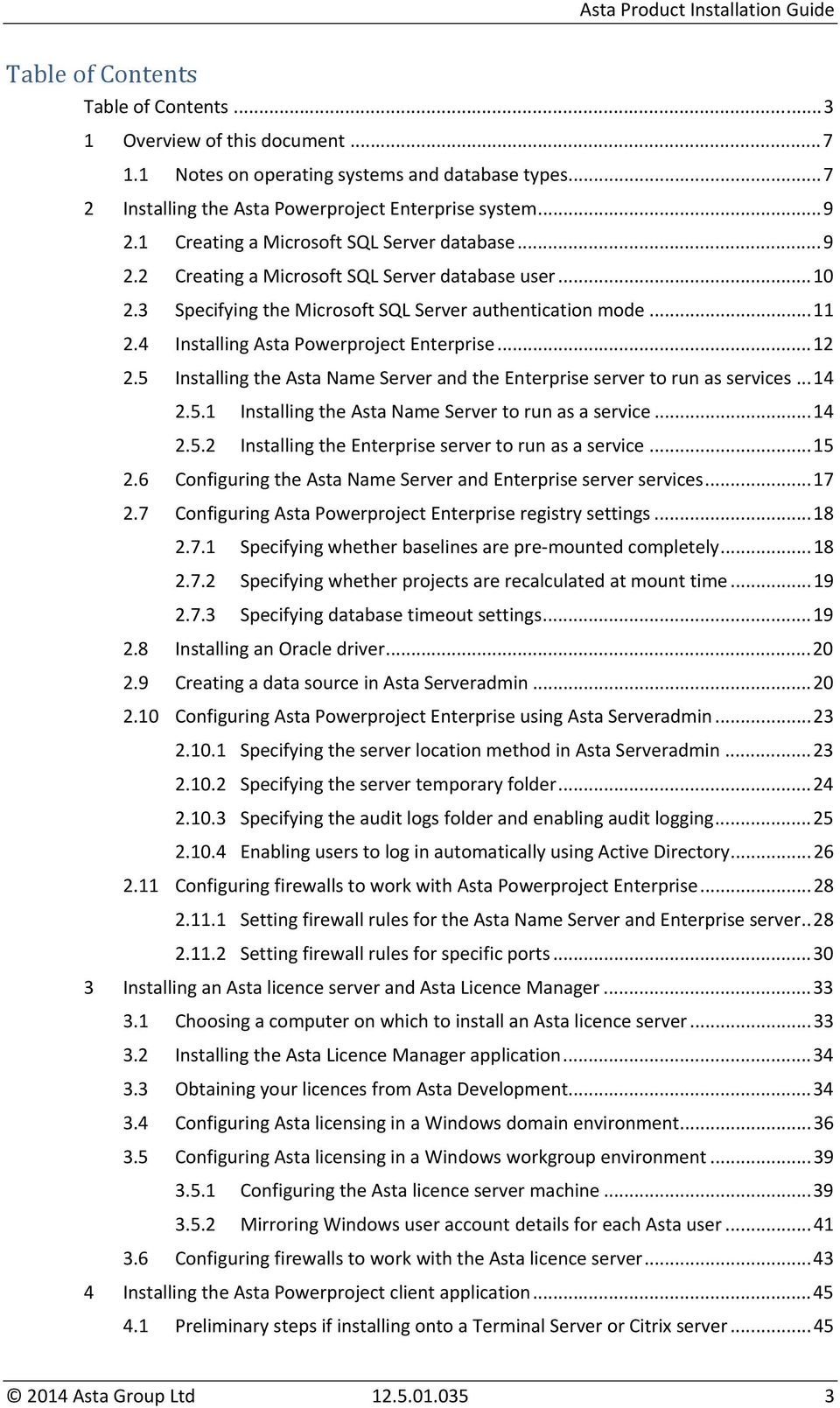
4 4.2 Installing an Asta Powerproject Enterprise client Activating the Asta Powerproject client application Activating Asta Powerproject using a named user licence Activating Asta Powerproject using a concurrent licence Configuring file locations in the Asta Powerproject client Specifying the server location method in the Asta Powerproject client Checking that the client can connect to the Enterprise server Additional steps if installing onto a Terminal Server or Citrix server Specifying that projects and their baselines should be pre-mounted Installing Asta Archive Manager Installing the latest version of Asta Powerproject Enterprise Configuring your Asta services to work with Asta Archive Manager Installing the Asta Archive Manager application Setting up proxy exceptions for the archiving web services Configuring Windows to enable the use of distributed transactions Configuring the distributed transaction timeout setting Installing Time Sheet for Asta Powerproject Installing and configuring Microsoft Internet Information Services Configuring Windows to allow ASP pages to run Installing necessary role services for the Web Server (IIS) Installing the Asta Developers Toolkit Creating a Microsoft SQL Server database for use with Time Sheet Creating a Microsoft SQL Server database user Installing Time Sheet Registering Time Sheet with Microsoft Internet Information Services Additional configuration in Internet Information Services version Creating an application pool for Time Sheet Specifying the server location method in the Asta Developers Toolkit Noting server and project information and mounting projects Creating tables in the Time Sheet database Granting the IIS_IUSRS user full control over Time Sheet configuration files Enabling Time Sheet to connect to the database Registering the project(s) to be used with Time Sheet Updating Asta Powerproject with the Time Sheet connection string Configuring the Time Sheet mail agent service Verifying that Time Sheet has been installed correctly Configuring Time Sheet s settings Accessing the Time Sheet login pages Asta Group Ltd

5 6.22 Notes on running Time Sheet Installing Web Access for Asta Powerproject Installing and configuring Microsoft Internet Information Services Configuring Windows to allow ASP pages to run Installing necessary role services for the Web Server (IIS) Installing the Asta Developers Toolkit Installing Web Access Additional configuration in Internet Information Services version Creating an application pool for Web Access Specifying the server location method in the Asta Developers Toolkit Noting server and project information and mounting projects Granting the IIS_IUSRS user full control over Web Access configuration files Registering the project(s) to be used with Web Access Verifying that Web Access has been installed correctly Configuring Web Access s settings Accessing the Web Access login page Installing Site Progress for Asta Powerproject Installing the Asta Developers Toolkit Specifying the server location method in the Asta Developers Toolkit Installing the Site Progress Manager application Entering your company details into Site Progress Manager Configuring Site Progress Manager Configuring projects for use with Site Progress Create a code library for Site Progress users Configure tasks to make them appear in the Ticksheet screen Configure tasks to make them appear in the Turnaround screen Recording details of Site Progress users Recording details of your projects in Site Progress Manager Associating users with their tasks within projects Downloading Site Progress Mobile onto mobile devices Installing Business Intelligence for Asta Powerproject Installing the Asta Developers Toolkit Specifying the server location method in the Asta Developers Toolkit Installing Business Intelligence Creating the Asta_Reporter database Configuring Business Intelligence Upgrading an Asta Powerproject Enterprise installation to the latest version Stopping the Asta Name Server and Enterprise server services Asta Group Ltd
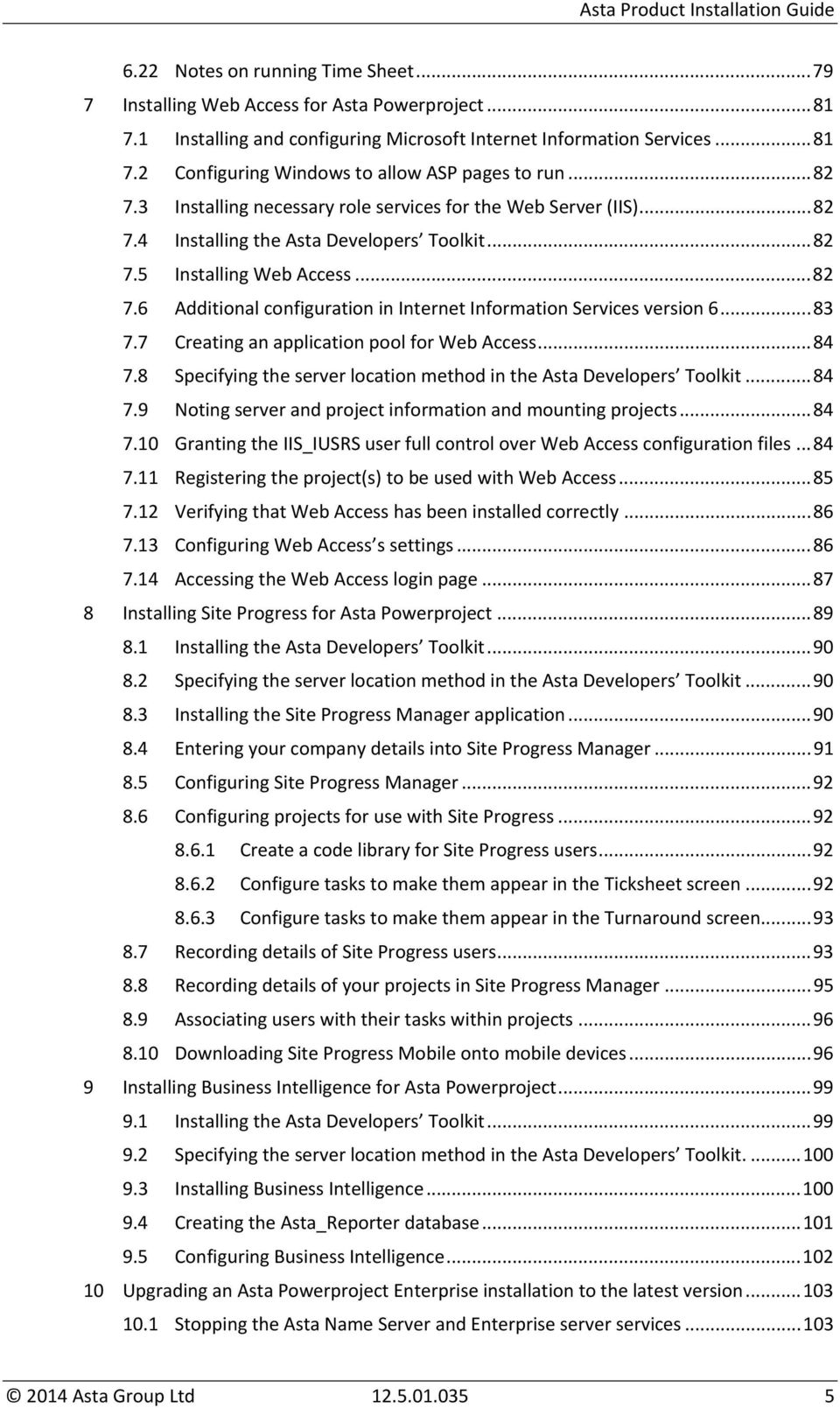
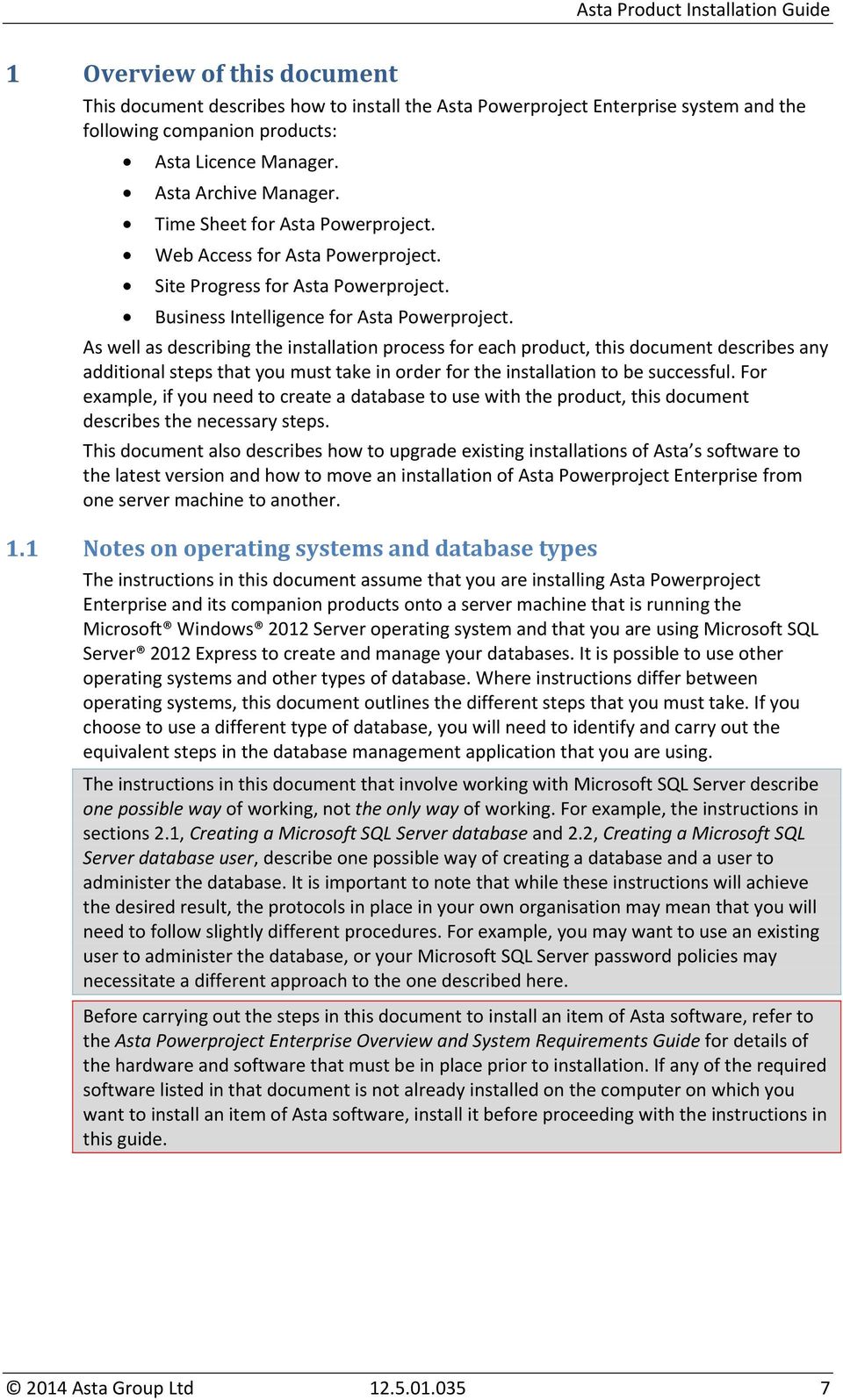
6 10.2 Installing the latest version of Asta Powerproject Enterprise Installing the latest version of Asta Developers Toolkit Creating a new database for the new version of the software Configuring a Microsoft SQL Server database user to be the database owner Creating a new data source that connects to the new database Converting data from the old data source into the new data source Specifying that the projects in the new data source should be pre-mounted Unregistering the old data source Installing the latest version of the Asta Powerproject Enterprise client Upgrading an existing Asta Archive Manager installation to the latest version Uninstalling the existing Asta Archive Components Installing the latest version of Asta Powerproject Enterprise Installing the latest version of the Asta Archive Manager application Upgrading an existing Time Sheet installation to the latest version Copying your existing Time Sheet configuration files Uninstalling the existing Time Sheet software Installing the latest version of Time Sheet Checking that the IIS_IUSRS user still has full control over configuration files Merging existing configuration settings into the new version Upgrading the Time Sheet database Re-registering your Asta Powerproject project(s) in Time Sheet Upgrading an existing Web Access installation to the latest version Copying your existing Web Access configuration file Uninstalling the existing Web Access software Installing the latest version of Web Access Checking that the IIS_IUSRS user still has full control over configuration files Implementing existing configuration settings in the new version Re-registering your Asta Powerproject project(s) in Web Access Moving Asta Powerproject Enterprise to a different server machine Installing Asta Powerproject Enterprise onto the new server machine Installing the Asta Name Server and the Enterprise server to run as services Configuring the Asta Name Server and Enterprise server services Configuring Asta Powerproject Enterprise registry settings Re-registering a data source in Asta Serveradmin Configuring Asta Powerproject Enterprise using Asta Serveradmin Configuring firewalls to work with Asta Powerproject Enterprise Asta Group Ltd
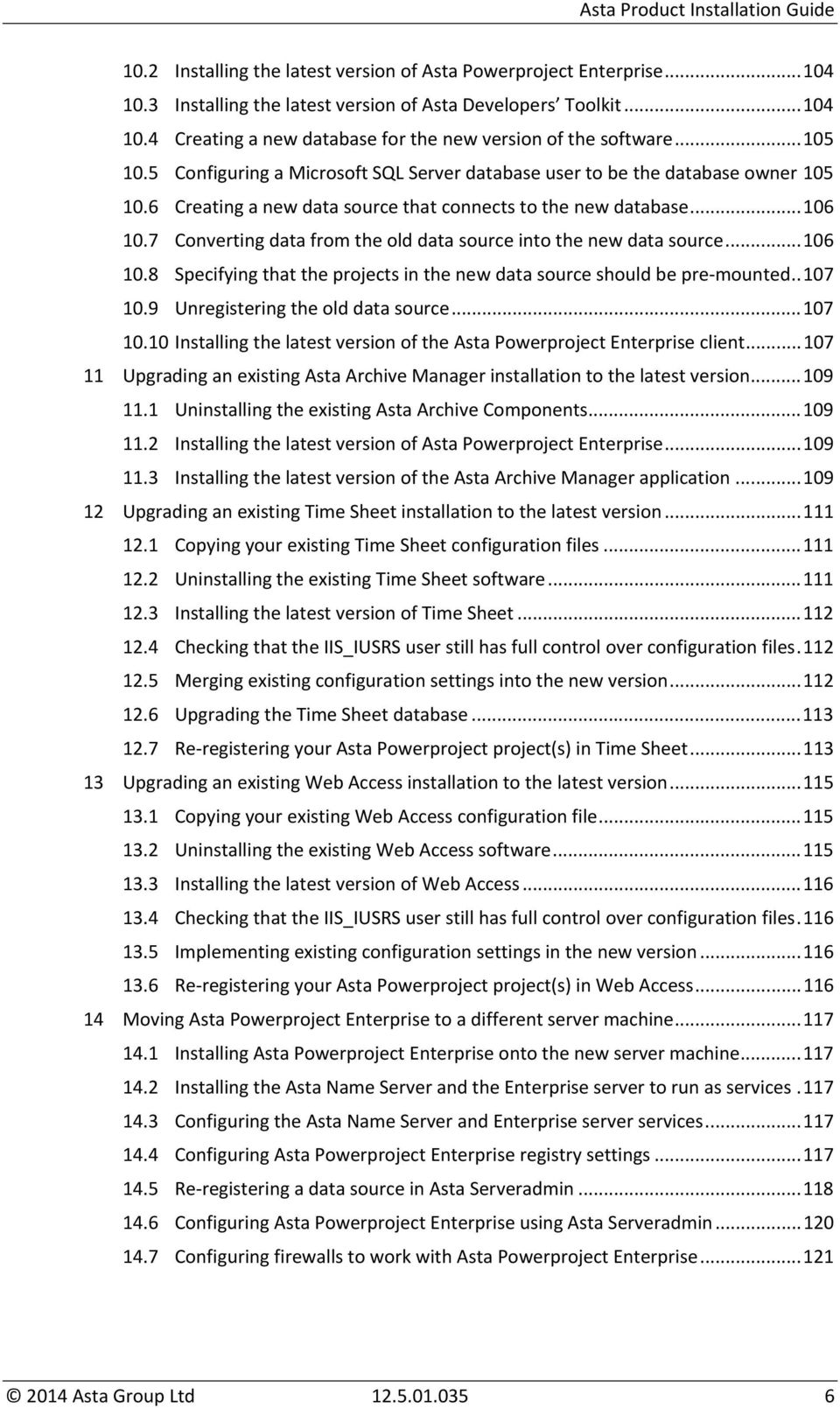
7 1 Overview of this document This document describes how to install the Asta Powerproject Enterprise system and the following companion products: Asta Licence Manager. Asta Archive Manager. Time Sheet for Asta Powerproject. Web Access for Asta Powerproject. Site Progress for Asta Powerproject. Business Intelligence for Asta Powerproject. As well as describing the installation process for each product, this document describes any additional steps that you must take in order for the installation to be successful. For example, if you need to create a database to use with the product, this document describes the necessary steps. This document also describes how to upgrade existing installations of Asta s software to the latest version and how to move an installation of Asta Powerproject Enterprise from one server machine to another. 1.1 Notes on operating systems and database types The instructions in this document assume that you are installing Asta Powerproject Enterprise and its companion products onto a server machine that is running the Microsoft Windows 2012 Server operating system and that you are using Microsoft SQL Server 2012 Express to create and manage your databases. It is possible to use other operating systems and other types of database. Where instructions differ between operating systems, this document outlines the different steps that you must take. If you choose to use a different type of database, you will need to identify and carry out the equivalent steps in the database management application that you are using. The instructions in this document that involve working with Microsoft SQL Server describe one possible way of working, not the only way of working. For example, the instructions in sections 2.1, Creating a Microsoft SQL Server database and 2.2, Creating a Microsoft SQL Server database user, describe one possible way of creating a database and a user to administer the database. It is important to note that while these instructions will achieve the desired result, the protocols in place in your own organisation may mean that you will need to follow slightly different procedures. For example, you may want to use an existing user to administer the database, or your Microsoft SQL Server password policies may necessitate a different approach to the one described here. Before carrying out the steps in this document to install an item of Asta software, refer to the Asta Powerproject Enterprise Overview and System Requirements Guide for details of the hardware and software that must be in place prior to installation. If any of the required software listed in that document is not already installed on the computer on which you want to install an item of Asta software, install it before proceeding with the instructions in this guide Asta Group Ltd
8 2014 Asta Group Ltd

9 2 Installing the Asta Powerproject Enterprise system This section of the document describes how to install the Asta Powerproject Enterprise system, including the additional steps that you need to take in order to create a database for use with Asta Powerproject Enterprise. The installation of the Asta Powerproject Enterprise system comprises the following steps: Creating a Microsoft SQL Server database. Creating a Microsoft SQL Server database user. Specifying the Microsoft SQL Server authentication mode. Installing Asta Powerproject Enterprise. Installing the Asta Name Server and the Enterprise server to run as services. Configuring the Asta Name Server and Enterprise server services. Configuring Asta Powerproject Enterprise registry settings. Installing an Oracle driver. Creating a data source in Asta Serveradmin. Configuring Asta Powerproject Enterprise using Asta Serveradmin. Configuring firewalls to work with Asta Powerproject Enterprise. 2.1 Creating a Microsoft SQL Server database Before you install the Asta Powerproject Enterprise system, you must create a database in which to store the Asta Powerproject data. To create a Microsoft SQL Server database: 1. On the server machine on which Microsoft SQL Server is installed, launch the Microsoft SQL Server Management Studio and connect to your server. 2. Within the SQL Server Management Studio, right-click the Databases folder in the Object Explorer and select New Database: The New Database dialog appears. 3. On the General page of the dialog, in the Database name field, enter a suitable name for the database, as illustrated below: 4. There is no need to change any of the default settings for this database; click OK to create it Asta Group Ltd

10 All of your Asta Powerproject Enterprise data will be stored in this database. For this reason, you must ensure that the database is backed up regularly, preferably as part of an automatically-scheduled backup process. Some database backup mechanisms take the database offline temporarily while the backup is in process. If this is the case with your backup mechanism, you must stop the Enterprise server service before the database is taken offline, then restart it once the backup is complete. By default, Microsoft SQL Server 2012 Express places the database files that must be backed up in the following location: C:\Program Files\Microsoft SQL Server\MSSQL11.SQLEXPRESS\MSSQL\DATA\ By default, it places backup files in the following location: C:\Program Files\Microsoft SQL Server\MSSQL11.SQLEXPRESS\MSSQL\BACKUP\ Depending on the type and version of database that you are using, and the way in which the database software has been installed onto your server machine, these locations may be different for you. 2.2 Creating a Microsoft SQL Server database user Once you have created the Microsoft SQL Server database, you must create a new user to access it. To create a Microsoft SQL Server user: 1. Within the Microsoft SQL Server Management Studio Object Explorer, expand the Security folder, right-click the Logins folder and select New Login: The Login New dialog appears. 2. On the General page of the dialog, in the Login name field, enter a suitable name for the user, for example Asta. 3. Click the SQL Server authentication radio button. A number of fields below this radio button become available. 4. Enter a password for the user in the Password field, then re-enter it in the Confirm password field. 5. Clear the Enforce password policy check box: 6. In the Default database field, select the database that you have created: 2014 Asta Group Ltd
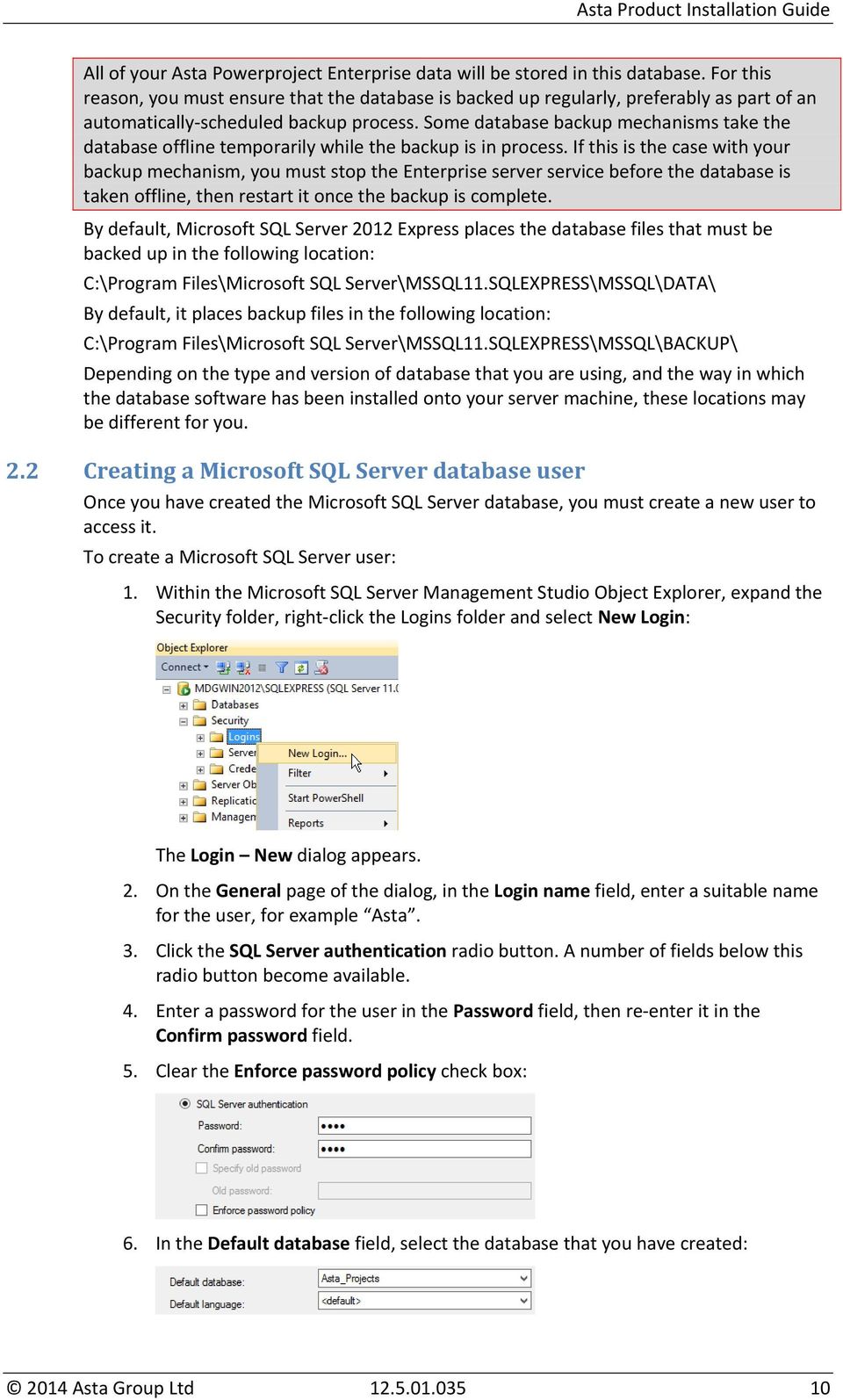
11 7. In the Select a page section of the dialog, click Server Roles. 8. On the Server Roles page of the dialog, select the bulkadmin check box: 9. In the Select a page section of the dialog, click User Mapping. 10. On the User Mapping page of the dialog, in the Users mapped to this login group, select the check box to the left of the database that you have created: 11. The name of your database should now be appended to the title of the Database role membership role for group. In this group, select the db_owner check box: 12. Click OK. It is necessary to assign the bulkadmin server role to the database user in order to create data sources in Asta Serveradmin that use the optimise transaction data facility (see section 2.9, Creating a data source in Asta Serveradmin for details). If you are using an Oracle database rather than Microsoft SQL Server, you must ensure that you create a database user with sufficient privileges to use the SQL*LOADER database utility. This can be achieved by giving the user the role of CONNECT (Default) and DBA (Admin and default). 2.3 Specifying the Microsoft SQL Server authentication mode In order for Asta Powerproject Enterprise to work with Microsoft SQL Server, you must set the server authentication mode to SQL Server and Windows Authentication mode. To set the server authentication mode: 1. At the top of the Microsoft SQL Server Management Studio Object Explorer, rightclick the SQL server and select Properties: 2014 Asta Group Ltd

12 The Server Properties dialog appears. 2. In the Select a page section of the dialog, click Security. 3. On the Security page of the dialog, click the SQL Server and Windows Authentication mode radio button: 4. Click OK. 2.4 Installing Asta Powerproject Enterprise Now that you have created your database and a user in Microsoft SQL Server, you can install Asta Powerproject Enterprise. You can install Asta Powerproject Enterprise onto the server machine on which your database is located, or onto another server machine. The instructions in this document assume that you are installing it onto the server machine on which your database is located. The Asta Powerproject Enterprise installation routine installs the following applications: Asta Enterprise server an application that controls access to data sources (eg the database that you created earlier) and enables more than one user to access data sources simultaneously. Asta Name Server an application that holds details of all of the Enterprise servers that are currently running. The name server publishes details of these Enterprise servers to the Asta Powerproject client applications, without the clients having to connect to the servers individually. Asta Serveradmin a server administration utility. Controller an application that you use to operate the Enterprise server using a command prompt Asta Group Ltd

13 All of these applications are available on the Windows Start screen once you have installed Asta Powerproject Enterprise. To install Asta Powerproject Enterprise: 1. Log into the server machine as a user with Administrator privileges. 2. Insert the Asta Powerproject Enterprise installation CD into the server s CD drive. 3. Browse the CD in Windows Explorer and locate the setup.exe file. If you have downloaded the installation files for Asta Powerproject Enterprise, setup.exe will be located in the folder into which you unzipped the installation files, not on a CD. 4. Right-click the setup.exe file and select Run as administrator from the menu that appears. 5. Follow the steps in the installation wizard to install Asta Powerproject Enterprise, clicking Next to move between the various screens of the wizard. If Microsoft.NET Framework 4 is not present on the server machine, the installation wizard will install it automatically. The installation of.net Framework 4 will take some time and may require you to reboot the server machine; if so, the Asta Powerproject installation wizard will carry on automatically after the reboot. 6. Enter your user name, the name of your organisation and your Asta Powerproject Enterprise serial number in the fields on the following screen: Asta Powerproject Enterprise is installed into the following folder by default: C:\Program Files\Asta\Asta Powerproject enterprise\ (32-bit systems). C:\Program Files(x86)\Asta\Asta Powerproject enterprise\ (64-bit systems). 7. If you want to install Asta Powerproject Enterprise to a location other than the default, click the Custom radio button on the following screen, which will give you access to an additional page of the wizard in which you can specify an installation folder: 2014 Asta Group Ltd
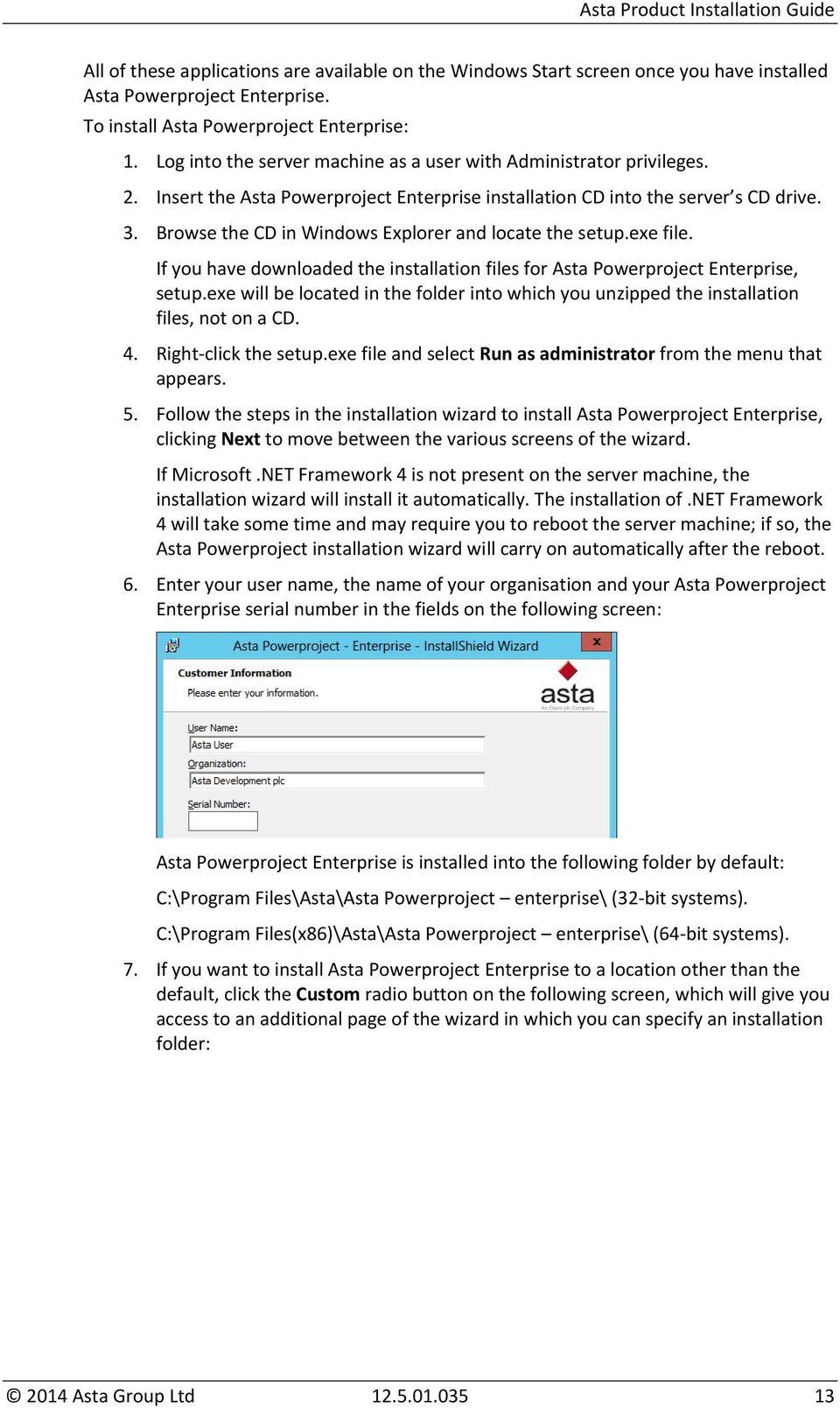
14 8. On the above screen, leave the Install server as a service check box cleared. Although you can use this check box to install the server as a service automatically, it is preferable to install the server as a service manually after the initial installation following the steps in the next section of this document as this gives you the ability to configure the name of the service, as well as a number of other variables. 9. Click Install on the final screen of the wizard to install Asta Powerproject Enterprise. 10. When the installation routine is complete, click Finish to exit the wizard. 11. Reboot the server machine on which you have installed Asta Powerproject Enterprise. 2.5 Installing the Asta Name Server and the Enterprise server to run as services Now that you have installed Asta Powerproject Enterprise, you can install the Enterprise server (AstaEnterprise.exe) and the Asta Name Server (AstaNameServer.exe) to run as services, so that they are loaded automatically when Windows starts and run in the background. You should install the Asta Name Server as a service first, followed by the Enterprise server Installing the Asta Name Server to run as a service To install the Asta Name Server to run as a service: 1. On the server machine on which you have installed Asta Powerproject Enterprise, launch a command prompt, ensuring that you run it as Administrator. A command prompt window appears: 2. In the command prompt window, change the directory location to the folder in which Asta Powerproject Enterprise has been installed, which is, by default: 2014 Asta Group Ltd
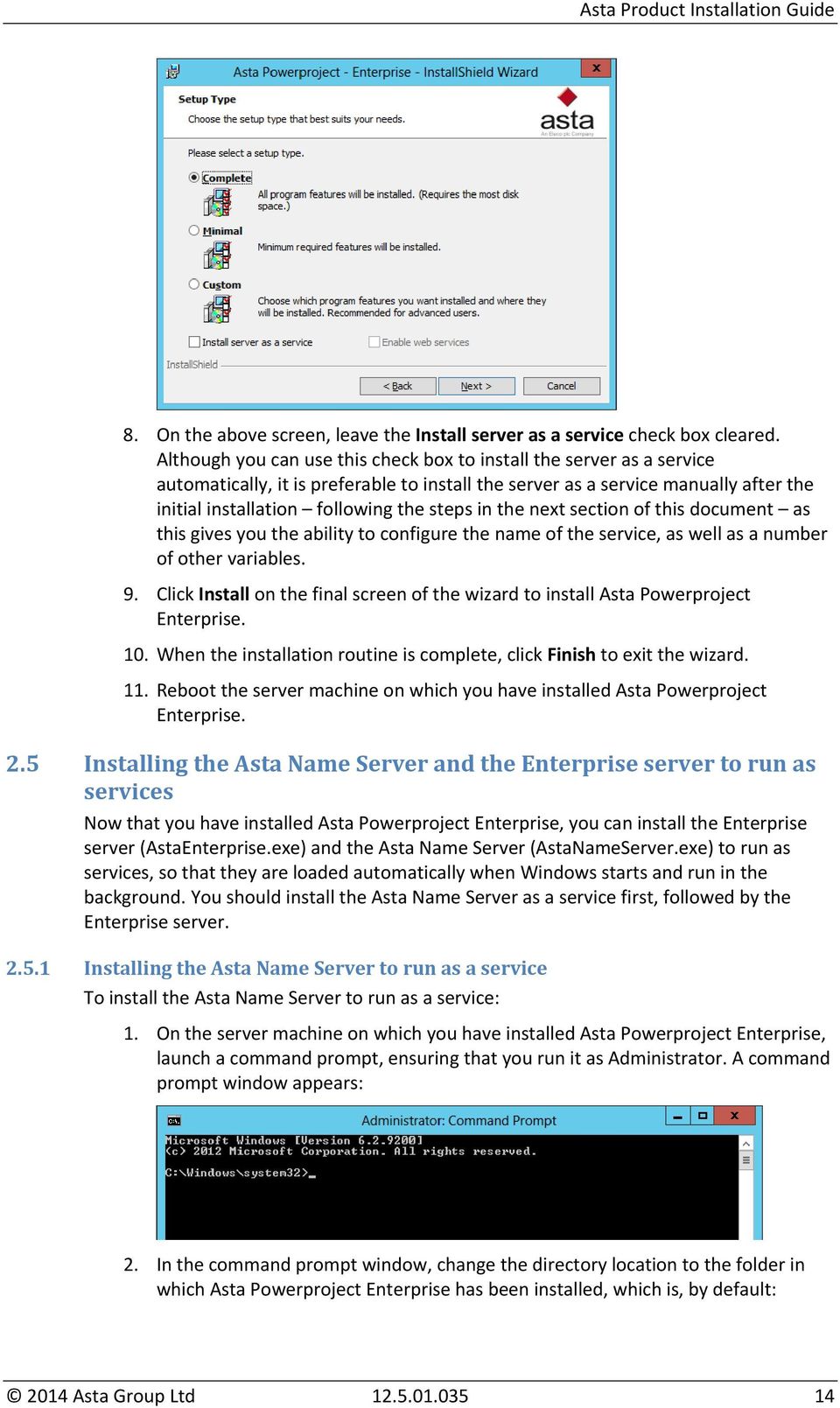
15 C:\Program Files\Asta\Asta Powerproject enterprise\ (32-bit systems). C:\Program Files(x86)\Asta\Asta Powerproject enterprise\ (64-bit systems). 3. Type AstaNameServer.exe install and press ENTER. You see a confirmation that the service has been installed successfully: If you are planning to use Asta Archive Manager to archive historic data from your projects, instead of entering AstaNameServer.exe install, enter AstaNameServer.exe web install. This turns on web services that Asta Archive Manager requires to operate Installing the Enterprise server to run as a service You can install the Enterprise server to run as a service in a number of ways, each of which is described below. Choose the way that best fits the manner in which you want to use Asta Powerproject Enterprise and follow the instructions in that section. If you are not carrying on directly from the previous section, start by launching a command prompt on the server machine on which you have installed Asta Powerproject Enterprise, ensuring that you run it as Administrator, then change the directory location to the folder in which Asta Powerproject Enterprise has been installed (as described in the previous section). As with the installation of the Asta Name Server, if you are planning to use Asta Archive Manager to archive historic data from your projects, add web to whichever command you use to install the Enterprise server, to turn on web services that Asta Archive Manager requires to operate Installing the Enterprise server to run as a standard service If you install the Enterprise server to run as a standard service, it runs as a service with a name of <user name>_<machine name>, where <user name> is the name of the person who has logged onto the server machine and <machine name> is the name of the server machine itself. For example, if user JSMITH has logged onto a server machine called MAINSRV, the Enterprise server is run as a service on this machine with a name of JSMITH_MAINSRV. To install the Enterprise server to run as a standard service, enter the following at the command prompt: AstaEnterprise.exe install Installing the Enterprise server to run as a service with a specific name To install the Enterprise server to run as a service with a specific name, enter the following at the command prompt: AstaEnterprise.exe install <server name> Where <server name> is the name with which you want the service to run. The name must be a single word, with no spaces or punctuation. For example, to install the Enterprise server as a service so that it runs with the name AstaServer, enter: AstaEnterprise.exe install AstaServer 2014 Asta Group Ltd
16 Installing the Enterprise server to run as a service with a specific identification number and name If you want to enable users to log in automatically using Active Directory, you must install the Enterprise server with a specific identification number and name. To install the Enterprise server to run as a service with a specific identification number and name, enter the following at the command prompt: AstaEnterprise.exe -server_id <server identification number> install <server name> Where <server identification number> is the number with which you want to identify the server and <server name> is the name with which you want the service to run. For example, to install the Enterprise server as a service so that it runs with the server identification number 1 and the name AstaProjectServer, enter: AstaEnterprise.exe -server_id 1 install AstaProjectServer Installing multiple Enterprise servers to run as services If you want to run more than one Enterprise server on a server machine, you must install each one with a specific identification number and name, as described in the previous section. For example, you could enter the following commands at the command prompt to install two Enterprise servers to run as services: AstaEnterprise.exe -server_id 1 install AstaServer1 AstaEnterprise.exe -server_id 2 install AstaServer Installing the Enterprise server to run as a service with specific dependencies Depending on which other services are installed on the server machine, you may experience problems in the following circumstances: If a service that is required for the Enterprise server or one of its components to operate does not run. If a service that prevents the Enterprise server or one of its components from operating does run. In particular, if you install the server to run as a service onto a server machine on which Oracle is installed, it is made dependent on all Oracle services (all services beginning with Ora ) by default. As well as potentially causing problems, this can degrade performance. You may want to install the Enterprise server to run as a service, while specifying the services on which it is dependent. To install the Enterprise server to run as a service and specify the services on which it is dependent, enter the following at the command prompt: AstaEnterprise.exe depend <dependencies> install Where <dependencies> is a comma-separated list of the services on which the service is dependent. For example, you could enter the following command at the command prompt to install the Enterprise server as a service that is dependent on the OracleServiceTEAMPLAN and MSSQLSERVER services: AstaEnterprise.exe depend OracleServiceTEAMPLAN,MSSQLSERVER install To incorporate a server identification number and server name into such a command, enter the following at the command prompt: AstaEnterprise.exe depend <dependencies> -server_id <server identification number> install <server name> 2014 Asta Group Ltd

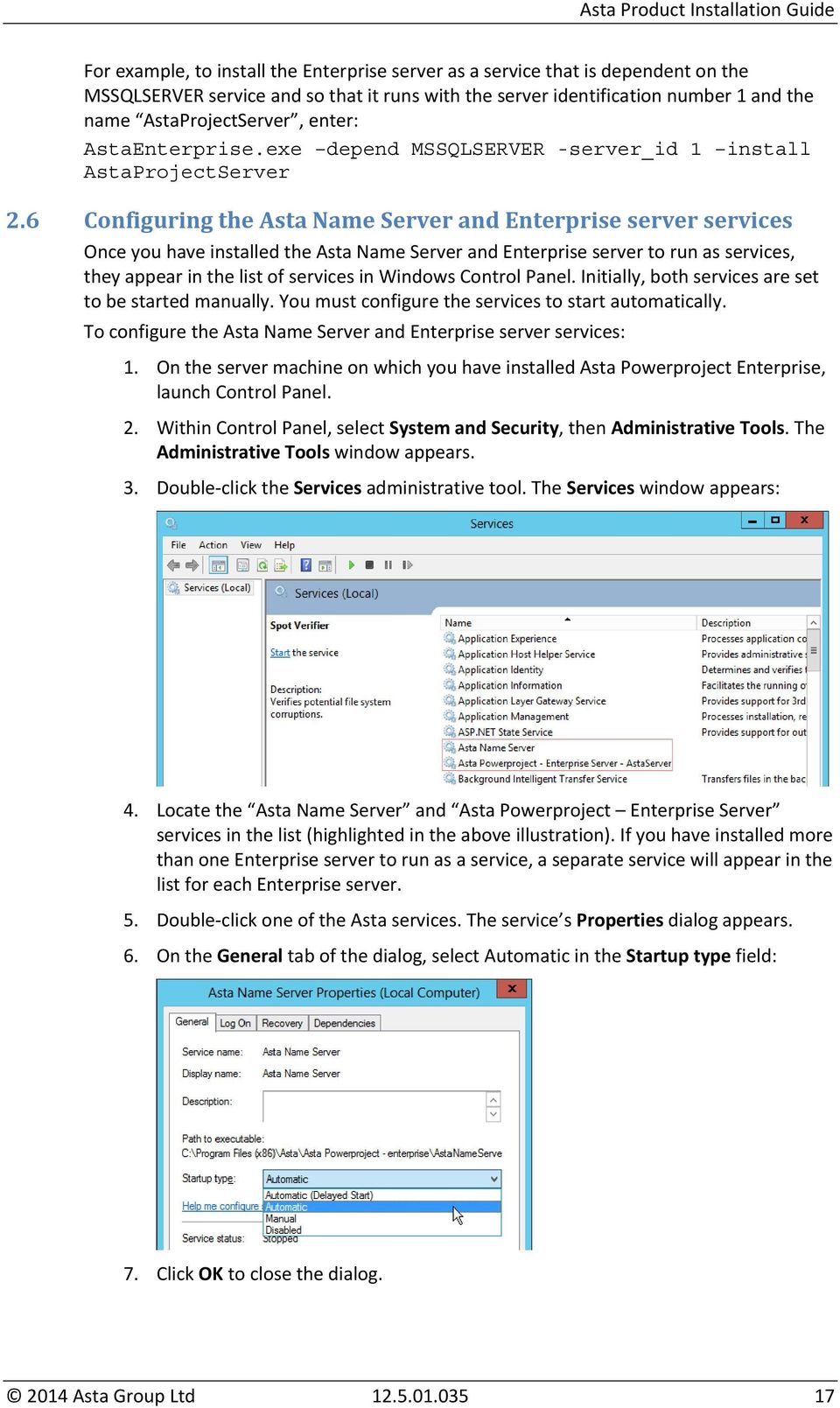
17 For example, to install the Enterprise server as a service that is dependent on the MSSQLSERVER service and so that it runs with the server identification number 1 and the name AstaProjectServer, enter: AstaEnterprise.exe depend MSSQLSERVER -server_id 1 install AstaProjectServer 2.6 Configuring the Asta Name Server and Enterprise server services Once you have installed the Asta Name Server and Enterprise server to run as services, they appear in the list of services in Windows Control Panel. Initially, both services are set to be started manually. You must configure the services to start automatically. To configure the Asta Name Server and Enterprise server services: 1. On the server machine on which you have installed Asta Powerproject Enterprise, launch Control Panel. 2. Within Control Panel, select System and Security, then Administrative Tools. The Administrative Tools window appears. 3. Double-click the Services administrative tool. The Services window appears: 4. Locate the Asta Name Server and Asta Powerproject Enterprise Server services in the list (highlighted in the above illustration). If you have installed more than one Enterprise server to run as a service, a separate service will appear in the list for each Enterprise server. 5. Double-click one of the Asta services. The service s Properties dialog appears. 6. On the General tab of the dialog, select Automatic in the Startup type field: 7. Click OK to close the dialog Asta Group Ltd
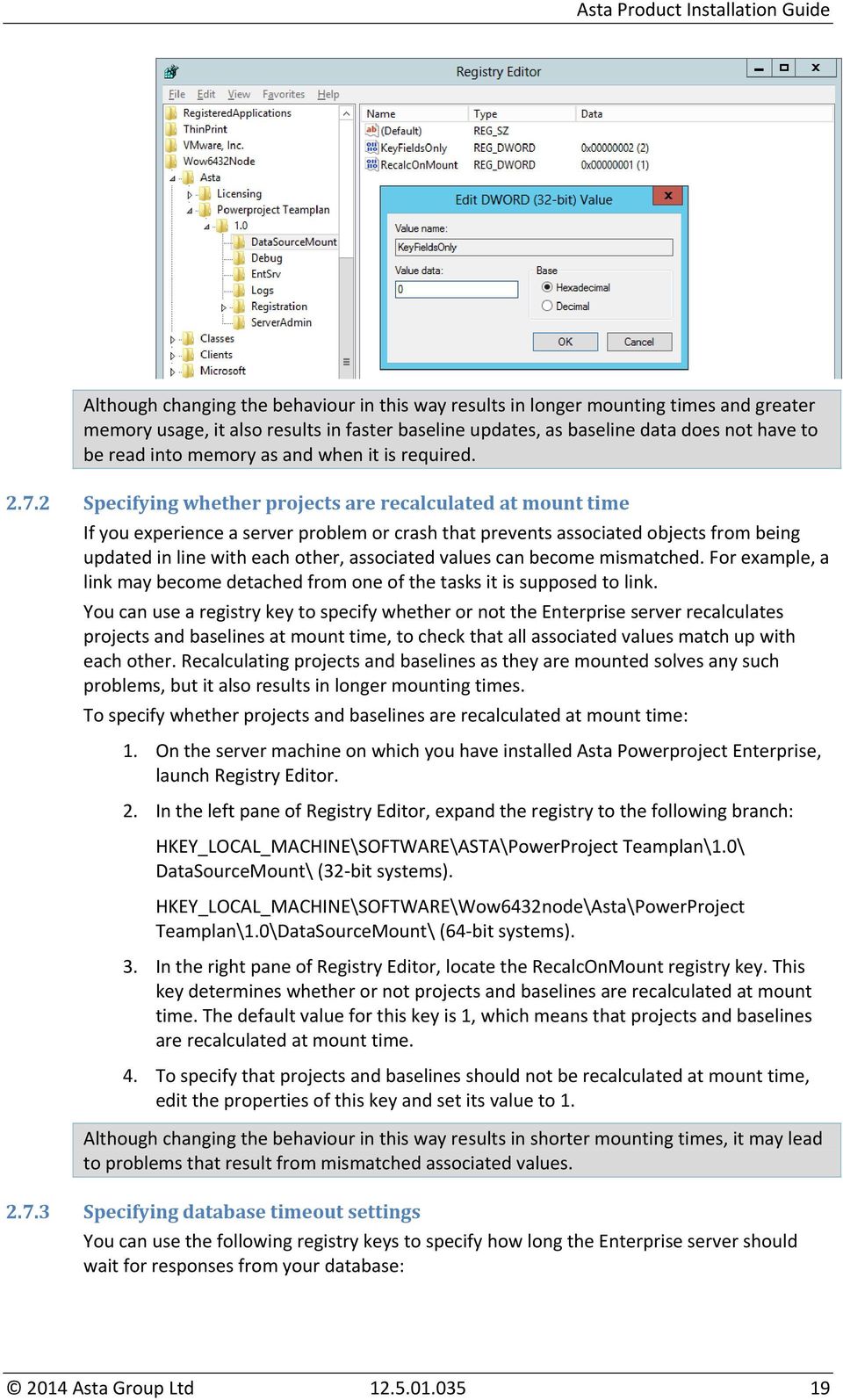
18 8. Double-click the next Asta service in the list of services and repeat steps 6 and 7 to configure this service in the same way as the first. 9. If there are further Asta services in the list, configure these in the same way. 2.7 Configuring Asta Powerproject Enterprise registry settings There are a number of registry settings that affect the way in which Asta Powerproject Enterprise operates. Follow the instructions in this section to configure the registry settings in a way that suits your preferences Specifying whether baselines are pre-mounted completely Once you have created one or more projects in the Asta Powerproject Enterprise system, it is recommended that you specify that the projects and their baselines should be premounted each time the Enterprise server starts (see section 4.8, Specifying that projects and their baselines should be pre-mounted, for more details). This is in order to speed up the mounting of projects and baselines, to reduce the usage of memory when projects are mounted and to prevent projects from being dismounted automatically when all users have finished working with them. However, some users prefer to maintain a slightly longer mounting process, as this can mean that the runtime performance of the Enterprise server is improved. You can use a registry key to specify whether baselines are pre-mounted completely when the Enterprise server starts, or whether only key (index) fields are mounted into memory, thereby reducing the amount of time taken to pre-mount baselines. To specify whether baselines should be pre-mounted completely when the Enterprise server starts: 1. On the server machine on which you have installed Asta Powerproject Enterprise, launch Registry Editor. 2. In the left pane of Registry Editor, expand the registry to the following branch: HKEY_LOCAL_MACHINE\SOFTWARE\ASTA\PowerProject Teamplan\1.0\ DataSourceMount\ (32-bit systems). HKEY_LOCAL_MACHINE\SOFTWARE\Wow6432node\Asta\PowerProject Teamplan\1.0\DataSourceMount\ (64-bit systems). 3. In the right pane of Registry Editor, locate the KeyFieldsOnly registry key. This key determines whether or not baselines that are set to be pre-mounted are mounted completely, or whether only key (index) fields are mounted into memory, thereby reducing the amount of time taken to mount baselines. The default, recommended value for this key is 2, which means that only key fields are mounted. 4. If you want to specify that baselines should be pre-mounted completely, edit the properties of this key and set its value to 0: 2014 Asta Group Ltd

19 Although changing the behaviour in this way results in longer mounting times and greater memory usage, it also results in faster baseline updates, as baseline data does not have to be read into memory as and when it is required Specifying whether projects are recalculated at mount time If you experience a server problem or crash that prevents associated objects from being updated in line with each other, associated values can become mismatched. For example, a link may become detached from one of the tasks it is supposed to link. You can use a registry key to specify whether or not the Enterprise server recalculates projects and baselines at mount time, to check that all associated values match up with each other. Recalculating projects and baselines as they are mounted solves any such problems, but it also results in longer mounting times. To specify whether projects and baselines are recalculated at mount time: 1. On the server machine on which you have installed Asta Powerproject Enterprise, launch Registry Editor. 2. In the left pane of Registry Editor, expand the registry to the following branch: HKEY_LOCAL_MACHINE\SOFTWARE\ASTA\PowerProject Teamplan\1.0\ DataSourceMount\ (32-bit systems). HKEY_LOCAL_MACHINE\SOFTWARE\Wow6432node\Asta\PowerProject Teamplan\1.0\DataSourceMount\ (64-bit systems). 3. In the right pane of Registry Editor, locate the RecalcOnMount registry key. This key determines whether or not projects and baselines are recalculated at mount time. The default value for this key is 1, which means that projects and baselines are recalculated at mount time. 4. To specify that projects and baselines should not be recalculated at mount time, edit the properties of this key and set its value to 1. Although changing the behaviour in this way results in shorter mounting times, it may lead to problems that result from mismatched associated values Specifying database timeout settings You can use the following registry keys to specify how long the Enterprise server should wait for responses from your database: 2014 Asta Group Ltd
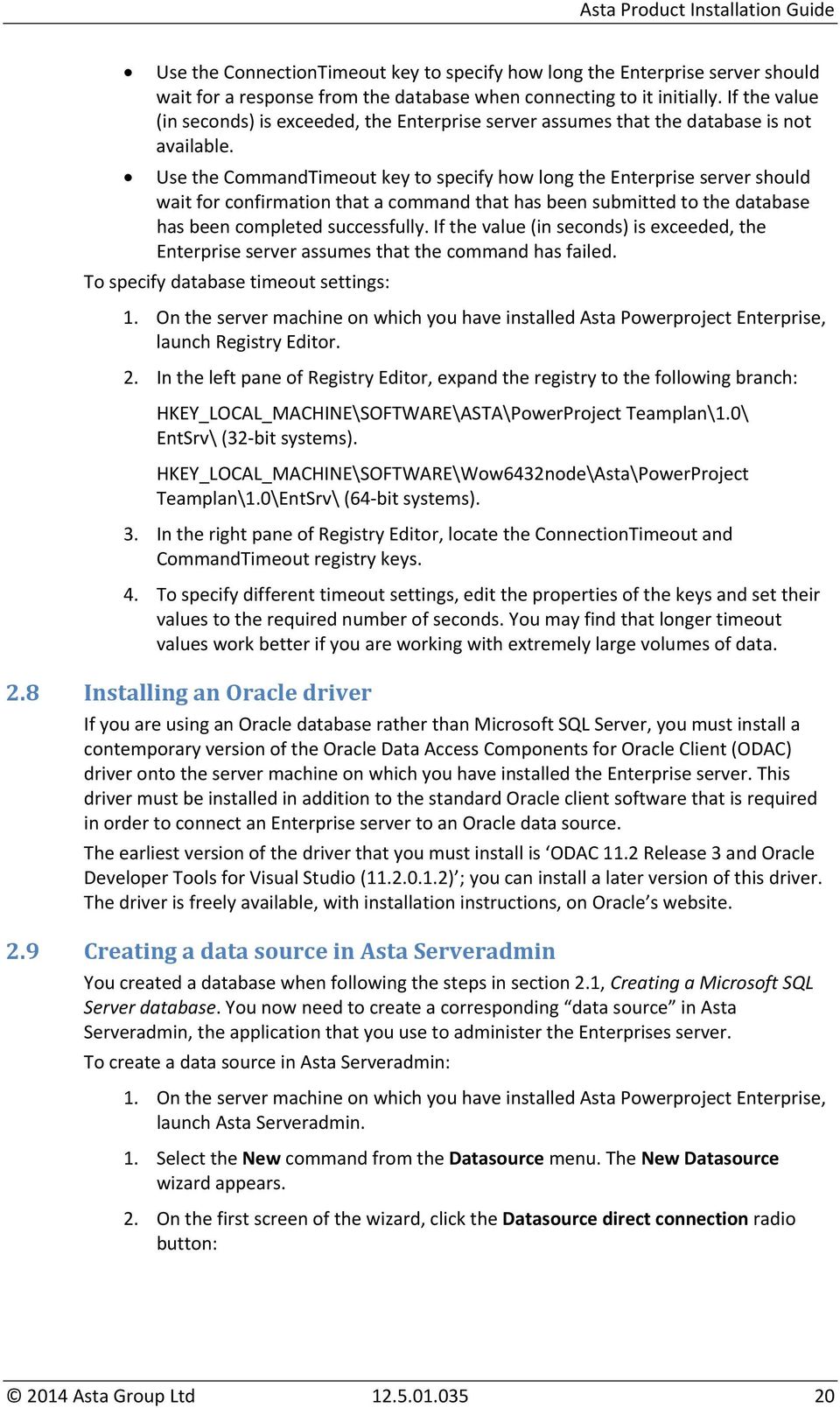
20 Use the ConnectionTimeout key to specify how long the Enterprise server should wait for a response from the database when connecting to it initially. If the value (in seconds) is exceeded, the Enterprise server assumes that the database is not available. Use the CommandTimeout key to specify how long the Enterprise server should wait for confirmation that a command that has been submitted to the database has been completed successfully. If the value (in seconds) is exceeded, the Enterprise server assumes that the command has failed. To specify database timeout settings: 1. On the server machine on which you have installed Asta Powerproject Enterprise, launch Registry Editor. 2. In the left pane of Registry Editor, expand the registry to the following branch: HKEY_LOCAL_MACHINE\SOFTWARE\ASTA\PowerProject Teamplan\1.0\ EntSrv\ (32-bit systems). HKEY_LOCAL_MACHINE\SOFTWARE\Wow6432node\Asta\PowerProject Teamplan\1.0\EntSrv\ (64-bit systems). 3. In the right pane of Registry Editor, locate the ConnectionTimeout and CommandTimeout registry keys. 4. To specify different timeout settings, edit the properties of the keys and set their values to the required number of seconds. You may find that longer timeout values work better if you are working with extremely large volumes of data. 2.8 Installing an Oracle driver If you are using an Oracle database rather than Microsoft SQL Server, you must install a contemporary version of the Oracle Data Access Components for Oracle Client (ODAC) driver onto the server machine on which you have installed the Enterprise server. This driver must be installed in addition to the standard Oracle client software that is required in order to connect an Enterprise server to an Oracle data source. The earliest version of the driver that you must install is ODAC 11.2 Release 3 and Oracle Developer Tools for Visual Studio ( ) ; you can install a later version of this driver. The driver is freely available, with installation instructions, on Oracle s website. 2.9 Creating a data source in Asta Serveradmin You created a database when following the steps in section 2.1, Creating a Microsoft SQL Server database. You now need to create a corresponding data source in Asta Serveradmin, the application that you use to administer the Enterprises server. To create a data source in Asta Serveradmin: 1. On the server machine on which you have installed Asta Powerproject Enterprise, launch Asta Serveradmin. 1. Select the New command from the Datasource menu. The New Datasource wizard appears. 2. On the first screen of the wizard, click the Datasource direct connection radio button: 2014 Asta Group Ltd
21 3. Click Next. 4. On the second screen of the wizard, enter a suitable name and description for the data source in the Name and Description fields; it is a good idea to give the data source a description that describes the projects that it will contain. 5. If you have installed more than one Enterprise server on the server machine or if you want to enable users to log in automatically via Active Directory, enter a positive integer that links the data source to a particular server in the Server identification number field: If you only use a single server and you are not using Active Directory to enable automatic login, you can leave this number set to 1. You can make a data source inaccessible to all servers (ie take it offline), by setting this number to zero. 6. Click Next. 7. On the third screen of the wizard, click Build to access the Connection String Generation wizard, which you can use to create the ActiveX Data Objects (ADO) connection string that specifies the database provider and the data source to which the Enterprise server should connect. 8. On the first screen of the wizard, click the Microsoft SQL Server database radio button: 9. Click Next Asta Group Ltd
22 10. On the second screen of the wizard, enter the name of the server machine on which you created the Microsoft SQL Server database in the Please enter the name of the machine that is running SQL Server field, noting the following points: If you are using Microsoft SQL Server 2012 Express, enter <server machine name>\sqlexpress, where <server machine name> is the name of the server machine. For example, if the server machine is called Server1, enter Server1\SQLExpress. If you are using Microsoft SQL Server 2012 Express and you have installed Asta Powerproject Enterprise onto the server machine on which your database is located, enter.\sqlexpress. If you are using a version of Microsoft SQL Server 2012 other than Express, simply enter the name of the server machine. For example, if the server machine is called Server1, enter Server Enter the name that you applied to the Microsoft SQL Server database when you created it in section 2.1, Creating a Microsoft SQL Server database, in the Please enter the catalog (database) to use field: 12. Click Next. 13. On the third screen of the wizard, enter the user name and password of the Microsoft SQL Server user that you created in section 2.2, Creating a Microsoft SQL Server database user and leave the Use SSPI integrated security check box cleared; if you use Windows authentication (in which Microsoft SQL Server interrogates Windows and grants access only to user accounts that are specified by the database administrator), do not enter a user name and password, but select the Use SSPI integrated security check box: 14. Click Finish to close the Connection String Generation wizard and return to the New Datasource wizard, where a connection string containing the information you have provided appears in the Connection string field: 2014 Asta Group Ltd
23 15. Leaving the Optimise transaction data check box selected, select or clear the Server/database on same machine check box as appropriate depending on whether you have installed Asta Powerproject Enterprise on the server machine on which Microsoft SQL Server is installed. 16. If you have installed Asta Powerproject Enterprise onto a different server machine, create a folder on the server machine on which Microsoft SQL Server is installed and give the user account that is being used to run the Asta Powerproject Enterprise server Full Control access rights to the folder. Temporary files will be stored in this folder. You must then specify the location of the folder in the Server/database shared folder field, in the format \\<server name\<path and folder name>. For example, if the server machine is called Server1 and the folder is on the root of the server and called AstaTemp, enter \\Server1\AstaTemp. 17. Click Test to test that the connection to the database works correctly. A message appears informing you whether or not the connection string is valid. If the connection string is not valid, double-check the details of the database and user that you created, then create the connection string again. 18. Click Finish to close the New Datasource wizard. The new data source is created and appears in Asta Serveradmin: 2.10 Configuring Asta Powerproject Enterprise using Asta Serveradmin Once you have created a data source, you must follow the instructions in this section to use Asta Serveradmin to configure Asta Powerproject Enterprise. If the Enterprise server service is currently running, stop it before carrying out the steps described in this section, then restart it once you have finished configuring Asta Powerproject Enterprise using Asta Serveradmin Specifying the server location method in Asta Serveradmin You must specify the way in which you want the Asta Powerproject clients to locate the Enterprise server(s) that you have installed. To specify the server location method: 1. Within Asta Serveradmin, select the Set Locator command from the Server menu. The Server Location Method dialog appears Asta Group Ltd
24 2. Select the Asta Name Server check box, then enter either the IP address or the server name of the server machine on which you have installed the Asta Name Server. 3. Enter the number of seconds after which you want the Enterprise server to time out when it tries to connect to the Asta Name Server in the Asta Name Server timeout field. 4. The Asta Name Server pings for Enterprise servers every 20 seconds to determine which are available. Enter the number of minutes after which an unavailable Enterprise server should be removed from the Asta Name Server s list of servers in the Contact server timeout field. As servers may be unavailable temporarily as a result of network problems, for example entering a suitable timeout such as 5 minutes means that a server that is only unavailable temporarily is not removed unnecessarily from the Asta Name Server s list. 5. Click OK Specifying the server temporary folder You must specify a folder on the server machine on which you have installed Asta Powerproject Enterprise into which the Enterprise server can store temporary files as it works. The server stores work-in-progress for the Asta Powerproject clients in order to be able to restore a client s work if the client crashes. As you can have more than one Enterprise server running on a server machine, the temporary files for each Enterprise server are stored in subfolders, each one unique to an Enterprise server, within the temporary folder you that you specify here. To specify the server temporary folder: 1. Within Asta Serveradmin, select the Set Temporary Folder command from the Server menu. The Browse For Folder dialog appears. 2. Select a folder on the server machine on which you have installed Asta Powerproject Enterprise in which to store temporary files; click Make New Folder to create a new folder at this point in time if a suitable folder does not already exist Asta Group Ltd
25 3. Click OK Specifying the audit logs folder and enabling audit logging You must specify a folder on the server machine on which you have installed Asta Powerproject Enterprise into which the Enterprise server can store audit logs as it works. The audit logs record which users perform which actions, the date and time on which the actions are performed, the applications that perform each action and the dates and times at which users log into and log out of projects. You can display audit logs from within Asta Serveradmin. If you have more than one data source, you can enable or disable audit logging for each one individually. Asta Serveradmin creates a subfolder for each data source for which audit logging is enabled. Every project in a data source has its own audit log file, <project name>.log, and its own usage log file, <project ID>_USAGE.LOG (where <project name> and <project ID> are the name and ID of the project respectively). Project audit logs continue to grow indefinitely, so if you edit a project regularly, you should delete the audit log files occasionally so that they do not take up too much disk space. To specify the audit logs folder: 1. Within Asta Serveradmin, select the Set Folder For Audit Logs command from the Server menu. The Browse For Folder dialog appears. 2. Select a folder on the server machine on which you have installed Asta Powerproject Enterprise in which to store audit logs; click Make New Folder to create a new folder at this point in time if a suitable folder does not already exist. 3. Click OK Asta Group Ltd
26 To enable audit logging for a data source: 1. Within Asta Serveradmin, select the data source for which you want to enable audit logging. 2. Select the Properties command from the Datasource menu. The Datasource Properties dialog appears. 3. Click the Auditing tab. 4. Select the Generate auditing log for datasource check box: 5. Click OK. 6. Repeat the above steps to enable audit logging for each data source Enabling users to log in automatically using Active Directory By default, users may have to enter their usernames and passwords once or twice to log in to a project in Asta Powerproject: Once to log in to the server (if there are server-level users defined). Once to log in to the project (if there are project-level users defined, and if the project-level username does not match the server-level username). Asta Powerproject Enterprise supports the Active Directory service, which catalogues information about all the objects on a network, including people, computers, and printers, and distributes that information throughout the network. Security is integrated with Active Directory through login authentication and access control. If you use Active Directory to manage the users on your network, you can configure Asta Powerproject Enterprise to allow users to log into servers and projects automatically, using the security and access control provided by Active Directory. This means that users do not have to enter user names and passwords when they log into their projects. To enable users to log in automatically using Active Directory: 1. Structure your users within Active Directory so that they belong to security groups which can be associated with specific Enterprise servers. For example, if you want one set of users (A) to have access to the data sources associated with server 1 and another set of users (B) to have access to the data sources associated with server 2, structure your Active Directory security groups so that the users belonging to set A are in one security group and the users belonging to set B are in another. 2. Associate each data source in Asta Serveradmin with a server identification number, so that when you link an Active Directory security group with a server identification number, the users within that security group will have access to the projects within the data sources that are associated with a particular server. Note that when using Active Directory to enable users to log in automatically, you must always start each Enterprise server with a unique name and identification number that corresponds to the server identification numbers you apply to your data sources. 3. Within Asta Serveradmin, select the Set Auto Login Information command from the Server menu. The List of Auto Login Information dialog appears: 2014 Asta Group Ltd
27 You use this dialog to specify the Active Directory security groups whose users you want to be able to log in automatically to each Enterprise server. 4. Click Add. The Add Active Directory Group dialog appears. 5. Select the domain on which the security group is located in the Domain field. The Active Directory security groups within the domain appear in the Group field, listed within their hierarchy. 6. Select the security group whose users you want to be able to log in automatically in the Group field. 7. Enter the identification number of the server to which you want the users of the selected security group to be able to log into automatically in the Server ID field. 8. Click OK to confirm your selection and return to the List of Auto Login Information dialog. 9. If you have more than one Enterprise server, follow steps 4 to 8 for each server. 10. Click OK to close the dialog. 11. Create projects within Asta Powerproject within the appropriate data sources. Within each of the projects, create project-level users that correspond precisely to the users that are defined within Active Directory. The user names of the users you create within your projects must be identical to the names of the corresponding user in Active Directory. 12. Within your Asta Powerproject projects, apply a unique password to each projectlevel user. The passwords, which do not have to correspond with anything within Active Directory, prevent users within the same security group from accessing projects using the user name of another user within the same security group. 13. Within your Asta Powerproject projects, select the Active Directory Filtering check box on the General tab of the Options dialog. 14. Within Asta Serveradmin, specify that the Asta Powerproject projects should be mounted each time the Enterprise server(s) starts (see section 4.8, Specifying that projects and their baselines should be pre-mounted, for details of how to do this). 15. Users within the selected security group can now log in automatically to the projects within the data sources that are associated with the specified Enterprise server. Note that you can select up to four separate security groups per server identification number, enabling their users to log in automatically. Although Asta Serveradmin contains additional configuration options, you have now completed the basic tasks that are required to configure Asta Powerproject Enterprise. Restart the Enterprise server service before continuing Asta Group Ltd
28 Refer to the Asta Serveradmin Help for details of further configuration steps that you can carry out, for details of how to create user-defined fields in which to store your own information and for details of how to operate the Enterprise server using the Controller application, which is installed alongside the Enterprise server Configuring firewalls to work with Asta Powerproject Enterprise If you have installed Asta Powerproject Enterprise onto a server machine that is running Microsoft Windows 2008 Server R2 or later, you may find that your Asta Powerproject clients are unable to access your data sources and projects. This is a result of the Windows Firewall s default settings blocking communications to and from the Asta Name Server and the Enterprise server. You may notice similar problems if you use a firewall other than the Windows Firewall. If this is the case, follow the instructions in this section to configure your firewall to enable your Asta Powerproject clients, the Asta Name Server and the Enterprise server to communicate with each other. You do this by adding a number of inbound and outbound rules on the firewall on the server machine on which Asta Powerproject Enterprise has been installed. These instructions show how to configure the Windows Firewall, as this is the firewall that is used by default. If you use a different firewall, you should still follow the instructions in this section, adapting them as required to suit the firewall that you use Setting firewall rules for the Asta Name Server and Enterprise server To set up new inbound and outbound rules to enable communication with the Asta Name Server: 1. On the server machine on which you have installed Asta Powerproject Enterprise, launch Windows Firewall. 2. In the left pane of the Windows Firewall, click Inbound Rules. The existing inbound rules are displayed in the middle pane. 3. Right-click Inbound Rules in the left pane and select New Rule. The New Inbound Rule wizard appears. 4. On the first screen of the wizard, click the Program radio button, then click Next: 5. On the second screen of the wizard, click the This program path radio button, then click Browse and locate the Asta Name Server application (AstaNameServer.exe) in the dialog that appears; it is located in the folder in which Asta Powerproject Enterprise has been installed. Select this and click Open to return to the second screen of the wizard, then click Next: 2014 Asta Group Ltd
29 6. On the third screen of the wizard, click the Allow the connection radio button, then click Next: 7. On the fourth screen of the wizard, select the Domain check box, clear the Private and Public check boxes, then click Next: 8. On the fifth screen of the wizard, enter a name and description that will enable you to identify the new rule, then click Finish: 9. Right-click Outbound Rules in the left pane and select New Rule. The New Outbound Rule wizard appears. 10. Follow steps 4 to 8 above to create a new outbound rule in the same way that you created the inbound rule. You now need to set up similar inbound and outbound rules to enable communication with the Enterprise server. To do this, follow the steps above, but rather than specifying the Asta Name Server application on the second screen of the wizard, specify the Enterprise server (AstaEnterprise.exe, again located in the folder in which Asta Powerproject Enterprise has been installed) Asta Group Ltd
30 Setting firewall rules for specific ports If you have followed the instructions in the previous section to set up firewall rules for the Asta Name Server and the Enterprise server, but your Asta Powerproject clients are still unable to access your data sources and projects, follow the instructions in this section to set up firewall rules for specific ports. You must set up an inbound rule and an outbound rule for each of the following ports: This port is used for communication between the Enterprise server and the Asta Name Server. 4199, 4200, 4201, These ports are used for communication between the Enterprise server and the Asta Powerproject clients. If you have a single Enterprise server service running on a server machine, you need only create rules for port 4199; if you have two Enterprise server services running, you need to create rules for ports 4199 and 4200; if you have three Enterprise server services running, you need to create rules for ports 4199, 4200 and 4201; and so on These ports are used for communication relating to notifications. The number of ports used depends on the number of client instances accessing the Enterprise server at any one time from a single computer (either from a client computer or from a Time Sheet or Web Access server). Port 4299 is used by all clients for notifications, but in some instances, multiple instances of a client can access the Enterprise server at the same time, resulting in more ports being used. As a result of this, you may need to create rules for the entire range of ports from 4299 to Follow the instructions below to set up new inbound and outbound rules for each of the above ports (or ranges of ports): 1. On the server machine on which you have installed Asta Powerproject Enterprise, launch Windows Firewall. 2. In the left pane of the Windows Firewall, click Inbound Rules. The existing inbound rules are displayed in the middle pane. 3. Right-click Inbound Rules in the left pane and select New Rule. The New Inbound Rule wizard appears. 4. On the first screen of the wizard, click the Port radio button, then click Next. 5. On the second screen of the wizard, click the TCP radio button. 6. Click the Specific local ports radio button and enter the port, or range of ports, to which the rule applies in the field to the right, then click Next: 7. On the third screen of the wizard, click the Allow the connection radio button, then click Next. 8. On the fourth screen of the wizard, select the Domain check box, clear the Private and Public check boxes, then click Next Asta Group Ltd
31 9. On the fifth screen of the wizard, enter a name and description that will enable you to identify the new rule, then click Finish. 10. Right-click Outbound Rules in the left pane and select New Rule. The New Outbound Rule wizard appears. 11. Follow steps 4 to 9 above to create a new outbound rule in the same way that you created the inbound rule, noting that the radio button mentioned in step 6 above is called Specific remote ports rather than Specific local ports in the New Outbound Rule wizard Asta Group Ltd
32 2014 Asta Group Ltd
33 3 Installing an Asta licence server and Asta Licence Manager This section of the document describes how to install an Asta licence server, on which are located the licences for your Asta software applications, and the Asta Licence Manager application that enables you to manage the licences. It also describes how to obtain your licences from Asta Development. The installation of Asta Licence Manager comprises the following steps: Choosing a server machine on which to install an Asta licence server. Installing the Asta Licence Manager application. Obtaining your licences from Asta Development. Configuring Asta licensing in a Windows domain environment. Configuring Asta licensing in a Windows workgroup environment. Configuring firewalls to work with the Asta licence server. 3.1 Choosing a computer on which to install an Asta licence server When you install the Asta Licence Manager application, a licence server is installed automatically onto the same computer. However, you may want to install a licence server onto a different computer to the Asta Licence Manager, as this enables you to manage the licences contained within the licence server remotely, for example from the system administrator s computer. You do this by running the separate Asta licence server installer which is available on the Asta Licence Manager CD. In normal practice, you will probably only want to install and use a single licence server, containing all of your licences. Ensure that you install the licence server onto a computer to which all of your Asta Powerproject clients can connect. Install the Asta Licence Manager onto any suitable computer that can connect to the computer on which you have installed the licence server, for example the system administrator s computer. Although one licence server is normally sufficient, you can install and use more than one, each on a different computer. You may want to install more than one licence server in the following circumstances: If you have an extremely large number of licences and want to spread the load over a number of different computers. If you want to set up different licence servers to serve different communities within your network. If you want to set up different licence servers to serve different product types. For example, you could have one licence server containing your normal licences, and another containing your read-only licences. If you want to set up a second licence server as a backup, containing a number of spare licences for use in the event of the failure of your main licence server (this would of course cost more in terms of the additional spare licences). The computer on which you install Asta Licence Manager will ideally be a physical machine, although it is possible to install it onto a virtual machine. If you choose to install Asta Licence Manager onto a virtual machine, the following restrictions apply: If you copy, clone or upgrade a virtual machine image on which Asta Licence Manager is installed, the licences are unavailable in the copied, cloned or upgraded virtual machine and you are unable to add any licences to the copy, clone or upgrade Asta Group Ltd
34 You cannot move or loan a licence from a licence server that has been installed onto a virtual machine. A warning message appears if you attempt to do so. If you attempt to move a licence from a licence server that has been installed onto a physical computer to an Asta software client or to a licence server that has been installed onto a virtual machine, you are warned that the move cannot be reversed and asked if you wish to continue. If you attempt to loan a licence from a licence server that has been installed onto a physical computer to an Asta software client or to a licence server that has been installed onto a virtual machine, you are warned that the loan cannot be cancelled and asked if you wish to continue. 3.2 Installing the Asta Licence Manager application To install Asta Licence Manager: 1. Log into the computer on which you are going to install Asta Licence Manager as a user with Administrator privileges. 2. Insert the Asta Licence Manager installation CD into the computer s CD drive. 3. Browse the CD in Windows Explorer and locate the setup.exe file. If you have downloaded the installation files for Asta Licence Manager, setup.exe will be located in the folder into which you unzipped the installation files, not on a CD. 4. Right-click the setup.exe file and select Run as administrator from the menu that appears. 5. Follow the steps in the installation wizard to install Asta Licence Manager, clicking Next to move between the various screens of the wizard. 6. Enter your user name, the name of your organisation and your Asta Licence Manager serial number in the fields on the following screen: 7. Click Install on the final screen of the wizard to install Asta Licence Manager. 8. When the installation routine is complete, click Finish to exit the wizard. If you want to install an Asta licence server onto a separate computer, you can now do so by running the separate Asta licence server installer, which is available on the Asta Licence Manager CD, on the other computer. 3.3 Obtaining your licences from Asta Development Once you have installed Asta Licence Manager, you can use the application to obtain the licences that you need for your Asta software from Asta Development Asta Group Ltd
35 To obtain your licences from Asta Development: 1. Launch Asta Licence Manager on the computer on which you have installed it. 2. Click the Request tab: 3. Enter the name of the computer on which the licence server for which you want to request licences is installed in the Server name field. Alternatively, click Browse to search the network for a licence server. 4. Select the product for which you want to request a licence in the Product field. 5. Select the Read only client check box if you want to request a licence for a readonly version of Asta Powerproject, or select the Educational client check box if you want to request a licence for an educational version. Leave both check boxes clear to request a standard licence. 6. Click Generate. Asta Licence Manager generates a licence request key, which is displayed in the Licence request key field. You must transfer the licence request key to Asta s Technical Support department. 7. Click Copy to copy the licence request key to the Windows Clipboard. 8. Paste the licence request key into an , entitled NEW LICENCE REQUEST, and send it to [email protected]. 9. Once you have transferred the licence request key to Asta, the Technical Support department will send you a licence code. Copy the licence code that you have received to the Windows Clipboard. 10. Within Asta Licence Manager, click the Add tab: 11. Click Paste to paste the licence code into the Licence key field. 12. Click Add. A licence or licences of the type you requested is added to the selected licence server Asta Group Ltd
36 3.4 Configuring Asta licensing in a Windows domain environment The instructions in this section assume that you are working in a Windows domain environment. If you are working in a Windows workgroup environment, ignore the instructions in this section and refer to section 3.5, Configuring Asta licensing in a Windows workgroup environment. The absence of a Domain users group (referred to below) indicates that you are working in a Windows workgroup environment. If you are not sure whether you are working in a domain environment or in a workgroup environment, consult with your IT staff. After you have obtained your licences from Asta Development, you need to configure the computer on which your Asta licence server is located to enable users to access the licences. Note that domain administrators have access to the licences by default, so you should use a non-administrator user to test access to the licences. Before you configure the Asta licence server machine, you should choose an Active Directory group with which to control access to licences. Which group you use will depend on whether you want to allow or deny access to the licences by default. Two common choices are as follows: The Distributed COM users group. Users would not be a member of this group by default and would be denied access to the licences unless they were added to this group. The Domain users group. Users would be a member of this group by default and the licences would be freely accessible to anybody who is logged into the domain. To configure the Asta licence server machine: 1. On the computer on which you have installed the Asta licence server, launch Control Panel. 2. Within Control Panel, select System and Security, then Administrative Tools. The Administrative Tools window appears. 3. Double-click the Component Services administrative tool. The Component Services window appears: 4. Double-click the Computers folder in the middle pane of the Component Services window. The My Computer icon appears. 5. Right-click My Computer and select Properties. The My Computer Properties dialog appears. 6. On the Default Properties tab of the dialog, ensure that the Enable Distributed COM on this computer check box is selected: 2014 Asta Group Ltd
37 7. On the COM Security tab of the dialog, click Edit Limits in the Launch and Activation Permissions group: The Launch and Activation Permission dialog appears: 8. Click Add. The Select Users, Computers, Service Accounts, or Groups dialog appears: 9. In the Enter the object names to select field, enter the name(s) of the individual users or the name of the Active Directory group that contains the users who are to use the licences. 10. Click Check Names to ensure that you have entered the user or group name correctly. 11. Click OK to return to the Launch and Activation Permission dialog. 12. With the new group selected in the Group or user names field, select all four Allow check boxes in the Permissions for field, then click OK. 13. Click OK to close the My Computer Properties dialog Asta Group Ltd
38 14. In the left pane of the Component Services window, navigate through the folders to view the DCOM Config folder (Console Root Component Services Computers My Computer DCOM Config), then double-click the folder to open it: 15. Right-click the Asta Licence Server entry within the folder and select Properties. The Asta Licence Server Properties dialog appears. 16. On the Security tab, in the Launch and Activation Permissions group, click the Customize radio button: 17. In the same group of fields, click Edit. The Launch and Activation Permission dialog appears. 18. As you did before, use this dialog to enter the name(s) of the individual users or the name of the Active Directory group that contains the users who are to use the licences and select all four Allow check boxes in the Permissions for field, then click OK. 19. Repeat steps for the Access Permissions and Configuration Permissions groups of fields in the Asta Licence Server Properties dialog. 20. On the Endpoints tab, click Add. The Select DCOM Protocol and Endpoint dialog appears: 21. Select Connection-oriented TCP/IP in the Protocol sequence field, then click OK to close the dialog. Connection-oriented TCP/IP now appears in the DCOM protocols and endpoints field on the Security tab of the Asta Licence Server Properties dialog. 22. Click OK to close the Asta Licence Server Properties dialog. 23. Close the Component Services window. Your Asta licences are now ready for use Asta Group Ltd
39 3.5 Configuring Asta licensing in a Windows workgroup environment The instructions in this section assume that you are working in a Windows workgroup environment. If you are working in a Windows domain environment, ignore the instructions in this section and refer to section 3.4, Configuring Asta licensing in a Windows domain environment. If you are not sure whether you are working in a domain environment or in a workgroup environment, consult with your IT staff. Asta Licence Manager is intended primarily for use in a Windows domain environment. Despite this, it is possible to use it in a Windows workgroup environment, although as Windows workgroup is not the intended environment, the procedure for configuring Asta licensing in this environment is somewhat cumbersome. If you are working in a Windows workgroup environment, you should direct the member of your organisation s IT staff who is responsible for your network infrastructure towards the information in this section, as it is likely that they will need to assist with configuring the network; they will also need to confirm that they are happy to carry out the configuration steps as described below, as there are implications to the security of the network. Configuring Asta licensing in a Windows workgroup environment comprises two steps: Configuring the Asta licence server machine. Mirroring Windows user account details for each Asta user. These two steps are described below Configuring the Asta licence server machine After you have obtained your licences from Asta Development, you need to configure the computer on which your Asta licence server is located to enable users to access the licences. When working in a Windows workgroup environment, you need to use the Everyone Active Directory group to control access to licences. This means that licences will be freely accessible to everyone in the Windows workgroup. To configure the Asta licence server machine: 1. On the computer on which you have installed the Asta licence server, launch Control Panel. 2. Within Control Panel, select System and Security, then Administrative Tools. The Administrative Tools window appears. 3. Double-click the Component Services administrative tool. The Component Services window appears: 4. Double-click the Computers folder in the middle pane of the Component Services window. The My Computer icon appears. 5. Right-click My Computer and select Properties. The My Computer Properties dialog appears Asta Group Ltd
40 6. On the Default Properties tab of the dialog, ensure that the Enable Distributed COM on this computer check box is selected: 7. On the COM Security tab of the dialog, click Edit Limits in the Access Permissions group: The Access Permission dialog appears: 8. If Everyone does not appear in the Group or user names field, Click Add. The Select Users, Computers, Service Accounts, or Groups dialog appears (if Everyone already appears in this field, move onto step 12): 9. In the Enter the object names to select field, enter Everyone. 10. Click Check Names to ensure that you have entered the group name correctly Asta Group Ltd
41 11. Click OK to return to the Access Permission dialog. 12. With Everyone selected in the Group or user names field, select all of the Allow check boxes in the Permissions for field, then click OK. 13. On the COM Security tab of the My Computer Properties dialog, click Edit Default in the Access Permissions group, then follow steps 8 to 12 above. 14. On the COM Security tab of the My Computer Properties dialog, click Edit Limits in the Launch and Activation Permissions group, then follow steps 8 to 12 above. 15. On the COM Security tab of the My Computer Properties dialog, click Edit Default in the Launch and Activation Permissions group, then follow steps 8 to 12 above. 16. Click OK to close the My Computer Properties dialog. A warning appears to inform you that you are about to modify machine-wide DCOM settings and that some applications may not work correctly as a result. Taking heed of the warning, click Yes to continue. 17. In the left pane of the Component Services window, navigate through the folders to view the DCOM Config folder (Console Root Component Services Computers My Computer DCOM Config), then double-click the folder to open it: 18. Right-click the Asta Licence Server entry within the folder and select Properties. The Asta Licence Server Properties dialog appears. 19. On the Security tab, click the Use default radio buttons in the Launch and Activation Permissions and Access Permissions groups: 20. Click OK to close the Asta Licence Server Properties dialog Mirroring Windows user account details for each Asta user Once you have configured the computer on which your Asta licence server is located, you must mirror the Windows users account details for each of your Asta Powerproject users on that computer (this is handled automatically when working in a Windows domain environment, but not when working in a Windows workgroup environment) Asta Group Ltd
42 To do this, you need to add each user s Windows account (ie their Windows user name and password) to the Asta licence server machine. Each user name and password must be entered precisely as it is used on the appropriate user s workstation. Take particular care over any capitalisation and punctuation that is used in the user names and passwords, as the slightest error (for example, entering a user name as Jennifer_Smith rather than as Jennifer.Smith ) would mean that the user would be unable to use their Asta licence. If a user changes their workstation password at a later date, note that you must update the user s account manually on the Asta licence server machine in order for the user to carry on using their Asta licence. There are a number of ways of adding Windows accounts to a Windows computer. Your IT staff should be able to do this; for your convenience, a brief overview of the procedure is given below: 1. On the computer on which you have installed the Asta licence server, launch a command prompt, ensuring that you run it as Administrator. A command prompt window appears: 2. Type lusrmgr.msc and press ENTER. The lusrmgr window appears: 3. Select the New User command from the Action menu. The New User dialog appears: 2014 Asta Group Ltd
43 4. Enter details of the Windows user account of one of your Asta Powerproject users, ensuring that the user name and password are entered precisely as they are used on the appropriate user s workstation. Ensure that the User must change password at next logon check box is not selected. You may also like to select the Password never expires check box, to cut down on future password maintenance work on the Asta licence server machine. 5. Click OK to close the dialog and create the new user. 6. Repeat steps 3 to 5 above to add details of the Windows user accounts for each Asta Powerproject user. 7. In the left pane of the window, double-click the Users folder. 3.6 Configuring firewalls to work with the Asta licence server If you use a firewall for example, the Windows Firewall you must configure the firewall to enable your Asta Powerproject clients to connect to your Asta licence server. You do this by adding a number of inbound and outbound rules on the following computers: The computer on which the Asta licence server has been installed. The computer on which Asta Licence Manager has been installed. The computers on which the Asta Powerproject client applications are installed. Both the Asta Powerproject clients and the Asta Licence Manager application use the astalicenceserver.exe application, which is located in C:\Program Files\Common Files\Asta\ (or C:\Program Files (x86)\common Files\Asta\ for 64-bit operating systems) for communication across the network, using port 135. It is recommended that you create firewall rules for the astalicenceserver.exe executable rather than for port 135, as this allows only the Asta Powerproject clients and the Asta Licence Manager application to access the port. These instructions show how to configure the Windows Firewall, as this is the firewall that is used by default. If you use a different firewall, you should still follow the instructions in this section, adapting them as required to suit the firewall that you use. To set up new inbound and outbound rules to enable Asta Powerproject clients to communicate with the Asta licence server: 1. On the computer on which you have installed the Asta licence server, launch Windows Firewall. 2. In the left pane of the Windows Firewall, click Inbound Rules. The existing inbound rules are displayed in the middle pane. 3. Right-click Inbound Rules in the left pane and select New Rule. The New Inbound Rule wizard appears. 4. On the first screen of the wizard, click the Program radio button, then click Next. 5. On the second screen of the wizard, click the This program path radio button, then click Browse and locate astalicenceserver.exe in the dialog that appears; it is located in C:\Program Files\Common Files\Asta\ (or C:\Program Files (x86)\common Files\Asta\ for 64-bit operating systems). Select this and click Open to return to the second screen of the wizard, then click Next. 6. On the third screen of the wizard, click the Allow the connection radio button, then click Next Asta Group Ltd
44 7. On the fourth screen of the wizard, select the Domain check box, clear the Private and Public check boxes, then click Next. 8. On the fifth screen of the wizard, enter a name and description that will enable you to identify the new rule, then click Finish. 9. Right-click Outbound Rules in the left pane and select New Rule. The New Outbound Rule wizard appears. 10. Follow steps 4 to 8 above to create a new outbound rule in the same way that you created the inbound rule. 11. Repeat the above steps to create new inbound and outbound rules on the computer on which Asta Licence Manager has been installed (if this is a different computer) and on each computer on which an Asta Powerproject client application is installed Asta Group Ltd
45 4 Installing the Asta Powerproject client application This section of the document describes how to install the Asta Powerproject client application. You should carry out the instructions in this section to install the Asta Powerproject client on each computer that is going to access the Enterprise server. The installation of the Asta Powerproject client comprises the following steps: Preliminary steps if installing onto a Terminal Server or Citrix server. Installing an Asta Powerproject Enterprise client. Activating the Asta Powerproject client application. Configuring file locations in the Asta Powerproject client. Setting the server location method in the Asta Powerproject client. Checking that the client can access the Enterprise server. Additional steps if installing onto a Terminal Server or Citrix server. Specifying that projects and their baselines should be pre-mounted. 4.1 Preliminary steps if installing onto a Terminal Server or Citrix server If you are installing an Asta Powerproject Enterprise client onto a Terminal Server or a Citrix server, you must first carry out a number of preliminary steps, as described below. If you are installing onto a standard computer, ignore the instructions in this section and move onto the next section. To prepare the Terminal Server or Citrix server for installation: 1. Log into the Terminal Server or a Citrix server machine as a user with Administrator privileges. 2. Launch a command prompt. 3. In the command prompt window, type change logon /disable and press ENTER in order to disable logins to sessions and to ensure that no users are currently connected. You see a confirmation that logins are now disabled. 4. Type change user /install and press ENTER in order to set the Terminal Server or Citrix server into install mode. You see a confirmation that the server machine is now ready to install applications. 4.2 Installing an Asta Powerproject Enterprise client If you currently have a non-enterprise version of Asta Powerproject installed on a computer and are moving to Asta Powerproject Enterprise, you cannot upgrade to an Asta Powerproject Enterprise client by simply installing the Enterprise client over the top of your existing client. In this situation, you must uninstall your existing Asta Powerproject client, then install the Enterprise client in its place. To install an Asta Powerproject Enterprise client: 1. Log into the computer on which you are going to install the Asta Powerproject Enterprise client as a user with Administrator privileges. 2. Insert the Asta Powerproject Enterprise client installation CD into the computer s CD drive. 3. Browse the CD in Windows Explorer and locate the setup.exe file Asta Group Ltd
46 If you have downloaded the installation files for the Asta Powerproject Enterprise client, setup.exe will be located in the folder into which you unzipped the installation files, not on a CD. 4. Right-click the setup.exe file and select Run as administrator from the menu that appears. 5. Follow the steps in the installation wizard to install the Asta Powerproject Enterprise client, clicking Next to move between the various screens of the wizard. 6. Enter your user name, the name of your organisation and your Asta Powerproject Enterprise client serial number in the fields on the following screen: The Asta Powerproject Enterprise client is installed into the following folder by default: C:\Program Files\Asta\Asta Powerproject\ (32-bit systems). C:\Program Files(x86)\Asta\Asta Powerproject\ (64-bit systems). 7. If you want to install the Asta Powerproject Enterprise client to a location other than the default, click the Custom radio button on the following screen, which will give you access to an additional page of the wizard in which you can specify an installation folder: 8. Click Install on the final screen of the wizard to install the Asta Powerproject Enterprise client. 9. When the installation routine is complete, click Finish to exit the wizard. 10. Reboot the computer on which you have installed the Asta Powerproject Enterprise client, if you are requested to do so Asta Group Ltd
47 4.3 Activating the Asta Powerproject client application Once you have installed an Asta Powerproject client, you can use it for a trial period without activating it. You must activate the Asta Powerproject client by the end of this period in order to continue using it once the trial period is over. You can activate the Asta Powerproject client at any time during this period. Until you activate the Asta Powerproject client, an activation reminder appears each time you start the software. Depending on your installation of Asta Powerproject Enterprise, you may have either of the two following types of licence: A named user licence. A concurrent licence, which is located on a licence server. If you have an Internet connection, you can activate Asta Powerproject automatically over the Internet. If you do not have an Internet connection, you can activate Asta Powerproject manually with the aid of Asta s Technical Support department. Activating Asta Powerproject over the Internet is quicker and easier than activating it via the Technical Support department. If you activate the Windows firewall on a computer on which an Asta Powerproject client is installed, you must define astalicenceserver.exe and Port 135 as exceptions in the firewall before attempting to activate Asta Powerproject. See section 3.6, Configuring firewalls to work with the Asta licence server, for more details. If you install Asta Powerproject onto a virtual machine and activate the software, you are warned that the activation cannot be undone. This means that you will be unable to subsequently install and activate Asta Powerproject on a different computer Activating Asta Powerproject using a named user licence To activate an Asta Powerproject client using a named user licence: 1. Ensure that you have an active Internet connection on the computer on which you have installed the Asta Powerproject client. 2. On the computer on which you have installed the Asta Powerproject client, launch Asta Powerproject. A message appears informing you that you can use Asta Powerproject for a trial period and that you must activate it at some point during the trial period. 3. Click Activate. The Product Activation dialog appears: 2014 Asta Group Ltd
48 4. Enter details into the fields on the dialog you must complete all of the fields and you must enter a valid address in the address field then click OK. Asta Powerproject attempts to activate itself automatically over the Internet. If your serial number is associated with a named user licence, a dialog appears to inform you that the activation was successful when the activation is complete. You can now continue to use Asta Powerproject. 5. If your serial number is associated with a concurrent licence one that is contained within an Asta licence server the Locate Licence Server dialog appears. Enter the name of the computer on which the licence server is located and click OK. Asta Powerproject attempts to contact the licence server on the specified computer and, if a successful connection is made, a dialog appears to inform you that Asta Powerproject is now configured to obtain its licence from the specified licence server. You can now continue to use Asta Powerproject. In some cases, automatic activation may not be successful. Automatic activation will not work in the following circumstances: If you do not have a connection to the Internet, or if your connection to the Internet is not currently active. If Asta s automatic activation service is currently unavailable. If you have installed and are attempting to activate a single copy of Asta Powerproject on more than one computer. If you are reinstalling Asta Powerproject on a computer whose hardware has been altered significantly. If automatic activation fails, a dialog that informs you of the problem will appear and you will either be asked to activate Asta Powerproject manually or to contact Asta s Technical Support department for assistance Asta Group Ltd
49 4.3.2 Activating Asta Powerproject using a concurrent licence To activate an Asta Powerproject client using a concurrent licence that is located on a licence server: 1. On the computer on which you have installed the Asta Powerproject client, launch Asta Powerproject. A message appears informing you that you can use Asta Powerproject for a trial period and that you must activate it at some point during the trial period. 2. Click either Continue Trial or Activate Later (depending on whether the trial period has ended). The main Asta Powerproject window appears. 3. Click File, then click Activation. The Activation tab of the Backstage view appears. 4. Click Configure. The Asta Product Activation Configuration wizard appears: 5. Click the I know where my licence is located radio button, then click Next. 6. Enter the name or IP address of the computer on which the Asta licence server is located in the field on the next screen of the wizard, then click Next: 7. Click Finish on the final screen of the wizard. If a licence is available on the Asta licence server on the named computer, you can now continue to use Asta Powerproject. 4.4 Configuring file locations in the Asta Powerproject client Before you start using Asta Powerproject, it is a good idea to check that the file locations are set correctly in the client. You can specify the locations in which the Asta Powerproject client should expect to find a variety of different file types. To configure file locations in the Asta Powerproject client application: 1. Launch the Asta Powerproject client. 2. Click File, then click Options. The Options dialog appears. 3. Click the File Locations tab: 2014 Asta Group Ltd
50 4. Select a file location in the list and click Modify to change the location if required. 5. You may want to select the Only use the given file locations check box to prevent additional templates and borders from being presented to you when you create new projects and print. If you clear this check box, templates and borders in other locations for example, the folder in which Asta Powerproject has been installed may be presented to you in addition to the templates and borders that are stored in the folders specified on this dialog. 6. Click OK. 4.5 Specifying the server location method in the Asta Powerproject client You must specify the way in which you want the Asta Powerproject client to locate the Enterprise server(s) that you have installed. The server location details that you specify in the client must match those that you specified in section , Specifying the server location method. To specify the server location method in the Asta Powerproject client application: 1. Within the Asta Powerproject client, click File, then click Info. The Info tab of the Backstage view appears. 2. Click Server Locator. The Client/Server Communication Details dialog appears. 3. Select the Asta Name Server check box, then enter either the IP address or the server name of the server machine on which you have installed the Asta Name Server: 4. Click OK Asta Group Ltd
51 4.6 Checking that the client can connect to the Enterprise server The Asta Powerproject client should now be able to locate the Enterprise server and access the data source that you created. To check that the client can connect to the Enterprise server and access the data source: 1. Within the Asta Powerproject client, click File, then click New. The New tab of the Backstage view appears: 2. Click Browse. The New dialog appears: 3. In the bar on the left of the dialog, click Server Projects. The server and data source that you created should appear in the dialog, and you should be able to create a project in the data source. If the server and/or data source do not appear in the New dialog, try the following steps to track down the problem: Install an Asta Powerproject client on the server machine on which you have installed the Enterprise server and check whether this client can access the server and data source. If it can, but a client that is installed on another computer cannot, it is possible that the problem is a firewall, network or access rights issue. See section 2.11, Configuring firewalls to work with Asta Powerproject Enterprise, for details of how to configure your firewall to allow your Asta Powerproject clients to connect to the Enterprise server Asta Group Ltd
52 Stop the Enterprise server service and run the Enterprise server as an application (AstaEnterprise.exe, located in the folder in which Asta Powerproject Enterprise was installed). After this, launch the client again and attempt to connect. If the client can see the Enterprise server when it is running as an application but not when it is running as a service, try editing the properties of the Enterprise server and Asta Name Server services and change the login accounts under which they run. If you are not configuring Asta Powerproject Enterprise to allow users to log into servers and projects automatically via Active Directory (as described in section , Enabling users to log in automatically using Active Directory), within the Asta Powerproject client, click File, then click Options to access the Options dialog. On the General tab, clear the Active Directory server filtering check box, then click OK: If you are using a single data source only, on the server machine on which you have installed Asta Powerproject Enterprise, launch Asta Serveradmin and check whether the server ID of the data source is set to 1. This is visible in the data source details that are displayed on the main Asta Serveradmin screen: If the server ID of the data source is set to anything other than 1, edit the properties of the data source and correct this. Check that the same server location method details have been specified both in Asta Serveradmin and in the Asta Powerproject client. See sections , Specifying the server location method and 4.5, Specifying the server location method in the Asta Powerproject client, for details of how to do this. If and only if the server machine on which you have installed Asta Powerproject Enterprise has multiple network cards, you must associate Asta Powerproject Enterprise with a single IP address. To do this, launch Asta Serveradmin and select the Set Listener Endpoint command from the Server menu to access the Set Listener Endpoint dialog: 2014 Asta Group Ltd
53 Click the Always use the following IP address for the endpoint radio button, enter the IP address of the listener endpoint that you want Asta Powerproject Enterprise to use, then click OK. Note that if you make any changes in Asta Serveradmin, you will need to restart the Asta services afterwards in order for the changes to take effect. Restart the Asta Name Server service first, followed by the Enterprise server service. 4.7 Additional steps if installing onto a Terminal Server or Citrix server If you are installing an Asta Powerproject Enterprise client onto a Terminal Server or a Citrix server, you must carry out two additional steps, as described below, once you have installed the Asta Powerproject Enterprise client. If you are installing onto a standard computer, ignore the instructions in this section. To reset the Terminal Server or Citrix server after installation: 1. Log into the Terminal Server or a Citrix server machine as a user with Administrator privileges. 2. Launch a command prompt. 3. In the command prompt window, type change user /execute and press ENTER in order to set the Terminal Server or Citrix server back into execute mode. You see a confirmation that the server machine is now ready to execute applications. 4. Type change logon /enable and press ENTER in order to re-enable logins to sessions. You see a confirmation that logins are now enabled. 4.8 Specifying that projects and their baselines should be pre-mounted Once you have created one or more projects in the Asta Powerproject Enterprise system, it is recommended that you specify that the projects and their baselines should be premounted each time the Enterprise server starts. This is in order to speed up the mounting of projects and baselines, to reduce the usage of memory when projects are mounted and to prevent projects from being dismounted automatically when all users have finished working with them. If you choose not to pre-mount a project, it is mounted when it is opened, and dismounted when all users have finished working with it. To specify that a project and its baselines should be pre-mounted when the Enterprise server starts: 1. On the server machine on which you have installed Asta Powerproject Enterprise, launch Asta Serveradmin. 2. Select the Pre-Mount Settings command from the Server menu. The Pre-Mount Settings dialog appears. The dialog lists all projects that are currently configured to be pre-mounted. 3. Click Add. The Add Pre-Mount Project dialog appears: 2014 Asta Group Ltd
54 4. Specify whether you want to pre-mount the project only, or the project and its baselines, in the Pre-mount type field. It is recommended that you pre-mount both projects and their baselines. 5. Select the data source in which the project is located in the Datasource field. 6. Enter the ID of the project that you want to pre-mount in the Project ID field. 7. Click OK to return to the Pre-Mount Settings dialog. The project is added to the list. 8. Repeat steps 3 to 7 to specify that any additional projects should be pre-mounted. 9. Click OK to confirm your changes and close the Pre-Mount Settings dialog. If you want to pre-mount two projects in different data sources that share the same project ID, you must not enter their details into the Pre-Mount Settings dialog during the same dialog session; if you do this, only one of the projects that shares the project ID will be pre-mounted. In this situation, you must access the Pre-Mount Settings dialog, specify one of the projects and close the dialog, then re-enter the dialog and specify the second project Asta Group Ltd
55 5 Installing Asta Archive Manager This section of the document describes how to install Asta Archive Manager, which enables users to archive historic data from live projects into archive files, then restore them as required. Asta Archive Manager comprises the following elements: The Asta Archive Manager application. This is an application that enables the archiving and restoration of data from your Asta Powerproject projects. This application should be installed either onto the same machine as the Enterprise server or onto another computer on the network. Asta Archive Components. The Asta Archive Components, which have no user interface, are installed automatically onto the server machine on which your Enterprise server is located when you carry out an Asta Powerproject Enterprise installation. The installation of Asta Archive Manager comprises the following steps: Installing the latest version of Asta Powerproject Enterprise. Configuring your Asta services to work with Asta Archive Manager. Installing the Asta Archive Manager application. Setting up proxy exceptions for the archiving web services. Configuring Windows to enable the use of distributed transactions. Configuring the distributed transaction timeout setting. 5.1 Installing the latest version of Asta Powerproject Enterprise Before you install Asta Archive Manager, you must ensure that you have installed, or upgraded to, the latest version of Asta Powerproject Enterprise. This is to ensure that the Asta Archive Components are installed onto the server machine on which the Enterprise server is located. Follow the instructions in section 10, Upgrading an Asta Powerproject Enterprise installation to the latest version, in order to upgrade to the latest version of Asta Powerproject Enterprise. 5.2 Configuring your Asta services to work with Asta Archive Manager If you have been working with Asta Powerproject Enterprise for some time and you have not installed Asta Archive Manager before, you must configure the Enterprise server and Asta Name Server services to work with Asta Archive Manager. This involves stopping and removing the services, then reinstalling them configuring them to work with Asta Archive Manager and to start automatically, as they did before. To configure your Asta services to work with Asta Archive Manager: 1. On the server machine on which you have installed Asta Powerproject Enterprise, launch Control Panel. 2. Within Control Panel, select System and Security, then Administrative Tools. The Administrative Tools window appears. 3. Double-click the Services administrative tool. The Services window appears: 2014 Asta Group Ltd
56 4. Locate the Asta Name Server and Asta Powerproject Enterprise Server services in the list (highlighted in the above illustration). If you have installed more than one Enterprise server to run as a service, a separate service will appear in the list for each Enterprise server. 5. Double-click one of the Asta services. The service s Properties dialog appears. 6. On the General tab of the dialog, select Manual in the Startup type field: 7. Click OK to close the dialog. 8. Double-click the next Asta service in the list of services and repeat steps 6 and 7 to configure this service in the same way as the first. 9. If there are further Asta services in the list, configure these in the same way. 10. Reboot the server machine on which you have installed Asta Powerproject Enterprise. When it restarts, the Asta services will not start automatically. 11. Launch a command prompt, ensuring that you run it as Administrator. A command prompt window appears: 12. In the command prompt window, change the directory location to the folder in which Asta Powerproject Enterprise has been installed, which is, by default: C:\Program Files\Asta\Asta Powerproject enterprise\ (32-bit systems). C:\Program Files(x86)\Asta\Asta Powerproject enterprise\ (64-bit systems) Asta Group Ltd
57 13. Type AstaNameServer.exe remove and press ENTER. The Asta Name Server service is removed. 14. Type AstaEnterprise.exe remove and press ENTER. The Asta Enterprise server service is removed. Note that if you installed the server to run as a service with a specific name, you will need to type AstaEnterprise.exe remove <server name>, for example AstaEnterprise.exe remove AstaServer. 15. You must now reinstall the Asta Name Server and Enterprise server to run as services again. Follow the instructions in section 2.5, Installing the Asta Name Server and the Enterprise server to run as services, in order to do this, ensuring that you include the -web appendage when you do so. 16. You must now configure the Asta Name Server and Enterprise server services to start automatically. Follow the instructions in section 2.6, Configuring the Asta Name Server and Enterprise server services, in order to do this. 5.3 Installing the Asta Archive Manager application Now that you have configured your Asta services to work with Asta Archive Manager, you can install the Asta Archive Manager application. The instructions in this document assume that you are installing the Asta Archive Manager onto the server machine on which your Asta Powerproject Enterprise server is located, although you can install it onto another computer on the same network. To install the Asta Archive Manager application: 1. Log into the server machine as a user with Administrator privileges. 2. Insert the Asta Archive Manager installation CD into the server s CD drive. 3. Browse the CD in Windows Explorer and locate the setup.exe file. If you have downloaded the installation files for Asta Archive Manager, setup.exe will be located in the folder into which you unzipped the installation files, not on a CD. 4. Right-click the setup.exe file and select Run as administrator from the menu that appears. 5. Follow the steps in the installation wizard to install Asta Archive Manager, clicking Next to move between the various screens of the wizard. Asta Archive Manager is installed into the following folder by default: C:\Program Files\Asta\Asta Archive Manager\ (32-bit systems). C:\Program Files(x86)\Asta\Asta Archive Manager\ (64-bit systems). 6. If you want to install Asta Archive Manager to a location other than the default, click the Custom radio button on the following screen, which will give you access to an additional page of the wizard in which you can specify an installation folder: 2014 Asta Group Ltd
58 7. Click Install on the final screen of the wizard to install Asta Archive Manager. 8. When the installation routine is complete, click Finish to exit the wizard. 5.4 Setting up proxy exceptions for the archiving web services If you use a proxy server and if you have installed Asta Archive Manager onto a computer other than the server machine on which your Asta Powerproject Enterprise server is located, you must set up proxy exceptions for the IP address and TCP/IP port number of the archiving web services in Microsoft Internet Explorer. If you do not use a proxy server or if you have installed Asta Archive Manager onto the server machine in which your Enterprise server is located, ignore the instructions in this section and move onto the next section. To set up proxy exceptions for the archiving web services: 1. On the computer on which you have installed Asta Archive Manager, launch Microsoft Internet Explorer. 2. Select the Internet Options command from the Tools menu. The Internet Options dialog appears. 3. Click the Connections tab. 4. Click LAN Settings. The Local Area Network (LAN Settings) dialog appears. 5. In the Proxy server group of fields, select the Use a proxy server for your LAN check box is selected and enter details of the proxy server in the Address and Port fields: 6. In the same group of fields, click Advanced. The Proxy Settings dialog appears. 7. Enter enterprise server IP address:1910;enterprise server IP address:1950 in the Do not use proxy server for addresses beginning with field: 2014 Asta Group Ltd
59 8. Click OK to save the settings and close the dialog, then click OK to close the remaining dialogs that are open. 5.5 Configuring Windows to enable the use of distributed transactions Asta Archive Manager makes use of distributed transactions. In order to use distributed transactions, you may need to change some Windows settings on the computer on which you have installed Asta Archive Manager. To configure Windows to enable the use of distributed transactions: 1. On the computer on which you have installed the Asta Archive Manager, launch Control Panel. 2. Within Control Panel, select System and Security, then Administrative Tools. The Administrative Tools window appears. 3. Double-click the Component Services administrative tool. The Component Services window appears: 4. Double-click the Computers folder in the middle pane of the Component Services window. The My Computer icon appears. 5. Double-click the My Computer icon in the middle pane. A number of folders appear. 6. Double-click the Distributed Transaction Coordinator folder in the middle pane. 7. Right-click Local DTC in the middle pane and select Properties. The Local DTC Properties dialog appears. 8. Click the Security tab: 9. Select the Network DTC Access check box Asta Group Ltd
60 10. In the Client and Administration group of fields, select the Allow Remote Administration check box. 11. In the Transaction Manager Communication group of fields, select the Allow Inbound and Allow Outbound check boxes. 12. Select the Enable XA Transactions check box. 13. Click OK to close the Local DTC Properties dialog. 14. Close the Component Services window. If you have installed Asta Archive Manager onto a computer that is running Windows XP or Windows 2003 Server, follow the instructions above but in step 5, right-click the My Computer icon and select Properties, then click Security Configuration on the MSDTC tab of the My Computer Properties dialog to access the check boxes that you need to select. 5.6 Configuring the distributed transaction timeout setting Distributed transactions have a default timeout setting of 10 seconds, which needs to be changed in order for Asta Archive Manager to work correctly. You do this by editing a file (two files, if you are running a 64-bit operating system) on the computer on which you have installed Asta Archive Manager. If you have installed Asta Archive Manager onto a computer other than the server machine on which your Asta Powerproject Enterprise server is located, you must also edit this file on the server machine on which the Enterprise server is located. To configure the distributed transaction timeout setting: 1. On the computer on which you have installed the Asta Archive Manager, launch Windows Explorer and navigate to the following folder: C:\Windows\Microsoft.NET\Framework\v \Config\ 2. Within this folder, locate the machine.config file and open it in a text editor such as Notepad. The last line of the file should read as follows: </configuration> 3. Enter the following into the file, immediately before the last line: <system.transactions> <machinesettings maxtimeout= 10:00:00 /> </system.transactions> 4. Save and close the file. The timeout has now been changed from 10 seconds to 10 hours. 5. If you are running a 64-bit operating system, navigate to the following folder and make the same changes to the machine.config file in that folder: C:\Windows\Microsoft.NET\Framework64\v \Config\ (64-bit systems). 6. If you have installed Asta Archive Manager onto a computer other than the server machine on which your Enterprise server is located, follow the above steps to change the timeout on the server machine on which your Enterprise server is located Asta Group Ltd
61 6 Installing Time Sheet for Asta Powerproject This section of the document describes how to install Time Sheet for Asta Powerproject, which enables users to record, submit and update time spent on project and non-project work using web-based timesheets, without the need for a full Asta Powerproject licence. Time Sheet comprises a number of Active Server Pages (ASP) scripts that run within Microsoft Internet Information Services. Time Sheet uses the Asta Developers Toolkit to read and update Asta Powerproject projects, and updates a separate Time Sheet database. Time Sheet comprises the following elements: The Time Sheet application. This is an application, installed on a server machine that acts as a web server. You can install Time Sheet onto the same server machine as the Enterprise server provided that the server machine can operate as both an application server and a web server or you can install it onto a separate server machine. If you use both Time Sheet and Web Access, you can install both onto the same server machine (note that each must run in its own application pool). Asta Developers Toolkit. This is an application that enables communication between Time Sheet and your Asta Powerproject Enterprise server. It must be installed onto the web server, alongside the Time Sheet application. The Time Sheet database. This is a Microsoft SQL Server or Oracle database. The Time Sheet database can be located anywhere; you may want to locate it in the same place as your Asta Powerproject Enterprise data sources. The installation of Time Sheet for Asta Powerproject comprises the following steps: Installing and configuring Microsoft Internet Information Services. Configuring Windows to allow ASP pages to run. Installing necessary role services for the Web Server (IIS). Installing the Asta Developers Toolkit. Creating a Microsoft SQL Server database for use with Time Sheet. Creating a Microsoft SQL Server database user. Installing Time Sheet. Registering Time Sheet with Microsoft Internet Information Services. Additional configuration in Internet Information Services version 6. Creating an application pool for Time Sheet. Specifying the server location method in the Asta Developers Toolkit. Noting server and project information and mounting projects. Creating tables in the Time Sheet database. Granting the IIS_IUSRS user full control over Time Sheet configuration files. Enabling Time Sheet to connect to the database. Registering the project(s) to be used with Time Sheet. Updating Asta Powerproject with the Time Sheet connection string. Configuring the Time Sheet mail agent service. Verifying that Time Sheet has been installed correctly. Configuring Time Sheet s settings. Accessing the Time Sheet login pages. Notes on running Time Sheet Asta Group Ltd
62 6.1 Installing and configuring Microsoft Internet Information Services You must ensure that Microsoft Internet Information Services version 6 or later is installed on the server machine on which you are going to install Time Sheet. If it is not already installed, install the latest version of Microsoft Internet Information Services before you proceed any further. If Microsoft Internet Information Services version 7 or later is installed on the server machine, carry out the following instructions to ensure that a number of components are installed: 1. On the server machine on which you are going to install Time Sheet, launch Control Panel. 2. Within Control Panel, select System and Security, then Administrative Tools. The Administrative Tools window appears. 3. Double-click the Server Manager administrative tool. The Server Manager window appears: 4. In the left pane of the Server Manager window, click IIS. 5. Scroll down in the right pane of the window until you see the Roles and Features information: 6. To the right of the Roles and Features heading, click Tasks and select Add Roles and Features from the menu that appears: 2014 Asta Group Ltd
63 The Add Roles and Features wizard appears. 7. Click Next to skip past the introductory page of the wizard. 8. On the Select installation type page of the wizard, click the Role-based or feature-based installation radio button, then click Next. 9. On the Select destination server page of the wizard, select the server on which you are going to install Time Sheet, then click Next. 10. On the Select server roles page of the wizard, expand Web Server (IIS); within that, expand Management Tools, then within that, expand IIS 6 Management Compatibility. 11. If they are not already selected, select the IIS 6 Metabase Compatibility, IIS 6 Management Console and IIS 6 WMI Compatibility check boxes, then click Next: 12. On the Select features page of the wizard, click Next. 13. On the Confirm installation selections page of the wizard, click Install. 14. Close the wizard when the installation is complete. 6.2 Configuring Windows to allow ASP pages to run If you are going to install Time Sheet onto a server machine that is running Microsoft Windows 2003 Server, you must configure Windows to allow ASP pages to run. If you are installing Time Sheet onto a server machine that is running an operating system other than Microsoft Windows 2003 Server, ignore the instructions in this section and move onto the next section. To configure Windows to allow ASP pages to run: 1. On the server machine on which you are going to install Time Sheet, launch Control Panel. 2. Within Control Panel, select Programs, then Add or Remove Programs. The Add or Remove Programs window appears Asta Group Ltd
64 3. In the Add or Remove Programs window, click Add/Remove Windows Components. The Windows Components wizard appears. 4. In the Windows Components wizard, click Application Server, then click Details. The Internet Information Services (IIS) dialog appears. 5. In the Internet Information Services (IIS) dialog, click World Wide Web Service, then click Details. The World Wide Web Service dialog appears. 6. In the World Wide Web Service dialog, click the Active Server Pages check box, then click OK. 7. Click OK or Finish as appropriate to close the open windows and dialogs. 6.3 Installing necessary role services for the Web Server (IIS) If you are going to install Time Sheet onto a computer that is running Microsoft Windows 2008 Server R2 or Microsoft Windows 2012 Server, you must use Server Manager to ensure that a number of role services are installed for the Web Server (IIS). If you are installing Time Sheet onto a server machine that is running an operating system other than Microsoft Windows 2008 Server R2 or Microsoft Windows 2012 Server, ignore the instructions in this section and move onto the next section. To install necessary role services for the Web Server (IIS): 1. On the server machine on which you are going to install Time Sheet, launch Control Panel. 2. Within Control Panel, select System and Security, then Administrative Tools. The Administrative Tools window appears. 3. Double-click the Server Manager administrative tool. The Server Manager window appears: 4. In the left pane of the Server Manager window, click IIS. 5. Scroll down in the right pane of the window until you see the Roles and Features information: 2014 Asta Group Ltd
65 6. To the right of the Roles and Features heading, click Tasks and select Add Roles and Features from the menu that appears: The Add Roles and Features wizard appears. 7. Click Next to skip past the introductory page of the wizard. 8. On the Select installation type page of the wizard, click the Role-based or feature-based installation radio button, then click Next. 9. On the Select destination server page of the wizard, select the server on which you are going to install Time Sheet, then click Next. 10. On the Select server roles page of the wizard, expand Web Server (IIS); within that, expand Web Server, then within that, expand Common HTTP Features. 11. If they are not already selected, select the Static content, Default Document, Directory Browsing and HTTP Errors check boxes. 12. Within Web Server (IIS) Web Server, expand Health and Diagnostics. 13. If they are not already selected, select the HTTP Logging and Request Monitor check boxes. 14. Within Web Server (IIS) Web Server, expand Application Development. 15. If they are not already selected, select the ASP and ISAPI Extensions check boxes, then click Next Asta Group Ltd
66 16. On the Select features page of the wizard, click Next. 17. On the Confirm installation selections page of the wizard, click Install. 18. Close the wizard when the installation is complete. 6.4 Installing the Asta Developers Toolkit Before you install Time Sheet, you must install the Asta Developers Toolkit also known as the OCX onto the server machine onto which you are going to install Time Sheet. To install the Asta Developers Toolkit: 1. Log into the server machine as a user with Administrator privileges. 2. Insert the Asta Developers Toolkit CD into the server s CD drive. 3. Browse the CD in Windows Explorer and locate the setup.exe file. If you have downloaded the installation files for the Asta Developers Toolkit, setup.exe will be located in the folder into which you unzipped the installation files, not on a CD. 4. Right-click the setup.exe file and select Run as administrator from the menu that appears. 5. Follow the steps in the installation wizard to install the Asta Developers Toolkit, clicking Next to move between the various screens of the wizard. 6. Enter your user name, the name of your organisation and your Asta Developers Toolkit serial number in the fields on the following screen: 2014 Asta Group Ltd
67 The Asta Developers Toolkit is installed into the following folder by default: C:\Program Files\Asta\Asta Developers Toolkit\ (32-bit systems). C:\Program Files(x86)\Asta\Asta Developers Toolkit\ (64-bit systems). 7. If you want to install the Asta Developers Toolkit to a location other than the default, click the Custom radio button on the following screen, which will give you access to an additional page of the wizard in which you can specify an installation folder: 8. Click Install on the final screen of the wizard to install the Asta Developers Toolkit. 9. When the installation routine is complete, click Finish to exit the wizard. 6.5 Creating a Microsoft SQL Server database for use with Time Sheet Before you install Time Sheet, you must create a database in which to store the Time Sheet data on the server machine on which you are going to install Time Sheet or onto a machine to which the server machine has access. The steps involved in creating a Microsoft SQL Server database for use with Time Sheet are exactly the same as those involved in creating one for use with Asta Powerproject Enterprise. Follow the instructions in section 2.1, Creating a Microsoft SQL Server database, in order to create a database for use with Time Sheet. 6.6 Creating a Microsoft SQL Server database user Once you have created the Microsoft SQL Server database, you must create a new user to access it. The steps involved in creating a Microsoft SQL Server database user for use with Time Sheet are exactly the same as those involved in creating one for use with Asta Powerproject Enterprise. Follow the instructions in section 2.2, Creating a Microsoft SQL Server database user, in order to create a database for use with Time Sheet. 6.7 Installing Time Sheet Now that you have created your database and a user in Microsoft SQL Server, you can install Time Sheet. The instructions in this document assume that you are installing Time Sheet onto the server machine on which your database is located and that this is the same server machine on which your Asta Powerproject Enterprise server is located Asta Group Ltd
68 To install Time Sheet for Asta Powerproject: 1. Log into the server machine as a user with Administrator privileges. 2. Insert the Time Sheet installation CD into the server s CD drive. 3. Browse the CD in Windows Explorer and locate the setup.exe file. If you have downloaded the installation files for Time Sheet, setup.exe will be located in the folder into which you unzipped the installation files, not on a CD. 4. Right-click the setup.exe file and select Run as administrator from the menu that appears. 5. Follow the steps in the installation wizard to install Time Sheet, clicking Next to move between the various screens of the wizard. 6. Enter your user name, the name of your organisation and your Time Sheet serial number in the fields on the following screen: Time Sheet is installed into the following folder by default: C:\Inetpub\wwwroot\AstaTimesheet\ 7. If you want to install Time Sheet to a location other than the default, click Change on the following screen, which will give you access to an additional page of the wizard in which you can specify an installation folder: 8. The installation wizard can register Time Sheet with Microsoft Internet Information Services automatically. Alternatively, you can register it yourself, as described in section 6.8, Registering Time Sheet with Microsoft Internet Information Services. Click the appropriate radio button on the following screen to indicate whether or not you want to carry out the registration yourself: 2014 Asta Group Ltd
69 If you allow the installation wizard to register Time Sheet with Microsoft Internet Information Services, the default URL with which Time Sheet can be accessed is set to name>/astatimesheet/), where <server name> is the name of the server machine on which Time Sheet is installed. 9. Click Install on the final screen of the wizard to install Time Sheet. 10. When the installation routine is complete, click Finish to exit the wizard. 11. Reboot the server machine on which you have installed Time Sheet. 6.8 Registering Time Sheet with Microsoft Internet Information Services If, when installing Time Sheet (as described in section 6.7, Installing Time Sheet), you chose to register Time Sheet with Microsoft Internet Information Services yourself, you now need to perform this task. If you allowed the Time Sheet installation wizard to register Time Sheet with Microsoft Internet Information Services automatically, you can ignore this section and move onto the following section. To register Time Sheet with Microsoft Internet Information Services: 1. On the server machine on which Microsoft Internet Information Services is installed, launch the Internet Information Services Manager. 2. Within Internet Information Services Manager, create a new virtual directory. 3. When prompted for an alias, enter the name that you want to apply to the Time Sheet website, for example AstaTimesheet. 4. When prompted for a directory, specify the folder in which you installed Time Sheet, for example C:\Inetpub\wwwroot\AstaTimesheet\. 5. Set permissions for the virtual directory to Read/Run Scripts and set the execute permission to Scripts Only. 6.9 Additional configuration in Internet Information Services version 6 If you have Microsoft Internet Information Services version 6 installed, you need to carry out the following steps: If you are installing Time Sheet onto a server machine that has Microsoft Internet Information Services version 7 or later installed, ignore the instructions in this section and move onto the next section. 1. On the server machine on which Microsoft Internet Information Services is installed, launch the Internet Information Services Manager Asta Group Ltd
70 2. In the left pane of Internet Information Services Manager, expand the hierarchy until you see AstaTimesheet, then right-click it and select Properties. The AstaTimeSheet Properties dialog appears. 3. Click the Virtual Directory tab. 4. Select Scripts and Executables in the Execute permissions field and select High (Isolated) in the Application protection field: 5. Click OK Creating an application pool for Time Sheet Time Sheet must run in its own application pool. If Time Sheet is the only web application running on Microsoft Internet Information Services, it can run in the default application pool, DefaultAppPool; if there is more than one web application running, follow the instructions below to create a new application pool for Time Sheet and configure Time Sheet to run within it: 1. On the server machine on which Microsoft Internet Information Services is installed, launch the Internet Information Services Manager. 2. In the left pane of Internet Information Services Manager, right-click Application Pools and select Add Application Pool. The Add Application Pool dialog appears: 3. In the Name field, enter a descriptive name such as Asta Time Sheet. 4. In the.net Framework version field, select No Managed Code. 5. In the Managed pipeline mode field, select Classic. 6. Select the Start application pool immediately check box. 7. Click OK. 8. Right-click the new application pool and select Advanced Settings. The Advanced Settings dialog appears: 2014 Asta Group Ltd
71 9. In the Enable 32-Bit applications field, select True (64-bit operating systems only). 10. In the Idle time-out (minutes) field, enter In the Regular time interval (minutes) field, enter Click OK. 13. In the left pane of Internet Information Services Manager, expand the hierarchy until you see AstaTimesheet, then right-click it and select Convert to Application. The Add Application dialog appears: 14. Click Select. The Select Application Pool dialog appears. 15. In the Application pool field, select the application pool that you have created: 2014 Asta Group Ltd
72 16. Click OK in both dialogs to close them. 17. Restart Microsoft Internet Information Services Specifying the server location method in the Asta Developers Toolkit You must specify the way in which you want the Asta Developers Toolkit to locate the Enterprise server(s) that you have installed. The server location details that you specify in the client must match those that you specified in section , Specifying the server location method. To specify the server location method in the Asta Developers Toolkit: 1. In the folder into which you installed the Asta Developers Toolkit, launch the ServerLocator.exe file. The Asta Server Locator Utility dialog appears. 2. Select the Asta Name Server check box, then enter either the IP address or the server name of the server machine on which you have installed the Asta Name Server: 3. Click OK Noting server and project information and mounting projects You must note down information about the server and project(s) that you will use in conjunction with Time Sheet. You will use this information in section 6.16, Registering the project(s) to be used with Time Sheet, when you register the projects in Time Sheet. Once you have done this, (if they are not configured to be pre-mounted, as described in section 4.8, Specifying that projects and their baselines should be pre-mounted) you must mount the project(s) that are to be used with Time Sheet. If you are going to use Time Sheet to record time against more than one project, you must mount each project individually. Your Enterprise servers should be configured to run as services, meaning that they are loaded automatically when Windows starts and run in the background, with no user interface. You use the Controller application, which is installed alongside the Enterprise server, to display a window in which you can enter Enterprise server commands Asta Group Ltd
73 To note server and project information and mount the Asta Powerproject project: 1. On the computer on which you have installed the Enterprise server(s), launch the Controller application from the Windows Start screen. The Controller application window appears: 2. Press ENTER to view a list of the Enterprise servers that are currently running: 3. Make a note of the name of the Enterprise server(s). 4. Type the name of the Enterprise server on which the projects that you will use with Time Sheet are located and press ENTER. You see a confirmation that you have connected to the server. 5. Type projects and press ENTER. You see a list of the projects on the server: 6. Make a note of the DSID (data source ID), PID (project ID) and name of each project that you will use with Time Sheet. 7. It is recommended that you pre-mount the projects that are to be used with Time Sheet (as described in section 4.8, Specifying that projects and their baselines should be pre-mounted). If your projects are not configured to be pre-mounted, type mount <data source ID>:<project ID> and press ENTER in the Controller application to mount each project that will be used with Time Sheet, where <data source ID> is the ID of the data source and <project ID> is the ID of the project Creating tables in the Time Sheet database In section 6.5, Creating a Microsoft SQL Server database for use with Time Sheet, you created a database for use with Time Sheet. You now need to populate the database with tables. You do this by executing a SQL file that is installed alongside Time Sheet. To populate your Time Sheet database with tables: 1. On the server machine on which you installed Time Sheet, launch SQL Server Management Studio. 2. Click the File menu, then select Open File. The Open File window appears. 3. Navigate to the folder into which you installed Time Sheet (which is C:\Inetpub\wwwroot\AstaTimesheet\ by default) Asta Group Ltd
74 4. Select the create_tables_sqlsrv.sql file and click Open. The file opens in SQL Server Management Studio. 5. Ensure that the Time Sheet database that you created is selected in the Available Databases control on the SQL Editor toolbar, then click Execute in the same toolbar: 6. The SQL file creates the tables in the Time Sheet database Granting the IIS_IUSRS user full control over Time Sheet configuration files Time Sheet s configuration settings are stored in the following two files, which are located in the folder in which Time Sheet is installed: Config.xml. Columns.xml. Before you begin configuring Time Sheet, you must grant the IIS_IUSRS user full control over the folder in which Time Sheet is installed and over all of the files and subfolders that it contains. To do this: 1. On the server machine on which you installed Time Sheet, launch Windows Explorer and navigate to the folder that contains the folder into which you installed Time Sheet (which is C:\Inetpub\wwwroot\AstaTimesheet\ by default). 2. Right-click the Time Sheet installation folder ( AstaTimesheet in the above example) and select Properties. The folder s Properties dialog appears. 3. On the Security tab of the dialog, click Edit. The folder s Permissions dialog appears: 4. Select the IIS_IUSRS user in the Group or user names field Asta Group Ltd
75 5. Select the Allow check box against Full control in the Permissions for IIS_IUSRS group. 6. Click OK to close the folder s Permissions dialog, then click OK to close the folder s Properties dialog Enabling Time Sheet to connect to the database Once you have populated the Time Sheet database with tables, you must specify the ActiveX Data Objects (ADO) connection string that individual instances of Time Sheet use to connect to the database. To enable Time Sheet to connect to the database: 1. Launch a web browser and load the following page to access Time Sheet Configuration: name>/<web site name>/config.asp Where <server name> is the name of the server machine on which Time Sheet is installed and <web site name> is the name that you specified when installing Time Sheet. By default, the URL will be: name>/astatimesheet/config.asp 2. The Time Sheet Configuration Login screen appears: 3. Enter the Time Sheet Configuration password (this is set to asta by default and click Login. The initial Time Sheet Configuration screen appears. 4. Click Settings. The Main Configuration Settings screen appears. 5. Click Database Options: 6. Enter the ActiveX Data Objects (ADO) connection string that individual instances of Time Sheet use to connect to the database (for full details of the connection string syntax, click Help). 7. Click Apply to save the details of the connection string Registering the project(s) to be used with Time Sheet Once you have specified the ActiveX Data Objects (ADO) connection string that individual instances of Time Sheet use to connect to the database, you must register each project that will be used in conjunction with Time Sheet. You made a note of the details of the projects in section 6.12, Noting server and project information and mounting projects Asta Group Ltd
76 To register the project(s) that are to be used with Time Sheet: 1. Within Time Sheet Configuration, on the Main Configuration Settings screen, click Asta Powerproject Options: 2. Enter a unique ID to assign to the first project s data set within the Time Sheet database in the Project ID field. To keep things simple, you can enter the same ID as the ID of the Asta Powerproject project itself which you will enter in the Proj ID field. 3. Enter the name of the Enterprise server (not the name of the server machine itself) on which the first project is located in the Server name field. Note that the server name is case-sensitive. 4. Enter the name of the first project in the Project name field. This name is displayed to Time Sheet users when they log in. 5. Enter the ID of the data source in which the first project is located in the DS ID field. 6. Enter the ID of the first Asta Powerproject project in the Proj ID field. 7. If you have set up a server-level user in Asta Serveradmin and given the user a password, enter the server-level username and password in the Server user and Server password fields; otherwise, leave these fields blank. 8. Click Apply to save the details of the project. A second column appears: 9. Follow steps 2 to 8 to enter details of other projects that you want to use with Time Sheet, entering details of each project into a different column Updating Asta Powerproject with the Time Sheet connection string You must now update Asta Powerproject with information on the Time Sheet database. The Time Sheet connection string is stored against project summary objects in Asta Powerproject, which enables you to write macros that refer to Time Sheet data. Updating Asta Powerproject with the connection string also enables a number of Time Sheet-specific fields in Asta Powerproject Asta Group Ltd
77 To update Asta Powerproject with the Time Sheet connection string: 1. Within Time Sheet Configuration, on the Main Configuration Settings screen, click Return to return to the initial Time Sheet Configuration screen. 2. Click Update. The Update Asta Powerproject with Configuration Data screen appears. Details of the projects that you have registered appear on the screen, with a separate column for each: 3. Enter the username of the top-level user in each project in the Asta Powerproject user fields. 4. Enter the password of the top-level user in each project in the Asta Powerproject password fields. 5. Click Apply to update the project with the Time Sheet connection string Configuring the Time Sheet mail agent service Time Sheet sends s using a mail agent an application that is installed alongside Time Sheet that runs as a service and manages the sending of s. The mail agent a system service called TSAPPMailAgent is installed automatically when you install Time Sheet. Once you have installed Time Sheet, you must use Time Sheet Configuration to specify the details of your SMTP mail server. You must then start the mail agent service and configure it to start automatically, via Control Panel. The service is not configured to start automatically at first, as it would not make sense to do so until you have specified the details of the mail server. To specify the details of your SMTP mail server: 1. On the initial Time Sheet Configuration screen, click Settings. The Main Configuration Settings screen appears. 2. Click Mail Options: 3. Enter the IP address or the WINS/NetBIOS name of the SMTP mail server through which Time Sheet should route s in the SMTP mail server field. 4. Enter the number of the server s port to which Time Sheet should initiate a connection in the SMTP mail server port (25 usually) field Asta Group Ltd
78 5. Enter the number of seconds for which the Time Sheet mail agent should wait before attempting to send failed s those with a status of pending to the SMTP mail server again in the SMTP retry interval field. The default is 120, ie two minutes. 6. Enter the number of times that the Time Sheet mail agent should attempt to send failed s to the SMTP mail server before giving up and marking the s with a status of failed in the SMTP retry limit field. The default is Click Apply to save your settings. To start the Time Sheet mail agent service and configure it to start automatically: 1. On the server machine on which you installed Time Sheet, launch Control Panel. 2. Within Control Panel, select System and Security, then Administrative Tools. The Administrative Tools window appears. 3. Double-click the Services administrative tool. The Services window appears: 4. Locate the Timesheet for Asta Powerproject Mail Agent service in the list (highlighted in the above illustration). 5. Double-click the service. The service s Properties dialog appears. 6. On the General tab of the dialog, select Automatic in the Startup type field. 7. Click OK to close the dialog. Note that if you change the values in the SMTP retry interval or SMTP retry limit fields when the Time Sheet mail agent service is running, you will need to restart the service in order for your changes to take effect Verifying that Time Sheet has been installed correctly You can run a script to verify that the Time Sheet database has been configured correctly. To do this: 1. On the server machine on which you installed Time Sheet, launch a command prompt. A command prompt window appears. 2. In the command prompt window, change the directory location to the folder in which Time Sheet has been installed, which is, by default: C:\Inetpub\wwwroot\AstaTimesheet\ 3. Type cscript verify1.js and press ENTER to run a check using the Windows Scripting Host, which informs you of any problems with the Time Sheet database. If any problems are identified, fix them before proceeding Asta Group Ltd
79 You can access a web page to verify that you have completed the Time Sheet installation successfully. To do this: 1. Launch a web browser and load the following page: name>/<web site name>/verify2.asp Where <server name> is the name of the server machine on which Time Sheet is installed and <web site name> is the name that you specified when installing Time Sheet. By default, the URL will be: name>/astatimesheet/verify2.asp. 2. The script outputs server variables to ensure that the virtual directory is configured correctly and launches the Asta Developers Toolkit and Time Sheet to ensure that they can be loaded via the Internet or Intranet. If any problems are identified, fix them before proceeding Configuring Time Sheet s settings You can now configure the way in which Time Sheet runs, using Time Sheet Configuration. Refer to the Time Sheet Configuration Help for full details of how to configure Time Sheet s settings Accessing the Time Sheet login pages The different types of Time Sheet user launch Time Sheet using the following URLs (in each case, <server name> is the name of the server machine on which Time Sheet is installed and <web site name> is the name that you specified when installing Time Sheet): Time Reporters: name>/<web site name>/default.asp Resource Managers: name>/<web site name>/resman.asp Project Managers: name>/<web site name>/projman.asp Project Effort Reporters: name>/<web site name>/per.asp Finance Officers: name>/<web site name>/expman.asp 6.22 Notes on running Time Sheet It is essential to mount the projects on the Enterprise server before Time Sheet clients start to connect. You can speed up access times to projects by pre-mounting them each time the Enterprise server starts. Pre-mounting a project also prevents it from being dismounted automatically when all users have finished working with it. See section 4.8, Specifying that projects and their baselines should be pre-mounted, for details of how to pre-mount projects Asta Group Ltd
80 All of the text that is displayed to the user by Time Sheet is stored in the resources.txt file, located in the folder in which Time Sheet is installed. You can edit or translate this if required. If you do change any of the text, you must restart Microsoft Internet Information Services and Time Sheet for the changes to take effect. It is recommended that you make use of the security facilities within Asta Powerproject, based on project users. Time Sheet users should log into Time Sheet with a specific Asta Powerproject username and password. You can configure Time Sheet to enable users to log in automatically, via either the Cosign authentication system or Windows Authentication. When automatic logging in is enabled, users of all types are able to access Time Sheet without having to enter a username and password. Refer to Setting up Time Sheet users in the Time Sheet Configuration Help for details of how to set up different types of user Asta Group Ltd
81 7 Installing Web Access for Asta Powerproject This section of the document describes how to install Web Access for Asta Powerproject, which enables users to view, edit and share project data over an intranet, without the need for a full Asta Powerproject licence. Like Time Sheet, Web Access comprises a number of Active Server Pages (ASP) scripts that run within Microsoft Internet Information Services. Web Access uses the Asta Developers Toolkit to read and update Asta Powerproject projects. Web Access comprises the following elements: The Web Access application. This is an application, installed on a server machine that acts as a web server. You can install Web Access onto the same server machine as the Enterprise server provided that the server machine can operate as both an application server and a web server or you can install it onto a separate server machine. If you use both Time Sheet and Web Access, you can install both onto the same server machine (note that each must run in its own application pool). Asta Developers Toolkit. This is an application that enables communication between Web Access and your Asta Powerproject Enterprise server. It must be installed onto the web server, alongside the Web Access application. The installation of Web Access for Asta Powerproject comprises the following steps: Installing and configuring Microsoft Internet Information Services. Configuring Windows to allow ASP pages to run. Installing necessary role services for the Web Server (IIS). Installing the Asta Developers Toolkit. Installing Web Access. Additional configuration in Internet Information Services version 6. Creating an application pool for Web Access. Specifying the server location method in the Asta Developers Toolkit. Noting server and project information and mounting projects. Granting the IIS_IUSRS user full control over Web Access configuration files. Registering the project(s) to be used with Web Access. Verifying that Web Access has been installed correctly. Configuring Web Access s settings. Accessing the Web Access login pages. 7.1 Installing and configuring Microsoft Internet Information Services You must ensure that Microsoft Internet Information Services version 6 or later is installed on the server machine on which you are going to install Web Access. If it is not already installed, install the latest version of Microsoft Internet Information Services before you proceed any further. If Microsoft Internet Information Services version 7 or later is installed on the server machine, you must ensure that a number of components are installed. The steps involved are exactly the same as those given for configuring Microsoft Internet Information Services during the installation of Time Sheet Asta Group Ltd
82 Follow the instructions in section 6.1, Installing and configuring Microsoft Internet Information Services, in order to configure Microsoft Internet Information Services for use with Web Access. If you are installing Web Access onto a server machine onto which Time Sheet has already been installed, ignore the instructions in this section and move onto section 7.5, Installing Web Access. 7.2 Configuring Windows to allow ASP pages to run If you are going to install Web Access onto a server machine that is running Microsoft Windows 2003 Server, you must configure Windows to allow ASP pages to run. The steps involved are exactly the same as those given for configuring Windows during the installation of Time Sheet. Follow the instructions in section 6.2, Configuring Windows to allow ASP pages to run, in order to configure Windows for use with Web Access. If you are installing Web Access onto a server machine onto which Time Sheet has already been installed, ignore the instructions in this section and move onto section 7.5, Installing Web Access. 7.3 Installing necessary role services for the Web Server (IIS) If you are going to install Web Access onto a computer that is running Microsoft Windows 2008 Server R2 or Microsoft Windows 2012 Server, you must use Server Manager to ensure that a number of role services are installed for the Web Server (IIS). The steps involved are exactly the same as those given for installing role services during the installation of Time Sheet. Follow the instructions in section 6.3, Installing necessary role services for the Web Server (IIS), in order to install role services for use with Web Access. If you are installing Web Access onto a server machine onto which Time Sheet has already been installed, ignore the instructions in this section and move onto section 7.5, Installing Web Access. 7.4 Installing the Asta Developers Toolkit Before you install Web Access, you must install the Asta Developers Toolkit also known as the OCX onto the server machine onto which you are going to install Web Access. The steps involved are exactly the same as those given for installing the Asta Developers Toolkit during the installation of Time Sheet. Follow the instructions in section 6.4, Installing the Asta Developers Toolkit, in order to install the Asta Developers Toolkit for use with Web Access. If you are installing Web Access onto a server machine onto which the Asta Developers Toolkit has already been installed, ignore the instructions in this section and move onto the next section. 7.5 Installing Web Access The instructions in this document assume that you are installing Web Access onto the server machine on which your Asta Powerproject Enterprise server is located. To install Web Access for Asta Powerproject: 1. Log into the server machine as a user with Administrator privileges. 2. Insert the Web Access installation CD into the server s CD drive Asta Group Ltd
83 3. Browse the CD in Windows Explorer and locate the setup.exe file. If you have downloaded the installation files for Web Access, setup.exe will be located in the folder into which you unzipped the installation files, not on a CD. 4. Right-click the setup.exe file and select Run as administrator from the menu that appears. 5. Follow the steps in the installation wizard to install Web Access, clicking Next to move between the various screens of the wizard. 6. Enter your user name, the name of your organisation and your Web Access serial number in the fields on the following screen: Web Access is installed into the following folder by default: C:\Inetpub\wwwroot\AstaWebAccess\ 7. If you want to install Web Access to a location other than the default, click Change on the following screen, which will give you access to an additional page of the wizard in which you can specify an installation folder: 8. Click Install on the final screen of the wizard to install Web Access. 9. When the installation routine is complete, click Finish to exit the wizard. 10. Reboot the server machine on which you have installed Web Access. 7.6 Additional configuration in Internet Information Services version 6 If you have Microsoft Internet Information Services version 6 installed, you need to configure a number of settings in Internet Information Services Manager. The steps involved are exactly the same as those given for configuring Microsoft Internet Information Services during the installation of Time Sheet. Follow the instructions in section 6.9, Additional configuration in Internet Information Services version 6, in order to configure Microsoft Internet Information Services for use with Web Access. Configure the settings for AstaWebAccess rather than for AstaTimesheet Asta Group Ltd
84 7.7 Creating an application pool for Web Access Web Access must run in its own application pool. If Web Access is the only web application running on Microsoft Internet Information Services, it can run in the default application pool, DefaultAppPool; if there is more than one web application running, follow the instructions below to create a new application pool for Web Access and configure Web Access to run within it. The steps involved are exactly the same as those given for creating an application pool during the installation of Time Sheet. Follow the instructions in section 6.10, Creating an application pool for Time Sheet, in order to create an application pool and configure Web Access to run within it. Configure AstaWebAccess to run in the new application pool that you create rather than AstaTimesheet. 7.8 Specifying the server location method in the Asta Developers Toolkit You must specify the way in which you want the Asta Developers Toolkit to locate the Enterprise server(s) that you have installed. The server location details that you specify must match those that you specified in section , Specifying the server location method. The steps involved are exactly the same as those given for configuring the Asta Developers Toolkit during the installation of Time Sheet. Follow the instructions in section 6.11, Specifying the server location method in the Asta Developers Toolkit, in order to specify the server location method in the Asta Developers Toolkit. If you are installing Web Access onto a server machine onto which the Asta Developers Toolkit has already been installed, ignore the instructions in this section and move onto the next section. 7.9 Noting server and project information and mounting projects You must note down information about the server and project(s) that you will use in conjunction with Web Access. You will use this information in section 7.11, Registering the project(s) to be used with Web Access, when you register the projects in Web Access. Once you have done this, you must mount the project(s) that are to be used with Web Access. If you are going to use Web Access in conjunction with more than one project, you must mount each project individually. The steps involved are exactly the same as those given for noting server and project information during the installation of Time Sheet Follow the instructions in section 6.12, Noting server and project information and mounting projects, in order to note server and project information and mount projects for use with Web Access Granting the IIS_IUSRS user full control over Web Access configuration files Web Access s configuration settings are stored in the rw_config.xml file, which is located in the folder in which Web Access is installed (which is C:\Inetpub\wwwroot\AstaWebAccess\ by default). Before you begin configuring Web Access, you must grant the IIS_IUSRS user full control over the folder in which Web Access is installed and over all of the files and subfolders that it contains. The steps involved are exactly the same as those given for granting full control over Time Sheet configuration files during the installation of Time Sheet Asta Group Ltd
85 Follow the instructions in section 6.14, Granting the IIS_IUSRS user full control over Time Sheet configuration files, in order to grant the user full control over the folder in which Web Access is installed Registering the project(s) to be used with Web Access You must register each project that will be used in conjunction with Web Access. You made a note of the details of the projects in section 7.9, Noting server and project information and mounting projects. To register the project(s) that are to be used with Web Access: 1. Launch a web browser and load the following page to access Web Access Configuration: name>/<web site name>/config.asp Where <server name> is the name of the server machine on which Web Access is installed and <web site name> is the name with which Web Access has been installed. By default, the URL will be: name>/astawebaccess/config.asp. 2. The Web Access Configuration Login screen appears: 3. Enter the Web Access Configuration password (this is set to asta by default and click Login. The initial Web Access Configuration screen appears. 4. Click Settings. The Main Configuration Settings screen appears. 5. Click Asta Powerproject Options: 6. If you want to make your Time Sheet projects available in Web Access, select the Use Time Sheet for Asta Powerproject projects check box, enter the ADO connection string that individual instances of Web Access use to connect to the Time Sheet database in the Connection string field and click Apply (for full details of the connection string syntax, click Help). If you want to make other projects available in Web Access, follow the instructions below Asta Group Ltd
86 If you are using Web Access to view and edit a single project, enter details of the project into the first column the leftmost column leaving the other columns blank. 7. Enter the name of the Enterprise server (not the name of the server machine itself) on which the first project is located in the Server name field. Note that the server name is case-sensitive. 8. Enter the name of the first project in the Project name field. This name is displayed to Web Access users when they log in. 9. Enter the ID of the data source in which the first project is located in the DS ID field. 10. Enter the ID of the first Asta Powerproject project in the Proj ID field. 11. If you have set up a server-level user in Asta Serveradmin and given the user a password, enter the server-level username and password in the Server user and Server password fields; otherwise, leave these fields blank. 12. Click Apply to save the details of the project. 13. Follow steps 7 to 12 to enter details of other projects that you want to use with Web Access, entering details of each project into a different column Verifying that Web Access has been installed correctly You can access a web page to verify that you have completed the Web Access installation successfully. To do this: 1. Launch a web browser and load the following page: name>/<web site name>/verify2.asp Where <server name> is the name of the server machine on which Web Access is installed and <web site name> is the name with which Web Access has been installed. By default, the URL will be: name>/astawebaccess/verify2.asp. 2. The script outputs server variables to ensure that the virtual directory is configured correctly and launches the Asta Developers Toolkit and Web Access to ensure that they can be loaded via the Internet or Intranet. If any problems are identified, fix them before proceeding Configuring Web Access s settings You can now configure the way in which Web Access runs, using Web Access Configuration. Refer to the Web Access Configuration Help for full details of how to configure Web Access s settings Asta Group Ltd
87 7.14 Accessing the Web Access login page Web Access users launch Web Access using the following URL (<server name> is the name of the server machine on which Web Access is installed and <web site name> is the name with which Web Access has been installed): name>/<web site name>/default.asp 2014 Asta Group Ltd
88 2014 Asta Group Ltd
89 8 Installing Site Progress for Asta Powerproject This section of the document describes how to install Site Progress for Asta Powerproject, which enables on-site reporting of progress against tasks and build stages in Asta Powerproject projects, using a mobile app. Site Progress can be used either with Asta Powerproject Enterprise, or with a non-enterprise Asta Powerproject client. Site Progress comprises the following elements: The Site Progress Manager application. This is an application that is used by administrators to export information from your Asta Powerproject projects to Site Progress Mobile, and to import information back into the Asta Powerproject projects once progress has been recorded and submitted. Site Progress Manager is also used to configure the way in which Site Progress operates. The Site Progress Manager application passes project information between Asta Powerproject and the mobile devices via the Internet, so you must have a valid Internet connection in order to use Site Progress Manager. You can install Site Progress Manager onto more than one computer; for example, you may want to install it onto one computer for use by the overall administrator, who sets up users and configures their access rights, and onto several other computers for use by publisher users, who assign Site Progress Mobile users to the appropriate tasks in your projects and export and import project information. The Site Progress Mobile app. This freely-downloadable app is used by on-site progress reporters to record the progress of tasks and build stages from a remote location using a mobile device. Although the mobile devices must have a valid Internet connection (either via a cellular network or via Wi-Fi ) in order to receive and submit project information at the start and end of each working period, Site Progress Mobile does not require an Internet connection to be available all the time, which enables it to be used in locations with little or no network coverage or Wi-Fi availability. There are two versions of the Site Progress Mobile app: one suitable for use with Android mobile devices and one suitable for use with ios mobile devices. Asta Developers Toolkit. This is an application that enables communication between Site Progress and your Asta Powerproject Enterprise server. It must be installed alongside the Site Progress Manager application. The installation of Site Progress for Asta Powerproject comprises the following steps: Installing the Asta Developers Toolkit. Specifying the server location method in the Asta Developers Toolkit. Installing the Site Progress Manager application. Entering your company details into Site Progress Manager. Configuring Site Progress Manager. Configuring projects for use with Site Progress. Recording details of Site Progress users. Recording details of your projects in Site Progress Manager. Associating users with their tasks within projects. Downloading Site Progress Mobile onto mobile devices Asta Group Ltd
90 8.1 Installing the Asta Developers Toolkit If you use Asta Powerproject Enterprise rather than a non-enterprise Asta Powerproject client, you must install the Asta Developers Toolkit also known as the OCX onto each computer onto which you are going to install the Site Progress Manager application. The steps involved are exactly the same as those given for installing the Asta Developers Toolkit during the installation of Time Sheet. Follow the instructions in section 6.4, Installing the Asta Developers Toolkit, in order to install the Asta Developers Toolkit for use with Site Progress. If you use a non-enterprise Asta Powerproject client, or if you are installing the Site Progress Manager application onto a server machine onto which the Asta Developers Toolkit has already been installed, ignore the instructions in this section and move onto section 8.3, Installing the Site Progress Manager application. 8.2 Specifying the server location method in the Asta Developers Toolkit If you use Asta Powerproject Enterprise rather than a non-enterprise Asta Powerproject client, you must specify the way in which you want the Asta Developers Toolkit to locate the Enterprise server(s) that you have installed. The server location details that you specify must match those that you specified in section , Specifying the server location method. The steps involved are exactly the same as those given for configuring the Asta Developers Toolkit during the installation of Time Sheet. Follow the instructions in section 6.11, Specifying the server location method in the Asta Developers Toolkit, in order to specify the server location method in the Asta Developers Toolkit. If you use a non-enterprise Asta Powerproject client, or if you are installing the Site Progress Manager application onto a server machine onto which the Asta Developers Toolkit has already been installed, ignore the instructions in this section and move onto the next section. 8.3 Installing the Site Progress Manager application You can install Site Progress Manager onto more than one computer. For example, you may want to install it onto one computer for use by the overall Site Progress administrator, who sets up users and configures their access rights, and onto several other computers for use by publisher users, who assign Site Progress Mobile users to the appropriate tasks in your projects and export and import project information. To install an Asta Powerproject Enterprise client: 1. Log into the computer on which you are going to install the Site Progress Manager application as a user with Administrator privileges. 2. Insert the Site Progress Manager installation CD into the computer s CD drive. 3. Browse the CD in Windows Explorer and locate the setup.exe file. If you have downloaded the installation files for the Site Progress Manager application, setup.exe will be located in the folder into which you unzipped the installation files, not on a CD. 4. Right-click the setup.exe file and select Run as administrator from the menu that appears Asta Group Ltd
91 5. Follow the steps in the installation wizard to install the Site Progress Manager application, clicking Next to move between the various screens of the wizard. The Site Progress Manager application is installed into the following folder by default: C:\Program Files\Asta\Asta Site Progress Manager\ (32-bit systems). C:\Program Files(x86)\Asta\Asta Site Progress Manager\ (64-bit systems). 6. If you want to install the Site Progress Manager application to a location other than the default, click the Custom radio button on the following screen, which will give you access to an additional page of the wizard in which you can specify an installation folder: 7. Click Install on the final screen of the wizard to install the Site Progress Manager application. 8. When the installation routine is complete, click Finish to exit the wizard. 8.4 Entering your company details into Site Progress Manager Once you have installed Site Progress Manager onto a computer, you need to enter your company details into the application the first time you launch it. These details, which will have been provided to you by Asta Development, enable Site Progress Manager to connect to Asta s Site Progress database, via the Internet. To enter your company details into Site Progress Manager: 1. Launch Site Progress Manager on the computer on which you have installed it. The Asta Site Progress Manager Login dialog appears: 2014 Asta Group Ltd
92 2. Enter the name and ID of your company into the Company name and Company ID fields and enter the user name and password of the administrator user into the User name and Password fields. This information will have been given to you by Asta Development. You must enter these details precisely as they have been given to you, as if you enter the details incorrectly, you will not be able to access Site Progress Manager. 3. Click OK. Site Progress Manager connects to Asta s Site Progress database via the Internet. If you have entered the details correctly, you access Site Progress Manager. 8.5 Configuring Site Progress Manager You can now use the Settings screen in Site Progress Manager to configure the way in which Site Progress runs. Refer to the Site Progress Manager Help for full details of how to configure Site Progress Manager s settings. 8.6 Configuring projects for use with Site Progress You must open each project that you want to use with Site Progress in Asta Powerproject and configure it as described below Create a code library for Site Progress users Within Library Explorer, you must create a code library called ASPUsers. When you use Site Progress Manager to create users and associate them with the charts and summary groups for which they are responsible, a code library entry relating to each user is created in this code library and assigned to the relevant charts and summary groups. Site Progress Manager uses these code library entries when you export project information from your Asta Powerproject project(s) in order to ensure that the correct information is exported for each user: each user sees the contents of the charts or summary groups with which they are associated, either on the Ticksheet screen or on the Turnaround screen (see below for details) Configure tasks to make them appear in the Ticksheet screen In order for a task to appear as a build stage in the Site Progress Mobile Ticksheet screen, you must carry out the following steps: 1. Create a bar-level user-defined field with an object type of Bar, a user field type of String and a user field name of Plot_No. 2. Display the Plot_No user-defined field in the spreadsheet. 3. For each bar in the project that represents an individual plot, enter a text string to identify the plot into the user-defined field. For example, you might enter Plot 1, Plot 2, Plot 3, etc into the user-defined field. 4. Within Library Explorer, create a code library in which to store the code library entries that relate to different build stages. You can give this code library any name, but if you are using more than one Asta Powerproject project, the name of the code library must be the same within each project. 5. Specify the name of the code library in the Build stage code library name field on the Ticksheet Settings screen within Site Progress Manager: 2014 Asta Group Ltd
93 6. Within the code library, create a code library entry for each build stage. Give each code library entry a name that accurately describes the build stage. 7. Assign the relevant build stage code library entries to the tasks in the project that represent build stages. 8. Use the Site Progress Manager Assign Access screen to associate the appropriate Site Progress Mobile user with the chart or summary group in which the task is located. In summary, a task appears as a build stage on the Ticksheet screen if: It is located on a bar against which text has been entered into the Plot_No userdefined field. A code library entry from the build stage code library has been assigned to the task. The name of the build stage code library has been specified in the Build stage code library name field on the Ticksheet Settings screen within Site Progress Manager. The appropriate Site Progress Mobile user has been associated with the chart or summary group in which the task is located Configure tasks to make them appear in the Turnaround screen In order for a task to appear in the Site Progress Mobile Turnaround screen, you must carry out the following steps: 1. Use the Site Progress Manager Assign Access screen to associate the appropriate Site Progress Mobile user with the chart or summary task in which the task is located. 2. Ensure that nothing has been entered into the Plot_No user-defined field against the bar on which the task is located. In summary, a task appears on the Turnaround screen if: The appropriate Site Progress Mobile user has been associated with the chart or summary group in which the task is located. Nothing has been entered into the Plot_No user-defined field against the bar on which the task is located. 8.7 Recording details of Site Progress users You must use Site Progress Manager to record details of each person who is to use Site Progress. There are three types of Site Progress user: Admin user one or more users who are able to use all of the functionality within Site Progress Manager. Admin users are able to configure Site Progress Manager, create, edit and delete other users, record details of projects, associate users with their tasks in a project, and export and import project information to and from Site Progress Mobile. Admin users can also be Site Progress Mobile users if required Asta Group Ltd
94 Publisher user one or more users who are able to use Site Progress Manager to record details of projects, associate users with their tasks in a project, and export and import project information to and from Site Progress Mobile. Publisher users can also be Site Progress Mobile users if required. Publisher users cannot configure Site Progress Manager or create, edit and delete other users. Site Progress Mobile user one or more users who use Site Progress Mobile to record and submit progress information. Site Progress Mobile users cannot use their user names and passwords to log into Site Progress Manager. The users that you create in Site Progress Manager are unrelated to users in Active Directory or Asta Powerproject: you do not have to create corresponding user records in either application. To record details of a Site Progress user: 1. On the main Site Progress Manager screen, click Users. The Users screen appears: 2. Click Add to create a new user. 3. Enter a name for the user in the Name field. This name is used to identify the user in Site Progress and a code library entry with this name is created within the Asta Powerproject project(s) within the ASPUsers code library. 4. Select a colour to display next to the user on the Site Progress Manager Assign Access screen in the Assignment colour field. Assigning a different colour to each user makes it easier to identify users when you associate them with their tasks within a project. This colour is also assigned to the user s code library in the Asta Powerproject project(s). 5. Enter the user's address in the address field. 6. Either enter a password directly into the Password field, or click Generate to generate a password. Admin users and Publisher users use this password to log into Site Progress Manager; Site Progress Mobile users need to enter this password into Site Progress Mobile the first time they launch the app on a mobile device. 7. Use the User role check boxes to specify which elements of Site Progress the user is able to access (see above for details of the three different types of Site Progress user). 8. Click Apply Asta Group Ltd
95 Once you have created a Site Progress Mobile user, you may like to them the details that they will need to log into Site Progress Mobile on their mobile device. They will need to know your company ID, their user name and their password. 8.8 Recording details of your projects in Site Progress Manager You must use Site Progress Manager to record details of your Asta Powerproject projects. You must record details of each project that you use in conjunction with Site Progress. To record details of an Asta Powerproject project: 1. On the main Site Progress Manager screen, click Projects. The Projects screen appears. 2. Click the Standalone radio button if you are using Site Progress in conjunction with a non-enterprise Asta Powerproject client, or click the Enterprise radio button if you are using it in conjunction with Asta Powerproject Enterprise: 3. Click Add. A dialog appears in which you can browse for and select the project or database file that you want to add. 4. Select the project or database that you want to add. The Project Password dialog appears: 5. Click the Use the default username and password radio button if you want Site Progress Manager to access the project using its top-level user name and password, or click the Specify a particular username and password for this project radio button if you want Site Progress Manager to access the project using a different user name and password. If you have clicked the latter radio button, enter the user name and password that you want to use in the dialog. Note that this user name and password must exist in the selected project. 6. Click OK. Details of the selected project or database appear in the row. 7. Click Apply Asta Group Ltd
96 8.9 Associating users with their tasks within projects You must use Site Progress Manager to associate users with the charts or summary groups within your Asta Powerproject projects for which they are responsible. Users receive information about the tasks within the charts or summary groups for which they are responsible each time you export project information using Site Progress Manager. In order to associate a user with an area of a project, you must first have recorded details of the user and the project in Site Progress Manager. To associate users with their tasks within projects: 1. On the main Site Progress Manager screen, click Assign Access. The Assign Access screen appears. 2. Select the project with which you want to associate one or more users in the Projects field. The hierarchical structure of the project appears in the Assignment view field: 3. In the Assignment view field, navigate to and click a chart or summary group that contains the tasks for which a user is responsible. 4. Click and drag a user from the User list field onto the selected chart or summary group to associate them with that branch of the project. The chart or summary group changes colour to indicate that a user has been associated with it: When you apply your changes, the code library entry within the ASPUsers code library that relates to the user is assigned to the chart or summary group. If you want to assign a different user to a chart or summary group, click and drag the other user onto the chart or summary group to override any existing user association. If you want to unassign all users from a chart or summary group, click and drag the None user onto the chart or summary group. 5. Continue assigning users until all of the required areas of the project are associated with a user. 6. Click Apply Downloading Site Progress Mobile onto mobile devices Site Progress Mobile users can download the Site Progress Mobile app onto any Android or ios mobile device from the device s app store Asta Group Ltd
97 Once a user has downloaded the Site Progress Mobile app onto their mobile device, they are prompted to enter your company ID and their user name and password the first time that they access the app. Site Progress Mobile remembers these details, so each user has only to enter them once. Note that each file that is exported to Site Progress Mobile can be exported only once. This means that if a Site Progress Mobile user has access to more than one mobile device, they can only access their project information each working period on one mobile device: they cannot access the same period s information on more than one device. For this reason, if a user upgrades their mobile device, they must ensure that they have submitted all of their project information on their old device before they discontinue using the old device, as they will not be able to access the same project information on their new device; they will only be able to access project information relating to new periods on their new device Asta Group Ltd
98 2014 Asta Group Ltd
99 9 Installing Business Intelligence for Asta Powerproject This section of the document describes how to install Business Intelligence for Asta Powerproject, which enables you to export information from your Asta Powerproject projects into an external database, which is optimised for convenient reporting. If you use Time Sheet for Asta Powerproject, you can incorporate data from the Time Sheet database into your reports as well. You can use a reporting tool of your choice to create reports using the data that has been exported to the database. Business Intelligence comprises the following elements: The Business Intelligence application. This is an application that enables the export of data from your Asta Powerproject projects and from your timesheet database into an external database the Business Intelligence database. This application should be installed either onto the same machine as the Enterprise server or onto the machine on which your Business Intelligence database is located if you are using Microsoft SQL Server Reporting Services to create reports, this will be the machine on which the Microsoft SQL Server client software is installed. Asta Developers Toolkit. This is an application that enables communication between Business Intelligence and your Asta Powerproject Enterprise server. It must be installed alongside the Business Intelligence application. The Business Intelligence database. This is a database of a format that is supported by your reporting tool. The Business Intelligence database can be located anywhere; you may want to locate it in the same place as your Asta Powerproject Enterprise data sources. A reporting tool of your choice with which to create reports using the data that has been exported to the Business Intelligence database; we recommend the use of Microsoft SQL Server Reporting Services to create reports and this document assumes that this is the reporting tool that you are using. The basic installation of Business Intelligence for Asta Powerproject comprises the following steps: Installing the Asta Developers Toolkit. Specifying the server location method in the Asta Developers Toolkit. Installing Business Intelligence. Creating the Asta_Reporter database. Configuring Business Intelligence. The instructions in this document cover only a very basic installation of Business Intelligence. Refer to the Business Intelligence User Guide for full details of how to install Business Intelligence, together with suggestions on how to configure your chosen database software and reporting tools. 9.1 Installing the Asta Developers Toolkit You must install the Asta Developers Toolkit also known as the OCX onto the server machine onto which you are going to install Business Intelligence. The steps involved are exactly the same as those given for installing the Asta Developers Toolkit during the installation of Time Sheet. Follow the instructions in section 6.4, Installing the Asta Developers Toolkit, in order to install the Asta Developers Toolkit for use with Business Intelligence Asta Group Ltd
100 If you are installing Business Intelligence onto a server machine onto which the Asta Developers Toolkit has already been installed, ignore the instructions in this section and move onto section 9.3, Installing Business Intelligence. 9.2 Specifying the server location method in the Asta Developers Toolkit. You must specify the way in which you want the Asta Developers Toolkit to locate the Enterprise server(s) that you have installed. The server location details that you specify must match those that you specified in section , Specifying the server location method in Asta Serveradmin. The steps involved are exactly the same as those given for installing the Asta Developers Toolkit during the installation of Time Sheet. Follow the instructions in section 6.11, Specifying the server location method in the Asta Developers Toolkit, in order to specify the server location method in the Asta Developers Toolkit. If you are installing Business Intelligence onto a server machine onto which the Asta Developers Toolkit has already been installed, ignore the instructions in this section and move onto section 9.3, Installing Business Intelligence. 9.3 Installing Business Intelligence For best performance, Business Intelligence should be installed either onto the same machine as the Enterprise server or onto the machine on which your Business Intelligence database is going to be located if you are using Microsoft SQL Server Reporting Services to create reports, this will be the machine on which the Microsoft SQL Server client software is installed. The instructions in this document assume that you are installing Business Intelligence onto the server machine on which your Asta Powerproject Enterprise server is located. To install Business Intelligence: 1. Log into the server machine as a user with Administrator privileges. 2. Insert the Business Intelligence installation CD into the server s CD drive. 3. Browse the CD in Windows Explorer and locate the setup.exe file. If you have downloaded the installation files for Business Intelligence, setup.exe will be located in the folder into which you unzipped the installation files, not on a CD. 4. Right-click the setup.exe file and select Run as administrator from the menu that appears. 5. Follow the steps in the installation wizard to install Business Intelligence, clicking Next to move between the various screens of the wizard. Business Intelligence is installed into the following folder by default: C:\Program Files\Asta\Business Intelligence\ (32-bit systems). C:\Program Files (x86)\asta\business Intelligence\ (64-bit systems). 6. If you want to install Business Intelligence to a location other than the default, click Browse on the following screen, which will give you access to an additional page of the wizard in which you can specify an installation folder: 2014 Asta Group Ltd
101 7. When the installation routine is complete, click Close to exit the wizard. 9.4 Creating the Asta_Reporter database You must create a database called Asta_Reporter on the server machine on which you have installed Business Intelligence or onto a machine to which the server machine has access. To create the Asta_Reporter database: 1. On the server machine on which Microsoft SQL Server is installed, launch the Microsoft SQL Server Management Studio and connect to your server. 2. Within the SQL Server Management Studio, right-click the Databases folder in the Object Explorer and select New Database: The New Database dialog appears. 3. On the General page of the dialog, in the Database name field, enter Asta_Reporter. 4. On the Options page of the dialog, select SQL_Latin1_General_CP1_CI_AS in the Collation field and select Simple in the Recovery model field. 5. Click OK to create the database. 6. Click the File menu, then select Open File. The Open File window appears. 7. Navigate to the folder into which you installed Business Intelligence, then within this folder, double-click the Asta Reporter DB scripts folder. 8. Select the Tables.sql file and click Open. The file opens in SQL Server Management Studio. 9. Ensure that the Asta_Reporter database is selected in the Available Databases control on the SQL Editor toolbar, then click Execute in the same toolbar: 2014 Asta Group Ltd
102 The SQL file updates the tables in the Asta Reporter database. 10. Repeat steps 6 to 9 to execute the following files in order: Views.sql, Stored_Procedures.sql and Update Asta_Reporter DB.sql. 9.5 Configuring Business Intelligence You must specify a connection string within Business Intelligence to enable it to communicate with the Asta_Reporter database that you have created. To configure Business Intelligence: 1. Launch Business Intelligence. A warning appears to inform you that the Asta_reporter database connection string has not been stored in the registry. 2. Click OK to close the warning. A second warning appears to inform you that the Asta_reporter database connection string is invalid. 3. Click OK to close the second warning and start Business Intelligence. 4. Enter a valid ActiveX Data Objects (ADO) connection string to enable Business Intelligence to connect to the Asta_Reporter database in the Database connection string field. 5. Click Apply. You can now configure the way in which Business Intelligence runs and specify the projects on which you want to run reports. Refer to the Business Intelligence User Guide for full details of how to do this Asta Group Ltd
103 10 Upgrading an Asta Powerproject Enterprise installation to the latest version This section of the document describes how to upgrade an existing installation of Asta Powerproject Enterprise to the latest version. Upgrading Asta Powerproject Enterprise to the latest version comprises the following steps: Stopping the Asta Name Server and Enterprise server services. Installing the latest version of Asta Powerproject Enterprise. Installing the latest version of Asta Developers Toolkit. Creating a new database for the new version of the software. Configuring a Microsoft SQL Server database user to be the database owner. Creating a new data source that connects to the new database. Converting data from the old data source into the new data source. Specifying that the projects in the new data source should be pre-mounted. Unregistering the old data source. Installing the latest version of the Asta Powerproject Enterprise client Stopping the Asta Name Server and Enterprise server services The first step when upgrading Asta Powerproject Enterprise is to stop the Asta Name Server and Enterprise server services on the server machine on which Asta Powerproject Enterprise is installed. To stop the services: 1. On the server machine on which you have installed Asta Powerproject Enterprise, launch Control Panel. 2. Within Control Panel, select System and Security, then Administrative Tools. The Administrative Tools window appears. 3. Double-click the Services administrative tool. The Services window appears: 4. Locate the Asta Name Server and Asta Powerproject Enterprise Server services in the list (highlighted in the above illustration). If you have installed more than one Enterprise server to run as a service, a separate service will appear in the list for each Enterprise server. 5. Right-click one of the Asta services and select Stop. The service is stopped. 6. Stop the other Asta services in the same way Asta Group Ltd
104 If any other Asta software for example, Asta Serveradmin is currently running on the server machine, close the software before continuing Installing the latest version of Asta Powerproject Enterprise Once you have stopped the Asta Name Server and Enterprise server services, you can install the new version of Asta Powerproject Enterprise. From version onwards, the Asta Archive Components that are used with Asta Archive Manager are installed automatically onto the server machine on which your Enterprise server is located when you carry out an Asta Powerproject Enterprise installation, so you no longer need to install them separately. For this reason, if you use Asta Archive Manager in addition to Asta Powerproject Enterprise and are intending to upgrade it from a version earlier than , you must uninstall the existing Asta Archive Components before going any further. To install the new version of Asta Powerproject Enterprise: 1. Log into the server machine on which you are going to upgrade Asta Powerproject Enterprise as a user with Administrator privileges. 2. Insert the Asta Powerproject Enterprise installation CD into the server s CD drive. 3. Browse the CD in Windows Explorer and locate the setup.exe file. If you have downloaded the installation files for Asta Powerproject Enterprise, setup.exe will be located in the folder into which you unzipped the installation files, not on a CD. 4. Right-click the setup.exe file and select Run as administrator from the menu that appears. 5. A dialog appears informing you that you are about to upgrade Asta Powerproject Enterprise. Click Yes to continue. 6. Follow the steps in the installation wizard to upgrade Asta Powerproject Enterprise to the latest version, clicking Next to move between the various screens of the wizard. 7. When the installation routine is complete, click Finish to exit the wizard Installing the latest version of Asta Developers Toolkit Once you have installed the new version of Asta Powerproject Enterprise, you must install the new version of the Asta Developers Toolkit. To install the new version of the Asta Developers Toolkit: 1. Insert the Asta Developers Toolkit CD into the server s CD drive. 2. Browse the CD in Windows Explorer and locate the setup.exe file. If you have downloaded the installation files for the Asta Developers Toolkit, setup.exe will be located in the folder into which you unzipped the installation files, not on a CD. 3. Right-click the setup.exe file and select Run as administrator from the menu that appears. 4. A dialog appears informing you that you are about to upgrade the Asta Developers Toolkit. Click Yes to continue Asta Group Ltd
105 5. Follow the steps in the installation wizard to upgrade the Asta Developers Toolkit, clicking Next to move between the various screens of the wizard. 6. When the installation routine is complete, click Finish to exit the wizard Creating a new database for the new version of the software Once you have installed the new version of the Asta Developers Toolkit, you must create a new database to use with the upgraded version of Asta Powerproject Enterprise. Follow the instructions in section 2.1, Creating a Microsoft SQL Server database, in order to create a new database Configuring a Microsoft SQL Server database user to be the database owner Once you have created the new database, you must configure the appropriate Microsoft SQL Server user to be the database owner. To configure the user to be the database owner: 1. Within the Microsoft SQL Server Management Studio Object Explorer, expand the Security folder, expand the Logins folder, then right-click the user that you want to configure and select Properties: The Login Properties dialog appears. 2. On the User Mapping page of the dialog, in the Users mapped to this login group, select the check box to the left of the new database: 3. The name of your database should now be appended to the title of the Database role membership role for group. In this group, select the db_owner check box: 2014 Asta Group Ltd
106 4. Click OK Creating a new data source that connects to the new database Once you have created the new database, you must create a corresponding data source in Asta Serveradmin. Follow the instructions in section 2.9, Creating a data source in Asta Serveradmin, in order to create a new data source Converting data from the old data source into the new data source Once you have created the new database and its corresponding data source, you must convert the data from the old data source into the new data source. To convert data from the old data source into the new data source: 1. On the server machine on which you have installed Asta Powerproject Enterprise, launch the Enterprise server with which the database is associated from the Windows Start screen do not start it as a service. The Enterprise Server window appears: 2. Type datasources and press ENTER. You see a list of the data sources on the server. Make a note of the IDs of both the old and new data sources. 3. Type convert <old data source ID> <new data source ID> at the command prompt and press ENTER, where <old data source ID> is the ID of the data source you want to convert and <new data source ID> is the ID of the data source into which you want to transfer the converted data. The data from the old data source is converted into the latest format and copied into the new data source. Depending on the size of the data source, this may take a considerable length of time. If the data source that you need to convert contains a large number of projects, you may like to convert a range of projects at a time. To do this, follow the steps above, but use the convertrange command rather than convert. The syntax of the convertrange command is convert <old data source ID> <new data source ID> <start project> <end project>, where <start project> is the number of the first project that you want to convert and <end project> is the number of the last project that you want to convert Asta Group Ltd
107 You must always specify both <start project> and <end project> parameters, even if you only want to convert a single data source. You can specify 0 or -1 as the <end project> parameter to convert all of the projects from the <start project> to the end. For example: convertrange A B 1 2 would convert the first and second projects in data source A (1001 and 1002) into data source B. convertrange A B 3 3 would convert the third project in data source A (1003) into data source B. convertrange A B 4 0 would convert all projects from the fourth onwards in data source A (1004, 1005, 1006, etc) into data source B Specifying that the projects in the new data source should be premounted Once you have converted the data from the old data source into the new data source, you should specify that the projects and baselines within the new data source should be premounted each time the Enterprise server starts. Follow the instructions in section 4.8, Specifying that projects and their baselines should be pre-mounted, in order to specify that the projects and baselines within the new data source should be pre-mounted Unregistering the old data source You can now unregister the old data source. Unregistering a data source does not delete it; it merely ensures that the data source does not appear whenever data sources or projects are listed in Asta Powerproject Enterprise. To unregister the old data source: 1. On the server machine on which you have installed Asta Powerproject Enterprise, launch Asta Serveradmin. 2. Select the old data source in the left-hand pane. 3. Select the Unregister command from the Datasource menu Installing the latest version of the Asta Powerproject Enterprise client You can now install the new version of the Asta Powerproject Enterprise client application. To install the new version of the Asta Powerproject Enterprise client application: 1. Log into the computer on which you are going to install the Asta Powerproject Enterprise client as a user with Administrator privileges. 2. Insert the Asta Powerproject Enterprise client installation CD into the computer s CD drive. 3. Browse the CD in Windows Explorer and locate the setup.exe file. If you have downloaded the installation files for the Asta Powerproject Enterprise client, setup.exe will be located in the folder into which you unzipped the installation files, not on a CD. 4. Right-click the setup.exe file and select Run as administrator from the menu that appears Asta Group Ltd
108 5. A dialog appears informing you that you are about to upgrade the Asta Powerproject application. Click Yes to continue. 6. Follow the steps in the installation wizard to upgrade the Asta Powerproject Enterprise client to the latest version, clicking Next to move between the various screens of the wizard. 7. When the installation routine is complete, click Finish to exit the wizard Asta Group Ltd
109 11 Upgrading an existing Asta Archive Manager installation to the latest version This section of the document describes how to upgrade an existing installation of Asta Archive Manager to the latest version. Upgrading Asta Archive Manager to the latest version comprises the following steps: Uninstalling the existing Asta Archive Components. Installing the latest version of Asta Powerproject Enterprise. Installing the latest version of the Asta Archive Manager application Uninstalling the existing Asta Archive Components From version onwards, the Asta Archive Components are installed automatically onto the server machine on which your Enterprise server is located when you carry out an Asta Powerproject Enterprise installation, so you no longer need to install them separately. For this reason, if you are upgrading Asta Archive Manager from a version earlier than , you must uninstall the existing Asta Archive Components before going any further. To uninstall the existing Asta Archive Components: 1. On the server machine on which you have installed Asta Powerproject Enterprise, launch Control Panel. 2. Within Control Panel, select Programs, then Uninstall a program. The Programs and Features window appears. 3. Select the Asta Archive Components program and click Uninstall. 4. Follow the prompts onscreen to uninstall the Asta Archive Components, rebooting the server machine afterwards if you are prompted to do so Installing the latest version of Asta Powerproject Enterprise Once you have uninstalled the existing Asta Archive Components, you must install, or upgrade to, the latest version of Asta Powerproject Enterprise. This is to ensure that the latest version of the Asta Archive Components are installed onto the server machine on which the Enterprise server is located. Follow the instructions in section 10, Upgrading an Asta Powerproject Enterprise installation to the latest version, in order to upgrade to the latest version of Asta Powerproject Enterprise Installing the latest version of the Asta Archive Manager application Once you have installed the latest version of Asta Powerproject Enterprise, you can install the latest version of the Asta Archive Manager application. To install the new version of the Asta Archive Manager application: 1. Log into the computer on which the existing version of Asta Archive Manager is installed as a user with Administrator privileges. 2. Insert the Asta Archive Manager installation CD into the computer s CD drive. 3. Browse the CD in Windows Explorer and locate the setup.exe file. If you have downloaded the installation files for Asta Archive Manager, setup.exe will be located in the folder into which you unzipped the installation files, not on a CD Asta Group Ltd
110 4. Right-click the setup.exe file and select Run as administrator from the menu that appears. 5. A dialog appears informing you that you are about to upgrade Asta Archive Manager. Click Yes to continue. 6. Follow the steps in the installation wizard to upgrade Asta Archive Manager to the latest version, clicking Next to move between the various screens of the wizard. 7. When the installation routine is complete, click Finish to exit the wizard Asta Group Ltd
111 12 Upgrading an existing Time Sheet installation to the latest version This section of the document describes how to upgrade an existing installation of Time Sheet for Asta Powerproject to the latest version. If you are upgrading Time Sheet to a later version, you normally need to upgrade Asta Powerproject Enterprise to the latest version as well. If this is the case, you should upgrade Asta Powerproject before you upgrade Time Sheet. See section 10, Upgrading an Asta Powerproject Enterprise installation to the latest version, for details of how to do this. Upgrading Time Sheet for Asta Powerproject to the latest version comprises the following steps: Copying your existing Time Sheet configuration files. Uninstalling the existing Time Sheet software. Installing the latest version of Time Sheet. Checking that the IIS_IUSRS user still has full control over configuration files. Merging existing configuration settings into the new version. Upgrading the Time Sheet database. Re-registering your Asta Powerproject project(s) in Time Sheet Copying your existing Time Sheet configuration files The first step when upgrading Time Sheet is to make a copy of the files in which Time Sheet s configuration settings are stored: config.xml and columns.xml. These files are located in the folder in which Time Sheet is installed. Copying these files means that you will be able to carry over your existing configuration settings into the new version of Time Sheet. To copy your existing Time Sheet configuration settings: 1. Log into the server machine on which Time Sheet is installed as a user with Administrator privileges. 2. Launch Windows Explorer and navigate to the folder in which Time Sheet is installed (which is C:\Inetpub\wwwroot\AstaTimesheet\ by default). 3. Select and copy config.xml and columns.xml, then paste them into a different folder, for example C:\Temp\ Uninstalling the existing Time Sheet software Once you have copied the Time Sheet configuration files, you can uninstall the existing installation of Time Sheet. 1. On the server machine on which Time Sheet is installed, launch Control Panel. 2. Within Control Panel, select Programs, then Uninstall a program. The Programs and Features window appears. 3. Select the Time Sheet for Asta Powerproject program and click Uninstall. 4. Follow the prompts onscreen to uninstall Time Sheet, rebooting the server machine afterwards if you are prompted to do so. 5. Launch Windows Explorer and navigate to the folder in which Time Sheet was installed, then delete the config.xml and columns.xml files from that folder Asta Group Ltd
112 12.3 Installing the latest version of Time Sheet Once you have uninstalled the old version of Time Sheet, you can install the latest version. Follow the instructions in section 6.7, Installing Time Sheet, in order to install the latest version of Time Sheet. Once you have installed the latest version of Time Sheet, you must restart Microsoft Internet Information Services on the server machine on which Time Sheet is installed. If you rebooted the server machine at the end of the installation routine, Microsoft Internet Information Services will have been restarted automatically Checking that the IIS_IUSRS user still has full control over configuration files Once you have installed the latest version of Time Sheet, you must check that the IIS_IUSRS user still has full control over the folder in which Time Sheet is installed and over all of the files and subfolders that it contains. Follow the instructions in section 6.14, Granting the IIS_IUSRS user full control over Time Sheet configuration files, in order to check that the user still has the necessary permissions Merging existing configuration settings into the new version Once you have checked that the IIS_IUSRS user still has full control over the Time Sheet configuration files, you must merge your configuration settings from the earlier version of Time Sheet into the latest version. To merge your existing configuration settings into the new version of Time Sheet: 1. On the server machine on which you have installed Time Sheet, launch a command prompt, ensuring that you run it as Administrator. A command prompt window appears: 2. In the command prompt window, change the directory location to the folder in which Time Sheet has been installed. 3. Type TimesheetFileMerger.exe <location of old config.xml> <location of new config.xml> and press ENTER. For example, if you pasted the copy of config.xml into C:\Temp and accepted the default installation folder for Time Sheet, enter: TimesheetFileMerger.exe C:\Temp C:\Inetpub\wwwroot\ AstaTimesheet If either of the file locations contains one or more spaces, you must enclose the pathnames in double quotation marks, as in the following example: TimesheetFileMerger.exe C:\Temporary Folder C:\Inetpub\wwwroot\AstaTimesheet You see a confirmation that the config.xml files have been merged successfully. 4. Copy the old columns.xml file and paste it into the folder in which Time Sheet has been installed Asta Group Ltd
113 12.6 Upgrading the Time Sheet database Once you have installed the latest version of Time Sheet, you must upgrade the Time Sheet database to the latest format. You must backup your Time Sheet database before upgrading it to the latest format. You upgrade the Time Sheet database to the latest format by executing one or more SQL files, which are located in the folder in which Time Sheet is installed. The number of files that you must execute depends on the version of Time Sheet that you had installed prior to upgrading. For example, if the latest version of Time Sheet were and you were upgrading from version , you would have to execute the update_tablesv602.sql file; if you were upgrading from version , you would have to execute update_tablesv601.sql file, then the update_tablesv602.sql file. To upgrade the Time Sheet database: 1. On the server machine on which you installed Time Sheet, launch SQL Server Management Studio. 2. Click the File menu, then select Open File. The Open File window appears. 3. Navigate to the folder into which you installed Time Sheet (which is C:\Inetpub\wwwroot\AstaTimesheet\ by default). 4. Select the appropriate update_tables file and click Open. The file opens in SQL Server Management Studio. The first script that you need to run is the one that relates to the version of Time Sheet immediately after the version that you were using previously. 5. Ensure that the Time Sheet database is selected in the Available Databases control on the SQL Editor toolbar, then click Execute in the same toolbar: 6. The SQL file updates the tables in the Time Sheet database. 7. Repeat steps 2 to 6 to execute any further files that are required in order to update the tables in the database to the latest version Re-registering your Asta Powerproject project(s) in Time Sheet If, as well as upgrading Time Sheet, you have had to upgrade your Asta Powerproject data source to a later version of Asta Powerproject, the ID of the data source that contains your projects will be different following the upgrade. If this is the case, you must update the ID of each project s data source in the DS ID field on the Asta Powerproject Options screen of Time Sheet Configuration. Follow the instructions in section 6.16, Registering the project(s) to be used with Time Sheet, in order to re-register your project(s) in Time Sheet Asta Group Ltd
114 2014 Asta Group Ltd
115 13 Upgrading an existing Web Access installation to the latest version This section of the document describes how to upgrade an existing installation of Web Access for Asta Powerproject to the latest version. If you are upgrading Web Access to a later version, you normally need to upgrade Asta Powerproject Enterprise to the latest version as well. If this is the case, you should upgrade Asta Powerproject before you upgrade Web Access. See section 10, Upgrading an Asta Powerproject Enterprise installation to the latest version, for details of how to do this. Upgrading Web Access for Asta Powerproject to the latest version comprises the following steps: Copying your existing Web Access configuration file. Uninstalling the existing Web Access software. Installing the latest version of Web Access. Checking that the IIS_IUSRS user still has full control over configuration files. Implementing existing configuration settings in the new version. Re-registering your Asta Powerproject project(s) in Web Access Copying your existing Web Access configuration file The first step when upgrading Web Access is to make a copy of the file in which Web Access s configuration settings are stored: rw_config.xml. This files is located in the folder in which Web Access is installed. Copying this file means that you will be able to carry over your existing configuration settings into the new version of Web Access. To copy your existing Web Access configuration settings: 1. Log into the server machine on which Web Access is installed as a user with Administrator privileges. 2. Launch Windows Explorer and navigate to the folder in which Web Access is installed (which is C:\Inetpub\wwwroot\AstaWebAccess\ by default). 3. Select and copy rw_config.xml, then paste it into a different folder, for example C:\Temp\ Uninstalling the existing Web Access software Once you have copied the Web Access configuration file, you can uninstall the existing installation of Web Access. 1. On the server machine on which Web Access is installed, launch Control Panel. 2. Within Control Panel, select Programs, then Uninstall a program. The Programs and Features window appears. 3. Select the Web Access for Asta Powerproject program and click Uninstall. 4. Follow the prompts onscreen to uninstall Web Access, rebooting the server machine afterwards if you are prompted to do so. 5. Launch Windows Explorer and navigate to the folder in which Web Access was installed, then delete the rw_config.xml file from that folder Asta Group Ltd
116 13.3 Installing the latest version of Web Access Once you have uninstalled the old version of Web Access, you can install the latest version. Follow the instructions in section 7.5, Installing Web Access, in order to install the latest version of Web Access. Once you have installed the latest version of Web Access, you must restart Microsoft Internet Information Services on the server machine on which Web Access is installed. If you rebooted the server machine at the end of the installation routine, Microsoft Internet Information Services will have been restarted automatically Checking that the IIS_IUSRS user still has full control over configuration files Once you have installed the latest version of Web Access, you must check that the IIS_IUSRS user still has full control over the folder in which Web Access is installed and over all of the files and subfolders that it contains. Follow the instructions in section 7.10, Granting the IIS_IUSRS user full control over Web Access configuration files, in order to check that the user still has the necessary permissions Implementing existing configuration settings in the new version Once you have checked that the IIS_IUSRS user still has full control over the Web Access configuration files, you must replace the new version of rw_config.xml with the version that you copied earlier. To do this, on the server machine on which you have installed Web Access, copy the old rw_config.xml file and paste it into the folder in which Web Access has been installed, replacing the newer version of the file Re-registering your Asta Powerproject project(s) in Web Access If, as well as upgrading Web Access, you have had to upgrade your Asta Powerproject data source to a later version of Asta Powerproject, the ID of the data source that contains your projects will be different following the upgrade. If this is the case, you must update the ID of each project s data source in the DS ID field on the Asta Powerproject Options screen of Web Access Configuration. Follow the instructions in section 7.11, Registering the project(s) to be used with Web Access, in order to re-register your project(s) in Web Access Asta Group Ltd
117 14 Moving Asta Powerproject Enterprise to a different server machine This section of the document describes how to move an installation of Asta Powerproject Enterprise from one server machine to another. You may need to do this if you are upgrading your hardware. If you are carrying out a general upgrade of hardware, you may also be moving your Microsoft SQL Server database from one server machine to another. This is not covered by these instructions; you should refer to your database software provider s documentation for details of how to do this. Moving an installation of Asta Powerproject Enterprise from one server machine to another comprises the following steps: Installing Asta Powerproject Enterprise onto the new server machine. Installing the Asta Name Server and the Enterprise server to run as services. Configuring the Asta Name Server and Enterprise server services. Configuring Asta Powerproject Enterprise registry settings. Re-registering a data source in Asta Serveradmin. Configuring Asta Powerproject Enterprise using Asta Serveradmin. Configuring firewalls to work with Asta Powerproject Enterprise Installing Asta Powerproject Enterprise onto the new server machine The first step is to install Asta Powerproject Enterprise onto the new server machine. Follow the instructions in section 2.4, Installing Asta Powerproject Enterprise, in order to install Asta Powerproject Enterprise onto the new server machine Installing the Asta Name Server and the Enterprise server to run as services The next step is to install the Asta Name Server and the Enterprise server to run as services on the new server machine, so that they are loaded automatically when Windows starts and run in the background. Follow the instructions in section 2.5, Installing the Asta Name Server and the Enterprise server to run as services, in order to install the Asta Name Server and the Enterprise server to run as services Configuring the Asta Name Server and Enterprise server services Once you have installed the Asta Name Server and Enterprise server to run as services, you must configure them to start automatically on the new server machine. Follow the instructions in section 2.6, Configuring the Asta Name Server and Enterprise server services, in order to configure the Asta Name Server and Enterprise server services Configuring Asta Powerproject Enterprise registry settings Once you have configured the Asta Name Server and Enterprise server services to start automatically, you must configure the registry settings on the new server machine. Follow the instructions in section 2.7, Configuring Asta Powerproject Enterprise registry settings, in order to configure the registry settings on the new server machine Asta Group Ltd
118 14.5 Re-registering a data source in Asta Serveradmin You now need to re-register a data source in Asta Serveradmin, to work with your database. The steps involved in re-registering a data source are very similar to those involved in creating a new data source, the difference being that when you re-register a data source, any existing information in your database is not overwritten. If you were to create a new data source in this situation, the data source creation process would overwrite any existing information in your database. To re-register a data source in Asta Serveradmin: 1. On the new server machine, launch Asta Serveradmin. 2. Select the Reregister command from the Datasource menu. The Register Datasource wizard appears. 3. On the first screen of the wizard, click the Datasource direct connection radio button: 4. Click Next. 5. On the second screen of the wizard, enter a suitable name and description for the data source in the Name and Description fields; it is a good idea to give the data source a description that describes the projects that it will contain. 6. If you have installed more than one Enterprise server on the server machine or if you want to enable users to log in automatically via Active Directory, enter a positive integer that links the data source to a particular server in the Server identification number field: If you only use a single server and you are not using Active Directory to enable automatic login, you can leave this number set to 1. You can make a data source inaccessible to all servers (ie take it offline), by setting this number to zero. 7. Click Next Asta Group Ltd
119 8. On the third screen of the wizard, click Build to access the Connection String Generation wizard, which you can use to create the ActiveX Data Objects (ADO) connection string that specifies the database provider and the data source to which the Enterprise server should connect. 9. On the first screen of the wizard, click the Microsoft SQL Server database radio button: 10. Click Next. 11. On the second screen of the wizard, enter the name of the server machine on which the Microsoft SQL Server database is located in the Please enter the name of the machine that is running SQL Server field, noting the following points: If you are using Microsoft SQL Server 2012 Express, enter <server machine name>\sqlexpress, where <server machine name> is the name of the server machine. For example, if the server machine is called Server1, enter Server1\SQLExpress. If you are using Microsoft SQL Server 2012 Express and you have installed Asta Powerproject Enterprise onto the server machine on which your database is located, enter.\sqlexpress. If you are using a version of Microsoft SQL Server 2012 other than Express, simply enter the name of the server machine. For example, if the server machine is called Server1, enter Server Enter the name that you applied to the Microsoft SQL Server database when you created it in section 2.1, Creating a Microsoft SQL Server database, in the Please enter the catalog (database) to use field: 13. Click Next. 14. On the third screen of the wizard, enter the user name and password of the Microsoft SQL Server user that you created in section 2.2, Creating a Microsoft SQL Server database user: 2014 Asta Group Ltd
120 15. Leaving the Use SSPI integraged security check box cleared, click Finish to close the Connection String Generation wizard and return to the Register Datasource wizard, where a connection string containing the information you have provided appears in the Connection string field: 16. Leaving the Optimise transaction data check box selected, select or clear the Server/database on same machine check box as appropriate depending on whether you have installed Asta Powerproject Enterprise on the server machine on which Microsoft SQL Server is installed. 17. If you have installed Asta Powerproject Enterprise onto a different server machine, create a folder on the server machine on which Microsoft SQL Server is installed and give the user account that is being used to run the Asta Powerproject Enterprise server Full Control access rights to the folder. Temporary files will be stored in this folder. You must then specify the location of the folder in the Server/database shared folder field, in the format \\<server name\<path and folder name>. For example, if the server machine is called Server1 and the folder is on the root of the server and called AstaTemp, enter \\Server1\AstaTemp. 18. Click Test to test that the connection to the database works correctly. A message appears informing you whether or not the connection string is valid. If the connection string is not valid, double-check the details of the database and user that you created, then create the connection string again. 19. Click Finish to close the New Datasource wizard. The new data source is created and appears in Asta Serveradmin: 14.6 Configuring Asta Powerproject Enterprise using Asta Serveradmin Once you have re-registered the data source, you must use Asta Serveradmin to configure Asta Powerproject Enterprise on the new server machine Asta Group Ltd
121 Follow the instructions in section 2.10, Configuring Asta Powerproject Enterprise using Asta Serveradmin, in order to configure Asta Powerproject Enterprise Configuring firewalls to work with Asta Powerproject Enterprise If you have installed Asta Powerproject Enterprise onto a server machine that is running Microsoft Windows 2008 Server R2 or later, you must configure the firewall on the new server machine to enable your Asta Powerproject clients, the Asta Name Server and the Enterprise server to communicate with each other. Follow the instructions in section 2.11, Configuring firewalls to work with Asta Powerproject Enterprise, in order to configure the firewall on the new server machine to work with Asta Powerproject Enterprise Asta Group Ltd
Asta Powerproject Enterprise
 Asta Powerproject Enterprise Overview and System Requirements Guide Asta Development plc Kingston House Goodsons Mews Wellington Street Thame Oxfordshire OX9 3BX United Kingdom Tel: +44 (0)1844 261700
STATISTICA VERSION 9 STATISTICA ENTERPRISE INSTALLATION INSTRUCTIONS FOR USE WITH TERMINAL SERVER
 Notes: STATISTICA VERSION 9 STATISTICA ENTERPRISE INSTALLATION INSTRUCTIONS FOR USE WITH TERMINAL SERVER 1. These instructions focus on installation on Windows Terminal Server (WTS), but are applicable
QUANTIFY INSTALLATION GUIDE
 QUANTIFY INSTALLATION GUIDE Thank you for putting your trust in Avontus! This guide reviews the process of installing Quantify software. For Quantify system requirement information, please refer to the
Installation Instruction STATISTICA Enterprise Small Business
 Installation Instruction STATISTICA Enterprise Small Business Notes: ❶ The installation of STATISTICA Enterprise Small Business entails two parts: a) a server installation, and b) workstation installations
STATISTICA VERSION 10 STATISTICA ENTERPRISE SERVER INSTALLATION INSTRUCTIONS
 Notes: STATISTICA VERSION 10 STATISTICA ENTERPRISE SERVER INSTALLATION INSTRUCTIONS 1. The installation of the STATISTICA Enterprise Server entails two parts: a) a server installation, and b) workstation
WhatsUp Gold v16.1 Installation and Configuration Guide
 WhatsUp Gold v16.1 Installation and Configuration Guide Contents Installing and Configuring Ipswitch WhatsUp Gold v16.1 using WhatsUp Setup Installing WhatsUp Gold using WhatsUp Setup... 1 Security guidelines
Portions of this product were created using LEADTOOLS 1991-2009 LEAD Technologies, Inc. ALL RIGHTS RESERVED.
 Installation Guide Lenel OnGuard 2009 Installation Guide, product version 6.3. This guide is item number DOC-110, revision 1.038, May 2009 Copyright 1992-2009 Lenel Systems International, Inc. Information
Migrating MSDE to Microsoft SQL 2008 R2 Express
 How To Updated: 11/11/2011 2011 Shelby Systems, Inc. All Rights Reserved Other brand and product names are trademarks or registered trademarks of the respective holders. If you are still on MSDE 2000,
STATISTICA VERSION 12 STATISTICA ENTERPRISE SMALL BUSINESS INSTALLATION INSTRUCTIONS
 STATISTICA VERSION 12 STATISTICA ENTERPRISE SMALL BUSINESS INSTALLATION INSTRUCTIONS Notes 1. The installation of STATISTICA Enterprise Small Business entails two parts: a) a server installation, and b)
Table of Contents. CHAPTER 1 About This Guide... 9. CHAPTER 2 Introduction... 11. CHAPTER 3 Database Backup and Restoration... 15
 Table of Contents CHAPTER 1 About This Guide......................... 9 The Installation Guides....................................... 10 CHAPTER 2 Introduction............................ 11 Required
WhatsUp Gold v16.3 Installation and Configuration Guide
 WhatsUp Gold v16.3 Installation and Configuration Guide Contents Installing and Configuring WhatsUp Gold using WhatsUp Setup Installation Overview... 1 Overview... 1 Security considerations... 2 Standard
Installation Instruction STATISTICA Enterprise Server
 Installation Instruction STATISTICA Enterprise Server Notes: ❶ The installation of STATISTICA Enterprise Server entails two parts: a) a server installation, and b) workstation installations on each of
SQL Server 2008 R2 Express Edition Installation Guide
 Hardware, Software & System Requirements for SQL Server 2008 R2 Express Edition To get the overview of SQL Server 2008 R2 Express Edition, click here. Please refer links given below for all the details
WhatsUp Gold v16.2 Installation and Configuration Guide
 WhatsUp Gold v16.2 Installation and Configuration Guide Contents Installing and Configuring Ipswitch WhatsUp Gold v16.2 using WhatsUp Setup Installing WhatsUp Gold using WhatsUp Setup... 1 Security guidelines
Bosch ReadykeyPRO Unlimited Installation Guide, product version 6.5. This guide is item number DOC-110-2-029, revision 2.029, May 2012.
 Bosch ReadykeyPRO Unlimited Installation Guide, product version 6.5. This guide is item number DOC-110-2-029, revision 2.029, May 2012. Copyright 1995-2012 Lenel Systems International, Inc. Information
Design Better Products. SolidWorks 2009. SolidWorks Enterprise PDM Installation Guide
 Design Better Products SolidWorks 2009 SolidWorks Enterprise PDM Installation Guide 1995-2008, Dassault Systèmes Dassault Systèmes SolidWorks Corporation, a Dassault Systèmes S.A. company. 300 Baker Avenue
@ptitude Observer. Installation Manual. Part No. 32170700 Revision G
 Part No. 32170700 Revision G Installation Manual Copyright 2012 by SKF Reliability Systems All rights reserved. Aurorum 30, 977 75 Lulea Sweden Telephone: +46 (0) 31 337 10 00, Fax: +46 (0) 920 134 40
Metalogix SharePoint Backup. Advanced Installation Guide. Publication Date: August 24, 2015
 Metalogix SharePoint Backup Publication Date: August 24, 2015 All Rights Reserved. This software is protected by copyright law and international treaties. Unauthorized reproduction or distribution of this
Portions of this product were created using LEADTOOLS 1991-2010 LEAD Technologies, Inc. ALL RIGHTS RESERVED.
 Installation Guide Lenel OnGuard 2010 Installation Guide, product version 6.4. This guide is item number DOC-110, revision 1.045, May 2010 Copyright 1995-2010 Lenel Systems International, Inc. Information
Moving the TRITON Reporting Databases
 Moving the TRITON Reporting Databases Topic 50530 Web, Data, and Email Security Versions 7.7.x, 7.8.x Updated 06-Nov-2013 If you need to move your Microsoft SQL Server database to a new location (directory,
VERITAS Backup Exec TM 10.0 for Windows Servers
 VERITAS Backup Exec TM 10.0 for Windows Servers Quick Installation Guide N134418 July 2004 Disclaimer The information contained in this publication is subject to change without notice. VERITAS Software
Video Administration Backup and Restore Procedures
 CHAPTER 12 Video Administration Backup and Restore Procedures This chapter provides procedures for backing up and restoring the Video Administration database and configuration files. See the following
Secret Server Installation Windows 8 / 8.1 and Windows Server 2012 / R2
 Secret Server Installation Windows 8 / 8.1 and Windows Server 2012 / R2 Table of Contents Table of Contents... 1 I. Introduction... 3 A. ASP.NET Website... 3 B. SQL Server Database... 3 C. Administrative
How To Install Outlook Addin On A 32 Bit Computer
 Deployment Guide - Outlook Add-In www.exclaimer.com Contents About This Guide... 3 System Requirements... 4 Software... 4 Installation Files... 5 Deployment Preparation... 6 Installing the Add-In Manually...
Secret Server Installation Windows Server 2008 R2
 Table of Contents Introduction... 2 ASP.NET Website... 2 SQL Server Database... 2 Administrative Access... 2 Prerequisites... 2 System Requirements Overview... 2 Additional Recommendations... 3 Beginning
How To Upgrade Your Microsoft SQL Server for Accounting CS Version 2012.1
 How To Upgrade Your Microsoft SQL Server for Version 2012.1 The first step is to gather important information about your existing configuration. Identify The Database Server and SQL Server Version The
GO!NotifyLink. Database Maintenance. GO!NotifyLink Database Maintenance 1
 GO!NotifyLink Database Maintenance GO!NotifyLink Database Maintenance 1 Table of Contents Database Maintenance 3 Database Cleanup... 3 Database Backups... 3 Database Configuration... 4 The Procedure via
 MAGIC Telephone Hybrid System - SQL Migration - using the example Wolfgang Peters 1 Overview of the SQL Migration Requirements Remarks for Windows 7 Users Hardware requirements SQL-Server Software requirements
Topaz Installation Sheet
 Topaz Installation Sheet P/N 460924001E ISS 08FEB12 Content Introduction... 3 Recommended minimum requirements... 3 Setup for Internet Explorer:... 4 Topaz installation... 10 Technical support... 14 Copyright
Archive Attender Version 3.5
 Archive Attender Version 3.5 Getting Started Guide Sherpa Software (800) 255-5155 www.sherpasoftware.com Page 1 Under the copyright laws, neither the documentation nor the software can be copied, photocopied,
Preparing to Install SQL Server 2005
 Preparing to Install SQL Server 2005 Depending on your requirements, Microsoft SQL Server 2005 Setup installs a new instance of SQL Server. The following topics address important considerations for the
Installation & Configuration Guide
 Installation & Configuration Guide Bluebeam Studio Enterprise ( Software ) 2014 Bluebeam Software, Inc. All Rights Reserved. Patents Pending in the U.S. and/or other countries. Bluebeam and Revu are trademarks
Diamond II v2.3 Service Pack 4 Installation Manual
 Diamond II v2.3 Service Pack 4 Installation Manual P/N 460987001B ISS 26APR11 Copyright Disclaimer Trademarks and patents Intended use Software license agreement FCC compliance Certification and compliance
FieldIT Limited www.fieldit-limited.com. FieldIT CRM. Installation Manual v1.3.i3 (Enterprise Install)
 FieldIT Limited www.fieldit-limited.com FieldIT CRM Installation Manual v1.3.i3 (Enterprise Install) Oliver Field FieldIT Limited 2013 13 Introduction The FieldIT CRM software can be installed in several
Table of Contents. FleetSoft Installation Guide
 FleetSoft Installation Guide Table of Contents FleetSoft Installation Guide... 1 Minimum System Requirements... 2 Installation Notes... 3 Frequently Asked Questions... 4 Deployment Overview... 6 Automating
Microsoft Corporation. Project Server 2010 Installation Guide
 Microsoft Corporation Project Server 2010 Installation Guide Office Asia Team 11/4/2010 Table of Contents 1. Prepare the Server... 2 1.1 Install KB979917 on Windows Server... 2 1.2 Creating users and groups
EXPRESSCLUSTER X for Windows Quick Start Guide for Microsoft SQL Server 2014. Version 1
 EXPRESSCLUSTER X for Windows Quick Start Guide for Microsoft SQL Server 2014 Version 1 NEC EXPRESSCLUSTER X 3.x for Windows SQL Server 2014 Quick Start Guide Document Number ECX-MSSQL2014-QSG, Version
Operating System Installation Guide
 Operating System Installation Guide This guide provides instructions on the following: Installing the Windows Server 2008 operating systems on page 1 Installing the Windows Small Business Server 2011 operating
Sophos for Microsoft SharePoint startup guide
 Sophos for Microsoft SharePoint startup guide Product version: 2.0 Document date: March 2011 Contents 1 About this guide...3 2 About Sophos for Microsoft SharePoint...3 3 System requirements...3 4 Planning
ilaw Installation Procedure
 ilaw Installation Procedure This guide will provide a reference for a full installation of ilaw Case Management Software. Contents ilaw Overview How ilaw works Installing ilaw Server on a PC Installing
SafeCom Smart Printing Administrator s Quick Guide
 SafeCom Smart Printing Administrator s Quick Guide D10600-08 March 2012 Trademarks: SafeCom, SafeCom Go, SafeCom P:Go, SafeCom epay and the SafeCom logo are trademarks of SafeCom a/s. Company and product
Voyager Reporting System (VRS) Installation Guide. Revised 5/09/06
 Voyager Reporting System (VRS) Installation Guide Revised 5/09/06 System Requirements Verification 1. Verify that the workstation s Operating System is Windows 2000 or Higher. 2. Verify that Microsoft
Reconfiguring VMware vsphere Update Manager
 Reconfiguring VMware vsphere Update Manager vsphere Update Manager 6.0 This document supports the version of each product listed and supports all subsequent versions until the document is replaced by a
Remote Management System
 RMS Copyright and Distribution Notice November 2009 Copyright 2009 ARTROMICK International, Inc. ALL RIGHTS RESERVED. Published 2009. Printed in the United States of America WARNING: ANY UNAUTHORIZED
Upgrading from MSDE to SQL Server 2005 Express Edition with Advanced Services SP2
 Upgrading from MSDE to SQL Server 2005 Express Edition with Advanced Services SP2 Installation and Configuration Introduction This document will walk you step by step in removing MSDE and the setup and
User Manual. Onsight Management Suite Version 5.1. Another Innovation by Librestream
 User Manual Onsight Management Suite Version 5.1 Another Innovation by Librestream Doc #: 400075-06 May 2012 Information in this document is subject to change without notice. Reproduction in any manner
Abila MIP. Installation Guide
 This is a publication of Abila, Inc. Version 2015.x Copyright 2014 Abila, Inc. All rights reserved. Abila, the Abila logos, and the Abila product and service names mentioned herein are registered trademarks
Abila MIP. Installation User's Guide
 This is a publication of Abila, Inc. Version 2014.x Copyright 2013 Abila, Inc. All rights reserved. Abila, the Abila logos, and the Abila product and service names mentioned herein are registered trademarks
Setting Up a Unisphere Management Station for the VNX Series P/N 300-011-796 Revision A01 January 5, 2010
 Setting Up a Unisphere Management Station for the VNX Series P/N 300-011-796 Revision A01 January 5, 2010 This document describes the different types of Unisphere management stations and tells how to install
Password Reset Server Installation Guide Windows 8 / 8.1 Windows Server 2012 / R2
 Password Reset Server Installation Guide Windows 8 / 8.1 Windows Server 2012 / R2 Last revised: November 12, 2014 Table of Contents Table of Contents... 2 I. Introduction... 4 A. ASP.NET Website... 4 B.
Install SQL Server 2014 Express Edition
 How To Install SQL Server 2014 Express Edition Updated: 2/4/2016 2016 Shelby Systems, Inc. All Rights Reserved Other brand and product names are trademarks or registered trademarks of the respective holders.
Reference and Troubleshooting: FTP, IIS, and Firewall Information
 APPENDIXC Reference and Troubleshooting: FTP, IIS, and Firewall Information Although Cisco VXC Manager automatically installs and configures everything you need for use with respect to FTP, IIS, and the
Upgrade Guide BES12. Version 12.1
 Upgrade Guide BES12 Version 12.1 Published: 2015-02-25 SWD-20150413111718083 Contents Supported upgrade environments...4 Upgrading from BES12 version 12.0 to BES12 version 12.1...5 Preupgrade tasks...5
Point of Sale 2015 Enterprise. Installation Guide
 Point of Sale 2015 Enterprise Installation Guide Contents About this guide 3 System Requirements - Microsoft SQL Server 2008 R2 Express 3 System Requirements - POS Enterprise 2015 (Administrator) 3 System
Network DK2 DESkey Installation Guide
 VenturiOne Getting Started Network DK2 DESkey Installation Guide PD-056-306 DESkey Network Server Manual Applied Cytometry CONTENTS 1 DK2 Network Server Overview... 2 2 DK2 Network Server Installation...
Team Foundation Server 2010, Visual Studio Ultimate 2010, Team Build 2010, & Lab Management Beta 2 Installation Guide
 Page 1 of 243 Team Foundation Server 2010, Visual Studio Ultimate 2010, Team Build 2010, & Lab Management Beta 2 Installation Guide (This is an alpha version of Benjamin Day Consulting, Inc. s installation
ArcGIS 9. Installation Guide: Workgroup for Microsoft SQL Server Express
 ArcGIS 9 Installation Guide: Workgroup for Microsoft SQL Server Express Copyright 2006 ESRI All Rights Reserved. Printed in the United States of America. The information contained in this document is the
About This Manual. 2 About This Manual
 Ver.4.1 Important This System Guide applies to RadiNET Pro Ver. 4.1. Please read this System Guide and the User s Manual on the RadiNET Pro CD-ROM carefully to familiarize yourself with safe and effective
Error: "Object reference not set to an instance of an object" When Opening Any Database
 Answer ID: 13609 Date Created: 07/03/2005 12:08 AM Last Updated: 10/07/2005 02:22 PM Access Level: ACT!-Basic Error: "Object reference not set to an instance of an object" When Opening Any Database Question
Pearl Echo Installation Checklist
 Pearl Echo Installation Checklist Use this checklist to enter critical installation and setup information that will be required to install Pearl Echo in your network. For detailed deployment instructions
for Networks Installation Guide for the application on the server July 2014 (GUIDE 2) Lucid Rapid Version 6.05-N and later
 for Networks Installation Guide for the application on the server July 2014 (GUIDE 2) Lucid Rapid Version 6.05-N and later Copyright 2014, Lucid Innovations Limited. All Rights Reserved Lucid Research
SonicWALL CDP 5.0 Microsoft Exchange InfoStore Backup and Restore
 SonicWALL CDP 5.0 Microsoft Exchange InfoStore Backup and Restore Document Scope This solutions document describes how to configure and use the Microsoft Exchange InfoStore Backup and Restore feature in
Spector 360 Deployment Guide. Version 7.3 January 3, 2012
 Spector 360 Deployment Guide Version 7.3 January 3, 2012 Table of Contents Deploy to All Computers... 48 Step 1: Deploy the Servers... 5 Recorder Requirements... 52 Requirements... 5 Control Center Server
Reconfiguring VMware vsphere Update Manager
 Reconfiguring VMware vsphere Update Manager vsphere Update Manager 5.5 This document supports the version of each product listed and supports all subsequent versions until the document is replaced by a
SonicWALL CDP 5.0 Microsoft Exchange User Mailbox Backup and Restore
 SonicWALL CDP 5.0 Microsoft Exchange User Mailbox Backup and Restore Document Scope This solutions document describes how to configure and use the Microsoft Exchange User Mailbox Backup and Restore feature
DataCove. Installation Instructions for Search Plug-in for Microsoft Outlook 2007 & 2010 (All Users)
 Installation Instructions for Search Plug-in for Microsoft Outlook 2007 & 2010 (All Users) System Requirements: Windows XP, Vista or 7 Outlook 2007 or 2010 32 bit Editions 1GB of RAM Microsoft.NET Framework
Freshservice Discovery Probe User Guide
 Freshservice Discovery Probe User Guide 1. What is Freshservice Discovery Probe? 1.1 What details does Probe fetch? 1.2 How does Probe fetch the information? 2. What are the minimum system requirements
Spector 360 Deployment Guide. Version 7
 Spector 360 Deployment Guide Version 7 December 11, 2009 Table of Contents Deployment Guide...1 Spector 360 DeploymentGuide... 1 Installing Spector 360... 3 Installing Spector 360 Servers (Details)...
Setting up FileMaker 10 Server
 Setting up FileMaker 10 Server Note : If your current live Database folder is located in the default database folder ( C:\Program Files\FileMaker\FileMaker Server\Data\Databases ), move\copy this folder
GUARD1 PLUS SE Administrator's Manual
 GUARD1 PLUS SE Administrator's Manual Version 4.4 30700 Bainbridge Road Solon, Ohio 44139 Phone 216-595-0890 Fax 216-595-0991 [email protected] www.guard1.com i 2010 TimeKeeping Systems, Inc. GUARD1 PLUS
Core Protection for Virtual Machines 1
 Core Protection for Virtual Machines 1 Comprehensive Threat Protection for Virtual Environments. Installation Guide e Endpoint Security Trend Micro Incorporated reserves the right to make changes to this
Installation Guide: Delta Module Manager Launcher
 Installation Guide: Delta Module Manager Launcher Overview... 2 Delta Module Manager Launcher... 2 Pre-Installation Considerations... 3 Hardware Requirements... 3 Software Requirements... 3 Virtualisation...
Lenovo Online Data Backup User Guide Version 1.8.14
 Lenovo Online Data Backup User Guide Version 1.8.14 Contents Chapter 1: Installing Lenovo Online Data Backup...5 Downloading the Lenovo Online Data Backup Client...5 Installing the Lenovo Online Data
TestElite - Troubleshooting
 TestElite - Troubleshooting Revision Sheet 1.0 Balázs Mayer 2014 TestElite. All Rights Reserved. Troubleshooting This document is a collection of the frequented asked questions (FAQ) for solving the general,
3 Setting up Databases on a Microsoft SQL 7.0 Server
 3 Setting up Databases on a Microsoft SQL 7.0 Server Overview of the Installation Process To set up GoldMine properly, you must follow a sequence of steps to install GoldMine s program files, and the other
Omgeo OASYS Workstation Installation Guide. Version 6.4 December 13, 2011
 Omgeo OASYS Workstation Installation Guide Version 6.4 December 13, 2011 Copyright 2011 Omgeo LLC. All rights reserved. This publication (including, without limitation, any text, image, logo, compilation,
How To Create An Easybelle History Database On A Microsoft Powerbook 2.5.2 (Windows)
 Introduction EASYLABEL 6 has several new features for saving the history of label formats. This history can include information about when label formats were edited and printed. In order to save this history,
Dell Statistica 13.0. Statistica Enterprise Installation Instructions
 Dell Statistica 13.0 2015 Dell Inc. ALL RIGHTS RESERVED. This guide contains proprietary information protected by copyright. The software described in this guide is furnished under a software license or
Enterprise Manager. Version 6.2. Installation Guide
 Enterprise Manager Version 6.2 Installation Guide Enterprise Manager 6.2 Installation Guide Document Number 680-028-014 Revision Date Description A August 2012 Initial release to support version 6.2.1
Setting up an MS SQL Server for IGSS
 Setting up an MS SQL Server for IGSS Table of Contents Table of Contents...1 Introduction... 2 The Microsoft SQL Server database...2 Setting up an MS SQL Server...3 Installing the MS SQL Server software...3
NVivo Server 10 R2 INSTALLATION AND SET UP GUIDE
 NVivo Server 10 R2 INSTALLATION AND SET UP GUIDE This guide will help IT administrators to install and set up NVivo Server. It provides step by step instructions for installing the software, configuring
Installing RMFT on an MS Cluster
 Installing RMFT on an MS Cluster RMFT Software Version 2.4.3 Supported on: Windows Server 2003 Enterprise Edition Windows Server 2000 Advanced Windows Server 2003 Datacenter Edition Windows Server 2008
IMPORTANT: The person who installs and sets up the PCS Axis database on the central database server
 PCS Axis v1.9 Client/Server New Installation (without Replication) May 2015 Introduction American Innovations (AI) is pleased to announce version 1.9 of our Pipeline Compliance System Axis software (PCS
NovaBACKUP xsp Version 15.0 Upgrade Guide
 NovaBACKUP xsp Version 15.0 Upgrade Guide NovaStor / November 2013 2013 NovaStor, all rights reserved. All trademarks are the property of their respective owners. Features and specifications are subject
Crystal Reports Installation Guide
 Crystal Reports Installation Guide Version XI Infor Global Solutions, Inc. Copyright 2006 Infor IP Holdings C.V. and/or its affiliates or licensors. All rights reserved. The Infor word and design marks
Migrating TimeForce To A New Server
 Rev. 4/28/14 Migrating TimeForce To A New Server Table of Contents 1. Installation Prerequisites... 2 Required... 2 Recommended... 3 2. Update to a Migration Compatible Version... 3 Determine the Database
Advantage for Windows Copyright 2012 by The Advantage Software Company, Inc. All rights reserved. Client Portal blue Installation Guide v1.
 Advantage for Windows Copyright 2012 by The Advantage Software Company, Inc. All rights reserved Client Portal blue Installation Guide v1.1 Overview This document will walk you through the process of installing
Desktop Surveillance Help
 Desktop Surveillance Help Table of Contents About... 9 What s New... 10 System Requirements... 11 Updating from Desktop Surveillance 2.6 to Desktop Surveillance 3.2... 13 Program Structure... 14 Getting
Windows Server Update Services 3.0 SP2 Step By Step Guide
 Windows Server Update Services 3.0 SP2 Step By Step Guide Microsoft Corporation Author: Anita Taylor Editor: Theresa Haynie Abstract This guide provides detailed instructions for installing Windows Server
Synchronizer Installation
 Synchronizer Installation Synchronizer Installation Synchronizer Installation This document provides instructions for installing Synchronizer. Synchronizer performs all the administrative tasks for XenClient
STATISTICA VERSION 11 CONCURRENT NETWORK LICENSE WITH BORROWING INSTALLATION INSTRUCTIONS
 data analysis data mining quality improvement web-based analytics Notes STATISTICA VERSION 11 CONCURRENT NETWORK LICENSE WITH BORROWING INSTALLATION INSTRUCTIONS 1. The installation of the Concurrent network
NovaBACKUP xsp Version 12.2 Upgrade Guide
 NovaBACKUP xsp Version 12.2 Upgrade Guide NovaStor / August 2011 Rev 20110815 2011 NovaStor, all rights reserved. All trademarks are the property of their respective owners. Features and specifications
Interworks. Interworks Cloud Platform Installation Guide
 Interworks Interworks Cloud Platform Installation Guide Published: March, 2014 This document contains information proprietary to Interworks and its receipt or possession does not convey any rights to reproduce,
TECHNICAL SUPPORT GUIDE
 TECHNICAL SUPPORT GUIDE INTRODUCTION This document has been developed to provide a guideline for assisting our clients and their technicians with a standard Console Gateway Live configuration. IS THIS
Installation & Maintenance Guide
 The instruction booklet is also included on the CD in Word and Acrobat formats, which may be easier to print. (If you want to install Acrobat Reader run d:\acroread\setup.exe (where d:\ is the identifier
for Networks Installation Guide for the application on the server August 2014 (GUIDE 2) Lucid Exact Version 1.7-N and later
 for Networks Installation Guide for the application on the server August 2014 (GUIDE 2) Lucid Exact Version 1.7-N and later Copyright 2014, Lucid Innovations Limited. All Rights Reserved Lucid Research
Sophos Enterprise Console server to server migration guide. Product version: 5.1 Document date: June 2012
 Sophos Enterprise Console server to server migration guide Product : 5.1 Document date: June 2012 Contents 1 About this guide...3 2 Terminology...4 3 Assumptions...5 4 Prerequisite...6 5 What are the key
523 Non-ThinManager Components
 28 Non-ThinManager Components Microsoft Terminal Servers play an important role in the ThinManager system. It is recommended that you become familiar with the documentation provided by Microsoft about
Sage Intelligence Financial Reporting for Sage ERP X3 Version 6.5 Installation Guide
 Sage Intelligence Financial Reporting for Sage ERP X3 Version 6.5 Installation Guide Table of Contents TABLE OF CONTENTS... 3 1.0 INTRODUCTION... 1 1.1 HOW TO USE THIS GUIDE... 1 1.2 TOPIC SUMMARY...