
Register your product and get support at LFH0645 LFH0648. EN User manual
|
|
|
- Elwin Bell
- 9 years ago
- Views:
Transcription
1 Register your product and get support at LFH0645 LFH0648 EN User manual

2 Table of contents 1 Welcome 3 Product highlights 3 2 Important 4 Safety 4 Hearing safety 4 Disposal of your old product 4 6 Playback 11 Playback of a recording or music file 11 Playback functions 11 Repeated playback 12 7 Delete 14 Deleting files and index marks 14 3 Your Voice Tracer digital recorder 5 Whatʹs in the box? 5 Overview 6 4 Get started 7 Insert the battery 7 Charge the battery 7 Power on/off 8 Keypad lock (HOLD function) 8 Using the Voice Tracer with a computer 8 8 Customize settings 15 9 Update the firmware Frequently asked questions Technical data 19 5 Record 9 Record with the built-in microphone 9 Record with an external microphone 10 Add index marks 10 Table of contents 2

3 1 Welcome Congratulations on your purchase and welcome to Philips! To fully benefit from the support that Philips offers, visit our Website for support information such as user manuals, software downloads, warranty information and more: Product highlights ClearVoice for dynamic enhancement of quiet recording passages giving excellent speech intelligibility Instant one-touch recording from power off to recording with a single key press Record in the popular MP3 format Speedily transfer recordings and data via high-speed USB 2.0 Voice-activated recording for hands-free note taking USB mass storage ensures maximum compatibility Organize recordings quickly and easily with four file folders Welcome 3

4 2 Important Safety To avoid a short circuit, do not expose the product to rain or water. Do not expose the device to excessive heat caused by heating equipment or direct sunlight. Protect the cables from being pinched, particularly at plugs. Back up your files. Philips is not responsible for any loss of data. Hearing safety Observe the following guidelines when using your headphones: Listen at reasonable volumes for reasonable periods of time. Be careful not to adjust the volume higher as your hearing adapts. Do not turn up the volume so high that you can t hear what s around you. You should use caution or temporarily discontinue use in potentially hazardous situations. Do not use headphones while operating a motorized vehicle, cycling, or skateboarding, etc. It may create a traffic hazard and is illegal in many areas. Important (for models supplied with headphones): Philips guarantees compliance with the maximum sound power of its audio players as determined by relevant regulatory bodies, but only with the original model of provided headphones. If these headphones need replacement, we recommend that you contact your retailer to order a Philips model identical to that of the original. Disposal of your old product Your product is designed and manufactured with high quality materials and components that can be recycled and re-used. When this crossed-out wheeled bin symbol is attached to a product, it indicates that the product is covered by the European Directive 2002/96/EC. Become informed about your local separate collection system for electrical and electronic products. Act according to your local rules and do not dispose of old products with normal household waste. The correct disposal of old products will help prevent potential negative consequences for the environment and human health. Batteries (including built-in rechargeable batteries) contain substances that may pollute the environment. All batteries should be disposed of at an official collection point. Important 4

5 LFH0612 LFH0617 LFH0632 LFH0633 LFH0642 LFH0646 LFH Your Voice Tracer digital recorder Whatʹs in the box? 1 AAA battery Digital recorder Your Voice Tracer digital recorder 5 Quick start guide Register your product and get support at Quick start guide USB cable Hands-free headset

6 Overview Record / play indicator Display Hold switch Index, Folder, Repeat (INDEX / a) Fast rewind, File selection, Set menu option (h) Menu (MENU) Power on/off, Play/Pause, Play speed (f) Speaker Strap hole Volume up, Menu item selection (+) Record, Pause, Power On (g) Fast forward, File selection, Set menu option (b) Stop, Display, Delete (j / DEL) Volume down, Menu item selection ( ) Microphone jack (MIC) USB socket Headphones jack (EAR) Integrated microphone INDEX/a MENU f j/del g Your Voice Tracer digital recorder 6

7 4 Get started Insert the battery 1 Slide open the battery cover. 2 Insert the battery as indicated. Make sure the polarity is correct. Charge the battery The rechargeable battery Philips LFH9154 can be charged in the Voice Tracer. When the Voice Tracer is connected to a computer, the rechargeable battery is automatically charged. A complete recharge cycle takes about 2.5 hours. AAA D Notes Fully charge the battery before first use. The computer must be ON when charging the batteries. If the USB port of the computer does not supply enough power capacity, disable the charge function (for details see chapter 8, Customize settings on page 15) and use an external battery charger. 3 Close the cover again. D Notes Remove the battery if you will not be using the Voice Tracer for an extended period. The Voice Tracer could be damaged by a leaking battery. If the Voice Tracer does not function properly, remove the battery and re-insert it again. Stop the Voice Tracer before replacing the battery. Removing the battery while the recorder is in use may corrupt the file. When the battery is nearly empty, the battery indicator blinks. Get started 7

8 Power on/off 1 To power on, press the f button until the display shows a short animation [ ]. 2 To power off, press the f button while the recorder is stopped until the display shows BYE. Keypad lock (HOLD function) 1 Slide the HOLD switch up into the Hold position to lock the keypad of the recorder. The display briefly shows On Hold and turns off. Using the Voice Tracer with a computer As a USB mass storage device, the Voice Tracer offers a convenient way to save, back up and move files. The Voice Tracer connects to a computer using a USB connection and does not require special software to be installed. The Voice Tracer is automatically displayed as a removable drive. D Notes Do not disconnect the Voice Tracer from the computer while files are transferred from or to the recorder. The record / play indicator 1 flashes orange, when data is being transferred. 1 HOLD 2 Slide the HOLD switch down to the Off position to disengage the keypad lock. Do not format the drive of the Voice Tracer on a computer. Formatting on the Voice Tracer uses the correct file system and automatically creates the required folders. Get started 8

9 5 Record Please note the instructions in this section when you make the first recording with your Voice Tracer! Record with the built-in microphone 1 Press the INDEX / a button while the recorder is stopped to select the desired folder. 2 Press the g button to start recording. The record / play indicator lights red. Point the built-in microphone toward the sound source. 3 To pause recording, press the g button. The record / play indicator will blink, and PAUSE will flash on the display. 4 Press the g button again to resume recording. 5 To stop recording, press the j / DEL button. D Notes Set the desired voice activation function and recording mode before starting recording (see chapter 8, Customize settings on page 15 for more information). Make a test recording to make sure that the Voice Tracer settings are correct. Press and hold f during recording to display the remaining recording time. Press b during recording to create a new file. The maximum number of files in each folder is 99, for a total capacity of 396 files (99 files x 4 folders). If the recording time exceeds the available capacity or the number of files reaches 396, recording stops and FULL will be displayed. Delete a few recordings or move them to a computer. Do not remove the battery when recording is in progress. This can cause the unit to malfunction. If you are to start a long recording session, replace the batteries before you begin. Record 9

10 Record with an external microphone To record with an external microphone, connect the microphone to the microphone jack and follow the same procedure as for the built-in microphone. The built-in microphone is switched off when an external microphone is connected. Add index marks D Notes The index icon 1 indicates that the recording contains index marks. 1 Index marks can be used to mark certain points in a recording as points of reference (for example, to mark the start of a new subject of discussion). 1 Press the INDEX / a button during recording to add an index mark. The index number is displayed for one second. Up to 32 index marks can be set per file. Record 10

11 6 Playback Playback of a recording 1 Press the INDEX / a button while the recorder is stopped to select the desired folder. 2 Press the h or b button to select the file to play back. 3 Press the f button. The playback time will be shown on the display, and the record / play indicator will light green. 4 Adjust the volume using the + and buttons. 5 To stop playback, press the j / DEL button. The total playback time of the current file will be shown on the display. 6 Press the f button again to continue playback from the previous position. Playback functions Selecting a file 1 While the recorder is stopped, press button b briefly to jump to the start of the next file. 2 While the recorder is stopped, press button h briefly to jump to the start of the previous file. Slow, fast, normal playback 1 Press and hold the f button for one second or longer to switch between normal, slow and fast playback 1. D Notes When headphones are connected to the headphones jack, the recorder speaker will be switched off. 1 Playback 11

12 Search 1 Press and hold the h or b button during playback to scan backward or forward in the current file at a fast speed. 2 Release the button to resume playback at the selected speed. Rewinding and forwarding / searching for an index mark 1 Press the h or b button during playback to rewind to the beginning of the file being played or forward to the next file. If the file contains index marks, playback starts at the next index mark. Repeated playback You can set the Voice Tracer to play files repeatedly. Repeat a sequence 1 To repeat or loop a sequence in a file, press the INDEX / a button at the chosen start point. The symbol 1 on the display flashes and the loop symbol 2 appears. 2 Press the INDEX / a button again at the chosen end point. The repeat sequence begins. 3 Press the j / DEL button to stop playback or press the INDEX / a button to resume normal playback. 1 2 Playback 12

13 Repeat a file or folder 1 Press and hold the INDEX / a button for one second or longer during playback to switch between play modes (repeat file or repeat folder). 2 Select the desired playback mode. Icon Description Repeat a file. Repeat all files in a folder. Playback 13

14 7 Delete Deleting files and index marks 1 Press the INDEX / a button while the recorder is stopped to select the desired folder. 2 Press and hold the j / DEL button for one second or longer. DELETE appears on the display. 3 Press the h or b button to select a delete option: Icon Description Delete a single file. Delete all files in a folder. Delete all index marks in a file. 4 Press the f button. 5 Press the h or b button to select the file, the folder or the file containing the index marks to be deleted. 6 Press button f again. NO appears. 7 Push button h or b to select YES. 8 Press the f button to confirm. D Note The files will be automatically renumbered. Delete 14

15 8 Customize settings You can customize the settings of your Voice Tracer to suit the recording conditions and your personal preferences. Icon / Display Option Description 1 Press the MENU button while the recorder is stopped. The display shows MODE and the current setting for recording mode is flashing. 2 Press the + or button to navigate the setting icons bar up or down. 3 Press the h or b button to change the displayed setting. The new setting is automatically accepted (exceptions: the FORMAT and SPLIT functions must be confirmed by pressing the f button). 4 Customize settings as required or exit the menu by pressing the MENU button. Icon / Display SLP LP SP HQ SHQ Option Description Choose among several recording modes including SHQ, HQ, SP, LP or SLP for a longer recording time. Refer to chapter 11, Technical data on page 19 for details. MIC VA CLVOICE BEEP HI LO On Off On Off Yes No Adjust the recording sensitivity to avoid recording background noises and to adjust to the recording environment. Voice-activated recording is a convenience feature for hands-free recording. When voiceactivated recording is enabled, recording will start when you begin speaking. When you stop speaking, the recorder will automatically pause recording after three seconds of silence, and resume only when you begin speaking again. Dynamic emphasis on quiet passages to improve the intelligibility of quiet voices. The recorder gives sound feedback about button operations or errors. Customize settings 15

16 Icon / Display Option Description Icon / Display Option Description AUTOOFF FORMAT INFO 5 15 No Yes The Voice Tracer automatically turns off after 5 or 15 minutes of inactivity Delete all files on the recorder. Transfer important files to a PC before formatting the memory. Press f to confirm the selection. Display the firmware version and the release date. Example: /01/2010 DIVIDE CHARGE Off On Off The auto divide feature automatically records into a new file every 30 or 60 minutes. This makes it much easier to find, edit and archive long recordings such as meetings or lectures. When charging is enabled, the rechargeable battery is automatically charged when the Voice Tracer is connected to a computer. LIGHT SPLIT On Off No Yes The display remains illuminated for a few seconds when a button is pressed. Split a large file into two separate files so that it can be more easily archived or transferred via , or to delete a section of the file. To split a file, play and stop at the position where the split should be made, then open the SPLIT menu. Press the f button to confirm your selection. Customize settings 16

17 9 Update the firmware Your Voice Tracer is controlled by an internal program called firmware. As a part of ongoing product maintenance, the firmware is revised and errors are corrected. It is possible that a newer version (an "update") of the firmware has been issued since you purchased the Voice Tracer. In this case you can easily update your recorder to the latest version. 1 Connect the Voice Tracer to your computer using the supplied USB cable. 2 Download the firmware update for your Voice Tracer from onto your computer. 3 Copy the new firmware file to the root directory of the Voice Tracer. 4 Disconnecting the Voice Tracer from the computer automatically updates the firmware. D Notes Please note that the firmware file must be located in the root directory to allow automatic updating. The firmware file will be deleted automatically after the update has been carried out. The Voice Tracer will then switch off. Update the firmware 17

18 10 Frequently asked questions The answers to frequently asked questions listed here are intended to solve simple problems with the Voice Tracer. If you have no success please contact your dealer or visit our website: My Voice Tracer cannot power on. The battery is flat or has been inserted incorrectly. Replace the battery with a new one and make sure that it is inserted correctly. My Voice Tracer does not record anything. The Voice Tracer is in HOLD mode. Slide the HOLD switch to the "Off" position. The maximum number of recordings may be reached or the recording capacity is full. Delete some recordings or move recordings to an external device. My Voice Tracer cannot play recordings. The Voice Tracer is in HOLD mode. Slide the HOLD switch to the "Off" position. The battery is flat or has been inserted incorrectly. Replace the battery with a new one and make sure that it is inserted correctly. Nothing has been recorded yet. Check the number of recordings. My Voice Tracer cannot stop, pause, play or record. The Voice Tracer is in HOLD mode. Slide the HOLD switch to the "Off" position. I cannot hear anything through the headphones. The headphones may not be plugged in properly. Plug in the headphones properly. The volume is at the lowest setting. Adjust the volume. I cannot hear anything from the speaker. The headphones may be plugged in. Remove the headphones. The volume is at the lowest setting. Adjust the volume. Frequently asked questions 18

19 11 Technical data Connectivity Headphones jack Microphone jack USB Display Type LCD / segment Screen size 34.5 mm / 1.4 " Backlight white Memory Built-in memory capacity Built-in memory type Mass storage class compliant 3.5 mm Impedance: 16 Ω or above 3.5 mm Impedance: 2.2 kω High-speed USB 2.0, mini USB port 4 GB NAND Flash yes Recording Format Microphone Recording modes Bit rate Recording time (approx.) Sample rate MPEG1 Layer 3 (MP3) built-in high-sensitivity, low-noise microphone, mono SHQ, HQ, SP, LP, SLP (MP3/mono) SHQ: 192 kbits/s HQ: 64 kbits/ s SP: 48 kbits/s LP: 32 kbits/s SLP: 8 kbits/s SLP: 44 days LP: 11 days SP: 8 days HQ: 5,5 days SHQ: 2 daysdays SHQ: 44.1 khz HQ: 22 khz SP/LP/ SLP: 16 khz Technical data 19

20 Speaker Type built-in dynamic speaker Diameter 23 mm / 0.9 " Output power 110 mw Sound enhancement ClearVoice Battery Type AAA/LR03 Alkaline or Philips AAA NiMH rechargeable battery LFH9154 Number of batteries 1 Rechargeable yes, via USB with Philips NiMH rechargeable battery LFH9154 Lifetime up to 22hours (in SLP recording mode) System requirements Operating system Interface Windows 7/Vista/XP/2000, Mac OS X, Linux available USB port Operating conditions Temperature 5 45 C / F Humidity 10% 90%, non-condensing Dimensions and weight Width height depth mm / " Weight incl. battery 55 g / 0.12 lb Technical data 20

21 Εισαγωγέας: Φίλιπς Ελλάς
22 Specifications subject to change without notice. Trade marks are the property of Royal Philips Electronics or their respective owners Royal Philips Electronics. All rights reserved. Document version 3.0,
SPEECHEXEC. www.philips.com/dictation. Version 1.0 for Mac. EN User manual 3. DE Benutzerhandbuch 13. FR Manuel de l utilisateur 23
 For product information and support, visit www.philips.com/dictation SPEECHEXEC Version 1.0 for Mac EN User manual 3 DE Benutzerhandbuch 13 FR Manuel de l utilisateur 23 ES Manual del usuario 33 NL Gebruikershandleiding
Controls. LCD Display. Tuning Up Time Set and Station Scan
 PR-D8 GB Revision 3 1 1 2 4 5 7 9 10 12 14 16 18 20 22 24 25 26 27 29 31 33 35 36 37 38 Controls Stereo Built-in Microphone (Left Channel) LCD Display Stereo Built-in Microphone (Right channel) Power/Auto
Portable MP3 Player User's Guide
 MP3-128 LCD MP3-256 LCD MP3-512 LCD Portable MP3 Player User's Guide Safety Introduction Installing the MP3 Player Transfer data to and from the MP3 Player Listening to your WMA/MP3 music MP3 Player Controls
Table of Contents. System Requirement of MP3 Player:... 4. Connection and Downloading... 7. Downloading DRM10 Files... 8.
 Table of Contents Instructions... 1 Precautions... 2 System requirements... 4 System Requirement of MP3 Player:... 4 Introduction... 5 Features... 5 Charging the Battery... 6 Connection and Downloading...
EnVivo 4 GB Aluminum MP3 Player
 User Manual EnVivo 4 GB Aluminum MP3 Player With Clipper, Display & Voice Recording Electrical and electronic equipment (EEE) contains materials, parts and substances, which can be dangerous to the environment
DR-83 90-Minute Digital Recorder
 DR-83 90-Minute Digital Recorder Owner s Manual Please read before using this equipment. ˆ Contents Features... 5 Preparation... 7 Installing Batteries... 7 Setting the Clock... 8 Connecting Earphones...
FMT600BT Transmitter
 Technaxx FMT600BT Transmitter User Manual Transfer of music and calls directly from your Bluetooth device to your car radio This device complies with the requirements of the standards referred to the Directive
Quick Start Guide Olympus WS-110 Digital Recorder
 Quick Start Guide Olympus WS-110 Digital Recorder Overview The Olympus WS-110 digital recorder is designed for users to easily record high quality audio. The slim, light-weight design of the WS-110 is
VOICE RECORDER NOTE CORDER DP-211 INSTRUCTIONS. Register your product on www.olympus-consumer.com/register and get additional benefits from Olympus!
 VOICE RECORDER NOTE CORDER DP-211 INSTRUCTIONS EN Register your product on www.olympus-consumer.com/register and get additional benefits from Olympus! 2 EN Introduction Thank you for purchasing an Olympus
user manual It is important to read this user manual prior to using your new product for the first time.
 user manual Thank you for purchasing an Acoustic Research product. We pride ourselves on the quality and reliability of all our electronic products. For service or repairing, please contact the authorized
WS-833 WS-832 WS-831 DIGITAL VOICE RECORDER USER MANUAL. Getting started. Recording. Playback. FM radio. Menu. Use with a PC.
 DIGITAL VOICE RECORDER WS-833 WS-832 WS-831 Getting started Recording Playback FM radio Menu Use with a PC Other information 1 2 3 4 5 6 7 USER MANUAL Thank you for purchasing an Olympus digital voice
SpeechExec Transcribe SpeechExec Pro Transcribe
 SpeechExec Transcribe SpeechExec Pro Transcribe Version 5.0 EN User manual 3 User manual 1 Welcome 4 2 Important 4 2.1 Safety 4 2.2 Disposal of your old product 4 3 Get started 5 3.1 System requirements
VN-722PC VN-721PC DIGITAL VOICE RECORDER USER MANUAL. Getting started. Recording. Playback. Menu. Use with a PC. Other information
 DIGITAL VOICE RECORDER VN-722PC VN-721PC Getting started Recording Playback Menu Use with a PC Other information 1 2 3 4 5 6 USER MANUAL Register your product on www.olympus-consumer.com/ register and
MP3/WMA Player + Digital Voice Recorder + USB Flash Drive
 Kanguru Micro MP3 PRO USB2.0 User s Manual MP3/WMA Player + Digital Voice Recorder + USB Flash Drive Copyright 2004, All Rights Reserved. This manual applies to 1.1 or later versions of the Kanguru Micro
Contents. 5. Navigating the Software Menus 25 The Basics 25 Diagrams of Top Level Sub Menus 27. 6. Tips and Troubleshooting 34
 Contents 1. Quick Start 1 Features 1 What You Need to Begin 2 Installing the Battery 2 The Basic Controls 3 Play Music 5 Listen to the FM Radio 7 Voice recording 8 Headphone/Earphone 9 2. Playing Music
User Manual. Listen to your favourite songs on the radio on the road & in a car
 Technaxx FMT500 Transmitter User Manual The Declaration of Conformity is under the Internet link: www.technaxx.de/ (in bottom bar Konformitätserklärung ); Before using the device, read the user manual
MP3/WMA/REC/USB. 2 Operation instructions. The box: 1. Mp3 player 1pc 2. Stereo earphone. 1pc 3. Manual.. 1pc
 MP3/WMA/REC/USB Before connecting, operating or adjusting this product please read these instructions completely. Please save this manual. The player characteristics Supports MP3 and WMA music format Supports
Controls. Opening the cover
 BTS-102 GB 2013 CSR plc and its group companies. The aptx mark and the aptx logo are trademarks of CSR plc or one of its group companies and may be registered in one or more jurisdictions. The Bluetooth
1. Product Description
 1. Product Description Avantree Jogger Pro (AS6P) is a lightweight Bluetooth stereo headphone with integral microphone. It is great for use during active pursuits, such as jogging and exercising. It has
Nokia Bluetooth Headset BH-604 User Guide
 Nokia Bluetooth Headset BH-604 User Guide Issue 1 EN DECLARATION OF CONFORMITY Hereby, NOKIA CORPORATION declares that this HS-96W product is in compliance with the essential requirements and other relevant
Portable Bluetooth Speaker. Quick Start Guide. Model: BTS201
 Portable Bluetooth Speaker Quick Start Guide Model: BTS201 Disclaimer All the information, design and specifications contained in this manual were correct at the time of publication. However, as the product
2GB MP3 Player USER GUIDE
 DO NOT FORMAT UNIT under FAT. 2GB MP3 Player USER GUIDE Jazwares, Inc. 2010 CONTENTS Please read the instructions along with the MP3 Player carefully before you use it, so that you can operate it conveniently.
En g l i s h. Bluetooth Headset for Motorcycle. VOX Technology Intercom Technology Multi-Point Connection
 En g l i s h TOOTH Bluetooth Headset for Motorcycle VOX Technology Intercom Technology Multi-Point Connection Features Auto-Volume Level Adjusting Stereo (A2DP) Audio GPS A. PRODUCT DESCRIPTION: SHARKTOOTH
Kanguru Micro MP3 PRO USB2.0 User s Manual
 Kanguru Micro MP3 PRO USB2.0 User s Manual MP3/WMA Player + Digital Voice Recorder FM Tuner + USB Flash Drive Copyright 2005, All Rights Reserved. This manual applies to 1.1 or later versions of the Kanguru
VN-741PC DIGITAL VOICE RECORDER USER MANUAL. Getting started. Recording. Playback. Menu. Use with a PC. Other information
 DIGITAL VOICE RECORDER VN-741PC Getting started Recording Playback Menu Use with a PC Other information 1 2 3 4 5 6 USER MANUAL Thank you for purchasing an Olympus digital voice recorder. Please read these
Register your product and get support at. www.philips.com/welcome AS111. User manual
 Register your product and get support at www.philips.com/welcome AS111 User manual Contents 1 Important 4 Safety 4 English 2 Your docking speaker for AndroidTM 5 Introduction 5 What's in the box 5 Overview
Marantz PMD660 Digital Recorder Guide
 Marantz PMD660 Digital Recorder Guide August 2005 Set Up Inserting a Compact Flash Card The PMD660 records onto CF or Compact Flash Cards. To insert a CF card: 1. Open the CF Card Door on the front side
Always there to help you. Register your product and get support at www.philips.com/welcome PD7001B. Question? Contact Philips.
 Always there to help you Register your product and get support at www.philips.com/welcome Question? Contact Philips PD7001B User manual Contents 1 Important 3 Safety and notice 3 Safety 3 Compliance 4
Fit Clip Plus Portable Media Player
 Fit Clip Plus Portable Media Player User Guide BL 8GB Thank you for purchasing a Fit Clip Plus Portable Media Player! To get the most out of your Fit Clip Plus, please read this entire user guide carefully.
DSB-100 Portable Premium Bluetooth Speaker Owner s Manual
 . DSB-100 Portable Premium Bluetooth Speaker Owner s Manual You can print more than one page of a PDF onto a single sheet of paper. 1 Index Preparation Unpacking 3 Overview 4 Sound Quality 4 Design 4 Operation
Instruction Manual CMP332DB CMP332DP
 Instruction Manual CMP332DB CMP332DP Table of contents Care & maintenance... 2 Disposal information... 2 Rechargeable battery disposal... 2 Accessories included...3 Overview of controls...3 Getting started...
BLUETOOTH STEREO HEADPHONES
 HIGH PERFORMANCE BLUETOOTH STEREO HEADPHONES WITH INTEGRATED MICROPHONE XVTHB100 QUICK START GUIDE IMPORTANT SAFETY INSTRUCTIONS Do not use headphones while operating a motor vehicle or a bicycle. Doing
3-IN-1 DIGITAL MUSIC PLAYER
 3-IN-1 DIGITAL MUSIC PLAYER 1 Gateway digital music player 3-IN-1 DIGITAL MUSIC PLAYER Contents Preparing to Use Features 6 Package content 6 Product overview 7 LCD Panel 7 Button function table 8 Using
MP1401EBB MP1402ES. MP3 Player
 MP1401EBB MP1402ES MP3 Player IMPORTANT SAFETY AND OPERATING INFORMATION Please read these instructions and follow all the guidelines to safely operate your player. Keep these instructions. If you transfer
Safety and General Information
 User Guide Safety and General Information Please read the following information before using this product Users are not permitted to make changes or modify the product and the accessories in any way. Do
Magic Wand Portable Scanner
 Magic Wand Portable Scanner PDS-ST470-VP User Manual Table of Contents 1. Key Features... 3 2. Functional Parts... 3 3. Explanation of the Status Icons... 5 4. Using the Scanner... 5 4.1. Charging up the
JABRA DRIVE USER MANUAL
 JABRA DRIVE USER MANUAL Contents THANK YOU...2 ABOUT YOUR JABRA DRIVE...2 WHAT YOUR JABRA DRIVE CAN DO....3 HOW TO PRESS THE BUTTONS...4 WHAT THE LIGHT MEANS...4 GETTING STARTED.............................................
Bluetooth Handsfree Kit. Car Speakerphone (For Bluetooth Mobile Phones)
 Bluetooth Handsfree Kit Car Speakerphone (For Bluetooth Mobile Phones) Table of Contents 1. Product Description 3 2. Product Overview 3 3. Charging 4 4. Power On/Off 4 Power On 4 Power Off 4 5. Selecting
CMP30. User Manual. www.audac.eu
 CMP30 User Manual www.audac.eu 2 Index Introduction 4 Precautions 5 Safety requirements 5 Caution servicing 5 EC Declaration of Conformity 5 Waste of Electrical and Electronic Equipment (WEEE) 6 Caution
Inuktun Digital Video Recorder (DVR) Start Guide and Manual
 Inuktun Digital Video Recorder (DVR) Start Guide and Manual Version 1.6 June 2012 CONTENTS INTRODUCTION... 3 What s Included...3 Supported Devices and Protocols...3 Connecting your DVR...4 Installation
JABRA EXTREME2. Jabra USER MANUAL
 JABRA EXTREME2 Jabra USER MANUAL Contents THANK YOU...2 ABOUT YOUR JABRA EXTREME2...2 WHAT YOUR HEADSET DOES...3 JABRA VOICE GUIDANCE...4 GETTING STARTED............................................. 5
Bluetooth Stereo Headphone. User Guide. Hive
 Bluetooth Stereo Headphone User Guide Hive 1. Product Description Avantree Hive is a Bluetooth stereo headphone with MIC from the Avantree family. It delivers clear voice transmission and high quality
Table of Contents. 16 Technical Support System Requirements. Included in the Box General Controls Playback Features Care Charging
 Instruction Manual Table of Contents 01 02 02 03 04 Included in the Box General Controls Playback Features Care Charging 05 06 07 08 09 10 10 10 Uploading Songs Supported Audio Files Manual Drag and Drop
GLOBE CRUISER TM AH-NCW500. On-Ear Headphones / Wireless Headphones. Owner s Manual
 GLOBE CRUISER TM AH-NCW00 On-Ear Headphones / Wireless Headphones Owner s Manual Getting started Thank you for purchasing your Denon Globe Cruiser headphones. Denon s engineers have taken great care to
DAR-101. GB Version 1
 DAR-101 Version 1 Table of contents Important security notice... 2-3 Introduction... 4 Controls and connections... 5-9 Battery operation... 10 Using the AC adaptor / Charging the batteries... 11 Setting
DR-1 Portable Digital Recorder OWNER'S MANUAL
 » D01019610A DR-1 Portable Digital Recorder OWNER'S MANUAL Contents 1 Introduction... 3 Main functions... 3 Supplied accessories... 3 Recycling the rechargeable battery... 3 Notes about this manual...
ATS-505. GB Version 1
 ATS-505 GB Version 1 Control Locations Power/Sleep Power On/off/Alarm off/sleep function Display Switch between radio frequency and time while radio is power on Mode Mode set up (please see below mode
For Warranty Information and the most up-to-date version of this User s Guide, go to: www.iliveelectronics.com
 Warranty For Warranty Information and the most up-to-date version of this User s Guide, go to: www.iliveelectronics.com Contact Information Email Support: [email protected] Email Parts: [email protected]
Taurus Super-S3 LCM. Dual-Bay RAID Storage Enclosure for two 3.5-inch Serial ATA Hard Drives. User Manual March 31, 2014 v1.2 www.akitio.
 Dual-Bay RAID Storage Enclosure for two 3.5-inch Serial ATA Hard Drives User Manual March 31, 2014 v1.2 www.akitio.com EN Table of Contents Table of Contents 1 Introduction... 1 1.1 Technical Specifications...
Welcome to the Pocki-MP3 User Guide. Function Indicator Symbols
 Welcome to the Pocki-MP3 User Guide Congratulation on your purchase of product. Please read through these operating instruction. After you finish, please put them away in a safe place for further reference.
PART 1. Using USB Mixer with a Computer
 PART 1. Using USB Mixer with a Computer Universal Serial Bus Mixers The USB mixer is equipped with either one or two USB ports that allow you to play and record audio directly from your computer! Just
User s manual. speakerphone/ answering system and answering system with caller ID/call waiting caller ID/ call waiting
 User s manual 1080 Corded 4-Line small telephone/ business small system business with digital system/ speakerphone/ answering system and answering system with caller ID/call waiting caller ID/ call waiting
Business Audio System: Music & Messaging MP3 Player. by Grace Digital Audio. User Guide. Model No. GDI-USBM10
 Business Audio System: Music & Messaging MP3 Player by Grace Digital Audio User Guide Model No. GDI-USBM10 User Guide Contents Introduction 2 Safety & General Use Information 2 Features 3 Set Up & Operation
Important Safety Instructions
 PR-D7 GB Revision 1 Important Safety Instructions 1. Read these instructions. 2. Keep these instructions. 3. Heed all warnings. 4. Follow all instructions. 5. Do not use this apparatus near water. 6. Clean
Your Phone This section introduces you to the hardware of the device.
 Your Phone This section introduces you to the hardware of the device. No. Items Functions 1 Earphone jack 2 Strap hole 3 LED / Speaker Use a headset for hands-free conversation or listening to music. It
Digital dictation solutions. Digital dictation solutions for professionals
 Digital dictation solutions Digital dictation solutions for professionals table of CONTENTs About us We connect people and technology 04 Workflow solutions SpeechExec dictate SpeechExec TRANSCRIBE 06 08
Quick start guide to your IP phone
 Quick start guide to your IP phone IP Phone Model SPA 525G/ SPA 525G2 Note The features available on your phone depend on the type of system to which your phone is connected. Contact your system administrator
User s manual. 1070 4-Line small business system with caller ID/call waiting and speakerphone
 User s manual 100 4-Line small business system with caller ID/call waiting and speakerphone 1 Congratulations on purchasing your new AT&T product. Before using this AT&T product, please read the Important
USER MANUAL. 2. Get started 2.1 Overview The headset contains the following parts as shown in the figure:
 1. Introduction Thank you for purchasing our. Together with Bluetooth mobile phones or other Bluetooth embedded devices, Bluetooth headset allows you the freedom to make and receive calls while on the
MA715 MP3/MP4 Digital Audio/Video Player Instruction Manual
 MA715 MP3/MP4 Digital Audio/Video Player Instruction Manual 1. WELCOME Thank you for purchasing our Digital Media Player. This uniquely designed device combines an MP3 Player, Video Player and removable
DM-901 DIGITAL VOICE RECORDER USER MANUAL. Getting started. Recording. Playback. Schedule. Menu. Wi-Fi Function. Use with a PC.
 DIGITAL VOICE RECORDER DM-901 USER MANUAL Getting started Recording Playback Schedule Menu Wi-Fi Function Use with a PC Other information 1 2 3 4 5 6 7 8 Thank you for purchasing an Olympus digital voice
Cisco SPA 525G. Quick Start guide. Business
 Cisco SPA 525G Quick Start guide Business Cisco Small Business SPA IP Phone Model SPA 525G/SPA 525G2 Package Contents IP telephone (Fig. 1) Desk Stand RJ-45 Ethernet Cable Setup CD-ROM Quick Start Guide
Description: It is an 8.0 mega pixel digital camcorder that is capable of recording in high definition and takes digital pictures.
 Canon Vixia HF S100 Digital Camcorder Description: It is an 8.0 mega pixel digital camcorder that is capable of recording in high definition and takes digital pictures. Operating Controls: Camera Mode
Presence. Bluetooth headset for phone calls. Instruction manual
 Bluetooth headset for phone calls Presence Instruction manual Contents Contents Important safety information... 2 The Presence Bluetooth headset... 4 Package contents... 5 Product overview... 6 Presence
User Manual. For additional help please send a detailed e-mail to [email protected]. - 1 Phoenix Audio Technologies www.phnxaudio.
 User Manual Please read the instructions in this manual before using the Duet Please refer to our website www.phnxaudio.com for more information, specifically to our Q&A section in our Support page. For
Canon Vixia HFS10 High Definition Camcorder Quick Start Guide
 School of Communications Design Media Lab Canon Vixia HFS10 High Definition Camcorder Quick Start Guide The Canon HFS10 is a Hard Drive/Flash Memory camera. This means the footage can be recorded to a
Operating Instructions
 Integrated Telephone System Model No. KX-TS05HGW PLEASE READ BEFORE USE AND SAVE. Pulse-or-tone dialing capability Operating Instructions Preparation Basic Operation Advanced Operation Useful Information
INSTRUCTION MANUAL CD/MP3 PLAYER WITH FM RADIO AND USB READER
 English INSTRUCTION MANUAL CD/MP3 PLAYER WITH FM RADIO AND USB READER Please read and follow these instructions before using your unit. OVERVIEW OF THE PLAYER 1 2 3 10 8 4 5 6 9 7 11 12 13 14 15 16 17
Bluetooth headset for phone calls. Presence. Instruction manual
 Bluetooth headset for phone calls Presence Instruction manual Contents Contents Important safety information... 2 The Presence Bluetooth headset... 4 Package contents... 5 Product overview... 6 Presence
QUALITY AV PRODUCTS INMATE/INMATE USB PROFESSIONAL 19" MIXER. User Guide and Reference Manual
 INMATE/INMATE USB PROFESSIONAL " MIXER User Guide and Reference Manual INTRODUCTION Welcome to the NEWHANK INMATE and INMATE USB professional " mixers series user manual. INMATE and INMATE USB both offer
Parrot MKi9000. User guide
 Parrot MKi9000 User guide Contents Contents... 2 Installation... 3 Before you begin... 3 Checking the car configuration... 3 Caution... 3 Removing the car stereo... 3 Installing the kit... 4 Car stereo
Jabra SUPREME. User manual. www.jabra.com
 Jabra SUPREME User manual www.jabra.com Contents THANK YOU...2 ABOUT YOUR JABRA SUPREME...2 WHAT YOUR headset CAN DO...3 GETTING STARTED...4 CHARGE YOUR...4 TURNING YOUR headset ON AND OFF...5 PAIRING
SD Call Recorder and Desktop Software Reference Guide Version 2.0
 SD Call Recorder and Desktop Software Reference Guide Version 2.0 May 2011 Downloads Available at www.usbcallrecord.com UK Office +44 (0) 1909-512148 US Office +1(0) 949.587.1226 This guide is Copyright
No more nuisance phone calls! Call Recorder and Message Centre Guide
 No more nuisance phone calls! Call Recorder and Message Centre Guide truecall Ltd 2009 2 Contents Overview 3 Plugging in the memory card 4 Using Call Recorder 5 Playing back recordings 6 Message Centre
User Manual. DXS-1000 Player
 User Manual DXS-1000 Player Table of contents 1. Safety instructions... 3 1.1. FOR SAFE AND EFFICIENT OPERATION... 3 2. Operation... 4 3. Software Display... 8 2 / 9 1. Safety instructions This device
SPEECHEXEC. www.philips.com/dictation. Enterprise Dictate 4.5. Pro Dictate 8. Dictate 8. EN User manual 3. DE Benutzerhandbuch 25
 For product information and support, visit www.philips.com/dictation SPEECHEXEC Enterprise Dictate 4.5 Pro Dictate 8 Dictate 8 EN User manual 3 DE Benutzerhandbuch 25 FR Manuel de l utilisateur 47 ES Manual
INSTRUCTION MANUAL All-In-One GSM Home Alarm System SB-SP7200-GSM
 INSTRUCTION MANUAL All-In-One GSM Home Alarm System SB-SP7200-GSM Revised: August 28, 2014 PRODUCT REFERENCE MOUNTING ACCESSORIES PIR / MOTION DETECTION UNIT MAIN UNIT POWER ADAPTER MOUNTING ACCESSORIES
EXERCISE FREAK TM AH-W150. Bluetooth Headphones / In Ear Headphones. Owner s Manual
 EXERCISE FREAK TM AH-W150 tooth Headphones / In Ear Headphones Owner s Manual Getting started Thank you for purchasing your DENON Globe Cruiser headphones. DENON s engineers have taken great care to design
Contents. Product Code -------------------------------------------------------15. Page 1
 Contents Important Safety Instructions -------------------------------------2 BT HP01 --------------------------------------------------------------4 BT HP01 Anatomy ---------------------------------------------------5
MINIRIGR. portable rechargeable bluetooth speaker. mrbt user s Guide
 MINIRIGR portable rechargeable bluetooth speaker mrbt user s Guide Safety Information Warning Listening at high volume for a long time may damage your hearing The exclamation point within an equilateral
MVS - Mini Video Speaker
 MVS - Mini Video Speaker Mini Clock Radio Night Vision Hidden Camera User Manual Spy Tec www.spytecinc.com GETTING STARTED Components Features Powering Up the Device Micro SD Memory Card for Data Storage
user guide Consult Safety Instructions Before Use.
 user guide Consult Safety Instructions Before Use. Install Battery Pack Welcome to Flip UltraHD 1 Slide battery latch to unlock. 2 Slide front panel down. 3 Position rechargeable Lithium-ion battery pack
H203D 中文 GB Version 1
 H203D 中 GB文 Version 1 Contents Installing batteries... 4 Using the AC adapter (not supplied)... 5 Setting the clock... 6-7 Updating your radio - DAB... 8 Selecting a station - DAB... 9 Secondary services
Linear PCM Recorder PCM-M10/PCM-M10P
 4-156-541-81(1) Linear PCM Recorder Operating Instructions Getting Started Basic Operations Other Recording Operations Other Playback Operations Editing Tracks About the Menu Function Utilizing Your Computer
Contents Contents Contents Overview Charging your headset Wearing the headset Powering on the headset Connecting your headset for dictation
 1 Contents Contents Contents 2 Overview 3 Charging your headset 4 Wearing the headset 4 Powering on the headset 4 Connecting your headset for dictation 5 The adapter 5 Adjusting your computer's audio settings
D01231720A DR-05. Linear PCM Recorder REFERENCE MANUAL
 D01231720A DR-05 Linear PCM Recorder REFERENCE MANUAL Table of Contents 1 Introduction...6 Features... 6 Conventions used in this manual... 8 2 Names and Functions of Parts...9 Top panel... 9 Front panel...
1.0. User s Guide & Manual USB 2.0 FLASH DRIVE
 1.0 USB 2.0 FLASH DRIVE User s Guide & Manual Index Introduction 1 CHAPTER1 Features & Specifications 2 CHAPTER2 System Requirements 4 CHAPTER3 Getting Started Installation of the Windows 98SE Driver 5
1. What is the main difference between the X3 micro and other Bluetooth headsets? 3. How does the X3 micro use the Bluetooth technology?
 X3 Micro FAQ X3 Micro General 1. What is the main difference between the X3 micro and other Bluetooth headsets? 2. What is included in the X3 micro package? 3. How does the X3 micro use the Bluetooth technology?
2.4 GHz Dual Handset Cordless Telephone Answering System 2255 with Caller ID/Call Waiting
 USER S MANUAL Part 2 2.4 GHz Dual Handset Cordless Telephone Answering System 2255 with Caller ID/Call Waiting Please also read Part 1 Important Product Information AT&T and the globe symbol are registered
Nokia Bluetooth Stereo Headset BH-905i with active noise cancellation User Guide
 Nokia Bluetooth Stereo Headset BH-905i with active noise cancellation User Guide 9222807 Issue 1 EN DECLARATION OF CONFORMITY Hereby, NOKIA CORPORATION declares that this BH-905i product is in compliance
www.bowers-wilkins.com
 English MM- Welcome to Bowers and Wilkins and the MM- Thank you for choosing Bowers & Wilkins. When John Bowers first established our company he did so in the belief that imaginative design, innovative
AC-115 Compact Networked Single Door Controller. Installation and User Manual
 AC-115 Compact Networked Single Controller Installation and User Manual December 2007 Table of Contents Table of Contents 1. Introduction...5 1.1 Key Features... 6 1.2 Technical Specifications... 7 2.
Model No. KX-TGP500. Model No. KX-TGP550
 Panasonic Telephone Systems KX-TGP500/KX-TGP550 KX-TGP500, KXTGP500, TGP500, KX-TGP550, KXTGP550, TGP550 www.voicesonic.com Phone 877-289-2829 User Guide SIP Cordless Phone Model No. KX-TGP500 Model No.
Jabra SOLEMATE USER MANUAL
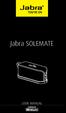 Jabra SOLEMATE USER MANUAL Contents Welcome...2 JABRA Solemate OVERVIEW...3 connecting...6 play music, chat and voice guidance...8 support... 12 technical specifications... 16 1 WELCOME Thank you for purchasing
M707Z M808Z M1010Z Digital Photo Frame Owner s Manual
 M707Z M808Z M1010Z Digital Photo Frame Owner s Manual Thank you for purchasing a Micca product. Should you need any assistance, please contact our technical support before returning the product to the
Jabra TALK USER MANUAL
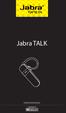 Jabra TALK USER MANUAL CONTENTS THANK YOU...2 ABOUT YOUR...2 WHAT YOUR HEADSET DOES...3 GETTING STARTED...4 CHARGE YOUR HEADSET...4 TURNING YOUR HEADSET ON AND OFF...5 PAIRING IT WITH YOUR PHONE...5 WEARING
UK s best selling phone brand. User Guide. BT Decor 2200 Corded Phone
 UK s best selling phone brand User Guide BT Decor 2200 Corded Phone 2 This User Guide provides you with all the information you need to get the most from your phone. Before you make your first call you