
INSTALLATION INSTRUCTIONS. Installation Instructions for Release 8.2 (TS2M0) of the SAS System for Microsoft Windows
|
|
|
- Deborah Hudson
- 10 years ago
- Views:
Transcription
1 INSTALLATION INSTRUCTIONS Installation Instructions for Release 8.2 (TS2M0) of the SAS System for Microsoft Windows

2

3 Installation Instructions for Release 8.2 (TS2M0) of the SAS System for Microsoft Windows

4 Copyright Notice The correct bibliographic citation for this manual is as follows: SAS Institute Inc., Installation Instructions for Release 8.2 (TS2M0) of the SAS System for Microsoft Windows, Cary, NC: SAS Institute Inc., Installation Instructions for Release 8.2 (TS2M0) of the SAS System for Microsoft Windows Copyright 2001 SAS Institute Inc., Cary, NC, USA. All rights reserved. Printed in the United States of America. No part of this publication may be reproduced, stored in a retrieval system, or transmitted, by any form or by any means, electronic, mechanical, photocopying, or otherwise, without the prior written permission of the publisher, SAS Institute, Inc. Limited permission is granted to store the copyrighted material in your system and display it on terminals, print only the number of copies required for use by those persons responsible for installing and supporting the SAS programming and licensed programs for which this material has been provided, and to modify the material to meet specific installation requirements. The SAS Institute copyright notice must appear on all printed versions of this material or extracts thereof and on the display medium when the material is displayed. Permission is not granted to reproduce or distribute the material except as stated above. U.S. Government Restricted Rights Notice. Use, duplication, or disclosure of the software by the government is subject to restrictions as set forth in FAR Commercial Computer Software- Restricted Rights (June 1987). SAS Institute Inc., SAS Campus Drive, Cary, North Carolina SAS and all other SAS Institute Inc. product or service names are registered trademarks or trademarks of SAS Institute Inc. in the USA and other countries. indicates USA registration. Other brand and product names are trademarks of their respective companies.
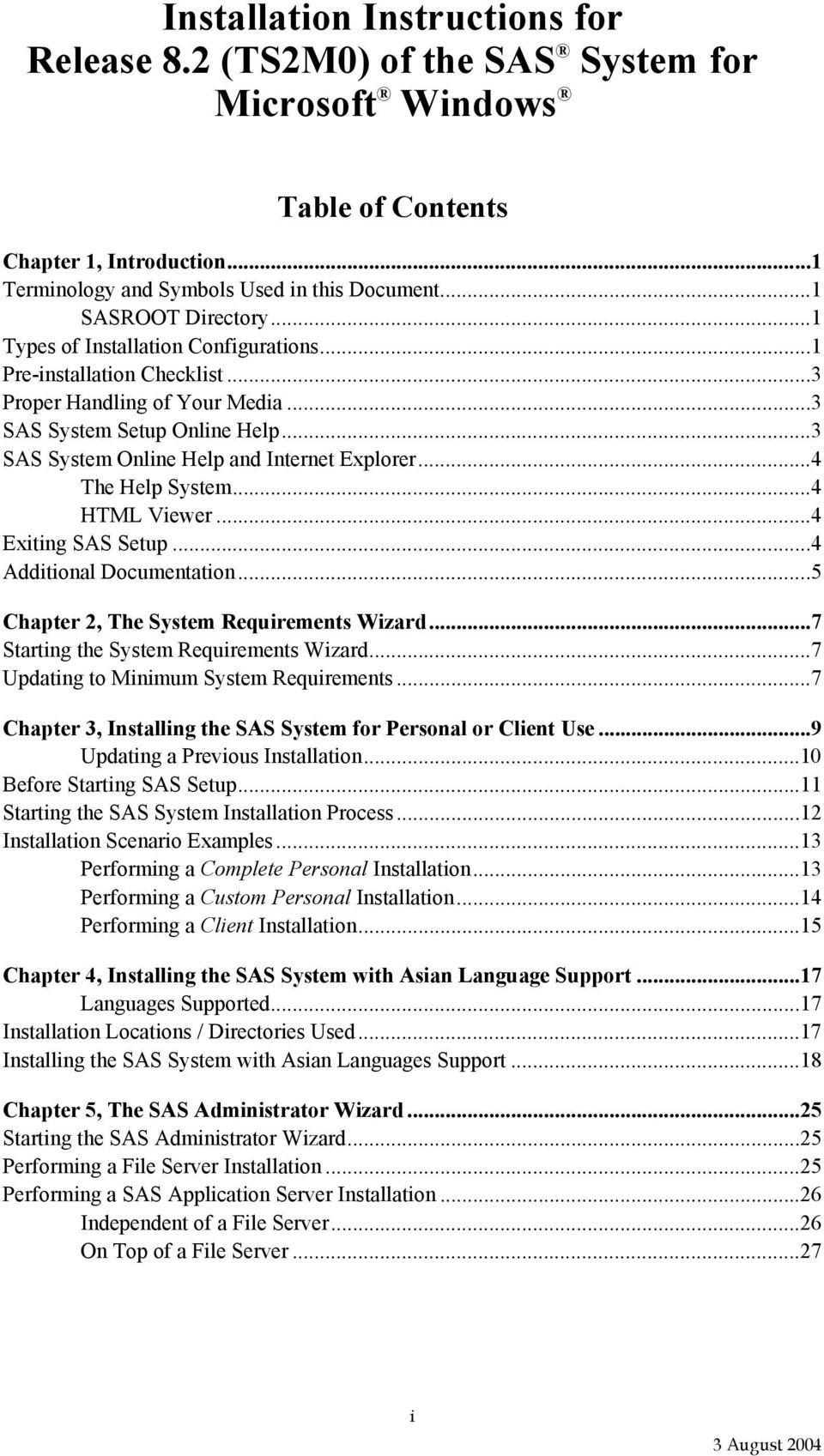
5 Installation Instructions for Release 8.2 (TS2M0) of the SAS System for Microsoft Windows Table of Contents Chapter 1, Introduction...1 Terminology and Symbols Used in this Document...1 SASROOT Directory...1 Types of Installation Configurations...1 Pre-installation Checklist...3 Proper Handling of Your Media...3 SAS System Setup Online Help...3 SAS System Online Help and Internet Explorer...4 The Help System...4 HTML Viewer...4 Exiting SAS Setup...4 Additional Documentation...5 Chapter 2, The System Requirements Wizard...7 Starting the System Requirements Wizard...7 Updating to Minimum System Requirements...7 Chapter 3, Installing the SAS System for Personal or Client Use...9 Updating a Previous Installation...10 Before Starting SAS Setup...11 Starting the SAS System Installation Process...12 Installation Scenario Examples...13 Performing a Complete Personal Installation...13 Performing a Custom Personal Installation...14 Performing a Client Installation...15 Chapter 4, Installing the SAS System with Asian Language Support...17 Languages Supported...17 Installation Locations / Directories Used...17 Installing the SAS System with Asian Languages Support...18 Chapter 5, The SAS Administrator Wizard...25 Starting the SAS Administrator Wizard...25 Performing a File Server Installation...25 Performing a SAS Application Server Installation...26 Independent of a File Server...26 On Top of a File Server...27 i 3 August 2004
6 Chapter 6, Invoking the SAS System Chapter 7, Technical Support Services SAS Installation Representatives and Support Consultants Contacting SAS World Wide Web Telephone U.S. Mail Electronic mail TSNEWS-L Mail and File List Anonymous FTP Electronic Fax Service Appendix A, Configuring SAS/ACCESS Interface to ODBC Software SAS/ACCESS ODBC Conversion Utilities AS/400 Users Microsoft SQL Server Users Appendix B, Configuring SAS/ACCESS Interface to ORACLE Software Client-Server Architecture...37 Installing SQL*Net (or Net8) Assigning the Default Path for the ORACLE Server Appendix C, Configuring SAS/ACCESS Interface to PeopleSoft Appendix D, Configuring SAS/ACCESS Interface to R/3 Software SAS/ACCESS Interface to R/3 Software Appendix E, Configuring SAS/ACCESS Interface to SAP BW Software Appendix F, Configuring SAS/ACCESS Interface to Teradata Software Appendix G, Post-Installation Setup for SAS/ASSIST Software Adding a Master Profile Appendix H, Post-Installation Setup for SAS/CONNECT Software Storing and Locating SAS/CONNECT Script Files System Configuration for Access Methods Supported under Windows 95 and Windows EHLLAPI DECNET NETBIOS TCP/IP APPC System Configuration for Access Methods Supported under Windows NT EHLLAPI DECNET Network Drive Restrictions Security Considerations NETBIOS TCP/IP APPC ii

7 Configuring the SAS Windows Spawner Program...54 Using Encryption with the Spawner...55 Appendix I, Post-Installation Setup of Enterprise Miner Solution Software...57 Invoking Enterprise Miner Client software...57 Configuring Enterprise Miner Client Software for Client-Server Projects...57 Configuring Enterprise Miner Server Software...58 Setup Default Data Library...58 Provide Information to Configure Enterprise Miner Client Software...58 Start SAS Windows Spawner...58 SAS Standalone Formats for Enterprise Miner C*Score...58 Appendix J, Post-Installation Setup for SAS/GRAPH Software...61 ContourApplet (ctrapp.jar)...61 GraphApplet (graphapp.jar)...61 MapApplet (mapapp.jar and related map data jar files)...61 MetaViewApplet (metafile.zip)...61 RangeViewApplet (rvapplet.jar)...61 SAS/GRAPH Control for ActiveX...62 Client Components...62 Appendix K, Installing SAS Integration Technologies...63 Client Components...63 Integration Technologies Documentation...63 Java Client Development and Runtime Component...63 Windows Client Development and Runtime Component...63 Integration Technologies Administrator...63 SAS Package Reader...63 Subscription Manager...63 Client Component Delivery...64 Appendix L, Installing SAS/IntrNet Software...65 Introduction...65 Installing SAS/IntrNet Web Server or Client Components...65 Configuring SAS/IntrNet Components...65 Updates to Components and Documentation...65 Appendix M, Installing SAS Inventory Replenishment Planning Software (Pre- Production)...67 SAS Inventory Replenishment Planning Documentation...67 Appendix N, Installing SAS IT Resource Management Solution Software, Release SAS IT Resource Management Functionality...69 Installing SAS IT Resource Management...69 Migration Considerations...69 Installation Customizations...70 Starting SAS IT Resource Management...70 SAS IT Resource Management Documentation...71 Site Library Considerations...71 First Time Installations...71 Upgrading existing installations...72 iii

8 Maintaining SITELIB with Previous SAS IT Resource Management Installations. 72 Modifying the Pointer to the Default SITELIB Library Installing NTSMF (Windows NT Server only) Appendix O, Installing SAS IT Security Management Solution Software, Release (Pre-Production) Appendix P, Installing SAS IT Service Level Management Appendix Q, Post-Installation Setup for SAS/MDDB Server Software Appendix R, Post-Installation Setup for the Metabase Facility Setting Up the System Repository Manager Files Registering the SASHELP Repository in the Repository Manager Converting Version 6 SAS/EIS Metabases to Version 8 Repositories Appendix S, Post-Installation Instructions for Setting up National Language Support (NLS) European Languages Support (ELS) Background NLS-Related System Options LOCALE ENCODING Locale Setup Window...85 Configuring Your System for Locale Changing the Default LOCALE Option Setting Running SAS in a Different Locale Configuring Your System with the Locale Setup Window Running SAS with Special Locale Settings Additional Information Locale Setup on the Remote Server Devmaps and Keymaps for SAS/GRAPH Software Asian Languages Support (ALS) SAS System Options for Setting Locale Additional Documentation Appendix T, Setting Up the SAS ODBC Driver Installing the SAS ODBC Driver Technical Support Appendix U, Post-Installation Setup for SAS OLAP Server Software Setting up Access Control without SAS/EIS Software on Your Server Starting the Access Control Setup Dialog Window Setting Your Access Control Key and Environment Programmatically Doing Your Access Control Definitions (Users, Groups, ACL) Programmatically. 98 Write Access to SASHELP.AC and SASHELP.MB Specifying OLAP Classes iv

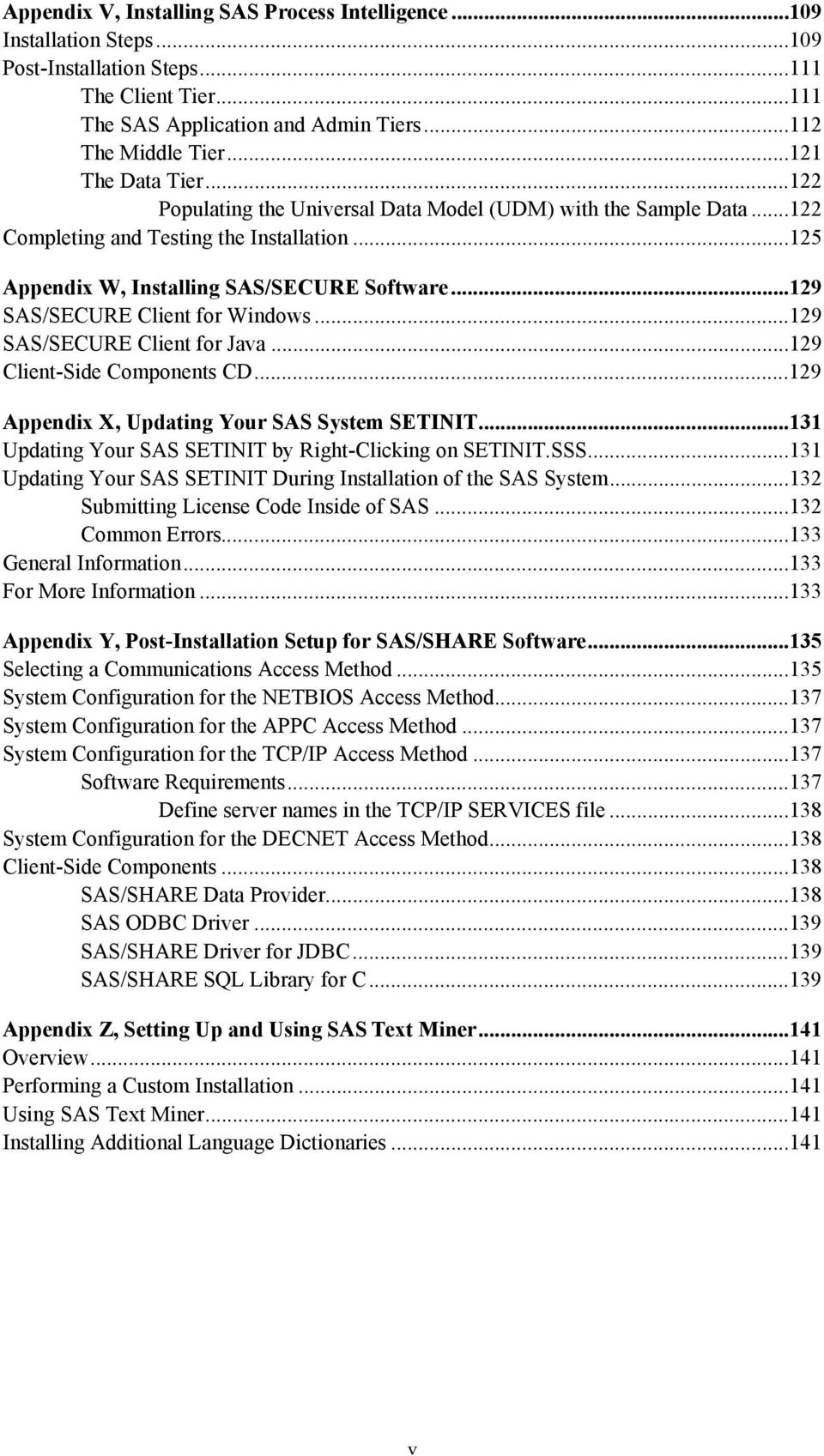
9 Appendix V, Installing SAS Process Intelligence Installation Steps Post-Installation Steps The Client Tier The SAS Application and Admin Tiers The Middle Tier The Data Tier Populating the Universal Data Model (UDM) with the Sample Data Completing and Testing the Installation Appendix W, Installing SAS/SECURE Software SAS/SECURE Client for Windows SAS/SECURE Client for Java Client-Side Components CD Appendix X, Updating Your SAS System SETINIT Updating Your SAS SETINIT by Right-Clicking on SETINIT.SSS Updating Your SAS SETINIT During Installation of the SAS System Submitting License Code Inside of SAS Common Errors General Information For More Information Appendix Y, Post-Installation Setup for SAS/SHARE Software Selecting a Communications Access Method System Configuration for the NETBIOS Access Method System Configuration for the APPC Access Method System Configuration for the TCP/IP Access Method Software Requirements Define server names in the TCP/IP SERVICES file System Configuration for the DECNET Access Method Client-Side Components SAS/SHARE Data Provider SAS ODBC Driver SAS/SHARE Driver for JDBC SAS/SHARE SQL Library for C Appendix Z, Setting Up and Using SAS Text Miner Overview Performing a Custom Installation Using SAS Text Miner Installing Additional Language Dictionaries v
10 Appendix AA, Using Silent Setup Considerations Recording an Installation Record Mode Options Playing Back an Installation Troubleshooting Recording External Setups Online Help is Available Appendix BB, System Management Server Options for Silent Setup when Installing via SMS Using Package Definition Files (PDF) PDF for the SAS System Appendix CC, Post-installation Set-up for SAS Value Chain Analytics Server Software Appendix DD, Post-Installation Setup for WebHound WebHound Functionality Configuring WebHound Appendix EE, Testing the Installation Executing Test Streams Appendix FF, Installing the SAS System on a Windows Terminal Server or Citrix MetaFrame System Introduction SAS System Licensing for Terminal Services SAS System Support for Terminal Services SAS System Requirements for the Terminal Server Environment Preparing for SAS System Setup in a Terminal Server Environment Installing the SAS System Configuration and Performance Considerations The WORK Directory Memory Batch Performance and Running SAS in the Background Appendix GG, Solutions Powered by SAS Technology Introduction Performing a Complete Installation (all solutions) Performing a Custom Installation Appendix HH, SAS Service Configuration Utility Introduction Installing the SAS Service Configuration Utility Reinstallation Registry Entries Using the SAS Service Configuration Utility Using System Options Installing a SAS Service vi

11 Removing a SAS Service Configuring New Features U.S. Government Rights Notice Glossary vii

12

13 Chapter 1, Introduction This document provides the instructions for installing Release 8.2 (TS2M0) of the SAS System under the following Windows releases: Windows 95 Windows 98 Windows Me Windows NT Windows 2000 Please read these instructions before you attempt to install any SAS software component in the Windows environment. Terminology and Symbols Used in this Document As you use these installation instructions, you will encounter terminology that may be unfamiliar. The following terms are specific to your SAS System installation and are provided here to facilitate the installation process. Please look for other unfamiliar terms in the glossary at the end of this document. SASROOT Directory In SAS System Setup, this directory is also referred to as destination. It is the directory where you install the SAS System. The CORE directory and several predefined subdirectories are created under the SASROOT directory. The following are examples of valid SASROOT directories: C:\SAS D:\SAS_WIN C:\Program Files\SAS Institute\SAS\V8 For the examples in this manual, the SASROOT directory always appears as SASROOT. Types of Installation Configurations SAS System Setup is targeted at two different types of users. First and most common are individuals who wish to install the SAS System for their own personal use. The Setups related to this type of installation are referred to as Personal and Client installs. Please refer to Chapter 3, Installing the SAS System for Personal or Client Use on page 9 for detailed information about personal and client installations of the SAS System. 1

14 Page 2 Installation Instructions for the SAS System for Microsoft Windows The second type of user is usually a network administrator who wants to install the SAS System to a centralized server. Other users are expected to perform their respective installations using the server s shared image. This type of installation on a centralized server is referred to in this documentation as a Server install. The SAS Administrator Wizard is used to perform a Server installation. Please refer to Chapter 5, The SAS Administrator Wizard on page 25 for details. Installing the SAS System for Personal Use Most users will choose to use SAS System Setup to perform a Personal installation for their individual use. This type of installation was designed to copy the SAS System program files onto the user s local hard drive. A Personal install renders a fully operational SAS System and provides optimal performance. Please refer to page 13 for instructions on performing this type of installation. Installing the SAS System as a Client A Client installation is used to run the SAS System on a PC from SAS System files that are present on a network file server. All of the user s data is maintained on the local PC, and the CPU on the user s PC runs the program, but it relies on an external file source. This configuration preserves drive space on the local PC by minimizing the number of files required for program execution. However, performance may be reduced due to increased access time when an operation calls upon external file sources. Even though the SAS files reside on a server, this type of installation can be personalized. Please refer to the section Performing a Client Installation on page 15 for details on this type of install. Installing SAS onto a File Server A network administrator may install the SAS System onto a file server. From that location, end users can install the SAS System on a PC using either the Personal or Client installations described above. Please refer to Chapter 5, The SAS Administrator Wizard on page 25 for details. Installing SAS to a Server or as an Application Server A network administrator may install the SAS System to a server or as an application server. Please refer to Chapter 5, The SAS Administrator Wizard on page 25 for details. Installing SAS on a Terminal Server Please see the appendix Installing the SAS System on a Windows Terminal Server or Citrix MetaFrame System on page 157 for details.

15 Installation Instructions for the SAS System for Microsoft Windows Page 3 Pre-installation Checklist Before you begin installing the SAS System, make sure you review the following checklist and perform the tasks requested. Once you have completed the checklist, turn to the section appropriate for your installation. Review all the items in your product package. Make sure your hardware meets the specifications indicated on the System Requirements document contained in your installation package. Verify the release of Windows you are running. Release 8.2 of the SAS System requires Windows NT, Version 4.0 or later, or Windows 95 or later. Refer to the System Requirements document for a detailed description of operating system requirements. U.S. Federal Government employees should read the FEDGOVT.TXT file. This file is located on the CD-ROM in the \sas directory. Make sure all applications including virus-checking programs are closed or disabled prior to starting the installation. Unless otherwise noted, your product package from SAS contains all the items listed in the Transmittal Letter. The product package is shipped to the SAS Installation Representative at your site. If you think any items are missing from your package, contact your SAS Installation Representative, who in turn may need to contact SAS. Proper Handling of Your Media Before you begin your installation, please review the following tips for proper handling of your SAS System CD-ROM: Clean the CD and the CD drives regularly with head cleaning kits. Return your CD to its protective packaging when not in use. SAS System Setup Online Help The installation program provides online help for you to use at any point during the installation. The help is provided in a native Windows environment. To access the online help, select the Help button or press the F1 key at any time while the SAS Setup program is running. The Help button is available in the lower right corner of your screen in the SAS Setup program. The online help should be considered the primary source of installation instructions and should be consulted for assistance during the installation process. It contains a number of helpful installation examples.

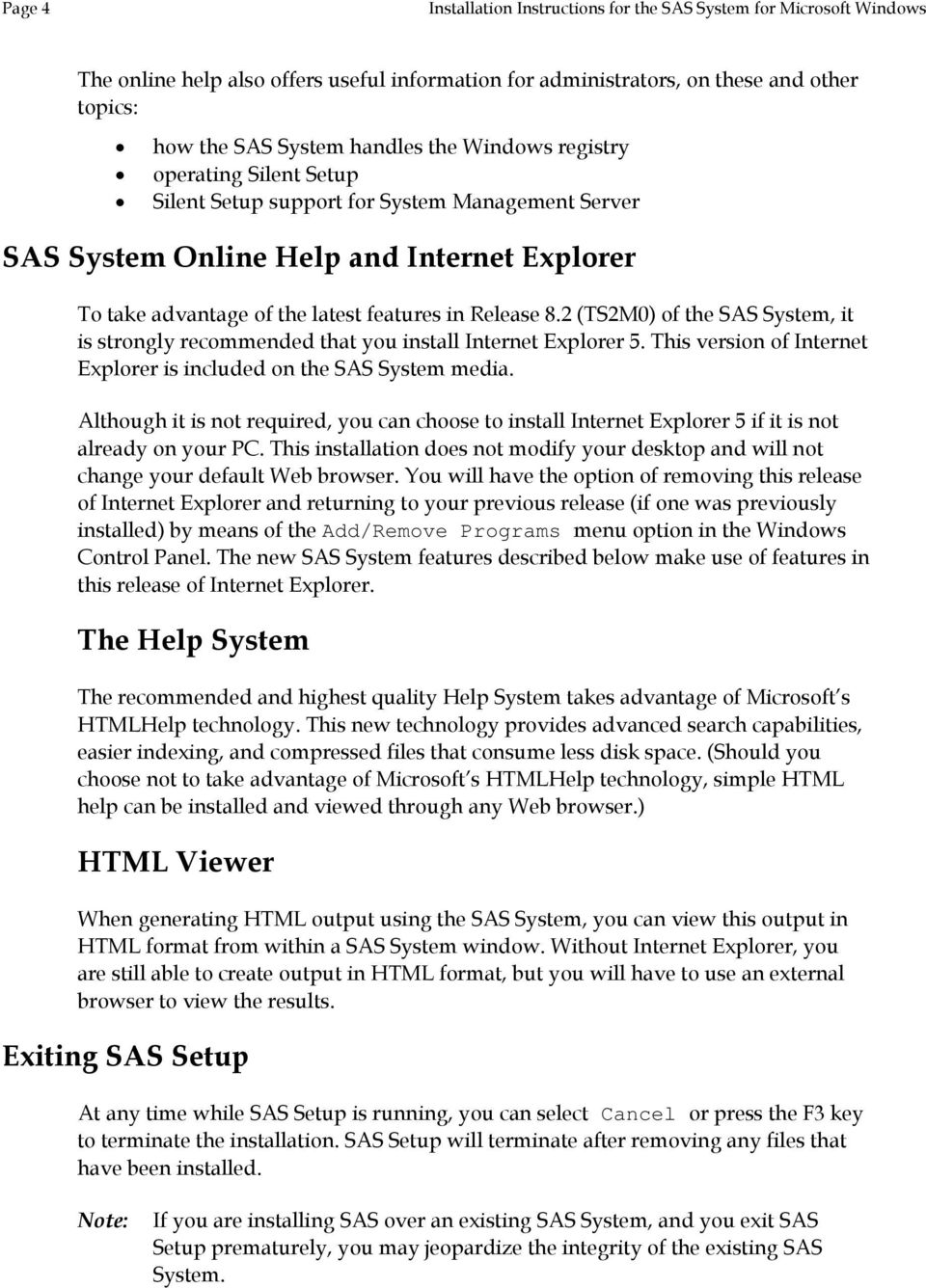
16 Page 4 Installation Instructions for the SAS System for Microsoft Windows The online help also offers useful information for administrators, on these and other topics: how the SAS System handles the Windows registry operating Silent Setup Silent Setup support for System Management Server SAS System Online Help and Internet Explorer To take advantage of the latest features in Release 8.2 (TS2M0) of the SAS System, it is strongly recommended that you install Internet Explorer 5. This version of Internet Explorer is included on the SAS System media. Although it is not required, you can choose to install Internet Explorer 5 if it is not already on your PC. This installation does not modify your desktop and will not change your default Web browser. You will have the option of removing this release of Internet Explorer and returning to your previous release (if one was previously installed) by means of the Add/Remove Programs menu option in the Windows Control Panel. The new SAS System features described below make use of features in this release of Internet Explorer. The Help System The recommended and highest quality Help System takes advantage of Microsoft s HTMLHelp technology. This new technology provides advanced search capabilities, easier indexing, and compressed files that consume less disk space. (Should you choose not to take advantage of Microsoft s HTMLHelp technology, simple HTML help can be installed and viewed through any Web browser.) HTML Viewer When generating HTML output using the SAS System, you can view this output in HTML format from within a SAS System window. Without Internet Explorer, you are still able to create output in HTML format, but you will have to use an external browser to view the results. Exiting SAS Setup At any time while SAS Setup is running, you can select Cancel or press the F3 key to terminate the installation. SAS Setup will terminate after removing any files that have been installed. Note: If you are installing SAS over an existing SAS System, and you exit SAS Setup prematurely, you may jeopardize the integrity of the existing SAS System.
17 Installation Instructions for the SAS System for Microsoft Windows Page 5 Additional Documentation For additional information, please refer to the SAS OnlineDoc CD in your package for a complete library of SAS software documentation.

18

19 Chapter 2, The System Requirements Wizard The System Requirements Wizard makes sure that the minimum system requirements are installed on your computer before the SAS System is installed. The System Requirements Wizard may update system components that are part of the operating system. Updating these components to appropriate levels is an important part of a successful SAS System install. It is possible that some of the system components, including virus programs, that need to be updated by the System Requirements Wizard will be in use by the operating system. Unfortunately, this situation will require a reboot of the computer to properly update the system components in use. Closing down all other running applications, including virus programs, before starting the System Requirements Wizard can keep the number of required reboots to a minimum. The number of reboots that will be required can vary from computer to computer, since it is determined by the level of the system components installed on the computer when the System Requirements Wizard is run. Starting the System Requirements Wizard To start the System Requirements Wizard, complete the following steps: 1. Insert the CD-ROM labeled Setup Disk into the source drive. The SAS System AutoPlay should appear if AutoPlay is enabled on your computer. If this does not happen, select the Run menu option from the Windows Start menu and type: <source_drive>:\setup where <source_drive> is the drive containing the SAS System installation media. 2. Select the System Requirements Wizard from the list of options. Updating to Minimum System Requirements After starting the System Requirements Wizard, follow these steps: 1. Carefully read the Welcome screen and then select Next. 2. A complete list of all system components that need to be updated by the System Requirements Wizard will be displayed. Review the list and click Next. 7
20 Page 8 Installation Instructions for the SAS System for Microsoft Windows If the computer already satisfies the minimum system requirements, a dialog will appear indicating that no updates are required for this computer. 3. The update process will begin for any system components listed in step 2. Some system components may require a reboot of the computer. Carefully read the instructions on the reboot dialog. If you elect to reboot, the System Requirements Wizard should restart automatically following the logon process. If you elect not to reboot, the System Requirements Wizard will exit. Run the System Requirements Wizard when you are ready to continue updating the system components. 4. When all system components have been updated, a final dialog will appear stating that the computer has been updated to the minimum system requirements for the SAS System. 5. Refer to Chapter 3, Installing the SAS System for Personal or Client Use, to begin either a Client or Personal installation of the SAS System.

21 Chapter 3, Installing the SAS System for Personal or Client Use Chapter 3 provides an introduction to the installation process for the SAS System for Windows, TS2M0. This may be a new installation on a machine that does not contain a Version 8 SAS System, or the installation may be applied as an update to an existing Version 8 SAS System. The Version 8 SAS System does not support multiple copies of the SAS System on a single machine. Therefore, you must either update any existing Version 8 installation or uninstall it. The Windows utility Add/Remove Programs must be used for removal of an existing Version 8 installation. Please see the section, Updating a Previous Installation on page 10 for important information prior to performing the update. Information in this chapter will assist you in making some decisions prior to starting the installation process. Installation scenario examples are included. A more complete set of installation scenario examples is provided in the online help provided in the SAS System Setup program (referred to as SAS Setup in these instructions). To access the online help, press F1 or click the Help icon after SAS Setup is running. SAS Setup should be run during an initial SAS System installation and also when you are adding additional components to an existing SAS System installation. If you have an existing installation of a previous version of the SAS System, SAS Setup will allow you to continue to have that version of the SAS System registered, or it will allow you to register Release 8.2 of the SAS System. If a previous version of the SAS System is found, and SAS Setup determines that file extensions are registered to that release, a dialog will be presented so you can choose which release will be associated with each file extension. If you select a previous release, existing SAS registry entries will not be changed. You can use SAS Setup to perform three types of installation configurations: Complete Custom Client A Complete installation provides a SAS System containing all components your site has registered. A Custom installation provides a SAS System containing only SAS components that you have selected and that your site has registered. 9
22 Page 10 Installation Instructions for the SAS System for Microsoft Windows The Client installation allows the SAS System to be run from a network location with a minimum of space required on the local machine. Updating a Previous Installation You may install this release of the SAS System onto an existing installation of Version 8, TS M0. This may also be done if Version 8 maintenance, TS M1, or Release 8.1, TS1M0 have been applied. The TS2M0 SAS Setup will detect the previous Version 8 installation and tailor its mode of operation for compatibility with that installation. The following settings will be detected and preserved: Installation type Location of the user data files area (sasuser) Location of the SAS temporary files area (saswork) Location of the SAS Institute shared files areas The dialogs corresponding to these settings will be bypassed and these settings cannot be changed. Also, the list of installed products will be determined. When the Component Selection Dialog is displayed, these products will be pre-selected. All components on the installation media will be displayed in the Component Selection Dialog so if you wish to install additional products, they may be selected at that time. Other than bypassing the dialogs described above, and preselecting the components to be installed, SAS Setup will operate in full. All system updates and post processing will occur. SAS Setup will not maintain all user modifications to the installed system during the update. For this reason it is recommended that you make a backup copy of the existing config file prior to running the update install. Users are also responsible for reviewing any additional modifications that have been made to the system so that these changes can be restored after the installation process has completed. The two lists below indicate which items will be preserved and which will not, respectively: Items that are preserved User profile catalogs New options or set variables that have been added to the config file Location of the user area Location of the SAS temporary work area Location of the shared files area Locations of any components that are already installed Items that are not preserved Modifications to the SAS registry Modifications to the SAS Desktop Modifications to the search paths in the config file Modifications to options and set variables that Setup manages in the config file
23 Installation Instructions for the SAS System for Microsoft Windows Page 11 Modifications to catalogs and datasets managed by the installation process Modifications to samples managed by the installation process Modifications to SASHELP files If the simple HTML help component had been previously installed, this will be detected and the simple HTML help component will be pre-selected in the Component Selection dialog. Note: Exiting the SAS Setup after the file copy process has begun will corrupt the SAS System Installation. Before Starting SAS Setup Before you start SAS Setup, ensure that you have sufficient disk space on the installation target. Refer to the System Requirements document for descriptions of the amount of space needed to install each component of the SAS System. Keep in mind that the disk-blocking factor and drive compression settings may affect the actual amount of required space. If sufficient space is available, a Complete Personal installation will provide the best performance. Note: For Windows NT or Windows 2000 systems, the userid must have administrator privileges. Complete the following steps: 1. Decide where the user files should be stored during execution of the SAS System. The default for the SASUSER library is the following location: On Windows NT <Windows NT operating system folder>\profiles\<userid>\personal \My SAS Files\V8 On Windows 95 and Windows 98 <My Documents folder>\my SAS Files\V8 SAS Setup will allow you to change the location of the SASUSER library. Please note that the default provides a unique SASUSER library for each user on a Windows NT system. 2. Choose a location for the SAS System temporary work file. The default for the work files is the following location: %TEMP\SAS Temporary Files 3. If you want to use an alternative location for the work files, SAS Setup will allow you to do so. 4. If you are installing to a Windows NT, Version 4.0 system, SAS Setup will determine whether you have the required Windows NT, Version 4.0, Service Pack installed. Make sure you install it before running SAS Setup. Without this
24 Page 12 Installation Instructions for the SAS System for Microsoft Windows Service Pack, SAS Setup will not present the option of installing Internet Explorer. See the System Requirements to determine the Service Pack requirement. 5. SAS Setup will determine whether Microsoft Internet Explorer Version 5 is installed. If it is not installed, SAS Setup will give you the option of installing it. It is strongly recommended that you do so. The recommended and highest quality Help System takes advantage of Microsoft s HTMLHelp technology, which relies on the availability of Internet Explorer. HTMLHelp provides advanced search capabilities, easier indexing and compressed files that consume less disk space. On Windows NT, systems administrative privileges are required to install Internet Explorer. If you do not install Internet Explorer, you must have a Web browser installed. The Web browser should be installed prior to running SAS Setup. Refer to the System Requirements to determine acceptable Web browser requirements. Starting the SAS System Installation Process The SAS System depends on the presence of several Microsoft components for proper operation. At the beginning of the setup process, Setup will examine your system and determine which updates are necessary. Setup will then assist you with upgrading these components by installing them. Many of the components may require a reboot. If a reboot is required, Setup will automatically continue after your system has restarted and you have logged in. Note: A complete list of required Microsoft components is available in the System Requirements Wizard section of the System Requirements document. While rebooting is necessary to ensure the stability of your system, you can minimize the number of reboots required by closing all non-essential Windows applications before starting Setup. To start the SAS System installation process, complete the following steps: 1. Close all nonessential Windows applications. 2. Insert the CD-ROM labeled Setup Disk into the source drive. The SAS System AutoPlay should appear if AutoPlay is enabled on your computer. If this does not happen, select the Run menu option from the Start menu and type: <source_drive>:\setup where <source_drive> is the drive containing the SAS System installation media. 3. At this point, there are a number of choices:
25 Installation Instructions for the SAS System for Microsoft Windows Page 13 You can update your computer to the minimum system requirements for the SAS System by selecting the System Requirements Wizard option on this startup screen. The SAS System may be installed by selecting the SAS System Setup option. An administrator may create a SAS Fileserver image by selecting the SAS Administrator Wizard. The installation instructions may be viewed on your screen in Portable Document Format (.PDF) using Adobe Acrobat Reader. If this software is not installed on your computer, you will be prompted to install it. Additional Setups SAS Viewer can be installed by selecting SAS Viewer Setup. SAS Service Configuration Utility can be installed by selecting SAS Service Configuration utility. SAS ODBC Driver can be installed by selecting SAS ODBC Driver Setup. Selecting Browse the CD will launch a Microsoft Explorer window. The default display shows the root directory of the CD or other source media if the image has been copied. Installation Scenario Examples This section describes the typical steps for each of the following types of installations: Complete Personal Installation Custom Personal Installation Client Installation Please choose the section that is appropriate for the type of installation you are performing. The Back buttons on any screen can be used to return to the previous screen to alter any choices. Performing a Complete Personal Installation The following steps are typically followed when performing a Complete Personal installation: 1. Carefully read the Welcome screen and then click on Next. To minimize required reboots during SAS Setup, it is highly recommended that you exit all other applications while installing the SAS System.
26 Page 14 Installation Instructions for the SAS System for Microsoft Windows 2. Verify that the default setting of Complete setup type is selected and then click on Next. 3. If this is the first product from SAS that you have installed on your system, you will be presented with the SAS Institute Shared Files dialog. It is recommended that you use the default destination. Once this selection has been made, all shared files related to the SAS System will be stored in that location. Once you have selected the desired location, click on Next. 4. The Choose Destination Location dialog is now displayed. Carefully select the destination for the SAS System. Be sure the destination has sufficient disk space since you will be installing a complete SAS System. Once you have selected the location, click on Next. 5. The Select Data Files Folder dialog is now displayed. Either accept the default location, or enter the desired location for the user Data Files Folder. Then, click on Next. 6. The Select Temporary Files Folder dialog is displayed next. Once the desired location for the SAS work area is displayed, click on Next. For some types of SAS processing, large files may be used in this location, so ensure that you have adequate space in the selected location. 7. If necessary, an Additional Installation Options dialog may be displayed. Make the desired choices. Online help is available for assistance by pressing F1. When finished, click on Next. 8. The Review Installation Choices dialog is now displayed. Verify that the correct choices are displayed. If not, use the Back buttons to step back through the dialogs to make any necessary corrections. Once you are satisfied with your choices, click on Next. SAS Setup will now begin copying files and creating the SAS System installation. Performing a Custom Personal Installation The following steps are typically followed when performing a Custom Personal installation: 1. Carefully read the Welcome screen and then click on Next. To minimize required reboots during SAS Setup, it is highly recommended that you exit all other applications while installing the SAS System. 2. After SAS Setup finishes initializing, verify that the Custom installation is selected and then click on Next. 3. If this is the first product from SAS that you have installed on your system, you will be presented with the SAS Institute Shared Files dialog. It is recommended that you use the default destination. Once this selection has been
27 Installation Instructions for the SAS System for Microsoft Windows Page 15 made, all shared files related to the SAS System will be stored in that location. Once you have selected the desired location, click on Next. 4. The Choose Destination Location dialog is now displayed. Carefully select the destination for the SAS System. Be sure that the destination has sufficient disk space to install all of the SAS System components. Once the location is selected, click on Next. 5. The Select Data Files Folder dialog is now displayed. Either accept the default location, or enter the desired location for the user Data Files Folder. Then, click on Next. 6. The Select Temporary Files Folder dialog is displayed next. Once the desired location for the SAS work area is displayed, click on Next. For some types of SAS System processing, large files may be used in this location, so ensure that you have adequate space in the selected location. 7. The Select Program Folder dialog is displayed. Choose the folder where the SAS System icons are to be installed. Once the desired folder is chosen, click on Next. 8. The Custom installation component listbox is displayed next. By default, all components are selected, except for Native HTML Help. Note: If a valid Internet Explorer application is installed, the default selection will not include the component Help files for systems without I.E. Either deselect the components that are not desired, or click on the Unselect All button and then individually select the desired components. SAS Setup will recompute the estimated disk space requirement as you select or deselect components. As each component is chosen, a short description of that component is displayed. When you are finished, click on Next. 9. If necessary, an Additional Installation Options dialog may be displayed. Make the desired choices. Online help is available for assistance by pressing F1. When finished, click on Next. 10. Finally, the Review Installation Choices dialog is displayed. Verify that the correct choices are displayed. If not, use the Back buttons to step back through the dialogs and make any necessary corrections. Once you are satisfied with your choices, click on Next. SAS Setup will now begin copying files and creating the SAS System installation. Performing a Client Installation The following steps are typically followed when performing a Client installation:
28 Page 16 Installation Instructions for the SAS System for Microsoft Windows 1. Carefully read the Welcome screen and then click on Next. To minimize required reboots during SAS Setup, it is highly recommended that you exit all other applications while installing the SAS System. 2. After SAS Setup finishes initializing, select the Client installation and then click on Next. 3. If this is the first product from SAS that you have installed on your system, you will be presented with the SAS Institute Shared Files dialog. It is recommended that you use the default destination. Once this selection has been made, all shared files related to the SAS System will be stored in that location. After you have selected the desired location, click on Next. 4. The Choose Destination Location dialog is now displayed. This location will be used for configuration files. Carefully select the desired location and click on Next. 5. The Select Data Files Folder dialog is now displayed. Either accept the default location, or enter the desired location for the user Data Files Folder. Then, click on Next. 6. The Select Temporary Files Folder dialog is displayed next. Once the desired location for the SAS work area is displayed, click on Next. For some types of SAS processing, large files may be used in this location, so ensure that you have adequate space in the selected location. 7. The Select Program Folders dialog is displayed. Choose the folder where the SAS System icons are to be installed. Once the desired folder is chosen, click on Next. 8. If necessary, an Additional Installation Options dialog may be displayed. Make the desired choices. Online help is available for assistance by pressing F1. When finished, click on Next. 9. Finally, the Review Installation Choices dialog is displayed. Verify that the choices displayed are correct. If not, use the Back buttons to step back through the dialogs to make any necessary corrections. Once you are satisfied with your choices, click on Next. SAS Setup will now begin copying files and creating the SAS System installation.
29 Chapter 4, Installing the SAS System with Asian Language Support Languages Supported Release 8.2 of the SAS System with Asian Languages Support can be used with the following languages: Language English Japanese Simplified Chinese (PRC) Traditional Chinese (Taiwan) Korean Abbreviation Used en ja zh zt ko If any of these languages are selected, the necessary files (configuration files, executables, message files, help files, etc.) are stored in the %SASROOT%\nls subdirectory within the main SAS System installation. They are sorted by language. Double Byte Character Set (DBCS) support is also supported and is an integral part of the System s Asian Languages support. Installation Locations / Directories Used By default, the SAS System Installer selects a path in this form as the default location for the software: %ProgramFiles%\SAS Institute\SAS\V8 This location may be changed to suit a user s individual needs but once a location is selected, it is recorded as %SASROOT%. You can install any and all of the languages listed. If any Asian language is installed, its files will be stored in %SASROOT%\nls\<language> where <language> is one of the languages listed above. For example, if you install Japanese and Korean support, the following directories would exist: %SASROOT%\nls\ja %SASROOT%\nls\ko These directories will include the location-specific configuration file needed to allow the SAS System to support a given language, as well as that language s specific executable. 17
30 Page 18 Installation Instructions for the SAS System for Microsoft Windows Installing the SAS System with Asian Languages Support Inserting the Setup CD of the SAS System media will cause the SAS System Installer to begin execution. At this time, the user is given the choice to invoke the System Requirements Wizard, setup the SAS System, execute the SAS Administrator Wizard, read the Installation Instructions, and perform Additional Setups. The user is also able to Browse the CD and contact Technical Support. Installing the SAS System on Japanese Windows Me As this screen indicates, the Window is written in English. Moving your mouse over any of the bulleted choices will cause a tooltip for that bullet to appear. The language used in the tooltip is the current language identified by the system code page. For example, if the user placed the mouse over this text, the Japanese equivalent of SAS System Setup would be displayed. You may choose to read the Installation Instructions at this time or explore the CD. When you are ready to begin installation, choose SAS System Setup. The installation program will prompt you to select the language you wish to use during your installation.
31 Installation Instructions for the SAS System for Microsoft Windows Page 19 Selecting an Installation Language The language chosen does determine which languages will be installed and supported by the SAS System. Instead, this dialog box is used to determine only the language that the installer will use (English, Japanese, Korean, Simplified Chinese [PRC], and Traditional Chinese [Taiwan]). Choosing a language that your system does not support, or one for which the code page is improperly set, will result in a display of scrambled, non-readable characters. For example, choosing Japanese as the installation language on a system that is not capable of displaying Japanese characters results in the following type of dialog: Displaying the Japanese System Requirements Wizard on English Windows 2000 Verify the system s current locale and language before choosing any language other than English. Note: On native language operating systems, the installer will display your choice in the appropriate language.
32 Page 20 Installation Instructions for the SAS System for Microsoft Windows Language Pull-down Dialog (image truncated) on Japanese Windows Me After selecting the installation language, proceed with the installation. It may be necessary to reboot several times if there are packages or components on your system that need to be upgraded. After all pre-installation setup is complete, the user is presented with the following choices: Choosing Between a Complete and Customized Installation If you do not want to manually install and setup DBCS support at this time, you may choose the Complete installation to install all packages that you have licensed and that are available for your system. The Asian Languages installed, if any, depend on the code page setting of your system. Please refer to the appendix Post-Installation Instructions for Setting up National Language Support (NLS) on page 83 for more information. Note: The SAS System Installer will use the version of the operating system to determine if DBCS support and specific language support will be installed. For example, on a Japanese Windows System, selecting a Complete
33 Installation Instructions for the SAS System for Microsoft Windows Page 21 installation will result in SAS DBCS Support and SAS Japanese Support being installed, while a Complete installation on an English system will not result in the installation of DBCS or Asian Language Support. Choosing a Custom installation allows for greater flexibility in customizing the SAS System. In particular, a Custom installation will allow you to select the supported Asian Languages. If a Custom installation has been selected, the SAS System Installer will then ask which directories should be used (%SASROOT%, a temporary directory, a user s personal SAS directory, etc.). When those choices have been determined, a default list of solutions is displayed, similar to the following: Selecting Solutions Select the Customize option to add DBCS and language-specific support.
34 Page 22 Installation Instructions for the SAS System for Microsoft Windows Custom Installation, Component Selection To view a full list of the SAS System Components that are fully supported using DBCS and the multiple Asian Languages (ja, ko, zh, zt), select a particular component. For example, the following screen image shows some of the products supported in the Japanese version of the SAS System: Some Japanese Supported Products
35 Installation Instructions for the SAS System for Microsoft Windows Page 23 Performing the operation shown above during your installation of the SAS System allows you to see exactly which sub-components are supported under DBCS, as well as the other Asian Languages. Notes: Under Simplified Chinese and Korean Support, the Installer incorrectly displays SAS/MDDB Server as sample. Even though the sub-component is incorrectly identified, the SAS/MDDB Server Simplified Chinese and Korean support files install correctly when they are selected. While it is possible to select support for Asian languages without choosing SAS DBCS Support, this approach is not recommended as the system will not perform at an optimized level and may fail to execute at all. If you choose DBCS Support, the Installer will register the DBCS version of the SAS System as the default version with the Windows Registry. This registration will occur even if you do not select any Asian languages. Furthermore, a specific directory will be created for every language selected. (For example, the Custom Installation, Component Selection screen shows Japanese and Korean). Assuming that %SASROOT% is C:\Program Files\SAS Institute\SAS\V8 and that Japanese and Korean language support is installed along with DBCS Support, when the installation is completed, four SAS executables will be present: C:\Program Files\SAS Institute\SAS\V8\sas.exe C:\Program Files\SAS Institute\SAS\V8\dbcs\sas.exe C:\Program Files\SAS Institute\SAS\V8\nls\ja\sas.exe C:\Program Files\SAS Institute\SAS\V8\nls\ko\sas.exe The first executable shown is the standard, Single Byte Character Set (SBCS) version of SAS. It is fully functional. Next is the fully DBCS-enabled version of the SAS System. Finally, the last two are the Japanese and Korean versions of SAS respectively. In this example, the following additional directories are also created: C:\Program Files\SAS Institute\SAS\V8\nls\ja C:\Program Files\SAS Institute\SAS\V8\nls\ko Contained within each of the above directories is a language-specific configuration file for that language, as well as the language s specific version of sas.exe. In the case of Japanese, sub-directories of C:\Program Files\SAS Institute\SAS\V8\nls\ja will be kanji and mincho. These directories contain the fonts and libraries needed to display the Japanese language correctly. The configuration file found in each language-specific directory makes note of this fact. At this point in the process, the SAS System is installed and ready for use.
36
37 Chapter 5, The SAS Administrator Wizard Network administrators who want to install the SAS System to a centralized server should follow the instructions provided in this chapter. From the network location, The SAS System can be installed on a PC using either the Personal or Client installations as described in Chapter 3. The Network administrator also has the option of configuring a SAS System that can service jobs to other SAS clients on the network. The System can work in conjunction with or independent of a SAS File Server. If you are interested in this type of configuration, refer to the section Performing a SAS Application Server Installation on page 26. Starting the SAS Administrator Wizard To start the SAS Administrator Wizard, complete the following steps: 1. Insert the CD-ROM labeled Setup Disk into the source drive. The SAS System AutoPlay should appear if AutoPlay is enabled on your computer. If this does not happen, select the Run menu option from the Start menu and type: <source_drive>:\setup where <source_drive> is the drive containing the SAS System installation media. 2. Select the SAS Administrator Wizard from the list of options. Performing a File Server Installation After starting the SAS Administrator Wizard, follow these steps to perform a File Server installation: 1. Carefully read the Welcome screen and then select Next. 2. After SAS Setup finishes initializing, setup will search for a network drive. Note: The network administrator must have write permission on the desired network drive. The first suitable network drive that setup locates will be indicated as the default installation target. If a network drive cannot be located, a local drive will be indicated as the default target. 3. To change the default target location, click Browse and select the desired drive and directory. The destination selected on the network server must not be at the 25
38 Page 26 Installation Instructions for the SAS System for Microsoft Windows root level of a drive or a subdirectory that will be used as a network share. When the target location is correct, select Next. 4. The component selection dialog is displayed next. By default, all components are selected. Clear the checkbox of any components that are not to be installed. When you are finished, select Next. 5. Finally, the Review Installation Choices dialog is displayed. Verify that the correct choices are displayed. If not, use the Back buttons to step back through the dialogs and make any necessary corrections. Once you are satisfied with your choices, select Next. SAS Setup will begin copying files and creating a re-installable SAS System image. Other users will be able to run the SAS System Setup from the network image that is created and perform either a Client or Personal install. Performing a SAS Application Server Installation Using SAS as an Application Server allows an administrator to serve SAS jobs to other clients on the network. This type of installation is simply an application of a Personal SAS System installation. Please refer to Chapter 3, Installing the SAS System for Personal or Client Use on page 9 for information on performing a SAS Installation on your system. You may also install an application Server on a system acting as a SAS File Server. There are two options for how to do this: Install an Application Server Independent of the File Server Install an Application Server On Top of a File Server These options allow for different levels of control and efficiency. Before proceeding, please read the descriptions and instructions below for each of these installation types. In either case, we recommend that you first use the SAS Administrator Wizard to create a File Server on your System. For instructions, please refer to the section Performing a File Server Installation on page 25. Independent of a File Server Installing the SAS System independent of the SAS File Server provides the user of the System with control over which components are installed. Also, the SAS System can be personalized without impacting Clients of the SAS File Server. However, this type of installation requires more disk space. To perform this type of Installation, please refer to Chapter 3, Installing the SAS System for Personal or Client Use on page 9. Make certain that you specify a destination location different from the one used for setting up the SAS File Server.
39 Installation Instructions for the SAS System for Microsoft Windows Page 27 On Top of a File Server Installing the SAS System on top a SAS File Server will minimize the amount of disk space required. However, your Application Server will contain every component, so customizations made to the image may affect all of the Clients using the File Server for their SAS sessions. To perform this type of Installation, please refer to Chapter 3, Installing the SAS System for Personal or Client Use on page 9. Use the original source media to perform this installation. You may choose to perform either a Complete or Custom install depending on which components you want to have available for local installations. Make certain that you specify the same destination location as the one used for setting up the SAS File Server. If you choose components that were not selected during the File Server installation, these files will be added to the File Server, but will not be used by existing clients of the File Server. However, clients added after this point will have access to these new components. SAS Setup will verify the files on your File Server before configuring the Application Server on your system.
40
41 Chapter 6, Invoking the SAS System After it is properly installed, Release 8.2 (TS2M0) of the SAS System under Windows can be invoked in the following ways: Click on Start, select Programs, and choose The SAS System. Then, click on the icon labeled The SAS System for Windows Release 8.2 (TS2M0). Select the Run command from the Start button menu. Supply the full path to both the SAS.EXE and the SASV8.CFG files for the SAS System installation you want to execute, as shown in the following example: C:\Program Files\SAS\V8\SAS.EXE When you invoke the SAS System, SAS searches for a SASV8.CFG file following the Order of Processing for SAS Configuration Files as specified in the SAS Companion for the Windows Environment, Version 8, Second Edition under the topic Getting Started: Files Used by the SAS System. For more information on running the SAS System under Windows, refer to Windows Environment: Changes and Enhancements to the SAS System, Version 8. 29
42
43 Chapter 7, Technical Support Services SAS Installation Representatives and Support Consultants Direct technical support is provided by SAS to the designated SAS Installation Representative and SAS Support Consultant at your site. These individuals should be the initial contacts for any user who needs technical assistance. Many programming problems can result from misunderstanding how the software works, or a failure to use correct syntax. An experienced SAS Support Consultant can spot these errors quickly. These individuals can also search the SAS Notes database to see if a solution for your problem has been provided. If the SAS Installation Representative or SAS Support Consultant cannot solve your problem, they can contact SAS for further assistance. Contacting SAS World Wide Web SAS provides technical support via the World Wide Web, by phone, mail, electronic mail, or dial-up computer access. For technical support via the World Wide Web, use the following URL: Telephone For technical support by phone, call (919) between the hours of 9 a.m. and 8 p.m., Eastern Time, weekdays. U.S. Mail For technical support by mail, send all correspondence to this address: SAS Technical Support Division SAS Campus Drive Cary, NC Electronic mail Electronic mail access is available to SAS Installation Representatives and SAS Support Consultants through the Electronic Mail Interface to Technical Support 31
44 Page 32 Installation Instructions for the SAS System for Microsoft Windows (EMITS). This facility allows you to track a technical support problem or add information to a previously reported problem. When adding information to a previously reported problem, always include the tracking number on the subject line. Here are three additional forms of electronic support provided by the Technical Support Division: TSNEWS-L Mail and File List allows you to receive the latest information from the SAS Technical Support Division. Anonymous FTP allows you to send or receive information from SAS Technical Support using FTP. Electronic Fax Service allows you send and receive faxes more quickly.
45 Appendix A, Configuring SAS/ACCESS Interface to ODBC Software Before you can use SAS/ACCESS Interface to ODBC software, the following products are required: Base SAS Software SAS/ACCESS Interface to ODBC Software A 32-bit ODBC driver for the source from which you want to access data Note: SAS/ACCESS Interface to ODBC software has been tested using the MERANT DataDirect Connect ODBC driver and the DataDirect SequeLink ODBC driver. The ODBC solution allows different technologies to be used by defining a standard interface. SAS/ACCESS Interface to ODBC software with ODBC drivers provides you with access to different databases. An ODBC driver processes ODBC function calls from--and returns results to--sas/access software. You can get drivers from Microsoft, your database vendor, or other third party software vendors. To run SAS/ACCESS software on 32-bit Windows, you need 32-bit drivers. The application calls the 32-bit Driver Manager (ODBC32.DLL), which in turn calls the 32-bit drivers. The following figure illustrates the architecture: SAS/ACCESS 32-Bit Driver Manager (ODBC32.DLL) 32-Bit Driver 32-Bit Driver 32-Bit Driver Data Source Data Source Data Source The ODBC Driver Manager and Administrator are Microsoft products that are included with all ODBC drivers. When you install an ODBC driver, the ODBC Driver Manager and Administrator are also installed. The ODBC Administrator should appear as an icon in the control panel. However, it can appear as an icon in the Start menu instead. 33
46 Page 34 Installation Instructions for the SAS System for Microsoft Windows After you install the ODBC driver, you can use the ODBC Administrator to define and manage the data sources. A data source associates a particular ODBC driver with the data you want to access through that driver. It can consist of information about the data you want to access and its associated operating system, DBMS, and network platform (if any) used to access the DBMS. For information about how to configure your data sources, refer to the documentation provided with your ODBC drivers. For more information about SAS/ACCESS to ODBC, refer to the ODBC chapter in SAS/ACCESS Software for Relational Databases: Reference, Version 8, First Edition. For more information about ODBC, refer to Microsoft ODBC 3.0 Programmer s Reference and SDK Guide. SAS/ACCESS ODBC Conversion Utilities The SAS/ACCESS ODBC Conversion Utilities are included in the SAS/ACCESS Interface to ODBC software. It helps users of Version 6 SAS/ACCESS Interface to AS/400 and SAS/ACCESS Interface to Microsoft SQL Server move from a native DBMS interface connection to an ODBC interface connection on Release 8.2 of the SAS System. AS/400 Users Before you can use the ODBC Conversion Utilities for AS/400 Interface, you need to install IBM s Client Access ODBC Driver (32-bit) V or above. If your AS/400 Client Access installation loaded a Client Access ODBC Driver prior to this version, you can download Program Temporary Fix (PTF) SF59504 or later from ftp.software.ibm.com for an update. This service pack for the Client Access product can be found in the /as400/products/clientaccess/win32/v3rlm2/servicepack/ directory. When this update is applied, Version or later of the ODBC driver should be installed. You are also required to create a data source name. You can use the ODBC administrator to add it. The data source name AS400 is recommended. If you want to use another data source name, set the SAS environment variable AS400DSN, located in your sasv8.cfg, to the data source name you assigned. Quotes are required if blanks or special characters are included. You may want to create it as a system DSN instead of a user DSN if you have more than one user who might want to use the same workstation to access the AS/400 database. Complete the following steps to create a data source for AS/400 database access: 1. Run ODBC Administrator from the Control Panel or Start menu. 2. Click the User DSN or System DSN tab, depending on the number of users. 3. Click the Add button and then choose Client Access ODBC driver (32- bit) from the pop-up windows.
47 Installation Instructions for the SAS System for Microsoft Windows Page Click Finish. This brings up the Setup dialog. 5. Click the General tab and enter AS400 (or another name) in the Data Source Name field. This name needs to match the value you set for the SAS environment variable AS400DSN. 6. From the pull-down menu, choose an AS/400 system that you want to connect to using this data source. 7. To change the method that this data source will use to connect, click on Connection Options. Select the appropriate option and click OK. 8. Click the Server tab. The default library is QGPL. You can change this designation by deleting its name from under the Default Libraries filed and either entering a new library to use or leaving it blank. 9. Click the Format tab. Using the Naming Convention pull-down list, select System naming convention (*SYS). 10. Click the Package(s) tab. Uncheck the box for Enable Extended Dynamic Support. 11. Click OK to close the Setup window. Microsoft SQL Server Users An OBDC Conversion Utility is provided that will allow you to read SAS System Version 6 views to access data in Microsoft SQL Server which were created with SAS/ACCESS Interface to Sybase and SQL Server software on Windows. The Conversion Utility helps users migrate to SAS/ACCESS Interface to ODBC software on Windows. Note: The Conversion Utility applies only to views that access data in Microsoft SQL Server. It does not apply to SYBASE SQL Server. The ODBC Conversion Utility requires the Microsoft SQL Server ODBC driver (32- bit) from Microsoft. This driver is installed as part of Microsoft Data Access Components (MDAC). Note: SAS/ACCESS Interface to Microsoft SQL Server software has been tested using the MERANT DataDirect Connect ODBC driver and the DataDirect SequeLink ODBC driver. It is recommended, but not required to create a data source name. You can use ODBC administrator to add it. You must set the SAS environment variable MSSQLDSN, located in the sasv8.dfg, as the data source name you assigned. Quotes are required if blanks or special characters are included. You can create it as a system DSN instead of a user DSN if you have more than one user who may use the same workstation to access the Microsoft SQL Server database.
48 Page 36 Installation Instructions for the SAS System for Microsoft Windows Complete the following steps to create a data source for Microsoft SQL Server database access: 1. Run ODBC Administrator from the Control Panel or Start menu. 2. Click the User DSN or System DSN tab, depending on the number of users, as stated above. 3. Click the Add button and choose SQL Server from the pop-up window. 4. Enter any name in the Name field. This name needs to match the value you set for the SAS environment variable MSSQLDSN. 5. Choose or enter the Server field which you defined using SQL Client Configuration Utility. 6. Click Next. Select the radio button that describes your login method. If necessary, enter a login ID and password. 7. Click Next. A connection will be initiated. If the connection succeeds, please refer to Step 8 below. If the connection fails, an error message will provide a reason for the failure. 8. After a connection succeeds, your default databases may be changed. Click Next to leave this screen. 9. After changing your default databases, other options may be selected. Click Finish when this screen is correct. 10. Click Test Data Source. After a message appears indicating that the test was successful, click Okay. Click Okay on the following message as well. Note: The SAS System will automatically install Microsoft Data Access Components (MDAC) when you install SAS/ACCESS Interface to ODBC software.
49 Appendix B, Configuring SAS/ACCESS Interface to ORACLE Software Note: Currently, SAS/ACCESS Interface to ORACLE software is not supported on Windows Me. As of this release - SAS System, Release 8.2 (TS2M0) - no Oracle clients were available for Windows Me. Before you can use SAS/ACCESS Interface to ORACLE software, the following products are required: Base SAS software SAS/ACCESS Interface to ORACLE software The appropriate ORACLE Client: Oracle8i Client, Version or later Oracle8 Client, Version or later Oracle7 Client, Version or later Before using SAS/ACCESS Interface to ORACLE software, you must install the ORACLE SQL*Net Client, Version or above on the same PC where SAS/ACCESS Interface to ORACLE software will be used. Note: In order to use the Bulk Load feature of this SAS product, you must have Oracle s SQL*Loader data-loading utility installed on your PC. This can be obtained by running the Oracle Installer and selecting the Oracle Utilities product. Please refer to your Oracle documentation for information on SQL*Loader. If you are using ORACLE, Version client, you need: ORACLE SQL*Net Client, Version 2.3 for Windows NT and Windows 95 ORACLE Protocol Adapter(s), Version 2.3 for Windows NT and Windows 95 If you are using ORACLE Net8 Client, you will need to use Version or later, with: ORACLE Net8 Client, Version 8.x for Windows NT and Windows 95/98 ORACLE Protocol Adapter(s), Version 8.x for Windows NT and Windows 95/98 Client-Server Architecture SAS/ACCESS Interface to ORACLE software runs on the client machine (Windows). It accepts user input and sends requests to ORACLE SQL*Net (or Net8) client to be transported across the network to the server. 37
50 Page 38 Installation Instructions for the SAS System for Microsoft Windows The ORACLE database and ORACLE SQL*Net (or Net8) listener run on the server machine (Windows NT, UNIX, or others). The listener accepts the connection from the client on the network. It then delivers SAS/ACCESS requests to the ORACLE database. SAS/ACCESS Interface to ORACLE software supports ORACLE client V7.3.4 or above. However, it can interface to any version of ORACLE databases running on the server. Client Side SAS/ACCESS Software SQL*Net or Net8 ORACLE Protocol Adapter Installing SQL*Net (or Net8) Network Server Side ORACLE DBMS SQL*Net or Net8 ORACLE Protocol Adapter Run the ORACLE Installer and select SQL*Net Client (or Net8 Client) and one or more ORACLE protocol adapters. It is strongly recommended that you install/use ORACLE TCP/IP Adapter for your database connection. If you are using Version or Version Client for database connection, you may have to set the ORACLE system variable ORAOCI as the name for an ORACLE client DLL. For example, if you are using ORACLE, Version for Windows NT, you can create and set the value of ORAOCI as C:\ORANT\BIN\ORA805.DLL in the Windows Registry Editor s (REGEDIT or REGEDT32) HKEY_LOCAL_ MACHINE\SOFTWARE\ORACLE Key. Assigning the Default Path for the ORACLE Server After you install ORACLE SQL*Net Client software, you may want to specify the default connect string by defining the default path for ORACLE Server. When you use SAS/ACCESS interface software without specifying any PATH statement/field, SAS/ACCESS software uses the defined default path. Complete the following steps: 1. Run Windows registry editor (REGEDIT). 2. Select HKEY_LOCAL_MACHINE...SOFTWARE...Oracle. Note: If you are using the ORACLE8i client, the sequence in Step 2 above ends with an additional selection HOME0 3. Select Edit...New...String Value.
51 Installation Instructions for the SAS System for Microsoft Windows Page Enter LOCAL as the Value Name and then select Edit...Modify. 5. The Value Name field now says Local. 6. Enter your connect-string for the Value Data field in the pop-up dialog box. 7. Select OK. For more information about SAS/ACCESS Interface to ORACLE, refer to the ORACLE chapter in SAS/ACCESS Software for Relational Databases: Reference, Version 8, First Edition.
52
53 Appendix C, Configuring SAS/ACCESS Interface to PeopleSoft Refer to the System Requirements document provided in your installation package for information about the SAS/ACCESS products required for access to the underlying PeopleSoft database. The SAS/ACCESS Interface to PeopleSoft requires that a libname statement be executed prior to running the application. This libname statement produces a libref to the database where the PeopleSoft data resides. Here is an example of the libname statement: libname psdb oracle user=userid pass=pass path='dbpath'; 41
54
55 Appendix D, Configuring SAS/ACCESS Interface to R/3 Software SAS/ACCESS Interface to R/3 software requires extensive installation setup before the product can be used. You can view or download the detailed setup instructions from the SAS Web site: Select the SAS/ACCESS link under the Products heading. From this page, you can locate information regarding configurations, system & machine requirements, and upgrades. SAS/ACCESS Interface to R/3 Software The following products are required: Base SAS software SAS/ACCESS Interface to R/3 software Additional functionality is obtained if the following products are installed: SAS/Warehouse Administrator SAS/CONNECT software SAS/SHARE software SAS/ACCESS Interface to R/3 Software requires the use of communication protocols such as TCP/IP to function properly. The following SAP R/3 products are required: SAP R/3 Release 2.2 or higher SAP R/3 Remote Function Call Software Development Kit (RFCSDK) 43
56
57 Appendix E, Configuring SAS/ACCESS Interface to SAP BW Software SAS/ACCESS Interface to SAP BW software requires extensive installation setup before the product can be used. You can view or download the detailed setup instructions from the SAS Web site: Select the SAS/ACCESS link under the Products heading. From this page, you can locate information regarding configurations, system & machine requirements, and upgrades. 45
58
59 Appendix F, Configuring SAS/ACCESS Interface to Teradata Software Before you can use SAS/ACCESS Interface to Teradata software, the following products are required: Base SAS software SAS/ACCESS Interface to Teradata software Teradata Utilities Foundation (TUF) Windows software Teradata, Version 2, Release 2 (V2R2) or higher of the Teradata DBS Server Note: The Teradata client software for Windows is now called the Teradata Utilities Foundation (TUF). SAS/ACCESS functions with any version of Teradata client software; however, TUF releases prior to TUF 6.0 require the DR47606 efix, available through NCR s Global Support Center. If you are installing both the Teradata client software and the SAS System on your PC, verify that your Teradata installation is successful before using SAS/ACCESS to Teradata. A successful login to the Teradata DBS server from the Teradata BTEQ utility on your PC will indicate that a connection to SAS/ACCESS is also feasible. If BTEQ fails to connect to the Teradata server, you may need an entry in the hosts file on your PC to provide the network address of the Teradata server. Typically, this means adding a dbccop1 entry to your hosts file. For more details about the entry, see your Teradata Client for Windows Installation Guide. If after performing these steps, you encounter problems using SAS/ACCESS, verify that you have installed the efix DR To run SAS/ACCESS successfully, you must install this Teradata fix for any Teradata client version earlier than TUF 6.0. For more information about SAS/ACCESS Interface to Teradata software, please see the Teradata chapter in SAS/ACCESS Software for Relational Databases: Reference, Version 8, First Edition. 47
60
61 Appendix G, Post-Installation Setup for SAS/ASSIST Software This appendix describes how to add an optional master profile to SAS/ASSIST software. You can use a master profile to override the default settings as sent by SAS Institute. This allows you to provide a customized setup for SAS/ASSIST software. With the master profile, you can control the profile options of all SAS/ASSIST users from one central place. For information on the profile options, refer to SAS/ASSIST Software Administrator s Guide. Adding a Master Profile Complete the following steps to add a master profile to SAS/ASSIST software: 1. Specify the location of the master profile by creating a new directory that all users of SAS/ASSIST software will have read access to. All users with write access to this directory will automatically also have write access to the master profile in SAS/ASSIST software. Select a name that conforms to the naming conventions at your installation. The name of this new directory must be stored in an entry in the SASHELP library. This requires that you have write access to the SASHELP library. On line 1 of the Program Editor window of the SAS Display Manager System, type the physical pathname of the master profile directory. Execute the Save command to store this in the SASHELP.QASSIST catalog. For example: SAVE SASHELP.QASSIST.PARMS.SOURCE S:\SAS\ASSIST\PARMS The location of the master profile is now known by SAS/ASSIST software. 2. Create the master profile. The first time SAS/ASSIST software is started, a master profile is created if SASHELP.QASSIST.PARMS.SOURCE contains the name of an existing physical pathname, and the person who starts SAS/ASSIST software has write access to this physical pathname. 3. Customize the master profile by starting SAS/ASSIST software and selecting Setup Profiles... Master/group... 49
62 Page 50 Installation Instructions for the SAS System for Microsoft Windows If you have write access to the SAS library containing the master profile, you can specify default values for your installation. New users will use these values as they start SAS/ASSIST software. Note: If you restrict values by typing R in Status, users will not be allowed to change the values you define. You can run SAS/ASSIST software in two different styles - workplace or block menu. The block menu can be new style or old style. You can control this using the profile options below. Run workplace: SAS/Assist style: Run block menu new style: Workplace SAS/Assist style: Block Menu Save selections on end: Yes Menu Style: New Run old style: SAS/Assist style: Block Menu Save selections on end: Yes Menu Style: Old By setting the default values in the master profile, you can control if users should use the new or old style of SAS/ASSIST software. In addition, there are many other profile options. For more information on these options, refer to SAS/ASSIST Software Administrator s Guide. 4. Create group profiles. From the master profile, it is possible to create group profiles to allow groups of users to have different setups. The master profile controls group profiles and user profiles when a user is not a member of any group. All users are indirectly controlled by the master profile when option values are set to a restricted (R) status. From Setup...Master/Group..., select Locals...Create Group Profile. To add users to a group profile, select Locals...Update User Group. By default, the userid is found in the macro variable &SYSJOBID. This value is set in the option Userid in the master profile (option type System Administration). Change the value if your site uses another variable to keep the userid. If the value name starts with &, it is a macro variable; otherwise, it is an environment variable, which is set before the start of the SAS System.
63 Appendix H, Post-Installation Setup for SAS/CONNECT Software The first section in this appendix, Storing and Locating SAS/CONNECT Script Files, describes the use of the sample script files shipped with SAS/CONNECT software. The next sections in this appendix list supported software for access methods available on Windows and Windows NT respectively, and outline configuration procedures for those access methods requiring additional configuration. The final section documents installing and configuring the Windows Spawner program. The access methods supported for the SAS System on both Windows and Windows NT are EHLLAPI, DECNET, NETBIOS, TCP/IP, and APPC. These methods are described below in the order listed here. For information about the requirements of a particular access method, please refer to the section that addresses the method. Refer to Communications Access Methods for SAS/CONNECT and SAS/SHARE Software for information on the access methods supported by other systems. Storing and Locating SAS/CONNECT Script Files Several sample script files are shipped with SAS/CONNECT software. SAS/CONNECT software uses these script files to establish a connection to a remote SAS session. The SASSCRIPT configuration option points to the location of the SAS/CONNECT script files. The SASSCRIPT option is used by SAS/ASSIST software and can be used by user-written SCL applications. Under Windows, the script files are installed into the!sasroot\connect\saslink directory by default. The following line is added to the SASV8.CFG file when SAS/CONNECT software is installed: -SASSCRIPT!SASROOT\CONNECT\SASLINK If you want to move the script files to another directory, you must edit the SASV8.CFG file and update the SASSCRIPT option with the new directory location. This option can also be specified from the Tools/Options/System/Communications/Networking and encryption selection in DMSEXP mode. 51
64 Page 52 Installation Instructions for the SAS System for Microsoft Windows System Configuration for Access Methods Supported under Windows 95 and Windows 98 The access methods supported for the SAS System on Windows are described below in this order: EHLLAPI, DECNET, NETBIOS, TCP/IP, and APPC. EHLLAPI For the EHLLAPI access method, a supported emulation package must be installed on the Windows node. The following emulation products are supported: Attachmate s EXTRA Personal Client, Version 6.1+ Exceed, Version 6.1+ IBM s PCOMM (Personal Communications) Version 4.1+ Wall Data s Rumba 2000, Version 6+ Any Windows 32-bit emulation program that supports the EHLLAPI or WinHLLAPI standards. The EHLLAPI access method requires that the supported emulation package be listed in the Autoexec Path statement as shown in the following example: path=c:\ehllapi_package;%path% DECNET Use of the DECnet access method requires Digital Equipment Corporation s Pathworks 32 with Microsoft s Winsock Version 2.0. NETBIOS For the NETBIOS access method, SAS/CONNECT software supports the NETBIOS protocol that is included with Windows. TCP/IP For the TCP/IP access method, SAS/CONNECT software supports Microsoft s TCP/IP System Driver, which is provided with Windows. APPC One of the following software packages is required to use the APPC access method with the SAS System under Windows: IBM s Communications Server/NT, Version 5.0+ IBM s Personal Communications Version 4.11 or subsequent versions Microsoft SNA Server, Version 2.11 SP1 (Service Pack 1) or subsequent versions Any program that supports WOSA (Windows Open Services Architecture) APPC (Win APPC) standard
65 Installation Instructions for the SAS System for Microsoft Windows Page 53 System Configuration for Access Methods Supported under Windows NT The access methods supported for the SAS System on Windows NT are described below in this order: EHLLAPI, DECNET, NETBIOS, TCP/IP, and APPC. EHLLAPI The EHLLAPI access method requires one of the following emulation packages: Attachmate s EXTRA Personal Client, Version 6.1+ IBM s PCOMM (Personal Communications) Version 4.1+ Exceed Version 6.1+ Wall Data s Rumba 2000, Version 6+ Any Windows NT 32-bit emulation program that supports the EHLLAPI or WinHLLAPI standards The EHLLAPI access method requires that the supported emulation package be listed in the Autoexec Path statement as shown in the following example: path=c:\ehllapi_package;%path% DECNET With Windows 4.0 installed, use the of the DECnet access method requires Digital Equipment Corporation s Pathworks 32 software package. Network Drive Restrictions Remote SAS/CONNECT sessions cannot access any network drives. This is due to security concerns under Windows NT. The Microsoft Development Library contains more information. See the Windows NT Knowledge Base articles #Q124184, Q132679, and Q This may be addressed in a future release of the SAS System and/or Pathworks. If you require access to a network file, that file can be accessed by copying it to a local drive. Security Considerations Signing into a Windows NT system or out of a Windows NT system requires that user information be supplied. This information is called the Access Control Information (ACI) and is specified as part of the REMOTE= value for the DECnet access method. If default user information has been configured, you only need to specify the remote nodename; otherwise, you must include username and password information in the ACI. The complete form of the ACI is: %let rmtnode=node"user pass"::; options remote=rmtnode;
66 Page 54 Installation Instructions for the SAS System for Microsoft Windows where user can be a valid username for the remote system, or a question mark can be used and you will be prompted for the username at signon time; and where pass can either be a valid password for the username, or a question mark can be used, and you will be prompted for the password at signon time. Note: If a password is not required for an account, it can be omitted from the ACI. Refer to your Pathworks documentation for information on setting up default accounts. NETBIOS For the NETBIOS access method, SAS/CONNECT software supports the NETBIOS protocol that is included with Windows NT. TCP/IP For the TCP access method, SAS/CONNECT software supports Microsoft s TCP/IP System Driver, which is provided with Windows NT. APPC One of the following software packages is required to use the APPC access method with the SAS System under Windows NT: IBM s Communications Server/NT, Version 5.0+ IBM s Personal Communications Version 4.11 or subsequent version Microsoft SNA Server, Version 2.11 SP1 (Service Pack 1) or subsequent versions Any program that supports WOSA (Windows Open Services Architecture) APPC (Win APPC) standard Configuring the SAS Windows Spawner Program The SAS Windows Spawner is stored in the!sasroot directory and can be executed manually from the!sasroot directory at any time. You can run the SAS Windows Spawner as an NT service by executing SPAWNER.EXE with the following options: install causes the SAS Windows Spawner to install itself as a Windows NT service. By default, the SAS Windows Spawner will be installed to run with security. If the SAS Windows Spawner program is running as an NT service during the SAS installation process, the SAS installation will copy the new spawner.exe module to the appropriate directory. However, the new spawner will not be used until a reboot is performed at the end of the SAS installation process.
67 Installation Instructions for the SAS System for Microsoft Windows Page 55 Note: If you are upgrading to Release 8.2 of the SAS System, and the Version 6 SAS Windows Spawner program is currently running as a service, this install will not replace your existing Version 6 spawner module. To accomplish this, stop and delete the existing Version 6 spawner service and then install the Release 8.2 SAS Windows Spawner program. comamid protocol_name protocol_name can be TCP, DECnet, or NETBIOS. You must specify at least one. If more than one is specified, then you must include more than one -comamid option on the command line. There is no default value for this option. netname name name can be a 1 to 8-character string and is the network name that is used by NETBIOS. nosecurity causes the SAS Windows Spawner to run without security. By default, the SAS Windows Spawner will be installed to run with security. By default, when the SAS Windows Spawner is installed as a Windows NT service, it runs under the LocalSystem userid that has all required User Rights for running the SAS Windows Spawner. If you do not install the SAS Windows Spawner as a Windows NT service (run it from your system prompt), the Windows NT, Version 4.0 userid used to start the SAS Windows Spawner must be a member of the Administrator group and must have the following User Rights: act as part of the operating system bypass traverse checking (the default is everyone) increase quotas replace a process level token log on locally (the default is everyone) The Windows NT, Version 4.0 userid specified at signon needs only the User Right log on as a batch job. Using Encryption with the Spawner If you are using encryption with the PC spawner, you must take one of the following actions: invoke the spawner with the -path option in order to tell the spawner where to find the encryption modules. add the directory to the OS path. copy the modules to the directory from which you run the spawner.
68 Page 56 Installation Instructions for the SAS System for Microsoft Windows The DLL for the CryptoAPI support is installed in:!sasroot\securwin\sasexe\tcpdcapi.dll and the DLL for the SAS support is installed in:!sasroot\core\sasexe\tcpdencr.dll
69 Appendix I, Post-Installation Setup of Enterprise Miner Solution Software Enterprise Miner uses a client/server architecture that provides the following features: distributes data-intensive processing to the most appropriate machine minimizes network traffic by processing the data on the server machine minimizes data redundancy by maintaining one central data source distributes server profiles to multiple clients regulates access to data sources toggles between remote and local processing Enterprise Miner Server runs on Microsoft Windows NT Server, OS/390 and selected UNIX operating systems. Enterprise Miner Client runs on Microsoft Windows platforms supported by Release 8.2 of the SAS System. Invoking Enterprise Miner Client software After it is properly installed, Enterprise Miner Client software is invoked from Release 8.2 (TS0M2) of the SAS System under Windows. For more information, please see Chapter 6, Invoking the SAS System starting on page 29. Once the SAS System under Windows has been launched, you can invoke Enterprise Miner in the following ways: Pull down the Solutions menu from the menu bar, then select the Analysis item, and then select Enterprise Miner. Type miner in the SAS command bar. Configuring Enterprise Miner Client Software for Client-Server Projects To configure Enterprise Miner Client software for client-server projects, please refer to the section Creating a Client-Server Project in Getting Started with the Enterprise Miner Software, Release 4.1 for more information. For more information on running Enterprise Miner, please refer to Getting Started with the Enterprise Miner Software Release 4.1, and Enterprise Miner Software: Changes and Enhancements, Release
70 Page 58 Installation Instructions for the SAS System for Microsoft Windows Configuring Enterprise Miner Server Software Setup Default Data Library Create a data library on the server to which Enterprise Miner Client Software users have read/write access. This library should be a different folder than the SASROOT location, and ideally, on a different disk altogether. To create the data library, make or designate a folder on an available disk and set appropriate permissions and ownership to allow remote users read and write access. Provide Information to Configure Enterprise Miner Client Software Provide the following information to users of Enterprise Miner Client Software to complete the configuration steps necessary for Enterprise Miner Client Software. the machine name and/or IP address of the server the SASROOT location for the SAS System installed on the server machine the directory path of the default data library you created on the server Note: Do not specify a UNC pathname. Start SAS Windows Spawner Enterprise Miner Server Software is invoked from the Enterprise Miner Client via SAS/CONNECT. Enterprise Miner Server Software requires the SAS Windows Spawner to be running on your Windows Enterprise Miner Server machine. The SAS Windows Spawner starts Enterprise Miner software when clients define and run remote projects. Please see the appendix Post-Installation Setup of SAS/CONNECT Software on page 51 for information on how to start the SAS Windows Spawner program. For more information on running Enterprise Miner, refer to Getting Started with the Enterprise Miner Software, Release 4.1, and Enterprise Miner Software: Changes and Enhancements, Release 4.1. SAS Standalone Formats for Enterprise Miner C*Score Enterprise Miner C*Score software requires Standalone formats that are found on the SAS Client-Side Components CD, which is included with your SAS Software distribution. When modeling data that contains SAS System formats, the data step score code uses those formats in the process of normalizing data for comparisons. As a result, the scoring code produced from such data step code will contain calls to these formats. The SAS System formats are supported in the Enterprise Miner C*Score generated C code by use of the SAS Standalone Formats libraries. Follow these instructions to install the SAS Standalone Formats on the platform where you will be running your C scoring code:
71 Installation Instructions for the SAS System for Microsoft Windows Page Locate the Client-Side Components CD that is included in your SAS Software package. Mount the CD according to the platform-specific instructions that are provided on the inside cover. 2. In a browser, view the index.html page that is located in the root directory of your CD. 3. From the index.html page, select the Enterprise Software link. 4. Select the platform where you are running your C scoring code, follow the associated instructions to install the SAS Standalone Formats on that platform.
72
73 Appendix J, Post-Installation Setup for SAS/GRAPH Software Using SAS/GRAPH Software, Release 8.2, you can produce interactive charts and plots for Web publishing. The GCHART, GCONTOUR, GMAP, GPLOT, and G3D procedures can produce scripted ActiveX Controls or Java Applets in HTML pages using the SAS/GRAPH Java or ActiveX drivers and the Output Delivery System (ODS). The DS2GRAF, DS2CSF, and META2HTM macros can also be used to generate HTML output with embedded ActiveX Controls or Java Applets. The following controls and applets are available: ContourApplet (ctrapp.jar) A scriptable Java applet for visualization of Contour and Surface plots in a Web browser. The applet supports outline and filled modes and interactive exploration of the data. ContourApplet is supported by the SAS/GRAPH Java driver with ODS. GraphApplet (graphapp.jar) A scriptable Java applet for visualization of 2D and 3D charts in a Web browser. The applet supports Bar charts, Pie charts and Scatter Plots, and interactive exploration of the data. GraphApplet is supported by the SAS/GRAPH Java driver with ODS, and also by the DS2GRAF macro. MapApplet (mapapp.jar and related map data jar files) The Java Map Applet is a scriptable Java graphics control that allows the user to embed interactive spatial data in a Java 1.1 compliant Web page. The Web page is created with PROC GMAP and uses the map jar files that correspond to the SAS Map Data Sets. MapApplet is supported by the SAS/GRAPH Java driver with ODS. MetaViewApplet (metafile.zip) A Java applet for displaying SAS/GRAPH metagraphics data. MetaViewApplet is supported by the SAS/GRAPH metagraphics driver and the META2HTM macro. RangeViewApplet (rvapplet.jar) A Java applet for displaying a Critical Success Factor (CSF). A CSF is a graphic that visually represents the position of some value in a range of data. RangeViewApplet is supported by the DS2CSF macro. 61
74 Page 62 Installation Instructions for the SAS System for Microsoft Windows SAS/GRAPH Control for ActiveX This ActiveX control enables you to embed interactive graphs in Web pages and OLE documents (in Microsoft Office products), as well as in applications written in Visual Basic, C++, HTML, and JavaScript. When the graph is displayed, you can point-andclick to rotate, change, or further investigate the graph. In Release 8.2 of SAS software, the SAS/GRAPH Control for ActiveX supports the following graph types: Area plots Bar charts Box-and-Whisker plots Bubble plots Contour plots High-Low plots Line plots Maps Pie charts Regression plots Scatter plots Standard Deviation plots Surface plots SAS/GRAPH Control for ActiveX is supported by the SAS/GRAPH ActiveX driver with ODS, and also by the DS2GRAF macro. Client Components Documentation for the SAS/GRAPH Client Components can be found on the SAS Web site at Documentation for the HTML Formatting Tools (including the DS2GRAF, DS2CSF, and META2HTM macros) can be found at The SAS/GRAPH Control for ActiveX and all the Java applet clients except the RangeView Applet are installed with SAS/GRAPH Software. The applets are located in!appletloc. To determine the location of!appletloc, run PROC OPTIONS or view the SAS configuration file to find the value of APPLETLOC. If you wish to publish SAS/GRAPH output on a Web server or create SAS/IntrNet applications using SAS/GRAPH, you may need to install these SAS/GRAPH clients on your Web server. The clients can be copied from APPLETLOC (applets only) or the SAS Client-Side Components CD included with your SAS Software distribution. See the installation instructions on the SAS Client-Side Components CD for more information on installing SAS/GRAPH clients on a Web server.
75 Appendix K, Installing SAS Integration Technologies Client Components SAS Integration Technologies includes client components that are used outside of your SAS installation. These components must be installed in the client environment before they can be used. The following component packages are available: Integration Technologies Documentation The documentation package provides complete documentation for SAS Integration Technologies. You can install the documentation on a Web server for common access, or you can install it for each developer and end-user. The Integration Technologies documentation will be updated and provided on the SAS Web site. Java Client Development and Runtime Component Install this package for each developer who will be creating applications that run in a Java environment and communicate with a SAS session. Windows Client Development and Runtime Component Install this package for each developer who will be creating applications that run in a Windows environment and communicate with a SAS session. You must also install this package on each client machine that will access the COM interfaces that are provided by the SAS server. Integration Technologies Administrator Install this Java application where you plan to manage your object servers and spawners and your publishing framework. To use this application, you must also have an LDAP server installed. SAS Package Reader Install this application for every user who will access an SPK file that was created using the publishing framework. Subscription Manager Install this applet on a Web server for all users to access. Note that subscriptions can also be managed using the Administrator application. 63
76 Page 64 Installation Instructions for the SAS System for Microsoft Windows Client Component Delivery SAS Integration Technologies client components are delivered with SAS Integration Technologies Software, and can be installed from the SAS Client-Side Components CD included with your SAS Software distribution. For updated components and documentation, please visit the following Web site:
77 Appendix L, Installing SAS/IntrNet Software Introduction If your site is authorized for SAS/IntrNet software and the installation instructions described earlier in this document have been followed, then the SAS server components of SAS/IntrNet software (referred to as the SAS/IntrNet server) have been installed. The Client-Side Components CD that is included with your SAS Software package contains complete documentation for SAS/IntrNet software. Installing SAS/IntrNet Web Server or Client Components SAS/IntrNet software also includes components that must be installed on a Web server or on individual client machines. To install any of the additional SAS/IntrNet components, follow these steps: 1. Locate the Client-Side Components CD that is included in your SAS software package and mount the CD according to the platform-specific instructions that are provided on the inside cover. 2. In a browser, view the index.html page that is located in the root directory of your CD. 3. From the index.html page, select the SAS/IntrNet Software link to go to the SAS/IntrNet home page. 4. From the SAS/IntrNet home page, select the Install icon and follow the instructions that are provided on the page Installing SAS/IntrNet Software for Version 8. Configuring SAS/IntrNet Components Both the SAS/IntrNet server and the Web server components require additional configuration before you can use them in your Web-enabled environment. Configuration information is provided as part of the SAS/IntrNet documentation that is on the Client-Side Components CD, and is also available as a downloadable package that you can install for easier access. Updates to Components and Documentation Additional documentation and component updates may be available from our Web site at You may want to monitor the What s New page (new.html) for information about new or updated components. 65
78
79 Appendix M, Installing SAS Inventory Replenishment Planning Software (Pre- Production) SAS Inventory Replenishment Planning Documentation For the most current documentation for SAS Inventory Replenishment Planning software, please visit the following site: This material is available in Portable Document Format (PDF), which can be viewed with the free Adobe Acrobat Reader. 67
80
81 Appendix N, Installing SAS IT Resource Management Solution Software, Release 2.6 SAS IT Resource Management Functionality SAS IT Resource Management is a data management and presentation software package for evaluating the delivery of services to your IT users. With SAS IT Resource Management, one tool can gather reports on utilization and service levels from diverse parts of your IT operation, such as these: file servers mainframes telephone PBXs Help Desks network links SAS IT Resource Management has both client and server components. The server software is required to process, reduce, and/or update the data in a performance data warehouse (PDB) located on your system. The client software is required only if you want to access a performance data warehouse on a remote server system from a client PC platform. SAS IT Resource Management Server runs on Microsoft Windows NT Server, OS/390 and selected UNIX operating systems. SAS IT Resource Management Client runs on Microsoft Windows platforms supported by Release 8.2 of the SAS System. For the latest documentation information about SAS IT Resource Management, please look at the SAS IT Resource Management Documentation page, Note: SAS IT Resource Management was formerly known as IT Service Vision. Some documentation and references may still use the former name. Installing SAS IT Resource Management Migration Considerations If you have modified your SITELIB library, you will need to save a copy of it so that you can merge it into the new SITELIB library. Please see the instructions in the section Site Library Considerations on page
82 Page 70 Installation Instructions for the SAS System for Microsoft Windows If you have an existing IT Service Vision installation and want to migrate from SAS Version 6 to SAS Version 8, refer to the conversion information in the directory!sasroot\cpe\itsvdocs\convert.htm and at If you have an earlier release of IT Service Vision installed, we recommend that you uninstall it prior to installing SAS IT Resource Management Release 2.6. If you choose not to follow this recommendation, SAS IT Resource Management Release 2.6 will be installed in the same location, and earlier release of IT Service Vision will be overwritten. Only SAS IT Resource Management Release 2.6 will be available. To remove the earlier release of IT Service Vision from a Windows platform, follow the path: Start -> Settings -> Control Panel -> Add/Remove Programs. If you uninstall IT Service Vision after you install SAS IT Resource Management Release 2.6, SAS IT Resource Management Release 2.6 will not be usable. SAS IT Resource Management Release 2.6 will need to be reinstalled. Installation Customizations SAS IT Resource Management Solution will be installed into the!sasroot\cpe folder. For more information on how to install Solutions, see the appendix Solutions Powered by SAS Technology on page 163. If you wish to customize your SAS IT Resource Management installation, or see any additional SAS System components present on your media, select Customize from the Solutions screen. For example, you can choose not to install additional sample PDBs and DeskTop Reporter files by clicking on the Options button (while SAS IT Resource Management is highlighted) and then deselecting Samples. Starting SAS IT Resource Management To start SAS IT Resource Management from your Windows desktop, click on Start -> Programs -> SAS IT Resource Management -> SAS IT Resource Management 2.6 for V8. To start SAS IT Resource Management from within the SAS System, issue the itsv command. You can issue the itsv command in the SAS toolbar command area or after the Command -> prompt, which is obtained by clicking on Globals -> Options -> Command Line. You can also start SAS IT Resource Management Release 2.6 from within SAS by submitting this statement by using the Program Editor: %CPSTART(); To start the DeskTop Reporter from the SAS IT Resource Management Release 2.6 main window, select the path Reporting -> Access DeskTop Reporter. To start the DeskTop Reporter from your Windows desktop, click on Start -> Programs -> DeskTop Reporter v2.6 for v8.
83 Installation Instructions for the SAS System for Microsoft Windows Page 71 SAS IT Resource Management Documentation For the latest documentation information about SAS IT Resource Management, please check the SAS IT Resource Management Documentation page, For more information on running and configuring SAS IT Resource Management, please see Getting Started with IT Service Vision, Release 2. Online documentation is also available from within SAS and SAS IT Resource Management. From SAS, select Help -> Getting Started with SAS Software -> Help on SAS software Products -> IT Service Vision. From the SAS IT Resource Management user interface, select OnlineHelp -> SAS IT Resource Management Help -> Help on SAS software Products -> IT Service Vision. Select OnlineHelp -> Other ITRM Documentation for the following documents: Collector Updates Link to SAS IT Resource Management on the Web Server Setup Guide - Printable versions of the Setup guide are also available in!sasroot\cpe\itsvdocs\sa\pdfs QuickStart Examples - Also directly available with a Web browser from!sasroot\cpe\itsvdocs\qs\welcome.htm Showroom - Also directly available with a Web browser from!sasroot\cpe\itsvdocs\showroom\welcome.htm Migration - Also directly available with a Web browser from!sasroot\cpe\itsvdocs\convert.htm and at Site Library Considerations First Time Installations If you are installing SAS IT Resource Management for the first time, you may want, at some future date, to create a separate SITELIB directory to store site-wide options or customizations, such as your site s preferred graphics device. The supplied version of this directory containing default values will have been created in!sasroot\cpe\sitelib during the default production installation of SAS IT Resource Management. Wherever you choose to locate SITELIB, you must have write access to it, and all other SAS IT Resource Management software users must have read access. If you
84 Page 72 Installation Instructions for the SAS System for Microsoft Windows choose to re-locate SITELIB, follow the instructions in the section Modifying the Pointer to the Default SITELIB Library on page 73. Upgrading existing installations If you have previously installed IT Service Vision on this system, it is strongly recommended that you consider the location of your existing production SITELIB before you install SAS IT Resource Management. Without planning, you risk overlaying and losing existing PDB and site options. When you installed IT Service Vision previously, a directory containing default values was created in!sasroot\cpe\sitelib. Since then, you may have created another SITELIB library and re-programmed IT Service Vision to use this new location as its default SITELIB. If you are not sure if this happened, you can find out by starting SAS and your existing IT Service Vision interactively, and then issuing the LIBNAME command from the command line in the toolbar. Note the location of the SITELIB library. In either case, you should close your LIBNAME window, the IT Service Vision application, and the SAS session, and make a backup of that whole directory now. This will ensure that you have a method of restoring the directory s contents if a problem occurs after the update. If you have previously installed IT Service Vision on this system, you now need to consider the maintenance of the SITELIB library. In the SASMISC directory just installed, locate a member called CPSITEUP. This code will merge your old, production SITELIB library with your newly installed version. Please read the following sections for details on site libraries and how to run the code. Maintaining SITELIB with Previous SAS IT Resource Management Installations Note: The following section is relevant when IT Service Vision was previously installed. When a new version or release of SAS IT Resource Management is installed, a new SITELIB library is created. This ensures that you are able to access any SITELIB updates that may have been made in the product. However, since you have the opportunity to update the menu and other SITELIB datasets, you will probably want to save your modifications and avoid reengineering them in the new library from scratch. To preserve your modifications, we have supplied code that will merge your existing production SITELIB datasets and catalogs in with the new versions. This code is contained in the!sasroot\cpe\sasmisc directory. If you have an existing production SITELIB library that contains site-wide options or datasets that you want to make available to the new release of SAS IT Resource Management, locate the CPSITEUP member and review its contents.
85 Installation Instructions for the SAS System for Microsoft Windows Page 73 The CPSITEUP code refers to three SITELIB libraries: 1. The newly installed SITELIB, referred to as NEWSITE, 2. The current, production/default SITELIB (whether it is the previously installed SITELIB or a subsequently re-located version), referred to as OLDSITE, and 3. PRODSITE, which is used in referring to your chosen location for the production SITELIB for the newly installed release of SAS IT Resource Management. So, before running CPSITEUP, ensure that the following updates have been made: NEWSITE points to your newly installed SITELIB. OLDSITE points to your current production/default SITELIB. PRODSITE points to a directory or library from which you want to run SAS IT Resource Management Release 2.6. This could be the same location as OLDSITE or NEWSITE, in which case those libraries will be overwritten, or it could be somewhere new. Run the CPSITEUP code, following the instructions at the top of the code. If you have decided to use a SITELIB library with a location other than the newly installed SITELIB for 2.6, CPSITEUP will also update the pointer held in PGMLIB so that your chosen SITELIB becomes the new default SITELIB. You will not need to perform the task described in the following section, Modifying the Pointer to the Default SITELIB library. Other tools that are available for modifying site-wide options are the macros %CPPDBOPT and %CPHDAY, both of which are documented in the SAS IT Resource Management Macro Reference. Modifying the Pointer to the Default SITELIB Library A SITELIB directory and its files must be write-able by the SAS IT Resource Management administrator and readable by all other SAS IT Resource Management software users. When SAS IT Resource Management is started using the %CPSTART macro, you have the option of specifying the SITELIB= parameter. This is not required and is usually not specified. If it is specified, the SITELIB= value is used as the SITELIB library for only that invocation. Otherwise, the default SITELIB library will be used. This default value is stored in the PGMLIB library and is set at installation to be the name of the newly installed SITELIB library. If you need to change that default, submit the following program:
86 Page 74 Installation Instructions for the SAS System for Microsoft Windows Note: Update-access to the PGMLIB library and its components is required. libname pgmlib '!sasroot\cpe\pgmlib\'; data pgmlib.cpsite; cpsite="name.of.new-or-updated.sitelib"; run; Installing NTSMF (Windows NT Server only) New SAS IT Resource Management sites receive the product package NTSMF by Demand Technology. NTSMF software can be used to collect performance metrics from up to 50 PC platforms. If you want to collect resource utilization metrics from your NT servers using NTSMF software, you will need to install it on every NT server that you want to monitor. Follow the instructions for installing NTSMF in the NTSMF materials. If you have any support questions regarding NTSMF, please contact Demand Technologies directly. Contact information for Demand Technologies can be found in the NTSMF materials. There are two NTSMF DCS files for NT Server and NT Exchange that match the selection of QuickStart metrics in SAS IT Resource Management. The files are named ntserv and ntexng. They are located in the!sasroot\cpe\sasmisc directory of your SAS IT Resource Management installation software. Import the files into Demand Technology s Performance SeNTry for use with the QuickStart Wizard.
87 Appendix O, Installing SAS IT Security Management Solution Software, Release 2.6 (Pre- Production) SAS IT Security Management is a new product that combines new functionality with SAS IT Resource Management. While SAS is confident in the quality of SAS IT Resource Management, we are delivering the new functionality as pre-production. Therefore, for installation instructions specific to installing and running SAS IT Security Management, please use the installation instructions for SAS IT Resource Management above. 75
88
89 Appendix P, Installing SAS IT Service Level Management 1.0 The instructions for installing and configuring your IT Service Level Management Server are included in the SAS IT Service Level Management 1.0 Installation Instructions found in the SAS IT Service Level Management folder in your software package. 77
90
91 Appendix Q, Post-Installation Setup for SAS/MDDB Server Software SAS/MDDB Server Software includes an OLE DB provider, Open OLAP Server Software. The Open OLAP Server allows you to access, update, and manipulate MDDB data on your SAS System from OLE DB- and ADO- compliant applications on Windows platforms. The Open OLAP Server is packaged as a self-installing program for Windows platforms and is available on your SAS Software installation at!sasroot\mddbserv\sasmisc or on the SAS Client-Side Components CD included with your SAS Software distribution. The ooscl30.exe file is a Windows executable and must be copied to the Windows platform using a binary transfer protocol such as FTP. The installation instructions for this component can be found at!sasroot\mddbserv\sasmisc\ooscl30.txt or on the SAS Client-Side Components CD. 79
92
93 Appendix R, Post-Installation Setup for the Metabase Facility Starting with Version 7 of the SAS System, the SAS/EIS Metabase facility has been converted to the new Common Metadata Repository. The Common Metadata Repository is a general-purpose metadata management facility that provides common metadata services to various metadata-driven applications. The Common Metadata Repository enables applications to share metadata between SAS System products. Using the Common Metadata Repository requires a one-time setup. If the repository manager was set up in a previous release it may not need to be set up again. The steps in the following sections should be completed before you attempt to use the Metabase Facility. For Metabase Facility users who were using a release prior to Version 7, using the Common Metadata Repository requires a conversion. Setting Up the System Repository Manager Files Complete the following steps to set up the necessary system repository manager files. You must have write access to SASHELP in order to specify the system repository manager. 1. Create a directory that will be dedicated exclusively to the storage of repository manager files, for example:!sasroot\rposmgr. This directory should not be used to store other SAS files. 2. At a SAS command line, type REPOSMGR and then select Setup Repository Manager. 3. In the Repository Manager Setup window, Library will default to RPOSMGR. For Path, specify the path from Step 1, above, and then select the Write values to system registry check box. Then select OK. 4. In the resulting dialog window, select Yes to generate the necessary repository manager files. This completes the setup for the System Repository Manager. You can create additional repository managers (a user repository manager, for example) by repeating the steps above and by using a different path. Note: This step sets the default location for the repository manager for your site. Individual users may specify their own repository manager location by following the steps above and not selecting the Write values to system registry check box. 81
94 Page 82 Installation Instructions for the SAS System for Microsoft Windows Registering the SASHELP Repository in the Repository Manager The SASHELP repository is used in various samples, including the SAS/EIS Report Gallery templates. Before beginning the steps below, a repository manager must be created (see previous section). Complete the following steps to register the SASHELP repository in the Repository Manager: 1. At a SAS command line, type REPOSMGR and then select Repository Registration. 2. In the Repository Registration window, select New. 3. In the Register Repository (New) window, type SASHELP (in uppercase) in the Repository field, and then type the full directory path where the CORE catalog is located in the Path field, for example:!sasroot\core\sashelp 4. In the Description field, you can type any character string (for example, SASHELP Repository). Select OK to close the Register Repository (New) window. Select Close to exit the Repository Registration window. Note: Repositories cannot span multiple directories because the path cannot contain concatenated directories. If you have existing metabases in concatenated directories, you should copy the metabases to a single path that will be referenced as a repository. Converting Version 6 SAS/EIS Metabases to Version 8 Repositories Please refer to the SAS/EIS software online documentation for instructions on converting Version 6 SAS/EIS metabases to Version 8.
95 Appendix S, Post-Installation Instructions for Setting up National Language Support (NLS) This release for NLS contains a variety of new and powerful features. Depending on which version of the SAS System you have installed, there may be additional settings that need to be configured. This appendix will guide you in configuring these options. For localized languages, all of the options described in this appendix are set to the default by the system. These settings can be changed in the configuration file, if necessary. There are differences between the European and Asian versions of the SAS System, so they are discussed in separate sections to help clarify their respective options and settings. Note: The DBCS, DBCSLANG, and DBCSTYPE system options, described in the section Asian Languages Support (ALS) on page 90 should be used to set locale for Asian languages only. The LOCALE and ENCODING system options, described in European Languages Support (ELS) below are for setting locale for European languages. European Languages Support (ELS) Starting with Version 8.2, SAS expands and simplifies its support for national languages. This applies to data as well as to code, and is especially important for international customers who are running applications in client/server, crossplatform environments. Many features have been consolidated into a simple LOCALE option for a simplified user interface. Using the LOCALE option, you can set the locale and encoding SAS assumes for external data, catalogs and data sets. The following section provides some specific instructions for installing and setting up your system to run in a locale other than the default. More detailed instructions are provided in the following sections with specific information about how the options and Locale Setup Window (LSW) influence the SAS System. If you do plan to select a locale other than the default, you may also benefit from the notes in Additional Information on page 88. If you will be running SAS as a server on your platform that serves a SAS client on an EBCDIC platform, see the section Locale Setup on the Remote Server. For SAS/GRAPH users, there are instructions for setting up the correct devmaps and keymaps in the section Devmaps and Keymaps for SAS/GRAPH Software. 83
96 Page 84 Installation Instructions for the SAS System for Microsoft Windows Background A locale reflects the local conventions, language, and culture for a particular geographical region. A locale s conventions may include the formatting of dates, times, and numbers. Locale is not the same as language; a language may be spoken in many countries where conventions are very different. It is also worth noting that a country may have more than one official language. For example, Canada has two languages: English and French. An encoding is a set of characters that have each been assigned a unique number. The SAS System uses the encoding to process data. In Release 8.1, you could run the LSW to select a locale and encoding for the SAS session. Locale information was stored in the SAS Registry and was queried by applications that needed to be aware of the locale name, encoding, Euro character, and translation tables. For example, the SAS session used the trantab information stored in the CORE\LSW\INIT registry was used to set the TRANTAB system option at startup. Starting in this release, three new system options are provided to give you more flexibility for setting up the locale and session encoding for your SAS session. The LSW has been redesigned to allow you to enhance the environment set by the new options. NLS-Related System Options NLS-related system options were added to this release. The LOCALE option allows you to set the locale for your version 8.2 SAS session and sets the ENCODING, DFLANG, and TRANTAB system options. The ENCODING option sets the encoding that SAS uses for processing external data. ENCODING also sets the TRANTAB system option. These options are valid in the configuration file and at session startup. They are documented in the SAS Companion for the Microsoft Windows Environment, Version 8. LOCALE The LOCALE option specifies a locale setting for your SAS session. When LOCALE is set, the DFLANG, TRANTAB, and ENCODING options are also updated to match the locale you selected. LOCALE option values contain the language name. For some locales, you can also specify a country name or region to provide more specific locale information. For example, valid locales for France are French and French_France. Please see the SAS Companion for the Microsoft Windows Environment for values that can be specified for LOCALE. When LOCALE is set, the DFLANG system option is set to a value that corresponds to the chosen locale or to English if no corresponding value is available. For more
97 Installation Instructions for the SAS System for Microsoft Windows Page 85 information about the DFLANG option, see the SAS Language Reference: Dictionary, Version 8. The locale you set also has a common encoding that is used most often on the platform where the SAS System is running. When the LOCALE option is set, the ENCODING option is set to match this common locale encoding. The ENCODING option also sets the TRANTAB option to support the encoding. However, if the ENCODING option is also specified on the SAS command line or in the config file, the ENCODING option will set the SAS session encoding. Unlike the LSW, the LOCALE option does not store values in the SAS registry. Run PROC OPTIONS to display the value of the LOCALE option. ENCODING The ENCODING option sets the encoding that SAS uses for in-memory strings and external files. The ENCODING option can be set by specifying encoding at startup or, more commonly, by specifying a value in the LOCALE option that uses an encoding other than the default compiler encoding. The compiler encoding is the encoding used to compile the SAS System. Valid values for ENCODING are listed in the SAS Companion for the Microsoft Windows Environment. Note: ENCODING values on one platform are not necessarily supported on another platform. When ENCODING is set, the TRANTAB option is also set. On most platforms, all of the first five slots are filled: local to transport transport to local upper case lower case character classification trantabs For more information about the TRANTAB option, please refer to SAS Language Reference. SAS will assume that external data is in the specified encoding. If your files are in a different encoding, use the ENCODING option in the FILENAME, INFILE, or FILE statement to indicate the correct encoding. If you use the SAS Display Manager to manage your files, you will also need to specify ENCODING= in the INCLUDE or FILE commands to indicate an encoding other than the current encoding. Locale Setup Window In this release, the Locale Setup Window (LSW) has been redesigned to work in conjunction with the new system options described above. Unless you are in Administrator Mode, the LSW will only list the languages that are supported by the current encoding. This allows you to set additional options or safely change to a locale that is supported for that session.
98 Page 86 Installation Instructions for the SAS System for Microsoft Windows When a new locale is set, the DFLANG system option is set to a value that corresponds to the chosen locale or to English if no corresponding value is available. The hex value of the Euro character is also set for the locale. The DFLANG and Euro values are stored in the SAS registry. The TRANTAB option string is stored in the registry with the new setting. As in Release 8.1, the LSW does copy the trantabs from the LOCALE catalog into the SASUSER.PROFILE and SASCFG.HOST catalogs if you have the proper permissions. The LSW will also create trantabs using the TRABASE naming convention at your request. The LSW does not set the encoding for the SAS session. Please see the Locale Setup Window documentation in the SAS System Help for complete information. Configuring Your System for Locale If you would like to configure your SAS session for a locale other than the default, you have several options. This section shows how to use the options described above to get the results you want from the SAS System. Changing the Default LOCALE Option Setting When you install the SAS System and choose to load NLS language translations, the installation automatically sets the LOCALE system option to the default value for the language installed. The LOCALE option is set in the system configuration file for each language installed. For example,!sasroot/sasv8.cfg sets LOCALE to French by default. Note: The English version does not set the LOCALE by default. If you want to change the default locale setting for SAS, you can set the LOCALE system option to the appropriate language in your system configuration file. For example, edit!sasroot/sasv8.cfg and change -locale French to - locale French_Canadian. Running SAS in a Different Locale To set the locale for the SAS System at your site, add the LOCALE system option to your configuration file. You can find a list of locale values in the SAS Companion for the Microsoft Windows Environment. When you read or write a file, the SAS System expects the data in the external files to be in the compiler encoding. The compiler encoding is the encoding used to compile the SAS System on the platform where you run SAS. To specify a different encoding, see the documentation for the ENCODING= option on the FILENAME, INFILE, or FILE statement in the SAS Companion for the Microsoft Windows Environment.
99 Installation Instructions for the SAS System for Microsoft Windows Page 87 When LOCALE is set, the ENCODING system option will be set to an encoding that supports the language for the locale. The SAS System expects user data to be in the encoding that matches the ENCODING option. If you prefer an encoding other than the most common encoding for the locale, you can also set the ENCODING system option in the configuration file. When the ENCODING option is set, the TRANTAB option will always be set to match the ENCODING system option. The transport format trantabs set by the TRANTAB option are used by PROCs CPORT and CIMPORT to transfer SAS data files. These trantabs are also used by PROCs UPLOAD and DOWNLOAD for transferring files and catalogs, rsubmitting code to the server, and returning logs and listings to the client. However, the transport format trantabs are not used for SAS data set transfer. Please see the next section for a description of the host-to-host trantabs that are set up by the LSW. The Output Delivery System (ODS) will create output using the encoding that matches the ENCODING system option. Refer to the documentation for the Output Delivery System if you would like your output created using a different encoding. For more information, please see the SAS Procedures Guide in the Base SAS software for documentation about PROCs CPORT and CIMPORT. Please see the SAS/Connect User s Guide for documentation on PROCs UPLOAD and DOWNLOAD. Configuring Your System with the Locale Setup Window The Locale Setup Window extends the support of the NLS options. To access the Locale Setup window, select Solutions -> Accessories -> Locale Setup from the SAS Explorer window menu. You will need to run the LSW in Administrator mode and to select the locale if one of the following conditions is true: You are using PROC UPLOAD and PROC DOWNLOAD to transfer a SAS data set, and both your client and server sessions are Version 7 or later. Applications at your site reference trantabs created using the TRABASE application. You use Remote Library Services or Cross Environment Data Access to access SAS files, views, or external data sets. For more information, please refer to the Locale Setup Window documentation in SAS System Help. Running SAS with Special Locale Settings The LSW extends the support of the locale in your SAS System. The LSW will set the Euro character that matches the encoding and copy the host-to-host trantabs into place. The host-to-host trantabs have a different purpose than then transport trantabs
100 Page 88 Installation Instructions for the SAS System for Microsoft Windows that are set in the TRANTAB system option by the LOCALE and ENCODING system options. The host-to-host trantabs that the LSW sets up are used by PROCs UPLOAD and DOWNLOAD for SAS data set transfer, Cross Environment Data Access (or CEDA), and Remote Library Services (RLS). Please see the SAS/Connect User's Guide, Version 8 for information on the procedures. Also, see the SAS/Connect User s Guide and SAS/Share User s Guide Version 8 for documentation on RLS. If users at your site depend on using trantabs that were created by the Version 6 TRABASE sample program, the LSW can be used to copy those trantabs into place as well. Additional Information Locale Setup on the Remote Server The LSW also sets up the remote SAS environment for data transfer. If you are running this release of SAS in a locale other than the default, you can set up the locale on the remote SAS environment by running the LSW or submitting the %lswbatch () macro. Either of these can be run after you sign on to the remote session. If you are using SAS/CONNECT to connect to a remote SAS server, you will need to set up the server session for the locale SAS is using. You must do this after signon to the remote session. To set up the locale on the remote session, you can either run the LSW or use the %lswbatch() macro. In the LSW, select your language and set the Remote Submit option before closing the window. You can also achieve remote locale setup by running the %lswbatch() macro after you sign on to the remote session. To set up the locale on the remote session, run %lswbatch with the locale= and remote= parameters. Set the locale= to match the LOCALE option you set for your client session. For example, if you are running MVS with LOCALE=Danish, use the following %lswbatch() macro after your signon to the remote session: %lswbatch(locale=danish, remote=on); Devmaps and Keymaps for SAS/GRAPH Software If you are running SAS/GRAPH and your SAS session locale is not the default, you will need to use the devmaps and keymaps for the locale. The devmap and keymap entries you need are in the SASHELP.LOCALE catalog. You will need to copy those that match the locale to your GFONT0.FONTS catalog. Change the name of the entry to default so they will be loaded for you. For example, a Polish user on Windows would need to use the devmap and keymap named WLT2.
101 Installation Instructions for the SAS System for Microsoft Windows Page 89 libname gfont0 'your-font-library'; %lswgraph(wlt2); Here is a list of the devmaps and keymaps that match the locales on your platform: Locale Devmap and Keymap Name Locale Arabic wara German_Switzerland wlt1 Bulgarian wcyr Greek wlt1 Byelorussian wcyr Hebrew wheb Croatian wlt2 Hungarian wlt2 Czech wlt2 Icelandic wlt1 Danish wlt1 Italian wlt1 Dutch wlt1 Italian_Italy wlt1 English wlt1 Italian_Switzerland wlt1 English_Australia wlt1 Latvian wbal English_Britain wlt1 Lithuanian wbal English_Canada wlt1 Norwegian wlt1 English_Caribbean wlt1 Polish wlt2 English_Ireland wlt1 Portuguese wlt1 English_Jamaica wlt1 Portuguese_Brazil wlt1 English_NewZealand wlt1 Portuguese_Portugal wlt1 English_SouthAfrica wlt1 Romanian wlt2 English_UnitedStates wlt1 Russian wcyr Estonian wbal Serbian wcyr Finnish wlt1 Slovakian wlt2 French wlt1 Slovenian wlt2 French_Belgium wlt1 Spanish wlt1 French_Canada wlt1 Spanish_Spain wlt1 French_France wlt1 Spanish_LatinAmerica wlt1 French_Switzerland wlt1 Swedish wlt1 German wlt1 Turkish wtur German_Austria wlt1 Ukrainian wcyr German_Germany wlt1 Devmap and Keymap Name
102 Page 90 Installation Instructions for the SAS System for Microsoft Windows Asian Languages Support (ALS) Version 8 of the SAS System introduced the capability of having multiple executable versions of SAS. Release 8.2 of the SAS System with Asian Languages Support can be used with the following languages: Language English Japanese Simplified Chinese (PRC) Traditional Chinese (Taiwan) Korean Abbreviation Used en ja zh zt ko If any of the above Asian languages have been installed, the SAS System Installer has stored the necessary files (message files, help files, etc.) in the nls subdirectory of the main SAS installation. By default, the SAS System Installer selects a path of the form %ProgramFiles%\SAS Institute\SAS\V8 as the directory to be used for this installation and assigns that path to %SASROOT%. For each Asian language installed, the respective files are stored in %SASROOT%\nls\<language> where <language> is one of the above Asian languages. For example, if you chose to install Japanese and Korean language support, the following directories would exist in your installation: %SASROOT%\nls\ja %SASROOT%\nls\ko If you wish to modify configuration files for these languages, note that these configuration files would be found in their respective directories. SAS System Options for Setting Locale This section describes the three SAS System options you should use to set locale for Asian languages or for English with DBCS extensions: DBCS DBCSLANG DBCSTYPE DBCS System Option The DBCS system option specifies if the SAS System recognizes double-byte character sets (DBCS). This option is used for various reasons, including converting lowercase data that are input into the SAS System into uppercase, and supporting Asian languages such as Chinese, Japanese, Korean, and Taiwanese. DBCS is a toggle option whose values are either DBCS or NODBCS. DBCS (specifies that the SAS System process double-byte character sets) NODBCS (specifies that the SAS System not process double-byte character sets)
103 Installation Instructions for the SAS System for Microsoft Windows Page 91 The default value set by the SAS System is NODBCS. DBCSLANG System Option The DBCSLANG= system option shows which double-byte character set (DBCS) language is in use. Note: This option does not accept abbreviations for the language value. The following table provides valid DBCSLANG values for each language: Language Chinese Simplified Chinese Traditional Korean Japanese English DBCSLANG Value CHINESE TAIWANESE KOREAN JAPANESE JAPANESE When DBCS extensions are in effect, Japanese is the default value. DBCSTYPE System Option The DBCSTYPE= system option specifies the type of double-byte character set (DBCS) encoding method. For Windows, the encoding method value is PCMS. Changing the Default DBCSLANG and DBCSTYPE Option Settings When you install the SAS System and choose to load NLS language translations, the installation automatically sets default values for the DBCSLANG and DBCSTYPE system options based on the language selection and platform. For example, if you install Primary Japanese on SOLARIS, the configuration file (!SASROOT/nls/ja/sasv8.cfg) sets DBCSLANG to JAPANESE and DBCSTYPE to PCMS. Note: On Windows, the ALS version does not set DBCS, DBCSLANG, or DBCSTYPE by default when English is the selected language.
104 Page 92 Installation Instructions for the SAS System for Microsoft Windows Additional Documentation This section lists documentation referenced throughout the appendix. Please refer to these documents for more detailed information. Locale Setup Window and Locale Setup Window Item Descriptions in the SAS System Help SAS Companion for the Microsoft Windows Environment, Version 8 SAS/CONNECT User s Guide, Version 8 SAS Language Reference: Dictionary, Version 8 SAS Procedures Guide, Version 8, Volumes 1 &2 SAS/SHARE User s Guide, Version 8
105 Appendix T, Setting Up the SAS ODBC Driver The SAS ODBC Driver allows you to access, update, and manipulate SAS data from ODBC-enabled applications, such as Microsoft Access, Microsoft Excel, Visual Basic, and PowerBuilder. The SAS ODBC Driver provides read and write access to databases such as IBM DB2 and ORACLE via SAS/ACCESS software running on remote SAS servers. Furthermore, SAS views can be defined to join database tables from different vendors, creating a virtual data warehouse for your ODBC-enabled applications. The SAS ODBC Driver uses the TCP/IP protocol to access your data on a local or remote data server on a variety of host platforms. It is not required that the SAS System be installed on the client machine to access remote SAS data (SAS/SHARE server) via the SAS ODBC Driver. Accessing local SAS data requires Base SAS software to be installed on the client machines. A remote server requires that Base SAS software and SAS/SHARE software are installed. The SAS ODBC Driver also enables access to Scalable Performance Data Server. SAS data sets and SPDS data sets are interchangeable via use of the LIBNAME statement engine option in either SAS or SPDS. Installing the SAS ODBC Driver The SAS ODBC Driver setup program is included on your SAS System installation media. Additional copies of the SAS ODBC Driver may be downloaded from the SAS Web site: From this page, select the link ODBC Drivers under Downloads by Product Category. To start the SAS ODBC Driver installation process, complete the following steps: 1. Insert the installation media into the source drive. The SAS System AutoPlay should appear if AutoPlay is enabled on your computer. If this does not happen, select the Run menu option from the Start menu and type: <source_drive>:\odbcdrv\setup where <source_drive> is the drive containing the SAS System installation media. 2. If the SAS System AutoPlay appeared, the SAS ODBC Driver can be installed by selecting SAS ODBC Driver Setup. 93
106 Page 94 Installation Instructions for the SAS System for Microsoft Windows Note: For information about configuring the SAS ODBC Driver, refer to SAS ODBC Driver User's Guide and Programmer s Reference in the SAS OnlineDoc CD in your package. This CD has a complete library of SAS software documentation. Technical Support For help with support issues and problems, please contact SAS Technical Support at Ask for a PC consultant, and mention that you are running the SAS ODBC Driver.
107 Appendix U, Post-Installation Setup for SAS OLAP Server Software Setting up Access Control without SAS/EIS Software on Your Server Please keep in mind that Access Control Setup consists of three steps: 1. Set your Access Control Key - modifies SASHELP.MB 2. Set your Access Control environment (aclroot, ac_active flag, etc.) - modifies SASHELP.AC 3. Create your Access Control definitions (users, groups, the actual ACL) data sets PASSWD, GROUPS, and ACL in aclroot Each of these steps can be performed interactively in a set of windows (where available), or programmatically. Starting the Access Control Setup Dialog Window Use the command AF C=SASHELP.EISSRV.STARTAC.SCL <USER=uid PASSWD=password> Follow the instructions in Help or the description in SAS/EIS Software: Administrator s Guide - Access Control Tasks to assist you through the setup process. On 3270 platforms, where the Access Control Setup GUI is not very comfortable to use, you may prefer to do your AC setup programmatically. Please see the following section for more information on that subject. Setting Your Access Control Key and Environment Programmatically Setting the Access Control Key The Access Control Key is stored in the entry SASHELP.MB.ACLAPWM.SCL. You need write access to this entry in order to change the Access Control Key. Please refer to How to set up write access to SASHELP.AC and SASHELP.MB for more information on this. Using a command Use the following command to set the Access Control Key (for setting the Access Control Key to ADMIN): AF C=SASHELP.EISSRV.SETAPW.SCL PW=ADMIN 95
108 Page 96 Installation Instructions for the SAS System for Microsoft Windows To reset the Access Control Key to its initial status (no key set), pass in an empty string (""). Use the special value "0" to use no Access Control Key. Use the option ECHO=Y to dump the settings in the log. Using a statement Use the following command to submit the command as a SAS statement: DM 'AF C=SASHELP.EISSRV.SETAPW.SCL PW=ADMIN'; Using SCL Within SCL code, you can use the following method call to set the Access Control Key: where CALL METHOD ('SASHELP.MBEISSRV.APWUTIL','CREAAPWM', flag, pw-value, rc); flag is 0 or 1. 0 indicates to not use a control key; 1 indicates to use a control key. pw-value is the value of the new control key. If flag is 0, this value is ignored rc is 0 if the update was successful; 1 if it was not successful Setting the Access Control Environment The Access Control Environment information is stored in the entry SASHELP.AC.ACLINIT.SCL. You need write access to this entry in order to change the Access Control Environment settings. Please refer to How to set up write access to SASHELP.AC and SASHELP.MB for more information. Using a command Use the following command to set the Access Control Environment: AF C=SASHELP.EISSRV.SETAC.SCL APW=access control key ACTIVE=Y/N ACLROOT=access control root path ACLSERV=server LOGIN=login application AUTOUSER=Y/N LIBSEC=Y/N PW_ENCRYPT=Y/N DISP_CLASS=access control start class QUERY_CLASS=access control query class SERVER_CLASS=access control server class ADMIN_CLASS=access control administration class ECHO=Y
109 Installation Instructions for the SAS System for Microsoft Windows Page 97 Using a statement submit the previous command using a DM statement, e.g., DM 'AF C=SASHELP.EISSRV.SETAC.SCL APW=ADMIN ACTIVE=Y ACLROOT="path"'; Using SCL Within SCL code, you can use the following method call to set the Access Control Environment: CALL METHOD ('SASHELP.EISSRV.ACLUTIL', 'CREAACLI', rc, flag active, aclroot, aclserv, login_window, autouser_enabled, libsec, pw_encrypt, disp_class, query_class, server_class, admin_class); Key APW ACTIVE ACLROOT ACLSERV LOGIN AUTOUSER LIBSEC Description The Access Control Key (required for setac) Y/N to switch access control on or off The path of a directory that holds the ACL files The name of the remote session or share server for ACLROOT. If the session is local, this parameter should be blank. The four-level name of the AF application or APPLSCR to use as a login dialog. The default is SASHELP.EISSRV.GATE_KPR.FRAME - a dialog with entry for User ID and Password, and OK and Cancel buttons. There is one other login dialog provided with the system, SASHELP.EISSRV.GATE_KP2.FRAME, which has an additional Change Password button. Y/N to indicate whether to allow the use of the USER= and PASSWD= options on the EIS, RUNEIS, and METABASE commands. If these options are given, no login dialog appears (Default=Y) Y/N to indicate when the temporary library to access access control files is to be allocated Y (default): the ACLTMP library is allocated before and deallocated after each access to the ACL files. Use this setting to assure that the ACL files don't show up in the SAS Explorer. N : the ACLTMP library is allocated once at access control server initialization and deallocated at access control server
110 Page 98 Installation Instructions for the SAS System for Microsoft Windows termination. PW_ENCRYPT DISP_CLASS QUERY_CLASS SERVER_CLASS ADMIN_CLASS ECHO=Y RC Y/N indicates whether to encrypt the user password stored in the PASSWD file. (Default=Y). The class used to start the access control subsystem and optionally display a login dialog. The default is SASHELP.EISSRV.ACLDISP.CLASS The class used to satisfy queries on the current access control permissions. The default is SASHELP.MB.ACLMAIN.CLASS The class used for loading and persisting acl information. The default is SASHELP.EISSRV.ACLSERV.CLASS The class used managing user and group information and for updating the ACL. The default is SASHELP.MB.ACLADMIN.CLASS. Dump the current and updated settings in the LOG. (creaacli only) a flag that indicates if the update was successful, where 0 indicates that the update was successful and 1 indicates that it was not. Doing Your Access Control Definitions (Users, Groups, ACL) Programmatically To do your Access Control definitions programmatically, you need to know some basics about the storage of User and Group information and the actual Access Control List. The Access Control definitions are stored in three data sets in the Access Control Root Path. The data sets are password-protected and encrypted using the Access Control Key. User definitions are stored in the PASSWD data set. Group definitions are stored in the GROUPS data set. The Access Control List is stored in the ACL data set. To do your definitions, proceed using the following steps: 1. Set up the Access Control Key and Environment page Set a libname ACL on your aclroot path page Define the groups page Define the users page Create your metabase registrations page Create your ACL page Initialize partial ACL data sets page Edit the partial ACL data sets page Merge the partial ACL data sets page 106
111 Installation Instructions for the SAS System for Microsoft Windows Page Set up the Access Control Environment Here is a simple example of how to Set up the Access Control Environment. Choose an Access Control Key, and create a location where you want to store your AC definitions. Then submit: DM 'AF C=SASHELP.EISSRV.SETAPW.SCL PW=access control key'; DM 'AF C=SASHELP.EISSRV.SETAC.SCL APW=access control key ACLROOT= access control root path PW_ENCRYPT=N ; Note: By default, user passwords stored in the PASSWD data set are encrypted using the _encryptpassword method of the ACLSERV class. This adds an additional layer of protection to the information stored in the PASSWD data set. To be able to store plain text passwords in the PASSWD data set when managing the user setup outside of the Access Control definition dialogs, use PW_ENCRYPT=N option when setting up the access control environment. 2. Set a libname ACL on your aclroot path LIBNAME ACL access control root path ; 3. Define the groups The GROUPS data set holds the names and descriptions of the access control groups. The data set has one record for each group defined to the system. When the GROUPS data set is initially created, two additional records are also added, one for the SYSTEM (Administrator) and another for the USERS (Users) group. A Group name can have from three to eight characters. Group names begin with a letter, and are followed by letters, numbers, or underscores. Letters must be in upper case. The GROUPS data set has the following structure: GROUP $8 Group Name (needs to be upper case!) DESC $32 Group Description You can edit the acl.groups data set by using an interactive facility, like FSEDIT, or FSVIEW, or data management tools like the data step. Example for using a data step: data work.groups; infile datalines; length group $8 desc $32; input group / desc &; datalines;
112 Page 100 Installation Instructions for the SAS System for Microsoft Windows SALES Sales Staff MKT Marketing MGMT Management ; proc sort data=work.groups; by group; proc sort data=acl.groups(pw=access control key); by group); data acl.groups(pw=access control key); merge acl.groups(pw=access control key) work.groups; by group; run; Group names must be upper case valid SAS names, of three to eight characters length. Please note that when you first activate Access Control (using either the Access Control Setup window, or the SETAC facility) a GROUPS data set is created in your aclroot path, with the two groups SYSTEM and USERS already defined. That is why the previous data step merges your new definitions with the already existing ones. 4. Define the users The PASSWD holds the definitions for the access control users. The following information is stored for each user: User id Description Groups Password Creation date/time A 32-character string that must start with a character, followed by characters, numbers, or underscores. The userid is stored in upper case. Mixed case, free format descriptive string. Names of the groups a user belongs to, in upper case, separated by commas. A 16-character string that must start with a character, followed by characters, numbers, or underscores. By default, this password is stored encrypted using the _encryptpassword method of the ACLSERV class. Use PW_ENCRYPT=N when setting up the access control environment to use unencrypted passwords. Unencrypted passwords are stored in upper case. A SAS datetime value indication the creation time of the user s record.
113 Installation Instructions for the SAS System for Microsoft Windows Page 101 The data set holds one record for each user of the system. When the PASSWD data set is initially created, one record for the ADMIN user (password ADMIN) is added. The PASSWD data set has the following structure: USERID $32 User ID (upper case) FULLNAME $32 User Description GROUP $198 User Groups PASSWORD $16 User Password C_DATET $8 DateTime You can edit the acl.passwd data set by using an interactive facility, like FSEDIT, or FSVIEW, or a data management tool like the data step. Example for using the data step: data work.passwd; infile datalines dsd; length userid fullname $32 group $198 password $16 c_datet 8; format c_datet datetime16.; c_datet=time(); input userid / fullname & / group / password ; datalines; MJONES Markus Jones SALES MJONES1 OFIELDS Oscar Fields MKT OFIELDS1 ABEAN Abraham Bean SALES,MKT,MGMT ABEAN1 ; proc sort data=work.passwd; by userid; proc sort data=acl.passwd(pw=admin); by userid; data acl.passwd(pw=admin); merge acl.passwd(pw=admin) work.passwd; by userid; run;
114 Page 102 Installation Instructions for the SAS System for Microsoft Windows Userids must be upper case valid SAS names, of 3 to 32 characters length. Passwords must be upper case valid SAS names, of 3 to 16 characters length. Please note that when you first activate Access Control (using either the Access Control Setup window, or the SETAC facility) a PASSWD data set is created in your aclroot path, with the user ADMIN (password ADMIN) already defined. That is why the previous data step merges your new definitions with the already existing ones. 5. Create your metabase registrations If you have not already done so, create your metabase registrations now. An Access Control definition is always linked to an existing metabase registration. Use the METABASE command to invoke the Metabase GUI. 6. Create your ACL For each group/metabase registration combination, fill a data set with the structural information from the metabase registration, and, if needed and available, with the class column value combinations. There is a utility, FILLACL, that does this for you. Then edit those partial data sets to set your access control tags. Finally, merge the partial ACL data sets back into ACL.ACL. A. Initialize partial ACL data sets Note: The FILLACL utility uses the SAS OLAP Server classes to access the data. If you do not have SAS/EIS software, you might have to run the following utility first, to make sure the correct data model classes are being used: DM 'AF C=SASHELP.EISSRV.SET_OLAP_CLASSES.SCL MODMGR=SASHELP.EISSRV.MODMGR.CLASS MODMGRE=SASHELP.EISSRV.MODMGRE.CLASS EMDDB_C=SASHELP.EISSRV.EMDDB_C.CLASS'; Use the FILLACL utility to create a data set with the same structure as the ACL data set, and initialize it with information from the registration and the data. DM 'AF C=SASHELP.EISSRV.FILLACL.SCL APW=access control key OUTDS=partial ACL data set name GROUP=groupname REP="repository name REG="registration name LEVEL=ALL/DIMSONLY'; using a different OUTDS= value each time, and setting the other options accordingly.
115 Installation Instructions for the SAS System for Microsoft Windows Page 103 FILLACL accepts the following named parameters: Key APW OUTDS GROUP REP REG LEVEL Description The access control key. This is required. The data set where the partial ACL file should be written. If the data set exists, it will be overwritten. Name of the user group for initializing the GROUP column (upper case!) The name of the repository in which the registration is stored. Use quotes if the repository name contains blanks or special characters. The name of the metabase registration to use. Please note that the typical registration name has the form LIB.MEM, e.g., SASHELP.PRDMDDB. By default, a metabase registration has the name of the SAS file (data set or MDDB) that was registered. ALL/DIMSONLY. ALL is the default. DIMSONLY only reads out the structural information, no data values. B. Edit the partial ACL data sets Edit each data set created by FILLACL, using an interactive facility like FSEDIT or FSVIEW. Usually, you would only edit the TAG column. Use TYPE, VALUE, and ITEM to identify the element for which a tag will be set. For example, to drop the COUNTRY variable, find the record with TYPE=CL, VALUE=COUNTRY, and set a D in the TAG column. Do not set any values for TAG in those records that you do not want to restrict. These records will be removed when merging the partial ACL data sets in the next step. Please refer to SAS/EIS Software: Administrator's Guide - Using Access Control for information on how to use Access Control tags.
116 Page 104 Installation Instructions for the SAS System for Microsoft Windows Each partial ACL has the following structure: GROUP $8 Group Identifier TARGET $17 Target Identifier TYPE $2 Information Type ITEM $42 Information Item VALUE $200 Information Value TAG $1 Access Control Tag The columns hold the following information: Column name Description - values GROUP TARGET Name of the group to which the access control definitions in the current record apply (upper case!) The ID of the metabase registration to which the access control definitions in the current record apply, or #A, for applications/application databases, or #F, for application functions. Record type: If TARGET is a metabase registration ID: TYPE T H HL A S C CL Table Hierarchy Hierarchy Level Analysis variable (ANALYSIS, COMPUTED) Statistic Category variable (CATEGORY) Category variable level (data value) If target is #A: AP AD for application for application database If target is #F: Always F
117 Installation Instructions for the SAS System for Microsoft Windows Page 105 Depending on TYPE, value can be: VALUE Type T H HL A S C CL AP AD F Value TABLE (dummy value when the whole table is being dropped) Hierarchy name Hierarchy level name Analysis variable name Statistic keyword Category variable name Category variable value. Special value #T for _Total_ Application name (2-level) Application Database name (4-level) Function ID. Additional identifier, set to identify what the VALUE refers to for ITEM HL CL S to identify the hierarchy to identify the Category variable to identify the Analysis variable
118 Page 106 Installation Instructions for the SAS System for Microsoft Windows Access Tag. This is the only column you would typically edit. Valid tags are as follows: D K I H S Drop Keep Initial Hide Show Valid TAGs by TYPE: TAG T A S H C CL HL AP AD F D D, K, H D, K D, K D, K D, K, I, H, S D, K, I D, K D, K D, K C. Merge the partial ACL data sets The result is a collection of data sets. To merge them and remove the unneeded observations (the ones with TAG=''), submit: data acl.acl(pw=access control key encrypt=yes); set work.one work.two.. ; if tag = '' then delete; run;
119 Installation Instructions for the SAS System for Microsoft Windows Page 107 Write Access to SASHELP.AC and SASHELP.MB 1. Choose an empty library or path for use as a playpen. Later you can either merge it into your SASHELP library, or concatenate it in front of your SASHELP path. libname playpen 'path'; proc catalog; copy in=sashelp.ac out=playpen.ac; copy in=sashelp.mb out=playpen.mb; select aclapwm.scl; run;quit; catname sashelp.ac (playpen.ac); catname sashelp.mb (playpen.mb sashelp.mb); 2. Set up your Access Control Key and Environment. When setting up your SAS application server, or distributing the application to your users, make sure the modified catalogs are concatenated in front of your SASHELP path by modifying the SAS CONFIG file, or the SAS clist accordingly. Specifying OLAP Classes The following utility program can be used to override the default OLAP Server classes and specify your custom OLAP Server classes. DM AF C=SASHELP.EISSRV.SET_OLAP_CLASSES.SCL MODMGR= MODMGRE= EMDDB_C= DP= MDVIEWER= MDMODEL= ; SET_OLAP_CLASSES accepts the following named parameters: Key MODMGR MODMGRE EMDDB_C DP MDVIEWER Description The 4-level name of the model manager class. The 4-level name of the model manager engine class. The 4-level name of the model coordinator class. The 4-level name of the data provider class. The 4-level name of the OLAP metadata viewer class.
120 Page 108 Installation Instructions for the SAS System for Microsoft Windows MDMODEL The 4-level name of the OLAP metadata model class.
121 Appendix V, Installing SAS Process Intelligence Installation Steps SAS Process Intelligence is composed of four tiers: Client, Middle, SAS Application, and Data. An optional tier the Admin Tier may be part of the installation, depending on your configuration. The following steps must be completed: 1. Verify that you have Internet Explorer, Version 5.5 with Service Pack 2 or Internet Explorer, Version 6 installed on any Windows client machine that will access SAS Process Intelligence. You can verify by selecting Internet Explorer s Help pull-down menu, then the About Internet Explorer menu option to see version and update information. This is the Client Tier of SAS Process Intelligence. Note: Even though SAS Process Intelligence is completely functional with Microsoft Internet Explorer, Version 5.5 with Service Pack 2 and with Internet Explorer, Version 6, it is recommended that you use Microsoft Internet Explorer, Version 6 with Service Pack 1 to avoid the following issue. According to the Microsoft Knowledge Base Article : When you browse to either a Rich Text Format (.rtf) file or to a Comma Separated Value (.csv) file that is located on a Web server, Internet Explorer may prompt you with a File Download dialog box to confirm whether to open the file or to save the file to your computer: You are downloading the file: filename Would you like to open the file or save it to your computer? The Open button and the Always ask before opening this type of file check box of the dialog box may appear dimmed, which indicates that the options are unavailable. For more information on this article, please refer to 2. Install the SAS Application Tier of SAS Process Intelligence on UNIX or Windows. The SAS Application Tier will automatically be installed in!sasroot/pri, which will be referred to throughout these instructions as PRI_root_dir_name. The operating system on which you choose to install the 109
122 Page 110 Installation Instructions for the SAS System for Microsoft Windows SAS Application Tier will become the server for SAS Process Intelligence. The SAS Application Tier is composed of: The SAS System, Release 8.2 (TS2M0) for Windows or The SAS System, Release 8.2 (TS2M0) It is recommended that you choose the complete installation option. Please note that the SAS System media set installed in this step should be the set that includes the SAS Process Intelligence Web Components and Supplemental Software CD even though the SAS Process Intelligence Web Components and Supplemental Software CD will not get installed until Step Install the Middle Tier of SAS Process Intelligence on UNIX or Windows. The Middle Tier is composed of the following pieces: A. a Web server with CGI capability, such as Apache HTTPD or Microsoft IIS. You must have a Web server with CGI capability installed. Make sure that your Web server and JSP/Servlet container are configured to properly communicate and work together. B. Java 2. Standard Edition (J2SE). C. a JSP/Servlet container, such as Tomcat or Allaire JRUN. You must have a JSP/Servlet container installed. Make sure that your Web server and JSP/Servlet container are configured to properly communicate and work together. D. the SAS Process Intelligence Web Components and Supplemental Software CD. You must install the SAS Process Intelligence Web Applications Components CD on the same machine where you installed your Web server and JSP/Servlet container. Note that this can be on a different machine from where you installed the SAS Application Tier. If you are using Tomcat as your JSP/Servlet container, install under the webapps directory. If you are using another JSP/Servlet container, you can either accept the default location or specify a different location. The location where you install will be referred to throughout these instructions as PRI_midtier_root_dir_name. If you are not using Tomcat as your JSP/Servlet container, create a new web application (such as PRI) in the JSP/Servlet container from PRI_midtier_root_dir_name. This web application name must match the value for the web_server variable determined in The SAS Application Tier. E. SAS/Intrnet CGI Tools for the Web server. You must install SAS/IntrNet CGI Tools for the Web Server from the SAS Client-Side Components CD. SAS/IntrNet CGI Tools are located under SAS/IntrNet Software, then Install on the SAS Client-Side Components CD. Refer to the Web site
123 Installation Instructions for the SAS System for Microsoft Windows Page for more information about installation. F. a WebDav-compliant server, such as Intraspect or Microsoft SharePoint Portal Server, if you are using the SAS Process Intelligence Collaborative Space. 4. If you received only one SAS System, the Admin Tier of SAS Process Intelligence was installed in Step 2. Proceed to the Post-Installation Steps below. If you received two SAS Systems, you now need to install the Admin Tier of SAS Process Intelligence on UNIX or Windows. The operating system on which you choose to install the Admin Tier will become the administrator for SAS Process Intelligence. The Admin Tier must be installed on a different machine from where you installed the SAS Application Tier and Middle Tier. The Admin Tier is composed of: The SAS System, Release 8.2 (TS2M0) for Windows or The SAS System, Release 8.2 (TS2M0) 5. Install the Data Tier of SAS Process Intelligence on UNIX or Windows. The Data Tier can be installed in any of these locations: on the same machine where you installed the SAS Application Tier on the same machine where you installed the Middle Tier on the same machine where you installed the Admin Tier on a different machine The Data Tier is composed of either Oracle or your existing SAS System, Release 8.2 data sets. 6. Install the SAS Process Intelligence Enterprise Miner add-ons. The SAS Process Intelligence Enterprise Miner add-ons are installed as using the SAS Process Intelligence Web Components and Supplemental Software CD. You must install the CD. Please see the CD insert for installation instructions. Post-Installation Steps The Client Tier After verifying that you have Internet Explorer, Version 5.5 with Service Pack 2 or Internet Explorer, Version 6 installed on any Windows client machine that will access SAS Process Intelligence, the following Internet Explorer browser settings are required for optimal performance with SAS Process Intelligence. To change the Internet Explorer browser settings, choose the Tools pull-down menu, then the Internet Options menu option, then the Advanced tab, and change the following settings: 1. Under Browsing, turn off the setting Reuse windows for launching shortcuts.
124 Page 112 Installation Instructions for the SAS System for Microsoft Windows 2. Under Multimedia, turn on Show pictures. The following Internet Explorer browser settings are recommended for optimal performance with SAS Process Intelligence: 1. Under Browsing, turn off Automatically check for IE updates. 2. Under Browsing, turn on Disable script debugging. 3. Under Browsing, turn off Display a notification about every script error. 4. Under Microsoft VM, turn on JIT compiler for virtual machine enabled. 5. Under Multimedia, turn on Smart image dithering. Under security for the zone that SAS Process Intelligence is part of, the following Internet Explorer browser settings are required. To change the Internet Explorer browser settings, choose the Tools pull-down menu, then the Internet Options menu option, and then the Security tab. From here, select the Local Intranet Zone, click the Custom Level button, and change the following settings: 1. Under Cookies, enable both Stored and Per-session. Note: This option is not available for Microsoft Internet Explorer, Version 6 2. Under Downloads, enable File Download (for downloading a data set). 3. Under Microsoft VM, set Java permissions to Medium safety. 4. Under Scripting, enable Active scripting. 5. Under Scripting, enable Scripting of Java applets. 6. Under Logon, set logon to Automatic logon only in Intranet zone. Do not set logon to Anonymous logon. The SAS Application and Admin Tiers If you are installing just the Admin Tier, complete only step 6 in this section, after installing the Admin Tier. If you are installing the SAS Application Tier only, or both the SAS Application and Admin Tiers, complete all steps in this section after installing either or both tiers. 1. Install the following recommended SAS hot fixes from Note: While the SAS Technical Support Hot Fix page categorizes hot fixes based on the operating system (Solaris 32 vs. Solaris 64), you should retrieve your hot fix based on your SAS implementation (32 or 64-bit enabled).
125 Installation Instructions for the SAS System for Microsoft Windows Page 113 Base SAS Software Hot Fix 82BA04 Base SAS Software Hot Fix 82BB13 (for Windows only) Base SAS Software Hot Fix 82BB74 SAS Integration Technologies Software Hot Fix 82IH10 SAS/Connect Software Hot Fix 82CT09 (SAS Note SN ) If you are installing both the SAS Application and Admin Tiers, install this hot fix as well: SAS/Warehouse Administrator Software Hot Fix 82WH02 SAS Process Intelligence Hot Fix (please contact SAS Technical Support for the download location) 2. Ensure that is configured via the sasv8.cfg file. You will need to add lines similar to the following to the sasv8.cfg file located in the!sasroot directory: - sys smtp - host mailhost.<yourcompany>.com - port 25 Important: If you install on a Windows system, ensure that a printer driver has been installed. You will need to invoke SAS with the -uprint parameter, which activates Universal Printing. Refer to SAS Note for required printer configuration. 3. On UNIX, the person who installs the software from the media must use the same UNIX file ownership permissions as the person who runs the PRI_Initial_Setup.sas, PRI_Initial_Data_Load.sas, and PRI_Incremental_Data_Load.sas programs to set up the Process Intelligence sample data. Otherwise, permission violations will occur, and the data load will fail. IMPORTANT: Before you allow UNIX end-user access to the user interface, and/or allow additional UNIX users to run the data load programs, refer to the Configuration Guide for instructions on modifying the Process Intelligence file permissions. If this step is omitted, every user except the installer will receive permission violations resulting in failure to create or load data sets. This affects user-defined data sets created through the User Interface as well as data sets created or modified by the data load programs. 4. Start the SAS System in interactive/dms mode by submitting the following command: On UNIX:!SASROOT/sas -autoexec PRI_root_dir_name/autoexec.sas -dms &
126 Page 114 Installation Instructions for the SAS System for Microsoft Windows On Windows:!SASROOT\sas.exe -autoexec PRI_root_dir_name\autoexec.sas 5. The autoexec.sas program allocates the autoexec data set in read-only mode. A. To edit the data set and define your site s configuration, submit PRI_root_dir_name/PKWarehouse/jobs/AdminEditAutoexec.sas from the SAS Program Editor. This will open the SAS data set AUTOLIB.AUTOEXEC : PRI_root_dir_name/autoexec.sas7bdat in the vt (viewtable) editor. Note: By default, Viewtable displays column labels instead of column names. To see the column names, select View->Column Names from the pull down menus. B. You must edit the default row. Optionally, you may customize the configuration as described below in the Autoexec Data Set Description table, using the field descriptions to match your installation environment. Create a row for each SAS Application tier configuration under which you plan to run the Process Intelligence Solution. Each row is identified by a unique value for the pkprofile column, and describes the data storage locations and operational characteristics to be used. For example, you will want to identify a row to use when creating the sample data, probably using SAS as the repository, as well as rows identifying your actual repository (SAS Oracle) and test or production data storage locations. The row to be used when running the Process Intelligence Solution in a given situation will be identified via a set pkprofile option on the SAS command. Any of the autoexec data set values may be overridden in the same way. If you do not specify a pkprofile value, the first row will be used. Note: Under UNIX operating systems, the environment variable name must be in lower case. C. Optionally, If you are installing the Admin Tier on a different machine from the Application Tier, you may have a separate AUTOLIB.AUTOEXEC data set with profiles specific to that machine. D. Save and close the autoexec data set after completing your edits. Exit your SAS session.
127 Installation Instructions for the SAS System for Microsoft Windows Page 115 Autoexec Data Set Description * = required under certain configuration conditions. Field Name Column Req. Type Description pkprofile 1 Yes Char Profile name identifying observation to use in autoexec. pkroot 2 Yes Char Root directory for Process Intelligence Solution. pk_udm_db_engine_name 3 Yes Char Name of the UDM Data Repository Engine (SAS/Oracle). pk_udm_db_libname_options 4 * Char Options for the UDM Data Repository libref. *Must be supplied when using repositories other than SAS. udm 5 * Char UDM Directory for Process Intelligence data stored in SAS (default=&pkroot/pkdata). *Must be supplied when using SAS as the repository. pk_agent_db_engine_name 6 Yes Char Name of the Agent Repository (SAS/Oracle). pk_agent_db_libname_options 7 * Char Options for the Agent Repository libref. *Must be supplied when using repositories other than SAS. pkagent 8 * Char Directory for Agent Repository data stored in SAS. (default= &PKRoot/PKData/PKAgent) *Must be supplied when using SAS as the repository. pkuser 9 Yes Char Location of the PKUser directory. This directory contains the user built data sets and metadata. (default= &PKRoot/PKData/PKUser) pkmeta 10 Yes Char Directory for PKMeta Data (default= &PKRoot/PKData/PKMeta) pkwarehouse 11 Yes Char Root Directory for Process Intellgence Warehouse Environment (default=&pkroot/pkwarehouse)
128 Page 116 Installation Instructions for the SAS System for Microsoft Windows Field Name Column Req. Type Description usrmeta 12 Yes Char Directory for UsrMeta Data (default= &PKRoot/PKData/UsrMeta.) pklogs 13 Yes Char Directory for all PRI logs. (default=&pkroot/logs) web_server 14 Yes Char URL for PRI web application. See Step 3D under Installation Steps for more information. webdav_server 15 Yes Char URL used with WEBDAV_USER defined user ID. webdav_user 16 Yes Char User ID for WEBDAV_USER defined user ID. webdav_pw 17 Yes Char Password used with WEBDAV_USER defined user ID. pkstate 18 Yes Char PK Run State (DEVL TEST PROD) NOTE: The default value of DEVL and the value TEST are typically used only during the configuration and testing phase. These values provide additional information to the SAS log via the options MPRINT, NOFMTERR, NOTES, SOURCE and SOURCE2. pkplaypen 19 No Char Optional location of development directory storing.sas files and/or a catalog containing macro entries that may be called by the PK UI. Only valid if pkstate = DEVL. pkcustomize 20 Yes Char Optional location of /Customize directory (default=&pkroot/customize). This location is used for customizing and extending the PRI solution. pk_applet_loc 21 Yes Char URL for metafile.zip file. NOTE: This must be a URL. pk_mp_run_parallel 22 Yes Char Run MP CONNECT parallel processes? Y/N
129 Installation Instructions for the SAS System for Microsoft Windows Page 117 Field Name Column Req. Type Description pk_mp_sascmd 23 Yes Char Command to start SAS on the MP host. pk_mp_number_processors 24 Yes Num Number of processors available. pk_mp_numjobs_per_processor 25 Yes Num Number of jobs allocated to each processor. For example, 2. ADM_GetDetailDataFlag 26 Yes Char Flag indicating if detail data will be retrieved by Navigator. (1 = yes, 0 = no). pk_source_db_engine_name 27 No Char Name of Source Data Base for PKLoad Environment pk_source_db_path 28 No Char Source Data Base path info. pk_source_db_user 29 No Char Source Data Base user ID. pk_source_db_pwd 30 No Char Source Data Base password. 6. Skip this entire step if you are installing only the SAS Application Tier. A. If you are installing both the SAS Application and Admin Tiers, execute the SAS System interactively by using a command similar to those shown below. Your SAS working directory will be set automatically by the autoexec.sas program. A successful SAS System installation and proper execution of this command will result in the SAS Display Manager application running and executing SAS/Warehouse Administrator software. On UNIX:!SASROOT/sas autoexec PRI_root_dir_name/autoexec.sas -dms set pkprofile selected_profile_name & On Windows:!SASROOT\sas.exe autoexec PRI_root_dir_name\autoexec.sas set pkprofile selected_profile_name B. If you are installing the Admin Tier only (i.e., installing the SAS Application Tier on one machine and the Admin Tier on another machine), use an operating system command to manually set your current directory to the PKWarehouse directory under PRI_root_dir_name on the machine where you installed the SAS Application Tier. (PRI_root_dir_name is a part of the SAS Application Tier and was defined when the tier was installed.)
130 Page 118 Installation Instructions for the SAS System for Microsoft Windows Execute the SAS System interactively by using a command similar to those shown below. A successful SAS System installation and proper execution of this command will result in the SAS Display Manager application running and executing SAS/Warehouse Administrator software. On UNIX:!SASROOT/sas On Windows:!SASROOT\sas.exe C. If you are installing the SAS Admin Tier only (or did not install this hot fix in Step 1), install SAS/Warehouse Administrator Software Hot Fix 82WH02 from D. To view the SAS Process Intelligence Information Store metadata, create a Data Warehouse Environment by right-clicking in the SAS/Warehouse Administrator window and choosing Add Item and then Data Warehouse Environment from the popup menus. In the field labeled Path:, Type _master, which defines the path relative to the current directory (a more flexible approach than selecting the fully qualified path name using the selector arrow), and select OK. This results in a screen that displays an object named Process Intelligence V2.6. Double click on this icon to open the Process Intelligence Information Store. 7. For UNIX only: Edit the file PRI_root_dir_name/init.sas. Change win in goptions dev=win; to an appropriate device driver. For more information, refer to SAS Note SN , Graphics output missing in ODS PRINTER (PS/PDF) output. 8. Create as many SAS/IntrNet Application Server services as needed. Use the SAS/IntrNet Configuration Utility to create these SAS/IntrNet Application Server services. Refer to the documentation section Completing the Installation in the SAS/IntrNet Application Dispatcher on the SAS Client-Side Components CD for more information. SAS/IntrNet Application Server socket services are generally recommended for use with SAS Process Intelligence. For Windows Only: After creating the SAS/IntrNet Application Server services, you must modify each service for SAS Process Intelligence. The root directory of the SAS/IntrNet service will be referred to as PRI_Intrnet_root_dir_name in this section.
131 Installation Instructions for the SAS System for Microsoft Windows Page 119 A. In the services directory, rename the appstart.sas file to default_appstart.sas. Then, copy the PRI_root_dir_name\Intrnet\win_appstart.sas file to the services directory and rename it PRI_Intrnet_root_dir_name\service_name\appstart.sas. B. Edit the PRI_Intrnet_root_dir_name\service_name\appstart.sas file and modify the tmplib and logfile to point to valid locations. C. Modify the appstart.bat file by adding the following parameters to the end of each start command: -autoexec PRI_root_dir_name\autoexec.sas -set pkprofile default (or the appropriate pkprofile value you set up in the autoexec data set; if you do not specify a pkprofile, the first row will be used.) Once the parameters are added, the line may look like this: start/min SAS/IntrNet!SASROOT\sas.exe..\appstart.sas -log..\logs\appsrv_5000.log - noterminal -sysparm port=5000 -awstitle SAS/AppSvr autoexec PRI_root_dir_name\autoexec.sas -set pkprofile profile_name -rsasuser D. If you are setting up the SAS/IntrNet Application Server as a service, modify and resave any SASINET*.INI files. Use the SASINET5XXX.INI file shipped with SAS Process Intelligence and found in its PRI_root_dir_name/Intrnet directory as a template for your modifications. Ensure that each SAS/IntrNet Application Server service is invoked using the autoexec.sas file shipped in the root SAS Process Intelligence installation directory as the value for the autoexec option. Furthermore, if you wish to install the SAS/IntrNet Application Server services as Windows NT services, you must install the SAS Service Configuration utility as documented in the SAS System Installation Instructions. For more information about using Windows NT services, refer to the section Using Services in the SAS/IntrNet Application Dispatcher documentation on the SAS Client-Side Components CD. For UNIX Only: A. To create the SAS/IntrNet Application Server start.pl script on UNIX, run the command!sasroot/utilities/bin/inetcfg.pl. B. Enter the root directory of the SAS/IntrNet service (which will be referred to as PRI_Intrnet_root_dir_name in this section).
132 Page 120 Installation Instructions for the SAS System for Microsoft Windows C. Specify that the service type is 1 - Socket Service. D. Specify the name of the new service; default is the default service name. E. Enter the number of servers. 1 is the default number. F. TCP/IP port 5001 is used by default by SAS/Intrnet for SAS Process Intelligence. G. Enter N when asked about protecting the administration of this service with a password. H. Confirm the service parameters. Enter Y if you are satisfied with the parameters. The SAS/IntrNet Application Server service directory has been created. I. Replace the PRI_Intrnet_root_dir_name/service_name/appstart.sas file with PRI_root_dir_name/Intrnet/unix_appstart.sas. To replace the file, submit the command: cp PRI_root_dir_name/intrnet/unix_appstart.sas \ PRI_intrnet_root_dir_name/service_name/appstart.sas J. Edit the PRI_Intrnet_root_dir_name/service_name/appstart.sas file and modify the tmplib and logfile to point to valid locations. K. Modify the start.pl file that was created in the PRI_Intrnet_root_dir_name/service_name/ directory by adding the following parameters to each exec command: -autoexec 'PRI_root_dir_name/autoexec.sas' -set pkprofile default (or the appropriate pkprofile value you set up in the autoexec data set) Note: The environment variable name pkprofile must be specified in lowercase. Once the parameters are added, the line should look like this: exec!sasroot/sas../appstart.sas -sysparm 'port=$port' -noterminal autoexec 'PRI_root_dir_name/autoexec.sas' - set pkprofile profile_name -rsasuser -log../logs/appstart_$port.log >../logs/appstart_$port.out 2>&1
133 Installation Instructions for the SAS System for Microsoft Windows Page 121 For more information about using SAS IntrNet Application Dispatcher services, refer to the section Using Services in the SAS/IntrNet Application Dispatcher documentation on the SAS Client-Side Components CD. The Middle Tier After installing the Middle Tier of SAS Process Intelligence, perform the following steps. 1. Verify that the SAS/IntrNet broker.cfg and the broker.exe files are located in your Web server cgi-bin or scripts directory. These files should have been installed to your Web server from the SAS Client-Side Components CD during step 3E in Installation Steps. Add the SAS/IntrNet Application Server service definitions to the broker.cfg file. Ensure that the HTTP security for the cgi-bin and scripts directory allows ANONYMOUS access. Note: If you are using Microsoft IIS as the Web server, you may want to change the security for the Default Web Site to use Windows NT Challenge/Response and to not allow Anonymous authentication. 2. Edit the /PRI_midtier_root_dir_name/Config/config.jsp file (See Step 3D under Installation Steps for more information). Ensure that all strings function. Note: On UNIX, remove the.exe from broker.exe in the sasbrokerurl string. The following is an excerpt from the /PRI_midtier_root_dir_name/Config/config.jsp file. The highlighted sections of the excerpt are the contents of the file that need editing. // Where the SAS/Intrnet service broker resides. (example: YOURSERVER.COMPANY.COM) static final String sasbrokerhost = ; // SAS/Intrnet broker URL on sasbrokerhost (example: /cgibin/broker.exe) static final String sasbrokerurl = ; // SAS/Intrnet service to use (example: PRI_service) static final String sasservice = ; // SAS program library to use (do not edit default) static final String saslibrary = pkmpgms ; // SAS/Intrnet default debugging mode static final String sasdebug = 0 ;
134 Page 122 Installation Instructions for the SAS System for Microsoft Windows // User id to use for SAS if none available from JSP request object static final String sasanonymoususer = UNKNOWN_ANONYMOUS ; // Collaborative Space root location (example: static final String sgmhome = ; // What to call the knowledge management tab static final String sgmname = Collaborative Space ; // Where to obtain Internet Explorer (example: static final String sdownloadurl = ; Ensure that the sgmhome will resolve to the Collaborative Space location by testing the URL in a browser. 3. Copy the directory PRI_midtier_root_dir_name/updates/sasapplets that was installed from the SAS Process Intelligence Web Components and Supplemental Software CD under the Web server document root directory. (For example, under IIS, /inetpub/wwwroot) The Data Tier Populating the Universal Data Model (UDM) with the Sample Data 1. On the Application Tier machine, execute the SAS System interactively by submitting a command similar to the following: On UNIX:!SASROOT/sas -autoexec PRI_root_dir_name/autoexec.sas dms -set pkprofile selected_profile_name & Note: The environment variable name pkprofile must be specified in lower case. On Windows:!SASROOT\sas.exe -autoexec PRI_root_dir_name\autoexec.sas set pkprofile selected_profile_name A successful SAS System installation and proper execution of this command will result in the SAS Display Manager application running and, if the Admin tier is also installed on this machine, executing SAS/Warehouse Administrator software. 2. From the SAS Program Editor, open the program PRI_root_dir_name/PKWarehouse/jobs/PRI_Initial_Setup.sas and submit it to the SAS compiler by pressing the F3 key or by typing submit on the
135 Installation Instructions for the SAS System for Microsoft Windows Page 123 command line. This program sets up empty tables for all the libraries used in the Process Intelligence Solution, and populates all the static tables. Examine the log. If you are using SAS as your repository, there should be no errors. If you are using a data base as your repository, you may expect to see errors stating that the data base tables do not exist when a DROP TABLE statement attempts to delete them. You will also find the message Warning: Program PRI_root_dir_name/PKWarehouse/model/model_sas_surrogate_keys/fo reignkey/pkuser.sql not found or is not a.sql or.ddl file. This message is expected and correct. 3. Edit the WA extended attributes of the Create UI Dimension Data Job. A. Start SAS and open Warehouse Administrator. B. Open the Process Editor by choosing Tools and Process Editor. C. Open the job group names summary jobs. Highlight the job named Create UI Dimension Data Job. D. Right-click and choose Properties and then choose File and Extensions to view the extended attributes associated with the job. E. Choose each of the five attributes and select the modify button to edit the values of the attributes. The first three attributes must match the URL, User ID and PW associated with the Webdav server that points to the root of the PRI Web Application. The last two attributes define the characteristics of the Navigator tree. F. Click OK twice to return to the Process Editor. G. Click the Run button, then select External File and Save. This generates the code associated with the changes just made in the extended attributes. H. Verify that the generated code matches the changes that were made. I. Navigate the file system and replace the job named CreateUIDimensionData.sas located in PRI_root_dir_name/PKWarehouse/jobs. 4. From the SAS Program Editor, open the program PRI_root_dir_name/PKWarehouse/jobs/PRI_Initial_Data_Load.sas. This program performs the following tasks: Load the Initial detail-level categorical and continuous data from the Intermediate Data Format (IDF) into the Universal Data Model (UDM). Summarize the detail-level data to provide subgroup1 and subgroup2-level data.
136 Page 124 Installation Instructions for the SAS System for Microsoft Windows Run the SAS Process Intelligence Agent in Initialize mode for operation=300, for both process and product monitoring. Load all tables that dynamically drive the Process Intelligence Discoverer. Examine the log. There should be no errors. There will be several types of WARNINGS which are expected. The sample data contains the same data for the dimensions in both the categorical and continuous IDFs. Therefore, duplicate values are detected while the categorical data is being loaded. The integrity constraints prevent these duplicates from being added to the dimension tables of the UDM, and produce messages such as these: WARNING: Add/Update failed for data set UDM.EQUIPMENT_BUSINESS because data value(s) do not comply with integrity constraint XPKequipment_business. (Occurred 4 times.) WARNING: Duplicate values not allowed on index location_name for file LOCATION_BUSINESS. (Occurred 5 times.) The exact text of the message will vary depending on your repository. A related message states WARNING: APPEND step return code _RCEQUIPMENT_BUSINESS=4. which is a warning-level return code, resulting from the rejected duplicate records. The warning WARNING: The PKMACROS.SASMACR catalog is opened for read only. will appear at the beginning of each parallel process initiated during the data summarization and the Agent runs. During the data summarization processing, several occurrences of this pair of warnings will be seen: WARNING : The quoted string currently being processed has become more than 262 characters long. You may have unbalanced quotation marks. WARNING: NOTE - This warning concerning the string becoming more than 262 characters should be ignored Also occurring in the data summarization processing is WARNING: Variable productkey already exists on file TARGET.PROCESS_SUBGROUP2_CONTINUOUS. During the Agent processing, this message appears: WARNING: Variable SK_data_range_point was not found on DATA file.
137 Installation Instructions for the SAS System for Microsoft Windows Page 125 As the Agent parallel processes are being prepared for the sample data, this message is generated: WARNING: The number of jobs requested (2) exceeds the number of process_id values available. WARNING: Only 1 jobs will be generated. 5. Next, from the SAS Program Editor, open the program PRI_root_dir_name/PKWarehouse/jobs/PRI_Incremental_Data_Load.sa s. This program will be run three times, first unmodified (pointing to the Enrich1 subdirectory in the libname statement on line 94), and then after modifying line 94 to point to the Enrich2 subdirectory, and then the Enrich3 subdirectory. This program performs the following tasks: Load incremental detail-level categorical and continuous data from the Intermediate Data Format (IDF) into the Universal Data Model (UDM). Summarize the detail-level data to provide subgroup1 and subgroup2-level data. Run the Process Intelligence Agent in Enrich mode for operation=300, for both process and product monitoring. Update all tables that dynamically drive the Process Intelligence Discoverer. After each run, examine the log. There should be no errors. The same warnings described in the previous section will occur when running the PRI_Incremental_Data_Load.sas program. In addition, these expected warnings will also appear several times: WARNING: No output destinations active. WARNING: Specifying CLIPSYMBOL= is recommended when CLIPFACTOR= is used. WARNING: There is insufficient space to draw the upper control limit label for the secondary chart without overwriting the lower control limit label for the primary chart. Test the installation of SAS Process Intelligence as documented in the next section. Completing and Testing the Installation To test the installation of SAS Process Intelligence, perform these final steps: 1. (Re)start your JSP/Servlet container, your Web server, and your SAS/IntrNet Application Server service.
138 Page 126 Installation Instructions for the SAS System for Microsoft Windows 2. Test your installation by pointing Internet Explorer to replacing web_server with the host name of your Web server. You should see a window similar to the following: Values defined in config.jsp SAS/Intrnet service broker (SAS broker host): <your Middle Tier> SAS/Intrnet broker URL on the SAS broker host: /scripts/broker.exe SAS program library to use: pkmpgms SAS/Intrnet default debugging mode: 0 Default user id for SAS unknown\anonymous Collaborative Space location: Middle Tier>/webdav_test Microsoft Internet Explorer download location: Use the following links to confirm the proper deployment of config.jsp 1. Use this link to confirm the connection to the SAS/Intrnet broker location: Middle Tier>/scripts/broker.exe 2. Use this link to confirm the connection to SAS/Intrnet: Middle Tier>/scripts/broker.exe?_service=PRI_2_6&_program=ping 3. Use this link to confirm the connection to the Collaborative Space location: Middle Tier>/webdav_test Use the following link to confirm the proper deployment of server side components 1. Use this link to confirm server side components: Middle Tier>/scripts/broker.exe? _service=pri_2_6&_program=pkmpgms.webhello.sas 3. Verify the information you entered in PRI_midtier_root_dir_name/Config/config.jsp. by reviewing the information displayed in the top section of the window. 4. Navigate to the first three links shown in the window to verify that your SAS/IntrNet services and your WEBDav server are running. 5. Navigate to the last link shown in the window to verify that the server side components are set up correctly. Confirm that the following tables exist. Note: This list offers a sample of the tables that will appear. It is not an exhaustive list.
139 Installation Instructions for the SAS System for Microsoft Windows Page 127 Library Table Exist with Observatons PKMeta AGENT_CLASS_METADATA YES PKMeta ATTRIBUTE_METADATA YES PKMeta CLASS_METADATA YES PKMeta DETAIL_HIERARCHY_METADATA YES PKMeta DIMENSION_KEY_METADATA YES PKMeta DIMENSTION_METADATA YES PKMeta DIS_TASK_DATADEF YES PKMeta OUTPUT_STYLE YES PKAgent ANALYTICS_STATUS YES PKAgent EXCEED_LIMIT_TYPE YES PKAgent SMALL_N_METHOD YES PKAgent SPEC_LIMITS_ESTIMATED_TYPE YES PKUser USER_METADATA NO PKUser USER_METADATA_DETAIL NO PKUser USER_METADATA_PHYSFILE NO If any of the tables mentioned above were not created, or were created without observations, there was an error in loading the data. 6. If you successfully verified the installation, bring up the solution by pointing Internet Explorer to replacing web_server with the host name of your Web server. The SAS Process Intelligence application begins. Here is an example of the SAS Process Intelligence window:
140 Page 128 Installation Instructions for the SAS System for Microsoft Windows Please refer to the SAS Process Intelligence User s Guide for information needed after the installation of SAS Process Intelligence.
141 Appendix W, Installing SAS/SECURE Software SAS/SECURE software includes client components that you can use to create non- SAS System client applications that communicate with a SAS server in a secure environment. To use encryption between a non-sas System client and a SAS server with SAS/SECURE software licensed, you must install the SAS/SECURE client components on the client machine. SAS/SECURE Client for Windows The secwin.exe executable installs the files necessary for the IOM Bridge for COM to use the CryptoAPI algorithms. It also contains a TAR and ZIP file that is used to develop Java clients that utilize the encryption support. SAS/SECURE Client for Java The SAS/SECURE client for Java provides encryption support for Java applications. You can incorporate this support into applications that are written using the following components: SAS/SHARE driver for JDBC SAS/CONNECT driver for Java IOM Bridge for Java Client-Side Components CD The SAS/SECURE client components are available in the!sasroot\securewin\sasmisc directory and on the SAS Client-Side Components CD included with your SAS Software distribution. 129
142
143 Appendix X, Updating Your SAS System SETINIT SAS software is licensed on an annual basis. In order to run each software product, you must apply a product authorization code provided by SAS Institute. This authorization code resides in the SETINIT.SSS file. The installation process copies the SETINIT.SSS file to the!sasroot\core\sasinst subdirectory during the initial installation of SAS. The!SASROOT location is the directory where SAS is installed. The default!sasroot location is c:\program Files\SAS Institute\SAS\V8. When you install the SAS System, the SETINIT code is used to initialize the software for the current license period. You must update your SETINIT in the following circumstances: The license period has expired on the installation media in the SETINIT.SSS file The license period has expired on your installed SAS System You have licensed new or additional SAS products This new SETINIT.SSS file is sent to the SAS Installation Representative at your site. The SETINIT.SSS file might be provided on a diskette, as an attachment, or included in the text of an . You need this new SETINIT to update your authorization code. If you are the SAS Installation Representative at your site and have not received a new SETINIT since you renewed your license, contact SAS Contracts Support at (800) You can update your SETINIT by using one of the following methods: Right-clicking on the SETINIT.SSS file Updating during installation of SAS Submitting license code inside of SAS Updating Your SAS SETINIT by Right-Clicking on SETINIT.SSS To update your authorization code, open Windows Explorer. Click on Start>Run, type explorer, and click OK. Scroll down to the directory where you stored your SETINIT.SSS file. Right-click on the SETINIT.SSS file and select Apply authorization code to SAS V8 from the menu selection. SAS will be invoked in batch mode, and the authorization code contained in the SETINIT.SSS file will be applied. 131
144 Page 132 Installation Instructions for the SAS System for Microsoft Windows A SETINIT.SSS.LOG file will be created in the same location as the SETINIT.SSS file. You can check the log file to make sure the license has been updated. If your license has been updated correctly, you will see the following note in the log: Note: Siteinfo data have been updated. The new SETINIT.SSS file is not copied to the!sasroot\core\sasinst directory during this type of update, unless you copy it manually. Updating Your SAS SETINIT During Installation of the SAS System The installation process, SAS Setup, copies the SETINIT.SSS file into the!sasroot\core\sasinst directory. By default, this location is c:\program Files\SAS Institute\SAS\V8\core\sasinst. If the SETINIT.SSS file on the media appears correct to the SAS Setup program, the product authorization update is executed automatically during the installation process. If the SAS Setup program determines that the SETINIT.SSS file is expired or invalid, SAS Setup allows you to specify a directory path containing a valid SETINIT.SSS. To specify a path, click Browse and point to the directory where the SETINIT.SSS file resides. A SETINIT.LOG file is created in the!sasroot location during the installation. Submitting License Code Inside of SAS Invoke SAS and include the SETINIT.SSS file in the editor by clicking on File>Open from the main menu. Navigate to the folder containing the SETINIT.SSS file, change the file type to all file types, select SETINIT.SSS, and select OK. Another way to include the file in the editor is to issue the following command at the SAS command line: inc 'c:\program Files\SAS Institute\SAS\V8\core\sasinst\setinit.sss' You can also cut and paste the SETINIT code from the into the SAS editor. If the authorization code in the editor is not up to date, please make the appropriate changes so that it exactly matches what you received. Please note that this file is casesensitive. You can submit the program by pressing the F3 key, clicking the SUBMIT button, or by typing SUBMIT on the command line. The SAS log will document any errors. The new SETINIT.SSS file is not copied to the!sasroot\core\sasinst directory during this type of update, unless you copy it manually.
145 Installation Instructions for the SAS System for Microsoft Windows Page 133 Common Errors Here are the most common errors: Error: Incorrect information was entered for the password. Usually, this indicates that there is a typographical error somewhere in the SETINIT. Verify that the SETINIT.SSS file that you saved is exactly what you received from SAS Contracts Support. Please note that this file is case-sensitive and will not apply unless it is identical to the code that SAS Institute sent to you. Error: Will not attempt to apply SETINIT because the current release of 8.2 and the RELEASE= option value of 8.1 do not match. Release 8.2 TS2M0 requires a SETINIT with a RELEASE value of 8.2. Verify the release value in your SETINIT.SSS. If the release value is not equal to 8.2, you must obtain an updated SETINIT.SSS file. Please see your SAS Installation Representative. Note: The OSNAME= option specifies WIN but the current operating system name is WIN_SRV. Error: This non-match is not allowed and the SETINIT stream will not be applied. Windows (95, 98, 2000, XP, ME and NT workstation) requires a SETINIT with an OSNAME value of WIN. Windows NT Server, Windows 2000 Server, Windows Advanced Server, Windows Data Center Server, and Windows.NET Server 2003 require an OSNAME value of WIN_NTSV. SETINITs with an invalid OSNAME value will not apply. General Information To verify your license information, submit the following code in your SAS Editor window: proc setinit; run; The correct license information will be displayed in the SAS Log window. For More Information For the latest revisions to this document, Applying the SAS System SETINIT in the Microsoft Windows Environment for Release 8.2, go to: If you have questions about your SETINIT data, please call SAS Contracts support at (800) , between 9:00 a.m. and 8:00 p.m. Eastern Time.
146 Page 134 Installation Instructions for the SAS System for Microsoft Windows If you encounter problems applying your SETINIT, please contact SAS Technical Support at (919) Ask the Technical Receptionist for a Windows consultant. Please have your site number ready when you call.
147 Appendix Y, Post-Installation Setup for SAS/SHARE Software This appendix discusses the access methods that are available with Release 8.2 (TS2M0) of SAS/SHARE software. Selecting a Communications Access Method To implement SAS/SHARE software, complete the following steps: 1. Determine access method to use. Communication between a SAS/SHARE server and user is handled by a communications access method, which is a part of the SAS System that uses underlying communications software to exchange messages and data. There are currently four different access methods available for use with this release of SAS/SHARE software under Windows. They are described in the table below. You may choose to use one, two, or three of them, depending on your needs and your communications/networking hardware and software configuration. To use an access method, you must have the supporting software on each workstation on which a SAS/SHARE server or user will execute. The following table shows the supported communications software for each access method. Access Method NETBIOS DECnet TCP/IP APPC Communications Software Required Microsoft s NETBEUI Network Protocol Dependent on version of Windows. Refer to the appendix Post-Installation Setup for SAS/CONNECT Software on page 51 for communications software required. Microsoft s TCP/IP Network Protocol Microsoft SNA Server, Version 2.1+ or later, or any program that supports Microsoft s APPC WOSA standard 135
148 Page 136 Installation Instructions for the SAS System for Microsoft Windows 2. Set SAS system options to specify selected access method(s). The SAS system options COMAMID=, COMAUX1=, and COMAUX2= specify the communications access methods to be used. These options can be specified in the SAS command, or in a SAS configuration file. The COMAMID= option can also be specified in an OPTIONS statement. Only the COMAMID= option is required to use SAS/SHARE software. You should specify values for the COMAUX1= and COMAUX2= options only when it is necessary for SAS users at your site to use more than one access method to communicate with SAS/SHARE server(s). The table below shows the value to specify for these options to identify each access method: Access Method NETBIOS DECnet TCP/IP APPC COMAMID=/COMAUX1=/COMAUX2= Value NETBIOS DECNET TCP APPC For a SAS/SHARE server, these three options have essentially the same meaning; each access method specified by these options will be initialized when the server is started, making the SAS/SHARE server accessible to users via any of those access methods. For example, for a SAS/SHARE server that is to be accessible only to users who use the NETBIOS access method, specify the following: COMAMID=NETBIOS COMAUX1= COMAUX2= For a SAS/SHARE server that is to be accessible to users who use either the NETBIOS access method or the APPC access method, specify the following: COMAMID=NETBIOS COMAUX1=APPC COMAUX2= or COMAMID=APPC COMAUX1=NETBIOS COMAUX2=
149 Installation Instructions for the SAS System for Microsoft Windows Page 137 For a user session, the access method specified by the COMAMID= option is the first one used to attempt to connect to a server. If the server is not found, the access method specified by the COMAUX1= option is used. If the server still is not found, the access method specified by the COMAUX2= option is used. For example, to cause a user session to use only the NETBIOS access method, specify the following: COMAMID=NETBIOS COMAUX1= COMAUX2= Note: It is not necessary to specify COMAUX1= or COMAUX2= if you do not want to specify a secondary or tertiary access method. To cause a user session to first try to locate a server using the APPC access method, and then to use the TCP/IP access method if the server is not found, specify the following: COMAMID=APPC COMAUX1=TCP COMAUX2= To cause a user session to try the NETBIOS, APPC, and TCP/IP access methods in that order, specify the following: COMAMID=NETBIOS COMAUX1=APPC COMAUX2=TCP System Configuration for the NETBIOS Access Method For the NETBIOS access method, SAS/SHARE software supports the NETBIOS protocol that is included with Windows. System Configuration for the APPC Access Method See System Configuration for the APPC Access Method in the appendix Post- Installation Setup for SAS/CONNECT Software on page 51 for information. System Configuration for the TCP/IP Access Method Software Requirements For the TCP/IP access method, SAS/SHARE software supports Microsoft s TCP/IP Network Protocol, which is provided with Windows and Windows NT.
150 Page 138 Installation Instructions for the SAS System for Microsoft Windows Define server names in the TCP/IP SERVICES file Complete the following steps: 1. Locate the SERVICES file. If you are using Windows NT, then the SERVICES file is in the subdirectory off of your Windows NT directory and is named system32\drivers\etc. If you are using Windows, then the SERVICES file is in the \windows directory. 2. Specify the server names and port assignments. Each SAS/SHARE server that runs on a network must be defined as a service in the SERVICES file. Each entry in this file associates a service name with the port number and protocol used by that service. An entry for a SAS/SHARE server has the form: <server name> <port number>/<protocol> # <comments> The server name must be 1-8 characters in length. The first character must be a letter or underscore; the remaining seven characters can include letters, digits, underscores, the dollar ($) sign, or the at (@) sign. The port number must be above 1024, as any port number equal to or less than 1024 is reserved. The protocol must always be TCP. An entry for a server whose name is MKTSERV might look like this: mktserv 5000/tcp # SAS server for Marketing and Sales The server name is specified with the SERVER= option in the PROC SERVER statement in the server s SAS session and in the PROC OPERATE and LIBNAME statements in user and server administrator programs. System Configuration for the DECNET Access Method See the system configuration information for the DECNET Access Method in the appendix Post-Installation Setup for SAS/CONNECT Software starting on page 51. Client-Side Components SAS/SHARE software includes client components that are used outside of your SAS installation. These components are described below: SAS/SHARE Data Provider The SAS/SHARE data provider enables you to access, update, and manipulate SAS data using OLE DB- and ADO-compliant applications on Windows platforms.
151 Installation Instructions for the SAS System for Microsoft Windows Page 139 SAS ODBC Driver The SAS ODBC driver enables you to access, update, and manipulate SAS data from ODBC-compliant applications on Windows platforms. SAS/SHARE Driver for JDBC The SAS/SHARE driver for JDBC enables you to write applets, applications, and servlets that access and update SAS data. The Java Tools package that includes the SAS/SHARE driver for JDBC also includes the SAS/CONNECT driver for Java. If you are writing Java programs using these interfaces, you may also want to use the tunnel feature. This optional feature can be used with the Java applets you write to solve some common configuration problems. SAS/SHARE SQL Library for C The SAS SQL Library for C provides an application programming interface (API) that enables your applications to send SQL queries and statements through a SAS/SHARE server to data on remote hosts. SAS/SHARE client components are delivered with SAS/SHARE Software and may be found in the!sasroot\share\sasmisc directory. See the readme.txt file in this directory for a description of each component file. SAS/SHARE client components are also available on the SAS Client-Side Components CD included with your SAS Software distribution.
152
153 Appendix Z, Setting Up and Using SAS Text Miner Note: There is a hot fix to address some issues regarding the use of SAS Text Miner. This hot fix should be applied after installing SAS Text Miner from your Base SAS installation. Installation instructions for the hot fix are included with the hot fix itself. The SAS Text Miner hot fix, and all future hot fixes for SAS Text Miner, is located at the following Web site: Overview SAS Text Miner provides a set of tools to examine documents and text for patterns, to perform semantic analysis, and to mine text for information. Performing a Custom Installation If you choose to perform a Custom installation of SAS Text Miner, select the Enterprise Miner Solution from the Solutions window to install the necessary SAS Text Miner components. Using SAS Text Miner When the SAS Text Miner installation is complete, the Text Miner node is added to the Enterprise Miner Tools palette. The Text Miner node runs within the Enterprise Miner process flow environment. To use the Text Miner tools, open Enterprise Miner software by selecting: Solutions, then Analysis, and then Enterprise Miner. Installing Additional Language Dictionaries SAS Text Miner includes Inxight Software components to handle French, German, and English languages, which are automatically installed into the!sasroot\dmine\sasmisc\textmine folder. There is an option to add additional language dictionaries directly through Inxight Software, in which case they should be placed into the lang subfolder. 141
154 Page 142 Installation Instructions for the SAS System for Microsoft Windows The Inxight Software modules are only supported on Windows NT and Windows Although you may run your Windows client on all of the supported operating systems, the server should only be run on Windows NT or Windows 2000.
155 Appendix AA, Using Silent Setup Silent Setup allows an installation to be recorded and then played back later when the SAS System is installed on other machines. Using Silent Setup can save systems administrators a lot of time when they are installing software on multiple machines. Please follow the steps in this appendix and read the help screens before attempting to record an installation. Considerations The most common problem encountered during Silent Setup is an out-of-space situation. Before beginning the setup, make sure there is enough free disk space on machine where installing the SAS System. Due to the nature of Silent Setup, mistakes cannot be rectified immediately. Correcting errors involves re-recording and playing back, which can be timeconsuming. Silent Setup cannot recover from a reboot, so make sure each machine meets the minimum system requirements before attempting to record or play back a Silent Setup. If you are prompted during recording or playback to update your system using the System Requirements Wizard, remember that you will have to restart the recording or playback process after the update and subsequent reboots have completed. Because there are multiple configurations of V8, it is imperative to record your Silent Setup script on a machine that follows a standard. The Silent Setup recording process takes note of each dialog box presented, and the dialogs will vary for different configurations (for example, machines with complete local installs, machines with client installs, or machines with no instance of V8). If your site has multiple configurations, you will have to record individual installations for each configuration. Recording an Installation Submit the following command to begin recording an installation: <drive letter and full path to SAS setup.exe file>setup -r For example: o:\sas Server\V8\sas\setup.exe -r By default, the path and filename of the recorded session are in your Windows directory, as shown in the following examples. Windows 95 and Windows 98: c:\windows\setup.iss 143
156 Page 144 Installation Instructions for the SAS System for Microsoft Windows Windows NT and Windows 2000: c:\winnt\setup.iss If you wish to specify a location for the script file, you can use the f1 switch as follows: setup r f1<path and filename of the recording session> Note: Do not leave a space between f1 and the next argument as illustrated in the following examples: Correct: setup r f1c:\mydir\myfile.iss Incorrect: setup r f1 c:\mydir\myfile.iss When in record mode, the words RECORD MODE will appear in the top right corner of the main install screen. If you do not see RECORD MODE, check the syntax of your setup command. Record Mode Options Record mode creates a script of the recorded session in the Windows directory or in a directory you specify. The following options determine how Silent Setup should behave when encountering certain situations during playback: Replace Existing Registry Keys determines whether Silent Setup will replace existing registry keys that it needs during playback. This includes replacement of existing registry keys for previous releases of the SAS System. Ignore File Copy Errors allows Silent Setup to continue to run even when it encounters file copy errors. Playing Back an Installation To play back a previously recorded Silent Setup script, submit the following command: <drive letter and full path to SAS setup.exe file>setup -s For example: o:\sas Server\V8\sas\setup.exe -r If you chose to use the f1 option to specify a location for your script file, your command will take this form: setup s f1<path and filename of the previously recorded script> Note: Do not leave a space between f1 and the next argument as illustrated in the following examples:
157 Installation Instructions for the SAS System for Microsoft Windows Page 145 Troubleshooting Correct: setup s -f1c:\mydir\myfile.iss Incorrect: setup s f1 c:\mydir\myfile.iss When playing back a recorded installation, it is a good idea to force the creation of a log file. This can be accomplished by using the f2 option as follows: setup s f1<path and filename of previously recorded script> -f2<path and filename of the log file> As with the f1 option, do not leave a space between f2 and the next argument. Here is an example of proper usage: setup s f1c:\mydir\myfile.iss f2c:\mydir\mylog.txt The log will help in the troubleshooting of failed installations as it will display a ResponseResult code. Common ResponseResult codes are as follows: 0 Success -1 General error -2 Invalid mode -3 Required data not found in the setup.iss file -4 Not enough memory available -5 File does not exist -6 Cannot write to the response file -7 Unable to write to the log file -8 Invalid path to the InstallShield Silent response file -9 Not a valid list type (string or number) -10 Data type is invalid -11 Unknown error during setup -12 Dialogs are out of order -51 Cannot create the specified folder -52 Cannot access the specified file or folder -53 Invalid option selected A status dialog in the top right of the display indicates that Silent Setup is running. If Silent Setup encounters a problem during playback, the status dialog disappears and all files and changes made to the system are reversed, leaving the system in its original state.
158 Page 146 Installation Instructions for the SAS System for Microsoft Windows Recording External Setups Silent Setup for the SAS System will not record external installations such as the installation of SAS Viewer or the ODBC driver. If you choose to record an external installation, you will be prompted to install the external installation when you play back the recorded session. Online Help is Available Additional information is available in the online help for setup. After starting setup, press F1, and then select Index:. The following topics are addressed: Advanced Topics Setup command line syntax Causes of Failure Default File Information Description of InstallShield Options Description of SAS Options Record Mode Options Silent Setup, including six subtopics
159 Appendix BB, System Management Server Note: Refer to Microsoft documentation for detailed information about installation and use of Microsoft s System Management Server (SMS). The Silent Setup feature allows repeated installs to a specific configuration of the SAS System without having to step through all of the dialogs. This allows the SAS System to be installed using Microsoft s SMS. Either the standard configuration or a custom configuration can be used for installs. Custom scripts can be recorded and added as additional setup variations in the SAS System package for SMS. These custom scripts are provided for the automated setup variations defined in the SAS System Package Definition File (PDF). Options for Silent Setup when Installing via SMS Note: These options must appear ahead of any options defined by InstallShield (- r, -s, and -f1 are defined by InstallShield). The options are as follows: nostatus Using the nostatus option results in a truly Silent Setup that runs in the background and displays nothing. Without this option, as shown previously, a status dialog will be displayed in the upper-right corner of your display. The nostatus option should be used for SAS System installations via SMS. For example: setup -nostatus -s -f1c:\myscript.iss path=<drive>\<path> Using the path= option overrides the destination that is recorded in the ISS script. Without this option, as shown previously, the SAS System will be installed to the drive and directory that are recorded in the ISS script. A drive and directory must be included with this option. Note: The usual failure mode for a Silent Setup is an aborted installation without an error or failure message. If you suspect that a Silent Setup has failed, look for INS0432.MP using the Processes tab from the Task Manager window. This process will be active if Silent Setup is still running. 147
160 Page 148 Installation Instructions for the SAS System for Microsoft Windows The Silent Setup (ISS) script provided at core\sasinst is: sastyp.iss The script sastyp.iss does a full install. This script installs the SAS System to C:\PROGRAM FILES\SAS INSTITUTE\SAS\V8. See the appendix Using Silent Setup on page 143 if you want to specify the destination at setup time. Using Package Definition Files (PDF) The following PDFs provide the following setup variations: Automated Complete Setup Type Automated Uninstall Automated indicates unattended install is supported for that variation. The default target directory for the automated setups and for the uninstall command line string is C:\PROGRAM FILES\SAS INSTITUTE\SAS\V8. An SMS administrator can use the path=<drive:\path> argument to install to a different target drive and directory if desired. The uninstall command line should also be changed. Custom Setup Type A Custom setup type provides for an SMS-initiated interactive installation. PDF for the SAS System [PDF] Version=1.0 [Package Definition] Product=The SAS System Version=8 Comment=The SAS System Release 8.2 SetupVariations=Automated Complete, Custom, Automated Uninstall WorkStation Access=UserRead, GuestRead [Automated Complete Setup] CommandLine=setup.exe -nostatus -SMS -s - f1.\core\sasinst\sastyp.iss CommandName=Personal Complete Setup for The SAS System UserInputRequired=False SynchronousSystemExitRequired=False SupportedPlatforms=Windows NT (x86), Windows95, Windows 98 [Custom Setup] CommandLine=setup.exe -SMS CommandName=SAS Custom Setup UserInputRequired=True SynchronousSystemExitRequired=False SupportedPlatforms=Windows NT (x86), Windows95, Windows 98
161 Installation Instructions for the SAS System for Microsoft Windows Page 149 [Automated Uninstall Setup] CommandLine=ISUninst.dll fc:\program Files\SAS Institute\SAS\V8\Uninst.isu -y -a -c"c:\program Files\SAS Institute\SAS\V8\uninst.dll CommandName=Uninstall SAS UserInputRequired=False SynchronousSystemExitRequired=False SupportedPlatforms=Windows NT (x86), Windows95, Windows 98 [Setup Package for Inventory] InventoryThisPackage=True Detection Rule Part 1=file 1 [file 1] FILE=sas.exe COLLECT=FALSE ;The following can also be filled out as necessary. Remove the leading quote mark from each line to be used: ;Checksum= ;CRC= ;Date= ;Size= ;Time= ;BYTE= ;WORD= ;LONG= ;Token 1= ;Token 2= ;Token 3= ;Token 4=
162
163 Appendix CC, Post-installation Set-up for SAS Value Chain Analytics Server Software After you have installed the SAS System and applied your setinit, follow these steps to complete the configuration necessary to use SAS Value Chain Analytics software: 1. Create the SAS VCA catalog. a. From your Start menu, select Programs, select Accessories, and then select Command Prompt. b. Change directory to the VCA Admin subdirectory under the location you installed SAS/BASE. If you accepted the default installation values, that would be > cd c:\program files\sas Institute\SAS\V8\VCA\Admin c. Execute the CatalogCreate script, passing in the location of the data and the location of the calculation engine scripts. These can be customized to any location, but if you have accepted the default installation values it would be > CatalogCreate c:\program files\sas Institute\SAS\V8\VCA\Data c:\program files\sas Institute\SAS\V8\VCA\CalcEngine d. After successful creation of the catalog, click OK on the summary dialog. 2. Create a Domain user group containing everyone who will be VCA client workstation users. 3. Give the user group defined in step 2 permission to launch and edit the IOM server: a. From your Start menu, select Run. b. Type dcomcnfg in the text box, and click OK. c. Expand the Console Root Component Services Computers My Computer Dcom Config d. Find the SAS: IOM DCOM Servers component. e. Right-click and choose Properties. f. For Launch Permissions, click Customize. g. Click the Security tab. h. Click Edit. i. Add the user group defined in step 2 to the list. j. Give that group full control. 151
164 Page 152 Installation Instructions for the SAS System for Microsoft Windows k. Repeat steps f-j for Access Permissions. l. Click OK. m. Click OK. n. Close DCOM Config. 4. Give full control permission for the user group from step 2 to the following directories at a minimum: the Documents and Settings folder and all subfolders C:\winnt\temp the Program Files\SAS Institute folder and all subfolders the VCA model folder location
165 Appendix DD, Post-Installation Setup for WebHound WebHound Functionality WebHound turns Web traffic data into information and enables you to optimize your e-business investment. WebHound captures information about Web traffic, summarizes the information for detailed and historical analyses and defines that information to your data warehouse. In addition, WebHound provides standard reports, both static and dynamic, and allows customized reports and queries to be built. Presentation is in graphical or tabular form, and is presented through your Web browser. WebHound can transform the largest Web system and the most complex Web logs into a fully functioning data warehouse, giving you the ability to combine this data with other customer data. WebHound allows you to discover information about your customers and to personalize your processes to increase sales. If your site is authorized for WebHound software, and the installation instructions for SAS software detailed earlier in this document have been followed, then your WebHound software has been installed in the!sasroot\webhound folder. The following sections describe the WebHound s configuration. Configuring WebHound Complete the following steps to configure your WebHound software: 1. Bring up SAS and enter webhound on the SAS command bar. This will bring up the Administrator GUI wizard. 2. Enter the name, the description and the directory for your WebHound environment, and the location of your Web log data. 3. To process Web log data, enter the following macro commands from your program editor window: %WebHound(data_store=<WebHound_environment_directory>, program=extract); %WebHound(data_store=<WebHound_environment_directory>, program=load); %WebHound(data_store=<WebHound_environment_directory>, program=report); where <WebHound_environment_directory> is the directory of your WebHound environment where you defined using the Administrator GUI wizard. 153
166 Page 154 Installation Instructions for the SAS System for Microsoft Windows 4. To set up and configure the software needed to view drillable reports, follow the instructions in Appendix 1 of the WebHound Administrator s Guide, Version 4. This Post-Installation Instructions appendix can be found at
167 Appendix EE, Testing the Installation This appendix provides information about executing programs to test the success of your installation. Some products include test streams. They are located in the!sasroot\core\sastest subdirectory. Test streams exist for each of the following products: PRODUCT Base SAS software SAS/AF software SAS/ETS software SAS/FSP software SAS/GIS software SAS/GRAPH software SAS/IML software SAS/MDDB server software SAS/OR software SAS/QC software Risk Dimensions SAS/SPECTRAVIEW software SAS/STAT software TESTNAME testba.sas testaf.sas testet.sas testfs.sas testgi.sas testgr.sas testml.sas testmx.sas testor.sas testqc.sas testrs.sas testsp.sas testst.sas Executing Test Streams To execute test streams, perform the following steps: 1. Change directory to the SASROOT directory. 2. Complete the following steps: a. Invoke a command prompt. b. Change to the SASROOT directory. c. Enter SAS CORE\SASTEST\<testname> to invoke the test stream, where <testname> is from the list above. 155
168 Page 156 Installation Instructions for the SAS System for Microsoft Windows 3. Examine the results of the test stream using a text editor. The results are stored in a log file named <testname>.log. This file is stored in the SASROOT directory. 4. If the test encounters problems, one or more of the following conditions exists: The log file does not exist or the log file is empty. An error message is detected reading: ERROR OCCURRED ON MODULE xxxx where xxxx is a SAS executable module. An error message is detected reading: Execution terminated by an ABORT statement at line nnn column nn where nnn will be line and nn will be column numbers pertinent to the particular test executed. If an error is received, the user should contact the SAS Support Representative for more information.
169 Appendix FF, Installing the SAS System on a Windows Terminal Server or Citrix MetaFrame System Introduction Since the introduction of Terminal Services in Windows NT Server 4.0 Terminal Server Edition, it has become more important for a single enterprise server to have the ability to support separate instances of an application by multiple remote users. When a user is running an application in a Terminal Server Client session, the application executes on the server running Terminal Services. Terminal Services allow connections via a thin client to a server desktop. The user interface, such as keyboard input and the application window, is managed on the client and communicated to the Terminal Server. The SAS System V8 supports Terminal Services for Microsoft Windows NT Server 4.0 Terminal Server Edition, Windows 2000 Server Family and Citrix MetaFrame. The SAS System V8 has passed the Microsoft Windows NT Server 4.0, Terminal Server Edition compatibility tests. SAS System Licensing for Terminal Services You must have either a WIN NTE or WIN NTSV authorization code to install the SAS System on a server with Terminal Services. This is required because all processing of SAS and all data access originates on the server. SAS System Support for Terminal Services The SAS System provides support for Terminal Services by using a unique data files folder and temporary files folder for each SAS user. The SAS System references these locations in the configuration file, sasv8.cfg, with the identifiers SASUSER and WORK respectively. The identifiers contain a variable path for the SASUSER and WORK file locations. During the invocation of the SAS System, these variables are determined by the operating system and will be unique for each SAS user. In previous releases of the SAS System, the SASUSER location has been set to a variable path like the example below: /* Setup the default SAS System user profile folder */ -SASUSER "!USERPROFILE\Personal\My SAS Files\V8"!USERPROFILE points to the environment variable USERPROFILE. You can view the value of USERPROFILE by typing set USERPROFILE at a Windows NT command shell (cmd.exe). 157
170 Page 158 Installation Instructions for the SAS System for Microsoft Windows In order to adequately support new versions of Windows Terminal Server such as Windows 2000,?CSIDL_PERSONAL has replaced!userprofile. Although!USERPROFILE is still recognized by SAS, it is not recommended for Windows 2000 Server Family Terminal Services. The variable path?csidl_personal points to the value stored in the following registry key: HKEY_CURRENT_USER\Software\Microsoft\Windows\CurrentVersion\ Explorer\Shell Folders\Personal In this release, SASUSER will be configured similar to the example below: /* Setup the default SAS System user profile folder */ -SASUSER "?CSIDL_PERSONAL\My SAS Files\V8" The SAS user s work location, WORK, is defined in the configuration file by using the variable path!temp. This variable points to the environment variable path TEMP determined by the Terminal Server operating system and will be unique for each concurrent Terminal Server session. SAS System Setup will make the necessary changes to sasv8.cfg to support Terminal Services based on the detection of Terminal Services and the user s selections for unique data files and temporary files folders. SAS System Requirements for the Terminal Server Environment Be sure to follow the hardware and software requirements for each Terminal Services platform before installing the SAS System. Here are the minimum requirements for the SAS System on the following Terminal Server environments: Microsoft Windows Terminal Services Microsoft Windows NT Server 4.0 Terminal Server edition with Service Pack 4 Microsoft Windows 2000 Microsoft Windows 2000 Server Family Citrix MetaFrame Microsoft Windows NT Server 4.0 Terminal Server edition with Service Pack 4 Citrix MetaFrame 1.00 (Build 581) or greater Preparing for SAS System Setup in a Terminal Server Environment To properly install the SAS System on a server with Terminal Services, the following steps must be performed: 1. Log on as an administrator to the Terminal Server to which the SAS System will be installed. 2. Install mode is required for installing applications on Windows Terminal Servers. There are two ways to place the system in install mode:
171 Installation Instructions for the SAS System for Microsoft Windows Page 159 The first method is to use the Add/Remove Programs Control Panel icon and select Install. You will be asked to change the user option. Be sure to select the option that allows all users to begin with common application settings. The second method is to type change user /install at a Windows NT command prompt (cmd.exe). A message will inform you if the install mode is set correctly. 3. Installation of the SAS System on Terminal Servers may require system reboots. In order to minimize user interruption, have all users log off of the terminal server before installation. A remote terminal session can be used to install SAS software to a Terminal Server, but it is not a recommended practice due to the potential for reboots. Be sure that all anti-virus protection software is also disabled before starting the installation. If a reboot is required, you will have to reestablish the connection to the Terminal Server after the reboot is complete. After logging on to the Terminal Server session, the SAS System Setup should restart and continue the installation. If the setup does not restart, start the SAS System Setup and it will resume where it left off before the reboot. Installing the SAS System Installing the SAS System on a server with Terminal Services is very similar to installing SAS on any server. The key differences are managed by the install, including configuring the SAS System for a Terminal Services environment. There are several important steps to follow during the install: 1. When the Setup prompts for the Data Files Folder, be sure to accept the default value provided by Setup. By accepting the default value for this dialog, Setup will be instructed to use a variable path for the SASUSER location in the configuration file, ensuring a separate SASUSER folder for each user of SAS. 2. When the Setup prompts for the Temporary Files Folder, be sure to accept the default value provided by Setup. By accepting the default value for this dialog, Setup will be instructed to use a variable path for the WORK location in the configuration file, ensuring a separate WORK folder for each user of SAS. Note if the SAS System will be installed on a server that has had SAS System V8 installed before, the SASUSER and WORK locations will default to the previously selected values stored in the registry. These may not be the correct locations to ensure a separate SASUSER and WORK folder. The sasv8.cfg file can be modified after the install to correct for this. Refer to the section SAS System Support for Terminal Services on page 157 to correct sasv8.cfg.
172 Page 160 Installation Instructions for the SAS System for Microsoft Windows Configuration and Performance Considerations The following are additional steps to perform after installing the SAS System on a server with Terminal Services. 1. For optimal SAS System performance, it is recommended that the server have at least 32Mb of memory available per concurrent user. 2. You can increase this amount based on the number of Terminal Server Client sessions running the SAS System and the amount of available memory on the server with Terminal Services. The WORK Directory The WORK directory can be set to a common location because a work subdirectory is created for each SAS session that is a unique name. The work directory can also have the specifications?csidl_personal or!userprofile. This is an option if you wish to keep track of which work directories belong to specific users. This configuration is also useful if your users are spread across multiple drives and you have a significant amount of hard drive space on each drive. The amount of drive spin is reduced, which is a key factor in performance. If drive space is at a premium or if you have very fast hard drives, then a common work directory may be to your advantage. Your choice of strategy will depend on your computer hardware and your RAID settings. For example, a RAID 0 drive is much faster than a comparable RAID 5 drive, but may not be as fast as spreading the work directories across multiple drives. You should not place any permanent data sets on a Raid 0 drive because these drives have no redundancy. Memory Since memory is important in performance, the system should have as much as possible. Memory is much faster than your hard drive in manipulating temporary files and other system operations. When computer memory is exhausted, the operating system is forced to use a swap file on your hard drive to store information read into memory. Therefore, increasing memory can increase performance a great deal. As your user community increases on the server, more memory will be consumed. Prepare for this by making sure the machine has plenty of upgrade capability. Batch Performance and Running SAS in the Background Under a Windows Terminal Server or Citrix Metaframe, SAS stops processing when the focus is changed to another application. It will continue processing once the focus is returned to the SAS session. This same problem can occur when running SAS as a background or batch program.
173 Installation Instructions for the SAS System for Microsoft Windows Page 161 For example, if you switched to Notepad while the SAS session is running, the SAS session will go into a delay state as long as the Notepad window is in front or active. When you make the SAS window active again, SAS will resume running. To circumvent this problem, follow the text shown in the example below. Note: The registry keys have to be typed in, including the actual key itself. Microsoft KB article Q describes the relevant registry entries. The following registry modification will boost SAS performance significantly. The values could be modified for each individual case. [HKEY_LOCAL_MACHINE\SOFTWARE\Microsoft\Windows NT\CurrentVersion \Terminal Server\Compatibility\Applications\SAS] "Flags"=dword: "NthCountMsgQPeeksSleepbadApp" =dword:0000ffff "FirstCountMsgQPeeksSleepBadApp"=dword:0000FFFF "MsgQBadAppSleepTimeInMillisec" =dword:
174
175 Appendix GG, Solutions Powered by SAS Technology Introduction If your site has received a Solution (such as Enterprise Miner) that is powered by SAS technology, then SAS Setup is equipped to install and configure this solution for you. You may choose to perform a Complete or Custom Installation of your solution(s). The Complete Installation will install all of the solutions that you have received and requires minimal input on your part. The Custom Installation helps you tailor which solutions and components will be installed on your system. Performing a Complete Installation (all solutions) The following steps are necessary when performing a Complete Installation: 1. Carefully read the Welcome screen and then click Next. To minimize required reboots during SAS Setup, it is highly recommended that you exit all other applications before performing this installation. In addition, make sure that your anti-virus software has been disabled before beginning the installation. 2. Verify that the default setting of Complete setup type is selected and then click Next. 3. If this is the first SAS product that you have installed on your system, you will be presented with the SAS Institute Shared Files dialog. It is recommended that you use the default destination. Once this selection has been made, all Shared Files related to SAS products will be stored in this location. When you have selected the desired location, click Next. 4. The Choose Destination Location dialog is displayed. Carefully select the destination for the solution(s). Be sure the destination has sufficient disk space since you will be installing all of the solutions. Once you have selected the location, click Next. 5. The Select Data Files Folder dialog is displayed. Either accept the default location, or enter the desired location for the user Data Files Folder. Then, click Next. This is the location that the libref SASUSER will use. 6. The Select Temporary Files Folder dialog is displayed. Once the desired location for temporary files is displayed, click Next. For some types of processing, large files may be used in this location so ensure that you have adequate space in the selected location. 7. The Review Installation Choices dialog is displayed. Verify that the correct choices are shown. If not, use the Back buttons to step back through the 163
176 Page 164 Installation Instructions for the SAS System for Microsoft Windows dialogs to make any necessary corrections. When you are satisfied with your choices, click Next. Performing a Custom Installation The following steps are necessary when performing a Custom Installation: 1. Carefully read the Welcome screen and then click Next. To minimize required reboots during SAS Setup, it is highly recommended that you exit all other applications before installing the SAS System. In addition, make sure that your anti-virus software is disabled before beginning the installation. 2. After SAS Setup finishes initializing, verify that the Custom installation is selected and then click Next. 3. If this is the first SAS product that you have installed on your system, you will be presented with the SAS Institute Shared Files dialog. It is recommended that you use the default destination. Once this selection has been made, all Shared Files related to SAS products will be stored in this location. When you have selected the desired location, click Next. 4. The Choose Destination Location dialog is displayed. Carefully select the destination for the SAS System. Be sure that the destination has sufficient disk space to install all of the SAS System components. Once the location is selected, click Next. 5. The Select Data Files Folder dialog is displayed. Either accept the default location, or enter the desired location for the user Data Files Folder. Then, click Next. This is the location that the libref SASUSER will use. 6. The Select Temporary Files Folder dialog is displayed. Once the desired location for temporary files is displayed, click Next. For some types of processing, large files may be used in this location so ensure that you have adequate space in the selected location. 7. The Select Program Folder dialog is displayed. Choose the folder where the Start menu shortcuts are to be installed. Once the desired folder is chosen, click Next. 8. The list of available Solutions is displayed. By default, all solutions are selected. Either deselect the solutions that are not desired, or click on the Clear All button and then individually select the desired solutions. If you wish to further customize your solutions, or see any additional SAS System components present on your media, select Customize. When you are satisfied with your choices, click Next. 9. The Review Installation Choices dialog is displayed. Verify that the correct choices are shown. If not, use the Back buttons to step back through the dialogs to make any necessary corrections When you are satisfied with your choices, click Next.
177 Appendix HH, SAS Service Configuration Utility Introduction A program that runs as a Windows NT service is roughly the equivalent of UNIX daemon on Windows NT platforms. It can perform privileged operations like NT security mechanisms on behalf of less privileged users, and respond to special requests such as start, stop, and continue. Services also can be configured to execute at boot time or can be launched by the interactive user. In general, services are a good fit for background processes (i.e., batch job) that may run automatically without user interaction. An example of a Windows NT service is the SAS Job Spawner (part of SAS/CONNECT), which is a listener process that launches SAS jobs. Release 8.2 of the SAS System for Windows supports running SAS software (sas.exe) as an NT service. As mentioned above, NT services are privileged Win32 processes that communicate with the Service Control Manager (SCM) and require Administrator-level knowledge of Windows NT. The SAS Service Configuration utility was created to help administrators install SAS software so it can run as an NT service. This tool helps administrators with installation, removal, and configuration. Configuration options covered include security settings, execution mode, and interactive access. There are approximately 13 different settings that must be addressed when installing SAS as an NT Service. Installing the SAS Service Configuration Utility The SAS Service Configuration Utility (SSCU) installation program is located in the sscu directory, which is located off the root directory of the SAS installation media. Since NT services are specific to Windows NT platforms, the SSCU will only install on Windows NT and Windows Please follow the directions below to install SAS Service Configuration Utility. Once the utility is installed on the machine, the SAS System can be configured to run as an NT Service. 1. Start the setup.exe located in x:\sscu where x: is the CD-ROM or root of the installation media such as a network share. 2. The install will prompt for the installation location. The default location is c:\program Files\SAS Institute Inc\SSCU. This location can be modified as needed via the Browse button. 3. The install will then prompt for the Program Folders. The default location will be the SAS System program folder. Setup will create a shortcut to the SAS Service Configuration Utility in the program folder you select. 165
178 Page 166 Installation Instructions for the SAS System for Microsoft Windows 4. Review installation choices. Upon continuing, setup will copy and register the SAS Service Configuration Utility. 5. Please see Using the SAS Service Configuration Utility below to add SAS services. Reinstallation In order to reinstall the SAS Service Configuration Utility, please uninstall any existing installations of the SAS Service Configuration Utility by using the Add/Remove icon in the Control Panel. Select SAS Service Configuration Utility in the Add/Remove Programs Properties window then select Add/Remove. Registry Entries The following registry entries are created during installation: HKEY_CLASSES_ROOT\CLSID: \{B52CC791-A0F8-11D3-87A9-00C04F2C38C9} \{B52CC793-A0F8-11D3-87A9-00C04F2C38C9} HKEY_LOCAL_MACHINE: \SOFTWARE\SAS Institute Inc.\SAS Service Configuration Utility\8.2 \SYSTEM\CurrentControlSet\Services\EventLog\Application\SSCU The following registry entries are created during execution: HKEY_LOCAL_MACHINE: \SOFTWARE\SAS Institute Inc.\SAS Service Configuration Utility\Persistent Data\Installed Services \SYSTEM\CurrentControlSet\Services\<new servicename> Using the SAS Service Configuration Utility The SAS Service Configuration Utility may be run from the Start menu or the command line. In order to invoke from the command line, go to the location of the sscu directory. (the default is c:\program files\sas Institute\SSCU\SASServiceMngr.exe) The Install/Remove Tab is shown below. The service name is the name that will be used when the service is installed and a registry key is created. It is also the name that will be used when a net start or net stop command is issued.
179 Installation Instructions for the SAS System for Microsoft Windows Page 167 The display name is the name that is displayed via the control service applet for services. Using System Options SAS requires the noterminal option when running as an NT service. The SSCU automatically places this in the dialog for the user. Use the sysin option when specifying the program name in the Service Path (i.e., "c:\program files\sas Institute\SAS\V8\sas.exe noterminal - sysin whatever.sas"), where whatever.sas is the SAS program to run as a service. Quotes need not be included in the sysin pathname unless there are embedded blanks in the path name. If SAS software is installed on the system, the SSCU will detect this and enter a default path as shown above. The working path will also be filled in via the user s profile information, which was selected when SAS was installed.
180 Page 168 Installation Instructions for the SAS System for Microsoft Windows Installing a SAS Service To install SAS as an NT service, complete all the required fields. The install button will become highlighted when all the required fields are completed. Check the other tabs for configuration details before installing the service. Click the install button to install SAS as an NT service. Note: The OK button will not install the service. It only closes the dialog. Removing a SAS Service To remove a previously installed SAS Service, select the service name from the Remove Existing Service list box, and click remove. Only SAS services that have been installed with the sscu can be removed by the sscu. Users are not allowed to remove other Windows NT services via this tool. The OK button will not remove the service. It only closes the dialog. For more information on how to use the sscu, please see the help documentation by clicking the Help button in the application. Configuring New Features The SSCU provides mechanisms for configuring new features for Windows 2000 services, such as failure recovery actions. To set these, please use the control panel applet provided by the operating system once the service has been installed.
181 U.S. Government Rights Notice If your installation is a United States government site or a U.S. government prime contractor site, contractual requirements include a usage rights notice, which you should examine. This notice is file FEDGOVT.TXT and is copied automatically during installation. The file is located in!sasroot\fedgovt.txt. Review the rights notice and provide a way for other users at your installation to review it also. For example, you could add the notice as a NEWS item or use the - ECHO option telling your users to read the file. For more information on these options, refer to Chapter 7, SAS System Options, in SAS Companion for the Microsoft Windows Environment, Version 8, First Edition. 169
182
183 Glossary This glossary defines terms that are used in the installation documentation and terms that you may encounter during installation of the SAS System. The terms are listed in alphabetic order. AUTOEXEC.SAS contains SAS statements that are executed automatically when the SAS System is invoked. This file is described in more detail in SAS Companion for the Microsoft Windows Environment, Version 8, Second Edition. Client Installation enables execution of a full installation from the installation medium. The SAS System components are not installed on a local disk; only a few essential files are installed locally. Code Page the internal representation for the default language and locale in use. Complete Installation installs all of the components that are authorized for your site. Available for the Personal and Server installations. Note that the Complete setup type includes the reinstallation support component only when used with the Server installation. Custom Installation allows you to select components of the SAS System to be installed. Within each component are options that include Required Files and possibly sample programs, sample data, help files, and others. Available for the Personal and Server installations. DBCS Double Byte Character Sets, the type of character sets usually used to represent Asian Languages. NLS Directory a subdirectory in %SASROOT% containing the necessary directories and files for any installed languages. 171
184 Page 172 Installation Instructions for the SAS System for Microsoft Windows Personal Installation provides a standalone SAS System with all files installed on the local PC. With a Personal installation, you can choose whether to perform a Complete or Custom setup type. This is the most commonly used installation type. Re-installation Support provides the capability of installing a SAS System from which the SAS Setup can again be run. This component is installed by the SAS Administrator Wizard. SAS Installation Representative is a person appointed at your site to act as the liaison between the site and SAS Institute. This person is the contact for all SAS software matters. SAS Support Consultant is a person designated at your site to assist SAS users with SAS software. SAS System Setup Program enables you to install the SAS System and configure your SAS operating environment. SASROOT Directory holds the executable file (SAS.EXE) as well as the CORE subdirectory. The SASROOT directory is where you install the SAS System. For a non-server type install, you can choose any directory as the SASROOT directory for the SAS System. For a server install, the SASROOT must not be at the root level of a drive or directory that will be used as a network share. Pay particular consideration to the space requirements for the components installed in SASROOT. SASV8.CFG contains special SAS configuration options. This file is shipped with default option settings. You can edit the file and change the default settings. This file is installed in the SASROOT directory, but you can copy it to the directory from which you invoke the SAS System. For more information about this file, refer to SAS Companion for the Microsoft Windows Environment, Version 8, Second Edition. Server Installation allows network administrators to use SAS Setup to place all files of selected components onto a disk that will then be used for subsequent installation processes. The Server installation also bypasses all local configuration updates so it should be used only for creating an image that will be used for subsequent re-installation of the SAS System on to another PC. Both help systems are installed.
185 Installation Instructions for the SAS System for Microsoft Windows Page 173 A server installation is chosen by selecting yes on the Server Options dialog. For a server installation, the directory specified for setup on the Choose destination location dialog must not be at the root level of a drive or a subdirectory that will be used as a network share. SETINIT updates your SAS System product authorization information. The SAS System is authorized on an annual basis. In order to run each software product you must obtain a product authorization code from SAS Institute. This authorization information resides in the SETINIT.SSS file. When you install the SAS System, the SETINIT information is used to initialize the software for the current authorization period. SIUPDATE is a program that updates your SETINIT on an installed SAS System. Technical Support Services are provided by SAS Institute to the designated SAS Installation Representative and SAS Support Consultant. These individuals should be the initial contact for any user who needs technical assistance. Template File is an outline of a SETINIT.SAS file. A template file is often sent to non-us customers to enable them to customize their SETINIT.SAS file with correct information. Test Streams are SAS programs that test the success of your installation. Test streams are not available for all SAS System components. %SASROOT% is the location where the SAS System is installed.
186
187 support.sas.com SAS is the world leader in providing software and services that enable customers to transform data from all areas of their business into intelligence. SAS solutions help organizations make better, more informed decisions and maximize customer, supplier, and organizational relationships. For more than 25 years, SAS has been giving customers around the world The Power to Know. Visit us at
Installation Instructions for Version 8 (TS M1) of the SAS System for Microsoft Windows
 Installation Instructions for Version 8 (TS M1) of the SAS System for Microsoft Windows Table of Contents Chapter 1, Introduction...1 Terminology and Symbols Used in this Document...1 SASROOT Directory...1
User Installation Guide for SAS 9.1 Foundation for 64-bit Microsoft Windows
 User Installation Guide for SAS 9.1 Foundation for 64-bit Microsoft Windows Installation Instructions Where to Begin SAS Setup Wizard Repair or Remove SAS Software Glossary Where to Begin Most people who
9.1 SAS/ACCESS. Interface to SAP BW. User s Guide
 SAS/ACCESS 9.1 Interface to SAP BW User s Guide The correct bibliographic citation for this manual is as follows: SAS Institute Inc. 2004. SAS/ACCESS 9.1 Interface to SAP BW: User s Guide. Cary, NC: SAS
Sage 100 ERP. Installation and System Administrator s Guide
 Sage 100 ERP Installation and System Administrator s Guide This is a publication of Sage Software, Inc. Version 2014 Copyright 2013 Sage Software, Inc. All rights reserved. Sage, the Sage logos, and the
VERITAS Backup Exec 9.1 for Windows Servers Quick Installation Guide
 VERITAS Backup Exec 9.1 for Windows Servers Quick Installation Guide N109548 Disclaimer The information contained in this publication is subject to change without notice. VERITAS Software Corporation makes
Juris Installation / Upgrade Guide
 Juris Installation / Upgrade Guide Version 2.7 2015 LexisNexis. All rights reserved. Copyright and Trademark LexisNexis, Lexis, and the Knowledge Burst logo are registered trademarks of Reed Elsevier Properties
SAS 9.4 PC Files Server
 SAS 9.4 PC Files Server Installation and Configuration Guide SAS Documentation The correct bibliographic citation for this manual is as follows: SAS Institute Inc. 2014. SAS 9.4 PC Files Server: Installation
Networking Best Practices Guide. Version 6.5
 Networking Best Practices Guide Version 6.5 Summer 2010 Copyright: 2010, CCH, a Wolters Kluwer business. All rights reserved. Material in this publication may not be reproduced or transmitted in any form
VERITAS Backup Exec TM 10.0 for Windows Servers
 VERITAS Backup Exec TM 10.0 for Windows Servers Quick Installation Guide N134418 July 2004 Disclaimer The information contained in this publication is subject to change without notice. VERITAS Software
QACenter Installation and Configuration Guide. Release 4.4.2
 QACenter Installation and Configuration Guide Release 4.4.2 ii Please direct questions about QACenter or comments on this document to: QACenter Technical Support Compuware Corporation 31440 Northwestern
Matisse Installation Guide for MS Windows
 Matisse Installation Guide for MS Windows July 2013 Matisse Installation Guide for MS Windows Copyright 2013 Matisse Software Inc. All Rights Reserved. This manual and the software described in it are
Installation & Maintenance Guide
 The instruction booklet is also included on the CD in Word and Acrobat formats, which may be easier to print. (If you want to install Acrobat Reader run d:\acroread\setup.exe (where d:\ is the identifier
Backup Exec 15. Quick Installation Guide
 Backup Exec 15 Quick Installation Guide 21344987 Documentation version: 15 PN: 21344987 Legal Notice Copyright 2015 Symantec Corporation. All rights reserved. Symantec, the Symantec Logo, the Checkmark
MAS 90. Installation and System Administrator's Guide 4WIN1010-02/04
 MAS 90 Installation and System Administrator's Guide 4WIN1010-02/04 Copyright 1998-2004 Best Software, Inc. All rights reserved. Rev 02 Contents Chapter 1 Introduction 1 How to Use This Manual 1 Graphic
Implementing a SAS 9.3 Enterprise BI Server Deployment TS-811. in Microsoft Windows Operating Environments
 Implementing a SAS 9.3 Enterprise BI Server Deployment TS-811 in Microsoft Windows Operating Environments Table of Contents Introduction... 1 Step 1: Create a SAS Software Depot..... 1 Step 2: Prepare
Administration guide. Host software WinCCU Installation. Complete gas volume and energy data management
 Administration guide Host software WinCCU Installation Complete gas volume and energy data management Contents 1 Introduction... 1 Safety first... 1 Warning... 1 Typographic conventions... 1 Product versioning...
MGC WebCommander Web Server Manager
 MGC WebCommander Web Server Manager Installation and Configuration Guide Version 8.0 Copyright 2006 Polycom, Inc. All Rights Reserved Catalog No. DOC2138B Version 8.0 Proprietary and Confidential The information
SAS. 9.3 Guide to Software Updates. SAS Documentation
 SAS 9.3 Guide to Software Updates SAS Documentation The correct bibliographic citation for this manual is as follows: SAS Institute Inc. 2011. SAS 9.3 Guide to Software Updates. Cary, NC: SAS Institute
ArcGIS 9. Installation Guide: Workgroup for Microsoft SQL Server Express
 ArcGIS 9 Installation Guide: Workgroup for Microsoft SQL Server Express Copyright 2006 ESRI All Rights Reserved. Printed in the United States of America. The information contained in this document is the
Sage ERP MAS 90 Sage ERP MAS 200 Sage ERP MAS 200 SQL. Installation and System Administrator's Guide 4MASIN450-08
 Sage ERP MAS 90 Sage ERP MAS 200 Sage ERP MAS 200 SQL Installation and System Administrator's Guide 4MASIN450-08 2011 Sage Software, Inc. All rights reserved. Sage, the Sage logos and the Sage product
Symantec Backup Exec 12.5 for Windows Servers. Quick Installation Guide
 Symantec Backup Exec 12.5 for Windows Servers Quick Installation Guide 13897290 Installing Backup Exec This document includes the following topics: System requirements Before you install About the Backup
Introduction 1-1 Installing FAS 500 Asset Accounting the First Time 2-1 Installing FAS 500 Asset Accounting: Upgrading from a Prior Version 3-1
 Contents 1. Introduction 1-1 Supported Operating Environments................ 1-1 System Requirements............................. 1-2 Security Requirements........................ 1-3 Installing Server
FAS Asset Accounting FAS CIP Accounting FAS Asset Inventory SQL Server Installation & Administration Guide Version 2011.1
 FAS Asset Accounting FAS CIP Accounting FAS Asset Inventory SQL Server Installation & Administration Guide Version 2011.1 2011 Sage Software, Inc. All rights reserved. Published by Sage 2325 Dulles Corner
Symantec Backup Exec TM 11d for Windows Servers. Quick Installation Guide
 Symantec Backup Exec TM 11d for Windows Servers Quick Installation Guide September 2006 Symantec Legal Notice Copyright 2006 Symantec Corporation. All rights reserved. Symantec, Backup Exec, and the Symantec
SAS Deployment Wizard User s Guide
 SAS Deployment Wizard User s Guide Copyright Notice The correct bibliographic citation for this manual is as follows: SAS Institute Inc., SAS Deployment Wizard User s Guide, Cary, NC: SAS Institute Inc.,
Oracle Enterprise Single Sign-on Logon Manager. Installation and Setup Guide Release 11.1.1.2.0 E15720-02
 Oracle Enterprise Single Sign-on Logon Manager Installation and Setup Guide Release 11.1.1.2.0 E15720-02 November 2010 Oracle Enterprise Single Sign-on Logon Manager, Installation and Setup Guide, Release
Matisse Installation Guide for MS Windows. 10th Edition
 Matisse Installation Guide for MS Windows 10th Edition April 2004 Matisse Installation Guide for MS Windows Copyright 1992 2004 Matisse Software Inc. All Rights Reserved. Matisse Software Inc. 433 Airport
STATISTICA VERSION 9 STATISTICA ENTERPRISE INSTALLATION INSTRUCTIONS FOR USE WITH TERMINAL SERVER
 Notes: STATISTICA VERSION 9 STATISTICA ENTERPRISE INSTALLATION INSTRUCTIONS FOR USE WITH TERMINAL SERVER 1. These instructions focus on installation on Windows Terminal Server (WTS), but are applicable
SAS 9.3 Foundation for Microsoft Windows
 Software License Renewal Instructions SAS 9.3 Foundation for Microsoft Windows Note: In this document, references to Microsoft Windows or Windows include Microsoft Windows for x64. SAS software is licensed
Copyrights, Legal Notices, Trademarks and Servicemarks
 Installation Guide Copyrights, Legal Notices, Trademarks and Servicemarks Copyright 1998-2003 Westbrook Technologies Incorporated. All rights reserved. No part of this work may be reproduced or transmitted
Enterprise Vault Installing and Configuring
 Enterprise Vault Installing and Configuring Enterprise Vault 6.0 Legal Notice Copyright 2005 Symantec Corporation. All rights reserved. Symantec, the Symantec Logo, VERITAS, the VERITAS Logo, and Enterprise
2. Installation Instructions - Windows (Download)
 Planning Your Installation Gridgen Zip File Extraction 2. Installation Instructions - Windows (Download) First time installation of Gridgen is fairly simple. It mainly involves downloading a complete version
SOS Suite Installation Guide
 SOS Suite Installation Guide rev. 8/31/2010 Contents Overview Upgrading from SOS 2009 and Older Pre-Installation Recommendations Network Installations System Requirements Preparing for Installation Installing
Mobility Services Platform 3.1.1 Software Installation Guide
 Mobility Services Platform 3.1.1 Software Installation Guide Mobility Services Platform 3.1.1 Software Installation Guide 72E-100159-04 Revision D January 2008 2007 by Motorola, Inc. All rights reserved.
Getting Started with. Ascent Capture Internet Server 5. 10300260-000 Revision A
 Ascent Capture Internet Server 5 Getting Started with Ascent Capture Internet Server 5 10300260-000 Revision A Copyright Copyright 2001 Kofax Image Products. All Rights Reserved. Printed in USA. The information
System Requirements for SAS 9.2 Foundation for Microsoft Windows for x64 Copyright 2011, SAS Institute Inc., Cary, NC, USA.
 Copyright Notice The correct bibliographic citation for this manual is as follows: SAS Institute Inc., System Requirements for SAS 9.2 Foundation for Microsoft Windows for x64, Cary, NC: SAS Institute
TANDBERG MANAGEMENT SUITE 10.0
 TANDBERG MANAGEMENT SUITE 10.0 Installation Manual Getting Started D12786 Rev.16 This document is not to be reproduced in whole or in part without permission in writing from: Contents INTRODUCTION 3 REQUIREMENTS
Archive Attender Version 3.5
 Archive Attender Version 3.5 Getting Started Guide Sherpa Software (800) 255-5155 www.sherpasoftware.com Page 1 Under the copyright laws, neither the documentation nor the software can be copied, photocopied,
ProSystem fx Workpaper Manager. Installation Guide
 ProSystem fx Workpaper Manager Installation Guide July 2014 Copyright 2014, CCH INCORPORATED, a part of Wolters Kluwer. All Rights Reserved. Material in this publication may not be reproduced or transmitted,
SpatialWare. Version 4.9.2 for Microsoft SQL Server 2008 INSTALLATION GUIDE
 SpatialWare Version 4.9.2 for Microsoft SQL Server 2008 INSTALLATION GUIDE Information in this document is subject to change without notice and does not represent a commitment on the part of the vendor
Installation Guide. SyBooks 3.4. [ Windows, Linux ]
![Installation Guide. SyBooks 3.4. [ Windows, Linux ]](/thumbs/36/17551871.jpg "Installation Guide. SyBooks 3.4. [ Windows, Linux ]") Installation Guide SyBooks 3.4 [ Windows, Linux ] DOCUMENT ID: DC00123-01-0340-01 LAST REVISED: October 2008 Copyright 2008 by Sybase, Inc. All rights reserved. This publication pertains to Sybase software
Installation Guide SyBooks 3.4 [ Windows, Linux ] DOCUMENT ID: DC00123-01-0340-01 LAST REVISED: October 2008 Copyright 2008 by Sybase, Inc. All rights reserved. This publication pertains to Sybase software
Manuals for This Product
 Installation Guide Manuals for This Product Manuals for this product have the following structure. Read the manual according to your purpose for using this product. Disc Guides with this symbol are PDF
Sharp Remote Device Manager (SRDM) Server Software Setup Guide
 Sharp Remote Device Manager (SRDM) Server Software Setup Guide This Guide explains how to install the software which is required in order to use Sharp Remote Device Manager (SRDM). SRDM is a web-based
Installation Instructions Release Version 15.0 January 30 th, 2011
 Release Version 15.0 January 30 th, 2011 ARGUS Software: ARGUS Valuation - DCF The contents of this document are considered proprietary by ARGUS Software, the information enclosed and any portion thereof
Embarcadero Performance Center 2.7 Installation Guide
 Embarcadero Performance Center 2.7 Installation Guide Copyright 1994-2009 Embarcadero Technologies, Inc. Embarcadero Technologies, Inc. 100 California Street, 12th Floor San Francisco, CA 94111 U.S.A.
Human Resources Installation Guide
 Human Resources Installation Guide Installing HR i Index Copyright 2001 Jenzabar, Inc. You may print any part or the whole of this documentation to support installations of Jenzabar software. Where the
INSTALLING SAS 9.2 PHASE 3 ON WINDOWS OPERATING SYSTEMS
 INSTALLING SAS 9.2 PHASE 3 ON WINDOWS OPERATING SYSTEMS Prepared By: Nazmul Islam Multimedia and Information Technology Services (MITS) School of Public Health (SOPH) The University of Alabama at Birmingham
Metalogix SharePoint Backup. Advanced Installation Guide. Publication Date: August 24, 2015
 Metalogix SharePoint Backup Publication Date: August 24, 2015 All Rights Reserved. This software is protected by copyright law and international treaties. Unauthorized reproduction or distribution of this
A+ Guide to Software: Managing, Maintaining, and Troubleshooting, 5e. Chapter 3 Installing Windows
 : Managing, Maintaining, and Troubleshooting, 5e Chapter 3 Installing Windows Objectives How to plan a Windows installation How to install Windows Vista How to install Windows XP How to install Windows
Version 3.8. Installation Guide
 Version 3.8 Installation Guide Copyright 2007 Jetro Platforms, Ltd. All rights reserved. This document is being furnished by Jetro Platforms for information purposes only to licensed users of the Jetro
Administrator Manual
 . Self-evaluation Platform (SEP) on Information Technology in Education (ITEd) for School Administrator Manual Mar 2006 [Version 3.0] Copyright 2005 Education and Manpower Bureau Page 1 Table of Contents
7.92 Installation Guide
 7.92 Installation Guide 042412 2012 Blackbaud, Inc. This publication, or any part thereof, may not be reproduced or transmitted in any form or by any means, electronic, or mechanical, including photocopying,
ProSystem fx Engagement Installation Guide
 ProSystem fx Engagement Installation Guide August 2011 Copyright 2011 CCH INCORPORATED. A Wolters Kluwer business. All Rights Reserved. Material in this publication may not be reproduced or transmitted,
Diamond II v2.3 Service Pack 4 Installation Manual
 Diamond II v2.3 Service Pack 4 Installation Manual P/N 460987001B ISS 26APR11 Copyright Disclaimer Trademarks and patents Intended use Software license agreement FCC compliance Certification and compliance
Oracle Change Management Pack Installation
 Oracle Change Management Pack Installation This guide contains instructions on how to install the Oracle Change Management Pack. IMPORTANT: Before installing Oracle Change Management Pack, please review
ProSystem fx Engagement. Installation Guide
 ProSystem fx Engagement Installation Guide October 2013 Copyright 2013, CCH INCORPORATED and/or its affiliates. All Rights Reserved. Material in this publication may not be reproduced or transmitted, in
Symantec Backup Exec 2010 R2. Quick Installation Guide
 Symantec Backup Exec 2010 R2 Quick Installation Guide 20047221 The software described in this book is furnished under a license agreement and may be used only in accordance with the terms of the agreement.
WhatsUp Gold v16.2 Installation and Configuration Guide
 WhatsUp Gold v16.2 Installation and Configuration Guide Contents Installing and Configuring Ipswitch WhatsUp Gold v16.2 using WhatsUp Setup Installing WhatsUp Gold using WhatsUp Setup... 1 Security guidelines
Installation / Migration Guide for Windows 2000/2003 Servers
 PSQL v9 SP1 (9.1) & Installation / Migration Guide for Windows 2000/2003 Servers Ebix, Inc. Corporate Headquarters Concourse Parkway, Suite 3200 Atlanta, GA 30328 USA Phone: 678-281-2020 Fax: 678-281-2019
ilaw Installation Procedure
 ilaw Installation Procedure This guide will provide a reference for a full installation of ilaw Case Management Software. Contents ilaw Overview How ilaw works Installing ilaw Server on a PC Installing
Inmagic ODBC Driver 8.00 Installation and Upgrade Notes
 Inmagic ODBC Driver 8.00 Installation and Upgrade Notes Thank you for purchasing the Inmagic ODBC Driver for DB/Text. This document is for new and upgrade customers. Use the Inmagic ODBC Driver to develop
Installation Assistance... 3. Windows/Microsoft Updates... 3. Updating from Spectra 7.0.1 or 7.1... 4. Upgrading from Spectra 6.x...
 Spectra 7.1.1/Access 2010 Windows Upgrade Installation Instructions Installation Assistance... 3 Windows/Microsoft Updates... 3 Updating from Spectra 7.0.1 or 7.1... 4 Important Notices... 4 Downloading
Introduction and Overview
 Inmagic Content Server Workgroup 10.00 Microsoft SQL Server 2005 Express Edition Installation Notes Introduction and Overview These installation notes are intended for the following scenarios: 1) New installations
STIDistrict Server Replacement
 STIDistrict Server Replacement Major Steps Defined This document addresses how to migrate data and applications from an existing STIDistrict (SQL) Server to a new machine. There will be 8 major steps:
Universal Management Service 2015
 Universal Management Service 2015 UMS 2015 Help All rights reserved. No parts of this work may be reproduced in any form or by any means - graphic, electronic, or mechanical, including photocopying, recording,
System Requirements for SAS 9.1.3 Foundation for Microsoft Windows
 System Requirements for SAS 9.1.3 Foundation for Microsoft Windows Copyright Notice The correct bibliographic citation for this manual is as follows: SAS Institute Inc., System Requirements for SAS 9.1.3
Centran Version 4 Getting Started Guide KABA MAS. Table Of Contents
 Page 1 Centran Version 4 Getting Started Guide KABA MAS Kaba Mas Welcome Kaba Mas, part of the world-wide Kaba group, is the world's leading manufacturer and supplier of high security, electronic safe
HAHTsite IDE and IP Installation Guide
 HAHTsite IDE and IP Installation Guide IDE and IP Installation Guide release 4.0 Notice Copyright 1999 HAHT Software, Inc. All Rights Reserved May 1999 MN01-C-00-400-00 No part of this publication may
UNICORN 7.0. Administration and Technical Manual
 UNICORN 7.0 Administration and Technical Manual Page intentionally left blank Table of Contents Table of Contents 1 Introduction... 1.1 Administrator functions overview... 1.2 Network terms and concepts...
SAS 9.4 Intelligence Platform
 SAS 9.4 Intelligence Platform Application Server Administration Guide SAS Documentation The correct bibliographic citation for this manual is as follows: SAS Institute Inc. 2013. SAS 9.4 Intelligence Platform:
Enterprise Vault. For Microsoft Exchange Server. Installing and Configuring Version 5.0
 Enterprise Vault For Microsoft Exchange Server Installing and Configuring Version 5.0 March 2005 This publication and the software it describes are the intellectual property of kvault Software Ltd (KVS).
STATISTICA VERSION 10 STATISTICA ENTERPRISE SERVER INSTALLATION INSTRUCTIONS
 Notes: STATISTICA VERSION 10 STATISTICA ENTERPRISE SERVER INSTALLATION INSTRUCTIONS 1. The installation of the STATISTICA Enterprise Server entails two parts: a) a server installation, and b) workstation
Virtual CD v10. Network Management Server Manual. H+H Software GmbH
 Virtual CD v10 Network Management Server Manual H+H Software GmbH Table of Contents Table of Contents Introduction 1 Legal Notices... 2 What Virtual CD NMS can do for you... 3 New Features in Virtual
SAS Deployment Wizard and SAS Deployment Manager 9.4: User s Guide
 SAS Deployment Wizard and SAS Deployment Manager 9.4: User s Guide Copyright Notice The correct bibliographic citation for this manual is as follows: SAS Institute Inc., SAS Deployment Wizard and SAS Deployment
IceWarp Server Windows Installation Guide
 IceWarp Unified Communications IceWarp Server Windows Installation Guide Version 11.3 Published on 2/6/2015 Contents IceWarp Server Windows... 4 Pre-requisites... 5 Launch Installer Wizard... 6 Select
SonicWALL Global Management System Installation Guide Entry Edition. Version 2.1
 SonicWALL Global Management System Installation Guide Entry Edition Version 2.1 Copyright Information 2001 SonicWALL, Inc. All rights reserved. Under the copyright laws, this manual or the software described
FileMaker Server 7. Administrator s Guide. For Windows and Mac OS
 FileMaker Server 7 Administrator s Guide For Windows and Mac OS 1994-2004, FileMaker, Inc. All Rights Reserved. FileMaker, Inc. 5201 Patrick Henry Drive Santa Clara, California 95054 FileMaker is a trademark
Installation Instruction STATISTICA Enterprise Server
 Installation Instruction STATISTICA Enterprise Server Notes: ❶ The installation of STATISTICA Enterprise Server entails two parts: a) a server installation, and b) workstation installations on each of
Portions of this product were created using LEADTOOLS 1991-2009 LEAD Technologies, Inc. ALL RIGHTS RESERVED.
 Installation Guide Lenel OnGuard 2009 Installation Guide, product version 6.3. This guide is item number DOC-110, revision 1.038, May 2009 Copyright 1992-2009 Lenel Systems International, Inc. Information
How To Configure CU*BASE Encryption
 How To Configure CU*BASE Encryption Configuring encryption on an existing CU*BASE installation INTRODUCTION This booklet was created to assist CU*Answers clients with the configuration of encrypted CU*BASE
Migrating MSDE to Microsoft SQL 2008 R2 Express
 How To Updated: 11/11/2011 2011 Shelby Systems, Inc. All Rights Reserved Other brand and product names are trademarks or registered trademarks of the respective holders. If you are still on MSDE 2000,
ProSystem fx Engagement Installation Guide
 ProSystem fx Engagement Installation Guide July 2015 2015 CCH, Incorporated. All Rights Reserved. Material in this publication may not be reproduced or transmitted, in any form or by any means, without
Attix5 Pro Server Edition
 Attix5 Pro Server Edition V7.0.2 User Manual for Mac OS X Your guide to protecting data with Attix5 Pro Server Edition. Copyright notice and proprietary information All rights reserved. Attix5, 2013 Trademarks
SAS 9.1.3 Installation Instructions Windows 2003, XP, 2000, NT. SAS 9.1.3 Client Server Installation. Introduction:
 UCit Instructional and Research Computing, Software Distribution Office, 303B Zimmer Hall, Cincinnati, OH 45221-0088. Phone: (513) 556 9068 Email: [email protected] SAS 9.1.3 Installation Instructions Windows
Software License Registration Guide
 Software License Registration Guide When you have purchased new software Chapter 2 Authenticating a License When you would like to use the software on a different PC Chapter 3 Transferring a License to
Upgrading to Document Manager 2.7
 Upgrading to Document Manager 2.7 22 July 2013 Trademarks Document Manager and Document Manager Administration are trademarks of Document Logistix Ltd. TokOpen, TokAdmin, TokImport and TokExRef are registered
Reporting for Contact Center Setup and Operations Guide. BCM Contact Center
 Reporting for Contact Center Setup and Operations Guide BCM Contact Center Document Number: NN40040-302 Document Status: Standard Document Version: 04.00 Part Code: N0060637 Date: June 2006 Copyright 2005
SAS Activity-Based Management Server Software Release 6.0 for Windows
 Installation Instructions SAS Activity-Based Management Server Software Release 6.0 for Windows This document provides the instructions for installing SAS Activity-Based Management Server. You must update
WhatsUp Gold v16.1 Installation and Configuration Guide
 WhatsUp Gold v16.1 Installation and Configuration Guide Contents Installing and Configuring Ipswitch WhatsUp Gold v16.1 using WhatsUp Setup Installing WhatsUp Gold using WhatsUp Setup... 1 Security guidelines
Installing Sage Accpac ERP CGA 5.6A
 APPENDIX A Updated December 2, 2011 Installing Sage Accpac ERP CGA 5.6A This appendix describes how to install and remove Sage Accpac ERP CGA 5.6A. Before installation, make sure your computer meets the
UNICORN 6.4. Administration and Technical Manual
 UNICORN 6.4 Administration and Technical Manual Page intentionally left blank Table of Contents Table of Contents 1 Introduction... 1.1 Administrator functions overview... 1.2 Network terms and concepts...
SQLBase. Starter Guide 20-2905-1004
 SQLBase Starter Guide 20-2905-1004 Trademarks Centura, Centura net.db, Centura Ranger, the Centura logo, Centura Web Developer, Gupta, the Gupta logo, Gupta Powered, the Gupta Powered logo, Fast Facts,
Preparing Your Network for an MDsuite Installation
 Preparing Your Network for an MDsuite Installation Professional Data Services 1632 East 23 rd Avenue Hutchinson, KS 67502 Toll-free: 800.875.0480 Fax: 858.486.5493 www.mdsuite.com Introduction This document
EXPRESSCLUSTER X for Windows Quick Start Guide for Microsoft SQL Server 2014. Version 1
 EXPRESSCLUSTER X for Windows Quick Start Guide for Microsoft SQL Server 2014 Version 1 NEC EXPRESSCLUSTER X 3.x for Windows SQL Server 2014 Quick Start Guide Document Number ECX-MSSQL2014-QSG, Version
Server & Workstation Installation of Client Profiles for Windows
 C ase Manag e m e n t by C l i e n t P rofiles Server & Workstation Installation of Client Profiles for Windows T E C H N O L O G Y F O R T H E B U S I N E S S O F L A W General Notes to Prepare for Installing
Label Gallery Software for Microsoft Windows Terminal Services and Citrix MetaFrame
 Label Gallery Software for Microsoft Windows Terminal Services and Citrix MetaFrame White Paper Version 20100716 2009 SATO CORPORATION. All rights reserved. http://www.satoworldwide.com [email protected]
Ascent Capture 5 Web Validation Server Getting Started with Ascent Capture Web Validation Server
 Ascent Capture 5 Web Validation Server Getting Started with Ascent Capture Web Validation Server 10300253-000 Revision A Copyright Copyright 2001 Kofax Image Products. All Rights Reserved. Printed in USA.
SAS. 9.4 Guide to Software Updates. SAS Documentation
 SAS 9.4 Guide to Software Updates SAS Documentation The correct bibliographic citation for this manual is as follows: SAS Institute Inc. 2013. SAS 9.4 Guide to Software Updates. Cary, NC: SAS Institute