
user manual MyLife webcam 1.3 megapixel max resolution
|
|
|
- Claribel Wilcox
- 10 years ago
- Views:
Transcription
1 IH-W301DW IH-W303DN IH-W302DP IH-W304DR MyLife webcam 1.3 megapixel max resolution Congratulations on the purchase of your new MyLife webcam. This product comes with a limited lifetime warranty. Before using your product, please thoroughly read and follow the instructions inside this manual. If you still need help, see the back page for other support options. If you want to know more about our products, visit us online at user manual system requirements Windows XP Service Pack 2 or Windows Vista USB port (a USB 2.0 port is required for optimal performance) CD-ROM drive

2 your package should contain user manual. user manual contents features 2 your new webcam 3 connect hardware 3 install software 4 use your webcam 6 advanced features 6 product operating tips 9 troubleshooting 9 user manual (in your hands right now) MyLife webcam features 1.3 megapixel maximum resolution motion tracking 4 digital zoom built-in microphone adjustable base CrazyTalk photo and video editing software and driver installation CD 2

3 your new webcam snapshot button manual focus ring connect hardware 1. Connect the USB cable to a USB port on your computer. connect to a USB port on your computer microphone USB cable lens power indicator base 2. Place the webcam on a desk or mount it on your computer monitor or other convenient object. To mount your webcam on top of a notebook screen, fold open the base and adjust it so it is securely mounted on the screen. ff nte You must connect your webcam to your computer before installing the driver software. 3

4 install software to install DirectX ff nte You only need to install DirectX if you are using Windows XP. If you are not using Windows XP, skip to to install the webcam driver in the next column. 1. Insert the installation CD into your computer. 2. On the screen that displays, click install DirectX When the installation is finished, an Installation Complete dialog box displays. Click Finish. The main software installation screen displays again. to install the webcam driver 1. Insert the installation CD into your computer. 2. On the screen that displays, click install driver. MyLife webcam MyLife webcam Model # IH-W301DW/IH-W302DP/IH-W303DN/IH-W304DR Model # IH-W301DW/IH-W302DP/IH-W303DN/IH-W304DR CrazyTalk Cam Suite CrazyTalk Avatar Creator CrazyTalk Cam Suite CrazyTalk Avatar Creator install driver install DirectX 9 (XP SP 2 users only) install driver install DirectX 9 (XP SP 2 users only) exit exit LifeWorks Technology Group LLC. ihome is a trademark of SDI Technologies Inc. used under license LifeWorks Technology Group LLC. ihome is a trademark of SDI Technologies Inc. used under license. 3. The license agreement displays. Accept it and click Next. 4. The installation dialog box displays. Click Next. 3. A dialog box displays saying Device USB Video Device is found. Click OK. 4. Another dialog box may display asking if you want to update the driver. If it does, click OK. 4

5 5. When the driver is finished installing, a dialog box displays saying the driver has been updated. Click OK. The main software installation screen displays again. to install the included webcam applications 1. On the main software installation screen, click CrazyTalk Cam Suite. 3. After the application finishes installing, an InstallShield Wizard Complete dialog box displays. Choose to restart your computer and click Finish. 4. When the computer restarts, reinsert the installation CD and click CrazyTalk Avatar Creator. MyLife webcam MyLife webcam Model # IH-W301DW/IH-W302DP/IH-W303DN/IH-W304DR Model # IH-W301DW/IH-W302DP/IH-W303DN/IH-W304DR CrazyTalk Cam Suite CrazyTalk Avatar Creator CrazyTalk Cam Suite CrazyTalk Avatar Creator install driver install DirectX 9 (XP SP 2 users only) install driver exit install DirectX 9 (XP SP 2 users only) exit LifeWorks Technology Group LLC. ihome is a trademark of SDI Technologies Inc. used under license LifeWorks Technology Group LLC. ihome is a trademark of SDI Technologies Inc. used under license. 2. An InstallShield Wizard dialog box displays. Click Next. Accept the terms of the license agreement and click Next again. A 5. Choose Setup Language dialog box displays. Select a language and click Next. 5

6 6. An InstallShield Wizard dialog box displays. Click Next. Accept the terms of the license agreement and click Next. 7. After the application finishes installing, an InstallShield Wizard Complete dialog box displays. Clear the check boxes, then click Finish. The main software installation screen displays again. Click exit. ff nte CrazyTalk Cam Suite must be open for effects to display. use your webcam You can start using your webcam immediately for video conferencing with one of the many video conferencing services available over the internet. Additional features are available through the CrazyTalk Cam Suite software. advanced features webcam effects Click Start > All Programs > Reallusion > CrazyTalk Cam Suite > CrazyTalk Cam Suite to open the webcam effects software. 6

7 use an avatar An avatar is an image you use as your personal representation online. Instead of your face showing, your avatar displays. To use an avatar: 1. In CrazyTalk Cam Suite, select the Avatar Live! tab. ff nte To create a custom avatar, use the included CrazyTalk Avatar Creator application. Click Start > All Programs > Reallusion > CrazyTalk Avatar Creator > CrazyTalk Avatar Creator. To add a custom avatar to the avatars displayed, click More > Add Avatars. Select the avatar you want to add, then click To Favorites. The new avatar will display, and can be selected for use with your webcam. 3. To have your avatar display an emotion on video, click the emotion. turn on facial tracking Facial tracking adjusts your avatar to follow the motion of your face. To turn on facial tracking: 1. In CrazyTalk Cam Suite, click the Settings button. click to add a custom avatar 2. Choose an avatar. 7

8 2. The Settings dialog box displays. Select the Avatar Live! tab, then select Face tracking to trigger head movement. Click OK. use special effects A number of effects can be applied to your video. To apply an effect: 1. In CrazyTalk Cam Suite, select the MagicMirror tab. 3. In the main CrazyTalk Cam Suite window, select Enable Facial Tracking. 2. Choose an expression and/or a comic effect. 8

9 product operating tips Your webcam operates best if you sit about 3 ft. (1 m) from the camera. This ensures the picture is not distorted and that the microphone can easily pick up your voice. Turn the ring on the front of the webcam to manually focus the image. Press the button on top of the webcam to take a still shot. In CrazyTalk Cam Suite or CrazyTalk Avatar Creator, click the question mark button for more details on how to use the application with your webcam. troubleshooting situation no video is displayed video stutters or stops try this Check that the webcam is connected to the computer. Use a different USB port. Connect the webcam to a USB port on the computer, not a USB hub. Uninstall and reinstall the driver. To uninstall the driver, click Start > Control Panel > Add or Remove Programs, select MyLife Webcam and click Change/Remove. Disconnect and reconnect the webcam. Ensure the webcam is connected to a USB 2.0 port (not a slower USB 1.1 port). 9

10

11 FCC Statement This device complies with part 15 of FCC Rules. Operation is subject to the following two conditions: (1) this device may not cause harmful interference, and (2) this device must accept any interference received, including interference that may cause undesired operation. This equipment has been tested and found to comply with the limits for a Class B digital device, pursuant to part 15 of FCC Rules. These limits are designed to provide reasonable protection against harmful interference when the equipment is operated in a residential installation. This equipment generates, uses, and can radiate radio frequency energy and, if not installed and used in accordance with the instruction guide, may cause harmful interference to radio communications. However, there is no guarantee that interference will not occur in a particular installation. If this equipment does cause harmful interference to radio or television reception, which can be determined by turning the equipment off and on, the user is encouraged to try to correct the interference by one or more of the following measures: Reorient or relocate the receiving antenna. Increase the separation between the equipment and the receiver. Connect the equipment into an outlet on a circuit different from that to which the receiver is connected. Consult a service representative for help. Properly shielded and grounded cables and connectors must be used in order to comply with FCC emission limits. LifeWorks is not responsible for any radio or television interference caused by using other than recommended cables and connectors or by unauthorized changes or modifications to this equipment. Unauthorized changes or modifications could void the user s authority to operate the equipment. Responsible party: LifeWorks Technology Group LLC 1412 Broadway New York, NY Warning Improper setup, use and care of this product can increase the risk of serious injury, death or device damage. Read and keep this guide and all other printed guides for future reference. For updated guides or replacements, go to Do Not Attempt Repairs Do not attempt to take apart, open, repair, service or modify the device(s). Doing so may risk electric shock or other hazard. Evidence of any attempt to open or modify the device, including any peeling, puncture or removal of labels, will void the Limited Lifetime Warranty. Tested To Comply With FCC Standards FOR HOME OR OFFICE USE

12 Printed in China 2008 LifeWorks Technology Group LLC. ihome is a trademark of SDI Technologies Inc. used under license. Windows Vista is a registered trademark or trademark of Microsoft Corporation in the United States and/or other countries. All other brands and logos are trademarks of their respective companies. technical support for technical support please visit or call (877) LIFE-540 ( ) lifetime warranty for warranty information, please visit for model numbers IH-W301DW IH-W302DP IH-W303DN IH-W304DR document version number

user manual IH-W350DB IH-W351DW MyLife webcam pro 5.0 megapixel max resolution
 IH-W350DB IH-W351DW MyLife webcam pro 5.0 megapixel max resolution Congratulations on the purchase of your new MyLife webcam pro. This product comes with a limited lifetime warranty. Before using your
In-Site Motion Webcam
 In-Site Motion Webcam User s Manual Model IC825C FCC STATEMENT IC825C This device complies with part 15 of FCC Rules. Operation is subject to the following two conditions: (1) this device may not cause
User s Manual Model KB990W
 Wireless Internet Keyboard & Optical Mouse User s Manual Model KB990W FCC Statement This device complies with part 15 of FCC Rules. Operation is subject to the following two conditions: (1) this device
Quick 1.3MP WebCam with Night Vision
 Quick 1.3MP WebCam with Night Vision Model #: WC1100BLU, WC1200RED WC1300BLK, WC1400YLW User s Manual PID # 031362/3/4/5-109281 Rev. 100524 All brand name and trademarks are the property of their respective
Duplex ID Card & License Scanner. User Guide
 Duplex ID Card & License Scanner User Guide CE Conformity and FCC Statement This equipment has been tested and found to comply with the limits of the European Council Directive on the approximation of
File Share Cable USER GUIDE. for Mac. www.targus.com/us/formac ONE YEAR LIMITED WARRANTY N2953
 N2953 USER GUIDE ACC9602US / 410-1486-001A www.targus.com/us/formac 2008 Manufactured or imported by Targus Group International, Inc. (for U.S. sales: 1211 North Miller Street, Anaheim, CA 92806 USA, for
INSTALL GUIDE Making Your Mobile Life Easier.
 Targus USB Bluetooth Adapter Making Your Mobile Life Easier. Visit our Web site at: www.targus.com Features and specifications are subject to change without notice 2005 Targus Group International, Inc.
Wireless Internet Keyboard and Laser Mouse
 Wireless Internet Keyboard and Laser Mouse User s Manual Model KB1045LSR FCC STATEMENT KB1045LSR This device complies with part 15 of FCC Rules. Operation is subject to the following two conditions: (1)
USB2VGA. Instruction Manual. USB to VGA Adapter. USB 2.0 to VGA External Multi Monitor Video Adapter
 USB to VGA Adapter USB2VGA Instruction Manual USB 2.0 to VGA External Multi Monitor Video Adapter FCC Compliance Statement This equipment has been tested and found to comply with the limits for a Class
TL-PS310U Single USB 2.0 Port MFP and Storage Server
 TL-PS310U Single USB 2.0 Port MFP and Storage Server Rev: 2.0.0 1910010313 Contents Chapter 1 Introduction... 1 1.1 Product Overview...1 1.2 Network Management...1 1.3 Components and Features...1 1.4 Hardware
Wireless Optical Travel Mouse
 Wireless Optical Travel Mouse User s Manual PLEASE READ THESE INSTRUCTIONS CAREFULLY BEFORE INSTALLING THIS DEVICE. Table of Contents FCC Statement Page 3 Introduction.. Page 6 Package Contents.. Page
User Guide USB 2.0 LAPTOP DOCKING STATION WITH VIDEO N2953
 USB 2.0 LAPTOP DOCKING STATION WITH VIDEO 410-1864-001B / ACP51US 1 YEAR LIMITED WARRANTY: We pride ourselves on the quality of our products. For complete warranty details and a list of our worldwide offices,
High Speed File Share Cable USER GUIDE
 High Speed File Share Cable USER GUIDE Visit our Website at www.targus.com/emea Features and specifications are subject to change without notice. 2008 Targus Group International, Inc. and Targus, Inc.
1394 CardBus Quick Installation Guide
 1394 CardBus Quick Installation Guide Introducing the 1394 Cardbus The 1394 CardBus is designed to add FireWire (1394) interface to notebook computers for easy connection to DV camcorders, hard disk drives
USER S MANUAL USB FILE TRANSFER CABLE
 1. Introduction USER S MANUAL USB FILE TRANSFER CABLE Congratulations on your purchase of the PC-Linq, an USB file transfer cable. This unique cable allows you to easily connect two computers with USB
reflecta Super 8 Scanner
 reflecta Super 8 Scanner User Manual 1 FEDERAL COMMUNICATIONS COMMISSION (FCC) STATEMENT This Equipment has been tested and found to comply with the limits for a class B digital device, pursuant to Part
USB 2.0 to 10/100Mbps Ethernet Adapter UE-9521. User Manual
 USB 2.0 to 10/100Mbps Ethernet Adapter UE-9521 User Manual 1 Copyright Copyright 2004 by PLANET Technology Corp. All rights reserved. No part of this publication may be reproduced, transmitted, transcribed,
SMART Response PE. Quick Start Guide. Safety and Compliance Information...2. Compliance...2. What s in the Box?...3. Environmental Considerations...
 SMART Response PE Quick Start Guide Safety and Compliance Information...2 Compliance...2 What s in the Box?...3 Environmental Considerations...3 Installing the Clicker Batteries...3 Installing SMART Response
Laser Wireless Rechargeable Mouse. User s Manual
 Laser Wireless Rechargeable Mouse Model #: LM8000WR User s Manual Rev. 060801 User s Record: To provide quality customer service and technical support, it is suggested that you keep the following information
1.3 MEGAPIXEL WIRELESS NETWORK CAMERA SERIES
 1.3 MEGAPIXEL WIRELESS NETWORK CAMERA SERIES ADVANCED NETWORK SETUP Please read instructions thoroughly before operation and retain it for future reference. n812_813_network_v1.3 IMPORTANT SAFEGUARD All
TG-3468 Gigabit PCI Express Network Adapter
 TG-3468 Rev:2.0.0 1910010580 COPYRIGHT & TRADEMARKS Specifications are subject to change without notice. is a registered trademark of TP-LINK TECHNOLOGIES CO., LTD. Other brands and product names are trademarks
Targus USB Port Adapter USER S GUIDE. Making Your Mobile Life Easier. Making Your Mobile Life Easier.
 Targus USB Port Adapter Making Your Mobile Life Easier. Visit our Web site at: www.targus.com Features and specifications are subject to change without notice. 2002 Targus Corp. 400-0066-001A USER S GUIDE
SSDNow For Desktops. Installation Guide
 Installation Guide Your purchase of the SSDNow with Accessory Kit will allow you to enjoy the benefits of increased system performance and reliability. All hardware and software necessary to replace your
Regulatory Compliance. IC Certification. FCC Certification. Declaration of Conformity
 VP6495 Regulatory Compliance This device complies with Part 15 of the FCC Rules. Operation is subject to the following two conditions: (1) This device may not cause harmful interference, and (2) This device
Congratulations on your HomePortal purchase. To install your HomePortal and configure your home network, follow these steps.
 Notice to Users 2003 2Wire, Inc. All rights reserved. This manual in whole or in part, may not be reproduced, translated, or reduced to any machine-readable form without prior written approval. 2WIRE PROVIDES
TL-PS310U Single USB 2.0 Port MFP and Storage Server
 Single USB 2.0 Port MFP and Storage Server REV3.0.0 1910010947 COPYRIGHT & TRADEMARKS Specifications are subject to change without notice. is a registered trademark of TP-LINK TECHNOLOGIES CO., LTD. Other
CANON FAX L360 SOFTWARE MANUAL
 CANON FAX L360 SOFTWARE MANUAL Before You Begin the Installation: a Checklist 2 To ensure a smooth and successful installation, take some time before you begin to plan and prepare for the installation
USB 3.0 to HDMI Adapter with 3-Port USB 3.0 Hub USB 3.0 to VGA Adapter with 3-Port USB 3.0 Hub
 USB 3.0 to HDMI Adapter with 3-Port USB 3.0 Hub USB 3.0 to VGA Adapter with 3-Port USB 3.0 Hub USB32HDEH3 / USB32VGAEH3 *actual product may vary from photos DE: Bedienungsanleitung - de.startech.com FR:
Wireless Optical Mouse
 Wireless Optical Mouse User s Manual Model PD950P FCC STATEMENT PD950P This device complies with part 15 of FCC Rules. Operation is subject to the following two conditions: (1) this device may not cause
USB Mini Print Server PS121. Installation Guide
 USB Mini Print Server PS121 Installation Guide Introduction Thank you for purchasing a NETGEAR PS121 USB Mini Print Server. With this print server you can share your printer with all the computers in your
Installation Guide 1-port USB 2.0 Print Server 1 GPSU21
 Installation Guide 1-port USB 2.0 Print Server 1 GPSU21 2 Welcome Thank you for purchasing this 1-port USB 2.0 Print Server that allows any networked computer to share a USB printer. It complies with USB
Plantronics.Audio 995 User Guide
 Plantronics.Audio 995 User Guide Welcome Congratulations on purchasing your new Plantronics.Audio 995. This User Guide contains instructions for setting up and using the.audio 995. Please refer to the
EPSON USB/Parallel Adapter User s Guide
 EPSON USB/Parallel Adapter User s Guide EPSON Stylus COLOR 440 EPSON Stylus COLOR 800 EPSON Stylus COLOR 600 EPSON Stylus COLOR 850 EPSON Stylus COLOR 640 EPSON Stylus COLOR 1520 EPSON Stylus Photo EX
ViviCam 25 Digital Camera User s Manual
 ViviCam 25 Digital Camera User s Manual 2010 Sakar International, Inc. All rights reserved. Windows and the Windows logo are registered trademarks of Microsoft Corporation. All other trademarks are the
Dual Ports Serial PC Card User Manual
 Dual Ports Serial PC Card User Manual FCC COMPLIANCE STATEMENTS This equipment has been tested and found to comply with the limits for a Class B digital device, pursuant to Part 15 of the FCC Rules. These
Installation Instructions
 Installation Instructions Windows USB driver for Installation If a Diagnostic Interface with USB is connected to a PC with a Windows operating system 98, ME, XP or Vista for the first time, it is necessary
3.5 esata USB 2.0 to IDE SATA External Hard Drive Enclosure
 3.5 esata USB 2.0 to IDE SATA External Hard Drive Enclosure UNI3510U2EB UNI3510UEBEU UNI3510UEBGB *actual product may vary from photos DE: Bedienungsanleitung - de.startech.com FR: Guide de l'utilisateur
HDMI or Component Standalone Capture Device 1080p
 HDMI or Component Standalone Capture Device 1080p USB2HDCAPS *actual product may vary from photos DE: Bedienungsanleitung - de.startech.com FR: Guide de l'utilisateur - fr.startech.com ES: Guía del usuario
Wireless Mouse USER GUIDE. for Mac. www.targus.com/us/formac ONE YEAR LIMITED WARRANTY N2953
 AMW43US / 410-1514-001C N2953 www.targus.com/us/formac 2008 Manufactured or imported by Targus Group International, Inc. (for U.S. sales: 1211 North Miller Street, Anaheim, CA 92806 USA, for Australia
Professional USB to Serial Adapter Hub with COM Retention
 Professional USB to Serial Adapter Hub with COM Retention ICUSB2321X ICUSB2322X ICUSB2324X *actual product may vary from photos *actual product may vary from photos DE: Bedienungsanleitung - de.startech.com
WUA-0605 300Mbps Wireless USB Network Adapter
 WUA-0605 300Mbps Wireless USB Network Adapter User Manual V1.0 Certification FCC CE FCC Statement This equipment has been tested and found to comply with the limits for a Class B digital device, pursuant
3.5 External Hard Drive Enclosure
 UNI3510U2E / UNI3510U2EGB UNI3510U2EB / UNI3510UEBGB Instruction Manual 3.5 External Hard Drive Enclosure 3.5 esata/usb 2.0 to IDE/SATA External Hard Drive Enclosure with One-Touch Backup FCC Compliance
USB 2.0 4-Port Hub with USB Power Cable. User s Manual
 USB 2.0 4-Port Hub with USB Power Cable Model: UH2500 User s Manual 251104-109159 Rev. 061107 User s Record: To provide quality customer service and technical support, it is suggested that you keep the
ENPS-MF1. 1 USB Port. Multifunctional Print Server. Quick Installation Guide V1.0
 ENPS-MF1 1 USB Port Multifunctional Print Server V1.0 Specifications or features are subject to change without prior notice. All brand names or trademarks are the property of their respective owners. Packing
If anything is damaged or missing, contact your dealer.
 User Manual UN-201 Read this guide thoroughly and follow the installation and operation procedures carefully in order to prevent any damage to the units and/or any devices that connect to them. This package
LabelWriter. Print Server. User Guide
 LabelWriter Print Server User Guide Copyright 2010 Sanford, L.P. All rights reserved. 08/10 No part of this document or the software may be reproduced or transmitted in any form or by any means or translated
Installation Instructions for 9555 USB Driver
 Prior to using the data modem features of your 9555 handset; you must first install the VCOMPORT 9555 USB Driver. This driver is compatible with: Windows XP Service Pack 2, Windows 2000 Service Pack 4,
FB-500A User s Manual
 Megapixel Day & Night Fixed Box Network Camera FB-500A User s Manual Quality Service Group Product name: Network Camera (FB-500A Series) Release Date: 2011/7 Manual Revision: V1.0 Web site: Email: www.brickcom.com
USB-2.0 Mobile Mini Hub USER S GUIDE. Making Your Mobile Life Easier. Making Your Mobile Life Easier.
 USB-2.0 Mobile Mini Hub Making Your Mobile Life Easier. Visit our Web site at: www.targus.com Features and specifications are subject to change without notice. 2002 Targus Corp. 400-0093-001A USER S GUIDE
Wave/PC Interactive System USB Adapter Kit. Installation Guide
 Wave/PC Interactive System USB Adapter Kit Installation Guide Safety Information 1. Read these instructions for all components before using this product. 2. Keep these instructions for future reference.
USB VoIP Phone Adapter. User s Manual
 USB VoIP Phone Adapter User s Manual FCC Certifications This Equipment has been tested and found to comply with the limits for a Class B digital device, pursuant to part 15 and part 68 of the FCC Rules.
What is Bitdefender BOX?
 Quick Setup Guide What is Bitdefender BOX? Think about Bitdefender BOX like an antivirus for your network. It s a hardware device that sits next to your Wi-Fi router and protects all Internet connected
1789 Norwood Avenue Itasca, Illinois 60143-1095 630-893-1600 Customer Service: 1-800-945-4545 http://www.fellowes.com
 1789 Norwood Avenue Itasca, Illinois 60143-1095 630-893-1600 Customer Service: 1-800-945-4545 http://www.fellowes.com Australia Tullamarine, Vic. Benelux Vianen, NL Canada Markham, Ont. France Rennes,
Dual-Cool Notebook Cooler Pad. User s Manual
 Dual-Cool Notebook Cooler Pad Model #: CF4500U User s Manual Rev. 060801 User s Record: To provide quality customer service and technical support, it is suggested that you keep the following information
Jarv Nmotion BTHL-201 Bluetooth Stereo Earbuds Users Guide
 Jarv Nmotion BTHL-201 Bluetooth Stereo Earbuds Users Guide Features: Bluetooth wireless technology Comfortable lightweight in-ear design with detachable sports ear hooks for added support High Definition
USB Scrolling Optical Mini Mouse
 USB Scrolling Optical Mini Mouse Owner s Manual Please read before using this equipment. ˆ Contents Features... 3 System Requirements... 4 FCC Declaration of Conformity... 5 The FCC Wants You to Know...
USER S MANUAL USB TO IrDA ADAPTER
 USER S MANUAL USB TO IrDA ADAPTER SCM IrDA-ZIO ( Y-160 ) 1. Introduction USB to IrDA bridge adapter is for enabling IrDA wireless data communication through a standard USB port. Powered from USB bus, this
Fit Clip Plus Portable Media Player
 Fit Clip Plus Portable Media Player User Guide BL 8GB Thank you for purchasing a Fit Clip Plus Portable Media Player! To get the most out of your Fit Clip Plus, please read this entire user guide carefully.
EPSON USB/Parallel Adapter User s Guide
 EPSON USB/Parallel Adapter User s Guide EPSON Stylus COLOR 440 EPSON Stylus COLOR 1520 EPSON Stylus COLOR 600 EPSON Stylus COLOR 3000 EPSON Stylus COLOR 640 EPSON Stylus Photo 700 EPSON Stylus COLOR 660
Targus Bluetooth Keyboard for Tablets
 1 BLUETOOTH KEYBOARD for Tablets 410-2153-001B / AKB33US 1 YEAR LIMITED WARRANTY: We pride ourselves on the quality of our products. For complete warranty details and a list of our worldwide offices, please
USB 2.0 VGA ADAPTER USER MANUAL
 USB 2.0 VGA ADAPTER USER MANUAL CONTENTS INTRODUCTION... 3 FEATURES... 3 SYSTEM REQUIREMENTS... 3 PACKAGE CONTENTS... 3 SUPPORTED COMMON DISPLAY RESOLUTION... 4 TECHNICAL SPECIFICATIONS... 4 INSTALLATION
USB-to-Serial RS-232 Hub USB-to-Serial RS-422/485 Hub USER MANUAL UC2322 / UC2324 / UC4852 / UC4854
 USB-to-Serial RS-232 Hub USB-to-Serial RS-422/485 Hub USER MANUAL UC2322 / UC2324 / UC4852 / UC4854 FCC Information This equipment has been tested and found to comply with the limits for a Class B digital
Installing the Gerber P2C Plotter USB Driver
 Installing the Gerber P2C Plotter USB Driver 1 You can install a Gerber P2C plotter using a USB connection and communicate with it using compatible design software. The following procedures describe installing
RedTitan Print2PC Parallel Port Converter. Quick Installation Guide - US English. Product contents. Introduction. PC System Requirements
 RedTitan Print2PC Parallel Port Converter Quick Installation Guide - US English RedTitan Technology Limited 2006, 2007, 2008, 2009, 2016 Revision 4 - March 2016 Product contents Certificate of conformance.
500/600/1000. User Manual June 2011 Rev. 061311. 1 v061311
 500/600/1000 User Manual June 2011 Rev. 061311 1 v061311 http://shopping.netsuite.com/digitalcheck TABLE OF CONTENTS Contents Radio Frequency Interference... 3 About the SB Scanner... 3 SB Scanner Equipment...
Optical Wireless Mouse. User s Manual
 Optical Wireless Mouse Model : OM4000W User s Manual 110935-109154 Rev. 061101 User s Record: To provide quality customer service and technical support, it is suggested that you keep the following information
Oscar Mouse Editor Software. User s Guide
 Oscar Mouse Editor Software (Tailor-made to Simplify the Work) User s Guide www.a4tech.com Connecting the mouse Step 1: Insert the USB mouse connector into the USB port of your computer. Step 2: Your computer
Wireless Alarm System. Alarm Siren. User s Manual. Choice ALERT. Control all Sensors & accessories from one location
 45136 Wireless Alarm System Alarm Siren User s Manual Low Batt On Armed ON/OFF LEARN Choice ALERT Control all Sensors & accessories from one location Table of Contents Important Safeguards 4 Introduction
Business Audio System: Music & Messaging MP3 Player. by Grace Digital Audio. User Guide. Model No. GDI-USBM10
 Business Audio System: Music & Messaging MP3 Player by Grace Digital Audio User Guide Model No. GDI-USBM10 User Guide Contents Introduction 2 Safety & General Use Information 2 Features 3 Set Up & Operation
USB 2.0 Peripheral Switch USER MANUAL US221A / US421A
 USB 2.0 Peripheral Switch USER MANUAL US221A / US421A FCC Information This equipment has been tested and found to comply with the limits for a Class B digital device, pursuant to Part 15 of the FCC Rules.
Wireless Travel Mouse with 5-Buttons User Manual
 Wireless Travel Mouse with 5-Buttons User Manual Product Features 1. Radio frequency 27MHz wireless transmission 2. Use of 256 ID codes to prevent interference between several wireless mice being used
User Guide. Soft-Touch TM Bluetooth Laser Mouse N2953
 Soft-Touch TM Bluetooth Laser Mouse 410-XXXXXXXXXXX 1 YEAR LIMITED WARRANTY: We pride ourselves on the quality of our products. For complete warranty details and a list of our worldwide offices, please
USB to VGA Adapter USB2VGAE2. Instruction Manual. USB 2.0 to VGA Multi Monitor External Video Adapter
 USB to VGA Adapter USB2VGAE2 Instruction Manual USB 2.0 to VGA Multi Monitor External Video Adapter *Please ensure that the driver installation is complete prior to the physical installation of the USB
KILLER XENO PRO. Installation Guide 128-P2-KN01. EVGA Corp. Brea, CA 92821. www.evga.com. 2900 Saturn Street, Suite B
 Gaming Imaging 3D Video Entertainment Photos Graphics KILLER XENO PRO TM EVGA Corp. 128-P2-KN01 2900 Saturn Street, Suite B Brea, CA 92821 www.evga.com Installation Guide Table of contents Installation
P220 DIGITAL GAMEPAD USER MANUAL MANUEL D UTILISATION BEDIENUNGSANLEITUNG MANUALE D USO MANUAL DEL USUARIO
 P220 DIGITAL GAMEPAD USER MANUAL MANUEL D UTILISATION BEDIENUNGSANLEITUNG MANUALE D USO MANUAL DEL USUARIO QUICK-START GUIDE FOR THE P220 DIGITAL GAMEPAD Congratulations on your purchase of the Saitek
Serial ATA Hard Drive Docking Station
 Serial ATA Hard Drive Docking Station UNIDOCK2U Instruction Manual USB to SATA, IDE External Hard Drive Docking Station for 2.5 or 3.5 Hard Drives FCC Compliance Statement This equipment has been tested
Networking. General networking. Networking overview. Common home network configurations. Wired network example. Wireless network examples
 Networking General networking Networking overview A network is a collection of devices such as computers, printers, Ethernet hubs, wireless access points, and routers connected together for communication
10 Magni Tablet User Guide
 10 Magni Tablet User Guide MODEL NUMBER: Wireless Mobile Internet Tablet Powered by SYTAB10ST Top View Front View Bottom View Side View SYTAB10ST Getting to Know Your New Tablet: MINI Micro SD Micro SD
IDE ATA/133 Controller
 IDE ATA/133 Controller 2 Port PCI ATA-133 IDE Adapter Card PCIIDE2 Actual product may vary from photo FCC Compliance Statement This equipment has been tested and found to comply with the limits for a Class
2 Port USB Keyboard Mouse Switch Cable with File Transfer for PC and Mac
 2 Port USB Keyboard Mouse Switch Cable with File Transfer for PC and Mac SVKMS2 *actual product may vary from photos DE: Bedienungsanleitung - de.startech.com FR: Guide de l'utilisateur - fr.startech.com
3.5in Black USB 2.0 IDE SATA External Hard Drive Enclosure
 3.5in Black USB 2.0 IDE SATA External Hard Drive Enclosure UNI3510U2 UNI3510U2EB UNI3510U2EB UNI3510UEBGB *actual product may vary from photos DE: Bedienungsanleitung - de.startech.com FR: Guide de l'utilisateur
Installation Guide USB Laptop KVM Switch GCS661U
 Installation Guide USB Laptop KVM Switch 1 GCS661U 2 Table of Contents Table of Contents 3 Package Contents 4 System Requirements 5 Overview 6 Before You Start 7 Software Installation 8 Hardware Installation
Android Dongle. User Manual TL869
 Android Dongle User Manual TL869 2 User Manual Android TV Dongle Before using the product, please read this manual thoroughly. The specifications and software in this manual are subject to change without
Getting Started. Table of Contents. Quick User Guide - English
 Getting Started This Quick User Guide helps you get started with the IRIScan TM Anywhere Wifi. Please read this guide before operating this scanner and its software. All information is subject to change
Dell Active Pen. 5000 Series. User s Guide
 Dell Active Pen 5000 Series User s Guide Notes, cautions, and warnings NOTE: A NOTE indicates important information that helps you make better use of your computer. CAUTION: A CAUTION indicates either
3-IN-1 DIGITAL MUSIC PLAYER
 3-IN-1 DIGITAL MUSIC PLAYER 1 Gateway digital music player 3-IN-1 DIGITAL MUSIC PLAYER Contents Preparing to Use Features 6 Package content 6 Product overview 7 LCD Panel 7 Button function table 8 Using
Wireless Alarm System. Silent Alert. User s Manual. Choice ALERT. Control all Sensors & accessories from one location
 45137 Wireless Alarm System Silent Alert User s Manual Choice ALERT Control all Sensors & accessories from one location Table of Contents Important Safeguards 4 Introduction 4 Adding a Silent Alert to
2.5/3.5 SATA HDD Docking Station
 SATADOCKU2 SATADOCKU2E SATADOCK22UE 2.5/3.5 SATA HDD Docking Station FCC Compliance Statement This equipment has been tested and found to comply with the limits for a Class B digital device, pursuant to
USB 3.0 to HDMI Video Adapter with USB Hub Port
 USB 3.0 to HDMI Video Adapter with USB Hub Port USB32HDEH *actual product may vary from photos DE: Bedienungsanleitung - de.startech.com FR: Guide de l'utilisateur - fr.startech.com ES: Guía del usuario
PCI USB 2.0 Card. 3 Port PCI USB 2.0 Card PCI330USB2. Instruction Manual. Actual product my vary from photo
 PCI USB 2.0 Card 3 Port PCI USB 2.0 Card PCI330USB2 Instruction Manual Actual product my vary from photo FCC Compliance Statement This equipment has been tested and found to comply with the limits for
Bluetooth Wireless USB Adapter. User Manual (GBU211 / GBU311)
 Bluetooth Wireless USB Adapter User Manual (GBU211 / GBU311) Welcome Thank you for purchasing one of the most feature-rich Bluetooth to USB adapters available. IOGEAR s Bluetooth to USB adapters are first-rate
2 Port PCI to IDE Controller Card
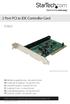 2 Port PCI to IDE Controller Card PCIIDE2 *actual product may vary from photos DE: Bedienungsanleitung - de.startech.com FR: Guide de l'utilisateur - fr.startech.com ES: Guía del usuario - es.startech.com
Jabra LINK 220 Jabra LINK 220a
 Jabra LINK 220 Jabra LINK 220a USER MANUAL www.jabra.com 1 2009 GN Netcom A/S. All Rights Reserved. This user guide is published by GN Netcom A/S. The information in this user guide is furnished for informational
Docking station for two laptops
 Docking station for two laptops USB3DDOCKFT DE: Bedienungsanleitung - de.startech.com FR: Guide de l'utilisateur - fr.startech.com ES: Guía del usuario - es.startech.com IT: Guida per l'uso - it.startech.com
Installation of USB Virtual COM. Version 1.02
 Installation of USB Virtual COM Version 1.02 RELEASE NOTES Version Date Notes 1.02 May 13, 2014 Modified: Install USB Virtual COM Drivers files on CD updated 1.01 Dec. 10, 2009 Supports driver for Windows
Creatix 802.11g Adapter CTX405 V.1/V.2 User Manual
 Creatix 802.11g Adapter CTX405 V.1/V.2 User Manual 1 Safety instructions for Creatix 802.11g Adapter This equipment has been designed and tested in accordance with the requirements of Standard EN60950.